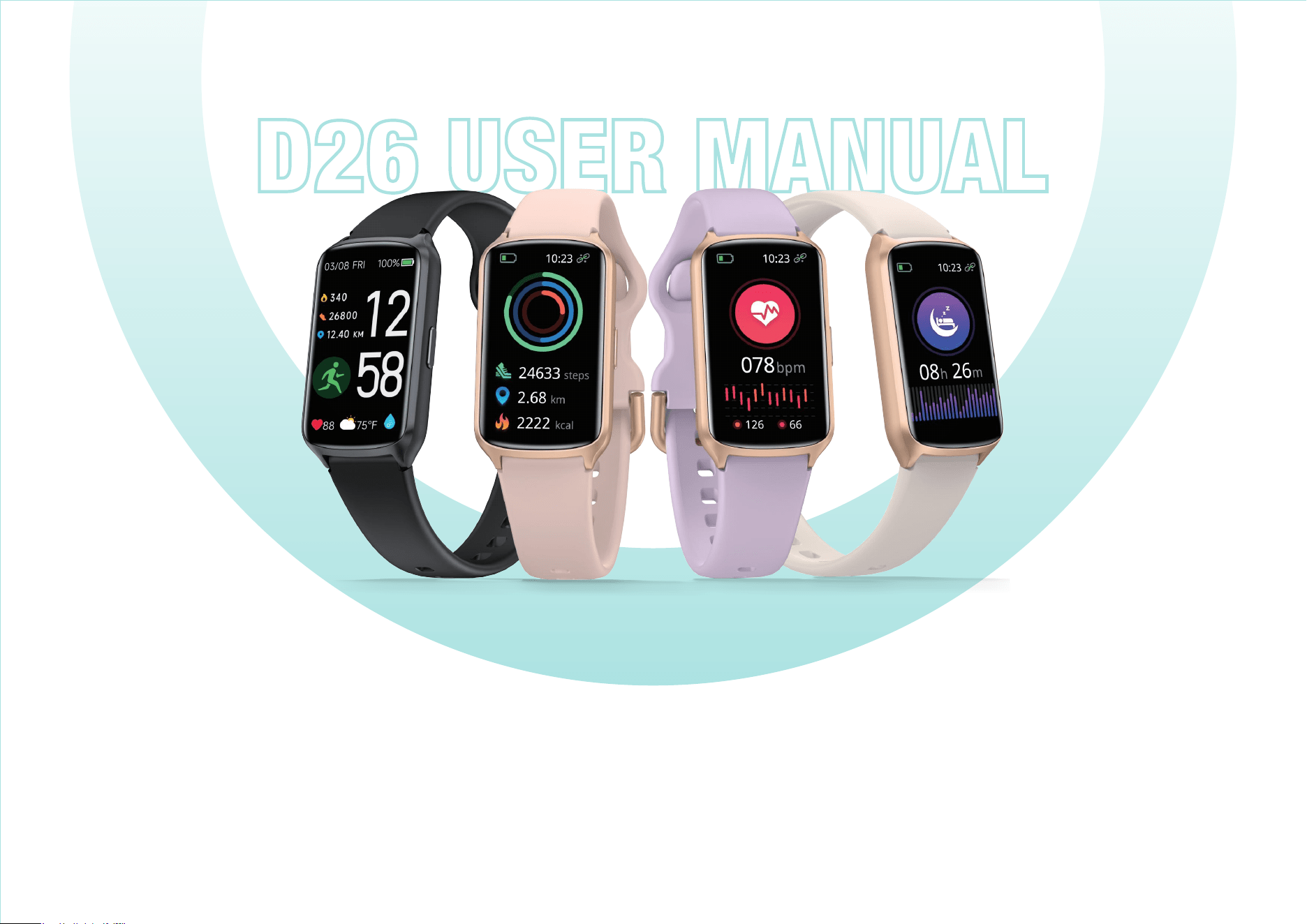
D26 User Manual
App Download
1.Product Operation
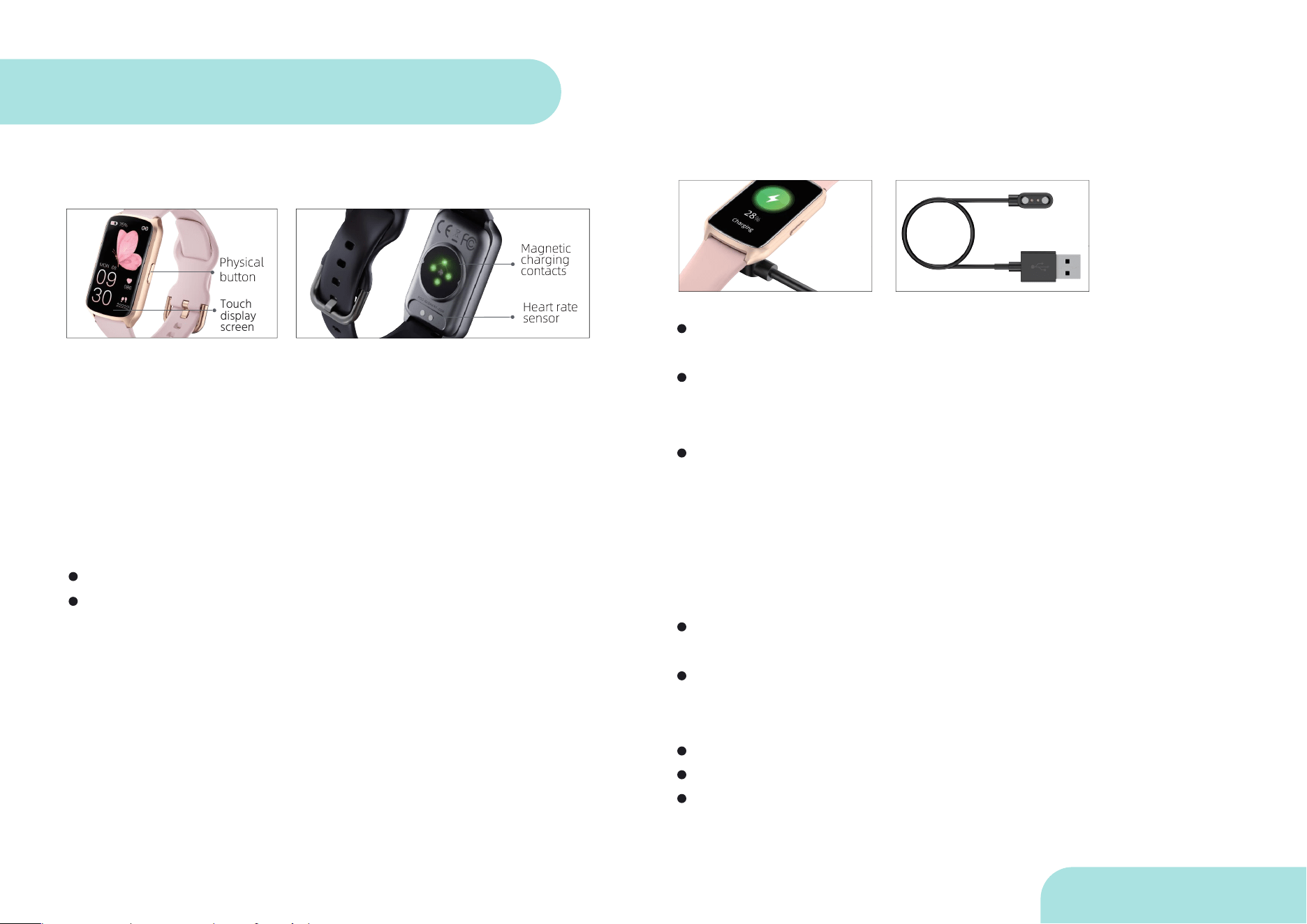
1-1 Physical button operation
Product Overview
Touch
display
screen
Short press:
1. Enter function menu from home page
2. Return to previous level/home page
3. Wake up the screen when it is off
Long press: Switch on/off
Please be careful not to scratch the sensor lens and keep it clean;
Please keep the magnetic charging contacts clean (in case of
individual bad charging, please check whether the contacts are dirty
and rusty, you can use soap-free cleaner or alcohol to clean the
contacts and try again)
1-2 Touch operation
1. Click touch: Go to the next menu/confirmation.
2. Long press touch: Long press in the main screen to
change the dial.
When using the bracelet for the first time, it needs to be charged to
activate it.
Use the included magnetic charging cable to attach it to the watch
charging contacts, and the USB-A connector on the other end of the
charger is connected to a USB charging adapter.
To ensure the safety of your family and property, this product is not
equipped with a power adapter, when charging, you can use a computer
USB port or choose a power adapter with an output of not more than 5V
1A, please purchase the power adapter through regular channels, do not
use poor quality, counterfeit power adapters, which may cause bursting
or fire, which may cause damage to the bracelet or cause other
accidents.
When the bracelet is switched off, it will turn on automatically when
you start charging.
When the bracelet is extremely low in power, you need to wait for
about 2 minutes before the charging animation is displayed or there is a
response.
Do not use mobile power to charge it.
Do not charge it in a humid environment.
Please use a clean flannel to clean the magnetic charging hole on the
back of the watch.
2. Charging and
activating the watch
D26 User Manual
Main Functions Of The Bracelet
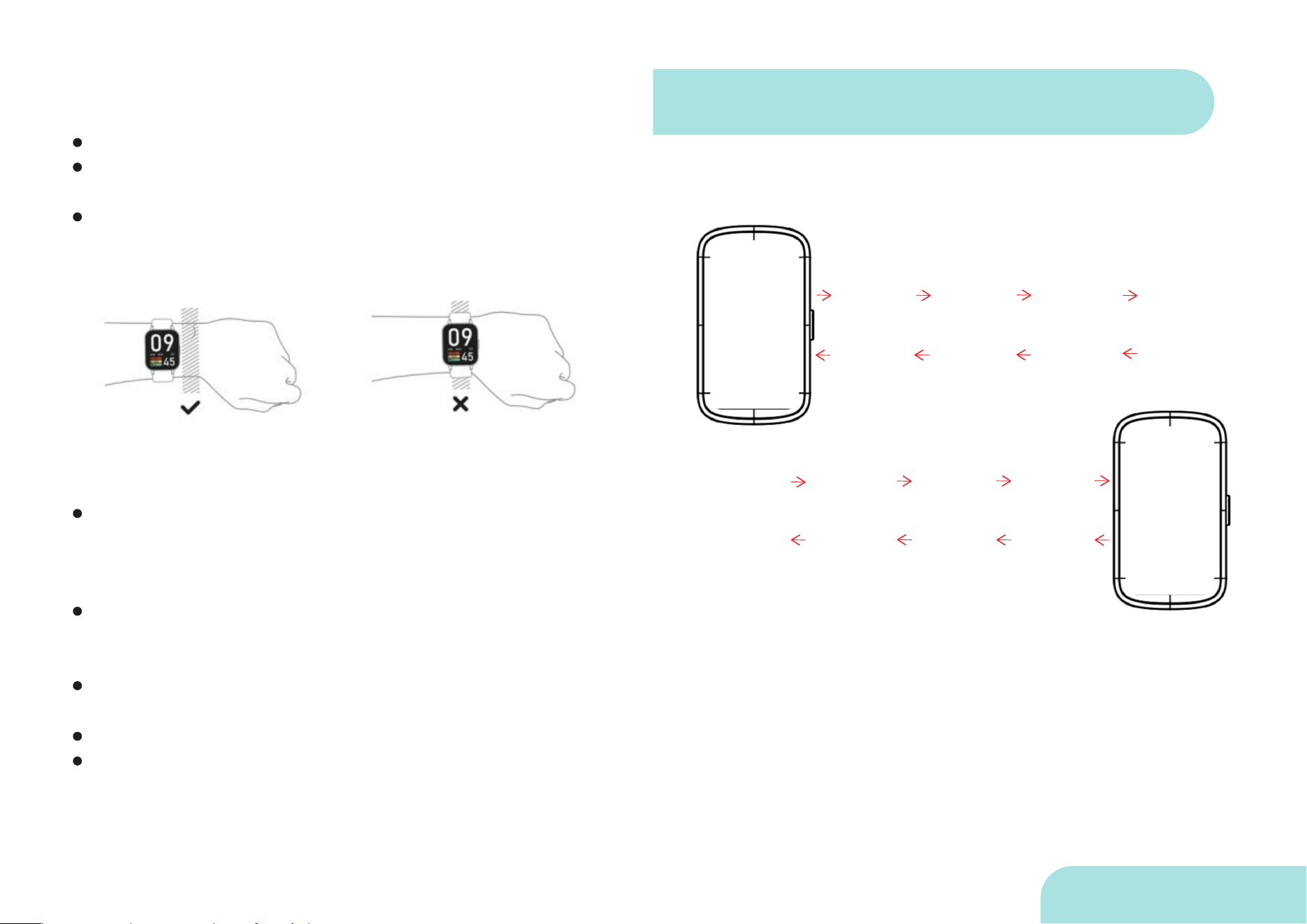
Do not wear it too tightly for everyday wear.
Please wear the watch on your wrist about one finger's width from
your wrist bone and adjust the strap to a comfortable size.
If the watch is worn too loosely, the data collected by the heart
rate/blood oxygen sensor may be affected.
If you experience discomfort or skin irritation while wearing your
smartwatch, then we recommend that you try cleaning your device.
Sometimes it is residue or foreign matter that builds up substances
around your device that may damage your skin.
It is also possible that you are not wearing your watch correctly. We
recommend ensuring that you clean and adjust your watch regularly to
make it more comfortable to wear.
If your skin becomes irritated while wearing your watch, avoid wear-
ing it and wait two to three days to see if your symptoms subside.
If symptoms persist or worsen, consult your doctor.
If you have eczema, allergies or asthma, consult your doctor.
3. Wearing Instructions
1.Touchscreen Operation
Caution:
-Swipe up: view information
-Swipe down: control panel
-Swipe left/right (cycle): switch function menu
-Quickly change dial:Long press the main interface for 3 seconds, then
you can slide left or right to choose the dial of the bracelet.
-After entering the function menu, you can operate according to the
prompts, and press the button to return to the main interface.
-Right slide on other pages to go back to the previous page.
D26 User Manual
2. Health and Sports
You can enter the sports item selection interface
through the main menu"Training" of the wristband.The
wristband provides 25 sports items.
*Sports
You can enter the blood pressure test through the main
menu "Blood Pressure"of the wristband, or on the fourth
* Blood Pressure
You can enter the blood oxygen test through the main menu
"Blood Oxygen" ofthe wristband, or on the third interface
that appears when you swipe right onthe main interface of
the wristband, and the test will be automatically startedafter
you enter it. You can set Automatic Test by choosing "App->
Device->Blood Oxygen Settings".After data are
synchronized to the App, continuous testreports will be
generated.
*Blood Oxygen
You can view steps, distance, calories and other data
through the main menu"Status" of the wristband, or on the
first interface that appears when you swiperight on the
main interface of the wristband; You can also
synchronize data to the GloryFit App to view sports data.
*Step Count / Distance / Calorie
You can enter the heart rate test through the main menu
"Heart Rate" of thewristband, or on the second interface
that appears when you swipe right on themain interface
of the wristband, and the test will be automatically
started afteryou enter it. You can set Automatic Test by
choosing "App-> Device-> Heart RateSettings".After
data are synchronized to the App, continuous test
reports will begenerated.
* Heart Rate
The wristband automatically checks sleep status, which can
be monitored aslong as the wristband is worn during
sleep.You can view it through the mainmenu "Sleep" or App.
* Sleep
You can check the weather through the main menu "Weather"
of the wristband.The weather can be updated if the
wristband is connected to the mobile phone.
* Weather
interface that appears when you swipe righton the main
interface of the wristband, and the test will be automatically
started after you enter it.Keep your mind calm and your arms
flat on the tableduring the test.
Note: This blood pressure test value is for reference only and
should not be usedas a basis for medical judgment.
D26 User Manual
You can enter the music control interface through the
main menu "Music" ofthe wristband, to control the
Pause of playback, Previous and Next music. Keep the
wristband connected to the mobile phone during control.
* Music Control
Enter through the main menu "More". You can use the
Stopwatch, Timer andFind Mobile Phone functions.
*More
lt is set by choosing "App -> Device -> Phone". There is
a reminder only when thewristband is connected to the
mobile phone.
*Call Reminder
The alarm clock is set in the App. You can set three sets
of alarms by choosing “App->Alarm".
*Alarm Clock
You can control the mobile phone camera to take photos
remotely by choosing "App->Device-> More Settings->
Shake to take picture".
* Remote Camera
You can enter the breath training mode through the main
menu and set theduration and speed of breath.
*Breath Training
You can view the message content through the main
menu "Message" of the bracelet OR swipe up in the
main interface of the bracelet. When viewing messages,
if there are multiple messages, you can tap on a single
message and then view the details OR delete the con-
tent; if the single content is too long, you can single tap
to flip the page to view. This function only supports
viewing, does not support editing and replying.
*Message
The female menstrual cycle reminder can be set by
choosing "App-> Profile->Physiological Cycle". After the
setup, the "Female" item will appear in the mainmenu of
the wristband.
Note: Only when the personal information is set to
"Female" will the "MenstrualCycle" be displayed on the
App and wristband.
*Female Health
D26 User Manual
APP download, login, pairing and setup
STATE: Please fill in your personal information truthfully
as prompted(Or after logging in, click on 'My' > click on
your avatar > complete your personal information), as
this will affect the accuracy of all data monitoring during
the use of the fitness tracker.
1. APP download
2. Login
Search GloryFit in App Store, Google Play or download and install
by scanning the QR code below; Mobile phone system
requirements: iOS 9.0 or above, Android 6.0 or above.
Note: Please feel free to download and install this app,
this app will strictly protect user information and will
not be used for any other purpose! This app does not
charge any fees!
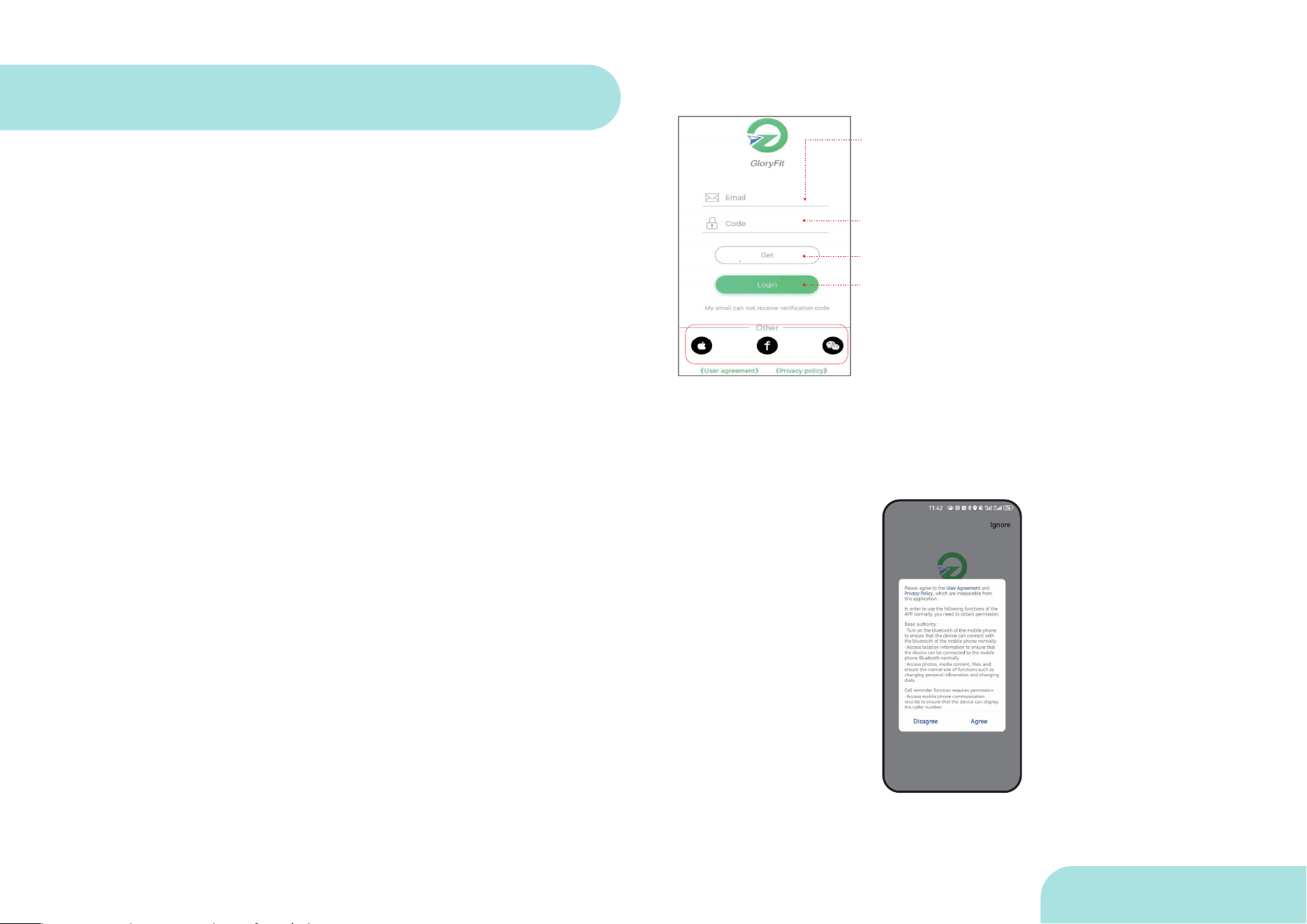
Note: To open the GloryFit app, please agree to the User
Agreement and Privacy Policy, which are integral to this app.
1.Enter your email
3.Verification code received after
you enter email(Please receive the
email with subject as [GloryFit]
4.Click for login
* You can also log in GloryFit App
directly and synchronously by Apple
lD, Facebook or WeChat account.
2.Click to get the verification code
D26 User Manual
3. Enter personal information
4. Set Up
4-2 Set up---Android:
-Background Activity Permissions: affects the background use of
certain functions and the stability of Bluetooth connection, such
as: incoming calls, SMS, app message reminder, weather push
and so on.
-Location information: Ensure that the device can properly connect
to your mobile phone's Bluetooth connection
-Camera privileges: Ensure that functions such as changing
personal information avatars, changing dials, etc. work properly
-Phone permissions, dialling permissions, address book permis-
sions, call log permissions: Receive alerts for incoming calls and
reject calls with one click.
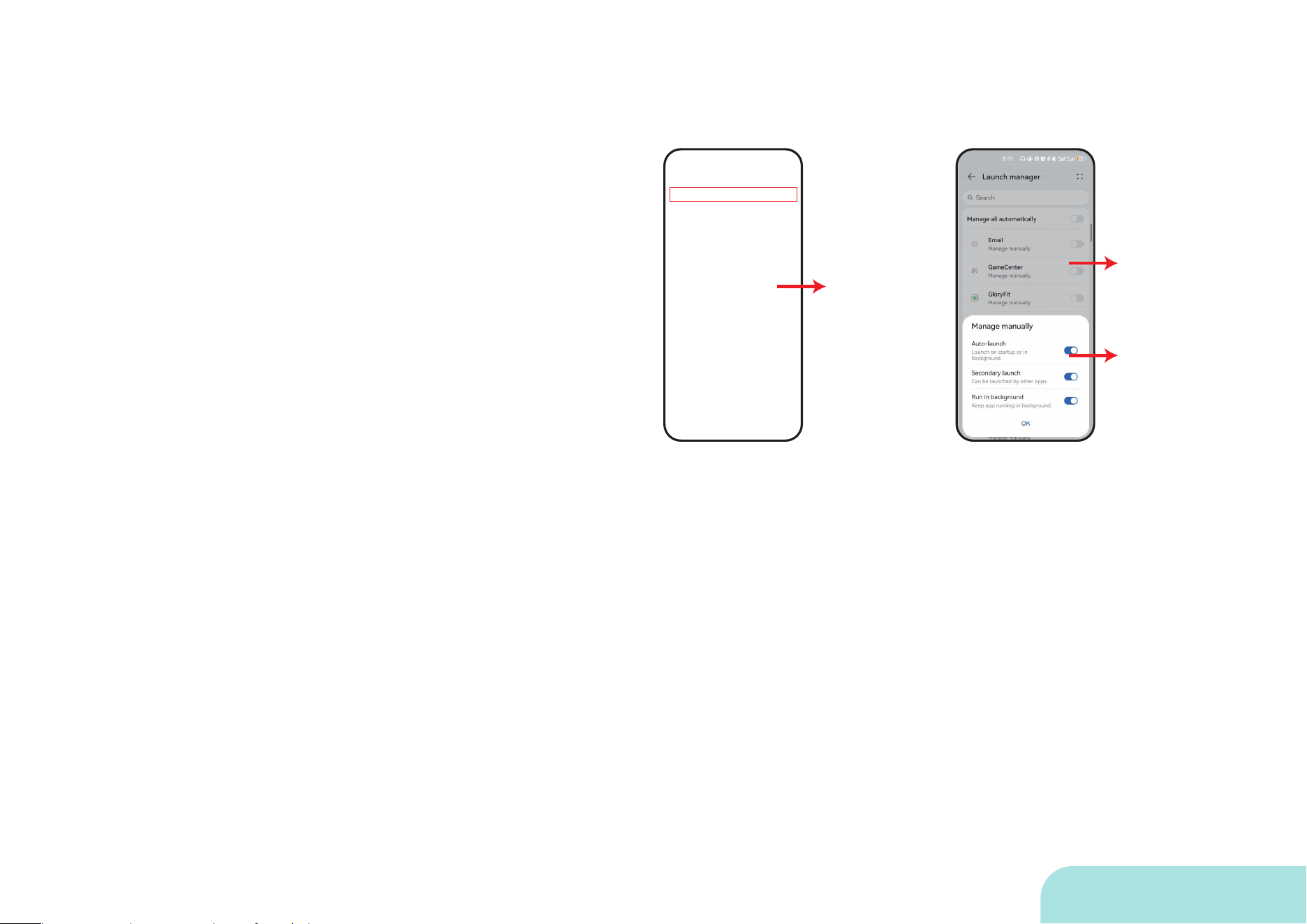
1.Setting path for Background Activity Permissions
Please fill in your personal information truthfully as
prompted(Or after logging in, click on 'My' > click on
your avatar > complete your personal information), as
this will affect the accuracy of all data monitoring
during the use of the fitness tracker.
Note: Please keep your mobile phone's Bluetooth on
during use to ensure that the device and your mobile
phone's Bluetooth remain connected.
4-1 Relationship between permissions and devices
Path 3:Log in to your account >Go to 'My'>Permission
settings>Background Activity Permissions>Go to set
Then Scroll down to find GloryFit APP > Set it to off - Go to the
Manage manually interface > Set all the options in the picture to
on(Auto-launch, Secondary launch, Run in background)
Note: Add GloryFit to its whitelist in Security Centre or Phone
Settings; If you have installed related app hibernation tools in your
phone, such as Green Guardian, Self-Start Manager and other apps,
you need to remove GloryFit from the list of these hibernation apps.
Select your
mobile phone
Turn these
switches on
Turn this off
Path 1:Log in to your account > Select your phone model > Tap
"Go to Set" in the bottom left corner
Path 2:Go to 'Phone Manager'/phone's 'Settings'>APPs &
services>Launch manager
D26 User Manual
APP Interface
5. Adding Devices and Pairing
1.Watch Face
Path 1:Log in to your account >Go to 'My'>Permission settings>
Turn on all permissions/functional permissions you need to use
Path 2:Phone's 'Settings'>APPs & services>Apps/Permission
manager-Apps>Find and Click GloryFit APP>Turn on all
permissions/functional permissions you need to use
1. Based on the requirements of Apple IOS system for APP and the
characteristics of its own system, the watch APP under Apple IOS
system can't set the background running privileges.
2. IPHONE's bluetooth system settings have a allow message push,
this must be opened.
3. After the APP turns to run in the background, it will hibernate by
default in the IOS system, then the weather push, music control and
so on are not available at this time, and the weather push will show a
"?" etc.
2.Setting paths for other usage permissions
4-3 Set up---Apple IOS:
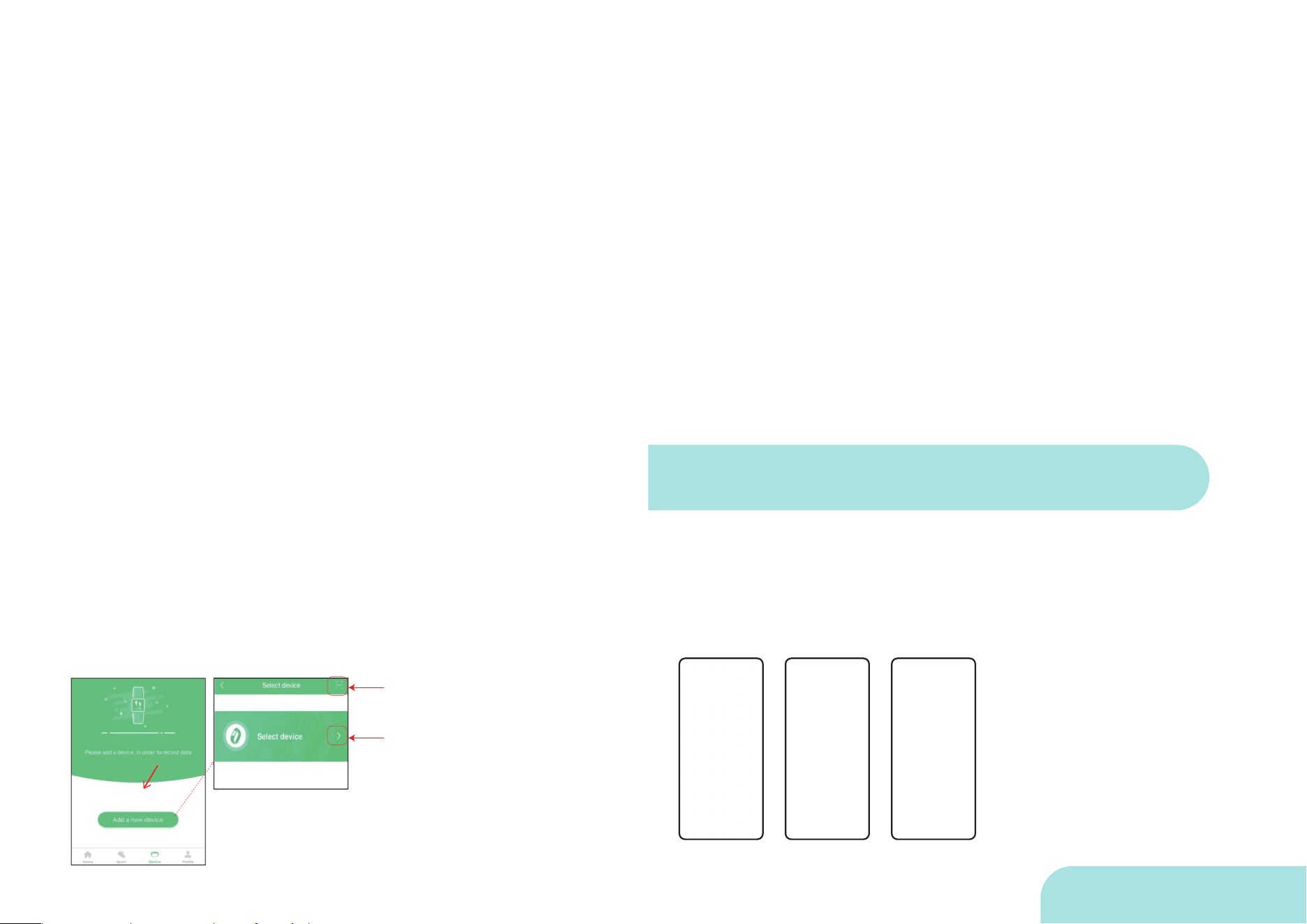
Open and login GloryFit APP>Device>Select Device D26 Pairing/
Scan Device QR Code Pairing(Keep your mobile phone and device
close to each other when connecting.)
Click here to scan yourwatch
QR code (Openthe watch QR
code by"Set-->QR code")
Click here to search yourwatch
Bluetooth name"D26".
Remarks: In the binding process, in the case of popup
window to request for Bluetooth pairing, etc,please click
and agree.
1-1 Changing dials from online dials
APP - Device - Dial Settings - Dial Centre
When the mobile phone is connected to more than one bluetooth
device, sometimes there will be a delay in bluetooth connection or
can't be connected back automatically, this time you need to turn
off and then turn on the bluetooth control of the mobile phone, the
bluetooth will start from the last connected device of the mobile
phone to connect back one by one;
① If it still doesn't connect back successfully, please try to
unbundle it and let the watch pair with the mobile phone again to
reconnect;
② If the device is not found during the process of adding the
device, or the device can not be connected during the process of
using the device, please reset the device in the operation interface
of the watch ("Settings - Reset"), and then add the device again.
③ If you still can't find the bracelet, please exit and open the
APP again
D26 User Manual
4. Incoming Call Settings
2. Heart rate monitoring settings
3. Blood Oxygen settings
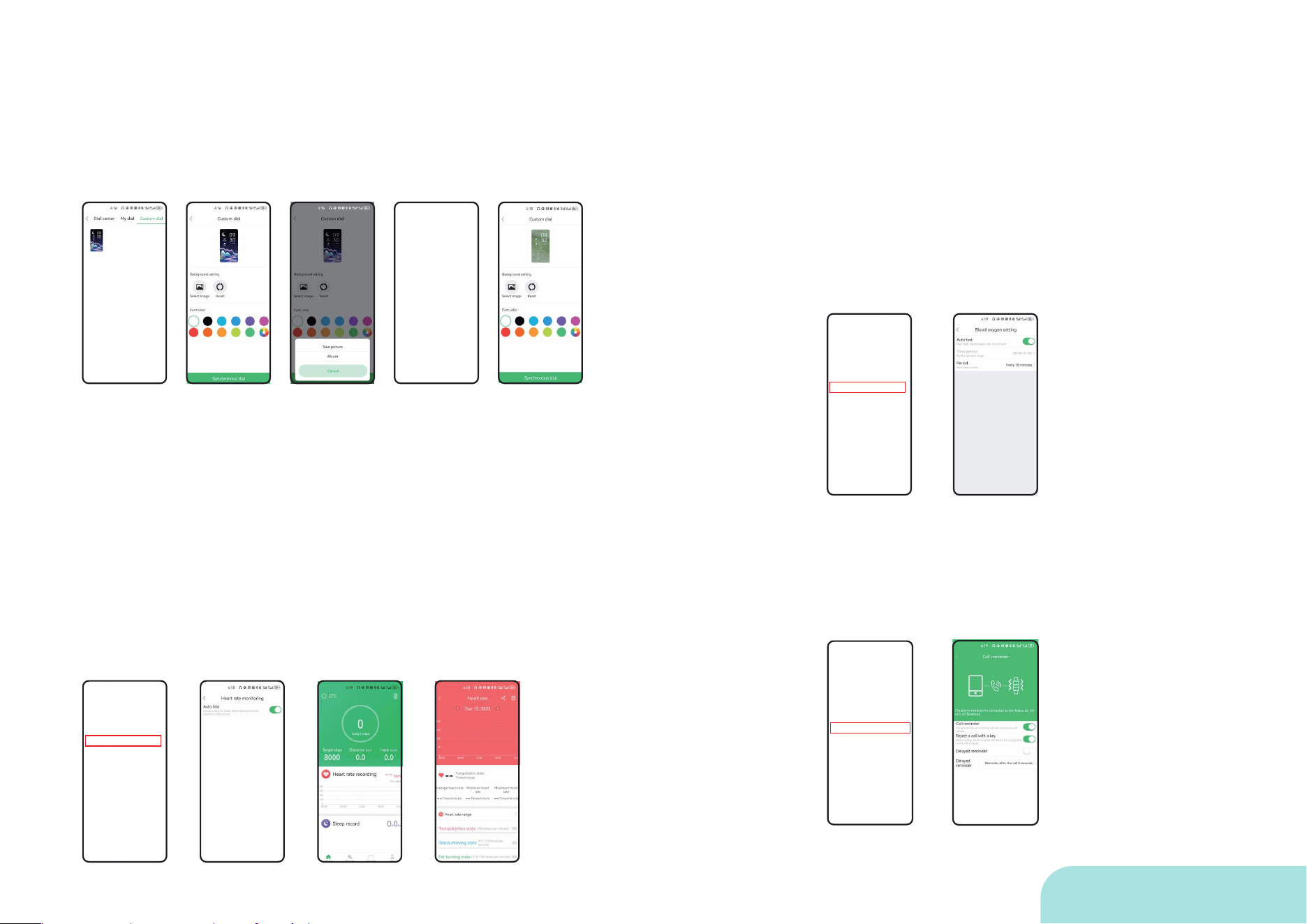
1-2 Custom Dial
APP--Device--Dial Settings--Custom Dial--Tap the dial pattern on
the upper left corner--Select the picture--Take a picture,
album--Crop the picture--Select the font colour--Sync the dials
Note: Only one of the online dials and custom dials can be
used, they will overwrite each other on the watch side.
2-1 In APP--Device--Enable heart rate automatic
monitoring, it will record every 10 minutes.
2-2 In APP homepage - click heart rate record, you can have a
detailed data view.
In APP--Device--Enable blood oxygen automatic detection, the time
period and duration can be customised.
In non-high sea wave, low oxygen and other special environments, it
is generally not recommended to turn on the automatic monitoring of
blood oxygen, which will increase the power consumption and reduce
the standby time; instead, a single measurement is performed on the
watch side;
Blood oxygen value 95-99% is normal, 90%-95% is hypoxia, 90% is
hypoxia;
After setting permission in APP - Device - Incoming Call Alert, there will
be an alert on the bracelet side when a call is accessed.
D26 User Manual
6. APP Reminder
Tick the name of the APP that needs to receive notifications in
APP - Device - APP Reminder
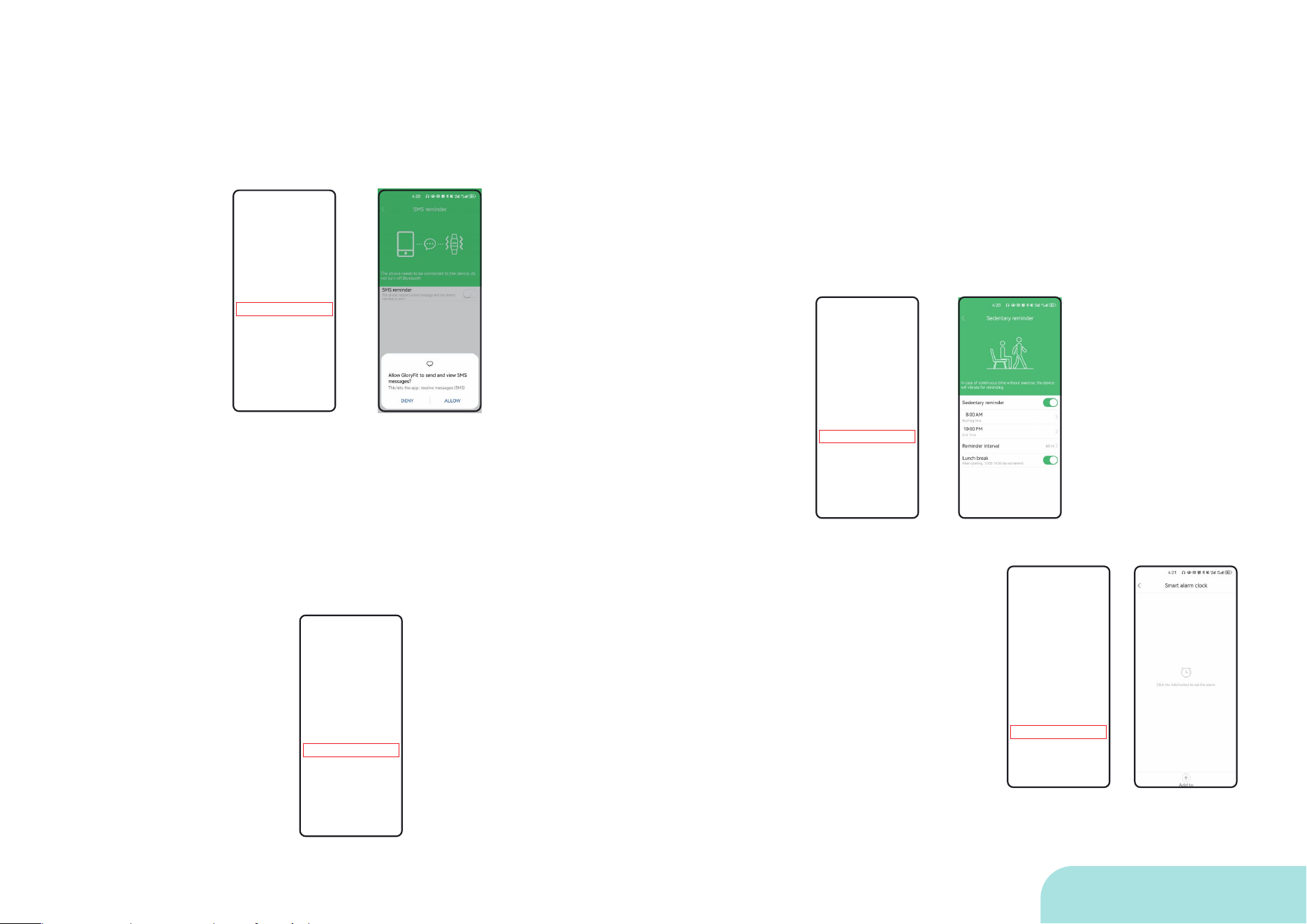
8. Smart Alarm
Choose whether to enable this
function in APP--Device--Smart Alarm,
you can add 3 alarms.
After enabling this function, there will be
a reminder on the end of the bracelet.
This function can only be enabled or
deactivated in APP, there is no option
for this function in the bracelet.
5. SMS alerts
After setting permission in APP - Device - SMS Alerts, there will be an
alert on the bracelet side when a text message is received.
7. Sedentary Reminder
Choose whether to enable this function in APP--Device--Sedentary
Reminder, you can set the time period, the reminder interval length,
and the no-disturbance period of lunch break.
After enabling the function, there will be a reminder on the end of the
bracelet.
This function can only be set in APP to enable or disable, there is no
such function option in the bracelet terminal.
D26 User Manual
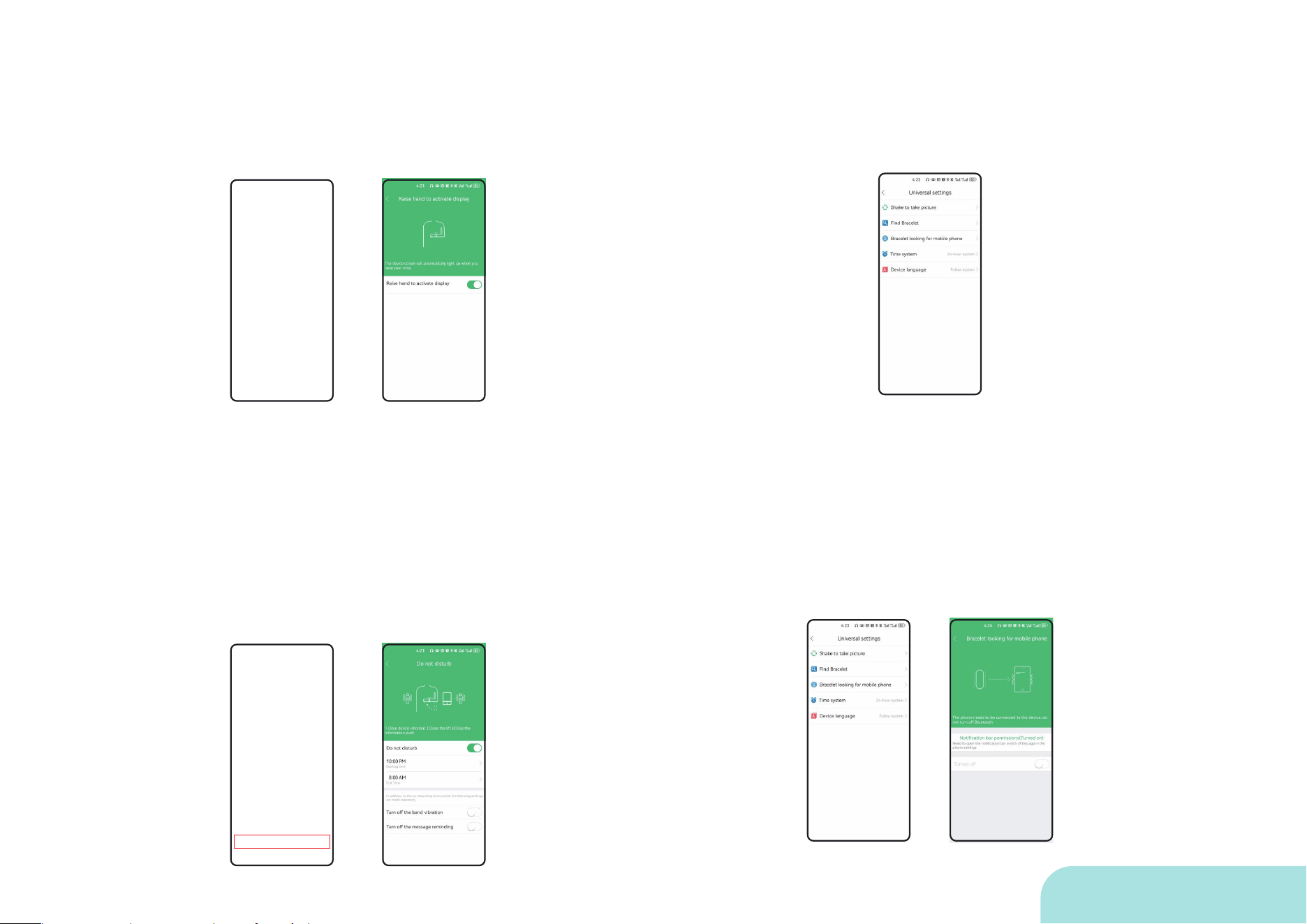
12. More Settings - Find Device /
Find Mobile Phone
In APP--Device--More Settings--Find Device, there will be a reminder
on the end of the bracelet;
Choose whether to enable this function in APP - Device - More
Settings - Find Mobile Phone, after enabling it, you can add the
function of finding mobile phone on the bracelet.
10. Do Not Disturb Mode
Choose whether to enable this function in APP--Device--Do Not
Disturb Mode, which can be set on the end of the bracelet.
The function can set the time period individually, which is suitable for
nap, meeting and other scenes.
11. More Settings-Shake to take photo
Choose whether to enable this function in APP - Device - More
Settings - Shake to take photo, you can control the shutter of the
camera by shaking the bracelet.
9. Wrist Lift Screen
Choose whether to enable this function in APP--Device--Wrist Lift
Screen, this function can be set in the end of the bracelet.
D26 User Manual
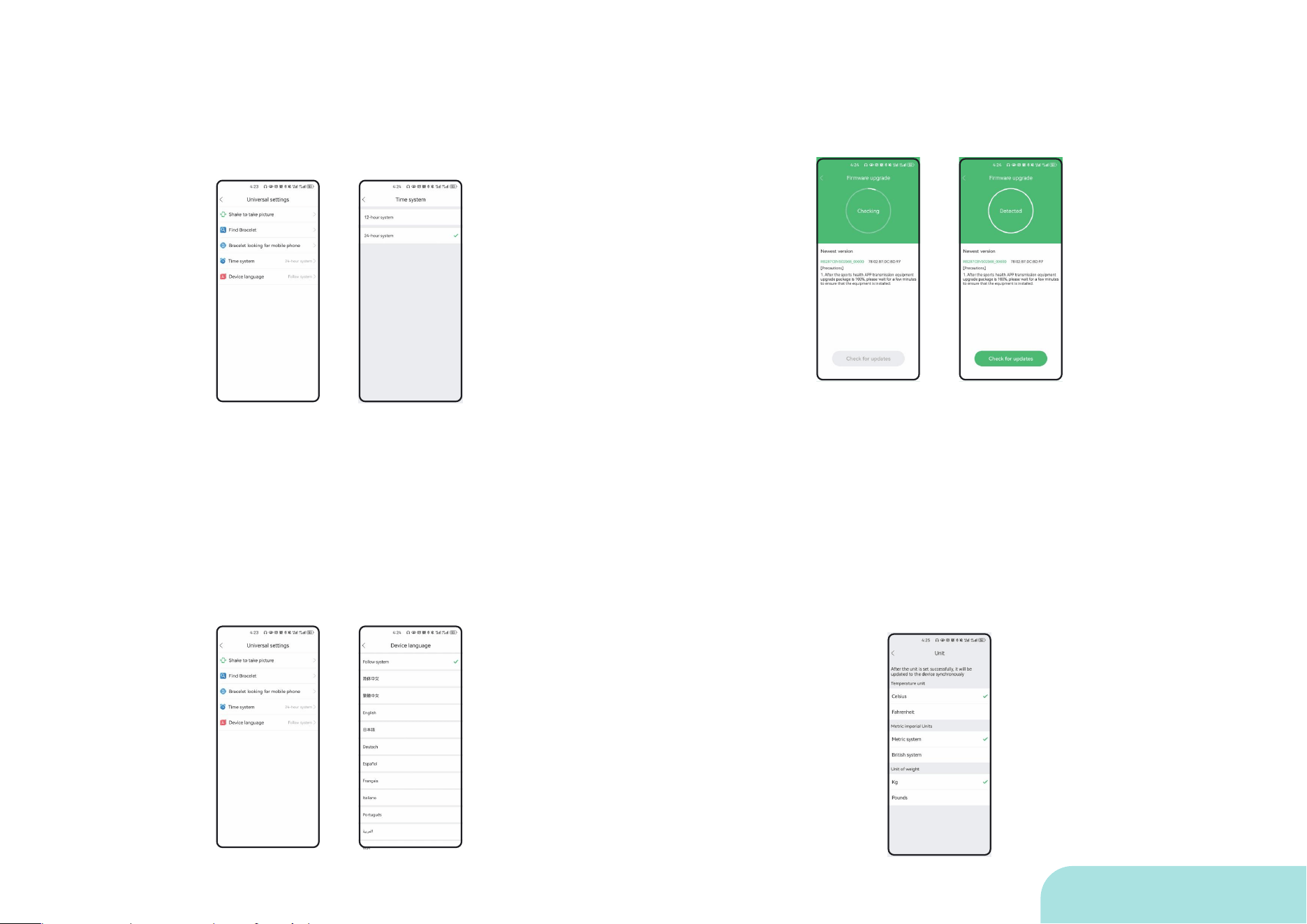
13. Time System
You can select 12-hour / 24-hour time system in APP - Device - More
Settings - Time System.
14. Device Language
In APP - Device - More Settings - Device Voice, you can select the
applicable language individually or let the watch language follow the
mobile phone system language.
Default: Follow system
15. Firmware Update
If checking for an updatable software version, users can upgrade
online (OTA) by themselves.
16. Clear data
This function will synchronously delete all data on the APP side
and the bracelet side, please use with caution!!!!
17. Unit Setting
In APP--My--Unit Settings, you can set the temperature, length,
weight and other units of different systems.
D26 User Manual
FAQ
20. Third Party Programme
1. App can't search the device?
In APP--Device--More Settings--Find Device, there will be a reminder
on the end of the bracelet;
Choose whether to enable this function in APP - Device - More
Settings - Find Mobile Phone, after enabling it, you can add the
function of finding mobile phone on the bracelet.
21. Frequently Asked Questions,
Feedback
If you have any other questions, you can check the FAQ, if you still
can't get a solution, you can inform the developer of the problem
through the feedback; you can also contact our customer service staff
through the customer service phone OR email.
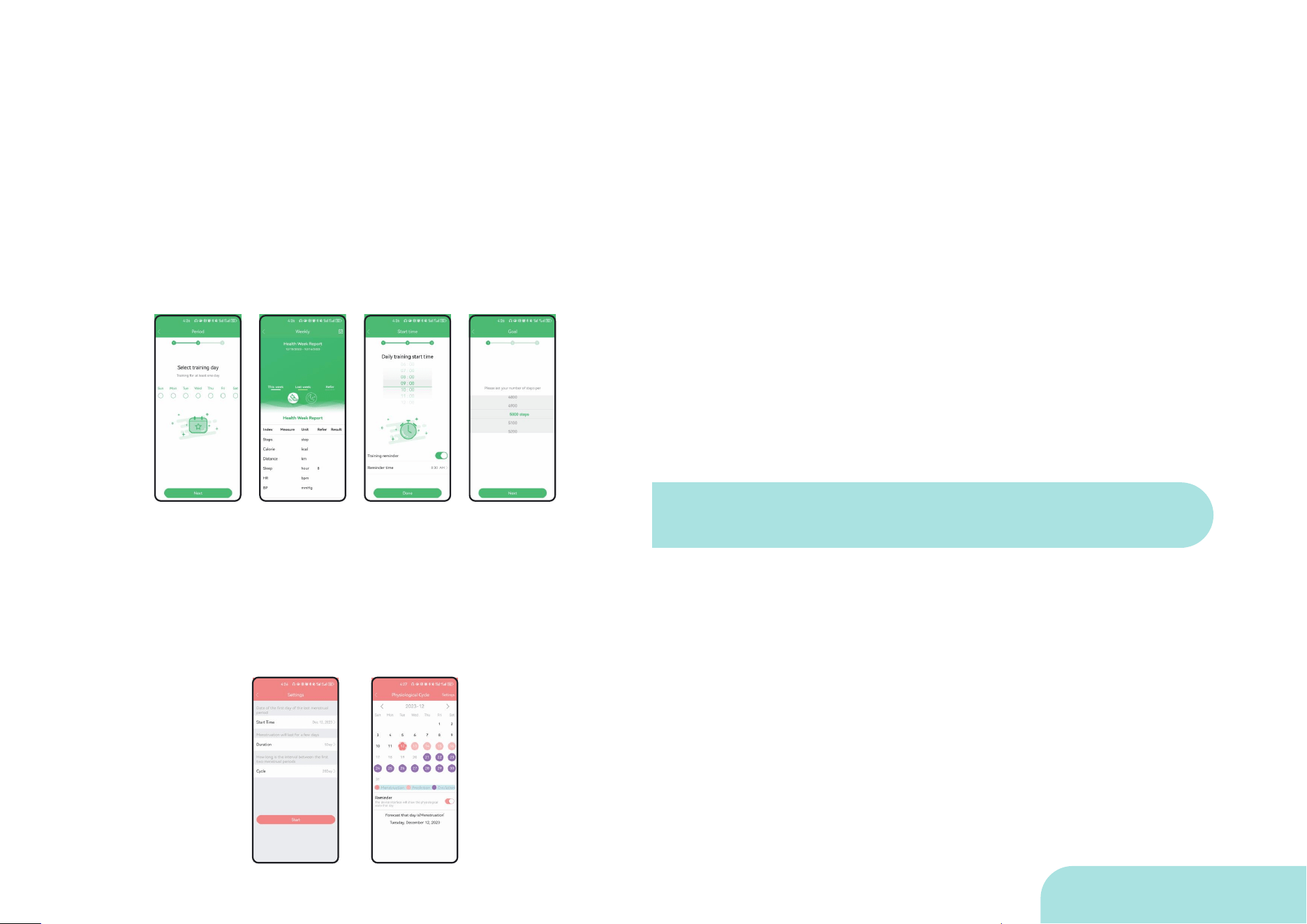
18. Training schedule,
goal setting, weekly data
In APP--My--you can set the training schedule and goal setting, and
there will be a reminder on the watch side; if you are a person who likes
sports, you can make a good training plan for yourself here;
In APP--My--Weekly report data you can check the data of steps, c
alories, mileage, sleep, heart rate, blood pressure and so on for a week;
19. Physiological cycle
You can set the time of menstruation in APP--My--Physiological Cycle,
and you can view the corresponding calendar after clicking Start;
At the same time, only if the personal information is female, there will be
"female" function option in the bracelet;
*Please try to press the device button first, if the screen is not lit, you
can connect the device to the charger for charging to make sure
there is power.
*If the device is connected by another mobile phone, turn off or
unbind the Bluetooth of that mobile phone first, and then use the
current mobile phone to search and bind.
*If it is an iPhone mobile phone, try to ignore the device in the
system Bluetooth devices, setup path: System Settings → Bluetooth
→ Click the right icon ⓘ → Ignore this device.
D26 User Manual

*If the device is powered and still cannot be searched after the
mobile phone is close, try to restart the mobile phone Bluetooth.
*If you are an Android mobile phone and cannot search for the
device, please check whether the information location ( GPS
location service) of your mobile phone is off; if it is off, please go to
the system setting interface to turn on the location, and then
search for the device again.
Note: If after the above operation, it fails to solve. It is
recommended to try to restart the mobile phone.
2. Device connects and
disconnects repeatedly?
* Whether there is a cover between the device and the mobile
phone. The human body or metal jewellery worn, etc. will interfere
with the Bluetooth connection stability.
*Please check whether the device power is sufficient.
*If it is an iPhone, try to ignore the device in the system Bluetooth
device, setup path: System Settings → Bluetooth → Click the
right icon ⓘ → Ignore this device.
*If it is an iPhone, check if the phone is bound to too many
Bluetooth devices, please ignore several devices in the system
Bluetooth settings.
Note: If it fails to be solved after the above operations. It is r
ecommended to try to restart the Bluetooth or mobile phone.
3. Android can't run in the background for a
long time, no reminders for messages?
*Due to the limitations of Android system, when this app is
running in the background, the incoming call, message reminder
4. App messages can not be pushed to remind
(the device supports the message push function)?
* Make sure that in the notification reminder interface of the app, the
apps that need to be reminded are ticked to turn on the function.
*Check whether the Do Not Disturb mode of the device is on. (Some
devices have this function)
*Find the right to use the notification of the App that needs to be
reminded in the system settings of the mobile phone to allow the
notification.
*Make sure there is an app message box popping up in the
notification bar of your phone when there is a message.
*The phone call and message push function requires the phone to
keep Bluetooth on all the time, please do not turn off the phone's
Bluetooth.
*If this happens to iPhone, please check whether the Bluetooth of the
phone has been paired with the device (in the system Bluetooth
devices, see the corresponding device name followed by an
exclamation mark).
*Android mobile phone, please check whether the app has been
added to the whitelist; need to open the background permissions
and GPS movement function may not work properly, you need to
turn on the power consumption protection and self-starting system
permissions.
*Power consumption protection setting:
Due to Android 6.0 updated power management method, when the
user does not interact with the app, the system will decide whether
the app is inactive or not, and determine whether the app needs to
be cleaned up to extend the battery life, if you want to use the app
for a long time and not to be cleaned up, you need to set the power
consumption protection on the user's own initiative.
D26 User Manual

7. How to synchronise data?
*When Bluetooth is turned on and you open the App, it will automati-
cally connect to the device for data synchronisation, or you can pull
down the data list in the main interface of the App for manual synchro-
nisation.
*If the sync prompts a connection failure, you can try the following
methods: first of all, you can pull down the main interface for manual
synchronisation, if it is invalid, please close the App background
processes, and then re-enter the App.
If it is not effective, please close the background process of the App
and re-enter the App. *If you still can't sync, please close and open the
Bluetooth of the mobile phone or restart the mobile phone.
8. Why is the weather data on my
device not displayed or not updated?
*Some devices support the weather function, some do not.
*The device itself will not update the weather data automatically, you
need to connect the device to the app, the app will automatically
synchronise the weather data to the device. If your device supports the
weather function but cannot sync the weather, please try as follows:
*Allow App location and networking permissions.
*You can manually pull down the sync data on the App homepage and
wait for the data sync to complete, then the weather data can be
synced to your device. (You can click on the weather interface to check
whether the weather data is acquired)
9. What should I do if my device
fails to upgrade?
*Please keep your device battery level above 50% when upgrading
your device. If the battery level of your device is lower than 50%, you
can't upgrade your device.
*After the device upgrade fails, the app will automatically try to
connect. If the automatic connection fails, you can manually pull down
the sync data on the main page, which will re-trigger the device
connection.
* Some devices fail to upgrade will have a two-minute waiting time
(during which the device does not respond) before the connection is
reactivated.
5. No reminder for SMS?
*Confirm contacts/address book permission is enabled
*Confirm that the SMS permission is turned on
6. Do I need to keep my mobile phone's
Bluetooth on when I wear the device?
*Pedometer, sleep monitoring, heart rate detection, blood oxygen
detection, blood pressure detection, sleep, stopwatch, timer, alarm
clock, sedentary reminder and other functions do not need to open
Bluetooth all the time.
You only need to wear the device when you workout, open the App
when you finish the workout, the device and mobile phone will be
connected automatically, and you can check the data after the syn-
chronisation is finished.
* Incoming call reminder, App notification reminder, find mobile phone,
find device and other functions, because the mobile phone needs to
be connected to the device all the time, so you need to turn on the
Bluetooth of the mobile phone all the time.
D26 User Manual

10. Device can not be charged
?
*First of all, please make sure the USB port (PC or other power supply
device) can be powered normally.
*Check if the USB port is plugged in backwards.
* Charging contact whether there is dirty rust and corrosion, etc., USB
interface and charging head of the full contact in order to charge
successfully.
*When the device has very low power, you need to wait for about 2
minutes before the charging animation is displayed or there is a
response.
11. Why is there no data for
blood oxygen monitoring?
*If you have not turned on the automatic test, you need to tap into the
icon for manual measurement, keep a static sitting posture, put your
hand flat on the desktop, breathe smoothly, the initial value will appear
in 10-15 seconds, and the final measurement will appear in 40-45
13. Why are there features that I
don't see on the tracker side?
These functions are only supported to set, enable or disable in the APP
port, there is no option for these functions in the tracker, but it doesn't
affect you to use these functions. Includes sedentary reminder, smart
alarm, shake to take a picture, find device / find phone, time system
and more!
12. Does it support recording data of
sporadic naps such as naps?
*Not supported for the time being.
*Sleep monitoring is based on the user's heart rate, movement and
other indicators to determine whether to start to enter the sleep state,
and the duration of more than 3 hours before it starts to record and
make analysis data;
*Sleep data is not monitored during daytime. The default sleep monitor-
ing period is from 18:00 pm to 18:00 pm the next day, but the sleep
start monitoring period is from 18:00 pm to the morning. (That is to say,
even if you fall asleep in the early hours of the morning from 18:00 pm
onwards, you can be detected, but if you fall asleep in the morning
before 9:00 am/daytime before 18:00 pm (night shift), it will not be
monito red and recorded).
seconds of continuous measurement, accompanied by the end of
the vibration reminder;
*You can set up automatic test by selecting "App-> Device-> Blood
Oxygen Settings" (App-> Device-> Blood Oxygen Settings), and
record the measurement value and form the curve, but turning on the
continuous monitoring of blood oxygen will reduce the power usage
hours;
If you still have problems, please contact us for after-sales service.
Reference values: 95-99% normal, 90-95% hypoxic, 90% hypoxic
blood oxygen values
D26 User Manual
Use and Maintenance
1.The measurement results of this product are for industry testing
purposes only and are not intended for any medical use or basis.
Please follow the doctor's advice, do not use the measurement results
for self-diagnosis and treatment.
2.This product is waterproof to IP68, suitable for swimming pools,
showers (cold water) and shallow pools, not for deep diving and
prolonged immersion in water. In addition, this product cannot be put
into a hot water environment, as the steam will affect the watch.
3.Keep the product clean:
* Please use a clean flannel to clean the magnetic charging hole on the
back of the watch.
* Do not use household cleaners when cleaning the product, please
use soap-free cleaners.
* For stubborn stains, it is recommended to scrub with alcohol.
4.Safety Instructions:
* Please do not use mobile power to charge, and do not charge in a
humid environment.
* Do not subject the product and its accessories to extreme
temperatures, as this may result in danger of product malfunction, fire
or explosion.
* Protect the product from strong impacts or bumps that may damage
the product and its accessories, which may result in product
malfunction, fire or explosion.
* Do not disassemble or modify the product and its accessories by
yourself.
* When the product malfunctions, please contact us for after-sales
service.
D26 User Manual