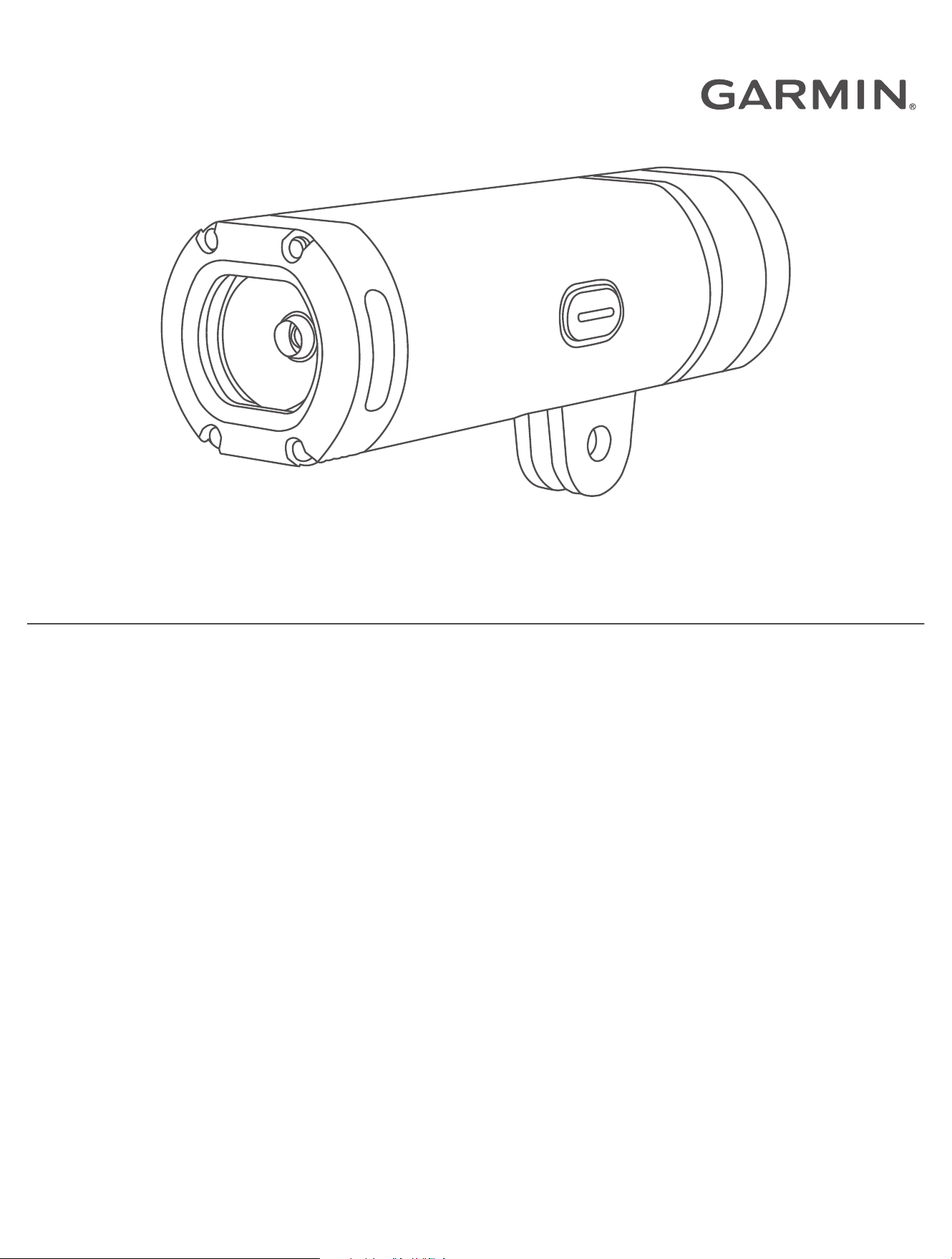
VARIA
™
UT800
Owner’s Manual

© 2017 Garmin Ltd. or its subsidiaries
All rights reserved. Under the copyright laws, this manual may not be copied, in whole or in part, without the written consent of Garmin. Garmin reserves the right to change
or improve its products and to make changes in the content of this manual without obligation to notify any person or organization of such changes or improvements. Go to
www.garmin.com for current updates and supplemental information concerning the use of this product.
Garmin
®
, the Garmin logo, ANT+
®
, and Edge
®
are trademarks of Garmin Ltd. or its subsidiaries, registered in the USA and other countries. Garmin Connect
™
, Garmin Express
™
, and
Varia
™
are trademarks of Garmin Ltd. or its subsidiaries. These trademarks may not be used without the express permission of Garmin.
This product is ANT+
®
certified. Visit www.thisisant.com/directory for a list of compatible products and apps.
M/N: A03086

Table of Contents
Introduction......................................1
Installing the Out-Front Mount............... 1
Installing the Helmet Mount................... 4
Device Overview...................................... 5
Turning On the Device............................. 6
Bike Light Status LEDs............................ 6
Device Settings................................ 6
Pairing Your Bike Light with Your Edge
Bike Computer......................................... 6
Customizing Headlight Settings with
Your Edge Device.................................... 7
Automatic Beam Intensity...................... 8
Device Information........................... 8
Specifications.......................................... 8
Charging the Device................................ 9
Tips for Charging the Device.................. 9
Device Care............................................10
Troubleshooting............................. 10
Resetting the Device............................. 10
Thermal Safety Shutdown.................... 10
Low Temperature Battery
Conservation......................................... 10
Updating the Headlight Software With
Your Edge Bike Computer.....................10
Product Updates................................... 10
Getting More Information..................... 10
Other Compatible Devices.............. 11
Pairing Your Bike Light with Another
Edge Bike Computer............................. 11
Pairing the Remote with Your Varia
Device.................................................... 11
Table of Contents i

Introduction
WARNING
See the Important Safety and Product Information guide in the product box for product warnings and other
important information.
The device is intended for outdoor use. Without proper airflow during use, the device may become hot. Handle
with care.
Installing the Out-Front Mount
You can use the out-front mount to install the headlight and your Edge
®
device. Garmin recommends that you
adjust the mount for the Edge viewing angle before you install and adjust the headlight angle.
1 Select a secure location to mount the Edge device and headlight where they do not interfere with the safe
operation of your bike.
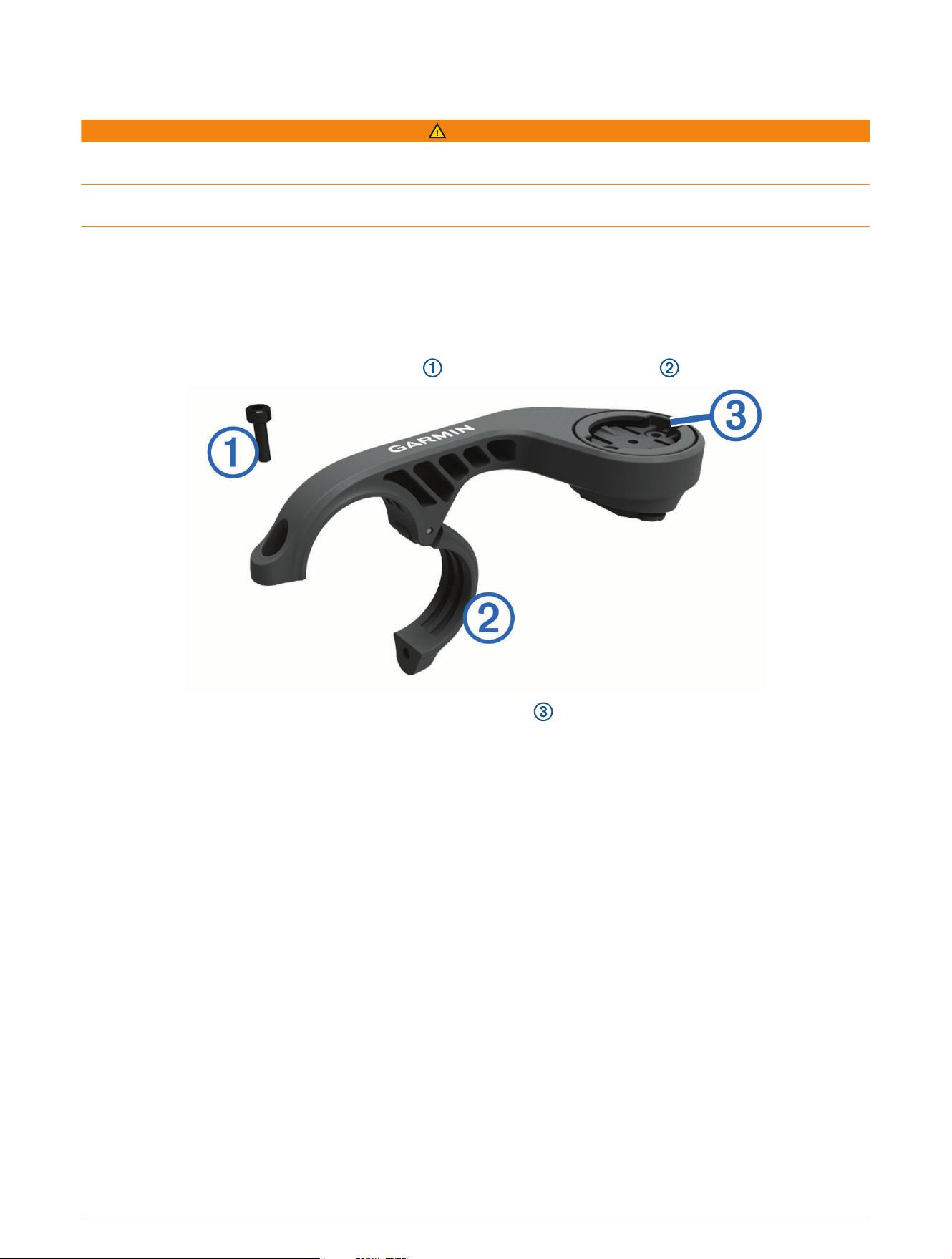
2 Use the 2.5 mm hex key to remove the screw from the handlebar connector .
3 If necessary, remove the two screws on the top of the mount , rotate the connector, and replace the
screws to change the orientation of the mount for an Edge device.
4 Place a rubber pad around the handlebar:
• If the handlebar diameter is 25.4mm, use the thicker pad.
• If the handlebar diameter is 31.8mm, use the thinner pad.
5 Place the handlebar connector around the rubber pad.
NOTE: You should align the contours on the rubber pad with the grooves on the inside of the handlebar
connector.
Introduction 1
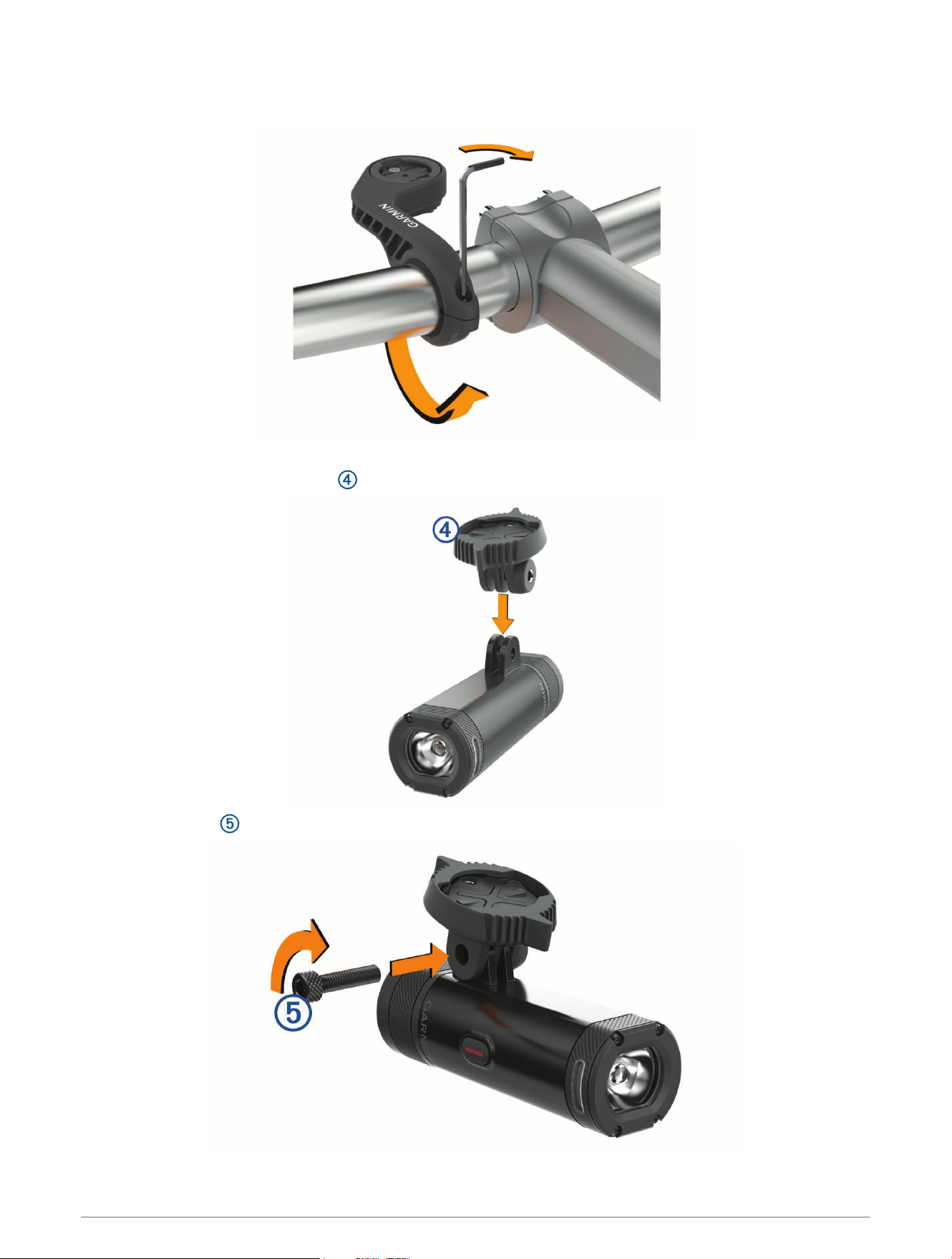
6 Replace the screw, and use the 2.5 mm hex key to tighten the screw.
NOTE: You should check the tightness of the screw periodically.
7 Install the Edge device, and adjust the mount (optional).
8 Connect the quarter-turn adapter to the headlight.
9 Insert the screw , and hand tighten.
2 Introduction
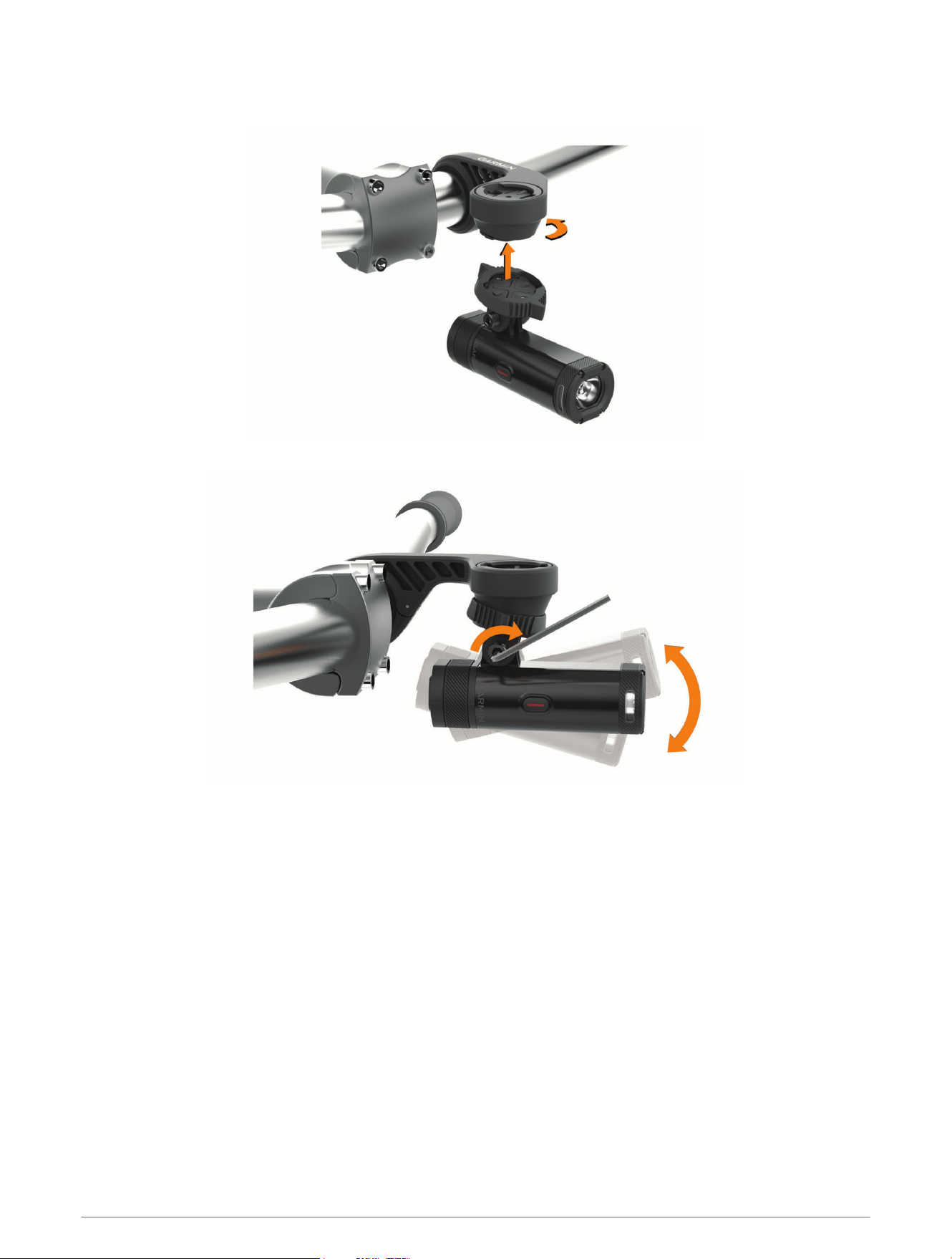
10 Align the notches of the quarter-turn adapter with the tabs on the bottom of the mount.
11 Press up slightly, and turn the adapter counterclockwise until it locks into place.
12 Adjust the headlight angle so it is parallel to the ground, and use the 4 mm hex key to tighten the screw.
NOTE: You should check the tightness of the screw periodically.
Introduction 3
Installing the Helmet Mount
1 Select a secure location to mount the headlight where it does not interfere with the safety and comfort of
your helmet.
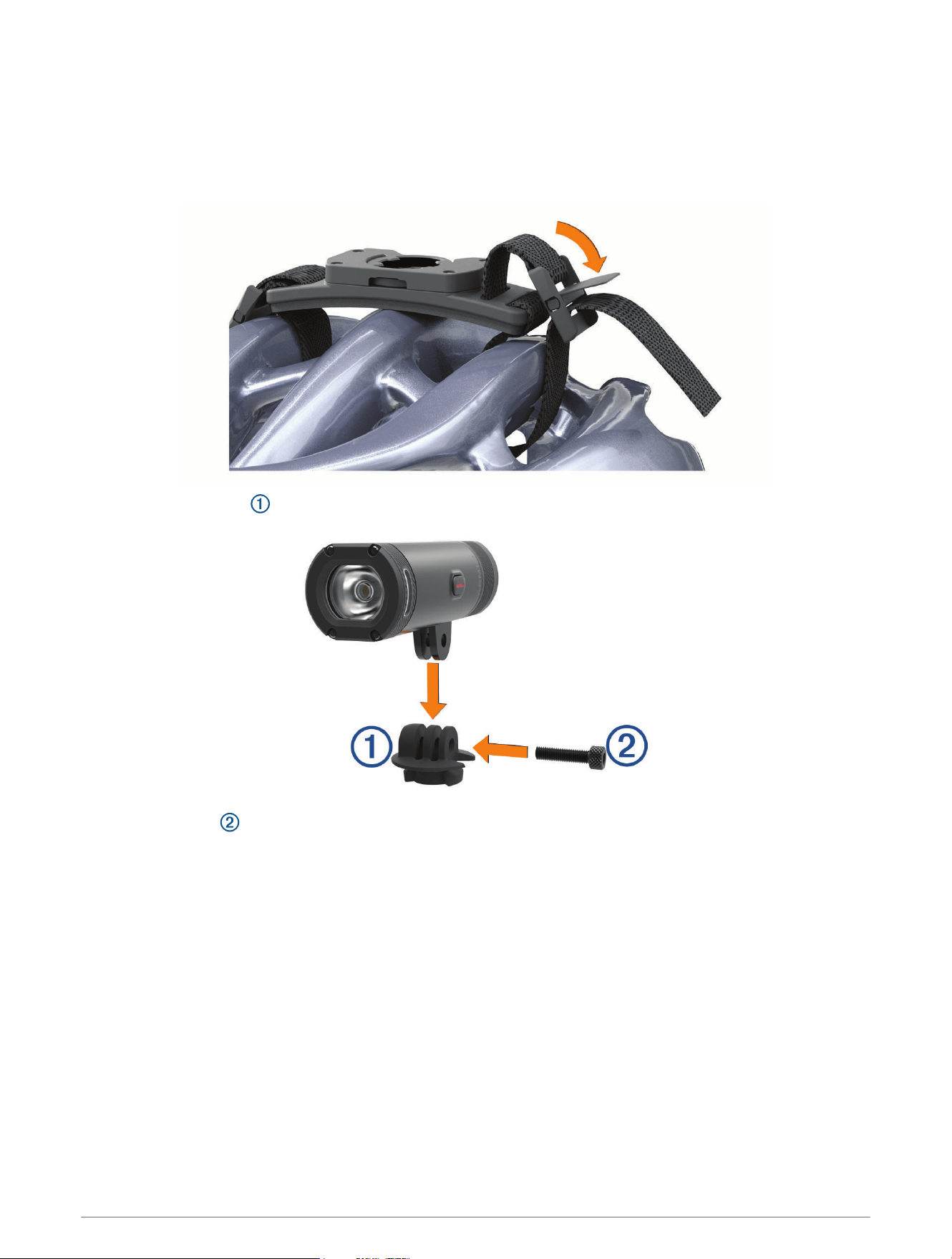
2 Attach the mount using both straps.
3 Lock the straps by pressing down the clasp.
4 Connect the adapter to the headlight.
5 Insert the screw , and hand tighten.
4 Introduction
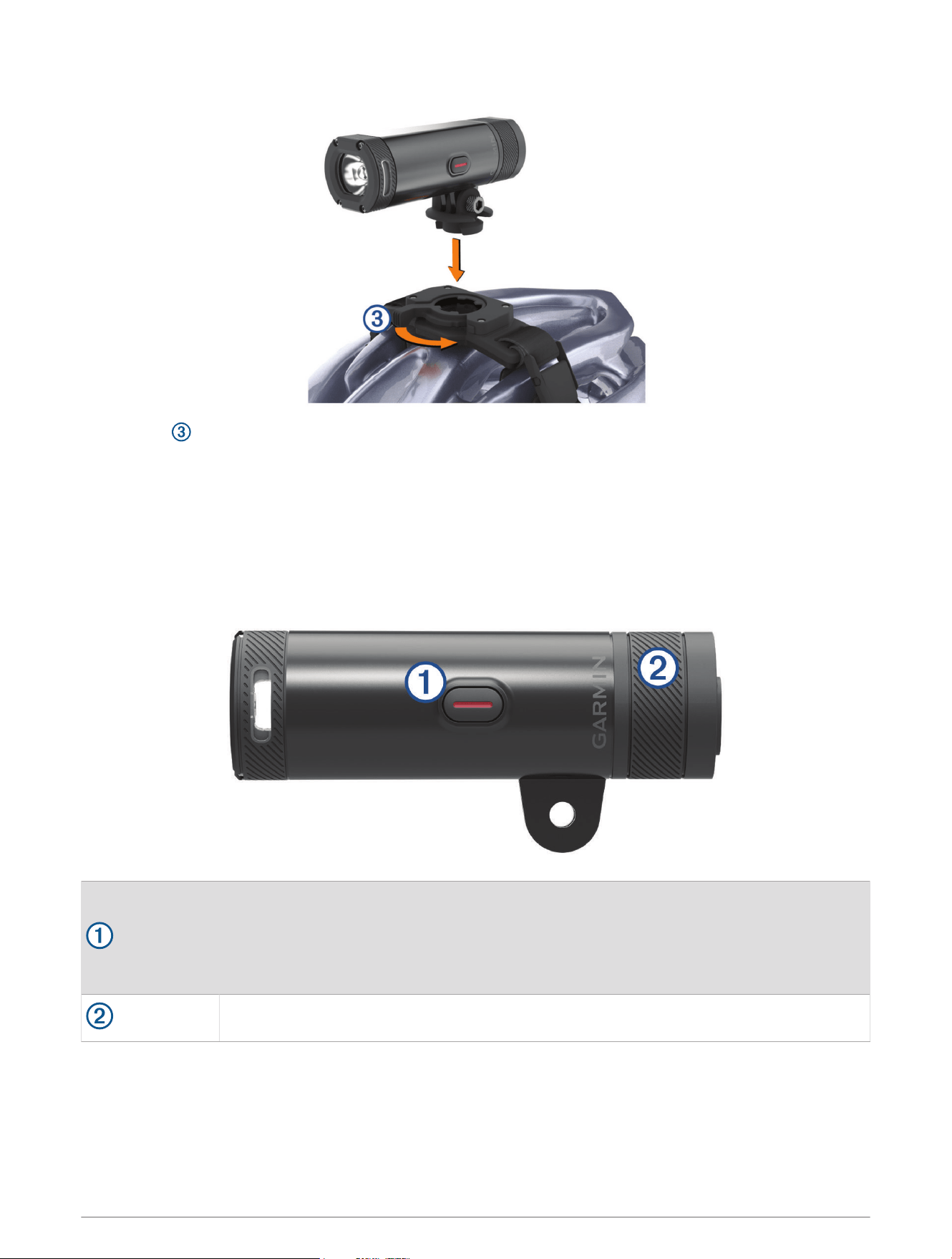
6 Align the tabs on the adapter with the notches of the mount.
The lever must be in the open position.
7 Insert the device into the mount.
8 Snap the lever to the closed position to lock the device into the mount.
The lever must be flush with the base.
9 Adjust the headlight angle, and use the 4 mm hex key to tighten the screw.
NOTE: You should check the tightness of the screw periodically.
Device Overview
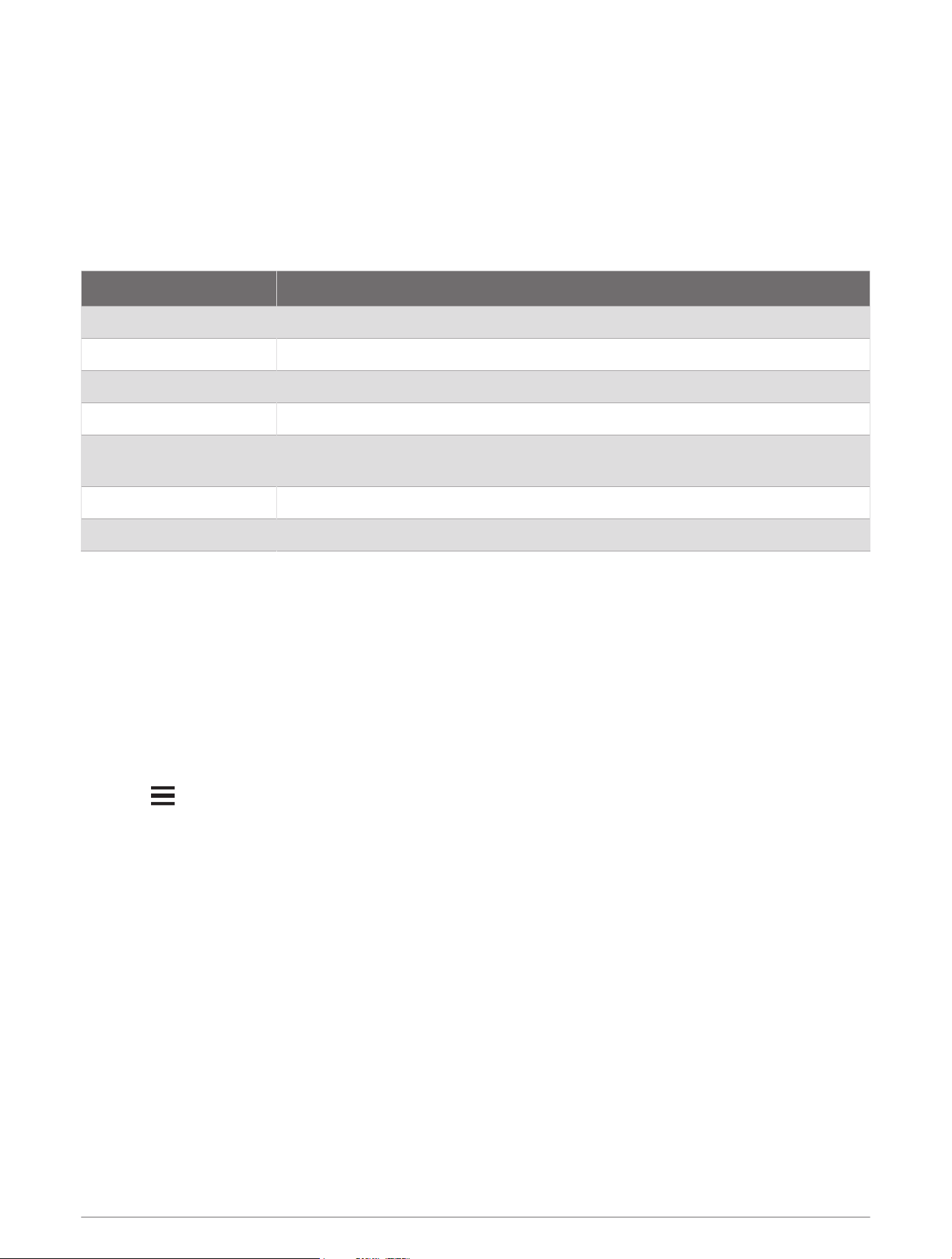
Device button
Hold for 1 sec. to turn the device on.
Hold for 2 sec. to turn the device off.
Hold to enter pairing mode (Pairing Your Bike Light with Your Edge Bike Computer,
page6).
Select to change operating modes.
Status LED
View device status (Bike Light Status LEDs, page6).
Introduction 5
Turning On the Device
1 Hold the device button for onesecond.
The first time you turn on the device, it enters pairing mode. The status LED flashes purple. The device can
be paired with a wireless remote or Edge bike computer.
2 Hold the device button for twoseconds to turn off the device.
The next time you turn on the device, it is in high intensity mode.
Bike Light Status LEDs
LEDActivity Status
Solid red An error occurred while charging, or the device shut down to prevent overheating.
Flashing red The battery is low.
Flashing green The battery is charging.
Solid green Charging is complete.
Flashing blue
The device is in smart mode and can be controlled by a paired wireless remote or
Edge device.
Flashing purple The device is in pairing mode.
Alternating blue and green The device is uploading software.
Device Settings
You can remotely control your Varia devices and customize settings using your compatible Edge bike computer.
This section contains instructions for the Edge 540, 840, and 1040 devices. Other compatible Edge bike
computers use similar settings.
Pairing Your Bike Light with Your Edge Bike Computer
1 Bring the Edge bike computer within range (1m) of the sensor.
NOTE: While pairing, stay 10m (33ft.) away from other bike lights with ANT+
®
technology.
2 Turn on the Edge bike computer.
3 Select > Sensors > Add Sensor > Search All.
4 While the headlight is turned off, hold the Varia device button for two seconds to enter pairing mode.
The status LED flashes purple, and the headlight turns on. The device is in pairing mode for five minutes or
until you press the device button.
5 Select your sensor.
When the sensor is paired with your Edge bike computer, the status icon appears solid on the status widget
(Viewing the Status Widget, page7).
6 Device Settings
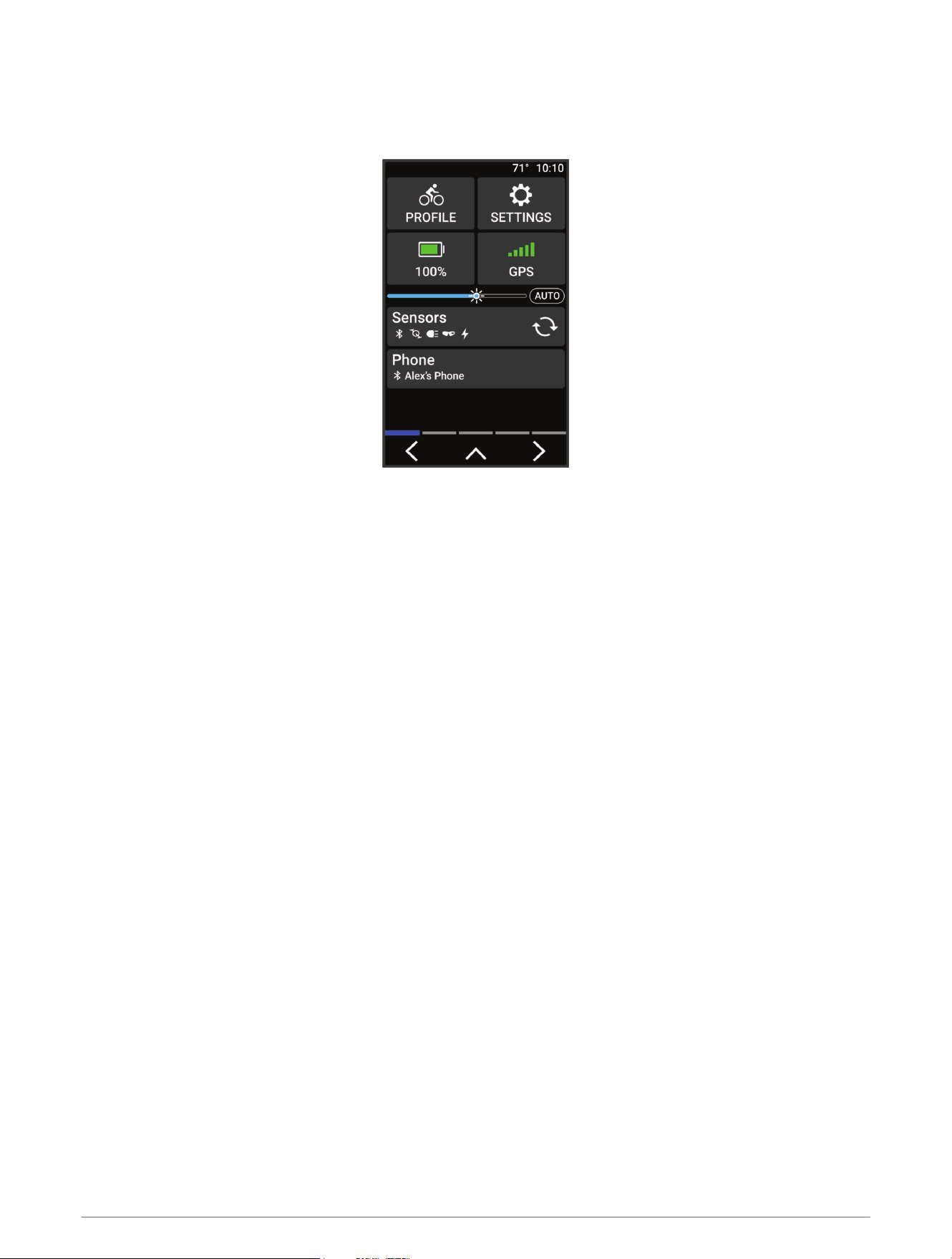
Viewing the Status Widget
The status widget displays the status of the GPS, sensors, and wireless connections.
From the home screen or a data screen, swipe down from the top of the screen.
The status widget appears. A flashing icon means the device is searching.
Customizing Headlight Settings with Your Edge Device
Before you can customize Varia device settings with your Edge device, you must pair the devices (Pairing Your
Bike Light with Your Edge Bike Computer, page6).
1 From the Sensors menu, select Lights.
2 Select an option:
• Select Enable to enable the light network.
• Select Network Options > Light Mode to set the light intensity mode for all lights in your network (Light
Mode Settings, page7).
• Select Network Options > Light Beam Activated to turn on the headlight automatically when the timer
starts or when the Edge device turns on.
• Select Network Options > Test Lights to check that each light in your network is set up correctly (Testing
the Light Network, page8).
• Select Network Options > Auto Beam Adjustment to adjust the headlight intensity automatically based on
the rate of speed. A high intensity is used at high speeds, and a low intensity is used at low speeds.
• Select a light to view device information and customize each light in your network (Light Network Settings,
page8).
Light Mode Settings
From the Sensors menu, select Lights > Network Options > Light Mode.
Auto: Automatically adjusts the light intensity and light mode based on the ambient light and time of day.
High Visibility: Sets the light intensity to flash mode or the brightest setting available.
Trail: Automatically adjusts the light intensity and light mode based on the ambient light and time of day. This
mode is recommended for mountain biking.
Individual: Allows you to customize the light intensity and pattern mode for each light in your network (Light
Network Settings, page8).
Device Settings 7
Light Network Settings
From the Sensors menu, select Lights, and select a paired light.
Enable: Turns on the light and allows you to control the light remotely with your Edge device. You can disable a
light to disconnect it from the light network.
Light Mode: Sets the light intensity and pattern mode, or turns off the light.
NOTE: This setting is available when you select the Individual light mode setting (Light Mode Settings,
page7).
Software Update: Checks for software updates.
About: Displays device, software, and battery information.
Remove: Allows you to delete a paired light from the network.
Testing the Light Network
1 From the Sensors menu, select Lights > Network Options > Test Lights.
2 Select a light to test.
The light blinks when it is connected.
Automatic Beam Intensity
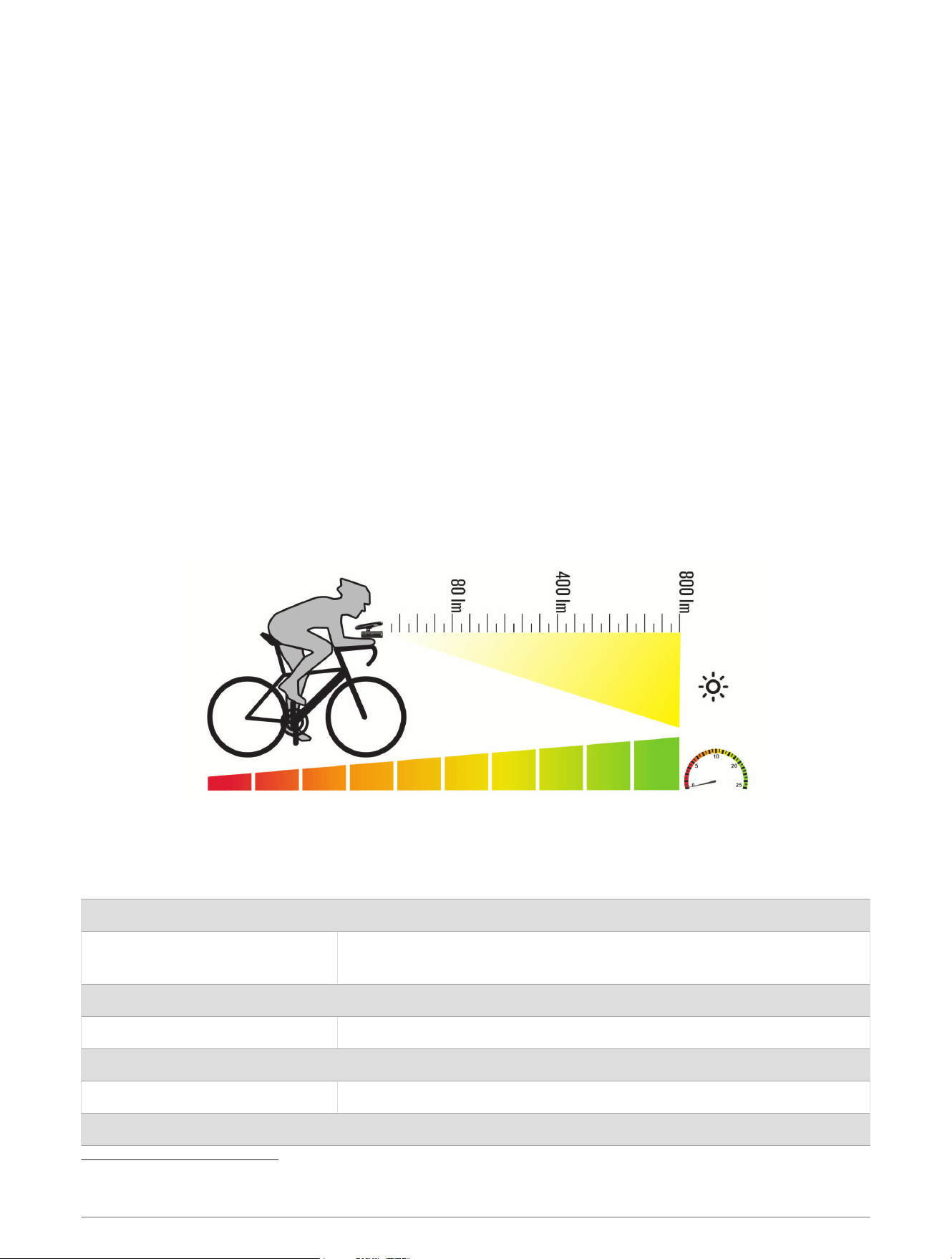
When paired with a compatible Edge device, the headlight can adjust automatically based on the current lighting
conditions, sunrise and sunset information, and speed.
As your speed increases, the headlight shines brighter. At lower speeds, the light intensity is reduced to
maximize battery life.
Device Information
Specifications
Battery type Rechargeable, built-in lithium-ion battery
Battery life
Up to 1 yr. in standby mode
See Headlight Light Intensity Modes and Battery Life, page9
Operating temperature range From -15º to 50°C (from 5º to 122ºF)
Charging temperature range From 0º to 40ºC (from 32º to 104ºF)
Wireless frequency 2.4GHz @ 3 dBm maximum
LED luminous flux 100 to 800lm
Water rating IEC 60529 IPX7
1
1
The device withstands incidental exposure to water of up to 1m for up to 30min. For more information, go to www.garmin.com/waterrating.
8 Device Information
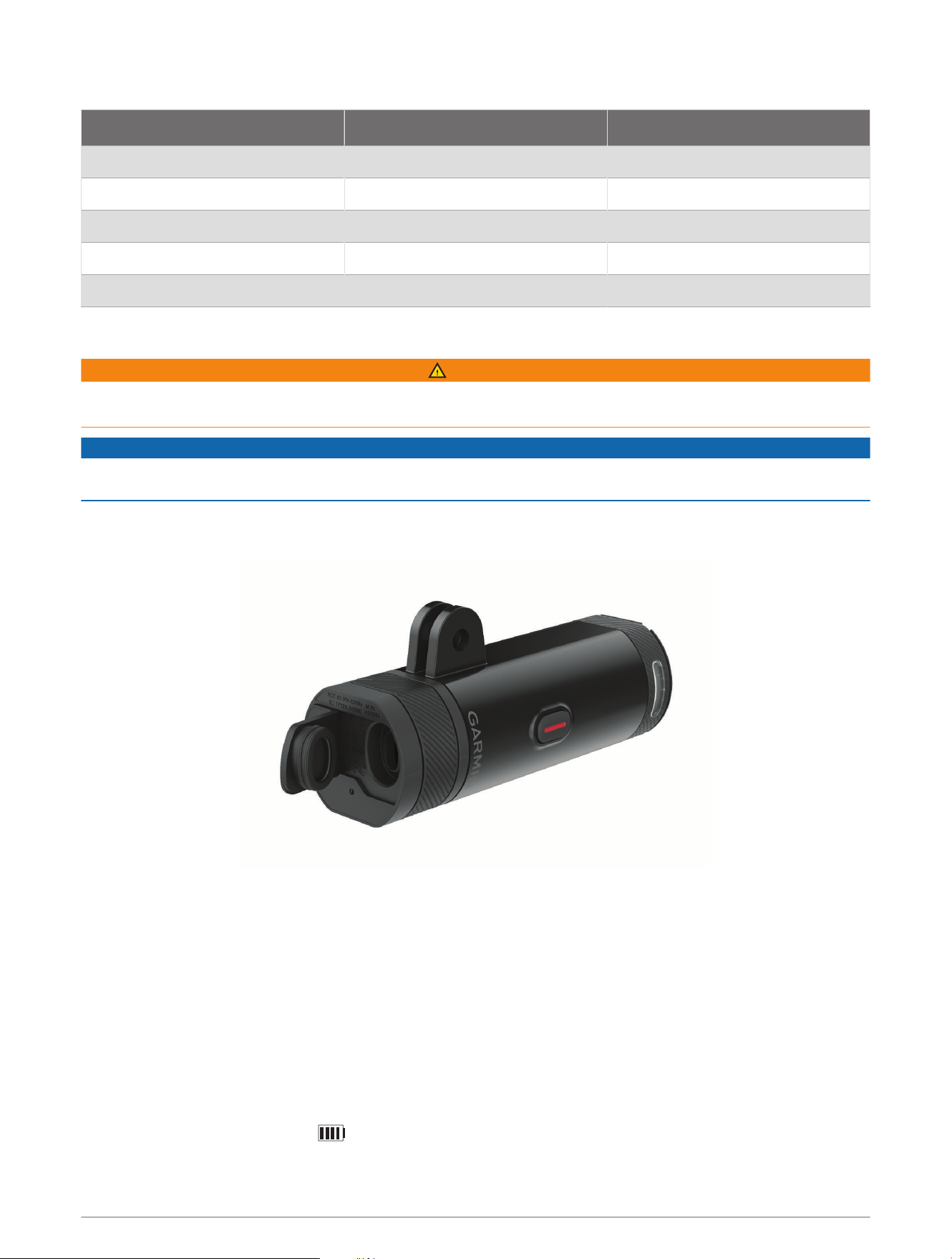
Headlight Light Intensity Modes and Battery Life
Intensity Mode LED Luminous Flux Battery Life
High 800lm Up to 1.5hr.
Medium 400lm Up to 3hr.
Low 200lm Up to 6hr.
Night flash 100 to 300lm Up to 6hr.
Day flash 700lm Up to 25hr.
Charging the Device
WARNING
This device contains a lithium-ion battery. See the Important Safety and Product Information guide in the product
box for product warnings and other important information.
NOTICE
To prevent corrosion, thoroughly dry the USB port, the weather cap, and the surrounding area before charging or
connecting to a computer.
NOTE: The device does not charge when outside the approved temperature range (Specifications, page8).
1 Pull up the weather cap from the USB port.
2 Plug the small end of the USB cable into the USB port on the device.
3 Plug the large end of the USB cable into a power source, such as a USB wall charger or a computer USB port.
4 Charge the device completely.
The status LED flashes green while charging. The status LED is solid green when charging is complete.
Tips for Charging the Device
• Connect the charger securely to the Varia device.
You can charge the device by plugging the USB cable into a Garmin approved AC adapter with a standard
wall outlet or a USB port on your computer. Charging a fully depleted battery takes about 8 hours using a
computer and 5 hours using an AC power source.
• Remove the charger from the device when the status LED is solid green.
• View the remaining battery life on the Edge bike computer status widget (Viewing the Status Widget,
page7).
Device Information 9

Device Care
NOTICE
Do not store the device where prolonged exposure to extreme temperatures can occur, because it can cause
permanent damage.
Avoid chemical cleaners, solvents, and insect repellents that can damage plastic components and finishes.
Cleaning the Device
1 Wipe the device using a cloth dampened with a mild detergent solution.
2 Wipe it dry.
After cleaning, allow the device to dry completely.
Troubleshooting
Resetting the Device
You can reset the device if it stops responding.
Hold the device button for eight seconds until all the LEDs turn off.
Resetting deletes the pairing connections from the device.
Thermal Safety Shutdown
To prevent overheating, the Varia device may turn off when operated at a high intensity in warm, stagnant air.
The status LED is red until the device cools down. You should use the device outdoors.
Low Temperature Battery Conservation
To extend the battery life of the device, the Varia device is limited to medium, low, and flash modes when used
in very cold temperatures.
Updating the Headlight Software With Your Edge Bike Computer
Before you can update the headlight software, you must pair the headlight with your Edge bike computer, you
must have a Garmin Connect
™
account, and you must pair the Edge bike computer with a compatible phone.
1 Bring the Edge bike computer within 3m (10ft.) of the headlight.
2 Sync your Edge bike computer with the Garmin Connect app.
When new software is available, your Varia device alerts you to update the software.
3 Follow the on-screen instructions.
The headlight LED flashes blue and green to indicate the Varia device is updating. When the update is complete,
the LED flashes green ten times.
Product Updates
On your computer, install Garmin Express
™
(www.garmin.com/express).
This provides easy access to these services for Garmin devices:
• Software updates
• Product registration
Getting More Information
• Go to support.garmin.com for additional manuals, articles, and software updates.
• Go to buy.garmin.com, or contact your Garmin dealer for information about optional accessories and
replacement parts.
10 Troubleshooting

Other Compatible Devices
Pairing Your Bike Light with Another Edge Bike Computer
1 Bring the Edge bike computer within range (1m) of the sensor.
NOTE: Stay 10m (33ft.) away from other bike lights with ANT+ technology while pairing.
2 Turn on the Edge bike computer.
3 From the Sensors menu, select Add Sensor > Search All.
4 While the headlight is turned off, hold the Varia device button for two seconds to enter pairing mode.
The status LED flashes purple.
5 Select your sensor.
When the sensor is paired with your Edge bike computer, the status icon appears solid on the status widget
(Viewing the Status Widget, page7).
Pairing the Remote with Your Varia Device
The first time you connect the Varia remote to your Varia device, you must pair the remote with your device.
1 Bring the remote within 1m (3ft.) of the device.
NOTE: You must stay 10m (33ft.) away from other sensors with ANT+ technology while pairing.
2 While the headlight is turned off, hold the Varia device button for two seconds to enter pairing mode.
The status LED flashes purple.
3 On the Varia remote, hold two buttons simultaneously until the status LED starts alternating green and red,
and release the buttons.
The remote searches for your Varia device. After the remote pairs successfully, the status LED flashes green
12 times.
After the remote is paired, it connects to your device whenever the device is in range and turned on in smart
mode. You may need to wake the remote by selecting any button.
Other Compatible Devices 11

support.garmin.com
GUID-FD3E6E17-4A64-4236-8D3B-510A13E097E6 v4July 2024
