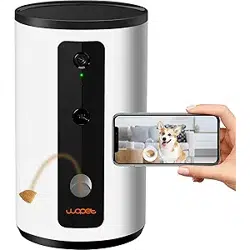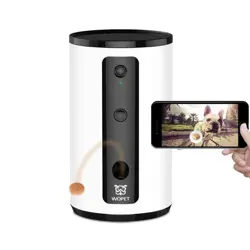
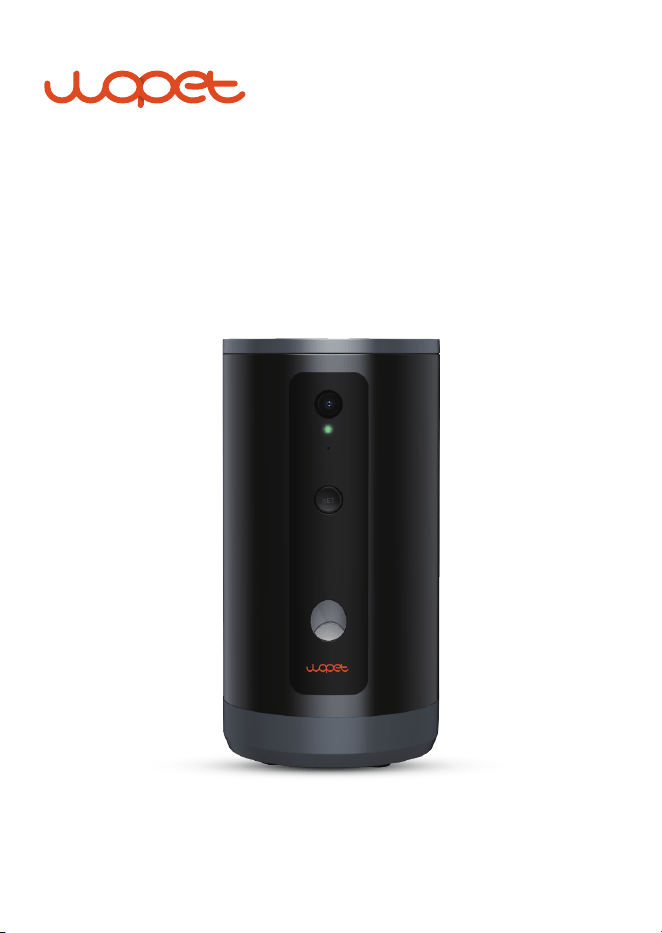
Guardian WIFI Pet Camera Treat
USER MANUAL
Model: D100


[CONTENTS]
Product Specifications
.…...…...………….........………………………………………………
1
Features and Indicators
…..…...…...………….........………………………………………………
2
WIFI Requirements
…..…...…...………….........………………………………………………
3
App Installation
.....…..…..…...…...………….........………………………………………………
4
App Usage
.......................…...…...………….........………………………………………………
5
App Interface Function Introduction
.....………………………………………………
9
Switching Different Mode
...........................………………………………………………
13
FAQS
...........................................…...………….........………………………………………………
19
FCC Warnings
........................…...………….........………………………………………………
21
Manual Feed
........................................................………………………………………………
18
Rotating 300 Degree Views
........................................................………………………………………………
16
................…...…...………….........…………………………………………
5
Add the Pet Camera Treat
.....………….........…………………………………………
6
Access the WLAN Network
.......………….........…………………………………………
7
WLAN Connection Modes
.....................................………….........…………………………………………
14
Scan Mode
.........................................………….........…………………………………………
15
AP Mode
Warranty Information
.............………….........………………………………………………
23
Have a Question?
.......................………….........………………………………………………
26

Product Specifications
Model D100
Food size 2-15mm (dry food only)
Product size L147*147*254mm/5.78*5.78*10in
Product weight 1.1kg/2.42lbs
Product material ABS
DC-powered supplp
Network
5V/1A
5GHz/2.4GHz
1
2
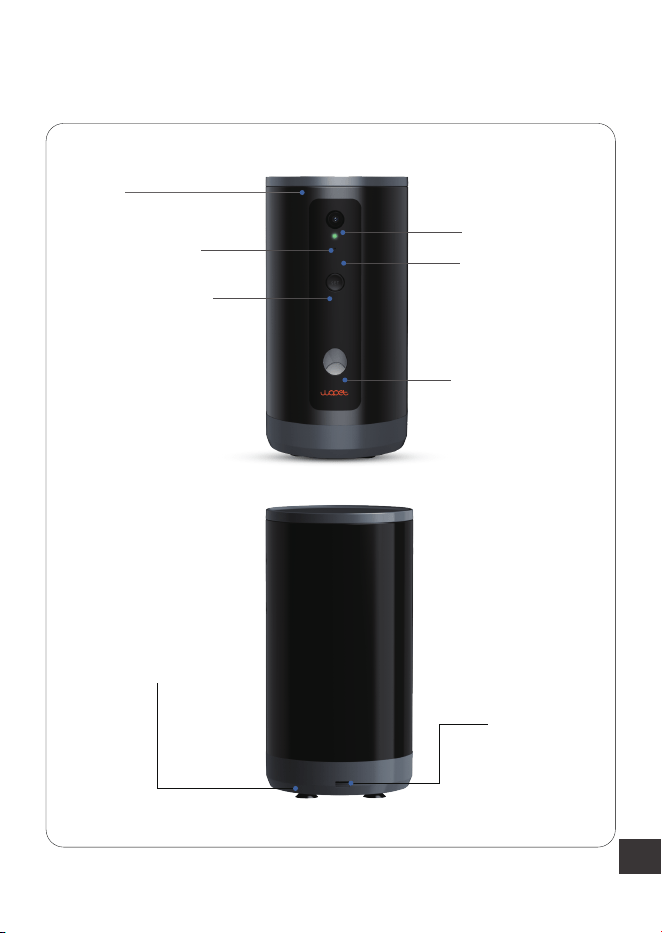
Features and Indicators
HD Camera
Lid
Status Light
Set Button &
Manual Feeding
Microphone
Treat Popper
USB Port
300 Degree
Rotating Holder
3
WIFI Requirements
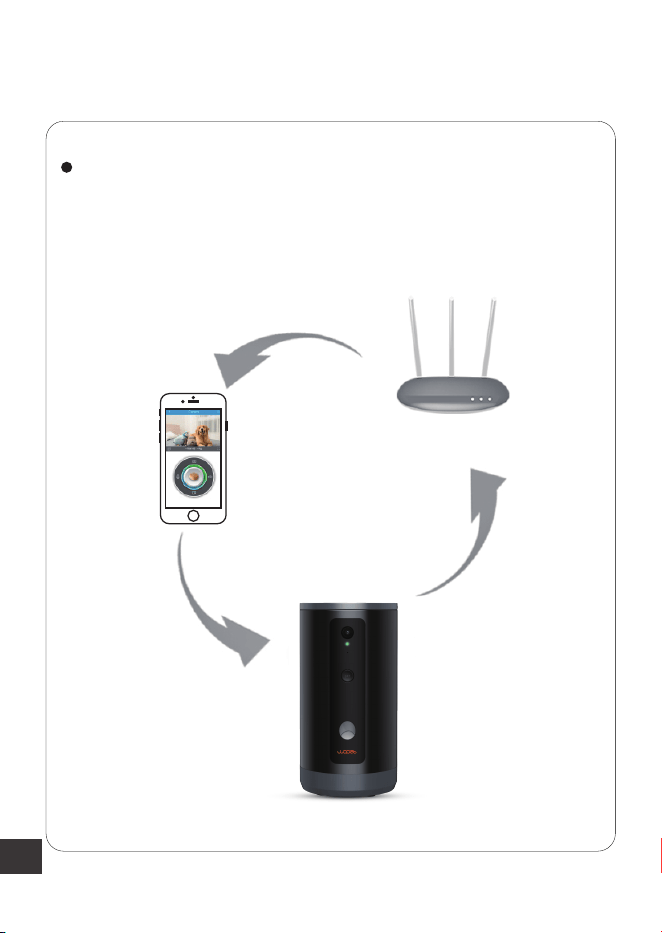
In order to optimize equipment performance, it's best to use
it within 10m of a WIFI transmitting device in a barrier-free
environment.
WIFI
4
App Installation
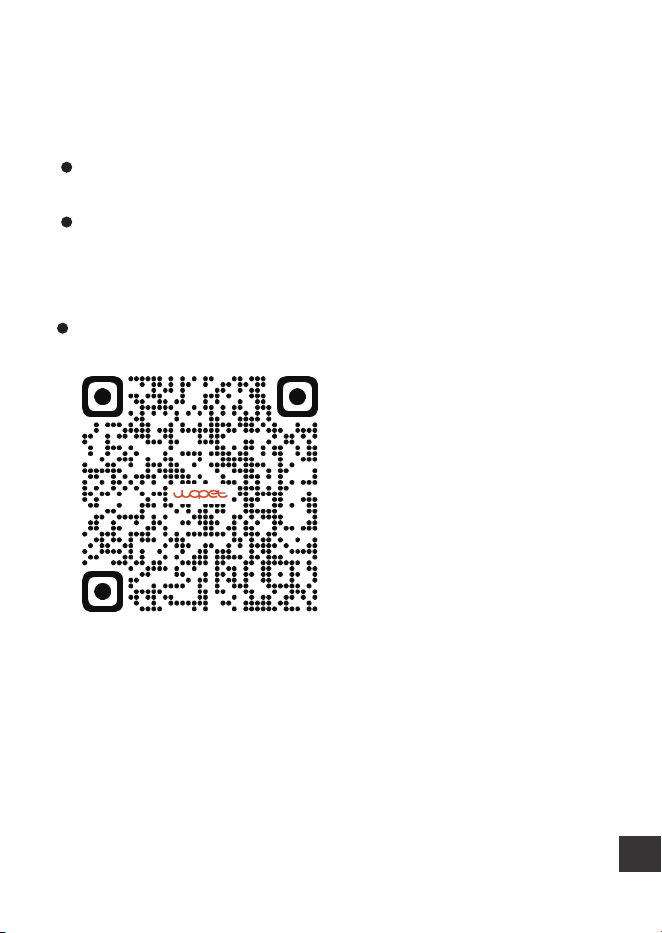
Download and install the APP by scanning the QR code below.
For Andriod users, search "wopet smart" in Google Play store,
For IOS users, search"WOPET" in the App store.
Scan the QR code to download WOPET APP
5
App Usage
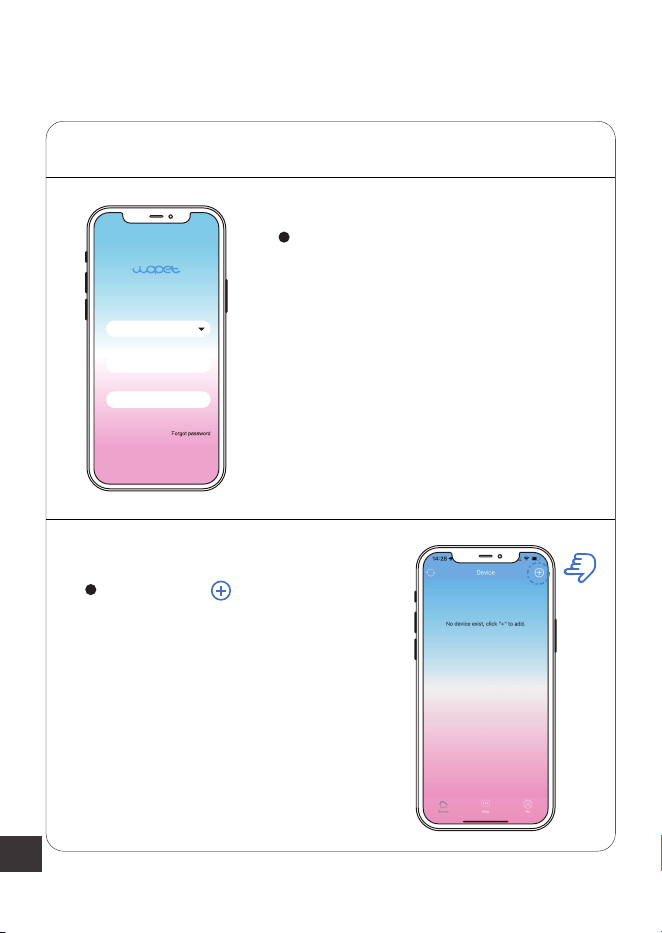
Launch the “Wopet” App, then
register an account and log in.
Enter your email
Enter your password
Login
Register
Note:
Each device can be attached to only
one account at a time, but one
account can have up to three devices
connected.
Choose the option to add a
named D100 device.
Note:
Make sure your phone is connected
to WIFI with favorable network
speeds.
Step 1 Add the Pet Camera Treat
6
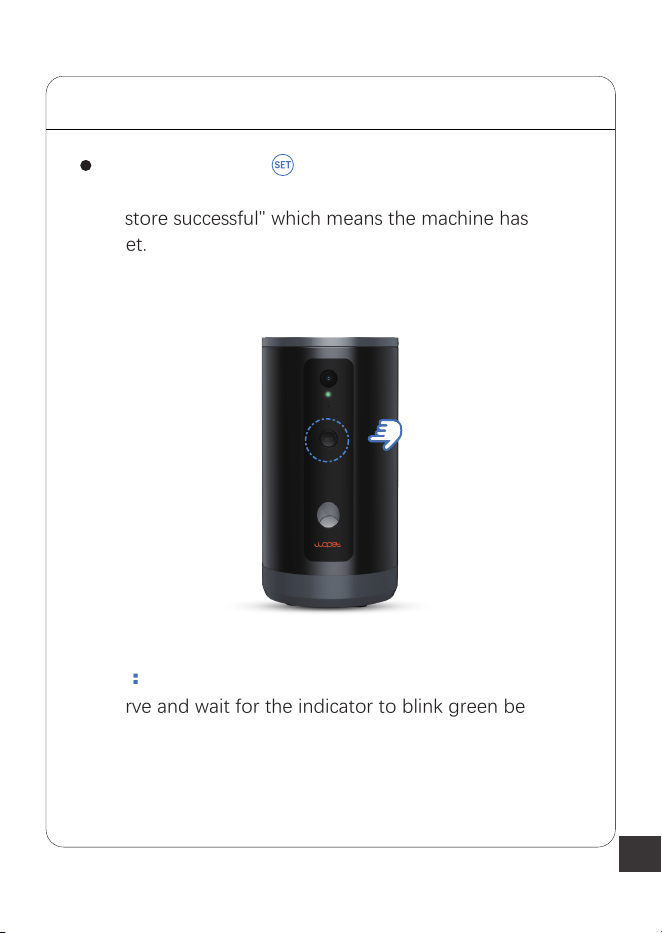
Press and hold the button, then release it when the
device makes a "Ding-Dong" sound. It will then display
"restore successful" which means the machine has been
reset.
Note:
Observe and wait for the indicator to blink green before
selecting the connection mode in the next step
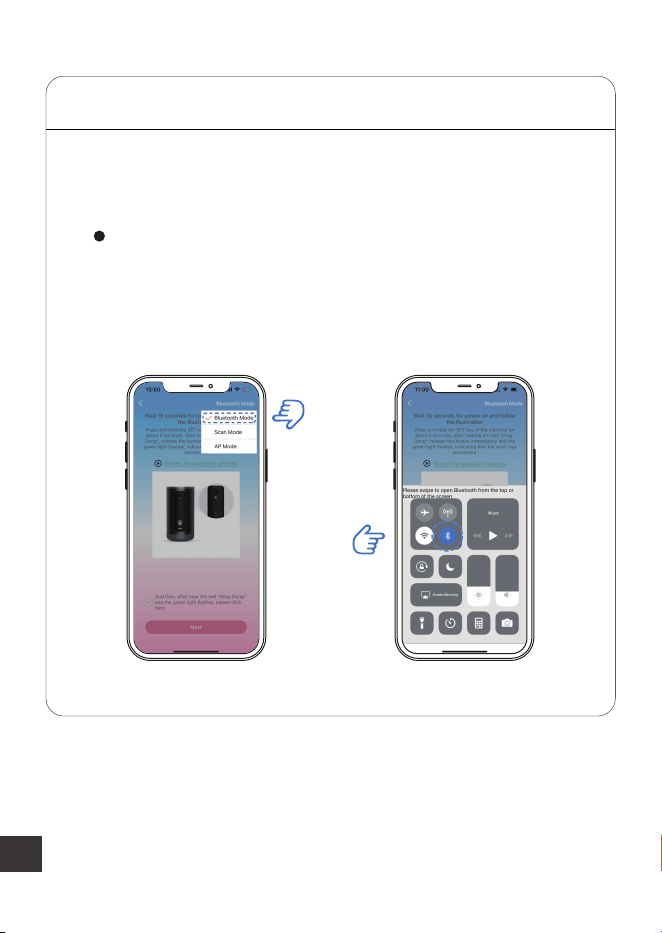
STEP 2 Access the WLAN Network
7
Choose “Bluetooth Mode.”In the next step, a pop up
will prompt you to then turn on Bluetooth as in the
description
STEP 3 WLAN Connection Modes
Step 3.1 Bluetooth Mode(Recommended)
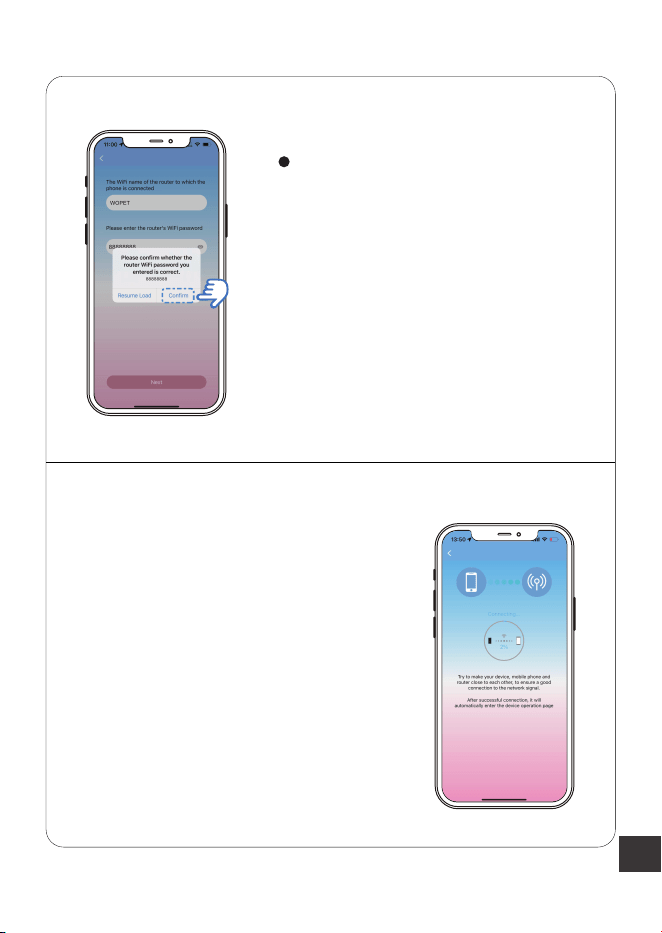
8
The app will automatically access
WIFI from your phone; just type the
correct password. Finally, click the
“confirm” option and it will begin
connecting.
Note:
If Bluetooth mode fails, please refer
to the Scan mode or AP mode
guide on page 14 and page 15
9
Note:
Press and hold the "Toss a treat"
button to toss up a treat
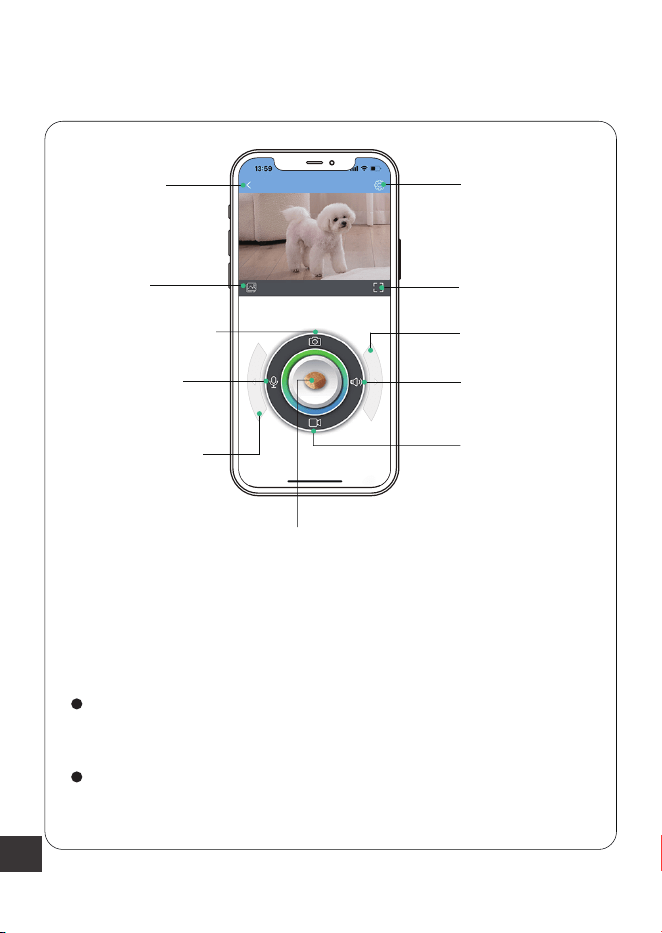
App Interface Function Introduction
On this page, you can take a photo or video of your cute
pet, and they are saved in the "Gallery" section.
You can set voice interaction with your pet using "Voice
Chat" and "Sound" options.
Page up
Full Screen
Sound
Toss A Treat
Record
Setting
Gallery
Capture Photo
Voice Chat
RotateAngle
Button
RotateAngle
Button
10
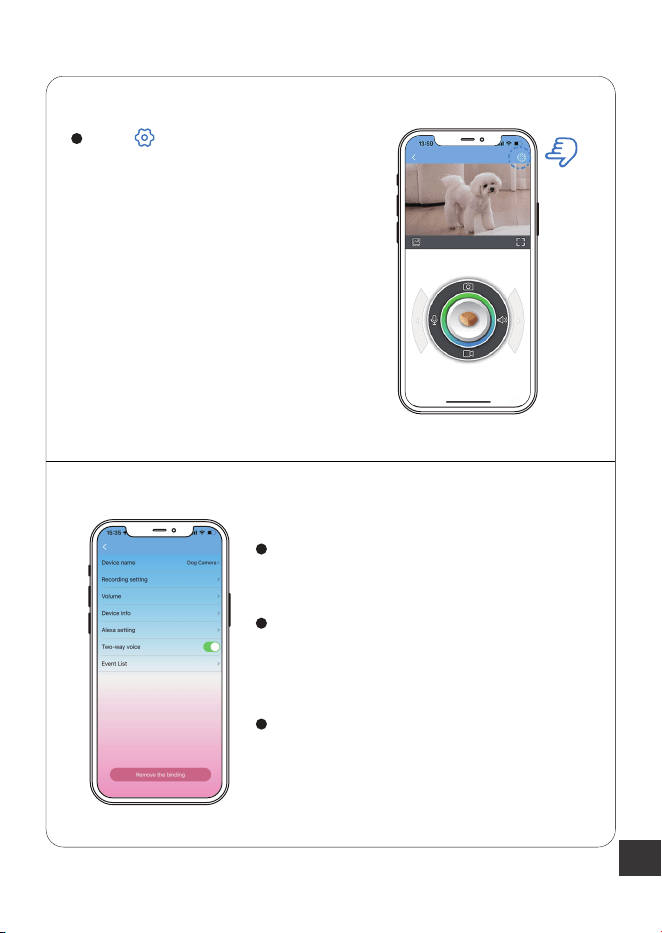
Click in the top right corner
to enter the settings interface.
You can set the device name,
recording,volume etc.
If you want to have voice interaction
with your pet, you must enable the
"Two-way voice" option.
If the device is lacking food, you can
check this notification in "Event List"
option.
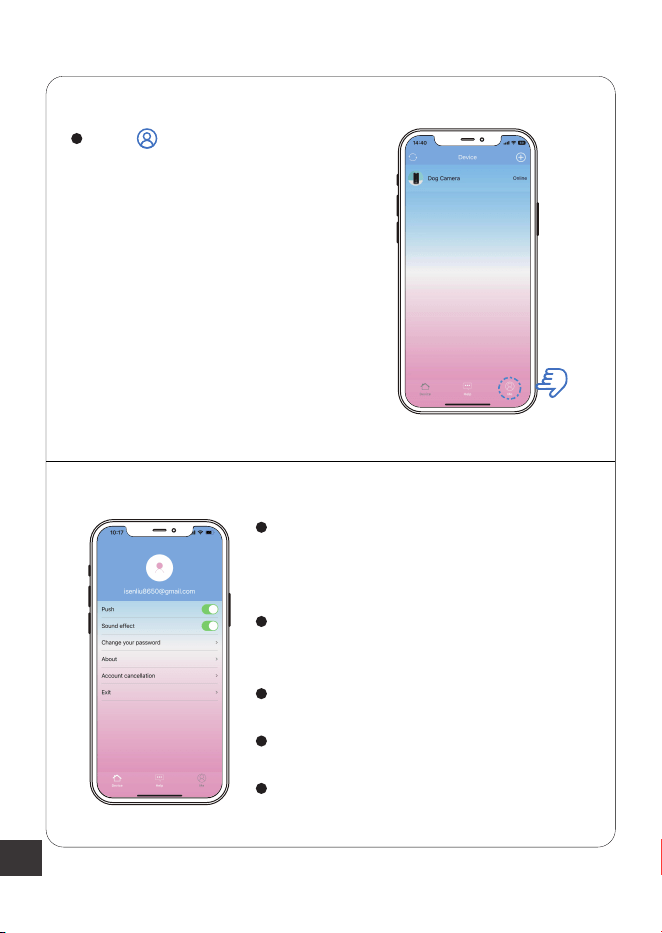
11
Click "Me" in the bottom
right corner to enter the settings
interface.
Select the "Push" option, and you can
receive a push notification when
feeding is complete.
You can also change your password
on this page.
Check the updates
Close the account
Log out the account
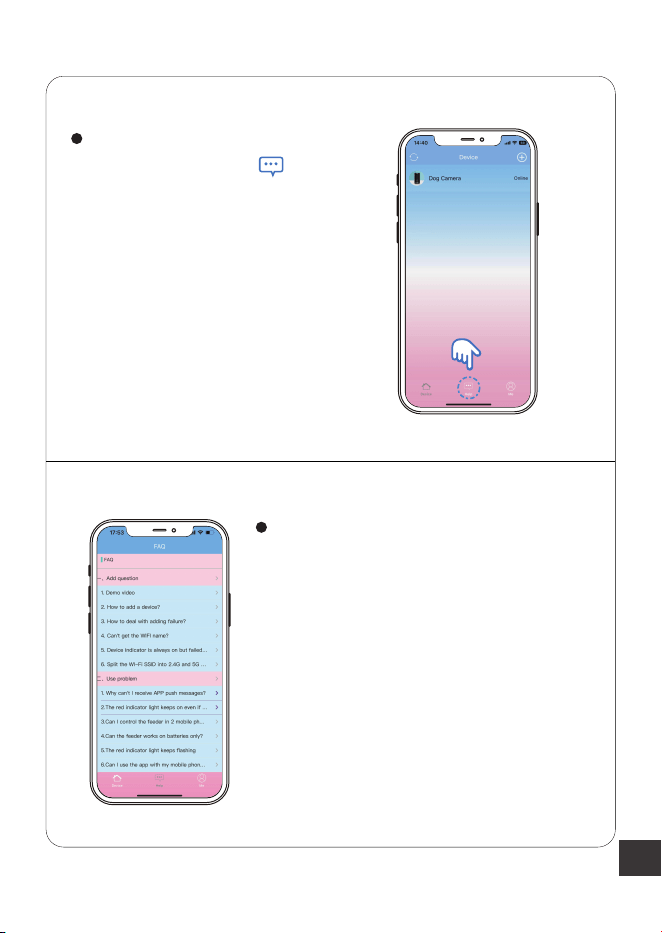
12
If there is a question about your
device, please click "help"
enter next page below.
Please refer to this page for solutions.
For any other questions,please contact
customer service via
13
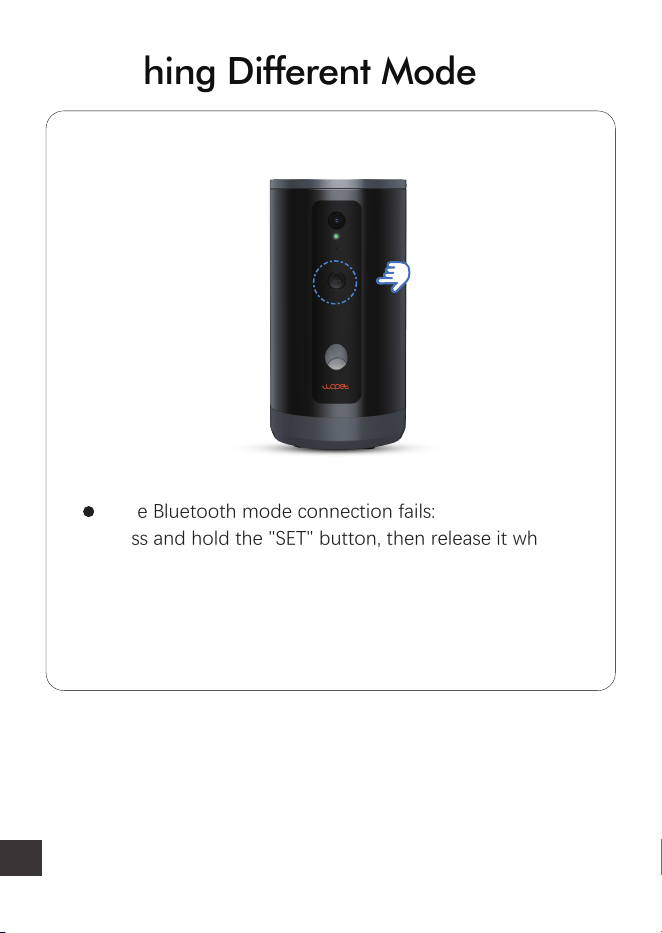
Switching Different Mode
If the Bluetooth mode connection fails:
Press and hold the "SET" button, then release it when the
device makes a "Ding" sound. Wait for the indicator to
slowly blink green, and then select one of the modes.
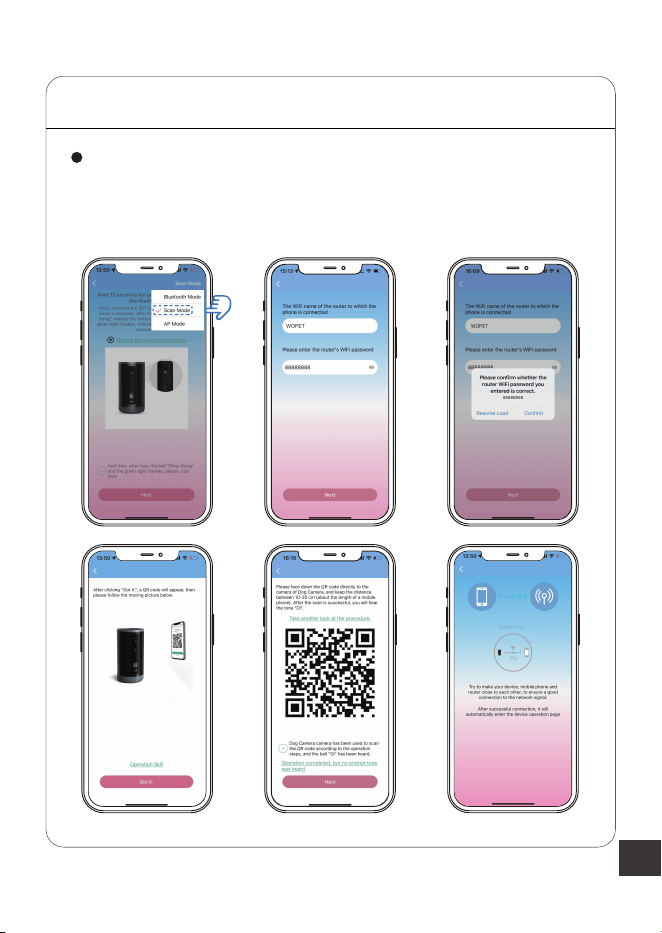
14
STEP 1 Scan Mode
In the next step, type the corresponding password, and a
"QR code" will appear. Aim the camera on the device towards
the code until it makes a ”DI“ sound, and wait for connection.
15
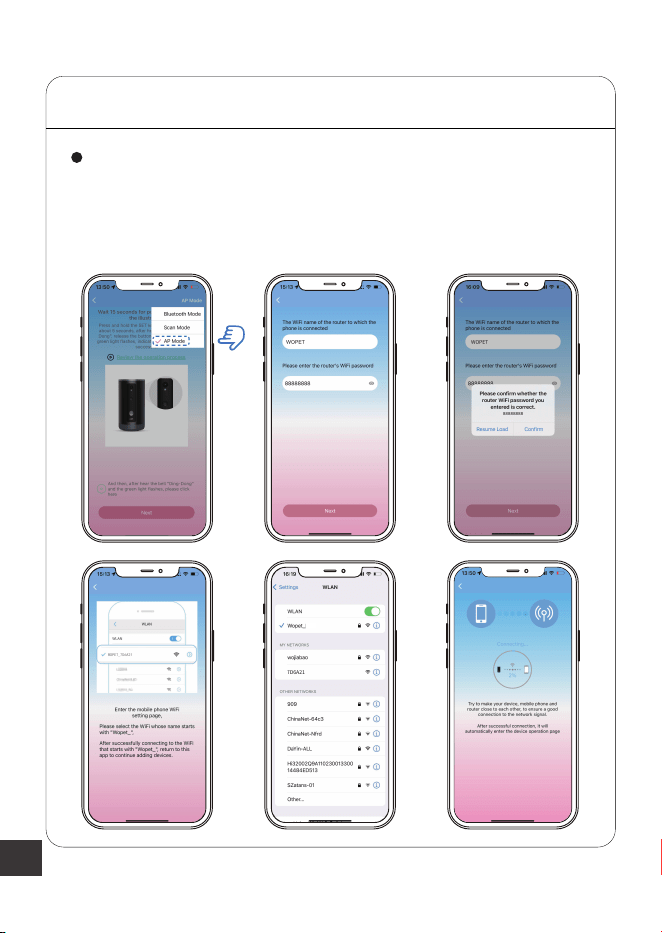
STEP 2 Ap Mode
In the next step, type the corresponding password, then
open your phone’s “WLAN” settings page. Find and connect
to the WIFI network starting with "Wopet_xxx". Finally,
go back to the app.
xxx
16
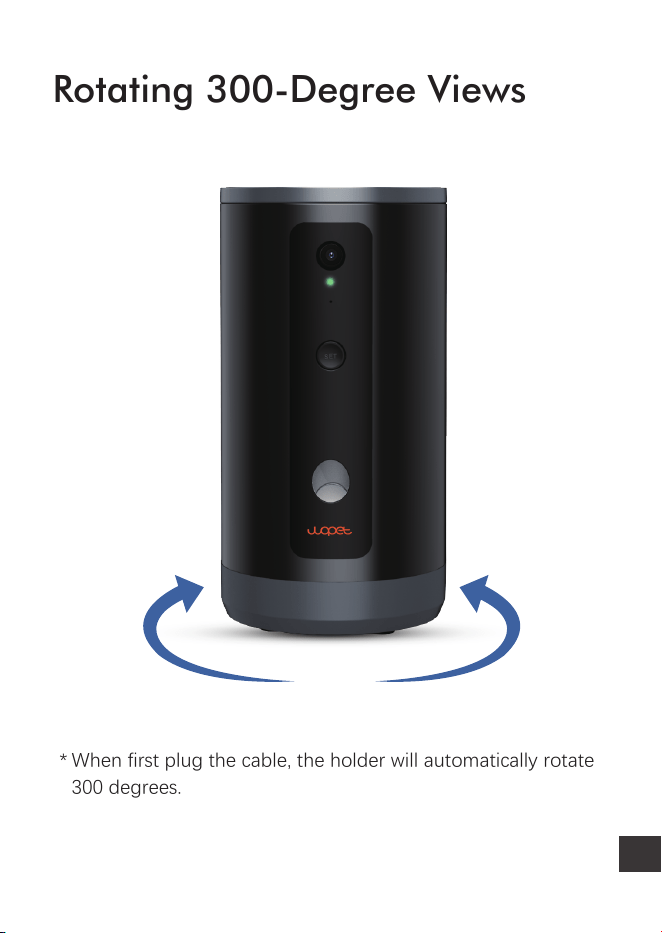
Rotating 300-Degree Views
When first plug the cable, the holder will automatically rotate
300 degrees.
*
300°
17
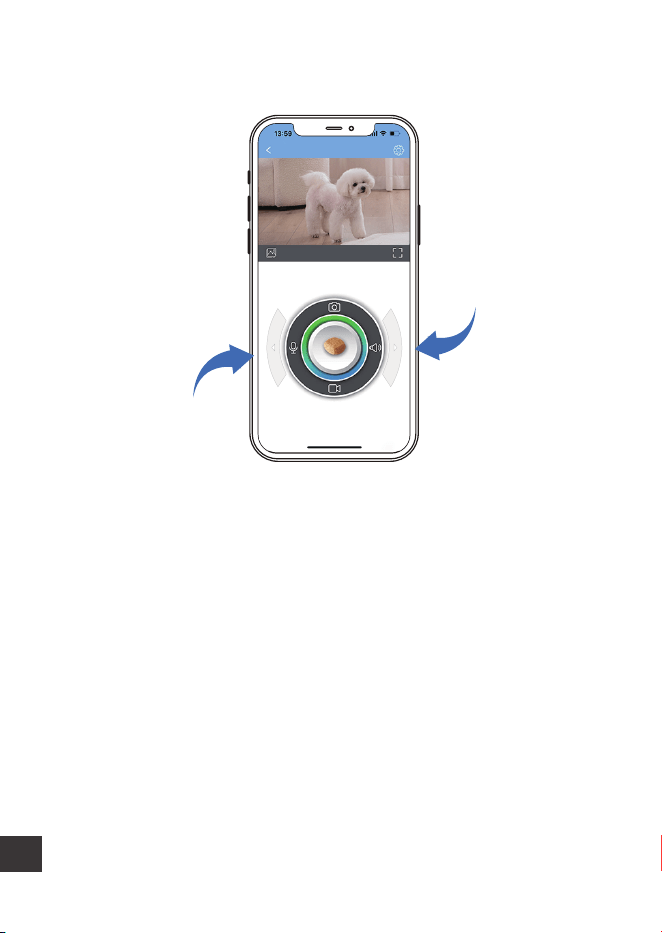
You can press” rotate the angle” button to rotate either angle
to adjust the angle of the camera.
*
RotateAngle
Button
RotateAngle
Button
18
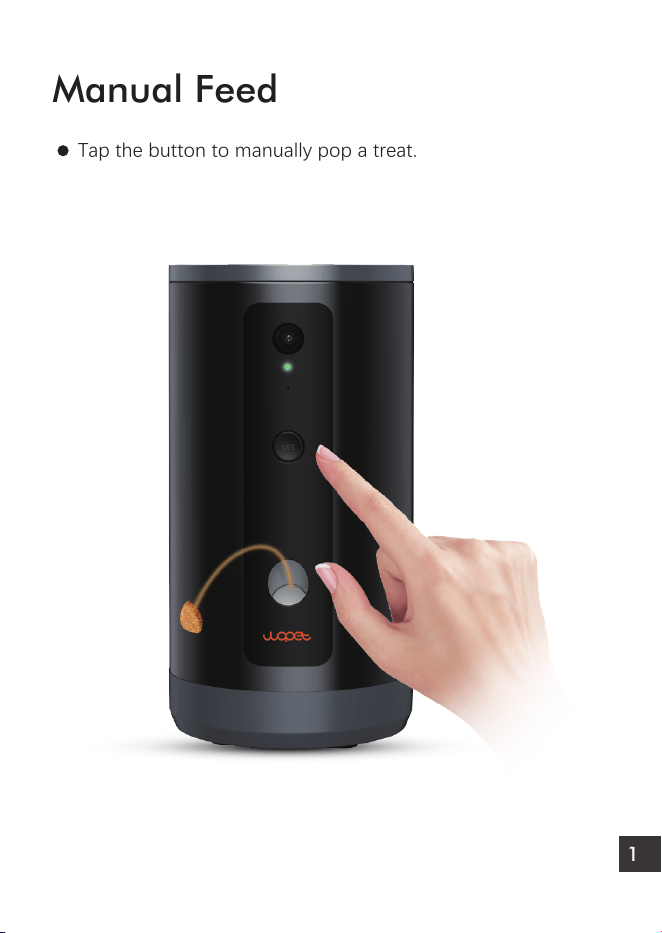
Manual Feed
Tap the button to manually pop a treat.

19
FAQs
Red Light
OFF
Green Light Product State
OFF Always on Network is connected
Flashes slowly
(Once a second)
Configurable status
OFF Connecting to the network
Flashes quickly
(Twice a second)
Flashes slowly
No food in the grain bucket or the food is
blocked
OFF
Q: When pressing the "Toss a treat" button, the dog food or
snack is tossed two or three times.
A: If the sensor lamp doesn't detect the food, it will toss again,
and may toss up to four times.
Q: APP has displayed the prompt for "Dispense excessive food".
A: The snack outlet is blocked; please remove blockage and clean.
Q: APP has displayed the prompt of "No Food".
A: The equipment doesn’t sense any fodder in the bucket.
Check if the grain bucket has fodder in it; or if the equipment is
exposed to direct sunlight, please move it to a cooler place.

20
Q: The video stream is choppy and/or buffering frequently.
A: Check if the WIFI signal is strong enough, and try to refresh
the page on the app.
Q: The user can't enter his/her APP account.
A: Please check that you are properly connected to the network.
B: Ensure the account isn't currently being used by another user
Any more questions, please email our support team:

21
Notes:
FCC Warnings
Changes or modifications to this unit is not expressly approved.
Non-compliance could void the user's authority to operate the
equipment.
This equipment has been tested and found to comply with the
limits for a Class B digital device, pursuant to Part 15 of the FCC
Rules. These limits are designed to provide reasonable
protection against harmful interference in a residential
installation.

22
This equipment generates, uses, and can radiate radio frequency
energy and, if not installed and used in accordance with the
instructions, may cause harmful interference to radio communi-
cations. There is no guarantee that interference will not occur
with any particular installation. If this equipment does cause
harmful interference to radio or television reception, which can
be determined by turning the equipment off and on, the user is
encouraged to try to correct the interference by one or more of
the following measures:
Reorient or relocate the receiving antenna.
Increase the distance between the equipment and receiver.
Connect the equipment into an outlet on a different circuit
from that to which the receiver is currently connected.
Consult the dealer or an experienced radio / TV technician for
help. Shielded interface cables must be used with the equip-
ment in order to comply with the limits for a digital device
pursuant to Subpart B of Part 15 of FCC Rules. Specifications
and designs are subject to change without any notice or
obligation on the part of the manufacturer.

23
1
Warranty Information
NON-TRANSFERRABLE LIMITED WARRANTY
① To provide customers with a quality shopping and user
experience, we guarantee to replace, issue a refund, provide
acceptable solutions to any defective products (as the
customers prefers) from the date of purchase up to 2 years.
② Proof of purchase must be provided (order number or
receipt) when making a claim to our customer support center.
③ Warranty registration may be requested within a month
since the date of purchase, by sending your order number to
the mailbox: [email protected]
④ The warranty is not transferable. We only provide warranty
services to buyers who purchased from our Amazon store and
WOpet official website store and possess proof of purchase -
not to any other purchaser or subsequent owner.

24
2
3
⑥ The sellers are the responsible party. Amazon allows different
sellers to sell the same product, so please confirm the seller by
checking the order details before contacting us.
⑤ Price matching policy is not applicable. No price difference
will be refunded.
WHAT IS COVERED
Receiving defective or used (proof needed) products;
Receiving with missing parts;
Item is defective under proper use.
WHAT IS NOT COVERED
Purchase from non-amazon channels /non-WOpet official
website store/other physical stores;
Gift without proof of purchase;
Tampering/abnormal use/accidental damage;
Replacements and parts;
Installation fee/labor fee;

25
4 MAKING A CLAIM
If you have any problems when using our products, please
send an email to the mailbox: [email protected]
30 days free Return & Replacement
Standard Warranty: 1-Year product Warranty
2-Year Warranty Application: Please scan the QR code below
to finish the registration form on our official website to get
2-Year in total warranty.
Please finish the form within 30 days after you received
the items.
Note:
26
Have a Question?
Home
Your Order
Buy Again
Your Wish List
Your Account
Shop by Department
Order#
Order Total
Shipped
Product link
Qty: 1
Sold By: Seller
Your Orders
Product link
Buy it again
Write a product review
View order details
View order details BRAND
Have a question
for the seller?
Ask a question
1.Find your order 2.Click "View order details"
3.Click the Seller name 4.Click “Ask a question”

27
Gifted parts, replacements, and consumable products are
not covered by the 2-year warranty
Manufactures' warranties may not apply in all cases,
depending on factors such as use of the product, where
the product was purchased,or who you purchase the
product from.
Please review the warranty carefully, and contact the
manufacture if you have any questions.


Boundless Love for Pets