
USER MANUAL

About this Manual
Thank you for choosing the TCL K23. In order to maintain your device in optimal
condition, please read this manual and keep it for future reference.

1
Table of Contents
1 Getting Started ..................................................................................... 3
1.1 Overview ............................................................................................ 3
1.2 Setup ................................................................................................... 6
1.3 Home Screen ....................................................................................... 7
1.4 Status Bar ............................................................................................ 8
2 About Your Phone ................................................................................. 9
2.1 Power On/Off ..................................................................................... 9
2.2 Battery ............................................................................................... 10
3 Personalize Your Phone ....................................................................... 11
3.1 Language .......................................................................................... 11
3.2 Date & Time ...................................................................................... 11
3.3 Display ............................................................................................... 12
3.4 Sound ................................................................................................ 12
3.5 Digital wellbeing & parental controls ............................................... 13
4 Apps and Features .............................................................................. 14
4.1 Phone ................................................................................................ 14
4.2 Contacts ............................................................................................ 17
4.3 Messages .......................................................................................... 20
4.4 Calendar ............................................................................................ 22
4.5 Camera .............................................................................................. 24
4.6 Photos ............................................................................................... 26
4.7 Clock ................................................................................................. 28
4.8 Gmail ................................................................................................. 29

2
5 Google Applications ............................................................................ 31
6 Security & Biometrics .......................................................................... 34
6.1 Screen Lock ....................................................................................... 34
6.2 Face Unlock ....................................................................................... 34
6.3 Smart Lock ........................................................................................ 34
6.4 Device admin apps ........................................................................... 34
6.5 SIM card lock ..................................................................................... 34
6.6 Encryption & Credentials .................................................................. 35
6.7 Trust agents ....................................................................................... 35
6.8 Screen pinning .................................................................................. 35
7 FOTA Upgrade .................................................................................... 36
8 Safety and Regulatory Information ..................................................... 37
9 Troubleshooting .................................................................................. 44
3
1
Getting Started ................................
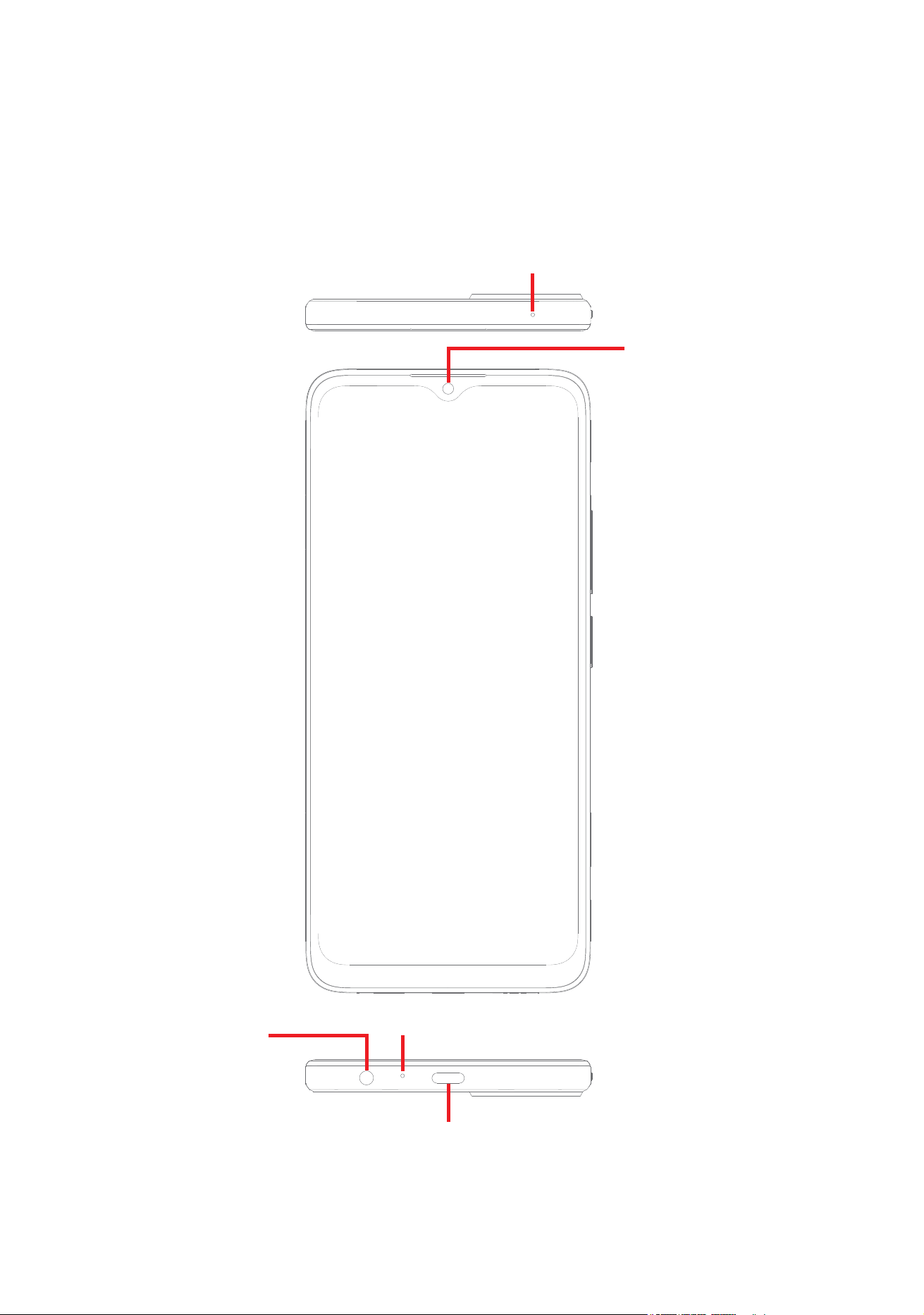
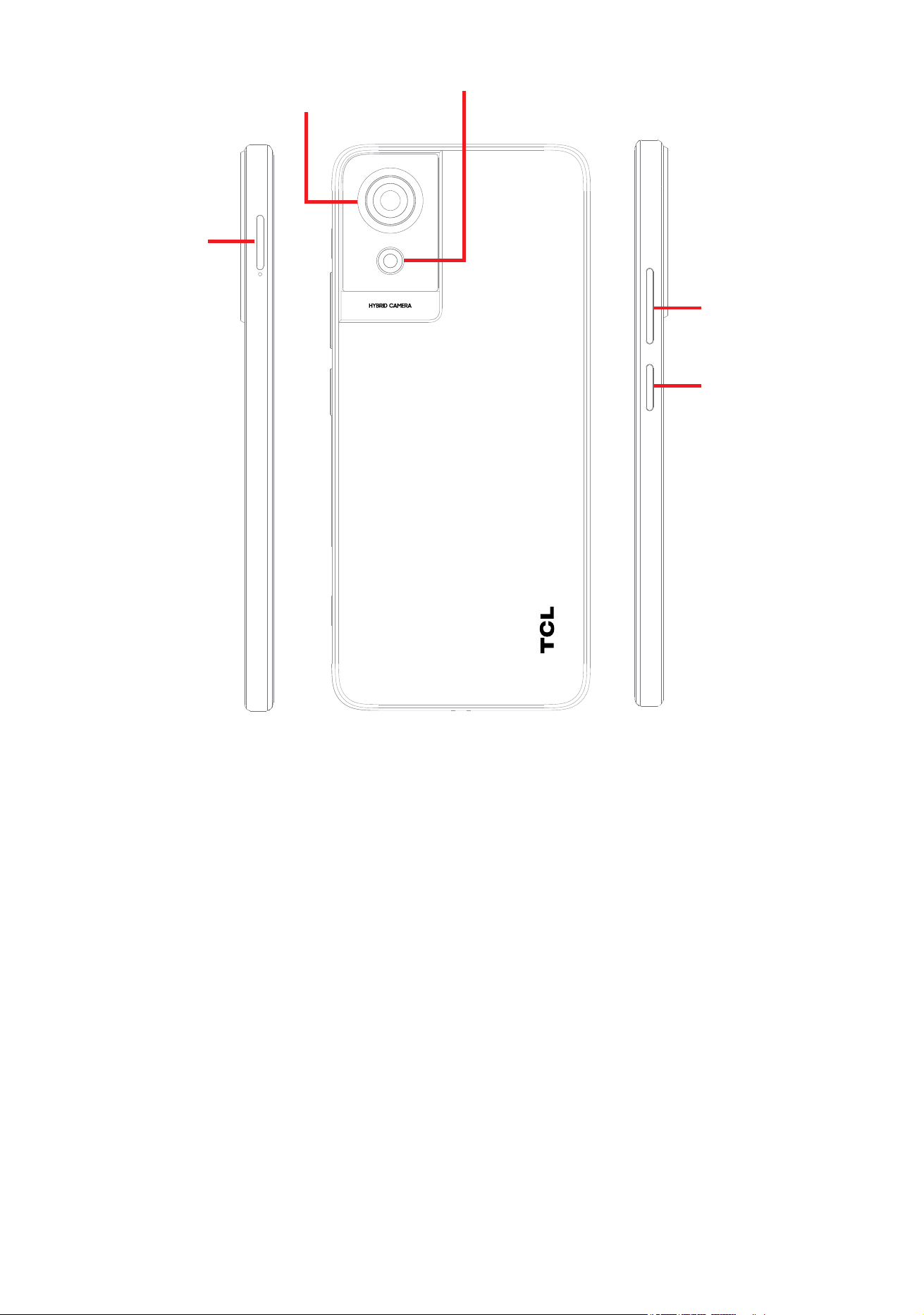
1.1 Overview
Headset
connector
USB Type-C
Microphone
Front camera
Microphone
4
Flash
Power key/
Google Assistant
Volume keys
Back camera
SIM and
microSD
TM
tray
5
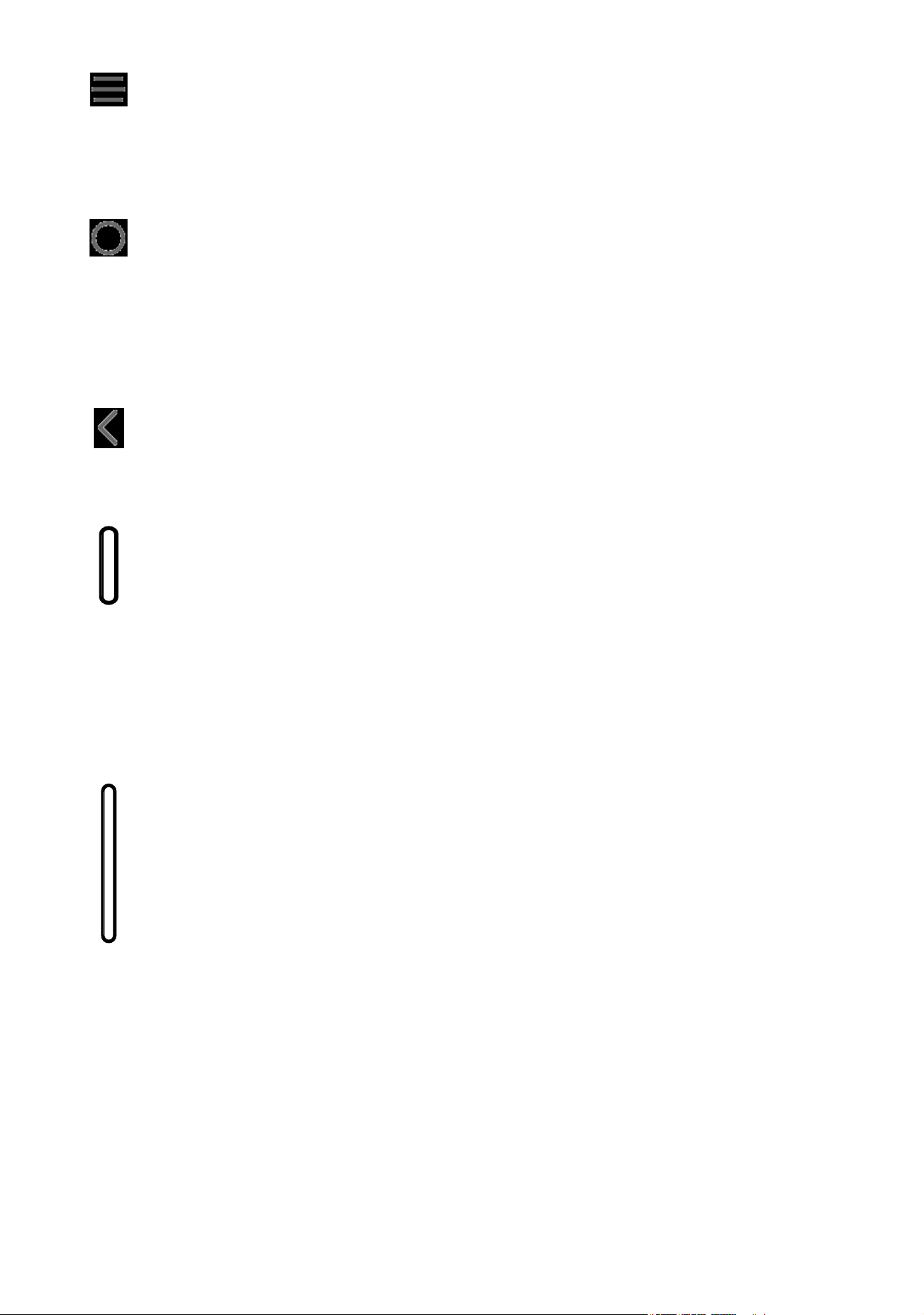
Recent Apps button
• Touch to open a card view of applications you've worked with recently.
Swipe up on the screen to remove a specific thumbnail from the list, or
touch CLEAR ALL to remove all thumbnails from the list.
Home button
• From any application or screen, touch to return to the Home screen.
• Touch and hold to open Google Assistant. You can get help such
as searching for information online, opening apps on your phone,
sending messages, etc.
Back button
• Touch to go back to the previous screen, or close a dialog box, options
menu, the Notification panel, etc.
Power key
• Press: Lock the screen/Light up the screen.
• Press and hold: Show the popup menu to select from Power off,
Restart, or Airplane mode.
• Press the Power key and Volume down key to take a screenshot.
• Press and hold the Power key for at least 8 seconds to shut down.
Volume Keys
• Adjust the call volume during a phone call.
• Adjust the media volume while listening to music, watching a video,
or streaming content.
• Adjust the ringtone volume.
• Mutes the ringtone of an incoming call.
• While using the Camera, press the Volume up or Down key to take a
photo, or touch and hold to take several photos.
6
1.2 Setup
Inserting or removing the SIM/microSD
TM
card
You must insert your Nano SIM card to make phone calls using your network.
Your phone only supports Nano SIM cards. In order to avoid damaging
your phone, do not attempt to insert other SIM types, such as Mini or
Micro cards.
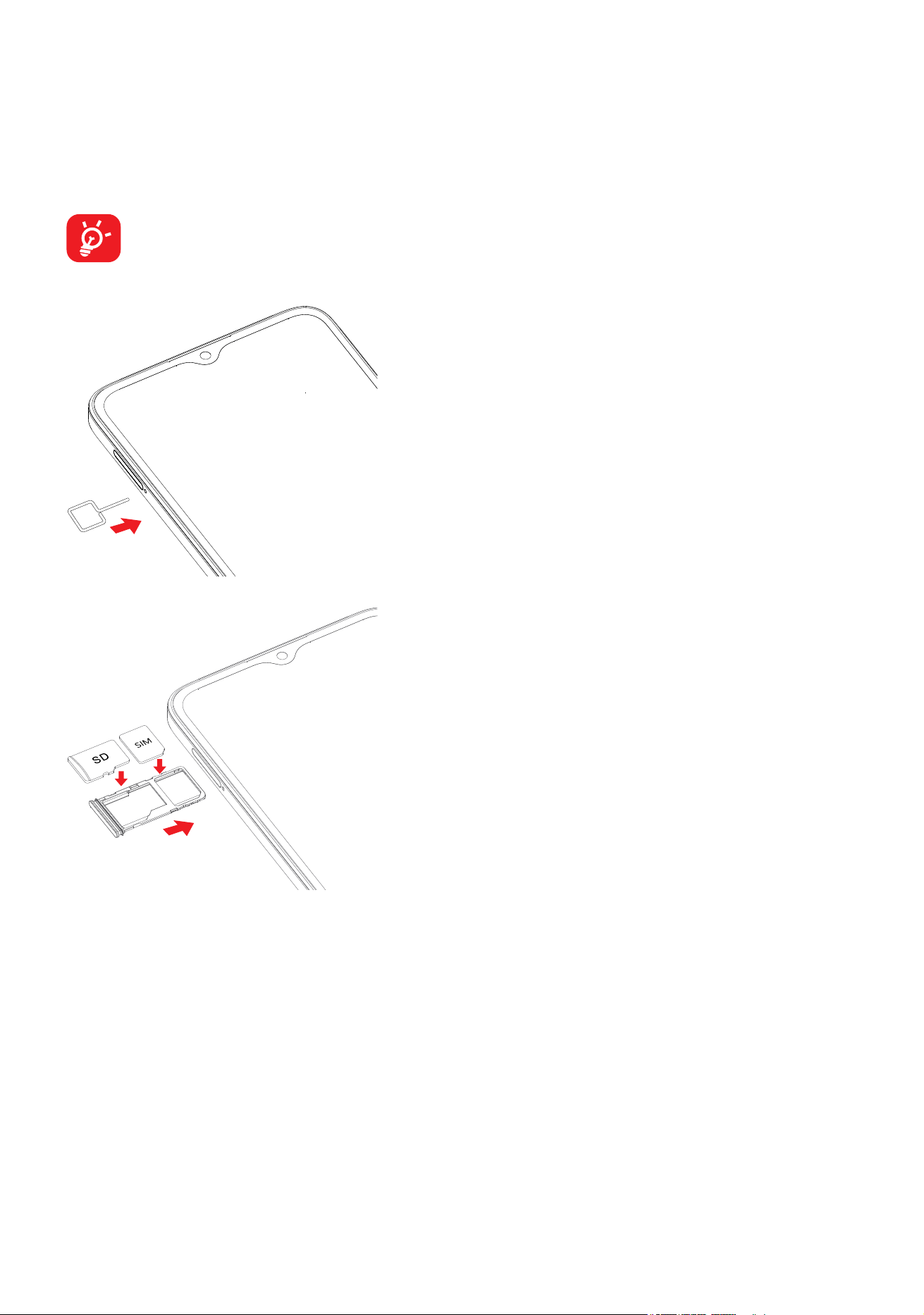
Locate the SIM tray located on the side
of your device. Insert the provided
SIM pin into the hole and pull out the
SIM tray.
Place or remove the Nano SIM card and
the microSD
TM
card in the correct slot as
shown. Please note that gold contacts
must be facing down.
Note: Even if no SIM card is installed, your phone will still power on and you will
be able to connect to a Wi-Fi network and use some of the phone's features.
Setup your phone for the first time
The first time you power on the phone, you should set the following options:
language, mobile data, Google service, and date & time, etc.
7
1.3 Home Screen
You can bring all of the items that you use most frequently (applications, shortcuts,
widgets, folders) to your Home screen for quick access. Touch the Home button
to switch to the Home screen.
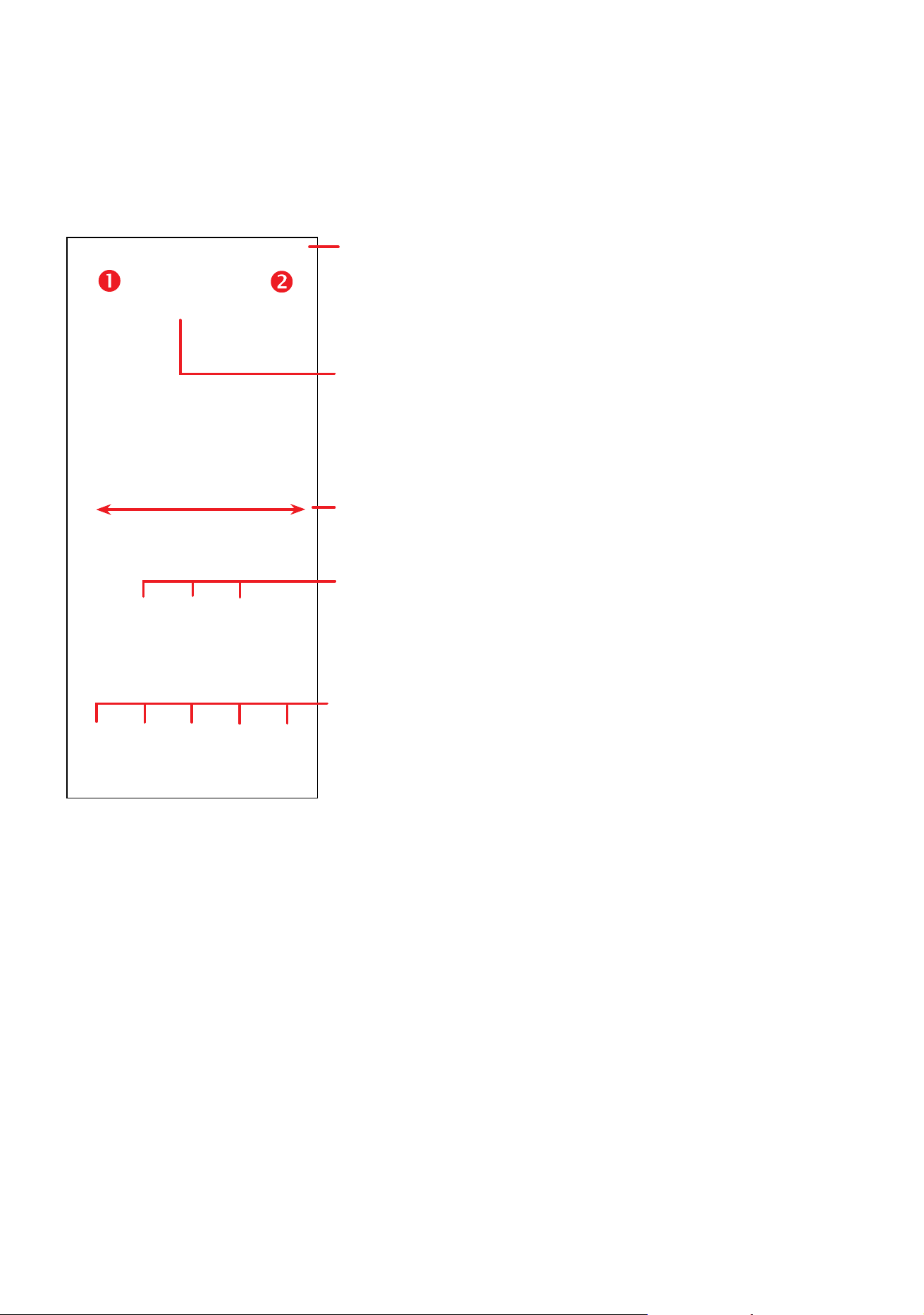
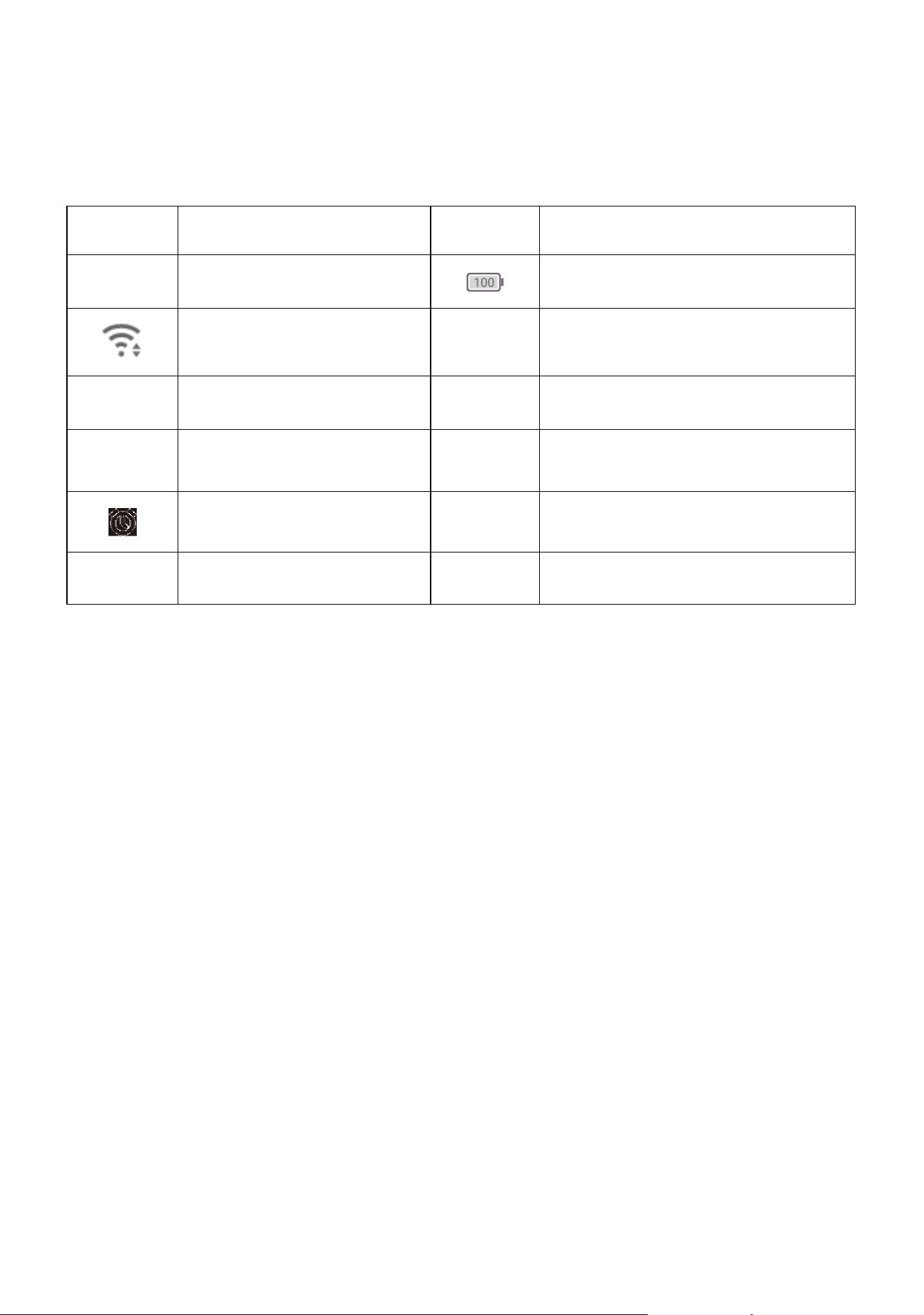
Status bar
• Status/Notification indicators
• Swipe down to open the Notification panel
Swipe left or right to view more screens
Touch to open an application, folder, etc.
Favorite apps tray
• Touch to open the application.
• Touch and hold to move or change applications
Search bar
Enter text search screen.
Enter voice search screen.
8
1.4 Status Bar
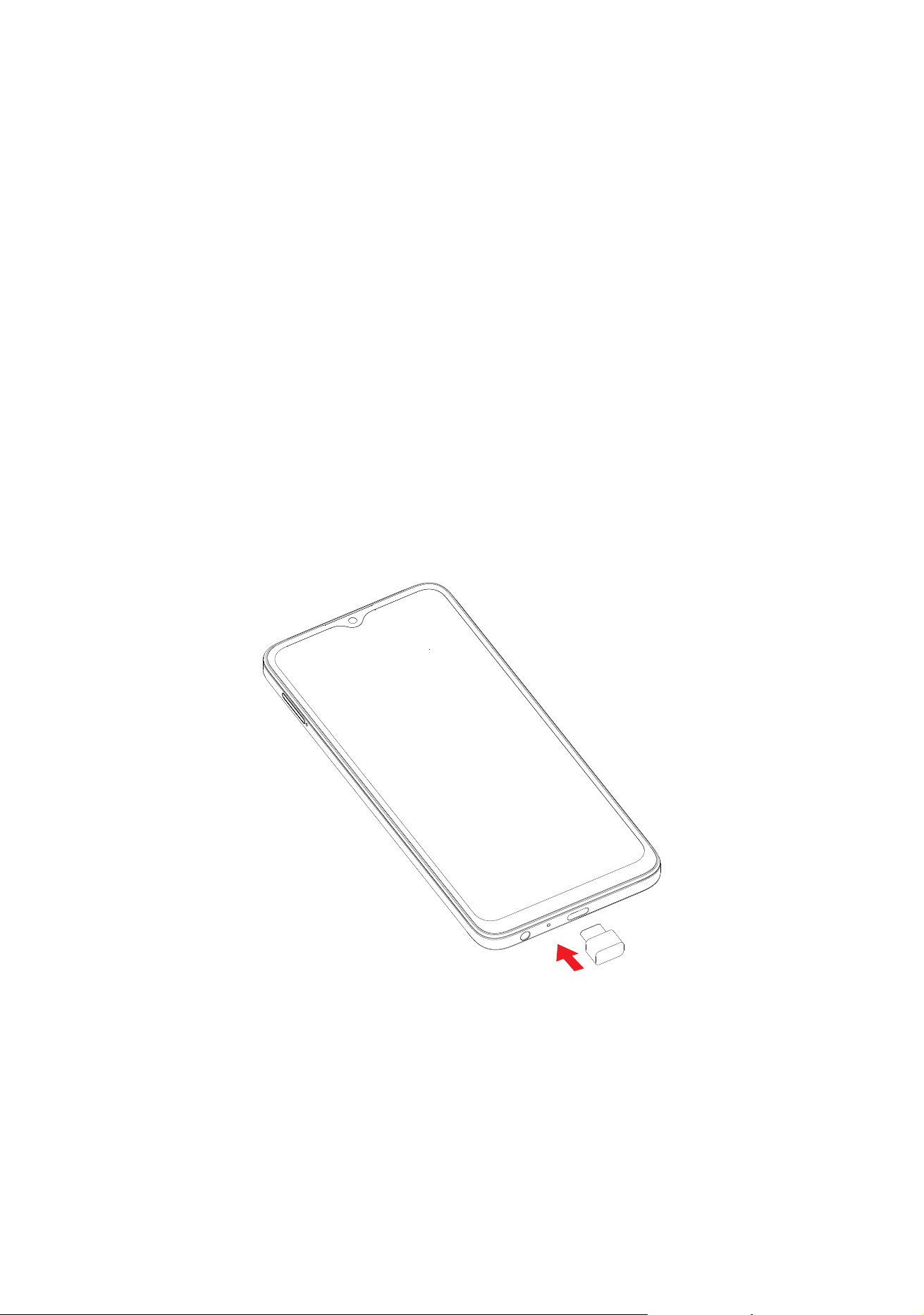
The Status bar appears at the top of your Home screen. Icons indicating your
phone's status and new notification alerts appear in the Status bar.
Icon Status Icon Status
Bluetooth
®
active Battery (fully charged)
Wi-Fi
®
active New message
Network (full signal) Vibrate mode
Airplane mode Screenshot captured
Alarm set Connected via USB cable
Battery (charging) New email message
9
2
About Your Phone ............................
2.1 Power On/Off
Hold down the Power key until the phone powers on, unlock your phone (Swipe,
Pattern, PIN, Password or Face unlock) if necessary. Once unlocked, Home screen
is displayed.
If you do not know your PIN code or forget it, contact your network carrier. Be
sure to keep your PIN code secure.
Press the Power key until options appear, then select Power off.
Charging
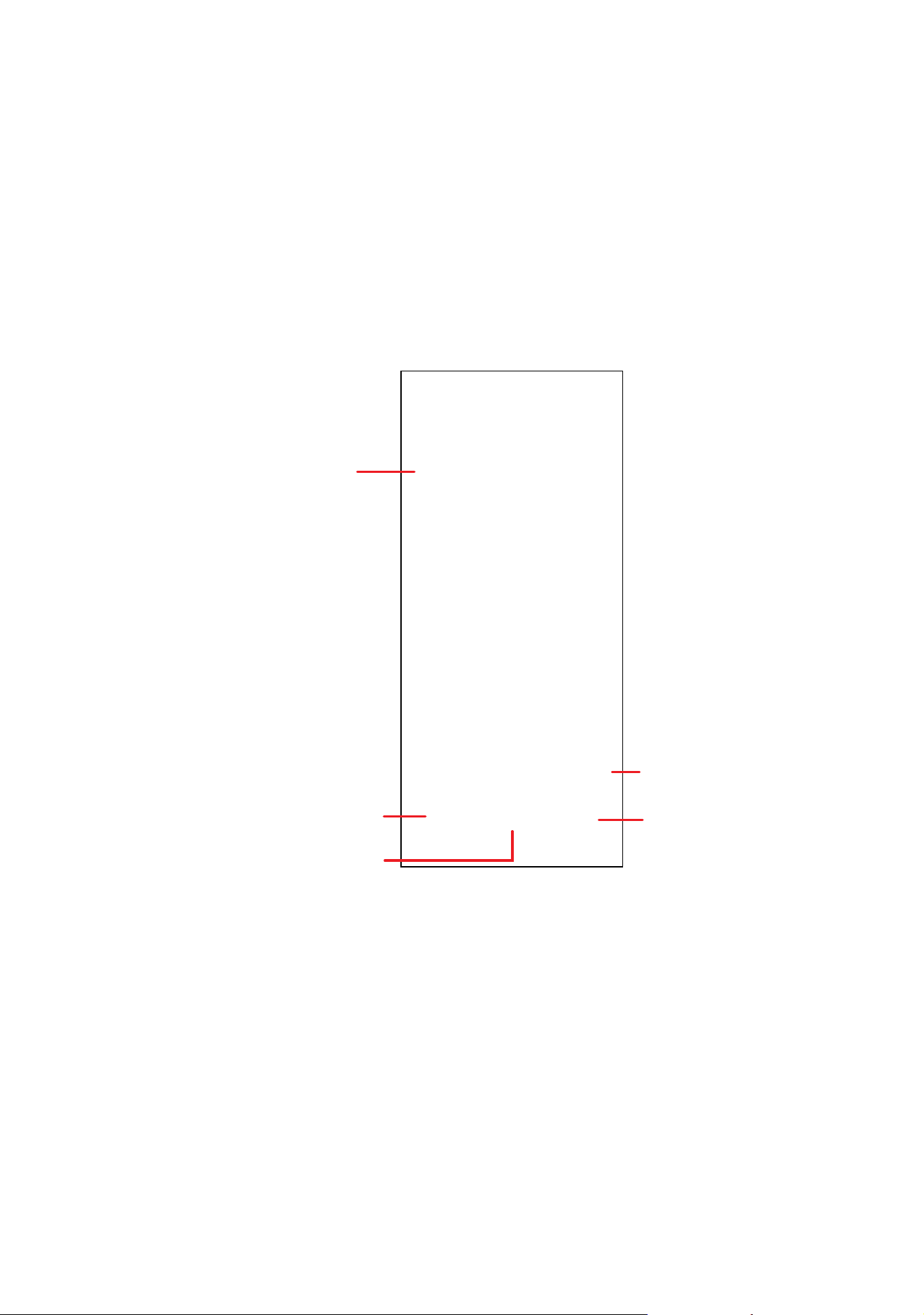
Insert the small end of the charging cable into the charge port and plug the
charger into an electrical outlet.

10
2.2 Battery
To optimize your battery life, you may do the following:
Turn on power saving mode
• Go to Settings > Smart Manager > Battery.
• Select one saving mode and touch to activate.
Lower screen brightness
• Go to Settings > Display > Brightness level
• Lower the brightness by sliding
to the left.
Screen timeout
• Go to Settings > Display > Sleep
• Select the screen timeout duration.

11
3
Personalize Your Phone ....................
3.1 Language
Your device supports multiple languages. To change your phone language:
• Go to Settings > System > Languages & input > Languages.
• Touch + Add a language to select a language from the language list.
3.2 Date & Time
Go to Settings > System > Date & time.
Use Automatic date & time
Turn on
to enable the Automatic date & time.
Use network-provided time zone
Turn on
to enable the network-provided time zone.
If Automatic date & time is turned off, you will have the following two options
to manually set the date and time:
• Set date
Touch to open a dialog in which you can manually set the date.
• Set time
Touch to open a dialog in which you can manually set the time.
If Use network-provided time zone is turned off, you will have the following two
options to manually set the time zone:
• Time zone
You can select the time zone and region manually.
• Time format
You can also set the time format as locale default or 24-hour format.

12
3.3 Display
Dark mode
Your screen will become black in this mode, which makes it easier to look at your
screen or read in dim light.
Eye comfort mode
Eye comfort mode can effectively reduce blue light radiation and adjust the color
temperature to relieve eye fatigue. You can also create a custom schedule to turn
it on.
Auto-rotate screen
Select whether the screen rotates automatically or not.
Note: Using your device in landscape mode with polarized sunglasses on may
cut light from the screen. Take your polarized sunglasses off or use your device in
portrait orientation to continue use.
3.4 Sound
Adjusting volume
• Press the volume keys that are located on the right side of the device to adjust
the Ring volume.
• You can also go to Settings > Sound & vibration to adjust the volume for ring,
notification, media and alarm.
Adjusting tones
• Go to Settings > Sound & vibration > Phone ringtone & vibrate.
• You may select ringtones for phone, notification, alarm as well as other sounds.

13
Adjusting other sounds
All other sounds that are related to Dial Pad, Screen locking, touch and vibrate
on touch can be adjusted by doing the following:
• Go to Settings > Sound & vibration > More sound settings.
3.5 Digital wellbeing & parental controls
Use this menu to find out how much time you have spent on the phone and even
on each app. You can customize the time limit for using the phone.
In addition, parents can restrict their children's usage time and manage their
browsing habits.
14
4
Apps and Features ...........................
4.1 Phone ........................................................
Making a call
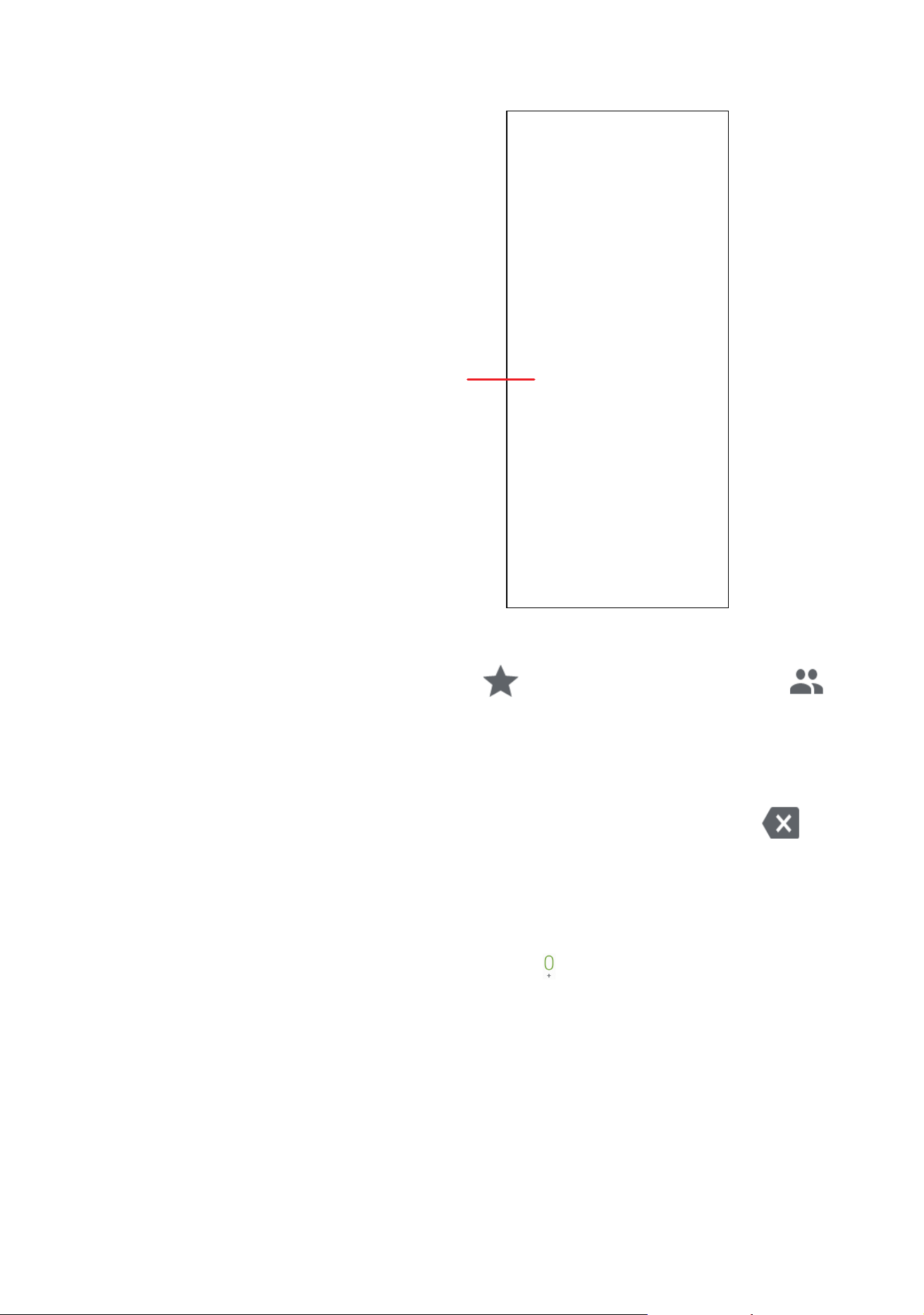
To make a call, touch .
Touch to send a message,
block the number or view
call details
Show the dial pad
Contacts
Call logs
Favorite numbers
15
Suggested numbers are displayed as you enter numbers on the dial pad.
Touch and hold to access
voicemail
Enter the desired number from the dial pad and touch to place the call. You
can also select a contact from Favorites
, Recents or Contacts by
touching the tabs.
The number you entered can be saved to Contacts by touching Create new
contact.
If you make a mistake, you can delete the incorrect digits by touching
.
To hang up a call, touch
.
International call
To make an international call, touch and hold
to enter “+”, then enter the
international country prefix followed by the full phone number and touch
.
Emergency call
If your phone has network coverage, dial the emergency number and touch
to make an emergency call. This works even without a SIM card and without
typing the PIN code.

16
Answering or rejecting a call
When you receive a call:
• Slide
up to answer;
• Slide
down to reject;
• Touch
to reject the call by sending a preset message.
To mute the ringtone of an incoming call, press the Volume key.
Voicemail
Your voicemail is provided by your network to avoid missing calls. It works like an
answering machine that you can consult at any time.
To access your voicemail, touch and hold
.
If you receive a voicemail,
appears in the Status bar. Open the Notification
panel and touch Voicemail.
17
4.2 Contacts ....................................................
Contacts enables quick and easy access to the contact you want to reach.
You can view and create contacts on your phone and synchronize them with your
Gmail contacts or other applications on the web or on your phone.
Adding a contact
Touch
in the contact list to create a new contact.
Enter the contact's name and other contact information. By scrolling the screen
up and down, you can move from one field to another
Select a picture or take a photo for
the contact
When finished, touch SAVE to save
Touch to open available labels
When finished, touch SAVE to save.
To exit without saving, you can touch
and then touch DISCARD.
18
Editing your contacts
Touch in the contact details screen to edit. When finished, touch SAVE to
save.
Add to/remove from Favorites
(1)
Touch a contact to view details then touch to add the contact to favorites.
Touch the star
to remove a contact from favorites.
Deleting a contact
From the contact list screen:
• Touch and hold the contact you want to delete, then touch
and confirm to
delete.
• Mark the checkbox of all contacts, then touch
and confirm to delete all
contacts.
The contact you have deleted will also be removed from other applications
on the phone or web the next time you synchronize your phone.
(1)
Only phone and account contacts can be added to Favorites.

19
Sharing a contact
You can share a single contact with others by sending the contact's vCard to them
via Email, Messages, and Bluetooth. Select a contact you want to share, touch .
Available options
From the contact list, you may also make further changes to settings by touching
.
Settings
My info Touch to set up your profile
Accounts Touch to add account and configure related info.
Default account for
new contacts
Touch to choose the default place to save a new
contact.
Sort by Touch to sort the list by the first name or last name.
Name format
Touch to choose whether to display first name first, or
last name first.
Phonetic name Touch to choose display or hide phonetic name.
Import/Export
Import or export contacts between phone, SIM card,
microSD card and phone storage, etc.
Blocked numbers
Add numbers here so that you won't receive calls or
texts from them.
About Contacts
Touch to view the build version, open source licenses
and so on.
20
4.3 Messages ...........................................................
Use the messaging app to send and receive text (SMS) and multimedia (MMS)
messages.
Creating a message
On the Messaging list screen, touch
to write text/multimedia messages.
Type the text message
Insert emoticons
Add recipients
Sending a text message
• Enter the name or the phone number of the recipient in the To bar or touch
to add recipients.
• Touch the Text bar to enter the text of the message.
• Touch
to insert emoticons.
• When finished, touch
to send the text message.
Specific letters (accented) will also increase the size of the SMS, this may
cause multiple SMS to be sent to your recipient.
21
Sending a multimedia message
MMS enables you to send video clips, images, audios, location, etc. to other
compatible mobile devices and e-mail addresses.
• Enter the recipient's phone number in the To bar.
• Touch the Text bar to enter the text of the message.
• Touch
to attach an emoticon, location, contact or file.
• Touch to attach a picture or video from Gallery or shoot one directly.
• When finished, touch
to send the multimedia message.
Managing messages
When receiving a message, will appear in the Status bar as a notification.
Drag down the Status bar to open the Notification panel, touch the new message
to open and read it. You can also access the Messaging application and touch
the message to open it.
Messages are displayed as a conversation.
Touch a message to enter the message composing screen:
• Touch
to call the number.
• To reply to a message, enter the text. When finished, touch
.
• If you touch and hold a message, the following options will be available:
archive , delete , etc.

22
4.4 Calendar .....................................................
You can use Calendar to keep track of important meetings, appointments, etc.
To access the function, touch the Google folder from the Home screen, then
touch Calendar.
Viewing calendars
You can display the Calendar in Schedule, Day, 3 days, Week or Month view.
Touch
and select your desired calendar view.
Creating a new event
You can add new events from any Calendar view.
• Touch
.
• Fill in all required information for this new event. If it is a whole-day event, you
can turn on
next to All-day.
• Invite guests to the event. Enter the email addresses of the guests you want
to invite with commas to separate. The guests will receive an invitation from
Calendar and Email.

23
• When finished, touch Save from the top of the screen.
To quickly create an event from the Day, 3 Day, or Week views, touch an empty
spot to select a target area which will then turn into
, and touch the icon to
create the new event.
Deleting or editing an event
• To delete or edit an event, touch the event to enter its details screen, touch
to edit the event.
• Touch
and Delete to remove the event.
Event reminder
If a reminder is set for an event, the upcoming event icon will appear in the
Status bar as a notification when the reminder time arrives.
• Touch and drag down the Status bar to open the Notification panel.
• Touch an event name to view the Calendar notification list.
24
4.5 Camera ......................................................
Before using the camera, make sure that you remove the protective lens cover to
avoid it affecting your picture quality.
Launch Camera
There are multiple ways to open the Camera app.
From the Home Screen
Touch Camera
.
Using a shortcut key
Simply double-press the Power key to open the camera.
1
2
3
4
5
6
7
8
9
10
11
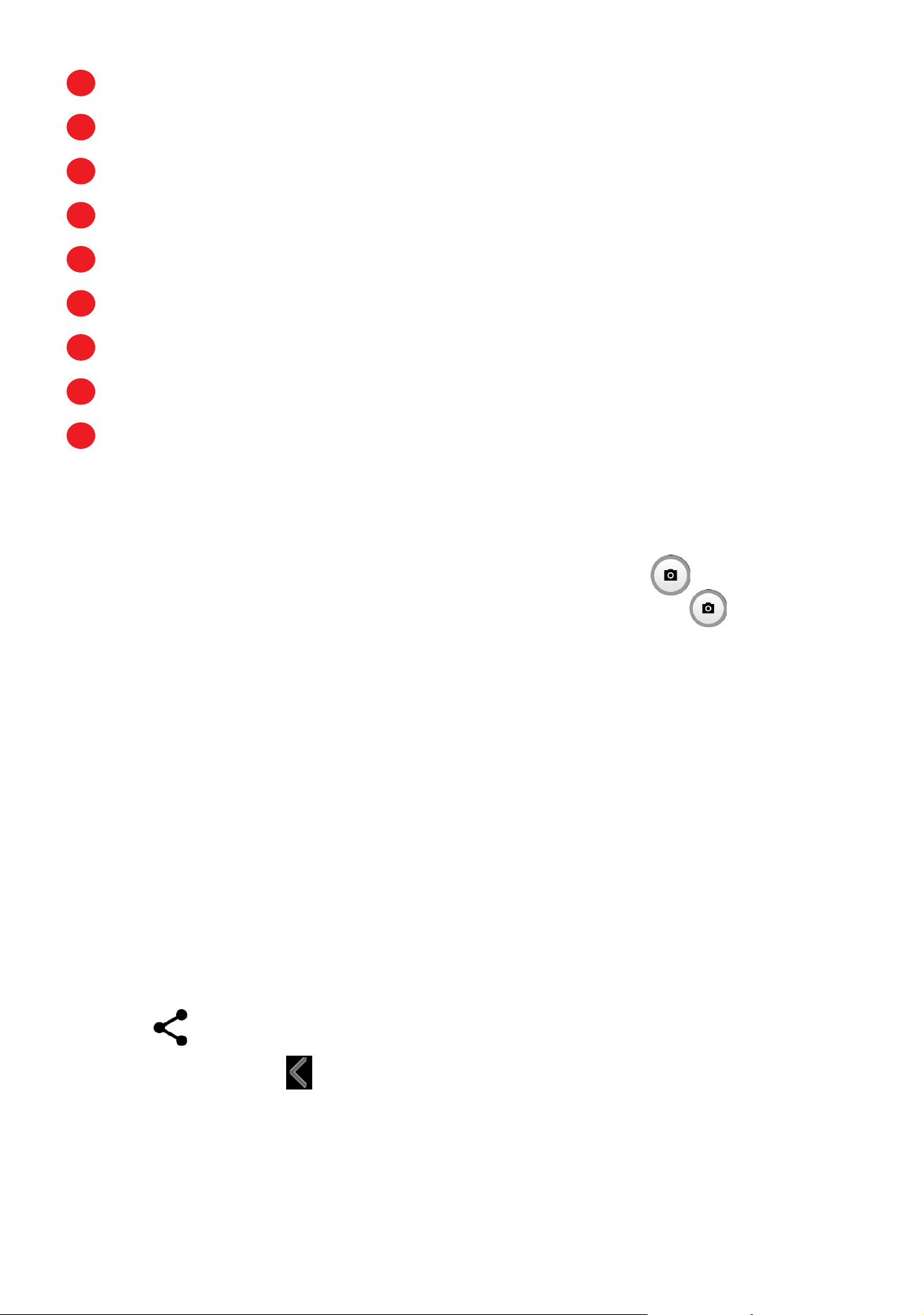
1
Gridlines
2
Flash mode: Touch to turn the camera flash on/off
WARNING: Keep a safe distance when using the flash. Do not point the flash
toward people’s or animals’ eyes.
25
3
Take a timed photo
4
Take HDR photos
5
Zoom in/out
6
Switch between front/back camera
7
Take a photo
8
Touch to access settings
9
Picture size
10
Pinch fingers together to zoom out, or spread fingers apart to zoom in
11
View the photos or videos you have taken
To take a photo
The screen acts as the viewfinder. First, position the object or landscape in the
viewfinder, touch the screen to focus if necessary. Touch
to capture. The
photo will be automatically saved. You can also touch and hold
to take burst
shots.
To take a video
Touch VIDEO to change the camera mode to video. Touch to start video
recording. Touch the left part of this icon
to take a picture during video
recording.
Touch the right part of this icon
to pause video recording and touch
to continue. Touch
to stop recording. The video will be automatically saved.
Further operations when viewing a photo/video you have taken
• Slide left or right to view the photos or videos you have taken.
• Touch
, then Gmail/Bluetooth/Messages/etc. to share the photo or video.
• Touch Back button
to return to Camera.

26
4.6 Photos .......................................................
Google Photos stores your photos and videos. It also automatically analyzes
photos and organizes them into groups, so that you can quickly find the photos
you need.
• Touch the picture/video directly to view or play.
• Slide left/right to view previous or next pictures/videos.
27
Working with pictures
You can work with pictures by rotating or cropping them, sharing them with
friends, setting them as a contact photo or wallpaper, etc.
Find the picture you want to work on, and touch the picture in the full-screen
picture view.

28
4.7 Clock .........................................................
To access clock, swipe up from the Home screen, touch Clock.
Setting world clocks
• Touch Clock on the clock screen.
• Touch
to add a time zone.
Setting alarms
Touch Alarm to enter.
• Turn on
to enable the alarm.
• Touch
to add a new alarm, touch OK to save.
• Touch a currently existing alarm to enter the alarm editing screen.
Setting timer
Touch Timer to enter.
• Enter time in the sequence of hours, minutes, and seconds.
• Touch
to activate Countdown.
• Touch
to pause.
• Touch
to reset.
Setting stopwatch
Touch Stopwatch to enter.
• Touch
to start the timer.
• Touch
to show a list of records according to the updated time.
• Touch
to halt the total and lap times.
• Touch
to start a new timer.

29
4.8 Gmail .........................................................
Setting up Gmail
To set up your email account, touch the Google folder from the Home screen,
then select Gmail
.
Select to add an email address.
An email setup process will guide you through the steps to set up an email
account.
• Select the type of email account that you have and enter the email address and
password of the account you want to set up.
• If the account you entered is not provided by your service provider in the device,
touch Other and then MANUAL SETUP after entering the email address, select
an account type and enter password of your email, then correctly fill in server
and port in both Incoming server settings and Outgoing server settings
interfaces. Finally, touch FINISH to complete setup.
• To add another email account, you can touch
on the upper left corner,
select Settings, and then touch Add account. Or you can touch the account
name on the upper right corner and select Add another account to implement
this function.
Sending an email
• Touch
from the Inbox screen.
• Enter recipient(s) email address(es) in the To field.

30
• If necessary, touch
> Cc/Bcc to add a copy or a blind carbon copy to the
message.
• Enter the subject and the content of the message.
• Touch
to add an attachment.
• If you do not want to send the mail right away, you can touch
and Save draft
or touch the Back key to save a copy.
• Touch
to send.
If you do not want to send or save the email, you can touch
and then select
Discard.
To add a signature that will appear on all of your emails, touch
and select
Settings, then choose the account that you want to create or modify the signature,
touch Mobile Signature to edit.

31
5
Google Applications .........................
Google apps are preinstalled on your phone to improve work efficiency and help
you enjoy life.
This manual briefly introduces the apps. For detailed features and user guides,
refer to related websites or the introduction provided in the apps.
You are recommended to register with a Google Account to enjoy full functionality.
Google
Your bookmarks, browsing history, and settings across all devices on which
the browser is installed can be synchronized with your Google Account.
Chrome
Using the Chrome browser, you can enjoy surfing the Web. Your bookmarks,
browsing history, and settings across all devices with the browser installed
can be synchronized with your Google Account.
To get onto the Web, go to the Home screen and tap the Chrome icon
in the Favorites tray.
Gmail
As Google's web-based email service, Gmail is configured when you first
set up your phone. With this application, you can send and receive emails,
manage emails by labels, archive them, etc. Emails can be automatically
synchronized with your Gmail account.
Maps
Google Maps offers satellite imagery, street maps, 360° panoramic views
of streets, real-time traffic conditions, and route planning for travelling by
foot, car, or public transportation. By using this application, you can find
your own location, search for a place, and get suggested route planning
for your trips.

32
YouTube
YouTube is an online video-sharing application where users can upload,
view, and share videos. Available content includes video clips, TV clips,
music videos, and other content such as video blogging, short original
videos, and educational videos. It supports a streaming function that allows
you to start watching videos almost as soon as they begin downloading
from the internet.
Drive
A file storage and synchronization service created by Google, which allows
users to store files in the cloud, share and edit files. Files in Drive are kept
secure and can be accessed from any device by logging in to your Google
Account. Files or folders can be shared privately with other Google
Account users.
Meet
Google Meet is a video chat mobile app; it allows users to use phone
numbers to easily call people from their contact list. The app will
automatically control the video quality by sensing the network connectivity.
Wallet
Google Wallet allows you to make contactless payment with your phone,
which is the fast, simple and safe way to pay in millions of places - in stores,
online, and more.
Find Devices
You can view the current location of your devices and devices in your
family sharing group, have them play a sound and get notified when
they're found or when you leave them behind.
Safety
Google Safety helps you prepare for an emergency, and if an emergency
occurs, the app can connect you to help and the information you need.
This app has features like car crash detection and location sharing with
your emergency contacts. You can also get crisis alerts about nearby
natural disasters or public emergencies.

33
Play Store
Serves as the official app store for the Android operating system, allowing
users to browse and download applications and games. Applications are
either free of charge or at a cost.
In Play Store, search for the app you need, download it and then follow the
installation guide to install the app. You can also uninstall, update an app,
and manage your downloads.

34
6
Security & Biometrics .......................
From the Home screen, touch Settings > Security & biometrics to access the
following security settings.
6.1 Screen Lock
Screen lock allows you to set a screen lock option to secure your phone from
being used by others without your permission, activate the following security
options: Pattern, PIN, Password or Face unlock. Whoever turns on your phone
will be required to unlock the screen in order to access your device. Your device
can be unlocked by anyone if you select None or Swipe.
6.2 Face Unlock
Face unlock allows you to unlock your device with your facial data. Set it according
to the on-screen steps.
Ensure that you are facing the phone screen when using face recognition.
NOTE: you need to set a pattern, PIN, or password before using Face unlock.
6.3 Smart Lock
Smart Lock keeps your device unlocked when it's with you and locked when it
detects that it's been put down.
6.4 Device admin apps
Turn on Find My Device so that you can remotely track, lock, and erase the data
on a lost or stolen device.
6.5 SIM card lock
You can set a lock on your SIM card so it can't be used by anyone who doesn't
know the lock code.

35
6.6 Encryption & Credentials
Touch to view your device encryption status and the credentials items. You can
modify and clear all of the stored credentials.
6.7 Trust agents
This feature will be available to use after you set a screen lock method.
6.8 Screen pinning
Touch to enable the app pinning function to keep the current app in view until
you unpin it.
To use screen pinning:
1. Make sure screen pinning is enabled.
2. Open the screen that you want to pin.
3. Touch Overview.
4. Swipe up and then touch the pin icon.

36
7
FOTA Upgrade
Use the FOTA (Firmware Over The Air) upgrade to update your phone's software.
To access updates, from the app list, touch Settings > System > System Update.
Turn on data connection or Wi-Fi before searching for updates.
With Wi-Fi turned on, the system is able to discover if a new firmware version is
available and if so, begin to download it automatically. Once finished, a pop up
dialog will give you the option of updating your phone now or later.
If you only have a cellular network connection, you will only receive a notification
which will appear in the Status bar.

37
8
Safety and Regulatory Information ..
Safety and Use
We recommend that you read this chapter carefully before using your mobile
device. The manufacturer disclaims any liability for damage, which may result as a
consequence of improper use or use contrary to the instructions contained herein.
Use of connected devices subject to your wireless carrier's Terms and Conditions.
Traffic Safety
Always obey the local laws and regulations addressing the use of wireless
mobile devices and their accessories in the areas where you drive. The use of
mobile devices while driving may be prohibited or restricted in certain areas.
Conditions of Use
You are advised to switch off your mobile device from time to time to optimize
its performance.
Operational Warnings: Only use your mobile device in accordance with local
laws and regulations and obey all posted notices in public areas.
Do not attempt to disassemble your mobile device. If you disassemble your
mobile device, the warranty will not apply.
Always handle your mobile device with care and keep it in a clean and dust-free
place.
Do not allow your mobile device to be exposed to adverse weather or
environmental conditions (moisture, humidity, rain, infiltration of liquids, dust,
sea air, etc.). The manufacturer’s recommended operating temperature range is
0°C (32°F) to +50°C (122°F)
Use only batteries, battery chargers, and accessories which are recommended
by Device manufacturer and its affiliates and are compatible with your mobile
device model. Device manufacturer and its affiliates disclaim any liability for
damage caused by the use of other chargers or batteries.
Please check local laws and regulations in your jurisdiction to learn how to best
dispose of your mobile device.

38
PROTECT YOUR HEARING
To prevent possible hearing damage, do not listen at high volume
levels for long periods. Exercise caution when holding your device
near your ear while the loudspeaker is in use.
Privacy
Please note that you must respect the laws and regulations of your jurisdiction
or other jurisdiction(s) where you will use your mobile device regarding taking
photographs and recording sounds with your mobile device. Pursuant to such
laws and regulations, it may be strictly forbidden to take photographs and/
or to record the voices of other people or any of their personal attributes, and
reproduce or distribute them, as this may be considered to be an invasion of
privacy.
It is the user’s sole responsibility to ensure that prior authorization be obtained,
if necessary, in order to record private or confidential conversations or take a
photograph of another person; the manufacturer, the seller or vendor of your
mobile device (including the operator) disclaim any liability which may result
from the improper use of the mobile device.
Legal Information
In order to provide you with better access to this important information, we've
made the materials accessible from the phone's Settings menu. Review these
materials prior to using your mobile device. To access the materials on your
mobile device, swipe up from the home screen, and tap Settings > System >
About phone > Legal information, and select a topic.
Regulatory Information (e-label)
Your mobile device uses an electronic label (e-label) that provides regulatory
information about your device. To view the regulatory information (such as FCC
ID) for this device, swipe up from the home screen, then tap Settings > System >
Regulatory & safety.
FCC Compliance
Any changes or modifications not expressly approved by the party responsible
for compliance of this device voids the user's authority to operate this device.
This device complies with Part 15 of the FCC Rules. Operation is subject to the
following two conditions:

39
(1) This device may not cause harmful interference.
(2) This device must accept any interference received, including interference that
may cause undesired operation.
This equipment has been tested and found to comply with the limits for a Class
B digital device, pursuant to Part 15 of the FCC Rules. These limits are designed
to provide reasonable protection against harmful interference in a residential
installation. This equipment generates, uses and can radiate radio frequency
energy and, if not installed and used in accordance with the instructions, may
cause harmful interference to radio communications. However, there is no
guarantee that interference will not occur in a particular installation. If this
equipment does cause harmful interference to radio or television reception,
which can be determined by turning the equipment off and on, the user is
encouraged to try to correct the interference by one or more of the following
measures:
• Reorient or relocate the receiving antenna.
• Increase the separation between the equipment and receiver.
• Connect the equipment into an outlet on a circuit different from that to which
the receiver is connected.
• Consult the dealer or an experienced radio/TV technician for help.
Hearing Aid Compatibility (HAC)
The FCC has established requirements for digital wireless mobile devices to be
compatible with hearing aids and other assistive hearing devices.
When wireless devices are used near hearing devices (such as hearing aids and
cochlear implants), users may detect a buzzing, humming, or whining noise.
Some hearing devices are more immune than others to this interference, and
wireless devices also vary in the amount of interference that they generate.
The wireless telephone industry has developed ratings to assist hearing device
users in finding wireless devices that may be compatible with their hearing
devices. Not all wireless devices have been rated. Wireless devices that are
rated will have the rating displayed on the box together with other relevant
approval markings.

40
The ratings are not guarantees. Results will vary depending on the user’s hearing
device and hearing loss. If your hearing device is vulnerable to interference, you
may not be able to use a rated wireless device successfully. Consulting with your
hearing health professional and testing the wireless device with your hearing
device is the best way to evaluate it for your personal needs.
This smartphone has been tested and rated for use with hearing aids for some
of the wireless technologies that the smartphone uses. However, other wireless
technologies may be used in this smartphone that have not been tested for use
with hearing aids. It is important to try the different features of your smartphone
thoroughly and in different locations to determine if you hear any interfering
noise when using this smartphone with your hearing aid or cochlear implant.
Consult your wireless service provider about its return and exchange policies,
and for information about hearing aid compatibility.
The standard of Hearing aid compatibility rating for this smartphone is
Reference ANSI C63.19(2011)
How the ratings work
M-Ratings: Wireless devices rated M3 or M4 meet FCC requirements andare
likely to generate less interference to hearing devices than wirelessdevices that
are not labeled. M4 is the better or higher of the two ratings.
T-Ratings: Wireless devices rated T3 or T4 meet FCC requirements andare likely
to be more usable with a hearing device's telecoil ("T Switch”or "Telephone
Switch") than unrated wireless devices. T4 is the better orhigher of the two
ratings. (Note that not all hearing devices have telecoilsin them.)
Hearing devices may also be measured for immunity to this type ofinterference.
Your hearing device manufacturer or hearing healthprofessional may help you
find results for your hearing device. Themore immune your hearing aid is,
the less likely you are to experienceinterference noise from wireless devices.
For more information about the actions that the FCC has taken withregard
to hearing aid compatibility with wireless devices and other stepsthat the
FcC has taken to ensure that individuals with disabilities haveaccess to
telecommunications services, visit www.fcc.gov/cgb/dro.

41
SAR
Your device includes a radio transmitter and receiver. It is designed and
manufactured not to exceed the exposure limits for Radio Frequency (RF) set by
the Federal Communications Commission (FCC). The RF exposure limits set by
the FCC for wireless mobile devices utilize a unit of measurement referred to as
Specic Absorption Rate (SAR), which is a measure of the amount of RF energy
absorbed by the body when using a mobile device. The FCC requires mobile
device manufacturers to ensure that their mobile devices comply with these
objective limits for safe exposure. The FCC SAR limit incorporates a substantial
margin of safety to give additional protection to the public and to account for
any variations in measurements. The FCC limit for public exposure from cellular
telephones is a SAR level of 1.6 Watts per kilogram (1.6 W/kg).
This device complies with FCC radiation exposure limits set forth for an
uncontrolled environment. To ensure compliance with the RF exposure
guidelines, the device must be used at least 15mm from your body
SAR information for this device can be found on the FCC website at www.fcc.
gov/oet/ea/. Follow the instructions on the website to use the FCC ID for this
device to nd SAR values for the device.
To view additional SAR information on your phone, swipe up from the home
screen, then tap Settings > System > About phone > Legal information > RF
Exposure.
Battery and Accessories
Observe the following precautions for battery use:
a) Do not disassemble or open crush, bend or deform, puncture or shred
b) Do not modify or remanufacture, attempt to insert foreign objects into the
battery, immerse or expose to water or other liquids, expose to re, explosion
or other hazard.
c) Only use the battery for the system for which it is specied
d) Only use the battery with a charging system that has been qualied with the
system per CTIA Certication Requirements for Battery System Compliance
to IEEE 1725. Use of an unqualied battery or charger may present a risk of
re, explosion, leakage, or other hazard.
e) Do not short circuit a battery or allow metallic conductive objects to contact
battery terminals.

42
f) Replace the battery only with another battery that has been qualied with the
system per this standard, IEEE-Std-1725. Use of an unqualied battery may
present a risk of re, explosion, leakage or other hazard.
Only authorized service providers shall replace battery. (If the battery is non-
user replaceable).
g) Promptly dispose of used batteries in accordance with local regulations
h) Battery usage by children should be supervised.
i) Avoid dropping the phone or battery. If the phone or battery is dropped,
especially on a hard surface, and the user suspects damage, take it to a
service center for inspection.
j) Improper battery use may result in a re, explosion or other hazard.
k) Do not replace an embedded battery pack. Improper replacement may
present a risk of re, explosion, leakage or other hazard. Contact the
manufacturer for replacement instructions.
l) Provide an explanation of the security implementation (refer to CRD Section
9.1).
For those host devices that utilize a USB port as a charging source, the host
device's user manual shall include a statement that the phone shall only be
connected to CTIA Certication certied adapters, products that bear the USB-
IF logo or products that have completed the USB-IF compliance program.
• Do not burn or dispose of a used battery in household rubbish or store it at
temperatures above 60ºC.
Products that have the below symbol must be taken to collection points at the
end of their life:
• Municipal waste disposal centers with specific bins for these items
of equipment.
• Collection bins at points of sale.
You can learn more about how to recycle your mobile device by visiting the
CTIA website at www.ctia.org/news/how-to-recycle-your-mobile-device
CAUTION: IF BATTERY IS REPLACED BY AN INCORRECT TYPE, DEVICE
MIGHT EXPLODE. DISPOSE OF USED BATTERIES ACCORDING TO THE
INSTRUCTION.

43
WARNING: Cancer and Reproductive Harm - www.P65Warnings.ca.gov
Chargers
Home A.C./Travel chargers will operate within the temperature range of: 0°C
(32°F) to 55°C (131°F).
The chargers designed for your mobile device meet with the standard for
safety of information technology equipment and ofce equipment use. Due to
different applicable electrical specications, a charger you purchased in one
jurisdiction may not work in another jurisdiction.
Licenses
microSD logo is a trademark of SD-3C, LLC.
The Bluetooth® word mark and logos are owned by the Bluetooth
SIG, Inc. and any use of such marks by Device Manufacturer and its
affiliates is under license. Other trademarks and trade names are
those of their respective owners.
The Wi-Fi Logo is a certification mark of the Wi-Fi Alliance.
Recycling Information
We declare that the Post-consumer recycled and bio-based plastics content
added to our product is 0.
Call Recycle Customer Support at 1-855-224-4228 for recycling instructions.

44
9
Troubleshooting ................................
Before contacting the service center, you are advised to follow the instructions
below:
• To have optimal operation, fully charge the battery.
• To improve the phone’s performance, remove unnecessary files or apps on your
phone.
• To update your system software, use the System update command in your
phone’s settings.
• To set your phone to factory default, use the Reset in the phone’s settings. All
your phone data will be lost permanently. It is strongly advised to fully back up
your phone before resetting.
My phone can't be switched on
• If the phone can't be switched on, charge for at least 10 minutes to ensure the
minimum battery power needed. Then switch it on again.
My phone has not responded for several minutes
• If your phone doesn’t respond, turn off your phone by pressing and holding the
Power key until it turns off and then restart it again.
My phone turns off by itself
• If your phone turns off by itself, make sure that the Power key is not accidentally
pressed.
• Check the battery charge level.
• If it still doesn't work, Factory reset the phone via the Reset options in the
phone’s Settings. Make sure you have backed up your data.
My phone can't charge properly
• Make sure that you are using the proper charger that comes with the phone.
• Make sure that your battery is not completely discharged; if the battery power
has been discharged for a long time, it may take around 10 minutes to display
the battery charging indicator on the screen.
• Make sure that charging is carried out under normal conditions (0°C (32°F) to
55°C (131°F)).

45
• When abroad, check that the voltage input is compatible.
• Check that the charging port is secured or it’s not damaged.
My phone can't connect to a network or "No service" is displayed
• Try connecting to the network by moving to another physical location.
• Verify the network coverage in your current area.
• Check that your SIM card is valid.
• Make sure your phone’s setting is not in airplane mode.
• If you are away from your T-Mobile network, you may need to enable roaming
in the phone’s settings to connect to another network. Roaming charges may
apply.
My phone can't connect to the internet
• Make sure that Cellular Data internet service is available in your wireless service
plan.
• Check your phone's settings. Make sure Cellular Data is enabled or Wi-Fi
connected.
• Make sure that you are in a place with network coverage for cellular data or
Wi-Fi internet connection.
• Try connecting at a later time or from another location.
Invalid SIM card
• Make sure that the SIM card has been correctly inserted (see "Inserting Nano
SIM card").
• Make sure that the chip on your SIM card is not damaged.
• Make sure that the service of your SIM card matches the network you’re on.
My phone can't make outgoing calls
• Make sure that you have dialed a valid number and have touched Call on your
phone.
• For international calls, check the country and area codes.
• Make sure that your phone is connected to a network, and the network is not
overloaded or unavailable.

46
• Check your subscription status.
• Make sure that you have not barred outgoing calls.
• Make sure that your phone is not in airplane mode.
My phone can't receive incoming calls
• Make sure that your phone is switched on and connected to a network.
• Check for overloaded or unavailable network.
• Check your subscription status.
• Make sure that you have not forwarded incoming calls.
• Make sure that you have not barred certain calls.
• Make sure that your phone is not in airplane mode.
The caller’s name/number doesn't appear when a call is received
• If the caller is not in your contact list, you have the option to subscribe to
NameID
• Your caller may have concealed their name or number.
I can't find my contacts
• Make sure that your SIM card is not broken.
• Make sure that your SIM card is inserted properly.
• Import all contacts stored in SIM card to phone.
The sound quality of the calls is poor
• Adjust the volume during a call by pressing the Volume key.
• Check the network strength. Move to a location with stronger signal strength.
• Make sure that the receiver, connector or speaker on your phone is clean.
I can't use the features described in the manual
• Check to make sure that your subscription includes this service.
• Make sure that this feature doesn't require any additional accessory.

47
When I select a number from my contacts, the number can't be dialed
• Make sure that you have correctly recorded the number in your file.
• Make sure that you have selected the country code when calling an international
number.
I can't add a contact
• Make sure that your SIM card contact list are not full; delete some files or save
the files to the phone.
My callers can't leave messages on my voicemail
• Contact your network carrier to check service availability.
• Set up your voicemail, so that your caller can leave a message.
I can't access my voicemail
• Make sure that T-Mobile's voicemail number is correctly entered in "Voicemail
number".
• Try later if the network is busy.
I can't send and receive MMS
• Check your phone storage as it might be full.
• Contact customer care to check service availability and MMS parameters.
• Verify the server center number or your MMS profile with customer care.
• The server center may be swamped. Try again later.
• Start a new Messaging string. Your messaging string may have reached its limit.
SIM card PIN locked
• Contact customer care to obtain the PUK (Personal Unblocking Key) code.
I can't connect my phone to my computer
• Install Smart Suite.
• Check that your USB driver is installed properly.
• Open the Notification panel to check if the Smart Suite Agent has been
activated.

48
• Check that you have marked the USB debugging checkbox.
• Check that your computer meets the requirements for Smart Suite installation.
• Make sure that you’re using the right cable from the box.
I can't download new files
• Make sure that there is enough phone storage space for your download.
• Select the microSD card as the location to store downloaded files.
• Check your subscription status.
The phone can't be detected by others via Bluetooth
• Make sure that Bluetooth is turned on and your phone is visible to other users.
• Make sure that the two devices are within Bluetooth’s detection range.
The battery drains too fast
• Make sure that you follow the complete charge time (minimum 2.3 hours).
• After a partial charge, the battery level indicator may not be exact.
• Wait for at least 10 minutes after removing the charger to obtain an exact
indication.
• Adjust the brightness of screen as appropriate.
• Extend the email auto-check interval for as long as possible.
• Update news and weather information manually or increase their auto-check
interval.
• Exit background-running applications if they are not being used for extended
periods of time.
• Deactivate Bluetooth, Wi-Fi, or GPS when not in use.
The phone becomes warm following prolonged calls, game playing, internet
surfing or running other complex applications
• This heating is a normal consequence of the CPU handling excessive data.
Ending the above actions will make your phone return to normal temperature.

49
After Factory data reset is performed, I can't use my phone without entering
Google Account credentials
• After reset is performed, you must enter the original Google Account credentials
that were used on this phone.
• If you don’t remember your Google Account credentials, complete Google
Account recovery procedures.
The phone doesn't ring when a call or message arrives
• Make sure that Do Not Disturb mode (go to Settings > Sound & vibration >
Do Not Disturb) is not activated.
• Press the Volume key to adjust volume.