Quick Start Guide
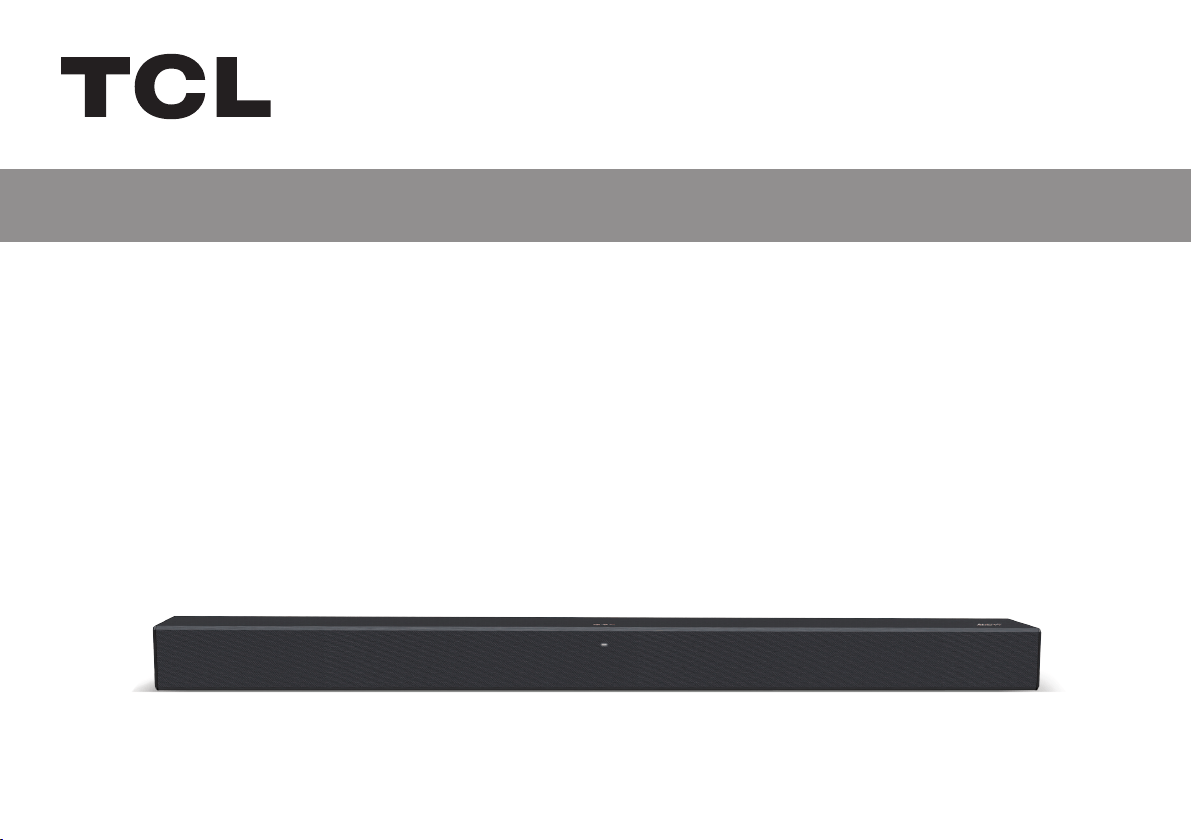
TSR1
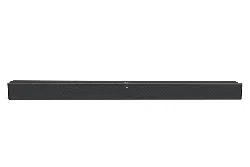
2.0 TCL Roku TV Wireless Soundbar

1
Register Your Product
Enjoy exclusive benefits with registration:
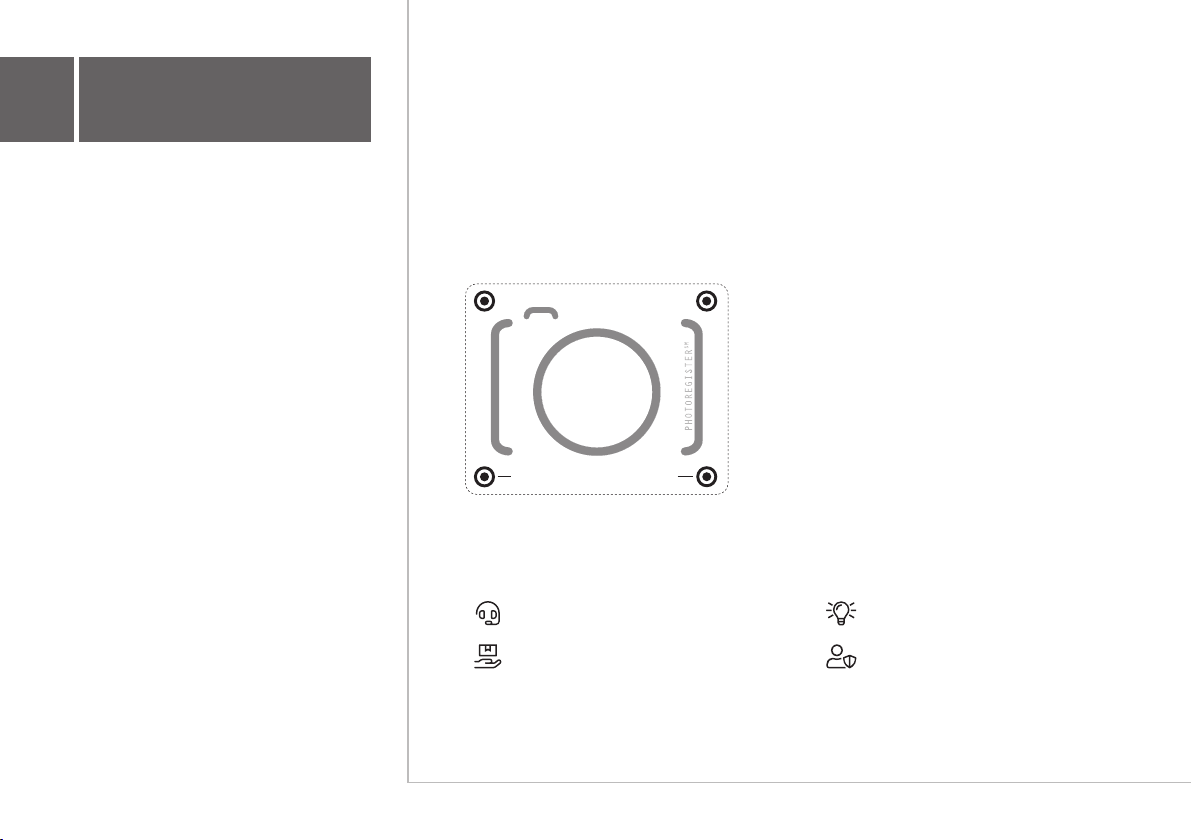
Text a photo of the
camera icon to 71403
Or register online
at register.tcl.com
Need help? Visit photoregister.com/help
or text HELP to 71403
TCL395
Text to Register
Expedited support and service Insider tips on your soundbar
Exclusive offers and promotions Verification of ownership
*Only Available to U.S. Customers
Register your TCL Roku TV Wireless
Soundbar to receive the latest news
on product releases, promotional
offers, and more!*

2
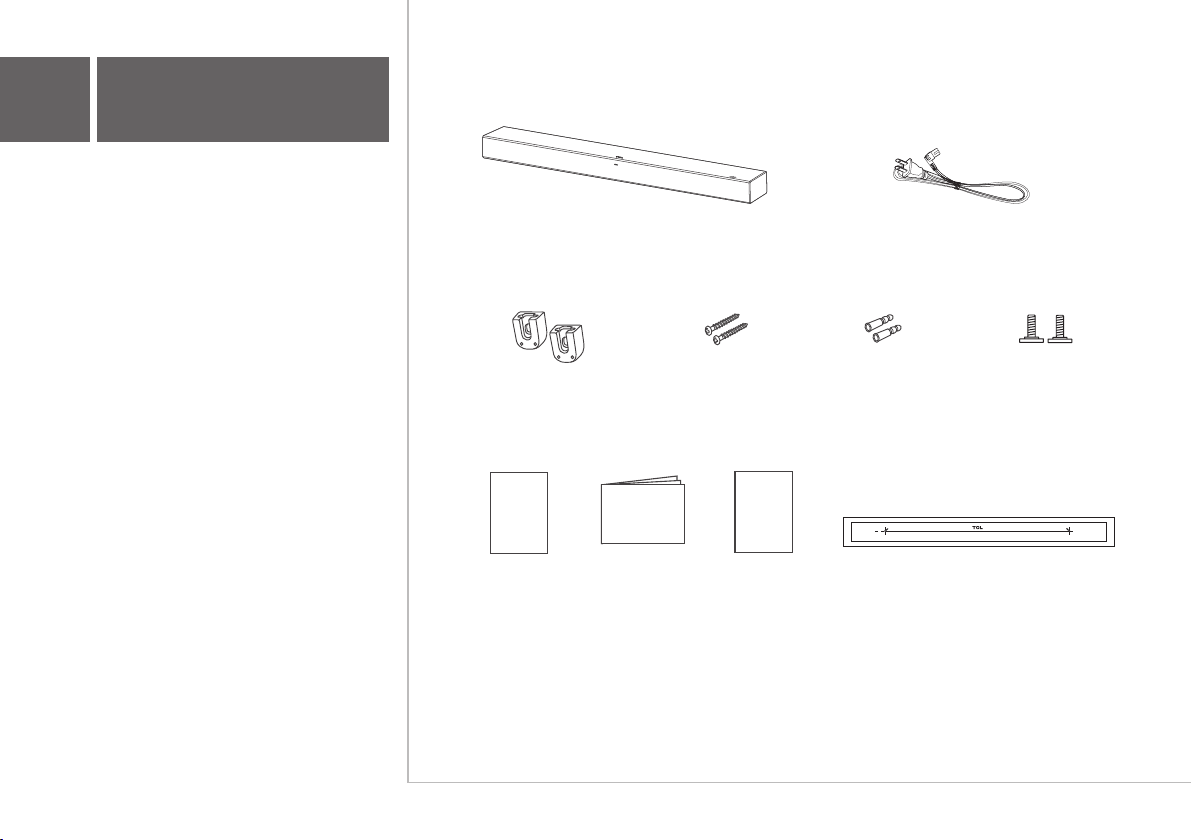
What's in the box
Make sure you read all the safety information
before you use this product.
Safety
instructions
QSG
Quick Start GuideSafety leaflet
Warranty
card
Warranty card Wall mount template
Soundbar
AC power cord
Wall mount bracket x 2 Wall bracket screw x 2 Wall anchor x 2 Wall mounting screw x 2
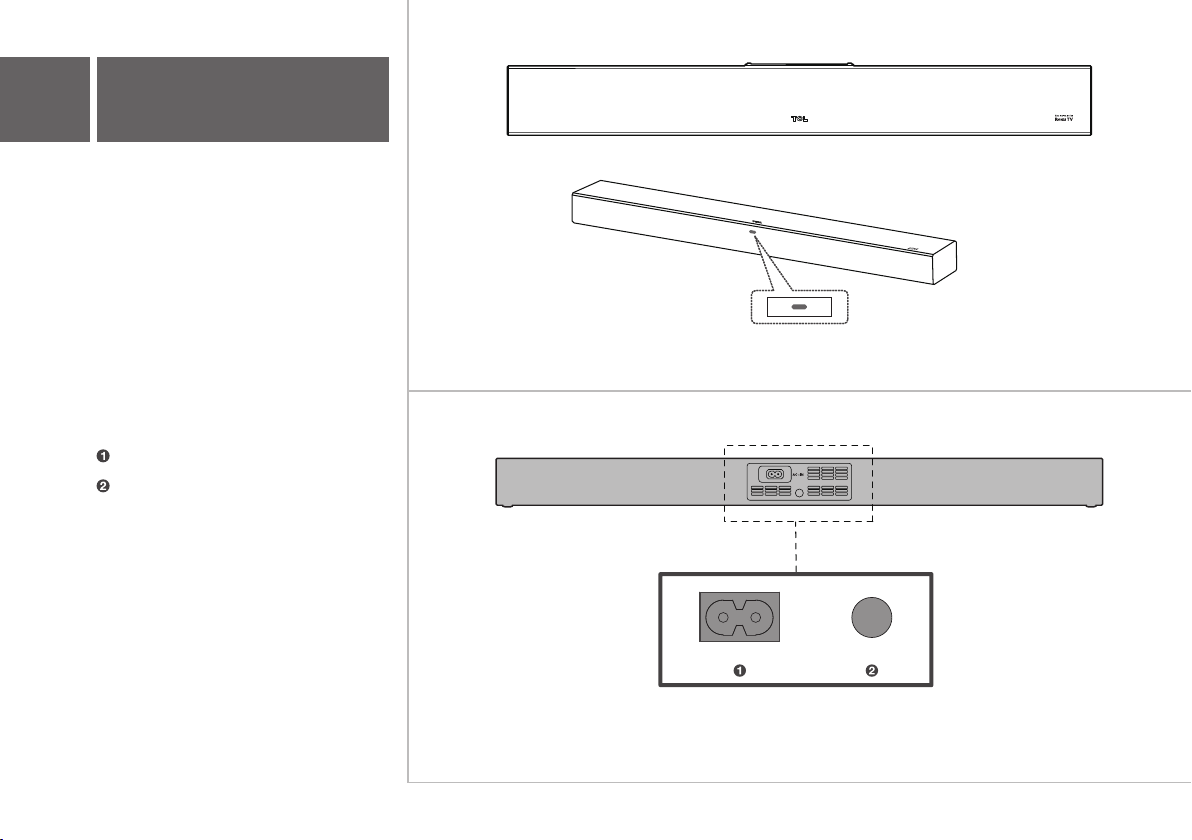
• Short press for restart.
• Long press for about 10 seconds
for factory reset.
AC input power connector
Reset button
3a
Overview
LED light:
LED Indicator
RESET
RESET
AC~IN
3b
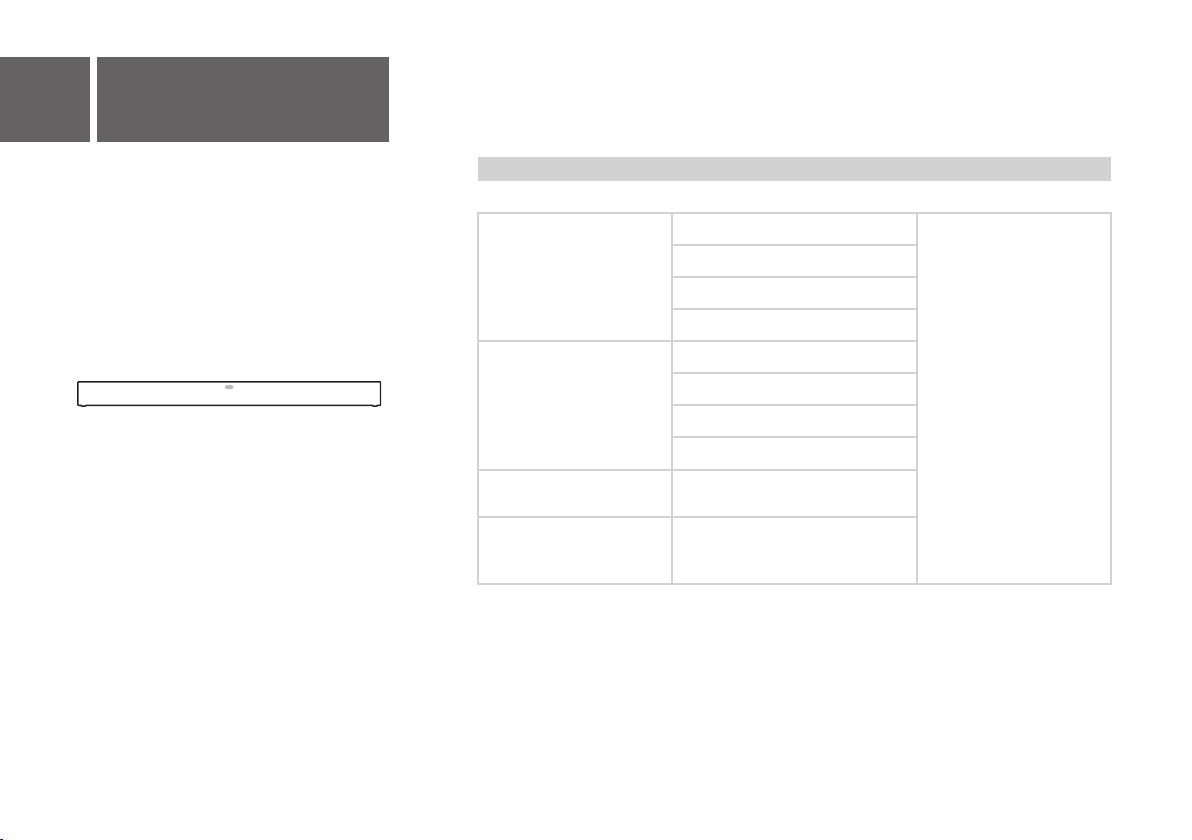
Soundbar LED light
Product State ColorLED Expression
Solid
White
Powered On
Looking for Roku TV™
Setup (waiting)
Booting up
Ready
Software Update
Restart
Factory Reset
Setup (working)
Working / Busy
Blinking
Blink 3 times, then
solid moving to a
slow blink
Solid moving to a
slow blink
> 2"
3
2
5
6
30.4"
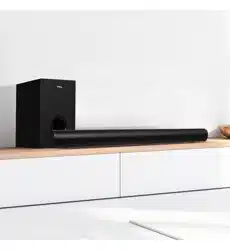
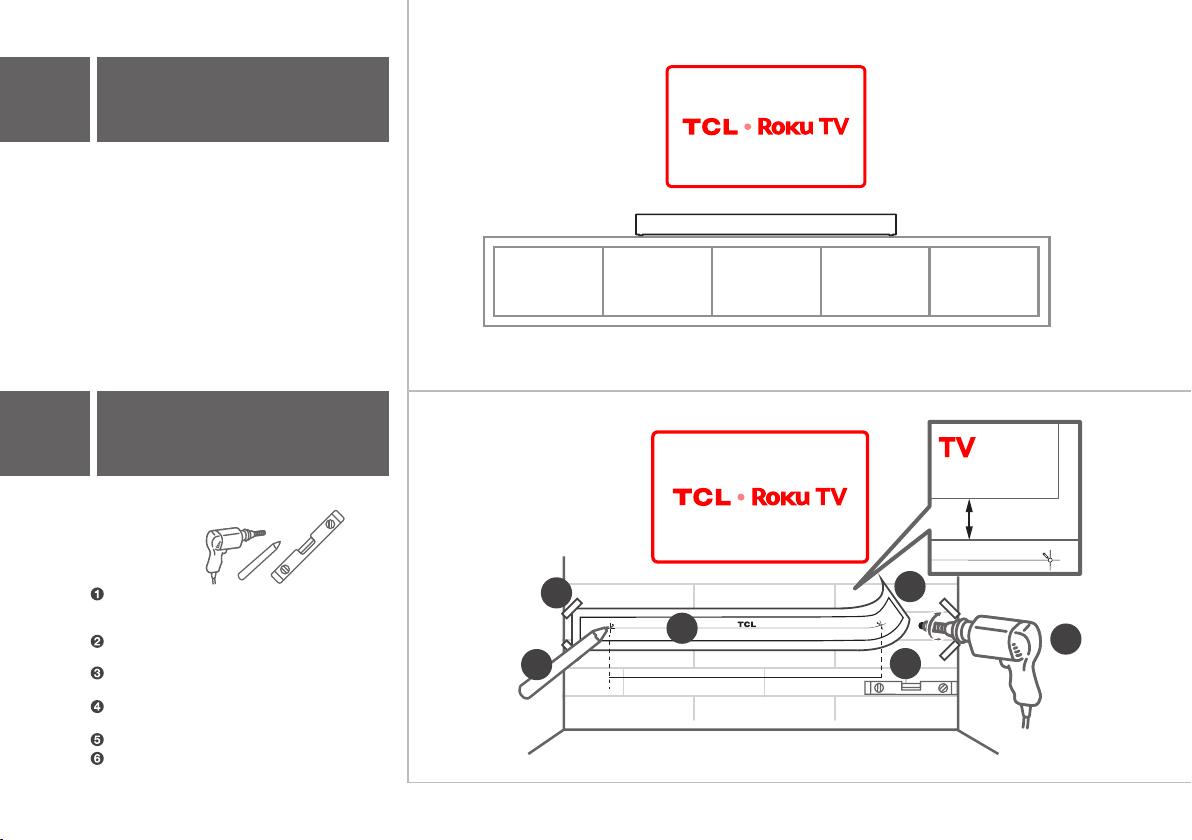
The ideal place to position the soundbar is
centered underneath your Roku TV.
Wall mount your soundbar
4a
Position your soundbar
4b
Required tools:
Place the supplied wall mount template on the
wall. Make sure the wall mount template is at
least 2 inches below the center of the Roku TV.
Use the tape to stick the wall mount template
firmly on the wall.
Mark on the wall using each marking on the
template through the mounting holes.
Take away the wall mount template.
Drill a screw hole at each marking on the wall.
We also recommend moving the soundbar
as close to the edge of the stand as possible,
for better sound.
Use a level to make sure the wall mount
template is positioned accurately.
4
1

Tighten the supplied wall mounting screws
into the screw holes in the back of the
soundbar.
Unscrew the screws from the back of the
soundbar and set them aside for potential
use in the future.
4b
7
Wall mount your soundbar
Required tools:
Insert the supplied wall anchors into 2 screw
holes on the wall.
Fix and tighten the wall bracket screws on the
wall.
Required tools:
10
11
Insert the supplied wall bracket screws
through the wall brackets into the wall
anchors.
8
9
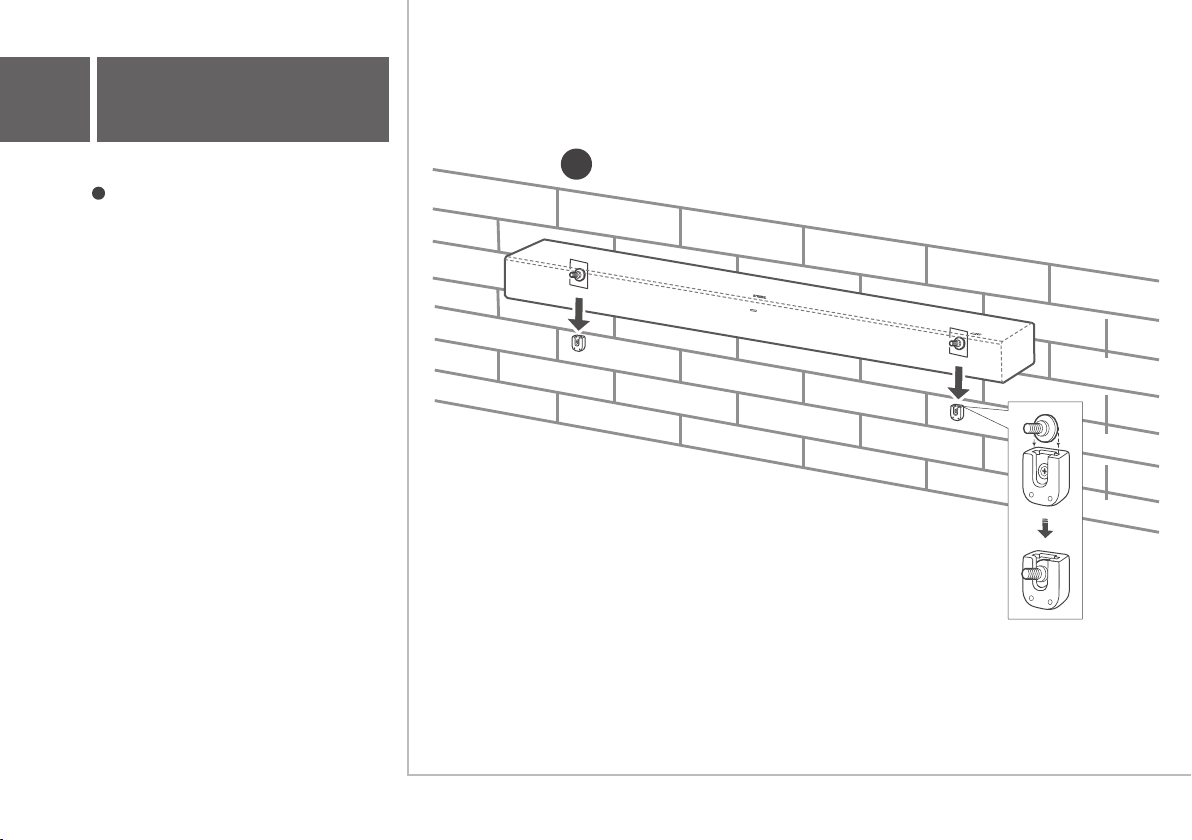
Wall mount your soundbar
Hang the soundbar on the wall mount
brackets.
4b
12
12
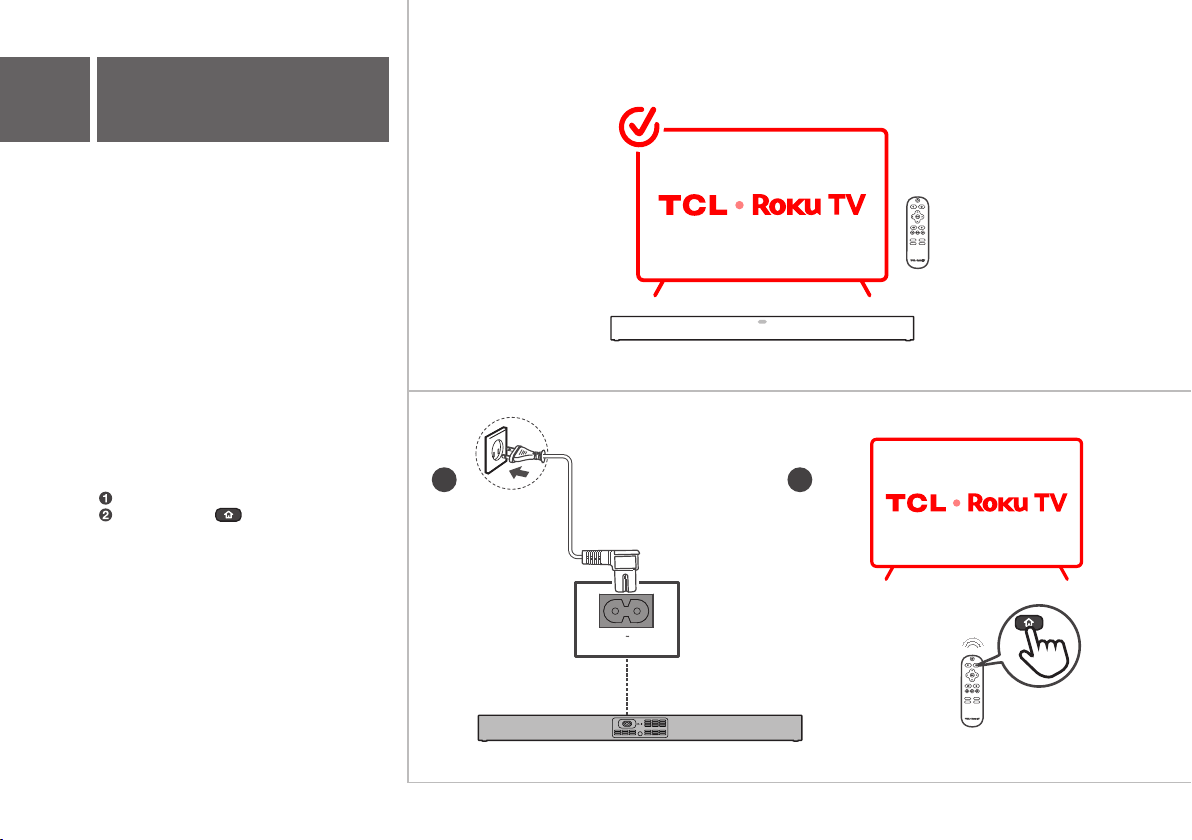
Power up your soundbar.
Press and hold on your Roku TV remote
for 5 seconds to open the setup menu.
5
Connect to your Roku TV
What you’ll need:
Let’s get started:
1
• Roku TV connected to the internet.
• Your Roku TV remote.
2
AC IN
RESET
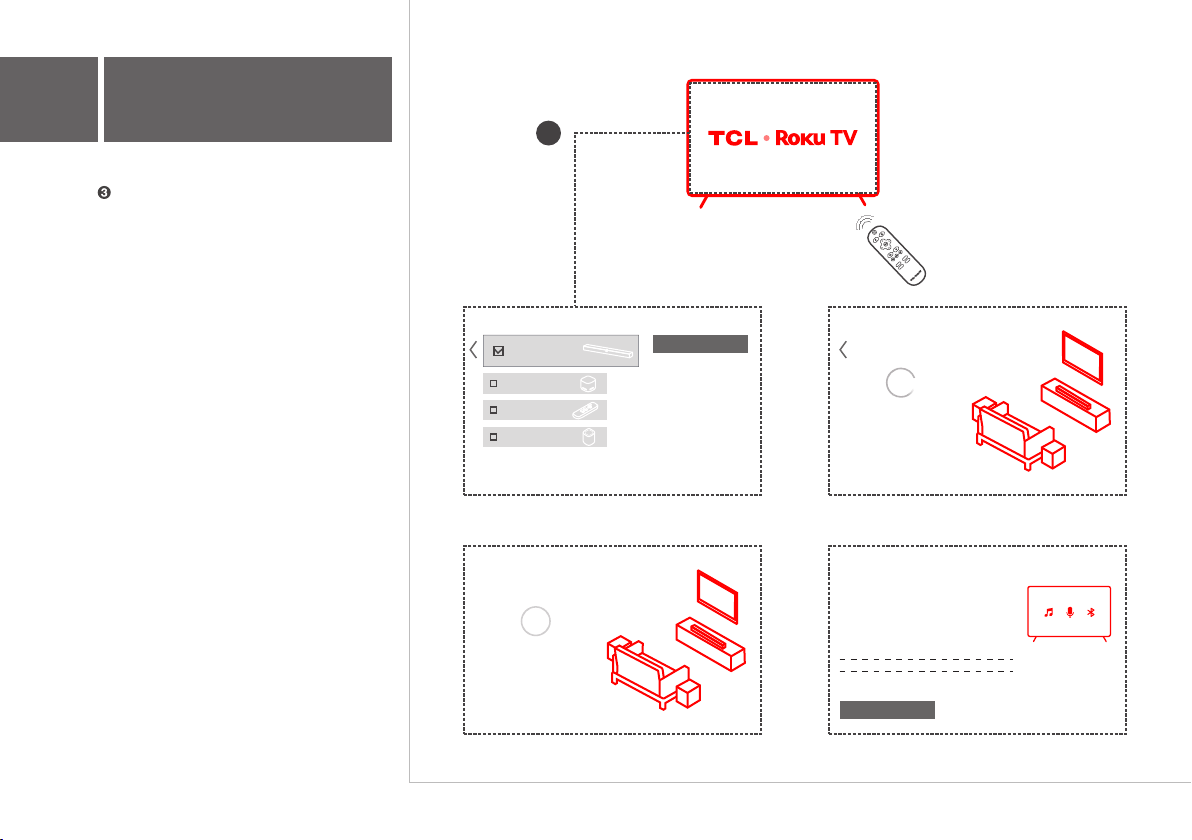
Follow the on-screen setup. Choose Wireless
soundbar and select Continue to begin the
pairing process.
5
Connect to your Roku TV
3
TCL · Roku TV | Searching for devices
Searching for wireless soundbar
TCL · Roku TV | Select all devices to set up
Continue
Remote
Wireless soundbar
Subwoofer
Wireless speakers
TCL · Roku TV | Updating soundbar
Updating soundbar
0%
TCL · Roku TV | Fast TV Start
Continue
Fast TV Start has been enabled on your TV! With Fast TV
Start, even if your display is off you can:
·Listen to music
·Use voice commands to wake up your TV
·Stream via Bluetooth
• • •
• • • • • • •
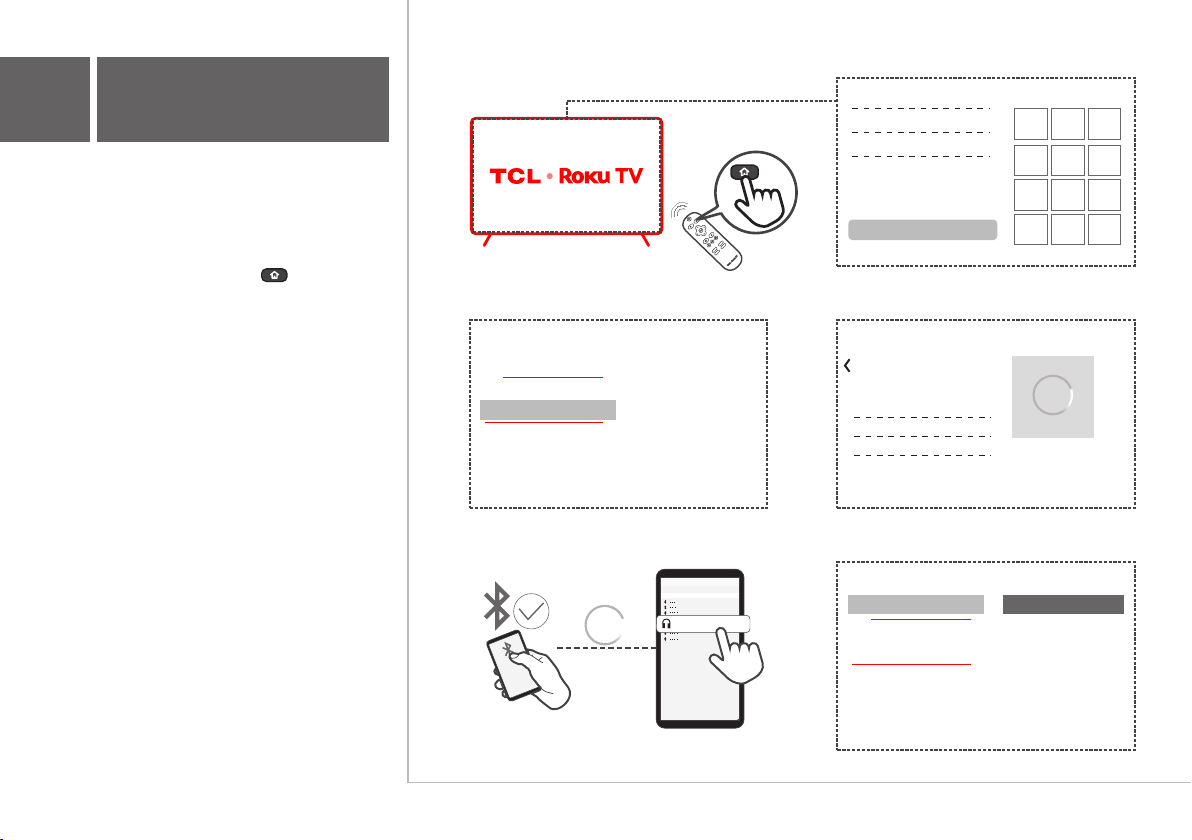
When you see the Bluetooth pairing screen,
go to your smartphone, tablet, or computer
and follow the next several steps.
Select Settings, followed by Remotes &
devices.
•
Press the Home button on your Roku
remote.
You can stream music from your mobile device
via Bluetooth.
• Select Pair Bluetooth device.
6
Pair with your
Bluetooth
®
device
•
•
•
>
Select your Roku TV from the list of available
devices.
>
Wait a moment for your Bluetooth device to
scan for devices and discover your Roku TV.
>
Pairing is successful.
Make sure your soundbar is connected to your
TV before you start.
(Refer to section 5)
Once it's been paired, you can reconnect any
time by choosing the Roku TV from the list of
Bluetooth devices on your smart phone, tablet,
etc.
A Bluetooth device (phone, tablet, etc.) only
needs to follow the pairing process once.
Open Bluetooth settings on your smartphone,
tablet, or computer.
Roku TV
Search
Streaming Channels
Settings
Roku | Remotes & devices
Bluetooth devices
Setup
Set up a new device
Pair Bluetooth device
Remotes
Roku | Remotes & devices
Bluetooth devices My phone(Connected)
Setup
Set up a new device
Pair Bluetooth device
Remotes
Bluetooth
BLUETOOTH
OTHER NETWORK
Roku TV
Searching
Roku | Bluetooth pairing
To pair a Bluetooth device with your Roku
TV:
1. Go to your device's Bluetooth settings
2. Select 'Roku TV' to pair
•
• • • • •
• • • • • • • • •

FAQ
All technology names mentioned are the trademarks or registered trademarks of their respective companies.
Does this soundbar work with any TV?
No, the soundbar is only compatible with Roku TV. All Roku
TVs will have a "Roku TV" logo in the lower right corner of
the TV bezel and the home screen of the TV will say Roku
TV.
• Press the Home button on your Roku TV remote.
• Settings > System > Power.
• Follow the on-screen setup to turn off Standby LED.
How to turn off the LED light of soundbar on your Roku
TV?
• While streaming video or music, press .
• Select Sound Settings.
• Turn on the settings you want.
How to use sound settings?
No, the soundbar and other Roku wireless devices are mutually
exclusive.
Does this soundbar work with other Roku streaming
players or wireless devices at the same time?

TSR1_NA_USA_QSG_V1.1
Copyright © 2021 TCL.
All rights reserved.
support.tcl.com
Roku and Roku TV are the trademarks or
registered trademarks of Roku, Inc.
The Bluetooth
®
word mark and logos are
registered trademarks owned by Bluetooth
SIG, Inc. and any use of such marks by TTE
Corporation is under license. Other
trademarks and trade names are those of
their respective owners.