V 1.0
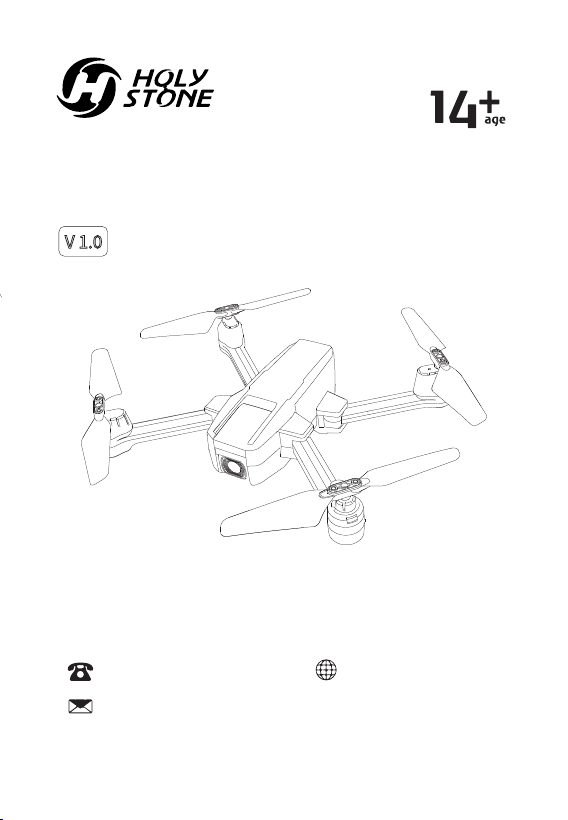
HS440D
www.holystone.com
+1(855) 888-6699
[email protected] (USA)
[email protected] (CA)
[email protected] (EU)
Instructions For Use
Gebrauchsanweisung

English
01-44
Deutsch
45-86

Disclaimer & Warning ................................................................................
Safety Guidelines .........................................................................................
Maintenance .................................................................................................
Package Contents ........................................................................................
Diagram of Drone........................................................................................
Diagram of Transmitter..............................................................................
Joystick Mode ...............................................................................................
Preparation Before Flight
Charging Drone Battery ....................................................................
Install Transmitter Batteries ..............................................................
App Download and Installation .....................................................
Drone Arms .........................................................................................
Drone Battery .......................................................................................
Propellers ...............................................................................................
TF Card ..................................................................................................
Phone Holder .......................................................................................
Flight
Pairing ......................................................................................................
Connecting to Drone’s Wi-Fi .............................................................
Compass Calibration ............................................................................
GPS Signal Search .................................................................................
Gyro Calibration ....................................................................................
Unlocking the Motors .........................................................................
Takeoff/Landing ...................................................................................
Return To Home ..........................................................................................
Trimmer...........................................................................................................
Altitude-Hold ................................................................................................
Contents
01
01
05
06
07
08
10
11
12
13
13
14
15
16
16
17
18
19
20
21
21
22
23
26
27

App Operation Instruction
The Interface .....................................................................................
Beginner Mode ................................................................................
Follow Me ..........................................................................................
Orbit Flight ........................................................................................
Headless Mode .................................................................................
Photo/Video ......................................................................................
TapFly .................................................................................................
Specifications.............................................................................................
Contact Us .................................................................................................
General Information ...............................................................................
28
30
31
32
33
34
35
36
38
39

-01-
1. Please read this Disclaimer & Warning and Safety Guidelines carefully
before using our product. This product is not recommended for people
under the age of 14. By using this product, you hereby agree to this
disclaimer and signify that you have read it fully. You agree that you are
responsible for your own conduct and any damage caused while
using this product, and any consequence. You agree to only use this
product for its designed purposes and in accordance with the local
laws, regulations and all applicable policies and guidelines that
HolyStone may provide.
2. When using this product, please be sure to strictly abide by the
specification requirements and safety guidelines stated in this
document. Any personal injury, property damage, legal disputes and all
other adverse events caused by the violation of any of the safety
instructions or due to any other factor, WILL NOT be HolyStone’s
responsibility.
Check Before Use
① This product is a high precision drone that integrates various
electronic stability and control mechanisms. Please be sure to configure
this drone carefully and correctly to ensure safe, accident-free
operation.
② Ensure that the batteries of the drone and transmitter are clean,
undamaged and fully charged before every use.
③ Ensure that all the propellers are undamaged and are installed in the
correct orientation.
DISCLAIMER & WARNING
SAFETY GUIDELINES
-02-
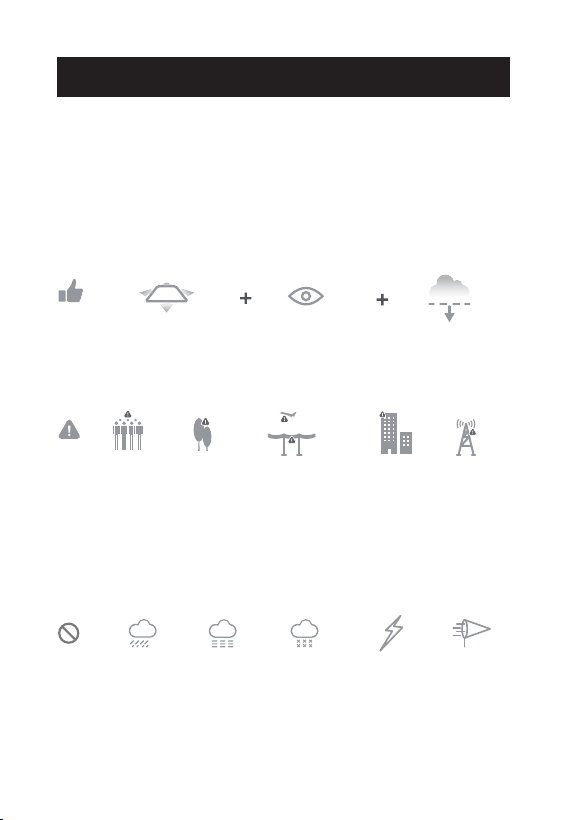
Flight Environment
Fly in Open Areas Keep in Sight
Fly Below
390 ft (120 m)
- - - - - - - - - - - - - - - - - - - - - - - - - - - - - - - - - - - - - - - - - - - - - - - - - - - - - - - - - - -
- - - - - - - - - - - - - - - - - - - - - - - - - - - - - - - - - - - - - - - - - - - - - - - - - - - - - - - - - - -
④ Please perform a thorough check of the product before each use.
Inspect the integrity of the parts, any signs of cracks and wear off on the
propellers, battery power and effectiveness of the indicator, etc. If there
is any problem found after checking the drone, please refrain from
using it until the problem is resolved.
Avoid flying over, or near obstacles, crowds, high voltage power lines,
trees, airports or bodies of water.
DO NOT fly near strong electromagnetic sources such as power lines
and base stations as it may affect the onboard compass.
DO NOT use this drone in adverse weather conditions such as rain,
snow, fog, and wind.
SAFETY GUIDELINES
-03-
Operation Requirements
Use of Battery
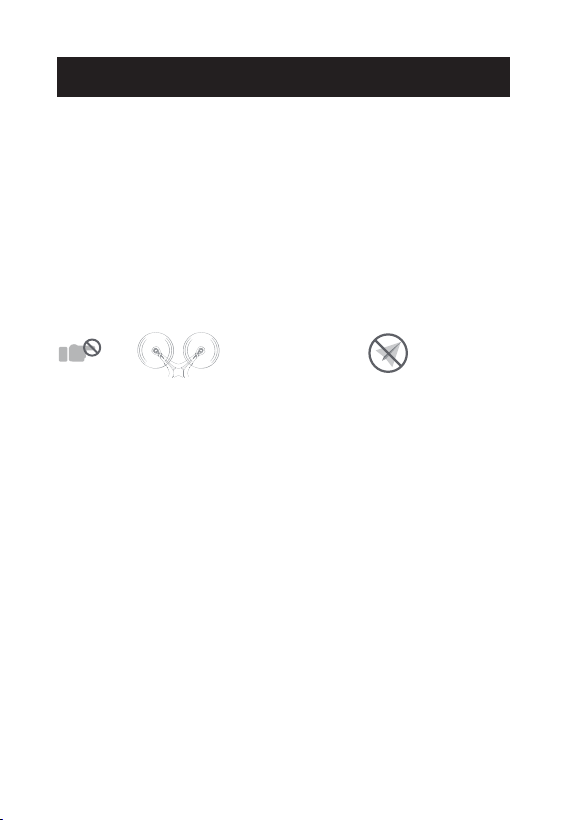
⑥ Stay away from the rotating
propellers and motors.
⑦ DO NOT fly in any spaces
where drones are prohibited.
Please respect people's right to
privacy by not flying your drone
close to others.
① Please ensure batteries are fitted in the correct orientation as shown
in the instruction manual.
② Avoid short circuits by fitting the batteries correctly, and do not crush
or squeeze the batteries as this could cause the risk of a fire or explosion.
③ DO NOT mix new and old batteries as this can lead to poor
performance of the product.
④ Please dispose of used batteries carefully, do not litter and recycle
where ever possible.
⑤ DO NOT expose dead batteries to heat or fire or they may explode.
⑥ If the device is not going to be used for an extended period of time,
please remove batteries to prevent potential damage to the drone from
battery leakage.
① DO NOT use this product to follow any moving vehicles.
② During the flight, turn off the motors only in case of an emergency.
③ When the battery runs low, return the drone back to your starting
point.
④ DO NOT use this product if you feel tired, take medicine or feel
unwell and drink alcohol.
⑤ Be aware of the volume of noise that the drone produces. Please
ensure to keep your distance to avoid ear damage.
SAFETY GUIDELINES

-04-
Li-Po Battery Disposal & Recycling
Waste Lithium-polymer batteries must not be placed with household trash.
Please contact local environmental or waste agency or the waste agency
or the supplier of your model or your nearest Li-Po battery recycling center.
⑦ Only use the USB charging cable that comes with the drone to
charge the battery.
⑧ DO NOT connect the battery directly to wall outlets or car cigarette
-lighter sockets as this will damage your battery since they have
different voltages.
⑨ DO NOT attempt to disassemble or modify the battery in any way
⑩ DO NOT use the battery if it gives off an odor, generates heat,
becomes discolored, deformed or appears abnormal in any way. If any
of these situations occur while the battery is in use or being charged,
remove it from the device or charger immediately and discontinue use.
DO NOT pierce the battery casing with a nail or any other sharp
object, break it open with a hammer, or step on it! Dispose or recycle
this battery as it may cause personal injury or damage to your drone.
Always charge the batteries on a fireproof surface and away from
combustible materials. DO NOT charge on surfaces that can catch fire,
which includes: wood, cloth, carpet.
DO NOT immerse the battery in water or get it wet.
DO NOT solder battery terminal in any way.
Keep batteries out of reach of children or pets.
DO NOT short-circuit the battery by connecting wires or any other
metal object to the positive(+) and negative(-) terminals.
12
13
14
15
16
11
SAFETY GUIDELINES

-05-
① Clean the drone after each use with a clean, soft cloth.
② Avoid prolonged exposure to direct sunlight and avoid buildup of
heat on the drone or batteries.
③ This device is not waterproof and must not be submerged or
subjected to water under any circumstance. Failure to keep the device
completely dry will result in failure and permanent damage to the unit.
Be aware that although it might be dry where you are, droplets of rain
or mist from a river or waterfall could damage your drone where it is
flying.
④ Frequently check the charging plug and other accessories for signs
of damage. If any part of the device or cables are damaged, avoid use
or charging until the damaged parts are replaced.
MAINTENANCE
-06-
HS440D
Instructions For Use
V 1.0
Gebrauchsanweisung
www.holystone.com
+1(855) 888-6699
[email protected] (USA)
[email protected] (CA)
[email protected] (EU)
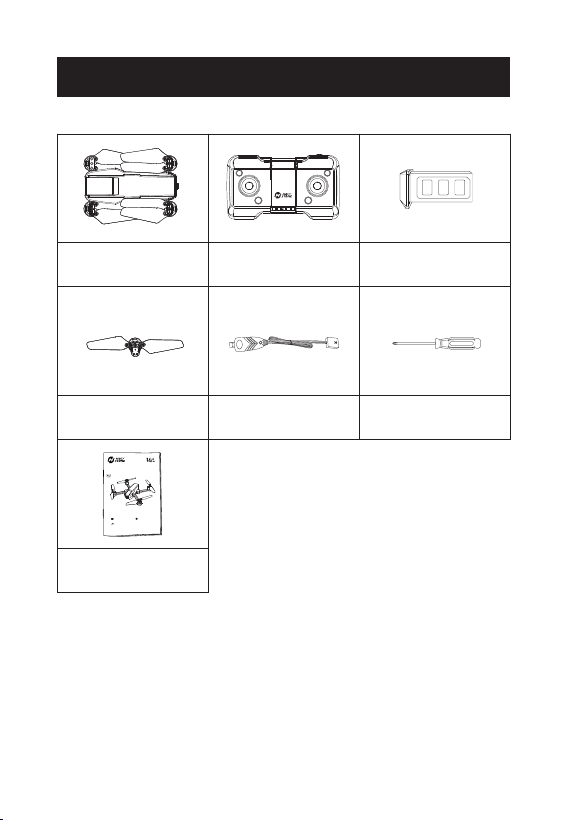
Drone Transmitter Drone Battery
Propeller Screwdriver
USB Charging
Cable
Instructions For Use
PACKAGE CONTENTS
-07-
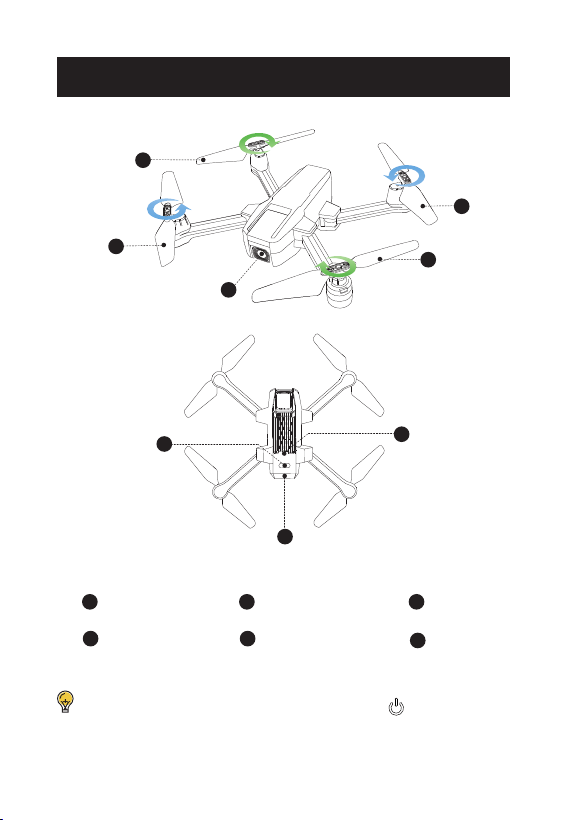
Camera
TF Card Slot
3
1
2
2
3
Propeller A
Propeller B
1
2
3
4
5
6
Power Switch/
Drone Status LED
Drone Battery
5
4
6
DIAGRAM OF DRONE
Power on/off: Long press the power button “ ” to turn on the
drone. Long press again to turn it off.
-08-
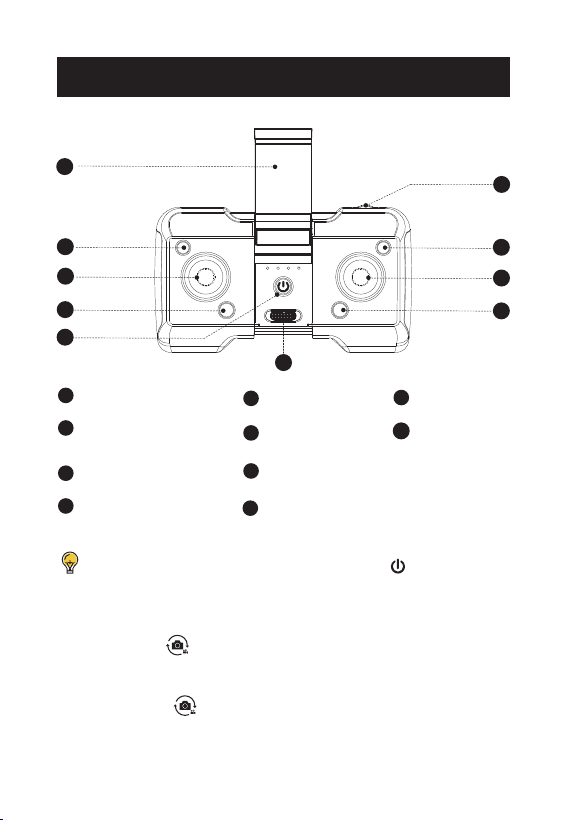
Left Joystick
Power Switch
Phone Holder
Right Joystick
Speed Switch
Camera Angle
Adjustment
1
2
3
4
5
6
7
8
9
1
2
3
4
5
6
7
8
9
10
Short Press-Take Photo
Long Press-Record Video
Short Press-Takeoff/Landing
Long Press-Trimmer
Short Press-Return to Home
Long Press-GPS Switch
10
Short Press-
Unlock/Lock
Long Press-
Emergency Stop
• Take Photo/Record Video
Short press the " " button on the transmitter. The drone status LED
flashes once, and the transmitter beeps once. The camera has taken a
photo.
Long press the " " button. The drone status LED begins to flash
slowly, which means that the camera is recording. Long press the
button again will stop video recording.
Power on/off: Short press the power switch “ ” to turn on the
transmitter. Long press the power switch to turn off.
DIAGRAM OF
TRANSMITTER
-09-
•
Emergency Stop
Long press the " " button for about 2 seconds. All the motors stop
spinning immediately, and the drone falls to the ground.
The Emergency Stop function should only be used in case of
emergency during the flight to avoid any damage or injury.
DIAGRAM OF
TRANSMITTER
• Adjustment of the Camera Angles
You can adjust the camera's angle by turning the wheel on the upper
right corner of the transmitter.
Scroll the wheel to the left, and the camera tilts up. Scroll it to the right,
and the camera swings down. (The tilt range is -90° to 0°)
The drone will be in GPS mode by default every time you power on the
transmitter. To turn off the GPS mode, long press the " " button on
the transmitter. The drone status LED will turn solid yellow, and the
transmitter will long beep once.
•
Turning On/Off the GPS Mode
• Return to Home (RTH)
Short press the RTH button " " to start the RTH, the transmitter makes
a beep sound and the drone will fly back to the recorded Home
Point.
Short press the RTH button " " again to exit the RTH procedure and
regain control of the drone.
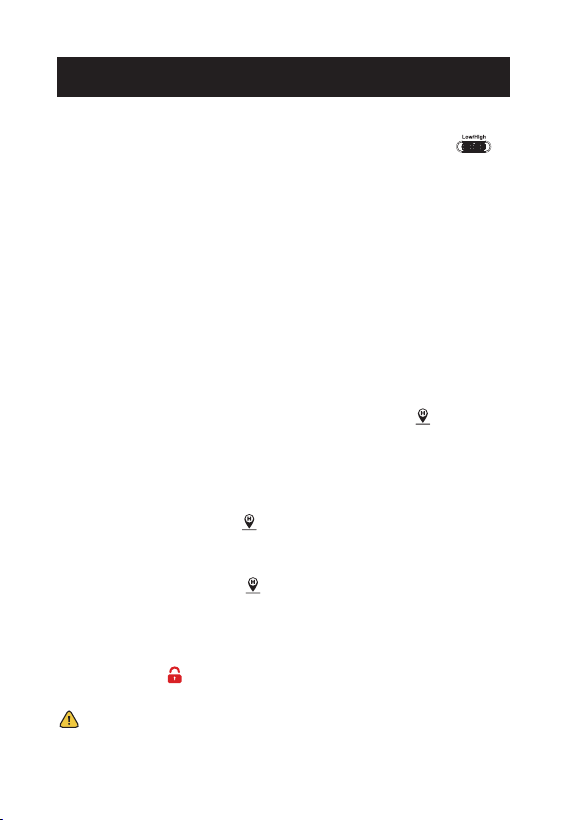
• Speed Switch
This drone comes with two speed levels (high/low). Slide the " " to
switch between the two speed levels.
When pushing, the transmitter will beep once to indicate low speed,
twice to indicate high speed.
-10-
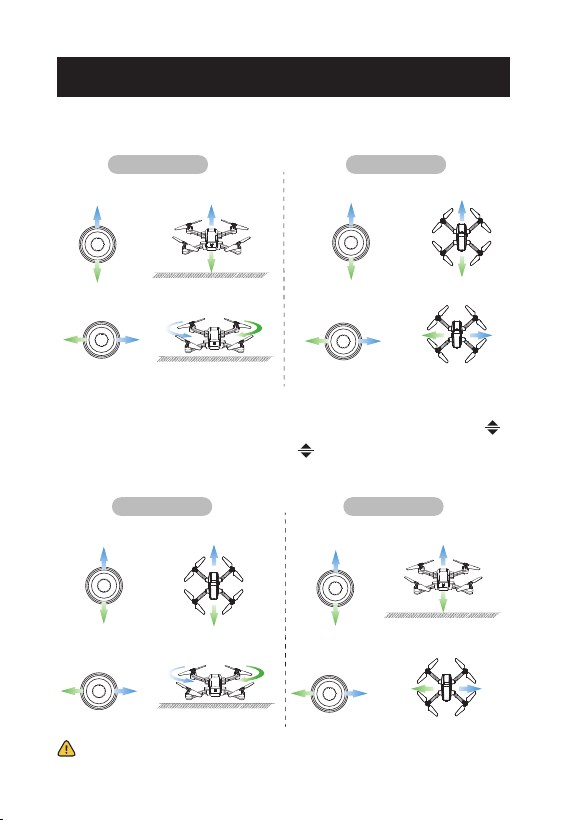
MODE 2 (Left joystick as the throttle joystick)
Right Joystick
Left Joystick
Up
Down
Up
Down
Left
Right
Left Right
Up
Down
Forward
Backward
MODE 1
Up
Down
Left
Right
Left
Right
Right Joystick
Left Joystick
To enter MODE 1, turn on the transmitter while holding the “ ”
button. (Please do not release the “ ” button until the transmitter
is powered on.)
JOYSTICK MODE
Ascend
Descend
Ascend
Descend
Forward
Backward
Rotate
Right
Rotate
Left
Fly to
Left
Fly to
Right
Fly to
Left
Fly to
Right
Rotate
Right
Rotate
Left
Mode switching is only possible before pairing.
-11-
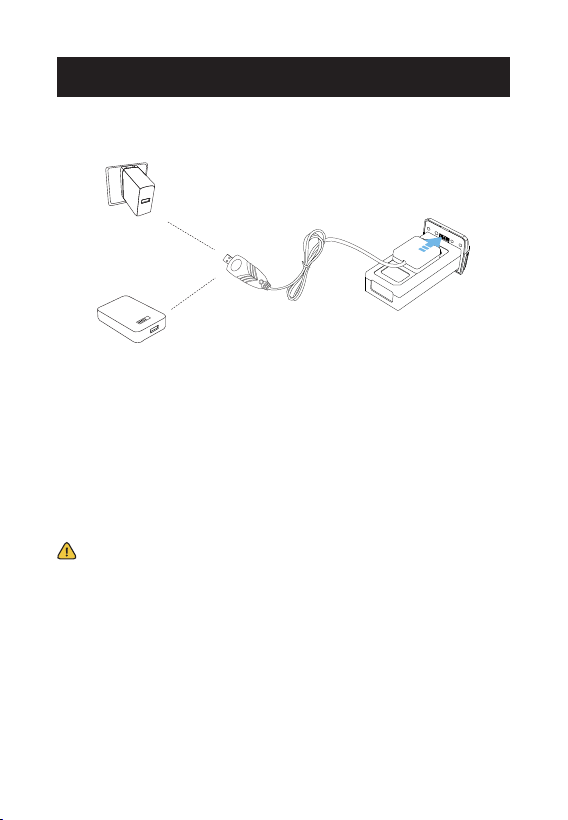
Charging Drone Battery
- Before charging, please read the instructions in the “Use of Battery”
section of the “Safety Guidelines” carefully!
- Don’t charge the drone battery immediately after a flight, for the
temperature of the battery may be too high. Please wait till it cools
down to charge it again.
PREPARATION BEFORE FLIGHT
Power Bank
USB adapter
(5V/2A)
① Connect the drone battery to the charging cable.
② Plug the charging cable into a USB adapter (5V/2A) or a power
bank to charge the drone battery.
③ During charging, one indicator on the cable is solid red, the
other flashes green.
When fully charged, both of the indicators (red and green) are solid.
④ Charging time: about 120 minutes.
-12-
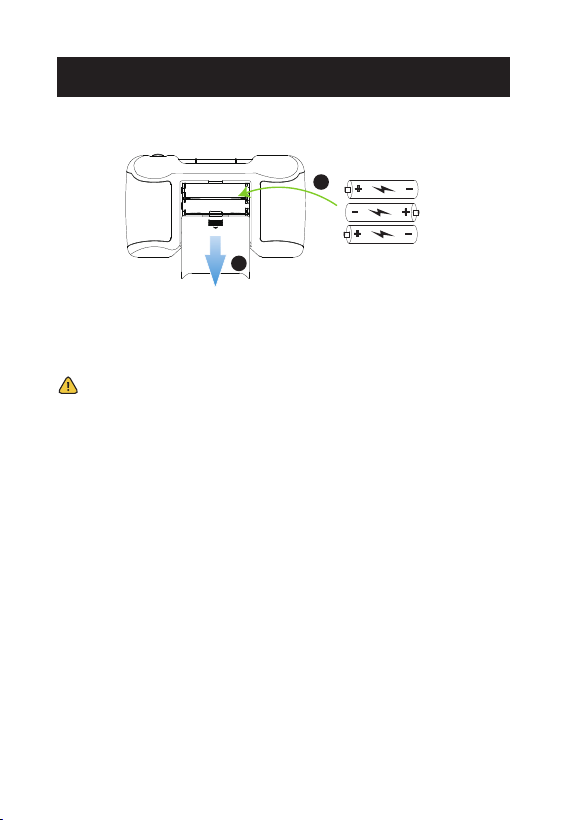
Slide the battery cover out, insert three AAA batteries (not included)
into the battery compartment. Then slide the battery cover back to
complete the installation.
- When inserting or changing the batteries, please pay attention to the
correct polarities!
- Do not mix old and new batteries, or different types of batteries.
- Exhausted batteries should be removed immediately and disposed of
properly, either in a battery collection receptacle or to the appropriate
authority.
1
2
Install Transmitter Batteries
PREPARATION BEFORE FLIGHT
-13-
iOS
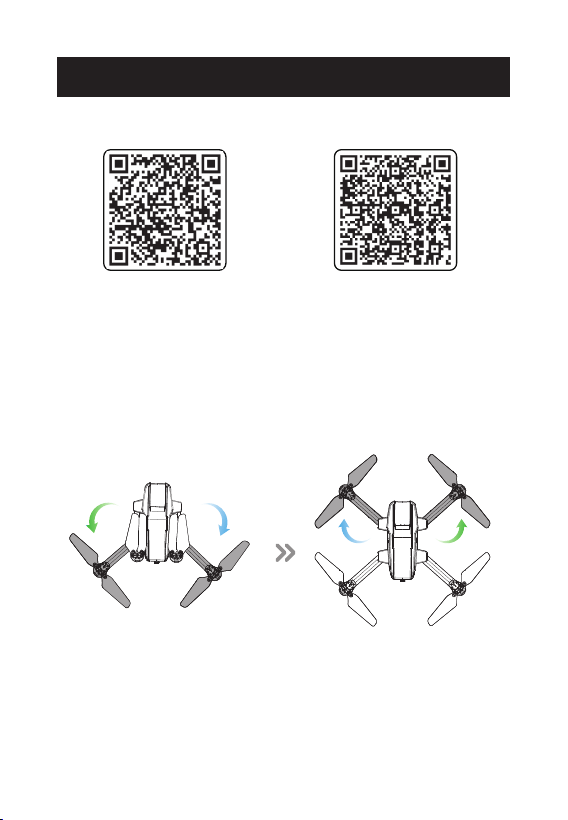
Scan the QR code, connect to the App Store™ or Google™ Play and
download the HolyStone-FPV application for free.
Required Operating Systems: iOS 9.0 or later/Android 5.0 or later.
Android APP on Google play
App Download and Installation
Drone Arms
First unfold the rear drone arms, then unfold the front drone arms.
PREPARATION BEFORE FLIGHT
-14-
Drone Battery
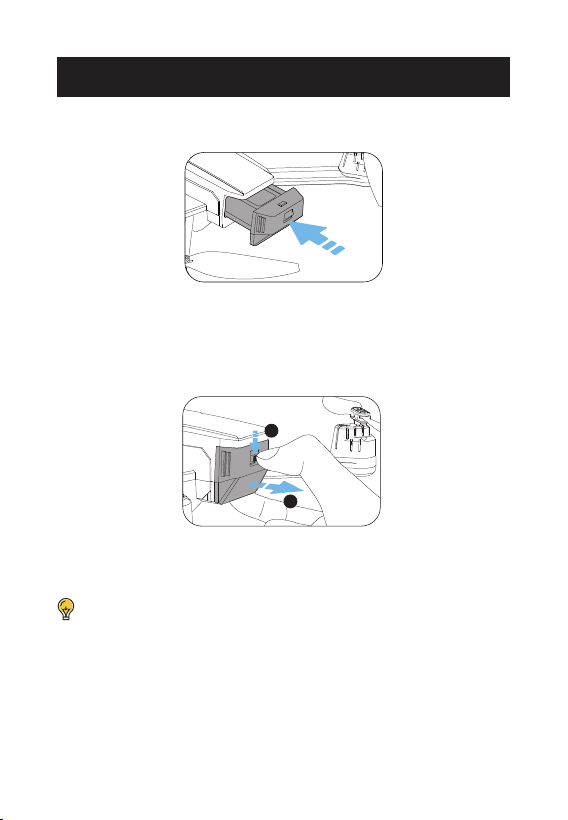
Installation: Push the battery into the battery compartment at the rear
of the drone. Make sure that you hear a click sound, which indicates
that the battery is firmly installed.
The battery should be installed firmly. Otherwise, the flight safety
of your drone may be affected. The drone may crash due to a
power-cut during the flight.
Remove: Press the lock button on the battery and pull it back to remove
the battery from the battery compartment.
1
2
PREPARATION BEFORE FLIGHT
-15-
Propellers
Installation:
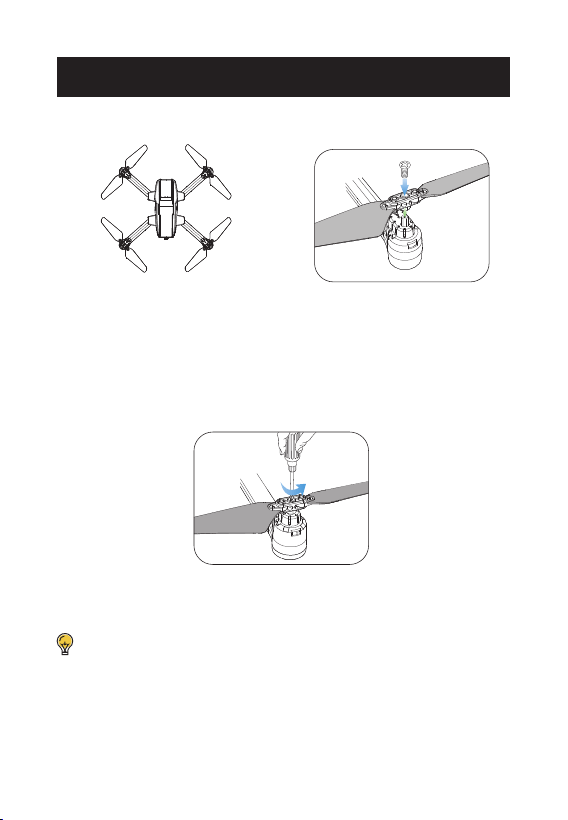
① An “A” or “B” is printed on the propeller.
② Lock the propellers to the corresponding the arms of drone (the
motor shafts are also marked) with screws.
③ Rotate each screws clockwise.
- The propeller is installed before the drone is packaged at the
factory.
- The drone will not fly unless the correct propeller is installed on
the correct motor shaft.
Removal: For propeller removal, use a screwdriver (provided) to rotate
them counter-clockwise.
A
B
B
A
PREPARATION BEFORE FLIGHT
Head
-16-
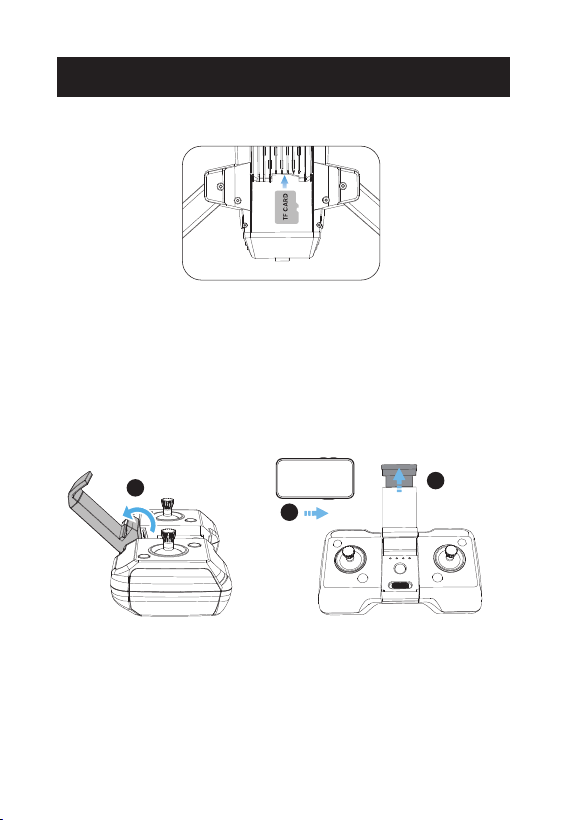
TF Card
To store your photos and videos, insert the TF card (not included) into
the slot as shown above before turning on the drone. The drone
supports TF card up to 64GB .
Phone Holder
Expand the phone holder and place your mobile phone in it. Adjust the
clamp to secure your mobile phone.
1
2
3
PREPARATION BEFORE FLIGHT
-17-
Pairing
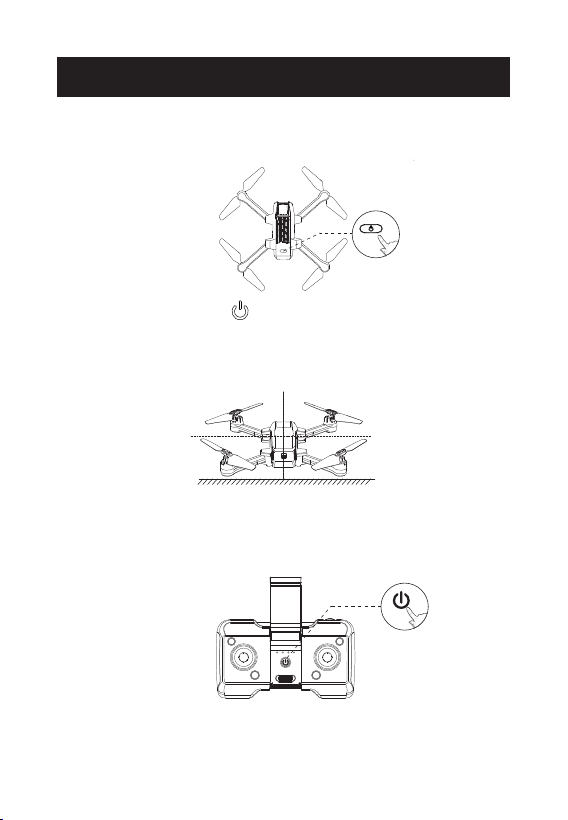
All of the following operations on this manual uses MODE 2.
① Long press the power “ ” button on the drone. The drone status
LED begins to flash, which means the drone is powered on.
② Make sure the head of the drone is pointing forward, and it is
placed on a level surface.
HEAD
③ After both the drone and the transmitter are turned on, the
transmitter will long beep once, indicating that the pairing is done.
FLIGHT
-18-
Connecting to Drone’s Wi-Fi
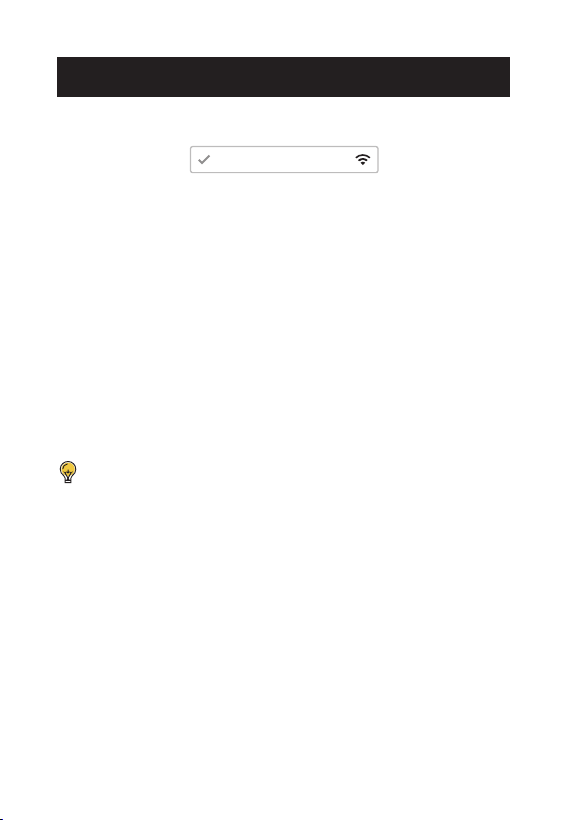
Connect your phone to the Wi-Fi network generated by the drone. You
can check the drone’s status in the HolyStone-FPV app.
① Make sure to turn off Bluetooth, Mobile Data, and VPN. Enter your
phone’s Wi-Fi settings and click Wi-Fi to search for the Wi-Fi of the
drone. (Make sure the pairing has finished before going to the Wi-Fi
settings on your phone)
② Select the Wi-Fi network: HolyStoneGPS-******.
③ Wait for a couple of seconds for your phone to connect to the
drone’s Wi-Fi.
④ Open the HolyStone-FPV app.
> The connection between your phone and the drone is established
automatically.
Because the Wi-Fi network created by the drone cannot access
the Internet, your phone may inform you in various ways, like
saying the connection isn't secure, or there is no internet connec-
tion, etc. Please ignore these messages. Or, in the case of getting
Pop-ups, choose the option that allows you to stay with the current
Wi-Fi.
HolyStoneGPS-******
FLIGHT
-19-
Compass Calibration
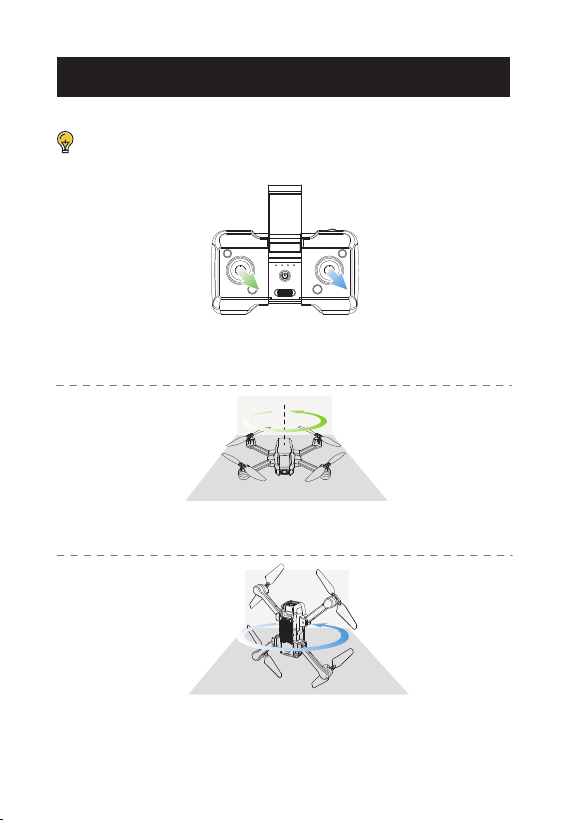
STEP 1: Push both the right and left joysticks simultaneously to the
bottom right corner. The transmitter beeps twice. The drone status LED
starts to flash yellow. You can proceed to step 2.
STEP 2: Keep the drone parallel to the floor, and spin it three times.
Once the transmitter beeps once. You can proceed to step 3.
STEP 3: Point the head of the drone upward, and spin the drone three
times. Once the transmitter long beeps which means that you have
successfully performed a compass calibration.
The drone will perform a mandatory compass calibration before the
initial flight. So you can skip step 1 if this is the first time you fly your drone.
FLIGHT
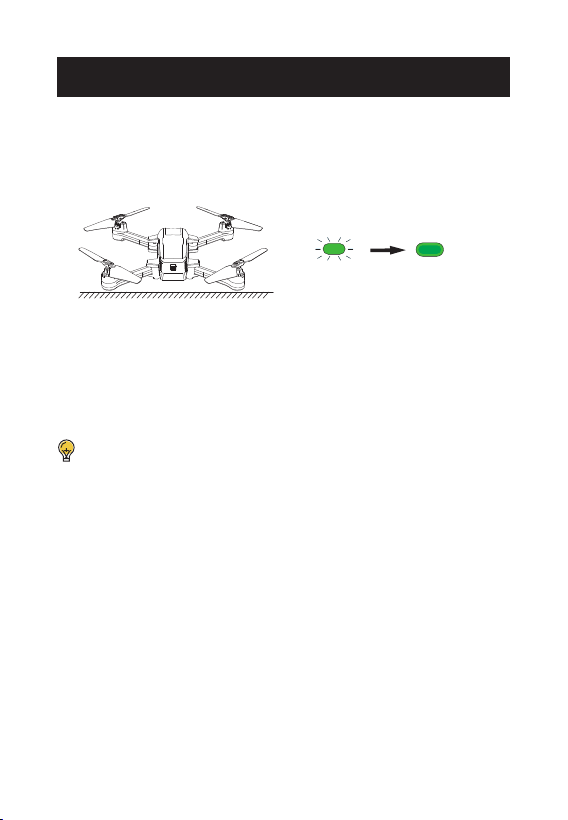
After calibrating the compass, put the drone on a flat surface. Make sure
there are no external sources of signal interference around.
The drone will automatically perform a search for GPS signals. The
search will last for about 1 minute.
The drone status LED will turn solid green once the search is finished.
GPS Signal Search
Please don't use the GPS mode when you are indoors.
When in GPS mode, the drone must first search for GPS signals
before it can take off.
FLIGHT
HEAD
-20-
-21-
Gyro Calibration
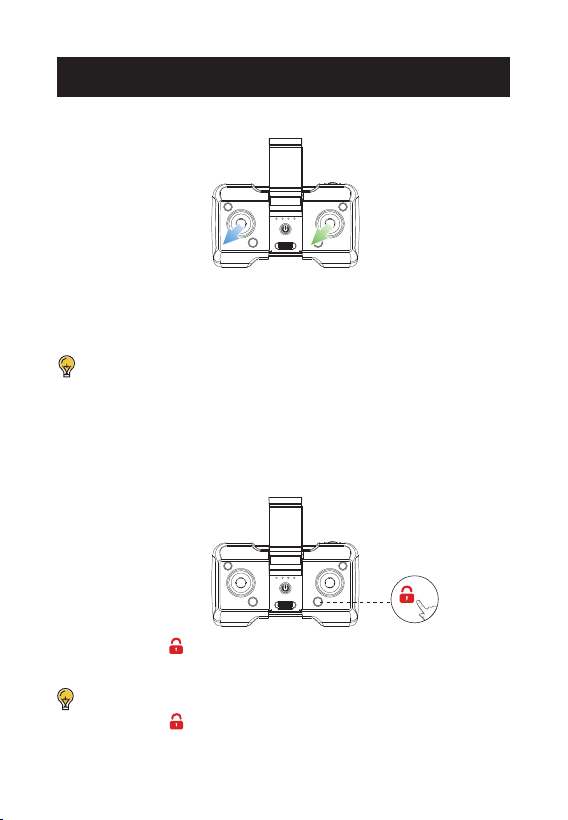
Push the two joysticks to the bottom left corner. The drone status LED
will go from flashing to solid, which means that the gyro calibration is
done.
To enusre flight safety, we recommend that the pilot performs a
gyro calibration after every pairing or crash of the drone.
Short press the " " button on the transmitter. The transmitter beeps
once, and the motors begin to rotate. The drone is unlocked.
Unlocking the Motors
Short press the " " button again, and the motors stop immediate-
ly. The drone is locked.
FLIGHT
-22-
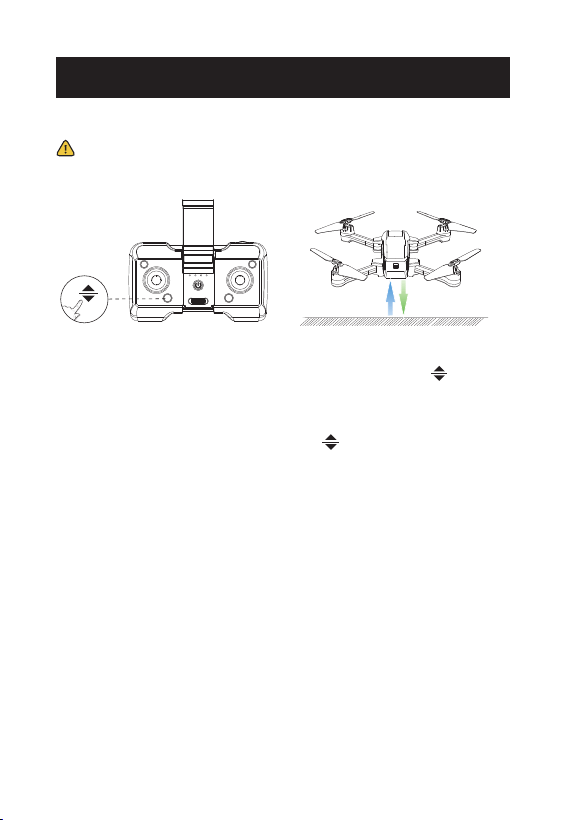
① Takeoff: After unlocking the motors, short press the " " button.
The drone will ascend to an altitude of 4 ft. You can now use the two
joysticks to control the drone's movements in the air.
② Landing: During the flight, press the " " button again. The drone
slowly descends to the ground.
Please turn on the GPS mode before the flight to prevent the drone
from flying away and getting lost!
Takeoff/Landing
FLIGHT

-23-
Smart RTH
When the GPS signal is strong (satellite connections ≥ 7), press the " "
button. The transmitter will beep once, indicating that the Smart RTH is
activated. The drone will start flying back to the Home Point automati-
cally.
During the RTH procedure, if the pilot pushes the left joystick up or
presses the " " button again, the drone will exit the RTH procedure
immediately.
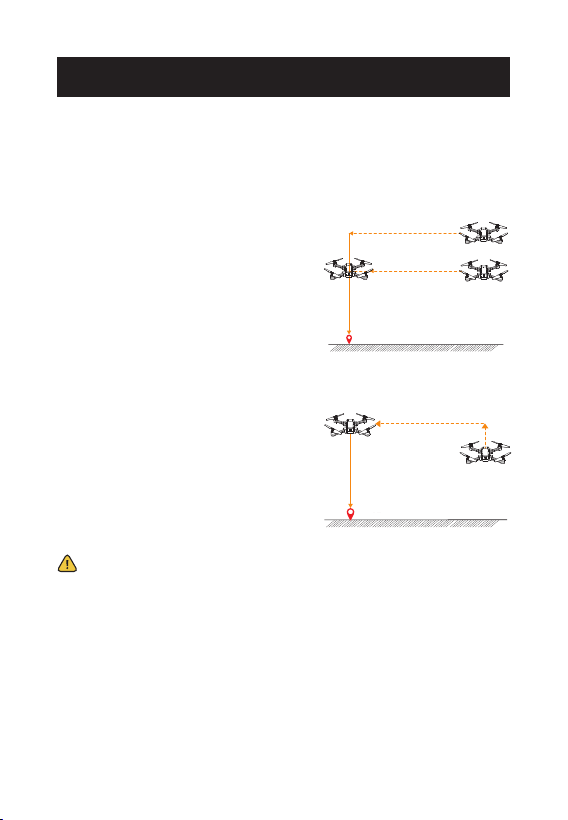
The RTH (Return to Home) function can bring the drone back to the last
recorded Home Point. There are three kinds of RTH: Smart RTH, Failsafe
RTH, and Low Voltage RTH.
This function can only be activated when the drone is in GPS mode.
Home Point: The drone will mark the first location where it receives a
strong GPS signal (satellite connections ≥ 7) during the flight or takeoff
as the Home Point.
The Failsafe RTH will be activated when:
1. The drone receives a strong GPS signal (satellite connections ≥ 7);
and
2. There is a pre-recorded Home Point; and
3. The connection between the transmitter and the drone is lost for
more than 6 seconds.
Once the Failsafe RTH is activated, the drone will start to to fly back to
the pre-recorded Home Point automatically.
If the connection between the drone and the transmitter is re-estab-
lished during the Failsafe RTH procedure, the drone will stop flying back
to the Home Point, and the pilot will regain control of the drone.
Failsafe RTH
RETURN TO HOME
-24-
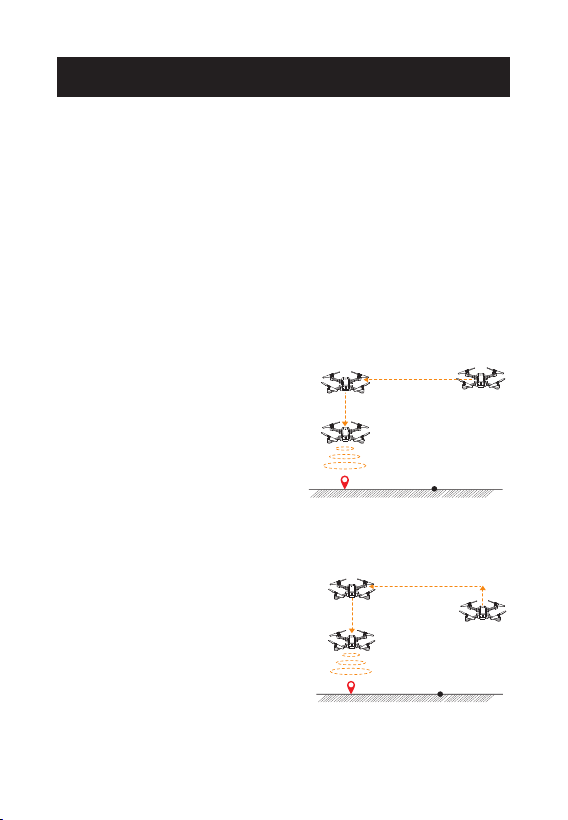
① The First Stage of Low Voltage RTH: The drone status LED starts to
flash red slowly and the transmitter keeps beeping. The drone enters
the first stage of Low Voltage RTH. There are two possible returning
procedures: (After the activation of the first stage of Low Voltage RTH,
a "safety zone" with a height of 98 ft and a radius of 164 ft will be
generated with the Home Point as its center. Once the drone returns to
the airspace above the Home Point (thus ending the RTH procedure),
it can only fly within the safety zone.)
Low Voltage RTH
a. If the flight altitude is higher
than RA and the flight distance is
larger than 16ft, the drone will
first fly back above the Home
Point, descend to 49ft and hover
there. The first stage of Low
Voltage RTH ends.
Home Point
H=49 ft
RETURN TO HOME
* RA: the Return Altitude set in the app setting.
H>RA
b. If the flight altitude is lower
than RA and the flight distance is
larger than 16ft, the drone will
first ascend to RA, then fly back
above the Home Point and
hover there. The first stage of
Low Voltage RTH ends.
a. Flight altitude > RA
Flight distance > 16ft
Home Point
H=49 ft
H=RA
b. Flight altitude < RA
Flight distance > 16ft
D=16 ft
D=16 ft
-25-
②The Second Stage of Low Voltage RTH: When the drone status LED
starts to flash red quickly, and the transmitter keeps beeping, the drone
will enter the second stage of Low Voltage RTH. There are two possible
returning procedures:
b. If the flight altitude of the drone
is lower than 49 ft, the drone will
first ascend to 49 ft, fly back above
the home point, then slowly
descend to the ground.
a. If the flight altitude of the drone
is higher than or equal to 49 ft,
the drone will, while maintaining
its current altitude, first fly back
and hover above the home point.
It then slowly descends to the
ground.
Home Point
H>49 ft
H=49 ft
a. Flight altitude ≥ 49 ft
Home Point
H=49 ft
b. Flight altitude < 49 ft
- During Low Voltage RTH, the pilot cannot terminate the
procedure.
- During RTH, the drone cannot avoid obstacles.
- If the GPS signal is weak or unavailabe, the RTH cannot be
activated.
- If the drone receives not GPS signal, and the connection between
the drone and the transmitter is lost for more than 6 seconds, the
RTH cannot be activated. The drone will just descend to the ground
and locks its motors.
RETURN TO HOME
-26-
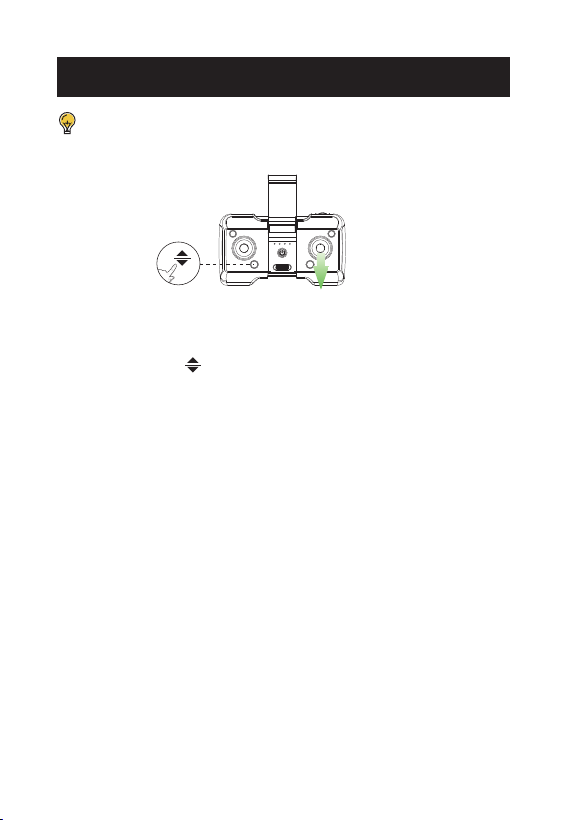
You can only use this function when the drone is NOT in GPS
mode. There is no need to trim when the drone is in GPS mode.
The Forward Trim
If the drone tends to drift forward:
1. Press down the ” ” button and do not release it.
2. At the same time, push the right joystick backward one time.
3. Depending on how the drone drifts, it may take several pushes to
balance the drone.
4. After each push, wait 2 seconds to watch the drone's movement. If it
still drifts, push the joystick backward again.
5. Repeat STEP 4 until the drone drifts forward no more.
* You can also fix the Backward/Sideward Trim using a similar
method, i.e., pushing the right joystick to the direction opposite the
drift.
TRIMMER
-27-
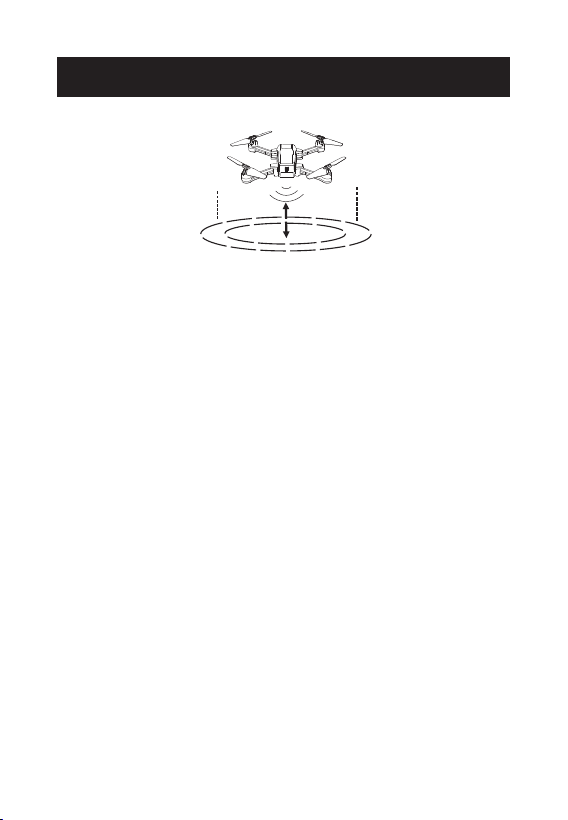
The drone is designed with an altitude-hold function so the drone can
maintain its altitude after you release the left joystick. (The left joystick
will automatically spring back to the middle)
AlTITUDE HOLD FUNCTION
-28-
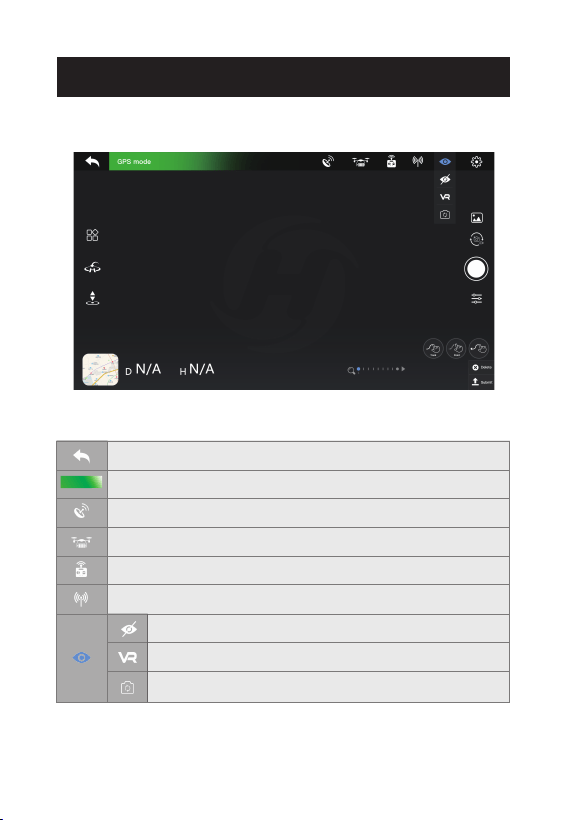
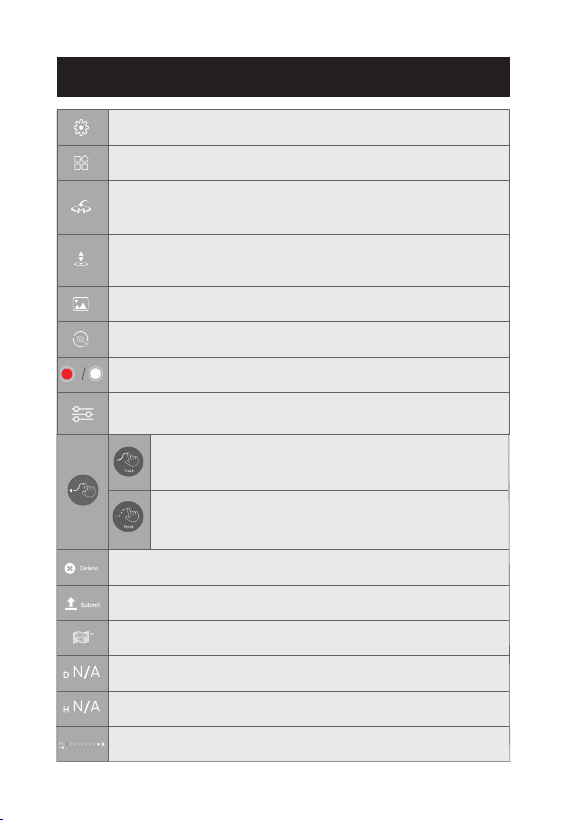
The Interface
GPS mode
Return: Tap to return to the home screen.
System Status: Displays the current flying status of the drone and warnings.
Battery Level (drone): Realtime display of the current battery level of
the drone.
Signal Strength (GPS): Display the strength of the GPS signal.
Transmitter Signal: Displays the signal strength of the transmitter.
WiFi Signal: Display of the signal strength between the cellphone
and the drone.
Screen Rotation: Tap to turn the cellphone’s screen upside down.
Hide: Tap to hide all the icons.
VR Split Screen: Tap to turn on the VR mode. Then put your cellp-
hone into a VR headset (not included) to view the live-feed in 3D.
APP OPERATION INSTRUCTION
-29-
APP OPERATION INSTRUCTION
Take off/Land: Tap once, the drone will take off to a height of 4 ft. Tap
again, the drone will slowly descend to the ground.
Gallery: Tap to view the photos and videos taken by the drone camera.
Photo/Video: Tap to switch between photo taking and video recording.
Shutter: Tap to take a picture or start or stop recording a video.
View: Tap to switch between the map view and camera view.
Zoom In/Out: Slide to zoom in and out.
Flight Setting: Tap to enter the setting interface. Alter settings for flight
height/distance, etc.
Return to Home: Tap to activate the RTH function. The drone will fly
automatically back to the Home Point.
Submit: Tap to submit the chosen function.
Delete: Tap to cancel the chosen function.
Multifunction: Tap to choose from various flight functions.
Flight Distance: Drone’s horizontal distance from the Home Point.
Flight Altitude: Drone’s vertical distance from the Home Point.
Camera Settings: Tap to enter camera settings. You can choose between
2.5K and 4K resolutions.
Tapfly 2: The drone flies along the path generated by
connecting the points you tap on the screen in order.(Please
first tap on the map to enlarge it, then set the path. )
Tapfly 1: The drone flies along the path you draw on the screen.
(Please first tap on the map to enlarge it, then set the path.)
-30-
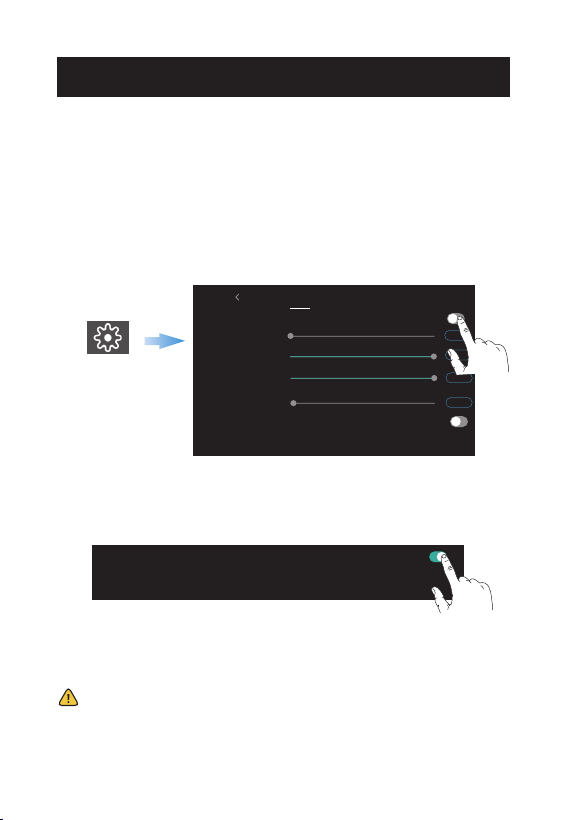
Beginner Mode
The beginner mode is the default operating mode.When in beginner
mode:
1. Default orbit flight radius: 16 ft.
2. The flight distance is limited to: 0~98 ft.
3. The flight height is limted to: 0~98 ft.
4. Default return altitude: 49 ft.
APP OPERATION INSTRUCTION
Flight Settings
On APP
Safety Sensor status
Beginner
Beginner Mode by default. Turn it off for setting the flight parameters.
Max Distance
Default 98ft
(98~656ft)
Default 98ft
(98~393ft)
Return Altitude
Max Altitude
Default 49ft
(49~98ft)
Removing distance limit:
By removing the distance limit, you can boost the maximum flight distance to 1148ft. Flying too far
can cause losing the drone. Please be careful.
Flight Record
Orbit Radius
Default 16ft
(16~98ft)
16
656
393
49
Default
Default
Default
Default
Removing distance limit:
By removing the distance limit, you can boost the maximum flight distance to 1148ft. Flying too far
can cause losing the drone. Please be careful.
If you want to get a longer flight distance, you can activate the "Remove
Distance Limit" function in the "Settings" and boost the max flight
distance up to 1148 ft.
Please be cautious when removing the distance limit. If the battery
of the drone is low, the drone may not be able to fly back to the Home
Point!
If you want to alter the above-mentioned parameters, please first turn
off the beginner mode. You can go to the "Settings" page to modify
these parameters.
-31-
APP OPERATION INSTRUCTION
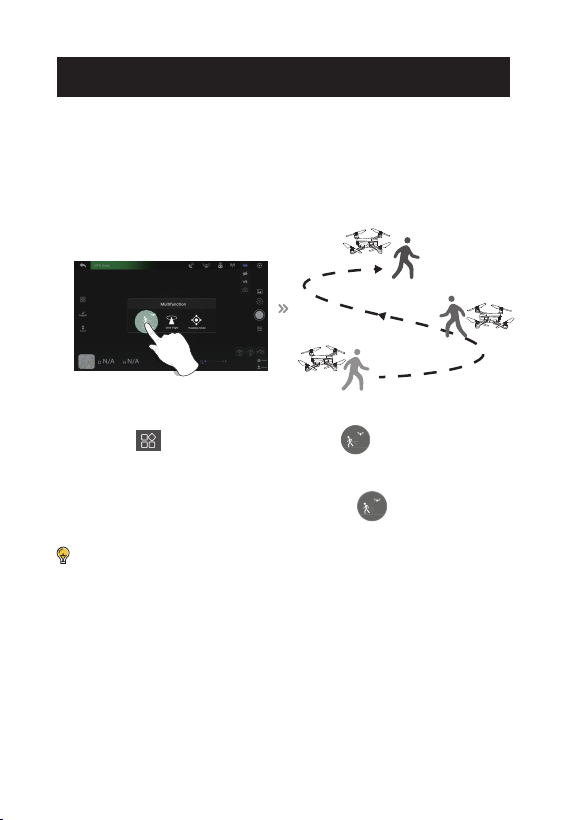
Follow Me
When the Follow Me function is enabled, the drone will track your
movement by following the GPS signal on your mobile phone. (Before
using this function, please make sure that the connection between the
drone and the transmitter is strong and stable.)
1. Ensure the drone's flight range is within 16~98 ft.
2. Tap the ” ” icon first, then select the ” ” icon, and follow the
instructions in the prompt box to enter the Follow Me function — the
drone will now follow the mobile phone’s coordinates.
3. To exit Follow Me Mode, simply tap the ” ” icon on the app
interface again.
· The Follow me function can only be used if the flight range is
within 16~98 ft.
· The Follow me function may be difficult to activate if the mobile
phone’s GPS signal is too weak. This could be caused by signal
interference from surrounding buildings, trees, mobile network
congestion, etc.
· Please use Follow Me function in an open area and be mindful of
your surroundings. The drone is NOT equipped with obstacle
avoidance.
-32-
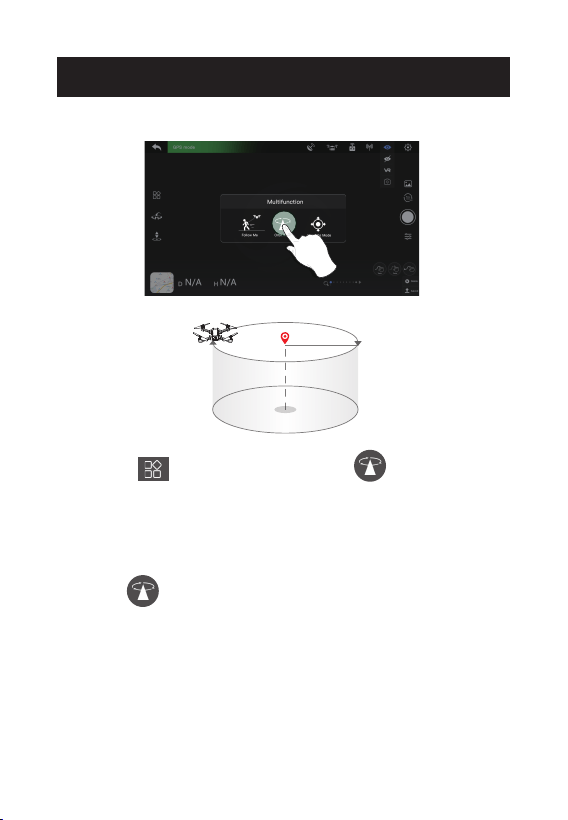
Orbit Flight
1.Tap the " " icon first. Then tap the " " icon. Follow the
instructions in the prompt box to activate the Orbit Flight function.
2.The drone will record its current position when this function is
activated as the circle's center. It then flies away from it to the set radius
distance and begins to circle clockwise. (Default radius:15 ft)
3.Tap the " " icon again to turn off Orbit Flight.
R
APP OPERATION INSTRUCTION
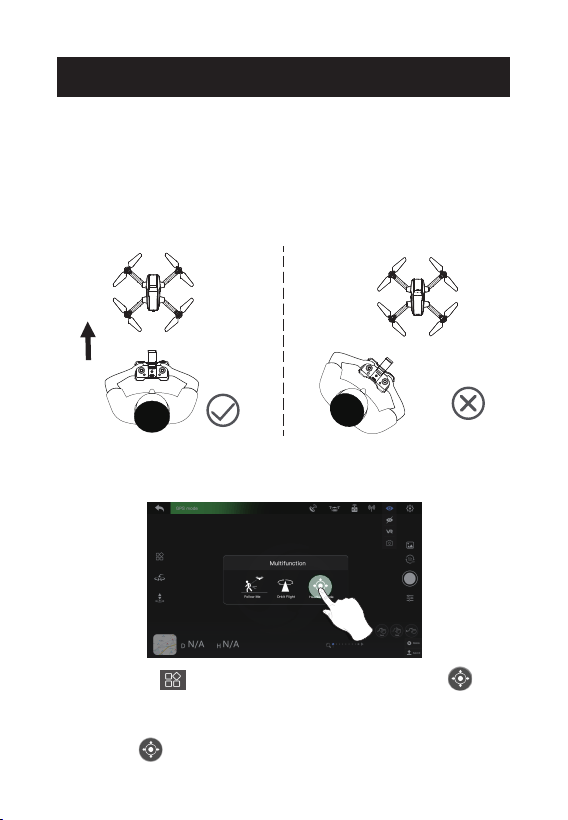
Headless Mode
The Headless Mode is a great training tool for beginner pilots. It is also
useful when the drone is too far from the pilot (which makes it difficult
to tell its orientation). It keeps the drone traveling forward, backward,
left, or right when you move the right joystick in those directions,
regardless of which way the front of the drone is pointed.
1. First tap the " " icon on the app interface, then select " " icon
by tapping on it. Follow the instructions in the prompt box to activate
Headless Mode.
2. Tap the " " icon again. The drone exits Headless Mode.
APP OPERATION INSTRUCTION
The pilot should stay facing the same direction that
the drone’s head points to when it takes off.
-33-

* Why is the orientation of the drone important?
In normal flying mode, the control of the drone movement can
sometimes be counter-intuitive for beginners. For instance, when the
drone is in the air with its head pointing to your right, if you push the
right joystick forward, the drone will fly to your right, instead of flying
forward.
With the headless mode, the drone has a fixed "head." In Headless
Mode, the drone always remembers the side its head points to during
takeoff as the front side. This means that if the drone takes off with its
head pointing forward, it doesn't matter how the drone is oriented in
the air, when you push the right joystick forward, the drone will fly
forward. Or, when its head is pointing to you, if you push the right
joystick to the left, the drone will fly to your left.
Photo/Video
① Tap the “ ” icon to take a photo.
② Tap the “ ” icon to start a recording. Tap again to stop recording.
③ Tap the “ ” icon to view the photos and video in the app’s gallery.
④ If a TF card is inserted into the drone previously, the photos and the
videos will be saved to the app album, the cellphone album and the TF
card.
⑤ If no TF card is inserted, the photos and the videos will be saved to
the app album and the cellphone album. To view them through the
app, you need to first connect the mobile phone to the Wi-Fi network
generated by the drone.
APP OPERATION INSTRUCTION
-34-
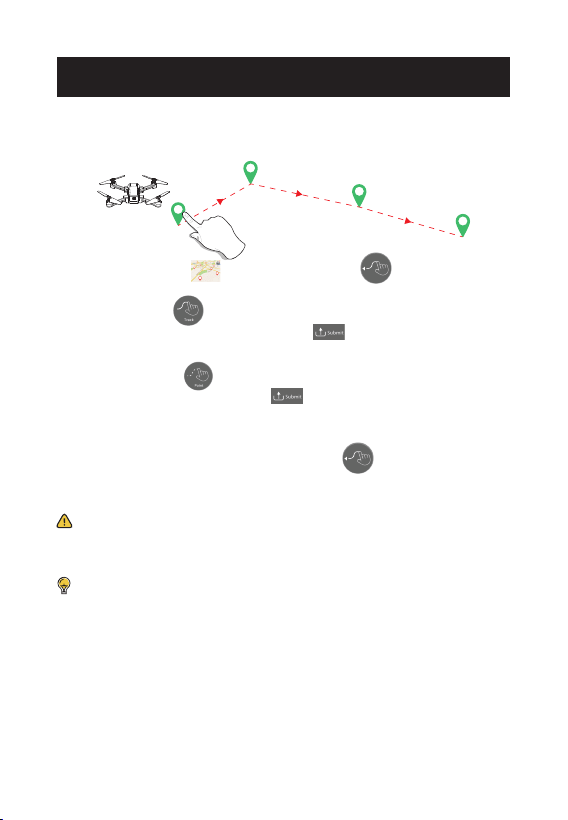
TapFly
* We strongly recommend that you maximize the map before drawing the
flight path.
DO NOT fly the drone towards people, animals, small/thin objects
(e.g. tree branches and power lines) or transparent objects (e.g. glass
or water).
1. Tap on the Map” ” first, then tap the ” ” icon. Follow the
instructions in the prompt box to enter the TapFly function.
Tapfly 1: Tap the ” ” icon on the app interface. Draw a line on the
screen to create a flight path, and tap ” ” icon to submit the path.
The drone will then fly along this path.
Tapfly 2: Tap the ” ” icon on the app interface, then tap a few
points on the screen. Tap the ” ” icon to submit the path. The
drone will then fly along the path created by connecting the points
you tap in order.
2. Exit the TapFly function by tapping the ” ” icon again.
3. If the flight path submission fails, you can submit it again, or exit
the function.
· To download the map:
① Disconnect your mobile phone from the drone’s Wi-Fi
network.
② Connect your mobile phone to the internet. Then go back to
the app and tap on the map icon. The map will load automati-
cally. Wait till the loading is finished.
③ Reconnect your mobile phone to the drone’s Wi-Fi network
and come back to this function.
· The expected and actual flight paths may not fit perfectly.
APP OPERATION INSTRUCTION
1
2
3
4
-35-

DRONE
Model: HS440D
Weight: 195g/6.8oz
Max Flight Time: 19 minutes (per battery)
Operating Temperature Range: 32° to 104°F
Size: 291× 207 × 60 mm (Unfolded)
123× 93 × 60 mm (Folded)
TRANSMITTER
Operating Frequency: 2452-2474 MHz
Max Flight Distance: 1148 ft/350 m (outdoor and unobstructed)
Battery Type: 3 x 1.5V AAA
Operating Temperature Range: 32° to 104°F
DRONE BATTERY
Capacity: 1100 mAh
Voltage: 7.6 V
Battery Type: Lithium-ion Polymer Battery
Energy: 8.36 Wh
Charging Temperature Range: 41° to 104°F
Charging Time: about 120 minutes
- - - - - - - - - - - - - - - - - - - - - - - - - - - - - - - - - - - - - - - - - - - - - - - - - - - - - - - - - - -
- - - - - - - - - - - - - - - - - - - - - - - - - - - - - - - - - - - - - - - - - - - - - - - - - - - - - - - - - - -
SPECIFICATIONS
-36-

USB CHARGING CABLE
Input: 5V/2A
Rated Power: ≤10W
CAMERA
Operating Frequency: 5500-5700MHz
Photo Resolution: 4K:3840×2160P
2.5K:2560×1440P
Video Resolution: 4K:3840×2160P@15fps (in TF card)
1920×1080P@25fps (in mobile phone)
2.5K:2560×1440P@25fps (in TF card)
1920×1080P@25fps (in mobile phone)
Lens: FOV 120°
Max Transmission Distance: 656 ft/200 m
(outdoor and unobstructed)
Photo Formats: JPEG
Video Formats: MP4
Supported TF Cards: Supports a TF Card (Class10 above) with
capacity of up to 64 GB (Not included)
File Systems: FAT32
- - - - - - - - - - - - - - - - - - - - - - - - - - - - - - - - - - - - - - - - - - - - - - - - - - - - - - - - - - -
SPECIFICATIONS
-37-
CONTACT US
[email protected] (America)
[email protected] (Canada)
[email protected] (Europe)
+1(855) 888-6699
Scan the code and chat
live for online support
Please do not hesitate to contact us if you need further support.
-38-
Scan the code to start a
WhatsApp chat with us

FCC Notice:
This device complies with part 15 of the FCC Rules. Operation is subject
to the following two conditions:
(1) This device may not cause harmful interference, and
(2) This device must accept any interference received, including
interference that may cause undesired operation.
The Supplier's Declaration of Conformity is available at the following
address:
https://www.holystone.com/Download/US/HS440D_FCC_sDoC.pdf
NOTE: This equipment has been tested and found to comply with the
limits for a Class B digital device, pursuant to part 15 of the FCC Rules.
These limits are designed to provide reasonable protection against
harmful interference in a residential installation. This equipment
generates, uses and can radiate radio frequency energy and, if not
installed and used in accordance with the instructions, may cause
harmful interference to radio communications. However, there is no
guarantee that interference will not occur in a particular installation. If
this equipment does cause harmful interference to radio or television
reception, which can be determined by turning the equipment off and
on, the user is encouraged to try to correct the interference by one or
more of the following measures:
— Reorient or relocate the receiving antenna.
— Increase the separation between the equipment and receiver.
— Connect the equipment into an outlet on a circuit different from that
to which the receiver is connected.
— Consult the dealer or an experienced radio/TV technician for help.
GENERAL INFORMATION
-39-

WARNING: Changes or modifications not expressly approved by the party
responsible for compliance could void the user's authority to operate the
equipment.
RF Exposure
The equipment complies with FCC radiation exposure limits set forth for an
uncontrolled environment. This device should be installed and operated
with minimum distance 20cm between the radiator & your body. This part
belongs to the drone.
RF warning for Portable device: The device has been evaluated to meet
general RF exposure requirement. The device can be used in portable
exposure condition without restriction. This part belongs to the transmitter.
IC Notice:
This device is restricted to indoor use when operating in the 5150 to 5250
MHz frequency range.
This device complies with Industry Canada license-exempt RSS standard(s).
Operation is subject to the following two conditions:
(1) this device may not cause interference, and
(2) this device must accept any interference, including interference that
may cause undesired operation of the device.
CAN ICES-003 (B)
Avis d’Industrie Canada
Le présent appareil est conforme aux CNR d'Industrie Canada applicables
aux appareils radio exempts de licence. L'exploitation est autorisée aux deux
conditions suivantes :
(1) l'appareil ne doit pas produire de brouillage, et
GENERAL INFORMATION
-40-

(2) l'utilisateur de l'appareil doit accepter tout brouillage radioélectrique
subi, même si le brouillage est susceptible d'en compromettre le fonctionne-
ment.
CAN NMB-003 (B)
RF Exposure
Radiation Exposure Statement:
The device is compliance with RF exposure guidelines, users can obtain
Canadian information on RF exposure and compliance. The minimum
distance from body to use the device is 20cm.
Le présent appareil est conforme
Après examen de ce matériel aux conformité ou aux limites d’intensité de
champ RF, les utilisateurs peuvent sur l’exposition aux radiofréquences et
compliance d’acquérir les informations correspondantes. La distance
minimale du corps à utiliser le dispositif est de 20cm.
HOW TO RECYCLE THIS PRODUCT
This symbol on the product or its documentation indicates that it must not
be disposed of with household waste.
Uncontrolled waste disposal may harm the environment or human health.
Please separate your device from other types of waste to recycle it responsi-
bly.
This will help to foster the sustainable re-use of material resources.
We invite you to contact your retailer or inquire at your local town hall to
find out where and how the drone can be recycled.
GENERAL INFORMATION
-41-

3. Replace the battery if it has been dropped, or in case of odor, overheat-
ing, discoloration, deformation or leakage.
4. Never use anything other than the approval Li-Po charger to the battery.
Always use a balancing charger for Li-Po cells or a Li-Po cell balancer. It is
recommended that you do not to use any other charger than the one
provided with the product.
5. The battery temperature must never exceed 60°C (140°F) otherwise the
battery could be damaged or ignite.
6. Never charge battery on a flammable surface, near flammable products
or inside a vehicle (preferably place the battery in a non-flammable and
nonconductive container).
7. Never leave the battery unattended during the charging process. Never
disassemble or modify the housing’s wiring, or puncture the cells. Always
ensure that the charger output voltage corresponds to the voltage of the
battery. Do not short circuit the batteries.
8. Never expose the LiPo battery to moisture or direct sunlight, or store it in
a place where temperatures could exceed 60°C(car in the sun, for
example).
9. Always keep it out of reach of children.
10. Improper battery use may result in a fire, explosion or other hazard.
BATTERY WARNING:
1. Failure to follow all the instructions may result in serious
injury, irreparable damage to the battery and may cause a
fire, smoke or explosion.
2. Always check the battery’s condition before charging or
using it.
GENERAL INFORMATION
-42-

11. Non-rechargeable batteries are not to be recharged. Rechargeable
batteries are only to be charged under adult supervision.
12. Different types of batteries or new and used batteries are not to be mixed.
13. Batteries are to be inserted with the correct polarity.
14. The supply terminals are not to be short-circuited. Regular examination
of transformer or battery charger for any damage to their cord, plug,
enclosure and other parts and they must not be used until the damage has
been repaired.
15.The packaging has to be kept since it contains important information.
16.This toy should only be connected to the equipment with symbol Class
II.
Caution
1. The max operating of the EUT is 45°C. and shouldn’t be lower than
-10°C.
2. The device complies with RF specifications when the device used at
0mm from your body.
3. Declaration of Conformity.
We, Xiamen Huoshiquan Import & Export CO., LTD
hereby, declare that the essential requirements compliance with the
Directive 2014/53/EU, the RoHS Directive 2011/65/EU and Safety
Directive 2009/48/EC have been fully fulfilled on our product with
indication below:
Product Name: REMOTE CONTROL MODEL/RADIO CONTROLLED
Model/Mark: HS440D/HOLYSTONE
EU RF Power (EIRP): <16 dBm (2452MHz ~ 2474MHz)
GENERAL INFORMATION
-43-

The Statement of compliance is available at the following address:
http://www.holystone.com/Download/CE/HS440D_EU_DOC.pdf
This product can be used across EU member states.
MANUFACTURER INFORMATION
Manufactured by
Xiamen Huoshiquan Import & Export CO.,LTD
Address: Unit 1, Room 501, Hongxiang Building, No.258 Hubin Nan
Road, Siming District, Xiamen, China
+1(855) 888-6699
MADE IN CHINA(CN)
GENERAL INFORMATION
-44-