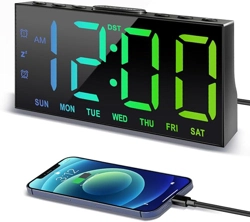
RGB Color Changing Clock
Missing accessories or any other problems, please contact us:
User's Manual
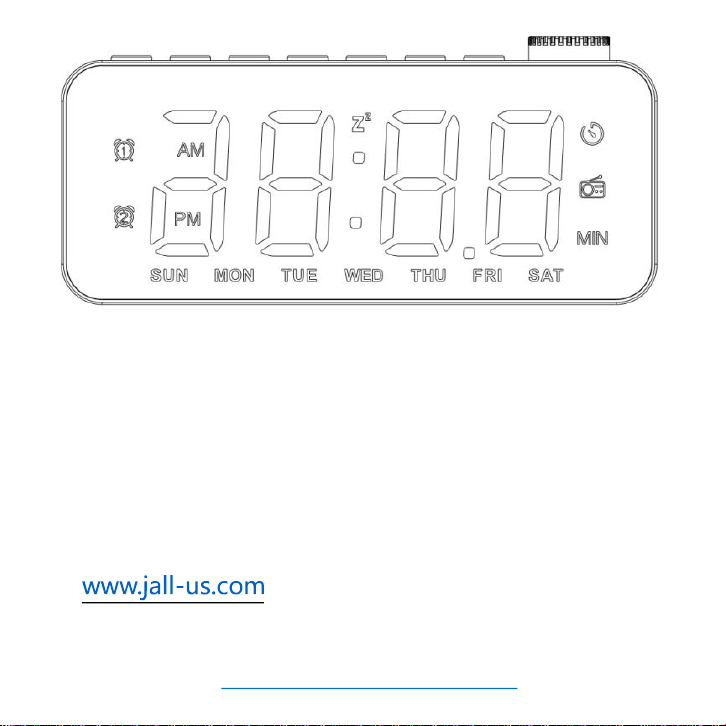
Please remove the protective film from the mirror surface
when using the clock.
We value every customer and commit to providing a lifetime warranty
service to each and every one of them. To activate lifetime warranty, please
visit:
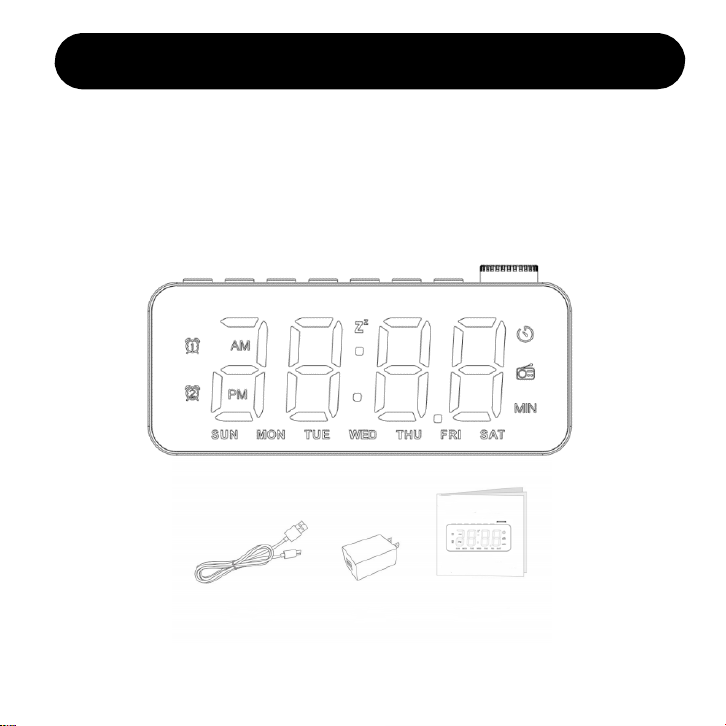
Objects the package contains
This product is packed in a color box, which contains:
1x RGB color changing clock 1x 5V 2A adapter
1x Type-C data line 1x instruction manual
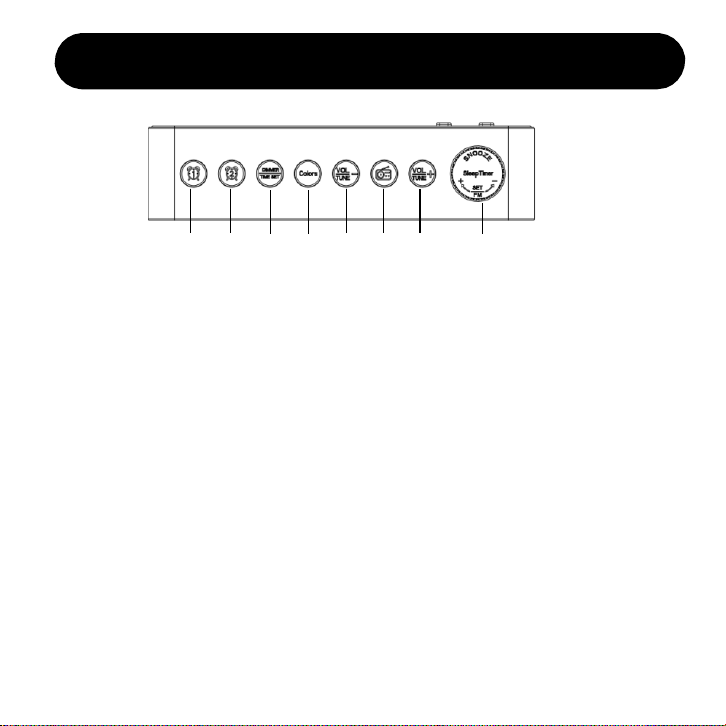
Product appearance & button introduction
① ② ③ ④ ⑤ ⑥ ⑦ ⑧
Alarm 1 switch / setting
②
Alarm 2 switch / setting
Screen brightness
adjustment / time setting
④
Volume down / next
channel on the radio
⑥ Radio switch / automatic
channel search
Volume up / previous channel on the radio
Snooze / Sleeping companion countdown / Increase or
decrease of the setting value / radio FM
Time display font color
switch
①
③
⑤
⑦
⑧
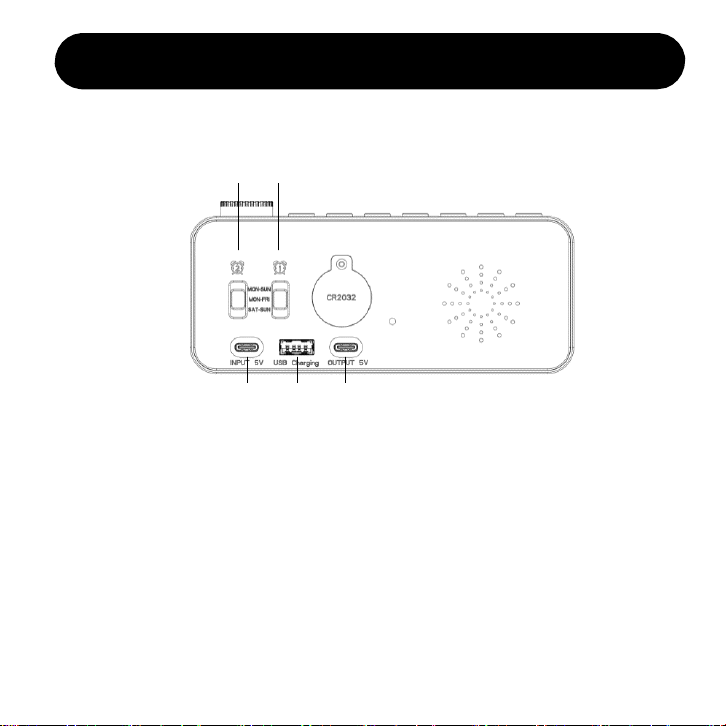
Product appearance introduction
⑪
⑨⑩
⑫ ⑬
⑨
⑪
⑬
Alarm 1 mode switch ⑩ Alarm 2 mode switch
Type-C 5V power input
⑫
USB output
Type-C output
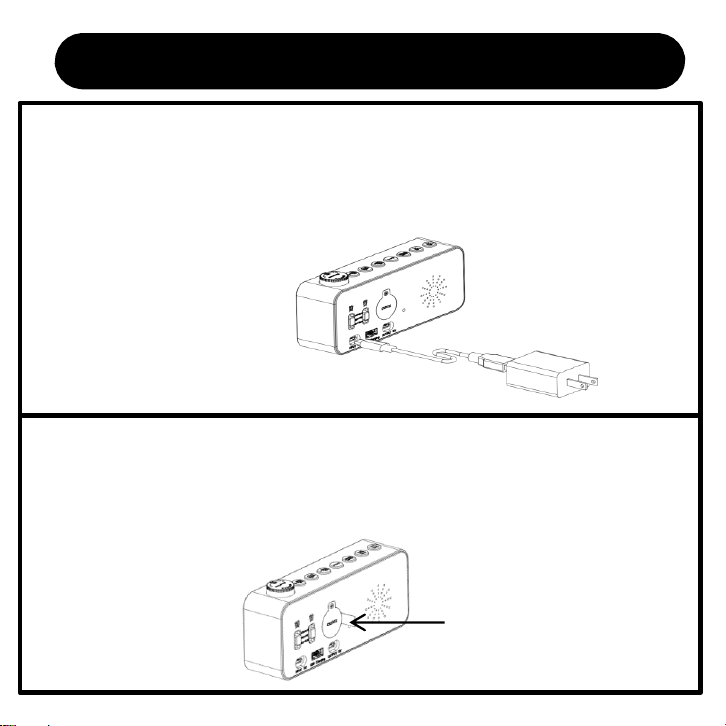
Power on for the first time
• Remove the protective film from mirror surface. Connect Type-c power plug to the
input port of alarm clock. And then connect the USB plug to the adapter. At last
plug the adapter into 100V-240V home socket. As shown in the following figure:
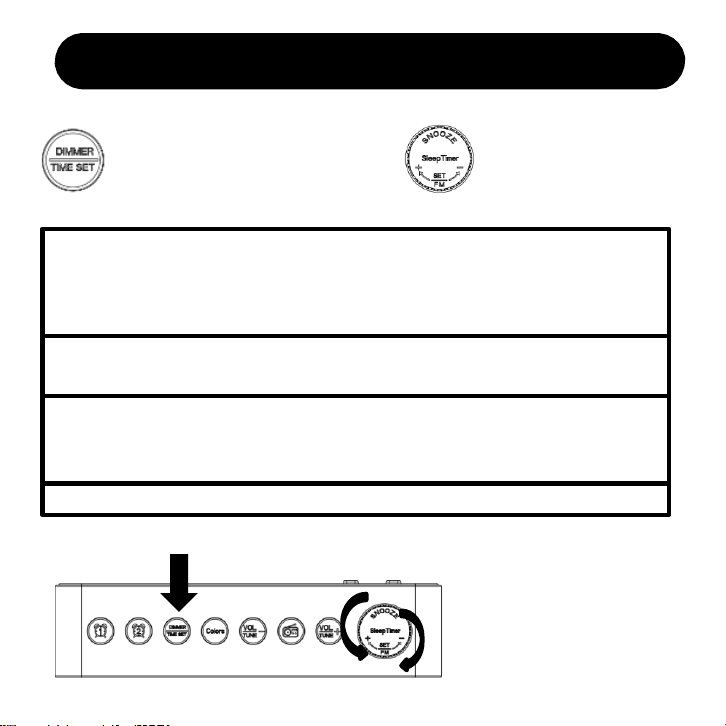
Install the battery
• The alarm clock comes with a pre-installed CR2032 battery, and just pull
down the insulation sticker. As shown in following figure:
Pre-use setting
Unplug the insulating paper
When powered on for the first time, the time shows AM 12:00
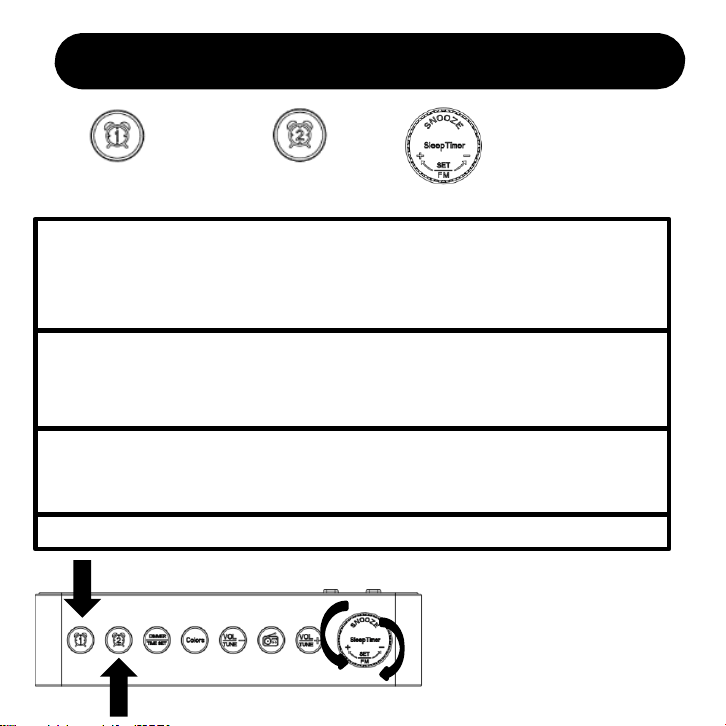
TIME SET BUTTON SNOOZE BUTTON
1. Long press TIME SET button for 2s to enter time setting
• In time setting mode, the number will blink, rotate SNOOZE button to set “hour”. Then
click TIME SET button to confirm, and enter “minute” setting, rotate SNOOZE button to
set current minute.
2. Press TIME SET button to enter 12/24-hour setting
• Rotate SNOOZE button to set 12/24 hours.
3. Press TIME SET button to enter week setting
• Rotate SNOOZE button to set "week". When the setting is completed, click TIME SET
button to confirm and exit.
4. Press TIME SET button to confirm and exit time setting.
Time setting
Alarm setting (take alarm 1 as example)
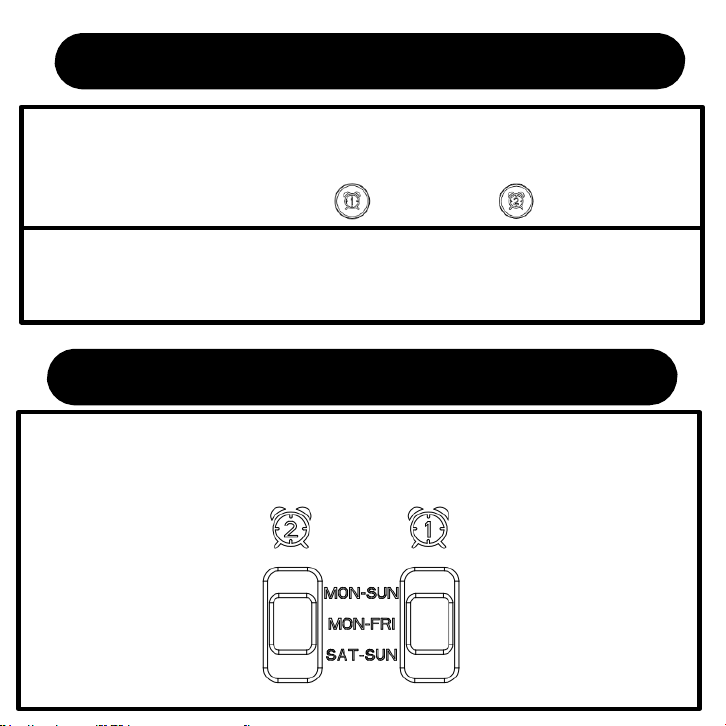
1. Long Press ALARM 1 BUTTON for 2s to enter alarm 1 setting
• In alarm setting mode, the number will blink. Rotate SNOOZE BUTTON to adjust the hour
of alarm. Then press ALARM 1 BUTTON to confirm and enter minute setting. Rotate the
SNOOZE BUTTON to adjust “minute”.
2. Press ALARM 1 BUTTON to confirm and enter alarm sound selection
• Press ALARM 1 BUTTON to confirm and enter alarm sound selection.
Rotate SNOOZE BUTTON to select alarm sound, which will display S01-S08 (01-08 is the
sound levels, corresponding to different wake up sound).
3. Press ALARM 1 BUTTON to confirm and enter volume adjustment
• Press ALARM 1 BUTTON to confirm and enter volume adjustment. Rotate SNOOZE
BUTTON to adjust the volume, which will display V01-V16 (a total of 16 levels)
4. Press ALARM 1 BUTTON to confirm and exit alarm setting.
Note: the setting of alarm
clock 2 is the same as taht
of alarm clock 1.
ALARM 1 BUTTON ALARM 2 BUTTON
SNOOZE BUTTON
Alarm switch
Alarm switch
• In time display state, press ALARM 1 BUTTON / ALARM 2 BUTTON, it will
switch on/off the alarm.
User prompt
• Alarm 1 and alarm 2 operate in exactly the same way.
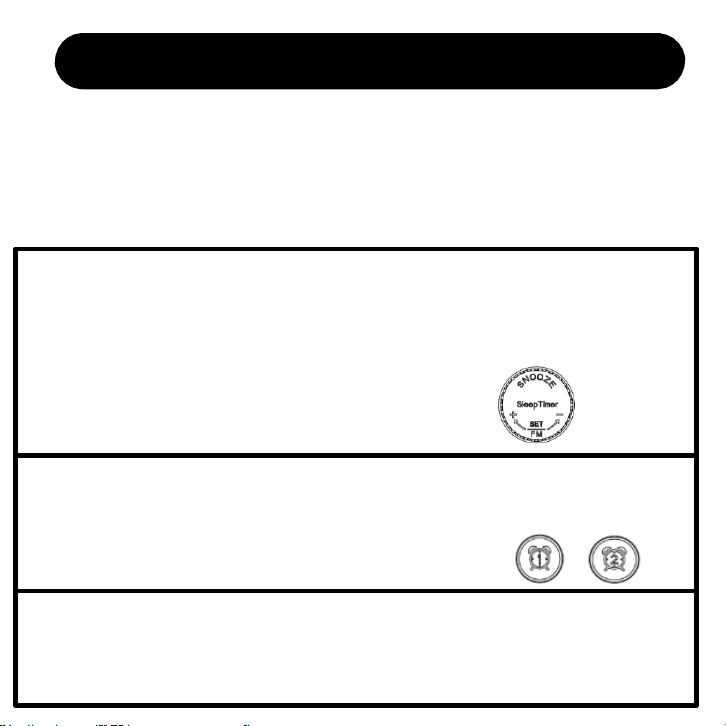
Alarm mode selection
When the alarm is on, select the switch on the back of the
clock to choose from “daily alarm”, “weekday alarm” or
“weekend alarm”.
How to SNOOZE or TURN OFF alarm
After the alarm clock is turned on, the alarm clock will ring at the
preset time: when it comes to the setting time of the alarm, it will
start to ring and wake you up. When the alarm goes off, you can do
the following:
1. Snooze
• Press SNOOZE BUTTON when the alarm goes off, which will enter “Snooze Mode”.
And the screen will show a flickering sleepy icon. Alarm will go off again after 9
minutes.
Note: it's unlimited times that you can enter snooze mode.
2. Stop today’s alarm.
• When the alarm goes off / or in snooze mode, click the button of the corresponding
alarm to stop today’s alarm and it will go off on the next day.
3. When no action taken
• If the alarm goes off for 20 mins without any operation, today’s alarm will be stopped
automatically, and it will go off on the next day.
RGB color changing mode
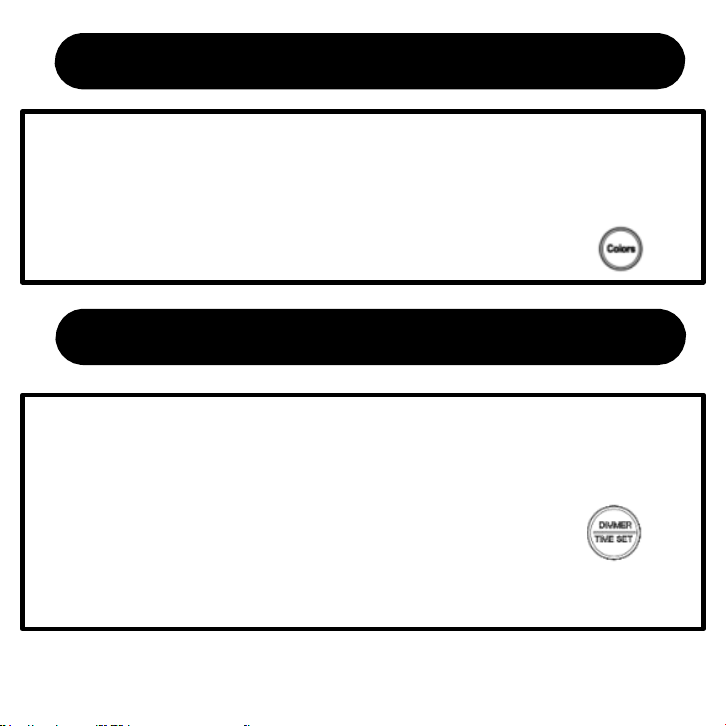
1. RGB color changing
• In the time display state, press COLORS BUTTON to change the display
font color (white, red, green, blue, gradient, magic color, left and right
graduality, up and down graduality)
2. Screen brightness adjustment
• Press DIMMER BUTTON and the screen brightness changes from bright
to dark (level 4, level 3, level 2, level 1, OFF).
Note: level 1 is brighter in bright color mode while it's is darker in
monochrome mode(also can be seen in darker environment).
Screen brightness adjustment
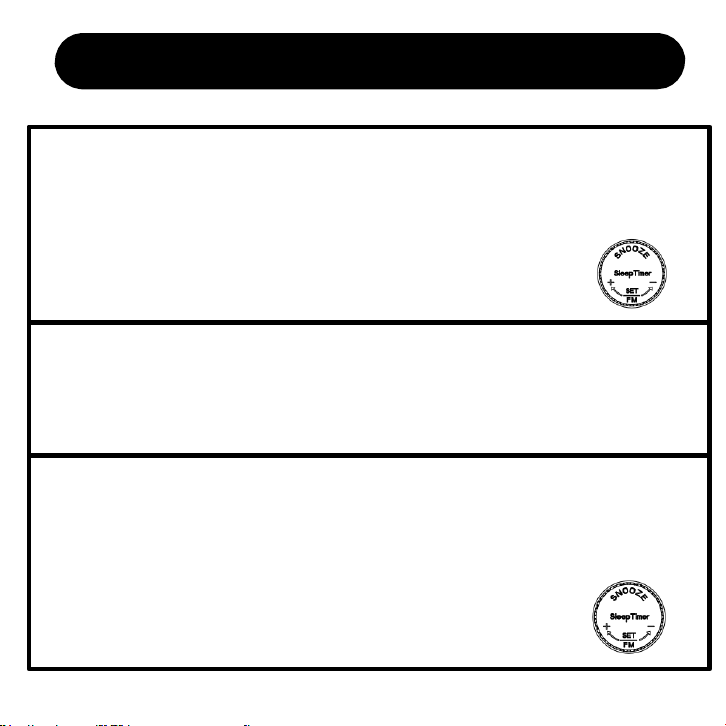
Countdown to sleep
1. Sleeping companion switch
• In the time display state, click SNOOZE BUTTON to start "countdown".
The countdown time will blink in 5s, rotate SNOOZE BUTTON to adjust the
countdown time (10~120, 180, 240MIN).
2. Countdown companion sleep
• When the countdown is turned on, the radio will be turned on
automatically. And it will be turned off synchronously after the
countdown is over.
3. Check the length of sleeping companion.
• After the countdown companion sleep function is turned on, click
SNOOZE BUTTON to check the remaining companion sleep time.
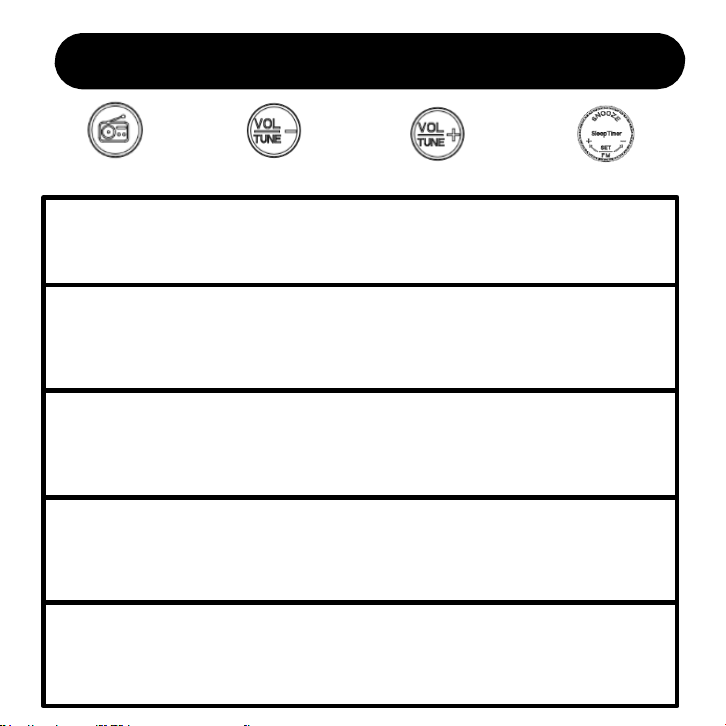
FM radio adjustment
1. FM switch
• In time display state, press RADIO BUTTON to turn on/off FM radio.
.
2. Automatically search the FM radio channel
• After FM radio is turned on, long press RADIO BUTTON for 2s to enter the
FM automatic search mode(search range from 76.0MHZ to 108.0MHZ).
3. FM radio channel adjustment
• After FM radio is turned on, long press the VOLUME DOWN BUTTON
/ VOLUME UP BUTTON for 2s to turn to a up / down radio channel.
4. FM radio volume adjustment
• When FM radio is on, click the VOLUME DOWN BUTTON
/ VOLUME UP BUTTON to adjust the current radio volume.
5. Frequency adjustment of FM radio
• After FM radio is turned on, rotate SNOOZE BUTTON to adjust 0.1MHZ
from current channel.
RADIO BUTTON VOLUME DOWN
VOLUME UP
SNOOZE BUTTON
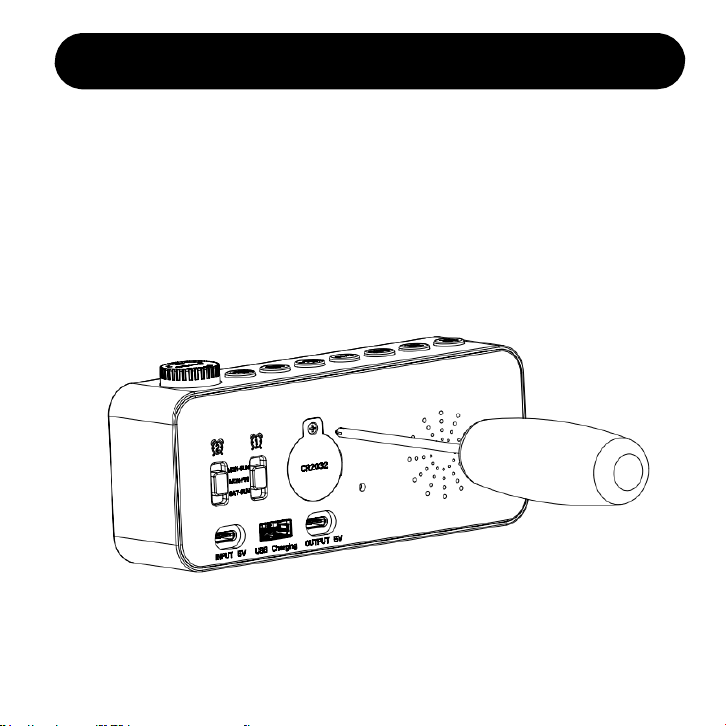
Replace the battery
Unscrew the battery cover with a screwdriver, remove the
battery cover. Then put the battery into the battery box, install
the battery cover, and tighten the screw.
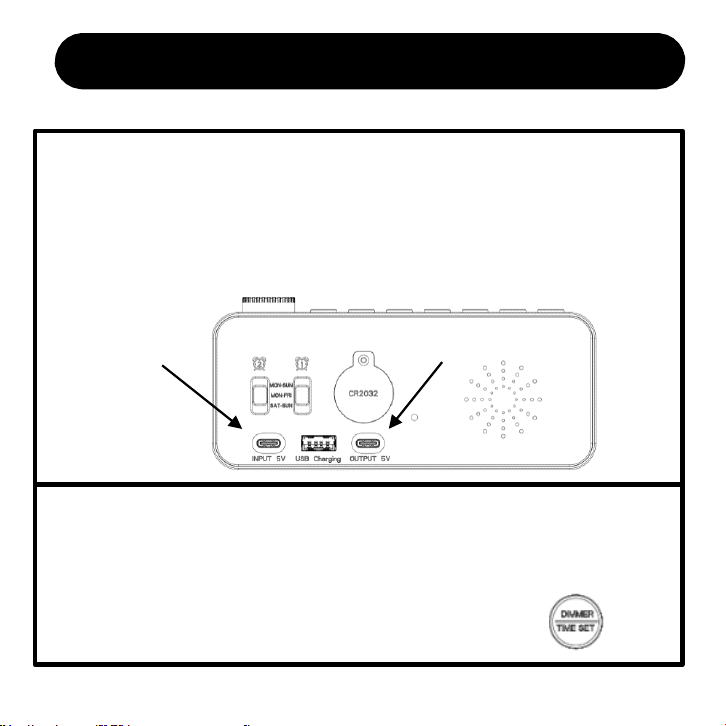
Trouble Shooting
1. Can’t charge cell phone.
• Please check the port on the back of the alarm clock. Because power cord which
connected to output port can also power the clock, but it may cause unknown
errors.
Power
2. The alarm clock no longer displays anything.
• Please click DIMMER BUTTON to confirm whether it has been adjusted to the
lowest brightness before.
Cell phone
Trouble Shooting
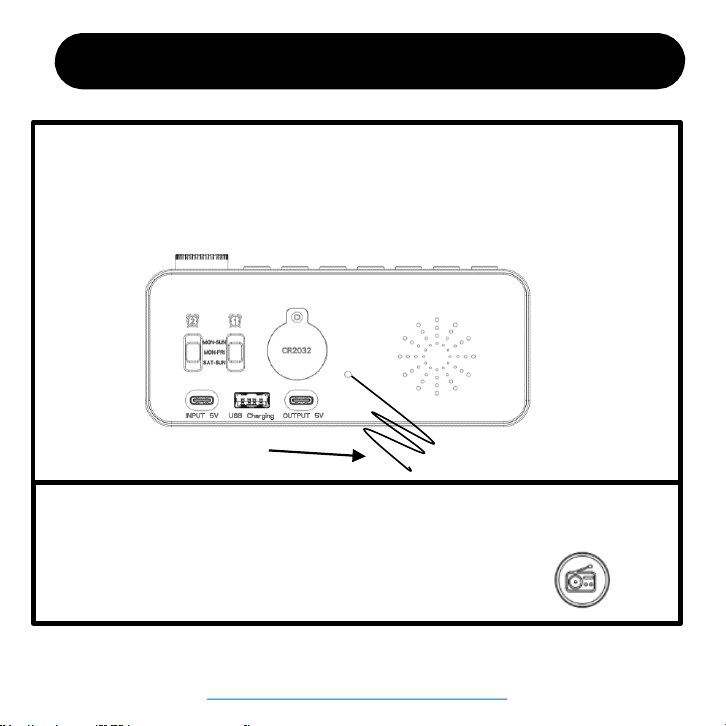
3. What is the line behind the alarm clock? Can I unplug it?
• It’s a receiving antenna. It's used to receive radio signal. Please do not damage the
antenna, which will damage the radio function of the alarm clock.
receiving antenna
Missing accessories or any other problems, please contact us:
ThreeDucksDirect@outlook.com
4. How to turn off the radio function when using the sleep timer
function or turning on the radio by mistake?
• Please click RADIO BUTTON to turn off the radio.