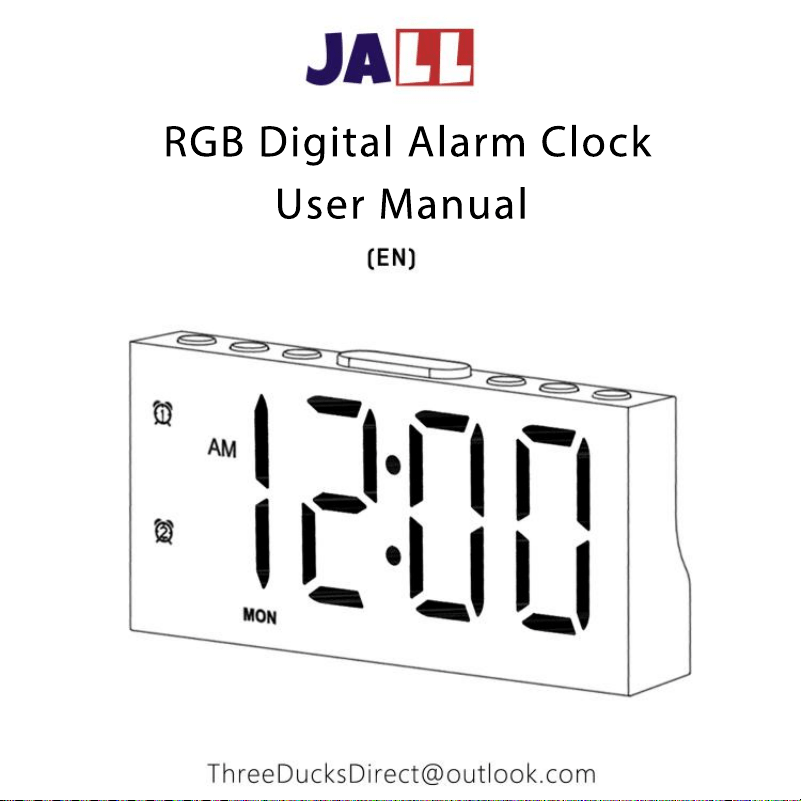
RGB Digital Alarm Clock
User Manual

We've helped 1,000,000+ families get a good
night's rest. And now, with great enthusiasm, our
mission is to make sleeping easier and waking up
more comfortable with our innovative, all-in-one
products for everyone from children to adults.


Contents
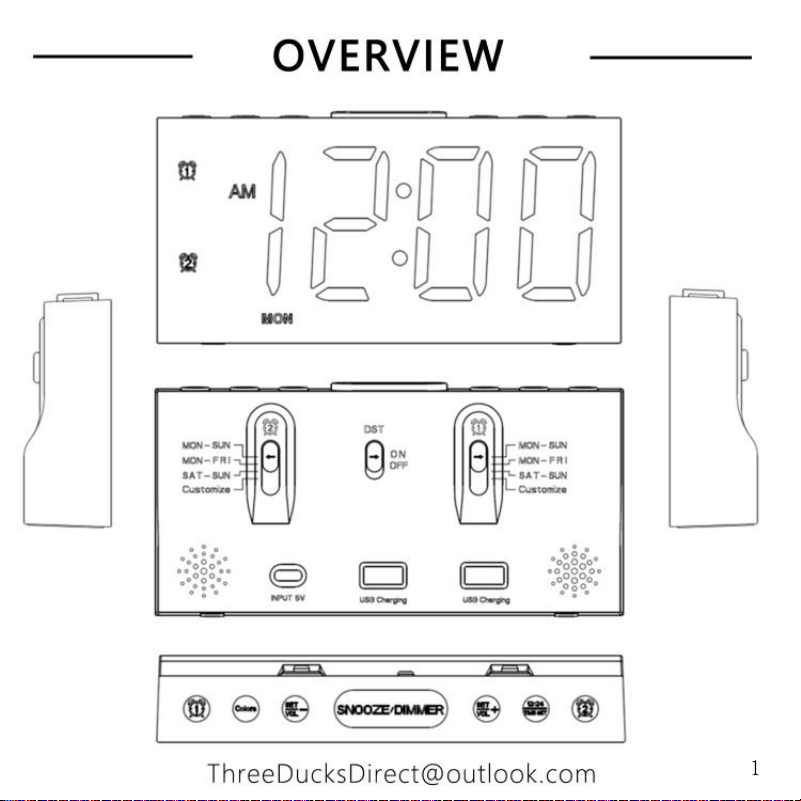
1
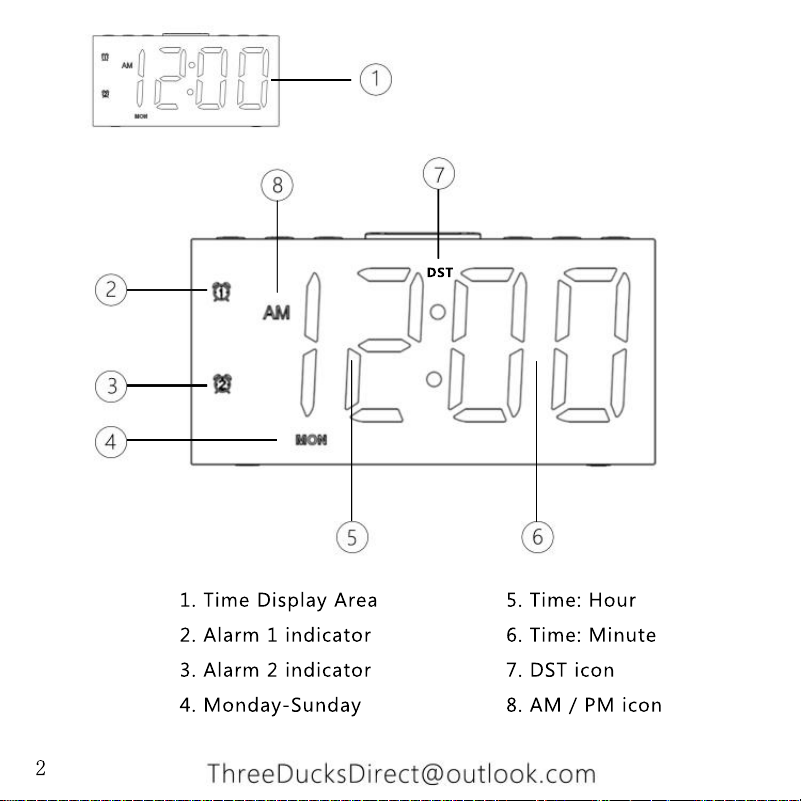
1. Time Display Area 5. Time: Hour
2. Alarm 1 indicator 6. Time: Minute
3. Alarm 2 indicator 7. DST icon
4. Monday-Sunday 8. AM / PM icon
DST
2
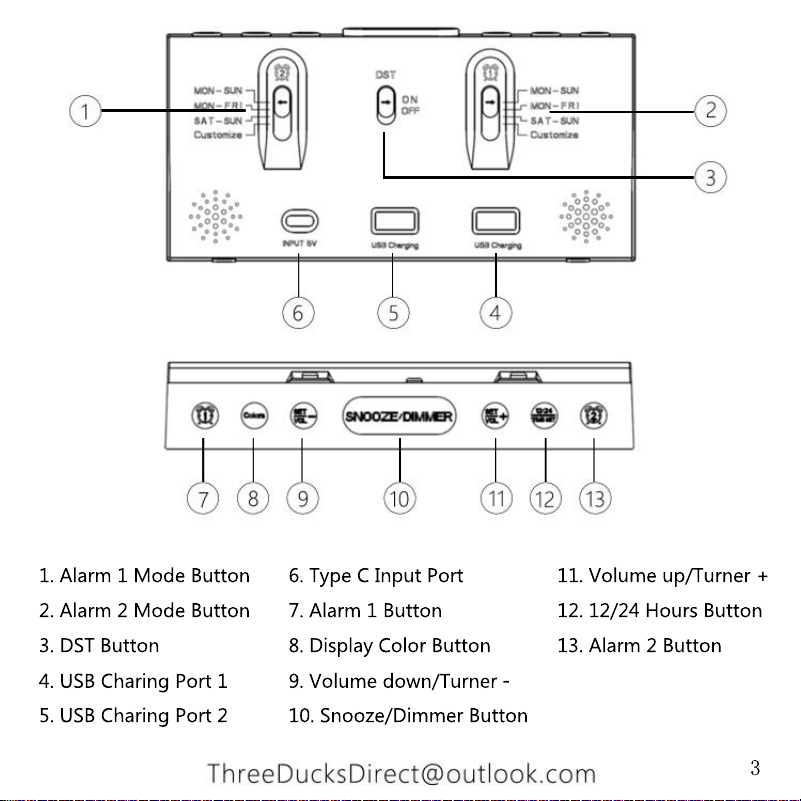
1. Alarm 1 Mode Button 6. Type C Input Port 11. Volume up/Turner +
2. Alarm 2 Mode Button 7. Alarm 1 Button 12. 12/24 Hours Button
3. DST Button 8. Display Color Button 13. Alarm 2 Button
4. USB Charing Port 1 9. Volume down/Turner -
5. USB Charing Port 2 10. Snooze/Dimmer Button
3
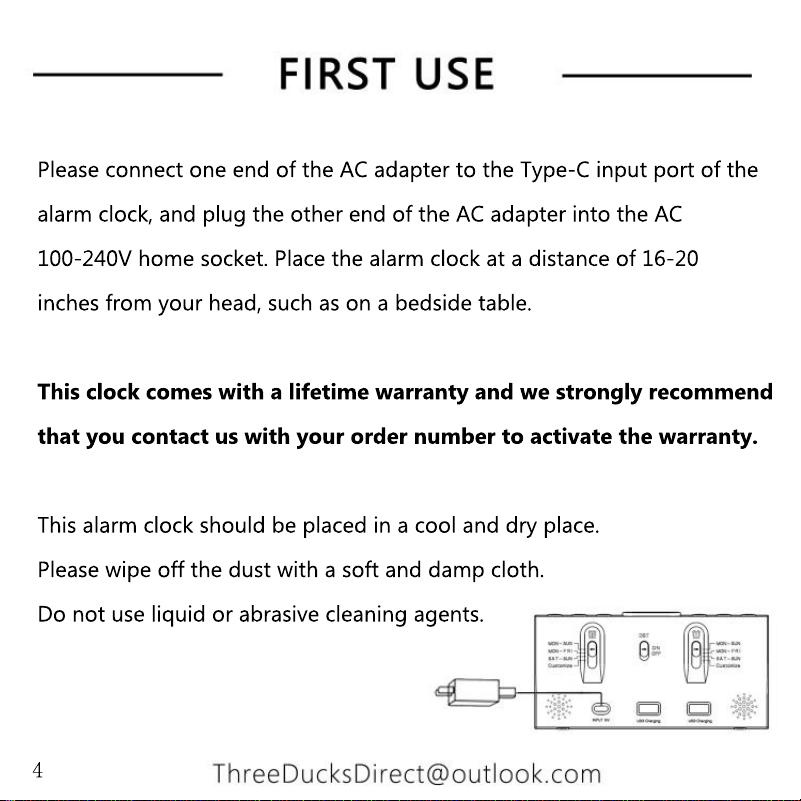
Please connect one end of the AC adapter to the Type-C input port of the
alarm clock, and plug the other end of the AC adapter into the AC
100-240V home socket. Place the alarm clock at a distance of 16-20
inches from your head, such as on a bedside table.
This clock comes with a lifetime warranty and we strongly recommend
that you contact us with your order number to activate the warranty.
This alarm clock should be placed in a cool and dry place.
This alarm clock should be placed in a cool and dry place.
Please wipe off the dust with a soft and damp cloth.
Do not use liquid or abrasive cleaning agents.
4
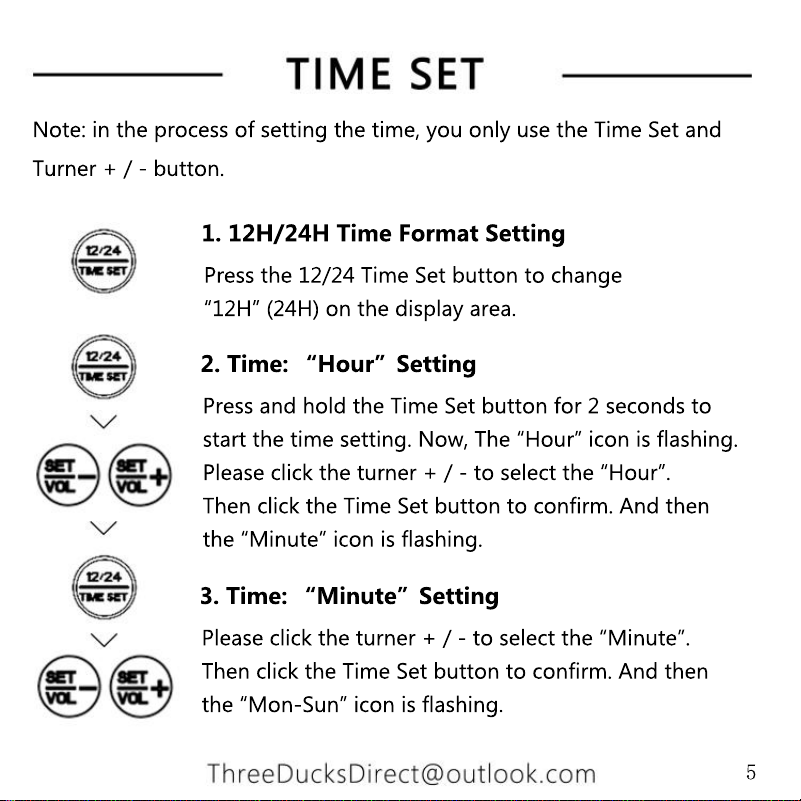
Press the 12/24 Time Set button to change
“12H” (24H) on the display area.
1. 12H/24H Time Format Setting
Press and hold the Time Set button for 2 seconds to
start the time setting. Now, The “Hour” icon is flashing.
Please click the turner + / - to select the “Hour”.
Then click the Time Set button to confirm. And then
the “Minute” icon is flashing.
Please click the turner + / - to select the “Minute”.
Then click the Time Set button to confirm. And then
the “Mon-Sun” icon is flashing.
3. Time: “Minute”Setting
2. Time: “Hour”Setting
Note: in the process of setting the time, you only use the Time Set and
Turner + / - button.
5
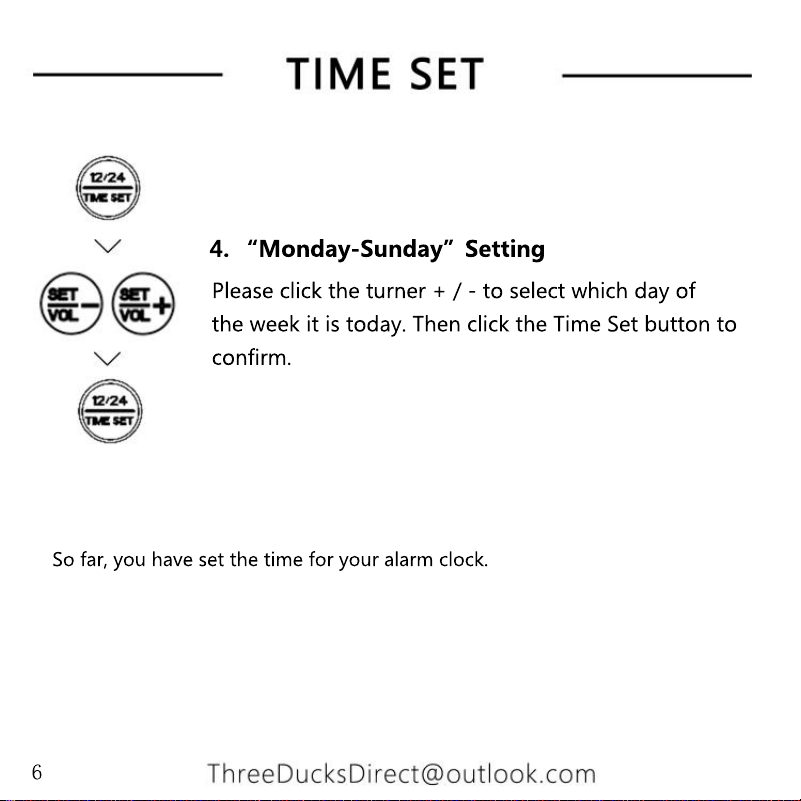
Please click the turner + / - to select which day of
the week it is today. Then click the Time Set button to
confirm.
4. “Monday-Sunday”Setting
So far, you have set the time for your alarm clock.
6
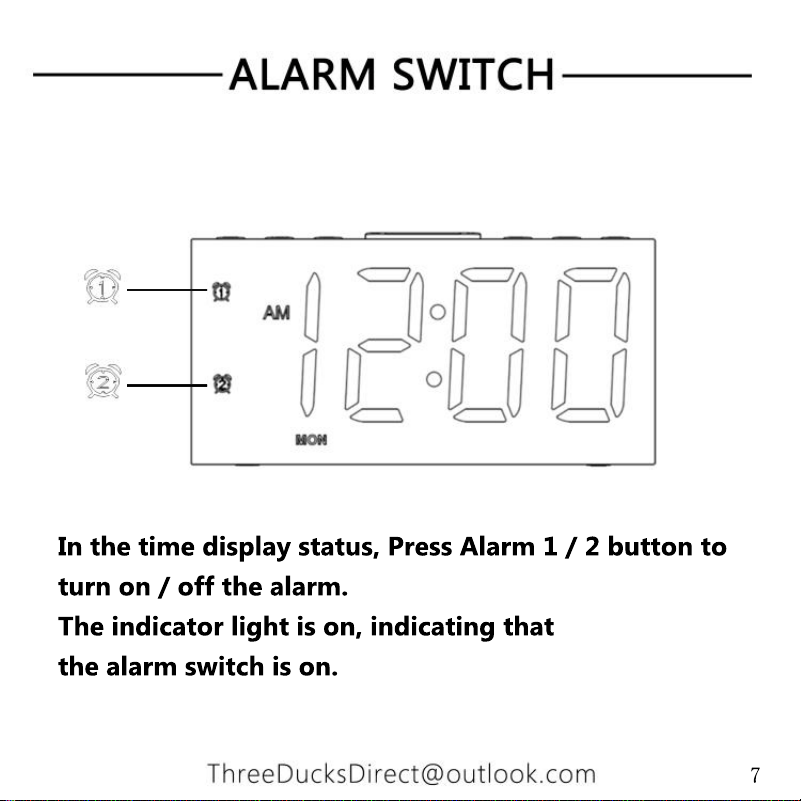
In the time display status, Press Alarm 1 / 2 button to
turn on / off the alarm.
The indicator light is on, indicating that
the alarm switch is on.
7
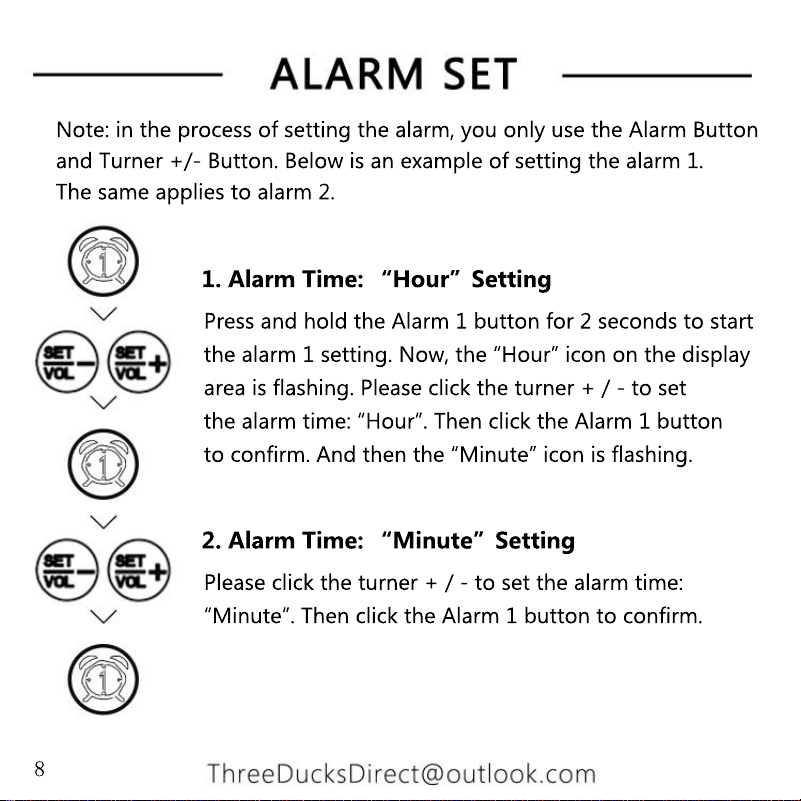
Press and hold the Alarm 1 button for 2 seconds to start
the alarm 1 setting. Now, the “Hour” icon on the display
area is flashing. Please click the turner + / - to set
the alarm time: “Hour”. Then click the Alarm 1 button
to confirm. And then the “Minute” icon is flashing.
1. Alarm Time: “Hour”Setting
Please click the turner + / - to set the alarm time:
“Minute”. Then click the Alarm 1 button to confirm.
2. Alarm Time: “Minute”Setting
Note: in the process of setting the alarm, you only use the Alarm Button
and Turner +/- Button. Below is an example of setting the alarm 1.
The same applies to alarm 2.
8
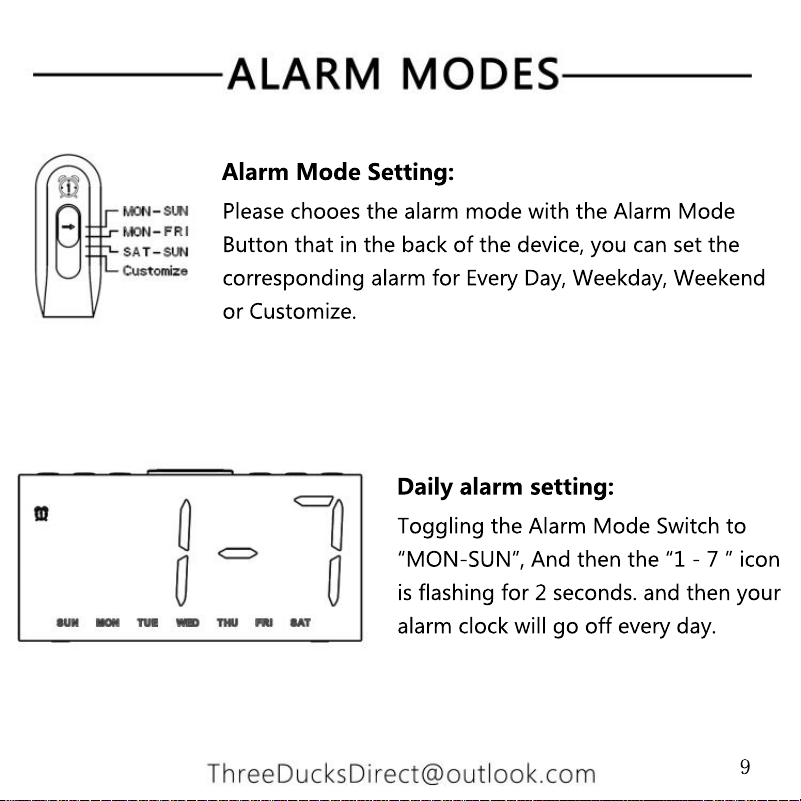
Please chooes the alarm mode with the Alarm Mode
Button that in the back of the device, you can set the
corresponding alarm for Every Day, Weekday, Weekend
or Customize.
Alarm Mode Setting:
Toggling the Alarm Mode Switch to
“MON-SUN”, And then the “1 - 7 ” icon
is flashing for 2 seconds. and then your
alarm clock will go off every day.
Daily alarm setting:
9
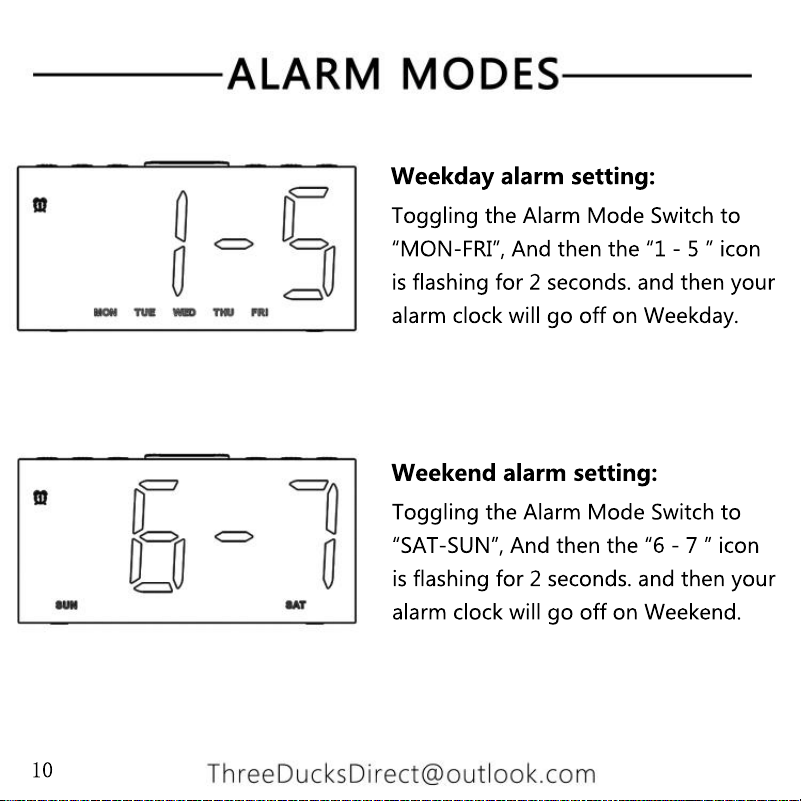
Toggling the Alarm Mode Switch to
“MON-FRI”, And then the “1 - 5 ” icon
is flashing for 2 seconds. and then your
alarm clock will go off on Weekday.
Weekday alarm setting:
Toggling the Alarm Mode Switch to
“SAT-SUN”, And then the “6 - 7 ” icon
is flashing for 2 seconds. and then your
alarm clock will go off on Weekend.
Weekend alarm setting:
10
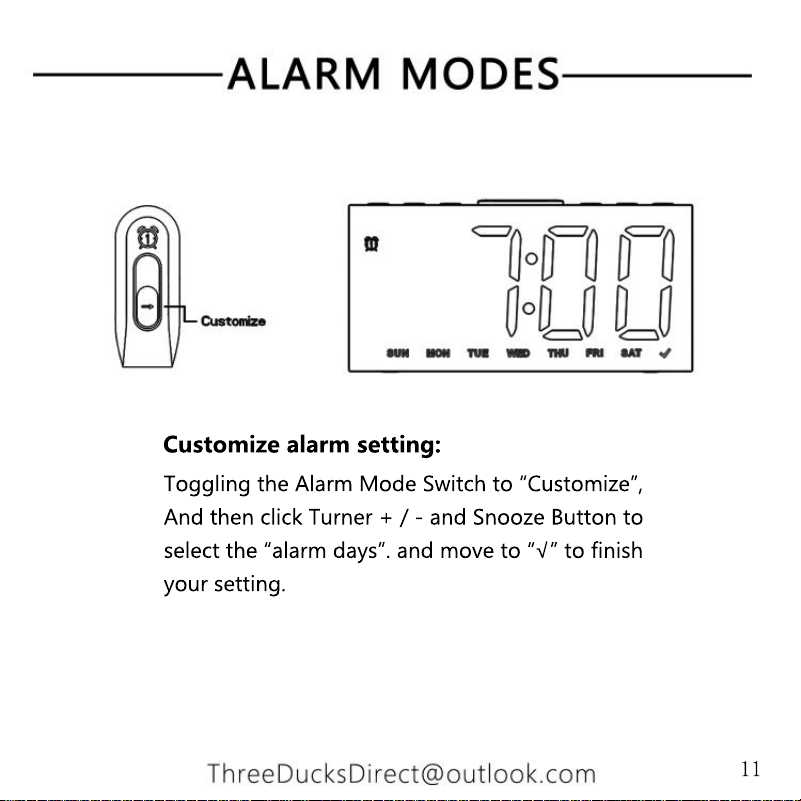
Toggling the Alarm Mode Switch to “Customize”,
And then click Turner + / - and Snooze Button to
select the “alarm days”. and move to “√” to finish
your setting.
Customize alarm setting:
11
After clicking the Snooze button, you will sleep for an
extra 9 minutes. 9 minutes later, the sound will reappear.
There‘re 3 times of snooze for this alarm clock.
1. Snooze Function
If there is no operation within 20 minutes, the alarm
will automatically turn off for the day.
3. Without Any Action
2. Click the Corresponding Alarm Button Once
1. Press and Hold the Snooze Button for 2 Seconds
When the alarm goes off, you have 3 options to stop the alarm.
When the alarm goes off, you can click the Snooze button to enter
snooze mode.
12
Click the “Colors” button to change the color of
the screen. This alarm clock has a total of 8 kinds
of colorful RGB display, including 4 kinds of solid
color display and 4 kinds of RGB mixed display.
Colored Display For The Screen
This alarm clock com with 5 brightness levels for the
time display, from high to low, Click the Dimmer button to
switch between different brightness levels of time display.
Worth mentioning is that if you set the time display to 0%
level before going to sleep at night, when the alarm goes
off in the morning, the time display will automatically
revert to 100% brightness.
revert to 100% brightness.
Adjust the brightness of the time display
13
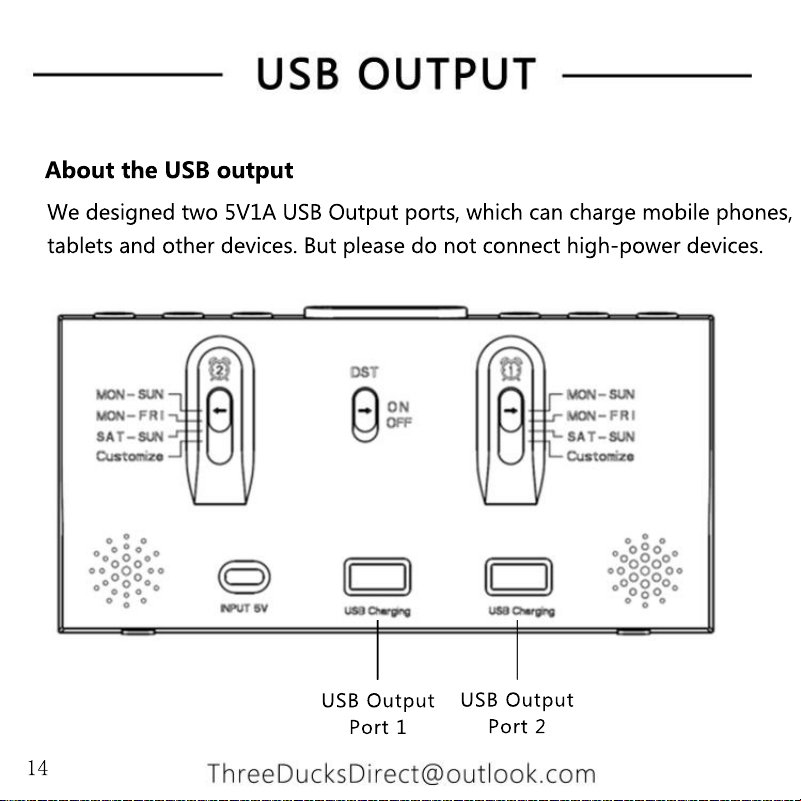
We designed two 5V1A USB Output ports, which can charge mobile phones,
tablets and other devices. But please do not connect high-power devices.
USB Output
Port 1
USB Output
Port 2
About the USB output
14
Please press and hlod the Snooze button for two seconds or press
the corresponding Alarm button to turn it off. So if you set "Alarm 1",
Press the Alarm 1 button and it should shut off for that day.
(Please refer to page 12)
Q: How can I turn the alarm sound off once it has gone off?
(1) Perhaps the adapter is not inserted properly in the wall outlet. Plug
the adapter properly into the wall outlet.
(2) Perhaps there is a power failure. Check if the power supply works by
connecting another appliance.
If not, please contact us via Email for further help.
Q: This appliance doesn't work at all.
You can turn it off by clicking the Dimmer button.
(Please refer to page 13)
Q: How can I completely turn off the time display?
15
I apologize for this. Please don’t worry, we are committed to providing
a lifetime warranty on this product. Please contact us via Email for a
brand new replacement.
At the same time, even if you receive the product without any problems,
we strongly recommend that you activate your lifetime warranty via
Email with your order number
, so that we can continue to provide you
with the best service and quality.
Q: I received a product that was damaged/missing part/scratched
/dirty.
Please note that when you set the alarm 1, the alarm 1 indicator will
appear on the panel, which means that the alarm 1 is currently active.
If you want to disable alarm 1 completely, you need to manually click
the alarm 1 button, and the alarm 1 indicator will disappear, which
means you have completely turned off the alarm 1.
Q: Can I completely turn off the alarm so it won't ring any more?
16
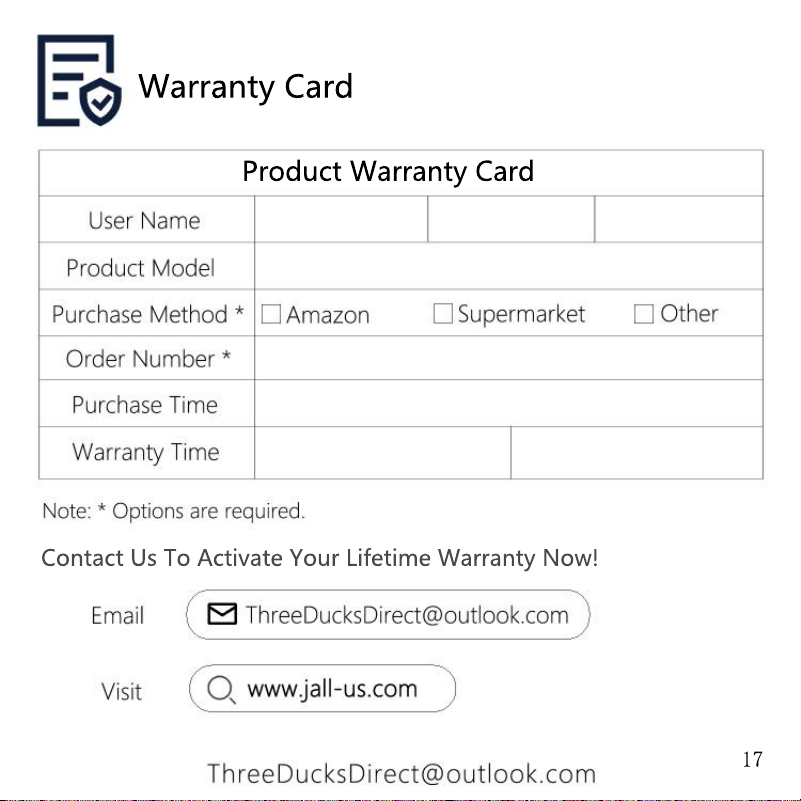
Contact Us To Activate Your Lifetime Warranty Now!
Product Warranty Card
Warranty Card
17