*You can adjust the sensitivity in Camera Settings > Detection > Wake-up Sensitivity.
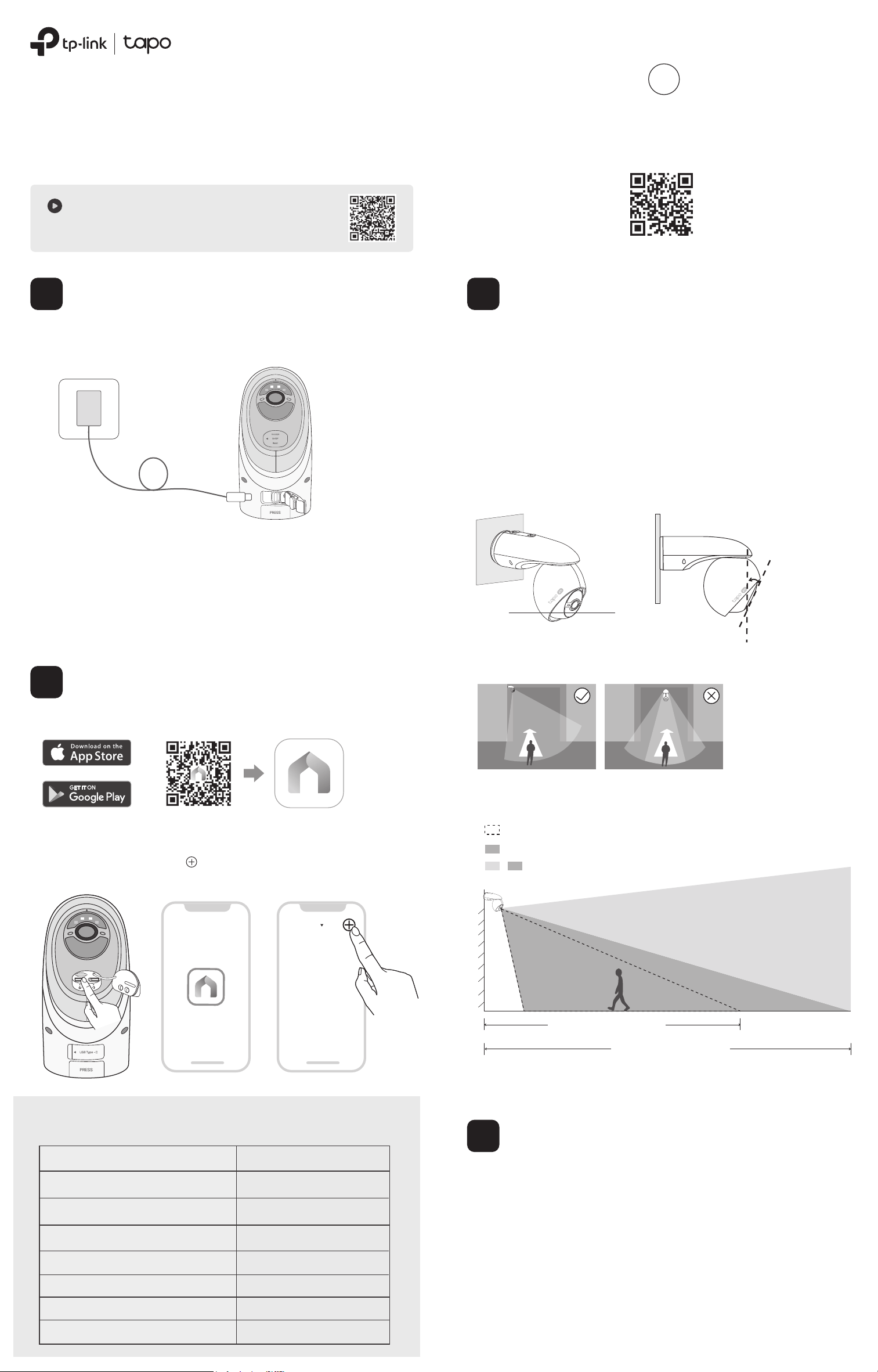
The FOV and PIR detection zone shown is based on a camera mounted at 8 ft/2.5 m.
PIR Detection Zone (Default Wake-up Sensitivity*)
PIR Detection Zone (Highest Wake-up Sensitivity*)
Camera Field of View
+
23 ft / 7 m
(Default Wake-up Sensitivity)
30 ft / 9 m
(Highest Wake-up Sensitivity)
Height:
8-10 ft
(2.5-3 m)
3. Do not place the camera upside down.
Blinking red and green
Blinking red slowly
Solid amber
Blinking red quickly
Solid red
Blinking amber quickly for 3 seconds
Solid green
Blinking green quickly
Starting up
Plugging in USB charger
Connected to the cloud
Ready for setup
Connecting to Wi-Fi
Connected to Wi-Fi
Camera resetting
Camera updating
Camera Status LED Indication
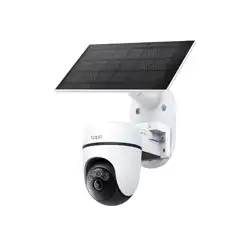
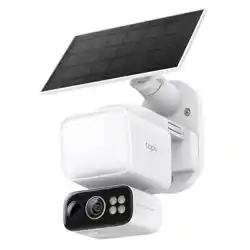
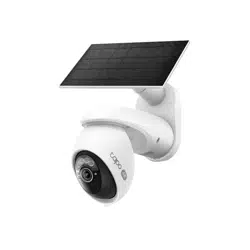
Solar-Powered Pan/Tilt Security Camera Kit
Quick Start Guide
*Images may dier from actual products.
Note:
1. Peel o lm from the camera before use.
2. Charge the battery using the USB cable in the package. Inappropriate cables may result in slow
charging or failure to charge.
3. Warning: Do not tear o the silicone part by force as it may aect the waterproof performance.
4. When you plug in the USB charger, the LED should blink amber quickly for 3 seconds. If not,
make sure the power is running and check your connection.
5. Keep the ports rmly covered when not in use to ensure waterproof performance.
6. The camera may not power up after falling. Plug in the USB charger to power it on again.
7. Check the battery status on the Tapo app after setup.
1. Get the Tapo app from the App Store or Google Play, and log in.
The battery comes partially charged. We recommend that you fully charge
the battery before use. This will take about six and a half hours.
2. Open the cover, then press and hold the power button (left) on your
camera for about 3 seconds to turn it on.
Open the Tapo app, tap the button in the app, and select your model.
Then follow the app instructions to set up your camera.
1. Avoid placing behind glass. Glass will obstruct the motion
sensor of your camera.
2. Choose a proper location to mount your camera, or it will be
triggered too often by false alarms.
• Avoid pointing the camera directly at swaying trees.
• Avoid pointing the camera directly at vehicles and pedestrians on
the road.
• Avoid pointing the camera directly at street lamps and sunlight.
5. Mount your camera to the side so that movement goes across the
lens’ eld of view to better trigger motion detection and AI detection.
*Do not mount facing the
direction of movement.
Charge the Battery
1
Set Up the Camera
2
Camera Mounting Tips
3
My Home
6. For optimal detection performance, we recommend mounting
the camera 8-10 ft (2.5-3 m) above the ground.
The position and tilt angle of the solar panel greatly aects the solar
eciency.
1. Choose a location where the solar panel gets the most sunlight
throughout the year. Regularly wipe the panel to remove dust and
debris.
2. Position the panel south-facing in the Northern Hemisphere or
north-facing in the Southern Hemisphere. The recommended tilt
angle between the panel and the horizontal ground is 35° ~ 45°.
Solar Panel Mounting Tips
4
7100000161 REV1.2.0 ©2025 TP-Link
Setup Video
Scan the QR code or visit
https://www.tp-link.com/support/setup-video/#cloud-cameras
4. For optimal results, keep the motion sensor level and tilt the camera
lens upwards at a ~23° angle (with the microphone nearly covered).
Blinking red and green
Blinking red slowly
Solid amber
Blinking red quickly
Solid red
Blinking amber quickly for 3 seconds
Solid green
Blinking green quickly
Starting up
Plugging in USB charger
Connected to the cloud
Ready for setup
Connecting to Wi-Fi
Connected to Wi-Fi
Camera resetting
Camera updating
Camera Status LED Indication
Need some help?
?
Visit www.tapo.com/support/
for technical support, user guides, FAQs, warranty, and more
5V 2A
USB Charger
UP
UP
23°
OR
Appearance
Option 2: Mount the Camera Individually
2. Secure Bracket
& Install Camera
Insert 3 anchors (Wall Mount)
or 2 anchors (Eave Mount) into
the holes and use the screws
to ax the camera bracket
over the anchors.
Then slide the camera onto
the camera bracket until it
clicks into place.
Stick the mounting template
to the desired location.
Drill 3 holes (Wall Mount) or 2
holes (Eave Mount) according
to the template.
1. Drill Holes
You can use the camera bracket to mount the camera on a wall or under an
eave.
Safety Information
For Solar Panel:
• Keep the device away from re or hot environments. DO NOT immerse in water or any other liquid.
• Do not attempt to disassemble, repair, or modify the device. If you need service, please contact us.
TP-Link hereby declares that the device is in compliance with the essential requirements and other relevant provisions of directives
2014/30/EU, 2014/35/EU, 2011/65/EU and (EU)2015/863.
The original EU declaration of conformity may be found at https://www.tapo.com/en/support/ce/
TP-Link hereby declares that the device is in compliance with the essential requirements and other relevant provisions of the Electromagnetic
Compatibility Regulations 2016 and Electrical Equipment (Safety) Regulations 2016.
The original UK declaration of conformity may be found at https://www.tapo.com/support/ukca/
For Camera:
• This equipment can be powered only by equipments that comply with Power Source Class 2 (PS2) or Limited Power Source (LPS) dened in
the standard of IEC 62368-1.
• Do not use damaged charger or USB cable to charge the device.
• Do not use any other chargers than those recommended.
• Do not use the device where wireless devices are not allowed.
• Adapter shall be easily accessible.
• Use only power supplies which are provided by manufacturer and in the original packing of this product. If you have any questions, please
don't hesitate to contact us.
• Keep the device away from re or hot environments. DO NOT immerse in water or any other liquid.
• Do not disassemble, repair or modify the product.
• Do not place near automatically controlled devices such as re alarms. Radio waves emitted from this product may cause such devices to
malfunction resulting in an accident.
• Observe restrictions on using wireless products in fuel depots, chemical plants or when blasting operations are in progress.
• Do not use liquid to clean the product. Only use a dry cloth.
• Never put metal objects inside the product. If a metal object enters the product turn o the circuit breaker and contact an authorised
electrician.
• This product is not intended to be used when providing medical care. Consult the manufacturer of any personal medical devices, such as
pacemakers or hearing aids to determine if they are adequality shielded from external RF (radio frequency) energy.
• Do not use this product in health care facilities. Hospitals or health care facilities may be using equipment that could be sensitive to external
RF energy.
• Do not place heavy objects on top of the product.
• When you leave the product unused for a long time unplug the product from the power outlet.
• This product may interfere with other electronic products such as TV, radios, personal computers, phones or other wireless devices.
• Operating Temperature: -20°C ~ 45°C (-4°F ~ 113°F)
• Adapter should be used indoors where the ambient temperature is lower than or equal to 40°C.
Please read and follow the above safety information when operating the device. We cannot guarantee that no accidents or damage will occur
due to improper use of the device. Please use this product with care and operate at your own risk.
TP-Link hereby declares that the device is in compliance with the essential requirements and other relevant provisions of directives
2014/53/EU, 2009/125/EC, 2011/65/EU and (EU)2015/863.
The original EU declaration of conformity may be found at https://www.tapo.com/support/ce
TP-Link hereby declares that the device is in compliance with the essential requirements and other relevant provisions of the Radio
Equipment Regulations 2017.
The original UK declaration of conformity may be found at https://www.tapo.com/support/ukca/
CAUTION!
Avoid replacement of a battery with an incorrect type that can defeat a safeguard.
Avoid disposal of a battery into re or a hot oven, or mechanically crushing or cutting of a battery, that can result in an explosion.
Do not leave a battery in an extremely high temperature surrounding environment that can result in an explosion or the leakage of ammable liquid
or gas; Do not leave a battery subjected to extremely low air pressure that may result in an explosion or the leakage of ammable liquid or gas.
10
Reset Button
Press and hold for 5s:
Reset Wi-Fi while preserving the other.
Press and hold for 10s:
Reset to factory settings.
11
USB Type-C Charging Port
Open the cover for USB charging.
9
On/O Power Button
Press and hold for about 3s:
Turn on/o the camera.
12
PRESS Button
Press the button to
loosen the camera
bracket.
Camera Bracket
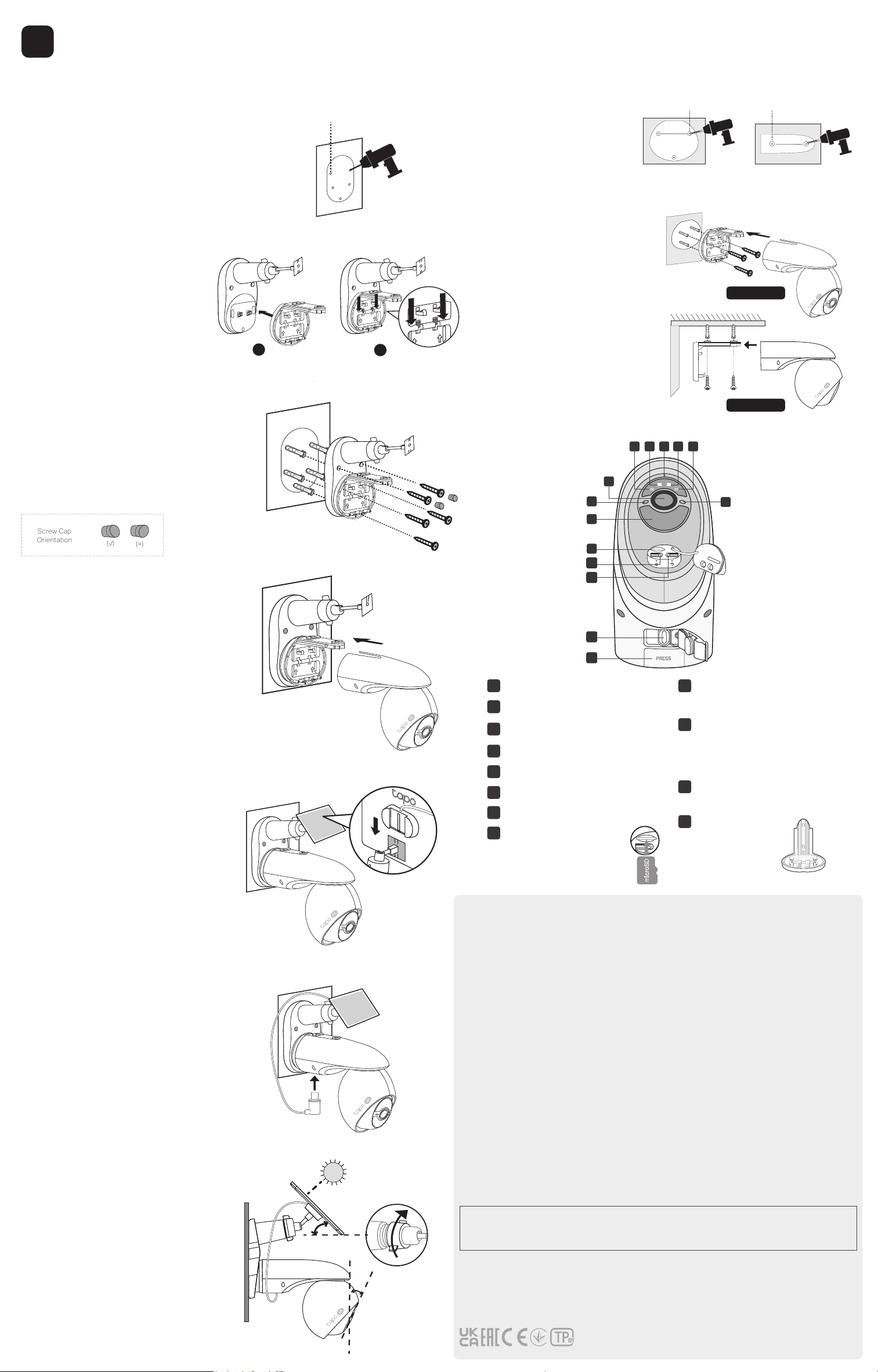
1. Drill Holes
Stick the mounting template to a solid and
level wall surface. Drill ve screw holes
according to the template.
Φ=6 mm (15/64 in.)
2. Attach Camera Bracket to Solar
Panel Bracket
a. Align the camera bracket to the
hooks on solar panel bracket and put
into place.
b. Slide down to secure the camera
bracket.
4. Attach Camera to Bracket
Slide the camera onto the camera bracket
until it clicks into place.
3. Secure Solar Panel Bracket
a. Insert ve wall anchors into the holes and
use the mounting screws to ax the solar
panel bracket with camera bracket over the
anchors.
b. Insert two screw caps into the upper
screw holes.
(√)
(×)
Screw Cap
Orientation
Mounting
5
Option 1: Mount the Solar Panel & Camera
7. Adjust Camera & Solar Panel Angle
a. Loosen the adjustable screw, tilt the solar
panel to adjust the angle, and then tighten
the adjustable screw. The recommended tilt
angle between the panel and the horizontal
ground is 35° ~ 45°.
b. Tilt the camera lens upwards at a ~23°
angle (with the microphone nearly covered).
UP
UP
35°-45°
23°
5. Install Solar Panel
Slide the solar panel onto the solar panel
mounting bracket until it clicks into place.
UP
UP
Back Side
6. Connect Camera to Solar Panel
Connect the connector into the camera
charging port until snug to charge the
camera.
UP
UP
8
microSD Card Slot
Open the cover. Insert a
microSD card* and initialize it on
the Tapo app for local recording.
*microSD card not included.
White Light LEDs
Microphone
IR LEDs
6
Status LED
5
Light Sensor
4
Lens
3
1
2
7
Motion Sensor
9
10
11
12
12 23 3
4
5
7
8
6
microSD
UP
UP
UP
UP
a
UP
UP
UP
UP
UP
UP
b
Wall Mount Eave Mount
Wall Mount
Eave Mount
Φ=6 mm (15/64 in.)Φ=6 mm (15/64 in.)