
1
Product schematic...... .... ..... ..4
Ⅰ、Voice Recorder
1.Power on.............. .... .... .... ..7
2.Power off............. .... .... .... ...7
3.Record menu........... .... .... ...7
4.Pause/Stop recording... .... 8
5.Recordings library.... .... .... .8
6.Recording format...... .... .... 9
7.Recording settings..... .... ....9
1)Record bitrate...... .... .... .... .9
2)AVR mode............ .... .... .... ..9
3)Record from......... .... .... .... ..10
4)AGC set............. .... .... .... .... ..11
Ⅱ、Playing files
1.Play recorded files... .... .... ..12
2.Play mode............. .... .... .... ..13
3.Sound settings........ .... .... ....14
4.Bookmarks............. .... .... .... .14
CATALOG

2
Ⅲ、Music mode
1.Play music files.... .... .... .... 14
2.Delete files........ .... .... .... ....15
Ⅳ、FM Radio
How to use FM Radio. .... .... 16
Preset/User ........ .... .... .... .... .16
Manual/Auto tune.... .... .... ...16
FM Menu............. .... .... .... .... .16
Turn of FM radio.... .... .... .... .16
Ⅴ、System settings
1.Sleep timer.... .... .... .... .... ....17
2.Backlight timer.... .... .... .... ..17
3.Date&Time.... .... .... .... .... ....17
4.Language .... .... .... .... ....18
5.Tools................ .... .... .... .... ....18
6.Information.... .... .... .... .... ...19
Ⅵ、Connect to computer

3
1.Connect to computer.... .... 20
2.Up/download files.... .... .... .20
3.Disconnect.... .... .... .... .... .... 20
4.Bttery and charge.... .... .... ...21
5.Trouble shooting.... .... .... ....21
6.Q&A.... .... .... .... .... .... .... .... ..22
7.Specifications.... .... .... .... .... .23
4
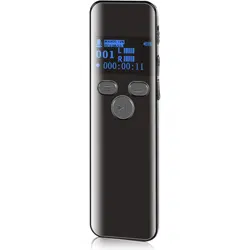
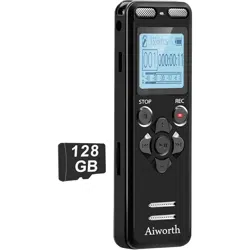
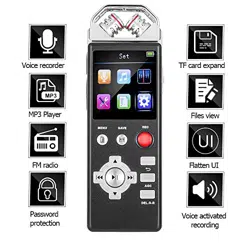
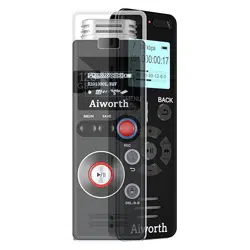
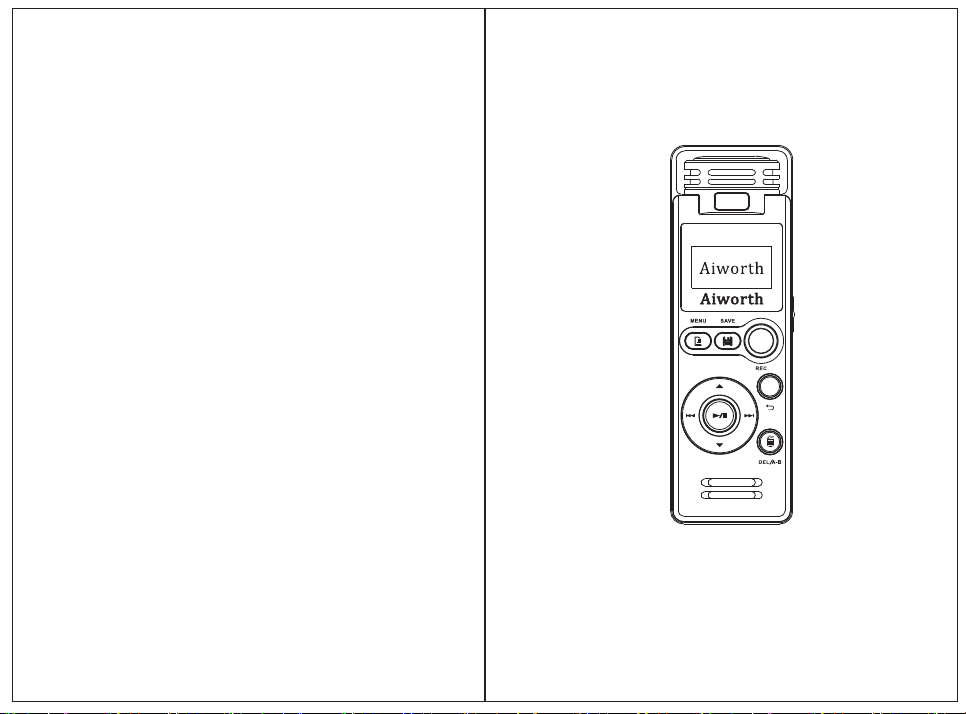
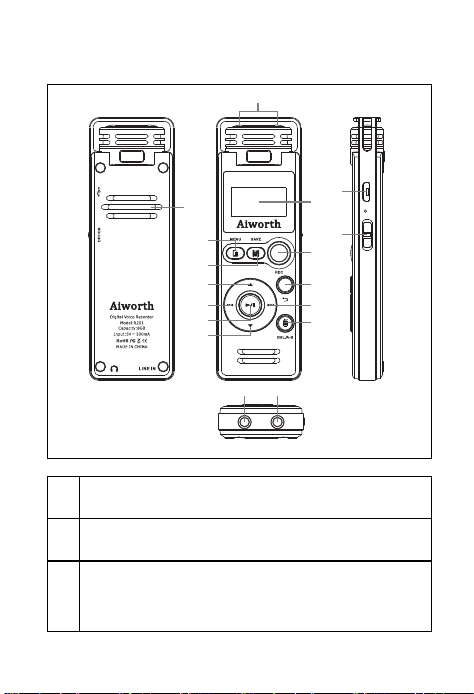
Product schematic
1 Microphone:built in microphone
2 Screen:OLED display screen
3 Rec button:Anytime press to start
recording
17
15
16
7
2
3
4
5
6
8
9
10
11
12
13 14
1
5
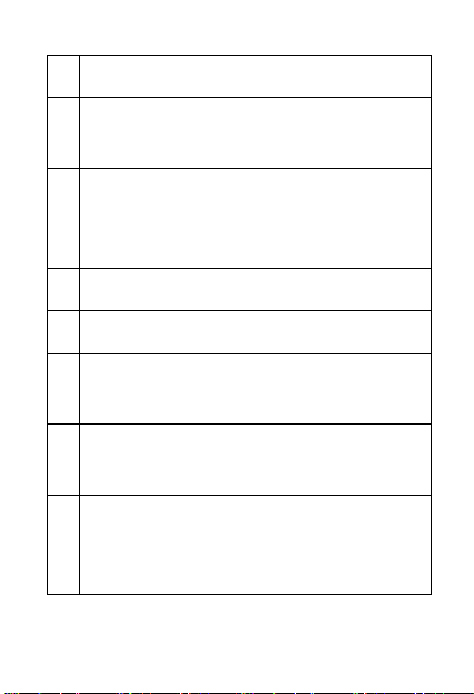
4 Back:Back to last menu
5 Next:Short press:next;long press:fast
forward
6 Delete:1.Long press to delete
2.When playing,short press to A-B
repeat
7 Menu:Short press to menu
8 Save:press to save your recording
9 Vol+:Increase the volume when playing;
Selecting when goes to menu
10 Previous:Short press:previous;long press
back forward
11 Play/pause:1.When recording or
playing,
press to pause,press again to
continue
2.long press to turn on/off
6
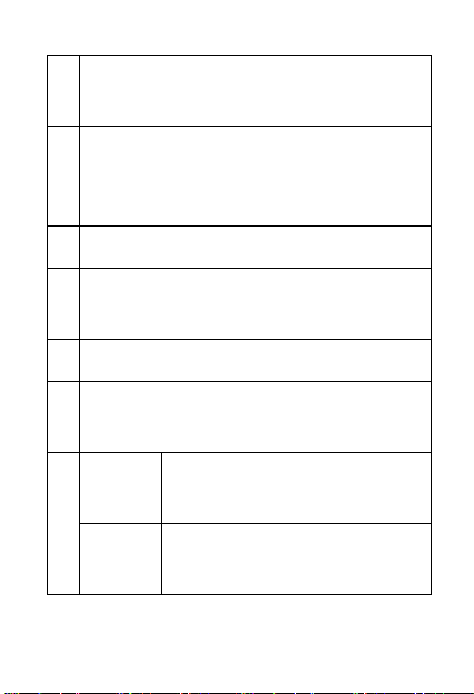
12 Vol-:Reduce the volume when playing,
Selecting when goes to menu
13 LINEIN:Make the device recording from
any voice resource by LINE IN
port,such as radio、CD、VCD、DVD
14 Headset port:Connect your earphone
15 USB port:Connect you PC to drop files and
charging the device
16 Power switch:Power on and power off
17 Speaker:High quality double magnetic
speakers
Locked Press Back and SAVE at the
same time to lock the pad
Unlock Press Back and SAVE at the
same time to unlock
7
Ⅰ.Voice recorder
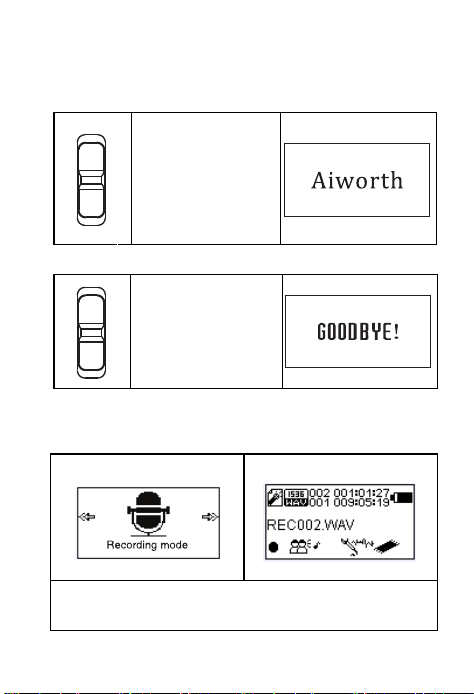
1 Power on
Switch up to
power on,
The screen
display as right
picture show
2 Power off
Switch down to
power off
3 Record menu
1、After power on,anytime press REC button
to start recording

8
2、Recorded files name as R-Month-Date-
Nunber,R1010001 means first recorded file
on 10/10;
3 、After power to Record
menu,
select Start voice recording to start
recording
as well.
Note:When recording,REC indicator flashing
4 Pause/Stop recording
1) Pause recording
When recording,press play/pause button to
pause,press again to continue.
Note:When pausing,the indicator always light
2) Stop recording and save
When recording,short press STOP to stop
recording and save your recordings
Note:When recording,plug in headset to
monitor real-time effects
5 Recording library
View all recording files
on, goes
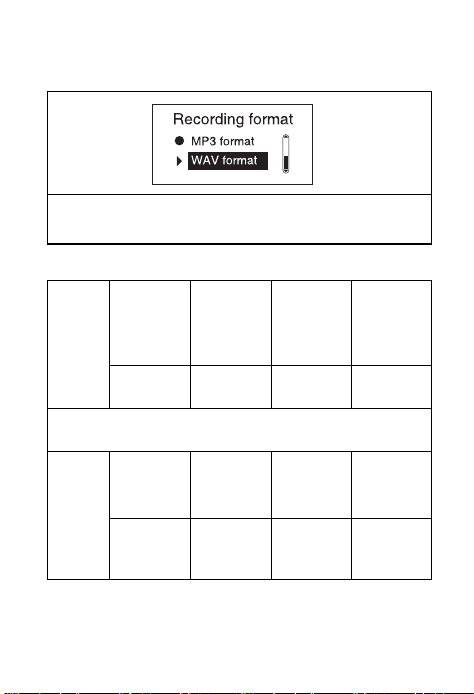
9
6.Record format
There are two formats to select(.mp3
and .wav)
7.Recording settings
1).Set recording bitrate
MP3
Form
at
High
quality
recordin
g
Clearly
recordin
g
Standar
d
recordin
g
Longtim
e
192kbps 128kbps 64kbps 32kbps
WAV
Form
at
PCM
HQ
CQ SQ
512kbps
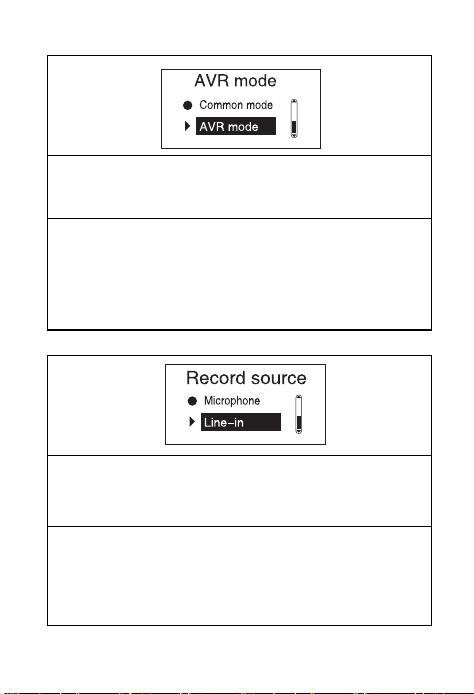
2)Voice activated recording(AVR mode)
recordin
g
recordin
g
recordin
g
recordin
g
recordin
g
1024
1536
768kbps
kbps
kbps
10
1.VOL button to select,Play/pause button to
confirm and turn on the AVR mode
2.After turn on the AVR mode,and start
recording,if there is no sound,it will pause
recording,then there it voice,it continue
recording.
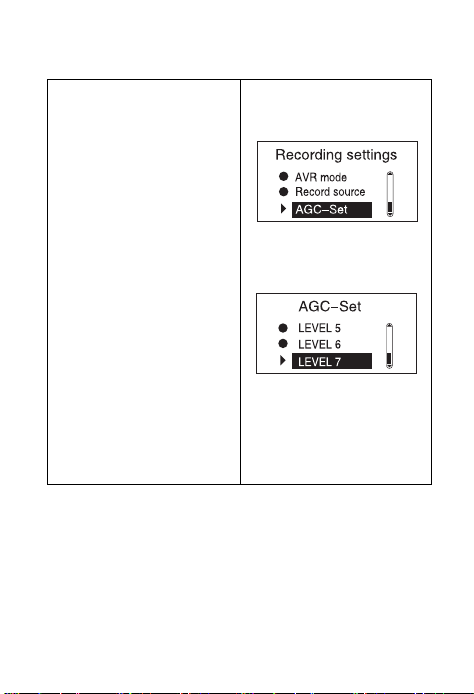
3)Record from
1.Microphone:recording from the built-in
microphone
2.Line in:Make the device recording from any
voice resource by LINE IN cable plugin,such as
radio、CD、VCD、DVD
11
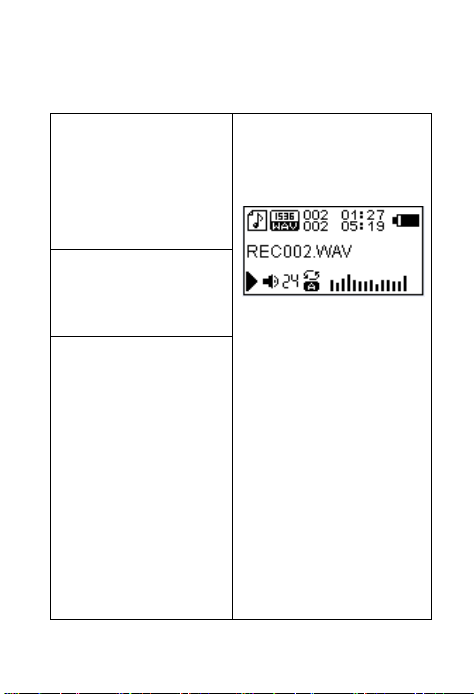
4)AGC set
2.AGC means
automatic
gain
control.If the
voice
is
low,select
high level
will make
the
recording
clear;in
contrast,if there
too
loud and noisy,
select
lower level,will reduce
for
conference
recording,
can
effectively reduce
the
different
distance
caused by the sound
difference;
the noise.Especially
12
Ⅱ、Playing files
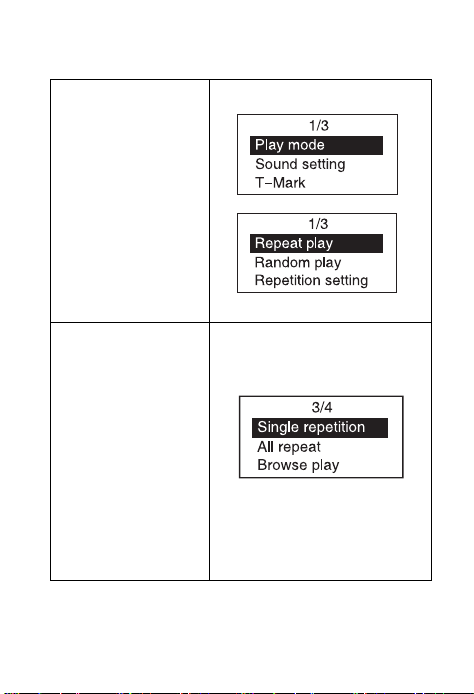
1 Play recorded files
1.In recordings
play
the
any
recorded files
you
want
2.When playing
press
VOL+/-
to
3.When
playing,short
press
Delete
to set
A-B
repeat,press 1
time
set the start
point,press again set
the end point,then
press again to A-B
repeat.
Press again to cancel
A-B repeat.
library
,
press Play to
adjust
the
volume
13
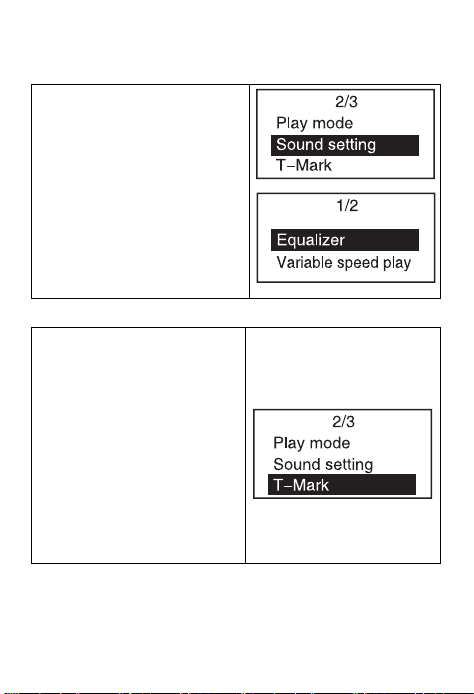
2 Play mode
1.Short press
MENU to play
mode settings
2.Press VOL+/- to
select
3.Press Back
upper menu
Repeat 1:1 file
repeat play
Repeat all:
Repeat play all
files
View playing:
Play every files
for
only 10
seconds
Shuffle :Shuffle
play all files
return
to the
14
3 Sound setting
1.Equalizer:Rock,Funk,Hio
hop,Jazz,Classical,Techno
2.Variable speed
Playback:
Adjust the play speed.
Note:When you open
Equalizer,Variable speed
Playback is not available.
4 Bookmarks
1.When playing,press
MENU to
“ Add bookmark ”
and choose a blank
one
play PLAY/PAUSE
to add
(Every file add
10
bookmarks at
most)
Ⅲ、Music mode
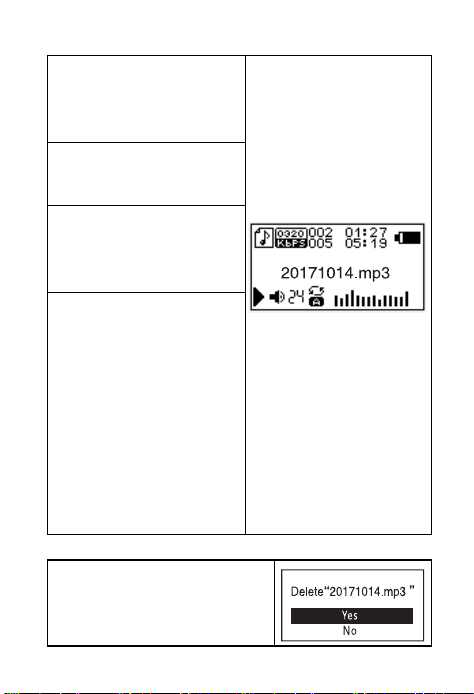
1.Play music files
BOOKMARKS,
select
15
1.Select “Music
mode”
,
press
play/pause to enter
2.Press play/pause to
play current music file
3.When playing press
VOL+/- to adjust the
volume
4.When playing,short
press Delete to set A-B
repeat,press 1 time set
the start point,press
again set the end
point,then press again
to A-B repeat.
Press again to cancel
A-B repeat.
2 Delete files
Long press the delete
button to delete
16
Ⅳ、FM Radio
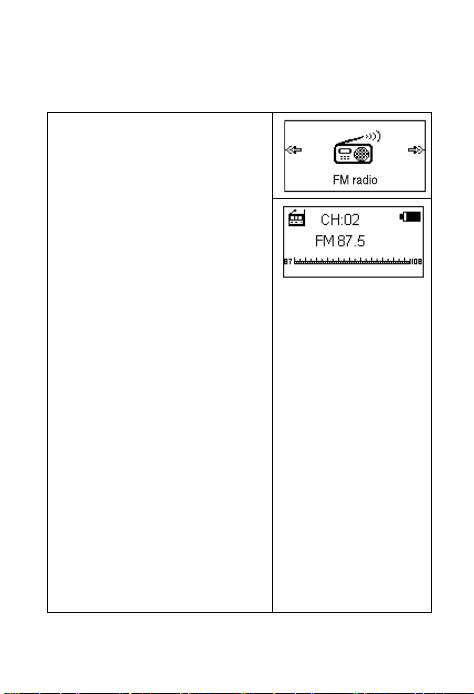
1 FM Radio
1.Using FM Radio must
plug in your headset as
antenna
2.There Presets/Users
channel to save
3.Manual/Auto tune
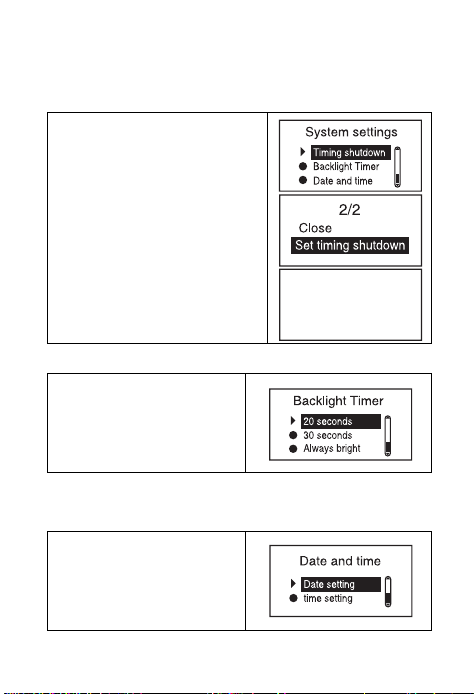
4.When you in playing
interface like picture right
side,press menu you could
FM radio recording and
save to preset,clear preset
and view you FM
recording
7.When FM playing,press
STOP to mute,and then
press Back to turn off the
FM radio.
17
Ⅴ、System settings
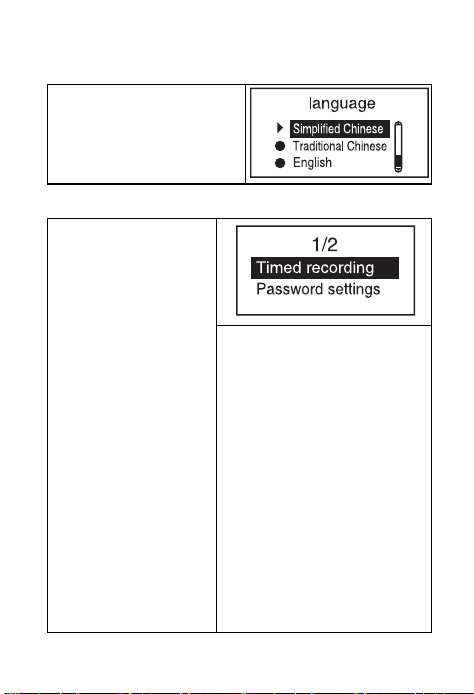
1 Sleep timer
1.Set sleep timer to turn
on and there are
10min,30min,60min,90mi
n,120min to choose
2.Select off to turn off the
Sleep timer
2.Backlight timer
There are 10s,20,30s
and always on to
choose
3.Date&time:
You could set date and
time easily.
1
Mins
18
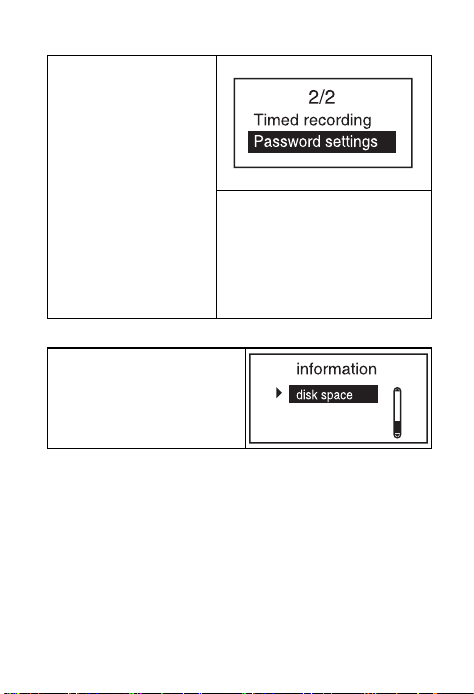
4.Language
English and Chinese to
choose
5.Tools
Auto
recording
1.Turn on the Auto
record
2.Set auto record cycle
Workday:Monday to
Friday
Daily:Every day
Once:Just one day
4.Start time:Set the
time start recording
5.End time:Set the time
end recording and save
the recording
19
Password set
1.Select the password
switch on
2.Select password set
to
set your password
6.Information
1.Check the Disk space
20
Ⅵ、Connect to computer
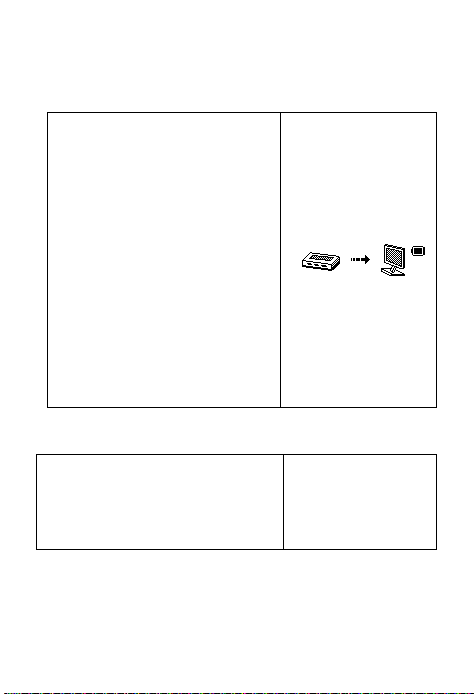
1 Connect to computer
Connect the device with
your computer via
First
connect,The
computer will first prompt
to create a driver
repository ,
find new
hardware
and
other
screen
shows the picture
like
right side means connect
successful.
2 Up/Download files
You will find the disk on
your computer,and you
could drop the files
3 Disconnect
Just disconnect it like U disk
attached
USB cable.
information, device

21
4 Charging
Connect the device to your computer or 5V/1A
power adapter via USB cable,then the device
will get charged,when charging please power
on the device.
5 Trouble shooting
Power on the device,but nothing shows on
the screen
The device run out of battery,please charging
the device
Play files,No sound
Increase the volume and check the file isn’t
broken
Connected,can’t drop the files
The motherboard may not support USB
interface and require you to upgrade your
motherboard driver.
Why sometimes when the plug in/out the
recorder, will cause the computer side of
the exception
It is recommended that users in the

22
transmission process, do not disconnect, so
as not to cause computer-side anomalies.
Why the total memory in the recording
pen shows inconsistent with the actual
nominal.
Mainly because of the need for some
memory space to store programs, and
display the font, so you see the total memory
is smaller than the actual nominal.
Why some MP3 songs can not play in the
recorder.
Strictly speaking, MP3 refers to the MPEG I
Layer3 standard compression of the music files,
the vast majority of MP3 songs for this format.
When you encounter an MP3 song format that
is not compatible with the recorder, you can
choose one of the following two measures: l)
Remove the incompatible songs from the
recording pen to ensure the normal operation
of the recording pen. 2) When using software
self-compression, select MPEG I Layer 3
encoding.
6Q&A
Q:How can I delete a file in the recorder
from the management software or suggest
a "delete failed or delete error" when
deleting a file in the recorder?

23
A:Through the "My Computer" to see
whether the file in the recording pen is read-
only, if it is, modify the read-only attribute
for the archive attribute, you can delete.
Q:As a hard disk, in the WINDOWS XP /
VISTA / WINDOWS 7 need to install the
driver??
A:No need to install the driver. Currently
does not support WINDOWS98 operating
system.
7 Specifications
Product Aiworth Ai_R201
Storage 8GB
Screen
Size:0.96 inch
Resolution : 128*64 OLED
display
Battery
Rechargeable Lithium
battery 300mAh 3.7V
Microphone Dual microphone
Signal noise
ratio
≥80dB
Support audio
formats
MP3、WMA、OGG、WAV、
APE、FLAC
24
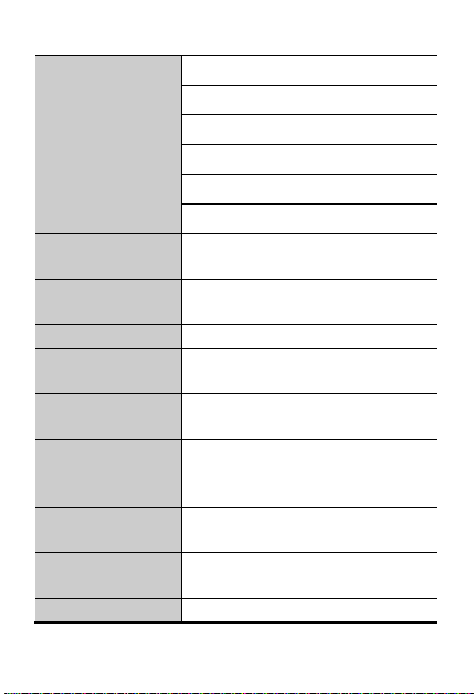
Audio bitrate
MP3:16Kbps~320Kbps
WMA:16Kbps~320Kbps
OGG:16Kbps~320Kbps
WAV:16Kbps~1536Kbps
APE:700Kbps~1536Kbps
FLAC:700Kbps~1536Kbps
Recording
format
MP3、WAV
Recording
sampling rate
8KHz~48KHz
File system FAT32
Operating
temperature
-5℃~40℃
Connection
method
USB 2.0 Port
System
support
WINDOWS
XP/VISTA/WINDOWS
7/Windows 8/Windows 10
Dimension(L ×
W×H)
104*33.5*12mm
Continuous
recording time
20 Hours
Weight 70g