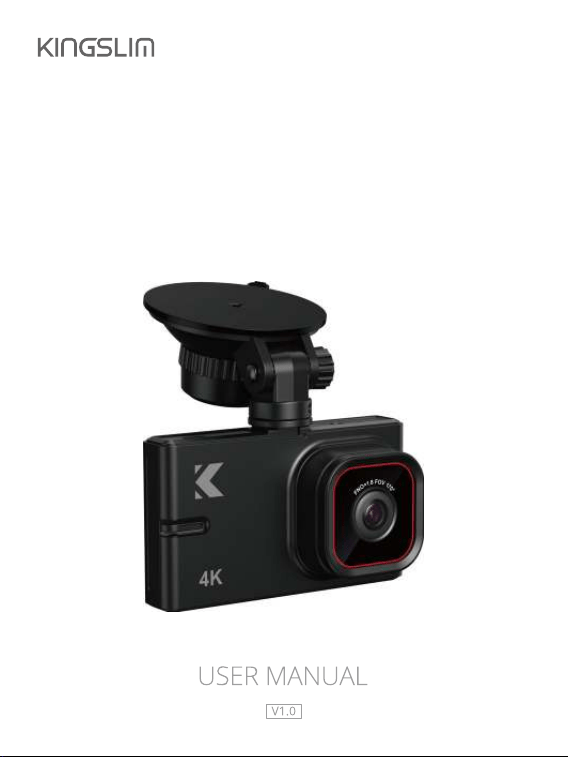
D2 PRO
DASH CAM

Contents
Important Messages------------------------------------------------------------------------ 04
Getting Started-------------------------------------------------------------------------------- 06
1. Memory card-------------------------------------------------------------------------------- 06
2. First-time charging ------------------------------------------------------------------------ 06
3. Recording ------------------------------------------------------------------------------------ 06
4. Settings---------------------------------------------------------------------------------------- 07
5. Setting date & time ----------------------------------------------------------------------- 07
6. How to hide power cable inside your car’s dash board? -------------------- 07
7. How to transfer videos to PC/MAC?------------------------------------------------- 07
8. Wifi---------------------------------------------------------------------------------------------- 07
9. Button operation instructions -------------------------------------------------------- 08
9.1 Preview interface ---------------------------------------------------------------------- 08
9.2 Recording interface ------------------------------------------------------------------- 09
9.3 Playback interface --------------------------------------------------------------------- 09
10. Camera specifications------------------------------------------------------------------ 10
11. What's in the box ----------------------------------------------------------------------- 11
12. Camera overview ------------------------------------------------------------------------ 12
13. Installation --------------------------------------------------------------------------------- 13
13.1 Insert the memory card.--------------------------------------------------------- 13
13.2 Insert the bracket into the bracket slot ------------------------------------- 13
13.3 Install the dash cam on the windshield ------------------------------------ 14
13.4 Install the rear camera ----------------------------------------------------------- 15
14. Charging ------------------------------------------------------------------------------------ 17
Start Recording ------------------------------------------------------------------------------- 18
01

1. Main interface ------------------------------------------------------------------------------ 18
2. Memory card use-------------------------------------------------------------------------- 19
2.1 Installation ------------------------------------------------------------------------------- 19
2.2 Removal ---------------------------------------------------------------------------------- 19
2.3 Formatting ------------------------------------------------------------------------------- 20
3. Time zone setting-------------------------------------------------------------------------- 20
Playback ----------------------------------------------------------------------------------------- 21
1. Dash cam playback ----------------------------------------------------------------------- 21
2. Kingslim APP playback------------------------------------------------------------------- 22
3. PC/MAC playback-------------------------------------------------------------------------- 26
System Settings------------------------------------------------------------------------------- 28
1. Resolution------------------------------------------------------------------------------------ 28
2. Loop recording ----------------------------------------------------------------------------- 28
3. Exposure-------------------------------------------------------------------------------------- 28
4. Record audio-------------------------------------------------------------------------------- 28
5. Date stamp ---------------------------------------------------------------------------------- 29
6. GSensor--------------------------------------------------------------------------------------- 29
7. Parking monitor---------------------------------------------------------------------------- 29
8. Date/Time ------------------------------------------------------------------------------------ 29
9. 12-Hour time-------------------------------------------------------------------------------- 29
10. LCD auto off ------------------------------------------------------------------------------- 29
11. Beep sound -------------------------------------------------------------------------------- 30
12. Language ----------------------------------------------------------------------------------- 30
13. Frequency ---------------------------------------------------------------------------------- 30
14. Format--------------------------------------------------------------------------------------- 30
15. Default setting ---------------------------------------------------------------------------- 30
02

16. Version -------------------------------------------------------------------------------------- 30
17. Time Zone Setting ----------------------------------------------------------------------- 30
General FAQ------------------------------------------------------------------------------------ 31
Contact Us -------------------------------------------------------------------------------------- 33
03

User agreement
By purchasing KINGSLIM Dash cam, it is assumed that by default you agree with
precautions, user warnings and all the terms & conditions of warranty. If for any
reason you do not agree with any of the terms mentioned in this manual, then
you may return the product in its original packaging unused within its return
window for a full refund.
Heads up:
• Do not expose this product to rain, moisture or water under any circumstances
or it will result in external or internal damage.
• Do not put the unit in a damp environment. This device is not designed to be
damp proof.
• Do not try to open the cover or try to repair it yourself. If the accessories for this
device have any problem, please contact the seller for assistance. This camera is
intended to use inside motor vehicle.
• Don’t install it where it will block the driver’s view of the road including mirrors or
the deployment of airbags.
• Please read this manual very carefully before using the camera or installation
and keep it safe for future reference. It will be helpful if you have any questions
or encounter any operational problems.
Pre-cautions
Please read and understand all instructions before using this product. If any
damage is caused by failure to follow the instructions, the warranty will be voided.
Warnings
Failure to comply with safety warnings and regulations can result in serious injury
or death.
• Do not place the camera loose on top of the dashboard or in-front of the air
bags.
• Do not mount the camera where it can be a distraction if it became loose and
fall off the windshield while driving.
Important Messages
04

• Do not expose this device to an excessive heat, dust or use any chemical
substance or cleaning solvent to clean this device. Instead use soft moist cloth
for cleaning. Pay careful attention when cleaning the lens surface. Use a soft,
moist cloth to clean the lens to avoid scratches which may compromise video
quality.
• Removing the camera from the vehicle when not in use is recommended. This
prevents likelihood of theft or exposure to excessive heat to prevent damage to
unit. Do not operate or install the camera while driving, or attempt to change any
setting etc.
• Pull off the road first and only do so when it is safe. Do not drop, puncture or
disassemble this product.
• Do not use the charger if the cord is broken or damaged. Keep out of reach of
children.
• Do not leave the camera in the direct sunlight for a long period of time or where
temperature could go above 158°F (70°C).
Some countries or USA states prohibit drivers from mounting anything on
windshield or prohibit mounting on certain area of the windshield. It is owner/op-
erator’s responsibility to mount or use of this device incompliance with local laws.
• The company is NOT responsible for the loss of any data or your content during
operation or in any circumstance.
05

Getting Started
Please read and understand warnings & safety instructions before operating.
1. Memory card
Before turning ON the camera, please insert the memory card in Class10 U3 or
above of the known brand at maximum of 256GB. Please format the memory card
before use.
Note:
1. The memory card is a consumable item and has a certain service life (please
refer to the description of the memory card of relevant brand for the specific
product life).
2. If the machine prompts that it cannot be formatted, the card is wrong, or
frequently prompts to format, please replace the card with a new one. To
ensure better protection of your memory card and machine, please format it
regularly within 2 months.
2. First-time charging
Now plug in to the power. The camera will turn on automatically as soon as it
receives the power and then it will prompt you with the initial setup on the screen
for the first-time use. Make sure to keep your camera plugging into the power all
the time because the internal battery is ONLY for emergency recording during
parking mode.
Note:
1. You can use your iPhone or Android phone’s USB charger and USB cable to
plug your dash cam into your 110V power outlet.
2. If you don’t get the initial setup prompts for any reason, you can set the
camera to factory default settings, then re-start the camera to start the initial
setup again.
3. Recording
KINGSLIM 4K D2 Pro dash cam is programmed to turn ON and start recording
automatically when it receives power, and when the power gets disconnected, it
06
will stop recording, save the last video safely and then shut down within 5 seconds
automatically.
4. Settings
Now, by default all the settings are pre-set in a way that you can just start using
the camera. However, you can customize it further by learning more about the
camera by either watching How to Video or reading the User Manual so you can
get the maximum benefit out of it and the best use experience.
5. Setting date & time
Please set the correct date and time based on your location under the Time Zon
Setting by going to camera’s system settings menu.
Note: The GPS module is not included in the package.
6. How to hide power cable inside your car’s dash board?
Many people on YouTube already demonstrated how and where
to hide power cable inside your car. You can view one of the
possible ways on the link (this video is NOT recorded by us).
Video link:
https://www.youtube.com/watch?v=CZYaV5Dh4ok
7. How to transfer videos to PC/Mac?
Insert memory card directly to your PC/Mac to view or download them. You can
also connect your camera to your PC/Mac with the USB data cable. Then Select
Connect as a Flash Drive. We recommend VLC Media Player to view your videos.
You can get it free at
www.videolan.org.
8. Wifi
You can also connect KINGSLIM D2 Pro Car Dash Cam to your smart phone directly
by using built-in Wifi feature. After your mobile phone is connected to the hotspot
of our device, the 4G signal of the mobile phone will be blocked, and it will automatically
recover after disconnection. It is recommended that you exit the APP or manually
disconnect the device hotspot when you do not need to connect the device to
your phone.
07
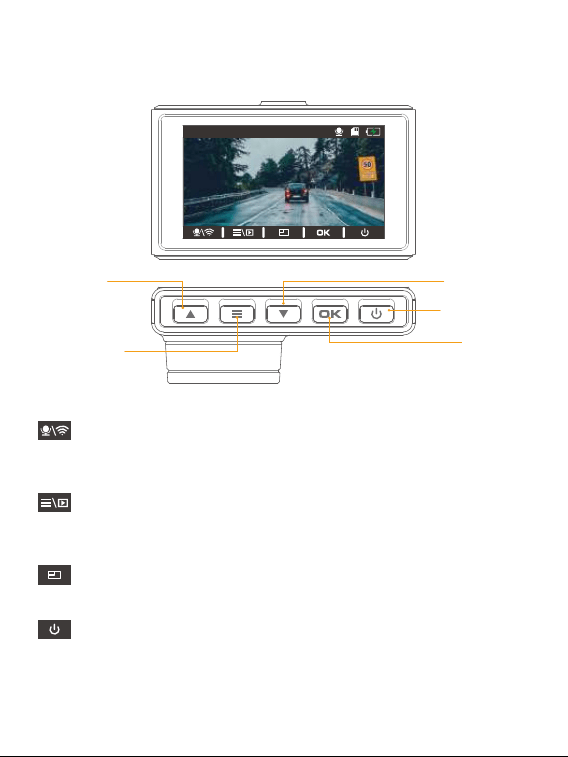
Microphone/Wifi indicator
Short-press the Down button to turn on or off Microphone. Long press to enter
the Wifi mode.
Settings/Album
Short-press the Setup button to enter the settings menu. Long press to enter the
playback page.
Mode Switching
Short-press the Up button to switch to the front or rear display mode.
Power icon
Long press the Power button to turn off the dash cam.
9. Button operation instructions
9.1 Preview interface
00:00:00
4K
01/01/2022 00:00:00 AM
Power Button
Setup Button
OK Button
Up Button
Down Button
08
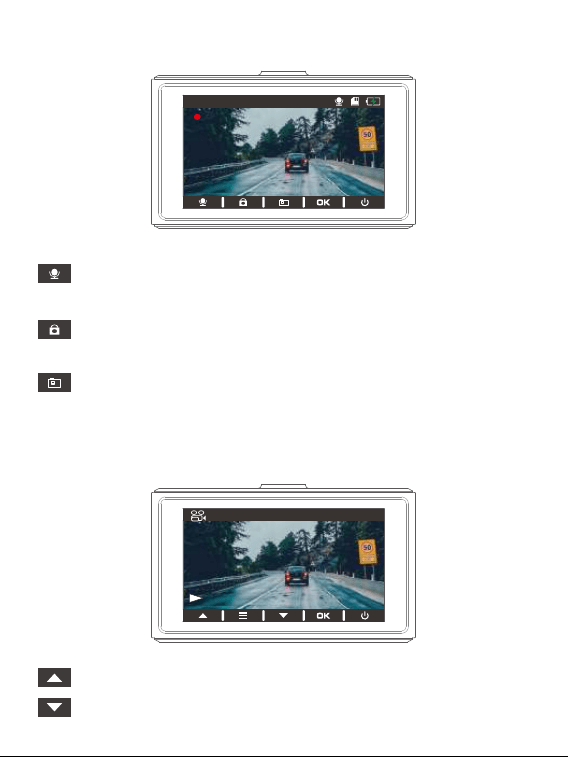
9.2 Recording interface
00:00:01
4K
01/01/2022 00:00:00 AM
4K
20220101104233_000005A
Microphone indicator
Short-press the Down button to turn on or off Microphone.
Emergency recording
Short-press Setup button to lock the current video.
Snapshot
Short-press the Down button to snap a shot.
Up button
Down button
9.3 Playback interface
09
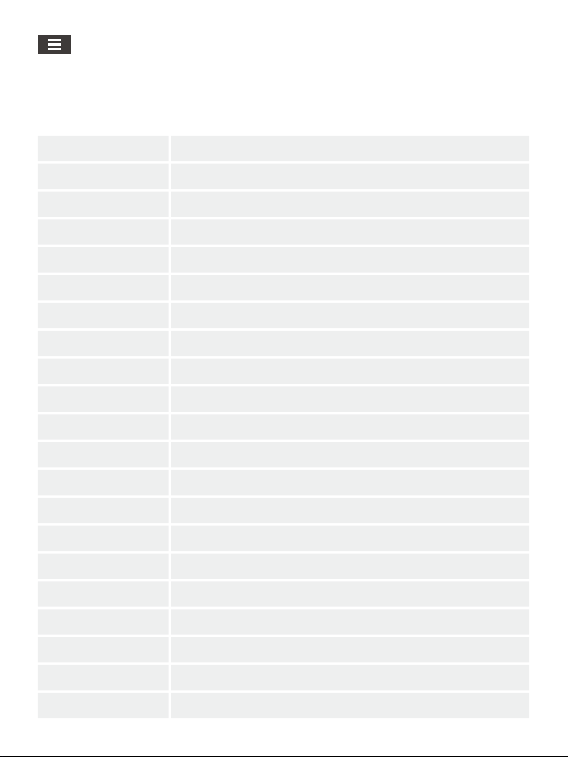
Settings
Long press the Setup button to enter or exit the playback interface. Short-press to
enter the video deletion page.
10. Camera Specifications
Sensor GC4653
LCD touch screen 3-inch IPS
Video resolution 4K(Front only) / 2K(Front)+1080P(Rear) / 1080P(Front)+1080P (Rear)
Photo resolution 12M
Lens aperture F/1.8
GPS Optional
Wifi Built-in
Video format MP4
Memory card Above Class10 U3 speed, max up to 256GB
G-sensor Built-in 3-Axis
Anti flicker 50 Hz / 60 Hz
Loop recording Support-seamless recording
Parking Mode Support
24 hours/12 hours Support
Mic/Speaker Built-in Micro Phone & Speaker
Mini USB Function 1. Storage 2. Charging
Auto Power ON/OFF Support
Power Interface 5V / 1.5A
Battery Built-in li-ion 250 mAH battery
Operation Temperature -4°F (-20°C) ~ 140°F (60°C)
SupportY/M/D D/M/Y M/D/Y
10
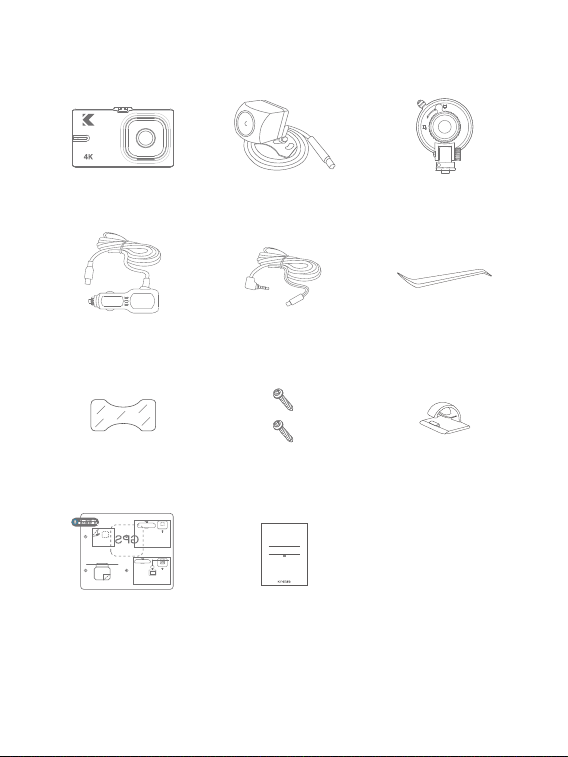
11. What is in the Box
D2 Pro Dash Cam * 1 Waterproof
Rear Camera * 1
Bracket * 1
Rear Camera Extension
Cable * 1
Car Charger with 3.5m
Power Cable * 1
Screw * 2Double-sided Adhesive
Tape for Rear Camera * 2
Pry Tool * 1
Cable Clip * 5
Electrostatic Sticker * 2
Quick Start Guide
KingSlim D2 PRO Dash Cam
V1.0
Quick Start Guide * 1
11
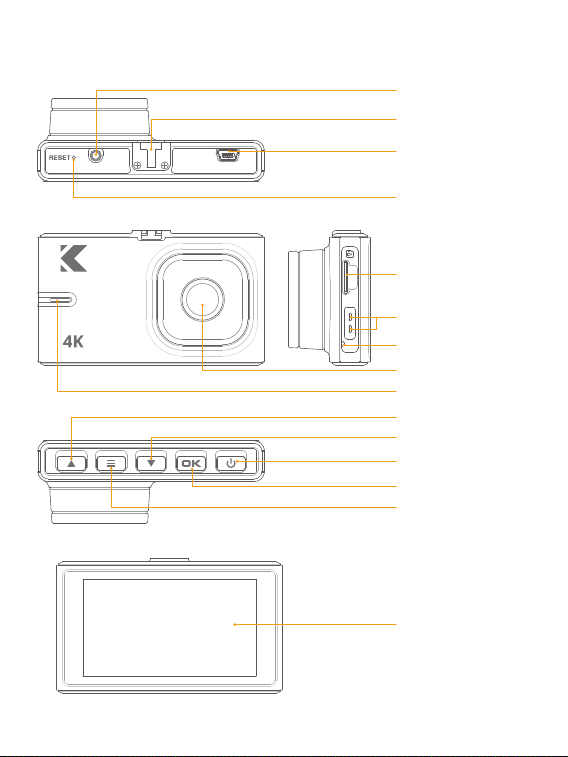
Memory Card Slot
Indicator Light
Bracket Slot
Reset
Mini USB Power Port
(Power supply)
Rear Camera IN
Front Camera
Speaker
Screen
Power Button
Setup Button
OK Button
Up Button
Down Button
Microphone
12. Camera Overview
12
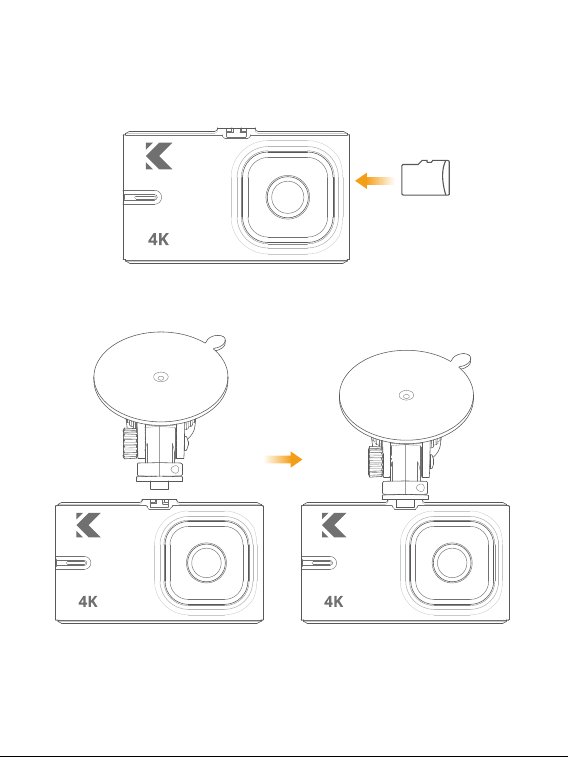
13.1 Insert the memory card.
Tips: The dash cam supports up to 256GB memory card of Class 10 or above.
13.2 Insert the bracket into the bracket slot.
memory
card
13. Installation
13
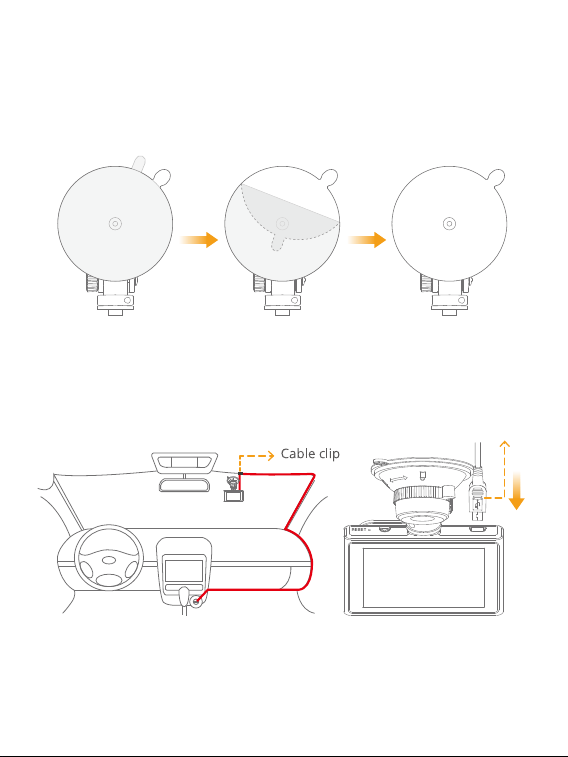
① Clean the windshield with a dry cloth.
② Take the film of the suction cup and press the suction cup onto the windshield
to make sure there is no air inside the suction cup.
③ Rotate to secure the bracket.
13.3 Install the dash cam on the windshield.
④ Adjust the viewing angle of the dash cam accordingly.
⑤ Connect the USB power cable into the USB power port of the dash cam, then
plug the car charger into the cigarette lighter socket.
USB power cable
⑥ Connect the rear camera to the dash cam with the extension cable to check
that the rear camera works well.
14
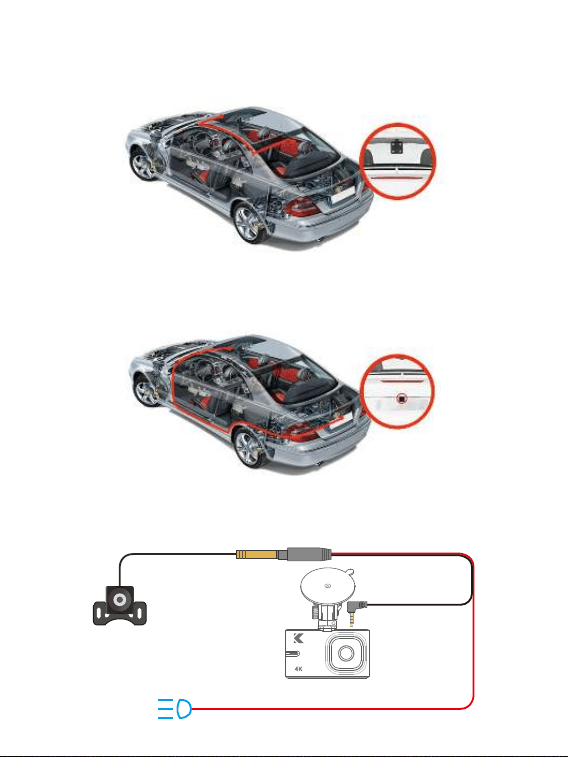
13.4 Install the rear camera.
Position 1: Install the rear camera on the rear windshield. The installation is easier
when using this method. The power cables are routed as follows:
Position 2: It is recommended to install the rear camera near the license plate. In
this way, the image is crisp and clear for both rear viewing and reversing guide. The
power cables are routed as follows:
To use the reversing function, please install the rear camera near the license plate,
then connect the red wire of the rear camera extension cable to the positive lead
of the vehicle reversing lamp.
Reversing light
Reversing light positive pole
Rear camera connector
Rear camera
15
② Please clean the position to ensure the adhesive quality before installing the rear
camera.
③ Please clean the rear windshield regularly to ensure the image quality if you
choose to install the rear camera on the rear windshield.
④ If you choose to install it near the license plate, you can use adhesive stickers or
screws for fixing.
⑤ Please use the original extension cable and rear camera. If you replace the rear
camera with product of other brands, the effect may be affected and the machine
may be damaged.
⑥ Check the interface, the connecting wire and the rear camera interface and make
sure they are plugged in tightly.
⑦ Please plug the rear camera interface when the camera is
turned off. Do not frequently hot plug the interface, which
may cause damage to the camera. For details, please refer
to the following :
https://www.youtube.com/watch?v=CZYaV5Dh4ok.
Note:
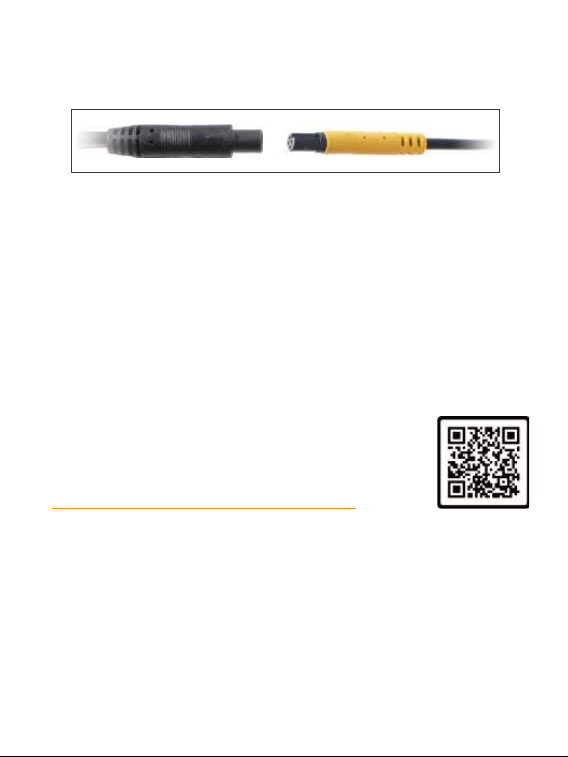
① When connecting the rear camera with the extension cable, please refer to the
details below.
16
Note:
Do NOT connect the camera to PC for charging. Instead use the 110V wall outlet.
The device will start up automatically and record as soon as power supplied, and
the device will save the last video file and power off automatically after cutting the
power supply.
14.2 Turning your camera ON/OFF
Auto Power ON: KINGSLIM D2 Pro is designed to turn ON automatically when it
receives power, i.e. when the car engine is started.
Auto Power OFF: The camera is also pre-configured to turn itself OFF automatically
within few seconds when the power gets disconnected, i.e. when the car key is
turned to LOCK position.
Note:
Some trucks/car’ s 12V cigarette outlet is always HOT, which means it provides
constant power even when the car is turned off and locked. If this is the case for
your vehicle, the auto ON/OFF feature will not work. And if you leave the camera
continuously recording when the car is turned off, the it will drain your car/truck’s
battery and you might not have enough power to start your car for next time. To
remedy this situation, you can do one of the two options:
① Hardwire your dash cam to your car’s fuse box with KINGSLIM 3 lead auto trigger
hardwire kit. Visit www.kingslim.net to purchase one separately.
② Change the connection in the fuse box for your 12V outlet socket which only
supplies power when car key is turned to ACC or ON position.
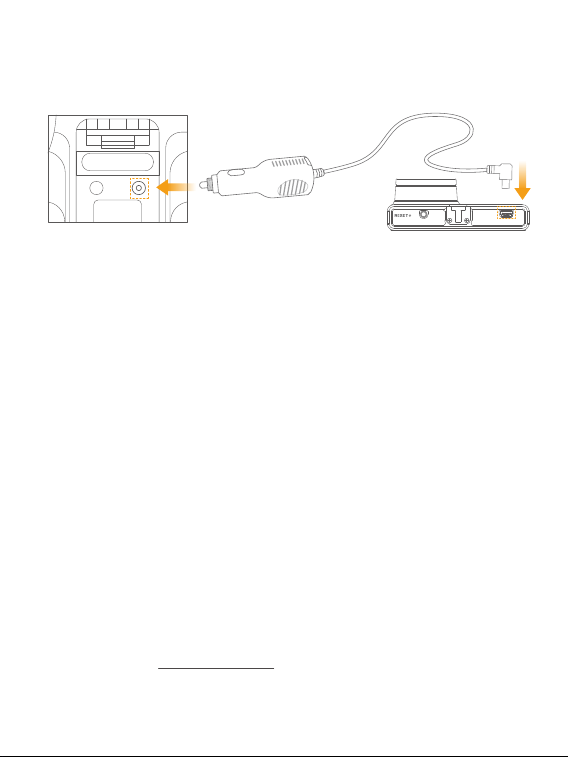
14. Charging
14.1 Connect the USB power cable into the USB power port of D2 Pro Dash Cam,
then plug the car charger into the cigarette lighter of your car.
Car cigarette lighter socket Car cigarette lighter plug D2 Pro Dash Cam
17
00:00:00
4K
01/01/2022 00:00:00 AM
00:00:01
4K
01/01/2022 00:00:00 AM
Note:
While recording, long press the Setup button to lock the video. The camera will load
the current video. The emergency recording video will be locked in the front emergency
recording or rear emergency recording folder, and will not be overwritten by new video
files. To delete emergency videos, you need to press the Setup button to enter the
menu to format the memory card.
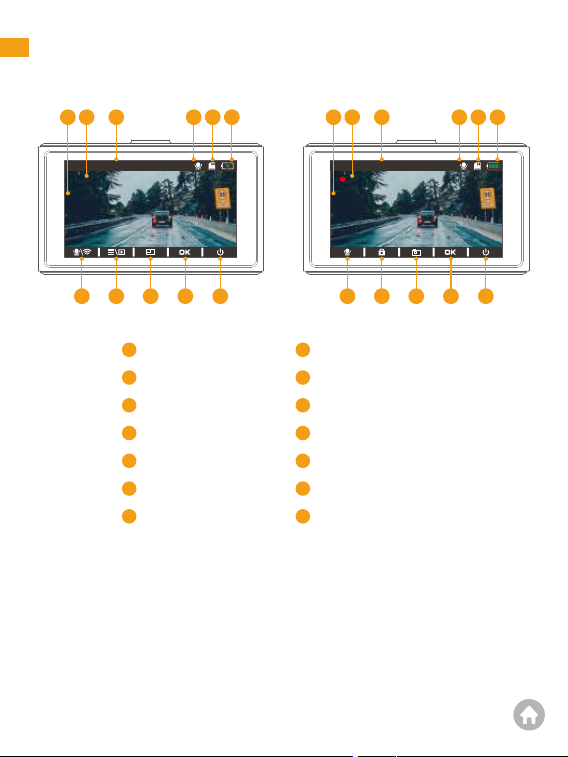
1.Main interface
321 4 5 6 321 4 5 12
11
10987
11
101413
4
1
2
Current resolution
Video time
Date/Time
Audio recording
Memory card indicator
Charging indicator
Microphone/Wifi
Start recording
3
4
5
6
7
8
9
Settings/Playback
Switch display modes
Confirm
Power icon
Power status
Emergency recording
Snapshot
10
11
12
13
14
18
Note:
While recording, long press the Setup button to lock the video. The camera will
load the current video. The emergency recording video will be locked in the front
emergency recording or rear emergency recording folder, and will not be overwritten
by new video files. To delete emergency videos, you need to press the Setup button
to enter the menu to format the memory card.
2. Memory card use
A Class 10 or above memory card is highly recommended for the D2 Pro dash cam
(memory card is not included). D2 Pro dash cam supports an up to 256GB memory
card. Please format your card in the camera before using this dash cam. Do not
remove or insert the memory card when the dash cam is turned on. This may damage
the memory card. We recommend SAMSUNG Classic10 U3 or higher speed memory
SD card. You can purchase it from Amazon:
https://www.amazon.com/dp/B09B1JFY24/ref=twister_B09Q7Q2WZ1?_encoding=UTF8&th=1
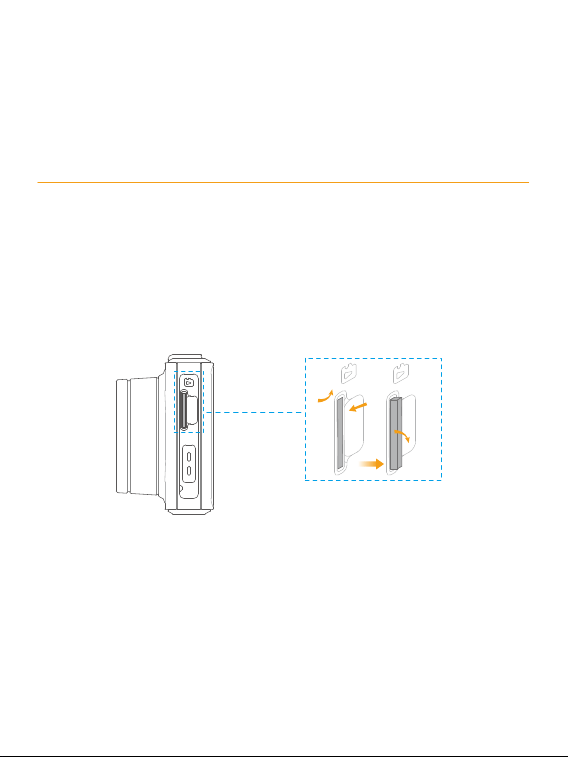
2.1 Installation
Make sure the camera is turned Off first. Insert the memory card half way in. Then
use the finger nail to push the card all the way inward until it clicks and locks in place.
2.2 Removal
To remove the memory card, gently push its edge inward until it clicks, and then
pops out, then simply pull it out of the slot.
19
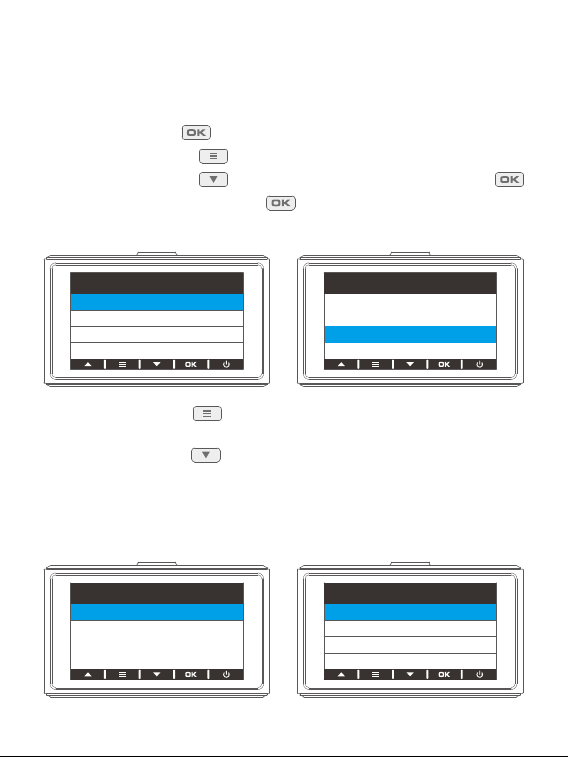
2.3 Formatting
Please format the memory in the camera before using this dash cam.
Tip: Do not remove or insert the memory card when the dash cam is turned on as
this may damage the card.
① Press the OK button to pause recording.
② Press the Setup button to enter the settings page.
③ Press the Down button to select Format, then press the OK button .
④ Select OK and press the OK button .
Once formatting is complete, it will automatically exit this page.
⑤ Press the Setup button to go back to the preview screen and start recording
automatically.
⑥ Press the Down button to switch display modes when the device is recording.
3. Time Zone Settings
Choose the time zone manually. The device will then display the time of the selected
time zone. Default Setting is Off.
Cancel
OK
All data will be
deleted
Setup
Format
Default Setting
Version
Time Zone Select
Format
GMT+ 02:00
GMT+ 01:00
GMT+ 03:00
GMT
Setup
Time Zone Select
Format
20
00:00:00
4K
01/01/2022 00:00:00 AM
Go to http://www/greenwichmeantime/time-zone/usa to find
out your correct GMT (Greenwich Mean Time) value based on
your location in USA.
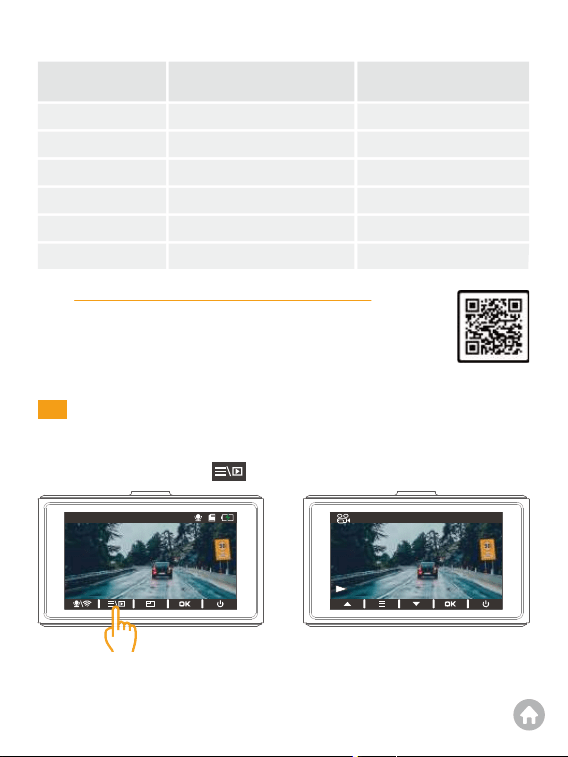
1. Dash cam playback
Long press the Setup button to enter the album to be played back.
Greenwich Mean Time (GMT)
Time zone
Hawaii
Alaska
Pacific Time Zone
Mountain Time Zone
Central Time Zone
Eastern Time Zone
When Daylight Savings Begins
March-Nov
GMT(-8:00)
GMT(-7:00)
GMT(-6:00)
GMT(-5:00)
GMT(-4:00)
When Daylight Savings Ends
Nov-March
GMT(-10:00)
GMT(-9:00)
GMT(-8:00)
GMT(-7:00)
GMT(-6:00)
GMT(-5:00)
Playback
4K
20220101104233_000005A
21
2. Kingslim APP playback
2.1 APP Download
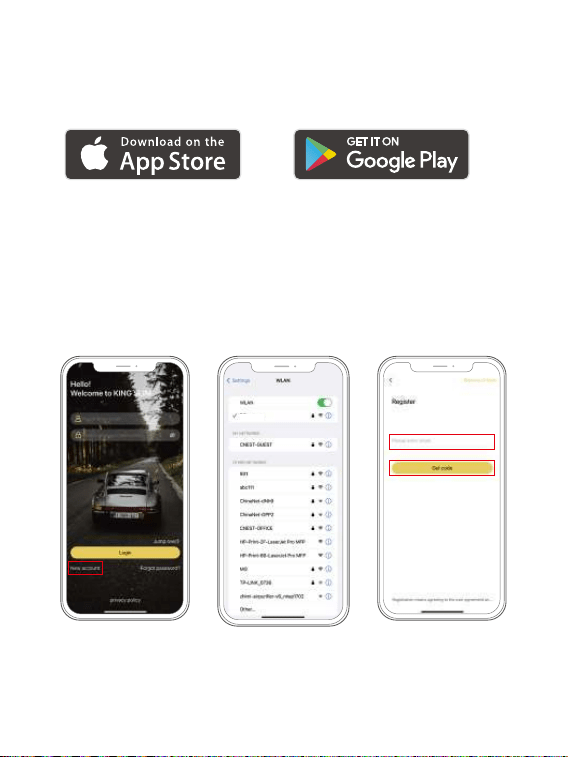
Download the Kingslim APP on the App Store or Google Play.
2.2 Connect to Kingslim APP
① Stop video recording on the dash cam.
② After pausing video recording, long press the Down button to enter the Wifi
mode (once you quit, the Wifi will be disconnected.)
③ Go to your smartphone’s Wifi settings, search for the same Wifi SSID name
displayed on the screen, and enter the password 12345678 for connection.
④ Open the Kingslim APP, tap the “New Account” icon, enter your email and get
the verification code for login.
D2 PRO_
****
22
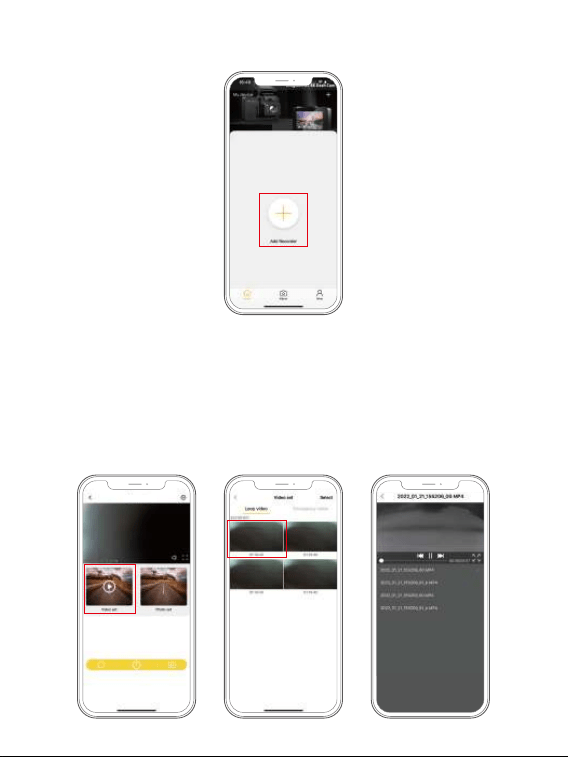
⑤ Tap "Add Recorder", wait a few seconds to enter the preview interface.
2.3 App playback
To play on smartphone, simply long press the Down button to turn on the camera
Wifi first, then connect the Kingslim hot spot by entering the default password
“12345678”. Once connected, simply open the correct Kingslim App to add your
model. Please note that for KINGSLIM models, only Kingslim App can be used for
operation. Enter the preview interface, tap the “Video set” icon, then you can
watch those videos.
D2 PRO_
****
23
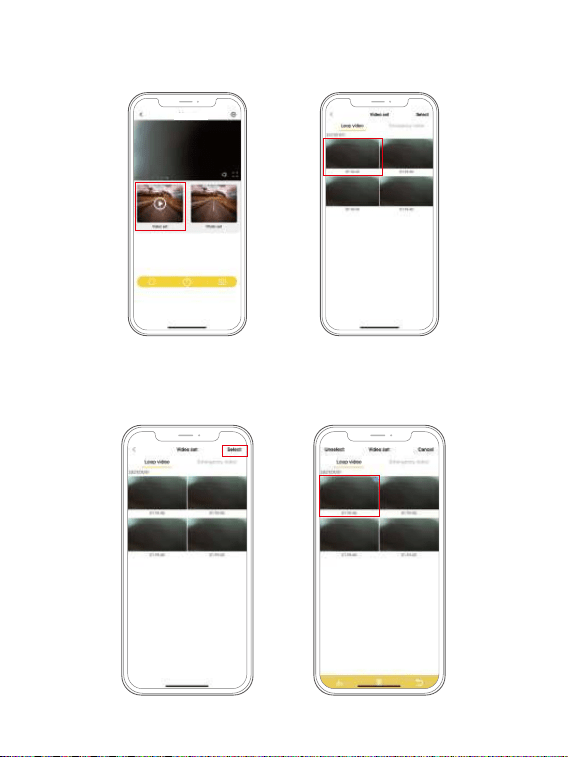
2.4 Using Kingslim App to download videos to your smartphone for local playback.
① Tap the “Video set” icon to enter the menu.
② Tap the “Select” icon at the upper right corner and tap the video you want to
download.
D2 Pro_
****
24
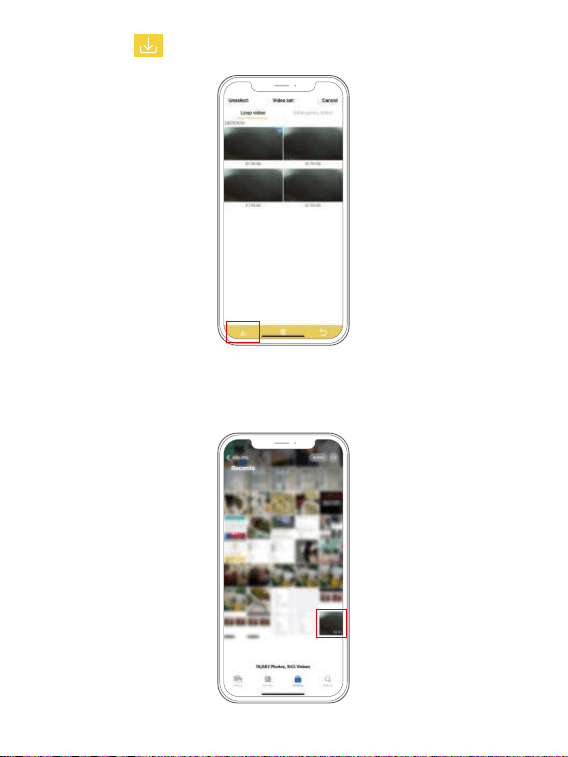
③ Tap the icon at the bottom left corner to download the video.
④ Waiting for the completion of download progress, the video will be downloaded
to phone photo album. Tap the video and it will play.
25
Mass Storage
3. PC/MAC playback
3.1 Data transmission
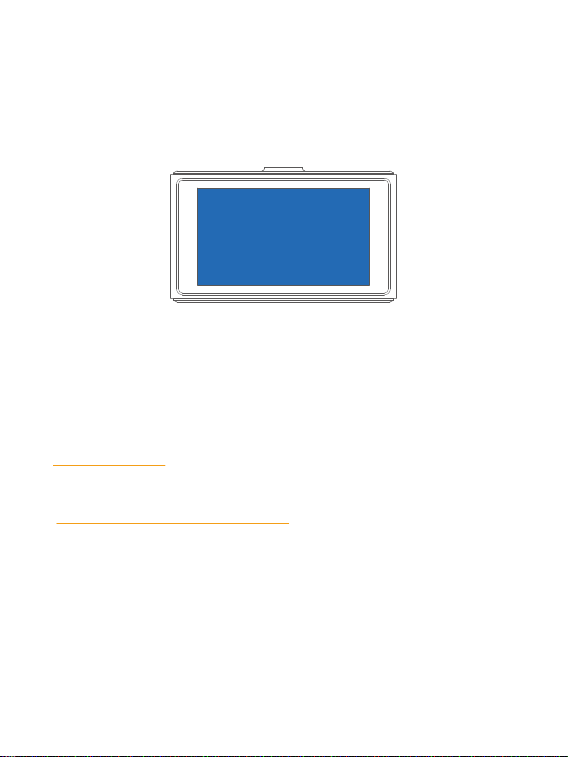
① Connect the camera with the included short USB cable and choose to connect
as USB flash drive on the camera when this message pops up. (USB cable sold
separately)
② You can simply remove the memory card from camera and insert it directly in
your PC if you have a memory slot. Then find the added memory card drive on
your computer and then use the player to play the video in the memory card.
3.2 Correct video player to play 4K videos
① We recommend VLC Media player. You can get the player for free at
www.videolan.org
② GPS player (GPS player software installation (PC/MAC only). You can also use our
GPS Player from our website for free to view the goggle maps from
https://kingslim.net/pages/gps-player
26
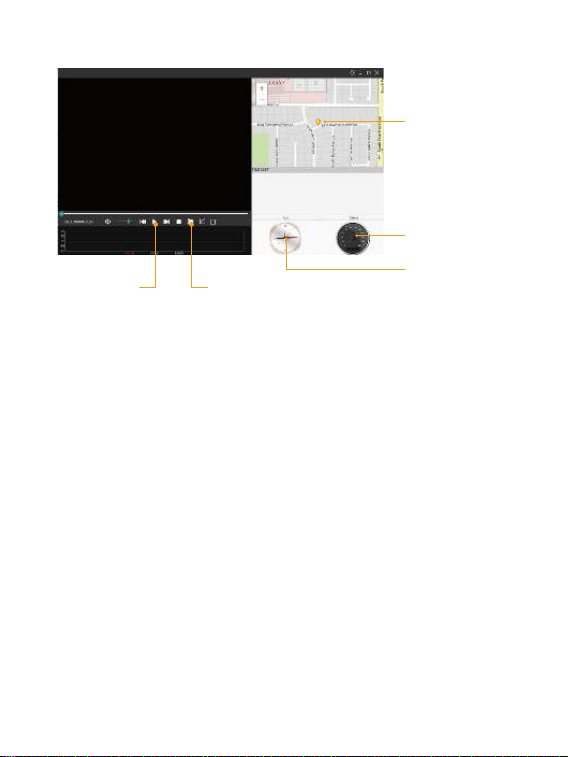
To see the exact GPS route
with the video on google
maps;
Check driving speed;
Check driving direction
(i.e. N, S, NW, SE, etc.).Play back your
recorded video
Look up recorded videos
What are the features ?
To see the exact GPS route with the video on goggle maps;
Check driving speed;
Check driving direction (i.e. N, S, NW, SE, etc.).
Play back your recorded videos.
Look up recorded videos.
Note: For IOS system computers, please carefully read download guidance on
Apple's official website (https://support.apple.com/en-au/HT202491), otherwise
the GPS player will not be installed successfully.
27
Setup
Resolution
Loop Recording
Exposure
Record Audio
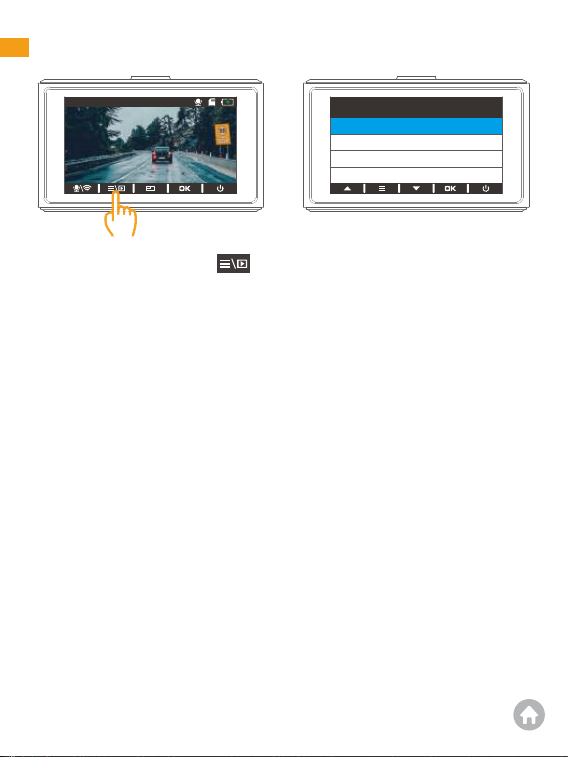
Short-press the Setup button to enter the menu page.
1. Resolution
The recording resolution of the front camera can be single 4K or 2K+1080P and
dual 1080P. The default resolution is 4K. The recording resolution of rear camera
is not optional, with a default resolution of 1080P.
Heads up:
1. The resolution will be 4K by default when the dash cam is turned on without the
rear camera. To make 2K (Front)+1080P (Rear) or 1080P for dual recording possible,
please plug the rear camera into the dash cam with the rear camera extension
cable to set the resolution.
2. If the rear camera does not show on the screen, please reconnect the rear camera
to the extension cable and make sure it’s connected tightly.
2. Loop Recording
If the 3-minute option is selected, the recorder will save the video file every 3
minutes. When the memory card is full, the new video files will overwrite the old
ones. If this function is turned off, the recorder will not be able to record when the
memory card is full, so you need to format the memory card or replace it with a
new one.
Options: off/ 1 minute / 3 minutes /5 minutes (Default setting: 3 minutes)
System Settings
00:00:00
4K
01/01/2022 00:00:00 AM
28

3.Exposure
Select to change exposure.
Options: +0.0, -1/ 3, -2 / 3, -1.0, 4 / 3, -5/ 3, -2.0 (Default setting: +0.0)
4.Record Audio
Record sounds and videos at the same time
Option: on/ off (Default setting: on)
5. Date Stamp
When Date Stamp is enabled, the date stamp will show at the bottom left corner
of the video.
Options: Off/ On (Default setting: on)
6. GSensor
When GSensor is turned on in the video recording mode, if an impact or sudden
braking is detected, it will automatically start recording a 20-second video and
save the content. The video will be locked in the front or rear emergency video
folder and will never be overwritten by new video files. The higher the sensitivity
level, the easier it is to trigger the emergency recording.
Options: Off/ low / medium /high (Default setting: Off)
7. Parking Monitor
The dash cam will enter the parking monitoring mode when the engine is turned
off. If an impact or sudden braking is detected, it will automatically start recording
a 20-second video and save the content. The video will be locked in the front or
rear emergency video folder and will not be overwritten by new video files. The
higher level you select, the easier it is to trigger emergency recording.
Options: Off/ low / medium /high
Default setting: Off
8. Date/ Time
Sets the format you prefer.
Options: YY-MM-DD/ DD-MM-YY / MM-DD-YY (Default setting: YY-MM-DD)
29

9. 12-Hour Time
Options: Off/ On (Default setting: On)
10. LCD auto off
The screen will be turned off automatically after the time you set. After turning off,
the screen will reduce power consumption. The camera still works while the
display screen is turned off. Just press the Power button screen and it will turn on.
Options: Off/ 30 Sec / 1 Min /2 Min (Default setting: 1 Min)
11. Beep Sound
Turns on or off beep sounds.
Options: Off/ On (Default setting: On)
12. Language
Options: English/Français/ 简体中文 /Русский/ 日本語 (Default setting: English)
13. Frequency
Choose the right frequency to reduce screen flickering. (Options: 50Hz/ 60Hz)
Default setting: 60Hz
14. Format
Cancel/OK
①All data will be deleted after formatting. Before formatting the memory card,
please back up the data on another device.
②When inserting the memory card for the first time, please format the memory
card in the dash cam first to ensure that the memory card is compatible with the
dash cam.
15. Default Setting
Restore the personality settings of the dash cam to the factory defaults, but the
data on the memory card will not be removed.
30

1. What to do if your dash cam turns on and off automatically?
① Check if the dash cam turns on normally when you remove the memory card
and plug it in with a USB cable.
② If so, turn off your dash cam and plug it in with the original 5V car charger for
about one hour, then turn it on manually to see if it works normally.
③ If the issue remains, restore your dash cam to the factory settings.
2. Why to do if your dash cam does not turn on?
① Check if the indicator light on the car charger turns on when your dash cam is
plugged in.
② If not, plug the dash cam in another cigarette lighter or USB port for about one
hour to see if it finally turns on.
③ If so, contact customer support for further help.
3. What to do if your dash cam does not turn off?
① Turn off the dash cam manually and restart it, or reset it to the factory settings.
② If your issue remains, contact customer support for further help.
4. What to do if your dash cam does not hold a charge?
① Plug in your dash cam with the USB cable to see if it holds a charge normally.
② If not, contact customer support for further help.
General FAQ
16. Version
Displays this dash cam’s model and software version.
17. Time Zone Select
Manually choose the corresponding time zone of your region, and the recorder
will automatically display the date and time of the time zone.
Default setting: Off
Note: The GPS module is sold separately.
31

6. What to do if your dash cam does not save the time settings?
① Plug in the dash cam with the USB cable to see if it holds a charge normally.
② Make sure the Time Zone is set according to your local time.
7. What to do if your dash cam heats up?
① The dash cam may heat up while recording or even won’t turn on in hot weather.
② We recommend you to turn on the air conditioning in your car before plugging
in your camera.
③ When the dash cam cools down, plug it in to see if it turns on again.
7. What to do if your dash cam shows “Slow Card” or prompts to format the
memory card?
① Select the memory card according to the user manual, such as a U3 memory
card or above.
② Format the memory card in the dash cam’s settings.
8. What to do if the camera Wifi is not connected?
① Check if your dash cam enters the Wifi mode and displays the Wifi information
after you long press the Down button.
② If so, check if you can find the camera Wifi appears in your phone’s Wifi list.
③ If your issue remains, contact customer support for further help.
9. What to do if you can’t connect your dash cam with the Kingslim APP?
① Make sure the camera Wifi is connected normally before connecting with the
app.
② Open the Kingslim APP, tap the New Account icon, enter your email and get a
verification code for login.
③ Tap Add Recorder, and wait for a few seconds to enter the preview interface.
④ If your issue remains, contact customer support for further help.
32