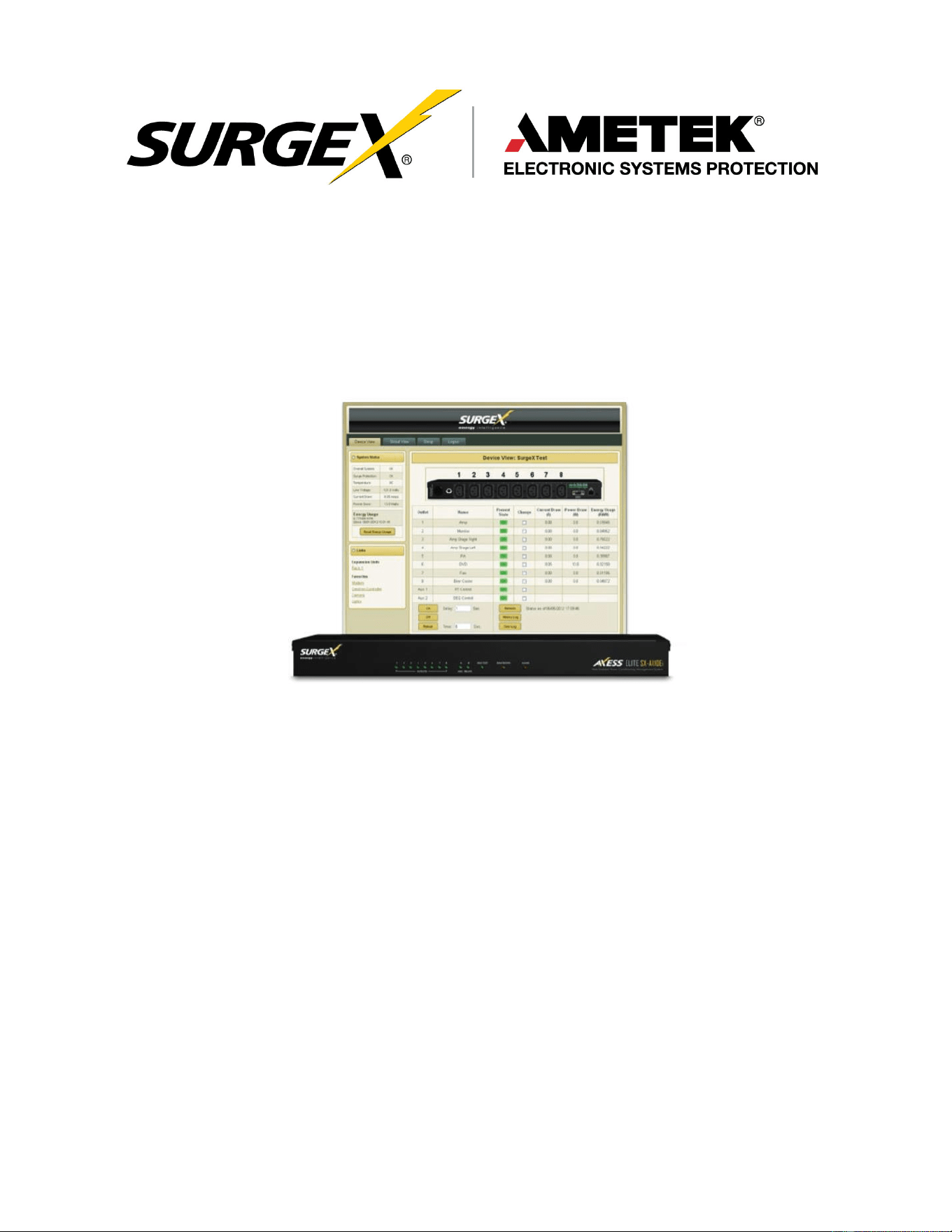
Axess Elite
SX-AX10Ei, SX-AX16Ei
Web-Enabled
Power
Conditioning
and
Energy
Management System
User
Manual
Firmware Version v2.10.300
© AMETEK Electronic Systems Protection | surgex.com | UM-Axess-Elite-International-Rev-C

User Manual
Firmware Version v2.10.300
© 2019 AMETEK Electronic Systems Protection | surgex.com
2

User Manual
Firmware Version v2.10.300
© 2019 AMETEK Electronic Systems Protection | surgex.com
3
Table of Contents
1. Introduction 5
2. Initial Set Up 6
3. Installation 7
3.1 120 Volt Connections 7
3.2 Ethernet Connections 7
3.3 RS232 (Serial) Port Connection 7
3.4 Temperature Sensor 8
3.5 Contact Closure Input 8
3.6 Auxiliary Relay Outputs 8
4. LED Indicators 8
5. Web Server 9
5.1 Login 9
5.2 Administration 9
5.2.1 Reset Factory Defaults 9
5.2.2 Backup/Restore 9
5.2.3 System Info 9
5.3 Device View 10
5.4 Global View 11
5.5 Setup 11
5.5.1 Device Setup 12
5.5.2 Network Setup 13
5.5.3 Network Reporting Setup 15
5.5.4 Users Setup 16
5.5.5 Triggers Setup 17
5.5.6 User Defined Triggers 18
5.5.7 Sequences Setup 19
5.5.8 Links Setup 20
6. Command Line Interface (CLI) Protocol 21
6.1 Prompts 21
6.2 Syntax 21
6.3 Responses 21
6.4 CLI Documentation Notation 21
6.5 Device Commands 22
6.6 Network Commands 23
6.7 Calibration Commands 23

User Manual
Firmware Version v2.10.300
© 2019 AMETEK Electronic Systems Protection | surgex.com
4
7. Email Notification 24
8 SNMP 24
9. SDxP Protocol 25
9.1 Overview 25
9.2 Hello Handshake 25
9.3 SDxP Packet 26
9.4 Types 27
9.5 Descriptors 27
9.6 Payloads 30
10. Device Management Utility 32
11. Syslog 33
12. Rear Panel Reset Button 33
13 Firmware Upgrade 33
13. Specifications 34
User Manual
Firmware Version v2.10.300
© 2019 AMETEK Electronic Systems Protection | surgex.com
5
1. Introduction
The SurgeX® Axess Elite is a single rack-space, 240V, 10 or 16 amp, AC power conditioner that can be controlled over
a network or the internet, through a direct serial connection, or through a contact closure input. The simple web
server structure allows basic control of the outlets and viewing of status information all from the home page. The
extensive programming and setup capabilities are accessed in seven other pages or through a Command Line Interface
(CLI).
The Axess Elite incorporates SurgeX Advanced Series Mode® power conditioning and surge elimination, SurgeX
Impedance Tolerant® EMI/RFI filtering, and SurgeX ICE® Inrush Current Elimination circuitry (on receptacles 1 and 2).
SurgeX ICE eliminates problems associated with inrush currents from large loads such as amplifiers. With SurgeX ICE, it
is not necessary to take inrush currents into account when designing the AC power for a system. Special time-delay circuit
breakers are not required – it is necessary only to ensure that the average currents of all products plugged into the Axess
Elite are within the 10 (16) Amp product rating.
Telnet and serial access use the same Command Line Interface (CLI) structure and syntax to configure, monitor, and
control the Axess Elite. The Axess Elite may also be monitored and controlled via SNMP and/or the SDxP API, and may
be configured to report to a Syslog server. The internal web server may be secured with Secure Sockets Layer (SSL)
encryption.
Two Auxiliary Relay outputs are provided for simple control of other equipment. Connection terminals are provided for
each relay’s Common, Normally Open, and Normally Closed connections.
Up to 16 Axess Elites can be linked together and controlled from a single web interface. One master Axess Elite provides
the communication to the users and receives status information from the rest of the Axess Elites in the cluster. Up to 128
outlets can be controlled in this manner from one IP address.
Up to 16 users can be assigned administrator or user only rights, plus access to specific outlets.
The extensive programming capabilities of the Axess Elite allow sequencing and scheduling to be set up. User Triggers
can be programmed to activate on an “if X then do Y then do Z when no longer X” basis. Triggers include: AC line voltage,
total unit current draw, individual receptacle current draw, temperature, Net Test, and Contact Closure Input. Actions
include: turning receptacles on and off, cycling a receptacle, executing previously-defined sequences, and sending emails.
For example, an action can be created to send an email if the rack temperature exceeds 95oF.
The eight rear-mounted receptacles can each be individually controlled, and the current, power, and energy consumption
of each receptacle can be obtained through the web page interface and CLI. The metering includes the AC line voltage
and current draw, and all measurements (voltage, current and power) are true RMS readings. Thus, the current draw and
energy consumption of non-linear electronic loads which have a power factor of less than unity will be correctly reported.
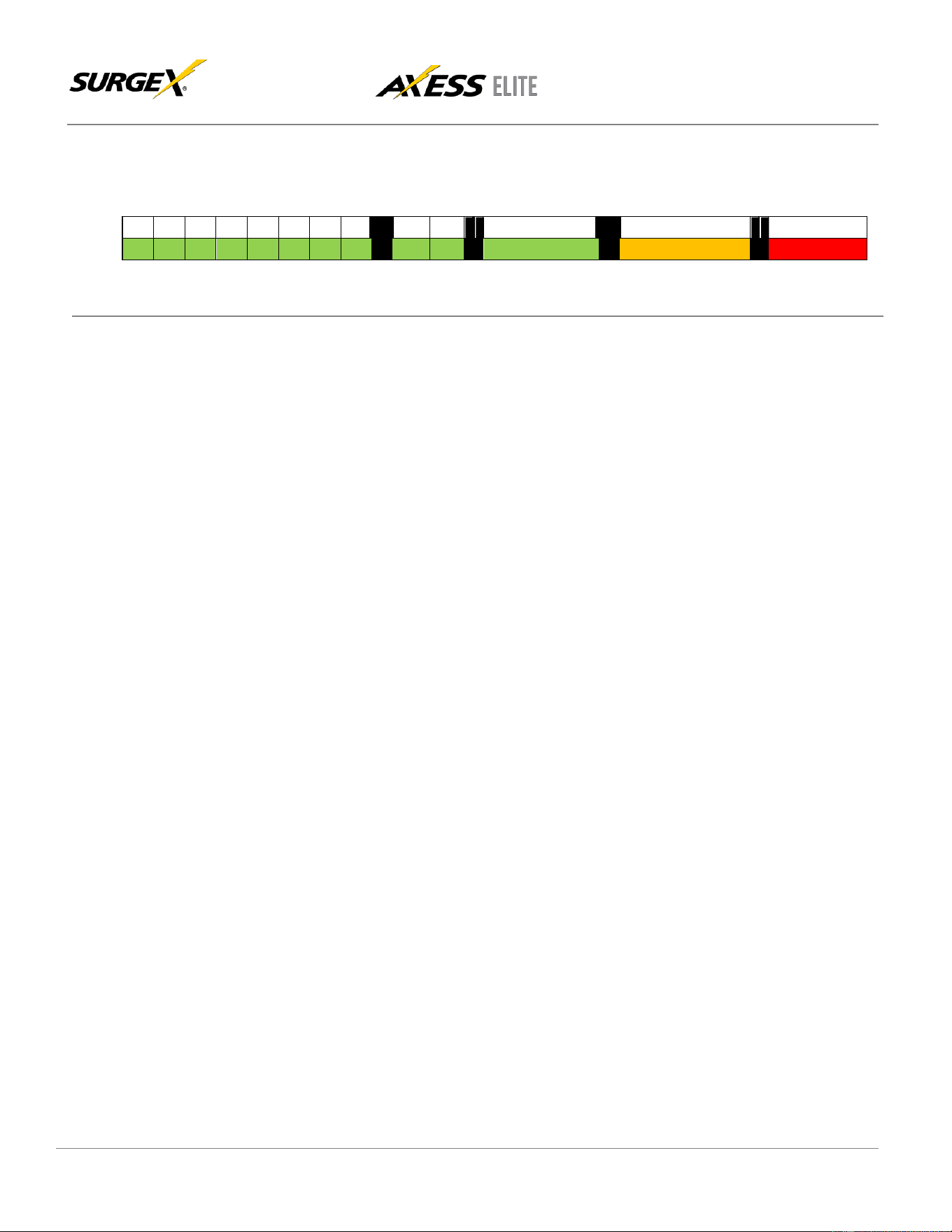
Located on the rear panel are the input power cord receptacle, circuit breaker (10A or 16A), 8 IEC320 C13 AC
outlets, Serial connection (DCE, 9 pin D-subminiature), Network connection (RJ-45), Temperature Sensor input, Contact
Closure input, Auxiliary Relay A/B output connections, and recessed Reset button.
Temperature
Sensor
Contact Closure
Auxiliary Relay A
Auxiliary Relay B
Red
Black
CC1
CC2
NO
COM
NC
NO
COM
NC
User Manual
Firmware Version v2.10.300
© 2019 AMETEK Electronic Systems Protection | surgex.com
6
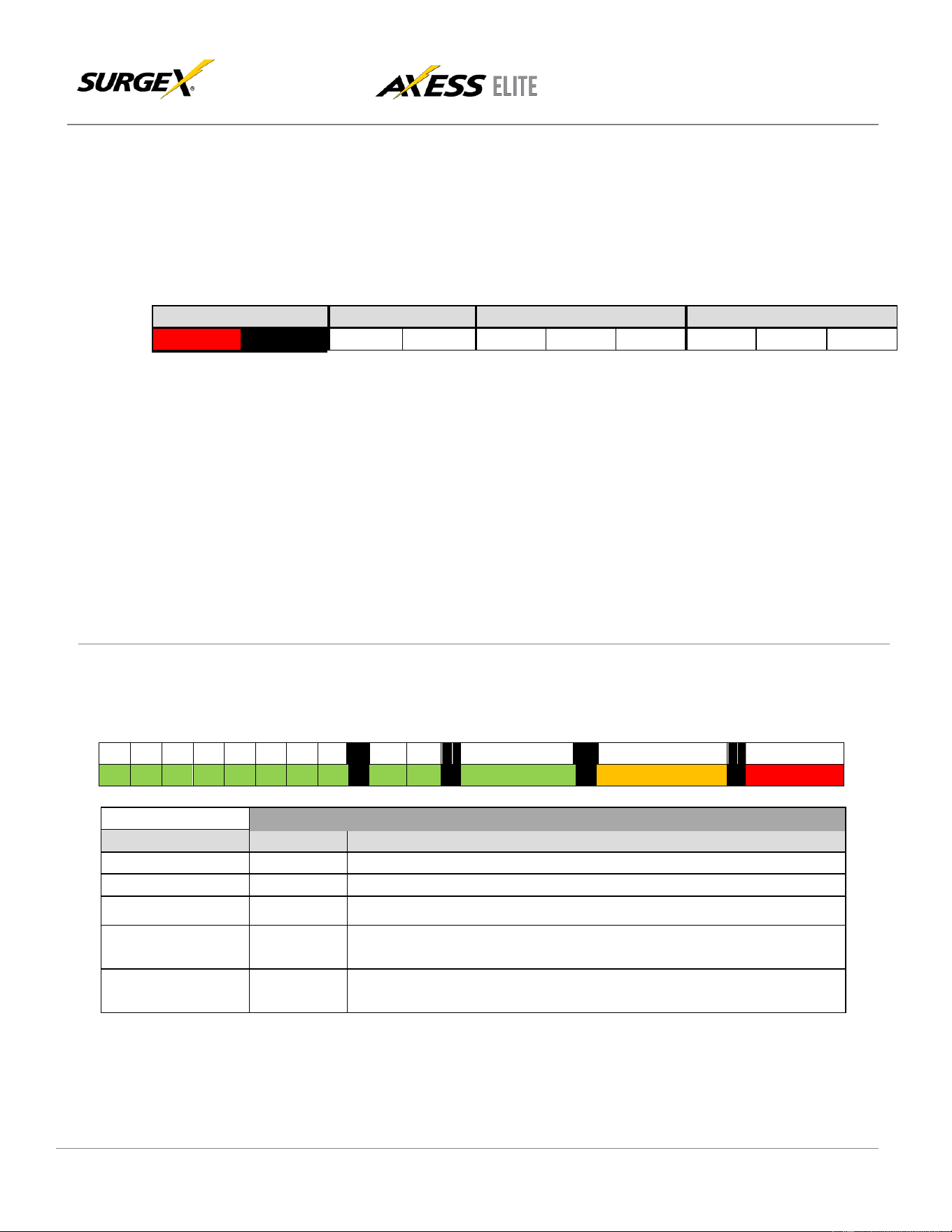
The thirteen front panel LEDs provide indications for eight AC outlet On/Off status (green), two Auxiliary Relay
Latched/Unlatched status (green), surge protection status (green), Shutdown status (amber), and AC mains power (red).
1
2
3
4
5
6
7
8
A
B
Self-Test
Shutdown
Mains
2. Initial Set Up
*Default user name and password: admin / admin
DHCP
*Beginning with firmware version 2.04.281, the factory default IP Mode will be DHCP (previously Static).
A DHCP Server will automatically assign an IP address (dynamic address) as well as Subnet Mask and Gateway to the Axess Elite.
To find the IP address of the Axess Elite, you will need to use the Discover function of the DMU, query your DHCP server and locate the
MAC address of the Axess Elite in the DHCP server’s IP/MAC table, or access the CLI via serial and use the get network command.
Command Line Interface (CLI)
Many configuration parameters may be set using the Command Line Interface (CLI). The CLI is accessed through the network using a
telnet client, or through the serial port.
Open a telnet client and point it to the current IP Address of the Axess Elite. The factory default telnet port is 23.
Connect to the serial port. The factory default settings are 9600, 8, n, 1.
Upon connection, press Enter and then enter the user name and password when prompted. The factory default user name and password
are admin / admin.
These are the basic commands to set the network parameters via CLI. After setting these parameters, the Axess Elite will need to be
rebooted for the settings to take effect. Any command that requires rebooting of the Axess Elite will provide a prompt to do so. All
commands may be entered as required before rebooting.

User Manual
Firmware Version v2.10.300
© 2019 AMETEK Electronic Systems Protection | surgex.com
7
Example: Telnet to DHCP-Assigned IP Address 192.168.1.199 on Port 23 and change to Static IP Address 192.168.1.3.
Axess ELITE
Connected to Telnet Session 1
User> admin
Password> *****
Axess ELITE> set ipmode static
OK
Axess ELITE Reboot Required > set ipaddress 192.168.1.3
OK
Axess ELITE Reboot Required> set subnet 255.255.255.0
OK
Axess ELITE Reboot Required> set gateway 192.168.1.7
OK
Axess ELITE Reboot Required> reboot
3. Installation
The SurgeX Axess Elite is designed to be installed in a 19 inch equipment rack and requires one unit (1-U) of rack space.
Use the four screws provided with the product to secure the rack ears to the rack rails. These screws can be tightened by
hand and do not require tools. Connect power to the unit by plugging an appropriately rated 3 wire grounding type power
cord into a 240V, 10 (16) amp wall or floor receptacle. Do not plug the unit into a relocatable power tap. The socket-outlet
shall be installed near the equipment and shall be easily accessible.
3.1 240 Volt Connections
The Axess Elite has a total of 8 receptacles. Each receptacle is rated for a maximum load of 10 amps, but the
total load of the Axess Elite must not exceed 10 (16) amps. Plug the equipment cords into the receptacles as
needed. The receptacles are numbered 1 through 8. This same numbering is used in the control interface.
3.2 Ethernet Connection
The RJ45 connector for Ethernet is situated on the rear panel beside the Serial connector. The default IP Address
is DHCP assigned.
3.3 RS232 (Serial) Port Connection
The Axess Elite has a 9 pin D subminiature connector for RS-232 serial control. The connector is configured as
DCE for direct connection to a laptop or other terminal device. Default serial parameters are 9600 bps, 8 data,
no parity, 1 stop bit (9600,8,n,1).
User Manual
Firmware Version v2.10.300
© 2019 AMETEK Electronic Systems Protection | surgex.com
8
3.4 Temperature Sensor
In order to obtain a temperature reading, the external temperature sensor must be connected to the first (far left)
terminal block. The sensor has two wires: red and black. Connect the red wire to pin 1 and the black wire to pin 2.
The sensor can be positioned to read air temperature at any location in the rack, although the top of the rack
would be optimal since heat rises; it can also be placed in contact with the chassis of a particular piece of
equipment that you want to monitor.
Temperature
Contact Closure
Auxiliary Relay A
Auxiliary Relay B
Red
Black
CC1
CC2
NO
COM
NC
NO
COM
NC
3.5 Contact Closure Input
Connect a contact closure control input (if any) to the 2 pins of the second terminal block. Relays, switches, and
push buttons are all suitable input types. The actions to be executed upon closing or opening of the contact
closure input may be defined as various User Triggers on the Triggers Setup web page.
3.6 Auxiliary Relay Outputs
Two auxiliary relay outputs are provided at the third (Aux Relay A) and fourth (Aux Relay B) terminal blocks.
Access to the Common, Normally Open, and Normally Closed positions is provided for each relay. The auxiliary
relays are controlled in the same manner as the AC outlets, and may be controlled by Sequences, Schedules,
and User Triggers.
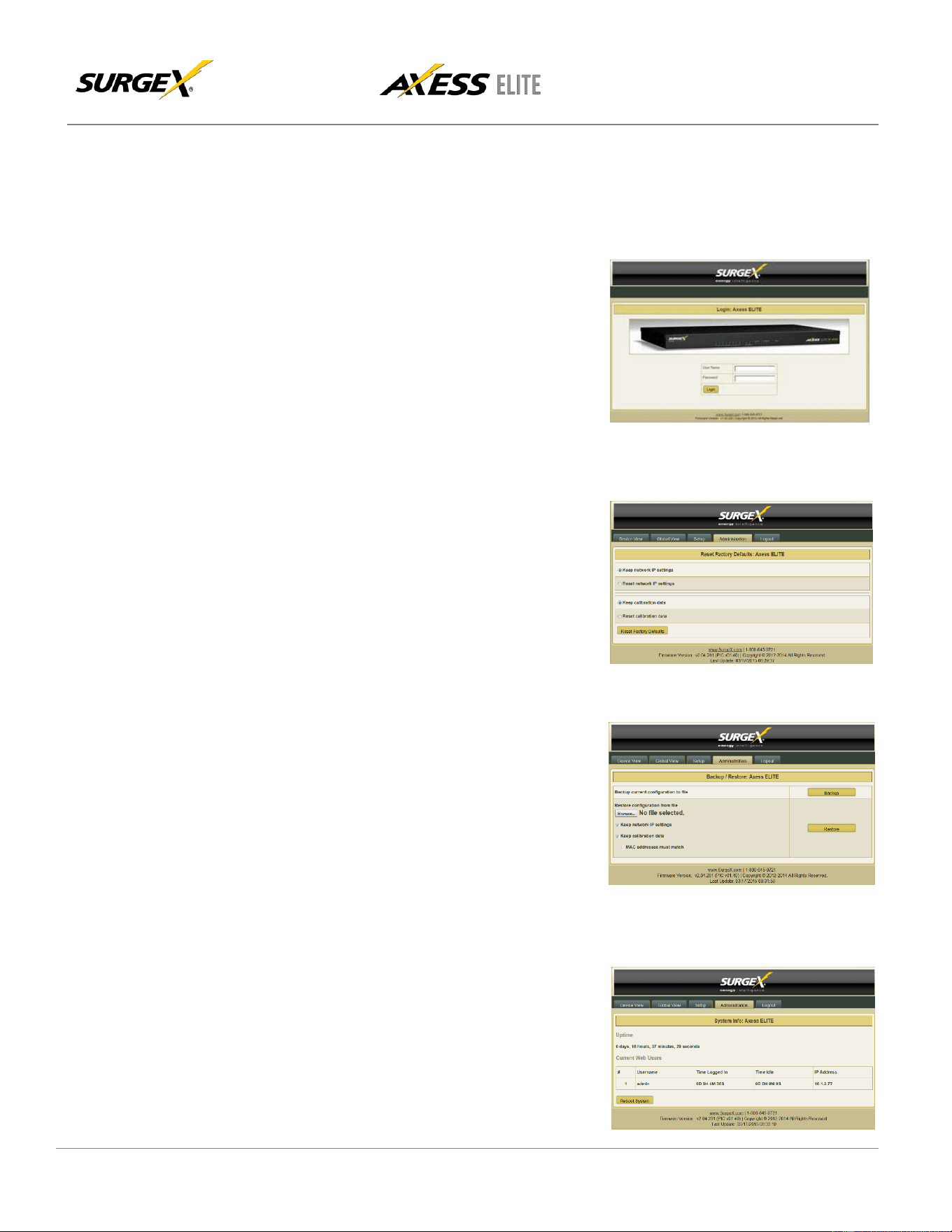
4. LED Indicators
There are thirteen LED indicators located on the front panel. Their function is as follows:
1
2
3
4
5
6
7
8
A
B
Self-Test
Shutdown
Mains
LED Indicators
Indicator
Color
Description
Outlets
Green
When illuminated, the corresponding AC outlet is on.
Aux Relays
Green
When illuminated, the corresponding auxiliary relay is latched.
Self-Test
Green
When illuminated, the surge suppression circuitry is functioning correctly.
Shutdown
Amber
When illuminated, the Axess Elite is in shutdown mode due to out of range
line voltage, current, or temperature.
Mains
Red
When illuminated, the Axess Elite is connected to a live wall or floor outlet.
© 2019 AMETEK Electronic Systems Protection | surgex.com
9
User Manual
Firmware Version v2.10.300
5. Web Server
The web server is built around 4 pages: Login, Device View, Global View, and Setup. Each page is discussed in
detail below.
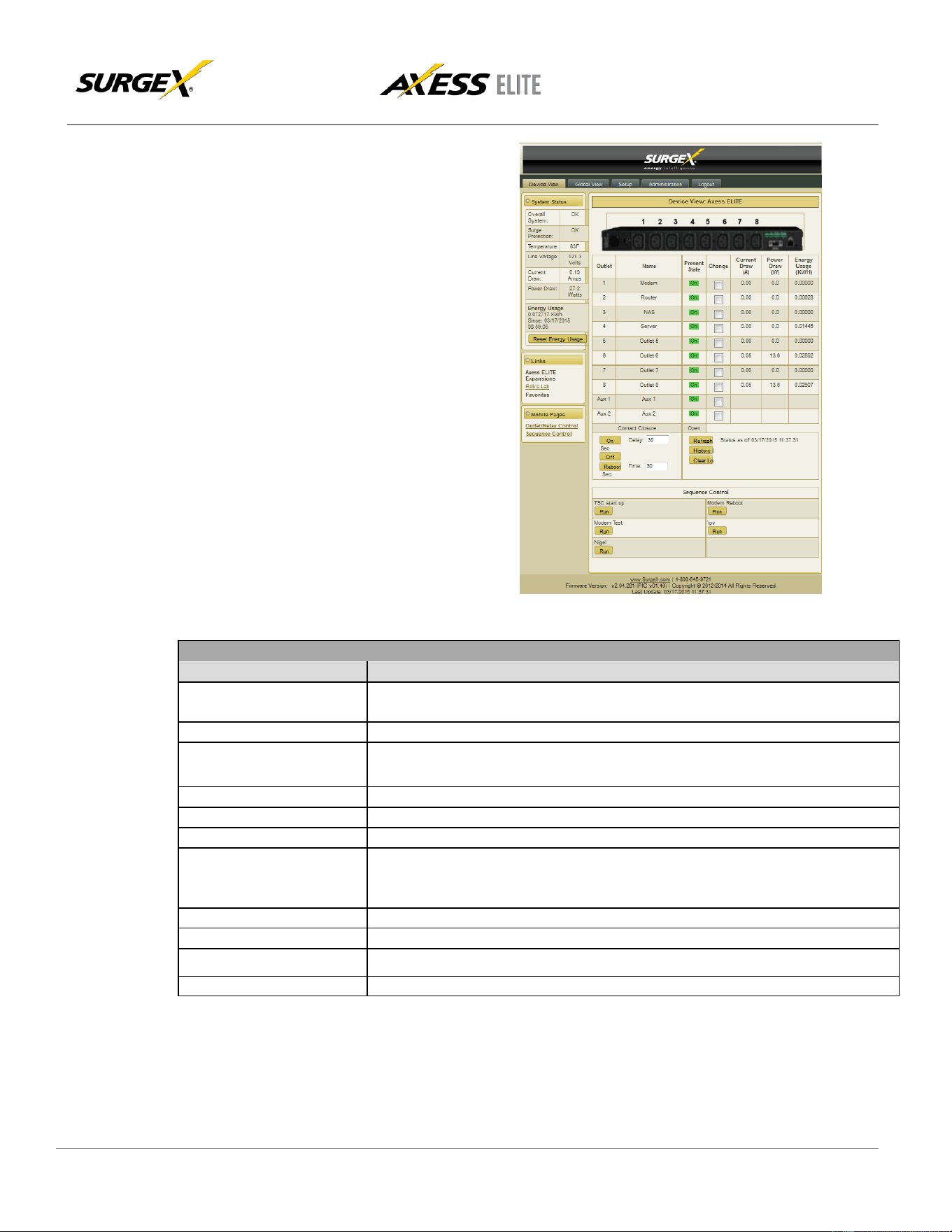
5.1 Login
The Login page is the first page displayed when
a web browser makes a connection to the
Axess Elite. Enter a valid user name and
password in the “User Name” and “Password”
fields, and press “Login” to log in to the Axess
Elite.
A mobile login page is available at
IPAddress/mobile_login.html
5.2 Administration
5.2.1 Reset Factory Defaults
• Allows resetting of factory defaults from the
web interface.
• Options to keep or reset network IP settings.
• Options to keep or reset calibration data.
5.2.2 Backup/Restore
• Provides Configuration Management via
*.conf files.
• Backup current configuration to file.
• Restore configuration from previously saved
file.
• Option to keep current network IP
settings or use those in configuration file.
• Option to keep current calibration data or
use calibration values in configuration
file.
· If restoring the calibration values
stored in a configuration file, there
is an option to only restore the
values if the MAC address
of the unit and the MAC address in
the configuration file match.
5.2.3 System Info
• Displays number of logged in web users, time
each user has been logged in, and System
uptime. Also provides a Reboot button
© 2019 AMETEK Electronic Systems Protection | surgex.com
10
User Manual
Firmware Version v2.10.300
5.3 Device View
The Device View page provides
information and status for the whole unit
and individual outlets, as well as basic
control of outlets. The top left section of
the page provides system status. To
refresh the status information, click the
“Refresh” button.
For each outlet the Outlet Name,
Present State, Current Draw, Power
Draw, and Energy Usage are displayed.
Mobile Page links are at the bottom left
below the Links section.
Contact Closure input status is displayed.
Device View
Item
Description
Overall System
Indicates that the surge protection, rack temperature, line voltage, and
current draw are at acceptable levels.
Surge Protection
Indicates that the surge protection is fully functional.
Rack Temperature
Displays the temperature of the sensor that is connected to the rear terminal
block. If the temperature sensor is not connected, the display will read “NC”
Line Voltage
Displays the true-RMS AC voltage.
Current Draw
Displays the total current draw of all 8 receptacles in true-RMS Amps.
Power Draw
Displays the total power draw of all 8 receptacles in Watts.
Energy Used
Displays the total energy consumption of the equipment plugged into the
unit in KW- Hours since the last counter reset. Pressing “Reset Energy
Usage” will reset the KW- Hours count.
On
Turns the selected outlets on, staggered by the Delay time.
Off
Turns the selected outlets off.
Reboot
Turns the selected outlets off for the length of the Reboot Time, and then back on.
History Log
Displays the internal history log (if enabled).
© 2019 AMETEK Electronic Systems Protection | surgex.com
11
User Manual
Firmware Version v2.10.300
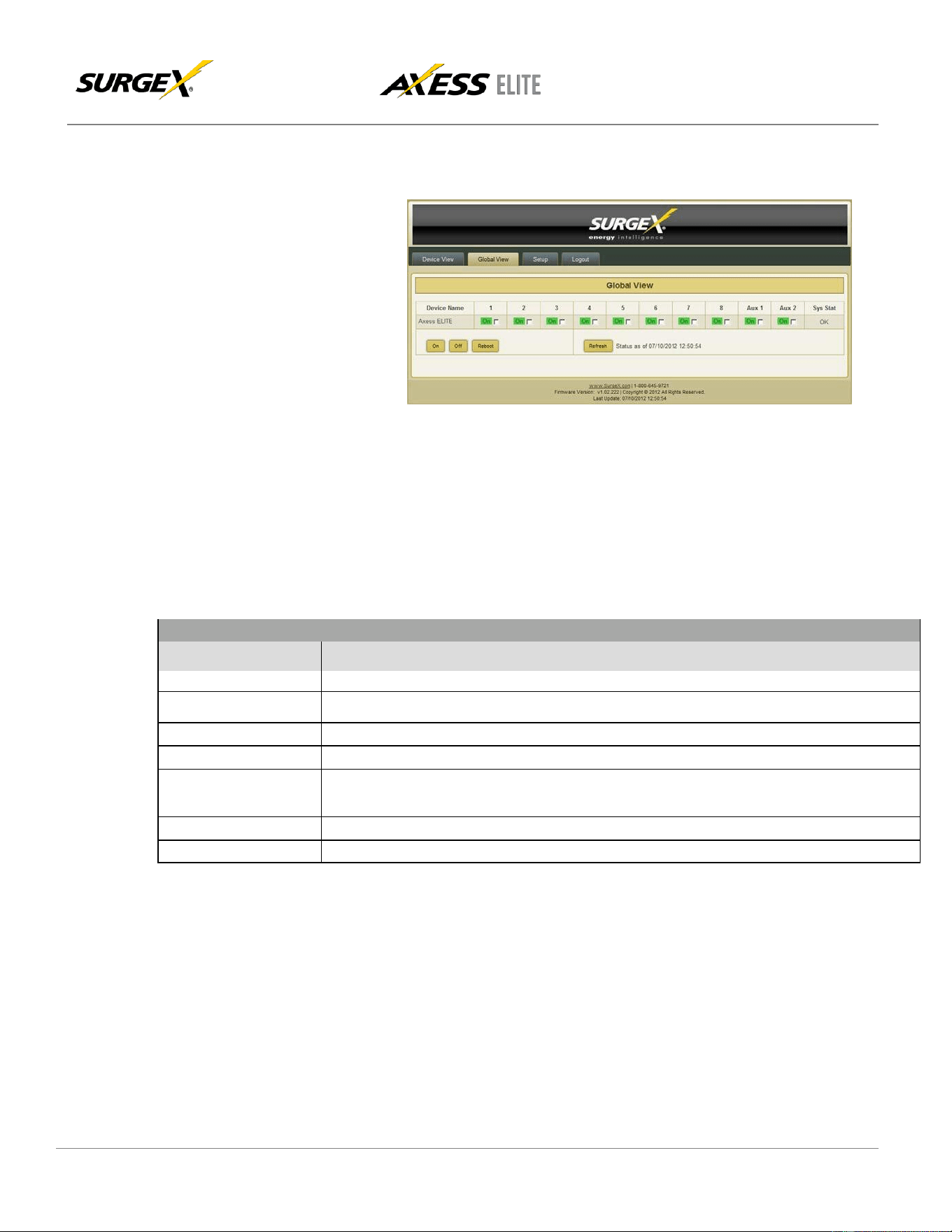
5.4 Global View
The Global View page displays
the current outlet states and
system status for the Axess
Elite and expansion units. Up
to 15 expansion units may be
set up on the Links Setup page.
Outlets and Aux Relays may
be commanded to turn On, Off,
or Reboot for up to 16 Axess
Elite units (1 master and 15
expansions).
In order to have rights to control expansion unit outlets, the user’s identical user name and password must be
programmed into each expansion Axess Elite to be managed.
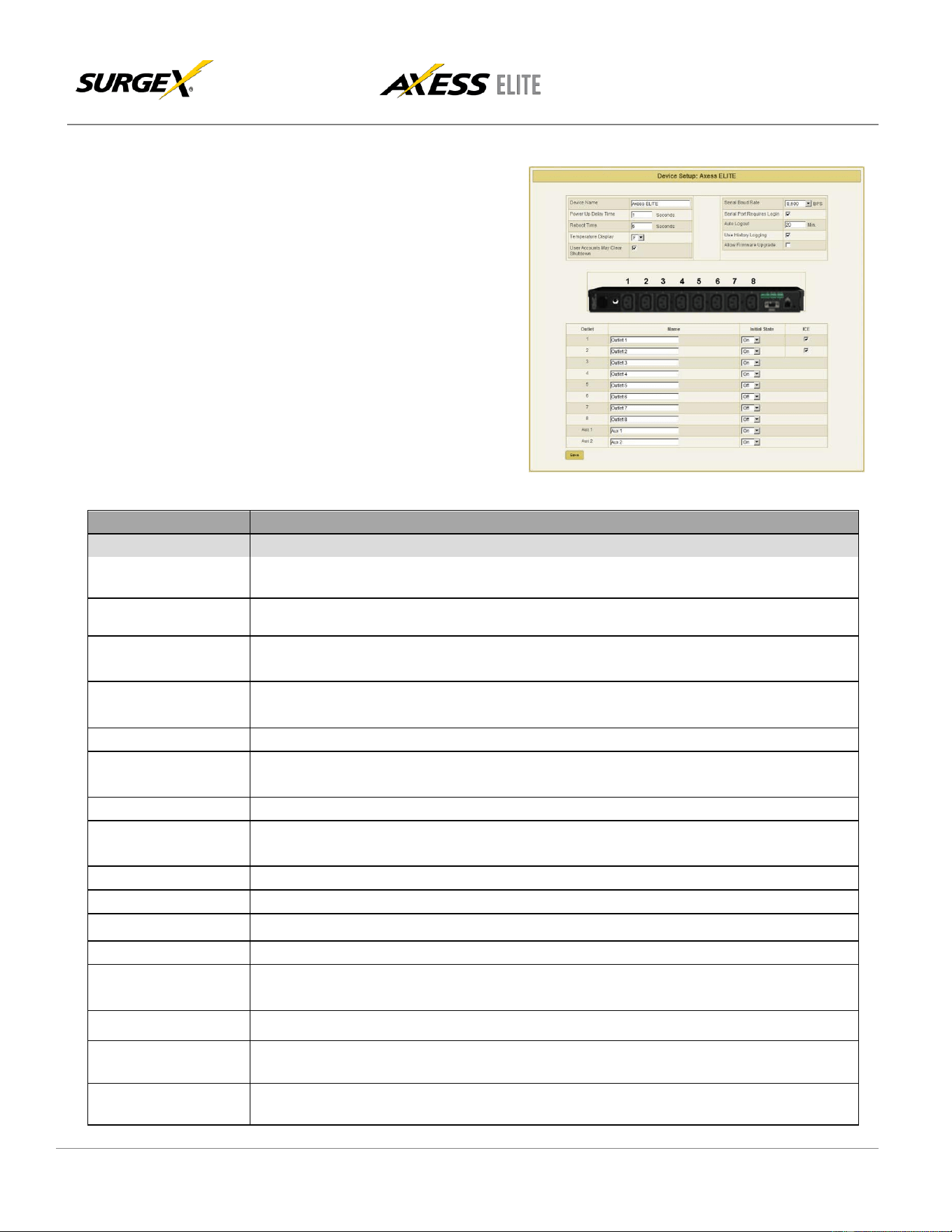
5.5 Setup
Complete setup and configuration of the Axess Elite is provided via 7 Setup web pages. Each setup page
is described in the following sections.
Setup
Setup Page
Description
Device
Configure basic device parameters
Network
Configure network settings, including the network adapter, email, and time keeping
Network Reporting
Configure SNMP, SDxP, and Syslog reporting
Users
Configure user accounts
Triggers
Configure System Triggers
Create and modify User Triggers
Sequences
Create and modify custom Sequences
Links
Create and modify Expansion units and Favorite links
© 2019 AMETEK Electronic Systems Protection | surgex.com
12
User Manual
Firmware Version v2.10.300
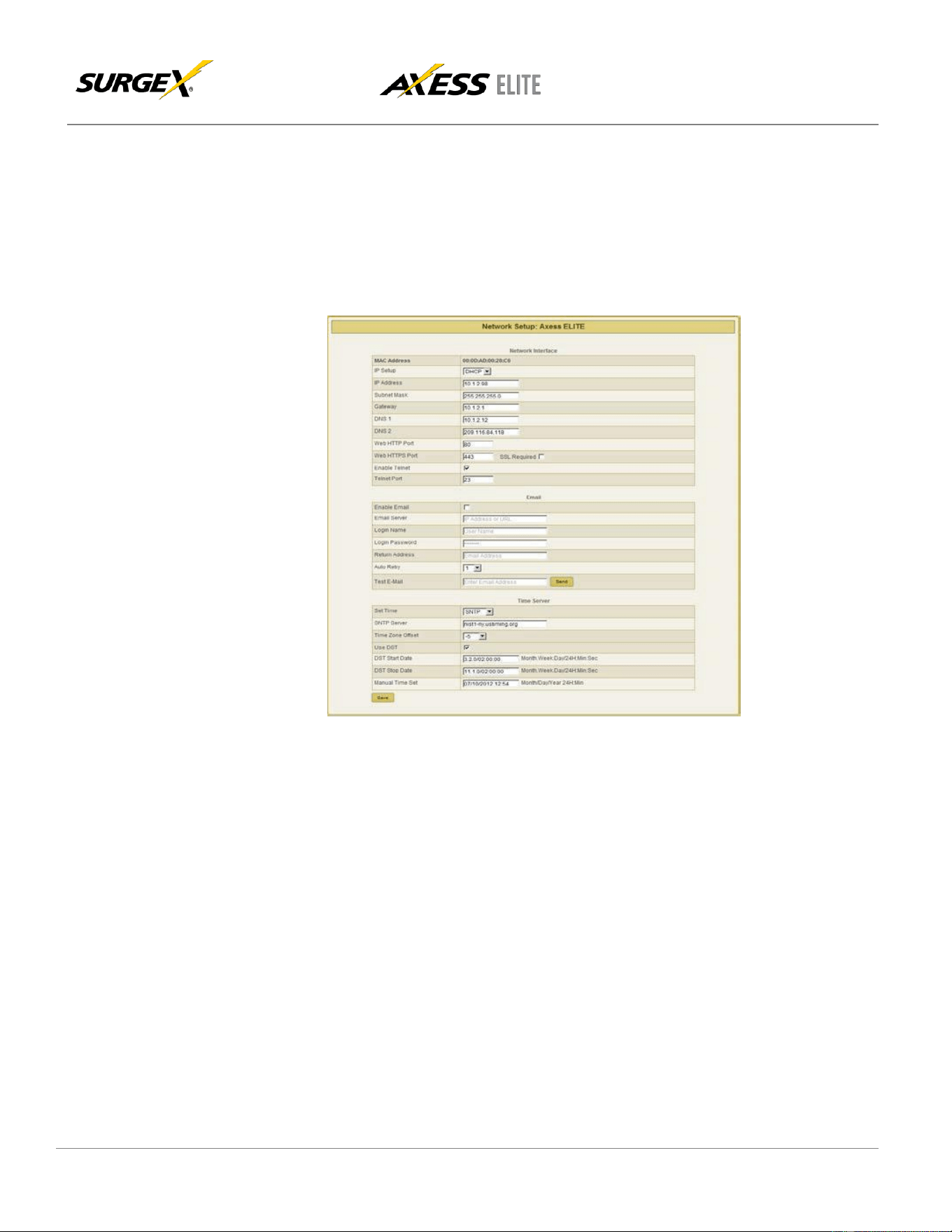
5.5.1 Device Setup
The Device Setup page allows for the
specification of basic device
parameters.
Saving any change which requires a
reboot to take effect will result in the
addition of a “Reboot Required” button
at the bottom of the page.
Device Setup
Item
Description
On Power Up
Specify whether to set outlets to Initial States or run a predefined Sequence when the Axess Elite
powers up, or the Reset button is pushed, or a soft reboot is commanded.
Device Name /
Hostname
Specifies the name label to be associated with the Axess Elite. This name also serves as the
Hostname.
Power Up Delay
Time
Specifies the amount of time in seconds by which to stagger the manual turning on of multiple
outlets.
Reboot Time
Specifies the amount of time an outlet is to remain off during a Reboot operation.
Temperature Display
Specifies whether to display temperature in degrees Fahrenheit or Celsius.
User Accounts May
Clear Shutdown
Specifies whether or not a non-administrative user account is allowed to manually clear a
persistent shutdown state.
Serial Baud Rate
Specifies the baud rate to be used with the serial interface.
Serial Port Requires
Login
Specifies whether or not a serial CLI session requires login.
Auto Logout
Specifies the web and telnet security timeout in minutes.
Use History Logging
Specifies whether or not to keep an internal log file.
Allow Firmware Upgrade
Specifies whether or not the Axess Elite is in an upgradeable state.
Outlet Name
Allows for the specification of name labels for each outlet.
Initial State
Specifies the state the outlet will take following a loss of power or the clearing of a shutdown
event.
ICE
Specifies whether or not to activate Inrush Current Elimination for outlets 1 and 2.
On Shutdown Clear
Specify whether to set outlets to Initial States or run a predefined Sequence when a Shutdown
State clears.
Aux 1 Confirmation
Enables/disables "Confirmation Mode" for Aux Relay 1, wherein Aux 1 will be latched only when
all AC outlets are On.
© 2019 AMETEK Electronic Systems Protection | surgex.com
13
User Manual
Firmware Version v2.10.300
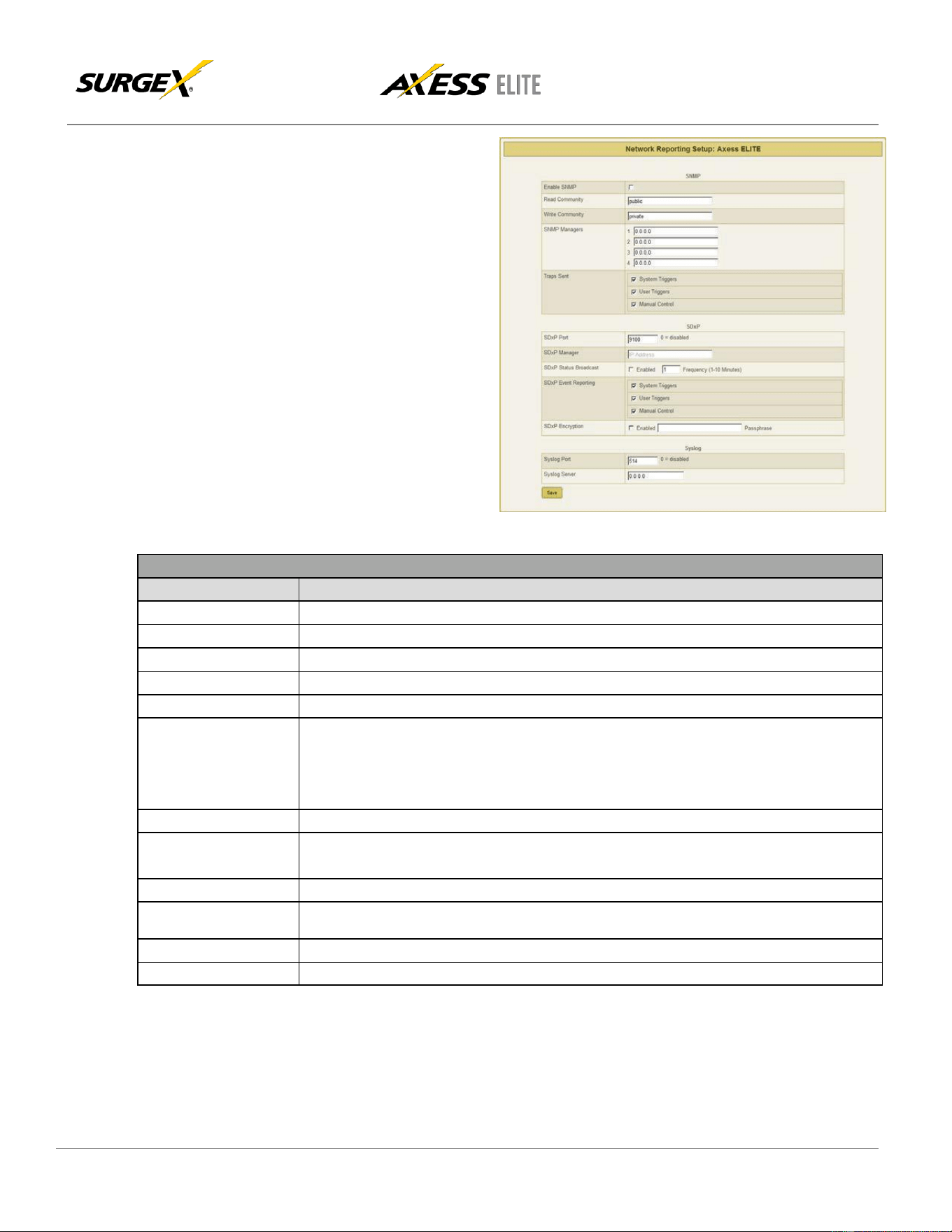
5.5.2 Network Setup
The Network Setup page allows for the specification of network settings, including the network adapter,
email, and time keeping.
Saving any change which requires a reboot to take effect will result in the addition of a “Reboot
Required” button at the bottom of the page.

© 2019 AMETEK Electronic Systems Protection | surgex.com
14
User Manual
Firmware Version v2.10.300
Network Setup
Item
Description
IP Setup
Specifies whether to use Static or DHCP mode.
IP Address
Specifies the address to be used when in Static mode, and displays the assigned address when in DHCP
mode.
Subnet Mask
Specifies the subnet mask to be used when in Static mode, and displays the assigned mask when in DHCP
mode.
Gateway
Specifies the gateway address to be used when in Static mode, and displays the assigned gateway address
when in DHCP mode.
DNS1
Specifies the first DNS server address to be used when in Static mode, and displays the acquired address
when in DHCP mode.
DNS2
Specifies the second DNS server address to be used when in Static mode, and displays the acquired address
when in DHCP mode.
Web HTTP Port
Specifies the port that the web server will communicate on. If the port number is changed from the default value
of 80, the Axess Elite’s web pages may be accessed by navigating to “http://IPADDRESS:PORTNUMBER”; for
example, “http://192.168.1.199:72”.
Web HTTPS Port
Specifies the port that the web server will communicate on when using secure SSL encryption.
SSL Required
Specifies whether or not the internal web server is to use secure SSL encryption.
Enable Telnet
Specifies whether or not to enable the internal telnet server.
Telnet Port
Specifies the port the internal telnet server will communicate on.
Enable Email
Specifies whether or not to enable the sending of email messages.
Email Server
Specifies the IP Address of the SMTP or ESMTP server to be used.
Login Name
Specifies the user name for the mail server.
Login Password
Specifies the password for the mail server.
Return Address
Specifies the return address of the internal email client.
Auto Retry
Specifies the number of retries for failed email reporting.
Test Email
Sends a test email message to the specified address.
Set Time
Specifies whether to use Manual or internet SNTP timekeeping.
SNTP Server
Specifies the address of the internet time server when using SNTP mode.
Time Zone Offset
Specifies the time zone the Axess Elite is in.
Use DST
Specifies whether or not to automatically adjust for Daylight Savings Time
DST Start Date
Specifies the Month, Week, Day, and Time that DST starts.
DST Stop Date
Specifies the Month, Week, Day, and Time that DST ends.
Manual Time Set
Specifies the starting date and time when using Manual mode.
© 2019 AMETEK Electronic Systems Protection | surgex.com
15
User Manual
Firmware Version v2.10.300
5.5.3 Network Reporting Setup
The Network Reporting Setup page
allows for the configuration of SNMP,
SDxP, and Syslog reporting.
Saving any change which requires a
reboot to take effect will result in the
addition of a “Reboot Required”
button at the bottom of the page.
Network Reporting Setup
Item
Description
Enable SNMP
Specifies whether or not to enable the SNMP v2c agent.
Read Community
Specifies the read community string.
Write Community
Specifies the write community string.
SNMP Managers
Specifies IP addresses for up to 4 SNMP managers.
Traps Sent
Specifies which specific traps are to be sent.
SDxP Port
Specifies the port to be used with the SDxP exchange protocol.
The SDxP protocol is the means of communication between master and expansion units
(all of which must use the same SDxP port) and is also the API to be used with the Axess
Elite.
SDxP Manager
Specifies the IP address of the SDxP manager.
SDxP Status Broadcast
Specifies whether or not to enable a status broadcast and the frequency of the broadcast
messages in minutes.
SDxP Event Reporting
Specifies which items are accessible by the SDxP protocol.
SDxP Encryption
Specifies whether or not to use AES encryption with a shared passphrase.
Syslog Port
Specifies the port to be used with a Syslog server.
Syslog Server
Specifies the IP address of a Syslog server.
© 2019 AMETEK Electronic Systems Protection | surgex.com
16
User Manual
Firmware Version v2.10.300
5.5.4 Users Setup
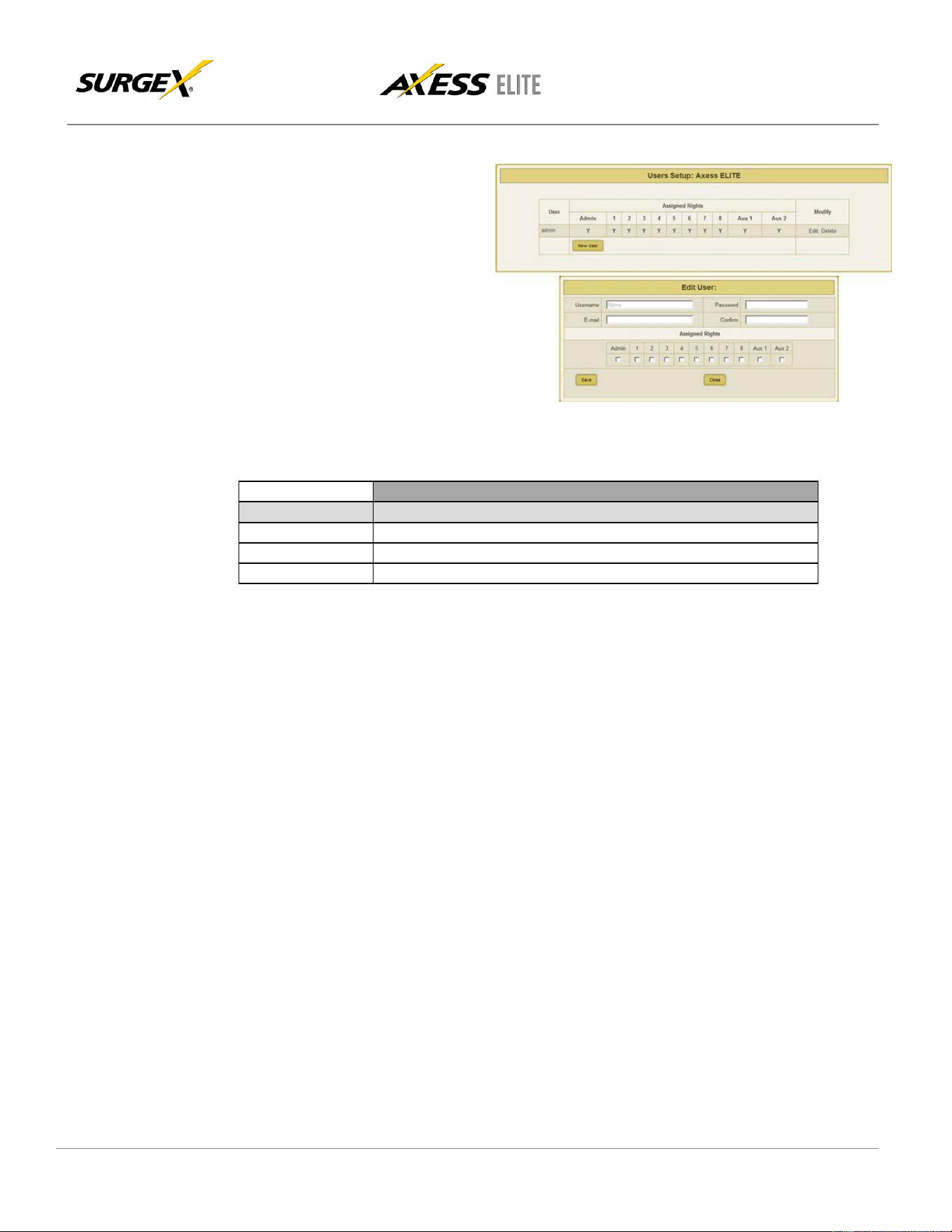
The Users Setup page allows for the
creation, deletion, and editing of up to
8 user accounts. Each user will have a
unique user name, password, and
email address, and may be assigned
access to specific outlet(s).
User accounts may be of the
Administrator or User type.
Administrators have access to all
functions; Users do not have access to
Setup functions.
User authentication is supported for Web, Serial, Telnet, and SDxP interfaces.
Users Setup
Item
Description
New User
Allows for the creation of a new user account.
Save
Saves the updated user information.
Close
Closes the edit dialogue without saving any changes.
© 2019 AMETEK Electronic Systems Protection | surgex.com
17
User Manual
Firmware Version v2.10.300
5.5.5 Triggers Setup
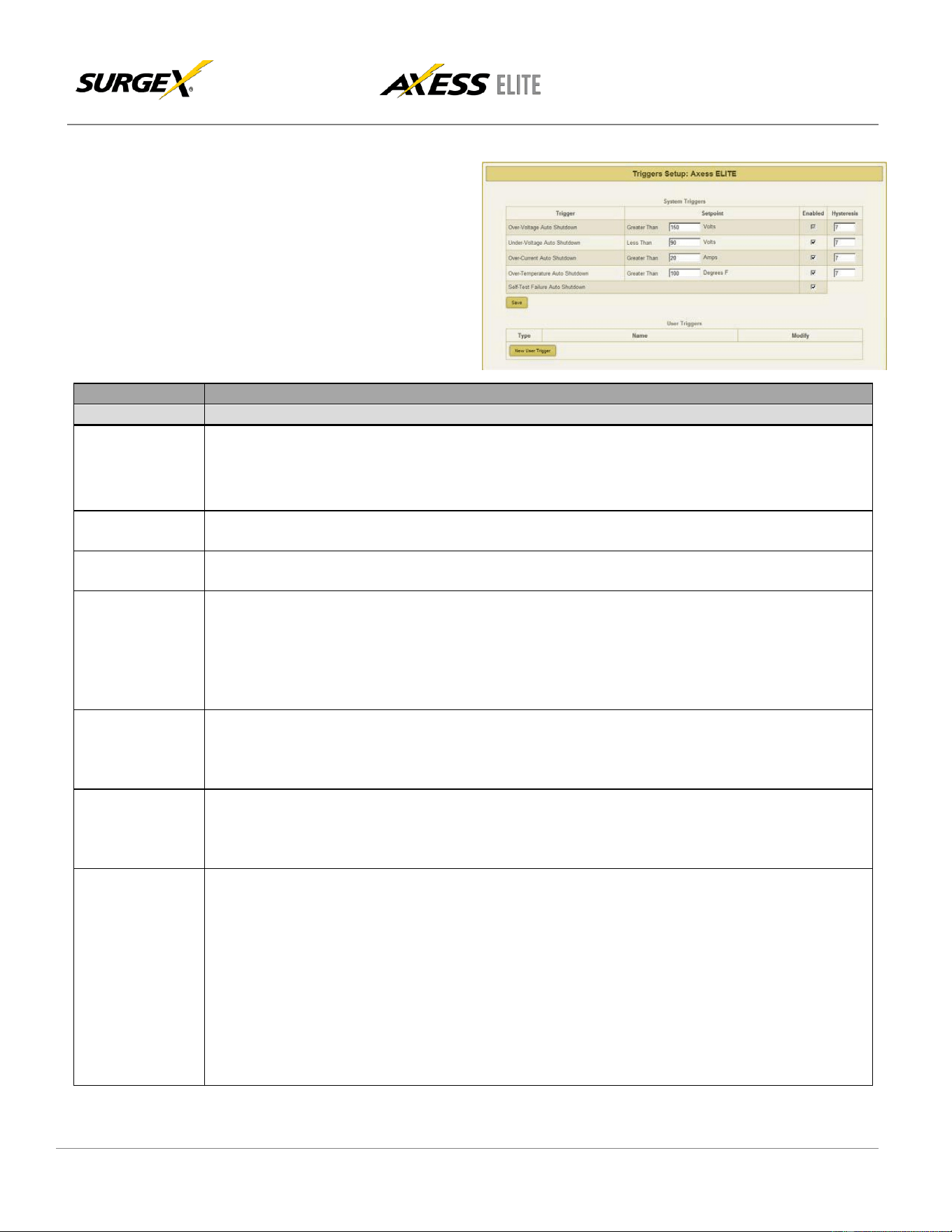
The Triggers Setup page allows for
the modification of System Triggers
and creation of User Triggers.
System Triggers define the protective
shutdown points for the AC
outlets, and take precedence over
all other actions, including User
Triggers.
Triggers Setup
Item
Description
Hysteresis
Specifies the amount by which the associated
parameter
must return closer to nominal following the activation of a
System Trigger for the shutdown to be considered clear. For example using an over voltage shutdown point of 260V
and a hysteresis of 7: The Axess Elite will enter a shutdown state when the line voltage exceeds 260V and will not
leave the shutdown state until the line voltage drops below 260 – 7 = 253V.
Over-Voltage
Auto Shutdown
Immediately shuts off all outlets if the AC line voltage rises above the set value. May not be disabled.
Under-Voltage
Auto Shutdown
Shuts off all outlets if the AC line voltage falls below the set value. May be disabled.
Over-Current
Auto Shutdown
Shuts off all outlets if the total current draw exceeds the set value. Once this has been triggered, the unit will stay
in a persistent shutdown state until manually cleared by pressing “Clear Shutdown” on the Device View page or
by issuing the CLI command clear shutdown. The over-current shutdown point should not be set too close to the
anticipated normal operating current draw, as this could cause an inadvertent shutdown. May be
disabled.
Over-
Temperature
Auto Shutdown
Shuts off all outlets if the temperature sensed by the external temperature sensor exceeds the set value. Once
this has been triggered, the unit will stay in a persistent shutdown state until manually cleared by
pressing
“Clear
Shutdown” on the Device View page or by issuing the CLI command clear shutdown. May be disabled.
Self-Test
Failure
Auto Shutdown
Shuts off all outlets in the unlikely event that the internal surge protection circuitry fails.
Once this has been triggered, the unit will stay in a persistent shutdown state until manually cleared by pressing
“Clear Shutdown” on the Device View page or by issuing the CLI command clear shutdown. May be disabled.
Persistent
Shutdown State:
The Axess Elite will enter a Persistent Shutdown State upon registering an Over- Current,
Over-Temperature,
or
Self-Test Failure event. While in this state, all 8 receptacles will be turned Off, and the front panel amber LED
labeled
“Shutdown”
will
be illuminated. Outlet control will not be restored until the shutdown is manually cleared by pressing one of the
“Clear Shutdown” buttons located on the Device View page or
by issuing the CLI command clear shutdown. Before clearing the shutdown state, it is
advised to verify that the combined current requirement of all equipment powered by the Axess Elite is less
than the value specified by the Over-Current System Trigger, and that the measured temperature is less than
the value specified by the Over- Temperature System Trigger. Note that Over-Voltage and Under-Voltage
shutdown events will clear automatically when the line voltage returns to an acceptable level.
© 2019 AMETEK Electronic Systems Protection | surgex.com
18
User Manual
Firmware Version v2.10.300
5.5.6 User Defined Triggers
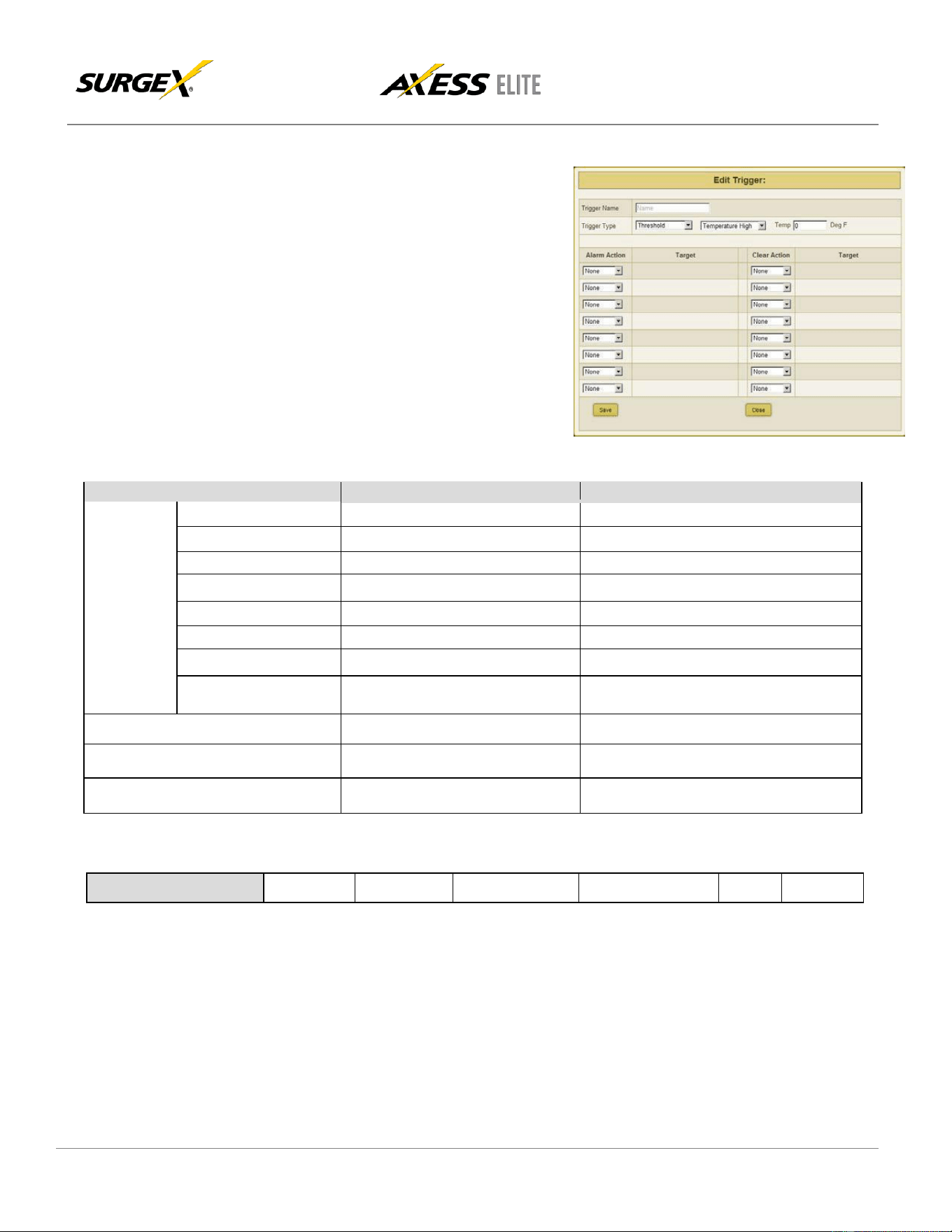
User defined triggers that have previously been
created are displayed in a list. The name of the
trigger is the name that was given to the trigger
when it was created. Pressing “Test Alarm” will
activate the trigger alarm action, and pressing
“Test Clear” will activate the trigger clear action;
use these test functions to verify that the trigger
will operate as intended.
Pressing “Edit” will open the trigger for editing,
and pressing “Delete” will delete the trigger. New
triggers may be created by pressing the “New
Trigger” button
Type
Trigger Executes When:
Trigger Clears When:
Threshold
Temperature High
Temperature > Set Point
Temp < Set - Hysteresis
Temperature Low
Temperature < Set Point
Temp > Set + Hysteresis
Voltage High
Voltage > Set Point
Voltage < Set – Hysteresis
Voltage Low
Voltage < Set Point
Voltage > Set + Hysteresis
Line Current High
Total Current > Set Point
Current < Set – Hysteresis
Line Current Low
Total Current < Set Point
Current > Set + Hysteresis
Outlet Current High
Outlet X Current > Set Point
Current < Set – Hysteresis
Outlet Current Low
Outlet X Current < Set Point
Current > Set + Hysteresis
Net Test
IP Address Ping Fails
IP Address Ping Succeeds
Schedule
Set Date and Time
NA
Contact Closure
Contact Closure Input Closes
Contact Closure Input Opens
Alarm/Clear Actions
Outlet On
Outlet Off
Outlet Reboot
Run Sequence
Email
None
© 2019 AMETEK Electronic Systems Protection | surgex.com
19
User Manual
Firmware Version v2.10.300
5.5.7 Sequences Setup
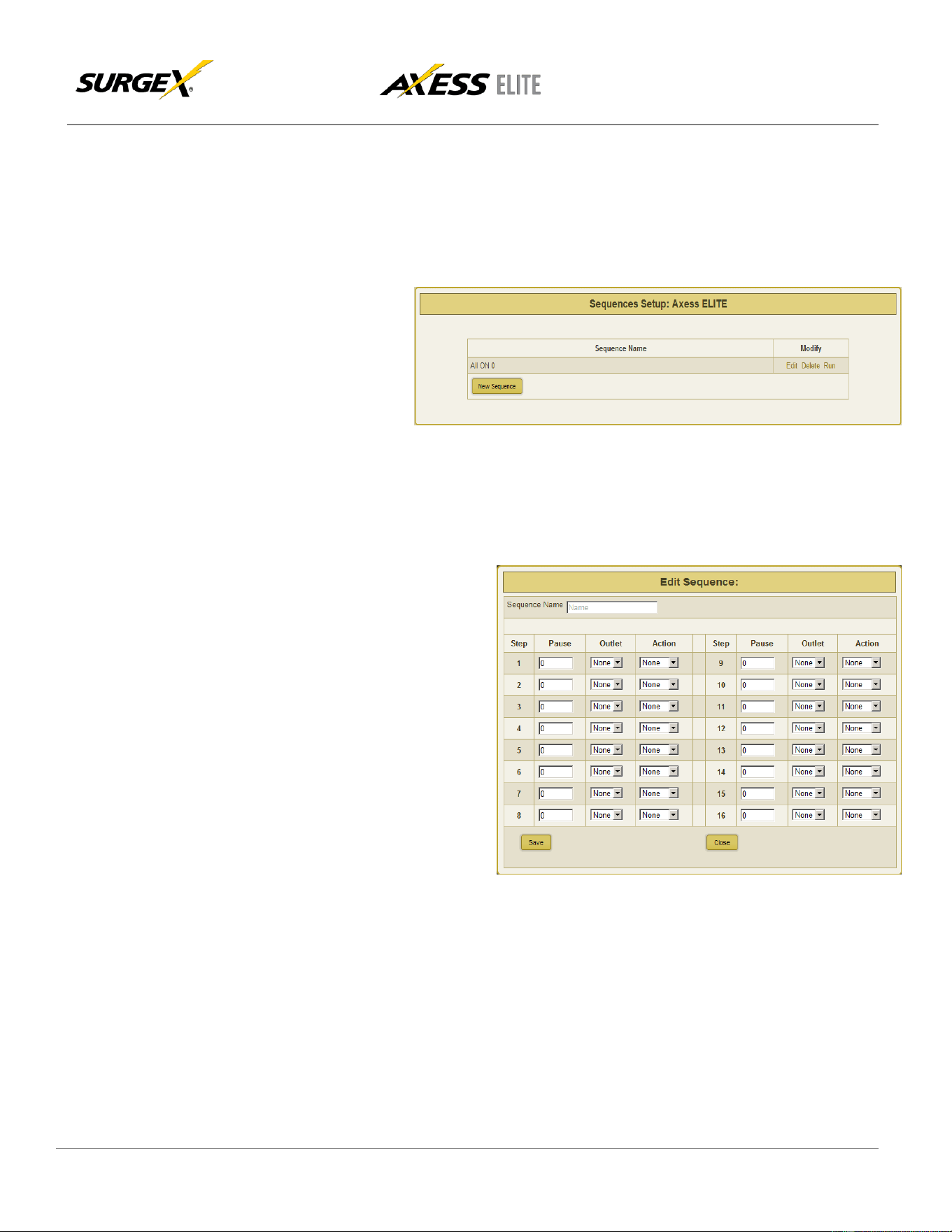
The Sequences Setup page allows for the creation and modification of sequences. A sequence is a list
of outlets, including Auxiliary Relays, that will be turned On, Off, or Rebooted in a predetermined way
with a specified delay time between each step. Using sequences avoids manually turning each outlet
on or off individually.
A sequence, as defined
for this product, is purely a
one-way sequence. That
is, you do not use the
same sequence to turn
outlets on as you use to
turn the same outlets off
in reverse order. One
sequence must be created for the turn-on function, and then a second sequence must be created for the
turn-off function.
To create a new sequence, press the “New Sequence” button. The new sequence must be given a
unique name. This name should clearly indicate what the sequence will do, such as “All On”, “All Off” or
“Stage Equipment On”. There may be up to 16 steps in a single sequence. Select the time delay from
the “Pause” column. Select the
outlet from the “Outlet” column.
Select whether the outlet is to turn
off, turn on, or reboot from the
“Action” column. Press the “Save”
button to save the sequence.
To run a sequence to test it, press
“Run”. To edit an existing sequence,
press “Edit”. To delete a sequence,
press “Delete”.
After a sequence has been saved, it
will be available at the bottom of the
Device View page, and when
creating or editing a User Trigger
when a sequence is selected as an action.
*Time delay is specified from the previous sequence item, not from the initial starting point. For example,
creating a sequence with “Step 1, 1 second, Outlet 1, On” and “Step 2, 1 second, Outlet
2, On” will turn on Outlet 1 after 1 second, and Outlet 2 on 1 second after Outlet 1 has turned on. This
sequence will not turn on both Outlets 1 and 2 at the same time.
© 2019 AMETEK Electronic Systems Protection | surgex.com
20
User Manual
Firmware Version v2.10.300
5.5.8 Links Setup
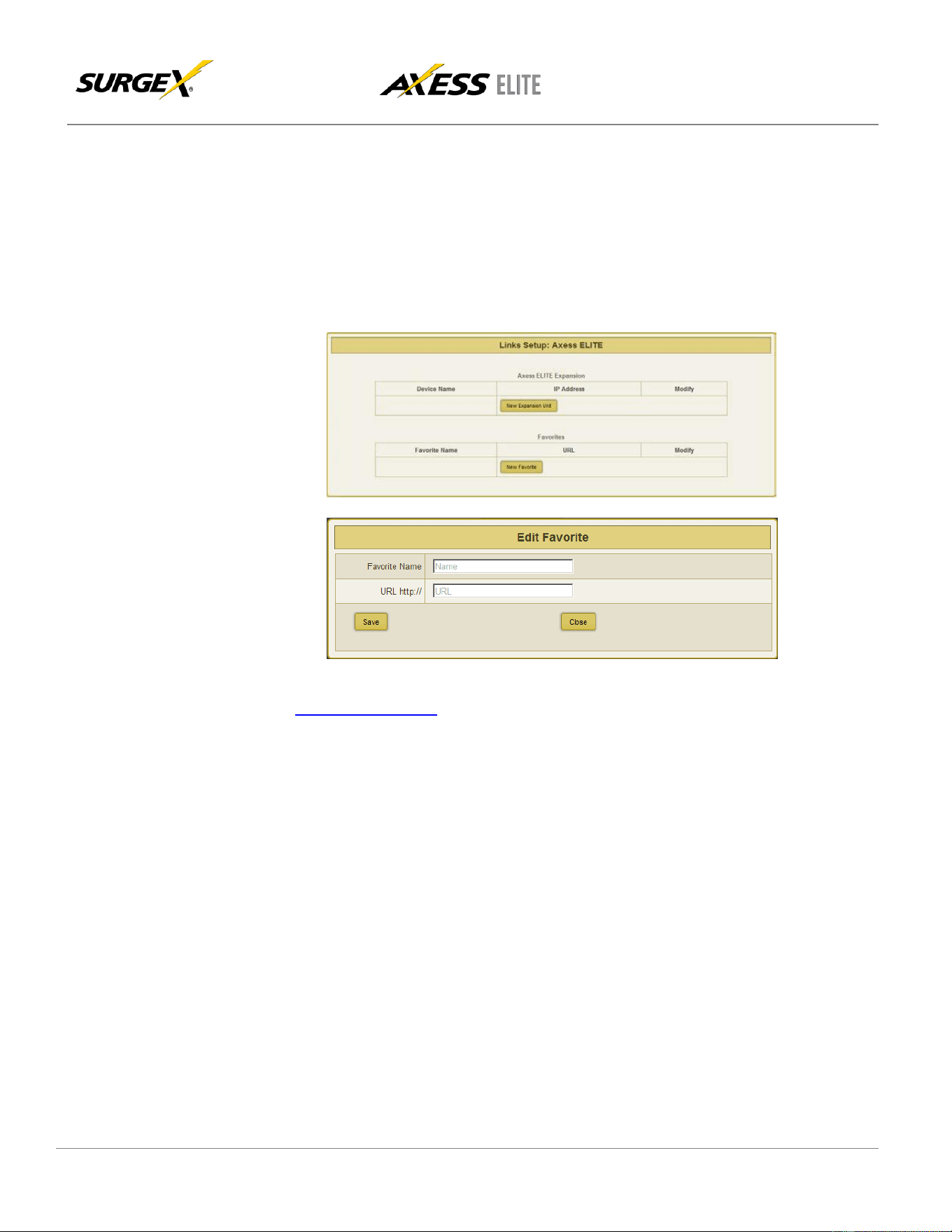
The Links Setup page allows for the setup of Axess Elite Expansion units and Favorites.
Expansion units are other Axess Elite units which will be available for monitoring and control on the
Global View page of the master unit. Up to 15 Expansion units may be defined.
Favorites may be any internet address. Use Favorites to set up shortcuts to earlier versions of the
Axess Elite product, other equipment web servers, or Internet web pages.
Addresses may be specified with a port number in this format: “http://IPADDRESS:PORTNUMBER”; for
example, http://192.168.1.199:72.
Saved Expansions and Favorites are available in the Links subsection of the Device View page.
User Man
u
al
Firmware Version v2.10.300
6. Command Line Interface (CLI) Protocol
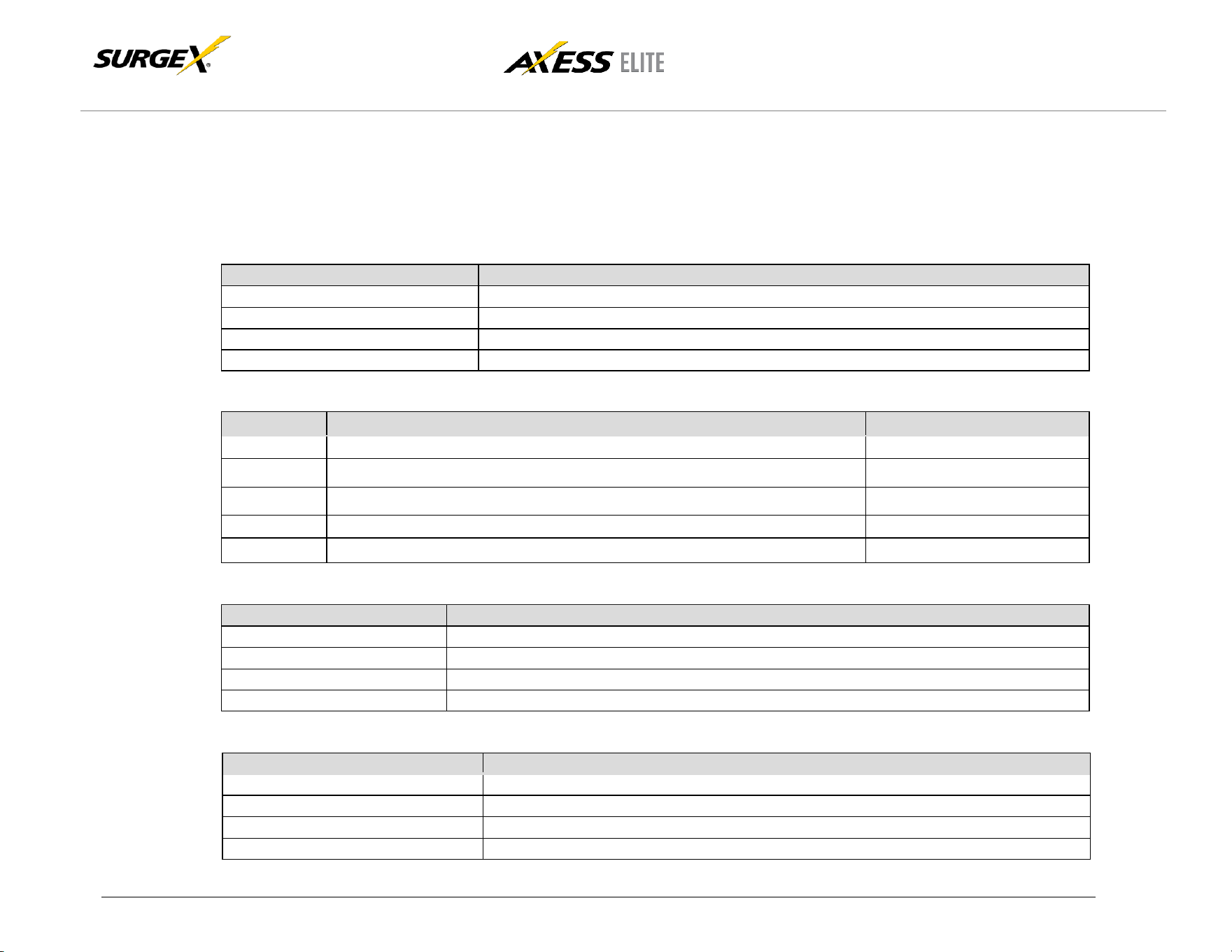
The Command Line Interface provides complete setup of all functions of the Axess Elite. The CLI may be accessed either via the network interface using Telnet, or via
the serial port using a terminal emulator program. Some commands of the CLI require administrative rights; these are indicated in the following tables.
6.1 Prompts
Prompt
Description
User>
Prompt to enter a valid User Name. Not case sensitive.
Password>
Prompt to enter the Password associated with the User Name. Case sensitive.
Axess ELITE>
Standard prompt while logged in.
Axess ELITE Reboot Required>
Prompt after making a change which requires a reboot to take effect.
6.2 Syntax
Command
Description
Standard Syntax
Set
This command is used to change a parameter.
set <variable> <specifier>
Get
This command is used to return the value of a parameter.
get <variable>
Add
This command adds an entry row to any array of variables.
add <array> <newentry>
Ren
This command renames an entry in an array.
ren <array> <oldname>
Del
This command deletes an entry from an array.
del <array> <entryname>
6.3 Responses
Response
Description
OK
The command was received and the syntax was validated.
Error
The syntax could not be validated.
Bad command or parameter
An incorrect command or parameter was received.
Invalid Command
An invalid command was received.
6.4 CLI Documentation Notation
Notation
Description
Text without brackets
Items you must type as shown
<Text inside angle brackets>
Placeholder for which you must supply a value
Hyphen: -
Range of acceptable numeric values
Vertical Bar: |
Separator for mutually exclusive items; choose one
© 2019 AMETEK Electronic Systems Protection | surgex.com 21
User Manual
Firmware Version v2.10.300
© 2019 AMETEK Electronic Systems Protection | surgex.com
22
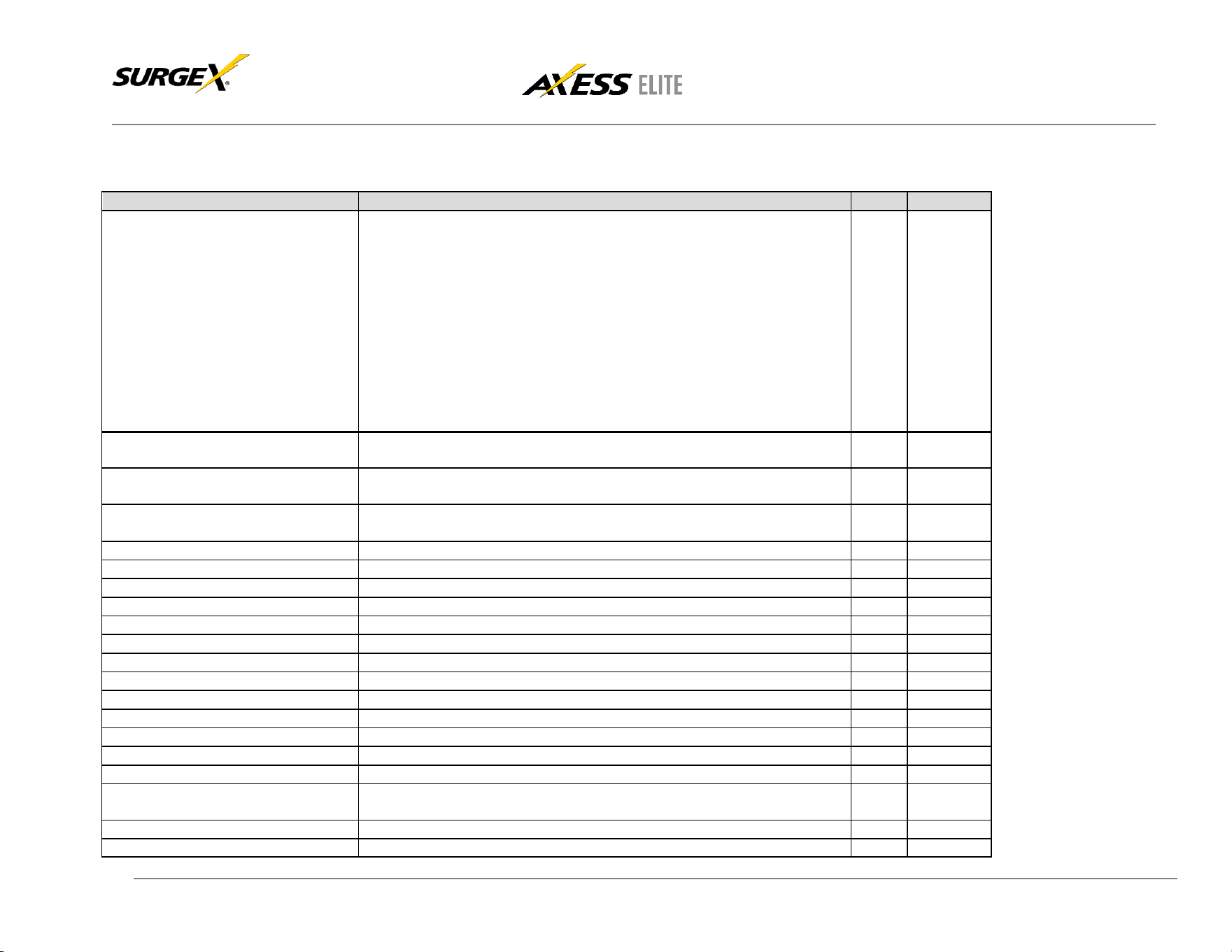
6.5 Device Commands
Command
Description
Admin
Fact Def
get all
get outlets
get status
Returns the status of all AC outlets and the following system level measurements:
• Device Name
• Line Voltage
• Total Current Draw
• Total Power Draw
• Total Energy Used
• Reboot Time Currently in Use
• Delay Time Currently in Use
• Temperature
• On/Off Status of Each Outlet
• Current Draw of Each Outlet
• Power Draw of Each Outlet
No
get outlet <1‐10>
Returns the status of the specified outlet. AC outlets are numbers 1-8. Aux Relays
A and B are numbers 9 and 10.
No
set outlet <1‐10> <on/off/reboot>
Sets the selected outlet to the selected state. The user must have rights to
the selected
No
get devicename
Returns the device name.
No
Axess ELITE
set devicename <devicename>
Sets the device name.
Yes
get reboot
Returns the Reboot Time.
No
set reboot <1-99>
Sets the Reboot Time in seconds.
No
5
get delay
Returns the Delay Time.
No
set delay <0-99>
Sets the Delay Time in seconds.
No
1
get console
Returns the current console timeout and baud rate.
No
set autologout <0-99>
Sets the automatic logout timeout of web and CLI in minutes. 0 = no timeout.
Yes
2
set baud < 2400 | 9600 | 57600 | 115200 >
Sets the serial port baud rate.
Yes
960
0
clear shutdown
Clears a persistent shutdown state.
No
set clear shutdown by user < yes | no >
Sets the ability of a user account to clear a persistent shutdown state.
Yes
Y
get upload enable
Returns the status of the ability to accept a firmware upload.
No
set upload enable < yes | no >
Sets the ability to accept a firmware upload.
Yes
Y
clear log
Clears history text log file.
Yes
set factory defaults
Resets all parameters, except Network Settings, to their factory default settings.
Confirmation is required. Note: This command may take up to 30 seconds to execute.
Yes
logout
Ends the session.
No
reboot
Reboots the unit. Will not affect the status of the outlets.
No
User Manual
Firmware Version v2.10.300
© 2019 AMETEK Electronic Systems Protection | surgex.com
23
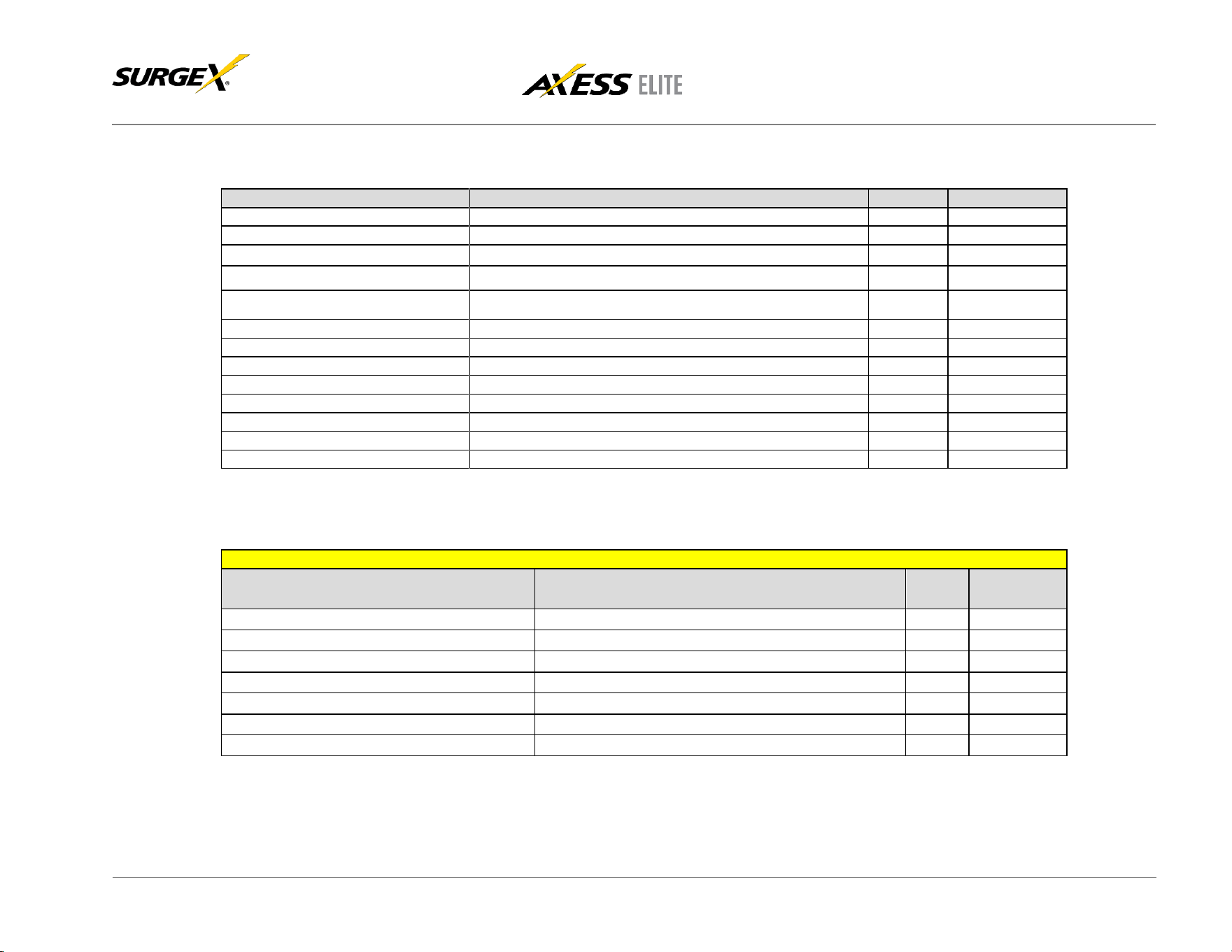
6.6 Network Commands
Command
Description
Admin
Fact Def
get network
Returns the network settings.
Yes
get mac
Returns the MAC address of the network adapter.
Yes
set ipmode < static | dhcp >
Sets the IP Mode.
Yes
DHCP
set ipaddress < dotted decimal >
Sets the IP Address in dotted decimal.
Yes
DHCP Assigned
set subnet < dotted decimal >
Sets the subnet mask in dotted decimal.
Yes
255.255.255.0
set gateway < dotted decimal >
Sets the gateway in dotted decimal.
Yes
0.0.0.0
set dns1 < dotted decimal >
Sets the DNS server 1 address.
Yes
set dns2 < dotted decimal >
Sets the DNS server 2 address.
Yes
set web http port < 1 – 65535 >
Sets the web server port.
Yes
80
set web use ssl < yes | no >
Enable or Disable the web server’s SSL capabilities.
Yes
No
set web https port < 1 – 65535 >
Sets the SSL web server port.
Yes
443
set telnet enable < yes | no >
Enable or disable the telnet server.
Yes
Yes
set telnet port < 1 – 65535 >
Sets the telnet port.
Yes
23
6.7 Calibration Commands
IMPORTANT: Each Axess Elite is fully calibrated at the factory. Improper calibration may result in a Persistent Shutdown State!
Command
Description
Admin
Standard
Value
set voltage calibration < 105 – 130 >
Sets the voltage calibration. AC Volts.
Yes
230
set voltage offset < 0 – 130 >
Zeroes the voltage calibration. AC Volts.
Yes
0
set current < 1-8 | all > calibration < 1 – 20 >
Sets the individual outlet current calibration. AC Amps.
Yes
set current < 1-8 | all > offset < -20 – 20 >
Zeroes the individual outlet current calibration. AC Amps.
Yes
0
set power < 1-8 | all > calibration < 1 – 2400 >
Sets the individual outlet power calibration. AC Watts.
Yes
set power < 1-8 | all > offset < -20 – 20 >
Zeroes the individual outlet power calibration. AC Watts.
Yes
0
set temperature offset < -999 – 999 >
Sets the temperature calibration offset. Degrees F.
Yes
-460

User Manual
Date
: Sat, 7 Jul 2012 09:41:00 - 0500
From
: <AxessElite@surgex.com> To
: networkadmin@yourco.com
Firmware Version v2.10.300
7.
Email
Notification
Email can be automatically sent for System Triggers and User Triggers.
Emails generated by the Axess Elite will display the device name and information related to the
System Trigger or User Trigger.
Examples:
Subject : Axess ELITE Cabinet_1
Axess ELITE Cabinet_1 at 192.168.1.199
System Trigger Over Temperature at 115 degrees Alarm
Subject : Axess ELITE Cabinet_3
Date : Sat, 7 Jul 2012 09:46:00 - 0500
From : <AxessElite@surgex.com>
To : <networkadmin@yourco.com>
Axess ELITE Cabinet_3 at 192.168.1.199 schedule1 processed at 09:46 on 07/07/2012
8. SNMP
Axess Elite Setup and Control functions can be linked to any SNMP v2c manager. Up to four SNMP managers may be set.
Each manager can perform all Setup and Control functions, and may receive Trap notifications for System Triggers, User
Triggers, and Manual outlet control.
The Axess Elite MIB is available at surgex.com.
© 2019 AMETEK Electronic Systems Protection | surgex.com 24
User Manual
© 2019 AMETEK Electronic Systems Protection | surgex.com
25
9. SDxP Protocol
9.1 Overview
Firmware Version v2.10.300
The SDxP Protocol is a packet-based protocol designed to be extensible. This protocol is transmitted over TCP
on a user-defined port. The factory default SDxP port is 9100.
The protocol uses a Hello handshake to establish unique sequence numbers to allow for advanced security when
AES encryption is used. With AES enabled, all messages must be encrypted with the AES Passphrase set in the
device.
After the Hello, a Command and Response sequence follows. Any number of
Command → Response sequences are permitted after Hello.
9.2 Hello
H
a
nd
shake
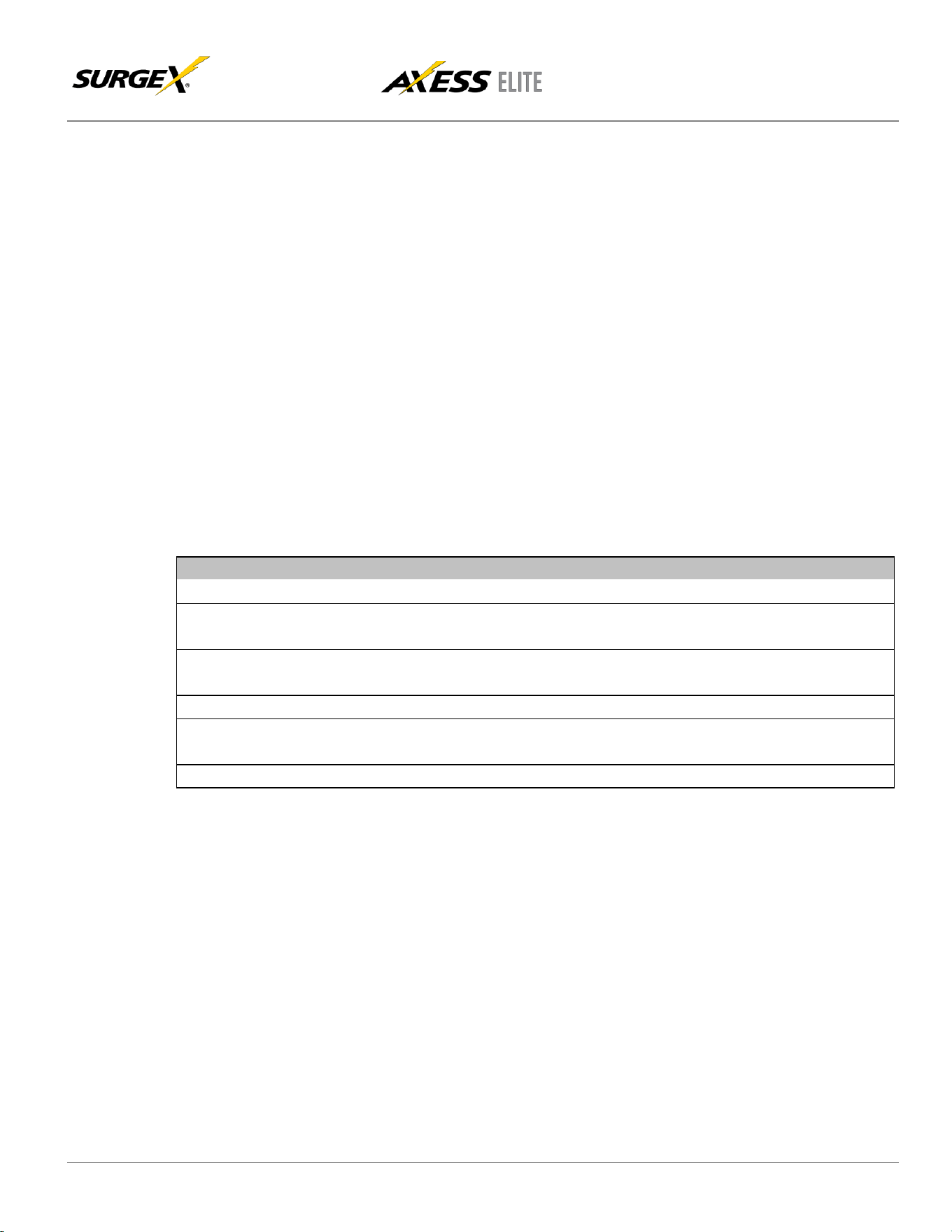
The client sends a Hello message in the form of a text string “hello-000”. The SDxP enabled Axess Elite will
respond with a packet containing the unsigned 16 bit sequence number. This sequence number is incremented
by the client and server with each correct packet sent.
Example:
Client Server
hello-000 →
← 1234
(seq 1234)
Command →
(seq 1235)
← Response
Command →
(seq 1237)
← Response
© 2019 AMETEK Electronic Systems Protection | surgex.com
26
User Manual
Firmware Version v2.10.300
9.3 SDxP
P
acke
t
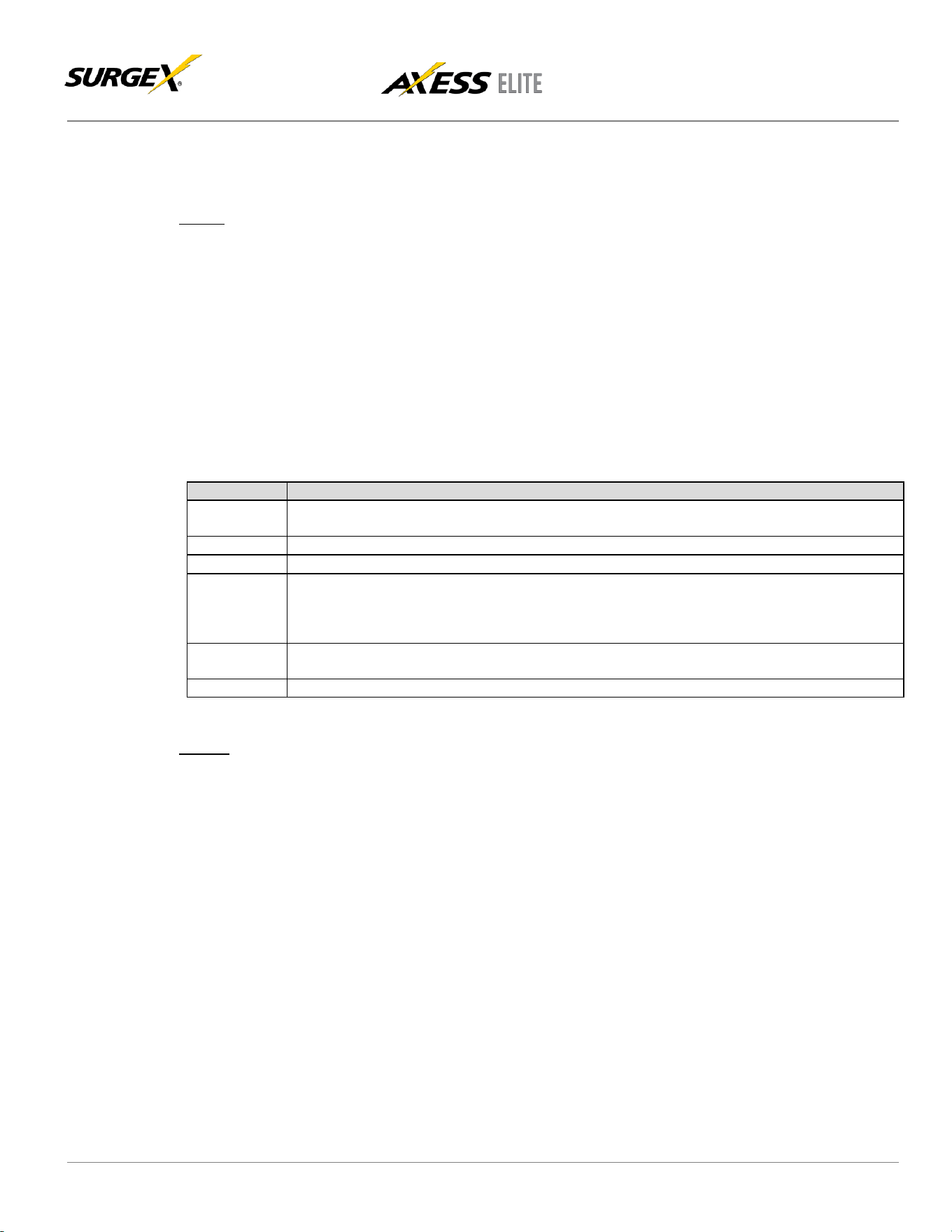
The packet is broken up into 2 parts: the Header and the Payload
Header
The header is used to carry general information, such as is shown in the C
programming structure below:
typedef struct { eType
type; char[21]
uName; char[21]
password; uChar
desc;
uChar param;
uint16 seq;
} THeader
Variable
Description
type
Enumerated type that tells the SDxP server what type of packet is being sent. See the Types
subsection for a full list of packet types.
uName
This variable MUST contain a valid user on the target Axess Elite.
password
This variable MUST contain the password for the specified user.
desc
This variable is the type descriptor that describes the type of data that is being sent. By
extension, it lets the server know what the payload is. There is a different set of descriptors for
each type class. See the Descriptors subsection for a full list of descriptors by type.
param
Reserved for future use. Optional parameter that may be passed to the server in addition to the
descriptor.
seq
The packet’s sequence number. Used as part of the security scheme.
Payload
The payload is determined by a combination of the type class and the descriptor. The payloads are described by
the descriptor; see the Descriptors subsection for details.
© 2019 AMETEK Electronic Systems Protection | surgex.com
27
User Manual
Firmware Version v2.10.300
9.4 Types
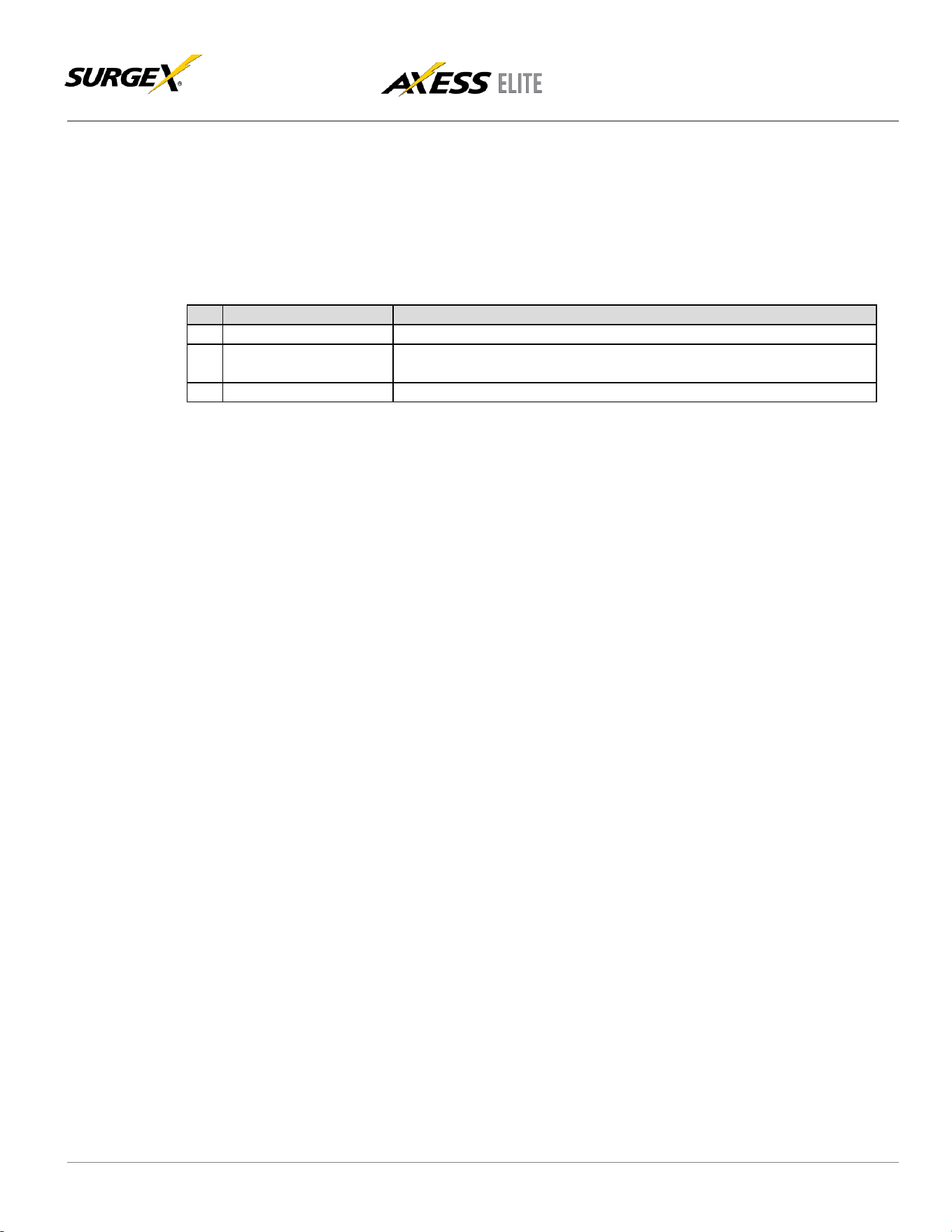
There are currently 2 types. All classes are defined in the C programming enumerated type definition below:
typedef enum { eType_null,
eType_inform,
eType_commands
} eCmnd;
Command
Description
0
eType_null
This is a null command and should not be sent to the server.
1
eType_inform
Informs are similar to SNMP traps. They are sent from the managed device
to the manager on a periodic basis.
2
eType_commands
Used to control and query the managed device.
9.5 Descriptors
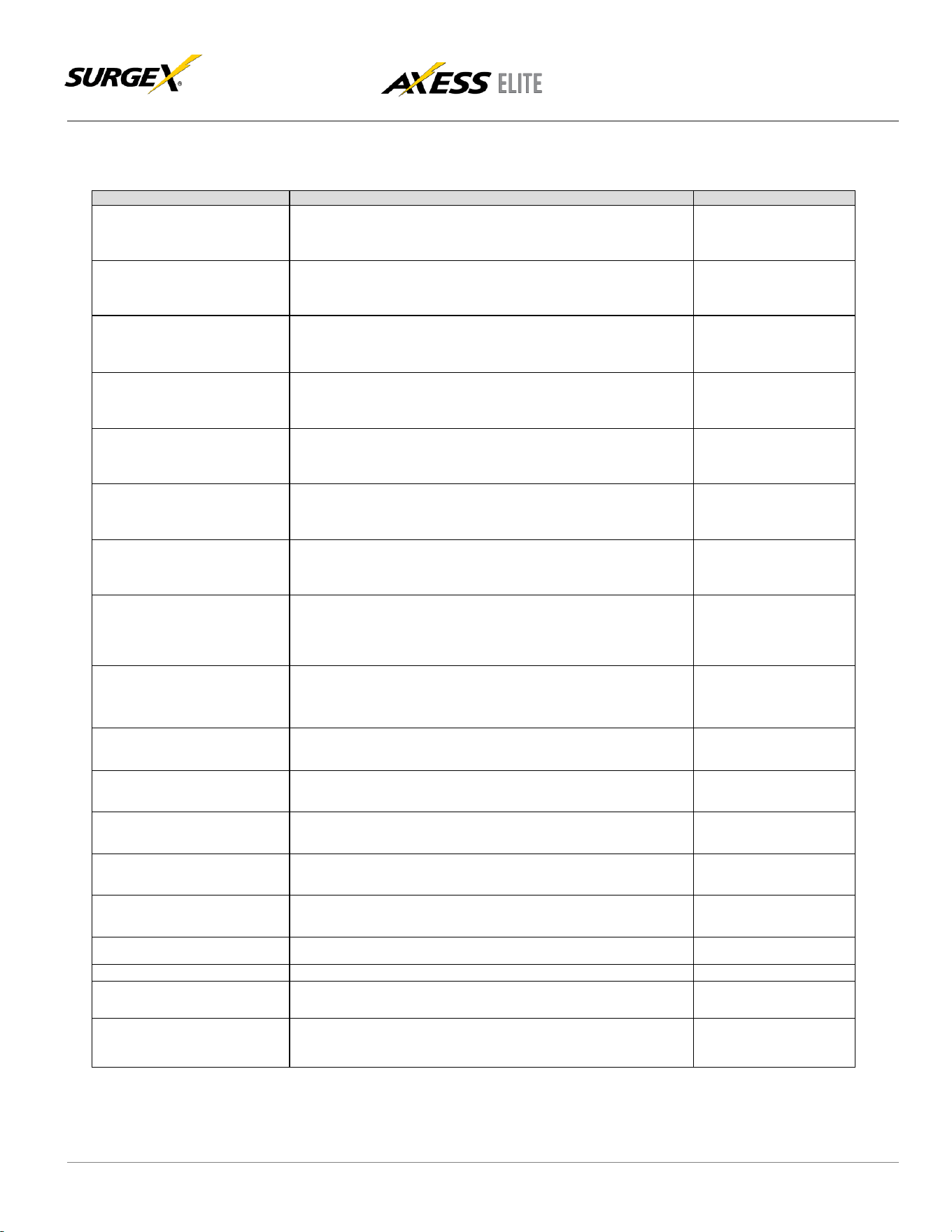
Descriptors are used to describe the individual commands within a command class and the payload that the
packet contains. All of the descriptors and their payloads are outlined by command class below:
eType_Informs
Informs are similar to SNMP traps. They are sent from the managed device to the manager on a periodic
basis.
typedef enum { eInform_null,
eInform_outletStatus,
eInform_auxRelayStatus,
eInform_lineVoltage,
eInform_lineCurrent,
eInform_linePower,
eInform_ouletCurrent,
eInform_outletPower,
eInform_sysStatus,
eInform_poll,
eInform_overVoltager,
eInform_underVoltage,
eInform_overCurrent,
eInform_overTemperature,
eInform_selfTestFail,
eInform_userTriggerClear,
eInform_userTriggerFail,
eInform_manualControl
elnform_systemTriggerClear
}eInform;
© 2019 AMETEK Electronic Systems Protection | surgex.com
28
User Manual
Firmware Version v2.10.300
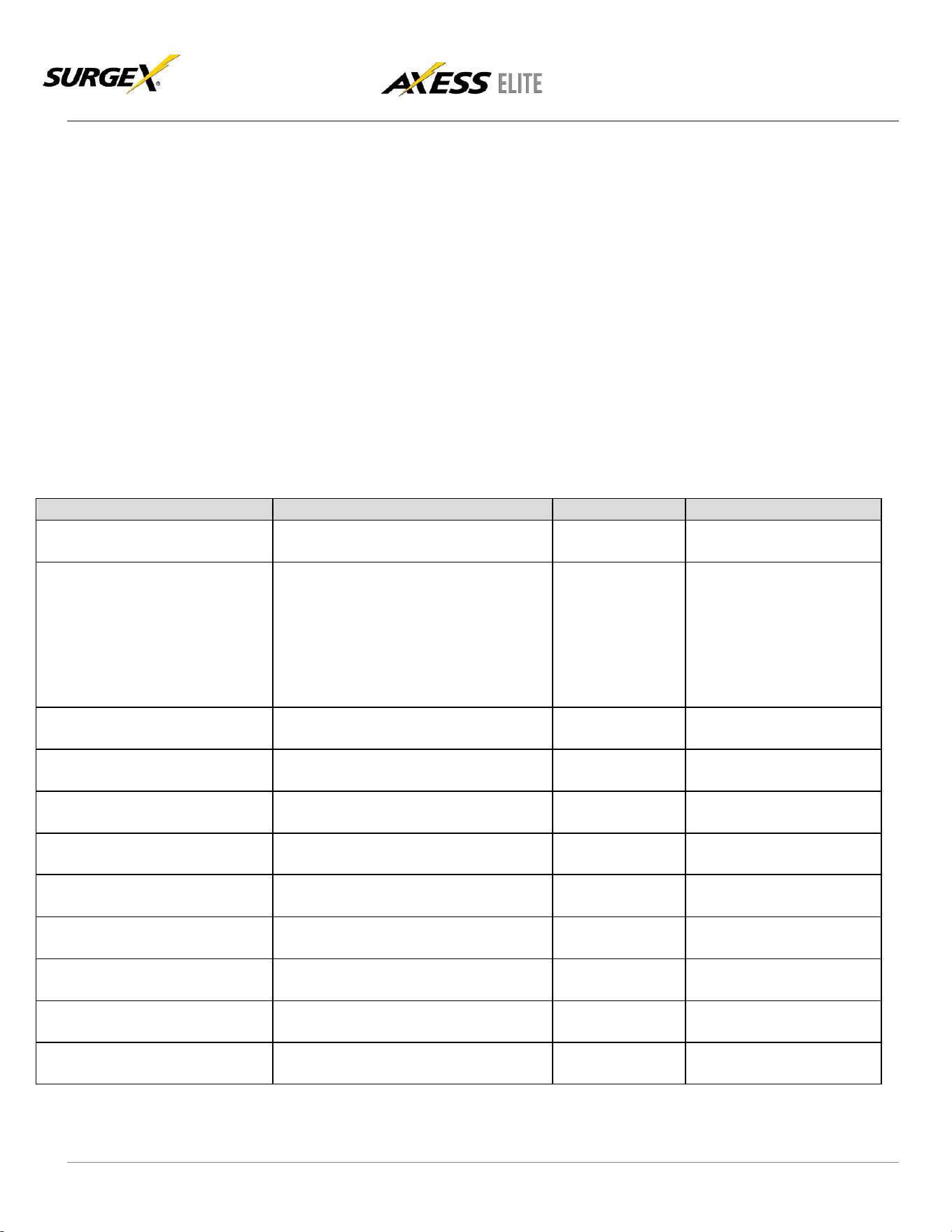
Descriptors
Inform
Description
Payload
eInform_outletStatus
This inform is used to tell the manager the status of all
8 outlets. It is also the response to the getOutletStatus
and setOutletStatus commands.
tOutletStatus
eInform_auxRelayStatus
This inform is used to tell the manager the status of the
2 auxiliary relays. It is also the response to the
getAuxRelayStatus and setAuxRelayStatus commands.
tAuxStatus
eInform_lineVoltage
This inform is used to tell the manager the line voltage.
It is also the response to the getLineVoltage command.
tLineVoltage
eInform_lineCurrent
This inform is used to tell the manager the total line
current. It is also the response to the getLineCurrent
command.
tLineCurrent
eInform_linePower
This inform is used to tell the manager the total line
power. It is also the response to the getLinePower
command.
tLinePower
eInform_outletCurrent
This inform is used to tell the manager the current
draw of each of the individual outlets. It is also the
response to the getOutletCurrent command.
tOutletCurrent
eInform_outletPower
This inform is used to tell the manager the power
draw of each of the individual outlets. It is also the
response to the getOutletPower command.
tOutletPower
eInform_sysStatus
This inform is used to tell the manager the entire
system status (all above metrics). It is sent every X minutes by
the managed device to keep the manager in sync. It is also
the response to the getSysStatus command.
tSysStatus
eInform_poll
This inform is used as the response to the Poll
command. The Poll command is used by the Axess
Elite to poll Expansion units.
tPoll
eInform_overVoltage
This inform is sent whenever a System
Trigger: Over Voltage occurs.
tInformOverVoltage
eInform_underVoltage
This inform is sent whenever a
System Trigger: Under Voltage occurs.
tInformUnderVoltage
eInform_overCurrent
This inform is sent whenever a System
Trigger: Over Current occurs.
tInformOverCurrent
eInform_overTemperature
This inform is sent whenever a
System Trigger: Over Temperature occurs.
tInformOverTemperature
eInform_selfTestFail
This inform is sent whenever a
System Trigger: Self Test Failure occurs.
None
eInform_userTriggerClear
This inform is sent whenever any User Trigger clears.
tInformUserTriggerClear
eInform_userTriggerFail
This inform is sent whenever any User Trigger fails.
tInformUserTriggerFail
eInform_manualControl
This inform is sent whenever a manual outlet state
change is made.
tInformManualControl
eInform_systemTriggerClear
This inform is sent whenever any System Trigger
clears.
tInformSystemTriggerCl
ear
© 2019 AMETEK Electronic Systems Protection | surgex.com
29
User Manual
Firmware Version v2.10.300
eType_Commands
Commands are used to control and query the managed device.
typedef enum {
eCommands_null,
eCommands_setOutletStatus,
eCommands_getOutletStatus,
eCommands_getOutletCurrent,
eCommands_getOutletPower,
eCommands_setAuxRelayStatus,
eCommands_getAuxRelayStatus,
eCommands_getLineVoltage,
eCommands_getLineCurrent,
eCommands_getLinePower,
eCommands_getSysStatus,
eCommands_poll
}eCommands;
Command
Description
Payload
Response
eCommands_null
This is a null command and should
not be used.
None
None
eCommands_setOutletStatus
eCommands_getOutletStatus
This command is used to control an
individual outlet. Note: The inform returned
as a result of the command will reflect the
current outlet state, and will not reflect the
requested change.
This command is used to get the
status of all outlets.
tOutletCommand
None
eInforms_OutletStatus
eInforms_OutletStatus
eCommands_getOutletCurrent
This command is used to get the
current draw of all outlets (Amps).
None
eInforms_OutletCurrent
eCommands_getOutletPower
This command is used to get the
power draw of all outlets (Watts).
None
eInforms_OutletPower
eCommands_setAuxRelayStatus
This command is used to set the
status of the selected Aux Relay.
tOutletCommand
eInforms_AuxRelayStatus
eCommands_getAuxRelayStatus
This command is used to get the
status of both Aux Relays.
None
eInforms_AuxRelayStatus
eCommands_getLineVoltage
This command is used to get the line
voltage (AC Volts).
None
eInforms_LineVoltage
eCommands_getLineCurrent
This command is used to get the total
line current (Amps).
None
eInforms_LineCurrent
eCommands_getLinePower
This command is used to get the total
power draw (Watts).
None
eInforms_LinePower
eCommands_getSysStatus
This command is used to get the
system status.
None
eInforms_sysStatus
eCommands_poll
This command is used to poll
Expansion units.
None
eInforms_poll

© 2019 AMETEK Electronic Systems Protection | surgex.com
30
User Manual
Firmware Version v2.10.300
9.6 Payloads
Payload
tOutletStatus
typedef struct {eOutletStatus status[8] ;
}tOutletStatus;
typedef enum {
eOutletStatus_null,
eOutletStatus_on,
eOutletStatus_off
tAuxStatus
typedef struct {
eAuxStatus status[2];
}tAuxStatus;
typedef enum { eAuxStatus_null,
eAuxStatus_energized,
eAuxStatus_deenergized
}tAuxStatus;
tLineVoltage
typedef struct {
float lineVoltage;
}tLineVoltage;
tLineCurrent
typedef struct {
float lineCurrent;
}tLineCurrent;
tPoll
typedef struct {
u8 outletStatus [8];
u8 auxStatus [2];
float lineVoltage;
float lineCurrent;
float linePower;
float outletCurrent [8];
float outletPower [8];
u8 statusFlags;
tExpansionUser users [8];
}tPoll;
tLinePower
typedef struct {
float linePower;
}tLinePower;
tOutletCurrent
typedef struct {
float outletCurrent[8];
}tOutletCurrent;

© 2019 AMETEK Electronic Systems Protection | surgex.com
31
User Manual
Firmware Version v2.10.300
tOutletPower
typedef struct {
float outletPower[8];
}tOutletPower;
tSystemStatus
typedef struct {
eOutletStatus
outletStatus[8];
eAuxStatus
auxStatus[2]; float
lineVoltage;
float
line
Current;
float
linePower;
tOutletCommand
typedef struct {
U8 outlet; //1-8
eOutletStatus status;
}tOutletCommand;
tAuxCommand
typedef struct {
char relay; //A or B
eAuxStatus; //N or F
}tAuxCommand;
tInformManualControl
typedef struct{
unsigned char outlet; //id of outlet to change
unsigned char status; //the state to change to
}tInformManualControl;
tInformOverVoltage
typedef struct{
float voltage;
}tInformOverVoltage;
tInformUnderVoltage
typedef struct{
float voltage;
}tInformUnderVoltage;
tInformOverCurrent
typedef struct{
float current;
}tInformOverCurrent;
tInformOverTemperature
typedef struct{
int temperature;
}tInformOverTemperature;
tSystemStatus
tOutletCommand
typedef struct {
eOutletStatus
outletStatus[8];
eAuxStatus
auxStatus[2]; float
typedef struct {
U8 outlet; //1-8 eOutletStatus status;
}tOutletCommand;

© 2019 AMETEK Electronic Systems Protection | surgex.com
32
User Manual
Firmware Version v2.10.300
tAuxCommand
typedef struct {
char relay; //A or B eAuxStatus; //N or F
}tAuxCommand;
tInformManualControl
typedef struct{
unsigned char outlet; //id of outlet
to change unsigned char status;
//the state
to change to
}tInformManualControl;
tInformOverVoltage
typ
ed
ef
tInformUnderVoltage
typ
ed
ef
typ
ed
ef
tInformOverTemperature
type
def
stru
10. Device Management Utility
The Device Management Utility (DMU) is compatible with SurgeX Axess Elite / Axess Ready products and provides the
easiest means to find and configure your Axess Elite unit to:
Automatically discover multiple Axess Elite and Axess Ready units on a local network
Display the current IP address of each unit
Allows the settings of a new IP address for each connected device
Return a connected Axess Elite or Axess Ready device to Factory Defaults
The Device Management Utility is available for download at https://www.ametekesp.com/surgex/axess-elite/axess-elite-220-
240v.
Note: The IP address can only be set within the first 2 minutes after powering up the Axess Elite. The utility will only work
with an Axess Elite on the same local subnet as the PC.
Device: Discover: Automatically discover all Axess Elite products on the network. The DMU will display the location
name of the unit, the product ID and version number, the current IP address, and the MAC address. Factory
defaulted Axess Elites will display with the name Axess Elite and network settings will not be affected.
Add: Manually add an Axess Elite by IP address
Clear: Clear the list
Set: IP Address: Changes the IP address of the selected Axess Elite
Factory Defaults: Return the selected Axess Elite to a Factory Default state. This action must be performed within
the first 2 minutes after powering up the unit

© 2019 AMETEK Electronic Systems Protection | surgex.com
33
User Manual
Firmware Version v2.10.300
02-24-2012
13:55:14
System4.Alert 10.1.2.69
02/24/2012
13:55:15
Cabinet_1 System Trigger Over Temperature Alarm
Local Address: Select the IP address to Discover on. This may be necessary for computers with multiple network
connections
Exit: Exits the DMU program
Help: Online Help: Opens a web browser to online help resources
About: Displays DMU version information
11. Syslog
The Axess Elite contains a built in Syslog client. When enabled, it will send Syslog formatted UDP messages on port 514.
Messages will be sent for the following System Triggers:
Over-Voltage Auto Shutdown Trigger
Over-Voltage Auto Shutdown Clear
Under-Voltage Auto Shutdown Trigger
Under-Voltage Auto Shutdown Clear
Over-Current Auto Shutdown Trigger
Over-Current Auto Shutdown Clear
Over-Temperature Auto Shutdown Trigger
Over-Temperature Auto Shutdown Clear
Self-Test Failure Auto Shutdown Trigger
Self-Test Failure Auto Shutdown Clear
Example:
12. Rear Panel Reset Button
The recessed reset pushbutton located on the rear panel to the right of the Network connection performs three functions:
Reboot, Password Reset, and Factory Default Reset.
Pressing the reset button once quickly will reboot the Axess Elite. The outlets will be set to the states specified by their
Initial State parameters. This operation will also clear a Persistent Shutdown State.
Holding the reset button for 5 seconds or longer will initiate a recovery mode. Once the reset button is released, the user
has 30 seconds to log in to the CLI using the username admin and password admin. After logging in during recovery
mode, the command set password <password> may be used to assign a new admin password. While in this mode, the
red Mains LED will flash 0.5 seconds on/off.
Holding the reset button for 5 seconds or longer while powering up the unit will enter factory default reset mode. When the
button is released, the unit will be reset to factory defaults, including Network Settings.
13. Firmware Upgrade
Refer to the Firmware Upgrade Utility user manual on the download tab at https://www.ametekesp.com/surgex/axess-
elite/axess-elite-220-240v for details.
© 2019 AMETEK Electronic Systems Protection | surgex.com
34
User Manual
Firmware Version v2.10.300
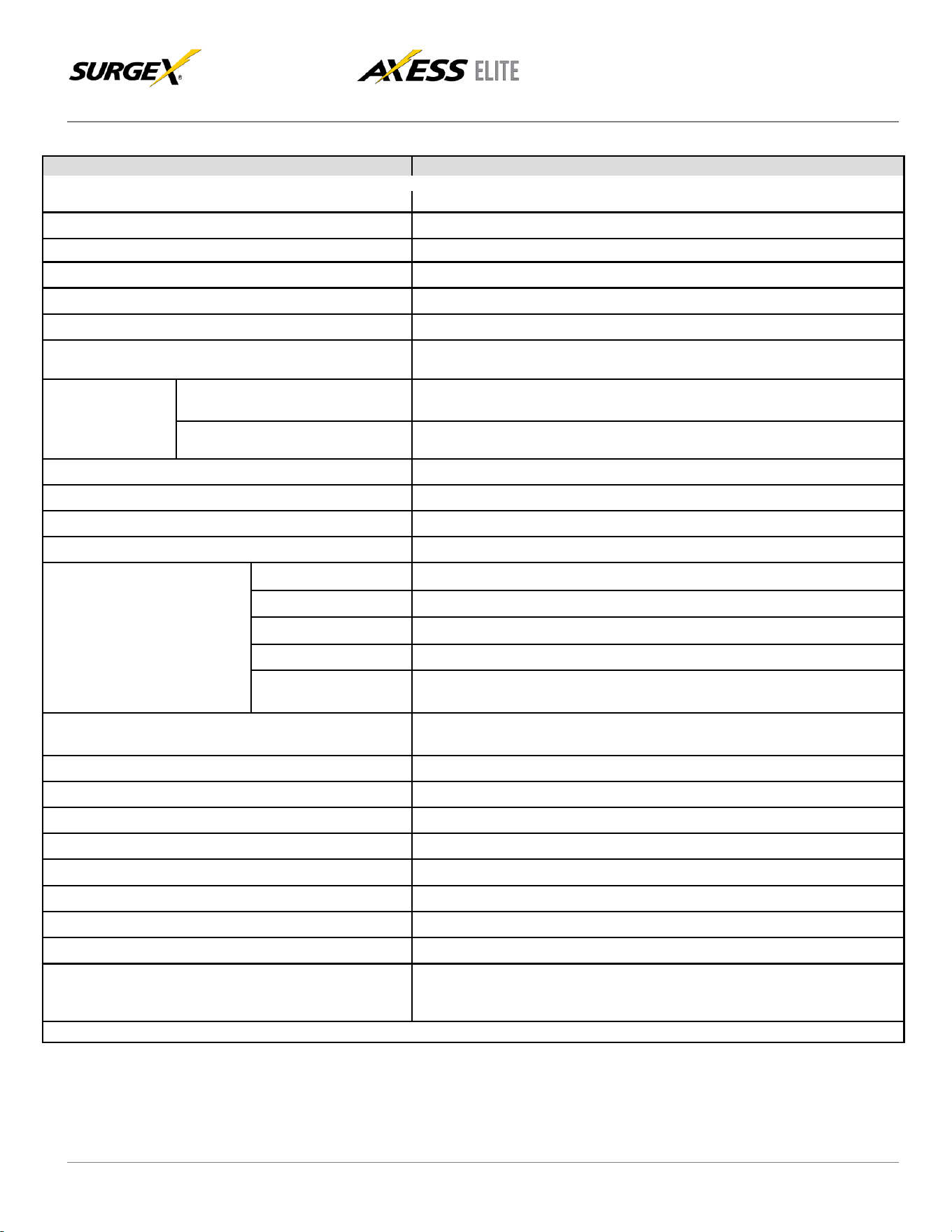
14. Specifications
Parameter
Specification
Load Rating
10/16 Amps at 240 Volts (SX-AX10Ei / SX-AX16Ei)
Power Requirement (no load)
5 Watts
Surge Let-through Voltage (6000 Volt Surge)
0 Volts
Maximum Applied Surge Voltage
6000 Volts *
Maximum Applied Surge Current
Unlimited (due to current limiting) *
Maximum Applied Surge Energy
Unlimited (due to current limiting) *
Endurance (C62.41-1991 category B3 pulses)
1 KV > 500,000; 3 KV > 10,000; 6 KV > 1000
EMI/RFI Filter
Normal mode (50Ω load)
40 dB@100 KHz, 50dB@300 KHz, 50 dB@3 MHz, 50 dB@30 MHz
Common Mode (50Ω load)
18dB@300 KHz, 30 dB@1 MHz, 50 dB@5 MHz, 50 dB@20 MHz
Under-Voltage Auto Shutdown
Adjustable from 160V to 210V, or disabled.
Over-Voltage Auto Shutdown
Adjustable from 240V to 300V
Over-Current Auto Shutdown
Adjustable from 1A to 20A, or disabled.
Over-Temperature Auto Shutdown
Adjustable from 21 to 38°C, or disabled.
Measurement Accuracy
Voltage
± 1% from 160 – 300 VRMS
Current
± 1% from 0.1 – 16 ARMS (Resistive)
Power
± 5% from 0.1 – 3680 WRMS (Resistive)
Energy
± 5% kWh
Temperature
± 2C from -25 – 105C
Network Port
10/100 Ethernet connection on Female RJ-45, Auto Negotiating with
10/100/1000 network connections with Link and Activity LEDs
Serial Port
RS-232 on Female 9-pin D-subminiature, DCE
Temperature Sensor Input
2 x screw terminal
Auxiliary Relay Outputs
(2) 3 x screw terminal
Contact Closure Input
2 x screw terminal
Dimensions
19” W x 12.25” D x 1.75” H (Single Rack Space)
Weight
13 lb.
Temperature Range:
5C to 35C
Humidity Range
0% to 95% R.H. Non-condensing
Agency Listings
TUV Certified to IEC 60950-1 (2005 Second Edition + Am 1:2009)
* 1.2 x 50 microsecond industry standard combination wave surge as per IEEE C62.41