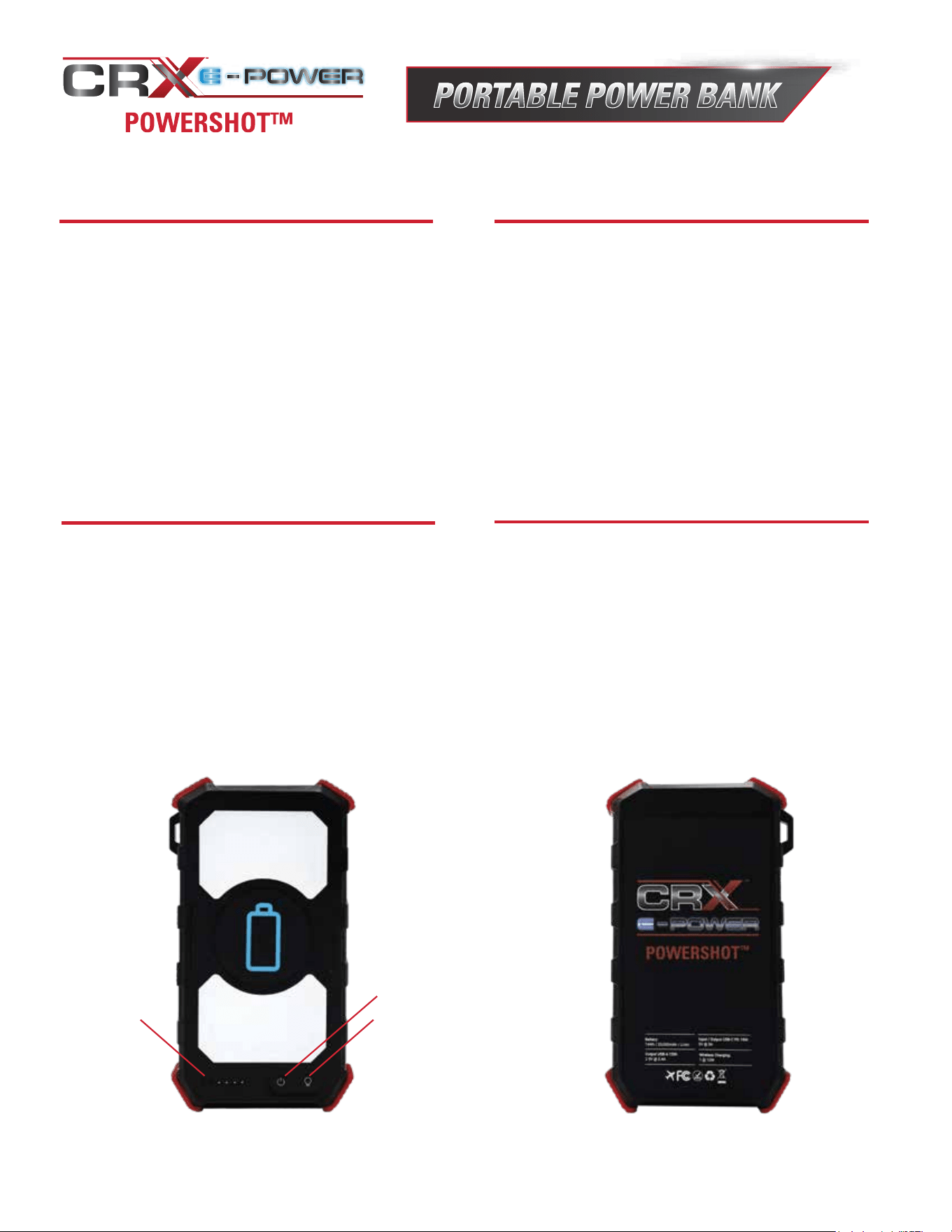
Power Button
Flashlight
Indicator
Lights
USING THE CRX
®
E-POWER POWERSHOT™
USB CHARGING
• To check the charge of the POWERSHOT, press
the power button for one second. Lights will display
on the left of the power button. Four lights indicates
that the unit is fully charged.
• To charge the POWERSHOT, use the USB cable
provided. Plug the USB end of the cable into a
power source and the other end of the cable into
the POWERSHOT, near the power button (lift the
rubber flap).
WIRELESS PHONE CHARGING
• Press the power button on the POWERSHOT
twice. A red light indicator on the far-left side
of the power button will turn on.
• Place the smart phone directly on the top of
the POWERSHOT; a green light will come on
and it will start charging. Note: Your phone
case may prevent wireless charging.
• To turn off wireless charging, press the power
button twice.
FLASHLIGHT SETTINGS
• To turn the on the flashlight, press and hold the
flashlight icon (next tot he power button) for one
second. This will turn on the flashlight to Solid
Mode.
• To turn on the flashlight to SOS Mode, press
and hold the flashlight icon for three seconds.
• To turn on the Lamp, press the flashlight icon
twice.
• Using the cable provided, connect the device
(ie. phone, tablet, etc.) into the output on the end
of the POWERSHOT, near the power button (lift
the rubber flap).
• Press the power button for one second to turn on
the power and begin charging the device.
• When your device is completely charged, turn the
POWERSHOT off by pressing the power button.
CRXPB74W REV. 1 - 091923
For questions concerning the CRX
®
E-Power Powershot™, please contact
Customer Service at 877-362-4271, or visit Simpsoncleaning.com.