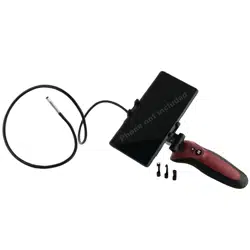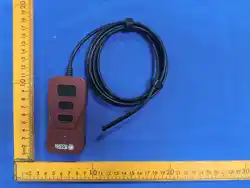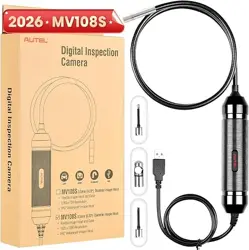
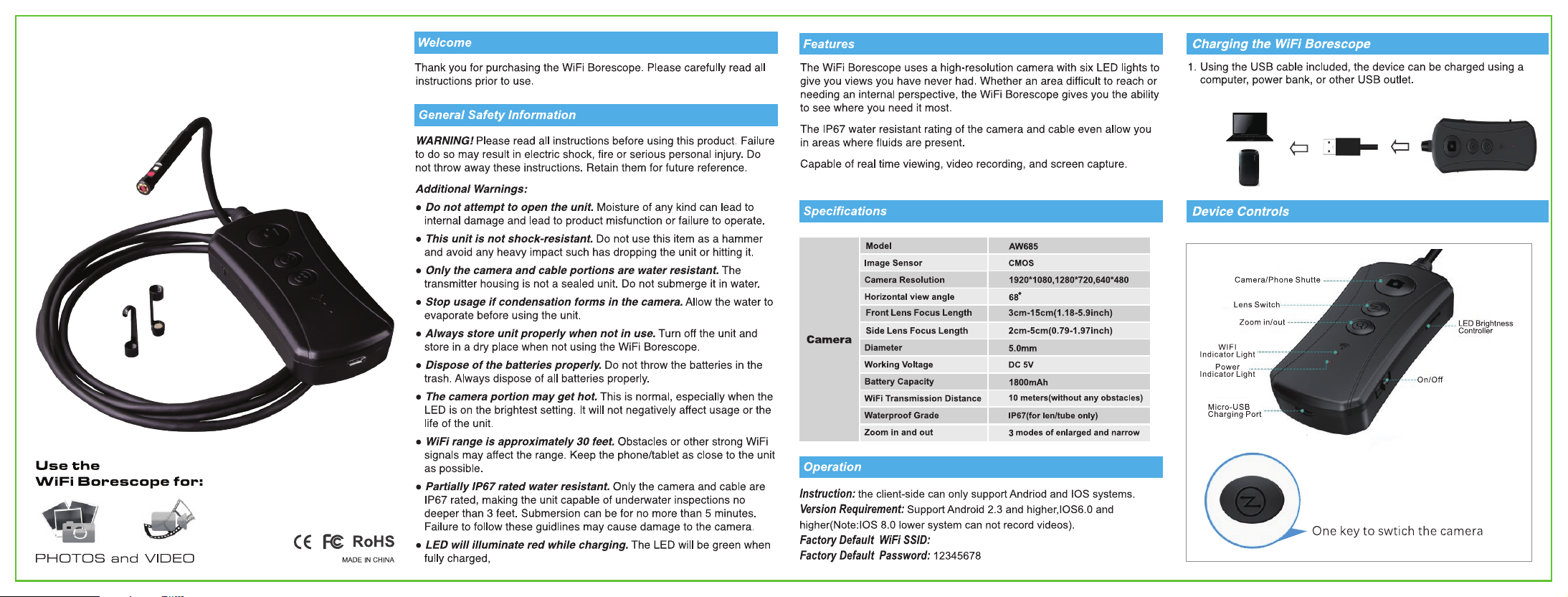
Jetion_********
DUAL VIEW
WIFI BORESCOPE
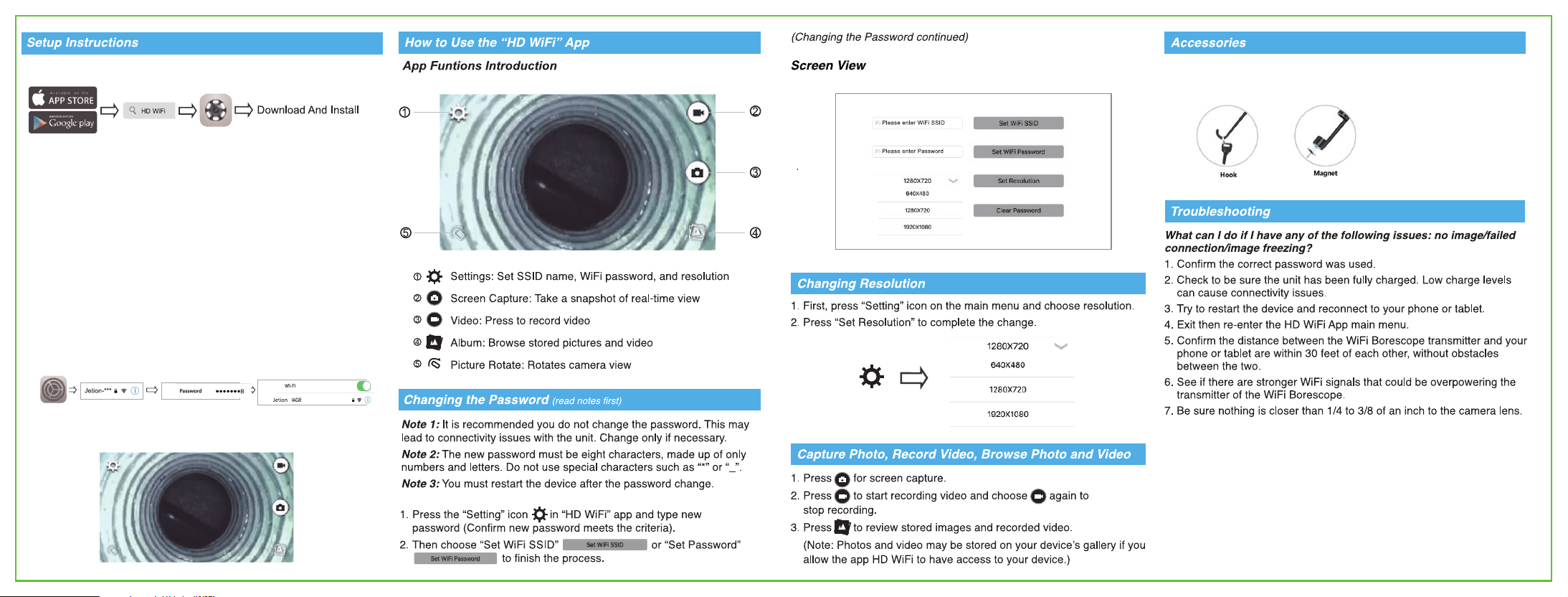
1. Search for "HD WiFi" app in the Apple or Google Play Store.
2. Turn on the WiFi Borescope. Both the red power LED and the
blue signal LED will illuminate.
3. Connecting the WiFi Borescope to your phone:
(A) Turn on your phone/tablet. Then open "Setting" icon.
(B) Select WLAN/Wi-Fi to and connect the default WiFi from the
WiFi Borescope [Jetion_******] by entering the password 12345678
` and click "join" to connect.
(C) When the connection is complete, the blue WiFi signal will
blink. If it does not, the connection failed. If connection has failed,
make sure you are in close proximity of the transmitter and if the
unit has power. The unit may need charged. Try to reconnect the
WiFi Borescope by completing (B) and (C).
Note: WiFI Borescope will not connect to Bluetooth
(D) After the connection is complete, open the "HD WiFi" app on
your smartphone. You are now ready to use the WiFi Borescope.
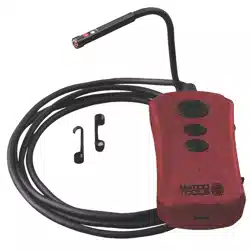
1. Two accessories are included with the WiFi Borescope:
hook and mirror. Each can be used as shown below.