User Manual
www.voicecaddie.com
Android iOS
VOICECADDIE S App Download
02
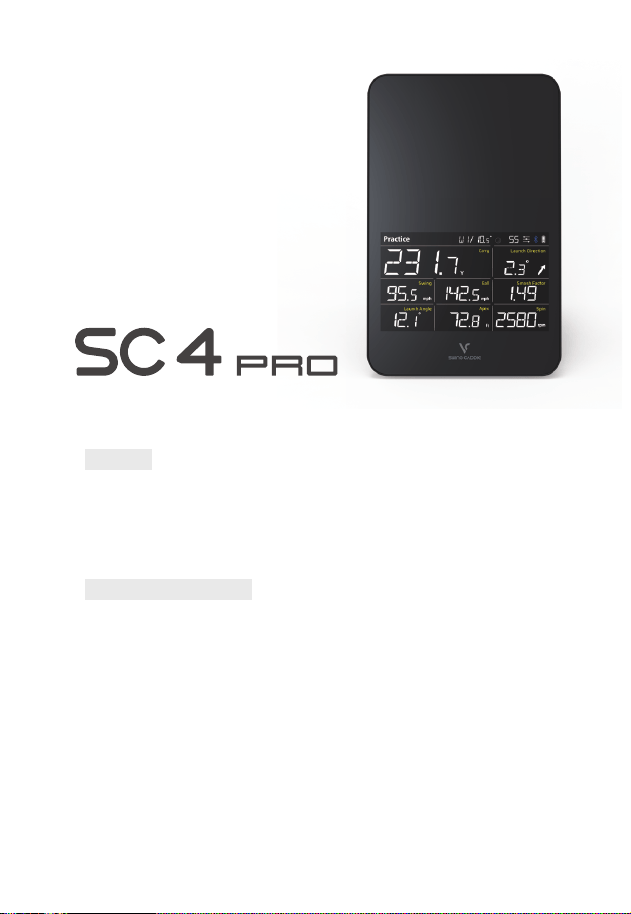
- Launch Angle
- Smash Factor
- Apex
- Spin
Perfect Spin
2. Personalized Golf Launch Monitor
VOICECADDIE S(APP)
-
Provides real-time 3D driving range for more accurate and realistic practice
-
Connect with the App for High Level Statisics Analyses and Platforms
-
Distance Voice Output
-
Distance Calibration by Atmospheric Pressure
-
Adjustable Loft Angles
-
Target Mode for Distance Challenges and Practice
1. Provides Complete Ball and Club Launch Data Metrics
�
Device
�
VOICECADDIE S
(
APP
)
- Carry / Total Distance (Carry+Run)
- Swing Speed
- Ball Speed
- Launch Direction
-
Side Spin
-
Back Spin
-
Spin Axis
-
Shot Type
03
Package Contents
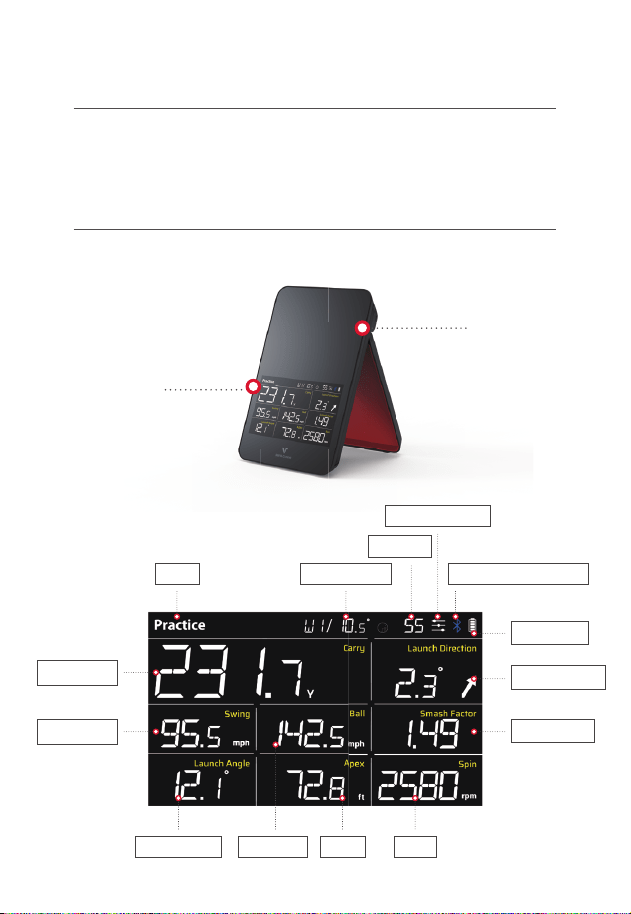
Product Display and Aspects (Front Side)
1. Display
1
2
Mode
Launch Angle ApexBall Speed
Spin
Club/Loft Angle
Carry / Total
Swing Speed
Bluetooth Connection Status
Battery Level
Launch Direction
Smash Factor
Total Shots
Shot Data Equalizer
- SC4 PRO, Remote Control, USB Cable, User Guide
*
Optional Accessories : Alignment Stand for SC4 PRO and Pouch are sold separately.
*
Remove the LCD protective film on the front side prior to initial use
04
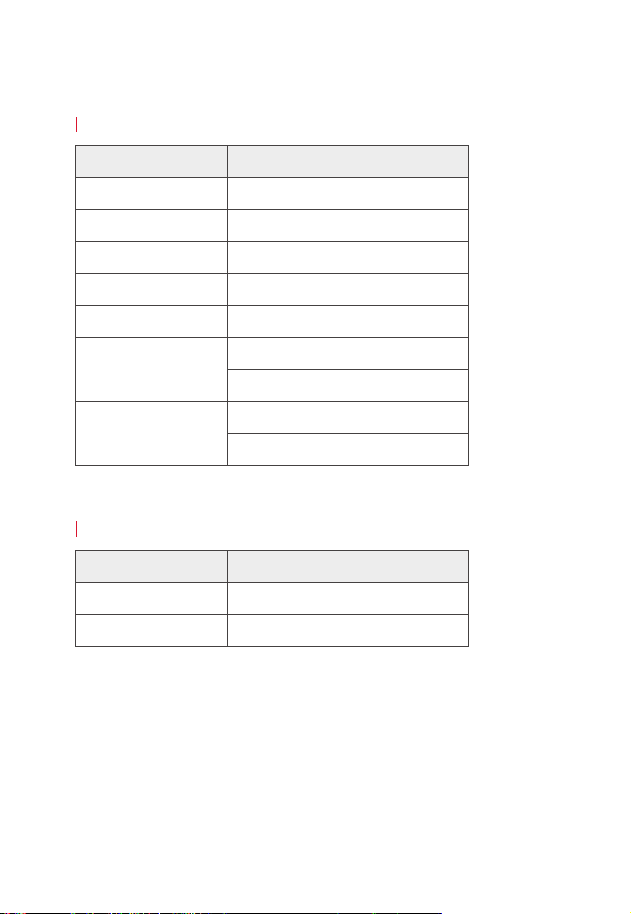
2. LED Indicators
Device in Use
C
harging
LED Status
LED Status
Status Description
Meaning
Red Unsuccessful Bluetooth Connection
OFF
Green
Sleep Mode
Fully Charged
Flashing Red
Green
Red
Ready
Battery is Charging
Blue Successful Bluetooth Connection
Deleting Previous Shot Data
Firmware is Updating
Low Battery Warning
Uploading Shot Data to the App
Flashing Blue
Bluetooth in Pairing Mode
Flashing Green
05
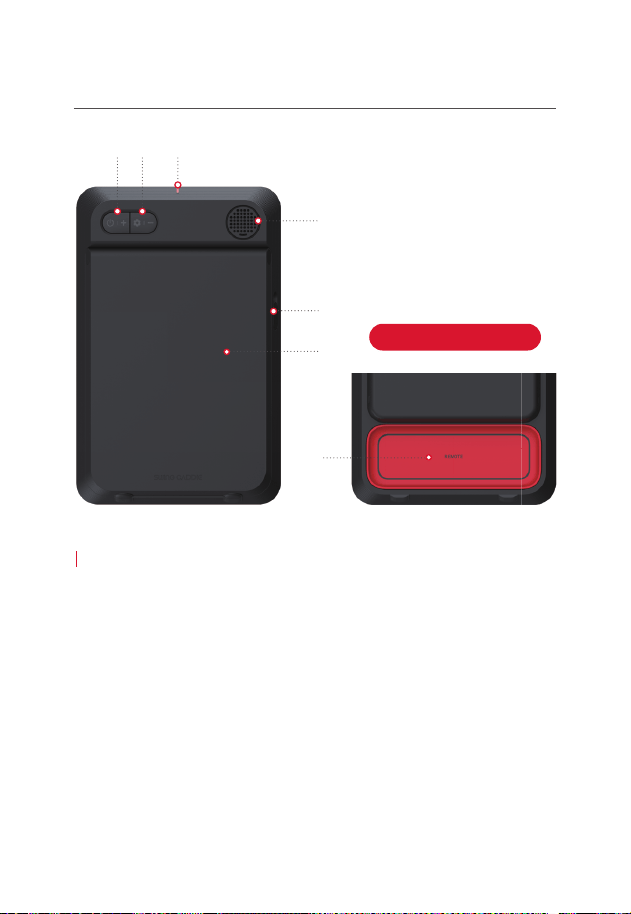
Product Aspects (Back Side)
Device Buttons and Output
1. Power/+ : Device turned on / off by pressing the [Power/+] button
for 2 seconds. Press the [Power/+] button briefly to increase volume.
2. Settings/- : Change the setting by pressing the [Settings/-] button for 2 seconds.
Press the [Settings/-] button briefly to decrease volume.
3. Alignment Line(Red Line) : Reference marker (Red Line) to aid ball and
SC4 Pro Alignment
4. Speaker : Shot data voice output
5. USB Port & Cap : Connect to a charger or PC to recharge and update.
6. Stand : Open stand fully and adjust for proper positioning
(A slight notch at center bottom for ease of opening)
7. Remote Control : Magnetic design for convenient storage.
(To access, push and slide out)
1 2 3
4
5
6
7
Underneath The Stand
06
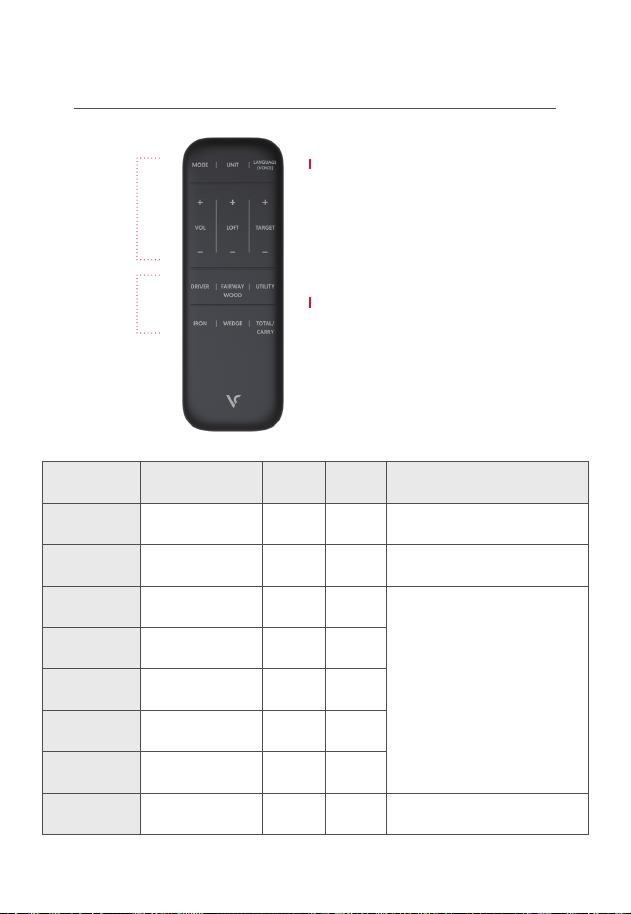
Remote Control
Club
Selection
Buttons
Function/
Selection
Buttons
Club Selection (Via Remote)
-
DRIVER : W1(DRIVER)
-
FAIRWAY WOOD :
-
W3
-
W4
-
W5
-
W6
-
W7
-
-
UTILITY :
-
U3
-
U4
-
U5
-
U6
-
U7
-
-
IRON :
-
I3
-
I4
-
I5
-
I6
-
I7
-
I8
-
I9
-
-
WEDGE :
-
PW
-
GW
-
SW
-
LW
-
Club Selection (App Connected)
-
Club order may be changed in the ‘My Bag’
section of the App
- When registering three 7-irons in ‘My Bag’, the club
order will change to 13
-
14
-
15
-
16
-
17
-
17
-
17
-
18
-
19
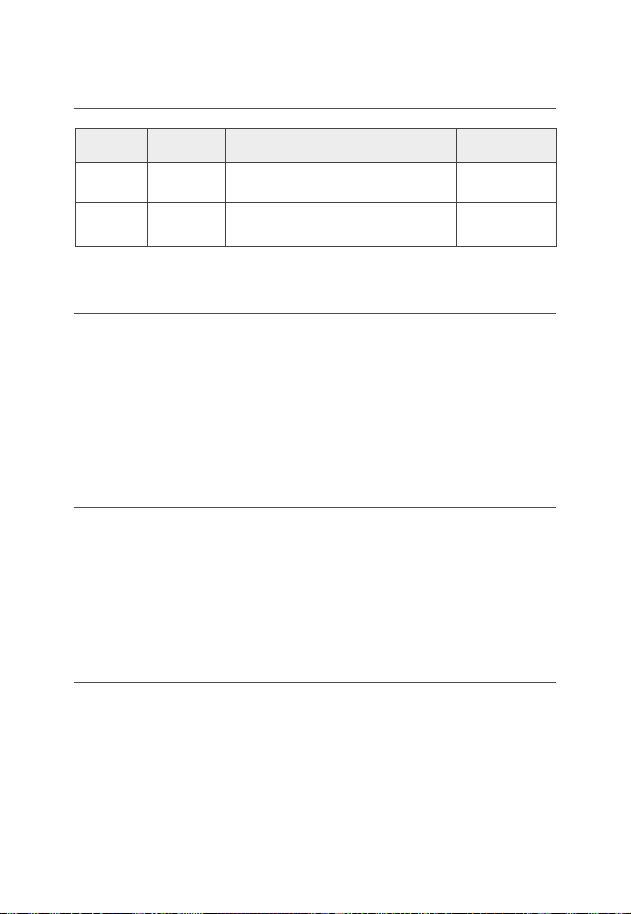
Funcion Note
App
Not
Connected
App
Connected
CHANGE CLUB
ORDER
VOLUME
UNIT
TARGET
MODE
LOFT
LANGUAGE
TOTAL/CARRY
Change Club Order
Change Unit
Change the voice
guidance language.
(ENG/KOR/JPN)
Practice/Target/Swing Speed
(Available only when connected
to the app)
Adjust the device volume
(5 levels)
Practice/Target/Swing
Speed
When connected to the app, the club order can
be changed according to the ‘My Bag’ settings
The total can only be checked in the app
when connected.
Change the loft angle
for each club
In Target Mode, set the
target distance (Carry)
Set the distance type
(Total/Carry)
*
App : VOICECADDIE S
Y Y
Y N
Y N
Y N
Y Y
Y N
Y N
Y N
07
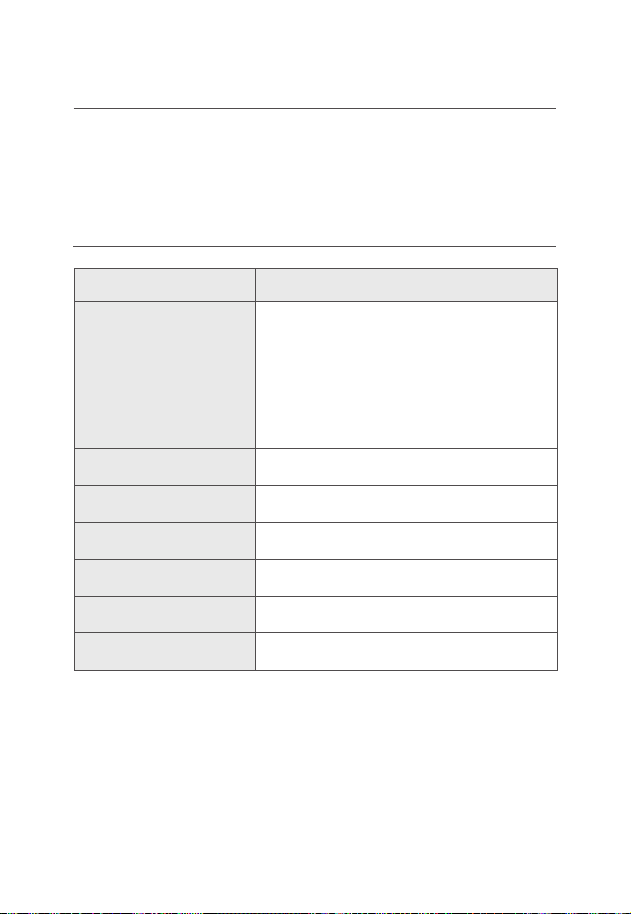
Basic Usage of Device Buttons
Club Selection
Mode Selection
Set Target Distance
Button
Press
(2 seconds)
Press
(6 seconds)
One Click
Settings / -
Shot Count Reset
Reset
Club Selection - Mode Selection -
Set Target Distance
Power(On/Off)Power / +
Increase
Volume
Decrease
Volume
- SC4 PRO Unit : Press [Settings] button for 2 seconds to select club.
When selected club is flashing, select club with [+/-] buttons
[
↔
W1(DRIVER)
↔
W3
↔
W4
↔
W5
↔
W6
↔
W7
↔
U3
↔
U4
↔
U5
↔
U6
↔
U7
↔
I3
↔
I4
↔
I5
↔
I6
↔
I7
↔
I8
↔
I9
↔
PW
↔
GW
↔
SW
↔
LW
↔ ]
-
Remote Control : Select club (press button and scroll until reaching desired club)
- SC4 PRO Unit : Press [Settings] button twice for 2 seconds to
select mode. When flashing, toggle mode with [+/-] buttons
[
Practice
↔
Target
↔
Swing Speed ]
-
Remote Control : Press [Mode] button to toggle between modes
- SC4 PRO Unit : In target mode, press [Settings] button 3 times for 2 seconds to
set target distance. When flashing, set target distance with [+/-] buttons
[ Target Distance Range : 15 yards to 195 yards ]
-
Remote Control : Press Target [+/-] button to set
*
When connected to the app, only basic functions such as power on/off,
force quit, and volume control are enabled.
08
Data Accuracy
-
Ball Speed : +/- 1 mph
-
Club Speed : +/- 3 mph
-
Launch Angle : +/- 1°
-
Launch Direction : +/- 1°
Shot data effective measurement range
Effective Measurement Range
Ball Data
- W1: 54 yds <
- Wood/Util : 49 yds <
- Iron3 - Iron7 : 44 yds <
- Iron8 : 38 yds <
- Iron9 : 16 yds <
22 - 156mph
22 - 208 mph
10 - 50°
15 - 370 yds
10 - 109 ft
L 10°/ R 10°
Swing Speed
Ball Speed
Launch Angle
Launch Direction
Carry
Apex
09
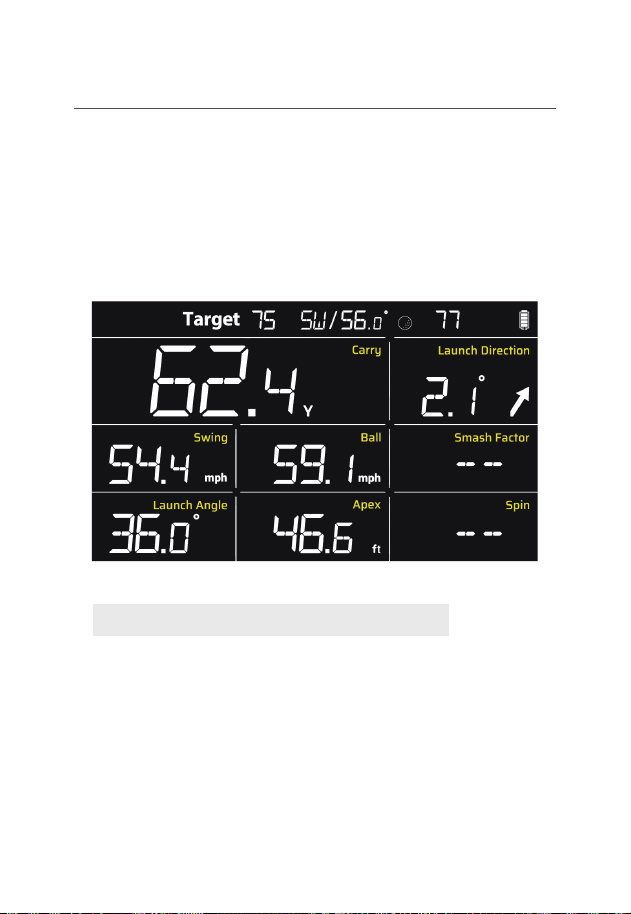
Practice Mode
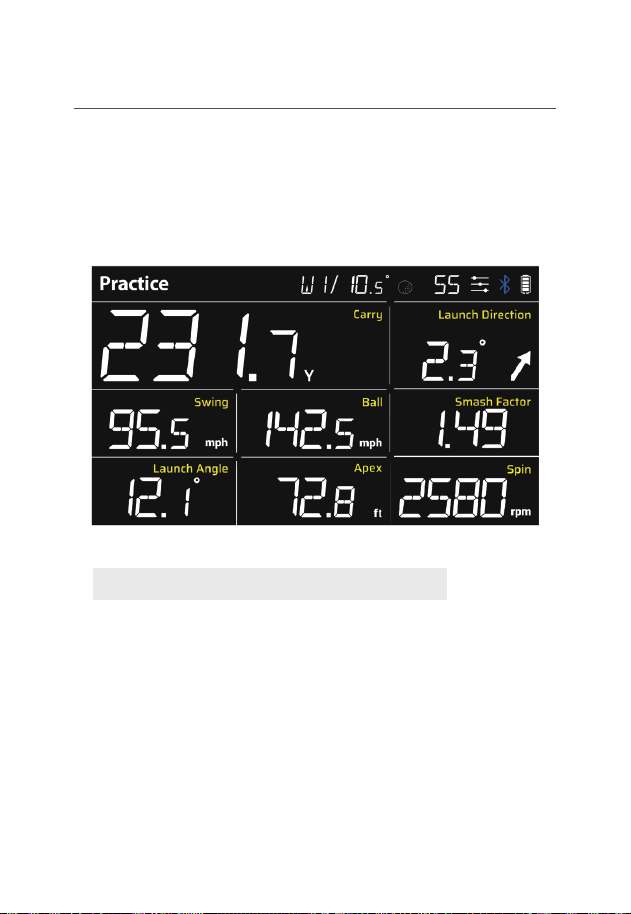
- Displays immediate feedback: Carry/Total Distance, Launch Direction,
Swing Speed, Ball Speed, Smash Factor, Launch Angle, Apex, Spin
- Smash Factor Data will not be displayed if below 1.0
- Spin Data (Wedges): Displayed when using PW. Not displayed
when using GW, SW, and LW.
Detailed Data Description (Based on Sample Above)
- Club : W1(Driver)
- Loft Angle : 10.5°
- Total Shots : 55
- Shot Data EQ : On
- Bluetooth : On
- Carry : 231.7 yards
- Launch Direction : 2.3°(Right)
- Swing Speed : 95.5 mph
- Ball Speed : 142.5 mph
- Smash Factor : 1.49
- Launch Angle : 12.1°
- Apex : 72.8 ft
- Spin : 2580 rpm
10
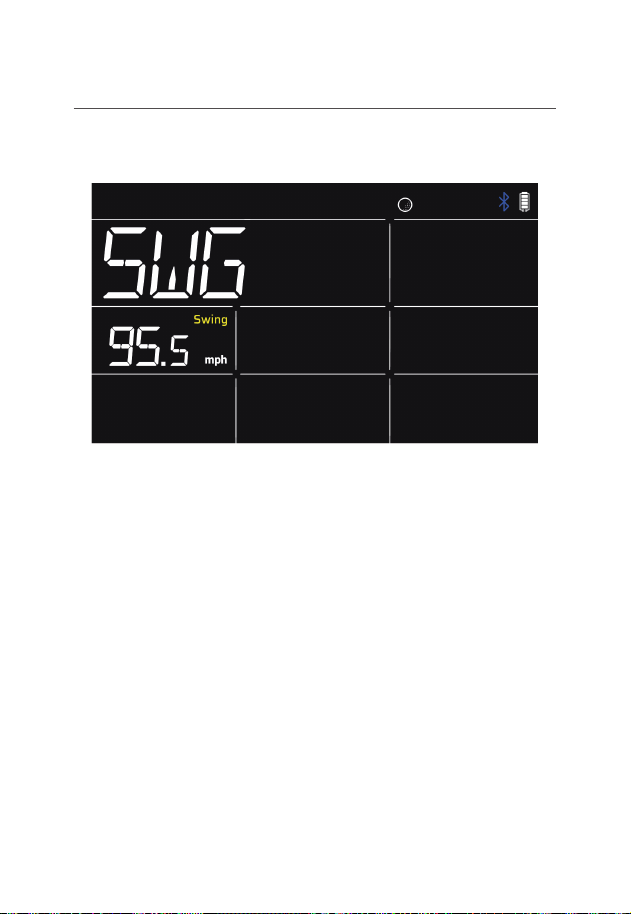
Target Mode
-
Set Target Distance (15 - 195 yards)
· SC4 Unit : In Target Mode, press [Settings] button 3 times.
Set distance with [+/-] buttons
· Remote Control : Set with [+/-] of [Target] button
- (Note) Smash Factor is not displayed in Target Mode
- (Note) Spin data is not displayed when using GW, SW, and LW
Detailed Data Description (Based on Sample Above)
- Target Distance : 75 yards
- Club : SW
- Loft Angle : 56.0°
- Total Shots : 77
- Shot Data EQ : OFF
- Bluetooth : OFF
- Carry : 62.4 yards
- Launch Direction : 2.1°(Right)
- Swing Speed : 54.4 mph
- Ball Speed : 59.1 mph
- Launch Angle : 36.0°
- Apex : 46.6 ft
11
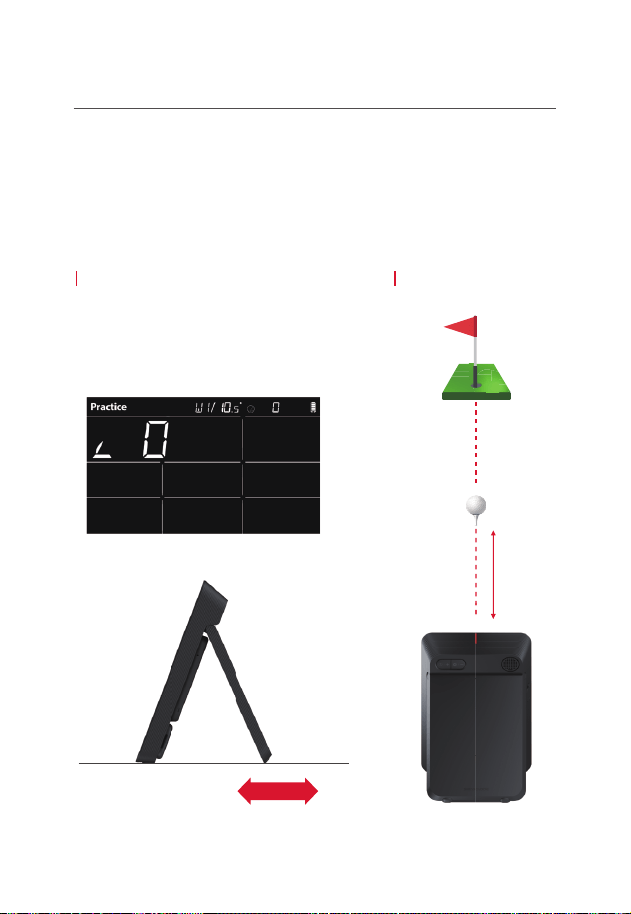
Swing Speed Practice / Training Mode
-
Swing Speed measured without ball strike
12
Positioning and Alignment
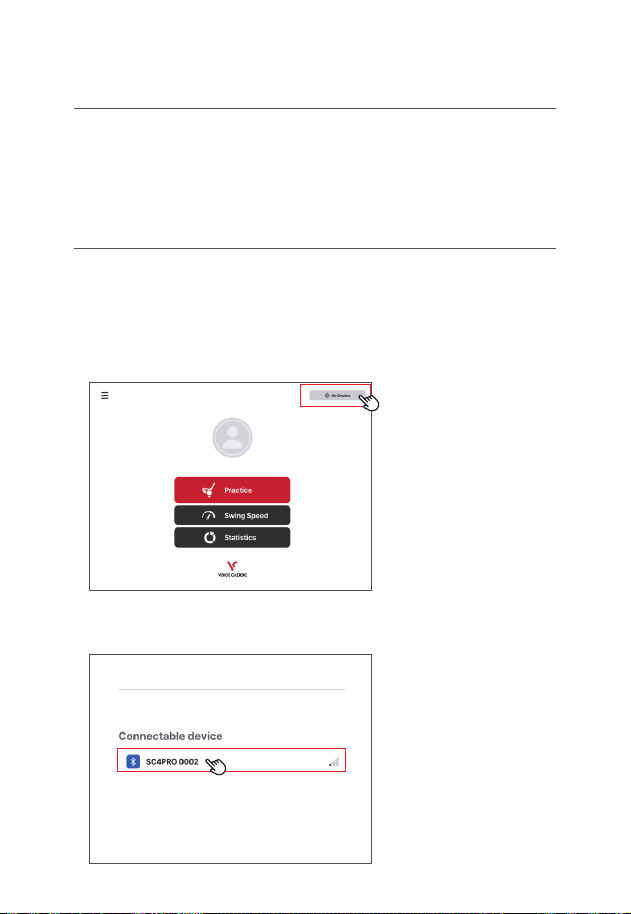
1. Unfold the stand and place on the ground 5ft behind ball and/or tee
2. Proper Angle Position: Adjust the stand of the product until 0 shows
on the display
3. Alignment/Positioning: Align the ball/tee and the red alignment line on top
of the unit (Incorrect alignment can reduce the accuracy of data)
Proper Angle Placement
- Establish the proper angle placement by
adjusting the stand
[ Target value: 0 ]
�Correct angle will optimize shot data accuracy�
Stand Adjustment
*
The SC4 PRO exclusive Alignment Stand for more accurate mounting is
available for purchase.
Adjust Alignment Line
-
0 +
5 feet

13
Alignment Tips
-
The SC4 PRO measures both the ball and club head from swing to impact to ball
flight to provide precise measurements
-
Proper placement of the unit is necessary to provide the most accurate
readings, which entails placing the unit :
· Level to the mat or hitting surface
· 5 Feet / 1.5 Meters behind the ball
· Direct alignment from the center of the unit (as referenced by the engraved
red line on top of the unit) to the center of the ball
-
Note that the placement of the unit may need to be adjusted, depending on the
club being used (i.e. Driver on a tee versus a short iron)
· Therefore, Some Tips for Proper Alignment:
Use of the Swing Caddie Alignment Plate
(Included with the Swing Caddie SC4 PRO Case, Sold Separately)
-
Place the unit on the plate, directly on the referenced lines
· Use of Alignment Sticks, Driver, or other Straight Object for Reference
-
Utilize a straight object placed behind the ball to the SC4 PRO unit. Match the red
center line engraved on top of the SC4 PRO unit to the center of the ball
14
VOCIECADDIE S(App) Key Features
Connect App(iPhone/iPad)
*
Android will be supported later
1. Install and run the [VOICECADDIE S] app from the smartphone app store.
2. Keep the smartphone close to the device.
3. Turn on the device.
4. Tap the button on the upper right corner of the main screen after logging in.
- Real-Time 3D Driving range
- Shot list
- Swing speed Mode
- My Bag Customization
- Data and Analysis
5. Tap the device to be connected.
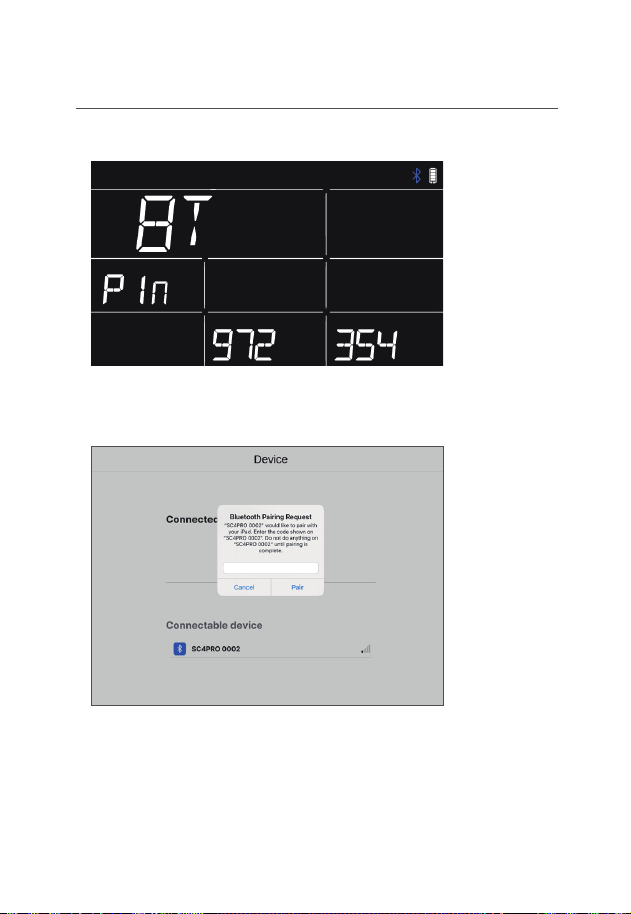
15
Connect App (iPhone/iPad)
6. Tap the upper right corner of the main screen after logging in (PIN: 972354).
7. Enter the PIN in the app and tap the confirm button.
8. Bluetooth connection completed.
※
Once initial connection is completed, the device will automatically
reconnect when the App is opened.
16
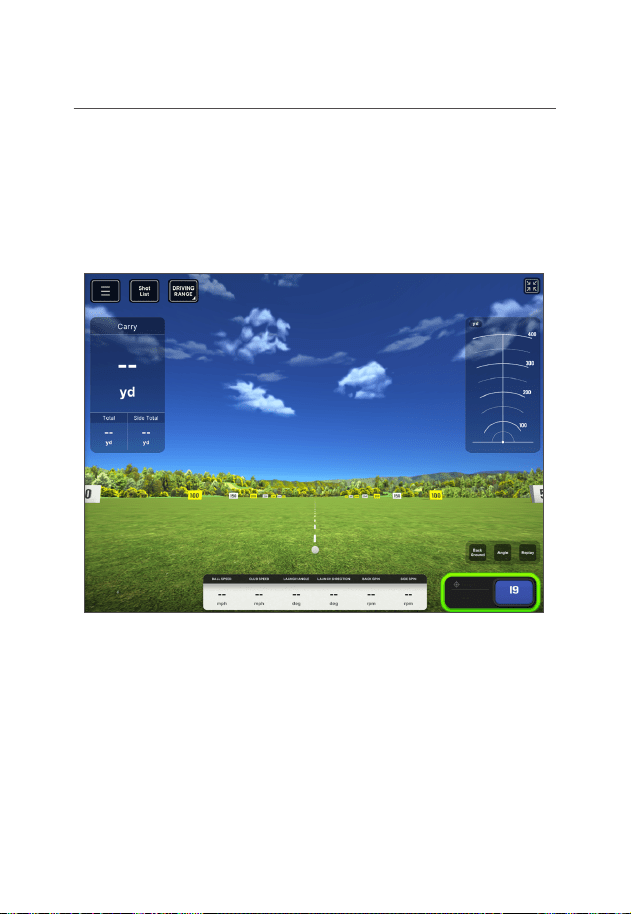
Real-Time 3D Driving Range
-
Available when accessing the Main Menu > Practice menu
-
Real-time shot practice available for each club
-
Real-time shot data provided
-
Background, camera angle, and replay function available
-
Shot list displayed
17
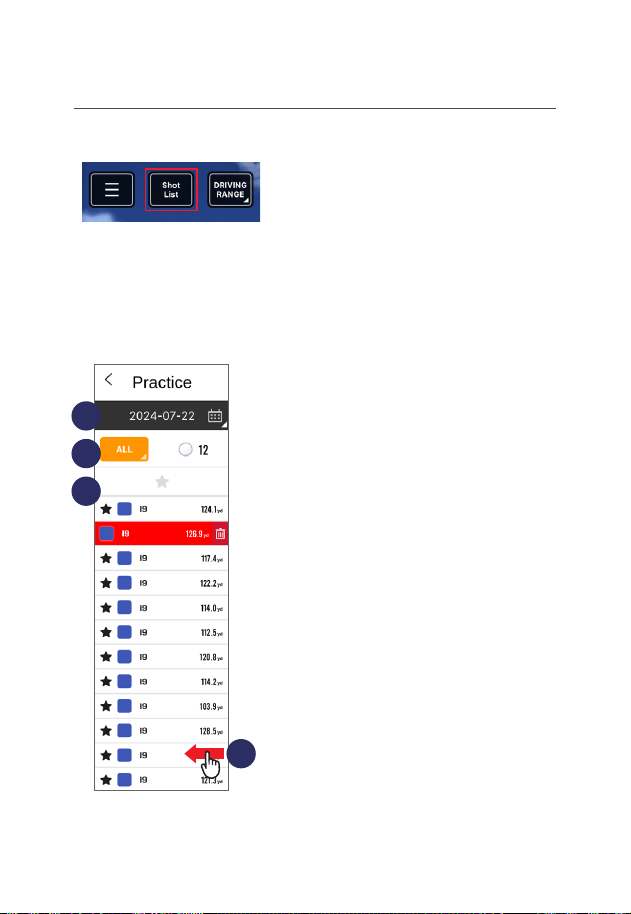
Shot List
①
Choose the date
②
Select the club to display
③
Show only bookmarked shots
④
Swipe left to delete shots
- Tap the shot list button located at the top of the screen
1
2
3
4
18
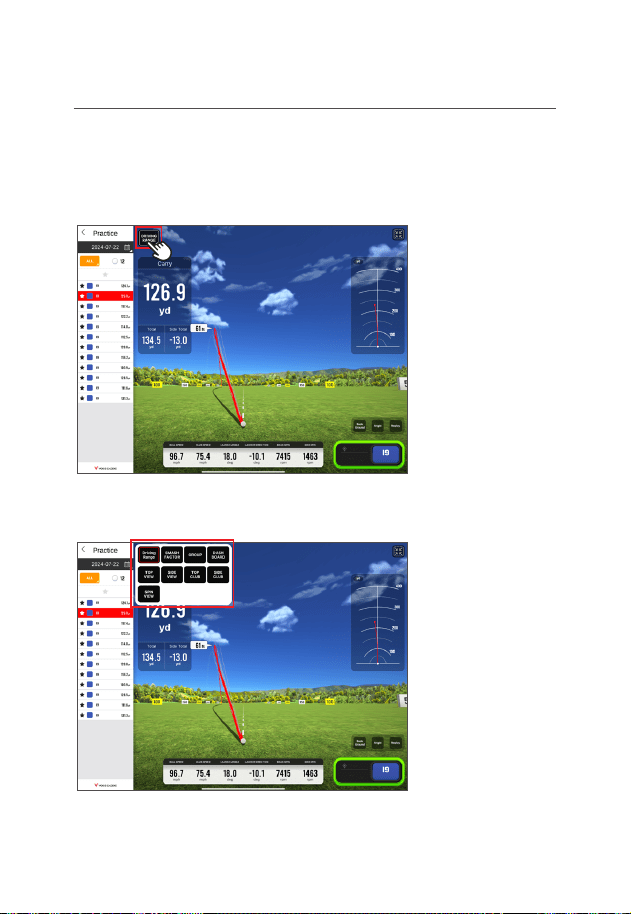
Screen Selection
-
Select the screen you want to view from the practice menu.
-
Nine practice screens are available, with the potential for more to be added.
1. Tap the menu button at the top left of the practice screen.
2. Choose the desired menu from the popup.
19
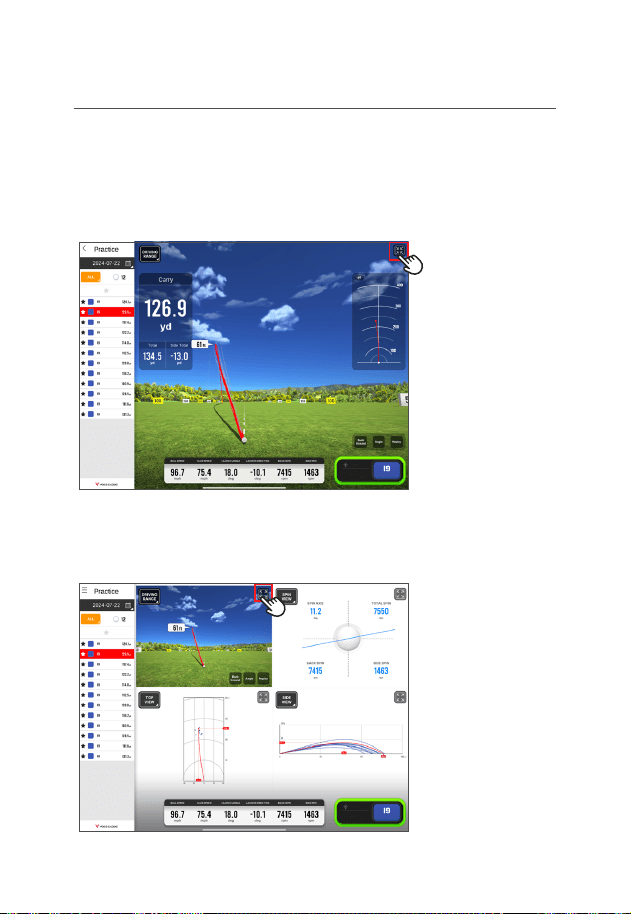
Split View
-
You may switch between full-screen and split-screen modes.
-
You may configure up to 9 screens as per your preference.
-
To switch from full screen to split screen, tap the zoom-out button
located in the upper right corner.
-
In split screen mode, tap the expand button in the upper right
corner to switch back to full screen.
20
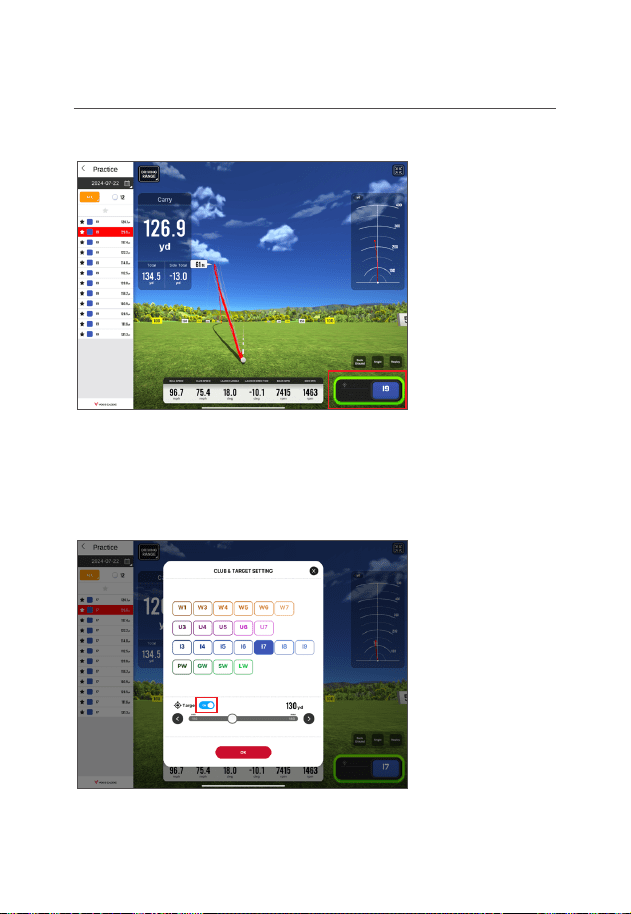
Club Change and Target Mode
-
Tap the club button in the bottom right corner of the practice menu.
- Select the desired club on the club selection screen.
- Switch to target mode when selecting target ON.
(this feature is only available for irons and wedges)
21
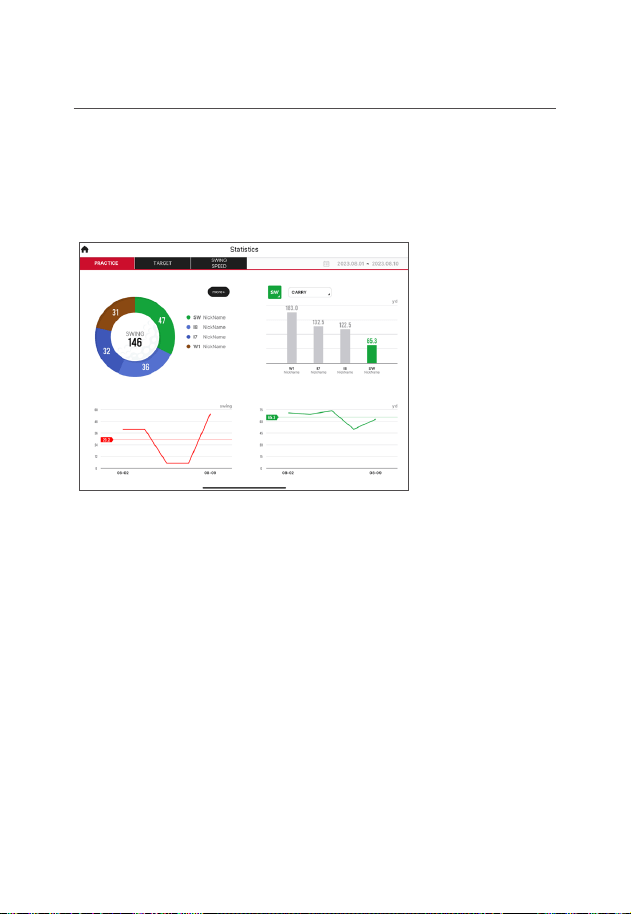
Statistics
- Available under Main Menu > Statistics
- Provides statistical data
- By period/club
- With trend graphs and data tables.
22
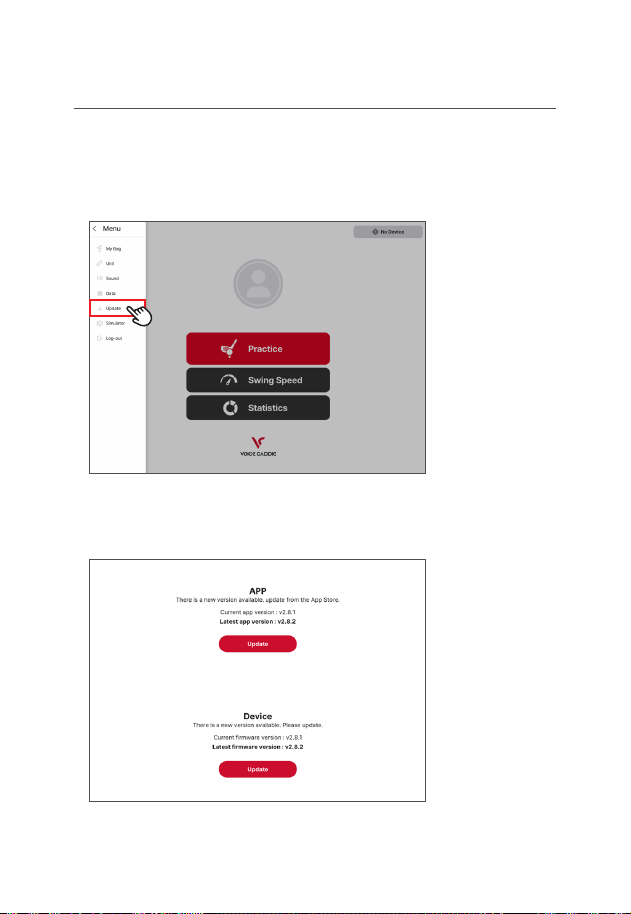
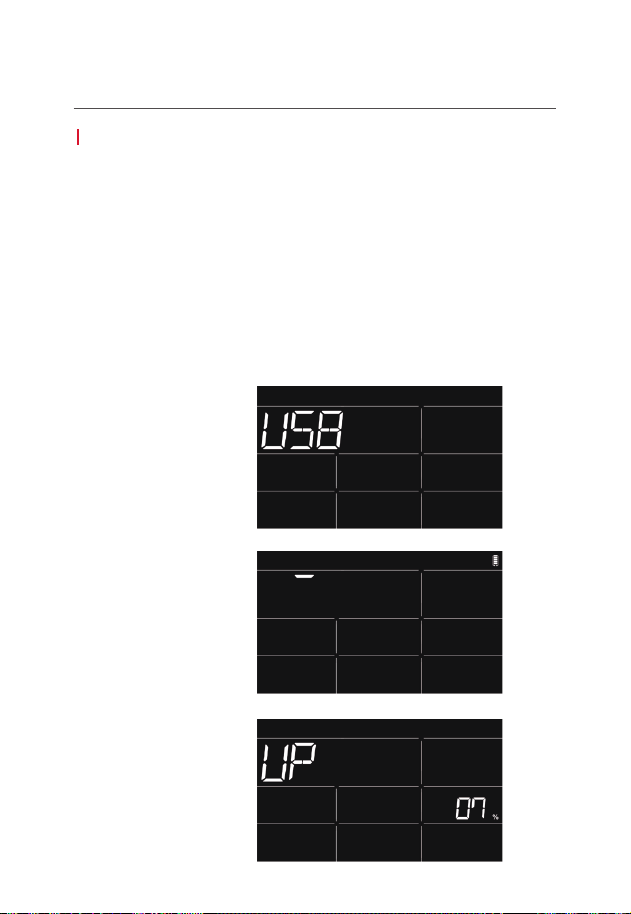
Firmware Update
1. Connect SC4 PRO via Bluetooth.
2. Go to the Main Menu and select the Update Tab.
3. T
he update button will activate if there is a firmware update available.
4. Tap the Update button.
5. Wait for the update to complete.
-
Using the app
23
Using
PC
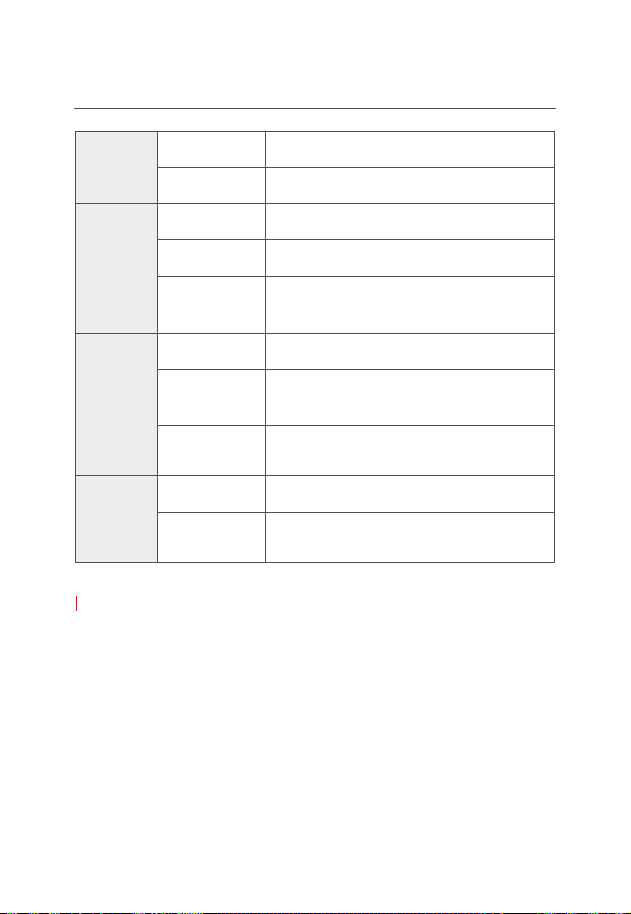
Firmware Update
1. Download the VC Manager from the Voice Caddie website(Windows, Mac OS)
2. Run the VC Manager
3. Register for a Voice Caddie account or log in if already a member
4. Turn off the SC4 PRO and connect to a PC via USB
5. Update in Progress
6. Update Complete
* The SC4 PRO connects to a PC only when the power is turned off.
-
USB Connect
-
Downloading the update
-
Applying the update
24
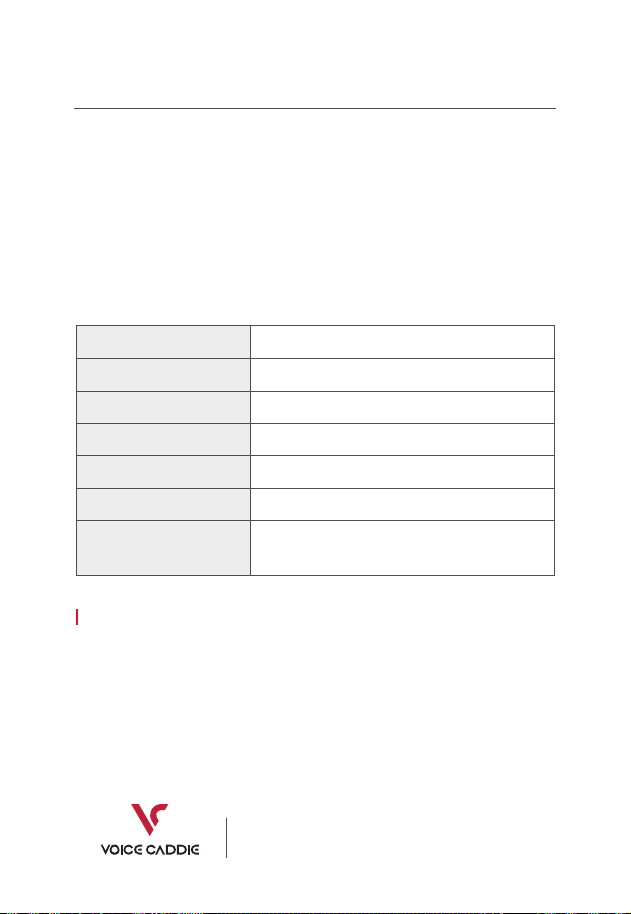
Specifications
Sensor
Frequency K Band 24 GHz
Doppler Radar Sensor
Approx. 6 hours (Full Charge)
Approx. 10 hours
(Dependent Upon Usage Conditions)
5 feet behind the ball at the same level
Recommended charger
1) Charger Output : 5V 2A
2) Charging Time (Full Charge, When Fully Discharged) : Approx. 6 hours
3) Notes / Caution
1) Not intended to charge via PC connection
2) Utilizing a charger that does not meet the recommended output may
affect the charging time
15 - 370 Yards (Carry)
4.9" (W) x 7.6" (H) x 1.1" (D)
Approx. 20.8 oz
(Including Battery and Remote Control)
32˚F - 122˚F
Lithium-ion Rechargeable Battery 7,500 mAh
Method
Battery
Charging Time
Usage Time
Dimension
Weight
Operating
Temperature
Positioning
Measuring
Range
Power
Size
Range
25
Warranty
Voice Caddie warrants this hardware product against defects in materials and workmanship
for a period of one year from the date of original retail purchase. If a defect is deemed to exist,
at its discretion, Voice Caddie could (1) Repair the product at no charge or (2) Exchange the
product with a product that is new or refurbished. If Voice Caddie initially approves a return,
it shall have no obligation to repair, replace or refund until the defective product is received
, is evaluated, and determined to fall under the guidelines of repair/replacement. Warranty
may be voided if : (1) Damage is caused by accident, abuse, misuse, misapplication, or non-
approved Voice Caddie Products; (2) Damage caused by service performed by an entity or
person who is not a Voice Caddie Authorized Service Provider; or (3) Product or part(s) has
been modified without the written permission of Voice Caddie
Notes
- The range of the remote control may be reduced in direct sunlight conditions
- For optimal shot data readings, it is recommended to place the unit and
ball be placed at the same level, and properly aligned
Product Name
Dealer
Warranty Period
Serial No.
Dealer Contact
Purchase Date
Buyer's Name and Contact
VOICECADDIE SC4 PRO
One Year from Original Purchase Date
(Proof of Purchase Required)
Phone : 562-926-3978
6940 Aragon Cir. Unit 10 Buena Park, CA 90620, U.S.A.

26
Caution
FAQ
This device complies with Part 15 of the FCC Rules. Operation is subject to the following two
conditions: (1) this device may not cause harmful interference, and (2) this device must accept
any interference received, including interference that may cause undesired operation.
This equipment has been tested and found to comply with the limits for a Class A digital
device, pursuant to part 15 of the FCC Rules.
These limits are designed to provide reasonable protection against harmful interference when
the equipment is operated in a commercial environment. This equipment generates, uses,
and can radiate radio frequency energy and, if not installed and used in accordance with the
instruction manual, may cause harmful interference to radio communications. Operation of
this equipment in a residential area is likely to cause harmful interference in which case the
user will be required to correct the interference at his own expense.
Any changes or modifications not expressly approved by the party responsible for compliance
could void the user’s authority to operate this equipment.
This device must not be co-located or operating in donjunction with any other antenna of
transmitter.
The antenna(s) must be installed such that a minimum separation distance of at least 20cm
is maintained between the radiator (antenna) and all persons at all times.
1. How far back do I place SC4 PRO behind the ball?
Approximately 5 feet.
2. How do I align SC4 PRO behind the ball to get optimal readings?
Align SC4 so the red line on top of the unit is aligned with the ball.
3. What if I feel I am receiving inaccurate data?
Make sure the correct unit of measurement is selected (Yards / Meters), and
Distance Type (Carry vs Total).
4. Can SC4 PRO be used indoors with a net?
Yes. If a net is used, make sure you have at least 10 feet in front of the ball to the net.
5. What if I am hitting off the grass mat at the range or at home?
Make sure the ball and your Swing Caddie are at the same level.
Variance in level may affect the accuracy of data readings.
6. Can I use SC4 PRO with practice or foam golf balls?
The unit is not designed to assess non-standard golf balls.
7. What if I feel I am not getting proper distance data?
First confirmed that the distance measurement is in desired mode (Carry or Total).
Note that factors of roll and slope, high wind, and other prospective environmental
conditions are not accounted for and can variance in calculated data.