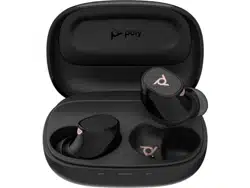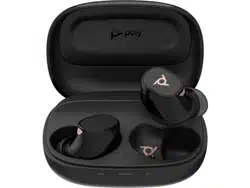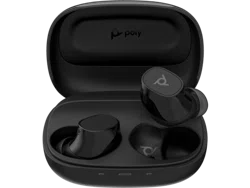

Poly Voyager Free 20 True Wireless
Earbuds with Charge Case User Guide
SUMMARY
This guide provides task-based user information for the named product.

Legal information
Copyright and license
© 2024, HP Development Company, L.P. The information contained herein is subject to change
without notice. The only warranties for HP products and services are set forth in the express
warranty statements accompanying such products and services. Nothing herein should be
construed as constituting an additional warranty. HP shall not be liable for technical or editorial
errors or omissions contained herein.
Trademark credits
All third-party trademarks are the property of their respective owners. Bluetooth is a trademark
owned by its proprietor and used by HP Inc. under license.
Privacy policy
HP complies with applicable data privacy and protection laws and regulations. HP products and
services process customer data in a manner consistent with the HP Privacy Policy. Please refer to
HP Privacy Statement.
Open source software used in this product
This product contains open source software. You may receive the open source software from HP
up to three (3) years after the distribution date of the applicable product or software at a charge
not greater than the cost to HP of shipping or distributing the software to you. To receive software
information, as well as the open source software code used in this product, contact HP by email at
ipgoopensourceinfo@hp.com.

Table of contents
Your earbud system 1
Earbud button controls 2
Charge case controls 3
Load software 4
Update your Poly device 4
Reset device in Poly Lens App 4
Fit 6
Replace eartips 6
Charge 7
Check battery level 7
Quick charge 8
Wireless charging (Qi charging) 8
Power 10
Power on/off your earbud system 10
DeepSleep mode 10
Connect and pair 11
Pair to mobile device 11
Pair mode 11
The basics 13
Adjust the volume 13
Adjust earbud microphone volume (softphone) 13
Play or pause audio 13
Track forward 13
Track backward 13
ANC and Transparency Mode 14
Use sensors 14
Voice assistant (smartphone feature) 14
Make/Take/End Calls 16
Make a call 16
Answer or end a call 16
Mute 16
More Features 17
iii


Your earbud system
Your earbud system easily connects to your mobile phone. The system includes:
● Wireless earbuds with wearing sensors
● Charge case with battery-status LEDs
Your earbud system 1
Earbud button controls
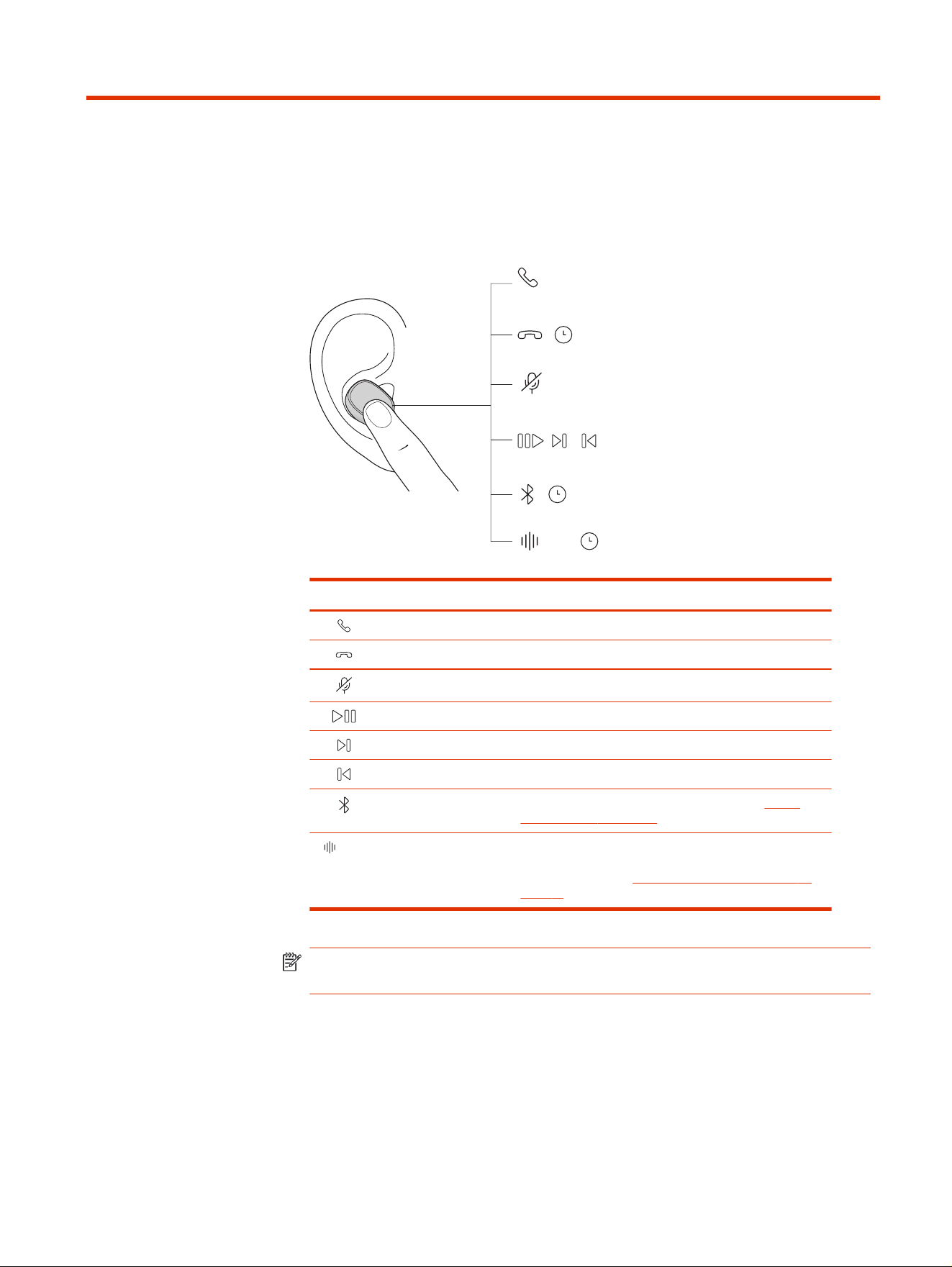
Press an earbud button to control features on your earbud system. Control
features using either earbud.
:02
:04
x1
x2x1 x3
:02
x1
ANC
Icon Control Button action
Answer call Press once to answer
End call Press and hold for 2 seconds to end call
Mute/unmute Press once while on an active call
Pause/play media * Press once
Track forward Press 2 times
Track backward Press 3 times
Bluetooth pairing Press and hold for 4 seconds. For more, see Pair to
mobile device on page 11.
ANC ANC/Transparency
mode
Press and hold for 2 seconds when earbuds are idle
or streaming media. Modes cannot be switched during
a call. For more, see ANC and Transparency Mode on
page 14.
NOTE: *Functionality varies by application. May not function with web-based
apps.
2
Chapter 2 Earbud button controls
Charge case controls
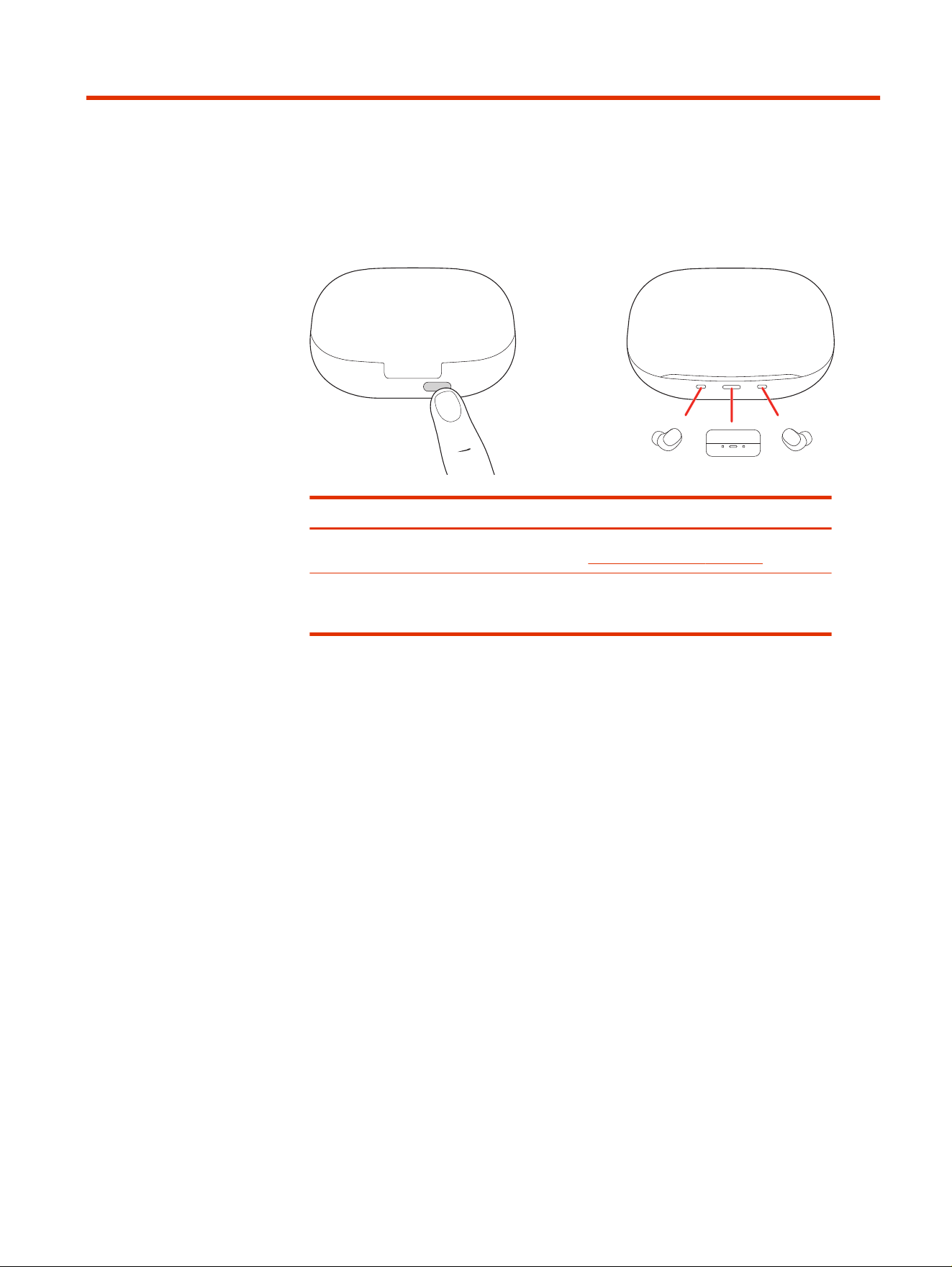
Your charge case has a button on the back and LEDs on the front. Use the charge
case to pair your mobile device and check battery status.
Control Button action
Bluetooth pairing Press and hold for 4 seconds with case open and earbuds
inside. For more, see Pair to mobile device on page 11.
Check battery status Press once. The center LED indicates the charge case battery
level. Left and right LEDs show earbud battery level when
earbuds are in the case.
Charge case controls 3

Load software
Download Poly Lens App to get the most out of your device. Some softphones
require the installation of Poly software to enable device call control(answer/end
and mute) functionality.
● Download Poly Lens Desktop App at hp.com/lens-app.
● Download Poly Lens Mobile App at hp.com/lens-app, the App Store or Google
Play.
Poly Lens Mobile App Poly Lens Desktop App
Configure call control for
softphones
available for some
softphones
✓
Change headset language ✓ ✓
Enable features ✓ ✓
Battery meter ✓ ✓
Update device firmware ✓ ✓
Manage notifications and
alerts
✓ ✓
Schedule health and wellness
reminders
✓ ✓
View user guide ✓ ✓
FindMyHeadset ✓
Update your Poly device
Keep your firmware and software up-to-date to improve Poly device performance
and add new features. Download the app at hp.com/lens-app.
1. Go to Poly Lens Mobile App on your paired mobile device.
2. Select your earbuds from the device list in Poly Lens App to view available
updates.
3. Click the update button to wirelessly update earbud firmware or software.
Reset device in
Poly Lens App
Reset your case and earbuds in Poly Lens App .
4
Chapter 4 Load software

Fit
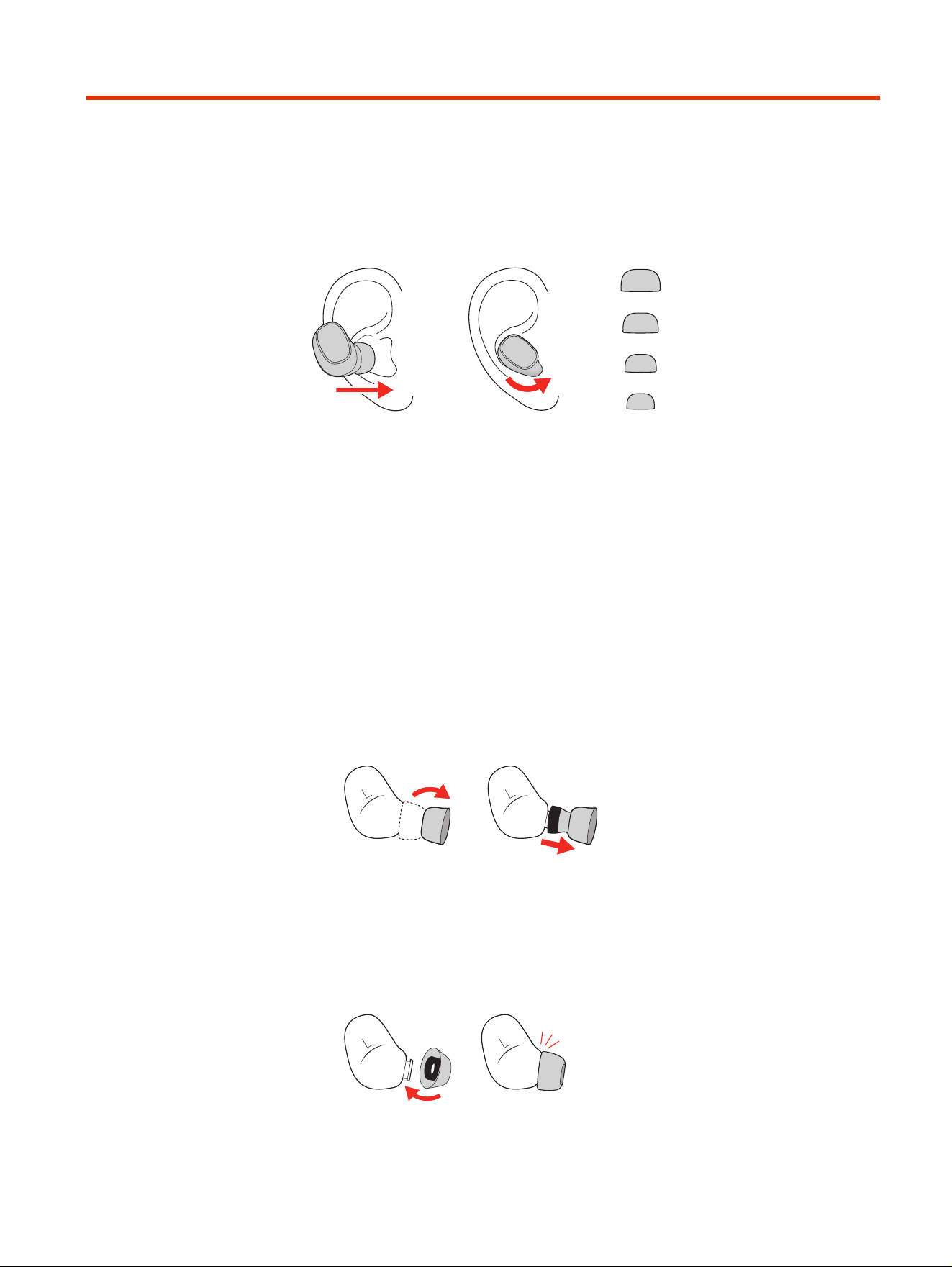
Place earbud in your ear. Rotate down and forward for an optimal fit and sound
experience.
1. Try the 4 eartips to find which size fits you comfortably while blocking
external noise.
2. Listen to music and select the eartip that gives you the most bass response.
3. You may prefer a different size eartip in each ear.
Replace eartips
Change your eartips and lock them in place.
1. REMOVE:
a. Fold down the eartip's outer cone to reveal the eartip base connection
to the earbud.
b. Pinch the eartip's outer cone and pull to remove.
2. REPLACE:
a. Place the eartip base on the earbud microphone column and press into
place for a secure fit.
b. The eartip base clicks when locked into place.
6
Chapter 5 Fit
Charge
1. To charge your earbuds, place them in the charge case. Your earbuds begin
charging when placed in the case.
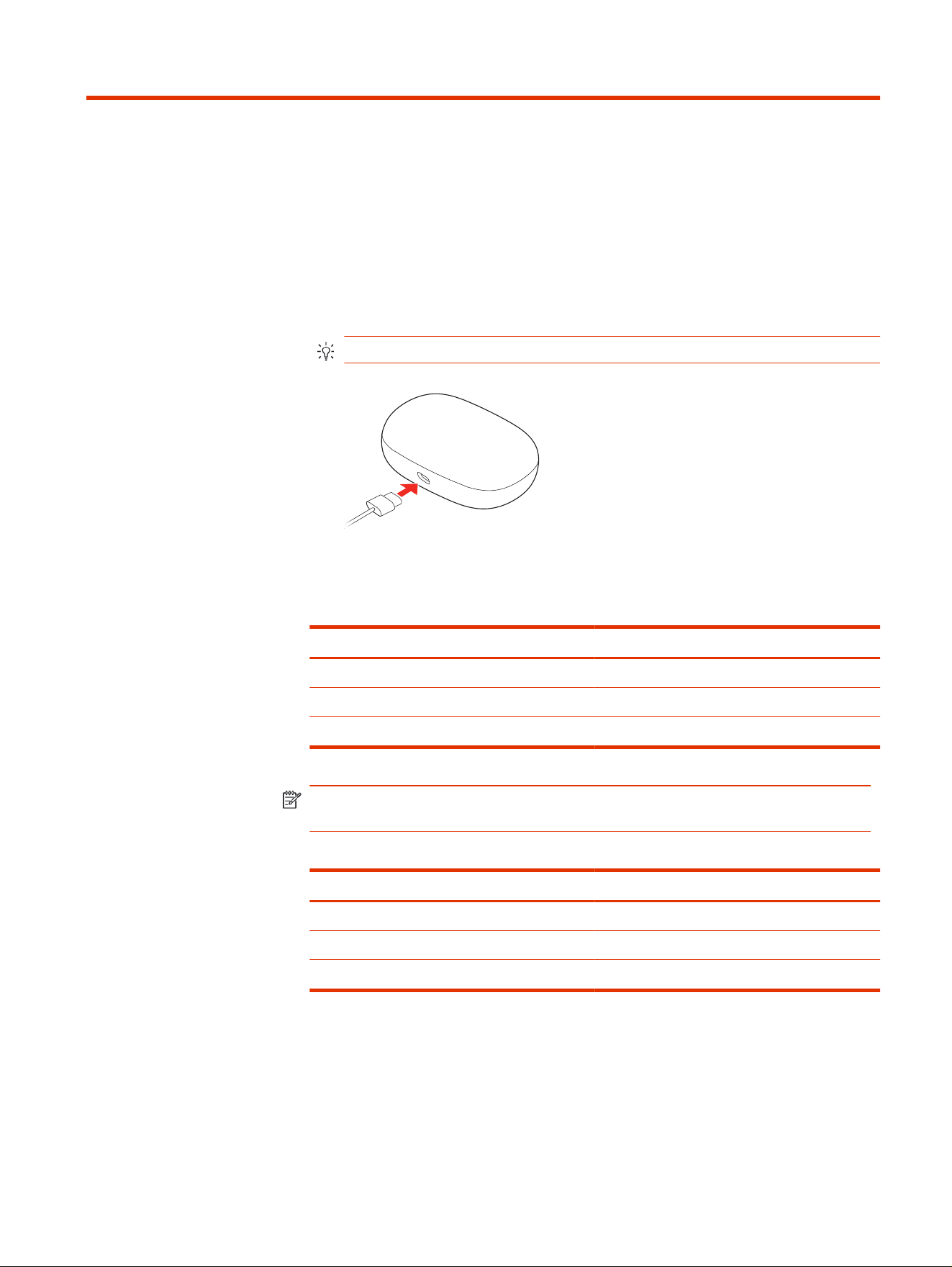
2. To recharge the case, plug it into a computer or USB charging device using
the supplied USB cable. Alternatively, recharge using a third-party Qi certified
wireless charger (not included).
TIP: For fastest charging, plug your charge case into a power outlet.
3. Your charge case LEDs blink every 10 seconds when charging and turn off
when fully charged.
Table 6-1
Charge time
Device Charge time
Charge case and earbuds Approximately 3 hours
Earbuds only Approximately 2 hours
Charge case only Approximately 2 hours
NOTE: The charge times listed above reflect charging with a USB cable and
power outlet. Qi charging time may be longer.
Table 6-2
Listening time
Device Listening time
Earbuds with ANC off Up to 12 hours
Earbuds with ANC on Up to 8 hours
Charge case Up to 30 hours
Check battery level
Check your earbud system battery level.
Charge
7
■
Check your earbud system battery level:
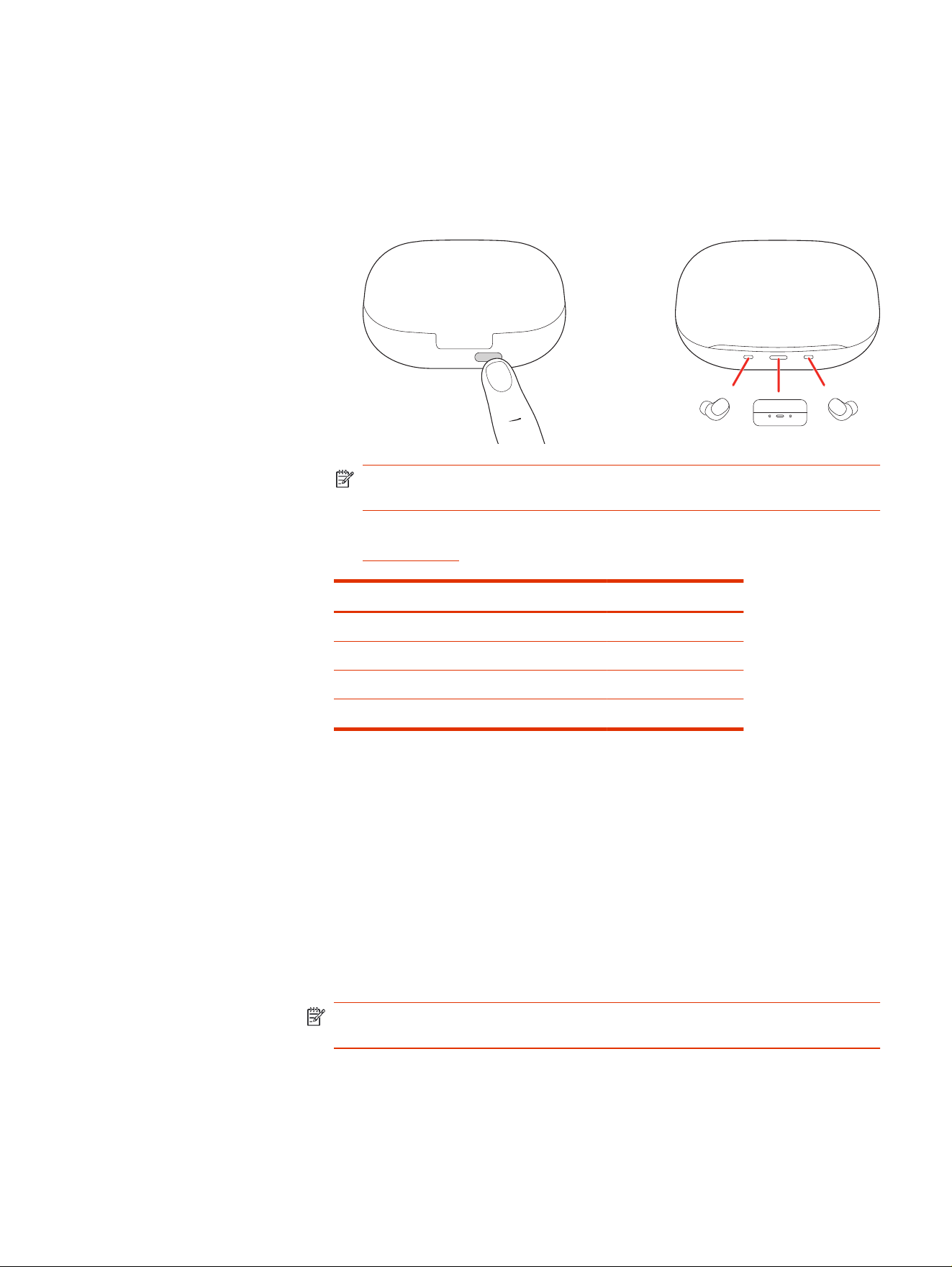
● Listen to the battery level alert when you put on the earbuds.
● View charge case LEDs. The center LED indicates the charge case battery
level. Left and right LEDs show earbud battery level when earbuds are in
the case.
NOTE: To activate LEDs, open your case lid, press the case button, or
connect/remove the charge case from a power source.
● View earbud and charge case battery level in Poly Lens App . Download at
poly.com/lens.
Voice alert
Charge case LEDs Listening time
"Battery high" Green 3 hours or more
"Battery medium" Green 1 to 3 hours
"Battery low" Yellow 10 minutes to 1 hour
"Battery critical" Red Less than 10 minutes
Quick charge
■
Charge your earbuds for 5 minutes for up to a full hour of listening time.
Wireless charging (Qi charging)
Your charge case is compatible with third-party Qi certified wireless chargers.
■
To charge wirelessly, place the earbuds in the charge case and place your
case on your compatible wireless charger. Refer to your wireless charger user
guide.
NOTE: Your earbuds charge only when placed in the charge case. They do not
charge if placed directly on the wireless charger.
8
Chapter 6 Charge

Wireless charging (Qi charging) 9
Power
Power on/off your earbud system
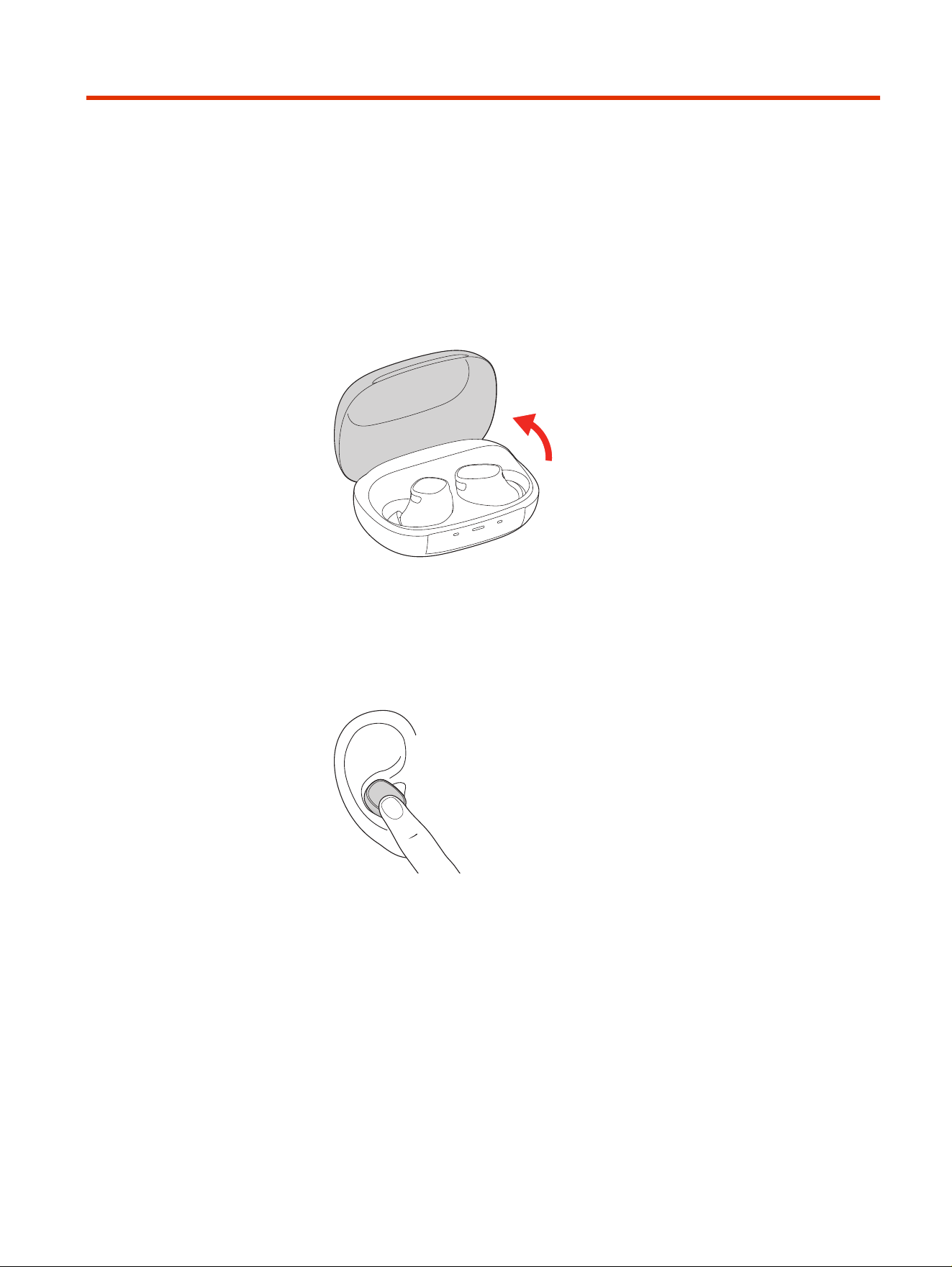
Your earbuds and case power on and off automatically.
■
Open your charge case to automatically power on the earbuds. Conversely,
place your earbuds in the case and close the lid to automatically power your
earbuds off and start charging them.
DeepSleep mode
If you leave your earbuds powered on but out of range of your paired device, they
conserve power by entering DeepSleep mode after 90 minutes.
■
To exit DeepSleep mode, power on by clicking each earbud button.
10
Chapter 7 Power
Connect and pair
Connect and pair your earbuds to your mobile devices.
Pair to mobile device
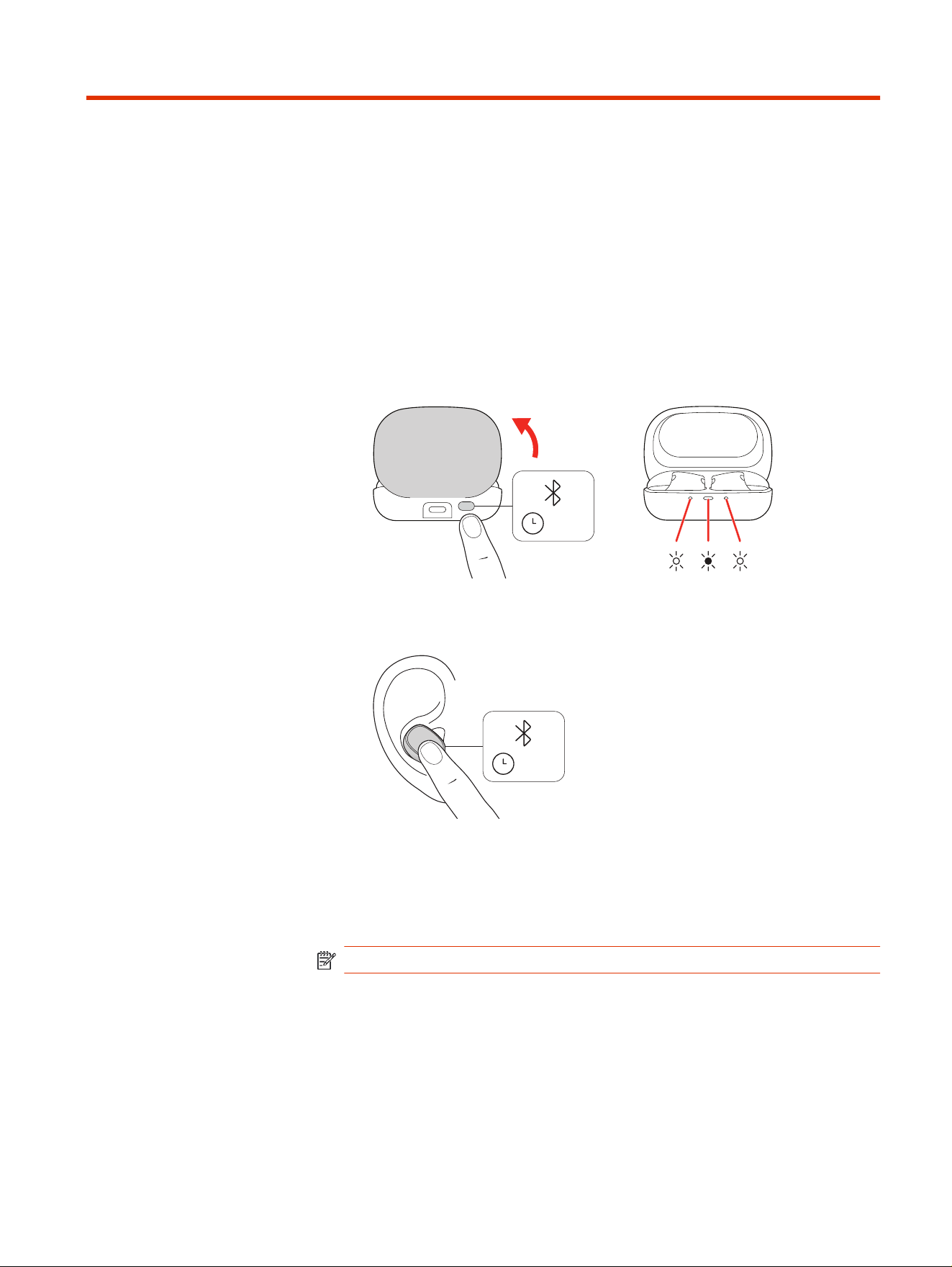
1. Choose from 2 ways to put your earbuds in pair mode.
● With your earbuds in the charge case, open the lid and press the charge
case button for 4 seconds. The charge case LEDs flash white and blue.
:
04
● Press and hold your earbud button for 4 seconds until you hear "pairing."
Control with either earbud.
:
04
2. Activate Bluetooth
®
on your phone and set it to search for new devices.
●
iPhone
Settings > Bluetooth > On*
●
Android
Bluetooth: On > Scan for devices*
NOTE: * Menus may vary by device.
3. Select " Poly VFree 20."
When your earbuds are successfully paired, you hear “pairing successful”
and "phone connected."
Pair mode
Put your earbuds in pair mode to connect to a new device or to pair again.
Connect and pair
11

■
Choose from 2 ways to put your earbuds in pair mode.
● Press and hold the charge case button for 4 seconds until the case LEDs
flash white and blue.
● Press and hold your earbud button for 4 seconds until you hear "pairing."
Control with either earbud.
12 Chapter 8 Connect and pair
The basics
Control features using either earbud.
Adjust the volume
■
Adjust the volume on your connected mobile device.
Adjust earbud microphone volume (softphone)
■
Place a test call and adjust earbud volume and softphone volume accordingly.
Play or pause audio
Choose a method to pause or resume streaming audio
■
Choose a method to pause or resume streaming audio:
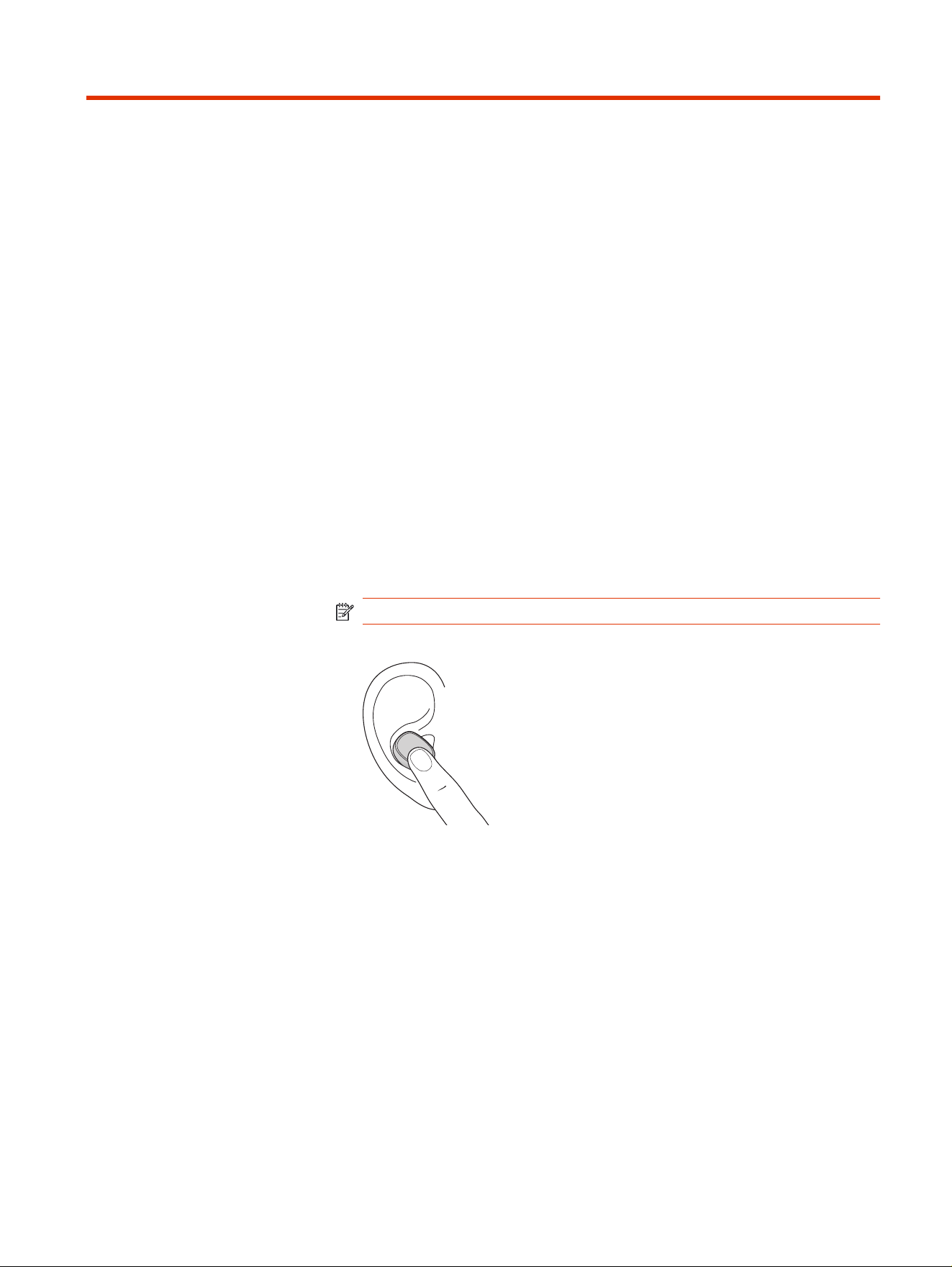
● With active sensors, remove one earbuds to pause streaming audio. Put on
one or both earbuds to resume audio.*
NOTE: *Functionality varies by application.
● Press the earbud button. Control with either earbud.
Track forward
Play the next track while streaming audio.
■
Press the earbud 2 times to play the next track.
Track backward
Play the previous track while streaming audio.
■
Press the earbud 3 times to play the previous track.
The basics
13

ANC and Transparency Mode
Active Noise Canceling (ANC) reduces external noise and enhances your music
and sound quality. Transparency Mode allows you to hear your surroundings while
wearing your earbuds.
■
To switch between ANC and Transparency mode, choose from one of the
following:
● Earbuds: With your earbuds idle, press your earbud's button for 2
seconds to switch between your selected ANC Mode and your selected
Transparency Mode.
● Poly Lens App : Go to Settings > ANC: Tap to view and select your ANC
Mode or Transparency Mode. For more about these settings, see ANC and
Transparency Mode settings on page 17.
NOTE: Your earbuds must be idle or streaming media to switch between
modes. Modes cannot be switched during a call.
Use sensors
Smart sensors respond when you put on or take off your earbuds. Customize in
Poly Lens App . Below describes default settings.
With active sensors
Putting on earbuds will: Taking off earbuds will:
Incoming call Answer the incoming call --
Music/streaming media Resume music/media* Pause music/media*
NOTE: *Functionality varies by application. May not function with web-based
apps.
Voice assistant (smartphone feature)
■
Siri, Google Assistant
™
, Cortana Press and hold the earbud button for 2
seconds to activate your smartphone's default voice assistant. Wait for the
phone prompt to activate voice dialing, search, and other smartphone voice
controls.
NOTE: Ensure VPA is the selected Custom button settting. For more, see
Customize your earbud on page 17.
14
Chapter 9 The basics

Voice assistant (smartphone feature) 15
Make/Take/End Calls
Manage calls with your earbuds. Control features using either earbud.
Make a call
■
To make a call, dial using your connected mobile device.
Answer or end a call
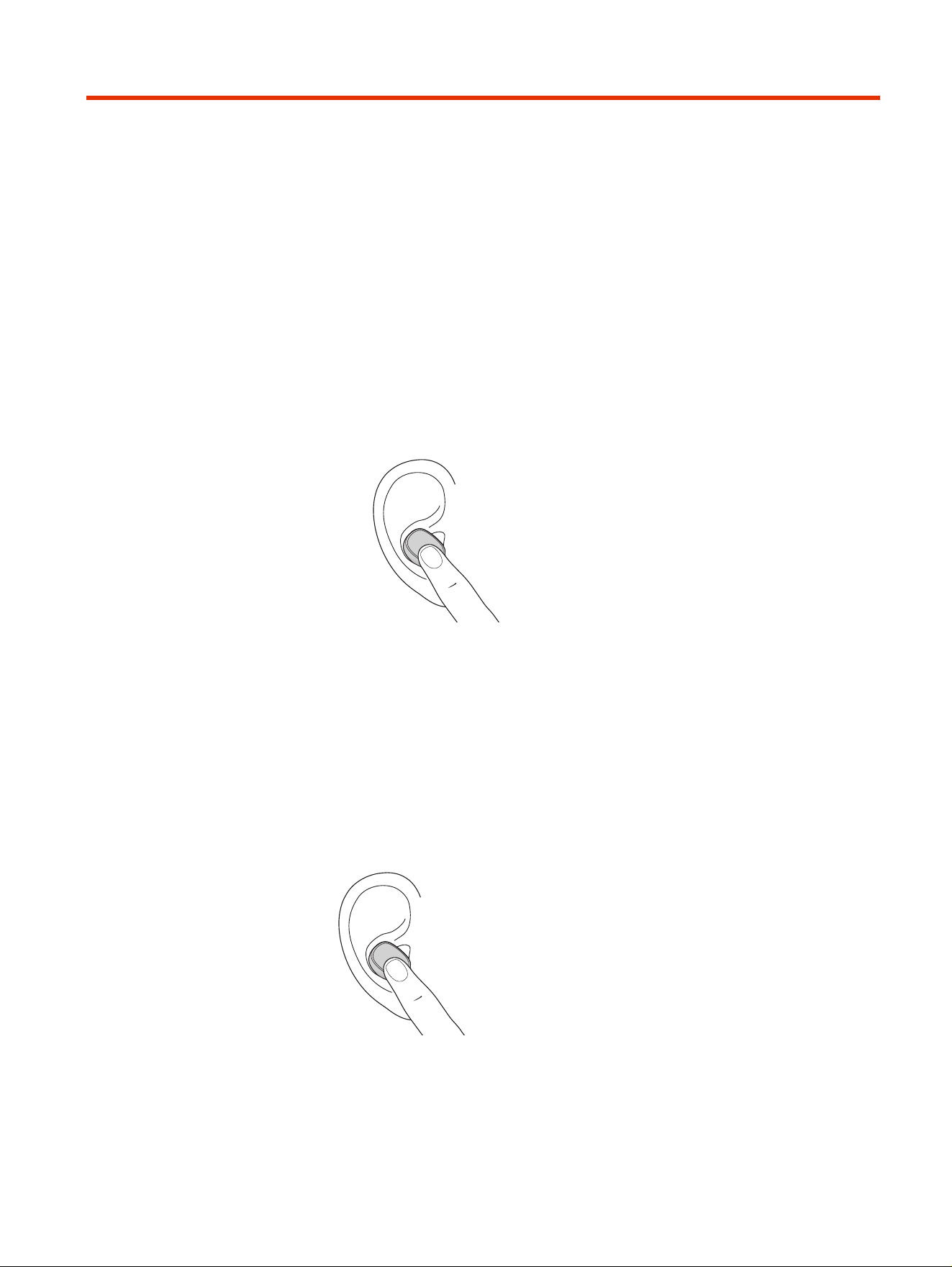
1. To answer a call, do one of the following:
● Press once on the earbud.
● Put on one or both earbuds to answer a call (with smart sensors active).
● Use your connected mobile device.
2. To end a call, press and hold the earbud button for 2 seconds.
Mute
To mute your microphone during a call, do one of the following:
● Press once on the earbud button.
● Mute from your paired mobile device.
16
Chapter 10 Make/Take/End Calls
More Features
Configure and use additional earbud features.
Customize your earbud
Customize your earbud Custom button feature in Poly Lens App .
Download the app: poly.com/lens. To configure in Poly Lens App , go to Settings >
Custom button.
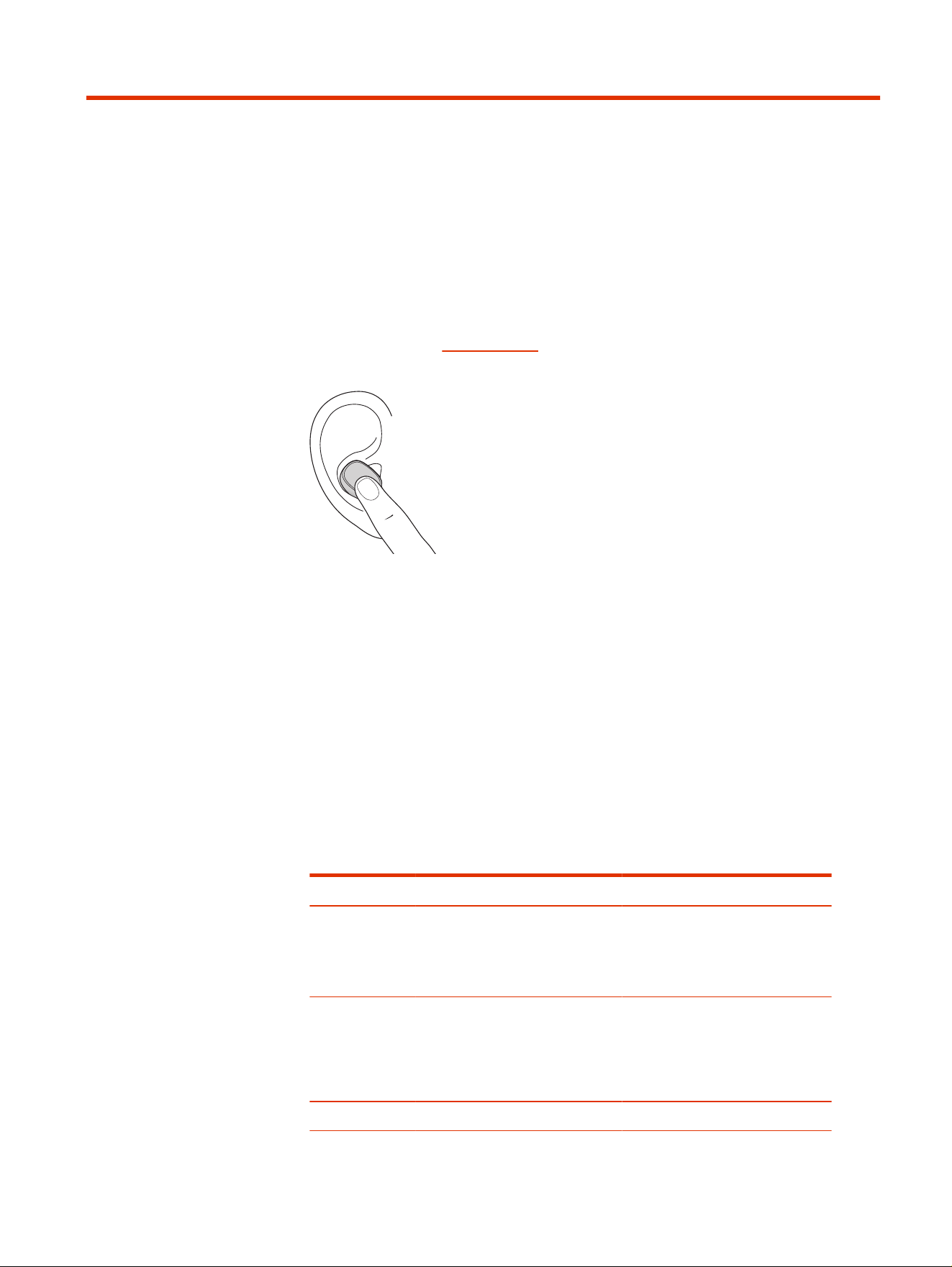
■
Press the earbud for 2 seconds to use your configured Custom button setting.
Control feautre with either earbud.
Choose from:
● ANC/Transparency mode default
● Launch default voice assistant (Siri, Google Assistant)
ANC and Transparency Mode settings
Choose your preferred settings for ANC (Active Noise Canceling) and
Transparency Mode.
Choose settings in Poly Lens App .
Category
Setting Description
ANC Adaptive (default) ● Detects differences in user fit
or movement while wearing
and automatically adjusts
to provide the best ANC
experience
ANC Standard ● Optimized to reduce external
noise for office
● Provide a more natural audio
experience and enhanced
sidetone comfort
ANC Off ● ANC powered off
More Features 17
Category Setting Description
Transparency
Mode
Speech ● Optimized for face-to-face
communication while wearing
your earbuds
Transparency
Mode
Environment (default) ● Best for busy streets
● Optimized to hear your
surroundings while wearing
your earbuds
Transparency
Mode
Off ● Transparency Mode powered
off
Choose EQ setting
Configure your audio for music and media streaming with equalizer (EQ) settings.
Select your preferred EQ setting in Poly Lens App .
NOTE: EQ settings are inactive when in a call and don’t affect call quality.
1. Open Poly Lens App and go to Settings > General > Equalizer.
2. Try each EQ option while listening to music to find your preferred setting.
Option
Description
Bass Amplifies low frequencies, enriching the
audio with clear and powerful deep tones
Flat A neutral balance across all frequencies
without emphasizing any particular range
Bright Elevates high-frequency components,
best for enhancing clarity for crisp audio
Connect new earbud
Connecting a replacement new earbud to your existing system is easy.
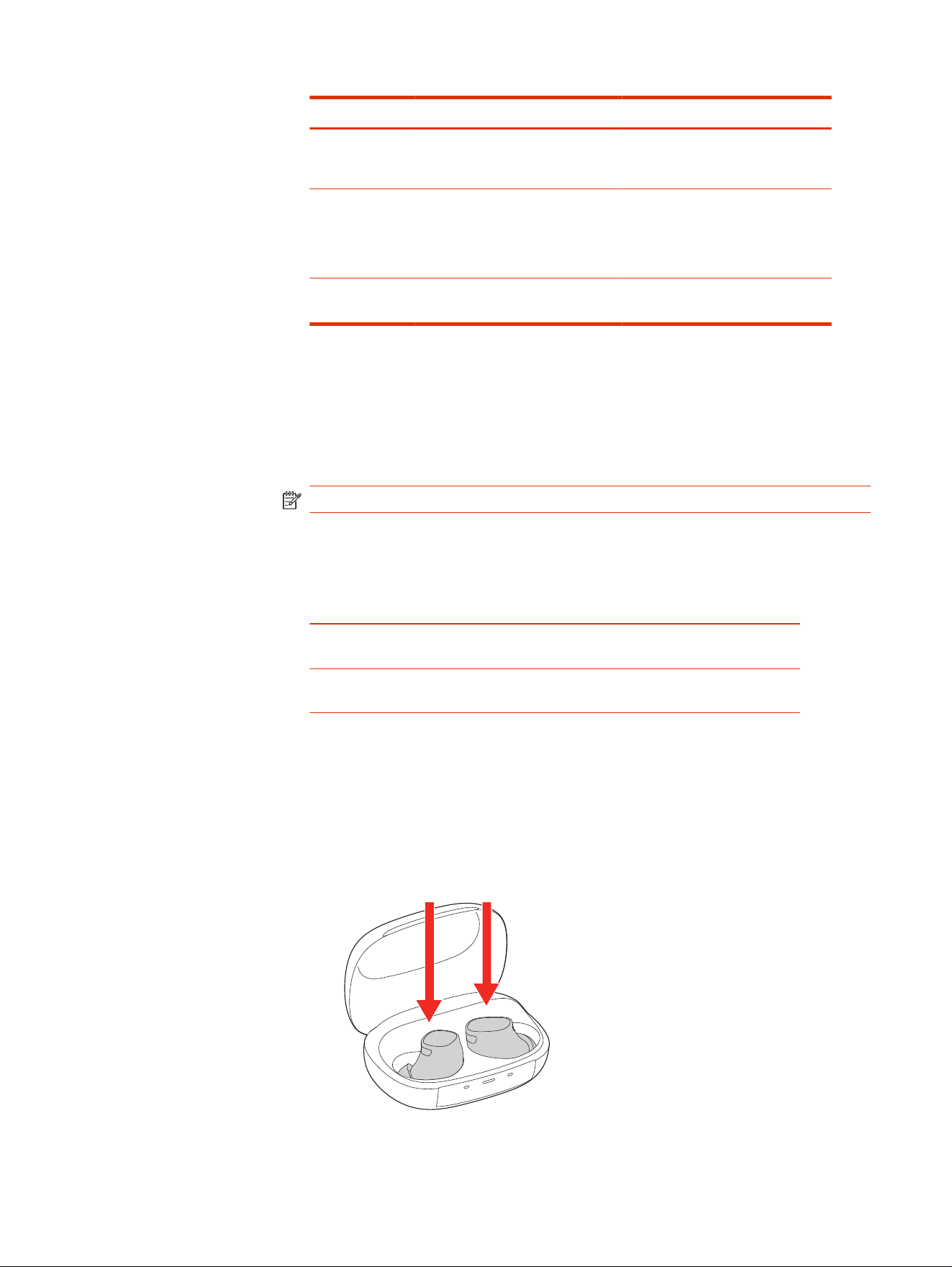
1. To connect your new earbud to the existing one, place them both in the
charge case.
18
Chapter 11 More Features

2. Close the case lid and wait for 10 or more seconds to complete the
connection.
Manual device reset
Reset your case and earbuds manually.
Reset earbuds
1. Remove earbuds from charge case.
2. While wearing the earbuds, press and hold each earbud button for 10 seconds
to reset the earbuds. Earbuds power off.
Earbuds are reset when you hear "power on" and device status.
Reset charge case
1. Insert the USB cable into the case.
2. Press and hold the case button while connecting the USB cable to a power
source.
The case is successfully reset when the case powers on and the LEDs display
the battery status.
Manual device reset
19
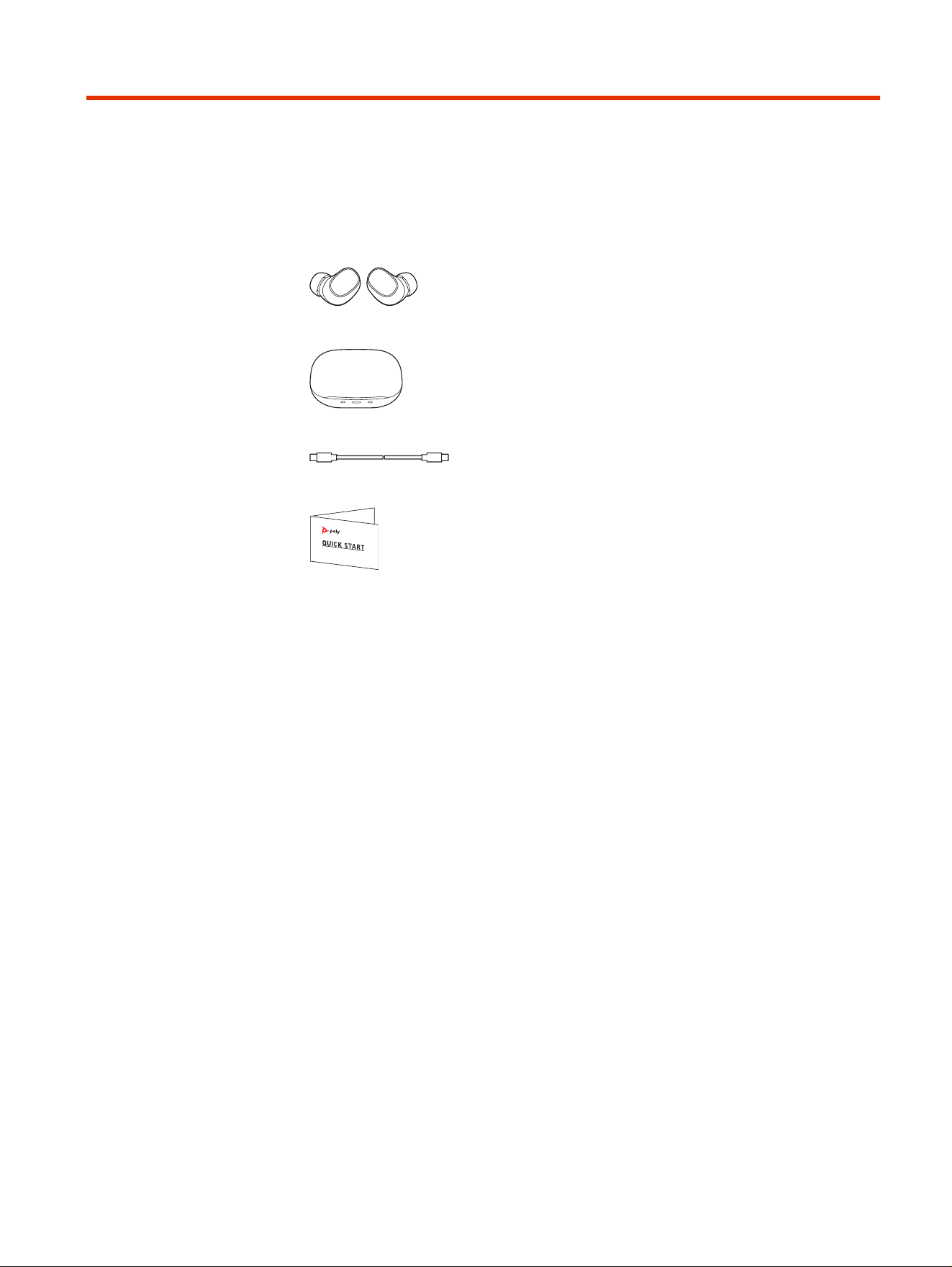
What's in the box
Contents may vary by product.
Figure 12-1 True wireless earbuds
Figure 12-2 Charge case
Figure 12-3 USB-C cable
Figure 12-4 Quick start guide
20
Chapter 12 What's in the box

Support
NEED MORE HELP?
support.hp.com/poly
HP Inc.
1501 Page Mill Road
Palo Alto, CA 94304, U.S.A.
650-857-1501
HP REG 23010, 08028
Barcelona, Spain
HP Inc UK Ltd
Regulatory Enquiries, Earley West
300 Thames Valley Park Drive
Reading, RG6 1PT
United Kingdom
台灣惠普資訊科技股份有限公司
臺北市南港區經貿二路 66 號 10 樓
電話:02-37899900
RMN (Regulatory Model Number): Earbuds PBVF20 (PBVF2R, PBVF2L), charge case
PCCVF20.
Support
21