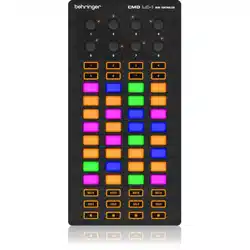
PMIDIPD20
User Manual

CONTENTS
INTRODUCTION
FEATURES
PARTS AND THEIR FUNCTIONS
SETUP
MAKING DETAILED SETTINGS
GLOBAL
TRIGGER PADS
ASSIGNABLE BUTTONS
TRANSPORT BUTTONS
SPECIFICATIONS
3
3
4
5
5
5
6
7
8
9

Introduction
Thank you for purchasing the PMIDIPD20 controller. To help you get the most
out of your new instrument, please read this manual carefully.
In order to use the functions of this product, you’ll need to make settings in the
application you’re using. Make settings as described in the owner’s manual for
your application.
Features
● 12 trigger pads with velocity and assignable to controllers.
● 2 assignable buttons.
● 6 transport buttons assignable to controllers.
● 4 banks for different settings.
● USB interface, adaptable to USB 2.0(FULL SPEED). Power supplied by
USB.
● Compatible with Win10/8/7/XP/Vista and Mac OS X. Drive free and hot-plug
supported.
● Edited by the PYLE software Editor.
3

Parts and their Functions
1. Trigger pads
These pads can transmit note messages or control change messages.
2. Transport button
There are six transport buttons: [REW], [PLAY], [FF], [LOOP], [STOP], and
[REC]. These buttons transmit control change messages or MMC (MIDI
Machine Control) messages.
3. Assignable buttons These two buttons can be used as MIDI CC switches.
4. Bank buttons Use this button to switch between the four banks. A “bank” is
a set of parameter assignments for the controllers (pads and buttons etc.)
so that the controllers can be used to operate your DAW or software synthe
sizer. The EASYPAD has four banks. The four banks are collectively called
a “bank set.” You can use PMIDIPD20 software Editor to change the
assignment of each controller. ( “Making detailed settings” )
5. Bank LEDs The LED of the selected bank will light up.
6. USB connector Connect the PMIDIPD20
to your computer with a USB cable
via this port.
7. Settled controller This unique slider on
PMIDIPD20 is only for adjusting the master
volume, it can’t be edited.
4

Setup
Operating requirements
• Apple Macintosh computer: Computer with an Intel or PowerPC processor
that has a USB port and satisfies the requirements for running Mac OS X.
• Operating system: Mac OS X 10.3.9, or Mac OS X 10.4.7 or later.
• Windows Computer: Computer that has a USB port and satisfied the
requirements for running Microsoft Windows 10/8/7/XP/Vista (a USB chipset
made by the Intel Corporation is recommended).
• Operating system: Microsoft Windows XP SP2 or later, or Microsoft Windows
Vista SP1.
• Connections and power: Connect the PMIDIPD20 to your computer with a
USB cable.
Making Detailed Settings
The following settings cannot be edited from the PMIDIPD20 itself, so you’ll
need to use the EASYPAD software Editor. You can download the PYLE
software Editor from the www.pyleusa.com
Global
Global MIDI channel
Global MIDI channel [1...16]
This specifies which MIDI channel the PMIDIPD20 will use to transmit note
messages, as well as MIDI messages that are sent when you press the button.
This should be set to match the MIDI channel of the MIDI application that
you’re controlling.
Transport MIDI Channel [1...16/Scene MIDI Channel]
Specifies the MIDI channel on which MIDI messages will be transmitted when
you operate the transport button. Set this to match the MIDI channel of the
MIDI application you’re controlling. If you set this to “Scene MIDI Channel,” the
message will be transmitted on the Scene MIDI Channel.
5

Trigger pads
Depending on the assign type, the trigger pads can transmit note messages or
control change messages. For each trigger pad, you can individually specify
the assigned message, the MIDI transmit channel, the behavior of the trigger
pad, the note number, the control change number, the values transmitted when
the pad turns on or off.
Depending on its assign type, note number or control change number can be
assigned to a single trigger pad and transmitted. If you transmit note messag-
es or control change message from a trigger pad, all of the messages will be
transmitted at the velocity or On Value/Off Value.
MIDI Channel [1...16/Global MIDI Channel]
This specifies the MIDI channel of the MIDI messages that are transmitted
when you strike the trigger pad. If you set this to “Global MIDI Channel,” the
messages will be transmitted on the global MIDI channel.
Assign Type [No Assign/Note/Control Change]
This specifies the type of message that will be assigned to the trigger pad. You
can disable the pad (no assignment), or assign a note message or a control
change.
Pad Behavior [Momentary/Toggle]
You can choose one of the following two types of behavior for the trigger pad.
● Momentary The Note On or On Value will be transmitted when you press
the trigger pad, and the Note Off or Off Value will be transmitted when you
release it.
● Toggle The Note On or On Value will be transmitted alternately with the Note
Off or Off Value each time you press the trigger pad.
● Note Number [C-1...G9/No Assign]
This specifies the note number of the note message that is transmitted.
CC Number [0...127/No Assign]
This specifies the control change number of the control change message that
is transmitted.
On Value [0...127]
This specifies the value of the message that is transmitted when the trigger
pad turns on.
Off Value [0...127]
This specifies the value of the message that is transmitted when the trigger
pad turns off.
You can set this only if the assign type is “Control Change.”
6

Assignable buttons
The button transmits a control change message. You can choose whether this
button will be enabled, the type of button operation, the control change
number, and the values that will be transmitted when the button is pressed.
These MIDI messages are transmitted on the Global MIDI Channel.
Assign Type [No Assign / Note/Control Change]
This specifies the type of message that will be assigned to the button. You can
disable the button (no assignment), or assign a note message or a control
change.
Button Behavior [Momentary/Toggle]
Selects one of the following two modes:
● Momentary
Pressing the button will send a control change message with the On value,
releasing the button will send a control change message with the Off value.
● Toggle
Each time that you press the button, the control change message will
alternate between the On value and the Off value.
Note Number [C-1...G9]
This specifies the note number of the note message that is transmitted.
CC Number [0...127]
Specifies the CC number of the control change message that will be transmit-
ted.
On Value [0...127]
Specifies the On value of the control change or note on message.
Off Value [0...127]
Specifies the Off value of the control change message. You can set this only if
the assign type is “Control Change.”
7

Transport buttons
Operating the transport buttons will transmit either control change messages
or MMC messages, depending on the assign type. For each of these six
buttons, you can specify the message that is assigned, the way in which the
button will operate when pressed, the control change number, or an MMC
command.
Assign Type [Control Change/MMC/No Assign]
Specifies the type of message assigned to the transport button. You can
specify that the button be disabled, or assign a control change message or
MMC message.
Button Behavior [Momentary/Toggle]
Selects one of two types of behavior for the button:
● Momentary:
A control change message with a value of 127 will be
transmitted when you press the transport button, and with a value of 0 when
you release the button.
● Toggle:
Each time you press the transport button, a control change message with a
value of 127 or 0 will be transmitted alternately. You can’t specify the button
behavior if the assign type is “MMC.” If you’ve specified “MMC,” an MMC
command will be transmitted each time you press the button.
● CC Number [0...127]
Specifies the control change number of the control change message that is
transmitted.
MMC Command [Stop/Play .../MMC Reset]
Selects one of the following thirteen types of MMC command as the MMC
message that will be transmitted. Stop, Play, Deferred Play, Fast Forward,
Rewind, Record Strobe, Record Exit, Record Pause, Pause, Eject, Chase,
Command Error Reset, MMC Reset
MMC Device ID [0...127]
Specifies the device ID of the MMC message. Normally you will specify 127. If
the device ID is 127, all devices will receive the MMC message.
8

Specifications
• Connectors: USB connector (mini B type)
• Power supply: USB bus power mode
• Current consumption: 100 mA or less
• Dimensions (L x W x H): 3.9 x 13.4 x 0.8 inches / 100 x 340 x 20 mm
• Weight: 15 oz / 460 g
• Included items: USB cable, Owner’s manual
* Specifications and appearance are subject to change without notice.
9

www.pyleusa.com/contactus