User Manual
v1.0 2025.05
This document is copyrighted by DJI with all rights reserved. Unless otherwise authorized
by DJI, you are not eligible to use or allow others to use the document or any part of
the document by reproducing, transferring or selling the document. Only refer to this
document and the content thereof as instructions to operate DJI products. The document
should not be used for other purposes.
In the event of divergence among dierent versions, the English version shall prevail.
Searching for Keywords
Search for keywords such as “battery” and “install” to nd a topic. If you are
using Adobe Acrobat Reader to read this document, press Ctrl+F on Windows or
Command+F on Mac to begin a search.
Navigating to a Topic
View a complete list of topics in the table of contents. Click on a topic to navigate to
that section.
Printing this Document
This document supports high resolution printing.
2 © 2025 DJI All Rights Reserved.
Using this Manual
Legend
Important
Hints and Tips
Reference
Read Before Use
DJI
™
provides you with tutorial videos and the following documents:
1. Safety Guidelines
2. Quick Start Guide
3. User Manual
It is recommended to watch all the tutorial videos and read the Safety Guidelines before
using for the rst time. Make sure to review the Quick Start Guide before using for the rst
time and refer to this User Manual for more information.
Video Tutorials
Go to the address below or scan the QR code to watch the tutorial videos, which
demonstrate how to use the product safely:
https://www.dji.com/mavic-4-pro/video
Download the DJI Fly App
Make sure to use DJI Fly during ight. Scan the QR code to download the latest version.
DJI Mavic 4 Pro User Manual
© 2025 DJI All Rights Reserved. 3
• The remote controller with screen has the DJI Fly app already installed.
• To use featuressuch as QuickTransfer, download the DJI Flyapp to your mobile
device.
• To check the Android and iOS operating system versions supported by DJI Fly,
visit https://www.dji.com/downloads/djiapp/dji-y.
• The interface and functions of DJI Fly may vary as the software version is
updated. Actual user experience is based on the software version used.
* For increased safety, ight is restricted to a height of 98.4 ft (30 m) and a range of 164ft (50m)
when not connected or logged into the app during ight. This applies to DJI Fly and all apps
compatible with DJI aircraft.
Download DJI Assistant 2
Download DJI ASSISTANT
™
2 (Consumer Drones Series) at:
https://www.dji.com/downloads/softwares/dji-assistant-2-consumer-drones-series
• The operating temperature of this product is -10° to 40° C. It does not meet
the standard operating temperature for military-grade application (-55° to
125°C), which is required to endure greater environmental variability. Operate
the product appropriately and only for applications that meet the operating
temperature range requirements of that grade.
DJI Mavic 4 Pro User Manual
4 © 2025 DJI All Rights Reserved.

DJI Mavic 4 Pro User Manual
© 2025 DJI All Rights Reserved. 5
Contents
Using this Manual 3
Legend 3
Read Before Use 3
Video Tutorials 3
Download the DJI Fly App 3
Download DJI Assistant 2 4
1 Product Prole 10
1.1 Using for the First Time 10
Preparing the Aircraft 10
Preparing the Remote Controller 12
DJI RC Pro 2 12
DJI RC 2 13
Activation 14
Binding the Aircraft and Remote Controller 14
Firmware Update 14
1.2 Overview 15
Aircraft 15
DJI RC Pro 2 Remote Controller 16
DJI RC 2 Remote Controller 17
2 Flight Safety 19
2.1 Flight Restrictions 19
GEO (Geospatial Environment Online) System 19
Flight Limits 19
Flight Altitude and Distance Limits 19
GEO Zones 20
Unlocking GEO Zones 21
2.2 Flight Environment Requirements 21
2.3 Operating the Aircraft Responsibly 22
2.4 Pre-Flight Checklist 23
3 Basic Flight 25
3.1 Auto Takeo/Landing 25
Auto Takeo 25
Auto Landing 25
3.2 Starting/Stopping the Motors 25
Starting the Motors 25
Stopping the Motors 25
Stopping the Motors Mid-Flight 26

DJI Mavic 4 Pro User Manual
6 © 2025 DJI All Rights Reserved.
3.3 Controlling the Aircraft 26
3.4 Takeo/Landing Procedures 27
3.5 Video Suggestions and Tips 28
4 Intelligent Flight Modes 30
4.1 FocusTrack 30
Notice 31
Using FocusTrack 32
4.2 MasterShots 32
Notice 32
Using MasterShots 33
4.3 QuickShots 33
Notice 33
Using QuickShots 34
4.4 Hyperlapse 34
Using Hyperlapse 34
4.5 Waypoint Flight 35
Using Waypoint Flight 35
4.6 Cruise Control 36
Using Cruise Control 36
5 Aircraft 38
5.1 Flight Mode 38
5.2 Aircraft Status Indicators 39
5.3 Return to Home 40
Notice 41
Advanced RTH 42
Trigger Method 43
RTH Procedure 44
RTH Settings 45
Landing Protection 47
Dynamic Home Point 48
5.4 Sensing System 49
Notice 50
5.5 Advanced Pilot Assistance Systems 51
Notice 52
Landing Protection 52
5.6 Vision Assist 53
5.7 Propellers 54
Attaching the Propellers 54
Propeller Notice 54
5.8 Intelligent Flight Battery 55

DJI Mavic 4 Pro User Manual
© 2025 DJI All Rights Reserved. 7
Notice 55
Installing/Removing the Battery 56
Using the Battery 57
Charging the Battery 58
Using a Charger 58
Using the Charging Hub 59
Battery Protection Mechanisms 62
5.9 Gimbal Camera 62
Gimbal Notice 62
Gimbal Angle 63
Gimbal Operation Modes 64
Camera Notice 64
5.10 Storing and Exporting Photos and Videos 65
Storing 65
Exporting 65
5.11 QuickTransfer 66
6 Remote Controller 69
6.1 DJI RC Pro 2 69
Remote Controller Operation 69
Charging the Battery 69
DJI Simulator 69
Controlling the Gimbal and Camera 70
Flight Mode Switch 70
Flight Pause/RTH Button 70
Customizable Buttons 71
Dial 71
Sleep Mode 72
Remote Controller LEDs 72
Status LED 72
Battery Level LEDs 73
Remote Controller Alert 73
Recording Audio via App 73
Optimal Transmission Zone 74
Linking the Remote Controller 74
Operating the Touchscreen 75
Combination Buttons 75
HDMI Settings 76
6.2 DJI RC 2 77
Remote Controller Operation 77
Powering On/O 77
Charging the Battery 77

DJI Mavic 4 Pro User Manual
8 © 2025 DJI All Rights Reserved.
Controlling the Gimbal and Camera 78
Flight Mode Switch 78
Flight Pause/RTH Button 78
Customizable Buttons 79
Remote Controller LEDs 79
Status LED 80
Battery Level LEDs 80
Remote Controller Alert 80
Optimal Transmission Zone 81
Linking the Remote Controller 81
Operating the Touchscreen 82
7 Appendix 84
7.1 Specications 84
7.2 Compatibility 84
7.3 Firmware Update 84
7.4 Flight Recorder 85
7.5 Post-Flight Checklist 85
7.6 Maintenance Instructions 85
7.7 Troubleshooting Procedures 86
7.8 Risks and Warnings 87
7.9 Disposal 87
7.10 C2 Certication 87
Direct Remote ID 88
Remote Controller Warnings 89
GEO Awareness 89
GEO Zones 90
EASA Notice 92
Original Instructions 93
7.11 FAR Remote ID Compliance Information 93
7.12 Aftersales Information 94

Product Prole
© 2025 DJI All Rights Reserved. 9
1 Product Prole
1.1 Using for the First Time
Click the link or scan the QR code to watch the tutorial videos.
https://www.dji.com/mavic-4-pro/video
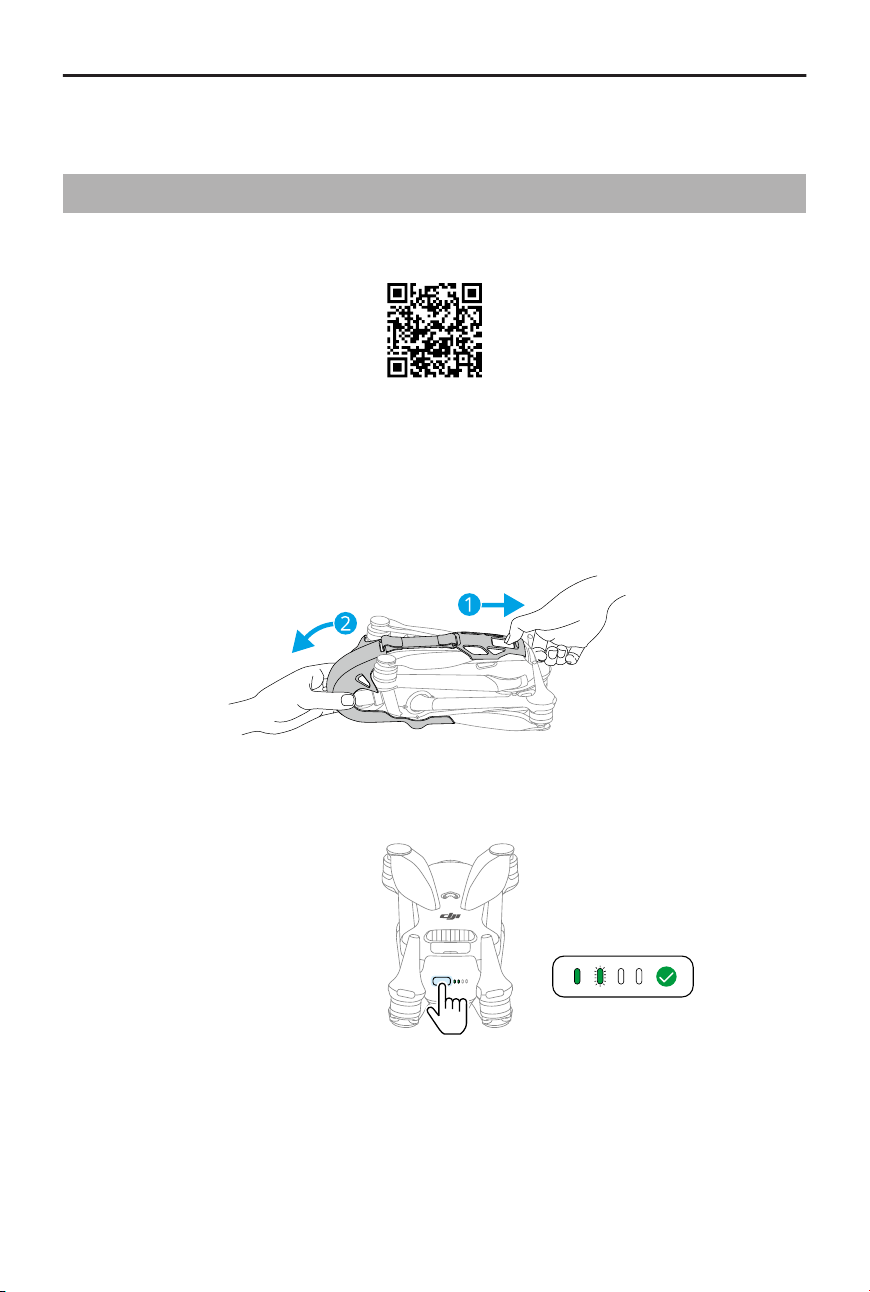
Preparing the Aircraft
1. Remove the storage cover.
2. Make sure the battery has been installed in the aircraft. Press the power button once
to activate the battery.
3. Unfold the aircraft arms as shown.
DJI Mavic 4 Pro User Manual
10 © 2025 DJI All Rights Reserved.
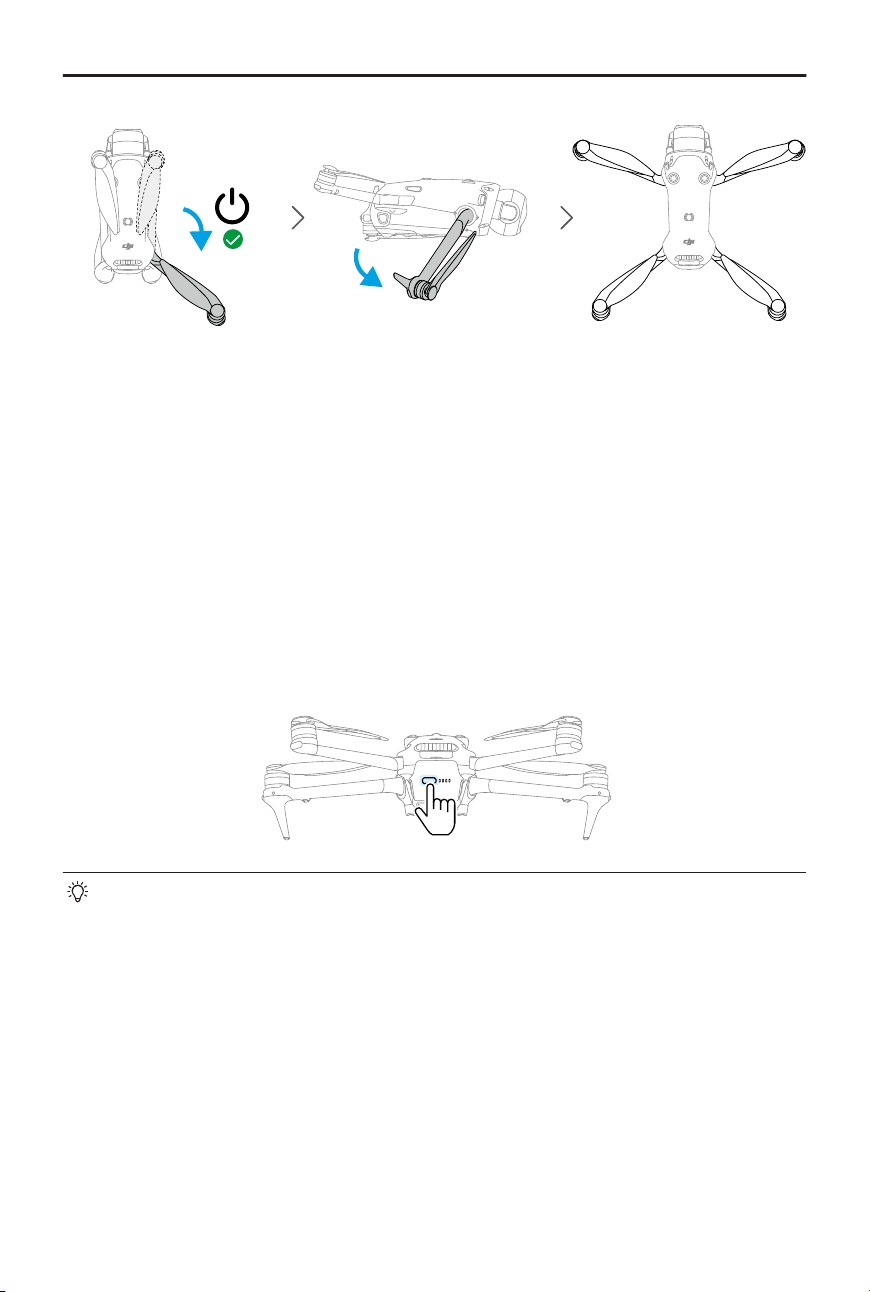
• Automatic Power-On: Unfolding the right rear arm will power on the aircraft by
default.
• Automatic Power-O: Foldingthe right rear arm will initiate an automatic
countdown for power-o. To cancel the power-o during the countdown, press
the power button once.
The Unfold Arm to Power on feature is enabled by default. The Fold Arm to
Power o feature is disabled by default. Enable or disable the feature in DJI Fly
when the aircraft is connected to the remote controller. Maker sure that the
aircraft rmware, battery rmware, and the app are updated to the latest version.
Otherwise, the feature may not be available.
• Manual Power-On/Power-O: Press, then press and hold the power button to
power on or o the aircraft.
• If the aircraft does not take o after activating the battery, the battery will enter
sleep mode again after the aircraft powers o for a period of time. In this case,
press the power button or charge the battery to activate it again before using
the Unfold Arm to Power on feature.
• When the USB-C port of the aircraft is in use, unfolding the arm will not power
on the aircraft. Disconnect the USB-C connection, and wait for a few seconds
before using the Unfold Arm to Power on feature.
• If the aircraft is currently accessing the album, downloading materials, or
updating rmware, foldingthe arm will not power o the aircraft.
DJI Mavic 4 Pro User Manual
© 2025 DJI All Rights Reserved. 11
• If a collision occurs during ight, the automatic power-o feature will not
function. The feature is available after the aircraft is restarted.
• It is recommended to use ocial chargers to charge the Intelligent Flight
Battery.
• Make sure the storage cover is removed and all arms are unfolded before
powering on the aircraft. Otherwise, it may aect the aircraft self-diagnostics.
• Attach the storage cover when the aircraft is not in use. After installation, adjust
the gimbal angle and propeller position slightly to ensure secure storage.
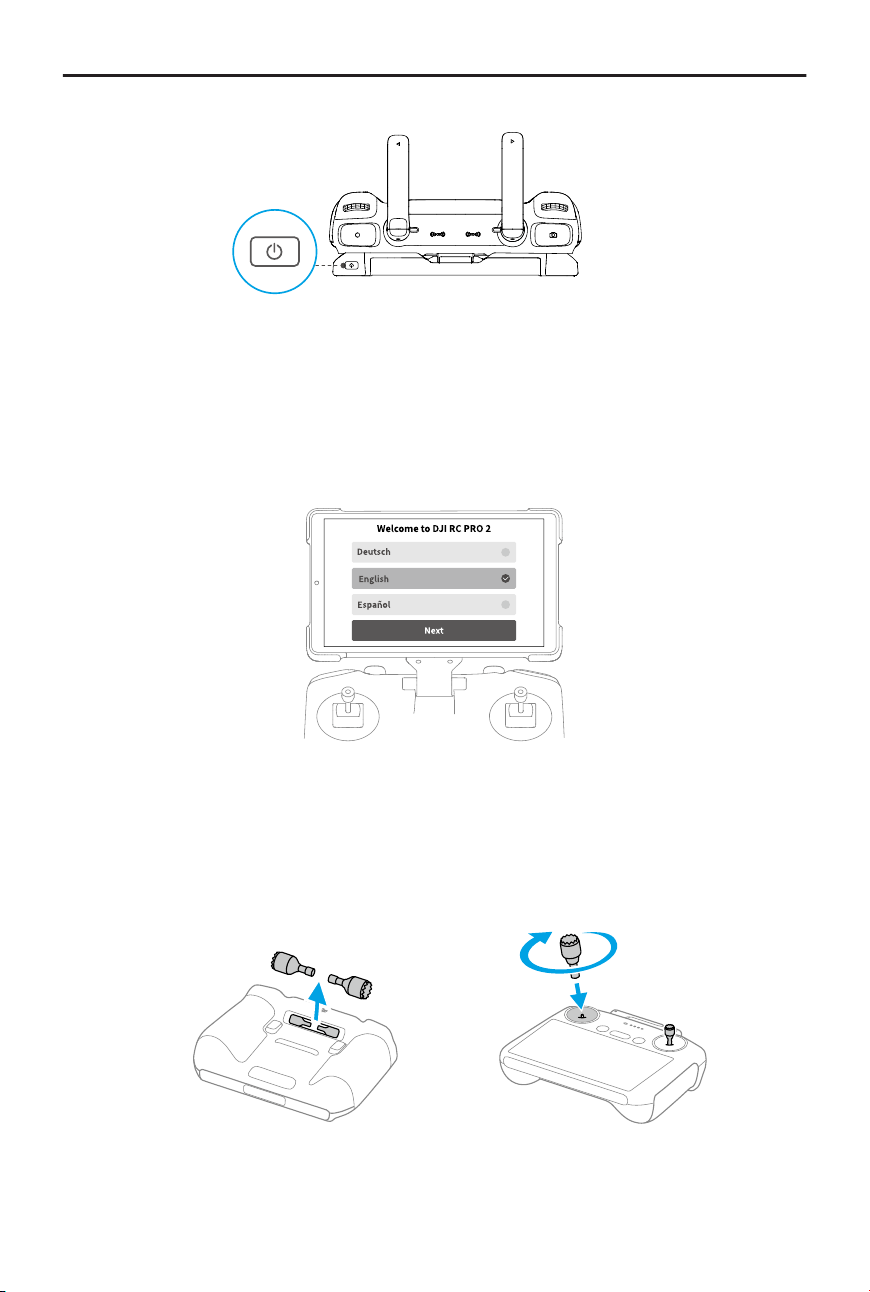
Preparing the Remote Controller
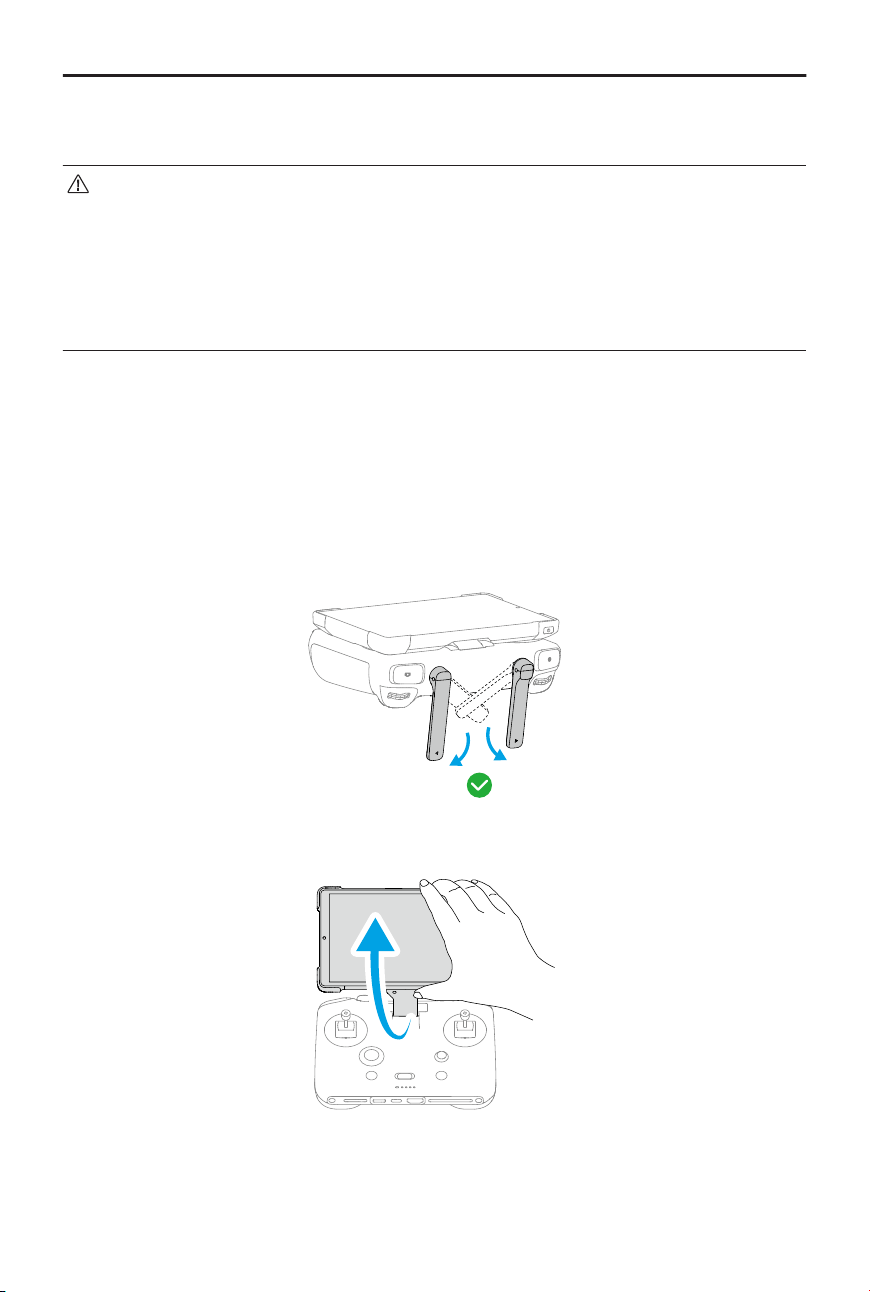
DJI RC Pro 2
Powering On/O
Unfold the antennas downward.
Extend the arm to power on.
Press the power button once to check the current battery level.
Press, then press and hold to power the remote controller on or o.
DJI Mavic 4 Pro User Manual
12 © 2025 DJI All Rights Reserved.
Activating the Remote Controller
The remote controller needs to be activated before using for the rst time. Make sure the
remote controller can connect to the internet during activation. Follow the steps below to
activate the remote controller.
DJI RC 2
1. Remove the control sticks from the storage slots and mount them on the remote
controller.
2. Unfold the antennas.
DJI Mavic 4 Pro User Manual
© 2025 DJI All Rights Reserved. 13
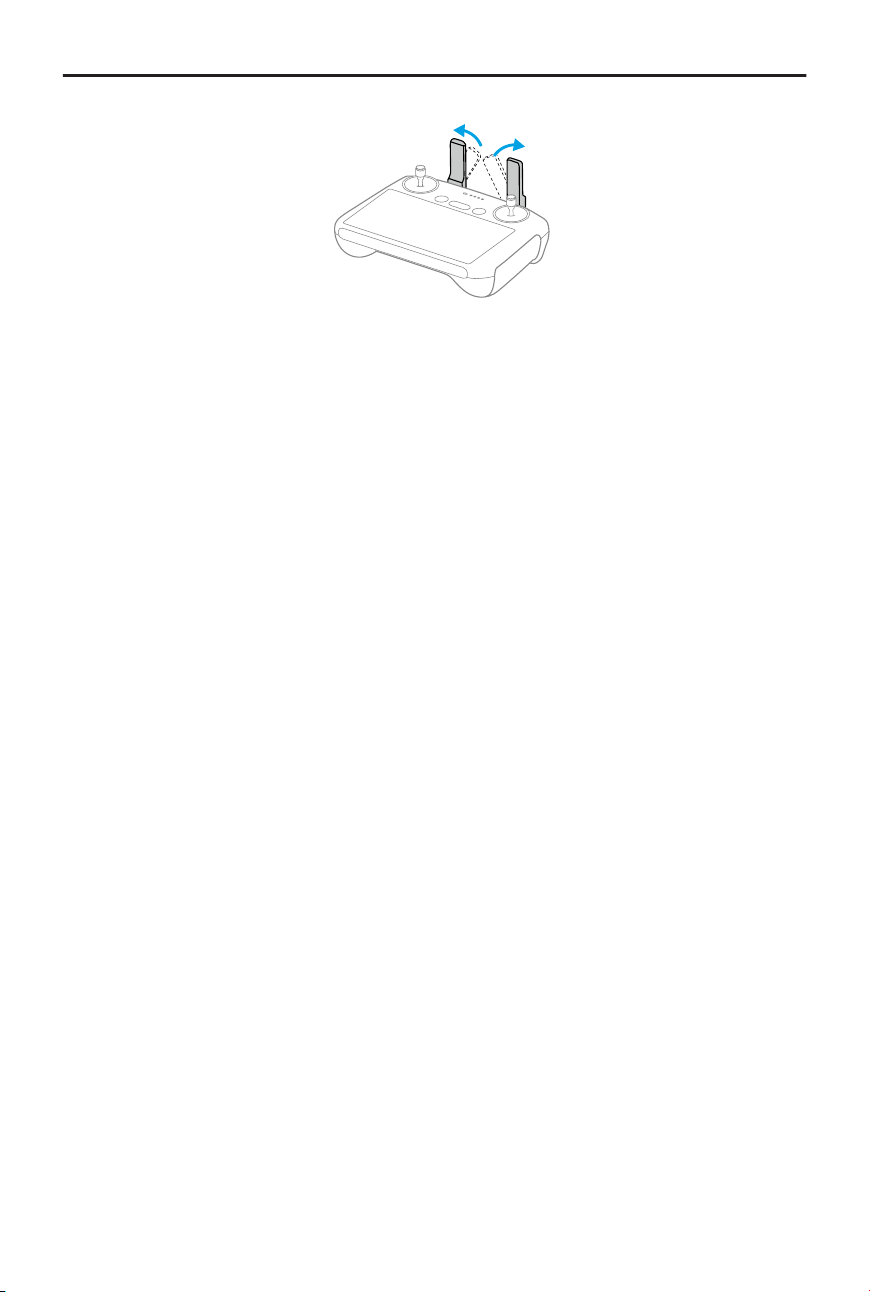
3. The remote controller needs to be activated before rst use and an internet
connection is required for activation. Press, then press and hold the power button to
power on the remote controller. Follow the on-screen prompts to activate the remote
controller.
Activation
Theproduct requires activation before rst use. Power on the aircraft and remote
controller respectively, and then follow the onscreen prompts. An internet connection
is required for activation.
Binding the Aircraft and Remote Controller
After activation, the aircraft is bound to the remote controller automatically. If automatic
binding fails, follow the on-screen prompts on DJI Fly to bind the aircraft and remote
controller for an optimal warranty service experience.
Firmware Update
A prompt will appear in DJI Fly when a rmware update is available. Update the rmware
whenever prompted to ensure the optimal user experience.
DJI Mavic 4 Pro User Manual
14 © 2025 DJI All Rights Reserved.
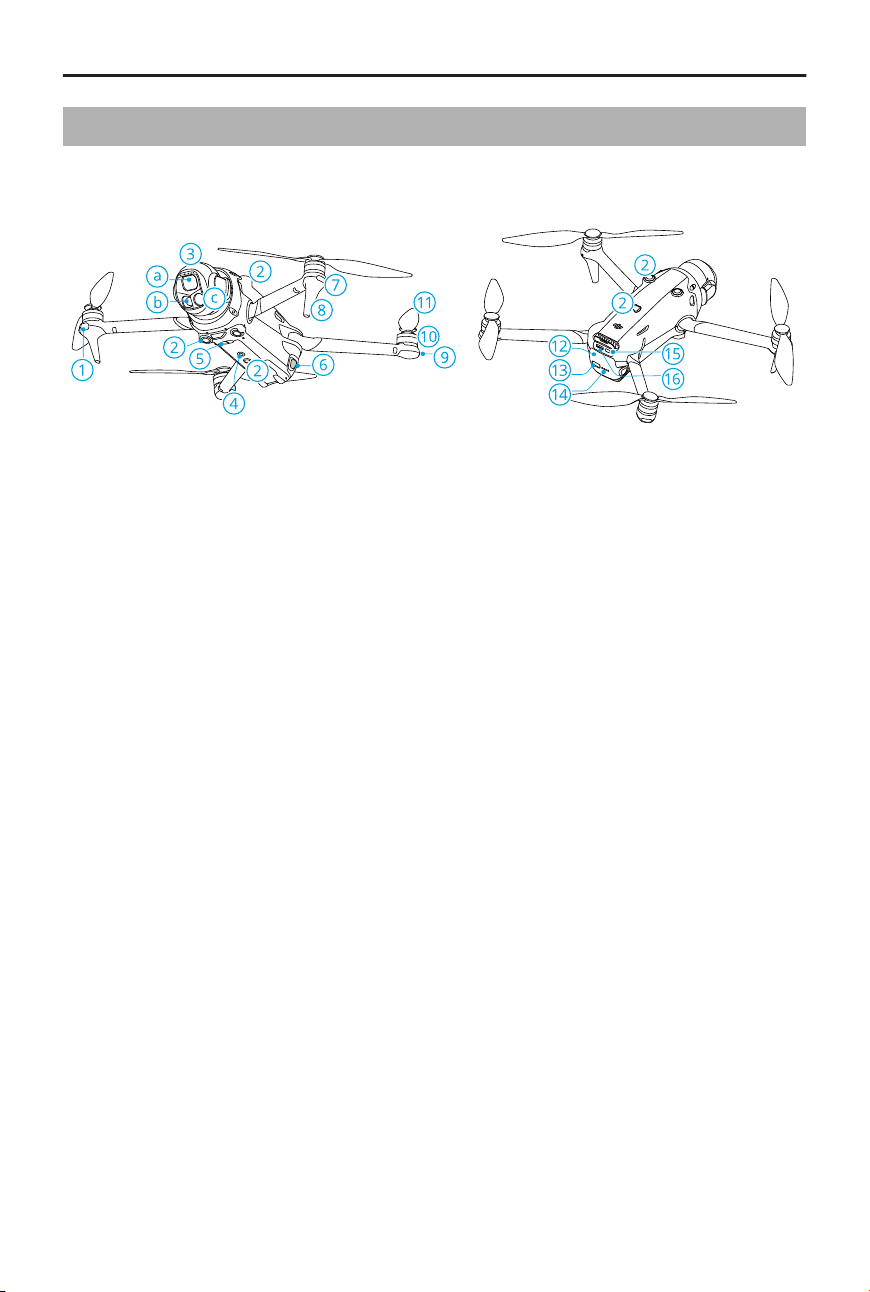
1.2 Overview
Aircraft
1. Forward-Facing LiDAR
[1]
2. Omnidirectional Vision System
3. Gimbal and Camera
a. Hasselblad Camera
b. Medium Tele Camera
c. Tele Camera
4. Auxiliary Light
5. Three-Dimensional Infrared Sensing
System
[1]
6. Battery Buckles
7. Front LEDs
8. Landing Gears (Built-in antennas)
9. Aircraft Status Indicators
10. Motors
11. Propellers
12. Intelligent Flight Battery
13. Power Button
14. Battery Level LEDs
15. USB-C Port
16. microSD Card Slot
[1] The 3D infrared sensing system and the forward-facing LiDAR meet the human eye safety
requirements for Class 1 laser products.
DJI Mavic 4 Pro User Manual
© 2025 DJI All Rights Reserved. 15
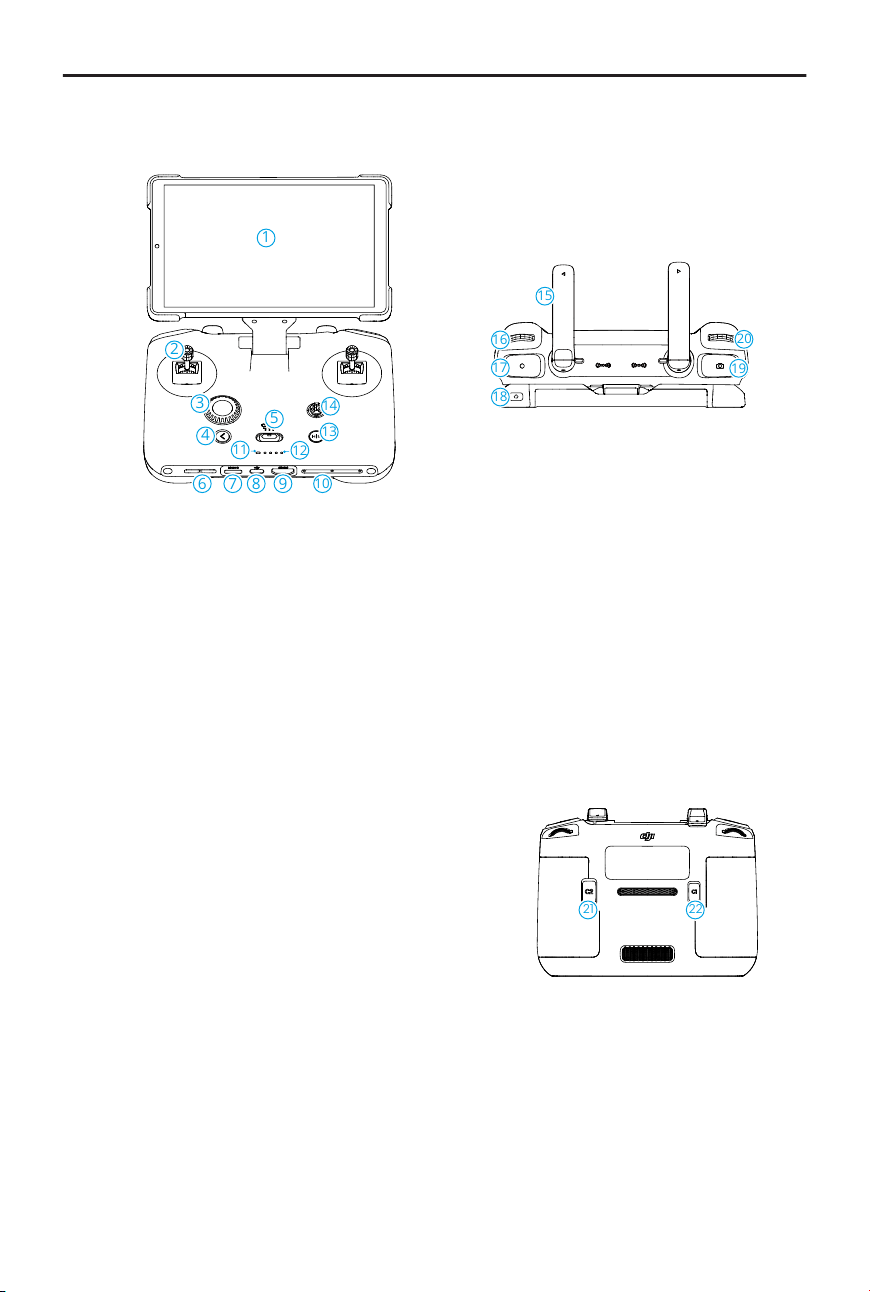
DJI RC Pro 2 Remote Controller
1
2
3
4
5
6 7 8 9
10
13
14
11
12
15
16
17
18
19
20
1. Touchscreen
2. Control Sticks
3. Dial
4. Back Button
5. Flight Mode Switch
6. Speaker
7. microSD Card Slot
8. USB-C Port
9. HDMI Port
10. Microphone
11. Status LED
12. Battery Level LEDs
13. Flight Pause/Return to Home (RTH)
Button
14. 5D Button
15. Antennas
16. Gimbal Dial
17. Record Button
18. Power Button
19. Focus/Shutter Button
20. Camera Settings Dial
21. Customizable C2 Button
22. Customizable C1 Button
21 22
DJI Mavic 4 Pro User Manual
16 © 2025 DJI All Rights Reserved.
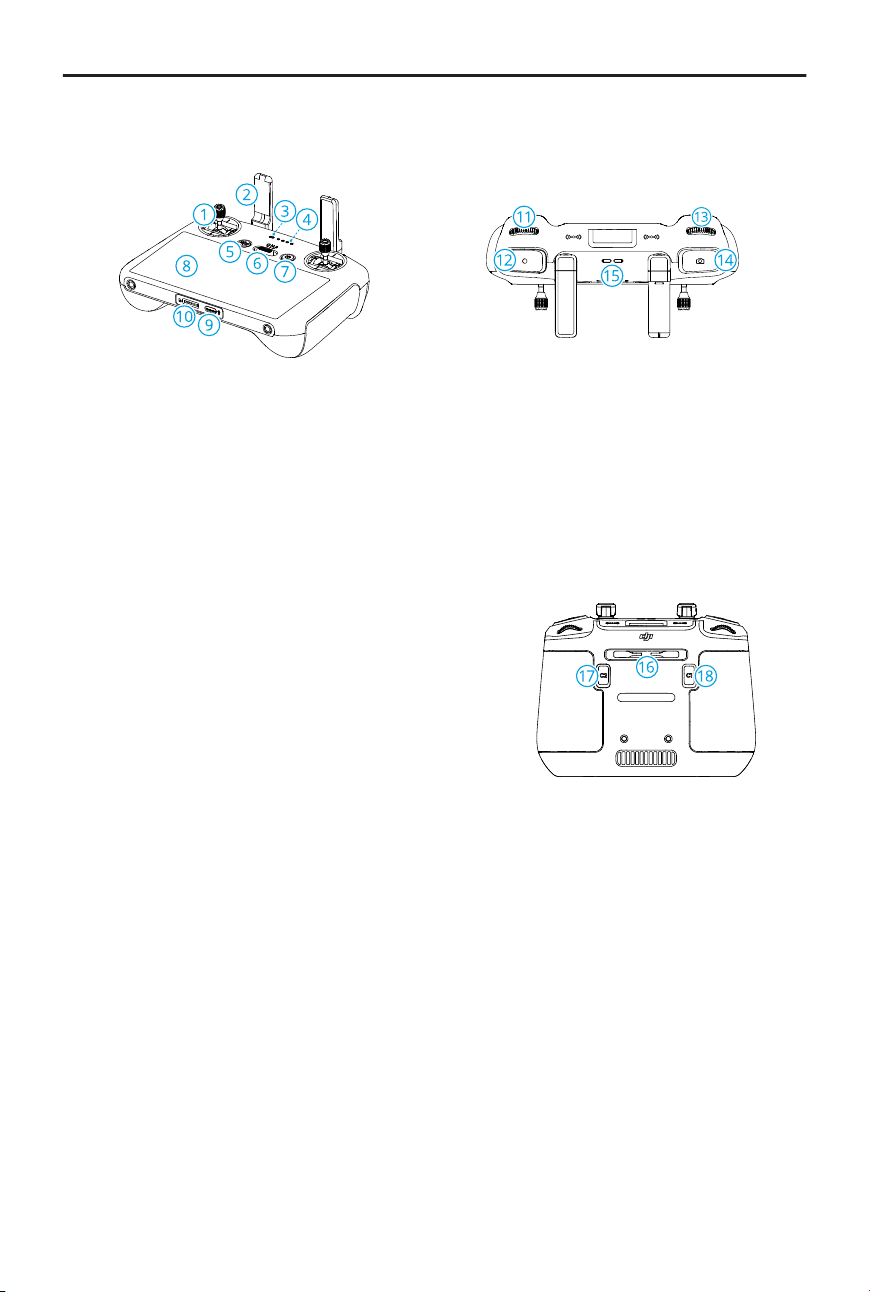
DJI RC 2 Remote Controller
1. Control Sticks
2. Antennas
3. Status LED
4. Battery Level LEDs
5. Flight Pause/Return to Home (RTH)
Button
6. Flight Mode Switch
7. Power Button
8. Touchscreen
9. USB-C Port
10. microSD Card Slot
11. Gimbal Dial
12. Record Button
13. Camera Control Dial
14. Focus/Shutter Button
15. Speaker
16. Control Stick Storage Slots
17. Customizable C2 Button
18. Customizable C1 Button
DJI Mavic 4 Pro User Manual
© 2025 DJI All Rights Reserved. 17

Flight Safety
18 © 2025 DJI All Rights Reserved.
2 Flight Safety
After completing pre-ight preparations, it is recommended to train your ying skills
and practice ying safely. Pick a suitable area to y in according to the following ight
requirements and restrictions. Strictly abide by local laws and regulations when ying.
Read the Safety Guidelines before ight to ensure safe use of the product.
2.1 Flight Restrictions
GEO (Geospatial Environment Online) System
The DJI Geospatial Environment Online (GEO) System is a global information system
that provides real-time information on ight safety and restriction updates and prevents
UAVs from ying in restricted airspace. Under exceptional circumstances, restricted areas
can be unlocked to allow ights. Prior to that, you must submit an unlocking request
based on the current restriction level in the intended ight area. The GEO system may
not fully align with local laws and regulations. You are responsible for your own ight
safety and must consult with the local authorities on the relevant legal and regulatory
requirements before requesting to unlock a restricted area. For more information about
the GEO system, visit https://y-safe.dji.com.
Flight Limits
For safety reasons, ight limits are enabled by default to help you operate the aircraft
safely. You can set ight limits on height and distance. Altitude limits, distance limits, and
GEO zones function concurrently to manage ight safety when Global Navigation Satellite
System (GNSS) is available. Only altitude can be limited when GNSS is unavailable.
Flight Altitude and Distance Limits
Max altitude restricts the ight altitude of the aircraft, while max distance restricts the
ight radius around the Home Point of the aircraft. These limits can be changed in the DJI
Fly app for improved ight safety.
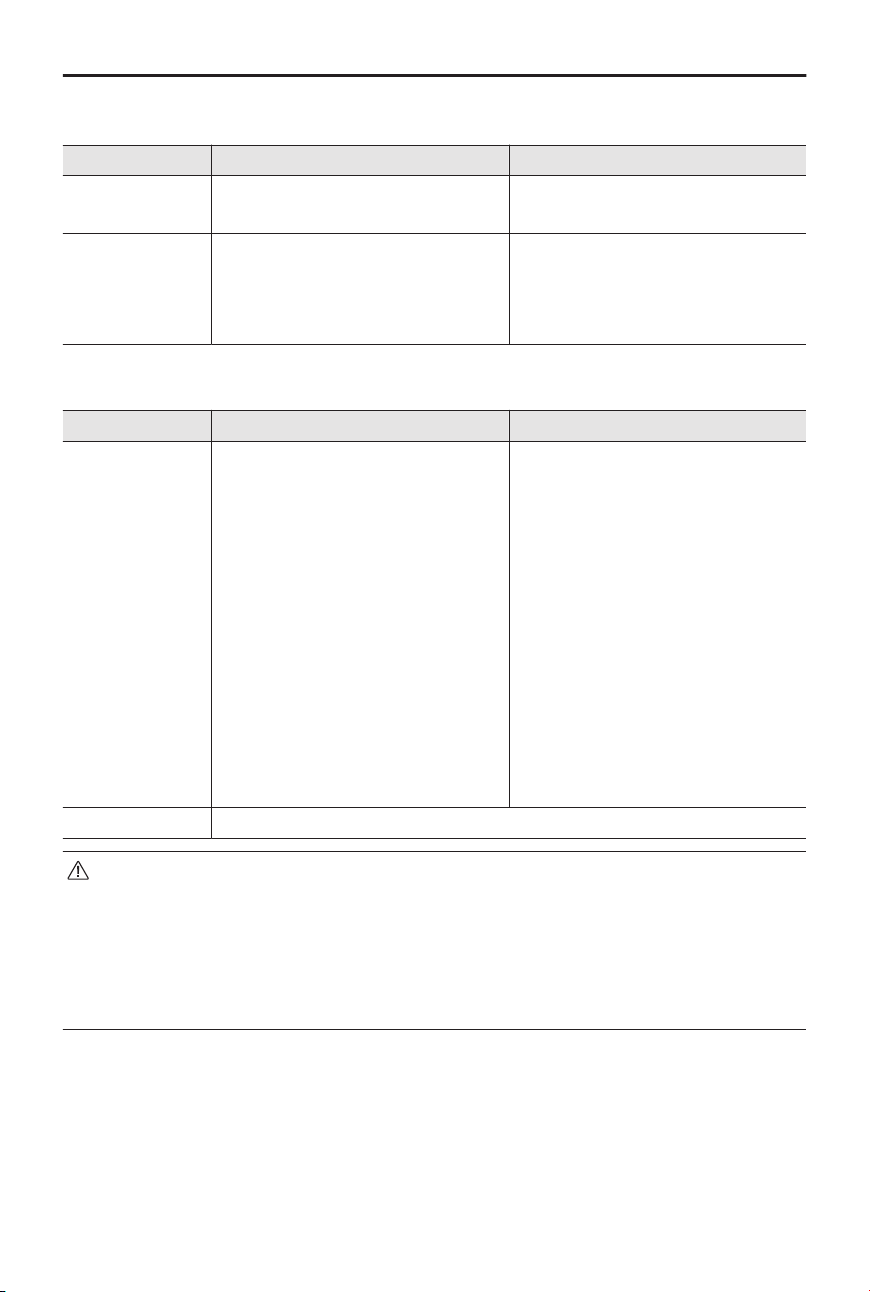
2
4
1
3
1. Max Altitude
2. Home Point (Horizontal Position)
3. Max Distance
4. Height of aircraft when taking o
DJI Mavic 4 Pro User Manual
© 2025 DJI All Rights Reserved. 19
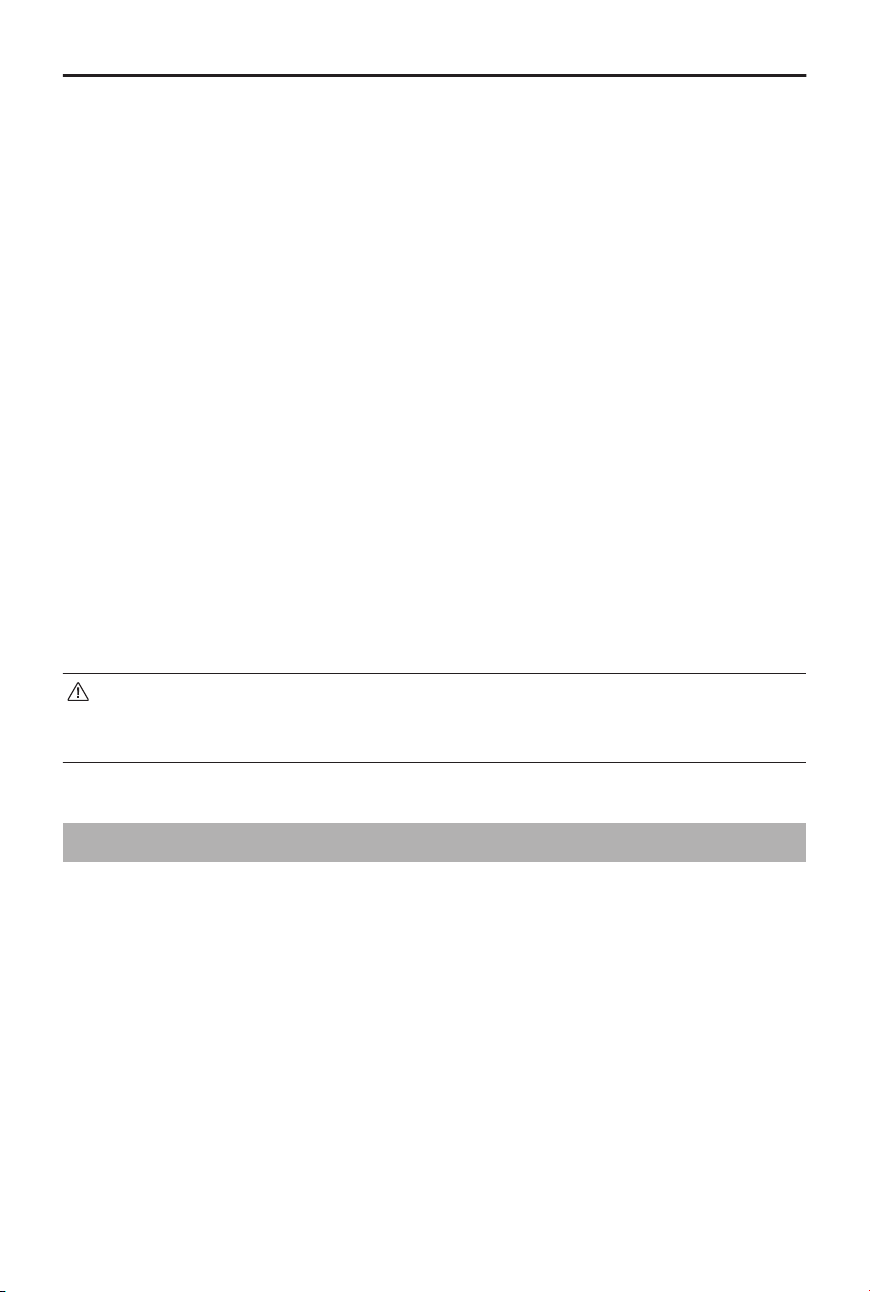
Strong GNSS Signal
Flight Restrictions Prompt in DJI Fly App
Max Altitude
Altitude of the aircraft cannot ex-
ceed the value set in DJI Fly.
Max ight altitude reached.
Max Distance
The straight-line distance from
the aircraft to the Home Point
cannot exceed the max ight dis-
tance set in DJI Fly.
Max ight distance reached.
Weak GNSS Signal
Flight Restrictions Prompt in DJI Fly App
Max Altitude
• Altitude is restricted to 30m
from the takeo point if light-
ing is sucient.
• Altitude is restricted to 3m
above the ground if lighting
is not sucient and the 3D in-
frared sensing system is func-
tioning.
• Altitude is restricted to 30m
from the takeo point if light-
ing is not sucient and the 3D
infrared sensing system is not
functioning.
Max ight altitude reached.
Max Distance No limit
• Each time the aircraft is powered on, the altitude limit will be automatically
removed as long as the GNSS signal becomes strong (GNSS signal strength ≥
2), and the limit will not take eect even if the GNSS signal becomes weak
afterwards.
• If the aircraft ies out of the set ight range due to inertia, you can still control
the aircraft but cannot y it any further away.
GEO Zones
The DJI GEO system designates safe ight locations, provides risk levels and safety
notices for individual ights, and oers information on restricted airspace. All restricted
ight areas are referred to as GEO Zones, which are further divided into Restricted
Zones, Authorization Zones, Warning Zones, Enhanced Warning Zones, and Altitude
DJI Mavic 4 Pro User Manual
20 © 2025 DJI All Rights Reserved.
Zones. You can view such information in real-time in DJI Fly. GEO Zones are specic
ight areas, including but not limited to airports, large event venues, locations where
public emergencies have occurred (such as forest res), nuclear power plants, prisons,
government properties, and military facilities. By default, the GEO system limits takeos
and ights in zones that may cause safety or security concerns. A GEO Zone map that
contains comprehensive information on GEO Zones around the globe is available on the
ocial DJI website: https://y-safe.dji.com/nfz/nfz-query.
Unlocking GEO Zones
Self-Unlocking is intended for unlocking Authorization Zones. To complete Self-Unlocking,
you must submit an unlocking request via the DJI FlySafe website at https://y-
safe.dji.com. Once the unlocking request is approved, you can synchronize the unlocking
license through the DJI Fly app. To unlock the zone, alternatively, you can launch or y the
aircraft directly into the approved Authorization Zone and follow the prompts in DJI Fly to
unlock the zone.
Custom Unlocking is tailored for users with special requirements. It designates user-
dened custom ight areas and provides ight permission documents specic to the
needs of dierent users. This unlocking option is available in all countries and regions and
can be requested via the DJI FlySafe website at https://y-safe.dji.com.
• To ensure ight safety, the aircraft will not be able to y out of the unlocked
zone after entering it. If the Home Point is outside the unlocked zone, the
aircraft will not be able to return home.
2.2 Flight Environment Requirements
1. DO NOT y in severe weather conditions such as strong winds, snow, rain, and fog.
2. Only y in open areas. Tall buildings and large metal structures may aect the
accuracy of the onboard compass and GNSS system. After takeo, make sure you
are notied with the voice prompt that the Home Point is updated before continuing
ight. If the aircraft has taken o near buildings, the accuracy of the Home Point
cannot be guaranteed. In this case, pay close attention to the current position of
the aircraft during auto RTH. When the aircraft is close to the Home Point, it is
recommended to cancel auto RTH and manually control the aircraft to land at an
appropriate location.
3. Fly the aircraft within visual line of sight (VLOS). Avoid mountains and trees blocking
GNSS signals. Any ight beyond visual line of sight (BVLOS) can be conducted
only when the aircraft performance, the knowledge and skills of the pilot, and the
DJI Mavic 4 Pro User Manual
© 2025 DJI All Rights Reserved. 21

operational safety management are compliant with local regulations for BVLOS. Avoid
obstacles, crowds, trees, and bodies of water. For safety reasons, DO NOT y the
aircraft near airports, highways, railway stations, railway lines, city centers, or other
sensitive areas, unless any permit or approval is obtained under local regulations.
4. When the GNSS signal is weak, y the aircraft in environments with good lighting and
visibility. The vision system may not work properly in poor light conditions.
5. Minimize interference by avoiding areas with high levels of electromagnetism, such
as locations near power lines, base stations, electrical substations, and broadcasting
towers.
6. The performance of the aircraft and its battery is limited when ying at high altitudes.
Fly with caution. DO NOT y above the specied altitude.
7. The braking distance of the aircraft is aected by the ight altitude. The higher the
altitude, the greater the braking distance. When ying at high altitudes, you should
reserve adequate braking distance to ensure ight safety.
8. GNSS cannot be used on the aircraft in polar regions. Use the vision system instead.
9. DO NOT take o from moving objects such as cars, ships, and airplanes.
10. DO NOT take o from solid-colored surfaces or surfaces with strong reections such
as a car roof.
11. Avoid using in dusty environmentsas muchas possible to prevent dust from entering
and damaging the aircraft and gimbal.
12. DO NOT operate the aircraft in an environment at risk of a re or explosion.
13. Operate the aircraft, remote controller, battery, battery charger, and battery charging
hub in a dry environment.
14. DO NOT use the aircraft, remote controller, battery, battery charger, and the battery
charging hub near accidents, re, explosions, oods, tsunamis, avalanches, landslides,
earthquakes, dust, sandstorms, salt spray, or fungus.
15. DO NOT operate the aircraft near bird ocks.
2.3 Operating the Aircraft Responsibly
To avoid serious injury and property damage, observe the following rules:
1. Make sure you are NOT under the inuence of anesthesia, alcohol, or drugs or
suering from dizziness, fatigue, nausea, or other conditions that could impair the
ability to operate the aircraft safely.
2. After landing, power o the aircraft rst, then switch o the remote controller.
DJI Mavic 4 Pro User Manual
22 © 2025 DJI All Rights Reserved.

3. DO NOT drop, launch, re, or otherwise project any dangerous payloads on or at any
buildings, persons, or animals, which could cause personal injury or property damage.
4. DO NOT use an aircraft that has been accidentally damaged, crashed, or is not in good
condition.
5. Make sure to train suciently and have contingency plans for emergencies or if an
incident occurs.
6. Make sure to have a ight plan. DO NOT y the aircraft recklessly.
7. Respect the privacy of others when using the camera. Make sure to comply with local
privacy laws, regulations, and moral standards.
8. DO NOT use this product for any reason other than general personal use.
9. DO NOT use it for illegal or inappropriate purposes such as spying, military
operations, or unauthorized investigations.
10. DO NOT use this product to defame, abuse, harass, stalk, threaten, or otherwise
violate legal rights such as the right to privacy and publicity of others.
11. DO NOT trespass onto the private property of others.
2.4 Pre-Flight Checklist
1. Remove any protective parts from the aircraft.
2. Make sure the Intelligent Flight Battery and the propellers are mounted securely.
3. Make sure the remote controller, mobile device, and Intelligent Flight Battery are fully
charged.
4. Make sure the aircraft arms and propellers are unfolded.
5. Make sure the gimbal and camera are functioning normally.
6. Make sure that there is nothing obstructing the motors and that they are functioning
normally.
7. Make sure that DJI Fly is successfully connected to the aircraft.
8. Make sure all camera lenses and sensors are clean.
9. Only use genuine DJI parts or DJI-authorized parts. Unauthorized parts may cause
system malfunctions and compromise ight safety.
10. Make sure the Obstacle Avoidance Action is set in DJI Fly, and the Max Altitude,
Max Distance and Auto RTH Altitude are all set properly according to local laws and
regulations.
DJI Mavic 4 Pro User Manual
© 2025 DJI All Rights Reserved. 23

Basic Flight
24 © 2025 DJI All Rights Reserved.
3 Basic Flight
3.1 Auto Takeo/Landing
Auto Takeo
1. Launch DJI Fly and enter the camera view.
2. Complete all steps in the pre-ight checklist.
3. Tap . If conditions are safe for takeo, press and hold the button to conrm.
4. The aircraft will take o and hover above the ground.
Auto Landing
1. If conditions are safe to land, tap , then tap and hold to conrm.
2. Auto landing can be canceled by tapping
.
3. If the Downward Vision System is working normally, Landing Protection will be
enabled.
4. Motors will stop automatically after landing.
• Choose an appropriate place for landing.
3.2 Starting/Stopping the Motors
Starting the Motors
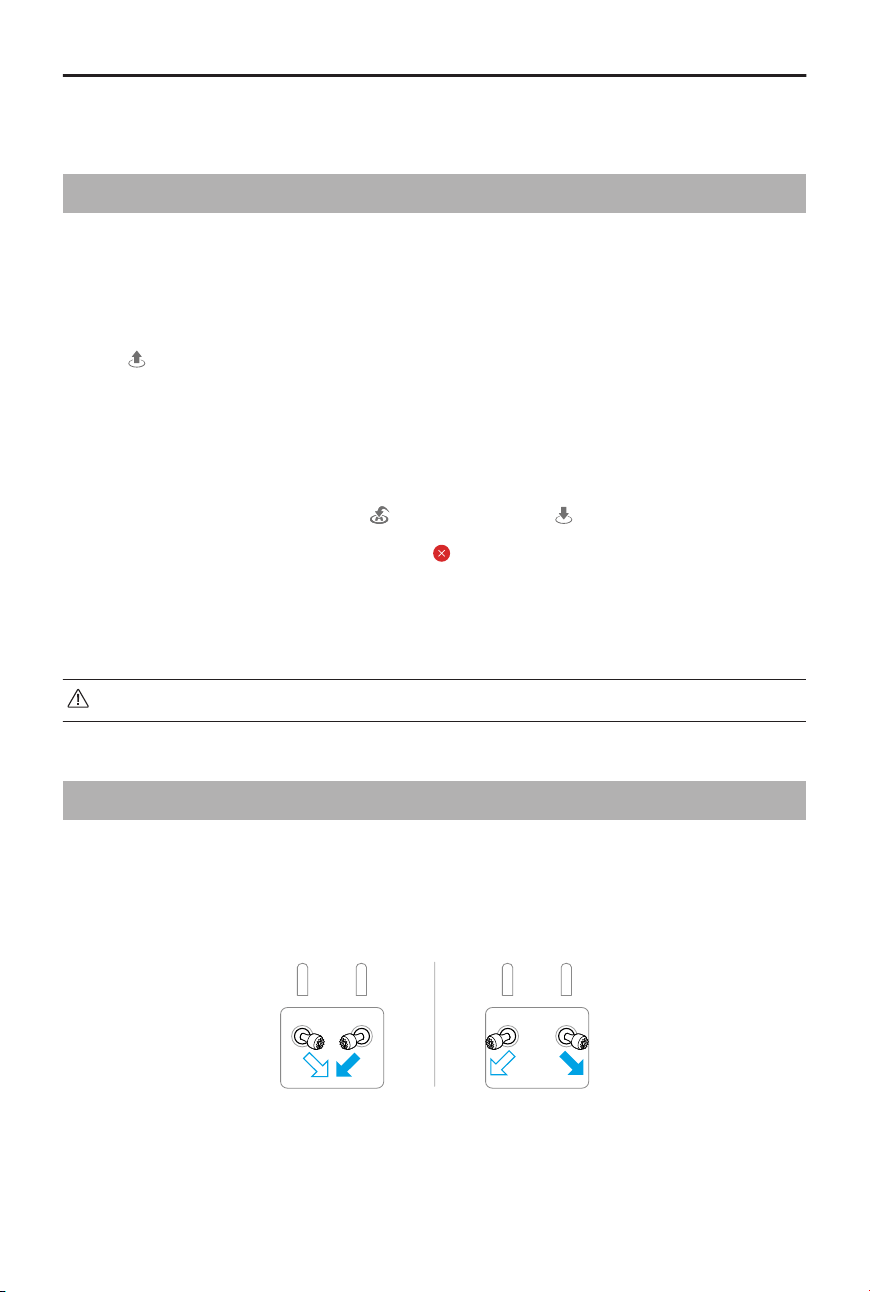
Perform one of the Combination Stick Commands (CSC) as shown below to start the
motors. Once the motors have started spinning, release both sticks simultaneously.
Stopping the Motors
The motors can be stopped in two ways:
DJI Mavic 4 Pro User Manual
© 2025 DJI All Rights Reserved. 25
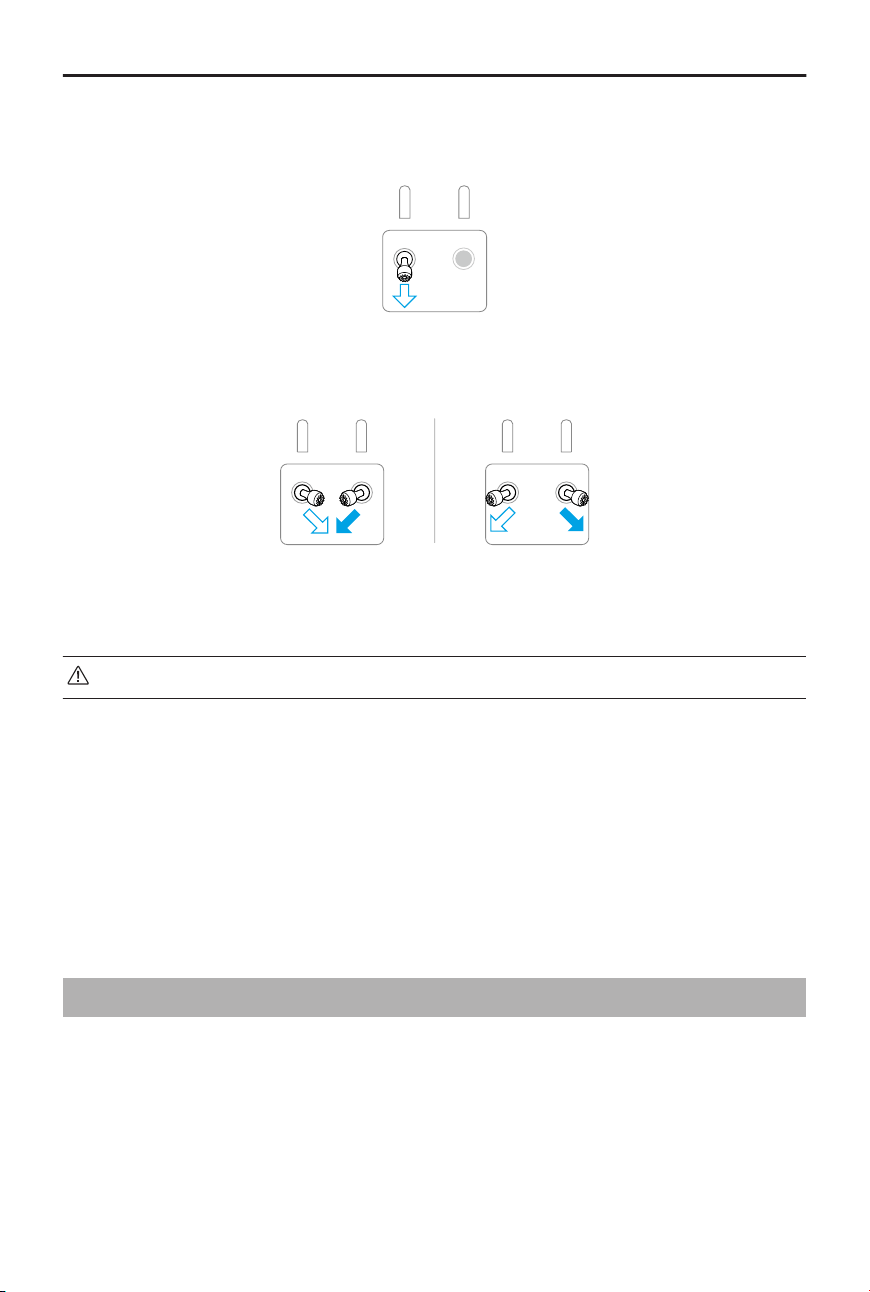
Method 1: When the aircraft has landed, push the throttle stick down and hold until the
motors stop.
Method 2: When the aircraft has landed, perform one of the CSC as shown below until
the motors stop.
Stopping the Motors Mid-Flight
• Stopping the motors mid-ight will cause the aircraft to crash.
The default setting for Emergency Propeller Stop in the DJI Fly app is Emergency Only,
which means that the motors can only be stopped mid-ight when the aircraft detects
that it is in an emergency situation such as the aircraft is involved in a collision, a motor
has stalled, the aircraft is rolling in the air, or the aircraft is out of control and is ascending
or descending very quickly. To stop the motors mid-ight, perform the same CSC that was
used to start the motors. Note that you need to hold the control sticks for two seconds
while performing the CSC to stop the motors. Emergency Propeller Stop can be changed
to Anytime in the app. Use this option with caution.
3.3 Controlling the Aircraft
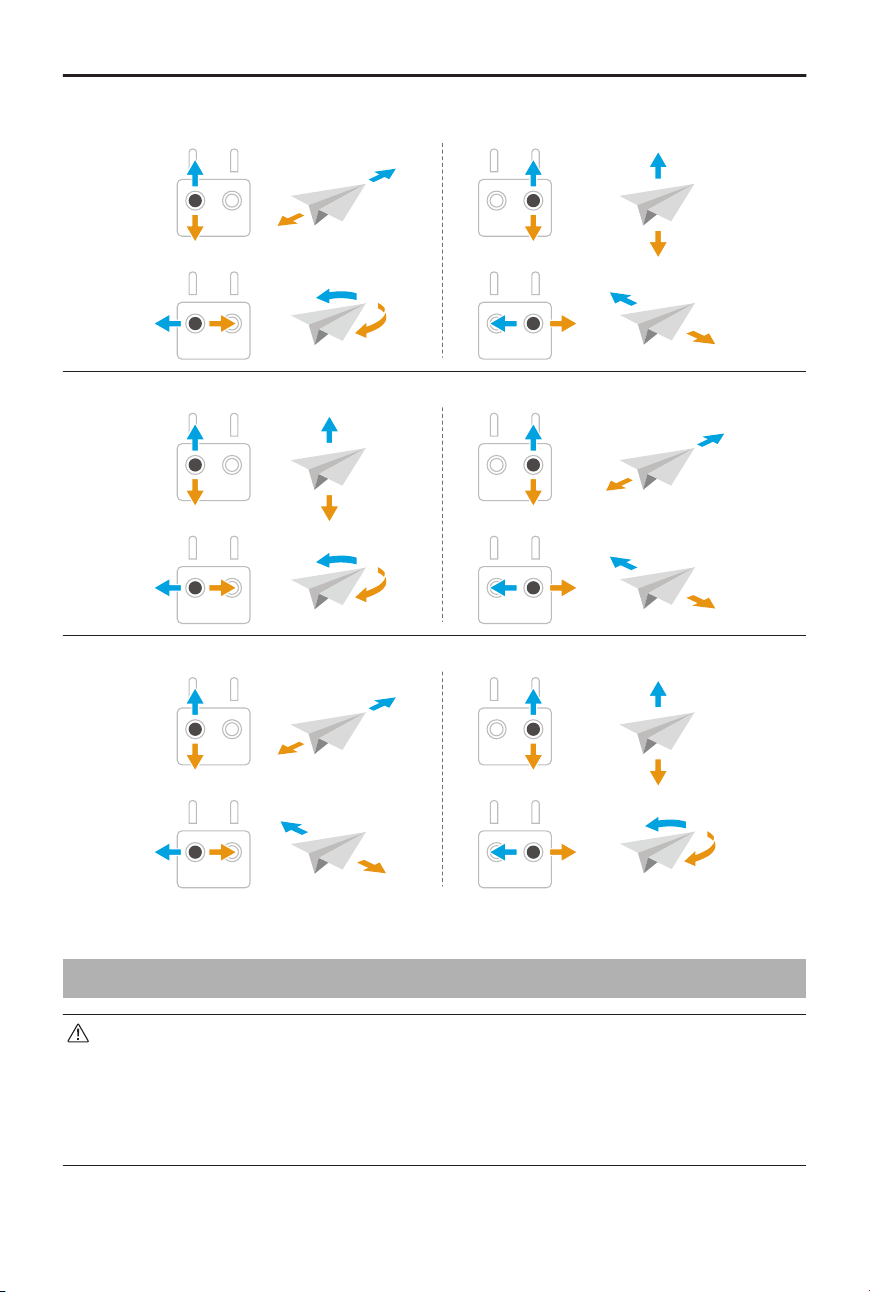
The control sticks of the remote controller can be used to control the aircraft movements.
The control sticks can be operated in Mode 1, Mode 2, or Mode 3, as shown below.
The default control mode of the remote controller is Mode 2. In this manual, Mode 2
is used as an example to illustrate how to use the control sticks. The more the stick is
pushed away from the center, the faster the aircraft moves.
DJI Mavic 4 Pro User Manual
26 © 2025 DJI All Rights Reserved.
Mode 1
Mode 2
Mode 3
3.4 Takeo/Landing Procedures
• DO NOT launch the aircraft from your palm or while holding it with your hand.
• DO NOT operate the aircraft when the lighting is too bright or too dark to
use the remote controller to monitor ight. You are responsible for the correct
adjustment of display brightness and amount of direct sunlight on the screen,
as to avoid diculty in viewing the screen clearly.
DJI Mavic 4 Pro User Manual
© 2025 DJI All Rights Reserved. 27

1. The pre-ight checklist is designed to help you y safely. Go through the full pre-ight
checklist before each ight.
2. Place the aircraft in an open, at area with the rear of the aircraft facing towards you.
3. Power on the remote controller and the aircraft.
4. Launch DJI Fly and enter the camera view.
5. Wait for the aircraft self-diagnostics to complete. If DJI Fly does not show any irregular
warning, you can start the motors.
6. Push the throttle stick up slowly to take o.
7. To land, hover over a level surface and push the throttle stick down to descend.
8. After landing, push the throttle down and hold until the motors stop.
9. Power o the aircraft before the remote controller.
3.5 Video Suggestions and Tips
1. Select the desired gimbal operation mode in DJI Fly.
2. It is recommended to take photos or record videos when ying in Normal or Cine
mode.
3. DO NOT y in bad weather such as on rainy or windy days.
4. Choose the camera settings that best suit your needs.
5. Perform ight tests to establish ight routes and preview scenes.
6. Push the control sticks gently to ensure smooth and stable movement of the aircraft.
DJI Mavic 4 Pro User Manual
28 © 2025 DJI All Rights Reserved.

Intelligent Flight
Mode
© 2025 DJI All Rights Reserved. 29
4 Intelligent Flight Modes
It is recommended to click the link below or scan the QR code to watch the tutorial video.
https://www.dji.com/mavic-4-pro/video
4.1 FocusTrack
Spotlight
Enables the gimbal camera to face toward the subject all the time while you manually
control the ight.
When the vision system is working normally, the aircraft will bypass or brake if an obstacle
is detected, according to the obstacle avoidance action is set to Bypass or Brake in DJI Fly.
Note: obstacle avoidance is disabled in Sport mode.
Supported Subjects:
• Stationary subjects
• Moving subjects (only vehicles, boats, and people)
Point of Interest (POI)
Allows the aircraft to y around the subject.
The aircraft will bypass obstacles regardless of the ight modes or obstacle avoidance
action settings in DJI Fly when the vision systems are working normally.
Supported Subjects:
• Stationary subjects
• Moving subjects (only vehicles, boats, and people)
ActiveTrack
The aircraft follows the subject in the following sub-modes.
• Auto: The aircraft continuously plans and adjusts the ight path based on the ying
environment, automatically completing complex camera movements.
• Manual: The aircraft is manually controlled to y along a specied trajectory.
DJI Mavic 4 Pro User Manual
30 © 2025 DJI All Rights Reserved.
The aircraft will bypass obstacles regardless of the ight modes or obstacle avoidance
action settings in DJI Fly when the vision systems are working normally.
Supported Subjects:
Moving subjects (only vehicles, boats, and people). Auto mode only supports vehicles and
people.
In ActiveTrack, the max supported follow distance of the aircraft and subject are as
follows:
Subject People Vehicles/Boats
Horizontal Distance 20 m 100 m
Altitude 20 m 100 m
• The aircraft will y to the supported distance and altitude range if the distance
and altitude is out of range when ActiveTrack begins. Fly the aircraft at the
optimal distance and altitude for the optimal tracking performance.
• It is recommended that the speed of the dynamic subject should not exceed
12m/s; otherwise, the aircraft will not be able to track properly.
Notice
• The aircraft cannot avoid moving subjects such as people, animals, or vehicles.
When using FocusTrack, pay attention to the surrounding environment to
ensure ight safety.
• DO NOT use FocusTrack in areas with small or ne objects (e.g., tree branches or
power lines), transparent objects (e.g., water or glass), or monochrome surfaces
(e.g., white walls).
• Always be prepared to press the Flight Pause button on the remote controller or
tap in DJI Fly in order to operate the aircraft manually in case any emergency
situation occurs.
• Be extra vigilant when using FocusTrack in any of the following situations:
◆
The tracked subject is not moving on a level plane.
◆
The tracked subject changes shape drastically while moving.
◆
The tracked subject is out of sight for an extended period.
◆
The tracked subject is in large monochrome areas such as snow-covered
areas or deserts.
◆
The tracked subject has a similar color or pattern to its surrounding
environment.
DJI Mavic 4 Pro User Manual
© 2025 DJI All Rights Reserved. 31
◆
The lighting is extremely dark (<5 lux) or bright (>10,000 lux).
• Make sure to follow local privacy laws and regulations when using FocusTrack.
• It is recommended to only track vehicles, boats, and people (but not children).
Fly with caution when tracking other subjects.
• For the supported moving subjects, vehicles refer to cars and small to medium-
sized boats. DO NOT track a remote controlled car or boat.
• The tracking subject may be inadvertently swapped to another subject if they
pass nearby each other.
Using FocusTrack
Before enabling FocusTrack, make sure the ying environment is open and unobstructed
with sucient light.
Tap the FocusTrack icon on the left of the camera view, or select the subject on the
screen to enable FocusTrack. After enabling, tap the FocusTrack icon
again to exit.
During use, press the Flight Pause button on the remote controller to cancel the
subject selection.
4.2 MasterShots
The aircraft will select a preset ight route based on the subject type and distance, and
automatically take a variety of classic aerial photography shots.
Notice
• Use MasterShots at locations that are clear of buildings and other obstacles.
Make sure there are no people, animals, or other obstacles in the ight path.
• Always pay attention to obstacles around the aircraft and use the remote
controller to avoid collisions or the aircraft being obstructed.
• DO NOT use MasterShots in any of the following situations:
◆
When the subject is blocked for an extended period of time or outside the
visual line of sight.
◆
When the subject is in large monochrome areas such as snow-covered areas
or deserts.
◆
When the subject is similar in color or pattern with the surroundings.
DJI Mavic 4 Pro User Manual
32 © 2025 DJI All Rights Reserved.
◆
When the subject is in the air.
◆
When the subject is moving fast.
◆
The lighting is extremely dark (<5 lux) or bright (>10,000 lux).
• DO NOT use MasterShots in places close to buildings or where the GNSS signal
is weak. Otherwise, the ight path may become unstable.
• Make sure to follow local privacy laws and regulations when using MasterShots.
Using MasterShots
1. Tap the Shooting Mode icon on the right side of the camera view and select
MasterShots .
2. After drag-selecting the subject and adjusting the shooting area, tap to begin
recording and the aircraft will start ying and recording automatically. The aircraft will
y back to its original position once recording is nished.
3. Tap
or press the Flight Pause button on the remote controller once. The aircraft will
exit MasterShots immediately and hover.
4.3 QuickShots
QuickShots include multiple shooting modes. The aircraft automatically records according
to the selected shooting mode and generates a short video.
Notice
• Make sure there is sucient space when using Boomerang. Allow a radius of at
least 30 m (99 ft) around the aircraft and a space of at least 10 m (33 ft) above
the aircraft.
• Make sure there is sucient space when using Asteroid. Allow at least 40 m
(131ft) behind and 50 m (164 ft) above the aircraft.
• Use QuickShots at locations that are clear of buildings and other obstacles.
Make sure there are no people, animals, or other obstacles in the ight path.
• Always pay attention to objects around the aircraft and use the remote
controller to avoid collisions or the aircraft being obstructed.
• DO NOT use QuickShots in any of the following situations:
◆
When the subject is blocked for an extended period of time or outside the
visual line of sight.
DJI Mavic 4 Pro User Manual
© 2025 DJI All Rights Reserved. 33
◆
When the subject is in large monochrome areas such as snow-covered areas
or deserts.
◆
When the subject is similar in color or pattern with the surroundings.
◆
When the subject is in the air.
◆
When the subject is moving fast.
◆
The lighting is extremely dark (<5 lux) or bright (>10,000 lux).
• DO NOT use QuickShots in places close to buildings or where the GNSS signal is
weak. Otherwise, the ight path will become unstable.
• Make sure to follow local privacy laws and regulations when using QuickShots.
Using QuickShots
1. Tap the Shooting Mode icon on the right side of the camera view and select
QuickShots .
2. After selecting one sub-mode, tap the plus icon or drag-select the subject on
the screen. Then tap to begin shooting. The aircraft will record footage while
performing a preset ight movement according to the option selected, and generate
a video afterwards. The aircraft will y back to its original position once recording is
nished.
3. Tap or press the Flight Pause button on the remote controller once. The aircraft will
exit QuickShots immediately and hover.
4.4 Hyperlapse
Hyperlapse takes a certain number of photos according to the time interval, and then
compiles these photos into a video of a few seconds. It is especially suitable for recording
scenes with moving elements, such as trac ow, clouds drifting, and sunrises and
sunsets.
Using Hyperlapse
1. Tap the Shooting Modes icon from the camera view and select Hyperlapse
.
2. Select the Hyperlapse mode. After setting the related parameters, tap the shutter/
record button to begin the process.
3. Tap or press the Stop button on the remote controller, the aircraft will exit
Hyperlapse and hover.
DJI Mavic 4 Pro User Manual
34 © 2025 DJI All Rights Reserved.
4.5 Waypoint Flight
With Waypoint Flight, you can set waypoints for dierent shooting locations in advance,
and then generate a ight route based on the set waypoints. The aircraft will then y
automatically along the preset route and complete the preset camera actions.
The ight routes can be saved and repeated at dierent times to capture the changes
over seasons and day-to-night eect.
• Before enabling the Waypoint Flight mode, tap
> Safety > Obstacle
Avoidance Action to check the obstacle avoidance action. After setting the
obstacle avoidance action to Bypass or Brake, the aircraft will brake if it detects
obstacles during the waypoint ight. If set to O, the aircraft cannot avoid
obstacles.
• The ight route will curve between waypoints, so the aircraft altitude between
waypoints may become lower than the altitudes of the waypoints during the
ight. Make sure to avoid any obstacles below when setting a waypoint.
• Before takeo, you can only use the map to add waypoints.
• Connect the remote controller to the internet and download the map before
using the map to add a waypoint.
• If Camera Action is set to None, the aircraft will only automatically y. You need
to manually control the camera during the ight.
• If you have already set Heading and Gimbal Tilt to Face POI, then the POI will
automatically be linked to these waypoints.
• When using Waypoint Flight in the EU, the action for On Signal Lost cannot be
set to Continue.
Using Waypoint Flight
1. Tap on the left of the camera view to enable Waypoint Flight.
2. Follow the on-screen instructions to complete the settings and perform the ight
route.
3. Tap
again to exit waypoint ight and the ight route will be saved to the Library
automatically.
DJI Mavic 4 Pro User Manual
© 2025 DJI All Rights Reserved. 35
4.6 Cruise Control
Cruise Control enables the ight speed and gimbal rotation speed to be locked, making
control easier and camera movements smoother. More camera movements, such as
spiraling up and gimbal rotation, can be achieved by increasing control stick input and dial
input.
• The obstacle sensing in cruise control follows the current ight mode. Fly with
caution.
Using Cruise Control
1. Set one customizable button of the remote controller to Cruise Control.
2. When pushing the control sticks, press the cruise control button, and the aircraft will
automatically y at the current speed.
3. When turning the dial of the remote controller to adjust the gimbal angle,press the
cruise control button, and the gimbal will automatically rotate at the current rotation
speed in the corresponding direction.
• It is recommended to set the right dial to gimbal roll.
• The gimbal rotation will stop when thegimbal reaches its movement limit.
• During gimbal rotation, if you adjust the gimbal angle, the gimbal
willperform the corresponding adjustment and then continue rotating.
4. Press Flight Pause button on the remote controller once, or tap to exit cruise
control.
DJI Mavic 4 Pro User Manual
36 © 2025 DJI All Rights Reserved.

Aircraft
© 2025 DJI All Rights Reserved. 37
5 Aircraft
5.1 Flight Mode
The aircraft supports the following ight modes, which can be switched via the Flight
Mode switch on the remote controller.
Normal Mode: Normal mode is suitable for most ight scenarios. The aircraft can hover
precisely, y stably, and use Intelligent Flight Modes.
Sport Mode: The maximum horizontal ight speed of the aircraft will be higher when
compared with Normal mode. Note that obstacle sensing is disabled in Sport mode.
Cine Mode: Cine mode is based on Normal mode with a limited ight speed, making the
aircraft more stable during recording.
If the aircraft is ying in the EU, the aircraft will switch to Low Speed mode when the ight
mode is switched to C on the remote controller. Low Speed mode limits the maximum
horizontal ight speed to 2.8 m/s based on Normal mode, and there is no limit for the
ascent or descent speed.
The aircraft automatically changes to Attitude (ATTI) mode when the vision system
is unavailable or disabled and the GNSS signal is weak or the compass experiences
interference. In ATTI mode, the aircraft may be more easily aected by its surroundings.
Environmental factors such as wind can result in horizontal drift of the aircraft, which may
present hazards, especially when ying in conned spaces. The aircraft will not be able
to hover or brake automatically, therefore the pilot should land the aircraft as soon as
possible to avoid accidents.
• The ight modes are only eective for manual ight and cruise control.
• The vision system is disabled in Sport mode, which means the aircraft
cannot sense obstacles on its route automatically. You must stay alert to the
surrounding environment and control the aircraft to avoid obstacles.
• The maximum speed and braking distance of the aircraft signicantly increase
in Sport mode. A minimum braking distance of 30 m is required in windless
conditions.
• A minimum braking distance of 10 m is required in windless conditions while the
aircraft is ascending and descending in Sport mode or Normal mode.
• The responsiveness of the aircraft signicantly increases in Sport mode, which
means a small control stick movement on the remote controller translates
into the aircraft moving a large distance. Make sure to maintain adequate
maneuvering space during ight.
DJI Mavic 4 Pro User Manual
38 © 2025 DJI All Rights Reserved.
• You may experience shaking in videos recorded in Sport mode.
5.2 Aircraft Status Indicators
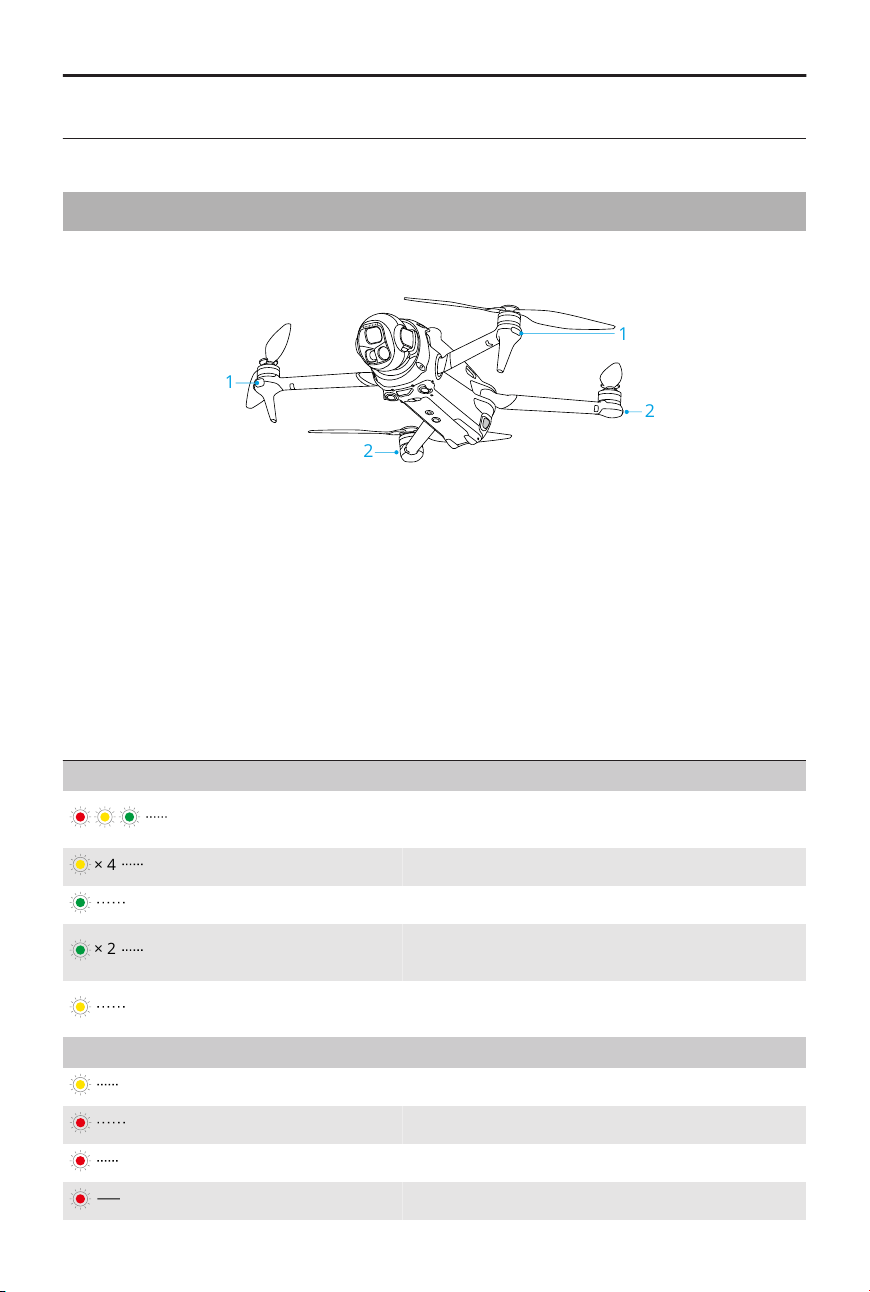
The aircraft has front LEDs and aircraft status indicators.
1
1
2
2
1. Front LEDs 2. Aircraft Status Indicators
When the aircraft is powered on but the motors are not running, the front LEDs glow solid
green to display the orientation of the aircraft.
When the aircraft is powered on but the motors are not running, the aircraft status
indicators will display the current status of the aircraft.
Aircraft Status Indicators Descriptions
Normal States
Blinks red, yellow, and
green alternately
Powering on and performing self-diagnostic
tests
× 4
Blinks yellow four times Warming up
Blinks green slowly GNSS enabled
× 2
Blinks green twice repeat-
edly
Vision systems enabled
Blinks yellow slowly
GNSS and vision system disabled (ATTI mode
enabled)
Warning States
Blinks yellow quickly Remote controller signal lost
Blinks red slowly Takeo is disabled (e.g., low battery)
[1]
Blinks red quickly Critically low battery
Solid red Critical error
DJI Mavic 4 Pro User Manual
© 2025 DJI All Rights Reserved. 39
Blinks red and yellow alter-
nately
Compass calibration required
[1] If the aircraft cannot take o while the status indicators are blinking red slowly, view the warning
prompt in DJI Fly.
After the motors start, the front LEDs blink green, and the aircraft status indicators blink
red and green alternately. The green lights indicate the aircraft is a UAV, and the green
and red lights indicate the heading and position of the aircraft.
• Lighting requirements vary depending on the region. Observe local laws and
regulations.
• To obtain better footage, the front LEDs turn o automatically when taking
photos and videos if the front LEDs are set to Auto in DJI Fly.
5.3 Return to Home
Carefully read the contents of this section to ensure you are familiar with the behavior
of the aircraft in Return-to-Home (RTH).
The Return to Home (RTH) function will automatically y the aircraft back to the last
recorded Home Point. RTH can be triggered in three ways: the user actively triggers RTH,
the aircraft has low battery, or the remote controller signal has been lost (Failsafe RTH is
triggered). If the aircraft has recorded the Home Point successfully and the positioning
system is functioning normally, when the RTH function is triggered, the aircraft will
automatically y back and land at the Home Point.
• Home Point: The Home Point will be recorded at takeo as long as the aircraft
has a strong GNSS signal or the lighting is sucient. After the Home Point
is recorded, DJI Fly will issue a voice prompt. If it is necessary to update the
Home Point during a ight (such as if you have changed your position), the
Home Point can be manually updated in > Safety page in DJI Fly.
When the aircraft is used with the DJI RC Pro 2remote controller, Dynamic
Home Pointis available.
During RTH, the AR RTH route will be displayed on the camera view, helping you to view
the return path and ensure ight safety. The camera view also displays the AR Home
Point. When the aircraft reaches the area above the Home Point, the gimbal camera will
automatically ip downwards. The AR aircraft shadow will appear in the camera view
when the aircraft is approaching the ground, enabling you to control the aircraft to land
more accurately in your preferred location.
DJI Mavic 4 Pro User Manual
40 © 2025 DJI All Rights Reserved.
The AR Home Point, AR RTH route, and AR aircraft shadow will be displayed in the camera
view by default. The display can be changed in > Safety > AR Settings.
• The AR RTH route is only used for reference, and may deviate from the actual
ight route in dierent scenarios. Always pay attention to the liveview on the
screen during RTH. Fly with caution.
• During RTH, the aircraft will automatically adjust the gimbal tilt to point the
camera toward the RTH route by default. Using the gimbal dial to adjust
the camera orientation or pressing the customizable buttons on the remote
controller to recenter the camera will stop the aircraft from automatically
adjusting the gimbal tilt, which may prevent the AR RTH route from being
viewed.
Notice
• The aircraft may not be able to return to the Home Point as normal if the
positioning system is functioning abnormally. During Failsafe RTH, the aircraft
may enter ATTI mode and land automatically if the positioning system is
functioning abnormally.
• When there is no GNSS, do not y over water surfaces, buildings with glass
surface, or in scenarios where the altitude above the ground is greater than
30 meters. If the positioning system is functioning abnormally, the aircraft will
enter ATTI mode.
• It is important to set a suitable RTH altitude before each ight. Launch DJI Fly
and set the RTH altitude.
• The aircraft cannot sense obstacles during RTH if the environment conditions
are not suitable for the sensing system.
• GEO zones may aect the RTH. Avoid ying near GEO zones.
• The aircraft may not be able to return to a Home Point if the wind speed is too
high. Fly with caution.
• Pay extra attention to small or ne objects (such as tree branches or power
lines) or transparent objects (such as water or glass) during RTH. Exit RTH and
control the aircraft manually in an emergency.
• Set Advanced RTH as Preset if there are power lines or transmission towers that
the aircraft cannot bypass on the RTH path and make sure the RTH Altitude is
set higher than all obstacles.
• The aircraft will brake and return to home according to the latest settings if the
Advanced RTH settings in DJI Fly are changed during RTH.
DJI Mavic 4 Pro User Manual
© 2025 DJI All Rights Reserved. 41

• If the max altitude is adjusted below the current altitude during RTH, the aircraft
will descend to the max altitude rst and then continue returning to home.
• The RTH Altitude cannot be changed during RTH.
• If there is a large dierence between the current altitude and the RTH altitude,
the amount of battery power used cannot be calculated accurately due to wind
speed dierences at dierent altitudes. Pay extra attention to the battery power
prompts and warning prompts in DJI Fly.
• When the remote controller signal is normal during Advanced RTH, the pitch
stick can be used to control the ight speed, but the orientation and altitude
cannot be controlled and the aircraft cannot be controlled to y to the left or
right. Constantly pushing the pitch stick to accelerate will increase the battery
power consumption speed. The aircraft cannot bypass obstacles if the ight
speed exceeds the eective sensing speed. The aircraft will brake and hover in
place and exit RTH if the pitch stick is pushed all the way down. The aircraft can
be controlled after the pitch stick is released.
• If the aircraft reaches the altitude limit of the aircraft current location or of the
Home Point while it is ascending during Preset RTH, the aircraft stops ascending
and returns to the Home Point at the current altitude. Pay attention to ight
safety during RTH.
• If the Home Point is within the Altitude Zone but the aircraft is not in the Altitude
Zone, when the aircraft reaches the Altitude Zone it will descend below the
altitude limit, which may be lower than the set RTH altitude. Fly with caution.
• The aircraft will exit RTH if the surrounding environment is too complex to
complete RTH, even if the sensing system is working properly.
• RTH cannot be triggered during auto landing.
Advanced RTH
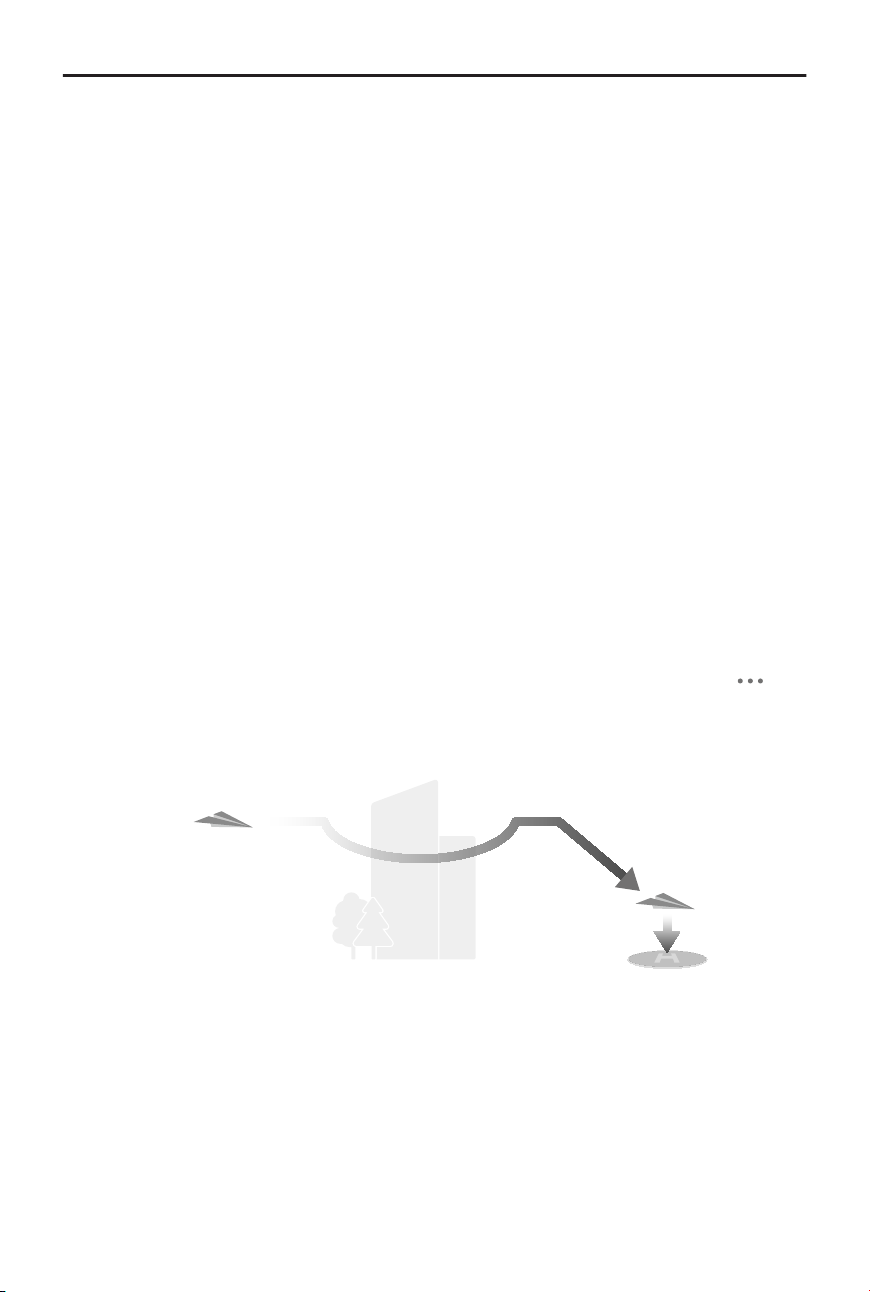
When Advanced RTH is triggered, the aircraft will automatically plan the best RTH
path, which will be displayed in DJI Fly and will be adjusted according to the
environment. During RTH, the aircraft will adjust the ight speed automatically according
to environmental factors such as the wind speed, wind direction, and obstacles.
If the control signal between the remote controller and the aircraft is good, exit RTH by
tapping in DJI Fly or by pressing the RTH button on the remote controller. After exiting
RTH, you will regain control of the aircraft.
DJI Mavic 4 Pro User Manual
42 © 2025 DJI All Rights Reserved.
Trigger Method
The user actively triggers RTH
During ight, you can trigger RTH by pressing and holding the RTH button on the remote
controller, or tapping from the left side of the camera view and then pressing and
holding the RTH icon.
If the remote controller signal is lost during RTH, the aircraft will continue the RTH
procedure regardless of the preset Signal Lost Action.
Aircraft low battery
During ight, if the battery level is low and only sucient to y to the Home Point, a
warning prompt will appear in DJI Fly. If you tap to conrm RTH or do not take action
before the countdown ends, the aircraft will automatically initiate low battery RTH.
If you cancel the low battery RTH prompt and continue ying the aircraft, the aircraft
will land automatically when the current battery level can only support the aircraft long
enough to descend from its current altitude.
Auto landing cannot be cancelled but you can still y the aircraft horizontally by moving
the pitch stick and roll stick, and change the descent speed of the aircraft by moving the
throttle stick. Fly the aircraft to a suitable place for landing as soon as possible.
• When the Intelligent Flight Battery level is too low and there is not enough
power to return home, land the aircraft as soon as possible. Otherwise, the
aircraft will crash after the battery power is completely depleted.
• DO NOT keep pushing the throttle stick upward during auto landing. Otherwise,
the aircraft will crash after the battery power is completely depleted.
Loss of remote controller signal
When the remote controller signal is lost, the aircraft will automatically initiate Failsafe
RTH if the Signal Lost Action is set to RTH. The action can also be set to Hover or Landing.
When the lighting and environment conditions are suitable for the vision system, DJI Fly
will display the RTH path that was generated by the aircraft before the signal was lost. The
aircraft will start RTH using Advanced RTH according to the RTH settings. The aircraft will
remain in RTH even if the remote controller signal is restored. DJI Fly will update the RTH
path accordingly.
When the lighting and environment conditions are unsuitable for the vision system, the
aircraft will brake and hover, then enter Original Route RTH.
• If the RTH distance (the horizontal distance between the aircraft and the Home Point)
is farther than 50 m, the aircraft adjusts its orientation and ies backward for 50 m on
its original ight route before entering Preset RTH.
DJI Mavic 4 Pro User Manual
© 2025 DJI All Rights Reserved. 43

• If the RTH distance is farther than 5 m but less than 50 m, the aircraft adjusts
its orientation and ies straight horizontally back to the home point at the current
altitude.
• The aircraft lands immediately if the RTH distance is less than 5 m.
RTH Procedure
After Advanced RTH is triggered, the aircraft brakes and hovers in place.
• When the environment or lighting conditions are suitable for the vision system:
◆
The aircraft will adjust its orientation to the Home Point, plan the best path
according to the RTH settings and then return to the Home Point if GNSS was
available when takeo.
◆
If GNSS was unavailable and only the vision system was working when takeo, the
aircraft will adjust its orientation to the Home Point, plan the best path according
to the RTH settings and then return to the position with strong GNSS signal based
on the RTH settings. It will approximately follow the outbound trajectory back to
the vicinity of the home point. At this time, pay attention to the app prompts
and choose whether to let the aircraft automatically RTH and land or to manually
control the RTH and landing.
Pay attention if GNSS was unavailable when takeo:
◇
Make sure that the obstacle avoidance is enabled.
◇
DO NOT y in narrow spaces and the environmental wind speed should be
less than 3 m/s.
◇
Fly to the open area and stay at least 10 meters away from any obstacles
quickly after takeo, otherwise, the aircraft may not be able to return to
home. During ight, avoid ying over water surfaces until reaching an area
with strong GNSS signal. The altitude above the ground should be greater
than 2 meters and less than 30 meters, otherwise, the aircraft may not be able
to return to the home point. If the aircraft enters ATTI mode before reaching
the area with strong GNSS signal, the home point will be invalidated.
◇
If the vision positioning is not available during ight, the aircraft cannot return
to the home point. Pay attention to the environment according to the App
voice prompts to prevent collisions.
◇
When the aircraft returns to the vicinity of the takeo point and the App
prompts when the current environment is complex, please conrm whether to
continue ying:
»
You need to conrm whether the ight path is correct and pay attention to
ight safety.
DJI Mavic 4 Pro User Manual
44 © 2025 DJI All Rights Reserved.
»
You need to conrm whether the lighting condition is sucient for the
vision system. If not, the aircraft may exit RTH. Forcing the aircraft to
continue RTH or ight may cause it to enter ATTI mode.
◇
After conrmation, the aircraft will continue to return to the home point at a
low speed. If an obstacle appears on the return path, the aircraft will brake
and may exit RTH.
◇
This RTH process does not support dynamic obstacle detection (including
pedestrians, etc.) and does not support obstacle detection in textureless
scenes such as glass or white walls.
◇
This RTH process requires the ground and nearby environments (such as
walls) to have rich textures and no dynamic changes.
• When the environment or lighting conditions are not suitable for the vision
system:
◆
If the RTH distance is further than 5 meters, the aircraft will return to home
according to the Preset.
◆
The aircraft lands immediately if the RTH distance is less than 5 m.
RTH Settings
RTH settings are available for Advanced RTH. Go to the camera view in DJI Fly, tap >
Safety, and scroll to Return to Home (RTH).
• Optimal:
◆
If the lighting is sucient and the environment is suitable for the vision system,
the aircraft will automatically plan the optimal RTH path and adjust the altitude
according to environmental factors, such as obstacles and transmission signals,
regardless of the RTH Altitude setting. The optimal RTH path means the aircraft
will travel the shortest distance possible to reduce the amount of battery power
used and to increase ight time.
◆
If the lighting is insucient or the environment is not suitable for the vision
system, the aircraft will perform Preset RTH based on the RTH Altitude setting.
DJI Mavic 4 Pro User Manual
© 2025 DJI All Rights Reserved. 45
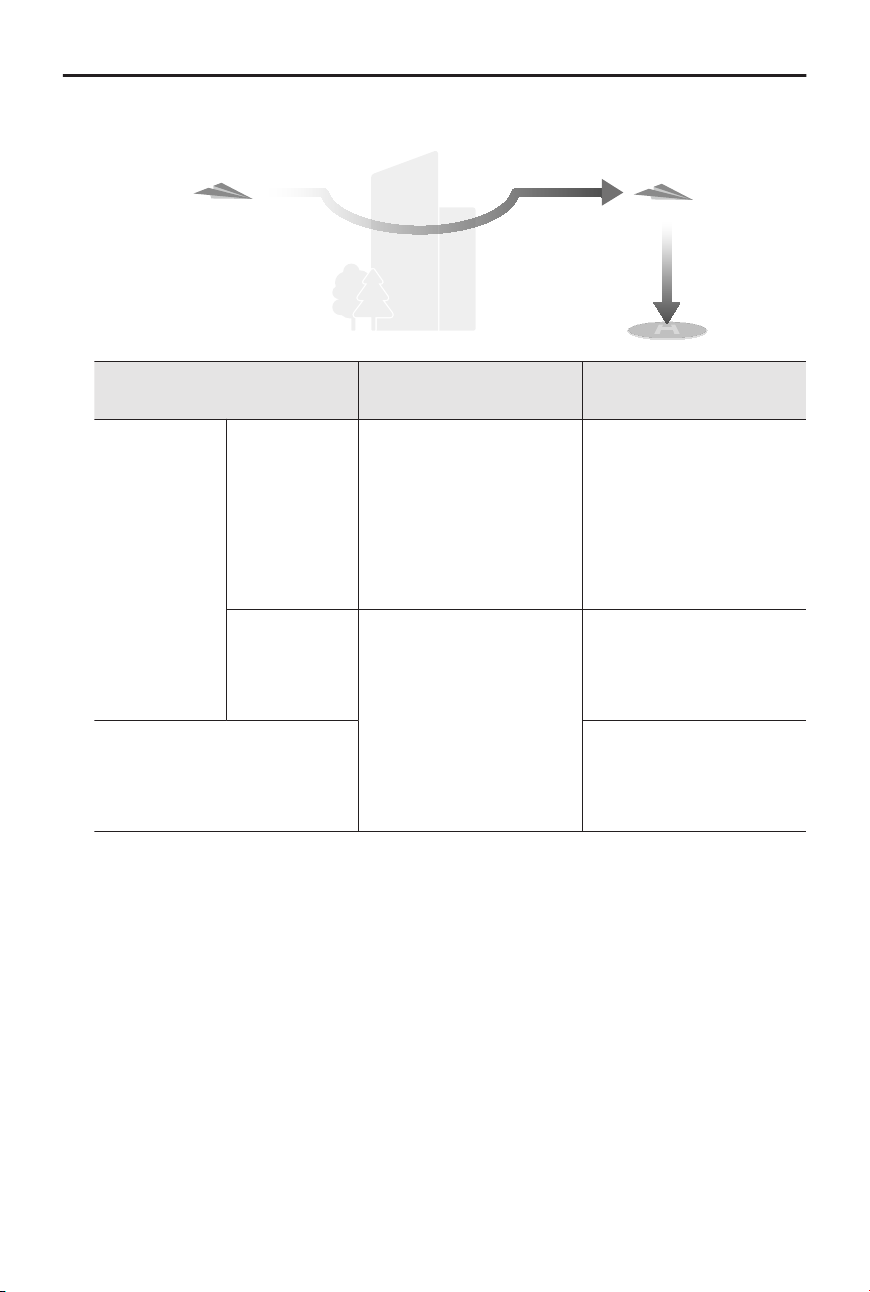
• Preset:
RTH Distance/Altitude
Suitable Lighting and
Environment Conditions
Unsuitable Lighting and
Environment Conditions
RTH distance
> 50m
Current alti-
tude < RTH al-
titude
The aircraft will plan the
RTH path, y to an open
area while bypassing ob-
stacles, ascend to the
RTH Altitude, and return
to home using the best
path.
The aircraft will ascend
to the RTH altitude, and
y to the Home Point in
a straight line at the RTH
altitude.
[1]
Current alti-
tude ≥ RTH al-
titude
The aircraft will return
to home using the best
path at the current alti-
tude.
The aircraft will y to the
Home Point in a straight
line at the current alti-
tude.
[1]
RTH distance is within 5-50 m
The aircraft will y to the
Home Point in a straight
line at the current alti-
tude.
[2]
[1] If the forward-facing LiDAR detects an obstacle ahead, the aircraft will ascend to avoid the
obstacle. It will stop climbing once the path ahead is clear and then continue to RTH. If the
obstacle height exceeds the altitude limit, the aircraft will brake and hover, and the user will
need to take control.
[2] The aircraft will brake and hover, and the user will need to take control.
When the aircraft is approaching the Home Point, if the current altitude is higher than
the RTH altitude, the aircraft will intelligently decide whether to descend while ying
forward according to the surrounding environment, lighting, the set RTH altitude, and
the current altitude. When the aircraft reaches the area above the Home Point, the
current altitude of the aircraft will not be lower than the set RTH altitude.
The RTH plans for dierent environments, RTH trigger methods, and RTH settings are as
follows:
DJI Mavic 4 Pro User Manual
46 © 2025 DJI All Rights Reserved.
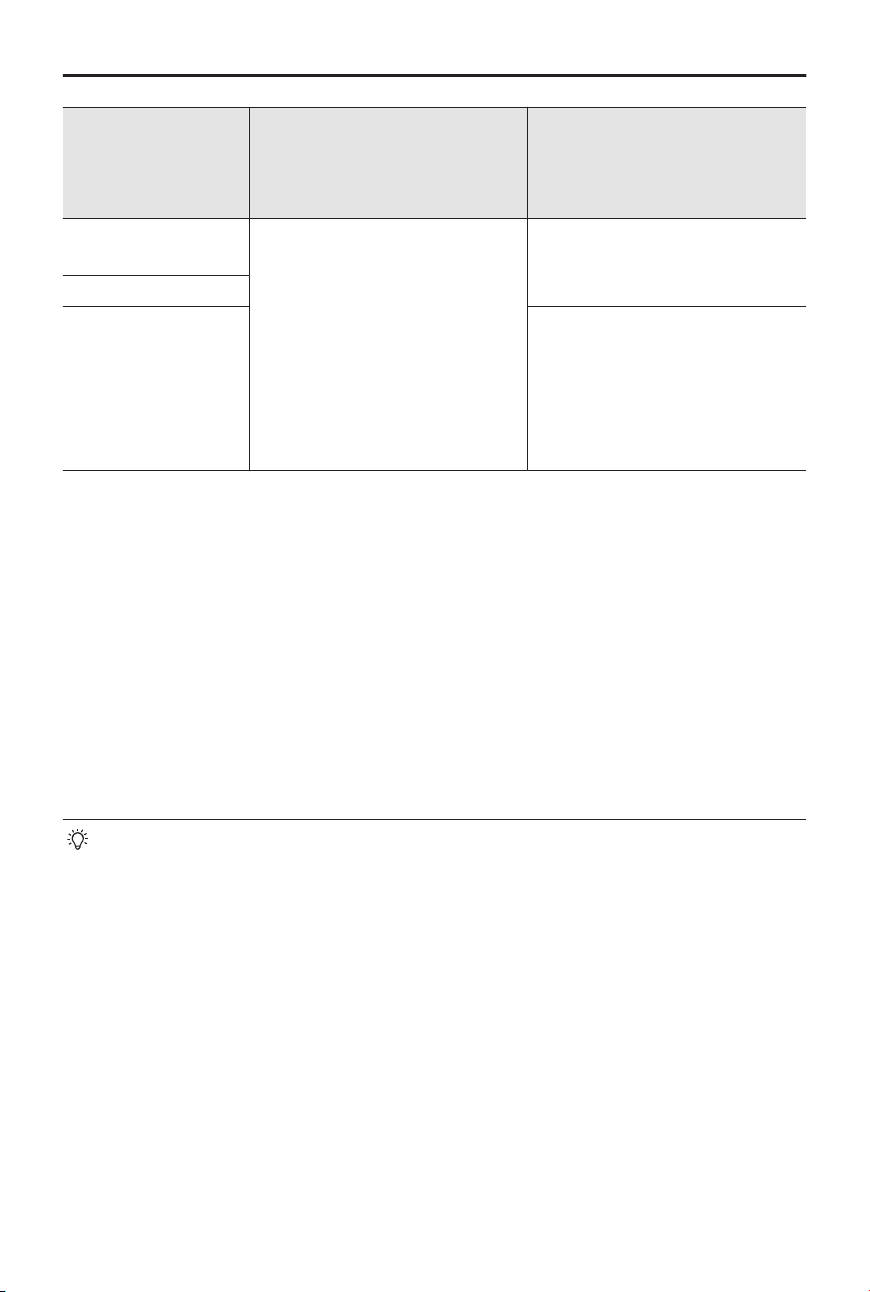
RTH Trigger Method
Suitable Lighting and Environ-
ment Conditions
(The aircraft can bypass obsta-
cles and GEO zones)
Unsuitable Lighting and Envi-
ronment Conditions
The user actively
triggers RTH
The aircraft will execute RTH
based on the RTH setting:
• Optimal
• Preset
Preset (The aircraft can ascend
to bypass obstacles and GEO
zones)
Aircraft low battery
Loss of remote con-
troller signal
Original route RTH,
Preset RTH will be executed
when the signal is restored (The
aircraft can bypass GEO zones
and will brake and hover if
there is obstacle)
Landing Protection
During RTH, landing protection activates once the aircraft begins to land.
The specic performance of the aircraft is as follows:
• If the ground is determined suitable for landing, the aircraft will land directly.
• If the ground is determined unsuitable for landing, the aircraft will hover and wait for
pilot conrmation.
• If landing protection is not operational, DJI Fly will display a landing prompt when the
aircraft descends to 0.5m from the ground. Tap Conrm or push the throttle stick all
the way down and hold for one second, and the aircraft will land.
• After reaching the area above the Home Point, the aircraft will land precisely
on the takeo point. Performing a precision landing is subject to the following
conditions:
◆
The Home Point must be recorded upon takeo and must not be changed
during ight.
◆
During takeo, the aircraft must vertically ascend at least 7m before moving
horizontally.
◆
The Home Point terrain features must remain largely unchanged.
◆
The terrain features of the Home Point must be suciently distinctive.
Terrain such as a snow-covered eld is not suitable.
◆
The lighting conditions must not be too bright or too dark.
DJI Mavic 4 Pro User Manual
© 2025 DJI All Rights Reserved. 47

• During landing, movement of any other control stick apart from the throttle stick
will be regarded as giving up precision landing, and the aircraft will descend
vertically.
Dynamic Home Point
When the aircraft is used with the DJI RC Pro 2remote controller, Dynamic Home Pointis
available.
When the GNSS signal of the remote controller is strong,enable Dynamic Home Point
through any of the following methods,and the Home Point willbe continuously updated
to the remote controller location.
• In camera view, tap > Update Home Point > Dynamic Home Point > Update.
• In camera view, tap > Safety > Update Home Point > Dynamic Home Point >
Update.
When Dynamic Home Point is enabled, the RTH icon will turn blue. After RTH is triggered,
the aircraft will return near the Home Point, exit RTH, and hover. Users can control the
aircraft.
• After enabling Dynamic Home Point for the rst time, if the GNSS signal of the
remote controller is weak, the dynamic Home Point may not be available.
• Use the Dynamic Home Point function in an open environment with a strong
GNSS signal. Otherwise, the Home Point will have a large deviation from the
actual remote controller location.
• Once the dynamic Home Point is available, if the GNSS signal of the remote
controller is weak, the Home Point will remain at the last successfully updated
location. When RTH is triggered, check if the Home Point location is the latest
remote controller location.
DJI Mavic 4 Pro User Manual
48 © 2025 DJI All Rights Reserved.
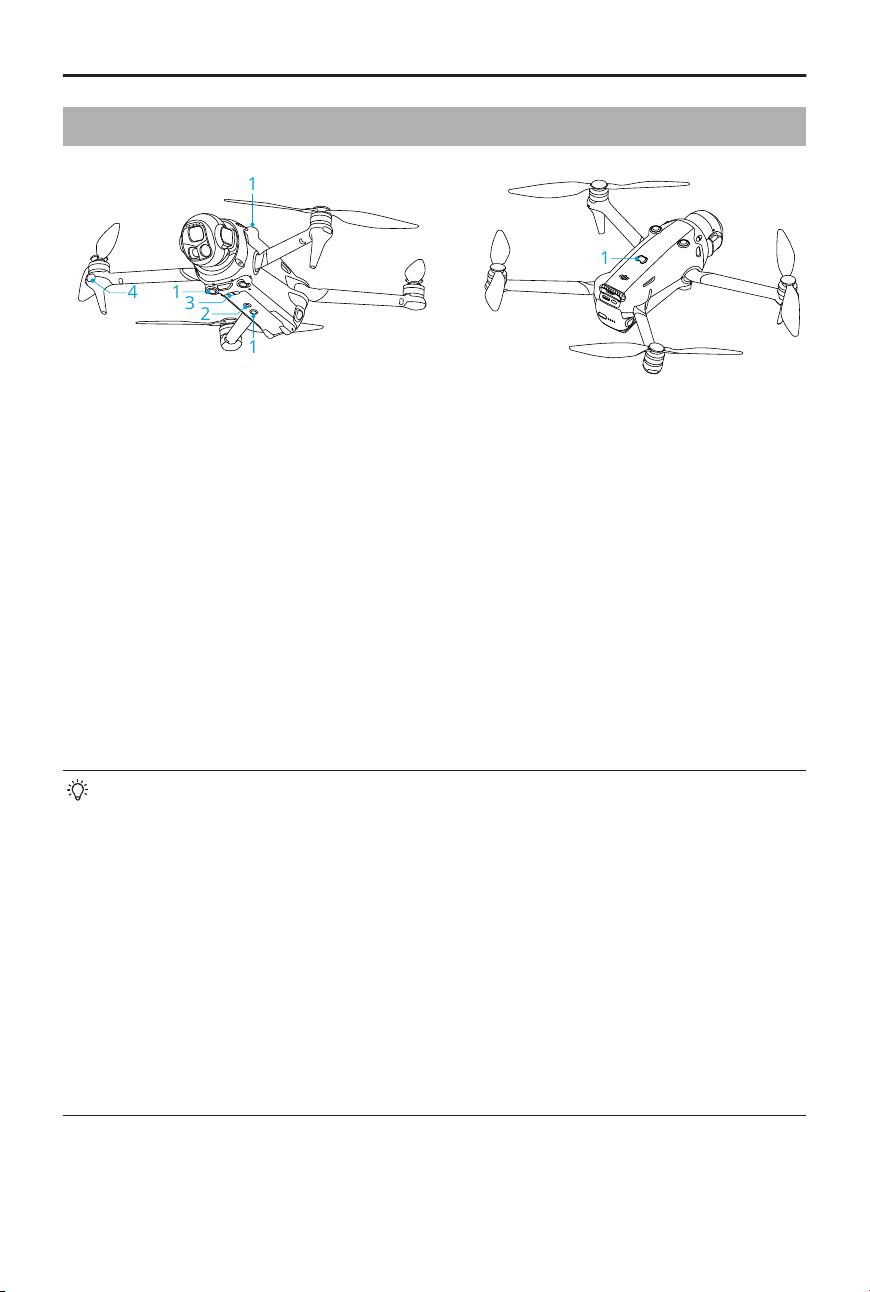
5.4 Sensing System
1
1
14
3
2
1
1. Omnidirectional Vision System
2. Auxiliary Light
3. 3D Infrared Sensing System
4. Forward-Facing LiDAR
The omnidirectional vision system works best with adequate lighting and clearly marked
or textured obstacles. The omnidirectional vision system will activate automatically when
the aircraft is in Normal or Cine mode and Obstacle Avoidance Action is set to Bypass or
Brake in DJI Fly. The positioning function is applicable when GNSS signals are unavailable
or weak.
The auxiliary light located at the bottom of the aircraft can assist the downward vision
system. It will automatically turn on by default in low-light environments when the ight
altitude is under 5 m after takeo. You can also turn it on or o manually in the DJI Fly
app. Each time the aircraft is restarted, the auxiliary light will revert back to the default
setting Auto.
• When Vision Positioning and Obstacle Sensing are disabled, the aircraft relies
only on GNSS to hover, omnidirectional obstacle sensing is unavailable, and the
aircraft will not automatically decelerate during descent close to the ground.
Extra caution is required when Vision Positioning and Obstacle Sensing are
disabled.
• Disabling Vision Positioning and Obstacle Sensing takes eect only when ying
manually, and will not take eect when using RTH, auto landing, or using
Intelligent Flight Modes.
• Vision Positioning and Obstacle Sensing can be temporarily disabled in clouds
and fog or when an obstacle is detected when landing. Keep Vision Positioning
and Obstacle Sensing enabled in regular ight scenarios. Vision Positioning and
Obstacle Sensing are enabled by default after restarting the aircraft.
DJI Mavic 4 Pro User Manual
© 2025 DJI All Rights Reserved. 49

Notice
• Pay attention to the ight environment. The sensing system only works in
certain scenarios and cannot replace human control and judgment. During a
ight, always pay attention to the surrounding environment and the warnings in
DJI Fly, and be responsible for and maintain control of the aircraft at all times.
• If there is no GNSS available, the downward vision system will assist with aircraft
positioning, and works best when the aircraft is at an altitude from 0.5 m to 30
m. Extra caution is required if the altitude of the aircraft is above 30 m as the
vision positioning performance may be aected.
• In low-light environments, the vision system may not achieve optimal
positioning performance even if the auxiliary light is turned on. Fly with caution
if the GNSS signal is weak in such environments.
• The downward vision system may not work properly when the aircraft is ying
near water. Therefore, the aircraft may not be able to actively avoid water below
it when landing. It is recommended to maintain ight control at all times, make
reasonable judgments based on the surrounding environment, and avoid over-
relying on the downward vision system.
• The vision system cannot accurately identify large structures with frames and
cables, such as tower cranes, high-voltage transmission towers, high-voltage
transmission lines, cable-stayed bridges, and suspension bridges.
• The vision system cannot work properly near surfaces without clear pattern
variations or where the lighting is too weak or too strong. The vision system
cannot work properly in the following situations:
◆
Flying near monochrome surfaces (e.g., pure black, white, red, or green).
◆
Flying near highly reective surfaces.
◆
Flying near water or transparent surfaces.
◆
Flying near moving surfaces or objects.
◆
Flying in an area with frequent and drastic lighting changes.
◆
Flying near extremely dark (<0.1 lux) or bright (>40,000 lux) surfaces.
◆
Flying near surfaces that strongly reect or absorb infrared waves (e.g.,
mirrors).
◆
Flying near surfaces without clear patterns or textures.
◆
Flying near surfaces with repeating identical patterns or textures (e.g., tiles
with the same design).
◆
Flying near obstacles with small surface areas (e.g., tree branches, and
power lines).
DJI Mavic 4 Pro User Manual
50 © 2025 DJI All Rights Reserved.

• Keep the sensors clean at all times. DO NOT scratch or tamper with the sensors.
DO NOT use the aircraft in dusty or humid environments.
• The vision system cameras may need to be calibrated after being stored for
an extended period. A prompt will appear in DJI Fly and calibration will be
performed automatically.
• DO NOT y when it is rainy, smoggy, or the visibility is lower than 100m.
• DO NOT obstruct the sensing system.
• Check the following each time before takeo:
◆
Make sure there are no stickers or any other obstructions over the glass of
the sensing system.
◆
Use a soft cloth if there is any dirt, dust, or water on the glass of the sensing
system. DO NOT use any cleaning product that contains alcohol.
◆
Contact DJI Support if there is any damage to the lenses of the sensing
system.
• The aircraft can y at any time of the day or night. However, the vision system
becomes unavailable when ying the aircraft at night. Fly with caution.
• The forward-facing LiDAR cannot detect obstacles with a reectivity of less than
10% or reective objects such as glass.
• The forward-facing LiDAR cannot work properly in environments with too strong
lighting (>20,000 lux).
5.5 Advanced Pilot Assistance Systems
The Advanced Pilot Assistance Systems (APAS) feature is available in Normal mode
and Cine mode. When APAS is enabled, the aircraft will continue to respond to your
commands and plan its path according to both control stick inputs and the ight
environment. APAS makes it easier to avoid obstacles, obtain smoother footage, and give
a better ying experience.
When APAS is enabled, the aircraft can be stopped by pressing the Flight Pause button
on the remote controller. The aircraft brakes and hovers for three seconds and awaits
further pilot commands.
To enable APAS, open DJI Fly, go to
> Safety > Obstacle Avoidance Action, and
select Bypass. Set Bypassing Options to Normal or Nifty. In Nifty mode, the aircraft can
y faster, smoother, and closer to obstacles obtaining better footage while bypassing
obstacles. However, the risk of crashing into obstacles will increase. Fly with caution.
Nifty mode cannot work normally in the following situations:
DJI Mavic 4 Pro User Manual
© 2025 DJI All Rights Reserved. 51

• When aircraft orientation changes rapidly ying near obstacles.
• When ying through narrow obstacles such as canopies or bushes at high speed.
• When ying near obstacles that are too small to detect.
• When ying with the propeller guard.
Notice
• Make sure to use APAS when the vision system is available. Make sure there
are no people, animals, objects with small surface areas (e.g., tree branches), or
transparent objects (e.g., glass or water) along the desired ight path.
• Make sure to use APAS when the downward vision system is available or the
GNSS signal is strong. APAS may not function properly when the aircraft is ying
over water or snow-covered areas.
• Be extra cautious when ying in extremely dark (<5 lux) or bright (>10,000 lux)
environments.
• Pay attention to DJI Fly and make sure APAS is working normally.
• APAS may not function properly when the aircraft is ying near ight limits or in
a GEO zone.
• When the lighting becomes insucient and the vision system is partially
unavailable, the aircraft will switch from bypassing obstacles to braking and
hovering. You need to center the control stick and then to continue controlling
the aircraft.
Landing Protection
If Obstacle Avoidance Action is set to Bypass or Brake, Landing Protection will be
activated when you push the throttle stick down to land the aircraft. Landing Protection is
enabled once the aircraft begins to land.
• If the ground is determined to be suitable for landing, the aircraft will land directly.
• If the ground is determined to be unsuitable for landing, the aircraft will hover when
the aircraft descends to a certain height above ground. Push down on the throttle
stick for at least ve seconds, and the aircraft will land without obstacle sensing.
DJI Mavic 4 Pro User Manual
52 © 2025 DJI All Rights Reserved.
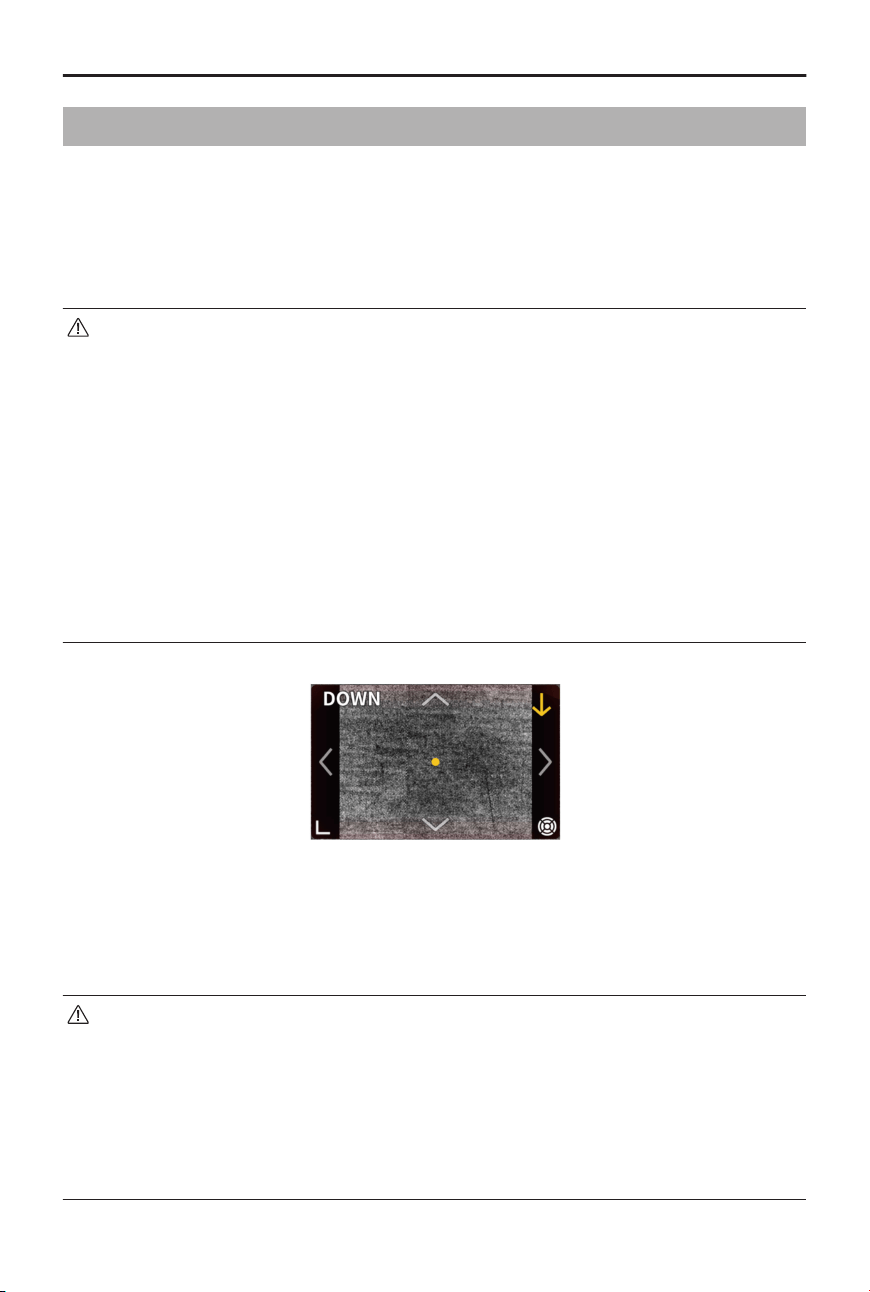
5.6 Vision Assist
The vision assist view, powered by the vision systems, changes the image on the view
from the corresponding vision sensors according to the ight speed direction to help
users navigate and observe obstacles during ight. Swipe left on the attitude indicator,
right on the mini map, or tap the icon in the lower right corner of the attitude indicator to
switch to the vision assist view.
• When using vision assist, the quality of the video transmission may be lower
due to transmission bandwidth limits, cell phone performance, or the video
transmission resolution of the screen on the remote controller.
• It is normal for components of the aircraft to appear in the vision assist view.
• It is normal that image seams or brightness dierences may occur inthe vision
assist view.
• Vision assist should be used for reference only. Glass walls and small objects
such as tree branches, electric wires, and kite strings cannot be displayed
accurately.
• Vision assist is not available when the aircraft has not taken o or when the
video transmission signal is weak.
Tap the arrow to switch between dierent directions of the vision assist view. Tap and
hold to lock the direction. Tap the center of the screen to maximize the vision assist view.
The direction of the line indicates the current ight speed direction of the aircraft, and the
length of the line indicates the ight speed of the aircraft.
• When the direction is not locked in a specic direction, the vision assist view
automatically switches to the current ight direction. Tap any other directional
arrow to switch the direction of the vision assist view for a while before
returning to the view of the current ight direction.
• When the vision assist direction is locked in a specic direction, tap any other
arrow to switch the vision assist view for a while before returning to the
currently locked direction.
DJI Mavic 4 Pro User Manual
© 2025 DJI All Rights Reserved. 53
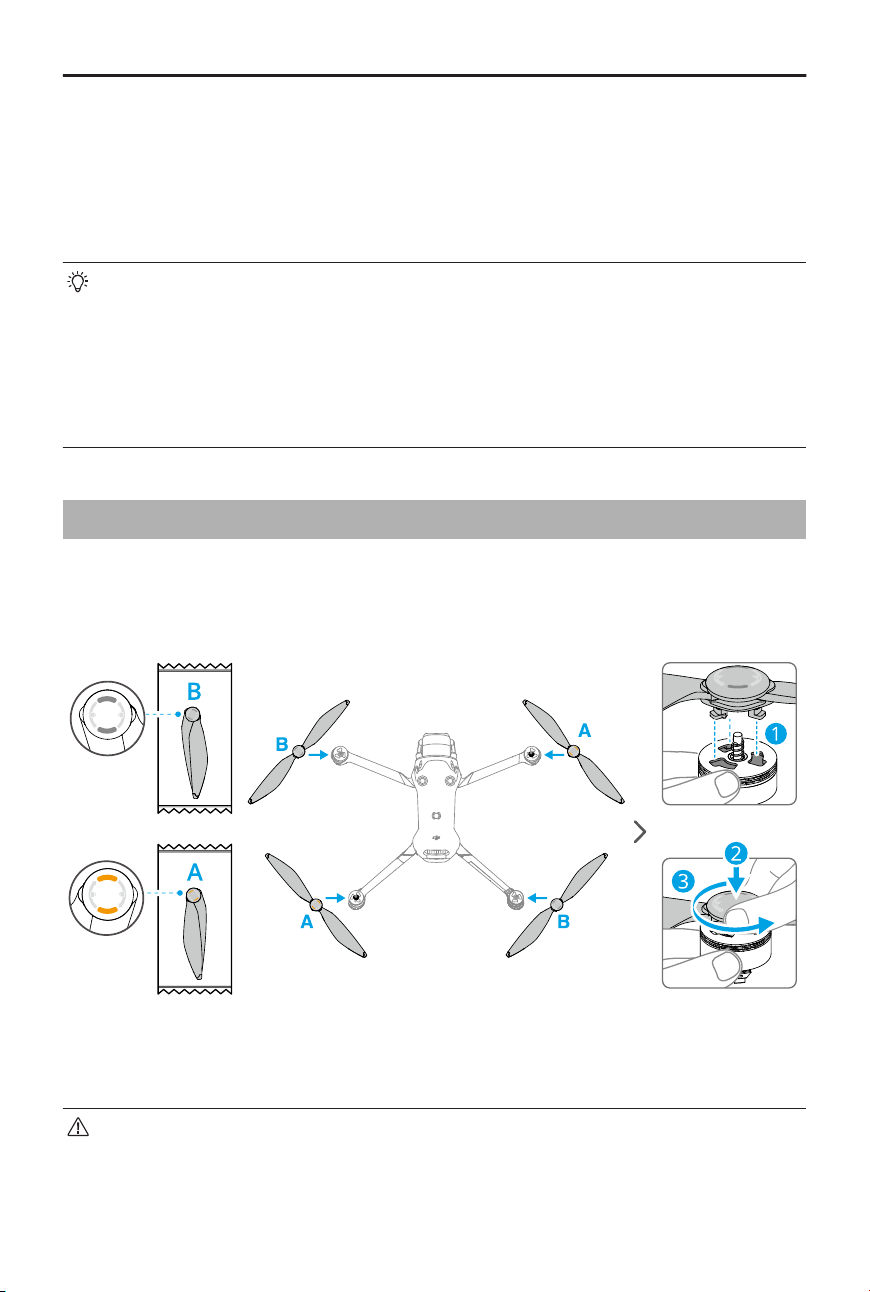
Collision Warning
When an obstacle in the current view direction is detected, the vision assist view shows
a collision warning. The color of the warning is determined by the distance between the
obstacle and the aircraft. Yellow and red colors indicate the relative distance ranging from
far to near.
• The FOV of the vision assist in all directions is limited. It is normal not to see
obstacles in the eld of view during a collision warning.
• The collision warning is not controlled by the Display Radar Map switch and
remains visible even when the radar map is switched o.
• A collision warning appears only when the vision assist view is displayed in the
small window.
5.7 Propellers
Attaching the Propellers
Install the propellers correctly according to the color marks on the propellers and motors.
Propeller Notice
• The propeller blades are sharp. Handle with care to avoid personal injury or
propeller deformation.
• Make sure that the propellers and motors are installed securely before each
ight.
DJI Mavic 4 Pro User Manual
54 © 2025 DJI All Rights Reserved.
• Only use ocial DJI propellers. DO NOT mix propeller types.
• Propellers are consumable components. Purchase additional propellers if
necessary.
• Make sure that all propellers are in good condition before each ight. DO NOT
use aged, chipped, or broken propellers. Clean the propellers with a soft, dry
cloth if there is any foreign matter attached.
• To avoid injury, stay away from rotating propellers or motors.
• To avoid damaging the propellers, place the aircraft correctly during
transportation or storage. DO NOT squeeze or bend the propellers. If propellers
are damaged, the ight performance may be aected.
• Make sure the motors are mounted securely and rotating smoothly. Land the
aircraft immediately if a motor is stuck and unable to rotate freely.
• DO NOT attempt to modify the structure of the motors.
• DO NOT touch or let hands or body parts come in contact with the motors after
ight, as they may be hot. It is normal for the front motors to have a higher
temperature than the rear motors.
• DO NOT block any of the ventilation holes on the motors or the body of the
aircraft.
• Make sure the ESCs sound normal when powered on.
5.8 Intelligent Flight Battery
Notice
• Read and strictly follow the instructions in this manual, in the Safety Guidelines
and on the battery stickers before using the battery. You shall take full
responsibility for all operations and usage.
1. DO NOT charge an Intelligent Flight Battery immediately after ight as it may be too
hot. Wait for the battery to cool down to the allowable charging temperature before
charging again.
2. To prevent damage, the battery only charges when the battery temperature is
between 5° and 40°C (41° and 104°F). The ideal charging temperature is from 22° to
28°C (71.6° to 82.4°F). Charging at the ideal temperature range can prolong battery
life. Charging stops automatically if the temperature of the battery cells exceed 55°C
(131°F) during charging.
3. Low-Temperature Notice:
DJI Mavic 4 Pro User Manual
© 2025 DJI All Rights Reserved. 55
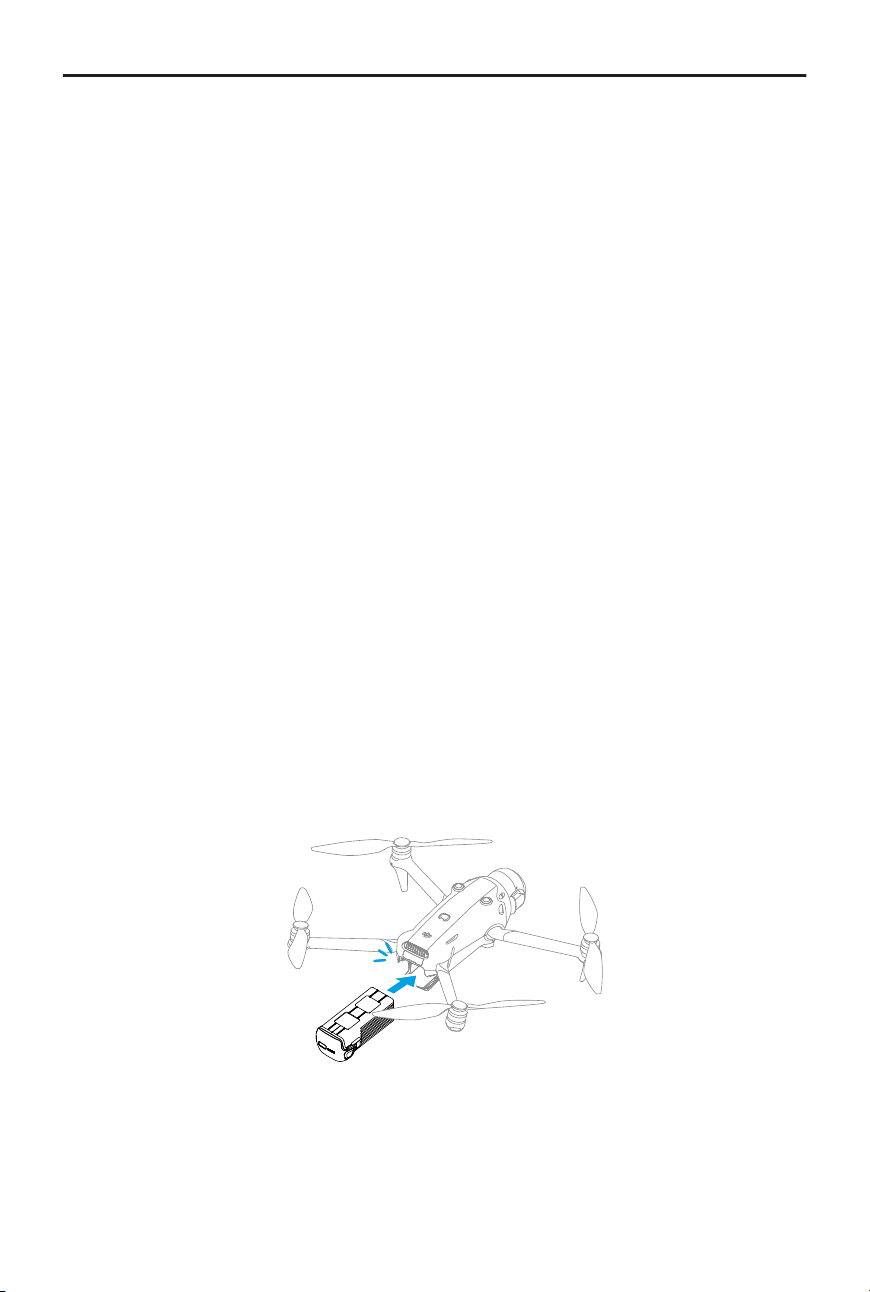
• Batteries cannot be used in extremely low-temperature environments of lower
than -10°C (14°F).
• Battery capacity is signicantly reduced when ying at low temperatures from -10°
to 5°C (14° to 41°F). Make sure to fully charge the battery before takeo. Hover
the aircraft in place for a while to warm up the battery after takeo.
• It is recommended to warm up the battery to at least 10°C (50°F) before takeo
when ying in low-temperature environments. The ideal temperature to warm up
the battery is above 20°C (68°F).
• The reduced battery capacity in low-temperature environments reduces the wind
speed resistance performance of the aircraft. Fly with caution.
• Take extra caution when ying at a high elevation with a low temperature.
4. A fully charged battery will automatically discharge when it is idle for a period of time.
Note that it is normal for the battery to emit heat during the discharging process.
5. Fully charge the battery at least once every three months to maintain battery health. If
the battery is not used for an extended period, battery performance may be aected
or may even cause permanent battery damage. If a battery has not been charged or
discharged for three months or more, the battery will no longer be covered by the
warranty.
6. For safety purposes, keep the batteries at a low power level in transit. Before
transportation, it is recommended to discharge the batteries to 30% or lower.
Installing/Removing the Battery
Installation
DJI Mavic 4 Pro User Manual
56 © 2025 DJI All Rights Reserved.
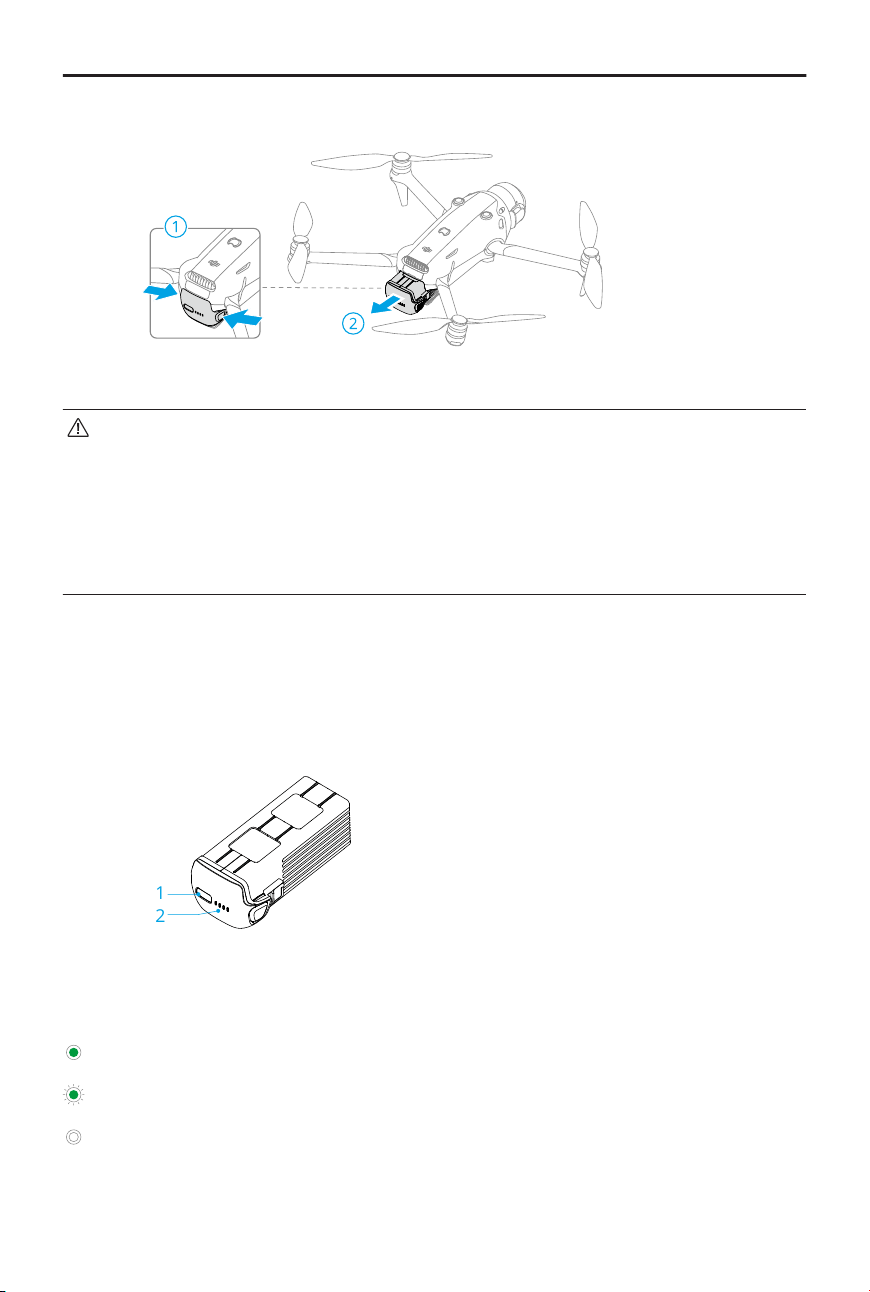
Removal
• Make sure to unfold the front aircraft arms before inserting or removing the
battery to avoid damaging the forward-facing LiDAR.
• DO NOT insert or remove the battery while the aircraft is powered on.
• Make sure the battery is mounted securely with a clicking sound. DO NOT
launch the aircraft when the battery is not securely mounted, as this may cause
poor contact between the battery and the aircraft and present hazards.
Using the Battery
Checking the Battery Level
Press the power button once to check the current battery level.
1
2
1. Power Button
2. Battery Level LEDs
The battery level LEDs display the power level of the battery during charging and
discharging. The statuses of the LEDs are dened below:
LED is on
LED is ashing
LED is o
DJI Mavic 4 Pro User Manual
© 2025 DJI All Rights Reserved. 57
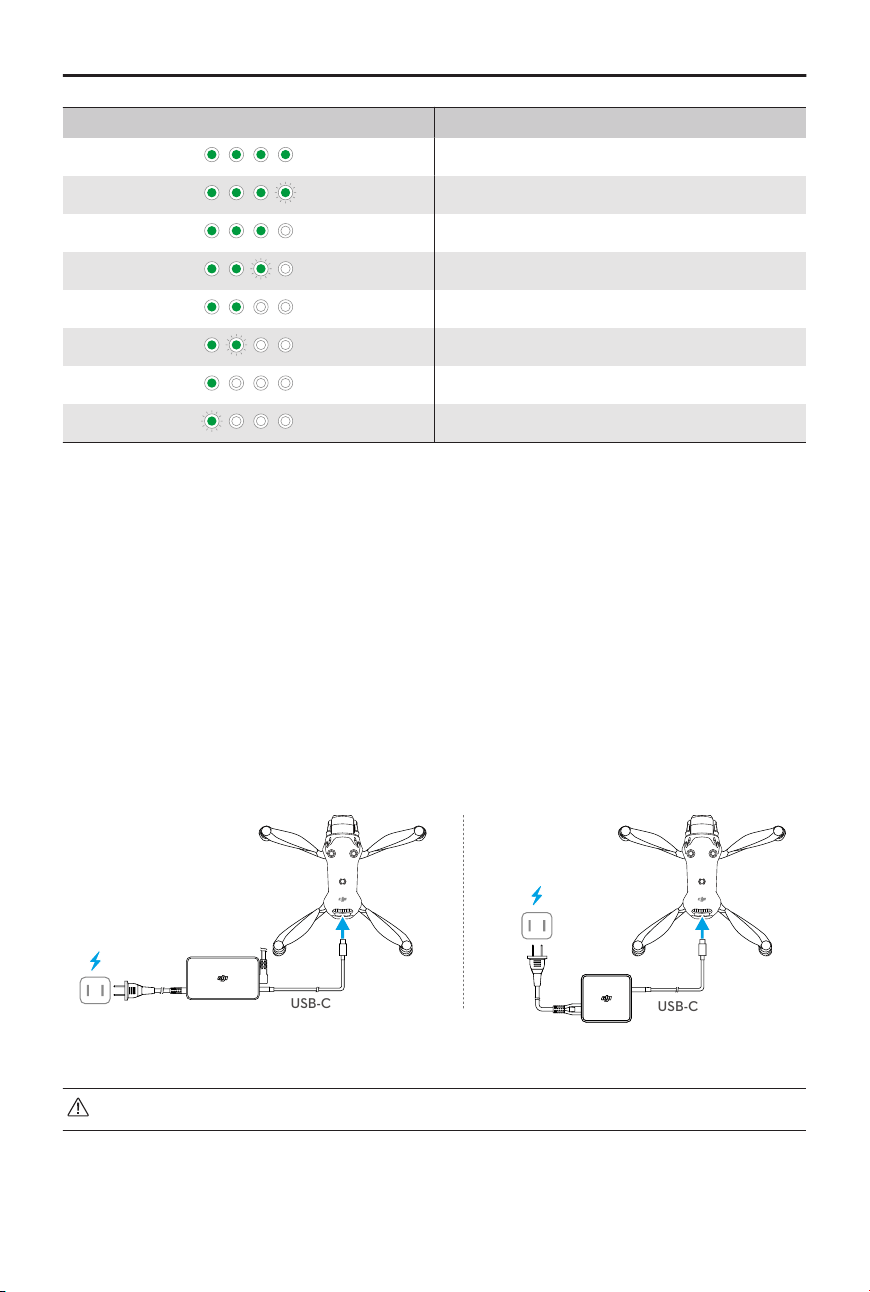
Blinking Pattern Battery Level
88-100%
76-87%
63-75%
51-62%
38-50%
26-37%
13-25%
0-12%
Powering On/O
Press, then press and hold the power button to power the aircraft on or o. The battery
level LEDs display the battery level when the aircraft is powered on. The battery level LEDs
turn o when the aircraft is powered o.
Charging the Battery
Fully charge the battery before each use. It is recommended to use the charging devices
provided by DJI or other chargers that support the USB PD fast charging protocol.
Using a Charger
USB-C
USB-C
DJI Mavic 240W Power Adapter DJI 100W USB-C Power Adapter
• The battery cannot be charged if the device is powered on.
The table below shows the battery level during charging.
DJI Mavic 4 Pro User Manual
58 © 2025 DJI All Rights Reserved.
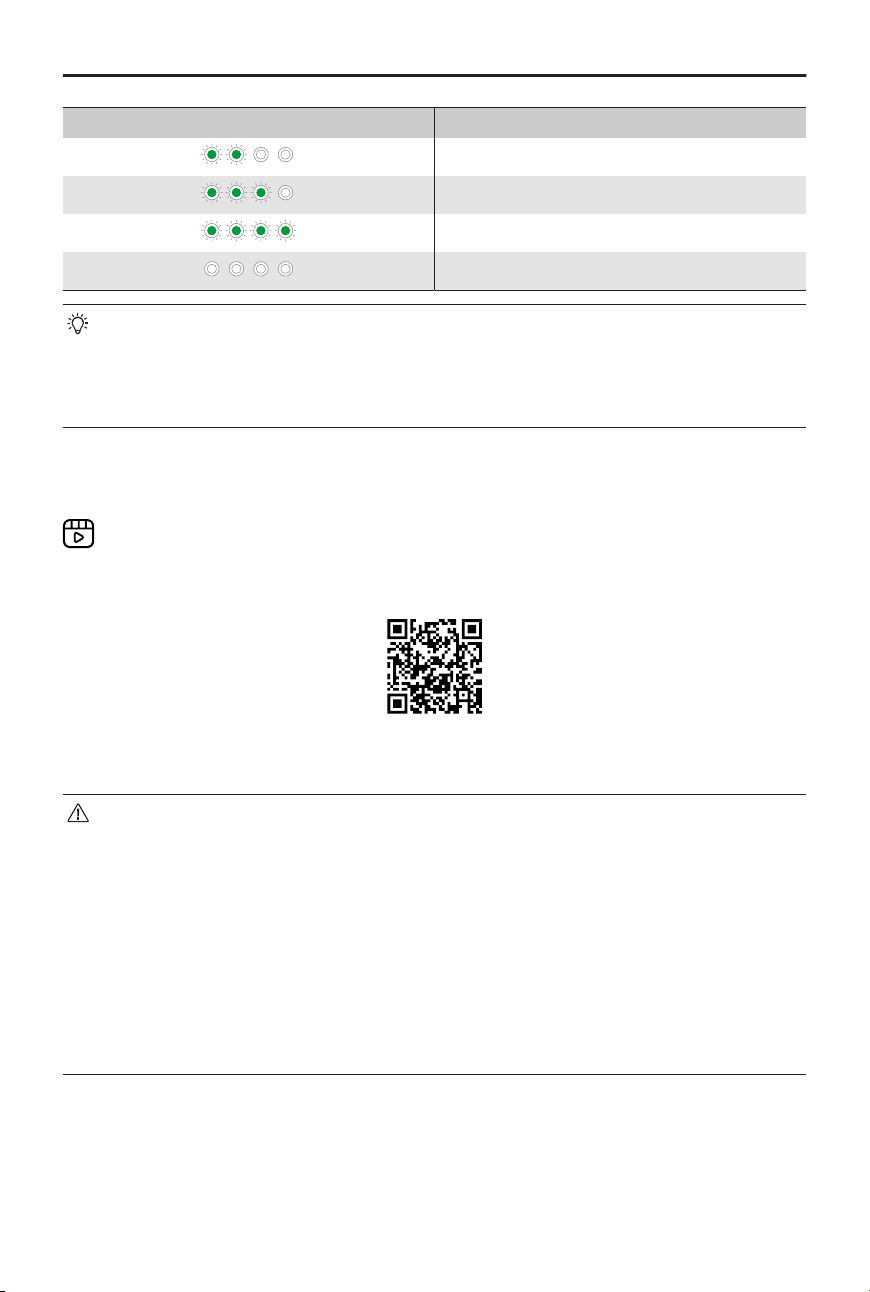
Blinking Pattern Battery Level
0-50%
51-75%
76-99%
100%
• The blinking frequency of the battery level LEDs diers depending on the USB
charger used. If the charging speed is fast, the battery level LEDs will blink
quickly.
• Four LEDs blinking simultaneously indicates the battery is damaged.
Using the Charging Hub
It is recommended to click the link below or scan the QR code to watch the tutorial video.
https://www.dji.com/mavic-4-pro/video
• The environmental temperature aects the charging speed. Charging is faster in
a well-ventilated environment at 25° C (77° F).
• The charging hub is only compatible with specic model of the Intelligent Flight
Battery. DO NOT use the charging hub with other battery models.
• Place the charging hub on a at and stable surface when in use. Make sure the
device is properly insulated to prevent re hazards.
• DO NOT touch the metal terminals on the battery ports.
• Clean the metal terminals with a clean, dry cloth if there is any noticeable
buildup.
DJI Mavic 4 Pro User Manual
© 2025 DJI All Rights Reserved. 59
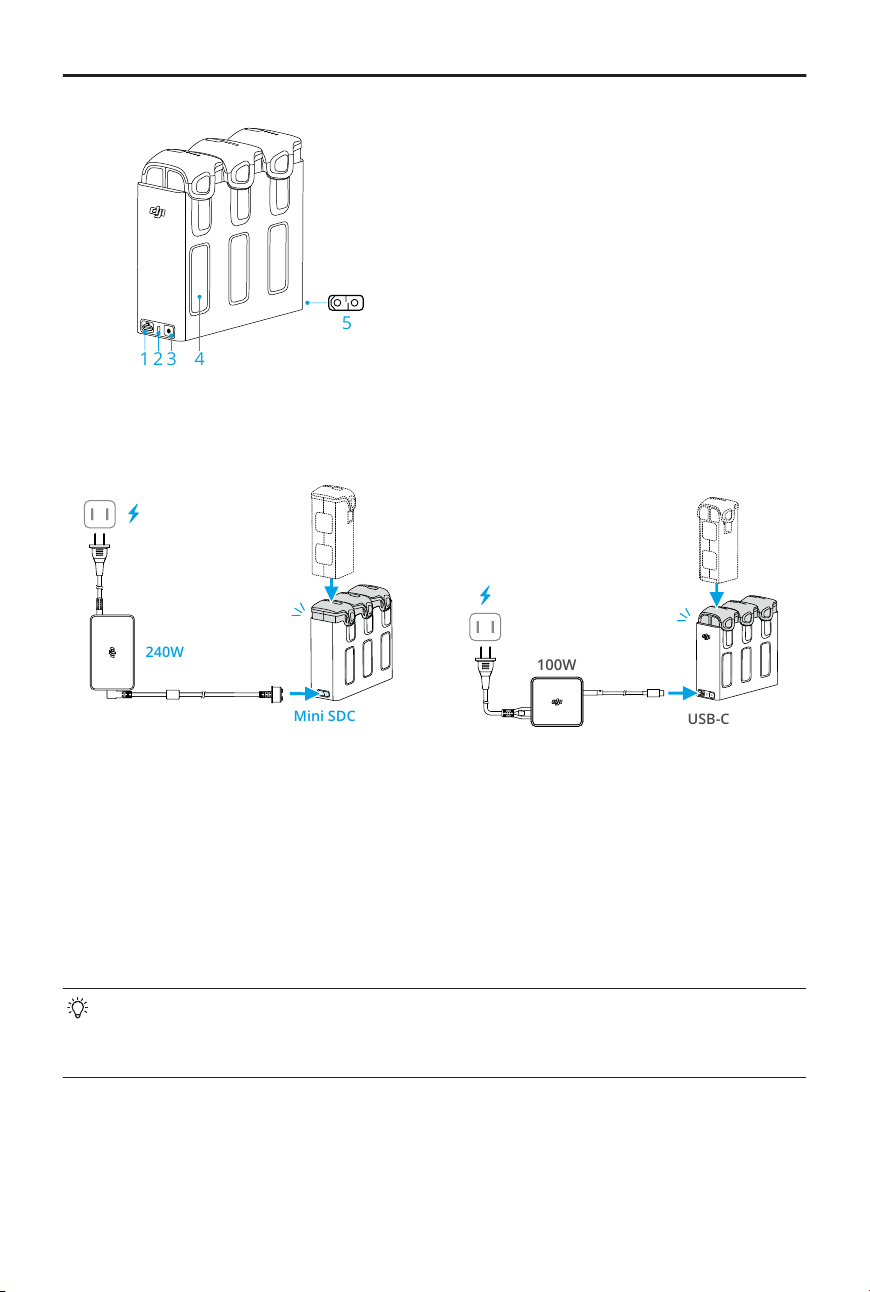
5
3 4
1
2
1. USB-C Port
2. Status LEDs
3. Function Button
4. Battery Port
5. Mini SDC Port
How to Charge
240W
100W
USB-C
Mini SDC
• Using DJI MAVIC
TM
240W Power Adapter: Connect the Mini SDC port on the charging
hub to a power outlet to charge three batteries simultaneously. The charging hub rst
charges the battery with a low battery level to the same level as other batteries and
then fully charges the three batteries simultaneously.
• Using DJI 100W USB-C Power Adapter and other USB-C chargers: Connect the USB-C
port on the charging hub to a power outlet. The Intelligent Flight Battery with the
highest power level will be charged rst, and then the rest will be charged in sequence
according to their power levels.
When using DJI Mavic 240W Power Adapter, the charging hub can also charge other
devices connected to the USB-C port simultaneously. In this case, the charging time
of the Intelligent Flight Batteries will increase.
Using Charging Hub as a Power Bank
1. Insert one or more batteries into the charging hub. Connect an external device via the
USB-C port, such as a mobile phone or remote controller.
DJI Mavic 4 Pro User Manual
60 © 2025 DJI All Rights Reserved.
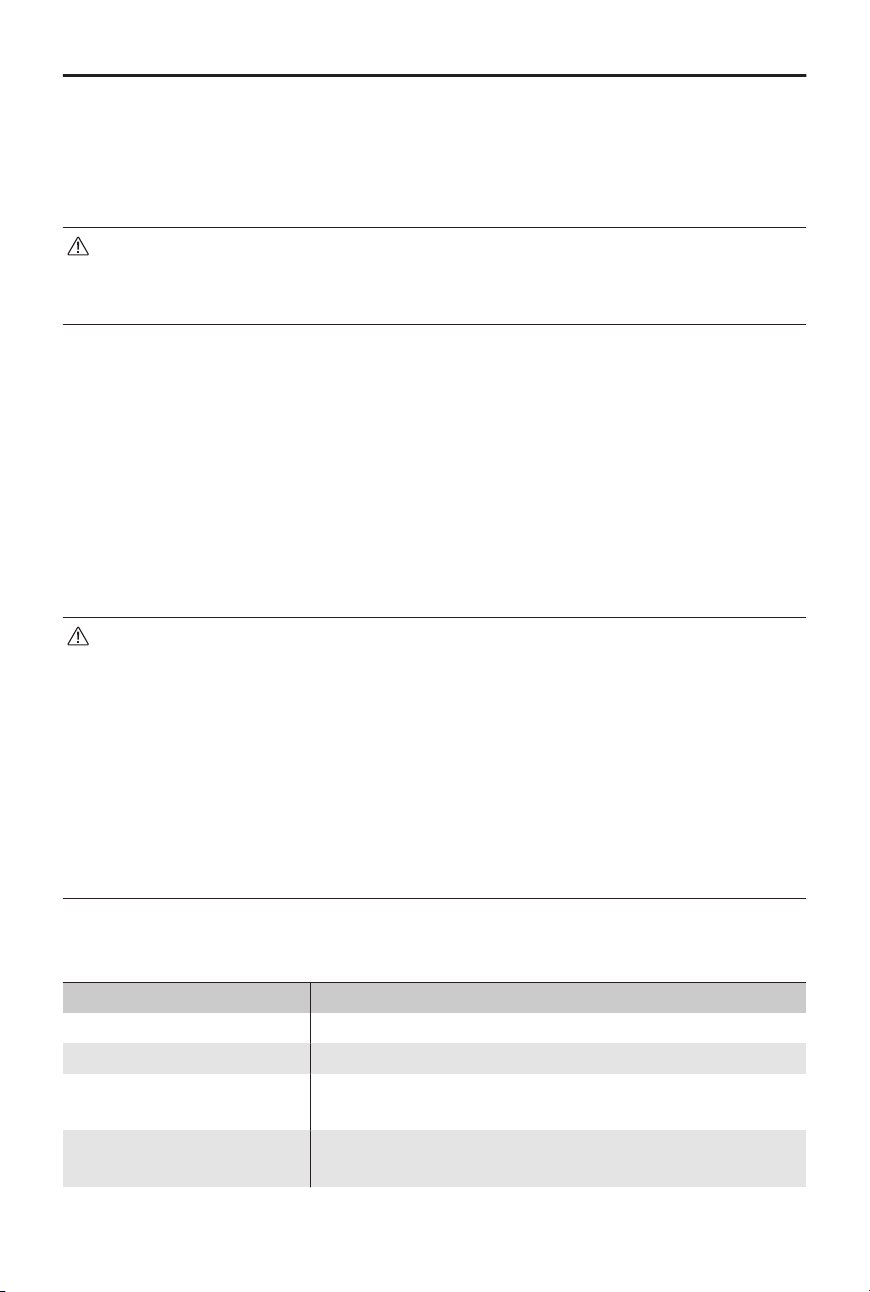
2. Press the function button, and the status LED of the charging hub turns solid green.
The battery with the lowest power level will be discharged rst, followed by the
remaining batteries to be discharged sequentially. To stop charging the external
device, disconnect the external device from the charging hub.
• If the remaining charge of a battery is lower than 5%, the battery cannot charge
the external device.
• To switch to charging Intelligent Flight Batteries, reconnect the USB-C cable.
Accumulating Power
1. Insert more than one battery into the charging hub, and press and hold the function
button until the status LED turns green. The status LED of the charging hub pulses
green, and the charge is transferred from the battery with the lowest power level to
the battery with the highest power level.
2. To stop accumulating power, press and hold the function button until the status LED
turns yellow. After stopping power accumulation, press the function button to check
the power level of the batteries.
• Power accumulation stops automatically in the following situations:
◆
The receiving battery is fully charged, or the power of the output battery is
lower than 5%.
◆
A charger or external device is connected to the charging hub during power
accumulation.
◆
Power accumulation is interrupted for more than 15 minutes due to
abnormal battery temperature.
• After accumulating power, charge the battery with the lowest power level as
soon as possible to avoid discharge.
Status LED Descriptions
Blinking Pattern Description
Solid yellow The charging hub is idle
Pulses green Charging the battery or accumulating power
Solid green
All batteries fully charged or supplying power to external
devices
Blinks yellow
Temperature of the batteries or 240W power adapter is
too low or too high (no further operation needed)
DJI Mavic 4 Pro User Manual
© 2025 DJI All Rights Reserved. 61
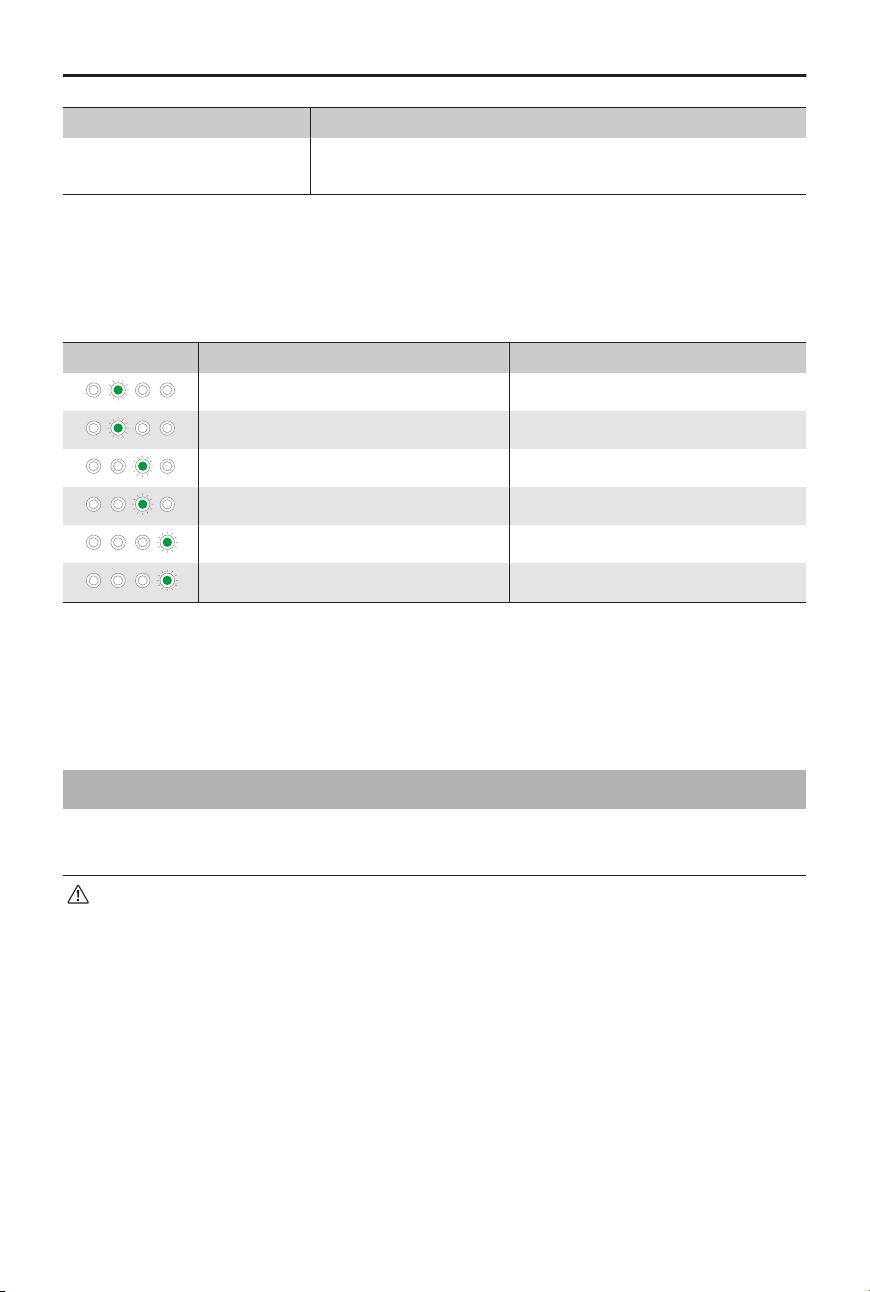
Blinking Pattern Description
Solid red
Power supply error or battery error (remove and reinsert
the batteries or unplug and plug in the charger)
Battery Protection Mechanisms
The battery level LEDs can display battery protection notications triggered by abnormal
charging conditions.
LEDs Blinking Pattern Status
LED2 blinks twice per second Overcurrent detected
LED2 blinks three times per second Short circuit detected
LED3 blinks twice per second Overcharge detected
LED3 blinks three times per second Over-voltage charger detected
LED4 blinks twice per second Charging temperature is too low
LED4 blinks three times per second Charging temperature is too high
If any of the battery protection mechanisms are activated, unplug the charger, and plug it
in again to resume charging. If the charging temperature is abnormal, wait for it to return
to normal. The battery will automatically resume charging without the need to unplug
and plug in the charger again.
5.9 Gimbal Camera
Gimbal Notice
• Make sure there are no stickers or objects on the gimbal before taking o. DO
NOT tap or knock the gimbal after the aircraft is powered on. Launch the aircraft
from open and at ground to protect the gimbal.
• Remove the storage cover before powering on the aircraft. Attach the storage
cover when the aircraft is not in use.
• Precision elements in the gimbal may be damaged by a collision or impact,
which may cause the gimbal to function abnormally.
• Avoid getting dust or sand on the gimbal, especially in the gimbal motors.
• A gimbal motor may enter protection mode if the gimbal is obstructed by other
objects when the aircraft is put on uneven ground or on grass, or if the gimbal
DJI Mavic 4 Pro User Manual
62 © 2025 DJI All Rights Reserved.
experiences an excessive external force, such as during a collision. Wait for the
gimbal to return to normal or restart the device.
• DO NOT apply external force to the gimbal after the aircraft is powered on.
• DO NOT add any extra payload other than an ocial accessory to the gimbal,
as this may cause the gimbal to function abnormally or even lead to permanent
motor damage.
• Flying in heavy fog or clouds may make the gimbal wet, leading to temporary
failure. The gimbal will recover full functionality once it is dry.
• If there are strong winds, the gimbal may vibrate while recording.
• If the gimbal tilt angle is large during ight, and the aircraft tilts forward due
to acceleration or deceleration, the gimbal will enter limit protection mode and
automatically adjust the angle downward.
• After powering on, if the aircraft is not placed at for an extended period or if
the it is signicantly shaken, the gimbal may stop working and enter protection
mode. In this case, place the aircraft at and wait for it to recover.
• DO NOT point the front of the gimbaltowardthe ground or sharp objects to
avoid damage.
• When using the gimbal tilt or roll rotation and True Vertical Shooting functions in
strong winds or at high ight speeds, the gimbal may reach itsmovement limit.
• DO NOT use the aircraft in rainy or snowy weather. If encountering rain or snow
during ight, land the aircraft immediately and clean thesurface of the gimbal
and gimbal motor promptly.
Gimbal Angle
Use the gimbal dial on the remote controller to control the tilt of the gimbal. Alternatively,
do so through the camera view in DJI Fly. Press and hold the screen until the gimbal
adjustment bar appears. Drag the bar to control the gimbal’s angle.
The gimbal supports roll rotation, allowing angle adjustment duringshooting. Click the
link or scan the QR code to watch the tutorial video.
https://www.dji.com/mavic-4-pro/video
DJI Mavic 4 Pro User Manual
© 2025 DJI All Rights Reserved. 63

Gimbal Operation Modes
Two gimbal operation modes are available. Switch between the dierent operation
modes in > Control.
Follow Mode: The roll angle of the gimbal remains stable relative to the horizontal plane
or maintains the preset roll angle. This mode is suitable for capturing stable images.
FPV Mode: When the aircraft is ying forward, the gimbal rolls in sync with the rolling
aircraft to provide a rst-person ying experience.
Camera Notice
• DO NOT expose the camera lens to an environment with laser beams, such as a
laser show, or point the camera at intense light sources for an extended period
of time, such as the sun on a clear day, in order to avoid damaging the sensor.
• Make sure the temperature and humidity are suitable for the camera during use
and storage.
• Use a lens cleanser to clean the lens to avoid damage or poor image quality.
• DO NOT block any ventilation holes on the camera, as the heat generated may
damage the device or cause injury.
• The cameras may not focus correctly in the following situations:
◆
Capturing photos and videos of dark objects far away.
◆
Capturing photos and videos of objects with repeating identical patterns and
textures or objects without clear patterns or textures.
◆
Capturing photos and videos of shiny or reective objects (such as street
lighting and glass).
◆
Capturing photos and videos of ashing objects.
◆
Capturing photos and videos of fast-moving objects.
◆
When the aircraft/gimbal is moving fast.
◆
Capturing photos and videos of objects with varying distances in the focus
range.
• When using the Tele camera for manual focus, the positioncorresponding to
the mountainicon on the focus bar in the app may not match the innity focus
point. Use the Focus Peaking prompt to conrm the accurate focus point.
• The aircraft uses SmartPhoto mode by default in Single Shot, which integrates
features such as scene recognition or HDR for optimal results. SmartPhoto
needs to take multiple shots continuously for image synthesis. When the aircraft
DJI Mavic 4 Pro User Manual
64 © 2025 DJI All Rights Reserved.
or gimbal is moving, SmartPhoto will not be supported, and the image quality
may dier.
• The photos taken in Single Shot mode have no HDR eect in the following
situations:
◆
When the aircraft or gimbal is moving, or if the aircraft is unable to hover
stably due to high wind speeds.
◆
When white balance is set to manual mode.
◆
The camera is in Auto mode and the EV setting is adjusted manually.
◆
The camera is in Auto mode and the AE lock is turned on.
◆
The camera is in Pro mode.
• When capturing a light source with a small aperture, it is normal for specic-
shaped ares to appear.
5.10 Storing and Exporting Photos and Videos
Storing
The aircraft supports the use of a microSD card to store your photos and videos. Refer to
the Specications for more information about recommended microSD cards.
Photos and videos can also be saved in the internal storage of the aircraft when no
microSD card is available.
Exporting
• Use QuickTransfer to export the footage to a mobile device.
• Connect the aircraft to a computer using a USB 3.0 data cable, export the footage in
the internal storage of the aircraft or in the microSD card mounted on the aircraft. The
aircraft does not need to be powered on during the exporting process.
• Remove the microSD card from the aircraft and insert it into a card reader, and export
the footage in the microSD card through the card reader.
• Ensure that the SD card slot and the microSD card are clean and free of foreign
objects during use.
• DO NOT remove the microSD card from the aircraft when taking photos or
videos. Otherwise, the microSD card may be damaged.
• Check camera settings before use to ensure they are congured correctly.
DJI Mavic 4 Pro User Manual
© 2025 DJI All Rights Reserved. 65

• Before capturing important photos or videos, take a few images to test whether
the camera is operating correctly.
• Make sure to power o the aircraft correctly. Otherwise, the camera parameters
will not be saved, and any recorded images or videos may be aected. DJI is not
responsible for any loss caused by an image or video recorded in a way that is
not machine-readable.
5.11 QuickTransfer
Follow the steps below to quickly download photos and videos from the aircraft to your
mobile device.
1. Power on the aircraft and wait until the self-diagnostic tests of the aircraft are
complete.
If the Allow QuickTransfer in Sleep feature is enabled in DJI Fly (enabled by default),
the QuickTransfer can be used while the aircraft is powered o.
2. Turn on the Bluetooth and Wi-Fi on the mobile device, and make sure the positioning
function is enabled as well.
3. Enter QuickTransfer mode using one of the methods below.
• Launch DJI Fly and tap the QuickTransfer card on the home screen.
• Launch DJI Fly, go to Album, and tap
in the upper right corner.
4. Once successfully connected, the les on the aircraft can be accessed and
downloaded at high speed. Note that when connecting the mobile device to the
aircraft for the rst time, press and hold the power button of the aircraft to conrm.
When using Allow QuickTransfer in Sleep, you can only connect to an aircraft that
displays the Sleep icon.
• After the aircraft and remote controllerare connected, in the DJI Flycamera
view, tap > Camerato enable or disable Allow QuickTransfer in Sleep.
• After enabling Allow QuickTransfer in Sleep, the aircraft will enter sleep mode
after powering o, allowing you to use the QuickTransfer function. Sleep mode
will automatically turn o after 12 hours of inactivity or when the battery is
replaced or a USB-C cable is connected to the aircraft. To restore sleep mode,
make sure there is no USB-C connection to the aircraft, and then press the
power button once and wait for about 15 seconds.
• During the process of restoring sleep mode and when using Allow QuickTransfer
in Sleep for transmission, battery level LEDs 1&2 and LEDs 3&4 will blink
DJI Mavic 4 Pro User Manual
66 © 2025 DJI All Rights Reserved.
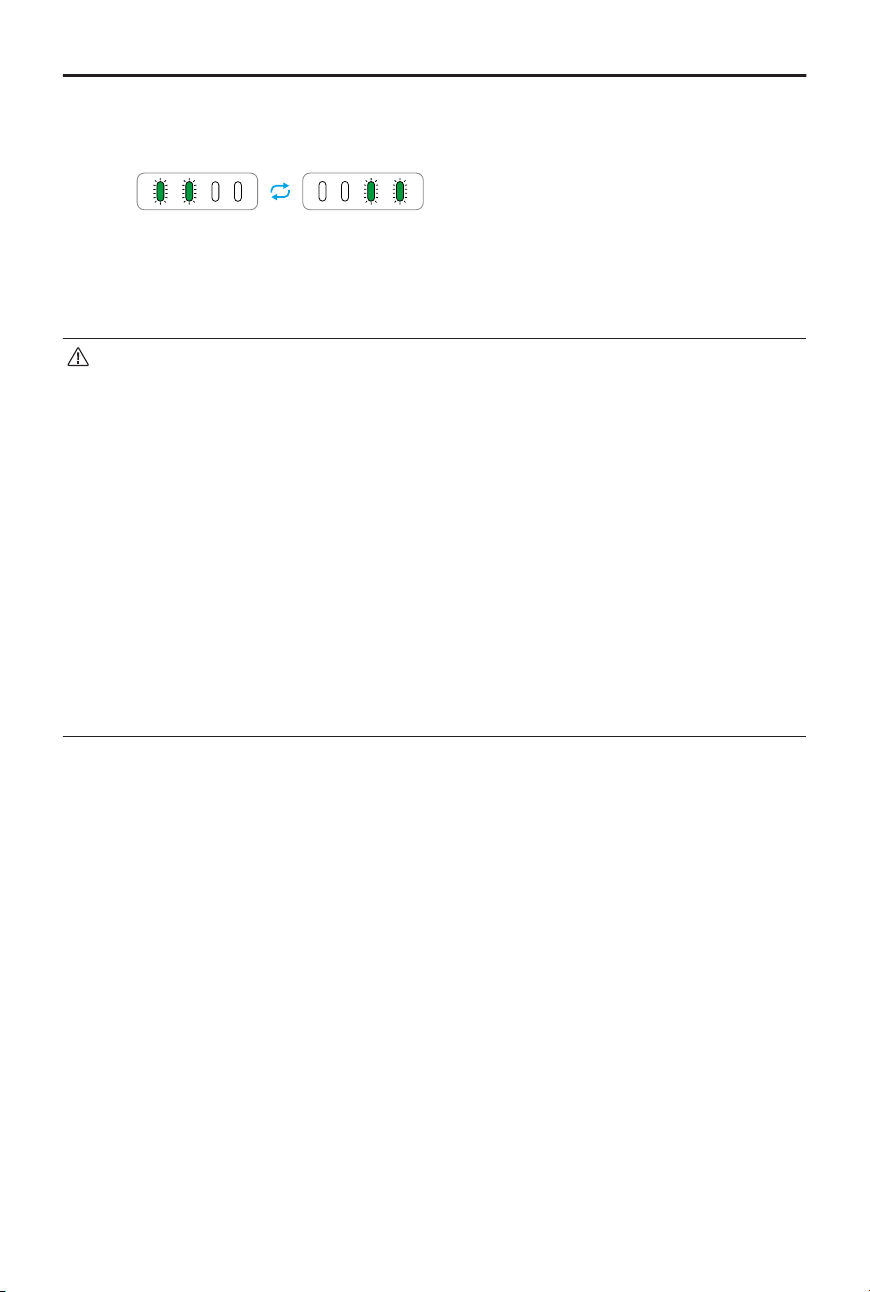
alternately. If you unfold the right rear aircraft arm during this period, the
aircraft will not power on.
• When using Allow QuickTransfer in Sleep, only the battery level LEDs will be on.
If the mobile device and the aircraft are not connected via Wi-Fi or if the app is
exited (and there are no ongoing download tasks) for more than 1 minute, the
QuickTransfer will automatically exit, and the aircraft will return to sleep mode.
• The maximum download rate can only be achieved in countries and regions
where the 5.8GHz frequency is permitted by laws and regulations, when using
devices that support 5.8GHz frequency band and Wi-Fi connection, and in an
environment without interference or obstruction. If 5.8GHz is not allowed by
local regulations (such as in Japan), or your mobile device does not support
the 5.8GHz frequency band, or the environment has severe interference, then
QuickTransfer will use the 2.4GHz frequency band and its maximum download
rate will reduce to 10MB/s.
• When using QuickTransfer, it is not necessary to enter the Wi-Fi password on
the settings page of the mobile device in order to connect. Launch DJI Fly and a
prompt will appear to connect the aircraft.
• Use QuickTransfer in an unobstructed environment with no interference and
stay away from sources of interference such as wireless routers, Bluetooth
speakers, or headphones.
DJI Mavic 4 Pro User Manual
© 2025 DJI All Rights Reserved. 67

Remote Controller
68 © 2025 DJI All Rights Reserved.
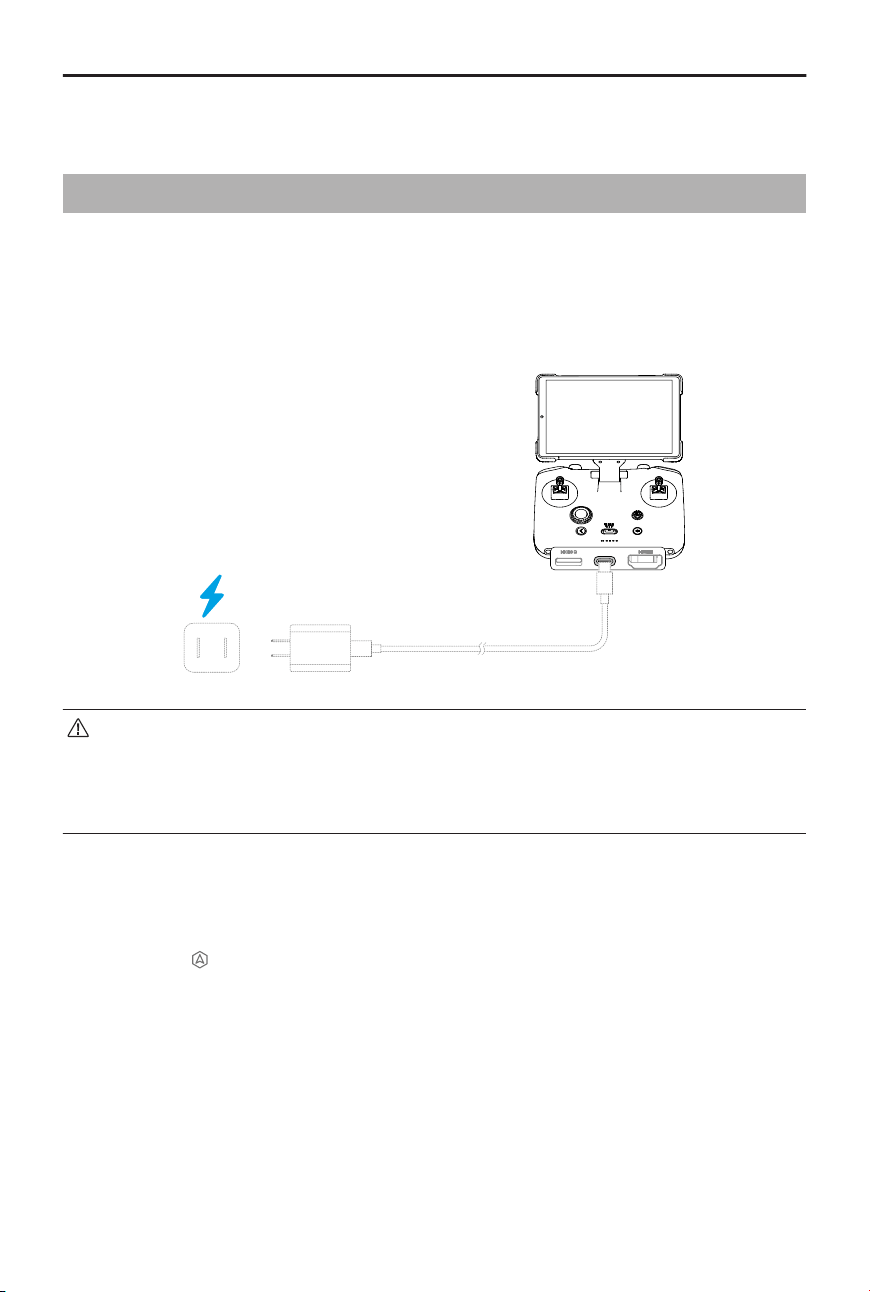
6 Remote Controller
6.1 DJI RC Pro 2
Remote Controller Operation
Charging the Battery
Connect the charger to the USB-C port on the remote controller.
• Fully charge the remote controller before each ight. The remote controller
sounds an alert when the battery level is low.
• Fully charge the battery at least once every three months to maintain the
battery's health.
DJI Simulator
Before your rst ight, practice ying using the DJI Simulator for ight safety. To access DJI
Simulator, click on the Home page of DJI Fly.
DJI Mavic 4 Pro User Manual
© 2025 DJI All Rights Reserved. 69
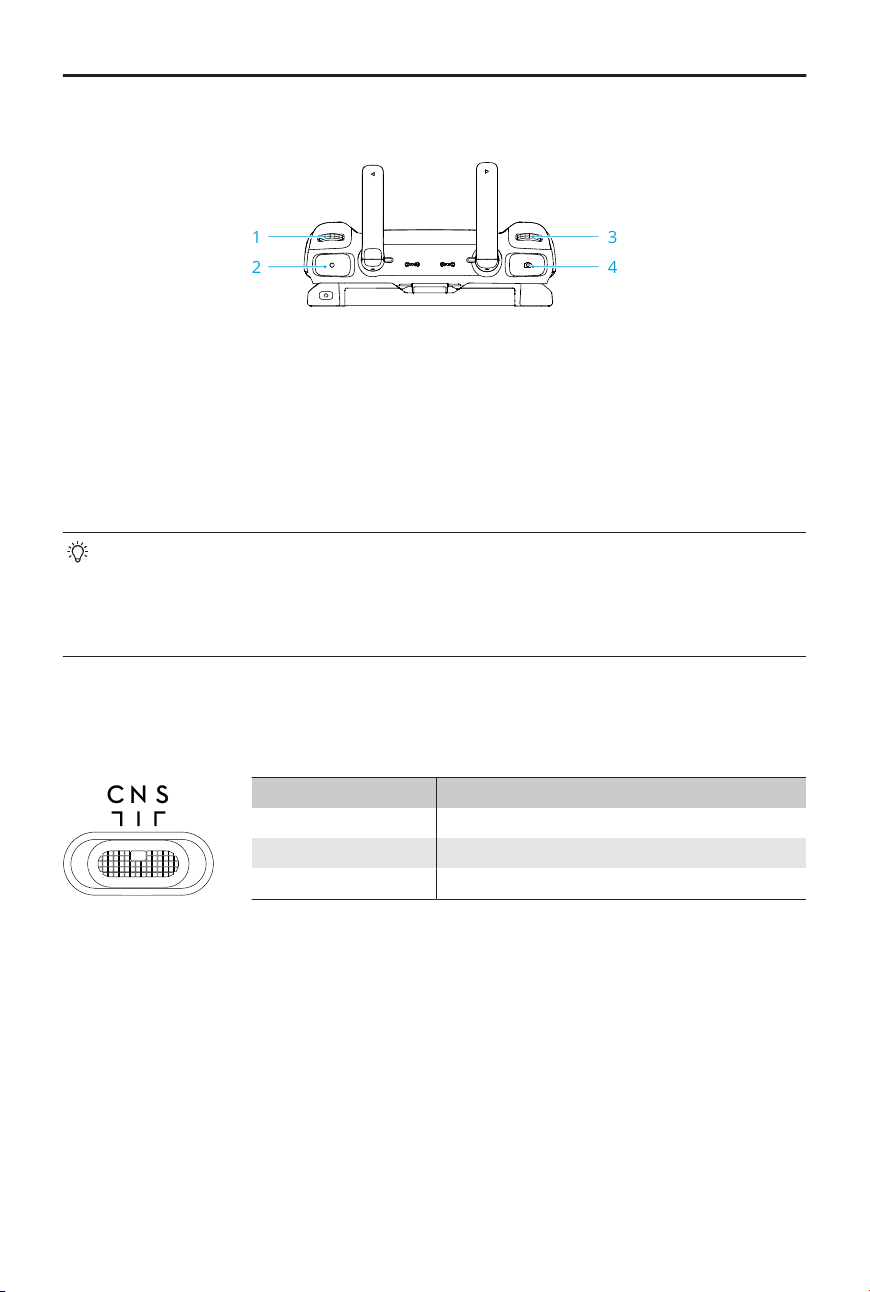
Controlling the Gimbal and Camera
1
2
3
4
1. Gimbal Dial: Control the tilt of the gimbal.
2. Record Button: Press once to start or stop recording.
3. Camera Control Dial: Use to adjust the zoom by default. The dial function can be set
to adjust the focal length, EV, shutter speed, and ISO.
4. Focus/Shutter Button: Press halfway down to auto-focus and press all the way down
to take a photo.
• The aircraft supports both horizontal and vertical shooting. Rotate the screen
for a quick switch.
• The gimbal supports roll rotation. The camera control dial can be set to control
the gimbal roll.
Flight Mode Switch
Toggle the switch to select the desired ight mode.
C N S
Position Flight Mode
C Cine Mode
N Normal Mode
S Sport Mode
Flight Pause/RTH Button
Press once to make the aircraft brake and hover in place.
Press and hold the button until the remote controller beeps and starts RTH. The aircraft
will return to the last recorded Home Point. Press the button again to cancel RTH and
regain control of the aircraft.
DJI Mavic 4 Pro User Manual
70 © 2025 DJI All Rights Reserved.
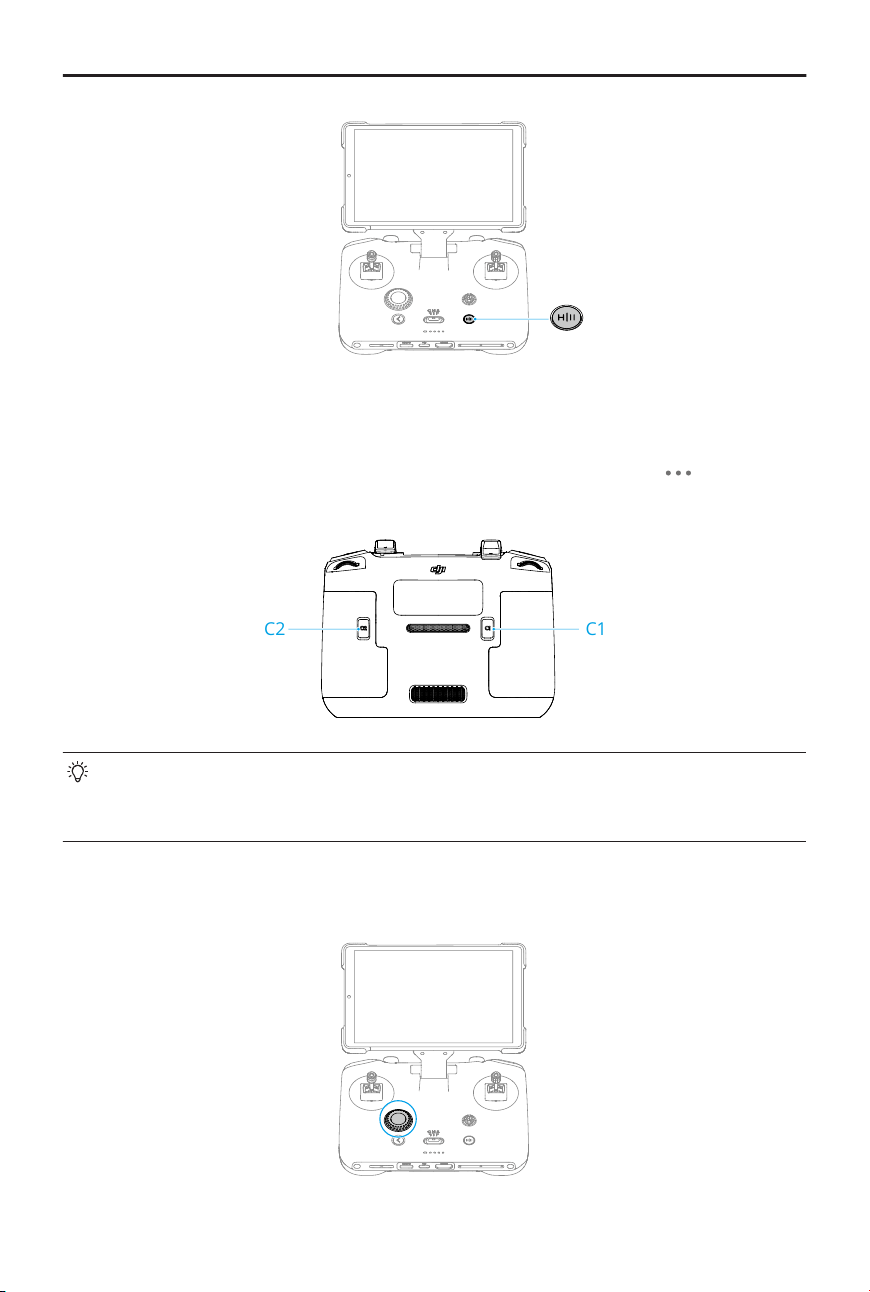
Customizable Buttons
To view and set the button function, go to camera view in DJI Fly, and tap > Control >
Button Customization.
C2 C1
The gimbal supports roll rotation, allowing angle adjustment duringshooting. By
default, the combination of the C1 button and right dial controls the gimbal roll. You
can also assign the gimbal roll function to other custom buttons.
Dial
DJI Mavic 4 Pro User Manual
© 2025 DJI All Rights Reserved. 71
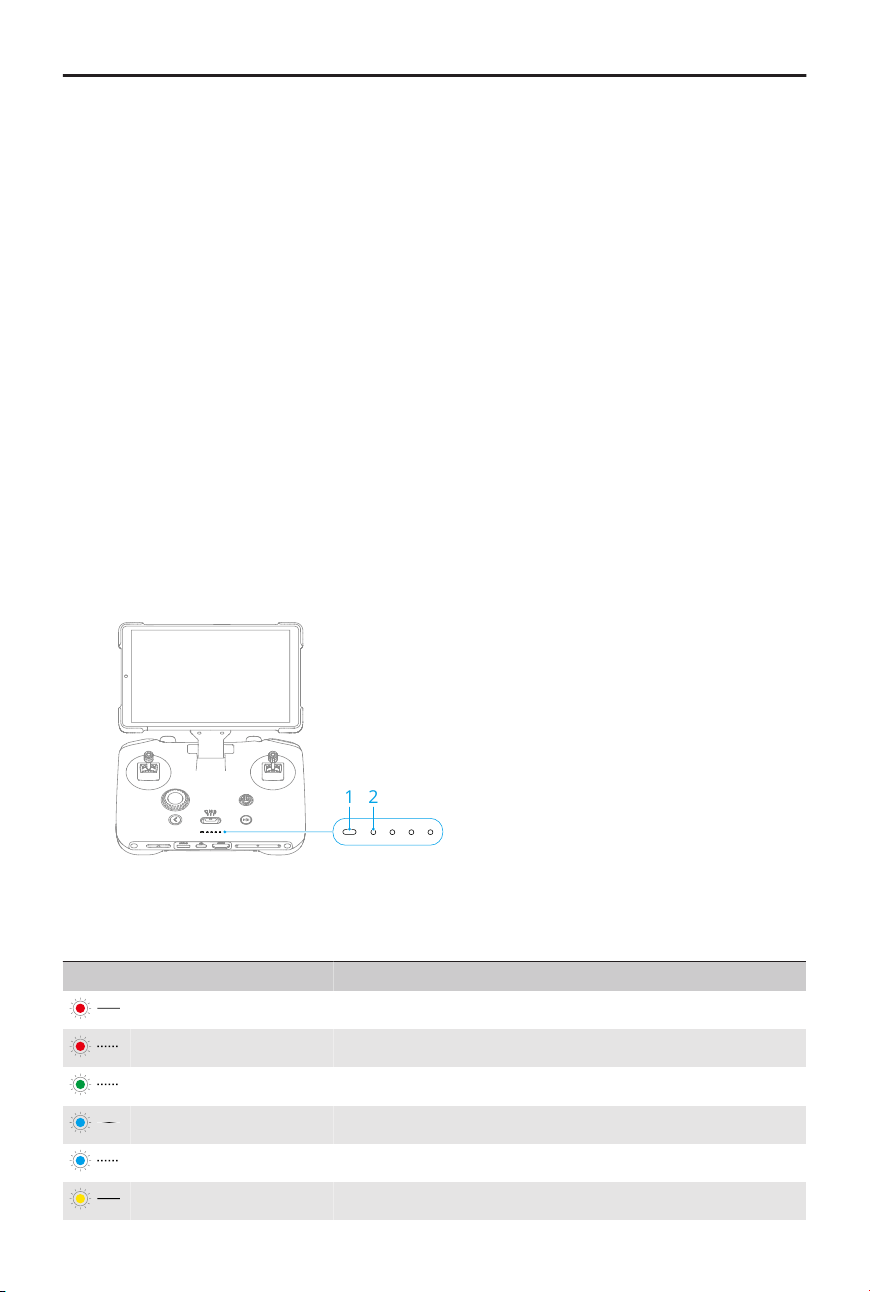
When the camera is set to AUTO mode, rotate the dial to adjust the EV value.
When the camera is set to PRO mode, press the dial to switch camera settings, and rotate
to adjust parameters.
In the album, rotate the dial to move the selection box. Press the dial to preview the
images or videos. Press and hold the dial to select multiple items.
Sleep Mode
Fold the arm or press the power button to turn o the screen. The remote controller will
enter sleep mode after the screen is o for a certain period. In sleep mode, the remote
controller will disconnect from the aircraft. To wake up the remote controller and restore
the connection, extend the arm or press the power button. If not awakened within a
certain period, the remote controller will automatically power o.
Go to Settings > Display to adjust the timeout settings.
Remote Controller LEDs
1
2
1. Status LED
2. Battery Level LEDs
Status LED
Blinking Pattern Descriptions
Solid red Disconnected from the aircraft.
Blinking red The battery level of the aircraft is low.
Solid green Connected with the aircraft.
Pulses blue The remote controller is in sleep mode.
Blinking blue The remote controller is linking to an aircraft.
Solid yellow Firmware update failed.
DJI Mavic 4 Pro User Manual
72 © 2025 DJI All Rights Reserved.
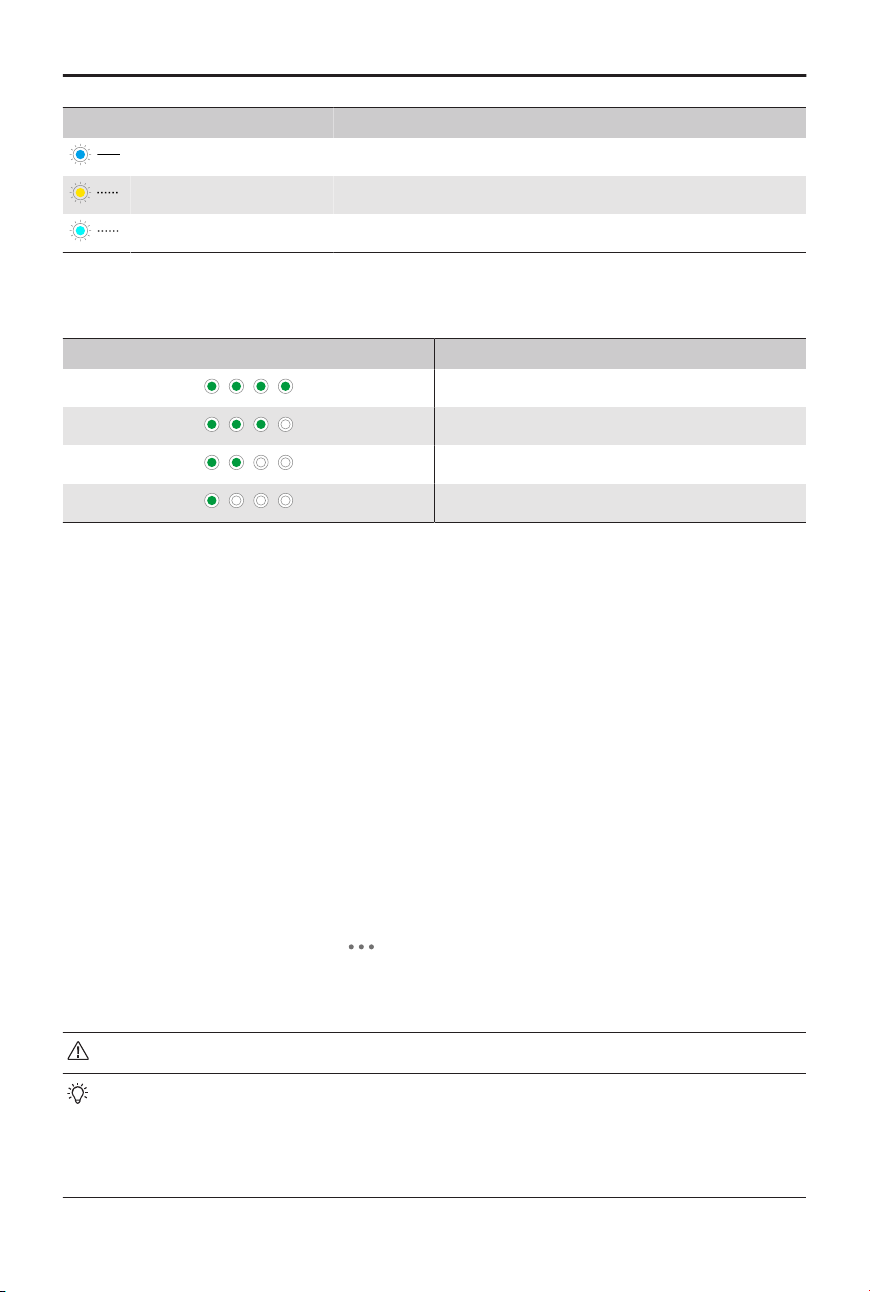
Blinking Pattern Descriptions
Solid blue Firmware update successful.
Blinking yellow The battery level of the remote controller is low.
Blinking cyan Control sticks not centered.
Battery Level LEDs
Blinking Pattern Battery Level
76-100%
51-75%
26-50%
0-25%
Remote Controller Alert
The remote controller beeps to indicate an error or warning. Pay attention when prompts
appear on the touchscreen or in DJI Fly.
Slide down from the top of the screen and select Mute to disable all alerts, or slide the
volume bar to 0 to disable some alerts.
The remote controller sounds an alert during RTH, which cannot be cancelled. The remote
controller sounds an alert when the battery level of the remote controller is low. A low
battery level alert can be cancelled by pressing the power button. When the battery level
is critically low, the alert cannot be cancelled.
Recording Audio via App
In the camera view of the app, tap > Camera to enable app recording. Audio will
be recorded using the built-in microphone or by a connected DJI Mic series microphone
while the aircraft is recording a video. The microphone icon will be displayed in liveview.
• DO NOT turn o the screen or switch to other apps during recording.
• Audio recording can only be enabled or disabled before recording.
• When viewing or downloading the videos in the Album view in DJI Fly, the audio
recorded using the audio recording function will be automatically merged into
the video le.
DJI Mavic 4 Pro User Manual
© 2025 DJI All Rights Reserved. 73
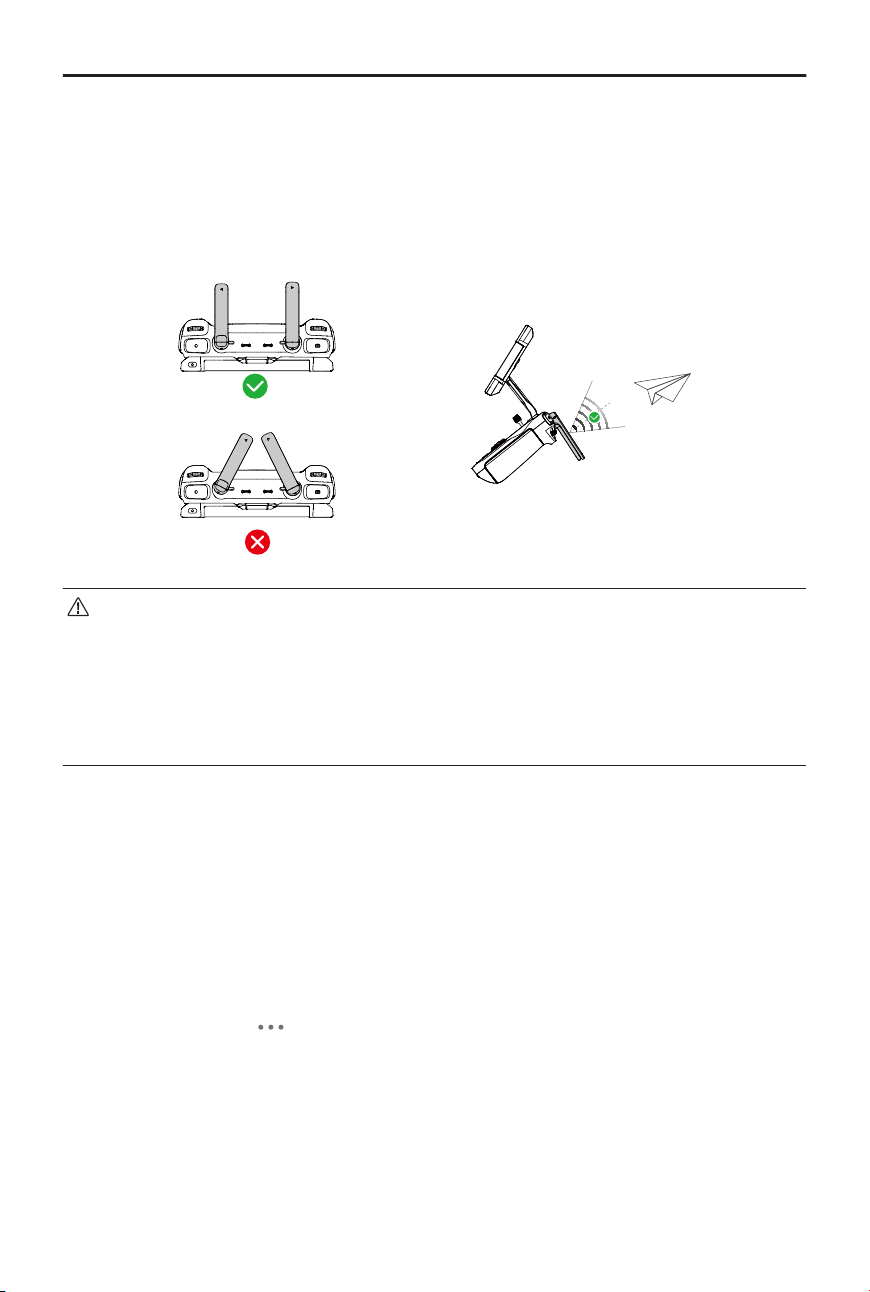
Optimal Transmission Zone
The signal between the aircraft and the remote controller is most reliable when the
antennas are positioned in relation to the aircraft as illustrated below. If the signal is
weak, adjust the remote controller orientation, or y the aircraft closer to the remote
controller.
• DO NOT use other wireless devices operating at the same frequency as the
remote controller. Otherwise, the remote controller will experience interference.
• A prompt will be displayed in DJI Fly if the transmission signal is weak
during ight. Adjust the remote controller orientation according to the attitude
indicator display to make sure that the aircraft is in the optimal transmission
range.
Linking the Remote Controller
The remote controller is already linked to the aircraft when purchased together as a
combo. Otherwise, follow the steps below to link the remote controller and the aircraft
after activation.
1. Power on the aircraft and the remote controller.
2. Launch DJI Fly.
3. In camera view, tap
> Control > Connect to Aircraft. During linking, the status LED
of the remote controller blinks blue and the remote controller beeps.
4. Press and hold the power button of the aircraft for more than four seconds. The
aircraft beeps, and its battery level LEDs blink in sequence to indicate it is ready to
link. The remote controller will beep twice, and its status LED will turn solid green to
indicate linking is successful.
DJI Mavic 4 Pro User Manual
74 © 2025 DJI All Rights Reserved.
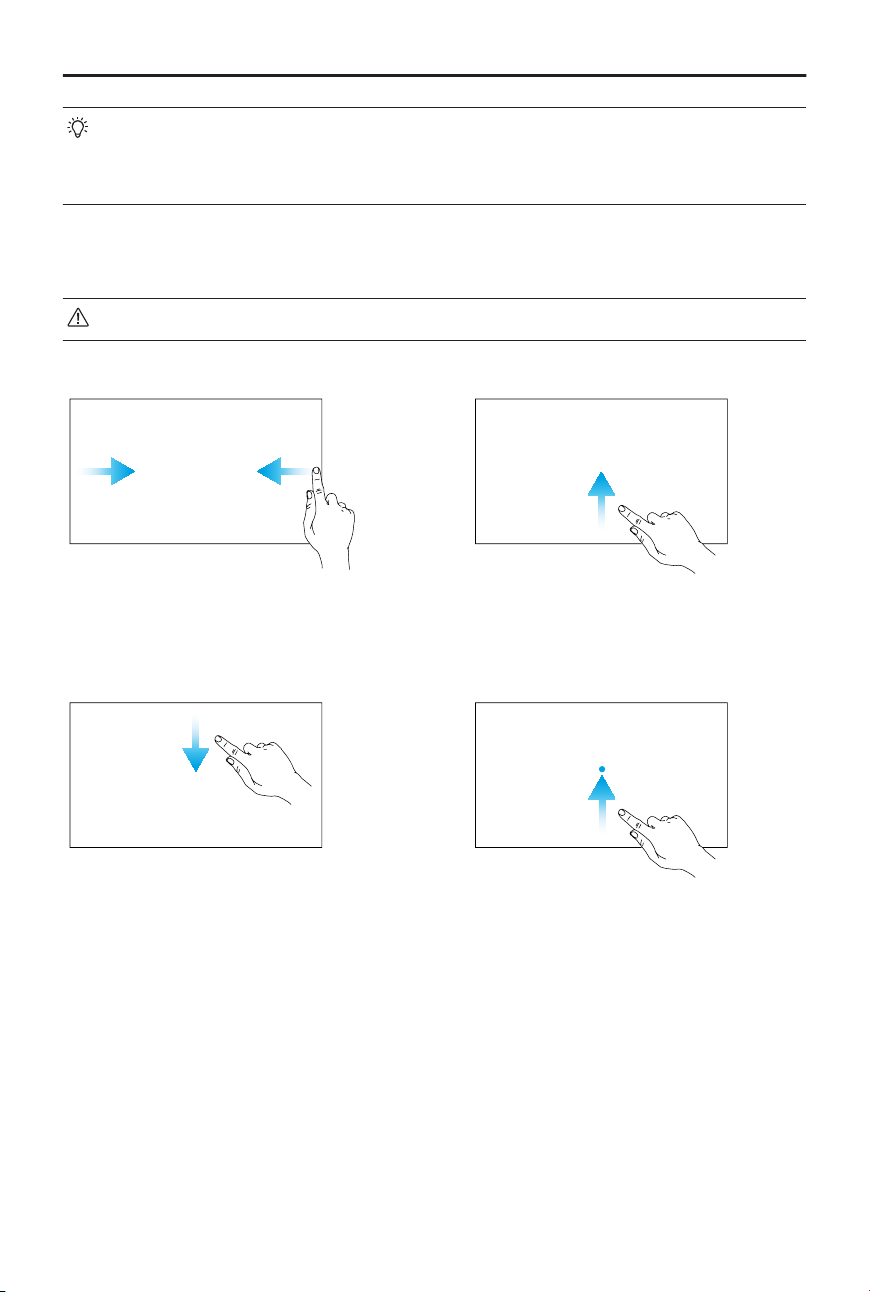
• Make sure the remote controller is within 0.5 m of the aircraft during linking.
• The remote controller will automatically unlink from an aircraft if a new remote
controller is linked to the same aircraft.
Operating the Touchscreen
• Note that the touchscreen is not waterproof. Operate with caution.
Screen Gestures
Back: Slide from the left or right to the
center of the screen to return to the
previous screen.
Return to DJI Fly : Slide up from the
bottom of the screen to return to DJI
Fly.
Open the status bar: Slide down from
the top of the screen to open the sta-
tus bar when in DJI Fly.
The status bar displays the time, Wi-Fi
signal, battery level of the remote con-
troller, etc.
Switch between opened apps: Slide
up from the bottom of the screen and
hold to access recently opened apps
when not on the home screen.
Combination Buttons
Some frequently used features can be activated by using combination buttons. To use
combination buttons, press and hold the back button and operate the other button in the
combination.
DJI Mavic 4 Pro User Manual
© 2025 DJI All Rights Reserved. 75

Combination Operation Function
Back Button + Left Dial Adjust Brightness
Back Button + Right Dial Adjust Volume
Back Button + Record Button Record Screen
Back Button + Shutter Button Screenshot
Back Button + 5D Button Toggle up - Home; Toggle down - Shortcut
settings; Toggle left - Recently opened apps
HDMI Settings
The touchscreen can be shared to a display after connecting the HDMI port of the remote
controller.
The resolution can be set by entering
> Display > HDMI.
DJI Mavic 4 Pro User Manual
76 © 2025 DJI All Rights Reserved.
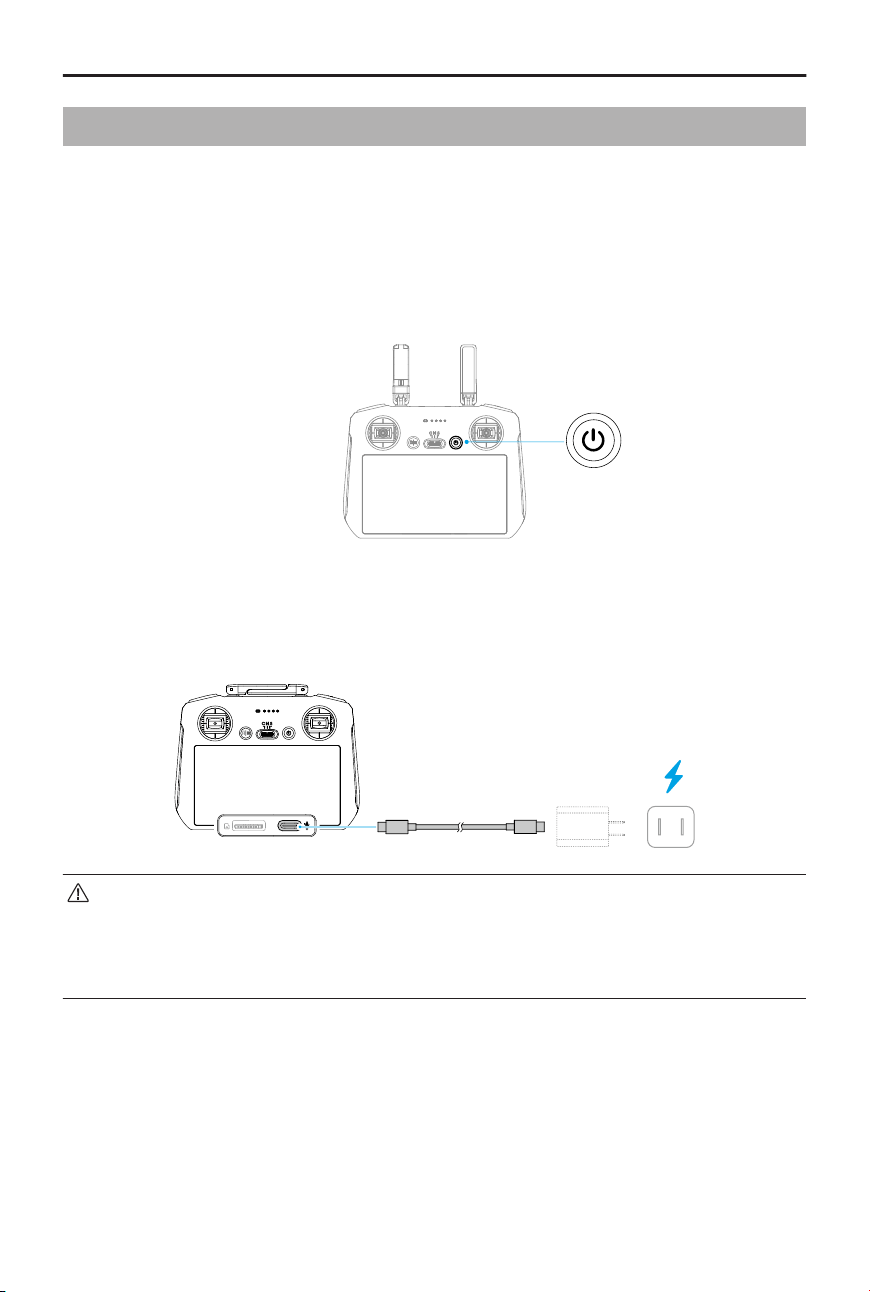
6.2 DJI RC 2
Remote Controller Operation
Powering On/O
Press the power button once to check the current battery level.
Press, then press and hold to power the remote controller on or o.
Charging the Battery
Connect the charger to the USB-C port on the remote controller.
• Fully charge the remote controller before each ight. The remote controller
sounds an alert when the battery level is low.
• Fully charge the battery at least once every three months to maintain the
battery’s health.
DJI Mavic 4 Pro User Manual
© 2025 DJI All Rights Reserved. 77
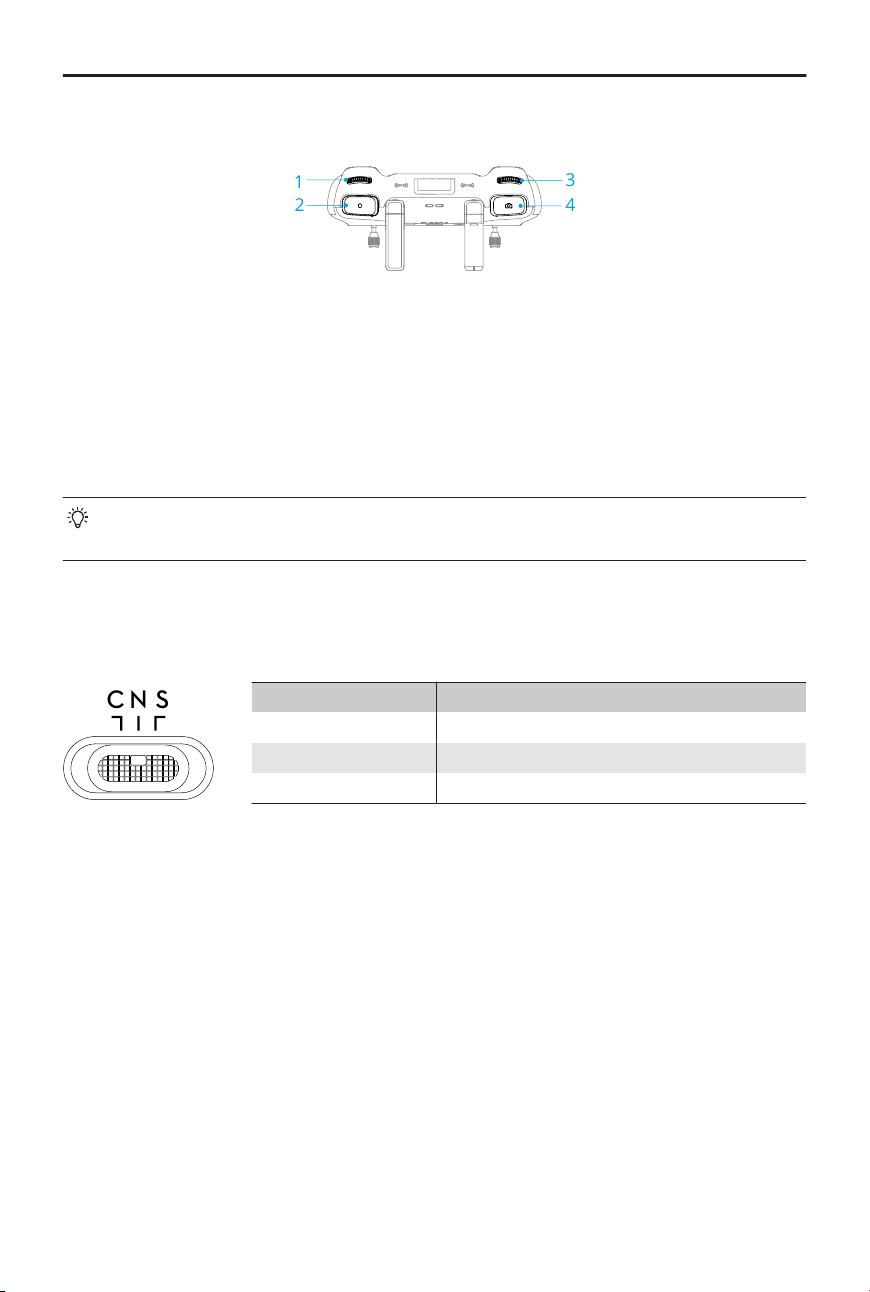
Controlling the Gimbal and Camera
1
2
4
3
1. Gimbal Dial: Control the tilt of the gimbal.
2. Record Button: Press once to start or stop recording.
3. Camera Control Dial: Use to adjust the zoom by default. The dial function can be set
to adjust the focal length, EV, shutter speed, and ISO.
4. Focus/Shutter Button: Press halfway down to auto-focus and press all the way down
to take a photo.
The gimbal supports roll rotation. The camera control dial can be set to control the
gimbal roll.
Flight Mode Switch
Toggle the switch to select the desired ight mode.
C N S
Position Flight Mode
C Cine Mode
N Normal Mode
S Sport Mode
Flight Pause/RTH Button
Press once to make the aircraft brake and hover in place.
Press and hold the button until the remote controller beeps and starts RTH. The aircraft
will return to the last recorded Home Point. Press the button again to cancel RTH and
regain control of the aircraft.
DJI Mavic 4 Pro User Manual
78 © 2025 DJI All Rights Reserved.
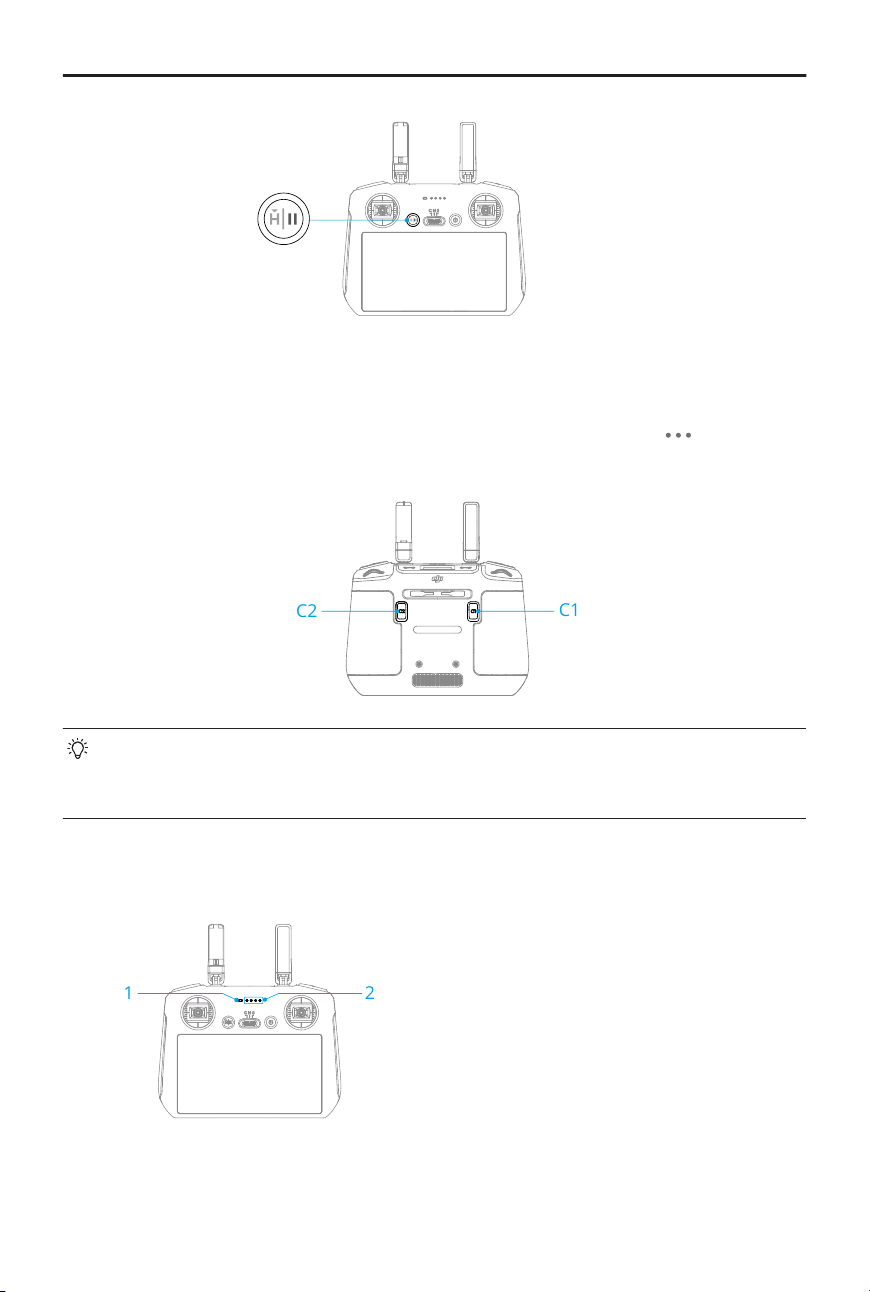
Customizable Buttons
To view and set the button function, go to camera view in DJI Fly, and tap > Control >
Button Customization.
C2
C1
The gimbal supports roll rotation, allowing angle adjustment duringshooting. By
default, the combination of the C1 button and right dial controls the gimbal roll. You
can also assign the gimbal roll function to other custom buttons.
Remote Controller LEDs
1 2
1. Status LED
2. Battery Level LEDs
DJI Mavic 4 Pro User Manual
© 2025 DJI All Rights Reserved. 79
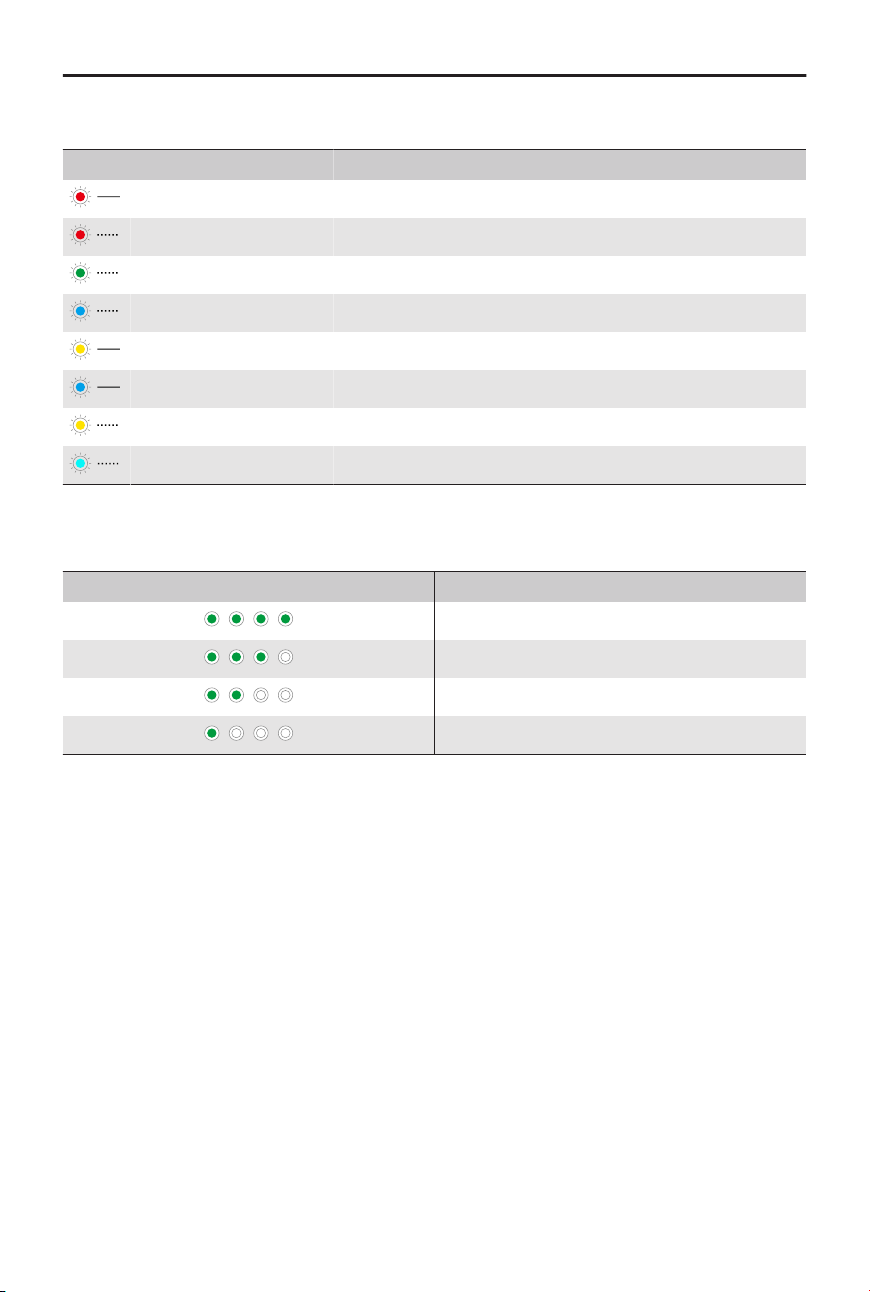
Status LED
Blinking Pattern Descriptions
Solid red Disconnected from the aircraft.
Blinking red The battery level of the aircraft is low.
Solid green Connected with the aircraft.
Blinking blue The remote controller is linking to an aircraft.
Solid yellow Firmware update failed.
Solid blue Firmware update successful.
Blinking yellow The battery level of the remote controller is low.
Blinking cyan Control sticks not centered.
Battery Level LEDs
Blinking Pattern Battery Level
76-100%
51-75%
26-50%
0-25%
Remote Controller Alert
The remote controller beeps to indicate an error or warning. Pay attention when prompts
appear on the touchscreen or in DJI Fly.
Slide down from the top of the screen and select Mute to disable all alerts, or slide the
volume bar to 0 to disable some alerts.
The remote controller sounds an alert during RTH, which cannot be cancelled. The remote
controller sounds an alert when the battery level of the remote controller is low. A low
battery level alert can be cancelled by pressing the power button. When the battery level
is critically low, the alert cannot be cancelled.
There will be an alert if the remote controller is not used for a period of time while it is
powered on but is not connected to the aircraft. It will automatically power o after the
alert stops. Move the control sticks or press any button to cancel the alert.
DJI Mavic 4 Pro User Manual
80 © 2025 DJI All Rights Reserved.
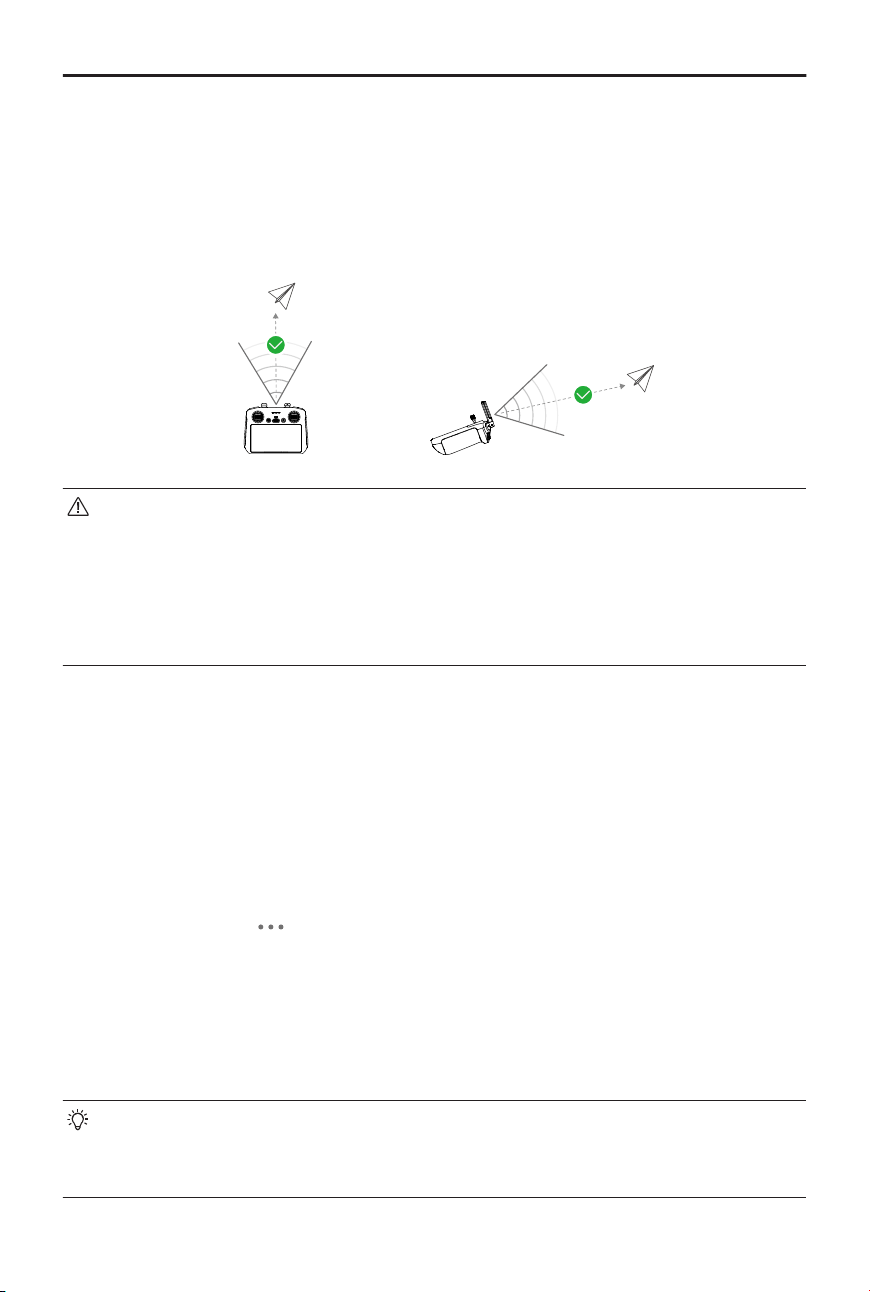
Optimal Transmission Zone
The signal between the aircraft and the remote controller is most reliable when the
antennas are positioned in relation to the aircraft as illustrated below. If the signal is
weak, adjust the remote controller orientation, or y the aircraft closer to the remote
controller.
• DO NOT use other wireless devices operating at the same frequency as the
remote controller. Otherwise, the remote controller will experience interference.
• A prompt will be displayed in DJI Fly if the transmission signal is weak
during ight. Adjust the remote controller orientation according to the attitude
indicator display to make sure that the aircraft is in the optimal transmission
range.
Linking the Remote Controller
The remote controller is already linked to the aircraft when purchased together as a
combo. Otherwise, follow the steps below to link the remote controller and the aircraft
after activation.
1. Power on the aircraft and the remote controller.
2. Launch DJI Fly.
3. In camera view, tap > Control > Connect to Aircraft. During linking, the status LED
of the remote controller blinks blue and the remote controller beeps.
4. Press and hold the power button of the aircraft for more than four seconds. The
aircraft beeps, and its battery level LEDs blink in sequence to indicate it is ready to
link. The remote controller will beep twice, and its status LED will turn solid green to
indicate linking is successful.
• Make sure the remote controller is within 0.5 m of the aircraft during linking.
• The remote controller will automatically unlink from an aircraft if a new remote
controller is linked to the same aircraft.
DJI Mavic 4 Pro User Manual
© 2025 DJI All Rights Reserved. 81
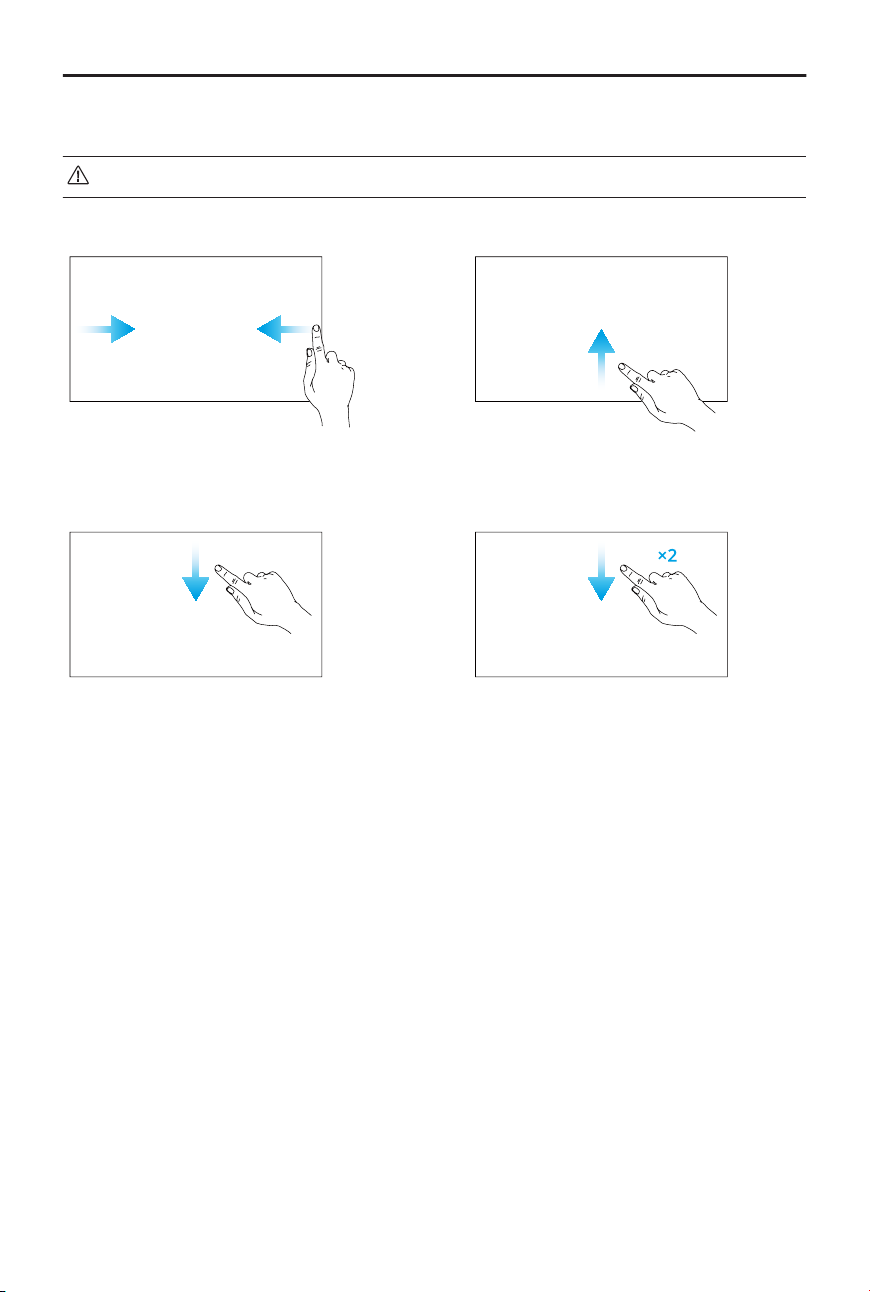
Operating the Touchscreen
• Note that the touchscreen is not waterproof. Operate with caution.
Screen Gestures
Back: Slide from the left or right to the
center of the screen to return to the
previous screen.
Return to DJI Fly: Slide up from the
bottom of the screen to return to DJI
Fly.
Open the status bar: Slide down from
the top of the screen to open the sta-
tus bar when in DJI Fly.
The status bar displays the time, Wi-Fi
signal, battery level of the remote con-
troller, etc.
Open Quick Settings: Slide down twice
from the top of the screen to open
Quick Settings when in DJI Fly.
DJI Mavic 4 Pro User Manual
82 © 2025 DJI All Rights Reserved.

Appendix
© 2025 DJI All Rights Reserved. 83
7 Appendix
7.1 Specications
Visit the following website for specications.
https://www.dji.com/mavic-4-pro/specs
7.2 Compatibility
Visit the following website to get the information on compatible products.
https://www.dji.com/mavic-4-pro/faq
7.3 Firmware Update
Use DJI Fly or DJI Assistant 2 (Consumer Drones Series) to update the aircraft and the
remote controller rmware.
Using DJI Fly
When the aircraft is connected to the remote controller, run DJI Fly, and you will be
notied if a new rmware update is available. Follow the on-screen instructions for
update. Note that you cannot update the rmware if the remote controller is not linked to
the aircraft. An internet connection is required.
Using DJI Assistant 2 (Consumer Drones Series)
Use DJI Assistant 2 (Consumer Drones Series) to update the aircraft and the remote
controller separately.
1. Power on the device. Connect the device to a computer with a USB-C cable.
2. Launch DJI Assistant 2 (Consumer Drones Series) and log in with your DJI account.
3. Select the device and click Firmware Update on the left side of the screen.
4. Select the rmware version.
5. Wait for the rmware to download. The rmware update will start automatically. Wait
for the rmware update to complete.
• The battery rmware is included in the aircraft rmware. Be sure to update all
batteries.
• Make sure to follow all the steps to update the rmware, otherwise the update
may fail.
DJI Mavic 4 Pro User Manual
84 © 2025 DJI All Rights Reserved.
• Make sure the computer is connected to the internet during the update.
• DO NOT unplug the USB-C cable during an update.
• The rmware update will take approximately 10 minutes. During the update
process, it is normal for the gimbal to go limp, the aircraft status indicators to
blink, and the aircraft to reboot. Wait patiently for the update to complete.
Visit the following link and refer to the Release Notes for rmware update information:
https://www.dji.com/mavic-4-pro/downloads
7.4 Flight Recorder
Flight data including ight telemetry, aircraft status information, and other parameters
are automatically saved to the internal data recorder of the aircraft. The data can be
accessed using DJI Assistant 2 (Consumer Drones Series).
7.5 Post-Flight Checklist
• Make sure to perform a visual inspection so that the aircraft, remote controller,
gimbal camera, Intelligent Flight Batteries, and propellers are in good condition.
Contact DJI support if any damage is noticed.
• Make sure that the camera lens and vision system sensors are clean.
• Make sure to store aircraft correctly before transporting it.
7.6 Maintenance Instructions
To avoid serious injury to children and animals, observe the following rules:
1. Small parts, such as cables and straps, are dangerous if swallowed. Keep all parts out
of reach of children and animals.
2. Store the Intelligent Flight Battery and remote controller in a cool, dry place
away from direct sunlight to ensure the built-in LiPo battery does NOT overheat.
Recommended storage temperature: between 22° and 28°C (71° and 82°F) for
storage periods of more than three months. Never store in environments outside the
temperature range of -10° to 45°C (14° to 113°F).
3. DO NOT allow the camera to come into contact with or become immersed in water
or other liquids. If it gets wet, wipe dry with a soft, absorbent cloth. Turning on an
aircraft that has fallen in water may cause permanent component damage. DO NOT
DJI Mavic 4 Pro User Manual
© 2025 DJI All Rights Reserved. 85

use substances containing alcohol, benzene, thinners, or other ammable substances
to clean or maintain the camera. DO NOT store the camera in humid or dusty areas.
4. Check every aircraft part after any crash or serious impact. If there are any problems
or questions, contact a DJI authorized dealer.
5. Regularly check the Battery Level Indicators to see the current battery level and
overall battery life. The battery is rated for 200 cycles. It is not recommended to
continue use afterward.
6. Make sure to transport the aircraft with the arms folded when powered o.
7. Make sure to transport the remote controller with antennas folded when powered o.
8. The battery will enter sleep mode during long-term storage. Charge the battery to exit
from sleep mode.
9. Store the aircraft, remote controller, battery, and charger in a dry environment.
10. Remove the battery before servicing the aircraft (e.g., cleaning or attaching and
detaching the propellers). Make sure that the aircraft and the propellers are clean by
removing any dirt or dust with a soft cloth. Do not clean the aircraft with a wet cloth
or use a cleanser that contains alcohol. Liquids can penetrate the aircraft housing,
which can cause a short circuit and destroy the electronics.
7.7 Troubleshooting Procedures
1. How to solve the gimbal drift issue during ight?
Calibrate IMU and compass in DJI Fly. If the problem persists, contact DJI Support.
2. No function
Check if the Intelligent Flight battery and the remote controller are activated by
charging. If the problems persist, contact DJI Support.
3. Power-on and start-up problems
Check if the battery has power. If yes, contact DJI Support if it cannot be started
normally.
4. Firmware update issues
Follow the instructions in the user manual to update the rmware. If the rmware
update fails, restart all the devices and try again. If the problem persists, contact DJI
Support.
5. Procedures to reset to factory default
Use the DJI Fly app to reset to factory default settings.
6. Shutdown and power-o problems
DJI Mavic 4 Pro User Manual
86 © 2025 DJI All Rights Reserved.
Contact DJI Support.
7. How to detect careless handling or storage in unsafe conditions
Contact DJI Support.
7.8 Risks and Warnings
When the aircraft detects a risk after powering on, there will be a warning prompt on DJI
Fly. Pay attention to the list of situations below.
• If the location is not suitable for takeo.
• If an obstacle is detected during ight.
• If the location is not suitable for landing.
• If the compass and IMU experience interference and need to be calibrated.
• Follow the on-screen instructions when prompted.
7.9 Disposal
Observe the local regulations related to electronic devices when disposing of the aircraft
and remote controller.
Battery Disposal
Dispose of the batteries in specic recycling containers only after a complete discharge.
DO NOT dispose of the batteries in regular trash containers. Strictly follow the local
regulations regarding the disposal and recycling of batteries.
Dispose of a battery immediately if it cannot be powered on after over-discharging.
If the power button is disabled and the battery cannot be fully discharged, contact a
professional battery disposal/recycling agency for further assistance.
7.10 C2 Certication
DJI Mavic 4 Pro is compliant with C2 certication requirements. There are some
requirements and restrictions when using DJI Mavic 4 Pro in EU member states, EFTA
member states (EFTA,i.e. Norway, lceland, Liechtenstein, Switzerland) and Georgia.
Model L3A, L3B
DJI Mavic 4 Pro User Manual
© 2025 DJI All Rights Reserved. 87
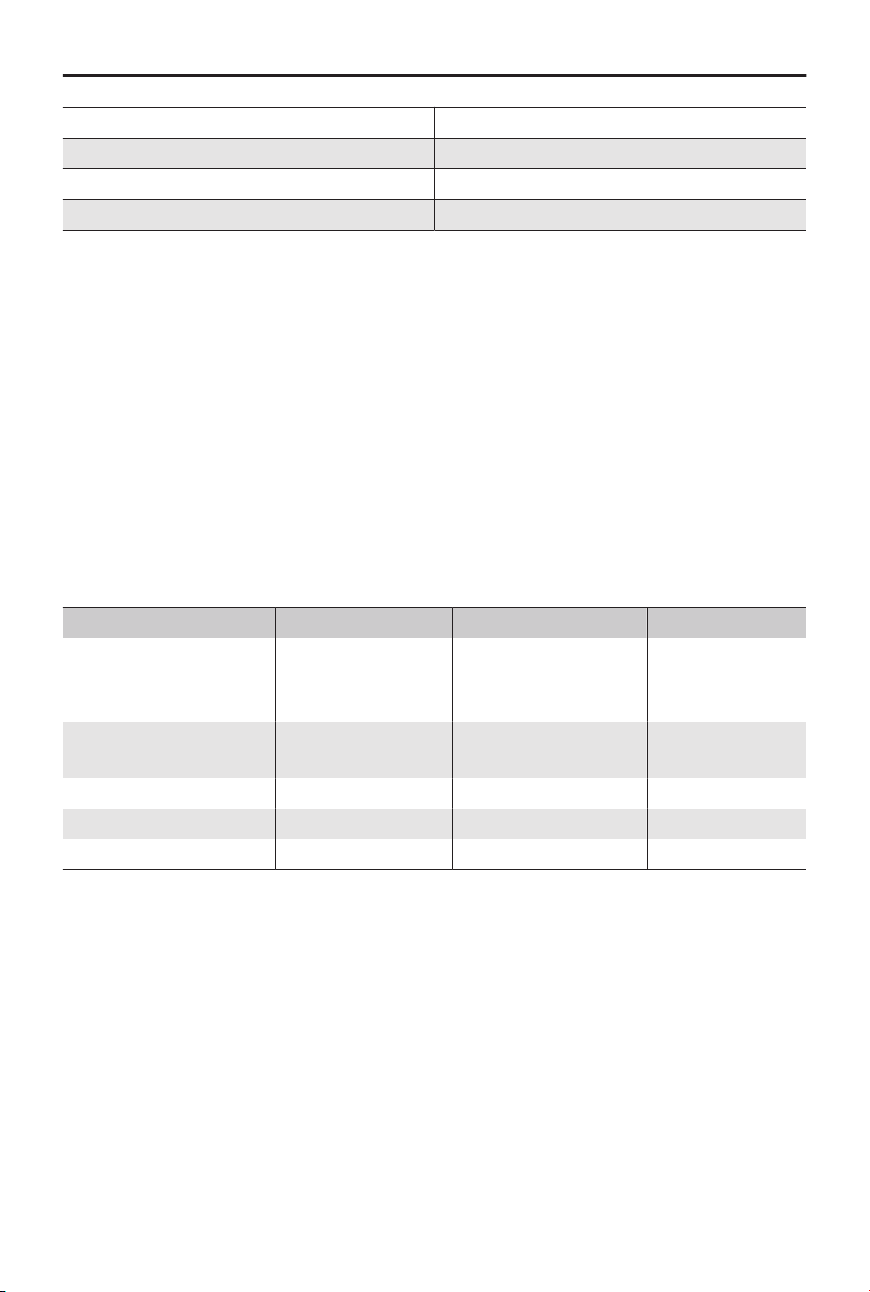
UAS Class C2
Maximum Take-O Mass (MTOM) 1085 g
Sound Power Level 83 dB
Maximum Propeller Speed 8400 RPM
MTOM Statement
The MTOM of DJI Mavic 4 Pro (Model L3A, L3B) is 1085 g to comply with C2 requirements.
You must follow the instructions below to comply with the MTOM requirements for each
model:
• DO NOT add any payload to the aircraft except the items listed in the List of Items
including qualied accessories section.
• DO NOT use any non-qualied replacement parts, such as intelligent ight batteries
or propellers, etc.
• DO NOT retrot the aircraft.
List of Items, including qualied accessories
Item Model Number Dimensions Weight
Propellers 1158F 267×147 mm
(diameter×thread
pitch)
11.8 g (each
piece)
Intelligent Flight Battery BWX341-6654-14.3
2
62×44×128 mm Approx. 331 g
microSD Card* N/A 15×11×1.0 mm Approx. 0.3 g
DJI Cellular Dongle 2* IG831T 43.5×23.0×7.0 mm Approx. 11.5 g
nanoSIM card* N/A 8.8×12.3×0.7 mm Approx. 0.5 g
* Not included in the original packaging. For how to install and use DJI Cellular Dongle 2, refer to its
corresponding document.
List of Spare and Replacement Parts
• DJI Mavic 4 Pro Propellers
• DJI Mavic 4 Pro Intelligent Flight Battery
Direct Remote ID
• Transport Method: Wi-Fi Beacon.
DJI Mavic 4 Pro User Manual
88 © 2025 DJI All Rights Reserved.
• Method of uploading the UAS Operator Registration Number to the aircraft: Enter DJI
Fly, tap > Safety > UAS Remote Identication, and then upload UAS operator
registration number.
Remote Controller Warnings
The remote controller indicator will glow red after disconnecting with the aircraft. DJI Fly
will issue a warning prompt after disconnecting from the aircraft. The remote controller
will beep and power o automatically after disconnecting from aircraft and with no
operation for a long time.
• Avoid interference between the remote controller and other wireless
equipment. Make sure to turn o the Wi-Fi on nearby mobile devices. Land the
aircraft as soon as possible if there is interference.
• Release the control sticks or press the ight pause button if an unexpected
operation occurs.
GEO Awareness
GEO Awareness contains the features listed below.
UGZ (Unmanned Geographical Zone) Data update: You can update the FlySafe data by
using the data update feature automatically or storing the data in the aircraft manually.
• Method 1: Go to Settings in DJI Fly and tap About > FlySafe Data > Check for Updates
to update the FlySafe data automatically.
• Method 2: Check the website of your national aviation authority regularly and obtain
latest UGZ data to import to your aircraft. Go to Settings in DJI Fly, tap About > FlySafe
Data > Import from Files, and then follow the on-screen instructions to store and
import the UGZ data manually.
A prompt will appear in the DJI Fly app when the import completes successfully.
If the import fails due to improper data format, follow the on-screen prompt
and retry.
GEO Awareness Map Drawing: After the latest UGZ data is updated, a ight map with a
restricted zone will be displayed in the DJI Fly app. Name, eective time, height limit, etc.,
can be viewed by tapping the area.
AGL (Above Ground Level) Statement
DJI Mavic 4 Pro User Manual
© 2025 DJI All Rights Reserved. 89
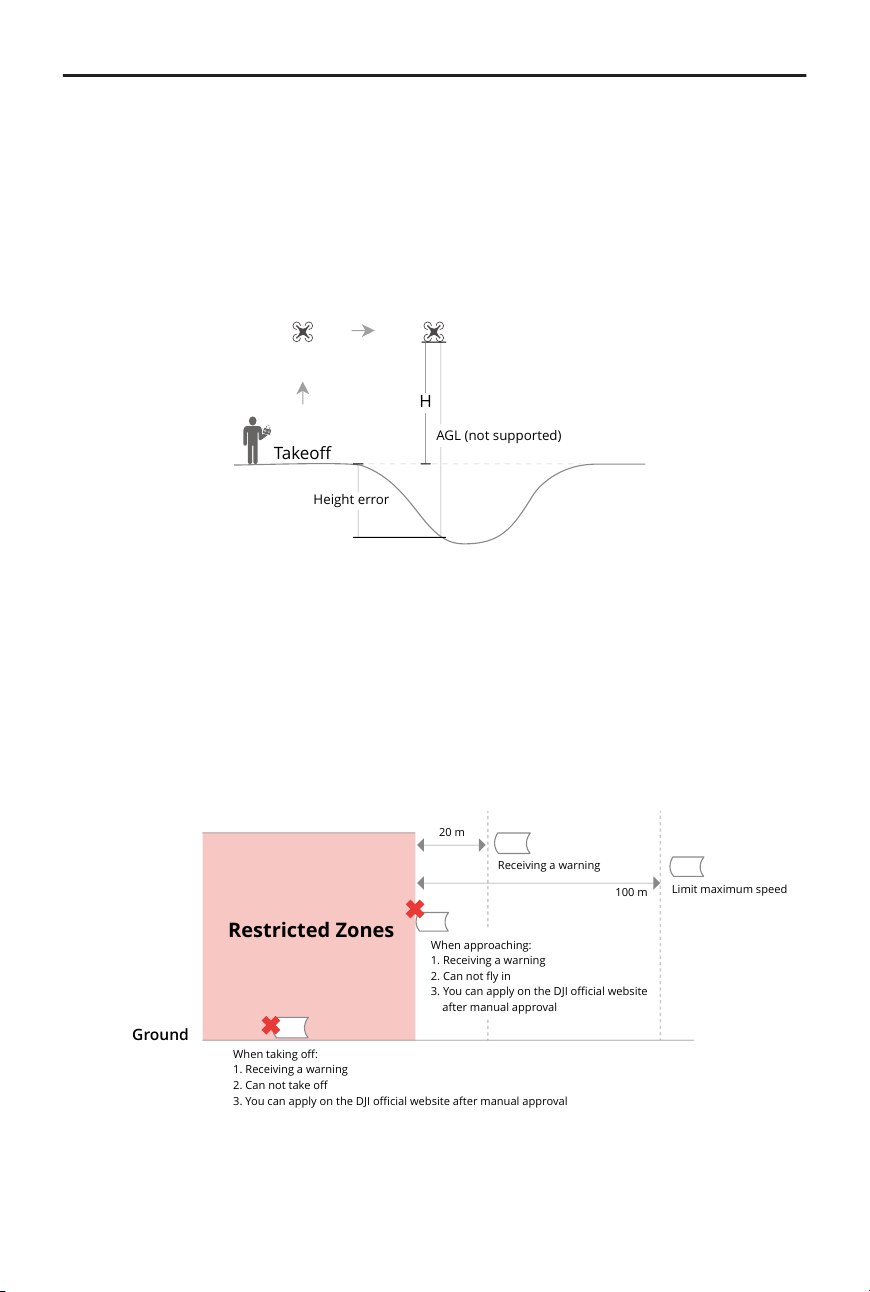
The vertical part of Geo-Awareness may use the AMSL altitude or the AGL height. The
choice between these two references is specied individually for each UGZ. Neither AMSL
altitude nor the AGL height is supported by DJI Mavic 4 Pro. The height H appears in the
DJI Fly app camera view, which is the height from the aircraft takeo point to the aircraft.
The height above the takeo point may be used as an approximation but may dier
more or less from the given altitude/height for a specic UGZ. The remote pilot remains
responsible for not breaching the vertical limits of the UGZ.
Takeo
AGL (not supported)
H
Height error
GEO Zones
Restricted Zones
Appear red in the DJI app. You will be prompted with a warning, and ight is prevented.
UA cannot y or take o in these zones. Restricted Zones may be unlocked, to unlock
contact [email protected] or go to Unlock A Zone at dji.com/ysafe.
When taking o:
1. Receiving a warning
2. Can not take o
3. You can apply on the DJI ocial website after manual approval
Ground
Restricted Zones
20 m
Receiving a warning
100 m
Limit maximum speed
When approaching:
1. Receiving a warning
2. Can not y in
3. You can apply on the DJI ocial website
after manual approval
Authorization Zones
DJI Mavic 4 Pro User Manual
90 © 2025 DJI All Rights Reserved.
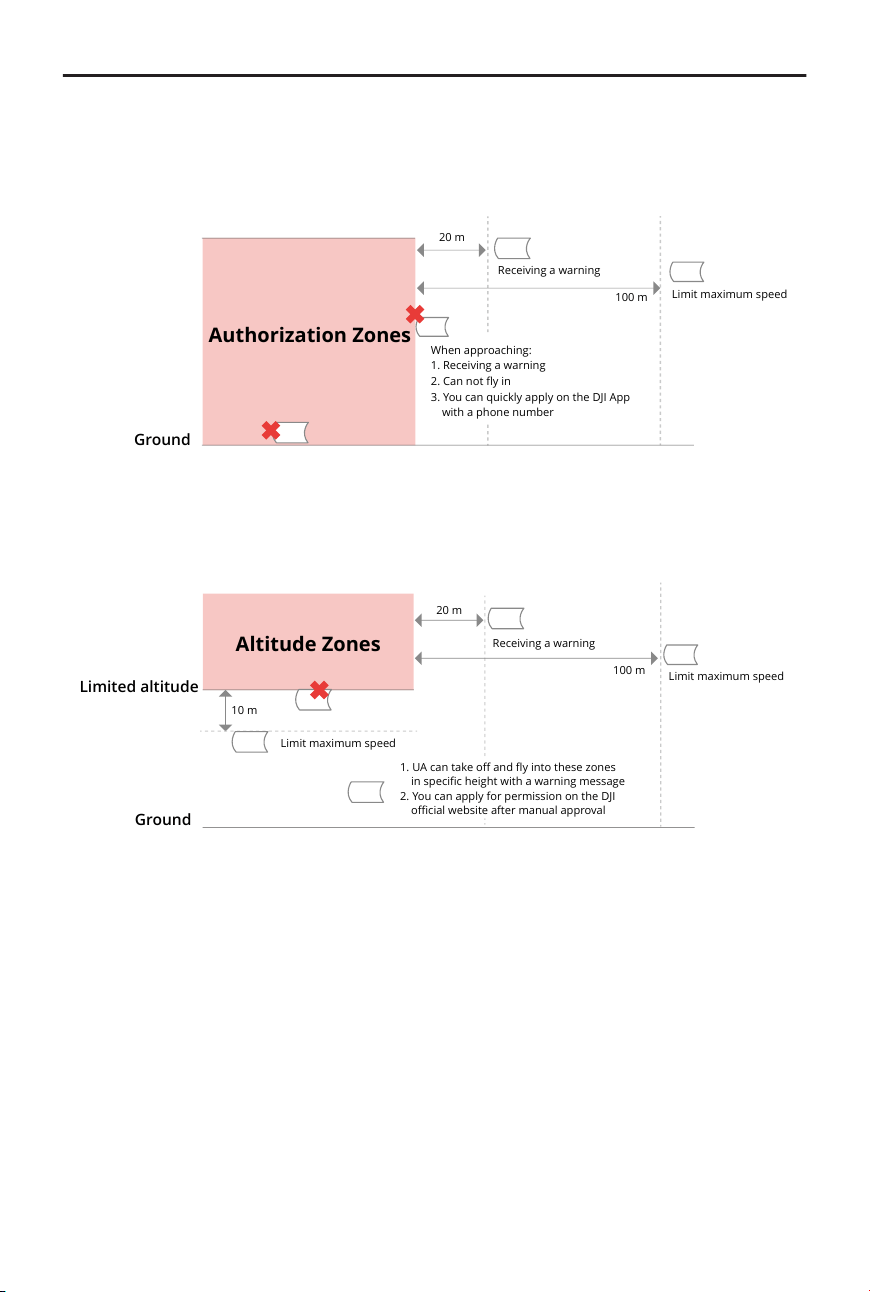
Appear blue in the DJI app. You will be prompted with a warning, and ight is limited by
default. UA cannot y or take o in these zones unless authorized. Authorization Zones
may be unlocked by authorized users using a DJI veried account.
Ground
Authorization Zones
20 m
Receiving a warning
100 m
Limit maximum speed
When approaching:
1. Receiving a warning
2. Can not y in
3. You can quickly apply on the DJI App
with a phone number
Altitude Zones
Altitude zones are zones with a limited altitude and appear in gray on the map. When
approaching, you will receive a warning in the DJI app.
Ground
Limited altitude
20 m
Receiving a warning
100 m
Limit maximum speed
Limit maximum speed
10 m
1. UA can take o and y into these zones
in specic height with a warning message
2. You can apply for permission on the DJI
ocial website after manual approval
Altitude Zones
Enhanced Warning Zones
A warning message will appear when the drone reaches the edge of the zone.
DJI Mavic 4 Pro User Manual
© 2025 DJI All Rights Reserved. 91
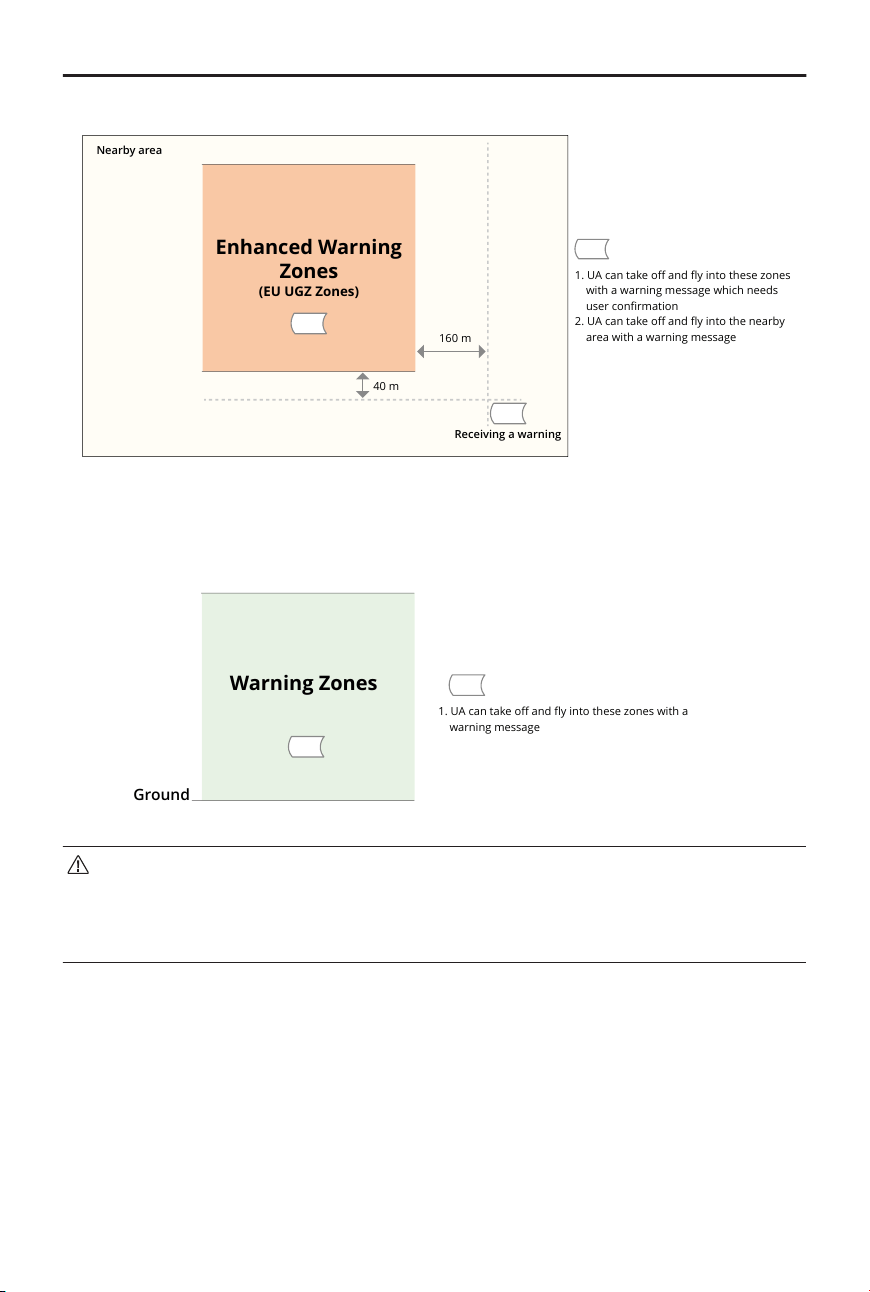
Enhanced Warning
Zones
160 m
40 m
1. UA can take o and y into these zones
with a warning message which needs
user conrmation
2. UA can take o and y into the nearby
area with a warning message
Nearby area
(EU UGZ Zones)
Receiving a warning
Warning Zones
A warning message will prompt you when the drone reaches the edge of the zone.
Ground
Warning Zones
1. UA can take o and y into these zones with a
warning message
• When the aircraft and DJI Fly app cannot obtain a GPS signal, the GEO
awareness function will be inoperative. Interference of the aircraft antenna or
disabling the GPS authorization in DJI Fly will cause the GPS signal fails to be
obtained.
EASA Notice
Make sure to read the Drone Information Notices document included in the package
before use.
Visit the link below for more EASA notice information on traceability.
https://www.easa.europa.eu/en/document-library/general-publications/drones-
information-notices
DJI Mavic 4 Pro User Manual
92 © 2025 DJI All Rights Reserved.

Original Instructions
This manual is provided by SZ DJI Technology, Inc., and the content is subject to change.
Address: Lobby of T2, DJI Sky City, No. 53 Xianyuan Road, Xili Community, Xili Street,
Nanshan District, Shenzhen, China, 518055.
7.11 FAR Remote ID Compliance Information
The unmanned aircraft system is equipped with a Remote ID system that meets the
requirements of 14 CFR Part 89.
• The aircraft automatically broadcasts Remote ID messages from takeo to shutdown.
An external device such as a cell phone or tablet is required to be connected as a
location source to DJI mobile devices without an integrated GNSS system,
[1]
and must
run the DJI ight control app such as DJI Fly in the foreground and always allow the DJI
ight control app to obtain its accurate location information. The connected external
device must minimally be one of the following:
◆
FCC Certied personal wireless device that uses GPS with SBAS (WAAS) for location
services; or
◆
FCC Certied personal wireless device with integrated GNSS.
Also, the external device must be operated in a way that does not interfere with the
location reported and its correlation to the operator location.
• The aircraft automatically initiates a pre-ight self-test (PFST) of the Remote ID system
before takeo and cannot take o if it does not pass the PFST.
[2]
The results of the
PFST of the Remote ID system can be viewed in either a DJI ight control app such as
DJI Fly or DJI goggles.
• The aircraft monitors the Remote ID system functionality from pre-ight to shut down.
If the Remote ID system malfunctions or has a failure, an alarm will be displayed in
either a DJI ight control app such as DJI Fly or DJI goggles.
• The aircraft using the Intelligent Flight Battery does not activate Remote ID system.
• You can visit the ocial website of FAA to learn more about aircraft registration and
Remote ID requirements.
Footnotes
[1] DJI mobile devices without an integrated GNSS system such as DJI RC-N3, and DJI Goggles 2.
[2] The pass criterion for PFST is that the hardware and software of the Remote ID required-data
source and radio transmitter in the Remote ID system are functioning properly.
DJI Mavic 4 Pro User Manual
© 2025 DJI All Rights Reserved. 93

Contact
DJI SUPPORT
This content is subject to change without notice.
Download the latest version from
https://www.dji.com/mavic-4-pro/downloads
If you have any questions about this document, please contact DJI by sending a message
DJI and MAVIC are trademarks of DJI.
Copyright © 2025 DJI All Rights Reserved.