User guide
© Samsung
Samsung owns the copyright for this manual. Use or reproduction of this manual in parts or entirety without the authorization of Samsung is prohibited. Trademarks other than Samsung are property of their respective owners.
EM32DX
The colour and the appearance may differ depending on the product, and the content in the
manual is subject to change without prior notice to improve the performance.
An administration fee may be charged in the following situations:
(a) An engineer is called out at your request, but it is found that the product has no defect (i.e.,
where the user manual has not been read).
(b) You bring the unit to a repair centre, but it is found that the product has no defect (i.e.,
where the user manual has not been read).
You will be informed of the administration fee amount before a technician visits.
BN81-27642C-00_WUG_EM32DX_NA ZB_ENG.indb 1BN81-27642C-00_WUG_EM32DX_NA ZB_ENG.indb 1 2025-05-16 2:39:402025-05-16 2:39:40
Table of contents
Before Using the Product
Safety Precautions 3
Safety symbols 3
Electricity and Safety 4
Installation 5
Operation 6
Precautions when handling the panel 8
Cleaning 8
Storage and Maintenance 9
Preparations
Checking the Components 10
Parts 11
Status indicator description 13
Anti-theft Lock 14
Before Installing the Product (Installation
Guide) 15
Using the packaging materials to create a
temporary stand 15
Tilting Angle and Rotation 15
Installing the Wall Mount 16
Preparing before installing Wall-Mount 16
Installing the Wall Mount 16
Wall Mount Kit Specifications (VESA) 17
Mounting the product using a wire 18
2
Network
Network Settings (Wireless) 20
Connecting to a Wireless Network 20
Troubleshooting Guide
Requirements Before Contacting Samsung
Customer Service Centre 21
Check the followings. 21
Specifications
General 24
Appendix
Responsibility for the Pay Service (Cost to
Customers) 26
Not a product defect 26
A Product damage caused by customer's
fault 26
Others 26
Connecting the battery 27
OOBE 27
Installing the mobile app 27
Playing picture files by connecting a USB 28
E-Paper product guidelines 28
Open Source License Notice 28
BN81-27642C-00_WUG_EM32DX_NA ZB_ENG.indb 2BN81-27642C-00_WUG_EM32DX_NA ZB_ENG.indb 2 2025-05-16 2:39:402025-05-16 2:39:40
3
Before Using the Product
Chapter 01
The following safety instructions are to ensure your personal safety and prevent property
damage. Please read the following to ensure the proper use of the product.
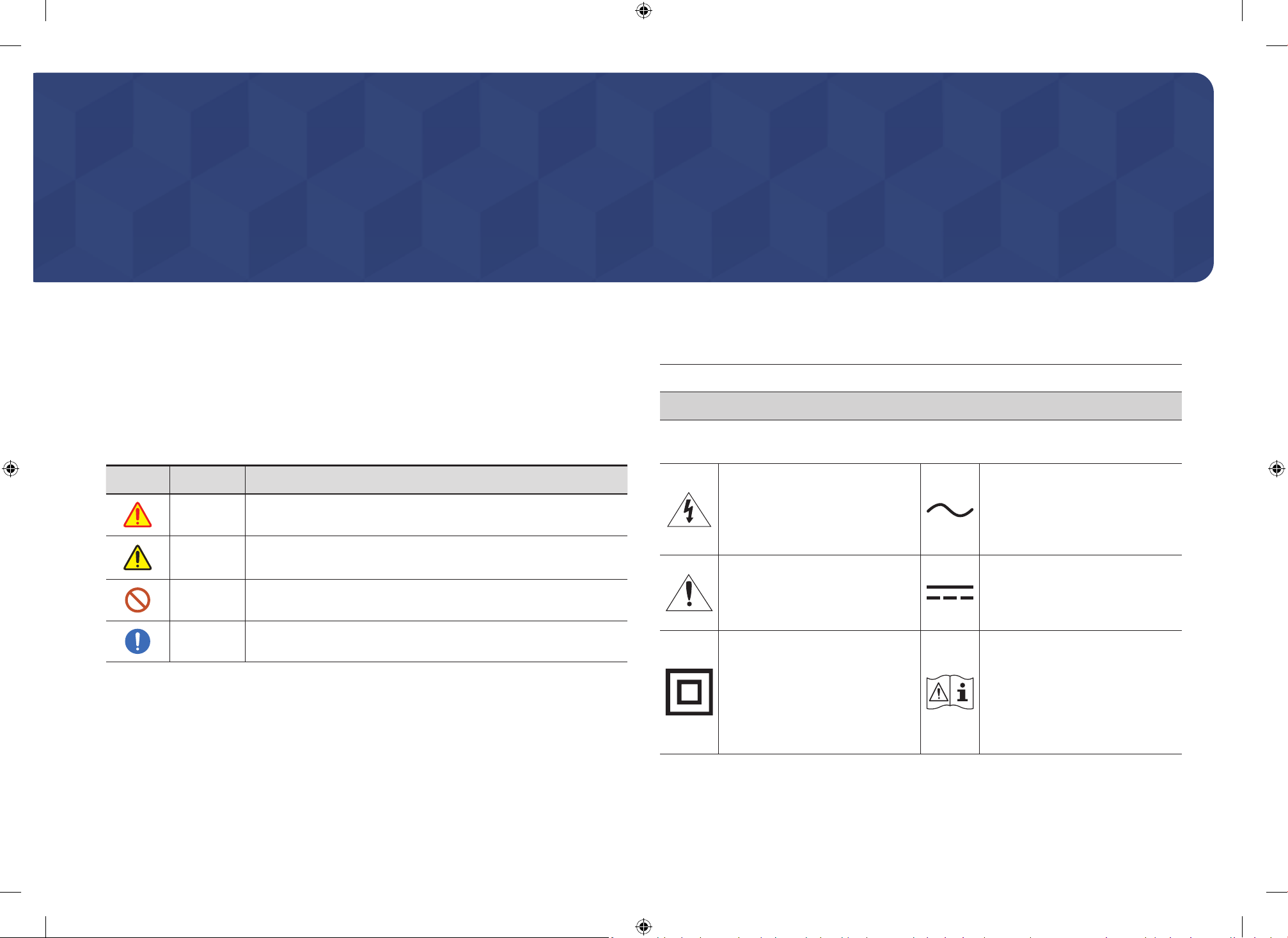
Safety symbols
Symbol Name Meaning
Warning
A serious or fatal injury may result if instructions are not followed.
Caution
Personal injury or damage to properties may result if instructions
are not followed.
Prohibition
Do NOT attempt.
Instruction
Follow directions.
CAUTION
RISK OF ELECTRIC SHOCK. DO NOT OPEN.
CAUTION: TO REDUCE THE RISK OF ELECTRIC SHOCK, DO NOT REMOVE COVER (OR BACK). THERE
ARE NO USER SERVICEABLE PARTS INSIDE. REFER ALL SERVICING TO QUALIFIED PERSONNEL.
This symbol indicates that high
voltage is present inside. It is
dangerous to make any kind of
contact with any internal part of this
product.
AC voltage: Rated voltage marked
with this symbol is AC voltage.
This symbol indicates that this
product has included important
literature concerning operation and
maintenance.
DC voltage: Rated voltage marked
with this symbol is DC voltage.
Class II product: This symbol indicates
that a safety connection to electrical
earth (ground) is not required. If this
symbol is not present on a product
with a mains lead, the product
MUST have a reliable connection to
protective earth (ground).
Caution. Consult instructions for use:
This symbol instructs the user to
consult the user manual for further
safety related information.
Safety Precautions
BN81-27642C-00_WUG_EM32DX_NA ZB_ENG.indb 3BN81-27642C-00_WUG_EM32DX_NA ZB_ENG.indb 3 2025-05-16 2:39:412025-05-16 2:39:41
4
Electricity and Safety
"
The following images are for reference only. Real-life situations may differ from what is
shown in the images.
Warning
Do not touch the power plug with wet hands.
Otherwise, an electric shock may result.
Do not bend or pull the power cord with force. Be careful not to leave the power cord
under a heavy object.
Product failure, an electric shock or fire may result from a damaged cable.
Do not connect multiple products to a single power socket.
Overheated power sockets may cause a fire.
Insert the power plug all the way in so it is not loose.
An unsecure connection may cause a fire.
Clean any dust around the pins of the power plug or the power socket with a dry cloth.
A fire may result.
Connect the power plug to a grounded power socket. (Except for devices that do not
provide grounding)
An electric shock or injury may result.
Do not use a damaged power plug or a loose power socket.
An electric shock or fire may result.
Caution
Hold the plug when disconnecting the power cord from the power socket.
An electric shock or fire may result.
When connecting the power plug to the port, be sure to connect it completely.
If the power plug is not completely connected to the port, the plug may be
unexpectedly disconnected, or there is a risk of overheating due to overcurrent,
leading to safety accidents.
Only use the power cord provided with your product by Samsung. Do not use the
power cord with other products.
An electric shock or fire may result.
Keep the power socket where the power cord is connected unobstructed.
When a problem occurs with the product, the power cord must be unplugged to
completely cut off power to the product. Note that the product is not completely
powered down by using only the power button on the remote.
Do not disconnect the power cord while the product is being used.
The product may become damaged by an electric shock.
BN81-27642C-00_WUG_EM32DX_NA ZB_ENG.indb 4BN81-27642C-00_WUG_EM32DX_NA ZB_ENG.indb 4 2025-05-16 2:39:412025-05-16 2:39:41
5
Installation
Warning
Always use both hands to handle the product to avoid the risk of dropping or applying
excessive pressure, which may cause damage.
Before moving the product, turn off the power switch and disconnect the power cord
and all other connected cables.
Damage to the cable may cause a fire or electric shock.
When installing the product, keep it at a distance from the wall so that it is well
ventilated.
An increased internal temperature may cause a fire.
Do not install the product in a poorly ventilated space such as bookcase or closet.
An increased internal temperature may cause a fire.
Keep the plastic packaging out of the reach of children.
Children's misuse of the plastic packaging may cause suffocation.
Do not install the power cord (DC power supply) and the product near heat sources.
(Candles, mosquito repellents, cigarettes, sprays, heating devices, places exposed to
direct sunlight, and more)
When installing the product, fix it firmly so that it does not fall.
If the product is not fixed firmly and a child touches the product while playing, the
product may fall, causing damage to the product or injury to the child.
Do not install the product in a kitchen or near a kitchen counter.
Edible oil or oil vapor can damage or deform the product.
Have a technician install the wall-mount hanger.
Installation by an unqualified person can result in an injury. Only use approved
cabinets.
If the product is installed in an unusual location, the surrounding environment may
cause a serious quality problem. Therefore, be sure to contact Samsung Customer
Service Centre before installation.
(Places where many fine dusts are generated, places where chemicals are used,
places with too high or low temperatures, places with a lot of moisture or water,
transportation equipment such as vehicles, airports and stations used continuously
for a long time, and more)
Caution
Do not drop the product while moving.
The product may fall, causing personal injury or product damage.
Do not lay down the product on its front.
The screen may become damaged.
Prolonged exposure to direct sunlight may discolour the surface of the screen display.
BN81-27642C-00_WUG_EM32DX_NA ZB_ENG.indb 5BN81-27642C-00_WUG_EM32DX_NA ZB_ENG.indb 5 2025-05-16 2:39:412025-05-16 2:39:41
6
Operation
Warning
If the product generates a strange noise, a burning smell, or smoke, unplug the power
plug immediately and contact your Samsung Customer Service Centre.
An electric shock or fire may result.
Keep the remote control batteries and the small accessories out of the reach of
children. Ensure children do not swallow any of them.
If children have had the battery in their mouths, consult your doctor immediately.
If the product is dropped or its appearance is damaged, turn off the power switch and
disconnect the power cord. Then contact Samsung Customer Service Centre.
Continued use can result in an electric shock or a fire.
Do not move the product by pulling the power cord or any cable.
Product failure, an electric shock or fire may result from a damaged cable.
Ensure the vents are not blocked by tablecloths or curtains.
An increased internal temperature may cause a fire.
Do not apply an impact to the product.
• The screen display may be damaged.
• An electric shock or fire may result.
Do not insert metallic objects (chopsticks, coins, hairpins, etc) or objects that burn
easily (paper, matches, etc) into the product (through the vent or input/output ports,
etc).
• If foreign substances enter the product, be sure to power off the product and
disconnect the power cord. Then contact Samsung Customer Service Centre.
• Product failure, an electric shock or fire may result.
Do not place objects containing liquid (vases, pots, bottles, etc) or metallic objects on
top of the product.
• If foreign substances such as water enter the product, be sure to disconnect the
power cord. Then contact Samsung Customer Service Centre.
• Product failure, an electric shock or fire may result.
During a lightning or thunderstorm, power off the product and disconnect the power
cord.
An electric shock or fire may result.
Do not leave heavy objects or items that children like (toys, sweets, etc.) on top of the
product.
The product or heavy objects may fall as children try to reach for the toys or sweets
resulting in a serious injury.
Do not hang on or climb on the product.
• The product may fall, causing personal injury or even death.
• Be especially careful that children do not hang on or climb on the product.
While the power plug is plugged into a power socket, do not insert a chopstick or other
conductor into a remaining power socket. Also, after disconnecting the power plug
from the power socket, do not touch the pins of the plug immediately.
Otherwise, an electric shock may result.
There is a high voltage inside the product. Never disassemble, repair or modify the
product yourself.
• Contact Samsung Customer Service Centre for repairs.
• An electric shock or fire may result.
If a gas leakage is found, do not touch the product or the power plug, and ventilate the
room immediately.
Sparks can cause an explosion or fire.
Do not use humidifiers or stoves around the product.
An electric shock or fire may result.
BN81-27642C-00_WUG_EM32DX_NA ZB_ENG.indb 6BN81-27642C-00_WUG_EM32DX_NA ZB_ENG.indb 6 2025-05-16 2:39:412025-05-16 2:39:41
7
Caution
Insert each battery so that its polarity (+, –) is correct.
If the polarity is not correct, the battery may rupture or the internal fluid may leak,
causing contamination and damage to the surroundings, fire, or personal injury.
Do not place heavy objects on the product.
Product failure or personal injury may result.
When you do not use the product for a long time due to vacation or other reason,
disconnect the power cord from the power socket.
Dust accumulation combined with heat can cause a fire, electric shock or electric
leakage.
Use the product at the recommended resolution and frequency.
Your eyesight may deteriorate.
The batteries (and rechargeable batteries) are not ordinary refuse and must be
returned for recycling purposes. The customer is responsible for returning the used or
rechargeable batteries for recycling.
The customer can return used or rechargeable batteries to a nearby public recycling
centre or to a store selling the same type of the battery or rechargeable battery.
Rest your eyes for more than 5 minutes for every 1 hour of product use.
Eye fatigue will be relieved.
Leaving the screen fixed on a stationary image for an extended period of time may
cause afterimage burn-in or defective pixels.
When you do not use the product for a long time, activate power-saving mode or set
the screen saver to moving-picture mode.
Do not use or keep combustible spray or an inflammable substance near the product.
An explosion or fire may result.
Use only the specified standardised batteries, and do not use a new battery and a
used battery at the same time.
Otherwise, the batteries may be damaged or cause fire, personal injury or damage due
to a leakage of the internal liquid.
Do not watch the product screen too closely and continuously for a long time.
Your eyesight may deteriorate.
Do not lift or move the product when it is in operation.
Do not touch the screen when the product has been turned on for an extended period
of time as it will become hot.
When using headphones or earphones, do not turn the volume too high or use them
for a long time.
Damage to your hearing may result.
BN81-27642C-00_WUG_EM32DX_NA ZB_ENG.indb 7BN81-27642C-00_WUG_EM32DX_NA ZB_ENG.indb 7 2025-05-16 2:39:412025-05-16 2:39:41
8
Precautions when handling the panel
"
The colour and the appearance may differ depending on the model.
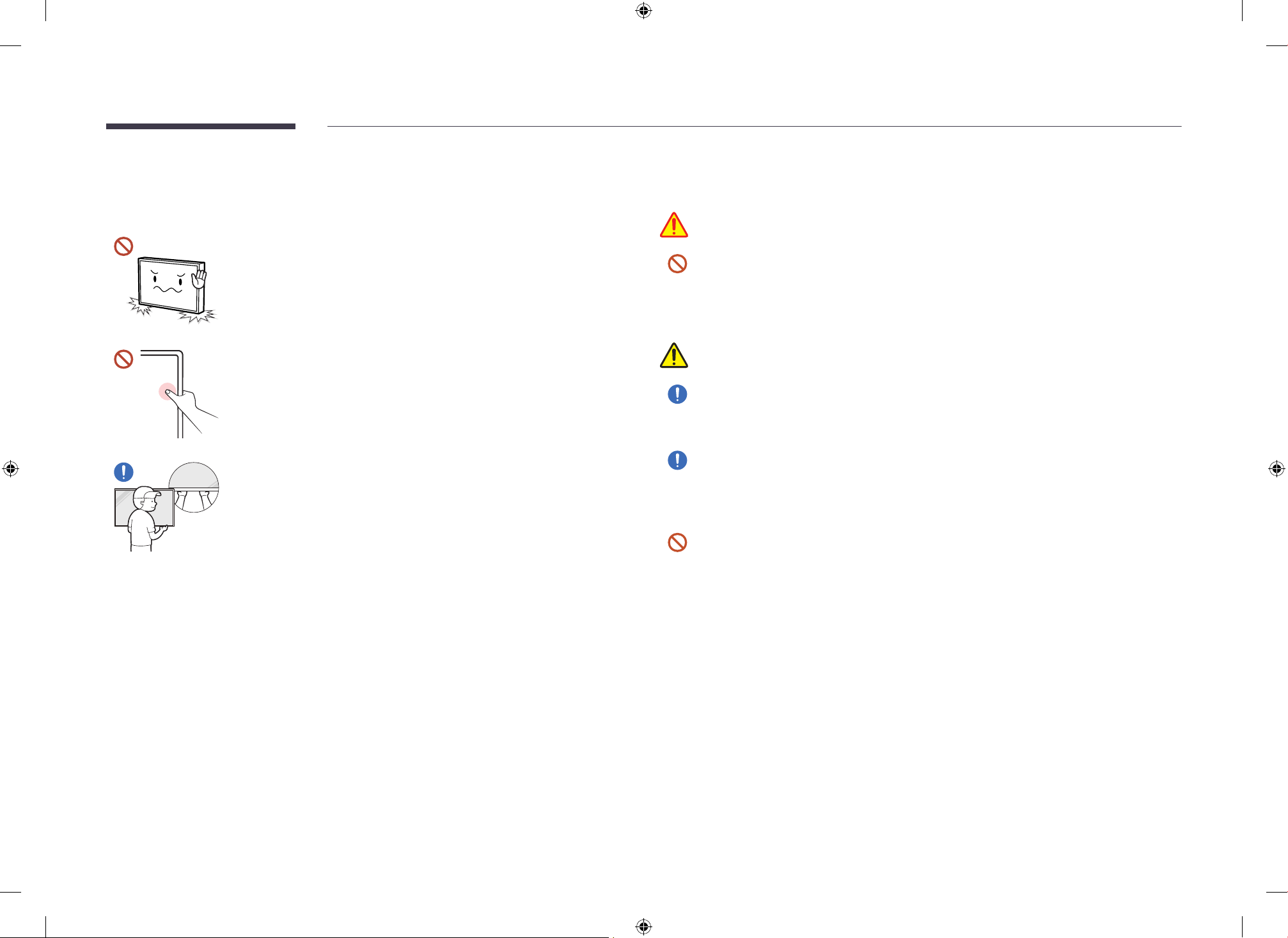
Do not stand the product as shown in the image. The panel is fragile
and can get damaged.
Do not hold the product by the display screen.
Always use both hands to handle the product.
Cleaning
Warning
Do not spray water or cleaner directly on the product.
• The product’s surface may be damaged, or the markings may be erased.
• An electric shock or fire may result.
Caution
When cleaning, be sure to disconnect the power plug and wipe gently with a soft and
dry cloth such as superfine fibers or cotton flannels to prevent scratches.
The product's surface may be damaged, or the markings may be erased.
Be sure to use a soft and dry cloth such as superfine fibers or cotton flannels because
the surface of the product and the screen display are vulnerable to scratches.
The product's surface or the screen display can be easily scratched with foreign
substances.
Do not apply chemicals containing alcohol, solvent, or surfactant such as wax,
benzene, thinner, pesticide, air freshener, lubricant, or cleaner to the product.
The product's exterior may be discoloured or cracked, the surface of the panel may be
peeled off, or the markings may be erased.
BN81-27642C-00_WUG_EM32DX_NA ZB_ENG.indb 8BN81-27642C-00_WUG_EM32DX_NA ZB_ENG.indb 8 2025-05-16 2:39:412025-05-16 2:39:41
9
Storage and Maintenance
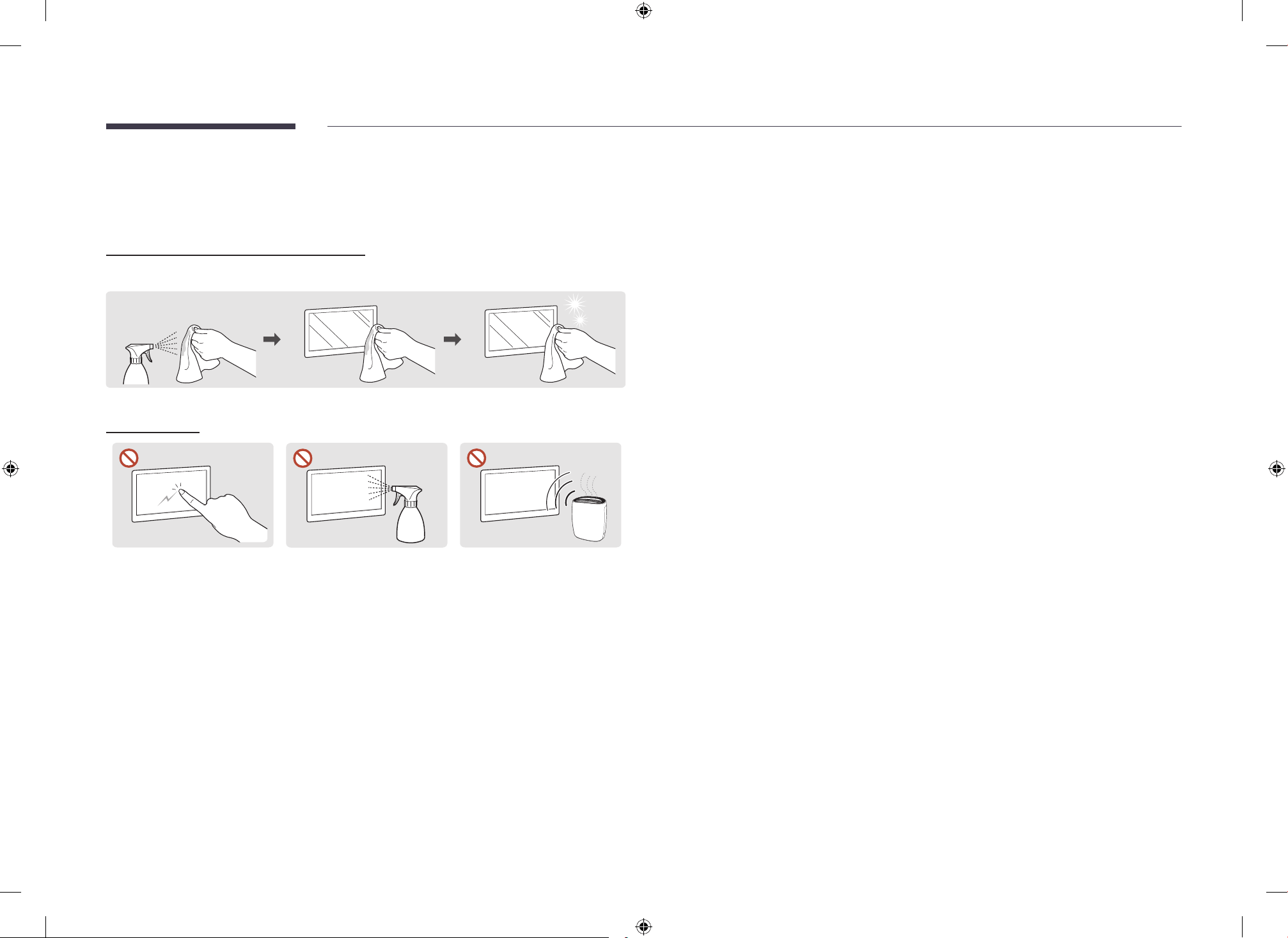
Cleaning the exterior and display
Wipe the surface with a slightly wet, soft cloth, and then wipe with a dry cloth.
1 2 3
Precautions
Do not scratch the screen
with nails or sharp objects.
Scratches may leave marks or
damage the product.
Do not spray water directly
on any part of the product.
Product failure, an electric
shock or fire may result from
water that enters the product.
Due to the characteristics of
high-glossy products, using
a UV humidifier nearby may
create white-coloured stains
on the product.
• Removing a sticker attached on the screen may leave residues. Clean the residues before
watching the screen.
• Do not strongly press and rub the product. Damage to the product may result.
• Do not wipe the screen with chemicals. Product failure may result.
• Contact Samsung Customer Service Centre if the inside of the product needs cleaning
(service fee will be charged).
• We recommend wearing clean gloves when touching the front panel instead of bare hands.
BN81-27642C-00_WUG_EM32DX_NA ZB_ENG.indb 9BN81-27642C-00_WUG_EM32DX_NA ZB_ENG.indb 9 2025-05-16 2:39:422025-05-16 2:39:42
10
Preparations
Chapter 02
"
Contact the vendor where you
purchased the product if any
components are missing.
"
The appearance of the components
may differ from the images shown.
"
A stand is not provided with the
product. To install a stand, you can
purchase one separately.
"
The battery warranty period is one
year and may differ from the product
warranty period.
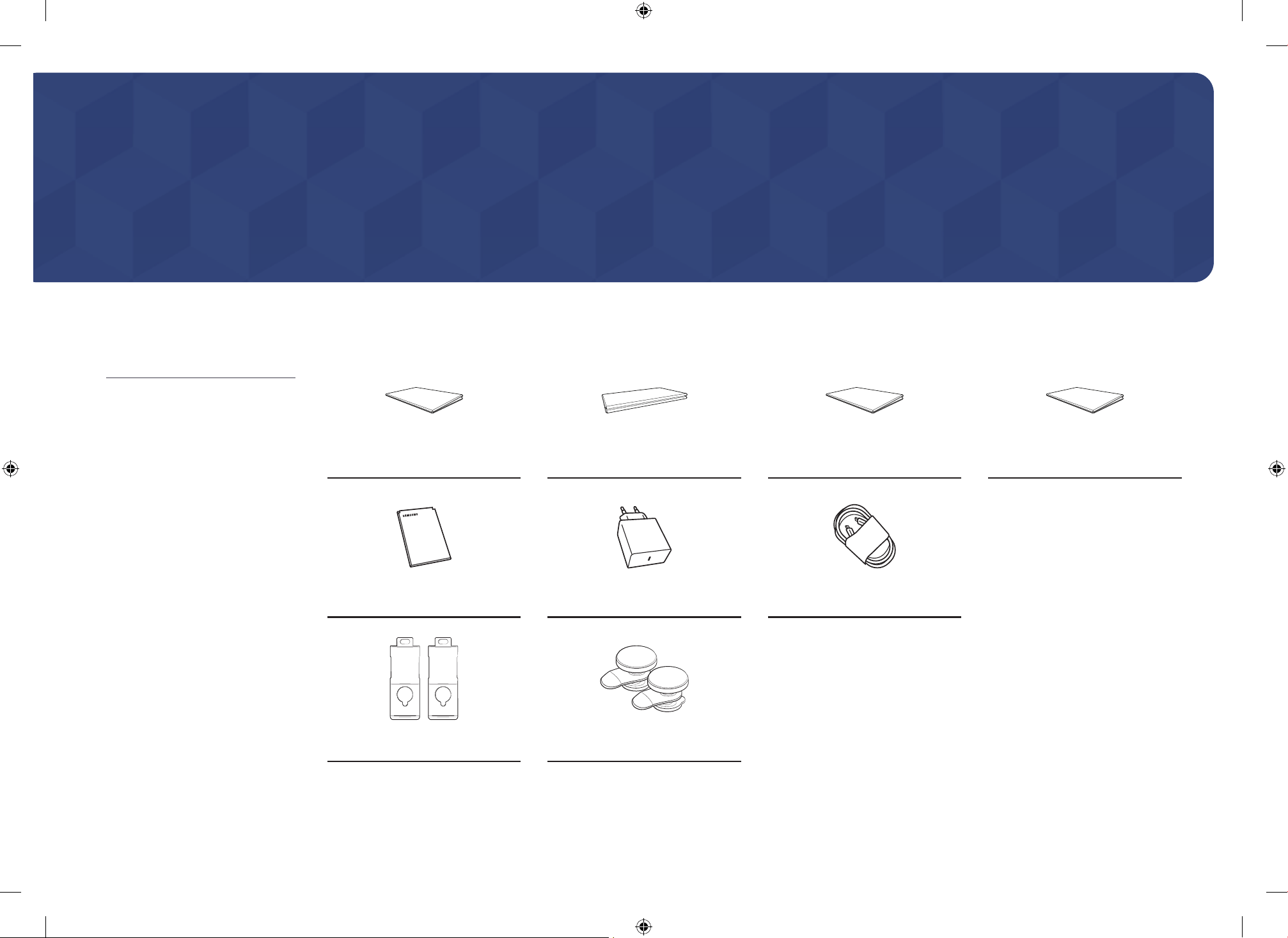
Checking the Components
Simple User Guide
Warranty card
(Not available in some locations)
Regulatory guide
Waste Electrical & Electronic
Equipment
Battery USB Charger USB-C cable
Wire bracket (2) Wire holder (2)
BN81-27642C-00_WUG_EM32DX_NA ZB_ENG.indb 10BN81-27642C-00_WUG_EM32DX_NA ZB_ENG.indb 10 2025-05-16 2:39:422025-05-16 2:39:42
11
Parts
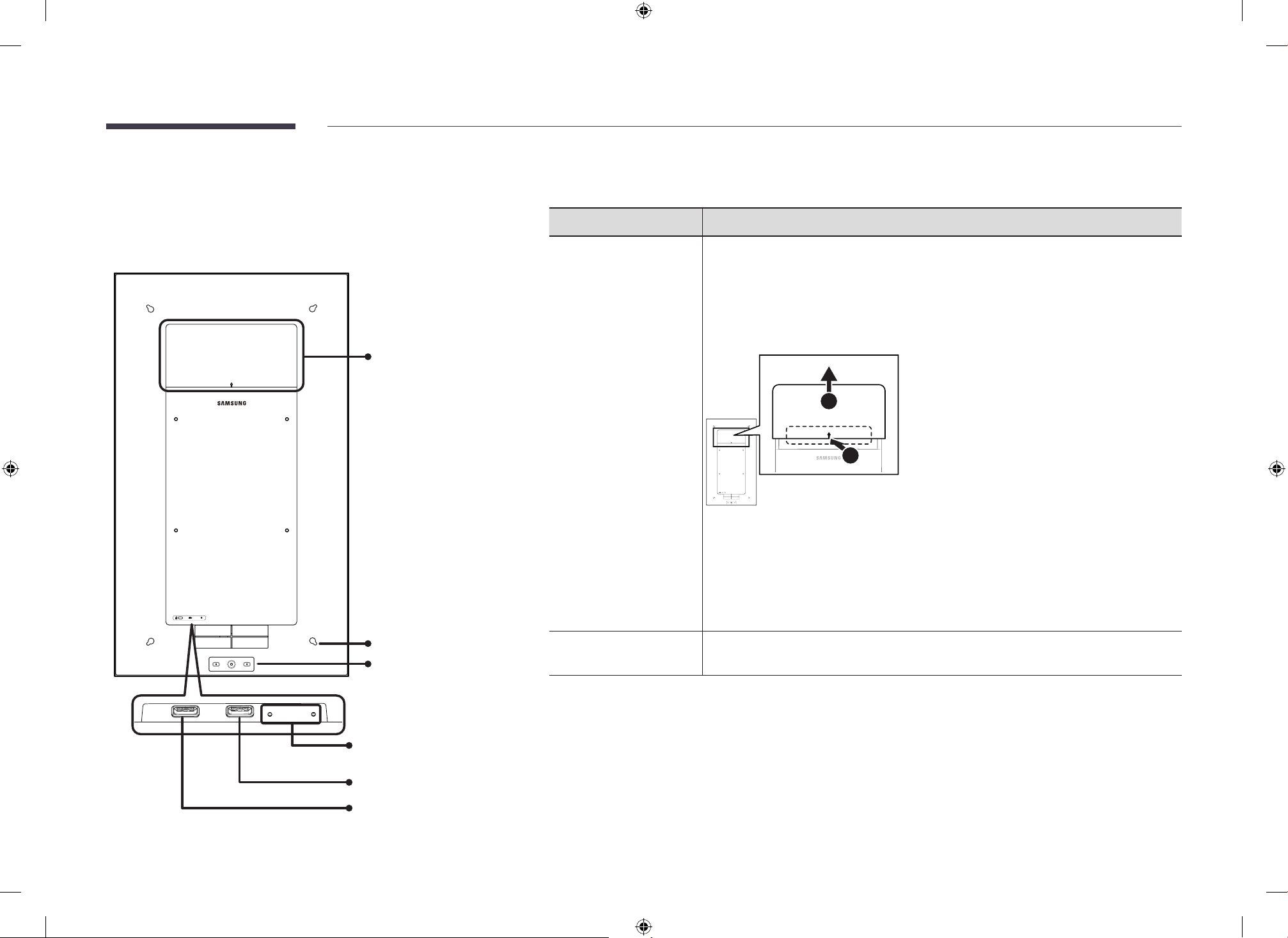
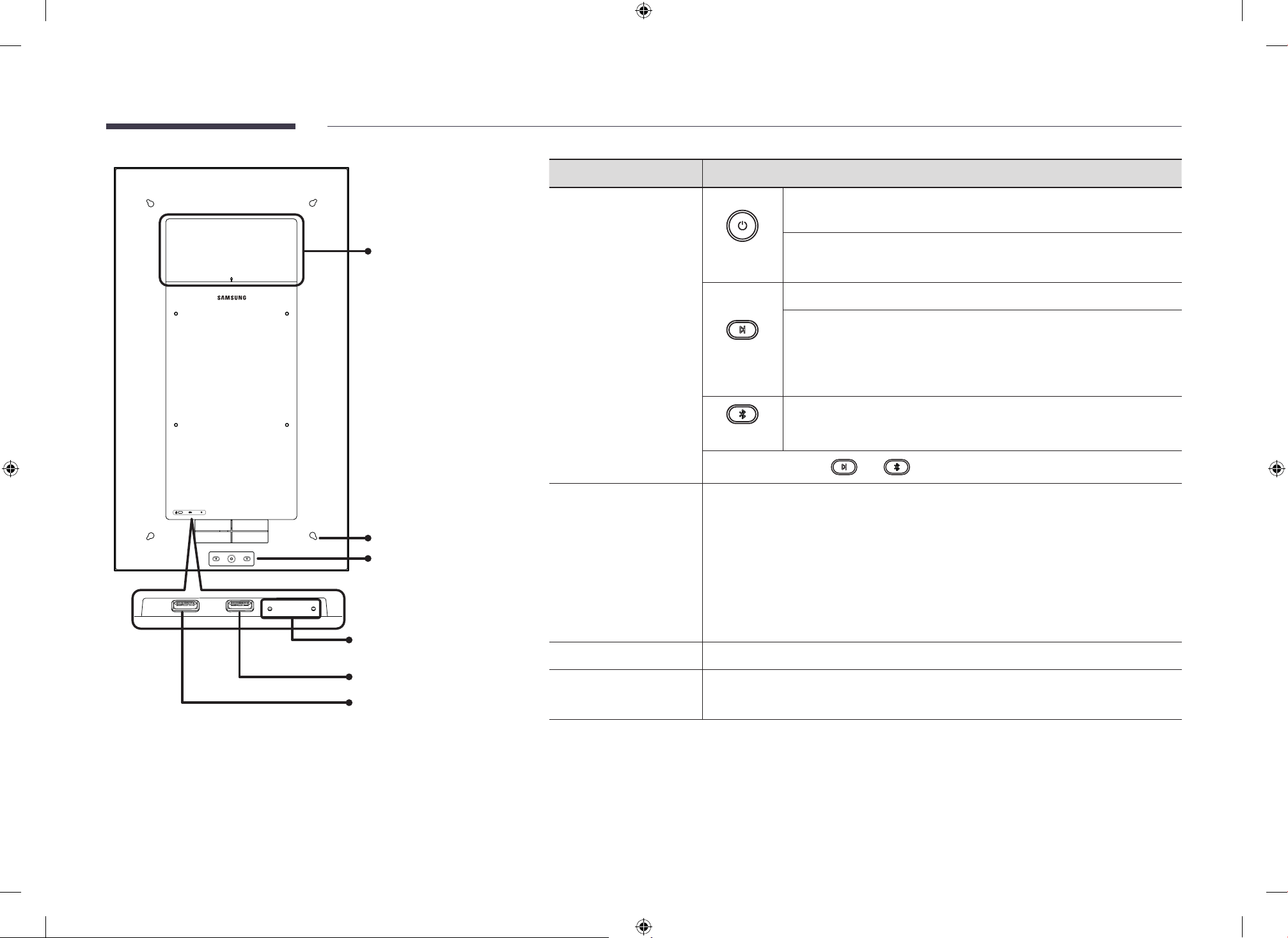
EM32DX
Battery compartment
Wire hole
Buttons
Status indicators
(Red / Blue & Green LED)
USB-C port (for charging)
USB-C port (for copying
pictures)
"
The colour and shape of parts may differ from what is shown. Specifications are subject to change without
notice to improve quality.
Parts Description
Battery compartment
You can install the provided battery to use the product cordlessly.
• Once you install the battery for the first time, you must connect the charger to
activate and use it to power the product.
"
Connect the charger to the product if you are going to use a mobile app or VXT.
Installing the battery
1
2
• Press and slide the battery cover to open. Then, install the battery.
– Press the area approximately 5 cm to the left and right of the arrow mark in
the center of the battery cover.
– When removing the battery cover, lay the set face down on a flat surface.
• The battery is shipped with approximately 30% charge. To use the product without
the charger, fully charge the battery first.
Wire hole
You can attach the provided wire holder and wire bracket and mount the product with
a wire.
BN81-27642C-00_WUG_EM32DX_NA ZB_ENG.indb 11BN81-27642C-00_WUG_EM32DX_NA ZB_ENG.indb 11 2025-05-16 2:39:432025-05-16 2:39:43
12
Parts Description
Buttons
Power
Press the button to turn on the product, or wake up the product in the
sleep mode.
Press and hold the button for 2 seconds to turn off the product.
• When the product is off, the screen becomes white.
Mode
Press the button to move to the next picture.
Press and hold the button to switch between the Auto and Manual
mode.
• The Manual mode is the default setting.
• In the Auto mode, the default content change interval is 4 hours.
Bluetooth
Press and hold the button to enter the Bluetooth pairing mode.
"
Press and hold the and buttons for 5 seconds to reset the product.
USB-C port
(for copying pictures)
You can connect a USB memory device to copy pictures to the product’s internal
storage.
• Create a ‘SAMSUNG_E-Paper’ folder in your USB and save picture files in the
folder. Then, connect the USB to this port to copy the files into the product’s
internal storage.
• The optimized resolution for the picture files is 1440 x 2560.
• Compatible image file format: BMP, JPG, JPEG, PNG
"
The thickness of the USB memory device must be below 7 mm.
USB-C port (for charging)
You can connect a USB-C charger to supply power.
Status indicators
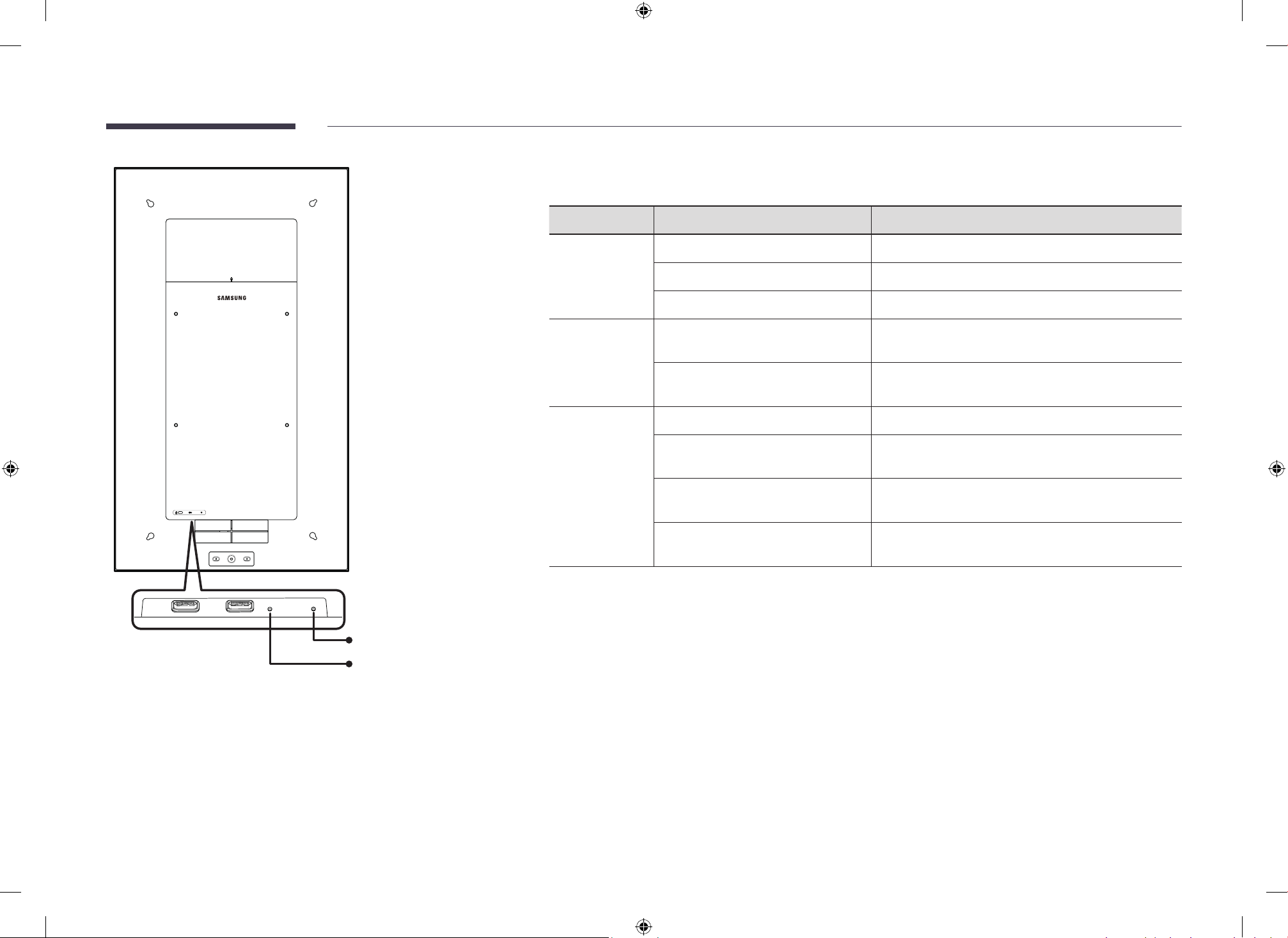
Two LED indicators display operation status. (Red / Blue & Green LED)
• Refer to the "Status indicator description" section for details.
Battery compartment
Wire hole
Buttons
Status indicators
(Red / Blue & Green LED)
USB-C port (for charging)
USB-C port (for copying
pictures)
BN81-27642C-00_WUG_EM32DX_NA ZB_ENG.indb 12BN81-27642C-00_WUG_EM32DX_NA ZB_ENG.indb 12 2025-05-16 2:39:432025-05-16 2:39:43
13
Blue and Green LED
Red LED
Status indicator description
Parts LED Status Description
Red
On Charging in progress.
Off Charging complete.
Blinks The charger is connected without the battery installed.
Blue
On
(3 seconds)
Bluetooth pairing has beencompleted.
Blinks
(0.25-second interval)
The product is waiting for the Bluetooth pairing.
Green
On Copying pictures from the USB memory device.
Blinks
(0.5-second interval)
The product is turning on.
Blinks
(0.25-second interval for 2 seconds)
Switching between Auto to Manual mode.
Blinks
(0.25 second, 0.75 second)
Software update in progress.
BN81-27642C-00_WUG_EM32DX_NA ZB_ENG.indb 13BN81-27642C-00_WUG_EM32DX_NA ZB_ENG.indb 13 2025-05-16 2:39:442025-05-16 2:39:44
14
Anti-theft Lock
"
An anti-theft lock allows you to use the product securely even in public places.
"
The locking device shape and locking method depend on the manufacturer. Refer to the user guide provided with your anti-theft locking device for details.
"
The following images are for reference only. Real-life situations may differ from what is shown in the images.
"
When using an anti-theft lock, ensure the product is positioned with enough clearance from the wall to accommodate the lock's thickness.
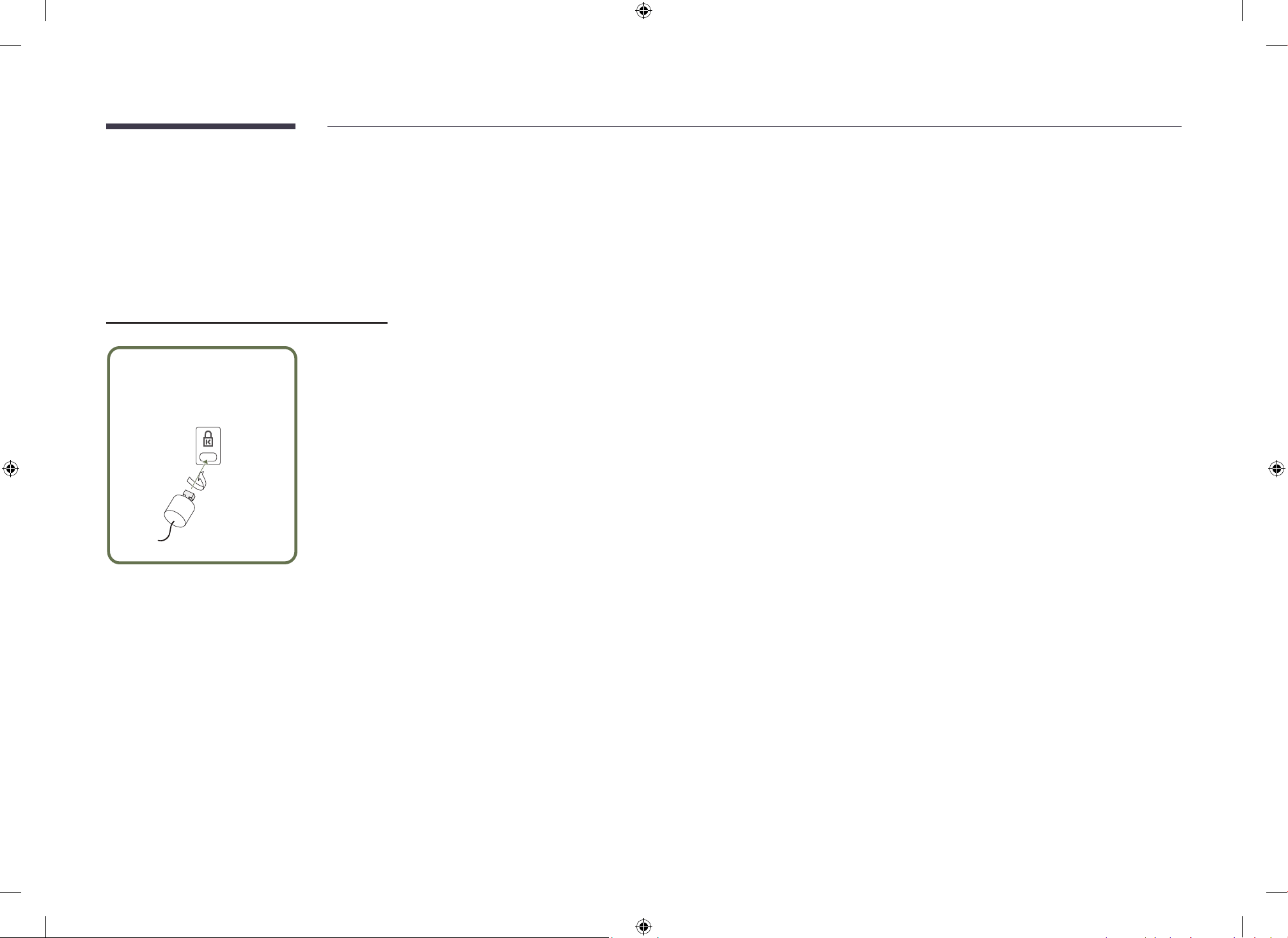
To lock an anti-theft locking device:
1
Fix the cable of your anti-theft locking device to a heavy object such as a desk.
2
Put one end of the cable through the loop on the other end.
3
Insert the locking device into the anti-theft lock slot at the back of the product.
4
Lock the locking device.
– An anti-theft locking device can be purchased separately.
– Refer to the user guide provided with your anti-theft locking device for details.
– Anti-theft locking devices can be purchased at electronics retailers or online.
BN81-27642C-00_WUG_EM32DX_NA ZB_ENG.indb 14BN81-27642C-00_WUG_EM32DX_NA ZB_ENG.indb 14 2025-05-16 2:39:442025-05-16 2:39:44
15
Before Installing the Product (Installation
Guide)
To prevent injury, this apparatus must be securely attached to the floor/wall in accordance
with the installation instructions.
• Ensure that an authorised installation company installs the wall mount.
• Otherwise, it may fall and cause personal injury.
• Make sure to install the specified wall mount.
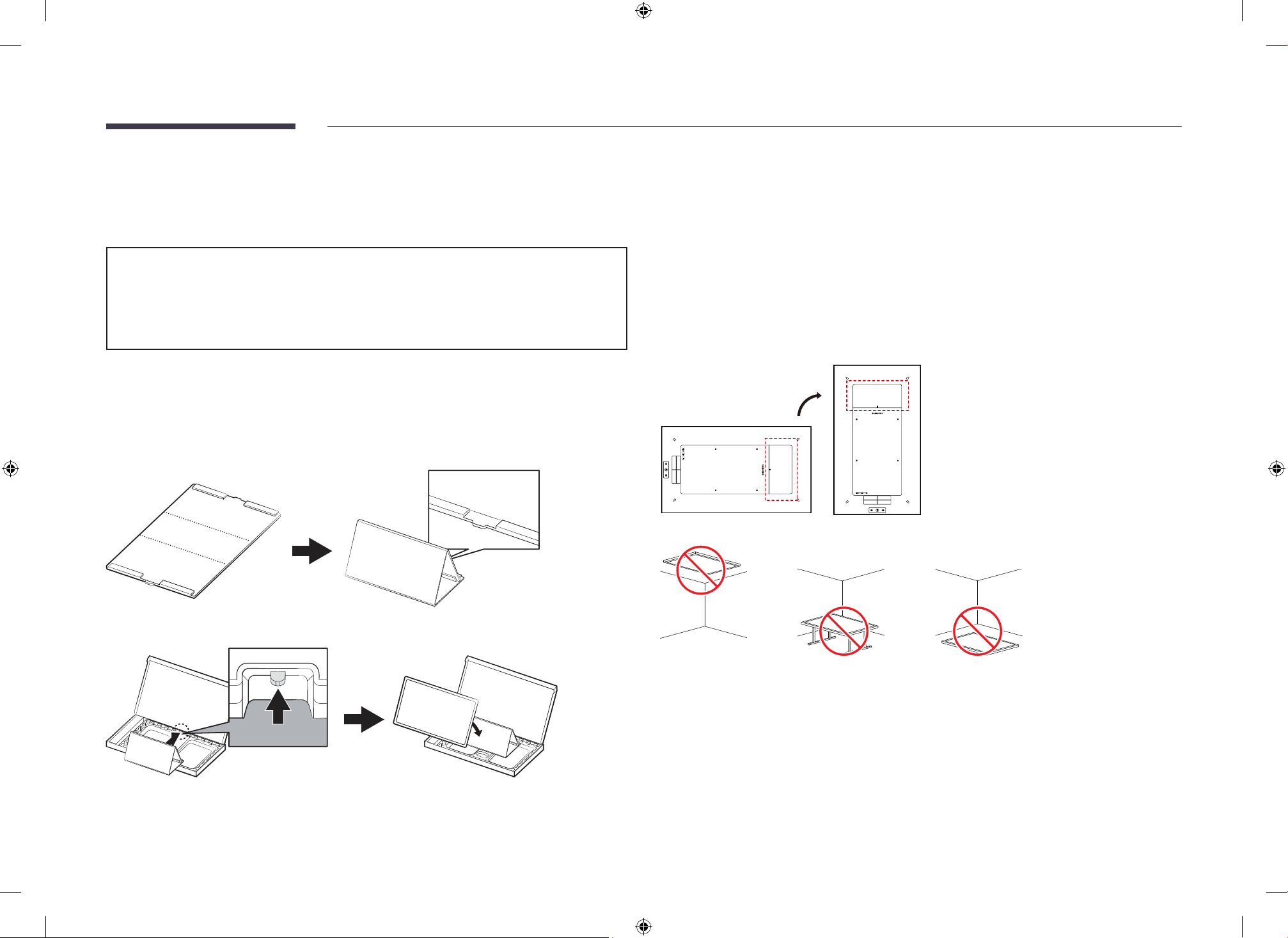
Using the packaging materials to create a temporary
stand
You can transform the packaging materials to use them as a temporary stand for the product.
1
Fold the packing pad as shown in the figure.
2
Insert the tab at the back of the folded packing pad into the slot at the packaging material
to secure it.
3
Put the product on the stand.
"
You must place the product in landscape orientation. If you put the product in portrait
orientation may cause damage to the product.
Tilting Angle and Rotation
"
Contact Samsung Customer Service Centre for further details.
• The product can be tilted at a maximum angle of 15° from a perpendicular wall surface.
• To use the product in Portrait mode, ensure the battery cover (A) is positioned at the top, as
shown in the images below.
A
A
"
Do not use this model installed on a ceiling, floor, or table.
BN81-27642C-00_WUG_EM32DX_NA ZB_ENG.indb 15BN81-27642C-00_WUG_EM32DX_NA ZB_ENG.indb 15 2025-05-16 2:39:442025-05-16 2:39:44
16
Installing the Wall Mount
Preparing before installing Wall-Mount
To install a wall mount not made by Samsung, refer to the installation manual provided by the wall mount
manufacturer.
Installing the Wall Mount
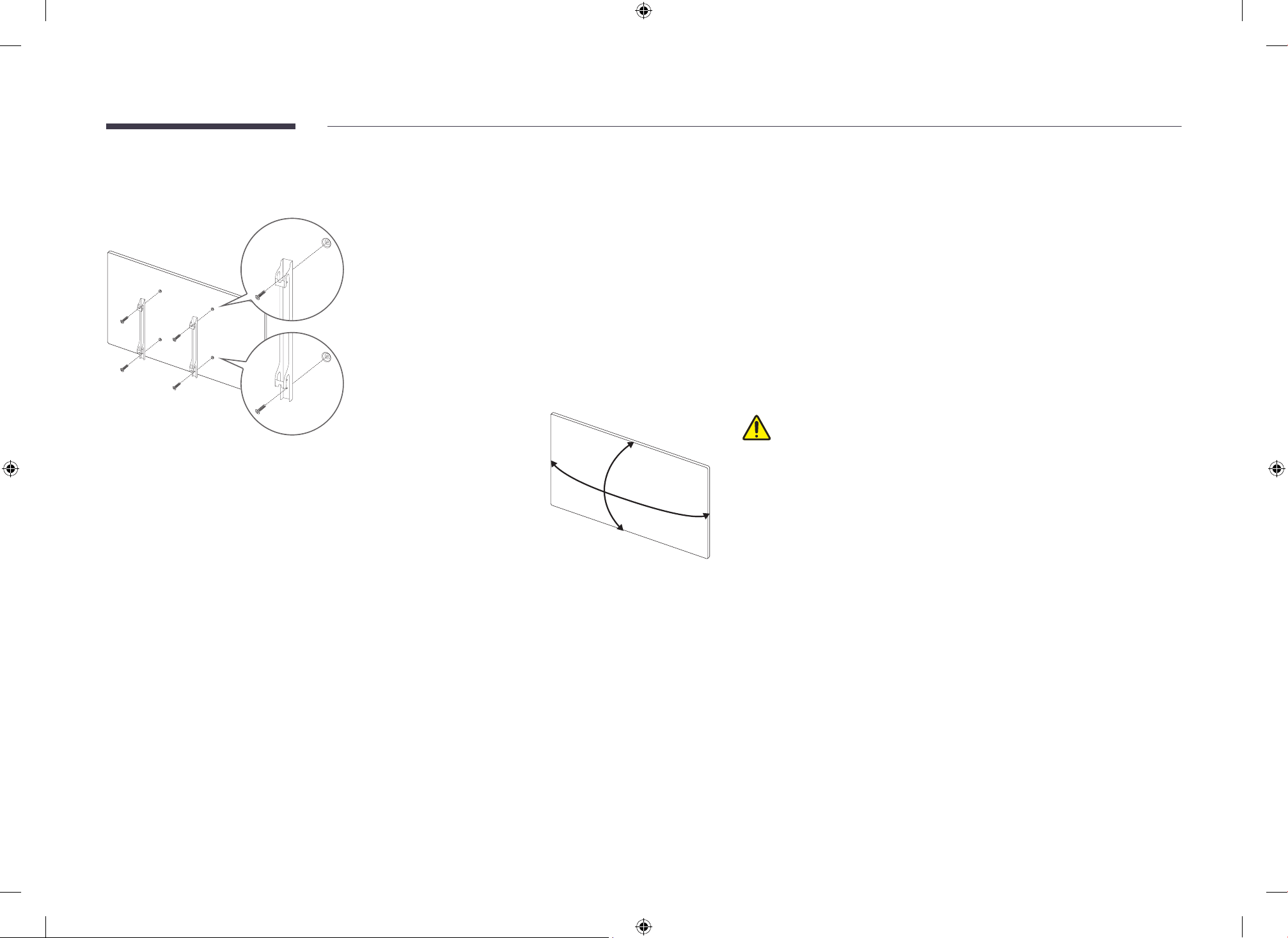
• The wall mount kit (sold separately) allows you to mount the product on the wall.
• The provided image is only for reference. For detailed information on installing the wall mount, see instructions
provided with the wall mount.
• We recommend you contact a technician for assistance when installing the wall mount bracket.
• Samsung is not responsible for any damage to the product or injury to yourself or others if you select to install
the wall mount on your own.
After wall-mount installation, be careful when holding its edges to
tilt or swivel it. The product may get damaged if you tilt or swivel it
excessively.
BN81-27642C-00_WUG_EM32DX_NA ZB_ENG.indb 16BN81-27642C-00_WUG_EM32DX_NA ZB_ENG.indb 16 2025-05-16 2:39:452025-05-16 2:39:45
17
Wall Mount Kit Specications (VESA)
"
Install your wall mount on a solid wall perpendicular to the floor. To
install the product on the other wall area, contact the nearest agency.
If you install the product on a slanted wall, it may fall and result in
severe personal injury.
E-Paper
Wall mount
bracket
C
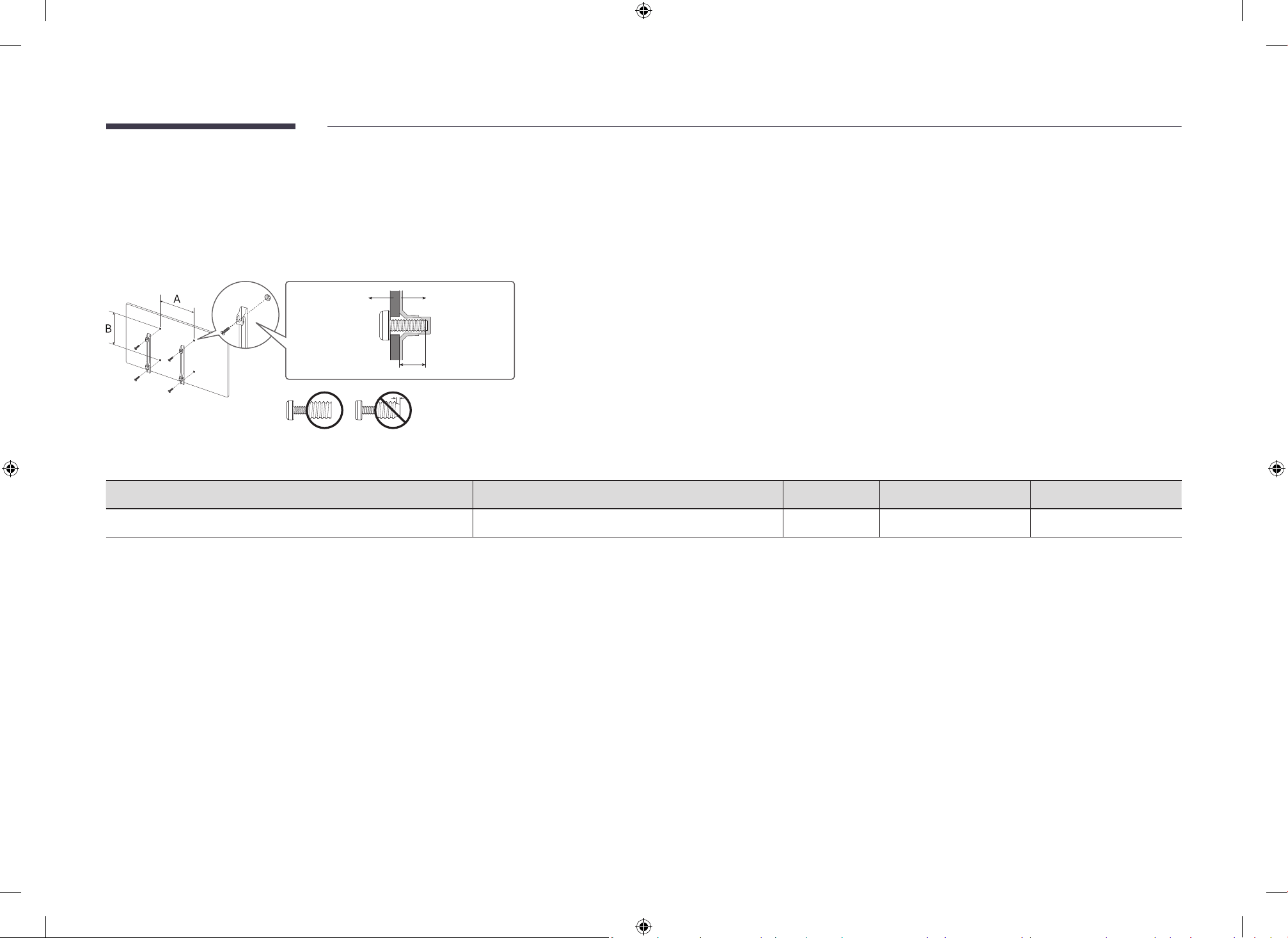
• Do not use screws that are longer than the standard length or do not comply with the VESA standard screw
specifications. Screws that are too long may cause damage to the inside of the product.
• For wall mounts that do not comply with the VESA standard screw specifications, the length of the screws may
differ depending on the wall mount specifications.
• Do not fasten the screws too firmly. This may damage the product or cause the product to fall, leading to
personal injury. Samsung is not liable for these kinds of accidents.
• Samsung is not liable for product damage or personal injury when a non-VESA or non-specified wall mount is
used or the consumer fails to follow the product installation instructions.
• Do not mount the product at more than a 15 degree tilt.
• Always have at least two people mount the product on a wall. (Four or more people for the 82-inch size and
larger models.)
• Standard dimensions for wall mount kits are shown in the table below.
Model Name VESA screw hole specs (A * B) in millimetres C (mm) Standard Screw Quantity
EM32DX 200 x 200 8 - 10 M4 4
"
Do not install your Wall Mount Kit while your product is turned on. It may result in personal injury due to electric shock.
BN81-27642C-00_WUG_EM32DX_NA ZB_ENG.indb 17BN81-27642C-00_WUG_EM32DX_NA ZB_ENG.indb 17 2025-05-16 2:39:452025-05-16 2:39:45
18
Mounting the product using a wire
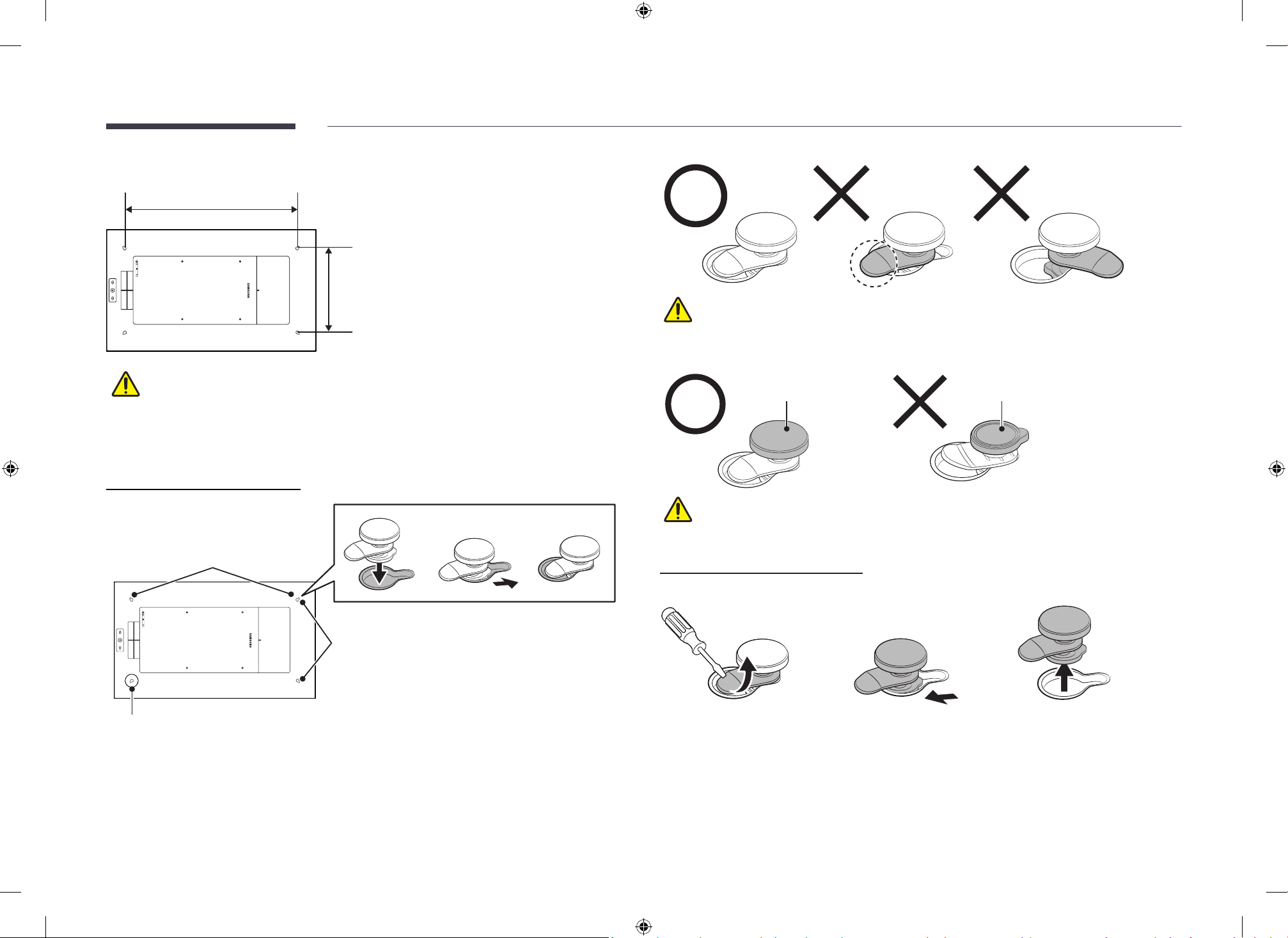
606.0 mm
300.4 mm
• Select a wire that can support four times the weight of the set (10 kg).
• The manufacturer does not guarantee issues caused by customer-installed wires.
• The manufacturer is not responsible for any accidents or injuries resulting from
improper mounting or mishandling.
Inserting the wire holder
Landscape
Portrait
Do not use this hole
• Attach the two wire holders into the wire holes.
– Select the appropriate wire holes based on the desired orientation (landscape or
portrait).
– After inserting the wire holder into the hole, push it until you hear a clicking sound.
– Ensure the wire holders are firmly attached.
Insert the wire holder correctly as shown in the figure.
• You must insert the bottom part of the wire holder into the hole.
• The wire holder’s tab must not protrude out of the hole area.
Top
Bottom
Insert the wire holder correctly as shown in the figure. You must insert the bottom
part of the wire holder into the hole.
Removing the wire holder
Use a tool to pry the tab out of the hole area. Then, remove the wire holder in the reverse order
of insertion.
BN81-27642C-00_WUG_EM32DX_NA ZB_ENG.indb 18BN81-27642C-00_WUG_EM32DX_NA ZB_ENG.indb 18 2025-05-16 2:39:462025-05-16 2:39:46
19
Hanging the product on the wall
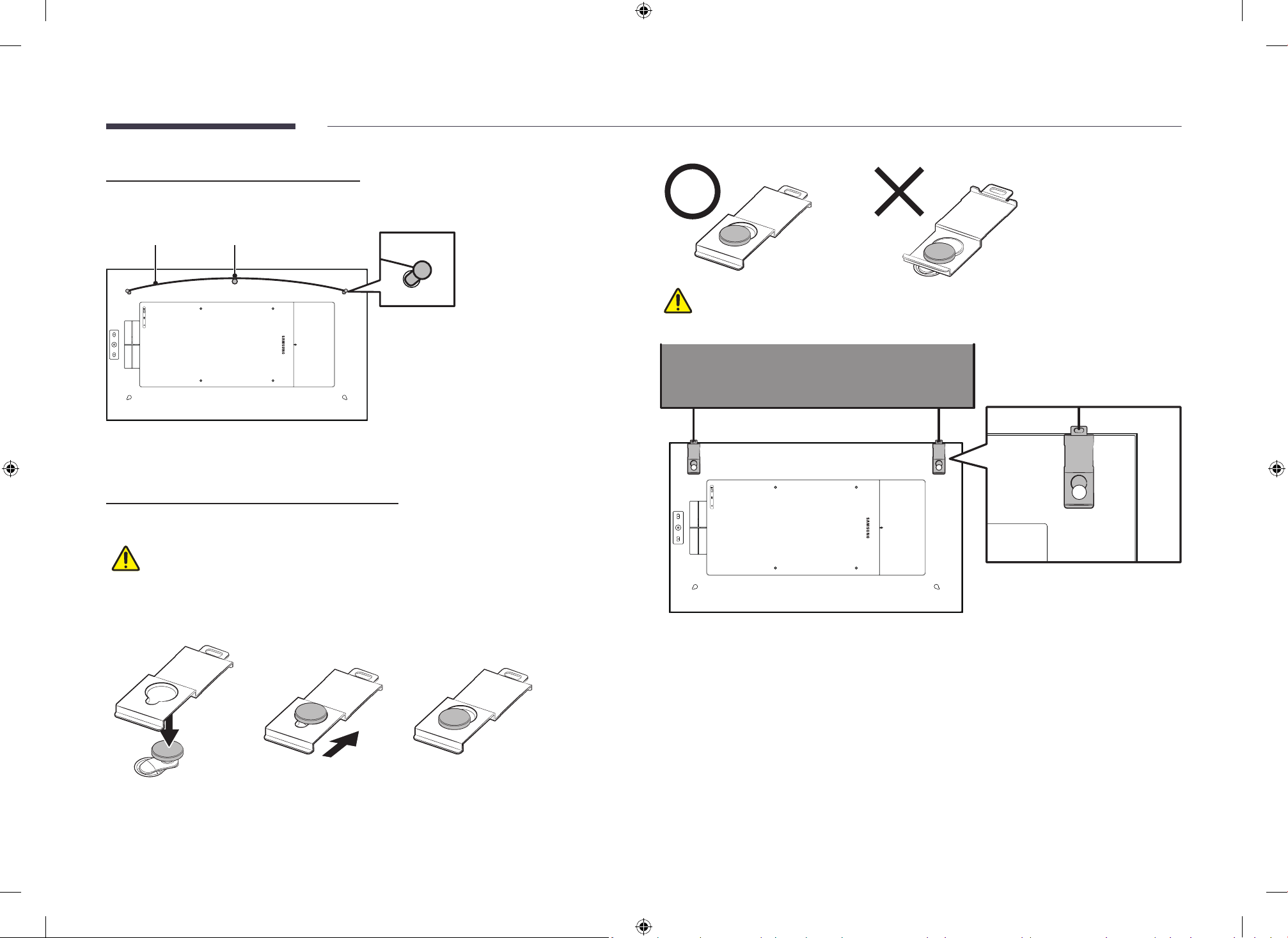
Using a wire and a nail, you can hang the product on the wall.
Wire holder
Wire
Nail
Attach a wire to the wire holders. Then, hang the wire on the nail securely fastened to the wall.
Ensure the wire is securely fixed to the holder to prevent it from slipping.
Hanging the product from the ceiling
Using a wire with a hook, you can hang the product from the ceiling.
• Hanging the product with a wire bracket directly to screws or nails may cause
damage to the product.
• Select a wire that can support four times the weight of the set (10 kg).
• The manufacturer does not guarantee issues caused by customer-installed wires.
1
Attach each wire bracket to the wire holder until it locks securely.
– Ensure each wire bracket is firmly attached to the wire holder.
Make sure to attach the wire bracket in the correct direction.
Ceiling
2
Hook the wire onto the bracket to secure the product.
BN81-27642C-00_WUG_EM32DX_NA ZB_ENG.indb 19BN81-27642C-00_WUG_EM32DX_NA ZB_ENG.indb 19 2025-05-16 2:39:472025-05-16 2:39:47
20
Network
Network Settings (Wireless)
"
Connect the mobile phone with the mobile app to Wi-Fi.
"
If you connect the product and the mobile phone using Bluetooth, you can connect the
Wi-Fi of the product in the mobile app. Select the same ones as Wi-Fi with your phone
connected.
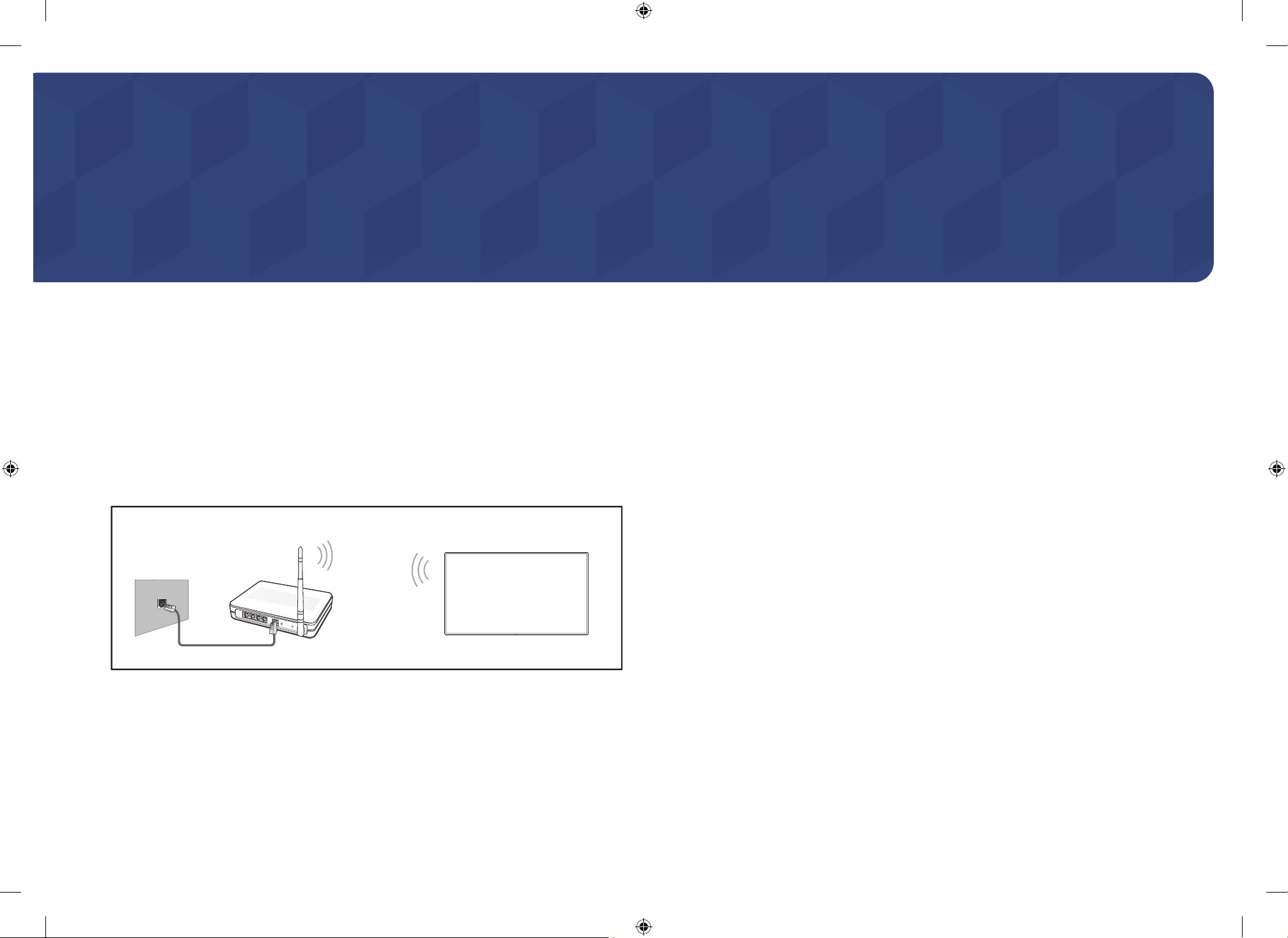
Connecting to a Wireless Network
The LAN Port on the Wall
LAN Cable
Wireless IP sharer
(router having DHCP server)
Samsung recommends using IEEE 802.11n.
"
Select a channel for the wireless IP sharer that is not currently being used. If the channel
set for the wireless IP sharer is currently being used by another device nearby, this will
result in interference and communication failure.
"
Your product supports only the following wireless network security protocols.
– Authentication Modes: WEP, WPAPSK, WPA2PSK
– Encryption Types: WEP, TKIP, AES
In compliance with the Wi-Fi certification specifications, Samsung products do not support
WEP or TKIP security encryption in networks running in the High-throughput(Greenfield)
802.11n mode.
"
When the network is connected, it enables Multiple Display Control, Log Downloader, DLNA
and SmartThings. Services supported by software updates are subject to change.
"
To ensure safe and secure use of the product, connect to the network using a securely
managed router.
Chapter 03
BN81-27642C-00_WUG_EM32DX_NA ZB_ENG.indb 20BN81-27642C-00_WUG_EM32DX_NA ZB_ENG.indb 20 2025-05-16 2:39:472025-05-16 2:39:47
21
Troubleshooting Guide
Requirements Before Contacting Samsung Customer Service Centre
When requesting service, the customer must provide the PIN code in advance to allow the service engineer to access the EMDX (E-Paper) App and check the
product information.
Check the followings.
Screen issue
The picture on the screen looks abnormal
If the power is cut off while changing the picture file, E-Paper will continue to display the screen
shown at the moment of the power cut until the power is restored. Connect the charger and try
changing the picture file again.
If the same picture is displayed for a long time without refreshing, ghosting may occur.
Please note that ghosting symptom is not covered under warranty.
The screen ickers when a picture changes.
Changing the display picture will take about 30 seconds. Screen flickering during changing the
picture is a characteristic of E-Paper which is normal.
Chapter 04
BN81-27642C-00_WUG_EM32DX_NA ZB_ENG.indb 21BN81-27642C-00_WUG_EM32DX_NA ZB_ENG.indb 21 2025-05-16 2:39:472025-05-16 2:39:47
22
Screen issue
After changing the picture le, a ghost image of the
previous picture is visible.
If the same picture is displayed for a long time without refreshing, ghosting may occur.
• Try changing the picture again or switching to a white screen. If the ghost image persists,
repeat this process a few times.
• It is recommended to refresh the screen at least once every three days to prevent a ghost
image.
– You can also set the Screen Refresh Time through the mobile app.
– If the product is powered only by the battery, the Screen Refresh Time function may not
work when the battery is discharged.
– This information serves as a guide to prevent a ghost image. Please note that this issue
is not covered under warranty.
If the product will not be used for a long time, switching the screen to white is recommended to
prevent a ghost image.
• You must refresh the screen once every three days to protect the panel.
• Press and hold the Power button for 2 seconds. The screen will change to white.
– This process achieves the same result as the Screen Refresh Time function of the mobile
app.
The color of the screen appears different from before.
As the screen refreshes repeatedly over time, its color may gradually change compared to its
initial state. Such discoloration is a characteristic of E-Paper display technology.
Please note that discoloration is not covered under warranty.
Mobile connection issue
Unable to connect the product to a mobile phone with the
mobile app installed.
Ensure that the mobile phone’s Bluetooth is turned on.
Press the button on the back of the product.
• While in pairing mode, the blue LED on the back of the product will blink.
• Once the connection is complete, the blue LED will remain solid.
BN81-27642C-00_WUG_EM32DX_NA ZB_ENG.indb 22BN81-27642C-00_WUG_EM32DX_NA ZB_ENG.indb 22 2025-05-16 2:39:472025-05-16 2:39:47
23
Battery issue
The battery icon on the top-right corner of the screen does
not disappear.
The low battery icon appears when the battery level is below 10%. It will disappear once the
charger is connected.
• It is recommended to disconnect the charger after the battery is fully charged.
• The red LED turns on while the battery is charging and turns off when the battery is fully
charged.
• The low battery icon appears when the product wakes up from the Sleep mode. If the
Network Standby function is enabled in the Sleep mode, increased battery consumption
may cause the product to power off without showing the low battery icon.
The battery icon on the top-right corner of the screen
appears too often.
As batteries are consumable items, their usage time gradually decreases compared to when
first purchased.
• When a replacement is needed, the low battery notification may appear more frequently.
I want to check the battery level.
You can check the battery level in the mobile app.
The battery is not charging properly.
Check the connection of the charger.
The battery life has become shorter compared to when it
was rst purchased
If the charged battery has been exposed to extreme temperatures (low or high), its usage time
may decrease. The optimal operating temperature is 32 °F to 95 °F (0 °C to 35 °C).
Batteries are consumable items, so their usage time gradually decreases over time.
Connecting to a mobile device or using VXT increases battery consumption. In such cases, use
the product with the charger connected.
Other issue
Buttons do not work when they are pressed.
Check if the battery is discharged.
Check the charger and battery. Disconnect the charger and remove the battery, then reconnect
the charger and reinsert the battery. Try operating the buttons again.
Product reset
Press and hold the and buttons for 5 seconds to reset the product.
• The product will reset and turn off, while the screen retains the current picture.
• Press the button to turn the product back on. The initial setup screen with QR codes will
appear on the display.
BN81-27642C-00_WUG_EM32DX_NA ZB_ENG.indb 23BN81-27642C-00_WUG_EM32DX_NA ZB_ENG.indb 23 2025-05-16 2:39:482025-05-16 2:39:48
24
Specications
Model Name EM32DX
Panel
Size
32 CLASS (31.5 inches / 79.9cm)
Display area
696.32 mm (H) x 391.68 mm (V)
Resolution (Panel Spec)
2560 x 1440
Chapter 05
General
BN81-27642C-00_WUG_EM32DX_NA ZB_ENG.indb 24BN81-27642C-00_WUG_EM32DX_NA ZB_ENG.indb 24 2025-05-16 2:39:482025-05-16 2:39:48
25
Power Supply
AC100-240V~ 50/60Hz
*
Refer to the label at the back of the product as the standard voltage can vary in different countries.
Environmental
considerations
Operating
Temperature: 32 °F to 104 °F (0 °C to 40 °C)
*
For installing the enclosure, keep the internal temperature at 104 °F (40 °C) or below.
Humidity: 30% to 70%, non-condensing
Storage
Temperature -13 °F to 32°F (-25 °C to 0°C), -y
Temperature 32°F to 104 °F (0°C to 40 °C), Humidity 30% to 70%, non-condensing
Temperature 104°F to 140 °F (40°C to 60 °C), Humidity 30% to 50%, non-condensing
*
Applicable before the product package is unpacked.
• Disposal of a BATTERY into fire or a hot oven, or mechanically crushing or cutting of a BATTERY, that can result in an EXPLOSION.
• CAUTION
Risk of fire or explosion if the battery is replaced by an incorrect type.
• For detailed device specifications, visit the Samsung website.
• (USA only)
Dispose unwanted electronics through an approved recycler.
To find the nearest recycling location, go to our website:
www.samsung.com/recycling or call, 1‐800‐SAMSUNG
For battery recycling go to call2recycle.org or call 1-800-822-8837
• (Europe Israel Türkiye only)
Please visit www.samsung.com/global/ecodesign_energy to find further information about off mode, standby mode, and networked standby mode associated with EU standby ecodesign
regulation.
BN81-27642C-00_WUG_EM32DX_NA ZB_ENG.indb 25BN81-27642C-00_WUG_EM32DX_NA ZB_ENG.indb 25 2025-05-16 2:39:482025-05-16 2:39:48

26
Appendix
Responsibility for the Pay Service (Cost to
Customers)
"
When the service is requested, in spite of in warranty, we may charge you for a visit from a
service technician in the following cases.
Not a product defect
Cleaning of the product, Adjustment, Explanation, Re-installation and etc.
• If a service technician is requested to give instructions on how to use product or simply
adjusts options without disassembling product.
• If a defect is caused by external environmental factors (Internet, Antenna, Wired Signal,
etc.)
• If a product is reinstalled or devices are connected additionally after installing the
purchased product for the first time.
• If a product is reinstalled to move to a different spot or to move to a different house.
• If the customer requests instructions on how to use another company's product.
• If customer requests instructions on how to use the network or another company's
programme.
• If customer requests software installation and setup for the product.
• If a service technician removes/cleans dusts or foreign materials inside of the product.
• If customer requests an installation additionally after purchasing a product through home-
shopping or online.
A Product damage caused by customer's fault
Product damage caused by customer's mishandling or wrong repair
If a product damage is caused by;
• External impact or drop.
• Use of supplies or separately sold product unspecified by Samsung.
• Repair from a person besides an engineer of outsourcing service company or partner of
Samsung Electronics Co., Ltd.
• Remodeling or repairing the product by customer.
• Using it with incorrect voltage or non-authorised electrical connections.
• Not following the "cautions" in User Manual.
Others
• If product fails by natural disaster. (lightning, fire, earthquake, flood damage, etc)
• If consumable components are all used up. (Battery, Toner, Fluorescent lights, Head,
Vibrator, Lamp, Filter, Ribbon, etc.)
"
If customer requests a service in case the product has no defect, service fee may be
charged. So please read User Manual first.
Chapter 06
BN81-27642C-00_WUG_EM32DX_NA ZB_ENG.indb 26BN81-27642C-00_WUG_EM32DX_NA ZB_ENG.indb 26 2025-05-16 2:39:482025-05-16 2:39:48
27
Connecting the battery
• The provided battery is deactivated in low power mode (ship mode). Install the battery into
the product and connect the charger to use it.
• If you use the battery without connecting the charger, and refresh the screen once a day, it
can last for about 200 days.
"
This applies when not using the mobile app and Wi-Fi. Using the charger is recommended if using the mobile
app or VXT Player App.
"
The battery may last shorter if you switch the screen more than once daily.
• Batteries are consumables and usage time gradually decreases over time. If you need to
replace the battery purchase a new battery.
• The battery works best between 32 °F to 95 °F (0 °C to 35 °C).
– Operating outside of this range may cause damage to the battery or shorten its lifespan.
OOBE
• You must use the "Samsung E-Paper" mobile app.
• For the product's network settings, your mobile device should have the Bluetooth function
turned on and connected to a wireless AP.
• You must remember the 6-digit PIN code you set during the initial settings for future use.
(You need to enter the PIN code when you reconnect.)
• If you skip the initial settings, only the content playback function via USB connection will
be available.
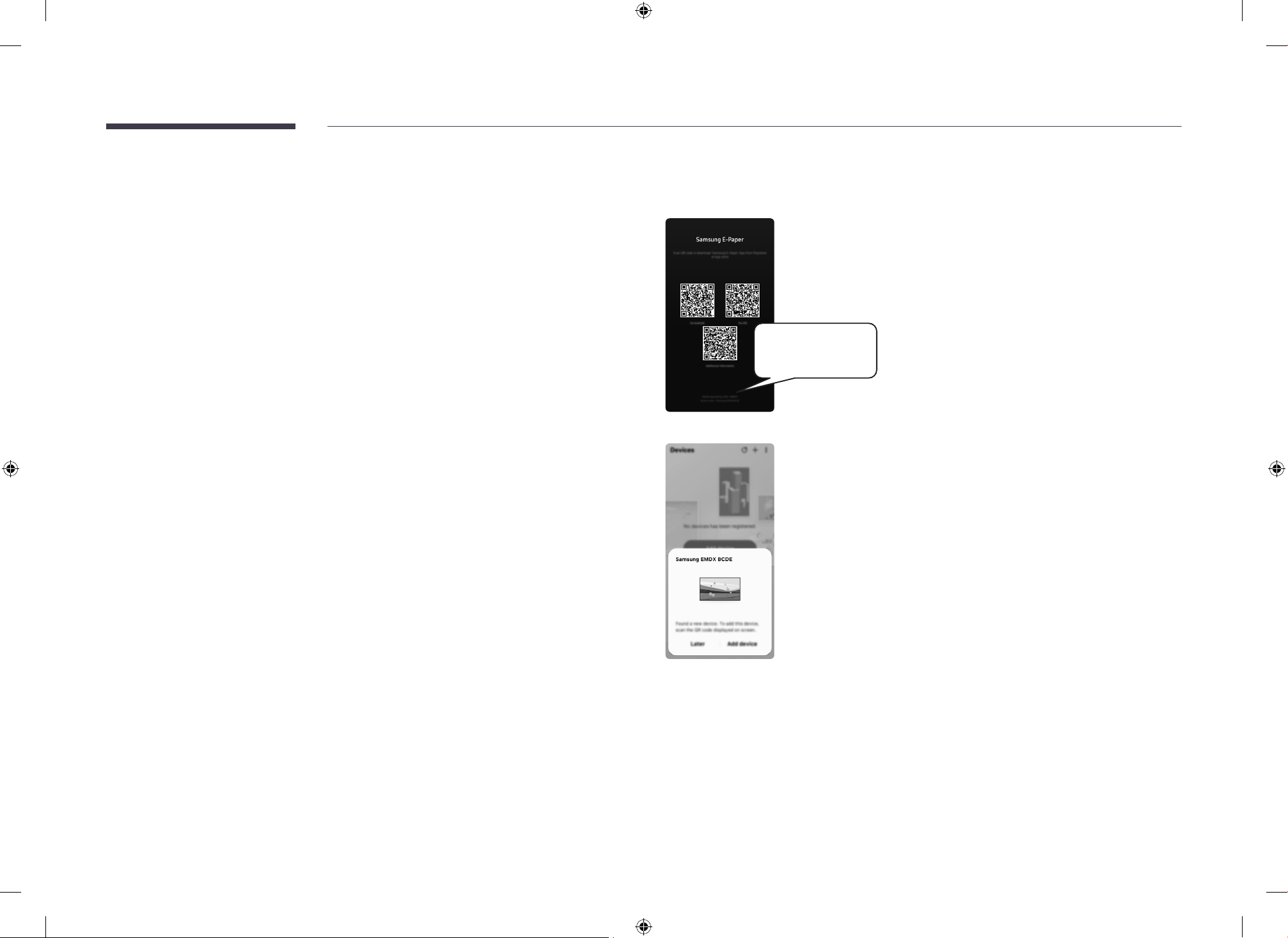
Installing the mobile app
Paring Code : XXXXXX
Device name : EMDX
XXXX
1
Installing the mobile app
– Search for the ‘Samsung E-Paper’ app
from the Google Play Store or Apple App
Store and install it on your mobile.
– When the product is powered on, the
screen displays three QR codes: one for
Android app installation, one for iOS app
installation, and one for adding the device
to the app.
– The app can be installed on mobile
phones running Android 10 or later and
iOS 15 or later. 2 GB of storage space is
required.
2
Registering the product on the mobile app
through Bluetooth
– When you open the mobile app, a nearby
device appears. Tap Add device to
register the product on the mobile app.
Alternatively, you can tap the + button.
Then scan the QR code that appears
on the product when you turn on the
product.
– Verify and enter the device name (EMDX +
4-digit number) and pairing code (6-digit
number) displayed on the product screen
to complete the connection.
3
Setting Up Wi-Fi
– Select the same Wi-Fi network that your
mobile phone is connected to.
– You can also use your mobile phone’s
Mobile Hotspot for the connection.
"
You can enable or disable the Network
Standby function in the mobile app.
BN81-27642C-00_WUG_EM32DX_NA ZB_ENG.indb 27BN81-27642C-00_WUG_EM32DX_NA ZB_ENG.indb 27 2025-05-16 2:39:482025-05-16 2:39:48
28
Playing picture les by connecting a USB
• If you save picture files in the SAMSUNG_E-Paper folder on the USB and connect it to the
product, the picture files will be copied to the internal memory.
– The playback order follows the ascending order of file names.
– Each time you connect a USB, the files stored in the internal memory will be deleted,
and the picture files from the newly connected USB will be copied.
• The optimized resolution for the picture files is 1440 x 2560.
– If the picture size is not 1440 x 2560, it will be scaled up or down to fit the screen size,
while maintaining the aspect ratio.
• Compatible image file formats: BMP, JPG, JPEG, PNG
File Format Max. resolution
BMP
7680 x 4320
JPG
JPEG
PNG
E-Paper product guidelines
• To add your product to the "Samsung E-Paper" app, press and hold the button on the
product to pair it with the mobile app.
• Screen flickering during refreshing or changing pictures is a characteristic of E-Paper
display which is normal.
• If the same picture is displayed for a long time without refreshing, ghosting may occur.
– It is recommended to refresh the screen at least once every three days to prevent a
ghost image.
– You can also set the Screen Refresh Time through the mobile app.
– If the product will not be used for a long time, switching the screen to white is
recommended. If the product will not be used for a long time, switching the screen
to white is recommended. To switch the screen to white, press and hold the for 2
seconds.
Open Source License Notice
Open Source used in this product can be found on the following webpage.
(https://opensource.samsung.com)
BN81-27642C-00_WUG_EM32DX_NA ZB_ENG.indb 28BN81-27642C-00_WUG_EM32DX_NA ZB_ENG.indb 28 2025-05-16 2:39:492025-05-16 2:39:49