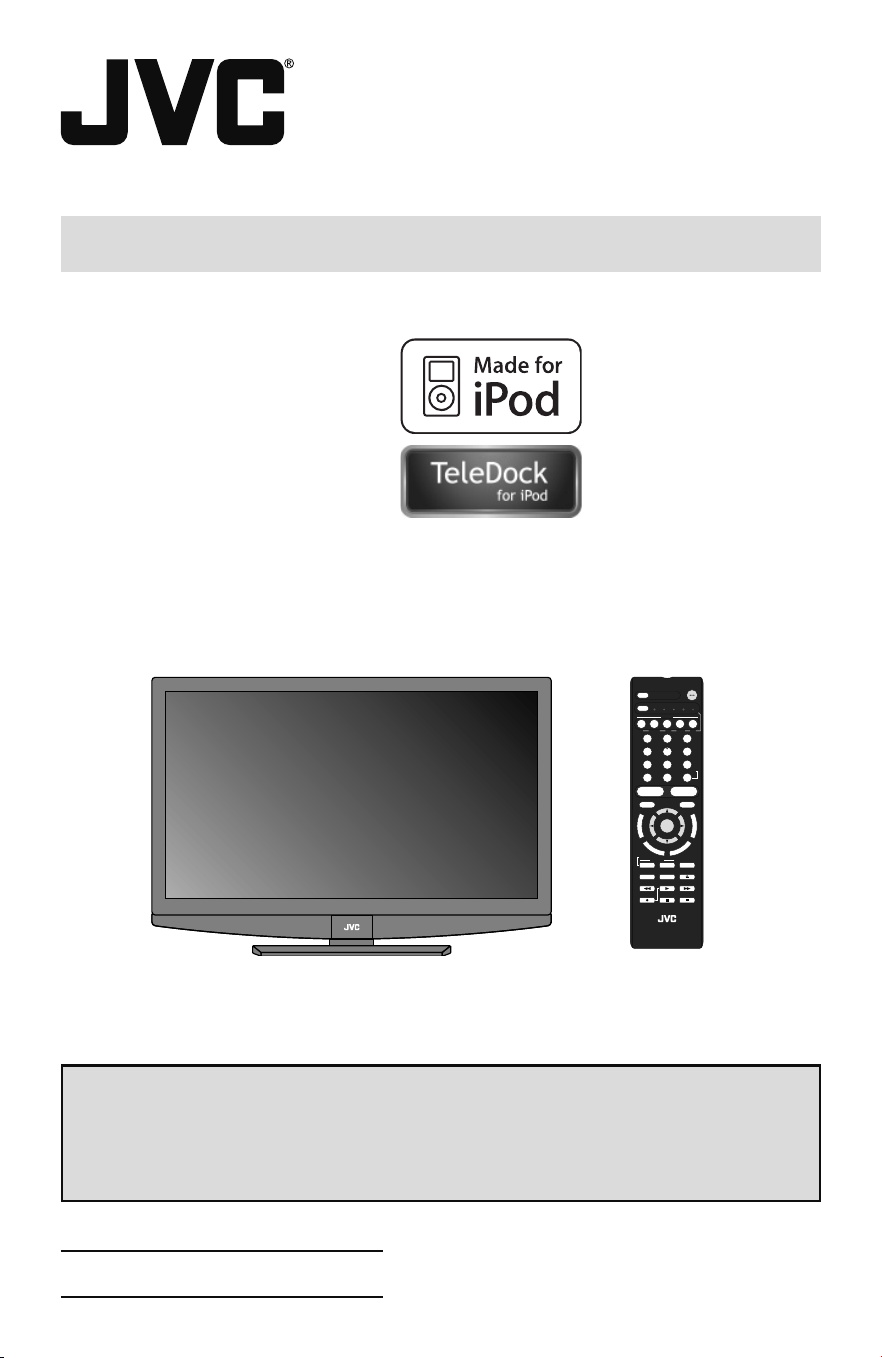
LCT2385-001A-A
0208KTH-II-IM
LCD Television Users Guide
Important Note:
In the spaces below, enter the model and serial number of your television (located at the
rear of the television cabinet). Staple your sales receipt or invoice to the inside cover of this
guide. Keep this user’s guide in a convenient place for future reference. Keep the carton
and original packaging for future use.
Model Number:
Serial Number:
POWER
SLEEP
MODE
TV STB VCR DVD AUDIO
INPUT
123
456
789
0
TUNE
TV
RETURN
+
iPod MUTING
– CH + – VOL +
RM-C1480
TV
DVR
STATUS
VIDEO
GUIDE
TV/VCR
SUB T.
SUB CH ML/MTS DISPLAY
SOUND
OK
M
E
N
U
F
A
V
O
R
I
T
E
A
S
P
E
C
T
B
A
C
K
V1 V2 V3 V4 V5
TV DVD/DVR DBB TUNER USB
PCON
iTV
LT-32P679
iPod is a trademark of Apple Inc., registered in the
U.S. and other countries.
LCT2385-001A-A English 1LCT2385-001A-A English 1 4/14/08 3:42:17 PM4/14/08 3:42:17 PM

2
Warnings . . . . . . . . . . . . . . . . . . 3
Precautions . . . . . . . . . . . . . . . . 6
Remote Control . . . . . . . . . . . . . 10
TV Basic Controls . . . . . . . . . . . 12
Setup . . . . . . . . . . . . . . . . . . . 16
Initial Setup . . . . . . . . . . . . . . . . . . . 16
Key Features . . . . . . . . . . . . . . . 18
Remote Control Functions . . . . . 19
Sleep . . . . . . . . . . . . . . . . . . . . . 19
Return+ TV . . . . . . . . . . . . . . . . 19
Favorite . . . . . . . . . . . . . . . . . . . 19
Aspect . . . . . . . . . . . . . . . . 20
Sound . . . . . . . . . . . . . . . . 20
Video . . . . . . . . . . . . . . . . 20
Guide . . . . . . . . . . . . . . . . 21
SUB CH . . . . . . . . . . . . . . . . 21
ML/MTS . . . . . . . . . . . . . . . . 21
Customizing your TV . . . . . . . 22
Picture . . . . . . . . . . . . . . . . . 23
Video Status . . . . . . . . . . . . . . . . 23
Color Temp . . . . . . . . . . . . . . . . 24
Color Management . . . . . . . . . . . . . 24
Dynamic Gamma . . . . . . . . . . . . . . 24
Smart Picture . . . . . . . . . . . . . . . . 25
Digital VNR . . . . . . . . . . . . . . . . . 25
MPEG NR . . . . . . . . . . . . . . . . . 25
Natural Cinema . . . . . . . . . . . . . . . . . 25
Video Reset . . . . . . . . . . . . . . . . . 25
Display . . . . . . . . . . . . . . . . 26
Video Input Label . . . . . . . . . . . . . . 26
Photo Viewer . . . . . . . . . . . . . . . . 26
Aspect Ratio . . . . . . . . . . . . . . . . . 28
TV . . . . . . . . . . . . . . . . . 29
Closed Caption . . . . . . . . . . . . . . . . 29
C.C. Setting . . . . . . . . . . . . . . . . . . . 29
Tuner Mode . . . . . . . . . . . . . . . . 30
Auto Scan . . . . . . . . . . . . . . . . 30
Table of Contents
Add Channel . . . . . . . . . . . . . . . . 31
Edit Channel . . . . . . . . . . . . . . . . 31
V-Chip . . . . . . . . . . . . . . . . 31
Guide . . . . . . . . . . . . . . . . 31
TV (V-Chip) . . . . . . . . . . . . . . . . 32
Password . . . . . . . . . . . . . . . . 33
MPAA . . . . . . . . . . . . . . . . 33
Can. Eng. . . . . . . . . . . . . . . . . 34
Can. Fre. . . . . . . . . . . . . . . . . 35
TVPG . . . . . . . . . . . . . . . . . 36
Sound . . . . . . . . . . . . . . . . . 37
MTS . . . . . . . . . . . . . . . . 37
Digital Audio (ML) . . . . . . . . . . . . 37
Surround . . . . . . . . . . . . . . . . 37
Sound Status . . . . . . . . . . . . . . . . 38
Audio Reset . . . . . . . . . . . . . . . . 38
Power . . . . . . . . . . . . . . . . . 39
Sleep Timer . . . . . . . . . . . . . . . . 39
Power Indicator . . . . . . . . . . . . 39
Illumination . . . . . . . . . . . . . . . . 39
Setting . . . . . . . . . . . . . . . . . 40
Plug-In Menu . . . . . . . . . . . . . . . . 40
Time Zone . . . . . . . . . . . . 40
D.S.T. . . . . . . . . . . . . . . . . 40
Language . . . . . . . . . . . . . . . . 40
Noise Mute . . . . . . . . . . . . 40
Front Panel Lock . . . . . . . . . . . . 41
Transparency . . . . . . . . . . . . 41
Auto Shut Off . . . . . . . . . . . . . . . . 41
System Info . . . . . . . . . . . . . . . . 41
Auto Demo . . . . . . . . . . . . 41
Optical Out . . . . . . . . . . . . 41
Enjoy Movies/Music from your
iPod . . . . . . . . . . . . . . . . . . 42
Connecting Your Devices . . . . . 47
Programming Your Remote . . . . 52
Troubleshooting . . . . . . . . . . . . 59
Specifi cations . . . . . . . . . . . . 61
Warranty . . . . . . . . . . . . 62
LCT2385-001A-A English 2LCT2385-001A-A English 2 4/14/08 3:42:24 PM4/14/08 3:42:24 PM
3
WARNING: TO PREVENT FIRE OR SHOCK HAZARDS, DO NOT EXPOSE THIS
APPARATUS TO RAIN OR MOISTURE.
CAUTION: TO INSURE PERSONAL SAFETY, OBSERVE THE FOLLOWING RULES
REGARDING THE USE OF THIS UNIT.
1. Operate only from the power source specified on the unit.
2. Avoid damaging the AC plug and power cord.
3. Avoid improper installation and never position the unit where good ventilation is unattainable.
4. Do not allow objects or liquid into the cabinet openings.
5. In the event of trouble, unplug the unit and call a service technician. Do not attempt to repair
it yourself or remove the rear cover.
Changes or modifications not approved by JVC could void the warranty.
* When you don’t use this TV set for a long period of time, be sure to disconnect both the
power plug from the AC outlet and antenna for your safety.
* To prevent electric shock do not use this polarized plug with an extension cord, receptacle or
other outlet unless the blades can be fully inserted to prevent blade exposure.
CAUTION: To reduce the risk of electric shock. Do not
remove cover (or back). No user serviceable
parts inside. Refer servicing to qualified service
personnel.
The lightning flash with arrowhead symbol, within an
equilateral triangle is intended to alert the user to the
presence of uninsulated “dangerous voltage” within
the product’s enclosure that may be of sufficient
magnitude to constitute a risk of electric shock to
persons.
The exclamation point within an equilateral triangle is
intended to alert the user to the presence of important
operating and maintenance (servicing) instructions in
the literature accompanying the appliance.
RISK OF ELECTRIC SHOCK
DO NOT OPEN
CAUTION
• As an “ENERGY STAR
®
” partner,
JVC has determined that this
product or product model meets the
“ENERGY STAR
®
” guidelines for energy
efficiency.
Warnings
LCT2385-001A-A English 3LCT2385-001A-A English 3 4/14/08 3:42:24 PM4/14/08 3:42:24 PM

4
1) Read these instructions.
2) Keep these instructions.
3) Heed all warnings.
4) Follow all instructions.
5) Do not use this apparatus near water.
6) Clean only with dry cloth.
7) Do not block any ventilation openings. Install in accordance with the manufacturer's
instructions.
8) Do not install near any heat sources such as radiators, heat registers, stoves, or other
apparatus (including amplifiers) that produce heat.
9) Do not defeat the safety purpose of the polarized or grounding-type plug. A polarized plug
has two blades with one wider than the other. A grounding type plug has two blades and
a third grounding prong. The wide blade or the third prong are provided for your safety. If
the provided plug does not fit into your outlet, consult an electrician for replacement of the
obsolete outlet.
10) Protect the power cord from being walked on or pinched particularly at plugs, convenience
receptacles, and the point where they exit from the apparatus.
11) Only use attachments/accessories specified by the manufacturer.
12) Use only with a cart, stand, tripod, bracket, or table specified by the
manufacturer, or sold with the apparatus. When a cart is used, use
caution when moving the cart/apparatus combination to avoid injury
from tip-over.
13) Unplug this apparatus during lightning storms or when unused for long periods of time.
14) Refer all servicing to qualified service personnel. Servicing is required when the
apparatus has been damaged in any way, such as power-supply cord or plug is damaged,
liquid has been spilled or objects have fallen into the apparatus, the apparatus has been
exposed to rain or moisture, does not operate normally, or has been dropped.
15) Apparatus shall not be exposed to dripping or splashing and no objects filled with liquids,
such as vases, shall be placed on the apparatus.
16) Place the television on a stable, flat surface. Failure to do so can result in the television
falling, causing injury.
17) DO NOT allow young children to play around or on the television. Failure to do so can
result in the television falling, causing injury.
IMPORTANT SAFETY INSTRUCTIONS
IMPORTANT RECYCLING INFORMATION
This product has a fluorescent lamp that contains mercury. Disposal
of these materials may be regulated in your community due to
environmental considerations. For disposal or recycling information,
please contact your local authorities or for USA, the Electronic Industries
Alliance: http://www.eiae.org
Warnings
LCT2385-001A-A English 4LCT2385-001A-A English 4 4/14/08 3:42:25 PM4/14/08 3:42:25 PM
5
18) DO NOT allow young children to play with the plastic bag that came with the television
when you unpacked it. Failure to do so can result in suffocation, causing injury.
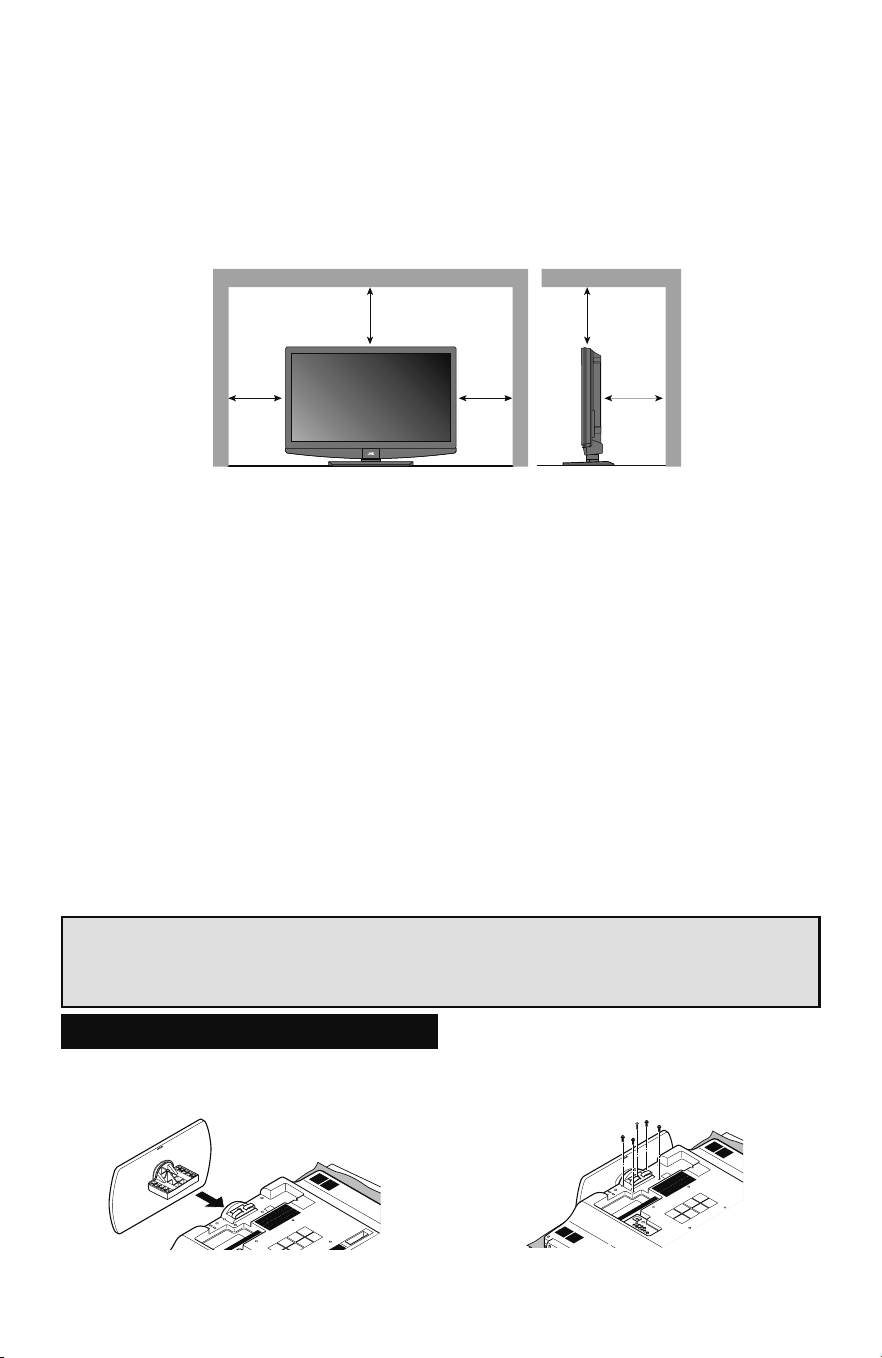
19) Avoid improper installation and never position the unit where good ventilation is impossible.
When installing this TV, distance recommendations must be maintained between the set
and the wall, as well as inside a tightly enclosed area or piece of furniture. Keep to the
minimum distance guidelines shown for safe operation.
20) Cautions for installation
— Do not tilt the TV towards the left or right, or towards the back.
— Install the TV in a corner on the floor so as to keep cords out of the way.
— The TV will generate a slight amount of heat during operation. Ensure that sufficient
space is available around the TV to allow satisfactory cooling.
21) When attaching to a wall, use the optional JVC wall mounting unit.
For LT-32P679: JVC-XUF-2637 LCD FLAT WALL MOUNT
Caution
— Consult qualified installers.
— See the included manual on mounting procedures.
— JVC is not responsible for damages or injuries due to improper mounting.
— Use with other wall mounting unit is capable of resulting in instability or causing possible
injury.
22) Make enough room for inserting and removing the power plug. Place the TV as close
to the outlet as possible. The main power supply for this TV is controlled by inserting or
removing the power plug.
23) Batteries shall not be exposed to excessive heat such as sunshine, fire or the like.
24) When this TV is connected to the wall outlet, it is always on standby even when all the LED
lamps are not lit. To shut down the TV, unplug the TV from the wall outlet.
150 mm
5 7/8 in
200 mm
7 7/8 in
50 mm
2 in
150 mm
5 7/8 in
200 mm
7 7/8 in
FCC Notice:
Caution: Changes or modifi cations not expressly approved by party responsible for
compliance could void the user's authority to operate the equipment.
Warnings
Connect the stand
The TV stand is not attached to the TV when you purchased it. Please follow the steps below on
how to connect the stand to the TV.
1) Insert the TV stand onto the TV.
2) Tighten the 5 screws to the back of the TV.
LCT2385-001A-A English 5LCT2385-001A-A English 5 4/14/08 3:42:25 PM4/14/08 3:42:25 PM
6
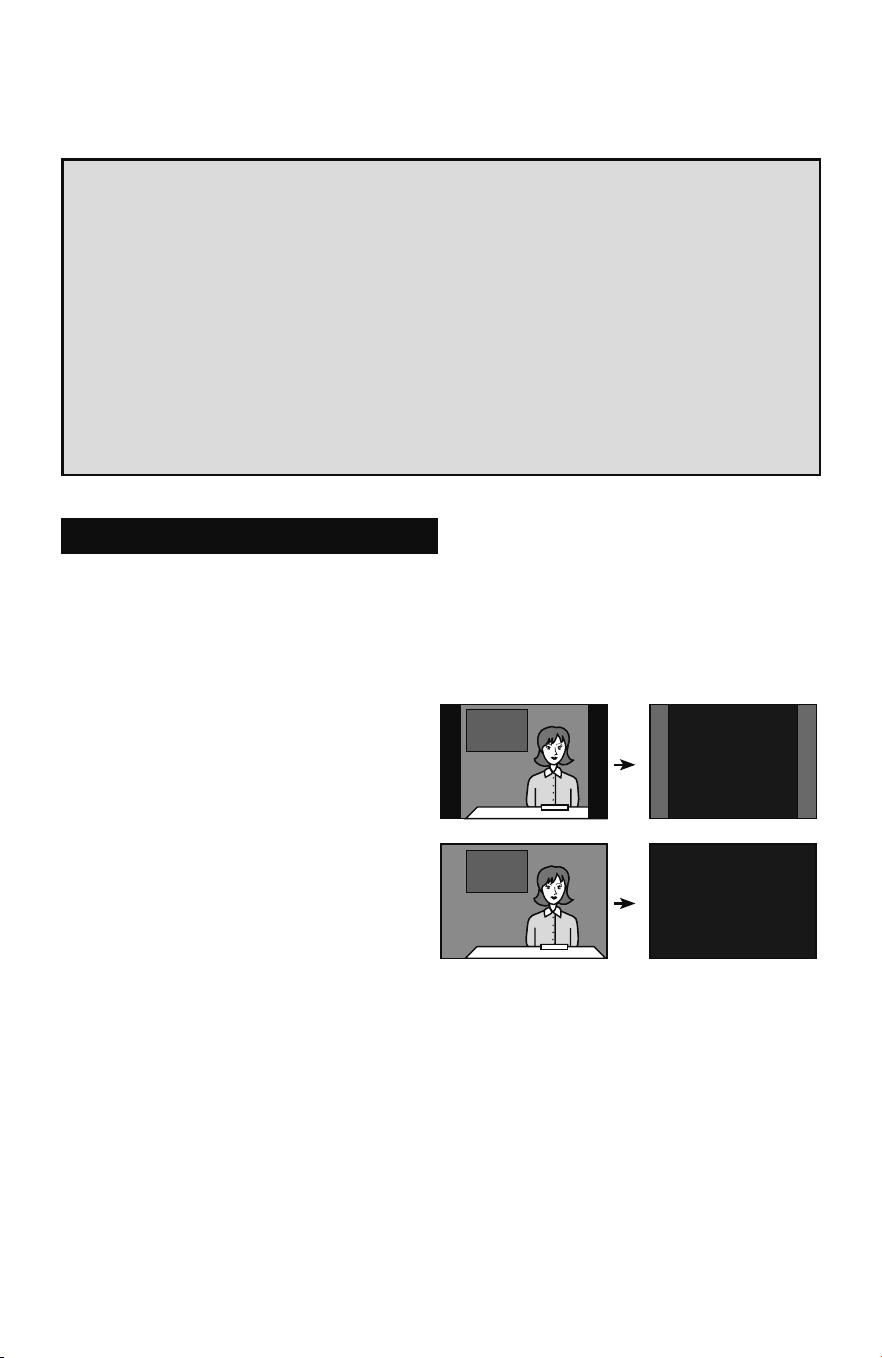
Displaying fi xed images for extended periods of time can leave a subtle but temporary burn-in
image on your screen. To avoid this, mix your viewing pattern.
Examples include, but are not limited to the following:
Avoiding Temporary Burn-in
XYZ XYZ
TV on
TV off
For example...
• Stock-market report bars
• Shopping channel logos and pricing
displays
• Video game patterns or scoreboards
• Bright station logos
• Internet web sites or other computer-style
images
• DVD discs, video tapes, laser discs
• Broadcast, cable, satellite channels or
digital television tuners/converters
We have an important note for customers who subscribe to basic cable services (do not have
a separate cable box) and plan to use their JVC TV remote control to select channels.
Once you run the Auto Tuner Setup (which detects and programs all the channels your TV is
receiving through the RF input), every channel number available from your cable company
will appear in your television’s Channel Summary and they will all be marked as available for
scanning. Even though every channel is detected and appears as available, you will only be
able to view those that you specifi cally subscribe to from your cable company. This will likely
mean there are blank channels between those channels you wish to scan or “surf”.
We apologize for any inconvenience this may cause but it is important to note that this is
not a malfunction of your television. If you want to sequentially scan those channels you
subscribe to without blank ones in between, you can contact your cable company for their
cable box and remote, or manually deselect them using the edit / skip feature on page 30.
Precautions
LCT2385-001A-A English 6LCT2385-001A-A English 6 4/14/08 3:42:26 PM4/14/08 3:42:26 PM
7
Caring for the Cabinet
Caring for the Screen
Normally, light dusting with a soft, non-scratching duster will keep your TV clean.
If you wish to wipe down the television, first unplug it. Then wipe gently with a soft cloth, slightly
moistened with water. You can add a few drops of mild liquid detergent to the water to help
remove spots of oily dirt.
• DO NOT allow liquid to enter the TV through the ventilation slots.
• DO NOT use strong or abrasive cleaners on the TV.
• DO NOT spray liquids or cleaners directly on the TV’s surface.
• DO NOT rub or scrub the TV harshly. Wipe the set gently with a soft cloth.
The screen is treated with an electrostatic-proof coating. When it gets dirty, wipe it gently with a
soft cloth. If the screen is very dirty, wipe it down with a cloth dipped in a diluted kitchen cleaner
and thoroughly wrung-out. Then wipe immediately after with a clean, dry cloth.
Do not apply alcohol, organic solvents (like acetone), acidic or alkaline cleansers to the screen.
These will remove the coating layer and cause discolorations.
Do not push or hit the screen. This could cause scratches on the screen surface and image
distortions.
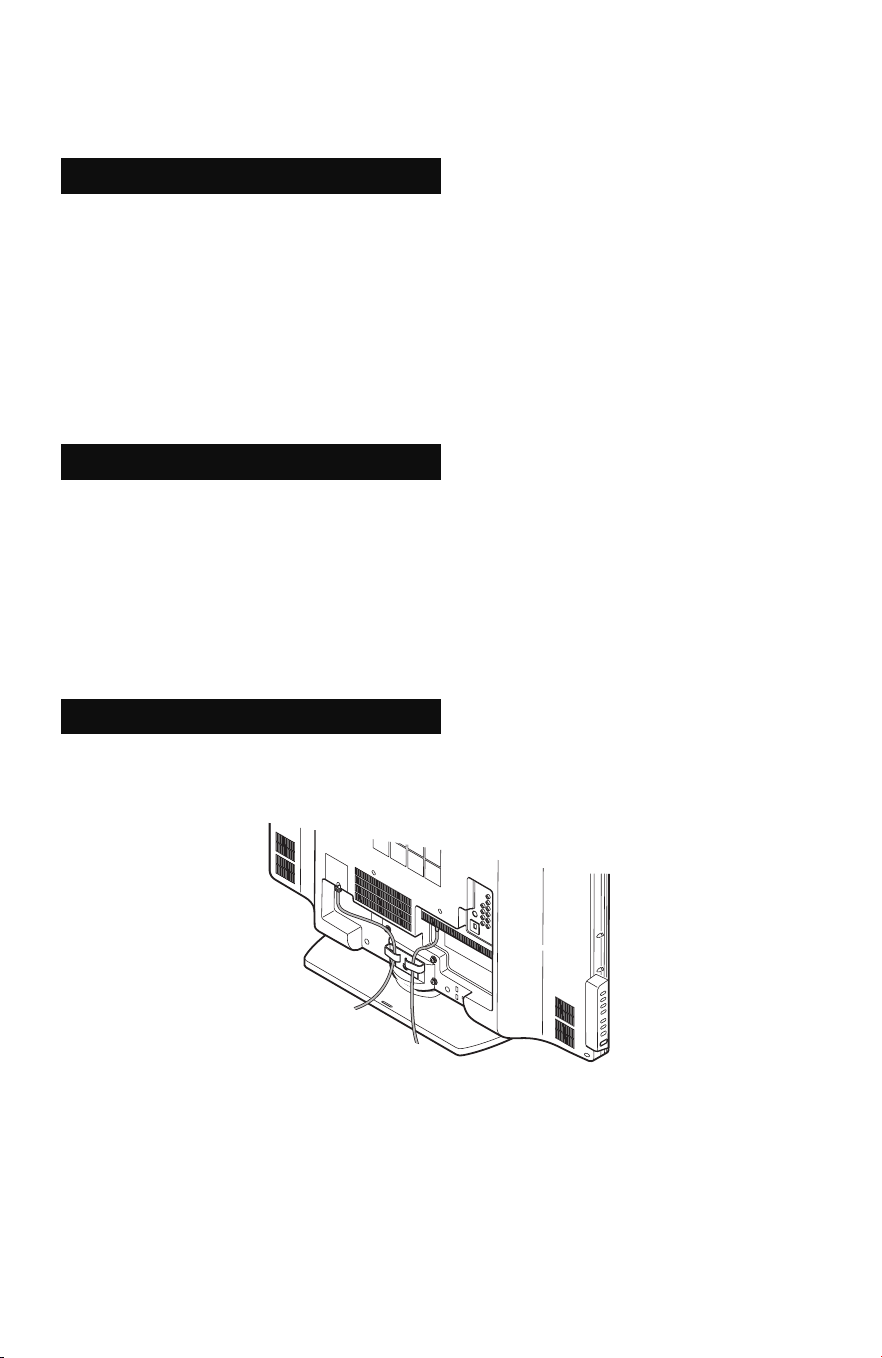
Tidying the cables
A cable holder which keeps your connection cables tidy is attached to the back of the stand.
Precautions
LCT2385-001A-A English 7LCT2385-001A-A English 7 4/14/08 3:42:27 PM4/14/08 3:42:27 PM
8
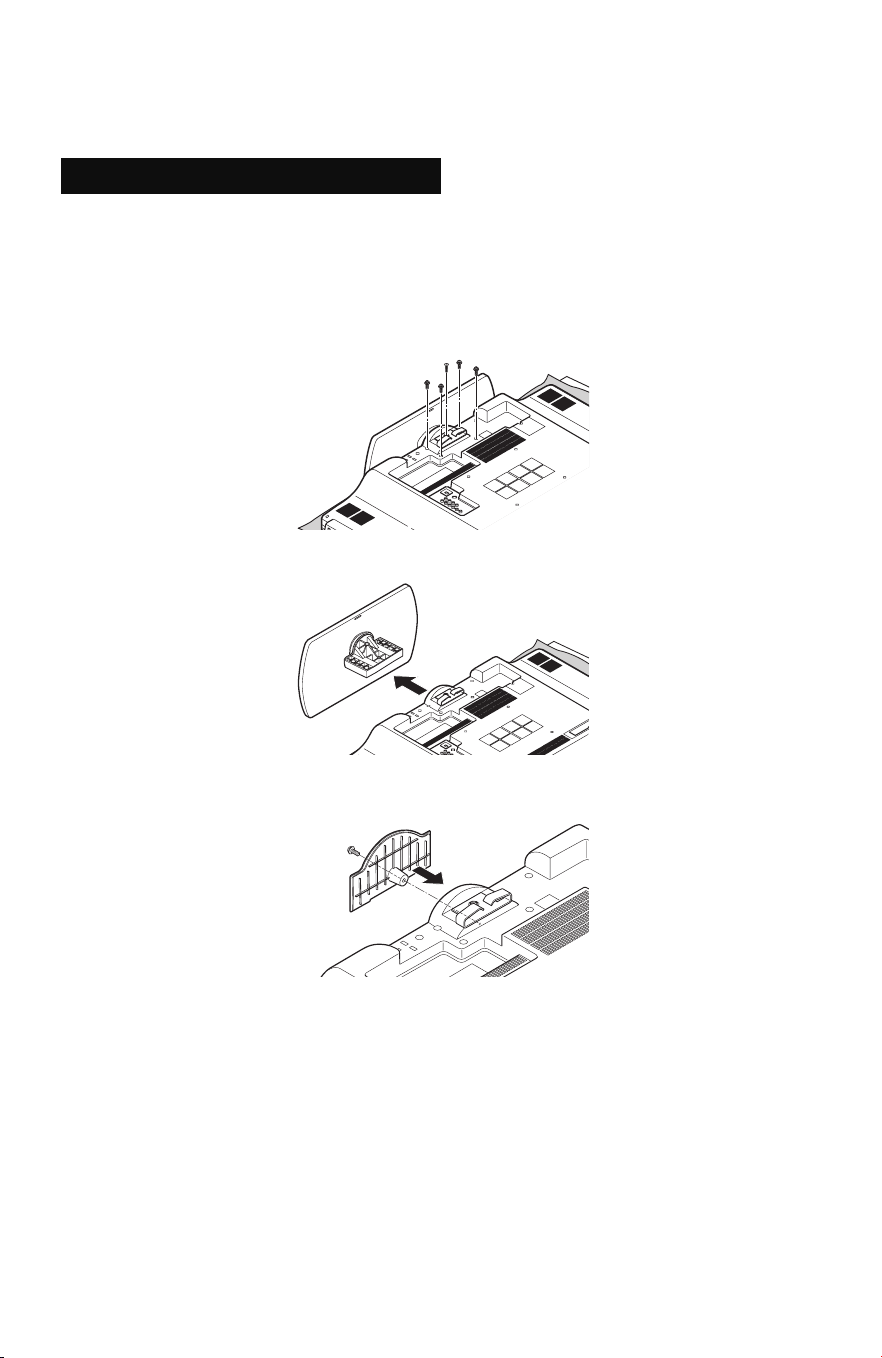
Disconnecting the stand
If you disconnect the stand, attach the bottom cover and the screw (supplied) into the hole.
1) Place the TV face down on a soft cloth on a table.
2) Remove the five screws from the back of the TV.
3) Pull out the stand from the TV.
4) Cover the hole with the supplied bottom cover and tighten the screw.
Note:
• To re-install the stand, reverse the procedure from 4) to 1).
Precautions
LCT2385-001A-A English 8LCT2385-001A-A English 8 4/14/08 3:42:27 PM4/14/08 3:42:27 PM
9
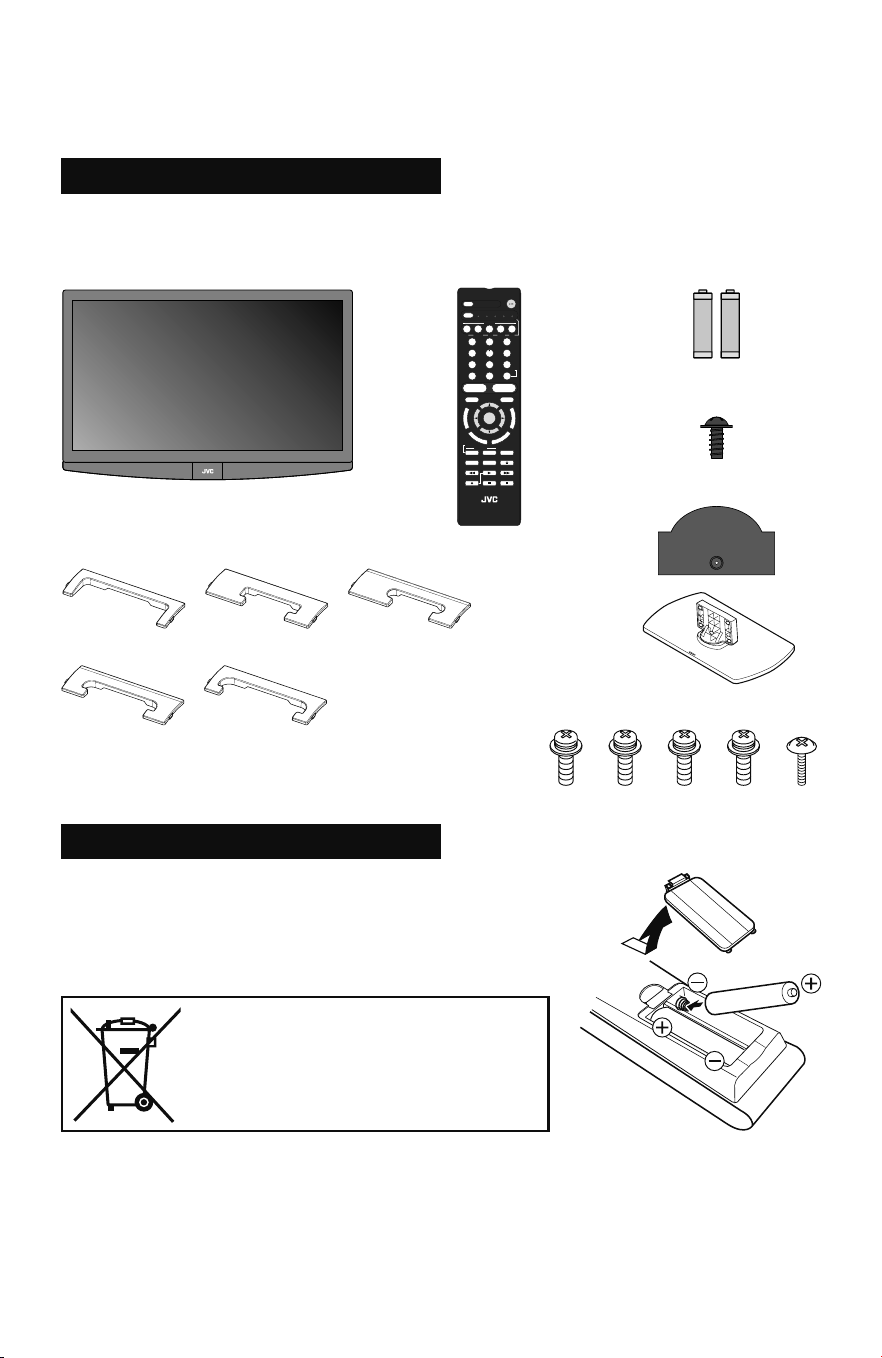
Use two “AA” batteries (included).
Place the "–" end in the unit first, making sure the "+" and
"–" markings are correct. Place the "–" end in the unit
first.
POWER
SLEEP
MODE
TV STB VCR DVD AUDIO
INPUT
123
456
789
0
TUNE
TV
RETURN
+
iPod MUTING
– CH + – VOL +
RM-C1480
TV
DVR
STATUS
VIDEO
GUIDE
TV/VCR
SUB T.
SUB CH ML/MTS DISPLAY
SOUND
OK
M
E
N
U
F
A
V
O
R
I
T
E
A
S
P
E
C
T
B
A
C
K
V1 V2 V3 V4 V5
TV DVD/DVR DBB TUNER USB
PCON
iTV
+
AA Alkaline
–
+
AA Alkaline
–
AA Batteries x 2
Television x 1
Remote Control x 1
Bottom Cover x 1
Screw x 1
Package Contents
Make sure you have the following.
Insert the batteries
Precautions
Dock Adapter x 5
If this symbol is shown, it is only valid
in the European Union
ABC
DE
TV Stand
Philips type screws x 5
LCT2385-001A-A English 9LCT2385-001A-A English 9 4/14/08 3:42:27 PM4/14/08 3:42:27 PM
10
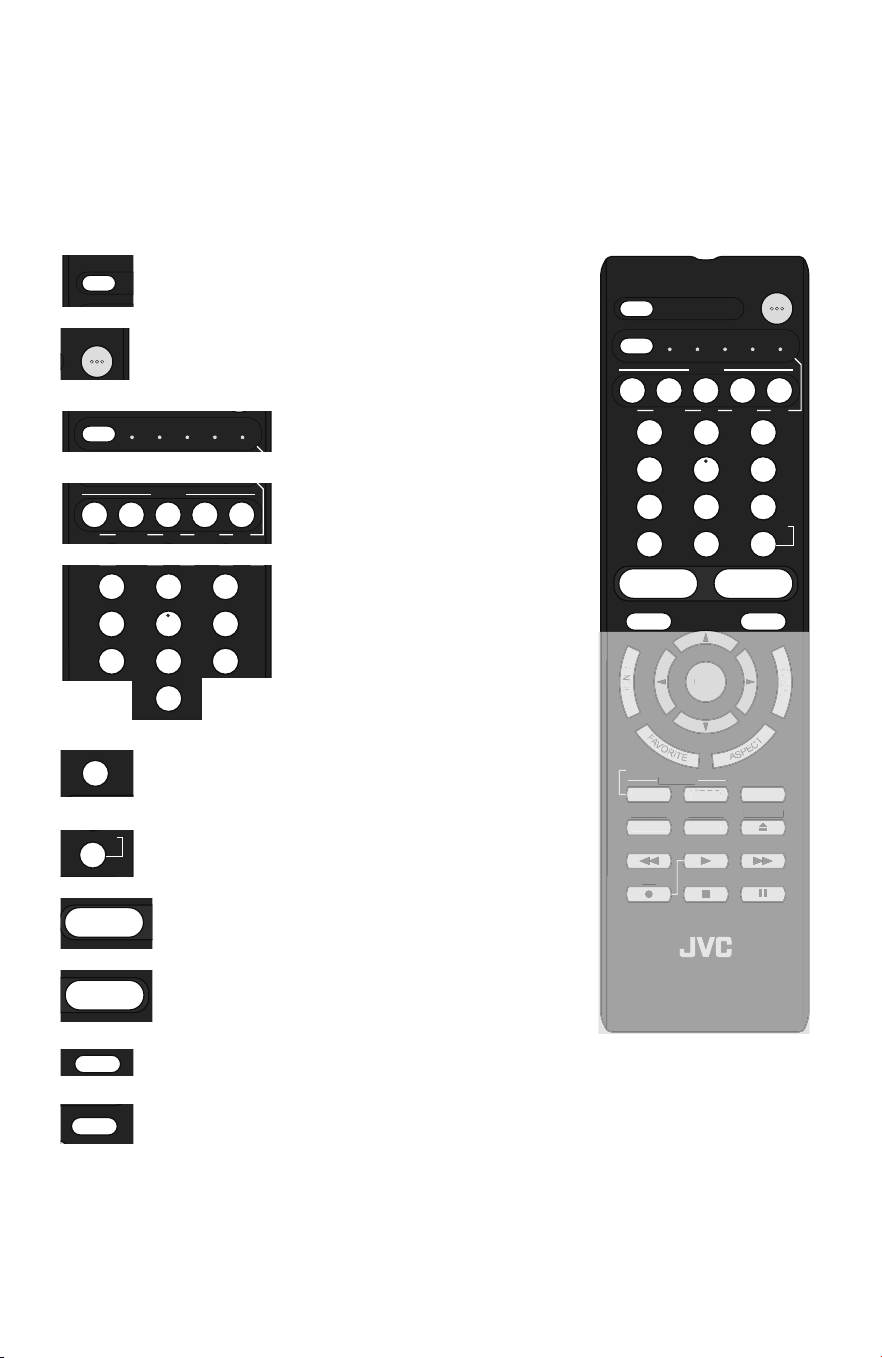
The following pages gives you a brief description of each button’s function. For more detailed
information on the remote control buttons, see pages 19 - 21. This remote can also control up
to four other devices. See page 52 - 58.
POWER
SLEEP
MODE
TV STB VCR DVD AUDIO
INPUT
123
456
789
0
TUNE
TV
RETURN
+
iPod MUTING
– CH + – VOL +
RM-C1480
TV
DVR
STATUS
VIDEO
GUIDE
TV/VCR
SUB T.
SUB CH ML/MTS DISPLAY
SOUND
OK
M
E
N
U
F
A
V
O
R
I
T
E
A
S
P
E
C
T
B
A
C
K
V1 V2 V3 V4 V5
TV DVD/DVR DBB TUNER USB
PCON
iTV
Turns the TV volume to 0. Press again to
restore the volume.
MUTING
Control your iPod connected to the TV.
See page 42.
iPod
Raise or lower the volume.
– VOL +
Move sequentially through the channels.
– CH +
Lets you go back to the previously selected
channel. See page 19.
TV
RETURN
+
Lets you decide the input channel and select
it. After pressing the remote 0 - 9 buttons,
press TUNE.
TUNE
Change channels. Input
remote codes. See page 52.
123
456
789
0
TUNE
TV
RETURN
+
TV DVD/DVR DBB TUNER USB
Switch between devices
connected to Video-1, 2, 3,
4 and 5.
INPUT
V1 V2 V3 V4 V5
TV DVD/DVR DBB TUNER USB
Switch between “TV / STB /
VCR / DVD / AUDIO devices.
See page 52.
MODE
TV STB VCR DVD AUDIO
Turns the TV on or off.
POWER
Choose how long the TV will stay on before
turning off. See page 19.
SLEEP
Remote Control
RM-
C
14
80
TV
DV
R
S
TAT
US
V
IDE
O
GU
ID
E
TV/VCR
S
UB T.
SU
B
C
H ML
/
MT
S
D
I
S
PLAY
SOU
N
D
OK
M
E
N
U
F
A
F
F
V
A
A
O
V
R
I
T
E
A
S
A
P
E
C
T
C
B
A
C
K
PCO
N
iTV
LCT2385-001A-A English 10LCT2385-001A-A English 10 4/14/08 3:42:31 PM4/14/08 3:42:31 PM
11
POWER
SLEEP
MODE
TV STB VCR DVD AUDIO
INPUT
123
456
789
0
TUNE
TV
RETURN
+
iPod MUTING
– CH + – VOL +
RM-C1480
TV
DVR
STATUS
VIDEO
GUIDE
TV/VCR
SUB T.
SUB CH ML/MTS DISPLAY
SOUND
OK
M
E
N
U
F
A
V
O
R
I
T
E
A
S
P
E
C
T
B
A
C
K
V1 V2 V3 V4 V5
TV DVD/DVR DBB TUNER USB
PCON
iTV
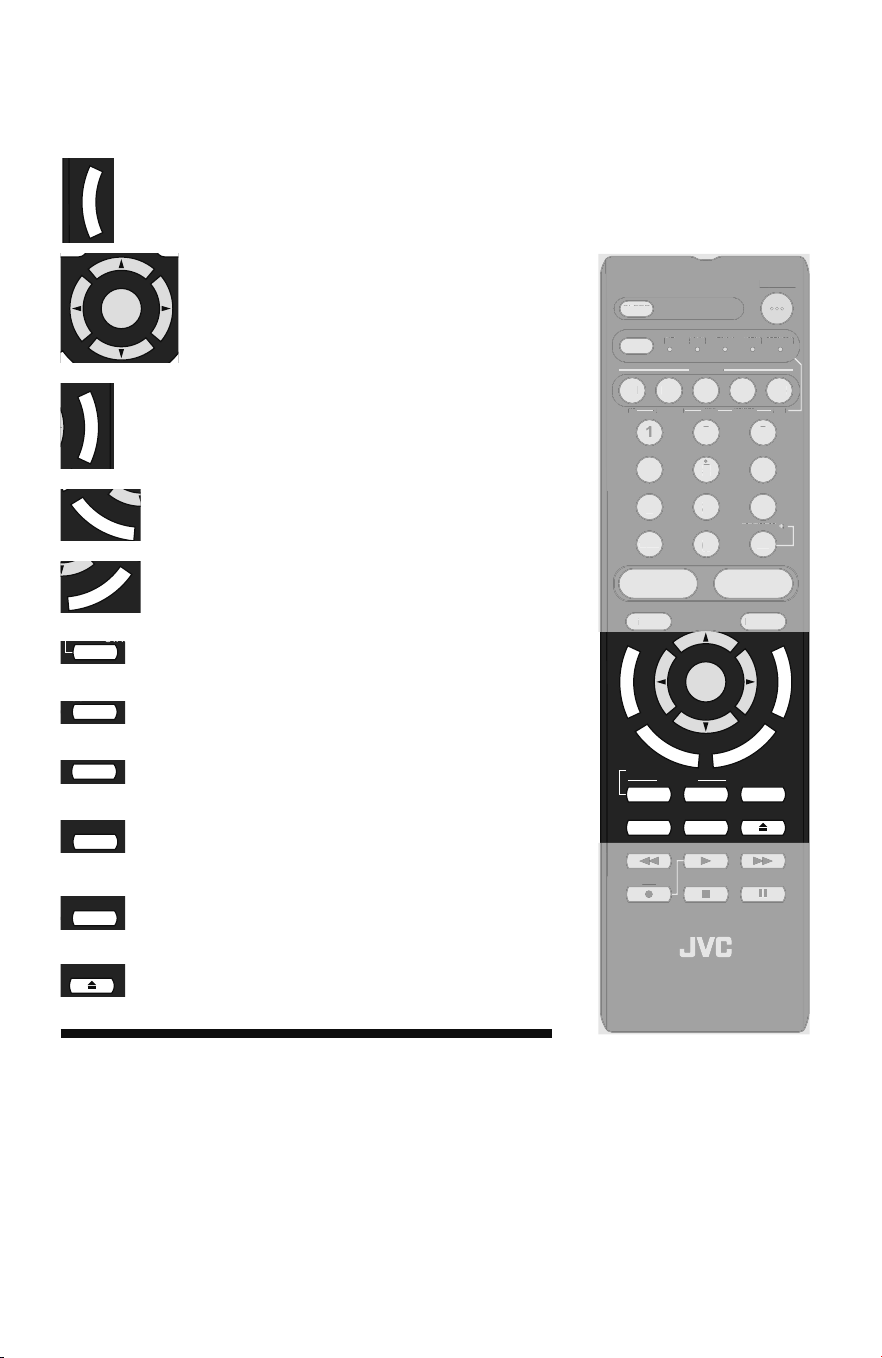
View current channel information.
DISPLAY
Listen to a program in stereo, mono or
another language (SAP). (Depending on
availability in the program). See page 21.
SUB T.
ML/MTS
Used to select sub channels.
(Digital channels only). See page 21.
TV/VCR
SUB CH
Programming information. (Digital channels
only). See page 21.
GUIDE
Choose different display settings according to
personal preferences. See page 20.
ATUS
VIDEO
Choose several types of sound frequencies.
See page 20.
STAT
SOUND
Change the aspect ratio of the image on your
TV screen. See page 20.
A
S
P
E
C
T
Save your favorite channels. See page 19.
DVR
F
A
V
O
R
I
T
E
Go back to a previous onscreen menu or to
correct a mistake.
B
A
C
K
Used to navigate through the TV’s
onscreen menus.
OK
F
* See page 52 for buttons that control your external devices.
Remote Control
Used to access the TV’s onscreen menus.
See page 22.
M
E
N
U
POWER
S
LEEP
MO
DE
TV
S
TB
V
C
R
DVD
A
UDIO
INPU
T
1
2
3
4
5
6
7
8
9
0
TU
NE
T
V
RETURN
+
i
P
od
M
UTING
–
CH + – V
O
L +
V1
V2
V3
V4
V5
TV
D
VD
/
DV
R
DBB
TUNER
US
B
RM-
C
14
80
TV
iTV
LCT2385-001A-A English 11LCT2385-001A-A English 11 4/14/08 3:42:36 PM4/14/08 3:42:36 PM
12
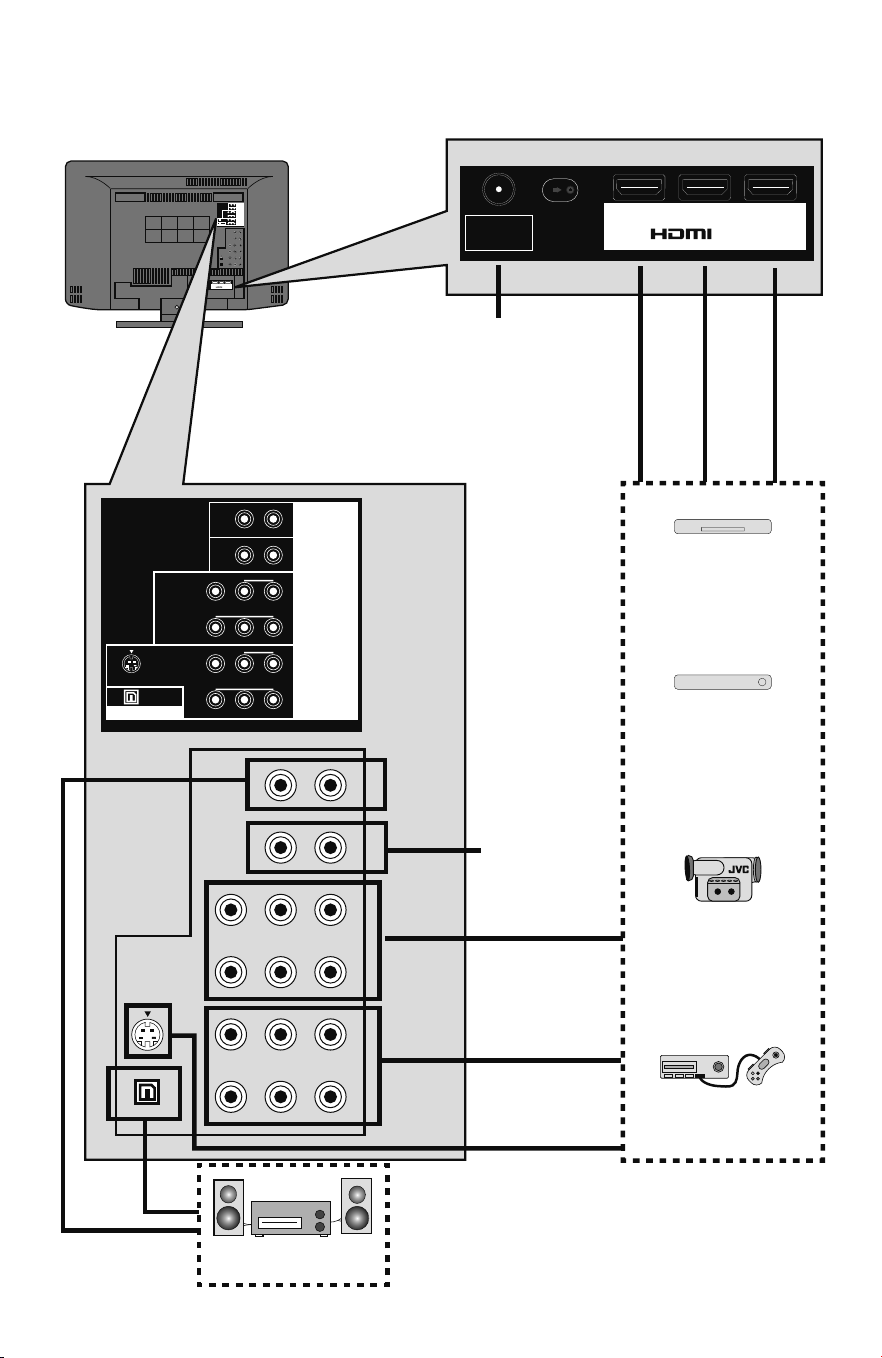
Before you connect your television to another device, please refer to the proper diagrams for
your specific TV and remote. These will help assist you in understanding how to connect your
television to another device, as well as use the remote to set up your television. Some of the
connection terminals are color coded for easy connection with the proper cables.
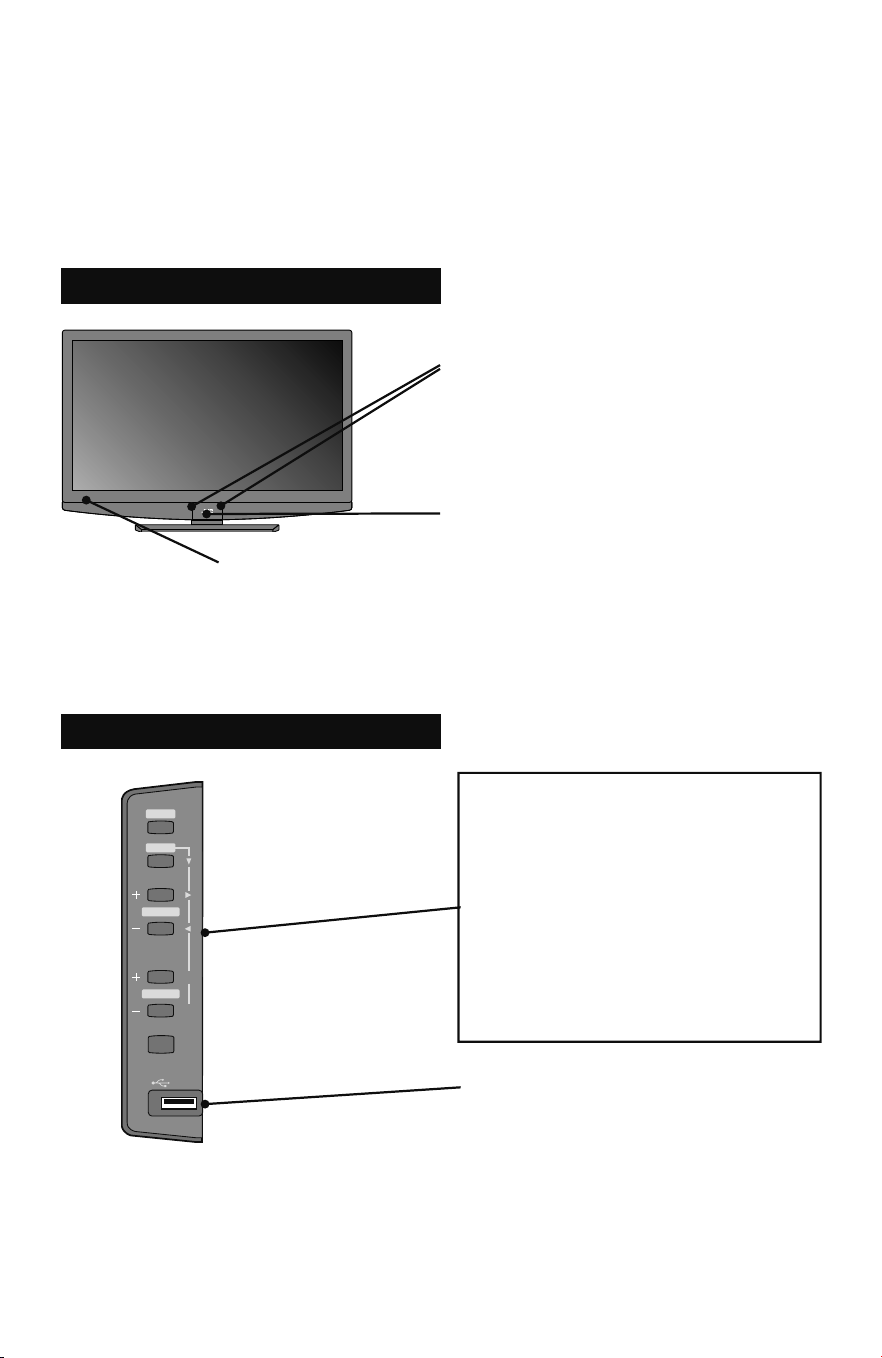
Front Panel
Side Panel
INPUT
MENU
CHANNEL
VOLUME
OK
BACK
POWER
PHOTO VIEWER
TV Basic Controls
TeleDock
Illumination for iPod
Power Lamp
Remote Control Sensor
Input
Change the input
MENU
Used to access the TV’s onscreen menus.
+CH–
Move sequentially through the channels.
+VOL–
Raises or lowers the volume.
POWER
Turn the TV on or off.
Photo Viewer Connector
• Do not use Photo Viewer connector to
connect the iPod
Notes:
• Do not use unreasonable force to the TeleDock.
• When not using the TeleDock, close the cover.
• Do not touch the connector pins of the TeleDock or the iPod terminal pins.
• Do not put different devices on the TeleDock. It may cause a connection failure.
LCT2385-001A-A English 12LCT2385-001A-A English 12 4/14/08 3:42:40 PM4/14/08 3:42:40 PM
13
L
L
L
P
B
L
PB
R
R
R
P
R
R
PR
VIDEO
Y
VIDEO
Y
AUDIO
COMPONENT
AUDIO
COMPONENT
AUDIO OUT
INPUT 1
HDMI ANALOG
AUDIO
INPUT 5
INPUT 4
S-VIDEO
DIGITAL AUDIO OPTICAL OUT
LC34324-001A
INPUT 1 INPUT 2 INPUT 3
75 Ω
(VHF/UHF)
A / B A
L
L
L
P
B
L
PB
R
R
R
P
R
R
PR
VIDEO
Y
VIDEO
Y
AUDIO
COMPONENT
AUDIO
COMPONENT
AUDIO OUT
INPUT 1
HDMI ANALOG
AUDIO
INPUT 5
INPUT 4
S-VIDEO
DIGITAL AUDIO OPTICAL OUT
LC34324-001A
INPUT 1 INPUT 2 INPUT 3
75 Ω
(VHF/UHF)
H
Audio System
G
Game Console
Video Camera
STB (Digital Cable,
satellite) Tuner Box
DVD Player
C / E
D
* For more detailed information, see
pages 47 - 51.
* This is used
when you are
using HDMI
analog audio
Antenna / Cable
F
C / E
A
TV Basic Controls
LCT2385-001A-A English 13LCT2385-001A-A English 13 4/14/08 3:42:41 PM4/14/08 3:42:41 PM
14
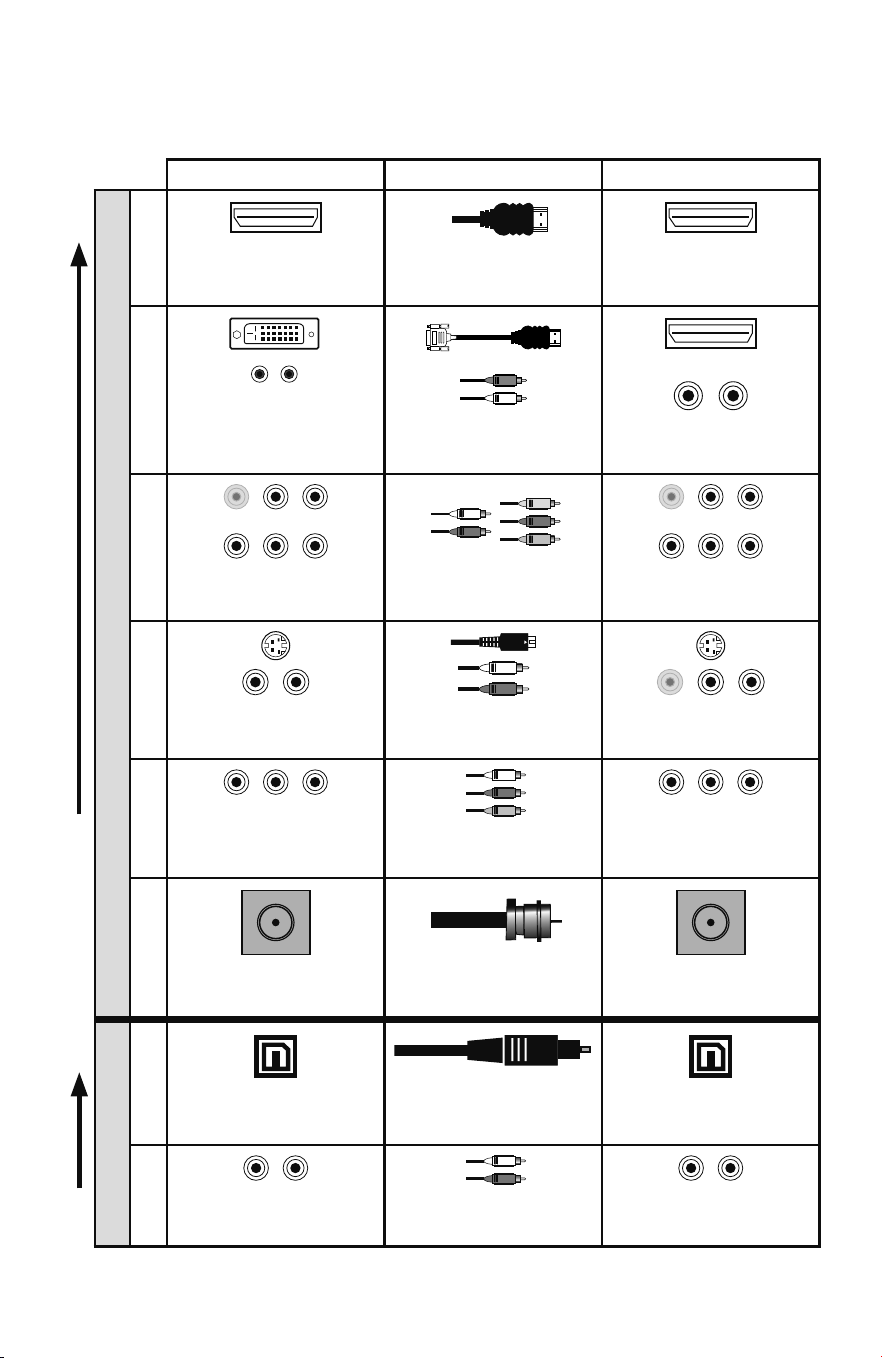
Device Side With Cables TV Side
Good Best
VIDEO and AUDIO
A
HDMI HDMI Cable INPUT 1, 2 or 3
B
DVI + Audio
DVI – HDMI Cable,
Audio Cable
Input 1 +
HDMI ANALOG AUDIO
C
Component
Video + Audio
Component
Video + Audio INPUT 4 or 5
D
S-Video + Audio
S-Video Cable,
Audio Cable
INPUT 4 +
AUDIO Input
E
Composite
Video + Audio
Composite
Video + Audio INPUT 4 or 5
F
Antenna / Cable
(VHF / UHF) RF Cable
75Ω
(VHF / UHF)
Good Best
AUDIO
G
OPTICAL INPUT
OPTICAL AUDIO
Cable
DIGITAL AUDIO
OPTICAL OUT
H
AUDIO INPUT
(L / R) Audio Cable
AUDIO OUT
(L / R)
TV Basic Controls
LCT2385-001A-A English 14LCT2385-001A-A English 14 4/14/08 3:42:44 PM4/14/08 3:42:44 PM
15
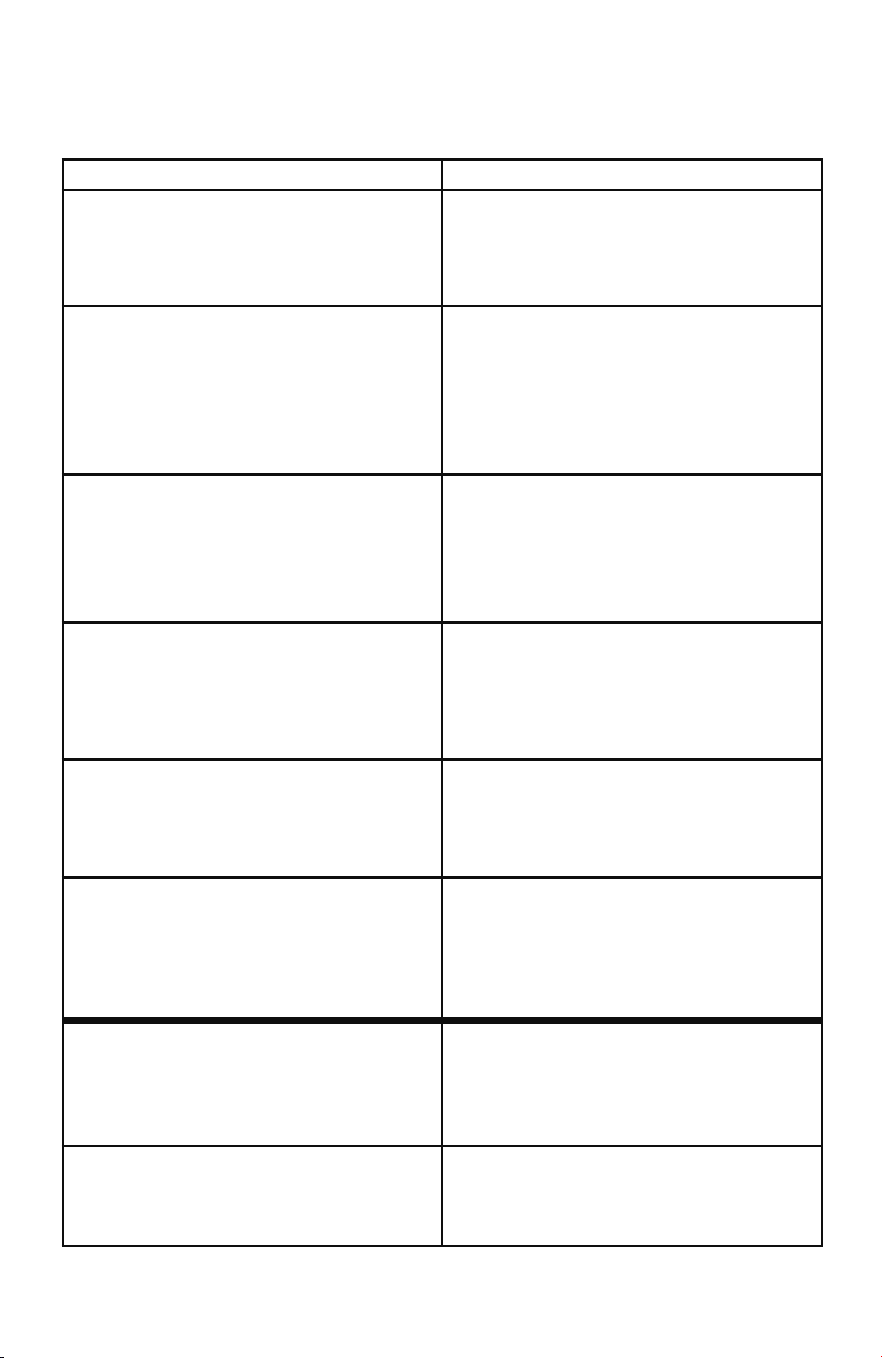
Compatible Signal Notes
Input
• HDMI (Digital)
SD: 480i, 480p
HD: 1080i, 1080p/60Hz, 720p
Audio L/R
See page 51.
Input
• DVI (Digital)
SD: 480i, 480p
HD: 1080i, 1080p/60Hz, 720p
• Audio L/R (Analog)
See page 50.
Input
• Component (Analog)
SD: 480i, 480p
HD: 1080i, 720p
• Audio L/R (Analog)
See page 48.
Input
• S-Video (Analog)
• Audio L/R (Analog)
Input
• Composite (Analog)
• Audio L/R (Analog)
See page 48.
ATSC (Digital)
NTSC (Analog)
Clear QAM (Digital)
See page 47.
Output
• Audio L/R (Digital)
(PCM or Dolby Digital)
See page 49.
Output
• Audio L/R (Analog)
(Fixed)
See page 49.
TV Basic Controls
LCT2385-001A-A English 15LCT2385-001A-A English 15 4/14/08 3:42:46 PM4/14/08 3:42:46 PM
16
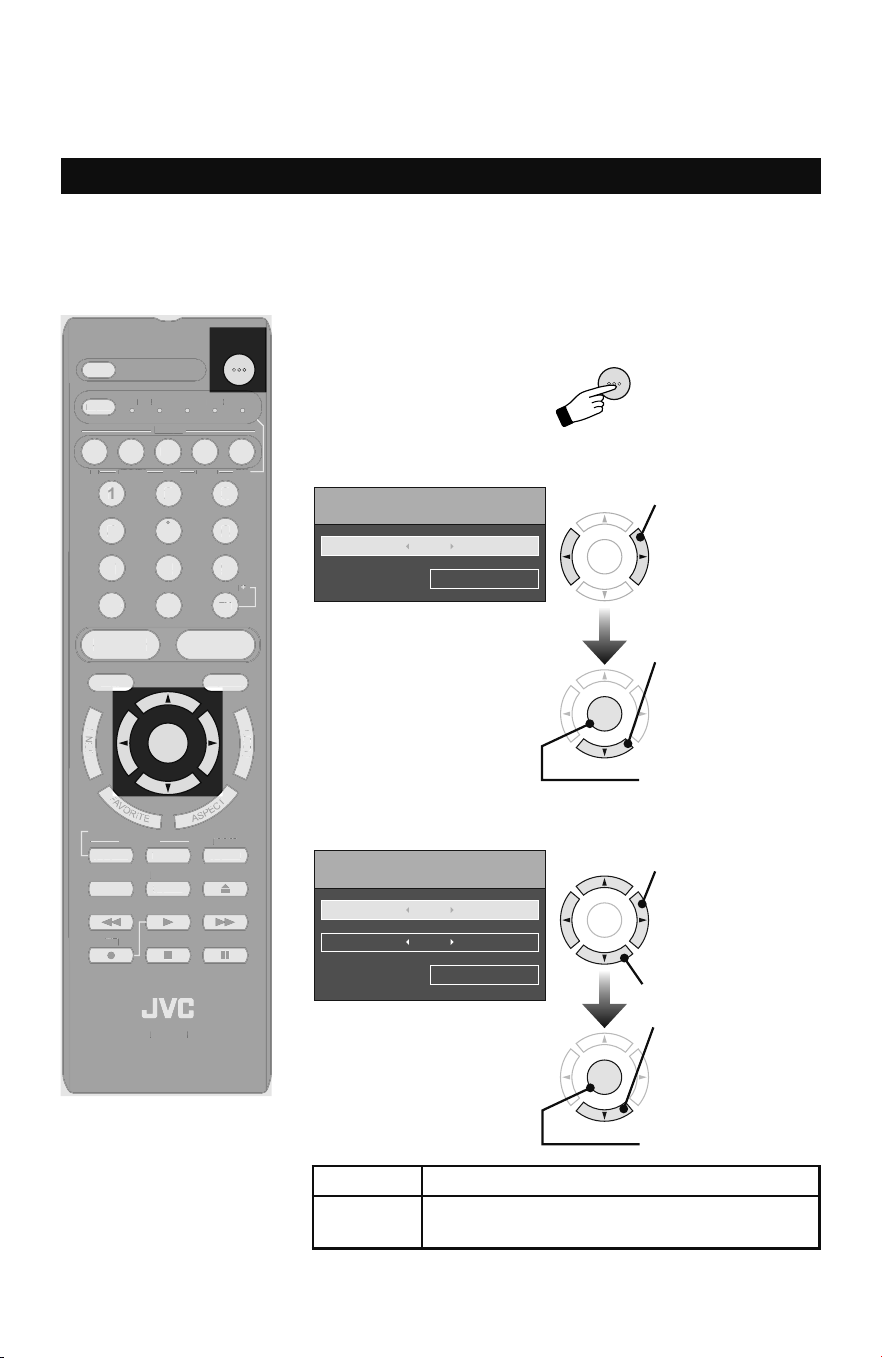
Initial setup
When you turn on your TV for the first time, the Initial Setup menu appears automatically.
These menus will help you setup your TV with basic information for Language, Time and
Tuner Setup. You can also set this setting in the “Plug in Menu”.
Setup
POWER
1) Turn on the TV
1 Select a language
Time Zone Choose the time zone you live in.
D.S.T. Changes the clock automatically for daylight
saving time. On / Off
1 Change settings
3) Set time attribute
Set Time Attribute
Atlantic
ON
Next
Time Zone
D.S.T.
2 Select an item
4 Move to next menu
3 Select “Next”
OK
OK
2) Set the language
Set Language/Langue/Idioma
English
Next
OK
OK
2 Select “Next”
3 Move to next menu
POWER
SLEEP
MODE
TV STB VCR DVD AUDIO
INPUT
123
456
789
0
TUNE
TV
RETURN
+
iPod MUTING
– CH + – VOL +
RM-C1480
TV
DVR
STATUS
VIDEO
GUIDE
TV/VCR
SUB T.
SUB CH ML/MTS DISPLAY
SOUND
OK
M
E
N
U
F
A
V
O
R
I
T
E
A
S
P
E
C
T
B
A
C
K
V1 V2 V3 V4 V5
TV DVD/DVR DBB TUNER USB
PCON
iTV
S
LEEP
MO
DE
TV
S
TB V
CR
DVD
A
UDI
O
INP
UT
1
2
3
4
5
6
7
8
9
0
TUNE
T
V
RETURN
+
iP
o
d
MU
TIN
G
–
CH + – V
O
L +
RM-
C
14
80
T
V
DVR
S
TAT
US
V
IDEO
G
UIDE
TV
/
V
CR
SU
B T.
S
UB CH ML/MTS DISPLAY
S
OUND
M
E
N
U
F
A
F
F
V
A
A
O
V
R
I
T
E
A
S
A
P
E
C
T
C
B
A
C
K
V
1
V2
V
3
V4
V5
TV DVD
/
DV
R
D
BB T
U
NE
R
US
B
P
CON
iT
V
LCT2385-001A-A English 16LCT2385-001A-A English 16 4/14/08 3:42:46 PM4/14/08 3:42:46 PM
17
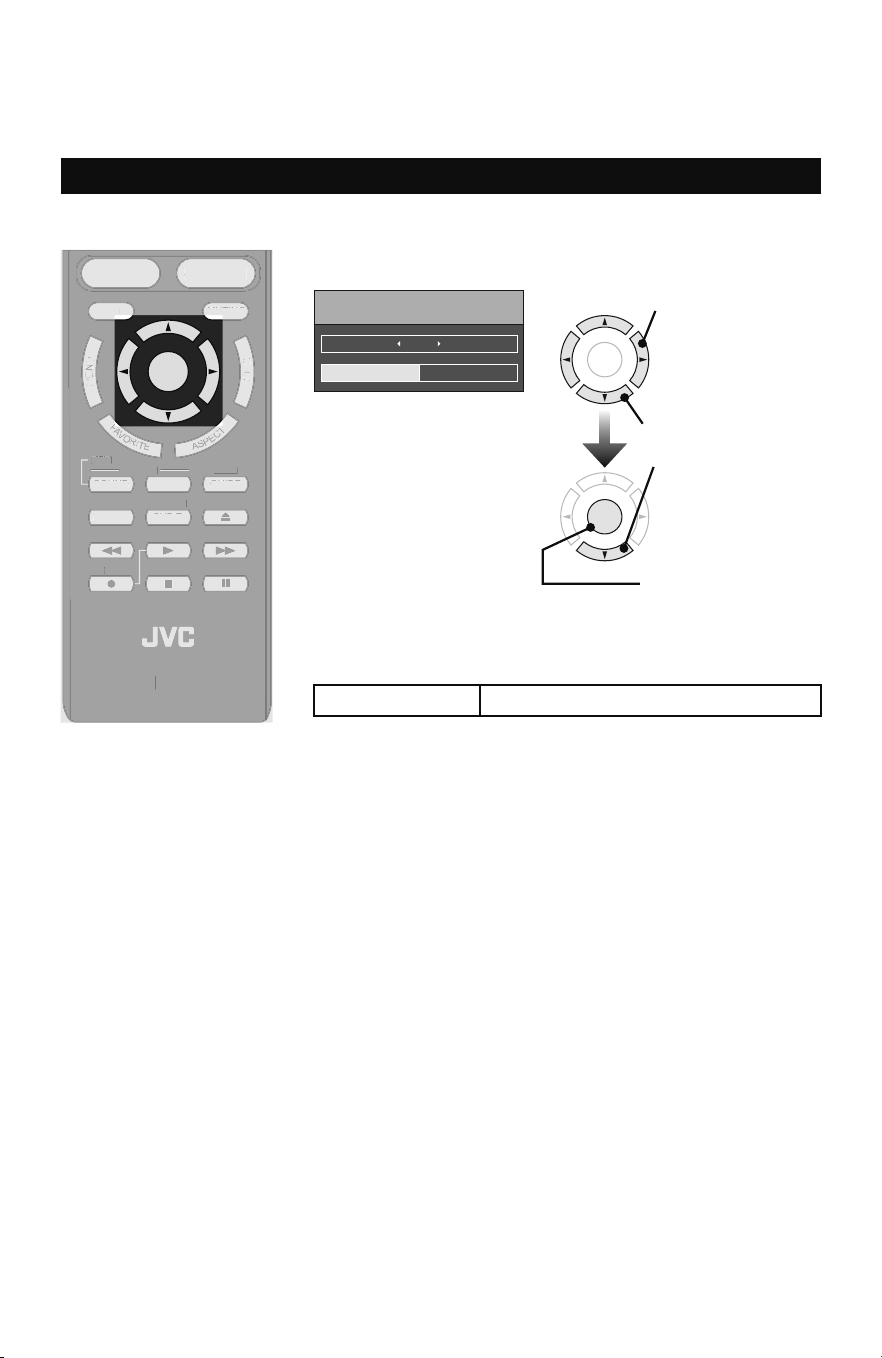
* If you use a set top box (satellite or cable box), press “Exit” to
skip this step.
“Thank you! Setup is now complete”
Setup
1 Change settings
4) Set TV attribute
Start Scan Exit
Set TV Attribute
Tuner Mode Air
2 Select an item
4 Start scanning
channels
3 Select “Start Scan”
OK
OK
iPod MUTING
– CH + – VOL +
RM-C1480
TV
DVR
STATUS
VIDEO
GUIDE
TV/VCR
SUB T.
SUB CH ML/MTS DISPLAY
SOUND
OK
M
E
N
U
F
A
V
O
R
I
T
E
A
S
P
E
C
T
B
A
C
K
PCON
iTV
Tuner Mode Choose Air (antenna) or Cable
Initial setup (Continued)
i
P
od
M
UTIN
G
– CH +
–
V
O
L +
R
M-
C
14
80
TV
D
V
R
S
TAT
US
VIDE
O
GU
ID
E
TV/VC
R
S
UB T
.
SU
B
CH
M
L
/
MT
S
D
I
S
PLAY
SOU
N
D
M
E
N
U
F
A
F
F
V
A
A
O
V
R
I
T
E
A
S
A
P
E
C
T
C
B
A
C
K
PCON
iTV
Cable Users: After your auto tuner setup is complete, you may,
(depending on the type of hookup), have only 1 channel, usually
2, 3 or 4 in the auto tuner memory. This is normal.
LCT2385-001A-A English 17LCT2385-001A-A English 17 4/14/08 3:42:51 PM4/14/08 3:42:51 PM
18
Key Features
Your JVC TV is equipped with many features. Here are some key features
highlighted in detail.
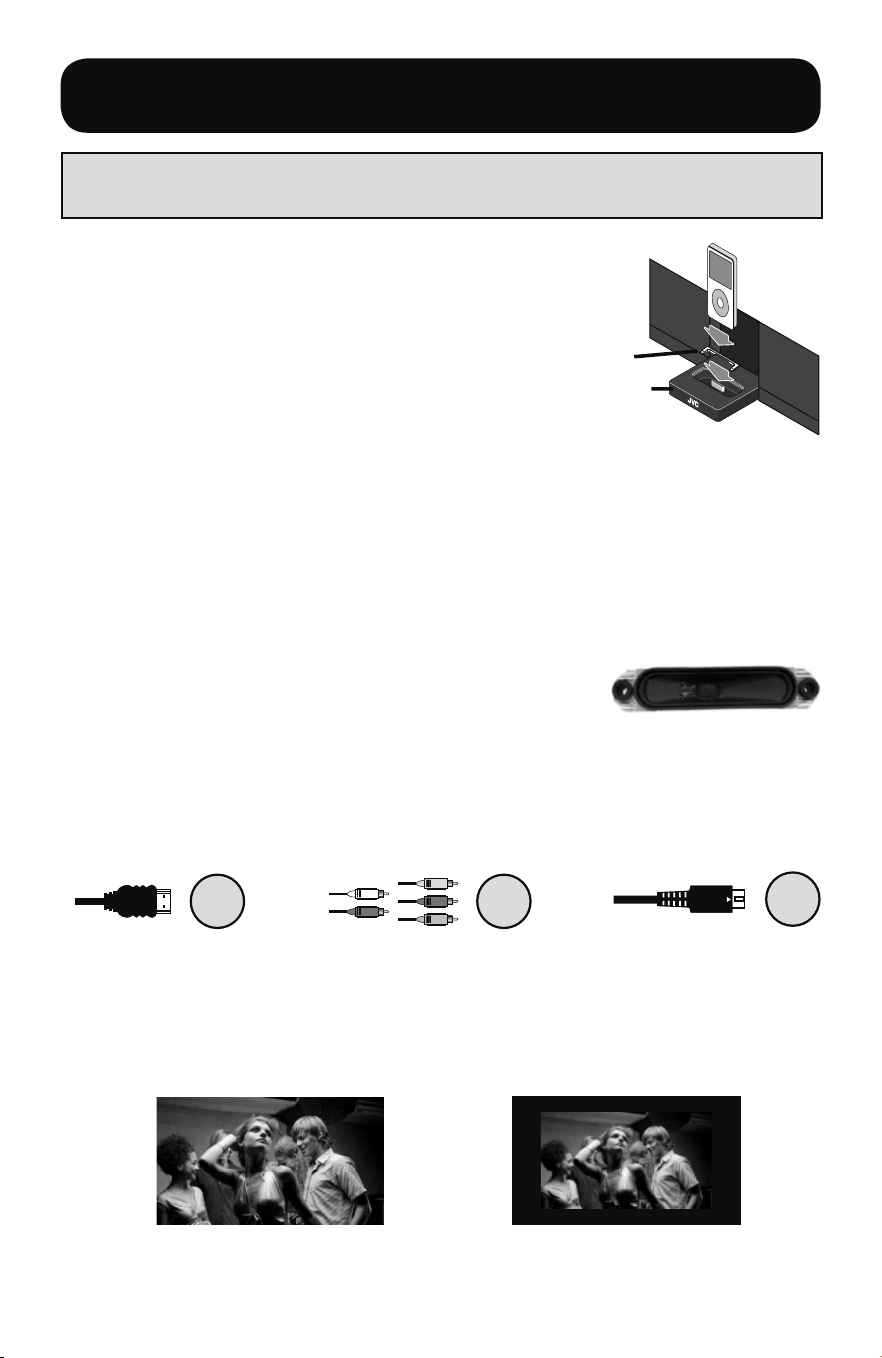
TeleDock
Dock adapter (supplied)
1 Simple playback of video and music on
TV. You can charge your iPod. You
can watch a program while listening
to the iPod (source of program must
be from TV’s Internal Tuner). You
can view photos from the iPod while
listening to the iPod.
2 Dynamic Gamma and Color Management give further
fi ne tuned picture reproduction. Smart Picture adjusts the
best possible picture quality automatically scene by scene
based on the incoming signal from any source!
3 JVC exclusive oblique cone speakers provide excellent
TV sound quality. OmniSurround sound provides you 4
different settings based on the program you are watching.
The equalizer will fi ne tune your listening preferences.
4 Full connectivity with 3 HDMI, 2 Component, 1 S-video and others. The variety of
connections are explained on pages 47 to 51.
x 3 x 2
x 1
5 Aspect mode will show every pixel you are getting in High Defi nition. Full – with slight
overscan. Panarama and Cinema will fi ll the screen with various aspect settings. Mini Mode
will show a better picture with a smaller screen for low resolution content from your iPod.
Mini Mode – For low quality iPod
sources.
Full or Widescreen Mode – For high
quality iPod sources.
Or...
LCT2385-001A-A English 18LCT2385-001A-A English 18 4/14/08 3:42:53 PM4/14/08 3:42:53 PM
19
Remote Control Functions
Allows you to choose how long the TV will stay on before turning off.
Notes:
• When you press the SLEEP button several times, you can set the interval at Off, 15, 30, 45,
60, 90, 120, 150 and 180 minutes.
• 60 seconds before the TV turns off, a message will appear and it will count the remaining
time. If you want to extend the time, press the SLEEP button and you can change the
interval. If you don’t press the SLEEP button, within 60 seconds the TV will turn off.
SLEEP
Sleep
Has three functions.
Return – Returns to the channel viewed just before the channel currently onscreen.
Return+ – Lets you program a specific channel to return to while scanning through the
channels using the – CH + button as you memorize the channel.
TV – Returns to the TV mode as you are watching a video, DVD, etc.
Note:
• Press TUNE and RETURN+ TV buttons. This will memorize the current channel to return
to while you scan through the other channels. To cancel, press TUNE and RETURN+ TV
buttons again.
TV
RETURN
+
Return+ TV
Allows you to save channels you like so you can view them easily. First you must register the
channels you like.
Notes:
• Go to the channel you want to register and press the FAVORITE. A list will appear. Press
the FAVORITE button again to register your channel.
• To view your favorite channels, press FAVORITE. Move π† to select your channel and
press OK.
• To erase your favorite channels, press FAVORITE. Move π† to select your channel and
press ®.
• Both analog and digital channels can be registered.
• The channels you registered will appear in numerical order at the top of the list.
DVR
F
A
V
O
R
I
T
E
Favorite
LCT2385-001A-A English 19LCT2385-001A-A English 19 4/14/08 3:42:54 PM4/14/08 3:42:54 PM
20
Remote Control Functions
STAT
SOUND
Sound
You can choose several types of sound modes. Speech / Jazz / Classic / Rock / User
Notes:
• You can choose the different sound modes by pressing the SOUND button.
• If you select User, you can customize the various sound frequencies.
ATUS
VIDEO
Video
Allows you to choose different picture settings according to personal preferences. You can
access this feature for each input (TV, V1, V2, V3, V4, V5).
Standard / Dynamic / Theater / Game
See page 23.
Allows you to adjust the way the image appears on your TV based on the format that is being
received.
Panorama / Cinema / Full / Panorama Zoom / Cinema Zoom / Regular / Slim
See page 28.
Notes:
• You can select the aspect mode by pressing the ASPECT button.
• You can also access the aspect modes using the buttons on the side of the TV, by using the
MENU button, then the – CH + button.
A
S
P
E
C
T
Aspect
LCT2385-001A-A English 20LCT2385-001A-A English 20 4/14/08 3:42:55 PM4/14/08 3:42:55 PM
21
Remote Control Functions
GUIDE
Guide
You can view program information for Digital Channels.
Note:
• When the program information is not being broadcast, the correct information will not be
displayed.
• The GUIDE will not show the correct time and date depending on the Time Zone and D.S.T.
settings. See page 40.
Allows you to listen to a program in stereo, mono sound or another language (SAP) if available.
First you must set the MODE to TV on your remote.
Notes:
• When you are receiving a digital broadcast, if there are other languages, you can change the
language by pressing the ML/MTS button.
• Keep the TV in stereo mode to get the best sound quality. The sound will work in stereo
mode even if a certain broadcast is in mono sound only.
• Choose the mono setting to reduce excessive noise on a certain channel or broadcast.
• MTS is unavailable if your television’s Input source is (V1, V2, V3, V4, V5).
• ML/MTS will not work when you are using HDMI.
ML/MTS
SUB T.
ML/MTS
Digital broadcast sometimes offers sub channels. By using the SUB CH button, you can select
a sub channel easily.
For example, to move to sub channel 123-45:
1) Press 1, 2 and 3 in order
2) Press the SUB CH button
3) Press 4 and 5 in order
4) Press the TUNE button
SUB CH
TV/VCR
SUB CH
LCT2385-001A-A English 21LCT2385-001A-A English 21 4/14/08 3:42:56 PM4/14/08 3:42:56 PM
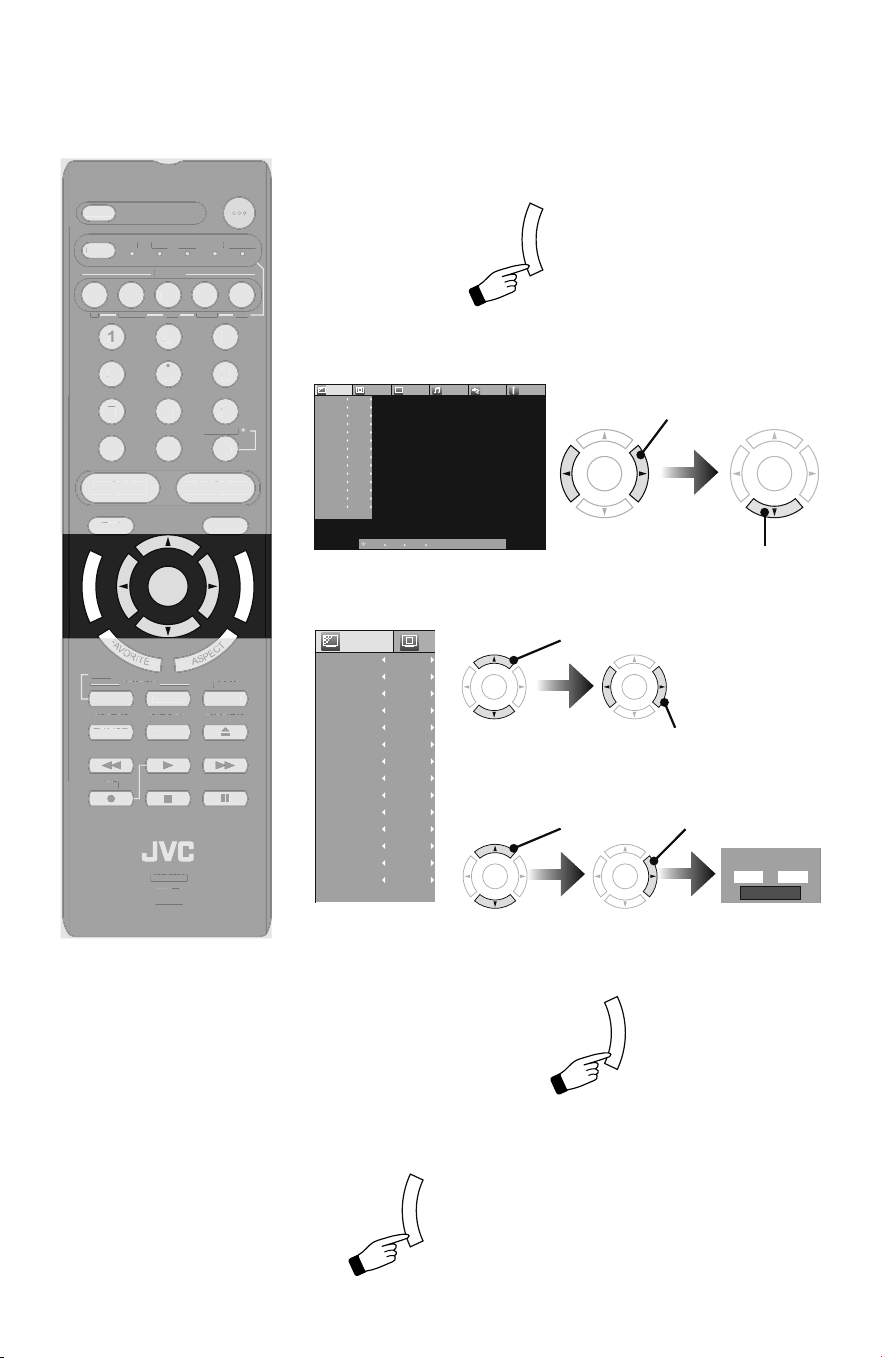
22
Customizing your TV
1) Display the menu bar
Select
POWER
SLEEP
MODE
TV STB VCR DVD AUDIO
INPUT
123
456
789
0
TUNE
TV
RETURN
+
iPod MUTING
– CH + – VOL +
RM-C1480
TV
DVR
STATUS
VIDEO
GUIDE
TV/VCR
SUB T.
SUB CH ML/MTS DISPLAY
SOUND
OK
M
E
N
U
F
A
V
O
R
I
T
E
A
S
P
E
C
T
B
A
C
K
V1 V2 V3 V4 V5
TV DVD/DVR DBB TUNER USB
PCON
iTV
M
E
N
U
2) Display the desired menu
Picture Display TV Sound Power Setting
Video Status
Tint
Color
Picture
Bright
Detail
Backlight
Color Temp
Color Management
Dynamic Gamma
Smart Picture
Digital VNR
MPEG NR
Natural Cinema
Video Reset
Game
50
25
50
43
94
50
Cool
Off
On
On
High
On
On
0 –
0 –
0 –
0 –
0 –
0 –
– 100
– 100
– 100
– 100
– 100
– 100
:Select
:Operate
OK
:Back
BACK
:Exit
MENU
OK OK
Enter
3) Change or adjust the setting
Picture
D
Video Status
Tint
Color
Picture
Bright
Detail
Backlight
Color Temp
Color Management
Dynamic Gamma
Smart Picture
Digital VNR
MPEG NR
Natural Cinema
Video Reset
Game
50
25
50
43
94
50
Cool
Off
On
On
High
On
On
0 –
0 –
0 –
0 –
0 –
0 –
– 100
– 100
– 100
– 100
– 100
– 100
Select
OKOK
Change / Adjust
■ To enter an item’s sub menu
Select
OKOK
Enter
■ To the previous screen
B
A
C
K
4) Close the menu
Note:
• Depending on the situation
(analog channels, digital
channels, video signal
format, external inputs,
etc.), some items will be
displayed in gray and can
not be selected.
Please insert scan
number or range
to
Start
(Example: Add Channel)
M
E
N
U
P
OWER
S
LEEP
MO
DE
TV
S
TB V
CR
DVD
A
UDI
O
INP
UT
1
2
3
4
5
6
7
8
9
0
TUNE
T
V
RETURN
+
iPo
d
MU
TIN
G
–
CH + – V
O
L +
V
1
V2
V
3
V4
V5
TV DVD
/
DV
R
D
BB T
U
NE
R
US
B
RM-
C
14
80
TV
DVR
S
TAT
US
V
IDEO
G
UIDE
TV/VC
R
S
UB T.
S
UB CH ML/MTS DISPLAY
SO
UND
F
A
F
F
V
A
A
O
V
R
I
T
E
A
S
A
P
E
C
T
C
PCO
N
iTV
LCT2385-001A-A English 22LCT2385-001A-A English 22 4/14/08 3:42:58 PM4/14/08 3:42:58 PM

23
Picture
Customizing your TV
Picture Display TV Sound Power Setting
Video Status
Tint
Color
Picture
Bright
Detail
Backlight
Color Temp
Color Management
Dynamic Gamma
Smart Picture
Digital VNR
MPEG NR
Natural Cinema
Video Reset
Game
50
25
50
43
94
50
Cool
Off
On
On
High
On
On
0 –
0 –
0 –
0 –
0 –
0 –
– 100
– 100
– 100
– 100
– 100
– 100
:Select
:Operate
OK
:Back
BACK
:Exit
MENU
Video Status
Choose different display settings according to personal preferences. You can use this feature
with TV, V1, V2, V3, V4 and V5.
Standard
Resets the picture display to the factory settings.
Dynamic
Gives a vivid picture with better contrast when viewing in a brightly lit room.
Theater
Gives a rich, film-like look to video when viewing in a dimly lit room.
Game
Used for when you are playing video games connected to your TV.
Notes:
• Each mode is memorized for each input (TV, V1, V2, V3, V4, V5) connected to the TV.
• Each video status setting has a separate memory for HD (1080i/1080p/720p) and SD
(480p/480i) video signal. Each video status can be chosen along with your favorite picture
settings (Tint, Color, Picture, Bright, Detail and Backlight).
– When an HD or SD signal is displayed, your HD or SD settings are recalled for the video
status you are using.
LCT2385-001A-A English 23LCT2385-001A-A English 23 4/14/08 3:43:04 PM4/14/08 3:43:04 PM

24
■ Allows you to change and adjust the way the picture appears on your television.
Tint
Allows you to adjust the levels of red and green on your TV.
Color
Allows you to make all the colors on your TV appear more vivid or subtle.
Picture
Allows you to adjust the level of black and white on your TV giving you a darker or brighter
picture overall.
Bright
Allows you to adjust the overall brightness of the TV.
Detail
Allows you to adjust the level of fine detail on your TV.
Backlight
Allows you to adjust the brightness of the internal lamp which effects the overall brightness of
the TV.
Customizing your TV
Dynamic Gamma
Allows you see more detail in very dark or bright areas so these areas don’t appear “muddied”.
Normally, this feature should be left On for optimum picture quality. On / Off
Color Management
Allows you to compensate for dull colors to ensure dull colors are reproduced with natural hues.
On / Off
Color Temp
Allows you to change how strong or dull the colors appear. Cool / Natural / Warm
Picture (Continued)
LCT2385-001A-A English 24LCT2385-001A-A English 24 4/14/08 3:43:04 PM4/14/08 3:43:04 PM

25
Customizing your TV
Picture (Continued)
Video Reset
Resets all picture adjustments at once to the default settings, except for Natural Cinema.
Natural Cinema
Allows you to compensate for image blurring when the original video you are watching was
shot at 24 frames/sec, and is broadcast at 30 frames/sec. This conversion error is known as
“TELECINE”. On / Off
Notes:
• When you are receiving a 480p, 720p or 1080p signal, Natural Cinema cannot be selected.
• Natural Cinema is only applied for SD 480i and HD 1080i signals.
MPEG NR
This function effects the block noise removal and mosquito NR (Noise Reduction)
simultaneously.
Note:
• When you are receiving digital channels, block noise removal will have no effect.
Digital VNR
This function can be selected to change the effect of Digital VNR (Video Noise Reduction).
High – Adjusts the effect maximally
Low – Adjusts the effect minimally
Smart Picture
Allows you to adjust the brightness level automatically to a level suitable for what you are
watching. On / Off
LCT2385-001A-A English 25LCT2385-001A-A English 25 4/14/08 3:43:05 PM4/14/08 3:43:05 PM
26
Display
Customizing your TV
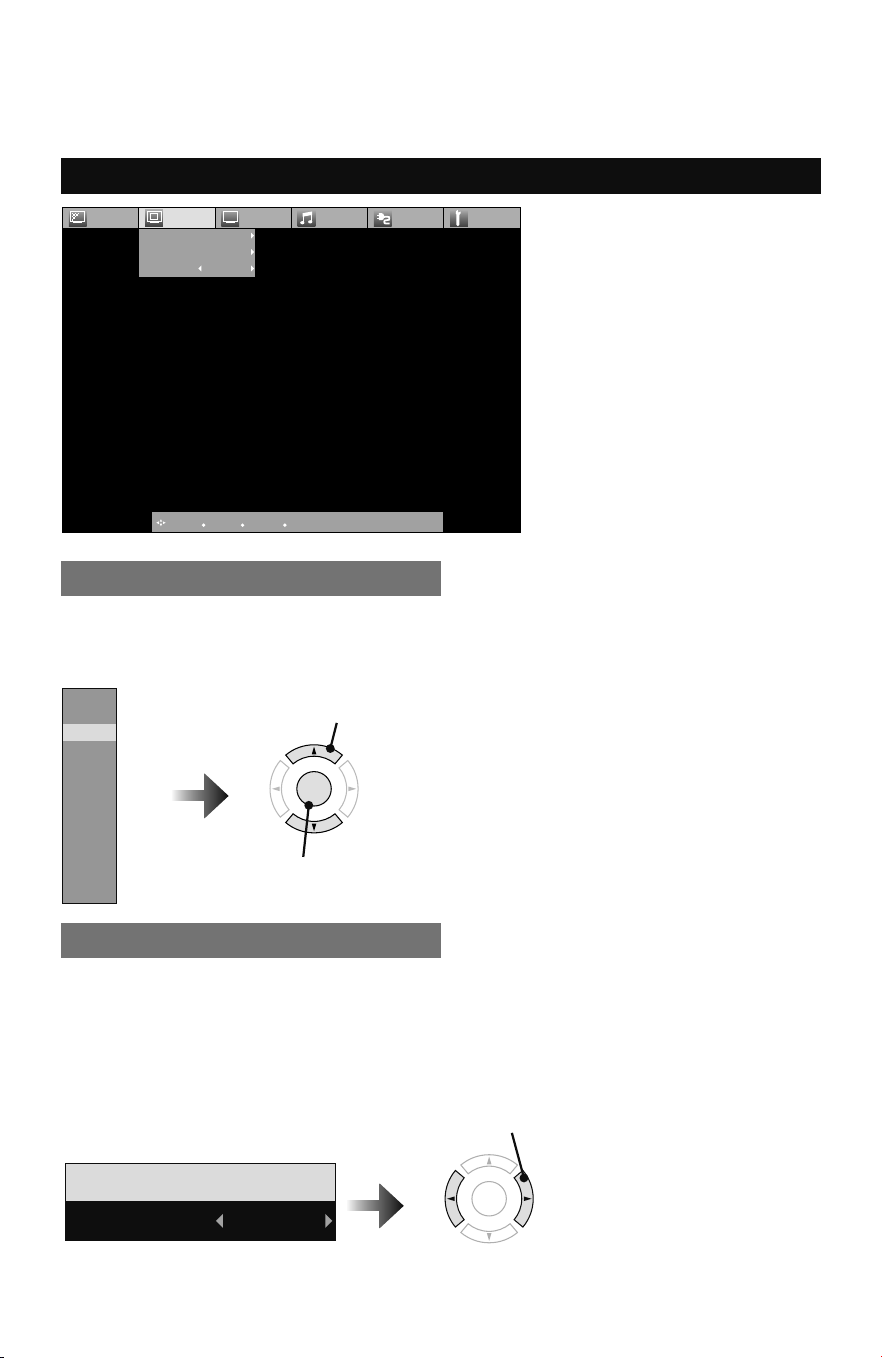
Video Input Label
Allows you to label all the devices you have connected to the TV that use the VIDEO-1, 2, 3, 4
and 5 inputs.
Video Input Label
Photo Viewer
Aspect Ratio
AIR TV
Cinema Zoom
:Select
:Operate
OK
:Back
BACK
:Exit
MENU
Picture Display TV Sound Power Setting
VCR
DVD
PVR
D-VHS
STB
SAT
AMP
GAME
CAM
DISC
Blu-ray DVD
Default
OK
1 Select
2 Set
Photo Viewer
Connect your USB Mass Storage Class device to the Photo Viewer terminal on the TV.
Photo Viewer allows you to enjoy your digital pictures stored on your USB Mass Storage Class
devices. You can view them on the TV in high quality.
1) Choose Slide Show Interval of 5, 10 or 20 seconds by pressing the √ ® buttons.
OK
1 Select
Thumbnail View
Interval 10
LCT2385-001A-A English 26LCT2385-001A-A English 26 4/14/08 3:43:05 PM4/14/08 3:43:05 PM
27
Customizing your TV
Display (continued)
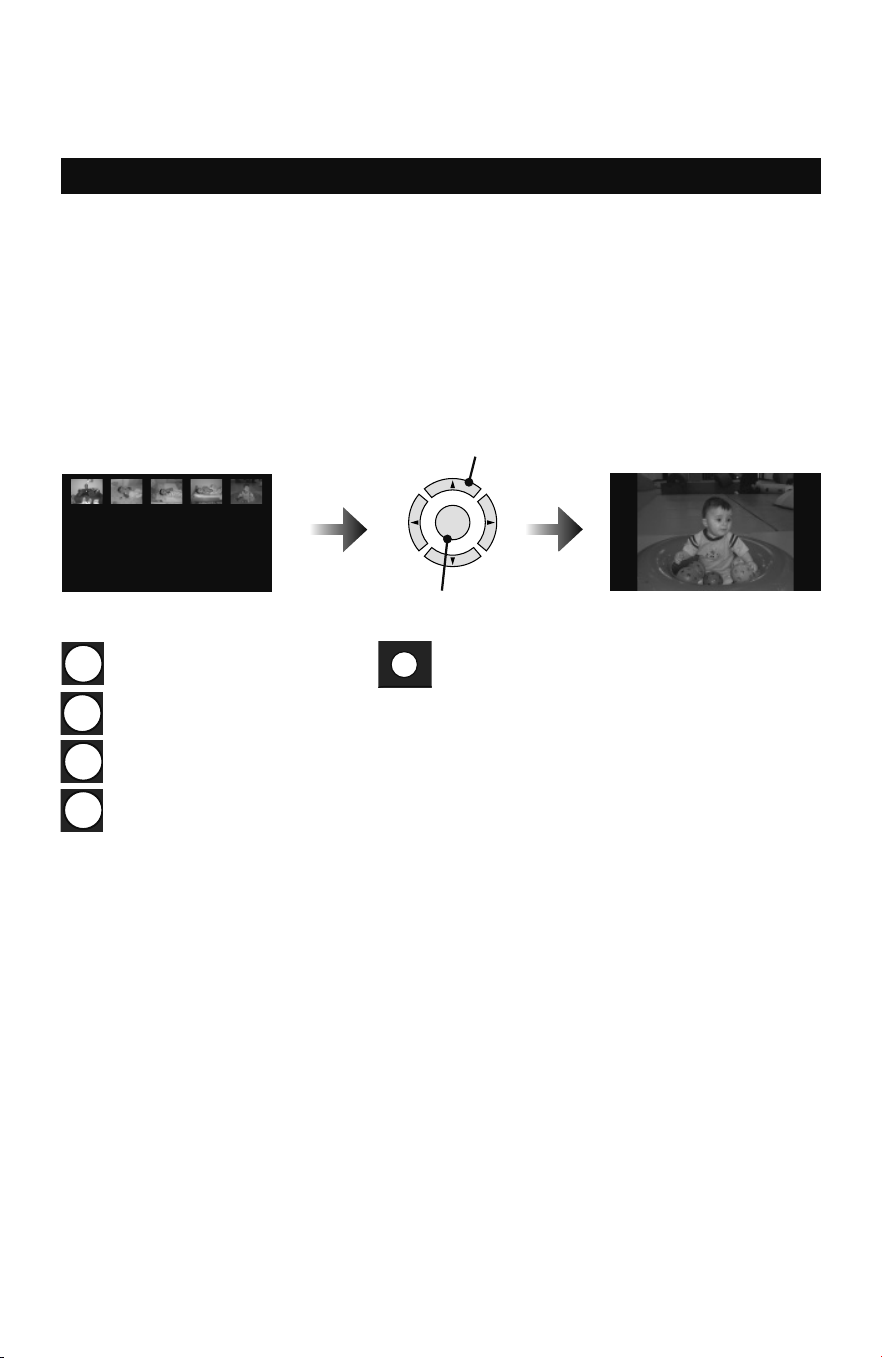
2) Choose Thumbnail View by pressing the ® button, and a folder list will be displayed. Select
your folder by using the √ ® or π† buttons. The screen will show the first 10 images.
* If there is more than 10 images, those images will be shown in the next page. To go to the
next page, select the last image on the page and press the ® or † buttons. To go back to
the previous page, press the √ or π buttons.
3) Choose a picture and press the OK button. It will now be shown on the screen. To move to
the next picture, press the ® or † buttons. To move to the previous picture, press the √ or
π buttons.
OK
1 Select
2 Display
2
4
6
8
90º Rotation
180º Rotation
270º Rotation
360º Rotation
Start Slideshow
TUNE
4) To go back to main menu, press the MENU button.
Notes:
• Gently pull out your USB device from the Photo Viewer terminal after fi nishing the “Photo
Viewer” menu.
• Use the supplied USB cable that came with your device. Do not use HUB or USB extension
cable.
• Photo Viewer cannot be guaranteed to work with all USB Mass Storage Devices. It may take
some time to display or it may not display correctly.
• Please refer to the Customer Support website at www.jvc.com/support for information and
notes regarding your devices you wish to connect.
• Supported fi le formats are “.jpg” or “.JPG”.
• All your stored data should be backed up fi rst as a precaution before connecting to the TV.
• Depending on your stored fi le size, it can take extra time to display “Photo Viewer” page.
• You can not display photos using the SD card from the JVC Everio Camera.
LCT2385-001A-A English 27LCT2385-001A-A English 27 4/14/08 3:43:07 PM4/14/08 3:43:07 PM

28
Customizing your TV
Aspect Ratio
Allows you to adjust the way the image appears on your TV based on the format that is being
received.
Panorama - When watching a 4:3 aspect picture it is stretched to fit the dimensions of the 16:9
aspect screen.
Cinema - This ratio “zooms in” on the center part of a 4:3 aspect picture, blowing it up
proportionally to fill the 16:9 screen.
Full - When watching a 4:3 aspect picture, it is stretched to fit the dimensions of the TV. When
watching a 16:9 aspect picture, it displays 95% of the ratio.
Panorama Zoom - When watching a High-Definition 16:9 aspect picture it is stretched to
eliminate the black side bars.
Cinema Zoom - This ratio “zooms in” on the center part of a High-Definition 16:9 aspect image
to eliminate the black surrounding bars.
Regular - When watching a 4:3 aspect picture without modifying the original picture to fit the
dimensions of your 16:9 screen. Black bars will appear along the picture’s sides. The picture
will be centered within the boundaries of the 16:9 screen.
Slim - This aspect mode shrinks the screen of a 16:9 broadcast to 4:3. There are some
programming that is already stretched by mistake at broadcasting companies, so this mode
corrects it. Black side bars will appear.
Notes:
• Depending on the signal format, some aspect modes are unavailable.
• Slim can only be displayed when the signal is ATSC (480i, 480p, 720p, 1080i) or HD (720p,
1080i).
• If the television receives a 16:9 signal from your HDMI device, the aspect mode will turn to
Full automatically. If the television receives a 4:3 signal from your HDMI device when you are
in Full aspect mode, it will return to Regular aspect mode. If you change the aspect mode
after the television changed it to Full automatically, the television will change to the aspect
mode you choose. It also turns to Full automatically when the TV receives an HD (1080i or
720p) signal.
• You can access the aspect modes using the buttons on the side of the TV, by using the
MENU button, then – CH + button.
Display (continued)
LCT2385-001A-A English 28LCT2385-001A-A English 28 4/14/08 3:43:09 PM4/14/08 3:43:09 PM
29
TV
Customizing your TV
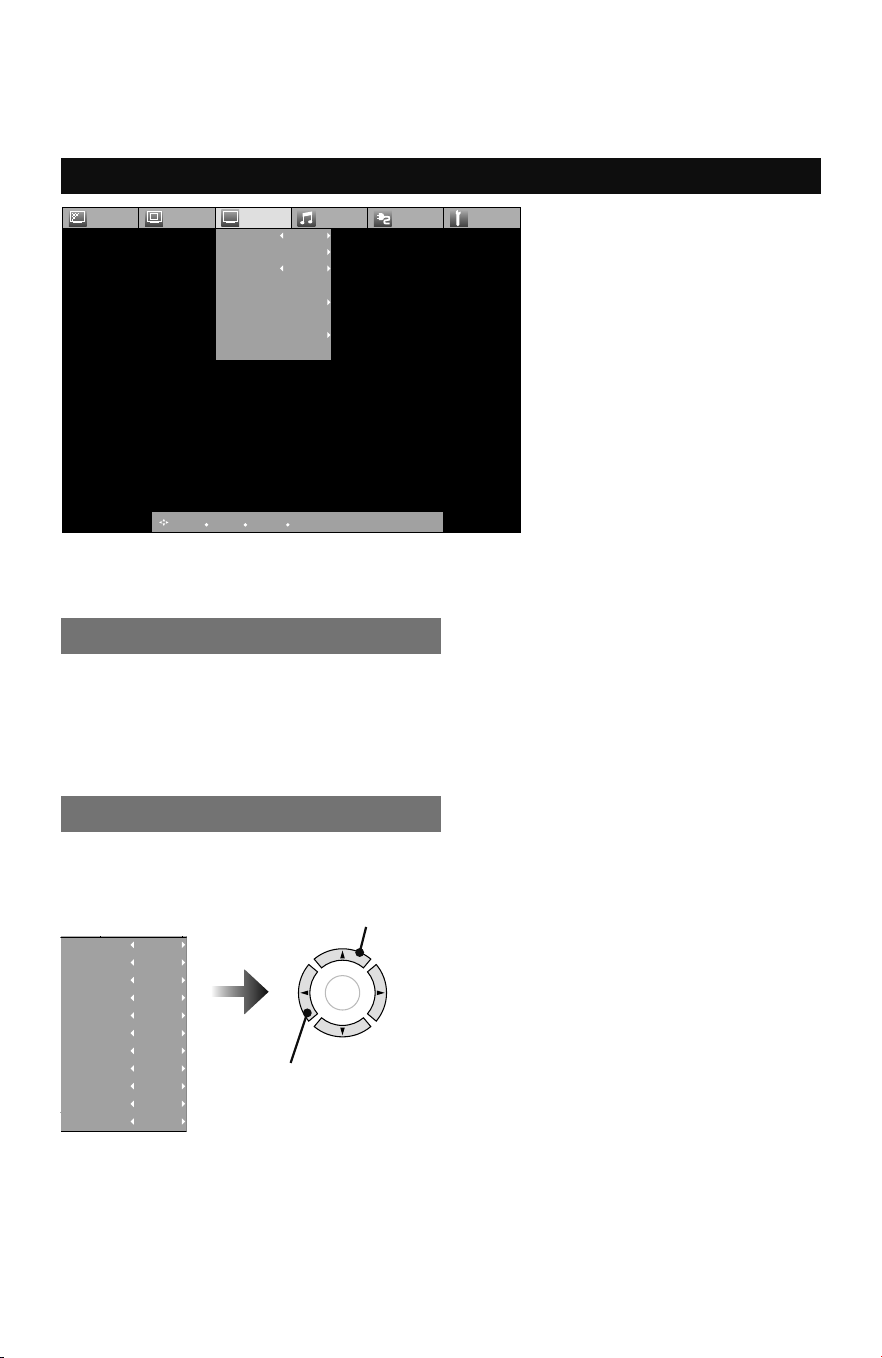
Closed Caption
Allows you to select the mode of the closed caption. First you must set the MODE to either TV,
STB or VCR on your remote. On / Smart / Off
Picture Display TV Sound Power Settings
Closed Caption
CC Setting
Tuner Mode
Autoscan
Add Channel
Edit Channel
V-Chip
Guide
ON
Air
:Select
:Operate
OK
:Back
BACK
:Exit
MENU
C.C. Setting
You can choose between caption or text in MODE to decide how closed captioning will appear.
OK
1 Select
2 Adjust
Analog CC
Digital CC
Font
Font Size
Font Style
Text Color
Text Opacity
BG Color
BG Opacity
Edge Color
Smart Caption
CC1
Service1
Default
Standard
Default
Default
Default
Default
Default
Off
On
LCT2385-001A-A English 29LCT2385-001A-A English 29 4/14/08 3:43:09 PM4/14/08 3:43:09 PM

30
Customizing your TV
Analog CC
Choose the CC feature that you like for analog Closed Captioning.
Digital CC
Choose the CC feature that you like for digital Closed Captioning.
Font
Choose the font that you like for Closed Captioning.
Font Size
Choose how big the text appears in Closed Captioning.
Font Style
Choose the style of the font in Closed Captioning.
Text Color
Choose the color of the text in Closed Captioning.
Text Opacity
Choose how translucent the text appears in Closed Captioning.
BG Color
Choose the background box color for the Closed Captioning text.
BG Opacity
Choose how translucent the background box color for the Closed Captioning text.
Edge Color
Choose the color of the border of the background box color for the Closed Captioning text.
Smart Caption
Will display closed captioning when you press the MUTING button only on channels where the
broadcast contains closed captioning.
Tuner Mode
Autoscan
Allows you to scan through all available channels your TV can receive, and memorizes them.
Note:
• The Autoscan is finished when the message Scanning has completed appears on the
screen.
If you skipped this step in the initial setup or your setup has changed, you can redo your setup
in this menu. Air / Cable
TV (continued)
LCT2385-001A-A English 30LCT2385-001A-A English 30 4/14/08 3:43:10 PM4/14/08 3:43:10 PM
31
Customizing your TV
Add Channel
Allows you to add analog channels. Regarding digital channels, the only channels that will
appear are the ones that are being broadcast.
Edit Channel
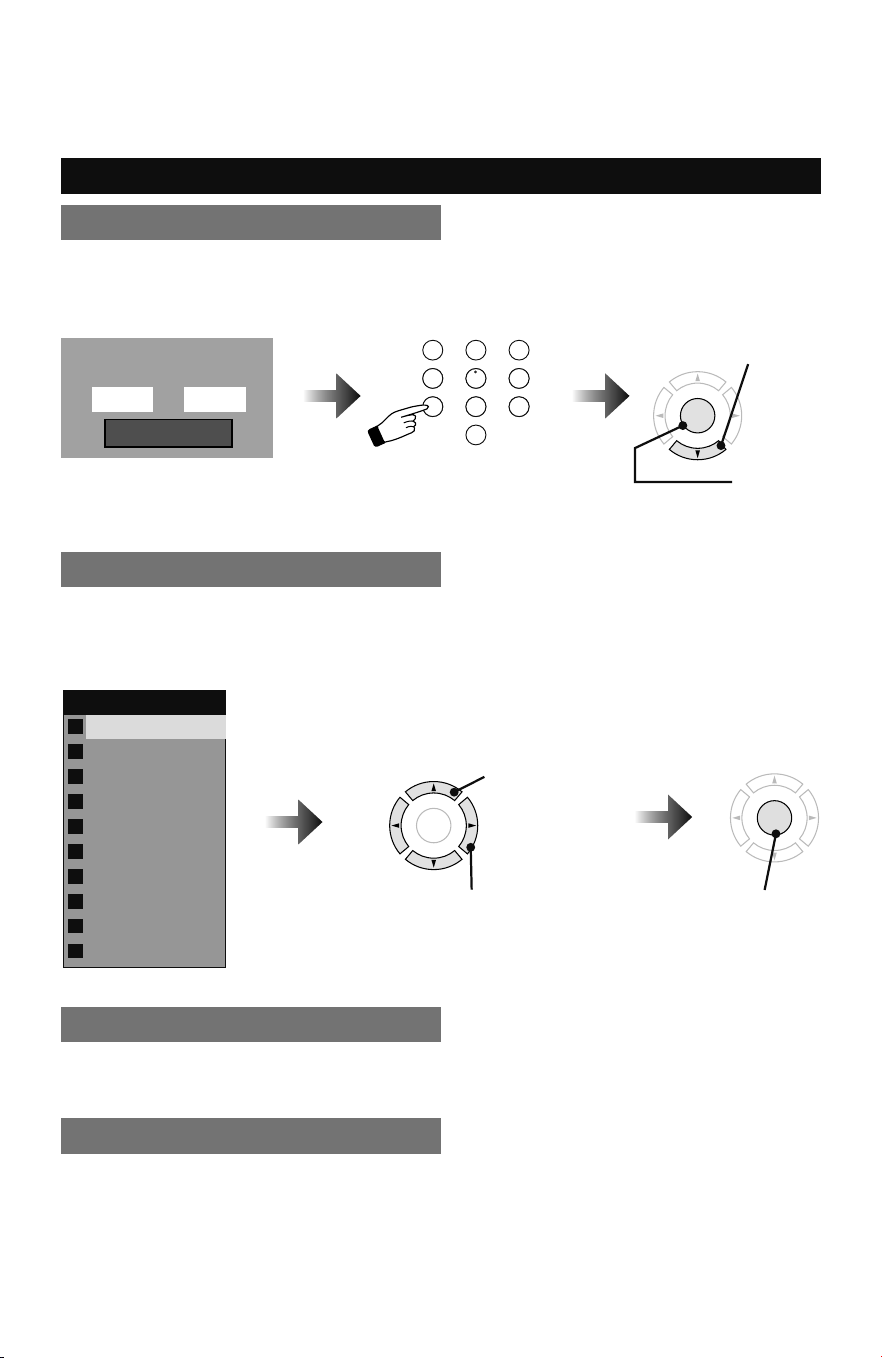
Allows you to skip channels when using the + CH – button. “✔” means don’t skip, “ “ means
to skip. You can still access those skipped channels manually using the number buttons on the
remote.
Enter the new channel number
123
456
789
0
Please insert scan
number or range
to
Start
OK
1 Select
2 Start
1 Select
2 Next
OK
OK
Set
Main Channel List
3-2
3-3
5-0
6-0
6-0
11-0
14-0
22-1
36-0
63-0
CH-2
CH-3
CH-1
TV (continued)
V-Chip
Allows you to block channels or content that you deem inappropriate for children. See pages
32 – 36.
Guide
You can view program information. (Digital channels only).
Note:
• If the programming information is not being broadcast, the guide function has no effect or
may display incorrect information.
LCT2385-001A-A English 31LCT2385-001A-A English 31 4/14/08 3:43:11 PM4/14/08 3:43:11 PM
32
TV (V-Chip)
Customizing your TV
Closed Caption
CC Setting
Tuner Mode
Autoscan
Add Channel
Edit Channel
V-Chip
Guide
ON
Air
Picture Display TV Sound Power Setting
Password
MPAA
Can. Eng.
Can Fre.
TVPG
:Select
:Operate
OK
:Back
BACK
:Exit
MENU
Password
MPAA
Can. Eng.
Can Fre.
TVPG
NR
G
PG
PG13
R
NC-17
X
Notes:
• V-CHIP will not work with video signals from VCRs, DVD players, Blu-ray, HD DVD players or
camcorders connected to the TV.
• (For Canadian viewers only): V-CHIP is designed specifically for the US and may not work
properly in Canada.
– When entering the password –
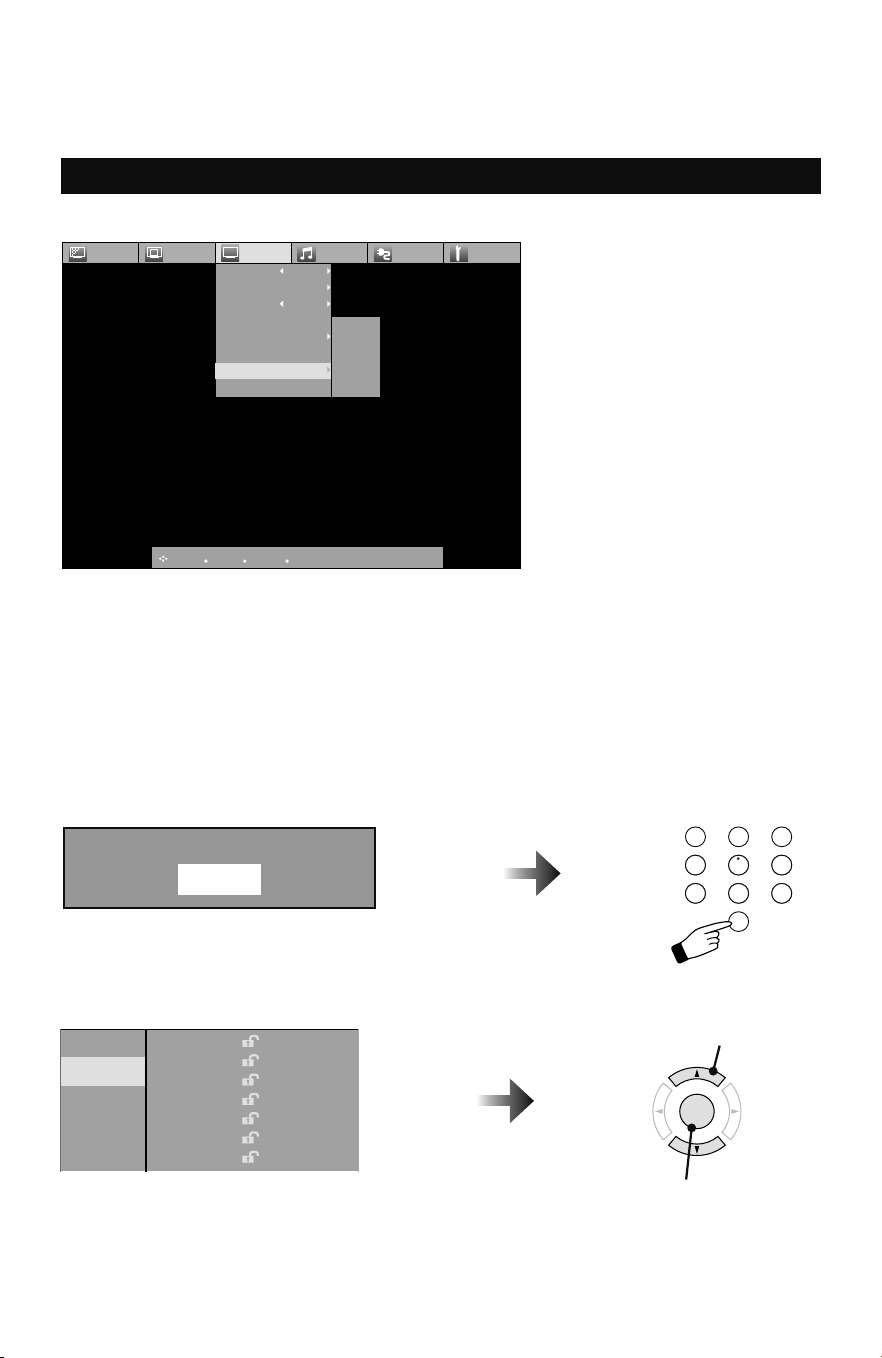
When you try and access the V-Chip menu, “Please input password” will appear. Press the “0”
button four times on your remote to access the V-Chip menu for the first time.
Allows you to block channels or content that you deem inappropriate for children.
OK
1 Select
2 Lock / Unlock
Please input password
123
456
789
0
– When you lock or unlock channels –
You can lock or unlock ratings as shown below.
Note:
• If you lock a rating, any rating that is higher is automatically blocked.
LCT2385-001A-A English 32LCT2385-001A-A English 32 4/14/08 3:43:13 PM4/14/08 3:43:13 PM
33
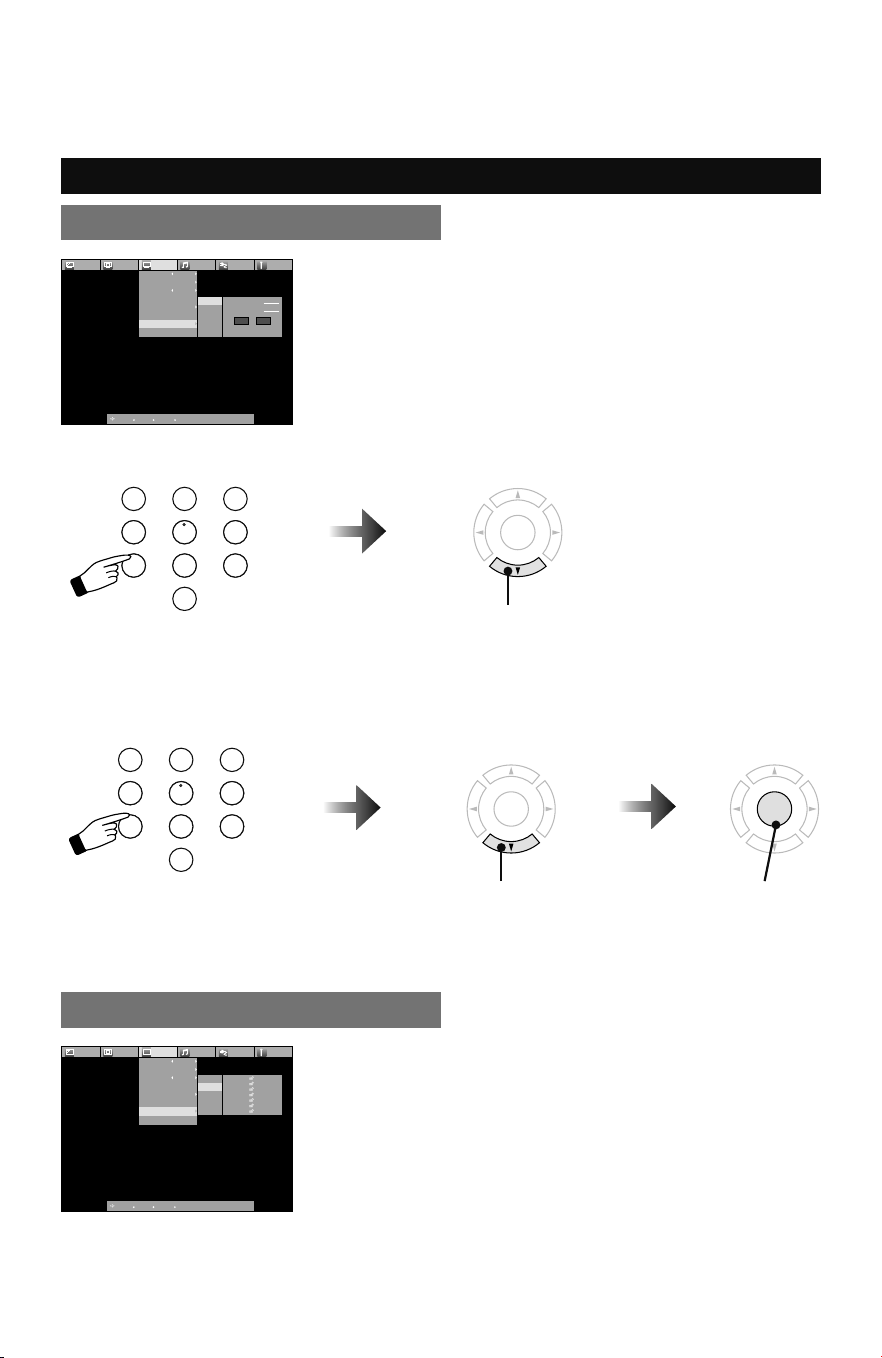
Password
You can change the four digit password using
the number buttons on your remote.
* If you forget your password, unplug the TV
from the wall and then plug it back in. Your
password will reset to “0000”
Picture Display TV Sound Power Setting
Closed Caption
CC Setting
Tuner Mode
Autoscan
Add Channel
Edit Channel
V-Chip
Guide
ON
Air
Password
MPAA
Can. Eng.
Can Fre.
TVPG
New Password
Confirm Password
OK Clear
Please set password first to act
:Select
:Operate
OK
:Back
BACK
:Exit
MENU
Customizing your TV
1) Set a new password
OK
Next
Enter the four digit number
Enter the four digit number
2) Confi rm and set
OK
Set
MPAA
Picture Display TV Sound Power Setting
Closed Caption
CC Setting
Tuner Mode
Autoscan
Add Channel
Edit Channel
V-Chip
Guide
ON
Air
Password
MPAA
Can. Eng.
Can Fre.
TVPG
NR
G
PG
PG13
R
NC-17
X
:Select
:Operate
OK
:Back
BACK
:Exit
MENU
This setting is based on the US Motion Picture
Association of America (MPAA) ratings system.
123
456
789
0
123
456
789
0
TV (V-Chip) (continued)
OK
Next
LCT2385-001A-A English 33LCT2385-001A-A English 33 4/14/08 3:43:15 PM4/14/08 3:43:15 PM

34
MPAA (continued)
NR – Not Rated.
Any type of programming that does not contain a rating.
G – General Audience.
Suitable for all ages.
PG – Parental Guidance Suggested.
Suitable for all ages with parental guidance.
PG 13 – Parents Strongly Cautioned.
Intended for viewers 13 years or older.
R – Restricted.
Not recommended for viewers 17 years without parental guidance.
NC-17 – No One Under 17.
Not intended for viewers 17 years or younger.
X – No One Under 18.
Not intended for viewers 18 years or younger.
Viewing Guidelines:
At the beginning of a program, the program will display its rating and the content it contains.
(Except for unrated programming).
A program can contain any or all of the following:
V/FV – VIOLENCE/FANTASY VIOLENCE
S – SEXUAL CONTENT
L – Strong LANGUAGE
D – Suggestive DIALOG
Customizing your TV
Can. Eng.
This setting is based on the Canada ratings
system.
Picture Display TV Sound Power Setting
Closed Caption
CC Setting
Tuner Mode
Autoscan
Add Channel
Edit Channel
V-Chip
Guide
ON
Air
Password
MPAA
Can. Eng.
Can Fre.
TVPG
E
C
C8
G
PG
14
18
:Select
:Operate
OK
:Back
BACK
:Exit
MENU
TV (V-Chip) (continued)
LCT2385-001A-A English 34LCT2385-001A-A English 34 4/14/08 3:43:17 PM4/14/08 3:43:17 PM

35
E – Exempt.
Any type of programming that does not contain a rating.
C – Intended for children.
Suitable for all ages.
C8+ – Intended for children over 8 years old.
Suitable for all ages over 8 years.
G – General Audience.
May contain material not suited for younger viewers.
PG – Parental Guidance.
May contain material not suited for younger viewers. Parents may consider some content not
appropriate for children 8 - 13 years old.
14+ – 14 Years or Older.
Parents strongly urged to use their discretion in allowing viewing by persons under 14.
18+ – Adult.
Intended for viewers 18 years or older.
Can. Fre.
This feature is the same as V-CHIP (SET
CANADIAN RATINGS ENG), but in French.
Picture Display TV Sound Power Setting
Closed Caption
CC Setting
Tuner Mode
Autoscan
Add Channel
Edit Channel
V-Chip
Guide
ON
Air
Password
MPAA
Can. Eng.
Can Fre.
TVPG
E
G
8 Ans
13 Ans
16 Ans
18 Ans
:Select
:Operate
OK
:Back
BACK
:Exit
MENU
Customizing your TV
TV (V-Chip) (continued)
LCT2385-001A-A English 35LCT2385-001A-A English 35 4/14/08 3:43:18 PM4/14/08 3:43:18 PM

36
TVPG
This setting is based on the US ratings system.
Picture Display TV Sound Power Setting
Closed Caption
CC Setting
Tuner Mode
Autoscan
Add Channel
Edit Channel
V-Chip
Guide
ON
Air
Password
MPAA
Can. Eng.
Can Fre.
TVPG
TV-Y
TV-Y7
TV-G
TV-PG
TV-14
TV-MA
ALL
FV V
SL
D
:Select
:Operate
OK
:Back
BACK
:Exit
MENU
Customizing your TV
TV Y – Appropriate for all children.
Intended for all children 2 - 6 years old.
TV Y7 – Appropriate for older children.
Intended for children 7 years or older.
TV G – General Audience.
Suitable for all ages.
TV PG – Parental Guidance Suggested.
Suitable for all ages with parental guidance.
TV 14 – Parents Strongly Cautioned.
Intended for viewers 14 years or older.
TV MA – Mature Audiences Only.
Intended for viewers 18 years or older.
Viewing Guidelines:
In addition to the above ratings, you can also block or allow more specifi c content. (Except for
unrated programming).
A program can contain any or all of the following:
V/FV – VIOLENCE/FANTASY VIOLENCE
S – SEXUAL CONTENT
L – Strong LANGUAGE
D – Suggestive DIALOG
TV (V-Chip) (continued)
LCT2385-001A-A English 36LCT2385-001A-A English 36 4/14/08 3:43:19 PM4/14/08 3:43:19 PM

37
Customizing your TV
Sound
MTS
Allows you to listen to a program in stereo, mono sound or another language (SAP).
(Depending if available in the program). First you must set the MODE to TV on your remote.
Notes:
• When you are receiving a digital broadcast, if there are other languages, you can change the
language by pressing the ML/MTS button.
• Keep the TV in stereo mode to get the best sound quality. The sound will work in stereo
mode even if a certain broadcast is in mono sound only.
• Choose the mono setting to reduce excessive noise on a certain channel or broadcast.
• MTS unavailable if your television’s input source is (V1, V2, V3, V4, V5).
• ML/MTS will not work when you are using the HDMI.
Picture Display TV Sound Power Setting
-10 –
-10 –
-10 –
-10 –
-10 –
– 10
– 10
– 10
– 10
– 10
MTS
Digital Audio(ML)
Surround
Sound Status
100Hz
330Hz
1KHz
3.3KHz
10KHz
Audio Reset
Mono
None
OFF
Rock
8
4
5
5
5
:Select
:Operate
OK
:Back
BACK
:Exit
MENU
Digital Audio (ML)
You can change the language if there are other languages available. (Digital channels only)
Surround
You can select the surround mode you like. Movie / Music / News / Mono / Off
LCT2385-001A-A English 37LCT2385-001A-A English 37 4/14/08 3:43:19 PM4/14/08 3:43:19 PM

38
Customizing your TV
Sound Status
You can choose several types of sound modes. Speech / Jazz / Classic / Rock / User
Note:
• If you select User, you can customize the various sound frequencies.
Audio Reset
Resets all sound adjustments at once to the default settings.
Sound (continued)
LCT2385-001A-A English 38LCT2385-001A-A English 38 4/14/08 3:43:20 PM4/14/08 3:43:20 PM

39
Customizing your TV
Power
Sleep Timer
Allows you to choose how long the TV will stay on before turning off. First set the MODE to TV.
Off / 15Min / 30Min / 45Min / 60Min / 90Min / 120Min / 150Min / 180Min
Note:
• 60 seconds before the TV turns off, a message will appear and it will count the remaining
time. If you want to extend the time, press the SLEEP button and you can change the
interval. If you don’t press the SLEEP button, within 60 seconds the TV will turn off.
Sleep Timer
Power Indicator
Illumination
OFF
High
Low
Picture Display TV Sound Power Setting
:Select
:Operate
OK
:Back
BACK
:Exit
MENU
Power Indicator
Allows you adjust the brightness of the blue power indicator light.
High – Light is brightly lit
Low – Light is dimly lit
Off – Light is off
Illumination
Allows you adjust the brightness of the center blue light around the TeleDock.
High – Light is brightly lit
Low – Light is dimly lit
Off – Light is off
LCT2385-001A-A English 39LCT2385-001A-A English 39 4/14/08 3:43:20 PM4/14/08 3:43:20 PM

40
Customizing your TV
Setting
Plug-In Menu
When you turn on your TV for the first time, the Initial Setup menu appears. If you skip it, or
your setup has changed, you can set it up in this menu anytime.
Time Zone
D.S.T.
Language
Noise Mute
Displays a blank gray screen over channels that are too weak to be received clearly.
On / Off
Allows you to change the TV’s onscreen menu languages to English, French or Spanish.
Adjust your TV’s clock for Daylight Savings. On / Off
Choose the time zone you live in and the clock sets automatically.
Atlantic / Eastern / Central / Mountain / Pacific / Alaska / Hawaii
Plug In Menu
Time Zone
D.S.T.
Language
Noise Mute
Front Panel Lock
Transparency
Auto Shut Off
System Info
Auto Demo
Optical Out
Pacific
ON
English
OFF
OFF
2
OFF
PCM
Picture Display TV Sound Power Setting
:Select
:Operate
OK
:Back
BACK
:Exit
MENU
LCT2385-001A-A English 40LCT2385-001A-A English 40 4/14/08 3:43:21 PM4/14/08 3:43:21 PM

41
Customizing your TV
Optical Out
You can select the optical digital sound output as PCM or DOLBY DIGITAL when your TV is
connected to an amplifier that has a DOLBY DIGITAL decoder. If you select DOLBY DIGITAL,
you can enjoy listening to 5.1ch sound when watching digital broadcasts. This only applies to
digital channels.
Notes:
• If your amplifier does not have DOLBY DIGITAL decoder, select PCM. If you don’t
select PCM, it cannot output the sound from the speakers.
• For connecting an amplifier using the optical output, see page 49.
Manufactured under license from Dolby Laboratories. "Dolby", and
the double-D symbol are trademarks of Dolby Laboratories.
System Info
You can confirm the TV’s software version.
Front Panel Lock
This allows you to lock the buttons on the side of the TV. On / Off
Auto Demo
Auto Demo explains this TV’s features to you.
Notes:
• Please complete the Initial Setup menu first. The Auto Demo mode will start
automatically when the Initial Setup menu is completed.
• If you press any button on the television or remote, with the exception of
POWER or MENU, the Auto Demo mode will stop for 30 seconds. After 30 seconds
have passed with no operation, the Auto Demo mode will start again.
• If you want to turn off the Auto Demo, press the MENU button.
Transparency
Change the transparency of the menu screens. 1 / 2 / 3 / 4
Auto Shut Off
This function automatically shuts off your TV when there is no signal from the channel while the
TV is on for 10 minutes. On / Off
Setting (continued)
LCT2385-001A-A English 41LCT2385-001A-A English 41 4/14/08 3:43:22 PM4/14/08 3:43:22 PM
42
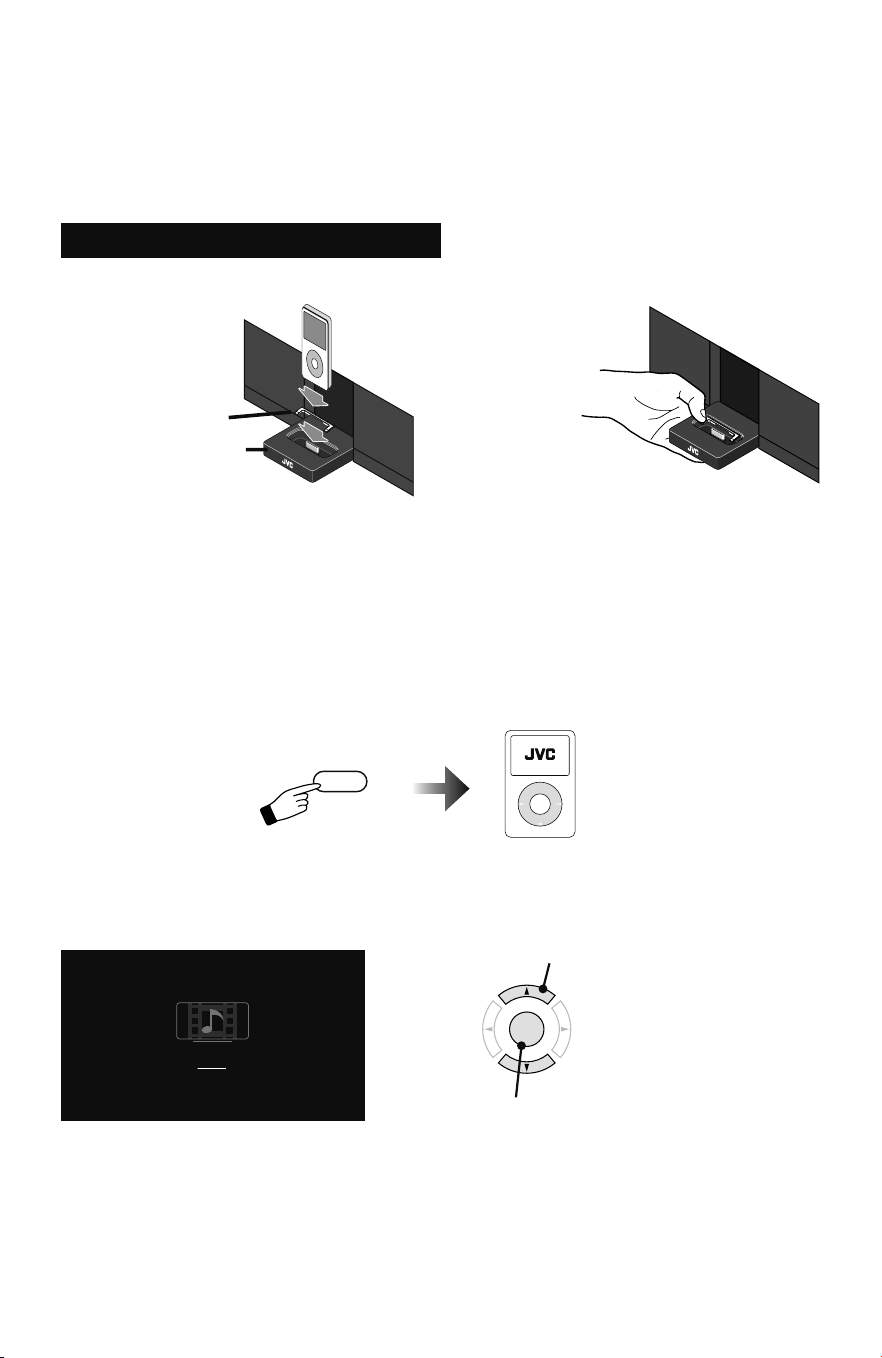
1) Insert your iPod into the TeleDock on the front of the TV.
Notes:
• For more stability, use the supplied Dock Adapter and make sure to use the proper adaptor. If
an incorrect adapter is used, it may damage the iPod connector.
• It is recommended that music, pictures and movies on the iPod be saved on your PC or other
hard drive for backup.
• Please be sure to connect/disconnect the iPod properly from the TeleDock and use the iPod
without any accessory/case.
• Please do not jiggle the iPod in the TeleDock to avoid connection failure or damage to the
connector.
2) Press the iPod button on your remote, then the JVC logo will appear on the screen of the
iPod.
Notes:
• You cannot operate the iPod while the Apple logo appears on the screen of the iPod.
• The iPod’s menu does not appear on the TV screen.
3) TV screen will change to the iPod start screen.
4) To exit the menu, press the iPod button.
5) When you detach your iPod, while gently holding the base, pull the iPod gently straight
upwards. Once detached the TV will return to the program you were watching.
How to connect
the Dock Adapter
By inserting your iPod into the TeleDock, you can display movies or music on your TV from your
iPod. Also, while inserted you can recharge your iPod.
Ready to play
Enjoy movies/music from your iPod
MENU
iPod
iPod Function
Music Play
Music Shuffle Play
Video Play
OK
1 Select
2 Set
TeleDock
Dock adapter (supplied)
Dock adapter type.
See page 43.
LCT2385-001A-A English 42LCT2385-001A-A English 42 4/14/08 3:43:22 PM4/14/08 3:43:22 PM
43
Enjoy movies/music from your iPod
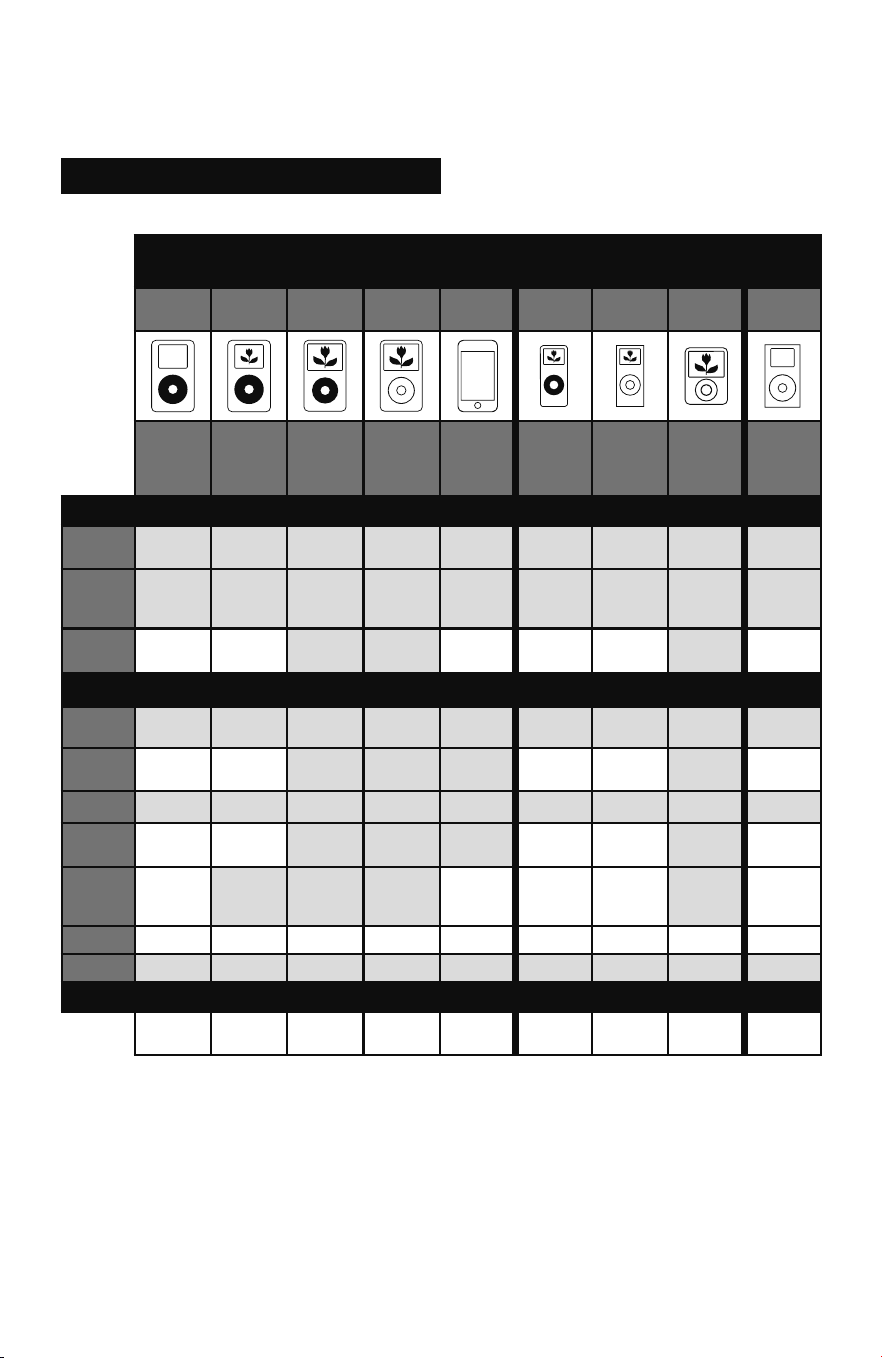
iPod iPod nano iPod
mini
4G Photo/
Color
5G
(Video)
Classic Touch 1G 2G 3G 1G
2G
20GB
40GB
20GB
30GB
40GB
60GB
30GB
60GB
80GB
80GB
160GB
8GB
16GB
32GB
1GB
2GB
4GB
2GB
4GB
8GB
4GB
8GB
4GB
6GB
TV Control Mode
Music
Play
✔✔✔✔✔✔✔✔✔
Music
Shuffl e
Play
✔✔✔✔✔✔✔✔✔
Video
Play
✔✔ ✔
Pod Control Mode
Music
Play
✔ (1) ✔ (1) ✔ (1) ✔ (1) ✔ (1) (2) ✔ (1) ✔ (1) ✔ (1) ✔ (1)
Video
Play
✔ (3) ✔ (3) ✔ (2) (4) ✔ (3)
Podcasts
✔✔✔✔✔ (2) ✔✔✔✔
Video
Podcasts
✔ (3) ✔ (3) ✔ (2) (4) ✔ (3)
Photo
Slide
Show
✔ (3) ✔ (3) ✔ (3)
(5)
✔ (3)
Game
Setting
✔ (6) ✔ (6) ✔ (6) ✔ (6) ✔ (2) (6) ✔ (6) ✔ (6) ✔ (6) ✔ (6)
Dock adapter type (7)
20GB – A
20GB – A
30GB – A
30GB – A 80GB – A E B C D A
* If your iPod is not listed in this chart, it is incompatible with this television.
Compatible iPod Types
1 The registration of “On-The-Go” can be done by using the iPod.
2 Due to the nature of iPod Touch, lock/unlock, Main menu, and the selection of Music/Video has to be
done using the iPod Touch.
3 For Video/Photo output, it is necessary to have the TV out on beforehand.
4 Due to the nature of iPod Touch, in the case of video output, the selection of TV output has to be
done using the iPod Touch.
5 To control iPod Touch Photoviewer, it can be done only by using the the iPod Touch.
6 Some setups will require the selection by using the iPod. (Especially those that require wheel
control).
7 If your iPod listed is not required to use a Dock Adapter, you do not need to use any Dock Adapters.
LCT2385-001A-A English 43LCT2385-001A-A English 43 4/14/08 3:43:24 PM4/14/08 3:43:24 PM
44
Notes:
• If your iPod doesn’t work correctly, gently pull out and try again.
• If the iPod does not play correctly, please update your iPod software to the latest version.
• For details about updating your iPod, check on the Apple web site, http://www.apple.com.
• Sound distortion may occur when playing back audio sources with high recording levels.
When distortion occurs, it is recommended to turn off the equalizer of the iPod. For
information on operating the iPod, see the iPod instruction manual.
• You can not operate the TV menu while in iPod mode.
• JVC is not responsible for any loss of or damage to iPod that might result from the use of this
product.
iPod is a trademark of Apple Inc., registered in the U.S. and other countries.
Enjoy movies/music from your iPod
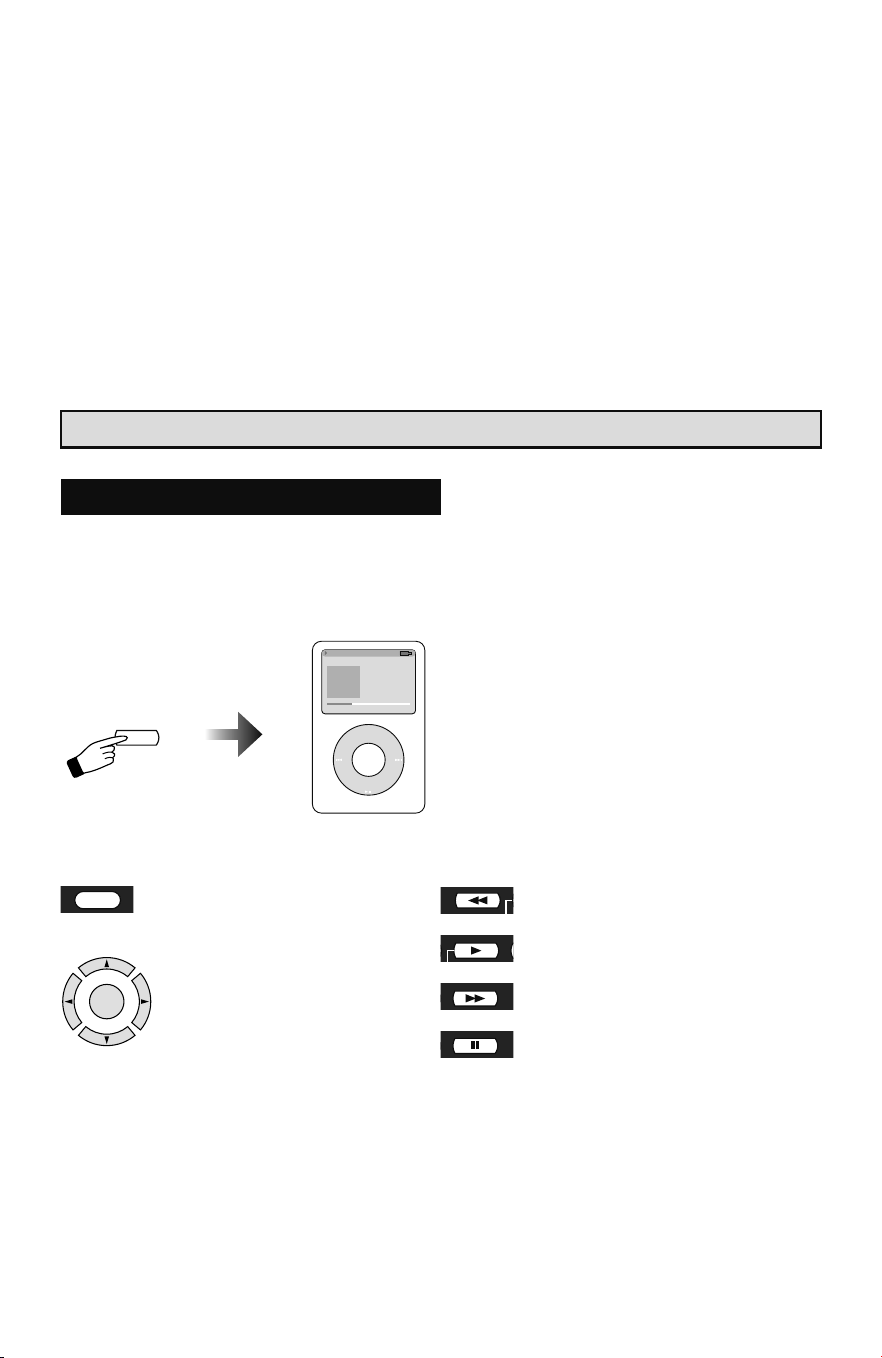
You can operate the iPod using the TV’s remote control and the onscreen of the iPod. Press
the PCON button to switch between Pod Control Mode and TV Control Mode.
1) Press the PCON button on the remote control. JVC logo will disappear and the normal
screen of your iPod will appear.
2) Operate with TV remote control.
Notes:
• When operating with the TV’s remote control, set the MODE to TV.
• TV will display a blank black screen when operating the iPod in Pod Control Mode.
• For Video/Photo output, it is necessary to have the TV out on beforehand.
Pod Control Mode
10:31PM
1 of 3
Newport, RI
JVC
Jazz Festival 2007
1:00 5:00
MENU
GUIDE
PCON
iPod
Back to TV
Rewind
Play / Pause
Forward
Pause
OK
* Operation varies from
iPod type and/or mode.
LCT2385-001A-A English 44LCT2385-001A-A English 44 4/14/08 3:43:25 PM4/14/08 3:43:25 PM
45
Enjoy movies/music from your iPod
TV Control Mode
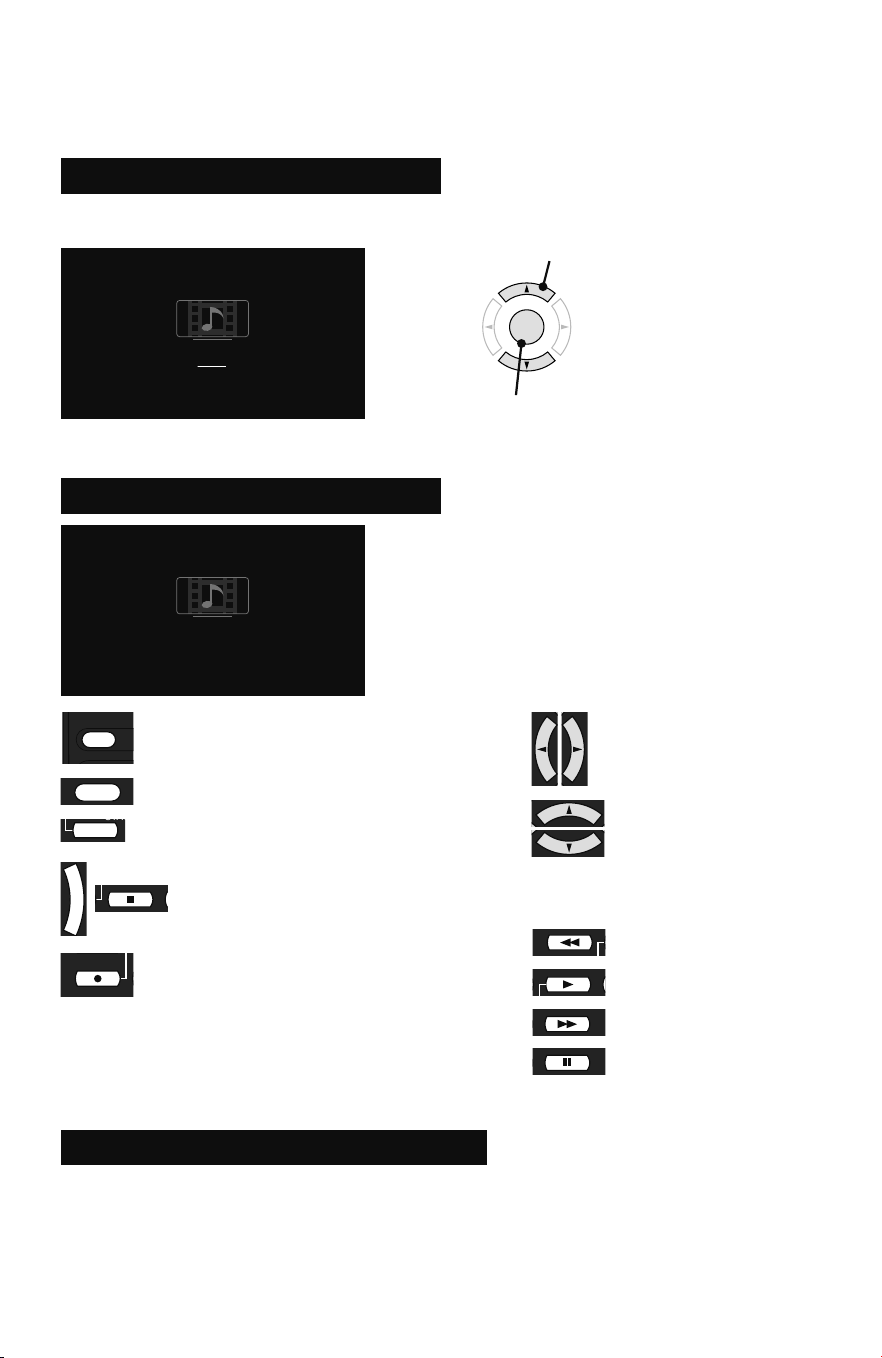
You can operate the iPod by using the TV’s remote control and onscreen menus.
iPod Function
Music Play
Music Shuffle Play
Video Play
OK
1 Select
2 Set
Music Play (TV Control Mode)
Rewind
Play
Forward
Pause
Yesterday
SOME RANDOM BAND
Music starts in alphabetical order. Go back to
the TV using the iPod button.
STAT
SOUND
SLEEP
iPod
Choose sleep timer
Back to TV
Choose sound mode
Skip to the next/last song
Skip jumps 50 songs
ahead in your library
(depending upon the
length of your library)
Music Shuffle Play (TV Control Mode)
Randomly select songs. Except for the π† buttons, it operates the same as the Music Play.
B
A
C
K
Back to Initial Menu
iTV
You can view the last program you
were watching while listening to your
iPod (iTV Mode). Press iTV button
when playing music.
• You can not change the program in
iTV Mode.
* Language Support:
English, French and Spanish
LCT2385-001A-A English 45LCT2385-001A-A English 45 4/14/08 3:43:27 PM4/14/08 3:43:27 PM
46
Enjoy movies/music from your iPod
Video Play (TV Control Mode)
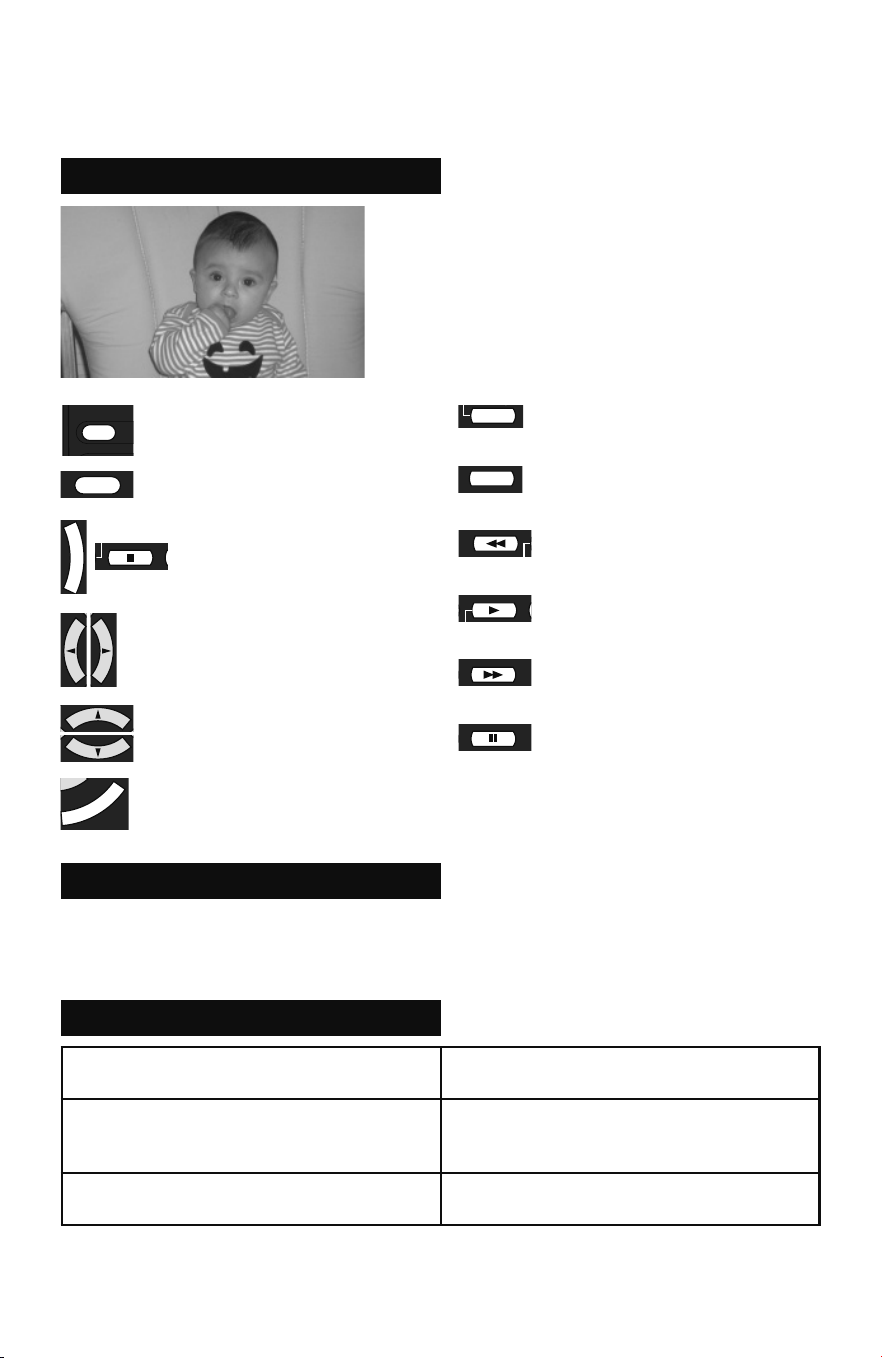
The video will play from the beginning
regardless of where you were when you were
watching the same video from your iPod.
(iPod 5G Podcasts will be skipped).
Rewind
Play
Forward
Pause
STAT
SOUND
SLEEP
iPod
Choose sleep timer
Back to TV
Choose sound mode
Skip to the next/last picture
ATUS
VIDEO
A
S
P
E
C
T
Changes the aspect ratio
Choose picture preference
If your iPod is docked to the TV, it will always be recharged.
Recharge iPod
B
A
C
K
Back to Initial Menu
Error messages
“iPod not found” This appears when you press the iPod button
without inserting an iPod.
“ Communication failed
Check Connection”
Insert your iPod again. This is a connection
error.
“File not found” This appears when your iPod has no files to
play.
Select video content
LCT2385-001A-A English 46LCT2385-001A-A English 46 4/14/08 3:43:31 PM4/14/08 3:43:31 PM
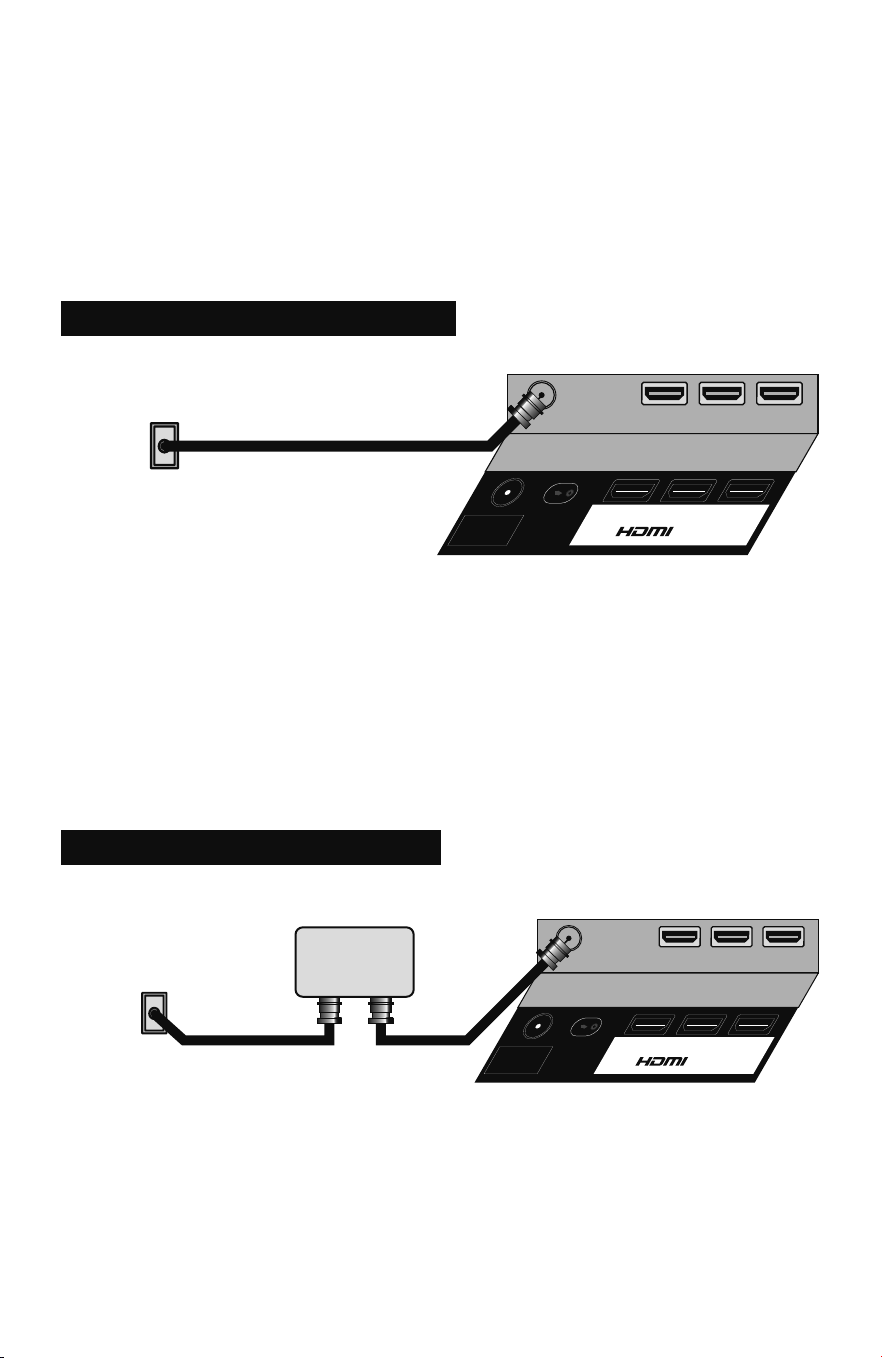
47
Notes:
• The following connection diagrams are examples on connecting some of the most common
devices to your TV. Please refer to your device’s instruction manual on other connection
methods or for devices not shown here in this instruction book.
• When you are finished connecting your devices, turn on your TV and devices.
Connect an Antenna or Basic Cable
INPUT 1 INPUT 2 INPUT 3
75 Ω
(VHF/UHF)
TV Rear Panel
Cable or Antenna
Output
Connect a Cable Box
INPUT 1 INPUT 2 INPUT 3
75 Ω
(VHF/UHF)
Cable or Antenna
Output
CABLE BOX
IN OUT
TV Rear Panel
Note:
• To view channels on your cable box, make sure your TV’s channel is set to 2, 3 or 4
(depending on the area you live in).
Connecting Your Devices
Notes:
• If you are able to receive ATSC (Digital terrestrial) signal, High Definition (HD) broadcasting
can be watched.
• All digital broadcasting is not necessary High Definition. Check by pressing the DISPLAY
button.
• Digital broadcasting is not available in all areas.
LCT2385-001A-A English 47LCT2385-001A-A English 47 4/14/08 3:43:34 PM4/14/08 3:43:34 PM
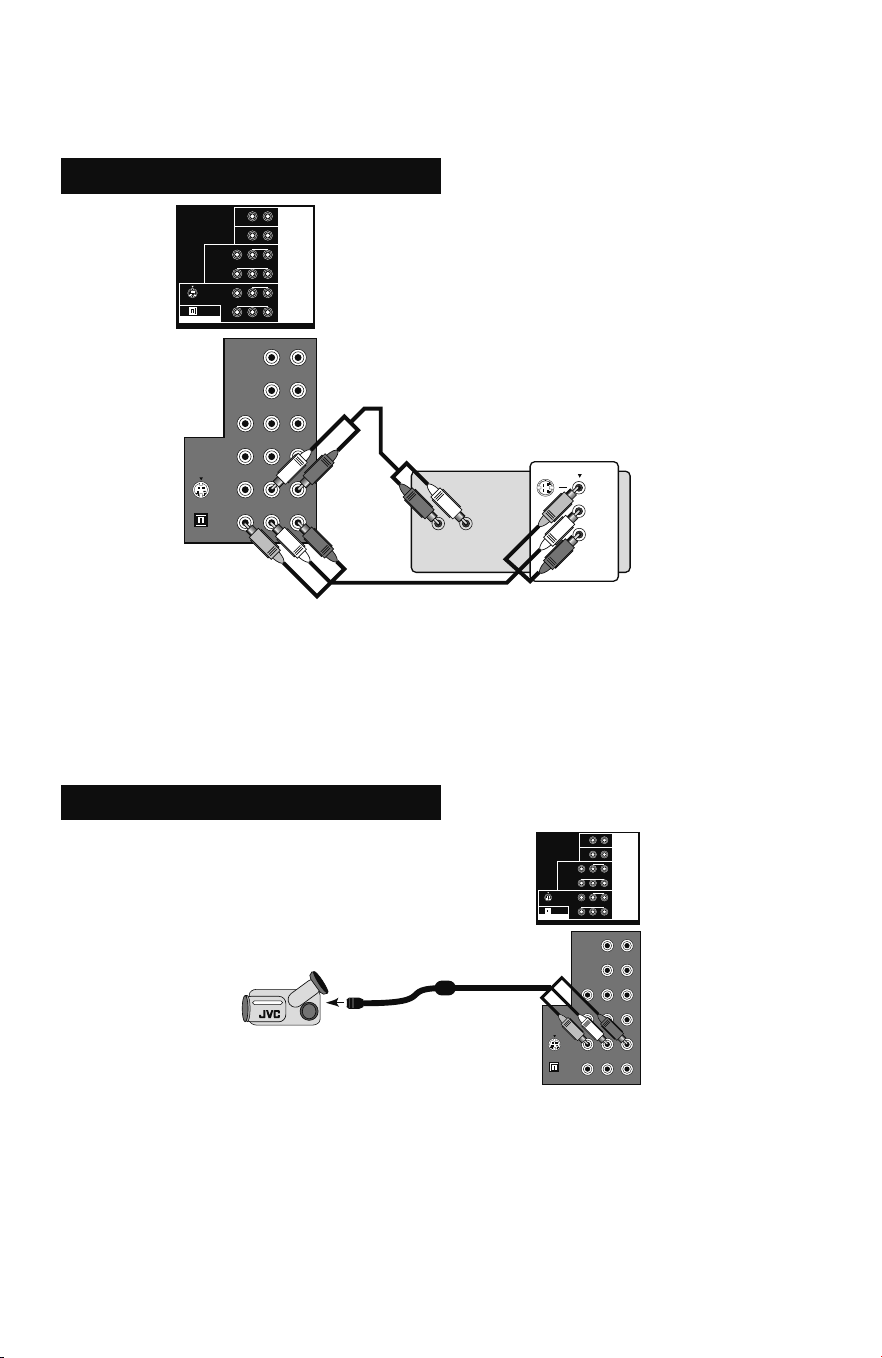
48
Notes:
• Green, blue and red are the most common colors for Component Cables. Some models may
vary in color.
• To watch your DVD player, make sure your TV is displaying INPUT 4 or INPUT 5 by pressing
the V4 or V5 button on your remote control.
Connect a DVD Player
L
L
L
P
B
L
PB
R
R
R
P
R
R
PR
VIDEO
Y
VIDEO
Y
AUDIO
COMPONENT
AUDIO
COMPONENT
AUDIO OUT
INPUT 1
HDMI ANALOG
AUDIO
INPUT 5
INPUT 4
S-VIDEO
DIGITAL AUDIO OPTICAL OUT
LC34324-001A
DVD Player
Y
P
B
PR
OUT
AUDIO OUT
R L
Green
Blue
Red
TV Rear Panel
(INPUT 4)
Connect a Camcorder
TV Rear Panel
(INPUT 4)
Camcorder
L
L
L
P
B
L
PB
R
R
R
P
R
R
PR
VIDEO
Y
VIDEO
Y
AUDIO
COMPONENT
AUDIO
COMPONENT
AUDIO OUT
INPUT 1
HDMI ANALOG
AUDIO
INPUT 5
INPUT 4
S-VIDEO
DIGITAL AUDIO OPTICAL OUT
LC34324-001A
Note:
• To watch video from your camcorder, make sure your TV is displaying INPUT 4 or INPUT 5
by pressing the V4 or V5 button on your remote control.
Connecting Your Devices
LCT2385-001A-A English 48LCT2385-001A-A English 48 4/14/08 3:43:36 PM4/14/08 3:43:36 PM
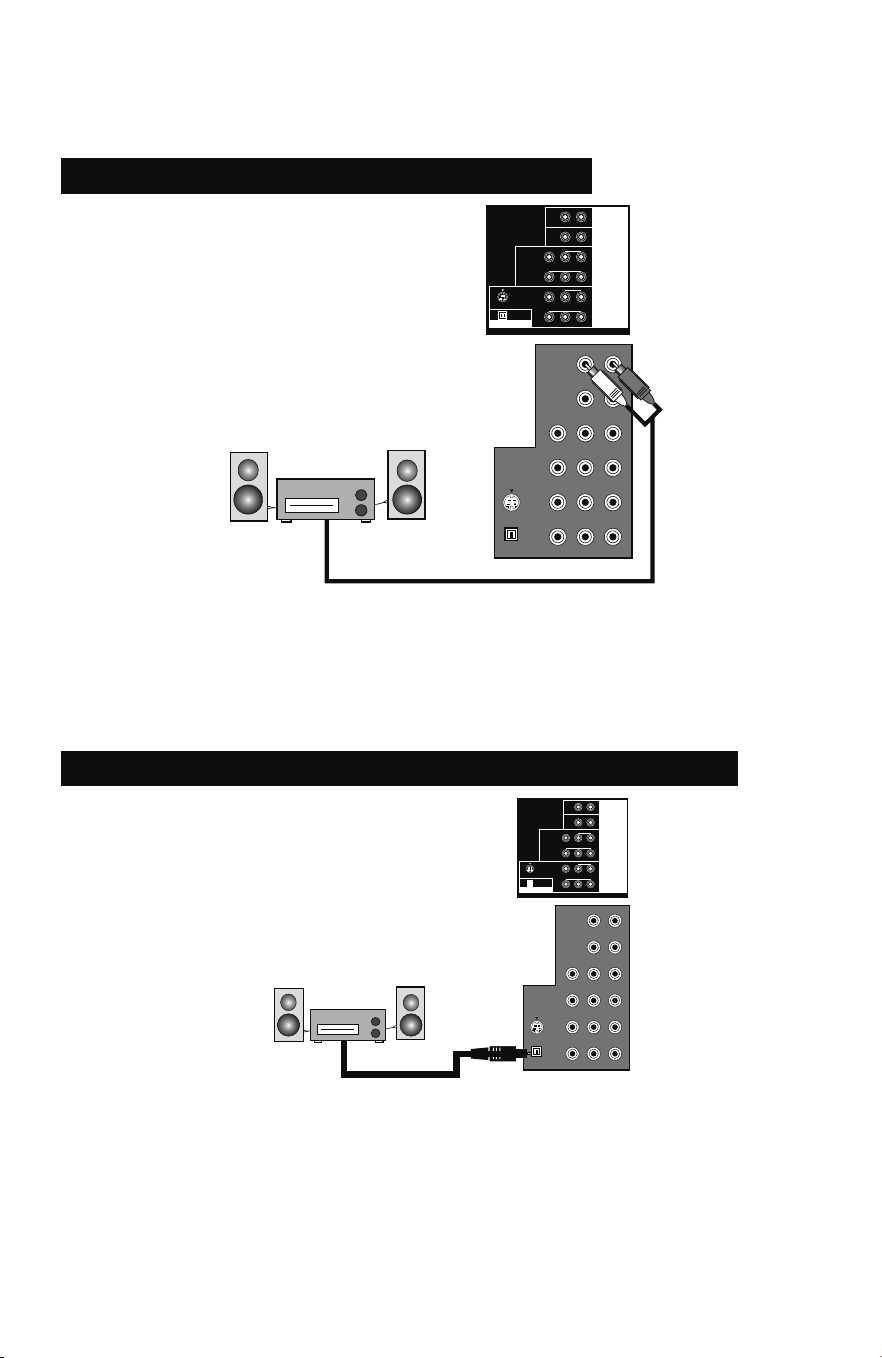
49
Connect an Amplifier using the DIGITAL AUDIO OPTICAL OUT
Notes:
• Refer to your amplifier’s manual for more information.
• This terminal can only output digital audio (PCM or DOLBY DIGITAL).
• In order to use the optical output connection, select PCM or DOLBY DIGITAL. See page 41.
• You can not output sound from your DIGITAL AUDIO OPTICAL OUTPUT connection if the
audio source is from your HDMI device.
TV Rear Panel
(DIGITAL AUDIO OPTICAL OUT)
SpeakerSpeaker
Amplifier
(with DIGITAL AUDIO OPTICAL INPUT)
L
L
L
P
B
L
PB
R
R
R
P
R
R
PR
VIDEO
Y
VIDEO
Y
AUDIO
COMPONENT
AUDIO
COMPONENT
AUDIO OUT
INPUT 1
HDMI ANALOG
AUDIO
INPUT 5
INPUT 4
S-VIDEO
DIGITAL AUDIO OPTICAL OUT
LC34324-001A
Connect an Amplifier or Home Theater System
TV Rear Panel
(AUDIO OUT)
SpeakerSpeaker
Amplifier
or
Home Theater System
L
L
L
P
B
L
PB
R
R
R
P
R
R
PR
VIDEO
Y
VIDEO
Y
AUDIO
COMPONENT
AUDIO
COMPONENT
AUDIO OUT
INPUT 1
HDMI ANALOG
AUDIO
INPUT 5
INPUT 4
S-VIDEO
DIGITAL AUDIO OPTICAL OUT
LC34324-001A
Notes:
• Refer to your amplifier’s or Home Theater System’s manual for more information.
• If you have a device connected to INPUT 1, INPUT 2 or INPUT 3, you will not be able to hear
any audio from the AUDIO OUT on the back of the TV otherwise.
Connecting Your Devices
LCT2385-001A-A English 49LCT2385-001A-A English 49 4/14/08 3:43:37 PM4/14/08 3:43:37 PM
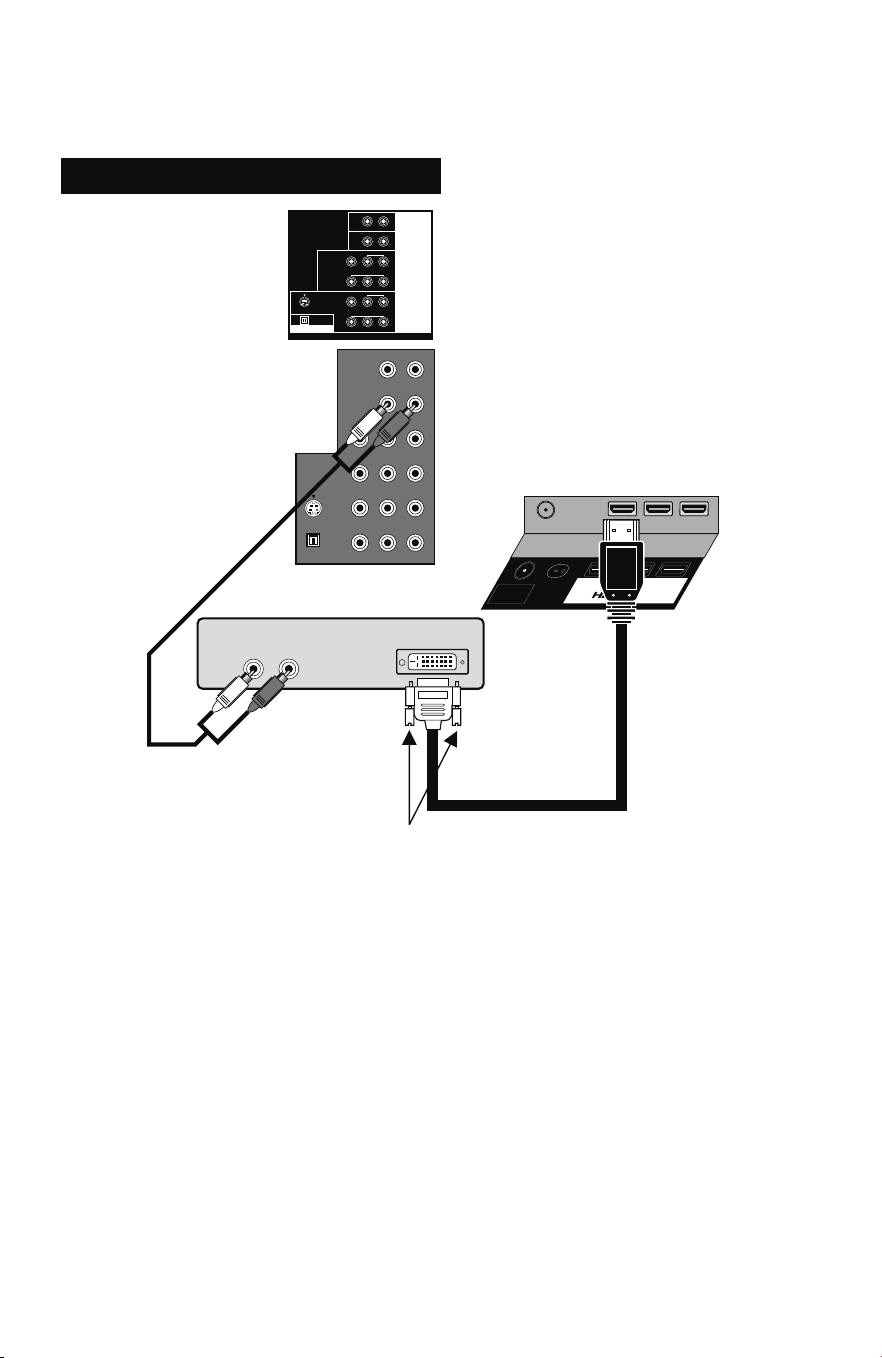
50
Connect a Digital TV Device
Notes:
• To watch your Digital TV device, make sure your TV is displaying INPUT 1 by pressing the V1
button on your remote control.
• This TV can accept 480i, 480p, 720p, 1080i and 1080p signals via HDMI.
• The INPUT 1 HDMI ANALOG AUDIO input can only be used with INPUT 1.
INPUT 1 INPUT 2 INPUT 3
75 Ω
(VHF/UHF)
TV Rear Panel (INPUT 1)
Digital TV Device
TV Rear Panel
INPUT 1
HDMI ANALOG
AUDIO
After the connections have been made,
tighten the screw to secure the cables.
DIGITAL OUT
LR
AUDIO OUT
L
L
L
P
B
L
PB
R
R
R
P
R
R
PR
VIDEO
Y
VIDEO
Y
AUDIO
COMPONENT
AUDIO
COMPONENT
AUDIO OUT
INPUT 1
HDMI ANALOG
AUDIO
INPUT 5
INPUT 4
S-VIDEO
DIGITAL AUDIO OPTICAL OUT
LC34324-001A
Connecting Your Devices
LCT2385-001A-A English 50LCT2385-001A-A English 50 4/14/08 3:43:39 PM4/14/08 3:43:39 PM
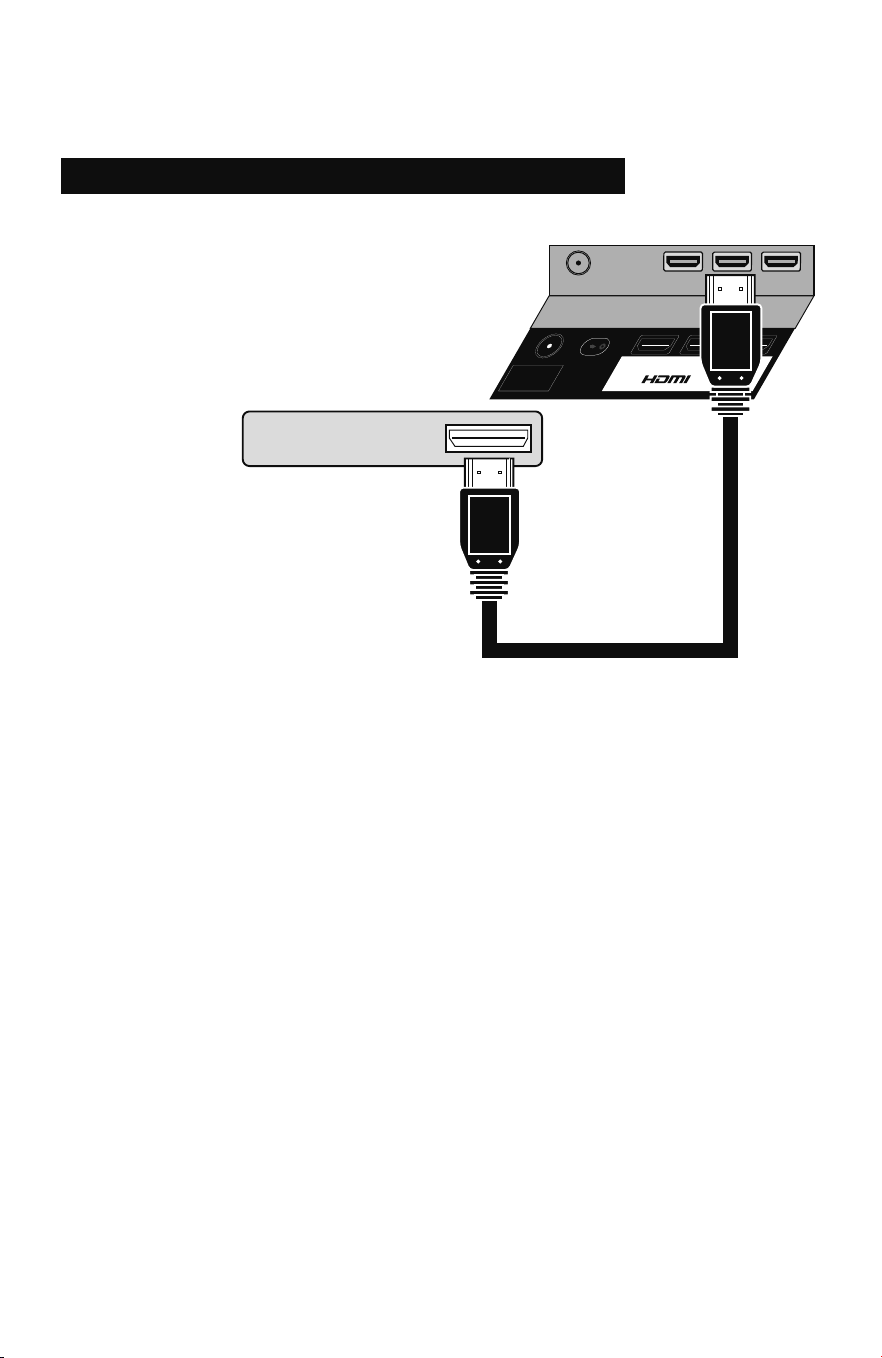
51
Connect a Blu-ray, HD DVD Player or HDMI Device
INPUT 1 INPUT 2 INPUT 3
75 Ω
(VHF/UHF)
TV Rear Panel (INPUT 2)
Blu-ray / HD DVD / HDMI Compatible Device
Notes:
• To watch your Blu-ray, HD DVD or HDMI device, make sure your TV is displaying INPUT 1,
INPUT 2 or INPUT 3 by pressing the V1, V2 or V3 button on your remote control.
• Some decoders may not respond depending on the equipment that is connected to the HDMI.
• This TV can accept 480i, 480p, 720p, 1080i and 1080p signals via HDMI.
•
This JVC television can accept a variety of HD signals, including 720/60p, 1080/60i and
1080/60p. It does not accept a 1080/24p signal. Please note that in some cases, a Blu-ray
or HD DVD may only offer the choice of 1080/60i or 1080/24p. In this case, it is necessary
to choose the 1080/60i output. Please refer to your Blu-ray / HD-DVD manual for complete
details on choosing the correct output.
• Some HDMI Output Devices may fail to detect this TV as a 1080p device. If this occurs,
manually select 1080p on the HDMI Output Device.
Connecting Your Devices
LCT2385-001A-A English 51LCT2385-001A-A English 51 4/14/08 3:43:40 PM4/14/08 3:43:40 PM
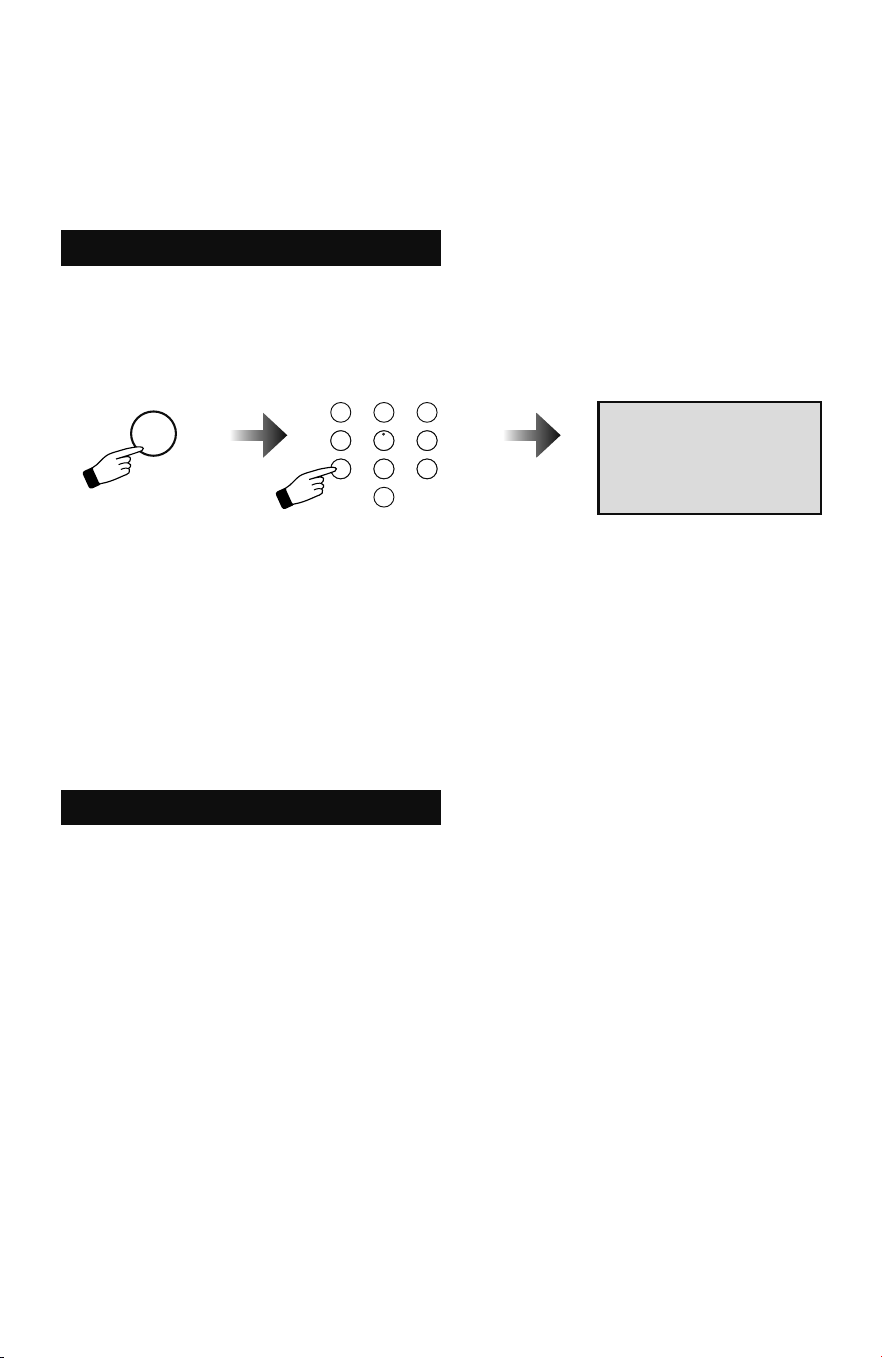
52
You can program your remote control to operate your external devices, using the instructions
and codes on pages 52 - 58.
How to set the codes
1) Manually turn on the device.
2) Change the remote control mode according to the device by pressing the MODE button.
Refer to the following list for which mode to use.
3) Find the remote control code for your device. See pages 54 - 58.
4) Set the remote code.
TUNE
Enter the four digit numberPress and hold
The mode indicator goes
out for a second, then it
lights.
5) Point the remote at the device and press power. If your device did not turn off or respond, try
another code.
Notes:
• If your device doesn’t respond to any of the codes listed or is not listed, see page 52.
• Some codes may have only limited functions. Try other codes that may have more functions.
Programming Your Remote
123
456
789
0
Search Code Function
This function searches for codes one by one if none of the codes listed for your device has
worked.
1) Manually turn on the device.
2) Change the remote control mode according to the device. Press MODE to select the correct
mode.
3) Activate the search code function. Press and hold POWER and RETURN+/TV until the mode
indicator blinks.
4) Point the remote at the device and press POWER. If no response, try the next code by
pressing ® and POWER until the device turns off.
5) Press RETURN+/TV to register and set the code. Then the MODE indicator light goes out.
Notes:
• If your remote still doesn’t work with the “Search Code Function”, use the remote that came
with your device. Your TV remote can not be guaranteed to work with all devices, modes or
operations.
LCT2385-001A-A English 52LCT2385-001A-A English 52 4/14/08 3:43:41 PM4/14/08 3:43:41 PM
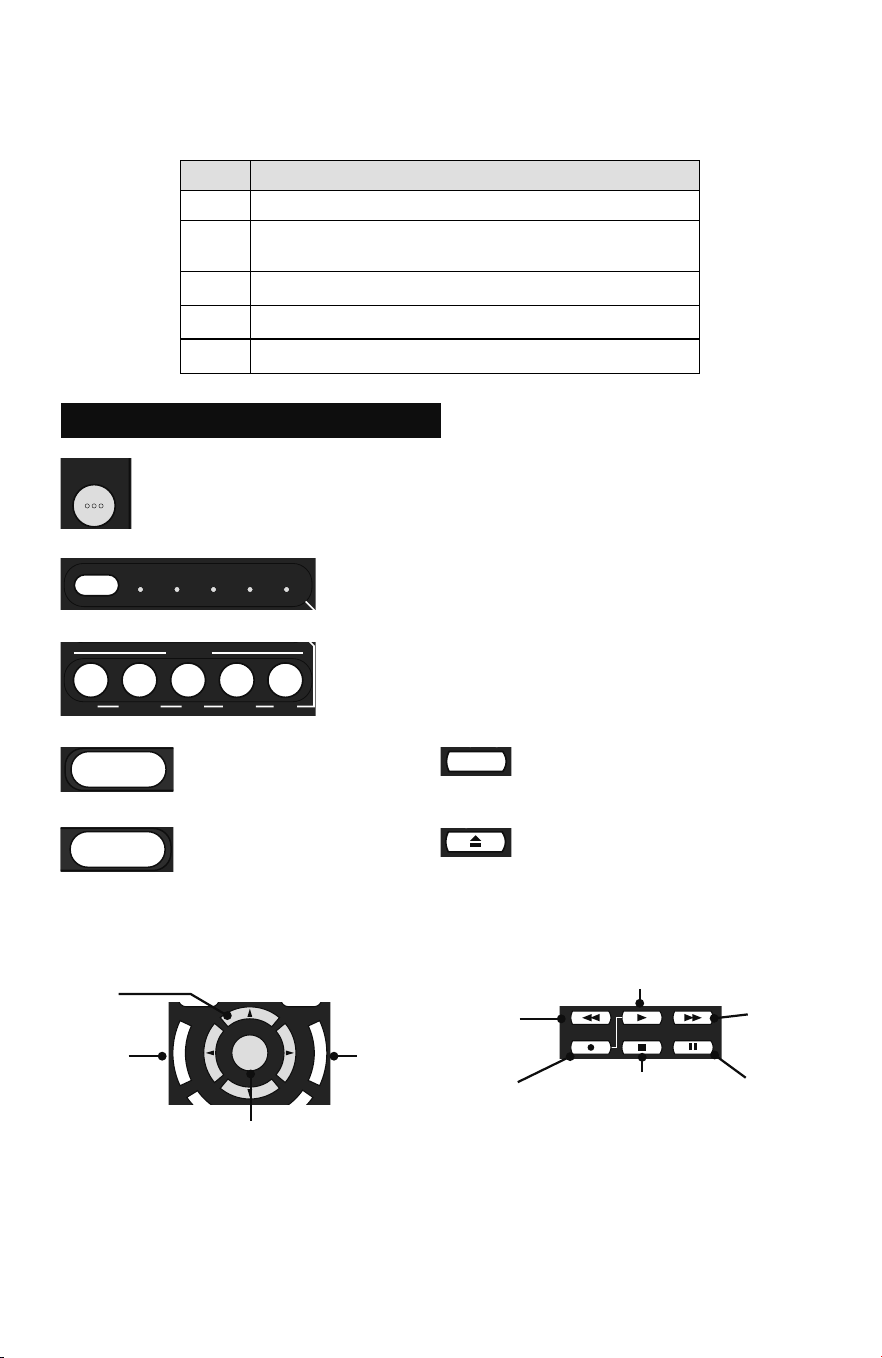
53
TV
STB
VCR
DVD
AUDIO
JVC brand only
Cable Set Top Boxes, Cable/PVR Combinations, Satellite Set Top Box
DBS/PVR Combination
VCR, DBS/PVR Combination, PVR, DVD/PVR Combination
DVD Player, DVD Recorder, Home Theater in a Box, Receiver
Amplifier, Home Theater in a Box, Receiver
Device Applied for these devices
Programming Your Remote
Remote Control Functions
MODE
TV STB VCR DVD AUDIO
POWER
Operates menus
Changes the remote control mode
Turns the selected device off
OK
M
E
N
U
F
A
T
B
A
C
K
Select
OK
Display
menu
Back to
previous
menu
Playback / Record, etc.
iTV
Rewind
Play
Forward
Record Stop Pause
Displays Subtitles
SUB T.
ML/MTS
Channel Up / Down
Volume Up / Down
Open / Close
S
– VOL +
– CH +
Audio Input
Selection
INPUT
V1 V2 V3 V4 V5
TV DVD/DVR DBB TUNER USB
Note:
• If your external devices has a TV/VCR function, refer to it’s manual.
LCT2385-001A-A English 53LCT2385-001A-A English 53 4/14/08 3:43:42 PM4/14/08 3:43:42 PM
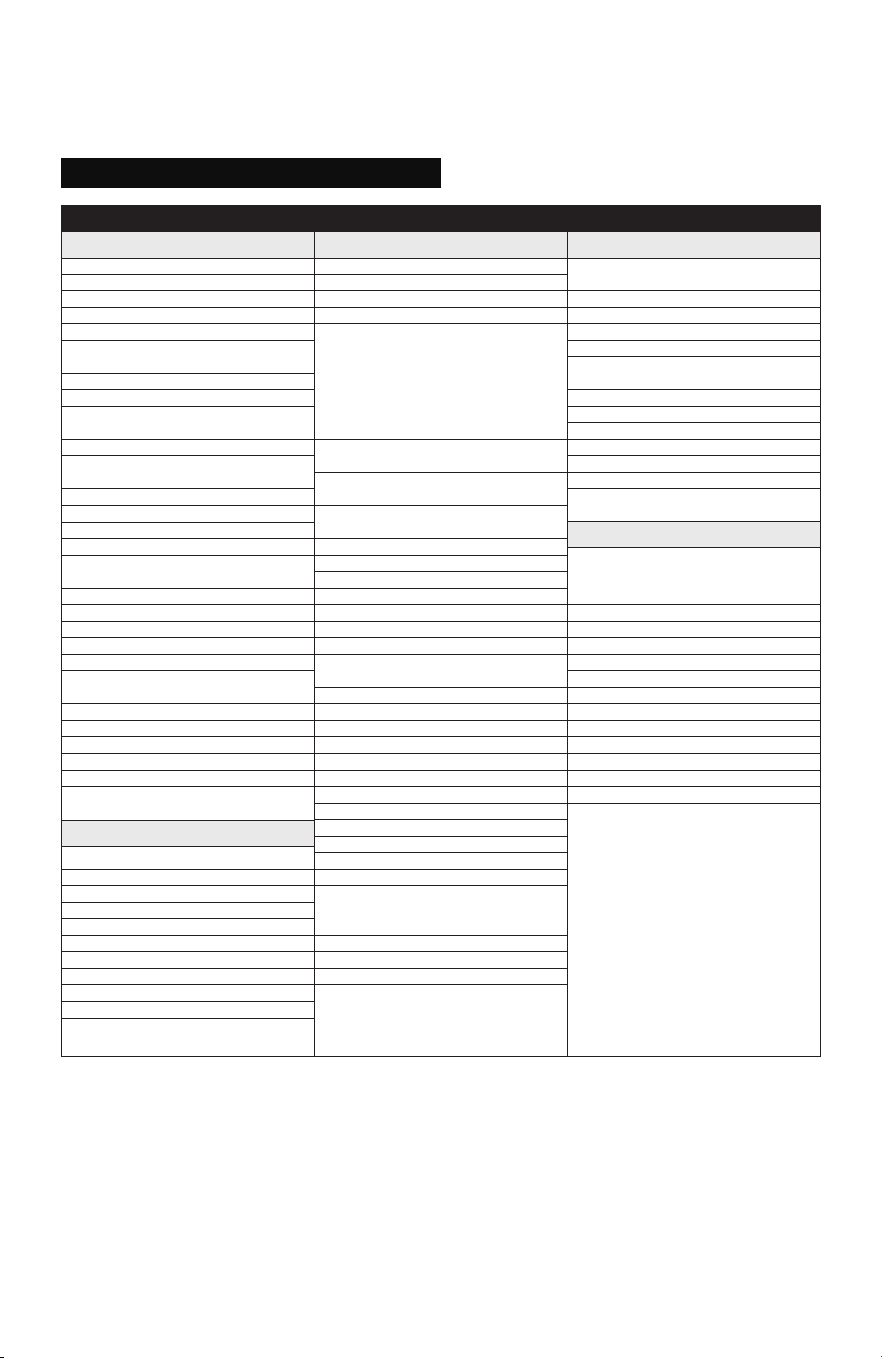
54
ABC
Americast
Bell South
Digeo
Director
General Instrument
GoldStar
Hamlin
Jerrold
Memorex
Motorola
Pace
Panasonic
Paragon
Philips
Pioneer
Pulsar
Quasar
Regal
Runco
Samsung
Scientific Atlanta
Sony
Starcom
Supercable
Torx
Toshiba
Zenith
Americast
Digeo
General Instrument
Jerrold
Motorola
Pace
Pioneer
Scientific Atlanta
Sony
Supercable
Zenith
0003, 0008
0899
0899
1187
0476
0476, 0810, 0276,
0003
0144
0009, 0273
0476, 0810, 0276,
0003
0000
1376, 0476, 0810,
0276, 1187
1877, 0237, 0008
0000, 0008, 0107
0000
1305, 0317, 0025
1877, 0877, 0144,
0533
0000
0000
0279, 0273
0000
0000, 0144
1877, 0877, 0477,
0008
1006
0003
0276
0003
0000
0000, 0525, 0899
0899
1187
0810
0810
1376, 0810, 1187
1877, 0237
1877, 0877
1877, 0877
1006
0276
0899
Cable Set Top Box
AlphaStar
Chaparral
Coolsat
Crossdigital
DirecTV
Dish Network System
Dishpro
Echostar
Expressvu
GE
General Instrument
GOI
Hisense
Hitachi
HTS
Hughes Network Systems
Humax
iLo
JVC
LG
Magnavox
Memorex
Mitsubishi
Motorola
Next Level
Panasonic
Pansat
Paysat
Philips
Proscan
Proton
RadioShack
RCA
0772
0216
1806
1109
1377, 0392, 0566,
0639, 1639, 1142,
0247, 0749, 1749,
0724, 0819, 1856,
1076, 1108, 0099,
1109, 1414, 1442,
1609, 1392, 1640
1505, 1005, 0775,
1170, 1775
1505, 1005, 0775,
1775
1505, 1005, 0775,
1170, 1775
0775, 1775
0566
0869
0775, 1775
1535
0819
0775, 1775
1142, 0749, 1749,
1442
1790
1535
0775, 1170, 1775
1414
0724, 0722
0724
0749
0869
0869
0247, 0701
1807
0724
1142, 0749, 1749,
0724, 1076, 0722,
0099, 1442
0392, 0566
1535
0869
0566, 0855, 0143,
1392
Cable/PVR Combination
Satellite Set Top Box
DBS/PVR Combination
STB mode
Satellite Set Top Box
1377, 1276, 1108,
1109, 1442, 1609
0856
0639, 1639, 1640
0869
1142, 1442
0749, 1749, 0790,
1285
1392, 1640
1806
0724, 0722
1535
1535
0869
0856, 1856
1377, 0392, 0639,
1142, 1076, 0099,
1392, 1442, 1640
1505, 0775
1505, 0775
1505, 0775, 1170
0775
1142, 1442
1170
0869
1142, 0099, 1442
0392
1392
1442
0639, 1640
0869
Samsung
SKY
Sony
Star Choice
Tivo
Toshiba
UltimateTV
Ultrasat
Uniden
US Digital
USDTV
Voom
Zenith
DirecTV
Dish Network System
Dishpro
Echostar
Expressvu
Hughes Network Systems
JVC
Motorola
Philips
Proscan
RCA
Samsung
Sony
Star Choice
Programming Codes
Programming Your Remote
LCT2385-001A-A English 54LCT2385-001A-A English 54 4/14/08 3:43:44 PM4/14/08 3:43:44 PM
55
ABS
Admiral
Adventura
Aiko
Aiwa
Akai
Alienware
America Action
American High
Asha
Audiovox
Beaumark
Bell & Howell
Broksonic
Calix
Canon
Capehart
Carver
CCE
Citizen
Colt
Craig
Curtis Mathes
Cybernex
CyberPower
Daewoo
Daytron
Dell
Denon
DirecTV
Durabrand
Dynatech
Electrohome
Electrophonic
Emerex
Emerson
1972
0048, 0209
0000
0278
0037, 0000, 0307,
0479
0041, 0061, 0106
1972
0278
0035
0240
0037, 0278
0240
0104
0184, 0121, 0209,
0002, 0479, 1479
0037
0035
0020
0081
0072, 0278
0037, 0278, 1278
0072
0037, 0047, 0240,
0072, 0271
0060, 0035, 0162,
0041, 0760, 1035
0240
1972
0045, 0104, 0278,
0020, 0046, 0561,
1278
0020
1972
0042
0739
0039, 0038
0000
0037
0037
0032
0035, 0037, 0184,
0240, 0045, 0000,
0121, 0043, 0209,
0002, 0278, 1593,
1479, 1278, 0593,
0561, 0479, 0208,
0061
VCR
Fisher
Fuji
Funai
Garrard
Gateway
GE
Go Video
GoldStar
Gradiente
Harley Davidson
Harman/Kardon
Harwood
Headquarter
Hewlett Packard
HI-Q
Hitachi
Howard Computers
HP
Hughes Network Systems
Humax
Hush
iBUYPOWER
Jensen
JVC
KEC
Kenwood
KLH
Kodak
LG
Linksys
Lloyd's
Logik
LXI
Magnasonic
Magnavox
Magnin
Marantz
0047, 0104, 0046
0035, 0033
0000, 0593, 1593
0000
1972
0060, 0035, 0240,
0202, 0760, 0761,
0807, 1035, 1060
0432, 0526
0037, 0209, 0038,
0225, 1237
0000
0000
0081, 0038
0072
0046
1972
0047
0037, 0240, 0000,
0042, 0041, 0105,
1037
1972
1972
0042, 0739
0739
1972
1972
0041
0045, 0067, 0041,
0008, 0366, 1707,
1945, 1774, 1775,
1776, 1777
0037, 0278
0067, 0041, 0038
0072
0035, 0037
0037, 0045, 0042,
0209, 0038, 1037
1972
0000, 0208
0240, 0072
0037
0593, 1278
0035, 0039, 0081,
0000, 0149, 0563,
0593, 1593, 1781
0240
0035, 0081
VCR
VCR mode
VCR
0037
0035, 0162, 0227,
1162
1972
0035
0035, 0162, 0037,
0048, 0039, 0047,
0240, 0000, 0104,
0209, 0046, 0307,
0479, 1037, 1048,
1162, 1237, 1262
0240, 0043, 0061
0240
1972
1972
0042, 0105
0081, 0067, 0043,
0041, 0061, 0173,
0807
0035, 0048
0240, 0000
0000, 0072
0035, 0037, 0048,
0104, 0067, 0041,
0038, 0008
0037
1972
0240
1972
0035
1062, 0162, 0037,
0048, 0104, 0432,
0593, 1048, 1162,
1262
0184, 0121, 0209,
0002, 0208, 0479,
1479
1062, 0035, 0162,
0225, 0227, 0616,
1035, 1162, 1262
0035, 0037, 0240,
0042, 0038, 1035,
1237
0042, 0105
0035, 0000, 0038
Marta
Matsushita
Media Center PC
MEI
Memorex
MGA
MGN Technology
Microsoft
Mind
Minolta
Mitsubishi
Motorola
MTC
Multitech
NEC
Nikko
Niveus Media
Noblex
Northgate
Olympus
Optimus
Orion
Panasonic
Penney
Pentax
Philco
Programming Your Remote
LCT2385-001A-A English 55LCT2385-001A-A English 55 4/14/08 3:43:44 PM4/14/08 3:43:44 PM
56
VCR VCR
VCR mode
Philips
Pilot
Pioneer
Polk Audio
Portland
Presidian
Profitronic
Proscan
Protec
Pulsar
Quarter
Quartz
Quasar
RadioShack
Radix
Randex
RCA
Realistic
ReplayTV
Ricavision
Runco
Samsung
Sanky
Sansui
Sanyo
Scott
Sears
Sharp
Shintom
Shogun
Singer
Sonic Blue
Sony
Stack 9
STS
Sylvania
0035, 0081, 0000,
0563, 0593, 0618,
0739, 1081, 1181,
1266
0037
0081, 0042, 0067
0081
0020
1593
0240
0060, 0202, 0760,
0761, 1060
0072
0039
0046
0046
0035, 0162, 1035,
1162
0000, 1037
0037
0037
0060, 0035, 0240,
0000, 0042, 0149,
0105, 0106, 0202,
0760, 0761, 0807,
0880, 1035, 1060
0035, 0037, 0048,
0047, 0000, 0104,
0046
0614, 0616
1972
0039
0240, 0045, 0432,
0739, 0760, 1014
0048, 0039
0000, 0067, 0209,
0041, 0271, 0479,
1479
0047, 0240, 0104,
0046
0184, 0045, 0121,
0043
0035, 0037, 0047,
0000, 0042, 0104,
0046, 0057, 0105,
1237
0048, 0209, 0807,
0848, 1048
0104, 0072
0240
0045, 0072
0614, 0616
0035, 0032, 0033,
0000, 0034, 0636,
0639, 0640, 1032,
1232, 1972
1972
0042
0035, 0081, 0000,
0043, 0593, 1593,
1781
Symphonic
Systemax
Tagar Systems
Tatung
Teac
Technics
Teknika
Thomas
Tivo
TMK
Toshiba
Totevision
Touc h
Unitech
Vector
Vector Research
Video Concepts
Videomagic
Videosonic
Viewsonic
Villain
Voodoo
Wards
White Westinghouse
XR-1000
Yamaha
Zenith
ZT Group
Echostar
Hughes Network Systems
JVC
Philips
Samsung
ABS
Alienware
CyberPower
Dell
DirecTV
Dish Network System
Echostar
Gateway
Hewlett Packard
0000, 0593, 1593
1972
1972
0081, 0045, 0000,
0067, 0041, 0008,
0366
0000, 0041
0035, 0162
0035, 0037, 0000
0000
0618, 0636, 0739,
1996
0240, 0208
0081, 0045, 0042,
0067, 0043, 0041,
0008, 0057, 0366,
0845, 1008, 1145,
1972, 1996
0037, 0240
1972
0240
0045
0038
0045, 0061
0037
0240
1972
0000
1972
0060, 0035, 0048,
0047, 0081, 0240,
0000, 0042, 0072,
0149, 0760
0209, 0072
0035, 0000, 0072
0041, 0038
0039, 0033, 0000,
0209, 0034, 0479,
1139, 1479
1972
1945
0739
1945
0739
0739
1972
1972
1972
1972
0739
1945
1945
1972
1972
DBS/PVR Combination
PVR
Howard Computers
HP
Hughes Network Systems
Humax
Hush
iBUYPOWER
JVC
Linksys
Media Center PC
Microsoft
Mind
Niveus Media
Northgate
Panasonic
Philips
RCA
ReplayTV
Samsung
Sonic Blue
Sony
Stack 9
Systemax
Tagar Systems
Tivo
Toshiba
Touc h
Viewsonic
Voodoo
ZT Group
Emerson
1972
1972
0739
0739
1972
1972
1945
1972
1972
1972
1972
1972
1972
0616, 1777
0618, 0739
0880
0614, 0616
0739
0614, 0616
0636, 1972
1972
1972
1972
0618, 0636, 0739
1008, 1972, 1996
1972
1972
1972
1972
0000
DVD/PVR Combination
PVR
Programming Your Remote
LCT2385-001A-A English 56LCT2385-001A-A English 56 4/14/08 3:43:44 PM4/14/08 3:43:44 PM
57
DVD DVD
DVD mode
Accurian
Advent
Aiwa
Akai
Alco
Allegro
Apex Digital
Arrgo
Aspire Digital
Audiovox
Blaupunkt
Blue Parade
Broksonic
Cinea
Cine Vision
Citizen
Coby
Craig
Curtis Mathes
CyberHome
Daewoo
Denon
Disney
Durabrand
DVD2000
Emerson
Enterprise
ESA
Fisher
Funai
Gateway
GE
Go Video
GoldStar
Greenhill
Harman/Kardon
Hitachi
Hiteker
Humax
iLo
Initial
Insignia
Integra
JBL
Jensen
JVC
Kawasaki
Kenwood
KLH
Koss
Lasonic
Lenoxx
LG
LiteOn
1416
1016
0641
0695, 0770, 0899
0790
0869
0672, 0717, 0755,
0830, 1056, 1061
1023
1168
0790
0717
0571
0695
0831
0876, 0833, 0869
1277
0778, 1107
0831
1087
0816, 0874, 1023,
1024, 1117, 1129
0784, 0705, 0770,
0833, 0869, 1169,
1172
0490, 0634
0675, 1270
1127
0521
0591, 0675, 0821,
1268
0591
0821, 1268
0670
0675, 1268, 1334
1158
0522, 0815, 0717
0744, 0715, 0741,
0783, 0833, 0869,
1044, 1075, 1099,
1158, 1304, 1730
0741
0717
0582, 0702
0573, 0664, 1247
0672
1500, 1588
1348
0717
1268
0627
0702
1016
0558, 0623, 0867,
1164, 1602, 1770,
1771, 1772, 1773
0790
0490, 0534
0717, 0790, 1149
0651
0798
1127
0591, 0741, 0869
1058, 1158, 1416,
1440
Magnavox
Marantz
Memorex
Microsoft
Mintek
Mitsubishi
NAD
NEC
Nesa
NexxTech
Norcent
Onkyo
Oritron
Panasonic
Philips
Pioneer
Polaroid
Polk Audio
Portland
Presidian
Prima
Proscan
Pro Vision
Qwestar
RCA
Rio
Rotel
Sampo
Samsung
Sansui
Sanyo
Sensory Science
Sharp
Sharper Image
Sherwood
Shinsonic
Sonic Blue
Sony
Superscan
Sylvania
Symphonic
Teac
Technics
Theta Digital
Tivo
Toshiba
Urban Concepts
US Logic
Venturer
Xbox
Yamaha
Zenith
0503, 0539, 0646,
0675, 0821, 1268
0539
0695, 0831, 1270
0522, 1708
0839, 0717
1521, 0521
0741
0785
0717
1402
1003, 1107
0503, 0627
0651
0490, 0703, 1362,
1462, 1490, 1762
0503, 0539, 0646,
0675, 0854, 1158,
1260, 1267, 1354
0525, 0571, 0631
1061
0539
0770
0675
1016
0522
0778
0651
0522, 0571, 0717,
0790, 0822, 1022,
1132
0869
0623
0752
0490, 0573, 0744,
0820, 0899, 1044,
1075, 1470
0695
0670, 0695, 0873
1158
0630, 0675, 0752,
1256
1117
0770
0533, 0839
0869, 1099
0533, 1533, 0864,
1033, 1431, 1536
0821
0675, 0821, 1268
0675, 0821
0717, 0790
0490, 0703
0571
1503
0503, 0695, 1045,
1154, 1503, 1515,
1588
0503
0839
0790
0522, 1708
0490, 0539, 0545
0503, 0591, 0741,
0869
DVD Recorder
Accurian
Apex Digital
Aspire Digital
CyberHome
Denon
Funai
Gateway
Go Video
iLo
JVC
LG
LiteOn
Magnavox
Panasonic
Philips
Pioneer
RCA
Samsung
Sensory Science
Sharp
Sony
Sylvania
Zenith
Aiwa
Audiovox
JVC
KLH
Koss
Oritron
Polk Audio
RCA
Rio
Sonic Blue
Teac
Venturer
1416
1056
1168
1129
0490
0675, 1334
1158
0741, 1158, 1304,
1730
1348
1164
0741
1158, 1416, 1440
0646, 0675
0490
0646, 1158
0631
0522
0490, 1470
1158
0630, 0675
1033, 1431
0675
0741
0641
0790
1770, 1771, 1772,
1773
0790
0651
0651
0539
0790
0869
0869
0790
0790
Home Theater in Box
Programming Your Remote
LCT2385-001A-A English 57LCT2385-001A-A English 57 4/14/08 3:43:44 PM4/14/08 3:43:44 PM
58
Amstrad
Bose
Curtis Mathes
Durabrand
GE
Harman/Kardon
JVC
Left Coast
Lenoxx
Linn
Marantz
NEC
Optimus
Philips
Pioneer
Polk Audio
RCA
Shure
Sony
Soundesign
Victor
Wards
Yamaha
ADC
Aiwa
Akai
Alco
Amphion Media Works
AMW
Anam
Apex Digital
Audiotronic
Audiovox
Bose
Brix
Cambridge Soundworks
Capetronic
Carver
Classic
Coby
Criterion
Daewoo
Delphi
Denon
Garrard
Gateway
Go Video
Harman/Kardon
Initial
Insignia
Integra
JBL
JVC
Kenwood
KLH
0078
0674
0300
1561
0078
0892
0331
0892
1561
0269, 0282, 0829
0892, 0269
0264
0300, 0823
0892, 0269
0013, 0300, 0823
0892, 0269
0300, 0823
0264
0689, 0815, 1126
0078
0331
0078, 0013
0354, 0133
0531
1405, 0121, 1243,
1388, 1641
1512
1390
1563, 1615
1563, 1615
1609, 1074
1257, 1430
1189
1390
1229, 0639, 1841,
1933
1602
1370
0531
1189
1352
1389
1420
1250
1414
1360, 0771, 1142,
1660, 2832
0463
1517
1532
0110, 0891, 1304,
1306
1426
1751
0135, 1298, 1320
0110, 1306
0531, 1374, 1495,
1560, 1676, 1871,
1894
1313, 1570, 1569
1390, 1412
Amplifier
Koss
Lasonic
Lenoxx
LG
Liquid Video
Magnavox
Marantz
Mitsubishi
NexxTech
Norcent
Nova
Onkyo
Optimus
Oritron
Panasonic
Philips
Pioneer
Polaroid
Polk Audio
Proscan
RCA
Regent
Rio
Saba
Samsung
Sansui
Sanyo
Sharp
Sharper Image
Sherwood
Shinsonic
Sirius
Sonic Blue
Sony
Stereophonics
Sunfire
Teac
Technics
Thorens
Toshiba
Venturer
Wards
XM
Yamaha
Zenith
1366, 1497
1798
1437
1293, 1869
1497
1189, 1269, 0531,
1514
1189, 1269, 0891,
1289
1393
1751
1389, 1751
1389
0135, 0842, 1298,
1320, 1531
1023, 0531, 1074
1366, 1497
1308, 1518, 0367,
1288, 1316, 1548,
1633, 1763, 1764
1189, 1269, 0891,
1266, 1289, 1673
1023, 0014, 0150,
0531, 0630, 1123,
1384, 1823
1508
1289, 1414
1254
1023, 1609, 1254,
0531, 1074, 1123,
1390, 1511
1437
1869
0531, 1519
1295, 1500
1764
1251, 1469
0771, 1286
1556
1517, 1653
1426
1602
1532, 1869
1058, 1441, 1258,
1759, 1622, 0474,
1406, 1558, 1658,
1758, 1858, 1958
1023
1313
0463, 1074, 1390,
1528
1308, 1518, 1384
1189
1788
1390
0014
1406, 1414
0176, 1176, 1276,
1331, 1375, 1476
0857, 1293
Receiver
Audio mode
Home Theater in Box
1388, 1641
1563, 1615
1563, 1615
1609
1257, 1430
1390
1229, 1933
1370
1352
1389
1420
1250
2832
1561
1517
1532
1426
1751
1298
1306
1374, 1495, 1676,
1871
1390, 1412
1366, 1497
1798
1561
1293, 1869
1497
1514
1751
1389, 1751
1389
1298, 1531
1366, 1497
1288, 1316, 1548,
1633, 1763, 1764
1266, 1673
1384
1508
1289
1609, 1390, 1511
1437
1869
1519
1295, 1500
1469
1556
1517
1426
1532, 1869
0689, 1622, 1558,
1658, 1758, 1858,
1958
1390, 1528
1788
1390
1331, 1375
1293
Aiwa
Amphion Media Works
AMW
Anam
Apex Digital
Audiovox
Bose
Cambridge Soundworks
Classic
Coby
Criterion
Daewoo
Denon
Durabrand
Gateway
Go Video
Initial
Insignia
Integra
JBL
JVC
KLH
Koss
Lasonic
Lenoxx
LG
Liquid Video
Magnavox
NexxTech
Norcent
Nova
Onkyo
Oritron
Panasonic
Philips
Pioneer
Polaroid
Polk Audio
RCA
Regent
Rio
Saba
Samsung
Sanyo
Sharper Image
Sherwood
Shinsonic
Sonic Blue
Sony
Teac
Toshiba
Venturer
Yamaha
Zenith
Receiver
Programming Your Remote
LCT2385-001A-A English 58LCT2385-001A-A English 58 4/14/08 3:43:45 PM4/14/08 3:43:45 PM
59
Refer to the table below to check the condition. If you think that there is a problem, contact the
JVC Service Center where you purchased the television.
• The antenna could be disconnected.
• The tuner could be set improperly. See page 40.
• The TV station may be having difficulties. Check to see if other stations are working.
• Use the HDMI cable with HDMI logo . See page 51.
• If you have a device connected to INPUT-1, INPUT-2 or INPUT-3, you will not be able to
hear any audio from the AUDIO OUT on the back of the TV.
• You cannot output audio using the DIGITAL AUDIO OPTICAL OUTPUT when you have
digital sound from an HDMI device connected to the INPUT-1, INPUT-2 or INPUT-3
connection on the back of the TV.
• This TV can accept 480i (Composite / S / HDMI / Component), 480p, 720p, 1080i and 1080p
signals. Please check your settings.
There is no power
There is no picture
or sound
The power turns off
by itself
The color quality
is poor
There are lines
across the picture
The picture is spotted
There are double
pictures (ghosts)
Picture is snowy
(image noise)
Remote control is not
operating properly or
at all
• See if the power cord became unplugged.
• Check for a blown fuse or circuit breaker or a power outage.
• Check to see that the batteries are still working and properly installed.
• Make sure the remote has a clear sight path to the TV.
• You may be too far from the TV. You must be within 23 feet (7 meters).
• Make sure the set did not become unplugged.
• Perhaps the Auto Shut Off is set. See page 41.
• Check to see if the Sleep Timer was set. See page 39.
• Tint and Color may be improperly adjusted. See page 24.
• The Video Status mode may be turned to the wrong setting. See page 23.
• There could be interference from another electrical appliance, such as a computer,
another TV or VCR. Move any such appliances further away from the TV.
• There could be interference from a high-wattage appliance, like a hairdryer or vacuum,
operating nearby. Move the antenna away from the appliance or change to a coaxial
cable connection which is less prone to interference.
• A building or passing airplane can reflect the original signal and produce a second,
slightly delayed one. Adjust your antenna position.
• Your antenna may be damaged, disconnected or turned. Check the antenna
connection. If the antenna is damaged, replace it.
PROBLEMS CHECK
It does not operate
correctly
• This television is operated by a microprocessor. It is possible that external noise or
interference is causing the problem. If the television does not function correctly, remove the
electrical plug from the wall outlet and wait a while before inserting it into the wall outlet
again and operating the television.
Troubleshooting
LCT2385-001A-A English 59LCT2385-001A-A English 59 4/14/08 3:43:45 PM4/14/08 3:43:45 PM
60
PROBLEMS CHECK
Static electricity
You hear occasional
crackling sounds
• It is normal to feel static electricity if you brush or touch the screen.
• It is normal for the TV to make crackling sounds when first turned on or off. Unless
the sound or picture become abnormal, this is fine.
The picture is slightly
cut off when you use
1080p format only
• Change the picture format setting on your external device to 1080i or other resolution.
The screen
disappears except for
the menu screen
• This occurs when you select a digital menu when your input source is from the HDMI
connection. Press the menu button.
• This JVC television can accept a variety of HD signals, including 720/60p, 1080/60i and
1080/60p. It does not accept a 1080/24p signal. Please note that in some cases, a Blu-ray
or HD-DVD may only offer the choice of 1080/60i or 1080/24p. In this case, it is necessary
to choose the 1080/60i output. Please refer to your Blu-ray/HD-DVD manual for complete
details on choosing the correct output.
My HDMI device
doesn’t work or
doesn’t work properly
Screen is 80% black
Stereo or bilingual
programs can't be
heard
• The Closed Caption Text mode is on. Turn it off in the Closed Caption Menu, page 29.
• Make sure the MTS settings are correct. See page 37.
• This OSD appears when the digital channel that you have selected is too weak to receive or
no signal is being detected for that channel.
“Weak Signal”
appears
• It appears when that channel is not receiving a signal and you have the Noise Muting
function OFF and you have a single screen. It moves automatically every two seconds to
prevent the screen from burn-in.
• Even if "NO PROGRAM" appears on the screen, your timer functions and auto shut off
functions that you set, are still active.
• If you are watching an analog channel, NO PROGRAM does not appear.
“No Program”
appears
The following are not malfunctions.
• The television may make a creaking sound if the temperature of the room or the temperature
of the inside of the television changes. If there is no problem with the screen or sound, then
there is no need to worry.
• The picture may be temporarily disturbed and noise may be seen on the screen if the power
is turned on immediately after it has been turned off. This is not a malfunction.
Troubleshooting
LCT2385-001A-A English 60LCT2385-001A-A English 60 4/14/08 3:43:46 PM4/14/08 3:43:46 PM
61
LCD Flat TelevisionType
Reception Format
Power Source
Power Consumption
Model
NTSC, BTSC System (Multi-Channel Sound) ATSC Terrestrial, Digital Cable
AC 120V, 60 Hz
Screen Size
Speakers
Audio Output 10W + 10W
Antenna Terminal
(VHF/UHF,
ATSC/DIGITAL
CABLE IN)
75 ohms (VHF/UHF)(F-type connector)
Dimensions (inch/mm)
W X H X D
Weight (lbs / kg)
Optical Output
Digital Audio
Digital Out (optical) x 1
Reception Range
VHF 2 to 13, UHF 14 to 69 CATV 125 Sub, Mid, Super, Hyper and Ultra bands
(191 channel frequency synthesizer system) at Analog
• Reception of channel A-5 ("95" of the TV set's on-screen cable channel numbers)
is not recommended for your TV set.
VHF 2 to 13, UHF 14 to 69 at ATSC,
CATV 135 Sub, Mid, Super, Hyper and Ultra bands at Digital Cable
Audio Output Jacks
(FIX)
FIX : 500mVrms (-4dBs), Low Impedance
Input 4, 5
Terminal
480i
S (Input 4)
Y: 1 Vp-p positive, 75 ohms (negative sync provided)
C: 0.286 Vp-p (burst signal), 75 ohms
Video: 1 Vp-p, 75 ohms
Audio: 500 mVrms (-4dBs) high impedance
Input 4, 5 Terminal
(Component Terminal)
1080i / 720p / 480p / 480i
Y: 1 Vp-p positive, 75 ohms (negative sync provided)
P
B/PR: 0.7 Vp-p 75 ohms
Input 1, 2, 3 Terminal
(HDMI Input Terminal)
Video: 1080p / 1080i / 720p / 480p / 480i
Audio: 2ch PCM, 32 / 44.1 / 48 KHz 16 / 20 / 24 bit
4 x 16cm Oblique x 2
LT-32P679
159W
32 inch / 80 cm
measured diagonally,
16:9 ratio
iPod Output
Power
5 V, 500 mA
31 1/4 x 23 1/2 x 9 1/8
(with stand)
791 x 596.4 x 230
(with stand)
31 1/4 x 21 1/2 x 4 5/8
(without stand)
791 x 544 x 115.3
(without stand)
30.1 / 13.7 (with stand)
28.4 / 12.9 (without stand)
Specifications subject to change without notice.
• The open source software is embedded in this product. For more information, please go to:
http://software.jvc.com/opensource/lnx/DP/08_AtscQam_T/download.html
Specifi cations
LCT2385-001A-A English 61LCT2385-001A-A English 61 4/14/08 3:43:47 PM4/14/08 3:43:47 PM
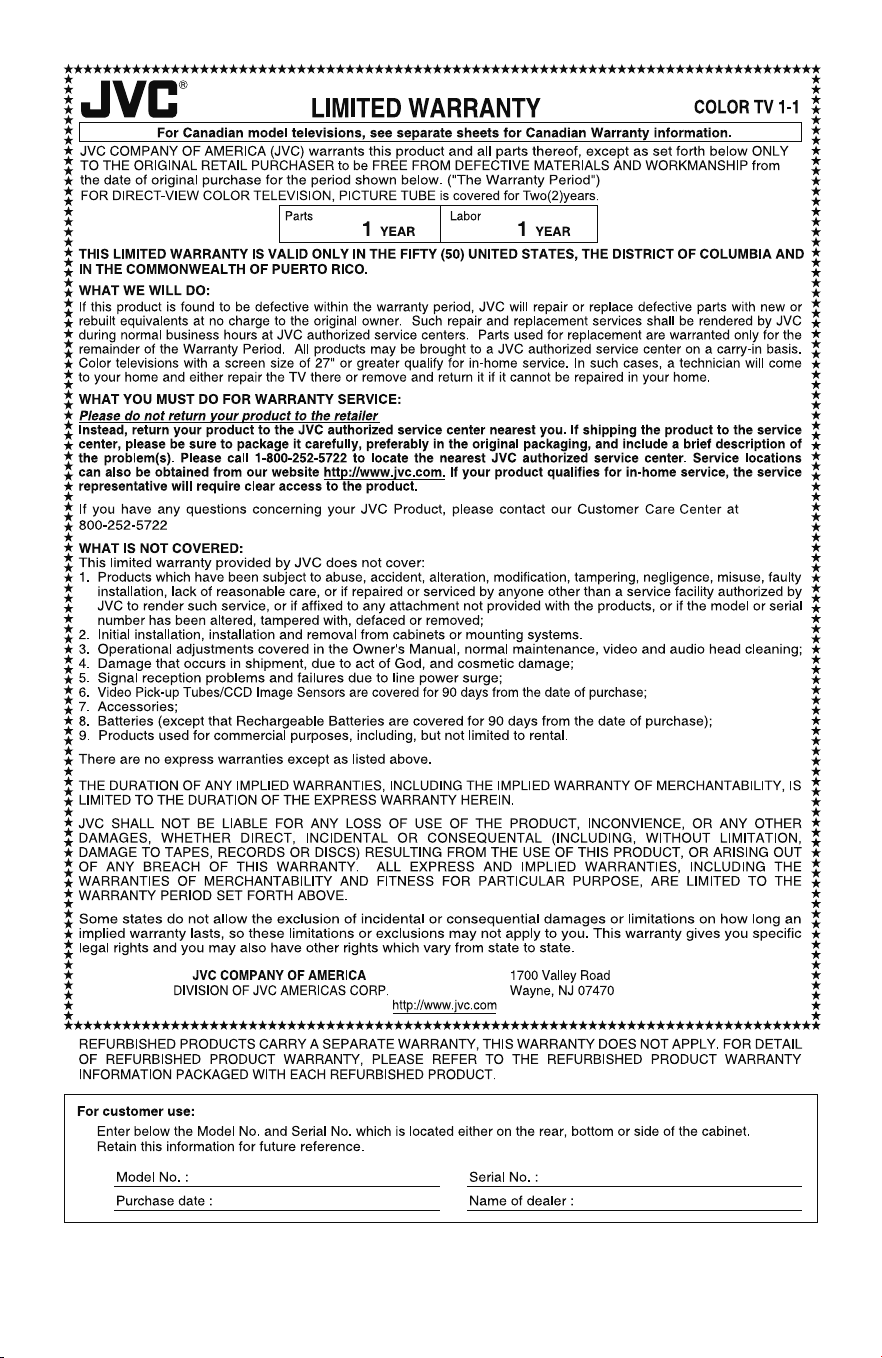
62
LCT2385-001A-A English 62LCT2385-001A-A English 62 4/14/08 3:43:48 PM4/14/08 3:43:48 PM

63
LCT2385-001A-A English 63LCT2385-001A-A English 63 4/14/08 3:43:50 PM4/14/08 3:43:50 PM

JVC COMPANY OF AMERICA
Division of JVC Americas Corp.
1700 Valley Road
Wayne, New Jersey, 07470
JVC CANADA, INC.
21 Finchdene Square
Scarborough, Ontario
Canada, M1X 1A7
JVC L ov es the Earth
LCT2385-001A-A English 64LCT2385-001A-A English 64 4/14/08 3:43:50 PM4/14/08 3:43:50 PM