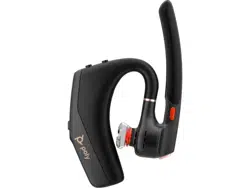

Poly Voyager Legend 50 Bluetooth
Headset User Guide
SUMMARY
This guide provides task-based user information for the named product.

Legal information
Copyright and license
© 2024, HP Development Company, L.P. The information contained herein is subject to change
without notice. The only warranties for HP products and services are set forth in the express
warranty statements accompanying such products and services. Nothing herein should be
construed as constituting an additional warranty. HP shall not be liable for technical or editorial
errors or omissions contained herein.
Trademark credits
All third-party trademarks are the property of their respective owners. Bluetooth is a trademark
owned by its proprietor and used by HP Inc. under license.
Privacy policy
HP complies with applicable data privacy and protection laws and regulations. HP products and
services process customer data in a manner consistent with the HP Privacy Policy. Please refer to
HP Privacy Statement.
Open source software used in this product
This product contains open source software. You may receive the open source software from HP
up to three (3) years after the distribution date of the applicable product or software at a charge
not greater than the cost to HP of shipping or distributing the software to you. To receive software
information, as well as the open source software code used in this product, contact HP by email at
ipgoopensourceinfo@hp.com.

Table of contents
Overview 1
Headset overview 1
Charge case overview 2
Locate the serial number on your headset 2
Load software 3
Update your Poly device 3
Adjust the fit 4
Change eartip size 4
Switch ears 5
Charge 6
Check headset battery status 7
Low battery warnings 8
Connect and pair 9
Pair to mobile device 9
Pair to PC with Bluetooth direct 9
Manage calls 11
Answer a call 11
End a call 11
Mute 11
Reject a call 11
Hold a call 12
Basics 13
Power on 13
Adjust the volume 13
Adjust headset microphone volume (softphone) 13
Play or pause audio 14
Track backward 14
Track forward 14
Voice assistant (smartphone feature) 14
Use sensors 14
Reset the sensors 15
Disable sensors 15
Exit DeepSleep mode 16
iii

Overview
Review your new headset system.
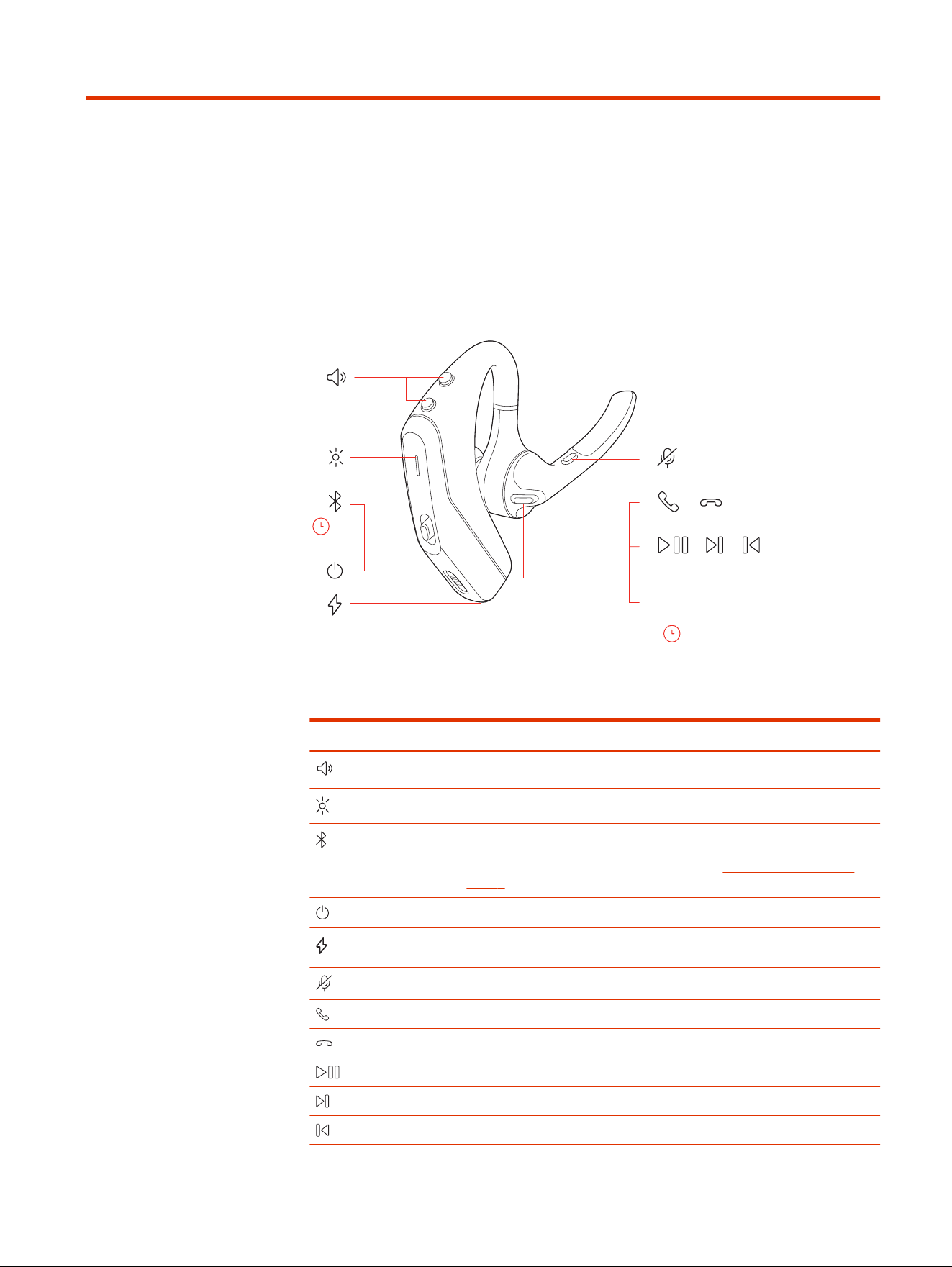
Headset overview
Use your headset for call and media control.
:02
/
Siri/Google
Assistant
:02
/ /
x2x1
x3
Table 1-1
Headset icon descriptions
Icon Control
Volume up and down buttons
Indicator light
Bluetooth pairing
Slide up and hold for 2 seconds. For more, see Pair to mobile device on
page 9.
Power
Charge port
Mute
Answer call
End call
Play/pause media *
Track forward
Track backward
Overview 1
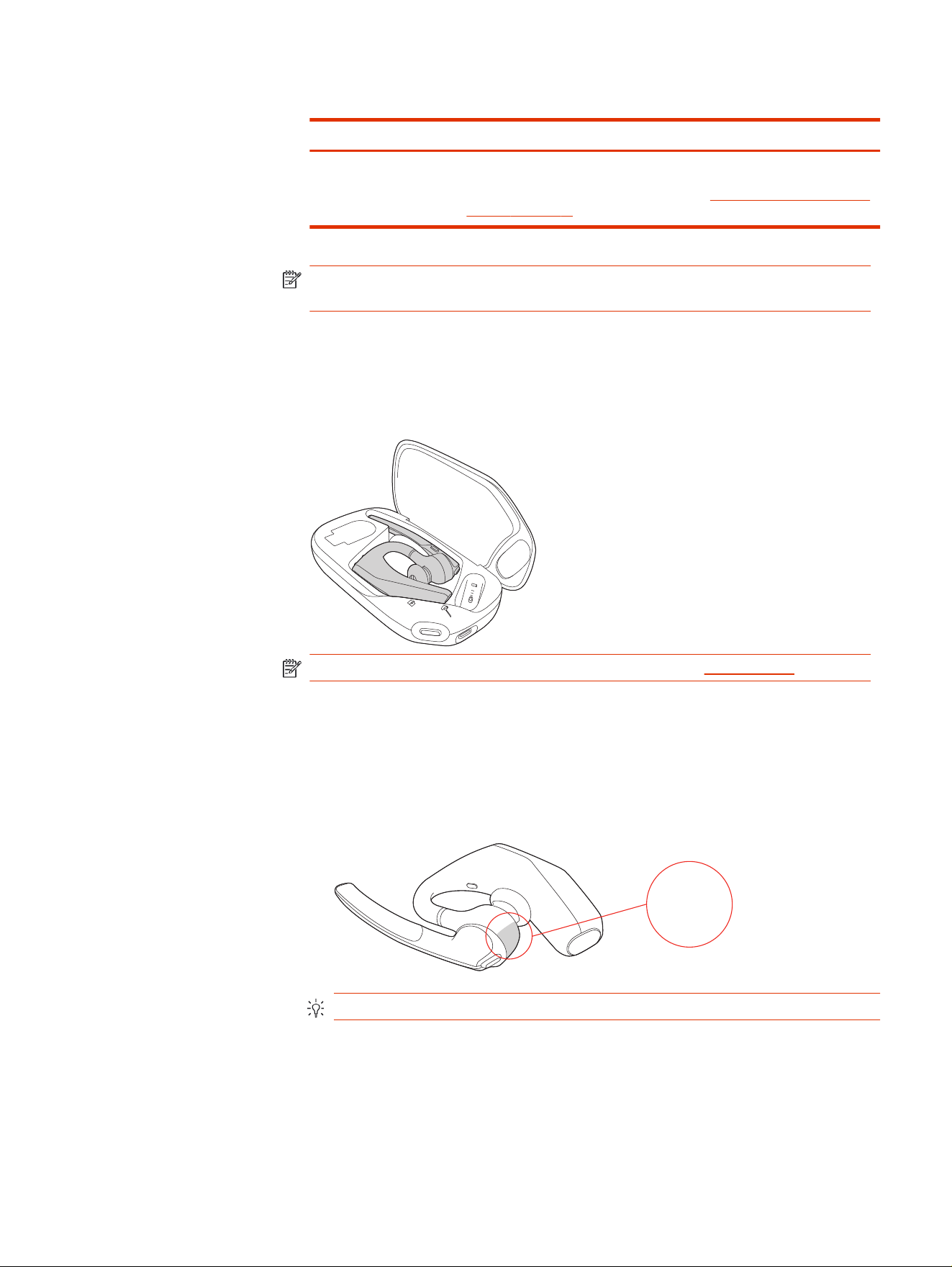
Table 1-1 Headset icon descriptions (continued)
Icon Control
Siri, Google Assistant Default voice assistant
Press and hold for 2 seconds. For more, see Voice assistant (smartphone
feature) on page 14.
NOTE: *Functionality varies by application. May not function with web-based
apps.
Charge case overview
Use the charge case to charge and store your headset. The LEDs display the case
and headset battery status.
NOTE: The charge case is available as an accessory at hp.com/shop.
Locate the serial number on your headset
Find the serial number on the bottom of the headset ear piece.
■
On the bottom of the headset, find the serial number SN: XXXXXX (typically 6
digits).
SN: XXXXXX
TIP: Take a photo with your smartphone for a better view of the serial number.
2
Chapter 1 Overview

Load software
Download the Poly Lens app to get the most out of your device. Some softphones
require the installation of Poly software to enable device call control (answer or
end a call and mute) functionality.
NOTE: Administrative privileges may be required to download the desktop
application. If you don't have administrator privileges on your system, contact
your system administrator.
● Download the Poly Lens Desktop app at hp.com/lens-app.
● Download the Poly Lens Mobile app at hp.com/lens-app, the App Store, or
Google Play.
Table 2-1
Supported Poly Lens features
Feature Poly Lens Mobile Poly Lens Desktop
Configure call control for
softphones
Available for some
softphones
✓
Change headset language ✓ ✓
Enable features ✓ ✓
Choose preferred Equalizer
setting
✓ ✓
Battery meter ✓ ✓
Update device firmware ✓ ✓
Manage notifications and
alerts
✓ ✓
Schedule health and wellness
reminders
✓ ✓
View user guide ✓ ✓
FindMyHeadset ✓
Update your Poly device
Keep your firmware and software up to date to improve performance and add new
features to your Poly device.
Update your device using Poly Lens. Download the app at hp.com/lens-app.
Load software
3
Adjust the fit
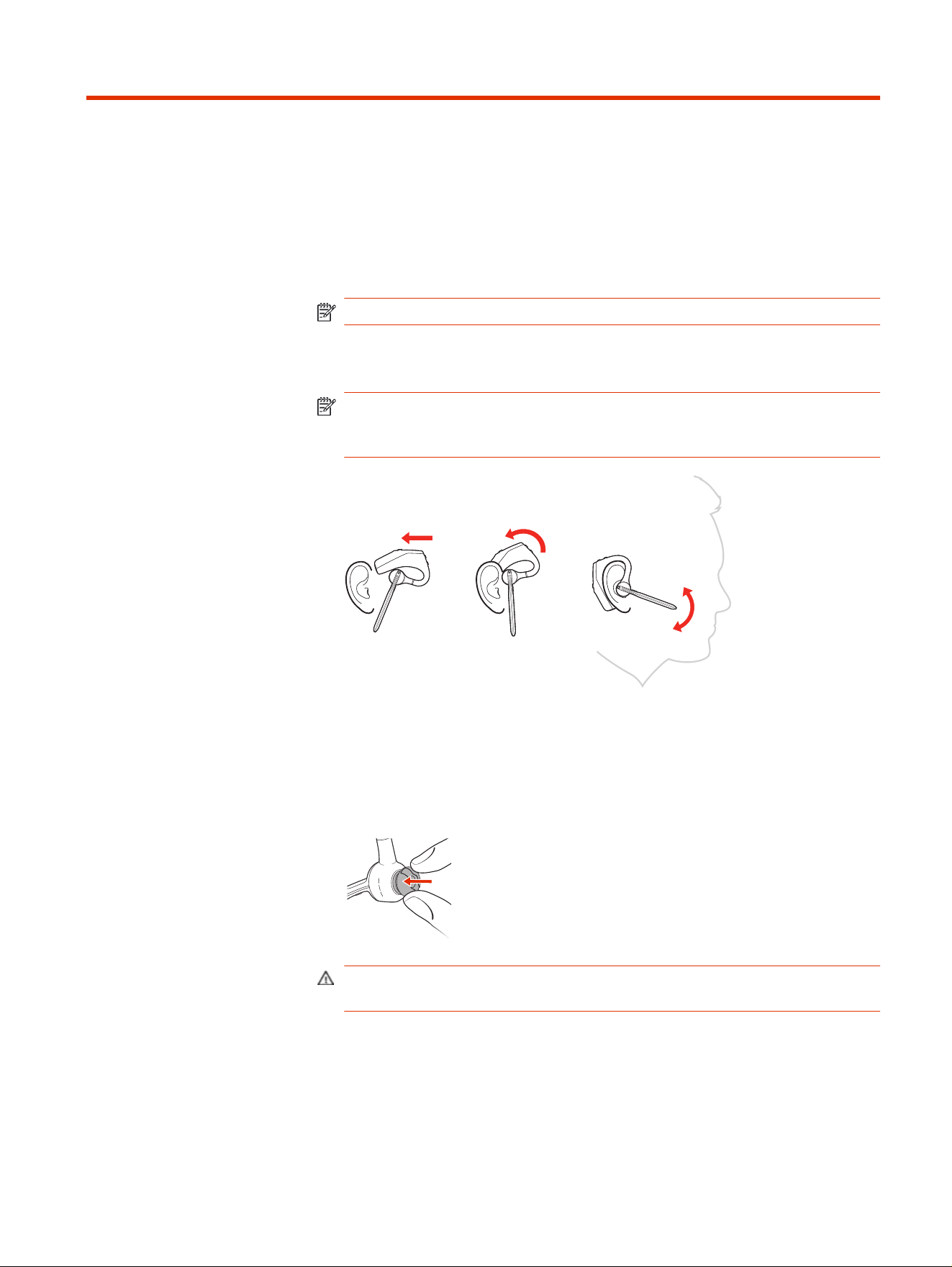
Wear your headset correctly for the best call and sound quality.
1. Slide the headset over and behind your ear, then press gently toward your
ear.
NOTE: Remove your eyeglasses before wearing the headset for the best fit.
2. Rotate the microphone boom until it is pointed toward your mouth. The mic
boom moves up and down for a better fit.
NOTE: Point the microphone boom toward your mouth for the best call
quality. If the microphone boom is too high or too low, callers may not be able
to hear you.
Change eartip size
Change the eartip for a better fit.
1. Push in the eartip with thumb and forefinger.
CAUTION: Push in the eartip before rotating it or you might tear the ear tip
and need to buy a replacement.
4
Chapter 3 Adjust the fit
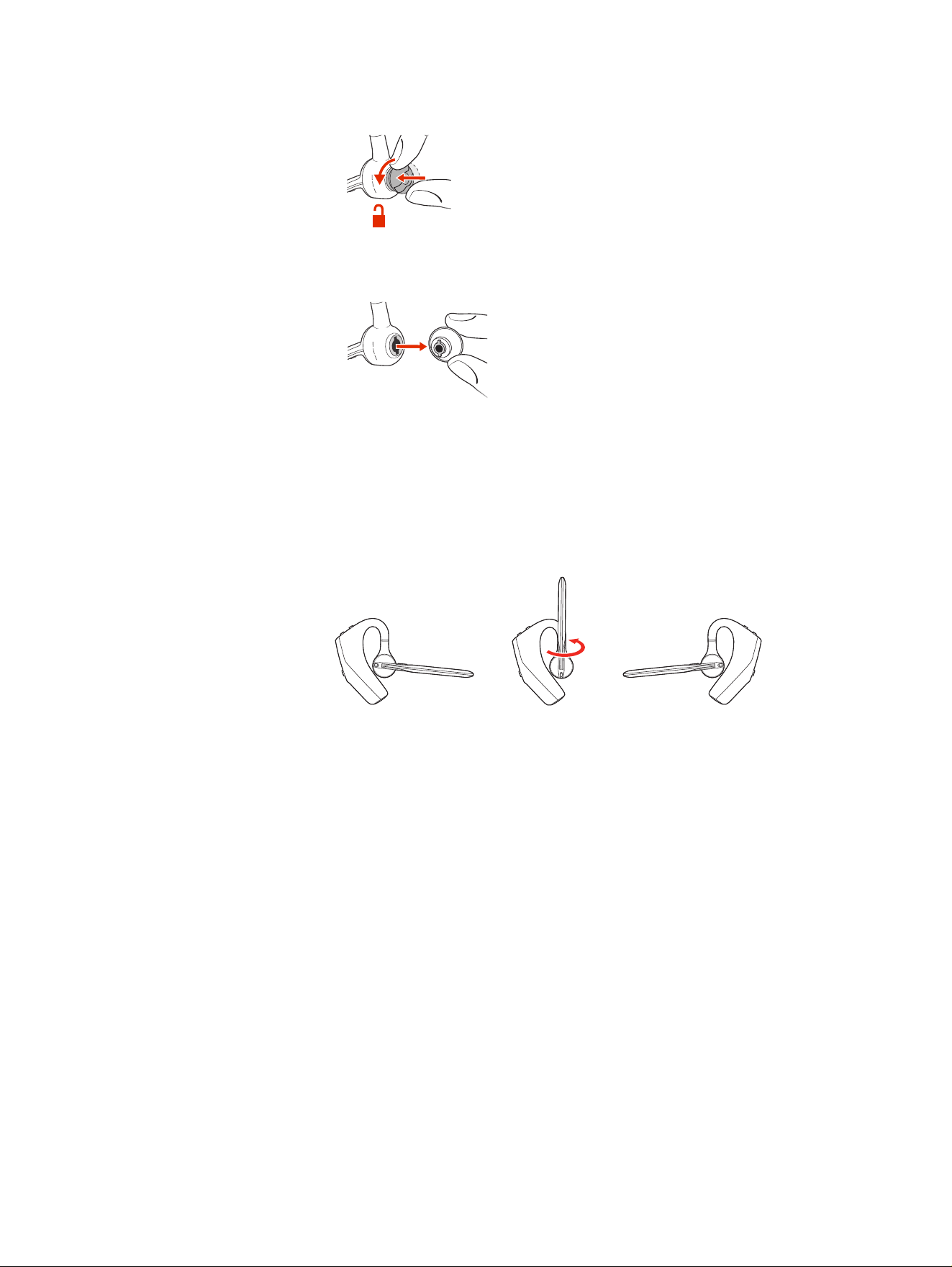
2. With the eartip pushed in, turn counterclockwise to unlock.
3. Remove the eartip from the slot.
Switch ears
Wear your headset on either ear.
■
Rotate the boom upwards, and then twist it around so the eartip is on the other
side of the headset base before lowering the mic boom.
Switch ears
5
Charge
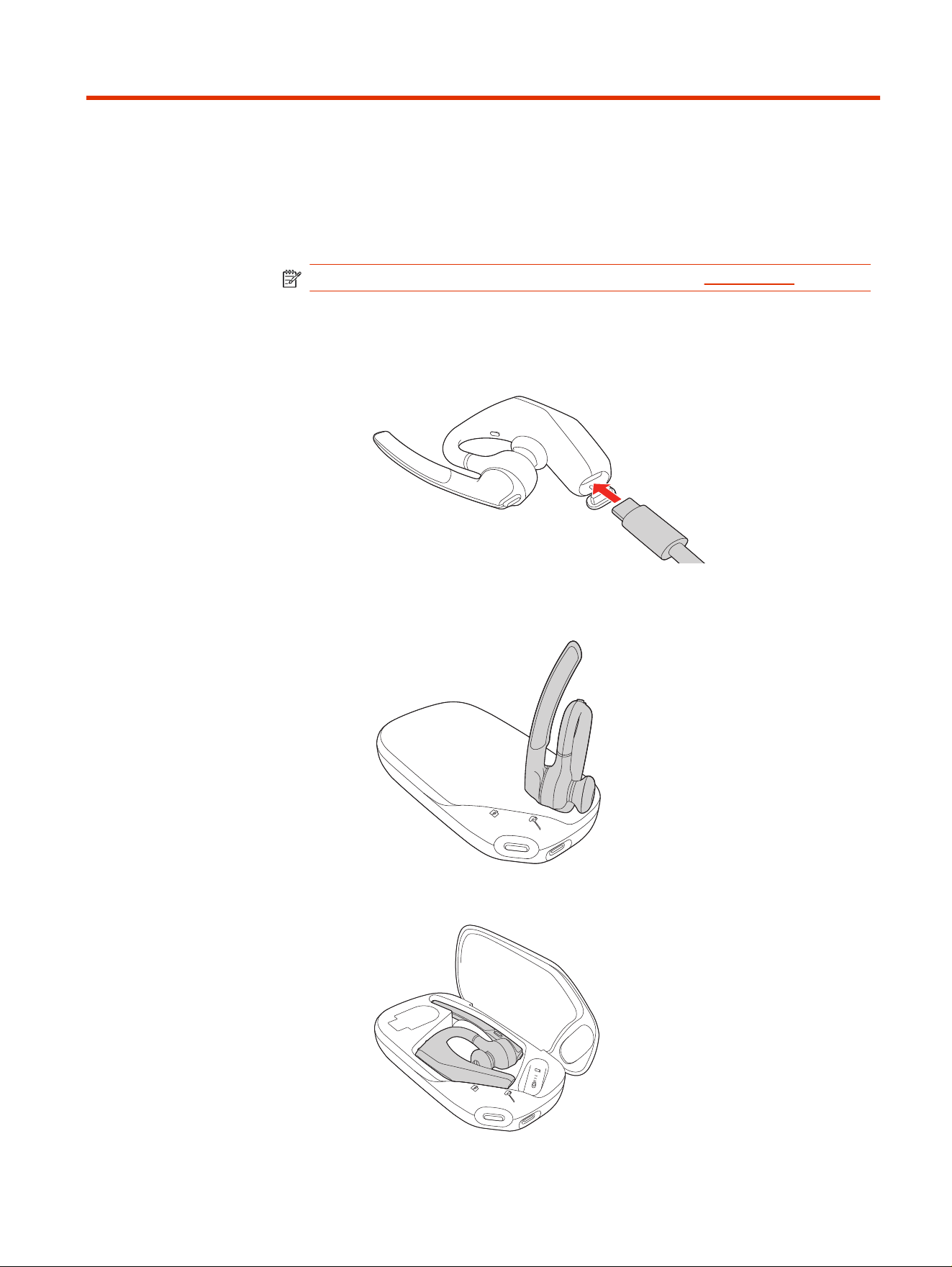
Charge your headset with the provided USB-C charge cable or accessory charge
case. Charge your case with the provided USB-C charge cable.
NOTE: The charge case is available as an accessory at hp.com/shop.
1. To charge your headset, do one of the following:
● Insert the supplied USB cable into the headset charge port and plug into
a computer or USB charging device.
● Place the headset on the charge port on the top of the case.
● Place the headset inside the case.
6
Chapter 4 Charge
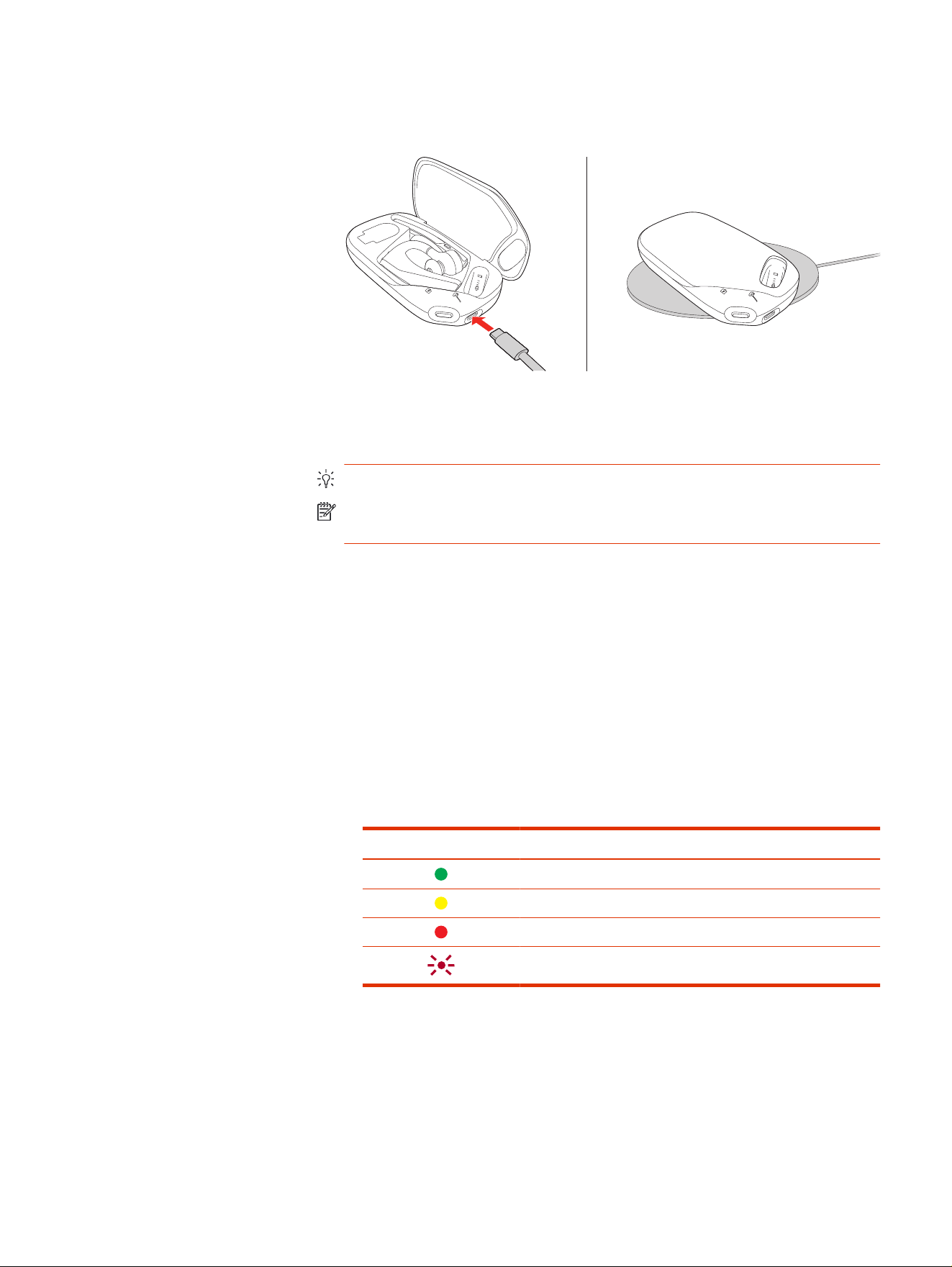
2. To recharge the case, plug it into a computer or USB charging device using
the supplied USB cable. Alternatively, recharge using a third-party Qi certified
wireless charger (not included).
Your charge case LEDs blink every 10 seconds when charging and turn off
when fully charged. A fully charged case can recharge your headset fully two
times, for an additional 14 hours of headset talk time.
TIP: For fastest charging, plug your charge case into a power outlet.
NOTE: The case might warm up while Qi charging, this is normal and not a
hazard.
Check headset battery status
Check your headset battery status.
■
Do one of the following:
● With your headset powered on and smart sensors active, put on your
headset and listen to the voice alert.
● Power on your headset and listen to the voice alert.
● View the battery status in Poly Lens.
Table 4-1
Headset LED status descriptions
Headset LED Headset battery status
Battery high
Battery medium
Battery low
Battery critical
Check headset battery status 7

Low battery warnings
Your headset announces when your battery status is low. The following table
describes the battery status prompts.
NOTE: These prompts are available in several languages. You can change your
prompt language in Poly Lens.
Table 4-2 Headset battery status voice prompts
Battery status Voice prompt
30 minutes of talk time remaining "Battery Low" repeats every 15 minutes
10 minutes of talk time remaining "Recharge headset" every 5 minutes
8 Chapter 4 Charge
Connect and pair
Connect and pair your headset to your mobile devices.
Pair to mobile device
Pair your headset to your mobile device.
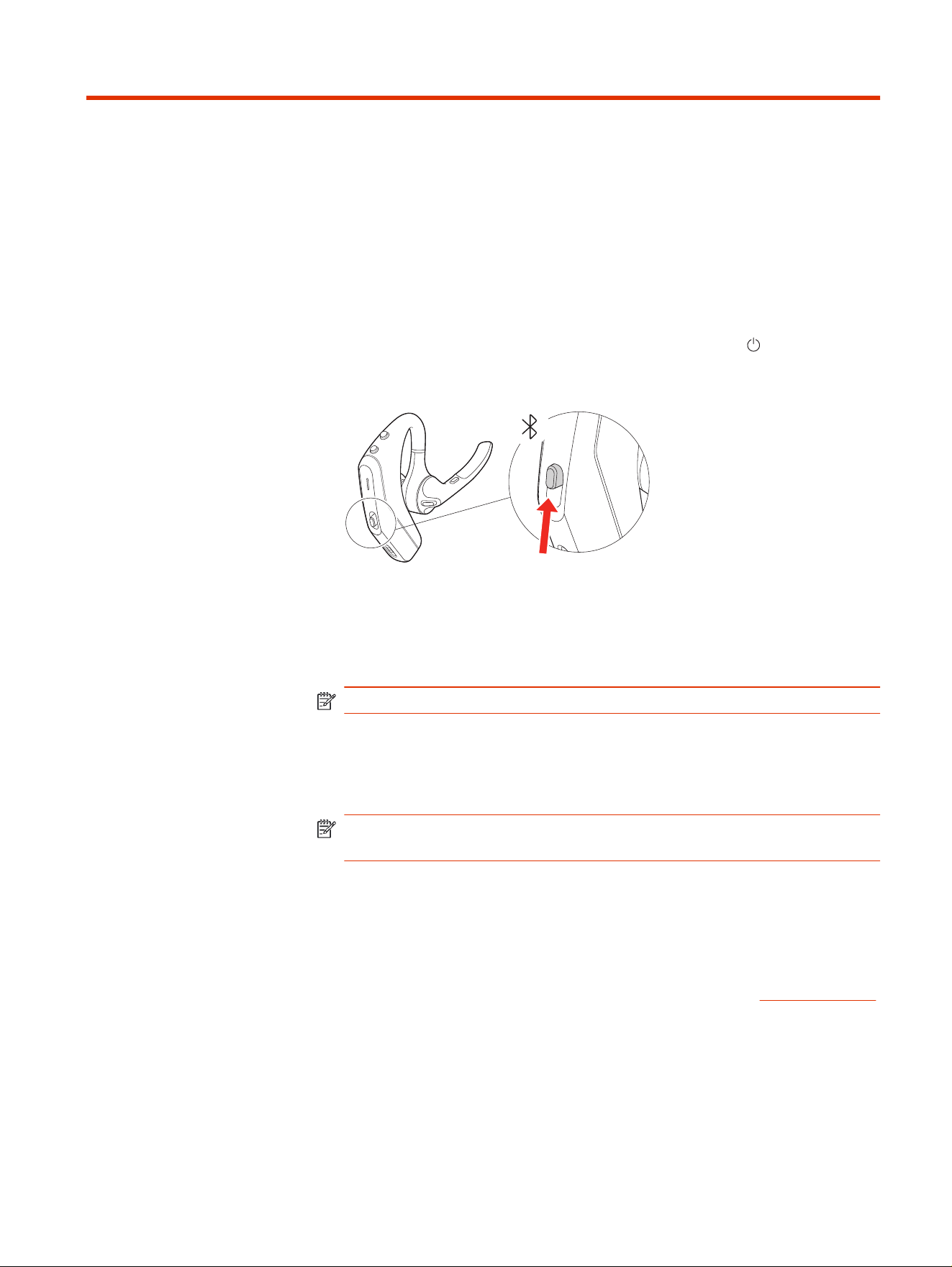
1. To put your headset in pair mode, slide and hold the Power switch away
from the off position for 2 seconds until you hear "pairing" and the headset
LEDs flashred and green.
2. Activate Bluetooth on your phone and set it to search for new devices.
●
iPhone
Settings > Bluetooth > On*
●
Android
Settings > Bluetooth On > Scan for devices*
NOTE: *Menus may vary by device.
3. Select Poly VLegend 50.
Once successfully paired, you hear “pairing successful” and the headset
LEDs stop flashing.
NOTE: Your headset can pair with up to eight devices but only maintain two
connections simultaneously.
Pair to PC with Bluetooth direct
Quickly pair to your PC with Bluetooth direct PC pairing and Poly Lens Desktop.
Poly Lens Desktop improves softphone call control and call quality.
This feature requires Poly Lens Desktop 2.0. Download the app at hp.com/lens-app.
Make sure that Swift Pair is enabled in the Bluetooth settings of your PC to use
this pairing method. Go to Settings > Bluetooth & other devices and select Show
notifications to connect using Swift Pair.
Connect and pair
9

1. To put your headset in pair mode, slide and hold the Power switch away
from the off position until you hear “Pairing” and the headset LEDs flashred
and green.
2. Select Connect on the PC notification.
When your headset is successfully paired, you hear “Pairing successful” and
“PC connected.” You receive a PC notification that the device is paired and
ready to use.
10
Chapter 5 Connect and pair
Manage calls
Manage calls with your headset.
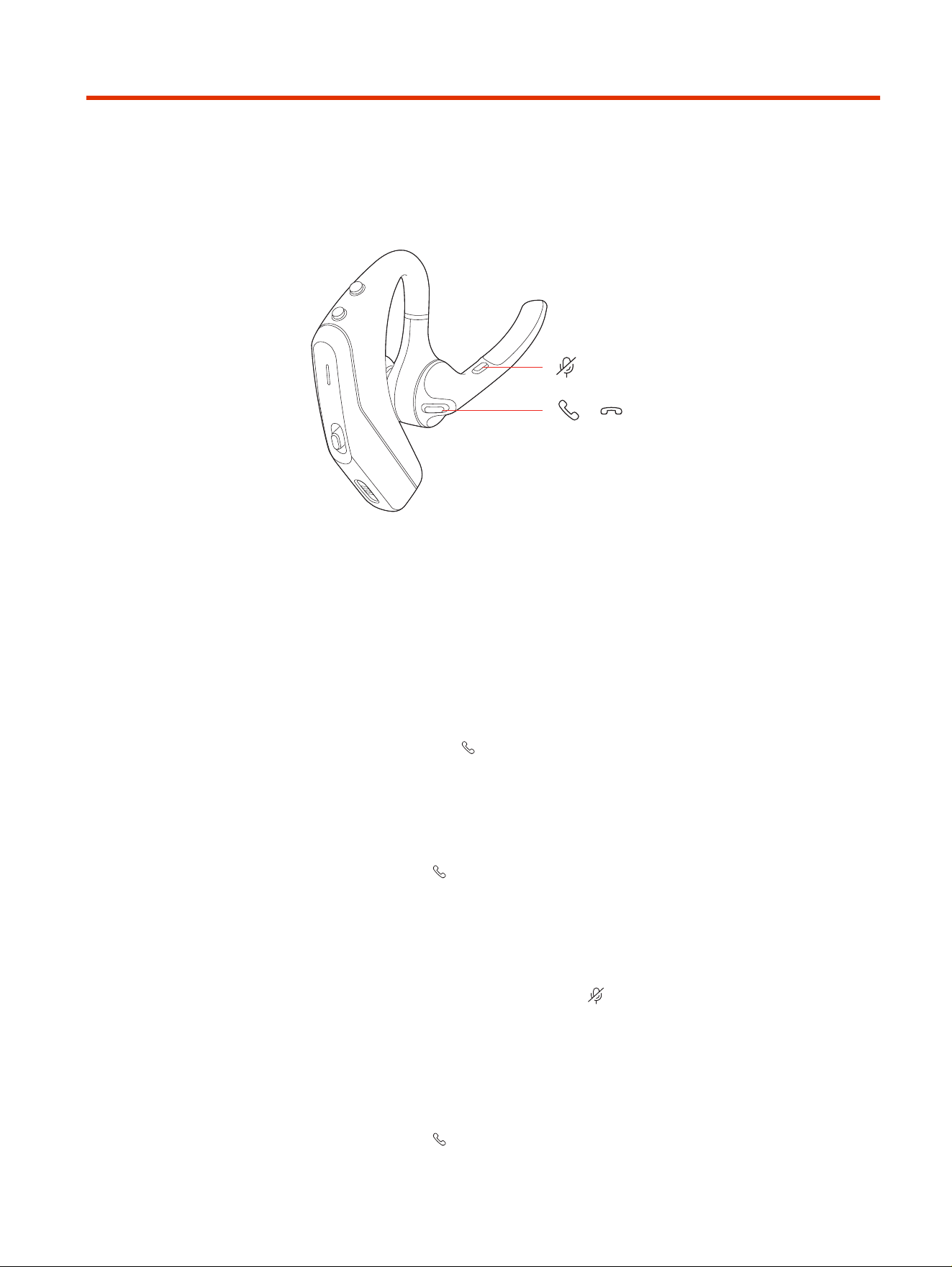
/
Answer a call
Choose a method to answer a call.
■
Choose one of the following:
● Put the headset on to answer a call.
● Say “answer” after call is announced.
● Press the Call button.
End a call
End calls with your headset.
■
Press the Call button.
Mute
Mute your microphone during calls.
■
During an active call, press the Mute button to mute or unmute your
headset.
Reject a call
Reject incoming calls with your headset.
■
Press the Call button for 2 seconds until you hear a tone.
Manage calls
11

Hold a call
Use your headset to place an active call on hold.
1. Press and hold the Mute button for 2 seconds to hold the call.
The LEDs flash red.
2. To resume call, hold the Mute button again for 2 seconds.
The LEDs return to pulsing red.
12 Chapter 6 Manage calls
Basics
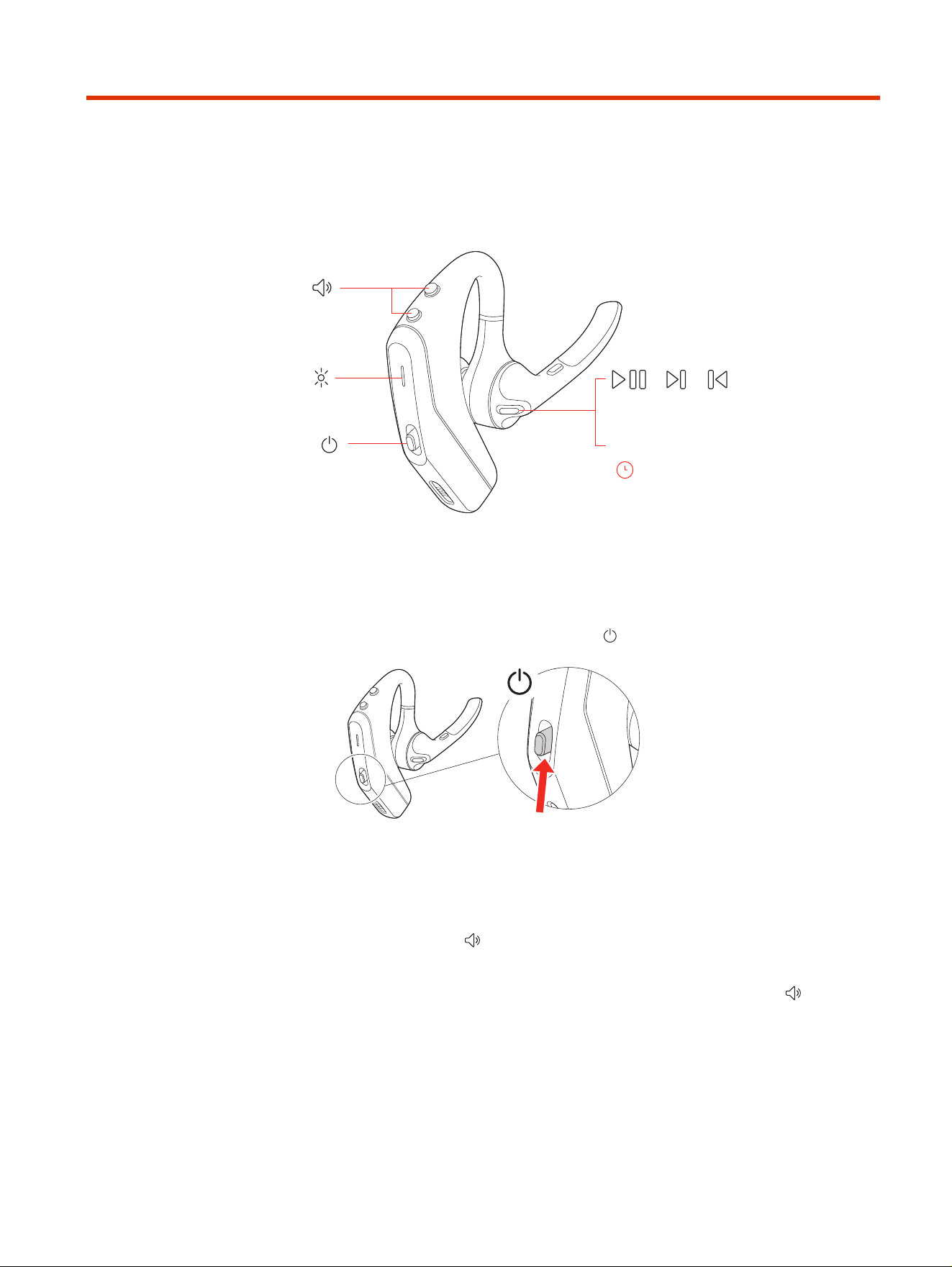
Control features using the headset buttons.
Siri/Google
Assistant
:02
/ /
x2x1
x3
Power on
Power on your headset.
■
To turn on the headset, slide the Power button to reveal green.
Adjust the volume
Increase or decrease the volume of your headset audio.
■
Toggle the Volume button up (+) or down (–) during a call or while streaming
audio.
While not on a call or streaming audio, you can toggle the Volume button to
adjust the volume level for Caller Announce and other voice prompts.
Adjust headset microphone volume (softphone)
Adjust your headset volume for softphone calls.
Basics
13

■
Place a test softphone call and adjust softphone volume and PC sound volume
accordingly.
Play or pause audio
Play or pause audio with your headset.
■
Press the Call button to pause or resume streaming audio.
NOTE: Functionality varies by application. The feature may not function with
web-based apps.
Track backward
Play the previous track while streaming audio.
■
Press the Call button three times to play the previous track.
Track forward
Play the next track while streaming audio.
■
Press the Call button two times to play the next track.
Voice assistant (smartphone feature)
Use your headset to communicate with your smartphone voice assistant.
This feature works with Siri, Google Assistant, and Cortana.
1. Press and hold the Call button for 2 seconds to activate your phone's
default voice assistant.
2. Wait for the phone prompt to activate voice dialing, search, and other
smartphone voice controls.
Use sensors
Smart sensors respond when you put on or take off your headset. Customize the
sensors in Poly Lens.
The following table describes the default sensor settings.
Table 7-1
Headset active sensor behavior
Action Putting on the headset Taking off the headset
Mobile/softphone call Answers the call Keeps call in headset
Music/media Resumes music/media (if
playing previous to taking
off)*
Pauses music/media (if
playing)*
14 Chapter 7 Basics
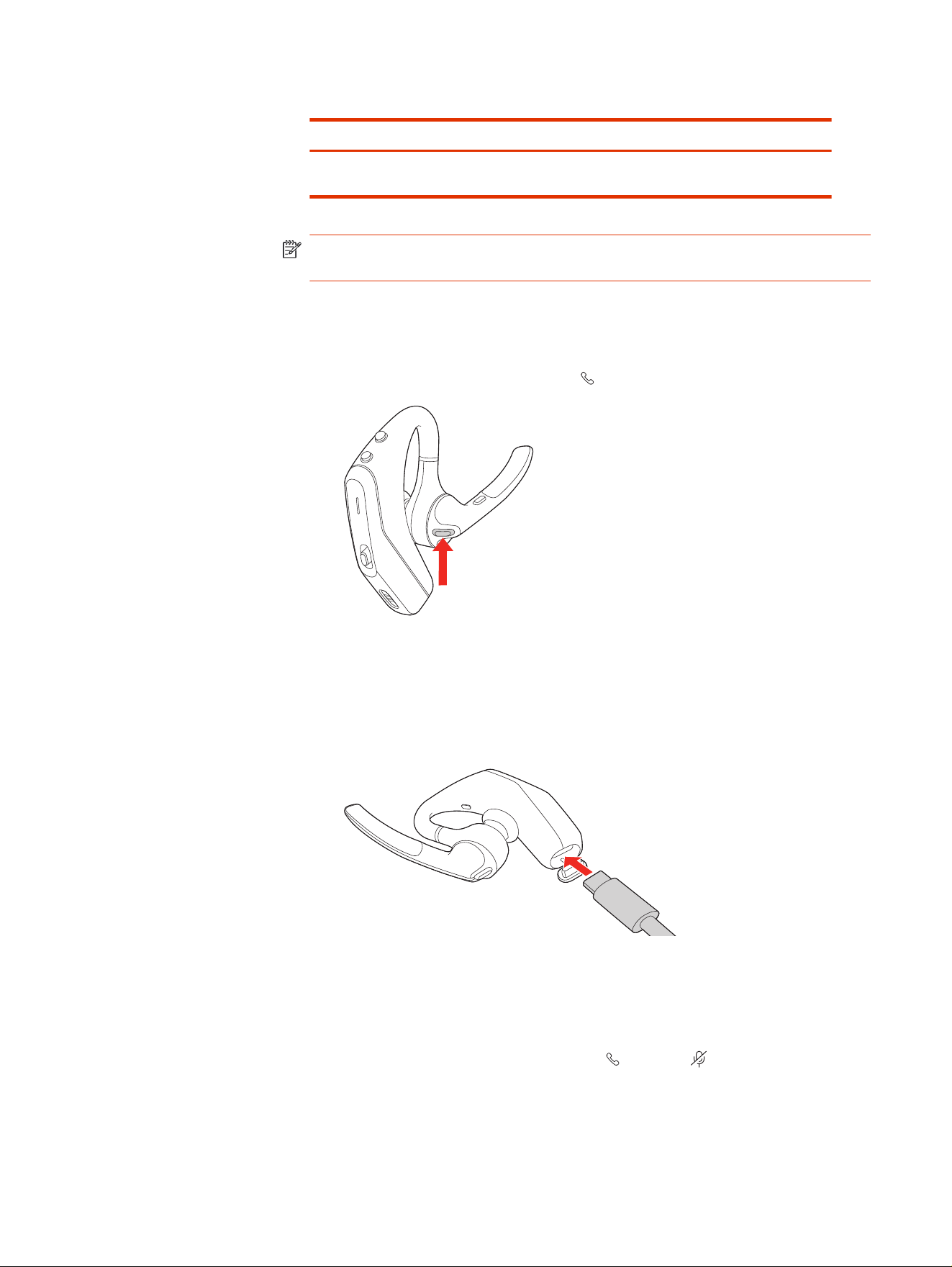
Table 7-1 Headset active sensor behavior (continued)
Action Putting on the headset Taking off the headset
Lock headset Unlocks the Call button Locks the Call button to
avoid accidental calls
NOTE: *Functionality varies by application. The feature may not function with
web-based apps.
Reset the sensors
Reset the sensors if they are not working as expected.
1. To test the sensors, press the Call button while wearing the headset.
A talk time voice alert means sensors are working. A tone or lack of voice
prompts means sensors need to be reset.
2. To reset the sensors, power on the headset, connect the headset to a USB
cable and plug the cable into your computer's USB port or an AC wall adapter
(not included). Then place the headset on a flat, non-metallic surface for more
than 10 seconds.
Disable sensors
Disable your headset smart sensors in
Poly Lens or by using a button press while
your headset is idle.
■
Simultaneously press and hold the Call and Mute buttons for 5 seconds.
You hear "smart sensors off” when the sensors are disabled.
Reset the sensors
15
Exit DeepSleep mode
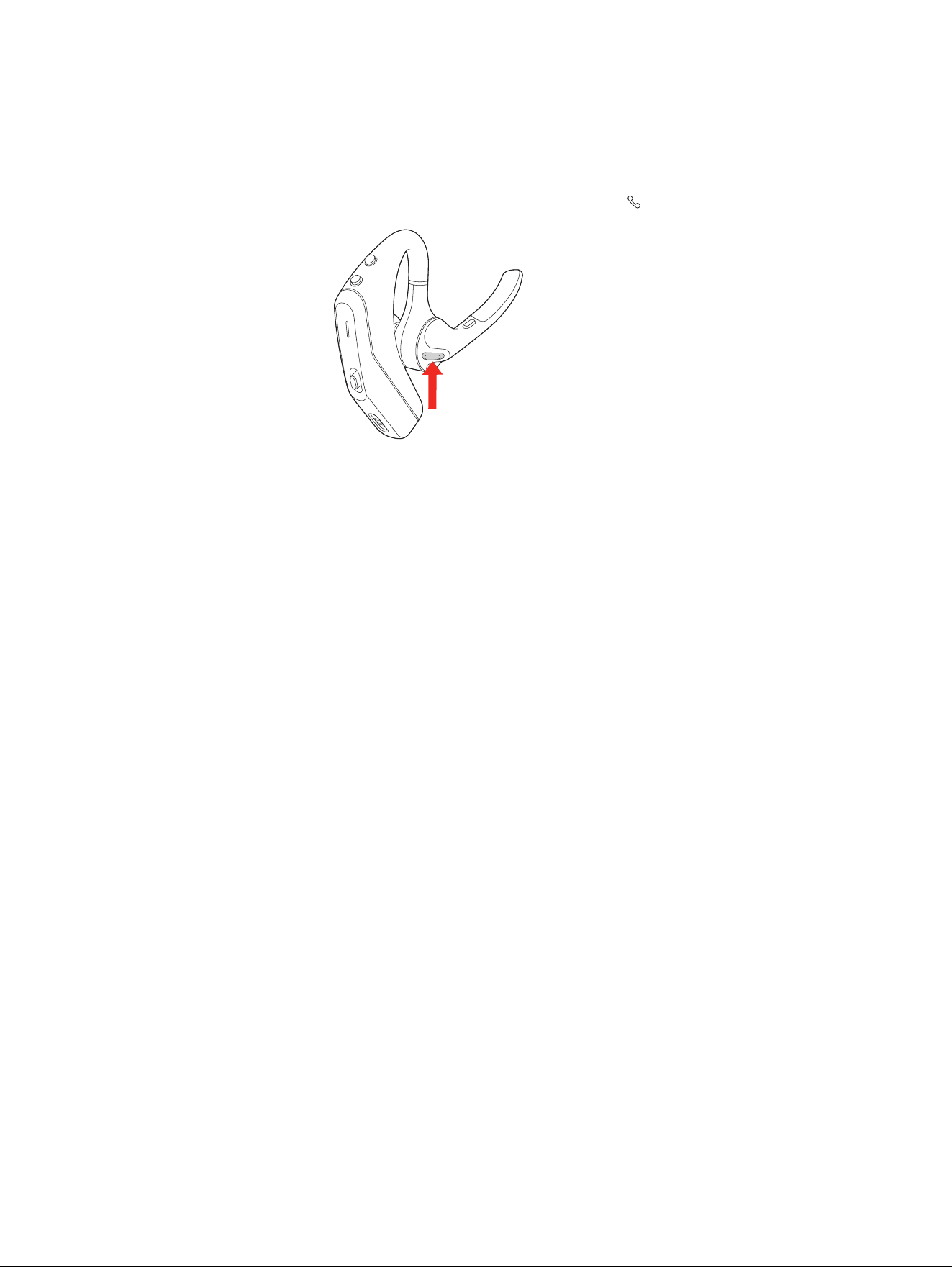
If you leave your headset powered on but out of range of your paired device, the
headset conserves power by entering DeepSleep mode after 90 minutes.
■
Power on the headset by pressing the Call button.
16 Chapter 7 Basics
Advanced features
Configure and use additional headset features.
Choose Noise Block setting
Limit the amount of noise and nearby conversation transmitted through your
microphone while on a call using Noise Block. Select your preferred Noise Block
setting in Poly Lens.
1. Open Poly Lens and go to Settings > Advanced > Close Conversation Limiting.
2. Choose the setting that matches your work environment.
Option Description
No Noise Block Optimized for voice isolation
AI Noise Block Enhanced for hybrid work environments
UC Noise Block Best for open office environments
NOTE: Changes take effect on the next call.
Use USB-C to USB-A adapter
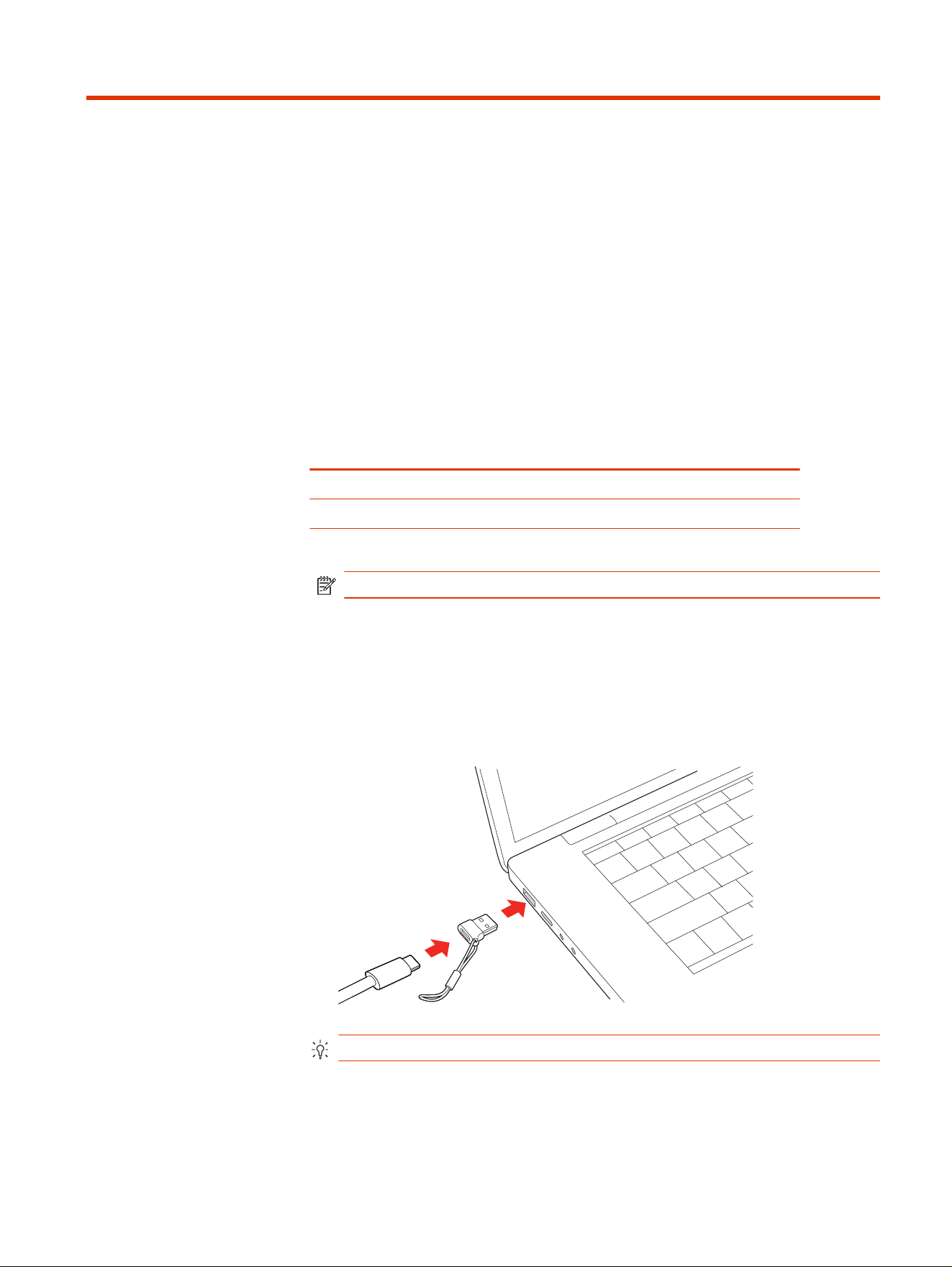
Use the USB-C to USB-A adapter to connect your device to USB-A ports.
● Connect the USB-C charge cable to the adapter and connect to a USB-A port.
The USB-C to USB-A adapter can be used with wall adapters as well.
TIP: Use the lanyard to attach the adapter to your cable.
Advanced features
17
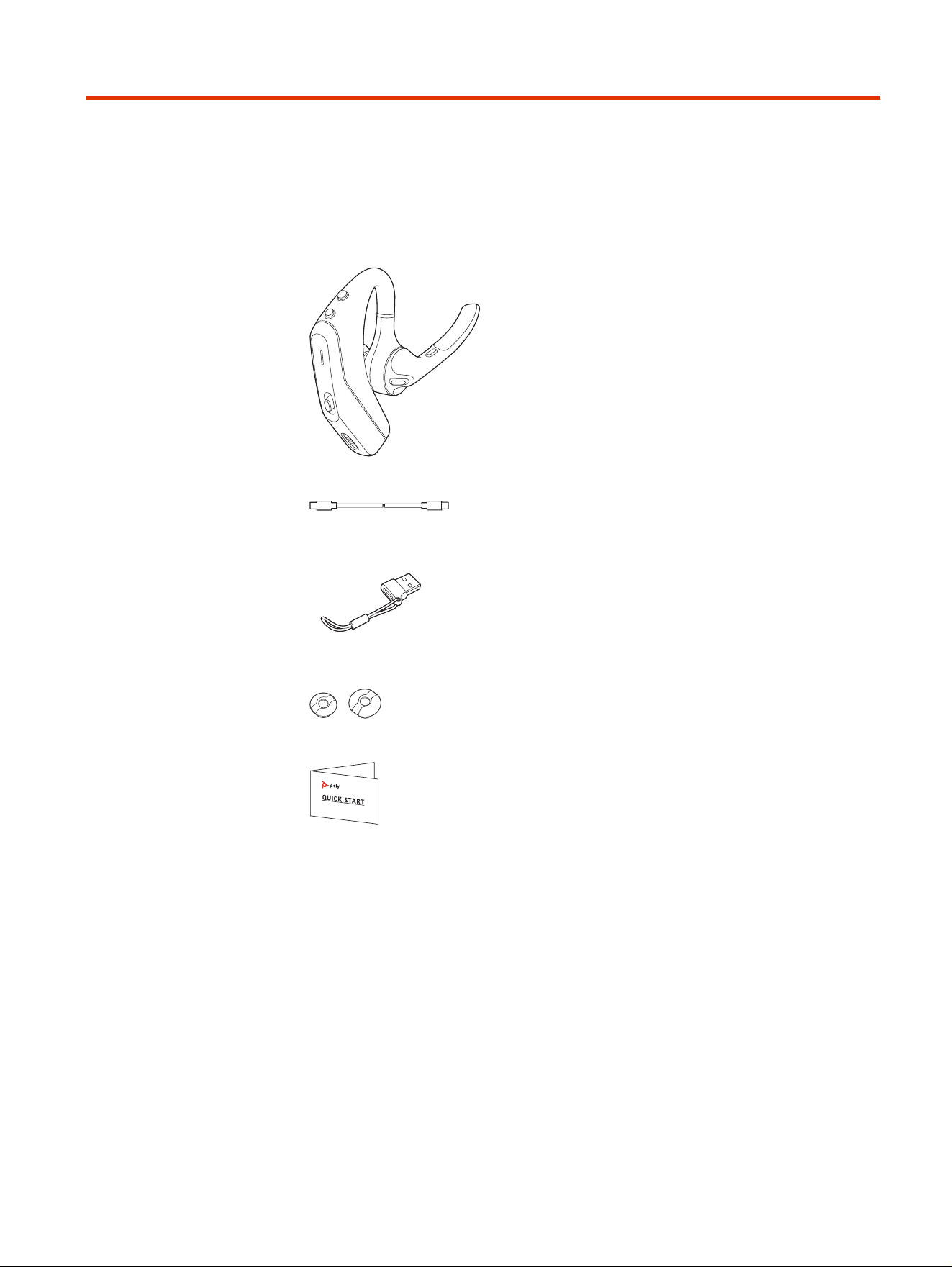
What's in the box
Contents may vary by product.
Figure 9-1 Headset
Figure 9-2 USB-C cable
Figure 9-3 USB C to A adapter
Figure 9-4 Eartips (S, L)
Figure 9-5 Quick start guide
18
Chapter 9 What's in the box

Troubleshooting
Find solutions to improve your headset experience.
Table 10-1 Troubleshooting issues and resolutions
Issue Resolution
How do I pair my headset to a
mobile device?
Review Pair to mobile device on page 9.
Incoming call audio sounds harsh
when the headset volume is at
highest level.
Lower your headset volume until the distortion clears. The
intended volume level for calls is mid-range.
My audio unexpectedly switches
between my headset and mobile
phone.
● If you don’t wear glasses, reset your headset sensors.
Review Reset sensors on page 15.
● If you wear glasses, try disabling the sensors. Your
headset wearing sensors may not function correctly
when wearing glasses with certain frame characteristics.
Review Disable sensors on page 15.
My audio is crackling. ● Your headset may be too far away from your connected
device and out of Bluetooth range. Move closer to your
connected device.
● Bluetooth density issues: If you are in a location with many
Bluetooth devices operating at the same time (such as
on a train or in a gym), they may be interfering with your
Bluetooth connection and causing instability. Try using
your headset in a less crowded location to see if the issue
persists.
● Ensure that your headset microphone is pointed toward
the corner of your mouth. Review Fit on page 4.
● Callers can't hear me.
● I can't hear callers or music.
● Ensure microphone boom is pointed towards your mouth.
● Ensure headset is paired and connected to your phone.
Review Pair to mobile device on page 9.
● On iOS, check your audio output on your smartphone to
make sure that the audio is directed to the headset and
not another audio output.
● Your headset sensor may not be detecting your ear shape
correctly. Reposition the headset on your ear.
● Disable your sensors, as they may be incompatible
with your specific ear shape or glasses frames. Review
Disable sensors on page 15.
● You may need to reset your sensors. Review Reset
sensors on page 15.
● Disable HD Voice (Wideband Audio) via Poly Lens, as this
setting may be incompatible with your phone.
I want to customize my headset
features.
Customize your device settings with Poly Lens. Download:
hp.com/lens-app
Troubleshooting 19


Support
NEED MORE HELP?
support.hp.com/poly
HP Inc.
1501 Page Mill Road
Palo Alto, CA 94304, U.S.A.
650-857-1501
HP REG 23010, 08028
Barcelona, Spain
HP Inc UK Ltd
Regulatory Enquiries, Earley West
300 Thames Valley Park Drive
Reading, RG6 1PT
United Kingdom
台灣惠普資訊科技股份有限公司
臺北市南港區經貿二路 66 號 10 樓
電話:02-37899900
RMN (Regulatory Model Number):PBVL50
Support
21