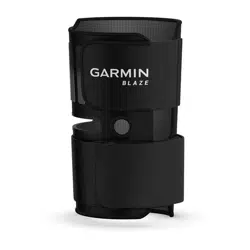
BLAZE
™
Owner’s Manual

© 2025 Garmin Ltd. or its subsidiaries
All rights reserved. Under the copyright laws, this manual may not be copied, in whole or in part, without the written consent of Garmin. Garmin reserves the right to change
or improve its products and to make changes in the content of this manual without obligation to notify any person or organization of such changes or improvements. Go to
www.garmin.com for current updates and supplemental information concerning the use of this product.
Garmin
®
and the Garmin logo are trademarks of Garmin Ltd. or its subsidiaries, registered in the USA and other countries. Connect IQ
™
, Garmin Connect
™
, and Blaze
™
are
trademarks of Garmin Ltd. or its subsidiaries. These trademarks may not be used without the express permission of Garmin.
The BLUETOOTH
®
word mark and logos are owned by the Bluetooth SIG, Inc. and any use of such marks by Garmin is under license. Other trademarks and trade names are those of
their respective owners.
M/N: A04392, AA4392

Table of Contents
Introduction......................................1
Getting Started with the Blaze Equine
Wellness System..................................... 1
Device Overview...................................... 1
Sensor LED...........................................2
Charging the Device................................ 2
Installing the Sensor in the Tail Wrap.... 3
Placing the Tail Wrap on Your Horse..... 4
Tail Wrap Fit Considerations.............. 5
Blaze Equine Wellness System
Instructions...................................... 6
The Blaze Sensor and the Blaze App..... 6
Pairing the Blaze Sensor with Your
Phone................................................... 6
Setting Up a Profile for Your Horse.... 6
Starting an Activity in the Blaze
App....................................................... 7
Observing an Activity in the Blaze
App....................................................... 7
Naming a Sensor................................. 7
The Blaze Sensor and Your Garmin
Watch....................................................... 7
Downloading Connect IQ Features.....7
Pairing the Blaze Sensor with your
Watch................................................... 8
Starting an Activity on Your Watch.....8
Device Information........................... 8
Specifications.......................................... 8
Device Care.............................................. 8
Cleaning the Device............................. 9
Tips for Cleaning and Storage............ 9
Product Updates..................................... 9
Updating the Device Software With the
Blaze App............................................. 9
Getting More Information....................... 9
Troubleshooting............................. 10
Tips for Erratic Heart Rate Data........... 10
Is my Garmin watch compatible with the
Blaze sensor?........................................ 10
My phone will not connect to the
device..................................................... 10
The Blaze sensor is not responding.... 10
I can't select my sensor for an
activity....................................................10
Restarting the Sensor........................... 10
Resetting the Sensor.............................10
How do I check the battery level?........ 10
Removing a Sensor............................... 11
Table of Contents i

Introduction
WARNING
See the Important Safety and Product Information guide in the product box for product warnings and other
important information.
Always consult your veterinarian before using a heart rate monitor or beginning or modifying any training
program.
Getting Started with the Blaze Equine Wellness System
1 Charge the device (Charging the Device, page2).
2 Turn on the device (Device Overview, page1).
3 Pair your device with the Blaze app on your phone (Pairing the Blaze Sensor with Your Phone, page6).
The app allows you to manage your horses and sensors, start an activity, and observe live activities.
4 Check for updates (Product Updates, page9).
For the best experience, you should keep the software on your device up to date. Software updates provide
changes and improvements to privacy, security, and features.
5 Install the sensor in the tail wrap (Installing the Sensor in the Tail Wrap, page3).
6 Place the tail wrap on the horse (Placing the Tail Wrap on Your Horse, page4).
7 Start an activity (Starting an Activity in the Blaze App, page7).
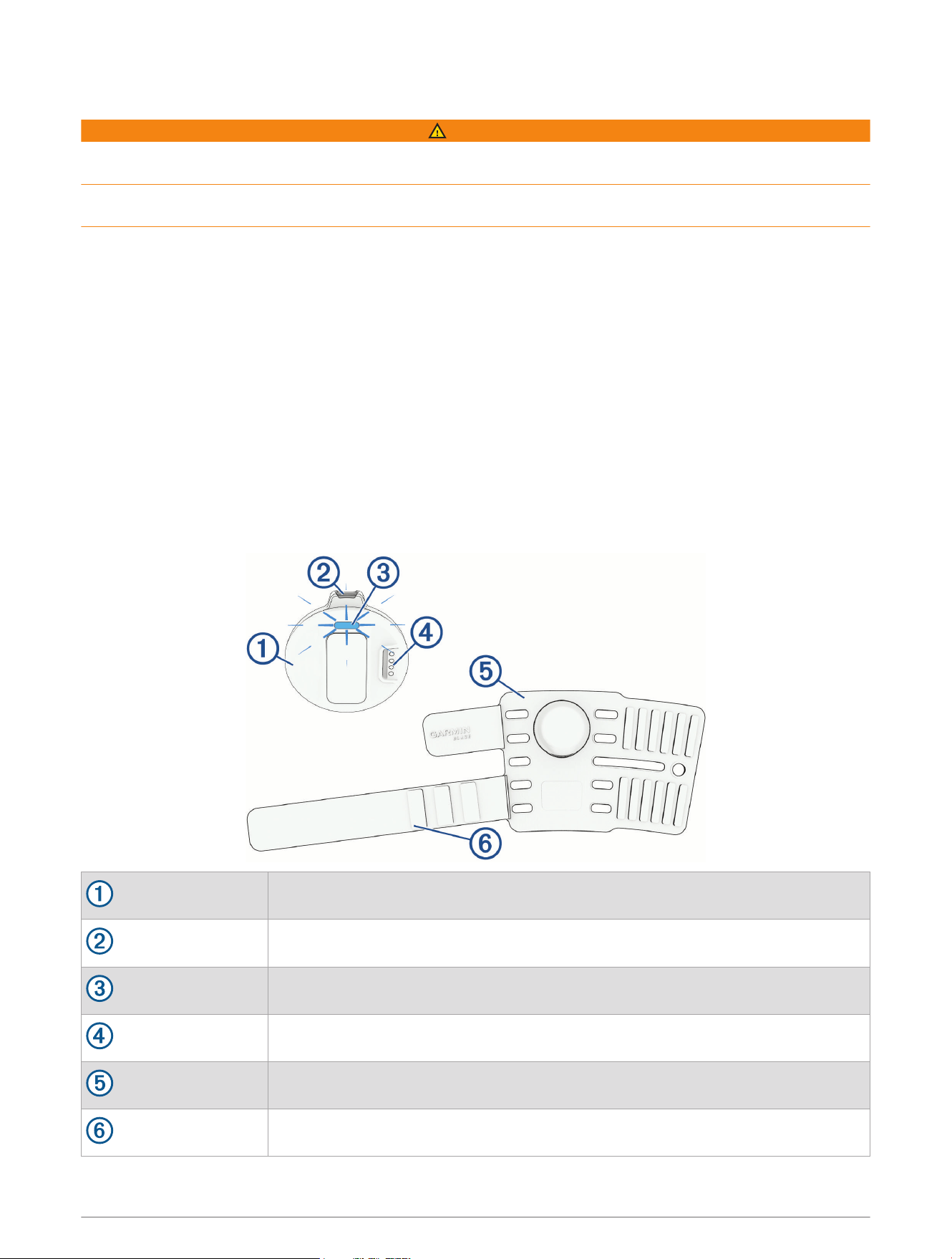
Device Overview
Sensor
Device button
Status LED
Charging port
Tail wrap
Extension strap
Introduction 1
Sensor LED
LED Activity Status
Slowly flashing blue Sensor is turned on but not paired.
Rapidly flashing blue Sensor is in pairing mode.
Flashing green Sensor is communicating with a phone or watch.
Solid green Sensor is on the charger and fully charged.
Slowly flashing yellow Sensor is charging.
Slowly flashing red
An error occurred or the battery may be critically low. Charge the sensor, and reset the
sensor if the issue persists (Resetting the Sensor, page10).
Solid red Sensor is in reset mode (Resetting the Sensor, page10).
Solid white Sensor is turning on or off or performing a software update.
Charging the Device
NOTICE
To prevent corrosion, thoroughly clean and dry the contacts and the surrounding area before charging or
connecting to a computer. Refer to the cleaning instructions (Cleaning the Device, page9).
The device is powered by a built-in lithium-ion battery that you can charge using a standard wall outlet or a USB
port on your computer.
NOTE: The device does not charge when outside the approved temperature range (Specifications, page8).
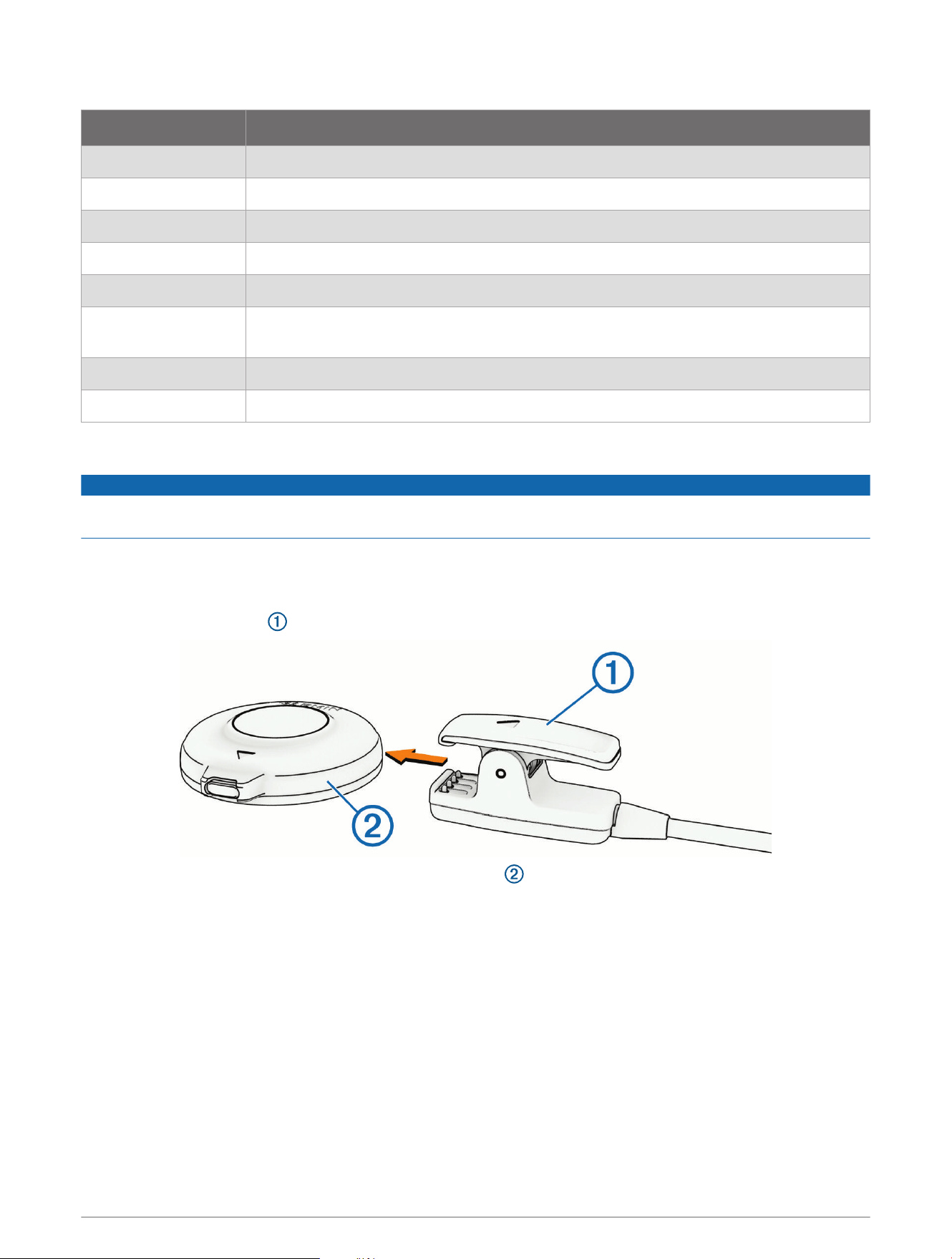
1 Pinch the charging clip .
2 Align the clip with the contacts on the back of the device .
3 Plug the USB cable into an AC adapter or a computer USB port.
4 Plug the AC adapter into a standard wall outlet.
5 Charge the device completely.
The status LED flashes yellow while charging. The status LED is solid green when charging is complete.
2 Introduction
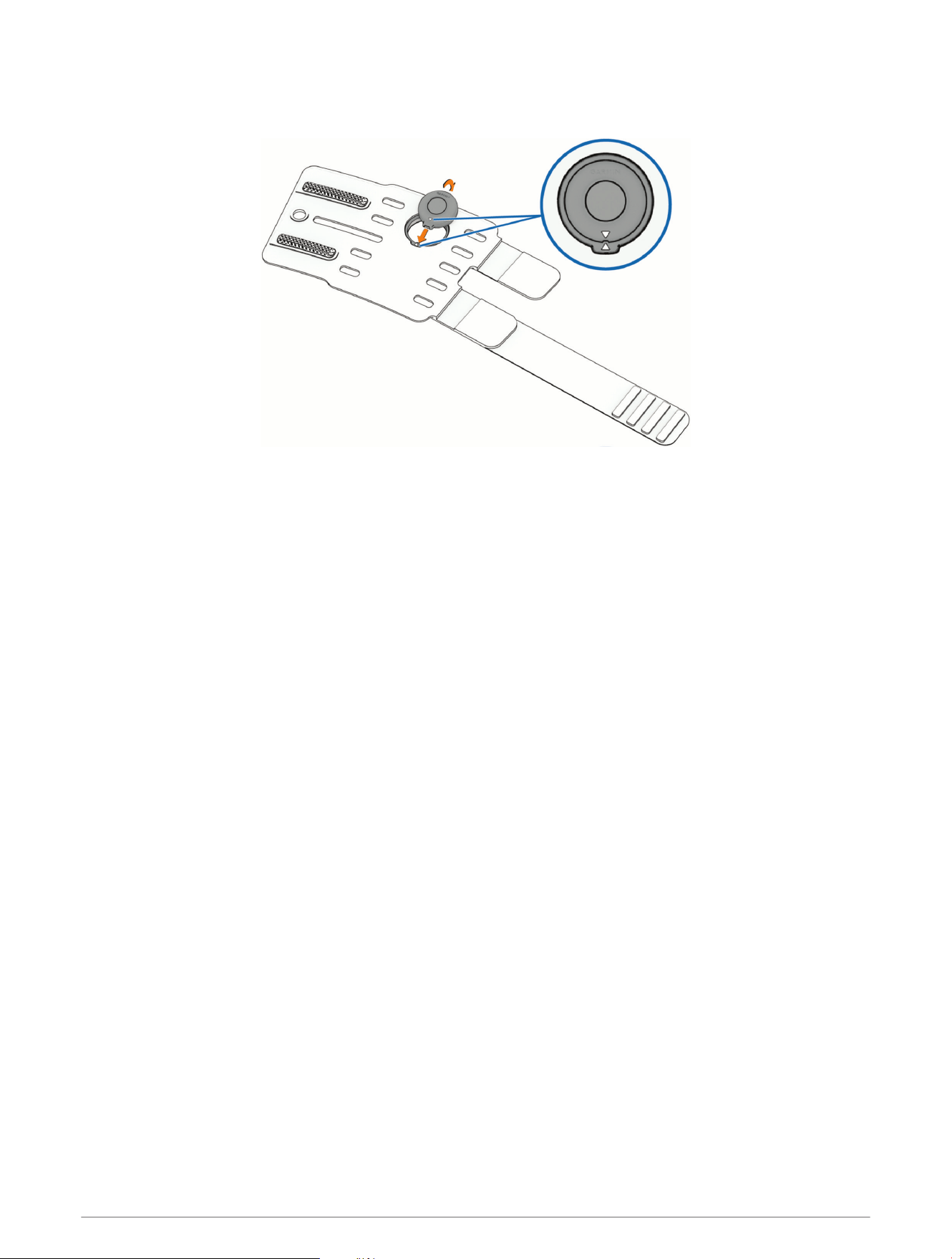
Installing the Sensor in the Tail Wrap
1 Place the sensor in the tail wrap with the arrow on the sensor aligned with the arrow on the tail wrap.
2 Press the sensor into the tail wrap.
Introduction 3
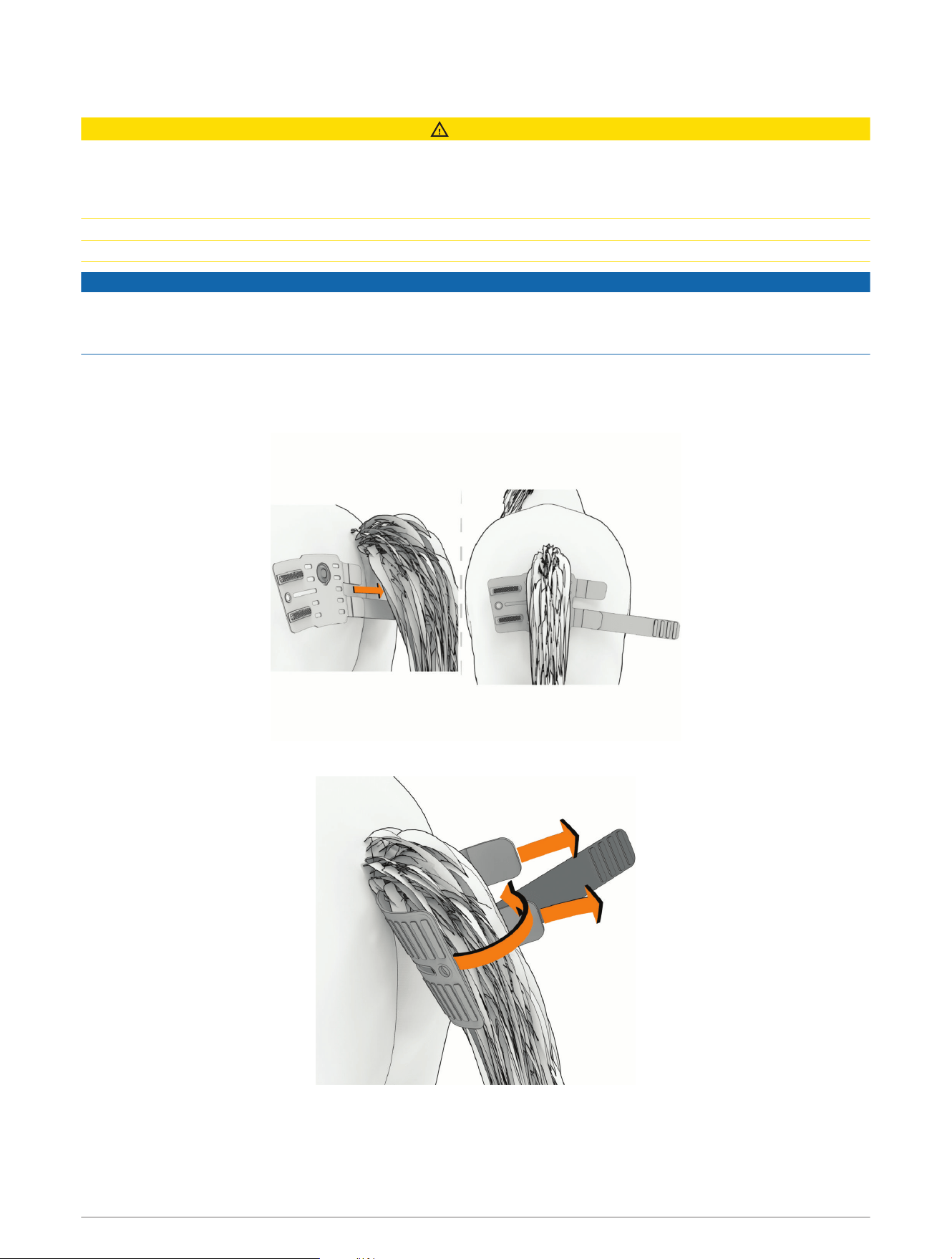
Placing the Tail Wrap on Your Horse
CAUTION
Some horses may experience skin irritation after prolonged use of the tail wrap, especially if the horse has
sensitive skin or allergies. If you notice any skin irritation, remove the tail wrap and give the skin time to heal. To
help prevent skin irritation, ensure the tail wrap is clean and dry, and do not overtighten the tail wrap on the tail.
For more information, go to garmin.com/blazecare.
To help prevent possible skin irritation, the tail wrap should only be worn for up to 10 hours in a 24-hour period.
This device is not intended for human use. Do not attempt to use on any person.
NOTICE
Minimize exposure to sunscreen, bleach, mosquito repellant, and chemicals found in certain soaps and first
aid ointments. Specifically, propylene glycol, dipropylene glycol, and ethylenediaminetetraacetic acid (EDTA) can
damage the tail wrap.
Before you place the tail wrap on your horse, ensure the sensor is firmly placed in the tail wrap with the arrows
aligned (Installing the Sensor in the Tail Wrap, page3).
1 Slide the open wrap under the horse's tail until it is aligned with the center of the tail.
2 Secure the tail wrap using the two main straps with hook and loop closure.
4 Introduction
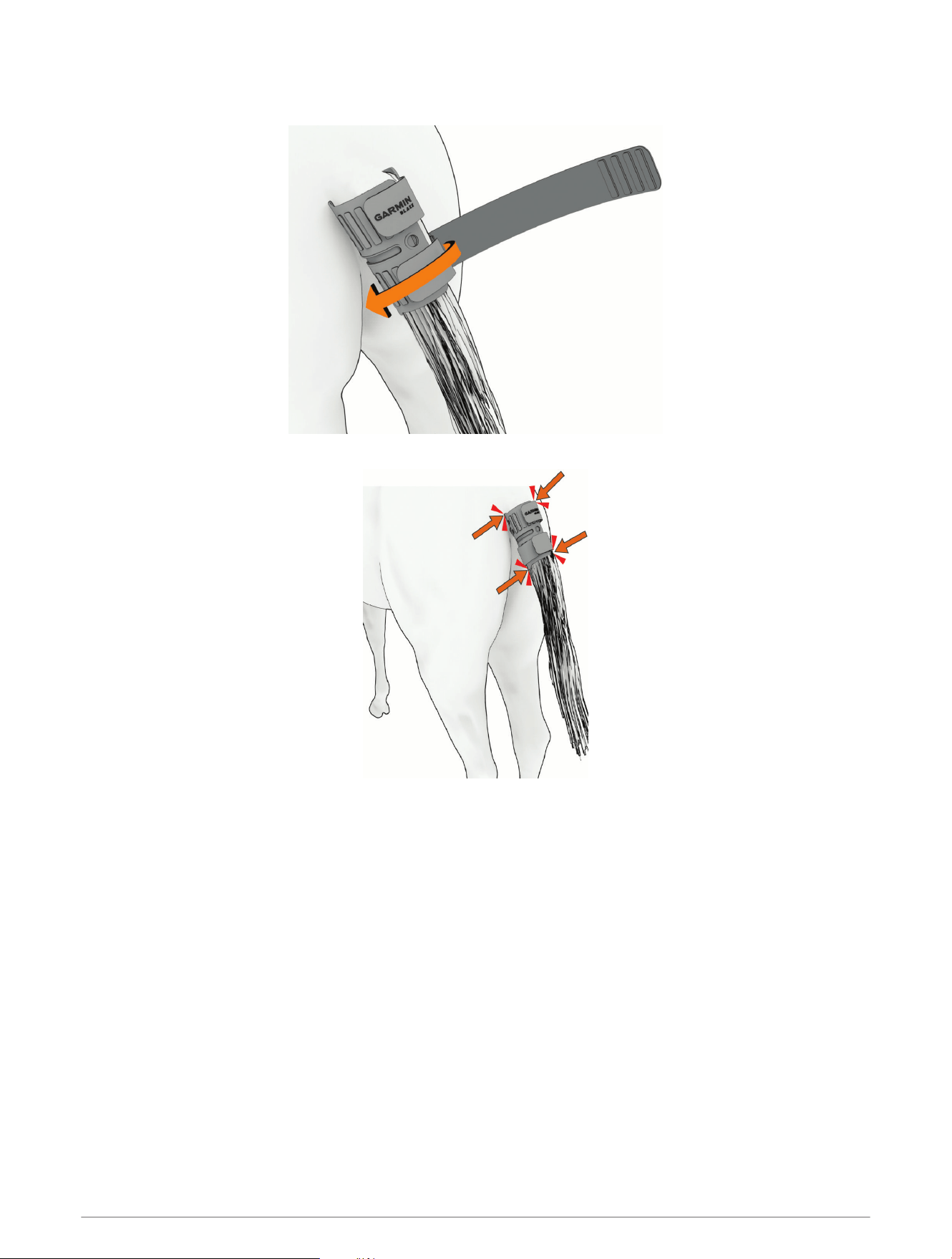
3 Wrap the extension strap around the tail wrap as many times as needed to ensure a good fit and attach it
using the hook and loop closure.
4 Ensure the wrap is snug on the horse's tail.
Tail Wrap Fit Considerations
When placing the Blaze equine wellness system on your horse's tail, observe these considerations before going
for a ride.
• Ensure the sensor is centered on the underside of the horse's tail.
• Ensure the tail wrap is securely fastened with a snug fit.
• Wrap the extension strap around the entire tail wrap after you have fastened the tail wrap.
• Ensure the Garmin
®
logo is displayed right side up, on the front or back of the tail, when you place the tail
wrap on the horse.
• Ensure the tail wrap is clean.
• Wipe down the gel pads on the tail wrap before each use.
Introduction 5
Blaze Equine Wellness System Instructions
The Blaze Sensor and the Blaze App
The Blaze app connects to your Blaze sensor using Bluetooth
®
technology and provides access to essential
features.
• Manage your horses and sensors.
• Record an activity.
• View activity information.
• Observe a public activity.
• Manage settings.
You can download the Blaze app from the app store on your phone.
Pairing the Blaze Sensor with Your Phone
To use the connected features of your Blaze equine wellness system, you must pair the sensor directly through
the Blaze app, instead of from the Bluetooth settings on your phone.
1 Bring your compatible phone within 10m (33ft.) of your sensor.
2 From the app store on your phone, install and open the Blaze app.
3 Press the button on the sensor to turn it on.
4 Wait until the LED on the sensor flashes blue.
5 From the app, select > Add Sensor, and follow the on-screen instructions to pair your sensor.
Setting Up a Profile for Your Horse
You can update your horse's name, age, height, weight, gender, type, recovery heart rate targets, and microchip
ID.
1 From the Blaze app on your phone, select > Add Horse.
2 Enter the horse's name and age.
3 Select Save.
4 Enter any additional information about your horse.
5 Select Save.
Updating a Horse Profile
1 From the Blaze app on your phone, select > Manage Horses.
2 Select a horse.
3 Edit the profile.
4 Select Save.
Deleting a Horse Profile
1 From the Blaze app on your phone, select > Manage Horses.
2 Select a horse.
3 Select > Delete Horse > Delete All.
6 Blaze Equine Wellness System Instructions

Starting an Activity in the Blaze App
1 From the Blaze app on your phone, select Start Activity.
2 Select an activity type.
3 Select a horse.
4 Select a sensor.
5 Select an option:
• To use the GPS on your phone to get accurate distance, speed, and activity map data, select Use this
phone's location.
• To make the activity visible to nearby Blaze app users, select Broadcast this activity.
6 Select Continue, and follow the on-screen instructions.
Stopping an Activity in the Blaze App
From the Blaze app on your phone, select Stop, and follow the on-screen instructions.
Observing an Activity in the Blaze App
You can observe another horse's activity from the Blaze app. The horse must be wearing a sensor that is
currently broadcasting an activity and be within range of your phone.
1 From the Blaze app on your phone, select Live.
2 Select a horse to observe.
Naming a Sensor
You can provide a unique name for your sensor so you can easily identify it.
1 From the Blaze app on your phone, select > Manage Sensors.
2 Next to the sensor you want to name, select > Name Sensor.
3 Enter a name for the sensor.
4 Select Done.
The Blaze Sensor and Your Garmin Watch
You can use the Blaze app from the Connect IQ
™
app on your compatible Garmin watch to start an activity and
view live biometrics for your horse (https://garmin.com/blazecompatibility). You can add Connect IQ apps to
your watch using the Connect IQ store on your watch or phone (garmin.com/connectiqapp).
Downloading Connect IQ Features
Before you can download features from the Connect IQ app, you must pair your Garmin watch with your phone
(Pairing the Blaze Sensor with Your Phone, page6). See the owner's manual for your watch for more information.
1 From the app store on your phone, install and open the Connect IQ app.
2 If necessary, select your watch.
3 Select a Connect IQ feature.
4 Follow the on-screen instructions.
Blaze Equine Wellness System Instructions 7
Pairing the Blaze Sensor with your Watch
Before you can pair the sensor with your watch, you must pair the sensor with the Blaze app on your phone
(Pairing the Blaze Sensor with Your Phone, page6), add a horse to the Blaze app on your phone (Setting Up a
Profile for Your Horse, page6), and download the Blaze app to your watch from the Connect IQ store on your
watch or phone (Downloading Connect IQ Features, page7).
1 Press the button on your Blaze sensor.
The LED flashes blue.
NOTE: Ensure the device is 10 m (33 ft.) away from other wireless sensors while you complete the pairing
process.
2 Open the Blaze app on your watch.
The app automatically searches for your sensor.
3 Select your sensor.
4 Follow the on-screen instructions.
Starting an Activity on Your Watch
1 Open the activities list on your compatible Garmin watch.
2 Select Blaze > Start Activity.
3 If this is the first time you are starting an activity or you have paired multiple sensors, select your sensor.
4 If necessary, follow the on-screen instructions to pair your sensor.
5 Select an activity type.
6 Select to broadcast the activity, which makes the activity visible to nearby Blaze app users.
7 Follow the on-screen instructions.
The device records activity data only while the activity timer is running.
Device Information
Specifications
Battery type Rechargeable, built-in lithium-ion battery
Battery life Up to 25 hr.
Operating temperature range From -10º to 60ºC (from 14º to 140ºF)
Charging temperature range From 3º to 47ºC (from 37º to 117ºF)
Wireless frequency 2.4 GHz @ 19.8 dBm maximum
Water rating IEC 60529 IPX7
1
Device Care
NOTICE
Keep the components clean and free of debris.
Do not use a sharp object to clean the device.
Avoid chemical cleaners, solvents, and insect repellents that can damage plastic components and finishes.
Do not submerge or pressure wash the components.
Do not store the device where prolonged exposure to extreme temperatures can occur, because it can cause
permanent damage.
Replace components with Garmin parts only. See your Garmin dealer or the Garmin website.
1
The device withstands incidental exposure to water of up to 1m for up to 30min. For more information, go to www.garmin.com/waterrating.
8 Device Information
Cleaning the Device
1 Remove the sensor from the tail wrap.
2 Clean the surface of the sensor using a cloth dampened with a mild detergent solution or clean water.
3 Use a soft-bristled toothbrush and isopropyl alcohol to clean debris away from charging contact points on
the sensor.
NOTICE
Do not use sharp objects to clean the device, and never poke or prod any openings on the unit.
4 Wipe the sensor dry.
5 Hand wash the tail wrap with a mild detergent.
6 Hang the tail wrap to dry.
Tips for Cleaning and Storage
NOTICE
Minimize exposure to sunscreen, bleach, mosquito repellant, and chemicals found in certain soaps and first
aid ointments. Specifically, propylene glycol, dipropylene glycol, and ethylenediaminetetraacetic acid (EDTA) can
damage the tail wrap.
• When storing the tail wrap, hang it up or lay it flat.
• Avoid bending or tightly rolling the tail wrap.
• Do not store the sensor or tail wrap in direct sunlight or extreme temperatures.
• Do not clean the sensor or tail wrap with bleach, and do not submerge them in any cleaning agents.
• Do not use disinfecting wipes or isopropyl alcohol on the gel pads.
• You can use a 70% isopropyl alcohol wipe to gently wipe the exterior of your sensor and tail wrap.
• You can use a disinfecting wipe to gently wipe the exterior of your sensor and tail wrap, but Garmin
recommends that you rinse the sensor and tail wrap under water to remove any chemical residue left behind
by the wipe to avoid possible skin irritation.
Product Updates
Your device automatically checks for updates when paired with a phone using Bluetooth technology. You can
manually check for updates from the system settings. On your phone, install the Blaze app.
This provides easy access to these services for Garmin devices:
• Software updates
• Data uploads to the Blaze app on your phone
• Product registration
Updating the Device Software With the Blaze App
1 From the Blaze app on your phone, select > Manage Sensors.
2 On the sensor you want to update, select Software Update Available.
3 Follow the on-screen instructions.
Getting More Information
• Go to support.garmin.com for additional manuals, articles, and software updates.
• Go to buy.garmin.com, or contact your Garmin dealer for information about optional accessories and
replacement parts.
Device Information 9

Troubleshooting
Tips for Erratic Heart Rate Data
If the heart rate data is erratic or does not appear, you can try these tips.
• Clean and dry the horse's tail and surrounding area before putting on the tail wrap.
• Avoid applying sunscreen, lotion, and insect repellent under the sensor.
• Avoid scratching the heart rate sensor on the back of the device.
• Ensure the tail wrap is snug but comfortable.
• Rinse the sensor with fresh water after each activity.
Is my Garmin watch compatible with the Blaze sensor?
The Blaze sensor is compatible with some Garmin watches.
Go to https://garmin.com/blazecompatibility for compatibility information.
My phone will not connect to the device
• Bring the device within 10 m (33 ft.) of your phone.
• If your devices are already paired, turn Bluetooth technology off on your phone, and turn it back on.
• If your devices are already paired, remove the Blaze sensor from the Bluetooth settings on your phone, and
pair the devices again.
• If your devices are not paired, enable Bluetooth technology on your phone.
• On your phone, open the Blaze app, and select > Add Sensor to enter pairing mode.
The Blaze sensor is not responding
If you are having trouble connecting the Blaze sensor to the Blaze app, you can try these options.
• Make sure the sensor is charged and turned on (How do I check the battery level?, page10).
• Make sure the sensor is within the approved operating temperature range (Specifications, page8).
• Turn the sensor off, and turn it back on (Device Overview, page1).
I can't select my sensor for an activity
If your sensor is visible but you can't select it, you may need to reconnect the sensor.
• From the Blaze app on your phone, select > Manage Sensors, and select Reconnect on the sensor.
Restarting the Sensor
1 Press and hold the button until the LED flashes solid white.
2 Press the button to turn on the sensor.
Resetting the Sensor
Before you reset the sensor, you should try to restart the sensor to avoid erasing data and settings (Restarting
the Sensor, page10).
You can reset the sensor settings to the factory default values and remove all saved user data.
1 Press the device button three consecutive times.
2 While the status LED is red, hold the device button until the status LED turns white.
How do I check the battery level?
From the Blaze app on your phone, select > Manage Sensors.
The battery level is displayed under the sensor name.
10 Troubleshooting

Removing a Sensor
1 From the Blaze app on your phone, select > Manage Sensors.
2 On the sensor you want to remove, select > Remove Sensor.
Troubleshooting 11
support.garmin.com
TA-2025/1494
GUID-37427B17-5A2B-4078-81A2-574F8E90F3ED v1August 2025
