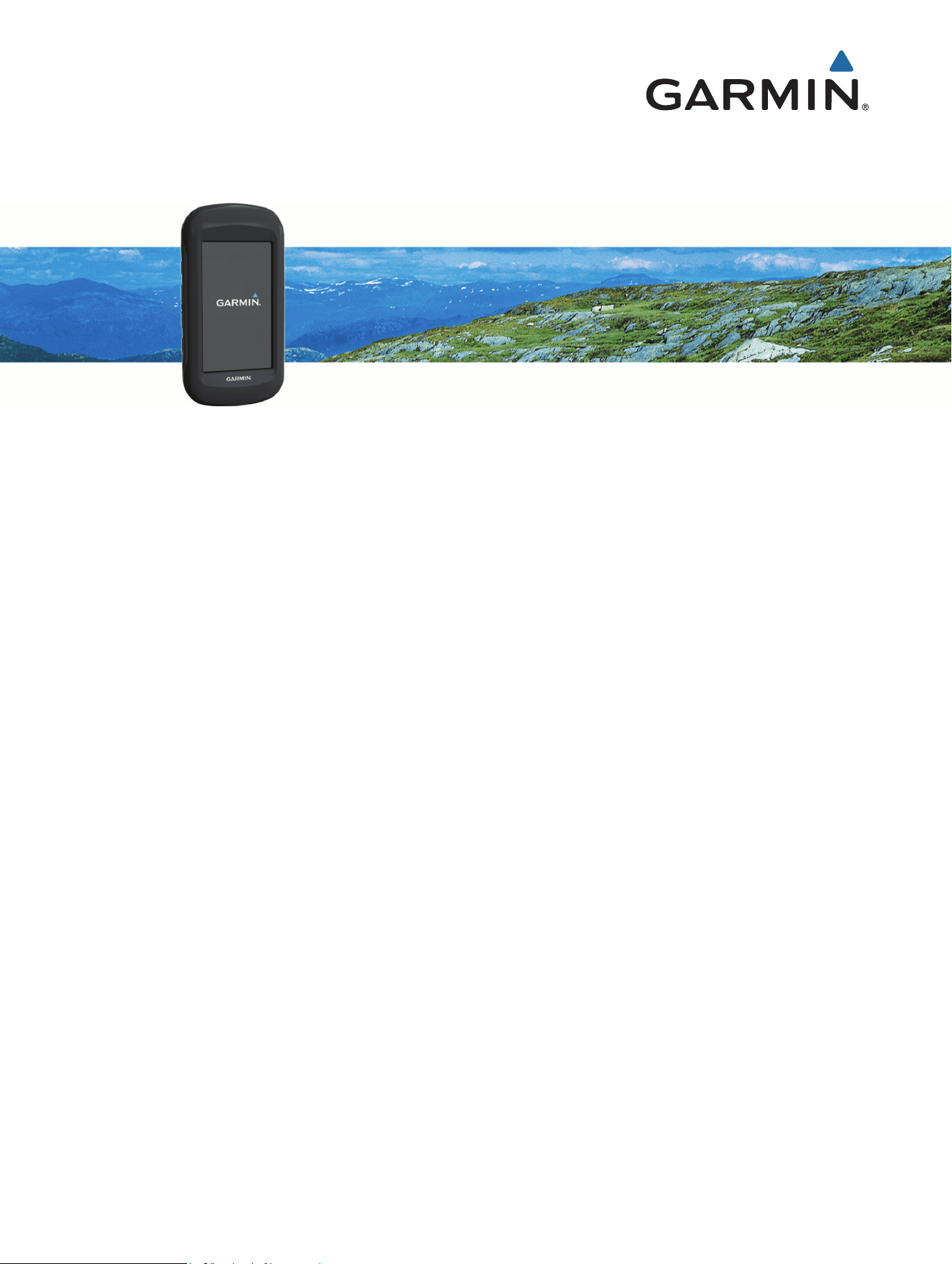
Montana
®
610/680
Owner’s Manual

© 2015 Garmin Ltd. or its subsidiaries
All rights reserved. Under the copyright laws, this manual may not be copied, in whole or in part, without the written consent of Garmin. Garmin reserves the right to change or
improve its products and to make changes in the content of this manual without obligation to notify any person or organization of such changes or improvements. Go to
www.garmin.com for current updates and supplemental information concerning the use of this product.
Garmin
®
, the Garmin logo, Auto Lap
®
, BlueChart
®
, City Navigator
®
, Montana
®
, and TracBack
®
are trademarks of Garmin Ltd. or its subsidiaries, registered in the USA and other
countries. ANT+
®
, BaseCamp
™
, chirp
™
, Garmin Connect
™
, HomePort
™
, and tempe
™
are trademarks of Garmin Ltd. or its subsidiaries. These trademarks may not be used without the
express permission of Garmin.
Mac
®
is a registered trademark of Apple Inc., registered in the U.S. and other countries. Windows
®
is a registered trademark of Microsoft Corporation in the United States and other
countries. microSD
™
and the microSDHC logo are trademarks of SD-3C, LLC. Other trademarks and trade names are those of their respective owners.
This product is ANT+
®
certified. Visit www.thisisant.com/directory for a list of compatible products and apps.

Table of Contents
Introduction..................................... 1
Device Overview...................................... 1
Battery Information.................................2
Getting Started.................................2
Installing the Battery Pack..................... 2
Charging the Battery Pack......................3
Installing AA Batteries............................ 3
Turning On the Device............................ 4
Main Menu........................................... 4
Using the Touchscreen....................... 4
Locking the Touchscreen................... 4
Unlocking the Touchscreen................4
Registering Your Device......................... 5
Adjusting the Backlight Brightness....... 5
Acquiring Satellites Signals and
Recording a Track................................... 5
Waypoints........................................ 5
Creating a Waypoint............................... 5
Marking a Waypoint Using the Map.......5
Finding a Waypoint................................. 6
Editing a Waypoint.................................. 6
Deleting a Waypoint................................ 6
Increasing the Accuracy of a Waypoint
Location...................................................6
Projecting a Waypoint............................ 6
Tracks..............................................7
Recording a Track Log........................... 7
Changing the Current Track Color......... 7
Saving the Current Track........................ 7
Selecting an Output Format for Saved
Tracks...................................................... 7
Navigating Using TracBack®................. 7
Clearing the Current Track..................... 7
Viewing Track Information..................... 8
Saving a Location on a Track................. 8
Showing Saved Tracks on the Map....... 8
Archived Tracks...................................... 8
Archiving Tracks Automatically......... 8
Archiving Tracks Manually................. 9
Deleting a Track...................................... 9
Navigation....................................... 9
Where To? Menu..................................... 9
Navigating to a Destination....................9
Finding a Location by Name.................. 9
Finding a Location Near Another
Location...................................................9
Finding an Address................................. 9
Marking and Starting Navigation to a
Man Overboard Location......................10
Stopping Navigation............................. 10
Navigating with Sight 'N Go................. 10
Navigating with the Map...................... 10
Navigating a Driving Route............... 10
Optional Maps................................... 10
BirdsEye Imagery.............................. 10
3D Map View..................................... 11
Navigating with the Compass.............. 11
Calibrating the Compass.................. 12
Course Pointer.................................. 12
Elevation Plot........................................ 12
Navigating to a Point on the Plot..... 12
Changing the Plot Type.................... 13
Resetting the Elevation Plot............. 13
Calibrating the Barometric
Altimeter............................................ 13
Trip Computer....................................... 13
Resetting the Trip Computer............ 13
Routes................................................... 13
Creating a Route............................... 13
Editing the Name of a Route............ 13
Editing a Route.................................. 14
Viewing a Route on the Map............ 14
Deleting a Route................................ 14
Viewing the Active Route..................14
Reversing a Route............................. 14
Garmin Adventures............................... 14
Creating an Adventure...................... 15
Starting an Adventure....................... 15
Camera and Photos........................ 15
Taking a Photo...................................... 15
Viewing Photos..................................... 15
Viewing a Slideshow......................... 15
Sorting Photos.................................. 16
Viewing the Location of a Photo......16
Navigating to a Photo....................... 16
Setting a Photo as Wallpaper...........16
Deleting a Photo................................16
Table of Contents i

Geocaches..................................... 16
Downloading Geocaches..................... 16
Filtering the Geocache List.................. 16
Creating and Saving a Geocache
Filter................................................... 17
Editing a Custom Geocache Filter... 17
Navigating to a Geocache.................... 17
Logging the Attempt.............................17
chirp™.................................................... 17
Enabling chirp Searching.................. 17
Finding a Geocache with a chirp......18
Applications................................... 18
Sending and Receiving Data
Wirelessly.............................................. 18
Setting a Proximity Alarm.................... 18
Calculating the Size of an Area............18
Using the Calculator............................. 18
Viewing the Calendar and Almanacs.. 19
Setting an Alarm................................... 19
Starting the Countdown Timer.............19
Opening the Stopwatch........................ 19
Satellite Page........................................ 19
Changing the Satellite View............. 19
Turning Off GPS................................ 19
Simulating a Location....................... 19
ANT+ Sensors................................ 20
Pairing Your ANT+ Sensors................. 20
Tips for Pairing ANT+ Accessories
with Your Garmin Device.................. 20
tempe.................................................... 20
Displaying tempe Data......................... 20
Displaying Heart Rate Data.................. 20
Customizing the Device..................21
Activity Profiles..................................... 21
Selecting a Profile............................. 21
Creating a Custom Profile................ 21
Editing a Profile Name...................... 21
Deleting a Profile...............................21
Customizing the Main Menu................ 21
Creating a Shortcut...............................21
Adding a Shortcut to the Main Menu...22
Custom Data Fields and
Dashboards........................................... 22
Enabling the Map Data Fields.......... 22
Customizing the Data Fields............ 22
Customizing Dashboards................. 22
Changing the Units of Measure........... 22
Locking the Screen Orientation........... 22
Adjusting the Backlight Timeout......... 23
Turning On Battery Save Mode............ 23
Adjusting the Volume........................... 23
System Settings.................................... 23
GPS and GLONASS........................... 23
Serial Interface Settings................... 23
Customizing the Power Key................. 24
Display Settings.................................... 24
Appearance Settings............................ 24
Map Settings......................................... 24
Advanced Map Settings................... 25
Camera Settings................................... 25
Tracks Settings..................................... 25
Time Settings........................................ 25
Position Format Settings..................... 25
Heading Settings.................................. 26
Altimeter Settings................................. 26
Geocaching Settings............................ 26
Routing Settings................................... 27
Fitness Settings.................................... 27
Setting Your Fitness User Profile..... 27
About Lifetime Athletes................ 27
About Heart Rate Zones................... 27
Fitness Goals.................................27
Setting Your Heart Rate Zones.....28
Running or Cycling with Your
Device................................................ 28
Marine Settings..................................... 29
Setting Up Marine Alarms................ 29
Setting the Device Tones..................... 29
Resetting Data...................................... 29
Restoring Default Values for Specific
Settings..............................................29
Restoring Default Values for Specific
Page Settings.................................... 29
Restoring All Default Settings.......... 29
Device Maintenance....................... 29
Support and Updates............................ 29
Updating the Software..........................30
Device Care........................................... 30
Cleaning the Device.......................... 30
Cleaning the Touchscreen............... 30
ii Table of Contents

Water Immersion.............................. 30
Data Management................................ 30
File Types.......................................... 30
Installing a Memory Card................. 31
Connecting the Device to Your
Computer........................................... 31
Transferring Files to Your Device.... 32
Sending Files to BaseCamp............. 32
Deleting Files..................................... 32
Disconnecting the USB Cable.......... 32
Resetting the Device............................. 33
Removing the Battery Pack.................. 33
Device Information......................... 33
Specifications....................................... 33
About the Batteries............................... 33
Viewing Device Information................. 33
Getting More Information.....................33
Troubleshooting.............................34
How do I know my device is in USB
mass storage mode?............................ 34
I need to reset all settings back to
factory default values........................... 34
I need replacement parts or
accessories........................................... 34
I need to buy an external GPS
antenna..................................................34
My battery does not stay charged for
very long................................................ 34
My device does not appear as either a
portable device or a removable drive or
volume on my computer...................... 34
My device is not acquiring satellite
signals................................................... 34
My device does not charge.................. 35
My device does not go into mass
storage mode automatically................ 35
My screen does not respond............... 35
Appendix........................................35
Optional Accessories........................... 35
Data Fields............................................ 36
Index..............................................39
Table of Contents iii

Introduction
WARNING
See the Important Safety and Product Information guide in the product box for product warnings and other
important information.
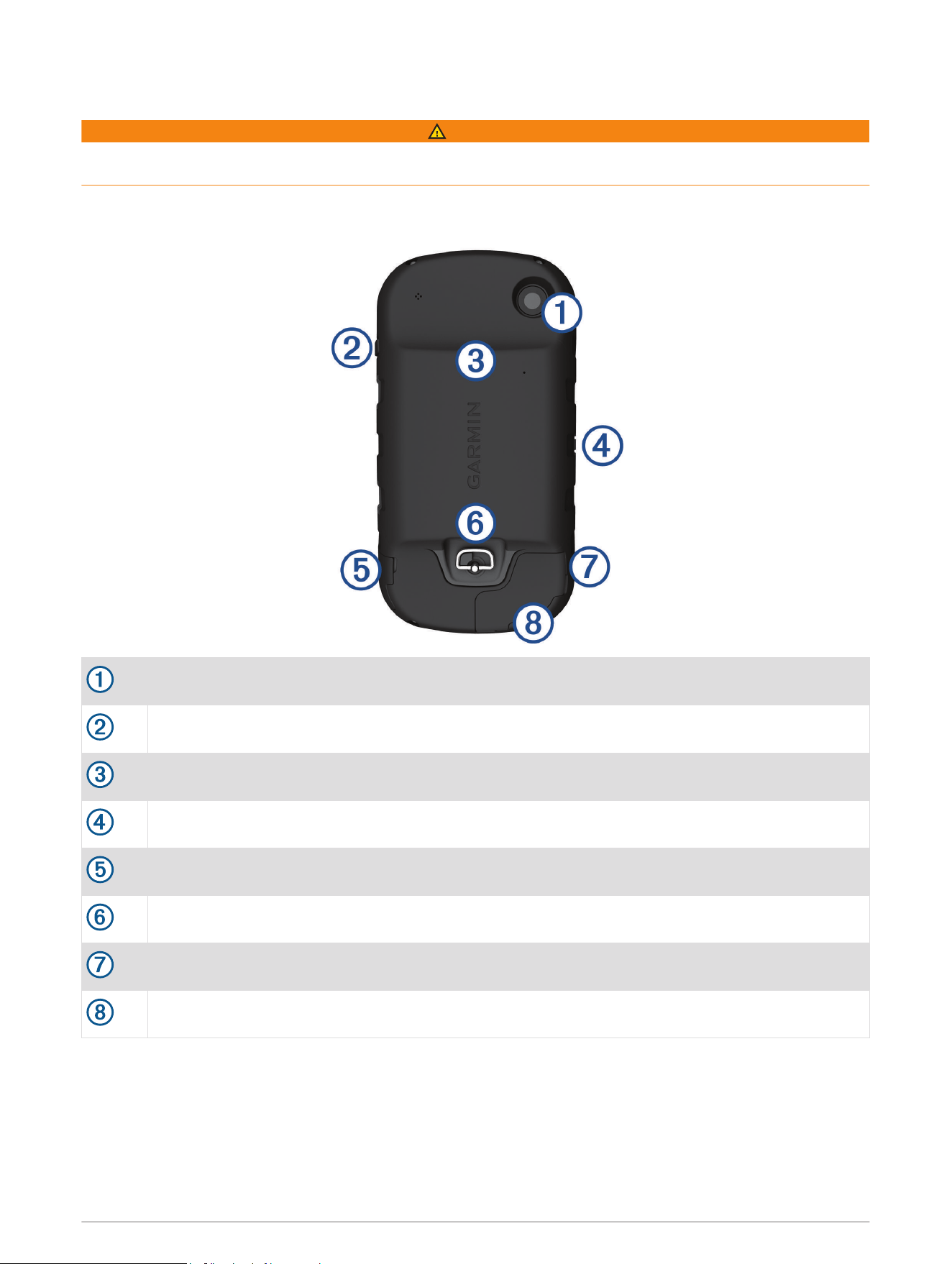
Device Overview
Camera lens (680 and 680t only)
Power key
microSD card slot (under battery door)
Power connector for optional accessory mounts
Stereo headphone jack (under weather cap)
Battery cover D-ring
Mini-USB port (under weather cap)
MCX port for external GPS antenna (under weather cap)
Introduction 1
Battery Information
WARNING
This product contains a lithium-ion battery. To prevent the possibility of personal injury or product damage
caused by battery exposure to extreme heat, store the device out of direct sunlight.
The temperature rating for the device may exceed the usable range of some batteries. Alkaline batteries can
rupture at high temperatures.
NOTICE
Alkaline batteries lose a significant amount of their capacity as the temperature decreases. Therefore, use
lithium batteries when operating the device in below freezing conditions.
The device operates on the included lithium-ion battery pack or three AA batteries.
Getting Started
When using your device the first time, you should complete these tasks to set up the device and get to know
the basic features.
1 Install the batteries (Installing the Battery Pack, page 2).
2 Charge the batteries (Charging the Battery Pack, page 3).
3 Turn on the device (Turning On the Device, page 4).
4 Register the device garmin.com/express.
5 Adjust the backlight brightness (Adjusting the Backlight Brightness, page 5).
6 Acquire satellites (Acquiring Satellites Signals and Recording a Track, page 5).
7 Customize your device (Customizing the Device, page 21).
8 Mark a waypoint (Creating a Waypoint, page 5).
9 Navigate to a destination (Navigating to a Destination, page 9).
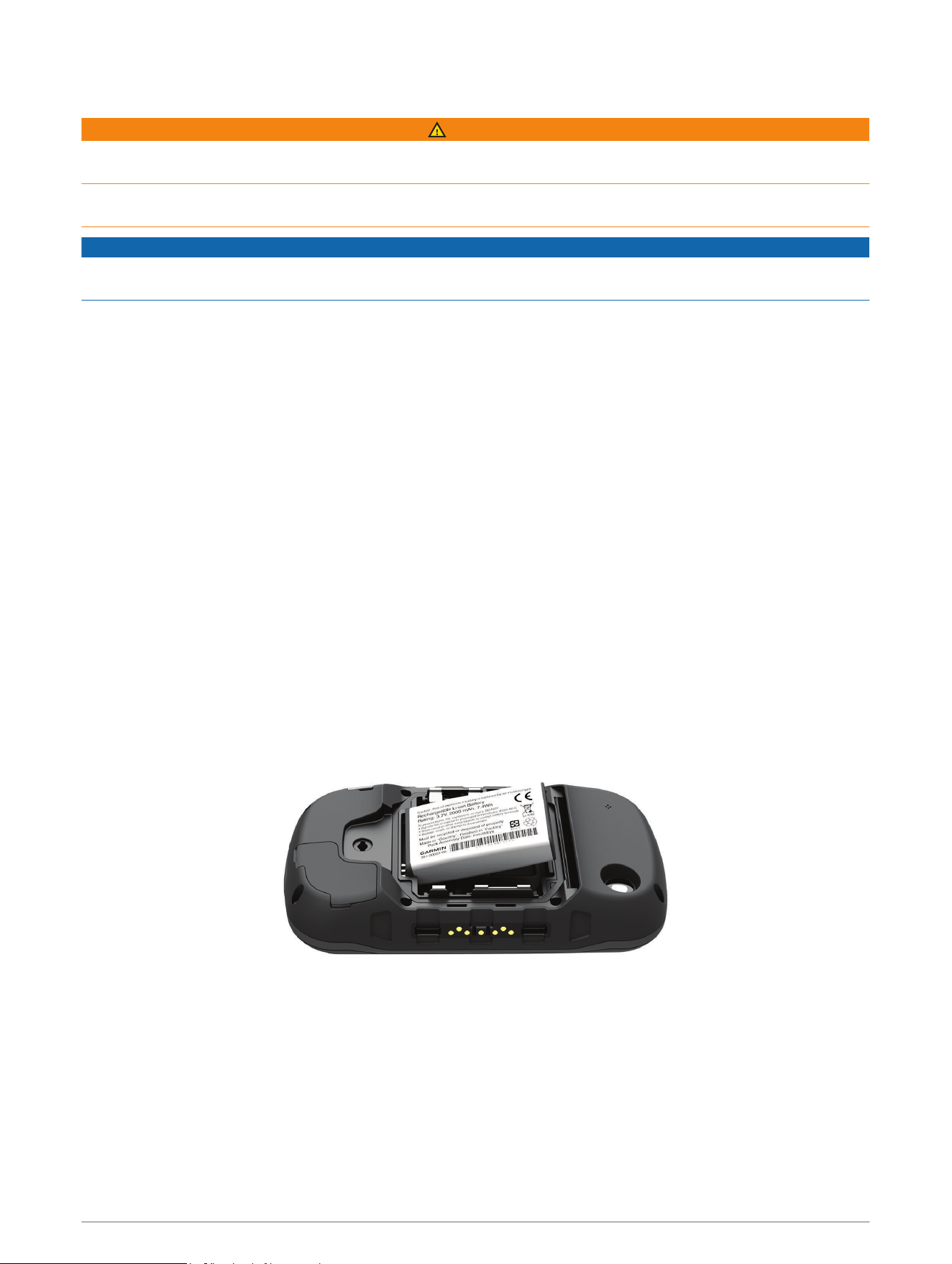
Installing the Battery Pack
1 Turn the D-ring counter-clockwise, and pull up to remove the cover.
2 Locate the metal contacts on the end of the lithium-ion battery.
3 Insert the battery into the compartment, contacts first.
4 Press the battery into place.
5 Replace the battery cover, and turn the D-ring clockwise.
2 Getting Started
Charging the Battery Pack
NOTICE
To prevent corrosion, thoroughly dry the mini-USB port, the weather cap, and the surrounding area before
charging or connecting to a computer.
Do not attempt to use the device to charge a battery that was not provided by Garmin
®
. Attempting to charge a
battery that was not provided by Garmin can damage the device and void the warranty.
Before you can connect the straight connector of the USB cable to your device, you may need to remove
optional mount accessories.
NOTE: The battery does not charge when outside the temperature range of 32° to 113°F (0° to 45°C).
You can charge the battery using a standard wall outlet or a USB port on your computer.
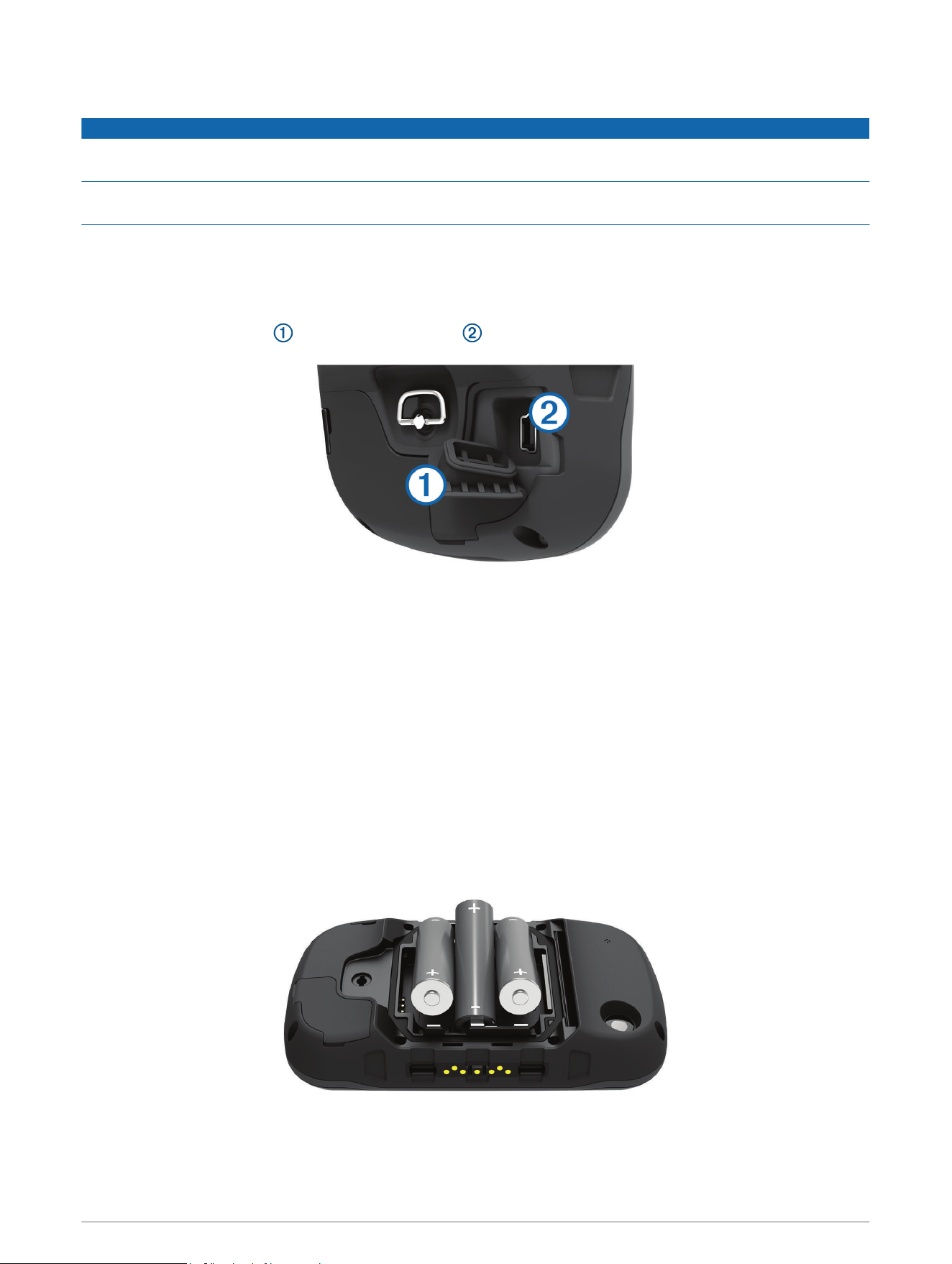
1 Pull up the weather cap from the mini-USB port .
2 Plug the small end of the USB cable into the mini-USB port.
3 Plug the USB end of the cable into the AC adapter or a computer USB port.
4 Plug the AC adapter into a standard wall outlet.
When you connect the device to a power source, the device turns on.
5 Charge the battery completely.
Installing AA Batteries
Instead of the battery pack (Installing the Battery Pack, page 2), you can use alkaline, NiMH, or lithium AA
batteries. This is useful when you are on the trail and cannot charge the battery pack. Use NiMH or lithium
batteries for best results.
NOTE: Standard alkaline batteries are not recommended when using the camera feature.
1 Turn the D-ring counter-clockwise, and pull up to remove the cover.
2 Insert three AA batteries, observing polarity.
3 Replace the battery cover, and turn the D-ring clockwise.
Getting Started 3
Turning On the Device
Hold .
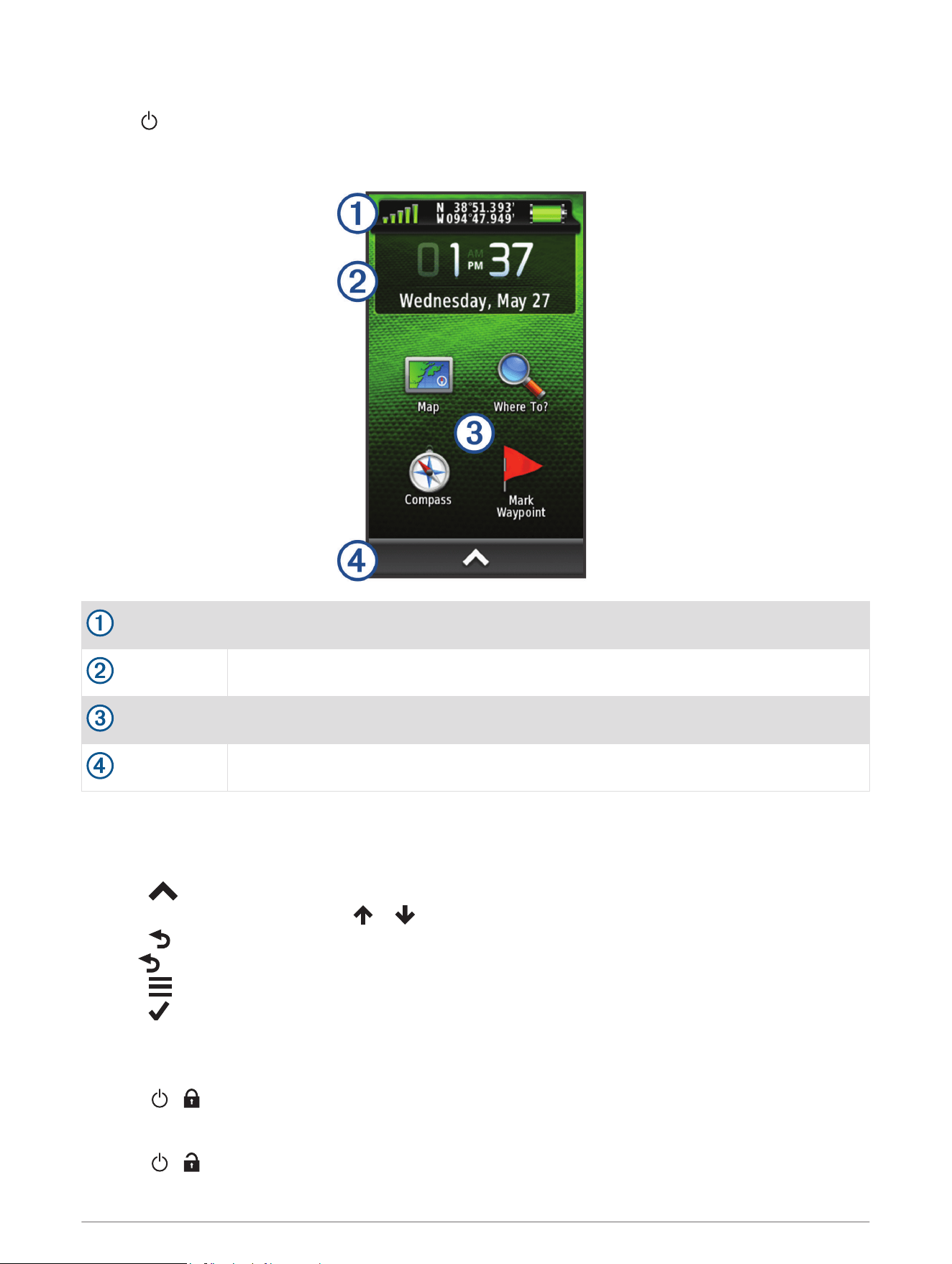
Main Menu
Status bar
Current time and date
Application icons
Application drawer
Using the Touchscreen
• Tap the screen to select an item.
• Make each touchscreen selection a separate action.
• Select to open the application drawer for applications and setup tools.
• From the application drawer, select or to scroll through applications.
• Select to return to the previous page.
• Hold to return to the main menu.
• Select to view specific menu items for the page you are viewing.
• Select to save your changes and close the page.
Locking the Touchscreen
You can lock the screen to prevent inadvertent screen touches.
Select > .
Unlocking the Touchscreen
Select > .
4 Getting Started

Registering Your Device
Help us better support you by completing our online registration today.
• Go to garmin.com/express.
• Keep the original sales receipt, or a photocopy, in a safe place.
Adjusting the Backlight Brightness
Extensive use of screen backlighting can significantly reduce battery life. You can adjust the backlight
brightness to maximize the battery life.
NOTE: The backlight brightness may be limited when the battery is low.
1 Select .
2 Use the slider to adjust the backlight level.
The device may feel warm when the backlight setting is high.
Acquiring Satellites Signals and Recording a Track
Before you can use the GPS navigation features, such as recording a track, you must acquire satellite signals.
The device may need a clear view of the sky to acquire satellite signals.
For more information about GPS, go to www.garmin.com/aboutGPS.
1 Hold .
2 Wait while the device locates satellites.
When turns green, your device has acquired satellite signals. The time and date are set automatically
based on the GPS position.
3 Walk around to record a track (Tracks, page 7).
4 Select an option:
• Select Map to view your track on the map.
• Select Compass to view the compass and customizable data fields.
• Select Trip Computer to view your current speed, distance, and other helpful statistics.
Waypoints
Waypoints are locations you record and store in the device. Waypoints can mark where you are, where you are
going, or where you have been. You can add details about the location, such as name, elevation, and depth.
Creating a Waypoint
You can save your current location as a waypoint.
1 Select Mark Waypoint.
2 If necessary, select Edit to change the name or other waypoint data.
3 Select Save.
Marking a Waypoint Using the Map
1 Select Map.
2 Select a location on the map.
3 Select the information bar at the top of the screen.
4 Select > OK.
Waypoints 5
Finding a Waypoint
1 Select Waypoint Manager.
2 Select a waypoint from the list.
3 If necessary, select to narrow the search.
4 Select an option:
• Select Spell Search to search using the name of the waypoint.
• Select Select Symbol to search using the symbol of the waypoint.
• Select Search Near to search near a recently found location, another waypoint, your current location, or a
point on the map.
• Select Sort to view the list of waypoints based on nearest distance or alphabetical order.
Editing a Waypoint
Before you can edit a waypoint, you must create a waypoint.
1 Select Waypoint Manager.
2 Select a waypoint.
3 Select an item to edit, such as the name.
4 Enter the new information, and select .
Deleting a Waypoint
1 Select > Waypoint Manager.
2 Select a waypoint.
3 Select > Delete > Yes.
Increasing the Accuracy of a Waypoint Location
You can refine a waypoint location for more accuracy. When averaging, the device takes several readings at the
same location and uses the average value to provide more accuracy.
1 Select Waypoint Manager.
2 Select a waypoint.
3 Select > Average Location.
4 Move to the waypoint location.
5 Select Start.
6 Follow the on-screen instructions.
7 When the confidence status bar reaches 100%, select Save.
For best results, collect 4 to 8 samples for the waypoint, waiting at least 90 minutes between samples.
Projecting a Waypoint
You can create a new location by projecting the distance and bearing from a marked location to a new location.
1 Select Waypoint Manager.
2 Select a waypoint.
3 Select > Project Waypoint.
4 Enter the bearing, and select .
5 Select a unit of measure.
6 Enter the distance, and select .
7 Select Save.
6 Waypoints
Tracks
A track is a recording of your path. The track log contains information about points along the recorded path,
including time, location, and elevation for each point.
Recording a Track Log
By default, the device records a track log automatically while it is on and receiving a GPS signal. You can pause
and start track recording manually.
1 Walk around to record a track.
2 Select Current Track > .
3 Select an option:
• To pause track recording, select .
• To start track recording, select .
Changing the Current Track Color
1 Select Current Track > > Color.
2 Select a color.
Saving the Current Track
1 Select Current Track > .
2 Select an option:
• Select to save the entire track.
• Select > Save Portion, and select a section of the track.
The current track is saved using the default output format or your previously configured output format
(Selecting an Output Format for Saved Tracks, page 7).
Selecting an Output Format for Saved Tracks
1 Select Current Track > > > Setup Tracks > Output Format.
2 Select an option:
• To save fitness information with the track, select Tracks (FIT).
• To save track information only in a more widely compatible format, select Tracks (GPX).
• To save to both output formats, select Both (GPX/FIT).
Navigating Using TracBack
®
While navigating, you can navigate back to the beginning of your track. This can be helpful when finding your
way back to camp or the trail head.
1 Select Current Track > > TracBack.
The map displays your route with a magenta line, start point, and end point.
2 Navigate using the map or the compass.
Clearing the Current Track
Select > Current Track > > Clear.
Tracks 7

Viewing Track Information
1 Select Track Manager.
2 Select a track.
3 Select an option:
• To view the elevation plot (Elevation Plot, page 12) of the track, select .
• To view data fields and options for the track, select .
TIP: You can select to archive the track.
• To view the track on the map, select .
TIP: You can select the information bar at the top of the map screen to view more details about the track.
Saving a Location on a Track
1 Select Track Manager.
2 Select a track.
3 Select .
4 Select a location on the track.
5 Select the information bar at the top of the screen.
Information about the location appears.
6 Select > OK.
Showing Saved Tracks on the Map
You can show one or more saved tracks on the map.
1 Select Track Manager.
2 Select a track.
3 Select .
4 Select Color, and select a color for the track line on the map.
5 Select Show On Map.
On appears on the Show On Map option.
6 Select .
7 Select another track, and repeat steps 3 - 6 (optional).
8 Select , and close the application drawer.
9 From the main menu, select Map.
The selected tracks appear on the map.
Archived Tracks
Your device allows you to save 200 tracks and 10,000 track points within a track. If you exceed these limits,
there may not be enough memory for your current track recording. Archiving frees up memory for current track
recording and stores archived tracks in a different location on your drive. The number of archived tracks you
can store is limited only by the size of your drive. You can transfer archived tracks from your device to your
computer for saving and viewing using Garmin BaseCamp
™
.
You can archive saved tracks manually. In addition, you can create archived tracks from the current track log on
an automated schedule or when the track log is full.
Archiving Tracks Automatically
You can archive tracks on an automated schedule to save memory space.
1 Select Setup > Tracks > Advanced Setup > Auto Archive.
2 Select When Full, Daily, or Weekly.
8 Tracks

Archiving Tracks Manually
You can archive saved tracks manually.
1 Select Track Manager.
2 Select a saved track.
3 Select > .
The track moves from the saved tracks list to the archived tracks list.
Deleting a Track
1 Select Track Manager.
2 Select a track.
3 Select > Delete.
Navigation
Where To? Menu
You can use the Where To? menu to find a destination to navigate to. Not all Where To? categories are
available in all areas and maps.
Navigating to a Destination
1 Select Where To?.
2 Select a category.
3 Select a destination.
4 Select Go.
Your route appears as a magenta line on the map.
5 Navigate using the map (Navigating with the Map, page 10) or compass (Navigating with the Compass,
page 11).
Finding a Location by Name
1 Select Where To? > Waypoints > > Spell Search.
2 Enter the name or part of the name.
3 Select .
Finding a Location Near Another Location
1 Select Where To? > > Search Near.
2 Select an option.
3 Select a location.
Finding an Address
You can use optional City Navigator
®
maps to search for addresses.
1 Select Where To? > Addresses.
2 Select the country or state, if necessary.
3 Enter the city or postal code.
NOTE: Not all map data provides postal code searching.
4 Select the city.
5 Enter the house number.
6 Enter the street.
Navigation 9

Marking and Starting Navigation to a Man Overboard Location
You can save a man overboard (MOB) location, and automatically start navigation back to it.
1 Select Man Overboard > Start.
The map opens showing the route to the MOB location. The default appearance of the route is a magenta
line.
2 Navigate using the map (Navigating with the Map, page 10) or compass (Navigating with the Compass,
page 11).
Stopping Navigation
From the map or compass, select > Stop Navigation.
Navigating with Sight 'N Go
You can point the device at an object in the distance, lock in the direction, and navigate to the object.
1 Select Sight 'N Go.
2 Point the device at an object.
3 Select Lock Direction > Set Course.
4 Navigate using the compass.
Navigating with the Map
1 Begin navigating to a destination (Navigating to a Destination, page 9).
2 Select Map.
A blue triangle represents your location on the map. As you travel, the blue triangle moves and leaves a track
log (trail).
3 Complete one or more actions:
• Drag the map to view different areas.
• Select and to zoom in and out of the map.
• Select a location on the map (represented by a pin), and select the information bar at the top of the
screen to view information about the selected location.
Navigating a Driving Route
Before you can navigate street routes, you must purchase and load City Navigator maps.
1 Select Profile Change > Automotive.
2 Select a destination.
3 Navigate using the map.
Turns appear in the information bar along the top of the map. Audible tones signal turns in the route.
Optional Maps
You can use additional maps with the device, such as BirdsEye satellite imagery, BlueChart
®
g2, and City
Navigator detailed maps. Detailed maps may contain additional points of interest, such as restaurants or
marine services. For more information, go to http://buy.garmin.com or contact your Garmin dealer.
BirdsEye Imagery
You can download and view detailed satellite imagery on your device using Garmin BaseCamp software and a
BirdsEye imagery subscription. Go to garmin.com/birdseye and garmin.com/basecamp for more information.
Your device may include a one-year BirdsEye imagery subscription. This subscription is not available in all
areas or for all device models.
10 Navigation
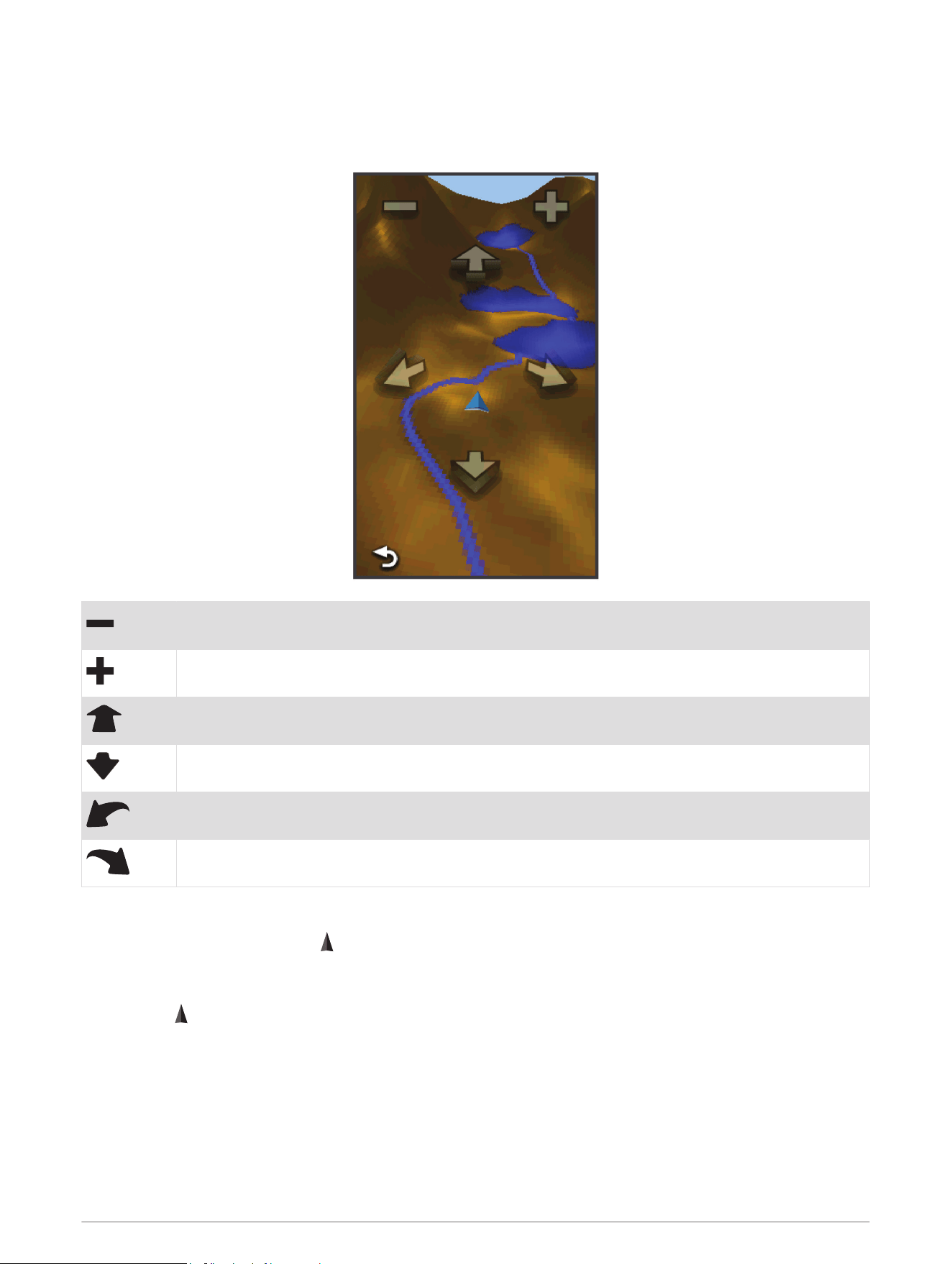
3D Map View
Before you can use this feature, you must purchase maps that contain 3D information.
Select 3D View.
Select to increase the elevation of the viewing angle.
Select to decrease the elevation of the viewing angle.
Select to pan the 3D map forward.
Select to pan the 3D map backward.
Select to rotate the view to the left.
Select to rotate the view to the right.
Navigating with the Compass
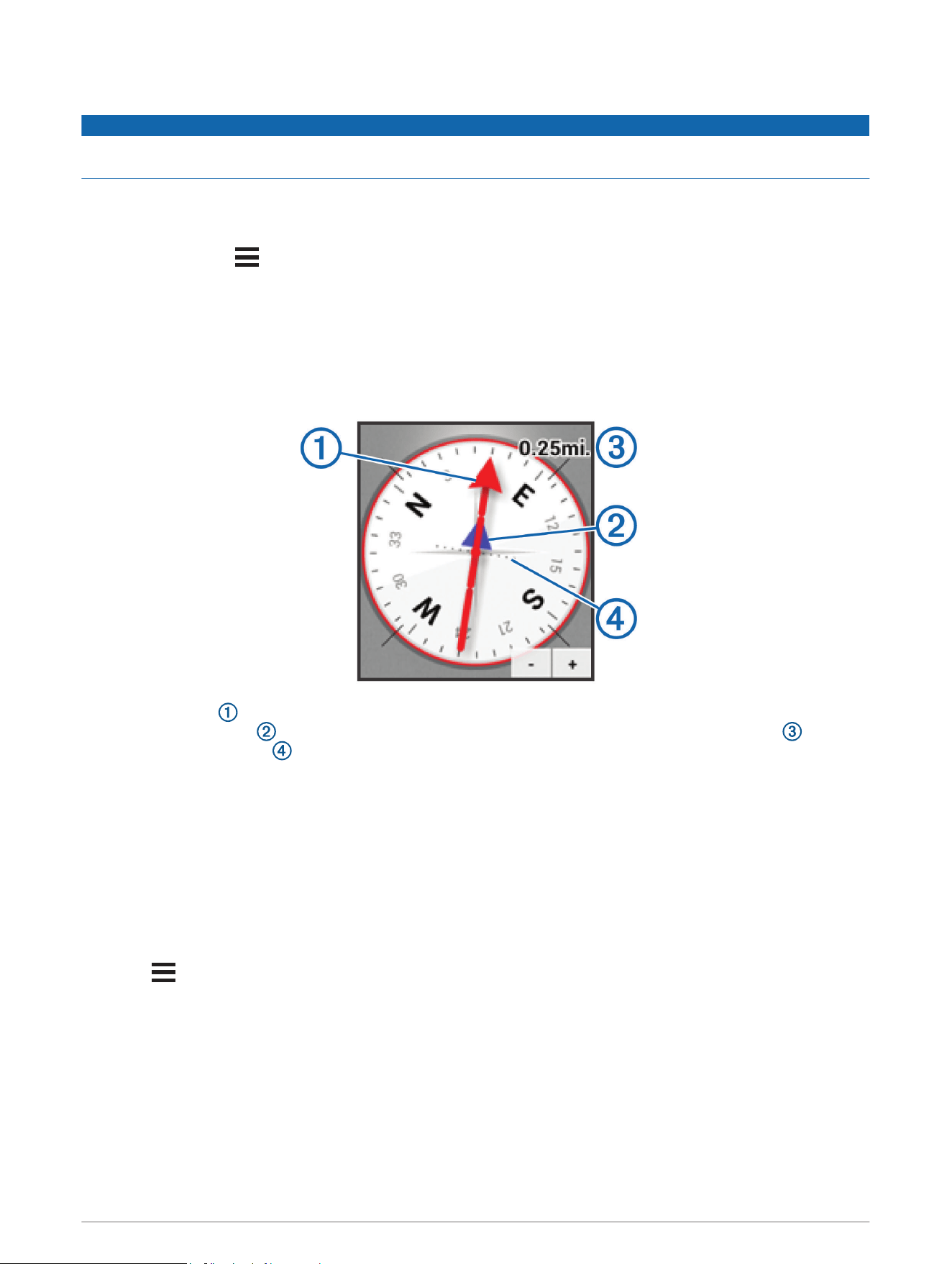
When navigating to a destination, points to your destination, regardless of the direction you are moving.
1 Begin navigating to a destination (Navigating to a Destination, page 9).
2 Select Compass.
3 Turn until points toward the top of the compass, and continue moving in that direction to the destination.
Navigation 11
Calibrating the Compass
NOTICE
Calibrate the electronic compass outdoors. To improve heading accuracy, do not stand near objects that
influence magnetic fields, such as vehicles, buildings, and overhead power lines.
Your device was already calibrated at the factory, and the device uses automatic calibration by default. If you
experience irregular compass behavior, for example, after moving long distances or after extreme temperature
changes, you can manually calibrate the compass.
1 Select Compass > > Calibrate Compass > Start.
2 Follow the on-screen instructions.
Course Pointer
The course pointer is most useful if you are navigating on water or where there are no major obstacles in your
path. It also can also help you avoid hazards to either side of the course, such as shoals or submerged rocks.
To enable the course pointer, from the compass, select Setup > Heading > Go To Line/Pointer > Course (CDI).
The course pointer indicates your relationship to the course line leading to the destination. The course
deviation indicator (CDI) provides the indication of drift (right or left) from the course. The scale refers to
the distance between dots on the course deviation indicator, which tell you how far off course you are.
Elevation Plot
By default, the elevation plot displays the elevation over the distance traveled. To customize the elevation
settings, see Altimeter Settings, page 26. You can touch any point on the plot to view details about that point.
Navigating to a Point on the Plot
1 Select Elevation Plot.
2 Select an individual point on the plot.
Details about the point appear.
3 Select > View Map.
4 Select the information bar at the top of the screen.
5 Select Go.
The map opens with your route marked with a magenta line.
6 Navigate using the map (Navigating with the Map, page 10) or compass (Navigating with the Compass,
page 11).
12 Navigation

Changing the Plot Type
You can change the elevation plot to display pressure and elevation over time or distance.
1 Select Elevation Plot > Change Plot Type.
2 Select an option.
Resetting the Elevation Plot
Select Elevation Plot > > Reset > Clear Current Track > Clear.
Calibrating the Barometric Altimeter
Your device was already calibrated at the factory, and the device uses automatic calibration by default. You can
manually calibrate the barometric altimeter if you know the correct elevation or the correct barometric
pressure.
1 Go to a location where the elevation or barometric pressure is known.
2 Select Elevation Plot > > Calibrate Altimeter.
3 Follow the on-screen instructions.
Trip Computer
The trip computer displays your current speed, average speed, maximum speed, trip odometer, and other
helpful statistics. You can customize the trip computer layout, dashboard, and data fields.
From the main menu, select Trip Computer.
Resetting the Trip Computer
For accurate information, reset the trip information before beginning a trip.
Select Trip Computer > > Reset > Reset Trip Data > Reset.
Routes
A route is a sequence of waypoints or locations that leads you to your final destination.
Creating a Route
1 Select Route Planner > Create Route > Select First Point.
2 Select a category.
3 Select the first point in the route.
4 Select Use > Select Next Point.
5 Repeat steps 2–4 to add all the points in the route.
6 Select to save the route.
Editing the Name of a Route
1 Select Route Planner.
2 Select a route.
3 Select Change Name.
4 Enter the new name.
Navigation 13

Editing a Route
1 Select Route Planner.
2 Select a route.
3 Select Edit Route.
4 Select a point.
5 Select an option:
• To view the point on the map, select Review.
• To change the order of the points on the route, select Move Up or Move Down.
• To insert an additional point on the route, select Insert.
The additional point is inserted before the point you are editing.
• To remove the point from the route, select Remove.
6 Select to save the route.
Viewing a Route on the Map
1 Select Route Planner.
2 Select a route.
3 Select View Map.
Deleting a Route
1 Select Route Planner.
2 Select a route.
3 Select Delete Route.
Viewing the Active Route
1 While navigating a route, select Active Route.
2 Select a point in the route to view additional details.
Reversing a Route
You can switch the start and end points of your route to navigate the route in reverse.
1 Select Route Planner.
2 Select a route.
3 Select Reverse Route.
Garmin Adventures
You can create adventures to share your journeys with family, friends, and the Garmin community. You can
group related items together as an adventure. For example, you can create an adventure for your latest hiking
trip. The adventure could contain the track log of the trip, photos of the trip, and geocaches you hunted. You
can use BaseCamp to create and manage your adventures. For more information, go to
adventures.garmin.com.
NOTE: BaseCamp is not available for all device models.
14 Navigation
Creating an Adventure
Before you can create an adventure and send it to your device, you must download BaseCamp to your
computer and transfer a track from your device to your computer (Sending Files to BaseCamp, page 32).
1 Open BaseCamp.
2 Select File > New > Garmin Adventure.
3 Select a track, and select Next.
4 If necessary, add items from BaseCamp.
5 Complete the required fields to name and describe the adventure.
6 If you want to change the cover photo for the adventure, select Change, and select a different photo.
7 Select Finish.
Starting an Adventure
Before you can start an adventure, you must send an adventure from BaseCamp to your device (Sending Files
to BaseCamp, page 32).
1 Select Adventures.
2 Select an adventure.
3 Select Start.
Camera and Photos
NOTE: This feature is available only for models that include a camera.
When you take a photo, the geographic location is saved with the photo information. You can navigate to the
location.
Taking a Photo
1 Select Camera.
2 Turn the device horizontally or vertically to change the orientation of the photo.
3 If necessary, select or to zoom in or out.
4 Hold to focus and hold the device still.
A white frame appears on the screen. The device focuses on the object inside of the frame. When the photo
is in focus, the frame turns green.
5 Release to take a photo.
Viewing Photos
You can view photos you took with the camera and photos you transferred to the device.
1 Select Photo Viewer.
2 Select a photo.
3 If necessary, select or to zoom in or out.
Viewing a Slideshow
1 Select Photo Viewer.
2 Select a photo.
3 Select > View Slideshow.
Camera and Photos 15
Sorting Photos
1 Select Photo Viewer > > Sort Photos.
2 Select an option:
• Select Most Recently.
• Select Near A Location, and select a location.
• Select On A Specific Date, and enter a date.
Viewing the Location of a Photo
1 Select Photo Viewer.
2 Select a photo.
3 Select > View Map.
Navigating to a Photo
1 Select Photo Viewer.
2 Select a photo.
3 Select > View Information > Go.
Setting a Photo as Wallpaper
You can select a photo for the home screen background.
1 Select Photo Viewer.
2 Select a photo.
3 Select > Set As Wallpaper.
Deleting a Photo
1 Select Photo Viewer.
2 Select a photo.
3 Select > Delete Photo > Delete.
Geocaches
A geocache is like a hidden treasure. Geocaching is when you hunt for hidden treasures using GPS coordinates
posted online by those hiding the geocache.
Downloading Geocaches
1 Connect the device to your computer using a USB cable.
2 Go to www.geocaching.com/play.
3 If necessary, create an account.
4 Sign in.
5 Follow the on-screen instructions to find and download geocaches to your device.
Filtering the Geocache List
You can filter your geocache list based on certain factors, such as the level of difficulty.
1 Select Geocaching > Quick Filter.
2 Select items to filter.
3 Customize the settings, and select .
4 Select an option:
• To apply the filter to the geocache list, select Search.
• To save the filter, select .
16 Geocaches

Creating and Saving a Geocache Filter
You can create and save custom filters for geocaches based on specific factors. After you set up the filter, you
can apply it in the geocaches list.
1 Select Setup > Geocaching > Filter Setup > Create Filter.
2 Select items to filter.
3 Select an option:
• To apply the filter to the geocache list, select Search.
• To save the filter, select . After it is saved, the filter is automatically named. You can access the
custom filter from the geocaches list.
Editing a Custom Geocache Filter
1 Select Setup > Geocaching > Filter Setup.
2 Select a filter.
3 Select an item to edit.
Navigating to a Geocache
1 Select Geocaching > Find a Geocache.
2 Select a geocache.
3 Select Go.
4 Navigate using the map (Navigating with the Map, page 10) or compass (Navigating with the Compass,
page 11).
Logging the Attempt
Before you can log an attempt to find a geocache, you must start navigating to the geocache (Navigating to a
Geocache, page 17).
After attempting to find a geocache, you can log your results.
1 Select Geocaching > Log Attempt.
2 Select Found, Did Not Find, or Needs Repair.
3 Select an option:
• To begin navigation to the next geocache nearest you, select Find Next Closest.
• To stop logging, select Done.
• To enter a comment about looking for the cache or about the cache itself, select Edit Comment, enter a
comment, and select .
chirp
™
A chirp is a small Garmin accessory that is programmed and left in a geocache. You can use your device to find
a chirp in a geocache. For more information about the chirp, see the chirp Owner's Manual at www.garmin.com.
Enabling chirp Searching
1 Select Setup > Geocaching.
2 Select chirp Searching > On.
Geocaches 17

Finding a Geocache with a chirp
1 Select Geocaching > Find a Geocache.
2 Select a geocache.
3 Select Go.
4 Navigate using the map (Navigating with the Map, page 10) or compass (Navigating with the Compass,
page 11).
When you are within approximately 32.9 ft (10 m) of the geocache that contains a chirp, details about the
chirp appear.
5 If necessary, select Geocaching > Show chirp Details.
6 If available, select Go to navigate to the next stage of the geocache.
Applications
Sending and Receiving Data Wirelessly
Before you can share data wirelessly, you must be within 3 m (10 ft.) of a compatible Garmin device.
Your device can send and receive data wirelessly when connected with a compatible Garmin device using
ANT+
®
technology. You can share waypoints, geocaches, routes, tracks, and more.
1 Select Share Wirelessly.
2 Select an option:
• Select Send, and select a type of data.
• Select Receive to receive data from another device. The other compatible device must be attempting to
send data.
3 Follow the on-screen instructions.
Setting a Proximity Alarm
Proximity alarms alert you when you are within a specified range of a particular location.
1 Select Proximity Alarms > Create Alarm.
2 Select a category.
3 Select a location.
4 Select Use.
5 Enter a radius, and select .
When you enter an area with a proximity alarm, the device sounds a tone.
Calculating the Size of an Area
1 Select Area Calculation > Start.
2 Walk around the perimeter of the area you want to calculate.
3 Select Calculate when finished.
Using the Calculator
The device has a standard calculator and a scientific calculator.
Select Calculator.
18 Applications
Viewing the Calendar and Almanacs
You can view device activity, such as when a waypoint was saved, and almanac information for the sun and
moon, and hunting and fishing.
1 Select an option:
• To view device activity for specific days, select Calendar.
• To view the sunrise, sunset, moonrise, and moonset information, select Sun and Moon.
• To view the predicted best times for hunting and fishing, select Hunt and Fish.
2 If necessary, select or to view a different month.
3 Select a day.
Setting an Alarm
If you are not currently using the device, you can set the device to turn on at a specific time.
1 Select Alarm Clock.
2 Select and to set the time.
3 Select Turn Alarm On.
4 Select an option.
The alarm sounds at the selected time. If the device is off at the alarm time, the device turns on and sounds
the alarm.
Starting the Countdown Timer
1 Select Alarm Clock > > Timer.
2 Select and to set the time.
3 Select Start Timer.
Opening the Stopwatch
Select Stopwatch.
Satellite Page
The satellite page shows your current location, GPS accuracy, satellite locations, and signal strength.
Changing the Satellite View
1 Select Satellite > .
2 If necessary, select Track Up to orient the satellite view with your current track toward the top of the screen.
3 If necessary, select Multicolor to assign a specific color to the satellite and to the signal strength bar of that
satellite.
Turning Off GPS
Select Satellite > > Use With GPS Off.
Simulating a Location
1 Select Satellite > > Use With GPS Off.
2 Select > Set Location On Map.
3 Select a location.
4 Select Use.
Applications 19

ANT+ Sensors
Pairing Your ANT+ Sensors
Before you can pair, you must put on the heart rate monitor or install the sensor.
The device is compatible with the heart rate monitor, GSC
™
10 speed and cadence sensor, and tempe
™
wireless
temperature sensor. You can customize a data field to display sensor data.
1 Bring the device within range (3 m) of the sensor.
NOTE: Stay 10 m away from other ANT+ sensors while pairing.
2 Select Setup > ANT Sensor.
3 Select your sensor.
4 Select Search for new.
When the sensor is paired with your device, the sensor status changes from Searching to Connected.
Tips for Pairing ANT+ Accessories with Your Garmin Device
• Verify that the ANT+ accessory is compatible with your Garmin device.
• Before you pair the ANT+ accessory with your Garmin device, move 10 m (32.9 ft.) away from other ANT+
accessories.
• Bring the Garmin device within range 3 m (10 ft.) of the ANT+ accessory.
• After you pair the first time, your Garmin device automatically recognizes the ANT+ accessory each time it is
activated. This process occurs automatically when you turn on the Garmin device and only takes a few
seconds when the accessories are activated and functioning correctly.
• When paired, your Garmin device receives data from only your accessory, and you can go near other
accessories.
tempe
The tempe is an ANT+ wireless temperature sensor. You can attach the sensor to a secure strap or loop where
it is exposed to ambient air, and therefore, provides a consistent source of accurate temperature data. You
must pair the tempe with your device to display temperature data from the tempe.
Displaying tempe Data
When displaying tempe data for the first time, you should complete these tasks to customize the device and
data fields.
1 Pair your tempe sensor (Pairing Your ANT+ Sensors, page 20).
2 Customize data fields to display the temperature data (Customizing the Data Fields, page 22).
You can select the current temperature from the Current Status category. You can select the minimum and
maximum temperatures for a 24-hour period from the Other category.
Displaying Heart Rate Data
When displaying heart rate data for the first time, you should complete these tasks to customize the device and
data fields.
1 Pair your heart rate monitor (Pairing Your ANT+ Sensors, page 20).
2 Customize a data field to display the heart rate (Customizing the Data Fields, page 22).
You can select the heart rate data field from the Current Status category.
20 ANT+ Sensors

Customizing the Device
Activity Profiles
Activity profiles are a collection of settings that optimize your device based on how you are using it. For
example, the settings and data screens are different when you are using the device for running than for riding
your bike.
When you are using a profile and you change settings such as data fields or alerts, the changes are saved
automatically as part of the profile.
Selecting a Profile
When you change activities, you can change the setup of the device by changing the profile.
1 Select Profile Change.
2 Select a profile.
Creating a Custom Profile
You can customize your settings and data fields for a particular activity or trip.
1 Select Setup > Profiles > Create New Profile > OK.
2 Customize your settings and data fields.
Editing a Profile Name
1 Select Setup > Profiles.
2 Select a profile.
3 Select Edit Name.
4 Enter the new name.
Deleting a Profile
NOTE: Before you can delete the active profile, you must activate a different profile. You cannot delete a profile
while it is active.
1 Select Setup > Profiles.
2 Select a profile.
3 Select Delete.
Customizing the Main Menu
• Hold any icon on the main menu or application drawer, and drag it to a new location.
• Open the application drawer, and drag an icon up to the main menu.
• Select Setup > Main Menu, and follow the on-screen instructions.
Creating a Shortcut
1 Select Setup > Shortcuts > Create Shortcut.
2 Select Name, and enter a name.
3 Select Icon, and select an icon.
4 Select Profile, and assign the shortcut to a specific profile.
5 Select an option:
• Select Setup to add a shortcut to a specific device setting.
• Select Where To? to add a shortcut that begins navigation to a specific waypoint.
• Select Application to add a shortcut to a specific application.
6 Select the item.
Customizing the Device 21

Adding a Shortcut to the Main Menu
You can add shortcuts to the main menu, application drawer, or favorites. If the shortcut does not appear in the
list, you can create it (Adjusting the Backlight Brightness, page 5).
1 Select Setup > Shortcuts.
2 Select the shortcut.
3 Select Add To Menu.
4 Select Main Menu, Drawer, or Favorites.
Custom Data Fields and Dashboards
Data fields display information about your location or other specified data. Dashboards are a custom grouping
of data that can be helpful to a specific or general task, such as geocaching.
You can customize the data fields and dashboards of the map, compass, trip computer, elevation plot, and the
status page.
Enabling the Map Data Fields
You can enable multiple small data fields or one large data field.
1 Select Map > > Setup Map > Dashboard.
2 Select Small Data Fields or Large Data Field.
Empty data fields appear on the map.
Customizing the Data Fields
Before you can change the map data fields, you must enable them (Enabling the Map Data Fields, page 22).
You can customize the data fields and dashboards of the map, compass, trip computer, elevation plot, and
status pages.
1 From a page that displays data fields, select a data field.
2 Select a data field category and a data field.
For example, select Trip Data > Speed - Moving Avg..
Customizing Dashboards
1 Open a page that contains a dashboard you can customize.
2 Select an option:
• From the map, select > Setup Map > Dashboard.
• From the compass, trip computer, or status page, select > Change Dashboard.
3 Select a dashboard.
Changing the Units of Measure
You can customize units of measure for distance and speed, elevation, depth, temperature, pressure, and
vertical speed.
1 Select Setup > Units.
2 Select a measurement type.
3 Select a unit of measure.
Locking the Screen Orientation
The default setting allows the screen to change orientation automatically based on the device orientation. You
can lock the screen orientation in portrait or landscape mode.
1 Select Setup > Display > Orientation Lock.
2 Select an option.
22 Customizing the Device

Adjusting the Backlight Timeout
You can decrease the backlight timeout to maximize the battery life.
1 Select Setup > Display > Backlight Timeout.
2 Select an option.
Turning On Battery Save Mode
You can use battery save mode to prolong the battery life.
Select Setup > Display > Battery Save > On.
In battery save mode, the screen shuts off when the backlight times out. You can select to turn on the
screen, and you can double tap to view the status page.
Adjusting the Volume
Before you can adjust the volume, you must attach headphones or use the auto mount.
1 Select .
2 Use the slider bar to adjust the volume.
System Settings
Select Setup > System.
Satellite: Sets the satellite system to GPS, GPS + GLONASS (GPS and GLONASS, page 23), or Demo Mode
(GPS off).
WAAS/EGNOS: Sets the system to Wide Area Augmentation System/European Geostationary Navigation
Overlay Service (WAAS/EGNOS). For more information about WAAS, go to garmin.com/aboutGPS/waas
.html.
Text Language: Sets the text language on the device.
NOTE: Changing the text language does not change the language of user-entered data or map data.
Voice Language: Allows you to change the voice language.
Interface: Sets the format of the serial interface.
Configure Power Key: Allows you to assign shortcuts to the power key (Customizing the Power Key, page 24).
GPS and GLONASS
The default satellite system setting is GPS + GLONASS, which offers increased performance in challenging
environments and faster position acquisition. Using GPS and GLONASS can reduce battery life more quickly
than using GPS only.
Serial Interface Settings
Select Setup > System > Interface.
Garmin Spanner: Allows you to use the device USB port with most NMEA 0183-compliant mapping programs
by creating a virtual serial port.
Garmin Serial: Sets the device to use a Garmin proprietary format to exchange waypoint, route, and track data
with a computer.
NMEA In/Out: Sets the device to use standard NMEA 0183 output and input.
Text Out: Provides simple ASCII text output of location and velocity information.
RTCM: Allows the device to accept Differential Global Positioning System (DGPS) information from a device
supplying Radio Technical Commission for Maritime Services (RTCM) data in an SC-104 format.
Customizing the Device 23

Customizing the Power Key
You can configure the power key as a shortcut to a menu, setting, application, or status page. You can
configure the shortcut to trigger with a single or double tap of the power key.
1 Select Setup > System > Configure Power Key.
2 Select Single Tap or Double Tap.
3 Select an item to display when you tap the power key:
• To display the status page, select Status Page.
• To display a specific application, shortcut, or setting, select Menu Item, browse for the item, and select
the item.
• To turn off the shortcut, select None.
Display Settings
Select Setup > Display.
Backlight Timeout: Sets the length of time before the backlight turns off.
Orientation Lock: Locks the screen orientation in portrait or landscape mode, or allows the screen to change
orientation automatically based on the device orientation.
Screen Capture: Allows you to save the image on the device screen.
Battery Save: Saves the battery power and prolongs the battery life by turning off the screen when the backlight
times out (Turning On Battery Save Mode, page 23).
Calibrate Screen: Calibrates the screen if the screen does not properly respond to touches.
Appearance Settings
Select Setup > Appearance.
Mode: Sets a light background, a dark background, or automatically switches between the two based on the
sunrise and sunset time for your current location.
Background: Sets the background image.
Day Highlight Color: Sets the color for the selections made when in day mode.
Night Highlight Color: Sets the color for the selections made when in night mode.
Landscape Controls: Places the controls on the left or right side of the screen when in landscape mode.
Map Settings
Select Setup > Map.
Map Information: Enables or disables the maps currently loaded on the device.
Orientation: Adjusts how the map is shown on the page. North Up shows North at the top of the page. Track Up
shows your current direction of travel toward the top of the page. Automotive Mode shows an automotive
perspective with the direction of travel at the top.
Dashboard: Sets a dashboard to display on the map. Each dashboard shows different information about your
route or your location.
Guidance Text: Sets when the guidance text is shown on the map.
Map Speed: Adjusts the speed at which the map is drawn. A faster map drawing speed decreases the battery
life.
24 Customizing the Device

Advanced Map Settings
Select Setup > Map > Advanced Setup.
Auto Zoom: Turns auto zoom on or off.
Detail: Sets the amount of detail shown on the map. Showing more detail may cause the map to redraw more
slowly.
Shaded Relief: Shows detail relief on the map (if available) or turns off shading.
Vehicle: Sets the position icon, which represents your position the map. The default icon is a small blue
triangle.
Zoom Levels: Adjusts the zoom level at which map items will appear. The map items do not appear when the
map zoom level is higher than the selected level.
Text Size: Sets the text size for map items.
Camera Settings
Select Setup > Camera.
Photo Resolution: Sets the resolution of the photos.
Save Photos To: Sets the photo storage location.
Camera Instructions: Displays brief instructions about taking photos.
Tracks Settings
Select Setup > Tracks.
Record Method: Sets a track recording method. Auto records the tracks at a variable rate to create an optimum
representation of your tracks.
Interval: Sets a track log recording rate. Recording points more frequently creates a more-detailed track, but
fills the track log faster.
Auto Pause: Pauses tracking automatically when you stop moving.
Auto Start: Starts recording a track automatically when the device has acquired satellites.
Output Format: Allows you to choose the format for recording a track log. GPX format is a traditional track that
can be viewed on the device map and used for navigation. Tracks are reviewed using Track Manager. FIT
format is a fitness activity that records additional information (for example, laps). Activities can be reviewed
on the device, but are tailored for Garmin Connect
™
. You can select Both to record your data in both formats
simultaneously. This option uses more storage space.
Advanced Setup: Allows you to set up automatic archiving, set up when to record trip data, and reset trip data.
Time Settings
Select Setup > Time.
Time Format: Sets the device to show time in a 12-hour or 24-hour format.
Time Zone: Sets the time zone for the device. Automatic sets the time zone automatically based on your GPS
position.
Position Format Settings
NOTE: You should not change the position format or the map datum coordinate system unless you are using a
map or chart that specifies a different position format.
Select Setup > Position Format.
Position Format: Sets the position format in which a location reading appears.
Map Datum: Sets the coordinate system on which the map is structured.
Map Spheroid: Shows the coordinate system the device is using. The default coordinate system is WGS 84.
Customizing the Device 25

Heading Settings
You can customize the compass settings.
Select Setup > Heading.
Display: Sets the type of directional heading shown on the compass.
North Reference: Sets the north reference used on the compass.
Go To Line/Pointer: Allows you to use the bearing pointer that points in the direction of your destination, or use
the course pointer that shows your relationship to the course line leading to the destination.
Compass: Automatically switches from an electronic compass to a GPS compass when you are traveling at a
higher rate of speed for a period of time.
Calibrate Compass: Allows you to calibrate the compass if you experience irregular compass behavior, for
example, after moving long distances or after extreme temperature changes. See Calibrating the Compass,
page 12.
Altimeter Settings
Select Setup > Altimeter.
Auto Calibration: Automatically calibrates the altimeter each time the device is turned on. The device continues
to automatically calibrate the altimeter as long as the device has GPS signals acquired.
Barometer Mode: Variable Elevation allows the barometer to measure changes in elevation while you are
moving. Fixed Elevation assumes the device is stationary at a fixed elevation, so the barometric pressure
should only change due to weather.
Pressure Trending: Sets how the device records pressure data. Save Always can be useful when you are
watching for pressure fronts.
Plot Type: Records elevation changes over a period of time or distance, records barometric pressure over a
period of time, or records ambient pressure changes over a period of time.
Calibrate Altimeter: Allows you to calibrate the barometric altimeter if you know the correct elevation or the
correct barometric pressure. See Calibrating the Barometric Altimeter, page 13.
Geocaching Settings
Select Setup > Geocaching.
Geocache List: Allows you to display the geocache list by names or codes.
Geocache Style: Sets the display style for geocache data.
chirp Searching: Allows the device to search for a geocache containing a chirp accessory (Enabling chirp
Searching, page 17).
Program chirp: Programs the chirp accessory. See the chirp owner's manual at www.garmin.com.
Filter Setup: Allows you to create and save custom filters for geocaches based on specific factors (Creating
and Saving a Geocache Filter, page 17).
Found Geocaches: Allows you to edit the number of geocaches found. This number automatically increases as
you log a find (Logging the Attempt, page 17).
26 Customizing the Device

Routing Settings
The device calculates routes optimized for the type of activity you are doing. The available routing settings vary
based on the activity selected.
Select Setup > Routing.
Navigation Voice: Sets the voice and language for navigation prompts.
Activity: Sets an activity for routing. The device calculates routes optimized for the type of activity you are
doing.
Route Transitions: Sets how the device routes from one point on the route to the next. This setting is available
only for some activities. Distance routes you to the next point on the route when you are within a specified
distance of your current point.
Lock On Road: Locks the blue triangle, which represents your position on the map, onto the nearest road.
Fitness Settings
Select Setup > Fitness.
Auto Lap: Sets the device to automatically mark the lap at a specific distance.
User: Sets the user profile information (Setting Your Fitness User Profile, page 27).
HR Zones: Sets the five heart rate zones for fitness activities.
FIT Activity: Sets the fitness activity to running, cycling, or other. This allows your running activity to appear as
a running activity when you transfer it to Garmin Connect.
Setting Your Fitness User Profile
The device uses information that you enter about yourself to calculate accurate data. You can modify the
following user profile information: gender, age, weight, height, and lifetime athlete (About Lifetime Athletes,
page 27).
1 Select Setup > Fitness > User.
2 Modify the settings.
About Lifetime Athletes
A lifetime athlete is an individual who has trained intensely for many years (with the exception of minor injuries)
and has a resting heart rate of 60 beats per minute (bpm) or less.
About Heart Rate Zones
Many athletes use heart rate zones to measure and increase their cardiovascular strength and improve their
level of fitness. A heart rate zone is a set range of heartbeats per minute. The five commonly accepted heart
rate zones are numbered from 1 to 5 according to increasing intensity. Generally, heart rate zones are
calculated based on percentages of your maximum heart rate.
Fitness Goals
Knowing your heart rate zones can help you measure and improve your fitness by understanding and applying
these principles.
• Your heart rate is a good measure of exercise intensity.
• Training in certain heart rate zones can help you improve cardiovascular capacity and strength.
• Knowing your heart rate zones can prevent you from overtraining and can decrease your risk of injury.
If you know your maximum heart rate, you can use the table (Heart Rate Zone Calculations, page 28) to
determine the best heart rate zone for your fitness objectives.
If you do not know your maximum heart rate, use one of the calculators available on the Internet. Some gyms
and health centers can provide a test that measures maximum heart rate. The default maximum heart rate is
220 minus your age.
Customizing the Device 27
Setting Your Heart Rate Zones
Before the device can determine your heart rate zones, you must set up your fitness user profile (Setting Your
Fitness User Profile, page 27).
You can manually adjust the heart rate zones according to your fitness goals (Fitness Goals, page 27).
1 Select Setup > Fitness > HR Zones.
2 Enter the maximum and minimum heart rate for zone 5.
The maximum heart rate for each zone is based on the minimum heart rate of the previous zone. For
example, if you enter 167 as a minimum heart rate for zone 5, the device uses 166 as the maximum rate for
zone 4.
3 Enter your minimum heart rate for zones 4-1.
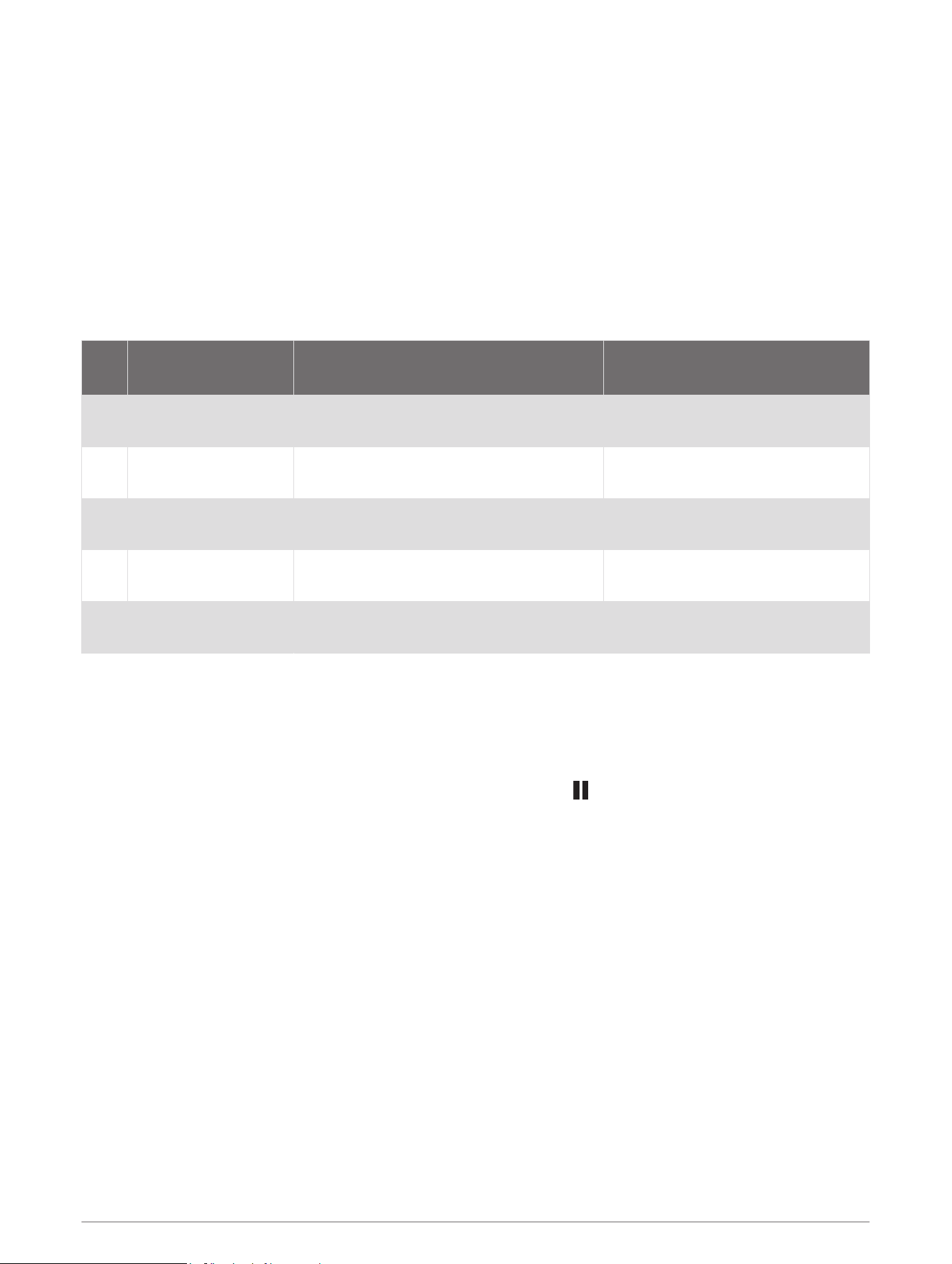
Heart Rate Zone Calculations
Zone
% of Maximum Heart
Rate
Perceived Exertion Benefits
1 50–60% Relaxed, easy pace, rhythmic breathing
Beginning-level aerobic training,
reduces stress
2 60–70%
Comfortable pace, slightly deeper
breathing, conversation possible
Basic cardiovascular training, good
recovery pace
3 70–80%
Moderate pace, more difficult to hold
conversation
Improved aerobic capacity, optimal
cardiovascular training
4 80–90%
Fast pace and a bit uncomfortable,
breathing forceful
Improved anaerobic capacity and
threshold, improved speed
5 90–100%
Sprinting pace, unsustainable for long
period of time, labored breathing
Anaerobic and muscular endurance,
increased power
Running or Cycling with Your Device
Before you go for a run or ride using the device, you must change the profile to fitness (Selecting a Profile,
page 21).
You can customize your dashboards and data fields for your fitness activities (Custom Data Fields and
Dashboards, page 22).
1 If your device is currently recording a track, select Current Track > .
You can save or delete the current track.
2 Select Setup > Tracks > Output Format.
3 Select an option:
• Select GPX to record your activity as a traditional track that can be viewed on the map and used for
navigation.
• Select FIT to record your activity with fitness information (for example, laps) that is tailored for Garmin
Connect.
• Select Both to record your data in both formats simultaneously. This setting uses more memory space.
4 From the main menu, select Stopwatch > Start.
5 Go for a run or ride.
6 When finished, select Stop.
7 Select Reset > Save.
28 Customizing the Device

Marine Settings
Select Setup > Marine.
Marine Chart Mode: Sets the type of chart the device uses when displaying marine data. Nautical displays
various map features in different colors so the marine POIs are more readable and so the map reflects the
drawing scheme of paper charts. Fishing (requires marine maps) displays a detailed view of bottom
contours and depth soundings and simplifies map presentation for optimal use while fishing.
Appearance: Sets the appearance of marine navigation aids on the map.
Marine Alarm Setup: Sets alarms for when you exceed a specified drift distance while anchored, when you are
off course by a specified distance, and when you enter water of a specific depth.
Setting Up Marine Alarms
1 Select Setup > Marine > Marine Alarm Setup.
2 Select an alarm type.
3 Select On.
4 Enter a distance, and select .
Setting the Device Tones
You can customize tones for messages, keys, turn warnings, and alarms.
1 Select Setup > Tones > Tones > On.
2 Select a tone for each audible type.
Resetting Data
You can reset trip data, delete all waypoints, clear the current track, or restore default values.
1 Select Setup > Reset.
2 Select an item to reset.
Restoring Default Values for Specific Settings
1 Select Setup.
2 Select an item to reset.
3 Select > Restore Defaults.
Restoring Default Values for Specific Page Settings
You can restore the default values for settings for the map, compass, trip computer, and elevation plot.
1 Open the page for which you will restore the settings.
2 Select > Restore Defaults.
Restoring All Default Settings
You can reset all settings back to the factory default settings.
Select Setup > Reset > Reset All Settings > Yes.
Device Maintenance
Support and Updates
Garmin Express
™
(garmin.com/express) provides easy access to these services for Garmin devices.
• Product registration
• Product manuals
• Software updates
• Data uploads to Garmin Connect
Device Maintenance 29
Updating the Software
NOTE: Updating the software does not erase any of your data or settings.
1 Connect your device to a computer using the USB cable.
2 Go to garmin.com/express.
3 Follow the on-screen instructions.
Device Care
NOTICE
Do not store the device where prolonged exposure to extreme temperatures can occur, because it can cause
permanent damage.
Never use a hard or sharp object to operate the touch screen, or damage may result.
Avoid chemical cleaners and solvents that can damage plastic components.
Secure the weather cap tightly to prevent damage to the mini-USB port.
Cleaning the Device
1 Wipe the device using a cloth dampened with a mild detergent solution.
2 Wipe it dry.
Cleaning the Touchscreen
1 Use a soft, clean, lint-free cloth.
2 If necessary, lightly dampen the cloth with water.
3 If using a dampened cloth, turn off the device and disconnect the device from power.
4 Gently wipe the screen with the cloth.
Water Immersion
NOTICE
The device is waterproof to IEC Standard 60529 IPX7. It can withstand immersion in 1 meter of water for 30
minutes. Prolonged submersion can cause damage to the device. After submersion, be certain to wipe dry and
air dry the device before using or charging.
Data Management
NOTE: The device is not compatible with Windows
®
95, 98, Me, Windows NT
®
, and Mac
®
OS 10.3 and earlier.
File Types
The handheld device supports these file types:
• Files from BaseCamp or HomePort
™
. Go to www.garmin.com/trip_planning.
• GPX track files.
• GPX geocache files (Downloading Geocaches, page 16).
• JPEG photo files.
• GPI custom POI files from the Garmin POI Loader. Go to www.garmin.com/products/poiloader.
• FIT files for exporting to Garmin Connect.
30 Device Maintenance
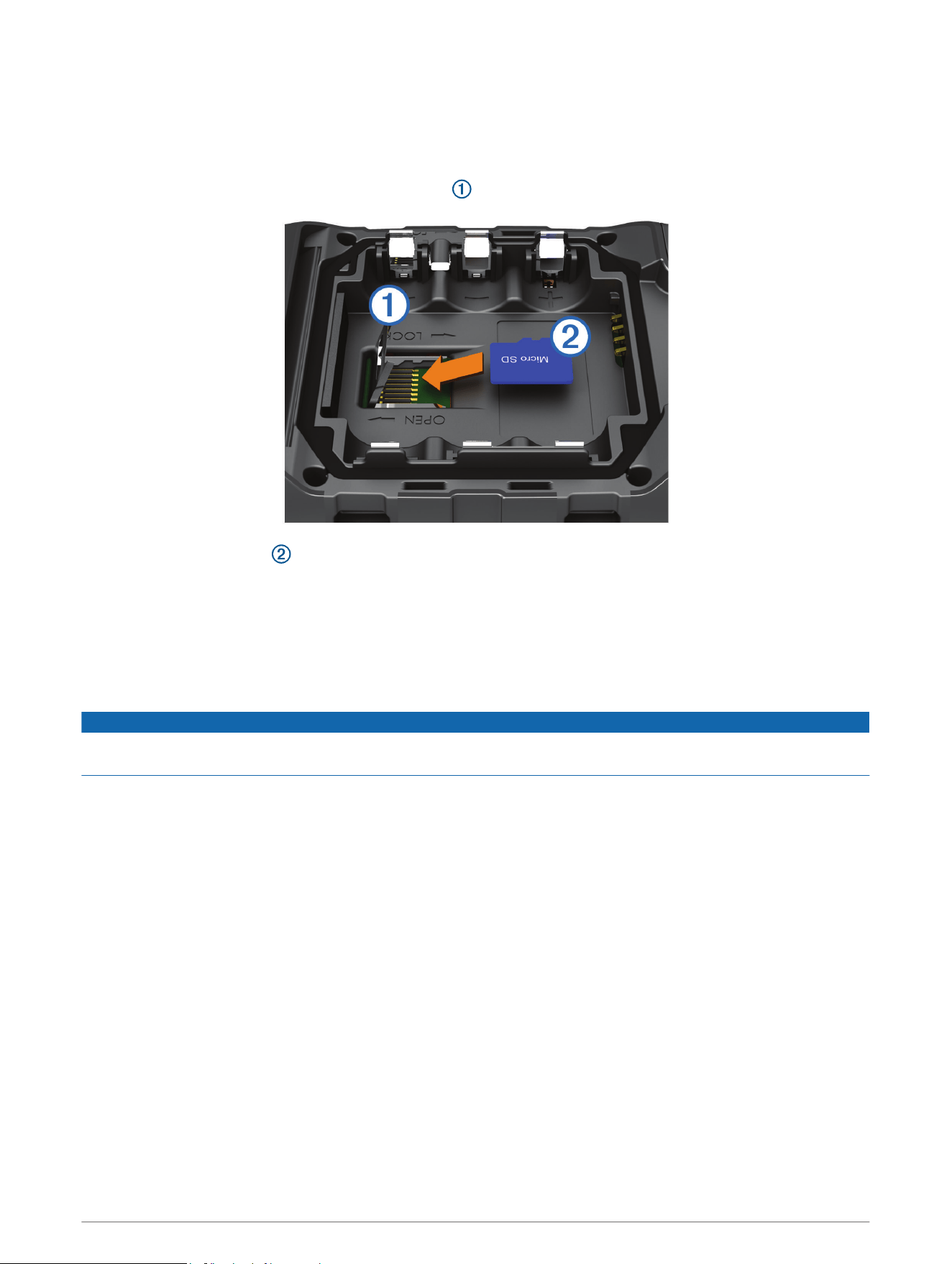
Installing a Memory Card
You can install a microSD
™
memory card for additional storage or pre-loaded maps.
1 Turn the D-ring counter-clockwise, and pull up to remove the cover.
2 Remove the batteries.
3 In the battery compartment, slide the card holder to the left and lift up.
4 Place the memory card with the gold contacts facing down.
5 Close the card holder.
6 Slide the card holder to the right to lock it.
7 Replace the batteries.
8 Replace the battery cover, and turn the D-ring clockwise.
Connecting the Device to Your Computer
NOTICE
To prevent corrosion, thoroughly dry the mini-USB port, the weather cap, and the surrounding area before
charging or connecting to a computer.
Before you can connect the straight connector of the USB cable to your device, you may have to remove
optional mount accessories.
1 Pull up the weather cap from the mini-USB port.
2 Plug the small end of the USB cable into the mini-USB port.
3 Plug the large end of the USB cable into a computer USB port.
Your device and memory card (optional) appear as removable drives in My Computer on Windows
computers and as mounted volumes on Mac computers.
Device Maintenance 31
Transferring Files to Your Device
1 Connect the device to your computer.
On Windows computers, the device appears as a removable drive or a portable device, and the memory card
may appear as a second removable drive. On Mac computers, the device and memory card appear as
mounted volumes.
NOTE: Some computers with multiple network drives may not display device drives properly. See your
operating system documentation to learn how to map the drive.
2 On your computer, open the file browser.
3 Select a file.
4 Select Edit > Copy.
5 Open the portable device, drive, or volume for the device or memory card.
6 Browse to a folder.
7 Select Edit > Paste.
The file appears in the list of files in the device memory or on the memory card.
Sending Files to BaseCamp
1 Open BaseCamp.
2 Connect the device to your computer.
On Windows computers, the device appears as a removable drive or a portable device, and the memory card
may appear as a second removable drive. On Mac computers, the device and memory card appear as
mounted volumes.
NOTE: Some computers with multiple network drives may not display device drives properly. See your
operating system documentation to learn how to map the drive.
3 Open the Garmin or memory card drive or volume.
4 Select an option:
• Select an item from a connected device and drag it to My Collection or to a list.
• From BaseCamp, select Device > Receive from Device, and select the device.
Deleting Files
NOTICE
If you do not know the purpose of a file, do not delete it. Your device memory contains important system files
that should not be deleted.
1 Open the Garmin drive or volume.
2 If necessary, open a folder or volume.
3 Select a file.
4 Press the Delete key on your keyboard.
Disconnecting the USB Cable
If your device is connected to your computer as a removable drive or volume, you must safely disconnect your
device from your computer to avoid data loss. If your device is connected to your Windows computer as a
portable device, it is not necessary to safely disconnect.
1 Complete an action:
• For Windows computers, select the Safely Remove Hardware icon in the system tray, and select your
device.
• For Mac computers, drag the volume icon to the trash.
2 Disconnect the cable from your computer.
32 Device Maintenance
Resetting the Device
If the device stops responding, you may need to reset it. This does not erase any of your data or settings.
1 Remove the batteries.
2 Reinstall the batteries.
Removing the Battery Pack
WARNING
Do not use a sharp object to remove batteries.
1 Turn the D-ring counter-clockwise, and pull up to remove the cover.
2 Pull up on the side of the battery pack closest to the power button.
Device Information
Specifications
Battery type Lithium-ion battery pack or three AA batteries (alkaline, NiMH, or lithium)
Water resistance IEC 60529 IPX7
1
Operating temperature range From -20° to 70°C (from -4° to 158°F)
Charging temperature range From 0° to 45°C (from 32° to 113°F)
About the Batteries
WARNING
See the Important Safety and Product Information guide in the product box for product warnings and other
important information.
The temperature rating for the device may exceed the usable range of some batteries. Alkaline batteries can
rupture at high temperatures.
NOTICE
Alkaline batteries lose a significant amount of their capacity as the temperature decreases. Therefore, use
lithium batteries when operating the device in below freezing conditions.
Viewing Device Information
You can view the unit ID, software version, and license agreement.
Select Setup > About.
Getting More Information
You can find more information about this product on the Garmin website.
• Go to www.garmin.com/outdoor.
• Go to http://buy.garmin.com, or contact your Garmin dealer for information about optional accessories and
replacement parts.
1
*The device withstands incidental exposure to water of up to 1 m for up to 30 min.
Device Information 33

Troubleshooting
How do I know my device is in USB mass storage mode?
• View your device screen.
An image of the device connected to a computer appears.
• View your computer screen.
A new removable disk drive appears in My Computer on Windows computers, or a mounted volume appears
on Mac computers.
I need to reset all settings back to factory default values
Select Setup > Reset > Reset All Settings.
I need replacement parts or accessories
• Go to buy.garmin.com.
• Contact your Garmin dealer.
I need to buy an external GPS antenna
• Go to buy.garmin.com.
• Contact your Garmin dealer.
My battery does not stay charged for very long
You can take various actions to increase your battery life.
• Exit the camera application when you are not taking photos.
• Decrease the backlight brightness (Adjusting the Backlight Brightness, page 5).
• Decrease the backlight timeout (Adjusting the Backlight Timeout, page 23).
• Enable battery save mode (Display Settings, page 24).
• Select the Normal option for the Map Speed (Map Settings, page 24).
My device does not appear as either a portable device or a removable drive or
volume on my computer
1 Disconnect the USB cable from your computer.
2 Turn off the device.
3 Connect the USB cable to your device and to a USB port on your computer.
TIP: The USB cable must connect to a USB port on your computer, not to a USB hub.
The device turns on automatically and goes into MTP mode or USB mass storage mode. A picture of the device
connected to a computer appears on the device screen.
NOTE: If you have several network drives mapped on your computer, Windows may have trouble assigning
drive letters to your Garmin drives. For information about assigning drive letters, see the help file for your
operating system.
My device is not acquiring satellite signals
• Take your device out of parking garages and away from tall buildings and trees.
• Remain stationary for several minutes.
34 Troubleshooting

My device does not charge
• Verify the battery pack is properly installed (Installing the Battery Pack, page 2).
• Verify the temperature is between 0 and 45°C (from 32°F to 113°F).
• Turn down the backlight (Adjusting the Backlight Brightness, page 5).
My device does not go into mass storage mode automatically
If your device is connected to the computer but does not go into mass storage mode automatically, you might
have loaded a corrupt file.
1 Disconnect the device from your computer.
2 Turn off the device.
3 Hold while you connect the device to your computer.
4 Continue holding for 30 seconds or until the device goes into mass storage mode.
My screen does not respond
If your touchscreen does not respond to your touches, you can reset your device.
1 Disconnect the device from external power.
2 Remove the batteries.
3 Reinstall the batteries (Installing the Battery Pack, page 2).
This resets the device without erasing your data or settings.
Appendix
Optional Accessories
Optional accessories, such as mounts, maps, fitness accessories, and replacement parts, are available at
http://buy.garmin.com or from your Garmin dealer.
Appendix 35

Data Fields
Some data fields require you to be navigating or require ANT+ accessories to display data.
24hr Max Temperature: The maximum temperature recorded in the last 24 hours.
24hr Min Temperature: The minimum temperature recorded in the last 24 hours.
Accuracy Of GPS: The margin of error for your exact location. For example, your GPS location is accurate to
within +/- 12 feet (3.65 m).
Alarm Timer: The current time of the countdown timer.
Ambient Pressure: The uncalibrated environmental pressure.
Ascent - Average: The average vertical distance of ascent since the last reset.
Ascent - Maximum: The maximum rate of ascent in feet per minute or meters per minute since the last reset.
Ascent - Total: The total elevation distance ascended since the last reset.
Automotive Turn: The direction of the next turn in the route. You must be navigating for this data to appear.
Average Cadence: The average cadence for the current activity.
Average Heart Rate: The average heart rate for the current activity.
Average Lap: The average lap time for the current activity.
Avg. Heart Rate Percent: The average percentage of maximum heart rate for the current activity.
Barometer: The calibrated current pressure.
Battery Level: The remaining battery power.
Bearing: The direction from your current location to a destination. You must be navigating for this data to
appear.
Cadence: The revolutions of the crank arm or strides per minute. Your device must be connected to a cadence
accessory.
Calories: The amount of total calories burned.
Compass Heading: The direction the device is pointing based on the compass.
Course: The direction from your starting location to a destination. Course can be viewed as a planned or set
route. You must be navigating for this data to appear.
Current Lap: The stopwatch time for the current lap.
Date: The current day, month, and year.
Depth: The depth of the water. Your device must be connected to a NMEA 0183 device capable of acquiring the
water depth.
Descent - Average: The average vertical distance of descent since the last reset.
Descent - Maximum: The maximum rate of descent in feet per minute or meters per minute since the last reset.
Descent - Total: The total elevation distance descended since the last reset.
Distance To Destination: The remaining distance to the final destination. You must be navigating for this data
to appear.
Distance To Next: The remaining distance to the next waypoint on the route. You must be navigating for this
data to appear.
Elapsed (Total) Time: The total time recorded. For example, if you start the timer and run for 10 minutes, then
stop the timer for 5 minutes, then start the timer and run for 20 minutes, your elapsed time is 35 minutes.
Elevation: The altitude of your current location above or below sea level.
Elevation Above Ground: The altitude of your current location above ground level.
Elevation - Maximum: The highest elevation reached since the last reset.
Elevation - Minimum: The lowest elevation reached since the last reset.
ETA At Destination: The estimated time of day you will reach the final destination (adjusted to the local time of
the destination). You must be navigating for this data to appear.
ETA At Next: The estimated time of day you will reach the next waypoint on the route (adjusted to the local
time of the waypoint). You must be navigating for this data to appear.
36 Appendix

Glide Ratio: The ratio of horizontal distance traveled to the change in vertical distance.
Glide Ratio To Dest: The glide ratio required to descend from your current position to the destination elevation.
You must be navigating for this data to appear.
GPS Elevation: The altitude of your current location using GPS.
GPS Heading: The direction you are moving based on GPS.
GPS Signal Strength: The strength of the GPS satellite signal.
Grade: The calculation of rise (elevation) over run (distance). For example, if for every 10 feet (3 m) you climb
you travel 200 feet (60 m), the grade is 5%.
Heading: The direction you are moving.
Heart Rate: Your heart rate in beats per minute (bpm). Your device must be connected to a compatible heart
rate monitor.
Heart Rate Percent Max: The percentage of maximum heart rate.
Heart Rate Zone: The current range of heart rate (1 to 5). The default zones are based on your user profile,
maximum heart rate, and resting heart rate.
Lap Ascent: The vertical distance of ascent for the current lap.
Lap Cadence: The average cadence for the current lap.
Lap Descent: The vertical distance of descent for the current lap.
Lap Distance: The distance traveled for the current lap.
Lap Heart Rate: The average heart rate for the current lap.
Lap Heart Rate Percent: The average percentage of maximum heart rate for the current lap.
Laps: The number of laps completed for the current activity.
Lap Speed: The average speed for the current lap.
Last Lap Ascent: The vertical distance of ascent for the last completed lap.
Last Lap Cadence: The average cadence for the last completed lap.
Last Lap Descent: The vertical distance of descent for the last completed lap.
Last Lap Distance: The distance traveled for the last completed lap.
Last Lap Heart Rate: The average heart rate for the last completed lap.
Last Lap Speed: The average speed for the last completed lap.
Last Lap Time: The stopwatch time for the last completed lap.
Location (lat/lon): The current position in latitude and longitude regardless of the selected position format
setting.
Location (selected): The current position using the selected position format setting.
Location of Destination: The position of your final destination. You must be navigating for this data to appear.
None: This is a blank data field.
Odometer: A running tally of distance traveled for all trips. This total does not clear when resetting the trip data.
Off Course: The distance to the left or right by which you have strayed from the original path of travel. You must
be navigating for this data to appear.
Pointer: An arrow points in the direction of the next waypoint or turn. You must be navigating for this data to
appear.
Speed: The current rate of travel.
Speed Limit: The reported speed limit for the road. Not available in all maps and in all areas. Always rely on
posted road signs for actual speed limits.
Speed - Maximum: The highest speed reached since the last reset.
Speed - Moving Avg.: The average speed while moving since the last reset.
Speed - Overall Avg.: The average speed while moving and stopped since the last reset.
Stopwatch Timer: The stopwatch time for the current activity.
Sunrise: The time of sunrise based on your GPS position.
Appendix 37

Sunset: The time of sunset based on your GPS position.
Temperature: The temperature of the air. Your body temperature affects the temperature sensor.
Temperature - Water: The temperature of the water. Your device must be connected to a NMEA 0183 device
capable of acquiring the water temperature.
Time of Day: The current time of day based on your current location and time settings (format, time zone,
daylight saving time).
Time To Destination: The estimated time remaining before you reach the destination. You must be navigating
for this data to appear.
Time To Next: The estimated time remaining before you reach the next waypoint in the route. You must be
navigating for this data to appear.
To Course: The direction in which you must move to get back on the route. You must be navigating for this data
to appear.
Total Lap: The stopwatch time for all the completed laps.
Track Distance: The distance traveled for the current track.
Trip Odometer: A running tally of the distance traveled since the last reset.
Trip Time: A running tally of the total time spent moving and not moving since the last reset.
Trip Time - Moving: A running tally of the time spent moving since the last reset.
Trip Time - Stopped: A running tally of the time spent not moving since the last reset.
Turn: The angle of difference (in degrees) between the bearing to your destination and your current course. L
means turn left. R means turn right. You must be navigating for this data to appear.
Velocity Made Good: The speed at which you are closing on a destination along a route. You must be
navigating for this data to appear.
Vertical Dist to Dest: The elevation distance between your current position and the final destination. You must
be navigating for this data to appear.
Vertical Dist to Next: The elevation distance between your current position and the next waypoint in the route.
You must be navigating for this data to appear.
Vertical Speed: The rate of ascent or descent over time.
Vertical Speed To Dest: The rate of ascent or descent to a predetermined altitude. You must be navigating for
this data to appear.
Waypoint At Dest: The last point on the route to the destination. You must be navigating for this data to appear.
Waypoint At Next: The next point on the route. You must be navigating for this data to appear.
38 Appendix

Index
Symbols
3D 11
map 11
A
accessories 20, 33, 35
addresses, finding 9
adventures 14, 15
alarms
clock 19
marine 29
proximity 18
almanac
hunting and fishing times 19
sunrise and sunset times 19
altimeter 12, 13, 26
ANT+ sensors, pairing 20
area calculation 18
B
backlight 5, 23
barometer 13
BaseCamp 15, 30, 32
battery 2, 33
charging 3
installing 2, 3
maximizing 5, 23, 34
BirdsEye imagery 10
C
calculator 18
calendar 19
calibrating
altimeter 13
compass 12
camera 15
settings 25
charging 3, 35
chirp 17, 18, 26
City Navigator 9
cleaning the device 30
cleaning the touchscreen 30
compass 10, 12
navigating 11
settings 26
computer, connecting 31, 34
countdown timer 19
course, pointer 12
customizing the device 21, 22
cycling 28
D
dashboards 22
data, transferring 31
data fields 22, 36
deleting, all user data 32
device
care 30
registration 5
resetting 33
display settings 24
downloading, geocaches 16
E
elevation 12
plot 12, 13
F
files, transferring 16, 30, 32
fitness 27, 28
G
Garmin Express
registering the device 29
updating software 29
geocaches 16–18, 30
downloading 16
settings 26
GLONASS 23
GPS 19, 23
signal 5
H
heading setting 26
heart rate
monitor 20
zones 27, 28
HomePort 30
hunting and fishing times 19
K
keys 1
L
lifetime athlete 27
locations
editing 5
saving 5
locking, screen 4, 22
M
main menu 4, 21
man overboard (MOB) 10
maps 5, 10
data fields 22
navigating 7
optional 10
settings 24, 25
updating 29
marine
alarms setup 29
settings 29
memory card 31
microSD card 1, 31. See memory card
N
navigation 9, 10, 12
compass 11
road 10
stopping 10
O
on-screen buttons 4
P
pairing, ANT+ sensors 20
photos 15, 16
taking 15
viewing 15, 16
wallpaper 16
position format 25
power key 4
shortcuts 24
product registration 5, 29
profiles 21, 27
proximity alarms 18
R
registering the device 5, 29
replacement parts 34
resetting the device 29, 33, 34
restoring, settings 29
routes 13, 14
creating 13
deleting 14
editing 13, 14
settings 27
viewing on the map 14
running 28
S
satellite signals 5, 19
screen 4
locking 4, 22
orientation 22
settings 22–26, 29
device 27
sharing data 18
shortcuts 21
adding 22
Sight N' Go 10
software, updating 29, 30
specifications 33
stopwatch 19
storing data 31
sunrise and sunset times 19
system settings 23
T
tempe 20
Tempe 20
temperature 20
time settings 25
time zones 25
timer, countdown 19
tones 29
touchscreen 4
troubleshooting 35
TracBack 7
tracks 5, 7–9, 15
archiving 8, 9
color 7
saving 7
settings 25
viewing 8
transferring
files 16, 18, 30, 32
tracks 18
trip computer 13
trip information, viewing 13
trip planner. See routes
troubleshooting 29, 33–35
U
unit ID 33
units of measure 22
updating software 30
USB 23, 34, 35
connector 1
disconnecting 32
mass storage mode 30, 34, 35
transferring files 30
user data, deleting 32
user profile 27
V
volume, adjusting 23
W
water resistance 30
waypoints 5, 6, 9
deleting 6
editing 5, 6
projecting 6
saving 5
Where To? 9
Index 39

support.garmin.com
GUID-2E649E39-F731-454C-8897-8C5216B7D58D v6June 2021