
Online User's Guide
HL-L2465DW
DCP-L2640DW
DCP-L2647DW
HL-L2480DW
MFC-L2760DW
MFC-L2807DW
MFC-L2820DW
MFC-L2820DWXL
MFC-L2900DW
MFC-L2900DWXL
MFC-L2980DW
© 2023 Brother Industries, Ltd. All rights reserved.

Table of Contents
Before You Use Your Machine ............................................................................................................. 1
Definitions of Notes........................................................................................................................................ 2
Notice - Disclaimer of Warranties (USA and Canada) ................................................................................... 3
Trademarks .................................................................................................................................................... 4
Open Source Licensing.................................................................................................................................. 5
Copyright and License ................................................................................................................................... 6
Important Notes.............................................................................................................................................. 7
Introduction to Your Machine............................................................................................................... 8
Before Using Your Machine ........................................................................................................................... 9
Control Panel Overview ............................................................................................................................... 10
Touchscreen LCD Overview......................................................................................................................... 16
How to Navigate the Touchscreen LCD ....................................................................................................... 19
Set the Main Home Screen.......................................................................................................................... 21
Settings Screen Overview ........................................................................................................................... 22
How to Enter Text on Your Machine.............................................................................................................23
Access Brother Utilities (Windows) .............................................................................................................. 26
Uninstall the Software and Drivers (Windows) ................................................................................... 27
Access Brother iPrint&Scan (Windows/Mac) ............................................................................................... 28
Input/Output Port Locations on Your Machine ............................................................................................. 30
Paper Handling.................................................................................................................................... 31
Load Paper................................................................................................................................................... 32
Load Paper in the Paper Tray ............................................................................................................ 33
Load and Print Plain Paper, Thin Paper, Recycled Paper and Bond Paper in the Manual Feed
Slot ..................................................................................................................................................... 37
Load and Print on Thick Paper and Labels Using the Manual Feed Slot........................................... 39
Load and Print on Envelopes in the Manual Feed Slot ...................................................................... 41
Paper Settings.............................................................................................................................................. 43
Change the Paper Size and Paper Type............................................................................................ 44
Change the Check Paper Setting....................................................................................................... 45
Recommended Print Media ......................................................................................................................... 46
Load Documents.......................................................................................................................................... 47
Load Documents in the Automatic Document Feeder (ADF) ............................................................. 48
Load Documents on the Scanner Glass............................................................................................. 49
Unscannable and Unprintable Areas ........................................................................................................... 50
Using Special Paper..................................................................................................................................... 51
Print ...................................................................................................................................................... 52
Print from Your Computer (Windows)........................................................................................................... 53
Print a Document (Windows).............................................................................................................. 54
Print on Both Sides of the Paper (Windows) ...................................................................................... 56
Secure Print (Windows)...................................................................................................................... 59
Change the Default Print Settings (Windows) .................................................................................... 60
Print Settings (Windows) .................................................................................................................... 61
Print a Document Using the BR-Script3 Printer Driver (PostScript
®
3
™
Language Emulation)
(Windows) .......................................................................................................................................... 65
Monitor the Status of the Machine from Your Computer (Windows) .................................................. 66
Home > Table of Contents
i

Print from Your Computer (Mac) .................................................................................................................. 67
Load and Print on Envelopes in the Manual Feed Slot................................................................................ 68
Print an Email Attachment............................................................................................................................ 70
Change Print Settings Using the Control Panel ........................................................................................... 71
Cancel a Print Job........................................................................................................................................ 72
Test Print ...................................................................................................................................................... 73
Universal Print.............................................................................................................................................. 74
Universal Print Overview .................................................................................................................... 75
Register Your Machine with Universal Print Using Web Based Management.................................... 76
Assign Universal Print Users via Microsoft Azure Portal.................................................................... 77
Add a Universal Print-enabled Printer to Your Computer ................................................................... 78
Print Using Universal Print ................................................................................................................. 79
Deregister Your Machine from Universal Print ................................................................................... 80
Scan...................................................................................................................................................... 81
Scan Using the Scan Button on Your Machine ............................................................................................ 82
Scan Photos and Graphics................................................................................................................. 83
Scan Single or Multiple Pages to a Folder in a Single PDF File ........................................................ 85
Scan to an Editable Text File (OCR) .................................................................................................. 87
Save Scanned Data as an Email Attachment .................................................................................... 89
Send Scanned Data to an Email Recipient ........................................................................................ 91
Scan to FTP ....................................................................................................................................... 93
Scan to Network (Windows) ............................................................................................................... 97
Use the Web Services Protocol for Network Scanning (Windows 10 and Windows 11) .................. 103
Change the Scan Button Settings from Brother iPrint&Scan ........................................................... 107
Configure Certificates for Signed PDFs ........................................................................................... 108
Disable Scanning from Your Computer ............................................................................................ 110
Scan from Your Computer (Windows).........................................................................................................111
Scan Using Brother iPrint&Scan (Windows/Mac)............................................................................. 112
Scan Using Nuance
™
PaperPort
™
14SE or Other Windows Applications....................................... 113
Scan Using Windows Fax and Scan ................................................................................................ 118
Scan from Your Computer (Mac)................................................................................................................ 122
Configure Scan Settings Using Web Based Management......................................................................... 123
Set the Scan File Name Using Web Based Management................................................................ 124
Copy ................................................................................................................................................... 125
Copy on One Side of the Paper (1-sided).................................................................................................. 126
Copy on Both Sides of the Paper (2-sided)................................................................................................ 129
Enlarge or Reduce Copied Images............................................................................................................ 132
Make N in 1 Copies Using the Page Layout Feature................................................................................. 134
Sort Copies ................................................................................................................................................ 136
Copy an ID Card ........................................................................................................................................ 137
Copy Options ............................................................................................................................................. 139
Fax ...................................................................................................................................................... 142
Send a Fax................................................................................................................................................. 143
Send a Fax ....................................................................................................................................... 144
Send a 2-sided Fax from the ADF.................................................................................................... 148
Send a Fax Manually........................................................................................................................ 149
Send a Fax at the End of a Conversation ........................................................................................ 150
Home > Table of Contents
ii

Send the Same Fax to More than One Recipient (Broadcasting) .................................................... 151
Send a Fax in Real Time.................................................................................................................. 154
Send a Fax at a Specified Time (Delayed Fax)................................................................................ 155
Add a Cover Page to Your Fax......................................................................................................... 157
Cancel a Fax in Progress ................................................................................................................. 160
Check and Cancel a Pending Fax.................................................................................................... 161
Fax Options ...................................................................................................................................... 162
Receive a Fax ............................................................................................................................................ 164
Receive Mode Settings .................................................................................................................... 165
Memory Receive Options ................................................................................................................. 186
Remote Fax Retrieval....................................................................................................................... 198
Voice Operations and Fax Numbers .......................................................................................................... 204
Voice Operations .............................................................................................................................. 205
Store Fax Numbers .......................................................................................................................... 213
Dial a Number Using a Shortcut....................................................................................................... 217
Dial a Number Using Speed Dial ..................................................................................................... 220
Set up Broadcasting Groups ............................................................................................................ 223
Dial Access Codes and Credit Card Numbers ................................................................................. 230
Telephone Services and External Devices................................................................................................. 232
Voice Mail ......................................................................................................................................... 233
Distinctive Ring................................................................................................................................. 234
Caller ID ........................................................................................................................................... 239
External TAD (Telephone Answering Device)................................................................................... 241
External and Extension Telephones ................................................................................................. 244
Multi-line Connections (PBX) ........................................................................................................... 250
Fax Reports................................................................................................................................................ 251
Print a Transmission Verification Report .......................................................................................... 252
Print a Fax Journal ........................................................................................................................... 253
PC-FAX ...................................................................................................................................................... 255
PC-FAX for Windows........................................................................................................................ 256
PC-FAX for Mac .............................................................................................................................. 276
Network .............................................................................................................................................. 277
Supported Basic Network Features ........................................................................................................... 278
Configure Network Settings ....................................................................................................................... 279
Configure Network Details Using the Control Panel......................................................................... 280
Wireless Network Settings ......................................................................................................................... 281
Use the Wireless Network ................................................................................................................ 282
Use Wi-Fi Direct
®
............................................................................................................................. 299
Enable/Disable Wireless LAN .......................................................................................................... 304
Print the WLAN Report..................................................................................................................... 305
Network Features....................................................................................................................................... 309
Enable/Disable Web Based Management Using the Control Panel................................................. 310
Configure the Proxy Server Settings Using Web Based Management ............................................ 311
Print the Network Configuration Report............................................................................................ 312
Configure PC-FAX Receiving Using Web Based Management ....................................................... 313
Fax Using the Internet (I-Fax) .......................................................................................................... 314
Use the Send Fax to Server Feature................................................................................................ 338
Home > Table of Contents
iii

Synchronize Time with the SNTP Server Using Web Based Management ..................................... 342
Forward Incoming Faxes to a Network Destination.......................................................................... 345
Reset the Network Settings to the Factory Settings......................................................................... 347
Security .............................................................................................................................................. 348
Before Using Network Security Features................................................................................................... 349
Disable Unnecessary Protocols ....................................................................................................... 350
Configure Certificates for Device Security ................................................................................................. 351
Supported Security Certificate Features .......................................................................................... 352
How to Create and Install a Certificate............................................................................................. 353
Create a Self-signed Certificate ....................................................................................................... 354
Create a Certificate Signing Request (CSR) and Install a Certificate from a Certificate Authority
(CA) .................................................................................................................................................. 355
Import and Export the Certificate and Private Key ........................................................................... 359
Import and Export a CA Certificate................................................................................................... 362
Manage Multiple Certificates ............................................................................................................ 365
Use SSL/TLS ............................................................................................................................................. 366
Introduction to SSL/TLS ................................................................................................................... 367
Manage Your Network Machine Securely Using SSL/TLS............................................................... 370
Print Documents Securely Using SSL/TLS ...................................................................................... 374
Use SNMPv3.............................................................................................................................................. 376
Manage Your Network Machine Securely Using SNMPv3 ............................................................... 377
Use IPsec................................................................................................................................................... 378
Introduction to IPsec......................................................................................................................... 379
Configure IPsec Using Web Based Management ............................................................................ 380
Configure an IPsec Address Template Using Web Based Management ......................................... 382
Configure an IPsec Template Using Web Based Management ....................................................... 384
Use IEEE 802.1x Authentication................................................................................................................ 393
What Is IEEE 802.1x Authentication? .............................................................................................. 394
Configure IEEE 802.1x Authentication for a Wired or Wireless Network Using Web Based
Management (Web Browser)............................................................................................................ 395
IEEE 802.1x Authentication Methods............................................................................................... 397
Use Active Directory Authentication........................................................................................................... 398
Introduction to Active Directory Authentication................................................................................. 399
Configure Active Directory Authentication Using Web Based Management .................................... 400
Log On to Change the Machine Settings Using the Machine's Control Panel (Active Directory
Authentication) ................................................................................................................................. 402
Use LDAP Authentication........................................................................................................................... 403
Introduction to LDAP Authentication ................................................................................................ 404
Configure LDAP Authentication Using Web Based Management.................................................... 405
Log On to Change the Machine Settings Using the Machine's Control Panel (LDAP
Authentication) ................................................................................................................................. 406
Use Secure Function Lock 3.0................................................................................................................... 407
Before Using Secure Function Lock 3.0........................................................................................... 408
Configure Secure Function Lock 3.0 Using Web Based Management ............................................ 409
Scan Using Secure Function Lock 3.0 ............................................................................................. 410
Configure Public Mode for Secure Function Lock 3.0 ...................................................................... 411
Additional Secure Function Lock 3.0 Features................................................................................. 412
Register a new ID Card Using the Machine's Control Panel............................................................ 413
Home > Table of Contents
iv

Send or Receive an Email Securely........................................................................................................... 414
Configure Email Sending or Receiving Using Web Based Management......................................... 415
Send an Email with User Authentication .......................................................................................... 416
Send or Receive an Email Securely Using SSL/TLS ....................................................................... 417
Store Print Log to Network......................................................................................................................... 418
Store Print Log to Network Overview ............................................................................................... 419
Configure the Store Print Log to Network Settings Using Web Based Management....................... 420
Use the Store Print Log to Network's Error Detection Setting.......................................................... 422
Use Store Print Log to Network with Secure Function Lock 3.0....................................................... 424
Lock the Machine Settings from the Control Panel.................................................................................... 425
Setting Lock Overview...................................................................................................................... 426
Use Global Network Detection Features.................................................................................................... 430
Enable Global IP Address Detection ................................................................................................ 431
Block Communications from the Global Network ............................................................................. 432
Mobile/Web Connect......................................................................................................................... 433
Brother Web Connect................................................................................................................................. 434
Brother Web Connect Overview....................................................................................................... 435
Online Services Used with Brother Web Connect............................................................................ 437
Set Up Brother Web Connect........................................................................................................... 439
Scan and Upload Documents Using Brother Web Connect............................................................. 447
Download and Print Documents Using Brother Web Connect ......................................................... 448
FaxForward to Cloud or E-mail ........................................................................................................ 450
AirPrint ....................................................................................................................................................... 453
AirPrint Overview.............................................................................................................................. 454
Before Using AirPrint (macOS) ........................................................................................................ 455
Print Using AirPrint ........................................................................................................................... 456
Scan Using AirPrint (macOS)........................................................................................................... 459
Send a Fax Using AirPrint (macOS)................................................................................................. 460
Mopria
™
Print Service and Mopria
™
Scan................................................................................................. 461
Brother Mobile Connect ............................................................................................................................. 462
Troubleshooting ................................................................................................................................ 463
Error and Maintenance Messages ............................................................................................................. 464
Unable to Print or Scan -Transfer Your Faxes.................................................................................. 474
Error Messages When Using the Brother Web Connect Feature .............................................................. 478
Document Jams ......................................................................................................................................... 480
Document is Jammed in the Top of the ADF Unit ............................................................................ 481
Document is Jammed under the Document Cover .......................................................................... 482
Remove Small Scraps of Paper Jammed in the ADF ...................................................................... 483
Paper Jams................................................................................................................................................ 484
Clear Paper Jams............................................................................................................................. 485
Paper is Jammed in the Paper Tray................................................................................................. 486
Paper is Jammed in the Output Paper Tray ..................................................................................... 488
Paper is Jammed in the Back of the Machine .................................................................................. 489
Paper is Jammed inside the Machine .............................................................................................. 491
Paper is Jammed in the 2-sided Tray............................................................................................... 493
Printing Problems....................................................................................................................................... 495
Improve the Print Quality............................................................................................................................ 498
Home > Table of Contents
v

Telephone and Fax Problems .................................................................................................................... 503
Set Dial Tone Detection.................................................................................................................... 507
Set Telephone Line Compatibility for Interference and VoIP Systems ............................................. 508
Network Problems...................................................................................................................................... 510
Error Messages ................................................................................................................................ 511
Use the Network Connection Repair Tool (Windows) ...................................................................... 514
Check Your Machine's Network Settings.......................................................................................... 515
If You Are Having Difficulty with Your Machine's Network ................................................................ 516
AirPrint Problems ....................................................................................................................................... 522
Other Problems.......................................................................................................................................... 523
Check the Machine Information ................................................................................................................. 525
Update Your Machine's Firmware .............................................................................................................. 526
Reset Your Machine................................................................................................................................... 527
Reset Functions Overview ............................................................................................................... 529
Routine Maintenance ........................................................................................................................ 531
Replace Supplies ....................................................................................................................................... 532
Replace the Toner Cartridge ............................................................................................................534
Replace the Drum Unit ..................................................................................................................... 537
Reset the Drum Counter .................................................................................................................. 539
Clean the Machine ..................................................................................................................................... 540
Clean the Scanner............................................................................................................................ 542
Clean the Touchscreen LCD ............................................................................................................543
Clean the Corona Wire..................................................................................................................... 544
Clean the Drum Unit......................................................................................................................... 545
Clean the Paper Pick-up Rollers ...................................................................................................... 551
Check the Remaining Part Life .................................................................................................................. 552
Pack and Ship Your Machine ..................................................................................................................... 553
Machine Settings............................................................................................................................... 555
Check Your Machine's Password............................................................................................................... 556
Change Machine Settings from the Control Panel..................................................................................... 557
In the Event of Power Failure (Memory Storage) ............................................................................. 558
General Settings............................................................................................................................... 559
Save Your Favorite Settings as a Shortcut....................................................................................... 585
Print Reports .................................................................................................................................... 588
Settings and Features Tables........................................................................................................... 591
Change Machine Settings Using Web Based Management ...................................................................... 635
What is Web Based Management?.................................................................................................. 636
Access Web Based Management .................................................................................................... 638
Change the Login Password Using Web Based Management ........................................................ 640
Set Up Your Machine's Address Book Using Web Based Management.......................................... 641
Appendix............................................................................................................................................ 642
Specifications............................................................................................................................................. 643
Supplies ..................................................................................................................................................... 652
Brother Help and Customer Support.......................................................................................................... 654
Home > Table of Contents
vi

Home > Before You Use Your Machine > Definitions of Notes
Definitions of Notes
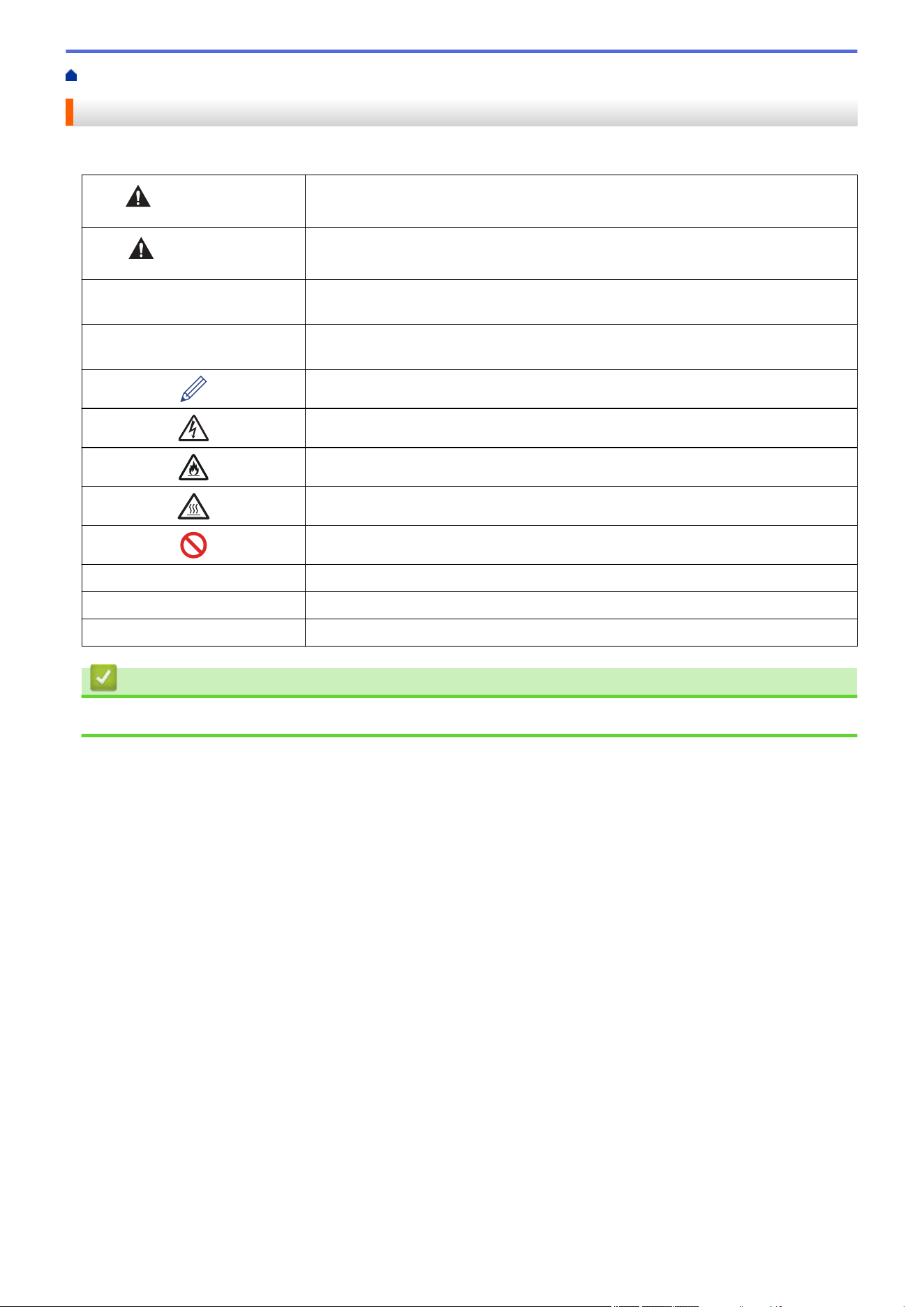
We use the following symbols and conventions throughout this User's Guide:
WARNING
WARNING indicates a potentially hazardous situation which, if not avoided, could
result in death or serious injuries.
CAUTION
CAUTION indicates a potentially hazardous situation which, if not avoided, may
result in minor or moderate injuries.
IMPORTANT
IMPORTANT indicates a potentially hazardous situation which, if not avoided, may
result in damage to property or loss of product functionality.
NOTE
NOTE specifies the operating environment, conditions for installation, or special
conditions of use.
Tips icons indicate helpful hints and supplementary information.
Electrical Hazard icons alert you to possible electrical shock.
Fire Hazard icons alert you to the possibility of a fire.
Hot Surface icons warn you not to touch hot machine parts.
Prohibition icons indicate actions you must not perform.
Bold Bold style identifies buttons on the machine's control panel or computer screen.
Italics Italicized style emphasizes an important point or refers you to a related topic.
Courier New
Courier New font identifies messages shown on the machine's LCD.
Related Information
• Before You Use Your Machine
2
Home > Before You Use Your Machine > Notice - Disclaimer of Warranties (USA and Canada)
Notice - Disclaimer of Warranties (USA and Canada)
BROTHER’S LICENSOR(S), AND THEIR DIRECTORS, OFFICERS, EMPLOYEES OR AGENTS
(COLLECTIVELY BROTHER’S LICENSOR) MAKE NO WARRANTIES, EXPRESS OR IMPLIED, INCLUDING
WITHOUT LIMITATION THE IMPLIED WARRANTIES OF MERCHANTABILITY AND FITNESS FOR A
PARTICULAR PURPOSE, REGARDING THE SOFTWARE. BROTHER’S LICENSOR(S) DOES NOT
WARRANT, GUARANTEE OR MAKE ANY REPRESENTATIONS REGARDING THE USE OR THE RESULTS
OF THE USE OF THE SOFTWARE IN TERMS OF ITS CORRECTNESS, ACCURACY, RELIABILITY,
CURRENTNESS OR OTHERWISE. THE ENTIRE RISK AS TO THE RESULTS AND PERFORMANCE OF THE
SOFTWARE IS ASSUMED BY YOU. THE EXCLUSION OF IMPLIED WARRANTIES IS NOT PERMITTED BY
SOME STATES IN THE USA AND SOME PROVINCES IN CANADA. THE ABOVE EXCLUSION MAY NOT
APPLY TO YOU.
IN NO EVENT WILL BROTHER’S LICENSOR(S) BE LIABLE TO YOU FOR ANY CONSEQUENTIAL,
INCIDENTAL, OR INDIRECT DAMAGES (INCLUDING DAMAGES FOR LOSS OF BUSINESS PROFITS,
BUSINESS INTERRUPTION, LOSS OF BUSINESS INFORMATION, AND THE LIKE) ARISING OUT OF THE
USE OR INABILITY TO USE THE SOFTWARE EVEN IF BROTHER’S LICENSOR HAS BEEN ADVISED OF
THE POSSIBILITY OF SUCH DAMAGES. BECAUSE SOME STATES IN THE USA AND SOME PROVINCES IN
CANADA DO NOT ALLOW THE EXCLUSION OR LIMITATION OF LIABILITY FOR CONSEQUENTIAL OR
INCIDENTAL DAMAGES, THE ABOVE LIMITATIONS MAY NOT APPLY TO YOU. IN ANY EVENT BROTHER’S
LICENSOR’S LIABILITY TO YOU FOR ACTUAL DAMAGES FROM ANY CAUSE WHATSOEVER, AND
REGARDLESS OF THE FORM OF THE ACTION (WHETHER IN CONTRACT, TORT (INCLUDING
NEGLIGENCE), PRODUCT LIABILITY OR OTHERWISE), WILL BE LIMITED TO $50.
Related Information
• Before You Use Your Machine
3
Home > Before You Use Your Machine > Trademarks
Trademarks
Apple, App Store, AirPrint, the AirPrint logo, Mac, macOS, iPadOS, iPad, iPhone, iPod touch, and Safari are
trademarks of Apple Inc., registered in the U.S. and other countries.
Nuance and PaperPort are trademarks or registered trademarks of Nuance Communications, Inc. or its affiliates
in the United States and/or other countries.
Adobe
®
, Reader
®
, PostScript and PostScript 3 are either registered trademarks or trademarks of Adobe Systems
Incorporated in the United States and/or other countries.
Wi-Fi
®
, Wi-Fi Alliance
®
, and Wi-Fi Direct
®
are registered trademarks of Wi-Fi Alliance
®
.
WPA
™
, WPA2
™
, WPA3
™
, Wi-Fi CERTIFIED, and Wi-Fi Protected Setup are trademarks of Wi-Fi Alliance
®
.
Android, Google Drive and Google Play are trademarks of Google LLC. Use of these trademarks is subject to
Google Permissions.
Mopria
™
and the Mopria
™
Logo are registered and/or unregistered trademarks and service marks of Mopria
Alliance, Inc. in the United States and other countries. Unauthorized use is strictly prohibited.
EVERNOTE is a trademark of Evernote Corporation and used under a license.
The Bluetooth
®
word mark is a registered trademark owned by Bluetooth SIG, Inc. and any use of such marks by
Brother Industries, Ltd. is under license. Other trademarks and trade names are those of their respective owners.
Each company whose software title is mentioned in this manual has a Software License Agreement specific to its
proprietary programs.
Software Trademarks
FlashFX
®
is a registered trademark of Datalight, Inc.
FlashFX
®
Pro
™
is a trademark of Datalight, Inc.
FlashFX
®
Tera
™
is a trademark of Datalight, Inc.
Reliance
™
is a trademark of Datalight, Inc.
Reliance Nitro
™
is a trademark of Datalight, Inc.
Datalight
®
is a registered trademark of Datalight, Inc.
Any trade names and product names of companies appearing on Brother products, related documents
and any other materials are all trademarks or registered trademarks of those respective companies.
Related Information
• Before You Use Your Machine
4
Home > Before You Use Your Machine > Open Source Licensing
Open Source Licensing
This product includes open source software.
To view Open Source Licensing Remarks and Copyright Information, go to your model's Manuals page at
support.brother.com/manuals.
Related Information
• Before You Use Your Machine
5

Home > Before You Use Your Machine > Copyright and License
Copyright and License
©2023 Brother Industries, Ltd. All rights reserved.
This product includes software developed by the following vendors:
This product includes the “KASAGO TCP/IP” software developed by ZUKEN ELMIC, Inc.
Copyright 1989-2020 Datalight, Inc., All Rights Reserved.
FlashFX
®
Copyright 1998-2020 Datalight, Inc.
Related Information
• Before You Use Your Machine
6
Home > Before You Use Your Machine > Important Notes
Important Notes
• Check support.brother.com/downloads for Brother driver and software updates.
• To keep your machine performance up to date, check support.brother.com/downloads for the latest firmware
upgrade. Otherwise, some of your machine's functions may not be available.
• Do not use this product outside the country of purchase as it may violate the wireless telecommunication and
power regulations of that country.
• Not all models are available in all countries.
• Before giving your machine to anyone else, replacing it, or disposing of it, we strongly recommend resetting it
to its factory settings to remove all personal information.
• Windows 10 in this document represents Windows 10 Home, Windows 10 Pro, Windows 10 Education, and
Windows 10 Enterprise.
• Windows 11 in this document represents Windows 11 Home, Windows 11 Pro, Windows 11 Education, and
Windows 11 Enterprise.
• In this User's Guide, the LCD messages of the DCP-L2640DW/MFC-L2760DW/MFC-L2820DW are used
unless otherwise specified.
• In this User's Guide, the illustrations of the MFC-L2820DW are used unless otherwise specified.
• The screens or images in this User's Guide are for illustration purposes only and may differ from those of the
actual products.
• Unless otherwise specified, the screens in this manual are from Windows 10. Screens on your computer may
vary depending on your operating system.
• The contents of this document and the specifications of this product are subject to change without notice.
• This documentation is both for MFC and DCP models. In this User's Guide, DCP models includes HL- ####
(where #### is the name of your model).
• Not all features are available in countries subject to applicable export restrictions.
Related Information
• Before You Use Your Machine
7

Home > Introduction to Your Machine
Introduction to Your Machine
• Before Using Your Machine
• Control Panel Overview
• Touchscreen LCD Overview
• How to Navigate the Touchscreen LCD
• Set the Main Home Screen
• Settings Screen Overview
• How to Enter Text on Your Machine
• Access Brother Utilities (Windows)
• Access Brother iPrint&Scan (Windows/Mac)
• Input/Output Port Locations on Your Machine
8
Home > Introduction to Your Machine > Before Using Your Machine
Before Using Your Machine
Before attempting any printing operation, confirm the following:
• Make sure you have installed the correct software and drivers for your machine.
• For USB or network cable users: Make sure the interface cable is physically secure.
Firewall (Windows)
If your computer is protected by a firewall and you are unable to network print, network scan, or PC-FAX, you
may need to configure the firewall settings. If you are using the Windows Firewall and you installed the drivers
using the steps in the installer, the necessary firewall settings have been already set. If you are using any other
personal firewall software, see the User's Guide for your software or contact the software manufacturer.
Related Information
• Introduction to Your Machine
9
Home > Introduction to Your Machine > Control Panel Overview
Control Panel Overview
The control panel may vary depending on your model.
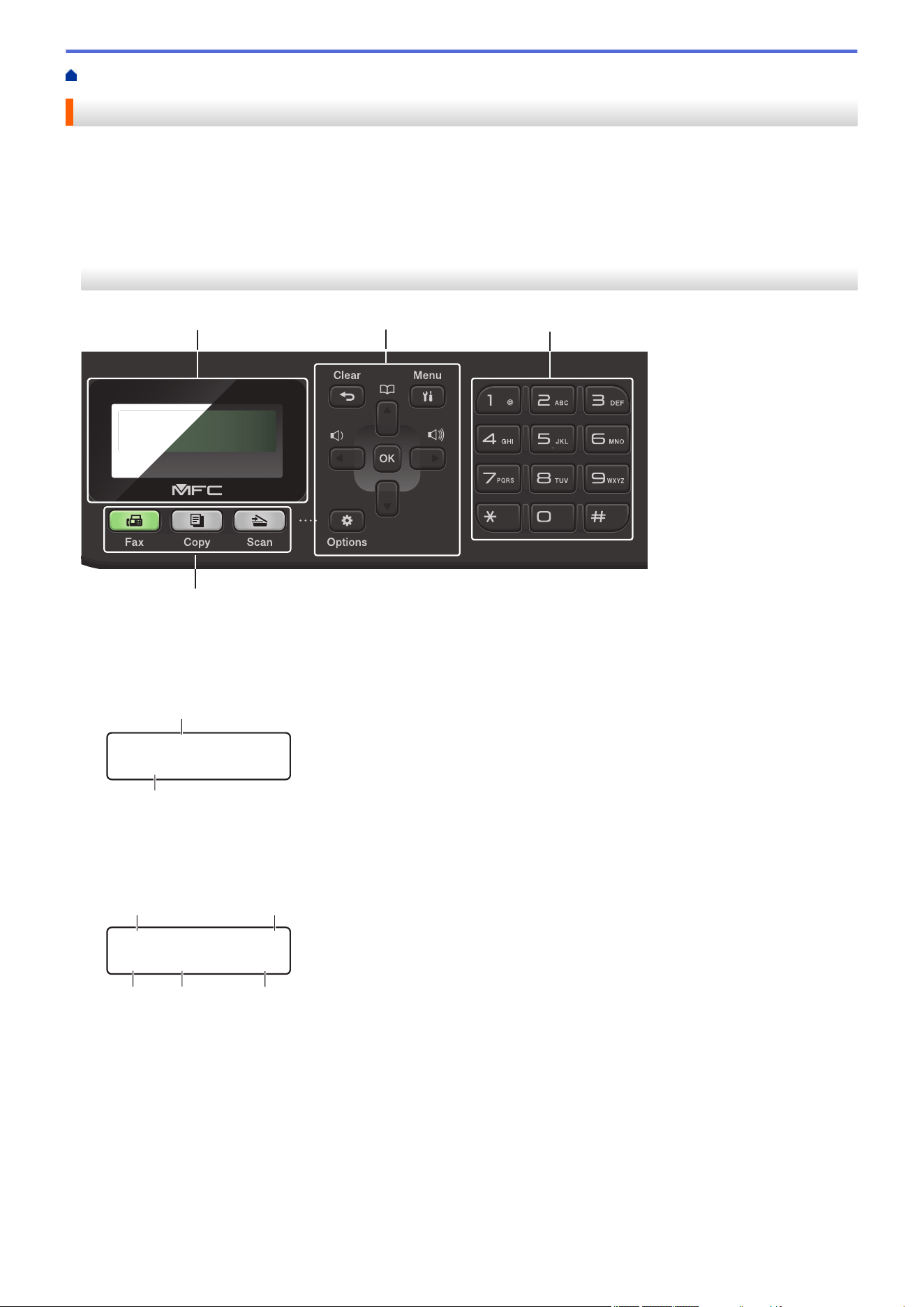
>> MFC-L2760DW
>> HL-L2465DW/DCP-L2640DW/DCP-L2647DW
>> HL-L2480DW/MFC-L2807DW/MFC-L2820DW/MFC-L2820DWXL/MFC-L2900DW/MFC-L2900DWXL/
MFC-L2980DW
MFC-L2760DW
1
2
3
4
1. Liquid Crystal Display (LCD)
Displays messages to help you set up and use the machine.
If the machine is in Fax Mode, the LCD displays:
b
a
Fax Only
01/01 12:00AM
a. Date & Time
b. Receive Mode
When you press Copy, the LCD displays:
□□■□□
d
e
f
g
c
100% Auto
Sort Copies:01
c. Type of copy
d. Number of copies
e. Quality
f. Contrast
g. Copy ratio
2. Menu Buttons
Clear
Press to delete entered data or cancel the current setting.
10
Menu
Press to access the Menu to program your machine settings.
OK
Press to store your machine's settings.
d or c
Press to scroll back or forward through menu selections.
a or b
• Press to scroll up or down through menus and options.
• Press to change the resolution in Fax Mode.
Press to access speed dial numbers.
Options
Press to access temporary settings for faxing, scanning, or copying.
3. Dial Pad
• Use to dial fax and telephone numbers.
• Use as a keyboard to enter text or characters.
4. Mode Buttons
Fax
Press to switch the machine to Fax Mode.
Copy
Press to switch the machine to Copy Mode.
Scan
Press to switch the machine to Scan Mode.
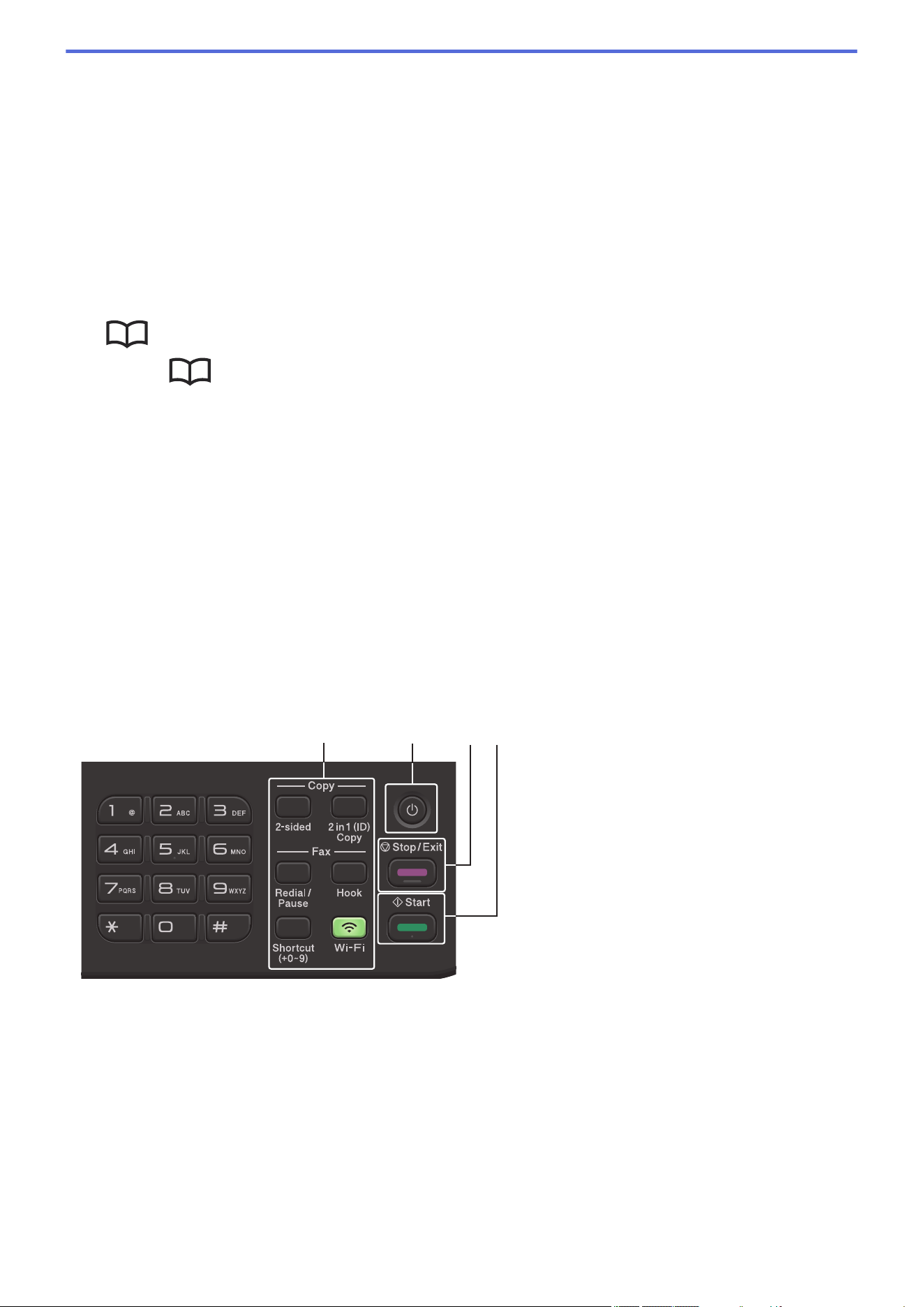
5
6
87
5. Function Buttons
Redial/Pause
Press to dial the last number you called. This button also inserts a pause when programming quick dial
numbers or when dialing a number manually.
Hook
Press Hook before dialing to ensure a fax machine answers, and then press Start.
If the machine is in Fax/Tel (F/T) Mode and you pick up the handset of an external telephone during the
F/T ring (pseudo double-rings), press Hook to talk.
11
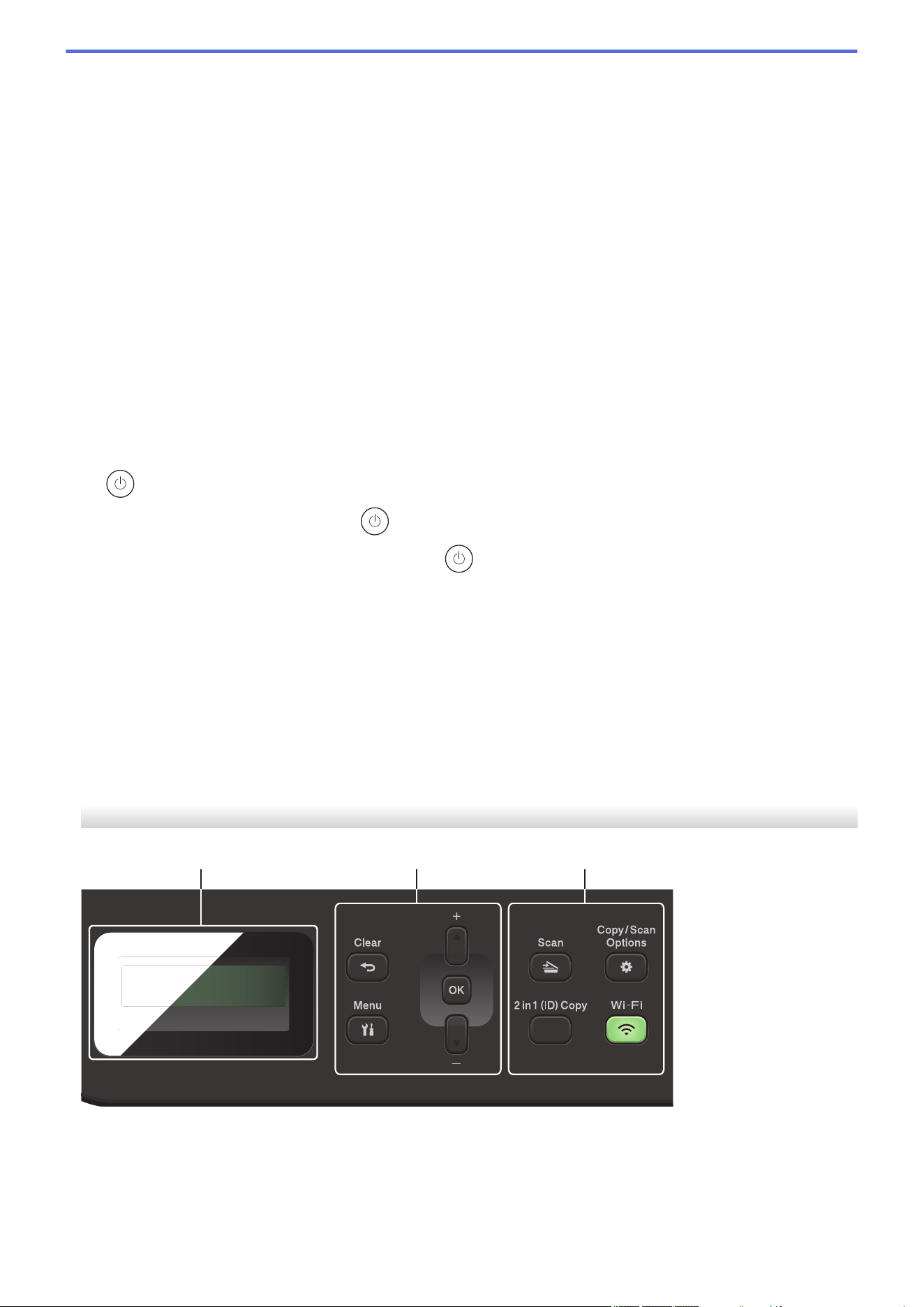
Wi-Fi (for wireless models)
Press and hold the Wi-Fi button and launch the wireless installer on your computer. Follow the on-screen
instructions to set up a wireless connection between your machine and your network.
When the Wi-Fi light is on, your machine is connected to a wireless access point. When the Wi-Fi light
blinks, the wireless connection is down, or your machine is in the process of connecting to a wireless
access point.
Resolution (for certain models only)
Press to change the Fax resolution.
2 in 1 (ID) Copy
Press to copy both sides of an identification card onto a single page.
2-sided
Press to copy on both sides of a sheet of paper.
Shortcut Button
Store and recall up to ten fax and telephone numbers.
To access stored Shortcut fax and telephone numbers, hold down the Shortcut button and then press the
Shortcut number you assigned to the fax or telephone number, using the dial pad.
6.
Power On/Off
• Turn on the machine by pressing .
• Turn off the machine by pressing and holding
. The LCD displays [Shutting Down] and stays on
for a few seconds before turning off. If you have an external telephone or TAD connected, it is always
available.
7. Stop/Exit
• Press to stop an operation.
• Press to exit from a menu.
8. Start
• Press to start sending faxes.
• Press to start copying.
• Press to start scanning documents.
HL-L2465DW/DCP-L2640DW/DCP-L2647DW
1 2 3
12

1. Liquid Crystal Display (LCD)
Displays messages to help you set up and use the machine.
If the machine is in Ready Mode or Copy Mode, the LCD displays:
□□■□□
ba
c
d
e
100% Auto
Sort Copies:01
a. Type of copy
b. Number of copies
c. Quality
d. Contrast
e. Copy ratio
2. Menu Buttons
Menu
Press to access the menu for programming your machine's settings.
Clear
• Press to delete entered data.
• Press to cancel the current setting.
OK
Press to store your machine's settings.
a or b
Press to scroll up or down through menus and options.
3. Function Buttons
Copy/Scan Options
Press to access temporary settings for scanning or copying.
Wi-Fi (for wireless models)
Press and hold the Wi-Fi button and launch the wireless installer on your computer. Follow the on-screen
instructions to set up a wireless connection between your machine and your network.
When the Wi-Fi light is on, your machine is connected to a wireless access point. When the Wi-Fi light
blinks, the wireless connection is down, or your machine is in the process of connecting to a wireless
access point.
Scan
Press to switch the machine to Scan Mode.
2 in 1 (ID) Copy
Press to copy both sides of an identification card onto a single page.
13
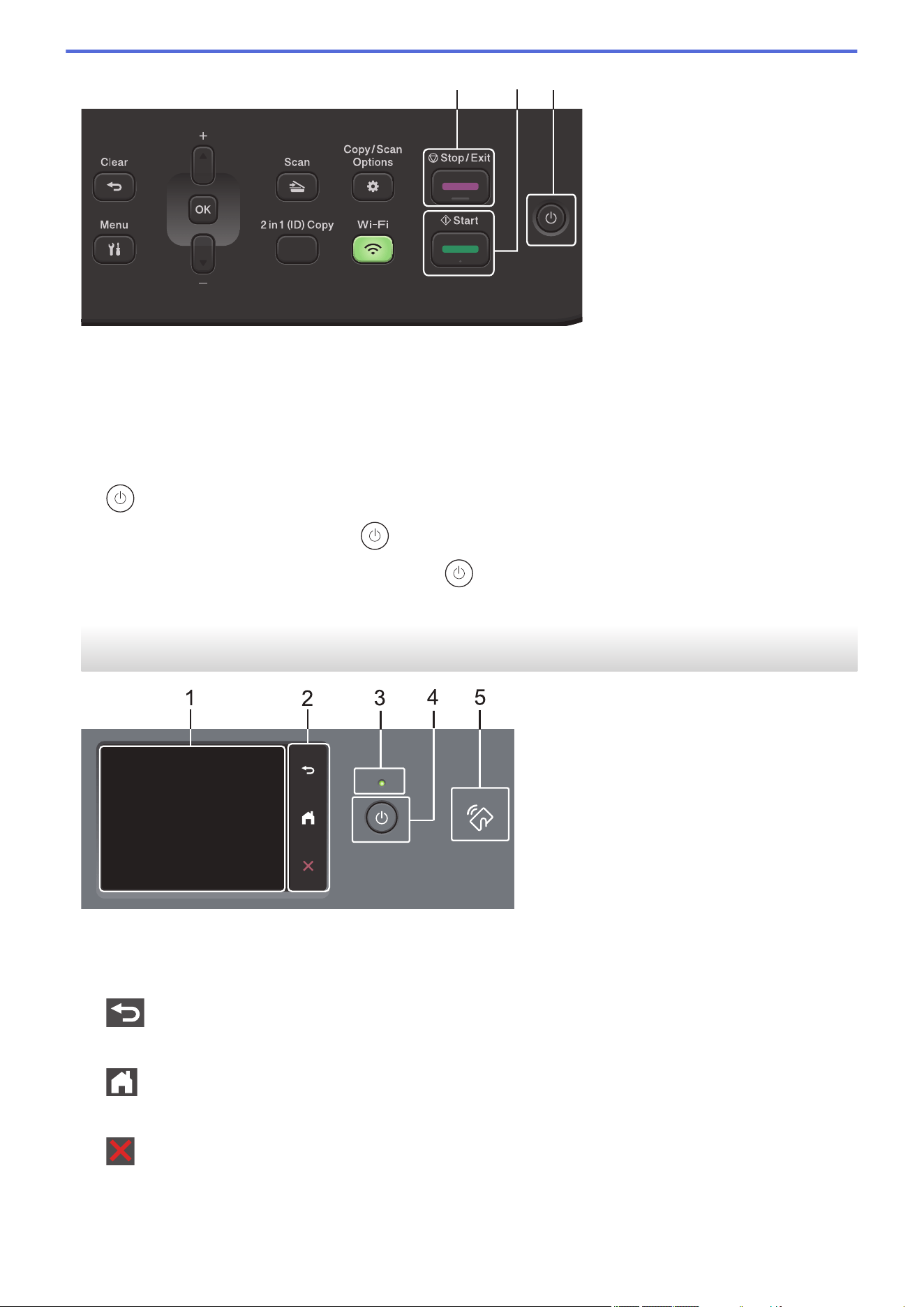
4
5
6
4. Stop/Exit
• Press to stop an operation.
• Press to exit from a menu.
5. Start
• Press to start copying.
• Press to start scanning documents.
6.
Power On/Off
• Turn on the machine by pressing .
• Turn off the machine by pressing and holding
. The LCD displays [Shutting Down] and stays on
for a few seconds before turning off.
HL-L2480DW/MFC-L2807DW/MFC-L2820DW/MFC-L2820DWXL/MFC-L2900DW/
MFC-L2900DWXL/MFC-L2980DW
1. Touchscreen Liquid Crystal Display (LCD)
Access menus and options by pressing them on the touchscreen.
2. Touchpanel
(Back)
Press to go back to the previous menu.
(Home)
Press to return to the Home screen.
(Cancel)
Press to cancel an operation.
14
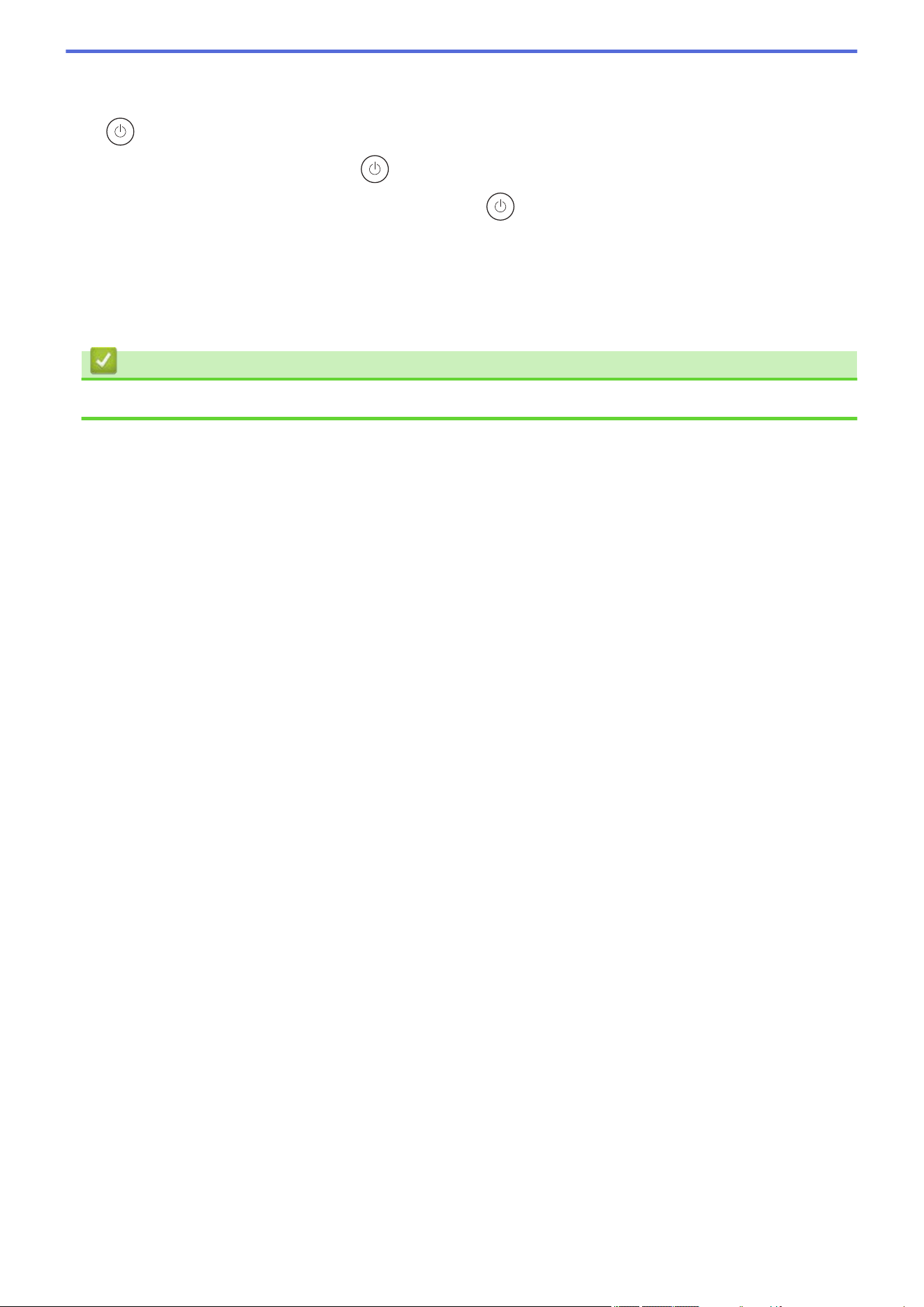
3. LED Power Indicator
The LED lights up depending on the machine’s power status.
4.
Power On/Off
• Turn on the machine by pressing .
• Turn off the machine by pressing and holding down . The touchscreen LCD displays [Shutting
Down] and stays on for a few seconds before turning off. If you have an external telephone or TAD
connected, it is always available.
5. Near Field Communication (NFC) (MFC-L2980DW)
Use card authentication, if applicable, by touching your Integrated Circuit Card (IC Card) to the NFC symbol
on the machine.
Related Information
• Introduction to Your Machine
15
Home > Introduction to Your Machine > Touchscreen LCD Overview
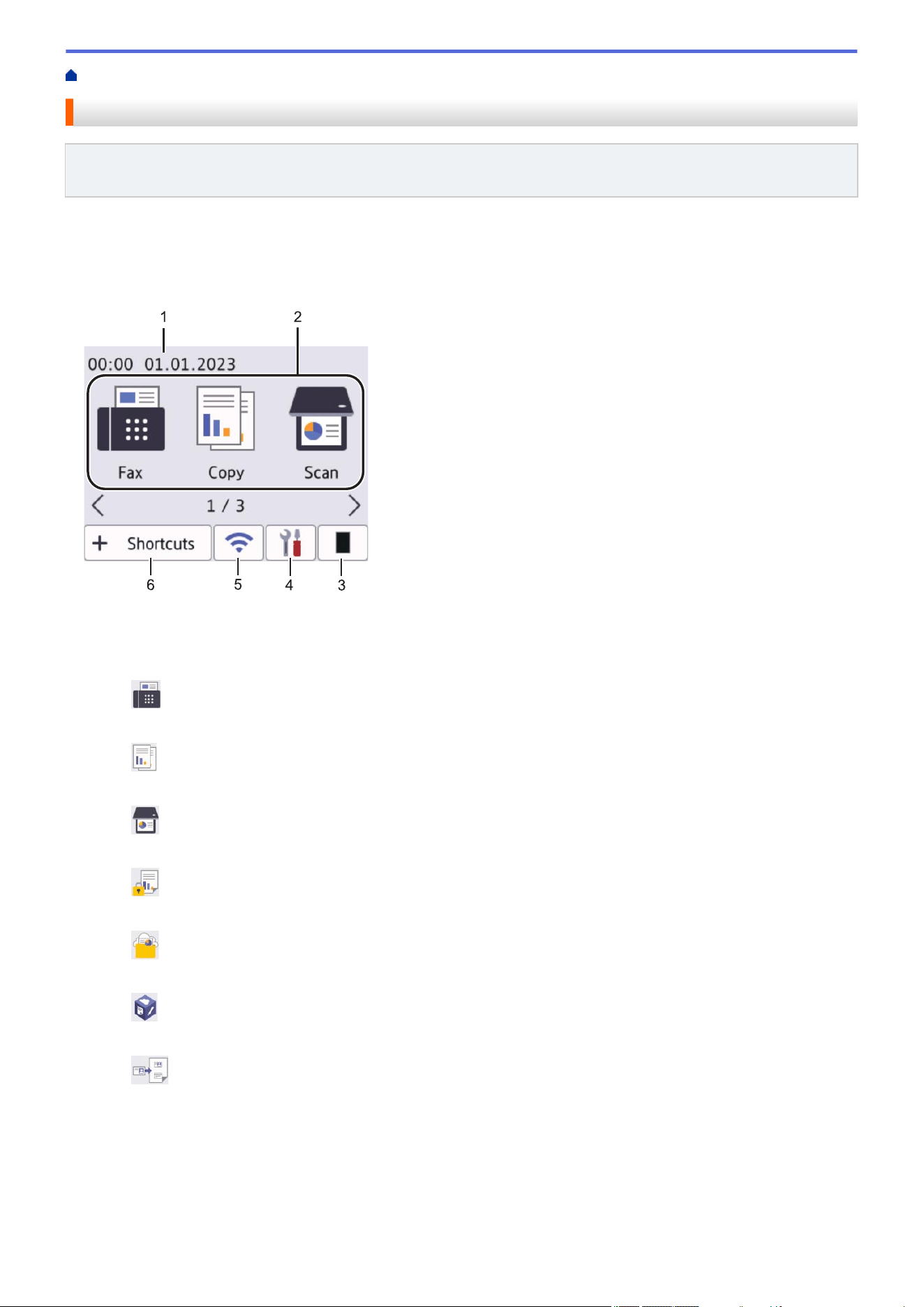
Touchscreen LCD Overview
Related Models: HL-L2480DW/MFC-L2807DW/MFC-L2820DW/MFC-L2820DWXL/MFC-L2900DW/
MFC-L2900DWXL/MFC-L2980DW
When a Home screen is displayed, press d or c to display the other Home screens.
The Home screen displays the machine's status when the machine is idle. When displayed, this screen indicates
that your machine is ready for the next command.
The available features will vary depending on your model.
1 2
3
4
5
6
1. Date & Time
Displays the date and time set on the machine.
2. Modes
•
[Fax]
Press to access Fax mode.
• [Copy]
Press to access Copy mode.
•
[Scan]
Press to access Scan mode.
•
[Secure Print]
Press to access the Secure Print option.
•
[Web]
Press to connect the Brother machine to an Internet service.
• [Apps]
Press to connect the Brother machine to the Brother Apps service.
•
[2 in 1 ID Copy]
Press to access 2in1(ID) Copy option.
3.
Toner
Displays the remaining toner life. Press to access the Toner menu.
16
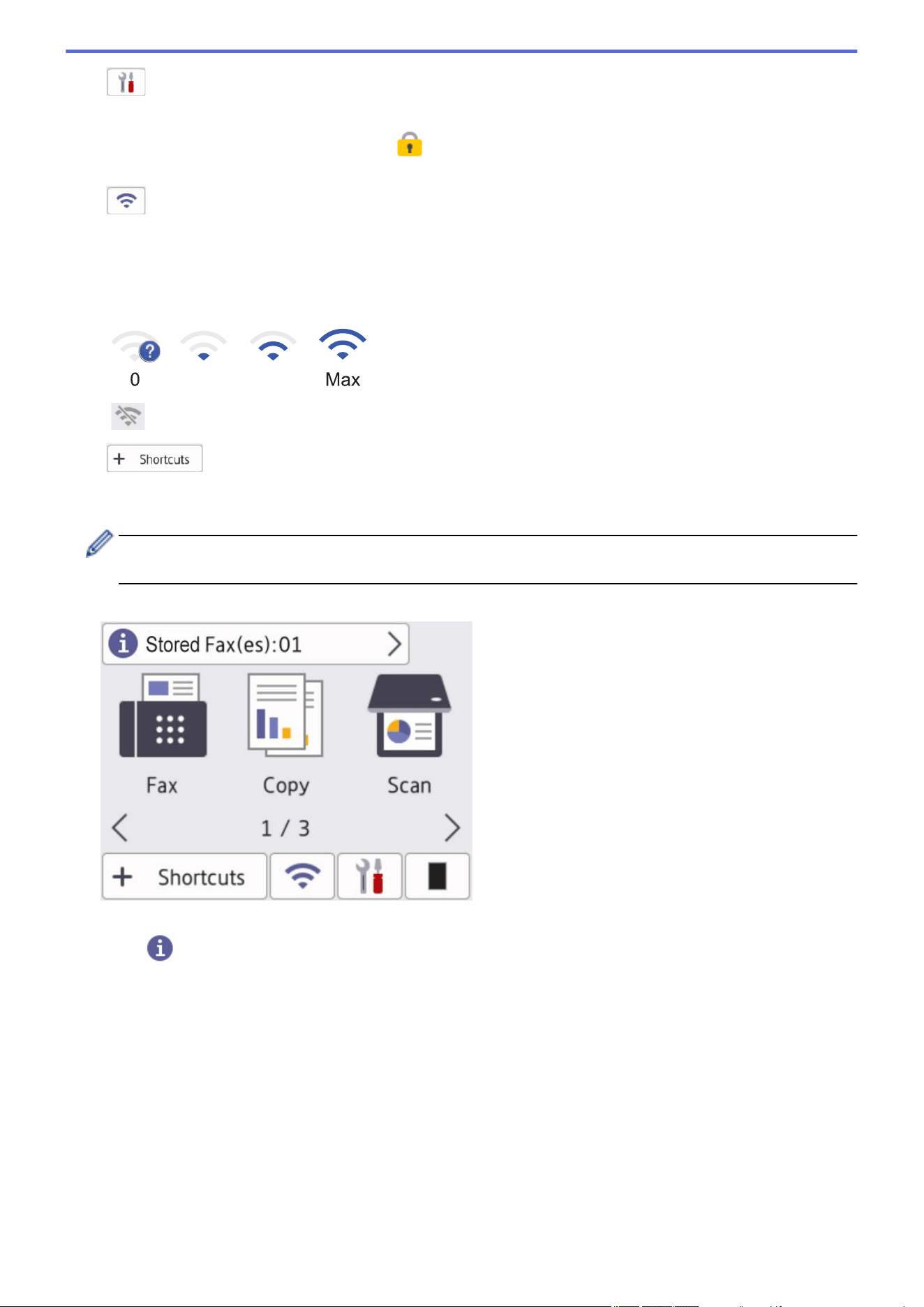
4. [Settings]
Press to access the Settings menu.
If Setting Lock has been turned on, a lock
icon appears on the LCD. You must unlock the machine to use
Settings.
5.
(Wireless Status for wireless models)
Press to configure wireless settings.
If you are using a wireless connection, a four-level indicator in each of the Home screens displays the current
wireless signal strength.
0 Max
Wireless LAN Disabled
6. [Shortcuts]
Press to create Shortcuts for frequently-used operations, such as sending a fax, making a copy, scanning,
and using Web Connect.
Three Shortcuts tabs are available with six Shortcuts on each Shortcuts tab. A total of 18 Shortcuts are
available.
Stored Fax(es)
The number of received faxes in memory appears at the top of the screen.
Press , and then press [Yes] to print the faxes.
17
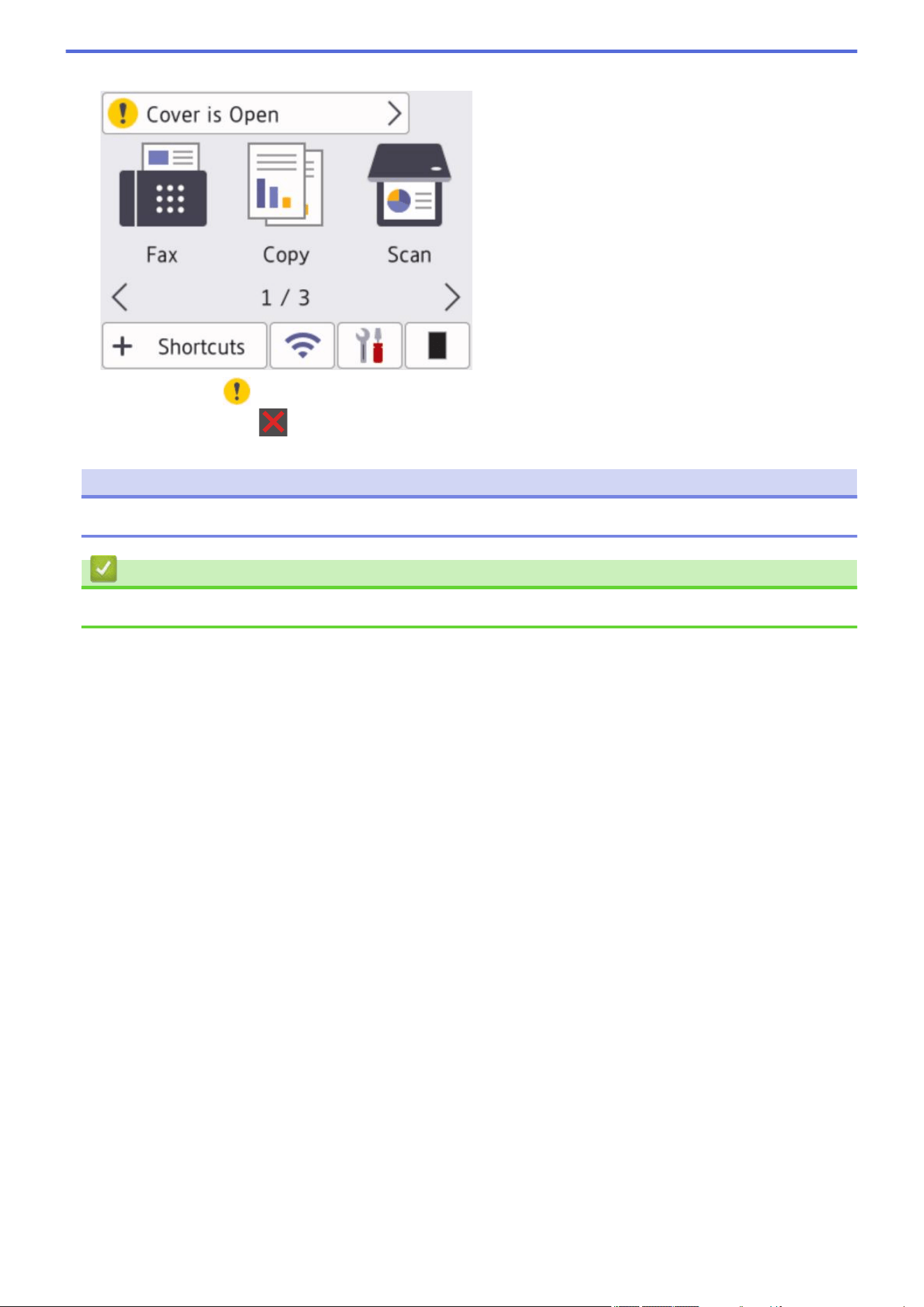
Home > Introduction to Your Machine > How to Navigate the Touchscreen LCD
How to Navigate the Touchscreen LCD
Related Models: HL-L2480DW/MFC-L2807DW/MFC-L2820DW/MFC-L2820DWXL/MFC-L2900DW/
MFC-L2900DWXL/MFC-L2980DW
Press your finger on the LCD to operate it. To display and access all the options, press d c or a b on the LCD to
scroll through them.
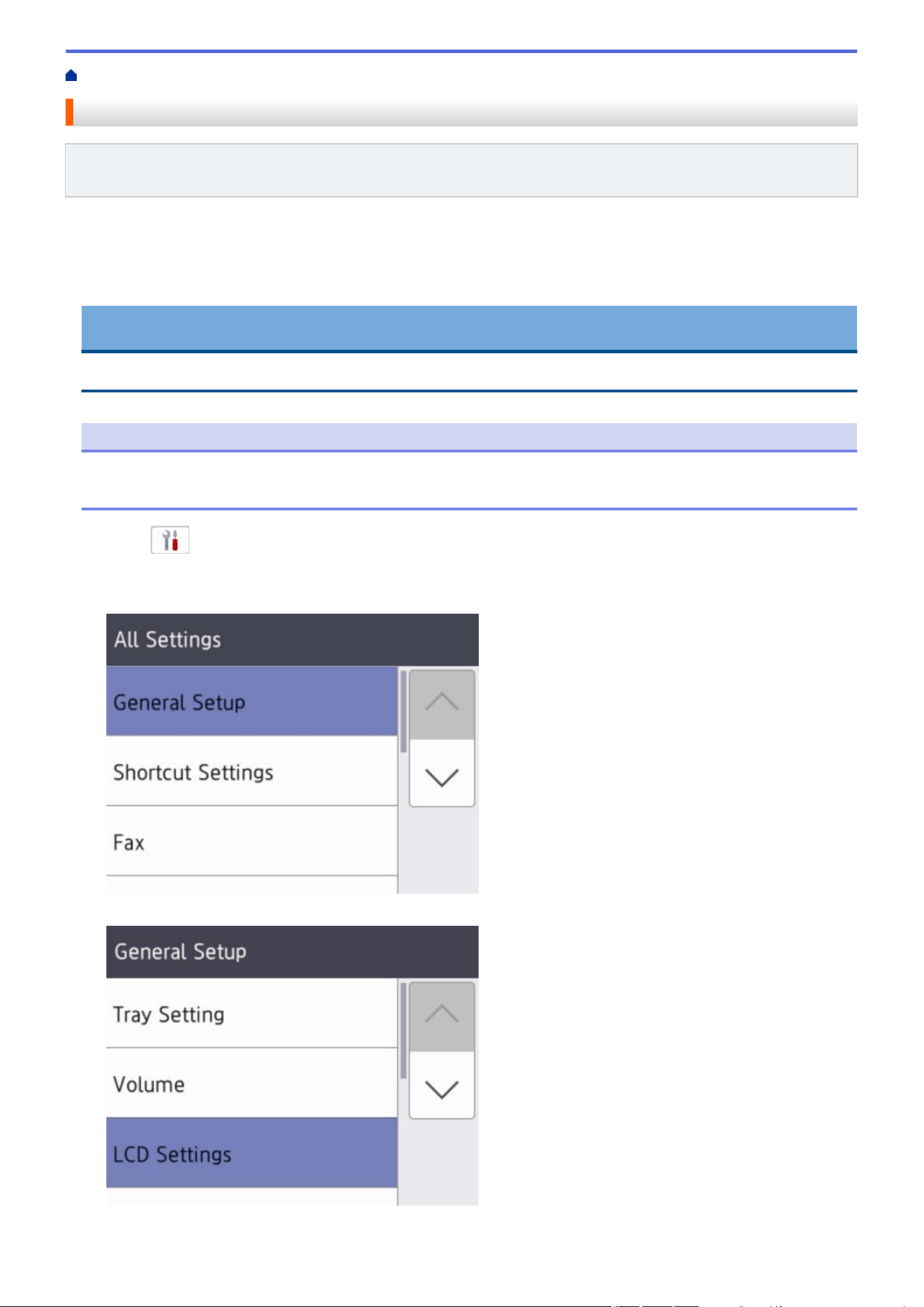
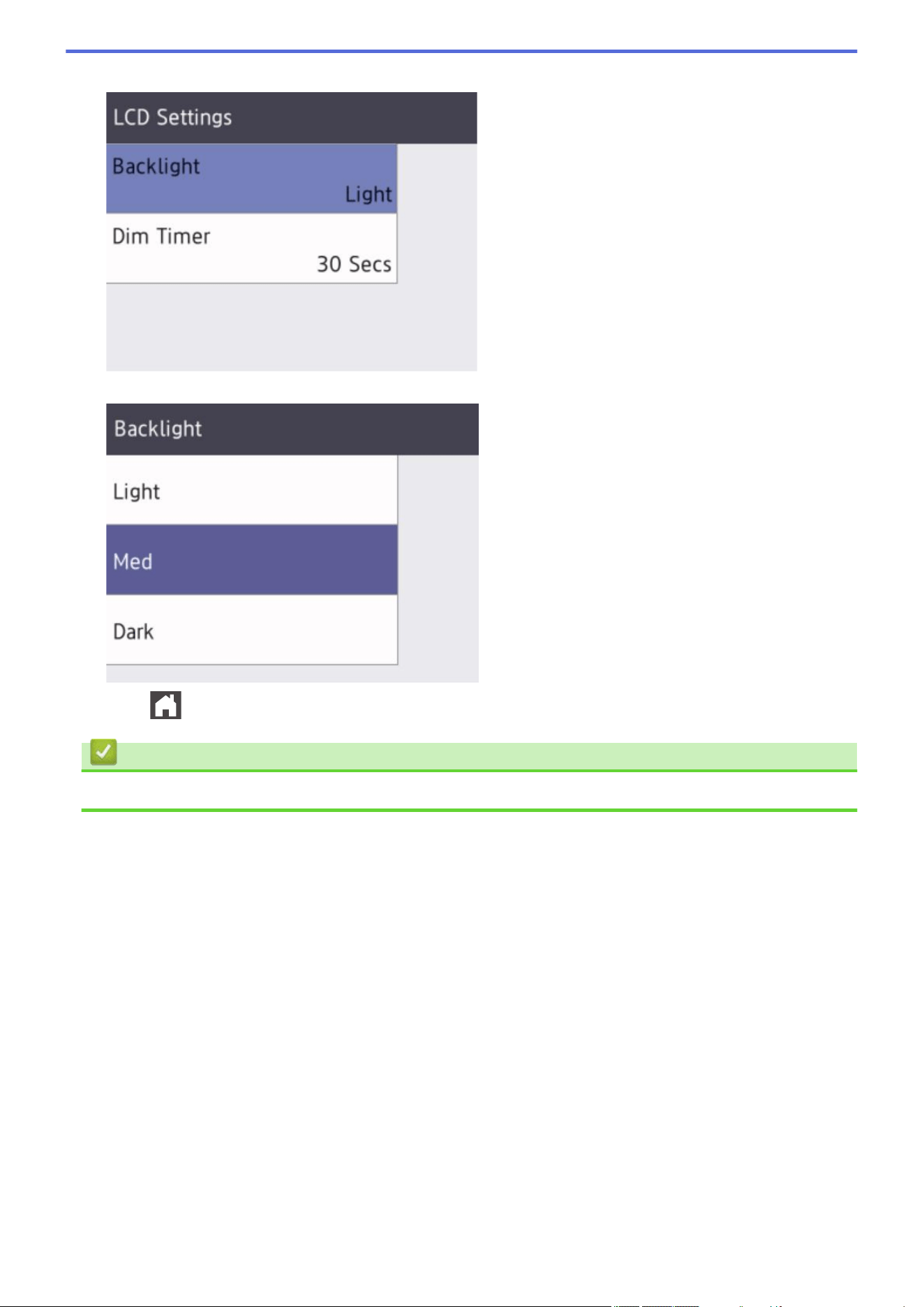
The following steps explain how to navigate through changing a machine setting. In this example, the LCD
Backlight setting is changed from [Light] to [Med].
IMPORTANT
DO NOT press the LCD with a sharp object such as a pen or stylus. It may damage the machine.
NOTE
DO NOT touch the LCD immediately after plugging in the power cord or turning on the machine. Doing this
may cause an error.
1. Press ([Settings]).
2. Press [All Settings].
3. Press a or b to display the [General Setup] option, and then press [General Setup].
4. Press a or b to display the [LCD Settings] option, and then press [LCD Settings].
19
Home > Introduction to Your Machine > Set the Main Home Screen
Set the Main Home Screen
Related Models: HL-L2480DW/MFC-L2807DW/MFC-L2820DW/MFC-L2820DWXL/MFC-L2900DW/
MFC-L2900DWXL/MFC-L2980DW
You can change the LCD to display a specific Home screen or Shortcut screen.
When the machine is idle or you press , the touchscreen will return to the screen you set.
1. Press
[Settings] > [All Settings] > [General Setup] > [Screen Settings] > [Home
Screen].
2. Press a or b to display the screen settings, and then press the setting you want.
3. Press .
The LCD displays the screen you selected. You can change this main screen as needed.
Related Information
• Introduction to Your Machine
21
Home > Introduction to Your Machine > Settings Screen Overview
Settings Screen Overview
Related Models: HL-L2480DW/MFC-L2807DW/MFC-L2820DW/MFC-L2820DWXL/MFC-L2900DW/
MFC-L2900DWXL/MFC-L2980DW
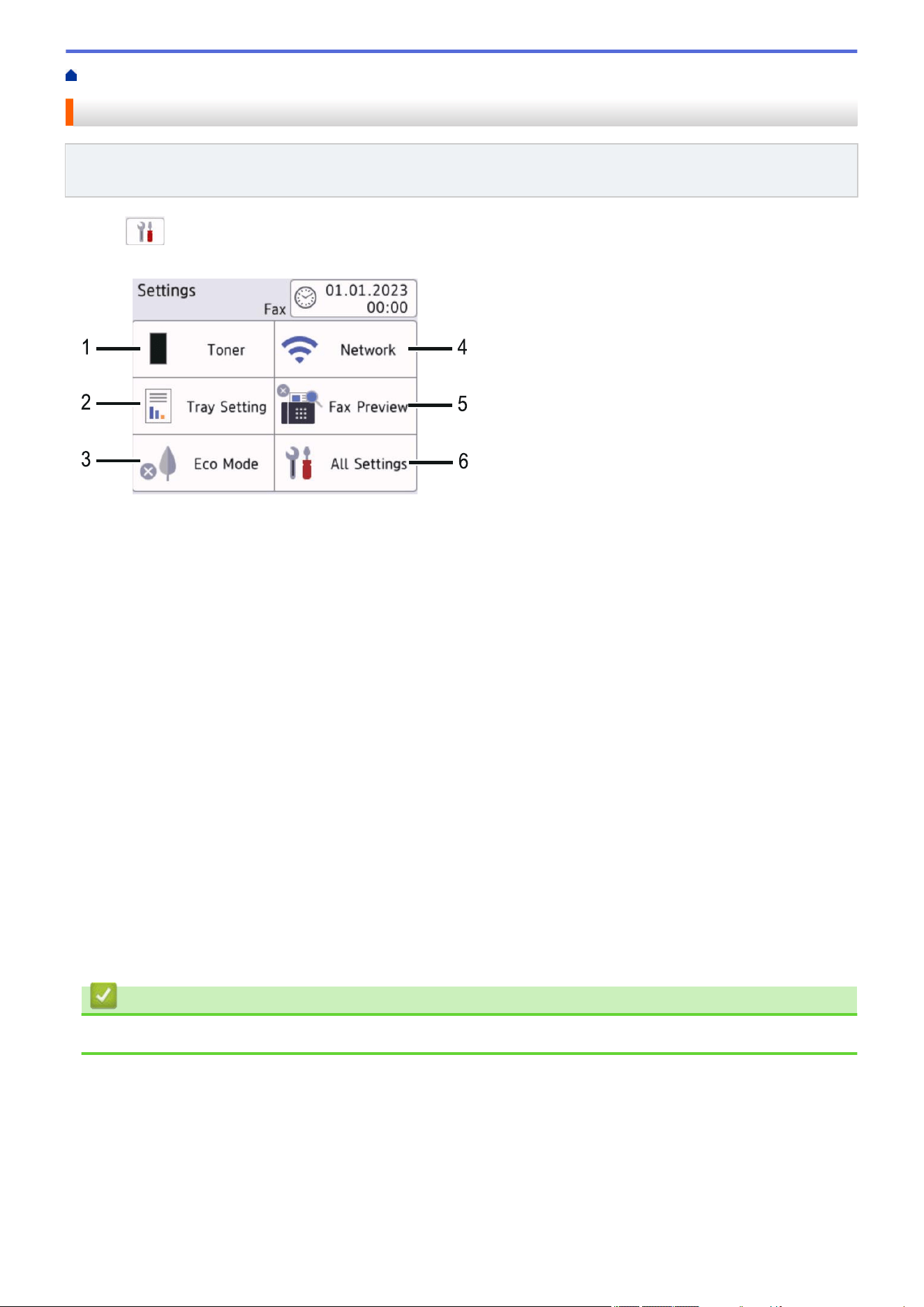
Press to view the current machine status on the LCD.
Use the Settings menu to access all of your machine's settings.
1. Toner
• Displays the remaining toner life.
• Press to access the [Toner] menu.
2. Tray Setting
Press to change the paper size and paper type settings.
3. Eco Mode
Press to access the [Eco Mode] menu.
4. Network
• Press to set up a network connection.
• A four-level indicator on the screen displays the current wireless signal strength if you are using a
wireless connection.
5. Fax Preview or Wi-Fi Direct
• Fax Preview (MFC-L2807DW/MFC-L2820DW/MFC-L2820DWXL/MFC-L2900DW/MFC-L2900DWXL/
MFC-L2980DW)
Press to access the [Fax Preview] menu.
• Wi-Fi Direct (HL-L2480DW)
Press to set up a Wi-Fi Direct
®
network connection.
6. All Settings
Press to access the menu of all machine settings.
Related Information
• Introduction to Your Machine
22
Home > Introduction to Your Machine > How to Enter Text on Your Machine
How to Enter Text on Your Machine
>> HL-L2465DW/DCP-L2640DW/DCP-L2647DW
>> MFC-L2760DW
>> HL-L2480DW/MFC-L2807DW/MFC-L2820DW/MFC-L2820DWXL/MFC-L2900DW/MFC-L2900DWXL/
MFC-L2980DW
HL-L2465DW/DCP-L2640DW/DCP-L2647DW
When text is required, enter characters on the machine. The characters that are available may differ depending
on the operation you perform.
• Hold down or repeatedly press a or b to select a character from this list:
0123456789abcdefghijklmnopqrstuvwxyzABCDEFGHIJKLMNOPQRSTUVWXYZ(space)!"#$%&'()*+,-./:;<=>?
@[\]^_‘{|}~
• Press OK when the character or symbol you want is displayed, and then enter the next character.
• Press Clear to delete characters entered incorrectly.
MFC-L2760DW
When text is required, enter characters on the machine. The characters that are available may differ depending
on the operation you perform.
The buttons 0, # and * are used for special characters.
(For Cyrillic letters) The buttons # and * are used for special characters.
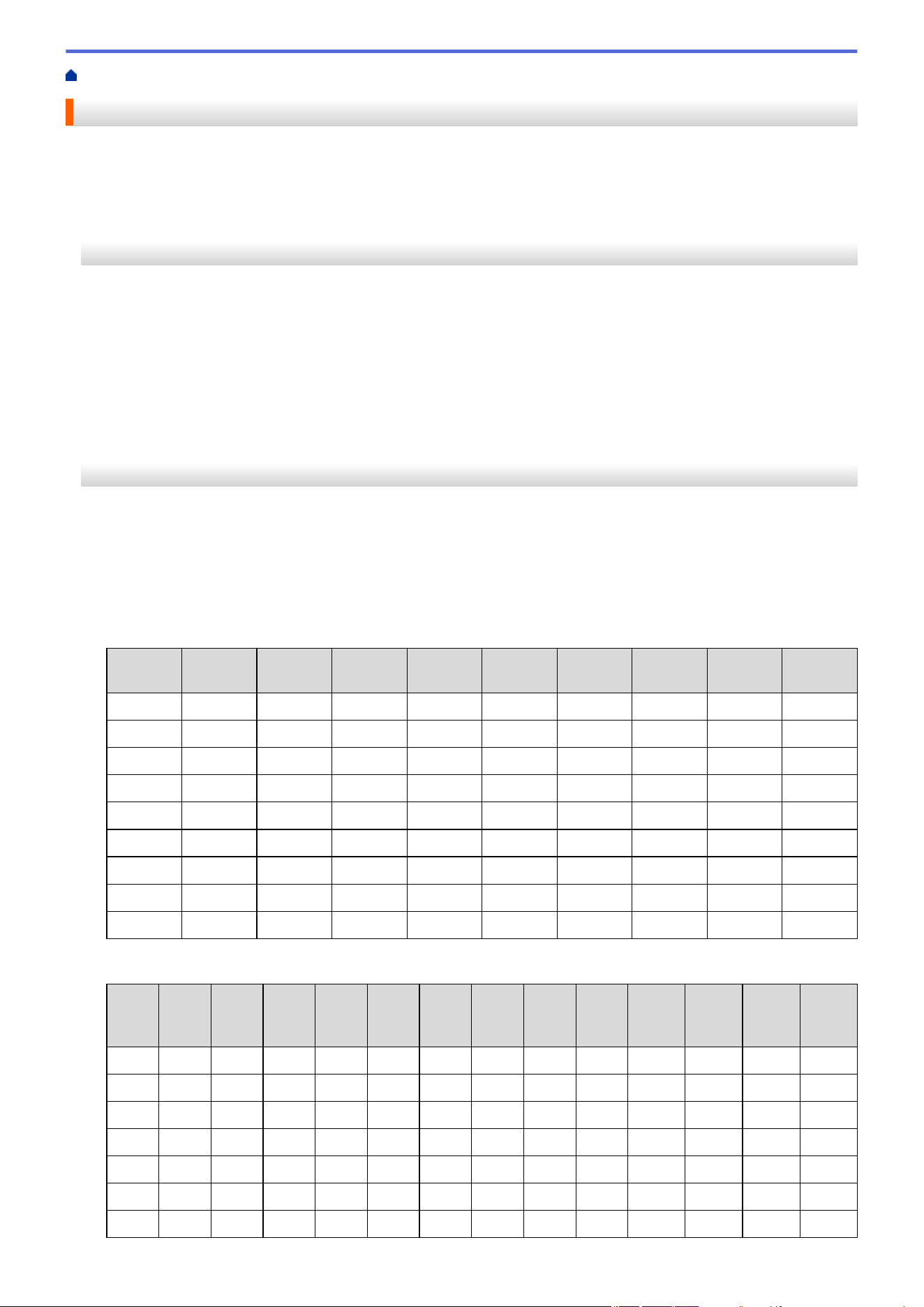
• Press the appropriate dial pad button the number of times shown in this reference table to access the
character you want.
Press
button
One time
Two
times
Three
times
Four
times
Five
times
Six times
Seven
times
Eight
times
Nine
times
1 @ . / 1 @ . / 1 @
2 a b c A B C 2 a b
3 d e f D E F 3 d e
4 g h i G H I 4 g h
5 j k l J K L 5 j k
6 m n o M N O 6 m n
7 p q r s P Q R S 7
8 t u v T U V 8 t u
9 w x y z W X Y Z 9
(For Cyrillic letters)
Press
butto
n
One
time
Two
times
Three
times
Four
times
Five
times
Six
times
Seve
n
times
Eight
times
Nine
times
Ten
times
Eleven
times
Twelv
e
times
Thirte
en
times
2 A B C a b c А Б В Г 2 A B
3 D E F d e f Д Е Ё Ж 3 D E
4 G H I g h i З И Й К 4 G H
5 J K L j k l Л М Н О 5 J K
6 M N O m n o П Р С Т 6 M N
7 P Q R S p q r s У Ф Х Ц 7
8 T U V t u v Ч Ш Щ Ъ Ы 8 T
23
Press
butto
n
One
time
Two
times
Three
times
Four
times
Five
times
Six
times
Seve
n
times
Eight
times
Nine
times
Ten
times
Eleven
times
Twelv
e
times
Thirte
en
times
9 W X Y Z w x y z Ь Э Ю Я 9
• Inserting spaces
To enter a space in a fax number, press c once between numbers. To enter a space in a name, press c twice
between characters.
• Making corrections
If you entered a character incorrectly and want to change it, press d or c to move the cursor to the incorrect
character, and then press Clear.
• Repeating letters
To enter a letter on the same button as the previous letter, press c to move the cursor right before pressing
the button again.
• Special symbols and characters
Press *, # or 0, then press d or c to move the cursor to the symbol or character you want. Press OK to select
it. The symbols and characters that are available on dial pad buttons are shown in the table.
Press *
(space) ! " # $ % & ’ ( ) * + , - . / €
Press # : ; < = > ? @ [ ] ^ _ \ ~ ‘ | { }
Press 0 (Not available for Cyrillic letters) Á À Ã Â Ç É È Ê Ë Í Î Ï Ó Õ Ô Ö Ú Ù 0
HL-L2480DW/MFC-L2807DW/MFC-L2820DW/MFC-L2820DWXL/MFC-L2900DW/
MFC-L2900DWXL/MFC-L2980DW
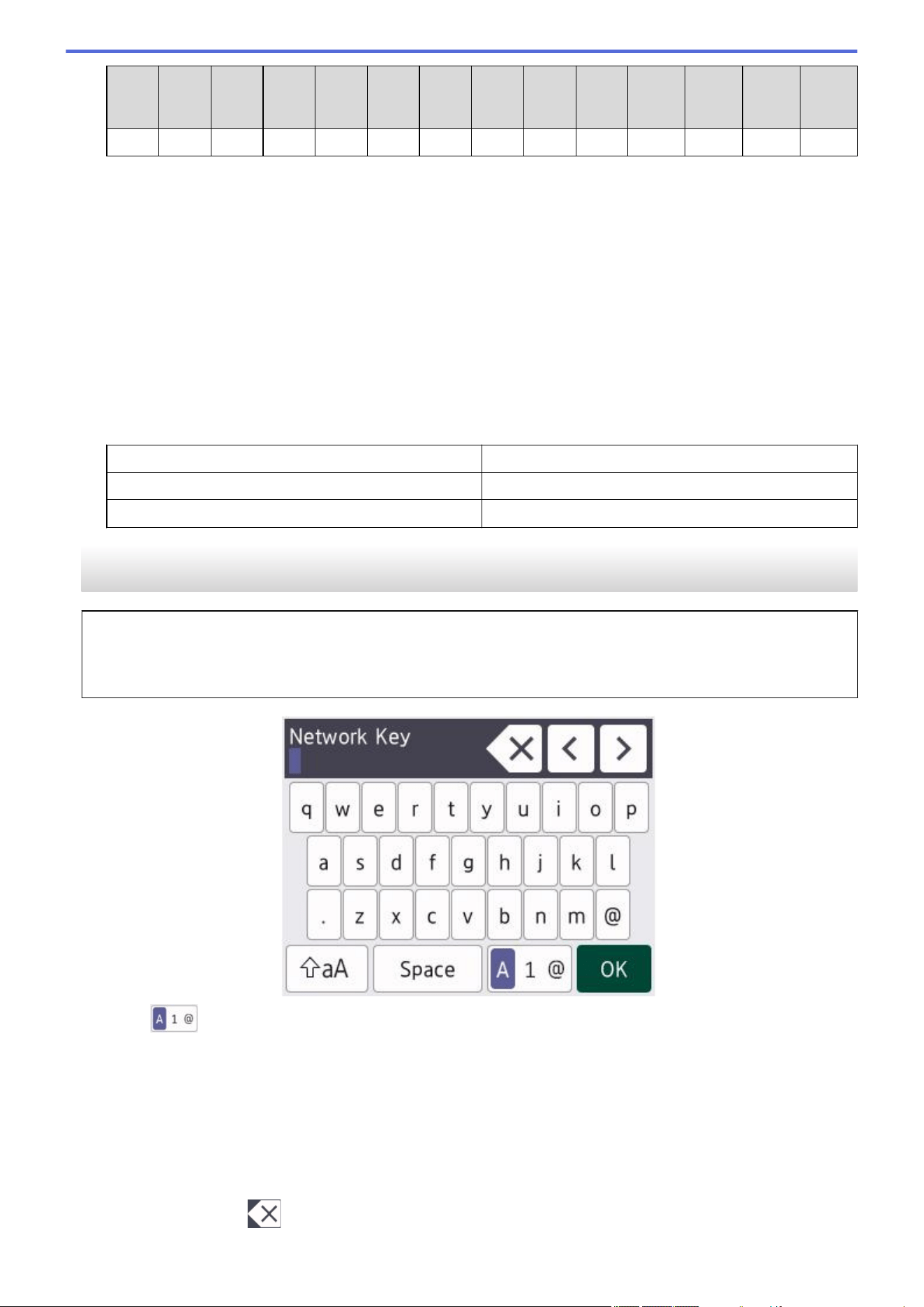
• When you must enter text on your machine, a keyboard appears on the LCD.
• The characters that are available may differ depending on your country.
• The keyboard layout may differ depending on the operation you perform.
• Press to cycle between letters, numbers, and special characters.
• Press
to cycle between lowercase and uppercase letters.
• To move the cursor to the left or right, press d or c.
Inserting spaces
• To enter a space, press [Space].
Making corrections
• If you entered a character incorrectly and want to change it, press d or c to move the cursor to the incorrect
character and press
. Enter the correct character.
24
• To insert a character, press d or c to move the cursor to the correct place, and then enter the character.
• Press for each character you want to erase, or press and hold to erase all the characters.
Related Information
• Introduction to Your Machine
Related Topics:
• Configure Your Machine for a Wireless Network Using the Machine's Control Panel Setup Wizard
• Configure Your Machine for a Wireless Network When the SSID Is Not Broadcast
• Set Your Station ID
• Set the Setting Lock Password
• Register an Account on Your Brother Machine for Brother Web Connect
• Download and Print Using Web Services
25
Home > Introduction to Your Machine > Access Brother Utilities (Windows)
Access Brother Utilities (Windows)
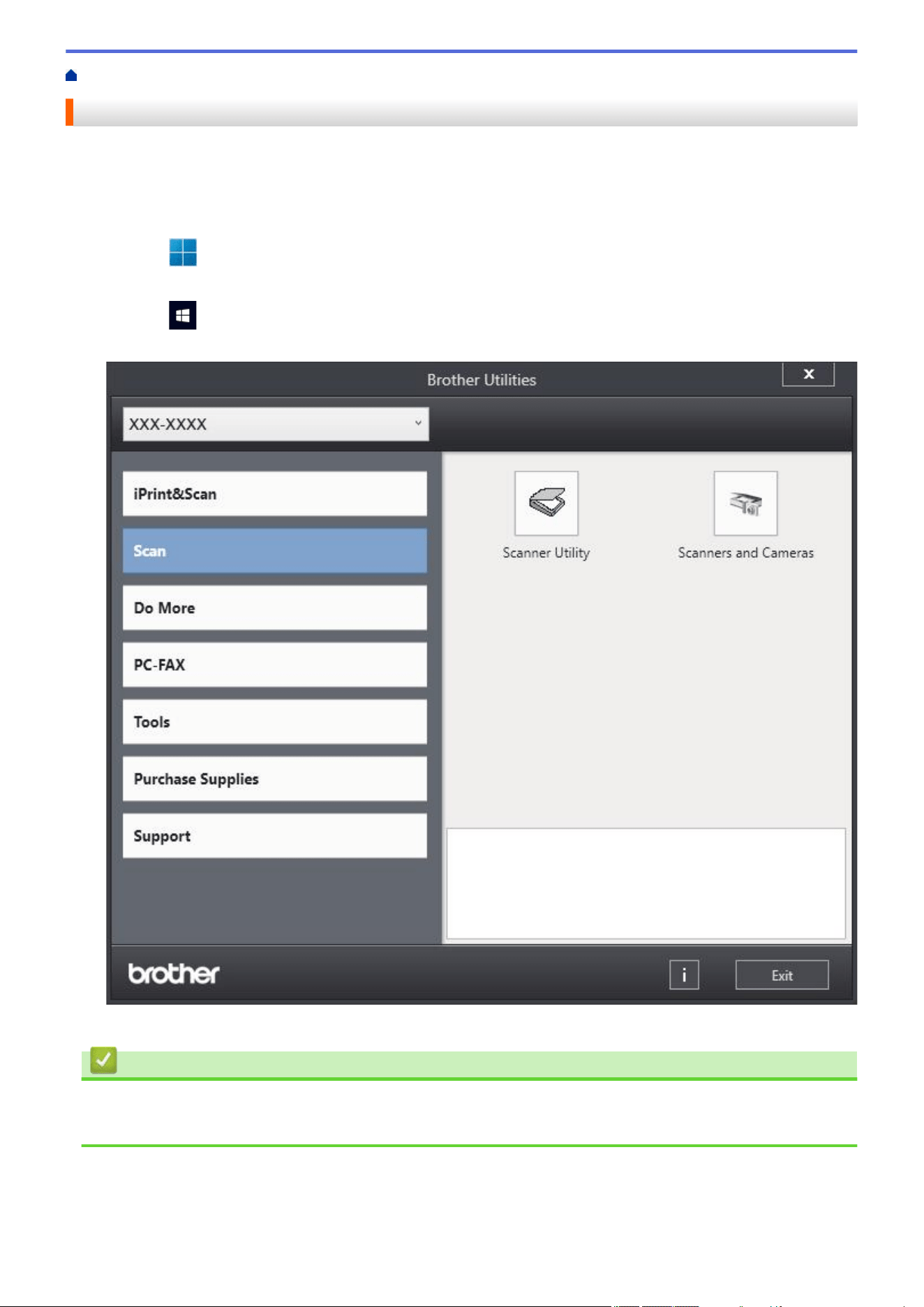
Brother Utilities is an application launcher that offers convenient access to all Brother applications installed on
your computer.
1. Do one of the following:
• (Windows 11)
Click
> All apps > Brother > Brother Utilities.
• (Windows 10)
Click > Brother > Brother Utilities.
2. Select your machine.
3. Choose the option you want.
Related Information
• Introduction to Your Machine
• Uninstall the Software and Drivers (Windows)
26
Home > Introduction to Your Machine > Access Brother Utilities (Windows) > Uninstall the Software and
Drivers (Windows)
Uninstall the Software and Drivers (Windows)
1. Do one of the following:
• Windows 11
Click
> All apps > Brother > Brother Utilities.
• Windows 10
Click > Brother > Brother Utilities.
2. Select your model from the drop-down list (if it is not already selected).
3. Click Tools in the left navigation bar.
• If the Software Update Notification icon is visible, select it, and then click Check now > Check for
Software Updates > Update. Follow the on-screen instructions.
• If the Software Update Notification icon is not visible, go to the next step.
4. Click Uninstall in the Tools section of Brother Utilities.
Follow the instructions in the dialog box to uninstall the software and drivers.
Related Information
• Access Brother Utilities (Windows)
27
Home > Introduction to Your Machine > Access Brother iPrint&Scan (Windows/Mac)
Access Brother iPrint&Scan (Windows/Mac)
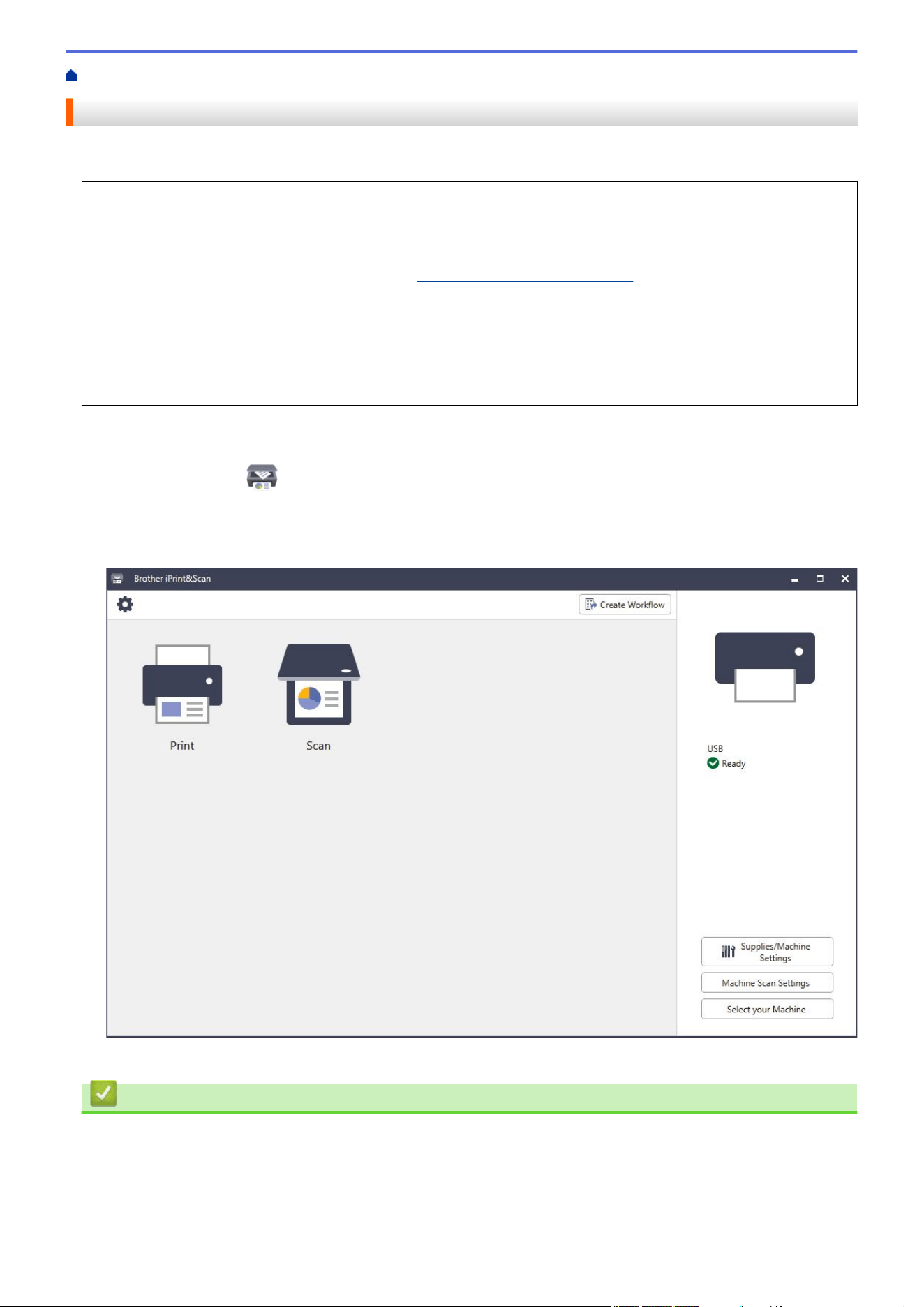
Use Brother iPrint&Scan for Windows and Mac to print and scan from your computer.
• This function is not available in countries subject to applicable export regulations.
• To download the latest version:
- For Windows:
Go to your model's Downloads page at
support.brother.com/downloads, and then download and install
Brother iPrint&Scan.
- For Mac:
Download and install Brother iPrint&Scan from the Apple App Store.
If prompted, install the driver and software necessary to use your machine. Download your machine's
latest driver and software from your model's Downloads page at
support.brother.com/downloads.
1. Start Brother iPrint&Scan.
• Windows
Double-click the
(Brother iPrint&Scan) icon
• Mac
In the Finder menu bar, click Go > Applications, and then double-click the iPrint&Scan icon.
The Brother iPrint&Scan screen appears.
The actual screen may differ depending on the version of the application.
Related Information
• Introduction to Your Machine
Related Topics:
• Brother Mobile Connect
• Scan Using Brother iPrint&Scan (Windows/Mac)
28

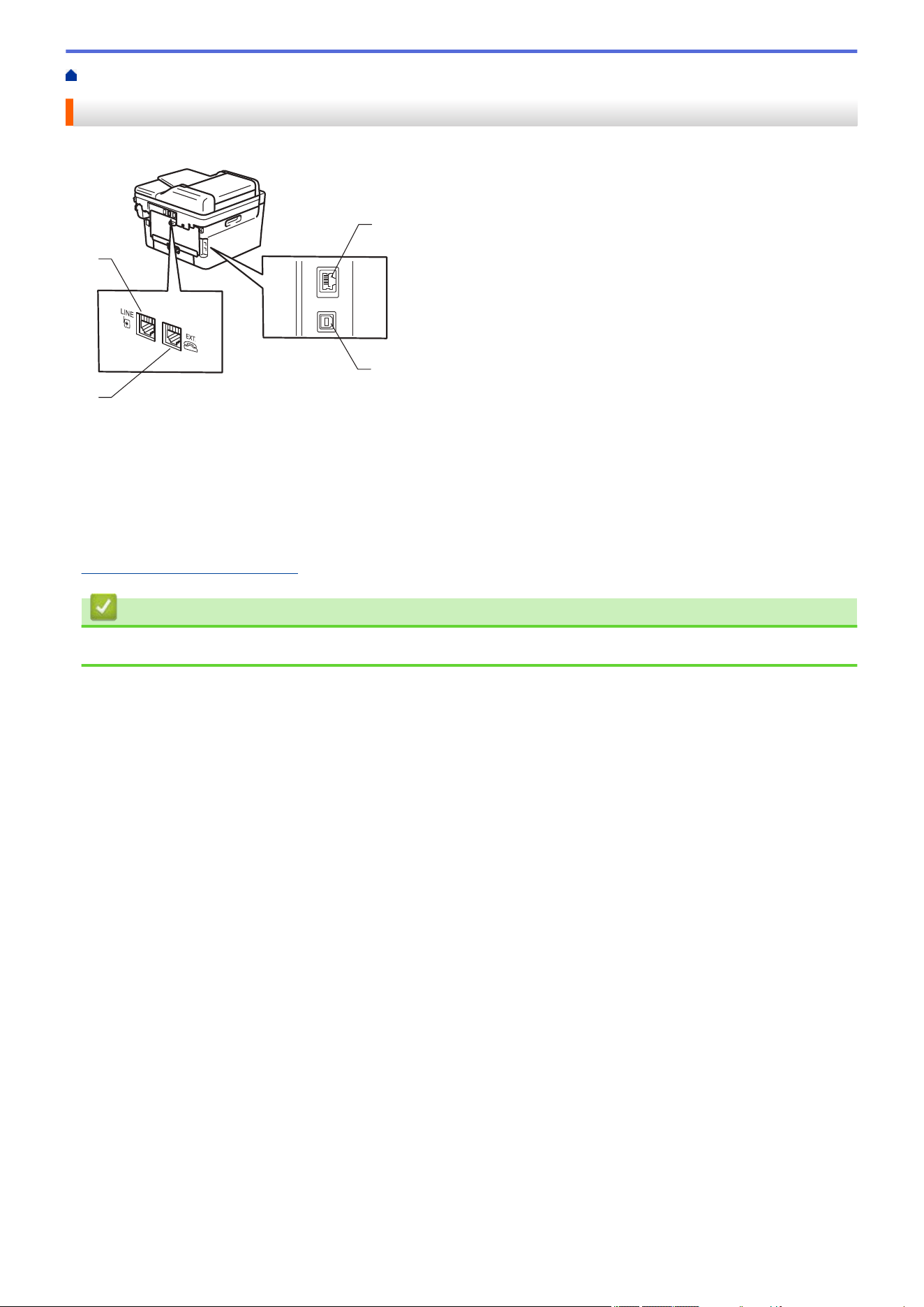
Home > Introduction to Your Machine > Input/Output Port Locations on Your Machine
Input/Output Port Locations on Your Machine
The input/output ports are located on the front and back of the machine.
3
4
1
2
1. LINE jack(For MFC models)
2. EXT. jack(For MFC models)
3. 10BASE-T / 100BASE-TX port (For network models)
4. USB port
When connecting the USB or network cable, follow the instructions in the software/driver installer.
To install driver and software necessary for operating your machine, go to your model's Downloads page at
support.brother.com/downloads.
Related Information
• Introduction to Your Machine
30


Home > Paper Handling > Load Paper > Load Paper in the Paper Tray
Load Paper in the Paper Tray
• If, when the Check Paper setting is set to On and you pull the paper tray out of the machine, a message
appears on the LCD asking if you want to change the paper size and paper type, change these settings, if
needed, following the LCD instructions.
• When you load a different size and type of paper in the tray, you must also change the Paper Size and
Paper Type settings on the machine, or on your computer.
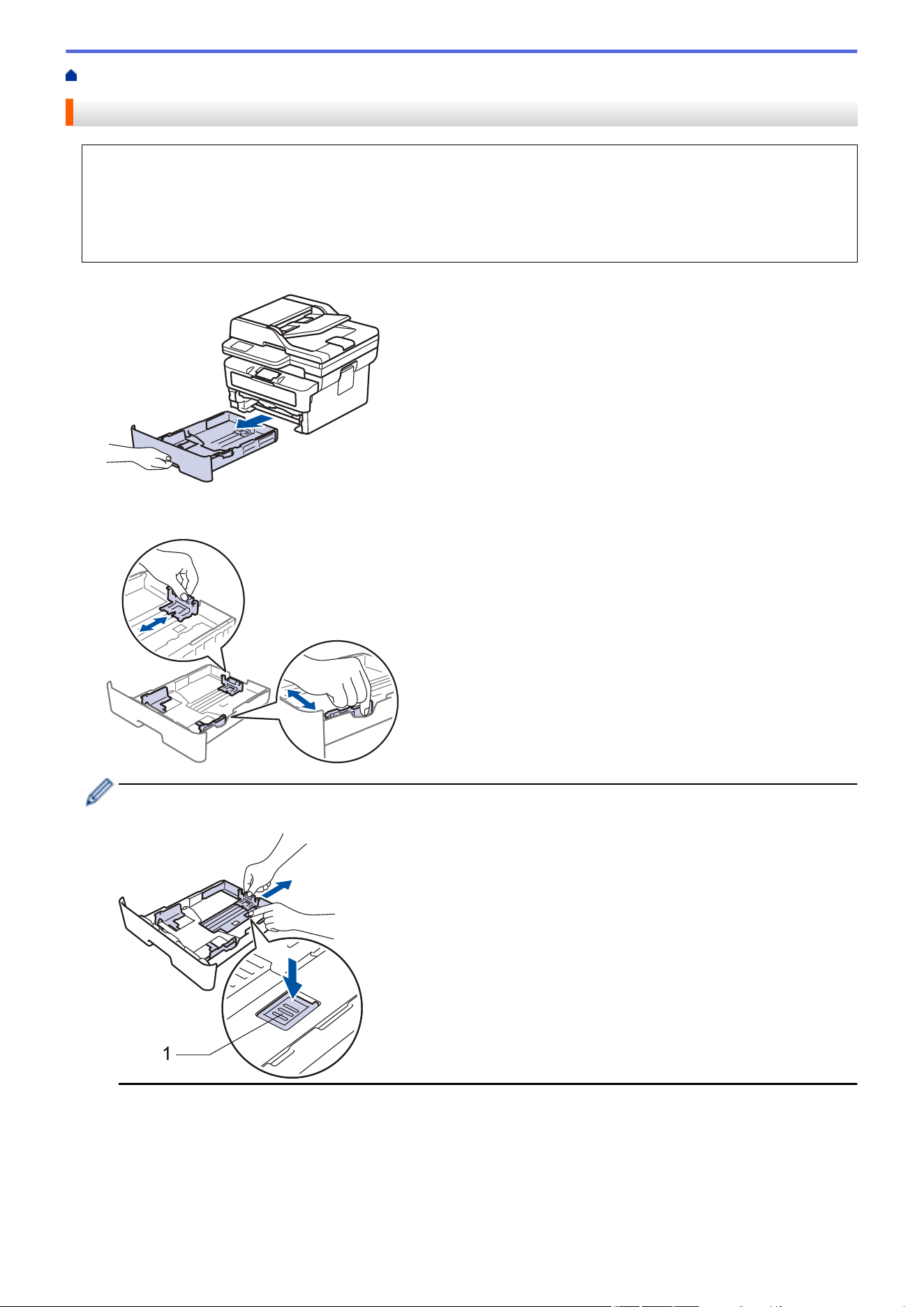
1. Pull the paper tray completely out of the machine.
2. Press and slide the paper guides to fit the paper.
Press the green release levers to slide the paper guides.
For Legal or Folio size paper, press the release button (1) in the bottom of the paper tray and then pull out
the back of the paper tray. (Legal and Folio size paper are not available in some regions.)
1
3. Fan the stack of paper well.
4. Load paper in the paper tray with the printing surface face down.
33
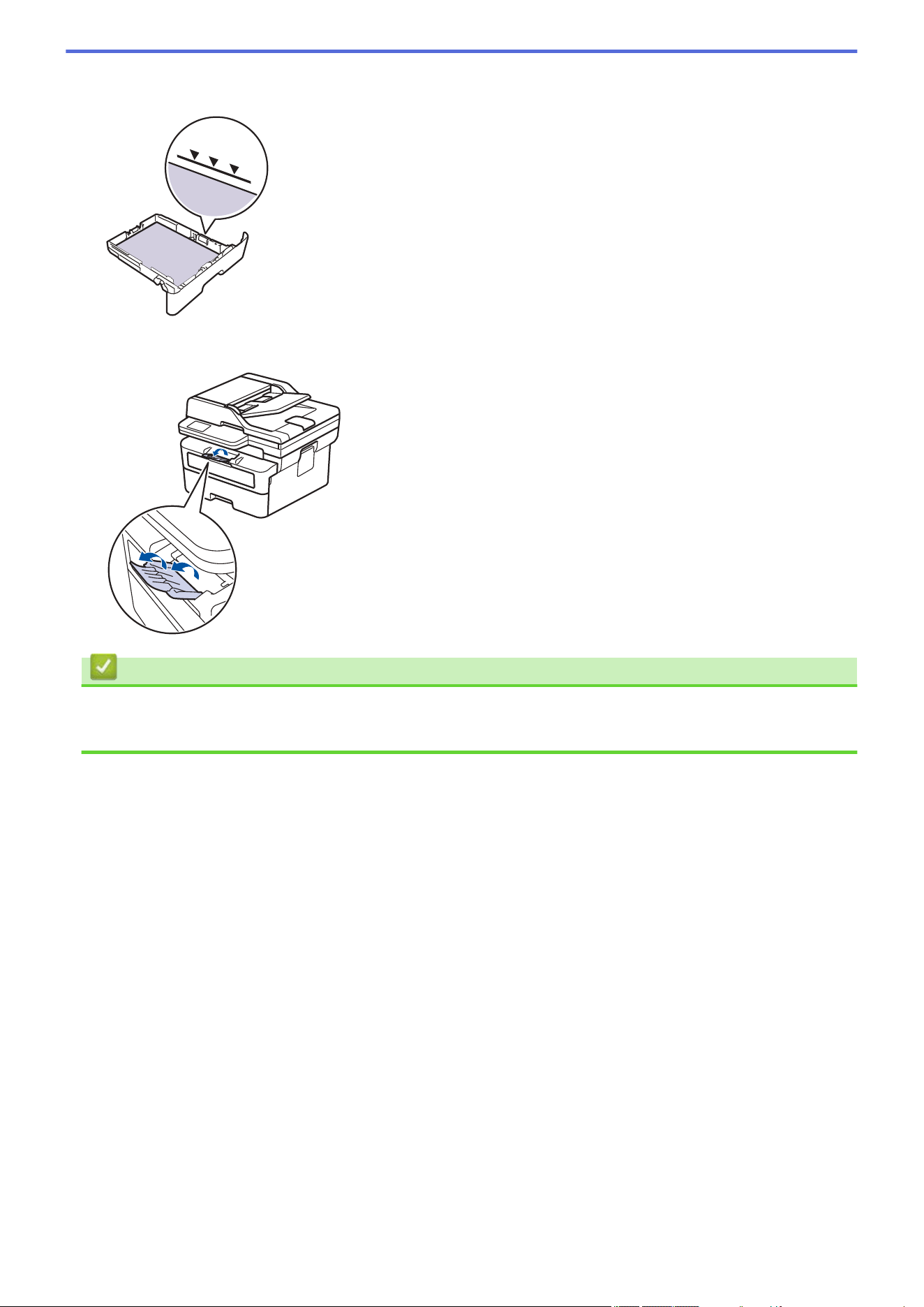
5. Make sure the paper is below the maximum paper mark (b b b).
Overfilling the paper tray will cause paper jams.
6. Slowly push the paper tray completely into the machine.
7. Lift the support flap to prevent paper from sliding off the output tray.
Related Information
• Load Paper
• Change Machine Settings to Print on Preprinted Paper Using the Paper Tray
34
Home > Paper Handling > Load Paper > Load Paper in the Paper Tray > Change Machine Settings to Print
on Preprinted Paper Using the Paper Tray
Change Machine Settings to Print on Preprinted Paper Using the Paper
Tray
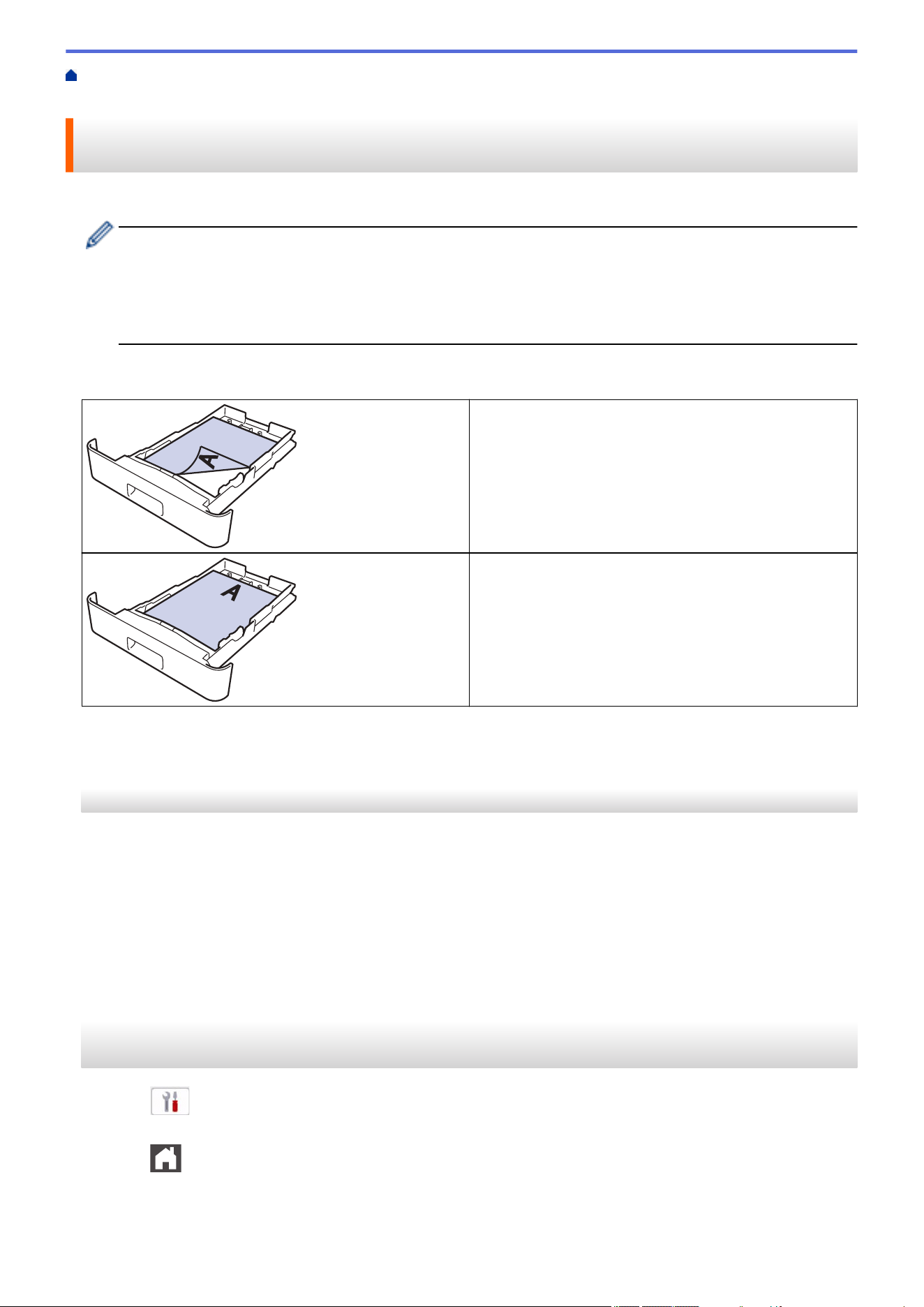
When you use preprinted paper for 2-sided printing, change the machine's settings.
• DO NOT load different sizes and types of paper in the paper tray at the same time. Doing this may
cause the paper to jam or misfeed.
• If the print position is misaligned with the preprinted objects, the print position is adjustable using the
Print Position setting for the paper tray.
• Some preprinted paper may cause print stains, depending on the printing method and ink type.
Orientation
For 1-sided printing
• face down
• top edge toward the front of the paper tray
For automatic 2-sided printing (long edge binding)
• face up
• bottom edge toward the front of the paper tray
>> HL-L2465DW/DCP-L2640DW/DCP-L2647DW/MFC-L2760DW
>> HL-L2480DW/MFC-L2807DW/MFC-L2820DW/MFC-L2820DWXL/MFC-L2900DW/MFC-L2900DWXL/
MFC-L2980DW
HL-L2465DW/DCP-L2640DW/DCP-L2647DW/MFC-L2760DW
1. Press Menu.
2. Press a or b to select the following:
a. Select [Printer]. Press OK.
b. Select [2-sided]. Press OK.
c. Select [Single Image]. Press OK.
d. Select [2-sided Feed]. Press OK.
3. Press Stop/Exit.
HL-L2480DW/MFC-L2807DW/MFC-L2820DW/MFC-L2820DWXL/MFC-L2900DW/
MFC-L2900DWXL/MFC-L2980DW
1. Press
[Settings] > [All Settings] > [Printer] > [2-sided] > [Single Image] > [2-
sided Feed].
2. Press
.
35

Home > Paper Handling > Load Paper > Load and Print Plain Paper, Thin Paper, Recycled Paper and Bond
Paper in the Manual Feed Slot
Load and Print Plain Paper, Thin Paper, Recycled Paper and Bond
Paper in the Manual Feed Slot
When you load a different paper size in the tray, you must change the Paper Size setting in the machine or on
your computer at the same time.
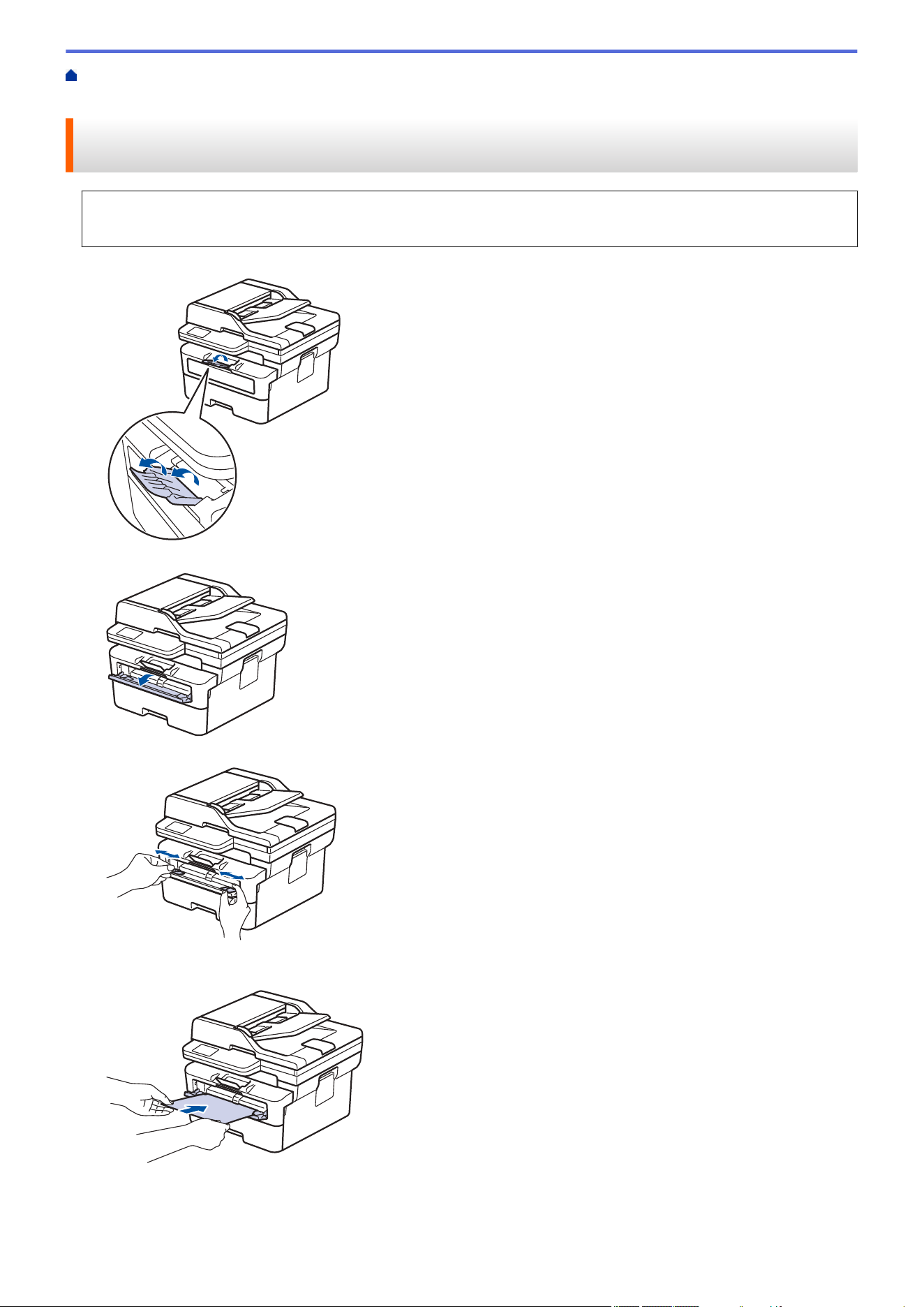
1. Lift the support flap to prevent paper from sliding off the face down output tray.
2. Open the manual feed slot cover.
3. Use both hands to slide the manual feed slot paper guides to fit the width of the paper you are using.
4. Using both hands, place one sheet of paper in the manual feed slot until the front edge touches the paper
feed roller. When you feel the machine pull it in, let go.
37
• Load paper into the manual feed slot with the printing surface facing up.
• Make sure the paper is straight and in the correct position in the manual feed slot. If it is not, the paper
may not be fed correctly, resulting in a skewed printout or a paper jam.
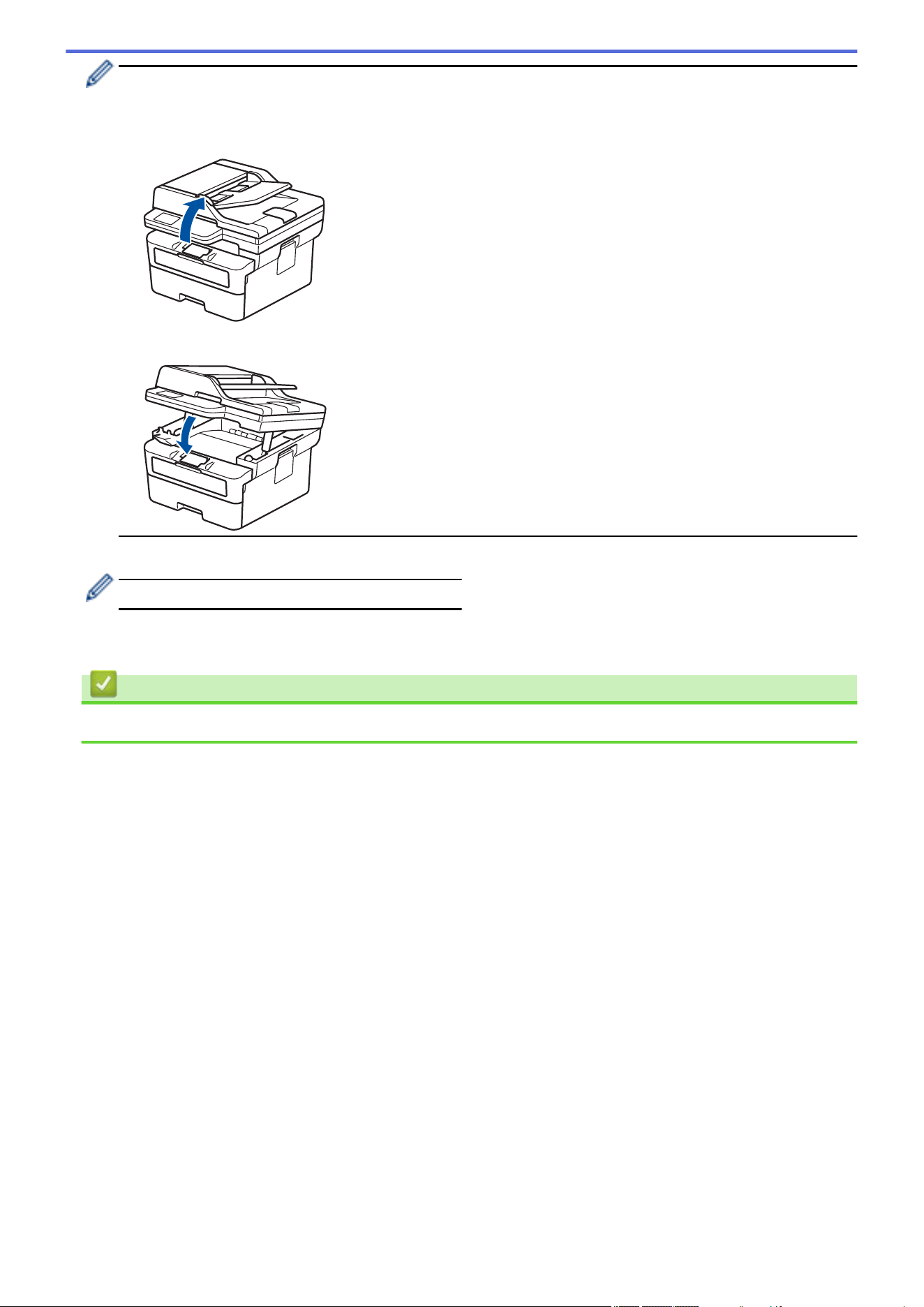
• To remove a small printout from the output tray, use both hands to lift up the scanner cover.
• You can still use the machine while the scanner cover is up. To close the scanner cover, gently push it
down with both hands.
5. Send your print job to the machine.
Change your print preferences in the Print screen.
6. After the printed page comes out from the machine, load the next sheet of paper in the manual feed slot.
Repeat for each page that you want to print.
Related Information
• Load Paper
38
Home > Paper Handling > Load Paper > Load and Print on Thick Paper and Labels Using the Manual Feed
Slot
Load and Print on Thick Paper and Labels Using the Manual Feed Slot
When you load a different paper size in the tray, you must change the Paper Size setting in the machine or on
your computer at the same time.
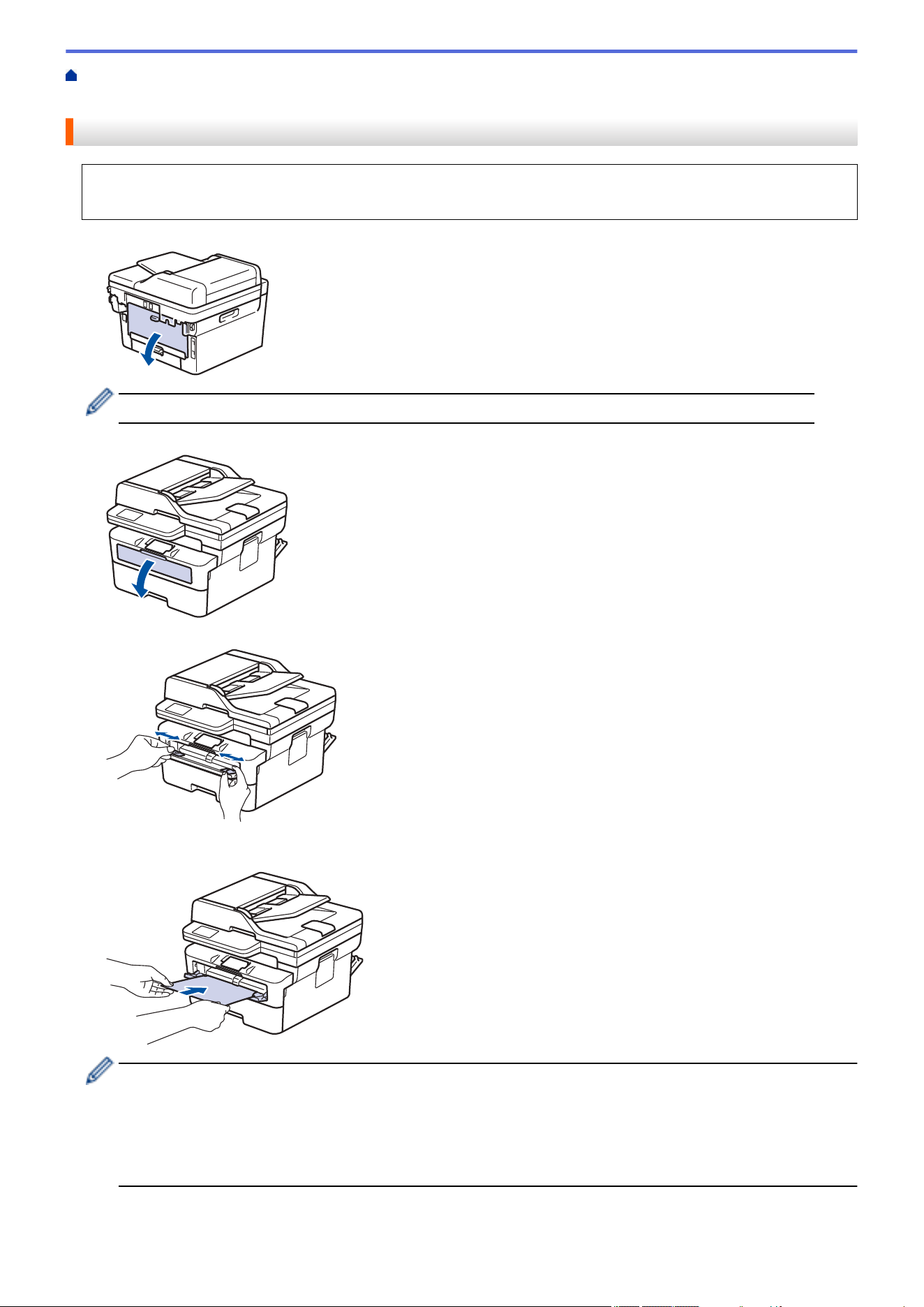
1. Open the machine's back cover (the face up output tray).
The machine automatically turns on Manual Feed mode when you load paper in the manual feed slot.
2. On the front of the machine, open the manual feed slot cover.
3. Use both hands to slide the manual feed slot paper guides to fit the width of the paper that you are using.
4. Using both hands, place one sheet of paper in the manual feed slot until the front edge touches the paper
feed roller. When you feel the machine pull it in, let go.
• Load paper into the manual feed slot with the printing surface facing up.
• Pull the paper out completely if you must reload the paper into the manual feed slot.
• Do not put more than one sheet of paper in the manual feed slot at one time, as it may cause a jam.
• Make sure the paper is straight and in the correct position in the manual feed slot. If it is not, the paper
may not be fed correctly, resulting in a skewed printout or a paper jam.
5. Send your print job to the machine.
39

Change your print preferences in the Print screen.
6. After the printed page comes out from the back of the machine, load the next sheet of paper in the manual
feed slot. Repeat for each page that you want to print.
7. When finished, close the back cover (the face up output tray) until it locks in the closed position.
Related Information
• Load Paper
40
Home > Paper Handling > Load Paper > Load and Print on Envelopes in the Manual Feed Slot
Load and Print on Envelopes in the Manual Feed Slot
Before loading, press the corners and sides of the envelopes to make them as flat as possible.
When you load a different paper size in the tray, you must change the Paper Size setting in the machine or on
your computer at the same time.
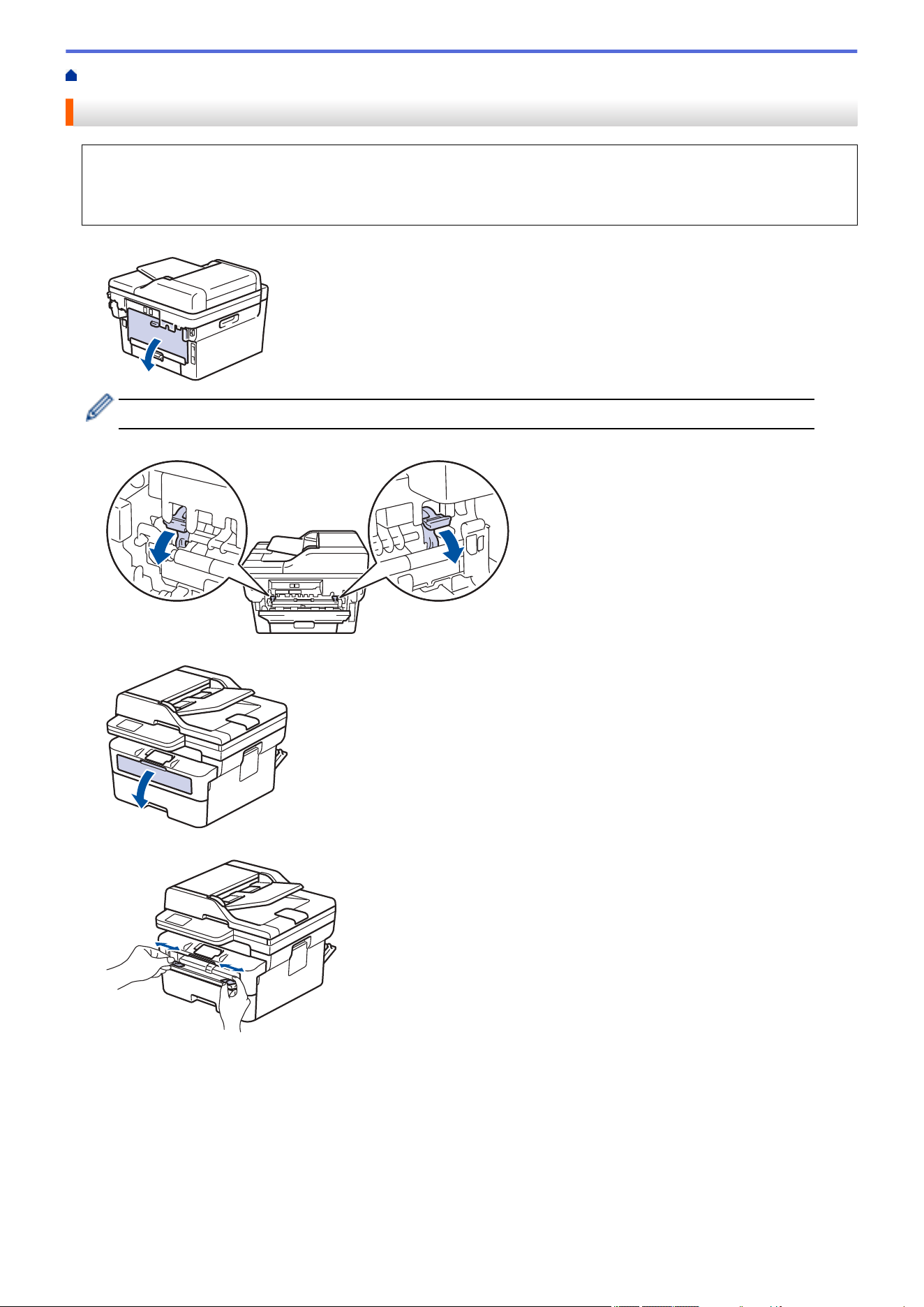
1. Open the machine's back cover (the face up output tray).
The machine automatically turns on Manual Feed mode when you load paper in the manual feed slot.
2. Pull down the two green levers as shown in the illustration (applicable to models with green levers).
3. On the front of the machine, open the manual feed slot cover.
4. Use both hands to slide the manual feed slot paper guides to fit the width of the paper that you are using.
41
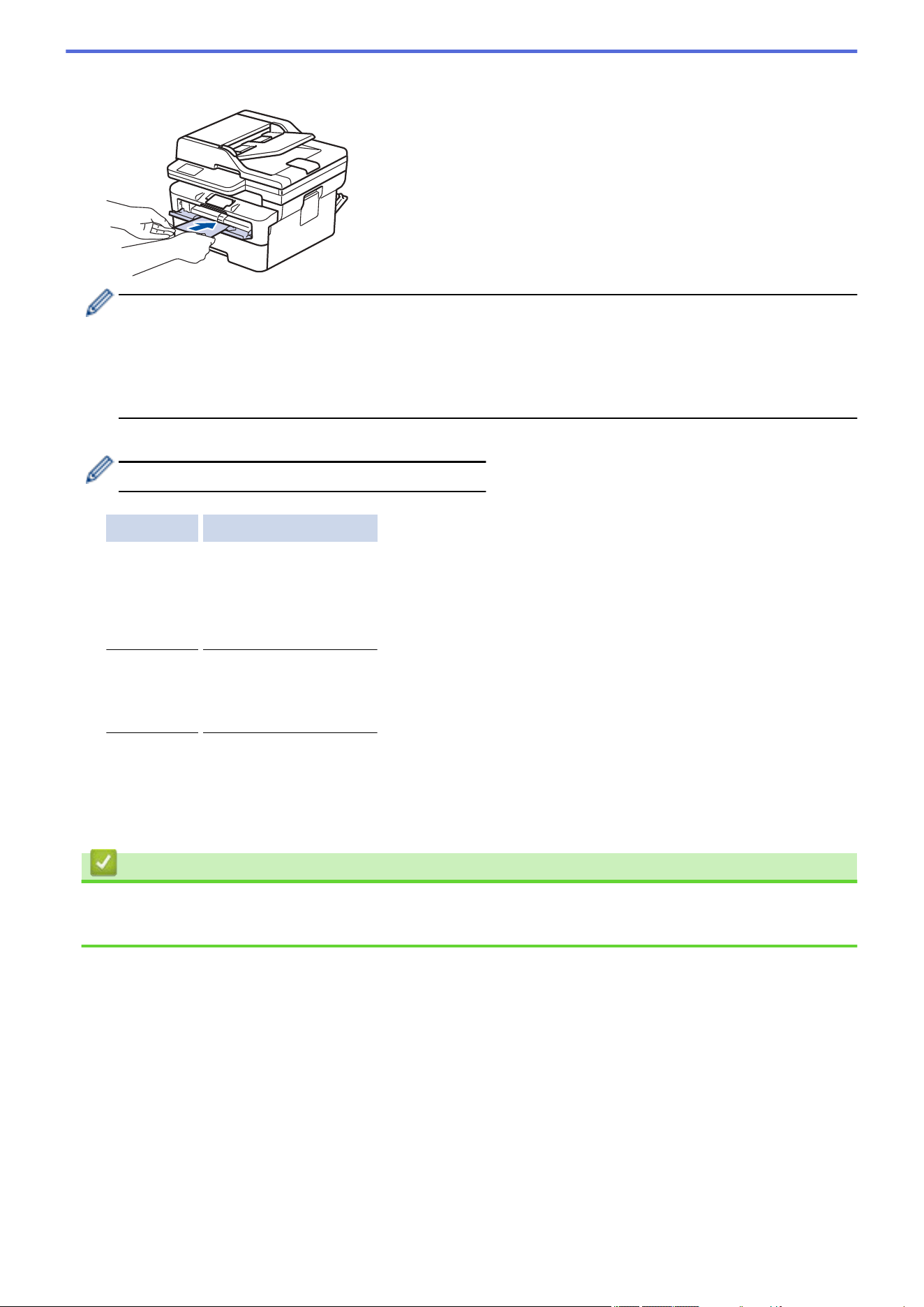
5. Using both hands, put one envelope in the manual feed slot until the front edge touches the paper feed roller.
When you feel the machine pull it in, let go.
• Load the envelope into the manual feed slot with the printing surface facing up.
• Pull the envelope out completely when you reload the envelope into the manual feed slot.
• Do not put more than one envelope in the manual feed slot at one time, as it may cause a jam.
• Make sure the envelope is straight and in the correct position on the manual feed slot. If it is not, the
envelope may not be fed correctly, resulting in a skewed printout or a paper jam.
6. Send your print job to the machine.
Change your print preferences in the Print dialog box.
Settings Options for Envelopes
Paper Size Com-10
DL
C5
Monarch
Media Type Envelopes
Env. Thick
Env. Thin
7. After the printed envelope comes out of the machine, put in the next envelope. Repeat for each envelope that
you want to print.
8. When you finish printing, return the two green levers to their original position.
9. When finished, close the back cover (the face up output tray) until it locks in the closed position.
Related Information
• Load Paper
• Print
42

Home > Paper Handling > Paper Settings > Change the Paper Size and Paper Type
Change the Paper Size and Paper Type
When you change the size and type of paper you load in the tray, you must also change the Paper Size and
Paper Type settings on the LCD.
>> HL-L2465DW/DCP-L2640DW/DCP-L2647DW/MFC-L2760DW
>> HL-L2480DW/MFC-L2807DW/MFC-L2820DW/MFC-L2820DWXL/MFC-L2900DW/MFC-L2900DWXL/
MFC-L2980DW
HL-L2465DW/DCP-L2640DW/DCP-L2647DW/MFC-L2760DW
1. Press Menu.
2. Press a or b to display the [General Setup] option, and then press OK.
3. Press a or b to display the [Tray Setting] option, and then press OK.
4. Press a or b to display the [Paper Type] option, and then press OK.
5. Press a or b to display the [Thin Paper], [Plain Paper], [Thick Paper], or [Recycled Paper]
option, and then press OK.
6. Press a or b to display the [Paper Size] option, and then press OK.
7. Press a or b to display the option you want, and then press OK.
8. Press Stop/Exit.
HL-L2480DW/MFC-L2807DW/MFC-L2820DW/MFC-L2820DWXL/MFC-L2900DW/
MFC-L2900DWXL/MFC-L2980DW
1. Press [Settings] > [All Settings] > [General Setup] > [Tray Setting] > [Paper
Type].
2. Press a or b to display the paper type options, and press the option you want.
The paper type may vary depending on your model.
3. Press [Paper Size].
4. Press a or b to display the paper size options, and press the option you want.
5. Press .
Related Information
• Paper Settings
44
Home > Paper Handling > Paper Settings > Change the Check Paper Setting
Change the Check Paper Setting
When the Check Paper setting is set to On and you pull the paper tray out of the machine, a message appears
on the LCD asking if you want to change the paper size and paper type.
The default setting is On.
>> HL-L2465DW/DCP-L2640DW/DCP-L2647DW/MFC-L2760DW
>> HL-L2480DW/MFC-L2807DW/MFC-L2820DW/MFC-L2820DWXL/MFC-L2900DW/MFC-L2900DWXL/
MFC-L2980DW
HL-L2465DW/DCP-L2640DW/DCP-L2647DW/MFC-L2760DW
1. Press Menu.
2. Press a or b to display the [General Setup] option, and then press OK.
3. Press a or b to display the [Tray Setting] option, and then press OK.
4. Press a or b to display the [Check Paper] option, and then press OK.
5. Press a or b to select the [On] or [Off] option, and then press OK.
6. Press Stop/Exit.
HL-L2480DW/MFC-L2807DW/MFC-L2820DW/MFC-L2820DWXL/MFC-L2900DW/
MFC-L2900DWXL/MFC-L2980DW
1. Press [Settings] > [All Settings] > [General Setup] > [Tray Setting] > [Check
Paper].
2. Press [On] or [Off].
3. Press
.
Related Information
• Paper Settings
45
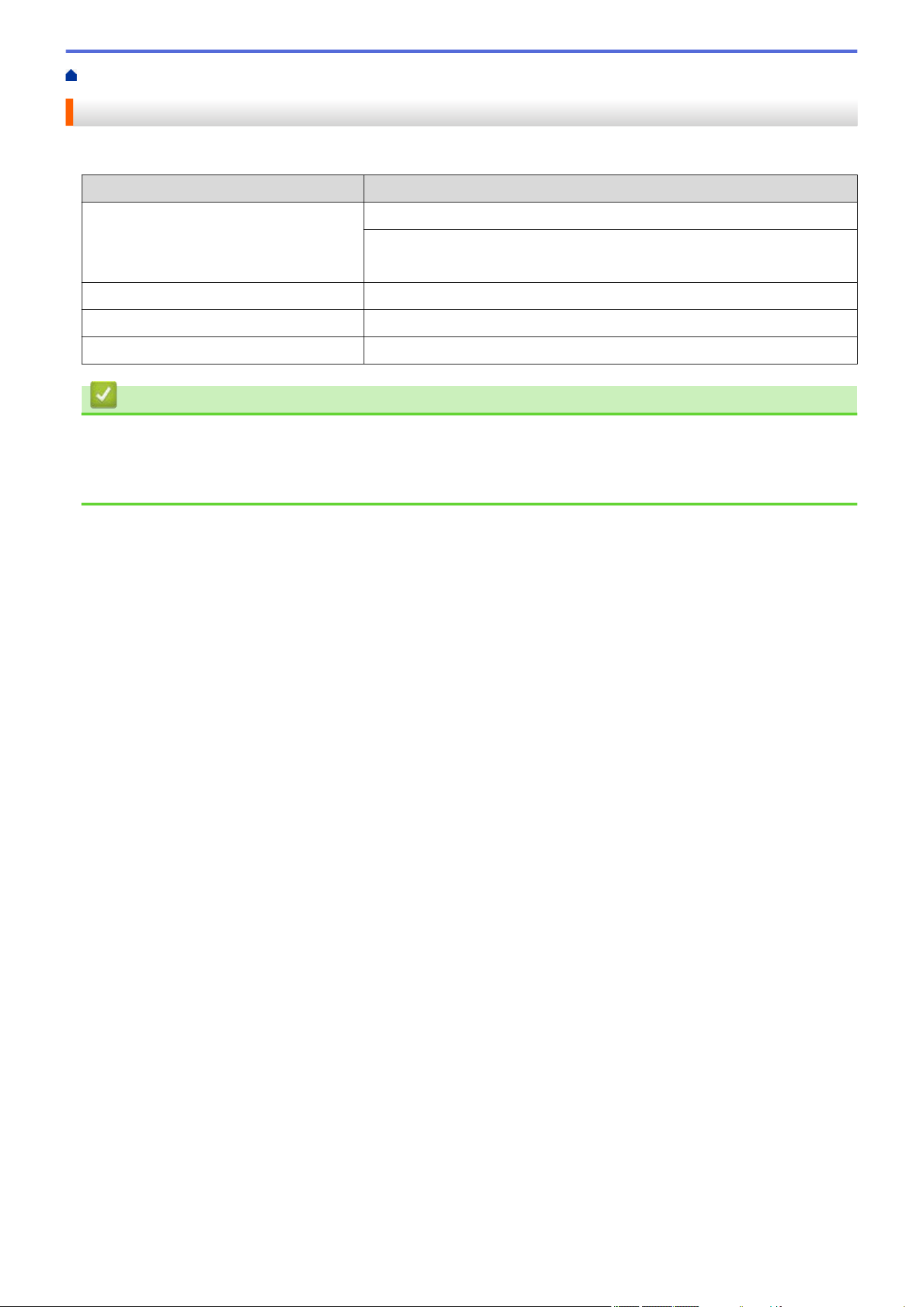
Home > Paper Handling > Recommended Print Media
Recommended Print Media
To get the best print quality, we recommend using the paper listed in the table.
Paper Type Item
Plain Paper Xerox 4200DP 20 lb
Hammermill Laser Print
(24 lb = 90 g/m
2
)
Recycled Paper No specific brand recommended
Labels Avery laser labels white #5160
Envelopes No specific brand recommended
Related Information
• Paper Handling
Related Topics:
• Improve the Print Quality
46

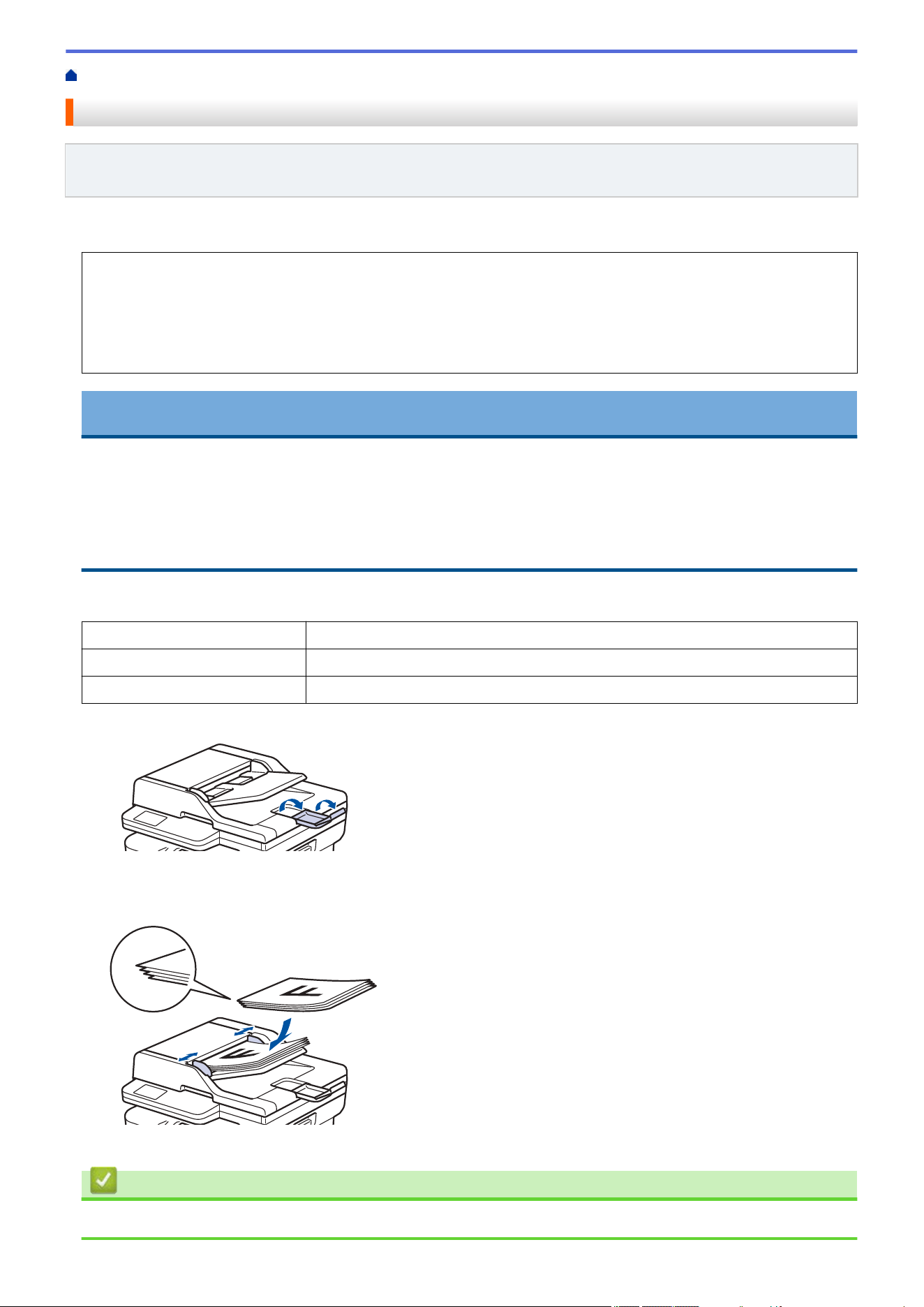
Home > Paper Handling > Load Documents > Load Documents in the Automatic Document Feeder (ADF)
Load Documents in the Automatic Document Feeder (ADF)
Related Models: DCP-L2640DW/DCP-L2647DW/MFC-L2760DW/MFC-L2807DW/MFC-L2820DW/
MFC-L2820DWXL/MFC-L2900DW/MFC-L2900DWXL/MFC-L2980DW
Use the ADF when copying or scanning multi page, standard-sized documents.
• The ADF can hold the following sheets and feed each sheet individually:
Up to 50 sheets
• Use standard 20 lb (80 g/m
2
) paper.
• Make sure documents with correction fluid or written in ink are completely dry.
IMPORTANT
• DO NOT leave thick documents on the scanner glass. If you do this, the ADF may jam.
• DO NOT use paper that is curled, wrinkled, folded, ripped, stapled, paper-clipped, glued together, or
taped.
• DO NOT use cardboard, newspaper, or fabric.
• To avoid damaging your machine while using the ADF, DO NOT pull on the document while it is feeding.
Supported Document Sizes
Length:
5.8 to 14.0 in. (147.3 to 355.6 mm)
Width: 4.1 to 8.5 in. (105 to 215.9 mm)
Weight: 60 to 105 g/m² (16 to 28 lb)
1. Unfold the ADF document output support flap.
2. Fan the pages well.
3. Stagger the pages of your document and load it into the ADF face up and top edge first, as shown in the
illustration.
4. Adjust the paper guides to fit the width of your document.
Related Information
• Load Documents
48
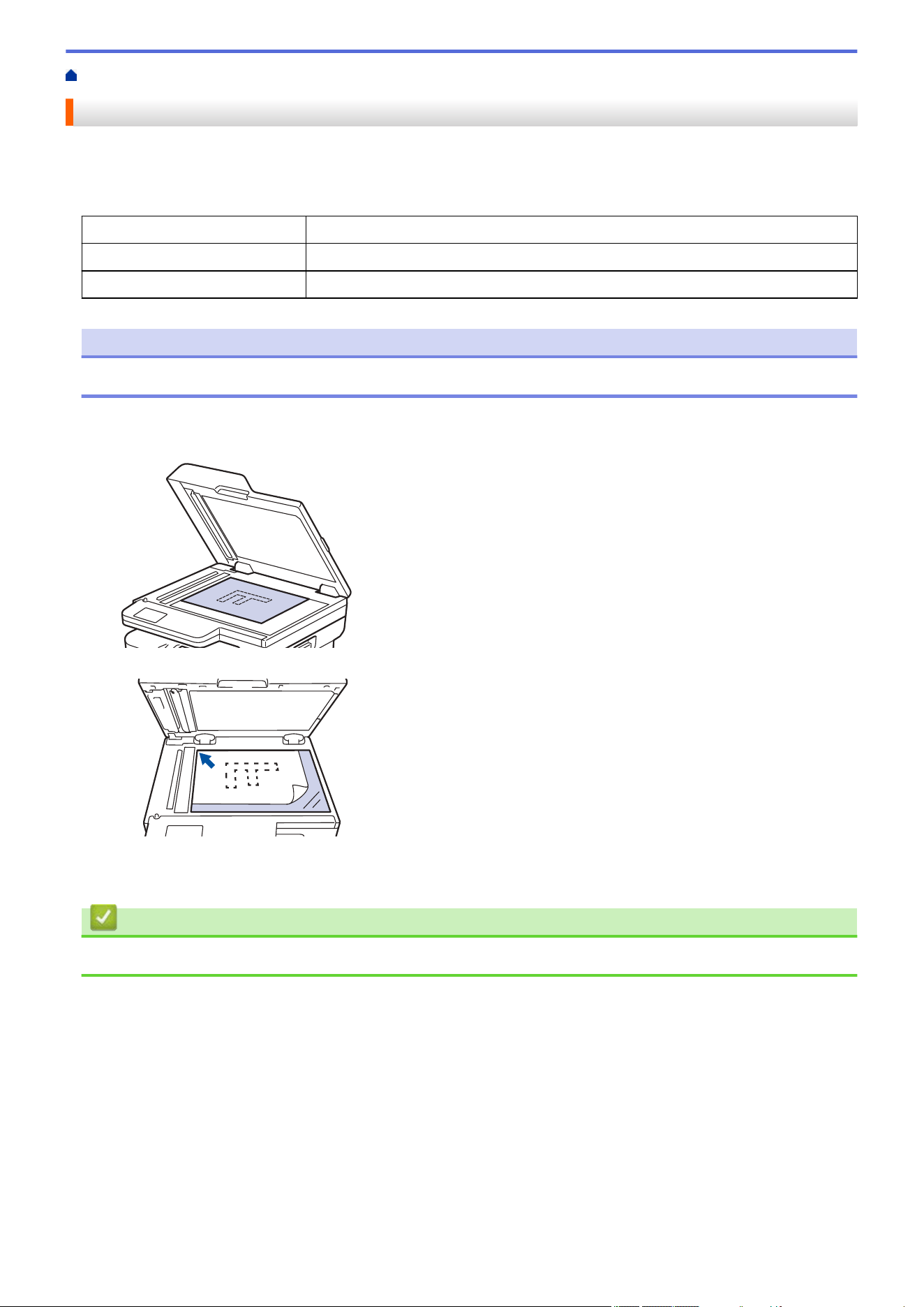
Home > Paper Handling > Load Documents > Load Documents on the Scanner Glass
Load Documents on the Scanner Glass
Use the scanner glass to fax, copy, or scan one page at a time.
Supported Document Sizes
Length:
Up to 11.8 in. (300 mm)
Width: Up to 8.5 in. (215.9 mm)
Weight: Up to 4.4 lb (2kg)
NOTE
(For ADF models) To use the scanner glass, the ADF must be empty.
1. Lift the document cover.
2. Place the document on the scanner glass face down.
3. Place the corner of the page in the upper left corner of the scanner glass.
4. Close the document cover.
If the document is a book or is thick, gently press on the document cover.
Related Information
• Load Documents
49
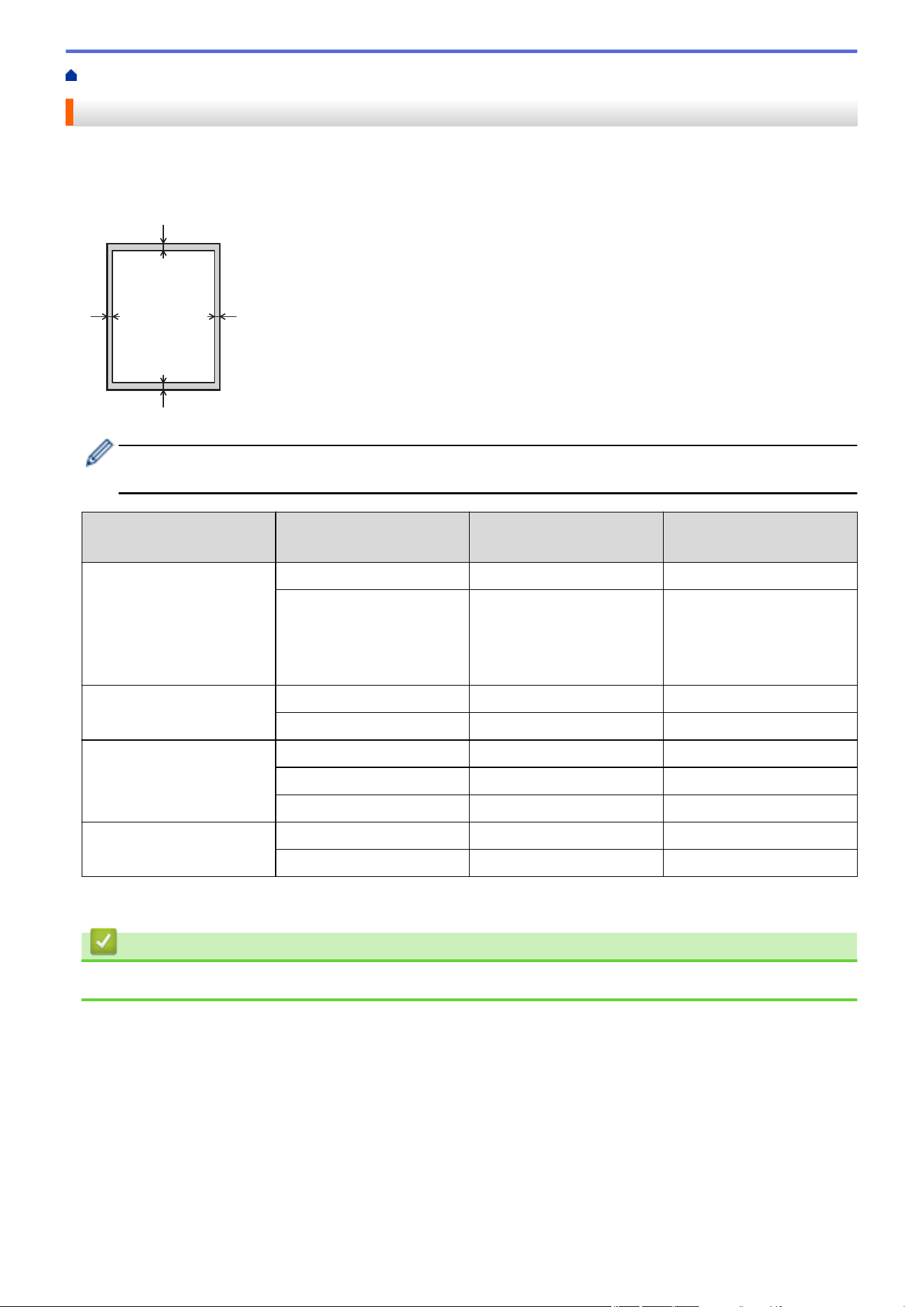
Home > Paper Handling > Unscannable and Unprintable Areas
Unscannable and Unprintable Areas
The measurements in the table below show maximum unscannable and unprintable areas from the edges of the
most commonly-used paper sizes. These measurements may vary depending on the paper size or settings in the
application you are using.
1
3
24
Do not attempt to scan, copy, or print in these areas. Any content included in such areas will not be
reflected in the output.
Usage Document Size Top (1)
Bottom (3)
Left (2)
Right (4)
Fax (Sending) Letter, Legal 0.12 in. (2.9 mm) 0.16 in. (3.9 mm)
A4 0.12 in. (2.9 mm) (ADF)
0.04 in. (1.0 mm)
(Scanner Glass)
0.12 in. (3.0 mm)
Copy
1
Letter, Legal 0.16 in. (4.0 mm) 0.16 in. (4.0 mm)
A4 0.16 in. (4.0 mm) 0.12 in. (3.0 mm)
Scan Letter 0.12 in. (3.0 mm) 0.12 in. (3.0 mm)
A4 0.12 in. (3.0 mm) 0.12 in. (3.0 mm)
Legal 0.12 in. (3.0 mm) 0.12 in. (3.0 mm)
Print Letter, Legal 0.16 in. (4.2 mm) 0.16 in. (4.2 mm)
A4 0.16 in. (4.2 mm) 0.16 in. (4.2 mm)
1
A 1 in 1 copy and 100% document size copy
Related Information
• Paper Handling
50
Home > Paper Handling > Using Special Paper
Using Special Paper
Always test paper samples before purchasing them to ensure desirable performance.
• DO NOT use inkjet paper; it may cause a paper jam or damage your machine.
• If you use bond paper, paper with a rough surface, or paper that is wrinkled or creased, the paper may exhibit
degraded performance.
Store paper in its original packaging and keep it sealed. Keep the paper flat and away from moisture, direct
sunlight, and heat.
IMPORTANT
Some types of paper may not perform well or may cause damage to your machine.
DO NOT use paper:
• that is highly textured
• that is extremely smooth or shiny
• that is curled or warped
• that is coated or has a chemical finish
• that is damaged, creased, or folded
• that exceeds the recommended weight specification in this guide
• with tabs and staples
• that is multipart or carbonless
• that is designed for inkjet printing
If you use any of the types of paper listed above, they may damage your machine. This damage is not
covered under any Brother warranty or service agreement.
Related Information
• Paper Handling
51


Home > Print > Print from Your Computer (Windows)
Print from Your Computer (Windows)
• Print a Document (Windows)
• Print on Both Sides of the Paper (Windows)
• Secure Print (Windows)
• Change the Default Print Settings (Windows)
• Print Settings (Windows)
•
Print a Document Using the BR-Script3 Printer Driver (PostScript
®
3
™
Language
Emulation) (Windows)
• Monitor the Status of the Machine from Your Computer (Windows)
53
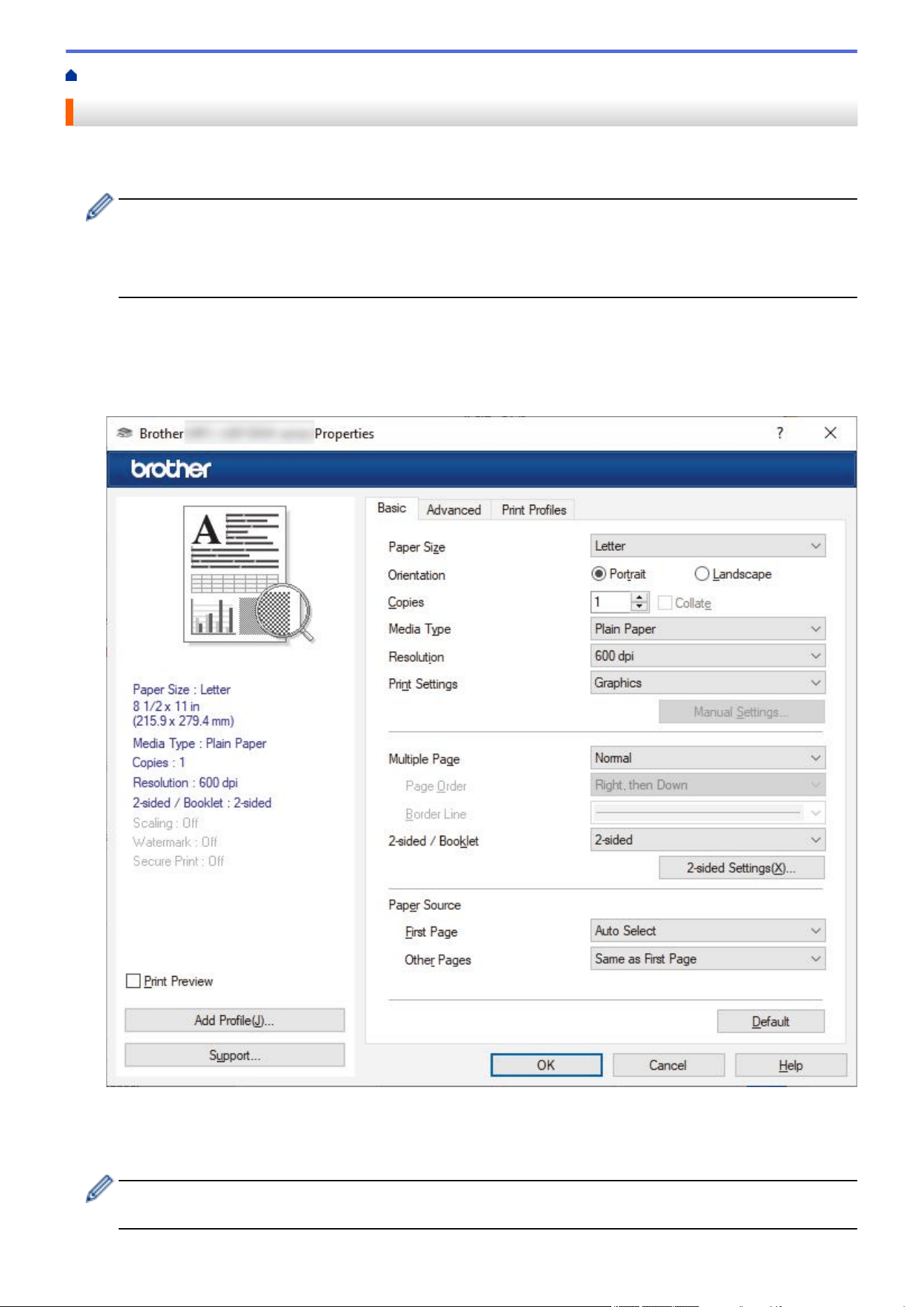
Home > Print > Print from Your Computer (Windows) > Print a Document (Windows)
Print a Document (Windows)
When you change an application's print settings, the changes apply only to documents printed with that
application.
• 2-sided printing may be the default depending on your model. For 1-sided printing, turn off the 2-sided
printing settings in the printer driver.
• To change print settings for all Windows applications, you must configure the printer driver properties.
For more information, see Related Information:Change the Default Print Settings (Windows).
1. Load paper in the paper tray.
2. Select the print command in your application.
3. Select your model's name, and then click the printer's properties or preferences button.
The printer driver window appears.
4. Make sure you have loaded the correct size paper in the paper tray.
5. Click the Paper Size drop-down list, and then select your paper size.
6. In the Orientation field, select the Portrait or Landscape option to set the orientation of your printout.
If your application contains a similar setting, we recommend that you set the orientation using the
application.
54

7. Type the number of copies (1-999) you want in the Copies field.
8. Click the Media Type drop-down list, and then select the type of paper you are using.
9. To print multiple pages on a single sheet of paper or print one page of your document on multiple sheets,
click the Multiple Page drop-down list, and then select your options.
10. Click the 2-sided / Booklet drop-down list, and then select the option you want.
11. Change other printer settings, if needed.
12. Click OK.
13. Complete your print operation.
Related Information
• Print from Your Computer (Windows)
Related Topics:
• Printing Problems
• Change the Default Print Settings (Windows)
• Paper Settings
• Print Settings (Windows)
55
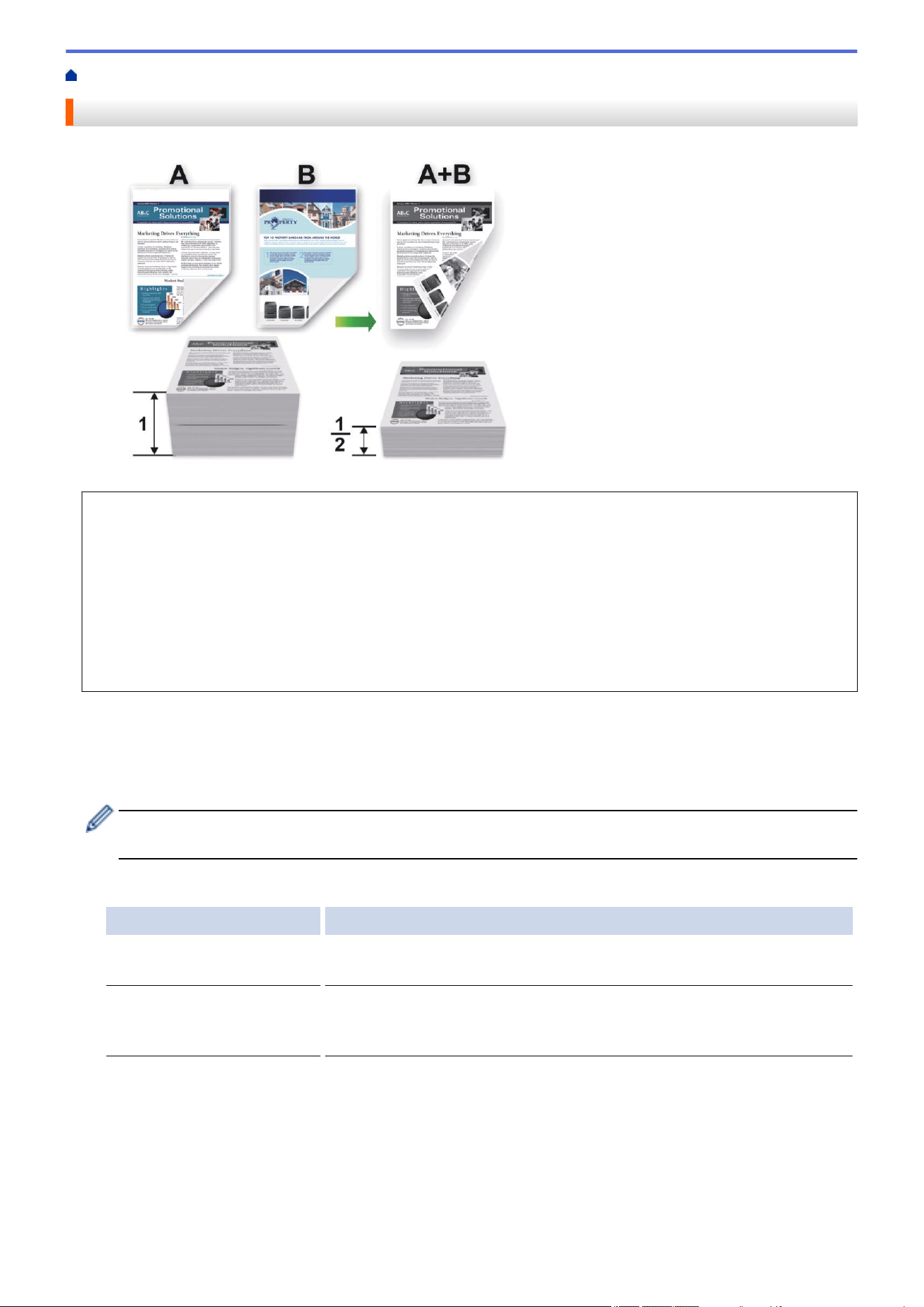
Home > Print > Print from Your Computer (Windows) > Print on Both Sides of the Paper (Windows)
Print on Both Sides of the Paper (Windows)
Select Letter, Legal, Mexico Legal, India Legal or Folio sized paper when using the automatic 2-sided printing
function.
• Make sure the back cover is closed.
• If paper is curled, straighten it and put it back in the paper tray.
• Use regular paper or thin paper. DO NOT use bond paper.
• If the paper is too thin, it may wrinkle.
• When you use the manual 2-sided printing function, it is possible there may be paper jams or poor print
quality.
1. Select the print command in your application.
2. Select your model's name, and then click the printer's properties or preferences button.
The printer driver window appears.
3. In the Orientation field, select the Portrait or Landscape option to set the orientation of your printout.
If your application contains a similar setting, we recommend that you set the orientation using the
application.
4. Click the 2-sided / Booklet drop-down list, and then select the 2-sided or 2-sided (Manual) option.
Option Description
2-sided(available for certain
models)
Automatically prints on both sides of the paper.
2-sided (Manual) The machine prints all the even-numbered pages on one side of the paper
first. Then, the printer driver instructs you (with a pop-up message) to
reinsert the paper.
5. Click the 2-sided Settings button.
6. Select one of the options from the 2-sided Type menu.
When 2-sided is selected, four types of 2-sided binding are available for each orientation:
56
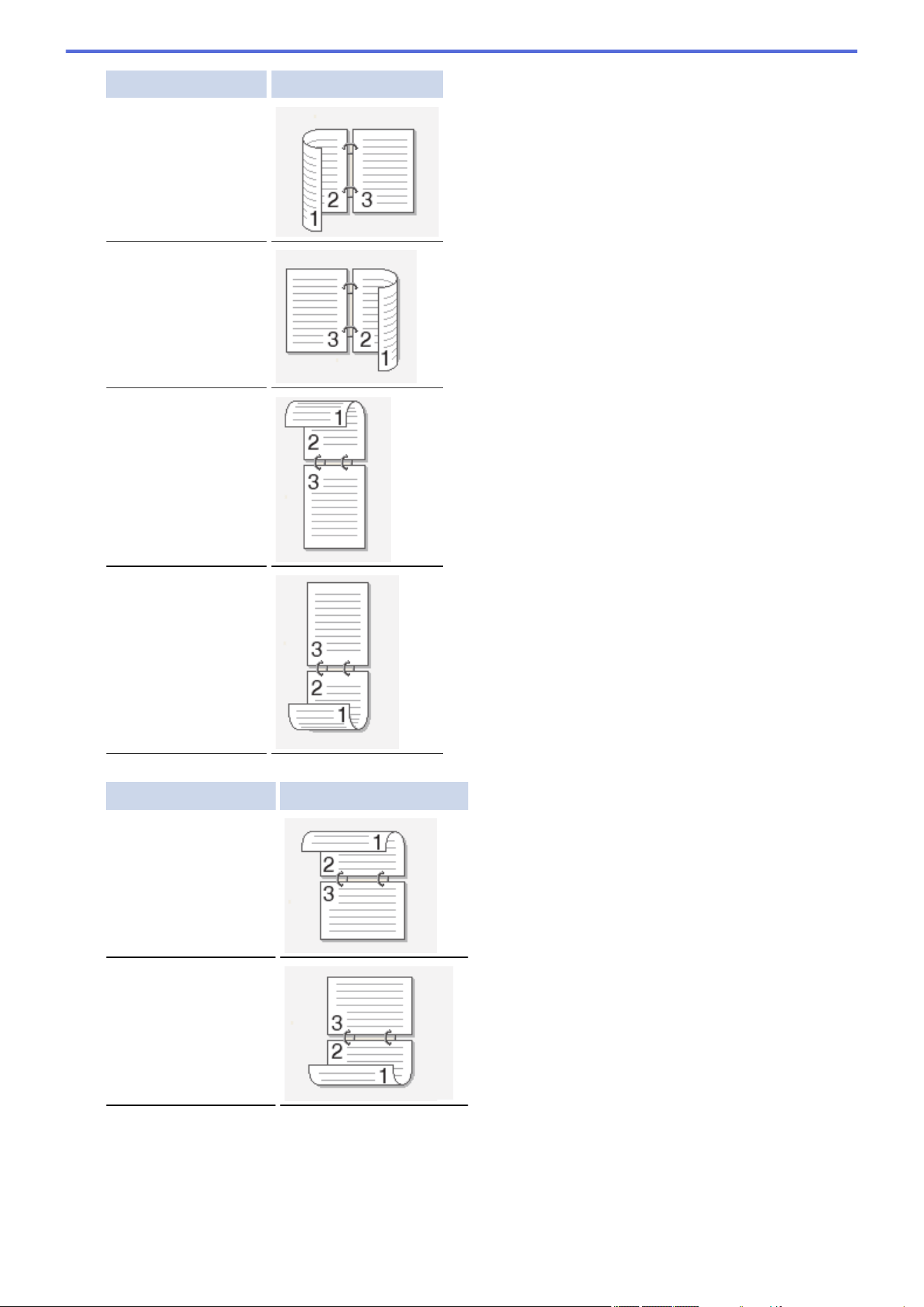
Option for Portrait Description
Long Edge (Left)
Long Edge (Right)
Short Edge (Top)
Short Edge (Bottom)
Option for Landscape Description
Long Edge (Top)
Long Edge (Bottom)
57
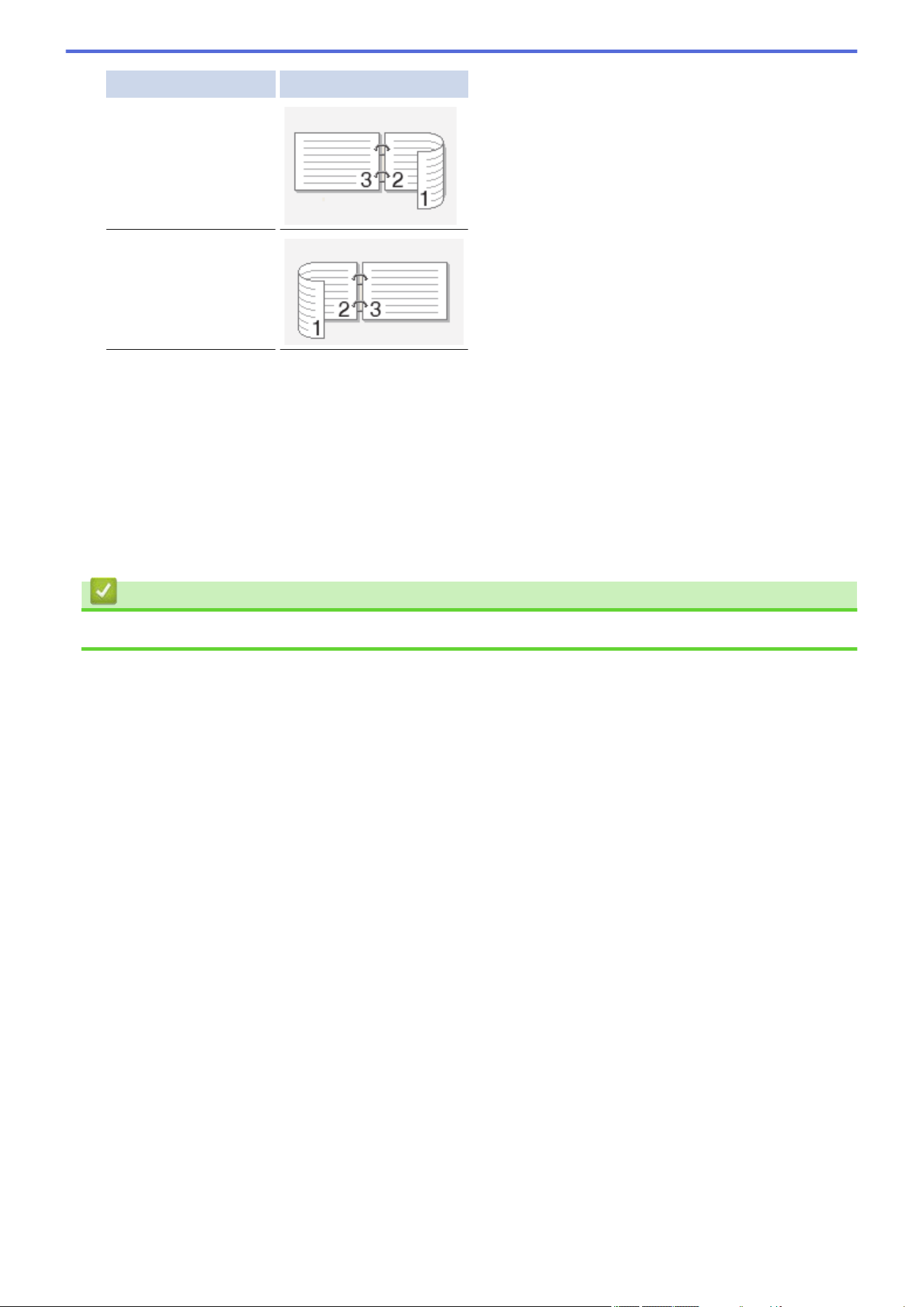
Option for Landscape Description
Short Edge (Right)
Short Edge (Left)
7. Select the Binding Offset checkbox to specify the offset for binding in inches or millimeters.
8. Click OK.
9. Change other printer settings, if needed.
10. Do one of the following:
• For automatic 2-sided printing, click OK again, and then complete your print operation.
• For manual 2-sided printing, click OK again and follow the on-screen instructions.
If the paper is not feeding correctly, it may be curled. Remove the paper, straighten it, and put it back in the paper
tray.
Related Information
• Print from Your Computer (Windows)
58
Home > Print > Print from Your Computer (Windows) > Secure Print (Windows)
Secure Print (Windows)
Related Models: MFC-L2820DW/MFC-L2820DWXL/MFC-L2900DW/MFC-L2900DWXL/MFC-L2980DW
Use Secure Print to ensure that confidential or sensitive documents do not print until you enter a password on
the machine's control panel.
The secure data is deleted from the machine when you turn off the machine.
1. Select the print command in your application.
2. Select your model's name, and then click the printer's properties or preferences button.
The printer driver window appears.
3. Click the Advanced tab.
4. Click the Settings button in the Secure Print field.
5. Select the Secure Print checkbox.
6. Type your four-digit password in the Password field.
7. Type the user name and job name in the User Name and Job Name fields, if needed.
8. Click OK to close the Secure Print Settings window.
9. Click OK.
10. Complete your print operation.
11. On the machine's control panel, press d or c to display the [Secure Print] option, and then press
[Secure Print].
12. Press a or b to display user names, and then press your user name.
13. Enter your four-digit password, and then press [OK].
The LCD displays the list of secured jobs for your name.
14. Press a or b to display the print job, and then press it.
15. Enter the number of copies you want, and then press [OK].
16. Press [Start].
The machine prints the data.
The secured data will be cleared from the machine's memory after printing.
Related Information
• Print from Your Computer (Windows)
59
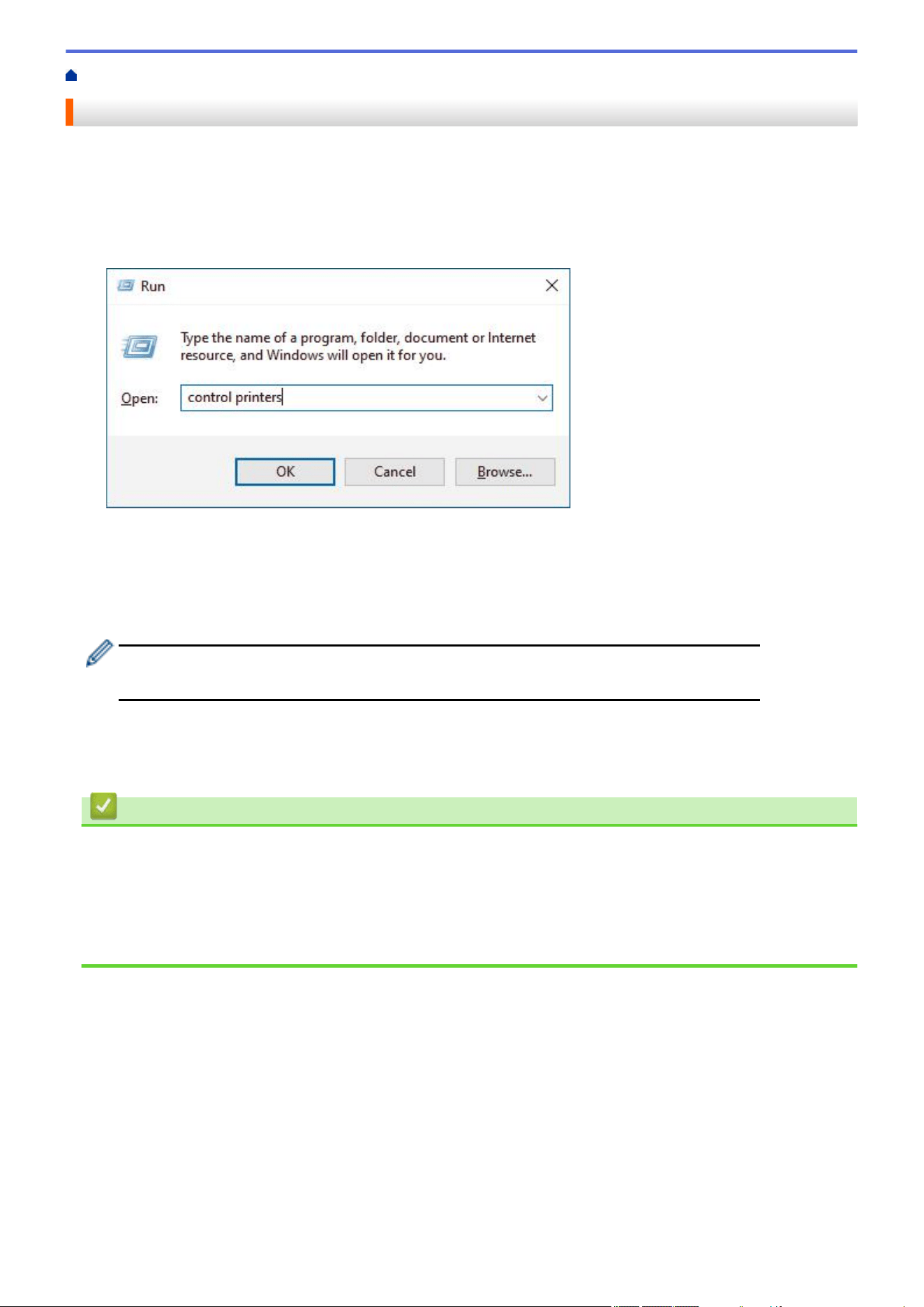
Home > Print > Print from Your Computer (Windows) > Change the Default Print Settings (Windows)
Change the Default Print Settings (Windows)
When you change an application's print settings, the changes apply only to documents printed with that
application. To change print settings for all Windows applications, you must configure the printer driver
properties.
1. Hold down the key and press the key on the computer's keyboard to launch Run.
2. Type "control printers" in the Open: field and click OK.
3. Right-click your model's icon, and then select Printer properties. (If the printer driver options appear, select
your printer driver.)
The printer properties dialog box appears.
4. Click the General tab, and then click the Printing Preferences... or Preferences... button.
The printer driver dialog box appears.
• To configure the tray settings, click the Device Settings tab (available for certain models).
• To change the printer port, click the Ports tab.
5. Select the print settings you want to use as default for all of your Windows programs.
6. Click OK.
7. Close the printer properties dialog box.
Related Information
• Print from Your Computer (Windows)
Related Topics:
• Printing Problems
• Print a Document (Windows)
• Print Settings (Windows)
60
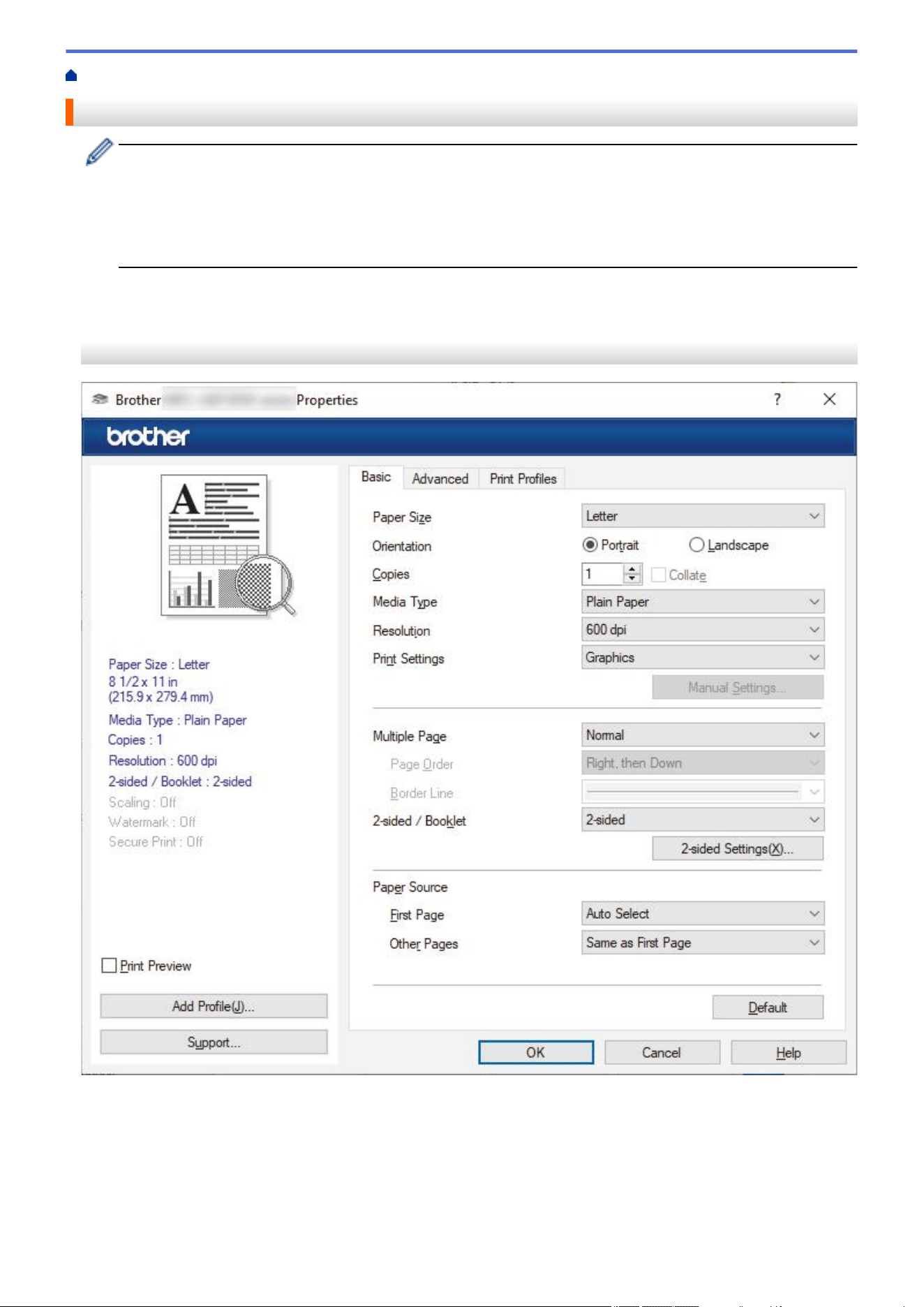
Home > Print > Print from Your Computer (Windows) > Print Settings (Windows)
Print Settings (Windows)
• When you change an application's print settings, the changes apply only to documents printed with that
application.
For more information, see Related Information: Print a Document (Windows).
• To change the default print settings, you must configure the printer driver properties.
For more information, see Related Information: Change the Default Print Settings (Windows).
>> Basic Tab
>> Advanced Tab
Basic Tab
1. Paper Size
Select the paper size you want to use. You can either choose from standard paper sizes or create a custom
paper size.
2. Orientation
Select the orientation (portrait or landscape) of your printout.
If your application contains a similar setting, we recommend that you set the orientation using the application.
61

3. Copies
Type the number of copies (1-999) that you want to print in this field.
Collate
Select this option to print sets of multi-page documents in the original page order. When this option is
selected, one complete copy of your document will print, and then reprint according to the number of
copies you choose. If this option is not selected, then each page will print according to the number of
copies chosen before the next page of the document is printed.
4. Media Type
Select the media type you want to use. To achieve the best print results, the machine automatically adjusts its
print settings according to the selected media type.
5. Resolution
Select the print resolution. As print resolution and speed are related, the higher the resolution, the longer it
will take to print the document.
6. Print Settings
Select the type of document you want to print.
Manual Settings...
Specify additional settings such as brightness, contrast, and other settings.
Graphics
Use Printer Halftone
Select this option to use the printer driver to express halftones.
Brightness
Adjust the brightness.
Contrast
Adjust the contrast.
Graphics Quality
Select either Graphics or Text for the best print quality, based on the type of document you are
printing.
Improve Gray Printing
Select this option to improve the image quality of shaded areas.
Improve Pattern Printing
Select this option to improve the pattern printing if printed fills and patterns are different from the
fills and patterns you see on your computer screen.
Improve Thin Line
Select this option to improve the image quality of thin lines.
Use System Halftone
Select this option to use Windows to express halftones.
TrueType Mode (available for certain models)
Mode
Select how the fonts are processed for printing.
Use Printer TrueType Fonts
Select whether to use built-in fonts for the font processing.
7. Multiple Page
Select this option to print multiple pages on a single sheet of paper, or print one page of your document on
multiple sheets.
62
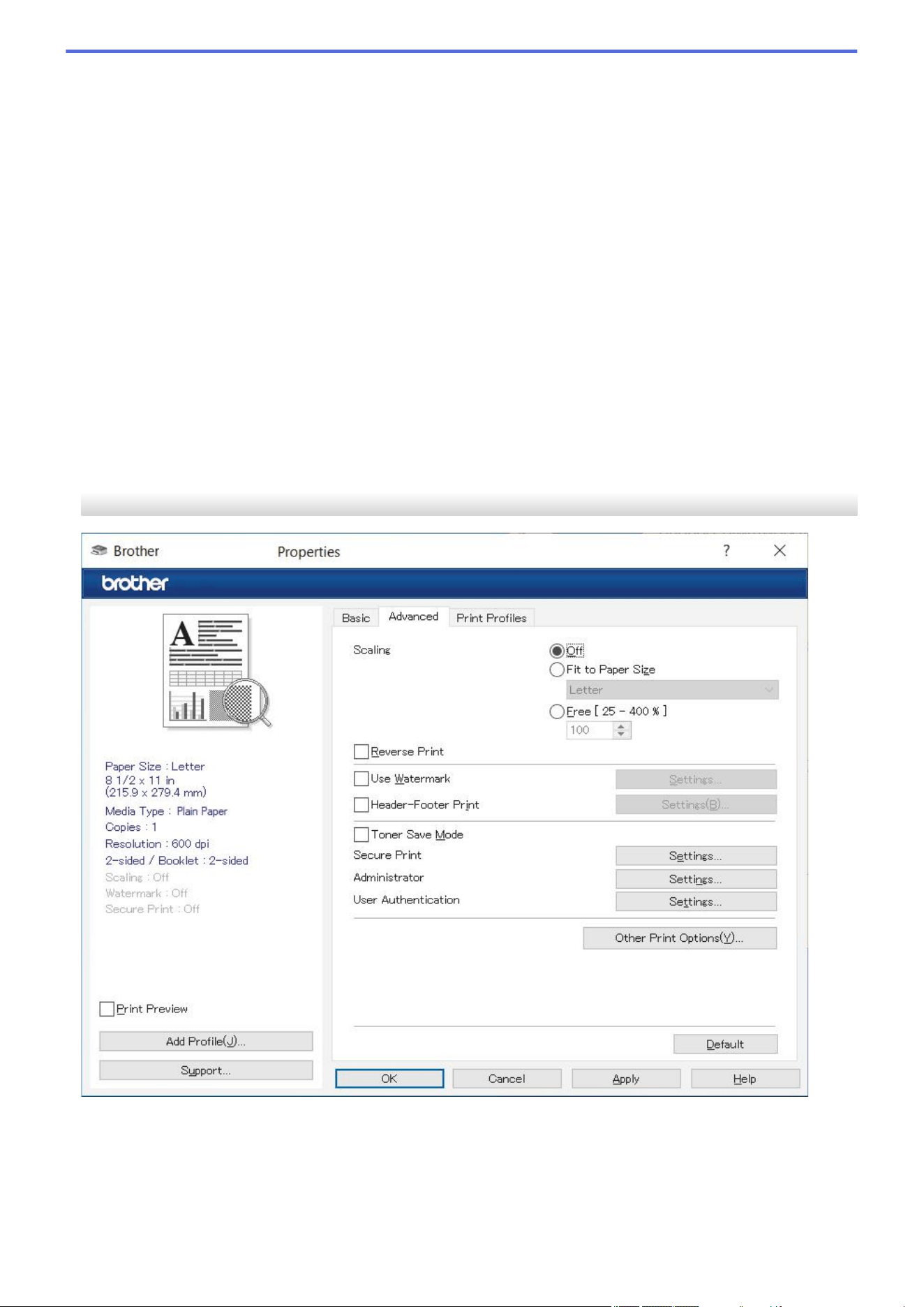
Page Order
Select the page order when printing multiple pages on a single sheet of paper.
Border Line
Select the type of border to use when printing multiple pages on a single sheet of paper.
8. 2-sided / Booklet
Select this option to print on both sides of the paper, or print a document in booklet format using 2-sided
printing.
2-sided Settings
Click this button to select the type of 2-sided binding. Four types of 2-sided bindings are available for each
orientation.
9. Paper Source
Select the paper source setting according to your print conditions or purpose.
First Page
Select the paper source to use for printing the first page.
Other Pages
Select the paper source to use for printing the second and subsequent pages.
Advanced Tab
1. Scaling
Select these options to enlarge or reduce the size of the pages in your document.
Fit to Paper Size
Select this option to enlarge or reduce the document pages to fit a specified paper size. When you select
this option, select the paper size you want from the drop-down list.
63

Free [25 - 400%]
Select this option to enlarge or reduce the document pages manually. When you select this option, type a
value into the field.
2. Reverse Print
Select this option to rotate the printed image 180 degrees.
3. Use Watermark
Select this option to print a logo or text on your document as a watermark. Select one of the preset
watermarks, add a new watermark, or use an image file you have created.
4. Header-Footer Print
Select this option to print the date, time, and login user name on the document.
5. Toner Save Mode
Select this feature to use less toner to print documents; printouts appear lighter, but are still legible.
6. Secure Print (available for certain models)
This feature ensures that confidential or sensitive documents are not printed out until you enter a password
on the machine's control panel.
7. Administrator
This feature allows you to change the administrator password and restrict various printing functions.
8. User Authentication (available for certain models)
This feature allows you to confirm the restrictions for each user.
9. Other Print Options
Sleep Time (available for certain models)
Select this option to set the machine to enter sleep mode immediately after printing.
Macro (available for certain models)
Select this feature to print an electronic form (macro), which you have stored in your machine's memory,
as an overlay on the print job.
Density Adjustment
Specify the print density.
Improve Print Output
Select this option to reduce the amount of paper curling and improve the toner fixing.
Skip Blank Page
Select this option to allow the printer driver to automatically detect blank pages and exclude them from
printing.
Print Text in Black
Select this option when you want to print color text in black.
Print Archive
Select this option to save the print data as a PDF file to your computer.
Eco settings
Select this option to reduce printing noise.
Related Information
• Print from Your Computer (Windows)
Related Topics:
• Change the Default Print Settings (Windows)
• Print a Document (Windows)
64
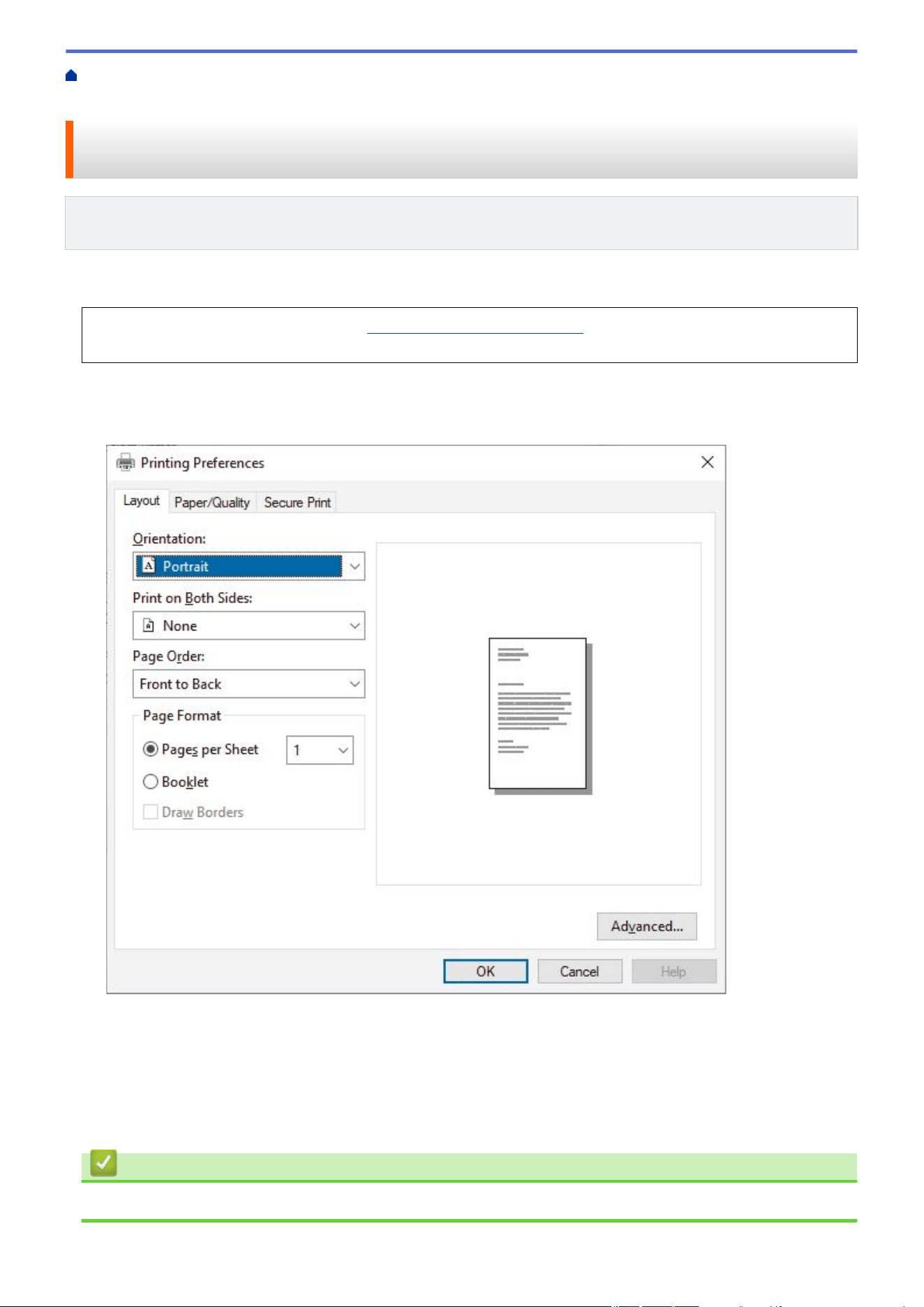
Home > Print > Print from Your Computer (Windows) > Print a Document Using the BR-Script3 Printer
Driver (PostScript
®
3
™
Language Emulation) (Windows)
Print a Document Using the BR-Script3 Printer Driver (PostScript
®
3
™
Language Emulation) (Windows)
Related Models: DCP-L2640DW/DCP-L2647DW/HL-L2480DW/MFC-L2900DW/MFC-L2900DWXL/
MFC-L2980DW
The BR-Script3 printer driver lets you print PostScript
®
data more clearly.
Go to your model's Downloads page at
support.brother.com/downloads to install the PS driver (BR-Script3
printer driver).
1. Select the print command in your application.
2. Select your model with BR-Script3 in the name, and then click the printer's properties or preferences button.
The printer driver window appears.
3. Click the Layout, Paper/Quality, or Secure Print tab to change basic print settings. (available for certain
models)
Click the Layout or Paper/Quality tab, and then click the Advanced... button to change advanced print
settings. Click OK.
4. Click OK.
5. Complete your print operation.
Related Information
• Print from Your Computer (Windows)
65
Home > Print > Print from Your Computer (Windows) > Monitor the Status of the Machine from Your
Computer (Windows)
Monitor the Status of the Machine from Your Computer (Windows)
The Status Monitor is a configurable software tool for monitoring the status of one or more machines, allowing
you to get immediate notification of errors.
Do one of the following:
- Double-click the
icon in the task tray.
- Launch
(Brother Utilities), and then click the drop-down list and select your model's name (if not
already selected). Click Tools in the left navigation bar, and then click Status Monitor.
Troubleshooting
Click the Troubleshooting button to access the support website.
Visit the Genuine Supplies website
Click the Visit the Genuine Supplies website button for more information on Brother genuine supplies.
Related Information
• Print from Your Computer (Windows)
Related Topics:
• Printing Problems
66

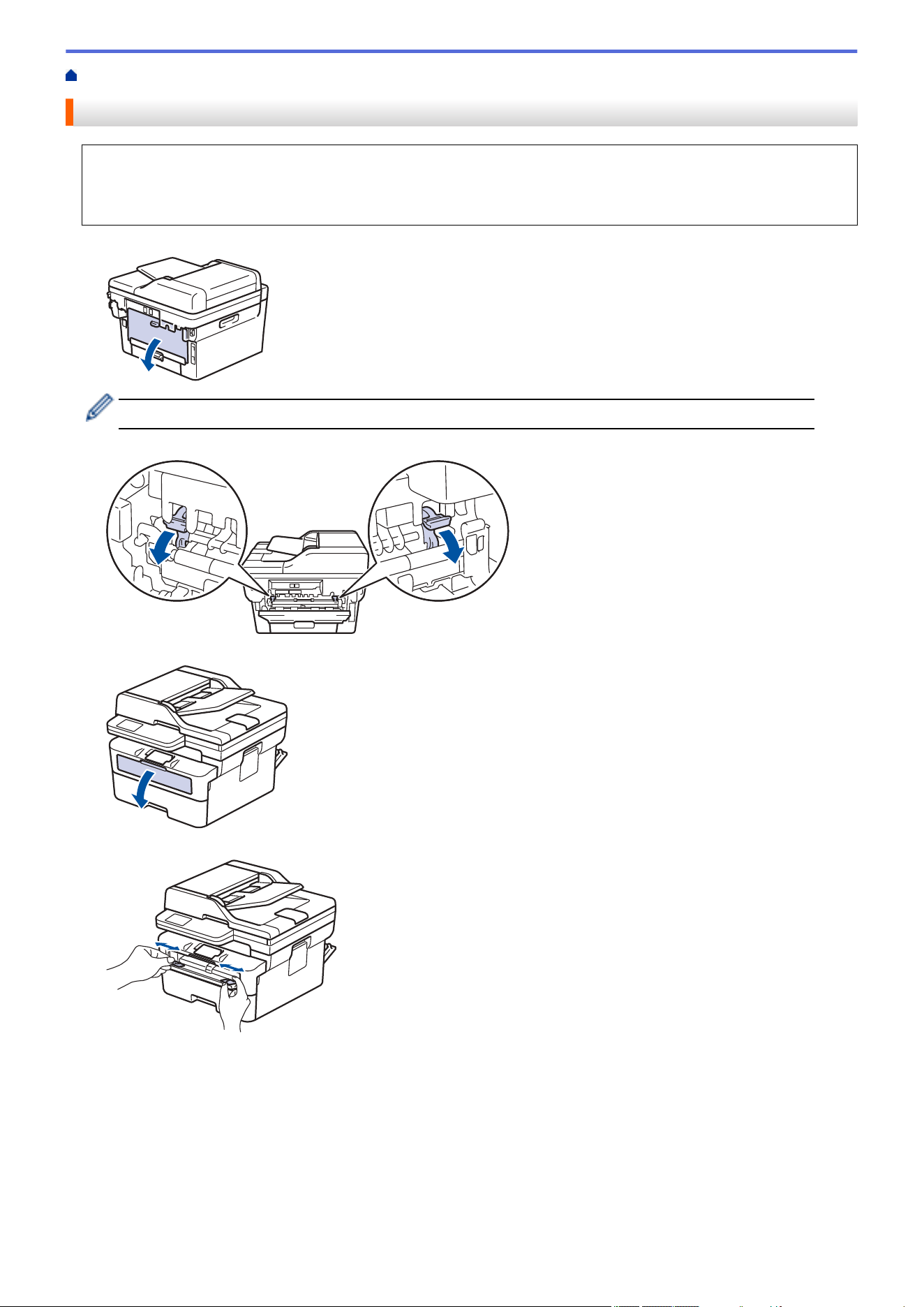
Home > Print > Load and Print on Envelopes in the Manual Feed Slot
Load and Print on Envelopes in the Manual Feed Slot
Before loading, press the corners and sides of the envelopes to make them as flat as possible.
When you load a different paper size in the tray, you must change the Paper Size setting in the machine or on
your computer at the same time.
1. Open the machine's back cover (the face up output tray).
The machine automatically turns on Manual Feed mode when you load paper in the manual feed slot.
2. Pull down the two green levers as shown in the illustration (applicable to models with green levers).
3. On the front of the machine, open the manual feed slot cover.
4. Use both hands to slide the manual feed slot paper guides to fit the width of the paper that you are using.
68
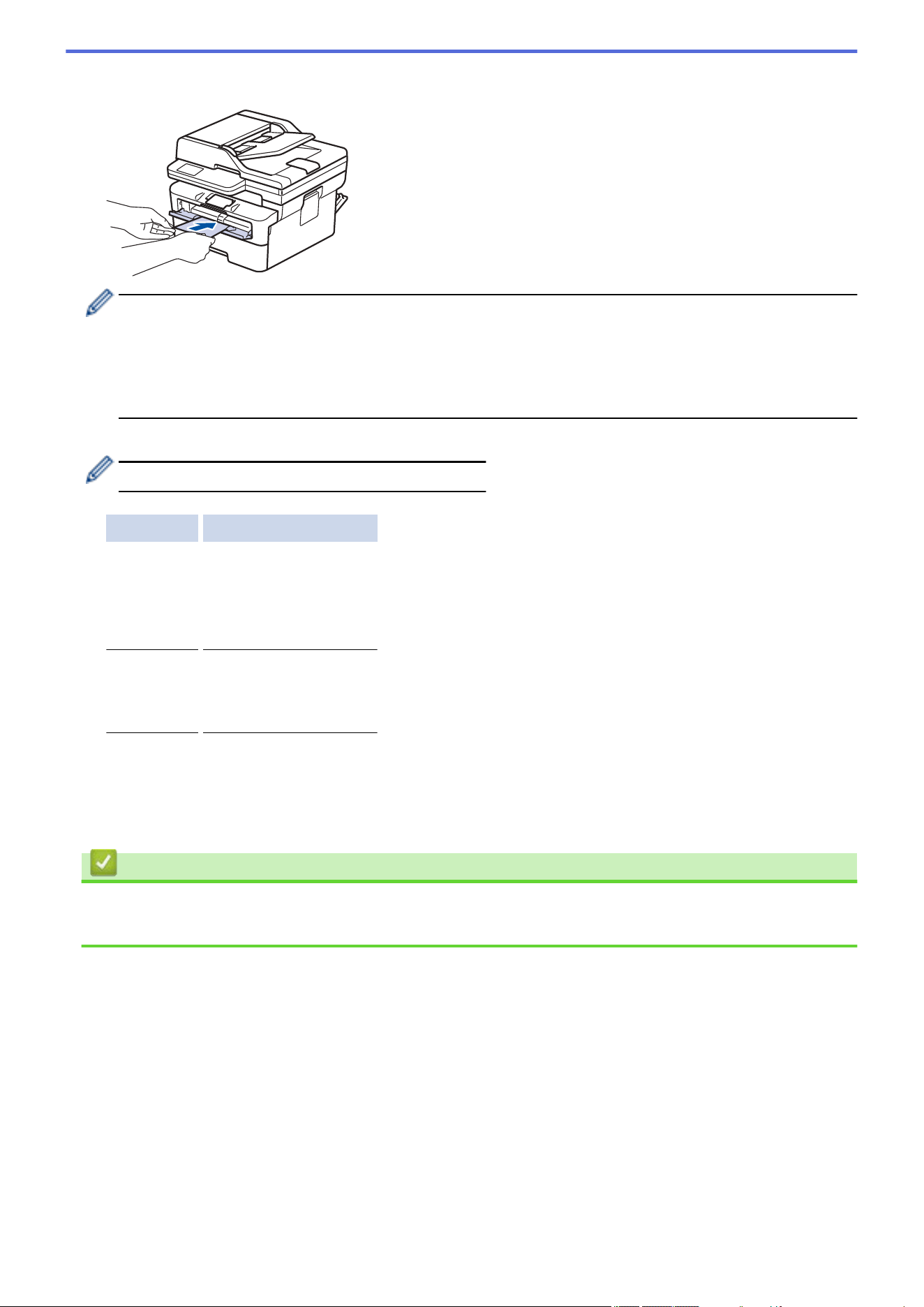
5. Using both hands, put one envelope in the manual feed slot until the front edge touches the paper feed roller.
When you feel the machine pull it in, let go.
• Load the envelope into the manual feed slot with the printing surface facing up.
• Pull the envelope out completely when you reload the envelope into the manual feed slot.
• Do not put more than one envelope in the manual feed slot at one time, as it may cause a jam.
• Make sure the envelope is straight and in the correct position on the manual feed slot. If it is not, the
envelope may not be fed correctly, resulting in a skewed printout or a paper jam.
6. Send your print job to the machine.
Change your print preferences in the Print dialog box.
Settings Options for Envelopes
Paper Size Com-10
DL
C5
Monarch
Media Type Envelopes
Env. Thick
Env. Thin
7. After the printed envelope comes out of the machine, put in the next envelope. Repeat for each envelope that
you want to print.
8. When you finish printing, return the two green levers to their original position.
9. When finished, close the back cover (the face up output tray) until it locks in the closed position.
Related Information
• Load Paper
• Print
69
Home > Print > Print an Email Attachment
Print an Email Attachment
You can print files by emailing them to your Brother machine.
• Make sure Web Based Management is set to On. For more information, see Related Information.
• You can attach up to 10 documents, 20 MB in total, to an email.
• This feature supports the following formats:
- Document files: PDF, TXT, and Microsoft Office files
- Image files: JPEG, BMP, GIF, PNG, and TIFF
• The machine prints both the email content and attachments by default. To print only email attachments,
change the settings as necessary.
1. Start your web browser.
2. Type "https://machine's IP address" in your browser's address bar (where "machine's IP address" is your
machine's IP address).
For example:
https://192.168.1.2
3. If required, type the password in the Login field, and then click Login.
The default password to manage this machine’s settings is located on the back of the machine and marked
"Pwd". Change the default password by following the on-screen instructions when you first log in.
4. In the left navigation bar, click Online Functions > Online Functions Settings.
• If the left navigation bar is not visible, start navigating from
.
• If this function is locked, contact your network administrator for access.
5. Click the I accept the terms and conditions button.
6. Go to your machine, and then follow the machine's instructions to enable the settings.
7. On your computer, click General Settings.
The Email Print: General Settings screen appears.
8. Click the Enable button.
The machine prints the instruction sheet.
9. Send your email to the email address included on the sheet. The machine prints the email attachments.
• To change the settings, including email address and printer settings, click the Online Functions
Settings Page button.
• (HL-L2480DW/MFC-L2807DW/MFC-L2820DW/MFC-L2820DWXL/MFC-L2900DW/MFC-L2900DWXL/
MFC-L2980DW)
You can also configure the settings from your machine. Press [Apps] > [Online Functions], and
then follow the on-screen instructions.
Related Information
• Print
Related Topics:
• Enable/Disable Web Based Management Using the Control Panel
70
Home > Print > Change Print Settings Using the Control Panel
Change Print Settings Using the Control Panel
Related Models: DCP-L2640DW/DCP-L2647DW/HL-L2480DW/MFC-L2900DW/MFC-L2900DWXL/
MFC-L2980DW
Select the type of document you want to print.
>> DCP-L2640DW/DCP-L2647DW
>> HL-L2480DW/MFC-L2900DW/MFC-L2900DWXL/MFC-L2980DW
DCP-L2640DW/DCP-L2647DW
1. Press Menu.
2. Press a or b to display the [Printer] option, and then press OK.
3. Press a or b to display the [Print Settings] option, and then press OK.
4. Press a or b to display the [Graphics] or [Text] option, and then choose the option you want.
5. Press OK.
HL-L2480DW/MFC-L2900DW/MFC-L2900DWXL/MFC-L2980DW
1. Press
[Settings] > [All Settings] > [Printer] > [Print Settings].
2. Press [Text] or [Graphics].
3. Press .
Related Information
• Print
71
Home > Print > Cancel a Print Job
Cancel a Print Job
>> HL-L2465DW/DCP-L2640DW/DCP-L2647DW/MFC-L2760DW
>> HL-L2480DW/MFC-L2807DW/MFC-L2820DW/MFC-L2820DWXL/MFC-L2900DW/MFC-L2900DWXL/
MFC-L2980DW
HL-L2465DW/DCP-L2640DW/DCP-L2647DW/MFC-L2760DW
Press Stop/Exit.
To cancel multiple print jobs, press and hold Stop/Exit for four seconds.
HL-L2480DW/MFC-L2807DW/MFC-L2820DW/MFC-L2820DWXL/MFC-L2900DW/
MFC-L2900DWXL/MFC-L2980DW
Press .
To cancel multiple print jobs, press and hold for about four seconds.
Related Information
• Print
Related Topics:
• Printing Problems
72
Home > Print > Test Print
Test Print
If there are problems with print quality, follow these instructions to do a test print:
>> HL-L2465DW/MFC-L2760DW
>> DCP-L2640DW/DCP-L2647DW
>> MFC-L2807DW/MFC-L2820DW/MFC-L2820DWXL
>> HL-L2480DW/MFC-L2900DW/MFC-L2900DWXL/MFC-L2980DW
HL-L2465DW/MFC-L2760DW
1. Press Menu.
2. Press a or b to display the [Printer] option, and then press OK.
3. Press a or b to display the [Test Print] option, and then press OK.
4. Press Start.
The machine prints a Test Print page.
5. Press Stop/Exit.
DCP-L2640DW/DCP-L2647DW
1. Press Menu.
2. Press a or b to display the [Printer] option, and then press OK.
3. (For Printer Emulation Supported models)
Press a or b to display the [Print Options] option, and then press OK.
4. Press a or b to display the [Test Print] option, and then press OK.
5. Press Start.
The machine prints a Test Print page.
6. Press Stop/Exit.
MFC-L2807DW/MFC-L2820DW/MFC-L2820DWXL
1. Press [Settings] > [All Settings] > [Printer] > [Test Print].
2. Press [Yes].
3. Press .
HL-L2480DW/MFC-L2900DW/MFC-L2900DWXL/MFC-L2980DW
1. Press [Settings] > [All Settings] > [Printer] > [Print Options] > [Test Print].
2. Press [Yes].
3. Press .
Related Information
• Print
Related Topics:
• Improve the Print Quality
73

Home > Print > Universal Print
Universal Print
Related Models: MFC-L2980DW
• Universal Print Overview
• Register Your Machine with Universal Print Using Web Based Management
• Assign Universal Print Users via Microsoft Azure Portal
• Add a Universal Print-enabled Printer to Your Computer
• Print Using Universal Print
• Deregister Your Machine from Universal Print
74
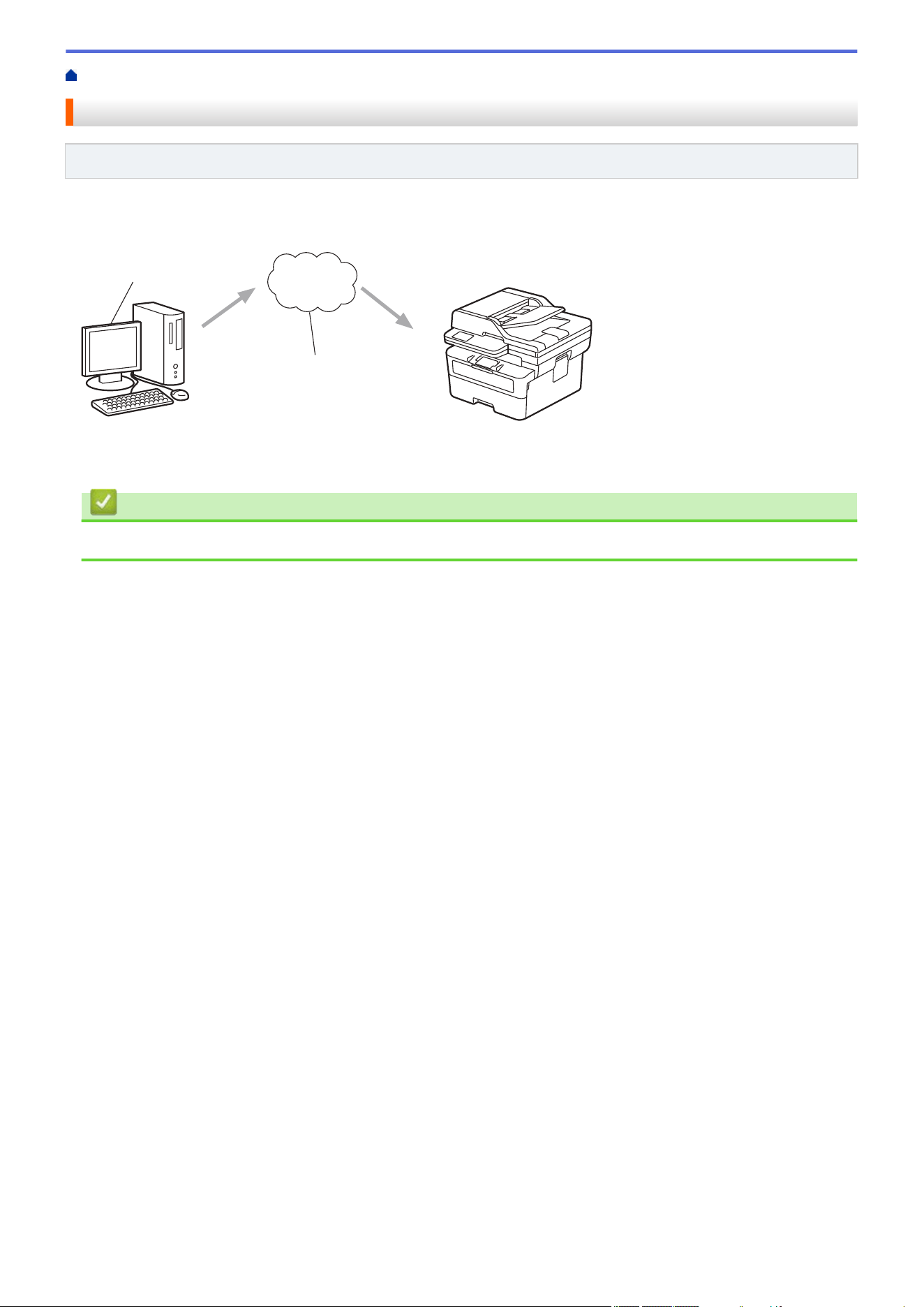
Home > Print > Universal Print > Universal Print Overview
Universal Print Overview
Related Models: MFC-L2980DW
Universal Print is a cloud-based print service from Microsoft. You can print documents, from anywhere on the
Internet, without installing a printer driver. Universal Print is available for Azure Active Directory (Azure AD) users
with the Microsoft 365 subscription.
1
2
1. Computer running Windows 10 20H1 or greater
2. Cloud server
Related Information
• Universal Print
75
Home > Print > Universal Print > Register Your Machine with Universal Print Using Web Based
Management
Register Your Machine with Universal Print Using Web Based
Management
Related Models: MFC-L2980DW
• Make sure you set the correct date and time for your time zone.
• If your network uses a proxy server, configure the proxy server settings.
1. Start your web browser.
2. Type "https://machine's IP address" in your browser's address bar (where "machine's IP address" is your
machine's IP address).
For example:
https://192.168.1.2
3. If required, type the password in the Login field, and then click Login.
The default password to manage this machine’s settings is located on the back of the machine and marked
"Pwd". Change the default password by following the on-screen instructions when you first log in.
4. In the left navigation bar, click Network > Network > Protocol.
If the left navigation bar is not visible, start navigating from
.
5. Select the Universal Print checkbox, and then click Advanced Settings.
6. Change your machine's name in the Device Name field if necessary.
Using the following characters: ?, /, \, ", :, <, >, | or * may cause a sending error.
7. Click Register.
If an error occurs, follow the on-screen instructions.
8. A Universal Print user code appears. Click the Sign in button, and then type the user code.
9. Follow the on-screen instructions to finish the registration.
Related Information
• Universal Print
Related Topics:
• Configure Date and Time Using Web Based Management
• Configure the Proxy Server Settings Using Web Based Management
76
Home > Print > Universal Print > Assign Universal Print Users via Microsoft Azure Portal
Assign Universal Print Users via Microsoft Azure Portal
Related Models: MFC-L2980DW
You can assign users to the Universal Print service only if your machine is registered on the Microsoft Azure
portal.
1. Access the Microsoft Azure portal.
URL:
portal.azure.com
2. Log in as a Printer Administrator.
3. Select the Universal Print service.
4. Select the Printers option, and then select your machine from the list.
5. Select the Share option.
6. Select the users you want to assign to the Universal Print service, and then click Share Printer.
Related Information
• Universal Print
77
Home > Print > Universal Print > Add a Universal Print-enabled Printer to Your Computer
Add a Universal Print-enabled Printer to Your Computer
Related Models: MFC-L2980DW
1. Do one of the following:
• For Windows 11
Click
> Settings > Bluetooth & devices > Printers & scanners > Add a printer or scanner, and
then click Add device.
• For Windows 10
Click
> > Devices > Printers & scanners > Add a printer or scanner.
2. Select your machine registered as a Universal Print-enabled printer from the list, and then click Add device.
Related Information
• Universal Print
78
Home > Print > Universal Print > Print Using Universal Print
Print Using Universal Print
Related Models: MFC-L2980DW
1. Select the print command in your application.
2. Select the machine you registered as a Universal Print-enabled printer, and then click the printer's properties
or preferences button.
3. Change the printer settings, if needed, and then click OK.
4. Complete your print operation.
Related Information
• Universal Print
79
Home > Print > Universal Print > Deregister Your Machine from Universal Print
Deregister Your Machine from Universal Print
Related Models: MFC-L2980DW
To deregister your machine, you must delete it from Web Based Management, and then delete it on the Microsoft
Azure portal.
1. Start your web browser.
2. Type "https://machine's IP address" in your browser's address bar (where "machine's IP address" is your
machine's IP address).
For example:
https://192.168.1.2
3. If required, type the password in the Login field, and then click Login.
The default password to manage this machine’s settings is located on the back of the machine and marked
"Pwd". Change the default password by following the on-screen instructions when you first log in.
4. In the left navigation bar, click Network > Network > Protocol.
If the left navigation bar is not visible, start navigating from .
5. Next to the Universal Print checkbox, click Advanced Settings.
6. Click Delete Registration Data, and then follow the on-screen instructions.
7. Access the Microsoft Azure portal.
URL:
portal.azure.com
8. Log in as a Printer Administrator.
9. Select the Universal Print service.
10. Select the Printers option, and then select your machine from the list.
11. Click Delete Printer Share, and then click OK.
12. Click Unregister, and then click OK.
Related Information
• Universal Print
80


Home > Scan > Scan Using the Scan Button on Your Machine
Scan Using the Scan Button on Your Machine
• Scan Photos and Graphics
• Scan Single or Multiple Pages to a Folder in a Single PDF File
• Scan to an Editable Text File (OCR)
• Save Scanned Data as an Email Attachment
• Send Scanned Data to an Email Recipient
• Scan to FTP
• Scan to Network (Windows)
• Use the Web Services Protocol for Network Scanning (Windows 10 and Windows 11)
• Change the Scan Button Settings from Brother iPrint&Scan
• Configure Certificates for Signed PDFs
• Disable Scanning from Your Computer
82
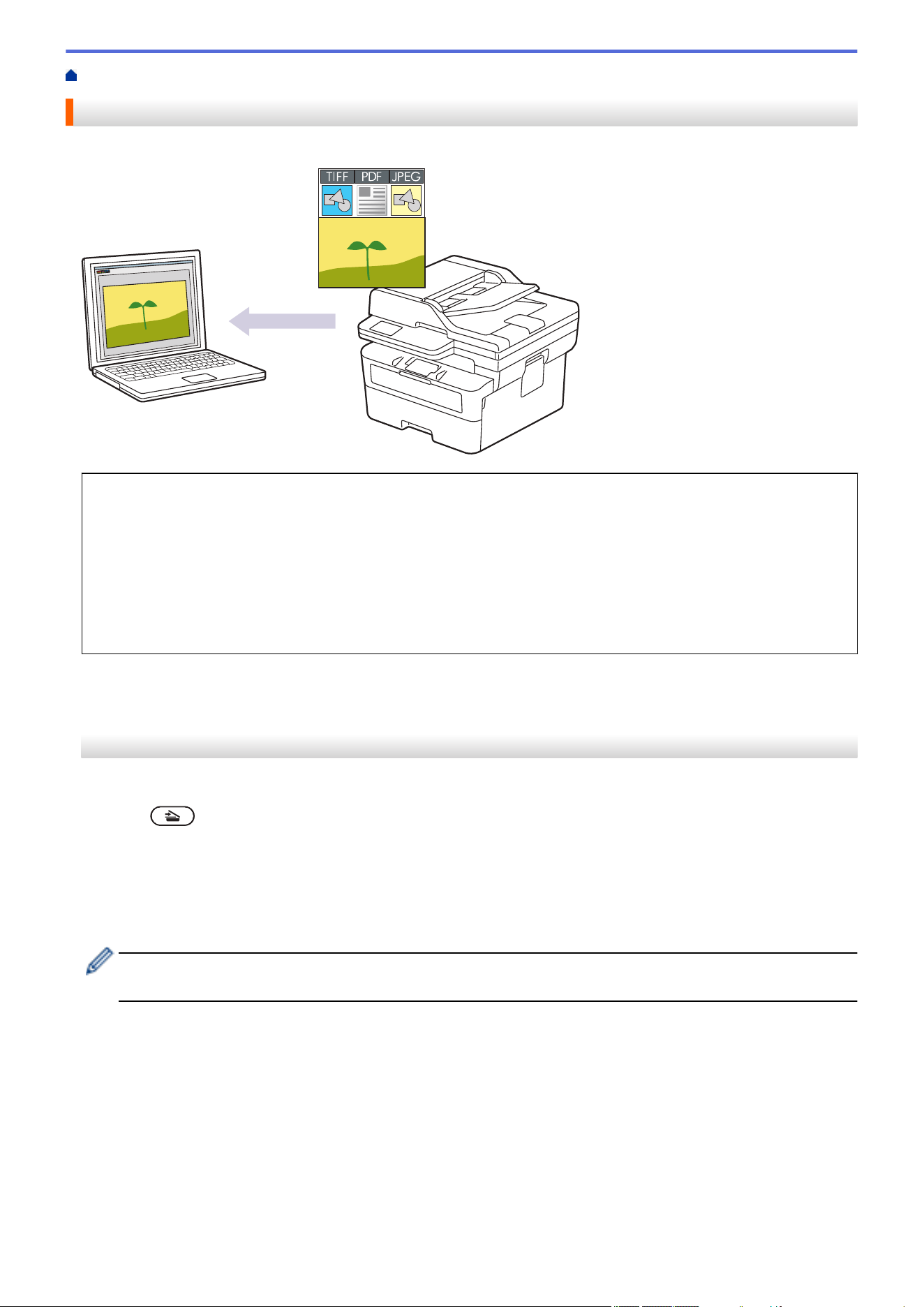
Home > Scan > Scan Using the Scan Button on Your Machine > Scan Photos and Graphics
Scan Photos and Graphics
Send scanned photos or graphics directly to your computer.
• To scan from your machine:
- You must select your machine using Brother iPrint&Scan.
- Use Brother iPrint&Scan to change scan settings such as file type and file storage location.
For more information, see Related Information: Change the Scan Button Settings from Brother
iPrint&Scan.
• To scan from your computer:
See Related Information: Scan Using Brother iPrint&Scan (Windows/Mac).
>> HL-L2465DW/DCP-L2640DW/DCP-L2647DW/MFC-L2760DW
>> HL-L2480DW/MFC-L2807DW/MFC-L2820DW/MFC-L2820DWXL/MFC-L2900DW/MFC-L2900DWXL/
MFC-L2980DW
HL-L2465DW/DCP-L2640DW/DCP-L2647DW/MFC-L2760DW
1. Load your document.
2. Press (Scan).
3. Press a or b to select the [to PC] option, and then press OK.
4. Press a or b to select the [Image] option, and then press OK.
5. If the machine is connected over the network, press a or b to select the destination computer.
6. Press OK.
If the LCD prompts you to enter a PIN, enter the four-digit PIN for the destination computer on the LCD and
then press OK.
7. To change the scan settings for this document, press Options or Copy/Scan Options, press a or b to select
the option you want, and then press OK to continue to the next scan setting. Skip this step if you want to use
the default scan settings.
• [Color Setting]
• [Resolution]
• [File Type]
• [Document Size]
• [ADF Auto Deskew] (available only for certain models)
• [Remove Bkg Clr] (available only for certain settings)
83
To change the scan settings, a computer with Brother iPrint&Scan installed must be connected to the
machine.
8. Press Start.
The machine starts scanning. If using the machine's scanner glass, follow the LCD instructions to complete
the scanning job.
HL-L2480DW/MFC-L2807DW/MFC-L2820DW/MFC-L2820DWXL/MFC-L2900DW/
MFC-L2900DWXL/MFC-L2980DW
1. Load your document.
2. Press [Scan] > [to PC] > [to Image].
3. If the machine is connected over the network, press a or b to display the computer where you want to send
data, and then press the computer name.
If the LCD prompts you to enter a PIN for the computer, enter the four-digit PIN on the LCD and then press
[OK].
4. To change the scan settings, press [Options], and then select the scan settings you want to change.
Skip this step if you want to use the default scan settings.
• [2-sided Scan] (available for certain models)
• [Scan Settings]
• [Color Setting]
• [Resolution]
• [File Type]
• [Document Size]
• [Brightness]
• [Contrast] (available only for certain settings)
• [ADF Auto Deskew] (available for certain models)
• [Remove Background Color]
(available only for certain settings)
• To change the scan settings, a computer with Brother iPrint&Scan installed must be connected to your
machine.
• When your machine displays the [OK] button, press [OK].
• To save the settings as a shortcut, press [Save as Shortcut].
5. Press [Start].
The machine starts scanning. If using the machine's scanner glass, follow the LCD instructions to complete
the scanning job.
Related Information
• Scan Using the Scan Button on Your Machine
Related Topics:
• Change the Scan Button Settings from Brother iPrint&Scan
• Scan Using Brother iPrint&Scan (Windows/Mac)
84
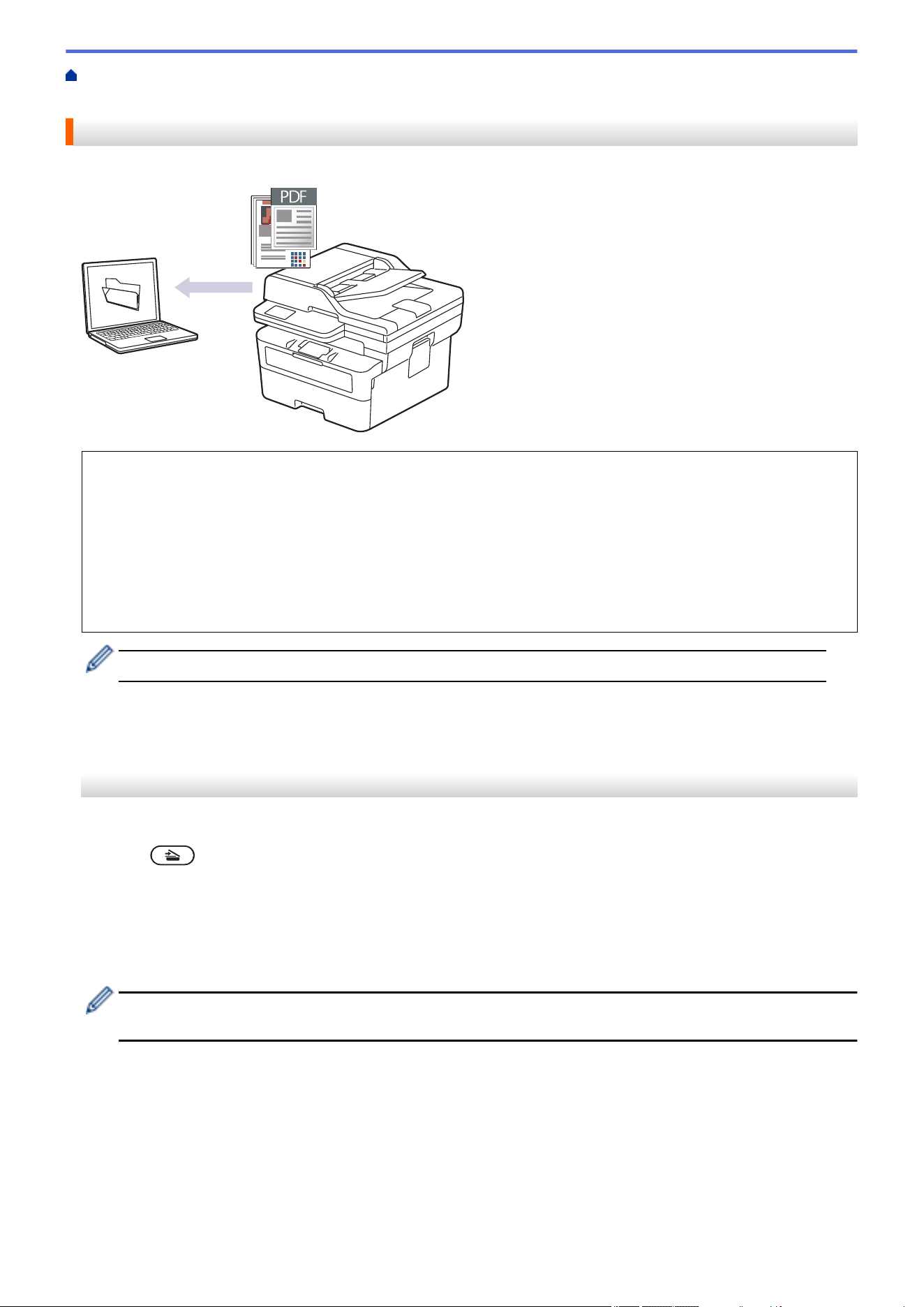
Home > Scan > Scan Using the Scan Button on Your Machine > Scan Single or Multiple Pages to a Folder
in a Single PDF File
Scan Single or Multiple Pages to a Folder in a Single PDF File
Combine multiple pages into a single PDF document.
• To scan from your machine:
- You must select your machine using Brother iPrint&Scan.
- Use Brother iPrint&Scan to change scan settings such as file type and file storage location.
For more information, see Related Information: Change the Scan Button Settings from Brother
iPrint&Scan.
• To scan from your computer:
See Related Information: Scan Using Brother iPrint&Scan (Windows/Mac).
When scanning multiple pages to a PDF file, set the file type on your machine to [PDF Multi-Page].
>> HL-L2465DW/DCP-L2640DW/DCP-L2647DW/MFC-L2760DW
>> HL-L2480DW/MFC-L2807DW/MFC-L2820DW/MFC-L2820DWXL/MFC-L2900DW/MFC-L2900DWXL/
MFC-L2980DW
HL-L2465DW/DCP-L2640DW/DCP-L2647DW/MFC-L2760DW
1. Load your document.
2. Press (Scan).
3. Press a or b to select the [to PC] option, and then press OK.
4. Press a or b to select the [File] option, and then press OK.
5. If the machine is connected over the network, press a or b to select the destination computer.
6. Press OK.
If the LCD prompts you to enter a PIN, enter the four-digit PIN for the destination computer on the LCD and
then press OK.
7. To change the scan settings for this document, press Options or Copy/Scan Options, press a or b to select
the option you want, and then press OK to continue to the next scan setting. Skip this step if you want to use
the default scan settings.
• [Color Setting]
• [Resolution]
• [File Type]
• [Document Size]
• [ADF Auto Deskew] (available only for certain models)
85
• [Remove Bkg Clr] (available only for certain settings)
To change the scan settings, a computer with Brother iPrint&Scan installed must be connected to the
machine.
8. Press Start.
The machine starts scanning. If using the machine's scanner glass, follow the LCD instructions to complete
the scanning job.
HL-L2480DW/MFC-L2807DW/MFC-L2820DW/MFC-L2820DWXL/MFC-L2900DW/
MFC-L2900DWXL/MFC-L2980DW
1. Load your document.
2. Press [Scan] > [to PC] > [to File].
3. If the machine is connected over the network, press a or b to display the computer where you want to send
data, and then press the computer name.
If the LCD prompts you to enter a PIN for the computer, enter the four-digit PIN on the LCD and then press
[OK].
4. To change the scan settings, press [Options], and then select the scan settings you want to change.
Skip this step if you want to use the default scan settings.
• [2-sided Scan] (available for certain models)
• [Scan Settings]
• [Color Setting]
• [Resolution]
• [File Type]
• [Document Size]
• [Brightness]
• [Contrast] (available only for certain settings)
• [ADF Auto Deskew] (available for certain models)
• [Remove Background Color]
(available only for certain settings)
• To change the scan settings, a computer with Brother iPrint&Scan installed must be connected to your
machine.
• When your machine displays the [OK] button, press [OK].
• To save the settings as a shortcut, press [Save as Shortcut].
5. Press [Start].
The machine starts scanning. If using the machine's scanner glass, follow the LCD instructions to complete
the scanning job.
Related Information
• Scan Using the Scan Button on Your Machine
Related Topics:
• Change the Scan Button Settings from Brother iPrint&Scan
• Scan Using Brother iPrint&Scan (Windows/Mac)
86
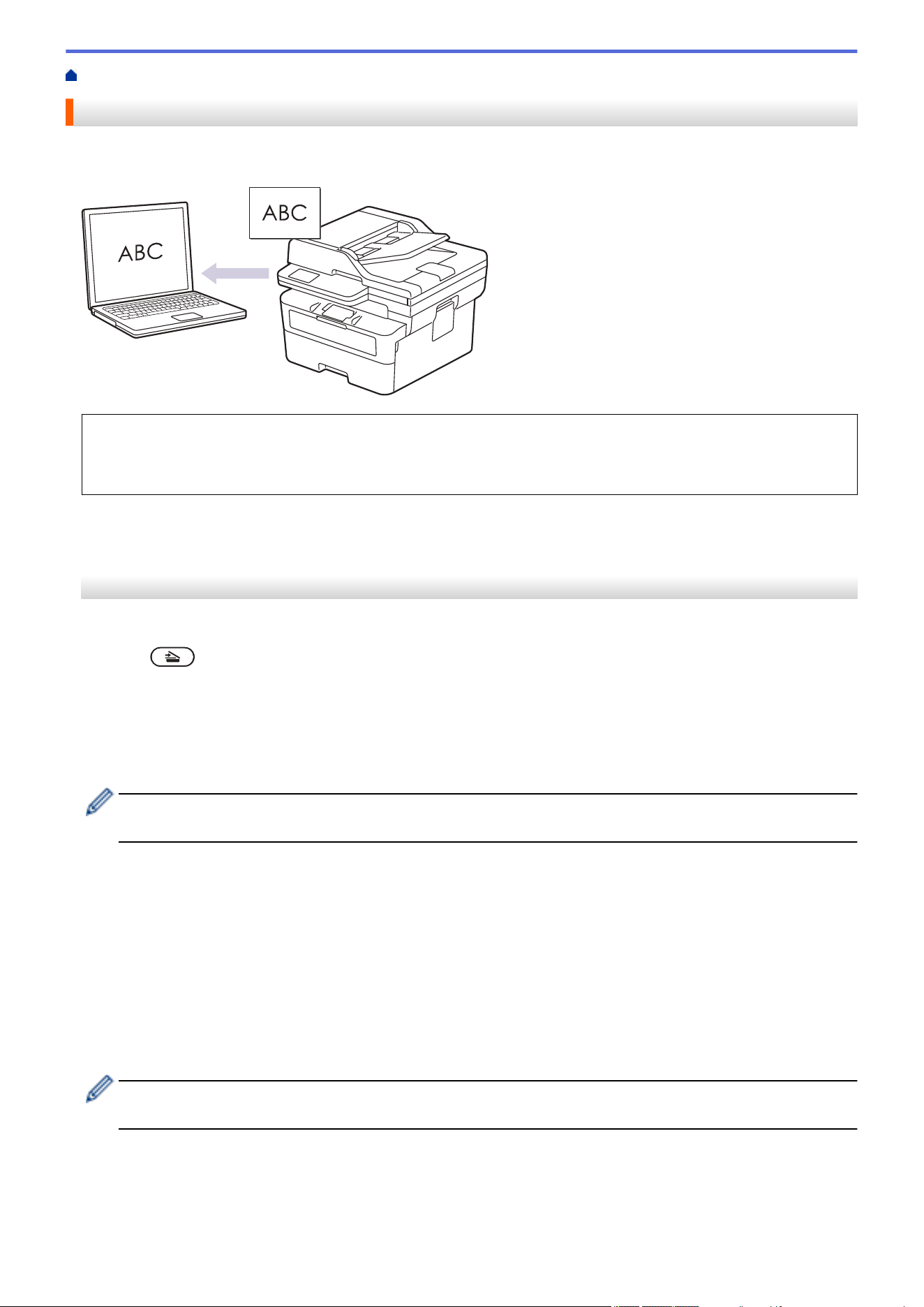
Home > Scan > Scan Using the Scan Button on Your Machine > Scan to an Editable Text File (OCR)
Scan to an Editable Text File (OCR)
Your machine can convert characters in a scanned document to text using the optical character recognition
(OCR) technology. You can edit this text using your preferred text-editing application.
• The Scan to OCR feature is available only for certain languages.
• Use the Scan button on the machine to make temporary changes to the scan settings. To make permanent
changes, use Brother iPrint&Scan.
>> HL-L2465DW/DCP-L2640DW/DCP-L2647DW/MFC-L2760DW
>> HL-L2480DW/MFC-L2807DW/MFC-L2820DW/MFC-L2820DWXL/MFC-L2900DW/MFC-L2900DWXL/
MFC-L2980DW
HL-L2465DW/DCP-L2640DW/DCP-L2647DW/MFC-L2760DW
1. Load your document.
2. Press
(Scan).
3. Press a or b to select the [to PC] option, and then press OK.
4. Press a or b to select the [OCR] option, and then press OK.
5. If the machine is connected over the network, press a or b to select the destination computer.
6. Press OK.
If the LCD prompts you to enter a PIN, enter the four-digit PIN for the destination computer on the LCD and
then press OK.
7. To change the scan settings for this document, press Options or Copy/Scan Options, press a or b to select
the option you want, and then press OK to continue to the next scan setting. Skip this step if you want to use
the default scan settings.
• [Color Setting]
• [Resolution]
• [File Type]
• [Document Size]
• [ADF Auto Deskew] (available only for certain models)
• [Remove Bkg Clr] (available only for certain settings)
To change the scan settings, a computer with Brother iPrint&Scan installed must be connected to the
machine.
8. Press Start.
The machine starts scanning. If you are using the machine's scanner glass, follow the LCD instructions to
complete the scanning job.
87
HL-L2480DW/MFC-L2807DW/MFC-L2820DW/MFC-L2820DWXL/MFC-L2900DW/
MFC-L2900DWXL/MFC-L2980DW
1. Load your document.
2. Press [Scan] > [to PC] > [to OCR].
3. If the machine is connected over the network, press a or b to display the computer where you want to send
data, and then press the computer name.
If the LCD prompts you to enter a PIN for the computer, enter the four-digit PIN on the LCD and then press
[OK].
4. To change the scan settings, press [Options], and then select the scan settings you want to change.
Skip this step if you want to use the default scan settings.
• [2-sided Scan] (available for certain models)
• [Scan Settings]
• [Color Setting]
• [Resolution]
• [File Type]
• [Document Size]
• [Brightness]
• [Contrast] (available only for certain settings)
• [ADF Auto Deskew] (available for certain models)
• [Remove Background Color]
(available only for certain settings)
• To change the scan settings, a computer with Brother iPrint&Scan installed must be connected to your
machine.
• When your machine displays the [OK] button, press [OK].
• To save the settings as a shortcut, press [Save as Shortcut].
5. Press [Start].
The machine starts scanning. If using the machine's scanner glass, follow the LCD instructions to complete
the scanning job.
Related Information
• Scan Using the Scan Button on Your Machine
Related Topics:
• Change the Scan Button Settings from Brother iPrint&Scan
88
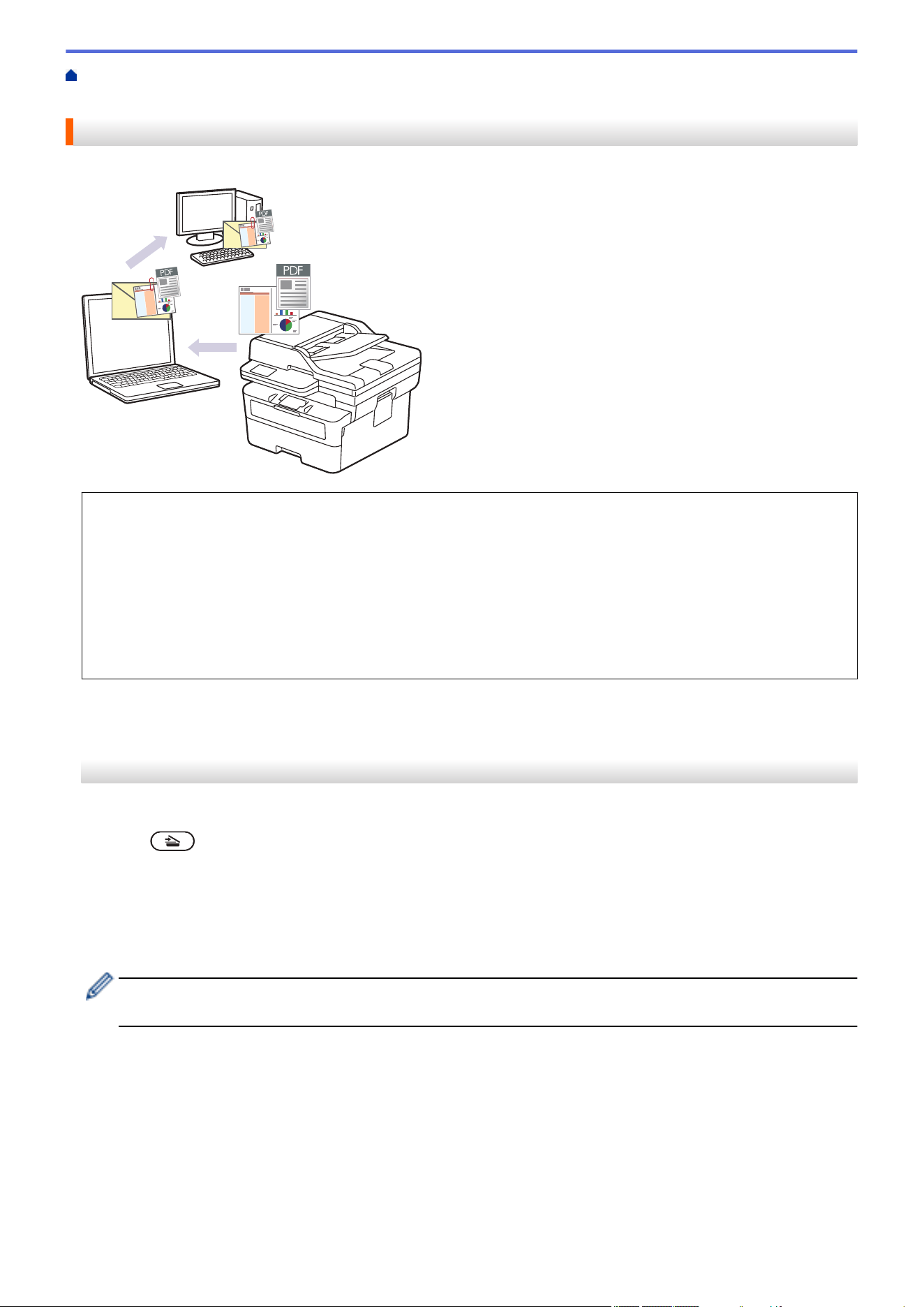
Home > Scan > Scan Using the Scan Button on Your Machine > Save Scanned Data as an Email
Attachment
Save Scanned Data as an Email Attachment
Send the scanned data from your machine to your email application as an attachment.
• Use the Scan button on the machine to make temporary changes to the scan settings. To make permanent
changes, use Brother iPrint&Scan.
• To use this feature with your machine's Scan button, make sure you select one of these applications in
Brother iPrint&Scan:
- Windows: Microsoft Outlook
- Mac: Apple Mail
For other applications and Webmail services, use the Scan to Image or Scan to File feature to scan a
document, and then attach the scanned file to an email message.
>> HL-L2465DW/DCP-L2640DW/DCP-L2647DW/MFC-L2760DW
>> HL-L2480DW/MFC-L2807DW/MFC-L2820DW/MFC-L2820DWXL/MFC-L2900DW/MFC-L2900DWXL/
MFC-L2980DW
HL-L2465DW/DCP-L2640DW/DCP-L2647DW/MFC-L2760DW
1. Load your document.
2. Press (Scan).
3. Press a or b to select the [to PC] option, and then press OK.
4. Press a or b to select the [E-mail] option, and then press OK.
5. If the machine is connected over the network, press a or b to select the destination computer.
6. Press OK.
If the LCD prompts you to enter a PIN, enter the four-digit PIN for the destination computer on the LCD and
then press OK.
7. To change the scan settings for this document, press Options or Copy/Scan Options, press a or b to select
the option you want, and then press OK to continue to the next scan setting. Skip this step if you want to use
the default scan settings.
• [Color Setting]
• [Resolution]
• [File Type]
• [Document Size]
• [ADF Auto Deskew] (available only for certain models)
89
• [Remove Bkg Clr] (available only for certain settings)
To change the scan settings, a computer with Brother iPrint&Scan installed must be connected to the
machine.
8. Press Start.
The machine scans the document and saves it as a file attachment. It then launches your email application
and opens a new, blank email message with the scanned file attached.
HL-L2480DW/MFC-L2807DW/MFC-L2820DW/MFC-L2820DWXL/MFC-L2900DW/
MFC-L2900DWXL/MFC-L2980DW
1. Load your document.
2. Press [Scan] > [to PC] > [to E-mail].
3. If the machine is connected over the network, press a or b to display the computer where you want to send
data, and then press the computer name.
If the LCD prompts you to enter a PIN for the computer, enter the four-digit PIN on the LCD and then press
[OK].
4. To change the scan settings, press [Options], and then select the scan settings you want to change.
Skip this step if you want to use the default scan settings.
• [2-sided Scan] (available for certain models)
• [Scan Settings]
• [Color Setting]
• [Resolution]
• [File Type]
• [Document Size]
• [Brightness]
• [Contrast] (available only for certain settings)
• [ADF Auto Deskew] (available for certain models)
• [Remove Background Color]
(available only for certain settings)
• To change the scan settings, a computer with Brother iPrint&Scan installed must be connected to your
machine.
• When your machine displays the [OK] button, press [OK].
• To save the settings as a shortcut, press [Save as Shortcut].
5. Press [Start].
The machine starts scanning. If using the machine's scanner glass, follow the LCD instructions to complete
the scanning job.
Related Information
• Scan Using the Scan Button on Your Machine
Related Topics:
• Change the Scan Button Settings from Brother iPrint&Scan
90
Home > Scan > Scan Using the Scan Button on Your Machine > Send Scanned Data to an Email Recipient
Send Scanned Data to an Email Recipient
Related Models: MFC-L2760DW/MFC-L2807DW/MFC-L2820DW/MFC-L2820DWXL/MFC-L2900DW/
MFC-L2900DWXL/MFC-L2980DW
Send scanned data directly from your machine to an email recipient without using a computer. This function
allows your machine to scan documents and send them to an email address without your machine being
connected to a computer. To send the scanned data as an attachment directly to your default email application
using the iPrint&Scan software on your computer or the Scan button on your machine, use the "Scan to Email
Attachment" function instead.
• (MFC-L2760DW/MFC-L2807DW/MFC-L2820DW/MFC-L2820DWXL)
To use this function, go to your model's Downloads page at
support.brother.com/downloads to download
the Internet FAX Install Tool. The installation instructions are available on the Downloads page. If the
Internet Fax Install Tool is not available for your model, contact Brother Customer Service.
• To send scanned data to an email recipient, you must configure your machine to communicate with your
network and email server, which is used to send and receive emails.
• Configure these items from the machine's control panel or Web Based Management.
• To use the Scan to Email Server function, connect your machine to the network and access an SMTP
server. Set up the following SMTP email settings:
- Server address
- Port number
- User name
- Encryption type (SSL or TLS)
- Email server certificate (if used)
If you do not know these settings, contact your email service provider or network administrator.
>> MFC-L2760DW
>> MFC-L2807DW/MFC-L2820DW/MFC-L2820DWXL/MFC-L2900DW/MFC-L2900DWXL/MFC-L2980DW
MFC-L2760DW
1. Load your document.
2. Press (Scan).
3. Press a or b to select the [Scan to E-mail] option, and then press OK.
4. To change the scan settings for this document, press Options or Copy/Scan Options, press a or b to select
the option you want, and then press OK to continue to the next scan setting. Skip this step if you want to use
the default scan settings.
• [Color Setting]
• [Resolution]
• [File Type]
• [Document Size]
• [File Size] (available only for certain settings)
• [ADF Auto Deskew] (available only for certain models)
• [Remove Bkg Clr] (available only for certain settings)
5. Select [Enter Address], and then press OK.
6. The LCD prompts you to enter an email address. Use the Shortcut button or Speed Dial number to select
the email address you want.
91
To specify the destination email address, make sure you have added the email address to the Speed Dial
or Shortcut using Web Based Management.
7. Press Start.
The machine starts scanning. If using the machine's scanner glass, follow the LCD instructions to complete
the scanning job.
MFC-L2807DW/MFC-L2820DW/MFC-L2820DWXL/MFC-L2900DW/MFC-L2900DWXL/
MFC-L2980DW
1. Load your document.
2. Press [Scan] > [to E-mail Server].
3. Do one of the following to enter the destination email address:
• To enter the email address manually, press [Manual], and then enter the email address using the
character buttons on the LCD. When finished, press [OK].
• If the email address is stored in the machine's address book, press [Address Book], and then select
the email address.
Press [OK].
4. Confirm the email address, and then press [Next].
5. To change the settings, press [Options], and then select the button you want to change. Skip this step
if you want to use the default settings.
• [2-sided Scan] (available only for certain models)
• [Color Setting]
• [Resolution]
• [File Type]
• [Document Size]
• [Brightness]
• [Contrast] (available only for certain settings)
• [File Name] (available only for certain settings)
• [File Name Style]
• [File Size] (available only for certain settings)
• [ADF Auto Deskew] (available only for certain models)
• [Remove Background Color] (available only for certain settings)
• [Document Separation]
• When your machine displays the [OK] button, press [OK].
• To set your own default settings: after making changes to settings, press the [Set New Default]
option, and then press [Yes].
• To restore the factory settings: press [Factory Reset], and then press [Yes].
• To save the settings as a shortcut, press [Save as Shortcut].
6. Press [Start].
The machine starts scanning. If using the machine's scanner glass, follow the LCD instructions to complete
the scanning job.
Related Information
• Scan Using the Scan Button on Your Machine
92
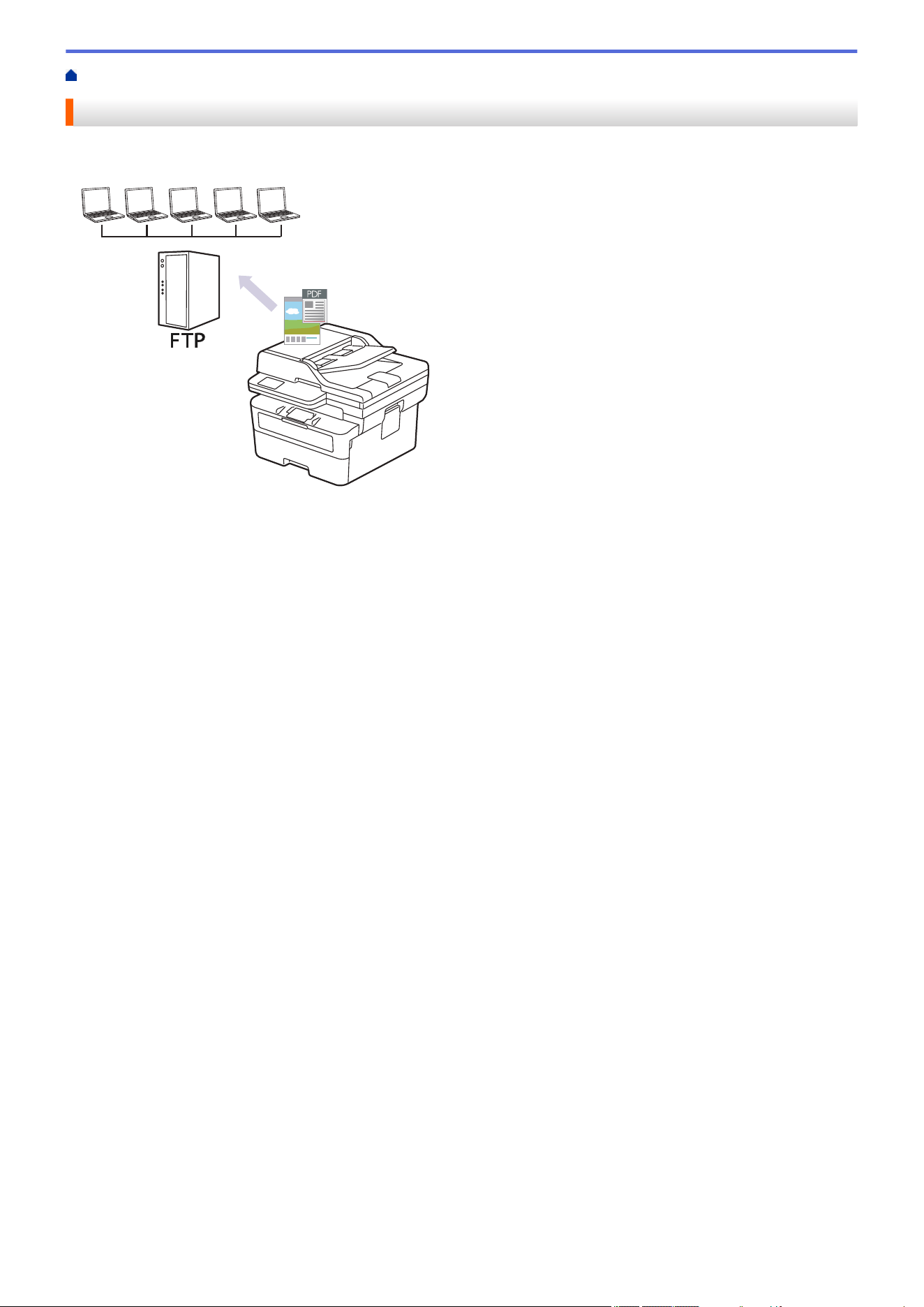
Home > Scan > Scan Using the Scan Button on Your Machine > Scan to FTP
Scan to FTP
Scan documents directly to an FTP server when you need to share the scanned information. For added
convenience, configure different profiles to save your favorite Scan to FTP destinations.
• Set up a Scan to FTP Profile
• Upload Scanned Data to an FTP Server
93
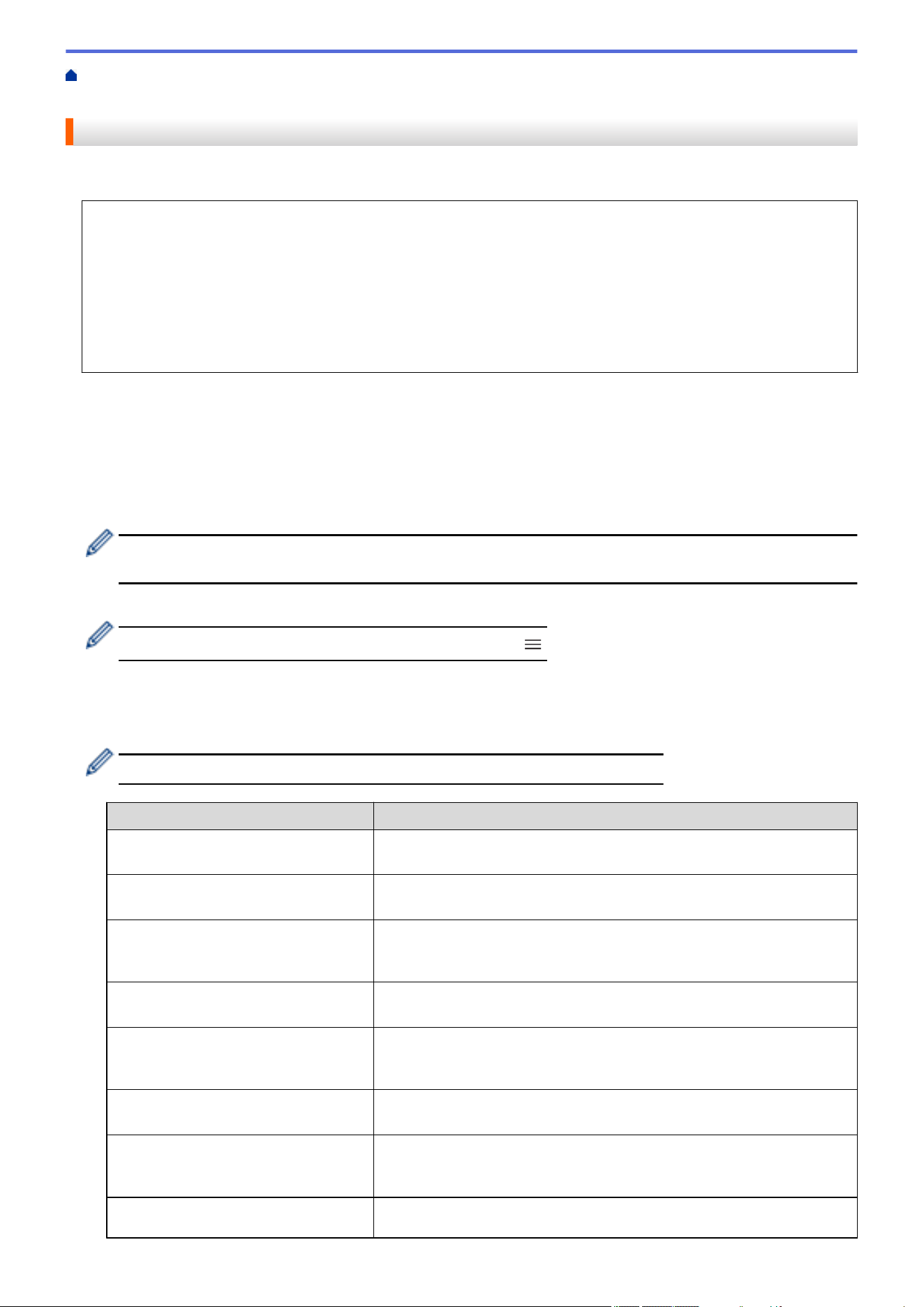
Home > Scan > Scan Using the Scan Button on Your Machine > Scan to FTP > Set up a Scan to FTP
Profile
Set up a Scan to FTP Profile
Set up a Scan to FTP Profile to scan and upload the scanned data directly to an FTP location.
• We recommend using the latest version of the following web browsers:
- Microsoft Edge, Firefox, and Google Chrome
™
for Windows
- Safari, Firefox, and Google Chrome
™
for Mac
- Google Chrome
™
for Android
™
- Safari and Google Chrome
™
for iOS
• Ensure that JavaScript and Cookies are always enabled, regardless of which browser you use.
1. Start your web browser.
2. Type "https://machine's IP address" in your browser's address bar (where "machine's IP address" is your
machine's IP address).
For example:
https://192.168.1.2
3. If required, type the password in the Login field, and then click Login.
The default password to manage this machine’s settings is located on the back of the machine and marked
"Pwd". Change the default password by following the on-screen instructions when you first log in.
4. In the left navigation bar, click Scan > Scan to FTP/Network.
If the left navigation bar is not visible, start navigating from
.
5. Select the FTP option, and then click Submit.
6. In the left navigation bar, click Scan > Scan to FTP/Network Profile.
7. Select the profile you want to set up or change.
Using the following characters: ?, /, \, ", :, <, >, | or * may cause a sending error.
Option Description
Profile Name Type a name for this server profile (up to 15 alphanumeric characters).
The machine will display this name on the LCD.
Host Address Type the Host Address (for example: ftp.example.com; up to 64
characters) or the IP address (for example: 192.23.56.189).
Port Number Change the Port Number setting used to access the FTP server. The
default setting is port 21. In most cases this setting does not need to be
changed.
Username Type a user name (up to 32 characters) of a user that has permission to
write data to the FTP server.
Password Type the password (up to 32 characters) associated with the user name
you entered in the Username field. Type the password again in the
Retype password field.
SSL/TLS Set the SSL/TLS option to scan securely using SSL/TLS
communication. Change the CA Certificate setting, if needed.
Store Directory Type the path (up to 60 characters) to the folder on the FTP server
where you want to send your scanned data. Do not type a slash mark at
the beginning of the path (correct example: brother/abc).
File Name Select a file name prefix from the preset names provided, or from user-
defined names. The file name used for the scanned document will be
94
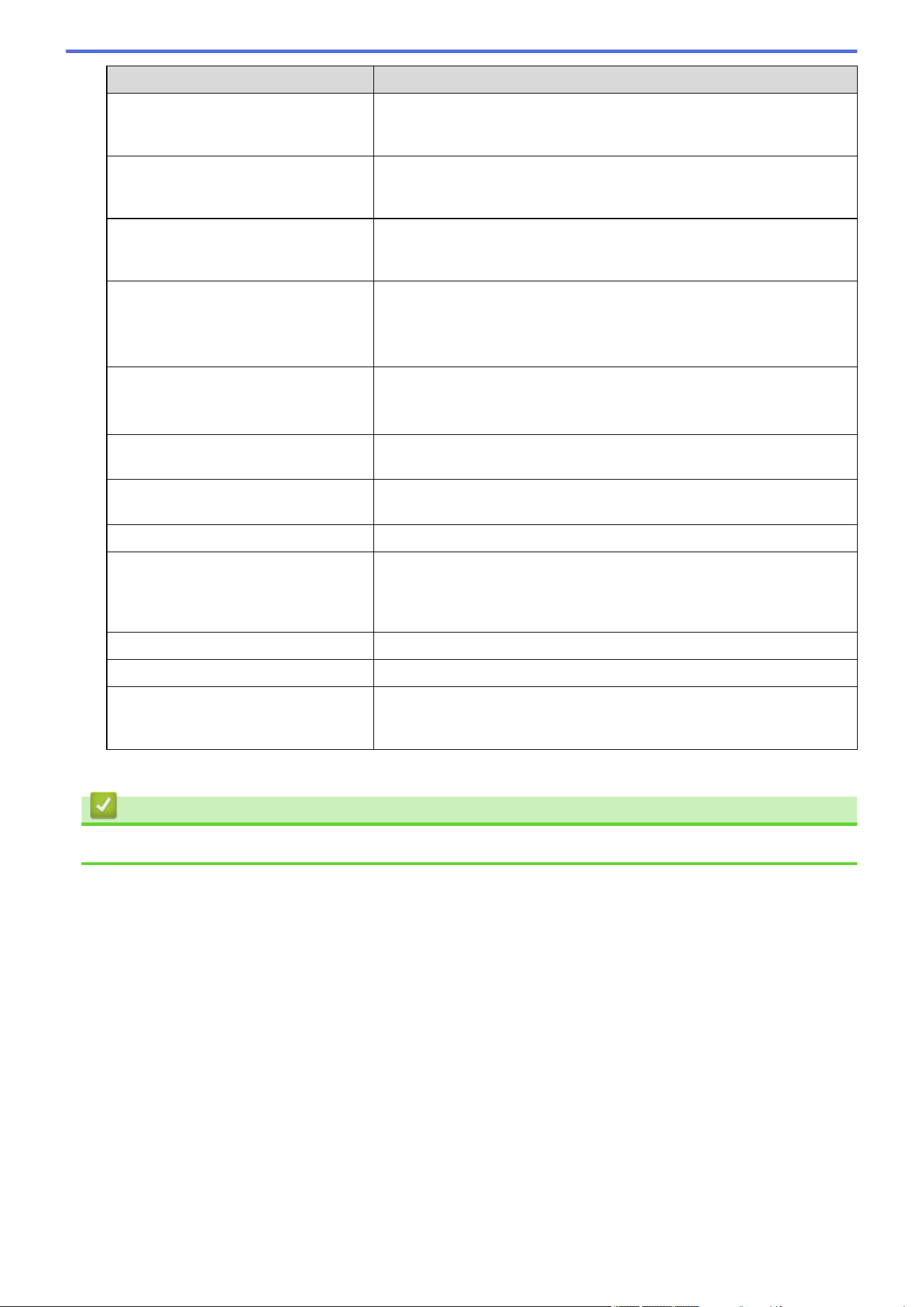
Option Description
the file name prefix you select, followed by the last six digits of the
flatbed/ADF scanner counter and the file extension (for example:
"Estimate_098765.pdf").
Quality Select a quality setting. If you choose the User Select option, the
machine will prompt users to select a setting each time they use the
scan profile.
File Type Select the file type you want to use for the scanned document. If you
choose the User Select option, the machine will prompt users to select
a setting each time they use the scan profile.
Document Size Select your document size from the list. This is necessary to make sure
the scanned file is the correct size.
If you choose the User Select option, the machine will prompt users to
select a setting each time they use the scan profile.
File Size Select your file size from the list.
If you choose the User Select option, the machine will prompt users to
select a setting each time they use the scan profile.
Auto Deskew or ADF Auto Deskew Select the Auto option to set the machine to correct document skewing
automatically as the pages are scanned.
2-sided Scan (MFC-L2900DW/
MFC-L2900DWXL/MFC-L2980DW)
Select the Long Edge or Short Edge option to scan both sides of the
document, depending on the layout of your original.
Remove Background Color Change the amount of background color that is removed.
Document Separation (HL-L2480DW/
MFC-L2807DW/MFC-L2820DW/
MFC-L2820DWXL/MFC-L2900DW/
MFC-L2900DWXL/MFC-L2980DW)
Split a scanned image.
When multiple documents have been scanned, you can split and save
the documents separately by using this function.
Brightness Select the brightness level.
Contrast Select the contrast level.
Passive Mode Set the Passive Mode option to off or on depending on your FTP server
and network firewall configuration. The default setting is on. In most
cases, this setting does not need to be changed.
8. Click Submit.
Related Information
• Scan to FTP
95
Home > Scan > Scan Using the Scan Button on Your Machine > Scan to FTP > Upload Scanned Data to an
FTP Server
Upload Scanned Data to an FTP Server
Share scanned information by saving it to your FTP server.
>> HL-L2465DW/DCP-L2640DW/DCP-L2647DW/MFC-L2760DW
>> HL-L2480DW/MFC-L2807DW/MFC-L2820DW/MFC-L2820DWXL/MFC-L2900DW/MFC-L2900DWXL/
MFC-L2980DW
HL-L2465DW/DCP-L2640DW/DCP-L2647DW/MFC-L2760DW
1. Load your document.
2. Press (Scan).
3. Press a or b to select the [to FTP] option, and then press OK.
4. Press a or b to select one of the profiles listed, and then press OK.
If the profile is not complete (for example, if the logon account name and password are missing or if the
quality or file type is not specified), you will be prompted to enter any missing information.
5. Press Start.
The LCD shows the message [Connecting]. When the connection to the FTP server is successful, the
machine starts scanning. If you are using the machine's scanner glass, follow the LCD instructions to
complete the scanning job.
HL-L2480DW/MFC-L2807DW/MFC-L2820DW/MFC-L2820DWXL/MFC-L2900DW/
MFC-L2900DWXL/MFC-L2980DW
1. Load your document.
2. Press [Scan] > [to FTP].
3. Press a or b to select one of the network server profiles listed. If the profile is not complete (for example, if the
logon account name and password are missing, or if the quality or file type is not specified), you will be
prompted to enter any missing information.
4. Press [Start].
The machine starts scanning. If using the machine's scanner glass, follow the LCD instructions to complete
the scanning job.
Related Information
• Scan to FTP
96

Home > Scan > Scan Using the Scan Button on Your Machine > Scan to Network (Windows)
Scan to Network (Windows)
Related Models: MFC-L2900DW/MFC-L2900DWXL/MFC-L2980DW
Scan documents directly to a CIFS server on your local network. For added convenience, you can configure
different profiles to save your favorite Scan to Network destinations.
• Set up a Scan to Network Profile
• Upload Scanned Data to a CIFS Server
97
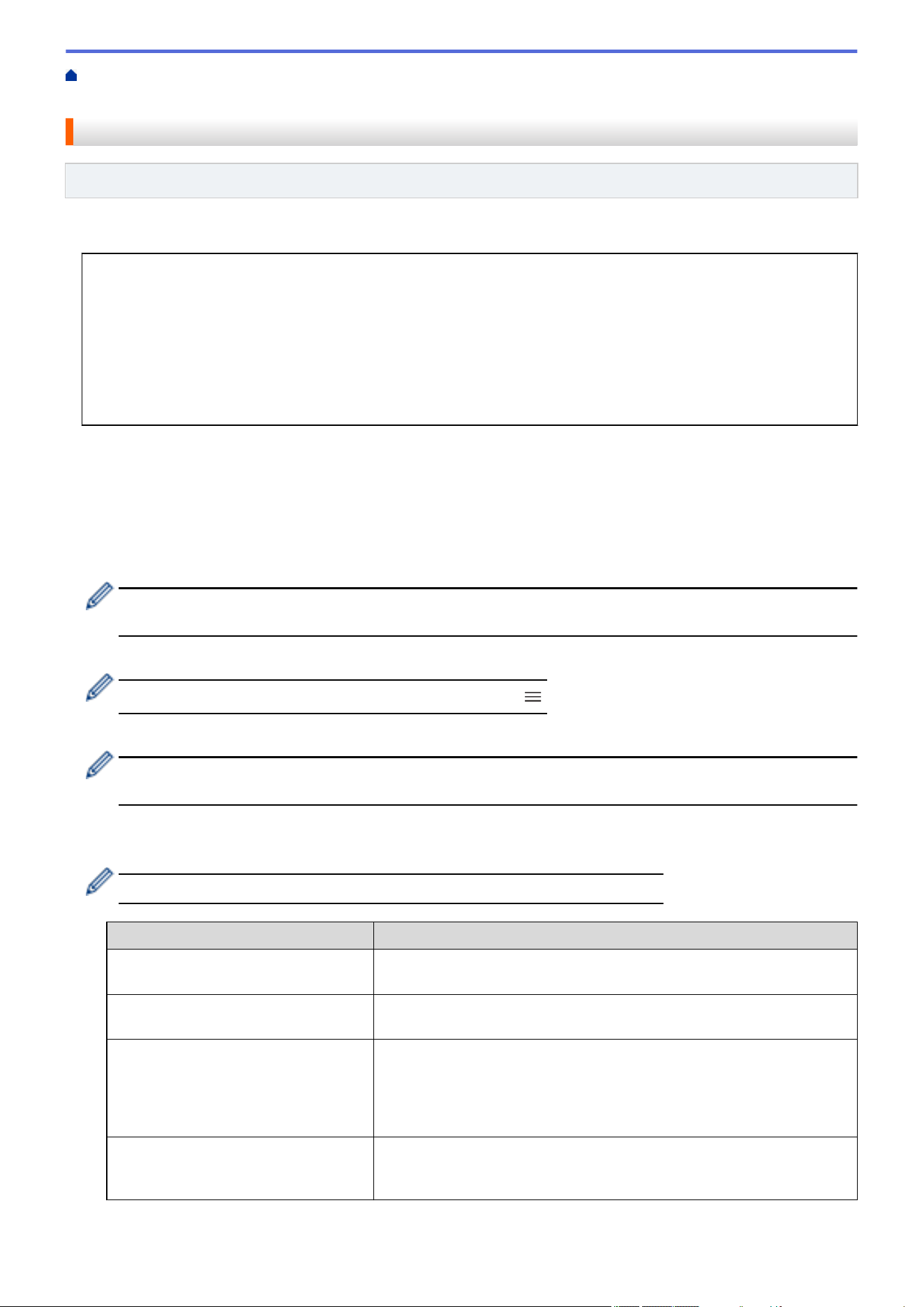
Home > Scan > Scan Using the Scan Button on Your Machine > Scan to Network (Windows) > Set up a
Scan to Network Profile
Set up a Scan to Network Profile
Related Models: MFC-L2900DW/MFC-L2900DWXL/MFC-L2980DW
Set up a Scan to Network Profile to scan and upload scanned data directly to a folder on a CIFS server.
• We recommend using the latest version of the following web browsers:
- Microsoft Edge, Firefox, and Google Chrome
™
for Windows
- Safari, Firefox, and Google Chrome
™
for Mac
- Google Chrome
™
for Android
™
- Safari and Google Chrome
™
for iOS
• Ensure that JavaScript and Cookies are always enabled, regardless of which browser you use.
1. Start your web browser.
2. Type "https://machine's IP address" in your browser's address bar (where "machine's IP address" is your
machine's IP address).
For example:
https://192.168.1.2
3. If required, type the password in the Login field, and then click Login.
The default password to manage this machine’s settings is located on the back of the machine and marked
"Pwd". Change the default password by following the on-screen instructions when you first log in.
4. In the left navigation bar, click Scan > Scan to FTP/Network.
If the left navigation bar is not visible, start navigating from
.
5. Select the Network option, and then click Submit.
If you want to send the data to your designated folder on the CIFS server, select On for the Send to My
Folder option.
6. In the left navigation bar, click Scan > Scan to FTP/Network Profile.
7. Select the profile you want to set up or change.
Using the following characters: ?, /, \, ", :, <, >, | or * may cause a sending error.
Option Description
Profile Name Type a name for this server profile (up to 15 alphanumeric characters).
The machine will display this name on the LCD.
Network Folder Path Type the path to the folder on the CIFS server where you want to send
your scanned data.
File Name Select a file name prefix from the preset names provided, or from user-
defined names. The file name used for the scanned document will be
the file name prefix you select, followed by the last six digits of the
flatbed/ADF scanner counter and the file extension (for example:
"Estimate_098765.pdf").
Quality Select a quality setting. If you choose the User Select option, the
machine will prompt users to select a setting each time they use the
scan profile.
98
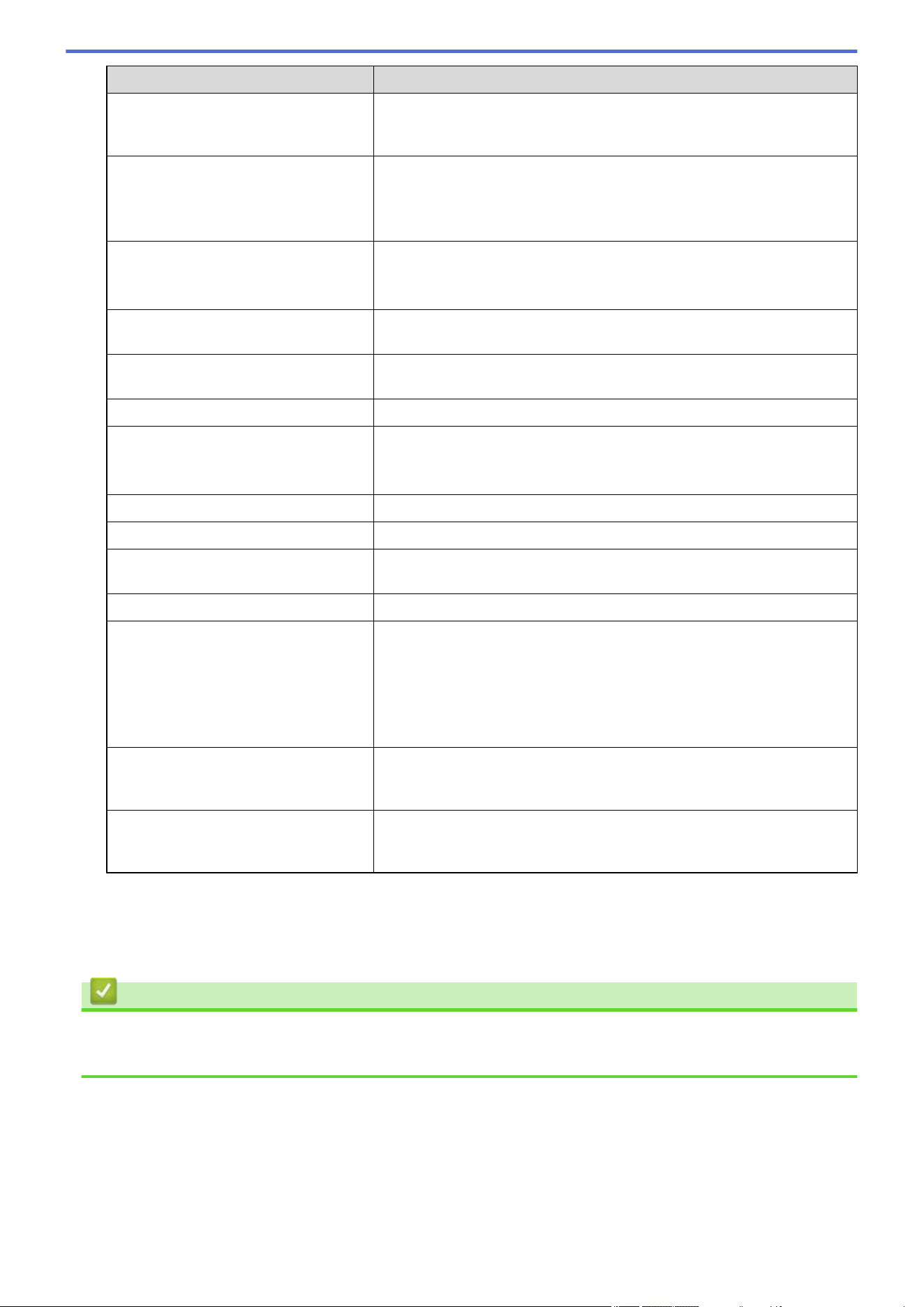
Option Description
File Type Select the file type you want to use for the scanned document. If you
choose the User Select option, the machine will prompt users to select
a setting each time they use the scan profile.
Document Size Select your document size from the list. This is necessary to make sure
the scanned file is the correct size.
If you choose the User Select option, the machine will prompt users to
select a setting each time they use the scan profile.
File Size Select your file size from the list.
If you choose the User Select option, the machine will prompt users to
select a setting each time they use the scan profile.
Auto Deskew or ADF Auto Deskew Select the Auto option to set the machine to correct document skewing
automatically as the pages are scanned.
2-sided Scan Select the Long Edge or Short Edge option to scan both sides of the
document, depending on the layout of your original.
Remove Background Color Change the amount of background color that is removed.
Document Separation Split a scanned image.
When multiple documents have been scanned, you can split and save
the documents separately by using this function.
Brightness Select the brightness level.
Contrast Select the contrast level.
Use PIN for Authentication To PIN-protect this profile, select On and type a four-digit PIN in the PIN
Code field.
Auth. Method To set your authentication method, select Auto, Kerberos, or NTLMv2.
Username Type a user name (up to 96 characters) of a user that has permission to
write data to the folder specified in the Network Folder Path field. If the
user name is part of a domain, enter the user name in one of the
following styles:
• user@domain
• domain\user
Password Type the password (up to 32 characters) associated with the user name
you entered in the Username field. Type the password again in the
Retype password field.
Kerberos Server Address When you select Kerberos for the Auth. Method option, you must type
the Kerberos Server Address (for example: kerberos.example.com; up
to 64 characters).
8. Click Submit.
9. You must configure the SNTP protocol (network time server) or set the date, time and time zone correctly on
the control panel for all authentication methods. The machine's time must match the time used by the
Kerberos Server and CIFS Server.
Related Information
• Scan to Network (Windows)
• Set the Date and Time Using Web Based Management
99
Home > Scan > Scan Using the Scan Button on Your Machine > Scan to Network (Windows) > Set up a
Scan to Network Profile > Set the Date and Time Using Web Based Management
Set the Date and Time Using Web Based Management
Make sure the date and time and the time zone settings are set correctly using Web Based Management or the
control panel. The machine's time must match the time used by the server providing authentication.
• We recommend using the latest version of the following web browsers:
- Microsoft Edge, Firefox, and Google Chrome
™
for Windows
- Safari, Firefox, and Google Chrome
™
for Mac
- Google Chrome
™
for Android
™
- Safari and Google Chrome
™
for iOS
• Ensure that JavaScript and Cookies are always enabled, regardless of which browser you use.
• Ignore step 1, if you already have a Web Based Management window open.
1. Start your web browser.
2. Type "https://machine's IP address" in your browser's address bar (where "machine's IP address" is your
machine's IP address).
For example:
https://192.168.1.2
3. If required, type the password in the Login field, and then click Login.
The default password to manage this machine’s settings is located on the back of the machine and marked
"Pwd". Change the default password by following the on-screen instructions when you first log in.
4. In the left navigation bar, click Administrator > Date&Time.
If the left navigation bar is not visible, start navigating from
.
100
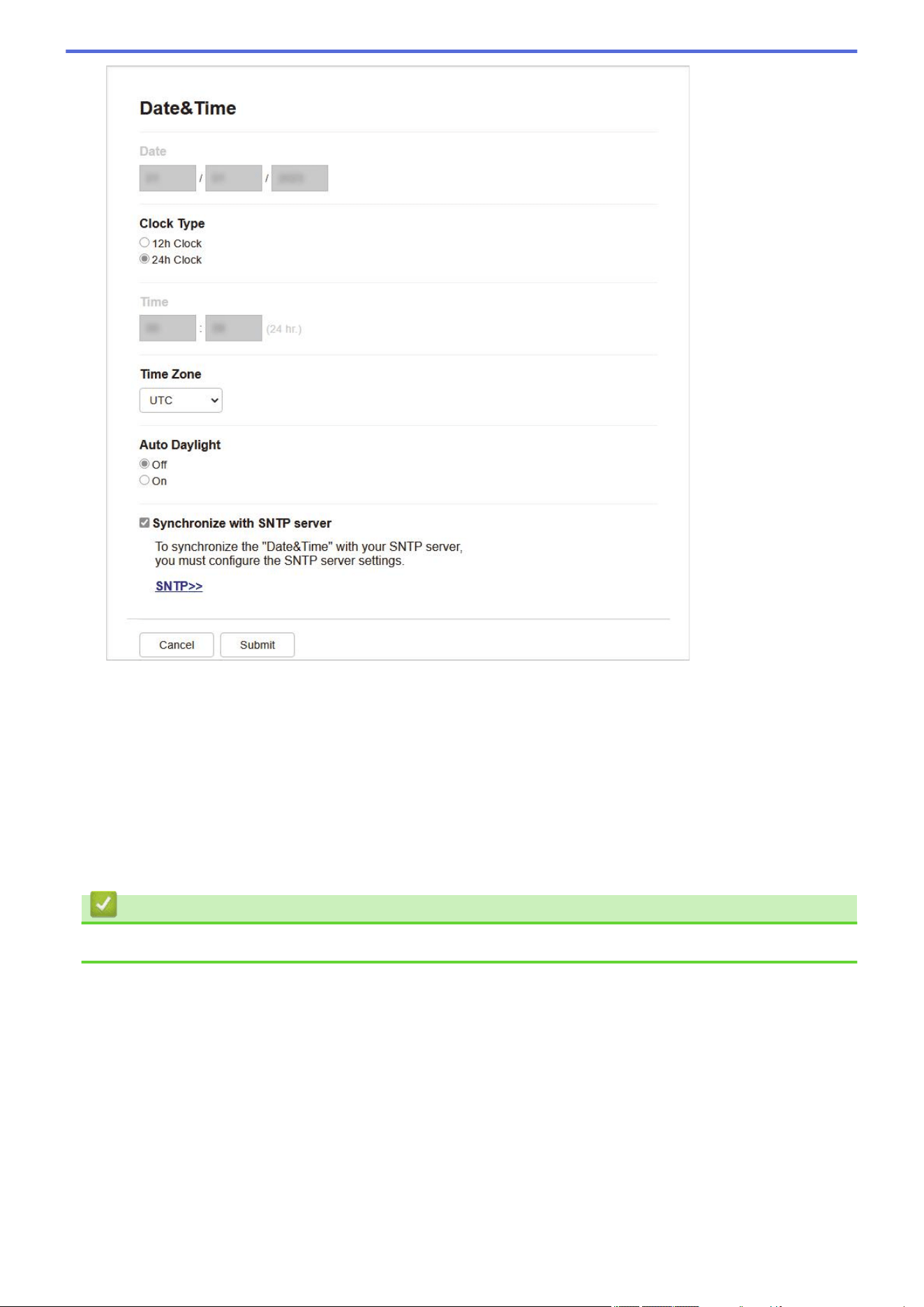
5. Clear the Synchronize with SNTP server checkbox.
6. In the Date fields, enter the date.
7. Select the clock type from the Clock Type field.
8. In the Time fields, enter the time.
9. Select the time difference between your location and UTC from the Time Zone drop-down list. For example,
the time zone for Eastern time in the USA and Canada is UTC-05:00.
10. In the Auto Daylight field, click On to set the machine to change automatically to Daylight Saving Time. It will
reset itself forward one hour in the spring, and back one hour in the fall (available only for some countries).
11. Click Submit.
Related Information
• Set up a Scan to Network Profile
101
Home > Scan > Scan Using the Scan Button on Your Machine > Scan to Network (Windows) > Upload
Scanned Data to a CIFS Server
Upload Scanned Data to a CIFS Server
Related Models: MFC-L2900DW/MFC-L2900DWXL/MFC-L2980DW
1. Load your document.
2. Press [Scan] > [to Network].
• If you registered your user ID, the [to My Folder] option appears when you log on to the machine
using Active Directory Authentication or LDAP Authentication.
• To send scanned data to your designated folder on the CIFS server, press [to My Folder].
• To enable this feature in Web Based Management, in the left navigation bar, click Scan > Scan to FTP/
Network. In the Send to My Folder field, select On.
3. When the server profiles you set up using Web Based Management appear, select the profile you want. If the
profile is not complete (for example, if the logon account name and password are missing, or if the quality or
file type is not specified), you will be prompted to enter any missing information.
4. Press [Start].
The machine starts scanning. If using the machine's scanner glass, follow the LCD instructions to complete
the scanning job.
Related Information
• Scan to Network (Windows)
102

Home > Scan > Scan Using the Scan Button on Your Machine > Use the Web Services Protocol for
Network Scanning (Windows 10 and Windows 11)
Use the Web Services Protocol for Network Scanning (Windows 10 and
Windows 11)
The Web Services protocol enables Windows 10 and Windows 11 users to scan using a Brother machine on the
network. You must install the driver via Web Services.
• Use the Web Services Protocol to Install the Scanner Driver (Windows 10 and Windows
11)
• Scan From Your Machine Using the Web Services Protocol (Windows 10 and Windows
11)
• Configure Scan Settings for the Web Services Protocol
103
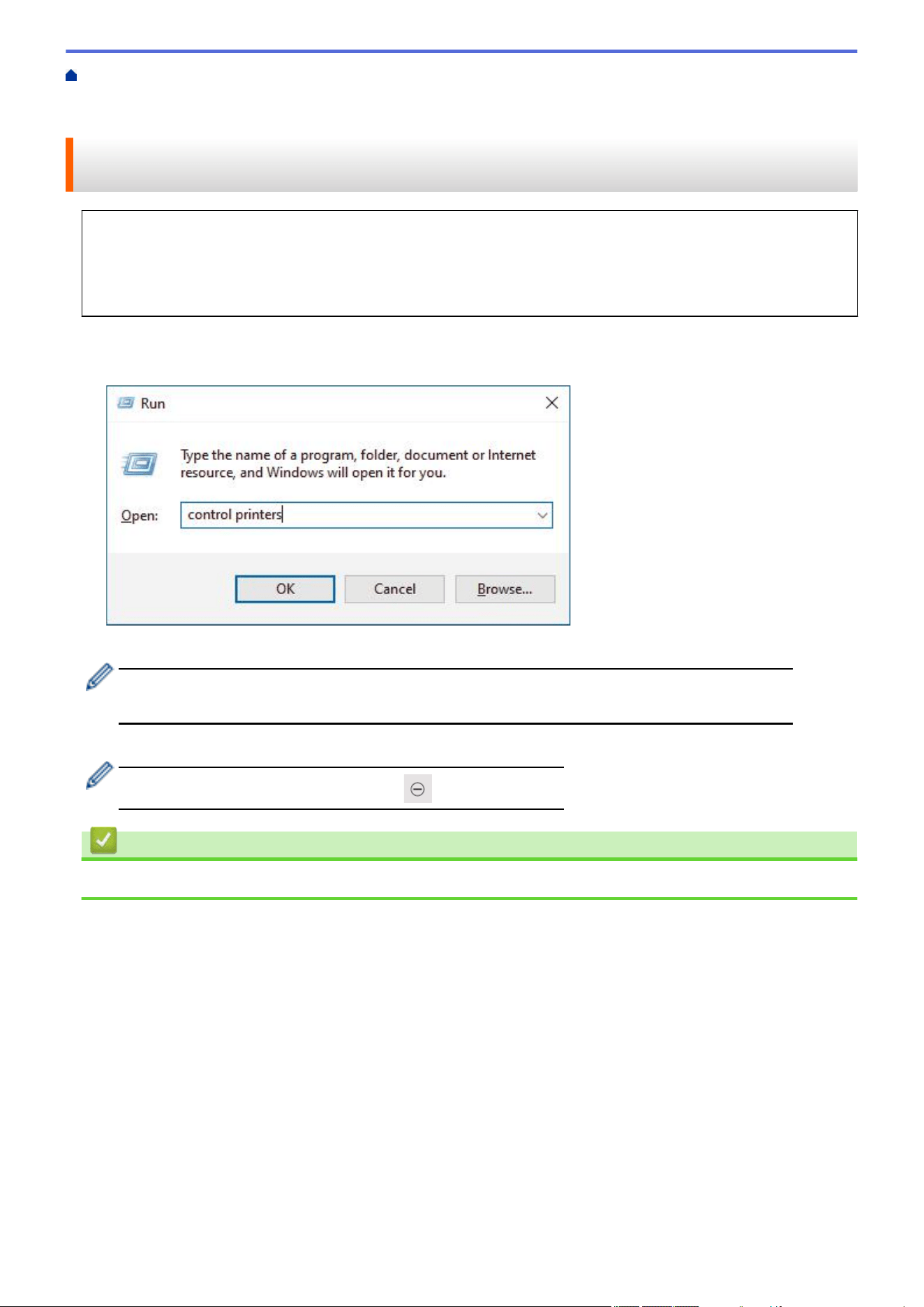
Home > Scan > Scan Using the Scan Button on Your Machine > Use the Web Services Protocol for
Network Scanning (Windows 10 and Windows 11) > Use the Web Services Protocol to Install the Scanner
Driver (Windows 10 and Windows 11)
Use the Web Services Protocol to Install the Scanner Driver (Windows
10 and Windows 11)
• Make sure you have installed the correct software and drivers for your machine.
• Verify that the host computer and the Brother machine are on the same subnet, or that the router is
correctly configured to pass data between the two devices.
• You must configure the IP address on your Brother machine before you configure this setting.
1. Hold down the key and press the key on the computer's keyboard to launch Run.
2. Type "control printers" in the Open: field and click OK.
3. Click Add a device.
• The Web Services Name for the Brother machine is your model's name and the MAC Address.
• Move your mouse over the machine's name to display the machine's information.
4. Select the machine you want to install, and then follow the on-screen instructions.
To uninstall the drivers, click Uninstall or (Remove device).
Related Information
• Use the Web Services Protocol for Network Scanning (Windows 10 and Windows 11)
104
Home > Scan > Scan Using the Scan Button on Your Machine > Use the Web Services Protocol for
Network Scanning (Windows 10 and Windows 11) > Scan From Your Machine Using the Web Services
Protocol (Windows 10 and Windows 11)
Scan From Your Machine Using the Web Services Protocol (Windows 10
and Windows 11)
If you have installed the scanner driver via Web Services, you can access the Web Services scanning menu on
your machine's LCD.
Certain characters in the messages displayed on the LCD may be replaced with spaces if the language
settings of your operating system and your machine are different.
>> HL-L2465DW/DCP-L2640DW/DCP-L2647DW/MFC-L2760DW
>> HL-L2480DW/MFC-L2807DW/MFC-L2820DW/MFC-L2820DWXL/MFC-L2900DW/MFC-L2900DWXL/
MFC-L2980DW
HL-L2465DW/DCP-L2640DW/DCP-L2647DW/MFC-L2760DW
1. Load your document.
2. Press (Scan).
3. Press a or b to select the [Web Service] option, and then press OK.
4. Press a or b to select the type of scan you want to do, and then press OK.
5. Select the destination computer where you want to send the scan, and then press OK.
6. Press Start.
The machine starts scanning.
HL-L2480DW/MFC-L2807DW/MFC-L2820DW/MFC-L2820DWXL/MFC-L2900DW/
MFC-L2900DWXL/MFC-L2980DW
1. Load your document.
2. Press [Scan] > [WS Scan].
3. Press a or b to display the scan options, and then press the type of scan.
4. Press a or b to display the computer name where you want to send data, and then press the computer name.
5. Press [Start].
The machine starts scanning.
Related Information
• Use the Web Services Protocol for Network Scanning (Windows 10 and Windows 11)
105
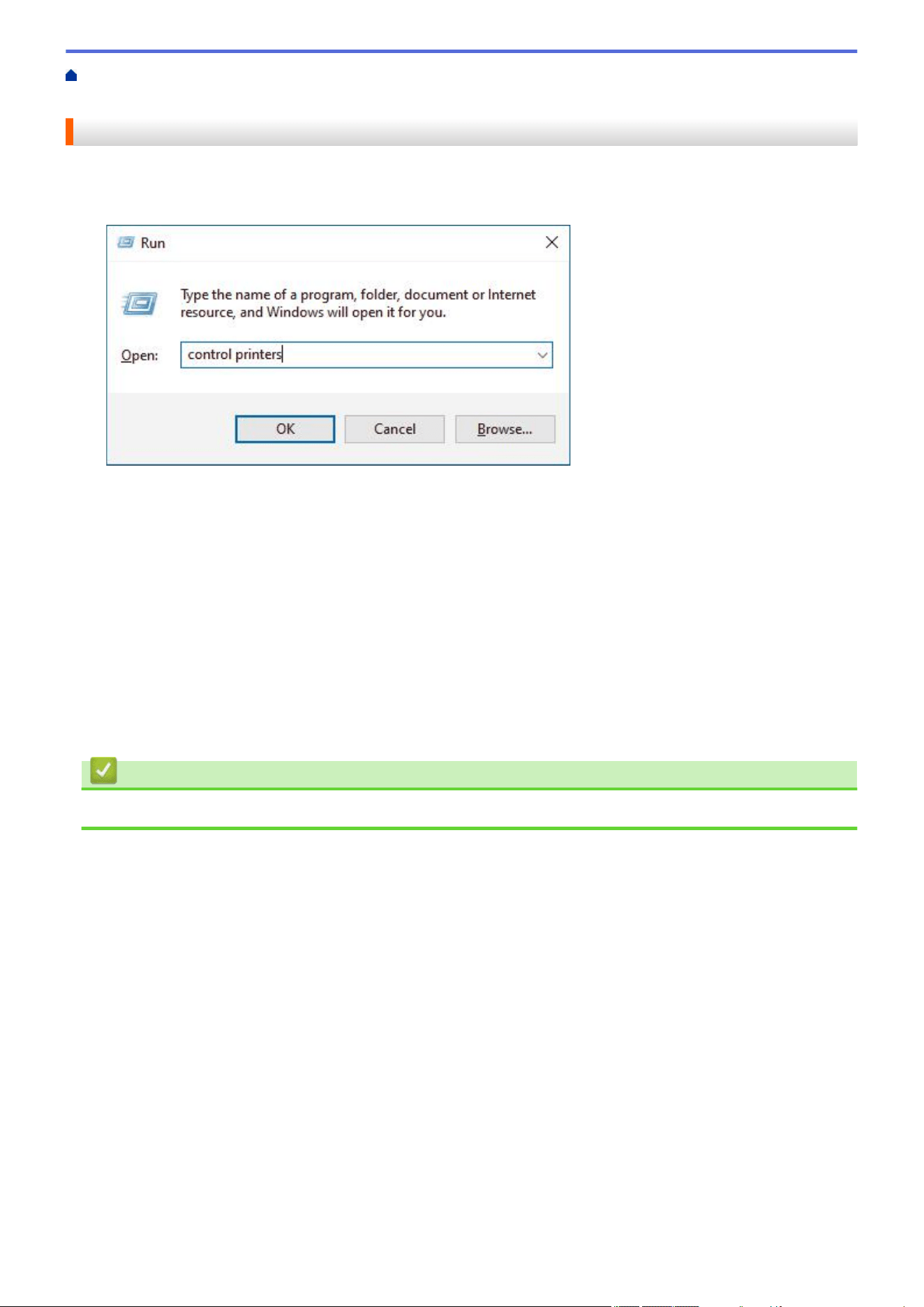
Home > Scan > Scan Using the Scan Button on Your Machine > Use the Web Services Protocol for
Network Scanning (Windows 10 and Windows 11) > Configure Scan Settings for the Web Services Protocol
Configure Scan Settings for the Web Services Protocol
1. Hold down the key and press the key on the computer's keyboard to launch Run.
2. Type "control printers" in the Open: field and click OK.
3. Right-click the machine icon, and then select Scan profiles.... The Scan Profiles dialog box appears.
4. Select the scan profile you want to use.
5. Make sure the scanner selected in the Scanner list is a machine that supports Web Services for scanning,
and then click the Set as Default button.
6. Click Edit....
The Edit Default Profile dialog box appears.
7. Select the Source, Paper size, Color format, File type, Resolution (DPI), Brightness and Contrast
settings.
8. Click the Save Profile button.
These settings will be applied when you scan using the Web Services protocol.
If the machine prompts you to select a scanning application, select Windows Fax and Scan from the list.
Related Information
• Use the Web Services Protocol for Network Scanning (Windows 10 and Windows 11)
106
Home > Scan > Scan Using the Scan Button on Your Machine > Change the Scan Button Settings from
Brother iPrint&Scan
Change the Scan Button Settings from Brother iPrint&Scan
Brother iPrint&Scan allows you to change the machine's Scan Button settings.
1. Start Brother iPrint&Scan.
• Windows:
Double-click the
(Brother iPrint&Scan) icon on your computer's desktop.
For more information, see Related Information.
• Mac:
In the Finder menu bar, click Go > Applications, and then double-click the iPrint&Scan icon.
The Brother iPrint&Scan screen appears.
NOTE
To download the latest application:
• For Windows:
Go to your model's Downloads page at support.brother.com/downloads, and then download and
install Brother iPrint&Scan.
• For Mac:
Download and install Brother iPrint&Scan from the Apple App Store.
2. If your Brother machine is not selected, click the Select your Machine button, and then follow the on-screen
instructions to select your Brother machine.
3. Click the Machine Scan Settings button, and then follow the on-screen instructions to change the scan
settings, such as document size, color, and resolution.
Related Information
• Scan Using the Scan Button on Your Machine
Related Topics:
• Scan Using Brother iPrint&Scan (Windows/Mac)
• Access Brother iPrint&Scan (Windows/Mac)
• Scan Photos and Graphics
• Scan Single or Multiple Pages to a Folder in a Single PDF File
• Scan to an Editable Text File (OCR)
• Save Scanned Data as an Email Attachment
107
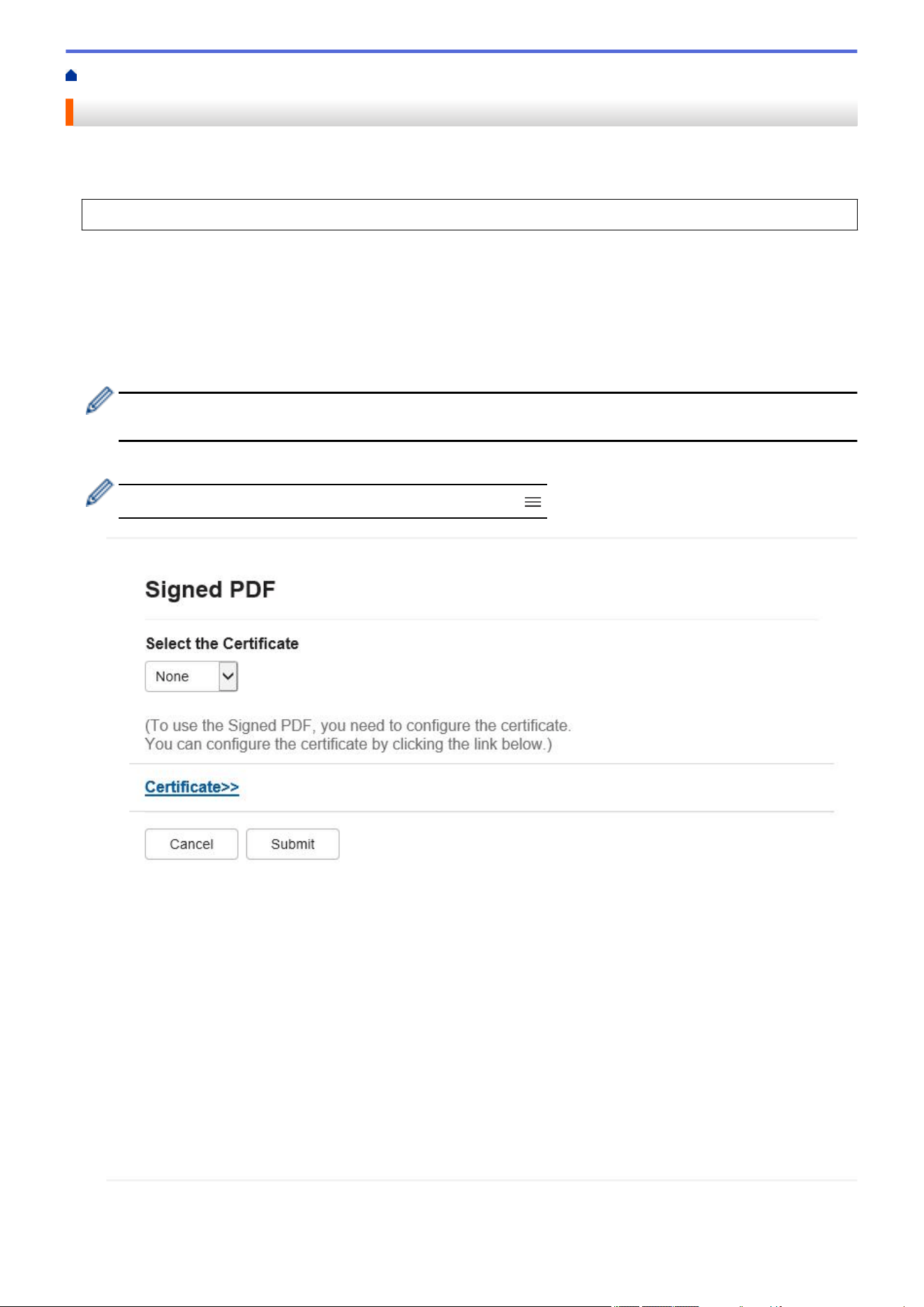
Home > Scan > Scan Using the Scan Button on Your Machine > Configure Certificates for Signed PDFs
Configure Certificates for Signed PDFs
If you select Signed PDF for Scan features, you must configure a certificate on your machine using Web Based
Management.
To use Signed PDF, you must install a certificate on your machine and your computer.
1. Start your web browser.
2. Type "https://machine's IP address" in your browser's address bar (where "machine's IP address" is your
machine's IP address).
For example:
https://192.168.1.2
3. If required, type the password in the Login field, and then click Login.
The default password to manage this machine’s settings is located on the back of the machine and marked
"Pwd". Change the default password by following the on-screen instructions when you first log in.
4. In the left navigation bar, click Administrator > Signed PDF.
If the left navigation bar is not visible, start navigating from .
5. Click the Select the Certificate drop-down list, and then select the certificate.
6. Click Submit.
108

Home > Scan > Scan Using the Scan Button on Your Machine > Disable Scanning from Your Computer
Disable Scanning from Your Computer
To disable the scan function on your computer, disable the Pull Scan setting using Web Based Management.
1. Start your web browser.
2. Type "https://machine's IP address" in your browser's address bar (where "machine's IP address" is your
machine's IP address).
For example:
https://192.168.1.2
3. If required, type the password in the Login field, and then click Login.
The default password to manage this machine’s settings is located on the back of the machine and marked
"Pwd". Change the default password by following the on-screen instructions when you first log in.
4. In the left navigation bar, click Scan > Scan from PC.
If the left navigation bar is not visible, start navigating from .
5. In the Pull Scan field, click Disabled.
6. Click Submit.
Related Information
• Scan Using the Scan Button on Your Machine
110

Home > Scan > Scan from Your Computer (Windows)
Scan from Your Computer (Windows)
There are several ways you can use your computer to scan photos and documents on your machine. Use the
software applications we provide or use your favorite scanning application.
• Scan Using Brother iPrint&Scan (Windows/Mac)
•
Scan Using Nuance
™
PaperPort
™
14SE or Other Windows Applications
• Scan Using Windows Fax and Scan
111
Home > Scan > Scan from Your Computer (Windows) > Scan Using Brother iPrint&Scan (Windows/Mac)
Scan Using Brother iPrint&Scan (Windows/Mac)
1. Load your document.
2. Start Brother iPrint&Scan.
• Windows:
Double-click the
(Brother iPrint&Scan) icon on your computer's desktop.
For more information, see Related Information.
• Mac:
In the Finder menu bar, click Go > Applications, and then double-click the iPrint&Scan icon.
The Brother iPrint&Scan screen appears.
NOTE
To download the latest application:
• For Windows:
Go to your model's Downloads page at
support.brother.com/downloads, and then download and
install Brother iPrint&Scan.
• For Mac:
Download and install Brother iPrint&Scan from the Apple App Store.
3. If your Brother machine is not selected, click the Select your Machine button, and then select your model's
name from the list. Click OK.
4. Click the Scan icon.
5. Configure the scan settings, and then click the Scan button to start scanning.
6. After all the documents have been scanned, select the option for saving and sharing scanned data.
7. Configure detailed settings, including the File Name and the File Type.
To combine multiple scans into a file, select PDF as the File Type.
8. Complete the scanning process.
Related Information
• Scan from Your Computer (Windows)
Related Topics:
• Access Brother iPrint&Scan (Windows/Mac)
• Scan Photos and Graphics
• Scan Single or Multiple Pages to a Folder in a Single PDF File
112
Home > Scan > Scan from Your Computer (Windows) > Scan Using Nuance
™
PaperPort
™
14SE or Other
Windows Applications
Scan Using Nuance
™
PaperPort
™
14SE or Other Windows Applications
You can use the Nuance
™
PaperPort
™
14SE application for scanning.
• This function is not available in countries subject to applicable export regulations.
• To download the Nuance
™
PaperPort
™
14SE application, click
(Brother Utilities), select Do More in
the left navigation bar, and then click PaperPort.
• Nuance
™
PaperPort
™
14SE supports Windows 10 and Windows 11.
• For detailed instructions on using each application, click the application's Help menu, and then click
Getting Started Guide in the Help ribbon.
The instructions for scanning in these steps are for PaperPort
™
14SE. For other Windows applications, the
steps will be similar. PaperPort
™
14SE supports both TWAIN and WIA drivers; the TWAIN driver
(recommended) is used in these steps.
1. Load your document.
2. Start PaperPort
™
14SE.
Do one of the following:
• Windows 11
Click
> All apps > Nuance PaperPort 14 > PaperPort.
• Windows 10
Click > Nuance PaperPort 14 > PaperPort.
3. Click the Desktop menu, and then click Scan Settings in the Desktop ribbon.
The Scan or Get Photo panel appears on the left side of the screen.
4. Click Select.
5. From the available Scanners list, select your model with TWAIN: TW in the name.
6. Click OK.
7. Select the Display scanner dialog box checkbox in the Scan or Get Photo panel.
8. Click Scan.
The Scanner Setup dialog box appears.
113
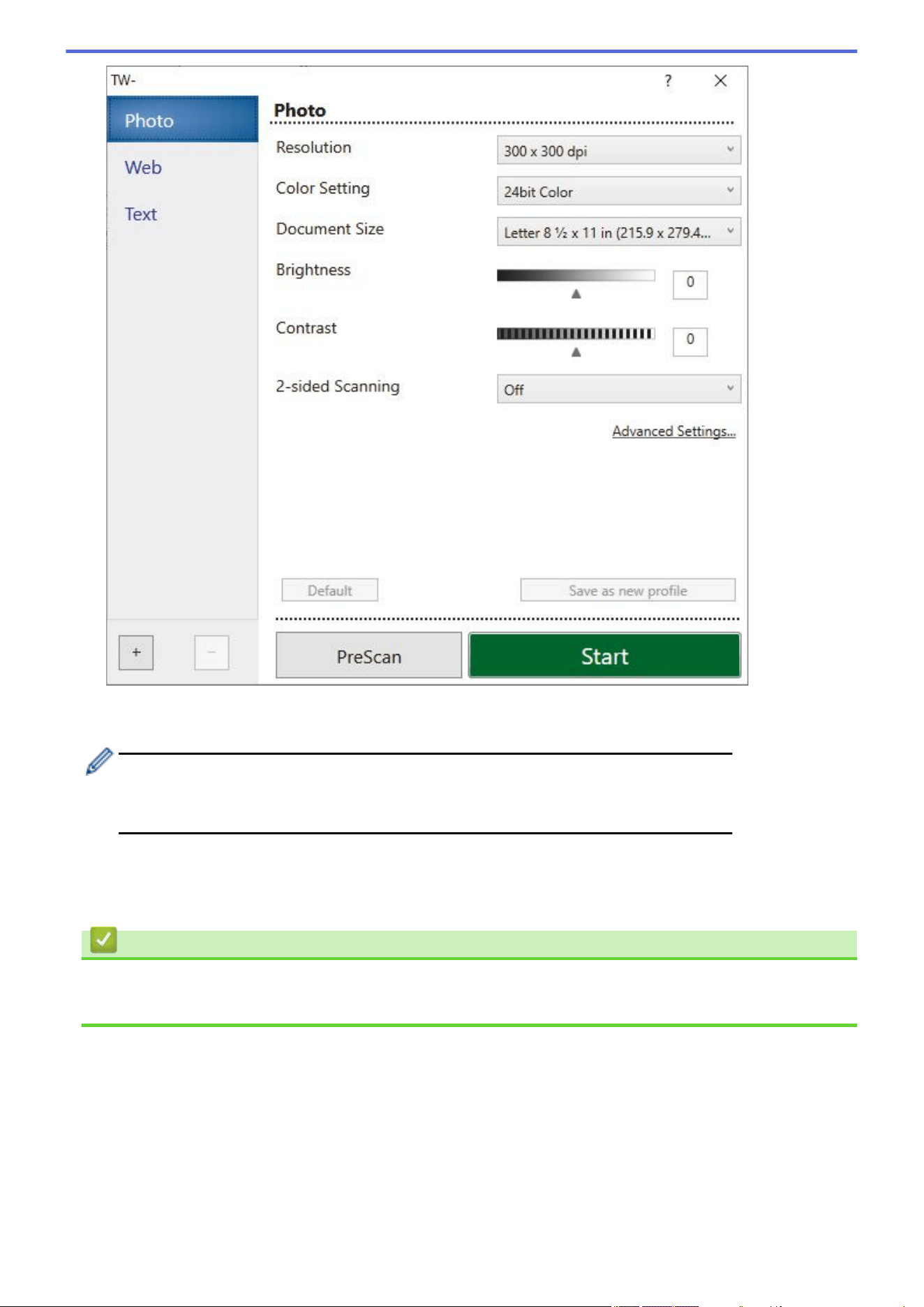
9. Adjust the settings in the Scanner Setup dialog box, if needed.
10. Click the Document Size drop-down list, and then select your document size.
To scan both sides of the document (MFC-L2900DW/MFC-L2900DWXL/MFC-L2980DW):
Automatic 2-sided scan is available only when using the ADF.
You cannot use PreScan to preview the scanned image.
11. Click PreScan to preview your image and crop unwanted portions before scanning.
12. Click Start.
The machine starts scanning.
Related Information
• Scan from Your Computer (Windows)
• TWAIN Driver Settings (Windows)
114
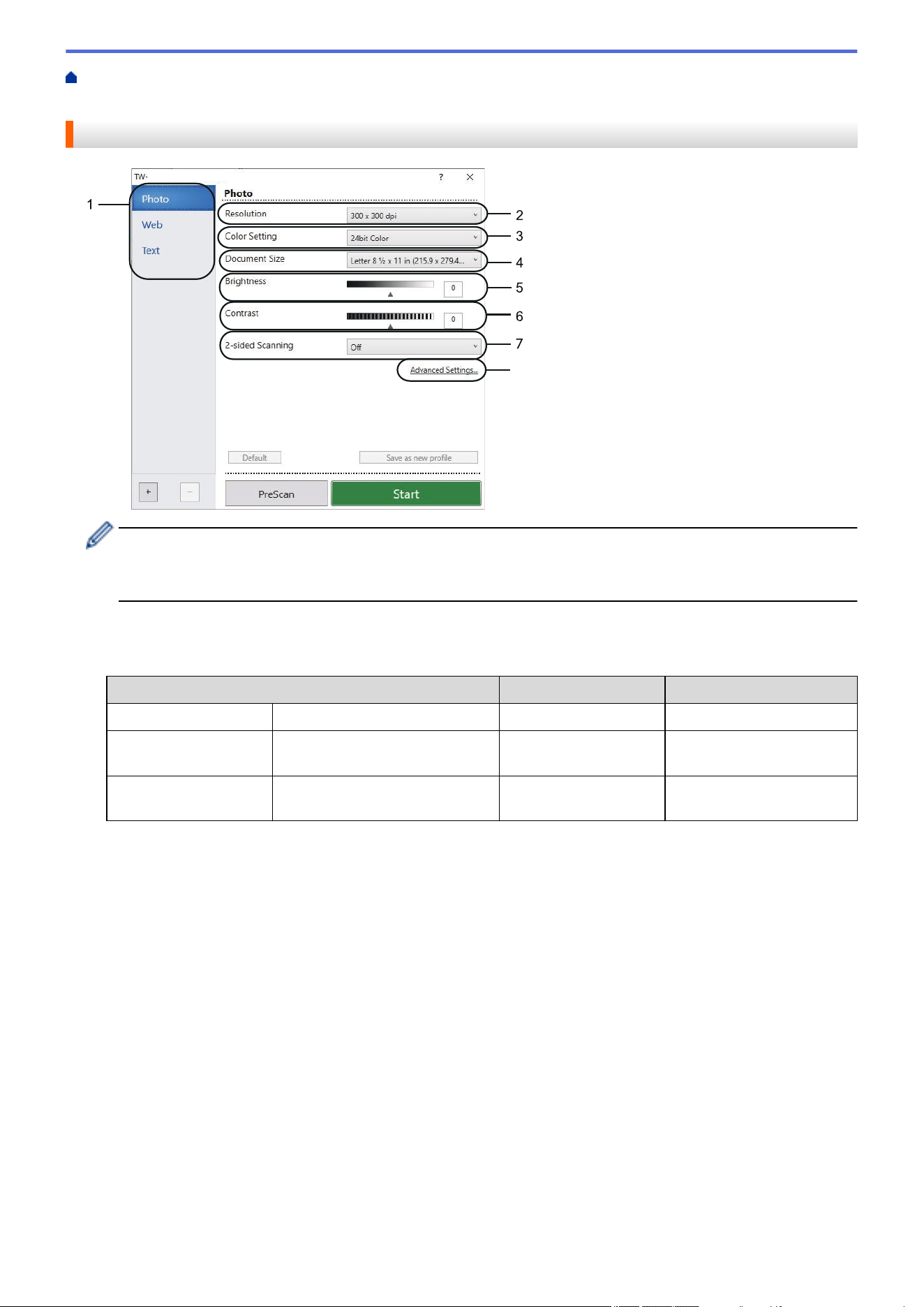
Home > Scan > Scan from Your Computer (Windows) > Scan Using Nuance
™
PaperPort
™
14SE or Other
Windows Applications > TWAIN Driver Settings (Windows)
TWAIN Driver Settings (Windows)
8
• Note that the item names and assignable values will vary depending on the machine.
• The Contrast option is available only when selecting the Gray (Error Diffusion), True Gray, or 24bit
Color options from the Color Setting drop-down list.
1. Scan
Select the Photo, Web, or Text option depending on the type of document you want to scan.
Scan (Image Type)
Resolution Color Setting
Photo Use for scanning photo images. 300 x 300 dpi 24bit Color
Web Use for attaching scanned
images to web pages.
100 x 100 dpi 24bit Color
Text Use for scanning text
documents.
200 x 200 dpi Black & White
2. Resolution
Select a scanning resolution from the Resolution drop-down list. Higher resolutions take more memory and
transfer time, but produce a finer scanned image.
3. Color Setting
Select from a range of scan color depths.
• Black & White
Use for text or line art images.
• Gray (Error Diffusion)
Use for photographic images or graphics. (Error Diffusion is a method for creating simulated gray
images without using true gray dots. Black dots are arranged in a specific pattern to give a gray
appearance.)
• True Gray
Use for photographic images or graphics. This mode is more accurate because it uses up to 256
shades of gray.
• 24bit Color
Use to create an image with the most accurate color reproduction. This mode uses up to 16.8 million
colors to scan the image, but it requires the most memory and has the longest transfer time.
115

4. Document Size
Select the exact size of your document from a selection of preset scan sizes.
If you select Custom, the Custom Document Size dialog box appears and you can specify the document
size.
5. Brightness
Set the brightness level by dragging the slider to the right or left to lighten or darken the image. If the scanned
image is too light, set a lower brightness level and scan the document again. If the image is too dark, set a
higher brightness level and scan the document again. You can also type a value in the field to set the
brightness level.
6. Contrast
Increase or decrease the contrast level by moving the slider to the right or left. An increase emphasizes dark
and light areas of the image, while a decrease reveals more details in gray areas. You can also type a value
in the field to set the contrast level.
7. 2-sided Scanning (MFC-L2900DW/MFC-L2900DWXL/MFC-L2980DW)
Scan both sides of the document. When using the Automatic 2-sided Scan feature, you must select the
Long-edge binding or Short-edge binding option from the 2-sided Scanning drop-down list, so that when
you turn the pages, they are facing the way you want.
8. Advanced Settings
Configure advanced settings by clicking the Advanced Settings button in the Scan Settings dialog box.
• Document Correction
- Auto Deskew
Set the machine to correct document skewing automatically as the pages are scanned.
- Detect End of Page (ADF)
Detects the end of page and automatically adjusts the size of a page when the length of the document
scanned from the ADF is shorter than the selected document size.
- Rotate Image
Rotate the scanned image.
- Fill With Color
Fill in the edges on four sides of the scanned image using the selected color and range.
• Image Quality
- Background Processing
• Remove Bleed-through / Pattern
Prevent bleed-through.
• Remove Background Color
Remove the base color of documents to make the scanned data more legible.
- Color Drop
Select a color to remove from the scanned image.
- Edge Emphasis
Make the characters of the original sharper.
- Reduce Noise
Improve the quality of your scanned images with this selection. The Reduce Noise option is available
when selecting the 24bit Color option and the 300 x 300 dpi, 400 x 400 dpi, or 600 x 600 dpi scan
resolution.
• B&W Image Quality
- Character Correction
• Blurred Character Correction
Correct the broken or incomplete characters of the original to make them easier to read.
• Boldface Formatting
Emphasize the characters of the original by making them bold.
116

- B&W Inversion
Invert black and white in the black and white image.
• Feed Control
- Layout (DCP-L2640DW/DCP-L2647DW/MFC-L2760DW/MFC-L2807DW/MFC-L2820DW/
MFC-L2820DWXL/MFC-L2900DW/MFC-L2900DWXL/MFC-L2980DW)
Select the layout.
- Continuous Scan
Select this option to scan multiple pages. After a page is scanned, select whether to continue
scanning or finish.
Related Information
• Scan Using Nuance
™
PaperPort
™
14SE or Other Windows Applications
117
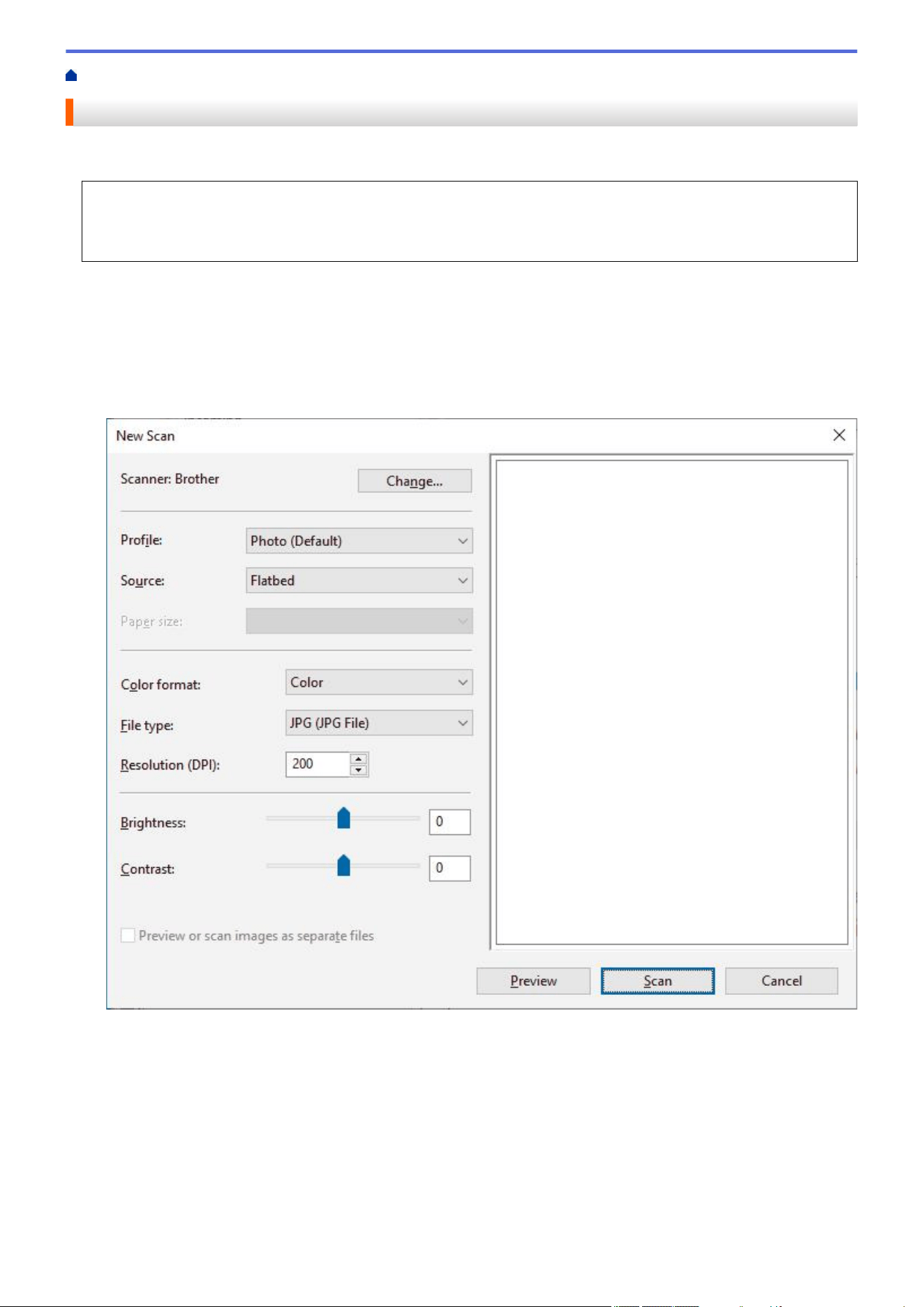
Home > Scan > Scan from Your Computer (Windows) > Scan Using Windows Fax and Scan
Scan Using Windows Fax and Scan
The Windows Fax and Scan application is another option that you can use for scanning.
• Windows Fax and Scan uses the WIA scanner driver.
• To crop a portion of a page after pre-scanning a document, you must scan using the scanner glass (also
called the flatbed).
1. Load your document.
2. Launch Windows Fax and Scan.
3. Click File > New > Scan.
4. Select the scanner you want to use.
5. Click OK.
The New Scan dialog box appears.
6. Adjust the settings in the dialog box, if needed.
The scanner resolution can be set to a maximum of 1200 dpi. If you want to scan at higher resolutions, use
the Scanner Utility software from Brother Utilities.
If your machine supports 2-sided scanning and you want to scan both sides of your document, select Feeder
(Scan both sides) from the Source drop-down list.
7. Click Scan.
The machine starts scanning the document.
118

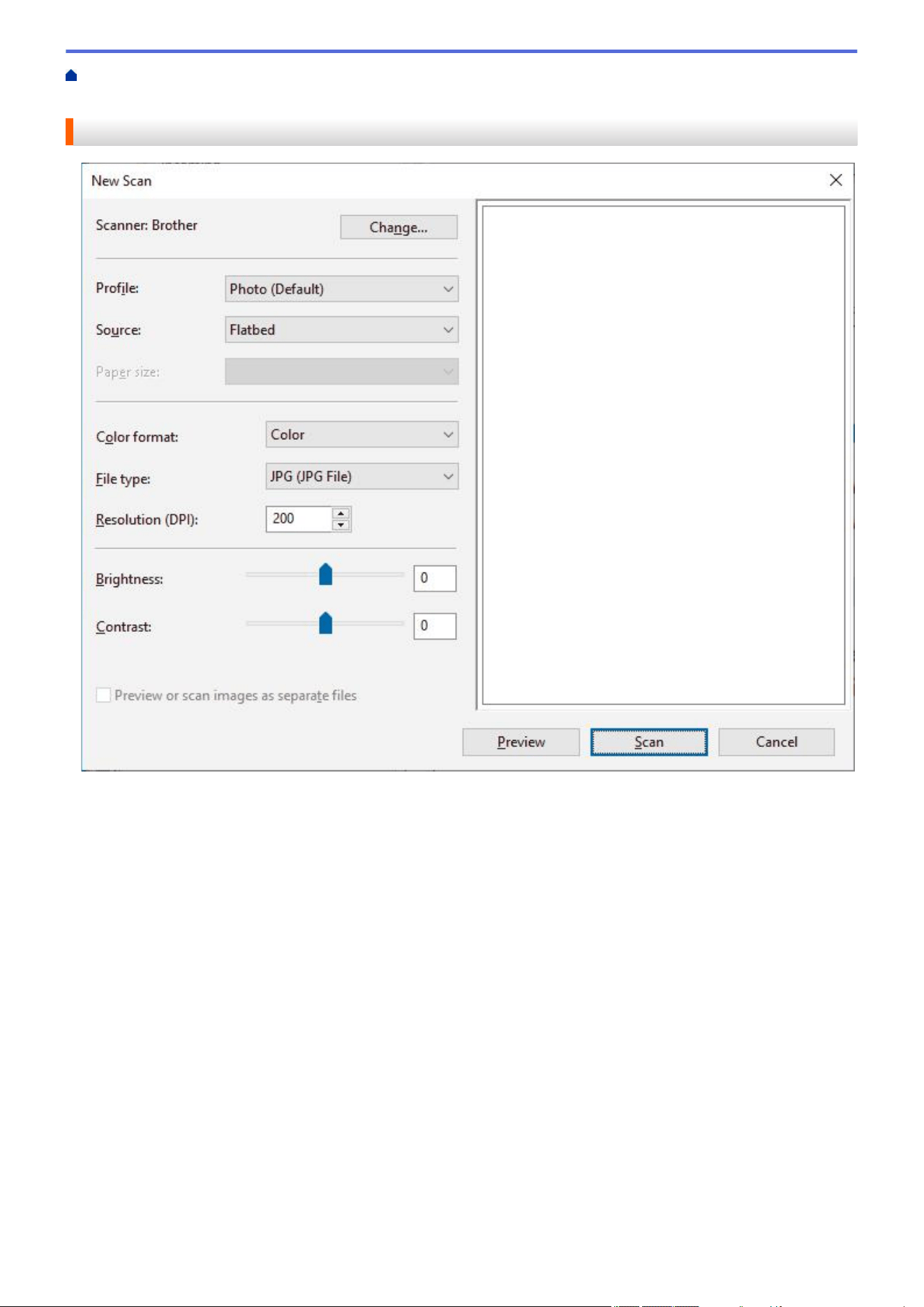
Home > Scan > Scan from Your Computer (Windows) > Scan Using Windows Fax and Scan > WIA Driver
Settings (Windows)
WIA Driver Settings (Windows)
Profile
Select the scan profile you want to use from the Profile drop-down list.
Source
Select the Flatbed, Feeder (Scan one side), or Feeder (Scan both sides) option from the drop-down list.
Paper size
The Paper size option is available if you select the Feeder (Scan one side) or Feeder (Scan both sides)
option from the Source drop-down list.
Color format
Select a scan color format from the Color format drop-down list.
File type
Select a file format from the File type drop-down list.
Resolution (DPI)
Set a scanning resolution in the Resolution (DPI) field. Higher resolutions take more memory and transfer
time, but produce a finer scanned image.
Brightness
Set the brightness level by dragging the slider to the right or left to lighten or darken the image. If the scanned
image is too light, set a lower brightness level and scan the document again. If the image is too dark, set a
120

higher brightness level and scan the document again. You can also type a value in the field to set the
brightness level.
Contrast
Increase or decrease the contrast level by moving the slider to the right or left. An increase emphasizes dark
and light areas of the image, while a decrease reveals more details in gray areas. You can also type a value in
the field to set the contrast level.
Related Information
• Scan Using Windows Fax and Scan
121


Home > Scan > Configure Scan Settings Using Web Based Management > Set the Scan File Name Using
Web Based Management
Set the Scan File Name Using Web Based Management
Set up a file name for scanned data using Web Based Management.
1. Start your web browser.
2. Type "https://machine's IP address" in your browser's address bar (where "machine's IP address" is your
machine's IP address).
For example:
https://192.168.1.2
3. If required, type the password in the Login field, and then click Login.
The default password to manage this machine’s settings is located on the back of the machine and marked
"Pwd". Change the default password by following the on-screen instructions when you first log in.
4. In the left navigation bar, click Scan > Scan File Name.
If the left navigation bar is not visible, start navigating from .
5. Select the File Name Style from the drop-down list.
6. If you selected the option to include the date in File Name Style field, select the date format from the drop-
down list.
7. In the Time field, select On to include the time information in the file name.
8. In the Counter field, select Continuous or Reset after each job.
If you select Reset after each job, duplication of file names may occur.
9. If you want to create a user-defined file name prefix, type a file name in the user-defined fields of each scan
function.
Do not use the following characters: ? / \ *
10. Click Submit.
Related Information
• Configure Scan Settings Using Web Based Management
124

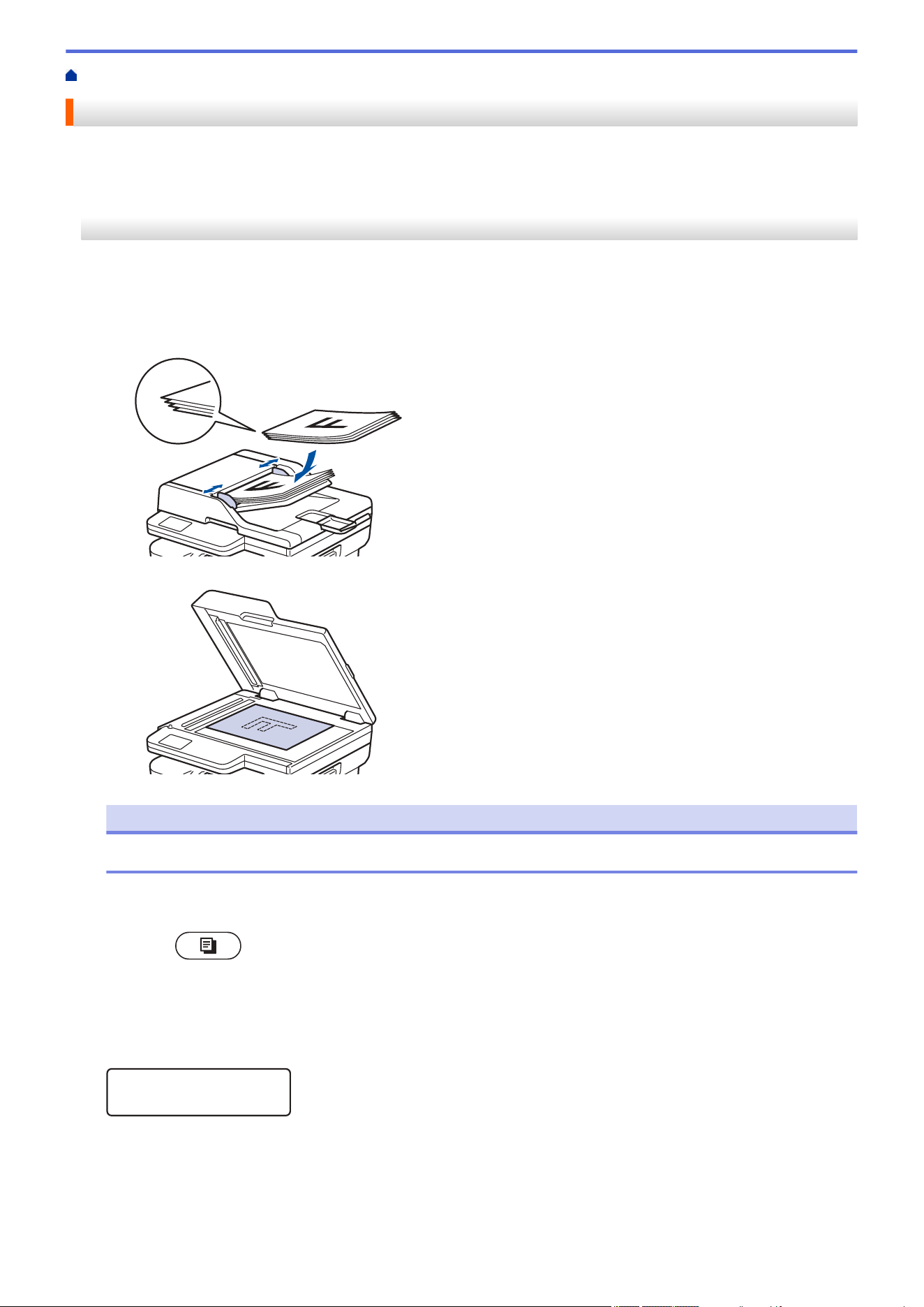
Home > Copy > Copy on One Side of the Paper (1-sided)
Copy on One Side of the Paper (1-sided)
>> HL-L2465DW/DCP-L2640DW/DCP-L2647DW/MFC-L2760DW
>> HL-L2480DW/MFC-L2807DW/MFC-L2820DW/MFC-L2820DWXL/MFC-L2900DW/MFC-L2900DWXL/
MFC-L2980DW
HL-L2465DW/DCP-L2640DW/DCP-L2647DW/MFC-L2760DW
1. Make sure you have loaded the correct size paper in the paper tray.
2. Do one of the following:
• Place the document face up in the ADF. (available only for certain models)
(If you are copying multiple pages, we recommend using the ADF.)
• Place the document face down on the scanner glass.
NOTE
For important or fragile documents, use the machine’s scanner glass.
3. Do one of the following:
• For MFC models
Press
(Copy).
Use the dial pad to enter the number of copies you want.
• For DCP models
Press a or b to enter the number of copies you want.
The LCD displays:
□□■□□
100% Auto
Sort Copies:01
4. Press Start.
126
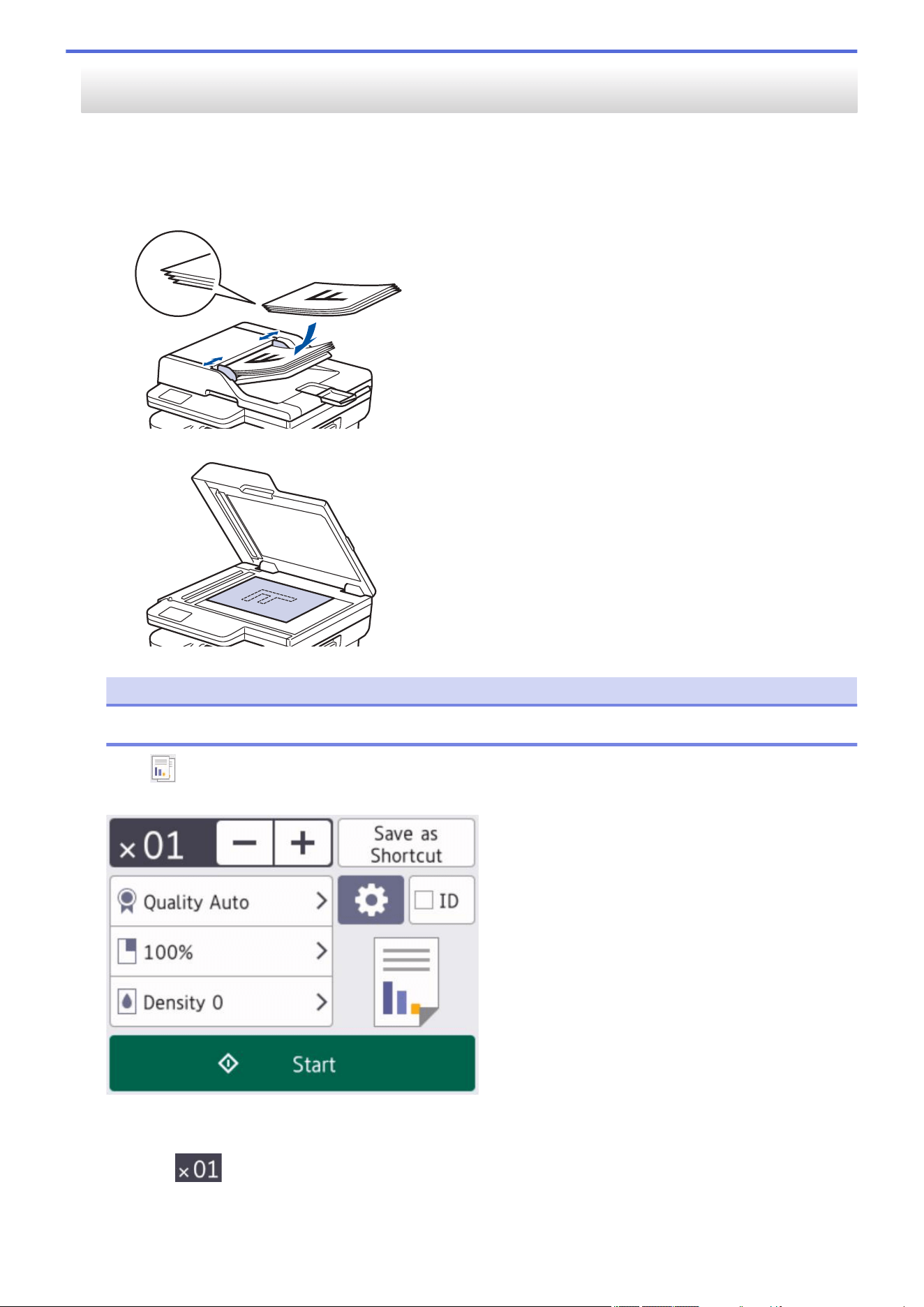
HL-L2480DW/MFC-L2807DW/MFC-L2820DW/MFC-L2820DWXL/MFC-L2900DW/
MFC-L2900DWXL/MFC-L2980DW
1. Make sure you have loaded the correct size paper in the paper tray.
2. Do one of the following:
• Place the document face up in the ADF.
(If you are copying multiple pages, we recommend using the ADF.)
• Place the document face down on the scanner glass.
NOTE
For important or fragile documents, use the machine’s scanner glass.
3. Press ([Copy]).
The LCD displays:
4. To enter the number of copies you want, do one of the following:
• Press [-] or [+] using the LCD.
• Press
to display a numeric keypad on the LCD, and then enter the number of copies. Press [OK].
5. Press [Start].
127

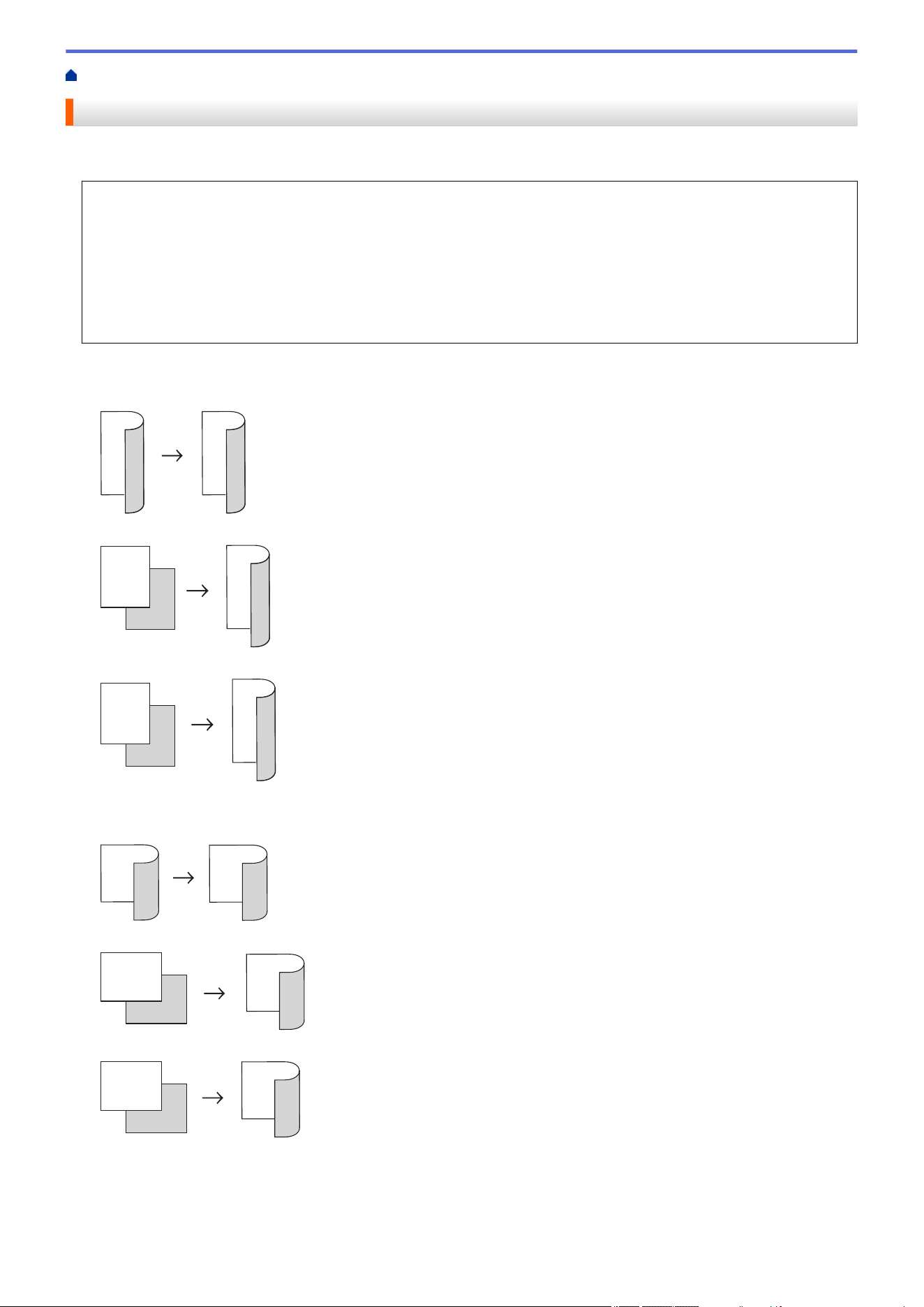
Home > Copy > Copy on Both Sides of the Paper (2-sided)
Copy on Both Sides of the Paper (2-sided)
Reduce the amount of paper you use by copying onto both sides of the paper.
• You must choose a 2-sided copy layout from the following options before you can start 2-sided copying.
• The layout of your original document determines which 2-sided copy layout you should choose.
• (For ADF models) For important or fragile documents, use the machine’s scanner glass.
• (For ADF models) To use the automatic 2-sided copy feature, you must load your document in the ADF.
• When you manually make 2-sided copies from a 2-sided document, use the scanner glass.
• Select Letter, Legal, Mexico Legal, India Legal, or Folio sized paper when using the 2‑sided copy option.
Portrait
2–sided to 2–sided
1
2
1
2
1–sided to 2–sided (Long Edge Flip)
1
2
1
2
1–sided to 2–sided (Short Edge Flip)
1
2
1
2
Landscape
2–sided to 2–sided
1
2
1
2
1–sided to 2–sided (Long Edge Flip)
1
2
1
2
1–sided to 2–sided (Short Edge Flip)
1
2
1
2
>> HL-L2465DW/DCP-L2640DW/DCP-L2647DW/MFC-L2760DW
>> HL-L2480DW/MFC-L2807DW/MFC-L2820DW/MFC-L2820DWXL/MFC-L2900DW/MFC-L2900DWXL/
MFC-L2980DW
129
HL-L2465DW/DCP-L2640DW/DCP-L2647DW/MFC-L2760DW
1. Load your document.
2. Do one of the following:
• For MFC models
Press
(Copy).
Use the dial pad to enter the number of copies you want.
• For DCP models
Press a or b to enter the number of copies you want.
3. Do one of the following:
• Press 2-sided.
• Press Options or Copy/Scan Options.
Press a or b to select [2-sided], and then press OK.
4. Press a or b to display [Layout Long] or [Layout Short], and then press OK.
5. Select flip on long edge or flip on short edge.
6. Press a or b to display [Long Edge] or [Short Edge], and then press OK.
NOTE
(For HL-L2465DW/DCP-L2640DW/DCP-L2647DW/MFC-L2760DW) If you select [Long Edge], you
cannot use the ADF. Use the scanner glass.
7. Press Start.
If you placed the document in the ADF, the machine scans the pages and starts printing.
If you are using the scanner glass, go to the next step.
8. After the machine scans the page, place the next page on the scanner glass, and then press a to scan the
next page.
9. After scanning all the pages, press b to select the [No] option.
HL-L2480DW/MFC-L2807DW/MFC-L2820DW/MFC-L2820DWXL/MFC-L2900DW/
MFC-L2900DWXL/MFC-L2980DW
1. Load your document.
2. Press
([Copy]).
3. Enter the number of copies.
4. Press [Options].
5. Press a or b to display the [2-sided Copy] option, and then press [2-sided Copy].
6. Press a or b to display the layout options, and then press the option you want.
NOTE
(For HL-L2480DW/MFC-L2807DW/MFC-L2820DW/MFC-L2820DWXL) If you select [2-sided⇒2-
sided], you cannot use the ADF. Use the scanner glass.
7. When finished, press [OK].
8. Press [Start]. If you placed the document in the ADF, the machine scans the pages and starts printing.
If you are using the scanner glass, go to the next step.
9. After the machine scans the page, place the next page on the scanner glass, and then press [Continue] to
scan the next page.
130

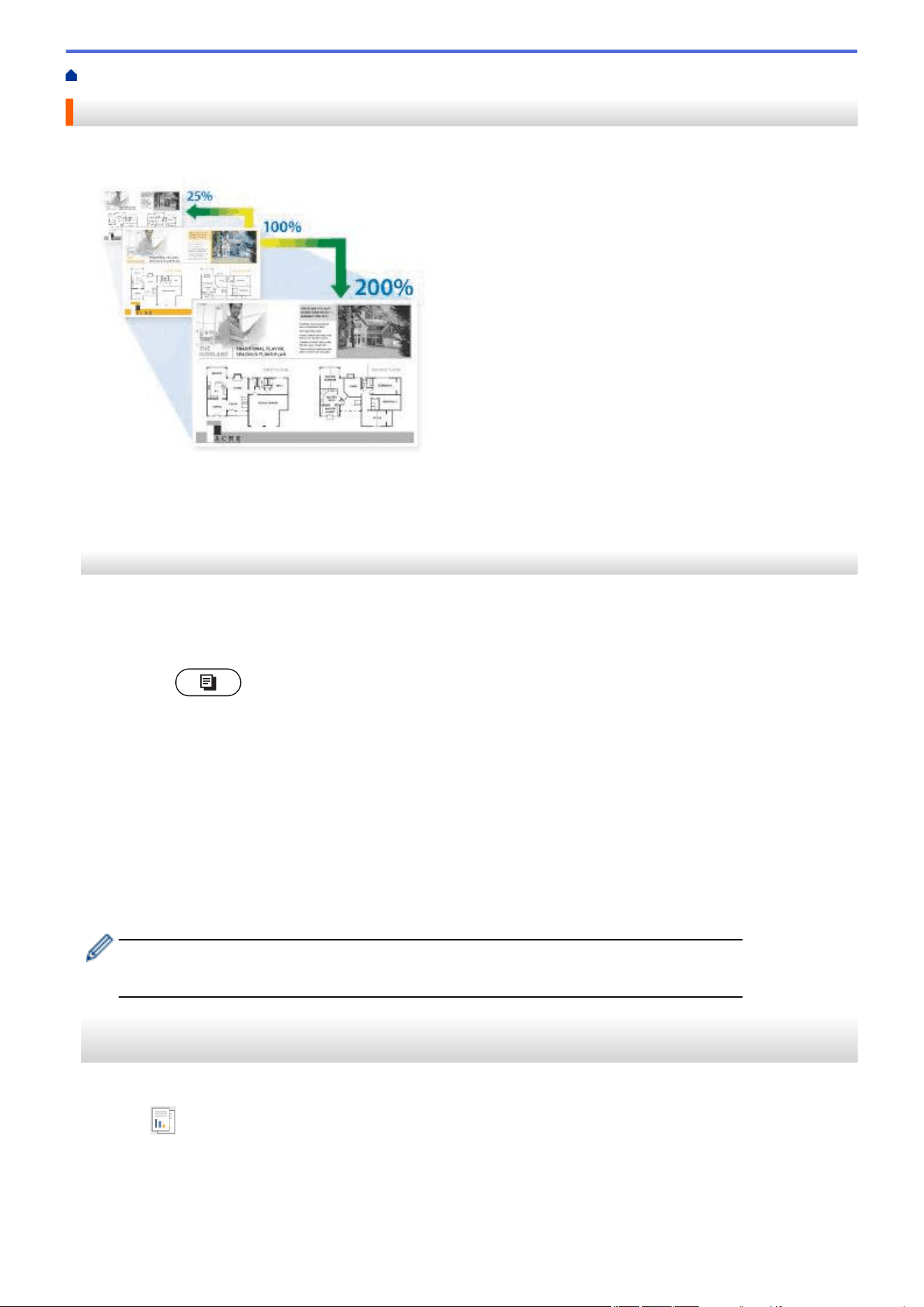
Home > Copy > Enlarge or Reduce Copied Images
Enlarge or Reduce Copied Images
Select an enlargement or reduction ratio to resize your copied data.
>> HL-L2465DW/DCP-L2640DW/DCP-L2647DW/MFC-L2760DW
>> HL-L2480DW/MFC-L2807DW/MFC-L2820DW/MFC-L2820DWXL/MFC-L2900DW/MFC-L2900DWXL/
MFC-L2980DW
HL-L2465DW/DCP-L2640DW/DCP-L2647DW/MFC-L2760DW
1. Load your document.
2. Do one of the following:
• For MFC models
Press
(Copy).
Use the dial pad to enter the number of copies you want.
• For DCP models
Press a or b to enter the number of copies you want.
3. Press Options or Copy/Scan Options.
4. Press a or b to select [Enlarge/Reduce], and then press OK.
5. Press a or b to select the enlargement or reduction ratio you want, and then press OK.
If you select [Custom(25-400%)], use the dial pad, or press a or b to enter an enlargement or reduction
ratio from [25%] to [400%] and then press OK.
6. Press Start.
• [Auto] sets the machine to calculate the reduction ratio that best fits the size of paper.
• [Auto] is only available when using the ADF.
HL-L2480DW/MFC-L2807DW/MFC-L2820DW/MFC-L2820DWXL/MFC-L2900DW/
MFC-L2900DWXL/MFC-L2980DW
1. Load your document.
2. Press
([Copy]).
3. Enter the number of copies.
4. Press [Options].
5. Press a or b to display the [Enlarge/Reduce] option, and then press [Enlarge/Reduce].
6. Press a or b to display the available options, and then press the option you want to change.
132
7. Do one of the following:
• If you select [Enlarge] or [Reduce], press the enlargement or reduction ratio you want to use.
• If you select [Custom(25-400%)], press
(backspace) to erase the displayed percentage, or press
d to move the cursor, and then enter an enlargement or reduction ratio from [25%] to [400%] .
Press [OK].
• If you selected [100%] or the [Auto] option, go to the next step.
8. When finished, press [OK].
9. Press [Start].
• [Auto] sets the machine to calculate the reduction ratio that best fits the size of paper.
• [Auto] is only available when using the ADF.
Related Information
• Copy
133
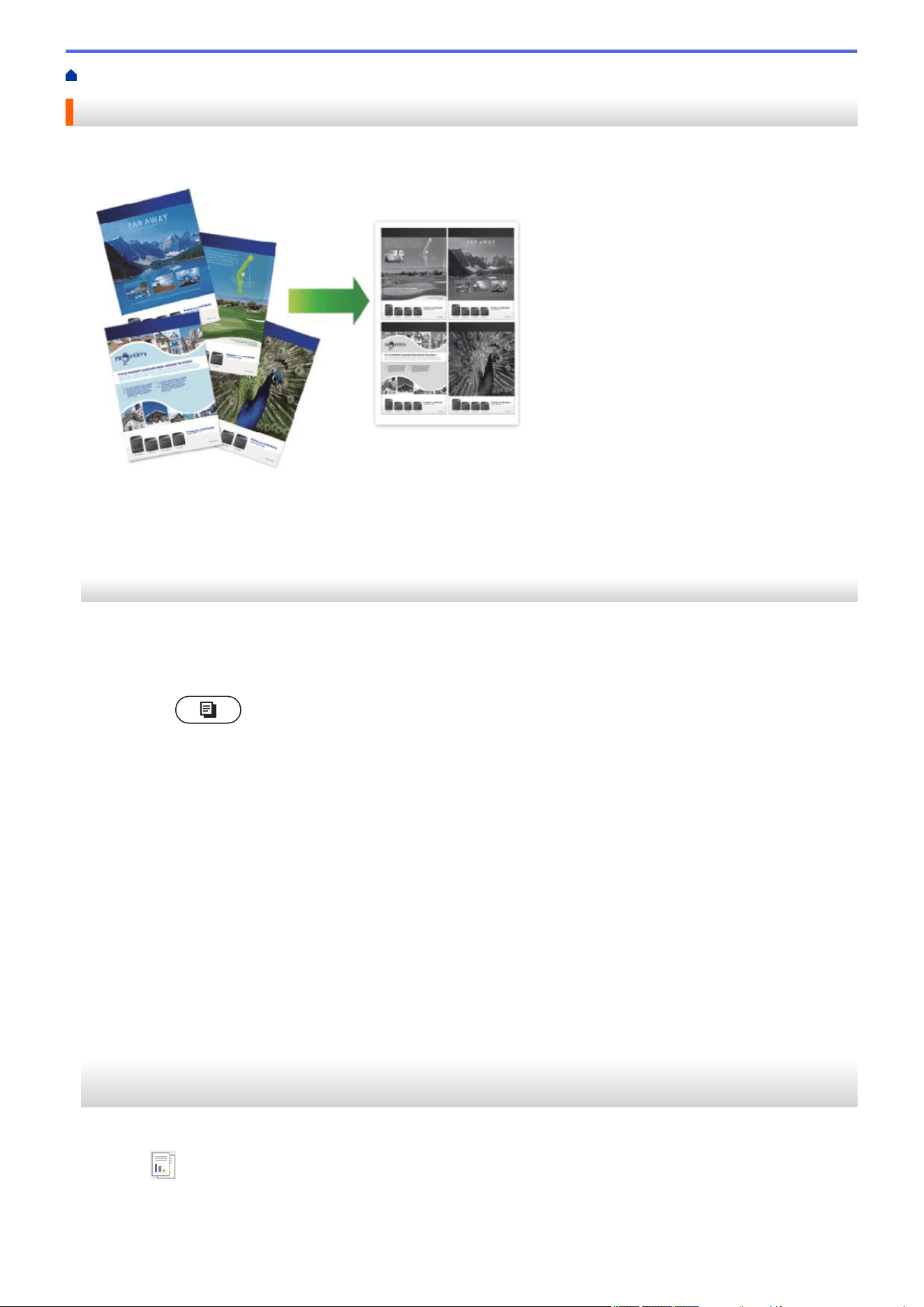
Home > Copy > Make N in 1 Copies Using the Page Layout Feature
Make N in 1 Copies Using the Page Layout Feature
The N in 1 copy feature saves paper by copying two or four pages of your document onto one page of the copy.
>> HL-L2465DW/DCP-L2640DW/DCP-L2647DW/MFC-L2760DW
>> HL-L2480DW/MFC-L2807DW/MFC-L2820DW/MFC-L2820DWXL/MFC-L2900DW/MFC-L2900DWXL/
MFC-L2980DW
HL-L2465DW/DCP-L2640DW/DCP-L2647DW/MFC-L2760DW
1. Load your document.
2. Do one of the following:
• For MFC models
Press
(Copy).
Use the dial pad to enter the number of copies you want.
• For DCP models
Press a or b to enter the number of copies you want.
3. Press Options or Copy/Scan Options.
4. Press a or b to select [Page Layout], and then press OK.
5. Press a or b to select [Off(1 in 1)], [2 in 1(P)], [2 in 1(L)], [4 in 1(P)] or [4 in 1(L)],
and then press OK.
6. Press Start.
If you placed the document in the ADF, the machine scans the pages and starts printing.
If you are using the scanner glass, go to the next step.
7. After the machine scans the page, place the next page on the scanner glass, and then press a to scan the
next page.
8. After scanning all the pages, press b to select the [No] option.
HL-L2480DW/MFC-L2807DW/MFC-L2820DW/MFC-L2820DWXL/MFC-L2900DW/
MFC-L2900DWXL/MFC-L2980DW
1. Load your document.
2. Press
([Copy]).
3. Enter the number of copies.
4. Press [Options].
134
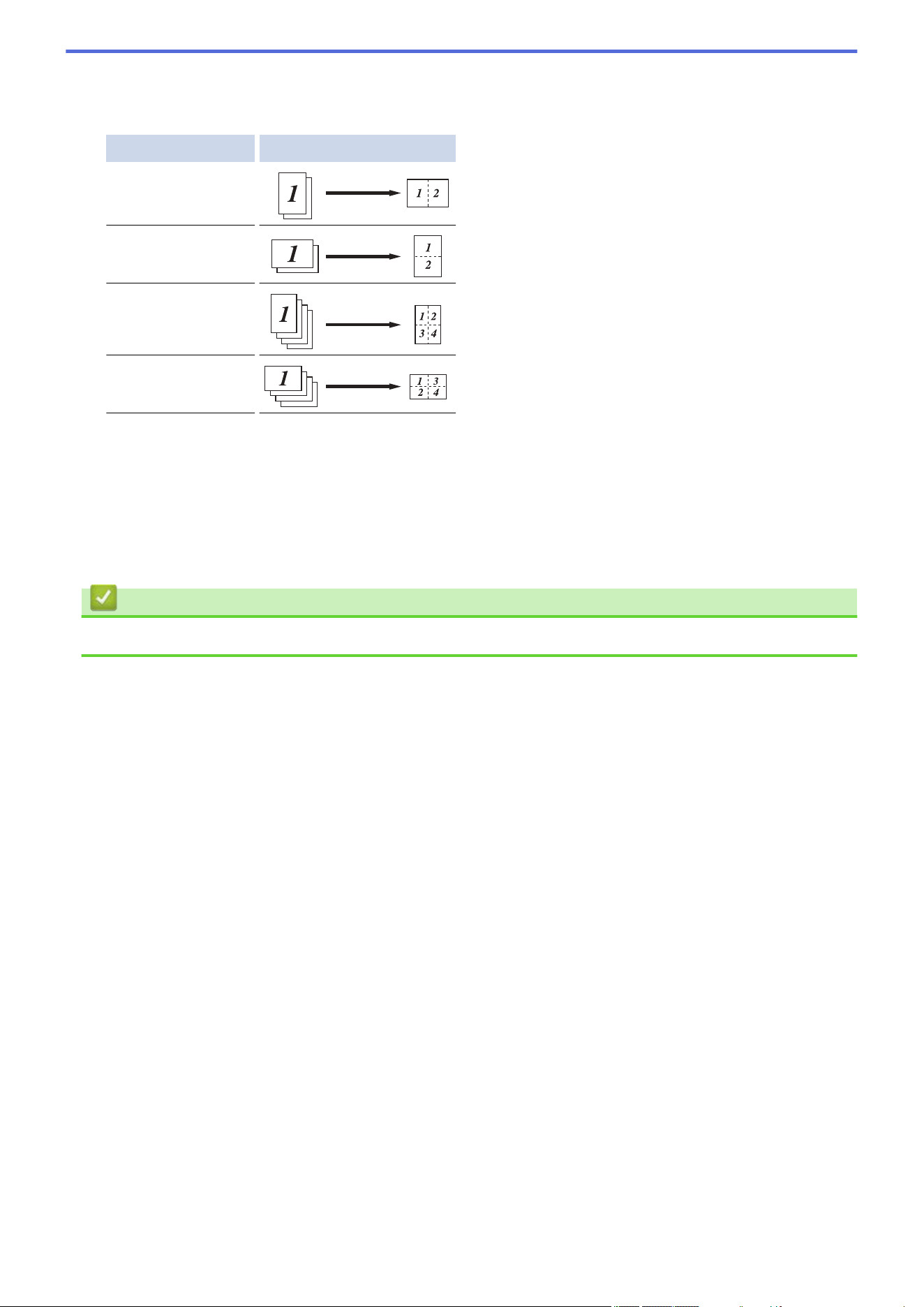
5. Press a or b to display the [Page Layout] option, and then press [Page Layout].
6. Press a or b to display the options, and then press the option you want.
Option Description
2in1(Portrait)
2in1(Landscape)
4in1(Portrait)
4in1(Landscape)
7. When finished, press [OK].
8. Press [Start]. If you placed the document in the ADF, the machine scans the pages and starts printing.
If you are using the scanner glass, go to the next step.
9. After the machine scans the page, place the next page on the scanner glass, and then press [Continue] to
scan the next page.
10. When finished, press [Finish] to finish.
Related Information
• Copy
135
Home > Copy > Sort Copies
Sort Copies
Sort multiple copies. Pages will be stacked in the order they are fed, that is: 1, 2, 3, and so on.
>> HL-L2465DW/DCP-L2640DW/DCP-L2647DW/MFC-L2760DW
>> HL-L2480DW/MFC-L2807DW/MFC-L2820DW/MFC-L2820DWXL/MFC-L2900DW/MFC-L2900DWXL/
MFC-L2980DW
HL-L2465DW/DCP-L2640DW/DCP-L2647DW/MFC-L2760DW
1. Load your document.
2. Do one of the following:
• For MFC models
Press
(Copy).
Use the dial pad to enter the number of copies you want.
• For DCP models
Press a or b to enter the number of copies you want.
3. Press Options or Copy/Scan Options.
4. Press a or b to select [Stack/Sort], and then press OK.
5. Press a or b to select [Sort], and then press OK.
6. Press Start.
If you placed the document in the ADF, the machine scans the pages and starts printing.
If you are using the scanner glass, go to the next step.
7. After the machine scans the page, place the next page on the scanner glass, and then press a to scan the
next page.
8. After scanning all the pages, press b to select the [No] option.
HL-L2480DW/MFC-L2807DW/MFC-L2820DW/MFC-L2820DWXL/MFC-L2900DW/
MFC-L2900DWXL/MFC-L2980DW
1. Load your document.
2. Press ([Copy]).
3. Enter the number of copies.
4. Press [Options].
5. Press a or b to display the [Stack/Sort] option, and then press [Stack/Sort].
6. Press [Sort].
7. When finished, press [OK].
8. Press [Start]. If you placed the document in the ADF, the machine scans the pages and starts printing.
If you are using the scanner glass, go to the next step.
9. After the machine scans the page, place the next page on the scanner glass, and then press [Continue] to
scan the next page.
10. When finished, press [Finish] to finish.
Related Information
• Copy
136
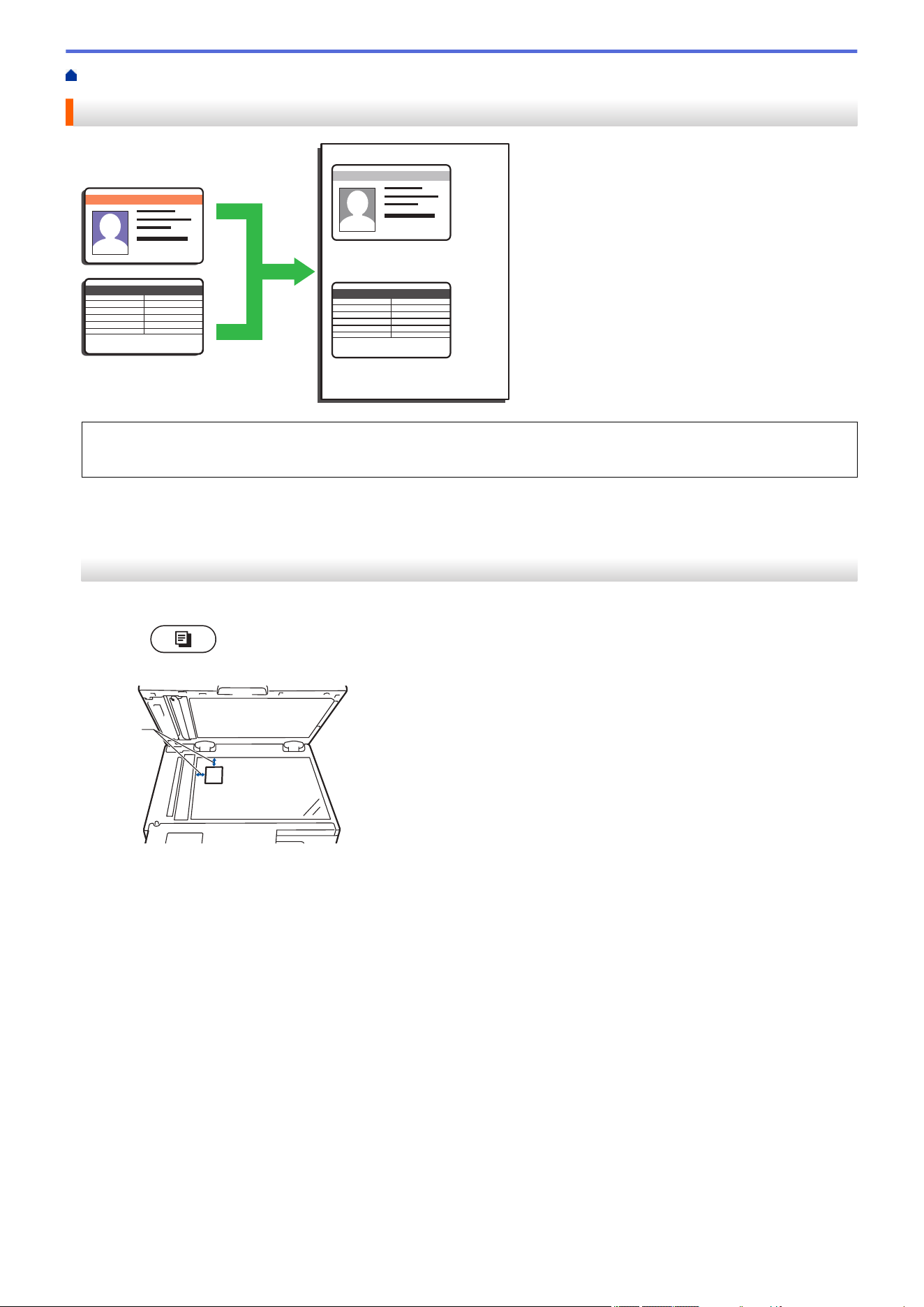
Home > Copy > Copy an ID Card
Copy an ID Card
You may copy an identification card only to the extent permitted under applicable laws. For more detailed
information, see the Product Safety Guide.
>> HL-L2465DW/DCP-L2640DW/DCP-L2647DW/MFC-L2760DW
>> HL-L2480DW/MFC-L2807DW/MFC-L2820DW/MFC-L2820DWXL/MFC-L2900DW/MFC-L2900DWXL/
MFC-L2980DW
HL-L2465DW/DCP-L2640DW/DCP-L2647DW/MFC-L2760DW
1. (For MFC models)
Press (Copy).
2. Place an identification card face down near the upper left corner of the scanner glass.
1
1 0.16 in. (4.0 mm) or greater (top, left)
3. Press 2 in 1 (ID) Copy.
4. Do one of the following:
• For MFC models
Use the dial pad to enter the number of copies you want.
• For DCP models
Press a or b to enter the number of copies you want.
5. Press Start.
The machine scans one side of the identification card.
137
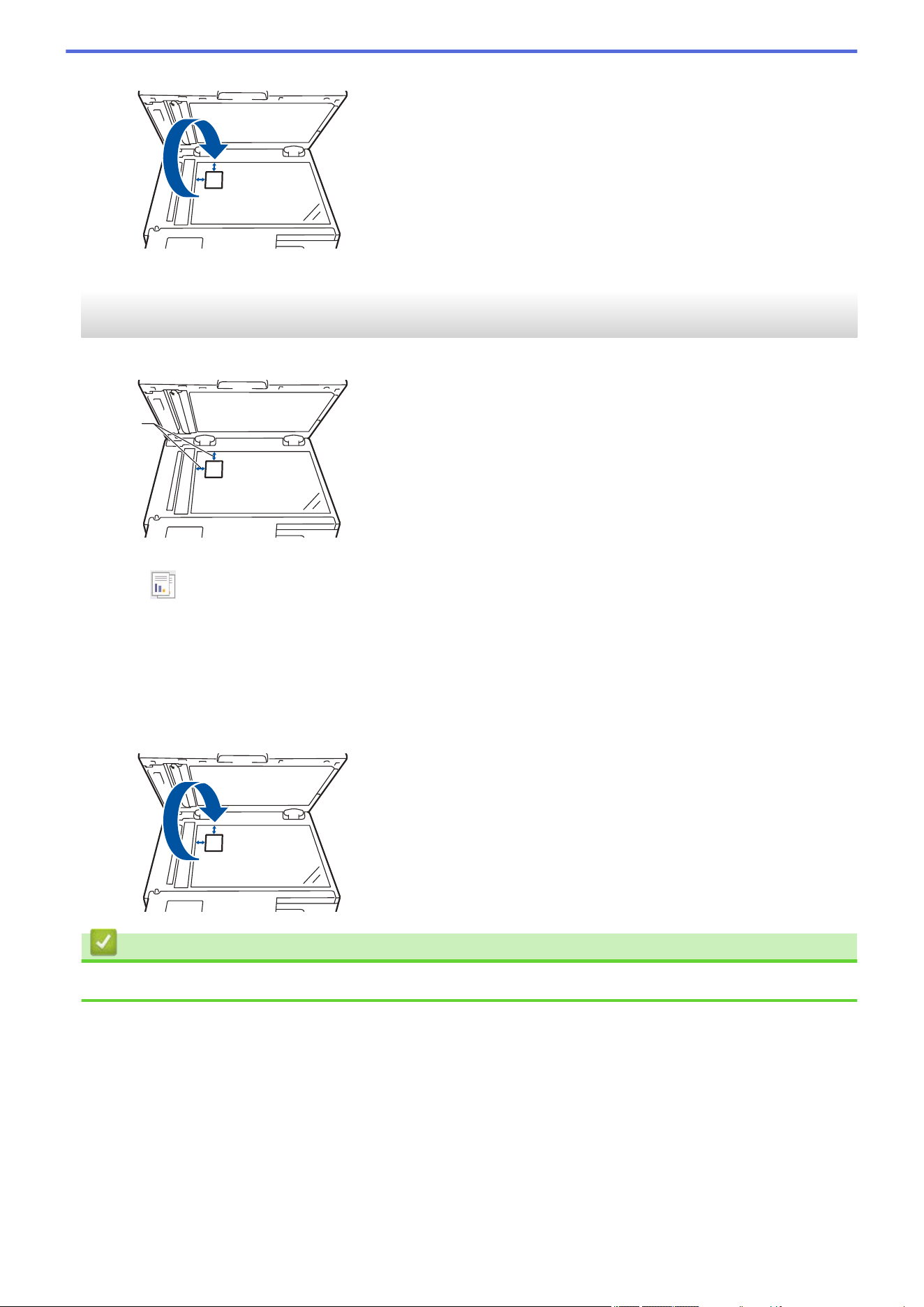
6. After the machine has scanned the first side, turn over the identification card.
7. Press Start to scan the other side.
HL-L2480DW/MFC-L2807DW/MFC-L2820DW/MFC-L2820DWXL/MFC-L2900DW/
MFC-L2900DWXL/MFC-L2980DW
1. Place your identification card face down near the upper left corner of the scanner glass.
1
1 0.16 in. (4.0 mm) or greater (top, left)
2. Press ([Copy]).
3. Press [ID].
4. Enter the number of copies.
5. Press [Start].
The machine scans one side of the identification card.
6. After the machine has scanned the first side, turn over the identification card and press [Continue] to scan
the other side.
Related Information
• Copy
138
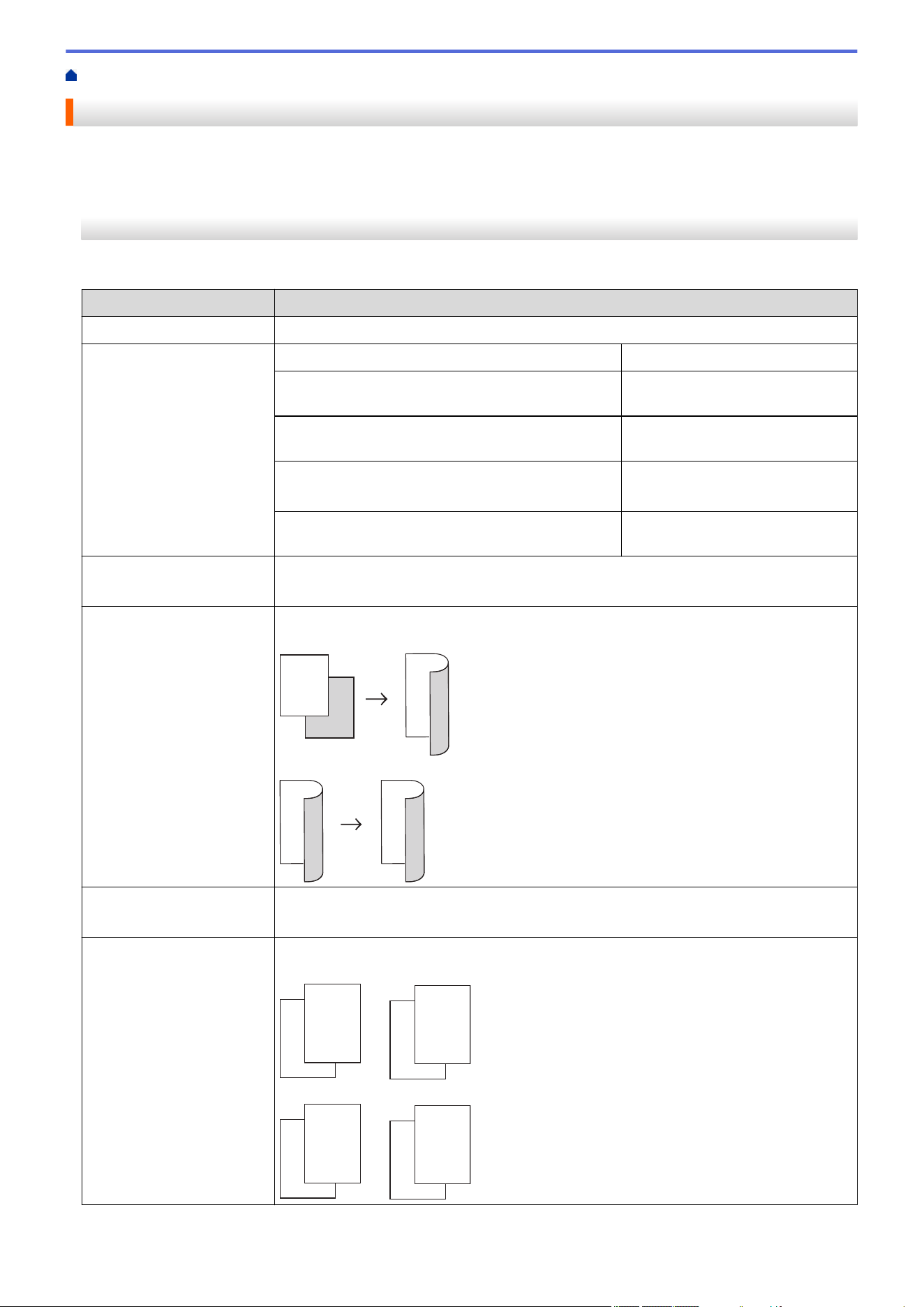
Home > Copy > Copy Options
Copy Options
>> HL-L2465DW/DCP-L2640DW/DCP-L2647DW/MFC-L2760DW
>> HL-L2480DW/MFC-L2807DW/MFC-L2820DW/MFC-L2820DWXL/MFC-L2900DW/MFC-L2900DWXL/
MFC-L2980DW
HL-L2465DW/DCP-L2640DW/DCP-L2647DW/MFC-L2760DW
To change Copy settings, press the Options or Copy/Scan Options button.
Menu selections
Options
Quality
Select the copy quality for your type of document.
Enlarge/Reduce 100%
-
Enlarge
Select an enlargement ratio for the
next copy.
Reduce
Select a reduction ratio for the
next copy.
Auto
(available only for certain models)
Adjusts the copy size to fit the
paper size you have set.
Custom(25-400%)
Enter an enlargement or reduction
ratio.
Density
Increase the density to make the text darker.
Decrease the density to make the text lighter.
2-sided
(available only for certain
models)
Select to copy on both sides of the paper.
1-sided → 2-sided
1
2
1
2
2-sided → 2-sided
1
2
1
2
Contrast
Increase the contrast to make an image clearer.
Decrease the contrast to make an image more subdued.
Stack/Sort
Select to stack or sort multiple copies.
Stack
1
1
2
2
Sort
2
1
2
1
139
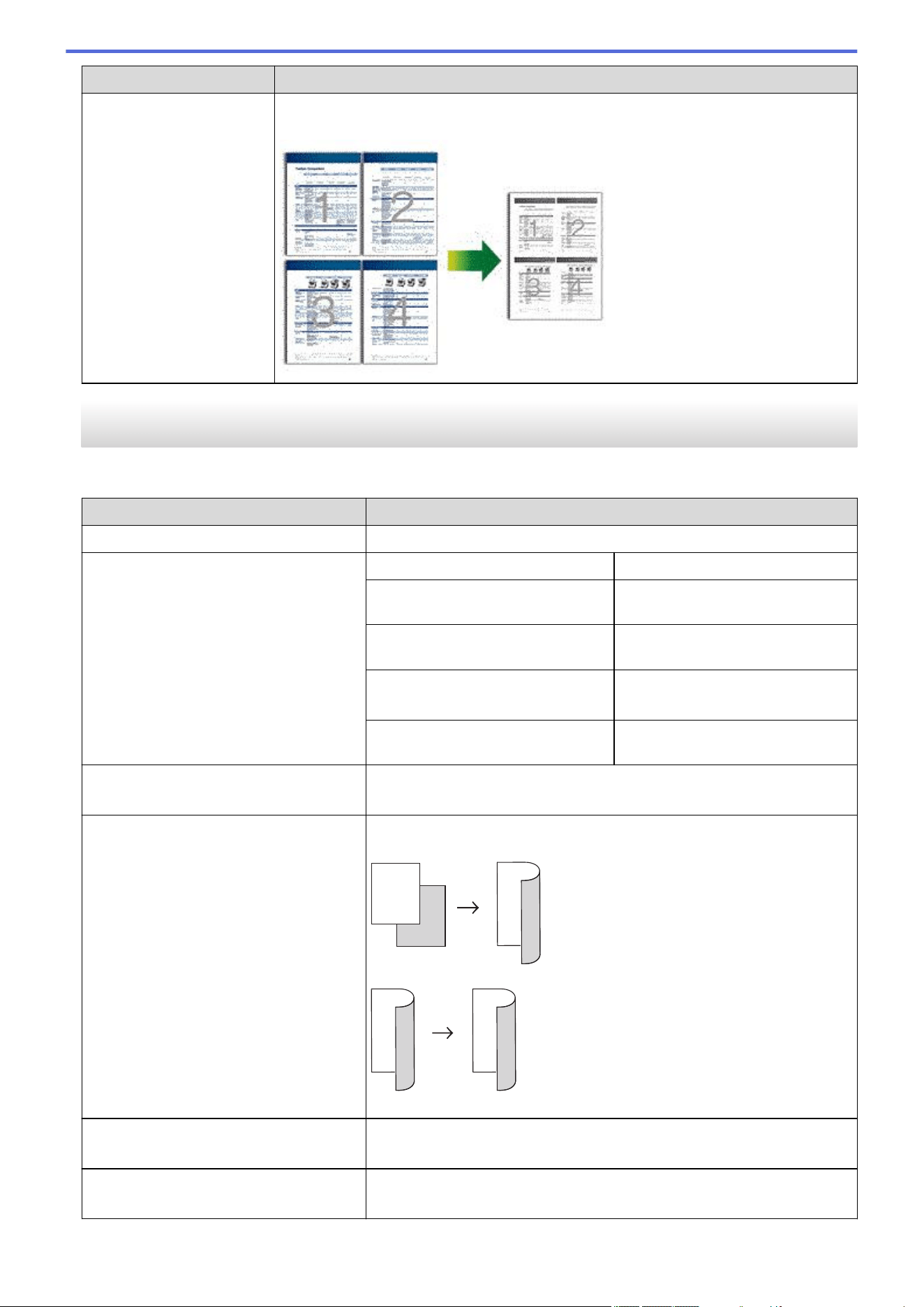
Menu selections Options
Page Layout
Make N in 1 copies.
4 in 1
HL-L2480DW/MFC-L2807DW/MFC-L2820DW/MFC-L2820DWXL/MFC-L2900DW/
MFC-L2900DWXL/MFC-L2980DW
To change Copy settings, press [Options].
Menu selections
Options
Quality
Select the copy quality for your type of document.
Enlarge/Reduce 100%
-
Enlarge
Select an enlargement ratio for the
next copy.
Reduce
Select a reduction ratio for the next
copy.
Auto
(available for certain models)
Adjusts the copy size to fit the
paper size you have set.
Custom(25-400%)
Enter an enlargement or reduction
ratio.
Density
Increase the density to make the text darker.
Decrease the density to make the text lighter.
2-sided Copy
Select to copy on both sides of the paper.
1-sided → 2-sided
1
2
1
2
2-sided → 2-sided
1
2
1
2
The available options will vary depending on your model.
2-sided Copy Page Layout
(available only for certain settings)
Select long edge or short edge.
Contrast
Increase the contrast to make an image clearer.
Decrease the contrast to make an image more subdued.
140
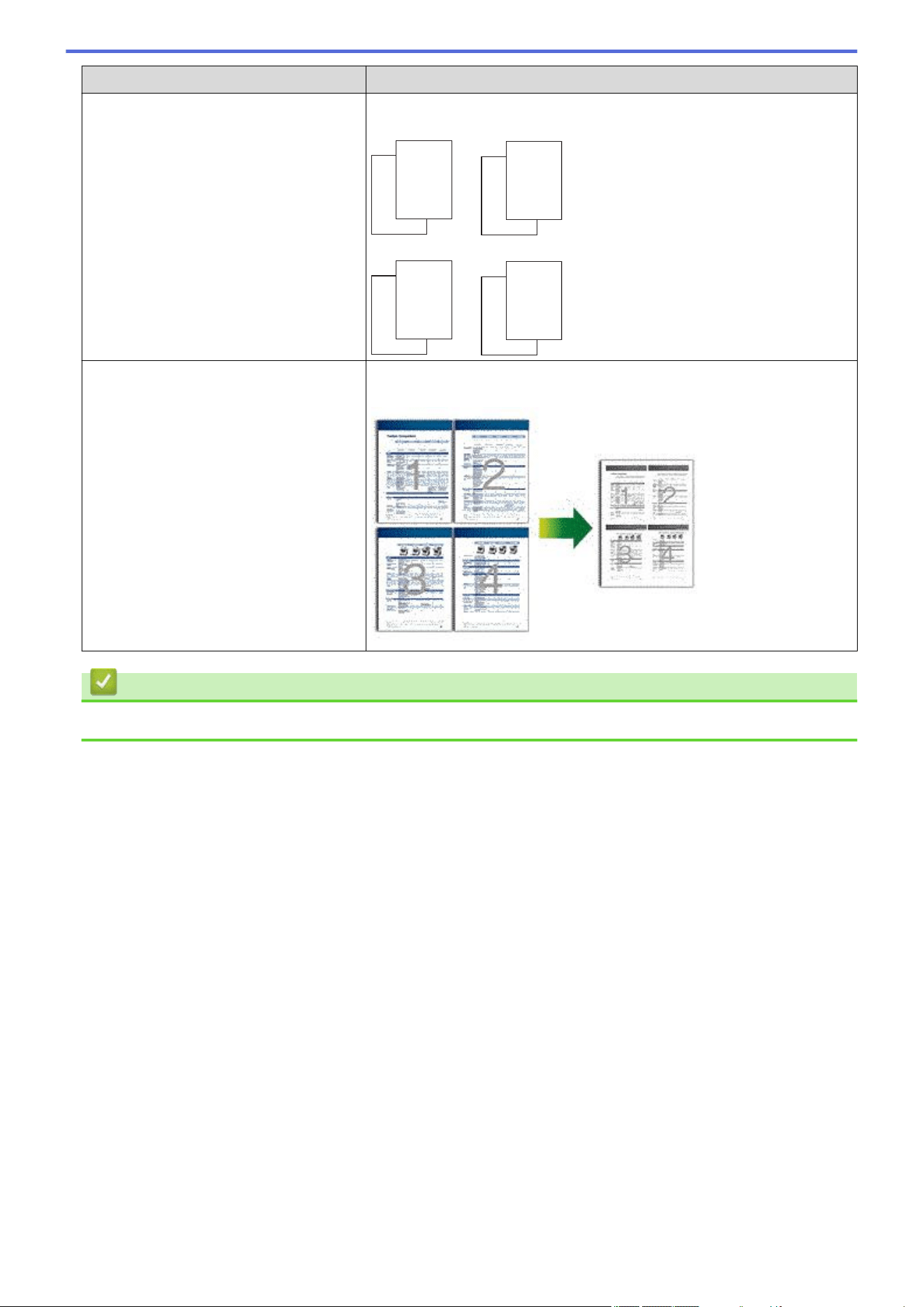


Home > Fax > Send a Fax
Send a Fax
Related Models: MFC-L2760DW/MFC-L2807DW/MFC-L2820DW/MFC-L2820DWXL/MFC-L2900DW/
MFC-L2900DWXL/MFC-L2980DW
• Send a Fax
• Send a 2-sided Fax from the ADF
• Send a Fax Manually
• Send a Fax at the End of a Conversation
• Send the Same Fax to More than One Recipient (Broadcasting)
• Send a Fax in Real Time
• Send a Fax at a Specified Time (Delayed Fax)
• Add a Cover Page to Your Fax
• Cancel a Fax in Progress
• Check and Cancel a Pending Fax
• Fax Options
143
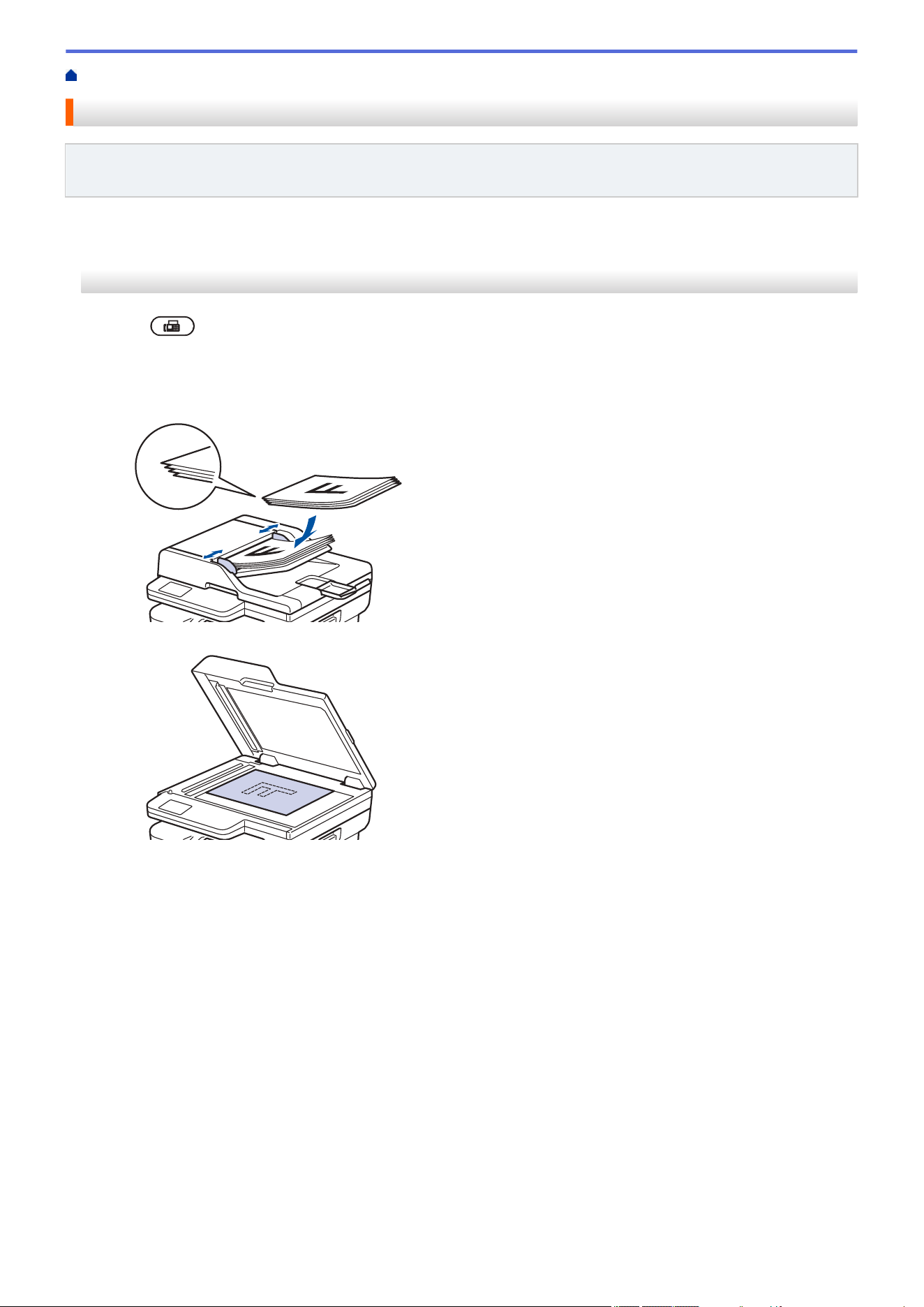
Home > Fax > Send a Fax > Send a Fax
Send a Fax
Related Models: MFC-L2760DW/MFC-L2807DW/MFC-L2820DW/MFC-L2820DWXL/MFC-L2900DW/
MFC-L2900DWXL/MFC-L2980DW
>> MFC-L2760DW
>> MFC-L2807DW/MFC-L2820DW/MFC-L2820DWXL/MFC-L2900DW/MFC-L2900DWXL/MFC-L2980DW
MFC-L2760DW
1. Press (Fax).
2. Do one of the following:
• Place the document face up in the ADF.
(If you are faxing multiple pages, we recommend using the ADF.)
• Place the document face down on the scanner glass.
144
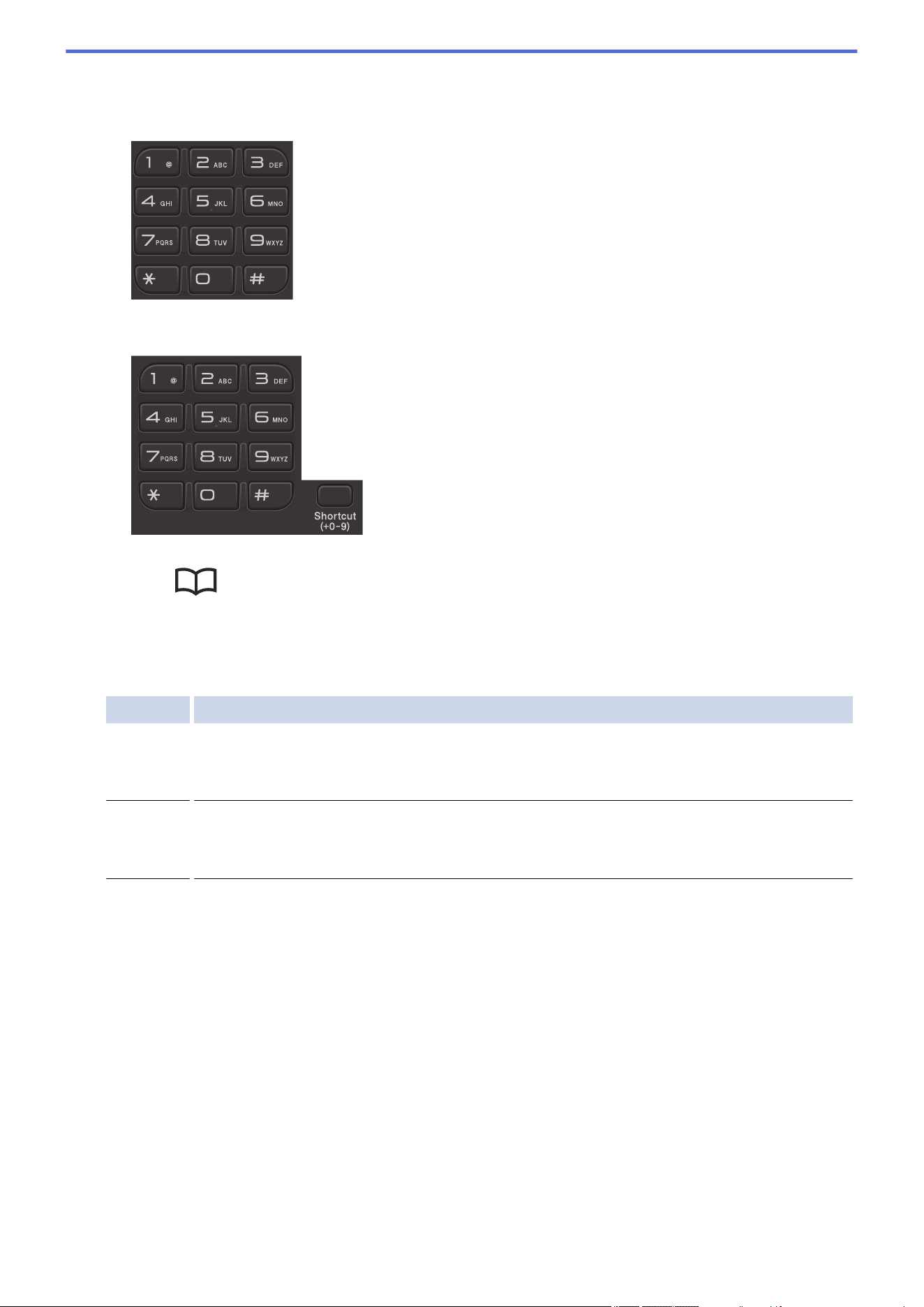
3. Enter the fax number.
• Using the dial pad
Enter the fax number using the dial pad.
• Using the Shortcut Button
Hold down the Shortcut button, and then enter the Shortcut number using the dial pad.
• Using the Speed Dial Codes
Press
twice, and then enter the three-digit Speed Dial code. Press OK.
4. Press Start.
The machine scans and sends the document.
If you placed the document on the scanner glass, follow the instructions in the table:
Option Description
Yes
To scan the next page, press a to select the Yes option, and then place the next page on the
scanner glass.
Press OK to scan the page.
No(Send)
When you have scanned the last page, press b to select the No(Send) option (or press Start
again).
The machine sends the document.
To stop faxing, press Stop/Exit.
145
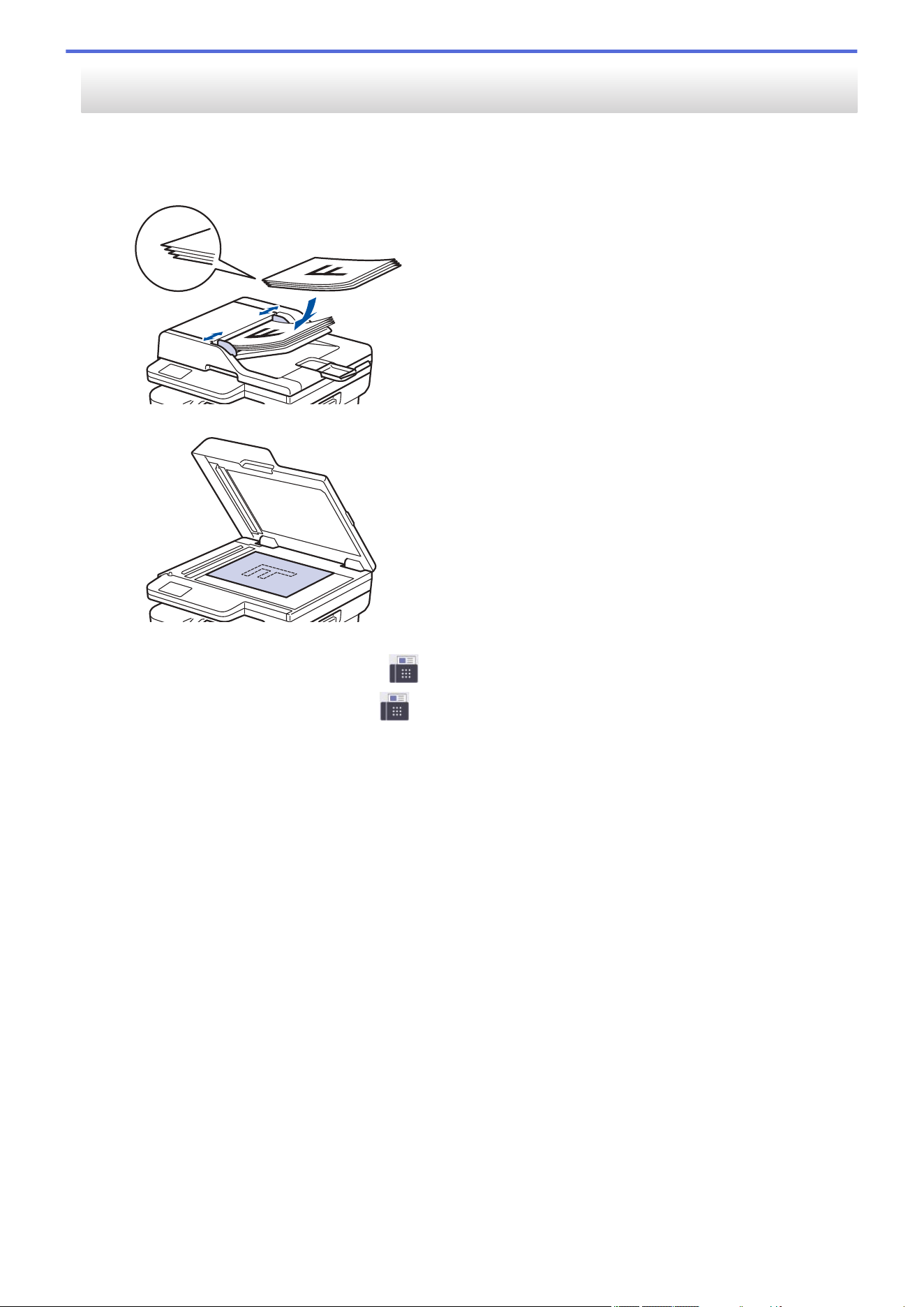
MFC-L2807DW/MFC-L2820DW/MFC-L2820DWXL/MFC-L2900DW/MFC-L2900DWXL/
MFC-L2980DW
1. Do one of the following:
• Place the document face up in the ADF.
(If you are faxing multiple pages, we recommend using the ADF.)
• Place the document face down on the scanner glass.
2. Do one of the following:
• If Fax Preview is set to [Off], press
([Fax]).
• If Fax Preview is set to [On], press ([Fax]), and then press [Send a fax].
146
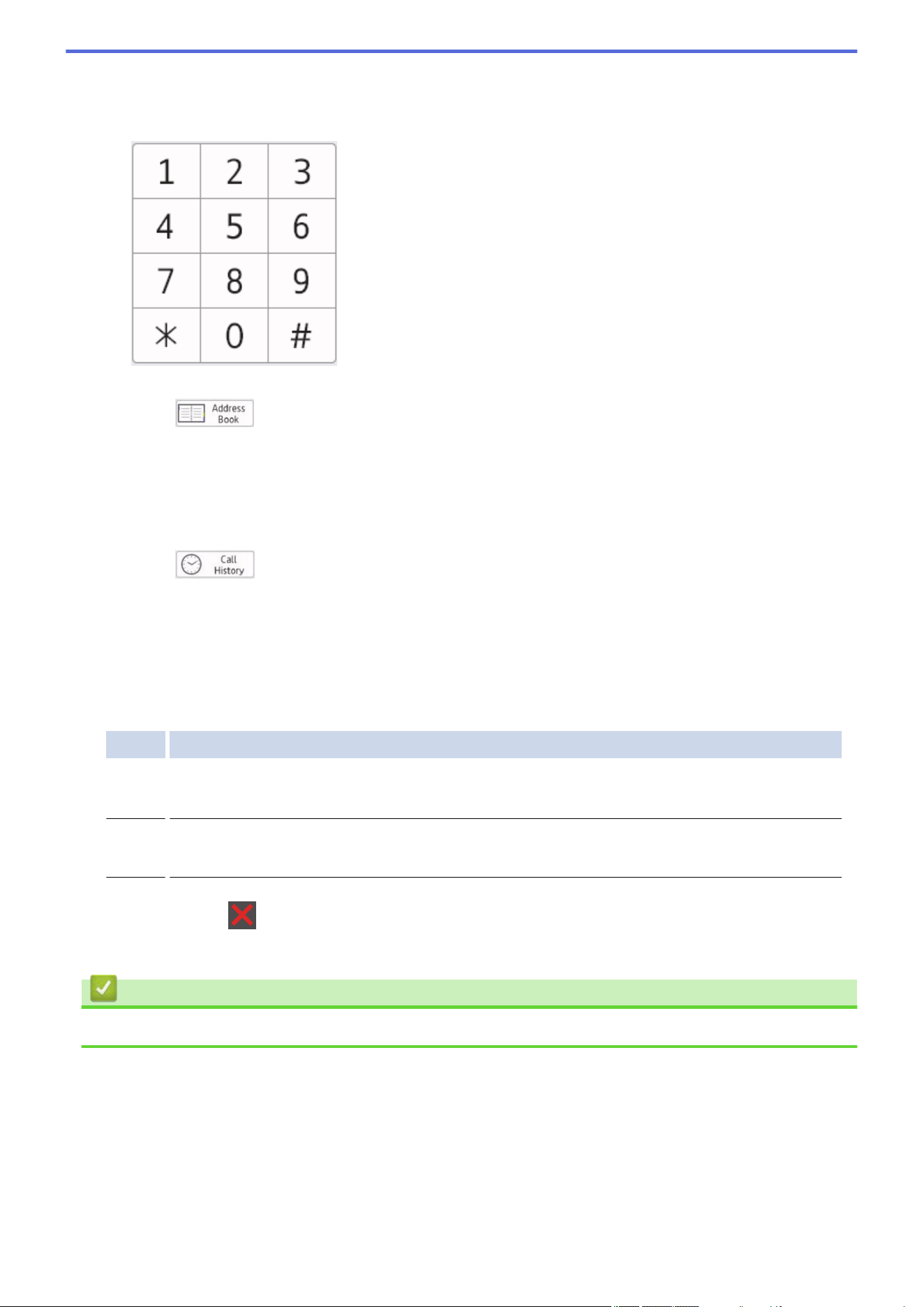
3. Enter the fax number.
• Using the dial pad
Press the digits to enter the fax number.
• Using the Address Book
Press
([Address Book]), and then do one of the following:
- Press a or b to display the number you want, and then press it.
- Press
, and then enter the name and press [OK]. Press the name you want to dial.
When finished, press [Apply].
• Using the call history
Press ([Call History]), and then press the [Outgoing Call] option.
Press a or b to display the fax number you want, and then press it.
To send a fax, press [Apply].
4. Press [Fax Start].
The machine scans and sends the document.
If you placed the document on the scanner glass, follow the instructions in the table.
Option Description
Yes
To scan the next page, press the Yes option, and then place the next page on the scanner glass.
Press OK to scan the page.
No
After you have scanned the last page, press the No option.
The machine sends the document.
To stop faxing, press .
When the LCD displays [Cancel Job?], press [Yes].
Related Information
• Send a Fax
147
Home > Fax > Send a Fax > Send a 2-sided Fax from the ADF
Send a 2-sided Fax from the ADF
Related Models: MFC-L2900DW/MFC-L2900DWXL/MFC-L2980DW
You must select a 2-sided scanning format before sending a 2-sided fax. Select either the Long Edge or Short
Edge option, depending on the layout of your document.
1. Load your document.
2. Do one of the following:
• If Fax Preview is set to [Off], press
([Fax]).
• If Fax Preview is set to [On], press ([Fax]), and then press [Send a fax].
3. Press [Options] > [2-sided Fax].
4. Do one of the following:
• If your document is flipped on the long edge, press the [2-sided Scan: Long Edge] option.
• If your document is flipped on the short edge, press the [2-sided Scan: Short Edge] option.
5. Press [OK]
6. Enter the fax number.
7. Press [Fax Start].
Related Information
• Send a Fax
148
Home > Fax > Send a Fax > Send a Fax Manually
Send a Fax Manually
Related Models: MFC-L2760DW/MFC-L2807DW/MFC-L2820DW/MFC-L2820DWXL/MFC-L2900DW/
MFC-L2900DWXL/MFC-L2980DW
Manual fax transmission lets you hear the dialing, ringing and fax-receiving tones while sending a fax.
>> MFC-L2760DW
>> MFC-L2807DW/MFC-L2820DW/MFC-L2820DWXL/MFC-L2900DW/MFC-L2900DWXL/MFC-L2980DW
MFC-L2760DW
1. Press (Fax).
2. Load your document.
3. Press Hook and listen for a dial tone.
4. Dial the fax number you want to call.
5. When you hear the fax tone, press Start.
If you are using the scanner glass, press a.
MFC-L2807DW/MFC-L2820DW/MFC-L2820DWXL/MFC-L2900DW/MFC-L2900DWXL/
MFC-L2980DW
1. Load your document.
2. Do one of the following:
• If Fax Preview is set to [Off], press
([Fax]).
• If Fax Preview is set to [On], press ([Fax]), and then press [Send a fax].
3. Press [Hook] and listen for a dial tone.
4. Dial the fax number you want to call.
5. When you hear the fax tone, press
or , and then press [Fax Start].
If you are using the scanner glass, press [Send].
Related Information
• Send a Fax
149
Home > Fax > Send a Fax > Send a Fax at the End of a Conversation
Send a Fax at the End of a Conversation
Related Models: MFC-L2760DW/MFC-L2807DW/MFC-L2820DW/MFC-L2820DWXL/MFC-L2900DW/
MFC-L2900DWXL/MFC-L2980DW
At the end of a conversation, you can send a fax to the other party before you both hang up.
>> MFC-L2760DW
>> MFC-L2807DW/MFC-L2820DW/MFC-L2820DWXL/MFC-L2900DW/MFC-L2900DWXL/MFC-L2980DW
MFC-L2760DW
1. Ask the other party to wait for fax tones (beeps) and then to press the Start button before hanging up.
2. Load your document.
3. Press Start.
If you are using the scanner glass, press a.
4. Replace the handset.
MFC-L2807DW/MFC-L2820DW/MFC-L2820DWXL/MFC-L2900DW/MFC-L2900DWXL/
MFC-L2980DW
1. Ask the other party to wait for fax tones (beeps) and then to press the Start button before hanging up.
2. Load your document.
3. Press [Fax Start].
If you are using the scanner glass, press [Send].
4. Replace the handset.
Related Information
• Send a Fax
150
Home > Fax > Send a Fax > Send the Same Fax to More than One Recipient (Broadcasting)
Send the Same Fax to More than One Recipient (Broadcasting)
Related Models: MFC-L2760DW/MFC-L2807DW/MFC-L2820DW/MFC-L2820DWXL/MFC-L2900DW/
MFC-L2900DWXL/MFC-L2980DW
Use the Broadcasting feature to send the same fax to multiple fax numbers at the same time.
• The same broadcast can include Groups, Address Book numbers (Shortcut numbers and Speed Dial
numbers in some models), and up to 50 manually dialed numbers.
• Address Book numbers (Shortcut numbers and Speed Dial numbers in some models) must be stored in
the machine’s memory before they can be used in a broadcast.
• Group numbers must also be stored in the machine’s memory before they can be used in a broadcast.
Group numbers include many stored Address Book numbers (Shortcut numbers and Speed Dial numbers
in some models) for easier dialing.
>> MFC-L2760DW
>> MFC-L2807DW/MFC-L2820DW/MFC-L2820DWXL/MFC-L2900DW/MFC-L2900DWXL/MFC-L2980DW
MFC-L2760DW
If you did not use any of the Shortcut numbers and the Speed Dial numbers for Groups, you can broadcast
faxes to as many as 260 different numbers.
1. Press (Fax).
2. Load your document.
3. Enter a number, and press OK.
You can use Shortcut, Speed Dial, Group numbers and numbers manually entered using the dial pad.
Repeat this step to enter the all the numbers you want to broadcast to.
4. Press Start.
MFC-L2807DW/MFC-L2820DW/MFC-L2820DWXL/MFC-L2900DW/MFC-L2900DWXL/
MFC-L2980DW
If you did not use any of the Address Book numbers for Groups, you can broadcast faxes to as many as
250 different numbers.
1. Load your document.
2. Do one of the following:
• If Fax Preview is set to [Off], press
([Fax]).
• If Fax Preview is set to [On], press ([Fax]), and then press [Send a fax].
3. Press [Options] > [Broadcasting].
4. Press [Add Number].
You can add numbers to the broadcast in the following ways;
• Press [Add Number] and enter a fax number using the LCD.
Press [OK].
• Press [Add from Address book] to select numbers, and then press [OK].
• Press [Search in Address book] to search for a number.
Enter a name using the LCD, and then press [OK].
151
Select a name and a number you want to add.
• To broadcast using an email address, press , enter the email address, and press [OK].
(On certain models, you must download Internet Fax to use the Internet Fax feature and the Scan to
Email server feature.)
5. When finished, press [OK].
6. Press [Fax Start].
7. Do one of the following:
• If you are using the ADF, the machine scans and sends the document.
• If you are using the scanner glass, the machine scans the first page.
When the LCD displays [Next page?], press an option shown in the table.
Option Description
Yes
Select Yes to scan the next page.
Place the Next page on the Scanner Glass, and then press OK.
Repeat this step to scan all pages.
No
Select No to send the document.
• The machine’s available memory will vary depending on the types of jobs in the memory and the
numbers used for broadcasting. If you broadcast to the maximum number available, you cannot use
dual access and delayed fax.
• If the [Out of Memory] message appears, press or [Quit] to cancel or [Send Now] to send
the pages scanned so far.
Related Information
• Send a Fax
• Cancel a Broadcast in Progress
152
Home > Fax > Send a Fax > Send the Same Fax to More than One Recipient (Broadcasting) > Cancel a
Broadcast in Progress
Cancel a Broadcast in Progress
Related Models: MFC-L2760DW/MFC-L2807DW/MFC-L2820DW/MFC-L2820DWXL/MFC-L2900DW/
MFC-L2900DWXL/MFC-L2980DW
While broadcasting multiple faxes, you can cancel just the fax currently being transmitted or cancel the whole
broadcast job.
>> MFC-L2760DW
>> MFC-L2807DW/MFC-L2820DW/MFC-L2820DWXL/MFC-L2900DW/MFC-L2900DWXL/MFC-L2980DW
MFC-L2760DW
1. Press Menu.
2. Press a or b to display the [Fax] option, and then press OK.
3. Press a or b to display the [Remaining Jobs] option, and then press OK.
The LCD will display the Broadcast job number followed by the fax number being dialed (for example,
[#001123456789]) and the broadcast job number (for example, [Broadcast#001]).
4. Press a or b to display the fax number being dialed or the broadcast job number, and then press OK.
5. Press the option shown in the table to cancel or exit the cancel process.
Option Description
a The machine cancels the fax currently being sent.
b The machine exits from the cancel process without canceling.
6. Press Stop/Exit.
MFC-L2807DW/MFC-L2820DW/MFC-L2820DWXL/MFC-L2900DW/MFC-L2900DWXL/
MFC-L2980DW
1. Press .
2. Do one of the following:
• To cancel the entire broadcast, press [Entire Broadcast]. Press [Yes] to confirm or press [No] to
exit without canceling the broadcast.
• To cancel the current job, press the name or number being canceled on the LCD. Press [Yes] to confirm
or press [No] to exit without canceling the fax being sent.
• To exit without canceling, press
.
Related Information
• Send the Same Fax to More than One Recipient (Broadcasting)
153
Home > Fax > Send a Fax > Send a Fax in Real Time
Send a Fax in Real Time
Related Models: MFC-L2760DW/MFC-L2807DW/MFC-L2820DW/MFC-L2820DWXL/MFC-L2900DW/
MFC-L2900DWXL/MFC-L2980DW
When sending a fax, the machine scans the document into the memory before sending it. As soon as the
telephone line is free, the machine starts dialing and sending. If you want to send an important document
immediately without waiting for the machine to retrieve the scan from its memory, turn on [Real Time TX].
• If the memory is full and you are sending a fax from the ADF, the machine sends the document in real time
(even if [Real Time TX] is set to [Off]). If the memory is full, faxes from the scanner glass cannot be
sent until you clear some of the memory.
• In Real Time Transmission, the automatic redial feature does not work when using the scanner glass.
• If [Real Time TX] is set to on, the option to scan 2-sided documents is not available.
>> MFC-L2760DW
>> MFC-L2807DW/MFC-L2820DW/MFC-L2820DWXL/MFC-L2900DW/MFC-L2900DWXL/MFC-L2980DW
MFC-L2760DW
1. Press (Fax).
2. Load your document.
3. Press Menu.
4. Press a or b to display the [Fax] option, and then press OK.
5. Press a or b to display the [Setup Send] option, and then press OK.
6. Press a or b to display the [Real Time TX] option, and then press OK.
7. Press a or b to display the [On] option, and then press OK.
8. When finished, press Stop/Exit.
9. Enter the fax number.
10. Press Start.
MFC-L2807DW/MFC-L2820DW/MFC-L2820DWXL/MFC-L2900DW/MFC-L2900DWXL/
MFC-L2980DW
1. Load your document.
2. Do one of the following:
• If Fax Preview is set to [Off], press
([Fax]).
• If Fax Preview is set to [On], press
([Fax]), and then press [Send a fax].
3. Press [Options] > [Real Time TX].
4. Press [On] or [Off].
5. Press [OK].
6. Enter the fax number.
7. Press [Fax Start].
Related Information
• Send a Fax
154
Home > Fax > Send a Fax > Send a Fax at a Specified Time (Delayed Fax)
Send a Fax at a Specified Time (Delayed Fax)
Related Models: MFC-L2760DW/MFC-L2807DW/MFC-L2820DW/MFC-L2820DWXL/MFC-L2900DW/
MFC-L2900DWXL/MFC-L2980DW
You can store up to 50 faxes in the machine's memory to be sent within the next twenty-four hour period.
>> MFC-L2760DW
>> MFC-L2807DW/MFC-L2820DW/MFC-L2820DWXL/MFC-L2900DW/MFC-L2900DWXL/MFC-L2980DW
MFC-L2760DW
1. Press (Fax).
2. Load your document.
3. Press Options.
4. Press a or b to display the [Delayed Fax] option, and then press OK.
5. Enter the time you want the fax to be sent.
• If you set [12h Clock] in the [Date & Time] setting, enter the time in 12-hour format, and then press
OK.
Press a or b to display the [AM] or [PM] option, and then press OK.
• If you set [24h Clock] in the [Date & Time] setting, enter the time in 24-hour format, and then press
OK.
(For example, enter 19:45 for 7:45 PM.)
6. Enter the fax number.
7. Press Start.
The number of pages you can scan into the memory depends on the amount of data printed on each page.
MFC-L2807DW/MFC-L2820DW/MFC-L2820DWXL/MFC-L2900DW/MFC-L2900DWXL/
MFC-L2980DW
1. Load your document.
2. Do one of the following:
• If Fax Preview is set to [Off], press
([Fax]).
• If Fax Preview is set to [On], press ([Fax]), and then press [Send a fax].
3. Press
[Options] > [Delayed Fax] > [Delayed Fax].
4. Press [On].
5. Press [Set Time].
6. Enter the time you want the fax to be sent.
• If you set [12h Clock] in the [Date & Time] setting, enter the time in 12-hour format.
Press the
button to select [AM] or [PM], and then press [OK].
• If you set [24h Clock] in the [Date & Time] setting, enter the time in 24-hour format and then press
[OK].
(For example, enter 19:45 for 7:45 PM.)
7. Press [OK]
8. Enter the fax number.
9. Press [Fax Start].
155

Home > Fax > Send a Fax > Add a Cover Page to Your Fax
Add a Cover Page to Your Fax
Related Models: MFC-L2760DW/MFC-L2807DW/MFC-L2820DW/MFC-L2820DWXL/MFC-L2900DW/
MFC-L2900DWXL/MFC-L2980DW
You can add a cover page to the next fax or every outgoing fax.
• This feature will not work unless you have set up your Station ID.
• The cover page includes your Station ID, a comment, and the name stored in the Address Book, Shortcut,
or Speed Dial (in some models).
>> MFC-L2760DW
>> MFC-L2807DW/MFC-L2820DW/MFC-L2820DWXL/MFC-L2900DW/MFC-L2900DWXL/MFC-L2980DW
MFC-L2760DW
1. Press (Fax).
2. Load your document.
3. Press Options.
4. Press a or b to display the [Coverpage] option, and then press OK.
5. Press a or b to display the [On] option, and then press OK.
6. Press a or b to display comment options, and then press OK.
7. Enter the number of total pages using the dial pad, and then press OK.
8. When finished, press Stop/Exit.
9. Enter the fax number.
10. Press Start.
MFC-L2807DW/MFC-L2820DW/MFC-L2820DWXL/MFC-L2900DW/MFC-L2900DWXL/
MFC-L2980DW
1. Load your document.
2. Do one of the following:
• If Fax Preview is set to [Off], press
([Fax]).
• If Fax Preview is set to [On], press ([Fax]), and then press [Send a fax].
3. Press [Options] > [Coverpage Setup] > [Coverpage Setup].
4. Press [On].
5. Press [Coverpage Message].
6. Press a or b to display comment you want, and then press it.
7. Press [Total Pages].
8. Enter the number of total pages, and then press [OK].
9. Press .
10. Press [OK].
11. Enter the fax number.
12. Press [Fax Start].
The cover page will be added to the next fax. If you want to add the cover page to every outgoing fax, set the
settings as the new default.
157

Home > Fax > Send a Fax > Add a Cover Page to Your Fax > Create a Cover Page Message
Create a Cover Page Message
Related Models: MFC-L2760DW/MFC-L2807DW/MFC-L2820DW/MFC-L2820DWXL/MFC-L2900DW/
MFC-L2900DWXL/MFC-L2980DW
Create up to two custom cover page messages to add to outgoing faxes.
>> MFC-L2760DW
>> MFC-L2807DW/MFC-L2820DW/MFC-L2820DWXL/MFC-L2900DW/MFC-L2900DWXL/MFC-L2980DW
MFC-L2760DW
1. Press (Fax).
2. Press Menu.
3. Press a or b to display the [Fax] option, and then press OK.
4. Press a or b to display the [Setup Send] option, and then press OK.
5. Press a or b to display the [Coverpage Msg] option to store your own comment, and then press OK.
6. Press a or b to display the [5.] or [6.] option to store your own comment, and then press OK.
7. Enter your own comment using the dial pad, and then press OK.
8. Press Stop/Exit.
MFC-L2807DW/MFC-L2820DW/MFC-L2820DWXL/MFC-L2900DW/MFC-L2900DWXL/
MFC-L2980DW
1. Press [Settings] > [All Settings] > [Fax] > [Setup Send] > [Coverpage Message].
2. Press [5.] or [6.] to store your own comment.
3. Enter your own comment using the LCD, and then press [OK].
4. Press
.
Related Information
• Add a Cover Page to Your Fax
159
Home > Fax > Send a Fax > Cancel a Fax in Progress
Cancel a Fax in Progress
Related Models: MFC-L2760DW/MFC-L2807DW/MFC-L2820DW/MFC-L2820DWXL/MFC-L2900DW/
MFC-L2900DWXL/MFC-L2980DW
>> MFC-L2760DW
>> MFC-L2807DW/MFC-L2820DW/MFC-L2820DWXL/MFC-L2900DW/MFC-L2900DWXL/MFC-L2980DW
MFC-L2760DW
1. Press Stop/Exit while the machine is dialing or sending a fax.
2. Press an option in the table to cancel or continue the fax job in progress.
Option Description
a The machine cancels sending the fax job.
b The machine does not cancel the fax job.
MFC-L2807DW/MFC-L2820DW/MFC-L2820DWXL/MFC-L2900DW/MFC-L2900DWXL/
MFC-L2980DW
1. Press while the machine is dialing or sending a fax.
The LCD will display [Cancel Job?].
2. Press an option in the table to cancel or continue the fax job in progress.
Option Description
Yes
The machine cancels sending the fax job.
No
The machine does not cancel the fax job.
Related Information
• Send a Fax
160
Home > Fax > Send a Fax > Check and Cancel a Pending Fax
Check and Cancel a Pending Fax
Related Models: MFC-L2760DW/MFC-L2807DW/MFC-L2820DW/MFC-L2820DWXL/MFC-L2900DW/
MFC-L2900DWXL/MFC-L2980DW
You can cancel a fax job before it is sent, while it is stored in the memory.
>> MFC-L2760DW
>> MFC-L2807DW/MFC-L2820DW/MFC-L2820DWXL/MFC-L2900DW/MFC-L2900DWXL/MFC-L2980DW
MFC-L2760DW
1. Press (Fax).
2. Press Menu.
3. Press a or b to display the [Fax] option, and then press OK.
4. Press a or b to display the [Remaining Jobs] option, and then press OK.
The LCD displays the number of jobs waiting in the memory to be sent.
5. Press a or b to display the job you want to cancel, and then press OK.
6. Press the options in the following table to cancel or exit the cancel process.
Option Description
a The machine cancels the job.
b The machine exits from the cancel process without canceling.
7. Press Stop/Exit.
MFC-L2807DW/MFC-L2820DW/MFC-L2820DWXL/MFC-L2900DW/MFC-L2900DWXL/
MFC-L2980DW
1. Press [Settings] > [All Settings] > [Fax] > [Remaining Jobs].
2. Do the following steps for each job you want to check or cancel:
a. Press a or b to scroll through the waiting jobs, and then press the job you want to cancel.
b. Press [OK].
c. Press [Yes] to cancel the fax job or press [No] to exit without canceling.
3. When finished canceling jobs, press .
Related Information
• Send a Fax
161
Home > Fax > Send a Fax > Fax Options
Fax Options
Related Models: MFC-L2760DW/MFC-L2807DW/MFC-L2820DW/MFC-L2820DWXL/MFC-L2900DW/
MFC-L2900DWXL/MFC-L2980DW
>> MFC-L2760DW
>> MFC-L2807DW/MFC-L2820DW/MFC-L2820DWXL/MFC-L2900DW/MFC-L2900DWXL/MFC-L2980DW
MFC-L2760DW
To change the fax-sending settings, press the Options button.
Option
Description
Fax Resolution
Set the resolution for outgoing faxes.
The fax quality often can be improved by changing the Fax
Resolution.
Contrast
Adjust the contrast.
If your document is very light or very dark, changing the contrast
may improve the fax quality.
Glass ScanSize
Adjust the scan area of the scanner glass to the size of the
document.
Delayed Fax
Set the time of day the delayed faxes will be sent.
Real Time TX
Send a fax immediately without waiting for the machine to retrieve
the scan from its memory.
Coverpage
Set the machine to automatically send a pre-programmed cover
page.
Overseas Mode
Set to On if you have difficulty sending faxes overseas.
MFC-L2807DW/MFC-L2820DW/MFC-L2820DWXL/MFC-L2900DW/MFC-L2900DWXL/
MFC-L2980DW
To change the fax-sending settings, press [Options].
Option
Description
Fax Resolution
Set the resolution for outgoing faxes.
The fax quality often can be improved by changing the Fax
Resolution.
Contrast
Adjust the contrast.
If your document is very light or very dark, changing the contrast
may improve the fax quality.
2-sided Fax
(For automatic 2-sided scanning models)
Set the 2-sided scanning format.
Glass Scan Size
Adjust the scan area of the scanner glass to the size of the
document.
Broadcasting
Send the same fax message to more than one fax number at the
same time.
Delayed Fax
Set the time of day the delayed faxes will be sent.
Real Time TX
Send a fax immediately without waiting for the machine to retrieve
the scan from its memory.
162
Option Description
Coverpage Setup
Set the machine to automatically send a pre-programmed cover
page.
Overseas Mode
Set to On if you have difficulty sending faxes overseas.
Call History
Select a number from the Call History.
Address Book
Select a number from the Address Book.
Set New Default
Save your settings as the default.
Factory Reset
Restore all settings back to the factory settings.
You can save the current settings by pressing [Save as Shortcut].
Related Information
• Send a Fax
163


Home > Fax > Receive a Fax > Receive Mode Settings
Receive Mode Settings
Related Models: MFC-L2760DW/MFC-L2807DW/MFC-L2820DW/MFC-L2820DWXL/MFC-L2900DW/
MFC-L2900DWXL/MFC-L2980DW
• Receive Modes Overview
• Choose the Correct Receive Mode
• Set the Number of Rings Before the Machine Answers (Ring Delay)
• Set the F/T Ring Time (Pseudo/Double-ring)
• Set Easy Receive
• Shrink Page Size of an Oversized Incoming Fax
• Set the 2-sided Printing for Received Faxes
• Set the Fax Receive Stamp
• Receive a Fax at the End of a Telephone Conversation
• Restrict Incoming Faxes
165
Home > Fax > Receive a Fax > Receive Mode Settings > Receive Modes Overview
Receive Modes Overview
Related Models: MFC-L2760DW/MFC-L2807DW/MFC-L2820DW/MFC-L2820DWXL/MFC-L2900DW/
MFC-L2900DWXL/MFC-L2980DW
Some receive modes answer automatically (Fax Only Mode and Fax/Tel Mode). You may want to change the
Ring Delay before using these modes.
Fax Only Mode
([Fax Only] in the machine's menu)
Fax Only Mode automatically answers every call as a fax.
Fax/Tel Mode
([Fax/Tel] in the machine's menu)
Fax/Tel Mode helps you manage incoming calls, by recognizing whether they are fax or voice calls and
handling them in the following ways:
• Faxes will be received automatically.
• Voice calls will start the F/T ring to tell you to pick up the call. The F/T ring is a fast pseudo/double-ring
made by your machine.
Manual Mode
([Manual] in the machine's menu)
Manual Mode turns off all automatic answering operations unless you are using the Distinctive Ring Receive
feature.
To receive a fax in Manual Mode, lift the handset of the external telephone connected to the machine or press
the button in the table.
Applicable Models
Alternate way to lift the handset
MFC-L2760DW Hook
MFC-L2807DW/MFC-L2820DW/MFC-L2820DWXL/MFC-L2900DW/
MFC-L2900DWXL/MFC-L2980DW
Hook
When you hear fax tones (short repeating beeps), press the buttons in the table to receive a fax. Use the Easy
Receive feature to receive faxes when you have lifted a handset on the same line as the machine.
Applicable Models
To receive a fax
MFC-L2760DW
Start and then b
MFC-L2807DW/MFC-L2820DW/MFC-L2820DWXL/MFC-L2900DW/
MFC-L2900DWXL/MFC-L2980DW
Fax Start and then Receive
External TAD Mode
([External TAD] in the machine's menu)
External TAD Mode lets an external answering device manage your incoming calls.
Incoming calls will be handled in the following ways:
• Faxes will be received automatically.
• Voice callers can record a message on the external TAD.
Related Information
• Receive Mode Settings
166
Home > Fax > Receive a Fax > Receive Mode Settings > Choose the Correct Receive Mode
Choose the Correct Receive Mode
Related Models: MFC-L2760DW/MFC-L2807DW/MFC-L2820DW/MFC-L2820DWXL/MFC-L2900DW/
MFC-L2900DWXL/MFC-L2980DW
The correct Receive Mode for you is determined by the external devices and telephone subscriber services
(Voice Mail, Distinctive Ring and so on) you will be using on the same line as your machine.
Will you be using a Distinctive Ring number for receiving faxes?
Brother uses the term "Distinctive Ring" but different telephone companies may have other names for this
service, such as Custom Ringing, Personalized Ring, Teen Ring, Ident-A-Ring, Ident-A-Call, Data Ident-A-
Call, Smart Ring and SimpleBiz Fax & Alternate Number Ringing.
Will you be using Voice Mail on the same telephone line as your Brother machine?
If you have Voice Mail on the same telephone line as your Brother machine, there is a strong possibility that
Voice Mail and the Brother machine will conflict with each other when receiving incoming calls.
Will you be using a Telephone Answering Device on the same telephone line as your Brother machine?
Your external telephone answering device (TAD) will answer every call automatically. Voice messages are
stored on the external TAD and fax messages are printed. Select [External TAD] as your receive mode.
Will you be using your Brother machine on a dedicated fax line?
Your machine automatically answers every call as a fax. Select [Fax Only] as your receive mode.
Will you be using your Brother machine on the same line as your telephone?
• Do you want to receive voice calls and faxes automatically?
The Fax/Tel Mode is used when sharing the Brother machine and your telephone on the same line.
Select [Fax/Tel] as your receive mode.
Important Note: You cannot receive voice messages on either Voice Mail or an answering machine if
you selected the Fax/Tel Mode.
• Do you expect to receive very few faxes?
Choose [Manual] as your receive mode. You control the telephone line and must answer every call
yourself.
>> MFC-L2760DW
>> MFC-L2807DW/MFC-L2820DW/MFC-L2820DWXL/MFC-L2900DW/MFC-L2900DWXL/MFC-L2980DW
MFC-L2760DW
1. Press (Fax).
2. Press Menu.
3. Press a or b to display the [Fax] option, and then press OK.
4. Press a or b to display the [Setup Receive] option, and then press OK.
5. Press a or b to display the [Receive Mode] option, and then press OK.
If you cannot change the [Receive Mode] option, make sure the Distinctive Ring feature is set to [Off].
6. Press a or b to select the [Fax Only], [Fax/Tel], [External TAD], or [Manual] option, and then
press OK.
7. Press Stop/Exit.
167
MFC-L2807DW/MFC-L2820DW/MFC-L2820DWXL/MFC-L2900DW/MFC-L2900DWXL/
MFC-L2980DW
1. Press [Settings] > [All Settings] > [Fax] > [Setup Receive] > [Receive Mode].
If you cannot change the [Receive Mode] option, make sure the Distinctive Ring feature is set to [Off].
2. Press a or b to display the [Fax Only], [Fax/Tel], [External TAD], or [Manual] option, and then
press the option you want.
3. Press .
Related Information
• Receive Mode Settings
Related Topics:
• Telephone and Fax Problems
168
Home > Fax > Receive a Fax > Receive Mode Settings > Set the Number of Rings Before the Machine
Answers (Ring Delay)
Set the Number of Rings Before the Machine Answers (Ring Delay)
Related Models: MFC-L2760DW/MFC-L2807DW/MFC-L2820DW/MFC-L2820DWXL/MFC-L2900DW/
MFC-L2900DWXL/MFC-L2980DW
When somebody calls your machine, you will hear the normal telephone ring sound. The number of rings is set in
the Ring Delay option.
• The Ring Delay setting sets the number of times the machine rings before it answers in the Fax Only and
Fax/Tel Modes.
• If you have external or extension telephones on the same line as the machine, keep the Ring Delay setting
of 4.
>> MFC-L2760DW
>> MFC-L2807DW/MFC-L2820DW/MFC-L2820DWXL/MFC-L2900DW/MFC-L2900DWXL/MFC-L2980DW
MFC-L2760DW
1. Press (Fax).
2. Press Menu.
3. Press a or b to display the [Fax] option, and then press OK.
4. Press a or b to display the [Setup Receive] option, and then press OK.
5. Press a or b to display the [Ring Delay] option, and then press OK.
6. Press a or b to select the number of rings you want the line to ring before the machine answers, and then
press OK.
7. Press Stop/Exit.
If you select [00], the machine will answer immediately and the line will not ring at all (available only for
some countries).
MFC-L2807DW/MFC-L2820DW/MFC-L2820DWXL/MFC-L2900DW/MFC-L2900DWXL/
MFC-L2980DW
1. Press
[Settings] > [All Settings] > [Fax] > [Setup Receive] > [Ring Delay].
2. Press the number of rings you want the line to ring before the machine answers.
If you select [0], the machine will answer immediately and the line will not ring at all (available only for
some countries).
3. Press .
Related Information
• Receive Mode Settings
Related Topics:
• Telephone and Fax Problems
169
Home > Fax > Receive a Fax > Receive Mode Settings > Set the F/T Ring Time (Pseudo/Double-ring)
Set the F/T Ring Time (Pseudo/Double-ring)
Related Models: MFC-L2760DW/MFC-L2807DW/MFC-L2820DW/MFC-L2820DWXL/MFC-L2900DW/
MFC-L2900DWXL/MFC-L2980DW
When you set the Receive Mode to Fax/Tel Mode, if the call is a fax, your machine will automatically receive it.
However, if it is a voice call, the machine will sound the F/T ring (pseudo/double-ring) for the time you set in the
F/T Ring Time option. When you hear the F/T ring, it means that a voice caller is on the line.
The F/T Ring Time feature works when you set Fax/Tel Mode as the Receive Mode.
Because the F/T ring is made by the machine, extension and external telephones will not ring; however, you can
still answer the call on any telephone.
>> MFC-L2760DW
>> MFC-L2807DW/MFC-L2820DW/MFC-L2820DWXL/MFC-L2900DW/MFC-L2900DWXL/MFC-L2980DW
MFC-L2760DW
1. Press (Fax).
2. Press Menu.
3. Press a or b to display the [Fax] option, and then press OK.
4. Press a or b to display the [Setup Receive] option, and then press OK.
5. Press a or b to display the [F/T Ring Time] option, and then press OK.
6. Press a or b to display how long the machine will ring to alert you that you have a voice call, and then press
OK.
7. Press Stop/Exit.
Even if the caller hangs up during the pseudo/double-ringing, the machine will continue to ring for the set
time.
MFC-L2807DW/MFC-L2820DW/MFC-L2820DWXL/MFC-L2900DW/MFC-L2900DWXL/
MFC-L2980DW
1. Press [Settings] > [All Settings] > [Fax] > [Setup Receive] > [F/T Ring Time].
2. Press a or b to display how long you want the machine to ring to alert you that you have a voice call.
3. Press
.
Even if the caller hangs up during the pseudo/double-ringing, the machine will continue to ring for the set
time.
Related Information
• Receive Mode Settings
170
Home > Fax > Receive a Fax > Receive Mode Settings > Set Easy Receive
Set Easy Receive
Related Models: MFC-L2760DW/MFC-L2807DW/MFC-L2820DW/MFC-L2820DWXL/MFC-L2900DW/
MFC-L2900DWXL/MFC-L2980DW
If Easy Receive is On: The machine can receive a fax automatically, even if you answer the call. When
you see [Receiving] on the LCD or hear a click on the phone line through the handset you are using,
just replace the handset. Your machine will do the rest.
If Easy Receive is Off: If you are at the machine and answer a fax call first by lifting the external handset,
press the buttons in the following table to receive the fax. If you answered at an extension telephone, press
*51.
Applicable Models
To receive the fax
MFC-L2760DW
Start and then b
MFC-L2807DW/MFC-L2820DW/MFC-L2820DWXL/
MFC-L2900DW/MFC-L2900DWXL/MFC-L2980DW
Fax Start > Receive
• If this feature is set to [On], but your machine does not connect a fax call when you lift an extension
or external telephone handset, press the fax receive code *51.
• If you send faxes from a computer on the same telephone line and the machine intercepts them, set
Easy Receive to [Off].
>> MFC-L2760DW
>> MFC-L2807DW/MFC-L2820DW/MFC-L2820DWXL/MFC-L2900DW/MFC-L2900DWXL/MFC-L2980DW
MFC-L2760DW
1. Press (Fax).
2. Press Menu.
3. Press a or b to display the [Fax] option, and then press OK.
4. Press a or b to display the [Setup Receive] option, and then press OK.
5. Press a or b to display the [Easy Receive] option, and then press OK.
6. Press a or b to display the [On] (or [Off]) option, and then press OK.
7. Press Stop/Exit.
MFC-L2807DW/MFC-L2820DW/MFC-L2820DWXL/MFC-L2900DW/MFC-L2900DWXL/
MFC-L2980DW
1. Press [Settings] > [All Settings] > [Fax] > [Setup Receive] > [Easy Receive].
2. Press [On] or [Off].
3. Press .
Related Information
• Receive Mode Settings
171
Home > Fax > Receive a Fax > Receive Mode Settings > Shrink Page Size of an Oversized Incoming Fax
Shrink Page Size of an Oversized Incoming Fax
Related Models: MFC-L2760DW/MFC-L2807DW/MFC-L2820DW/MFC-L2820DWXL/MFC-L2900DW/
MFC-L2900DWXL/MFC-L2980DW
If you enable the auto reduction function, the machine reduces each page of an incoming fax to fit on your paper.
The machine calculates the reduction ratio by using the fax page size and your Paper Size setting.
>> MFC-L2760DW
>> MFC-L2807DW/MFC-L2820DW/MFC-L2820DWXL/MFC-L2900DW/MFC-L2900DWXL/MFC-L2980DW
MFC-L2760DW
1. Press (Fax).
2. Press Menu.
3. Press a or b to display the [Fax] option, and then press OK.
4. Press a or b to display the [Setup Receive] option, and then press OK.
5. Press a or b to display the [Auto Reduction] option, and then press OK.
6. Press a or b to display the [On] (or [Off]) option, and then press OK.
7. Press Stop/Exit.
MFC-L2807DW/MFC-L2820DW/MFC-L2820DWXL/MFC-L2900DW/MFC-L2900DWXL/
MFC-L2980DW
1. Press [Settings] > [All Settings] > [Fax] > [Setup Receive] > [Auto Reduction].
2. Press [On] or [Off].
3. Press .
Related Information
• Receive Mode Settings
172
Home > Fax > Receive a Fax > Receive Mode Settings > Set the 2-sided Printing for Received Faxes
Set the 2-sided Printing for Received Faxes
Related Models: MFC-L2760DW/MFC-L2807DW/MFC-L2820DW/MFC-L2820DWXL/MFC-L2900DW/
MFC-L2900DWXL/MFC-L2980DW
Your machine prints received faxes on both sides of the paper when [2-sided] is set to [On].
• Use Letter, Legal, Folio (8.5 in. × 13 in.), Mexico Legal or India Legal size paper for this function [16 to 28
lb (60 to 105 g/m
2
)].
• When 2-sided printing is enabled, incoming faxes are automatically reduced to fit the paper in the paper
tray.
>> MFC-L2760DW
>> MFC-L2807DW/MFC-L2820DW/MFC-L2820DWXL/MFC-L2900DW/MFC-L2900DWXL/MFC-L2980DW
MFC-L2760DW
1. Press (Fax).
2. Press Menu.
3. Press a or b to display the [Fax] option, and then press OK.
4. Press a or b to display the [Setup Receive] option, and then press OK.
5. Press a or b to display the [2-sided] option, and then press OK.
6. Press a or b to display the [On] (or [Off]) option, and then press OK.
7. Press Stop/Exit.
MFC-L2807DW/MFC-L2820DW/MFC-L2820DWXL/MFC-L2900DW/MFC-L2900DWXL/
MFC-L2980DW
1. Press
[Settings] > [All Settings] > [Fax] > [Setup Receive] > [2-sided].
2. Press [On] or [Off].
3. Press
.
Related Information
• Receive Mode Settings
173
Home > Fax > Receive a Fax > Receive Mode Settings > Set the Fax Receive Stamp
Set the Fax Receive Stamp
Related Models: MFC-L2760DW/MFC-L2807DW/MFC-L2820DW/MFC-L2820DWXL/MFC-L2900DW/
MFC-L2900DWXL/MFC-L2980DW
You can set the machine to print the received date and time at the top center of each received fax page.
• Make sure you have set the current date and time on the machine.
• The received time and date will not appear when using Internet Fax.
>> MFC-L2760DW
>> MFC-L2807DW/MFC-L2820DW/MFC-L2820DWXL/MFC-L2900DW/MFC-L2900DWXL/MFC-L2980DW
MFC-L2760DW
1. Press (Fax).
2. Press Menu.
3. Press a or b to display the [Fax] option, and then press OK.
4. Press a or b to display the [Setup Receive] option, and then press OK.
5. Press a or b to display the [Fax Rx Stamp] option, and then press OK.
6. Press a or b to display the [On] (or [Off]) option, and then press OK.
7. Press Stop/Exit.
MFC-L2807DW/MFC-L2820DW/MFC-L2820DWXL/MFC-L2900DW/MFC-L2900DWXL/
MFC-L2980DW
1. Press [Settings] > [All Settings] > [Fax] > [Setup Receive] > [Fax Rx Stamp].
2. Press [On] or [Off].
3. Press .
Related Information
• Receive Mode Settings
174
Home > Fax > Receive a Fax > Receive Mode Settings > Receive a Fax at the End of a Telephone
Conversation
Receive a Fax at the End of a Telephone Conversation
Related Models: MFC-L2760DW/MFC-L2807DW/MFC-L2820DW/MFC-L2820DWXL/MFC-L2900DW/
MFC-L2900DWXL/MFC-L2980DW
If you are speaking on the telephone connected to your machine and the other party is also speaking on a
telephone connected to his fax machine, at the end of the conversation, the other party can send you a fax
before you both hang up.
Your machine's ADF must be empty.
>> MFC-L2760DW
>> MFC-L2807DW/MFC-L2820DW/MFC-L2820DWXL/MFC-L2900DW/MFC-L2900DWXL/MFC-L2980DW
MFC-L2760DW
1. Ask the other party to place the document in their machine and to press the Start or Send button.
2. When you hear the CNG tones (slowly repeating beeps), press Start.
3. Press b to receive a fax.
4. Replace the handset.
MFC-L2807DW/MFC-L2820DW/MFC-L2820DWXL/MFC-L2900DW/MFC-L2900DWXL/
MFC-L2980DW
1. Ask the other party to place the document in their machine and to press the Start or Send button.
2. When you hear the CNG tones (slowly repeating beeps), press [Fax Start].
• If the LCD is dark for Sleep Mode, touch it to display [Fax] option, and then press [Fax Start].
• If the machine is in Automatic Redial, wait until it is finished and try again.
3. Press [Receive] to receive a fax.
4. Replace the handset.
Related Information
• Receive Mode Settings
175

Home > Fax > Receive a Fax > Receive Mode Settings > Restrict Incoming Faxes
Restrict Incoming Faxes
Related Models: MFC-L2760DW/MFC-L2807DW/MFC-L2820DW/MFC-L2820DWXL/MFC-L2900DW/
MFC-L2900DWXL/MFC-L2980DW
• Select a Method for Incoming Fax Restriction
• Accept Incoming Faxes Only from Registered Numbers
• Avoid Incoming Fax from Specific Numbers
176
Home > Fax > Receive a Fax > Receive Mode Settings > Restrict Incoming Faxes > Select a Method for
Incoming Fax Restriction
Select a Method for Incoming Fax Restriction
Related Models: MFC-L2807DW/MFC-L2820DW/MFC-L2820DWXL/MFC-L2900DW/MFC-L2900DWXL/
MFC-L2980DW
Your machine has two methods for incoming fax restriction. To accept receiving faxes from only specific
numbers, use the Allow List. To avoid receiving faxes from specific numbers, use the Block List.
You must apply for the Caller ID service at your local telephone company to use the allow list and the block list
functions.
1. Press [Settings] > [All Settings] > [Fax] > [Incoming limit] > [Limit method].
2. Press one of the following options:
Option Description
Off
Select Off if you do not use the incoming fax function.
Allow List
Select Allow List to receive faxes only from the registered numbers.
Block List
Select Block List to avoid receiving faxes from any registered number.
3. Press .
Related Information
• Restrict Incoming Faxes
177

Home > Fax > Receive a Fax > Receive Mode Settings > Restrict Incoming Faxes > Accept Incoming
Faxes Only from Registered Numbers
Accept Incoming Faxes Only from Registered Numbers
Related Models: MFC-L2807DW/MFC-L2820DW/MFC-L2820DWXL/MFC-L2900DW/MFC-L2900DWXL/
MFC-L2980DW
• Register a Number in the Allow List
• Delete a Number from the Allow List
• Print the Allow List
178
Home > Fax > Receive a Fax > Receive Mode Settings > Restrict Incoming Faxes > Accept Incoming
Faxes Only from Registered Numbers > Register a Number in the Allow List
Register a Number in the Allow List
Related Models: MFC-L2807DW/MFC-L2820DW/MFC-L2820DWXL/MFC-L2900DW/MFC-L2900DWXL/
MFC-L2980DW
If you want to accept receiving faxes only from the known numbers, register the numbers to the allow list.
• You must apply for the Caller ID service at your local telephone company.
• This feature blocks incoming calls and receiving faxes.
• The Caller ID feature is not available in some countries.
1. Press [Settings] > [All Settings] > [Fax] > [Incoming limit] > [Allow List] >
[Register].
2. Press one of the following options you want.
Option Description
Sync Addr Book
Select Sync Addr Book to synchronize the allow list with the address book.
Follow the instruction on the LCD to activate or deactivate the synchronous function.
Manual Input
Select Manual Input to add numbers to the allow list manually.
Follow the instruction on the LCD to register the number to the allow list.
From Outgoing
Select From Outgoing to add a number from the outgoing call history.
Follow the instruction on the LCD to register the number to the allow list.
From Incoming
Select From Incoming to add a number from the incoming call history.
Follow the instruction on the LCD to register the number to the allow list.
3. Press .
Related Information
• Accept Incoming Faxes Only from Registered Numbers
179
Home > Fax > Receive a Fax > Receive Mode Settings > Restrict Incoming Faxes > Accept Incoming
Faxes Only from Registered Numbers > Delete a Number from the Allow List
Delete a Number from the Allow List
Related Models: MFC-L2807DW/MFC-L2820DW/MFC-L2820DWXL/MFC-L2900DW/MFC-L2900DWXL/
MFC-L2980DW
1. Press [Settings] > [All Settings] > [Fax] > [Incoming limit] > [Allow List] >
[Delete].
2. Press a or b to display the number you want to delete, press the number to select it, and then press [OK].
3. Press [Yes].
4. Press
.
Related Information
• Accept Incoming Faxes Only from Registered Numbers
180
Home > Fax > Receive a Fax > Receive Mode Settings > Restrict Incoming Faxes > Accept Incoming
Faxes Only from Registered Numbers > Print the Allow List
Print the Allow List
Related Models: MFC-L2807DW/MFC-L2820DW/MFC-L2820DWXL/MFC-L2900DW/MFC-L2900DWXL/
MFC-L2980DW
1. Press [Settings] > [All Settings] > [Fax] > [Incoming limit] > [Allow List] >
[Print Report].
2. Press [Yes].
3. Press .
Related Information
• Accept Incoming Faxes Only from Registered Numbers
181

Home > Fax > Receive a Fax > Receive Mode Settings > Restrict Incoming Faxes > Avoid Incoming Fax
from Specific Numbers
Avoid Incoming Fax from Specific Numbers
Related Models: MFC-L2760DW/MFC-L2807DW/MFC-L2820DW/MFC-L2820DWXL/MFC-L2900DW/
MFC-L2900DWXL/MFC-L2980DW
• Register a Number in the Block List
• Delete a Number from the Block List
• Print the Block List
182
Home > Fax > Receive a Fax > Receive Mode Settings > Restrict Incoming Faxes > Avoid Incoming Fax
from Specific Numbers > Register a Number in the Block List
Register a Number in the Block List
Related Models: MFC-L2760DW/MFC-L2807DW/MFC-L2820DW/MFC-L2820DWXL/MFC-L2900DW/
MFC-L2900DWXL/MFC-L2980DW
If you do not want to receive faxes or calls from specific numbers, register the numbers to the block list. The
machine can register up to 100 fax or telephone numbers from the caller ID memory.
• You must apply for the Caller ID service at your local telephone company.
• The number you want to register must be stored in the caller ID memory.
• The Caller ID feature is not available in some countries.
>> MFC-L2760DW
>> MFC-L2807DW/MFC-L2820DW/MFC-L2820DWXL/MFC-L2900DW/MFC-L2900DWXL/MFC-L2980DW
MFC-L2760DW
1. Press (Fax).
2. Press Menu.
3. Press a or b to display the [Fax] option, and then press OK.
4. Press a or b to display the [Block List] option, and then press OK.
5. Press a or b to display the [Register] option, and then press OK.
The machine displays the numbers in the caller ID memory.
6. Press a or b to display the number you want to register, and then press OK.
7. Press a to register the number.
To go back without registering the number, press b.
8. Press Stop/Exit.
MFC-L2807DW/MFC-L2820DW/MFC-L2820DWXL/MFC-L2900DW/MFC-L2900DWXL/
MFC-L2980DW
1. Press [Settings] > [All Settings] > [Fax] > [Incoming limit] > [Block List] >
[Register].
The machine displays the numbers in the caller ID memory.
2. Press a or b to display the number you want to register, and then press it.
3. Press [Yes].
4. Press .
Related Information
• Avoid Incoming Fax from Specific Numbers
183
Home > Fax > Receive a Fax > Receive Mode Settings > Restrict Incoming Faxes > Avoid Incoming Fax
from Specific Numbers > Delete a Number from the Block List
Delete a Number from the Block List
Related Models: MFC-L2760DW/MFC-L2807DW/MFC-L2820DW/MFC-L2820DWXL/MFC-L2900DW/
MFC-L2900DWXL/MFC-L2980DW
>> MFC-L2760DW
>> MFC-L2807DW/MFC-L2820DW/MFC-L2820DWXL/MFC-L2900DW/MFC-L2900DWXL/MFC-L2980DW
MFC-L2760DW
1. Press (Fax).
2. Press Menu.
3. Press a or b to display the [Fax] option, and then press OK.
4. Press a or b to display the [Block List] option, and then press OK.
5. Press a or b to display the [Delete] option, and then press OK.
6. Press a or b to display the number you want to delete, and then press OK.
7. Press a to delete the number.
8. Press Stop/Exit.
MFC-L2807DW/MFC-L2820DW/MFC-L2820DWXL/MFC-L2900DW/MFC-L2900DWXL/
MFC-L2980DW
1. Press
[Settings] > [All Settings] > [Fax] > [Incoming limit] > [Block List] >
[Delete].
2. Press a or b to display the number you want to delete, and then press it.
3. Press [OK].
4. Press [Yes].
5. Press
.
Related Information
• Avoid Incoming Fax from Specific Numbers
184
Home > Fax > Receive a Fax > Receive Mode Settings > Restrict Incoming Faxes > Avoid Incoming Fax
from Specific Numbers > Print the Block List
Print the Block List
Related Models: MFC-L2760DW/MFC-L2807DW/MFC-L2820DW/MFC-L2820DWXL/MFC-L2900DW/
MFC-L2900DWXL/MFC-L2980DW
>> MFC-L2760DW
>> MFC-L2807DW/MFC-L2820DW/MFC-L2820DWXL/MFC-L2900DW/MFC-L2900DWXL/MFC-L2980DW
MFC-L2760DW
1. Press (Fax).
2. Press Menu.
3. Press a or b to display the [Fax] option, and then press OK.
4. Press a or b to display the [Block List] option, and then press OK.
5. Press a or b to display the [Print report] option, and then press OK. Follow the on-screen menus.
6. Press Stop/Exit.
MFC-L2807DW/MFC-L2820DW/MFC-L2820DWXL/MFC-L2900DW/MFC-L2900DWXL/
MFC-L2980DW
1. Press [Settings] > [All Settings] > [Fax] > [Incoming limit] > [Block List] >
[Print Report].
2. Press [Yes].
3. Press
.
Related Information
• Avoid Incoming Fax from Specific Numbers
185

Home > Fax > Receive a Fax > Memory Receive Options
Memory Receive Options
Related Models: MFC-L2760DW/MFC-L2807DW/MFC-L2820DW/MFC-L2820DWXL/MFC-L2900DW/
MFC-L2900DWXL/MFC-L2980DW
Use the Memory Receive options to direct incoming faxes while you are away from the machine. You can use
only one Memory Receive option at a time.
Memory Receive can be set to:
• PC-Fax Receive
• Fax Forwarding
• Fax Storage
• Forward to Cloud (The machine forwards your received faxes to online services.)
• Forward to Network (The machine forwards your received faxes to a network destination.)
• Off
• Use PC-Fax Receive to Transfer Received Faxes to Your Computer (Windows only)
• Forward Incoming Faxes to Another Machine
• Store Incoming Faxes in the Machine's Memory
• Change Memory Receive Options
• Turn Off Memory Receive
• Print a Fax Stored in the Machine's Memory
• Forward Incoming Faxes to a Network Destination
• Forward Incoming Faxes to a Network Destination
186
Home > Fax > Receive a Fax > Memory Receive Options > Use PC-Fax Receive to Transfer Received
Faxes to Your Computer (Windows only)
Use PC-Fax Receive to Transfer Received Faxes to Your Computer
(Windows only)
Related Models: MFC-L2760DW/MFC-L2807DW/MFC-L2820DW/MFC-L2820DWXL/MFC-L2900DW/
MFC-L2900DWXL/MFC-L2980DW
Turn on the PC-Fax Receive feature to automatically store incoming faxes to your machine's memory, and then
send them to your computer. Use your computer to view and store these faxes.
To transfer the received faxes to your computer you must have the PC-FAX Receiving software running on
your computer.
Even if you have turned off your computer (at night or on the weekend, for example), your machine will receive
and store your faxes in its memory.
When you start your computer and the PC-FAX Receiving software runs, your machine transfers your faxes to
your computer automatically.
If you selected [Backup Print: On], the machine will also print the fax.
>> MFC-L2760DW
>> MFC-L2807DW/MFC-L2820DW/MFC-L2820DWXL/MFC-L2900DW/MFC-L2900DWXL/MFC-L2980DW
MFC-L2760DW
1. Press (Fax).
2. Press Menu.
3. Press a or b to display the [Fax] option, and then press OK.
4. Press a or b to display the [Memory Receive] option, and then press OK.
5. Press a or b to display the [PC Fax Receive] option, and then press OK.
• PC-Fax Receive is not available for macOS.
• If you get an error message and the machine cannot print the faxes in the memory, you can use this
setting to transfer your faxes to your computer.
6. Press a or b to display [On], and then press OK.
7. Press OK.
8. Press a or b to display [<USB>] or your computer name, and then press OK.
9. Press a or b to display [On] or [Off] for the Backup Print setting, and then press OK.
10. Press Stop/Exit.
MFC-L2807DW/MFC-L2820DW/MFC-L2820DWXL/MFC-L2900DW/MFC-L2900DWXL/
MFC-L2980DW
1. Press [Settings] > [All Settings] > [Fax] > [Setup Receive] > [PC Fax Receive].
2. Press [On].
• PC-Fax Receive is not available for macOS.
• If you get an error message and the machine cannot print the faxes in the memory, you can use this
setting to transfer your faxes to your computer.
3. Press [OK].
187
Home > Fax > Receive a Fax > Memory Receive Options > Forward Incoming Faxes to Another Machine
Forward Incoming Faxes to Another Machine
Related Models: MFC-L2760DW/MFC-L2807DW/MFC-L2820DW/MFC-L2820DWXL/MFC-L2900DW/
MFC-L2900DWXL/MFC-L2980DW
Use the Fax Forwarding feature to automatically forward your incoming faxes to another machine.
>> MFC-L2760DW
>> MFC-L2807DW/MFC-L2820DW/MFC-L2820DWXL/MFC-L2900DW/MFC-L2900DWXL/MFC-L2980DW
MFC-L2760DW
1. Press Menu.
2. Press a or b to display the [Fax] option, and then press OK.
3. Press a or b to display the [Memory Receive] option, and then press OK.
4. Press a or b to display the [Forward/Store] option, and then press OK.
5. Press a or b to display the [Fax Forward] option, and then press OK.
The LCD will ask you to enter the fax number you want your faxes to be forwarded to.
6. Enter the forwarding number using the dial pad (up to 20 digits), hold down the Shortcut button and press
the one-digit code, or
and the three-digit code, and then press OK.
• You can enter an email address if your machine has been configured for the Internet Fax feature.
• If you stored a Group on a Shortcut key or in a Speed Dial code, the faxes will be forwarded to multiple
fax numbers.
7. Press a or b to select on or off for the Backup Print setting.
8. Press Stop/Exit.
MFC-L2807DW/MFC-L2820DW/MFC-L2820DWXL/MFC-L2900DW/MFC-L2900DWXL/
MFC-L2980DW
1. Press [Settings] > [All Settings] > [Fax] > [Setup Receive] > [Memory Receive].
2. Press [Fax Forward].
3. Do one of the following:
• Press [Manual] to enter the forwarding fax number (up to 20 digits) using the LCD.
Press [OK].
• Press [Address Book].
Press a or b to display the destination fax number where you want to your faxes forwarded.
Press the fax number you want.
NOTE
Press [Backup Print: On] or [Backup Print: Off]. If you select [Backup Print: On], the
machine also prints a copy of received faxes at your machine.
To forward a fax using an email address, press , enter the email address, and press [OK].
(On certain models, you must download Internet Fax to use the Internet Fax feature and the Scan to Email
server feature.)
4. Press .
189

Home > Fax > Receive a Fax > Memory Receive Options > Store Incoming Faxes in the Machine's Memory
Store Incoming Faxes in the Machine's Memory
Related Models: MFC-L2760DW/MFC-L2807DW/MFC-L2820DW/MFC-L2820DWXL/MFC-L2900DW/
MFC-L2900DWXL/MFC-L2980DW
Use the Fax Storage feature to store incoming faxes in the machine's memory. Retrieve your stored fax
messages from your fax machine when you are at another location using the Remote Retrieval commands. Your
machine will print a backup copy of each stored fax.
>> MFC-L2760DW
>> MFC-L2807DW/MFC-L2820DW/MFC-L2820DWXL/MFC-L2900DW/MFC-L2900DWXL/MFC-L2980DW
MFC-L2760DW
1. Press Menu.
2. Press a or b to display the [Fax] option, and then press OK.
3. Press a or b to display the [Memory Receive] option, and then press OK.
4. Press a or b to display the [Forward/Store] option, and then press OK.
5. Press a or b to display the [Fax Storage] option, and then press OK.
6. Press Stop/Exit.
MFC-L2807DW/MFC-L2820DW/MFC-L2820DWXL/MFC-L2900DW/MFC-L2900DWXL/
MFC-L2980DW
1. Press [Settings] > [All Settings] > [Fax] > [Setup Receive] > [Memory Receive].
2. Press the [Fax Storage] option.
NOTE
Press [Backup Print: On] or [Backup Print: Off]. If you select [Backup Print: On], the
machine also prints a copy of received faxes. (available for certain models)
3. Press .
Related Information
• Memory Receive Options
191
Home > Fax > Receive a Fax > Memory Receive Options > Change Memory Receive Options
Change Memory Receive Options
Related Models: MFC-L2760DW/MFC-L2807DW/MFC-L2820DW/MFC-L2820DWXL/MFC-L2900DW/
MFC-L2900DWXL/MFC-L2980DW
>> MFC-L2760DW
>> MFC-L2807DW/MFC-L2820DW/MFC-L2820DWXL/MFC-L2900DW/MFC-L2900DWXL/MFC-L2980DW
MFC-L2760DW
If there are faxes in your machine's memory when you change any Memory Receive option, the LCD displays
one of the following questions:
If received faxes have already been printed, the LCD displays [Erase all faxes?]
• Do one of the following:
- If you press a, faxes in the memory will be erased before the setting changes.
- If you press b, faxes in the memory will not be erased and the setting will be unchanged.
If unprinted faxes are in the memory, the LCD displays [Print all faxes?]
• Do one of the following:
- If you press a, faxes in the memory will be printed before the setting changes. If a backup copy has
already been printed, it will not be printed again.
- If you press b, faxes in the memory will not be printed and the setting will be unchanged.
If received faxes are left in the machine’s memory when you change to [PC Fax Receive] from another
option (such as [Fax Forward], or [Fax Storage]).
• Select [<USB>] or the name of the computer if you are on a network, and then press OK.
The LCD displays:
[Send Fax to PC?]
- If you press a, faxes in the memory will be sent to your computer before the setting changes. You will be
asked if you want to turn on Backup Print.
- If you press b, faxes in the memory will not be erased and the setting will be unchanged.
MFC-L2807DW/MFC-L2820DW/MFC-L2820DWXL/MFC-L2900DW/MFC-L2900DWXL/
MFC-L2980DW
If received faxes are in your machine's memory when you change the Remote Fax operations, the LCD will ask
you one of the following questions:
If received faxes have already been printed, the LCD displays [Erase all faxes?]
• Do one of the following:
- If you press [Yes], faxes in the memory will be erased before the setting changes.
- If you press [No], faxes in the memory will not be erased and the setting will be unchanged.
If unprinted faxes are in the machine's memory, the LCD displays [Print all faxes?]
• Do one of the following:
- If you press [Yes], faxes in the memory will be printed before the setting changes.
- If you press [No], faxes in the memory will not be printed and the setting will be unchanged.
If received faxes are left in the machine’s memory when you change to [PC Fax Receive] from another
option ([Fax Forward], [Fax Storage], [Forward to Cloud] or [Forward to Network]).
• Press [<USB>] or the name of the computer if you are on a network, and then press [OK]. You will be asked
if you want to turn on Backup Print.
The LCD displays:
[Send Fax to PC?]
192

Home > Fax > Receive a Fax > Memory Receive Options > Turn Off Memory Receive
Turn Off Memory Receive
Related Models: MFC-L2760DW/MFC-L2807DW/MFC-L2820DW/MFC-L2820DWXL/MFC-L2900DW/
MFC-L2900DWXL/MFC-L2980DW
Turn off Memory Receive if you do not want the machine to save or transfer incoming faxes.
>> MFC-L2760DW
>> MFC-L2807DW/MFC-L2820DW/MFC-L2820DWXL/MFC-L2900DW/MFC-L2900DWXL/MFC-L2980DW
MFC-L2760DW
1. Press Menu.
2. Press a or b to display the [Fax] option, and then press OK.
3. Press a or b to display the [Memory Receive] option, and then press OK.
4. Press a or b to display the [Forward/Store] option, and then press OK.
5. Press a or b to display the [Off] option, and then press OK.
The LCD displays options if there are received faxes still in your machine's memory.
6. Press Stop/Exit.
MFC-L2807DW/MFC-L2820DW/MFC-L2820DWXL/MFC-L2900DW/MFC-L2900DWXL/
MFC-L2980DW
1. Press [Settings] > [All Settings] > [Fax] > [Setup Receive] > [Memory Receive].
2. Press [Off].
The LCD displays options if there are received faxes still in your machine's memory.
3. Press .
Related Information
• Memory Receive Options
194
Home > Fax > Receive a Fax > Memory Receive Options > Print a Fax Stored in the Machine's Memory
Print a Fax Stored in the Machine's Memory
Related Models: MFC-L2760DW/MFC-L2807DW/MFC-L2820DW/MFC-L2820DWXL/MFC-L2900DW/
MFC-L2900DWXL/MFC-L2980DW
If you select [Fax Storage], you can still print a fax from the machine's memory.
>> MFC-L2760DW
>> MFC-L2807DW/MFC-L2820DW/MFC-L2820DWXL/MFC-L2900DW/MFC-L2900DWXL/MFC-L2980DW
MFC-L2760DW
1. Press Menu.
2. Press a or b to display the [Fax] option, and then press OK.
3. Press a or b to display the [Memory Receive] option, and then press OK.
4. Press a or b to display the [Print Fax] option, and then press OK.
5. Press Start.
MFC-L2807DW/MFC-L2820DW/MFC-L2820DWXL/MFC-L2900DW/MFC-L2900DWXL/
MFC-L2980DW
1. Press [Settings] > [All Settings] > [Fax] > [Print Fax].
2. Press [Yes].
Related Information
• Memory Receive Options
Related Topics:
• Error and Maintenance Messages
195
Home > Fax > Receive a Fax > Memory Receive Options > Forward Incoming Faxes to a Network
Destination
Forward Incoming Faxes to a Network Destination
Related Models: MFC-L2980DW
Set up a profile to forward incoming faxes directly to a folder on an FTP or CIFS server.
• We recommend using the latest version of the following web browsers:
- Microsoft Edge, Firefox, and Google Chrome
™
for Windows
- Safari, Firefox, and Google Chrome
™
for Mac
- Google Chrome
™
for Android
™
- Safari and Google Chrome
™
for iOS
• Ensure that JavaScript and Cookies are always enabled, regardless of which browser you use.
1. Start your web browser.
2. Type "https://machine's IP address" in your browser's address bar (where "machine's IP address" is your
machine's IP address).
For example:
https://192.168.1.2
3. If required, type the password in the Login field, and then click Login.
The default password to manage this machine’s settings is located on the back of the machine and marked
"Pwd". Change the default password by following the on-screen instructions when you first log in.
4. In the left navigation bar, click Administrator > Network Profile.
If the left navigation bar is not visible, start navigating from
.
5. Click the protocol option next to the Profile number.
6. Select the FTP or Network option, and then click Submit.
7. Set up the profile for your server, using one of the following tables:
Using the following characters: ?, /, \, ", :, <, >, | or * may cause a sending error.
FTP
Option
Description
Profile Name Type a name for this server profile (up to 15 alphanumeric characters).
The machine will display this name on the LCD.
Host Address Type the Host Address (for example: ftp.example.com; up to 64
characters) or the IP address (for example: 192.23.56.189).
Port Number Change the Port Number setting used to access the FTP server. The
default setting is port 21. In most cases this setting does not need to be
changed.
Username Type a user name (up to 32 characters) of a user that has permission to
write data to the FTP server.
Password Type the password (up to 32 characters) associated with the user name
you entered in the Username field. Type the password again in the
Retype password field.
SSL/TLS Set the SSL/TLS option to forward incoming faxes securely using
SSL/TLS communication. Change the CA Certificate setting, if needed.
196
Option Description
Store Directory Type the path (up to 255 characters) to the folder on the FTP server
where you want to forward incoming faxes. Do not type a slash mark at
the beginning of the path (correct example: brother/abc).
Passive Mode Set the Passive Mode option to off or on depending on your FTP server
and network firewall configuration. The default setting is on. In most
cases, this setting does not need to be changed.
Network
Option
Description
Profile Name Type a name for this server profile (up to 15 alphanumeric
characters). The machine will display this name on the LCD.
Network Folder Path Type the path to the folder on the CIFS server where you want to
forward incoming faxes.
Auth. Method To set your authentication method, select Auto, Kerberos, or
NTLMv2.
Username Type a user name (up to 96 characters) that has permission to write
data to the folder specified in the Network Folder Path field. If the
user name is part of a domain, type the user name in one of the
following styles:
user@domain
domain\user
Password Type the password (up to 32 characters) associated with the user
name you entered in the Username field. Type the password again in
the Retype password field.
Kerberos Server Address When you select Kerberos for the Auth. Method option, you must
type the Kerberos Server Address (for example:
kerberos.example.com; up to 64 characters).
You must configure the SNTP (network time server) or you must set the date, time and time zone correctly
on the control panel. The time must match the time used by the Kerberos Server and CIFS Server.
8. Click Submit.
9. To set the Fax Forward feature, in the left navigation bar, click Fax > Remote Fax Options.
10. Select Forward to Network from the Fwd/Store/Cloud/Network drop-down list.
11. Select the file type you want to use.
12. To print a backup copy of incoming faxes, select On for Backup print.
13. Select the profile you want to use from the Network Profile drop-down list.
14. Type a three-digit Remote Access Code in the Remote Access Code field, if needed.
• You can use the numbers 0 through 9, *, or # for the Remote Access Code.
• The Remote Access Code must be different from the remote codes for the Fax features.
15. Click Submit.
Related Information
• Memory Receive Options
• Network Features
197

Home > Fax > Receive a Fax > Remote Fax Retrieval
Remote Fax Retrieval
Related Models: MFC-L2760DW/MFC-L2807DW/MFC-L2820DW/MFC-L2820DWXL/MFC-L2900DW/
MFC-L2900DWXL/MFC-L2980DW
Use Remote Retrieval to call your machine from any touch-tone telephone or fax machine, and use a remote
access code and remote commands to retrieve fax messages.
• Set a Remote Access Code
• Use Your Remote Access Code
• Remote Retrieval Commands
• Forward Faxes Remotely
• Change the Fax Forwarding Number
198
Home > Fax > Receive a Fax > Remote Fax Retrieval > Set a Remote Access Code
Set a Remote Access Code
Related Models: MFC-L2760DW/MFC-L2807DW/MFC-L2820DW/MFC-L2820DWXL/MFC-L2900DW/
MFC-L2900DWXL/MFC-L2980DW
Set a Remote Access Code to access and control your machine even when you are away from it.
Before you can use the remote access and retrieval features, you must set up your own code. The factory
default code is the inactive code (---*).
>> MFC-L2760DW
>> MFC-L2807DW/MFC-L2820DW/MFC-L2820DWXL/MFC-L2900DW/MFC-L2900DWXL/MFC-L2980DW
MFC-L2760DW
1. Press Menu.
2. Press a or b to display the [Fax] option, and then press OK.
3. Press a or b to display the [Memory Receive] option, and then press OK.
4. Press a or b to display the [Remote Access] option, and then press OK.
5. Enter a three-digit code using the numbers 0 to 9, * or # using the dial pad, and then press OK.
• To make your code inactive, press Clear to delete the three-digit code in this step. Then press OK.
• You cannot change the preset *.
• DO NOT use the same code used for your Fax Receive Code (*51) or Telephone Answer Code (#51) .
6. Press Stop/Exit.
MFC-L2807DW/MFC-L2820DW/MFC-L2820DWXL/MFC-L2900DW/MFC-L2900DWXL/
MFC-L2980DW
1. Press
[Settings] > [All Settings] > [Fax] > [Remote Access].
2. Enter a three-digit code using the numbers [0] to [9], [*] or [#] using the the LCD (The preset '*' cannot
be changed), and then press [OK].
• DO NOT use the same code used for your Fax Receive Code (*51) or Telephone Answer Code (#51).
• To make your code inactive, press and hold to restore the inactive setting (---*), and then press
[OK].
3. Press
.
Related Information
• Remote Fax Retrieval
199
Home > Fax > Receive a Fax > Remote Fax Retrieval > Use Your Remote Access Code
Use Your Remote Access Code
Related Models: MFC-L2760DW/MFC-L2807DW/MFC-L2820DW/MFC-L2820DWXL/MFC-L2900DW/
MFC-L2900DWXL/MFC-L2980DW
1. Dial your fax number from a telephone or another fax machine using touch tone.
2. When your machine answers, immediately enter your Remote Access Code (three digits followed by *).
3. The machine signals if it has received messages:
• One long beep -- Fax messages
• No beeps -- No messages
4. When the machine gives two short beeps, enter a command.
• The machine will hang up if you wait longer than 30 seconds to enter a command.
• The machine will beep three times if you enter an invalid command.
5. Press 9 0 to reset the machine when you are finished.
6. Hang up.
This function may not be available in some countries or supported by your local telephone company.
Related Information
• Remote Fax Retrieval
200
Home > Fax > Receive a Fax > Remote Fax Retrieval > Remote Retrieval Commands
Remote Retrieval Commands
Related Models: MFC-L2760DW/MFC-L2807DW/MFC-L2820DW/MFC-L2820DWXL/MFC-L2900DW/
MFC-L2900DWXL/MFC-L2980DW
Use the Remote Commands in this table to access fax commands and options when you are away from your
machine. When you call the machine and enter your remote access code (three digits followed by *), the system
will sound two short beeps and you must enter a Remote Command (column 1), followed by one of the options
(column 2) for that command.
Remote
Command
Option Description
95 Change the Fax Forwarding, or Fax
Storage settings
1 OFF You can select Off after you retrieve or erase all
your messages.
2 Fax Forwarding One long beep means the change is accepted. If
you hear three short beeps, you cannot make a
change because one of the settings may not be
configured correctly (for example, a Fax
Forwarding number has not been registered). You
can register your Fax Forwarding number by
entering 4. After you register the number, Fax
Forwarding will work.
4 Fax Forwarding number
6 Fax Storage
96 Retrieve a fax
2 Retrieve all faxes Enter the fax number of a remote fax machine to
receive stored fax messages.
3 Erase faxes from memory If you hear one long beep, fax messages have
been erased from memory.
97 Check the receiving status
1 Fax Check whether your machine has received any
faxes. If yes, you will hear one long beep. If not,
you will hear three short beeps.
98 Change the Receive Mode
1 External TAD One long beep means the change has been
accepted.
2 Fax/Tel
3 Fax Only
90 Exit Press 9 0 to stop remote retrieval. Wait for the long
beep, then hang up.
Related Information
• Remote Fax Retrieval
201
Home > Fax > Receive a Fax > Remote Fax Retrieval > Forward Faxes Remotely
Forward Faxes Remotely
Related Models: MFC-L2760DW/MFC-L2807DW/MFC-L2820DW/MFC-L2820DWXL/MFC-L2900DW/
MFC-L2900DWXL/MFC-L2980DW
Call your machine from any touch-tone telephone or fax machine to forward incoming faxes to another machine.
You must turn on Fax Storage to use this feature.
1. Dial your fax number.
2. When your machine answers, enter your Remote Access Code (three digits followed by *). If you hear one
long beep, you have messages.
3. When you hear two short beeps, press 9 6 2.
4. Wait for the long beep, and then use the dial pad to enter the number of the remote fax machine where you
want your fax messages sent, followed by # # (up to 20 digits).
You cannot use * and # as dial numbers. However, press # if you want to create a pause.
5. Hang up after you hear your machine beep. Your machine will call the other fax machine, which will then print
your fax messages.
Related Information
• Remote Fax Retrieval
202
Home > Fax > Receive a Fax > Remote Fax Retrieval > Change the Fax Forwarding Number
Change the Fax Forwarding Number
Related Models: MFC-L2760DW/MFC-L2807DW/MFC-L2820DW/MFC-L2820DWXL/MFC-L2900DW/
MFC-L2900DWXL/MFC-L2980DW
You can change your fax forwarding number from another touch-tone telephone or fax machine.
1. Dial your fax number.
2. When your machine answers, enter your Remote Access Code (three digits followed by *). If you hear one
long beep, you have messages.
3. When you hear two short beeps, press 9 5 4.
4. Wait for the long beep, enter the new number (up to 20 digits) of the remote fax machine you want your fax
messages forwarded to using the dial pad, then enter # #.
You will hear one long beep.
You cannot use * and # as dial numbers. However, press # if you want to create a pause.
5. When you hear two short beeps, press 9 0 to stop Remote Access when you have finished.
6. Hang up after you hear your machine beep.
Related Information
• Remote Fax Retrieval
203

Home > Fax > Voice Operations and Fax Numbers
Voice Operations and Fax Numbers
Related Models: MFC-L2760DW/MFC-L2807DW/MFC-L2820DW/MFC-L2820DWXL/MFC-L2900DW/
MFC-L2900DWXL/MFC-L2980DW
• Voice Operations
• Store Fax Numbers
• Dial a Number Using a Shortcut
• Dial a Number Using Speed Dial
• Set up Broadcasting Groups
• Dial Access Codes and Credit Card Numbers
204

Home > Fax > Voice Operations and Fax Numbers > Voice Operations > Send Tone Signals (For Canada)
Send Tone Signals (For Canada)
Related Models: MFC-L2760DW/MFC-L2807DW/MFC-L2820DW/MFC-L2820DWXL/MFC-L2900DW/
MFC-L2900DWXL/MFC-L2980DW
If you have a Pulse dialing service, but must send Tone signals (for example, for telephone banking), follow these
steps. If you have a Touch Tone service, you will not need this feature to send tone signals.
>> MFC-L2760DW
>> MFC-L2807DW/MFC-L2820DW/MFC-L2820DWXL/MFC-L2900DW/MFC-L2900DWXL/MFC-L2980DW
MFC-L2760DW
1. Press (Fax).
2. Press Hook .
3. Press # on the machine’s control panel.
Any digits dialed after this will send tone signals.
When you are finished with the call, the machine will return to the Pulse dialing service.
MFC-L2807DW/MFC-L2820DW/MFC-L2820DWXL/MFC-L2900DW/MFC-L2900DWXL/
MFC-L2980DW
1. Press ([Fax]).
If the Fax Preview option is set to [On], press [Fax] > [Send a fax].
2. Press [Hook].
3. Press # on the machine's LCD.
Any digits dialed after this will send tone signals.
When you are finished with the call, the machine will return to the Pulse dialing service.
Related Information
• Voice Operations
206
Home > Fax > Voice Operations and Fax Numbers > Voice Operations > Pick up a Voice Call in Fax/Tel
Receive Mode
Pick up a Voice Call in Fax/Tel Receive Mode
Related Models: MFC-L2760DW/MFC-L2807DW/MFC-L2820DW/MFC-L2820DWXL/MFC-L2900DW/
MFC-L2900DWXL/MFC-L2980DW
When the machine is in Fax/Tel mode, it will use the F/T Ring (pseudo/double-ring) to alert you to pick up a voice
call.
If you are at the machine, lift the external telephone’s handset, and then press the button in the following table to
answer:
Applicable Models
To pick up a voice call
MFC-L2760DW Hook
MFC-L2807DW/MFC-L2820DW/MFC-L2820DWXL/
MFC-L2900DW/MFC-L2900DWXL/MFC-L2980DW
Pickup
If you are at an extension telephone, lift the handset during the F/T Ring and then press #51 between the
pseudo/double rings. If no one is on the line, or if someone wants to send you a fax, send the call back to the
machine by pressing *51.
Related Information
• Voice Operations
207

Home > Fax > Voice Operations and Fax Numbers > Voice Operations > Special Line Considerations
Special Line Considerations
Related Models: MFC-L2760DW/MFC-L2807DW/MFC-L2820DW/MFC-L2820DWXL/MFC-L2900DW/
MFC-L2900DWXL/MFC-L2980DW
• Rollover Telephone Lines
• Two-Line Telephone System
• Convert Telephone Wall Outlets
• Install Your Machine, an External Two-Line TAD and Two-Line Telephone
208
Home > Fax > Voice Operations and Fax Numbers > Voice Operations > Special Line
Considerations > Rollover Telephone Lines
Rollover Telephone Lines
Related Models: MFC-L2760DW/MFC-L2807DW/MFC-L2820DW/MFC-L2820DWXL/MFC-L2900DW/
MFC-L2900DWXL/MFC-L2980DW
A rollover telephone system is a group of two or more separate telephone lines that pass incoming calls to each
other if they are busy.
This feature is available only in the USA and Canada.
The calls are usually passed down or 'rolled over' to the next available telephone line in a preset order.
Your machine can work in a rollover system only if it is the last number in the sequence, so the call cannot roll
away. Do not place the machine on any of the other numbers; when the other lines are busy and a second fax
call is received, the fax call would be transferred to a line that does not have a fax machine. Your machine will
work best on a dedicated line.
Related Information
• Special Line Considerations
209
Home > Fax > Voice Operations and Fax Numbers > Voice Operations > Special Line
Considerations > Two-Line Telephone System
Two-Line Telephone System
Related Models: MFC-L2760DW/MFC-L2807DW/MFC-L2820DW/MFC-L2820DWXL/MFC-L2900DW/
MFC-L2900DWXL/MFC-L2980DW
A two-line telephone system uses two separate telephone numbers on the same wall outlet.
This feature is available only in the USA and Canada.
The two telephone numbers can be on separate jacks (RJ11) or combined into one jack (RJ14). Your machine
must be plugged into an RJ11 jack. RJ11 and RJ14 jacks may be equal in size and appearance and both may
contain four wires (black, red, green, yellow). To test the type of jack, plug in a two-line telephone and see if it
can access both lines. If it can access both lines, you must separate the line for your machine.
Related Information
• Special Line Considerations
210
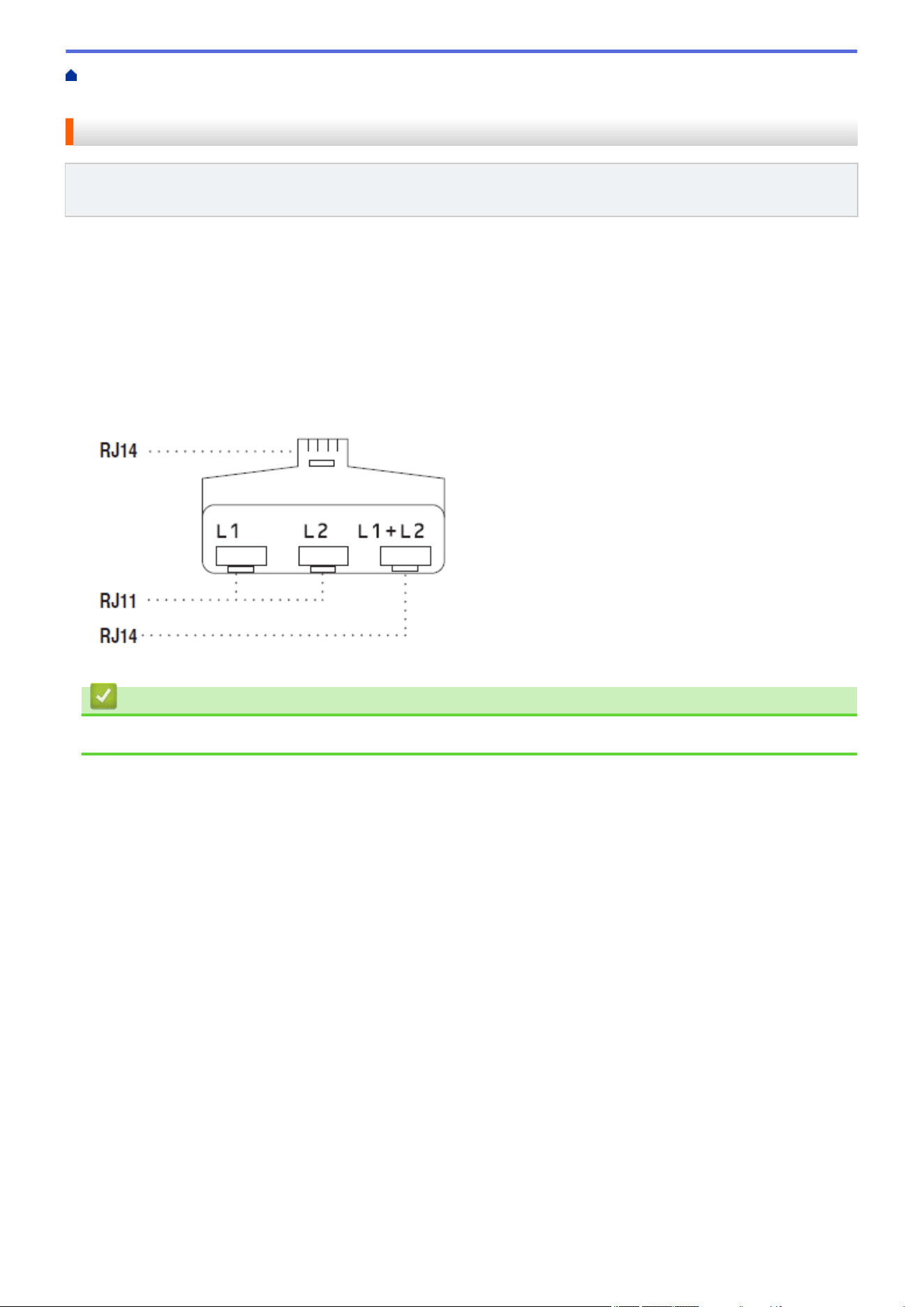
Home > Fax > Voice Operations and Fax Numbers > Voice Operations > Special Line
Considerations > Convert Telephone Wall Outlets
Convert Telephone Wall Outlets
Related Models: MFC-L2760DW/MFC-L2807DW/MFC-L2820DW/MFC-L2820DWXL/MFC-L2900DW/
MFC-L2900DWXL/MFC-L2980DW
This feature is available only in the USA and Canada.
There are three ways to convert to an RJ11 jack. The first two ways may require assistance from the telephone
company. You can change the wall outlets from one RJ14 jack to two RJ11 jacks. Or, you can have an RJ11 wall
outlet installed and slave or jump one of the telephone numbers to it.
The third way is the easiest: Buy a triplex adapter. You can plug a triplex adapter into an RJ14 outlet. It separates
the wires into two separate RJ11 jacks (Line 1, Line 2) and a third RJ14 jack (Lines 1 and 2). If your machine is
on Line 1, plug the machine into L1 of the triplex adapter. If your machine is on Line 2, plug it into L2 of the triplex
adapter.
Triplex adapter
Related Information
• Special Line Considerations
211
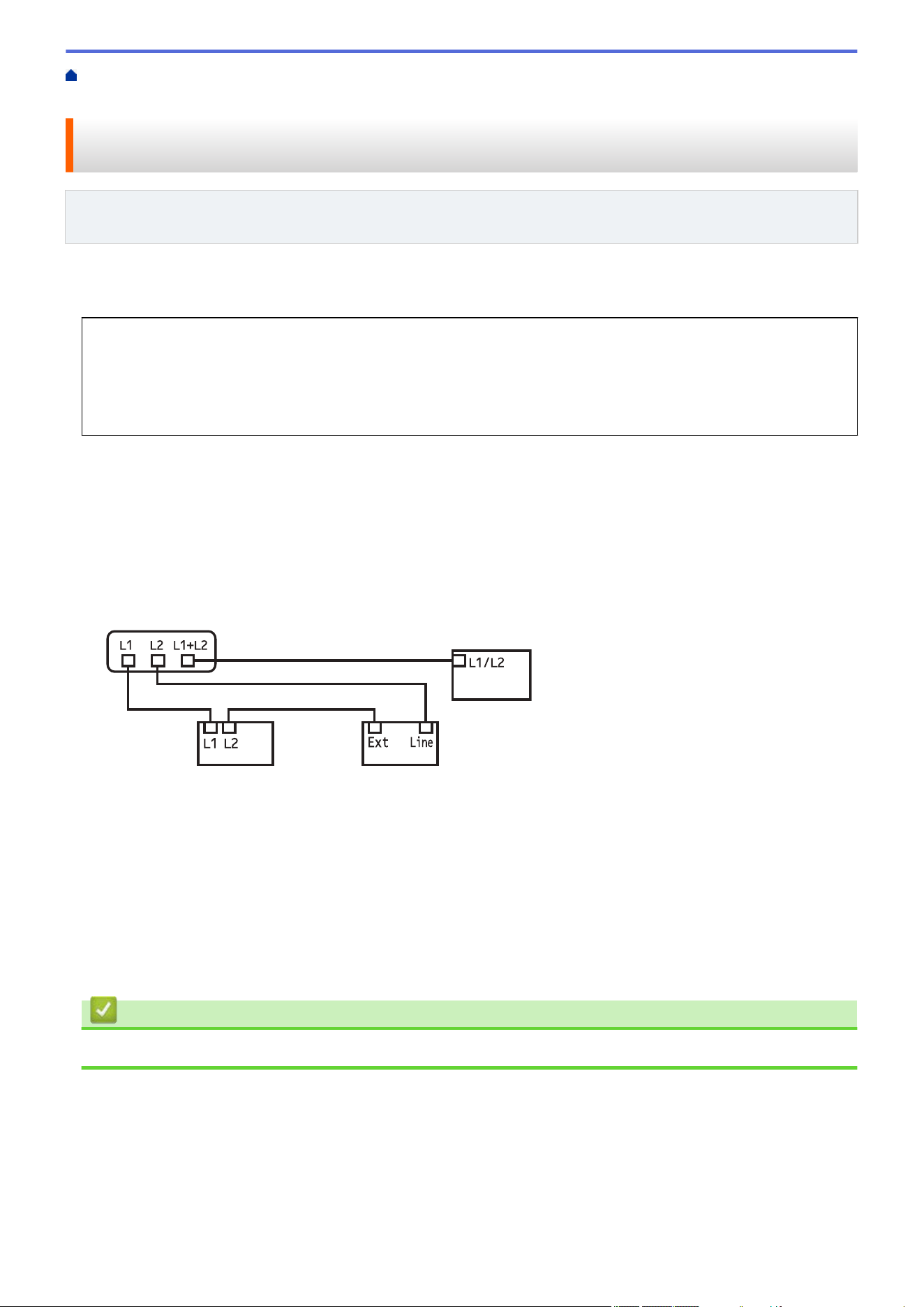
Home > Fax > Voice Operations and Fax Numbers > Voice Operations > Special Line
Considerations > Install Your Machine, an External Two-Line TAD and Two-Line Telephone
Install Your Machine, an External Two-Line TAD and Two-Line
Telephone
Related Models: MFC-L2760DW/MFC-L2807DW/MFC-L2820DW/MFC-L2820DWXL/MFC-L2900DW/
MFC-L2900DWXL/MFC-L2980DW
When you are installing an external two-line telephone answering device (TAD) and a two-line telephone, your
machine must be isolated on one line at both the wall jack and at the TAD.
• This feature is available only in the USA and Canada.
• The most common connection is to place the machine on Line 2, which is explained in the following steps.
The back of the two-line TAD must have two telephone jacks: one labeled L1 or L1/L2, and the other
labeled L2. You will need at least three telephone line cords, the one that came with your machine and two
for your external two-line TAD. You will need a fourth line cord if you add a two-line telephone.
1. Place the two-line TAD and the two-line telephone next to your machine.
2. Plug one end of the telephone line cord for your machine into the L2 jack of the triplex adapter. Plug the other
end into the LINE jack of the machine.
3. Plug one end of the first telephone line cord for your TAD into the L1 jack of the triplex adapter. Plug the other
end into the L1 or L1/L2 jack of the two-line TAD.
4. Plug one end of the second telephone line cord for your TAD into the L2 jack of the two-line TAD. Plug the
other end into the EXT. jack of the machine.
a
b
c
d
a. Triplex Adapter
b. Two Line Telephone
c. External Two Line TAD
d. Machine
You can keep two-line telephones on other wall outlets as always. There are ways to add a two-line telephone to
the machine's wall outlet. You can plug the telephone line cord from the two-line telephone into the L1+L2 jack of
the triplex adapter. Or, you can plug the two-line telephone into the TEL jack of the two-line TAD.
Related Information
• Special Line Considerations
212

Home > Fax > Voice Operations and Fax Numbers > Store Fax Numbers > Store Address Book Numbers
Store Address Book Numbers
Related Models: MFC-L2807DW/MFC-L2820DW/MFC-L2820DWXL/MFC-L2900DW/MFC-L2900DWXL/
MFC-L2980DW
1. Press [(Fax)] > [Address Book].
2. Do the following steps:
a. Press [Edit].
b. Press [Add New Address].
c. Press [Name].
d. Enter the name using the LCD (up to 16 characters), and then press [OK].
e. Press [Address].
f. Enter the number using the LCD (up to 20 digits), and then press [OK].
To store an Email address to use with Internet Fax or Scan to Email server, press and enter the Email
address and press [OK].
(On certain models, you must download Internet Fax to use the Internet Fax feature and the Scan to Email
server feature.)
g. Press [OK].
To store another Address Book number, repeat these steps.
3. Press .
Related Information
• Store Fax Numbers
• Save Outgoing Call Numbers to the Address Book
214
Home > Fax > Voice Operations and Fax Numbers > Store Fax Numbers > Store Address Book
Numbers > Save Outgoing Call Numbers to the Address Book
Save Outgoing Call Numbers to the Address Book
Related Models: MFC-L2807DW/MFC-L2820DW/MFC-L2820DWXL/MFC-L2900DW/MFC-L2900DWXL/
MFC-L2980DW
You can copy numbers from your Outgoing Call history and save them in your Address Book.
1. Press [(Fax)] > [Call History] > [Outgoing Call].
2. Press the number you want.
3. Press [Edit] > [Add to Address Book] > [Name].
To delete the number, press [Edit] > [Delete]. Press [Yes] to confirm.
4. Enter the name using the LCD (up to 16 characters).
5. Press [OK].
6. Press [OK] to confirm the fax or telephone number you want to store.
7. Press .
Related Information
• Store Address Book Numbers
215
Home > Fax > Voice Operations and Fax Numbers > Store Fax Numbers > Change or Delete Address
Book Names or Numbers
Change or Delete Address Book Names or Numbers
Related Models: MFC-L2807DW/MFC-L2820DW/MFC-L2820DWXL/MFC-L2900DW/MFC-L2900DWXL/
MFC-L2980DW
1. Press [(Fax)] > [Address Book] > [Edit].
2. Do one of the following:
Press [Change] to edit the names of fax or telephone numbers.
Press a or b to display the number you want to change, and then press it.
- To change the name, press [Name]. Enter the new name (up to 16 characters) using the LCD, and then
press [OK].
- To change the fax or telephone number, press [Address]. Enter the new fax or telephone number (up to
20 digits) using the LCD, and then press [OK].
Press [OK] to finish.
How to enter text:
To change a character, press d or c to position the cursor to highlight the character you want to change,
and then press . Enter the new character.
To delete numbers, press a or b to display [Delete], and then press [Delete].
Select the fax or telephone numbers you want to delete by pressing them to display a check mark, and then
press [OK].
3. Press
.
Related Information
• Store Fax Numbers
216
Home > Fax > Voice Operations and Fax Numbers > Dial a Number Using a Shortcut
Dial a Number Using a Shortcut
Related Models: MFC-L2760DW
1. Press (Fax).
2. Load your document.
3. Hold down the Shortcut button and press the one-digit code assigned to the fax or telephone number you
want to dial.
4. Press Start.
Related Information
• Voice Operations and Fax Numbers
• Create Shortcuts for Fax Numbers
• Change or Delete Shortcuts to Fax Numbers
217
Home > Fax > Voice Operations and Fax Numbers > Dial a Number Using a Shortcut > Create Shortcuts
for Fax Numbers
Create Shortcuts for Fax Numbers
Related Models: MFC-L2760DW
You can store ten Shortcuts to fax numbers and access them using the Shortcut button.
1. Press (Fax).
2. Hold down the Shortcut button and press one number on the dial pad. This number is now the one-digit
Shortcut code for the fax number you want to save.
If a fax number is not already stored under this one-digit code, the LCD displays [Register Now?].
3. Press a.
NOTE
The Internet Fax (I-Fax) and its settings are available to store.
(On certain models, you must download Internet Fax to use the Internet Fax feature and the Scan to
Email server feature.)
4. Enter the telephone or fax number (up to 20 digits), and then press OK.
5. Do one of the following:
• Enter the name using the dial pad (up to 16 characters), and then press OK.
• To store the number without a name, press OK.
Related Information
• Dial a Number Using a Shortcut
218
Home > Fax > Voice Operations and Fax Numbers > Dial a Number Using a Shortcut > Change or Delete
Shortcuts to Fax Numbers
Change or Delete Shortcuts to Fax Numbers
Related Models: MFC-L2760DW
1. Press (Fax).
2. Press a three times.
3. Press a or b to display the [Shortcut] option, and then press OK.
4. Hold down the Shortcut button and use the dial pad to press the one-digit Shortcut code that you want to
change or delete.
5. Do one of the following:
• To change the stored name and number:
a. Press a.
b. Edit the name and number:
To edit the stored name or number, press d or c to move the cursor to the character you want to
change, and then press Clear.
Enter the correct character, and then press OK.
• To delete the stored name and number:
a. Press b.
b. Press a to confirm.
• To exit without making a change, press Stop/Exit.
6. Press Stop/Exit.
Related Information
• Dial a Number Using a Shortcut
219
Home > Fax > Voice Operations and Fax Numbers > Dial a Number Using Speed Dial
Dial a Number Using Speed Dial
Related Models: MFC-L2760DW
1. Press (Fax).
2. Load your document.
3. Do one of the following:
• Press
twice and enter the three-digit Speed Dial code.
• Press
.
Press the dial pad buttons for the first few letters of the name, and then press OK.
Press a or b to scroll until you find the name you are looking for, and then press OK.
4. Press OK.
5. Press Start.
Related Information
• Voice Operations and Fax Numbers
• Store Speed Dial Numbers
• Change or Delete Speed Dial Numbers
220
Home > Fax > Voice Operations and Fax Numbers > Dial a Number Using Speed Dial > Store Speed Dial
Numbers
Store Speed Dial Numbers
Related Models: MFC-L2760DW
Use the Speed Dial numbers to store up to 200 numbers with a name.
1. Press (Fax).
2. Press
twice and enter a three-digit Speed Dial code (001 - 200). Press OK.
If a number is not stored there, the LCD displays [Register Now?].
3. Press a.
NOTE
The Internet Fax (I-Fax) and its settings are available to store.
(On certain models, you must download Internet Fax to use the Internet Fax feature and the Scan to
Email server feature.)
4. Enter the telephone or fax number (up to 20 digits), and then press OK.
5. Do one of the following:
• Enter the name using the dial pad (up to 16 characters), and then press OK.
• To store the number without a name, press OK.
Related Information
• Dial a Number Using Speed Dial
221
Home > Fax > Voice Operations and Fax Numbers > Dial a Number Using Speed Dial > Change or Delete
Speed Dial Numbers
Change or Delete Speed Dial Numbers
Related Models: MFC-L2760DW
You can change or delete Speed Dial Codes.
1. Press (Fax).
2. Press a three times.
3. Press a or b to display the [Speed Dial] option, and then press OK.
4. Enter the Speed Dial code you want to change or delete, and then press OK.
5. Do one of the following:
• To change the stored fax or telephone number and name:
a. Press a.
b. Edit the number and name:
To edit the stored number or name, press d or c to move the cursor to the character you want to
change, and then press Clear.
Enter the correct character, and then press OK.
• To delete the stored fax or telephone number and name:
a. Press b.
b. Press a to confirm.
• To exit without making a change, press Stop/Exit.
6. Press Stop/Exit.
Related Information
• Dial a Number Using Speed Dial
222
Home > Fax > Voice Operations and Fax Numbers > Set up Broadcasting Groups
Set up Broadcasting Groups
Related Models: MFC-L2760DW/MFC-L2807DW/MFC-L2820DW/MFC-L2820DWXL/MFC-L2900DW/
MFC-L2900DWXL/MFC-L2980DW
Create a broadcasting group if you want to send a single fax message to many fax numbers at the same time.
You can store broadcasting groups in your machine's Address Book, Shortcut, or Speed Dial, depending on your
model.
First, you must store each fax number in the Address Book. Then you can include them as numbers in the
Group. Each Group uses up an Address Book (a Shortcut, or a Speed Dial in some models) number.
Applicable Models
Maximum number of groups Maximum numbers in a group
MFC-L2760DW 20 209
MFC-L2807DW/MFC-L2820DW/
MFC-L2820DWXL/MFC-L2900DW/
MFC-L2900DWXL/MFC-L2980DW
20 199
>> MFC-L2760DW
>> MFC-L2807DW/MFC-L2820DW/MFC-L2820DWXL/MFC-L2900DW/MFC-L2900DWXL/MFC-L2980DW
MFC-L2760DW
1. Press (Fax).
2. Press a three times.
3. Press a or b to display the [Setup Groups] option, and then press OK.
4. Do one of the following:
• To store a Group in a Speed Dial location:
Press
and then enter the three-digit Speed Dial location, and then press OK.
• To store a Group in a Shortcut location:
Hold down the Shortcut button and then enter the one-digit Shortcut number using the dial pad.
5. Use the dial pad to enter a Group number (01 to 20), and then press OK.
NOTE
The Internet Fax (I-Fax) and its setting are selectable.
(On certain models, you must download Internet Fax to use the Internet Fax feature and the Scan to
Email server feature.)
6. Add numbers to the Group:
• To add Speed Dial Numbers:
Press and then enter the three-digit Speed Dial location.
• To add Shortcut Numbers:
Hold down the Shortcut button and then enter the one-digit Shortcut number using the dial pad.
The LCD will display selected Speed Dial numbers with a # and Shortcut numbers with a * (for example *006,
#009).
7. Press OK when you finish adding numbers.
8. Enter the Group name using the dial pad (up to 16 characters).
9. Press OK.
223
10. Press Stop/Exit.
MFC-L2807DW/MFC-L2820DW/MFC-L2820DWXL/MFC-L2900DW/MFC-L2900DWXL/
MFC-L2980DW
1. Press [(Fax)] > [Address Book].
2. Do the following steps:
a. Press [Edit] > [Setup Groups] > [Name].
b. Enter the Group name (up to 16 characters) using the LCD, and then press [OK].
c. Press [Add/Delete].
d. Add Address Book numbers to the Group by pressing them to display a checkmark, and then press [OK].
e. Read and confirm the displayed list of names and numbers you have selected, and then press [OK] to
save your Group.
To store another Group for broadcasting, repeat these steps.
3. Press .
Related Information
• Voice Operations and Fax Numbers
• Change a Broadcasting Group Name
• Delete a Broadcasting Group
• Add or Delete a Broadcasting Group Member
224
Home > Fax > Voice Operations and Fax Numbers > Set up Broadcasting Groups > Change a
Broadcasting Group Name
Change a Broadcasting Group Name
Related Models: MFC-L2760DW/MFC-L2807DW/MFC-L2820DW/MFC-L2820DWXL/MFC-L2900DW/
MFC-L2900DWXL/MFC-L2980DW
>> MFC-L2760DW
>> MFC-L2807DW/MFC-L2820DW/MFC-L2820DWXL/MFC-L2900DW/MFC-L2900DWXL/MFC-L2980DW
MFC-L2760DW
1. Press (Fax).
2. Press a three times.
3. Press a or b to display the [Setup Groups] option, and then press OK.
4. Do one of the following:
• To change the Group name of a Group stored in a Speed Dial location:
Press and then enter the three-digit Speed Dial location, and then press OK.
• To change the Group name of a Group stored in a Shortcut location:
Hold down the Shortcut button and then enter the one-digit Shortcut number using the dial pad.
5. Press a to change the stored Group information.
NOTE
The Internet Fax (I-Fax) and its settings are available to store.
(On certain models, you must download Internet Fax to use the Internet Fax feature and the Scan to
Email server feature.)
6. Press OK.
7. To edit the name, press d or c position the cursor under the character you want to change. Then press Clear
to delete it, and enter the correct character using the dial pad.
When you are finished editing, press OK.
8. Press Stop/Exit.
MFC-L2807DW/MFC-L2820DW/MFC-L2820DWXL/MFC-L2900DW/MFC-L2900DWXL/
MFC-L2980DW
1. Press
[(Fax)] > [Address Book] > [Edit] > [Change].
2. Press a or b to display the Group you want, and then press it.
3. Press [Name].
4. Enter the new Group name (up to 16 characters) using the LCD, and then press [OK].
How to change the stored name:
To change a character, press d or c to position the cursor to highlight the incorrect character, and then
press .
Enter the new character.
5. Press [OK].
6. Press .
225

Home > Fax > Voice Operations and Fax Numbers > Set up Broadcasting Groups > Delete a Broadcasting
Group
Delete a Broadcasting Group
Related Models: MFC-L2760DW/MFC-L2807DW/MFC-L2820DW/MFC-L2820DWXL/MFC-L2900DW/
MFC-L2900DWXL/MFC-L2980DW
>> MFC-L2760DW
>> MFC-L2807DW/MFC-L2820DW/MFC-L2820DWXL/MFC-L2900DW/MFC-L2900DWXL/MFC-L2980DW
MFC-L2760DW
1. Press (Fax).
2. Press a three times.
3. Press a or b to display the [Setup Groups] option, and then press OK.
4. Do one of the following:
• To delete a Group stored in a Speed Dial location:
Press and then enter the three-digit Speed Dial location, and then press OK.
• To delete a Group stored in a Shortcut location:
Hold down the Shortcut button and then enter the one-digit Shortcut number using the dial pad.
5. Press b to delete the Group.
6. Press a to confirm.
7. Press Stop/Exit.
MFC-L2807DW/MFC-L2820DW/MFC-L2820DWXL/MFC-L2900DW/MFC-L2900DWXL/
MFC-L2980DW
1. Press [(Fax)] > [Address Book] > [Edit] > [Delete].
2. Press a or b to display the Group you want, and then press it.
3. Press [OK].
4. Press .
Related Information
• Set up Broadcasting Groups
227
Home > Fax > Voice Operations and Fax Numbers > Set up Broadcasting Groups > Add or Delete a
Broadcasting Group Member
Add or Delete a Broadcasting Group Member
Related Models: MFC-L2760DW/MFC-L2807DW/MFC-L2820DW/MFC-L2820DWXL/MFC-L2900DW/
MFC-L2900DWXL/MFC-L2980DW
>> MFC-L2760DW
>> MFC-L2807DW/MFC-L2820DW/MFC-L2820DWXL/MFC-L2900DW/MFC-L2900DWXL/MFC-L2980DW
MFC-L2760DW
1. Press (Fax).
2. Press a three times.
3. Press a or b to display the [Setup Groups] option, and then press OK.
4. Do one of the following:
• To change the numbers of a Group stored in a Speed Dial location:
Press and then enter the three-digit Speed Dial location, and then press OK.
• To change the numbers of a Group stored in a Shortcut location:
Hold down the Shortcut button and then enter the one-digit Shortcut number using the dial pad.
5. Press a to change the numbers stored in the Group.
NOTE
The Internet Fax (I-Fax) and its settings are available to store.
(On certain models, you must download Internet Fax to use the Internet Fax feature and the Scan to
Email server feature.)
6. Add or delete Shortcut or Speed Dial numbers
• To add Shortcut numbers:
Press d or c to position the cursor just after the last number.
Then hold down the Shortcut button and then enter the one-digit Shortcut location of the number you
want to add.
• To add Speed Dial numbers:
Press d or c to position the cursor just after the last number.
Then press
and then enter the three-digit Speed Dial location of the number you want to add.
• To delete Shortcut or Speed Dial numbers, press d or c to position the cursor under the number you want
to delete, and then press Clear.
When you are finished editing, press OK.
7. Press OK.
8. Press Stop/Exit.
MFC-L2807DW/MFC-L2820DW/MFC-L2820DWXL/MFC-L2900DW/MFC-L2900DWXL/
MFC-L2980DW
1. Press
[(Fax)] > [Address Book] > [Edit] > [Change].
2. Press a or b to display the Group you want, and then press it.
3. Press a or b to display [Add/Delete], and then press it.
4. Press a or b to display the number you want to add or delete.
228
5. Do the following for each number you want to change:
• To add a number to the Group, press the checkbox of the number to add a check mark.
• To delete a number from the Group, press the checkbox of the number to remove the check mark.
6. Press [OK].
7. Press [OK].
8. Press
.
Related Information
• Set up Broadcasting Groups
229
Home > Fax > Voice Operations and Fax Numbers > Dial Access Codes and Credit Card Numbers
Dial Access Codes and Credit Card Numbers
Related Models: MFC-L2760DW/MFC-L2807DW/MFC-L2820DW/MFC-L2820DWXL/MFC-L2900DW/
MFC-L2900DWXL/MFC-L2980DW
Sometimes you may want to choose from several long-distance carriers when you send a fax. Rates may vary
depending on the time and destination. To take advantage of low rates, you can store the access codes of long-
distance carriers and credit card numbers as Address Book numbers.
You can store these long dialing sequences by dividing them and setting them up as separate Address Book
numbers in any combination. You can even include manual dialing using the dial pad.
For example: You might have stored '555' and '7000' in your machine as shown in the following table.
Applicable Models
'555' stored in '7000' stored in
MFC-L2760DW Quick Dial: 003 Quick Dial: 002
MFC-L2807DW/MFC-L2820DW/
MFC-L2820DWXL/MFC-L2900DW/
MFC-L2900DWXL/MFC-L2980DW
Address Book: Brother 1 Address Book: Brother 2
You can use them both to dial '555-7000' by using the following procedure.
>> MFC-L2760DW
>> MFC-L2807DW/MFC-L2820DW/MFC-L2820DWXL/MFC-L2900DW/MFC-L2900DWXL/MFC-L2980DW
MFC-L2760DW
1. Press (Fax).
2. Press twice, 003.
3. Press OK.
4. Press
twice, 002.
5. Press OK.
6. Press Start.
The machine will dial '555-7000'.
To temporarily change a number, you can substitute part of the number by pressing it using the dial pad. For
example, to change the number to '555-7001', you could enter the number (555) using Speed Dial 003, and then
press 7001 using the dial pad.
If you must wait for another dial tone or signal at any point in the dialing sequence, create a pause in the
number by pressing Redial/Pause.
MFC-L2807DW/MFC-L2820DW/MFC-L2820DWXL/MFC-L2900DW/MFC-L2900DWXL/
MFC-L2980DW
1. Press
[(Fax)] > [Address Book].
2. Press a or b to display the number of Brother 1.
3. Press the number.
4. Press [Apply].
5. Press [Options].
6. Press a or b to display the [Address Book] option, and then press it.
7. Press [OK].
230
8. Press a or b to display the number of Brother 2.
9. Press the number.
10. Press [Apply].
11. Press [Fax Start].
The machine will dial '555-7000'.
To temporarily change a number, you can substitute part of the number by pressing it using the LCD. For
example, to change the number to '555-7001', you could enter the number (Brother 1: 555) using the Address
Book, press [Apply], and then enter 7001 using the LCD.
If you must wait for another dial tone or signal at any point in the dialing sequence, create a pause in the
number by pressing [Pause].
Related Information
• Voice Operations and Fax Numbers
231

Home > Fax > Telephone Services and External Devices
Telephone Services and External Devices
Related Models: MFC-L2760DW/MFC-L2807DW/MFC-L2820DW/MFC-L2820DWXL/MFC-L2900DW/
MFC-L2900DWXL/MFC-L2980DW
• Voice Mail
• Distinctive Ring
• Caller ID
• External TAD (Telephone Answering Device)
• External and Extension Telephones
• Multi-line Connections (PBX)
232
Home > Fax > Telephone Services and External Devices > Voice Mail
Voice Mail
Related Models: MFC-L2760DW/MFC-L2807DW/MFC-L2820DW/MFC-L2820DWXL/MFC-L2900DW/
MFC-L2900DWXL/MFC-L2980DW
This feature is available only in the USA and Canada.
If you have Voice Mail on the same telephone line as your Brother machine, Voice Mail and the Brother machine
will conflict with each other when receiving incoming calls.
For example, if your Voice Mail is set to answer after four rings and your Brother machine is set to answer after
two rings, then your Brother machine will answer first. This will prevent callers from being able to leave a
message in your Voice Mail.
Similarly, if your Brother machine is set to answer after four rings and your Voice Mail is set to answer after two
rings, then your Voice Mail will answer first. This will prevent your Brother machine from being able to receive an
incoming fax, since Voice Mail cannot transfer the incoming fax back to the Brother machine.
To avoid conflicts between your Brother machine and your Voice Mail service, do one of the following:
• Get the Distinctive Ring service from your telephone company. Distinctive Ring is a feature of your Brother
machine that allows a person with one line to receive fax and voice calls through two different telephone
numbers on that one line.
Brother uses the term ’Distinctive Ring,’ but telephone companies market the service under a variety of
names, such as Custom Ringing, Personalized Ring, Smart Ring, Ident-A-Ring, Ident-A-Call, Data Ident-A-
Call, Teen Ring, and SimpleBiz Fax & Alternate Number Ringing. This service establishes a second
telephone number on the same line as your existing telephone number, and each number has its own ring
pattern. Typically, the original number rings with the standard ring pattern and is used for receiving voice
calls, and the second number rings with a different ring pattern and is used for receiving faxes.
• Set your Brother machine’s Receive Mode to "Manual". Manual Mode requires you answer every incoming
call if you want to be able to receive a fax. If the incoming call is a telephone call, then complete the call as
you normally would. If you hear fax sending tones you must transfer the call to the Brother machine.
Unanswered fax and voice calls will go to your Voice Mail.
Related Information
• Telephone Services and External Devices
Related Topics:
• Telephone and Fax Problems
233
Home > Fax > Telephone Services and External Devices > Distinctive Ring
Distinctive Ring
Related Models: MFC-L2760DW/MFC-L2807DW/MFC-L2820DW/MFC-L2820DWXL/MFC-L2900DW/
MFC-L2900DWXL/MFC-L2980DW
This feature is available only in the USA and Canada.
Distinctive Ring is a function of your Brother machine that allows a person with one line to receive fax and voice
calls through two different phone numbers on that one line. Brother uses the term "Distinctive Ring," but
telephone companies market the service under a variety of names, such as Custom Ringing, Personalized Ring,
Smart Ring, Ident-A-Ring, Ident-A-Call, Data Ident-A-Call, Teen Ring, and SimpleBiz Fax & Alternate Number
Ringing. This service establishes a second telephone number on the same line as your existing telephone
number, and each number has its own ring pattern. Typically, the original number rings with the standard ring
pattern and is used for receiving voice calls, and the second number rings with a different ring pattern and is
used for receiving faxes.
• You must pay for your telephone company’s Distinctive Ring service before you program the machine to
work with it.
• Contact your telephone company for availability and rates.
What does your telephone company’s ‘Distinctive Ring’ do?
Your telephone company’s Distinctive Ring service allows you to have more than one number on the same
telephone line. If you need more than one telephone number, it is cheaper than paying for an extra line.
Each telephone number has its own distinctive ring pattern, so you will know which telephone number is ringing.
This is one way to have a separate telephone number for your machine.
Contact your telephone company for availability and rates.
What does Brother’s ‘Distinctive Ring’ do?
The Brother machine has a Distinctive Ring feature that allows you to use your machine to take full advantage of
the telephone company’s Distinctive Ring service. The new telephone number on your line can only receive
faxes.
You must pay for your telephone company’s Distinctive Ring service before you program the machine to
work with it.
Do you have Voice Mail?
If you have Voice Mail on the telephone line where you will install your new machine, there is a strong possibility
that Voice Mail and the machine will conflict with each other while receiving incoming calls. However, the
Distinctive Ring feature allows you to use more than one number on your line, so both Voice Mail and the
machine can work together without any problems. If each one has a separate telephone number, neither will
interfere with the other’s operations.
If you decide to get the Distinctive Ring service from the telephone company, you must register the new
Distinctive Ring pattern they give you. This is so your machine can recognize its incoming calls.
You can change or cancel the Distinctive Ring pattern at any time. You can switch it off temporarily, and turn
it back on later. When you get a new fax number, make sure you reset this feature.
Before you choose the ring pattern to register
You can register only one Distinctive Ring pattern with the machine. Some ring patterns cannot be registered.
The ring patterns below are supported by your Brother machine. Register the one your telephone company gives
you.
234
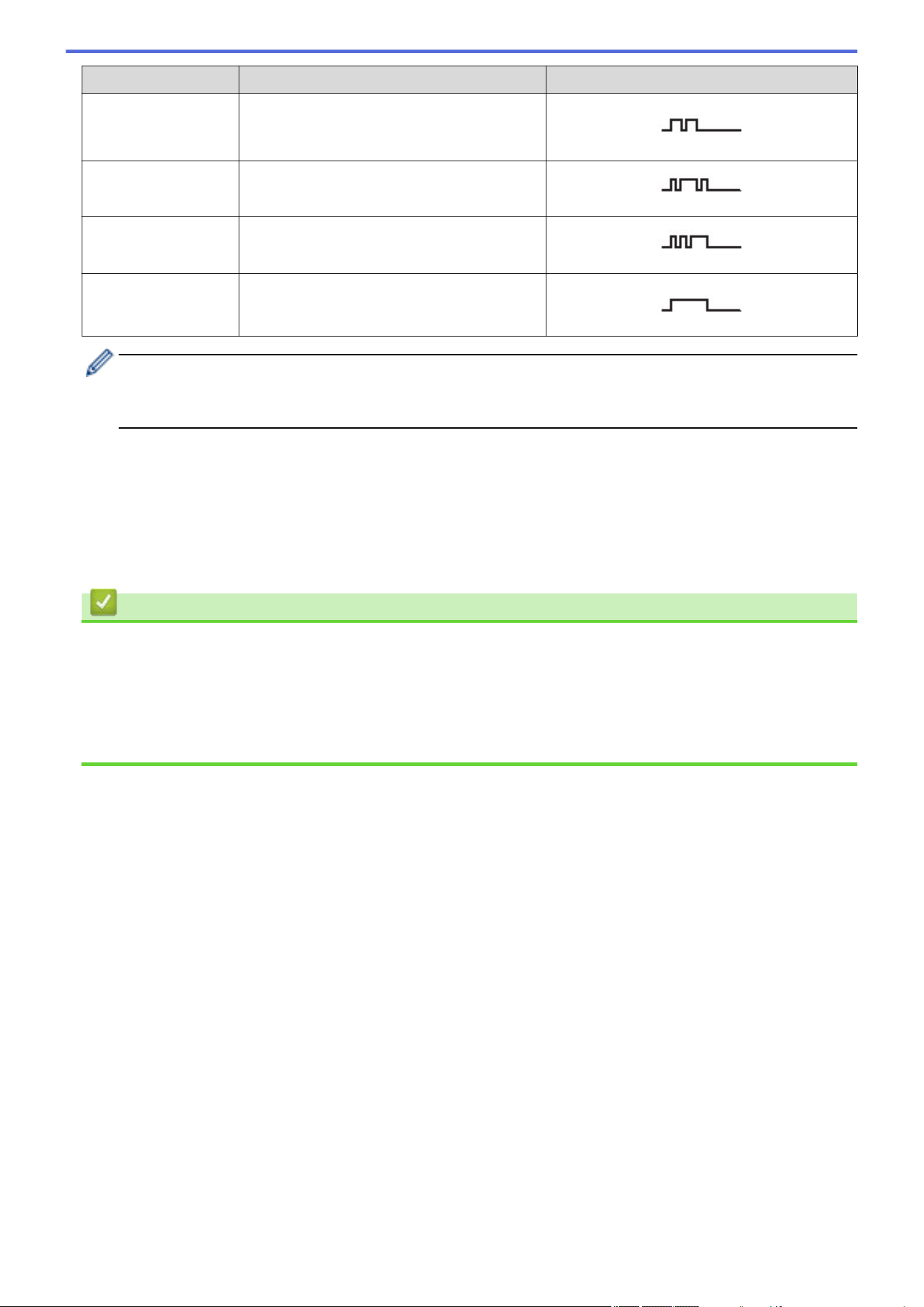
Ring Pattern Rings
1 short-short or long-long
2 short-long-short
3 short-short-long
4 very long
• Ring Pattern #1 is often called Short-Short and is the most commonly used.
• If the ring pattern you received is not on this chart, contact your telephone company and ask for one
that is shown.
• The machine answers only calls to its registered number.
• The first two rings are silent on the machine. This is because the fax must <<listen>> to the ring pattern (to
compare it to the pattern that was ‘registered’). (Other telephones on the same line ring.)
• If you program the machine correctly, it recognizes the registered ring pattern of the ‘fax number’ within two
ring patterns and then answer with a fax tone. When the ‘voice number’ is called, the machine does not
answer.
Related Information
• Telephone Services and External Devices
• Register the Distinctive Ring Pattern
• Turn Off Distinctive Ring
Related Topics:
• Telephone and Fax Problems
235
Home > Fax > Telephone Services and External Devices > Distinctive Ring > Register the Distinctive Ring
Pattern
Register the Distinctive Ring Pattern
Related Models: MFC-L2760DW/MFC-L2807DW/MFC-L2820DW/MFC-L2820DWXL/MFC-L2900DW/
MFC-L2900DWXL/MFC-L2980DW
This feature is available only in the USA and Canada.
After you set the Distinctive Ring feature to [On], your Distinctive Ring number will receive faxes automatically.
The receive mode is automatically set to [Manual] and you cannot change it to another receive mode while
Distinctive Ring is set to [On]. This ensures the machine will only answer the Distinctive Ring number and not
interfere when your main telephone number is called.
When Distinctive Ring is on, the LCD displays [D/R] as the Receive Mode.
>> MFC-L2760DW
>> MFC-L2807DW/MFC-L2820DW/MFC-L2820DWXL/MFC-L2900DW/MFC-L2900DWXL/MFC-L2980DW
MFC-L2760DW
1. Press (Fax).
2. Press Menu.
3. Press a or b to display the [Fax] option, and then press OK.
4. Press a or b to display the [Miscellaneous] option, and then press OK.
5. Press a or b to display the [Distinctive] option, and then press OK.
6. Press a or b to display the [On] option, and then press OK.
7. Press a or b to display the prestored ring pattern you want to use, and then press OK.
You will hear each pattern as you scroll through the four patterns. Make sure you select the pattern that the
telephone company gave you.
8. Press Stop/Exit.
MFC-L2807DW/MFC-L2820DW/MFC-L2820DWXL/MFC-L2900DW/MFC-L2900DWXL/
MFC-L2980DW
1. Press [Settings] > [All Settings] > [Fax] > [Miscellaneous] > [Distinctive].
2. Do one of the following:
• If you have not registered the Distinctive Ring pattern, press [Distinctive], and then press [On].
• If you have already registered the Distinctive Ring pattern, and want to change the pattern, proceed to
Ring Pattern setting.
3. Press [Ring Pattern].
4. Press the stored ring pattern you want, and then press [OK].
You will hear each pattern as you press the four buttons. Make sure you select the pattern that the telephone
company gave you.
5. Press
.
Distinctive Ring is now set to [On].
If you do not want to receive faxes on your Distinctive Ring number, you can turn off Distinctive Ring. The
machine will stay in [Manual] receive mode so you must set the Receive Mode again.
236

Home > Fax > Telephone Services and External Devices > Distinctive Ring > Turn Off Distinctive Ring
Turn Off Distinctive Ring
Related Models: MFC-L2760DW/MFC-L2807DW/MFC-L2820DW/MFC-L2820DWXL/MFC-L2900DW/
MFC-L2900DWXL/MFC-L2980DW
This feature is available only in the USA and Canada.
>> MFC-L2760DW
>> MFC-L2807DW/MFC-L2820DW/MFC-L2820DWXL/MFC-L2900DW/MFC-L2900DWXL/MFC-L2980DW
MFC-L2760DW
1. Press (Fax).
2. Press Menu.
3. Press a or b to display the [Fax] option, and then press OK.
4. Press a or b to display the [Miscellaneous] option, and then press OK.
5. Press a or b to display the [Distinctive] option, and then press OK.
6. Press a or b to display the [Off] option, and then press OK.
7. Press Stop/Exit.
If you turn off Distinctive Ring, the machine will stay in Manual Mode. You must set the Receive Mode again.
MFC-L2807DW/MFC-L2820DW/MFC-L2820DWXL/MFC-L2900DW/MFC-L2900DWXL/
MFC-L2980DW
1. Press [Settings] > [All Settings] > [Fax] > [Miscellaneous] > [Distinctive] >
[Distinctive].
2. Press [Off].
3. Press
.
If you turn off Distinctive Ring, the machine will stay in Manual Mode. You must set the Receive Mode again.
Related Information
• Distinctive Ring
238
Home > Fax > Telephone Services and External Devices > Caller ID
Caller ID
Related Models: MFC-L2760DW/MFC-L2807DW/MFC-L2820DW/MFC-L2820DWXL/MFC-L2900DW/
MFC-L2900DWXL/MFC-L2980DW
The Caller ID feature lets you use the Caller ID subscriber service offered by many local telephone companies.
This service displays the telephone number, or name if it is available, of your caller as the line rings.
• The [# Unavailable] message means the call originated outside your Caller ID service area.
• The [Private Call] message means the caller has intentionally blocked transmission of Caller ID
information.
Call your telephone company for more information.
Once you answer a call, the Caller ID information disappears from the LCD and is stored in Caller ID memory.
View the list or select a number and add it to the Address Book (the Speed Dial or the Shortcut in some models),
or delete it from the history.
You can print a list of the Caller ID information received by your machine.
• This feature is not available in some countries.
• This feature may not be available in certain areas of the USA and Canada.
• The Caller ID service varies with different carriers. Contact your local telephone company to learn about
the service available in your area.
Related Information
• Telephone Services and External Devices
• Set Caller ID to On
239
Home > Fax > Telephone Services and External Devices > Caller ID > Set Caller ID to On
Set Caller ID to On
Related Models: MFC-L2760DW/MFC-L2807DW/MFC-L2820DW/MFC-L2820DWXL/MFC-L2900DW/
MFC-L2900DWXL/MFC-L2980DW
This feature may not be available in certain areas of the USA and Canada.
If you subscribe to the Caller ID service on your phone line, set Caller ID to On to display the caller's telephone
number on the LCD as the telephone rings.
>> MFC-L2760DW
>> MFC-L2807DW/MFC-L2820DW/MFC-L2820DWXL/MFC-L2900DW/MFC-L2900DWXL/MFC-L2980DW
MFC-L2760DW
1. Press Menu.
2. Press a or b to display the [Fax] option, and then press OK.
3. Press a or b to display the [Miscellaneous] option, and then press OK.
4. Press a or b to display the [Caller ID] option, and then press OK.
5. Press a or b to display the [On] (or [Off]) option, and then press OK.
• To view the Caller ID list on the LCD, select the [Display#] option in this step.
• To print the Caller ID list, select the [Print report] option in this step.
6. Press Stop/Exit.
MFC-L2807DW/MFC-L2820DW/MFC-L2820DWXL/MFC-L2900DW/MFC-L2900DWXL/
MFC-L2980DW
1. Press [Settings] > [All Settings] > [Fax] > [Miscellaneous] > [Caller ID].
2. Press [On] (or [Off]).
3. Press .
Related Information
• Caller ID
240
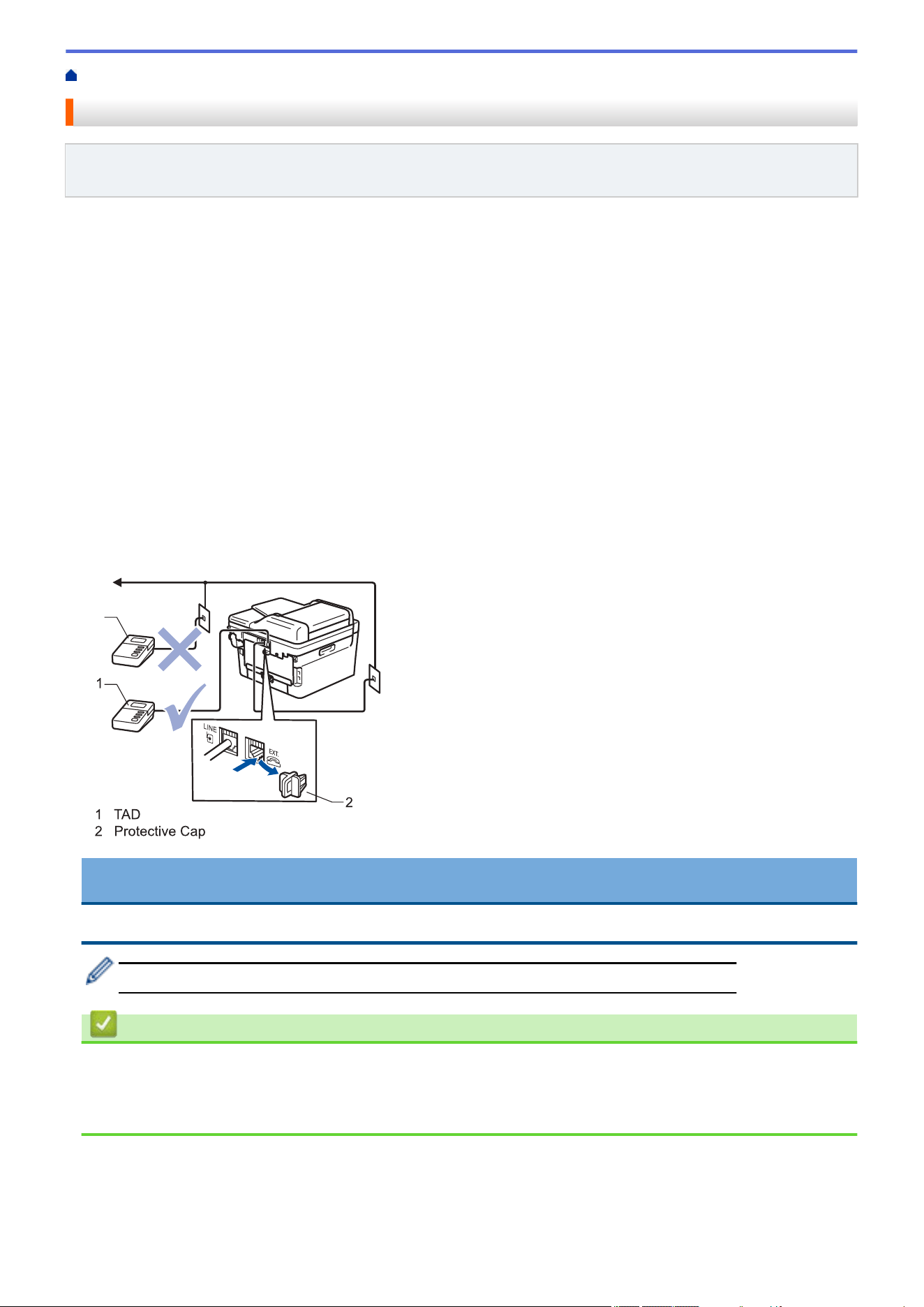
Home > Fax > Telephone Services and External Devices > External TAD (Telephone Answering Device)
External TAD (Telephone Answering Device)
Related Models: MFC-L2760DW/MFC-L2807DW/MFC-L2820DW/MFC-L2820DWXL/MFC-L2900DW/
MFC-L2900DWXL/MFC-L2980DW
Connect an external Telephone Answering Device (TAD) to the same line as your machine. When the TAD
answers a call, your machine will “listen” for the CNG (fax calling) tones sent by a sending fax machine. If it hears
them it will take over the call and receive the fax. If it does not hear them, it will let your TAD take a voice
message and the LCD will show [Telephone].
The external TAD must answer within four rings (we recommend setting it to two rings). This is because your
machine cannot hear the CNG tones until the external TAD has picked up the call. The sending machine will
send CNG tones for only eight to ten seconds longer. We do not recommend using the toll saver feature on your
external TAD if it needs more than four rings to activate it.
Unless you are using Distinctive Ring, the TAD must be connected to the EXT. jack of the machine.
• If you subscribe to your telephone company’s Distinctive Ring service:
You may connect an external TAD to a separate wall jack only if you subscribe to your telephone company’s
Distinctive Ring service, have registered the distinctive ring pattern on your machine, and use that number as
a fax number. The recommended setting is at least four rings on the external TAD when you have the
telephone company’s Distinctive Ring service. You cannot use the Toll Saver setting.
• If You Do Not Subscribe to the Distinctive Ring Service:
You must plug your TAD into the EXT. jack of your machine. If your TAD is plugged into a wall jack, both your
machine and the TAD will try to control the telephone line. (See the illustration.)
1
1
1 TAD
2 Protective Cap
1
3
IMPORTANT
DO NOT connect a TAD elsewhere on the same telephone line.
If you have problems receiving faxes, reduce the Ring Delay setting on your external TAD.
Related Information
• Telephone Services and External Devices
• Connect an External TAD
• Record an Outgoing Message (OGM) on the External TAD
241
Home > Fax > Telephone Services and External Devices > External TAD (Telephone Answering
Device) > Connect an External TAD
Connect an External TAD
Related Models: MFC-L2760DW/MFC-L2807DW/MFC-L2820DW/MFC-L2820DWXL/MFC-L2900DW/
MFC-L2900DWXL/MFC-L2980DW
The external TAD must be plugged into the back of the machine, into the jack labeled EXT. Your machine cannot
work correctly if you plug the TAD into a wall jack (unless you are using Distinctive Ring).
1. Plug the telephone line cord from the telephone wall jack into the back of the machine, in the jack labeled
LINE.
2. Plug the telephone line cord from your external TAD into the back of the machine, in the jack labeled EXT.
(Make sure this cord is connected to the TAD at the TAD’s telephone line jack, and not its handset jack.)
3. Set your external TAD to the minimum number of rings allowed. For more information, contact your telephone
provider. (The machine’s Ring Delay setting does not apply.)
4. Record an outgoing message on your external TAD.
5. Set the TAD to answer calls.
6. Set the Receive Mode on your machine to [External TAD].
Related Information
• External TAD (Telephone Answering Device)
242
Home > Fax > Telephone Services and External Devices > External TAD (Telephone Answering
Device) > Record an Outgoing Message (OGM) on the External TAD
Record an Outgoing Message (OGM) on the External TAD
Related Models: MFC-L2760DW/MFC-L2807DW/MFC-L2820DW/MFC-L2820DWXL/MFC-L2900DW/
MFC-L2900DWXL/MFC-L2980DW
1. Record five seconds of silence at the beginning of your message. This allows your machine time to listen for
fax tones.
2. Limit your speaking to 20 seconds.
3. End your 20-second message by giving your Fax Receive Code for people sending manual faxes. For
example: “After the beep, leave a message or press *51 and Start to send a fax.”
NOTE
We recommend beginning your OGM with an initial five second silence because the machine cannot hear
fax tones over a loud voice. You may try leaving out this pause, but if your machine has trouble receiving
faxes, then you should re-record the OGM to include it.
Related Information
• External TAD (Telephone Answering Device)
243

Home > Fax > Telephone Services and External Devices > External and Extension Telephones
External and Extension Telephones
Related Models: MFC-L2760DW/MFC-L2807DW/MFC-L2820DW/MFC-L2820DWXL/MFC-L2900DW/
MFC-L2900DWXL/MFC-L2980DW
• Connect an External or Extension Telephone
• Operation from External and Extension Telephones
• If You Use a Non-Brother Cordless External Handset
• Use the Remote Codes
244
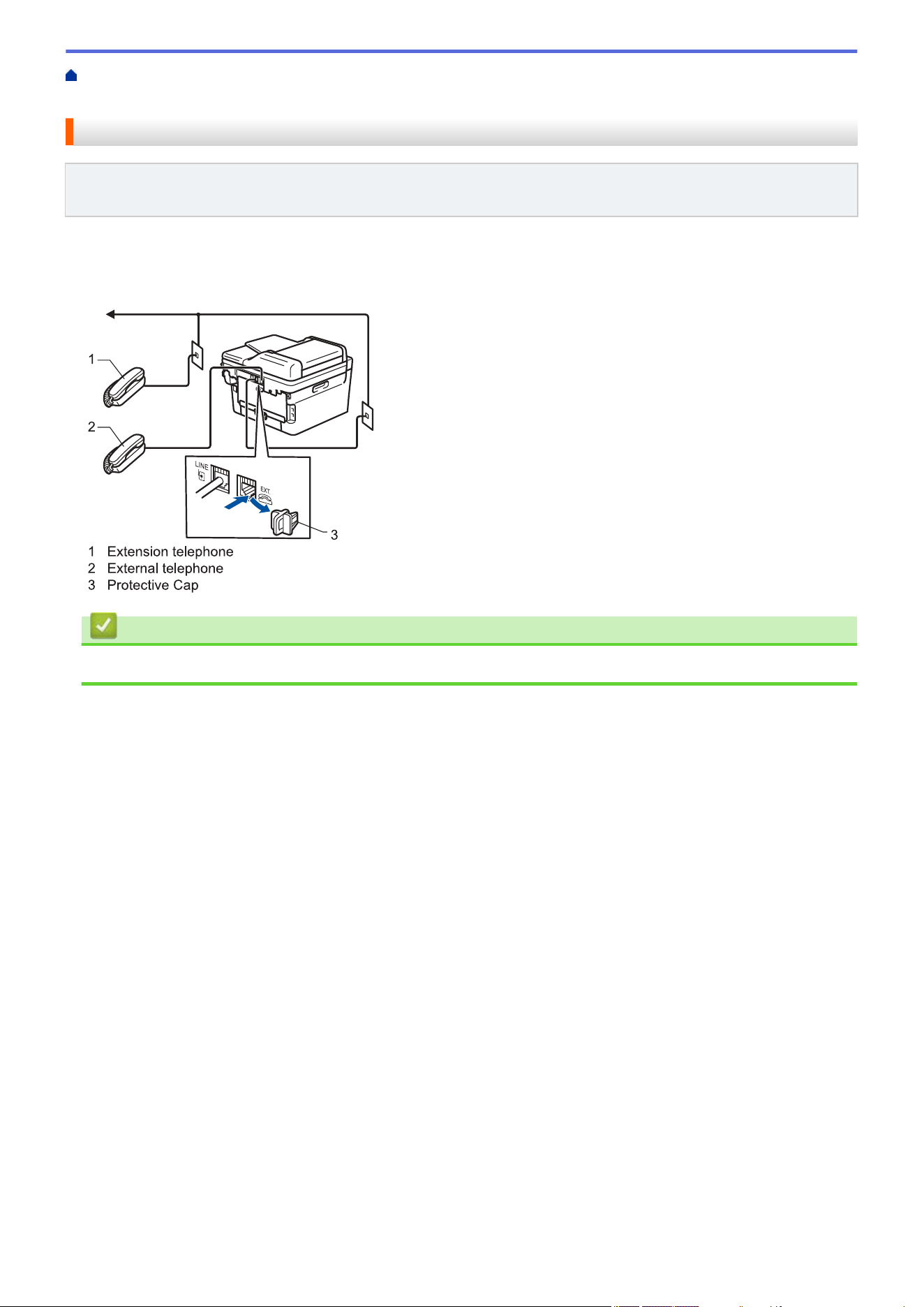
Home > Fax > Telephone Services and External Devices > External and Extension Telephones > Connect
an External or Extension Telephone
Connect an External or Extension Telephone
Related Models: MFC-L2760DW/MFC-L2807DW/MFC-L2820DW/MFC-L2820DWXL/MFC-L2900DW/
MFC-L2900DWXL/MFC-L2980DW
You can connect a separate telephone to your machine as shown in the diagram below.
Connect the telephone line cord to the jack labeled EXT.
Before you connect an external telephone, remove the protective cap (3) from the EXT. jack on the machine.
1
1 Extension telephone
2 External telephone
3 Protective Cap
2
3
Related Information
• External and Extension Telephones
245
Home > Fax > Telephone Services and External Devices > External and Extension Telephones > Operation
from External and Extension Telephones
Operation from External and Extension Telephones
Related Models: MFC-L2760DW/MFC-L2807DW/MFC-L2820DW/MFC-L2820DWXL/MFC-L2900DW/
MFC-L2900DWXL/MFC-L2980DW
Use extension telephones
If you answer a fax call at an extension telephone, you can make your machine receive the fax by pressing the
Fax Receive Code *51.
If the machine answers a voice call and pseudo/double-rings for you to take over, you can take the call at an
extension telephone by pressing the Telephone Answer Code #51.
Use an external telephone (Connected to the EXT. jack of the machine)
If you answer a fax call at the external telephone connected to the EXT. jack of the machine, you can make the
machine receive the fax by pressing [Fax Start] or Start, and selecting [Receive] or b.
If the machine answers a voice call and pseudo/double-rings for you to take over, you can take the call at the
external telephone by pressing [Pickup] or Hook.
If you answer a call and no one is on the line:
You are receiving a manual fax.
Press *51 and wait for the chirp or until the LCD displays [Receiving], and then hang up.
You can also use the Easy Receive feature to make your machine automatically take the call.
Related Information
• External and Extension Telephones
246
Home > Fax > Telephone Services and External Devices > External and Extension Telephones > If You Use
a Non-Brother Cordless External Handset
If You Use a Non-Brother Cordless External Handset
Related Models: MFC-L2760DW/MFC-L2807DW/MFC-L2820DW/MFC-L2820DWXL/MFC-L2900DW/
MFC-L2900DWXL/MFC-L2980DW
If your non-Brother cordless telephone is connected to the EXT. jack of the machine and you typically carry the
cordless handset elsewhere, it is easier to answer calls during the Ring Delay.
If you let the machine answer first, you must go to the machine so you can press [Pickup] or Hook to transfer
the call to the cordless handset.
Related Information
• External and Extension Telephones
247
Home > Fax > Telephone Services and External Devices > External and Extension Telephones > Use the
Remote Codes
Use the Remote Codes
Related Models: MFC-L2760DW/MFC-L2807DW/MFC-L2820DW/MFC-L2820DWXL/MFC-L2900DW/
MFC-L2900DWXL/MFC-L2980DW
Fax Receive Code
If you answer a fax call on an extension telephone, you can tell your machine to receive it by pressing the Fax
Receive Code *51. Wait for the chirping sounds, and then replace the handset.
If you answer a fax call at the external telephone, you can make the machine receive it by pressing the buttons in
the following table:
Applicable Models
To make the machine receive a fax
MFC-L2760DW
Start and then b
MFC-L2807DW/MFC-L2820DW/MFC-L2820DWXL/MFC-L2900DW/
MFC-L2900DWXL/MFC-L2980DW
Fax Start > Receive
Telephone Answer Code
If you receive a voice call and the machine is in F/T mode, it will start to sound the F/T ring (pseudo/double-ring)
after the initial ring delay. If you pick up the call on an extension telephone you can turn the F/T ring off by
pressing #51 (make sure you press this between the rings).
If the machine answers a voice call and pseudo/double-rings for you to take over, you can take the call at the
external telephone by pressing the button in the following table:
Applicable Models
To pick up a voice call
MFC-L2760DW Hook
MFC-L2807DW/MFC-L2820DW/MFC-L2820DWXL/MFC-L2900DW/
MFC-L2900DWXL/MFC-L2980DW
Pickup
Related Information
• External and Extension Telephones
• Change the Remote Codes
248
Home > Fax > Telephone Services and External Devices > External and Extension Telephones > Use the
Remote Codes > Change the Remote Codes
Change the Remote Codes
Related Models: MFC-L2760DW/MFC-L2807DW/MFC-L2820DW/MFC-L2820DWXL/MFC-L2900DW/
MFC-L2900DWXL/MFC-L2980DW
The preset Fax Receive Code is *51. The preset Telephone Answer Code is #51. If you are always disconnected
when accessing your External TAD remotely, try changing the three-digit remote codes, for example to ### and
999.
>> MFC-L2760DW
>> MFC-L2807DW/MFC-L2820DW/MFC-L2820DWXL/MFC-L2900DW/MFC-L2900DWXL/MFC-L2980DW
MFC-L2760DW
1. Press
(Fax).
2. Press Menu.
3. Press a or b to display the [Fax] option, and then press OK.
4. Press a or b to display the [Setup Receive] option, and then press OK.
5. Press a or b to display the [Remote Codes] option, and then press OK.
6. Press a or b to display the [On] option, and then press OK.
To turn off Remote Codes, select the [Off] option.
7. Enter the new Fax Receive Code, and then press OK.
8. Enter the new Telephone Answer Code, and then press OK.
9. Press Stop/Exit.
MFC-L2807DW/MFC-L2820DW/MFC-L2820DWXL/MFC-L2900DW/MFC-L2900DWXL/
MFC-L2980DW
1. Press [Settings] > [All Settings] > [Fax] > [Setup Receive] > [Remote Codes].
2. Do one of the following:
• To change the Fax Receive Code, press [Fax Receive Code]. Enter the new code, and then press
[OK].
• To change the Telephone Answer Code, press [Tel Answer]. Enter the new code, and then press
[OK].
• If you do not want to change the Codes, go to the next step.
• To turn off (or turn on) the Remote Codes, press [Remote Codes], and then press [Off] (or [On]).
3. Press
.
Related Information
• Use the Remote Codes
249
Home > Fax > Telephone Services and External Devices > Multi-line Connections (PBX)
Multi-line Connections (PBX)
Related Models: MFC-L2760DW/MFC-L2807DW/MFC-L2820DW/MFC-L2820DWXL/MFC-L2900DW/
MFC-L2900DWXL/MFC-L2980DW
We suggest you ask the company that installed your PBX to connect your machine. If you have a multi-line
system we suggest you ask the installer to connect the unit to the last line on the system. This prevents the
machine from being activated each time the system receives telephone calls. If all incoming calls are answered
by a switchboard operator, we recommend setting the Receive Mode to [Manual].
We cannot guarantee that your machine will operate correctly under all circumstances when connected to a PBX.
Any difficulties with sending or receiving faxes should be reported first to the company that handles your PBX.
Related Information
• Telephone Services and External Devices
250

Home > Fax > Fax Reports > Print a Transmission Verification Report
Print a Transmission Verification Report
Related Models: MFC-L2760DW/MFC-L2807DW/MFC-L2820DW/MFC-L2820DWXL/MFC-L2900DW/
MFC-L2900DWXL/MFC-L2980DW
You can use the Transmission Verification Report as proof that you sent a fax. This report lists the receiving
party's name or fax number, the time and date of transmission, duration of transmission, number of pages sent,
and whether or not the transmission was successful.
There are several settings available for the Transmission Verification Report:
On
Prints a report after every fax you send.
On(+Image)
Prints a report after every fax you send.
A portion of the fax’s first page appears on the report.
Error only
Prints a report if your fax is unsuccessful due to a transmission error.
Error only (+Image)
Prints a report if your fax is unsuccessful due to a transmission error.
A portion of the fax’s first page appears on the report.
Off
Your machine does not print any reports after sending faxes.
>> MFC-L2760DW
>> MFC-L2807DW/MFC-L2820DW/MFC-L2820DWXL/MFC-L2900DW/MFC-L2900DWXL/MFC-L2980DW
MFC-L2760DW
1. Press Menu.
2. Press a or b to display the [Fax] option, and then press OK.
3. Press a or b to display the [Report Setting] option, and then press OK.
4. Press a or b to display the [Transmission] option, and then press OK.
5. Press a or b to display the [Error Only], [ErrorOnly+Image], [Off], [On], or [On(+Image)]
option, and press OK.
6. Press Stop/Exit.
MFC-L2807DW/MFC-L2820DW/MFC-L2820DWXL/MFC-L2900DW/MFC-L2900DWXL/
MFC-L2980DW
1. Press
[Settings] > [All Settings] > [Fax] > [Report Setting] > [Transmission].
2. Press a or b to select the option you want.
If you select [On(+Image)] or [Error only(+Image)], the image will not appear on the Transmission
Verification Report if Real Time Transmission is set to [On].
3. Press .
If the transmission is successful, OK appears next to RESULT on the Transmission Verification Report. If the
transmission is not successful, ERROR appears next to RESULT.
Related Information
• Fax Reports
252
Home > Fax > Fax Reports > Print a Fax Journal
Print a Fax Journal
Related Models: MFC-L2760DW/MFC-L2807DW/MFC-L2820DW/MFC-L2820DWXL/MFC-L2900DW/
MFC-L2900DWXL/MFC-L2980DW
You can set the machine to print a Fax Journal at specific intervals (every 50 faxes, 6, 12 or 24 hours, 2 or 7
days).
>> MFC-L2760DW
>> MFC-L2807DW/MFC-L2820DW/MFC-L2820DWXL/MFC-L2900DW/MFC-L2900DWXL/MFC-L2980DW
MFC-L2760DW
1. Press Menu.
2. Press a or b to display the [Fax] option, and then press OK.
3. Press a or b to display the [Report Setting] option, and then press OK.
4. Press a or b to display the [Journal Period] option, and then press OK.
5. Press a or b to display the [Every 50 Faxes], [Every 6 Hours], [Every 12 Hours], [Every 24
Hours], [Every 2 Days], [Every 7 Days], or [Off] option, and then press OK.
• 6, 12, 24 hours, 2 or 7 days
The machine will print the report at the selected time and then erase all jobs from its memory. If the
machine's memory becomes full with 200 jobs before the time you selected has passed, the machine will
print the Journal early and then erase all jobs from the memory. If you want an extra report before it is due
to print, you can print it without erasing the jobs from the memory.
• Every 50 Faxes
The machine will print the Journal when the machine has stored 50 jobs.
6. If you chose Every 7 Days, press a or b to display the [Every Monday], [Every Tuesday], [Every
Wednesday], [Every Thursday], [Every Friday], [Every Saturday] or [Every Sunday] option,
and then press OK.
7. If you selected 6, 12, 24 hours, 2 or 7 days, do one of the following to enter the time to start printing:
• If you selected [12h Clock] in the Date&Time setting, enter the time in 12-hour format, and then press
OK.
Press a or b to display the [AM] or [PM] option, and then press OK.
• If you selected [24h Clock] in the Date&Time setting, enter the time in 24-hour format, and then press
OK.
(For example, enter 19:45 for 7:45 PM.)
8. Press Stop/Exit.
MFC-L2807DW/MFC-L2820DW/MFC-L2820DWXL/MFC-L2900DW/MFC-L2900DWXL/
MFC-L2980DW
1. Press [Settings] > [All Settings] > [Fax] > [Report Setting] > [Journal Period] >
[Journal Period].
2. Press a or b to select the interval you want, and then press it.
• 6, 12, 24 hours, 2 or 7 days
The machine will print the report at the selected time and then erase all jobs from its memory. If the
machine's memory becomes full with 200 jobs before the time you selected has passed, the machine will
print the Journal early and then erase all jobs from the memory. If you want an extra report before it is due
to print, you can print it without erasing the jobs from the memory.
• Every 50 Faxes
The machine will print the Journal when the machine has stored 50 jobs.
253
3. If you selected 6, 12, 24 hours, 2 or 7 days, press [Time] and enter the time using the LCD, and then press
[OK].
4. If you selected [Every 7 Days], press [Day].
5. Press a or b to display the [Every Monday], [Every Tuesday], [Every Wednesday], [Every
Thursday], [Every Friday], [Every Saturday] or [Every Sunday] option, and then press the first
day of the 7-day countdown.
6. Press .
Related Information
• Fax Reports
254


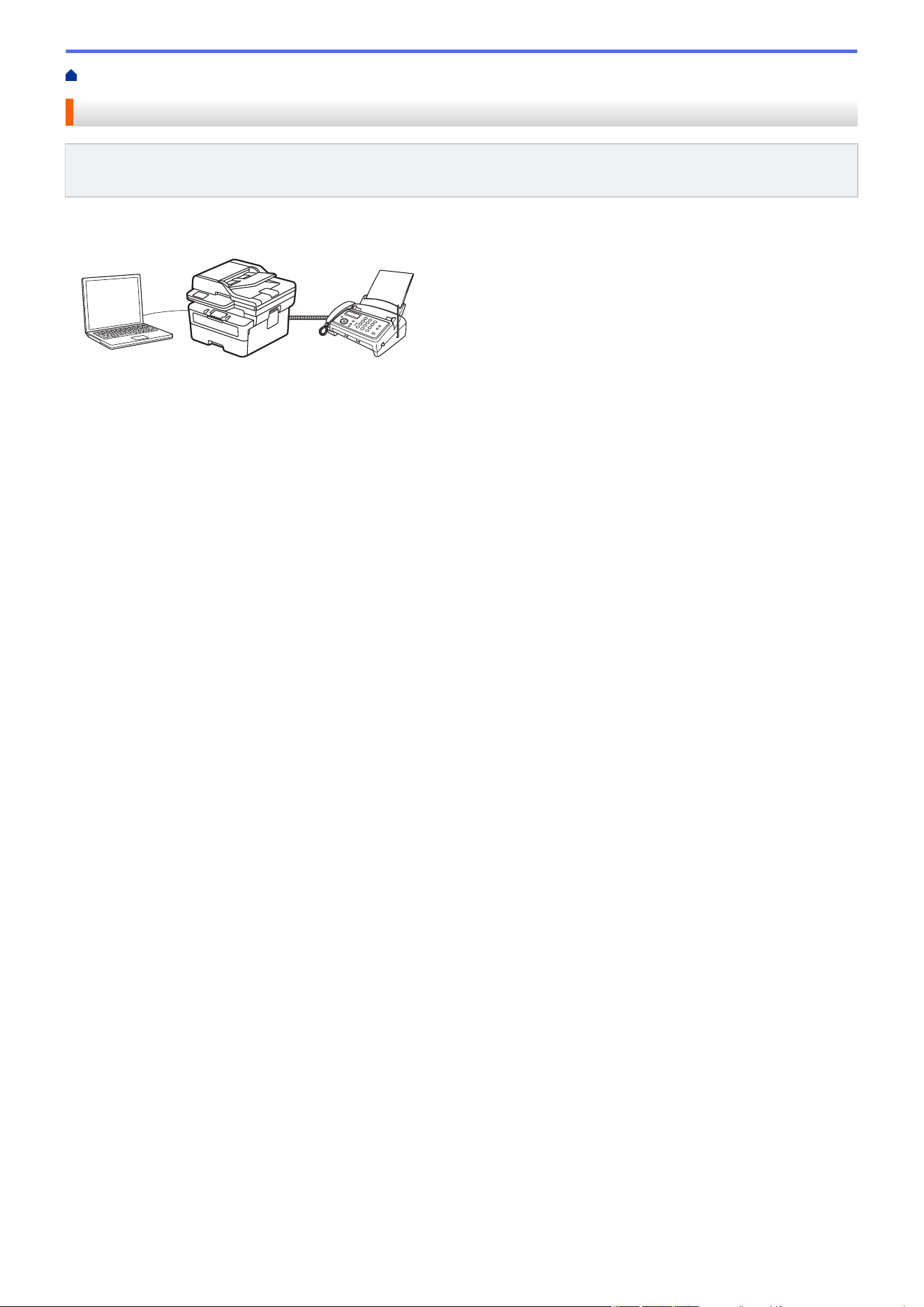
Home > Fax > PC-FAX > PC-FAX for Windows > PC-FAX Overview (Windows)
PC-FAX Overview (Windows)
Related Models: MFC-L2760DW/MFC-L2807DW/MFC-L2820DW/MFC-L2820DWXL/MFC-L2900DW/
MFC-L2900DWXL/MFC-L2980DW
Reduce paper consumption and save time by using the Brother PC-FAX software to send faxes directly from
your computer.
• Configure PC-FAX (Windows)
• Configure your PC-Fax Address Book (Windows)
257
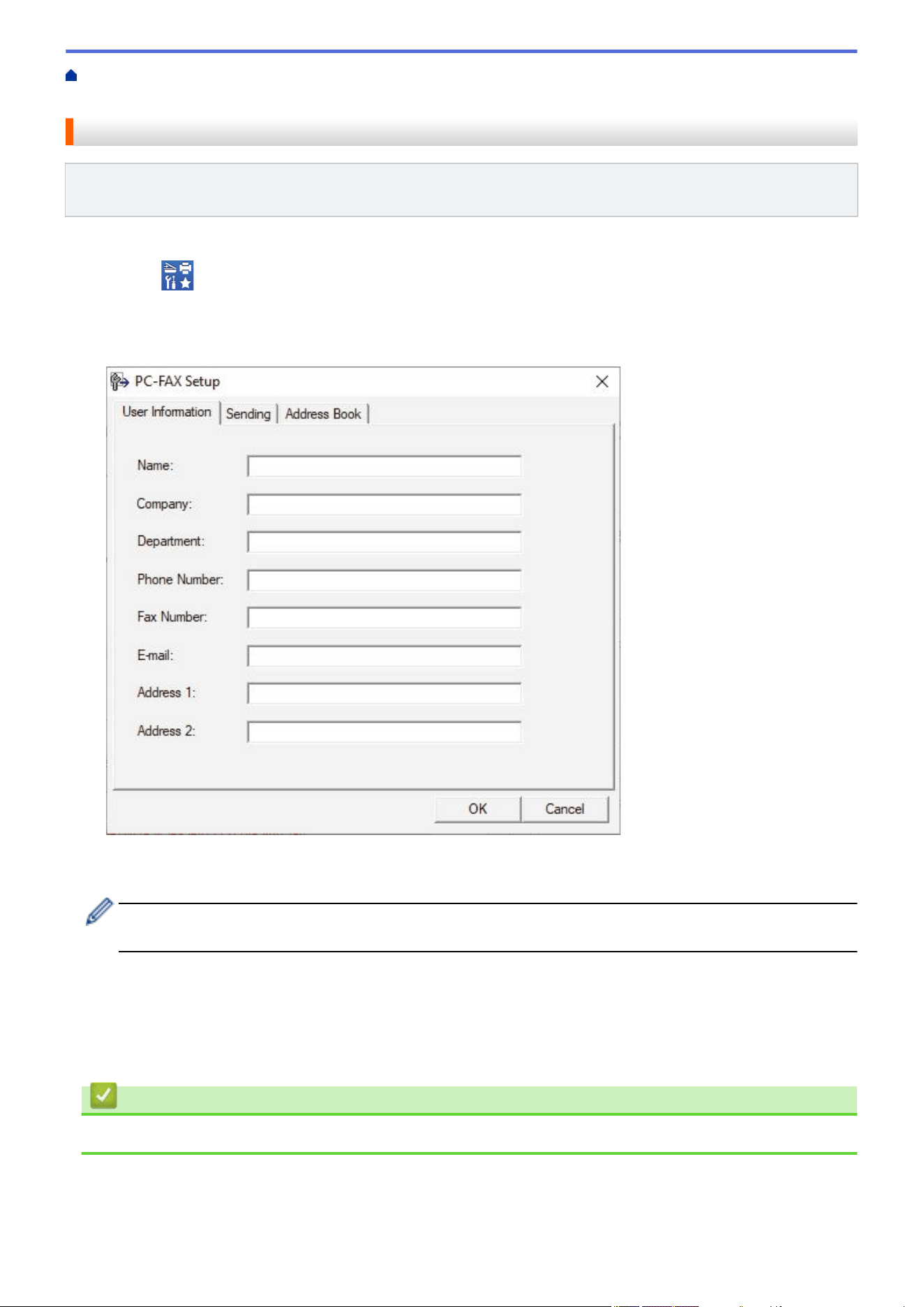
Home > Fax > PC-FAX > PC-FAX for Windows > PC-FAX Overview (Windows) > Configure PC-FAX
(Windows)
Configure PC-FAX (Windows)
Related Models: MFC-L2760DW/MFC-L2807DW/MFC-L2820DW/MFC-L2820DWXL/MFC-L2900DW/
MFC-L2900DWXL/MFC-L2980DW
Before sending faxes using PC-FAX, personalize the send options in each tab of the PC-FAX Setup dialog box.
1. Launch (Brother Utilities), and then click the drop-down list and select your model name (if not already
selected).
2. Click PC-FAX in the left navigation bar, and then click Setup Sending.
The PC-FAX Setup dialog box appears.
3. Do one of the following:
• Click the User Information tab, and then type your user information in the fields.
Each Microsoft account can have its own customized User Information screen for custom fax headers and
cover pages.
• Click the Sending tab, and then type the number needed to access an outside line (if needed) in the
Outside line access field. Select the Include header checkbox to include the header information.
• Click the Address Book tab, and then select the address book you want to use for PC-FAX from the
Select Address Book drop-down list.
4. Click OK.
Related Information
• PC-FAX Overview (Windows)
258

Home > Fax > PC-FAX > PC-FAX for Windows > PC-FAX Overview (Windows) > Configure your PC-Fax
Address Book (Windows)
Configure your PC-Fax Address Book (Windows)
Related Models: MFC-L2760DW/MFC-L2807DW/MFC-L2820DW/MFC-L2820DWXL/MFC-L2900DW/
MFC-L2900DWXL/MFC-L2980DW
Add, edit, and delete members and groups to personalize your Address Book.
• Add a Member to your PC-FAX Address Book (Windows)
• Create a Group in your PC-FAX Address Book (Windows)
• Edit Member or Group Information in your PC-FAX Address Book (Windows)
• Delete a Member or Group in your PC-FAX Address Book (Windows)
• Export your PC-FAX Address Book (Windows)
• Import Information to your PC-FAX Address Book (Windows)
259
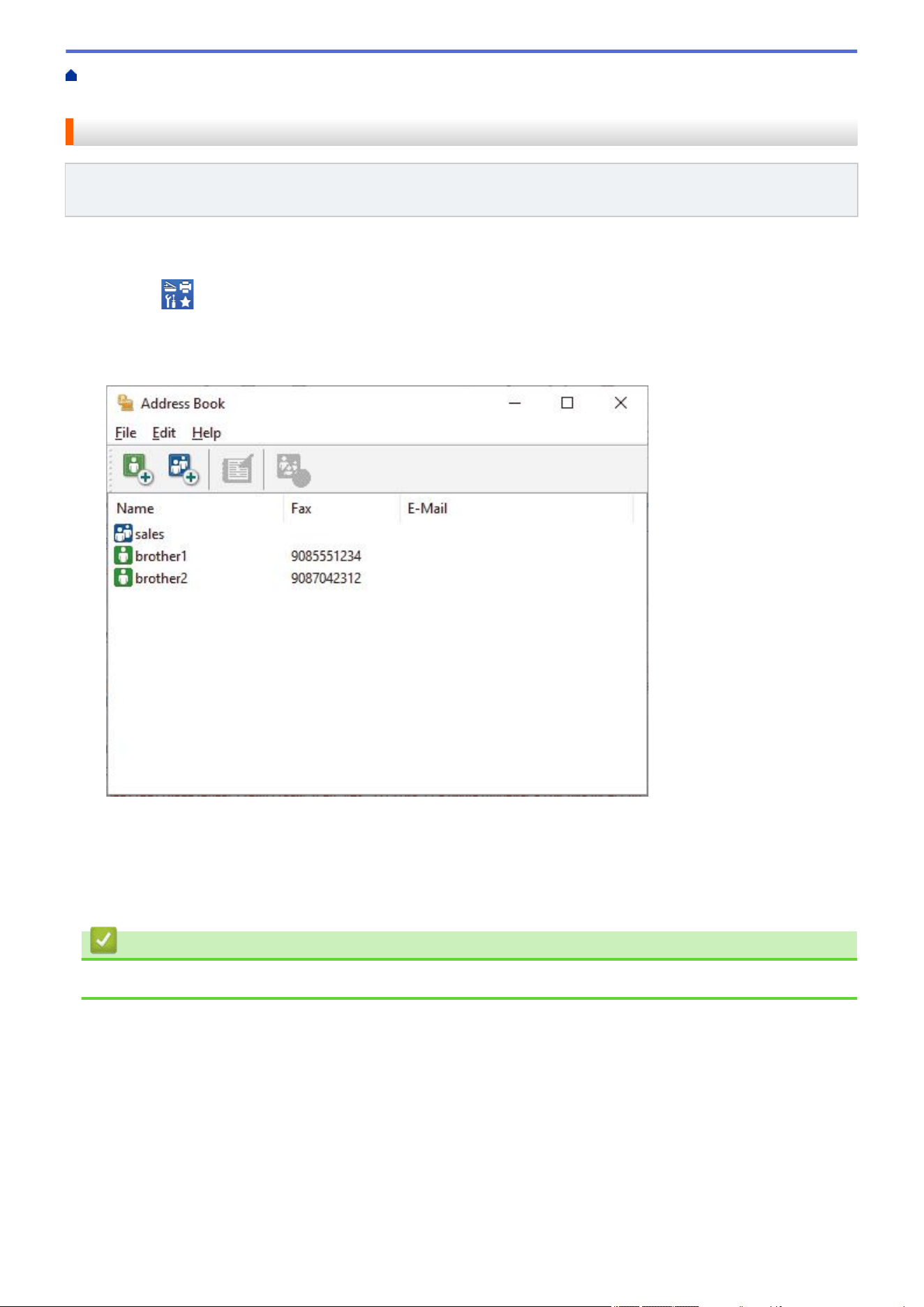
Home > Fax > PC-FAX > PC-FAX for Windows > PC-FAX Overview (Windows) > Configure your PC-Fax
Address Book (Windows) > Add a Member to your PC-FAX Address Book (Windows)
Add a Member to your PC-FAX Address Book (Windows)
Related Models: MFC-L2760DW/MFC-L2807DW/MFC-L2820DW/MFC-L2820DWXL/MFC-L2900DW/
MFC-L2900DWXL/MFC-L2980DW
Add new people and their fax information to the PC-Fax Address Book if you want to send a fax using the
Brother PC-Fax software.
1. Launch (Brother Utilities), and then click the drop-down list and select your model name (if not already
selected).
2. Click PC-FAX in the left navigation bar, and then click Address Book (Send).
The Address Book dialog box appears.
3. Click to add new members.
The Address Book Member Setup dialog box appears.
4. Type the member's information in the corresponding fields. The Name field is required.
5. Click OK.
Related Information
• Configure your PC-Fax Address Book (Windows)
260
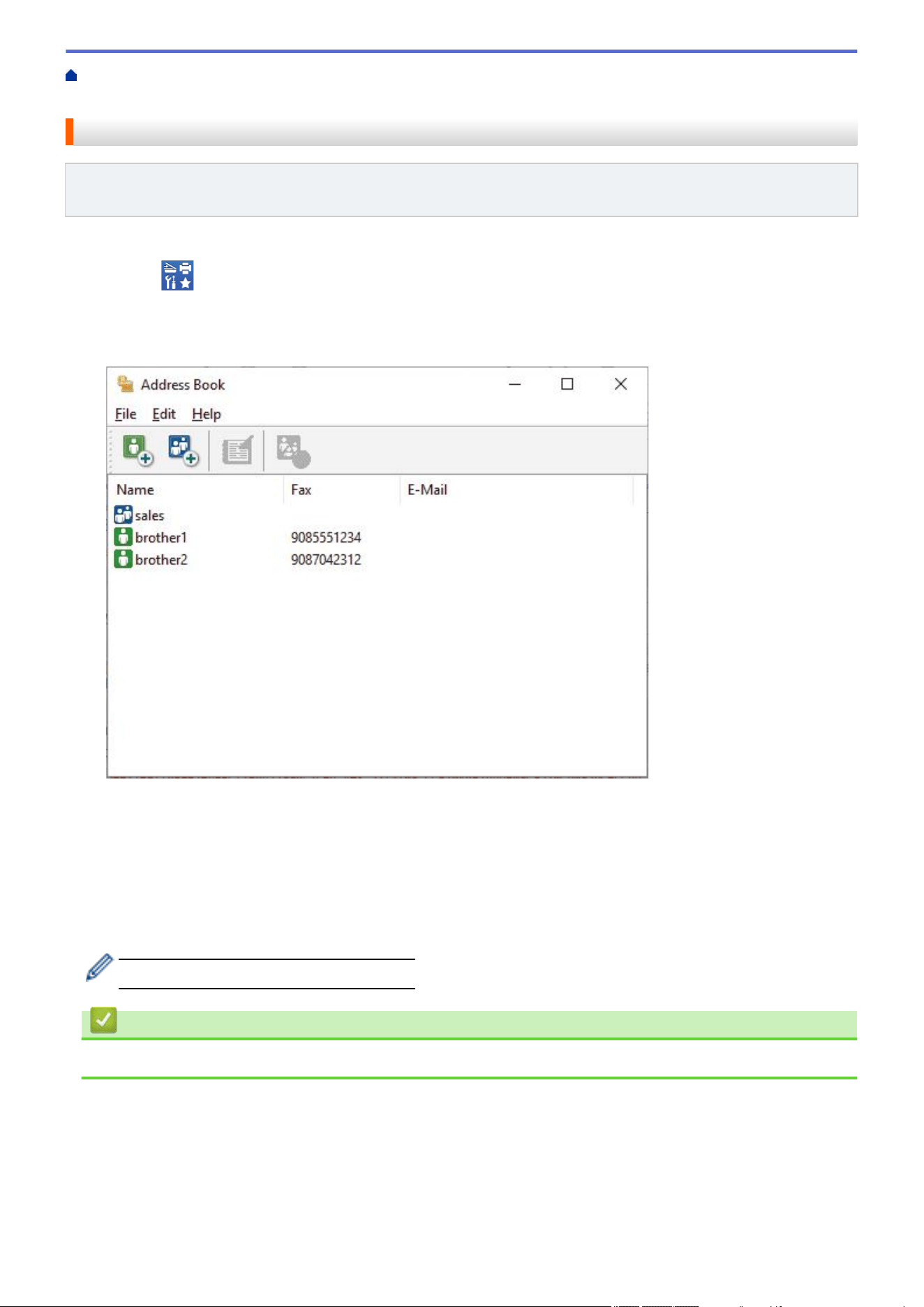
Home > Fax > PC-FAX > PC-FAX for Windows > PC-FAX Overview (Windows) > Configure your PC-Fax
Address Book (Windows) > Create a Group in your PC-FAX Address Book (Windows)
Create a Group in your PC-FAX Address Book (Windows)
Related Models: MFC-L2760DW/MFC-L2807DW/MFC-L2820DW/MFC-L2820DWXL/MFC-L2900DW/
MFC-L2900DWXL/MFC-L2980DW
Create a group to broadcast the same PC-FAX to several recipients at once.
1. Launch (Brother Utilities), and then click the drop-down list and select your model name (if not already
selected).
2. Click PC-FAX in the left navigation bar, and then click Address Book (Send).
The Address Book dialog box appears.
3. Click to add a new group.
The Address Book Group Setup dialog box appears.
4. Type the name of the new group in the Group Name field.
5. In the Available Names field, select each name you want to include in the group, and then click Add >>.
Members added to the group appear in the Group Members box.
6. When finished, click OK.
Each group can contain up to 50 members.
Related Information
• Configure your PC-Fax Address Book (Windows)
261
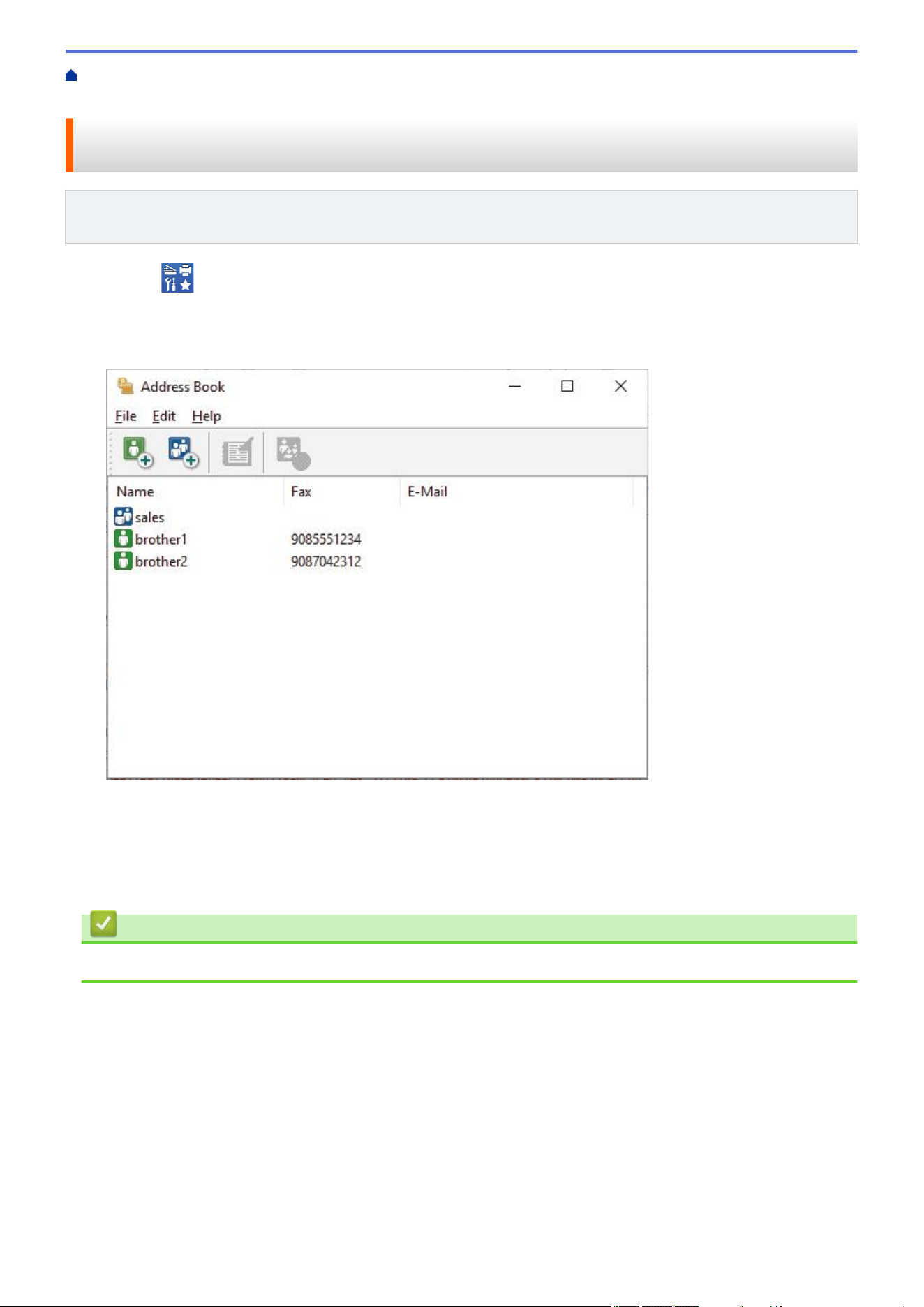
Home > Fax > PC-FAX > PC-FAX for Windows > PC-FAX Overview (Windows) > Configure your PC-Fax
Address Book (Windows) > Edit Member or Group Information in your PC-FAX Address Book (Windows)
Edit Member or Group Information in your PC-FAX Address Book
(Windows)
Related Models: MFC-L2760DW/MFC-L2807DW/MFC-L2820DW/MFC-L2820DWXL/MFC-L2900DW/
MFC-L2900DWXL/MFC-L2980DW
1. Launch (Brother Utilities), and then click the drop-down list and select your model name (if not already
selected).
2. Click PC-FAX in the left navigation bar, and then click Address Book (Send).
The Address Book dialog box appears.
3. Select the member or group you want to edit.
4. Click
(Properties).
5. Change the member or group information.
6. Click OK.
Related Information
• Configure your PC-Fax Address Book (Windows)
262
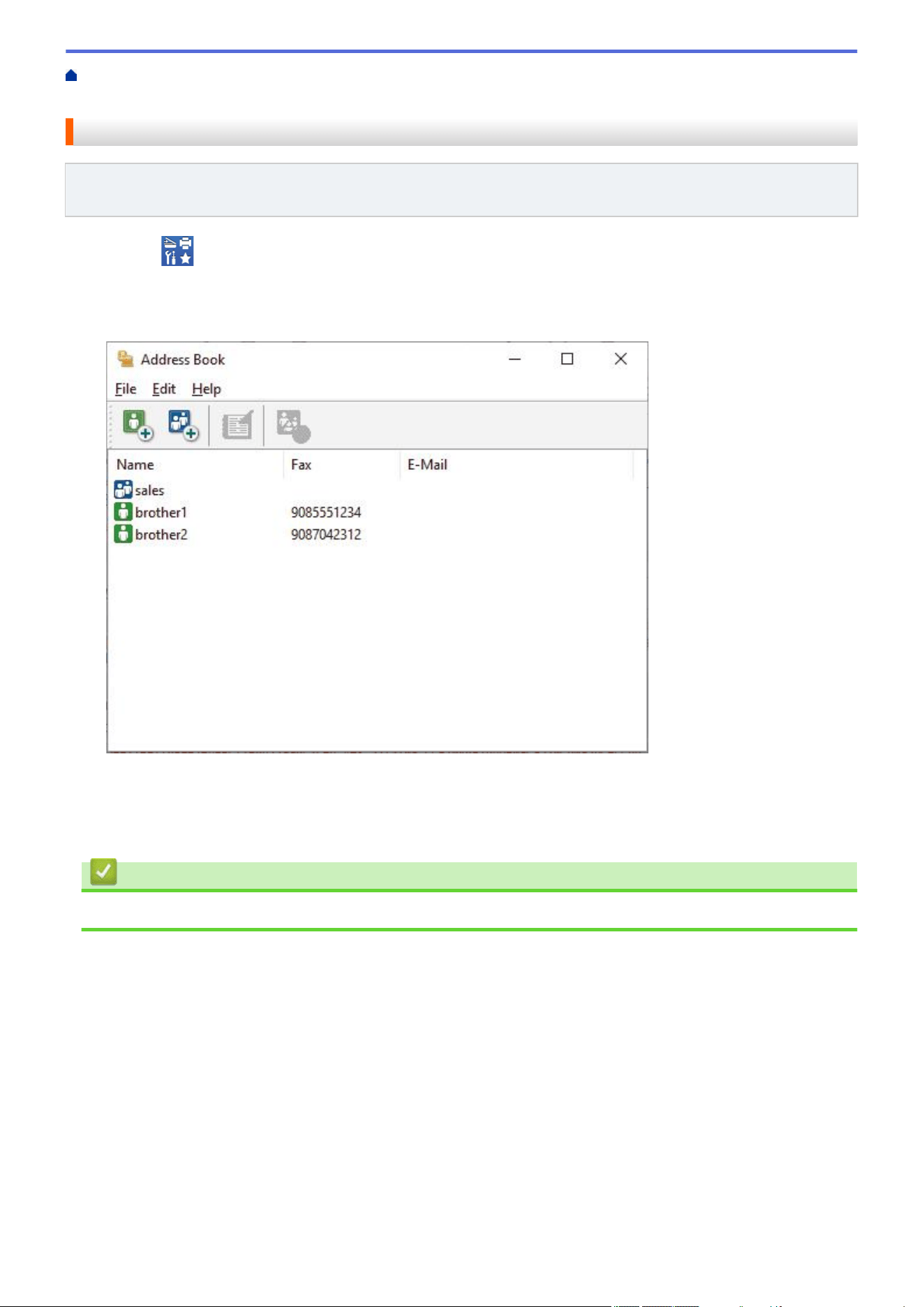
Home > Fax > PC-FAX > PC-FAX for Windows > PC-FAX Overview (Windows) > Configure your PC-Fax
Address Book (Windows) > Delete a Member or Group in your PC-FAX Address Book (Windows)
Delete a Member or Group in your PC-FAX Address Book (Windows)
Related Models: MFC-L2760DW/MFC-L2807DW/MFC-L2820DW/MFC-L2820DWXL/MFC-L2900DW/
MFC-L2900DWXL/MFC-L2980DW
1. Launch (Brother Utilities), and then click the drop-down list and select your model name (if not already
selected).
2. Click PC-FAX in the left navigation bar, and then click Address Book (Send).
The Address Book dialog box appears.
3. Select the member or group you want to delete.
4. Click (Delete).
5. When the confirmation dialog box appears, click OK.
Related Information
• Configure your PC-Fax Address Book (Windows)
263
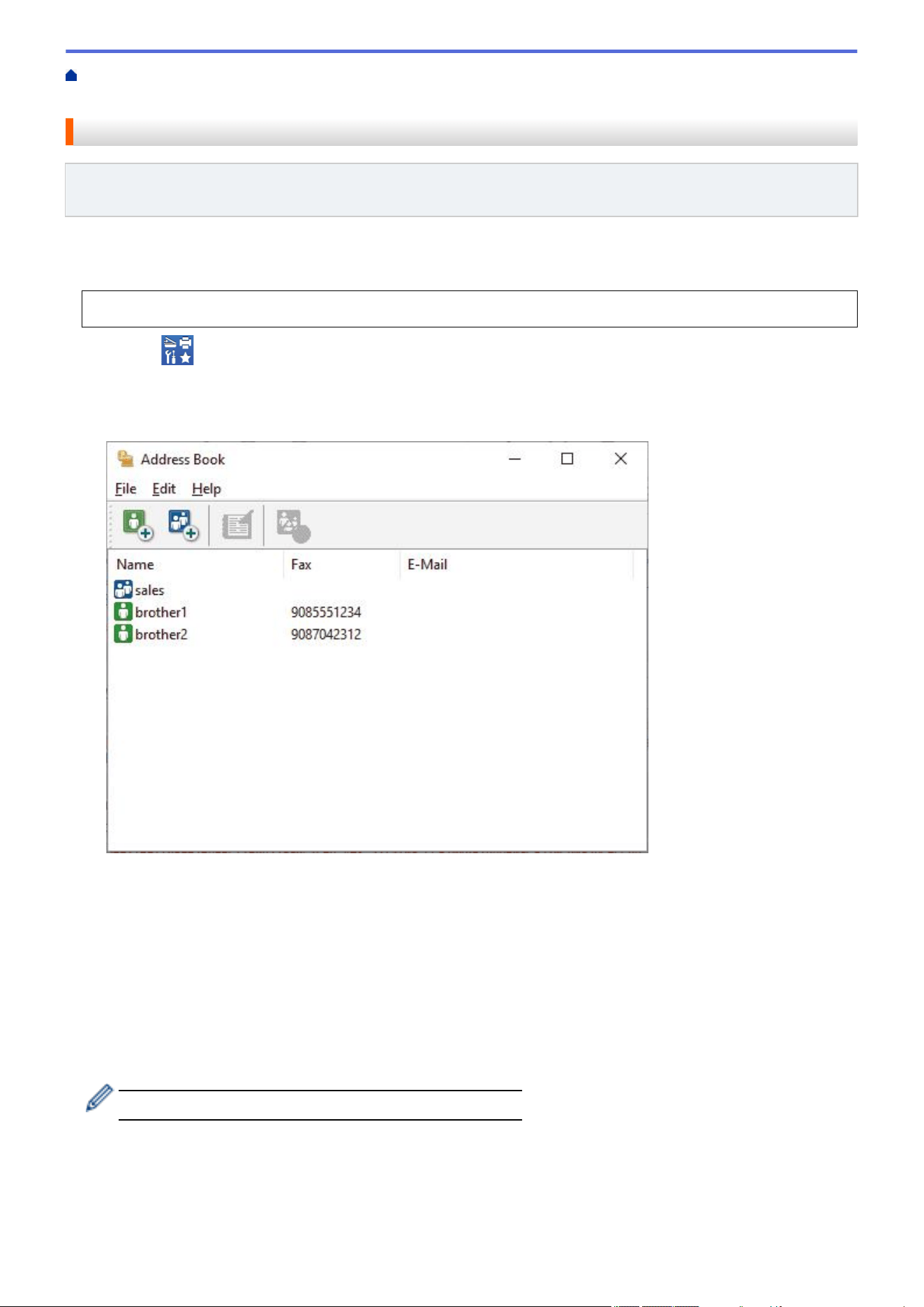
Home > Fax > PC-FAX > PC-FAX for Windows > PC-FAX Overview (Windows) > Configure your PC-Fax
Address Book (Windows) > Export your PC-FAX Address Book (Windows)
Export your PC-FAX Address Book (Windows)
Related Models: MFC-L2760DW/MFC-L2807DW/MFC-L2820DW/MFC-L2820DWXL/MFC-L2900DW/
MFC-L2900DWXL/MFC-L2980DW
You can export the Address Book as an ASCII text file (*.csv) or a vCard (an electronic business card) and save
it on your computer.
You cannot export the group settings when you export the Address Book data.
1. Launch (Brother Utilities), and then click the drop-down list and select your model name (if not already
selected).
2. Click PC-FAX in the left navigation bar, and then click Address Book (Send).
The Address Book dialog box appears.
3. Click File > Export.
4. Select one of the following:
• Text
The Select Items dialog box appears. Go to the next step.
• vCard
You must select the member you want to export from your address book before selecting this option.
Browse to the folder where you want to save the vCard, type the vCard name in the File name field,
and then click Save.
5. In the Available Items field, select the data you want to export, and then click Add >>.
Select and add the items in the order you want them listed.
6. If you are exporting to an ASCII file, under the Divide Character section, select the Tab or Comma option to
separate the data fields.
7. Click OK.
8. Browse to the folder on your computer where you want to save the data, type the file name, and then click
Save.
264

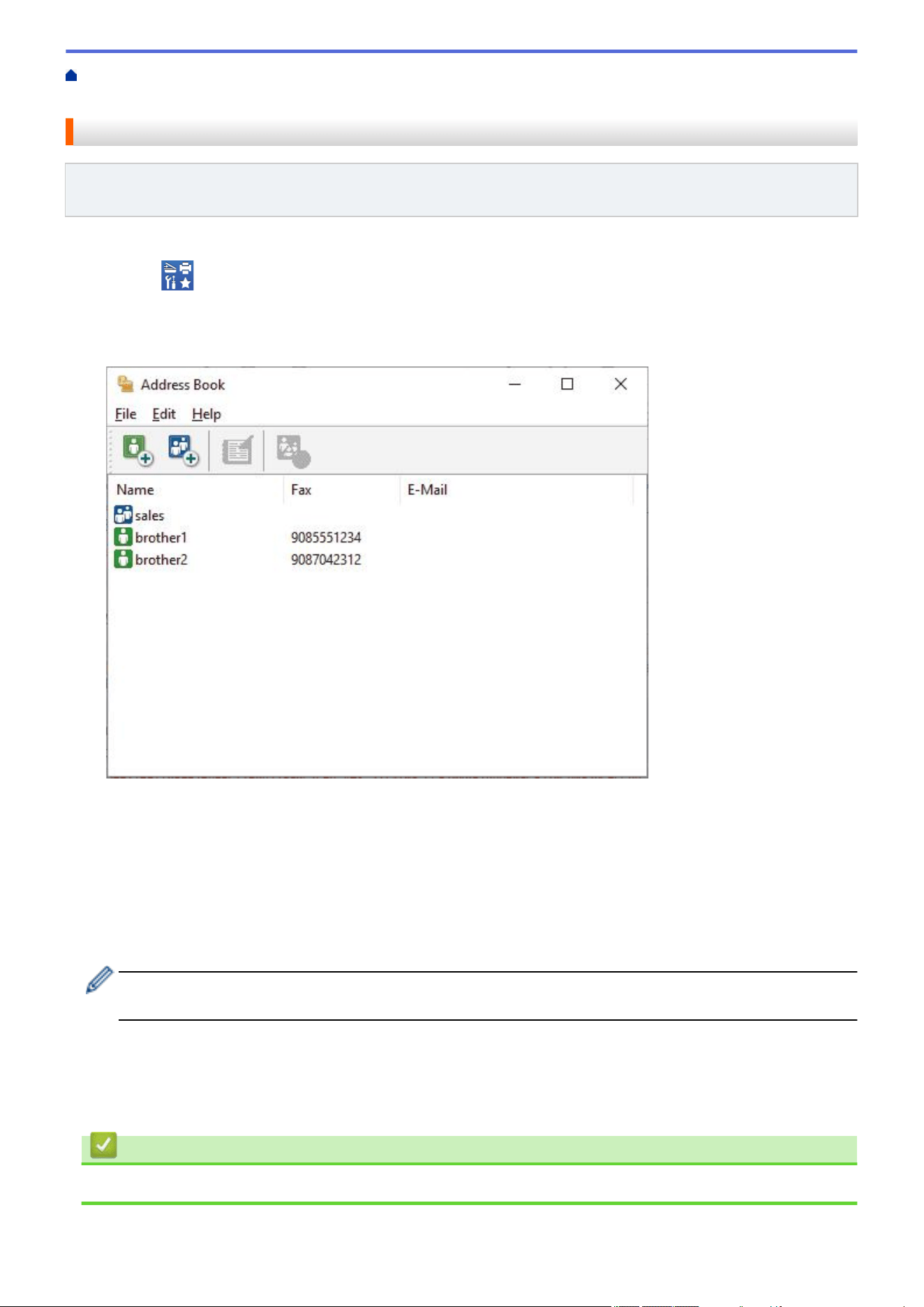
Home > Fax > PC-FAX > PC-FAX for Windows > PC-FAX Overview (Windows) > Configure your PC-Fax
Address Book (Windows) > Import Information to your PC-FAX Address Book (Windows)
Import Information to your PC-FAX Address Book (Windows)
Related Models: MFC-L2760DW/MFC-L2807DW/MFC-L2820DW/MFC-L2820DWXL/MFC-L2900DW/
MFC-L2900DWXL/MFC-L2980DW
You can import ASCII text files (*.csv) or vCards (electronic business cards) into your Address Book.
1. Launch (Brother Utilities), and then click the drop-down list and select your model name (if not already
selected).
2. Click PC-FAX in the left navigation bar, and then click Address Book (Send).
The Address Book dialog box appears.
3. Click File > Import.
4. Select one of the following:
• Text
The Select Items dialog box appears. Go to step 5.
• vCard
Go to step 8.
5. In the Available Items field, select the data you want to import, and then click Add >>.
You must select and add fields from the Available Items list in the same order they are listed in the import
text file.
6. If you are importing an ASCII file, under the Divide Character section, select the Tab or Comma option to
separate the data fields.
7. Click OK.
8. Browse to the folder where you want to import the data, type the file name, and then click Open.
Related Information
• Configure your PC-Fax Address Book (Windows)
266
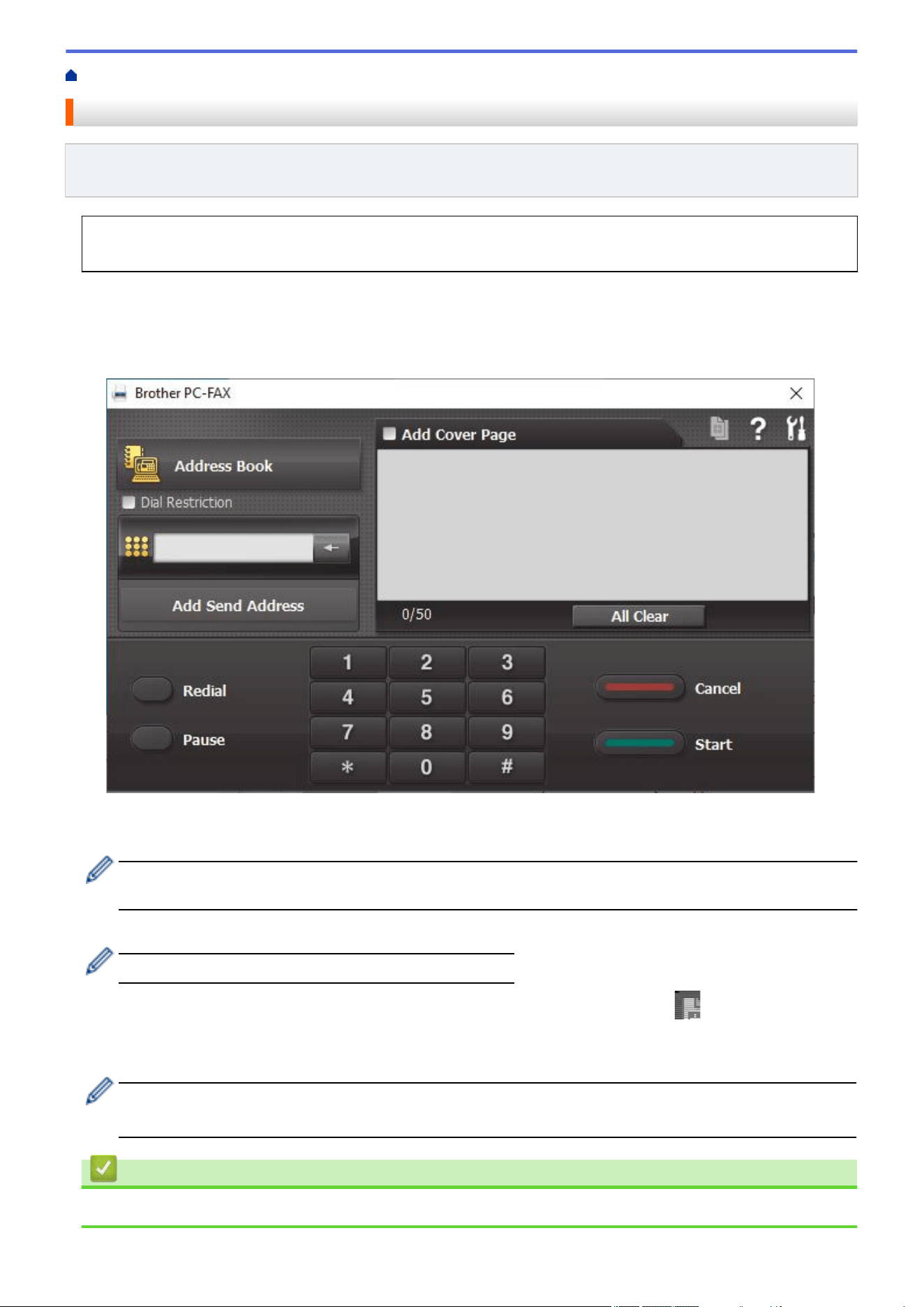
Home > Fax > PC-FAX > PC-FAX for Windows > Send a Fax Using PC-FAX (Windows)
Send a Fax Using PC-FAX (Windows)
Related Models: MFC-L2760DW/MFC-L2807DW/MFC-L2820DW/MFC-L2820DWXL/MFC-L2900DW/
MFC-L2900DWXL/MFC-L2980DW
PC-FAX supports only black and white faxes. A black and white fax will be sent even if the original data is in
color and the receiving fax machine supports color faxes.
1. Create a file in any application on your computer.
2. Select the print command in your application.
3. Select Brother PC-FAX as your printer, and then complete your print operation.
The Brother PC-FAX dialog box appears.
4. Type a fax number using one of the following methods:
• Click the numbers on the dial pad to type the number, and then click Add Send Address.
If you select the Dial Restriction checkbox, a confirmation dialog box will appear for you to re-type the fax
number using the keyboard. This feature helps to prevent transmissions to the wrong destination.
• Click the Address Book button, and then select a member or group from the Address Book.
If you make a mistake, click All Clear to delete all entries.
5. To include a cover page, select the Add Cover Page checkbox. You can also click to create or edit a
cover page.
6. Click Start to send the fax.
• To cancel the fax, click Cancel.
• To redial a number, click Redial to show the last five fax numbers, select a number, and then click Start.
Related Information
• PC-FAX for Windows
267
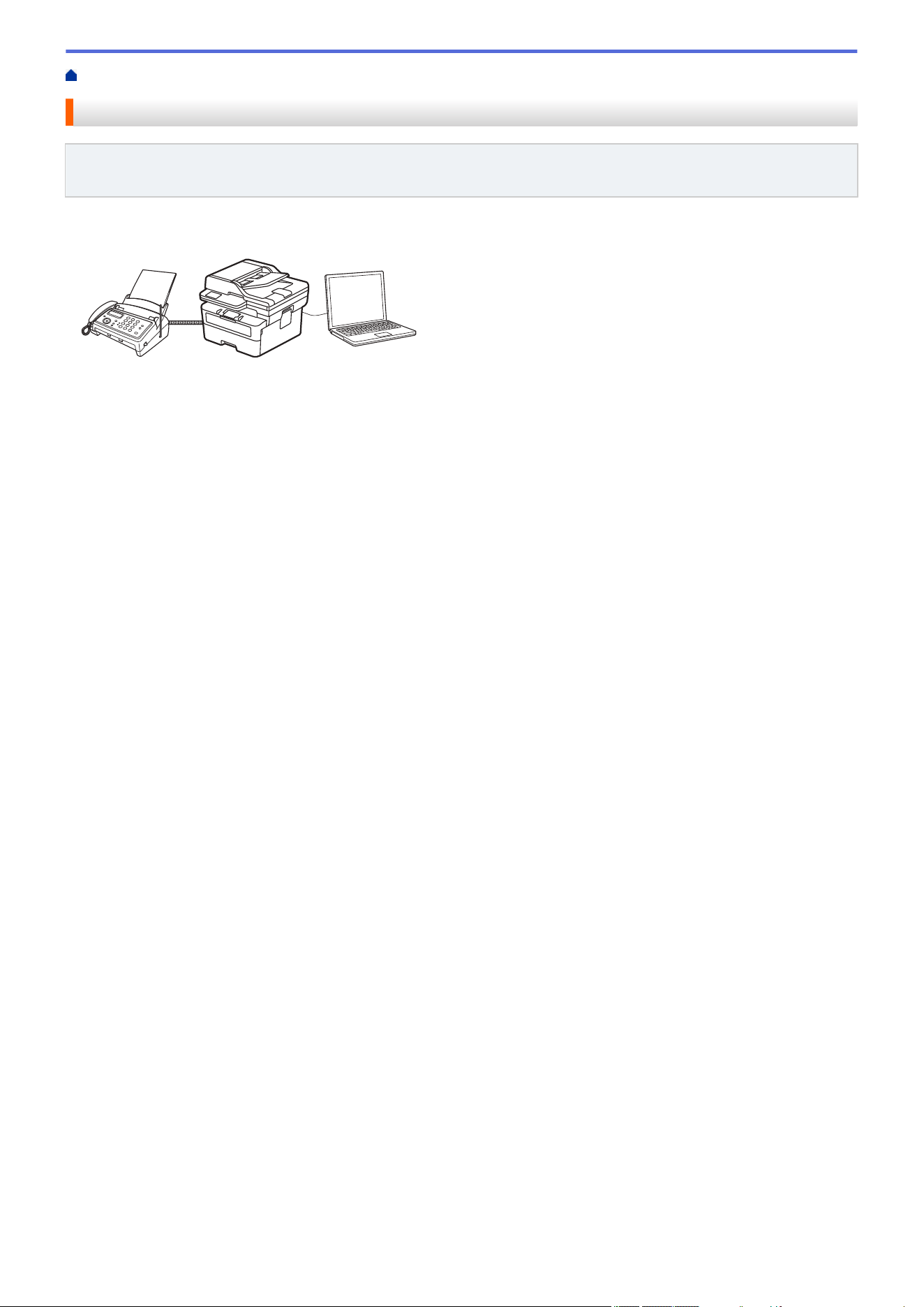
Home > Fax > PC-FAX > PC-FAX for Windows > Receive Faxes on Your Computer (Windows)
Receive Faxes on Your Computer (Windows)
Related Models: MFC-L2760DW/MFC-L2807DW/MFC-L2820DW/MFC-L2820DWXL/MFC-L2900DW/
MFC-L2900DWXL/MFC-L2980DW
Use the Brother PC-FAX software to receive faxes on your computer, view them, and print only those faxes you
want.
• Receive Faxes Using PC-FAX Receive (Windows)
268
Home > Fax > PC-FAX > PC-FAX for Windows > Receive Faxes on Your Computer (Windows) > Receive
Faxes Using PC-FAX Receive (Windows)
Receive Faxes Using PC-FAX Receive (Windows)
Related Models: MFC-L2760DW/MFC-L2807DW/MFC-L2820DW/MFC-L2820DWXL/MFC-L2900DW/
MFC-L2900DWXL/MFC-L2980DW
The Brother PC-FAX Receive software lets you view and store faxes on your computer. It is automatically
installed when you install your machine's software and drivers and works on locally or network-connected
machines.
PC-FAX Receive supports only black and white faxes.
When you turn off your computer, your machine will continue to receive and store faxes in your machine's
memory. The machine's LCD will display the number of stored faxes received. When you start this application,
the software will transfer all received faxes to your computer at once. You can enable the Backup Print option if
you want the machine to print a copy of the fax before the fax is sent to your computer, or before the computer is
switched off. You can configure the Backup Print settings from your machine.
Related Information
• Receive Faxes on Your Computer (Windows)
• Run the Brother PC-FAX Receive on Your Computer (Windows)
• View Received PC-FAX Messages (Windows)
269
Home > Fax > PC-FAX > PC-FAX for Windows > Receive Faxes on Your Computer (Windows) > Receive
Faxes Using PC-FAX Receive (Windows) > Run the Brother PC-FAX Receive on Your Computer (Windows)
Run the Brother PC-FAX Receive on Your Computer (Windows)
Related Models: MFC-L2760DW/MFC-L2807DW/MFC-L2820DW/MFC-L2820DWXL/MFC-L2900DW/
MFC-L2900DWXL/MFC-L2980DW
If the PC-FAX receiving is disabled on your machine, enable the setting before trying to run the PC-FAX
receiving.
For information on how to enable this function, , see Related Information: Configure PC-FAX Receiving Using
Web Based Management.
We recommend selecting the Start PC-FAX Receive on computer startup checkbox so that the software
runs automatically and transfers any faxes when you turn on your computer.
1. Launch (Brother Utilities), and then click the drop-down list and select your model name (if not already
selected).
2. Click PC-FAX in the left navigation bar, and then click Receive.
3. Confirm the message and click Yes.
The PC-FAX Receive window appears. The
(PC-Fax Receive (Ready)) icon also appears in your
computer task tray.
Related Information
• Receive Faxes Using PC-FAX Receive (Windows)
• Set Up PC-FAX Receive on Your Computer (Windows)
• Add Your Machine to PC-FAX Receive Devices (Windows)
Related Topics:
• Configure PC-FAX Receiving Using Web Based Management
270
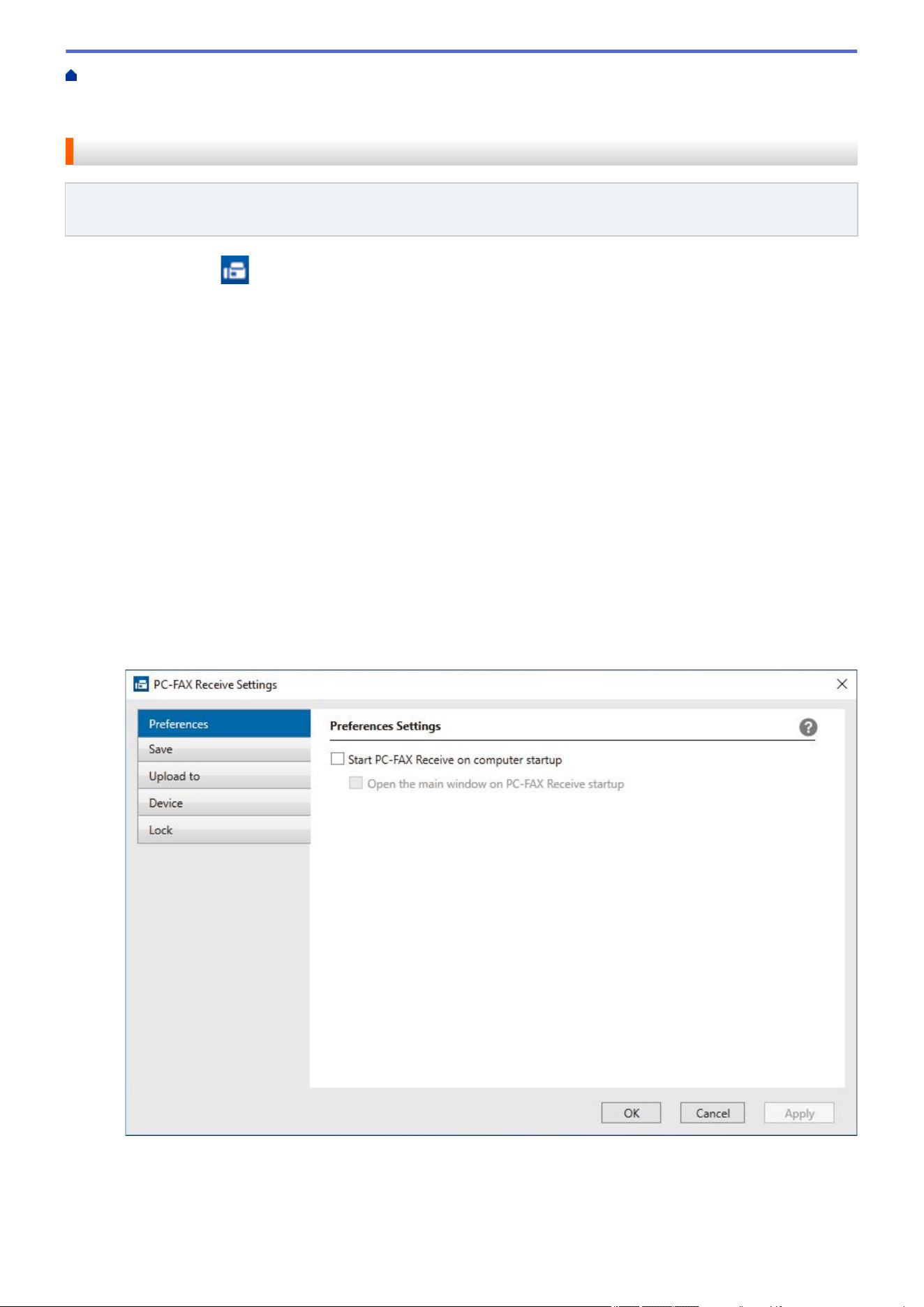
Home > Fax > PC-FAX > PC-FAX for Windows > Receive Faxes on Your Computer (Windows) > Receive
Faxes Using PC-FAX Receive (Windows) > Run the Brother PC-FAX Receive on Your Computer
(Windows) > Set Up PC-FAX Receive on Your Computer (Windows)
Set Up PC-FAX Receive on Your Computer (Windows)
Related Models: MFC-L2760DW/MFC-L2807DW/MFC-L2820DW/MFC-L2820DWXL/MFC-L2900DW/
MFC-L2900DWXL/MFC-L2980DW
1. Double-click the (PC-Fax Receive (Ready)) icon in your computer task tray.
The PC-FAX Receive window appears.
2. Click Settings.
3. Configure these options as needed:
Preferences
Configure to start PC-FAX Receive automatically when you start Windows.
Save
Configure the path to save PC-FAX files and select the received document format.
Upload to
Configure the path to the server and select the option to upload automatically or manually (available only
for administrators).
Device
Select the machine where you want to receive PC-FAX files.
Lock (available only for administrators)
Restrict users who do not have administrator privileges from configuring the settings options shown above.
4. Click OK.
271

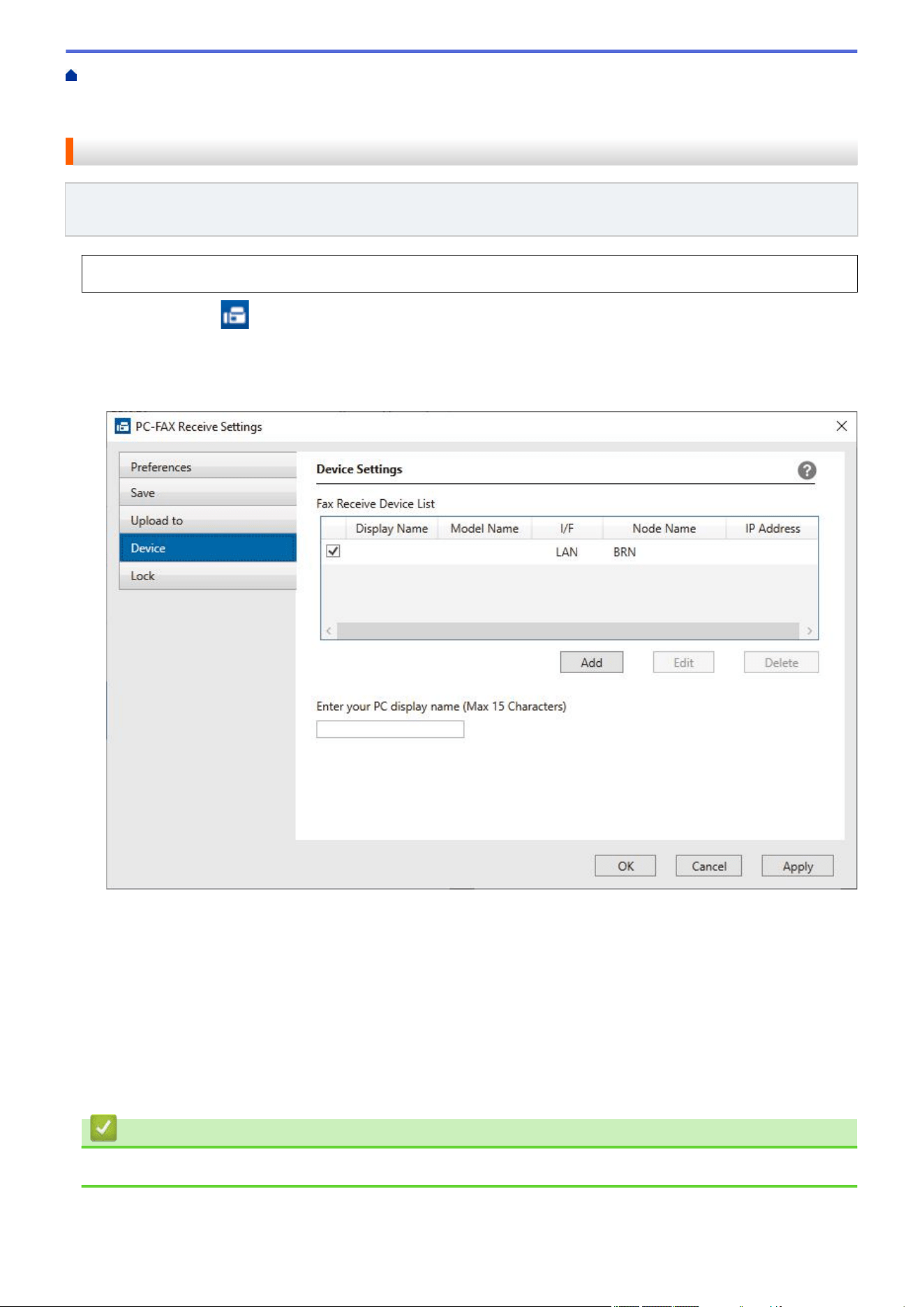
Home > Fax > PC-FAX > PC-FAX for Windows > Receive Faxes on Your Computer (Windows) > Receive
Faxes Using PC-FAX Receive (Windows) > Run the Brother PC-FAX Receive on Your Computer
(Windows) > Add Your Machine to PC-FAX Receive Devices (Windows)
Add Your Machine to PC-FAX Receive Devices (Windows)
Related Models: MFC-L2760DW/MFC-L2807DW/MFC-L2820DW/MFC-L2820DWXL/MFC-L2900DW/
MFC-L2900DWXL/MFC-L2980DW
If you installed your machine following the on-screen instructions, the machine should be ready for use.
1. Double-click the (PC-Fax Receive (Ready)) icon in your computer task tray.
The PC-FAX Receive window appears.
2. Click Settings.
3. Click Device > Add.
4. Select the correct connection method.
Select your machine from the automatic search results below.
A list of connected machines appears. Select the machine you want. Click OK.
Specify your machine by IP address
Type the machine's IP address in the IP Address field, and then click OK.
5. To change the computer name that will appear on the machine's LCD, type the new name in the Enter your
PC display name (Max 15 Characters) field.
6. Click OK.
Related Information
• Run the Brother PC-FAX Receive on Your Computer (Windows)
273
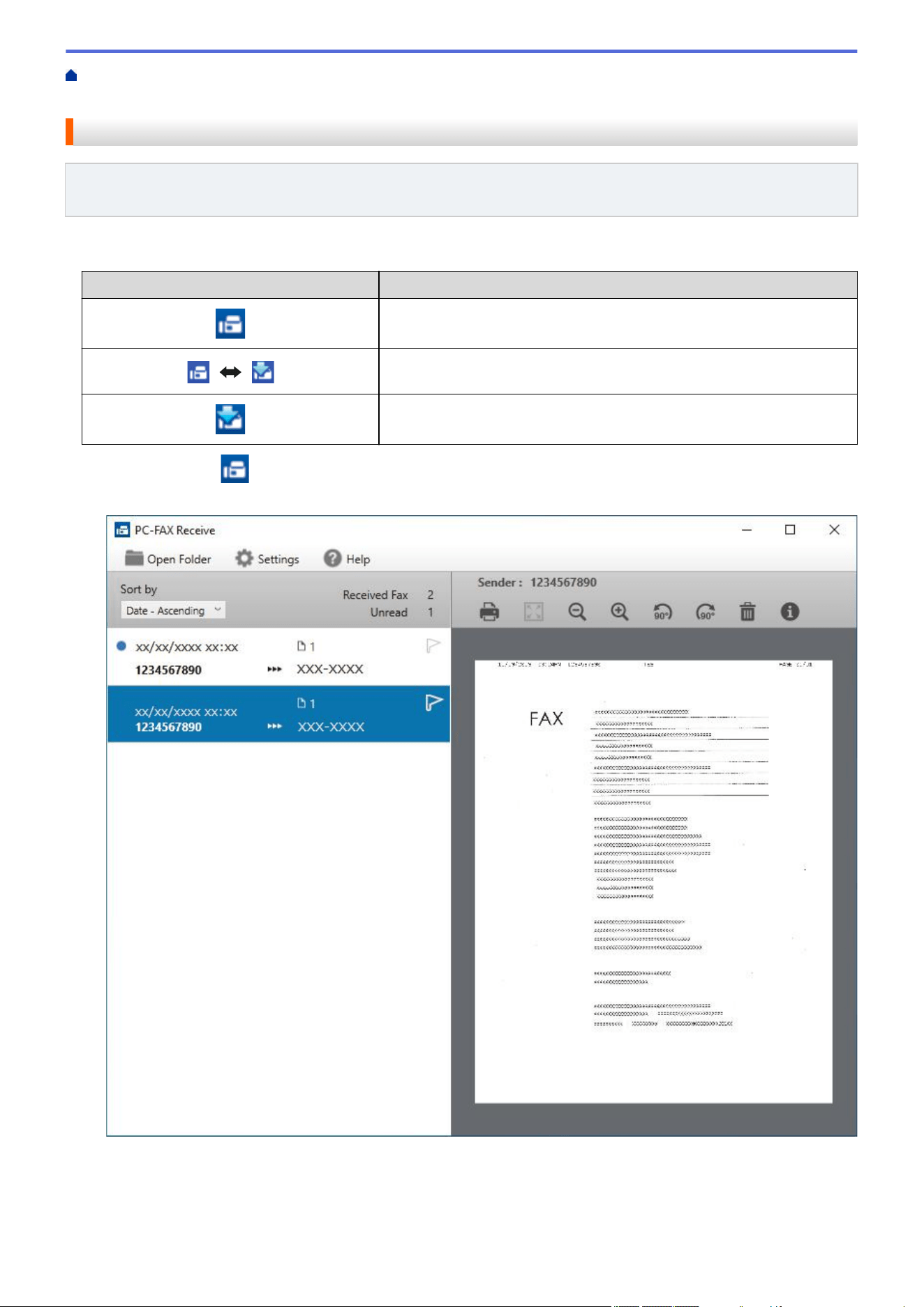
Home > Fax > PC-FAX > PC-FAX for Windows > Receive Faxes on Your Computer (Windows) > Receive
Faxes Using PC-FAX Receive (Windows) > View Received PC-FAX Messages (Windows)
View Received PC-FAX Messages (Windows)
Related Models: MFC-L2760DW/MFC-L2807DW/MFC-L2820DW/MFC-L2820DWXL/MFC-L2900DW/
MFC-L2900DWXL/MFC-L2980DW
Receiving Status
Icon
Status
Standby mode
No unread messages
Receiving messages
Messages received
Unread messages
1. Double-click the (PC-Fax Receive (Ready)) icon in your computer task tray.
The PC-FAX Receive window appears.
2. Click any faxes in the list to view them.
3. When finished, close the window.
274



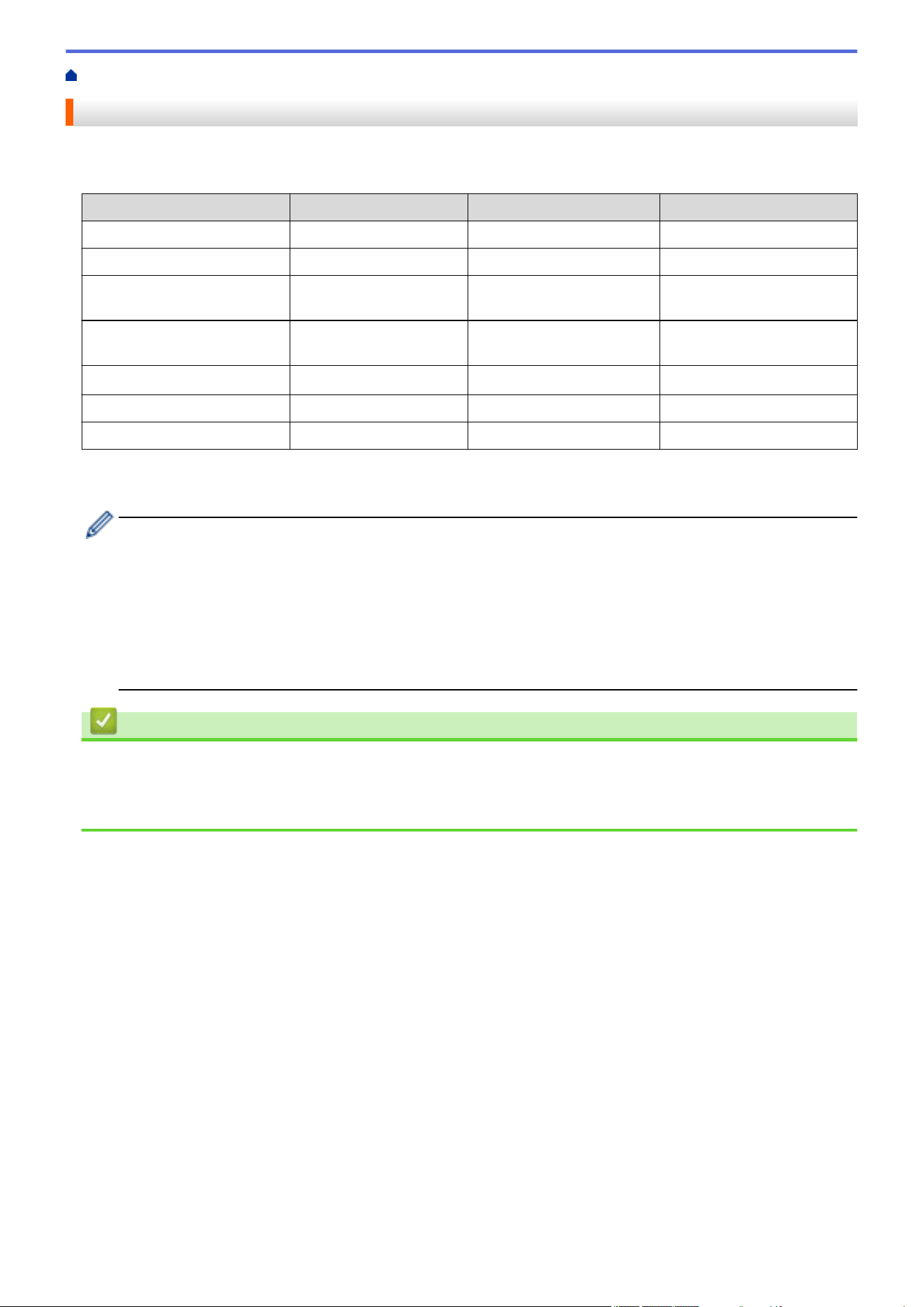
Home > Network > Supported Basic Network Features
Supported Basic Network Features
The machine supports various features depending on the operating system. Use this table to see which network
features and connections are supported by each operating system.
Operating Systems Windows Windows Server macOS
Printing Yes Yes Yes
Scanning Yes Yes
PC Fax Send (available for
certain models)
Yes Yes
PC Fax Receive (available for
certain models)
Yes
Web Based Management
1
Yes Yes Yes
Status Monitor Yes
Driver Deployment Wizard Yes Yes
1
The default password to manage your machine’s settings is located on the back of the machine and marked "Pwd". We recommend
immediately changing the default password to protect your machine from unauthorized access.
• When connecting your machine to an outside network such as the Internet, make sure your network
environment is protected by a separate firewall or other means in order to prevent information leaks due
to inadequate settings or unauthorized access by malicious third parties.
• When your machine is connected to the global network, a warning appears. When you see this warning,
we strongly recommend confirming your network settings, and then re-connecting to a secure network.
• Enabling your machine's global network communication filtering feature blocks access from the global
network. The global network communication filtering feature may prevent the machine from receiving
certain print or scan jobs from a computer or mobile device that uses a global IP address.
Related Information
• Network
Related Topics:
• Change the Login Password Using Web Based Management
278

Home > Network > Configure Network Settings > Configure Network Details Using the Control Panel
Configure Network Details Using the Control Panel
To configure the machine for your network, use the control panel's [Network] menu selections.
• For information about the network settings you can configure using the control panel, see Related
Information: Settings Tables.
• You can also use Web Based Management, to configure and change your machine's network settings.
>> HL-L2465DW/DCP-L2640DW/DCP-L2647DW/MFC-L2760DW
>> HL-L2480DW/MFC-L2807DW/MFC-L2820DW/MFC-L2820DWXL/MFC-L2900DW/MFC-L2900DWXL/
MFC-L2980DW
HL-L2465DW/DCP-L2640DW/DCP-L2647DW/MFC-L2760DW
1. Press Menu.
2. Press a or b to select the [Network] option, and then press OK.
3. Press a or b to select the network option you want, and then press OK. Repeat this step until you access the
menu you want to configure, and then follow the LCD instructions.
HL-L2480DW/MFC-L2807DW/MFC-L2820DW/MFC-L2820DWXL/MFC-L2900DW/
MFC-L2900DWXL/MFC-L2980DW
1. Press
[Settings] > [All Settings] > [Network].
2. Press a or b to display the network option you want, and then press it. Repeat this step until you access the
menu you want to configure, and then follow the LCD instructions.
Related Information
• Configure Network Settings
Related Topics:
• Settings Tables (2 Line LCD MFC models)
• Settings Tables (2 Line LCD DCP models)
• Settings Tables (2.7" Touch Panel MFC models and 3.5" Touch Panel MFC models)
• Settings Tables (2.7" Touch Panel DCP models)
• Supported Basic Network Features
280


Home > Network > Wireless Network Settings > Use the Wireless Network
Use the Wireless Network
• Before Configuring Your Machine for a Wireless Network
• Configure Your Machine for a Wireless Network Using the Setup Wizard from Your
Computer
• Configure Your Machine for a Wireless Network Using the Machine's Control Panel
Setup Wizard
• Configure Your Machine for a Wireless Network Using the One Push Method of Wi-Fi
Protected Setup
™
(WPS)
• Configure Your Machine for a Wireless Network Using the PIN Method of Wi-Fi Protected
Setup
™
(WPS)
• Configure Your Machine for a Wireless Network When the SSID Is Not Broadcast
• Configure Your Machine for an Enterprise Wireless Network
282
Home > Network > Wireless Network Settings > Use the Wireless Network > Before Configuring Your
Machine for a Wireless Network
Before Configuring Your Machine for a Wireless Network
Before attempting to configure a wireless network, confirm the following:
• If you are using an enterprise wireless network, you must know the User ID and Password.
• To achieve optimum results with normal everyday document printing, place your machine as close to the
wireless LAN access point/router as possible with minimal obstructions. Large objects and walls between the
two devices and interference from other electronic devices can affect the data transfer speed of your
documents.
Due to these factors, wireless may not be the best method of connection for all types of documents and
applications. If you are printing large files, such as multi-page documents with mixed text and large graphics,
you may want to consider selecting wired Ethernet for faster data transfer (supported models only), or USB
for the fastest throughput speed.
• Although your machine can be used in a wired and wireless network (supported models only), only one
connection method can be used at a time. However, a wireless network connection and Wi-Fi Direct
connection, or a wired network connection (supported models only) and Wi-Fi Direct connection can be used
at the same time.
• If there is a signal in the vicinity, wireless LAN allows you to freely make a LAN connection. However, if
security settings are not correctly configured, the signal may be intercepted by malicious third-parties,
possibly resulting in:
- Theft of personal or confidential information
- Improper transmission of information to parties impersonating the specified individuals
- Dissemination of transcribed communication contents that were intercepted
Make sure you know your wireless router/access point's Network Name (SSID) and Network Key
(Password). If you cannot find this information, consult the manufacturer of your wireless router/access
point, your system administrator, or Internet provider. Brother cannot provide this information.
Related Information
• Use the Wireless Network
283
Home > Network > Wireless Network Settings > Use the Wireless Network > Configure Your Machine for a
Wireless Network Using the Setup Wizard from Your Computer
Configure Your Machine for a Wireless Network Using the Setup Wizard
from Your Computer
1. Download the installer from your model's Downloads page at support.brother.com/downloads.
2. Start the installer, and then follow the on-screen instructions.
3. Select Wireless Network Connection (Wi-Fi), and then click Next.
4. Follow the on-screen instructions.
You have completed the wireless network setup.
Related Information
• Use the Wireless Network
284
Home > Network > Wireless Network Settings > Use the Wireless Network > Configure Your Machine for a
Wireless Network Using the Machine's Control Panel Setup Wizard
Configure Your Machine for a Wireless Network Using the Machine's
Control Panel Setup Wizard
>> HL-L2465DW/DCP-L2640DW/DCP-L2647DW/MFC-L2760DW
>> HL-L2480DW/MFC-L2807DW/MFC-L2820DW/MFC-L2820DWXL/MFC-L2900DW/MFC-L2900DWXL/
MFC-L2980DW
HL-L2465DW/DCP-L2640DW/DCP-L2647DW/MFC-L2760DW
Before configuring your machine, we recommend writing down your wireless network settings. You will need
this information before you continue with the configuration.
1. Check and record the current wireless network settings of the computer to which you are connecting.
Network Name (SSID)
Network Key
For example:
Network Name (SSID)
HELLO
Network Key
12345
• Your access point/router may support the use of multiple WEP keys, but your Brother machine supports
the use of only the first WEP key.
• If you need assistance during setup and want to contact Brother Customer Service, make sure you
have your SSID (Network Name) and Network Key (Password) ready. We cannot assist you in locating
this information.
• If you do not know this information (SSID and Network Key), you cannot continue the wireless setup.
How can I find this information?
- Check the documentation provided with your wireless access point/router.
- The initial SSID could be the manufacturer's name or the model name.
- If you do not know the security information, consult the router manufacturer, your system
administrator, or your Internet provider.
2. Press Menu.
3. Press a or b to select the [Network] option, and then press OK.
4. Press a or b to select the [WLAN(Wi-Fi)] option, and then press OK.
5. Press a or b to select the [Find Network] option, and then press OK.
6. When [WLAN Enable?] appears, select On.
This will start the wireless setup wizard.
7. The machine will search for your network and display a list of available SSIDs. When a list of SSIDs appears,
press a or b to select the SSID you want.
8. Press OK.
9. Do one of the following:
285
• If you are using an authentication and encryption method that requires a Network Key, enter the Network
Key you wrote down in the first step.
When you have entered all the characters, press OK.
To apply the settings, select [Yes].
• If your authentication method is Open System and your encryption mode is None, go to the next step.
10. The machine attempts to connect to the wireless device you have selected.
If your wireless device is connected successfully, the machine's LCD displays [Connected].
You have completed the wireless network setup. To install the drivers and software necessary to use your
machine, go to your model's Downloads page at support.brother.com/downloads.
HL-L2480DW/MFC-L2807DW/MFC-L2820DW/MFC-L2820DWXL/MFC-L2900DW/
MFC-L2900DWXL/MFC-L2980DW
Before configuring your machine, we recommend writing down your wireless network settings. You will need
this information before you continue with the configuration.
1. Check and record the current wireless network settings of the computer to which you are connecting.
Network Name (SSID)
Network Key
For example:
Network Name (SSID)
HELLO
Network Key
12345
• Your access point/router may support the use of multiple WEP keys, but your Brother machine supports
the use of only the first WEP key.
• If you need assistance during setup and want to contact Brother Customer Service, make sure you
have your SSID (Network Name) and Network Key (Password) ready. We cannot assist you in locating
this information.
• If you do not know this information (SSID and Network Key), you cannot continue the wireless setup.
How can I find this information?
- Check the documentation provided with your wireless access point/router.
- The initial SSID could be the manufacturer's name or the model name.
- If you do not know the security information, consult the router manufacturer, your system
administrator, or your Internet provider.
2. Press [Settings] > [All Settings] > [Network] > [WLAN(Wi-Fi)] > [Find Wi-Fi
Network].
3. When [Switch Network interface to wireless?] appears, press [Yes].
This will start the wireless setup wizard. To cancel, press [No].
4. The machine will search for your network and display a list of available SSIDs.
If a list of SSIDs is displayed, press a or b to display the SSID to which you want to connect, and then press
the SSID.
286

5. Press [OK].
6. Do one of the following:
• If you are using an authentication and encryption method that requires a Network Key, enter the Network
Key you wrote down in the first step.
When you have entered all the characters, press [OK].
• If your authentication method is Open System and your encryption mode is None, go to the next step.
7. The machine attempts to connect to the wireless device you have selected.
If your wireless device is connected successfully, the machine's LCD displays [Connected].
You have completed the wireless network setup. To install the drivers and software necessary to use your
machine, go to your model's Downloads page at
support.brother.com/downloads.
Related Information
• Use the Wireless Network
Related Topics:
• How to Enter Text on Your Machine
• Wireless LAN Report Error Codes
287
Home > Network > Wireless Network Settings > Use the Wireless Network > Configure Your Machine for a
Wireless Network Using the One Push Method of Wi-Fi Protected Setup
™
(WPS)
Configure Your Machine for a Wireless Network Using the One Push
Method of Wi-Fi Protected Setup
™
(WPS)
If your wireless access point/router supports WPS (PBC: Push Button Configuration), you can use WPS from
your machine's control panel menu to configure your wireless network settings.
>> HL-L2465DW/DCP-L2640DW/DCP-L2647DW/MFC-L2760DW
>> HL-L2480DW/MFC-L2807DW/MFC-L2820DW/MFC-L2820DWXL/MFC-L2900DW/MFC-L2900DWXL/
MFC-L2980DW
HL-L2465DW/DCP-L2640DW/DCP-L2647DW/MFC-L2760DW
1. Press Menu.
2. Press a or b to select the [Network] option, and then press OK.
3. Press a or b to select the [WLAN(Wi-Fi)] option, and then press OK.
4. Press a or b to select the [WPS/PushButton] option, and then press OK.
5. When [WLAN Enable?] appears, select On.
This will start the wireless setup wizard.
6. When the LCD displays [Press Key on rtr], press the WPS button on your wireless access point/router.
Then follow the LCD instructions on your machine. Your machine will automatically detect your wireless
access point/router and try to connect to your wireless network.
If your wireless device is connected successfully, the machine's LCD displays [Connected].
You have completed the wireless network setup. To install the drivers and software necessary to use your
machine, go to your model's Downloads page at support.brother.com/downloads.
HL-L2480DW/MFC-L2807DW/MFC-L2820DW/MFC-L2820DWXL/MFC-L2900DW/
MFC-L2900DWXL/MFC-L2980DW
1. Press [Settings] > [All Settings] > [Network] > [WLAN(Wi-Fi)] > [WPS/Push Button].
2. When [Switch Network interface to wireless?] appears, press [Yes].
This will start the wireless setup wizard. To cancel, press [No].
3. When the touchscreen displays [Start WPS on your wireless access point/router, then
press [OK].], press the WPS button on your wireless access point/router. Then press [OK] on your
machine. Your machine will automatically detect your wireless access point/router and try to connect to your
wireless network.
If your wireless device is connected successfully, the machine's LCD displays [Connected].
You have completed the wireless network setup. To install the drivers and software necessary to use your
machine, go to your model's Downloads page at support.brother.com/downloads.
Related Information
• Use the Wireless Network
Related Topics:
• Wireless LAN Report Error Codes
288
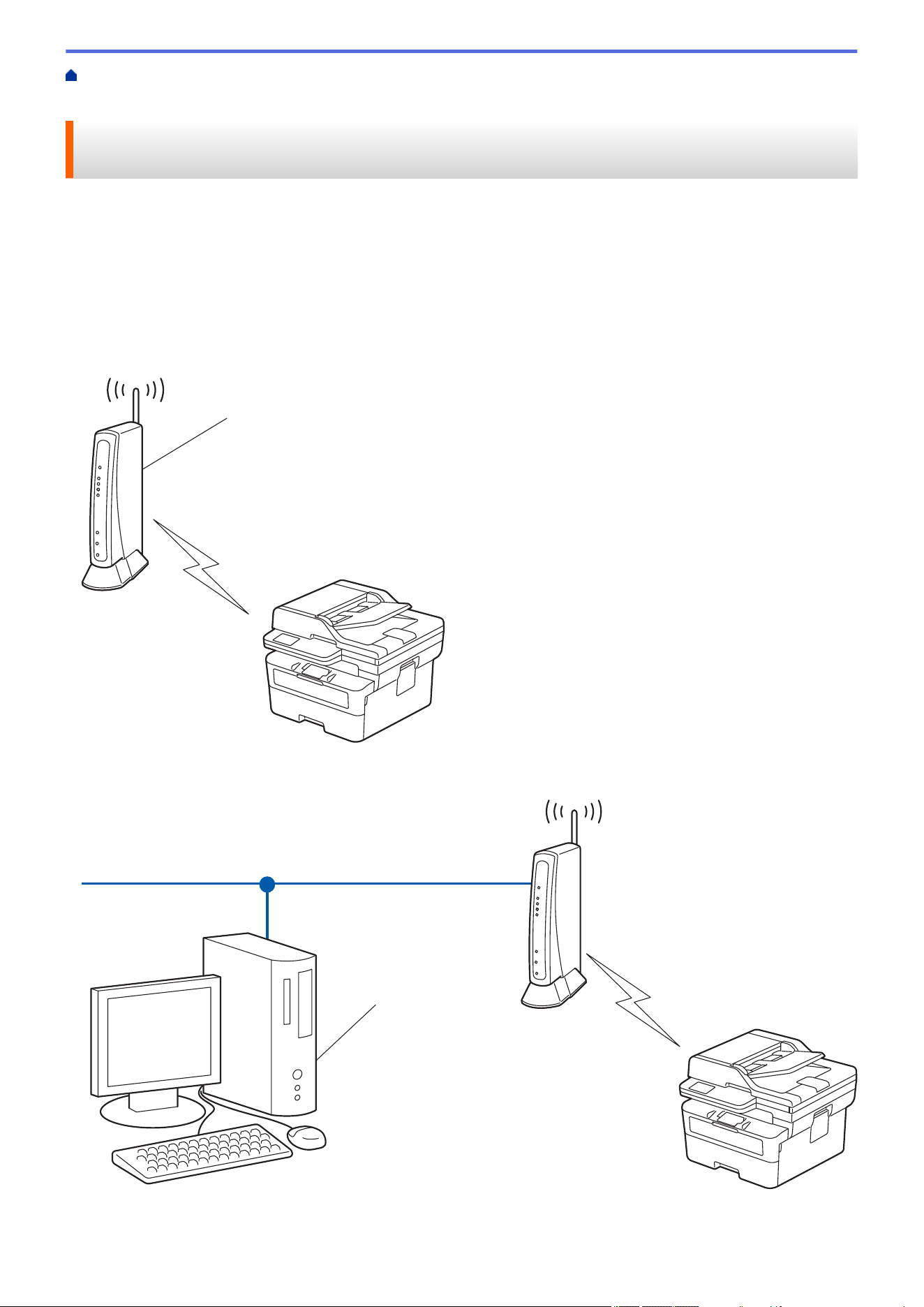
Home > Network > Wireless Network Settings > Use the Wireless Network > Configure Your Machine for a
Wireless Network Using the PIN Method of Wi-Fi Protected Setup
™
(WPS)
Configure Your Machine for a Wireless Network Using the PIN Method
of Wi-Fi Protected Setup
™
(WPS)
If your wireless LAN access point/router supports WPS, you can use the Personal Identification Number (PIN)
Method to configure your wireless network settings.
The PIN Method is one of the connection methods developed by the Wi-Fi Alliance
®
. By submitting a PIN
created by an Enrollee (your machine) to the Registrar (a device that manages the wireless LAN), you can set up
the wireless network and security settings. For more information on how to access WPS mode, see the
instructions provided with your wireless access point/router.
Type A
Connection when the wireless LAN access point/router (1) doubles as the Registrar:
1
Type B
Connection when another device (2), such as a computer, is used as the Registrar:
2
>> HL-L2465DW/DCP-L2640DW/DCP-L2647DW/MFC-L2760DW
289
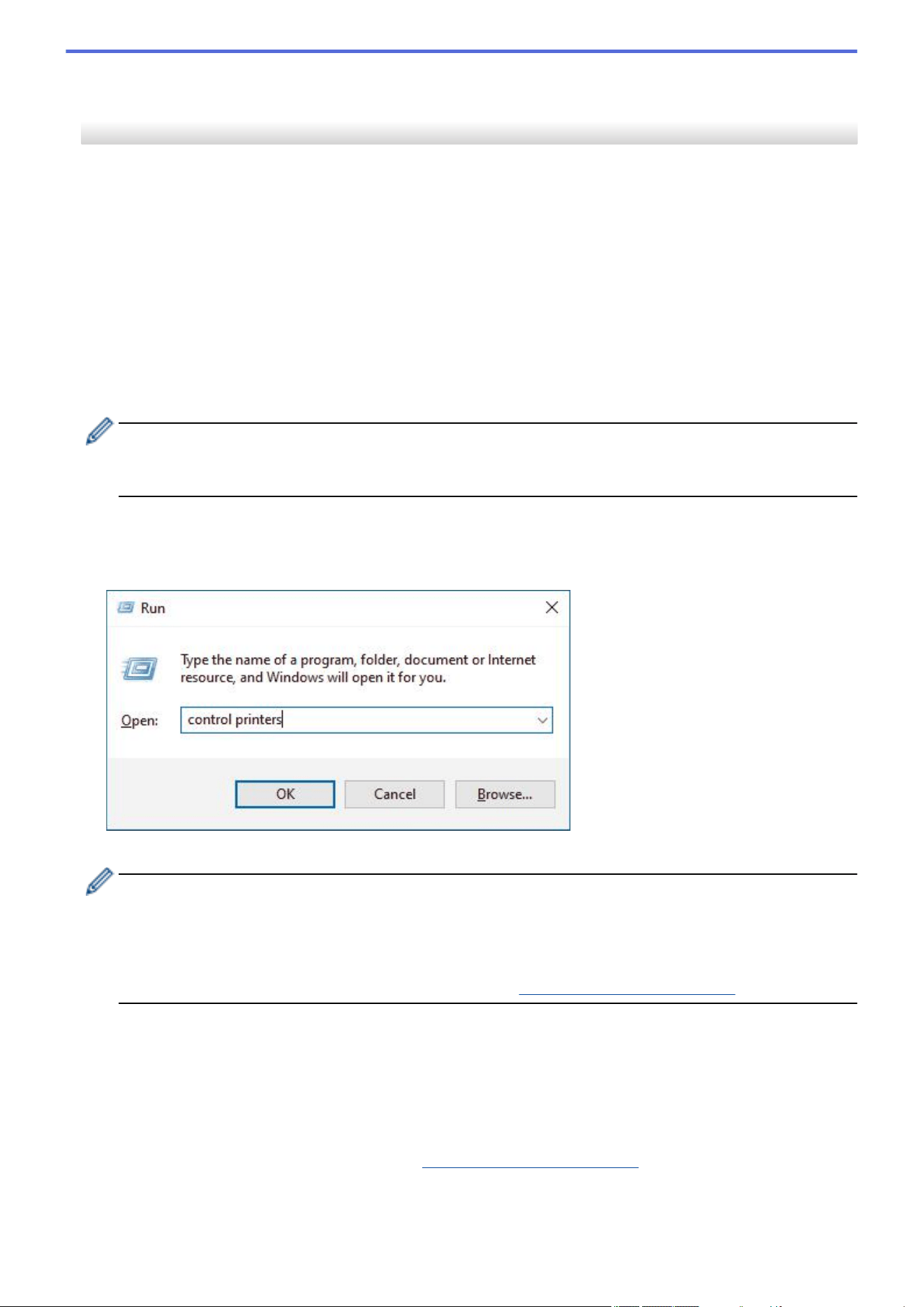
>> HL-L2480DW/MFC-L2807DW/MFC-L2820DW/MFC-L2820DWXL/MFC-L2900DW/MFC-L2900DWXL/
MFC-L2980DW
HL-L2465DW/DCP-L2640DW/DCP-L2647DW/MFC-L2760DW
1. Press Menu.
2. Press a or b to select the [Network] option, and then press OK.
3. Press a or b to select the [WLAN(Wi-Fi)] option, and then press OK.
4. Press a or b to select the [WPS/PIN Code] option, and then press OK.
5. When [WLAN Enable?] appears, select On.
This will start the wireless setup wizard.
6. The LCD displays an eight-digit PIN and the machine starts searching for a wireless LAN access point/router.
7. Using a computer connected to the network, in your browser's address bar, type the IP address of the device
you are using as the Registrar (for example: http://192.168.1.2).
8. Go to the WPS settings page and type the PIN, and then follow the on-screen instructions.
• The Registrar is usually the wireless LAN access point/router.
• The settings page may differ depending on the brand of wireless LAN access point/router. For more
information, see the instructions supplied with your wireless LAN access point/router.
If you are using a Windows 10 or Windows 11 computer as a Registrar, complete the following steps:
9. Hold down the key and press the key on the computer's keyboard to launch Run.
10. Type "control printers" in the Open: field and click OK.
11. Click Add a device.
• To use a Windows 10 or Windows 11 computer as a Registrar, you must register it to your network in
advance. For more information, see the instructions supplied with your wireless LAN access point/
router.
• If you use Windows 10 or Windows 11 as a Registrar, you can install the printer driver after the wireless
configuration by following the on-screen instructions. To install the driver and software necessary to use
your machine, go to your model's Downloads page at support.brother.com/downloads.
12. Select your machine and click Next.
13. Type the PIN displayed on the machine's LCD, and then click Next.
14. Click Close.
If your wireless device is connected successfully, the machine's LCD displays [Connected].
You have completed the wireless network setup. To install the drivers and software necessary to use your
machine, go to your model's Downloads page at
support.brother.com/downloads.
290
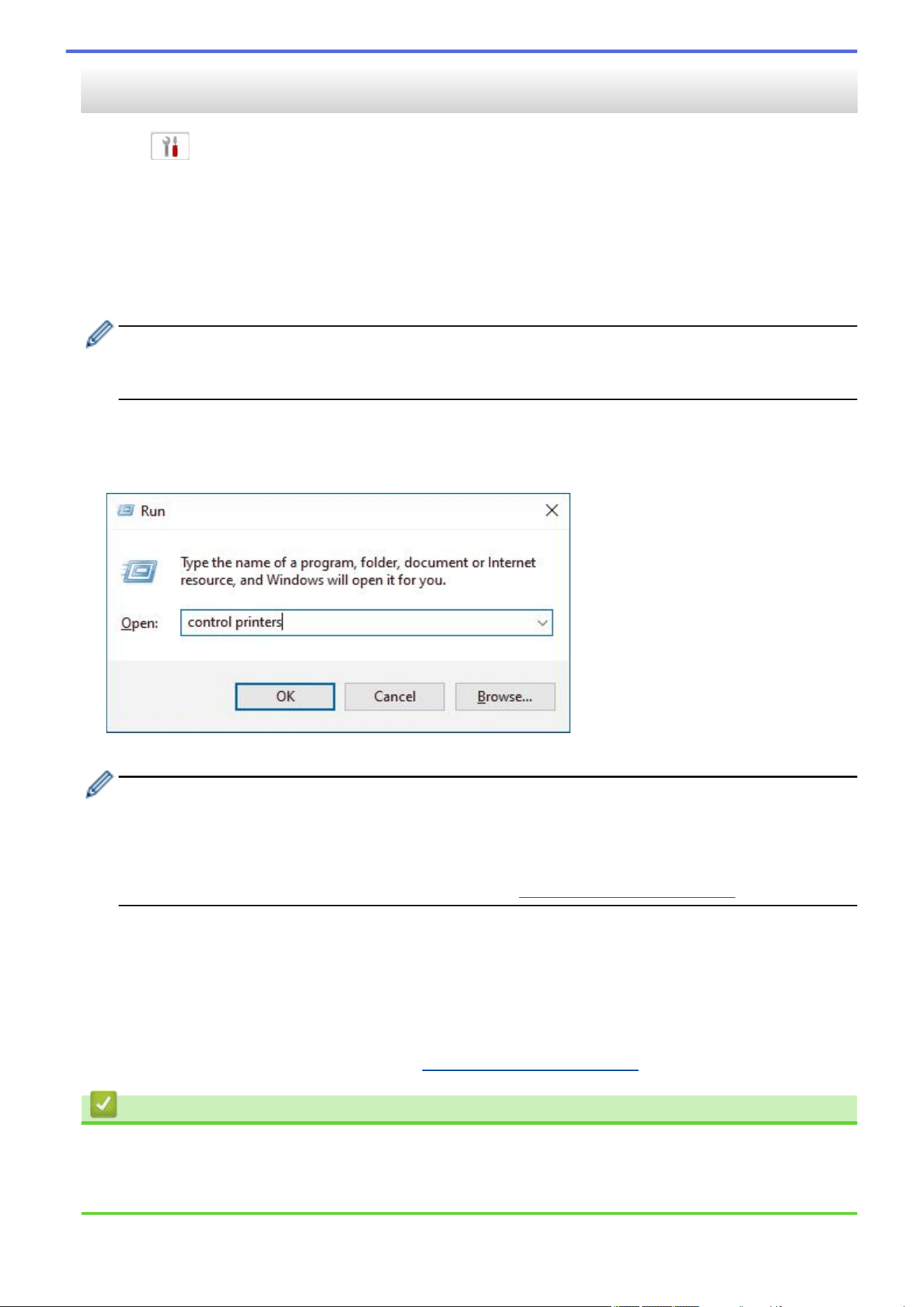
HL-L2480DW/MFC-L2807DW/MFC-L2820DW/MFC-L2820DWXL/MFC-L2900DW/
MFC-L2900DWXL/MFC-L2980DW
1. Press [Settings] > [All Settings] > [Network] > [WLAN(Wi-Fi)] > [WPS/PIN Code].
2. When [Switch Network interface to wireless?] appears, press [Yes].
This will start the wireless setup wizard. To cancel, press [No].
3. The LCD displays an eight-digit PIN and the machine starts searching for a wireless LAN access point/router.
4. Using a computer connected to the network, in your browser's address bar, type the IP address of the device
you are using as the Registrar (for example: http://192.168.1.2).
5. Go to the WPS settings page and type the PIN, and then follow the on-screen instructions.
• The Registrar is usually the wireless LAN access point/router.
• The settings page may differ depending on the brand of wireless LAN access point/router. For more
information, see the instructions supplied with your wireless LAN access point/router.
If you are using a Windows 10 or Windows 11 computer as a Registrar, complete the following steps:
6. Hold down the key and press the key on the computer's keyboard to launch Run.
7. Type "control printers" in the Open: field and click OK.
8. Click Add a device.
• To use a Windows 10 or Windows 11 computer as a Registrar, you must register it to your network in
advance. For more information, see the instructions supplied with your wireless LAN access point/
router.
• If you use Windows 10 or Windows 11 as a Registrar, you can install the printer driver after the wireless
configuration by following the on-screen instructions. To install the driver and software necessary to use
your machine, go to your model's Downloads page at support.brother.com/downloads.
9. Select your machine and click Next.
10. Type the PIN displayed on the machine's LCD, and then click Next.
11. Click Close.
If your wireless device is connected successfully, the machine's LCD displays [Connected].
You have completed the wireless network setup. To install the drivers and software necessary to use your
machine, go to your model's Downloads page at
support.brother.com/downloads.
Related Information
• Use the Wireless Network
Related Topics:
• Wireless LAN Report Error Codes
291
Home > Network > Wireless Network Settings > Use the Wireless Network > Configure Your Machine for a
Wireless Network When the SSID Is Not Broadcast
Configure Your Machine for a Wireless Network When the SSID Is Not
Broadcast
>> HL-L2465DW/DCP-L2640DW/DCP-L2647DW/MFC-L2760DW
>> HL-L2480DW/MFC-L2807DW/MFC-L2820DW/MFC-L2820DWXL/MFC-L2900DW/MFC-L2900DWXL/
MFC-L2980DW
HL-L2465DW/DCP-L2640DW/DCP-L2647DW/MFC-L2760DW
Before configuring your machine, we recommend writing down your wireless network settings. You will need
this information before you continue with the configuration.
1. Check and write down the current wireless network settings.
Network Name (SSID)
Authentication Method Encryption Mode Network Key
Open System NONE -
WEP
Shared Key WEP
WPA/WPA2-PSK AES
TKIP
WPA3-SAE AES
For example:
Network Name (SSID)
HELLO
Authentication Method Encryption Mode Network Key
WPA2-PSK AES 12345678
If your router uses WEP encryption, enter the key used as the first WEP key. Your Brother machine
supports the use of the first WEP key only.
2. Press Menu.
3. Press a or b to select the [Network] option, and then press OK.
4. Press a or b to select the [WLAN(Wi-Fi)] option, and then press OK.
5. Press a or b to select the [Find Network] option, and then press OK.
6. When [WLAN Enable?] appears, select On.
This will start the wireless setup wizard.
7. The machine will search for your network and display a list of available SSIDs. Press a or b to select the
[<New SSID>] option, and then press OK.
8. Enter the SSID name, and then press OK.
9. Press a or b to select the Authentication Method you want, and then press OK.
10. Do one of the following:
• If you selected the [Open System] option, press a or b to select the Encryption Type [None] or [WEP],
and then press OK.
292
If you selected the [WEP] option for Encryption Type, enter the WEP key, and then press OK.
• If you selected the [Shared Key] option, enter the WEP key, and then press OK.
• If you selected the [WPA-Personal] option, press a or b to select the Encryption Type [TKIP+AES] or
[AES], and then press OK.
Enter the WPA
™
key, and then press OK.
• If you selected the [WPA3-SAE] option, select the Encryption Type [AES], and then press OK.
Enter the WPA
™
key, and then press OK.
Your Brother machine supports the use of the first WEP key only.
11. To apply the settings, select [Yes]. To cancel, select [No].
12. The machine attempts to connect to the wireless device you have selected.
If your wireless device is connected successfully, the machine's LCD displays [Connected].
You have completed the wireless network setup. To install the drivers and software necessary to use your
machine, go to your model's Downloads page at
support.brother.com/downloads.
HL-L2480DW/MFC-L2807DW/MFC-L2820DW/MFC-L2820DWXL/MFC-L2900DW/
MFC-L2900DWXL/MFC-L2980DW
Before configuring your machine, we recommend writing down your wireless network settings. You will need
this information before you continue with the configuration.
1. Check and write down the current wireless network settings.
Network Name (SSID)
Authentication Method Encryption Mode Network Key
Open System NONE -
WEP
Shared Key WEP
WPA/WPA2-PSK AES
TKIP
WPA3-SAE AES
For example:
Network Name (SSID)
HELLO
Authentication Method Encryption Mode Network Key
WPA2-PSK AES 12345678
If your router uses WEP encryption, enter the key used as the first WEP key. Your Brother machine
supports the use of the first WEP key only.
2. Press [Settings] > [All Settings] > [Network] > [WLAN(Wi-Fi)] > [Find Wi-Fi
Network].
3. When [Switch Network interface to wireless?] appears, press [Yes].
This will start the wireless setup wizard. To cancel, press [No].
293
4. The machine will search for your network and display a list of available SSIDs. Press a or b to display [<New
SSID>]. Press [<New SSID>], and then press [OK].
5. Enter the SSID name, and then press [OK].
6. Select the Authentication Method.
7. Do one of the following:
• If you selected the [Open System] option, press [None] or [WEP].
If you selected the [WEP] option for Encryption type, enter the WEP key, and then press [OK].
• If you selected the [Shared Key] option, enter the WEP key, and then press [OK].
• If you selected the [WPA/WPA2-PSK/WPA3-SAE] option, press [TKIP+AES] or [AES].
Enter the WPA
™
key, and then press [OK].
• If you selected the [WPA3-SAE] option, press [AES].
Enter the WPA
™
key, and then press [OK].
Your Brother machine supports the use of the first WEP key only.
8. The machine attempts to connect to the wireless device you have selected.
If your wireless device is connected successfully, the machine's LCD displays [Connected].
You have completed the wireless network setup. To install the drivers and software necessary to use your
machine, go to your model's Downloads page at
support.brother.com/downloads.
Related Information
• Use the Wireless Network
Related Topics:
• I Cannot Complete the Wireless Network Setup Configuration
• How to Enter Text on Your Machine
• Wireless LAN Report Error Codes
294
Home > Network > Wireless Network Settings > Use the Wireless Network > Configure Your Machine for an
Enterprise Wireless Network
Configure Your Machine for an Enterprise Wireless Network
>> HL-L2465DW/DCP-L2640DW/DCP-L2647DW/MFC-L2760DW
>> HL-L2480DW/MFC-L2807DW/MFC-L2820DW/MFC-L2820DWXL/MFC-L2900DW/MFC-L2900DWXL/
MFC-L2980DW
HL-L2465DW/DCP-L2640DW/DCP-L2647DW/MFC-L2760DW
Before configuring your machine, we recommend writing down your wireless network settings. You will need
this information before you continue with the configuration.
1. Check and record the current wireless network settings.
Network Name (SSID)
Authentication Method Encryption Mode User ID Password
EAP-FAST/NONE AES
TKIP
EAP-FAST/MS-CHAPv2 AES
TKIP
EAP-FAST/GTC AES
TKIP
PEAP/MS-CHAPv2 AES
TKIP
PEAP/GTC AES
TKIP
EAP-TTLS/CHAP AES
TKIP
EAP-TTLS/MS-CHAP AES
TKIP
EAP-TTLS/MS-CHAPv2 AES
TKIP
EAP-TTLS/PAP AES
TKIP
EAP-TLS AES -
TKIP -
For example:
Network Name (SSID)
HELLO
Authentication Method Encryption Mode User ID Password
EAP-FAST/MS-CHAPv2 AES Brother 12345678
295

• If you configure your machine using EAP-TLS authentication, you must install the client certificate
issued by a CA before you start configuration. Contact your network administrator about the client
certificate. If you have installed more than one certificate, we recommend writing down the certificate
name you want to use.
• If you verify your machine using the common name of the server certificate, we recommend writing
down the common name before you start configuration. Contact your network administrator about the
common name of the server certificate.
2. Press Menu.
3. Press a or b to select the following:
a. Select [Network]. Press OK.
b. Select [WLAN(Wi-Fi)]. Press OK.
c. Select [Find Network]. Press OK.
4. When [WLAN Enable?] appears, select On.
This will start the wireless setup wizard.
5. The machine will search for your network and display a list of available SSIDs. Press a or b to select the
[<New SSID>] option, and then press OK.
6. Enter the SSID name, and then press OK.
7. Press a or b to select the Authentication Method you want, and then press OK.
8. Do one of the following:
• If you selected the [EAP-FAST], [PEAP] or [EAP-TTLS] option, press a or b to select the Inner
Authentication Method [NONE], [CHAP], [MS-CHAP], [MS-CHAPv2], [GTC] or [PAP], and then press
OK.
Depending on your Authentication Method, the Inner Authentication Method selections differ.
Press a or b to select the Encryption Type [TKIP+AES] or [AES], and then press OK.
Press a or b to select the Verification Method [No Verification], [CA] or [CA+Server ID], and
then press OK.
- If you selected the [CA+Server ID] option, enter the server ID, user ID and password (if required),
and then press OK for each option.
- For other selections, enter the user ID and the Password (if required), and then press OK for each
option.
If you have not imported a CA certificate into your machine, the machine will display the message [No
Verification].
• If you selected the [EAP-TLS] option, press a or b to select the Encryption Type [TKIP+AES] or [AES],
and then press OK.
When the machine displays a list of available Client Certificates, select the certificate you want, and then
press OK.
Press a or b to select the Verification Method [No Verification], [CA] or [CA+Server ID], and
then press OK.
- If you selected the [CA+Server ID] option, enter the server ID and user ID, and then press OK for
each option.
- For other selections, enter the user ID, and then press OK.
9. To apply the settings, select [Yes]. To cancel, select [No].
10. The machine will attempt to connect to the wireless device you have selected.
If your wireless device is connected successfully, the machine's LCD displays [Connected].
You have completed the wireless network setup. To install the drivers or the application necessary for operating
your machine, go to your model's Downloads page at
support.brother.com/downloads.
296
HL-L2480DW/MFC-L2807DW/MFC-L2820DW/MFC-L2820DWXL/MFC-L2900DW/
MFC-L2900DWXL/MFC-L2980DW
Before configuring your machine, we recommend writing down your wireless network settings. You will need
this information before you continue with the configuration.
1. Check and record the current wireless network settings.
Network Name (SSID)
Authentication Method Encryption Mode User ID Password
EAP-FAST/NONE AES
TKIP
EAP-FAST/MS-CHAPv2 AES
TKIP
EAP-FAST/GTC AES
TKIP
PEAP/MS-CHAPv2 AES
TKIP
PEAP/GTC AES
TKIP
EAP-TTLS/CHAP AES
TKIP
EAP-TTLS/MS-CHAP AES
TKIP
EAP-TTLS/MS-CHAPv2 AES
TKIP
EAP-TTLS/PAP AES
TKIP
EAP-TLS AES -
TKIP -
For example:
Network Name (SSID)
HELLO
Authentication Method Encryption Mode User ID Password
EAP-FAST/MS-CHAPv2 AES Brother 12345678
• If you configure your machine using EAP-TLS authentication, you must install the client certificate
issued by a CA before you start configuration. Contact your network administrator about the client
certificate. If you have installed more than one certificate, we recommend writing down the certificate
name you want to use.
• If you verify your machine using the common name of the server certificate, we recommend writing
down the common name before you start configuration. Contact your network administrator about the
common name of the server certificate.
297
2. Press [Settings] > [All Settings] > [Network] > [WLAN(Wi-Fi)] > [Find Wi-Fi
Network].
3. When [Switch Network interface to wireless?] appears, press [Yes].
This will start the wireless setup wizard. To cancel, press [No].
4. The machine will search for your network and display a list of available SSIDs. Press a or b to display [<New
SSID>]. Press [<New SSID>], and then press [OK].
5. Enter the SSID name, and then press [OK].
6. Select the Authentication Method.
7. Do one of the following:
• If you selected the [EAP-FAST], [PEAP] or [EAP-TTLS] option, select the Inner Authentication method
[None], [CHAP], [MS-CHAP], [MS-CHAPv2], [GTC] or [PAP].
Depending on your Authentication method, the Inner Authentication method selections may differ.
Select the encryption type [TKIP+AES] or [AES].
Select the verification method [No Verification], [CA] or [CA + Server ID].
- If you selected the [CA + Server ID] option, enter the server ID, user ID, and password (if
required), and then press [OK] for each option.
- For other selections, enter the user ID and Password (if required), and then press [OK] for each
option.
If you have not imported a CA certificate into your machine, the machine displays [No Verification].
• If you selected the [EAP-TLS] option, select the encryption type [TKIP+AES] or [AES].
The machine will display a list of available Client Certificates, and then select the certificate.
Select the verification method [No Verification], [CA] or [CA + Server ID].
- If you selected the [CA + Server ID] option, enter the server ID and user ID, and then press [OK]
for each option.
- For other selections, enter the user ID, and then press [OK].
8. The machine attempts to connect to the wireless device you have selected.
If your wireless device is connected successfully, the machine's LCD displays [Connected].
You have completed the wireless network setup. To install the drivers or the application necessary for operating
your machine, go to your model's Downloads page at
support.brother.com/downloads.
Related Information
• Use the Wireless Network
Related Topics:
• Wireless LAN Report Error Codes
298

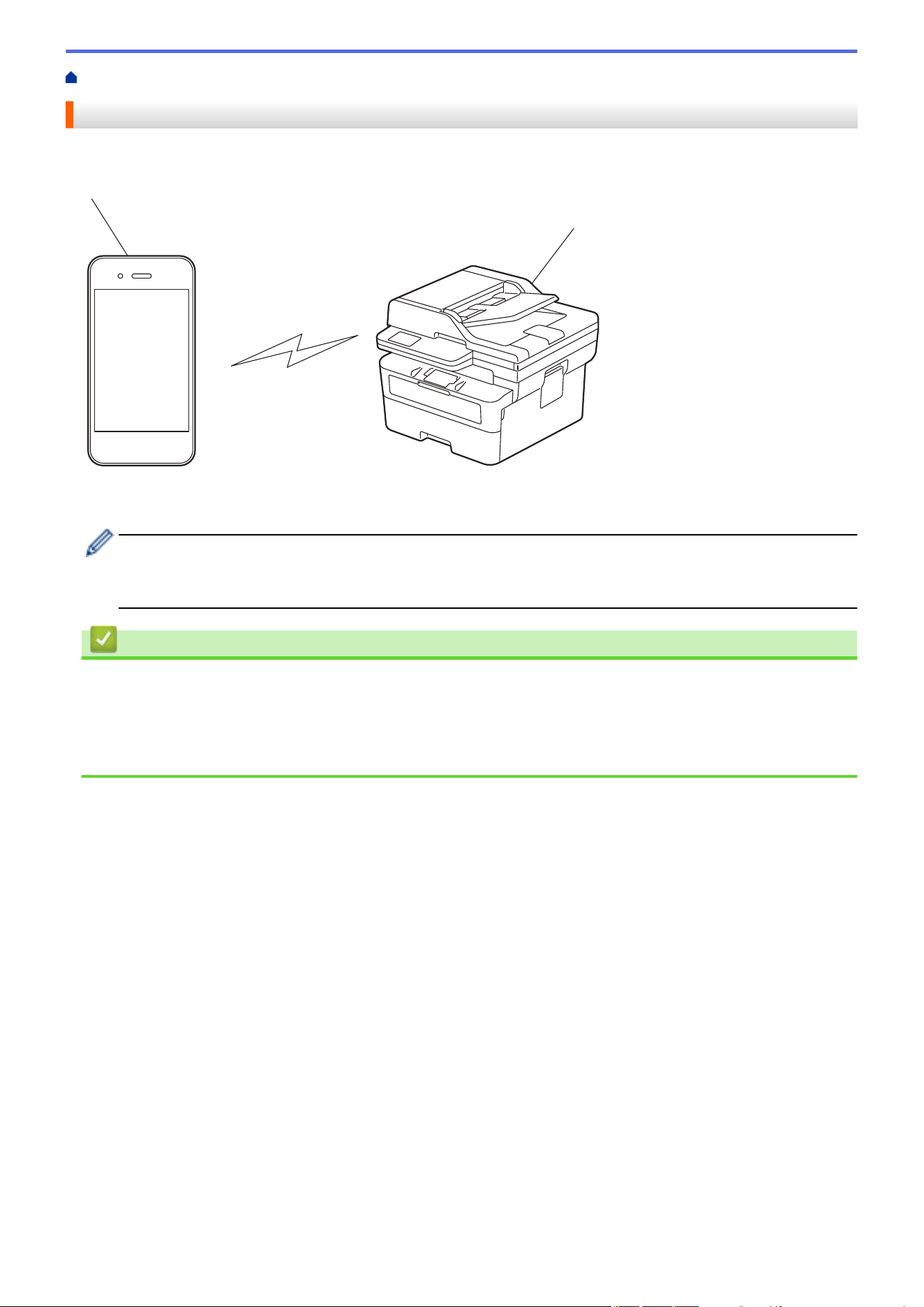
Home > Network > Wireless Network Settings > Use Wi-Fi Direct
®
> Wi-Fi Direct Overview
Wi-Fi Direct Overview
Wi-Fi Direct is one of the wireless configuration methods developed by the Wi-Fi Alliance
®
. It allows you to
securely connect your mobile device to your machine without using a wireless router/access point.
2
1
1. Mobile device
2. Your machine
• You can use Wi-Fi Direct with the wired or wireless network connection at the same time.
• The Wi-Fi Direct-supported device can become a Group Owner. When configuring the Wi-Fi Direct
network, the Group Owner serves as an access point.
Related Information
• Use Wi-Fi Direct
®
Related Topics:
• Configure Your Wi-Fi Direct Network Manually
• Configure Wi-Fi Direct Network Using the Push Button Method
300
Home > Network > Wireless Network Settings > Use Wi-Fi Direct
®
> Configure Your Wi-Fi Direct Network
Manually
Configure Your Wi-Fi Direct Network Manually
>> HL-L2465DW/DCP-L2640DW/DCP-L2647DW/MFC-L2760DW
>> HL-L2480DW/MFC-L2807DW/MFC-L2820DW/MFC-L2820DWXL/MFC-L2900DW/MFC-L2900DWXL/
MFC-L2980DW
HL-L2465DW/DCP-L2640DW/DCP-L2647DW/MFC-L2760DW
If your mobile device does not support Wi-Fi Direct or WPS, you must configure a Wi-Fi Direct network manually.
When the machine receives a Wi-Fi Direct request from your mobile device, the message [Connect?]
appears on the LCD. Select OK to connect.
1. Press Menu.
2. Press a or b to select the [Network] option, and then press OK.
3. Press a or b to select the [Wi-Fi Direct] option, and then press OK.
4. Press a or b to select the [Manual] option, and then press OK.
5. When [Wi-Fi Direct On?] appears, select On.
6. The machine will display the SSID name and Password. Go to your mobile device's wireless network settings
screen, select the SSID name, and then enter the password.
7. If your mobile device connects successfully, the machine's LCD displays [Connected]. You have completed
the Wi-Fi Direct network setup.
HL-L2480DW/MFC-L2807DW/MFC-L2820DW/MFC-L2820DWXL/MFC-L2900DW/
MFC-L2900DWXL/MFC-L2980DW
If your mobile device does not support Wi-Fi Direct or WPS, you must configure a Wi-Fi Direct network manually.
When the machine receives the Wi-Fi Direct request from your mobile device, the message [Wi-Fi
Direct connection request received.Press [OK] to connect.] will appear on the LCD.
Press [OK] to connect.
1. Press [Settings] > [All Settings] > [Network] > [Wi-Fi Direct] > [Manual].
2. The machine will display the SSID name and Password for two minutes. Go to your mobile device's wireless
network settings screen, select the SSID name, and then enter the password.
3. If your mobile device connects successfully, the machine's LCD displays [Connected]. You have completed
the Wi-Fi Direct network setup.
Related Information
• Use Wi-Fi Direct
®
Related Topics:
• Wi-Fi Direct Overview
• Configure Wi-Fi Direct Network Using the Push Button Method
301
Home > Network > Wireless Network Settings > Use Wi-Fi Direct
®
> Configure Wi-Fi Direct Network Using
the Push Button Method
Configure Wi-Fi Direct Network Using the Push Button Method
>> HL-L2465DW/DCP-L2640DW/DCP-L2647DW/MFC-L2760DW
>> HL-L2480DW/MFC-L2807DW/MFC-L2820DW/MFC-L2820DWXL/MFC-L2900DW/MFC-L2900DWXL/
MFC-L2980DW
HL-L2465DW/DCP-L2640DW/DCP-L2647DW/MFC-L2760DW
If your mobile device supports Wi-Fi Direct, follow these steps to configure a Wi-Fi Direct network:
1. Press Menu.
2. Press a or b to select the [Network] option, and then press OK.
3. Press a or b to select the [Wi-Fi Direct] option, and then press OK.
4. Press a or b to select the [Push Button] option, and then press OK.
5. When [Wi-Fi Direct On?] appears, select On.
6. Activate Wi-Fi Direct on your mobile device (see your mobile device's user's guide for instructions) when
[Activate Wi-Fi Direct on other device and press OK.] appears on the machine's LCD.
Press OK on your machine.
This will start the Wi-Fi Direct setup.
7. Do one of the following:
• If your mobile device displays a list of machines with Wi-Fi Direct enabled, select your Brother machine.
• If your Brother machine displays a list of mobile devices with Wi-Fi Direct enabled, select your mobile
device. Press a or b to select the mobile device you want to connect to and press OK. To search for
available devices again, select [<Rescan>], and then press OK.
8. If your mobile device connects successfully, the machine's LCD displays [Connected]. You have completed
the Wi-Fi Direct network setup.
HL-L2480DW/MFC-L2807DW/MFC-L2820DW/MFC-L2820DWXL/MFC-L2900DW/
MFC-L2900DWXL/MFC-L2980DW
If your mobile device supports Wi-Fi Direct, follow these steps to configure a Wi-Fi Direct network:
When the machine receives the Wi-Fi Direct request from your mobile device, the message [Wi-Fi
Direct connection request received.Press [OK] to connect.] will appear on the LCD.
Press [OK] to connect.
1. Press [Settings] > [All Settings] > [Network] > [Wi-Fi Direct] > [Push Button].
2. Activate Wi-Fi Direct on your mobile device (see your mobile device's user's guide for instructions) when
[Activate Wi-Fi Direct on other device. Then Press [OK].] appears on the machine's
LCD. Press [OK] on your machine.
This will start the Wi-Fi Direct setup. To cancel, press
.
3. Do one of the following:
• If your mobile device displays a list of machines with Wi-Fi Direct enabled, select your Brother machine.
• If your Brother machine displays a list of mobile devices with Wi-Fi Direct enabled, select your mobile
device. Select the mobile device you want to connect to. Search for available devices again by pressing
[Rescan].
4. If your mobile device connects successfully, the machine's LCD displays [Connected]. You have completed
the Wi-Fi Direct network setup.
302

Home > Network > Wireless Network Settings > Enable/Disable Wireless LAN
Enable/Disable Wireless LAN
>> HL-L2465DW/DCP-L2640DW/DCP-L2647DW/MFC-L2760DW
>> HL-L2480DW/MFC-L2807DW/MFC-L2820DW/MFC-L2820DWXL/MFC-L2900DW/MFC-L2900DWXL/
MFC-L2980DW
HL-L2465DW/DCP-L2640DW/DCP-L2647DW/MFC-L2760DW
1. Press Menu.
2. Press a or b to select the [Network] option, and then press OK.
3. Press a or b to select the [WLAN(Wi-Fi)] option, and then press OK.
4. Press a or b to select the [WLAN Enable] option, and then press OK.
5. Do one of the following:
• To enable Wi-Fi, select [On].
• To disable Wi-Fi, select [Off].
6. Press OK.
HL-L2480DW/MFC-L2807DW/MFC-L2820DW/MFC-L2820DWXL/MFC-L2900DW/
MFC-L2900DWXL/MFC-L2980DW
1. Press [Settings] > [All Settings] > [Network] > [WLAN(Wi-Fi)].
2. Press a or b to select the [WLAN Enable] option. Press [WLAN Enable].
3. Do one of the following:
• To enable Wi-Fi, select [On].
• To disable Wi-Fi, select [Off].
4. Press .
Related Information
• Wireless Network Settings
304
Home > Network > Wireless Network Settings > Print the WLAN Report
Print the WLAN Report
The WLAN Report shows your machine's wireless status. If the wireless connection fails, check the error code on
the printed report.
>> HL-L2465DW/DCP-L2640DW/DCP-L2647DW/MFC-L2760DW
>> HL-L2480DW/MFC-L2807DW/MFC-L2820DW/MFC-L2820DWXL/MFC-L2900DW/MFC-L2900DWXL/
MFC-L2980DW
HL-L2465DW/DCP-L2640DW/DCP-L2647DW/MFC-L2760DW
1. Press Menu.
2. Press a or b to display the [Print Reports] option, and then press OK.
3. Press a or b to select the [WLAN Report] option, and then press OK.
4. Press Start.
The machine will print the WLAN Report.
HL-L2480DW/MFC-L2807DW/MFC-L2820DW/MFC-L2820DWXL/MFC-L2900DW/
MFC-L2900DWXL/MFC-L2980DW
1. Press
[Settings] > [All Settings] > [Print Reports] > [WLAN Report].
2. Press [Yes].
The machine will print the WLAN Report.
If the WLAN Report does not print, check your machine for errors. If there are no visible errors, wait for one
minute and then try to print the report again.
Related Information
• Wireless Network Settings
• Wireless LAN Report Error Codes
Related Topics:
• My Machine Cannot Print, Scan, or Use the PC-FAX Receive Function over the Network
• I Want to Check that My Network Devices are Working Correctly
305
Home > Network > Wireless Network Settings > Print the WLAN Report > Wireless LAN Report Error
Codes
Wireless LAN Report Error Codes
If the Wireless LAN Report shows that the connection failed, check the error code on the printed report and see
the corresponding instructions in the table:
Error Code
Problem and Recommended Solutions
TS-01 The WLAN (Wi-Fi) is not enabled.
Check the following points and try to set up your wireless connection again:
• Enable the WLAN setting on your machine.
• If a network cable is connected to your machine, disconnect it.
TS-02 The wireless router/access point cannot be detected.
Check the following points and try to set up your wireless connection again:
• Make sure the wireless router/access point is on.
• Temporarily place your machine closer to the wireless router/access point when you are
configuring the wireless settings.
• If your wireless router/access point is using MAC address filtering, confirm that the MAC
address of the machine is allowed in the filter. You can find the MAC address by printing the
Network Configuration Report.
• If you manually entered the Network Name (SSID) and security information (authentication
method/encryption method), the information may be incorrect. Check the Network Name and
security information again and re-enter the correct information.
• Restart your wireless router/access point. If you cannot find the Network Name (SSID) and
security information, see the documentation provided with your wireless router/access point,
or contact the router manufacturer, your system administrator, or Internet service provider.
TS-03
The wireless enterprise network and security settings you entered may be incorrect.
Check the following points and try to set up your wireless connection again:
Verify the following information:
- Network Name (SSID) you selected to configure your machine.
- Security information you selected to configure your machine (such as the authentication
method, encryption method, or User ID).
If you still cannot find the Network Name (SSID) and security information, see the
documentation provided with your wireless router/access point, or contact the router
manufacturer, your system administrator, or Internet service provider.
TS-04
Your machine does not support the authentication and encryption methods used by the selected
wireless router/access point.
For infrastructure mode (Most common)
Change the authentication and encryption methods of the wireless router/access point. Your
machine supports the following authentication and encryption methods:
• WPA-Personal:
TKIP / AES
• WPA2-Personal:
TKIP / AES
• WPA3-Personal:
AES
• OPEN:
WEP / NONE (without encryption)
• Shared key:
WEP
If your issue is not solved, the Network Name (SSID) or security settings you entered may be
incorrect. Check that all wireless network settings are correct for your network.
306
Error Code Problem and Recommended Solutions
TS-05 The Network Name (SSID) and Network Key (Password) are incorrect.
Check the following points and try to set up your wireless connection again:
• Confirm the Network Name (SSID) and Network Key (Password).
• If your Network Key contains upper-case and lower-case letters, make sure you type them
correctly.
• If you cannot find the Network Name (SSID) and security information, see the documentation
provided with your wireless router/access point, or contact the router manufacturer, your
system administrator, or Internet service provider.
• If your wireless router/access point uses WEP encryption with multiple WEP keys, write
down and use only the first WEP key.
TS-06
The wireless security information (authentication method/encryption method/Network Key
(Password)) is incorrect.
Check the following points and try to set up your wireless connection again:
• Confirm the Network Key. If your Network Key contains upper-case and lower-case letters,
make sure you type them correctly.
• Confirm whether the authentication method entered and the authentication method or
encryption method supported by the wireless router/access point are the same.
• If the network key, authentication method, and encryption method have been confirmed,
restart your wireless router/access point and the machine.
• If your wireless router/access point's Stealth Mode is on, you may need to disable it to
connect to the wireless network.
If you cannot find the Network Name (SSID) and security information, see the documentation
provided with your wireless router/access point, or contact the router manufacturer, your system
administrator, or Internet service provider.
TS-07
The machine cannot detect a wireless router/access point that has WPS (Wi-Fi Protected Setup)
enabled.
Check the following points and try again:
• To check if your wireless router/access point supports WPS, look for the WPS symbol
displayed on the router/access point. For more information, see the documentation provided
with your wireless router/access point.
• To set up your wireless connection using WPS, you must configure both your machine and
the wireless router/access point. For more information, see the user's guide.
• If you do not know how to set up your wireless router/access point using WPS, see the
documentation provided with your wireless router/access point, or contact the router
manufacturer, your system administrator, or Internet service provider.
TS-08
Two or more wireless routers or access points that have WPS enabled are detected.
Check the following points and try again:
• Make sure that only one wireless router/access point within range has WPS enabled, and
then try to connect again.
• Try to connect again after a few minutes to avoid interference from other access points/
routers.
307
How to confirm wireless security information (SSID/authentication method/encryption method/Network Key)
of your WLAN access point/router:
1. The default security settings may be provided on a label attached to the WLAN access point/router. Or
the manufacturer's name or model number of the WLAN access point/router may be used as the default
security settings.
2. See the documentation provided with your WLAN access point/router for information on how to find the
security settings.
• If the WLAN access point/router is set to not broadcast the SSID, the SSID will not automatically be
detected. You will have to manually enter the SSID name.
• The Network Key may also be described as the Password, Security Key, or Encryption Key.
If you do not know the SSID and wireless security settings of your WLAN access point/router or how to
change the configuration, see the documentation provided with your WLAN access point/router, ask the
manufacturer of your access point/router or ask your Internet provider or network administrator.
Related Information
• Print the WLAN Report
Related Topics:
• My Machine Cannot Print, Scan, or Use the PC-FAX Receive Function over the Network
• I Want to Check that My Network Devices are Working Correctly
• Configure Your Machine for a Wireless Network Using the One Push Method of Wi-Fi Protected Setup
™
(WPS)
• Configure Your Machine for a Wireless Network Using the PIN Method of Wi-Fi Protected Setup
™
(WPS)
• Configure Your Machine for a Wireless Network Using the Machine's Control Panel Setup Wizard
• Configure Your Machine for a Wireless Network When the SSID Is Not Broadcast
• Configure Your Machine for an Enterprise Wireless Network
308

Home > Network > Network Features
Network Features
• Enable/Disable Web Based Management Using the Control Panel
• Configure the Proxy Server Settings Using Web Based Management
• Print the Network Configuration Report
• Configure PC-FAX Receiving Using Web Based Management
• Fax Using the Internet (I-Fax)
• Use the Send Fax to Server Feature
• Synchronize Time with the SNTP Server Using Web Based Management
• Forward Incoming Faxes to a Network Destination
• Reset the Network Settings to the Factory Settings
309
Home > Network > Network Features > Enable/Disable Web Based Management Using the Control Panel
Enable/Disable Web Based Management Using the Control Panel
>> HL-L2465DW/DCP-L2640DW/DCP-L2647DW/MFC-L2760DW
>> HL-L2480DW/MFC-L2807DW/MFC-L2820DW/MFC-L2820DWXL/MFC-L2900DW/MFC-L2900DWXL/
MFC-L2980DW
HL-L2465DW/DCP-L2640DW/DCP-L2647DW/MFC-L2760DW
1. Press Menu.
2. Press a or b to select the [Network] option, and then press OK.
3. Press a or b to select the [Web Based Mgmt] option, and then press OK.
4. Press a or b to select the option you want, and then press OK.
If you enable this function, make sure you specify the connection method to use Web Based Management.
HL-L2480DW/MFC-L2807DW/MFC-L2820DW/MFC-L2820DWXL/MFC-L2900DW/
MFC-L2900DWXL/MFC-L2980DW
1. Press [Settings] > [All Settings] > [Network] > [Web Based Mgmt].
2. Press to select the option you want.
If you enable this function, make sure you specify the connection method to use Web Based Management.
Related Information
• Network Features
Related Topics:
• Print an Email Attachment
310
Home > Network > Network Features > Configure the Proxy Server Settings Using Web Based
Management
Configure the Proxy Server Settings Using Web Based Management
Related Models: HL-L2480DW/MFC-L2807DW/MFC-L2820DW/MFC-L2820DWXL/MFC-L2900DW/
MFC-L2900DWXL/MFC-L2980DW
If your network uses a proxy server, the following proxy server information must be configured using Web
Based Management:
• Proxy server address
• Port number
• User Name
• Password
• We recommend using the latest version of the following web browsers:
- Microsoft Edge, Firefox, and Google Chrome
™
for Windows
- Safari, Firefox, and Google Chrome
™
for Mac
- Google Chrome
™
for Android
™
- Safari and Google Chrome
™
for iOS
• Ensure that JavaScript and Cookies are always enabled, regardless of which browser you use.
1. Start your web browser.
2. Type "https://machine's IP address" in your browser's address bar (where "machine's IP address" is your
machine's IP address).
For example:
https://192.168.1.2
3. If required, type the password in the Login field, and then click Login.
The default password to manage this machine’s settings is located on the back of the machine and marked
"Pwd". Change the default password by following the on-screen instructions when you first log in.
4. In the left navigation bar, click Network > Network > Protocol.
If the left navigation bar is not visible, start navigating from
.
5. Make sure the Proxy checkbox is selected, and then click Submit.
6. In the Proxy field, click Advanced Settings.
7. Enter the proxy server information.
8. Click Submit.
Related Information
• Network Features
Related Topics:
• Register Your Machine with Universal Print Using Web Based Management
• Configure the Proxy Server Settings Using the Machine's Control Panel
311
Home > Network > Network Features > Print the Network Configuration Report
Print the Network Configuration Report
The Network Configuration Report lists the network configuration, including the network print server settings.
• The Node Name appears on the Network Configuration Report. The default Node Name is
"BRN123456abcdef" for a wired network or "BRW123456abcdef" for a wireless network (where
"123456abcdef" is your machine's MAC Address / Ethernet Address.)
• If the IP Address on the Network Configuration Report shows 0.0.0.0, wait for one minute and try
printing it again.
• You can find your machine's settings, such as the IP address, subnet mask, node name, and MAC
Address on the report, for example:
- IP address: 192.168.0.5
- Subnet mask: 255.255.255.0
- Node name: BRN000ca0000499
- MAC Address: 00-0c-a0-00-04-99
>> HL-L2465DW/DCP-L2640DW/DCP-L2647DW/MFC-L2760DW
>> HL-L2480DW/MFC-L2807DW/MFC-L2820DW/MFC-L2820DWXL/MFC-L2900DW/MFC-L2900DWXL/
MFC-L2980DW
HL-L2465DW/DCP-L2640DW/DCP-L2647DW/MFC-L2760DW
1. Press Menu.
2. Press a or b to display the [Print Reports] option, and then press OK.
3. Press a or b to select the [Network Config] option, and then press OK.
4. Press Start.
HL-L2480DW/MFC-L2807DW/MFC-L2820DW/MFC-L2820DWXL/MFC-L2900DW/
MFC-L2900DWXL/MFC-L2980DW
1. Press [Settings] > [All Settings] > [Print Reports] > [Network Configuration].
2. Press [Yes].
The machine prints the Network Configuration Report.
Related Information
• Network Features
Related Topics:
• Check Your Machine's Network Settings
• Use the Network Connection Repair Tool (Windows)
• Error Messages
• I Want to Check that My Network Devices are Working Correctly
• Access Web Based Management
312
Home > Network > Network Features > Configure PC-FAX Receiving Using Web Based Management
Configure PC-FAX Receiving Using Web Based Management
Related Models: MFC-L2760DW/MFC-L2807DW/MFC-L2820DW/MFC-L2820DWXL/MFC-L2900DW/
MFC-L2900DWXL/MFC-L2980DW
Use Web Based Management to configure your PC Fax Receiving in a web browser.
1. Start your web browser.
2. Type "https://machine's IP address" in your browser's address bar (where "machine's IP address" is your
machine's IP address).
For example:
https://192.168.1.2
3. If required, type the password in the Login field, and then click Login.
The default password to manage this machine’s settings is located on the back of the machine and marked
"Pwd". Change the default password by following the on-screen instructions when you first log in.
4. In the left navigation bar, click Network > Network > Protocol.
If the left navigation bar is not visible, start navigating from .
5. Select the PC Fax Receive checkbox, and then click Submit.
6. Restart your Brother machine to activate the configuration.
Related Information
• Network Features
Related Topics:
• Run the Brother PC-FAX Receive on Your Computer (Windows)
313
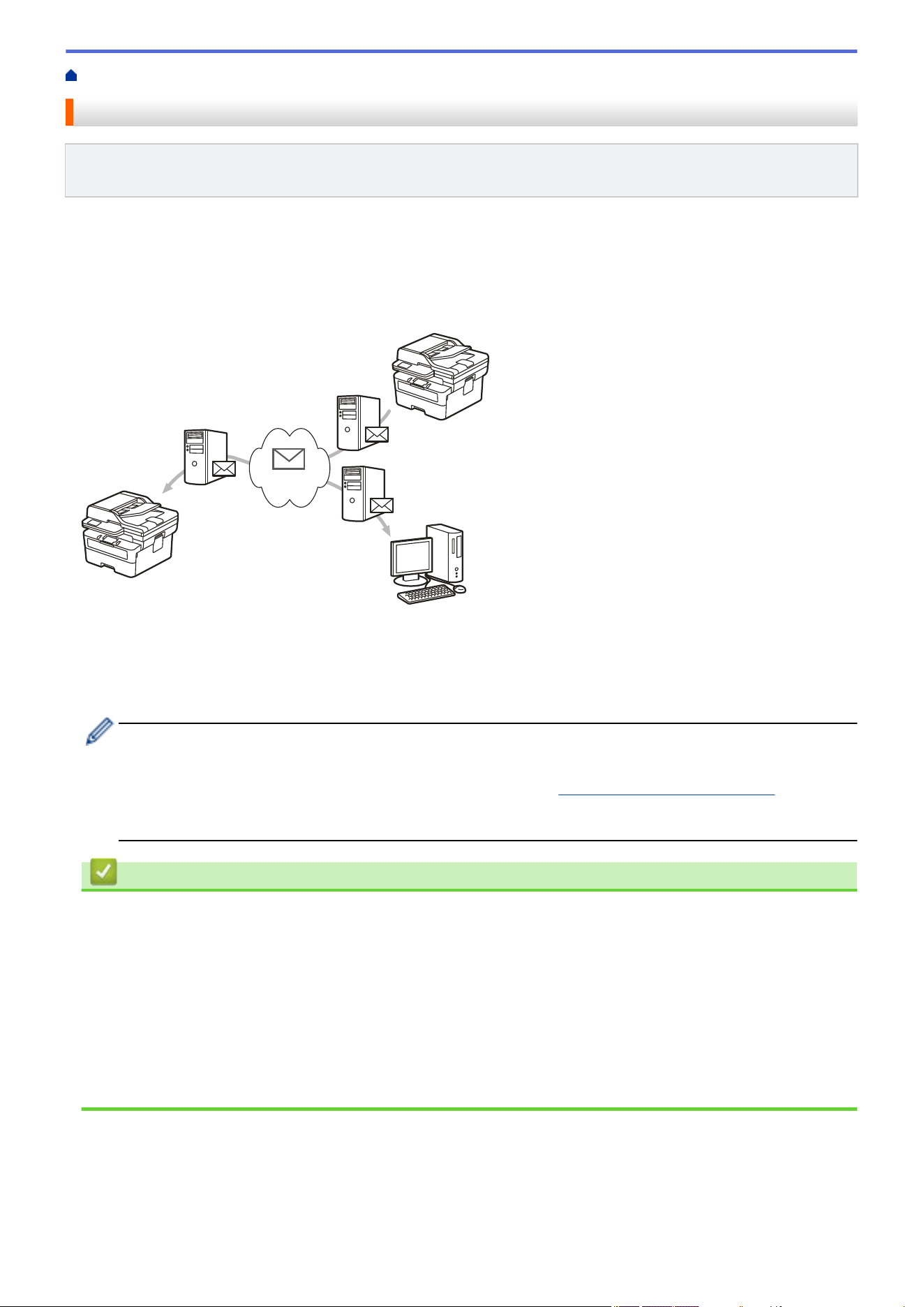
Home > Network > Network Features > Fax Using the Internet (I-Fax)
Fax Using the Internet (I-Fax)
Related Models: MFC-L2760DW/MFC-L2807DW/MFC-L2820DW/MFC-L2820DWXL/MFC-L2900DW/
MFC-L2900DWXL/MFC-L2980DW
With Internet Fax (I-Fax), you can send and receive fax documents using the Internet. Documents are
transmitted in email messages as attached TIFF-F files. Your computer can send and receive documents as long
as it has an application that can create and view TIFF-F files. You can use any TIFF-F viewer application.
Documents sent via the machine will be converted into a TIFF‑F format automatically. To send and receive
messages to and from your machine, your computer's email application must support Multipurpose Internet Mail
Extensions (MIME).
2
4
4
4
3
3
1
1. Sender
2. Internet
3. Receiver
4. Email server
• I-Fax supports sending and receiving documents in Letter or A4 format and in black and white only.
• (MFC-L2760DW/MFC-L2807DW/MFC-L2820DW/MFC-L2820DWXL)
To use this function, go to your model's Downloads page at support.brother.com/downloads to
download the Internet FAX Install Tool. The installation instructions are available on the Downloads
page. If the Internet Fax Install Tool is not available for your model, contact Brother Customer Service.
Related Information
• Network Features
• Important Information about Internet Fax (I-Fax)
• Configure the Brother Machine for Email or Internet Fax (I-Fax)
• Send an Internet Fax (I-Fax)
• Poll the Server Manually
• I-Fax Options
Related Topics:
• Forward Received Email and Fax Messages
314
Home > Network > Network Features > Fax Using the Internet (I-Fax) > Important Information about
Internet Fax (I-Fax)
Important Information about Internet Fax (I-Fax)
Related Models: MFC-L2760DW/MFC-L2807DW/MFC-L2820DW/MFC-L2820DWXL/MFC-L2900DW/
MFC-L2900DWXL/MFC-L2980DW
I-Fax communication on a LAN is very similar to communication via email; however, it is different from fax
communication using standard phone lines. Make sure you read the following information about using I-Fax:
• Factors such as the receiver's location, structure of the LAN and how busy the circuit (such as the Internet) is
may cause the system to take longer than usual to send an error mail.
• When sending confidential documents, we recommend using standard phone lines instead of the Internet
(due to its low level of security).
• If the receiver's mail system is not MIME-compatible, you cannot use I-Fax to send documents. If possible,
check this in advance, and note that some servers will not send an error reply.
• If a document is too large to send via I-Fax, it may not reach the receiver.
• You cannot change the font or size of the text in any Internet mail you receive.
Related Information
• Fax Using the Internet (I-Fax)
315
Home > Network > Network Features > Fax Using the Internet (I-Fax) > Configure the Brother Machine for
Email or Internet Fax (I-Fax)
Configure the Brother Machine for Email or Internet Fax (I-Fax)
Related Models: MFC-L2760DW/MFC-L2807DW/MFC-L2820DW/MFC-L2820DWXL/MFC-L2900DW/
MFC-L2900DWXL/MFC-L2980DW
Before using I-Fax, configure your Brother machine to communicate with your network and mail server. You can
configure these items using the machine's control panel or Web Based Management. Make sure the following
items are configured on your machine:
• IP address (If you are already using your machine on your network, the machine's IP address has been
configured correctly.)
• Email address
• SMTP, POP3, IMAP4 server address/port/Authentication method/Encryption method/Server Certificate
Verification
• Mailbox name and password
If you are unsure of any of these items, contact your system administrator.
Related Information
• Fax Using the Internet (I-Fax)
• Initial Setup for Email or Internet Fax (I-Fax)
• How Received I-Faxes Appear on a Computer
Related Topics:
• I-Fax Options
316
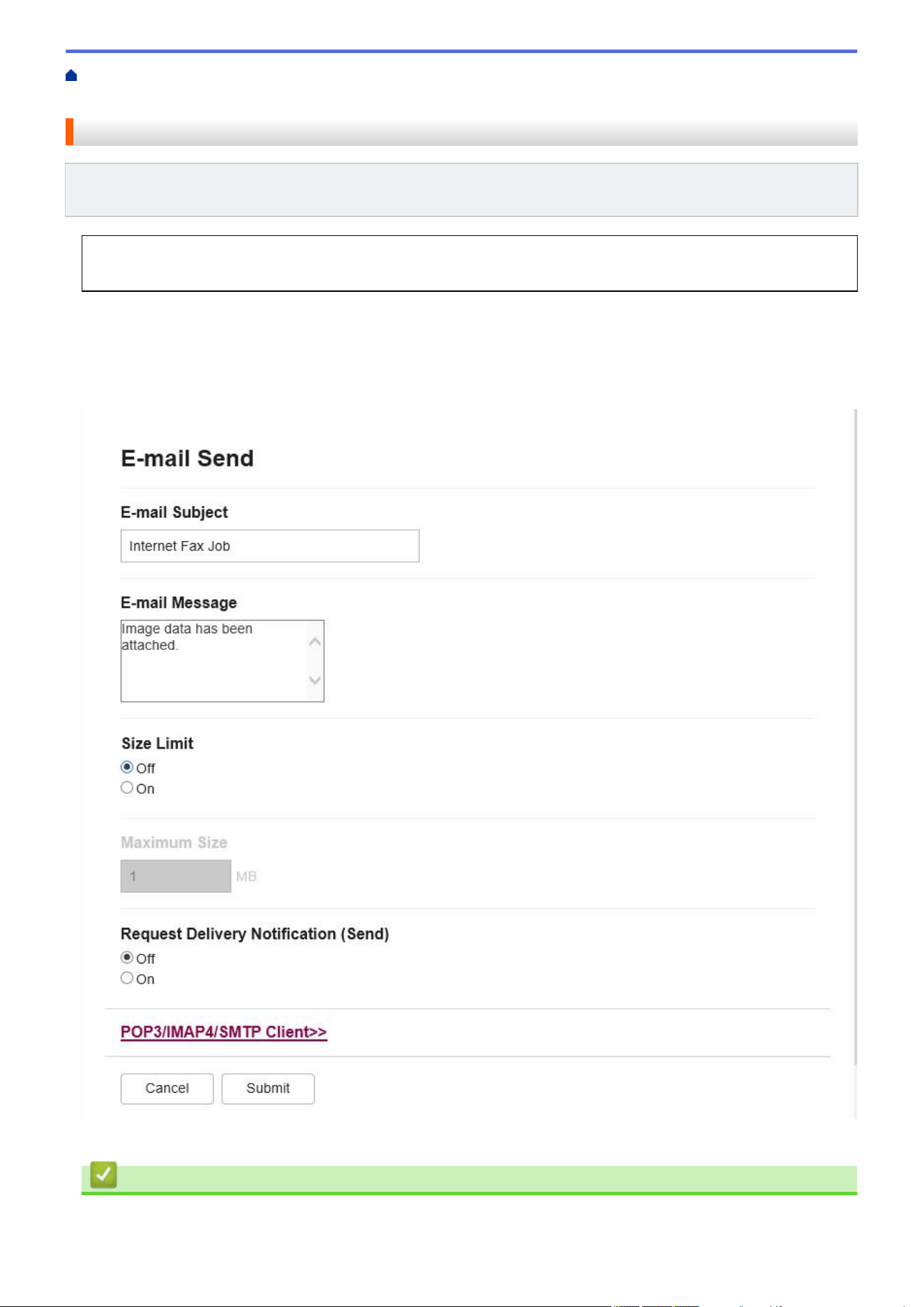
Home > Network > Network Features > Fax Using the Internet (I-Fax) > Configure the Brother Machine for
Email or Internet Fax (I-Fax) > Initial Setup for Email or Internet Fax (I-Fax)
Initial Setup for Email or Internet Fax (I-Fax)
Related Models: MFC-L2760DW/MFC-L2807DW/MFC-L2820DW/MFC-L2820DWXL/MFC-L2900DW/
MFC-L2900DWXL/MFC-L2980DW
Before sending your I-Fax, use the control panel or Web Based Management to configure the following
optional items:
• E-mail Subject
• E-mail Message
• Size Limit
• Request Delivery Notification (Send)
If you are unsure of any of these items, contact your system administrator.
Related Information
• Configure the Brother Machine for Email or Internet Fax (I-Fax)
317

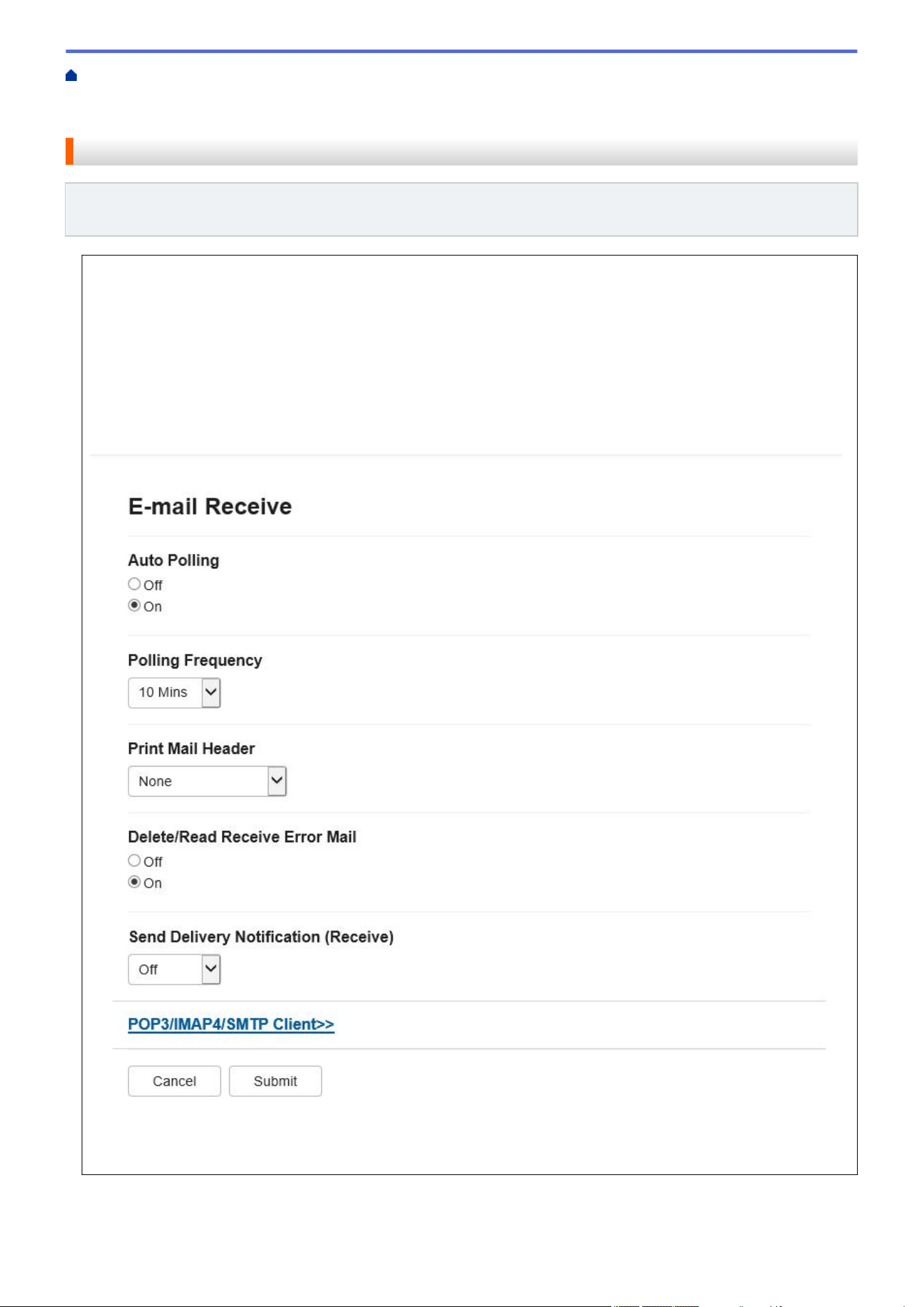
Home > Network > Network Features > Fax Using the Internet (I-Fax) > Configure the Brother Machine for
Email or Internet Fax (I-Fax) > Initial Setup for Email or Internet Fax (I-Fax) > How Your Brother Machine
Receives an Internet Fax (I-Fax)
How Your Brother Machine Receives an Internet Fax (I-Fax)
Related Models: MFC-L2760DW/MFC-L2807DW/MFC-L2820DW/MFC-L2820DWXL/MFC-L2900DW/
MFC-L2900DWXL/MFC-L2980DW
When your Brother machine receives an incoming I-Fax, it will print the I-Fax automatically. To receive an I-
Fax, we recommend using the control panel or Web Based Management to configure the following optional
items:
• Auto Polling
• Polling Frequency
• Print Mail Header
• Delete/Read Receive Error Mail
• Send Delivery Notification (Receive)
There are two ways you can receive email messages:
• POP3/IMAP4 receiving at regular intervals
319
• POP3/IMAP4 receiving, manually initiated
When using POP3/IMAP4 receiving, the machine polls your email server to receive data. Polling can occur at set
intervals (for example, you can configure the machine to poll the email server every ten minutes) or you can
manually poll the server.
• If your machine starts to receive email data, the LCD displays [Receiving].The email will be printed
automatically.
• If your machine is out of paper when receiving data, the received data will be held in the machine's
memory. This data will be printed automatically after paper is reloaded in the paper tray.
• When the machine's Temporary Fax Backup Function is turned on, received data will be stored for a
certain period of time.
• If the received mail is not in a plain text format, or an attached file is not in the TIFF-F format, the error
message "ATTACHED FILE FORMAT NOT SUPPORTED." will be printed.
• If the received mail is too large, the error message "E-MAIL FILE TOO LARGE." will be printed.
• If Delete/Read Receive Error Mail is On (default), then the error mail will be deleted from the email
server automatically.
Related Information
• Initial Setup for Email or Internet Fax (I-Fax)
Related Topics:
• How Received I-Faxes Appear on a Computer
• Forward Received Email and Fax Messages
320
Home > Network > Network Features > Fax Using the Internet (I-Fax) > Configure the Brother Machine for
Email or Internet Fax (I-Fax) > How Received I-Faxes Appear on a Computer
How Received I-Faxes Appear on a Computer
Related Models: MFC-L2760DW/MFC-L2807DW/MFC-L2820DW/MFC-L2820DWXL/MFC-L2900DW/
MFC-L2900DWXL/MFC-L2980DW
When a computer receives an I-Fax document, the document is attached to an email message that notifies you
in its Subject field that your email server has received an I-Fax. You can either wait for your Brother machine to
poll the email server, or you can manually poll the email server to receive the incoming data.
Related Information
• Configure the Brother Machine for Email or Internet Fax (I-Fax)
Related Topics:
• How Your Brother Machine Receives an Internet Fax (I-Fax)
321
Home > Network > Network Features > Fax Using the Internet (I-Fax) > Send an Internet Fax (I-Fax)
Send an Internet Fax (I-Fax)
Related Models: MFC-L2760DW/MFC-L2807DW/MFC-L2820DW/MFC-L2820DWXL/MFC-L2900DW/
MFC-L2900DWXL/MFC-L2980DW
Sending an I-Fax is like sending a normal fax. Make sure that your recipient's information is saved in your email
address book, and load the document you want to I-Fax into your Brother machine.
• If the computer to which you want to send a document is not running Windows Server 2012/2012
R2/2016/2019/2022, Windows 10 or Windows 11, ask the computer's owner to install software that can
view TIFF files.
• To send multiple pages, use the ADF.
>> MFC-L2760DW
>> MFC-L2807DW/MFC-L2820DW/MFC-L2820DWXL/MFC-L2900DW/MFC-L2900DWXL/MFC-L2980DW
MFC-L2760DW
1. Press (Fax).
2. Load your document.
3. To change the fax-sending settings, press Menu and then press a or b to display the [Fax] option, and then
press OK.
4. Press a or b to display the [Setup Send] option, and then press OK. When you have finished changing
settings, press OK.
5. Select a Speed Dial or Shortcut number.
Before specifying a recipient's email address, make sure you have added their email address to Speed Dial
or a Shortcut using Web Based Management.
6. Press Start.
The machine starts scanning. After the document is scanned, it is transmitted to the recipient via your SMTP
server. You can cancel the send operation by pressing Stop/Exit during scanning. When the transmission is
finished, the machine will enter standby mode.
MFC-L2807DW/MFC-L2820DW/MFC-L2820DWXL/MFC-L2900DW/MFC-L2900DWXL/
MFC-L2980DW
1. Load your document.
2. Do one of the following:
• If Fax Preview is set to [Off], press [Fax].
• If Fax Preview is set to [On], press [Fax], and then press [Send a fax].
3. To change the fax-sending settings, press [Options].
4. Press a or b to scroll through the fax settings. When the setting you want appears, press it and select your
preference. When you have finished changing settings, press [OK].
5. Do one of the following:
• Press , enter the email address, and then press [OK].
• Press [Address Book], select the email address of your recipient, and then press [Apply].
6. Press [Fax Start].
322
The machine starts scanning. After the document is scanned, it is transmitted to the recipient via your SMTP
server. You can cancel the send operation by pressing during scanning. When the transmission is
finished, the machine will enter standby mode.
Related Information
• Fax Using the Internet (I-Fax)
323
Home > Network > Network Features > Fax Using the Internet (I-Fax) > Poll the Server Manually
Poll the Server Manually
Related Models: MFC-L2760DW/MFC-L2807DW/MFC-L2820DW/MFC-L2820DWXL/MFC-L2900DW/
MFC-L2900DWXL/MFC-L2980DW
>> MFC-L2760DW
>> MFC-L2807DW/MFC-L2820DW/MFC-L2820DWXL/MFC-L2900DW/MFC-L2900DWXL/MFC-L2980DW
MFC-L2760DW
1. Press Menu.
2. Press a or b to select the [Network] option, and then press OK.
3. Press a or b to select the [E-mail/IFAX] option, and then press OK.
4. Press a or b to select the [Manual Receive] option, and then press OK.
5. The LCD displays [Receiving] and your machine will print the data from the email server.
MFC-L2807DW/MFC-L2820DW/MFC-L2820DWXL/MFC-L2900DW/MFC-L2900DWXL/
MFC-L2980DW
1. Press
[Settings] > [All Settings] > [Network] > [E-mail/IFAX] > [Manual Receive].
2. Press [Yes] to confirm.
3. The LCD displays [Receiving] and your machine will print the data from the email server.
Related Information
• Fax Using the Internet (I-Fax)
324

Home > Network > Network Features > Fax Using the Internet (I-Fax) > I-Fax Options
I-Fax Options
Related Models: MFC-L2760DW/MFC-L2807DW/MFC-L2820DW/MFC-L2820DWXL/MFC-L2900DW/
MFC-L2900DWXL/MFC-L2980DW
• Forward Received Email and Fax Messages
• Relay Broadcast
• Internet Fax (I-Fax) Verification Mail
• Configure the Brother Machine for Email or Internet Fax (I-Fax)
325
Home > Network > Network Features > Fax Using the Internet (I-Fax) > I-Fax Options > Forward Received
Email and Fax Messages
Forward Received Email and Fax Messages
Related Models: MFC-L2760DW/MFC-L2807DW/MFC-L2820DW/MFC-L2820DWXL/MFC-L2900DW/
MFC-L2900DWXL/MFC-L2980DW
Use Brother's I-Fax feature to forward email or standard fax messages to another computer, to a fax machine, or
to another I-Fax machine. Enable the Forwarding feature using your machine's control panel.
>> MFC-L2760DW
>> MFC-L2807DW/MFC-L2820DW/MFC-L2820DWXL/MFC-L2900DW/MFC-L2900DWXL/MFC-L2980DW
MFC-L2760DW
1. Press Menu.
2. Press a or b to display the [Fax] option, and then press OK.
3. Press a or b to display the [Memory Receive] option, and then press OK.
4. Press a or b to display the [Forward/Store] option, and then press OK.
5. Press a or b to display the [Fax Forward] option, and then press OK.
6. Enter the recipient's fax number or email address.
7. Press OK.
8. If you select the email address, press a or b to select the file type you want, and then press OK.
To print received faxes at your machine so you will have a copy, press a or b to display the [Backup
Print] option, and then press OK. Press a or b to select [On] option, and then press OK.
9. Press Stop/Exit.
MFC-L2807DW/MFC-L2820DW/MFC-L2820DWXL/MFC-L2900DW/MFC-L2900DWXL/
MFC-L2980DW
To enable email forwarding using your machine's control panel:
1. Press [Settings] > [All Settings] > [Fax] > [Setup Receive] > [Memory Receive].
2. Press [Fax Forward].
3. Do one of the following:
• Press [Manual] to enter the recipient's fax number (up to 20 digits) or email address using the LCD.
Press [OK].
• Press [Address Book].
Press a or b to display the fax number or email address where you want your faxes to be forwarded.
Press the fax number or email address you want.
4. If you select the email address, select the file type you want.
Press [Backup Print: On] to print received faxes at your machine so you will have a copy.
5. Press .
Related Information
• I-Fax Options
Related Topics:
• Fax Using the Internet (I-Fax)
326

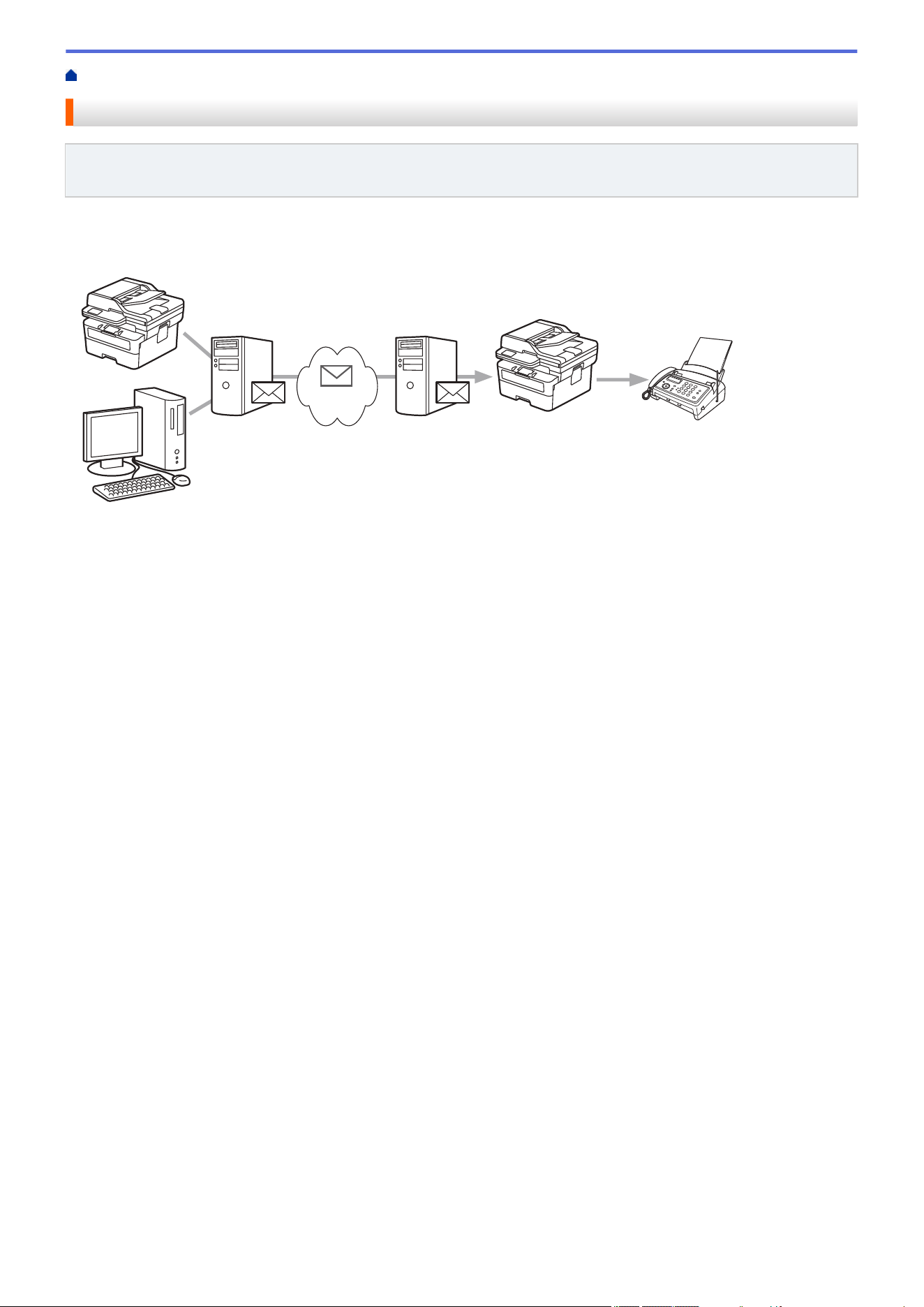
Home > Network > Network Features > Fax Using the Internet (I-Fax) > I-Fax Options > Relay Broadcast
Relay Broadcast
Related Models: MFC-L2760DW/MFC-L2807DW/MFC-L2820DW/MFC-L2820DWXL/MFC-L2900DW/
MFC-L2900DWXL/MFC-L2980DW
A Relay Broadcast is when your Brother machine receives a message over the Internet and then relays it to
another fax machine using conventional telephone lines. If you must fax a document over a long distance or
abroad, use the Relay Broadcast Function to save the communication fee.
2
33
1
1. The Internet
2. Telephone line
3. Email server
Use the Brother machine's control panel or Web Based Management to configure the following items:
• Relay Broadcast Function
Set the Relay Broadcast Function to On.
• Relay Domain
Configure your machine's domain name on the machine that will broadcast the document to the conventional
fax machine. If you wish to use your machine as a relay broadcast device, you must specify the trusted
domain name (the portion of the name after the "@" sign) at the machine. Use care in selecting a trusted
domain: any user on a trusted domain will be able to send a relay broadcast. You can register up to ten
domain names.
• Relay Broadcast Report
Specify whether or not you want a report to print after the machine completes the relay broadcast.
328
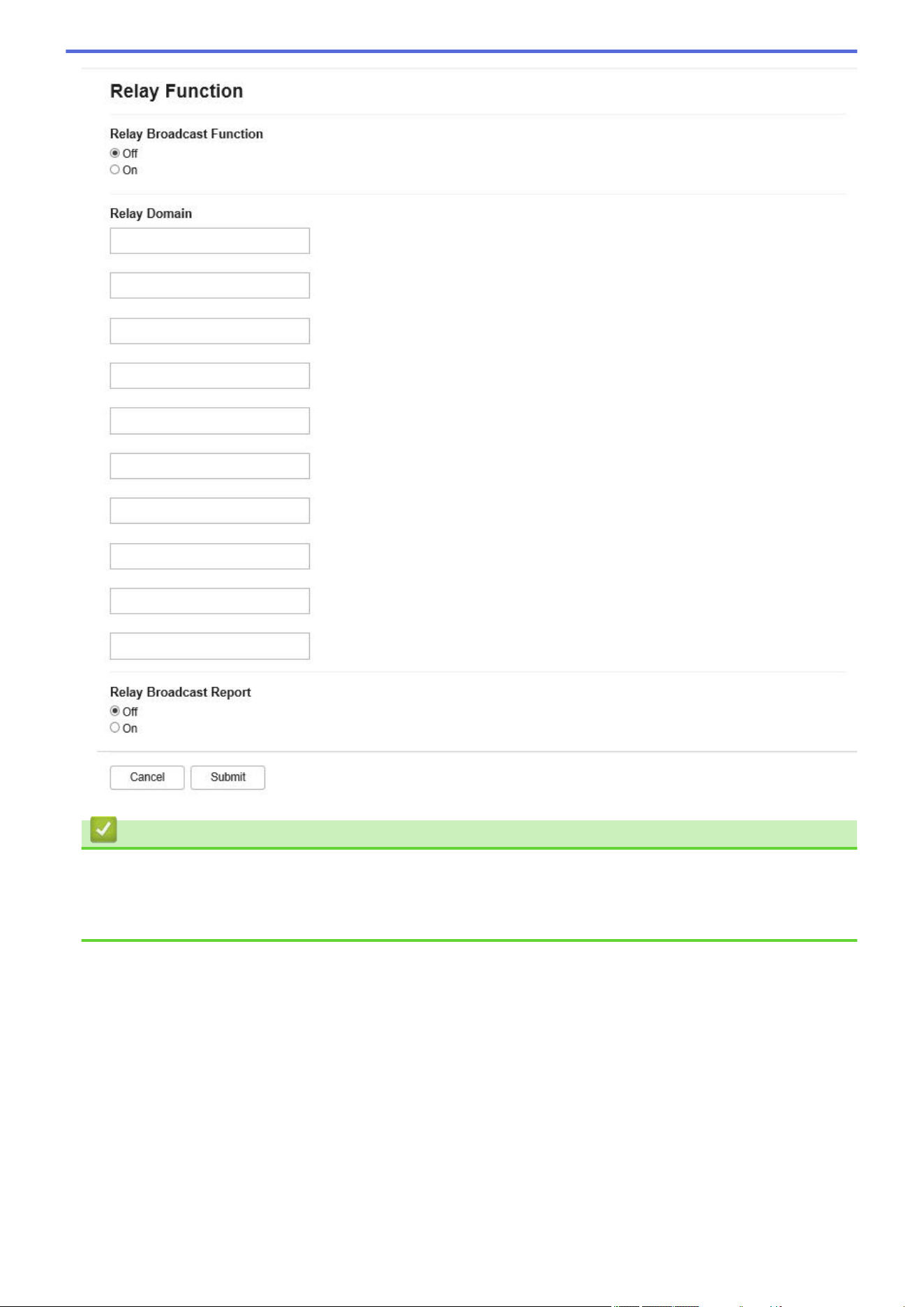
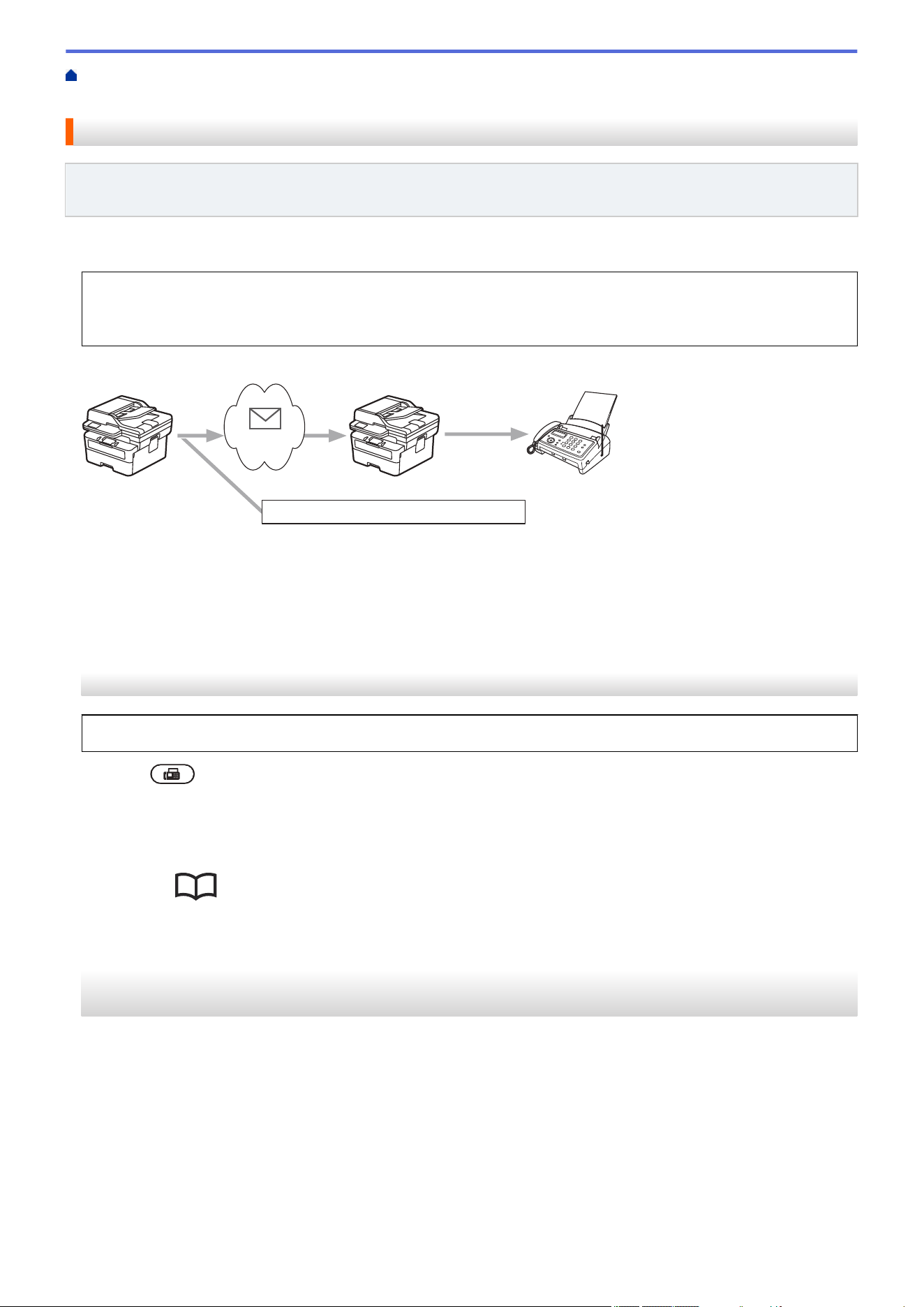
Home > Network > Network Features > Fax Using the Internet (I-Fax) > I-Fax Options > Relay
Broadcast > Relay Broadcast from Your Brother Machine
Relay Broadcast from Your Brother Machine
Related Models: MFC-L2760DW/MFC-L2807DW/MFC-L2820DW/MFC-L2820DWXL/MFC-L2900DW/
MFC-L2900DWXL/MFC-L2980DW
Use the Relay Broadcast Function to send an email from your machine to a conventional fax machine.
Confirm the POP3/IMAP4/SMTP Client and SMTP Server checkboxes are selected in Web Based
Management. If the POP3/IMAP4/SMTP Client and SMTP Server checkboxes are not selected, select the
POP3/IMAP4/SMTP Client and SMTP Server checkboxes. Click Submit, and then restart your machine.
FAX@brother.com UKFAX@brother.co.uk 123456789
1
UKFAX@brother.co.uk(fax#123456789)
1. The Internet
In this example, your machine's email address is FAX@brother.com and you want to send a document from your
machine to a standard fax machine in England with the email address UKFAX@brother.co.uk, and you want your
machine to send the document using a conventional telephone line.
>> MFC-L2760DW
>> MFC-L2807DW/MFC-L2820DW/MFC-L2820DWXL/MFC-L2900DW/MFC-L2900DWXL/MFC-L2980DW
MFC-L2760DW
To use this feature, you must register the email addresses as the Shortcut numbers or Speed Dial numbers.
1. Press (Fax).
2. Load your document.
3. Do one of the following:
• Hold down the Shortcut button, and then enter the one-digit Shortcut number.
• Press
(Address Book), and then enter the three-digit Speed Dial number you have registered.
Press OK.
4. Press Start.
MFC-L2807DW/MFC-L2820DW/MFC-L2820DWXL/MFC-L2900DW/MFC-L2900DWXL/
MFC-L2980DW
1. Load your document.
2. Do one of the following:
• If Fax Preview is set to [Off], press [Fax].
• If Fax Preview is set to [On], press [Fax], and then press [Send a fax].
3. Press [Options].
4. Press a or b to display the [Broadcasting] option.
5. Press [Broadcasting].
6. Press [Add Number].
330
7. You can add email addresses to the broadcast in the following ways:
• Press [Add Number]. Press , enter the email address and press [OK].
• Press [Add from Address book]. Press the checkbox of the email address you want to add to the
broadcast. After you have checked all the email addresses you want, press [OK].
• Press [Search in Address book]. Enter the name and press [OK]. The search results will be
displayed. Press the name and then press the email address you want to add to the broadcast.
The following is an example of how to enter the email address and phone number:
UKFAX@brother.co.uk(fax#123456789)
email address
Fax Phone Number
The word "fax#" must be
included with the phone
number inside the parenthesis.
After you have entered all of the fax numbers, press [OK].
8. Press [Fax Start].
Related Information
• Relay Broadcast
331
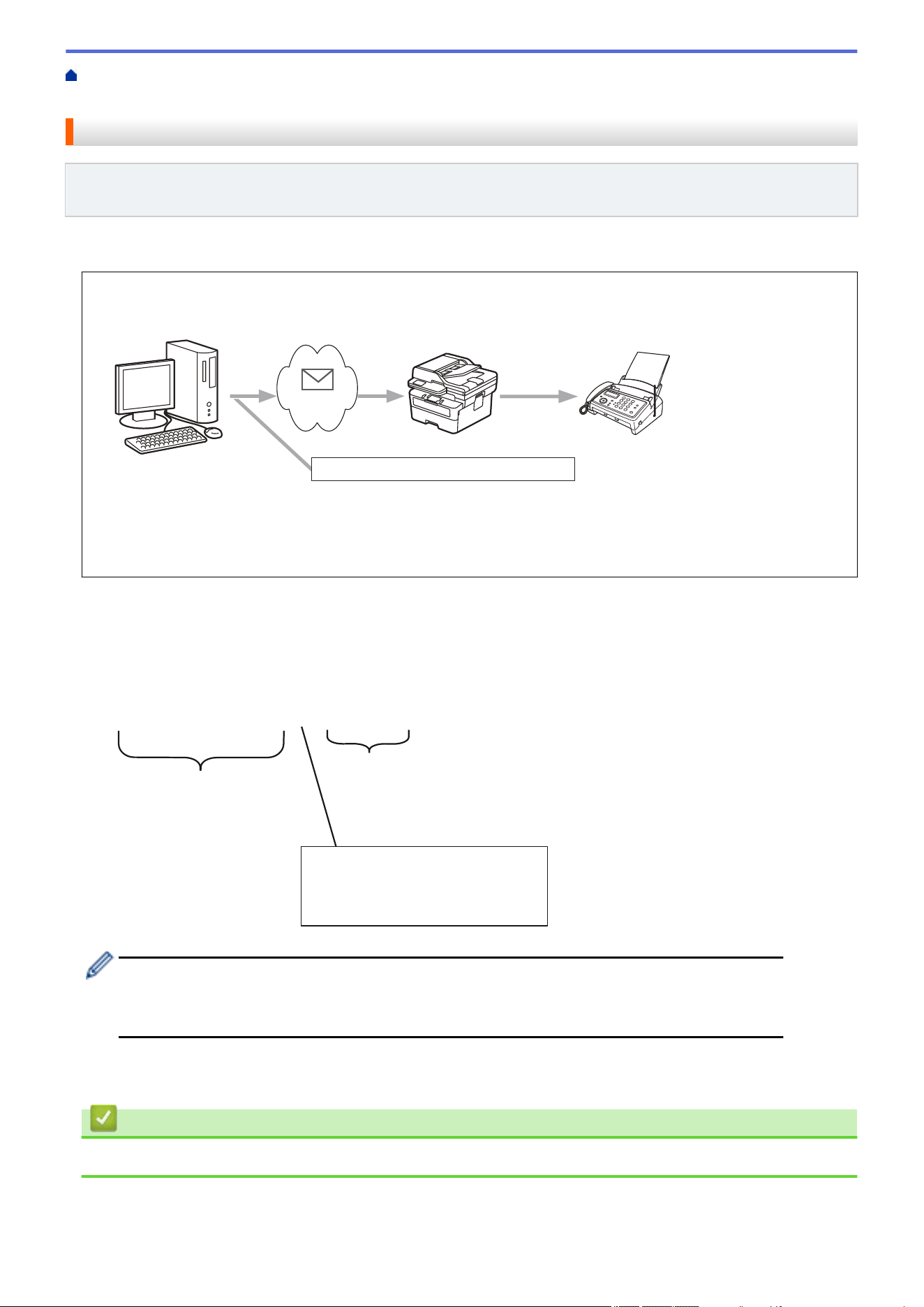
Home > Network > Network Features > Fax Using the Internet (I-Fax) > I-Fax Options > Relay
Broadcast > Relay Broadcast from Your Computer
Relay Broadcast from Your Computer
Related Models: MFC-L2760DW/MFC-L2807DW/MFC-L2820DW/MFC-L2820DWXL/MFC-L2900DW/
MFC-L2900DWXL/MFC-L2980DW
Use the Relay Broadcast Function to send an email from your computer to a conventional fax machine.
• Some email applications do not support sending an email to multiple fax numbers. If your email application
cannot support multiple fax numbers, you can relay to only one fax machine at a time.
1
UKFAX@brother.co.uk 123456789
UKFAX@brother.co.uk(fax#123456789)
1. The Internet
• Confirm the POP3/IMAP4/SMTP Client and SMTP Server checkboxes are selected in Web Based
Management. If the POP3/IMAP4/SMTP Client and SMTP Server checkboxes are not selected, select the
POP3/IMAP4/SMTP Client and SMTP Server checkboxes. Click Submit, and then restart your machine.
If you are sending an email to a conventional fax machine, the method of entering the fax machine's fax number
will vary, depending on the mail application you are using.
1. In your email application, create a new email message and type the email address of the relay machine and
fax number of the first fax machine in the "TO" box.
The following is an example of how to enter the email address and fax number:
UKFAX@brother.co.uk(fax#123456789)
email address
Fax Phone Number
The word "fax#" must be
included with the phone
number inside the parenthesis.
For Microsoft Outlook, the address information must be entered into the address book as follows:
Name: fax#123456789
Email address: UKFAX@brother.co.uk
2. Type the email address of the relay machine and fax number of the second fax machine in the "TO" box.
3. Send the email.
Related Information
• Relay Broadcast
332
Home > Network > Network Features > Fax Using the Internet (I-Fax) > I-Fax Options > Internet Fax (I-
Fax) Verification Mail
Internet Fax (I-Fax) Verification Mail
Related Models: MFC-L2760DW/MFC-L2807DW/MFC-L2820DW/MFC-L2820DWXL/MFC-L2900DW/
MFC-L2900DWXL/MFC-L2980DW
• Verification Mail for sending allows you to request notification from the receiving station where your I-Fax or
email was received and processed.
• Verification Mail for receiving allows you to transmit a default report back to the sending station after
successfully receiving and processing an I-Fax or email.
To use this feature, set the [Notification] options in the [Setup Mail RX] and [Setup Mail TX]
options of your machine's control panel menu.
Related Information
• I-Fax Options
• Enable Send Notifications for TX Verification Mail
• Enable Receive Notification for TX Verification Mail
• I-Fax Error Mail
333
Home > Network > Network Features > Fax Using the Internet (I-Fax) > I-Fax Options > Internet Fax (I-
Fax) Verification Mail > Enable Send Notifications for TX Verification Mail
Enable Send Notifications for TX Verification Mail
Related Models: MFC-L2760DW/MFC-L2807DW/MFC-L2820DW/MFC-L2820DWXL/MFC-L2900DW/
MFC-L2900DWXL/MFC-L2980DW
>> MFC-L2760DW
>> MFC-L2807DW/MFC-L2820DW/MFC-L2820DWXL/MFC-L2900DW/MFC-L2900DWXL/MFC-L2980DW
MFC-L2760DW
1. Press Menu.
2. Press a or b to display the [Network] option, and then press OK.
3. Press a or b to display the [E-mail/IFAX] option, and then press OK.
4. Press a or b to display the [Setup Mail TX] option, and then press OK.
5. Press a or b to display the [Notification] option, and then press OK.
6. Select [On] or [Off] to enable or disable the Send Notification feature, and then press OK.
When Send Notification is On, the fax includes an additional field, named Message Disposition Notification
(MDN), that contains message delivery information.
Your fax recipient's machine must support the MDN field in order to send a notification report.
7. Press Stop/Exit.
MFC-L2807DW/MFC-L2820DW/MFC-L2820DWXL/MFC-L2900DW/MFC-L2900DWXL/
MFC-L2980DW
1. Press
[Settings] > [All Settings] > [Network] > [E-mail/IFAX] > [Setup Mail TX] >
[Notification].
2. Select [On] or [Off] to enable or disable the Send Notification feature.
When Send Notification is On, the fax includes an additional field, named Message Disposition Notification
(MDN), that contains message delivery information.
Your fax recipient's machine must support the MDN field in order to send a notification report.
3. Press .
Related Information
• Internet Fax (I-Fax) Verification Mail
334
Home > Network > Network Features > Fax Using the Internet (I-Fax) > I-Fax Options > Internet Fax (I-
Fax) Verification Mail > Enable Receive Notification for TX Verification Mail
Enable Receive Notification for TX Verification Mail
Related Models: MFC-L2760DW/MFC-L2807DW/MFC-L2820DW/MFC-L2820DWXL/MFC-L2900DW/
MFC-L2900DWXL/MFC-L2980DW
>> MFC-L2760DW
>> MFC-L2807DW/MFC-L2820DW/MFC-L2820DWXL/MFC-L2900DW/MFC-L2900DWXL/MFC-L2980DW
MFC-L2760DW
1. Press Menu.
2. Press a or b to display the [Network] option, and then press OK.
3. Press a or b to display the [E-mail/IFAX] option, and then press OK.
4. Press a or b to display the [Setup Mail RX] option, and then press OK.
5. Press a or b to display the [Notification] option, and then press OK.
6. Press one of the three possible settings:
Option Description
Receive
Notification On
When Receive Notification is On, a template is sent back to the sender to indicate
successful reception and processing of the message.
These templates depend on the operation requested by the sender.
Example:
SUCCESS : Received From <Mail Address>
Receive
Notification MDN
When Receive Notification is MDN, a report to indicate successful reception and
processing is sent back to the sender if the originating station sent a request
confirmation to the MDN (Message Disposition Notification) field.
Receive
Notification Off
When Receive Notification is Off, all forms of receive notification are disabled and no
message is sent back to the sender regardless of the request.
• To send TX verification mail, the Sender must configure these settings:
- Switch [Notification] in [Setup Mail TX] to [On].
- Switch [Header] in [Setup Mail RX] to [All] or [Subject+From+To].
• To receive TX verification mail, the Receiver must configure these settings:
Switch [Notification] in [Setup Mail RX] to [On].
7. Press Stop/Exit.
MFC-L2807DW/MFC-L2820DW/MFC-L2820DWXL/MFC-L2900DW/MFC-L2900DWXL/
MFC-L2980DW
1. Press [Settings] > [All Settings] > [Network] > [E-mail/IFAX] > [Setup Mail RX] >
[Notification].
2. Press one of the three possible settings:
Option Description
Receive
Notification On
When Receive Notification is On, a template is sent back to the sender to indicate
successful reception and processing of the message.
335
Option Description
These templates depend on the operation requested by the sender.
Example:
SUCCESS : Received From <Mail Address>
Receive
Notification MDN
When Receive Notification is MDN, a report to indicate successful reception and
processing is sent back to the sender if the originating station sent a request
confirmation to the MDN (Message Disposition Notification) field.
Receive
Notification Off
When Receive Notification is Off, all forms of receive notification are disabled and no
message is sent back to the sender regardless of the request.
• To send TX verification mail, the Sender must configure these settings:
- Switch [Notification] in [Setup Mail TX] to [On].
- Switch [Header] in [Setup Mail RX] to [All] or [Subject+From+To].
• To receive TX verification mail, the Receiver must configure these settings:
Switch [Notification] in [Setup Mail RX] to [On].
3. Press .
Related Information
• Internet Fax (I-Fax) Verification Mail
336
Home > Network > Network Features > Fax Using the Internet (I-Fax) > I-Fax Options > Internet Fax (I-
Fax) Verification Mail > I-Fax Error Mail
I-Fax Error Mail
Related Models: MFC-L2760DW/MFC-L2807DW/MFC-L2820DW/MFC-L2820DWXL/MFC-L2900DW/
MFC-L2900DWXL/MFC-L2980DW
If there is a delivery error while sending an I-Fax, the mail server will send an error message back to the Brother
machine and the error message will be printed.
If there is an error while receiving an I-Fax, an error message will be printed, for example, "The message being
sent to the machine was not in a TIFF format."
To receive the error mail and have these printed on your machine, in [Setup Mail RX], switch the [Header]
option to [All] or to [Subject+From+To].
Related Information
• Internet Fax (I-Fax) Verification Mail
337
Home > Network > Network Features > Use the Send Fax to Server Feature
Use the Send Fax to Server Feature
Related Models: MFC-L2760DW/MFC-L2807DW/MFC-L2820DW/MFC-L2820DWXL/MFC-L2900DW/
MFC-L2900DWXL/MFC-L2980DW
The Fax to Server feature allows the machine to scan a document and send it over the network to a separate fax
server. The document will then be sent from the server as fax data to the destination fax number over standard
phone lines. When the Fax to Server feature is set to On, all automatic fax transmissions from the machine will
be sent to the fax server for fax transmission.
You can send a fax directly from the machine using the manual fax feature when the Send to Server feature is
on.
(MFC-L2760DW/MFC-L2807DW/MFC-L2820DW/MFC-L2820DWXL)
To use this function, go to your model's Downloads page at
support.brother.com/downloads to download the
Internet FAX Install Tool. The installation instructions are available on the Downloads page. If the Internet Fax
Install Tool is not available for your model, contact Brother Customer Service.
Related Information
• Network Features
• Before Sending a Fax to the Fax Server
• Enable Fax to Server
• Operate Fax to Server
338
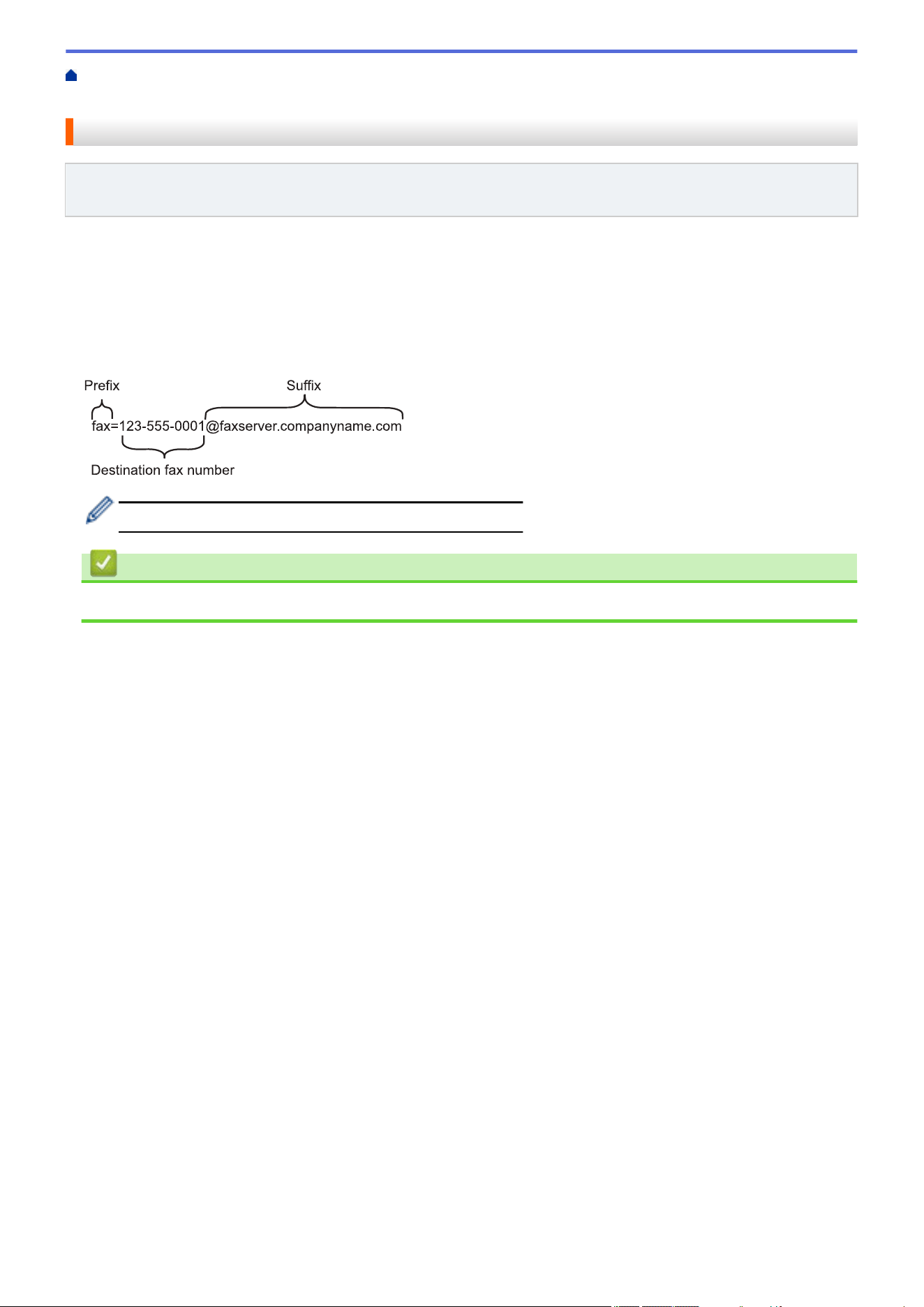
Home > Network > Network Features > Use the Send Fax to Server Feature > Before Sending a Fax to the
Fax Server
Before Sending a Fax to the Fax Server
Related Models: MFC-L2760DW/MFC-L2807DW/MFC-L2820DW/MFC-L2820DWXL/MFC-L2900DW/
MFC-L2900DWXL/MFC-L2980DW
To send a document to the fax server, the correct syntax for that server must be used. The destination fax
number must be sent with a prefix and a suffix that match the parameters used by the fax server. In most cases,
the syntax for the prefix is “fax=” and the syntax for the suffix would be the domain name of the fax server email
gateway. The suffix must also include the “@” symbol at the beginning of the suffix. The prefix and the suffix
information must be stored in the machine before you can use the Fax to Server function. Destination fax
numbers can be saved in the address book or entered using the dial pad (up to 40-digit numbers). For example:
if you wanted to send a document to a destination fax number of 123-555-0001, use the following syntax:
Your fax server application must support an email gateway.
Related Information
• Use the Send Fax to Server Feature
339
Home > Network > Network Features > Use the Send Fax to Server Feature > Enable Fax to Server
Enable Fax to Server
Related Models: MFC-L2760DW/MFC-L2807DW/MFC-L2820DW/MFC-L2820DWXL/MFC-L2900DW/
MFC-L2900DWXL/MFC-L2980DW
>> MFC-L2760DW
>> MFC-L2807DW/MFC-L2820DW/MFC-L2820DWXL/MFC-L2900DW/MFC-L2900DWXL/MFC-L2980DW
MFC-L2760DW
Store the prefix/suffix address for the fax server in your Brother machine.
1. Press Menu.
2. Press a or b to display the [Network] option, and then press OK.
3. Press a or b to display the [Fax to Server] option, and then press OK.
4. Press a or b to display the [On] option, and then press OK.
5. Press a or b to display the [Prefix] option, and then press OK.
6. Enter the prefix using the machine's control panel, and then press OK.
7. Press a or b to display the [Suffix] option, and then press OK.
8. Enter the suffix using the machine's control panel, and then press OK.
9. Press Stop/Exit.
MFC-L2807DW/MFC-L2820DW/MFC-L2820DWXL/MFC-L2900DW/MFC-L2900DWXL/
MFC-L2980DW
Store the prefix/suffix address for the fax server in your Brother machine.
1. Press [Settings] > [All Settings] > [Network] > [Fax to Server].
2. Press [Fax to Server], and then press[On].
3. Press [Prefix].
4. Enter the prefix using the keyboard on the LCD, and then press [OK].
5. Press [Suffix].
6. Enter the suffix using the keyboard on the LCD, and then press [OK].
7. Press
.
Related Information
• Use the Send Fax to Server Feature
340
Home > Network > Network Features > Use the Send Fax to Server Feature > Operate Fax to Server
Operate Fax to Server
Related Models: MFC-L2760DW/MFC-L2807DW/MFC-L2820DW/MFC-L2820DWXL/MFC-L2900DW/
MFC-L2900DWXL/MFC-L2980DW
>> MFC-L2760DW
>> MFC-L2807DW/MFC-L2820DW/MFC-L2820DWXL/MFC-L2900DW/MFC-L2900DWXL/MFC-L2980DW
MFC-L2760DW
1. Place the document in the ADF or on the scanner glass.
2. Enter the fax number.
3. Press Start.
The machine will send the message over a TCP/IP network to the fax server.
MFC-L2807DW/MFC-L2820DW/MFC-L2820DWXL/MFC-L2900DW/MFC-L2900DWXL/
MFC-L2980DW
1. Place the document in the ADF or on the scanner glass.
2. Enter the fax number.
3. Press [Fax Start].
The machine will send the message over a TCP/IP network to the fax server.
Related Information
• Use the Send Fax to Server Feature
341

Home > Network > Network Features > Synchronize Time with the SNTP Server Using Web Based
Management
Synchronize Time with the SNTP Server Using Web Based Management
The Simple Network Time Protocol (SNTP) is used to synchronize the time used by the machine for
authentication with the SNTP time server. (This is not the time displayed on the machine's LCD.) You can
automatically or manually synchronize the machine's time with the Coordinated Universal Time (UTC) provided
by the SNTP time server.
• Configure Date and Time Using Web Based Management
• Configure the SNTP Protocol Using Web Based Management
342
Home > Network > Network Features > Synchronize Time with the SNTP Server Using Web Based
Management > Configure Date and Time Using Web Based Management
Configure Date and Time Using Web Based Management
Configure date and time to synchronize the time used by the machine with the SNTP time server.
This feature is not available in some countries.
1. Start your web browser.
2. Type "https://machine's IP address" in your browser's address bar (where "machine's IP address" is your
machine's IP address).
For example:
https://192.168.1.2
3. If required, type the password in the Login field, and then click Login.
The default password to manage this machine’s settings is located on the back of the machine and marked
"Pwd". Change the default password by following the on-screen instructions when you first log in.
4. In the left navigation bar, click Administrator > Date&Time.
If the left navigation bar is not visible, start navigating from .
5. Verify the Time Zone settings.
Select the time difference between your location and UTC from the Time Zone drop-down list. For
example, the time zone for Eastern Time in the USA and Canada is UTC-05:00.
6. Select the Synchronize with SNTP server checkbox.
7. Click Submit.
You can also configure date and time manually.
Related Information
• Synchronize Time with the SNTP Server Using Web Based Management
Related Topics:
• Register Your Machine with Universal Print Using Web Based Management
343
Home > Network > Network Features > Synchronize Time with the SNTP Server Using Web Based
Management > Configure the SNTP Protocol Using Web Based Management
Configure the SNTP Protocol Using Web Based Management
Configure the SNTP protocol to synchronize the time the machine uses for authentication with the time kept by
the SNTP time server.
1. Start your web browser.
2. Type "https://machine's IP address" in your browser's address bar (where "machine's IP address" is your
machine's IP address).
For example:
https://192.168.1.2
3. If required, type the password in the Login field, and then click Login.
The default password to manage this machine’s settings is located on the back of the machine and marked
"Pwd". Change the default password by following the on-screen instructions when you first log in.
4. In the left navigation bar, click Network > Network > Protocol.
If the left navigation bar is not visible, start navigating from .
5. Select the SNTP checkbox to activate the settings.
6. Click Submit.
7. Restart your Brother machine to activate the configuration.
8. Next to the SNTP checkbox, click Advanced Settings.
9. Configure the settings.
Option
Description
Status Displays whether the SNTP protocol is enabled or disabled.
Synchronization Status Confirm the latest synchronization status.
SNTP Server Method Select AUTO or STATIC.
• AUTO
If you have a DHCP server on your network, the SNTP server will
obtain the address from that server automatically.
• STATIC
Type the address you want to use.
Primary SNTP Server Address
Secondary SNTP Server Address
Type the server's address (up to 64 characters).
The secondary SNTP server's address is used as a backup to the
primary SNTP server's address. If the primary server is unavailable,
the machine will contact the secondary SNTP server.
Primary SNTP Server Port
Secondary SNTP Server Port
Type the port number (1-65535).
The secondary SNTP server port is used as a backup to the primary
SNTP server port. If the primary port is unavailable, the machine will
contact the secondary SNTP port.
Synchronization Interval Type the number of hours between server synchronization attempts
(1-168 hours).
10. Click Submit.
Related Information
• Synchronize Time with the SNTP Server Using Web Based Management
344
Home > Network > Network Features > Forward Incoming Faxes to a Network Destination
Forward Incoming Faxes to a Network Destination
Related Models: MFC-L2980DW
Set up a profile to forward incoming faxes directly to a folder on an FTP or CIFS server.
• We recommend using the latest version of the following web browsers:
- Microsoft Edge, Firefox, and Google Chrome
™
for Windows
- Safari, Firefox, and Google Chrome
™
for Mac
- Google Chrome
™
for Android
™
- Safari and Google Chrome
™
for iOS
• Ensure that JavaScript and Cookies are always enabled, regardless of which browser you use.
1. Start your web browser.
2. Type "https://machine's IP address" in your browser's address bar (where "machine's IP address" is your
machine's IP address).
For example:
https://192.168.1.2
3. If required, type the password in the Login field, and then click Login.
The default password to manage this machine’s settings is located on the back of the machine and marked
"Pwd". Change the default password by following the on-screen instructions when you first log in.
4. In the left navigation bar, click Administrator > Network Profile.
If the left navigation bar is not visible, start navigating from
.
5. Click the protocol option next to the Profile number.
6. Select the FTP or Network option, and then click Submit.
7. Set up the profile for your server, using one of the following tables:
Using the following characters: ?, /, \, ", :, <, >, | or * may cause a sending error.
FTP
Option
Description
Profile Name Type a name for this server profile (up to 15 alphanumeric characters).
The machine will display this name on the LCD.
Host Address Type the Host Address (for example: ftp.example.com; up to 64
characters) or the IP address (for example: 192.23.56.189).
Port Number Change the Port Number setting used to access the FTP server. The
default setting is port 21. In most cases this setting does not need to be
changed.
Username Type a user name (up to 32 characters) of a user that has permission to
write data to the FTP server.
Password Type the password (up to 32 characters) associated with the user name
you entered in the Username field. Type the password again in the
Retype password field.
SSL/TLS Set the SSL/TLS option to forward incoming faxes securely using
SSL/TLS communication. Change the CA Certificate setting, if needed.
345
Option Description
Store Directory Type the path (up to 255 characters) to the folder on the FTP server
where you want to forward incoming faxes. Do not type a slash mark at
the beginning of the path (correct example: brother/abc).
Passive Mode Set the Passive Mode option to off or on depending on your FTP server
and network firewall configuration. The default setting is on. In most
cases, this setting does not need to be changed.
Network
Option
Description
Profile Name Type a name for this server profile (up to 15 alphanumeric
characters). The machine will display this name on the LCD.
Network Folder Path Type the path to the folder on the CIFS server where you want to
forward incoming faxes.
Auth. Method To set your authentication method, select Auto, Kerberos, or
NTLMv2.
Username Type a user name (up to 96 characters) that has permission to write
data to the folder specified in the Network Folder Path field. If the
user name is part of a domain, type the user name in one of the
following styles:
user@domain
domain\user
Password Type the password (up to 32 characters) associated with the user
name you entered in the Username field. Type the password again in
the Retype password field.
Kerberos Server Address When you select Kerberos for the Auth. Method option, you must
type the Kerberos Server Address (for example:
kerberos.example.com; up to 64 characters).
You must configure the SNTP (network time server) or you must set the date, time and time zone correctly
on the control panel. The time must match the time used by the Kerberos Server and CIFS Server.
8. Click Submit.
9. To set the Fax Forward feature, in the left navigation bar, click Fax > Remote Fax Options.
10. Select Forward to Network from the Fwd/Store/Cloud/Network drop-down list.
11. Select the file type you want to use.
12. To print a backup copy of incoming faxes, select On for Backup print.
13. Select the profile you want to use from the Network Profile drop-down list.
14. Type a three-digit Remote Access Code in the Remote Access Code field, if needed.
• You can use the numbers 0 through 9, *, or # for the Remote Access Code.
• The Remote Access Code must be different from the remote codes for the Fax features.
15. Click Submit.
Related Information
• Memory Receive Options
• Network Features
346
Home > Network > Network Features > Reset the Network Settings to the Factory Settings
Reset the Network Settings to the Factory Settings
Use your machine's control panel to reset the machine's network settings to its default factory settings. This
resets all information except the administrator password.
You can also reset the print server to its factory settings using Web Based Management.
>> HL-L2465DW/DCP-L2640DW/DCP-L2647DW/MFC-L2760DW
>> HL-L2480DW/MFC-L2807DW/MFC-L2820DW/MFC-L2820DWXL/MFC-L2900DW/MFC-L2900DWXL/
MFC-L2980DW
HL-L2465DW/DCP-L2640DW/DCP-L2647DW/MFC-L2760DW
1. Press Menu.
2. Press a or b to display the [Network] option, and then press OK.
3. Press a or b to display the [Network Reset] option, and then press OK.
4. Follow the machine's instruction to reset the network settings.
The machine will restart.
HL-L2480DW/MFC-L2807DW/MFC-L2820DW/MFC-L2820DWXL/MFC-L2900DW/
MFC-L2900DWXL/MFC-L2980DW
1. Press [Settings] > [All Settings] > [Network] > [Network Reset].
2. [Machine will reboot after resetting. Press [OK] for 2 seconds to confirm.] will be
displayed. Press [OK] for two seconds to confirm.
The machine will restart.
Related Information
• Network Features
Related Topics:
• Reset Your Machine
347

Home > Security
Security
• Before Using Network Security Features
• Configure Certificates for Device Security
• Use SSL/TLS
• Use SNMPv3
• Use IPsec
• Use IEEE 802.1x Authentication
• Use Active Directory Authentication
• Use LDAP Authentication
• Use Secure Function Lock 3.0
• Send or Receive an Email Securely
• Store Print Log to Network
• Lock the Machine Settings from the Control Panel
• Use Global Network Detection Features
348
Home > Security > Before Using Network Security Features
Before Using Network Security Features
Your machine employs some of the latest network security and encryption protocols available today. These
network features can be integrated into your overall network security plan to help protect your data and prevent
unauthorized access to the machine.
We recommend disabling the FTP server and TFTP protocols. Accessing the machine using these
protocols is not secure. However, note that if you disable FTP server, the Scan to FTP feature will be
disabled.
Related Information
• Security
• Disable Unnecessary Protocols
349
Home > Security > Before Using Network Security Features > Disable Unnecessary Protocols
Disable Unnecessary Protocols
1. Start your web browser.
2. Type "https://machine's IP address" in your browser's address bar (where "machine's IP address" is your
machine's IP address).
For example:
https://192.168.1.2
3. If required, type the password in the Login field, and then click Login.
The default password to manage this machine’s settings is located on the back of the machine and marked
"Pwd". Change the default password by following the on-screen instructions when you first log in.
4. In the left navigation bar, click Network > Network > Protocol.
If the left navigation bar is not visible, start navigating from .
5. Clear any unnecessary protocol checkboxes to disable them.
6. Click Submit.
7. Restart your Brother machine to activate the configuration.
Related Information
• Before Using Network Security Features
350

Home > Security > Configure Certificates for Device Security
Configure Certificates for Device Security
You must configure a certificate to manage your networked machine securely using SSL/TLS. You must use Web
Based Management to configure a certificate.
• Supported Security Certificate Features
• How to Create and Install a Certificate
• Create a Self-signed Certificate
• Create a Certificate Signing Request (CSR) and Install a Certificate from a Certificate
Authority (CA)
• Import and Export the Certificate and Private Key
• Import and Export a CA Certificate
• Manage Multiple Certificates
351
Home > Security > Configure Certificates for Device Security > Supported Security Certificate Features
Supported Security Certificate Features
Your machine supports the use of multiple security certificates, which allows secure management, authentication,
and communication with the machine. The following security certificate features can be used with the machine:
• SSL/TLS communication
• SSL communication for SMTP/POP3/IMAP4 (only available for certain models)
• IEEE 802.1x authentication
• IPsec
Your machine supports the following:
• Pre-installed certificate
Your machine has a pre-installed self-signed certificate. This certificate enables you to use SSL/TLS
communication without creating or installing a different certificate.
The pre-installed self-signed certificate protects your communication up to a certain level. We recommend
using a certificate that is issued by a trusted organization for better security.
• Self-signed certificate
This print server issues its own certificate. Using this certificate, you can easily use the SSL/TLS
communication without creating or installing a different certificate from a CA.
• Certificate from a Certificate Authority (CA)
There are two methods for installing a certificate from a CA. If you already have a certificate from a CA or if
you want to use a certificate from an external trusted CA:
- When using a Certificate Signing Request (CSR) from this print server.
- When importing a certificate and a private key.
• Certificate Authority (CA) Certificate
To use a CA certificate that identifies the CA and owns its private key, you must import that CA certificate
from the CA before configuring the security features of the Network.
• If you are going to use SSL/TLS communication, we recommend contacting your system administrator
first.
• When you reset the print server back to its default factory settings, the certificate and the private key
that are installed will be deleted. If you want to keep the same certificate and the private key after
resetting the print server, export them before resetting, and then reinstall them.
Related Information
• Configure Certificates for Device Security
352
Home > Security > Configure Certificates for Device Security > How to Create and Install a Certificate
How to Create and Install a Certificate
There are two options when choosing a security certificate: use a self-signed certificate or use a certificate from a
Certificate Authority (CA).
Option 1
Self-Signed Certificate
1. Create a self-signed certificate using Web Based Management.
2. Install the self-signed certificate on your computer.
Option 2
Certificate from a CA
1. Create a Certificate Signing Request (CSR) using Web Based Management.
2. Install the certificate issued by the CA on your Brother machine using Web Based Management.
3. Install the certificate on your computer.
Related Information
• Configure Certificates for Device Security
353
Home > Security > Configure Certificates for Device Security > Create a Self-signed Certificate
Create a Self-signed Certificate
1. Start your web browser.
2. Type "https://machine's IP address" in your browser's address bar (where "machine's IP address" is your
machine's IP address).
For example:
https://192.168.1.2
• If you are using a Domain Name System or enable a NetBIOS name, you can type another name, such
as "SharedPrinter" instead of the IP address.
For example: https://SharedPrinter
• If you enable a NetBIOS name, you can also use the node name.
For example: https://brn123456abcdef
• The NetBIOS name can be found in the Network Configuration Report.
3. If required, type the password in the Login field, and then click Login.
The default password to manage this machine’s settings is located on the back of the machine and marked
"Pwd". Change the default password by following the on-screen instructions when you first log in.
4. In the left navigation bar, click Network > Security > Certificate.
If the left navigation bar is not visible, start navigating from
.
5. Click Create Self-Signed Certificate.
6. Enter a Common Name and a Valid Date.
• The length of the Common Name is less than 64 bytes. Enter an identifier, such as an IP address, node
name, or domain name to use when accessing this machine through SSL/TLS communication. The node
name is displayed by default.
• A warning will appear if you use the IPPS or HTTPS protocol and enter a different name in the URL than
the Common Name that was used for the self-signed certificate.
7. Select your setting from the Public Key Algorithm drop-down list. The default setting is EC(256bit).
8. Select your setting from the Digest Algorithm drop-down list. The default setting is SHA256.
9. Click Submit.
Related Information
• Configure Certificates for Device Security
354

Home > Security > Configure Certificates for Device Security > Create a Certificate Signing Request (CSR)
and Install a Certificate from a Certificate Authority (CA)
Create a Certificate Signing Request (CSR) and Install a Certificate from
a Certificate Authority (CA)
If you already have a certificate from an external trusted Certificate Authority (CA) , you can store the certificate
and private key on the machine and manage them by importing and exporting. If you do not have a certificate
from an external trusted CA, create a Certificate Signing Request (CSR), send it to a CA for authentication, and
install the returned certificate on your machine.
• Create a Certificate Signing Request (CSR)
• Install a Certificate on Your Machine
355
Home > Security > Configure Certificates for Device Security > Create a Certificate Signing Request (CSR)
and Install a Certificate from a Certificate Authority (CA) > Create a Certificate Signing Request (CSR)
Create a Certificate Signing Request (CSR)
A Certificate Signing Request (CSR) is a request sent to a Certificate Authority (CA) to authenticate the
credentials contained within the certificate.
We recommend installing a Root Certificate from the CA on your computer before creating the CSR.
1. Start your web browser.
2. Type "https://machine's IP address" in your browser's address bar (where "machine's IP address" is your
machine's IP address).
For example:
https://192.168.1.2
• If you are using a Domain Name System or enable a NetBIOS name, you can type another name, such
as "SharedPrinter" instead of the IP address.
For example: https://SharedPrinter
• If you enable a NetBIOS name, you can also use the node name.
For example: https://brn123456abcdef
• The NetBIOS name can be found in the Network Configuration Report.
3. If required, type the password in the Login field, and then click Login.
The default password to manage this machine’s settings is located on the back of the machine and marked
"Pwd". Change the default password by following the on-screen instructions when you first log in.
4. In the left navigation bar, click Network > Security > Certificate.
If the left navigation bar is not visible, start navigating from
.
5. Click Create CSR.
6. Type a Common Name (required) and add other information about your Organization (optional).
• Your company details are required so that a CA can confirm your identity and verify it to the outside
world.
• The length of the Common Name must be less than 64 bytes. Enter an identifier, such as an IP
address, node name, or domain name to use when accessing this machine through SSL/TLS
communication. The node name is displayed by default. The Common Name is required.
• A warning will appear if you type a different name in the URL than the Common Name that was used for
the certificate.
• The length of the Organization, the Organization Unit, the City/Locality, and the State/Province
must be less than 64 bytes.
• The Country/Region should be a two-character ISO 3166 country code.
• If you are configuring an X.509v3 certificate extension, select the Configure extended partition
checkbox, and then select Auto (Register IPv4) or Manual.
7. Select your setting from the Public Key Algorithm drop-down list. The default setting is EC(256bit).
8. Select your setting from the Digest Algorithm drop-down list. The default setting is SHA256.
9. Click Submit.
The CSR appears on your screen. Save the CSR as a file or copy and paste it into an online CSR form
offered by a Certificate Authority.
10. Click Save.
356

• Follow your CA's policy regarding the method to send a CSR to your CA.
• If you are using the Enterprise root CA of Windows Server 2012/2012 R2/2016/2019/2022, we
recommend using the Web Server for the certificate template to securely create the Client Certificate. If
you are creating a Client Certificate for an IEEE 802.1x environment with EAP-TLS authentication, we
recommend using User for the certificate template.
Related Information
• Create a Certificate Signing Request (CSR) and Install a Certificate from a Certificate Authority (CA)
357
Home > Security > Configure Certificates for Device Security > Create a Certificate Signing Request (CSR)
and Install a Certificate from a Certificate Authority (CA) > Install a Certificate on Your Machine
Install a Certificate on Your Machine
When you receive a certificate from a Certificate Authority (CA), follow the steps below to install it on the print
server:
Only a certificate issued with your machine's Certificate Signing Request (CSR) can be installed on your
machine. When you want to create another CSR, make sure that the certificate is installed before creating the
new CSR. Create another CSR only after installing the certificate on the machine, otherwise the CSR created
before installing the new CSR will be invalid.
1. Start your web browser.
2. Type "https://machine's IP address" in your browser's address bar (where "machine's IP address" is your
machine's IP address).
For example:
https://192.168.1.2
• If you are using a Domain Name System or enable a NetBIOS name, you can type another name, such
as "SharedPrinter" instead of the IP address.
For example: https://SharedPrinter
• If you enable a NetBIOS name, you can also use the node name.
For example: https://brn123456abcdef
• The NetBIOS name can be found in the Network Configuration Report.
3. If required, type the password in the Login field, and then click Login.
The default password to manage this machine’s settings is located on the back of the machine and marked
"Pwd". Change the default password by following the on-screen instructions when you first log in.
4. In the left navigation bar, click Network > Security > Certificate.
If the left navigation bar is not visible, start navigating from
.
5. Click Install Certificate.
6. Browse to the file that contains the certificate issued by the CA, and then click Submit.
The certificate has been created and saved in your machine's memory successfully.
To use SSL/TLS communication, the Root Certificate from the CA must be installed on your computer. Contact
your network administrator.
Related Information
• Create a Certificate Signing Request (CSR) and Install a Certificate from a Certificate Authority (CA)
358

Home > Security > Configure Certificates for Device Security > Import and Export the Certificate and
Private Key
Import and Export the Certificate and Private Key
Store the certificate and private key on your machine and manage them by importing and exporting them.
• Import a Certificate and Private Key
• Export the Certificate and Private Key
359
Home > Security > Configure Certificates for Device Security > Import and Export the Certificate and
Private Key > Import a Certificate and Private Key
Import a Certificate and Private Key
1. Start your web browser.
2. Type "https://machine's IP address" in your browser's address bar (where "machine's IP address" is your
machine's IP address).
For example:
https://192.168.1.2
• If you are using a Domain Name System or enable a NetBIOS name, you can type another name, such
as "SharedPrinter" instead of the IP address.
For example: https://SharedPrinter
• If you enable a NetBIOS name, you can also use the node name.
For example: https://brn123456abcdef
• The NetBIOS name can be found in the Network Configuration Report.
3. If required, type the password in the Login field, and then click Login.
The default password to manage this machine’s settings is located on the back of the machine and marked
"Pwd". Change the default password by following the on-screen instructions when you first log in.
4. In the left navigation bar, click Network > Security > Certificate.
If the left navigation bar is not visible, start navigating from
.
5. Click Import Certificate and Private Key.
6. Browse to the file you want to import.
7. Type the password if the file is encrypted, and then click Submit.
The certificate and private key are imported to your machine.
Related Information
• Import and Export the Certificate and Private Key
360
Home > Security > Configure Certificates for Device Security > Import and Export the Certificate and
Private Key > Export the Certificate and Private Key
Export the Certificate and Private Key
1. Start your web browser.
2. Type "https://machine's IP address" in your browser's address bar (where "machine's IP address" is your
machine's IP address).
For example:
https://192.168.1.2
• If you are using a Domain Name System or enable a NetBIOS name, you can type another name, such
as "SharedPrinter" instead of the IP address.
For example: https://SharedPrinter
• If you enable a NetBIOS name, you can also use the node name.
For example: https://brn123456abcdef
• The NetBIOS name can be found in the Network Configuration Report.
3. If required, type the password in the Login field, and then click Login.
The default password to manage this machine’s settings is located on the back of the machine and marked
"Pwd". Change the default password by following the on-screen instructions when you first log in.
4. In the left navigation bar, click Network > Security > Certificate.
If the left navigation bar is not visible, start navigating from
.
5. Click Export shown with Certificate List.
6. Enter the password if you want to encrypt the file.
If a blank password is used, the output is not encrypted.
7. Enter the password again for confirmation, and then click Submit.
8. Click Save.
The certificate and private key are exported to your computer.
You can also import the certificate to your computer.
Related Information
• Import and Export the Certificate and Private Key
361

Home > Security > Configure Certificates for Device Security > Import and Export a CA Certificate > Import
a CA Certificate
Import a CA Certificate
1. Start your web browser.
2. Type "https://machine's IP address" in your browser's address bar (where "machine's IP address" is your
machine's IP address).
For example:
https://192.168.1.2
• If you are using a Domain Name System or enable a NetBIOS name, you can type another name, such
as "SharedPrinter" instead of the IP address.
For example: https://SharedPrinter
• If you enable a NetBIOS name, you can also use the node name.
For example: https://brn123456abcdef
• The NetBIOS name can be found in the Network Configuration Report.
3. If required, type the password in the Login field, and then click Login.
The default password to manage this machine’s settings is located on the back of the machine and marked
"Pwd". Change the default password by following the on-screen instructions when you first log in.
4. In the left navigation bar, click Network > Security > CA Certificate.
If the left navigation bar is not visible, start navigating from
.
5. Click Import CA Certificate.
6. Browse to the file you want to import.
7. Click Submit.
Related Information
• Import and Export a CA Certificate
363
Home > Security > Configure Certificates for Device Security > Import and Export a CA Certificate > Export
a CA Certificate
Export a CA Certificate
1. Start your web browser.
2. Type "https://machine's IP address" in your browser's address bar (where "machine's IP address" is your
machine's IP address).
For example:
https://192.168.1.2
• If you are using a Domain Name System or enable a NetBIOS name, you can type another name, such
as "SharedPrinter" instead of the IP address.
For example: https://SharedPrinter
• If you enable a NetBIOS name, you can also use the node name.
For example: https://brn123456abcdef
• The NetBIOS name can be found in the Network Configuration Report.
3. If required, type the password in the Login field, and then click Login.
The default password to manage this machine’s settings is located on the back of the machine and marked
"Pwd". Change the default password by following the on-screen instructions when you first log in.
4. In the left navigation bar, click Network > Security > CA Certificate.
If the left navigation bar is not visible, start navigating from
.
5. Select the certificate you want to export and click Export.
6. Click Submit.
Related Information
• Import and Export a CA Certificate
364
Home > Security > Configure Certificates for Device Security > Manage Multiple Certificates
Manage Multiple Certificates
The multiple certificate feature allows you to use Web Based Management to manage each certificate installed
on your machine. In Web Based Management, navigate to the Certificate or CA Certificate screen to view
certificate content, delete, or export your certificates.
Maximum Number of Certificates Stored on Brother Machine
Self-signed Certificate or
Certificate Issued by a CA
6
CA Certificate 9
We recommend storing fewer certificates than allowed, reserving an empty spot in case of certificate expiration.
When a certificate expires, import a new certificate into the reserved spot, and then delete the expired certificate.
This ensures that you avoid configuration failure.
• When you use HTTPS/IPPS, IEEE 802.1x, or Signed PDF, you must select which certificate you are
using.
• When you use SSL for SMTP/POP3/IMAP4 communications (only available for certain models), you do
not have to choose the certificate. The necessary certificate will be chosen automatically.
Related Information
• Configure Certificates for Device Security
365

Home > Security > Use SSL/TLS > Introduction to SSL/TLS
Introduction to SSL/TLS
Secure Socket Layer (SSL) or Transport Layer Security (TLS) is an effective method of protecting data sent over
a local or wide area network (LAN or WAN). It works by encrypting data, such as a print job, sent over a network,
so anyone trying to capture it will not be able to read it.
SSL/TLS can be configured on both wired and wireless networks and will work with other forms of security such
as WPA keys and firewalls.
Related Information
• Use SSL/TLS
• Brief History of SSL/TLS
• Benefits of Using SSL/TLS
367
Home > Security > Use SSL/TLS > Introduction to SSL/TLS > Brief History of SSL/TLS
Brief History of SSL/TLS
SSL/TLS was originally created to secure web traffic information, particularly data sent between web browsers
and servers. SSL is now used with additional applications, such as Telnet, printer, and FTP software, in order to
become a universal solution for online security. Its original design intentions are still being used today by many
online retailers and banks to secure sensitive data, such as credit card numbers, customer records, etc.
SSL/TLS uses extremely high levels of encryption and is trusted by banks all over the world.
Related Information
• Introduction to SSL/TLS
368

Home > Security > Use SSL/TLS > Introduction to SSL/TLS > Benefits of Using SSL/TLS
Benefits of Using SSL/TLS
The primary benefit of using SSL/TLS is to guarantee secure printing over an IP network by restricting
unauthorized users from reading data sent to the machine. SSL's most important benefit is that it can be used to
print confidential data securely. For example, a Human Resource (HR) Department in a large company may be
printing wage slips on a regular basis. Without encryption, the data contained on these wages slips can be read
by other network users. However, with SSL/TLS, anyone trying to capture the data will see a page of code and
not the actual wage slip.
Related Information
• Introduction to SSL/TLS
369

Home > Security > Use SSL/TLS > Manage Your Network Machine Securely Using SSL/TLS
Manage Your Network Machine Securely Using SSL/TLS
• Configure a Certificate for SSL/TLS and Available Protocols
• Access Web Based Management Using SSL/TLS
• Install the Self-signed Certificate for Windows Users as Administrators
• Configure Certificates for Device Security
370
Home > Security > Use SSL/TLS > Manage Your Network Machine Securely Using SSL/TLS > Configure a
Certificate for SSL/TLS and Available Protocols
Configure a Certificate for SSL/TLS and Available Protocols
Configure a certificate on your machine using Web Based Management before you use SSL/TLS
communication.
1. Start your web browser.
2. Type "https://machine's IP address" in your browser's address bar (where "machine's IP address" is your
machine's IP address).
For example:
https://192.168.1.2
• If you are using a Domain Name System or enable a NetBIOS name, you can type another name, such
as "SharedPrinter" instead of the IP address.
For example: https://SharedPrinter
• If you enable a NetBIOS name, you can also use the node name.
For example: https://brn123456abcdef
• The NetBIOS name can be found in the Network Configuration Report.
3. If required, type the password in the Login field, and then click Login.
The default password to manage this machine’s settings is located on the back of the machine and marked
"Pwd". Change the default password by following the on-screen instructions when you first log in.
4. In the left navigation bar, click Network > Network > Protocol.
If the left navigation bar is not visible, start navigating from
.
5. Click HTTP Server Settings.
6. Select the certificate you want to configure from the Select the Certificate drop-down list.
7. Click Submit.
8. Click Yes to restart your print server.
Related Information
• Manage Your Network Machine Securely Using SSL/TLS
371
Home > Security > Use SSL/TLS > Manage Your Network Machine Securely Using SSL/TLS > Access
Web Based Management Using SSL/TLS
Access Web Based Management Using SSL/TLS
To manage your network machine securely, use Web Based Management with the HTTPS protocol.
• To use HTTPS protocol, HTTPS must be enabled on your machine. The HTTPS protocol is enabled by
default.
• You can change the HTTPS protocol settings using Web Based Management.
1. Start your web browser.
2. Type "https://Common Name" in your browser's address bar (where "Common Name" is the Common Name
that you assigned to the certificate; this could be your IP address, node name, or domain name).
3. If required, type the password in the Login field, and then click Login.
The default password to manage this machine’s settings is located on the back of the machine and marked
"Pwd". Change the default password by following the on-screen instructions when you first log in.
4. You can now access the machine using HTTPS.
Related Information
• Manage Your Network Machine Securely Using SSL/TLS
372
Home > Security > Use SSL/TLS > Manage Your Network Machine Securely Using SSL/TLS > Install the
Self-signed Certificate for Windows Users as Administrators
Install the Self-signed Certificate for Windows Users as Administrators
• The following steps are for Microsoft Edge. If you use another web browser, refer to your web browser's
documentation or online help for instructions on how to install certificates.
• Make sure you have created your self-signed certificate using Web Based Management.
1. Right-click the Microsoft Edge icon, and then click Run as administrator.
If the User Account Control screen appears, click Yes.
2. Type "https://machine's IP address" in your browser's address bar (where "machine's IP address" is your
machine's IP address).
For example:
https://192.168.1.2
• If you are using a Domain Name System or enable a NetBIOS name, you can type another name, such
as "SharedPrinter" instead of the IP address.
For example: https://SharedPrinter
• If you enable a NetBIOS name, you can also use the node name.
For example: https://brn123456abcdef
• The NetBIOS name can be found in the Network Configuration Report.
3. If your connection is not private, click the Advanced button, and then continue to the web page.
4. If required, type the password in the Login field, and then click Login.
The default password to manage this machine’s settings is located on the back of the machine and marked
"Pwd". Change the default password by following the on-screen instructions when you first log in.
5. In the left navigation bar, click Network > Security > Certificate.
If the left navigation bar is not visible, start navigating from
.
6. Click Export.
7. To encrypt the output file, type a password in the Enter password field. If the Enter password field is blank,
your output file will not be encrypted.
8. Type the password again in the Retype password field, and then click Submit.
9. Click the downloaded file to open.
10. When the Certificate Import Wizard appears, click Next.
11. Click Next.
12. If required, type a password, and then click Next.
13. Select Place all certificates in the following store, and then click Browse....
14. Select the Trusted Root Certification Authorities, and then click OK.
15. Click Next.
16. Click Finish.
17. Click Yes, if the fingerprint (thumbprint) is correct.
18. Click OK.
Related Information
• Manage Your Network Machine Securely Using SSL/TLS
373

Home > Security > Use SSL/TLS > Print Documents Securely Using SSL/TLS > Print Documents Using
IPPS
Print Documents Using IPPS
To print documents securely with IPP protocol, use the IPPS protocol.
1. Start your web browser.
2. Type "https://machine's IP address" in your browser's address bar (where "machine's IP address" is your
machine's IP address).
For example:
https://192.168.1.2
• If you are using a Domain Name System or enable a NetBIOS name, you can type another name, such
as "SharedPrinter" instead of the IP address.
For example: https://SharedPrinter
• If you enable a NetBIOS name, you can also use the node name.
For example: https://brn123456abcdef
• The NetBIOS name can be found in the Network Configuration Report.
3. If required, type the password in the Login field, and then click Login.
The default password to manage this machine’s settings is located on the back of the machine and marked
"Pwd". Change the default password by following the on-screen instructions when you first log in.
4. In the left navigation bar, click Network > Network > Protocol.
If the left navigation bar is not visible, start navigating from
.
5. Make sure the IPP checkbox is selected.
If the IPP checkbox is not selected, select the IPP checkbox, and then click Submit.
Restart your machine to activate the configuration.
After the machine restarts, return to the machine's web page, type the password, and then in the left
navigation bar, click Network > Network > Protocol.
6. Click HTTP Server Settings.
7. Select the HTTPS checkbox in the IPP area, and then click Submit.
8. Restart your machine to activate the configuration.
Communication using IPPS cannot prevent unauthorized access to the print server.
Related Information
• Print Documents Securely Using SSL/TLS
375

Home > Security > Use SNMPv3 > Manage Your Network Machine Securely Using SNMPv3
Manage Your Network Machine Securely Using SNMPv3
The Simple Network Management Protocol version 3 (SNMPv3) provides user authentication and data
encryption to manage network devices securely.
1. Start your web browser.
2. Type "https://Common Name" in your browser's address bar (where "Common Name" is the Common Name
that you assigned to the certificate; this could be your IP address, node name, or domain name).
3. If required, type the password in the Login field, and then click Login.
The default password to manage this machine’s settings is located on the back of the machine and marked
"Pwd". Change the default password by following the on-screen instructions when you first log in.
4. In the left navigation bar, click Network > Network > Protocol.
If the left navigation bar is not visible, start navigating from .
5. Make sure the SNMP setting is enabled, and then click Advanced Settings.
6. Configure the SNMPv1/v2c mode settings.
Option Description
SNMP v1/v2c
read-write access
The print server uses version 1 and version 2c of the SNMP protocol. You can use all
of your machine's applications in this mode. However, it is not secure since it will not
authenticate the user and data will not be encrypted.
SNMP v1/v2c
read-only access
The print server uses the read-only access of version 1 and version 2c of the SNMP
protocol.
Disabled Disable version 1 and version 2c of the SNMP protocol.
All applications that use SNMPv1/v2c will be restricted. To allow the use of
SNMPv1/v2c applications, use the SNMP v1/v2c read-only access or SNMP v1/v2c
read-write access mode.
7. Configure the SNMPv3 mode settings.
Option Description
Enabled The print server uses version 3 of the SNMP protocol. To manage the print server securely, use
the SNMPv3 mode.
Disabled Disable version 3 of the SNMP protocol.
All applications that use SNMPv3 will be restricted. To allow the use of SNMPv3 applications,
use the SNMPv3 mode.
8. Click
Submit.
If your machine displays the protocol setting options, select the options you want.
9. Restart your machine to activate the configuration.
Related Information
• Use SNMPv3
377

Home > Security > Use IPsec > Introduction to IPsec
Introduction to IPsec
Related Models: MFC-L2980DW
IPsec (Internet Protocol Security) is a security protocol that uses an optional Internet Protocol function to prevent
data manipulation and ensure the confidentiality of data transmitted as IP packets. IPsec encrypts data carried
over a network, such as print data sent from computers to a printer. Because the data is encrypted at the network
layer, applications that employ a higher-level protocol use IPsec even if the user is not aware of its use.
IPsec supports the following functions:
• IPsec transmissions
According to the IPsec setting conditions, a network-connected computer sends data to and receives data
from a specified device using IPsec. When devices start communicating using IPsec, keys are exchanged
using Internet Key Exchange (IKE) first, and then the encrypted data is transmitted using the keys.
In addition, IPsec has two operation modes: the Transport mode and Tunnel mode. The Transport mode is
used mainly for communication between devices and the Tunnel mode is used in environments such as a
Virtual Private Network (VPN).
For IPsec transmissions, the following conditions are necessary:
- A computer that can communicate using IPsec is connected to the network.
- Your machine is configured for IPsec communication.
- The computer connected to your machine is configured for IPsec connections.
• IPsec settings
The settings that are necessary for connections using IPsec. These settings can be configured using Web
Based Management.
To configure the IPsec settings, you must use the browser on a computer that is connected to the network.
Related Information
• Use IPsec
379
Home > Security > Use IPsec > Configure IPsec Using Web Based Management
Configure IPsec Using Web Based Management
Related Models: MFC-L2980DW
The IPsec connection conditions comprise two Template types: Address and IPsec. You can configure up to 10
connection conditions.
1. Start your web browser.
2. Type "https://machine's IP address" in your browser's address bar (where "machine's IP address" is your
machine's IP address).
For example:
https://192.168.1.2
3. If required, type the password in the Login field, and then click Login.
The default password to manage this machine’s settings is located on the back of the machine and marked
"Pwd". Change the default password by following the on-screen instructions when you first log in.
4. In the left navigation bar, click Network > Security > IPsec.
If the left navigation bar is not visible, start navigating from .
5. Configure the settings.
Option
Description
Status Enable or disable IPsec.
Negotiation Mode Select Negotiation Mode for IKE Phase 1. IKE is a protocol that is
used to exchange encryption keys in order to carry out encrypted
communication using IPsec.
In the Main mode, the processing speed is slow, but the security is
high. In the Aggressive mode, the processing speed is faster than in
the Main mode, but the security is lower.
All Non-IPsec Traffic Select the action to be taken for non-IPsec packets.
When using Web Services, you must select Allow for All Non-IPsec
Traffic. If you select Drop, Web Services cannot be used.
Broadcast/Multicast Bypass Select Enabled or Disabled.
Protocol Bypass Select the checkboxes for the option or options you want.
Rules Select the Enabled checkbox to activate the template. When you
select multiple checkboxes, the lower numbered checkboxes have
priority if the settings for the selected checkboxes conflict.
Click the corresponding drop-down list to select the Address
Template that is used for the IPsec connection conditions. To add an
Address Template, click Add Template.
Click the corresponding drop-down list to select the IPsec Template
that is used for the IPsec connection conditions. To add an IPsec
Template, click Add Template.
6. Click Submit.
If the machine must be restarted to activate the new settings, the restart confirmation screen will appear.
If there is a blank item in the template you enabled in the Rules table, an error message appears. Confirm
your choices and click Submit again.
Related Information
• Use IPsec
380

Home > Security > Use IPsec > Configure an IPsec Address Template Using Web Based Management
Configure an IPsec Address Template Using Web Based Management
Related Models: MFC-L2980DW
1. Start your web browser.
2. Type "https://machine's IP address" in your browser's address bar (where "machine's IP address" is your
machine's IP address).
For example:
https://192.168.1.2
3. If required, type the password in the Login field, and then click Login.
The default password to manage this machine’s settings is located on the back of the machine and marked
"Pwd". Change the default password by following the on-screen instructions when you first log in.
4. In the left navigation bar, click Network > Security > IPsec Address Template.
If the left navigation bar is not visible, start navigating from .
5. Click the Delete button to delete an Address Template. When an Address Template is in use, it cannot be
deleted.
6. Click the Address Template that you want to create. The IPsec Address Template appears.
7. Configure the settings.
Option
Description
Template Name Type a name for the template (up to 16 characters).
Local IP Address • IP Address
Specify the IP address. Select ALL IPv4 Address, ALL IPv6
Address, ALL Link Local IPv6, or Custom from the drop-down
list.
If you select Custom from the drop-down list, type the IP address
(IPv4 or IPv6) in the text box.
• IP Address Range
Type the starting and ending IP addresses for the IP address
range in the text boxes. If the starting and ending IP addresses
are not standardized to IPv4 or IPv6, or the ending IP address is
smaller than the starting address, an error will occur.
• IP Address / Prefix
Specify the IP address using CIDR notation.
For example: 192.168.1.1/24
Because the prefix is specified in the form of a 24-bit subnet mask
(255.255.255.0) for 192.168.1.1, the addresses 192.168.1.###
are valid.
Remote IP Address
• Any
If you select Any, all IP addresses are enabled.
• IP Address
Type the specified IP address (IPv4 or IPv6) in the text box.
• IP Address Range
Type the first and last IP addresses for the IP address range. If
the first and last IP addresses are not standardized to IPv4 or
IPv6, or the last IP address is smaller than the first address, an
error will occur.
• IP Address / Prefix
Specify the IP address using CIDR notation.
382
Option Description
For example: 192.168.1.1/24
Because the prefix is specified in the form of a 24-bit subnet mask
(255.255.255.0) for 192.168.1.1, the addresses 192.168.1.###
are valid.
8. Click Submit.
When you change the settings for the template currently in use, restart your machine to activate the
configuration.
Related Information
• Use IPsec
383
Home > Security > Use IPsec > Configure an IPsec Template Using Web Based Management
Configure an IPsec Template Using Web Based Management
Related Models: MFC-L2980DW
1. Start your web browser.
2. Type "https://machine's IP address" in your browser's address bar (where "machine's IP address" is your
machine's IP address).
For example:
https://192.168.1.2
3. If required, type the password in the Login field, and then click Login.
The default password to manage this machine’s settings is located on the back of the machine and marked
"Pwd". Change the default password by following the on-screen instructions when you first log in.
4. In the left navigation bar, click Network > Security > IPsec Template.
If the left navigation bar is not visible, start navigating from .
5. Click the Delete button to delete an IPsec Template. When an IPsec Template is in use, it cannot be
deleted.
6. Click the IPsec Template that you want to create. The IPsec Template screen appears. The configuration
fields differ based on the Use Prefixed Template and Internet Key Exchange (IKE) settings you select.
7. In the Template Name field, type a name for the template (up to 16 characters).
8. If you selected Custom in the Use Prefixed Template drop-down list, select the Internet Key Exchange
(IKE) options, and then change the settings if needed.
9. Click Submit.
Related Information
• Use IPsec
• IKEv1 Settings for an IPsec Template
• IKEv2 Settings for an IPsec Template
• Manual Settings for an IPsec Template
384
Home > Security > Use IPsec > Configure an IPsec Template Using Web Based Management > IKEv1
Settings for an IPsec Template
IKEv1 Settings for an IPsec Template
Related Models: MFC-L2980DW
Option Description
Template Name Type a name for the template (up to 16 characters).
Use Prefixed Template Select Custom, IKEv1 High Security or IKEv1 Medium Security. The
setting items are different depending on the selected template.
Internet Key Exchange (IKE) IKE is a communication protocol that is used to exchange encryption
keys in order to carry out encrypted communication using IPsec. To
carry out encrypted communication for that time only, the encryption
algorithm that is necessary for IPsec is determined and the encryption
keys are shared. For IKE, the encryption keys are exchanged using the
Diffie-Hellman key exchange method, and encrypted communication
that is limited to IKE is carried out.
If you selected Custom in Use Prefixed Template, select IKEv1.
Authentication Type
• Diffie-Hellman Group
This key exchange method allows secret keys to be securely
exchanged over an unprotected network. The Diffie-Hellman key
exchange method uses a discrete logarithm problem, not the
secret key, to send and receive open information that was
generated using a random number and the secret key.
Select Group1, Group2, Group5, or Group14.
• Encryption
Select DES, 3DES, AES-CBC 128, or AES-CBC 256.
• Hash
Select MD5, SHA1, SHA256, SHA384 or SHA512.
• SA Lifetime
Specify the IKE SA lifetime.
Type the time (seconds) and number of kilobytes (KByte).
Encapsulating Security
• Protocol
Select ESP, AH, or AH+ESP.
- ESP is a protocol for carrying out encrypted communication
using IPsec. ESP encrypts the payload (communicated
contents) and adds additional information. The IP packet
comprises the header and the encrypted payload, which
follows the header. In addition to the encrypted data, the IP
packet also includes information regarding the encryption
method and encryption key, the authentication data, and so
on.
- AH is part of the IPsec protocol that authenticates the
sender and prevents manipulation (ensures the
completeness) of the data. In the IP packet, the data is
inserted immediately after the header. In addition, the
packets include hash values, which are calculated using an
equation from the communicated contents, secret key, and
so on, in order to prevent the falsification of the sender and
manipulation of the data. Unlike ESP, the communicated
contents are not encrypted, and the data is sent and
received as plain text.
• Encryption (Not available for the AH option.)
Select DES, 3DES, AES-CBC 128, or AES-CBC 256.
385
Option Description
• Hash
Select None, MD5, SHA1, SHA256, SHA384, or SHA512.
None can be selected only when ESP is selected for Protocol.
• SA Lifetime
Specify the IKE SA lifetime.
Type the time (seconds) and number of kilobytes (KByte).
• Encapsulation Mode
Select Transport or Tunnel.
• Remote Router IP-Address
Type the IP address (IPv4 or IPv6) of the remote router. Enter this
information only when the Tunnel mode is selected.
SA (Security Association) is an encrypted communication
method using IPsec or IPv6 that exchanges and shares
information, such as the encryption method and encryption key,
in order to establish a secure communication channel before
communication begins. SA may also refer to a virtual encrypted
communication channel that has been established. The SA
used for IPsec establishes the encryption method, exchanges
the keys, and carries out mutual authentication according to the
IKE (Internet Key Exchange) standard procedure. In addition,
the SA is updated periodically.
Perfect Forward Secrecy (PFS)
PFS does not derive keys from previous keys that were used to encrypt
messages. In addition, if a key that is used to encrypt a message was
derived from a parent key, that parent key is not used to derive other
keys. Therefore, even if a key is compromised, the damage will be
limited only to the messages that were encrypted using that key.
Select Enabled or Disabled.
Authentication Method Select the authentication method. Select Pre-Shared Key or
Certificates.
Pre-Shared Key When encrypting communication, the encryption key is exchanged and
shared beforehand using another channel.
If you selected Pre-Shared Key for the Authentication Method, type
the Pre-Shared Key (up to 32 characters).
• Local/ID Type/ID
Select the sender's ID type, and then type the ID.
Select IPv4 Address, IPv6 Address, FQDN, E-mail Address, or
Certificate for the type.
If you select Certificate, type the common name of the certificate
in the ID field.
• Remote/ID Type/ID
Select the recipient's ID type, and then type the ID.
Select IPv4 Address, IPv6 Address, FQDN, E-mail Address, or
Certificate for the type.
If you select Certificate, type the common name of the certificate
in the ID field.
Certificate
If you selected Certificates for Authentication Method, select the
certificate.
You can select only the certificates that were created using the
Certificate page of Web Based Management's Security
configuration screen.
386

Home > Security > Use IPsec > Configure an IPsec Template Using Web Based Management > IKEv2
Settings for an IPsec Template
IKEv2 Settings for an IPsec Template
Related Models: MFC-L2980DW
Option Description
Template Name Type a name for the template (up to 16 characters).
Use Prefixed Template Select Custom, IKEv2 High Security, or IKEv2 Medium Security.
The setting items are different depending on the selected template.
Internet Key Exchange (IKE) IKE is a communication protocol that is used to exchange encryption
keys in order to carry out encrypted communication using IPsec. To
carry out encrypted communication for that time only, the encryption
algorithm that is necessary for IPsec is determined and the encryption
keys are shared. For IKE, the encryption keys are exchanged using the
Diffie-Hellman key exchange method, and encrypted communication
that is limited to IKE is carried out.
If you selected Custom in Use Prefixed Template, select IKEv2.
Authentication Type
• Diffie-Hellman Group
This key exchange method allows secret keys to be securely
exchanged over an unprotected network. The Diffie-Hellman key
exchange method uses a discrete logarithm problem, not the
secret key, to send and receive open information that was
generated using a random number and the secret key.
Select Group1, Group2, Group5, or Group14.
• Encryption
Select DES, 3DES, AES-CBC 128, or AES-CBC 256.
• Hash
Select MD5, SHA1, SHA256, SHA384 or SHA512.
• SA Lifetime
Specify the IKE SA lifetime.
Type the time (seconds) and number of kilobytes (KByte).
Encapsulating Security
• Protocol
Select ESP.
ESP is a protocol for carrying out encrypted communication
using IPsec. ESP encrypts the payload (communicated
contents) and adds additional information. The IP packet
comprises the header and the encrypted payload, which follows
the header. In addition to the encrypted data, the IP packet also
includes information regarding the encryption method and
encryption key, the authentication data, and so on.
• Encryption
Select DES, 3DES, AES-CBC 128, or AES-CBC 256.
• Hash
Select MD5, SHA1, SHA256, SHA384, or SHA512.
• SA Lifetime
Specify the IKE SA lifetime.
Type the time (seconds) and number of kilobytes (KByte).
• Encapsulation Mode
Select Transport or Tunnel.
388
Option Description
• Remote Router IP-Address
Type the IP address (IPv4 or IPv6) of the remote router. Enter this
information only when the Tunnel mode is selected.
SA (Security Association) is an encrypted communication
method using IPsec or IPv6 that exchanges and shares
information, such as the encryption method and encryption key,
in order to establish a secure communication channel before
communication begins. SA may also refer to a virtual encrypted
communication channel that has been established. The SA
used for IPsec establishes the encryption method, exchanges
the keys, and carries out mutual authentication according to the
IKE (Internet Key Exchange) standard procedure. In addition,
the SA is updated periodically.
Perfect Forward Secrecy (PFS)
PFS does not derive keys from previous keys that were used to encrypt
messages. In addition, if a key that is used to encrypt a message was
derived from a parent key, that parent key is not used to derive other
keys. Therefore, even if a key is compromised, the damage will be
limited only to the messages that were encrypted using that key.
Select Enabled or Disabled.
Authentication Method Select the authentication method. Select Pre-Shared Key,
Certificates, EAP - MD5, or EAP - MS-CHAPv2.
EAP is an authentication protocol that is an extension of PPP.
By using EAP with IEEE802.1x, a different key is used for user
authentication during each session.
The following settings are necessary only when EAP - MD5 or
EAP - MS-CHAPv2 is selected in Authentication Method:
• Mode
Select Server-Mode or Client-Mode.
• Certificate
Select the certificate.
• User Name
Type the user name (up to 32 characters).
• Password
Type the password (up to 32 characters). The password
must be entered two times for confirmation.
Pre-Shared Key
When encrypting communication, the encryption key is exchanged and
shared beforehand using another channel.
If you selected Pre-Shared Key for the Authentication Method, type
the Pre-Shared Key (up to 32 characters).
• Local/ID Type/ID
Select the sender's ID type, and then type the ID.
Select IPv4 Address, IPv6 Address, FQDN, E-mail Address, or
Certificate for the type.
If you select Certificate, type the common name of the certificate
in the ID field.
• Remote/ID Type/ID
Select the recipient's ID type, and then type the ID.
Select IPv4 Address, IPv6 Address, FQDN, E-mail Address, or
Certificate for the type.
If you select Certificate, type the common name of the certificate
in the ID field.
Certificate
If you selected Certificates for Authentication Method, select the
certificate.
389
Home > Security > Use IPsec > Configure an IPsec Template Using Web Based Management > Manual
Settings for an IPsec Template
Manual Settings for an IPsec Template
Related Models: MFC-L2980DW
Option Description
Template Name Type a name for the template (up to 16 characters).
Use Prefixed Template Select Custom.
Internet Key Exchange (IKE) IKE is a communication protocol that is used to exchange encryption
keys in order to carry out encrypted communication using IPsec. To
carry out encrypted communication for that time only, the encryption
algorithm that is necessary for IPsec is determined and the encryption
keys are shared. For IKE, the encryption keys are exchanged using the
Diffie-Hellman key exchange method, and encrypted communication
that is limited to IKE is carried out.
Select Manual.
Authentication Key (ESP, AH)
Type the In/Out values.
These settings are necessary when Custom is selected for Use
Prefixed Template, Manual is selected for Internet Key Exchange
(IKE), and a setting other than None is selected for Hash for
Encapsulating Security section.
The number of characters you can set differs depending on the
setting you chose for Hash in the Encapsulating Security
section.
If the length of the specified authentication key is different than
the selected hash algorithm, an error will occur.
• MD5: 128 bits (16 bytes)
• SHA1: 160 bits (20 bytes)
• SHA256: 256 bits (32 bytes)
• SHA384: 384 bits (48 bytes)
• SHA512: 512 bits (64 bytes)
When you specify the key in ASCII Code, enclose the
characters in double quotation marks (").
Code key (ESP)
Type the In/Out values.
These settings are necessary when Custom is selected for Use
Prefixed Template, Manual is selected for Internet Key Exchange
(IKE), and ESP is selected for Protocol in Encapsulating Security.
The number of characters you can set differs depending on the
setting you chose for Encryption in the Encapsulating
Security section.
If the length of the specified code key is different than the
selected encryption algorithm, an error will occur.
• DES: 64 bits (8 bytes)
• 3DES: 192 bits (24 bytes)
• AES-CBC 128: 128 bits (16 bytes)
• AES-CBC 256: 256 bits (32 bytes)
When you specify the key in ASCII Code, enclose the
characters in double quotation marks (").
SPI
These parameters are used to identify security information. Generally, a
host has multiple Security Associations (SAs) for several types of IPsec
communication. Therefore, it is necessary to identify the applicable SA
391
Option Description
when an IPsec packet is received. The SPI parameter, which identifies
the SA, is included in the Authentication Header (AH) and
Encapsulating Security Payload (ESP) header.
These settings are necessary when Custom is selected for Use
Prefixed Template, and Manual is selected for Internet Key
Exchange (IKE).
Enter the In/Out values. (3-10 characters)
Encapsulating Security
• Protocol
Select ESP or AH.
- ESP is a protocol for carrying out encrypted communication
using IPsec. ESP encrypts the payload (communicated
contents) and adds additional information. The IP packet
comprises the header and the encrypted payload, which
follows the header. In addition to the encrypted data, the IP
packet also includes information regarding the encryption
method and encryption key, the authentication data, and so
on.
- AH is part of the IPsec protocol that authenticates the
sender and prevents manipulation of the data (ensures the
completeness of the data). In the IP packet, the data is
inserted immediately after the header. In addition, the
packets include hash values, which are calculated using an
equation from the communicated contents, secret key, and
so on, in order to prevent the falsification of the sender and
manipulation of the data. Unlike ESP, the communicated
contents are not encrypted, and the data is sent and
received as plain text.
• Encryption (Not available for the AH option.)
Select DES, 3DES, AES-CBC 128, or AES-CBC 256.
• Hash
Select None, MD5, SHA1, SHA256, SHA384, or SHA512.
None can be selected only when ESP is selected for Protocol.
• SA Lifetime
Specify the IKE SA lifetime.
Type the time (seconds) and number of kilobytes (KByte).
• Encapsulation Mode
Select Transport or Tunnel.
• Remote Router IP-Address
Type the IP address (IPv4 or IPv6) of the remote router. Enter this
information only when the Tunnel mode is selected.
SA (Security Association) is an encrypted communication
method using IPsec or IPv6 that exchanges and shares
information, such as the encryption method and encryption key,
in order to establish a secure communication channel before
communication begins. SA may also refer to a virtual encrypted
communication channel that has been established. The SA
used for IPsec establishes the encryption method, exchanges
the keys, and carries out mutual authentication according to the
IKE (Internet Key Exchange) standard procedure. In addition,
the SA is updated periodically.
Related Information
• Configure an IPsec Template Using Web Based Management
392

Home > Security > Use IEEE 802.1x Authentication > What Is IEEE 802.1x Authentication?
What Is IEEE 802.1x Authentication?
IEEE 802.1x is an IEEE standard that limits access from unauthorized network devices. Your Brother machine
sends an authentication request to a RADIUS server (Authentication server) through your access point or hub.
After your request has been verified by the RADIUS server, your machine can access the network.
Related Information
• Use IEEE 802.1x Authentication
394
Home > Security > Use IEEE 802.1x Authentication > Configure IEEE 802.1x Authentication for a Wired or
Wireless Network Using Web Based Management (Web Browser)
Configure IEEE 802.1x Authentication for a Wired or Wireless Network
Using Web Based Management (Web Browser)
• If you configure your machine using EAP-TLS authentication, you must install the client certificate issued
by a CA before you start configuration. Contact your network administrator about the client certificate. If
you have installed more than one certificate, we recommend writing down the certificate name you want to
use.
• Before you verify the server certificate, you must import the CA certificate issued by the CA that signed the
server certificate. Contact your network administrator or your Internet Service Provider (ISP) to confirm
whether a CA certificate import is necessary.
You can also configure IEEE 802.1x authentication using the Wireless Setup Wizard from the control panel
(Wireless network).
1. Start your web browser.
2. Type "https://machine's IP address" in your browser's address bar (where "machine's IP address" is your
machine's IP address).
For example:
https://192.168.1.2
• If you are using a Domain Name System or enable a NetBIOS name, you can type another name, such
as "SharedPrinter" instead of the IP address.
For example: https://SharedPrinter
• If you enable a NetBIOS name, you can also use the node name.
For example: https://brn123456abcdef
• The NetBIOS name can be found in the Network Configuration Report.
3. If required, type the password in the Login field, and then click Login.
The default password to manage this machine’s settings is located on the back of the machine and marked
"Pwd". Change the default password by following the on-screen instructions when you first log in.
4. In the left navigation bar, click Network.
If the left navigation bar is not visible, start navigating from
.
5. Do one of the following:
• For the wired network
Click Wired > Wired 802.1x Authentication.
• For the wireless network
Click Wireless > Wireless (Enterprise).
6. Configure the IEEE 802.1x authentication settings.
• To enable IEEE 802.1x authentication for wired networks, select Enabled for Wired 802.1x status on
the Wired 802.1x Authentication page.
• If you are using EAP-TLS authentication, you must select the client certificate installed (shown with
certificate name) for verification from the Client Certificate drop-down list.
• If you select EAP-FAST, PEAP, EAP-TTLS, or EAP-TLS authentication, select the verification method
from the Server Certificate Verification drop-down list. Verify the server certificate using the CA
certificate, imported to the machine in advance, issued by the CA that signed the server certificate.
395
Select one of the following verification methods from the Server Certificate Verification drop-down list:
Option Description
No Verification The server certificate can always be trusted. The verification is not performed.
CA Cert. The verification method to check the CA reliability of the server certificate, using the
CA certificate issued by the CA that signed the server certificate.
CA Cert. + ServerID The verification method to check the common name
1
value of the server certificate,
in addition to the CA reliability of the server certificate.
7. When finished with configuration, click Submit.
For wired networks: After configuring, connect your machine to the IEEE 802.1x supported network. After a
few minutes, print the Network Configuration Report to check the <Wired IEEE 802.1x> status.
Option Description
Success The wired IEEE 802.1x function is enabled and the authentication was successful.
Failed The wired IEEE 802.1x function is enabled; however, the authentication failed.
Off The wired IEEE 802.1x function is not available.
Related Information
• Use IEEE 802.1x Authentication
Related Topics:
• Configure Certificates for Device Security
1 The common name verification compares the common name of the server certificate to the character string configured for the Server ID.
Before you use this method, contact your system administrator about the server certificate's common name and then configure Server ID.
396
Home > Security > Use IEEE 802.1x Authentication > IEEE 802.1x Authentication Methods
IEEE 802.1x Authentication Methods
EAP-FAST
Extensible Authentication Protocol-Flexible Authentication via Secured Tunneling (EAP-FAST) has been
developed by Cisco Systems, Inc., which uses a user ID and password for authentication, and symmetric key
algorithms to achieve a tunneled authentication process.
Your Brother machine supports the following inner authentication methods:
• EAP-FAST/NONE
• EAP-FAST/MS-CHAPv2
• EAP-FAST/GTC
EAP-MD5 (Wired network)
Extensible Authentication Protocol-Message Digest Algorithm 5 (EAP-MD5) uses a user ID and password for
challenge-response authentication.
PEAP
Protected Extensible Authentication Protocol (PEAP) is a version of EAP method developed by Cisco
Systems, Inc., Microsoft Corporation and RSA Security. PEAP creates an encrypted Secure Sockets Layer
(SSL)/Transport Layer Security (TLS) tunnel between a client and an authentication server, for sending a user
ID and password. PEAP provides mutual authentication between the server and the client.
Your Brother machine supports the following inner authentication methods:
• PEAP/MS-CHAPv2
• PEAP/GTC
EAP-TTLS
Extensible Authentication Protocol-Tunneled Transport Layer Security (EAP-TTLS) has been developed by
Funk Software and Certicom. EAP-TTLS creates a similar encrypted SSL tunnel to PEAP, between a client
and an authentication server, for sending a user ID and password. EAP-TTLS provides mutual authentication
between the server and the client.
Your Brother machine supports the following inner authentication methods:
• EAP-TTLS/CHAP
• EAP-TTLS/MS-CHAP
• EAP-TTLS/MS-CHAPv2
• EAP-TTLS/PAP
EAP-TLS
Extensible Authentication Protocol-Transport Layer Security (EAP-TLS) requires digital certificate
authentication both at a client and an authentication server.
Related Information
• Use IEEE 802.1x Authentication
397

Home > Security > Use Active Directory Authentication
Use Active Directory Authentication
Related Models: MFC-L2980DW
• Introduction to Active Directory Authentication
• Configure Active Directory Authentication Using Web Based Management
• Log On to Change the Machine Settings Using the Machine's Control Panel (Active
Directory Authentication)
398
Home > Security > Use Active Directory Authentication > Introduction to Active Directory Authentication
Introduction to Active Directory Authentication
Related Models: MFC-L2980DW
Active Directory Authentication restricts the use of your machine. If Active Directory Authentication is enabled,
the machine's control panel will be locked. You cannot change the machine's settings until you enter a User ID
and password.
Active Directory Authentication offers the following features:
• Stores incoming print data
• Stores incoming fax data (For MFC models)
• Obtains the email address from the Active Directory server based on your User ID, when sending scanned
data to an email server.
To use this feature, select the On option for the Get Mail Address setting and LDAP + kerberos or LDAP +
NTLMv2 authentication method. Your email address will be set as the sender when the machine sends
scanned data to an email server, or as the recipient if you want to send the scanned data to your email
address.
When Active Directory Authentication is enabled, your machine stores all incoming fax data. After you log on, the
machine prints the stored fax data. (For MFC models)
You can change the Active Directory Authentication settings using Web Based Management.
Related Information
• Use Active Directory Authentication
399
Home > Security > Use Active Directory Authentication > Configure Active Directory Authentication Using
Web Based Management
Configure Active Directory Authentication Using Web Based
Management
Related Models: MFC-L2980DW
Active Directory authentication supports Kerberos authentication and NTLMv2 authentication. You must
configure the SNTP protocol (network time server) and DNS server configuration for authentication.
1. Start your web browser.
2. Type "https://machine's IP address" in your browser's address bar (where "machine's IP address" is your
machine's IP address).
For example:
https://192.168.1.2
3. If required, type the password in the Login field, and then click Login.
The default password to manage this machine’s settings is located on the back of the machine and marked
"Pwd". Change the default password by following the on-screen instructions when you first log in.
4. In the left navigation bar, click Administrator > User Restriction Function or Restriction Management.
If the left navigation bar is not visible, start navigating from
.
5. Select Active Directory Authentication.
6. Click Submit.
7. Click Active Directory Authentication.
8. Configure the following settings:
Option Description
Storage Fax RX Data Select this option to store incoming fax data. You can print all incoming fax
data after you log on to the machine.
Remember User ID Select this option to save your User ID.
Active Directory Server
Address
Type the IP address or the server name (for example: ad.example.com) of
the Active Directory Server.
Active Directory Domain
Name
Type the Active Directory domain name.
Protocol & Authentication
Method
Select the protocol and authentication method.
SSL/TLS Select the SSL/TLS option.
LDAP Server Port Type the port number to connect the Active Directory server via LDAP
(available only for LDAP + kerberos or LDAP + NTLMv2 authentication
method).
LDAP Search Root Type the LDAP search root (available only for LDAP + kerberos or LDAP +
NTLMv2 authentication method).
Get Mail Address Select this option to obtain logged on user's email address from the Active
Directory server. (available only for LDAP + kerberos or LDAP + NTLMv2
authentication method)
400

Home > Security > Use Active Directory Authentication > Log On to Change the Machine Settings Using the
Machine's Control Panel (Active Directory Authentication)
Log On to Change the Machine Settings Using the Machine's Control
Panel (Active Directory Authentication)
Related Models: MFC-L2980DW
When Active Directory Authentication is enabled, the machine's control panel will be locked until you enter
your User ID and password on the machine's control panel.
1. On the machine's control panel, use the touchscreen to enter your User ID and Password.
2. Press [OK].
3. When authentication is successful, the machine's control panel unlocks and the LCD displays the Home
screen.
Related Information
• Use Active Directory Authentication
402

Home > Security > Use LDAP Authentication > Introduction to LDAP Authentication
Introduction to LDAP Authentication
Related Models: MFC-L2980DW
LDAP Authentication restricts the use of your machine. If LDAP Authentication is enabled, the machine's control
panel will be locked. You cannot change the machine's settings until you enter a User ID and password.
LDAP Authentication offers the following features:
• Stores incoming print data
• Stores incoming fax data (For MFC models)
• Obtains the email address from the LDAP server based on your User ID, when sending scanned data to an
email server.
To use this feature, select the On option for the Get Mail Address setting. Your email address will be set as
the sender when the machine sends scanned data to an email server, or as the recipient if you want to send
the scanned data to your email address.
When LDAP Authentication is enabled, your machine stores all incoming fax data. After you log on, the machine
prints the stored fax data. (For MFC models)
You can change the LDAP Authentication settings using Web Based Management.
Related Information
• Use LDAP Authentication
404
Home > Security > Use LDAP Authentication > Configure LDAP Authentication Using Web Based
Management
Configure LDAP Authentication Using Web Based Management
Related Models: MFC-L2980DW
1. Start your web browser.
2. Type "https://machine's IP address" in your browser's address bar (where "machine's IP address" is your
machine's IP address).
For example:
https://192.168.1.2
3. If required, type the password in the Login field, and then click Login.
The default password to manage this machine’s settings is located on the back of the machine and marked
"Pwd". Change the default password by following the on-screen instructions when you first log in.
4. In the left navigation bar, click Administrator > User Restriction Function or Restriction Management.
If the left navigation bar is not visible, start navigating from .
5. Select LDAP Authentication.
6. Click Submit.
7. Click the LDAP Authentication menu.
8. Configure the following settings:
Option Description
Storage Fax RX Data Select this option to store incoming fax data. You can print all incoming fax
data after you log on to the machine.
Remember User ID Select this option to save your User ID.
LDAP Server Address Type the IP address or the server name (for example: ldap.example.com) of
the LDAP server.
SSL/TLS Select the SSL/TLS option to use LDAP over SSL/TLS.
LDAP Server Port Type the LDAP server port number.
LDAP Search Root Type the LDAP search root directory.
Attribute of Name (Search
Key)
Type the attribute you want to use as a search key.
Get Mail Address Select this option to obtain the logged user's email address from the LDAP
server.
Get User's Home
Directory
Select this option to obtain your home directory as the Scan to Network
destination.
9. Click Submit.
Related Information
• Use LDAP Authentication
405
Home > Security > Use LDAP Authentication > Log On to Change the Machine Settings Using the
Machine's Control Panel (LDAP Authentication)
Log On to Change the Machine Settings Using the Machine's Control
Panel (LDAP Authentication)
Related Models: MFC-L2980DW
When LDAP Authentication is enabled, the machine's control panel will be locked until you enter your User ID
and password on the machine's control panel.
1. On the machine's control panel, enter your User ID.
2. Press [OK].
3. Enter your password.
4. Press [OK].
5. Press [OK] again.
6. When authentication is successful, the machine's control panel unlocks and the LCD displays the Home
screen.
Related Information
• Use LDAP Authentication
406

Home > Security > Use Secure Function Lock 3.0
Use Secure Function Lock 3.0
Related Models: MFC-L2807DW/MFC-L2820DW/MFC-L2820DWXL/MFC-L2900DW/MFC-L2900DWXL/
MFC-L2980DW
Secure Function Lock 3.0 increases security by restricting the functions available on your machine.
• Before Using Secure Function Lock 3.0
• Configure Secure Function Lock 3.0 Using Web Based Management
• Scan Using Secure Function Lock 3.0
• Configure Public Mode for Secure Function Lock 3.0
• Additional Secure Function Lock 3.0 Features
• Register a new ID Card Using the Machine's Control Panel
407
Home > Security > Use Secure Function Lock 3.0 > Before Using Secure Function Lock 3.0
Before Using Secure Function Lock 3.0
Related Models: MFC-L2807DW/MFC-L2820DW/MFC-L2820DWXL/MFC-L2900DW/MFC-L2900DWXL/
MFC-L2980DW
Use Secure Function Lock to configure passwords, set specific user page limits, and grant access to some or all
of the functions listed here.
You can configure and change the following Secure Function Lock 3.0 settings using Web Based Management:
• Print
Print includes print jobs sent via AirPrint, Brother iPrint&Scan, and Brother Mobile Connect.
If you register user login names in advance, the users do not need to enter their passwords when they use
the print function.
• Copy
• Scan
Scan includes scan jobs sent via Brother iPrint&Scan and Brother Mobile Connect.
• Send (supported models only)
• Receive (supported models only)
• Web Connect (supported models only)
• Apps (supported models only)
• Page Limits
• Page Counters
• Card ID (NFC ID) (supported models only)
If you register user Card IDs in advance, registered users can activate the machine by touching their
registered cards to the machine's NFC symbol.
Touchscreen LCD models:
When Secure Function Lock is enabled, the machine automatically enters Public Mode and some of the
machine's functions become restricted to authorized users only. To access the restricted machine functions,
press
, select your user name, and enter your password.
Related Information
• Use Secure Function Lock 3.0
408
Home > Security > Use Secure Function Lock 3.0 > Configure Secure Function Lock 3.0 Using Web Based
Management
Configure Secure Function Lock 3.0 Using Web Based Management
Related Models: MFC-L2807DW/MFC-L2820DW/MFC-L2820DWXL/MFC-L2900DW/MFC-L2900DWXL/
MFC-L2980DW
1. Start your web browser.
2. Type "https://machine's IP address" in your browser's address bar (where "machine's IP address" is your
machine's IP address).
For example:
https://192.168.1.2
3. If required, type the password in the Login field, and then click Login.
The default password to manage this machine’s settings is located on the back of the machine and marked
"Pwd". Change the default password by following the on-screen instructions when you first log in.
4. In the left navigation bar, click Administrator > User Restriction Function or Restriction Management.
If the left navigation bar is not visible, start navigating from .
5. Select Secure Function Lock.
6. Click Submit.
7. Click the Restricted Functions menu.
8. In the User List / Restricted Functions field, type a group name or user name.
9. In the Print and the other columns, select a checkbox to allow, or clear a checkbox to restrict, the function
listed.
10. To configure the maximum page count, select the On checkbox in the Page Limits column, and then type the
maximum number in the Max. Pages field.
11. Click Submit.
12. Click the User List menu.
13. In the User List field, type the user name.
14. In the Password field, type a password.
The number of characters you can set differs depending on your model.
15. (MFC-L2980DW) In the E-mail Address field, type the user's email address.
16. To register the user's Card ID, type the card number in the Card ID (NFC ID) field (available for certain
models).
17. Select User List / Restricted Functions from the drop-down list for each user.
18. Click Submit.
You can also change the user list lockout settings in the Secure Function Lock menu.
Related Information
• Use Secure Function Lock 3.0
409
Home > Security > Use Secure Function Lock 3.0 > Scan Using Secure Function Lock 3.0
Scan Using Secure Function Lock 3.0
Related Models: MFC-L2807DW/MFC-L2820DW/MFC-L2820DWXL/MFC-L2900DW/MFC-L2900DWXL/
MFC-L2980DW
Setting Scan restrictions (for administrators)
Secure Function Lock 3.0 allows an administrator to restrict which users are allowed to scan. When the Scan
feature is set to Off for the public user setting, only users who have the Scan checkbox selected will be able to
scan.
Using the Scan feature (for restricted users)
• To scan using the machine's control panel:
Restricted users must enter their passwords on the machine's control panel to access Scan mode.
• To scan from a computer:
Restricted users must enter their passwords on the machine's control panel before scanning from their
computers. If the password is not entered on the machine's control panel, an error message will appear on
the user's computer.
Related Information
• Use Secure Function Lock 3.0
410
Home > Security > Use Secure Function Lock 3.0 > Configure Public Mode for Secure Function Lock 3.0
Configure Public Mode for Secure Function Lock 3.0
Related Models: MFC-L2807DW/MFC-L2820DW/MFC-L2820DWXL/MFC-L2900DW/MFC-L2900DWXL/
MFC-L2980DW
Use the Secure Function Lock screen to set up Public Mode, which limits the functions available to public users.
Public users will not need to enter a password to access the features made available through Public Mode
settings.
Public Mode includes print jobs sent via Brother iPrint&Scan and Brother Mobile Connect.
1. Start your web browser.
2. Type "https://machine's IP address" in your browser's address bar (where "machine's IP address" is your
machine's IP address).
For example:
https://192.168.1.2
3. If required, type the password in the Login field, and then click Login.
The default password to manage this machine’s settings is located on the back of the machine and marked
"Pwd". Change the default password by following the on-screen instructions when you first log in.
4. In the left navigation bar, click Administrator > User Restriction Function or Restriction Management.
If the left navigation bar is not visible, start navigating from
.
5. Select Secure Function Lock.
6. Click Submit.
7. Click the Restricted Functions menu.
8. In the Public Mode row, select a checkbox to allow, or clear a checkbox to restrict, the function listed.
9. Click Submit.
Related Information
• Use Secure Function Lock 3.0
411
Home > Security > Use Secure Function Lock 3.0 > Additional Secure Function Lock 3.0 Features
Additional Secure Function Lock 3.0 Features
Related Models: MFC-L2807DW/MFC-L2820DW/MFC-L2820DWXL/MFC-L2900DW/MFC-L2900DWXL/
MFC-L2980DW
Configure the following features in the Secure Function Lock screen:
All Counter Reset
Click All Counter Reset, in the Page Counters column, to reset the page counter.
Export to CSV file
Click Export to CSV file, to export the current and last page counter including User List / Restricted
Functions information as a CSV file.
Card ID (NFC ID) (supported models only)
Click the User List menu, and then type a user's Card ID in the Card ID (NFC ID) field. You can use your IC
card for authentication.
Last Counter Record
Click Last Counter Record if you want the machine to retain the page count after the counter has been reset.
Related Information
• Use Secure Function Lock 3.0
412
Home > Security > Use Secure Function Lock 3.0 > Register a new ID Card Using the Machine's Control
Panel
Register a new ID Card Using the Machine's Control Panel
Related Models: MFC-L2980DW
1. Touch the Near-Field Communication (NFC) symbol on the machine with a registered Integrated Circuit Card
(IC Card).
2. Touch your user ID on the machine.
3. Press [Register Card].
4. Touch a new IC Card to the NFC symbol.
The new IC Card's number is registered to the machine.
5. Press [OK].
Related Information
• Use Secure Function Lock 3.0
413

Home > Security > Send or Receive an Email Securely > Configure Email Sending or Receiving Using Web
Based Management
Configure Email Sending or Receiving Using Web Based Management
We recommend using Web Based Management to configure secured email sending with user authentication,
or email sending and receiving using SSL/TLS.
1. Start your web browser.
2. Type "https://machine's IP address" in your browser's address bar (where "machine's IP address" is your
machine's IP address).
For example:
https://192.168.1.2
3. If required, type the password in the Login field, and then click Login.
The default password to manage this machine’s settings is located on the back of the machine and marked
"Pwd". Change the default password by following the on-screen instructions when you first log in.
4. In the left navigation bar, click Network > Network > Protocol.
If the left navigation bar is not visible, start navigating from .
5. In the POP3/IMAP4/SMTP Client field, click Advanced Settings and make sure the status of POP3/IMAP4/
SMTP Client is Enabled.
If the Authentication Method selection screen appears, select your authentication method, and then follow
the on-screen instructions.
6. Configure the POP3/IMAP4/SMTP Client settings.
• Confirm that the email settings are correct after configuration by sending a test email.
• If you do not know the POP3/IMAP4/SMTP server settings, contact your network administrator or Internet
Service Provider (ISP).
7. When finished, click Submit.
The Test Send/Receive E-mail Configuration dialog box appears.
8. Follow the instructions in the dialog box to test the current settings.
Related Information
• Send or Receive an Email Securely
415
Home > Security > Send or Receive an Email Securely > Send an Email with User Authentication
Send an Email with User Authentication
Your machine sends email via an email server that requires user authentication. This method prevents
unauthorized users from accessing the email server.
You can send email notification, email reports and I-Fax using user authentication. (For MFC models)
We recommend using Web Based Management to configure the SMTP authentication.
Email Server Settings
You must configure your machine's SMTP authentication method to match the method used by your email server.
For details about your email server settings, contact your network administrator or Internet Service Provider
(ISP).
To enable SMTP server authentication using Web Based Management, select your authentication method
under Server Authentication Method on the POP3/IMAP4/SMTP Client screen.
Related Information
• Send or Receive an Email Securely
416
Home > Security > Send or Receive an Email Securely > Send or Receive an Email Securely Using
SSL/TLS
Send or Receive an Email Securely Using SSL/TLS
Your machine supports SSL/TLS communication methods. To use an email server that is using SSL/TLS
communication, you must configure the following settings.
We recommend using Web Based Management to configure SSL/TLS.
Verify Server Certificate
Under SSL/TLS, if you choose SSL or TLS, the Verify Server Certificate checkbox will be selected
automatically.
• Before you verify the server certificate, you must import the CA certificate issued by the CA that signed
the server certificate. Contact your network administrator or your Internet Service Provider (ISP) to
confirm if importing a CA certificate is necessary.
• If you do not need to verify the server certificate, clear the Verify Server Certificate checkbox.
Port Number
If you select SSL, or TLS, the Port value will be changed to match the protocol. To change the port number
manually, type the port number after you select SSL/TLS settings.
You must configure your machine's communication method to match the method used by your email server. For
details about your email server settings, contact your network administrator or your ISP.
In most cases, the secured webmail services require the following settings:
SMTP
Port 587
Server Authentication Method SMTP-AUTH
SSL/TLS TLS
POP3 Port 995
SSL/TLS SSL
IMAP4 Port 993
SSL/TLS SSL
Related Information
• Send or Receive an Email Securely
Related Topics:
• Configure Certificates for Device Security
417

Home > Security > Store Print Log to Network
Store Print Log to Network
Related Models: MFC-L2980DW
• Store Print Log to Network Overview
• Configure the Store Print Log to Network Settings Using Web Based Management
• Use the Store Print Log to Network's Error Detection Setting
• Use Store Print Log to Network with Secure Function Lock 3.0
418
Home > Security > Store Print Log to Network > Store Print Log to Network Overview
Store Print Log to Network Overview
Related Models: MFC-L2980DW
The Store Print Log to Network feature allows you to save the print log file from your machine to a network server
using the Common Internet File System (CIFS) protocol. You can record the ID, type of print job, job name, user
name, date, time and the number of printed pages for every print job. CIFS is a protocol that runs over TCP/IP,
allowing computers on a network to share files over an intranet or the Internet.
The following print functions are recorded in the print log:
• Print jobs from your computer
• Copy
• Received Fax (supported models only)
• Web Connect Print (supported models only)
• The Store Print Log to Network feature supports Kerberos authentication and NTLMv2 authentication.
You must configure the SNTP protocol (network time server), or you must set the date, time and time
zone correctly on the control panel for authentication.
• You can set the file type to TXT or CSV when storing a file to the server.
Related Information
• Store Print Log to Network
419
Home > Security > Store Print Log to Network > Configure the Store Print Log to Network Settings Using
Web Based Management
Configure the Store Print Log to Network Settings Using Web Based
Management
Related Models: MFC-L2980DW
1. Start your web browser.
2. Type "https://machine's IP address" in your browser's address bar (where "machine's IP address" is your
machine's IP address).
For example:
https://192.168.1.2
3. If required, type the password in the Login field, and then click Login.
The default password to manage this machine’s settings is located on the back of the machine and marked
"Pwd". Change the default password by following the on-screen instructions when you first log in.
4. In the left navigation bar, click Administrator > Store Print Log to Network.
If the left navigation bar is not visible, start navigating from .
5. In the Print Log field, click On.
6. Configure the following settings:
Option Description
Network Folder
Path
Type the destination folder where your print log will be stored on the CIFS server (for
example: \\ComputerName\SharedFolder).
File Name Type the file name you want to use for the print log (up to 32 characters).
File Type Select the TXT or CSV option for the print log file type.
Time Source
for Log
Select the time source for the print log.
Auth. Method Select the authentication method required for access to the CIFS server: Auto,
Kerberos, or NTLMv2. Kerberos is an authentication protocol which allows devices or
individuals to securely prove their identity to network servers using a single sign-on.
NTLMv2 is the authentication method used by Windows to log into servers.
• Auto: If you select Auto, NTLMv2 will be used to the authentication method.
• Kerberos: Select the Kerberos option to use Kerberos authentication only.
• NTLMv2: Select the NTLMv2 option to use NTLMv2 authentication only.
• For the Kerberos and NTLMv2 authentication, you must also configure
the Date&Time settings or the SNTP protocol (network time server) and
DNS server.
• You can also configure the Date & Time settings from the machine's
control panel.
Username Type the user name for the authentication (up to 96 characters).
If the user name is part of a domain, enter the user name in one of the
following styles: user@domain or domain\user.
420
Option Description
Password Type the password for the authentication (up to 32 characters).
Kerberos
Server Address
(if needed)
Type the Key Distribution Center (KDC) host address (for example:
kerberos.example.com; up to 64 characters) or the IP address (for example:
192.168.56.189).
Error Detection
Setting
Choose what action should be taken when the print log cannot be stored to the server
due to a network error.
7. In the Connection Status field, confirm the last log status.
You can also confirm the error status on the LCD of your machine.
8. Click Submit to display the Test Print Log to Network page.
To test your settings, click Yes and then go to the next step.
To skip the test, click No. Your settings will be submitted automatically.
9. The machine will test your settings.
10. If your settings are accepted, Test OK appears on the screen.
If Test Error appears, check all settings, and then click Submit to display the Test page again.
Related Information
• Store Print Log to Network
421
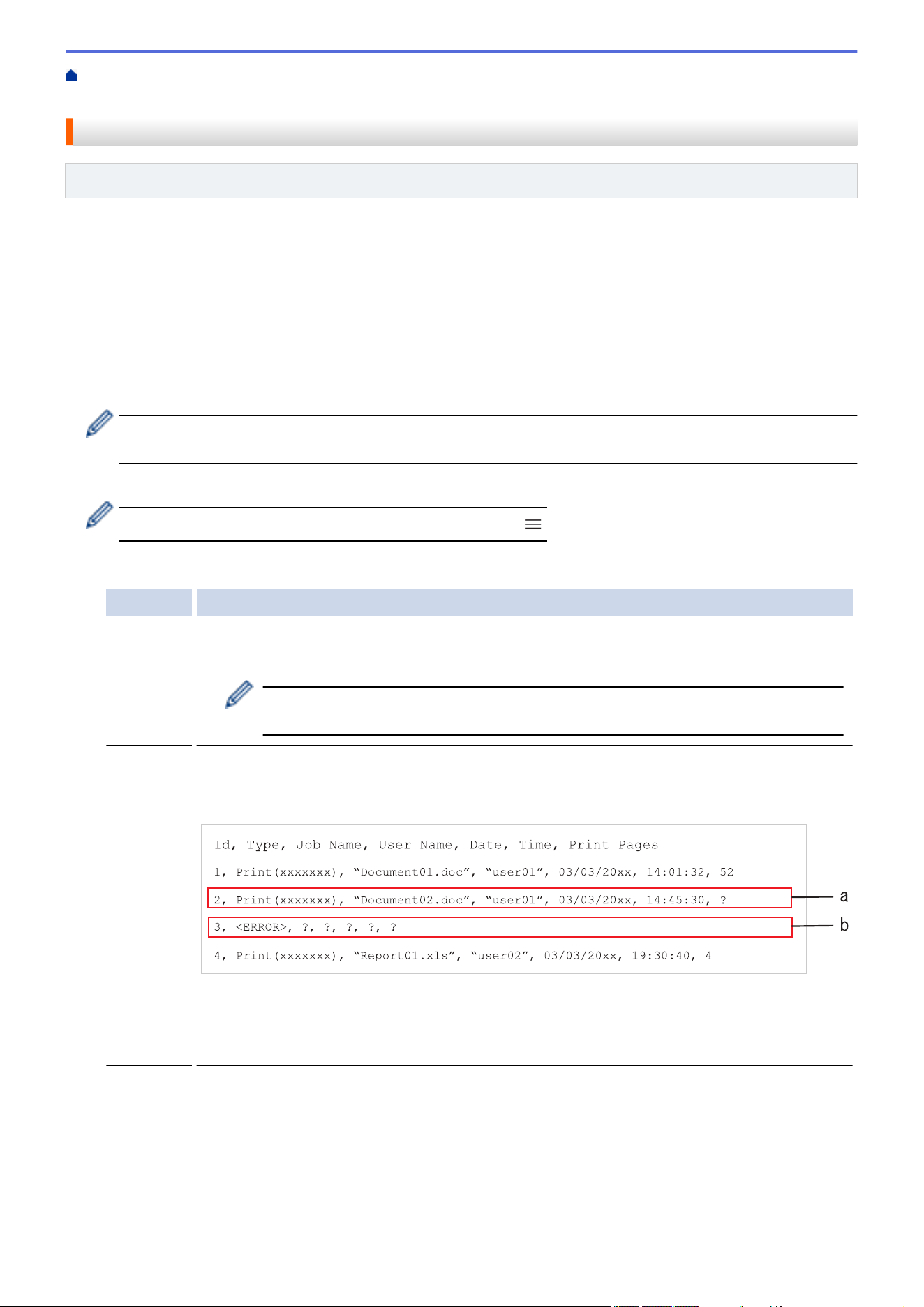
Home > Security > Store Print Log to Network > Use the Store Print Log to Network's Error Detection
Setting
Use the Store Print Log to Network's Error Detection Setting
Related Models: MFC-L2980DW
Use Error Detection Settings to determine the action that is taken when the print log cannot be stored to the
server due to a network error.
1. Start your web browser.
2. Type "https://machine's IP address" in your browser's address bar (where "machine's IP address" is your
machine's IP address).
For example:
https://192.168.1.2
3. If required, type the password in the Login field, and then click Login.
The default password to manage this machine’s settings is located on the back of the machine and marked
"Pwd". Change the default password by following the on-screen instructions when you first log in.
4. In the left navigation bar, click Administrator > Store Print Log to Network.
If the left navigation bar is not visible, start navigating from
.
5. In the Error Detection Setting section, select the Cancel Print or Ignore Log & Print option.
Option Description
Cancel
Print
If you select the Cancel Print option, the print jobs are canceled when the print log cannot be
stored to the server.
Even if you select the Cancel Print option, your machine will print a received fax.
(For MFC models)
Ignore
Log &
Print
If you select the Ignore Log & Print option, the machine prints the documentation even if the
print log cannot be stored to the server.
When the Store Print Log function has recovered, the print log is recorded as follows:
a. If the log cannot be stored at the end of printing, the number of printed pages will not be
recorded.
b. If the print log cannot be stored at the beginning and the end of printing, the print log of the
job will not be recorded. When the function has recovered, the error is reflected in the log.
6. Click Submit to display the Test Print Log to Network page.
To test your settings, click Yes and then go to the next step.
To skip the test, click No. Your settings will be submitted automatically.
7. The machine will test your settings.
8. If your settings are accepted, Test OK appears on the screen.
If Test Error appears, check all settings, and then click Submit to display the Test page again.
422

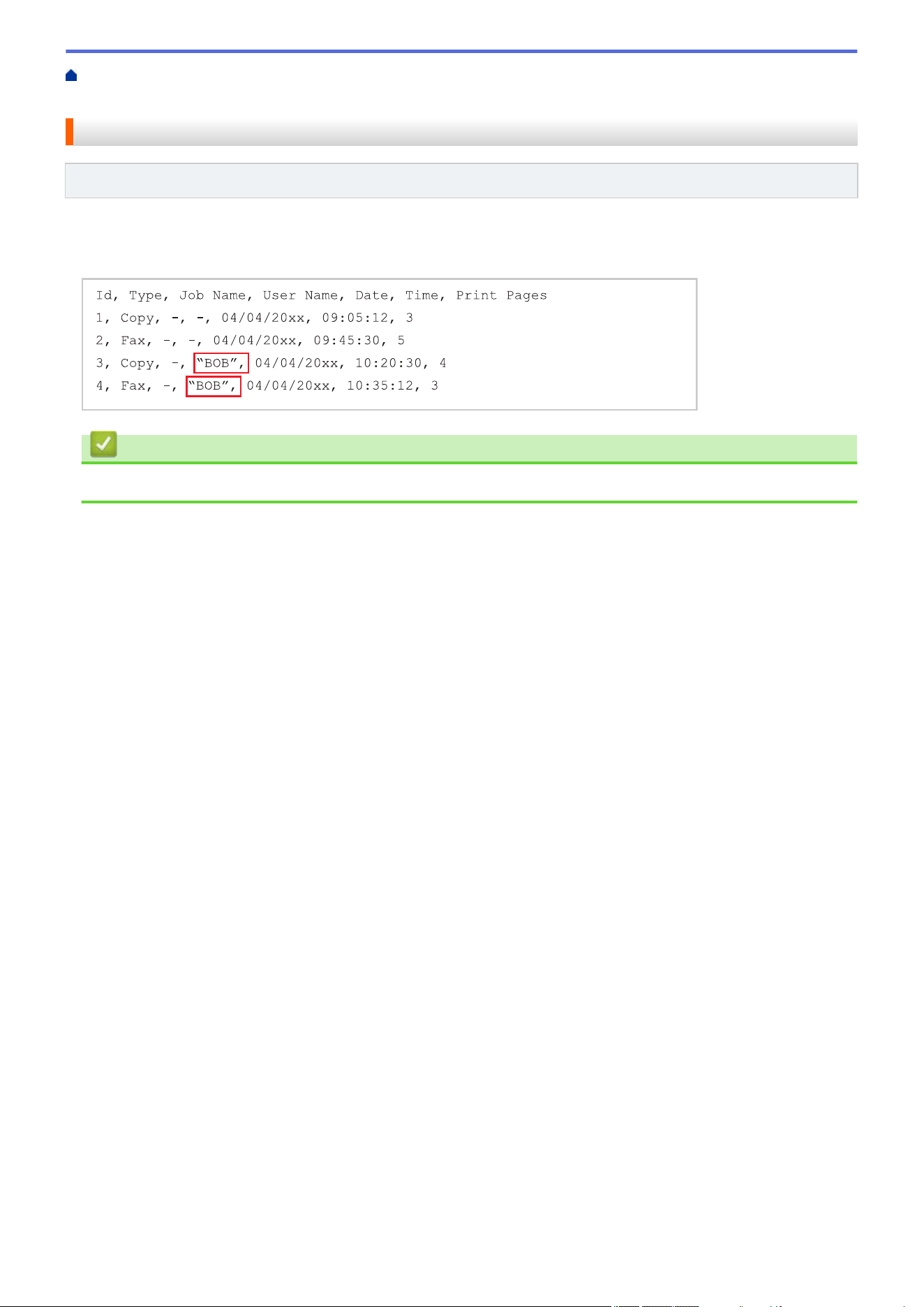
Home > Security > Store Print Log to Network > Use Store Print Log to Network with Secure Function Lock
3.0
Use Store Print Log to Network with Secure Function Lock 3.0
Related Models: MFC-L2980DW
When Secure Function Lock 3.0 is active, the names of the registered users for copy, Fax RX (for MFC models)
and Web Connect Print are recorded in the Store Print Log to Network report. When the Active Directory
Authentication is enabled, the user name is recorded in the Store Print Log to Network report:
Related Information
• Store Print Log to Network
424

Home > Security > Lock the Machine Settings from the Control Panel
Lock the Machine Settings from the Control Panel
Before turning on the machine's Setting Lock, write down and save your password. If you forget the password,
you must reset all passwords stored in the machine by contacting your administrator or Brother Customer
Service.
• Setting Lock Overview
425

Home > Security > Lock the Machine Settings from the Control Panel > Setting Lock Overview
Setting Lock Overview
Related Models: MFC-L2760DW/MFC-L2807DW/MFC-L2820DW/MFC-L2820DWXL/MFC-L2900DW/
MFC-L2900DWXL/MFC-L2980DW
Use the Setting Lock feature to block unauthorized access to machine settings.
When Setting Lock is set to On, you cannot access the machine settings without entering the password.
• Set the Setting Lock Password
• Change the Setting Lock Password
• Turn On Setting Lock
426
Home > Security > Lock the Machine Settings from the Control Panel > Setting Lock Overview > Set the
Setting Lock Password
Set the Setting Lock Password
Related Models: MFC-L2760DW/MFC-L2807DW/MFC-L2820DW/MFC-L2820DWXL/MFC-L2900DW/
MFC-L2900DWXL/MFC-L2980DW
>> MFC-L2760DW
>> MFC-L2807DW/MFC-L2820DW/MFC-L2820DWXL/MFC-L2900DW/MFC-L2900DWXL/MFC-L2980DW
MFC-L2760DW
1. Press Menu.
2. Press a or b to display the [General Setup] option, and then press OK.
3. (MFC-L2760DW) Press a or b to display the [Security] option, and then press OK.
4. Press a or b to display the [Setting Lock] option, and then press OK.
5. Enter a four-digit number for the password.
To enter each digit, press a or b to select a number, and then press OK.
6. When the LCD displays [Verify:], re-enter the password.
7. Press OK.
8. Press Stop/Exit.
MFC-L2807DW/MFC-L2820DW/MFC-L2820DWXL/MFC-L2900DW/MFC-L2900DWXL/
MFC-L2980DW
1. Press
[Settings] > [All Settings] > [General Setup] > [Setting Lock].
2. Enter a four-digit number for the password.
3. Press [OK].
4. When the LCD displays [Verify:], re-enter the password.
5. Press [OK].
6. Press
.
Related Information
• Setting Lock Overview
Related Topics:
• How to Enter Text on Your Machine
427
Home > Security > Lock the Machine Settings from the Control Panel > Setting Lock Overview > Change
the Setting Lock Password
Change the Setting Lock Password
Related Models: MFC-L2760DW/MFC-L2807DW/MFC-L2820DW/MFC-L2820DWXL/MFC-L2900DW/
MFC-L2900DWXL/MFC-L2980DW
>> MFC-L2760DW
>> MFC-L2807DW/MFC-L2820DW/MFC-L2820DWXL/MFC-L2900DW/MFC-L2900DWXL/MFC-L2980DW
MFC-L2760DW
1. Press Menu.
2. Press a or b to display the [General Setup] option, and then press OK.
3. (MFC-L2760DW) Press a or b to display the [Security] option, and then press OK.
4. Press a or b to display the [Setting Lock] option, and then press OK.
5. Press a or b to select the [Set Password] option, and then press OK.
6. Enter the current four-digit password.
7. Press OK.
8. Enter a new four-digit password.
9. Press OK.
10. When the LCD displays [Verify:], re-enter the password.
11. Press OK.
12. Press Stop/Exit.
MFC-L2807DW/MFC-L2820DW/MFC-L2820DWXL/MFC-L2900DW/MFC-L2900DWXL/
MFC-L2980DW
1. Press
[Settings] > [All Settings] > [General Setup] > [Setting Lock] > [Set
Password].
2. Enter the current four-digit password.
3. Press [OK].
4. Enter a new four-digit password.
5. Press [OK].
6. When the LCD displays [Verify:], re-enter the password.
7. Press [OK].
8. Press
.
Related Information
• Setting Lock Overview
428
Home > Security > Lock the Machine Settings from the Control Panel > Setting Lock Overview > Turn On
Setting Lock
Turn On Setting Lock
Related Models: MFC-L2760DW/MFC-L2807DW/MFC-L2820DW/MFC-L2820DWXL/MFC-L2900DW/
MFC-L2900DWXL/MFC-L2980DW
>> MFC-L2760DW
>> MFC-L2807DW/MFC-L2820DW/MFC-L2820DWXL/MFC-L2900DW/MFC-L2900DWXL/MFC-L2980DW
MFC-L2760DW
1. Press Menu.
2. Press a or b to display the [General Setup] option, and then press OK.
3. (MFC-L2760DW) Press a or b to display the [Security] option, and then press OK.
4. Press a or b to display the [Setting Lock] option, and then press OK.
5. Press OK when the LCD displays [On].
6. Enter the current four-digit password.
7. Press OK.
MFC-L2807DW/MFC-L2820DW/MFC-L2820DWXL/MFC-L2900DW/MFC-L2900DWXL/
MFC-L2980DW
1. Press
[Settings] > [All Settings] > [General Setup] > [Setting Lock] > [Lock
Off⇒On].
2. Enter the current four-digit password.
3. Press [OK].
To turn off Setting Lock, press on the LCD, enter the current four-digit password, and then press [OK].
Related Information
• Setting Lock Overview
429

Home > Security > Use Global Network Detection Features
Use Global Network Detection Features
When you use your machine on a private network, use the Global Network Detection feature to avoid a risk from
unexpected attacks from the global network.
• Enable Global IP Address Detection
• Block Communications from the Global Network
430
Home > Security > Use Global Network Detection Features > Enable Global IP Address Detection
Enable Global IP Address Detection
Use this feature to check your machine's IP address. When your machine is assigned to a global IP address, an
alert is displayed on the machine.
>> HL-L2465DW/DCP-L2640DW/DCP-L2647DW/MFC-L2760DW
>> HL-L2480DW/MFC-L2807DW/MFC-L2820DW/MFC-L2820DWXL/MFC-L2900DW/MFC-L2900DWXL/
MFC-L2980DW
HL-L2465DW/DCP-L2640DW/DCP-L2647DW/MFC-L2760DW
1. Press Menu.
2. Press a or b to select the [Network] option, and then press OK.
3. Press a or b to select the [Global Detect] option, and then press OK.
4. Press a or b to select the [Allow Detect] option, and then press OK.
5. Press a or b to select [On], and then press OK.
HL-L2480DW/MFC-L2807DW/MFC-L2820DW/MFC-L2820DWXL/MFC-L2900DW/
MFC-L2900DWXL/MFC-L2980DW
1. Press
[Settings] > [All Settings] > [Network] > [Global Detect] > [Allow Detect] >
[On].
2. Press
.
Related Information
• Use Global Network Detection Features
431
Home > Security > Use Global Network Detection Features > Block Communications from the Global
Network
Block Communications from the Global Network
When you enable this feature, it limits receiving jobs from devices with global IP addresses
>> HL-L2465DW/DCP-L2640DW/DCP-L2647DW/MFC-L2760DW
>> HL-L2480DW/MFC-L2807DW/MFC-L2820DW/MFC-L2820DWXL/MFC-L2900DW/MFC-L2900DWXL/
MFC-L2980DW
HL-L2465DW/DCP-L2640DW/DCP-L2647DW/MFC-L2760DW
1. Press Menu.
2. Press a or b to select the [Network] option, and then press OK.
3. Press a or b to select the [Global Detect] option, and then press OK.
4. Press a or b to select the [Reject Access] option, and then press OK.
5. Press a or b to select [On], and then press OK.
HL-L2480DW/MFC-L2807DW/MFC-L2820DW/MFC-L2820DWXL/MFC-L2900DW/
MFC-L2900DWXL/MFC-L2980DW
1. Press [Settings] > [All Settings] > [Network] > [Global Detect] > [Reject Access]
> [On].
2. Press .
Related Information
• Use Global Network Detection Features
432


Home > Mobile/Web Connect > Brother Web Connect
Brother Web Connect
Related Models: HL-L2480DW/MFC-L2807DW/MFC-L2820DW/MFC-L2820DWXL/MFC-L2900DW/
MFC-L2900DWXL/MFC-L2980DW
• Brother Web Connect Overview
• Online Services Used with Brother Web Connect
• Set Up Brother Web Connect
• Scan and Upload Documents Using Brother Web Connect
• Download and Print Documents Using Brother Web Connect
• FaxForward to Cloud or E-mail
434
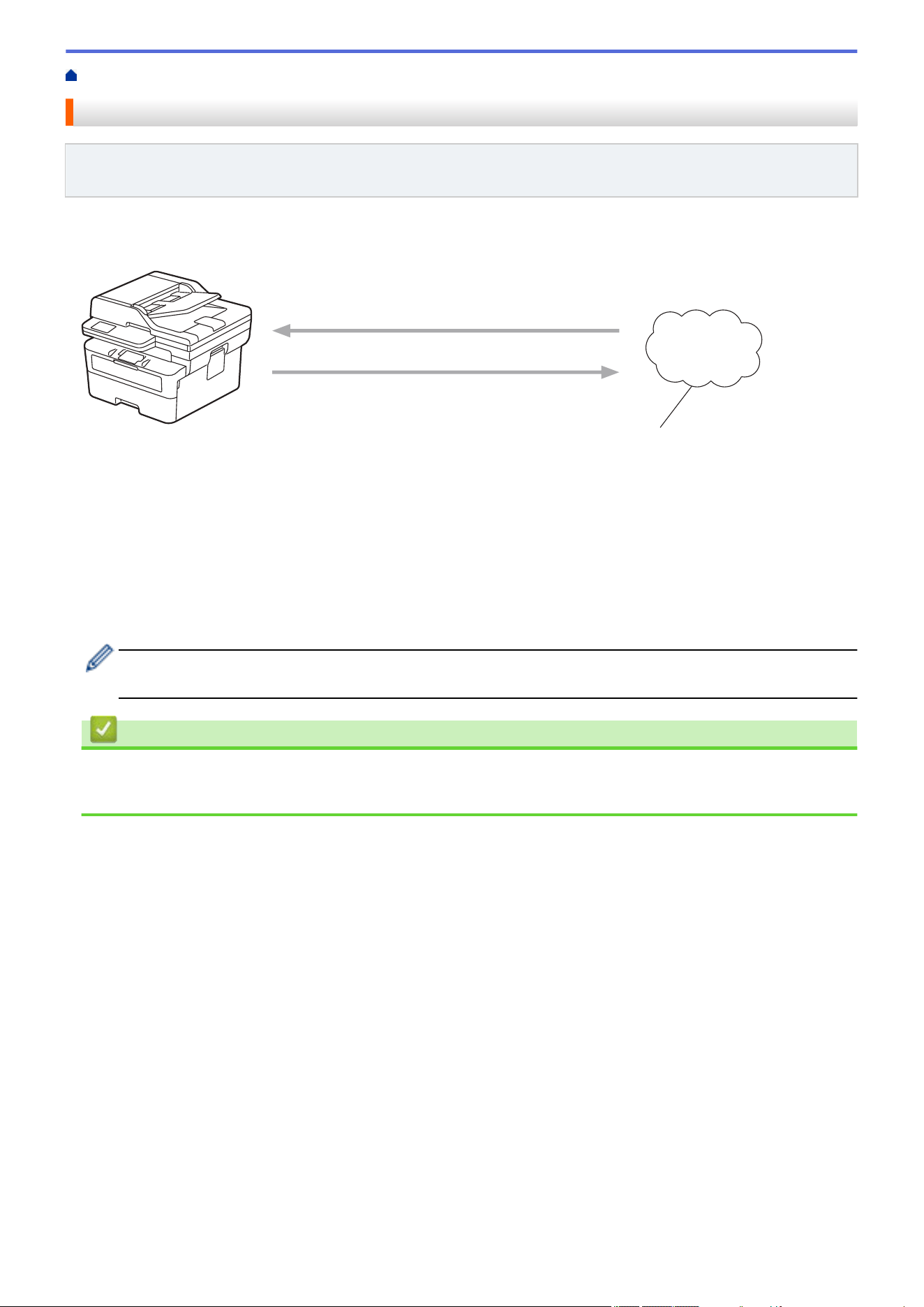
Home > Mobile/Web Connect > Brother Web Connect > Brother Web Connect Overview
Brother Web Connect Overview
Related Models: HL-L2480DW/MFC-L2807DW/MFC-L2820DW/MFC-L2820DWXL/MFC-L2900DW/
MFC-L2900DWXL/MFC-L2980DW
Certain websites provide services that allow users to upload and view images and files on the websites. Your
Brother machine can scan images and upload them to these services, and also download and print images that
are already uploaded to these services.
4
3
1
2
1. Printing
2. Scanning
3. Photos, images, documents, and other files
4. Web Service
To use Brother Web Connect, your Brother machine must be connected to a network that has access to the
Internet, through either a wired or wireless connection.
For network setups that use a proxy server, the machine must also be configured to use a proxy server. If you
are unsure of your network configuration, check with your network administrator.
A proxy server is a computer that serves as an intermediary between computers without a direct Internet
connection, and the Internet.
Related Information
• Brother Web Connect
• Configure the Proxy Server Settings Using the Machine's Control Panel
435
Home > Mobile/Web Connect > Brother Web Connect > Brother Web Connect Overview > Configure the
Proxy Server Settings Using the Machine's Control Panel
Configure the Proxy Server Settings Using the Machine's Control Panel
Related Models: HL-L2480DW/MFC-L2807DW/MFC-L2820DW/MFC-L2820DWXL/MFC-L2900DW/
MFC-L2900DWXL/MFC-L2980DW
If your network uses a proxy server, the following proxy server information must be configured on the machine:
• Proxy server address
• Port number
• User Name
• Password
1. Press [Settings] > [All Settings] > [Network] > [Web Connect Settings] > [Proxy
Settings] > [Proxy Connection] > [On].
2. Press the proxy server information, and then enter the option that you want to set.
3. Press .
Related Information
• Brother Web Connect Overview
Related Topics:
• Configure the Proxy Server Settings Using Web Based Management
436
Home > Mobile/Web Connect > Brother Web Connect > Online Services Used with Brother Web Connect
Online Services Used with Brother Web Connect
Related Models: HL-L2480DW/MFC-L2807DW/MFC-L2820DW/MFC-L2820DWXL/MFC-L2900DW/
MFC-L2900DWXL/MFC-L2980DW
Use Brother Web Connect to access services from your Brother machine:
To use Brother Web Connect, you must have an account with the online service you want to use. If you do not
already have an account, use a computer to access the service's website and create an account.
If you already have an account, there is no need to create an additional account.
Google Drive
™
An online document storage, editing, sharing, and file synchronization service.
URL:
drive.google.com
Evernote
®
An online file storage and management service.
URL: www.evernote.com
Dropbox
An online file storage, sharing, and synchronization service.
URL: www.dropbox.com
OneDrive
An online file storage, sharing, and managing service.
URL:
onedrive.live.com
Box
An online document editing and sharing service.
URL: www.box.com
OneNote
An online document editing and sharing service.
URL:
www.onenote.com
SharePoint Online
An online content storage, sharing, and managing service.
For more information about any of these services, refer to the respective service's website.
The following table describes which file types can be used with each Brother Web Connect feature:
Accessible Services
Google Drive
™
Evernote
®
Dropbox
OneDrive
Box
OneNote
SharePoint Online
Download and print images
1
JPEG
PDF
DOCX
XLSX
PPTX
Upload scanned images JPEG
437
Accessible Services
Google Drive
™
Evernote
®
Dropbox
OneDrive
Box
OneNote
SharePoint Online
PDF
2
DOCX
XLSX
PPTX
TIFF
XPS
FaxForward to the online
services
(available for certain
models)
JPEG
PDF
TIFF
1
DOC/XLS/PPT formats are also available for downloading and printing images.
2
Includes Searchable PDF, Signed PDF, Secure PDF, PDF/A and High Compression PDF.
(For Hong Kong, Taiwan and Korea)
Brother Web Connect supports only file names written in English. Files named in the local language will not
be downloaded.
Related Information
• Brother Web Connect
438

Home > Mobile/Web Connect > Brother Web Connect > Set Up Brother Web Connect
Set Up Brother Web Connect
Related Models: HL-L2480DW/MFC-L2807DW/MFC-L2820DW/MFC-L2820DWXL/MFC-L2900DW/
MFC-L2900DWXL/MFC-L2980DW
• Brother Web Connect Setup Overview
• Create an Account for Each Online Service Before Using Brother Web Connect
• Apply for Brother Web Connect Access
• Register an Account on Your Brother Machine for Brother Web Connect
439
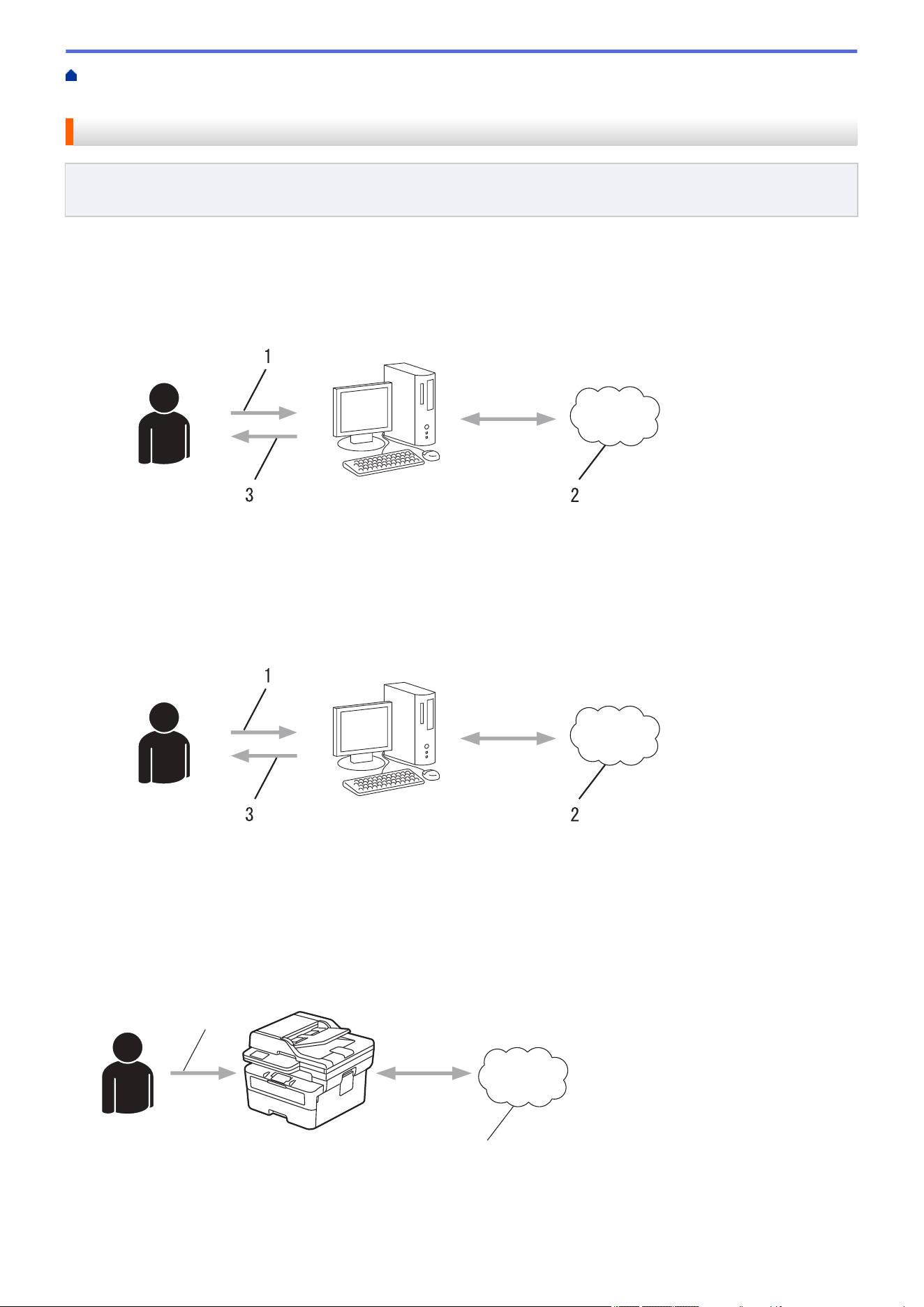
Home > Mobile/Web Connect > Brother Web Connect > Set Up Brother Web Connect > Brother Web
Connect Setup Overview
Brother Web Connect Setup Overview
Related Models: HL-L2480DW/MFC-L2807DW/MFC-L2820DW/MFC-L2820DWXL/MFC-L2900DW/
MFC-L2900DWXL/MFC-L2980DW
Configure the Brother Web Connect settings using the following procedure:
Step 1: Create an account with the service you want to use.
Access the service's website using a computer and create an account. (If you already have an account, there
is no need to create an additional account.)
1. User registration
2. Web Service
3. Obtain account
Step 2: Apply for Brother Web Connect access.
Start Brother Web Connect access using a computer and obtain a temporary ID.
1. Enter account information
2. Brother Web Connect application page
3. Obtain temporary ID
Step 3: Register your account information on your machine so you can access the service you want to
use.
Enter the temporary ID to enable the service on your machine. Specify the account name as you would like it
to be displayed on the machine, and enter a PIN if you would like to use one.
2
1
1. Enter temporary ID
2. Web Service
Your Brother machine can now use the service.
440

Home > Mobile/Web Connect > Brother Web Connect > Set Up Brother Web Connect > Create an Account
for Each Online Service Before Using Brother Web Connect
Create an Account for Each Online Service Before Using Brother Web
Connect
Related Models: HL-L2480DW/MFC-L2807DW/MFC-L2820DW/MFC-L2820DWXL/MFC-L2900DW/
MFC-L2900DWXL/MFC-L2980DW
To use Brother Web Connect to access an online service, you must have an account with that online service. If
you do not already have an account, use a computer to access the service's website and create an account.
After creating an account, log on and use the account once with a computer before using the Brother Web
Connect feature. Otherwise, you may not be able to access the service using Brother Web Connect.
If you already have an account, there is no need to create an additional account.
When you have created an account with the online service you want to use, apply for Brother Web Connect
access.
Related Information
• Set Up Brother Web Connect
442
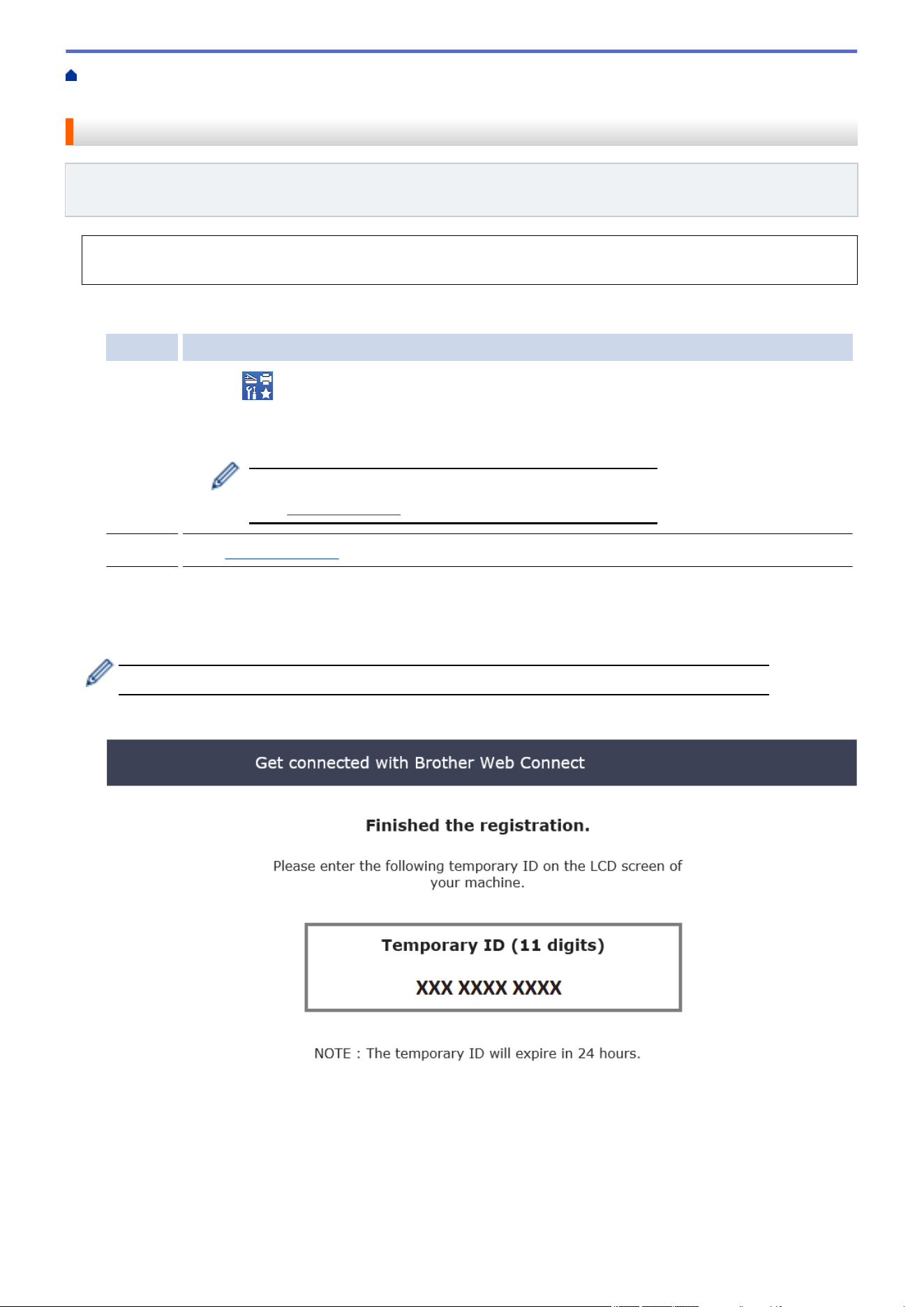
Home > Mobile/Web Connect > Brother Web Connect > Set Up Brother Web Connect > Apply for Brother
Web Connect Access
Apply for Brother Web Connect Access
Related Models: HL-L2480DW/MFC-L2807DW/MFC-L2820DW/MFC-L2820DWXL/MFC-L2900DW/
MFC-L2900DWXL/MFC-L2980DW
To use Brother Web Connect to access online services, you must first apply for Brother Web Connect access
using a computer that has the Brother Software installed.
1. Access the Brother Web Connect application website:
Option Description
Windows Launch (Brother Utilities), and then click the drop-down list and select your model name
(if not already selected).
Click Do More in the left navigation bar, and then click Brother Web Connect.
You can also access the website directly:
Type
bwc.brother.com into your web browser's address bar.
Mac Type bwc.brother.com into your web browser's address bar.
The Brother Web Connect page launches.
2. Select the service you want to use.
3. Follow the on-screen instructions and apply for access.
When using SharePoint Online, follow the on-screen instructions to register a document library.
When finished, your temporary ID appears.
4. Make a note of your temporary ID as you will need it to register accounts to the machine. The temporary ID is
valid for 24 hours.
5. Close the web browser.
Now that you have a Brother Web Connect access ID, you must register this ID on your machine, and then use
your machine to access the web service you want to use.
443

Home > Mobile/Web Connect > Brother Web Connect > Set Up Brother Web Connect > Register an
Account on Your Brother Machine for Brother Web Connect
Register an Account on Your Brother Machine for Brother Web Connect
Related Models: HL-L2480DW/MFC-L2807DW/MFC-L2820DW/MFC-L2820DWXL/MFC-L2900DW/
MFC-L2900DWXL/MFC-L2980DW
You must enter your Brother Web Connect account information and configure your machine so that it can use
Brother Web Connect to access the service you want.
• You must apply for Brother Web Connect access to register an account on your machine.
• Before you register an account, confirm that the correct date and time are set on the machine.
1. Press d or c to display the [Web] option.
2. Press [Web].
• If information regarding the Internet connection appears on the machine’s LCD, read the information
and press [OK]. If you want to display this information again, press [Yes].
• Occasionally, updates or announcements about Brother Web Connect's features will appear on the
LCD. Read the information, and then press [OK].
3. If the information regarding license agreement appears, make your selection and follow the on-screen
instructions.
4. Press a or b to display the service with which you want to register.
5. Press the service name.
6. If information regarding Brother Web Connect appears, press [OK].
7. Press [Register/Delete].
8. Press [Register Account].
The machine will prompt you to enter the temporary ID you received when you applied for Brother Web
Connect access.
9. Press [OK].
10. Enter the temporary ID using the LCD.
11. Press [OK].
An error message will appear on the LCD if the information you entered does not match the temporary ID
you received when you applied for access, or if the temporary ID has expired. Enter the temporary ID
correctly, or apply for access again to receive a new temporary ID.
The machine will prompt you to enter the account name that you want to be displayed on the LCD.
12. Press [OK].
13. Enter the name using the LCD.
14. Press [OK].
15. Do one of the following:
• To set a PIN for the account, press [Yes]. (A PIN prevents unauthorized access to the account.) Enter a
four-digit number, and then press [OK].
• If you do not want to set a PIN, press [No].
16. When the account information you entered appears, confirm that it is correct.
17. Press [Yes] to register your information as entered.
18. Press [OK].
19. Press .
445

Home > Mobile/Web Connect > Brother Web Connect > Scan and Upload Documents Using Brother Web
Connect
Scan and Upload Documents Using Brother Web Connect
Related Models: HL-L2480DW/MFC-L2807DW/MFC-L2820DW/MFC-L2820DWXL/MFC-L2900DW/
MFC-L2900DWXL/MFC-L2980DW
Upload your scanned photos and documents directly to a web service without using a computer.
Uploaded documents are saved in an album named From_BrotherDevice.
For information regarding restrictions, such as the size or number of documents that can be uploaded, refer to
the respective service's website.
If you are a restricted Web Connect user, due to the enabled Secure Function Lock feature (available for
certain models), you cannot upload the scanned data.
1. Load your document.
2. Press d or c to display the [Web] option.
3. Press [Web].
• If information regarding the Internet connection appears on the machine’s LCD, read the information
and press [OK]. If you want to display this information again, press [Yes].
• Occasionally, updates or announcements about Brother Web Connect's features will appear on the
LCD. Read the information, and then press [OK].
4. Press a or b to display the service that hosts the account to which you want to upload. Press the service
name.
5. Press a or b to display your account name, and then press it.
6. Follow the on-screen instructions to complete this operation.
Related Information
• Brother Web Connect
447
Home > Mobile/Web Connect > Brother Web Connect > Download and Print Documents Using Brother
Web Connect
Download and Print Documents Using Brother Web Connect
Related Models: HL-L2480DW/MFC-L2807DW/MFC-L2820DW/MFC-L2820DWXL/MFC-L2900DW/
MFC-L2900DWXL/MFC-L2980DW
Documents that have been uploaded to your account can be downloaded directly to your machine and printed.
Documents that other users have uploaded to their own accounts for sharing can also be downloaded to your
machine and printed, as long as you have viewing privileges for those documents.
If you are a restricted user for Brother Web Connect due to the enabled Secure Function Lock feature (available
for certain models), you cannot download the data.
The Secure Function Lock Page Limit feature also applies to print jobs sent using Brother Web Connect.
For Hong Kong, Taiwan and Korea:
Brother Web Connect supports only file names written in English. Files named in the local language will not
be downloaded.
Related Information
• Brother Web Connect
• Download and Print Using Web Services
448
Home > Mobile/Web Connect > Brother Web Connect > Download and Print Documents Using Brother
Web Connect > Download and Print Using Web Services
Download and Print Using Web Services
Related Models: HL-L2480DW/MFC-L2807DW/MFC-L2820DW/MFC-L2820DWXL/MFC-L2900DW/
MFC-L2900DWXL/MFC-L2980DW
1. Press d or c to display the [Web] option.
2. Press [Web].
• If information regarding the Internet connection appears on the machine’s LCD, read the information
and press [OK]. If you want to display this information again, press [Yes].
• Occasionally, updates or announcements about Brother Web Connect's features will appear on the
LCD. Read the information, and then press [OK].
3. Press a or b to display the service that hosts the document you want to download and print. Press the service
name.
4. To log on to the service, press a or b to display your account name, and then press it. If the PIN entry screen
appears, enter the four-digit PIN and press [OK].
Depending on the service, you may have to select the account name from a list.
5. Press [Download: Print].
6. Press a or b to display the folder you want, and then press it. Some services do not require documents to be
saved in folders. For documents not saved in folders, select [See Unsorted Files] to select documents.
7. Press the thumbnail of the document you want to print. Confirm the document on the LCD and then press
[OK]. Select additional documents to print (you can select up to 10 documents).
8. When finished, press [OK].
9. Follow the on-screen instructions to complete this operation.
Related Information
• Download and Print Documents Using Brother Web Connect
Related Topics:
• How to Enter Text on Your Machine
449
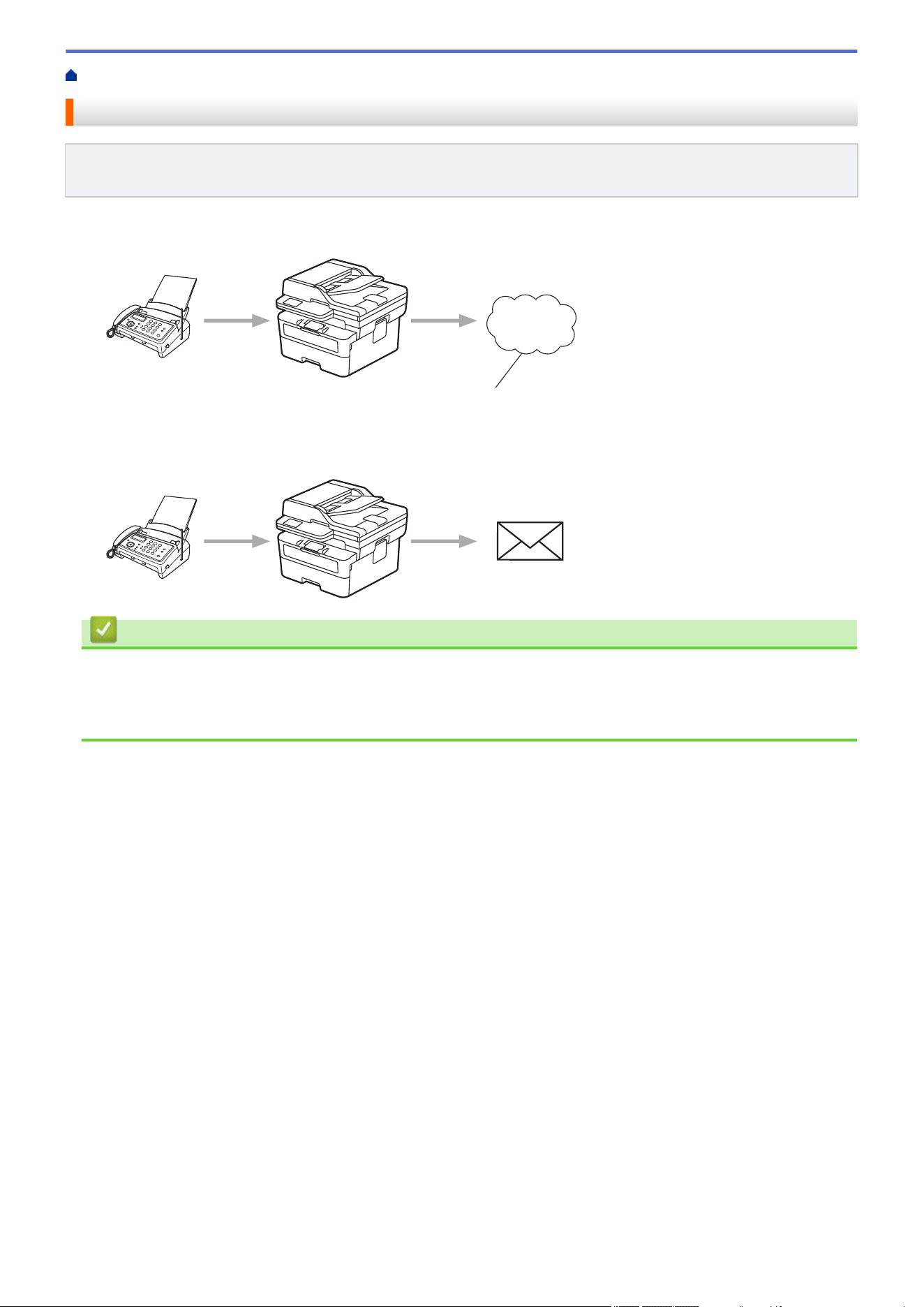
Home > Mobile/Web Connect > Brother Web Connect > FaxForward to Cloud or E-mail
FaxForward to Cloud or E-mail
Related Models: MFC-L2807DW/MFC-L2820DW/MFC-L2820DWXL/MFC-L2900DW/MFC-L2900DWXL/
MFC-L2980DW
• Use the FaxForward to Cloud feature to automatically forward incoming faxes to your accounts with the
available online services.
1
1. Web Service
• Use the FaxForward to E-mail feature to automatically forward incoming faxes to an inbox as email
attachments.
Related Information
• Brother Web Connect
• Use FaxForward to Forward a Fax to the Cloud or an Email
• Stop Using FaxForward to Forward a Fax to an Email or a Cloud location
450
Home > Mobile/Web Connect > Brother Web Connect > FaxForward to Cloud or E-mail > Use FaxForward
to Forward a Fax to the Cloud or an Email
Use FaxForward to Forward a Fax to the Cloud or an Email
Related Models: MFC-L2807DW/MFC-L2820DW/MFC-L2820DWXL/MFC-L2900DW/MFC-L2900DWXL/
MFC-L2980DW
Turn on the FaxForward feature to automatically forward incoming faxes to either an online service or an inbox
as email attachments.
• If you are a restricted Apps or Fax Receive user, due to the enabled Secure Function Lock feature
(available for certain models), you cannot upload the incoming faxes.
• This feature is available only for black and white faxes.
• If you turn on the FaxForward to Cloud feature, you cannot use the following options:
- [Fax Forward]
- [Fax Storage]
- [PC Fax Receive]
- [Forward to Network]
1. Press d or c to display the [Apps] option.
2. Press [Apps].
• If information regarding the Internet connection appears on the machine’s LCD, read the information
and press [OK]. If you want to display this information again, press [Yes].
• Occasionally, updates or announcements about Brother Web Connect's features will appear on the
LCD. Read the information, and then press [OK].
3. Select [FaxForward to Cloud/E-mail].
If information regarding [FaxForward to Cloud/E-mail] appears, read it, and then press [OK].
4. Press [On].
5. Press [Forward to Cloud] or [Forward to E-mail].
• If you selected [Forward to Cloud], select the online service you want to use to receive faxes, and
then specify your account name.
• If you selected [Forward to E-mail], enter the email address you want to use to receive faxes as
email attachments.
6. Follow the on-screen instructions to complete this operation.
Related Information
• FaxForward to Cloud or E-mail
451
Home > Mobile/Web Connect > Brother Web Connect > FaxForward to Cloud or E-mail > Stop Using
FaxForward to Forward a Fax to an Email or a Cloud location
Stop Using FaxForward to Forward a Fax to an Email or a Cloud
location
Related Models: MFC-L2807DW/MFC-L2820DW/MFC-L2820DWXL/MFC-L2900DW/MFC-L2900DWXL/
MFC-L2980DW
Turn off the FaxForward feature when you want to stop incoming faxes from automatically going to either an
online service or an inbox as email attachments.
If there are received faxes still in your machine's memory, you cannot turn off the FaxForward feature.
1. Press d or c to display the [Apps] option.
2. Press [Apps].
• If information regarding the Internet connection appears on the machine’s LCD, read the information
and press [OK]. If you want to display this information again, press [Yes].
• Occasionally, updates or announcements about Brother Web Connect's features will appear on the
LCD. Read the information, and then press [OK].
3. Select [FaxForward to Cloud/E-mail].
If information regarding [FaxForward to Cloud/E-mail] appears, read it, and then press [OK].
4. Press [Off].
5. Press [OK].
Related Information
• FaxForward to Cloud or E-mail
452

Home > Mobile/Web Connect > AirPrint > AirPrint Overview
AirPrint Overview
AirPrint is a printing solution for Apple operating systems that allows you
to wirelessly print photos, email, web pages, and documents from your
iPad, iPhone, iPod touch, and Mac computer without the need to install a
driver.
(MFC-L2760DW/MFC-L2807DW/MFC-L2820DW/MFC-L2820DWXL/
MFC-L2900DW/MFC-L2900DWXL/MFC-L2980DW)
AirPrint also allows you to send faxes directly from your Mac computer
without having to print them and allows you to scan documents to your
Mac computer.
(HL-L2465DW/DCP-L2640DW/DCP-L2647DW/HL-L2480DW)
AirPrint also allows you to scan documents to your Mac computer.
For more information, visit Apple’s website.
Use of the Works with Apple badge means that an accessory has been
designed to work specifically with the technology identified in the badge
and has been certified by the developer to meet Apple performance
standards.
Related Information
• AirPrint
Related Topics:
• AirPrint Problems
454
Home > Mobile/Web Connect > AirPrint > Before Using AirPrint (macOS)
Before Using AirPrint (macOS)
Before printing using macOS, add your machine to the printer list on your Mac computer.
1. Do one of the following:
• macOS v13
Select System Settings from the Apple menu.
• macOS v12 and macOS v11
Select System Preferences from the Apple menu.
2. Select Printers & Scanners.
3. Do one of the following:
• macOS v13
Click Add Printer, Scanner, or Fax….
• macOS v12 and macOS v11
Click the + icon below the Printers pane on the left.
The Add Printer screen appears.
4. Do one of the following:
• macOS v13 and macOS v12
Select your machine, and then select your model's name from the Use pop-up menu.
• macOS v11
Select your machine, and then select AirPrint from the Use pop-up menu.
5. Click Add.
Related Information
• AirPrint
455

Home > Mobile/Web Connect > AirPrint > Print Using AirPrint > Print from iPad, iPhone, or iPod touch
Print from iPad, iPhone, or iPod touch
The procedure used to print may vary by application. Safari is used in the example below.
1. Make sure your machine is turned on.
2. Load the paper in the paper tray and change the paper tray settings on your machine.
3. Use Safari to open the page that you want to print.
4. Tap
or .
5. Tap Print.
6. Make sure your machine is selected.
7. If a different machine (or no machine) is selected, tap Printer.
A list of available machines appears.
8. Tap your machine's name in the list.
9. Select the options you want, such as the number of pages to print and 2-sided printing (if supported by your
machine).
10. Tap Print.
Related Information
• Print Using AirPrint
457
Home > Mobile/Web Connect > AirPrint > Print Using AirPrint > Print Using AirPrint (macOS)
Print Using AirPrint (macOS)
The procedure used to print may vary by application. Safari is used in the example below. Before printing,
make sure your machine is in the printer list on your Mac computer.
1. Make sure your machine is turned on.
2. Load the paper in the paper tray and change the paper tray settings on your machine.
3. On your Mac computer, use Safari to open the page that you want to print.
4. Click the File menu, and then select Print.
5. Make sure your machine is selected. If a different machine (or no machine) is selected, click the Printer pop-
up menu, and then select your machine.
6. Select the desired options, such as the number of pages to print and 2-sided printing (if supported by your
machine).
7. Click Print.
Related Information
• Print Using AirPrint
Related Topics:
• Before Using AirPrint (macOS)
458
Home > Mobile/Web Connect > AirPrint > Scan Using AirPrint (macOS)
Scan Using AirPrint (macOS)
Before scanning, make sure your machine is in the scanner list on your Mac computer.
1. Load your document.
2. Do one of the following:
• macOS v13
Select System Settings from the Apple menu.
• macOS v12 and macOS v11
Select System Preferences from the Apple menu.
3. Select Printers & Scanners.
4. Select your machine from the scanner list.
5. Do one of the following:
• macOS v13
Click the Open Scanner… button.
• macOS v12 and macOS v11
Click the Scan tab, and then click the Open Scanner… button.
The Scanner screen appears.
6. If you place the document in the ADF, select Use Document Feeder checkbox, and then select the size of
your document from the scan size setting pop-up menu.
7. Select the destination folder or destination application from the destination setting pop-up menu.
8. Click Show Details to change the scanning settings if needed.
You can crop the image manually by dragging the mouse pointer over the portion you want to scan when
scanning from the scanner glass.
9. Click Scan.
Related Information
• AirPrint
Related Topics:
• Before Using AirPrint (macOS)
459
Home > Mobile/Web Connect > AirPrint > Send a Fax Using AirPrint (macOS)
Send a Fax Using AirPrint (macOS)
Related Models: MFC-L2760DW/MFC-L2807DW/MFC-L2820DW/MFC-L2820DWXL/MFC-L2900DW/
MFC-L2900DWXL/MFC-L2980DW
Make sure your machine is in the printer list on your Mac computer. Apple TextEdit is used in the example
below.
AirPrint supports only black and white fax documents.
1. Make sure your machine is turned on.
2. On your Mac computer, open the file that you want to send as a fax.
3. Click the File menu, and then select Print.
4. Click the Printer pop-up menu, and then select your model with - Fax in the name.
5. Type the fax recipient information.
6. Click Fax.
Related Information
• AirPrint
Related Topics:
• PC-FAX for Mac
• Before Using AirPrint (macOS)
460
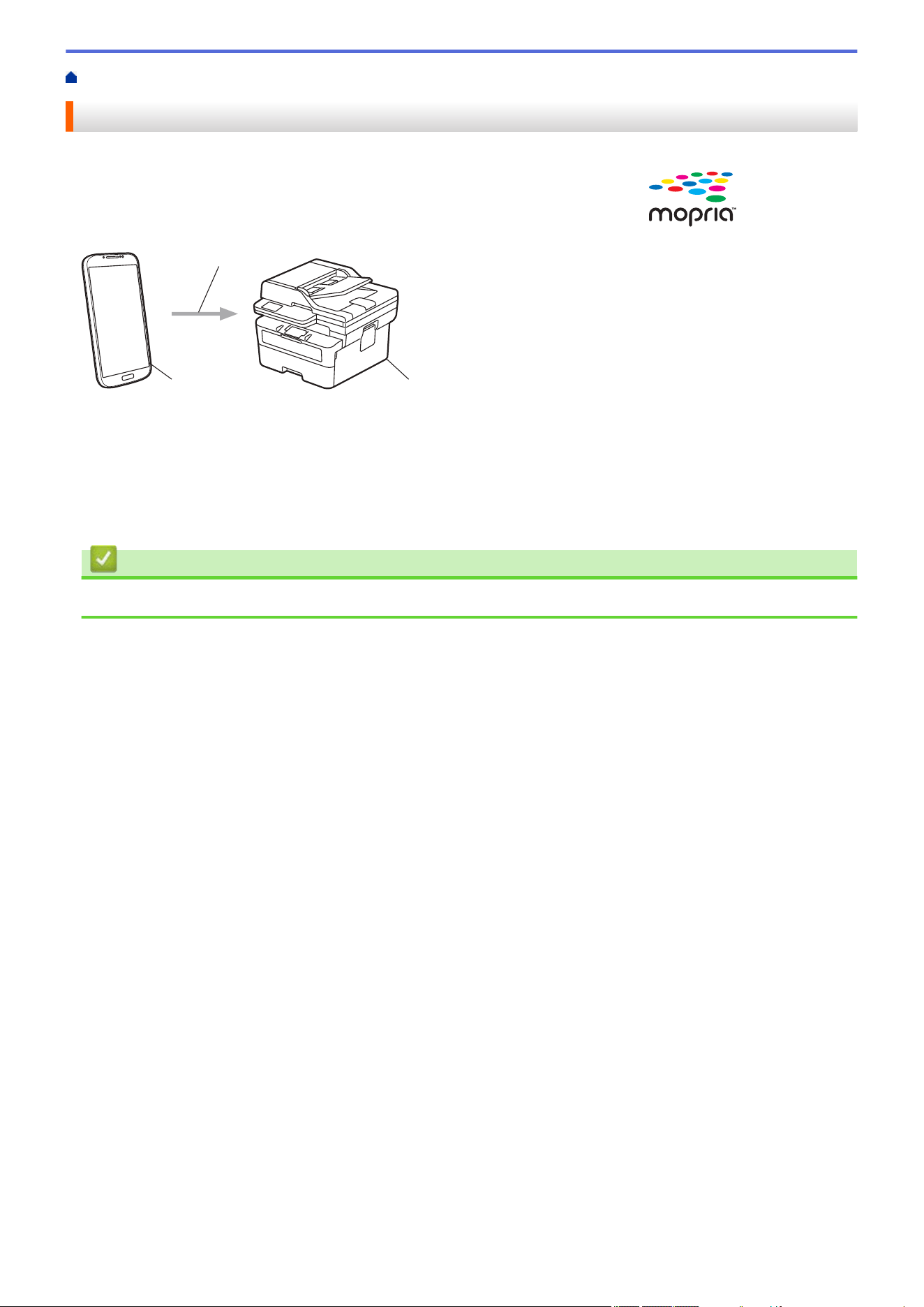
Home > Mobile/Web Connect > Mopria
™
Print Service and Mopria
™
Scan
Mopria
™
Print Service and Mopria
™
Scan
Mopria
™
Print Service is a print feature and Mopria
™
Scan is a scan feature on
Android
™
mobile devices developed by the Mopria Alliance
™
. With this service,
you can connect to the same network as your machine to print and scan without
additional setup.
1
2
3
1. Android
™
Mobile Device
2. Wi-Fi
®
Connection
3. Your Machine
You must download the Mopria
™
Print Service or Mopria
™
Scan from Google Play
™
and install it on your
Android
™
device. Before using these Mopria
™
features, make sure you enable them on your mobile device.
Related Information
• Mobile/Web Connect
461
Home > Mobile/Web Connect > Brother Mobile Connect
Brother Mobile Connect
Use Brother Mobile Connect to print and scan from your mobile device.
• For Android
™
devices:
Brother Mobile Connect allows you to use your Brother machine's features directly from your Android
™
device.
Download and install Brother Mobile Connect from Google Play
™
.
• For all iOS or iPadOS supported devices including iPhone, iPad, and iPod touch:
Brother Mobile Connect allows you to use your Brother machine's features directly from your iOS or iPadOS
device.
Download and install Brother Mobile Connect from the App Store.
Related Information
• Mobile/Web Connect
Related Topics:
• Access Brother iPrint&Scan (Windows/Mac)
462
Home > Troubleshooting
Troubleshooting
Use this section to resolve typical problems you may encounter when using your machine. You can correct most
problems yourself.
IMPORTANT
For technical help, you must call the country where you bought the machine. Calls must be made from within
that country.
(MFC-L2760DW)
To prevent you from losing the received fax data in the machine's memory, transfer the data to another Fax
machine or to your computer before turning off the machine.
If you need additional help, visit support.brother.com.
First, check the following:
• The machine's power cord is connected correctly and the machine's power is on. See the Quick Setup Guide.
• All of the protective materials have been removed. See the Quick Setup Guide.
• Paper is loaded correctly in the paper tray.
• The interface cables are securely connected to the machine and the computer, or the wireless connection is
set up on both the machine and your computer.
• Error and maintenance messages
If you did not solve the problem with the checks, identify the problem and then see Related Information.
Related Information
• Error and Maintenance Messages
• Error Messages When Using the Brother Web Connect Feature
• Document Jams
• Paper Jams
• Printing Problems
• Improve the Print Quality
• Telephone and Fax Problems
• Network Problems
• AirPrint Problems
• Other Problems
• Check the Machine Information
• Update Your Machine's Firmware
• Reset Your Machine
463
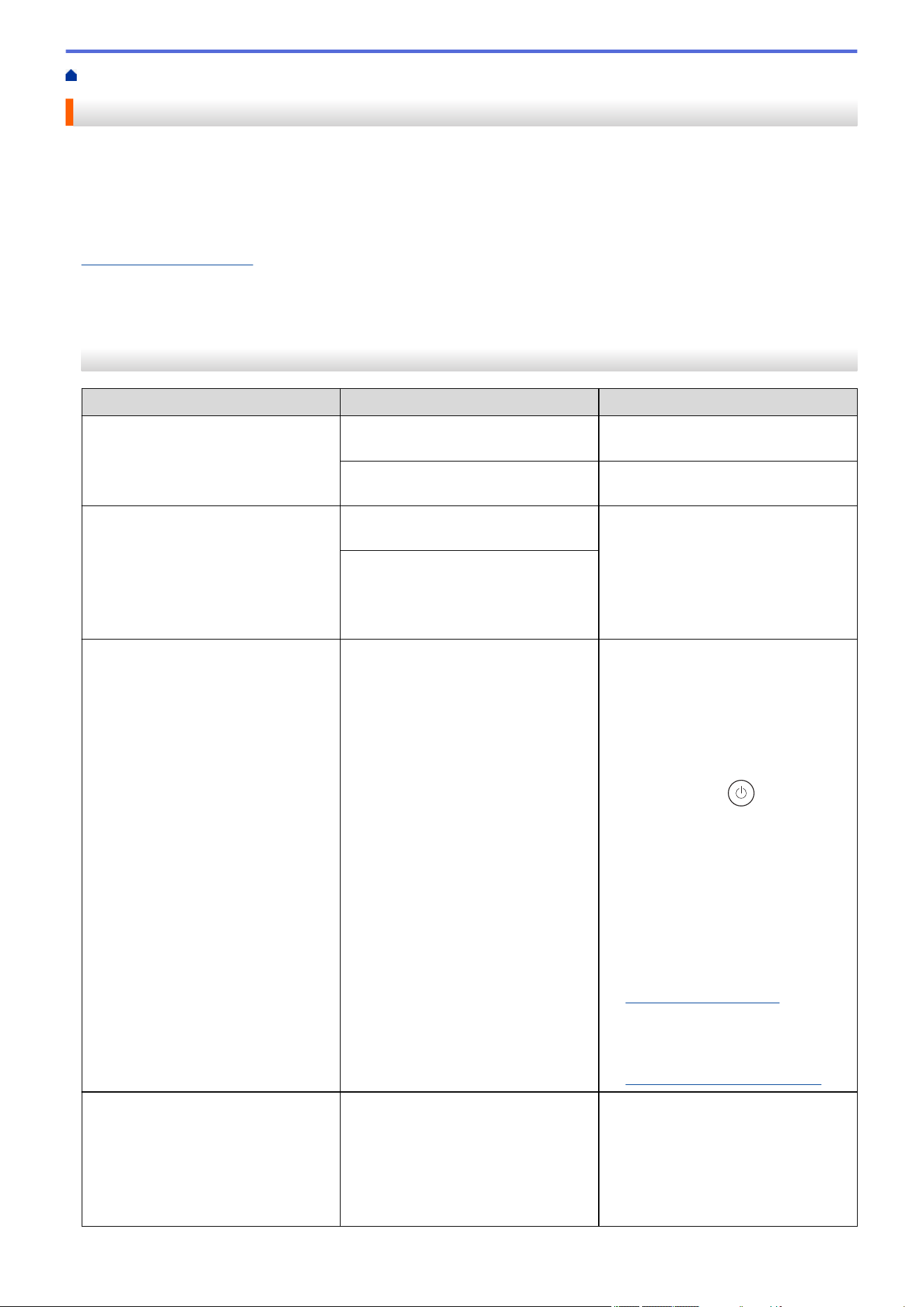
Home > Troubleshooting > Error and Maintenance Messages
Error and Maintenance Messages
As with any sophisticated office product, errors may occur and supply items may have to be replaced. If this
happens, your machine identifies the error or required routine maintenance and shows the appropriate message.
The most common error and maintenance messages are shown in the table.
Follow the instructions in the Action column to solve the error and remove the message.
You can correct most errors and perform routine maintenance by yourself. If you need more tips: Visit
support.brother.com/faqs.
>> HL-L2465DW/DCP-L2640DW/DCP-L2647DW/MFC-L2760DW
>> HL-L2480DW/MFC-L2807DW/MFC-L2820DW/MFC-L2820DWXL/MFC-L2900DW/MFC-L2900DWXL/
MFC-L2980DW
HL-L2465DW/DCP-L2640DW/DCP-L2647DW/MFC-L2760DW
Error Message
Cause Action
2-sided Disabled
(For automatic 2-sided printing
models)
The back cover of the machine is not
closed completely.
Close the back cover of the machine
until it locks in the closed position.
The 2-sided tray is not installed
completely.
Install the 2-sided tray firmly in the
machine.
Cannot Detect
Your machine cannot detect the drum
unit.
Remove the toner cartridge and drum
unit assembly. Remove the toner
cartridge from the drum unit, and
reinstall the toner cartridge back in
the drum unit. Reinstall the toner
cartridge and drum unit assembly
back in the machine.
Your machine cannot detect the toner
cartridge.
Cannot Print ## The machine has a mechanical
problem.
• (MFC-L2760DW)
To prevent you from losing the
received fax data in the machine's
memory, transfer the data to
another Fax machine or to your
computer before turning off the
machine.
• Press and hold
to turn off the
machine, wait a few minutes, and
then turn it on again.
• If the problem continues, contact
Brother Customer Service or your
local Brother dealer.
Contact Brother Customer Service
at:
1-877-BROTHER
(1-877-276-8437) (in USA)
www.brother.ca/support (in
Canada)
or to locate a Brother Authorized
Service Center, visit:
www.brother-usa.com/support
Cannot Scan
## The machine has a mechanical
problem.
• (MFC-L2760DW)
To prevent you from losing the
received fax data in the machine's
memory, transfer the data to
another Fax machine or to your
computer before turning off the
machine.
464
Error Message Cause Action
• Remove the document.
Press and hold
to turn off the
machine, and then turn it on again.
• If the problem continues, contact
Brother Customer Service or your
local Brother dealer.
Contact Brother Customer Service
at:
1-877-BROTHER
(1-877-276-8437) (in USA)
www.brother.ca/support (in
Canada)
or to locate a Brother Authorized
Service Center, visit:
www.brother-usa.com/support
Cartridge Error Put the
Black(BK) Toner Cartridge
back in.
The toner cartridge is not installed
correctly.
Pull out the drum unit and toner
cartridge assembly, take out the toner
cartridge, and put it back in the drum
unit again. Put the drum unit and
toner cartridge assembly back in the
machine.
If the problem continues, contact
Brother Customer Service or your
local Brother dealer.
Comm.Error
Poor telephone line quality caused a
communication error.
Send the fax again or connect the
machine to another telephone line. If
the problem continues, contact your
telephone company and ask them to
check the telephone line.
Cooling Down
The temperature of the inside of the
machine is too hot. The machine will
pause its current print job and enter
cooling down mode. While the
machine cools, the cooling fan runs
and the LCD displays Cooling
Down.
Wait until the machine has finished
cooling down. Make sure all vents on
the machine are clear of obstructions.
When the machine has cooled down,
it will resume printing.
If the fan is not spinning, disconnect
the machine from the power for
several minutes, then reconnect it.
Cover is Open
The front cover is not completely
closed.
Open and then firmly close the front
cover of the machine.
The fuser cover is not completely
closed or paper was jammed in the
back of the machine when you turned
on the power.
Close the fuser cover located inside
the back cover of the machine.
The ADF cover is not completely
closed.
Close the ADF cover.
Press and hold
to turn off the
machine, wait a few minutes, and
then turn it on again.
If the problem continues, contact
Brother Customer Service or your
local Brother dealer.
Disconnected
The other person or other person's
fax machine stopped the call.
Try to send or receive again.
If calls are stopped repeatedly and
you are using a VoIP (Voice over IP)
system, try changing the Compatibility
to Basic (for VoIP).
465
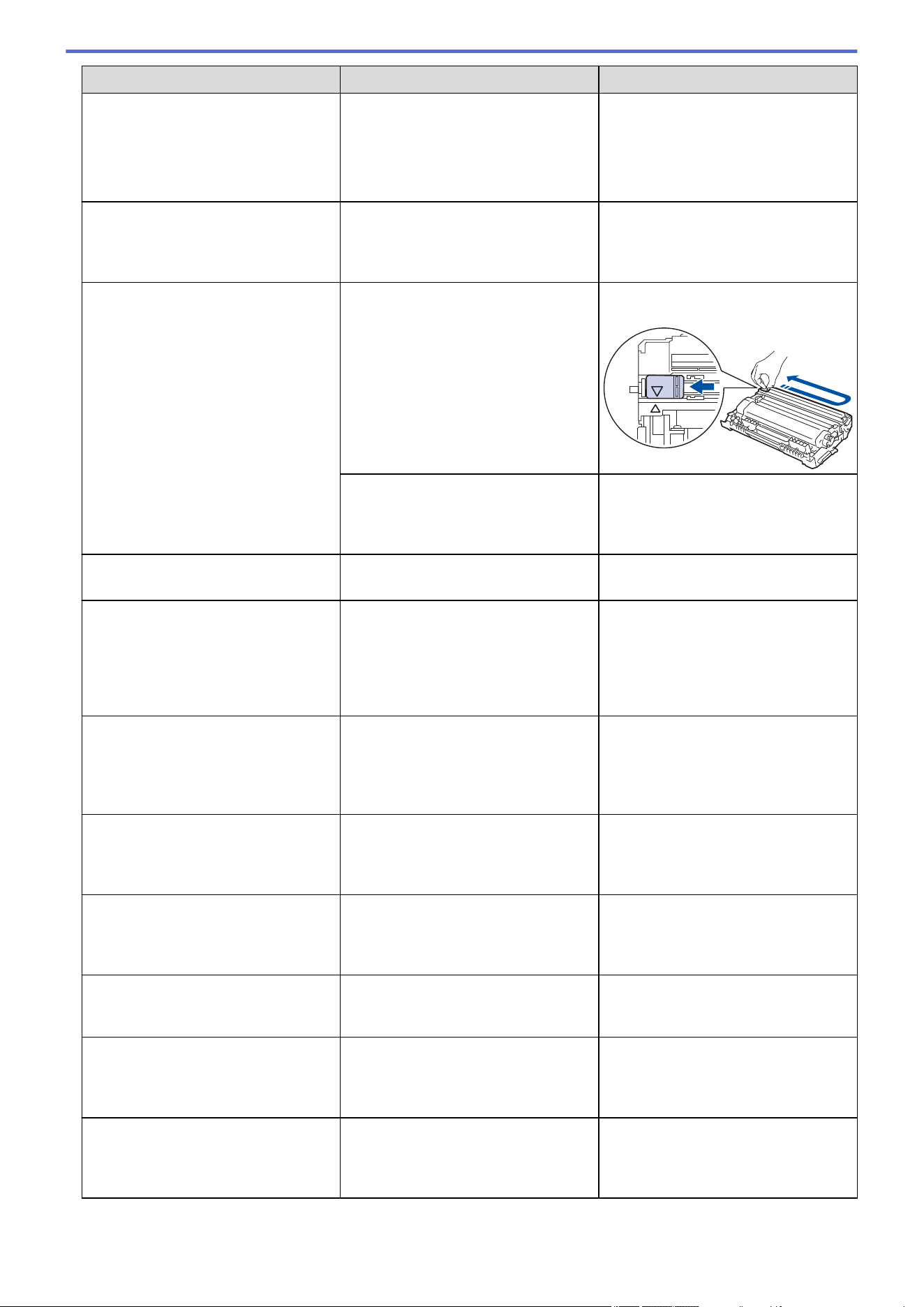
Error Message Cause Action
Document Jam
The document was not inserted or fed
correctly, or the document scanned
from the ADF was too long.
Remove the jammed paper from the
ADF unit.
Clear any debris or scraps of paper
from the ADF unit paper path.
Press Stop/Exit.
DR Mode in Use
The machine is set to Distinctive Ring
mode. You cannot change the
Receive Mode from Manual to
another mode.
Set Distinctive Ring to Off.
Drum ! Slide the Green tab
on Drum Unit.
The corona wire on the drum unit
must be cleaned.
Clean the corona wire on the drum
unit.
The drum unit or the toner cartridge
and drum unit assembly is not
installed correctly.
Put the toner cartridge in the drum
unit. Then reinstall the toner cartridge
and drum unit assembly in the
machine.
Drum End Soon
The drum unit is near the end of its
life.
Order a new drum unit before you get
the Replace Drum message.
Jam 2-sided
(For automatic 2-sided printing
models)
The paper is jammed in the 2-sided
paper tray.
Pull the paper tray and the 2-sided
tray out completely, open the back
cover and then remove all jammed
paper. Close the back cover, and put
the paper tray and the 2-sided tray
firmly back in the machine.
Jam Inside
The paper is jammed inside the
machine.
Open the front cover and remove the
toner cartridge and drum unit
assembly. Pull out all jammed paper.
Close the front cover. If the error
message remains, press Start.
Jam Rear
The paper is jammed in the back of
the machine.
Open the fuser cover and remove all
jammed paper. Close the fuser cover.
If the error message remains, press
Start.
Jam Tray 1
The paper is jammed in the indicated
paper tray.
Pull the paper tray out completely and
gently remove all jammed paper. Put
the paper tray firmly back in the
machine.
Manual Feed
Manual was selected as the paper
source in the printer driver, but there
is no paper in the manual feed slot.
Place paper in the manual feed slot.
Media Mismatch
The media type specified in the
printer driver differs from the paper
type specified in the machine's menu.
Load the correct type of paper in the
tray indicated on the LCD, or select
the correct media type in the Paper
Type setting on the machine.
No Caller ID
There is no incoming call history. You
did not receive calls or you have not
subscribed to the Caller ID service
from your telephone company.
If you want to use the Caller ID
feature, call your telephone company.
466
Error Message Cause Action
No Paper T1
The machine is out of paper, or paper
is not loaded correctly in the paper
trays.
• Refill paper in the paper trays.
Make sure the paper guides are
set to the correct size.
• If paper is in the tray, remove it
and load it again. Make sure the
paper guides are set to the correct
size.
• Do not overfill the paper tray.
No Response/Busy
The number you dialed does not
answer or is busy.
Verify the number and try again.
No Toner
The toner cartridge or the toner
cartridge and drum unit assembly is
not installed correctly.
Remove the toner cartridge and drum
unit assembly. Remove the toner
cartridge from the drum unit, and
reinstall the toner cartridge back in
the drum unit. Reinstall the toner
cartridge and drum unit assembly
back in the machine. If the problem
continues, replace the toner cartridge
with a new one.
See Related Information: Replace the
Toner Cartridge.
Out of Memory
The machine's memory is full. If a fax-sending or copy operation
is in process
Do one of the following:
• Press Start to send or copy the
scanned pages.
• Press Stop/Exit and wait until the
other operations in progress finish,
and then try again.
• Print the faxes that are in the
memory.
• Clear the data in the memory. To
gain extra memory, you can turn
off Memory Receive.
If a print operation is in process
Do one of the following:
• Reduce the resolution.
• Clear faxes from the memory.
Replace Drum
It is time to replace the drum unit. Replace the drum unit.
See Related Information: Replace the
Drum Unit.
If this message is displayed even
after replacing the drum unit with new
one, the drum unit counter was not
reset.
Reset the drum unit counter.
See Related Information: Reset the
Drum Counter.
Replace Toner
The toner cartridge is at the end of its
life. The machine stops all print
operations.
While memory is available, faxes are
stored in the memory.
Replace the toner cartridge with a
new one.
See Related Information: Replace the
Toner Cartridge.
Self-Diagnostic Turn the
power off, then on again.
Leave the machine for 15
min.
The fuser unit does not work correctly. • (MFC-L2760DW)
To prevent you from losing the
received fax data in the machine's
memory, transfer the data to
another Fax machine or to your
The fuser unit is too hot.
467
Error Message Cause Action
computer before turning off the
machine.
• Press and hold to turn off the
machine, wait a few seconds, and
then turn it on again. Leave the
machine idle for 15 minutes with
the power on.
Size Error DX
(For automatic 2-sided printing
models)
The paper size specified in the printer
driver and the machine's paper size
setting are not suitable for automatic
2-sided printing.
Press Stop/Exit. Choose a paper
size suitable for 2-sided printing.
The paper sizes suitable for
automatic 2-sided printing are Letter,
Legal, Mexico Legal, India Legal and
Folio.
The paper in the tray is not the
correct size and is not suitable for
automatic 2-sided printing.
Load the correct size of paper in the
tray and set the tray for that paper
size.
The paper sizes suitable for
automatic 2-sided printing are Letter,
Legal, Mexico Legal, India Legal and
Folio.
Size Mismatch
The paper in the tray is not the
correct size.
Load the correct size of paper in the
tray and set the size of paper to the
tray.
Toner Ended
The toner cartridge is at the end of its
life. The machine stops all print
operations.
Replace the toner cartridge with a
new one.
Toner Low
If the LCD displays this message, you
can still print. The toner cartridge is
near the end of its life.
Order a new toner cartridge now so a
replacement toner cartridge is
available when the LCD displays
Replace Toner.
Wrong Toner
The toner cartridge installed is not
correct for your machine.
Remove the toner cartridge from the
drum unit, and install a toner cartridge
with the correct supply order number.
See Related Information: Replace the
Toner Cartridge.
HL-L2480DW/MFC-L2807DW/MFC-L2820DW/MFC-L2820DWXL/MFC-L2900DW/
MFC-L2900DWXL/MFC-L2980DW
Error Message
Cause Action
2-sided Disabled
The back cover of the machine is not
closed completely.
Close the back cover of the machine
until it locks in the closed position.
The 2-sided tray is not installed
completely.
Install the 2-sided tray firmly in the
machine.
Access Denied
The function you want to use is
restricted by Secure Function Lock
3.0.
Call your administrator to check your
Secure Function Lock Settings.
Cannot Detect
Your machine cannot detect the drum
unit.
Remove the toner cartridge and drum
unit assembly. Remove the toner
cartridge from the drum unit, and
reinstall the toner cartridge back in
the drum unit. Reinstall the toner
cartridge and drum unit assembly
back in the machine.
Your machine cannot detect the toner
cartridge.
468
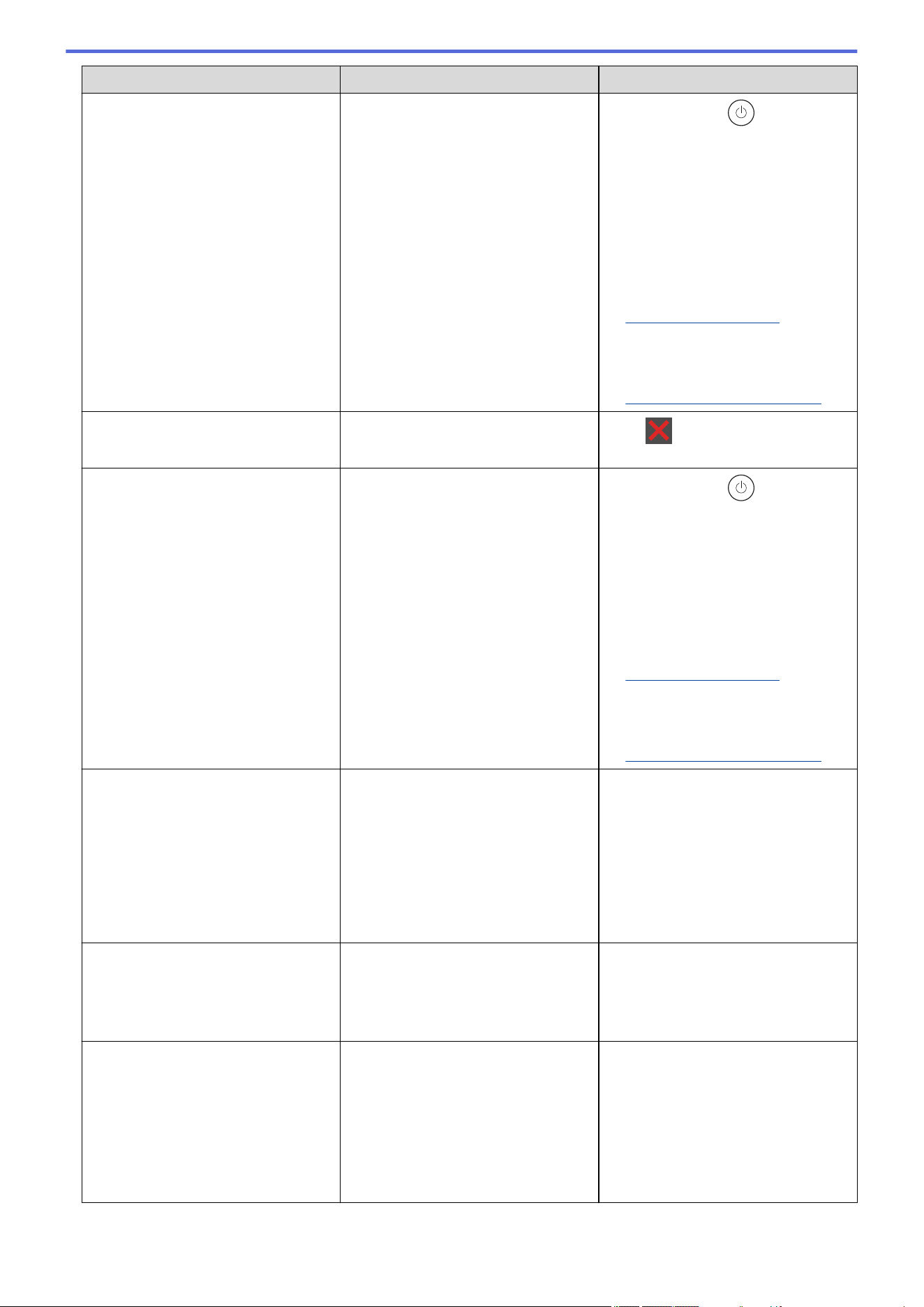
Error Message Cause Action
Cannot Print ## The machine has a mechanical
problem.
• Press and hold to turn off the
machine, wait a few minutes, and
then turn it on again.
• If the problem continues, contact
Brother Customer Service or your
local Brother dealer.
Contact Brother Customer Service
at:
1-877-BROTHER
(1-877-276-8437) (in USA)
www.brother.ca/support (in
Canada)
or to locate a Brother Authorized
Service Center, visit:
www.brother-usa.com/support
Cannot Scan
The document is too long for 2‑sided
scanning.
Press . Use an appropriate size
paper for 2‑sided scanning.
Cannot Scan ## The machine has a mechanical
problem.
• Press and hold to turn off the
machine, and then turn it on again.
• If the problem continues, contact
Brother Customer Service or your
local Brother dealer.
Contact Brother Customer Service
at:
1-877-BROTHER
(1-877-276-8437) (in USA)
www.brother.ca/support (in
Canada)
or to locate a Brother Authorized
Service Center, visit:
www.brother-usa.com/support
Cartridge Error
Put the Toner Cartridge back
in.
The toner cartridge is not installed
correctly.
Pull out the drum unit and toner
cartridge assembly, take out the toner
cartridge, and put it back in the drum
unit again. Put the drum unit and
toner cartridge assembly back in the
machine.
If the problem continues, contact
Brother Customer Service or your
local Brother dealer.
Comm.Error
Poor telephone line quality caused a
communication error.
Send the fax again or connect the
machine to another telephone line. If
the problem continues, contact your
telephone company and ask them to
check the telephone line.
Cooling Down
The temperature of the inside of the
machine is too hot. The machine will
pause its current print job and go into
cooling down mode. During the
cooling down mode, you will hear the
cooling fan running while the LCD
displays Cooling Down.
Wait until the machine has finished
cooling down. Make sure all vents on
the machine are clear of obstructions.
When the machine has cooled down,
it will resume printing.
If the fan is not spinning, disconnect
the machine from the power for
several minutes, then reconnect it.
469
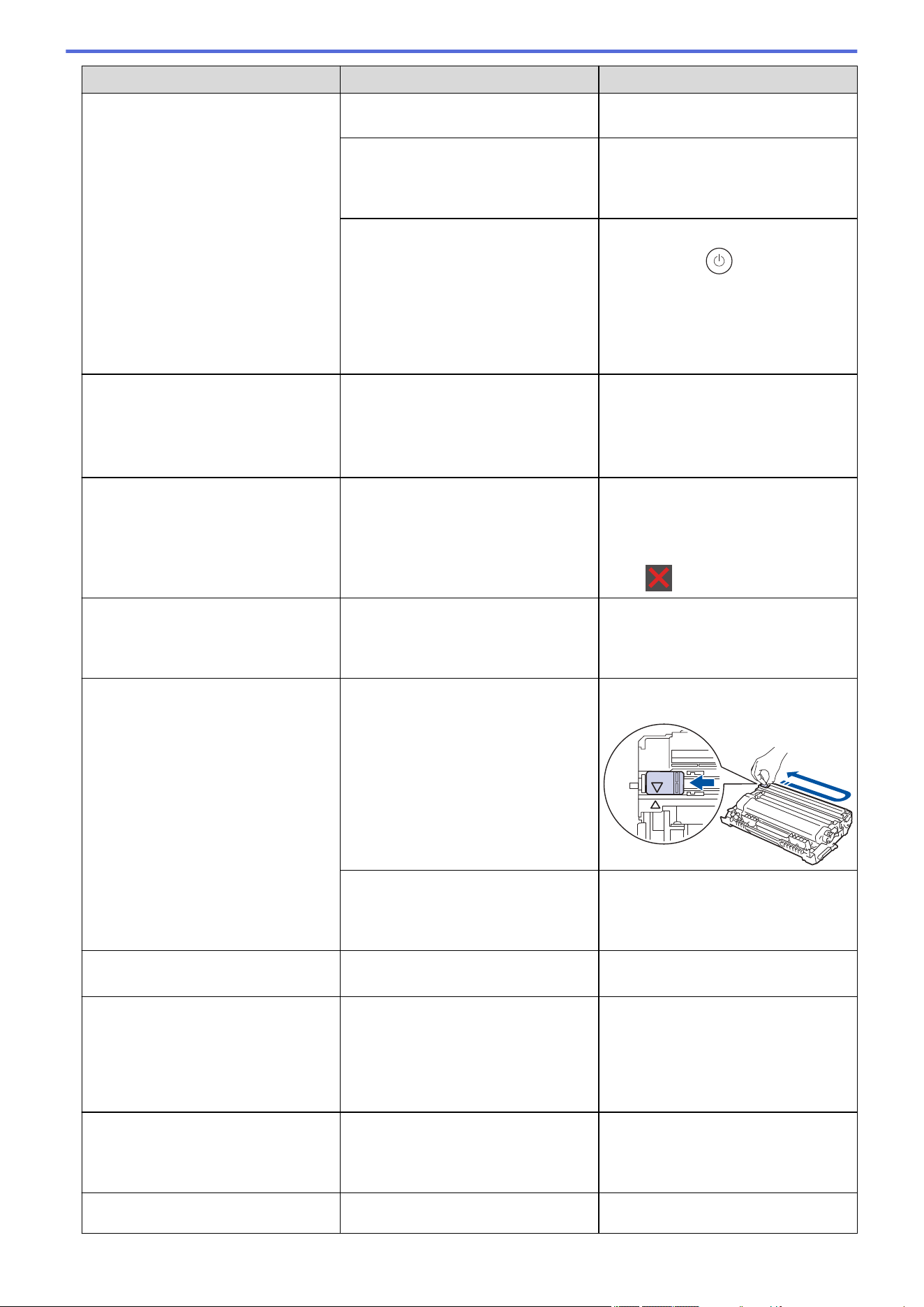
Error Message Cause Action
Cover is Open
The front cover is not completely
closed.
Open and then firmly close the front
cover of the machine.
The fuser cover is not completely
closed or paper was jammed in the
back of the machine when you turned
on the power.
Close the fuser cover located inside
the back cover of the machine.
The ADF cover is not completely
closed.
Close the ADF cover.
Press and hold
to turn off the
machine, wait a few minutes, and
then turn it on again.
If the problem continues, contact
Brother Customer Service or your
local Brother dealer.
Disconnected
The other person or other person's
fax machine stopped the call.
Try to send or receive again.
If calls are stopped repeatedly and
you are using a VoIP (Voice over IP)
system, try changing the Compatibility
to Basic (for VoIP).
Document Jam
The document was not inserted or fed
correctly, or the document scanned
from the ADF was too long.
Remove the jammed paper from the
ADF unit.
Clear any debris or scraps of paper
from the ADF unit paper path.
Press .
DR Mode in Use
The machine is set to Distinctive Ring
mode. You cannot change the
Receive Mode from Manual to
another mode.
Set Distinctive Ring to Off.
Drum !
The corona wire on the drum unit
must be cleaned.
Clean the corona wire on the drum
unit.
The drum unit or the toner cartridge
and drum unit assembly is not
installed correctly.
Put the toner cartridge in the drum
unit. Then reinstall the toner cartridge
and drum unit assembly in the
machine.
Drum End Soon
The drum unit is near the end of its
life.
Order a new drum unit before you get
the Replace Drum message.
Jam 2-sided
The paper is jammed in the 2-sided
paper tray.
Pull the paper tray and the 2-sided
tray out completely, open the back
cover and then remove all jammed
paper. Close the back cover, and put
the paper tray and the 2-sided tray
firmly back in the machine.
Jam Inside
The paper is jammed inside the
machine.
Open the front cover and remove the
toner cartridge and drum unit
assembly. Pull out the jammed paper.
Close the front cover.
Jam Rear
The paper is jammed in the back of
the machine.
Open the fuser cover and remove all
jammed paper. Close the fuser cover.
470
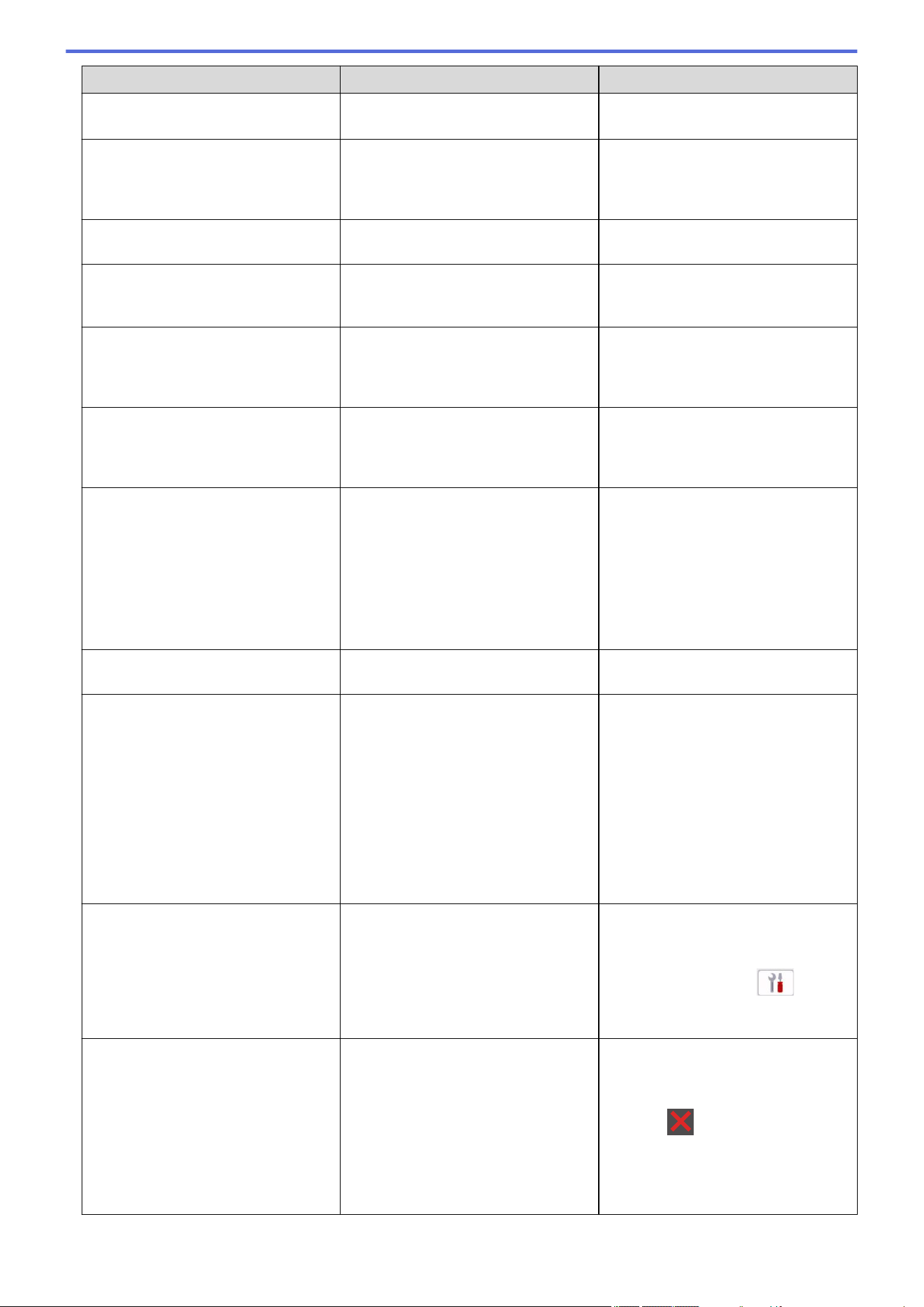
Error Message Cause Action
If the error message remains, press
Retry.
Jam Tray 1
The paper is jammed in the indicated
paper tray.
Pull the paper tray out completely and
gently remove all jammed paper. Put
the paper tray firmly back in the
machine.
Limit Exceeded
The print limit set in Secure Function
Lock 3.0 was reached.
Contact your administrator to check
your Secure Function Lock settings.
Manual Feed
Manual was selected as the paper
source in the printer driver, but there
is no paper in the manual feed slot.
Place paper in the manual feed slot.
Media Type Mismatch
The media type specified in the
printer driver differs from the paper
type specified in the machine's menu.
Load the correct type of paper in the
tray indicated on the LCD, or select
the correct media type in the Paper
Type setting on the machine.
No Caller ID
There is no incoming call history. You
did not receive calls or you have not
subscribed to the Caller ID service
from your telephone company.
If you want to use the Caller ID
feature, call your telephone company.
No Paper Tray1
The machine is out of paper, or paper
is not loaded correctly in the paper
trays.
• Refill paper in the paper trays.
Make sure the paper guides are
set to the correct size.
• If paper is in the tray, remove it
and load it again. Make sure the
paper guides are set to the correct
size.
• Do not overfill the paper tray.
No Response/Busy
The number you dialed does not
answer or is busy.
Verify the number and try again.
No Toner
The toner cartridge or the toner
cartridge and drum unit assembly is
not installed correctly.
Remove the toner cartridge and drum
unit assembly. Remove the toner
cartridge from the drum unit, and
reinstall the toner cartridge back in
the drum unit. Reinstall the toner
cartridge and drum unit assembly
back in the machine. If the problem
continues, replace the toner cartridge
with a new one.
See Related Information: Replace the
Toner Cartridge.
Out of Fax Memory
The machine's fax memory is full. If you are using the Fax Preview
function, delete unwanted received
fax data.
To print fax data, press
Settings > All Settings > Fax
> Print Fax.
Out of Memory
The machine's memory is full. If a fax-sending or copy operation
is in process
Do one of the following:
• Press or Quit, and wait until
the other operations that are in
progress finish, and then try again.
• Press Send Now to send the
pages scanned so far.
471
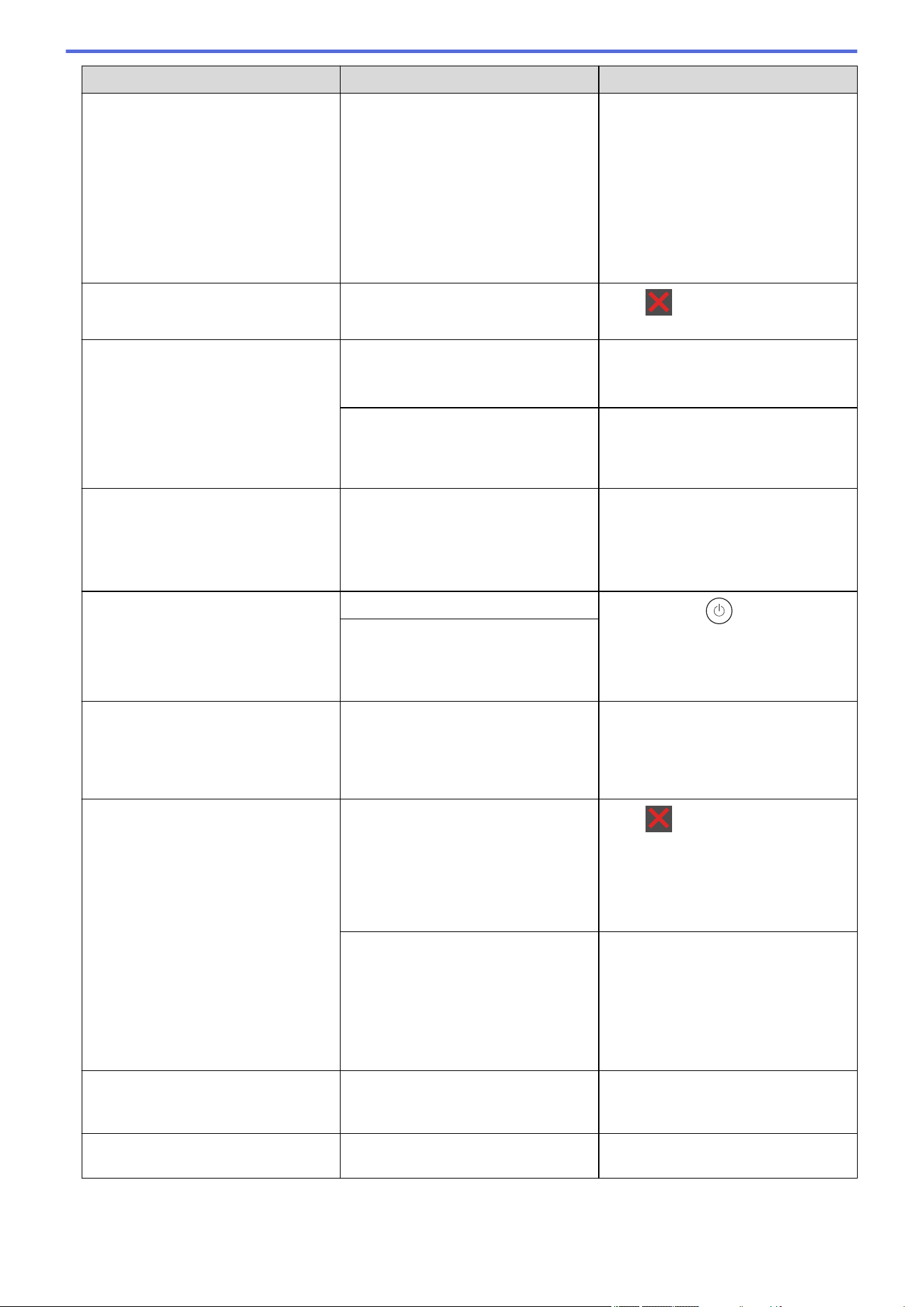
Error Message Cause Action
• Clear the data in the memory. To
gain extra memory, you can turn
off Memory Receive.
• Print the faxes that are in the
memory.
If a print operation is in process
Do one of the following:
• Reduce the resolution.
• Clear faxes from the memory.
Print Data Full
The machine’s memory is full.
Press and delete the previously
stored secure print data.
Replace Drum
It is time to replace the drum unit. Replace the drum unit.
See Related Information: Replace the
Drum Unit.
If this message is displayed even
after replacing the drum unit with new
one, the drum unit counter was not
reset.
Reset the drum unit counter.
See Related Information: Reset the
Drum Counter.
Replace Toner
The toner cartridge is at the end of its
life. The machine stops all print
operations.
While memory is available, faxes are
stored in the memory.
Replace the toner cartridge with a
new one.
See Related Information: Replace the
Toner Cartridge.
Self-Diagnostic
The fuser unit does not work correctly.
Press and hold to turn off the
machine, wait a few seconds, and
then turn it on again. Leave the
machine idle for 15 minutes with the
power on.
The fuser unit is too hot.
Size Error
The paper tray you selected does not
support the paper size specified in the
printer driver.
Change the printer driver setting or
machine's tray setting so that the
paper size selected in the printer
driver matches the paper size loaded
in the tray you selected.
Size Error 2-sided
The paper size specified in the printer
driver and the machine's paper size
setting are not suitable for automatic
2-sided printing.
Press . Choose a paper size
suitable for 2-sided printing.
The paper sizes suitable for
automatic 2-sided printing are Letter,
Legal, Mexico Legal, India Legal and
Folio.
The paper in the tray is not the
correct size and is not suitable for
automatic 2-sided printing.
Load the correct size of paper in the
tray and set the tray for that paper
size.
The paper sizes suitable for
automatic 2-sided printing are Letter,
Legal, Mexico Legal, India Legal and
Folio.
Size Mismatch
The paper in the tray is not the
correct size.
Load the correct size of paper in the
tray and set the size of paper to the
tray.
Toner Ended
The toner cartridge is at the end of its
life.
Replace the toner cartridge with a
new one.
472
Error Message Cause Action
Toner Low
If the LCD displays this message, you
can still print. The toner cartridge is
near the end of its life.
Order a new toner cartridge now so a
replacement toner cartridge is
available when the LCD shows
Replace Toner.
Touchscreen Initialization
Failed
The touchscreen was pressed before
the power on initialization was
completed.
Make sure nothing is touching or
resting on the touchscreen.
Debris may be stuck between the
lower part of the touchscreen and its
frame.
Insert a piece of stiff paper between
the lower part of the touchscreen and
its frame and slide it back and forth to
push out the debris.
Wrong Toner Cartridge
The toner cartridge installed is not
correct for your machine.
Remove the toner cartridge from the
drum unit, and install a toner cartridge
with the correct supply order number.
See Related Information: Replace the
Toner Cartridge.
Related Information
• Troubleshooting
• Unable to Print or Scan -Transfer Your Faxes
Related Topics:
• Replace the Toner Cartridge
• Replace the Drum Unit
• Clean the Corona Wire
• Print a Fax Stored in the Machine's Memory
• Load Paper
• Reset the Drum Counter
473
Home > Troubleshooting > Error and Maintenance Messages > Unable to Print or Scan -Transfer Your
Faxes
Unable to Print or Scan -Transfer Your Faxes
Related Models: MFC-L2760DW/MFC-L2807DW/MFC-L2820DW/MFC-L2820DWXL/MFC-L2900DW/
MFC-L2900DWXL/MFC-L2980DW
If the LCD displays:
• [Cannot Print] ##
• [Cannot Scan] ##
We recommend transferring your faxes to another fax machine or to your computer.
You can also transfer the Fax Journal report to see if there are any faxes you must transfer.
If there is an error message on the LCD after you transfer the faxes, disconnect your Brother machine from
the power source for several minutes, and then reconnect it.
Related Information
• Error and Maintenance Messages
• Transfer Faxes to Another Fax Machine
• Transfer Faxes to Your Computer
• Transfer the Fax Journal Report to Another Fax Machine
474
Home > Troubleshooting > Error and Maintenance Messages > Unable to Print or Scan -Transfer Your
Faxes > Transfer Faxes to Another Fax Machine
Transfer Faxes to Another Fax Machine
Related Models: MFC-L2760DW/MFC-L2807DW/MFC-L2820DW/MFC-L2820DWXL/MFC-L2900DW/
MFC-L2900DWXL/MFC-L2980DW
You must set up your Station ID before transferring faxes to another fax machine.
>> MFC-L2760DW
>> MFC-L2807DW/MFC-L2820DW/MFC-L2820DWXL/MFC-L2900DW/MFC-L2900DWXL/MFC-L2980DW
MFC-L2760DW
1. Press Menu.
2. Press a or b to display the [Service] option, and then press OK.
3. Press OK to select [Data Transfer].
4. Press a or b to display the [Fax Transfer] option, and then press OK.
5. Do one of the following:
• If the LCD shows [No Data], there are no faxes left in the machine’s memory. Press Stop/Exit.
• Enter the fax number to which faxes will be forwarded. Press Start.
MFC-L2807DW/MFC-L2820DW/MFC-L2820DWXL/MFC-L2900DW/MFC-L2900DWXL/
MFC-L2980DW
1. Press [Settings] > [All Settings] > [Service] > [Data Transfer] > [Fax Transfer].
2. Do one of the following:
• If the LCD shows [No Data], there are no faxes left in the machine’s memory. Press [Close].
• Enter the fax number to which faxes will be forwarded.
3. Press [Fax Start].
Related Information
• Unable to Print or Scan -Transfer Your Faxes
Related Topics:
• Set Your Station ID
475
Home > Troubleshooting > Error and Maintenance Messages > Unable to Print or Scan -Transfer Your
Faxes > Transfer Faxes to Your Computer
Transfer Faxes to Your Computer
Related Models: MFC-L2760DW/MFC-L2807DW/MFC-L2820DW/MFC-L2820DWXL/MFC-L2900DW/
MFC-L2900DWXL/MFC-L2980DW
>> MFC-L2760DW
>> MFC-L2807DW/MFC-L2820DW/MFC-L2820DWXL/MFC-L2900DW/MFC-L2900DWXL/MFC-L2980DW
MFC-L2760DW
1. Make sure you have installed the software and drivers on your computer.
2. Launch (Brother Utilities), and then click the drop-down list and select your model name (if not already
selected). Click PC-FAX in the left navigation bar, and then click Receive.
The PC-FAX Receive window appears.
3. Make sure you have set [PC Fax Receive] on the machine.
If faxes are in the machine’s memory when you set up PC-Fax Receive, the LCD displays [Send Fax to
PC?].
4. Do one of the following:
• To transfer all faxes to your computer, press a or b to select [Yes], and then press OK.
• To exit and leave the faxes in the memory, press a or b to select [No], and then press OK.
5. Press Stop/Exit.
MFC-L2807DW/MFC-L2820DW/MFC-L2820DWXL/MFC-L2900DW/MFC-L2900DWXL/
MFC-L2980DW
1. Make sure you have installed the software and drivers on your computer.
2. Launch
(Brother Utilities), and then click the drop-down list and select your model name (if not already
selected). Click PC-FAX in the left navigation bar, and then click Receive.
The PC-FAX Receive window appears.
3. Make sure you have set [PC Fax Receive] on the machine.
If faxes are in the machine’s memory when you set up PC-Fax Receive, the LCD displays [Send Fax to
PC?].
4. Do one of the following:
• To transfer all faxes to your computer, press [Yes].
• To exit and leave the faxes in the memory, press [No].
5. Press .
Related Information
• Unable to Print or Scan -Transfer Your Faxes
476
Home > Troubleshooting > Error and Maintenance Messages > Unable to Print or Scan -Transfer Your
Faxes > Transfer the Fax Journal Report to Another Fax Machine
Transfer the Fax Journal Report to Another Fax Machine
Related Models: MFC-L2760DW/MFC-L2807DW/MFC-L2820DW/MFC-L2820DWXL/MFC-L2900DW/
MFC-L2900DWXL/MFC-L2980DW
You must set up your Station ID before transferring the Fax Journal report to another fax machine.
>> MFC-L2760DW
>> MFC-L2807DW/MFC-L2820DW/MFC-L2820DWXL/MFC-L2900DW/MFC-L2900DWXL/MFC-L2980DW
MFC-L2760DW
1. Press Menu.
2. Press a or b to display the [Service] option, and then press OK.
3. Press OK to select [Data Transfer].
4. Press a or b to display the [Report Trans.] option, and then press OK.
5. Enter the destination fax number for the Fax Journal.
6. Press Start.
MFC-L2807DW/MFC-L2820DW/MFC-L2820DWXL/MFC-L2900DW/MFC-L2900DWXL/
MFC-L2980DW
1. Press [Settings] > [All Settings] > [Service] > [Data Transfer] > [Report
Transfer].
2. Enter the destination fax number for the Fax Journal.
3. Press [Fax Start].
Related Information
• Unable to Print or Scan -Transfer Your Faxes
Related Topics:
• Set Your Station ID
• Configure Date and Time Using Web Based Management
477
Home > Troubleshooting > Error Messages When Using the Brother Web Connect Feature
Error Messages When Using the Brother Web Connect Feature
Related Models: HL-L2480DW/MFC-L2807DW/MFC-L2820DW/MFC-L2820DWXL/MFC-L2900DW/
MFC-L2900DWXL/MFC-L2980DW
Your machine displays an error message if an error occurs. The most common error messages are shown in the
table.
You can correct most errors yourself. If, after reading this table, you still need help, see the latest troubleshooting
tips at support.brother.com/faqs.
Connection Error
Error Messages
Cause Action
Connection Error 02
Network connection failed.
Verify that the network
connection is good.
The machine is not connected to a
network.
• Make sure the eligible IP address
is assigned to your machine.
• Check your access point/router is
active and the Internet connection
is established.
• Make sure the wireless router/
access point is on.
• If the Web button was pressed
soon after the machine was turned
on, the network connection may
not have been established yet.
Wait and try again.
Connection Error 03
Connection failed to server.
Check network settings.
• Network or server settings are
incorrect.
• There is a problem with the
network or server.
• Confirm that network settings are
correct, or wait and try again later.
• If the Web button was pressed
soon after the machine was turned
on, the network connection may
not have been established yet.
Wait and try again.
See Related Information: Configure
Date and Time Using Web Based
Management.
Connection Error 07
Connection failed to server.
Wrong Date & Time.
Date and time settings are incorrect. Set the date and time correctly. Note
that if the machine's power cord is
disconnected, the date and time
settings may have reset to factory
settings.
Authentication Error
Error Messages
Cause Action
Authentication Error 01
Incorrect PIN code. Enter
PIN correctly.
The PIN you entered to access the
account is incorrect. The PIN is the
four-digit number that was entered
when registering the account to the
machine.
Enter the correct PIN.
Authentication Error 02
Incorrect or expired ID, or
this temporary ID is already
used. Enter correctly or
reissue temporary ID.
Temporary ID is valid for 24
hours after it is issued.
The temporary ID that was entered is
incorrect.
Enter the correct temporary ID.
The temporary ID that was entered
has expired. A temporary ID is valid
for 24 hours.
Apply for Brother Web Connect
access again and receive a new
temporary ID, and then use the new
ID to register the account to the
machine.
478
Error Messages Cause Action
Authentication Error 03
Display name has already
been registered. Enter
another display name.
The name you entered as the display
name has already been registered to
another service user.
Enter a different display name.
Server Error
Error Messages
Cause Action
Server Error 01
Authentication failed. Do
the following: 1. Go to
http://bwc.brother.com to
get a new temporary ID. 2.
Press OK and enter your new
temporary ID in the next
screen.
The machine's authentication
information (needed to access the
service) has expired or is invalid.
Apply for Brother Web Connect
access again to receive a new
temporary ID, and then use the new
ID to register the account to the
machine.
Server Error 03
Failed to upload.
Unsupported file or corrupt
data. Confirm data of file.
The file you are trying to upload may
have one of the following problems:
• The file exceeds the service's limit
on number of pixels, file size, etc.
• The file type is not supported.
• The file is corrupted.
• Check the service's size or format
restrictions.
• Save the file as a different type.
• If possible, get a new, uncorrupted
version of the file.
Server Error 13
Service temporarily
unavailable. Try again
later.
There is a problem with the service
and it cannot be used now.
Wait and try again. If you get the
message again, access the service
from a computer to confirm if it is
unavailable.
Related Information
• Troubleshooting
Related Topics:
• Configure Date and Time Using Web Based Management
479

Home > Troubleshooting > Document Jams
Document Jams
Related Models: DCP-L2640DW/DCP-L2647DW/MFC-L2760DW/MFC-L2807DW/MFC-L2820DW/
MFC-L2820DWXL/MFC-L2900DW/MFC-L2900DWXL/MFC-L2980DW
• Document is Jammed in the Top of the ADF Unit
• Document is Jammed under the Document Cover
• Remove Small Scraps of Paper Jammed in the ADF
480
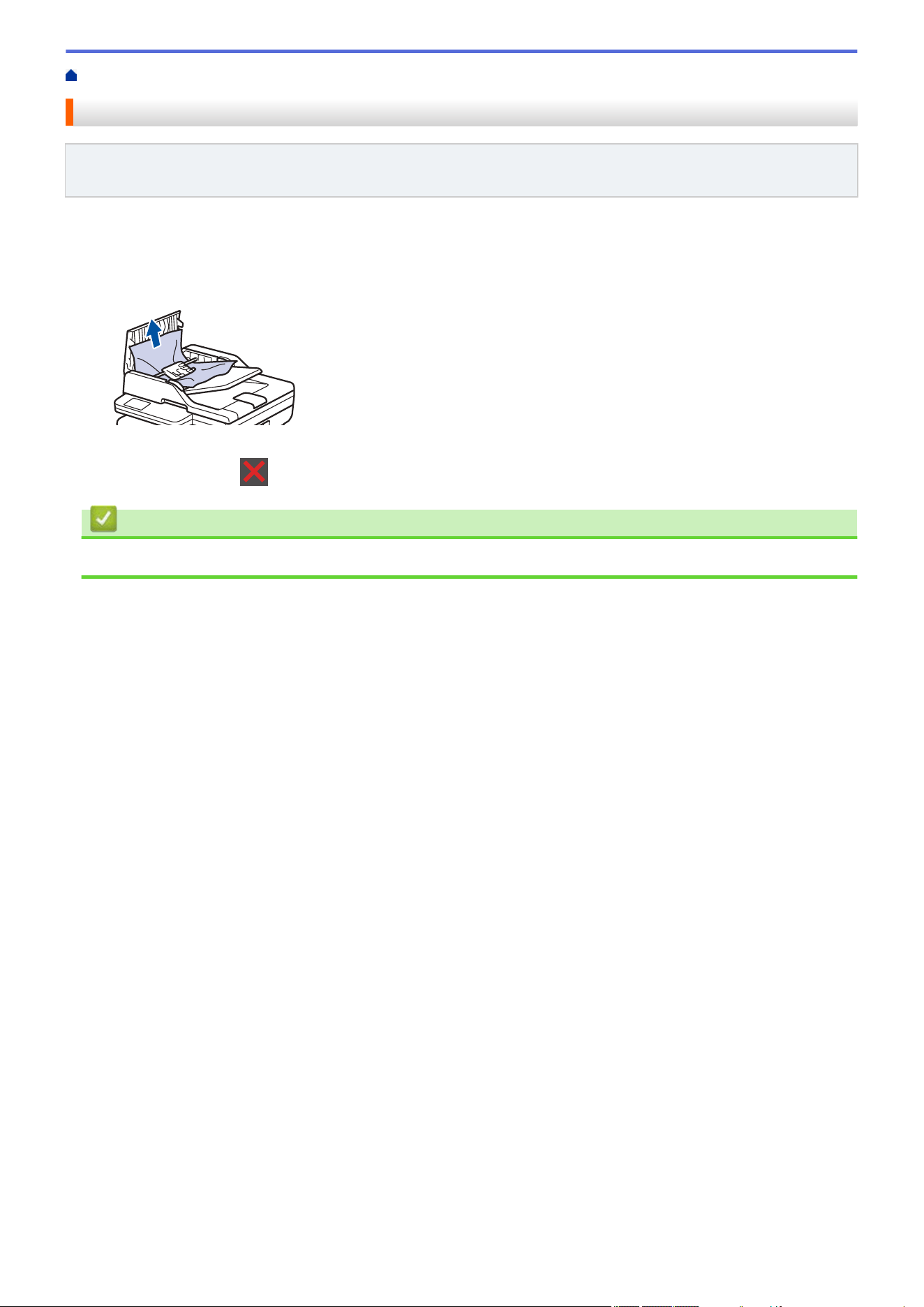
Home > Troubleshooting > Document Jams > Document is Jammed in the Top of the ADF Unit
Document is Jammed in the Top of the ADF Unit
Related Models: DCP-L2640DW/DCP-L2647DW/MFC-L2760DW/MFC-L2807DW/MFC-L2820DW/
MFC-L2820DWXL/MFC-L2900DW/MFC-L2900DWXL/MFC-L2980DW
1. Remove any paper from the ADF that is not jammed.
2. Open the ADF cover.
3. Pull the jammed document out to the left. If the document rips or tears, be sure you remove any debris or
scraps to prevent future jams.
4. Close the ADF cover.
5. Press Stop/Exit or .
Related Information
• Document Jams
481
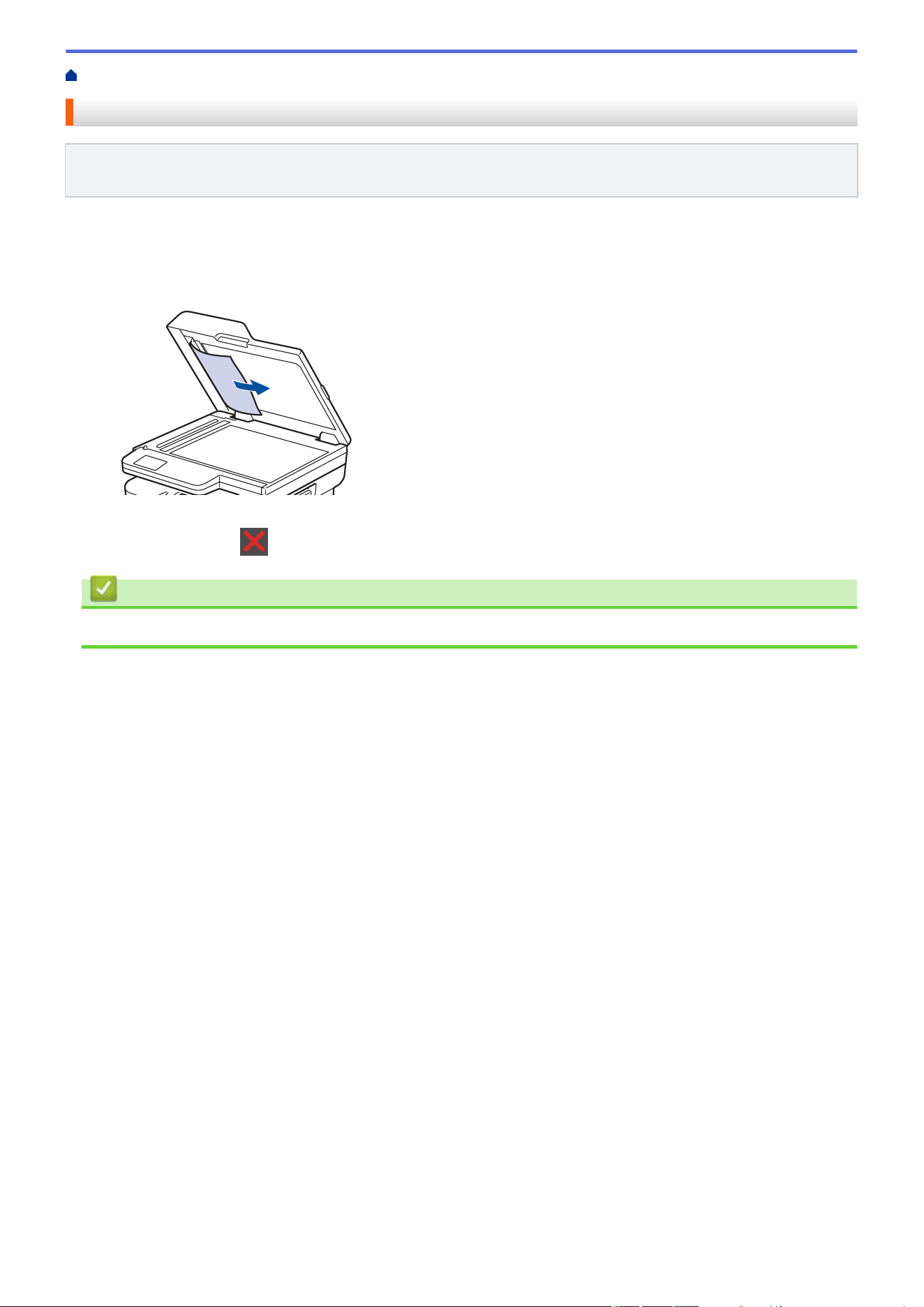
Home > Troubleshooting > Document Jams > Document is Jammed under the Document Cover
Document is Jammed under the Document Cover
Related Models: DCP-L2640DW/DCP-L2647DW/MFC-L2760DW/MFC-L2807DW/MFC-L2820DW/
MFC-L2820DWXL/MFC-L2900DW/MFC-L2900DWXL/MFC-L2980DW
1. Remove any paper from the ADF that is not jammed.
2. Lift the document cover.
3. Pull the jammed document out to the right. If the document rips or tears, be sure you remove any debris or
scraps to prevent future jams.
4. Close the document cover.
5. Press Stop/Exit or .
Related Information
• Document Jams
482
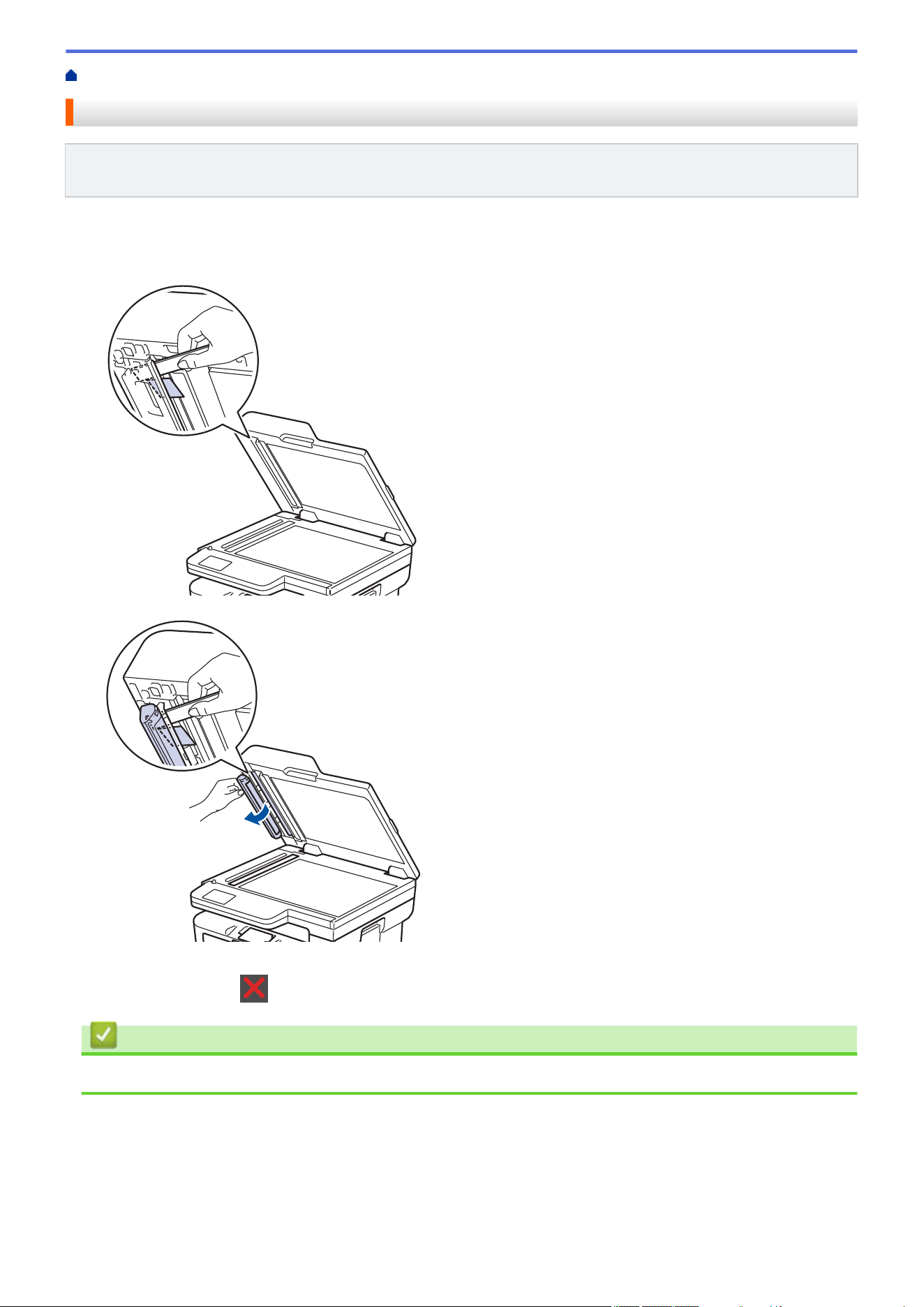
Home > Troubleshooting > Document Jams > Remove Small Scraps of Paper Jammed in the ADF
Remove Small Scraps of Paper Jammed in the ADF
Related Models: DCP-L2640DW/DCP-L2647DW/MFC-L2760DW/MFC-L2807DW/MFC-L2820DW/
MFC-L2820DWXL/MFC-L2900DW/MFC-L2900DWXL/MFC-L2980DW
1. Lift the document cover.
2. Insert a piece of stiff paper, such as cardstock, into the ADF to push any small paper scraps through.
(DCP-L2640DW/DCP-L2647DW/MFC-L2760DW/MFC-L2807DW/MFC-L2820DW/MFC-L2820DWXL)
(MFC-L2900DW/MFC-L2900DWXL/MFC-L2980DW)
3. Close the document cover.
4. Press Stop/Exit or .
Related Information
• Document Jams
483

Home > Troubleshooting > Paper Jams
Paper Jams
Always remove the remaining paper from the paper tray, fan and straighten the stack when you are adding new
paper. This helps prevent paper jams.
• Clear Paper Jams
• Paper is Jammed in the Paper Tray
• Paper is Jammed in the Output Paper Tray
• Paper is Jammed in the Back of the Machine
• Paper is Jammed inside the Machine
• Paper is Jammed in the 2-sided Tray
484
Home > Troubleshooting > Paper Jams > Clear Paper Jams
Clear Paper Jams
If paper is jammed or multiple sheets of paper are fed together frequently, do the following:
• Clean the paper pick-up rollers and the separator pad of paper trays.
See Related Information: Clean the Paper Pick-up Rollers.
• Load paper correctly in the tray.
See Related Information: Load Paper.
• Set the correct paper size and paper type on your machine.
See Related Information: Paper Settings.
• Set the correct paper size and paper type on your computer.
See Related Information: Print a Document (Windows).
See Related Information: Print Using AirPrint.
• Use the recommended paper.
See Related Information: Using Special Paper.
See Related Information: Recommended Print Media.
Related Information
• Paper Jams
Related Topics:
• Clean the Paper Pick-up Rollers
• Load Paper
• Paper Settings
• Print a Document (Windows)
• Print Using AirPrint
• Using Special Paper
• Recommended Print Media
485
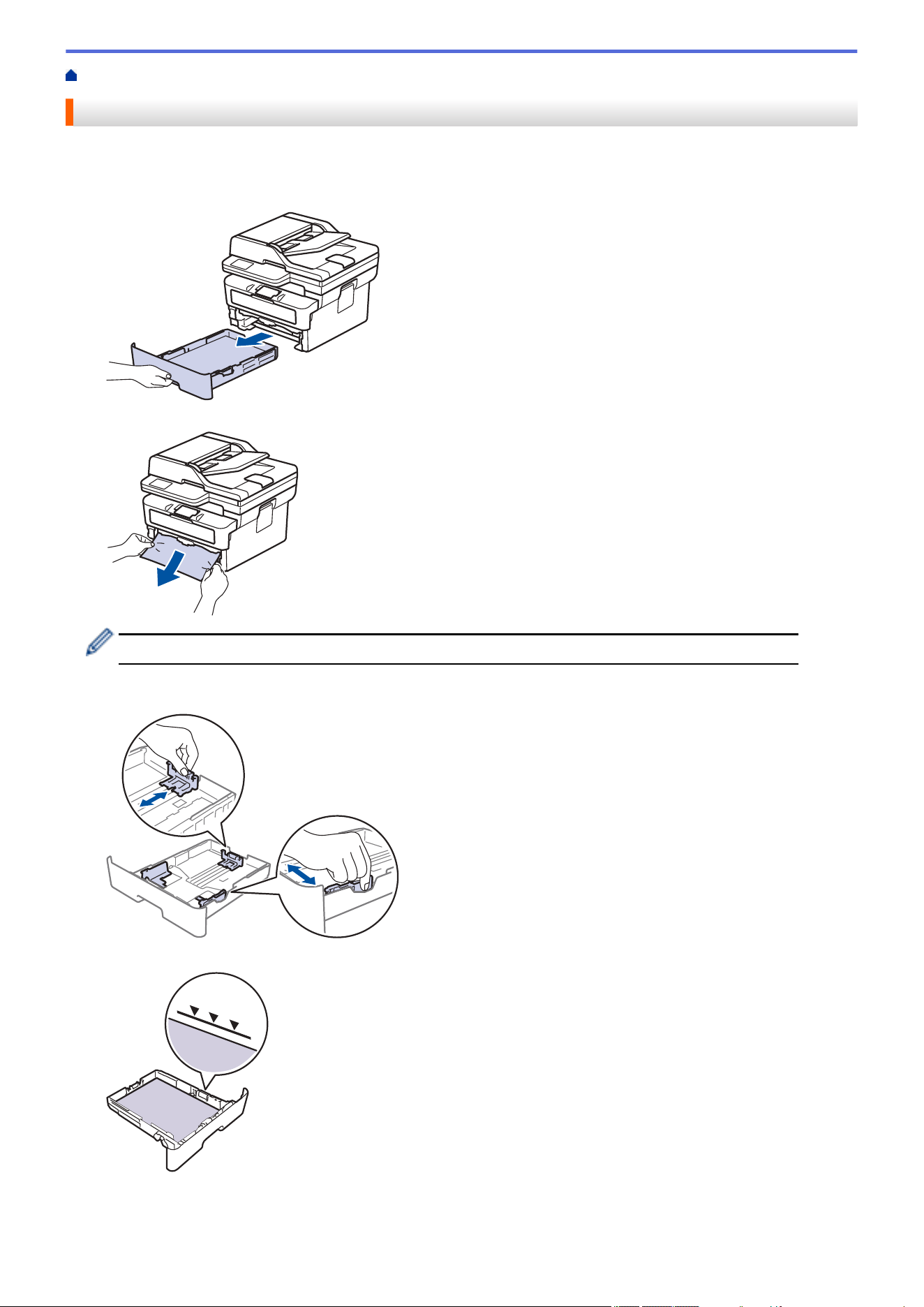
Home > Troubleshooting > Paper Jams > Paper is Jammed in the Paper Tray
Paper is Jammed in the Paper Tray
If the machine's control panel or the Status Monitor indicates that there is a jam in the paper tray, follow these
steps:
1. Pull the paper tray completely out of the machine.
2. Slowly pull out the jammed paper.
Pulling the jammed paper downward using both hands allows you to remove the paper more easily.
3. Fan the stack of paper to prevent further jams, and slide the paper guides to fit the paper size. Load paper in
the paper tray.
4. Make sure the paper is below the maximum paper mark (b b b).
5. Put the paper tray firmly back into the machine.
486

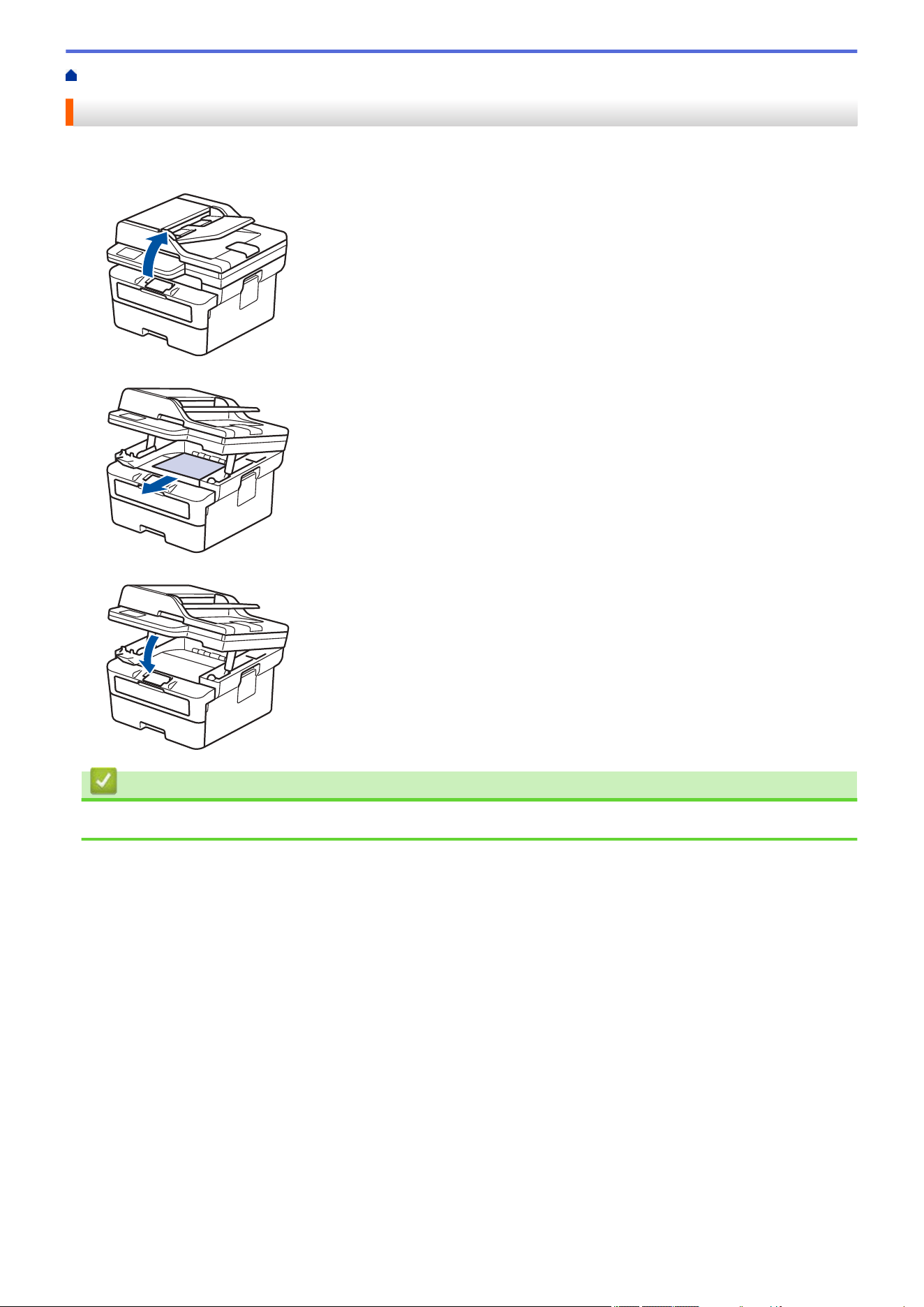
Home > Troubleshooting > Paper Jams > Paper is Jammed in the Output Paper Tray
Paper is Jammed in the Output Paper Tray
When the paper is jammed in the output paper tray, follow these steps:
1. Use both hands to open the scanner.
2. Remove the paper.
3. Push the scanner down with both hands to close it.
Related Information
• Paper Jams
488
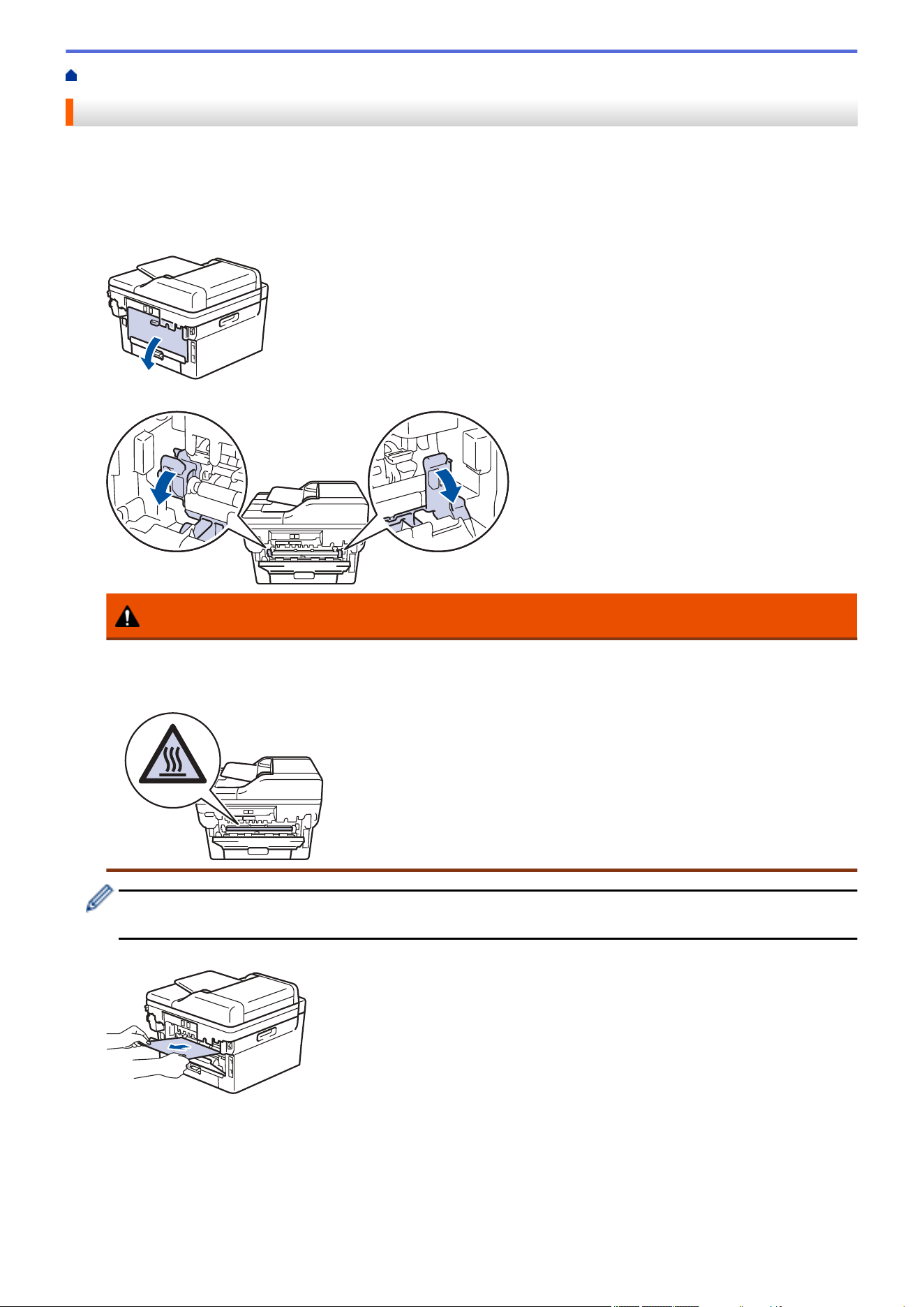
Home > Troubleshooting > Paper Jams > Paper is Jammed in the Back of the Machine
Paper is Jammed in the Back of the Machine
If the machine's control panel or the Status Monitor indicates that there is a jam in the back of the machine (Jam
Rear), do the following:
1. Leave the machine turned on for 10 minutes for the internal fan to cool the extremely hot parts inside the
machine.
2. Open the back cover.
3. Pull the blue tabs at the left and right sides toward you to release the fuser cover.
WARNING
HOT SURFACE
The machine's internal parts will be extremely hot. Wait for the machine to cool down before touching
them.
(For models with green levers) If the green envelope levers inside the back cover are pulled down in the
envelope position, lift these levers to their original position before pulling the blue tabs down.
4. Use both hands to gently pull the jammed paper out of the machine.
489
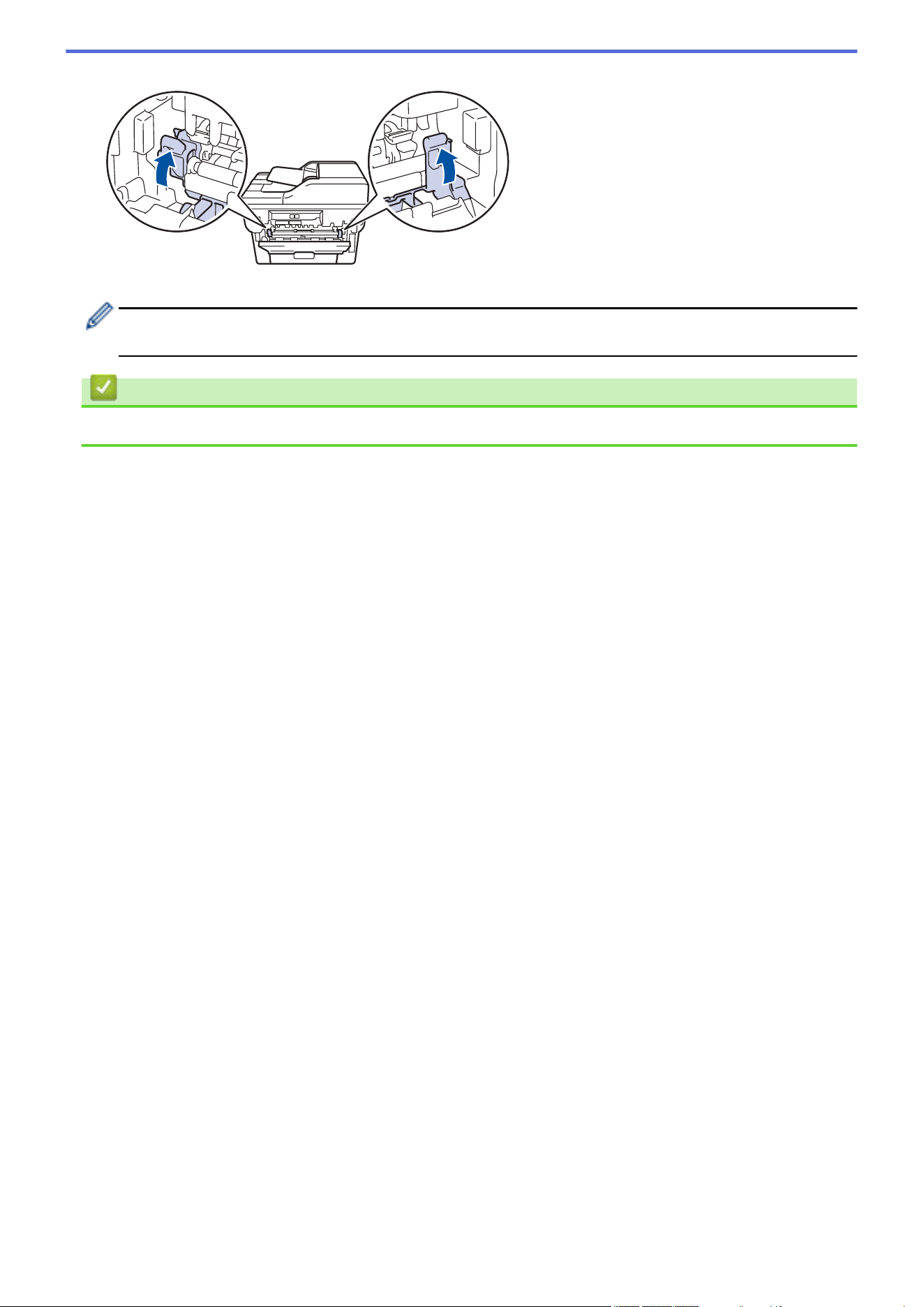
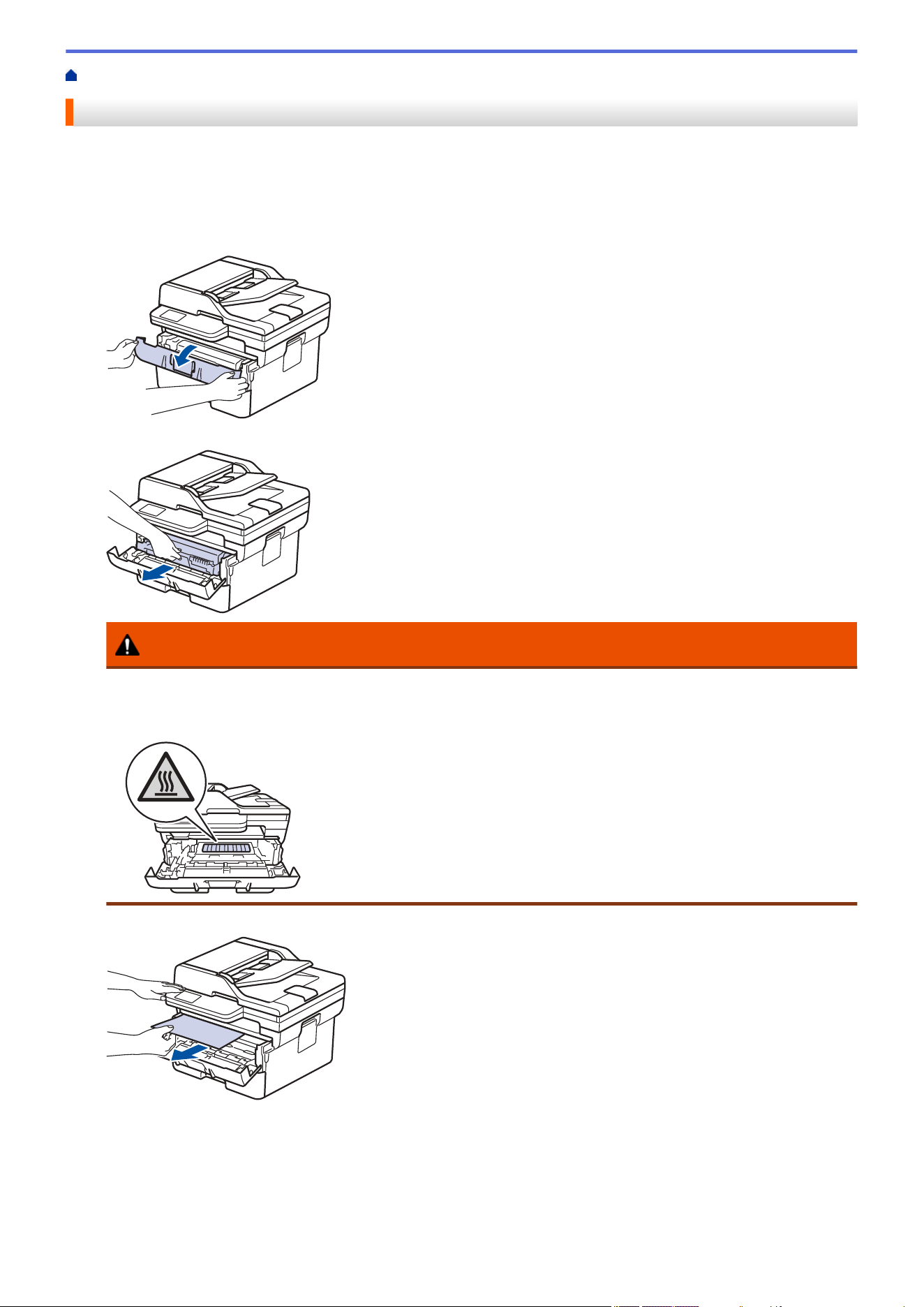
Home > Troubleshooting > Paper Jams > Paper is Jammed inside the Machine
Paper is Jammed inside the Machine
If the machine's control panel or the Status Monitor indicates that there is a jam inside the machine, follow these
steps:
1. Leave the machine turned on for 10 minutes for the internal fan to cool the extremely hot parts inside the
machine.
2. Open the front cover.
3. Remove the toner cartridge and drum unit assembly.
WARNING
HOT SURFACE
The machine's internal parts will be extremely hot. Wait for the machine to cool down before touching
them.
4. Pull out the jammed paper slowly.
491
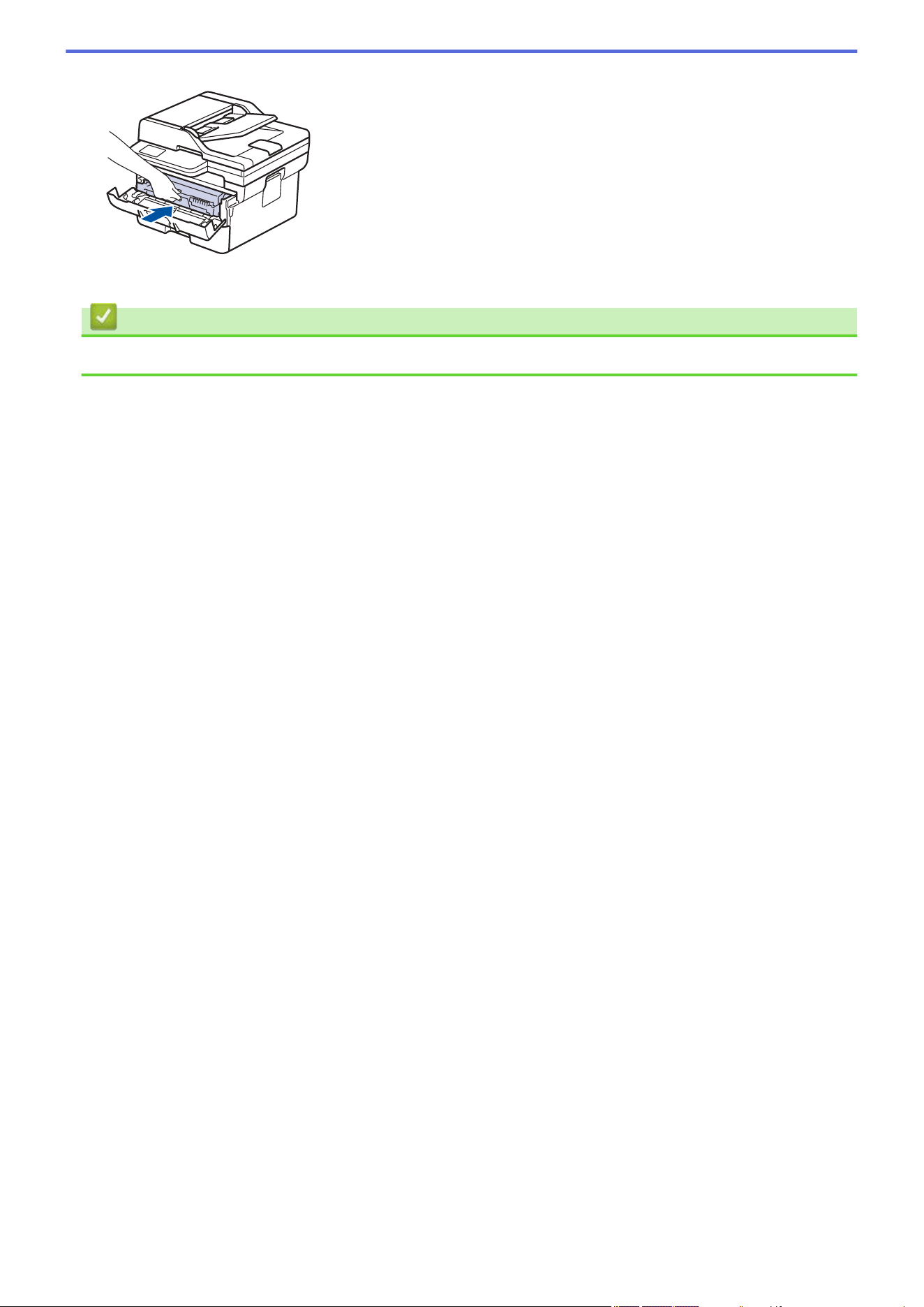
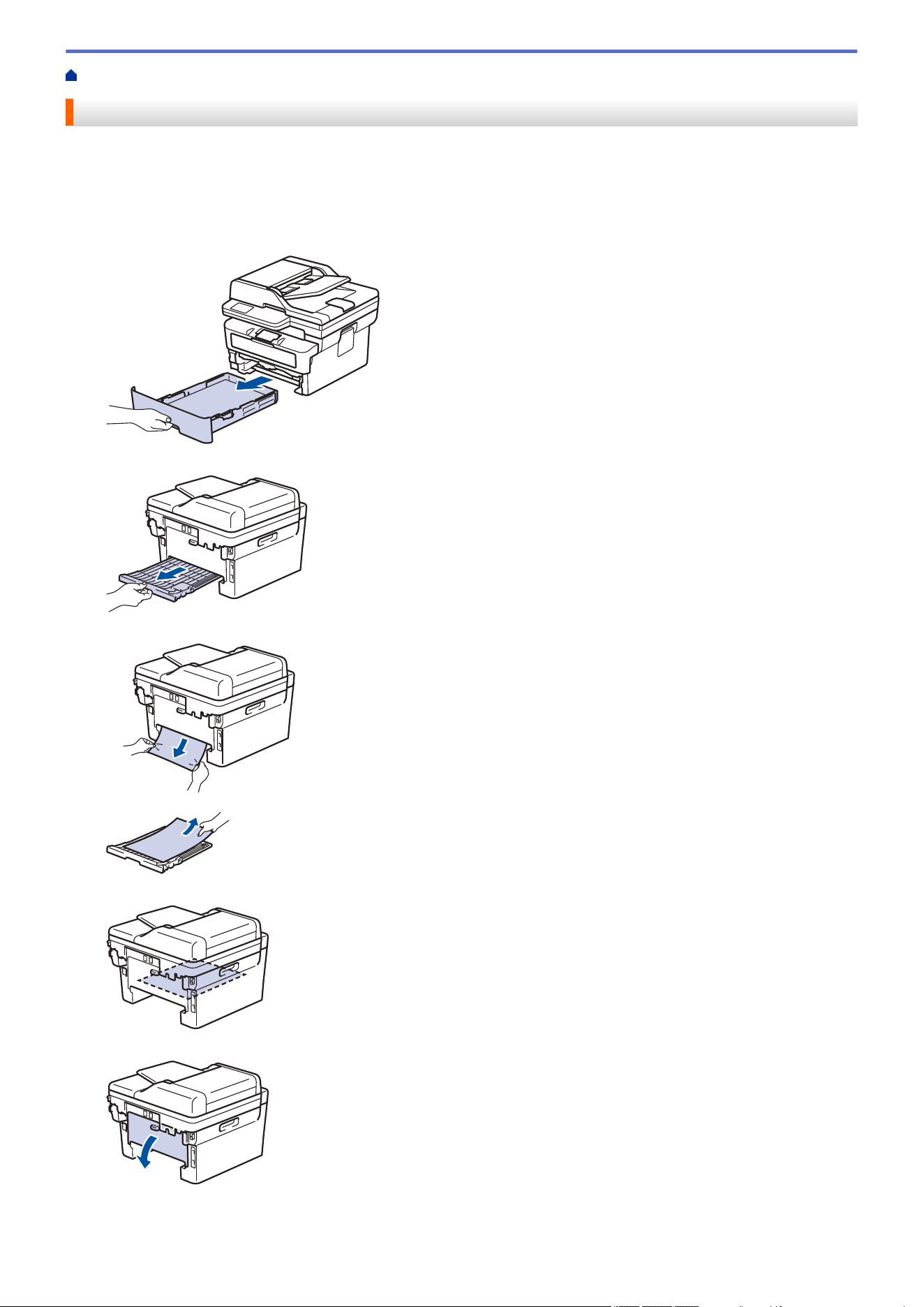
Home > Troubleshooting > Paper Jams > Paper is Jammed in the 2-sided Tray
Paper is Jammed in the 2-sided Tray
If the machine's control panel or the Status Monitor indicates that there is a jam in the 2-sided paper tray, follow
these steps:
1. Leave the machine turned on for 10 minutes for the internal fan to cool the extremely hot parts inside the
machine.
2. Pull the paper tray completely out of the machine.
3. At the back of the machine, pull the 2‑sided tray completely out of the machine.
4. Pull the jammed paper out of the machine or out of the 2‑sided tray.
5. Remove paper that may have jammed under the machine due to static electricity.
6. If paper is not caught inside the 2-sided tray, open the back cover.
493
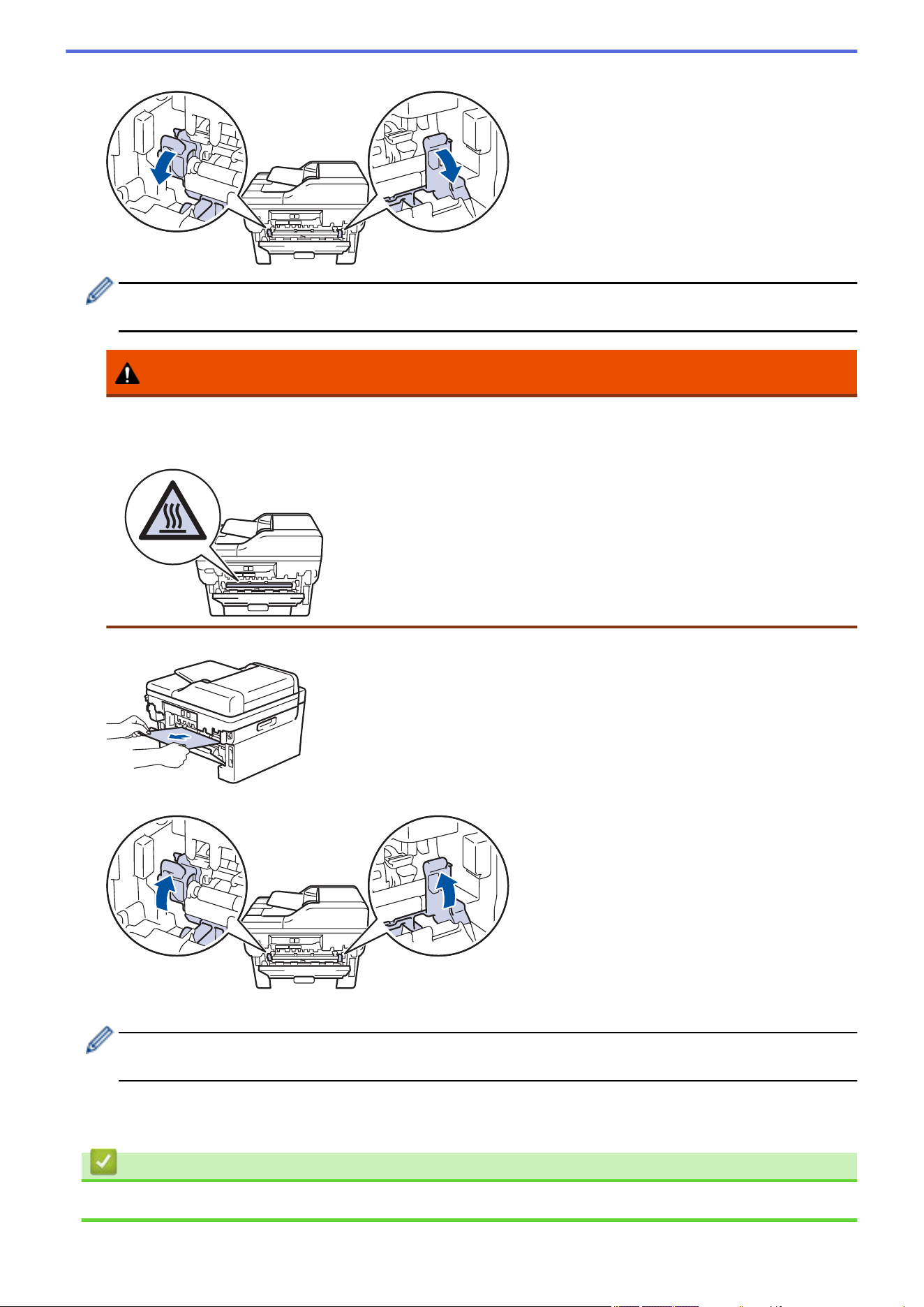
7. Pull the blue tabs at the left and right sides toward you to release the fuser cover.
(For models with green levers) If the green envelope levers inside the back cover are pulled down in the
envelope position, lift these levers to their original position before pulling the blue tabs down.
WARNING
HOT SURFACE
The machine's internal parts will be extremely hot. Wait for the machine to cool down before touching
them.
8. Use both hands to gently pull the jammed paper out of the back of the machine.
9. Close the fuser cover.
10. Close the back cover until it locks in the closed position.
If you print envelopes on a model equipped with the green envelope levers, pull the levers down to the
envelope position again and leave the back cover open.
11. Push the 2-sided tray firmly back into the back of the machine.
12. Push the paper tray firmly back into the front of the machine.
Related Information
• Paper Jams
494
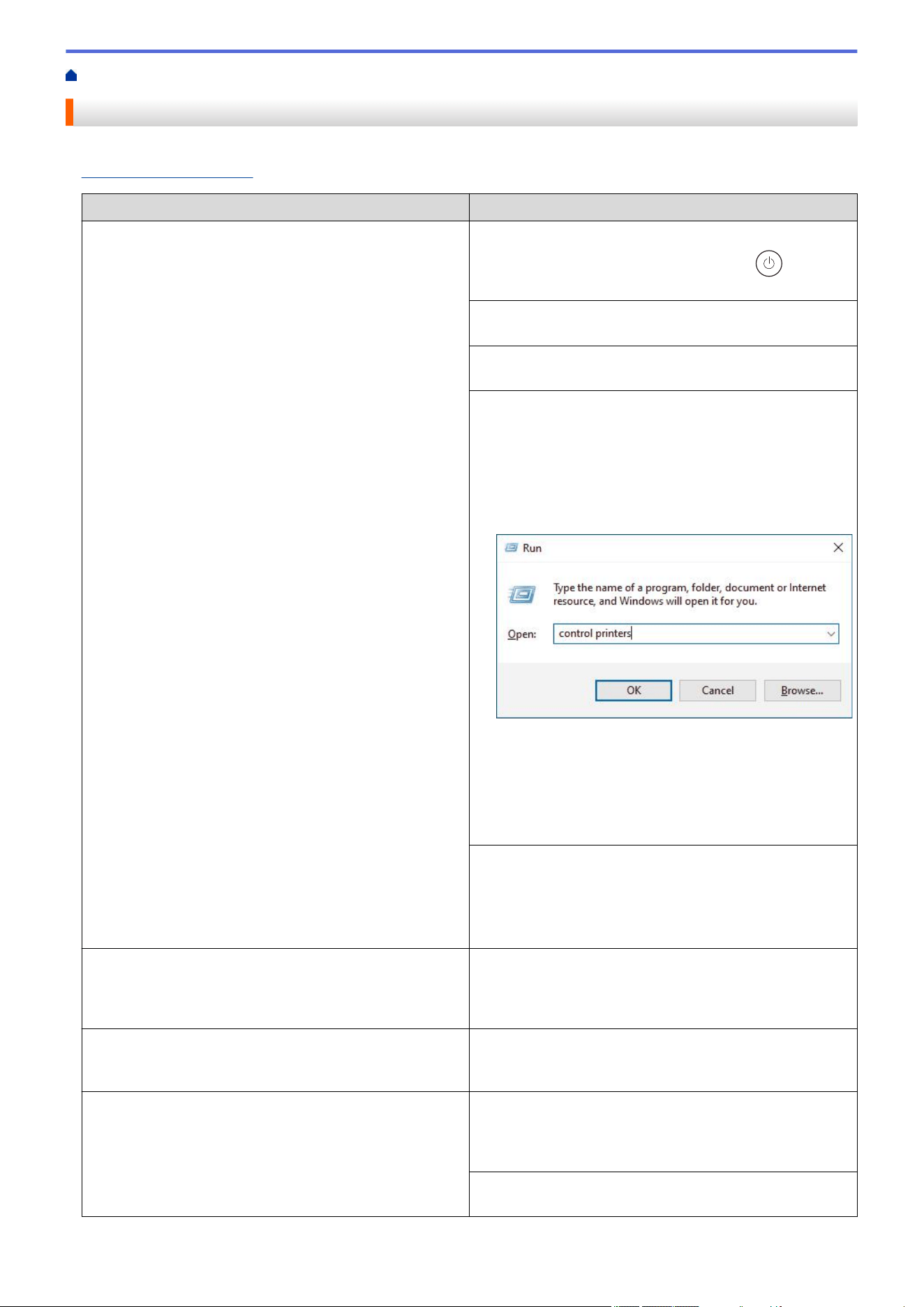
Home > Troubleshooting > Printing Problems
Printing Problems
If, after reading the information in this table, you still need help, see the latest troubleshooting tips at
support.brother.com/faqs.
Difficulties Suggestions
No printout Check the machine is not in Power Off mode.
If the machine is in Power Off mode, press
, and then
send the print data again.
Check that the correct printer driver has been installed
and selected.
Check to see if the Status Monitor or the machine's
control panel displays an error.
Check that the machine is online:
Windows:
1. Hold down the
key and press the key on the
computer's keyboard to launch Run.
2. Type "control printers" in the Open: field and click
OK.
3. Right-click your model's icon, and then click See
what's printing.
4. If printer driver options appear, select your printer
driver.
5. Click Printer in the menu bar and make sure Use
Printer Offline is not selected.
Mac:
Click the System Preferences or System Settings
menu, and then select the Printers & Scanners option.
When the machine is offline, delete it, and then add it
again.
The machine is not printing or has stopped printing. Cancel the print job and clear it from the machine's
memory. The printout may be incomplete. Send the print
data again.
See Related Information:Cancel a Print Job.
The headers or footers appear when the document
displays on the screen but they do not show up when it is
printed.
There is an unprintable area on the top and bottom of the
page. Adjust the top and bottom margins in your
document to allow for this.
The machine prints unexpectedly or it prints garbled text. Cancel the print job and clear it from the machine's
memory. The printout may be incomplete. Send the print
data again.
See Related Information:Cancel a Print Job.
Check the settings in your application to make sure they
are set up to work with your machine.
495
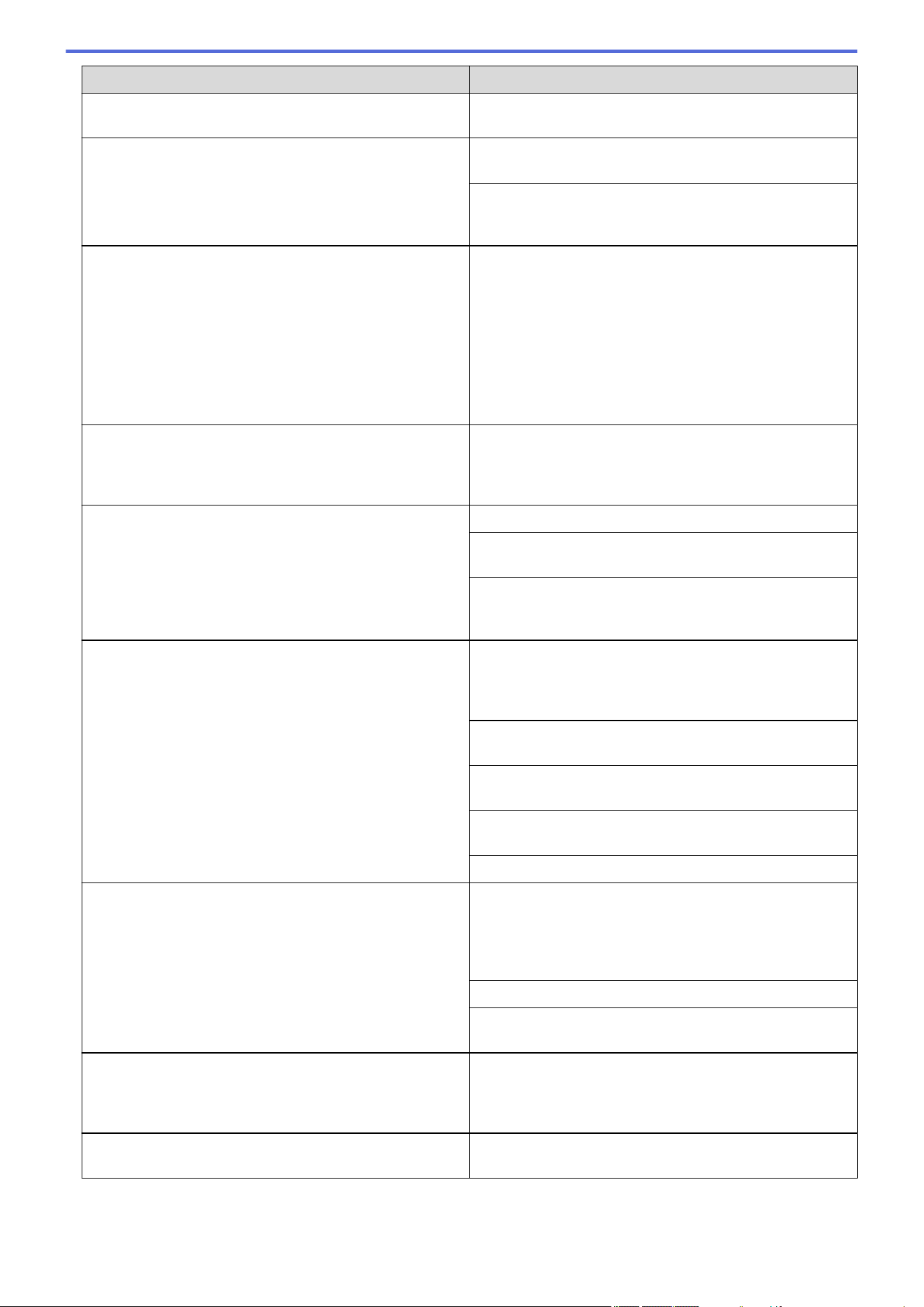
Difficulties Suggestions
Confirm that the Brother printer driver is selected in your
application's Print window.
The machine prints the first couple of pages correctly,
then some pages have missing text.
Check the settings in your application to make sure they
are set up to work with your machine.
Your machine is not receiving all of the data sent from the
computer. Make sure you connected the interface cable
correctly.
Cannot print on 1-sided or 2-sided. (Windows) Change the 2-sided option in the printer driver.
• If you want to make a temporary change, select None
or 2-sided in the printer driver from your application:
See Related Information: Print a Document
(Windows).
• If you want to make a permanent change, change the
default printer driver settings: See Related
Information:Change the Default Print Settings
(Windows).
The machine does not print on both sides of the paper
even though the printer driver setting is 2-sided and the
machine supports automatic 2-sided printing.
Check the paper size setting in the printer driver. You
must select Letter, Legal, Folio, Mexico Legal, or India
Legal paper. Supported paper weight is 16 to 28 lb (60 to
105g/m²)
Print speed is too slow. Reduce the resolution in the printer driver.
If you have enabled Quiet Mode, disable it in the printer
driver or the machine's menu.
When printing continuously, the printing speed may be
automatically reduced to lower the temperature inside the
machine.
The machine does not feed paper. If there is paper in the paper tray, make sure it is straight.
If the paper is curled, straighten it. Sometimes it is helpful
to remove the paper, turn the stack over and place it back
in the paper tray.
Fan the stack of paper well and place it back to the paper
tray.
Reduce the amount of paper in the paper tray, and then
try again.
(For models with Manual Feed Slot) Make sure Manual is
not selected for Paper Source in the printer driver.
Clean the paper pick-up rollers.
The machine does not feed paper from the Manual feed
slot.
(For models with Manual Feed Slot)
Use both hands to push one sheet of paper firmly into the
manual feed slot until the top edge of the paper presses
against the paper feed rollers. Continue pressing the
paper against the rollers until the machine grabs the
paper and pulls it in further.
Put only one sheet of paper in the manual feed slot.
Make sure Manual is selected as Paper Source in the
printer driver.
The machine does not feed envelopes. Load one envelope at a time in the manual feed slot. Your
application must be set to print the envelope size you are
using. This is usually done in the Page Setup or
Document Setup menu of your application.
Print position is misaligned with the preprinted objects. Adjust the print position using the Print Position setting for
each paper tray.
496

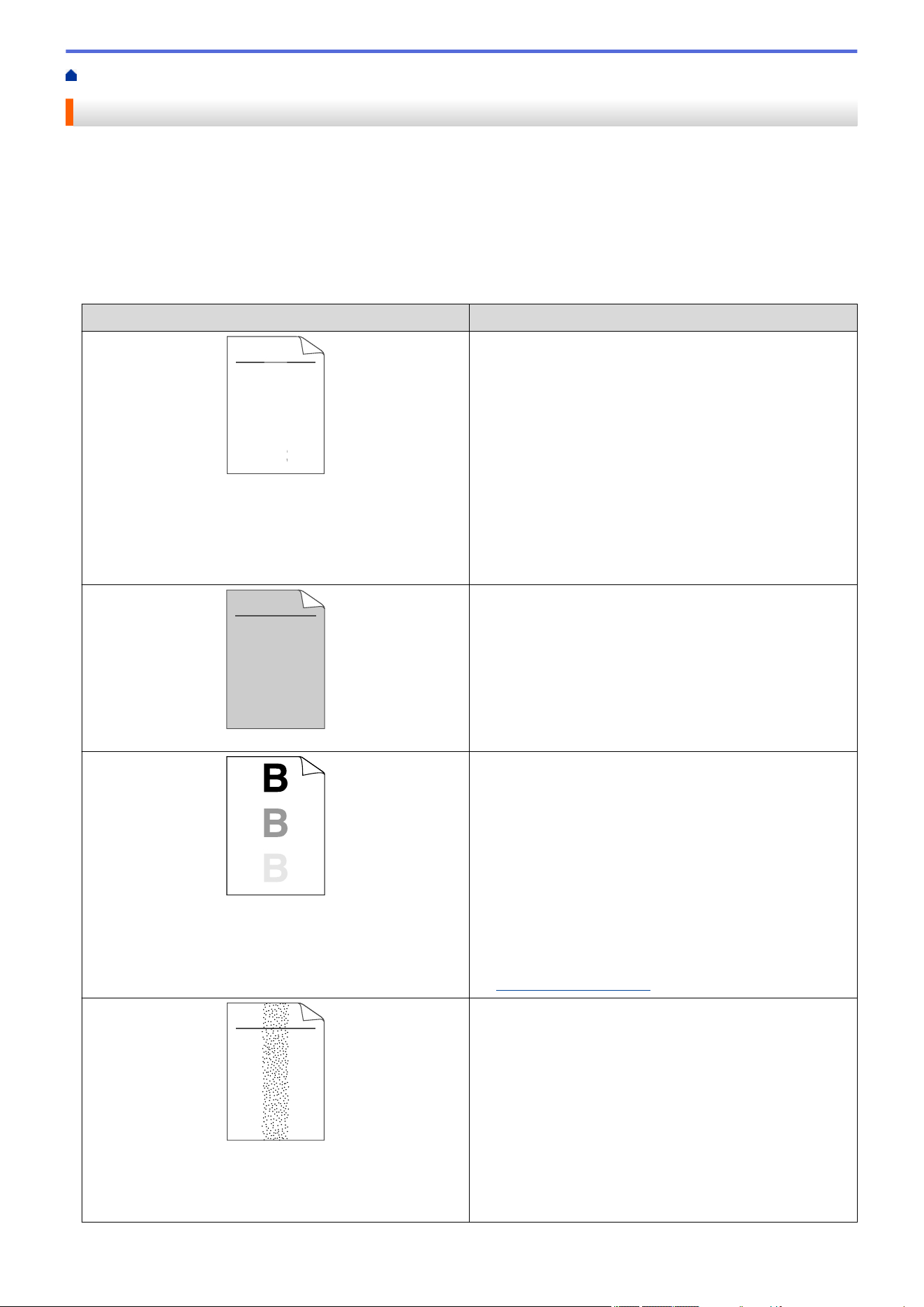
Home > Troubleshooting > Improve the Print Quality
Improve the Print Quality
If you have a print quality problem, print a test page first. If the printout looks good, the problem is probably not
the machine. Check the interface cable connections and try printing a different document. If the printout or test
page printed from the machine has a quality problem, check the examples of poor print quality and follow the
recommendations in the table.
1. To get the best print quality, we suggest using recommended print media. Make sure you use paper that
meets our specifications.
2. Check that the toner cartridge and drum unit are installed correctly.
Examples of poor print quality
Recommendation
ABCDEFGH
abcdefghijk
A B C D
a b c d e
0 1 2 3 4
CDEF
cdefg
B C
b c d
1 2 3
Faint
• If the machine displays the Replace Toner status,
install a new toner cartridge.
• Check the machine’s environment. Conditions such as
humidity, high temperatures, and so on, may cause
this print fault.
• If the whole page is too light, Toner Save mode may
be turned on. Turn off Toner Save mode in the
machine's menu settings or the printer driver.
• Clean the drum unit.
• Clean the corona wire on the drum unit.
• Replace the toner cartridge with a new toner cartridge.
• Replace the drum unit with a new drum unit.
ABCDEFGH
abcdefghijk
A B C D
a b c d e
0 1 2 3 4
Gray background
• Check the machine’s environment. Conditions such as
high temperatures and high humidity can increase the
amount of background shading.
• Clean the drum unit.
• Replace the toner cartridge with a new toner cartridge.
• Replace the drum unit with a new drum unit.
Ghosting images
• Check the machine’s environment. Conditions such as
low humidity and low temperatures may cause this
print quality problem.
• Select the appropriate media type in the printer driver.
• Clean the drum unit.
• Replace the drum unit with a new drum unit.
• Replace the toner cartridge with a new toner cartridge.
• The fuser unit may be contaminated.
Contact Brother Customer Service.
1-877-BROTHER (1-877-276-8437) (in USA)
www.brother.ca/support (in Canada)
ABCDEFGH
abcdefghijk
A B C D
a b c d e
0 1 2 3 4
Toner specks
• Make sure the media type setting in the driver
matches the type of paper you are using.
• Clean the drum unit.
• The toner cartridge may be damaged.
Replace the toner cartridge with a new toner cartridge.
• The drum unit may be damaged.
Replace the drum unit with a new drum unit.
• The fuser unit may be contaminated.
Contact Brother Customer Service.
1-877-BROTHER (1-877-276-8437) (in USA)
498
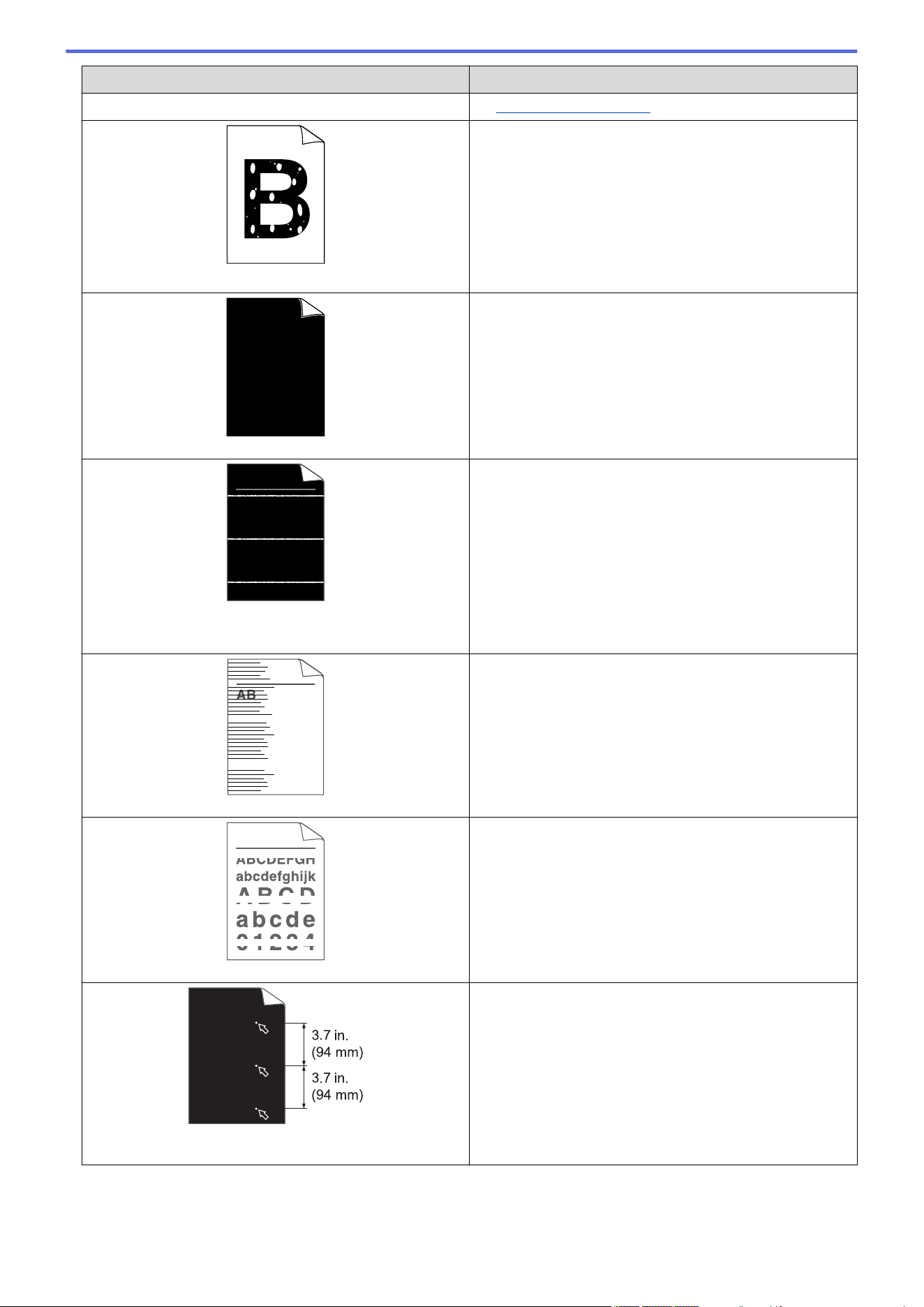
Examples of poor print quality Recommendation
www.brother.ca/support (in Canada)
Hollow print
• Select Thick Paper mode in the printer driver or use
thinner paper than you are currently using.
• Select the appropriate media type from the paper type
options on your machine.
• Check the machine’s environment. Conditions such as
high humidity can cause hollow print.
• The drum unit may be damaged.
Replace the drum unit with a new drum unit.
All black
• Clean the corona wire inside the drum unit.
• The drum unit may be damaged.
Replace the drum unit with a new drum unit.
ABCDEFGH
abcdefghijk
A B C D
a b c d e
0 1 2 3 4
White lines across the page
• Select the appropriate media type in the printer driver.
• Select the appropriate media type from the paper type
options on your machine.
• The problem may disappear by itself. Print several
blank pages to clear this problem, especially if the
machine has not been used for a long time.
• Clean the drum unit.
• The drum unit may be damaged.
Replace the drum unit with a new drum unit.
ABCDEFGH
abcdefghijk
A B C D
a b c d e
0 1 2 3 4
Lines across the page
• Clean the drum unit.
• The drum unit may be damaged.
Replace the drum unit with a new drum unit.
White lines, bands or ribbing across the page
• Check the machine's environment. Conditions such as
high humidity and high temperatures may cause this
print quality problem.
• Clean the drum unit.
• If the problem is not solved after printing a few pages,
replace the drum unit with a new drum unit.
White spots on black text and graphics at 3.7 in. (94 mm)
intervals
• Make 10-15 copies of a blank, white sheet of paper. If
the problem is not solved after printing the blank
pages, the drum unit may have foreign material, such
as glue from a label, stuck on the drum. Clean the
drum unit.
See Related Information:Clean the Drum Unit.
• The drum unit may be damaged.
Replace the drum unit with a new drum unit.
499
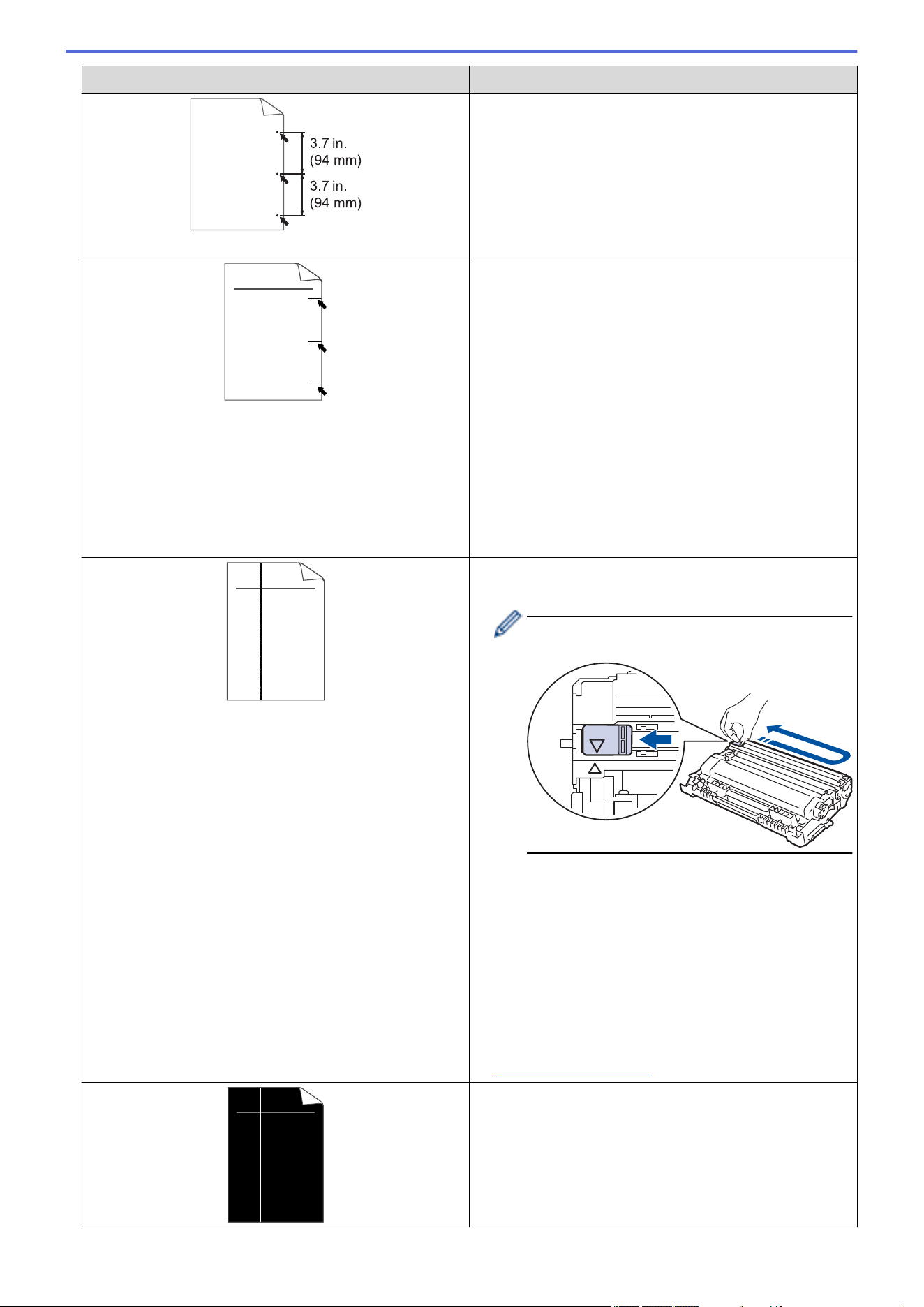
Examples of poor print quality Recommendation
Black spots at 3.7 in. (94 mm) intervals
ABCDEFGH
abcdefghijk
A B C D
a b c d e
0 1 2 3 4
Black toner marks across the page
• If you use label sheets for laser printers, the glue from
the sheets may sometimes stick to the drum surface.
Clean the drum unit.
See Related Information:Clean the Drum Unit.
• If you used paper that has clips or staples, the drum
unit may be damaged.
• If the unpacked drum unit is in direct sunlight (or room
light for long periods of time), the unit may be
damaged.
• Clean the drum unit.
• The toner cartridge may be damaged.
Replace the toner cartridge with a new toner cartridge.
• The drum unit may be damaged.
Replace the drum unit with a new drum unit.
ABCDEFGH
abcdefgh ijk
A B C D
a b c d e
0 1 2 3 4
Black lines down the page
Printed pages have toner stains down the page
• Clean the corona wire inside the drum unit by sliding
the green tab.
Make sure the green tab of the corona wire is in
the Home position (1).
• Wipe the scanner glass strip with a dry lint free soft
cloth.
• The toner cartridge may be damaged.
Replace the toner cartridge with a new toner cartridge.
• The drum unit may be damaged.
Replace the drum unit with a new drum unit.
• The fuser unit may be contaminated.
Contact Brother Customer Service.
1-877-BROTHER (1-877-276-8437) (in USA)
www.brother.ca/support (in Canada)
ABCDEFGH
abcdefghijk
A B C D
a b c d e
0 1 2 3 4
• Make sure there is no foreign material, such as a torn
piece of paper, sticky notes or dust, inside the
machine and around the toner cartridge and drum
unit.
• The toner cartridge may be damaged.
Replace the toner cartridge with a new toner cartridge.
• The drum unit may be damaged.
500
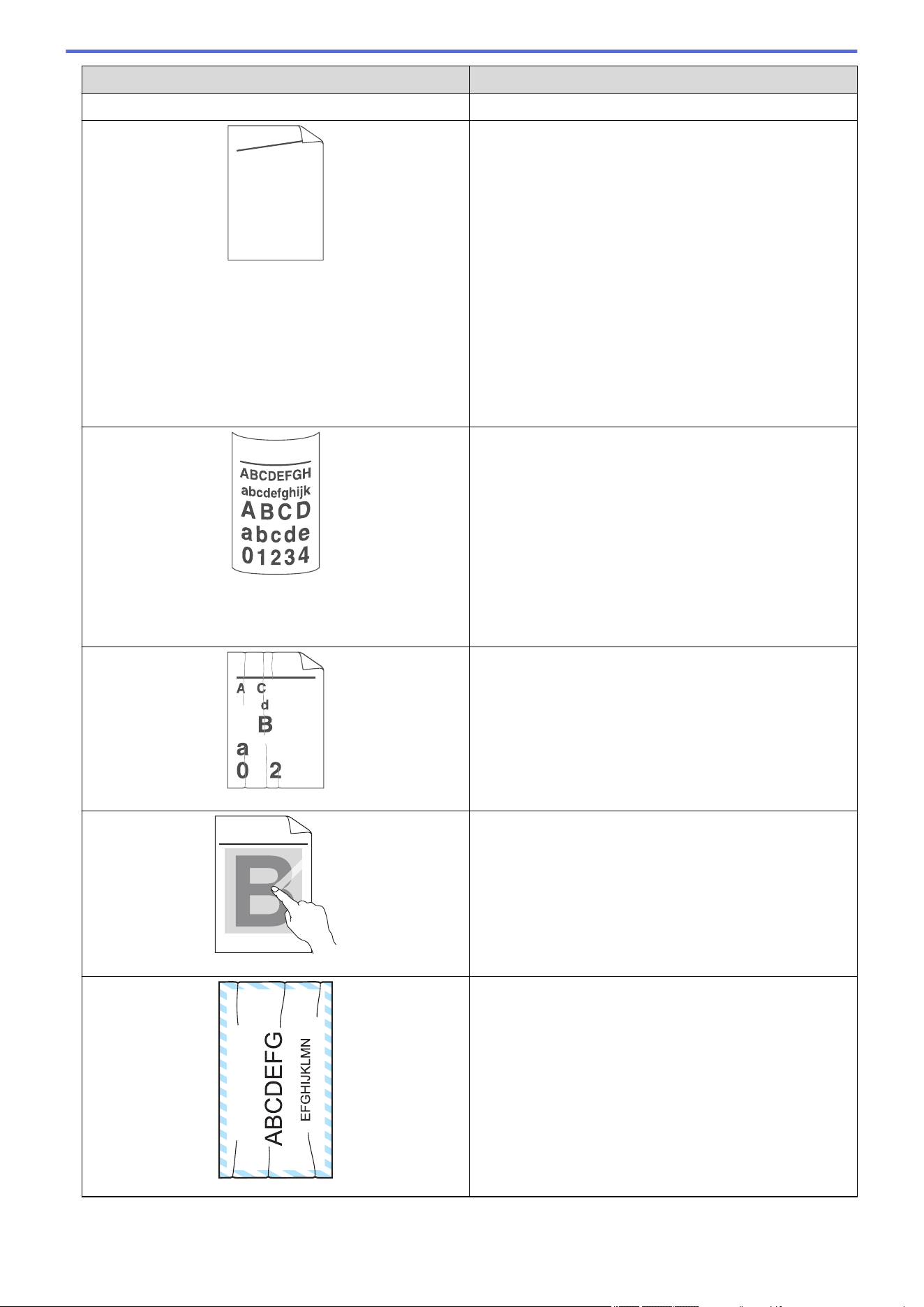
Examples of poor print quality Recommendation
White lines down the page Replace the drum unit with a new drum unit.
ABCDEFGH
abcdefghijk
A B C D
a b c d e
0 1 2 3 4
Image skewed
• Set the document correctly in the ADF or on the
scanner glass if the skew only occurs when making
copies.
• Make sure the paper or other print media is loaded
correctly in the paper tray and the guides are not too
tight or too loose against the paper stack.
• Set the paper guides correctly.
• The paper tray may be too full.
• Check the paper type and quality.
• Check for loose objects such as torn paper inside the
machine.
• If the problem only occurs during automatic 2-sided
printing, check for torn paper in the 2-sided tray. Verify
the 2-sided tray is inserted completely and the back
cover is closed completely.
Curled or wavy image
• Check the paper type and quality. High temperatures
and high humidity will cause paper to curl.
• If you do not use the machine often, the paper may
have been in the paper tray too long. Turn over the
stack of paper in the paper tray. Also, fan the paper
stack, and then rotate the paper 180° in the paper
tray.
• Open the back cover (face up output tray) to let the
printed paper exit onto the face up output tray.
• Choose Reduce Paper Curl mode in the printer driver
when you do not use our recommended print media.
B DEFGH
abc efghijk
A C D
b c d e
1 3 4
Wrinkles or creases
• Make sure paper is loaded correctly.
• Check the paper type and quality.
• Turn over the stack of paper in the tray or rotate the
paper 180° in the paper tray.
ABCDEFGHIJKLMNOPQRSTUVWXYZ. 0123456789. abcdefghijklmnopqrstuvwxyz.
ABCDEFGHIJKLMNOPQRSTUVWXYZ. 0123456789. abcdefghijklmnopqrstuvwxyz.
ABCDEFGHIJKLMNOPQRSTUVWXYZ. 0123456789. abcdefghijklmnopqrstuvwxyz.
ABCDEFGHIJKLMNOPQRSTUVWXYZ. 0123456789. abcdefghijklmnopqrstuvwxyz.
Poor fixing
• Make sure the media type setting in the printer driver
matches the type of paper you are using.
• Select Improve Toner Fixing mode in the printer
driver.
If this selection does not provide enough
improvement, change the printer driver setting in
Media Type to a thick setting. If you are printing an
envelope, select Env. Thick in the media type setting.
Envelope creases
• Make sure the levers are pulled down to the envelope
position when you print envelopes (applicable to
models with green levers). After you have finished
printing, reset the levers back to their original position.
Pull up the levers until they stop.
501
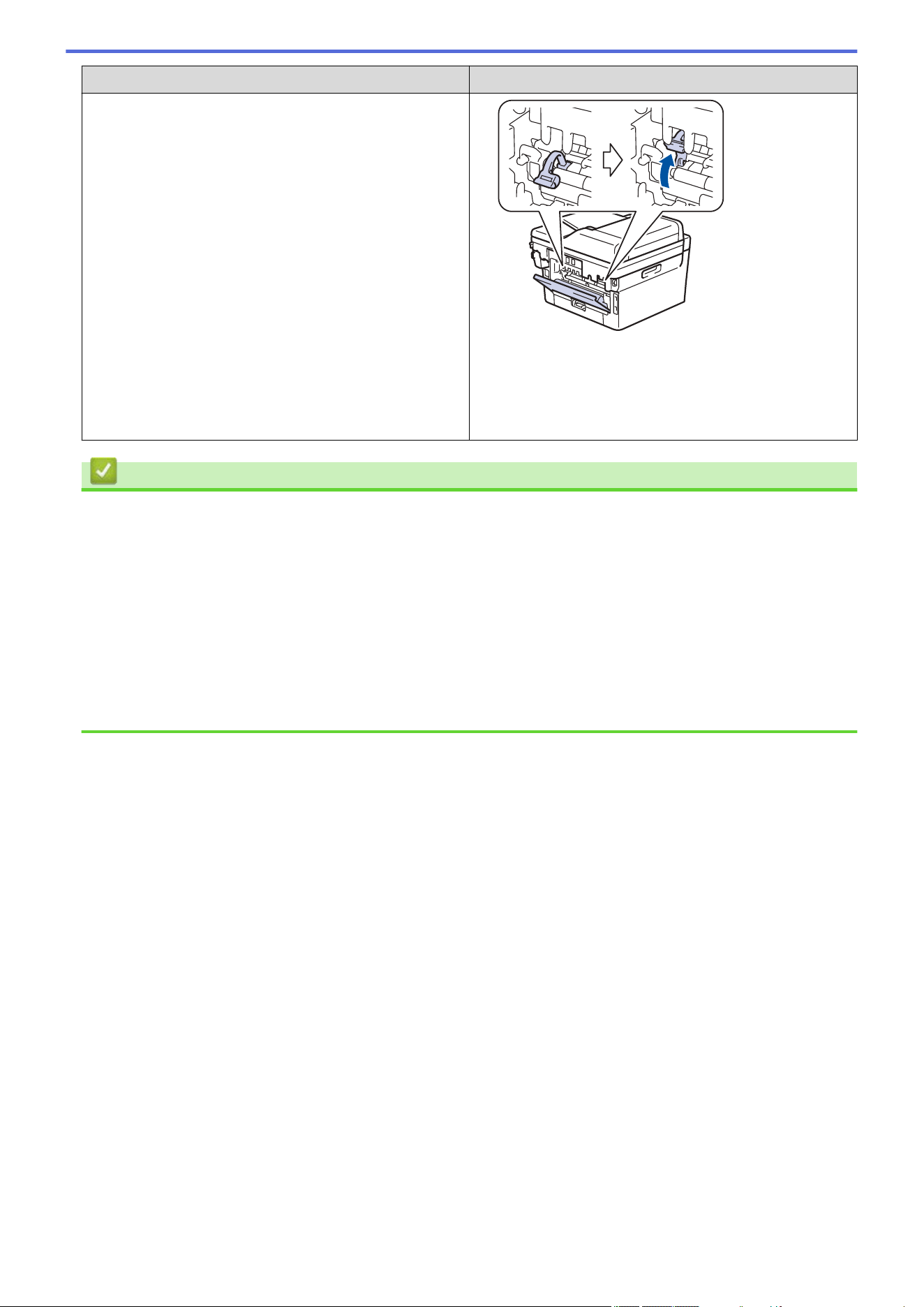
Examples of poor print quality Recommendation
• Make sure envelopes are printed with the back cover
(face up output tray) opened.
• (For models with Manual Feed Slot)
Make sure envelopes are fed only from the manual
feed slot.
Related Information
• Troubleshooting
Related Topics:
• Test Print
• Clean the Drum Unit
• Recommended Print Media
• Reduce Toner Consumption
• Replace the Toner Cartridge
• Replace the Drum Unit
• Clean the Scanner
502
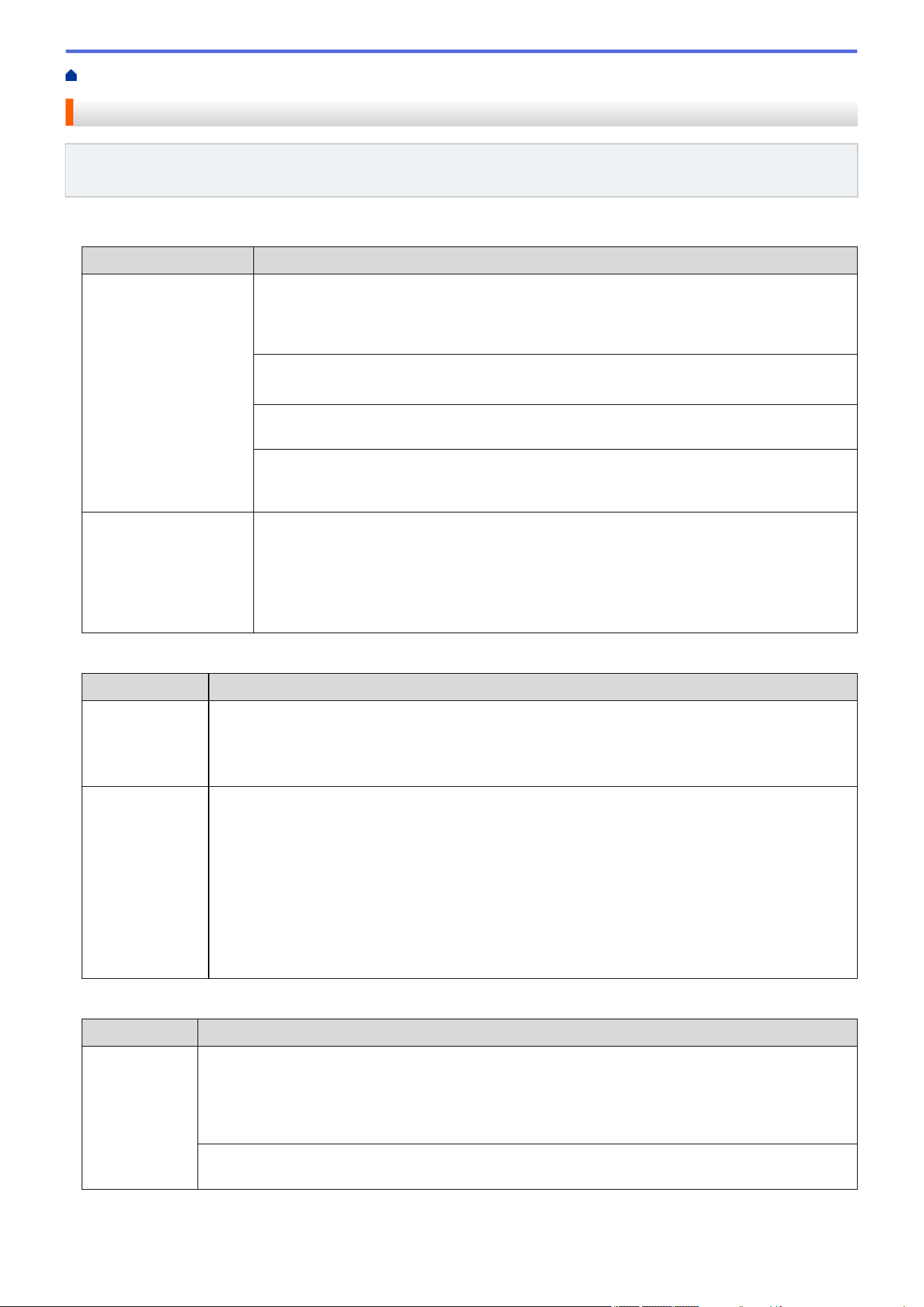
Home > Troubleshooting > Telephone and Fax Problems
Telephone and Fax Problems
Related Models: MFC-L2760DW/MFC-L2807DW/MFC-L2820DW/MFC-L2820DWXL/MFC-L2900DW/
MFC-L2900DWXL/MFC-L2980DW
Telephone Line or Connections
Difficulties
Suggestions
Dialing does not work.
(No dial tone)
Check all line cord connections. Make sure the telephone line cord is plugged into the
telephone wall jack and the LINE jack of the machine. Make sure your machine has a dial
tone by pressing the Hook button in Fax mode. If you subscribe to DSL, VoIP or magicJack
services, call your service provider for connection instructions.
(Available only for some countries.)
Change the Tone/Pulse setting.
Send a manual fax by pressing Hook button, and dialing the number. Wait to hear fax-
receiving tones before pressing Start button.
If there is no dial tone, connect a known working telephone and telephone line cord to the
jack. Then lift the external telephone’s handset and listen for a dial tone. If there is still no
dial tone, ask your telephone company to check the line and/or wall jack.
The machine does not
answer when called.
Make sure the machine is in the correct receive mode for your setup.
Check for a dial tone. If possible, call your machine to hear it answer. If there is still no
answer, check that the telephone line cord is plugged into the telephone wall jack and the
LINE jack of the machine. Make sure your machine has a dial tone by pressing the Hook
button in Fax mode. If there is no ringing when you call your machine, ask your telephone
company to check the line.
Handling Incoming Calls
Difficulties
Suggestions
Sending a Fax
Call to the
machine.
If you answered on an extension telephone, press your Fax Receive Code (the factory setting is
*51). If you answered on the external telephone (connected to the EXT. jack), press the Start
button to receive the fax.
When your machine answers, hang up.
Custom features
on a single line.
If you have Call Waiting, Call Waiting/Caller ID, Caller ID, Voice Mail, an answering machine, an
alarm system or other custom feature on a single telephone line with your machine, it may create
a problem sending or receiving faxes.
For Example: If you subscribe to Call Waiting or some other custom service and its signal comes
through the line while your machine is sending or receiving a fax, the signal can temporarily
interrupt or disrupt the faxes. Brother’s ECM (Error Correction Mode) feature should help
overcome this problem. This condition is related to the telephone system industry and is common
to all devices that send and receive information on a single, shared line with custom features. If
avoiding a slight interruption is crucial to your business, we recommend using a separate
telephone line with no custom features.
Receiving Faxes
Difficulties
Suggestions
Cannot receive
a fax.
Check all line cord connections. Make sure the telephone line cord is plugged into the telephone
wall jack and the LINE jack of the machine. If you subscribe to DSL, VoIP, or magicJack services,
call your service provider for connection instructions. If you are using a VoIP system, try changing
the VoIP setting to Basic (for VoIP). This will lower modem speed and turn off Error Correction
Mode (ECM).
Make sure your machine has a dial tone by pressing the Hook button in Fax mode. If you hear
static or interference on your fax line, contact your local telephone provider.
503
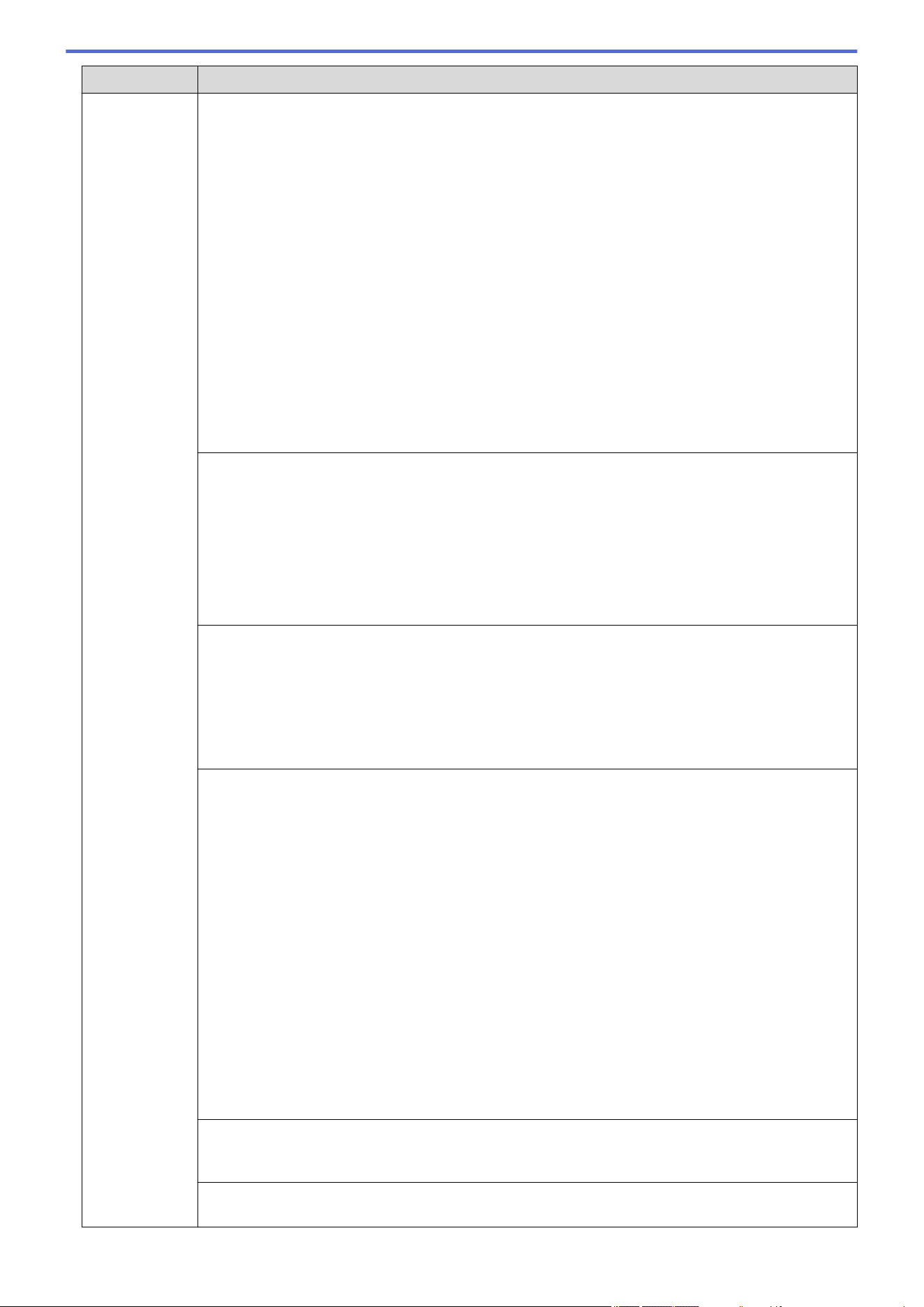
Difficulties Suggestions
Cannot receive
a fax.
Make sure the machine is in the correct Receive Mode. This is determined by the external devices
and telephone subscriber services you have on the same line as the Brother machine.
• If you have a dedicated fax line and want your Brother machine to automatically answer all
incoming faxes, you should select Fax Only mode.
• If your Brother machine shares a line with an external answering machine, you should select the
External TAD mode. In External TAD mode, your Brother machine will receive incoming faxes
automatically and voice callers will be able to leave a message on your answering machine.
• If your Brother machine shares the line with a Voice Mail subscriber service, see Related
Information: Voice Mail.
• If your Brother machine is on a line with the Distinctive Ring subscriber service, see Related
Information: Distinctive Ring.
• If your Brother machine shares a line with other telephones and you want it to automatically
answer all incoming faxes, you should select the Fax/Tel mode. In Fax/Tel mode, your Brother
machine will receive faxes automatically and produce a pseudo/double-ring to alert you to
answer voice calls.
• If you do not want your Brother machine to answer any incoming faxes automatically, you should
select the Manual mode. In Manual mode, you must answer every incoming call and activate the
machine to receive faxes.
Another device or service at your location may be answering the call before your Brother machine
answers. To test this, lower the Ring Delay setting:
• If the Receive Mode is set to Fax Only or Fax/Tel, reduce the Ring Delay to the minimum value
(excluding “0”).
See Related Information: Set the Number of Rings Before the Machine Answers (Ring Delay).
• If the Receive Mode is set to External TAD, reduce the number of rings programmed on your
answering machine to two.
• If the Receive Mode is set to Manual, DO NOT adjust the Ring Delay setting.
Have someone send you a test fax:
• If you received the test fax successfully, your machine is operating correctly. Remember to reset
your Ring Delay or answering machine setting back to your original setting. If receiving
problems recur after resetting the Ring Delay, then a person, device, or subscriber service is
answering the fax call before the machine has a chance to answer.
• If you were not able to receive the fax, then another device or subscriber service may be
interfering with your fax reception or there may be a problem with your fax line.
If you are using a telephone answering machine (External TAD mode) on the same line as the
Brother machine, make sure your answering machine is set up correctly.
1. Plug the telephone line cord directly from the wall telephone jack to your machine’s LINE jack.
2. Remove the protective cap from your machine’s EXT. jack, and then plug the telephone line cord
from your answering machine into the EXT. jack.
3. Set your answering machine to answer within 4 rings.
If you are having problems receiving faxes or voice messages, set your answering machine to
answer within 2 or 3 rings.
4. Record the outgoing message on your answering machine.
• Record five seconds of silence at the beginning of your outgoing message.
• Limit your speaking to 20 seconds.
• End your outgoing message with your Fax Receive Code for people sending manual faxes.
For example: “After the beep, leave a message or press *51 and Start to send a fax.”
5. Set your answering machine to answer calls.
6. Set your Brother machine’s Receive Mode to External TAD.
See Related Information: Choose the Correct Receive Mode.
Make sure your Brother machine’s Easy Receive feature is turned On. Easy Receive is a feature
that allows you to receive a fax even if you answered the call on an external or extension
telephone.
If you often get transmission errors due to possible interference on the telephone line or if you are
using a VoIP system, try changing the Compatibility setting to Basic (for VoIP).
504
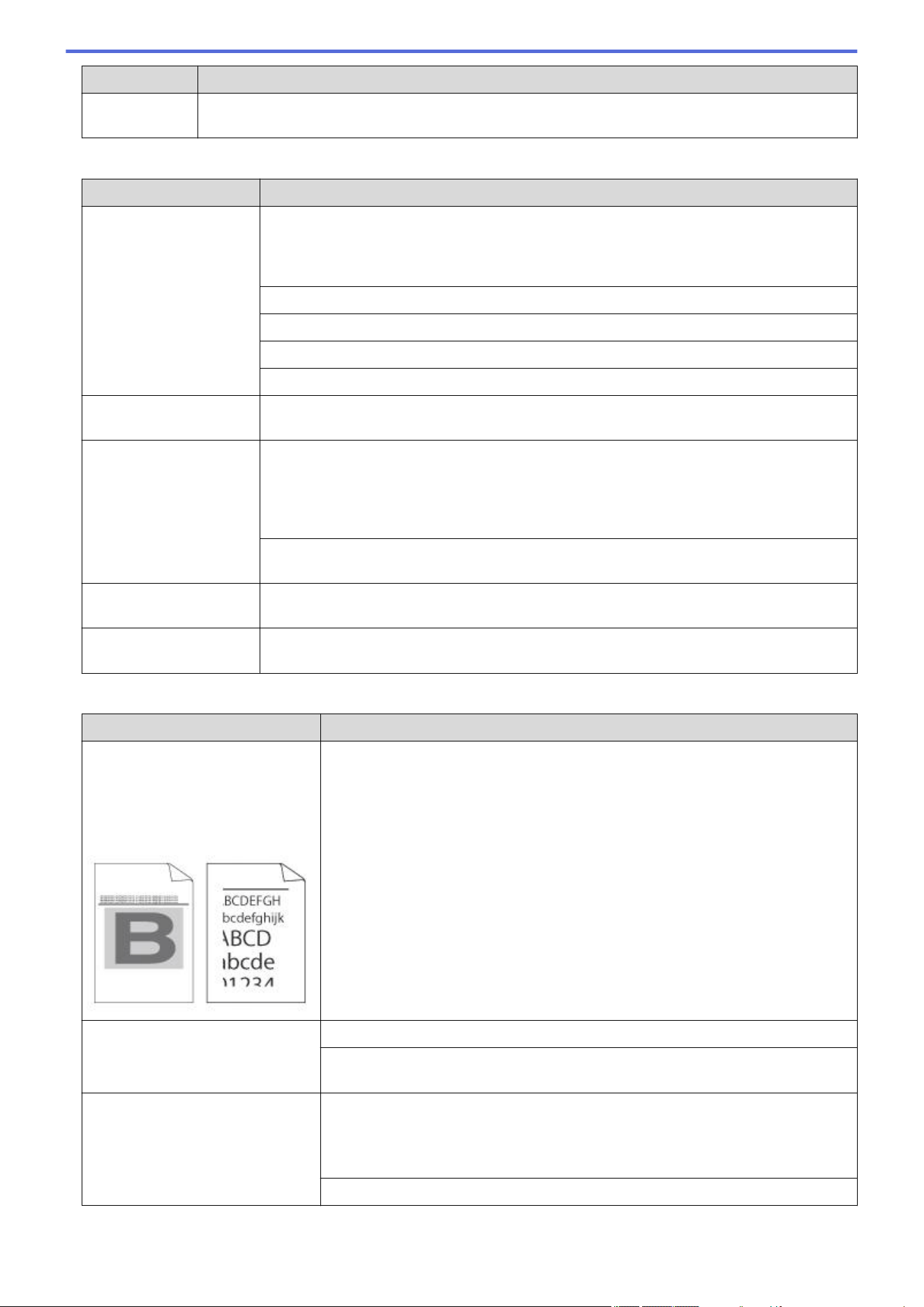
Difficulties Suggestions
Cannot receive
a fax.
Contact your administrator to check your Secure Function Lock settings.
Sending Faxes
Difficulties Suggestions
Cannot send a fax. Check all line cord connections. Make sure the telephone line cord is plugged into the
telephone wall jack and the LINE jack of the machine. Make sure your machine has a dial
tone by pressing the Hook button in Fax mode. If you subscribe to DSL, VoIP, or
magicJack services, call your service provider for connection instructions.
Make sure you pressed Fax and the machine is in Fax mode.
Print the Transmission Verification Report and check for an error.
Contact your administrator to check your Secure Function Lock settings.
Ask the other party to check that the receiving machine has paper.
Poor quality of sent
faxes.
Try changing your resolution to Fine or S.Fine. Make a copy to check your machine’s
scanner operation. If the copy quality is poor, clean the scanner.
Transmission Verification
Report says RESULT:NG.
There is probably temporary noise or static on the line. Try sending the fax again. If you
are sending a PC-Fax message and get RESULT:NG on the Transmission Verification
Report, your machine may be out of memory. To free up extra memory, you can turn off
Fax Storage, print fax messages in memory or cancel a delayed fax. If the problem
continues, ask the telephone company to check your telephone line.
If you often get transmission errors due to possible interference on the telephone line or if
you are using a VoIP system, try changing the Compatibility setting to Basic (for VoIP).
Sent faxes are blank. Make sure you are loading the document correctly. When using the ADF, the document
should be face up. When using the scanner glass, the document should be face down.
Vertical black lines when
sending a fax.
Black vertical lines on faxes you send are typically caused by dirt or correction fluid on the
glass strip. Clean the glass strip.
Printing received faxes
Difficulties
Suggestions
• Condensed print
• Horizontal streaks
• Top and bottom sentences are
cut off
• Missing lines
This is usually caused by a poor telephone connection. Do a test copy; if your
copy looks good, you probably had a bad connection, with static or interference
on the telephone line. Ask the other party to send the fax again.
Vertical black lines when receiving The corona wire may be dirty.Clean the corona wire in the drum unit.
The sender’s scanner may be dirty. Ask the sender to make a copy to see if the
problem is with the sending machine. Try receiving from another fax machine.
Received faxes appear as split or
blank pages.
Left and right margins are cut off or a single page is printed on two pages.
If the received faxes are divided and printed on two pages or if you get an extra
blank page, your paper size setting may not be correct for the paper you are
using.
Turn on Auto Reduction.
505

Home > Troubleshooting > Telephone and Fax Problems > Set Dial Tone Detection
Set Dial Tone Detection
Related Models: MFC-L2760DW/MFC-L2807DW/MFC-L2820DW/MFC-L2820DWXL/MFC-L2900DW/
MFC-L2900DWXL/MFC-L2980DW
Setting the Dial Tone to [Detection] shortens the Dial Tone detect pause.
>> MFC-L2760DW
>> MFC-L2807DW/MFC-L2820DW/MFC-L2820DWXL/MFC-L2900DW/MFC-L2900DWXL/MFC-L2980DW
MFC-L2760DW
1. Press Menu.
2. Press a or b to display the [Initial Setup] option, and then press OK.
3. Press a or b to display the [Dial Tone] option, and then press OK.
4. Press a or b to choose the [Detection] or [No Detection], and then press OK.
5. Press Stop/Exit.
MFC-L2807DW/MFC-L2820DW/MFC-L2820DWXL/MFC-L2900DW/MFC-L2900DWXL/
MFC-L2980DW
1. Press [Settings] > [All Settings] > [Initial Setup] > [Dial Tone].
2. Press [Detection] or [No Detection].
3. Press .
Related Information
• Telephone and Fax Problems
507
Home > Troubleshooting > Telephone and Fax Problems > Set Telephone Line Compatibility for
Interference and VoIP Systems
Set Telephone Line Compatibility for Interference and VoIP Systems
Related Models: MFC-L2760DW/MFC-L2807DW/MFC-L2820DW/MFC-L2820DWXL/MFC-L2900DW/
MFC-L2900DWXL/MFC-L2980DW
Problems sending and receiving faxes due to possible interference on the telephone line may be solved by
reducing the modem speed to minimize errors in fax transmission. If you are using a Voice over IP (VoIP)
service, we recommend changing the compatibility to Basic (for VoIP).
• VoIP is a type of phone system that uses an Internet connection, rather than a traditional phone line.
• Telephone providers frequently bundle VoIP together with Internet and cable services.
>> MFC-L2760DW
>> MFC-L2807DW/MFC-L2820DW/MFC-L2820DWXL/MFC-L2900DW/MFC-L2900DWXL/MFC-L2980DW
MFC-L2760DW
1. Press Menu.
2. Press a or b to display the [Initial Setup] option, and then press OK.
3. Press a or b to display the [Compatibility] option, and then press OK.
4. Press a or b to display the [High], [Normal], or [Basic(for VoIP)] option, and then press OK.
Option Description
High
Select High to set the modem speed at 33600 bps.
Normal
Select Normal to set the modem speed at 14400 bps.
Basic(for
VoIP)
Select Basic(for VoIP) to reduce the modem speed to 9600 bps and turn off Error
Correction Mode (ECM). Unless interference is a recurring problem on your telephone
line, you may prefer to use it only when needed.
To improve compatibility with most VoIP services, we recommend changing the
compatibility setting to Basic(for VoIP).
5. Press Stop/Exit.
MFC-L2807DW/MFC-L2820DW/MFC-L2820DWXL/MFC-L2900DW/MFC-L2900DWXL/
MFC-L2980DW
1. Press [Settings] > [All Settings] > [Initial Setup] > [Compatibility].
2. Press [High], [Normal] or [Basic(for VoIP)].
Option Description
High
Select High to set the modem speed at 33600 bps.
Normal
Select Normal to set the modem speed at 14400 bps.
Basic(for
VoIP)
Select Basic(for VoIP) to reduce the modem speed to 9600 bps and turn off Error
Correction Mode (ECM). Unless interference is a recurring problem on your telephone
line, you may prefer to use it only when needed.
To improve compatibility with most VoIP services, we recommend changing the
compatibility setting to Basic(for VoIP).
508

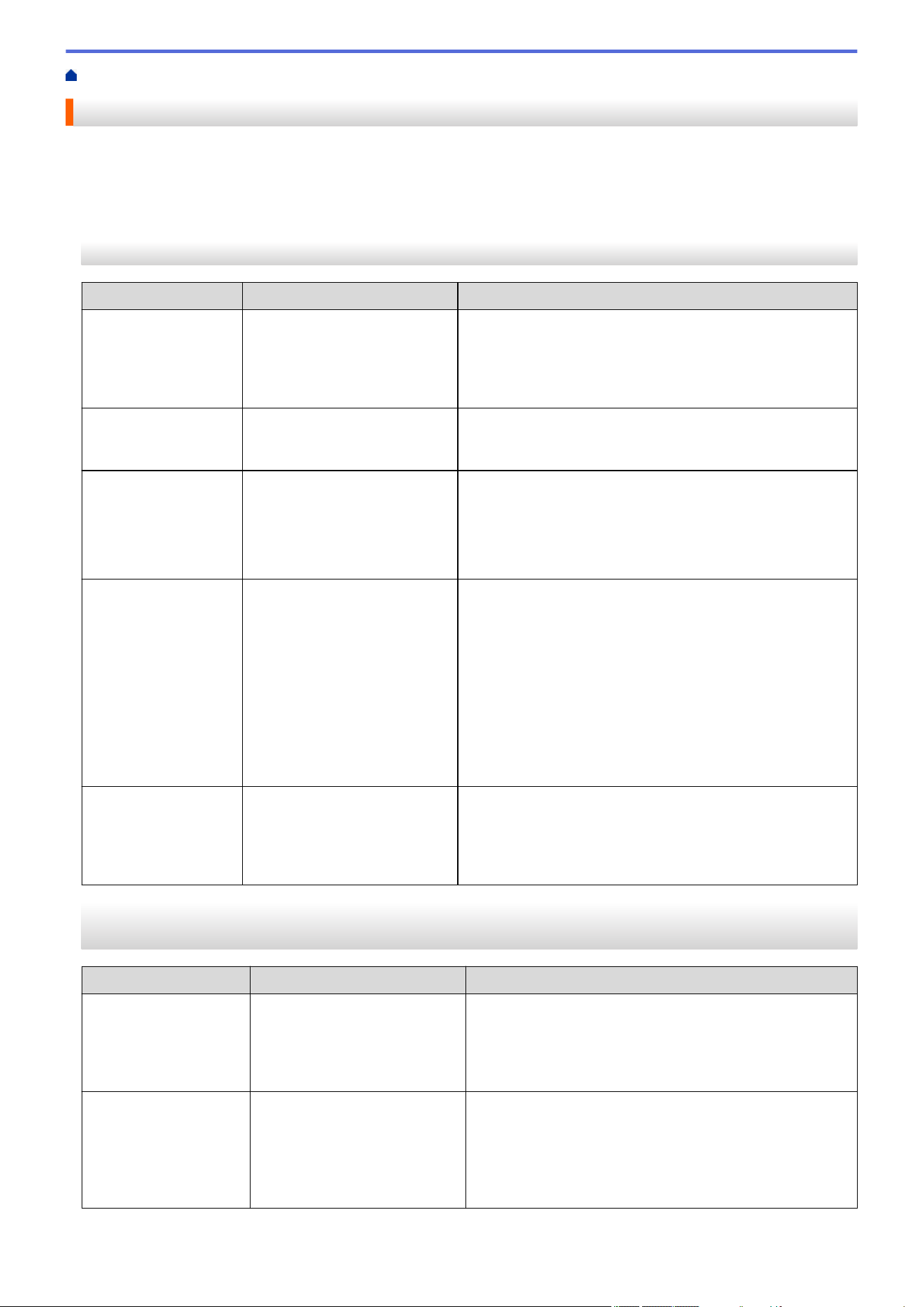
Home > Troubleshooting > Network Problems > Error Messages
Error Messages
The most common error messages are shown in the table.
>> HL-L2465DW/DCP-L2640DW/DCP-L2647DW/MFC-L2760DW
>> HL-L2480DW/MFC-L2807DW/MFC-L2820DW/MFC-L2820DWXL/MFC-L2900DW/MFC-L2900DWXL/
MFC-L2980DW
HL-L2465DW/DCP-L2640DW/DCP-L2647DW/MFC-L2760DW
Error Messages
Cause Action
Maximum limit of
connected devices
has been reached.
Four mobile devices are
already connected to the Wi-Fi
Direct network when the
Brother machine is the Group
Owner.
After the current connection between your Brother machine
and another mobile device has shut down, try to configure
the Wi-Fi Direct settings again. You can confirm the
connection status by printing the Network Configuration
Report.
Connection Error
Other devices are trying to
connect to the Wi-Fi Direct
network at the same time.
Make sure there are no other devices trying to connect to
the Wi-Fi Direct network, and then try to configure the Wi-Fi
Direct settings again.
Connection Fail
The Brother machine and your
mobile device cannot
communicate during the Wi-Fi
Direct network configuration.
• Move the mobile device closer to your Brother machine.
• Move your Brother machine and the mobile device to an
obstruction-free area.
• If you are using the PIN Method of WPS, make sure you
have entered the correct PIN.
No Device
When configuring the Wi-Fi
Direct network, the Brother
machine cannot find your
mobile device.
• Make sure your machine and mobile device are in the
Wi-Fi Direct mode.
• Move the mobile device closer to your Brother machine.
• Move your Brother machine and the mobile device to an
obstruction-free area.
• If you are manually configuring the Wi-Fi Direct network,
make sure you have entered the correct password.
• If your mobile device has a configuration page for
obtaining an IP address, make sure your mobile
device's IP address has been configured via DHCP.
Wrong Date&Time,
contact your
administrator.
The Brother machine does not
obtain the time from the SNTP
time server or you have not
configured the Date&Time for
the machine.
• Make sure the settings to access the SNTP time server
are configured correctly in Web Based Management.
• Confirm the Date&Time settings of your machine are
correct in Web Based Management.
HL-L2480DW/MFC-L2807DW/MFC-L2820DW/MFC-L2820DWXL/MFC-L2900DW/
MFC-L2900DWXL/MFC-L2980DW
Error Messages
Cause Action
The maximum
number of devices
are already
connected using
Wi-Fi Direct.
Four mobile devices are
already connected to the Wi-Fi
Direct network when the
Brother machine is the Group
Owner.
After the current connection between your Brother
machine and another mobile device has shut down, try to
configure the Wi-Fi Direct settings again. You can confirm
the connection status by printing the Network
Configuration Report.
Authentication
Error, contact
your
administrator.
Your authentication setting for
the Store Print Log to Network
feature is not correct.
• Make sure the Username and Password in
Authentication Setting are correct. If the username is
part of a domain, enter the username in one of the
following styles: user@domain or domain\user.
• Make sure the time of the log file server matches the
time from the SNTP server, or the Date&Time settings.
511
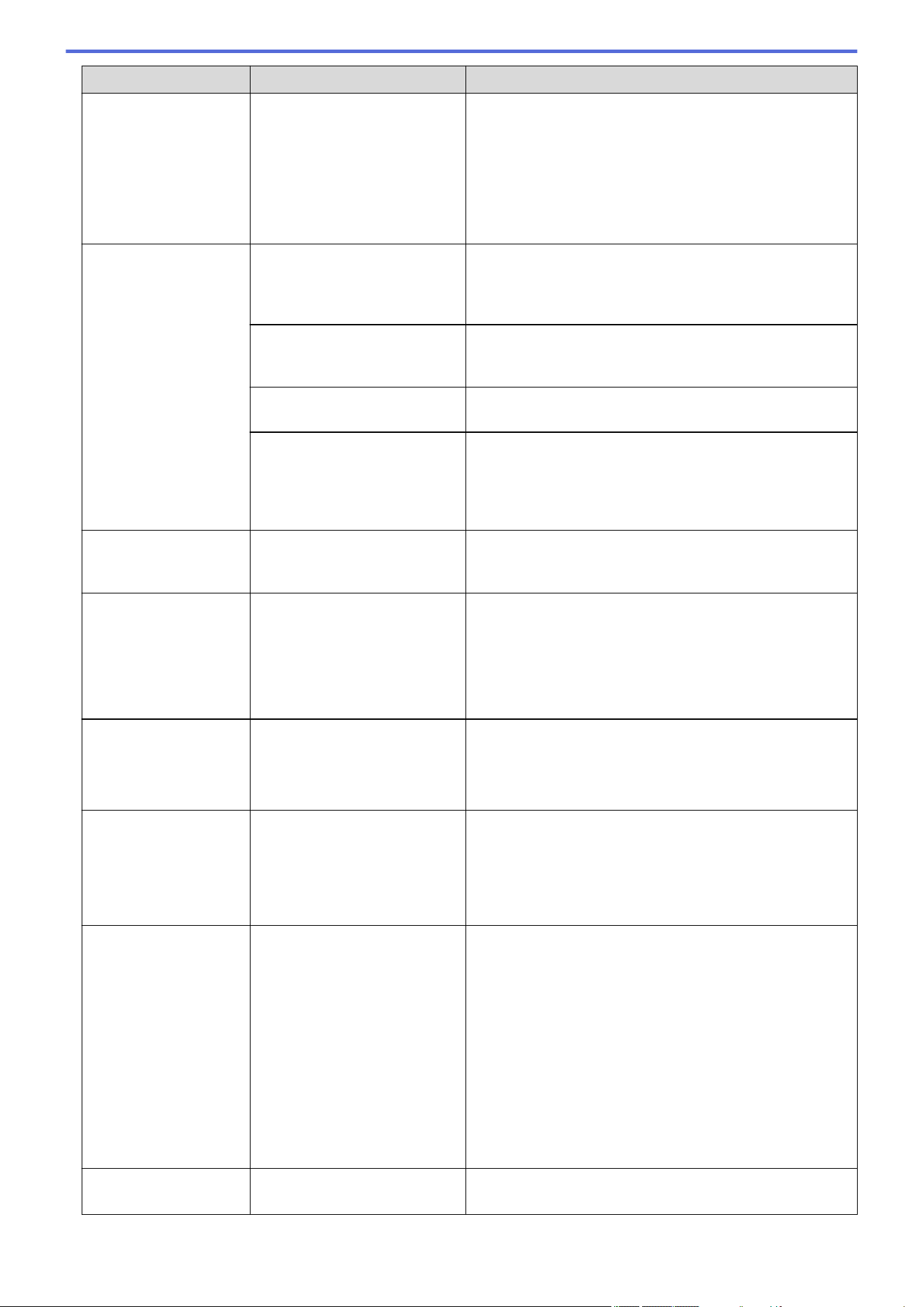
Error Messages Cause Action
• Make sure the SNTP time server settings are
configured correctly so the time matches the time used
for authentication by Kerberos or NTLMv2. If there is
no SNTP server, make sure the Date&Time and Time
Zone settings are set correctly using Web Based
Management or the control panel so the machine
matches the time being used by the server providing
the authentication.
Check User ID and
Password.
The Kerberos Authentication
error.
Make sure you have entered a correct user name and a
password for the Kerberos server. For more information
on the Kerberos server settings, contact your network
administrator.
The date, time and time zone
settings of the Brother machine
are not correct.
Confirm your machine's date, time, and time zone
settings.
The DNS server configuration
is not correct.
Contact your network administrator for the information on
the DNS server settings.
The Kerberos Authentication
configuration is correct.
However, the user is not
allowed to connect to the LDAP
server.
Contact your network administrator for the information on
your access rights.
Connection Error
Other devices are trying to
connect to the Wi-Fi Direct
network at the same time.
Make sure there are no other devices trying to connect to
the Wi-Fi Direct network, and then try to configure the Wi-
Fi Direct settings again.
Connection Failed
The Brother machine and your
mobile device cannot
communicate during the Wi-Fi
Direct network configuration.
• Move the mobile device closer to your Brother
machine.
• Move your Brother machine and the mobile device to
an obstruction-free area.
• If you are using the PIN Method of WPS, make sure
you have entered the correct PIN.
File Access
Error, contact
your
administrator.
The Brother machine cannot
access the destination folder
for the Store Print Log to
Network feature.
• Make sure the destination folder name is correct.
• Make sure the destination folder is write-enabled.
• Make sure the print log file is not locked. If it is, contact
your network administrator.
Log Access Error
In Web Based Management,
you have selected the Cancel
Print option in the Error
Detection Setting section of
the Store Print Log to
Network feature.
Wait for about 60 seconds until this message disappears
from the LCD.
No Device
When configuring the Wi-Fi
Direct network, the Brother
machine cannot find your
mobile device.
• Make sure your machine and mobile device are in the
Wi-Fi Direct mode.
• Move the mobile device closer to your Brother
machine.
• Move your Brother machine and the mobile device to
an obstruction-free area.
• If you are manually configuring the Wi-Fi Direct
network, make sure you have entered the correct
password.
• If your mobile device has a configuration page for
obtaining an IP address, make sure your mobile
device's IP address has been configured via DHCP.
Server Timeout
The Brother machine cannot
connect to the LDAP server.
• Make sure your server address is correct.
• Make sure your server is connected to the network.
512
Error Messages Cause Action
Server Timeout
• Make sure the machine is connected to the network.
The Brother machine cannot
connect to the Active Directory
server.
• Make sure your server address is correct.
• Make sure your server is connected to the network.
• Make sure the machine is connected to the network.
Server Timeout,
contact your
administrator.
The Brother machine cannot
connect to the server for the
Store Print Log to Network
feature.
• Make sure your server address is correct.
• Make sure your server is connected to the network.
• Make sure the machine is connected to the network.
Wrong Date &
Time, contact
your
administrator.
The Brother machine does not
obtain the time from the SNTP
time server or you have not
configured the Date&Time for
the machine.
• Make sure the settings to access the SNTP time server
are configured correctly in Web Based Management.
• Confirm the Date&Time settings of your machine are
correct in Web Based Management.
Internal Error
The Brother machine's LDAP
protocol is disabled.
Confirm your authentication method, and then enable the
necessary protocol setting in Web Based Management.
The Brother machine's CIFS
protocol is disabled.
Related Information
• Network Problems
Related Topics:
• Print the Network Configuration Report
513
Home > Troubleshooting > Network Problems > Use the Network Connection Repair Tool (Windows)
Use the Network Connection Repair Tool (Windows)
Use the Network Connection Repair Tool to fix the Brother machine's network settings. It will assign the correct
IP address and Subnet Mask.
Make sure your machine is turned on and is connected to the same network as your computer.
1. Launch (Brother Utilities), and then click the drop-down list and select your model name (if not already
selected).
2. Click Tools in the left navigation bar, and then click Network Connection Repair Tool.
3. Follow the on-screen instructions.
4. Check the diagnosis by printing the Network Configuration Report or the Printer Settings page.
The Network Connection Repair Tool will start automatically if you select the Enable Connection Repair
Tool option in the Status Monitor. Right-click the Status Monitor screen, and then click Other Settings >
Enable Connection Repair Tool. This is not recommended when your network administrator has set the
IP address to Static, since it will automatically change the IP address.
If the correct IP address and the Subnet Mask are still not assigned even after using the Network Connection
Repair Tool, ask your network administrator for this information.
Related Information
• Network Problems
Related Topics:
• Print the Network Configuration Report
• My Machine Cannot Print, Scan, or Use the PC-FAX Receive Function over the Network
• I Want to Check that My Network Devices are Working Correctly
514


Home > Troubleshooting > Network Problems > If You Are Having Difficulty with Your Machine's Network
If You Are Having Difficulty with Your Machine's Network
If you think there is a problem with your machine's network environment, check the following topics. You can
correct most problems yourself.
If you need additional help, visit support.brother.com/faqs.
• I Cannot Complete the Wireless Network Setup Configuration
• My Machine Cannot Print, Scan, or Use the PC-FAX Receive Function over the Network
• I Want to Check that My Network Devices are Working Correctly
516
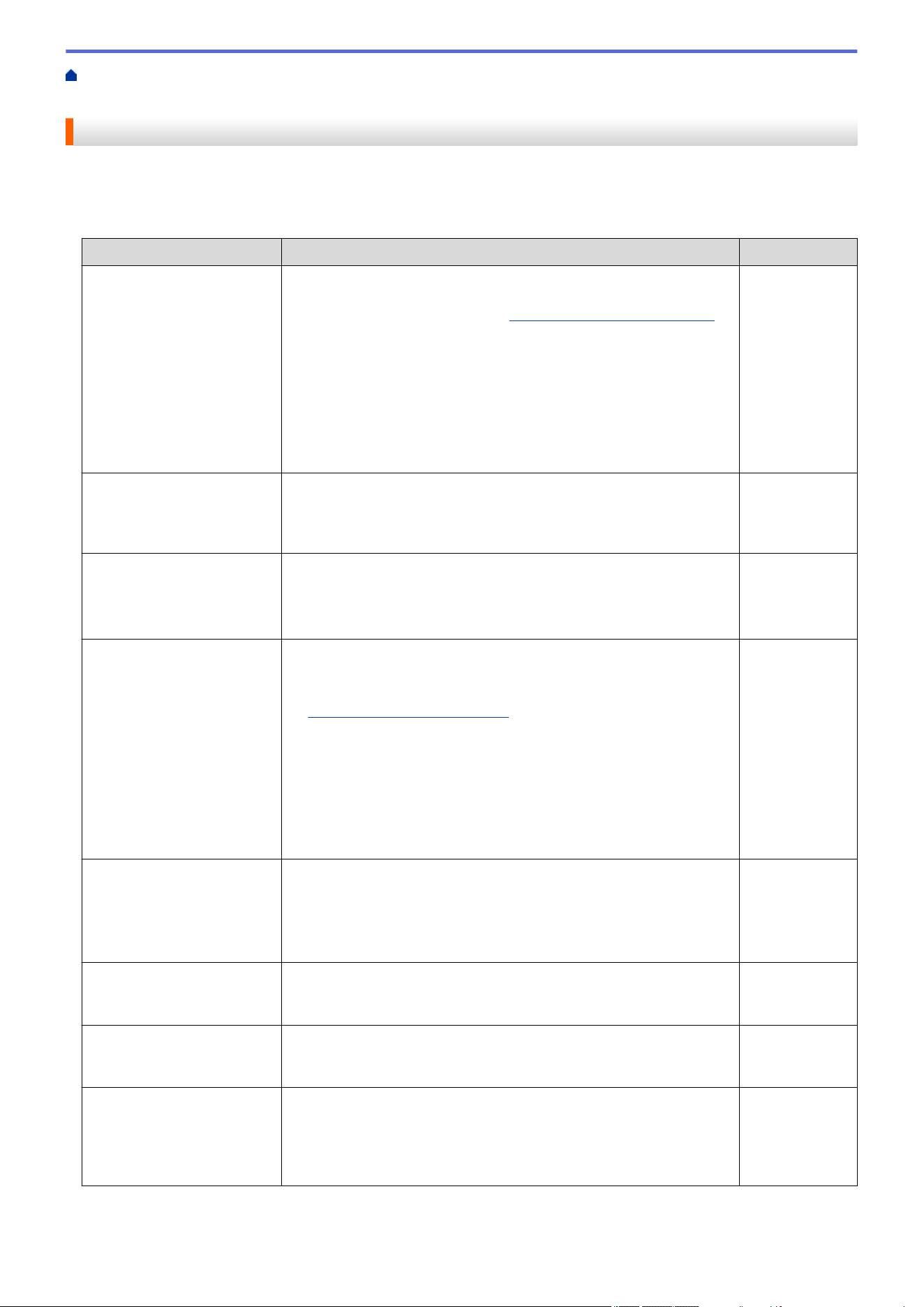
Home > Troubleshooting > Network Problems > If You Are Having Difficulty with Your Machine's Network > I
Cannot Complete the Wireless Network Setup Configuration
I Cannot Complete the Wireless Network Setup Configuration
Turn your wireless router off and back on. Then, try to configure the wireless settings again. If you are unable to
resolve the problem, follow the instructions below:
Investigate the problem using the WLAN Report.
Cause
Action Interface
Your security settings (SSID/
Network Key) are not
correct.
Confirm the security settings using Wireless Setup Helper
(Windows). For more information and to download the utility, go to
your model's Downloads page at support.brother.com/downloads.
Select and confirm that you are using the correct security settings.
- See the instructions supplied with your wireless LAN access
point/router for information on how to find the security settings.
- The manufacturer's name or model number of the wireless LAN
access point/router may be used as the default security settings.
- Consult with the access point/router manufacturer, your Internet
provider, or network administrator.
Wireless
Your Brother machine's MAC
address is not allowed.
Confirm that the Brother machine's MAC Address is allowed in the
filter.
You can find the MAC Address on your Brother machine's control
panel.
Wireless
Your wireless LAN access
point/router is in Stealth
mode (not broadcasting the
SSID).
• Enter the correct SSID or Network Key manually.
• Check the SSID or the Network Key in the instructions supplied
with your wireless LAN access point/router and reconfigure the
wireless network setup.
Wireless
Your machine is trying to
connect to a 5 GHz Wi-Fi
network. The current
channel set on your wireless
LAN access point/router is
not supported.
Change the channel on your wireless LAN access point/router to a
channel supported by your machine.
1. Confirm the channels supported by your machine. Go to
support.brother.com/g/d/a5m6/, select your model for more
information.
2. Check your wireless LAN access point/router‘s channel setting.
Make sure it is set to one of the channels supported by your
machine, and not set to "Auto" or "Automatic". For more
information about changing the channel setting, see the
instructions supplied with your wireless LAN access point/router.
3. Try to connect your machine to your Wi-Fi network again.
Wireless
Your security settings (SSID/
password) are not correct.
Confirm the SSID and password.
When you are configuring the network manually, the SSID and
password are displayed on your Brother machine. If your mobile
device supports the manual configuration, the SSID and password
will be displayed on your mobile device’s screen.
Wi-Fi Direct
You are using Android
™
4.0.
If your mobile device disconnects (approximately six minutes after
using Wi-Fi Direct), try the one-push configuration using WPS
(recommended) and set the Brother machine as a Group Owner.
Wi-Fi Direct
Your Brother machine is
placed too far from your
mobile device.
Move your Brother machine within about 3.3 feet (1 meter) of the
mobile device when you configure the Wi-Fi Direct network settings.
Wi-Fi Direct
There are some obstructions
(walls or furniture, for
example) between your
machine and the mobile
device.
Move your Brother machine to an obstruction-free area. Wi-Fi Direct
517
Cause Action Interface
There is a wireless
computer, Bluetooth
®
-
supported device,
microwave oven, or digital
cordless phone near the
Brother machine or your
mobile device.
Move other devices away from the Brother machine or your mobile
device.
Wi-Fi Direct
You have checked and tried
all of the above, but your
Brother machine still cannot
complete the Wi-Fi Direct
configuration.
• Turn your Brother machine off and back on. Then, try to
configure the Wi-Fi Direct settings again.
• If you are using your Brother machine as a client, confirm how
many devices are allowed on the current Wi-Fi Direct network,
and then check how many devices are connected.
Wi-Fi Direct
For Windows
If your wireless connection has been interrupted, and you have checked and tried all of the above, we
recommend using the Network Connection Repair Tool.
Related Information
• If You Are Having Difficulty with Your Machine's Network
Related Topics:
• Configure Your Machine for a Wireless Network When the SSID Is Not Broadcast
• Use Wi-Fi Direct
®
518
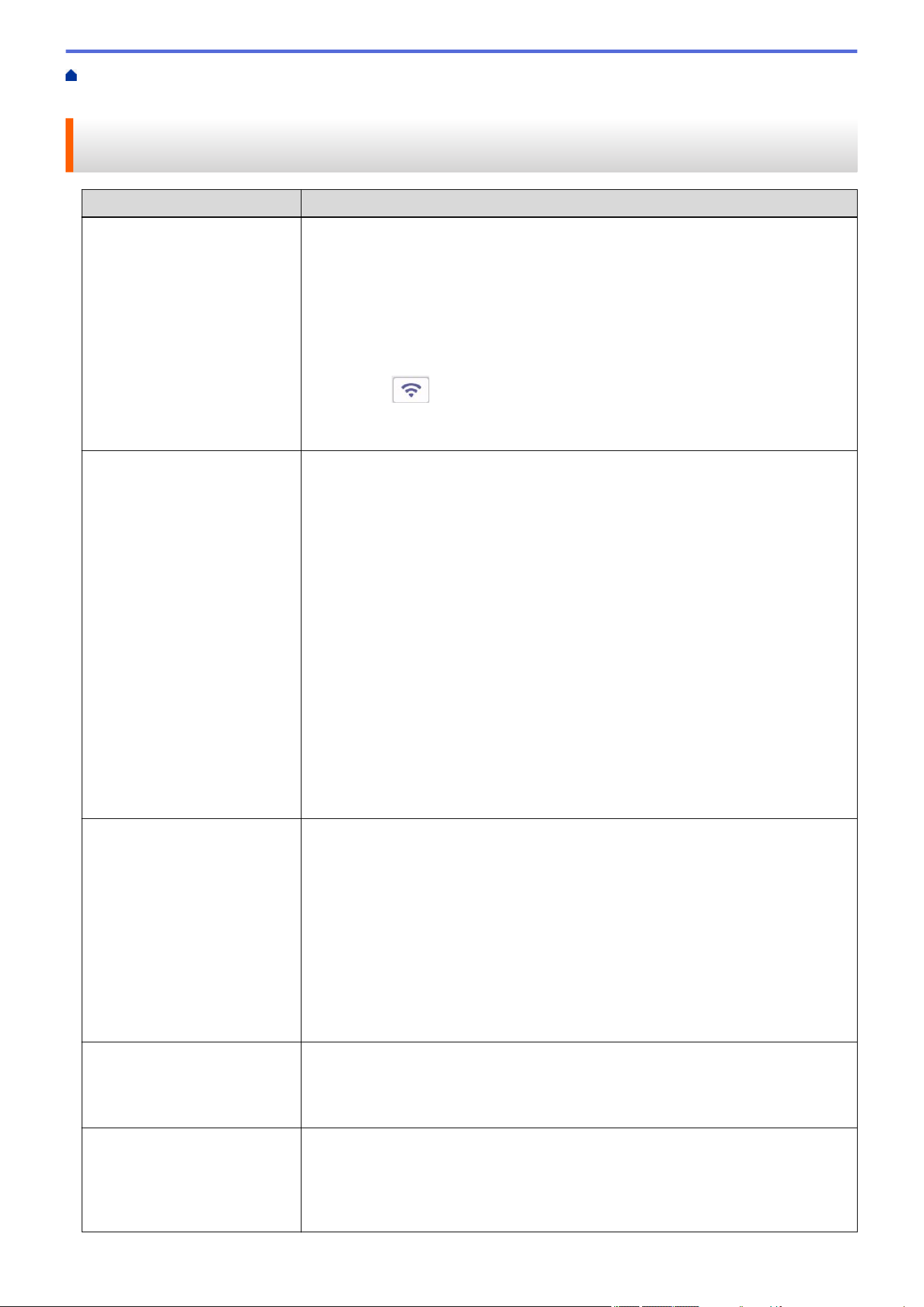
Home > Troubleshooting > Network Problems > If You Are Having Difficulty with Your Machine's
Network > My Machine Cannot Print, Scan, or Use the PC-FAX Receive Function over the Network
My Machine Cannot Print, Scan, or Use the PC-FAX Receive Function
over the Network
Cause Action
Your machine disconnects from
the wireless network.
• HL-L2465DW/DCP-L2640DW/DCP-L2647DW/MFC-L2760DW
1. Press Wi-Fi.
2. Press a or b to select the Recover WLAN option, and then press OK.
3. When your wireless device connects successfully, the machine displays
Connected.
• HL-L2480DW/MFC-L2807DW/MFC-L2820DW/MFC-L2820DWXL/
MFC-L2900DW/MFC-L2900DWXL/MFC-L2980DW
1. Press
> Recover WLAN.
2. When your wireless device connects successfully, the machine displays
Connected.
Your security software blocks
your machine's access to the
network. (The network scanning
feature does not work. )
• Windows
Configure the third-party Security/Firewall Software to allow network scanning.
To add port 54925 for network scanning, type the information below:
- In Name:
Type any description, for example Brother NetScan.
- In Port number:
Type 54925.
- In Protocol:
UDP is selected.
See the instruction manual that came with your third-party Security/Firewall
Software or contact the software manufacturer.
• Mac
(Brother iPrint&Scan)
In the Finder menu bar, click Go > Applications, and then double-click the
Brother iPrint&Scan icon. The Brother iPrint&Scan window appears. Click the
Select your Machine button, and then follow the on-screen instructions to
reselect your network machine.
Your security software blocks
your machine's access to the
network. (The network PC-Fax
Receive feature does not work.)
(Windows)
Set the third-party Security/Firewall Software to allow PC-FAX Rx. To add port
54926 for Network PC-FAX Rx, type the information below:
• In Name:
Type any description, for example Brother PC-FAX Rx.
• In Port number:
Type 54926.
• In Protocol:
UDP is selected.
See the instruction manual that came with your third-party Security/Firewall
Software or contact the software manufacturer.
Your security software blocks
your machine's access to the
network.
Some security software might block access without showing a security alert dialog
box even after successful installation.
To allow access, see the instructions for your security software or ask the software
manufacturer.
Your Brother machine was not
assigned an available IP
address.
• Confirm the IP address and the Subnet Mask.
Verify that both the IP addresses and Subnet Masks of your computer and the
Brother machine are correct and located on the same network.
For more information about how to verify the IP address and the Subnet Mask,
ask your network administrator.
519
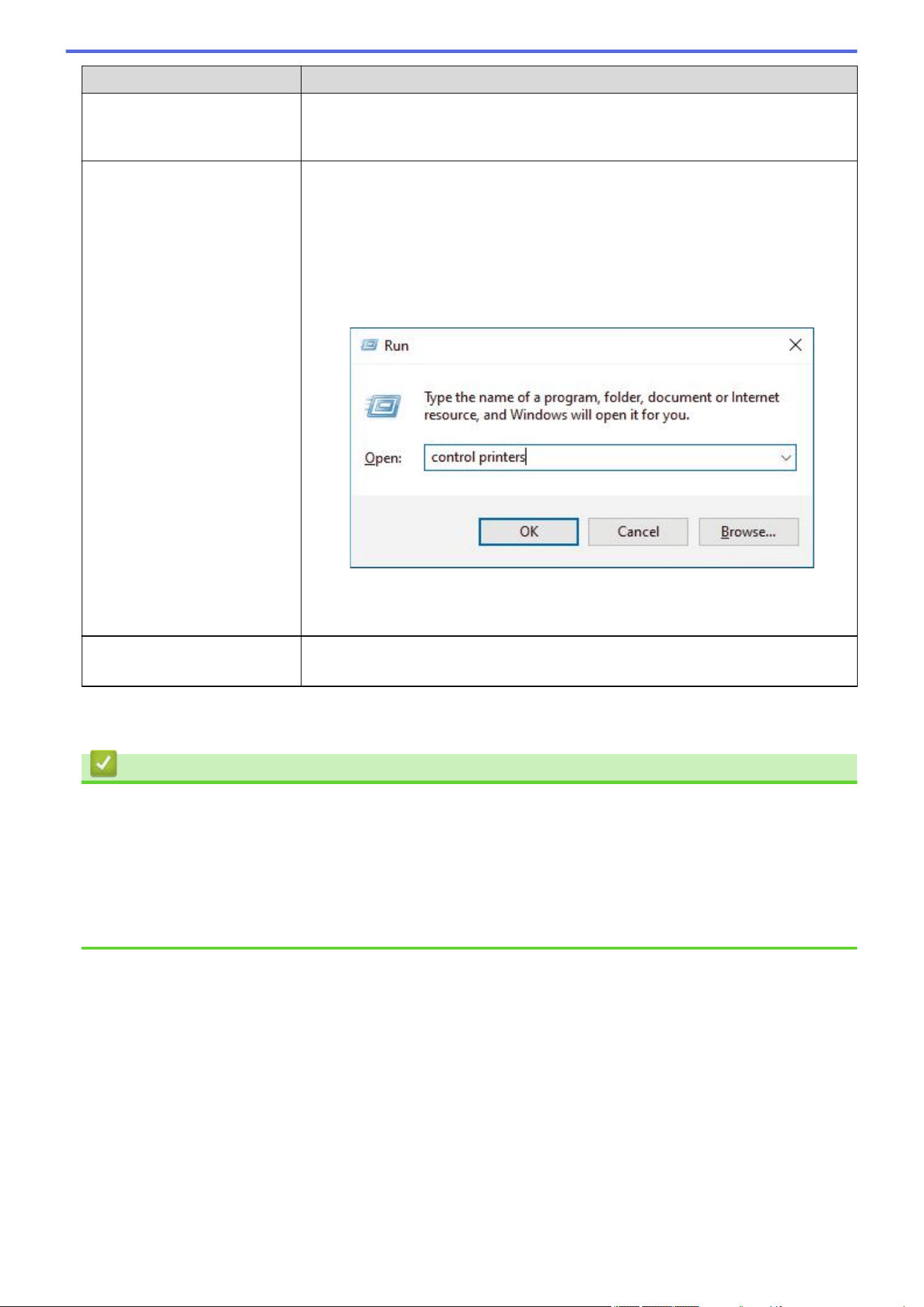
Cause Action
• Windows
Confirm the IP address and the Subnet Mask using the Network Connection
Repair Tool.
A failed print job is still in your
computer's print queue.
• If a failed print job is still in your computer's print queue, delete it.
• Otherwise, double-click the printer icon in the following folder and cancel all
documents:
(Windows)
1. Hold down the
key and press the key on the computer's keyboard
to launch Run.
2. Type "control printers" in the Open: field and click OK.
(Mac)
Click System Settings > Printers & Scanners or System Preferences >
Printers & Scanners.
Your machine is not connected
to the wireless network.
Print the WLAN Report to check the error code on the printed report.
See Related Information: Print the WLAN Report.
If you have checked and tried all of the above, but you are still having problems, uninstall the drivers (Windows)
and the software and reinstall the latest ones.
Related Information
• If You Are Having Difficulty with Your Machine's Network
Related Topics:
• Print the WLAN Report
• Wireless LAN Report Error Codes
• Use the Network Connection Repair Tool (Windows)
• I Want to Check that My Network Devices are Working Correctly
520
Home > Troubleshooting > Network Problems > If You Are Having Difficulty with Your Machine's Network > I
Want to Check that My Network Devices are Working Correctly
I Want to Check that My Network Devices are Working Correctly
Check Action
Check that your Brother
machine, access point/router,
or network hub is turned on.
Check the following:
• The power cord is connected correctly and the Brother machine is turned on.
• The access point/router or hub is turned on and its link LED is blinking.
• All protective packaging has been removed from the machine.
• The toner cartridge and drum unit assembly is installed correctly.
• The machine's cover is fully closed.
• Paper is loaded correctly in the paper tray.
• (For wired networks) A network cable is securely connected to the Brother
machine and to the router or hub.
Check the Link Status on
the Network Configuration
Report or the Printer Settings
page.
Print the Network Configuration Report and check that Ethernet Link Status or
Wireless Link Status is Link OK.
Check that you can "ping" the
Brother machine from your
computer.
Ping the Brother machine from your computer using the IP address or the node name
in the Windows command prompt or Mac Terminal application:
ping <ipaddress> or <nodename>.
• Successful: Your Brother machine is working correctly and connected to the same
network as your computer.
• Unsuccessful: Your Brother machine is not connected to the same network as your
computer.
Windows:
Ask your administrator about the IP address and the subnet mask, and then use the
Network Connection Repair Tool.
Mac:
Confirm that the IP address and the Subnet Mask are set correctly.
Check that your Brother
machine is connected to the
wireless network.
Print the WLAN Report to check the error code on the printed report.
See Related Information: Print the WLAN Report.
If you have checked and tried all of the above but you are still having problems, see the instructions supplied with
your wireless access point/router to find the SSID (Network Name) and the Network Key (Password) information
and set them correctly.
Related Information
• If You Are Having Difficulty with Your Machine's Network
Related Topics:
• Print the Network Configuration Report
• Print the WLAN Report
• Wireless LAN Report Error Codes
• Use the Network Connection Repair Tool (Windows)
• My Machine Cannot Print, Scan, or Use the PC-FAX Receive Function over the Network
521
Home > Troubleshooting > AirPrint Problems
AirPrint Problems
Difficulties Suggestions
My machine is not displayed in the printer list. Make sure your machine is turned on.
Make sure your machine and your mobile device or Mac
are connected to the same network.
Move your mobile device closer to the wireless access
point/router, or to your machine.
I cannot print. Make sure your machine is turned on.
Make sure your machine and your mobile device or Mac
are connected to the same network.
I am trying to print a multi-page document from an iOS
device, but ONLY the first page is printing.
Make sure you are running the latest OS version.
Related Information
• Troubleshooting
Related Topics:
• AirPrint Overview
522
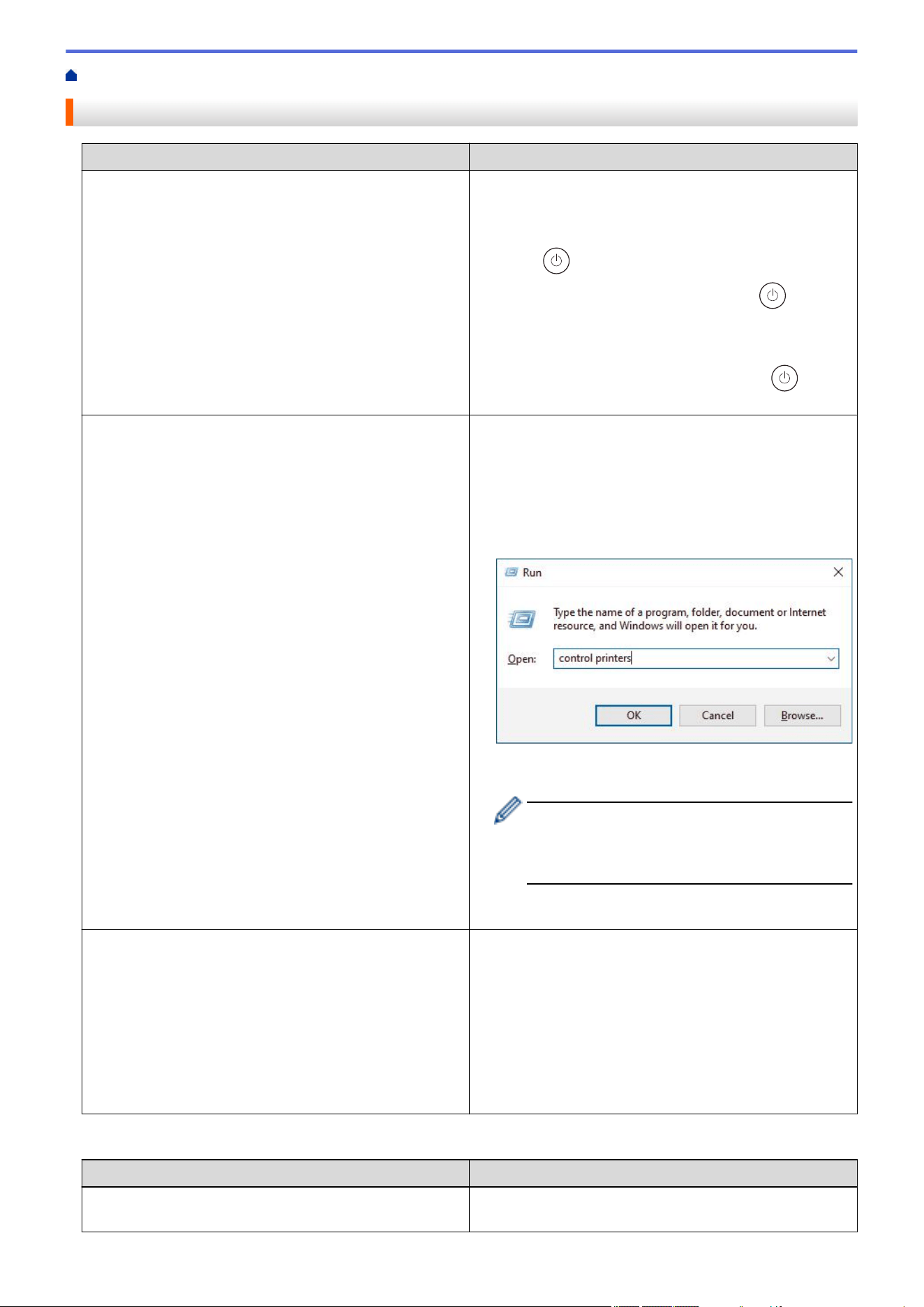
Home > Troubleshooting > Other Problems
Other Problems
Difficulties Suggestions
The machine will not turn on. Adverse conditions on the power connection (such as
lightning or a power surge) may have triggered the
machine’s internal safety mechanisms. Unplug the power
cord. Wait for ten minutes, then plug in the power cord
and press to turn on the machine.
If the problem is not solved, press and hold
to turn off
the machine. If you are using a backup battery or surge
suppressor device, disconnect it to make sure it is not the
problem. Plug the machine’s power cord directly into a
different known working wall outlet and press
to turn
on the machine.
The machine cannot print EPS data that includes binary
with the BR-Script3 printer driver.
(Windows)
To print EPS data, do the following:
1. Hold down the
key and press the key on the
computer's keyboard to launch Run.
2. Type "control printers" in the Open: field and click
OK.
3. Right-click your model's icon with BR-Script3 in the
name, select Printer properties.
If your model with BR-Script3 in the name does
not appear, right-click your model's icon, select
Printer properties, and then select your model
with BR-Script3 in the name.
4. From the Device Settings tab, choose TBCP (Tagged
Binary Communication Protocol) in Output Protocol.
The Brother software cannot be installed.
(Windows)
If the Security Software warning appears on the computer
screen during the installation, change the Security
Software settings to permit the Brother product setup
program or other program to run.
(Mac)
If you are using a firewall function of anti-spyware or
antivirus security software, temporarily disable it and then
install the Brother software.
Copying difficulties
Difficulties
Suggestions
Cannot make a copy. Make sure you pressed Copy and the machine is in Copy
mode.
523
Difficulties Suggestions
Contact your administrator to check your Secure Function
Lock settings.
Vertical black line appears in copies. Black vertical lines on copies are typically caused by dirt
or correction fluid on the glass strip, or the corona wire is
dirty. Clean the glass strip and scanner glass and the
white bar and white plastic above them.
Copies are blank. Make sure you are loading the document correctly.
Scanning difficulties
Difficulties
Suggestions
TWAIN or WIA errors appear when starting to scan.
(Windows)
Make sure the Brother TWAIN or WIA driver is selected
as the primary source in your scanning application. For
example, in Nuance
™
PaperPort
™
14SE, click Desktop >
Scan Settings > Select to select the Brother TWAIN/WIA
driver.
OCR does not work. Try increasing the scanning resolution.
Cannot scan. Contact your administrator to check your Secure Function
Lock settings.
Software difficulties
Difficulties
Suggestions
Cannot install software or print. (Windows)
Run the install program again. This program will repair
and reinstall the software.
Related Information
• Troubleshooting
524
Home > Troubleshooting > Check the Machine Information
Check the Machine Information
Follow these instructions to check your machine's serial number and firmware version.
>> HL-L2465DW/DCP-L2640DW/DCP-L2647DW/MFC-L2760DW
>> HL-L2480DW/MFC-L2807DW/MFC-L2820DW/MFC-L2820DWXL/MFC-L2900DW/MFC-L2900DWXL/
MFC-L2980DW
HL-L2465DW/DCP-L2640DW/DCP-L2647DW/MFC-L2760DW
1. Press Menu.
2. Press a or b to display the [Machine Info.] option, and then press OK.
3. Press a or b to select one of the following options:
Option Description
Serial No.
Check your machine's serial number.
Version
Check your machine's firmware version.
Page Counter
Check the total number of pages the machine has printed.
Parts Life
Check the supplies' life that remains available.
4. Press OK.
5. Press Stop/Exit.
HL-L2480DW/MFC-L2807DW/MFC-L2820DW/MFC-L2820DWXL/MFC-L2900DW/
MFC-L2900DWXL/MFC-L2980DW
1. Press
[Settings] > [All Settings] > [Machine Info.].
2. Press one of the following options:
Option Description
Serial No.
Check your machine's serial number.
Firmware Version
Check your machine's firmware version.
Firmware Update
Update your machine to the latest firmware.
Firmware Auto Check
View firmware information on the Home screen.
Page Counter
Check the total number of pages the machine has printed.
Parts Life
Check the supplies' life that remains available.
3. Press .
Related Information
• Troubleshooting
525
Home > Troubleshooting > Update Your Machine's Firmware
Update Your Machine's Firmware
To keep your machine up to date, check support.brother.com/downloads periodically for the latest firmware.
Without the most current firmware, some of your machine's functions may become unavailable.
You can also update the firmware directly from your machine by following these steps: (HL-L2480DW/
MFC-L2807DW/MFC-L2820DW/MFC-L2820DWXL/MFC-L2900DW/MFC-L2900DWXL/MFC-L2980DW)
1. Press [Settings] > [All Settings] > [Machine Info.].
2. Press [Firmware Update].
3. Press .
Related Information
• Troubleshooting
Related Topics:
• Check Your Machine's Password
526
Home > Troubleshooting > Reset Your Machine
Reset Your Machine
>> HL-L2465DW/DCP-L2640DW/DCP-L2647DW/MFC-L2760DW
>> HL-L2480DW/MFC-L2807DW/MFC-L2820DW/MFC-L2820DWXL/MFC-L2900DW/MFC-L2900DWXL/
MFC-L2980DW
HL-L2465DW/DCP-L2640DW/DCP-L2647DW/MFC-L2760DW
1. Press Menu.
2. Press a or b to display the [Initial Setup] option, and then press OK.
3. Press a or b to display the [Reset] option, and then press OK.
4. Press a or b to choose the type of reset you want to perform, and then press OK.
Subdivided reset functions are not available for some models.
5. Press the option in the table to reset the machine or to exit the process.
Option Description
a Reset the machine.
b The machine will exit and cancel the reset menu.
The LCD displays [Reboot OK?].
6. Press the option in the table to reboot the machine or to exit the process.
Option Description
a Reboot the machine. The machine will begin the reset.
b The machine will exit without rebooting.
If you exit without rebooting, your machine will not reset and your settings will remain unchanged.
HL-L2480DW/MFC-L2807DW/MFC-L2820DW/MFC-L2820DWXL/MFC-L2900DW/
MFC-L2900DWXL/MFC-L2980DW
1. Press [Settings] > [All Settings] > [Initial Setup] > [Reset].
2. Press a or b to display the type of reset functions, and then press the reset function you want to use.
The LCD displays [Machine will reboot after resetting. Press [OK] for 2 seconds to
confirm.].
3. Press the option in the table to reboot the machine or to exit the process.
Option Description
Press OK for two seconds Reboot the machine. The machine will begin the reset.
Cancel
The machine will exit without rebooting.
If you exit without rebooting, your machine will not reset and your settings will remain unchanged.
4. Press .
527
Home > Troubleshooting > Reset Your Machine > Reset Functions Overview
Reset Functions Overview
The following reset functions are available:
Unplug the interface cable before you choose Network Settings Reset function, All Settings Reset function
or Factory Reset function.
>> HL-L2465DW/DCP-L2640DW/DCP-L2647DW/MFC-L2760DW
>> HL-L2480DW/MFC-L2807DW/MFC-L2820DW/MFC-L2820DWXL/MFC-L2900DW/MFC-L2900DWXL/
MFC-L2980DW
HL-L2465DW/DCP-L2640DW/DCP-L2647DW/MFC-L2760DW
Subdivided reset functions are not available for some models.
1. Machine Reset
This function resets the following settings:
• Programmed fax jobs in the memory (For MFC Models)
(Delayed Fax)
• Coverpage Message (For MFC Models)
• Remote Fax Options (For MFC Models)
(Remote Access Code, Fax Storage, Fax Forwarding, and PC-Fax Receive (Windows only))
• Language Setting
2. Network Settings Reset (For Network Models)
Reset the print server to its default factory settings (including all IP Address information except the
administrator password).
3. Address Book and Fax Settings Reset (For MFC Models)
This function resets the following settings:
• Address Book
(Shortcut / Speed Dial / Setup Groups)
• Programmed fax jobs in the memory
• Station ID
(name and number)
• Coverpage Message
• Remote Fax Options
(Remote Access Code, Fax Storage, Fax Forwarding, and PC-Fax Receive (Windows only))
• Report
(Transmission Verification Report/ Tel Index List/Fax Journal)
• Setting Lock password
4. All Settings Reset
You can reset all the machine's settings back to the settings that were set at the factory.
All Settings Reset takes less time than Factory Reset.
5. Factory Reset
Use the Settings Reset function to reset all of the machine's settings to the settings originally set at the
factory.
Factory Reset takes more time than All Settings Reset.
We strongly recommend you perform this operation when you dispose of the machine.
529
HL-L2480DW/MFC-L2807DW/MFC-L2820DW/MFC-L2820DWXL/MFC-L2900DW/
MFC-L2900DWXL/MFC-L2980DW
1. Machine Reset
You can reset all the machine’s settings that you have changed, such as Date and Time and Ring Delay.
The Address Book, fax reports, and Call history will remain. (For MFC Models)
2. Network Settings Reset (For Network Models)
Reset the print server to its default factory settings (including all IP Address information except the
administrator password).
3. Address Book and Fax Settings Reset (For MFC Models)
This function resets the following settings:
• Address Book
(Addresses and Groups)
• Programmed fax jobs in the memory
• Station ID
(name and number)
• Coverpage Message
• Remote Fax Options
(Remote Access Code, Fax Storage, Fax Forwarding, and PC-Fax Receive (Windows only))
• Report
(Transmission Verification Report/ Tel Index List/Fax Journal)
• Setting Lock password
4. All Settings Reset
You can reset all the machine's settings back to the settings that were set at the factory.
All Settings Reset takes less time than Factory Reset.
5. Factory Reset
Use the Settings Reset function to reset all of the machine's settings to the settings originally set at the
factory.
Factory Reset takes more time than All Settings Reset.
We strongly recommend you perform this operation when you dispose of the machine.
Related Information
• Reset Your Machine
530

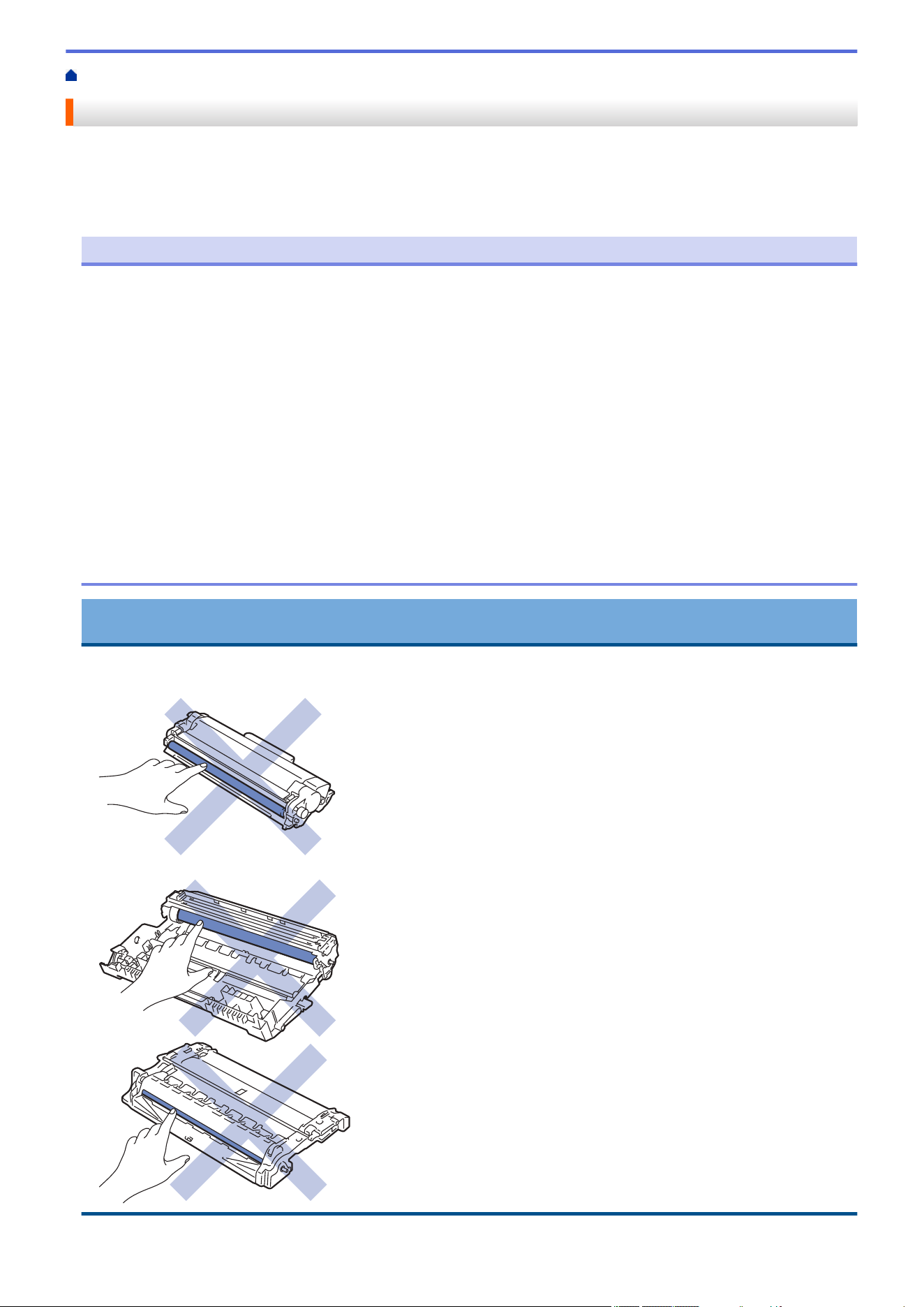
Home > Routine Maintenance > Replace Supplies
Replace Supplies
You must replace supplies when the machine indicates that the life of the supply is over.
The toner cartridge and drum unit are two separate supplies. Make sure both are installed as an assembly. The
order number of supplies may vary depending on the country.
NOTE
• Be sure to seal the used supplies tightly in a bag so that toner powder does not spill out of the cartridge.
• Brother is committed to minimizing the environmental impact due to waste. For more information on
recycling options, contact your local recycling office or visit:
• We recommend placing both the new and the used supplies on a piece of paper to prevent accidentally
spilling or scattering the contents.
• Using paper that is not a direct equivalent for a recommended print media may reduce the life of supplies
and machine parts.
• The projected life for each of the toner cartridges is based on ISO/IEC 19752. Frequency of replacement
will vary depending on the print volume, percentage of coverage, types of media used, and powering
on/off the machine.
• Frequency of replacing supplies except toner cartridges will vary depending on the print volume, types of
media used, and powering on/off the machine.
• Handle the toner cartridge carefully. If toner scatters on your hands or clothes, immediately wipe or wash
it off with cold water.
IMPORTANT
To avoid print quality problems, DO NOT touch the shaded parts shown in the illustrations.
Toner Cartridge
Drum Unit
532

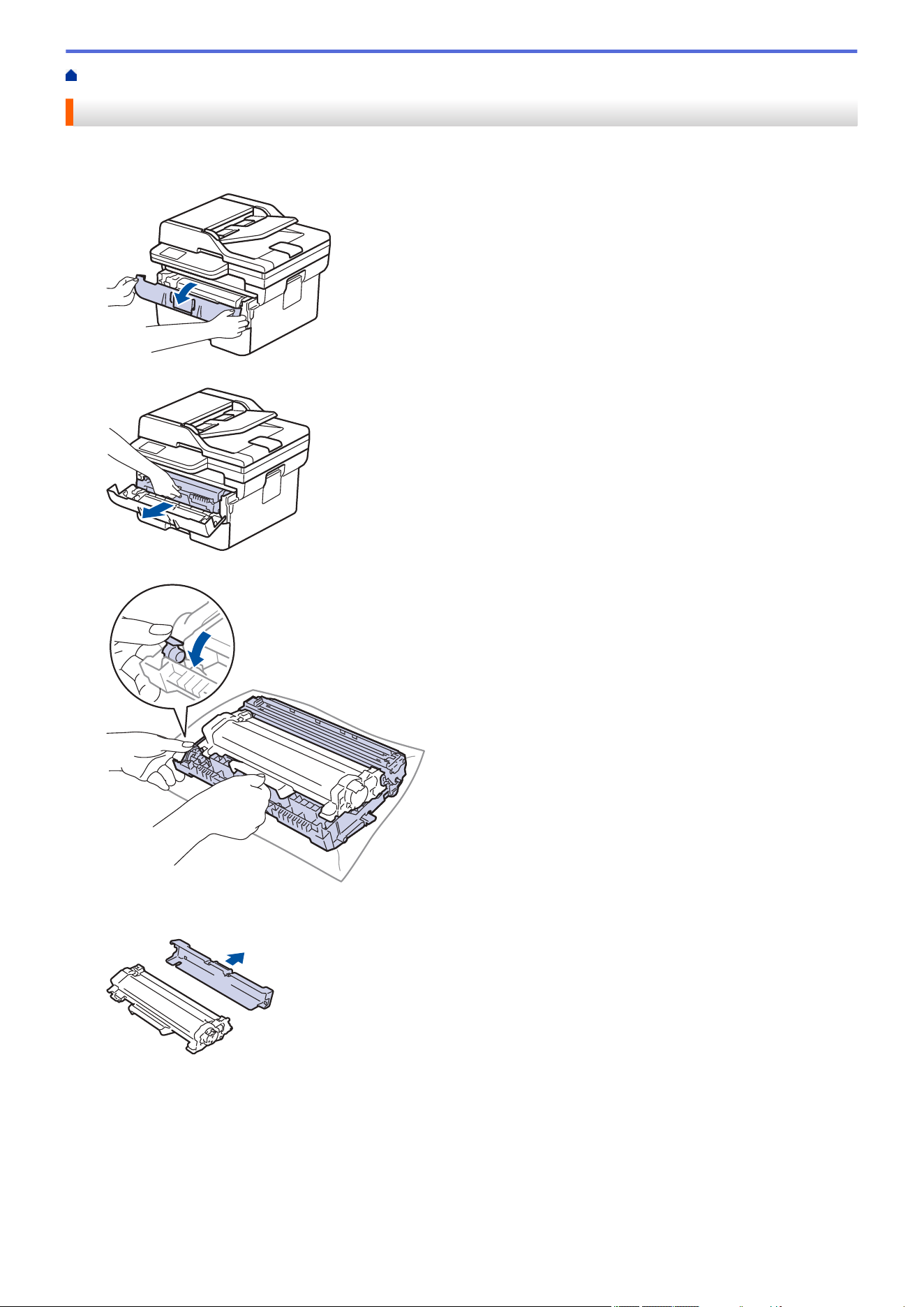
Home > Routine Maintenance > Replace Supplies > Replace the Toner Cartridge
Replace the Toner Cartridge
1. Make sure the machine is turned on.
2. Open the front cover.
3. Remove the toner cartridge and drum unit assembly from the machine.
4. Push down the green lock lever and take the toner cartridge out of the drum unit.
5. Unpack the new toner cartridge.
6. Remove the protective cover.
534
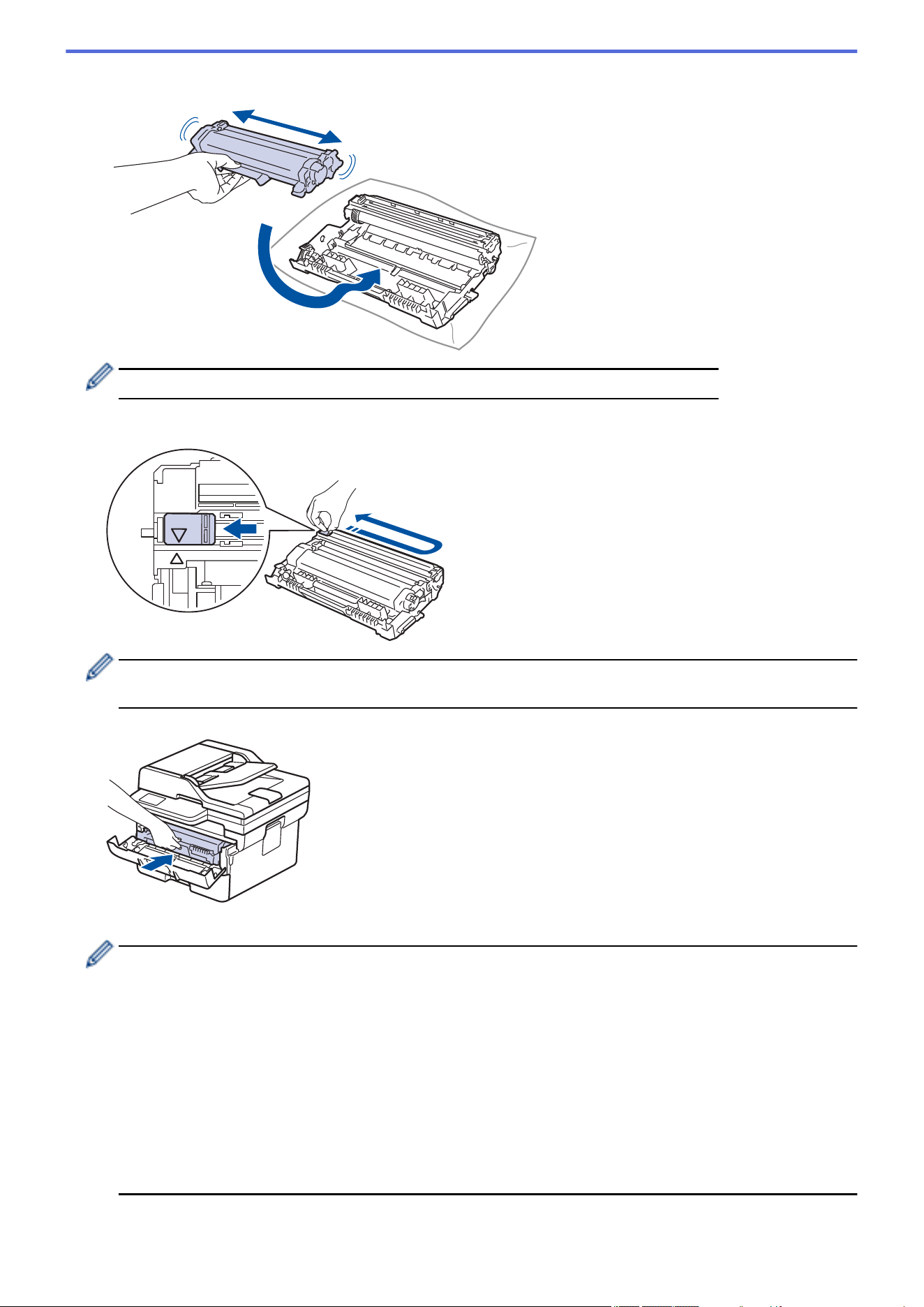
7. Hold the toner cartridge by the handle and shake it from left to right several times, as shown. Then push it
firmly into the drum unit until it locks into place.
Make sure you put the toner cartridge in correctly or it may separate from the drum unit.
8. Clean the corona wire inside the drum unit by gently sliding the green tab from left to right and right to left
several times.
Be sure to return the tab to the Home position (a). The arrow on the tab must be aligned with the arrow on
the drum unit. If it is not, printed pages may have a vertical stripe.
9. Reinsert the toner cartridge and drum unit assembly back into the machine.
10. Close the front cover of the machine.
• After replacing a toner cartridge, DO NOT turn off the machine or open the front cover until the
machine's display returns to Ready Mode.
• The toner cartridge that comes with your Brother machine is a Starter toner cartridge.
• It is a good idea to keep a new toner cartridge ready for use when you see the Toner Low warning.
• DO NOT unpack the new toner cartridge until you are ready to install it.
• If a toner cartridge is left unpacked for a long time, the toner life will be shortened.
• We recommend using genuine Brother supplies to ensure stable print quality and performance.
Although not all non-genuine supplies may cause quality issues, it is possible that some may adversely
affect print quality or cause machine malfunction. Brother may charge for repairing your machine if it is
proven that non-genuine supplies caused the damage, even if the machine is still covered by the
warranty.
535

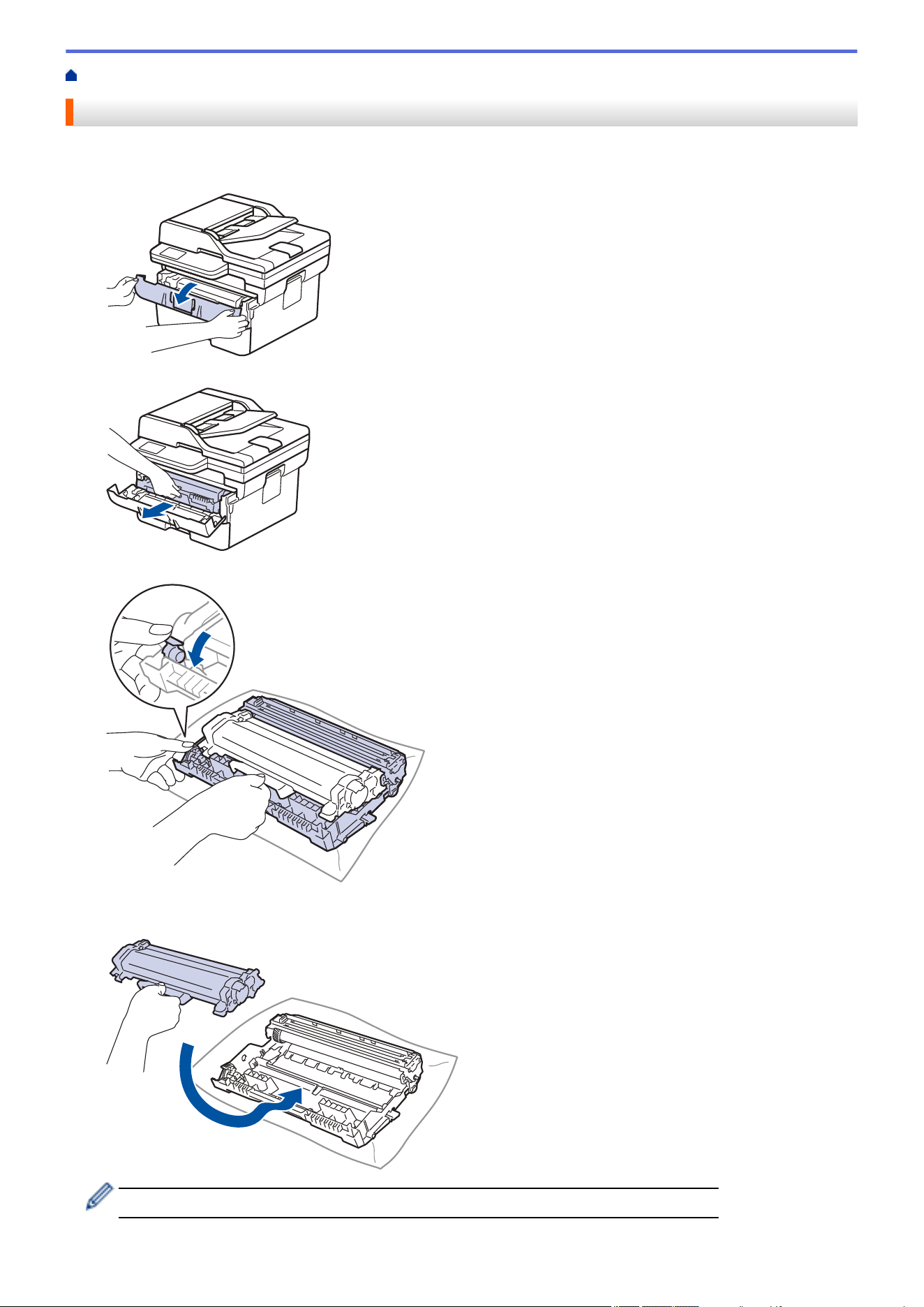
Home > Routine Maintenance > Replace Supplies > Replace the Drum Unit
Replace the Drum Unit
1. Make sure the machine is turned on.
2. Open the front cover.
3. Remove the toner cartridge and drum unit assembly from the machine.
4. Push down the green lock lever and take the toner cartridge out of the drum unit.
5. Unpack the new drum unit.
6. Push the toner cartridge firmly into the new drum unit until it locks into place.
Make sure you put the toner cartridge in correctly or it may separate from the drum unit.
537
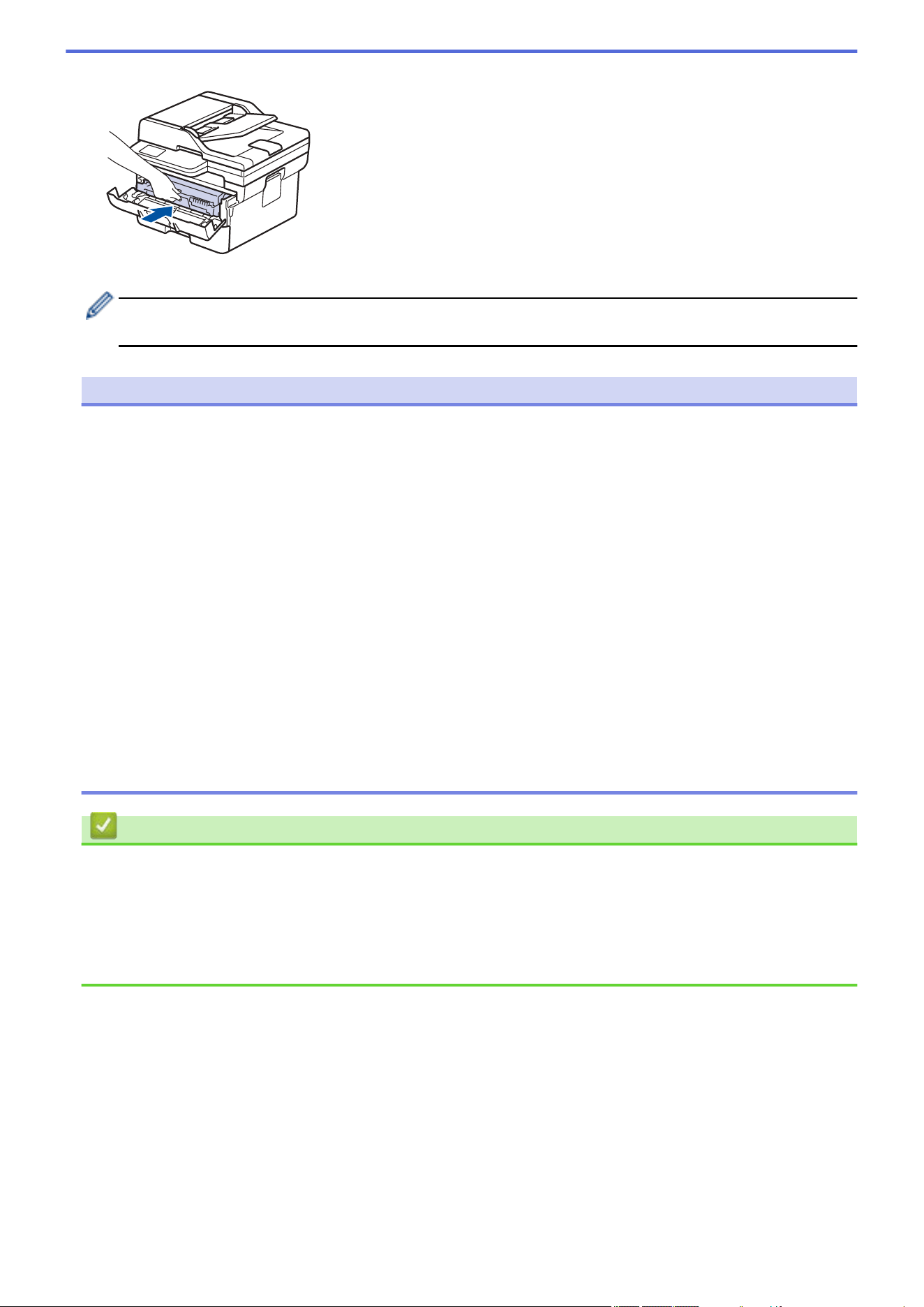
7. Reinsert the toner cartridge and drum unit assembly back into the machine.
8. Close the front cover of the machine.
After installing the new drum unit, you must reset the drum counter. See Related Information: Reset the
Drum Counter.
NOTE
• Drum wear and tear occurs due to use and rotation of the drum and interaction with paper, toner, and
other materials in the paper path. In designing this product, Brother decided to use the number of
rotations of the drum as a reasonable determinant of the drum life. When a drum reaches the factory-
established rotation limit corresponding to the rated page yield, the product’s LCD will advise you to
replace the drum. The product will continue to function; however, print quality may not be optimal.
• If an unpacked drum unit is placed in direct sunlight (or room light for long periods of time), the unit may
be damaged.
• There are many factors that determine the actual drum life, such as the temperature, humidity, type of
paper, type of toner used and so on. Under ideal conditions, the average drum life is estimated at
approximately 15,000 pages based on one page per job (A4/Letter single-sided pages). The number of
pages may be affected by a variety of factors including, but not limited to, media type and media size.
Because we have no control over the many factors that determine the actual drum life, we cannot
guarantee a minimum number of pages that will be printed by your drum.
• The machine should be used only in a clean, dust-free environment with adequate ventilation.
We recommend using genuine Brother supplies to ensure stable print quality and performance. Although
not all non-genuine supplies may cause quality issues, it is possible that some may adversely affect print
quality or cause machine malfunction. Brother may charge for repairing your machine if it is proven that
non-genuine supplies caused the damage, even if the machine is still covered by the warranty.
Related Information
• Replace Supplies
Related Topics:
• Error and Maintenance Messages
• Improve the Print Quality
• Reset the Drum Counter
538
Home > Routine Maintenance > Replace Supplies > Reset the Drum Counter
Reset the Drum Counter
When you replace the drum unit with a new one, you must reset the drum counter by completing the following
steps:
IMPORTANT
DO NOT reset the drum counter unless you are replacing the drum unit.
>> HL-L2465DW/DCP-L2640DW/DCP-L2647DW/MFC-L2760DW
>> HL-L2480DW/MFC-L2807DW/MFC-L2820DW/MFC-L2820DWXL/MFC-L2900DW/MFC-L2900DWXL/
MFC-L2980DW
HL-L2465DW/DCP-L2640DW/DCP-L2647DW/MFC-L2760DW
1. Make sure the machine is turned on.
2. Make sure the machine's cover is closed.
3. Press OK and a at the same time.
4. Press OK to select [Drum].
5. Press a to reset the drum counter.
HL-L2480DW/MFC-L2807DW/MFC-L2820DW/MFC-L2820DWXL/MFC-L2900DW/
MFC-L2900DWXL/MFC-L2980DW
1. Make sure the machine is turned on.
2. Close the front cover of the machine.
3. Press
to clear the error.
4. Press (Toner) until the touchscreen message changes.
5. Press [Drum].
6. Press [Yes].
Related Information
• Replace Supplies
Related Topics:
• Replace the Drum Unit
539
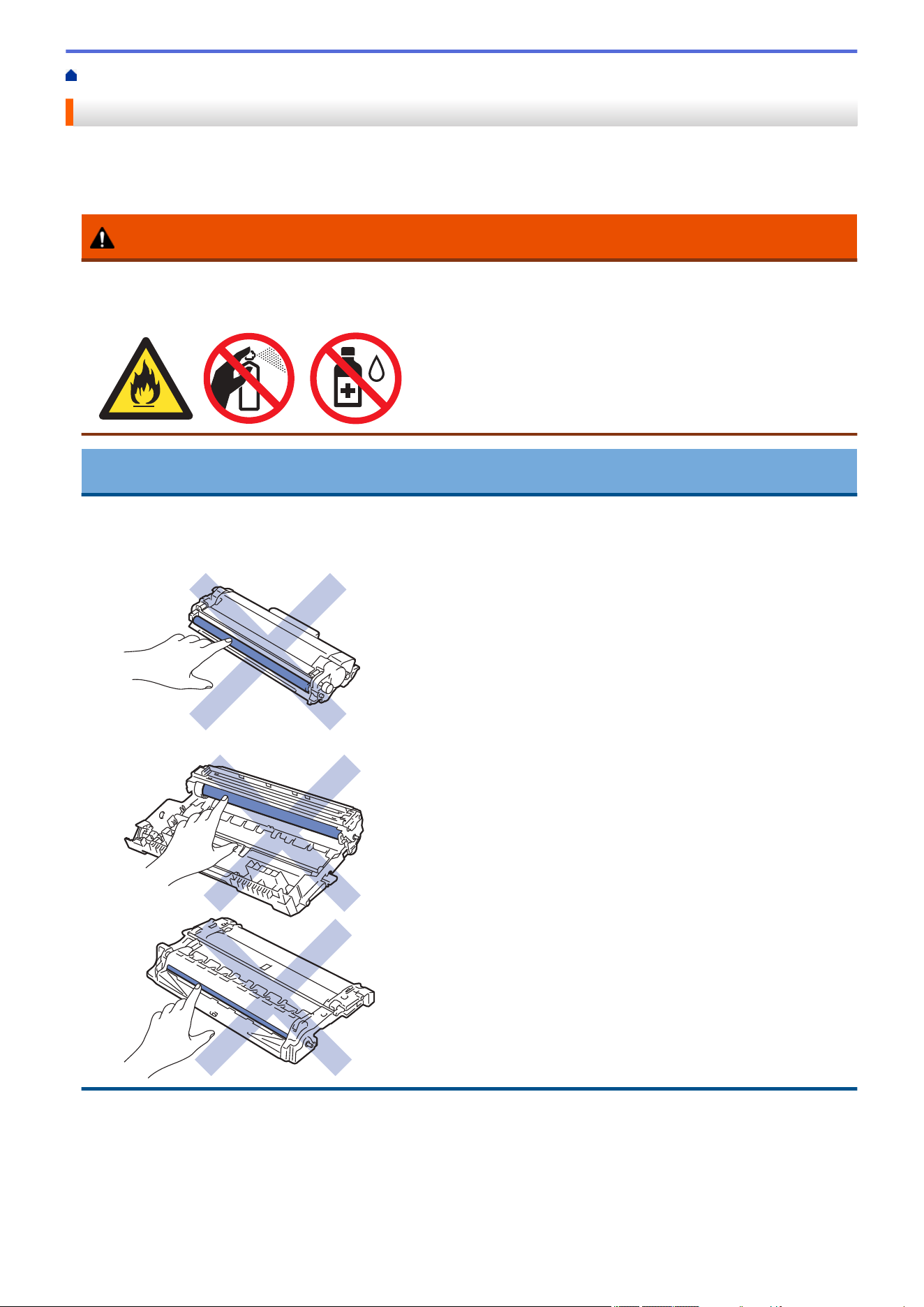
Home > Routine Maintenance > Clean the Machine
Clean the Machine
Clean the outside and inside of the machine regularly with a dry, lint-free cloth.
When you replace the toner cartridge or the drum unit, make sure you clean the inside of the machine. If printed
pages are stained with toner, clean the inside of the machine with a dry, lint-free cloth.
WARNING
DO NOT use flammable substances, any type of spray, or an organic solvent/liquid containing alcohol or
ammonia to clean the inside or outside of the product. Doing so could cause a fire. Instead, use only a dry,
lint-free cloth.
IMPORTANT
• DO NOT use isopropyl alcohol to remove dirt from the control panel. It may crack the panel.
• To avoid print quality problems, DO NOT touch the shaded parts shown in the illustrations.
Toner cartridge
Drum unit
540

(For certain models) The toner cartridge features an IC chip. DO NOT touch this surface. Touching the IC
chip may cause contamination or damage, and may interfere with the machine's ability to detect this
component.
Related Information
• Routine Maintenance
• Clean the Scanner
• Clean the Touchscreen LCD
• Clean the Corona Wire
• Clean the Drum Unit
• Clean the Paper Pick-up Rollers
541
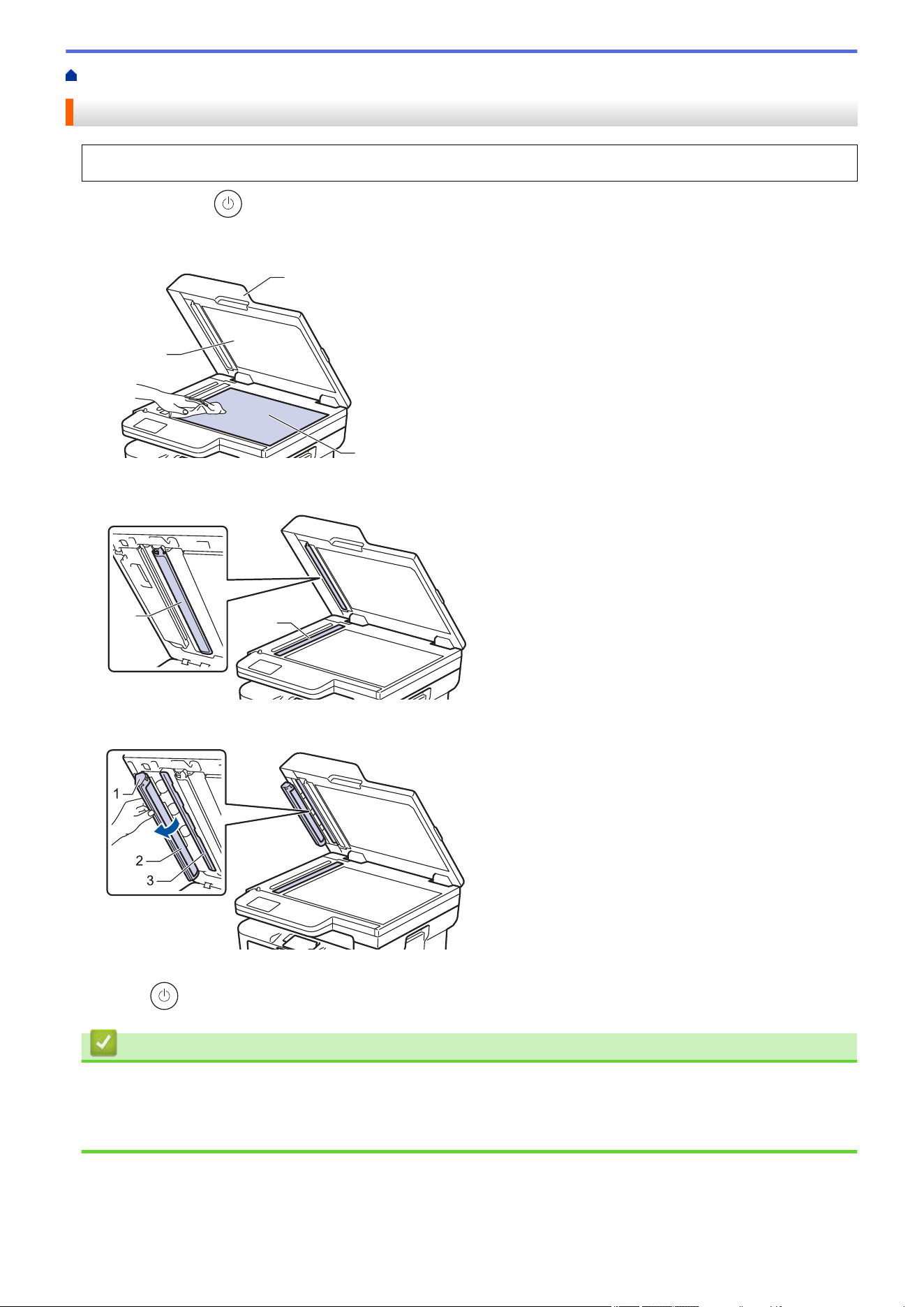
Home > Routine Maintenance > Clean the Machine > Clean the Scanner
Clean the Scanner
Before starting the cleaning procedure, see Related Information: Clean the Machine.
1. Press and hold to turn off the machine.
2. Lift the document cover (1). Clean the white plastic surface (2) and scanner glass (3) underneath it with a soft
lint-free cloth moistened with water.
1
2
3
3. In the ADF unit, clean the white bar (1) and the scanner glass strip (2) underneath it with a soft lint-free cloth
moistened with water.
2
1
4. (For automatic 2-sided scanning models) Open the scanner glass cover (1), and then clean the other white
bar (2) and scanner glass strip (3).
1
2
3
5. Close the document cover.
6. Press to turn on the machine.
Related Information
• Clean the Machine
Related Topics:
• Improve the Print Quality
542
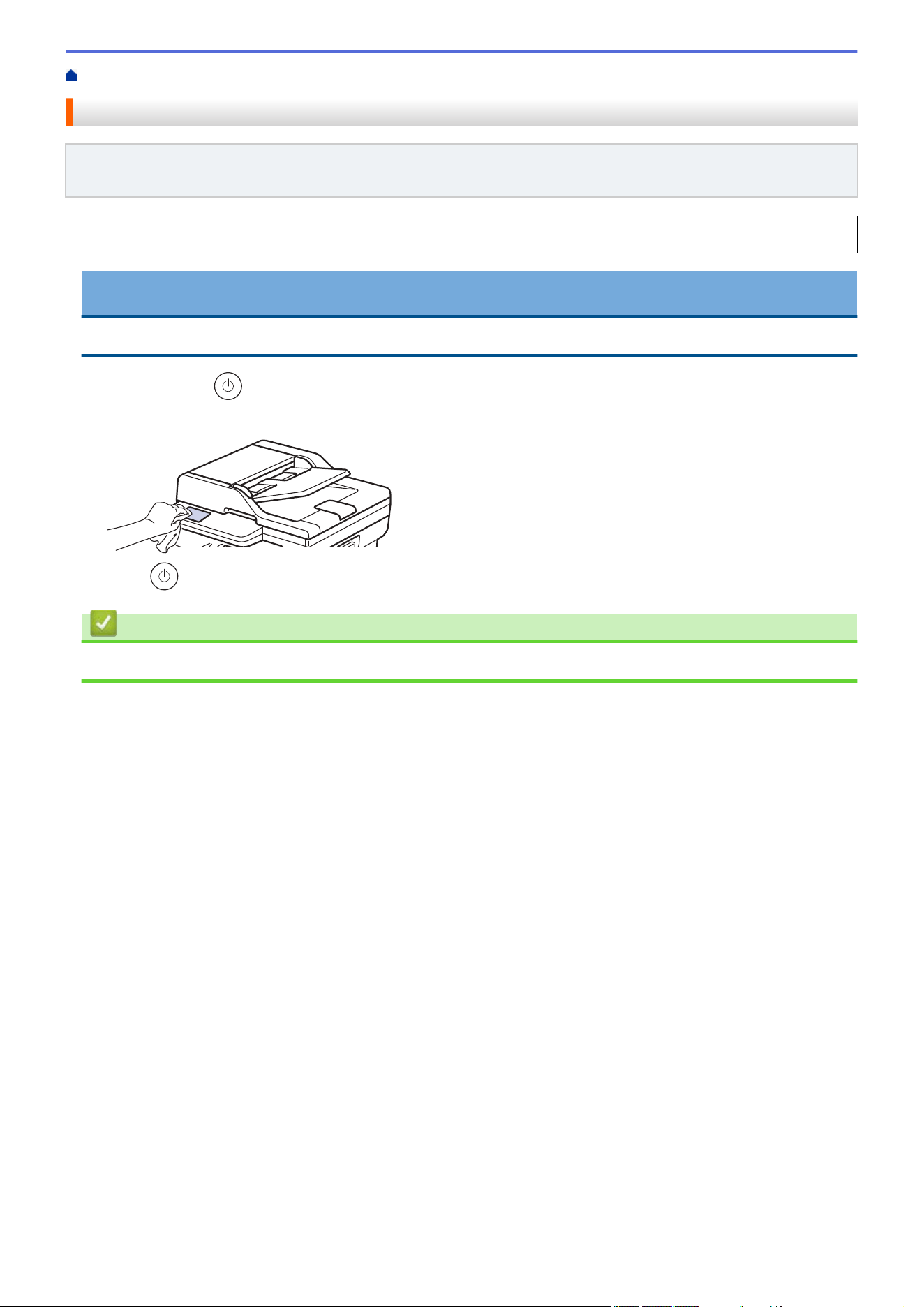
Home > Routine Maintenance > Clean the Machine > Clean the Touchscreen LCD
Clean the Touchscreen LCD
Related Models: HL-L2480DW/MFC-L2807DW/MFC-L2820DW/MFC-L2820DWXL/MFC-L2900DW/
MFC-L2900DWXL/MFC-L2980DW
Before starting the cleaning procedure, see Related Information: Clean the Machine.
IMPORTANT
DO NOT use any type of liquid cleaners (including ethanol).
1. Press and hold to turn off the machine.
2. Clean the touchscreen with a dry, soft lint-free cloth.
3. Press to turn on the machine.
Related Information
• Clean the Machine
543
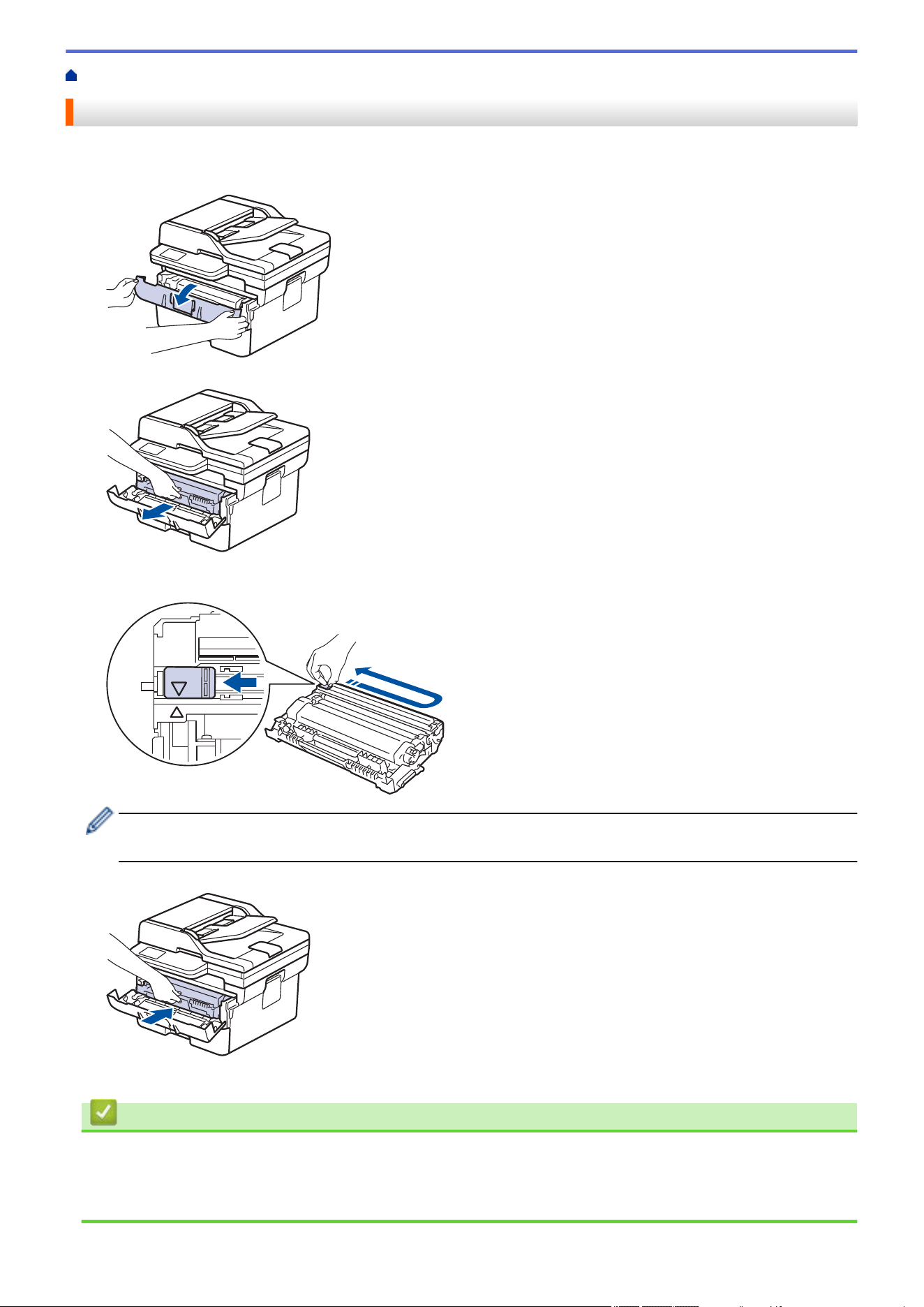
Home > Routine Maintenance > Clean the Machine > Clean the Corona Wire
Clean the Corona Wire
If you have print quality problems or the control panel displays [Drum !] status, clean the corona wire.
1. Open the front cover.
2. Remove the toner cartridge and drum unit assembly from the machine.
3. Clean the corona wire inside the drum unit by gently sliding the green tab from left to right and right to left
several times.
Be sure to return the tab to the Home position (a). The arrow on the tab must be aligned with the arrow on
the drum unit. If it is not, printed pages may have a vertical stripe.
4. Reinsert the toner cartridge and drum unit assembly back into the machine.
5. Close the front cover of the machine.
Related Information
• Clean the Machine
Related Topics:
• Error and Maintenance Messages
544
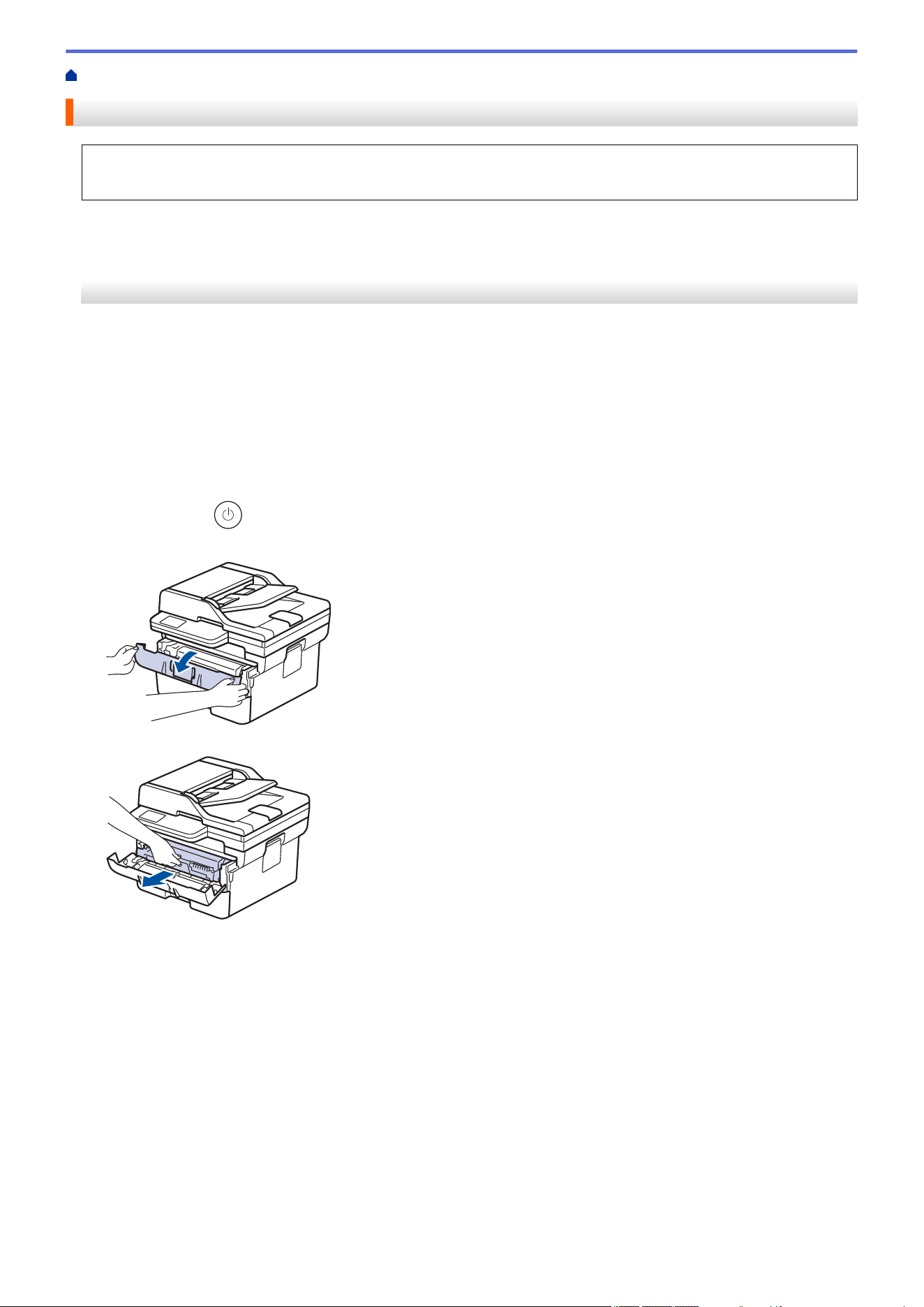
Home > Routine Maintenance > Clean the Machine > Clean the Drum Unit
Clean the Drum Unit
If your printout has dots or other repeating marks at 3.7 in. (94 mm) intervals, the drum may have foreign
material, such as glue from a label, stuck on the drum surface.
>> HL-L2465DW/DCP-L2640DW/DCP-L2647DW/MFC-L2760DW
>> HL-L2480DW/MFC-L2807DW/MFC-L2820DW/MFC-L2820DWXL/MFC-L2900DW/MFC-L2900DWXL/
MFC-L2980DW
HL-L2465DW/DCP-L2640DW/DCP-L2647DW/MFC-L2760DW
1. Make sure the machine is in Ready mode.
2. Press Menu.
3. Press a or b to display the [Print Reports] option, and then press OK.
4. Press a or b to select the [Drum Dot Print] option, and then press OK.
5. Press Start.
The machine prints the Drum Dot Check Sheet.
6. Press Stop/Exit.
7. Press and hold
to turn off the machine.
8. Open the front cover.
9. Remove the toner cartridge and drum unit assembly from the machine.
10. Push down the green lock lever and take the toner cartridge out of the drum unit.
545
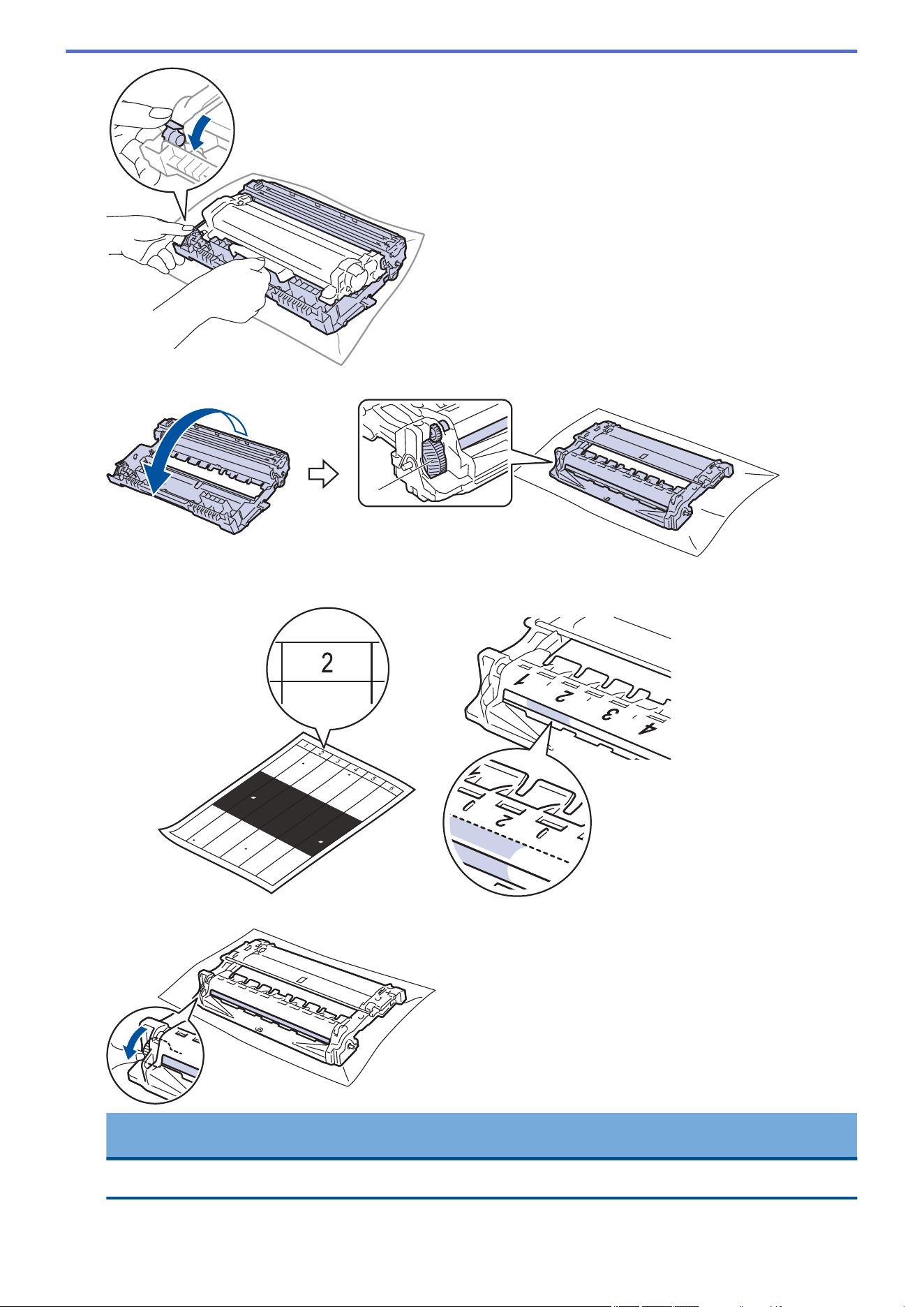
11. Turn the drum unit as shown in the illustration. Make sure that the drum unit gear (1) is on the left side.
1
12. Use the numbered markers next to the drum roller to find the mark on the drum. For example, a dot in column
2 on the check sheet means that there is a mark in drum region “2”.
13. Turn the drum unit edge toward you while looking at the drum surface to find the mark.
IMPORTANT
To avoid print quality problems, DO NOT touch the surface of the drum unit, only the wheel on the end.
546
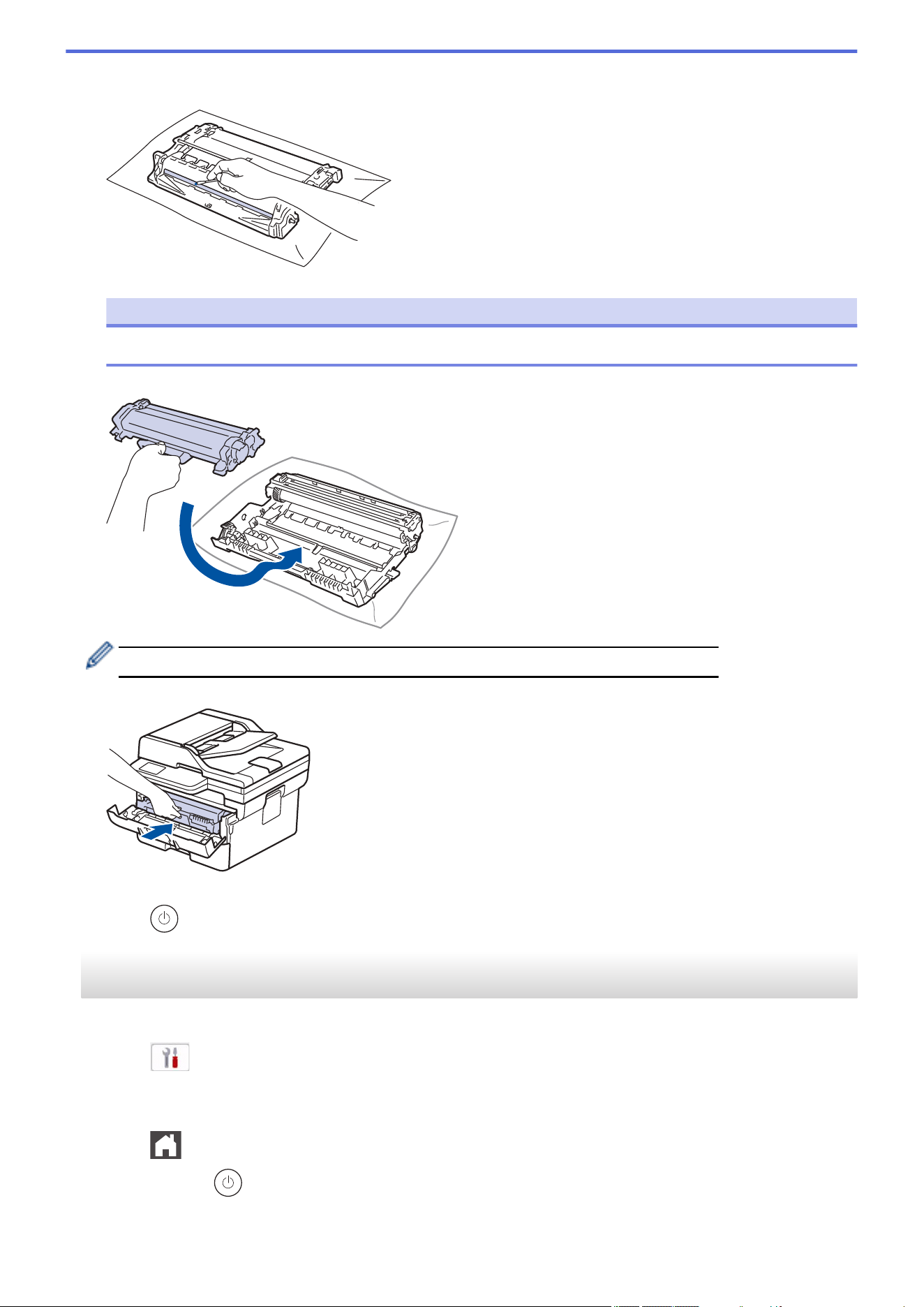
14. Wipe the drum unit surface gently with a dry cotton swab until the mark or foreign material on the surface
comes off.
NOTE
DO NOT clean the surface of the photosensitive drum with a sharp object or any liquids.
15. Push the toner cartridge firmly into the drum unit it locks into place.
Make sure you put the toner cartridge in correctly or it may separate from the drum unit.
16. Reinsert the toner cartridge and drum unit assembly back into the machine.
17. Close the front cover of the machine.
18. Press to turn on the machine.
HL-L2480DW/MFC-L2807DW/MFC-L2820DW/MFC-L2820DWXL/MFC-L2900DW/
MFC-L2900DWXL/MFC-L2980DW
1. Make sure the machine is in Ready mode.
2. Press
[Settings] > [All Settings] > [Print Reports] > [Drum Dot Print].
3. Press [Yes].
The machine prints the Drum Dot Check Sheet.
4. Press
.
5. Press and hold to turn off the machine.
547
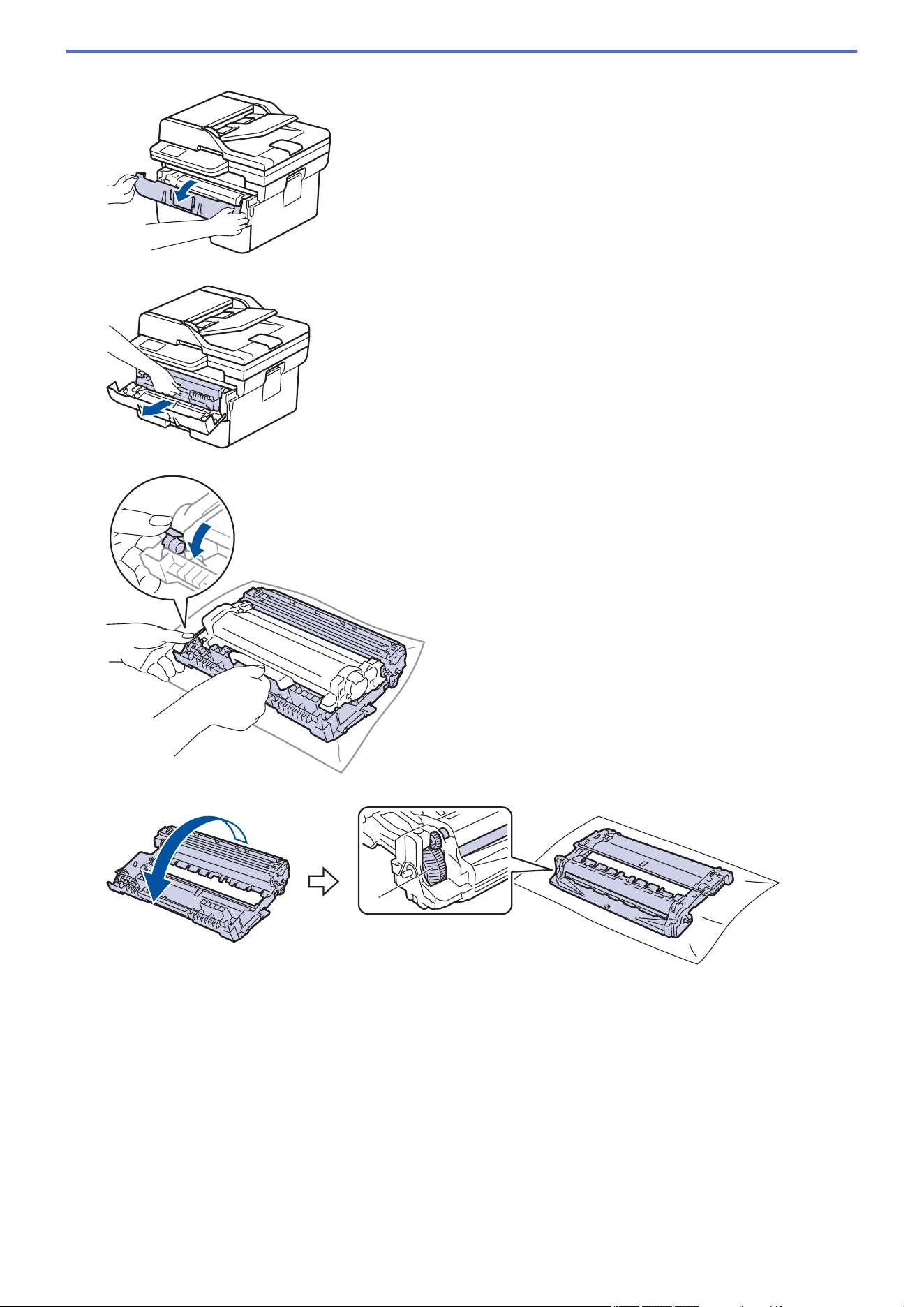
6. Open the front cover.
7. Remove the toner cartridge and drum unit assembly from the machine.
8. Push down the green lock lever and take the toner cartridge out of the drum unit.
9. Turn the drum unit as shown in the illustration. Make sure that the drum unit gear (1) is on the left side.
1
548
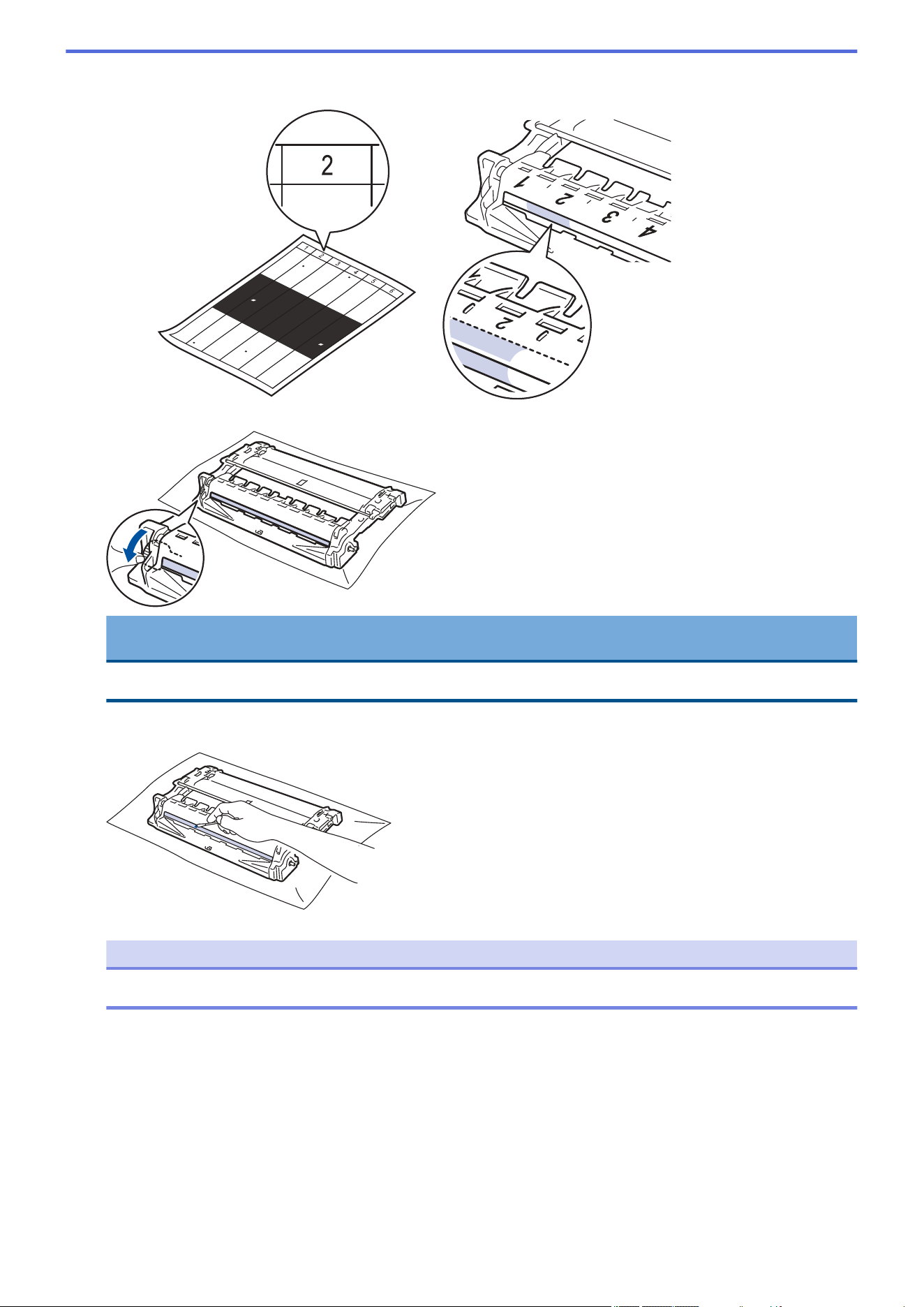
10. Use the numbered markers next to the drum roller to find the mark on the drum. For example, a dot in column
2 on the check sheet means that there is a mark in drum region “2”.
11. Turn the drum unit edge toward you while looking at the drum surface to find the mark.
IMPORTANT
To avoid print quality problems, DO NOT touch the surface of the drum unit, only the wheel on the end.
12. Wipe the drum unit surface gently with a dry cotton swab until the mark or foreign material on the surface
comes off.
NOTE
DO NOT clean the surface of the photosensitive drum with a sharp object or any liquids.
549
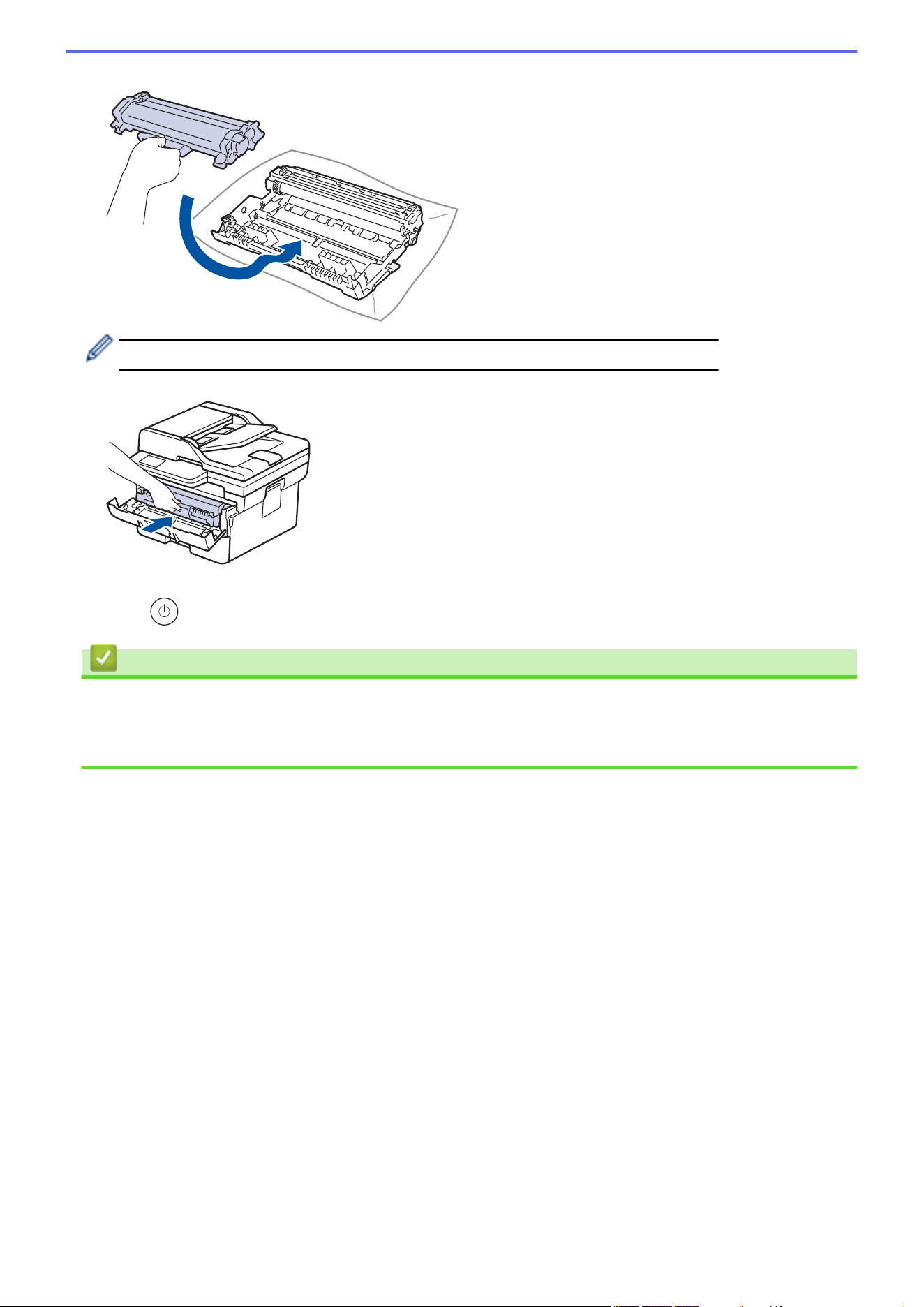
13. Push the toner cartridge firmly into the drum unit it locks into place.
Make sure you put the toner cartridge in correctly or it may separate from the drum unit.
14. Reinsert the toner cartridge and drum unit assembly back into the machine.
15. Close the front cover of the machine.
16. Press to turn on the machine.
Related Information
• Clean the Machine
Related Topics:
• Improve the Print Quality
550
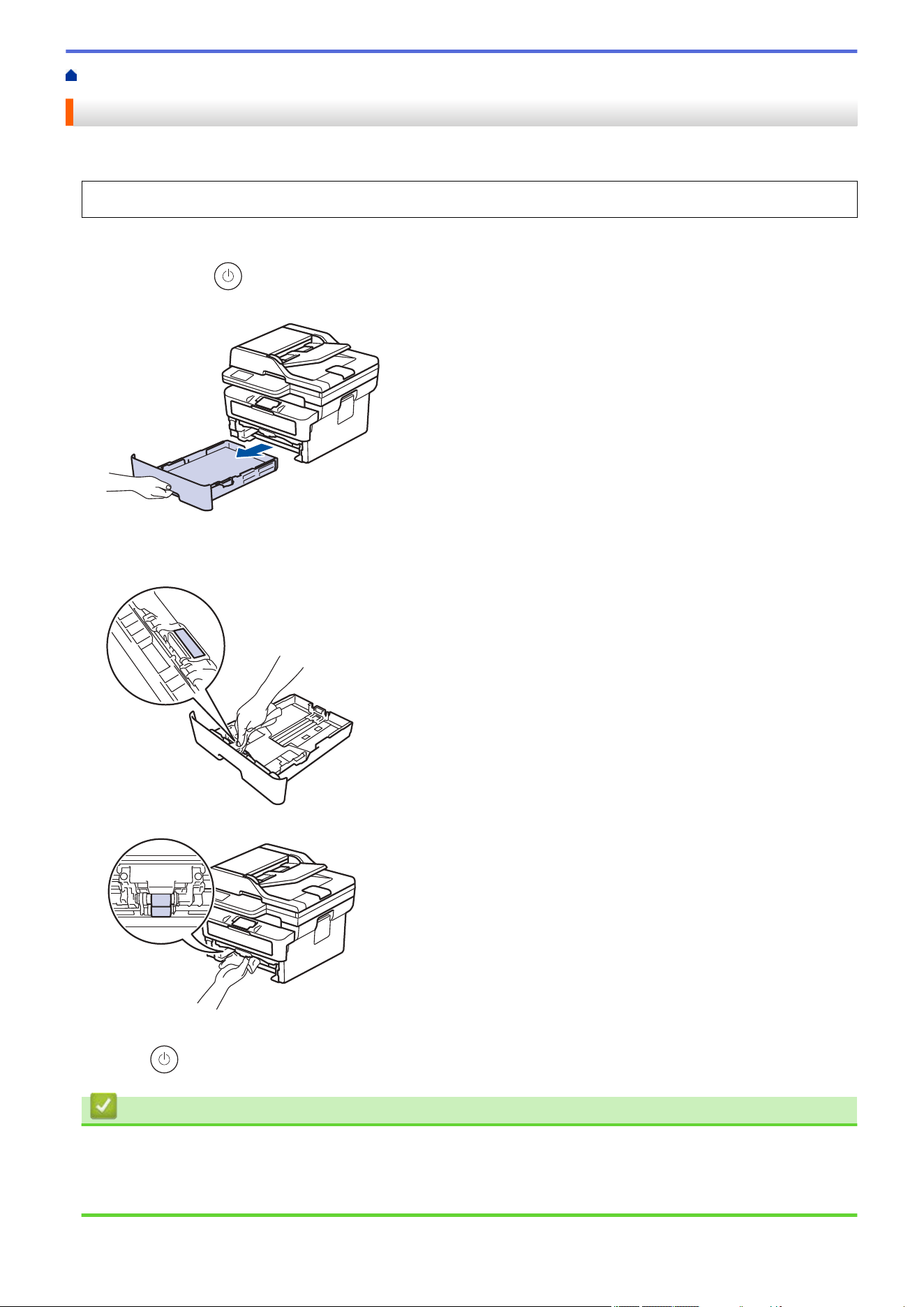
Home > Routine Maintenance > Clean the Machine > Clean the Paper Pick-up Rollers
Clean the Paper Pick-up Rollers
Cleaning the paper pick-up rollers periodically may prevent paper jams by ensuring that paper feeds correctly.
Before starting the cleaning procedure, see Related Information: Clean the Machine.
If you have paper feed problems, clean the pick-up rollers as follows:
1. Press and hold to turn off the machine.
2. Pull the paper tray completely out of the machine.
3. If paper is loaded or something is stuck inside in the paper tray, remove it.
4. Tightly wring out a lint-free cloth soaked in lukewarm water, and then wipe the separator pad on the paper
tray to remove dust.
5. Wipe the two pick-up rollers inside the machine to remove dust.
6. Reload the paper and put the paper tray firmly back in the machine.
7. Press to turn on the machine.
Related Information
• Clean the Machine
Related Topics:
• Printing Problems
551
Home > Routine Maintenance > Check the Remaining Part Life
Check the Remaining Part Life
>> HL-L2465DW/DCP-L2640DW/DCP-L2647DW/MFC-L2760DW
>> HL-L2480DW/MFC-L2807DW/MFC-L2820DW/MFC-L2820DWXL/MFC-L2900DW/MFC-L2900DWXL/
MFC-L2980DW
HL-L2465DW/DCP-L2640DW/DCP-L2647DW/MFC-L2760DW
1. Press Menu.
2. Press a or b to display the [Machine Info.] option, and then press OK.
3. Press a or b to display the [Parts Life] option, and then press OK.
4. Press a or b to select the [Toner] or [Drum] option, and then press OK.
The LCD displays the approximate remaining toner or drum life.
5. Press Stop/Exit.
HL-L2480DW/MFC-L2807DW/MFC-L2820DW/MFC-L2820DWXL/MFC-L2900DW/
MFC-L2900DWXL/MFC-L2980DW
1. Press [Settings] > [All Settings] > [Machine Info.] > [Parts Life].
2. The LCD displays the approximate remaining drum life.
3. Press .
To display the approximate remaining life of toner cartridge, press on the LCD, and then press
[Toner Life].
Related Information
• Routine Maintenance
552
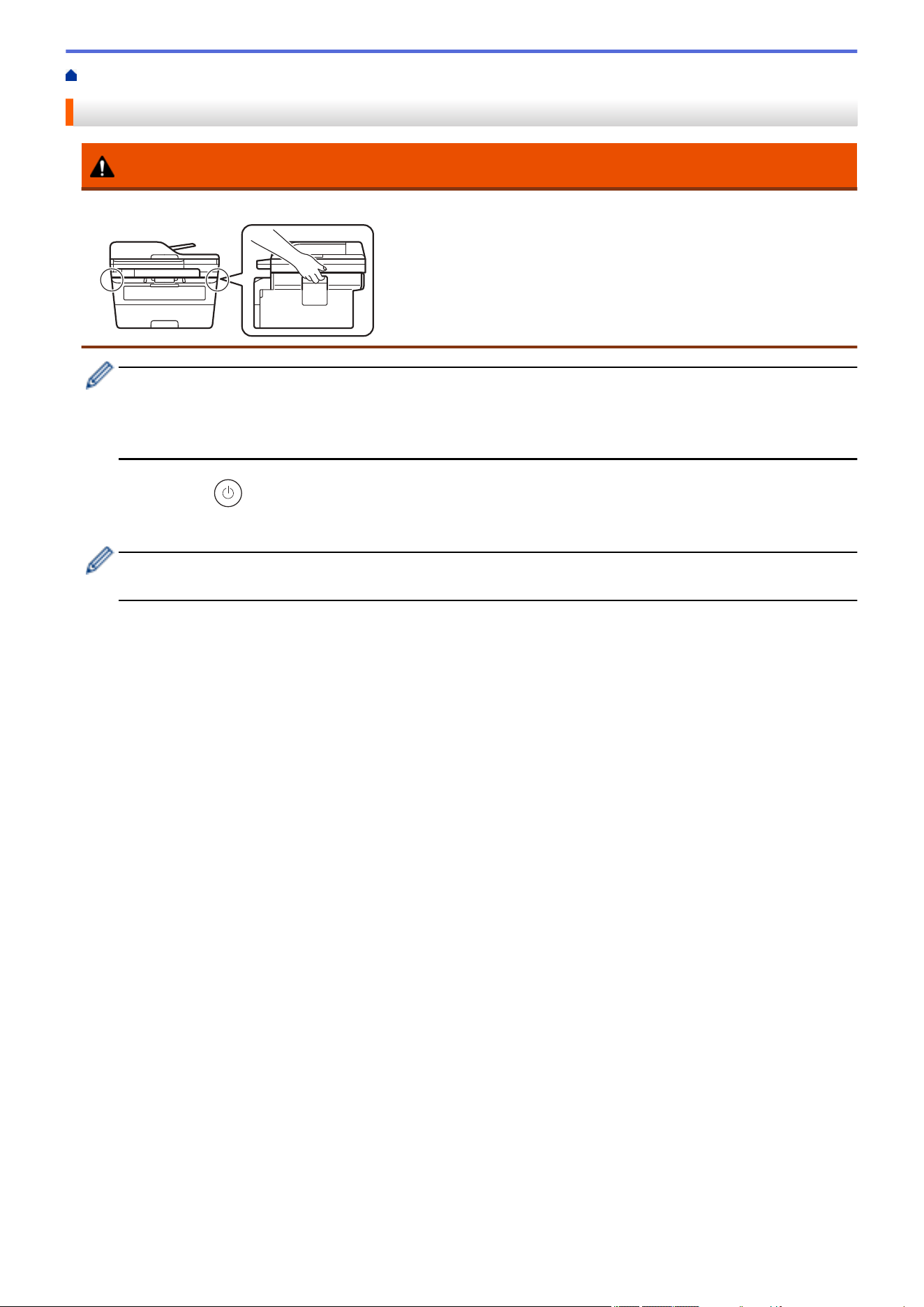
Home > Routine Maintenance > Pack and Ship Your Machine
Pack and Ship Your Machine
WARNING
When you move the machine, carry the machine as shown in the illustration.
• If for any reason you must ship your machine, carefully repack the machine in the original packaging to
avoid any damage during transit. The machine should be adequately insured with the carrier.
• Unless you are returning the machine as part of the Brother Exchange Service, leave the toner cartridge
and drum unit inside the machine when you pack and ship it.
1. Press and hold to turn off the machine. Leave the machine off for at least 10 minutes to cool down.
2. Disconnect all the cables, and then unplug the power cord from the AC power outlet.
Some models are equipped with a non-detachable AC power cord. If your cord is not detachable, fold it
loosely and rest it on top of the machine so it packs easily.
3. Put the machine into the bag it originally came in.
4. Pack the machine, the printed materials, and the AC power cord (if applicable) in the original carton with the
original packing material as shown. (The original packing material may differ depending on your country.) If
553
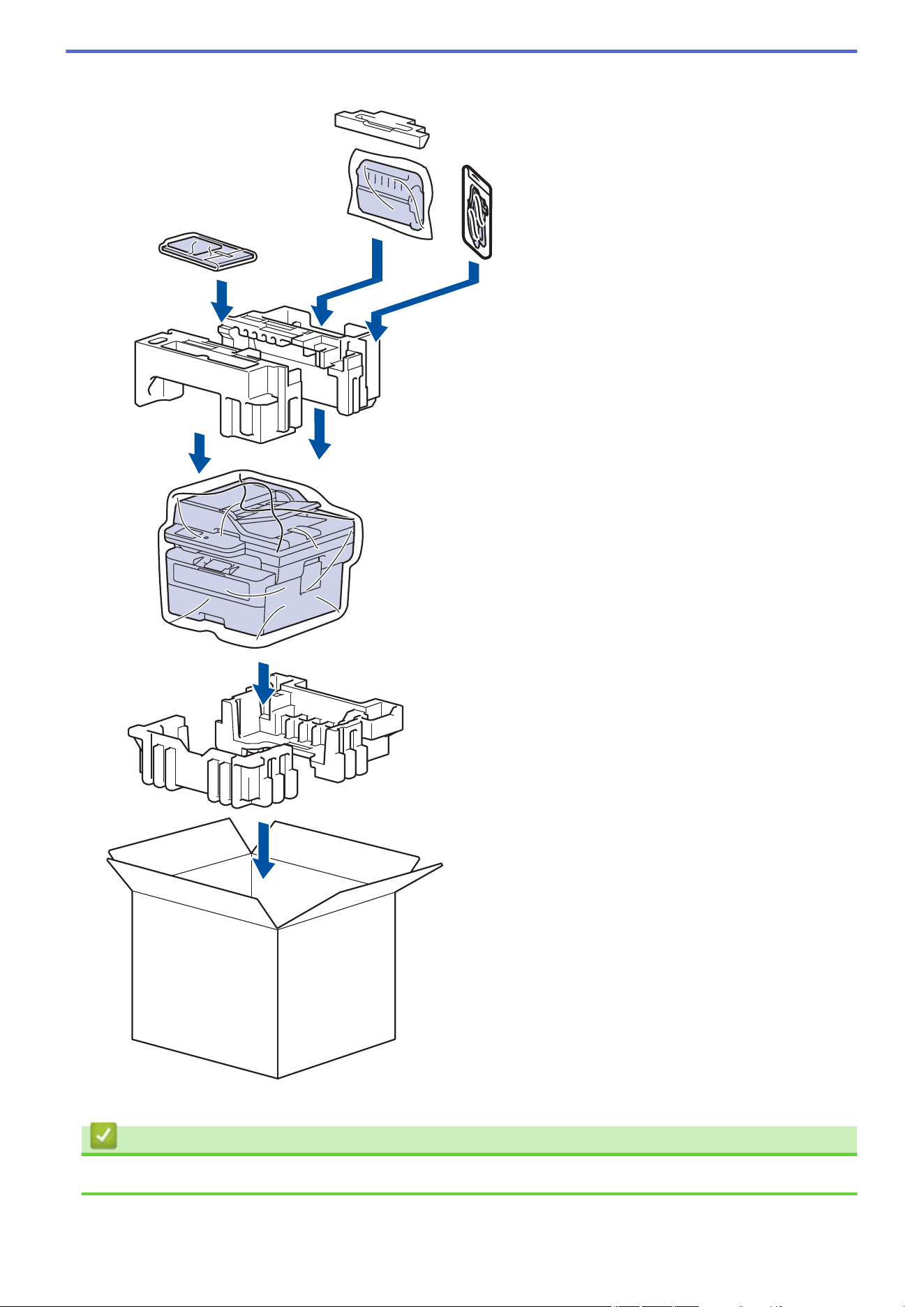

Home > Machine Settings > Check Your Machine's Password
Check Your Machine's Password
If prompted to enter a password, check the following information:
>> Find the Default Password
>> Change the Password
>> Reset the Password
Find the Default Password
The default password to manage this machine's settings is located on the back of the machine and marked
"Pwd".
Change the Password
We recommend immediately changing the default password to protect your machine from unauthorized access.
Use Web Based Management to change the password.
For more information, see Related Information.
Reset the Password
If you forget your password, reset your machine to its factory default settings. The password will also be reset to
the default password.
For more information, see Related Information.
Related Information
• Machine Settings
Related Topics:
• Update Your Machine's Firmware
• Reset Your Machine
• Change the Login Password Using Web Based Management
556


Home > Machine Settings > Change Machine Settings from the Control Panel > In the Event of Power
Failure (Memory Storage)
In the Event of Power Failure (Memory Storage)
Your menu settings are stored permanently, and in the event of a power failure will not be lost.Temporary settings
(for example, Contrast, Overseas Mode) are lost.
• (MFC-L2820DW/MFC-L2820DWXL/MFC-L2900DW/MFC-L2900DWXL/MFC-L2980DW)
During a power failure, the machine will retain the date and time and programmed fax timer jobs (for
example, Delayed Fax) for approximately 60 hours. Other fax jobs in the machine's memory will not be lost.
• (MFC-L2760DW/MFC-L2807DW)
During a power failure, the machine will retain the date and time for approximately two hours. The fax jobs in
the machine’s memory will be lost.
Related Information
• Change Machine Settings from the Control Panel
558

Home > Machine Settings > Change Machine Settings from the Control Panel > General Settings
General Settings
• Change the Default Mode
• Set the Mode Timer
• Adjust the Machine's Volume
• Change for Daylight Saving Time Automatically
• Set Sleep Mode Countdown
• About Deep Sleep Mode
• Set Auto Power Off Mode
• Set the Date and Time
• Set the Time Zone
• Adjust the LCD Backlight Brightness
• Change How Long the LCD Backlight Stays On
• Set Your Station ID
• Set Tone or Pulse Dialing Mode (For Canada)
• Reduce Toner Consumption
• Set the Continue Mode
• Learn About Receiving Faxes in Continue Mode
• Add a Prefix to Every Fax Number
• Prevent Dialing a Wrong Number (Dial Restriction)
• Reduce Printing Noise
• Change the Language on the LCD
559
Home > Machine Settings > Change Machine Settings from the Control Panel > General Settings > Change
the Default Mode
Change the Default Mode
Related Models: MFC-L2760DW
When the machine is idle or you press Stop/Exit, the machine will return to the mode you set.
• For MFC models, the machine has Fax, Scan and Copy modes. The default mode is Fax.
• For DCP models, the machine has Scan and Copy modes. The default mode is Copy.
1. Press Menu.
2. Press a or b to display the [General Setup] option, and then press OK.
3. Press a or b to display the [Default Mode] option, and then press OK.
4. Press a or b to display the [Fax], [Copy], or [Scan] option, and then press OK.
5. Press Stop/Exit.
Related Information
• General Settings
560
Home > Machine Settings > Change Machine Settings from the Control Panel > General Settings > Set the
Mode Timer
Set the Mode Timer
Related Models: MFC-L2760DW
The machine returns to the default mode after use of the machine in a mode other than the default mode. The
Mode Timer setting defines how much time the machine takes after the last operation to return to the default
mode. If you choose [Off], the machine will stay in the mode you used last.
• For MFC models, the machine has three mode buttons on the control panel: FAX, SCAN and COPY.
• For DCP models, the machine has Scan and Copy. Default is Copy mode and mode timer setting is one
minute.
1. Press Menu.
2. Press a or b to display the [General Setup] option, and then press OK.
3. Press a or b to display the [Mode Timer] option, and then press OK.
4. Press a or b to display the [5 Mins], [2 Mins], [1 Min], [30 Secs], [0 Sec], or [Off] option, and
then press OK.
5. Press Stop/Exit.
Related Information
• General Settings
561
Home > Machine Settings > Change Machine Settings from the Control Panel > General Settings > Adjust
the Machine's Volume
Adjust the Machine's Volume
Related Models: HL-L2480DW/MFC-L2760DW/MFC-L2807DW/MFC-L2820DW/MFC-L2820DWXL/
MFC-L2900DW/MFC-L2900DWXL/MFC-L2980DW
>> MFC-L2760DW
>> HL-L2480DW/MFC-L2807DW/MFC-L2820DW/MFC-L2820DWXL/MFC-L2900DW/MFC-L2900DWXL/
MFC-L2980DW
MFC-L2760DW
1. Press Menu.
2. Press a or b to display the [General Setup] option, and then press OK.
3. Press a or b to display the [Volume] option, and then press OK.
4. Press a or b to select one of the following options:
Option Description
Ring
Adjust the ring volume.
Beep
Adjust the volume when you press a button, make a mistake, or after you send or receive a fax.
Speaker
Adjust the speaker volume.
5. Press OK.
6. Press a or b to display the [High], [Med], [Low], or [Off] option, and then press OK.
7. Press Stop/Exit.
You can also adjust the speaker volume by pressing Hook . Press d or c. Each button press decreases or
increases the volume. When finished, press Hook .
HL-L2480DW/MFC-L2807DW/MFC-L2820DW/MFC-L2820DWXL/MFC-L2900DW/
MFC-L2900DWXL/MFC-L2980DW
1. Do one of the following:
• For MFC models:
Press
[Settings] > [All Settings] > [General Setup] > [Volume].
• For DCP models:
Press
[Settings] > [All Settings] > [General Setup] > [Beep].
2. Press one of the following options (MFC models):
Option Description
Ring
Adjust the ring volume.
Beep
Adjust the volume when you press a button, make a mistake, or after you send or receive a fax.
Speaker
Adjust the speaker volume.
3. Press a or b to display the [Off], [Low], [Med], or [High] option, and then press the option you want.
4. Press .
562

Home > Machine Settings > Change Machine Settings from the Control Panel > General Settings > Change
for Daylight Saving Time Automatically
Change for Daylight Saving Time Automatically
You can program the machine to change automatically to Daylight Saving Time.
It will reset itself forward one hour in the spring, and back one hour in the fall. Make sure you have set the correct
date and time in the Date & Time setting.
This feature is available only in some countries.
>> MFC-L2760DW
>> MFC-L2807DW/MFC-L2820DW/MFC-L2820DWXL/MFC-L2900DW/MFC-L2900DWXL/MFC-L2980DW
MFC-L2760DW
1. Press Menu.
2. Press a or b to display the [Initial Setup] option, and then press OK.
3. Press a or b to display the [Date & Time] option, and then press OK.
4. Press a or b to display the [Auto Daylight] option, and then press OK.
5. Press a or b to display the [On] or [Off] option, and then press OK.
6. Press Stop/Exit.
MFC-L2807DW/MFC-L2820DW/MFC-L2820DWXL/MFC-L2900DW/MFC-L2900DWXL/
MFC-L2980DW
1. Press
[Settings] > [All Settings] > [Initial Setup] > [Date & Time] > [Auto
Daylight].
2. Press [On] or [Off].
3. Press
.
Related Information
• General Settings
564
Home > Machine Settings > Change Machine Settings from the Control Panel > General Settings > Set
Sleep Mode Countdown
Set Sleep Mode Countdown
Related Models: HL-L2465DW/DCP-L2640DW/DCP-L2647DW/HL-L2480DW/MFC-L2760DW/MFC-L2807DW/
MFC-L2820DW/MFC-L2820DWXL
The Sleep Mode (or Power Save Mode) setting can reduce power consumption. When the machine is in Sleep
Mode, it acts as though it is turned off. The machine will wake up and start printing when it receives a print job or
a fax. Use these instructions to set a time delay (countdown) before the machine enters Sleep Mode.
• You can choose how long the machine must be idle before it goes into Sleep Mode.
• The timer will restart if any operation is carried out on the machine, such as receiving a print job.
>> HL-L2465DW/DCP-L2640DW/DCP-L2647DW/MFC-L2760DW
>> HL-L2480DW/MFC-L2807DW/MFC-L2820DW/MFC-L2820DWXL
HL-L2465DW/DCP-L2640DW/DCP-L2647DW/MFC-L2760DW
1. Press Menu.
2. Press a or b to display the [General Setup] option, and then press OK.
3. Press a or b to display the [Ecology] option, and then press OK.
4. Press a or b to display the [Sleep Time] option, and then press OK.
5. Enter the length of time (maximum 50 minutes) the machine is idle before entering Sleep Mode, and then
press OK.
6. Press Stop/Exit.
HL-L2480DW/MFC-L2807DW/MFC-L2820DW/MFC-L2820DWXL
1. Press [Settings] > [All Settings] > [General Setup] > [Ecology] > [Sleep Time].
2. Enter the length of time (maximum 50 minutes) the machine will remain idle before entering Sleep Mode, and
then press [OK].
3. Press .
Related Information
• General Settings
565
Home > Machine Settings > Change Machine Settings from the Control Panel > General Settings > About
Deep Sleep Mode
About Deep Sleep Mode
If the machine is in Sleep Mode and does not receive any jobs for a certain length of time, the machine will
automatically enter Deep Sleep Mode. The length of time is based on your specific model and settings.
Deep Sleep Mode uses less power than Sleep Mode.
Applicable Models
Machine's LCD in Deep Sleep Mode Conditions That Will Wake the
Machine
HL-L2465DW/DCP-L2640DW/
DCP-L2647DW/MFC-L2760DW
The LCD displays Deep Sleep. The machine receives a job.
Someone presses a button on the control
panel.
HL-L2480DW/MFC-L2807DW/
MFC-L2820DW/
MFC-L2820DWXL/
MFC-L2900DW/
MFC-L2900DWXL/
MFC-L2980DW
The LCD backlight turns off and the
Power LED blinks.
The machine receives a job.
Someone presses the touchscreen LCD.
Related Information
• General Settings
566
Home > Machine Settings > Change Machine Settings from the Control Panel > General Settings > Set
Auto Power Off Mode
Set Auto Power Off Mode
If the machine does not receive any jobs for a certain length of time, based on your model and settings, the
machine will automatically enter Power Off mode. The machine will not go into Power Off mode if it is connected
to a network, a USB cable, NFC, Wi-Fi Direct, or a telephone line, or if there is any secure print data stored in its
memory. The available features and interfaces vary depending on the model.
To start printing, press on the control panel and then send a print job.
>> HL-L2465DW/DCP-L2640DW/DCP-L2647DW/MFC-L2760DW
>> HL-L2480DW/MFC-L2807DW/MFC-L2820DW/MFC-L2820DWXL/MFC-L2900DW/MFC-L2900DWXL/
MFC-L2980DW
HL-L2465DW/DCP-L2640DW/DCP-L2647DW/MFC-L2760DW
1. Press Menu.
2. Press a or b to display the [General Setup] option, and then press OK.
3. Press a or b to display the [Ecology] option, and then press OK.
4. Press a or b to display the [Auto Power Off] option, and then press OK.
5. Press a or b to display the [8 hours], [4 hours], [2 hours], [1 hour], [20 Mins], or [Off]
option, and then press OK.
6. Press Stop/Exit.
HL-L2480DW/MFC-L2807DW/MFC-L2820DW/MFC-L2820DWXL/MFC-L2900DW/
MFC-L2900DWXL/MFC-L2980DW
1. Press [Settings] > [All Settings] > [General Setup] > [Ecology] > [Auto Power
Off].
2. Press a or b to display the [Off], [20 Mins], [1 hour], [2 hours], [4 hours] or [8 hours] option,
and then press the option you want.
3. Press .
Related Information
• General Settings
567
Home > Machine Settings > Change Machine Settings from the Control Panel > General Settings > Set the
Date and Time
Set the Date and Time
Related Models: MFC-L2760DW/MFC-L2807DW/MFC-L2820DW/MFC-L2820DWXL/MFC-L2900DW/
MFC-L2900DWXL/MFC-L2980DW
>> MFC-L2760DW
>> MFC-L2807DW/MFC-L2820DW/MFC-L2820DWXL/MFC-L2900DW/MFC-L2900DWXL/MFC-L2980DW
MFC-L2760DW
1. Press Menu.
2. Press a or b to display the [Initial Setup] option, and then press OK.
3. Press a or b to display the [Date & Time] option, and then press OK.
4. Press a or b to display the [Date & Time] option, and then press OK.
5. Enter the last two digits of the year using the dial pad, and then press OK.
6. Enter the two digits for the month using the dial pad, and then press OK.
7. Enter the two digits for the day using the dial pad, and then press OK.
8. Press a or b to display the [12h Clock] or [24h Clock] option, and then press OK.
9. Do one of the following:
• If you selected [12h Clock] as the format in the [Date & Time] setting, enter the time (in 12-hour
format) using the dial pad.
Press OK.
Press a or b to display the [AM] or [PM] option, and then press OK.
• If you selected [24h Clock] as the format in the [Date & Time] setting, enter the time (in 24-hour
format) using the dial pad.
Press OK.
(For example: enter 19:45 for 7:45 PM.)
10. Press Stop/Exit.
MFC-L2807DW/MFC-L2820DW/MFC-L2820DWXL/MFC-L2900DW/MFC-L2900DWXL/
MFC-L2980DW
1. Press [Settings] > [All Settings] > [Initial Setup] > [Date & Time] > [Date].
2. Enter the last two digits of the year using the LCD, and then press [OK].
3. Enter the two digits for the month using the LCD, and then press [OK].
4. Enter the two digits for the day using the LCD, and then press [OK].
5. Press [Clock Type].
6. Press [12h Clock] or [24h Clock].
7. Press [Time].
568
8. To enter the time, do one of the following:
• If you selected [12h Clock] as the format in the [Clock Type] setting, enter the time (in 12-hour
format) using the LCD.
Press to select the [AM] or [PM].
Press [OK].
• If you selected [24h Clock] as the format in the [Clock Type] setting, enter the time (in 24-hour
format) using the LCD.
Press [OK].
(For example: enter 19:45 for 7:45 PM.)
9. Press
.
Related Information
• General Settings
569
Home > Machine Settings > Change Machine Settings from the Control Panel > General Settings > Set the
Time Zone
Set the Time Zone
Set the time zone for your location on the machine.
For example, the time zone for Eastern Time in the USA and Canada is UTC-05:00. Pacific Time in the USA and
Canada is UTC-08:00.
Time Zone Standard Time
Hawaii-Aleutian Time Zone UTC - 10:00
Alaska Time Zone UTC - 9:00
Pacific Time Zone UTC - 8:00
Mountain Time Zone UTC - 7:00
Central Time Zone UTC - 6:00
Eastern Time Zone UTC - 5:00
Atlantic Time Zone UTC - 4:00
>> MFC-L2760DW
>> MFC-L2807DW/MFC-L2820DW/MFC-L2820DWXL/MFC-L2900DW/MFC-L2900DWXL/MFC-L2980DW
MFC-L2760DW
1. Press Menu.
2. Press a or b to display the [Initial Setup] option, and then press OK.
3. Press a or b to display the [Date & Time] option, and then press OK.
4. Press a or b to display the [Time Zone] option, and then press OK.
5. Press a or b to choose the time zone. Press OK.
6. Press Stop/Exit.
MFC-L2807DW/MFC-L2820DW/MFC-L2820DWXL/MFC-L2900DW/MFC-L2900DWXL/
MFC-L2980DW
1. Press
[Settings] > [All Settings] > [Initial Setup] > [Date & Time] > [Time Zone].
2. Enter your time zone.
3. Press [OK].
4. Press .
Related Information
• General Settings
570
Home > Machine Settings > Change Machine Settings from the Control Panel > General Settings > Adjust
the LCD Backlight Brightness
Adjust the LCD Backlight Brightness
Related Models: HL-L2480DW/MFC-L2807DW/MFC-L2820DW/MFC-L2820DWXL/MFC-L2900DW/
MFC-L2900DWXL/MFC-L2980DW
If you are having difficulty reading the LCD, changing the brightness setting may help.
1. Press [Settings] > [All Settings] > [General Setup] > [LCD Settings] >
[Backlight].
2. Press the [Light], [Med] or [Dark] option.
3. Press .
Related Information
• General Settings
571
Home > Machine Settings > Change Machine Settings from the Control Panel > General Settings > Change
How Long the LCD Backlight Stays On
Change How Long the LCD Backlight Stays On
Related Models: HL-L2480DW/MFC-L2807DW/MFC-L2820DW/MFC-L2820DWXL/MFC-L2900DW/
MFC-L2900DWXL/MFC-L2980DW
Set how long the LCD backlight stays on.
1. Press [Settings] > [All Settings] > [General Setup] > [LCD Settings] > [Dim
Timer].
2. Press the [10 Secs] , [20 Secs] or [30 Secs] option.
3. Press .
Related Information
• General Settings
572
Home > Machine Settings > Change Machine Settings from the Control Panel > General Settings > Set
Your Station ID
Set Your Station ID
Related Models: MFC-L2760DW/MFC-L2807DW/MFC-L2820DW/MFC-L2820DWXL/MFC-L2900DW/
MFC-L2900DWXL/MFC-L2980DW
Set the machine to print your Station ID and the fax's date and time at the top of each fax you send.
>> MFC-L2760DW
>> MFC-L2807DW/MFC-L2820DW/MFC-L2820DWXL/MFC-L2900DW/MFC-L2900DWXL/MFC-L2980DW
MFC-L2760DW
1. Press (Fax).
2. Press Menu.
3. Press a or b to display the [Initial Setup] option, and then press OK.
4. Press a or b to display the [Station ID] option, and then press OK.
5. Enter your fax number (up to 20 digits) using the dial pad, and then press OK.
6. Enter your telephone number (up to 20 digits) using the dial pad, and then press OK.
If your telephone number and fax number are the same, enter the same number again.
7. Use the dial pad to enter your name (up to 20 characters), and then press OK.
To enter text on your machine, see Related Information: How to Enter Text on Your Machine.
8. Press Stop/Exit.
NOTE
(USA only) The Telephone Consumer Protection Act of 1991 makes it unlawful for any person to use a
computer or electronic device to send any message via a telephone fax machine unless such messages
clearly contain, in a margin at the top or bottom of each transmitted page, or on the first page of the
transmission, the date and time it is sent and an identification of the business or other entity or other
individual sending the message and the telephone number of the sending machine or such business,
other entity or individual. To program this information into your machine, see Set the date and time and
Set your Station ID.
MFC-L2807DW/MFC-L2820DW/MFC-L2820DWXL/MFC-L2900DW/MFC-L2900DWXL/
MFC-L2980DW
1. Press
[Settings] > [All Settings] > [Initial Setup] > [Station ID] > [Fax].
2. Enter your fax number (up to 20 digits) using the LCD, and then press [OK].
3. Press [Tel].
4. Enter your telephone number (up to 20 digits) using the LCD, and then press [OK].
5. Press [Name].
573
6. Enter your name (up to 20 characters) using the LCD, and then press [OK].
• Press to cycle between letters, numbers and special characters. (The characters available may
differ depending on your country.)
• If you enter an incorrect character, press d or c to move the cursor to it and press . Press the
correct character.
• To enter a space, press [Space].
• For more detailed information, see Related Information.
7. Press .
NOTE
(USA only) The Telephone Consumer Protection Act of 1991 makes it unlawful for any person to use a
computer or electronic device to send any message via a telephone fax machine unless such messages
clearly contain, in a margin at the top or bottom of each transmitted page, or on the first page of the
transmission, the date and time it is sent and an identification of the business or other entity or other
individual sending the message and the telephone number of the sending machine or such business,
other entity or individual. To program this information into your machine, see Set the date and time and
Set your Station ID.
Related Information
• General Settings
Related Topics:
• How to Enter Text on Your Machine
• Transfer Faxes to Another Fax Machine
• Transfer the Fax Journal Report to Another Fax Machine
574
Home > Machine Settings > Change Machine Settings from the Control Panel > General Settings > Set
Tone or Pulse Dialing Mode (For Canada)
Set Tone or Pulse Dialing Mode (For Canada)
Related Models: MFC-L2760DW/MFC-L2807DW/MFC-L2820DW/MFC-L2820DWXL/MFC-L2900DW/
MFC-L2900DWXL/MFC-L2980DW
Your machine is set for a Tone dialing service. If you have a Pulse dialing (rotary) service, you must change the
dialing mode.
This feature is not available in some countries.
>> MFC-L2760DW
>> MFC-L2807DW/MFC-L2820DW/MFC-L2820DWXL/MFC-L2900DW/MFC-L2900DWXL/MFC-L2980DW
MFC-L2760DW
1. Press Menu.
2. Press a or b to display the [Initial Setup] option, and then press OK.
3. Press aor bto display the [Tone/Pulse] option, and then press OK.
4. Press a or b to display the [Tone] or [Pulse] option, and then press OK.
5. Press Stop/Exit.
MFC-L2807DW/MFC-L2820DW/MFC-L2820DWXL/MFC-L2900DW/MFC-L2900DWXL/
MFC-L2980DW
1. Press
[Settings] > [All Settings] > [Initial Setup] > [Tone/Pulse].
2. Press [Tone] or [Pulse].
3. Press .
Related Information
• General Settings
575
Home > Machine Settings > Change Machine Settings from the Control Panel > General Settings > Reduce
Toner Consumption
Reduce Toner Consumption
Using the Toner Save feature may reduce toner consumption. When Toner Save is set to on, the print on your
documents appears lighter.
We DO NOT recommend using the Toner Save feature for printing photo or grayscale images.
>> HL-L2465DW/DCP-L2640DW/DCP-L2647DW/MFC-L2760DW
>> HL-L2480DW/MFC-L2807DW/MFC-L2820DW/MFC-L2820DWXL/MFC-L2900DW/MFC-L2900DWXL/
MFC-L2980DW
HL-L2465DW/DCP-L2640DW/DCP-L2647DW/MFC-L2760DW
1. Press Menu.
2. Press a or b to display the [General Setup] option, and then press OK.
3. Press a or b to display the [Ecology] option, and then press OK.
4. Press a or b to display the [Toner Save] option, and then press OK.
5. Press a or b to display the [On] or [Off] option, and then press OK.
6. Press Stop/Exit.
HL-L2480DW/MFC-L2807DW/MFC-L2820DW/MFC-L2820DWXL/MFC-L2900DW/
MFC-L2900DWXL/MFC-L2980DW
1. Press
[Settings] > [All Settings] > [General Setup] > [Ecology] > [Toner Save].
2. Press [On] or [Off].
3. Press .
Related Information
• General Settings
Related Topics:
• Improve the Print Quality
576
Home > Machine Settings > Change Machine Settings from the Control Panel > General Settings > Set the
Continue Mode
Set the Continue Mode
The Continue Mode forces the machine to continue printing after the control panel displays "Replace Toner".
The machine will continue printing until the LCD displays "Toner Ended".
The factory setting is "Stop".
• When the control panel indicates an error, you cannot change the mode.
• If you continue printing in the Continue Mode, we cannot guarantee the print quality.
• While using Continue Mode the print may appear faint.
• After replacing the toner cartridge with a new one, the Continue Mode will go back to the factory
setting ("Stop").
>> HL-L2465DW/DCP-L2640DW/DCP-L2647DW/MFC-L2760DW
>> HL-L2480DW/MFC-L2807DW/MFC-L2820DW/MFC-L2820DWXL/MFC-L2900DW/MFC-L2900DWXL/
MFC-L2980DW
HL-L2465DW/DCP-L2640DW/DCP-L2647DW/MFC-L2760DW
1. Press Menu.
2. Press a or b to display the [General Setup] option, and then press OK.
3. Press a or b to display the [Replace Toner] option, and then press OK.
4. Press a or b to display the [Continue] or [Stop] option, and then press OK.
5. Press Stop/Exit.
HL-L2480DW/MFC-L2807DW/MFC-L2820DW/MFC-L2820DWXL/MFC-L2900DW/
MFC-L2900DWXL/MFC-L2980DW
1. Press [Settings] > [All Settings] > [General Setup] > [Replace Toner].
2. Press [Continue] or [Stop].
3. Press .
Related Information
• General Settings
577
Home > Machine Settings > Change Machine Settings from the Control Panel > General Settings > Learn
About Receiving Faxes in Continue Mode
Learn About Receiving Faxes in Continue Mode
Related Models: MFC-L2760DW/MFC-L2807DW/MFC-L2820DW/MFC-L2820DWXL/MFC-L2900DW/
MFC-L2900DWXL/MFC-L2980DW
The machine can store received faxes in the memory if you choose the Continue Mode when the LCD displays
Replace Toner.
When received faxes are printed in Continue Mode the LCD will ask if the print quality of the fax is OK.
If the quality is not good, choose No. The machine will keep the faxes stored in the memory so you can reprint
them after you replace the toner cartridge with a new one. If the print quality is good, choose Yes. The LCD will
ask if you want to delete the printed faxes from the memory.
If you choose not to delete them, you will be asked again after you replace the toner cartridge with a new one.
• (MFC-L2760DW/MFC-L2807DW/MFC-L2820DW/MFC-L2820DWXL)
The machine can store up to 400 faxes in memory.
• (MFC-L2900DW/MFC-L2900DWXL/MFC-L2980DW)
The machine can store up to 500 faxes in memory.
• (MFC-L2760DW)
If you turn off the power switch faxes in memory will be lost.
• The machine will keep faxes stored in Continue Mode even if you change the Continue setting to Stop.
• If you install a new toner cartridge when the LCD displays Toner Ended, the machine will ask if you want
to print the stored faxes. Choose Print to print stored faxes.
Toner End in Continue Mode
When the LCD displays Toner Ended, the machine will stop printing. If the memory is full and you want to
continue receiving faxes, you must install a new toner cartridge.
Related Information
• General Settings
578
Home > Machine Settings > Change Machine Settings from the Control Panel > General Settings > Add a
Prefix to Every Fax Number
Add a Prefix to Every Fax Number
Related Models: MFC-L2760DW/MFC-L2807DW/MFC-L2820DW/MFC-L2820DWXL/MFC-L2900DW/
MFC-L2900DWXL/MFC-L2980DW
The Dial Prefix setting will automatically dial a predefined number before every fax number you dial. For
example: If your telephone system requires a 9 to dial an outside number, use this setting to automatically dial 9
for every fax you send.
• Use the numbers and symbols from 0 to 9, #, and *. (You cannot use ! with any other numbers or
symbols.)
• If your telephone system requires a time break recall (hookflash), press ! on the LCD.
• (Canada only) If pulse dialing mode is on, # and * are not available to use.
>> MFC-L2760DW
>> MFC-L2807DW/MFC-L2820DW/MFC-L2820DWXL/MFC-L2900DW/MFC-L2900DWXL/MFC-L2980DW
MFC-L2760DW
1. Press Menu.
2. Press a or b to display the [Initial Setup] option, and then press OK.
3. Press a or b to display the [Dial Prefix] option, and then press OK.
4. Do one of the following:
• If the machine does not have a stored prefix number, enter a number (up to 5 digits) using the dial pad,
and then press OK.
• If the machine has a stored prefix number and you want to change it, press a to edit the number.
Press Clear to delete each digit of the existing number and enter a new number using the dial pad, and
then press OK.
To turn off the dial prefix feature, delete the stored prefix number and then press OK.
5. Press Stop/Exit.
MFC-L2807DW/MFC-L2820DW/MFC-L2820DWXL/MFC-L2900DW/MFC-L2900DWXL/
MFC-L2980DW
1. Press [Settings] > [All Settings] > [Initial Setup] > [Dial Prefix].
2. Press [On] or [Off].
Option Description
On
To activate the prefix number setting, select On.
If you selected On, go to the next step to set a prefix number.
Off
To deactivate the prefix number setting, select Off.
If you selected Off, press to exit.
3. Press [Dial Prefix].
4. Enter a prefix number (up to 5 digits) using the LCD, and then press [OK].
579
Home > Machine Settings > Change Machine Settings from the Control Panel > General Settings > Prevent
Dialing a Wrong Number (Dial Restriction)
Prevent Dialing a Wrong Number (Dial Restriction)
Related Models: MFC-L2760DW/MFC-L2807DW/MFC-L2820DW/MFC-L2820DWXL/MFC-L2900DW/
MFC-L2900DWXL/MFC-L2980DW
This feature prevents users from sending a fax or call to the wrong number by mistake. You can set the machine
to restrict dialing when you use the dial pad, Address Book and Shortcuts.
>> MFC-L2760DW
>> MFC-L2807DW/MFC-L2820DW/MFC-L2820DWXL/MFC-L2900DW/MFC-L2900DWXL/MFC-L2980DW
MFC-L2760DW
1. Press Menu.
2. Press a or b to display the [Fax] option, and then press OK.
3. Press a or b to display the [Dial Restrict.] option, and then press OK.
4. Press a or b to display your preferred option, and then press OK.
• [Dial Pad]
• [Shortcut]
• [Speed Dial]
5. Press a or b to select one of the following options, and then press OK.
Option Description
Enter #
Twice
The machine will prompt you to re-enter the number, and then if you re-enter the same
number correctly, the machine will start dialing. If you re-enter the wrong number, the LCD
will display an error message.
On
The machine will restrict all fax sending and outbound calls for that dialing method.
Off
The machine does not restrict the dialing method.
• The [Enter # Twice] setting will not work if you use an external phone or press Hook before entering
the number. You will not be asked to re-enter the number.
• If you choose [On] or [Enter # Twice], you cannot use the Broadcasting feature.
6. Press Stop/Exit.
MFC-L2807DW/MFC-L2820DW/MFC-L2820DWXL/MFC-L2900DW/MFC-L2900DWXL/
MFC-L2980DW
1. Press [Settings] > [All Settings] > [Fax] > [Dial Restriction].
2. Press one of the following options:
• [Dial Pad]
• [Address Book]
If you combine Address Book numbers when dialing, the address will be recognized as dial pad input and
will not be restricted.
• [Shortcuts]
3. Press one of the following options:
581
Option Description
Enter #
Twice
The machine will prompt you to re-enter the number, and then if you re-enter the same
number correctly, the machine will start dialing. If you re-enter the wrong number, the LCD
will display an error message.
On
The machine will restrict all fax sending and outbound calls for that dialing method.
Off
The machine does not restrict the dialing method.
• The [Enter # Twice] setting will not work if you use an external phone or press [Hook] before
entering the number. You will not be asked to re-enter the number.
• If you choose [On] or [Enter # Twice], you cannot use the Broadcasting feature.
4. Press .
Related Information
• General Settings
582
Home > Machine Settings > Change Machine Settings from the Control Panel > General Settings > Reduce
Printing Noise
Reduce Printing Noise
The Quiet Mode setting can reduce printing noise. When Quiet Mode is turned on, the print speed becomes
slower. The factory setting is off.
>> HL-L2465DW/DCP-L2640DW/DCP-L2647DW/MFC-L2760DW
>> HL-L2480DW/MFC-L2807DW/MFC-L2820DW/MFC-L2820DWXL/MFC-L2900DW/MFC-L2900DWXL/
MFC-L2980DW
HL-L2465DW/DCP-L2640DW/DCP-L2647DW/MFC-L2760DW
1. Press Menu.
2. Press a or b to display the [General Setup] option, and then press OK.
3. Press a or b to display the [Ecology] option, and then press OK.
4. Press a or b to display the [Quiet Mode] option, and then press OK.
5. Press a or b to display the [On] or [Off] option, and then press OK.
6. Press Stop/Exit.
HL-L2480DW/MFC-L2807DW/MFC-L2820DW/MFC-L2820DWXL/MFC-L2900DW/
MFC-L2900DWXL/MFC-L2980DW
1. Press
[Settings] > [All Settings] > [General Setup] > [Ecology] > [Quiet Mode].
2. Press [On] or [Off].
3. Press .
Related Information
• General Settings
583
Home > Machine Settings > Change Machine Settings from the Control Panel > General Settings > Change
the Language on the LCD
Change the Language on the LCD
Change the LCD language if needed.
This feature is not available in some countries.
>> HL-L2465DW/DCP-L2640DW/DCP-L2647DW/MFC-L2760DW
>> HL-L2480DW/MFC-L2807DW/MFC-L2820DW/MFC-L2820DWXL/MFC-L2900DW/MFC-L2900DWXL/
MFC-L2980DW
HL-L2465DW/DCP-L2640DW/DCP-L2647DW/MFC-L2760DW
1. Press Menu.
2. Press a or b to display the [Initial Setup] option, and then press OK.
3. Press a or b to display the [Local Language] option, and then press OK.
4. Press a or b to display your language, and then press OK.
5. Press Stop/Exit.
HL-L2480DW/MFC-L2807DW/MFC-L2820DW/MFC-L2820DWXL/MFC-L2900DW/
MFC-L2900DWXL/MFC-L2980DW
1. Press [Settings] > [All Settings] > [Initial Setup] > [Local Language].
2. Press your language.
3. Press
.
Related Information
• General Settings
584

Home > Machine Settings > Change Machine Settings from the Control Panel > Save Your Favorite
Settings as a Shortcut
Save Your Favorite Settings as a Shortcut
Related Models: HL-L2480DW/MFC-L2807DW/MFC-L2820DW/MFC-L2820DWXL/MFC-L2900DW/
MFC-L2900DWXL/MFC-L2980DW
• Add Shortcuts
• Change or Delete Shortcuts
585
Home > Machine Settings > Change Machine Settings from the Control Panel > Save Your Favorite
Settings as a Shortcut > Add Shortcuts
Add Shortcuts
Related Models: HL-L2480DW/MFC-L2807DW/MFC-L2820DW/MFC-L2820DWXL/MFC-L2900DW/
MFC-L2900DWXL/MFC-L2980DW
You can add the Fax, Copy, Scan, Web Connect and Apps settings you use most frequently by saving them as
your Shortcuts. Later you can press the Shortcut to apply these settings instead of manually re-entering them.
Some Shortcut menus are not available depending on your model.
These instructions describe how to add a Copy Shortcut. The steps for adding a Fax, Scan, Web Connect, or
Apps Shortcut are very similar.
1. Press ([Shortcuts]).
2. Press the button where you have not added a Shortcut.
3. Press a or b to display [Copy], and then press [Copy].
4. Press the copy preset you want.
5. Press
([Options]).
6. Press a or b to display the available settings, and then press the setting you want to change.
7. Press a or b to display the available options for the setting, and then press the option you want.
Repeat these two steps until you have selected all the settings and options you want, and then press [OK].
8. When you have finished changing settings, press [OK].
9. Read and confirm the displayed list of settings you have selected, and then press [OK].
10. Enter a name for the Shortcut using the LCD, and then press [OK].
Related Information
• Save Your Favorite Settings as a Shortcut
586
Home > Machine Settings > Change Machine Settings from the Control Panel > Save Your Favorite
Settings as a Shortcut > Change or Delete Shortcuts
Change or Delete Shortcuts
Related Models: HL-L2480DW/MFC-L2807DW/MFC-L2820DW/MFC-L2820DWXL/MFC-L2900DW/
MFC-L2900DWXL/MFC-L2980DW
You cannot change a Web Connect Shortcut or Apps Shortcut. If you need to change them, delete them,
and then add a new Shortcut.
1. Press ([Shortcuts]).
2. Press a tab from [1] to [3] to display the Shortcut you want to change.
3. Press the Shortcut you want to change.
The settings for the Shortcut you selected appear.
To delete the Shortcut or edit the name, press and hold the Shortcut until the options appear, and then
follow the on-screen menus.
4. Press ([Options]).
5. Change the settings for the Shortcut if needed.
6. Press [OK].
7. When finished, press [Save as Shortcut].
8. Read and confirm the displayed list of settings you have selected, and then press [OK].
9. Do one of the following:
• To overwrite the Shortcut, press [Yes].
• If you do not want to overwrite the Shortcut, press [No] to enter a new Shortcut name.
Press any to add a new Shortcut.
Enter a new name using the LCD, and then press [OK].
To edit the name, hold down to delete the current name.
Related Information
• Save Your Favorite Settings as a Shortcut
587

Home > Machine Settings > Change Machine Settings from the Control Panel > Print Reports > Reports
Reports
The following reports are available:
Transmission (For models with facsimile function)
The Transmission report prints a Transmission Verification Report of your last transmission.
Address Book (For models with facsimile function)
The Address Book report prints a list of names and numbers stored in the Address Book memory.
Fax Journal (For models with facsimile function)
The Fax Journal prints a list of information about your last 200 incoming and outgoing faxes. (TX means
Transmit, RX means Receive.)
User Settings
The User Settings report prints a list of your current settings.
Printer Settings
The Printer Settings report prints a list of your current printer settings.
Network Configuration (Models with network functionality)
The Network Configuration report prints a list of your current network settings.
Print File List
The Print File List prints a list of the fonts and print macro/stream setting stored in the machine.
Drum Dot Print
The Drum Dot Print prints the drum dot sheet, which helps when it is time to clean the drum unit.
WLAN Report (Models with wireless network functionality)
The WLAN Report prints the wireless LAN connectivity diagnosis.
Caller ID History (For models with facsimile function)
The Caller ID History report prints a list of the available Caller ID information for the last 30 received faxes and
telephone calls.
Related Information
• Print Reports
589
Home > Machine Settings > Change Machine Settings from the Control Panel > Print Reports > Print a
Report
Print a Report
>> HL-L2465DW/DCP-L2640DW/DCP-L2647DW/MFC-L2760DW
>> HL-L2480DW/MFC-L2807DW/MFC-L2820DW/MFC-L2820DWXL/MFC-L2900DW/MFC-L2900DWXL/
MFC-L2980DW
HL-L2465DW/DCP-L2640DW/DCP-L2647DW/MFC-L2760DW
1. Press Menu.
2. Press a or b to display the [Print Reports] option, and then press OK.
3. Press a or b to display the report you want to print, and then press OK.
4. Do one of the following:
• If you choose [Transmission], do one of the following:
- To view the Transmission Verification Report, press a or b to display the [View on LCD], and then
press OK.
- To print the Transmission Verification Report, press a or b to display the [Print report], and then
press OK.
Press Start.
• If you choose other reports, press Start.
5. Press Stop/Exit.
HL-L2480DW/MFC-L2807DW/MFC-L2820DW/MFC-L2820DWXL/MFC-L2900DW/
MFC-L2900DWXL/MFC-L2980DW
1. Press
[Settings] > [All Settings] > [Print Reports].
2. Press a or b to display the report you want to print, and then press it.
3. Do one of the following:
• If you choose [Transmission], do one of the following:
- To view the Transmission Verification Report, press [View on LCD].
- To print the Transmission Verification Report, press [Print Report].
• If you choose other reports, go to next step.
4. Press [Yes].
5. Press .
Related Information
• Print Reports
590

Home > Machine Settings > Change Machine Settings from the Control Panel > Settings and Features
Tables
Settings and Features Tables
The Settings tables will help you understand the menu selections and options that are found in the machine’s
programs.
• Settings Tables (2 Line LCD MFC models)
• Settings Tables (2 Line LCD DCP models)
• Settings Tables (2.7" Touch Panel MFC models and 3.5" Touch Panel MFC models)
• Settings Tables (2.7" Touch Panel DCP models)
• Features Tables (2.7" Touch Panel MFC models and 3.5" Touch Panel MFC models)
• Features Tables (2.7" Touch Panel DCP models)
591
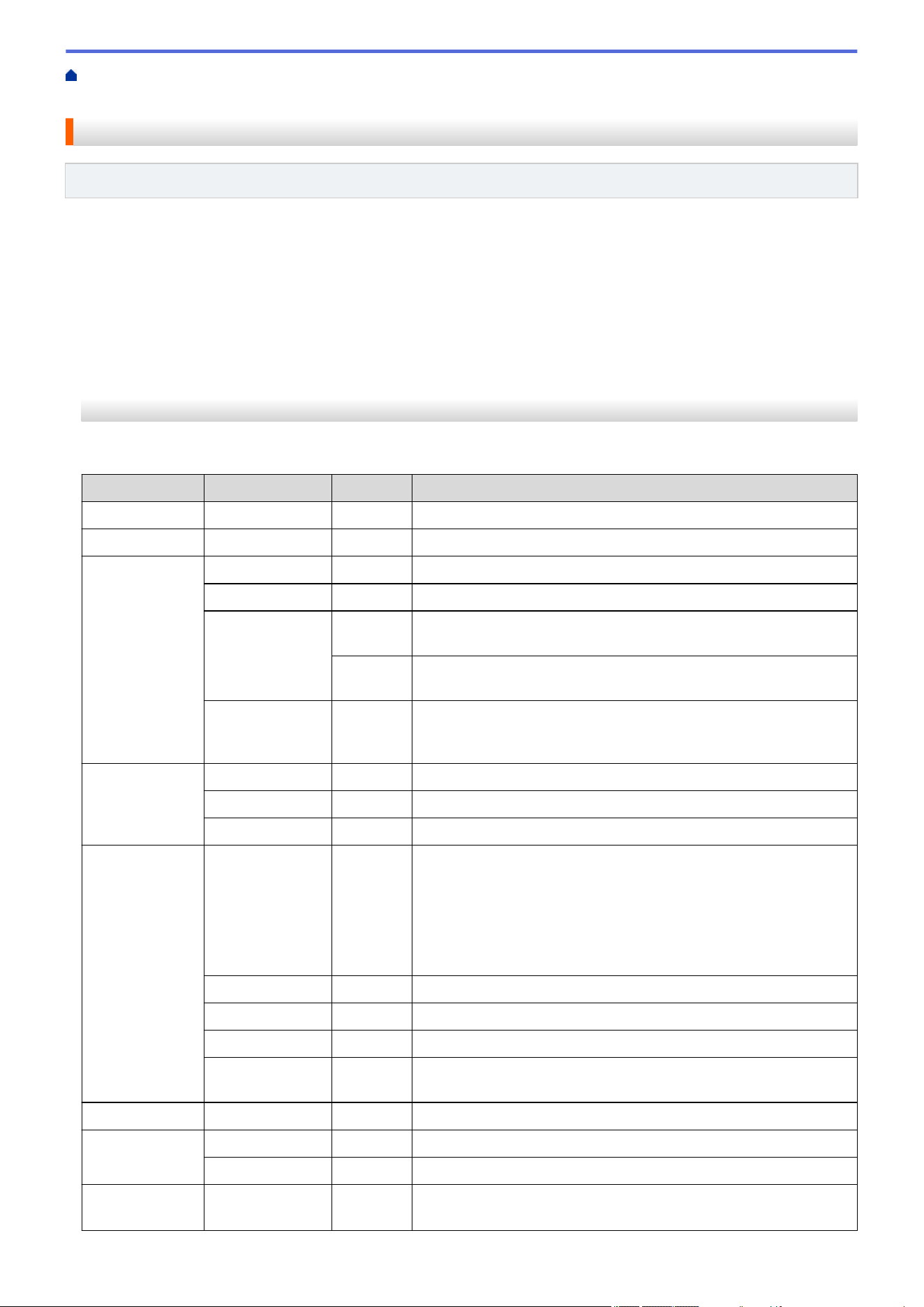
Home > Machine Settings > Change Machine Settings from the Control Panel > Settings and Features
Tables > Settings Tables (2 Line LCD MFC models)
Settings Tables (2 Line LCD MFC models)
Related Models: MFC-L2760DW
>> [General Setup]
>> [Fax]
>> [Copy]
>> [Printer]
>> [Network] (For Models with Network Functionality)
>> [Print Reports]
>> [Machine Info.]
>> [Initial Setup]
[General Setup]
[General Setup]
Level 3
Level 4 Level 5 Descriptions
Default Mode
- - Select the default mode.
Mode Timer
- - Set the idle time before the machine returns to the default mode.
Tray Setting Paper Type
- Set the type of paper in the paper tray.
Paper Size
- Set the paper size in the paper tray.
Print
Position
X Offset
Move the print start position (at the upper left corner of pages)
horizontally from -500 (left) to +500 (right) dots in 300 dpi.
Y Offset
Move the print start position (at the upper left corner of pages)
vertically from -500 (up) to +500 (down) dots in 300 dpi.
Check Paper
- Select whether to display a message telling you to check that the
size and type of the paper in the machine and the machine's
Paper Size and Paper Type settings match.
Volume Ring
- Adjust the ring volume.
Beep
- Adjust the beeper volume.
Speaker
- Adjust the speaker volume.
Ecology Eco Mode
- Turn on the following machine settings at the same time:
• 2-sided Print:Long Edge
1
(available for certain models)
• Sleep Time:0Min
• Quiet Mode: On
1
• Toner Save: On
1
Toner Save
- Increase the page yield of the toner cartridge.
Sleep Time
- Set the number of minutes before the machine enters Sleep mode.
Quiet Mode
- Decrease printing noise.
Auto Power
Off
- Set the number of hours that the machine will remain in Deep
Sleep mode before going into Power Off mode.
LCD Contrast
- - Adjust the LCD contrast.
Security TX Lock
- Prohibit most operations except receiving faxes.
Setting Lock
- Restrict unauthorized users from changing the machine’s settings.
Replace
Toner
- - Set the machine to continue printing after the LCD displays
Replace Toner.
592
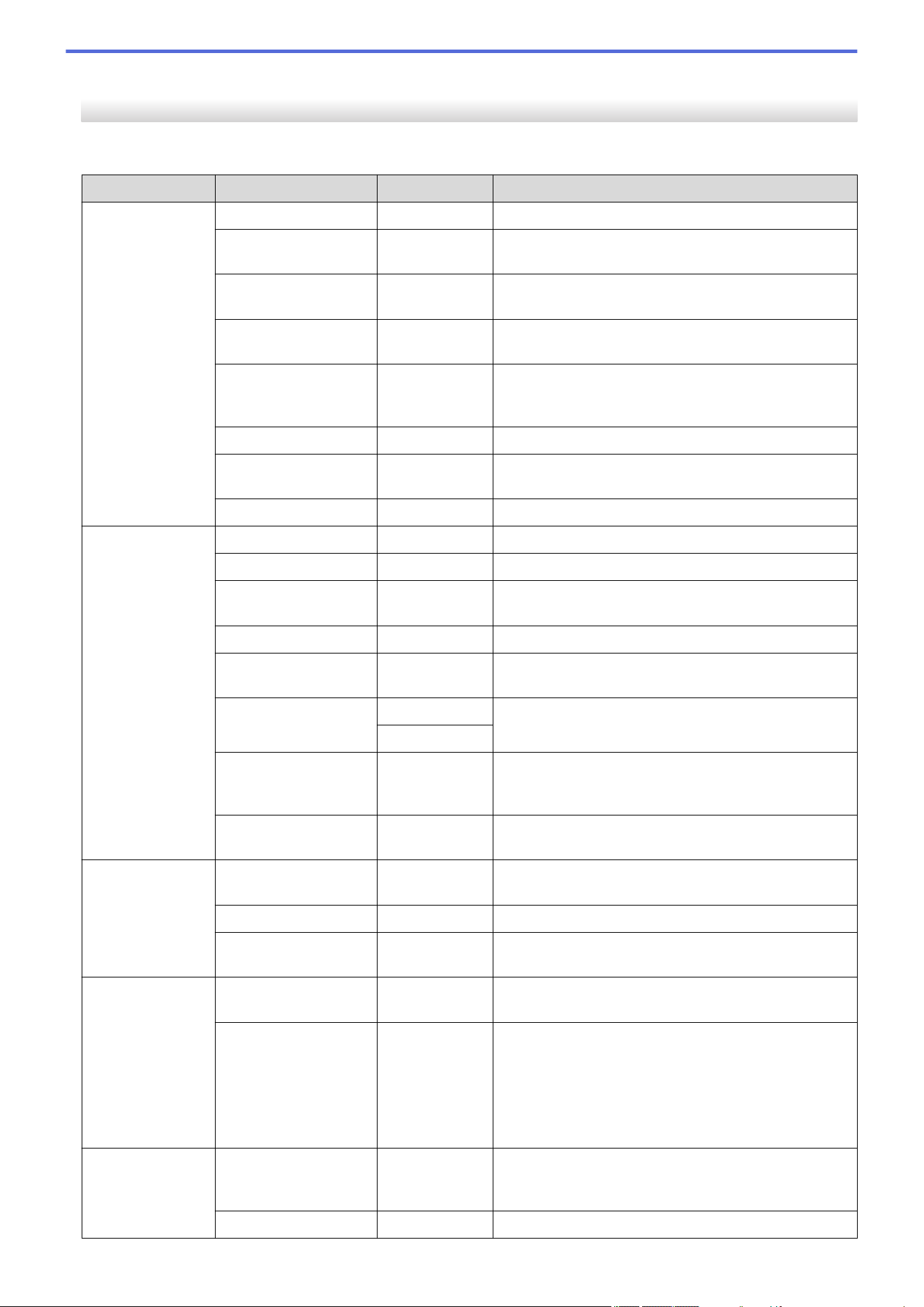
1
Changing this setting is possible only after you change certain machine settings in Web Based Management.
[Fax]
[Fax]
Level 3 Level 4 Level 5 Descriptions
Setup Receive Receive Mode
- Select the receive mode that best suits your needs.
Ring Delay
- Set the number of rings before the machine answers
in Fax or Fax/Tel mode.
F/T Ring Time
- Set the length of the pseudo/double-ring time in
Fax/Tel mode.
Easy Receive
- Receive fax messages automatically when you
answer a call and hear fax tones.
Remote Codes
- Answer calls at an extension or external telephone
and use codes to turn on or off the Remote Codes.
You can personalize the codes.
Auto Reduction
- Reduce the size of incoming faxes.
Fax Rx Stamp
- Print the received time and date on the top of
incoming faxes.
2-sided
- Print incoming faxes on both sides of the paper.
Setup Send Fax Resolution
- Set the default resolution for outgoing faxes.
Contrast
- Change the lightness or darkness of faxes you send.
Glass ScanSize
- Adjust the scan area of the scanner glass to the size
of the document.
Real Time TX
- Send a fax without using the memory.
Overseas Mode
- If you are having difficulty sending faxes overseas, set
this to On.
Coverpage Msg 5.
Set up your own comments for the fax cover page.
6.
Auto Redial
- Set the machine to redial the last fax number after five
minutes, if the fax did not go through because the line
was busy.
Destination
- Set the machine to display the destination information
on the LCD during fax dialing.
Block List Register
- Register specific fax numbers to the blocked list to
avoid receiving faxes from the numbers.
Delete
- Delete the number from the blocked list.
Print report
- Print a list of registered fax numbers in the blocked
list.
Report Setting Transmission
- Select the initial setup for the Transmission
Verification Report.
Journal Period
- Set the interval for automatic printing of the Fax
Journal.
If you select an option other than Off and Every 50
Faxes, you can set the time for the option.
If you select Every 7 Days, you can set the day of the
week.
Memory Receive Forward/Store
- Set the machine to forward fax messages or to store
incoming faxes in the memory (so you can retrieve
them while you are away from your machine).
PC Fax Receive
- Set the machine to send faxes to your PC.
593
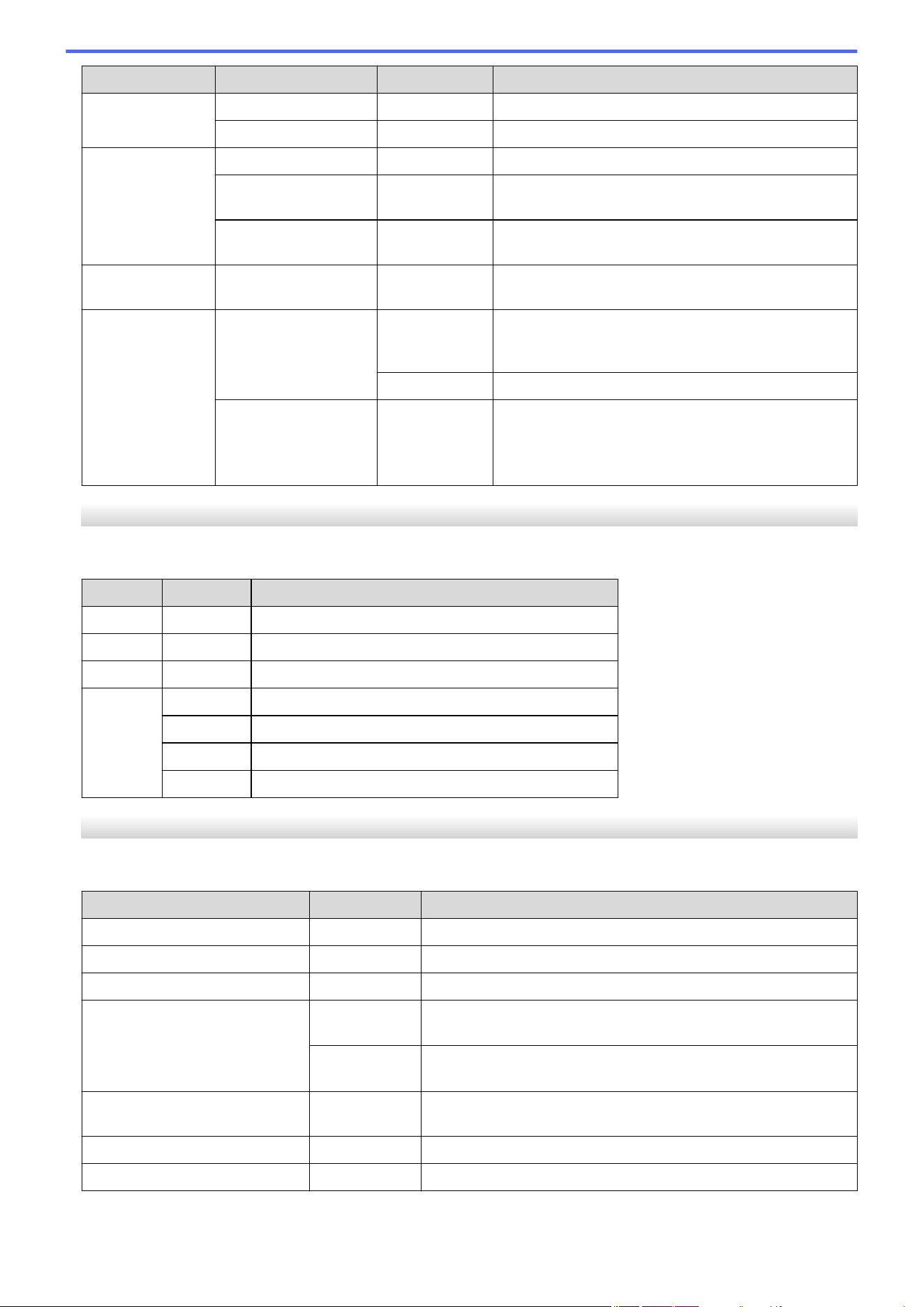
Level 3 Level 4 Level 5 Descriptions
Memory Receive Remote Access
- Set your own code for Remote Retrieval.
Print Fax
- Print incoming faxes stored in the machine's memory.
Dial Restrict. Dial Pad
- Restrict the dialing when using the dial pad.
Shortcut
- Set the machine to restrict the dialing of Shortcut
numbers.
Speed Dial
- Set the machine to restrict the dialing of Speed Dial
numbers.
Remaining Jobs
- - Check which scheduled jobs are in the machine's
memory and cancel selected jobs.
Miscellaneous Distinctive
(US and Canada only)
Distinctive
Turn on the telephone company's Distinctive Ring
subscriber service to register your new ring pattern on
the machine.
Ring Pattern
Register your new ring pattern on the machine.
Caller ID
(Available only for
certain countries)
- Enable or disable displaying the number (or name) of
the party calling you.
Before you use this function, confirm that the Caller ID
setting is set to On.
[Copy]
[Copy]
Level 3
Level 4 Descriptions
Density
- Adjust the density.
Quality
- Choose the Copy resolution for your type of document.
Contrast
- Adjust the contrast for copies.
ID Copy Density
Adjust the density.
Quality
Choose the Copy resolution for your type of document.
Contrast
Adjust the contrast for copies.
2in1/1in1
Make 2 in 1 ID copies.
[Printer]
[Printer]
Level 3
Level 4 Descriptions
Resolution
- Select a print resolution.
Density
- Increase or decrease the print density.
Test Print
- Print a test page.
2-sided
(For automatic 2-sided printing
models)
2-sided
Print
Turn 2-sided printing off or on and select flip on long edge or
short edge.
Single
Image
For a print job where the last page is a 1-sided image, select the
1-sided Feed option to reduce printing time.
Auto Continue
- Select this setting if you want the machine to clear paper size
errors, and to use the paper in the tray.
PrintPosition
- Access the Print Position setting menus.
Reset Printer
- Restore the machine settings to the factory settings.
594
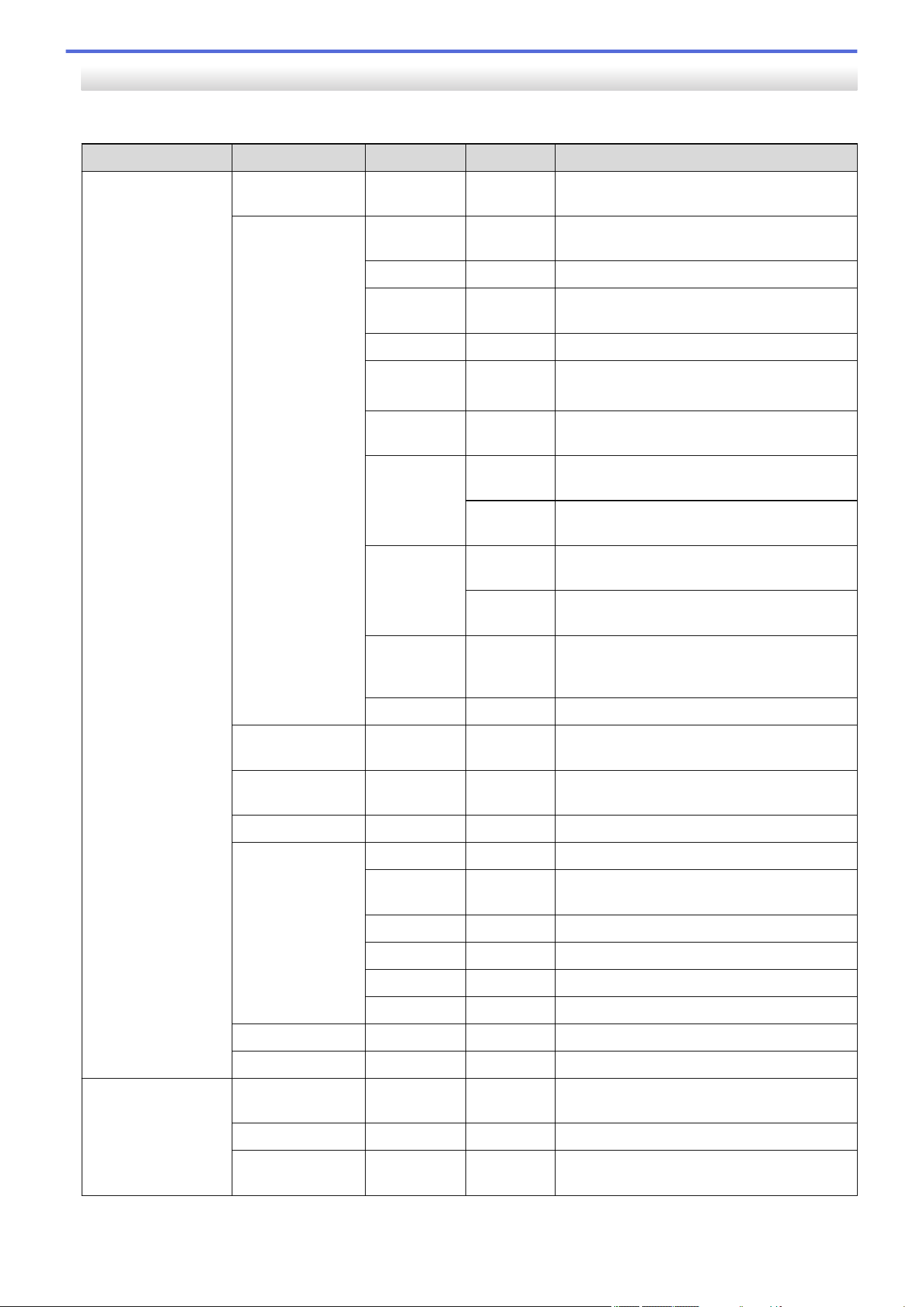
[Network] (For Models with Network Functionality)
[Network]
Level 3 Level 4 Level 5 Level 6 Descriptions
WLAN(Wi-Fi)
(For wireless models)
Find Network
- - Configure your wireless network settings
manually.
TCP/IP Boot
Method
- Select the Boot method that best suits your
needs.
IP Address
- Enter the IP address.
Subnet
Mask
- Enter the Subnet mask.
Gateway
- Enter the Gateway address.
Node Name
- Enter the Node name.
(Up to 32 characters)
WINS
Config
- Select the WINS configuration mode.
WINS
Server
Primary
Specify the IP address of the primary WINS
server.
Secondary
Specify the IP address of the secondary
WINS server.
DNS Server Primary
Specify the IP address of the primary DNS
server.
Secondary
Specify the IP address of the secondary
DNS server.
APIPA
- Set the machine to allocate the IP address
from the link-local address range
automatically.
IPv6
- Turn the IPv6 protocol on or off.
WPS/PushButton
- - Configure your wireless network settings
using the one-button push method.
WPS/PIN Code
- - Configure your wireless network settings
using WPS with a PIN.
Recover WLAN
- - Reset and restart your wireless network.
WLAN Status Status
- View the current wireless network status.
Signal
- View the current wireless network signal
strength.
Channel
- View the current wireless network channel.
Speed
- View the current wireless network speed.
SSID
- View the current SSID.
Comm. Mode
- View the current Communication mode.
MAC Address
- - View the machine's MAC address.
WLAN Enable
- - Turn the WLAN on or off manually.
Wi-Fi Direct
(For wireless models)
Manual
- - Configure your Wi-Fi Direct network settings
manually.
Group Owner
- - Set your machine as the Group Owner.
Push Button
- - Configure your Wi-Fi Direct network settings
using the one-button push method.
595
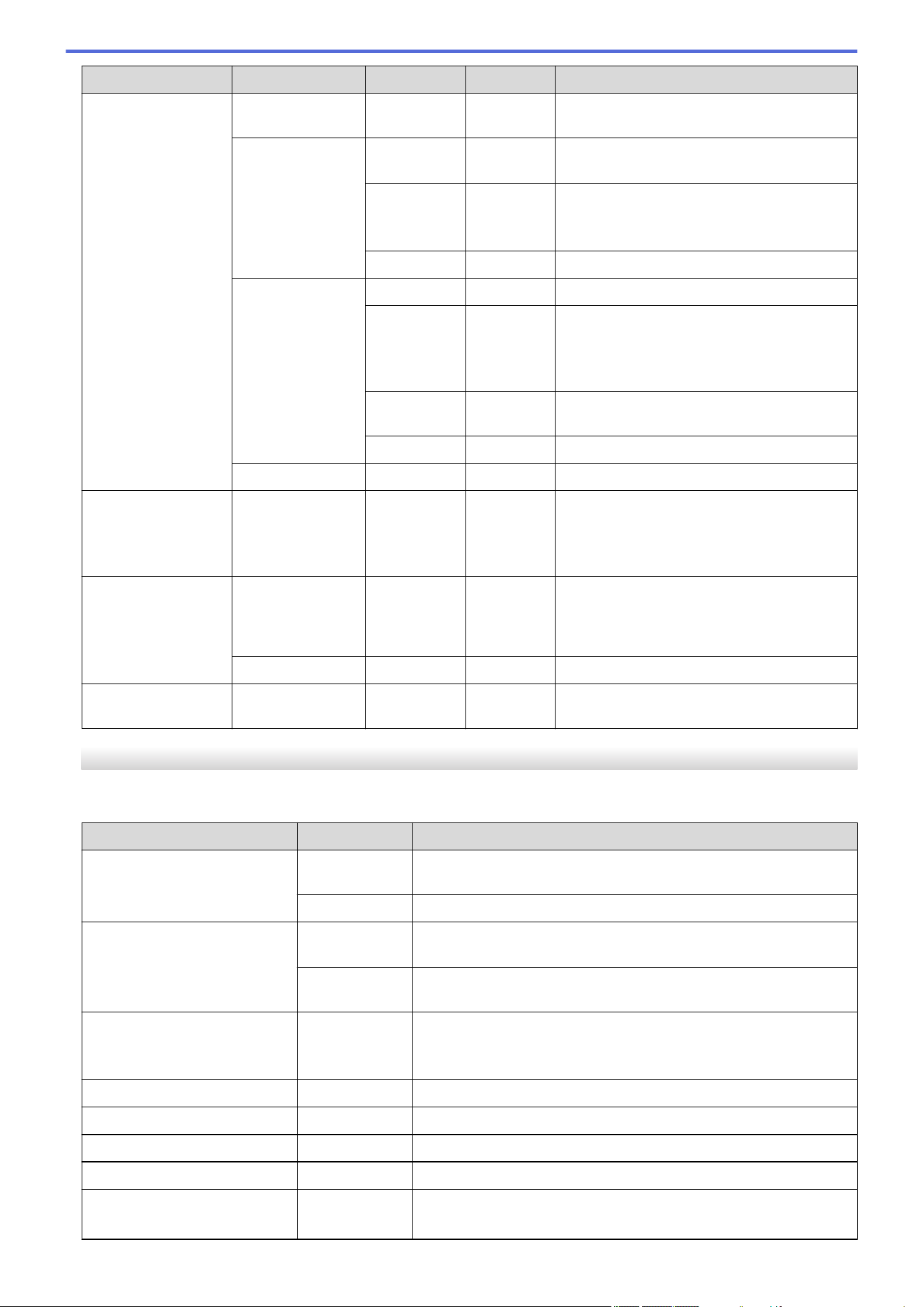
Level 3 Level 4 Level 5 Level 6 Descriptions
Wi-Fi Direct
(For wireless models)
PIN Code
- - Configure your Wi-Fi Direct network settings
using WPS with a PIN code.
Device Info. Device
Name
- View your machine's device name.
SSID
- View the Group Owner's SSID.
When the machine is not connected, the
LCD displays Not Connected.
IP Address
- View your machine's current IP Address.
Status Info. Status
- View the current Wi-Fi Direct network status.
Signal
- View the current Wi-Fi Direct network signal
strength.
When your machine acts as Group Owner,
the LCD always indicates a strong signal.
Channel
- View the current Wi-Fi Direct network
channel.
Speed
- View the current Wi-Fi Direct network speed.
I/F Enable
- - Turn the Wi-Fi Direct connection on or off.
Web Based Mgmt
- - - Enable or disable Web Based Management.
If you enable this function, make sure you
specify the connection method to use Web
Based Management.
Global Detect Allow Detect
- - Enable or disable Global Detect, a function
that detects and notifies the user when the
user unintentionally connects to a global
network.
Reject Access
- - Disable connections to the global network.
Network Reset
- - - Restore all network settings back to the
factory settings.
[Print Reports]
[Print Reports]
Level 3
Level 4 Descriptions
Transmission View on LCD
Display a Transmission Verification Report of your last
transmission.
Print report
Print a Transmission Verification Report of your last transmission.
Address Book Numeric
Print a list of names and numbers stored in the Address Book, in
numerical order.
Alphabetic
Print a list of names and numbers stored in the Address Book, in
alphabetical order.
Fax Journal
- Print a list of information about your last 200 incoming and
outgoing faxes.
(TX means Transmit. RX means Receive.)
User Settings
- Print a list of your User settings.
Print Settings
- Print a list of your Printer settings.
Network Config
- Print a list of your Network settings.
Drum Dot Print
- Print the Drum Dot Check Sheet.
WLAN Report
(For wireless models)
- Print the wireless LAN connection results.
596
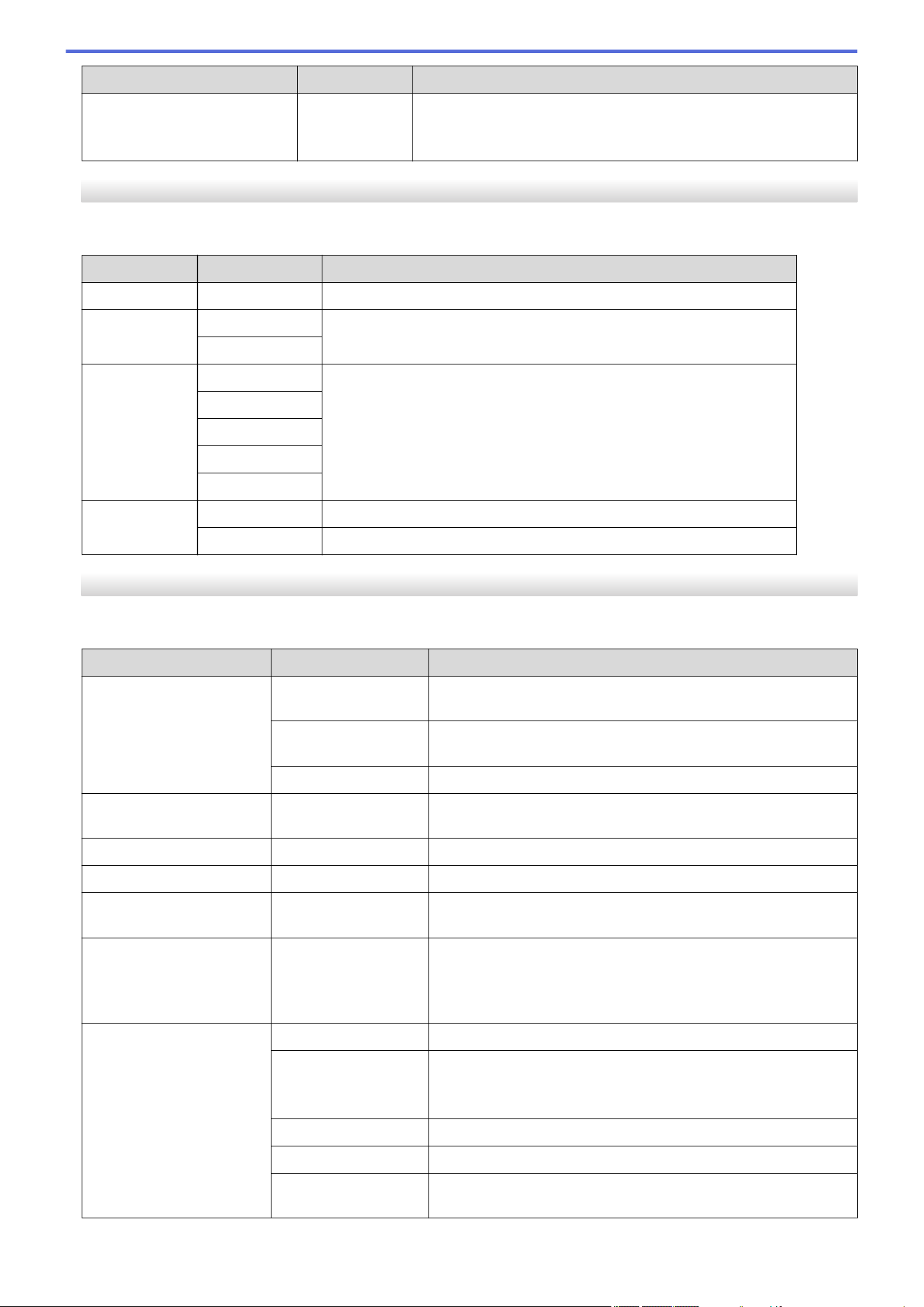
Level 3 Level 4 Descriptions
Caller ID
(Available only for some
countries.)
- Print a list of the Caller ID History.
[Machine Info.]
[Machine Info.]
Level 3
Level 4 Descriptions
Serial No.
- Check your machine's serial number.
Version Main Version
Check your machine's firmware version.
Security Ver.
Page Counter Total
Check the total number of pages the machine has printed during its life.
Fax
Copy
Print
Other
Parts Life Toner
View the approximate remaining toner life.
Drum
You can check the percentage of Drum life that remains available.
[Initial Setup]
[Initial Setup]
Level 3
Level 4 Descriptions
Date & Time Date & Time
Add the date and time on the screen and in the headings of the
faxes you send.
Auto Daylight
Set the machine to change automatically for Daylight Saving
Time.
Time Zone
Set your time zone.
Station ID
- Enter your name and fax number so it appears on each page
you fax.
Tone/Pulse
- Select the dialing mode.
Dial Tone
- Shorten the dial tone detection pause.
Dial Prefix
- Set a prefix number to be added before the fax number every
time you dial.
Compatibility
- Adjust the equalization for transmission difficulties.
VoIP service providers offer fax support using various
standards. If you regularly experience fax transmission errors,
select Basic (for VoIP).
Reset Machine Reset
Restore all the machine settings that you have changed.
Network Reset
(For models with
network functionality)
Restore all network settings back to the factory settings.
Address & Fax
Erase all stored phone numbers and fax settings.
All Settings
Restore all the machine's settings back to the factory settings.
Factory Reset
Restore all the machine's settings to the factory defaults.
Perform this operation when you dispose of your machine.
597
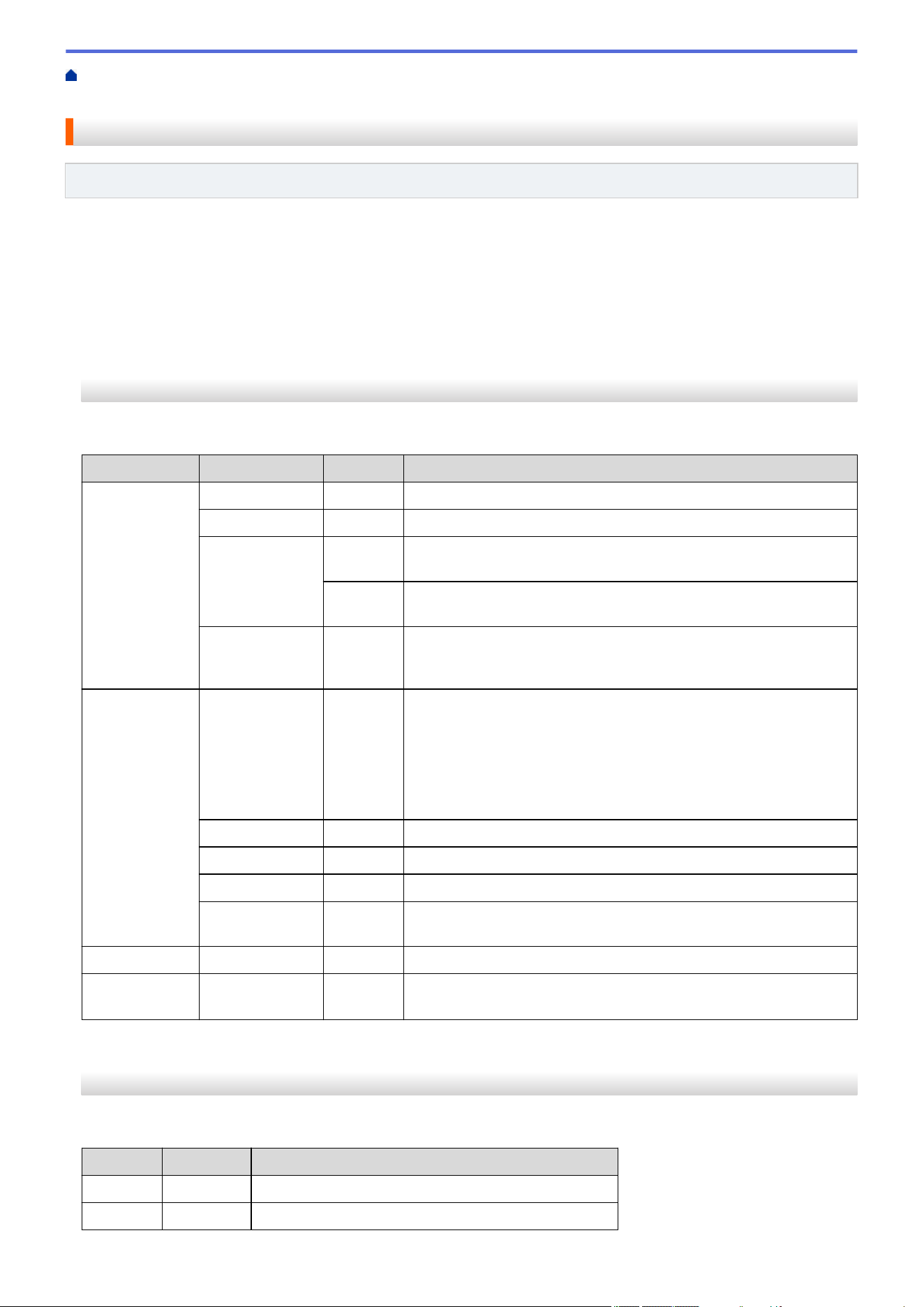
Home > Machine Settings > Change Machine Settings from the Control Panel > Settings and Features
Tables > Settings Tables (2 Line LCD DCP models)
Settings Tables (2 Line LCD DCP models)
Related Models: HL-L2465DW/DCP-L2640DW/DCP-L2647DW
>> [General Setup]
>> [Copy]
>> [Printer]
>> [Network] (For Models with Network Functionality)
>> [Print Reports]
>> [Machine Info.]
>> [Initial Setup]
[General Setup]
[General Setup]
Level 3
Level 4 Level 5 Descriptions
Tray Setting Paper Type
- Set the type of paper in the paper tray.
Paper Size
- Set the paper size in the paper tray.
Print
Position
X Offset
Move the print start position (at the upper left corner of pages)
horizontally from -500 (left) to +500 (right) dots in 300 dpi.
Y Offset
Move the print start position (at the upper left corner of pages)
vertically from -500 (up) to +500 (down) dots in 300 dpi.
Check Paper
- Select whether to display a message telling you to check that the
size and type of the paper in the machine and the machine's Paper
Size and Paper Type settings match.
Ecology Eco Mode
- Turn on the following machine settings at the same time:
• 2-sided Print:Long Edge
1
(available for certain models)
• Sleep Time:0Min
• Quiet Mode: On
1
• Toner Save: On
1
Toner Save
- Increase the page yield of the toner cartridge.
Sleep Time
- Set the number of minutes before the machine enters Sleep mode.
Quiet Mode
- Decrease printing noise.
Auto Power
Off
- Set the number of hours that the machine will remain in Deep Sleep
mode before going into Power Off mode.
LCD Contrast
- - Adjust the LCD contrast.
Replace
Toner
- - Set the machine to continue printing after the LCD displays
Replace Toner.
1
Changing this setting is possible only after you change certain machine settings in Web Based Management.
[Copy]
[Copy]
Level 3
Level 4 Descriptions
Density
- Adjust the density.
Quality
- Choose the Copy resolution for your type of document.
599
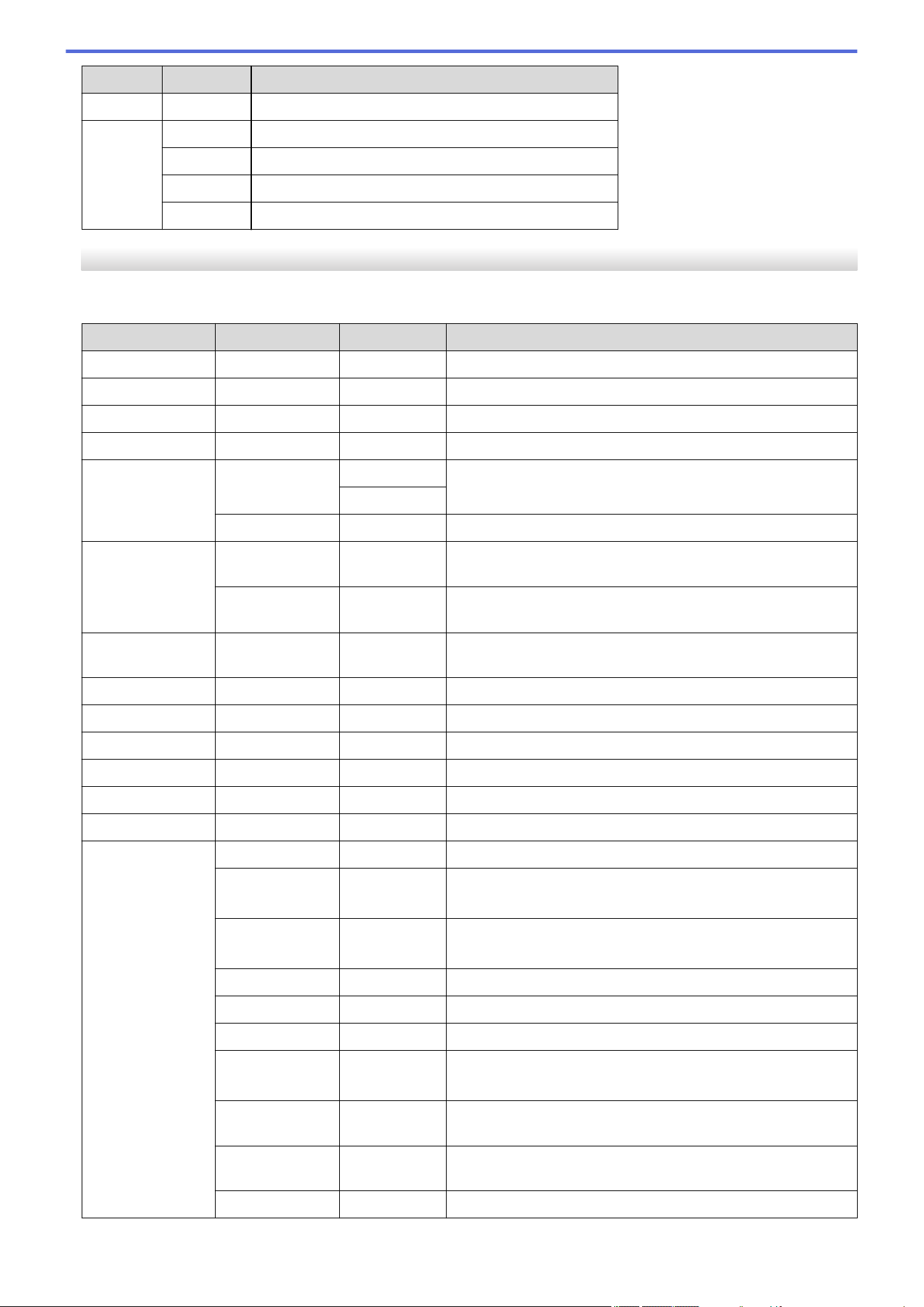
Level 3 Level 4 Descriptions
Contrast
- Adjust the contrast for copies.
ID Copy Density
Adjust the density.
Quality
Choose the Copy resolution for your type of document.
Contrast
Adjust the contrast for copies.
2in1/1in1
Make 2 in 1 ID copies.
[Printer]
[Printer]
Level 3
Level 4 Level 5 Descriptions
Emulation
- - Set the printer emulation mode.
Resolution
- - Select a print resolution.
Density
- - Increase or decrease the print density.
Print Settings
- - Set your print settings to Text or Graphics.
Print Options Font List HP LaserJet
Print a list of the machine’s internal fonts.
BR-Script 3
Test Print
- Print a test page.
2-sided 2-sided Print
- Turn 2-sided printing off or on and select flip on long edge or
short edge.
Single Image
- For a print job where the last page is a 1-sided image, select
the 1-sided Feed option to reduce printing time.
Auto Continue
- - Select this setting if you want the machine to clear paper size
errors, and to use the paper in the tray.
Paper Type
- - Set the paper type.
Paper Size
- - Set the paper size.
Copies
- - Set the number of printed pages.
Orientation
- - Set pages to print in either portrait or landscape orientation.
PrintPosition
- - Access the Print Position setting menus.
Auto FF
- - Allow the machine to print any remaining data automatically.
HP LaserJet Font No.
- Set the font number.
Font Pitch
- Set the font pitch.
(Available only for certain fonts.)
Font Point
- Set the font size.
(Available only for certain fonts.)
Symbol Set
- Select the symbol or character set.
Table Print
- Print the code table.
Auto LF
- ON: CR -> CR+LF, OFF: CR -> CR
Auto CR
- ON: LF -> LF+CR, FF -> FF+CR, or VT -> VT+CR
OFF: LF -> LF, FF -> FF, or VT -> VT
Auto WRAP
- Select whether you want a line feed and carriage return when
the carriage position reaches the right margin.
Auto SKIP
- Select whether you want a line feed and carriage return when
the carriage position reaches the bottom margin.
Left Margin
- Set the left margin at column 0 to 70 columns at 1 cpi.
600
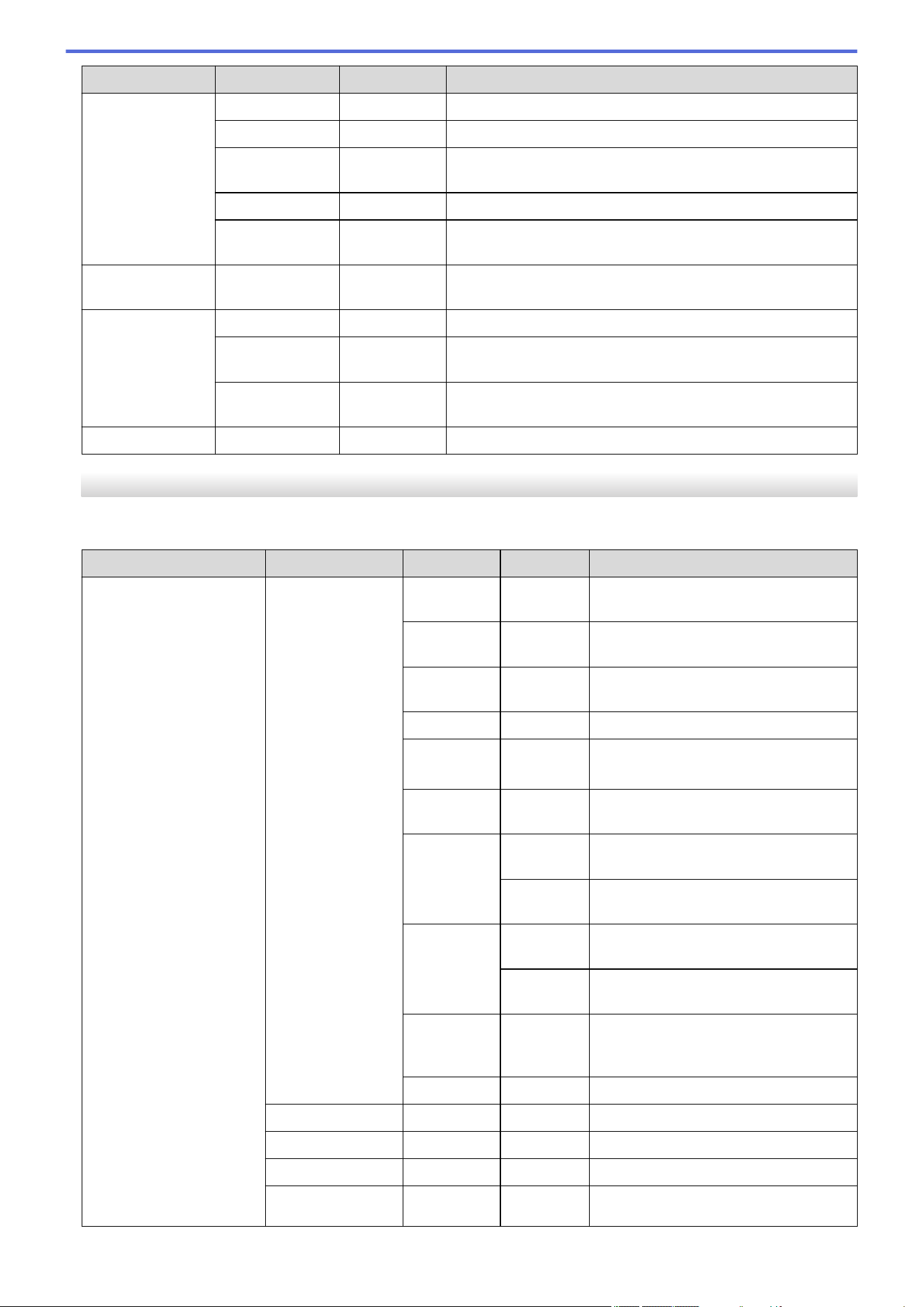
Level 3 Level 4 Level 5 Descriptions
HP LaserJet Right Margin
- Set the right margin at column 10 to 80 columns at 1 cpi.
Top Margin
- Set the top margin distance from the top edge of the paper.
Bottom Margin
- Set the bottom margin distance from the bottom edge of the
paper.
Lines
- Set the number of lines on each page.
Tray Command
- Select this setting if a tray mismatch appears when you use
the HP drivers.
BR-Script 3 Error Print
- Choose whether the machine prints the error information
when errors occur.
PDF Multiple Page
- Set the page layout when printing multiple pages.
PDF Print Opt
- Set the PDF Print setting to print either comments (Markup)
or stamps in the PDF file, along with the text.
Fit to Page
- Select if the machine scales or resizes the pages in the PDF
file to fit the selected paper size.
Reset Printer
- - Restore the machine settings to the factory settings.
[Network] (For Models with Network Functionality)
[Network]
Level 3
Level 4 Level 5 Level 6 Descriptions
Wired LAN
(For Wired Network
models)
TCP/IP Boot
Method
- Select the Boot method that best suits
your needs.
IP
Address
- Enter the IP address.
Subnet
Mask
- Enter the Subnet mask.
Gateway
- Enter the Gateway address.
Node Name
- Enter the Node name.
(Up to 32 characters)
WINS
Config
- Select the WINS configuration mode.
WINS
Server
Primary
Specify the IP address of the primary
WINS server.
Secondary
Specify the IP address of the
secondary WINS server.
DNS
Server
Primary
Specify the IP address of the primary
DNS server.
Secondary
Specify the IP address of the
secondary DNS server.
APIPA
- Set the machine to allocate the IP
address from the link-local address
range automatically.
IPv6
- Turn the IPv6 protocol on or off.
Ethernet
- - Select the Ethernet link mode.
Wired Status
- - View the current wired status.
MAC Address
- - View the machine's MAC address.
Set to Default
- - Restore the wired network settings to
the factory settings.
601
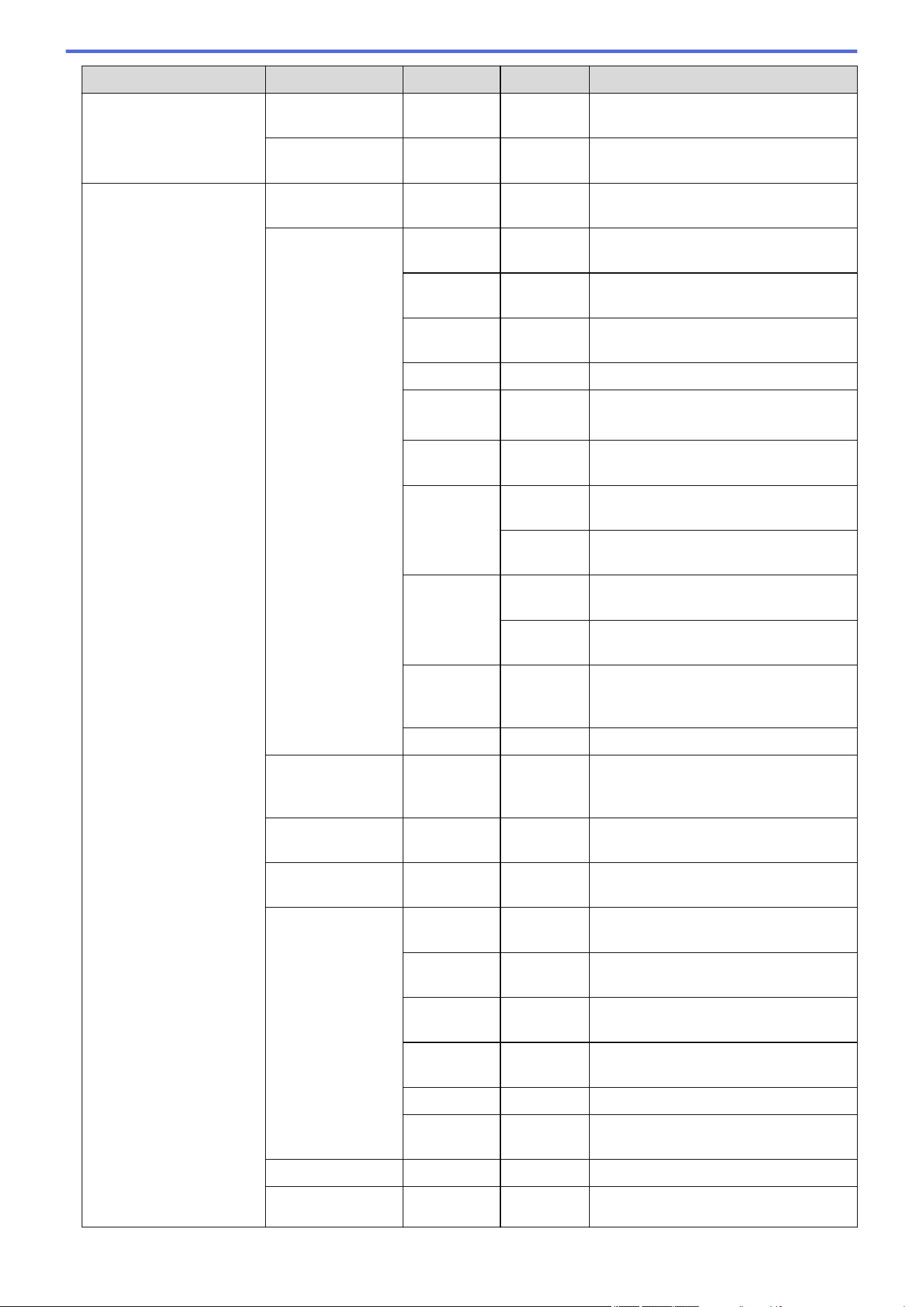
Level 3 Level 4 Level 5 Level 6 Descriptions
Wired LAN
(For Wired Network
models)
(For wireless
models)
Wired Enable
- - Turn the Wired LAN interface on or off
manually.
WLAN(Wi-Fi)
(For wireless models)
Find Network
- - Configure your wireless network
settings manually.
TCP/IP Boot
Method
- Select the Boot method that best suits
your needs.
IP
Address
- Enter the IP address.
Subnet
Mask
- Enter the Subnet mask.
Gateway
- Enter the Gateway address.
Node Name
- Enter the Node name.
(Up to 32 characters)
WINS
Config
- Select the WINS configuration mode.
WINS
Server
Primary
Specify the IP address of the primary
WINS server.
Secondary
Specify the IP address of the
secondary WINS server.
DNS
Server
Primary
Specify the IP address of the primary
DNS server.
Secondary
Specify the IP address of the
secondary DNS server.
APIPA
- Set the machine to allocate the IP
address from the link-local address
range automatically.
IPv6
- Turn the IPv6 protocol on or off.
WPS/PushButton
- - Configure your wireless network
settings using the one-button push
method.
WPS/PIN Code
- - Configure your wireless network
settings using WPS with a PIN.
Recover WLAN
- - Reset and restart your wireless
network.
WLAN Status Status
- View the current wireless network
status.
Signal
- View the current wireless network
signal strength.
Channel
- View the current wireless network
channel.
Speed
- View the current wireless network
speed.
SSID
- View the current SSID.
Comm.
Mode
- View the current Communication mode.
MAC Address
- - View the machine's MAC address.
Set to Default
- - Restore the wireless network settings
to the factory settings.
602
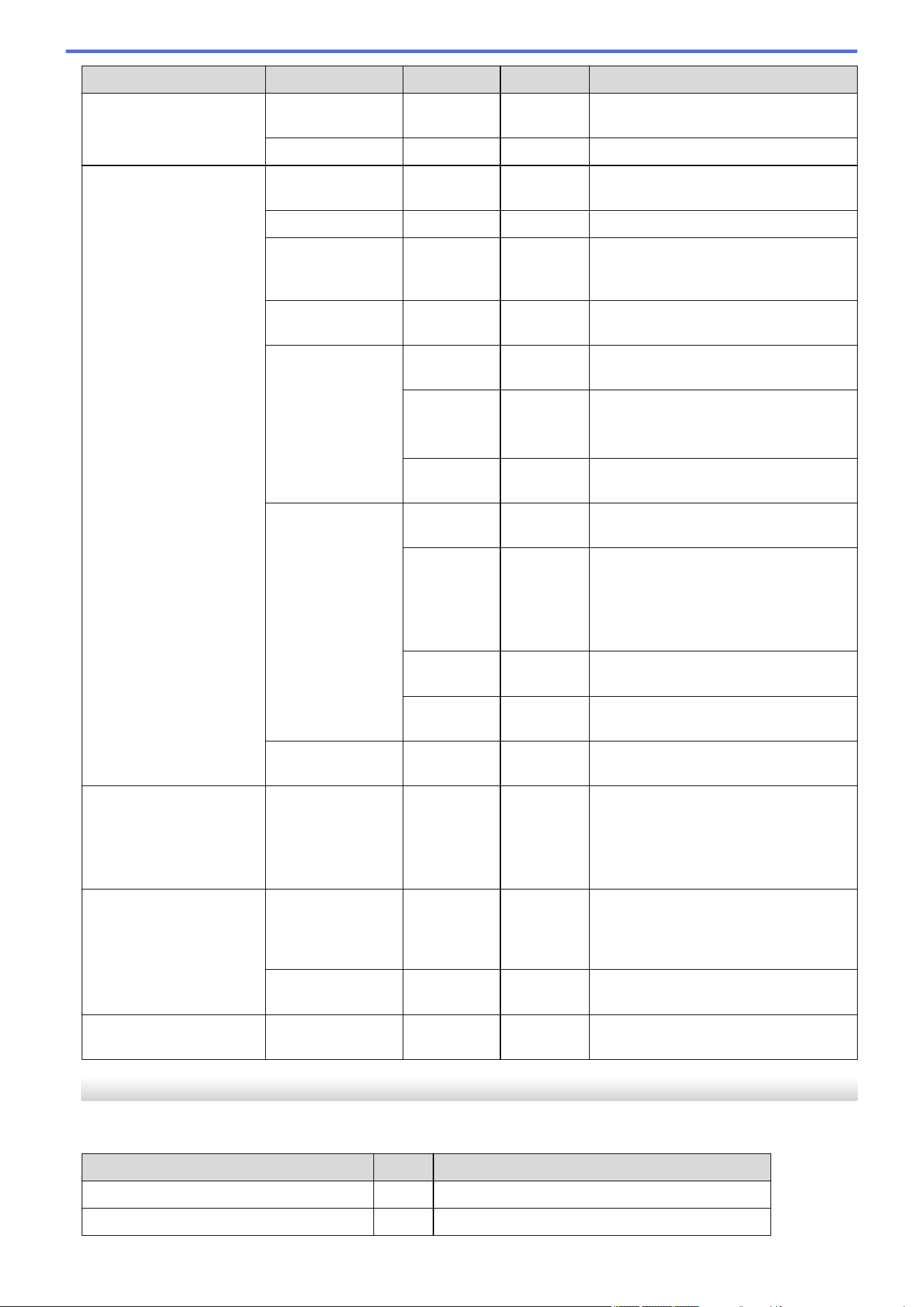
Level 3 Level 4 Level 5 Level 6 Descriptions
WLAN(Wi-Fi)
(For wireless models)
(For Wired Network
models)
WLAN Enable
- - Turn the WLAN on or off manually.
Wi-Fi Direct
(For wireless models)
Manual
- - Configure your Wi-Fi Direct network
settings manually.
Group Owner
- - Set your machine as the Group Owner.
Push Button
- - Configure your Wi-Fi Direct network
settings using the one-button push
method.
PIN Code
- - Configure your Wi-Fi Direct network
settings using WPS with a PIN code.
Device Info. Device
Name
- View your machine's device name.
SSID
- View the Group Owner's SSID.
When the machine is not connected,
the LCD displays Not Connected.
IP
Address
- View your machine's current IP
Address.
Status Info. Status
- View the current Wi-Fi Direct network
status.
Signal
- View the current Wi-Fi Direct network
signal strength.
When your machine acts as Group
Owner, the LCD always indicates a
strong signal.
Channel
- View the current Wi-Fi Direct network
channel.
Speed
- View the current Wi-Fi Direct network
speed.
I/F Enable
- - Turn the Wi-Fi Direct connection on or
off.
Web Based Mgmt
- - - Enable or disable Web Based
Management.
If you enable this function, make sure
you specify the connection method to
use Web Based Management.
Global Detect Allow Detect
- - Enable or disable Global Detect, a
function that detects and notifies the
user when the user unintentionally
connects to a global network.
Reject Access
- - Disable connections to the global
network.
Network Reset
- - - Restore all network settings back to the
factory settings.
[Print Reports]
[Print Reports]
Level 3
Level 4 Descriptions
User Settings
- Print a list of your User settings.
Print Settings
- Print a list of your Printer settings.
603
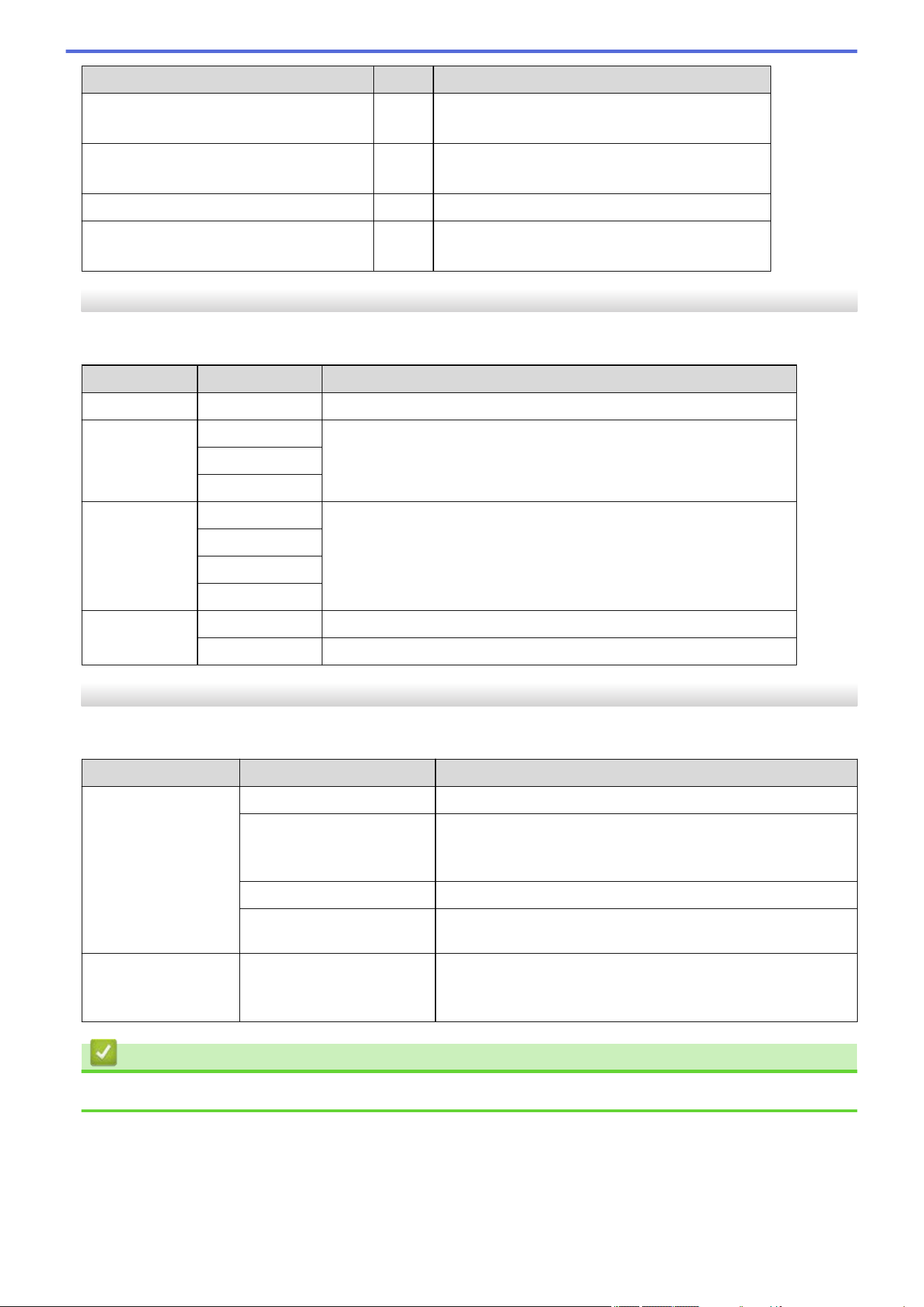
Level 3 Level 4 Descriptions
Network Config
(For models with network function)
- Print a list of your Network settings.
PrintFileList
(available for certain models)
- Print a list of data saved in the machine's memory.
Drum Dot Print
- Print the Drum Dot Check Sheet.
WLAN Report
(For models with wireless network function)
- Print the wireless LAN connection results.
[Machine Info.]
[Machine Info.]
Level 3
Level 4 Descriptions
Serial No.
- Check your machine's serial number.
Version Main Version
Check your machine's firmware version.
Sub1 Version
Security Ver.
Page Counter Total
Check the total number of pages the machine has printed during its life.
Copy
Print
Other
Parts Life Toner
View the approximate remaining toner life.
Drum
You can check the percentage of Drum life that remains available.
[Initial Setup]
[Initial Setup]
Level 3
Level 4 Descriptions
Reset Machine Reset
Restore all the machine settings that you have changed.
Network Reset
(For models with network
functionality)
Restore all network settings back to the factory settings.
All Settings
Restore all the machine's settings back to the factory settings.
Factory Reset
Restore all the machine's settings to the factory defaults.
Perform this operation when you dispose of your machine.
Local Language
(available for certain
models)
- Change your LCD language.
Related Information
• Settings and Features Tables
604
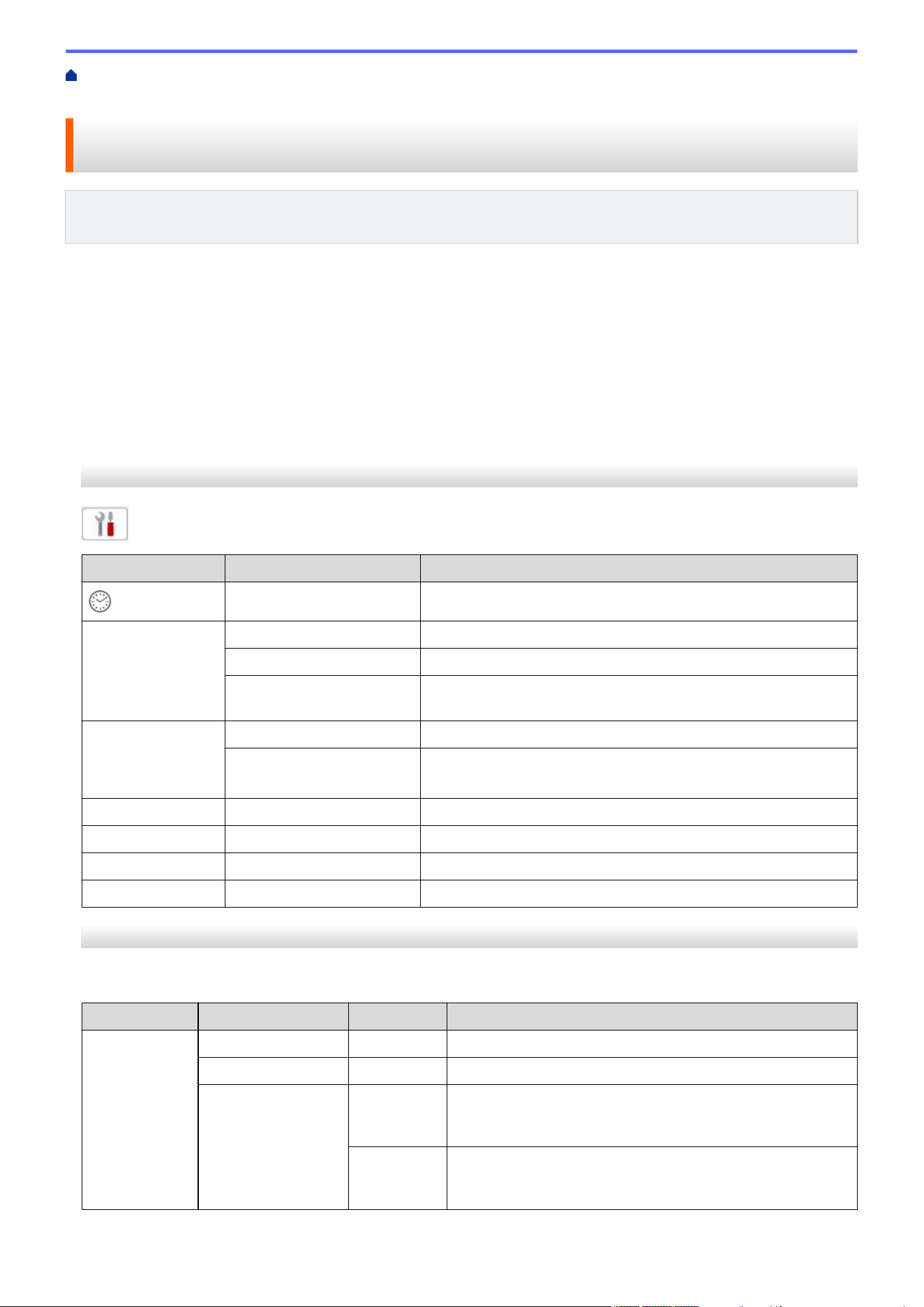
Home > Machine Settings > Change Machine Settings from the Control Panel > Settings and Features
Tables > Settings Tables (2.7" Touch Panel MFC models and 3.5" Touch Panel MFC models)
Settings Tables (2.7" Touch Panel MFC models and 3.5" Touch Panel
MFC models)
Related Models: MFC-L2807DW/MFC-L2820DW/MFC-L2820DWXL/MFC-L2900DW/MFC-L2900DWXL/
MFC-L2980DW
>> [Settings]
>> [General Setup]
>> [Shortcut Settings]
>> [Fax]
>> [Printer]
>> [Network]
>> [Print Reports]
>> [Machine Info.]
>> [Initial Setup]
[Settings]
[Settings]
Level 1
Level 2 Descriptions
(Date & Time)
- Access the Date and Time setting menus.
Toner Toner Life
View the approximate remaining toner life.
Test Print
Print a test page.
Toner Cartridge Check
View the installed toner cartridge information on the LCD, for
example, if the toner cartridge is genuine.
Network Wired LAN
Access the Wired LAN setting menus.
WLAN(Wi-Fi)
(For wireless models)
Access the WLAN setting menus.
Fax Preview
- View received faxes on the LCD.
Tray Setting
- Access the tray setting menus.
Eco Mode
- Access the Eco Mode setting menu.
All Settings
- Configure the detailed settings.
[General Setup]
[All Settings] > [General Setup]
Level 3
Level 4 Level 5 Descriptions
Tray Setting Paper Type
- Set the type of paper in the paper tray.
Paper Size
- Set the paper size in the paper tray.
Print Position X Offset
Move the print start position (at the upper left corner of
pages) horizontally from -500 (left) to +500 (right) dots in 300
dpi.
Y Offset
Move the print start position (at the upper left corner of
pages) vertically from -500 (up) to +500 (down) dots in 300
dpi.
605
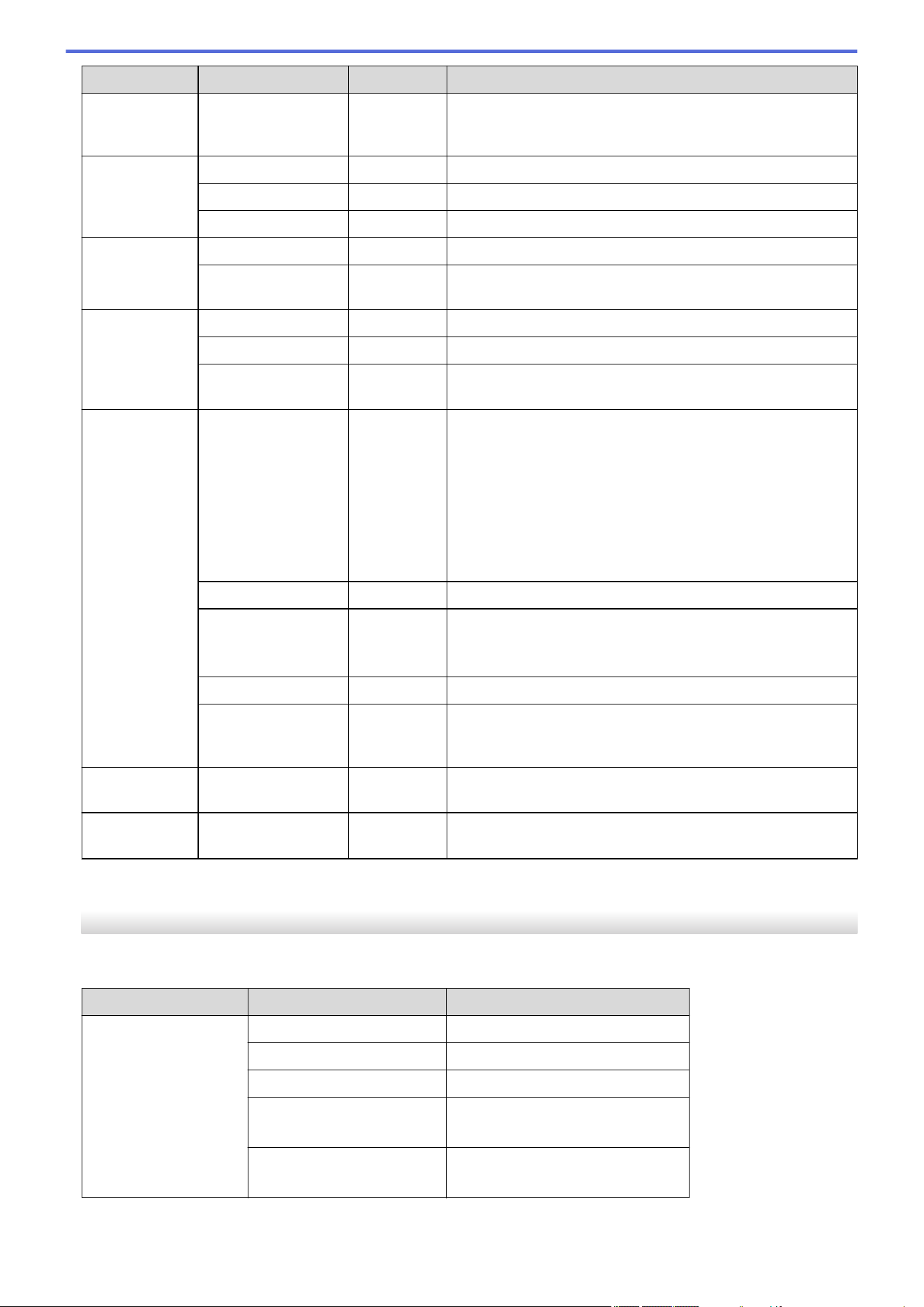
Level 3 Level 4 Level 5 Descriptions
Tray Setting Check Paper
- Select whether to display a message telling you to check that
the size and type of the paper in the machine and the
machine's Paper Size and Paper Type settings match.
Volume Ring
- Adjust the ring volume.
Beep
- Adjust the beeper volume.
Speaker
- Adjust the speaker volume.
LCD Settings Backlight
- Adjust the brightness of the LCD backlight.
Dim Timer
- Set how long the LCD backlight stays on after returning to
the Home screen.
Screen
Settings
Home Screen
- Set the Main Home screen.
Scan Screen
- Set the default Scan screen settings.
Display
Information
IP Address
Select whether or not to display your machine's IP Address
on the Home screens.
Ecology Eco Mode
- Turn on the following machine settings at the same time:
• 2-sided Print:Long Edge
1
(available for certain
models)
• Sleep Time:0 Min (available for certain models)
• Dim Timer:10 Secs
• Quiet Mode: On
1
• Toner Save: On
1
Toner Save
- Increase the page yield of the toner cartridge.
Sleep Time
(available for certain
models)
- Set the number of minutes before the machine enters Sleep
mode.
Quiet Mode
- Decrease printing noise.
Auto Power Off
- Set the number of minutes or hours before the machine
enters Power Off mode. Choose Off if you do not want the
machine to go into Power Off mode.
Setting Lock
- - Restrict unauthorized users from changing the machine’s
settings.
Replace
Toner
- - Set the machine to continue printing after the LCD displays
Replace Toner.
1
Changing this setting is possible only after you change certain machine settings in Web Based Management.
[Shortcut Settings]
[All Settings] > [Shortcut Settings]
Level 3
Level 4 Descriptions
(Select shortcut button.)
Rename
Change the shortcut name.
Edit
Change the shortcut settings.
Delete
Delete the shortcut.
Register Card/NFC
(available for certain models)
Assign a shortcut to an ID card.
Delete Card/NFC
(available for certain models)
Remove a shortcut from an ID card.
606
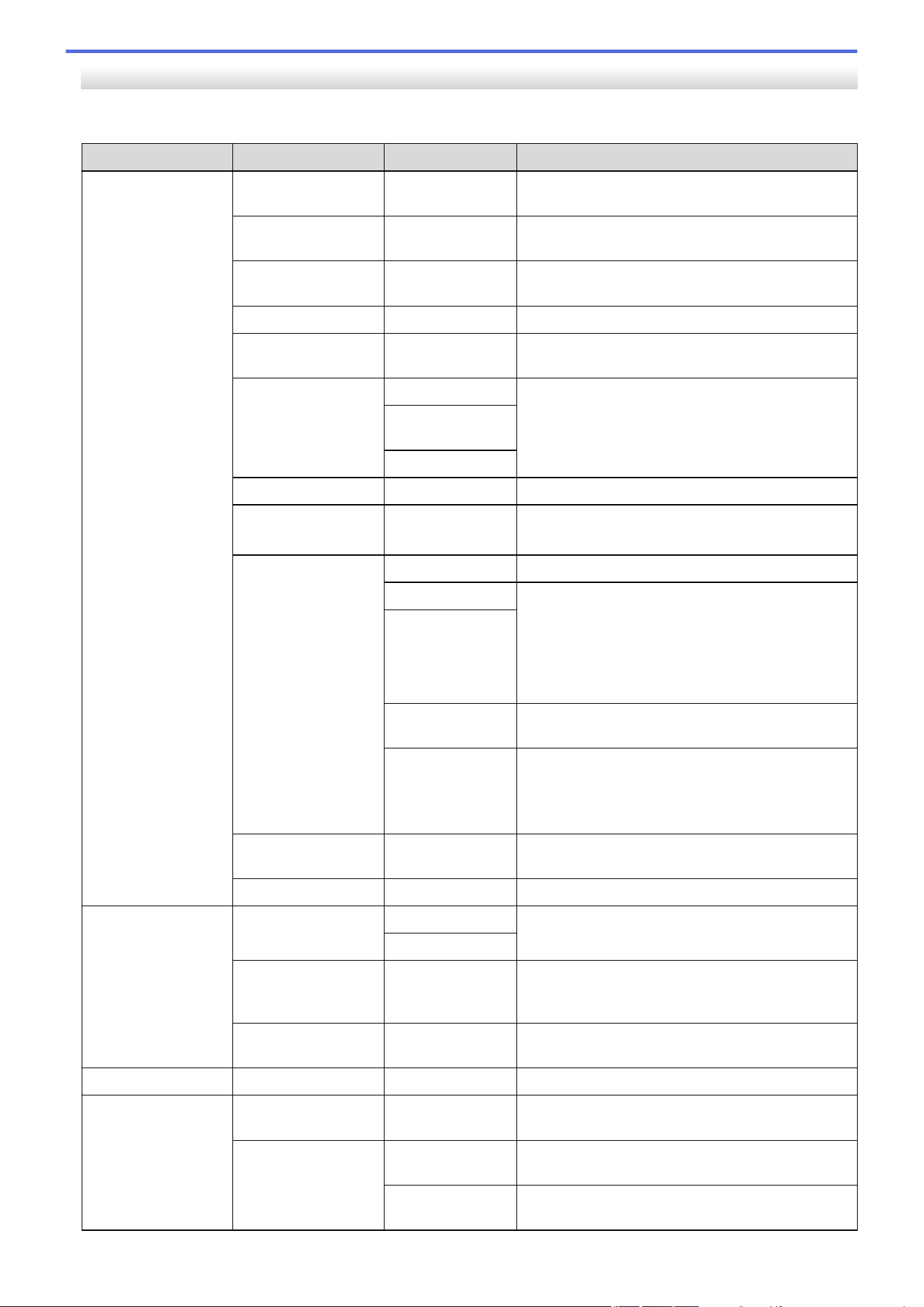
[Fax]
[All Settings] > [Fax]
Level 3 Level 4 Level 5 Descriptions
Setup Receive Ring Delay
- Set the number of rings before the machine
answers in Fax or Fax/Tel mode.
Receive Mode
- Select the Receive Mode that best suits your
needs.
F/T Ring Time
- Set the length of the pseudo/double-ring time in
Fax/Tel mode.
Fax Preview
- View received faxes on the LCD.
Easy Receive
- Receive fax messages automatically when you
answer a call and hear fax tones.
Remote Codes Remote Codes
Answer calls at an extension or external telephone
and use codes to turn on or off the Remote Codes.
You can personalize the codes.
Fax Receive
Code
Tel Answer
Auto Reduction
- Reduce the size of incoming faxes.
PC Fax Receive
- Set the machine to send faxes to your computer.
You can turn on the Backup Print safety feature.
Memory Receive Off
-
Fax Forward
Set the machine to forward fax messages or to
store incoming faxes in the memory (so you can
retrieve them while you are away from your
machine).
If you select Fax Forward or Fax Storage, you can
turn on the Backup Print safety feature.
Fax Storage
Forward to
Cloud
Forward incoming faxes to the online service.
Forward to
Network
(available for
certain models)
Forward incoming faxes to a network destination.
Fax Rx Stamp
- Print the received time and date on the top of
incoming faxes.
2-sided
- Print incoming faxes on both sides of the paper.
Setup Send Coverpage
Message
5.
Set up your own comments for the fax cover page.
6.
Auto Redial
- Set the machine to redial the last fax number after
five minutes, if the fax did not go through because
the line was busy.
Destination
- Set the machine to display the destination
information on the LCD during fax dialing.
Incoming limit Limit method
- Select a method for incoming fax restriction.
Report Setting Transmission
- Select the initial setup for the Transmission
Verification Report.
Journal Period Journal
Period
Set the interval for automatic printing of the Fax
Journal.
Time
If you select an option other than Off and Every 50
Faxes, you can set the time for the option.
607
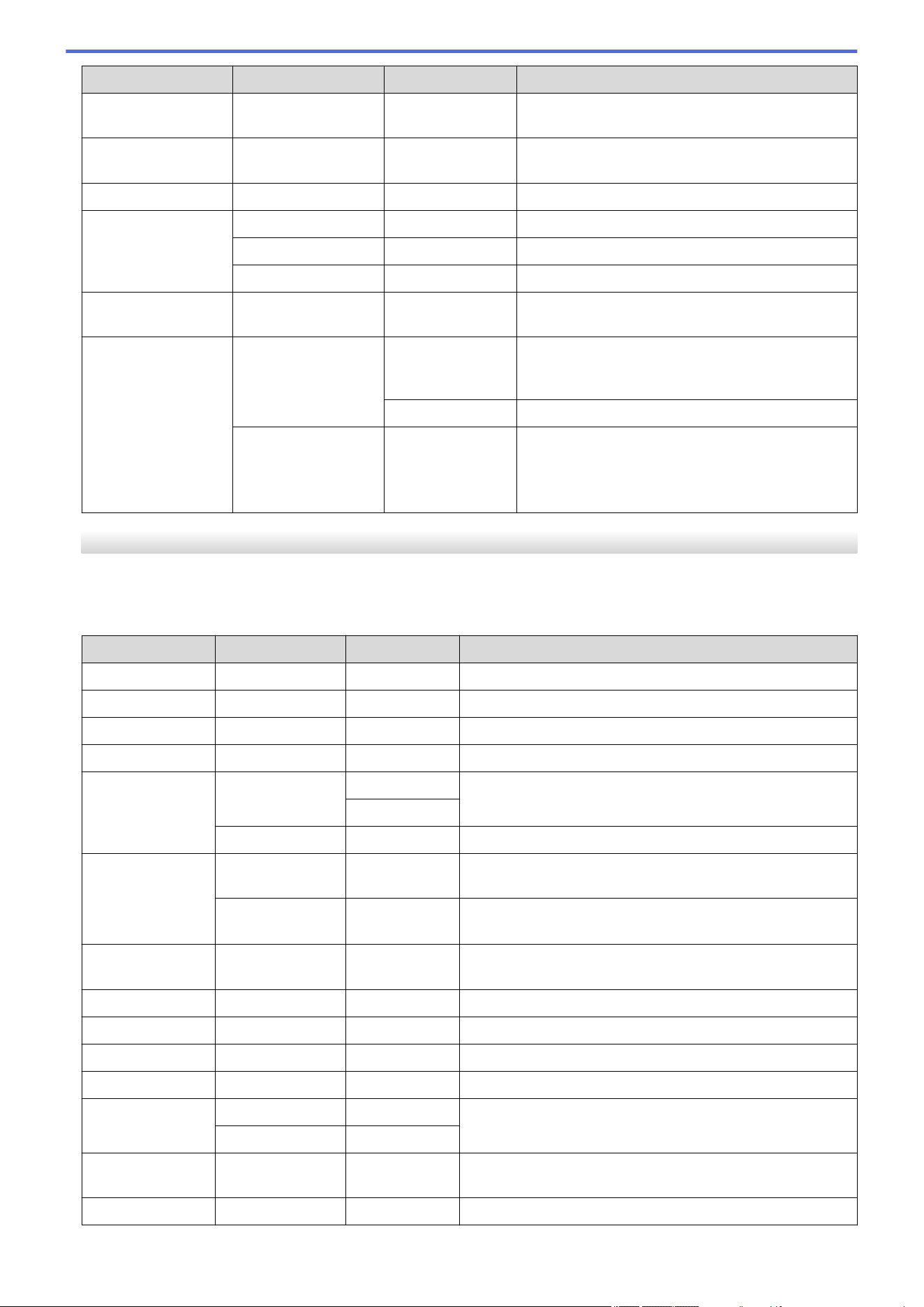
Level 3 Level 4 Level 5 Descriptions
Report Setting Journal Period Day
If you select Every 7 Days, you can set the day of
the week.
Print Fax
- - Print incoming faxes stored in the machine's
memory.
Remote Access
- - Set your own code for Remote Retrieval.
Dial Restriction Dial Pad
- Restrict the dialing when using the dial pad.
Address Book
- Restrict the dialing when using the Address Book.
Shortcuts
- Restrict the dialing when using a Shortcut.
Remaining Jobs
- - Check which scheduled jobs are in the machine's
memory and cancel selected jobs.
Miscellaneous Distinctive Distinctive
Turn on the telephone company's Distinctive Ring
subscriber service to register your new ring pattern
on the machine.
Ring Pattern
Register your new ring pattern on the machine.
Caller ID
(Available only for
some countries.)
- Enable or disable displaying the number (or name)
of the party calling you.
Before you use this function, confirm that the
Caller ID setting is set to On.
[Printer]
[All Settings] > [Printer]
For Printer Emulation Supported models
Level 3
Level 4 Level 5 Descriptions
Emulation
- - Select the emulation mode.
Resolution
- - Select a print resolution.
Density
- - Increase or decrease the print density.
Print Settings
- - Set your print settings to Text or Graphics.
Print Options Font List HP LaserJet
Print a list of the machine’s internal fonts.
BR-Script 3
Test Print
- Print a test page.
2-sided 2-sided Print
- Enable or disable 2-sided printing and choose long edge or
short edge.
Single Image
- For a print job where the last page is a 1-sided image,
select the 1-sided Feed option to reduce printing time.
Auto Continue
- - Select this setting if you want the machine to clear paper
size errors, and to use the paper in the tray.
Paper Type
- - Set the paper type.
Paper Size
- - Set the paper size.
Copies
- - Set the number of printed pages.
Orientation
- - Set pages to print in either portrait or landscape orientation.
Print Position X Offset
- Access the Print Position setting menus.
Y Offset
-
Auto FF
- - Allow the machine to print any remaining data
automatically.
HP LaserJet Font No. Font No.
Set the font number.
608
Level 3 Level 4 Level 5 Descriptions
HP LaserJet Font No. Soft Font
No.
Set the soft font number.
This menu appears if a soft font is installed on your Brother
machine.
Font Pitch
- Set the font pitch.
(Available only for certain fonts.)
Font Point
- Set the font size.
(Available only for certain fonts.)
Symbol Set
- Select the symbol or character set.
Table Print
- Print the code table.
Auto LF
- ON: CR -> CR+LF, OFF: CR -> CR
Auto CR
- ON: LF -> LF+CR, FF -> FF+CR, or VT -> VT+CR
OFF: LF -> LF, FF -> FF, or VT -> VT
Auto WRAP
- Select whether you want a line feed and carriage return
when the carriage position reaches the right margin.
Auto SKIP
- Select whether you want a line feed and carriage return
when the carriage position reaches the bottom margin.
Left Margin
- Set the left margin at column 0 to 70 columns at 1 cpi.
Right Margin
- Set the right margin at column 10 to 80 columns at 1 cpi.
Top Margin
- Set the top margin distance from the top edge of the paper.
Bottom Margin
- Set the bottom margin distance from the bottom edge of
the paper.
Lines
- Set the number of lines on each page.
Tray Command
- Select this setting if a tray mismatch appears when you use
the HP drivers.
BR-Script 3 Error Print
- Choose whether the machine prints the error information
when errors occur.
PDF Multiple Page
- Set the page layout when printing multiple pages.
PDF Print
Options
- Set the PDF Print setting to print either comments (Markup)
or stamps in the PDF file, along with the text.
PDF Fit to
Page
- Select if the machine scales or resizes the pages in the
PDF file to fit the selected paper size.
Reset Printer
- - Restore the machine settings to the factory settings.
For the Other models
Level 3
Level 4 Descriptions
Resolution
- Select a print resolution.
Density
- Increase or decrease the print density.
Test Print
- Print a test page.
2-sided
(For automatic 2-sided
printing models)
2-sided
Print
Turn 2-sided printing off or on and select flip on long edge or short
edge.
Single Image
For a print job where the last page is a 1-sided image, select the
1-sided Feed option to reduce printing time.
Auto Continue
- Select this setting if you want the machine to clear paper size
errors, and to use the paper in the tray.
Print Position X Offset
Access the Print Position setting menus.
Y Offset
Reset Printer
- Restore the machine settings to the factory settings.
609
[Network]
[All Settings] > [Network]
Level 3 Level 4 Level 5 Level 6 Descriptions
Wired LAN TCP/IP Boot Method
- Select the Boot method that best
suits your needs.
IP Address
- Enter the IP address.
Subnet Mask
- Enter the Subnet mask.
Gateway
- Enter the Gateway address.
Node Name
- Enter the Node name.
(up to 32 characters)
WINS
Configuration
- Select the WINS configuration
mode.
WINS Server Primary
Specify the IP address of the
primary WINS server.
Secondary
Specify the IP address of the
secondary WINS server.
DNS Server Primary
Specify the IP address of the
primary DNS server.
Secondary
Specify the IP address of the
secondary DNS server.
APIPA
- Set the machine to allocate the
IP address from the link-local
address range automatically.
IPv6
- Turn the IPv6 protocol on or off.
Ethernet
- - Select the Ethernet link mode.
Wired Status
- - View the current wired status.
MAC Address
- - View the machine's MAC
address.
Set to Default
- - Restore the wired network
settings to the factory settings.
Wired Enable
- - Turn the Wired LAN interface on
or off manually.
WLAN(Wi-Fi) Find Wi-Fi
Network
- - Configure your wireless network
settings manually.
TCP/IP Boot Method
- Select the Boot method that best
suits your needs.
IP Address
- Enter the IP address.
Subnet Mask
- Enter the Subnet mask.
Gateway
- Enter the Gateway address.
Node Name
- Enter the Node name.
(up to 32 characters)
WINS
Configuration
- Select the WINS configuration
mode.
WINS Server Primary
Specify the IP address of the
primary WINS server.
Secondary
Specify the IP address of the
secondary WINS server.
610
Level 3 Level 4 Level 5 Level 6 Descriptions
WLAN(Wi-Fi) TCP/IP DNS Server Primary
Specify the IP address of the
primary DNS server.
Secondary
Specify the IP address of the
secondary DNS server.
APIPA
- Set the machine to allocate the
IP address from the link-local
address range automatically.
IPv6
- Turn the IPv6 protocol on or off.
WPS/Push
Button
- - Configure your wireless network
settings using the one-button
push method.
WPS/PIN Code
- - Configure your wireless network
settings using WPS with a PIN.
Recover WLAN
- - Reset and restart your wireless
network.
WLAN Status Status
- View the current wireless
network status.
Signal
- View the current wireless
network signal strength.
SSID
- View the current SSID.
Comm. Mode
- View the current Communication
mode.
MAC Address
- - View the machine's MAC
address.
Set to Default
- - Restore the wireless network
settings to the factory settings.
WLAN Enable
- - Turn the wireless network
connection On.
Wi-Fi Direct Manual
- - Configure your Wi-Fi Direct
network settings manually.
Group Owner
- - Set your machine as the Group
Owner.
Push Button
- - Configure your Wi-Fi Direct
network settings using the one-
button push method.
PIN Code
- - Configure your Wi-Fi Direct
network settings using WPS with
a PIN code.
Device
Information
Device Name
- View your machine's device
name.
SSID
- View the Group Owner's SSID.
When the machine is not
connected, the LCD displays
Not Connected.
IP Address
- View your machine's current IP
Address.
Status
Information
Status
- View the current Wi-Fi Direct
network status.
Signal
- View the current Wi-Fi Direct
network signal strength.
611
Level 3 Level 4 Level 5 Level 6 Descriptions
Wi-Fi Direct Status
Information
When your machine acts as
Group Owner, the LCD always
indicates a strong signal.
I/F Enable
- - Turn the Wi-Fi Direct connection
on or off.
NFC
(available for
certain models)
- - - Turn the NFC function on or off.
E-mail/IFAX
(available for
certain models)
Mail Address
- - Enter the email address.
(Up to 255 characters)
Setup Server SMTP Server
Enter the SMTP server name
and address.
Port
Enter the SMTP port number.
Auth. for
SMTP
Select the Security method for
email notification.
SSL/TLS
Send or receive an email via an
email server that requires
secure SSL/TLS
communication.
Verify Cert.
Verify the SMTP Server
Certificate automatically.
POP3/IMAP4 Protocol
Select the protocol for receiving
an email from the server.
Server
Enter the server name and
address.
Port
Enter the port number.
Mailbox Name
Enter the mailbox name.
(Up to 255 characters)
Mailbox
Password
Enter the password to log into
the server.
(Up to 128 characters)
Select Folder
Select the specified folder in the
mailbox using the IMAP4
protocol.
SSL/TLS
Send or receive an email via an
email server that requires
secure SSL/TLS
communication.
Verify Cert.
Verify the Server Certificate
automatically.
Auth. for
POP3/IMAP4
Select the Security method for
email notification.
Setup Mail RX Auto Polling Auto Polling
Automatically check the server
for new messages.
Poll
Frequency
Set the interval for checking for
new messages on the server.
Header
- Select the contents of the email
header to be printed.
Del/Read Error
Mail
- The POP3 server deletes error
emails automatically. The IMAP4
server deletes error emails
612
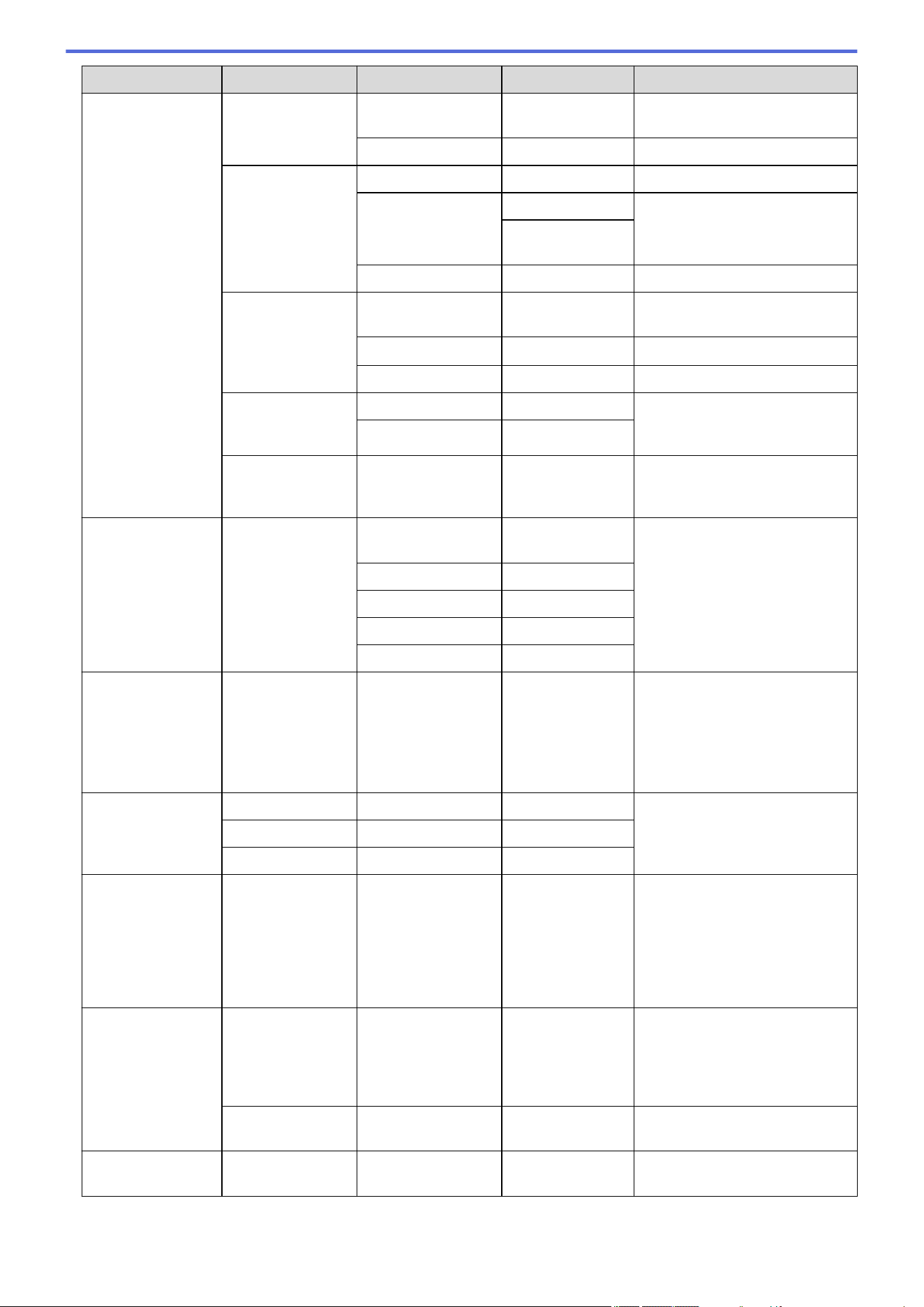
Level 3 Level 4 Level 5 Level 6 Descriptions
E-mail/IFAX
(available for
certain models)
Setup Mail RX
automatically after you read
them.
Notification
- Receive notification messages.
Setup Mail TX Sender Subject
- View the subject.
Size Limit Size Limit
Limit the size of email
documents.
Maximum
Size(MB)
Notification
- Send notification messages.
Setup Relay Relay Broadcast
- Relay a document to another fax
machine.
Relay Domain
Relay ## Register the Domain name.
Relay Report
- Print the relay Broadcast Report.
Report Setting E-mail Transmission
Select the initial setup for the
Transmission Verification
Report.
IFAX Transmission
Manual Receive
- - Manually check the POP3 or
IMAP4 server for new
messages.
Web Connect
Settings
Proxy Settings Proxy
Connection
- Change the Web connection
settings.
Address
-
Port
-
User Name
-
Password
-
Web Based Mgmt
- - - Enable or disable Web Based
Management.
If you enable this function, make
sure you specify the connection
method to use Web Based
Management.
Fax to Server
(available for
certain models)
Fax to Server
- - Select the network connection
type.
Prefix
- -
Suffix
- -
IPsec
(available for
certain models)
- - - IPsec is an optional security
feature of the IP protocol that
provides authentication and
encryption services. We
recommend contacting your
network administrator before
changing this setting.
Global Detect Allow Detect
- - Enable or disable Global Detect,
a function that detects and
notifies the user when the user
unintentionally connects to a
global network.
Reject Access
- - Disable connections to the
global network.
Network Reset
- - - Restore all network settings
back to the factory settings.
613
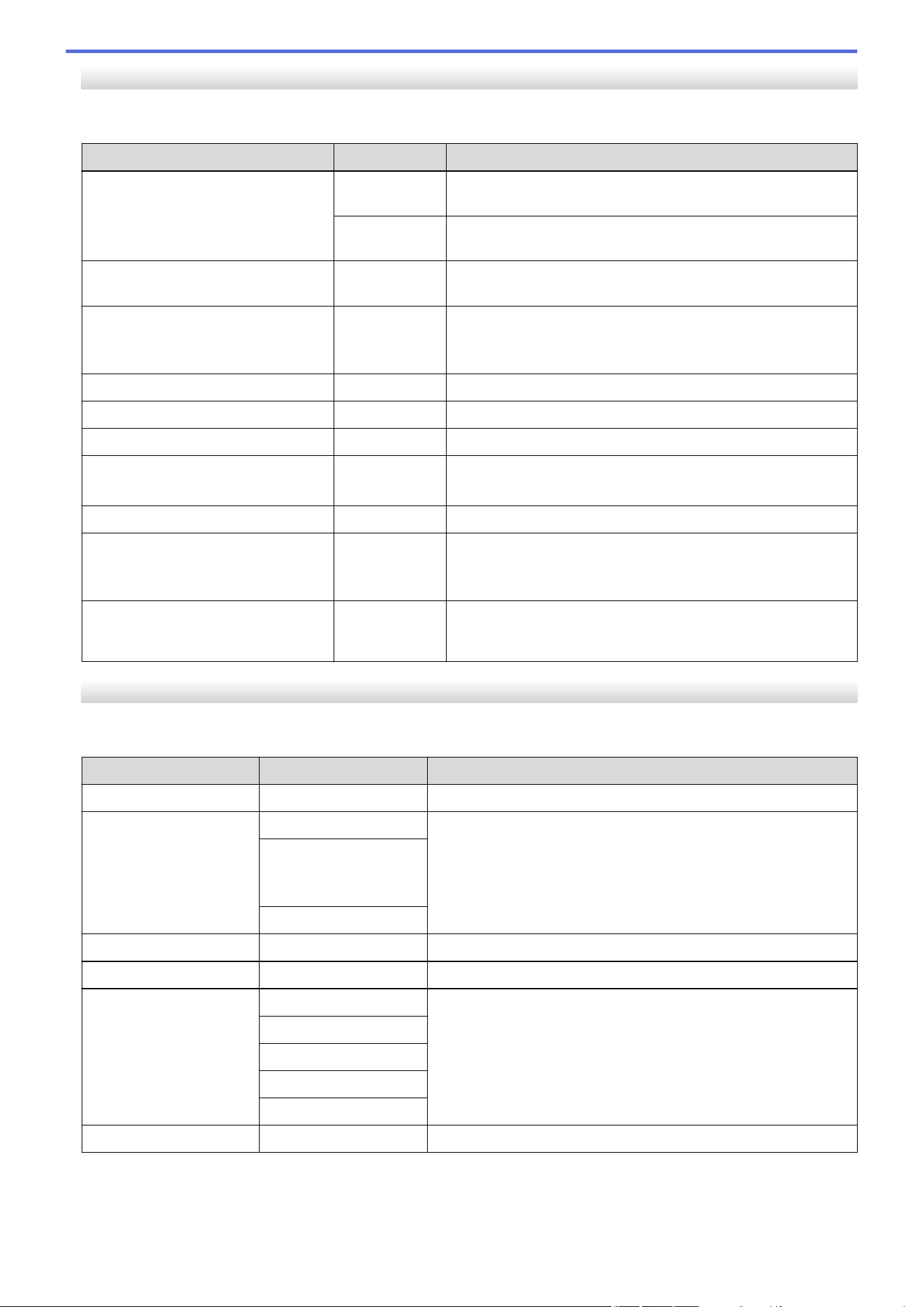
[Print Reports]
[All Settings] > [Print Reports]
Level 3 Level 4 Descriptions
Transmission View on LCD
Display a Transmission Verification Report that lists sent
faxes.
Print
Report
Print a Transmission Verification Report of your last
transmission.
Address Book
- Print a list of names and numbers stored in the Address
Book.
Fax Journal
- Print a list of information about your last 200 incoming and
outgoing faxes.
(TX means Transmit. RX means Receive.)
User Settings
- Print a list of your User settings.
Printer Settings
- Print a list of your Printer settings.
Network Configuration
- Print a list of your Network settings.
Print File List
(available for certain models)
- Print a list of data saved in the machine's memory.
Drum Dot Print
- Print the Drum Dot Check Sheet.
WLAN Report
(For models with wireless network
functionality)
- Print the wireless LAN connection results.
Caller ID History
(Available only for some countries.)
- Print a list of the Caller ID History.
[Machine Info.]
[All Settings] > [Machine Info.]
Level 3
Level 4 Descriptions
Serial No.
- Check your machine's serial number.
Firmware Version Main Version
Check your machine's firmware version.
Sub1 Version
(available for certain
models)
Security Version
Firmware Update
- Update your machine to the latest firmware.
Firmware Auto Check
- View firmware information on the Home screen.
Page Counter Total
Check the total number of pages the machine has printed.
Fax
Copy
Print
Other
Parts Life Drum
Check the percentage of the supplies' life that remains available.
614
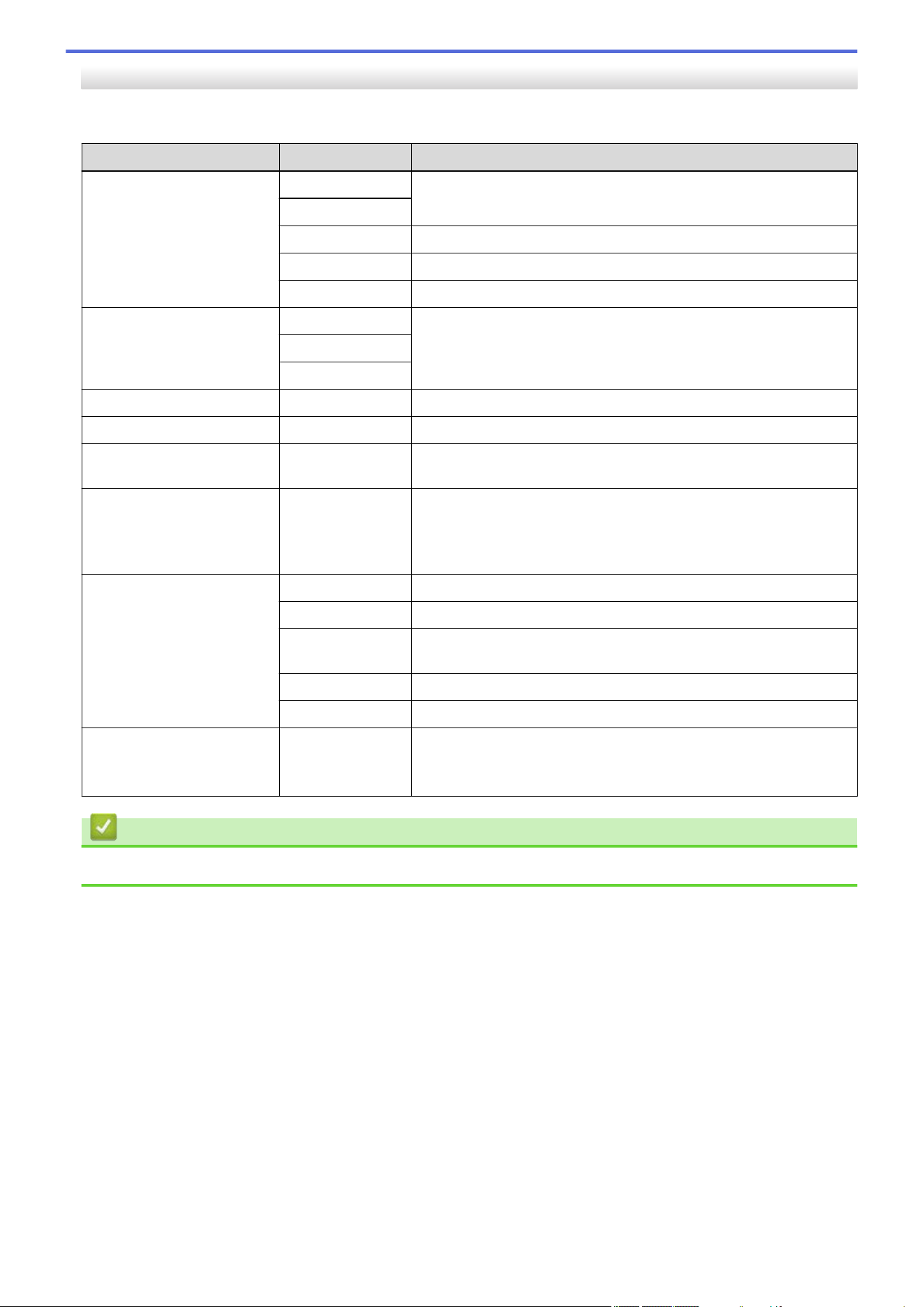
[Initial Setup]
[All Settings] > [Initial Setup]
Level 3 Level 4 Descriptions
Date & Time Date
Add the date and time on the screen and in the headings of the
faxes you send.
Time
Clock Type
Select the time format (12-hour or 24-hour).
Auto Daylight
Set the machine to change automatically for Daylight Saving Time.
Time Zone
Set your time zone.
Station ID Fax
Enter your name and fax number so it appears on each page you
fax.
Tel
Name
Tone/Pulse
- Select the dialing mode.
Dial Tone
- Shorten the dial tone detection pause.
Dial Prefix
- Set a prefix number to be added before the fax number every time
you dial.
Compatibility
- Adjust the equalization for transmission difficulties.
VoIP service providers offer fax support using various standards. If
you regularly experience fax transmission errors, select Basic (for
VoIP).
Reset Machine Reset
Restore all the machine settings that you have changed.
Network Reset
Restore all network settings back to the factory settings.
Address Book
& Fax
Erase all stored phone numbers and fax settings.
All Settings
Restore all the machine's settings back to the factory settings.
Factory Reset
Restore all settings back to the factory settings.
Local Language
(Available only for some
countries.)
- Change your LCD language.
Related Information
• Settings and Features Tables
615
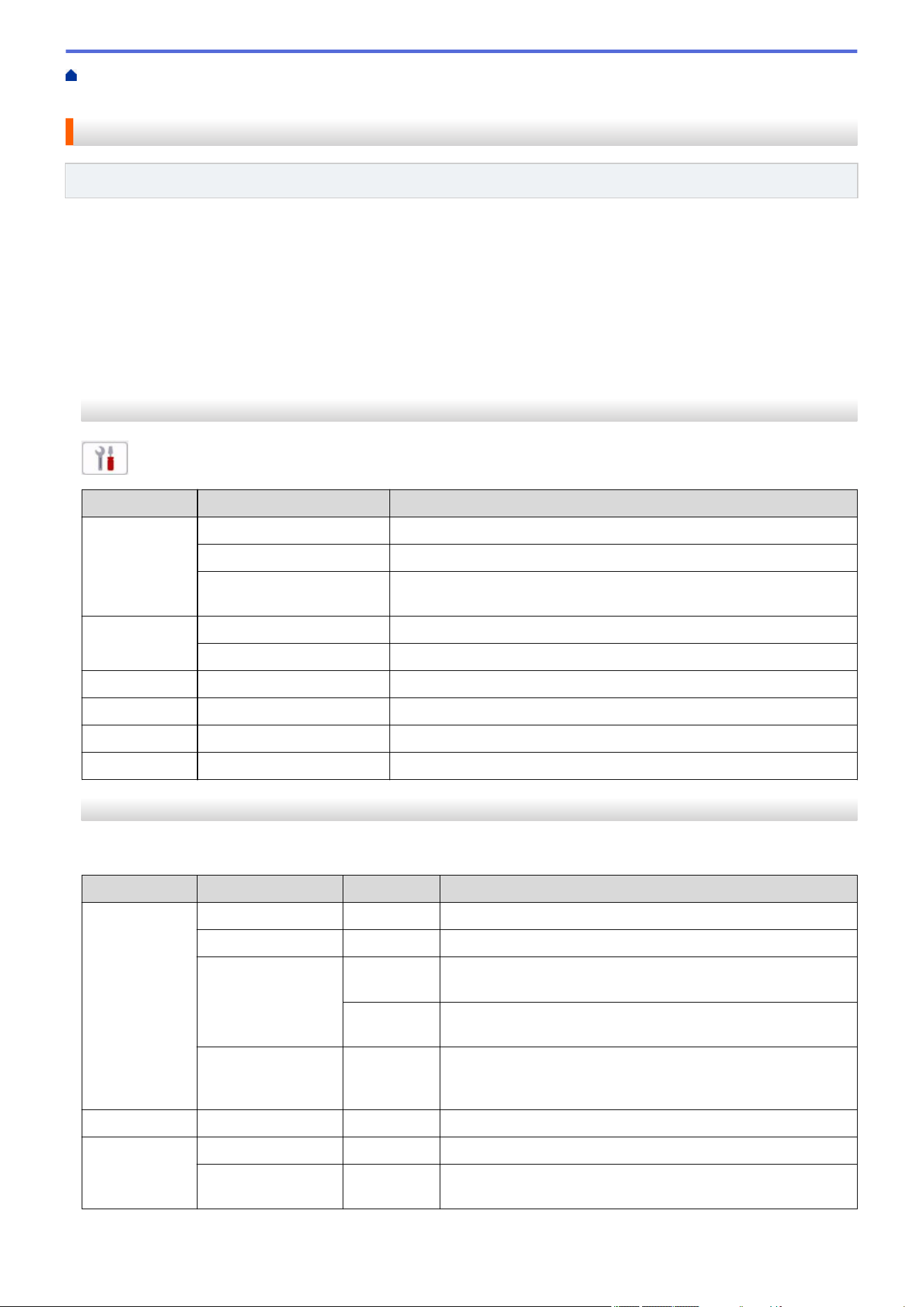
Home > Machine Settings > Change Machine Settings from the Control Panel > Settings and Features
Tables > Settings Tables (2.7" Touch Panel DCP models)
Settings Tables (2.7" Touch Panel DCP models)
Related Models: HL-L2480DW
>> [Settings]
>> [General Setup]
>> [Shortcut Settings]
>> [Printer]
>> [Network]
>> [Print Reports]
>> [Machine Info.]
>> [Initial Setup]
[Settings]
[Settings]
Level 1
Level 2 Descriptions
Toner Toner Life
View the approximate remaining toner life.
Test Print
Print a test page.
Toner Cartridge
Check
View the installed toner cartridge information on the LCD, for
example, if the toner cartridge is genuine.
Network Wired LAN
Access the Wired LAN setting menus.
WLAN(Wi-Fi)
Access the WLAN setting menus.
Tray Setting
- Access the tray setting menus.
Wi-Fi Direct
- Access the Wi-Fi Direct setting menus.
Eco Mode
- Access the Eco Mode setting menu.
All Settings
- Configure the detailed settings.
[General Setup]
[All Settings] > [General Setup]
Level 3
Level 4 Level 5 Descriptions
Tray
Setting
Paper Type
- Set the type of paper in the paper tray.
Paper Size
- Set the paper size in the paper tray.
Print Position X Offset
Move the print start position (at the upper left corner of pages)
horizontally from -500 (left) to +500 (right) dots in 300 dpi.
Y Offset
Move the print start position (at the upper left corner of pages)
vertically from -500 (up) to +500 (down) dots in 300 dpi.
Check Paper
- Select whether to display a message telling you to check that
the size and type of the paper in the machine and the
machine's Paper Size and Paper Type settings match.
Beep
- - Adjust the beeper volume.
LCD
Settings
Backlight
- Adjust the brightness of the LCD backlight.
Dim Timer
- Set how long the LCD backlight stays on after returning to the
Home screen.
616
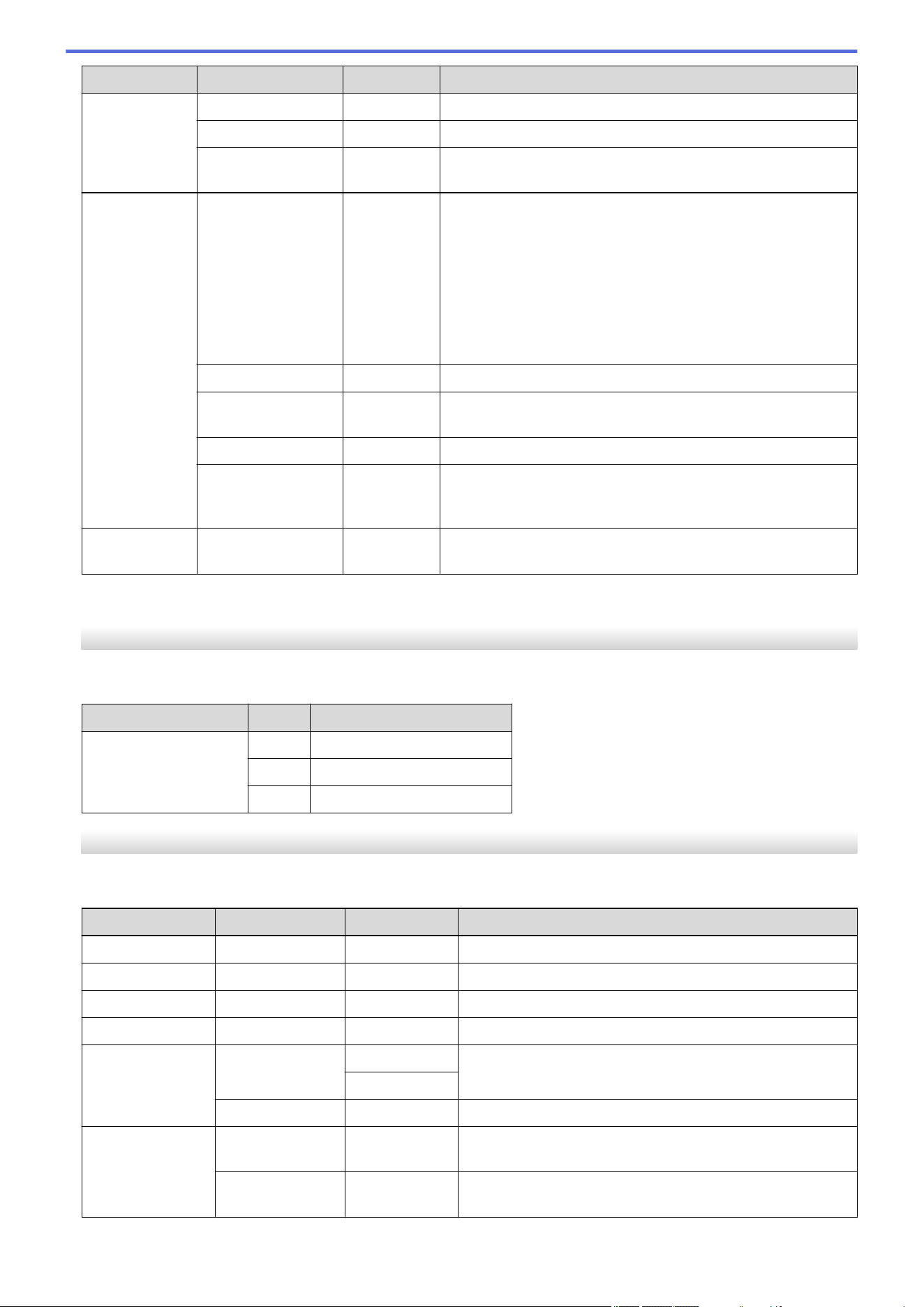
Level 3 Level 4 Level 5 Descriptions
Screen
Settings
Home Screen
- Set the Main Home screen.
Scan Screen
- Set the default Scan screen settings.
Display
Information
IP
Address
Select whether or not to display your machine's IP Address on
the Home screens.
Ecology Eco Mode
- Turn on the following machine settings at the same time:
• 2-sided Print:Long Edge
1
(available for certain
models)
• Sleep Time:0 Min
• Dim Timer:10 Secs
• Quiet Mode: On
1
• Toner Save: On
1
Toner Save
- Increase the page yield of the toner cartridge.
Sleep Time
- Set the number of minutes before the machine enters Sleep
mode.
Quiet Mode
- Decrease printing noise.
Auto Power Off
- Set the number of hours that the machine will remain in Deep
Sleep mode before going into Power Off mode. Choose Off if
you do not want the machine to go into Power Off mode.
Replace
Toner
- - Set the machine to continue printing after the LCD displays
Replace Toner.
1
Changing this setting is possible only after you change certain machine settings in Web Based Management.
[Shortcut Settings]
[All Settings] > [Shortcut Settings]
Level 3
Level 4 Descriptions
(Select shortcut button.)
Rename
Change the shortcut name.
Edit
Change the shortcut settings.
Delete
Delete the shortcut.
[Printer]
[All Settings] > [Printer]
Level 3
Level 4 Level 5 Descriptions
Emulation
- - Select the emulation mode.
Resolution
- - Select a print resolution.
Density
- - Increase or decrease the print density.
Print Settings
- - Set your print settings to Text or Graphics.
Print Options Font List HP LaserJet
Print a list of the machine’s internal fonts.
BR-Script 3
Test Print
- Print a test page.
2-sided 2-sided Print
- Enable or disable 2-sided printing and choose long edge or
short edge.
Single Image
- For a print job where the last page is a 1-sided image,
select the 1-sided Feed option to reduce printing time.
617
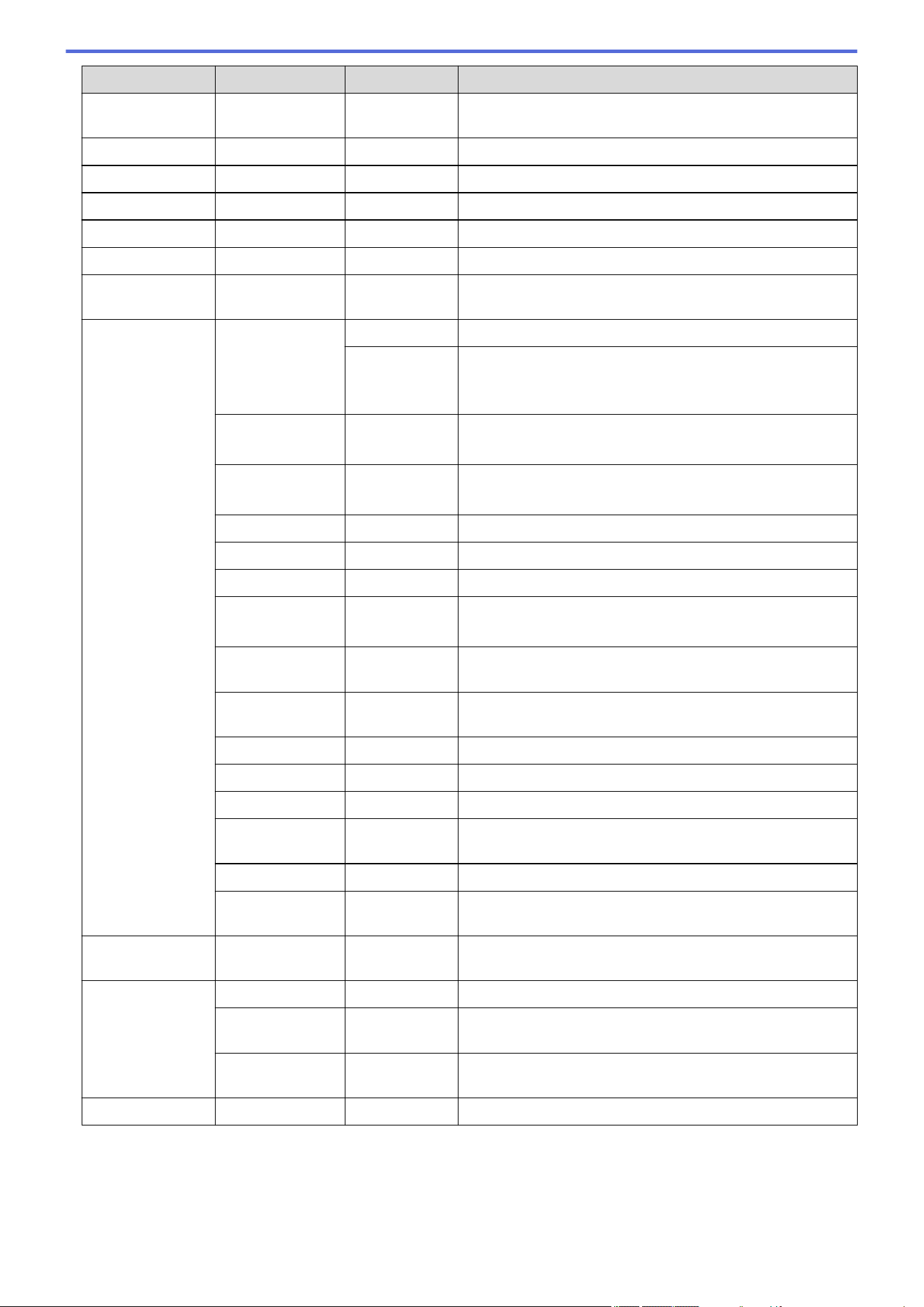
Level 3 Level 4 Level 5 Descriptions
Auto Continue
- - Select this setting if you want the machine to clear paper
size errors, and to use the paper in the tray.
Paper Type
- - Set the paper type.
Paper Size
- - Set the paper size.
Copies
- - Set the number of printed pages.
Orientation
- - Set pages to print in either portrait or landscape orientation.
Print Position
- - Access the Print Position setting menus.
Auto FF
- - Allow the machine to print any remaining data
automatically.
HP LaserJet Font No. Font No.
Set the font number.
Soft Font
No.
Set the soft font number.
This menu appears if a soft font is installed on your Brother
machine.
Font Pitch
- Set the font pitch.
(Available only for certain fonts.)
Font Point
- Set the font size.
(Available only for certain fonts.)
Symbol Set
- Select the symbol or character set.
Table Print
- Print the code table.
Auto LF
- ON: CR -> CR+LF, OFF: CR -> CR
Auto CR
- ON: LF -> LF+CR, FF -> FF+CR, or VT -> VT+CR
OFF: LF -> LF, FF -> FF, or VT -> VT
Auto WRAP
- Select whether you want a line feed and carriage return
when the carriage position reaches the right margin.
Auto SKIP
- Select whether you want a line feed and carriage return
when the carriage position reaches the bottom margin.
Left Margin
- Set the left margin at column 0 to 70 columns at 1 cpi.
Right Margin
- Set the right margin at column 10 to 80 columns at 1 cpi.
Top Margin
- Set the top margin distance from the top edge of the paper.
Bottom Margin
- Set the bottom margin distance from the bottom edge of the
paper.
Lines
- Set the number of lines on each page.
Tray Command
- Select this setting if a tray mismatch appears when you use
the HP drivers.
BR-Script 3 Error Print
- Choose whether the machine prints the error information
when errors occur.
PDF Multiple Page
- Set the page layout when printing multiple pages.
PDF Print
Options
- Set the PDF Print setting to print either comments (Markup)
or stamps in the PDF file, along with the text.
PDF Fit to
Page
- Select if the machine scales or resizes the pages in the
PDF file to fit the selected paper size.
Reset Printer
- - Restore the machine settings to the factory settings.
618
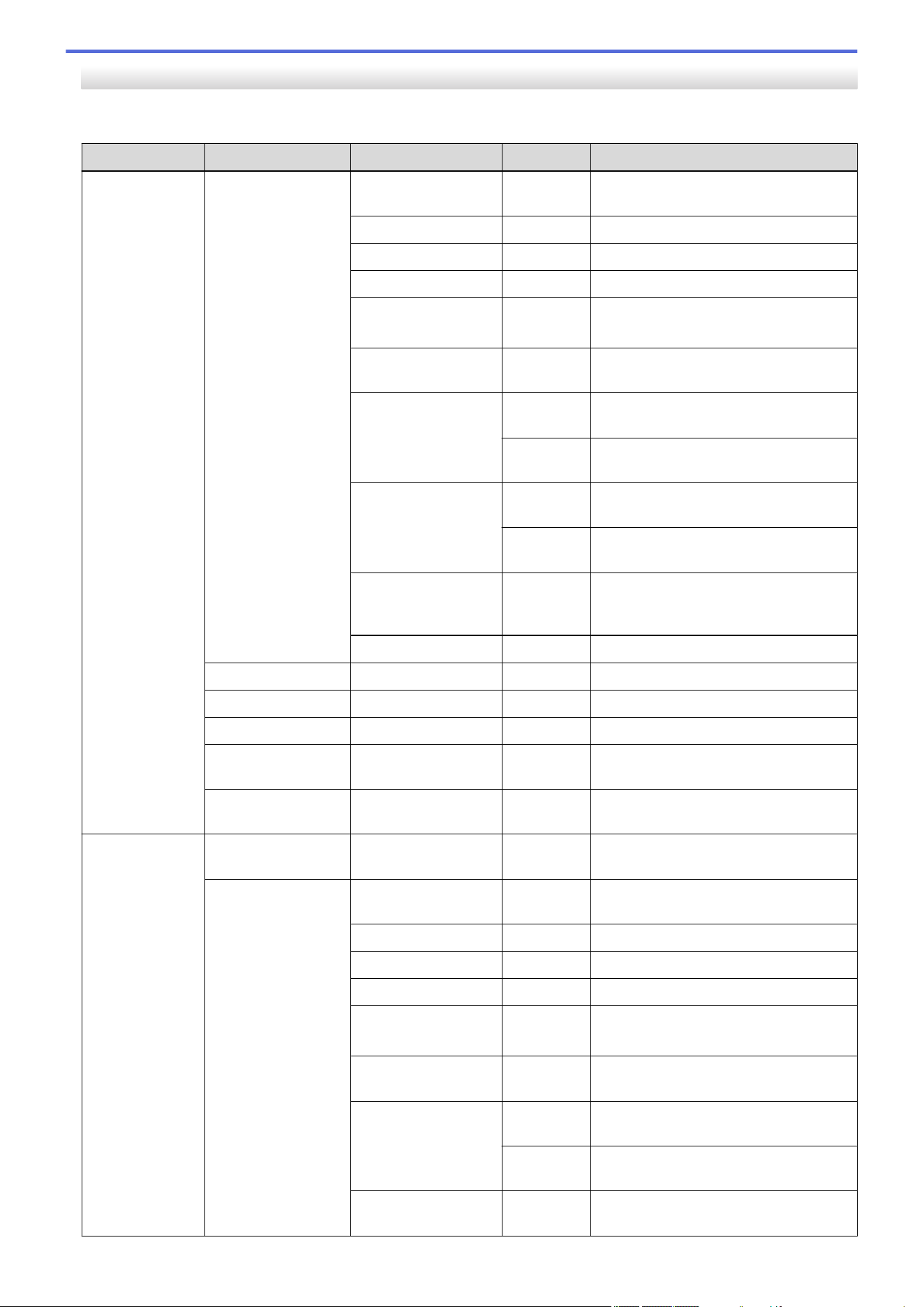
[Network]
[All Settings] > [Network]
Level 3 Level 4 Level 5 Level 6 Descriptions
Wired LAN TCP/IP Boot Method
- Select the Boot method that best suits
your needs.
IP Address
- Enter the IP address.
Subnet Mask
- Enter the Subnet mask.
Gateway
- Enter the Gateway address.
Node Name
- Enter the Node name.
(up to 32 characters)
WINS
Configuration
- Select the WINS configuration mode.
WINS Server Primary
Specify the IP address of the primary
WINS server.
Secondary
Specify the IP address of the
secondary WINS server.
DNS Server Primary
Specify the IP address of the primary
DNS server.
Secondary
Specify the IP address of the
secondary DNS server.
APIPA
- Set the machine to allocate the IP
address from the link-local address
range automatically.
IPv6
- Turn the IPv6 protocol on or off.
Ethernet
- - Select the Ethernet link mode.
Wired Status
- - View the current wired status.
MAC Address
- - View the machine's MAC address.
Set to Default
- - Restore the wired network settings to
the factory settings.
Wired Enable
- - Turn the Wired LAN interface on or off
manually.
WLAN(Wi-Fi) Find Wi-Fi
Network
- - Configure your wireless network
settings manually.
TCP/IP Boot Method
- Select the Boot method that best suits
your needs.
IP Address
- Enter the IP address.
Subnet Mask
- Enter the Subnet mask.
Gateway
- Enter the Gateway address.
Node Name
- Enter the Node name.
(up to 32 characters)
WINS
Configuration
- Select the WINS configuration mode.
WINS Server Primary
Specify the IP address of the primary
WINS server.
Secondary
Specify the IP address of the
secondary WINS server.
DNS Server Primary
Specify the IP address of the primary
DNS server.
619
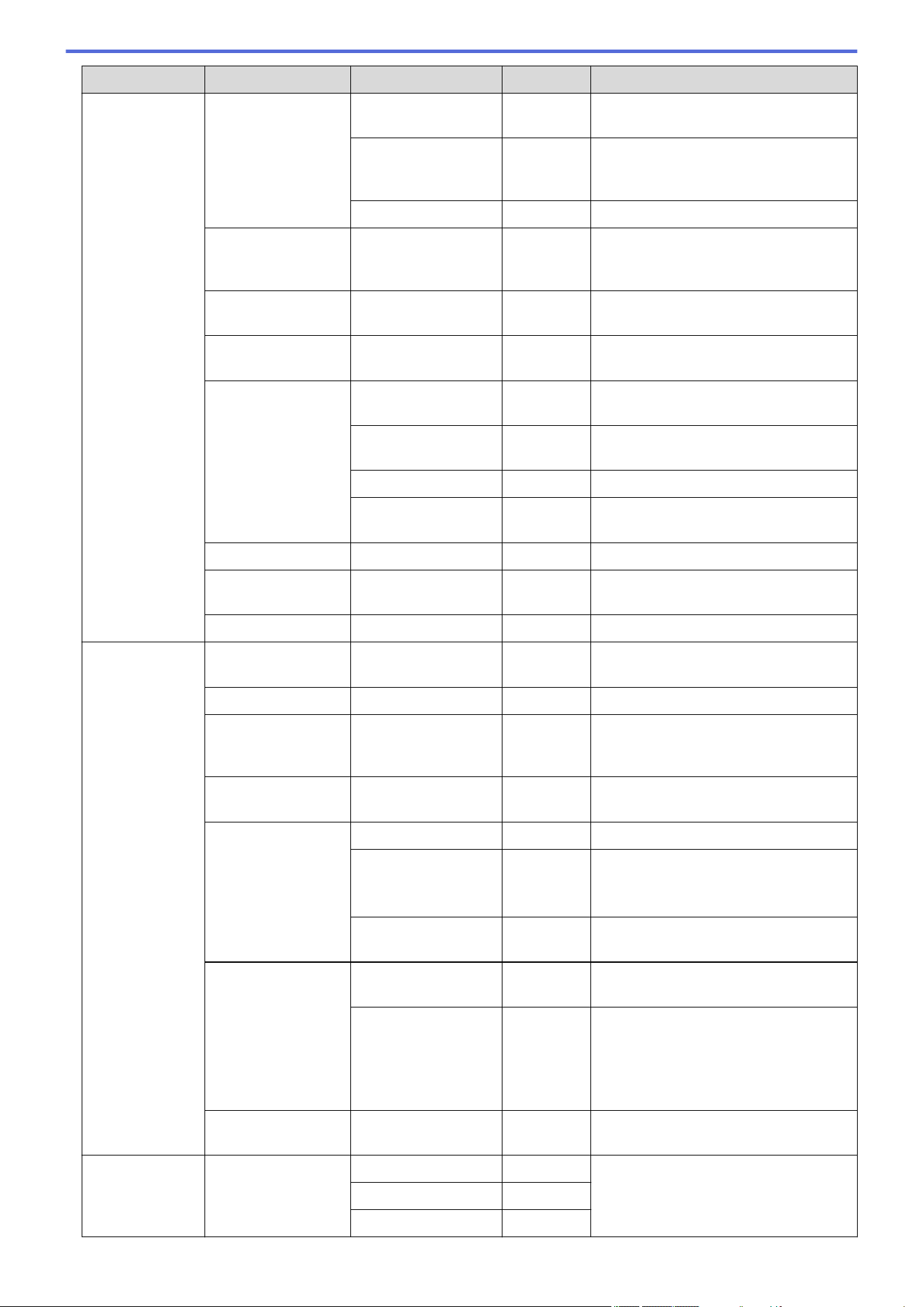
Level 3 Level 4 Level 5 Level 6 Descriptions
WLAN(Wi-Fi) TCP/IP DNS Server Secondary
Specify the IP address of the
secondary DNS server.
APIPA
- Set the machine to allocate the IP
address from the link-local address
range automatically.
IPv6
- Turn the IPv6 protocol on or off.
WPS/Push Button
- - Configure your wireless network
settings using the one-button push
method.
WPS/PIN Code
- - Configure your wireless network
settings using WPS with a PIN.
Recover WLAN
- - Reset and restart your wireless
network.
WLAN Status Status
- View the current wireless network
status.
Signal
- View the current wireless network
signal strength.
SSID
- View the current SSID.
Comm. Mode
- View the current Communication
mode.
MAC Address
- - View the machine's MAC address.
Set to Default
- - Restore the wireless network settings
to the factory settings.
WLAN Enable
- - Turn the WLAN on or off manually.
Wi-Fi Direct Manual
- - Configure your Wi-Fi Direct network
settings manually.
Group Owner
- - Set your machine as the Group Owner.
Push Button
- - Configure your Wi-Fi Direct network
settings using the one-button push
method.
PIN Code
- - Configure your Wi-Fi Direct network
settings using WPS with a PIN code.
Device
Information
Device Name
- View your machine's device name.
SSID
- View the Group Owner's SSID.
When the machine is not connected,
the LCD displays Not Connected.
IP Address
- View your machine's current IP
Address.
Status
Information
Status
- View the current Wi-Fi Direct network
status.
Signal
- View the current Wi-Fi Direct network
signal strength.
When your machine acts as Group
Owner, the LCD always indicates a
strong signal.
I/F Enable
- - Turn the Wi-Fi Direct connection on or
off.
Web Connect
Settings
Proxy Settings Proxy Connection
- Change the Web connection settings.
Address
-
Port
-
620
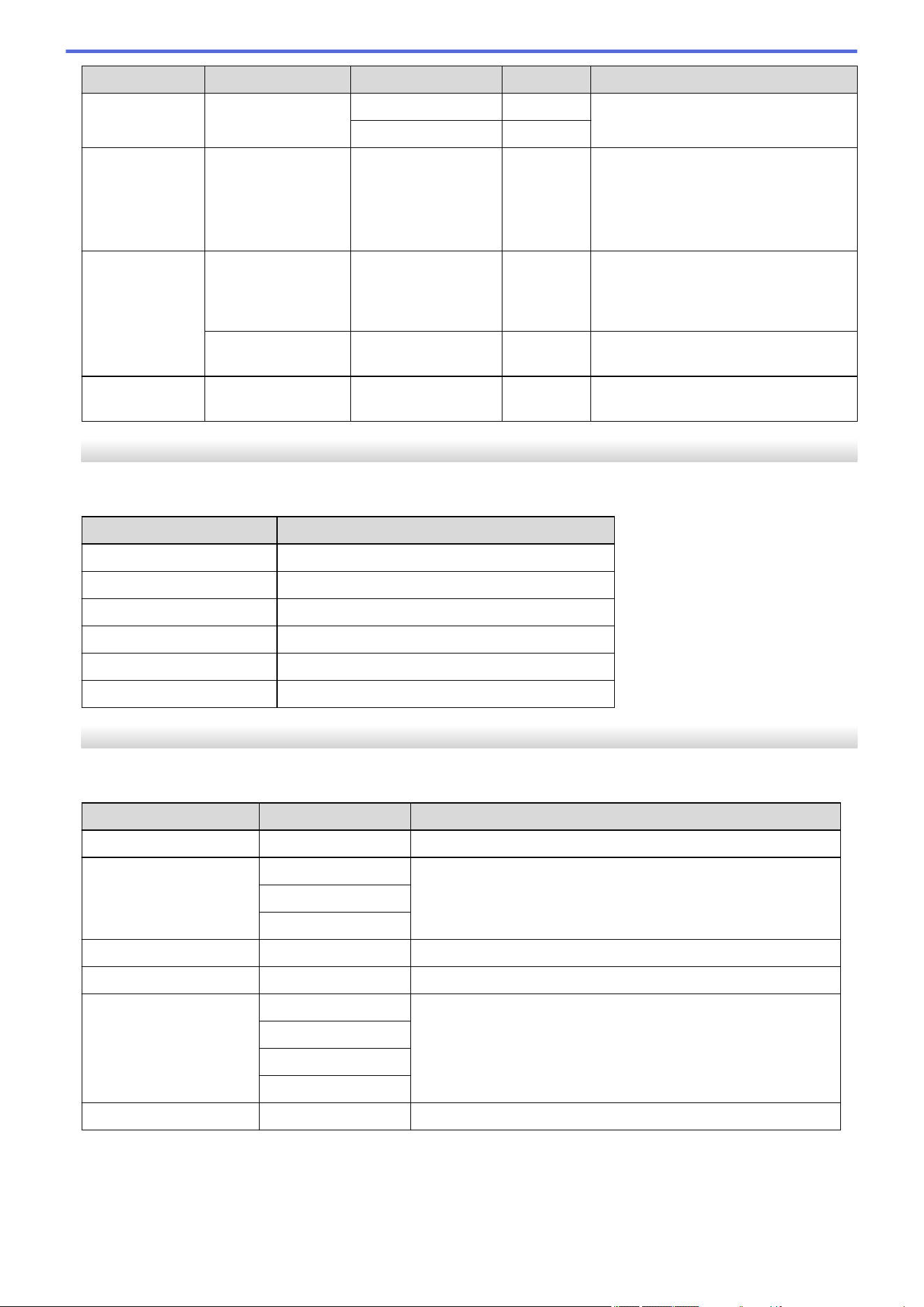
Level 3 Level 4 Level 5 Level 6 Descriptions
Web Connect
Settings
Proxy Settings User Name
Change the Web connection settings.-
Password
-
Web Based
Mgmt
- - - Enable or disable Web Based
Management.
If you enable this function, make sure
you specify the connection method to
use Web Based Management.
Global
Detect
Allow Detect
- - Enable or disable Global Detect, a
function that detects and notifies the
user when the user unintentionally
connects to a global network.
Reject Access
- - Disable connections to the global
network.
Network
Reset
- - - Restore all network settings back to
the factory settings.
[Print Reports]
[All Settings] > [Print Reports]
Level 3
Descriptions
User Settings
Print a list of your User settings.
Printer Settings
Print a list of your Printer settings.
Network Configuration
Print a list of your Network settings.
Print File List
Print a list of data saved in the machine's memory.
Drum Dot Print
Print the Drum Dot Check Sheet.
WLAN Report
Print the wireless LAN connection results.
[Machine Info.]
[All Settings] > [Machine Info.]
Level 3
Level 4 Descriptions
Serial No.
- Check your machine's serial number.
Firmware Version Main Version
Check your machine's firmware version.
Sub1 Version
Security Version
Firmware Update
- Update your machine to the latest firmware.
Firmware Auto Check
- View firmware information on the Home screen.
Page Counter Total
Check the total number of pages the machine has printed.
Copy
Print
Other
Parts Life Drum
Check the percentage of the supplies' life that remains available.
621
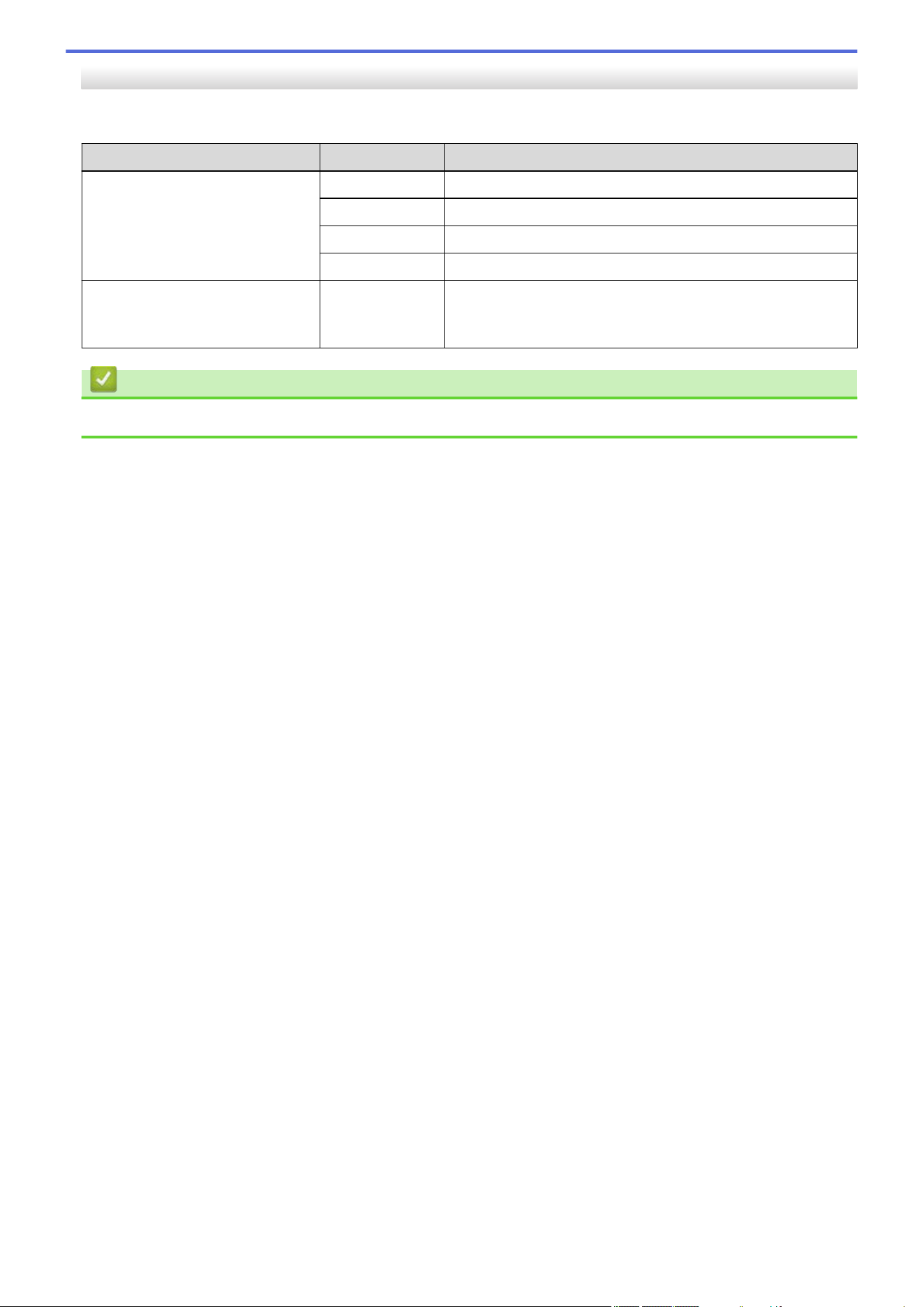
[Initial Setup]
[All Settings] > [Initial Setup]
Level 3 Level 4 Descriptions
Reset Machine Reset
Restore all the machine settings that you have changed.
Network Reset
Restore all network settings back to the factory settings.
All Settings
Restore all the machine's settings back to the factory settings.
Factory Reset
Restore all settings back to the factory settings.
Local Language
(Available only for some
countries.)
- Change your LCD language.
Related Information
• Settings and Features Tables
622
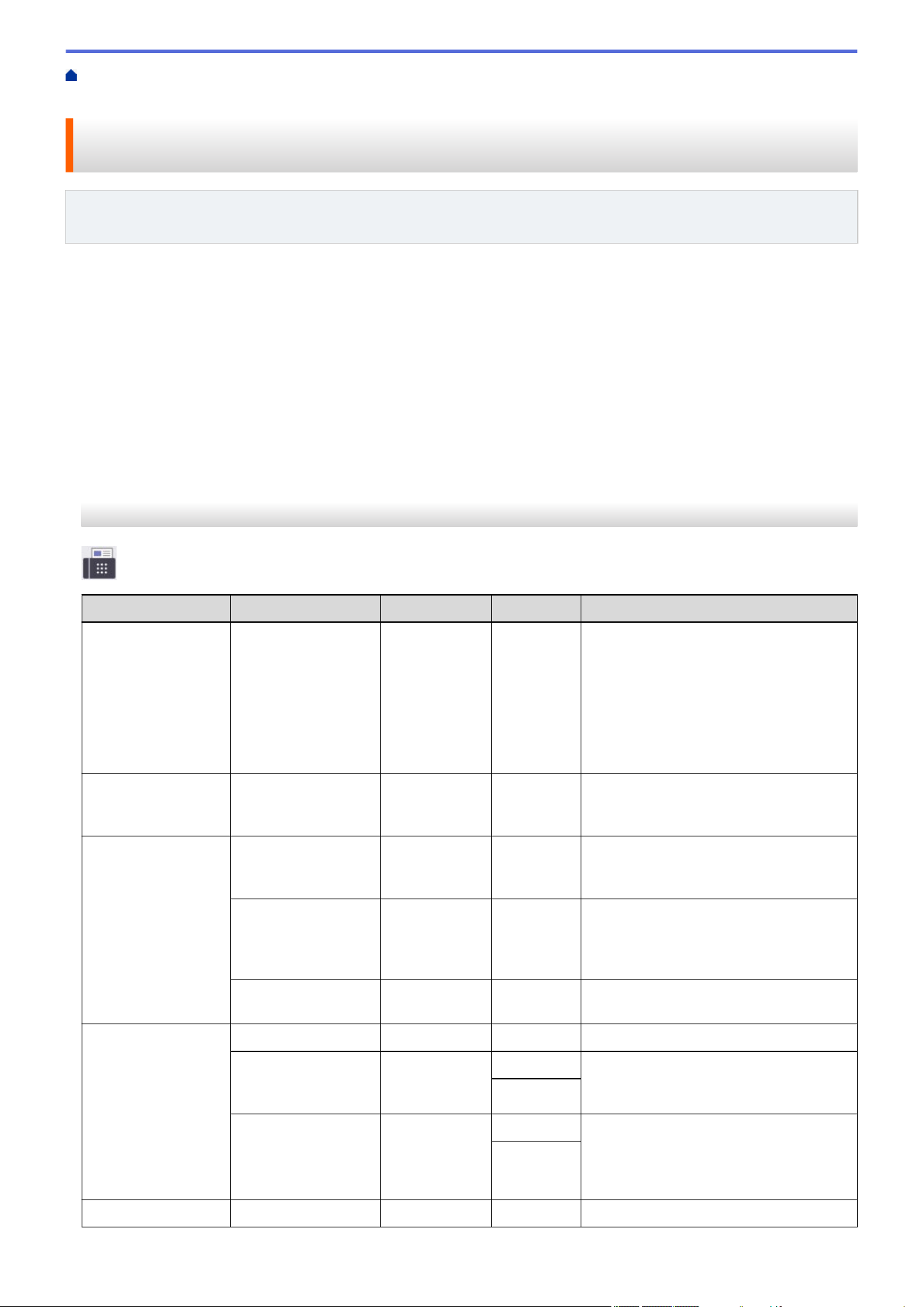
Home > Machine Settings > Change Machine Settings from the Control Panel > Settings and Features
Tables > Features Tables (2.7" Touch Panel MFC models and 3.5" Touch Panel MFC models)
Features Tables (2.7" Touch Panel MFC models and 3.5" Touch Panel
MFC models)
Related Models: MFC-L2807DW/MFC-L2820DW/MFC-L2820DWXL/MFC-L2900DW/MFC-L2900DWXL/
MFC-L2980DW
>> [Fax] (When Fax Preview is Off)
>> [Fax] (When Fax Preview is On)
>> [Copy]
>> [Scan]
>> [Secure Print]
>> [Web]
>> [Apps]
>> [2 in 1 ID Copy]
>> [Shortcuts]
>> [Toner]
>> Wi-Fi Setup (For wireless models)
[Fax] (When Fax Preview is Off)
[Fax]
Level 3
Level 4 Level 5 Level 6 Descriptions
Redial(Pause) - - - Redial the last number called. When you
are entering a fax or telephone number
on the touchscreen, Redial changes to
Pause on the LCD. Press Pause when
you need a delay while dialing numbers,
such as access codes and credit card
numbers. You can also store a pause
when you set up addresses.
Hook
- - - Press before dialing if you want to listen
to make sure a fax machine has
answered, and then press Fax Start.
Address Book
(Search:)
- - Search within the Address Book.
Edit
- - Store Address Book numbers, set up
Group numbers for Broadcasting,
change and delete Address Book
numbers.
(Select Address
Book)
Apply
- Start sending a fax using the Address
Book.
Call History Redial
- - Redial the last number you dialed.
Outgoing Call
(Select
Outgoing Call)
Edit
Select a number from the Outgoing Call
history, and then send a fax to it, add it
to the Address Book, or delete it.
Apply
Caller ID
History
(Available only for
some countries.)
(Select Caller
ID History)
Edit
Select a number from the Caller ID
History and then send a fax to it, add it
to the Address Book, or delete it.
Apply
Fax Start
- - - Send a fax.
623
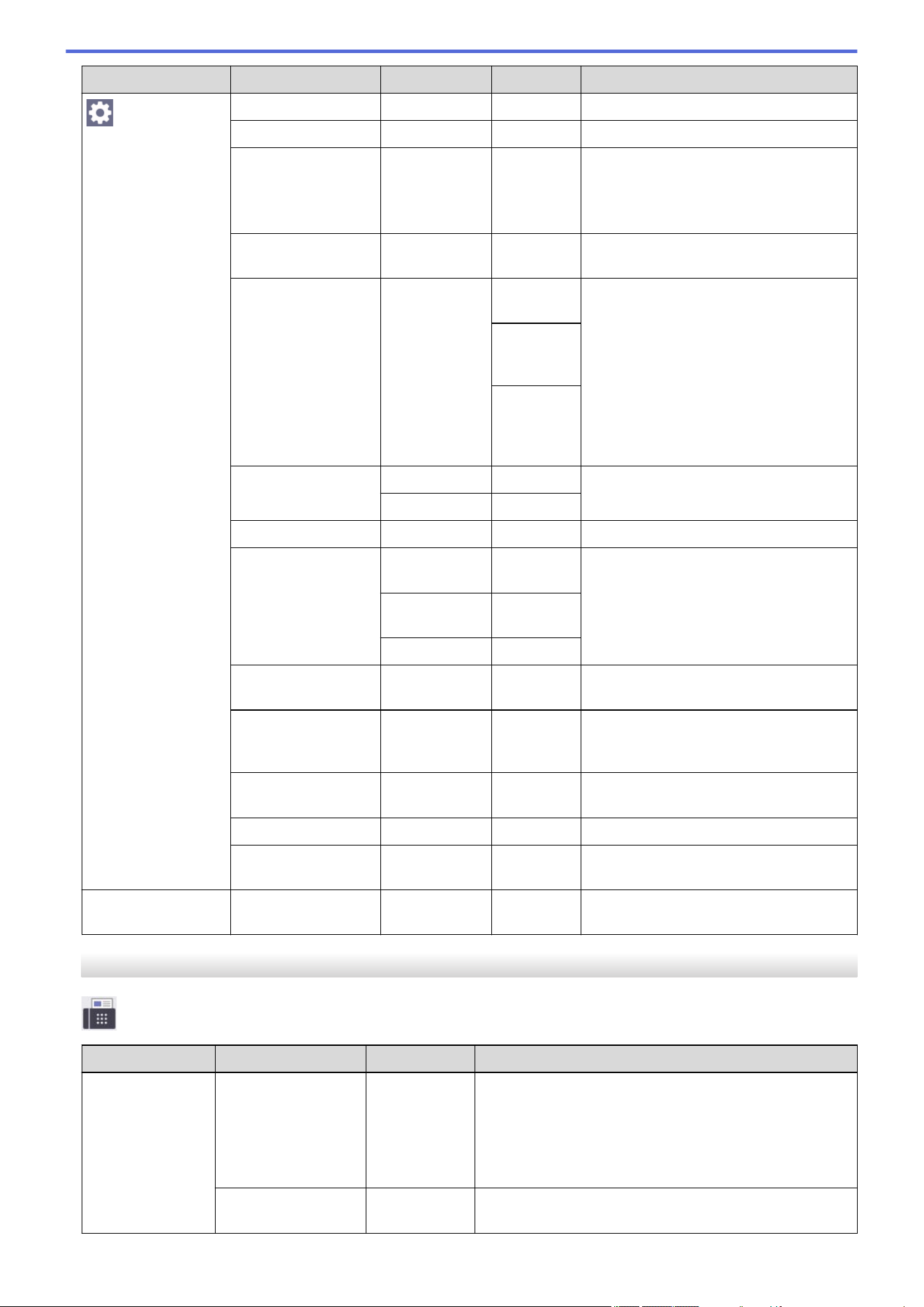
Level 3 Level 4 Level 5 Level 6 Descriptions
Options
Fax Resolution
- - Set the resolution for outgoing faxes.
Contrast
- - Adjust the contrast.
2-sided Fax
(For automatic 2-
sided scanning
models)
- - Set the 2-sided scanning format.
Glass Scan Size
- - Adjust the scan area of the scanner
glass to the size of the document.
Broadcasting Add Number Add
Number
Send the same fax message to more
than one fax number.
Add from
Address
book
Search
in
Address
book
Delayed Fax Delayed Fax
- Set the time of day the delayed faxes will
be sent.
Set Time
-
Real Time TX
- - Send a fax without using the memory.
Coverpage Setup Coverpage
Setup
- Set the machine to automatically send a
pre-programmed cover page.
Coverpage
Message
-
Total Pages
-
Overseas Mode
- - Set to On if you have difficulty sending
faxes overseas.
Call History
- - Select a number from the Call History
and then send a fax to it, add it to the
Address Book, or delete it.
Address Book
- - Select the address of the recipient from
the address book.
Set New Default
- - Save your settings as the default.
Factory Reset
- - Restore all settings back to the factory
settings.
Save as
Shortcut
- - - Save the current settings as a shortcut.
[Fax] (When Fax Preview is On)
[Fax]
Level 3
Level 4 Level 5 Descriptions
Send a fax
Redial(Pause) - Redial the last number called. When you are entering a
fax or telephone number on the touchscreen, Redial
changes to Pause on the LCD. Press Pause when you
need a delay while dialing numbers, such as access
codes and credit card numbers. You can also store a
pause when you set up addresses.
Hook
- Press before dialing if you want to listen to make sure a
fax machine has answered, and then press Fax Start.
624
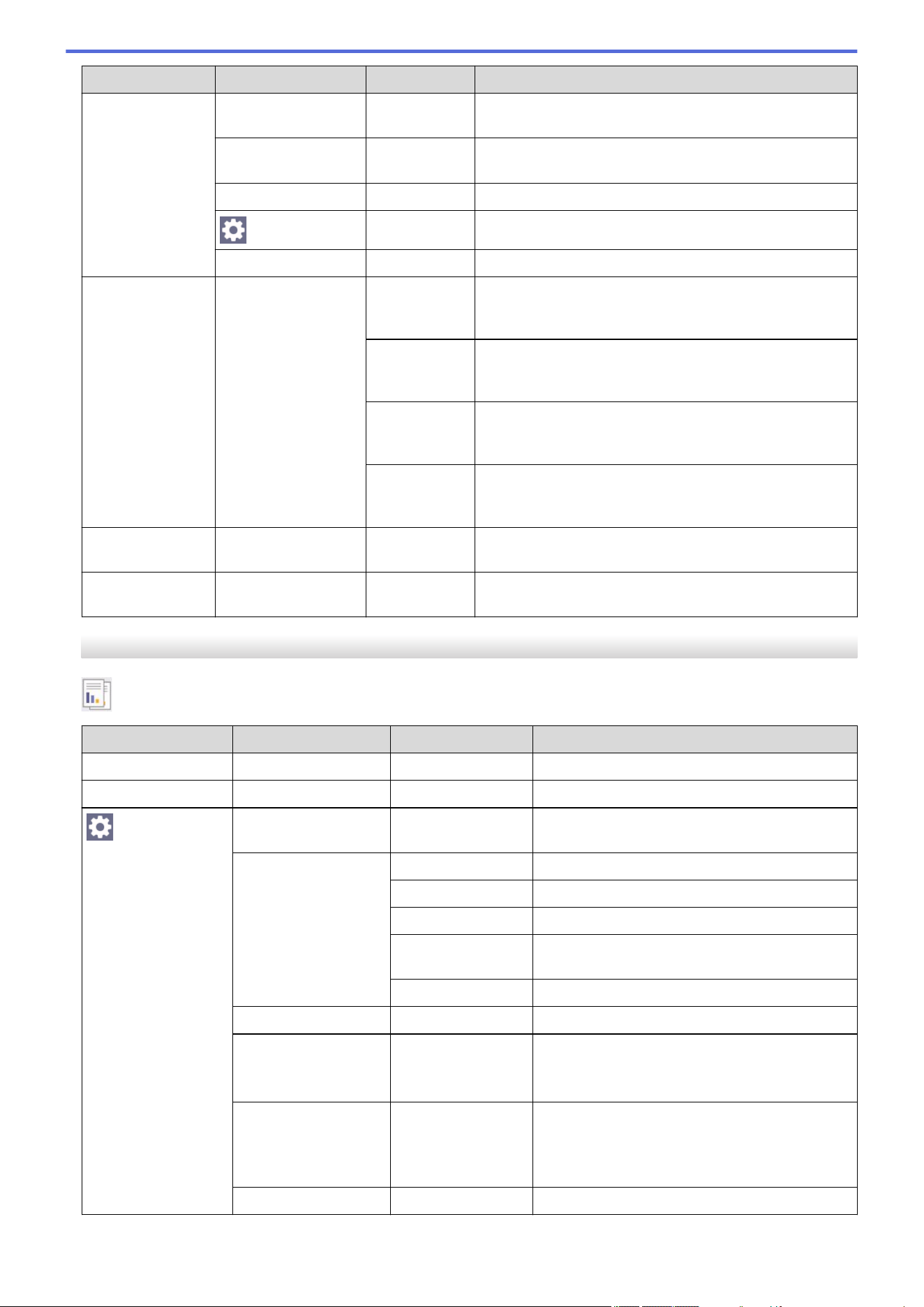
Level 3 Level 4 Level 5 Descriptions
Send a fax Address Book
- Select the address of the recipient from the address
book.
Call History
- Select a number from the Call History and then send a
fax to it, add it to the Address Book, or delete it.
Fax Start
- Send a fax.
Options
- Select your settings.
Save as Shortcut
- Save the current settings as a shortcut.
Received Faxes Print/Delete Print
All(New
Faxes)
Print the new received faxes.
Print
All(Old
Faxes)
Print the old received faxes.
Delete
All(New
Faxes)
Delete the new received faxes.
Delete
All(Old
Faxes)
Delete the old received faxes.
Address Book
- - Select the address of the recipient from the address
book.
Call History
- - Select a number from the Call History and then send a
fax to it, add it to the Address Book, or delete it.
[Copy]
[Copy]
Level 3
Level 4 Level 5 Descriptions
Start
- - Make a black and white or grayscale copy.
ID
- - Make a copy of the ID card.
Options
Quality
- Select the Copy resolution for your document
type.
Enlarge/Reduce 100%
-
Enlarge
Select an enlargement ratio for the next copy.
Reduce
Select a reduction ratio for the next copy.
Auto
Adjust the copy size to fit on the paper size you
have set.
Custom(25-400%)
Enter an enlargement or reduction ratio.
Density
- Adjust the density.
2-sided Copy
(For automatic 2-sided
printing models)
Layout
Turn off or turn on 2-sided copying and select
flip on long edge or flip on short edge.
2-sided Copy
Page Layout
(For automatic 2-sided
printing models)
- Select a page layout option when you make 2-
sided N in 1 copies from a 2-sided document.
Contrast
- Adjust the contrast.
625
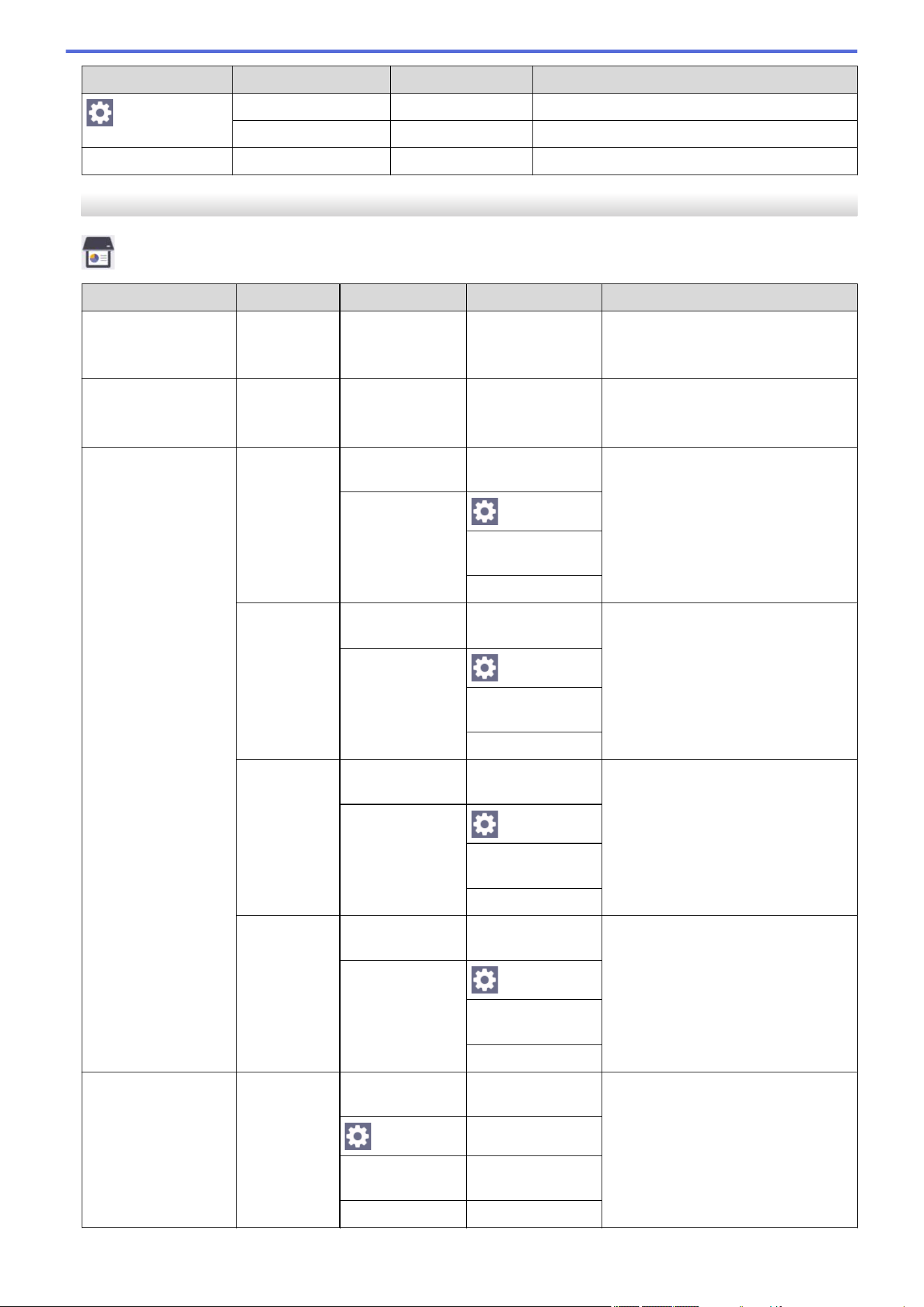
Level 3 Level 4 Level 5 Descriptions
Options
Stack/Sort
- Select to stack or sort multiple copies.
Page Layout
- Make N in 1 copies.
Save as Shortcut
- - Save the current settings as a shortcut.
[Scan]
[Scan]
Level 3
Level 4 Level 5 Level 6 Descriptions
to My E-mail
(available for certain
models)
- - - Scan a black and white or a color
document to your email address.
to My Folder
(available for certain
models)
- - - Send scanned data to your folder in
the CIFS server on your local
network or on the Internet.
to PC to File Other Scan to
Actions
- Scan documents and save them to a
folder on your computer.
(Select USB or
PC)
Options
Save as
Shortcut
Start
to OCR Other Scan to
Actions
- Convert your scanned document to
an editable text file.
(Select USB or
PC)
Options
Save as
Shortcut
Start
to Image Other Scan to
Actions
- Scan photos or graphics into your
graphics applications.
(Select USB or
PC)
Options
Save as
Shortcut
Start
to E-mail Other Scan to
Actions
- Send a scanned document as an
email attachment.
(Select USB or
PC)
Options
Save as
Shortcut
Start
to Mobile App
(Select Profile
name)
Other Scan to
Actions
- Scan documents to a mobile
application.
Options
-
Save as
Shortcut
-
Start
-
626
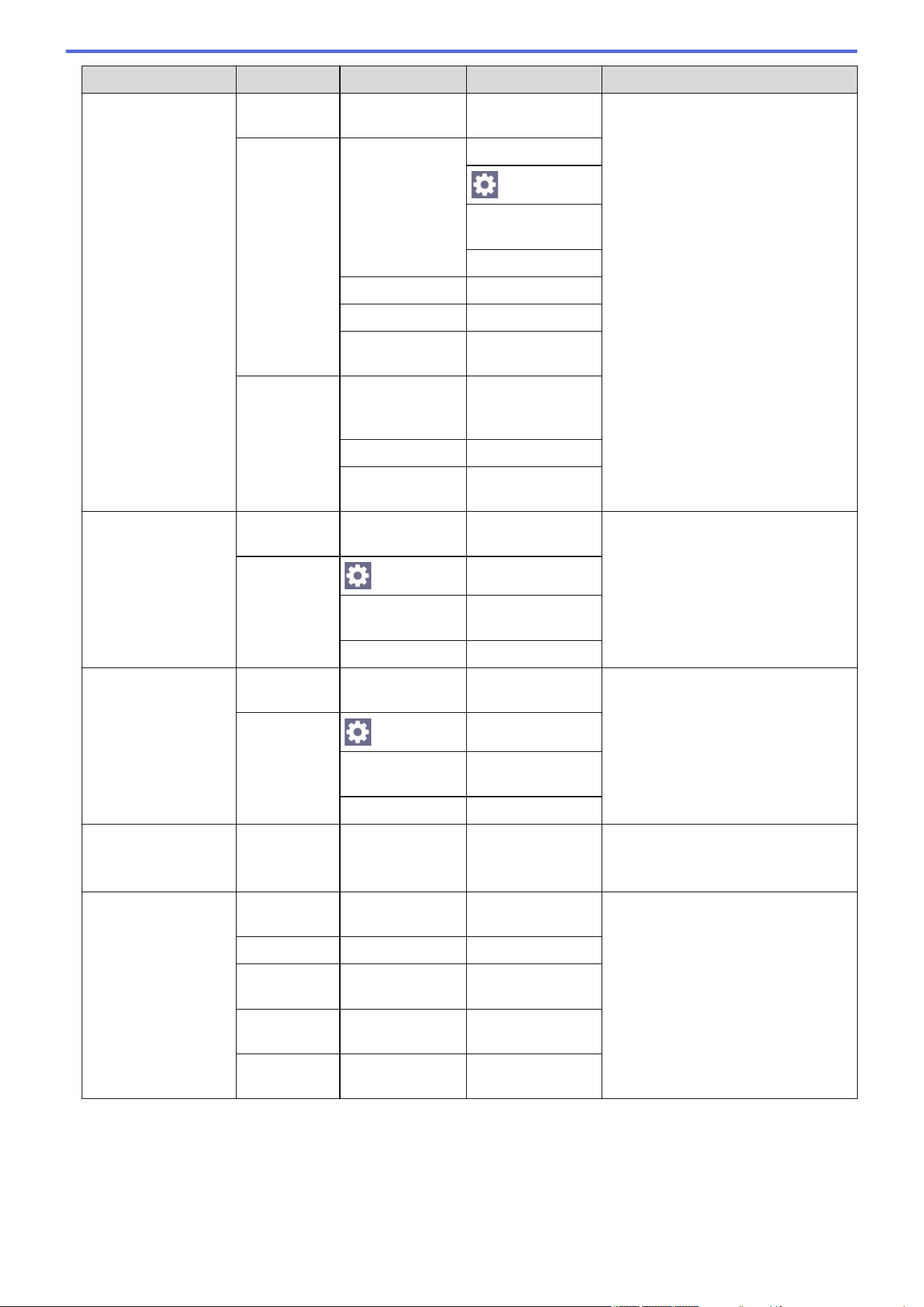
Level 3 Level 4 Level 5 Level 6 Descriptions
to E-mail Server Other Scan
to Actions
- - Send scanned data to an email
server by allowing your machine to
communicate with your network and
email server.
Manual Next Destinations
Options
Save as
Shortcut
Start
Cancel
-
Add Address
-
(Select
destinations)
-
Address
Book
(Search:)
-
Edit
-
(Select Address
Book)
-
to FTP
(available for certain
models)
Other Scan
to Actions
- - Scan documents directly to an FTP
server.
(Select Profile
name)
Options
-
Save as
Shortcut
-
Start
-
to Network
(available for certain
models)
Other Scan
to Actions
- - Send scanned data to a CIFS server
on your local network or on the
Internet.
(Select Profile
name)
Options
-
Save as
Shortcut
-
Start
-
to Web
(available for certain
models)
- - - Upload the scanned data to an
Internet service.
WS Scan
(Appears when you
install a Web Services
Scanner, which is
displayed in your
computer's Network
explorer.)
Other Scan
to Actions
- - Scan data using the Web Service
protocol.
Scan
- -
Scan for
E-mail
- -
Scan for
Fax
- -
Scan for
Print
- -
627
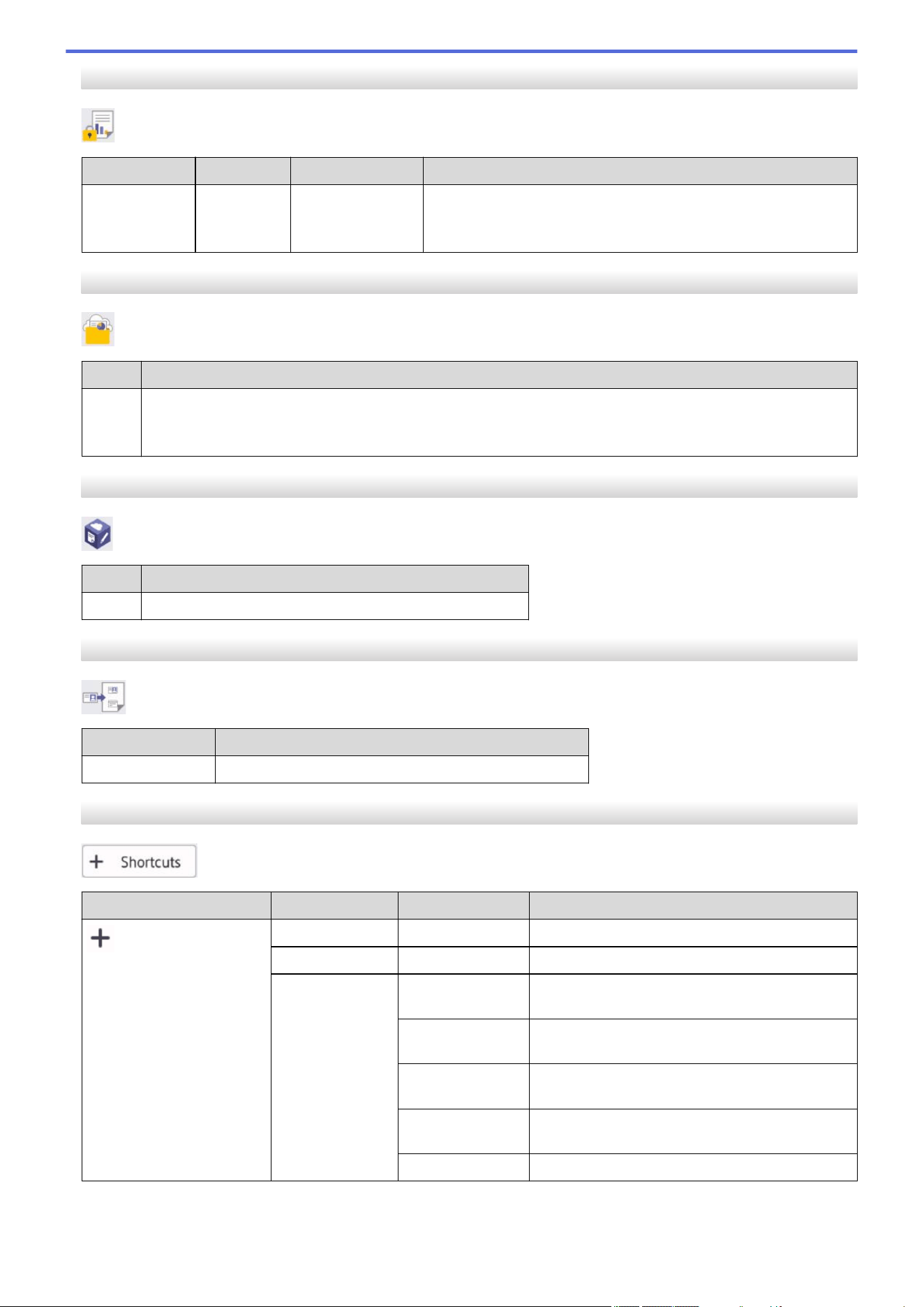
[Secure Print]
[Secure Print]
Level 2 Level 3 Level 4 Descriptions
Secure
Print
(Select User) (Select Secure
Print Job)
You can print data saved in the machine's memory when you
enter your four-digit password.
Active only when the machine has secure print data.
[Web]
[Web]
Level 2
Descriptions
Web
Connect the Brother machine to an Internet service.
Web services may have been added and service names may have been changed by the provider since this
document was published.
[Apps]
[Apps]
Level 2
Descriptions
Apps
Connect the Brother machine to the Brother Apps service.
[2 in 1 ID Copy]
[2 in 1 ID Copy]
Level 2
Descriptions
2 in 1 ID Copy
Copy both sides of an identification card onto one page.
[Shortcuts]
[Shortcuts]
Level 3
Level 4 Level 5 Descriptions
Copy
- Select the settings you want.
Fax
- Select the settings you want.
Scan to File
Scan documents and save them to a folder on
your computer.
to OCR
Convert your scanned document to an editable
text file.
to Image
Scan photos or graphics into your graphics
applications.
to E-mail
Send a scanned document as an email
attachment.
to Mobile App
Scan documents to a mobile application.
628
Level 3 Level 4 Level 5 Descriptions
Scan to E-mail
Server
Send scanned data to an email server by
allowing your machine to communicate with your
network and email server.
to Network
(available for
certain models)
Send scanned data to a CIFS server on your
local network or on the Internet.
to FTP
(available for
certain models)
Send scanned data via FTP.
Web
- Connect the Brother machine to an Internet
service.
Web services may have been added and service
names may have been changed by the provider
since this document was published.
Apps
- Connect the Brother machine to the Brother
Apps service.
This list appears when
each Shortcut name is
pressed for 2 seconds.
Rename
- Change the shortcut name.
Edit
- Change the shortcut settings.
Delete
- Delete the shortcut.
Register
Card/NFC
(available for
certain models)
- Assign a shortcut to an ID card.
Delete
Card/NFC
(available for
certain models)
- Remove a shortcut from an ID card.
[Toner]
[Toner]
Level 2
Level 3 Descriptions
(Toner)
Toner Life
View the approximate remaining toner life.
Test Print
Print a test page.
Toner Cartridge Check
View the installed toner cartridge information on the LCD, for example, if
the toner cartridge is genuine.
Wi-Fi Setup (For wireless models)
(Wi-Fi Setup) (For wireless models)
Level 2
Level 3 Descriptions
(Wi-Fi Setup)
Find Wi-Fi Network
Configure your wireless network settings manually.
TCP/IP
1
Change the TCP/IP settings.
WPS/Push Button
Configure your wireless network settings using the one-button push method.
WPS/PIN Code
1
Configure your wireless network settings using WPS with a PIN.
1
Available after a Wi-Fi
®
connection has been configured.
629
Level 2 Level 3 Descriptions
(Wi-Fi Setup)
Recover WLAN
Reset and restart your wireless network.
WLAN Status
1
View the current wireless network status.
MAC Address
1
View the machine's MAC address.
Set to Default
1
Restore the wireless network settings to the factory settings.
WLAN Enable
1
Turn the wireless interface on or off.
Related Information
• Settings and Features Tables
630
Home > Machine Settings > Change Machine Settings from the Control Panel > Settings and Features
Tables > Features Tables (2.7" Touch Panel DCP models)
Features Tables (2.7" Touch Panel DCP models)
Related Models: HL-L2480DW
>> [Copy]
>> [Scan]
>> [Web]
>> [Apps]
>> [2 in 1 ID Copy]
>> [Shortcuts]
>> [Toner]
>> Wi-Fi Setup
[Copy]
[Copy]
Level 3
Level 4 Level 5 Descriptions
Start
- - Make a black and white or grayscale copy.
ID
- - Make a copy of the ID card.
Options
Quality
- Select the Copy resolution for your document type.
Enlarge/Reduce 100%
-
Enlarge
Select an enlargement ratio for the next copy.
Reduce
Select a reduction ratio for the next copy.
Custom(25-400%)
Enter an enlargement or reduction ratio.
Density
- Adjust the density.
2-sided Copy Layout
Turn off or turn on 2-sided copying and select flip on
long edge or flip on short edge.
Contrast
- Adjust the contrast.
Stack/Sort
- Select to stack or sort multiple copies.
Page Layout
- Make N in 1 copies.
Save as Shortcut
- - Save the current settings as a shortcut.
[Scan]
[Scan]
Level 3
Level 4 Level 5 Level 4 Descriptions
to PC to File Other Scan to
Actions
- Scan documents and save them to a
folder on your computer.
(Select USB or PC)
Options
Save as
Shortcut
Start
to OCR Other Scan to
Actions
- Convert your scanned document to an
editable text file.
631
Level 3 Level 4 Level 5 Level 4 Descriptions
to PC to OCR
(Select USB or PC)
Options
Convert your scanned document to an
editable text file.
Save as
Shortcut
Start
to Image Other Scan to
Actions
- Scan photos or graphics into your
graphics applications.
(Select USB or PC)
Options
Save as
Shortcut
Start
to E-mail Other Scan to
Actions
- Send a scanned document as an email
attachment.
(Select USB or PC)
Options
Save as
Shortcut
Start
to Mobile App
(Select Profile
name)
Other Scan to
Actions
- Scan documents to a mobile
application.
Options
-
Save as
Shortcut
-
Start
-
to FTP
(available for
certain models)
Other Scan to
Actions
- - Scan documents directly to an FTP
server.
(Select Profile
name)
Options
-
Save as
Shortcut
-
Start
-
to Web
- - - Upload the scanned data to an Internet
service.
WS Scan Other Scan to
Actions
- - Scan data using the Web Service
protocol.
Scan
- -
Scan for E-
mail
- -
Scan for Fax
- -
Scan for
Print
- -
[Web]
[Web]
Level 2
Descriptions
Web
Connect the Brother machine to an Internet service.
632
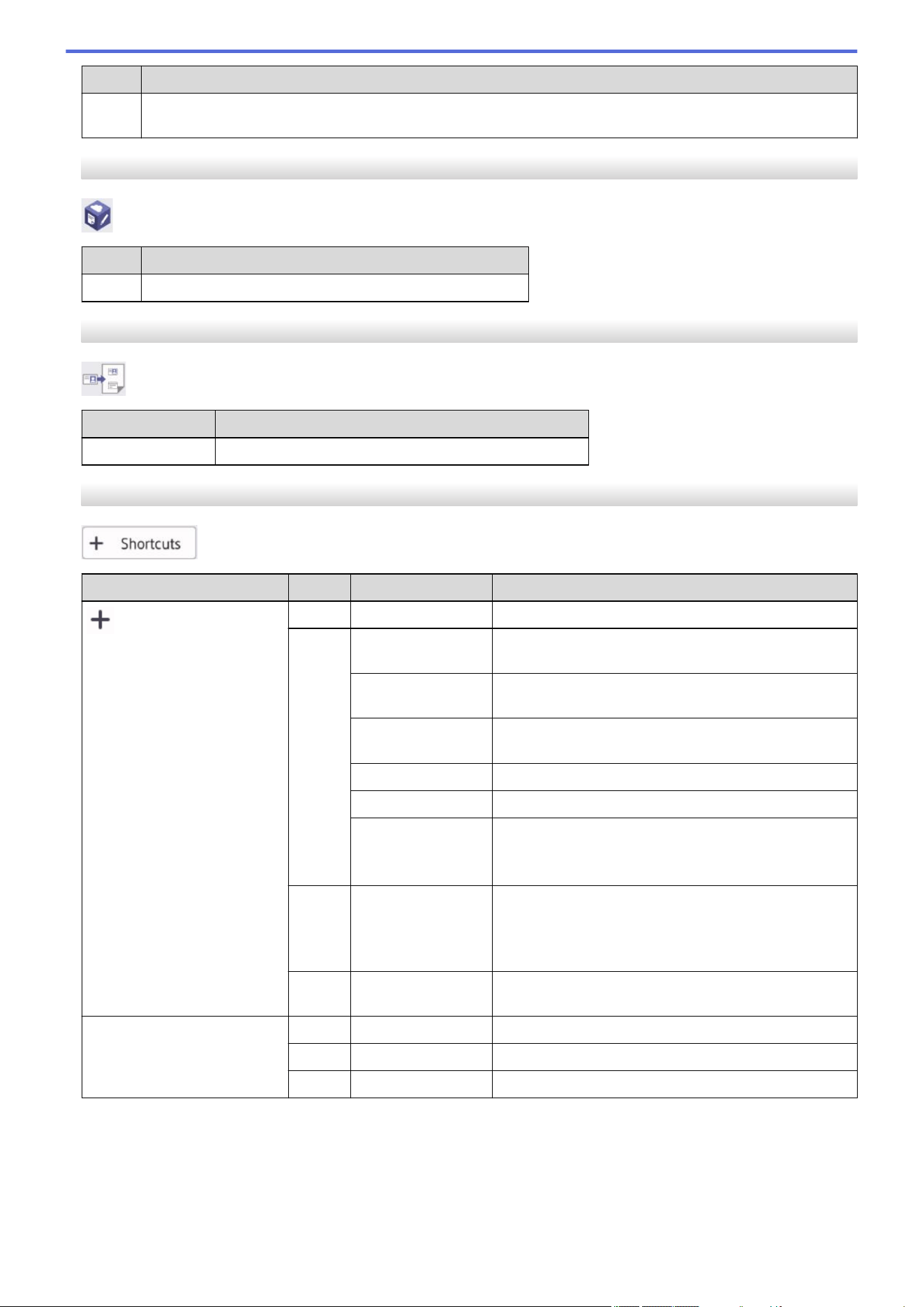
Level 2 Descriptions
Web services may have been added and service names may have been changed by the provider since this
document was published.
[Apps]
[Apps]
Level 2
Descriptions
Apps
Connect the Brother machine to the Brother Apps service.
[2 in 1 ID Copy]
[2 in 1 ID Copy]
Level 2
Descriptions
2 in 1 ID Copy
Copy both sides of an identification card onto one page.
[Shortcuts]
[Shortcuts]
Level 3
Level 4 Level 5 Descriptions
Copy
- Select the settings you want.
Scan to File
Scan documents and save them to a folder on your
computer.
to OCR
Convert your scanned document to an editable text
file.
to Image
Scan photos or graphics into your graphics
applications.
to E-mail
Send a scanned document as an email attachment.
to Mobile App
Scan documents to a mobile application.
to FTP
(available for
certain models)
Send scanned data via FTP.
Web
- Connect the Brother machine to an Internet service.
Web services may have been added and service
names may have been changed by the provider since
this document was published.
Apps
- Connect the Brother machine to the Brother Apps
service.
This list appears when each
Shortcut name is pressed for
2 seconds.
Rename
- Change the shortcut name.
Edit
- Change the shortcut settings.
Delete
- Delete the shortcut.
633
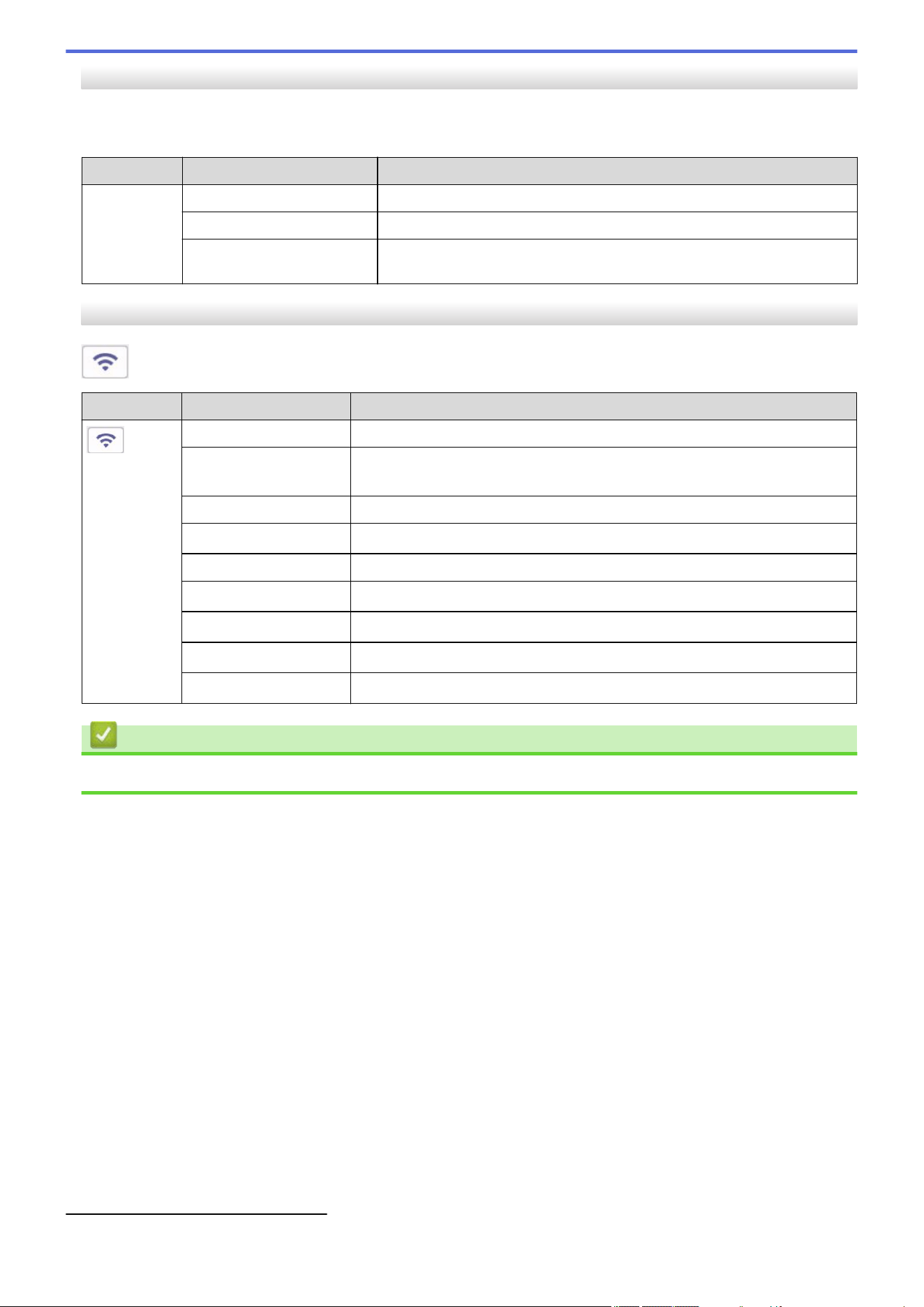
[Toner]
[Toner]
Level 2 Level 3 Descriptions
(Toner)
Toner Life
View the approximate remaining toner life.
Test Print
Print a test page.
Toner Cartridge Check
View the installed toner cartridge information on the LCD, for example, if
the toner cartridge is genuine.
Wi-Fi Setup
(Wi-Fi Setup)
Level 2
Level 3 Descriptions
(Wi-Fi Setup)
Find Wi-Fi Network
Configure your wireless network settings manually.
TCP/IP
1
Change the TCP/IP settings.
WPS/Push Button
Configure your wireless network settings using the one-button push method.
WPS/PIN Code
1
Configure your wireless network settings using WPS with a PIN.
Recover WLAN
Reset and restart your wireless network.
WLAN Status
1
View the current wireless network status.
MAC Address
1
View the machine's MAC address.
Set to Default
1
Restore the wireless network settings to the factory settings.
WLAN Enable
1
Turn the wireless interface on or off.
Related Information
• Settings and Features Tables
1
Available after a Wi-Fi
®
connection has been configured.
634

Home > Machine Settings > Change Machine Settings Using Web Based Management
Change Machine Settings Using Web Based Management
Web Based Management is a utility that uses a standard web browser to manage your machine using the Hyper
Text Transfer Protocol (HTTP) or Hyper Text Transfer Protocol over Secure Socket Layer (HTTPS).
• What is Web Based Management?
• Access Web Based Management
• Change the Login Password Using Web Based Management
• Set Up Your Machine's Address Book Using Web Based Management
635
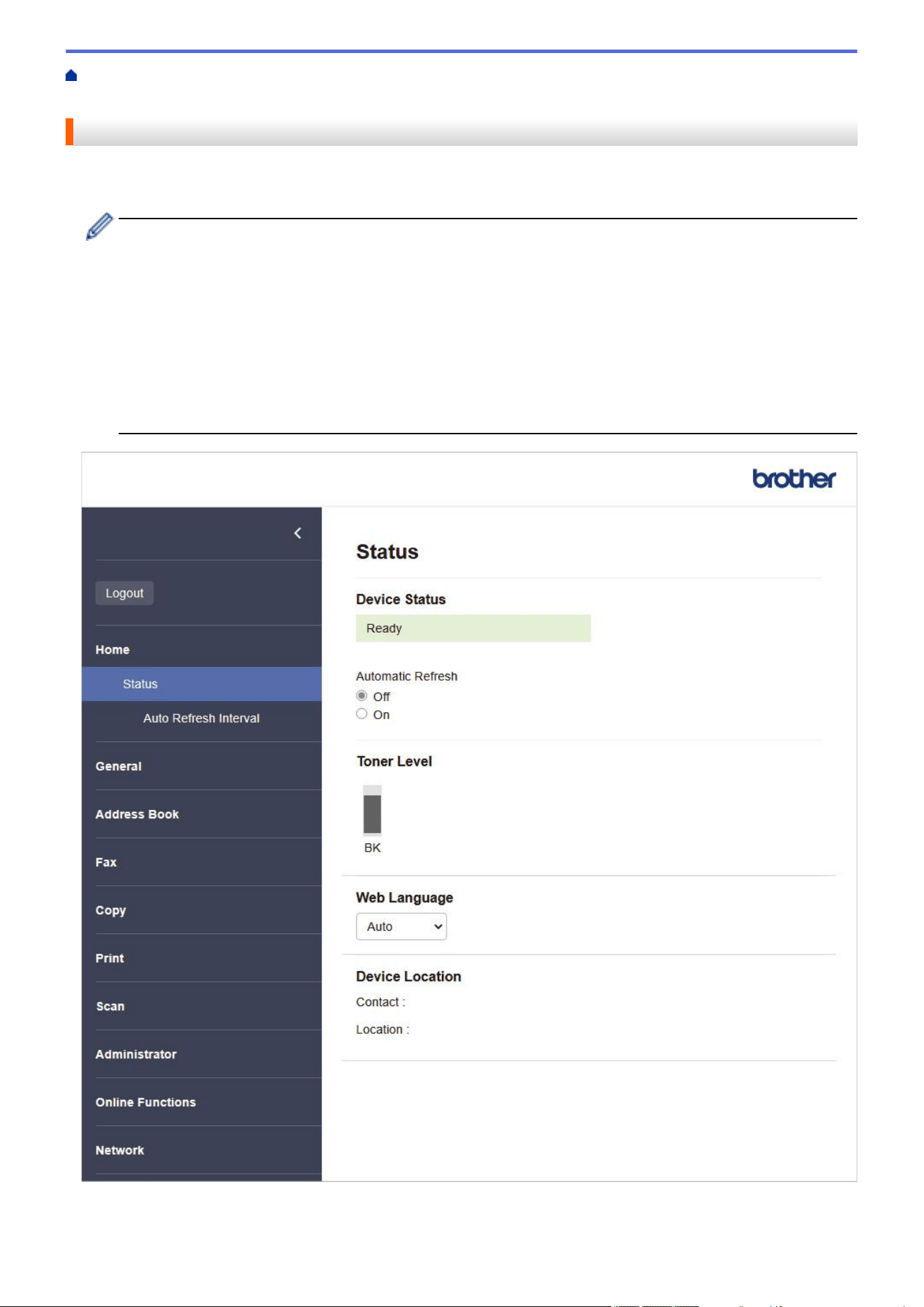
Home > Machine Settings > Change Machine Settings Using Web Based Management > What is Web
Based Management?
What is Web Based Management?
Web Based Management is a utility that uses a standard web browser to manage your machine using the Hyper
Text Transfer Protocol (HTTP) or Hyper Text Transfer Protocol over Secure Socket Layer (HTTPS).
• We recommend using the latest version of the following web browsers:
- Microsoft Edge, Firefox, and Google Chrome
™
for Windows
- Safari, Firefox, and Google Chrome
™
for Mac
- Google Chrome
™
for Android
™
- Safari and Google Chrome
™
for iOS
• Ensure that JavaScript and Cookies are always enabled, regardless of which browser you use.
•
Make sure your machine is On and connected to the same network as your computer, and that your
network supports the TCP/IP protocol.
The actual screen may differ from the screen shown above.
636

Home > Machine Settings > Change Machine Settings Using Web Based Management > Access Web
Based Management
Access Web Based Management
• We recommend using the latest version of the following web browsers:
- Microsoft Edge, Firefox, and Google Chrome
™
for Windows
- Safari, Firefox, and Google Chrome
™
for Mac
- Google Chrome
™
for Android
™
- Safari and Google Chrome
™
for iOS
• Ensure that JavaScript and Cookies are always enabled, regardless of which browser you use.
• We recommend using the HTTPS security protocol when configuring settings using Web Based
Management. If you use HTTP when configuring settings using Web Based Management, follow the
screen prompts to switch to a secure HTTPS connection.
• When you use HTTPS for Web Based Management configuration, your browser will display a warning
dialog box. To avoid displaying the warning dialog box, you can install a self-signed certificate to use
SSL/TLS communication. For more information, see Related Information.
• The default password to manage this machine’s settings is located on the back of the machine and marked
"Pwd". Change the default password by following the on-screen instructions when you first log in. We
recommend immediately changing the default password to protect your machine from unauthorized
access.
You can also find the default password in the Network Configuration Report.
>> Access Web Based Management from your Web Browser
>> Access Web Based Management from Brother iPrint&Scan (Windows/Mac)
>> Access Web Based Management from Brother Utilities (Windows)
Access Web Based Management from your Web Browser
1. Start your web browser.
2. Type "https://machine's IP address" in your browser's address bar (where "machine's IP address" is your
machine's IP address).
For example:
https://192.168.1.2
• If you are using a Domain Name System or enable a NetBIOS name, you can type another name, such
as "SharedPrinter" instead of the IP address.
For example: https://SharedPrinter
• If you enable a NetBIOS name, you can also use the node name.
For example: https://brn123456abcdef
• The NetBIOS name can be found in the Network Configuration Report.
3. If required, type the password in the Login field, and then click Login.
The default password to manage this machine’s settings is located on the back of the machine and marked
"Pwd". Change the default password by following the on-screen instructions when you first log in.
4. If you want to pin the navigation bar to the left side of the screen, click and then click .
You can now change the machine's settings.
If the machine is idle for a specified amount of time, the user is automatically logged out. Change the logout
settings in the Logout Time menu.
638
Access Web Based Management from Brother iPrint&Scan (Windows/Mac)
1. Start Brother iPrint&Scan.
• Windows
Launch (Brother iPrint&Scan).
• Mac
In the Finder menu bar, click Go > Applications, and then double-click the iPrint&Scan icon.
The Brother iPrint&Scan screen appears.
2. If your Brother machine is not selected, click the Select your Machine button, and then select your model
name from the list. Click OK.
3. Click
(Supplies/Machine Settings).
4. Click All Settings.
The Web Based Management page appears.
5. If required, type the password in the Login field, and then click Login.
The default password to manage this machine’s settings is located on the back of the machine and marked
"Pwd". Change the default password by following the on-screen instructions when you first log in.
6. If you want to pin the navigation bar to the left side of the screen, click and then click .
You can now change the machine's settings.
You can also access Web Based Management from Brother Mobile Connect for mobile devices.
Access Web Based Management from Brother Utilities (Windows)
1. Launch (Brother Utilities), and then click the drop-down list and select your model name (if not already
selected).
2. Click Tools in the left navigation bar, and then click Machine Settings.
The Web Based Management page appears.
3. If required, type the password in the Login field, and then click Login.
The default password to manage this machine’s settings is located on the back of the machine and marked
"Pwd". Change the default password by following the on-screen instructions when you first log in.
4.
If you want to pin the navigation bar to the left side of the screen, click and then click .
You can now change the machine's settings.
If you change the protocol settings, you must restart the machine after clicking Submit to activate the
configuration.
After configuring the settings, click Logout.
Related Information
• Change Machine Settings Using Web Based Management
Related Topics:
• Print the Network Configuration Report
• Create a Self-signed Certificate
• Install the Self-signed Certificate for Windows Users as Administrators
• Use SSL/TLS
639
Home > Machine Settings > Change Machine Settings Using Web Based Management > Change the Login
Password Using Web Based Management
Change the Login Password Using Web Based Management
The default password to manage this machine’s settings is located on the back of the machine and marked
"Pwd". Change the default password by following the on-screen instructions when you first log in. We
recommend immediately changing the default password to protect your machine from unauthorized access.
1. Start your web browser.
2. Type "https://machine's IP address" in your browser's address bar (where "machine's IP address" is your
machine's IP address).
For example:
https://192.168.1.2
• If you are using a Domain Name System or enable a NetBIOS name, you can type another name, such
as "SharedPrinter" instead of the IP address.
For example: https://SharedPrinter
• If you enable a NetBIOS name, you can also use the node name.
For example: https://brn123456abcdef
• The NetBIOS name can be found in the Network Configuration Report.
3. Do one of the following:
• If you have previously set your own password, type it, and then click Login.
• If you have not previously set your own password, type the default login password, and then click Login.
4. In the left navigation bar, click Administrator > Login Password.
• The default password to manage this machine’s settings is located on the back of the machine and
marked "Pwd".
• If the left navigation bar is not visible, start navigating from .
5. To change the password, type your current password in the Enter Old Password field.
6. Following the on-screen Login Password guidelines, type your new password in the Enter New Password
field.
7. Retype the new password in the Confirm New Password field.
8. Click Submit.
You can also change the lockout settings in the Login Password menu.
Related Information
• Change Machine Settings Using Web Based Management
Related Topics:
• Check Your Machine's Password
640
Home > Machine Settings > Change Machine Settings Using Web Based Management > Set Up Your
Machine's Address Book Using Web Based Management
Set Up Your Machine's Address Book Using Web Based Management
Related Models: MFC-L2760DW/MFC-L2807DW/MFC-L2820DW/MFC-L2820DWXL/MFC-L2900DW/
MFC-L2900DWXL/MFC-L2980DW
• We recommend using the HTTPS security protocol when configuring settings using Web Based
Management.
• When you use HTTPS for Web Based Management configuration, your browser will display a warning
dialog box.
1. Start your web browser.
2. Type "https://machine's IP address" in your browser's address bar (where "machine's IP address" is your
machine's IP address).
For example:
https://192.168.1.2
• If you are using a Domain Name System or enable a NetBIOS name, you can type another name, such
as "SharedPrinter" instead of the IP address.
For example: https://SharedPrinter
• If you enable a NetBIOS name, you can also use the node name.
For example: https://brn123456abcdef
• The NetBIOS name can be found in the Network Configuration Report.
3. If required, type the password in the Login field, and then click Login.
The default password to manage this machine’s settings is located on the back of the machine and marked
"Pwd". Change the default password by following the on-screen instructions when you first log in.
4. In the left navigation bar, click Address Book.
If the left navigation bar is not visible, start navigating from
.
5. Click the target address numbers, and then add or update the Address Book information as needed.
6. Click Submit.
Related Information
• Change Machine Settings Using Web Based Management
641

Home > Appendix > Specifications
Specifications
>> General Specifications
>> Document Size Specification
>> Print Media Specifications
>> Fax Specifications
>> Copy Specification
>> Scanner Specifications
>> Printer Specifications
>> Interface Specifications
>> Supported Protocols and Security Features
>> Computer Requirements Specifications
General Specifications
Printer Type
Laser
Print Method Electrophotographic Laser Printer
Memory Capacity Standard • (HL-L2465DW/MFC-L2760DW/MFC-L2807DW/
MFC-L2820DW/MFC-L2820DWXL)
128 MB
• (DCP-L2640DW/DCP-L2647DW/HL-L2480DW/
MFC-L2900DW/MFC-L2900DWXL/MFC-L2980DW)
256 MB
Liquid Crystal Display (LCD)
• (HL-L2465DW/DCP-L2640DW/DCP-L2647DW/
MFC-L2760DW)
16 characters x 2 lines
• (HL-L2480DW/MFC-L2807DW/MFC-L2820DW/
MFC-L2820DWXL)
2.7 in. (67.5 mm) TFT Color touchscreen LCD
1
• (MFC-L2900DW/MFC-L2900DWXL/MFC-L2980DW)
3.5 in. (87.6 mm) TFT Color touchscreen LCD
1
Power Source
110 V to 120 V AC 50/60 Hz
Power
Consumption
(Average)
Peak • (HL-L2465DW/DCP-L2640DW/DCP-L2647DW/
HL-L2480DW/MFC-L2760DW/MFC-L2807DW/
MFC-L2820DW/MFC-L2820DWXL)
Approximately 920 W
• (MFC-L2900DW/MFC-L2900DWXL/MFC-L2980DW)
Approximately 870 W
Printing
2
• (HL-L2465DW/MFC-L2760DW)
Approximately 450 W at 77°F (25°C)
• (DCP-L2640DW/DCP-L2647DW/HL-L2480DW/
MFC-L2807DW/MFC-L2820DW/MFC-L2820DWXL)
Approximately 470 W at 77°F (25°C)
• (MFC-L2900DW/MFC-L2900DWXL/MFC-L2980DW)
Approximately 495 W at 77°F (25°C)
Printing
(Quiet Mode)
2
• (HL-L2465DW/DCP-L2640DW/DCP-L2647DW/
HL-L2480DW/MFC-L2760DW/MFC-L2807DW/
MFC-L2820DW/MFC-L2820DWXL)
Approximately 260 W at 77°F (25°C)
• (MFC-L2900DW/MFC-L2900DWXL/MFC-L2980DW)
Approximately 210 W at 77°F (25°C)
Copying
2
• (HL-L2465DW/MFC-L2760DW)
643
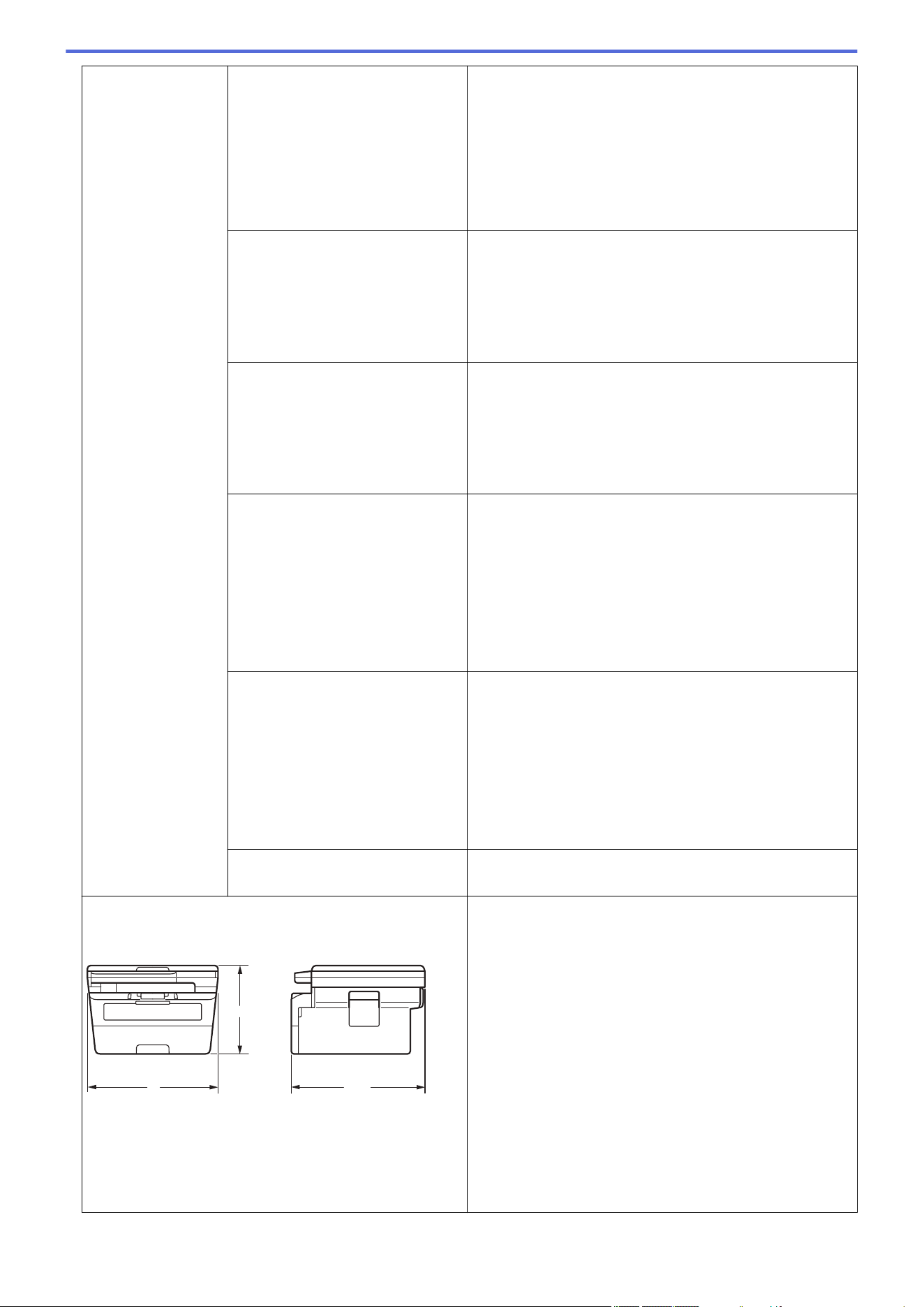
Power
Consumption
(Average)
Approximately 460 W at 77°F (25°C)
• (MFC-L2807DW/MFC-L2820DW/MFC-L2820DWXL)
Approximately 480 W at 77°F (25°C)
• (DCP-L2640DW/DCP-L2647DW/HL-L2480DW)
Approximately 490 W at 77°F (25°C)
• (MFC-L2900DW/MFC-L2900DWXL/MFC-L2980DW)
Approximately 505 W at 77°F (25°C)
Copying
(Quiet Mode)
2
• (HL-L2465DW/DCP-L2640DW/DCP-L2647DW/
HL-L2480DW/MFC-L2760DW/MFC-L2807DW/
MFC-L2820DW/MFC-L2820DWXL)
Approximately 270 W at 77°F (25°C)
• (MFC-L2900DW/MFC-L2900DWXL/MFC-L2980DW)
Approximately 220 W at 77°F (25°C)
Ready
2
• (HL-L2465DW/DCP-L2640DW/DCP-L2647DW/
HL-L2480DW/MFC-L2760DW/MFC-L2807DW/
MFC-L2820DW/MFC-L2820DWXL)
Approximately 44 W at 77°F (25°C)
• (MFC-L2900DW/MFC-L2900DWXL/MFC-L2980DW)
Same as Sleep mode.
Sleep
2
• (HL-L2465DW)
Approximately 4.1 W
• (DCP-L2640DW/DCP-L2647DW/HL-L2480DW/
MFC-L2760DW/MFC-L2807DW/MFC-L2820DW/
MFC-L2820DWXL)
Approximately 4.4 W
• (MFC-L2900DW/MFC-L2900DWXL/MFC-L2980DW)
Approximately 3.1 W
Deep Sleep
2
• (DCP-L2640DW/DCP-L2647DW)
Approximately 0.5 W
• (HL-L2465DW)
Approximately 0.6 W
• (HL-L2480DW/MFC-L2760DW/MFC-L2807DW/
MFC-L2820DW/MFC-L2820DWXL/MFC-L2900DW/
MFC-L2900DWXL/MFC-L2980DW)
Approximately 0.7 W
Power Off
2 3 4
Approximately 0.06 W
Dimensions
(Typical outline view)
(HL-L2465DW/HL-L2480DW)
****
**
(DCP-L2640DW/DCP-L2647DW/MFC-L2760DW/
MFC-L2807DW/MFC-L2820DW/MFC-L2820DWXL)
Unit: in. (mm)
• (HL-L2465DW/HL-L2480DW)
* : 16.1 (410)
** : 10.7 (272)
*** : 15.7 (399)
• (DCP-L2640DW/DCP-L2647DW/MFC-L2760DW/
MFC-L2807DW/MFC-L2820DW/MFC-L2820DWXL)
* : 16.1 (410)
** : 12.5 (319)
*** : 15.7 (399)
• (MFC-L2900DW/MFC-L2900DWXL/MFC-L2980DW)
* : 16.1 (410)
** : 12.5 (319)
*** : 16.6 (421)
644
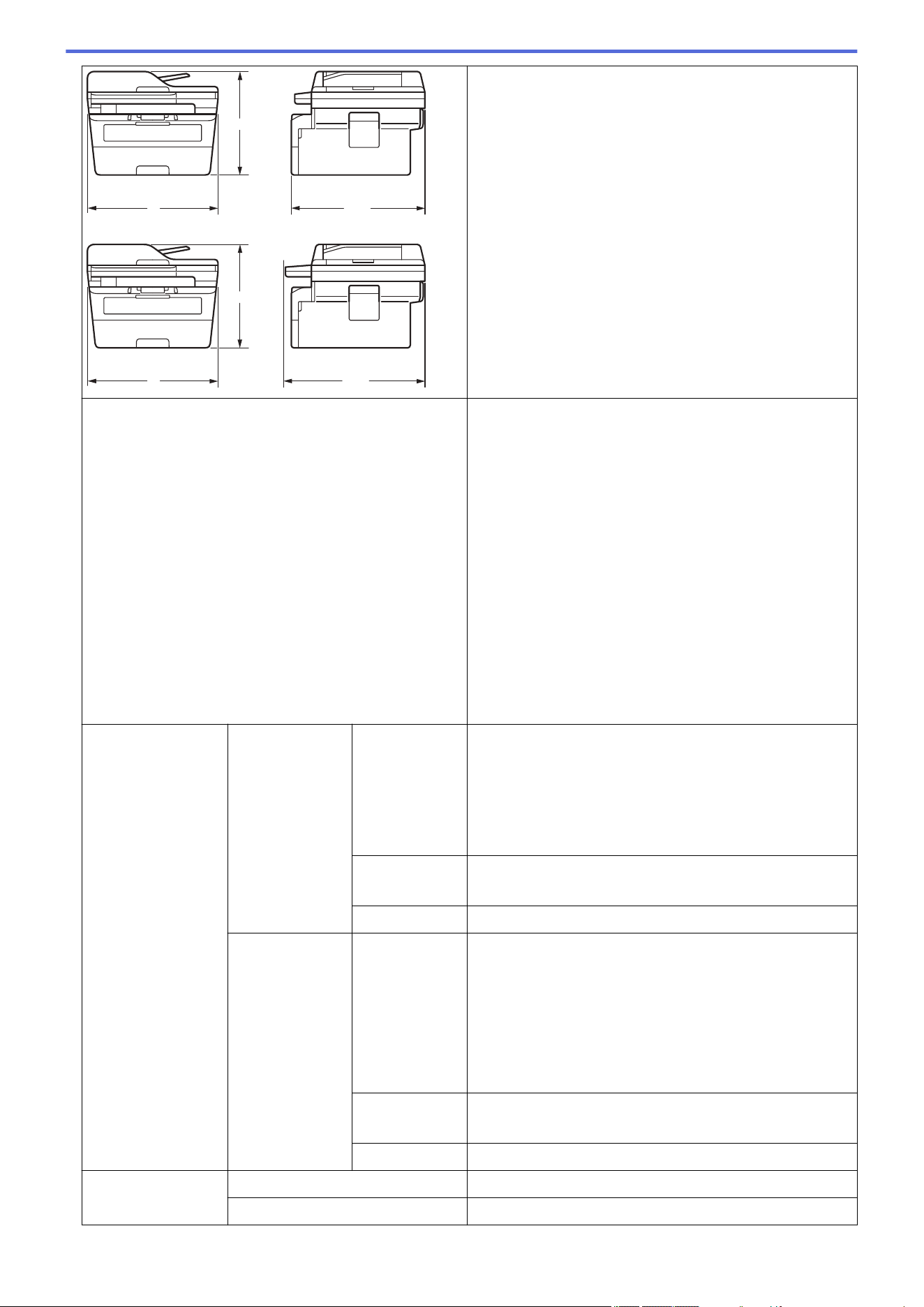
****
**
(MFC-L2900DW/MFC-L2900DWXL/MFC-L2980DW)
****
**
Weight (with supplies)
• (HL-L2465DW/HL-L2480DW)
22.2 lb (10.1 kg)
• (DCP-L2640DW/DCP-L2647DW)
25.1 lb (11.4 kg)
• (MFC-L2760DW/MFC-L2807DW/MFC-L2820DW)
25.5 lb (11.6 kg)
• (MFC-L2900DW)
27.2 lb (12.4 kg)
• (MFC-L2980DW)
27.5 lb (12.5 kg)
• (MFC-L2820DWXL)
27.7 lb (12.6 kg)
• (MFC-L2900DWXL)
29.4 lb (13.4 kg)
Noise Level
Sound Pressure
5
Printing • (HL-L2465DW/MFC-L2760DW)
LpAm = 48 dB (A)
• (DCP-L2640DW/DCP-L2647DW/HL-L2480DW/
MFC-L2807DW/MFC-L2820DW/MFC-L2820DWXL/
MFC-L2900DW/MFC-L2900DWXL/MFC-L2980DW)
LpAm = 49 dB (A)
Printing
(Quiet Mode)
LpAm = 44 dB (A)
Ready LpAm = 30 dB(A)
Sound Power
Printing
5
• (HL-L2465DW/MFC-L2760DW)
LWAc = 6.50 B (A)
• (DCP-L2640DW/DCP-L2647DW/HL-L2480DW/
MFC-L2807DW/MFC-L2820DW/MFC-L2820DWXL)
LWAc = 6.63 B (A)
• (MFC-L2900DW/MFC-L2900DWXL/MFC-L2980DW)
LWAc = 6.78 B (A)
Printing
(Quiet Mode)
LWAc = 6.12 B (A)
Ready LWAc = Inaudible
Temperature Operating From 50°F to 90.5°F (10°C to 32.5°C)
Storage From 32°F to 104°F (0°C to 40°C)
645
Humidity Operating 20% to 80% (without condensation)
Storage 35% to 85% (without condensation)
Automatic Document Feeder (ADF)
(DCP-L2640DW/DCP-L2647DW/MFC-L2760DW/
MFC-L2807DW/MFC-L2820DW/MFC-L2820DWXL/
MFC-L2900DW/MFC-L2900DWXL/MFC-L2980DW)
Up to 50 sheets
For best results we recommend:
• Temperature: 68°F to 86°F (20°C to 30°C)
• Humidity: 50% to 70%
• Paper: 20 lb (80 g/m
2
)
1
Measured diagonally.
2
Measured when the machine is connected with the same network connection as the ENERGY STAR Ver. 3.1 test method.
3
Measured according to IEC 62301 Edition 2.0.
4
Power consumption varies slightly depending on the usage environment.
5
Measured in accordance with the method described in ISO 7779.
Document Size Specification
Document Size
ADF Width
1
4.1 in. to 8.5 in. (105 mm to 215.9 mm)
ADF Length
1
5.8 in. to 14.0 in. (147.3 mm to 355.6 mm)
Scanner Glass Width Maximum 8.5 in. (215.9 mm)
Scanner Glass Length Maximum 11.8 in. (300 mm)
1
ADF models only
Print Media Specifications
Paper Input
Paper Tray
(Standard)
Paper Type Plain Paper, Thin Paper, Recycled Paper, Thick Paper
Paper Size A4, Letter, B5 (JIS), B5 (ISO), A5, A5 (Long Edge), B6
(JIS), A6, Executive, Legal, Mexico Legal, India Legal,
Folio, 16K (195x270 mm), A4 Short (270mm Paper)
Paper Weight
16 to 43 lb (60 to 163 g/m
2
)
1
Maximum Paper
Capacity
Up to 250 sheets of 20 lb (80 g/m
2
) Plain Paper
Manual Feed Slot Paper Type Plain Paper, Thin Paper, Thick Paper, Thicker Paper,
Recycled Paper, Bond, Label, Envelope, Env.Thin,
Env.Thick
Paper Size • Width:
3 to 8.5 in. (76.2 to 215.9 mm)
• Length:
5 to 14 in. (127 to 355.6 mm)
• Envelope:
COM-10, DL, C5, Monarch
Paper Weight
16 to 61 lb (60 to 230 g/m
2
)
Maximum Paper
Capacity
One sheet at a time
Paper Output
2
Face Down Output Tray
Up to 100 Sheets of 20 lb (80 g/m
2
) Plain Paper (face
down delivery to the face down output paper tray)
Face Up Output Tray One sheet (face up delivery to the face up output tray)
2-sided Automatic 2-sided
Printing
Paper Type Plain Paper, Thin Paper, Recycled Paper
Paper Size Letter, Legal, Folio, Mexico Legal, India Legal
Paper Weight
16 to 28 lb (60 to 105 g/m
2
)
646
1
For paper of 28 lb (105 g/m
2
) and above, open the back cover to use the face up output tray.
2
For labels, we recommend removing the printed sheets from the output paper tray immediately after they exit the machine to avoid the
possibility of smudging.
Fax Specifications
NOTE
This feature is available for MFC models.
Compatibility
ITU-T Super Group 3
Coding System MH / MR / MMR / JBIG
Modem Speed 33,600 bps (with Automatic Fallback)
2-sided Print Receiving (MFC-L2760DW/MFC-L2807DW/MFC-L2820DW/MFC-L2820DWXL/MFC-L2900DW/
MFC-L2900DWXL/MFC-L2980DW)
Yes
Automatic 2-sided Sending (MFC-L2900DW/MFC-L2900DWXL/MFC-L2980DW)
Yes (from the ADF)
Scanning Width Maximum 8.19 in. (208 mm)
Printing Width Maximum 8.17 in. (207.4 mm)
Gray Scale 8 bit / 256 levels
Resolution Horizontal 203 dpi
Vertical Standard: 98 dpi
Fine: 196 dpi
Super fine: 392 dpi
Photo: 196 dpi
Address Book (MFC-L2760DW/MFC-L2807DW/MFC-L2820DW/MFC-L2820DWXL/MFC-L2900DW/
MFC-L2900DWXL/MFC-L2980DW)
200 Locations
Shortcut (MFC-L2760DW)
10 locations
Groups Up to 20
Broadcasting • (MFC-L2760DW)
260 Locations
• (MFC-L2807DW/MFC-L2820DW/MFC-L2820DWXL/MFC-L2900DW/
MFC-L2900DWXL/MFC-L2980DW)
250 Locations
Automatic Redial 1 time at 5-minute intervals
Memory Transmission • (MFC-L2760DW/MFC-L2807DW/MFC-L2820DW/MFC-L2820DWXL)
Up to 400 pages
1
• (MFC-L2900DW/MFC-L2900DWXL/MFC-L2980DW)
Up to 500 pages
1
Out of Paper Reception • (MFC-L2760DW/MFC-L2807DW/MFC-L2820DW/MFC-L2820DWXL)
Up to 400 pages
1
• (MFC-L2900DW/MFC-L2900DWXL/MFC-L2980DW)
Up to 500 pages
1
1
‘Pages’ refers to the ‘ITU-T TestChart Document No.1’ (a typical business letter, Standard resolution, JBIG code).
647
Copy Specification
Copy Width Maximum 8.27 in. (210 mm)
Automatic 2-sided Copy (MFC-L2900DW/MFC-L2900DWXL/MFC-L2980DW)
Yes (from the ADF)
Sort Copy Yes
Stack Copy Up to 99 pages
Resolution Maximum 600 x 600 dpi
First Copy Out Time
1
• (MFC-L2900DW/MFC-L2900DWXL/MFC-L2980DW)
Less than 8.4 seconds at 73.4°F (23°C)
• (HL-L2465DW/DCP-L2640DW/DCP-L2647DW/HL-L2480DW/MFC-L2760DW/
MFC-L2807DW/MFC-L2820DW/MFC-L2820DWXL)
Less than 10 seconds at 73.4°F (23°C)
1
From Ready Mode and standard tray.
Scanner Specifications
Color / Black
Yes / Yes
TWAIN Compliant Yes
(Windows 10 / Windows 11)
WIA Compliant Yes
(Windows 10 / Windows 11)
AirPrint Compliant Yes
(macOS v11, v12, v13)
Color Depth • 30 bit color Processing (Input)
• 24 bit color Processing (Output)
Gray Scale • 10 bit color Processing (Input)
• 8 bit color Processing (Output)
Resolution
2
• Up to 19200 x 19200 dpi (interpolated)
• Up to 1200 x 1200 dpi (from Scanner Glass)
• Up to 600 x 600 dpi (from the ADF)
1
Scanning Width Maximum 8.27 in. (210 mm)
Automatic 2-sided Scanning (MFC-L2900DW/MFC-L2900DWXL/MFC-L2980DW)
Yes (from the ADF)
1
ADF models only
2
Maximum 1200 × 1200 dpi scanning with the WIA driver in Windows 10 and Windows 11 (resolution up to 19200 × 19200 dpi can be
selected by using the scanner utility)
Printer Specifications
Automatic 2-sided Print
Yes
Emulation (DCP-L2640DW/DCP-L2647DW/HL-L2480DW/MFC-L2900DW/MFC-L2900DWXL/
MFC-L2980DW)
PCL6, BR-Script3, PDF Version 1.7
Resolution Up to 1200 x 1200 dpi
Print Speed
1 2
1-sided Print
3
• (HL-L2465DW/MFC-L2760DW)
Up to 28 pages/minute (A4 size)
Up to 30 pages/minute (Letter size)
648
Print Speed
1 2
• (MFC-L2807DW/MFC-L2820DW/MFC-L2820DWXL)
Up to 32 pages/minute (A4 size)
Up to 34 pages/minute (Letter size)
• (DCP-L2640DW/DCP-L2647DW/HL-L2480DW/MFC-L2900DW/
MFC-L2900DWXL/MFC-L2980DW)
Up to 34 pages/minute (A4 size)
Up to 36 pages/minute (Letter size)
2-sided Print
• (HL-L2465DW/MFC-L2760DW)
Up to 15 pages/minute (Up to 7.5 sheets/minute) (Letter or A4 size)
• (DCP-L2640DW/DCP-L2647DW/HL-L2480DW/MFC-L2807DW/MFC-L2820DW/
MFC-L2820DWXL/MFC-L2900DW/MFC-L2900DWXL/MFC-L2980DW)
Up to 16 pages/minute (Up to 8 sheets/minute) (A4 size)
Up to 17 pages/minute (Up to 8.5 sheets/minute) (Letter size)
First Print Time
4
• (MFC-L2900DW/MFC-L2900DWXL/MFC-L2980DW)
Less than 6.9 seconds at 73.4°F (23°C)
• (HL-L2465DW/DCP-L2640DW/DCP-L2647DW/HL-L2480DW/MFC-L2760DW/
MFC-L2807DW/MFC-L2820DW/MFC-L2820DWXL)
Less than 8.5 seconds at 73.4 °F (23 °C)
1
The print speed may change depending on the type of document you print.
2
The print speed may be slower when the machine is connected by wireless LAN.
3
These print speeds are for 1-sided printing and measured in accordance with the ISO/IEC 24734 standard.
4
From Ready mode and standard tray.
Interface Specifications
USB
1 2
Hi-Speed USB 2.0
Use a USB 2.0 interface cable that is no more than 6 feet (2 meters) long.
LAN (DCP-L2640DW/DCP-L2647DW/HL-L2480DW/MFC-L2807DW/MFC-L2820DW/MFC-L2820DWXL/
MFC-L2900DW/MFC-L2900DWXL/MFC-L2980DW)
10Base-T/100Base-TX
3
Wireless LAN IEEE 802.11a/b/g/n (Infrastructure Mode)
IEEE 802.11a/g/n (Wi-Fi Direct
®
)
NFC (MFC-L2980DW)
Yes
1
Your machine has a USB 2.0 Hi-Speed interface. The machine can also be connected to a computer that has a USB 1.1 interface.
2
Third party USB hub devices are not supported.
3
Use a straight-through Category 5 (or greater) twisted-pair cable.
Supported Protocols and Security Features
Supported protocols and security features may differ depending the models.
Ethernet
10Base-T/100Base-TX
Wireless LAN (2.4GHz)
IEEE 802.11b/g/n (Infrastructure Mode), IEEE 802.11g/n (Wi-Fi Direct)
Wireless LAN (5GHz)
IEEE 802.11a/n (Infrastructure Mode), IEEE 802.11a/n (Wi-Fi Direct)
649
Protocols (IPv4)
ARP, RARP, BOOTP, DHCP, APIPA(Auto IP), WINS/NetBIOS name resolution, DNS Resolver, mDNS, LLMNR
responder, LPR/LPD, Custom Raw Port/Port9100, POP3, SMTP Client, IPP/IPPS, FTP Client and
Server,CIFS Client, SNMPv1/v2c/v3, HTTP/HTTPS server, TFTP client and server, ICMP, Web Services
(Print/Scan), Syslog, SNTP Client,IMAP4,LDAP/LDAPS
Protocols (IPv6)
NDP, RA, DNS resolver, mDNS, LLMNR responder, LPR/LPD, Custom Raw Port/Port9100, IPP/IPPS, POP3,
SMTP Client, FTP Client and Server, CIFS Client, SNMPv1/v2c/v3, HTTP/HTTPS server, TFTP client and
server, ICMPv6, Web Services (Print/Scan), Syslog, SNTP Client,IMAP4,LDAP/LDAPS
Network Security (Wired)
APOP*, SMTP-AUTH, SSL/TLS (SMTP, HTTP, IPP, POP3*, IMAP4*, FTP), SNMP v3, 802.1x (EAP-MD5,
EAP-FAST, PEAP, EAP-TLS, EAP-TTLS), OAuth(SMTP, POP3, IMAP4), Kerberos, IPsec
*When Internet FAX is downloaded.
Network Security (Wireless)
APOP*, SMTP-AUTH, SSL/TLS (SMTP, HTTP, IPP, POP3*, IMAP4*, FTP), SNMP v3, 802.1x ( EAP-FAST,
PEAP, EAP-TLS, EAP-TTLS), OAuth(SMTP, POP3, IMAP4), Kerberos, IPsec
*When Internet FAX is downloaded.
Wireless Network Security
WEP 64/128 bit, WPA-PSK (TKIP/AES), WPA2-PSK (TKIP/AES), WPA3-SAE (AES) (Wi-Fi Direct supports
WPA2-PSK (AES) only)
Wireless Certification
Wi-Fi Certification Mark License (WPA3
™
- Enterprise, Personal), Wi-Fi Protected Setup
™
(WPS) Identifier
Mark License, Wi-Fi CERTIFIED
™
Wi-Fi Direct
Computer Requirements Specifications
Supported Operating Systems And Software Functions
For the latest supported OS, go to your model's Supported OS page at
support.brother.com/os.
Computer Platform &
Operating System Version
PC Interface Processor Hard Disk Space to
Install
1
USB
2
Wired LAN Wireless LAN For
Drivers
For
Applicatio
ns
(including
Drivers)
Windows 10 Home / 10 Pro /
10 Education / 10 Enterprise
4 5
Printing
PC Fax
3
Scanning
32 bit (x86)
or 64 bit
(x64)
processor
80 MB 1.8 GB
Windows 11 Home / 11 Pro /
11 Education / 11 Enterprise
4
5
64 bit (x64)
processor
Windows Server 2012 Printing
Scanning
Printing 64 bit (x64)
processor
80 MB 80 MB
Windows Server 2012 R2
Windows Server 2016
Windows Server 2019
Windows Server 2022
macOS v11
6
Printing
PC-Fax (Send)
3
64 bit
processor
N/A 500 MB
650
macOS v12
6
Scanning
macOS v13
6
Chrome OS Printing
Scanning
N/A N/A N/A
1
An Internet connection is required to install the software if the installation disc is not supplied.
2
Third party USB ports are not supported.
3
PC-Fax supports black and white only.
4
For WIA, 1200x1200 resolution. Brother Scanner Utility enables to enhance up to 19200 x 19200 dpi.
5
PaperPort
™
14SE supports Windows 10 and Windows 11.
6
macOS DisclaimerAirPrint capable: Printing, scanning, or PC faxing(Send) via macOS requires the use of AirPrint. Mac drivers are not
provided for this machine.
For the latest driver updates, go to your model's Downloads page at
support.brother.com/downloads.
All trademarks, brand and product names are the property of their respective companies.
Related Information
• Appendix
651
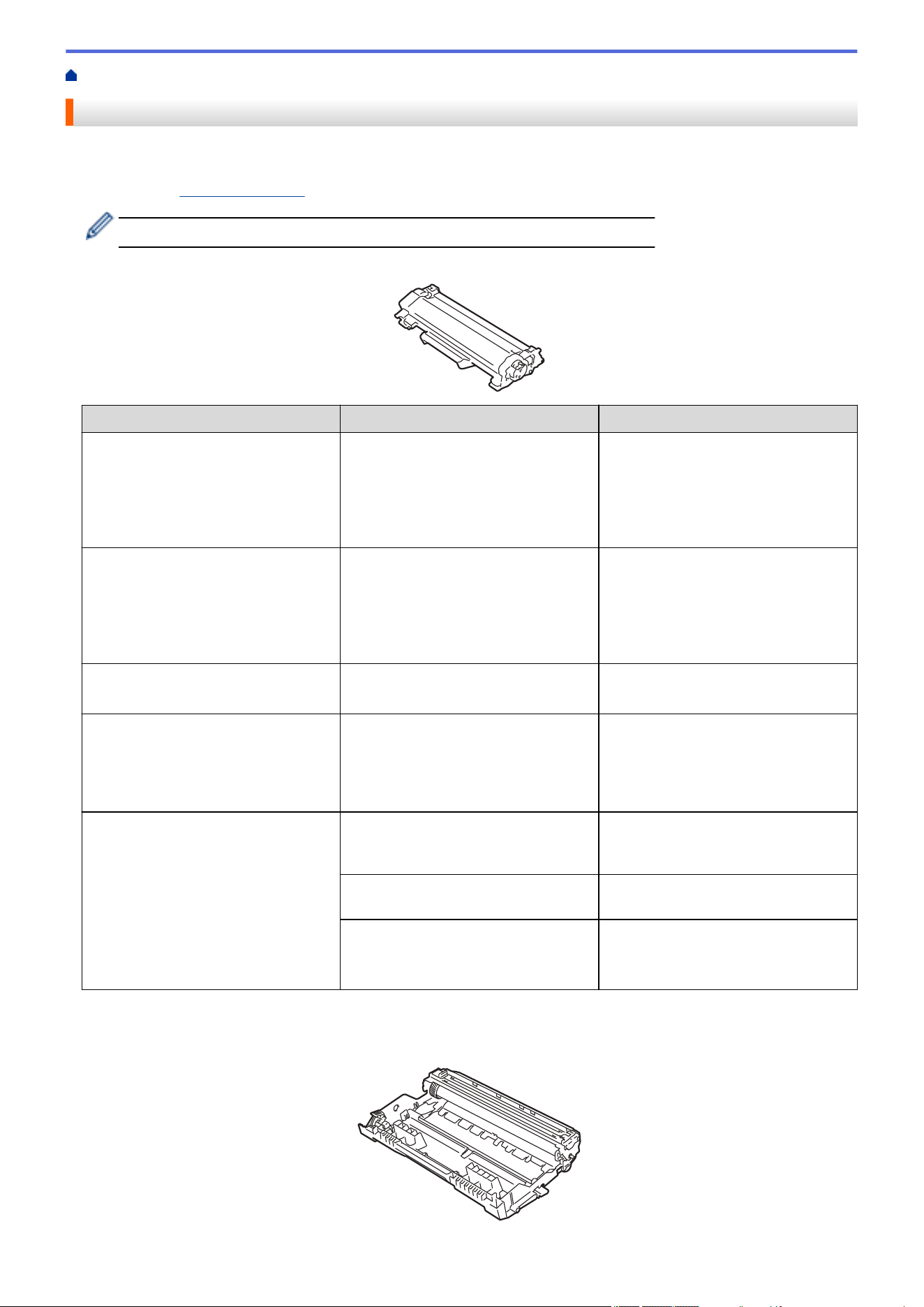
Home > Appendix > Supplies
Supplies
When the time comes to replace supplies, such as the toner cartridge or drum unit, an error message will appear
on your machine's control panel or in the Status Monitor. For more information about the supplies for your
machine, visit go.brother/original or contact your local Brother dealer.
The Supply Order Number (No.) varies depending on your country and region.
Toner Cartridge
Supply Order No.
Approximate Life (Page Yield) Applicable Models
Standard Toner:
TN830
Approximately 1,200 pages
1 2
HL-L2465DW/DCP-L2640DW/
DCP-L2647DW/HL-L2480DW/
MFC-L2760DW/MFC-L2807DW/
MFC-L2820DW/MFC-L2820DWXL/
MFC-L2900DW/MFC-L2900DWXL/
MFC-L2980DW
High Yield Toner:
TN830XL
Approximately 3,000 pages
1
2
HL-L2465DW/DCP-L2640DW/
DCP-L2647DW/HL-L2480DW/
MFC-L2760DW/MFC-L2807DW/
MFC-L2820DW/MFC-L2820DWXL/
MFC-L2900DW/MFC-L2900DWXL/
MFC-L2980DW
Super High Yield Toner:
TN835
Approximately 5,000 pages
1 2
MFC-L2980DW
Value High Yield Toner:
TN830V (For USA)
Approximately 3,300 pages
1
2
HL-L2465DW/DCP-L2640DW/
DCP-L2647DW/HL-L2480DW/
MFC-L2760DW/MFC-L2807DW/
MFC-L2820DW/MFC-L2820DWXL/
MFC-L2900DW/MFC-L2900DWXL
Starter Toner:
(Supplied with your machine)
Approximately 700 pages
1 2
HL-L2465DW/DCP-L2640DW/
HL-L2480DW/MFC-L2760DW/
MFC-L2820DW/MFC-L2900DW
Approximately 1,200 pages
1 2
DCP-L2647DW/MFC-L2807DW/
MFC-L2980DW
Approximately 4,200 pages
1 2
(Standard Toner + High Yield Toner
replacement included in the carton)
MFC-L2820DWXL/MFC-L2900DWXL
1
The approximate cartridge yield is declared in accordance with ISO/IEC 19752.
2
A4/Letter single-sided pages
Drum Unit
652
Drum Unit:
Supply Order No. Approximate Life (Page Yield) Applicable Models
DR830
Approximately 15,000 pages
1
HL-L2465DW/DCP-L2640DW/
DCP-L2647DW/HL-L2480DW/
MFC-L2760DW/MFC-L2807DW/
MFC-L2820DW/MFC-L2820DWXL/
MFC-L2900DW/MFC-L2900DWXL/
MFC-L2980DW
1
Approximately 15,000 pages based on one page per job (A4/Letter single-sided pages). The number of pages may be affected due to a
variety of factors including but not limited to media type and media size.
Related Information
• Appendix
653
Home > Appendix > Brother Help and Customer Support
Brother Help and Customer Support
IMPORTANT
For technical help, you must call the country where you bought the machine. Calls must be made from
within that country.
>> FAQs (Frequently Asked Questions)
>> For Customer Service
>> Ordering Accessories and Supplies
FAQs (Frequently Asked Questions)
For more information on your Brother machine, visit the Brother support website at support.brother.com. For
additional help and tips, go to your model's FAQs & Troubleshooting page; for the latest drivers and software,
go to your model's Downloads page.
For Customer Service
In USA:
www.brother-usa.com/support (Self-Service/Email/Chat)
1-877-BROTHER (1-877-276-8437)
In Canada:
www.brother.ca/support
(Self-Service Videos, Email, Chat, Facebook and Twitter Help)
Service Center Locator (USA only)
For the location of a Brother authorized service center, call 1-877-BROTHER (1-877-276-8437) or visit
www.brother-usa.com/support.
Service Center Locations (Canada only)
For the location of a Brother authorized service center, visit www.brother.ca/support.
Ordering Accessories and Supplies
We recommend Genuine Brother supplies, which are available at most Brother retailers. If you cannot find the
supplies you need and have a Visa, MasterCard, Discover, American Express credit card, or PayPal account,
you can order directly from Brother. Visit us online for a complete selection of the Brother accessories and
supplies that are available for purchase.
NOTE
In Canada, only Visa and MasterCard are accepted.
In USA:
1-877-BROTHER (1-877-276-8437)
www.brother-usa.com/support
In Canada:
www.brother.ca
654

Brother International Corporation
200 Crossing Boulevard
P.O. Box 6911
Bridgewater, NJ 08807-0911 USA
Brother International Corporation (Canada) Ltd.
1 rue Hôtel de Ville,
Dollard-des-Ormeaux, QC, Canada H9B 3H6
These machines are approved for use in the country of purchase only. Local Brother companies or
their dealers may only support machines purchased in their own countries.
USA/CAN
Version C
