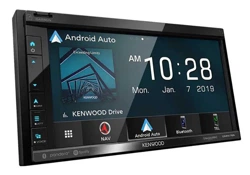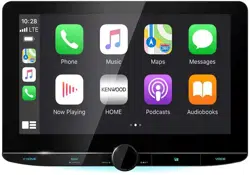

B5K-0760-00 (K)© 2020 JVCKENWOOD Corporation
DNR1007XR
GPS NAVIGATION SYSTEM
Quick Start Guide
SYSTÈME DE NAVIGATION GPS
Guide de démarrage rapide
SISTEMA DE NAVEGACIÓN GPS
Guía de inicio rápido
Take the time to read through this instruction manual.
Familiarity with installation and operation procedures will help you obtain the best performance from your new
GPS Navigation System.
For your records
Record the serial number, found on the top of the unit, in the spaces designated on the warranty card, and in the space
provided below. Refer to the model and serial numbers whenever you call upon your KENWOOD dealer for information or
service on the product.
Model DNR1007XR Serial number
US Residence Only
Register Online
Register your KENWOOD product at www.kenwood.com/usa/
• Updated information (the latest Instruction Manual, system updates, new functions, etc.) is available from <https://www.kenwood.com/cs/ce/>.
• The Instruction manual is subject to change for modification of specifications and so forth. Be sure to download the latest edition of the
Instruction manual for reference. <https://manual.kenwood.com/edition/im403/>
• Des informations actualisées (le dernier mode d'emploi, les mises à jour du système, les nouvelles fonctions, etc.) sont disponibles sur le site
<https://www.kenwood.com/cs/ce/>.
• Le mode d'emploi est susceptible d'être modifié suite aux changements pouvant être apportés aux spécifications etc. Téléchargez impérativement
la dernière édition du mode d'emploi aux fins de référence. <https://manual.kenwood.com/edition/im403/>
• La información actualizada (el Manual de instrucciones más actualizado, actualizaciones del sistema, nuevas funciones, etc.) está disponible
desde <https://www.kenwood.com/cs/ce/>.
• El Manual de instrucciones está sujeto a cambios por modificaciones de las especificaciones, etc. Asegúrese de descargar la última edición del
Manual de instrucciones a título de referencia. <https://manual.kenwood.com/edition/im403/>
!B5K-0760-00_20DNX_K_FP_QSG.indb 1 2020/07/02 14:24

2
Important Notice on Software
Ñ Software License on This
Product
The software embedded in this product
comprises a number of independent software
components, each of which is copyrighted by
JVCKENWOOD Corporation or by a third party.
This product uses software components that
are based on an End-User License Agreement
(hereinafter called “EULA”) stipulated by
JVCKENWOOD Corporation and by third parties.
The EULA dictates the availability of the source
codes of free-software components as a
prerequisite to distributing them in executable
form under the terms of the GNU General
Public License or the Lesser General Public
License (hereinafter called “GPL/LGPL”). To get
information about the software components
that are subject to the terms of the GPL/LGPL,
please visit the following Website:
Website URL https://www2.jvckenwood.com/gpl/
Queries concerning the contents of the source
code or the like will not be accepted.
Please note that software components based
on a EULA that is not subject to the terms of the
GPL/LGPL or those that have been developed
or created by JVCKENWOOD Corporation will
be excluded from the scope of source code
disclosure.
Because licenses to use software components
distributed under the GPL/LGPL are offered to
the customers for free of charge, no warranty is
granted to the customers, whether explicitly or
implicitly, to the extent of the applicable laws.
Unless otherwise stipulated by the applicable
laws or agreed upon in writing, the copyright
holders or those who are entitled to modify
and redistribute the software components are
not held responsible for any and all damages
resulting from their use or from inability to use
them. For more information about the terms of
use of the software components, required items
of compliance and so on, please refer to the
GPL/LGPL.
Customers wishing themselves to use a software
component that is subject to the GPL/LGPL
embedded in this product are encouraged to
read the terms of the corresponding license
before use. Because each individual license
is prescribed by a third party other than
JVCKENWOOD Corporation, the original (English)
of the license is presented.
EULA
Ñ Software License Agreement
JVCKENWOOD Corporation (hereinafter called
“Licensor”) holds either the copyright to the
embedded software or the right to sublicense it.
This agreement establishes the conditions under
which the customer uses this “Licensed Software.”
The customer shall agree to the terms of this
license agreement before proceeding to use
Licensed Software.
This agreement is deemed to have taken effect
when the customer (hereinafter called “User”)
has used a product implementation of Licensed
Software.
The Licensed Software may contain software
Licensor has been licensed to use by third
parties directly or indirectly. Some third parties
may have terms of use prescribed for their
customers, apart from this Software License
Agreement. This agreement does not apply to
such software. Be sure to consult “Important
Notice on Software” as presented separately.
Article 1 (General)
Licensor grants to User a non-exclusive,
non-assignable right of use Licensed Software
within the country where the User purchases
the Product (hereinafter the "Country") (except
for the exception provided for in Paragraph 1,
Article 3).
Article 2 (Right of Use)
1.
The rise of use granted under this agreement
is the right to use Licensed Software in this
product.
2.
User may not duplicate, copy, modify, add to,
translate or otherwise alter, or loan licensed
Software and the associated literature in
whole or in part.
3.
Use of Licensed Software is limited to a
private extent , and Licensed Software may
not be distributed, licensed or sublicensed
for any purposes whatsoever, including
commercial use.
4.
User shall use Licensed Software as per the
instruction manual or instructions given in the
help file and may not use or duplicate data in
violations of the regulations of the Copyright
Law or other governing laws by using
Licensed Software in whole or in part.
!B5K-0760-00_20DNX_K_FP_QSG.indb 2 2020/07/02 14:24

3
Article 3 (Terms of License)
1.
In assigning this product, User may not retain
the original copy of the embedded Licensed
Software (including associated literature,
updates and upgrades) and any duplicates
and associated literature with regard to
the license to use Licensed Software. User
may transfer Licensed Software only to the
condition of binding the assignee to abide by
the terms of this Software License Agreement.
2.
User may not reverse-engineer, disassemble,
decompile or otherwise analyze the source
code of Licensed Software.
Article 4 (Rights to Licensed Software)
All rights to Licensed Software and the
associated literature, including copyrights, shall
reside with Licensor or
the original right holder who has granted the
Right of Use and right to sublicense to Licensor
(hereinafter referred to as “Original Right Holder”),
and User does not have any rights other than
Right of Use granted hereunder with regard to
Licensed Software and the associated literature.
Article 5 (Exemption Granted to Licensor)
1.
Licensor and Original Right Holder do not
assume any responsibility for damages
caused to User or third parties resulting from
the exercise by User of the license granted
hereunder, unless otherwise provided by any
law to the contrary.
2.
Licensor does not warrant Licensed Software
to be merchantable, compatible and fit for
specific purposes.
Article 6 (Responsibility for Third Parties)
If disputes over the infringement of third
parties’ intellectual property rights, such as
copyrights and patent rights, arise out of the
use of Licensed Software by User, User shall
resolve these disputes at User’s own expenses
while keep Licensor and Original Right Holder
harmless.
Article 7 (Secrecy Obligation)
User shall keep confidential Licensed Software
provided hereunder, information contained in
the associated literature or the like and those
provisions of this agreement not yet in public
knowledge and may not disclose or leak these
to third parties without prior written consent
from Licensor.
Article 8 (Cancellation of the Agreement)
Licensor reserves the right to cancel this
agreement forthwith and claim compensation
from User for the damages caused by such
cancellation when User:
(1)
Breaches any of the provisions of this
agreement, or
(2)
Has received a petition for seizure, provisional
seizure, provisional disposition or any other
kind of compulsory execution.
Article 9 (Destruction of Licensed Software)
If this agreement is terminated under the
provision of the foregoing paragraph, User
shall destroy Licensed Software, along with all
associated literature and its duplicates, within
two (2) weeks from the date of termination.
Article 10 (Copyright Protection)
1.
Copyrights and all other intellectual property
rights relating to Licensed Software shall
reside with Licensor and Original Right Holder
and in no circumstances with User.
2.
User shall abide by the laws relating to
copyrights and intellectual property rights in
using Licensed Software.
Article 11 (Export Control)
1.
Licensed Software and the associated
literature or the like may not be exported
to places outside the Country (including
transmission outside the Country over the
Internet or the like).
2.
User agrees that Licensed Software is subject
to export controls imposed by the Country
and the United States of America.
3.
User agrees to comply with all the
international and domestic laws that apply
to this software (U.S. Export Administration
Regulations and regulations established by
the U.S., the Country and their governmental
agencies regarding usage by end users and
export destinations).
Article 12 (Miscellaneous)
1.
Even if this agreement is invalidated in part by
law, all other provisions shall remain in effect.
2. Licensor and User shall consult each other
in good faith to resolve any matters not
provided for in this agreement or questions
arising from the interpretation of this
agreement.
3.
Licensor and User agree that this agreement
is governed by the law of Japan and that all
disputes involving claims and obligations that
may arise out of this agreement will be settled
by arbitration at the Tokyo District Court as
the court of first instance.
!B5K-0760-00_20DNX_K_FP_QSG.indb 3 2020/07/02 14:24

Before Use
4
Before Use
About the Quick start guide
• This Quick Start Guide describes basic functions of this
unit. For functions not described in this Guide, refer to
the Instruction Manual on the following website:
https://manual.kenwood.com/edition/im403/
• The Instruction manual is subject to change for
modification of specifications and so forth. Be sure to
download the latest edition of the Instruction manual
for reference.
How to read this manual
• The screens and panels shown in this manual are
examples used to provide a clear explanation of
operations.
For this reason, they may be different from the actual
screens or panels, or some display patterns may be
different from the actual ones.
• Display language: English is used for the purpose of
explanation. You can select a display language from
the [SETUP] menu. See System Setup (P.72) in the
Instruction Manual.
Precautions
# WARNINGS
Ñ To prevent injury or fire, take
the following precautions:
• To prevent a short circuit, never put or leave
any metallic objects (such as coins or metallic
tools) inside the unit.
• Do not watch or fix your eyes on the unit’s
display when you are driving for any extended
period.
• If you experience problems during installation,
consult your KENWOOD dealer.
Ñ Precautions on using this unit
• When you purchase optional accessories,
check with your KENWOOD dealer to make
sure that they work with your model and in
your area.
Before Use .............................................4
About the Quick start guide ................................. 4
How to read this manual ........................................4
Precautions .................................................................4
Safety Precautions
and Important Information..............................5
Basic Operations ...................................7
Functions of the Buttons on the Front Panel
.... 7
Turning on the Unit .................................................. 8
Initial Settings ............................................................ 9
Touch screen operations ...................................... 10
HOME screen descriptions ..................................11
Popup menu .............................................................12
Source selection screen description ................ 12
Source control screen descriptions .................. 14
List screen ..................................................................14
Navigation Operation ...........................................15
USB/SD/iPod........................................17
Connecting a USB device ..................................... 17
Inserting the SD ......................................................17
Connect iPod/iPhone ............................................18
USB/SD/iPod Basic Operation ............................18
HD Radio™ Tuner.................................19
HD Radio Tuner Basic Operation .......................19
Memory Operation ................................................20
Bluetooth Control ...............................21
Register the Bluetooth device ............................21
Using the Hands-Free Unit ..................................22
Controlling Audio ...............................24
Connection/Installation .....................25
Before Installation ..................................................25
Installing the unit....................................................28
Appendix ............................................. 37
Note for specifications ..........................................37
Contents
Important Notice on Software ............................. 2
EULA .............................................................................. 2
Contents ................................................ 4
!B5K-0760-00_20DNX_K_FP_QSG.indb 4 2020/07/02 14:24
Before Use
5English
• You can select a language to display menus,
audio file tags, etc. See System Setup (P.72)
in the Instruction Manual.
• The Radio Broadcast Data System feature
won’t work in areas where the service is not
supported by any broadcasting station.
Ñ Protecting the monitor
• To protect the monitor from damage, do not
operate the monitor using a ball point pen or
similar tool with a sharp tip.
Ñ Cleaning the unit
• If the faceplate of this unit is stained, wipe it
with a dry soft cloth such as a silicon cloth.
If the faceplate is stained badly, wipe it with
a cloth moistened with neutral cleaner, then
wipe it again with a clean soft dry cloth.
NOTE
• Applying spray cleaner directly to the unit
may damage its mechanical parts. Wiping the
faceplate with a hard cloth or using a volatile
liquid such as thinner or alcohol may scratch the
surface or erase the screened print.
Ñ Acquiring GPS signal
The first time you turn on this unit, you must
wait while the system acquires satellite signals
for the first time. This process could take up
to several minutes. Make sure your vehicle
is outdoors in an open area away from tall
buildings and trees for fastest acquisition.
After the system acquires satellites for the first
time, it will acquire satellites quickly each time
thereafter.
Ñ About GLONASS
This unit uses Global Navigation Satellite System
(GLONASS) in addition to GPS.
Combining GPS and GLONASS can refine
positioning accuracy than using GPS only.
Ñ Caution for Smartphone Users
Simultaneously running multiple applications
on your smartphone while screen sharing places
heavy demand on the microprocessor of the
phone, potentially affecting communication and
performance.
For best results while pairing with your
KENWOOD receiver, please be sure to close any
unused applications.
Safety Precautions and
Important Information
Read this information carefully before starting to
operate the KENWOOD Car Navigation System
and follow the instructions in this manual.
Neither KENWOOD nor Garmin shall be liable for
problems or accidents resulting from failure to
observe the instructions in this manual.
# WARNING
Failure to avoid the following potentially
hazardous situations could result in an
accident or collision resulting in death or
serious injury.
When navigating, carefully compare information
displayed on the navigation system to all
available navigation sources, including
information from street signs, visual sightings,
and maps. For safety, always resolve any
discrepancies or questions before continuing
navigation.
Always operate the vehicle in a safe manner.
Do not become distracted by the navigation
system while driving, and always be fully aware
of all driving conditions. Minimize the amount of
time spent viewing the screen of the navigation
system while driving, and use voice prompts
when possible.
Do not enter destinations, change settings, or
access any functions requiring prolonged use
of the navigation system controls while driving.
Stop your vehicle in a safe and legal manner
before attempting such operations.
Keep the system volume at a low enough level
to be able to hear outside noises while driving.
If you can no longer hear outside noises, you
may be unable to react adequately to the traffic
situation. This may cause accidents.
The navigation system will not display the
correct current position of the vehicle the first
time it is used after purchase, or if the vehicle
battery is disconnected. GPS satellite signals
will soon be received, however, and the correct
position will be displayed.
Be careful of the ambient temperature. Using the
navigation system at extreme temperatures can
lead to malfunction or damage. Also note that
the unit can be damaged by strong vibration,
by metal objects, or by water getting inside the
unit.
!B5K-0760-00_20DNX_K_FP_QSG.indb 5 2020/07/02 14:24

Before Use
6
# CAUTION
Failure to avoid the following potentially
hazardous situations may result in injury or
property damage.
The navigation system is designed to provide
you with route suggestions. It does not reflect
road closures or road conditions, weather
conditions, or other factors that may affect safety
or timing while driving.
Use the navigation system only as a navigational
aid. Do not attempt to use the navigation system
for any purpose requiring precise measurement
of direction, distance, location, or topography.
The Global Positioning System (GPS) is operated
by the United States government, which is solely
responsible for its accuracy and maintenance.
The government system is subject to changes
that could affect the accuracy and performance
of all GPS equipment, including the navigation
system. Although the navigation system is a
precision navigation device, any navigation
device can be misused or misinterpreted and,
therefore, become unsafe.
Ñ IMPORTANT INFORMATION
Vehicle Battery Preservation
This navigation system can be used when the
ignition key is turned to ON or ACC. To preserve
the battery, however, it should be used with
the engine running whenever possible. Using
the navigation system for a long time with the
engine switched off can cause the battery to run
down.
Map Data Information
One of the goals of Garmin is to provide
customers with the most complete and
accurate cartography that is available to us at
a reasonable cost. We use a combination of
governmental and private data sources, which
we identify in product literature and copyright
messages displayed to the consumer. Virtually
all data sources contain some inaccurate or
incomplete data. In some countries, complete
and accurate map information is either not
available or is prohibitively expensive.
!B5K-0760-00_20DNX_K_FP_QSG.indb 6 2020/07/02 14:24
Basic Operations
7English
Basic Operations
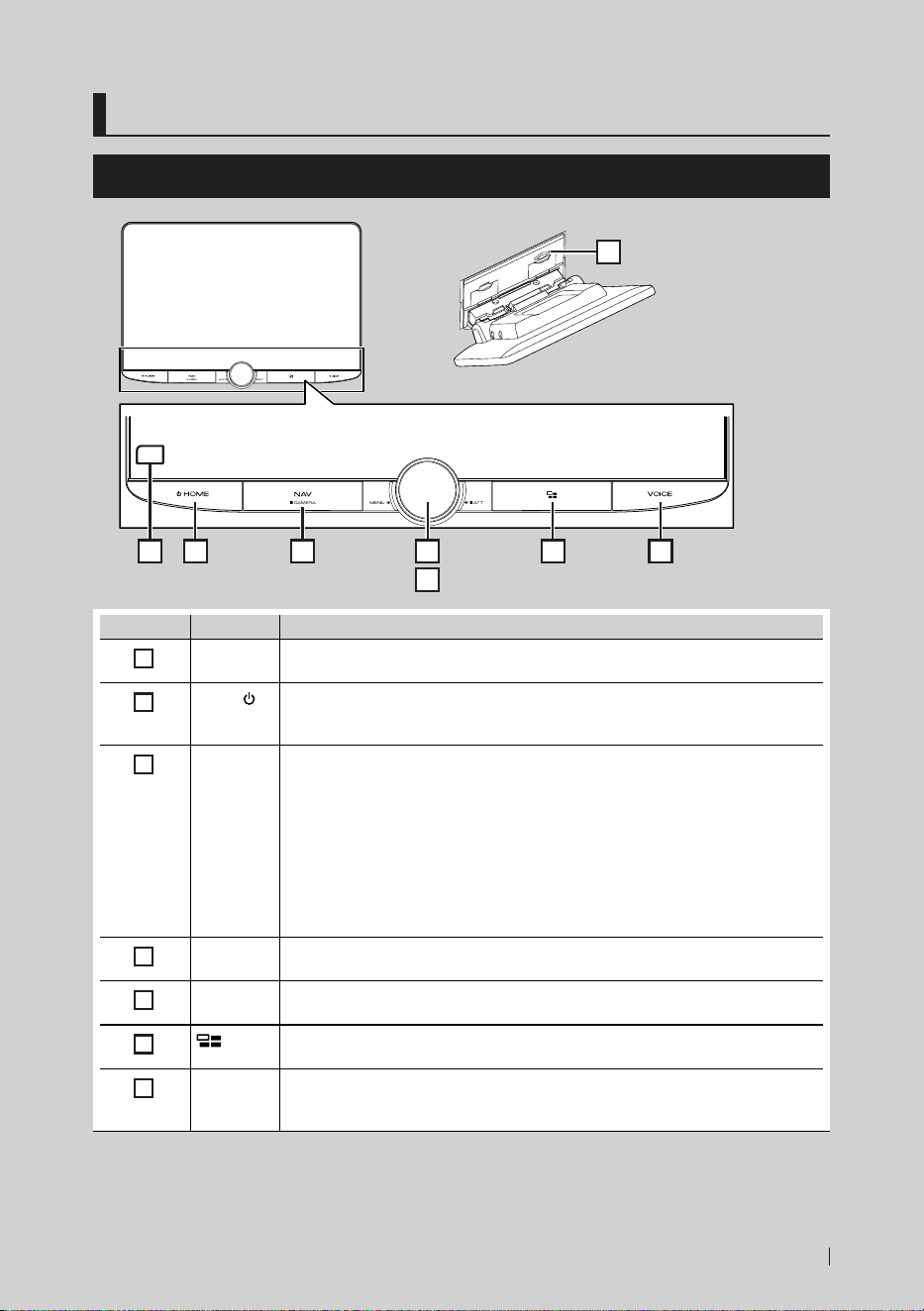
Functions of the Buttons on the Front Panel
2 3 4
5
6 71
8
Number Name Motion
1
Remote
Sensor
• Receives the remote control signal.
2
HOME/[ ]
• Displays the HOME screen (P.11).
• Pressing for 1 second turns the power off.
• When the power is off, turns the power on.
3
NAV/
CAMERA
• Displays the navigation screen.
• While a navigation application is active on the device being used as the Apple
CarPlay or Android Auto source, displays the Apple CarPlay or Android Auto source
screen.
• Pressing and holding switches view camera display on/off.
The camera whose view is displayed first changes according to the Camera
Assignment Settings (P.37) and the shift lever position in the shift gate. The
camera whose view was displayed last is kept and the same camera view will be
displayed the next time. If its assignment setting is changed, the rear camera view is
displayed.
4
MENU/ATT • Displays the popup menu screen.
• Pressing for 1 second switches attenuation of the volume on/off.
5
Volume
knob
• Adjusts the volume.
6
• Displays the APP (Apple CarPlay/Android Auto/Wireless Mirroring) screen.
• While the APP screen is displayed, switches to the control screen of current source.
7
VOICE • Switches the voice recognition function on/off.
• When neither Apple CarPlay, Android Auto, nor a Bluetooth Hands-Free phone is
connected, pressing and holding displays Bluetooth pairing waiting dialog.
!B5K-0760-00_20DNX_K_FP_QSG.indb 7 2020/07/02 14:24
Basic Operations
8
Number Name Motion
8
SD card slot • A slot to insert an SD card.
• You can play audio/visual files in the card. *
1
• An SD card slot for upgrading the map. For how to upgrade the map, refer to the
instruction manual of the navigation system. *
2
*1 If the map update file remains in the SD card, you cannot play audio/visual files.
*2 The system of the unit is rebooted after inserting/removing the MAP SD.
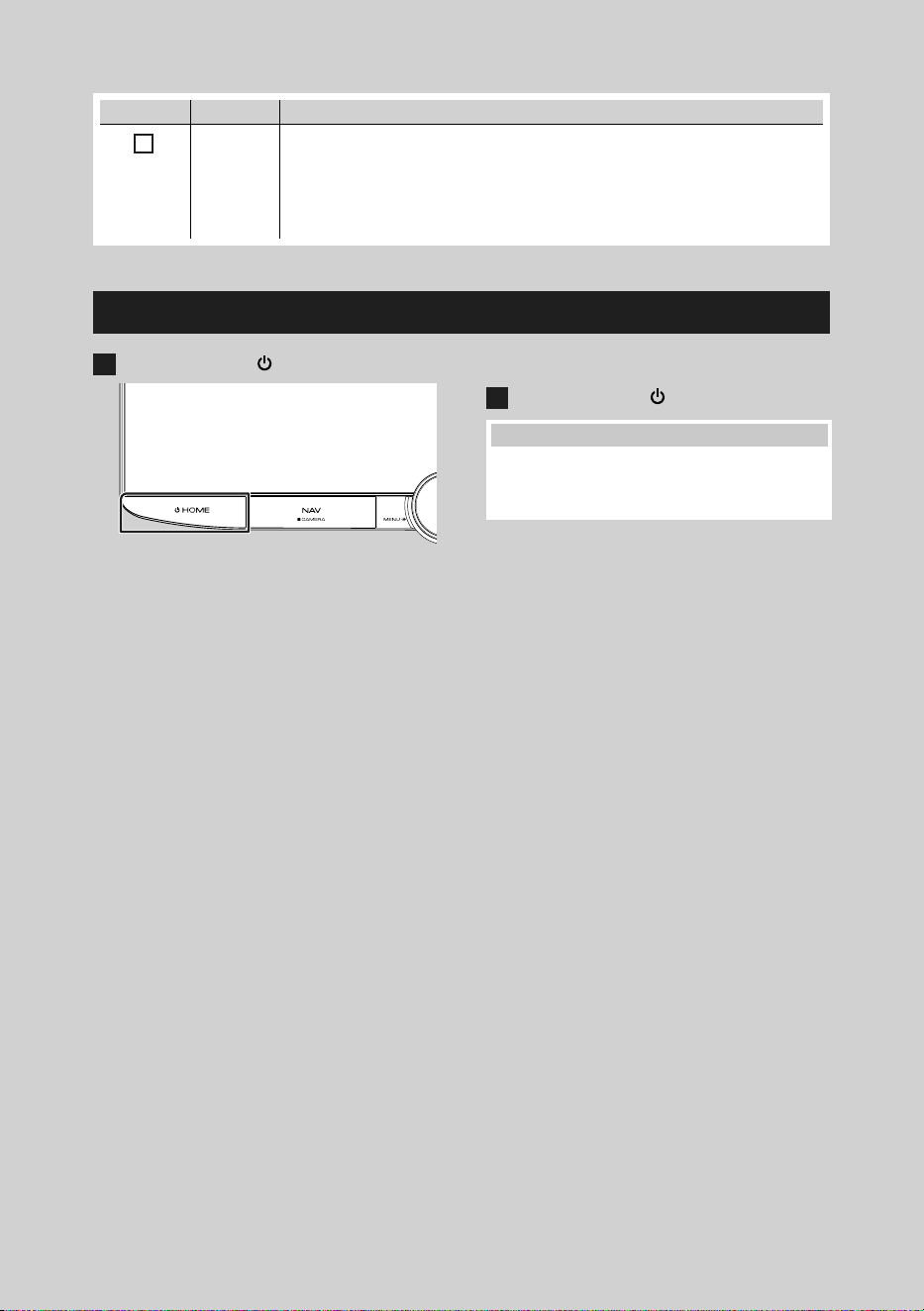
Turning on the Unit
1
Press the [HOME]/[ ] button.
hh The unit is turned on.
● To turn off the unit:
1
Press the [HOME]/[ ] button for 1 second.
NOTE
• If it is your first time to turn the unit on after
installation, it will be necessary to perform Initial
SETUP (P.9).
!B5K-0760-00_20DNX_K_FP_QSG.indb 8 2020/07/02 14:24
Basic Operations
9English
Initial Settings
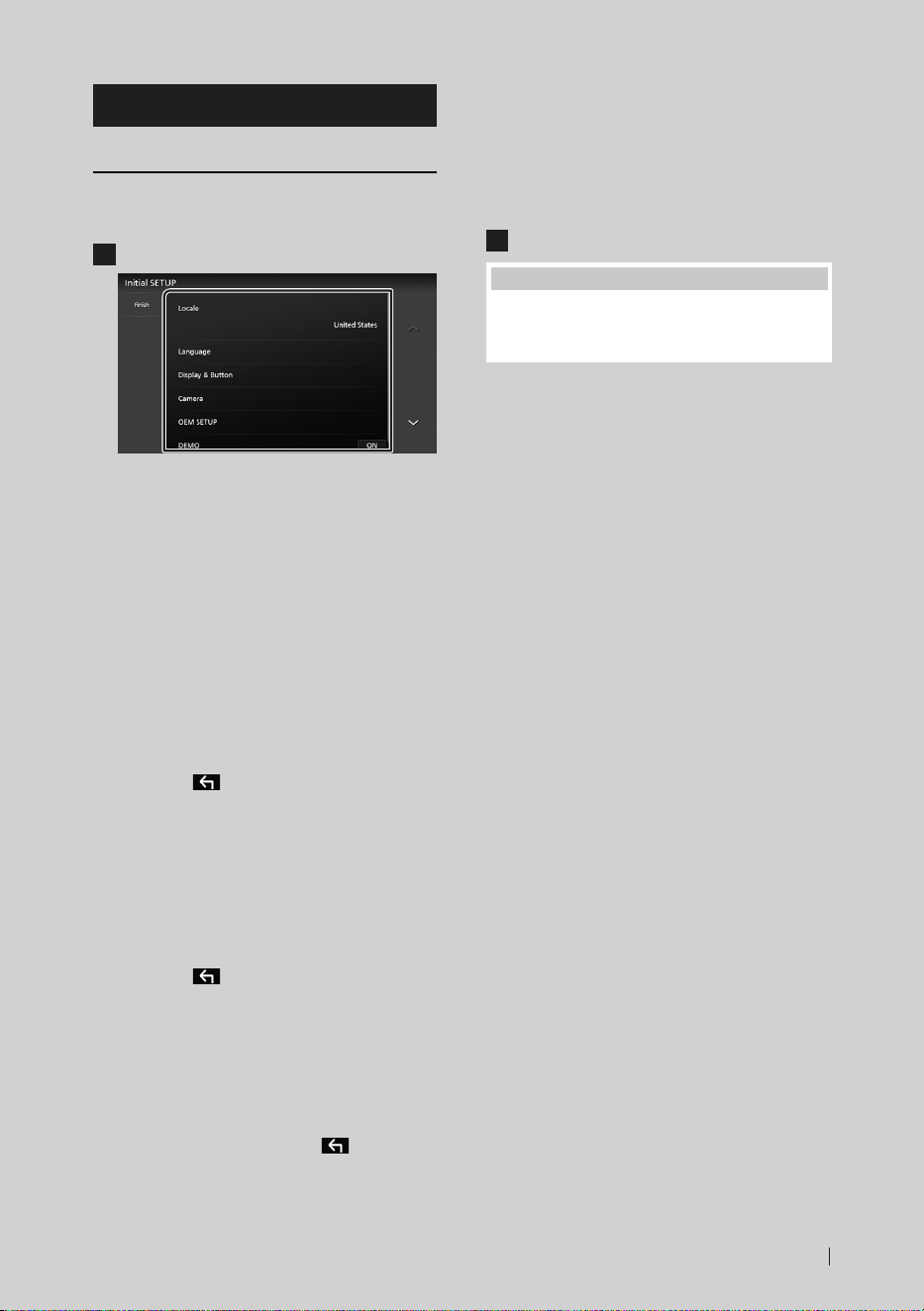
Initial SETUP
Perform this setup when you use this unit first
time.
1
Set each item as follows.
■ [Locale]
Select the country for the navigation system.
The language, the distance unit, and the
gasoline unit are set.
1 Touch [Locale].
2 Select the desired country.
■ [Language]
Select the language used for the control
screen and setting items. Default is “American
English(en)”.
1 Touch [Language].
2 Touch [Language Select].
3 Select the desired language.
4 Touch [
].
For details, see System Setup (P.72) in the
Instruction Manual.
■ [Display & Button]
Set the button illumination color.
1 Touch [Display & Button].
2 Touch [Button Illumination Color].
3 Select the desired color.
4 Touch [
].
For details, see Display & Button Setup
(P.70) in the Instruction Manual.
■ [Camera]
Set the parameters for the camera.
1 Touch [Camera].
2 Set each item and touch [
].
For details, see Camera Setup (P.63) in
the Instruction Manual.
■ [OEM SETUP]
This function requires a commercial adaptor.
Consult your KENWOOD dealer for details.
■ [DEMO]
Set the demonstration mode. Default is “ON”.
2
Touch [Finish].
NOTE
• These settings can be made from the SETUP
menu. See Setup (P.68) in the Instruction
Manual.
!B5K-0760-00_20DNX_K_FP_QSG.indb 9 2020/07/02 14:24
Basic Operations
10
Calendar/clock settings
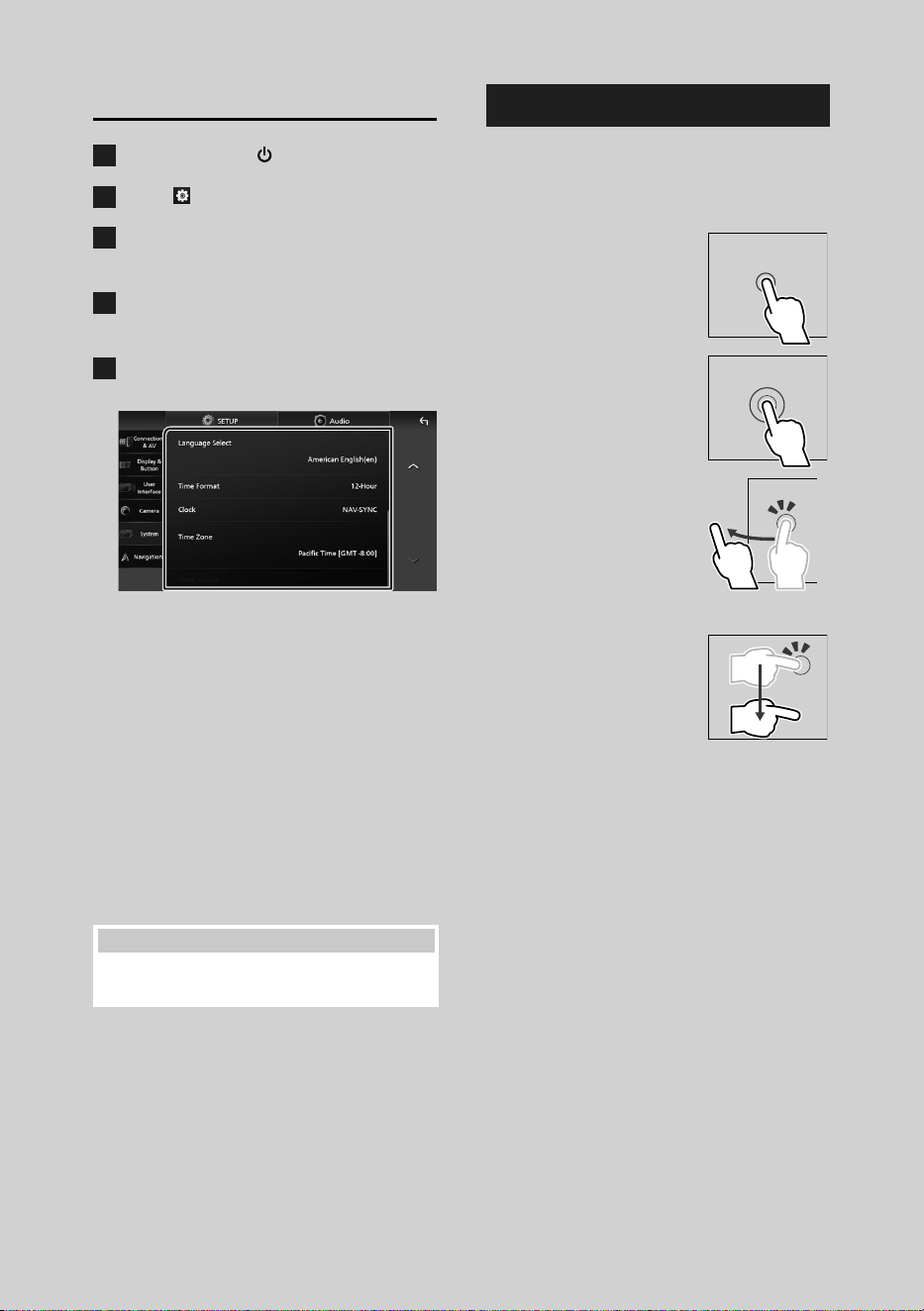
1
Press the [HOME]/[ ] button.
2
Touch [ ].
3
Touch [SETUP].
hh SETUP Menu screen appears.
4
Touch [System].
hh System setting menu appears.
5
Set each item as follows.
Scroll the page to show hidden items.
■ [Time Format]
Select the time display format.
[12-Hour] (Default)/[24-Hour]
■ [Clock]
[NAV-SYNC] (Default): Synchronizes the clock
time with navigation GPS data.
[Manual]: Set the clock manually.
■ [Time Zone]
If you have selected [Manual] for Clock,
select the time zone.
■ [Clock Adjust]
If you select [Manual] for Clock, adjust the
date and time manually.
NOTE
• Please set the date and time. If they are not set,
some functions may not work.
Touch screen operations
To perform operations on the screen, you need
to touch, touch and hold, flick or swipe to
select an item, display a setting menu screen
or change pages.
● Touch
Touch the screen gently to
select an item on the screen.
● Touch and hold
Touch the screen and keep
your finger in place until
the display changes or a
message is displayed.
● Flick
Slide your finger quickly
to the left or right on the
screen to change the page.
You can scroll a list screen
by flicking up/down on the
screen.
● Swipe
Slide your finger up or down
on the screen to scroll the
screen.
!B5K-0760-00_20DNX_K_FP_QSG.indb 10 2020/07/02 14:24
Basic Operations
11English
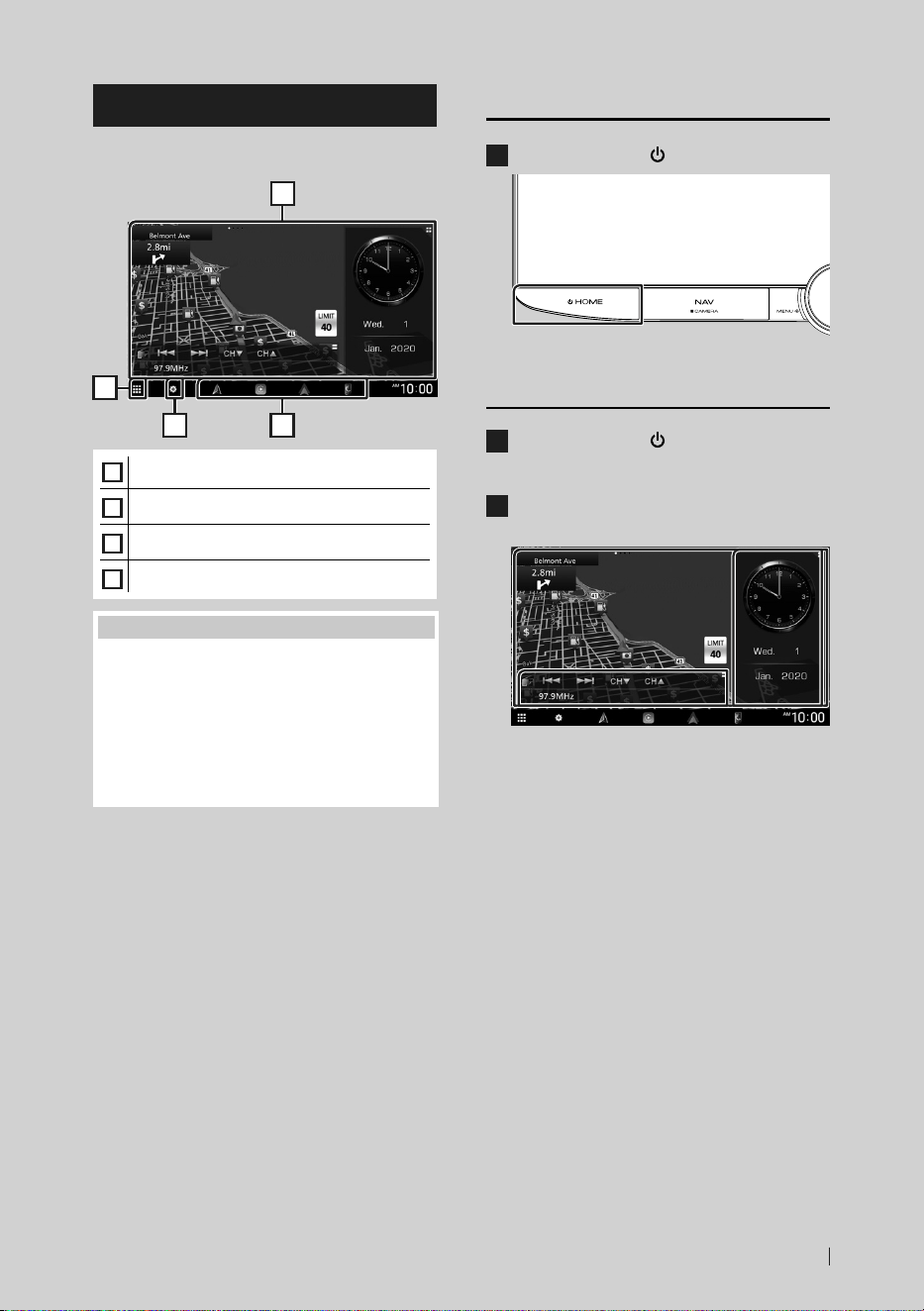
HOME screen descriptions
Most functions can be performed from the
HOME screen.
1
2
43
1
• Widget
2
• Displays the source selection screen. (P.12)
3
• Displays the SETUP Menu screen.
4
• Short-cut playback source icons (P.13)
NOTE
• The speed limit feature is for information only
and does not replace your responsibility to abide
by all posted speed limit signs and to use safe
driving judgment at all times.
• Garmin and JVCKENWOOD Corporation will not
be responsible for any traffic fines or citations you
receive for failing to follow all applicable traffic
laws and signs.
Display the HOME screen
1
Press the [HOME]/[ ] button.
hh HOME screen appears.
Widget
1
Press the [HOME]/[ ] button.
hh HOME screen appears.
2
You can change the widget or customize
the widget area.
For details, see Widget (P.20) in the
Instruction Manual.
!B5K-0760-00_20DNX_K_FP_QSG.indb 11 2020/07/02 14:24
Basic Operations
12
Popup menu
1
Press the [MENU]/[ATT] button.
hh Popup menu appears.
2
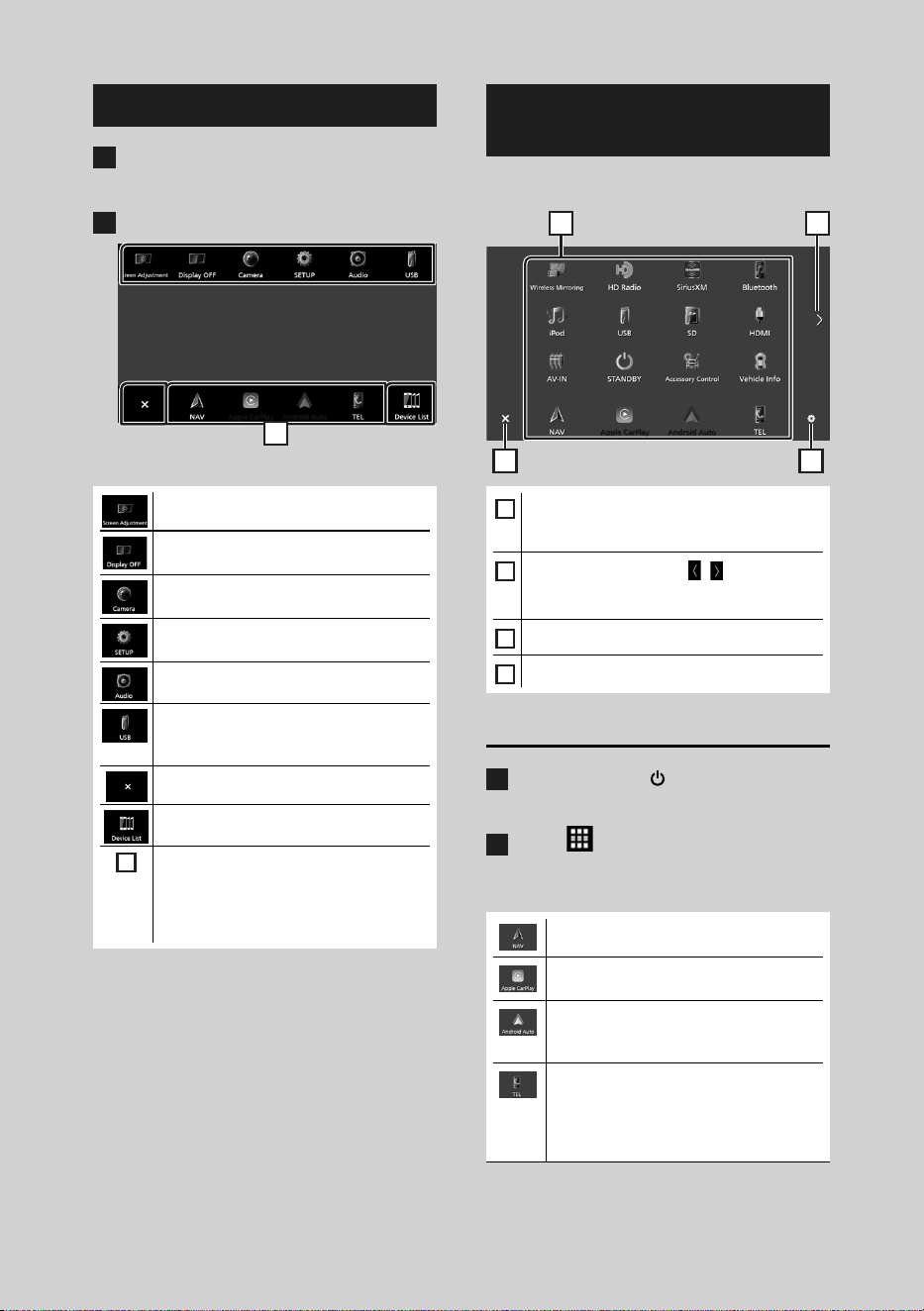
Touch to display the popup menu.
1
The contents of the menu are as follows.
• Displays the Screen Adjustment screen.
• Turns the display off.
To turn on the screen: Touch the display.
• Displays the view camera screen.
• Displays the SETUP Menu screen.
• Displays the Audio screen. (P.24)
• Displays the control screen of current
source. Icon feature differs depending on
the source. This icon is for USB source.
• Close the popup menu.
• Displays the Device List screen.
1
• Short-cut source icons: The source
changes to the one you have set with a
short-cut. For the short-cut setting, refer
to Customize Short-cut source icons
(P.13).
Source selection screen
description
You can display icons of all playback sources
and options on the source selection screen.
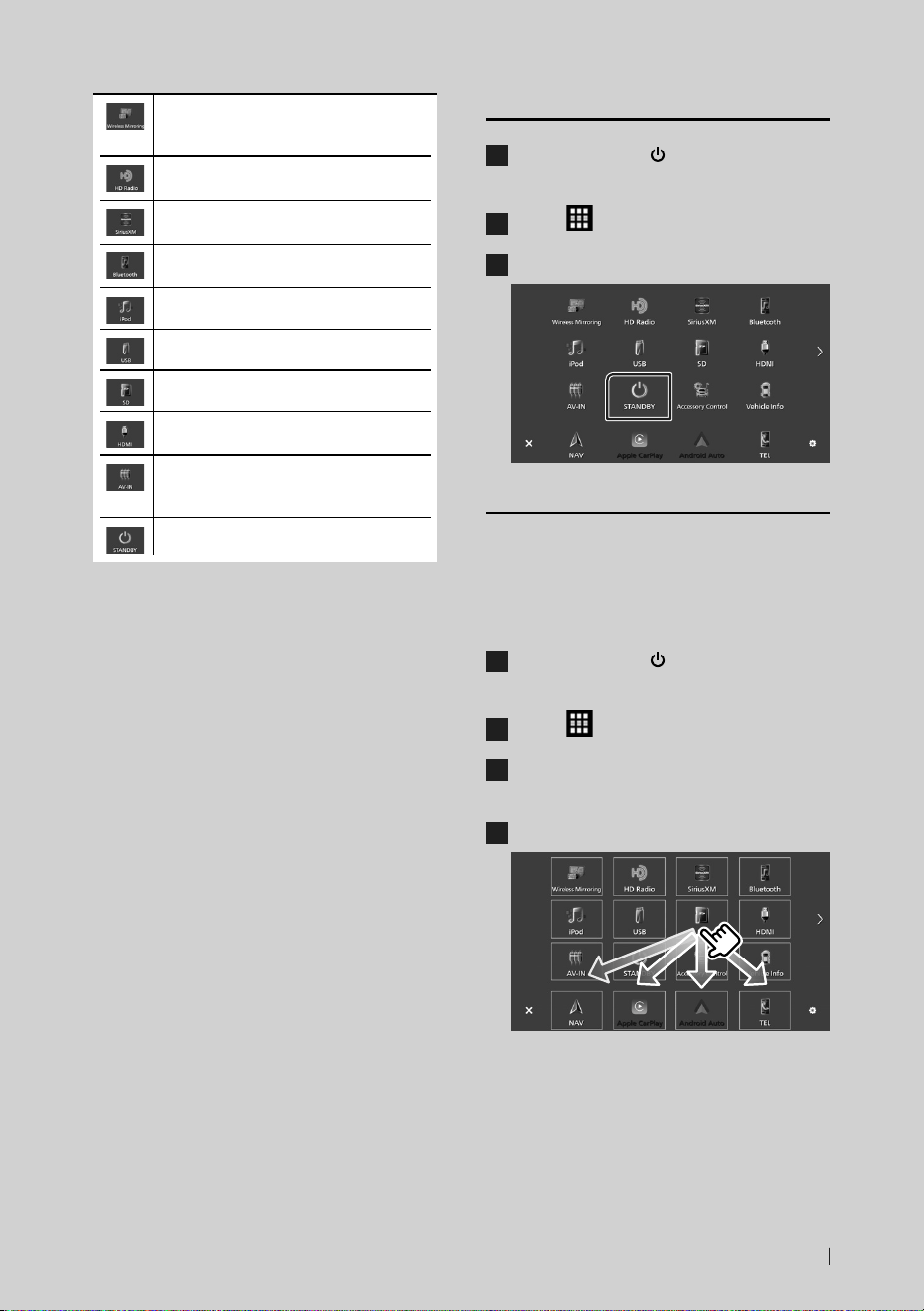
3 4
21
1
• Changes playback sources.
For playback sources, see Select the
playback source (P.12).
2
• Changes pages. (Touch [ ]/[ ].)
You can also change pages by flicking left or
right on the screen.
3
• Returns to the previous screen.
4
• Displays the SETUP Menu screen.
Select the playback source
1
Press the [HOME]/[ ] button.
hh HOME screen appears.
2
Touch [ ].
From the screen, you can select the
following sources and functions.
• Displays the navigation screen. (P.15)
• Switches to the Apple CarPlay screen
from the connected iPhone.
• Switches to the Android Auto
screen from the connected Android
smartphone.
• Displays the Hands-Free screen. (P.22)
When neither Apple CarPlay, Android
Auto, nor a Bluetooth Hands-Free phone
is connected, displays Bluetooth pairing
waiting dialog.*
1
!B5K-0760-00_20DNX_K_FP_QSG.indb 12 2020/07/02 14:24
Basic Operations
13English
• Switches to the Wireless Mirroring
screen from the connected Android
smartphone.
• Switches to the HD Radio broadcast.
(P.19)
• Switches to the SiriusXM® satellite radio
broadcast.
• Plays a Bluetooth audio player.
• Plays an iPod/iPhone. (P.18)
• Plays files on a USB device. (P.17)
• Plays files on an SD card. (P.17)
• Plays a device connected to the HDMI
input terminal.
• Switches to an external component
connected to the AV Audio input and the
Video input terminal. *
2
*
3
• Puts the unit in standby. (P.13)
*1 When connecting as Apple CarPlay or Android Auto,
it works as a phone provided in Apple CarPlay or
Android Auto. If Apple CarPlay or Android Auto are
connected during talking by the Bluetooth device or
iDatalink phone, the current call will be continued.
*2 You can use the [AV-IN] source when a cable from
a visual source except a camera is connected to the
Video input terminal, and a cable is connected to the
AV Audio input terminal. (P.34)
*3 Set “VIDEO IN” to “None” in Camera Assignment
Settings. (P.37)
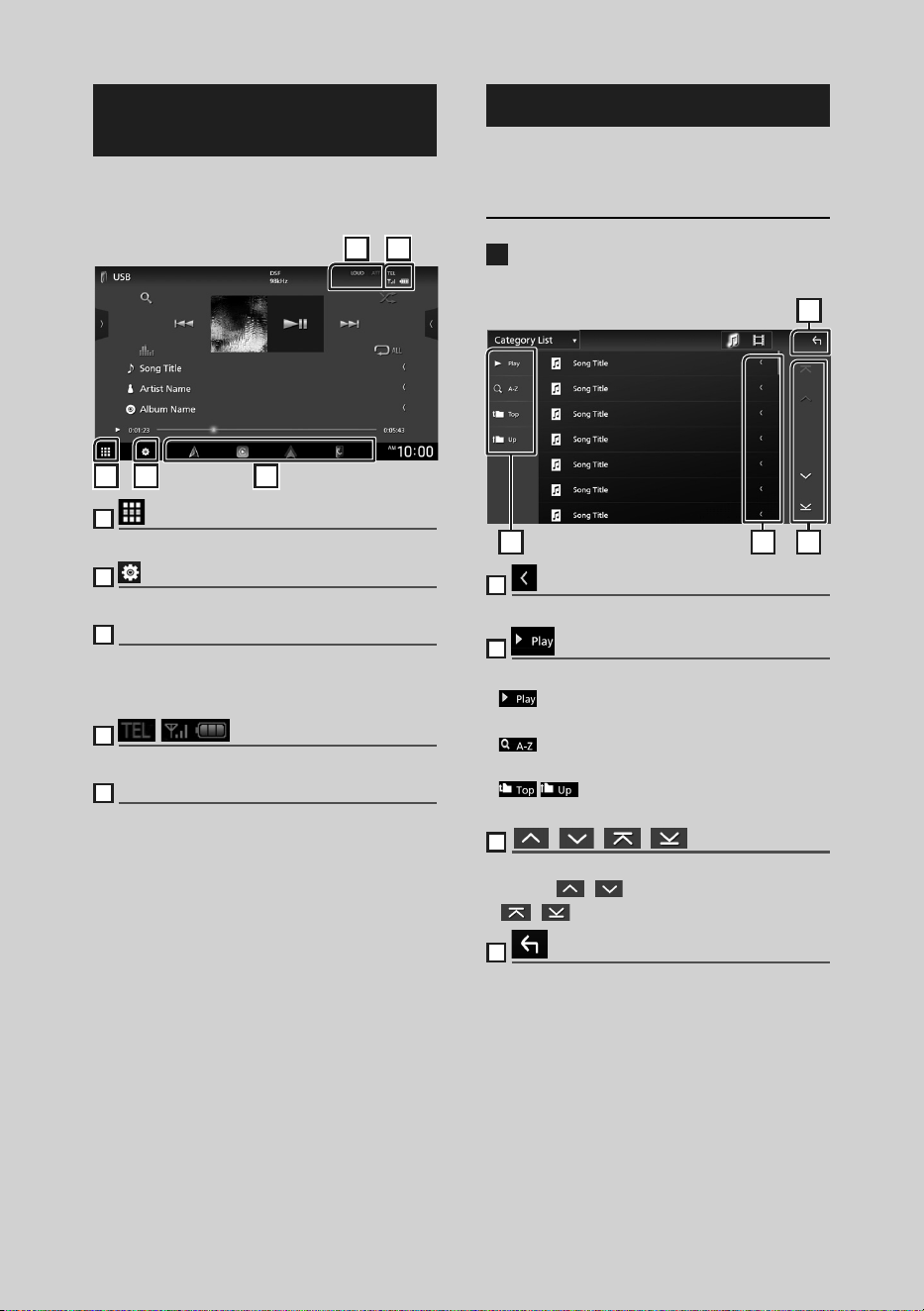
Put the unit in standby
1
Press the [HOME]/[ ] button.
hh HOME screen appears.
2
Touch [ ].
3
Touch [STANDBY].
Customize Short-cut source icons
You can arrange the positions of the source
icons as you like.
The 4 items placed in bottom line will appear
on the bottom bar in various screens, as the
short-cut playback source icons.
1
Press the [HOME]/[ ] button.
hh HOME screen appears.
2
Touch [ ].
3
Touch and hold the icon which you want
to move in the customizing mode.
4
Drag the icon to the desired position.
!B5K-0760-00_20DNX_K_FP_QSG.indb 13 2020/07/02 14:24
Basic Operations
14
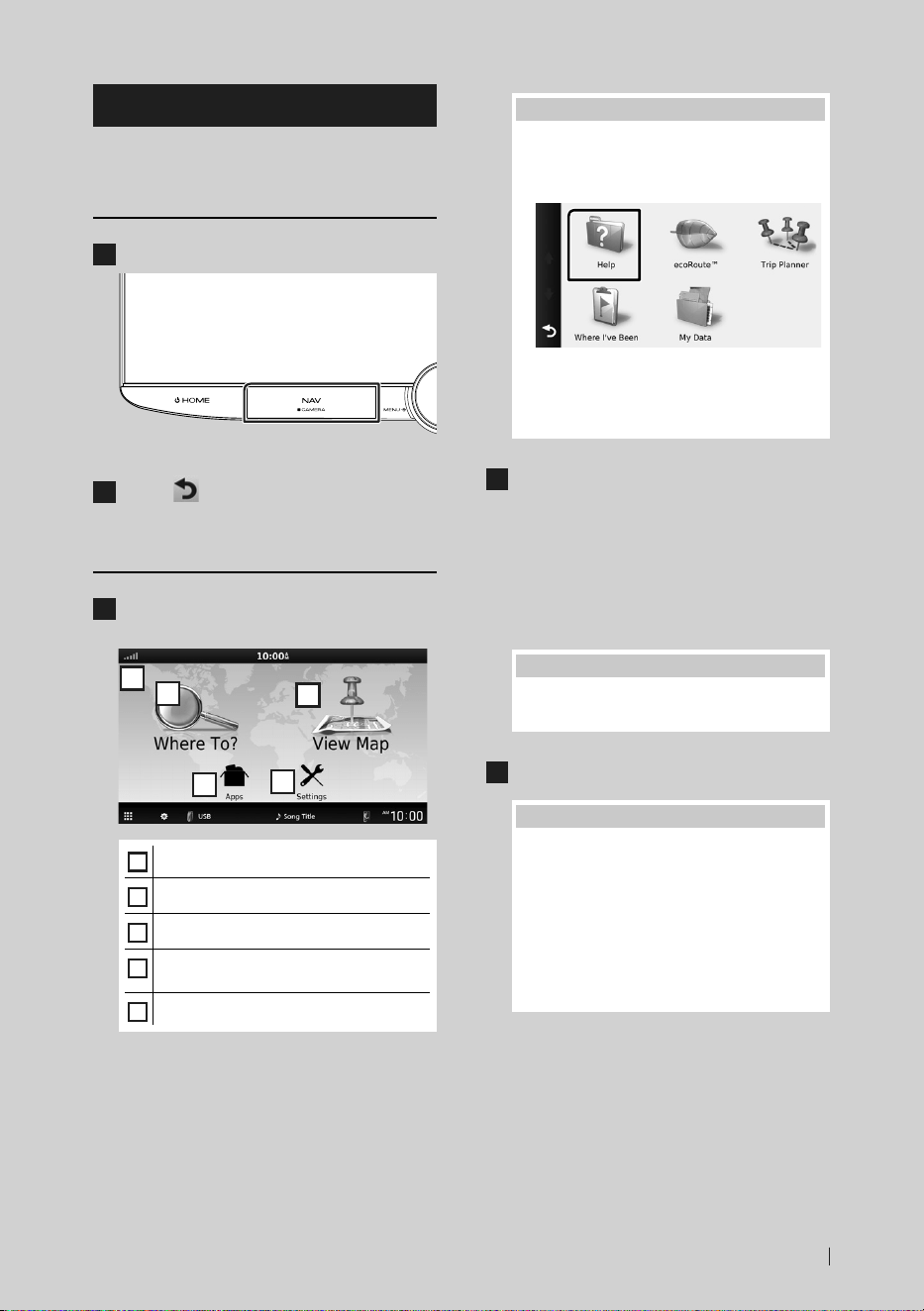
Source control screen
descriptions
There are some functions which can be
performed from most screens.
1 2 3
5 4
1
Displays the source selection screen. (P.12)
2
Displays the SETUP Menu screen.
3
Short-cut source icons
The source changes to the one you have set
with a short-cut. For the short-cut setting, refer
to Customize Short-cut source icons (P.13).
4
Connected Bluetooth device information.
5
Indicator items
Displays the current source condition and so on.
List screen
There are some common function keys in the
list screens of most sources.
Display the list screen
1
Touch [1].
hh The list screen appears.
4
2
1 3
1
Text scroll
Scrolls the displayed text.
2
etc.
Keys with various functions are displayed here.
•
: Plays all tracks in the folder containing
the current track.
•
: Jumps to the letter you entered
(alphabetical search).
•
: Moves to the upper hierarchy
level.
3
[ ]/[ ]/[ ]/[ ] Page scroll
You can change pages to display more items by
touching [
]/[ ].
• [
]/[ ] : Displays the top or bottom page.
4
Return
Returns to the previous screen.
!B5K-0760-00_20DNX_K_FP_QSG.indb 14 2020/07/02 14:24
Basic Operations
15English
Navigation Operation
For details on the navigation function, please
refer to the Navigation Instruction Manual.
Display the navigation screen
1
Press the [NAV]/[CAMERA] button.
hh The navigation screen appears.
2
Touch [ ].
hh Main Menu screen appears.
How to Use the Navigation System
1
Operate the desired function from the
Main Menu screen.
5
1
2
3
4
1
GNSS signal status.
2
Finds a destination.
3
Views the map.
4
Uses the Apps such as ecoRoute™ and
Help.
5
Adjusts the settings.
NOTE
• You can get additional information about
using the navigation system from Help. To
display Help, touch [Apps] and then touch
[Help].
• For more information about your navigation
system, download the latest version of the
Owner’s Manual from https://manual.
kenwood.com/edition/im403/
2
Enter your destination and start the
guidance.
Finding points of interest
1 Touch [Where To?].
2 Select a category and a subcategory.
3 Select a destination.
4 Touch [Go!].
NOTE
• To enter letters contained in the name, touch
the Search bar and enter the letters.
3
Follow your route to the destination.
NOTE
• The speed limit icon feature is for information
only and does not replace the driver’s
responsibility to abide by all posted speed
limit signs and to use safe driving judgment
at all times. Garmin and JVCKENWOOD
Corporation will not be responsible for any
traffic fines or citations that you may receive
for failing to follow all applicable traffic laws
and signs.
Your route is marked with a magenta
line. As you travel, your navigation
system guides you to your destination
with voice prompts, arrows on the map,
and directions at the top of the map. If
you depart from the original route, your
navigation system recalculates the route.
!B5K-0760-00_20DNX_K_FP_QSG.indb 15 2020/07/02 14:24
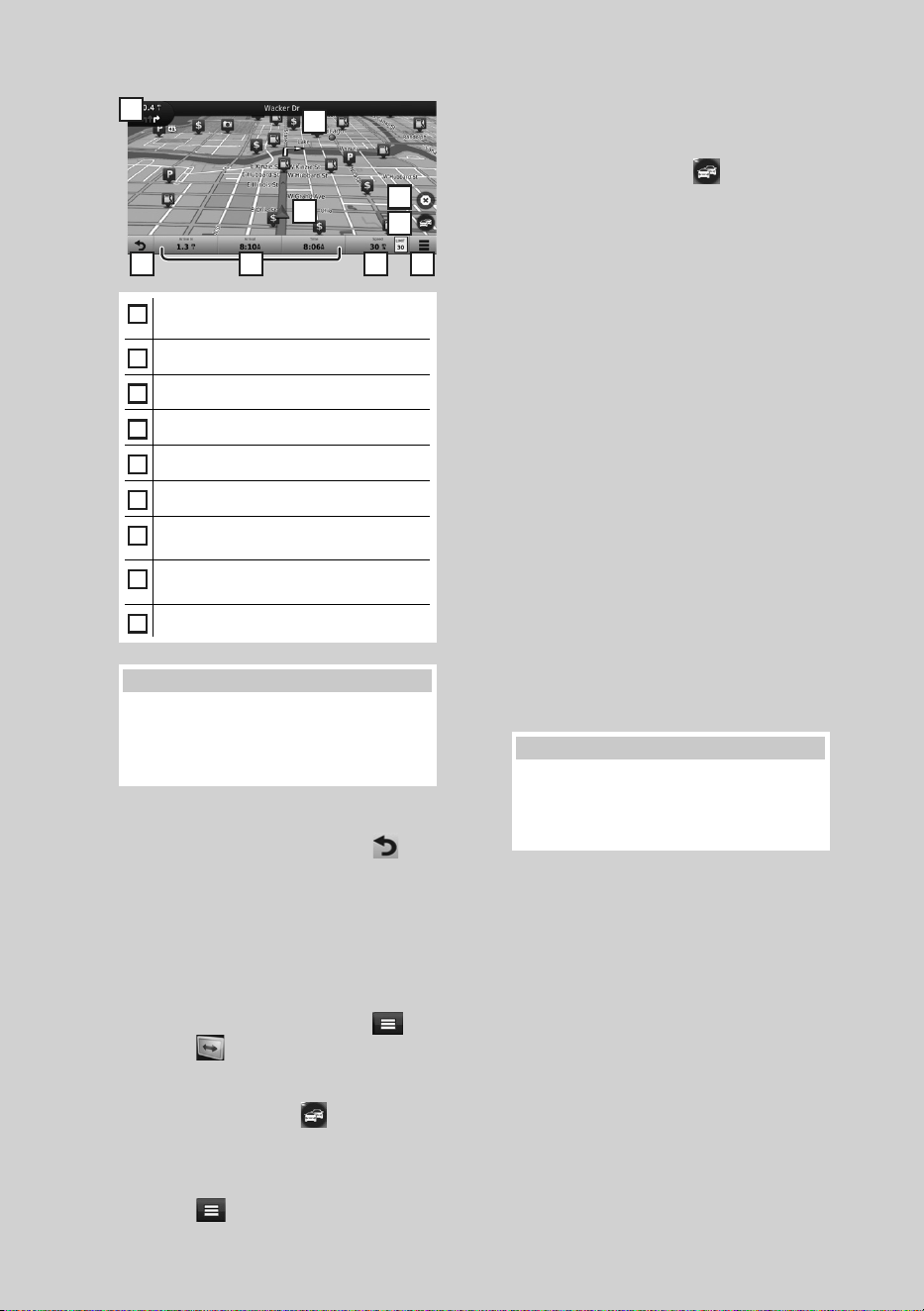
Basic Operations
16
5
6 8 9
1
2
3
4
7
1
Views the Next Turn page or the junction
view page, when available.
2
Views the Turn List page.
3
Views the Where Am I? page.
4
Stops the currents route.
5
Displays traffic information on the route.
6
Returns to the Main menu.
7
Data field. Touch to display a different data
field.
8
Vehicle speed. Touch to display a trip
information.
9
Displays more options.
NOTE
• Touch and drag the map to view a different
area of the map.
• A speed limit icon could appear as you travel
on major roadways.
● Adding a stop
1 While navigating a route, touch [
] and
then touch [Where To?].
2 Search for the extra stop.
3 Touch [Go!].
4 Touch [Add to Active Route] to add this
stop before your final destination.
● Taking a detour
1 While navigating a route, touch [
].
2 Touch [
].
■ Manually avoiding traffic on your route
1 From the map, touch [ ].
2 Touch [Traffic On Route].
3 If necessary, touch the arrows to view
other traffic delays on your route.
4 Touch [
] > [Avoid].
■ Viewing the traffic map
The traffic map shows color-coded traffic
flow and delays on nearby.
1 From the map, touch [
].
2 Touch [Traffic Conditions].
■ About traffic
• Traffic service is not available in some areas or
countries.
• Garmin and JVCKENWOOD Corporation are
not responsible for the accuracy or timeliness
of the traffic information.
• You can receive INRIX traffic information and
weather forecast by connecting your iPhone or
Android smartphone in which the “KENWOOD
Traffic Powered By INRIX” application is
installed.
For details, see “KENWOOD Traffic Powered By
INRIX” application.
■ Updating maps
You can purchase updated map data from
Garmin.
1 Go to https://kenwood.garmin.com/
kenwood/site
2 From the Map Updates section, select
Update
3 Follow the on-screen instructions.
NOTE
• After you update map data for the first time,
you can use an SD card and the Garmin
Express™ application to perform future map
updates.
!B5K-0760-00_20DNX_K_FP_QSG.indb 16 2020/07/02 14:24
USB/SD/iPod
17English
USB/SD/iPod
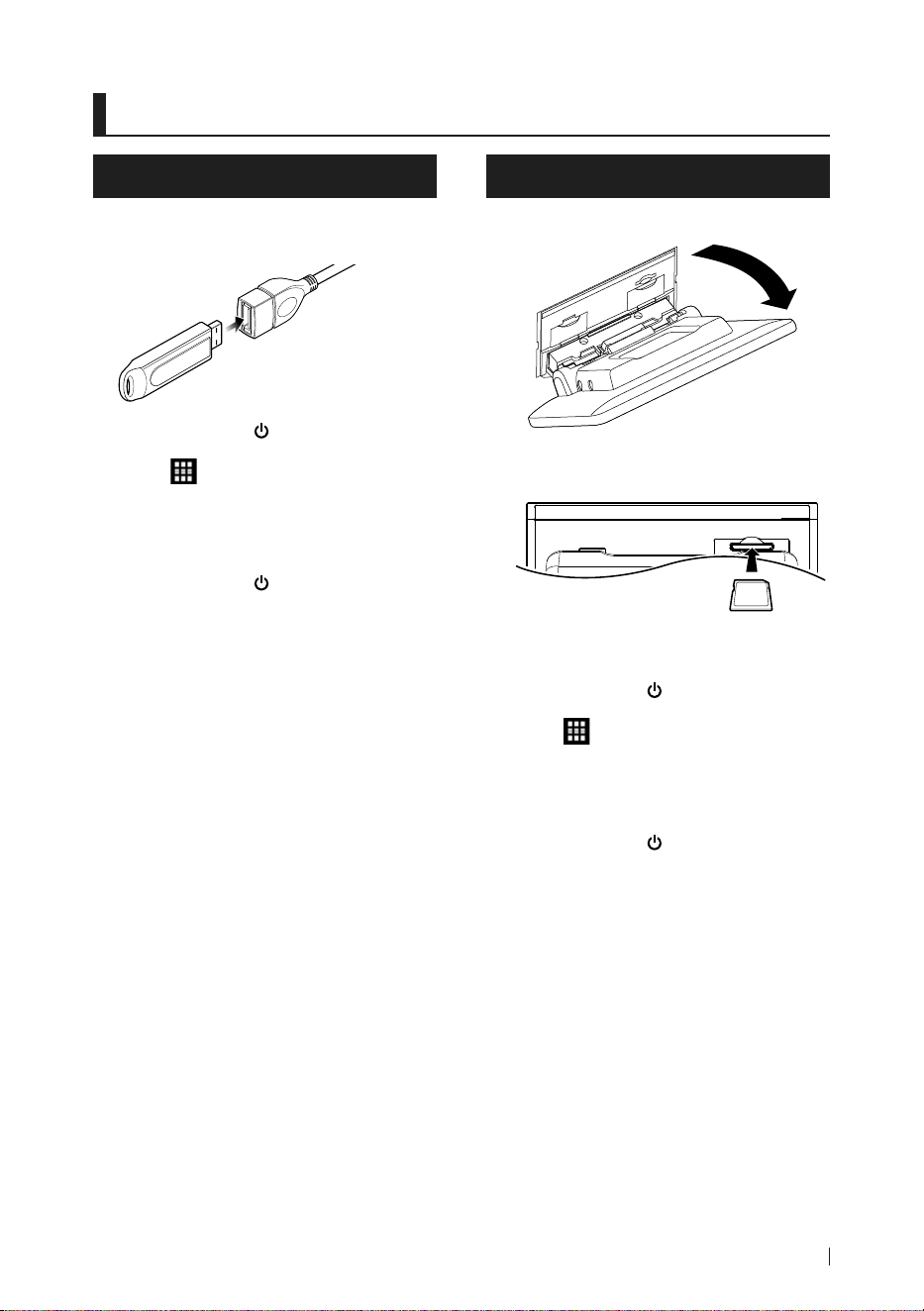
Connecting a USB device
1
Connect the USB device with the USB
cable. (P.35)
2
Press the [HOME]/[ ] button.
3
Touch [ ].
4
Touch [USB]. (P.12)
Ñ Disconnect the USB device
1
Press the [HOME]/[ ] button.
2
Touch a source other than [USB].
3
Detach the USB device.
Ñ Usable USB device
You can use a mass-storage-class USB device
with this unit.
The word “USB device” appearing in this manual
indicates a flash memory device.
Inserting the SD
1
Tilt the panel toward you manually.
2
Insert the SD card into the slot until it
clicks.
3
Close the panel.
4
Press the [HOME]/[ ] button.
5
Touch [ ].
6
Touch [SD]. (P.12)
Ñ Remove the SD card
1
Press the [HOME]/[ ] button.
2
Touch a source other than [SD].
3
Tilt the panel toward you manually.
4
Push the SD card until it clicks and then
remove your finger from the card. The
card pops up so that you can pull it out
with your fingers.
5
Close the panel.
!B5K-0760-00_20DNX_K_FP_QSG.indb 17 2020/07/02 14:24
USB/SD/iPod
18
Connect iPod/iPhone
Preparation
• With an iPhone compatible with Apple CarPlay,
turn off Apple CarPlay by operating the iPhone
at functional setup before connecting iPhone.
For details of the setup method, contact the
manufacturer of the terminal.
• Only one iPod/iPhone can be connected.
Wired connection
Preparation
• Connect an iPod/iPhone with the KCA-iP103
(optional accessory) while Apple CarPlay is not
connected.
1
Connect the iPod/iPhone using the KCA-
iP103. (P.36)
● To disconnect the iPod/iPhone connected
with the cable:
1
Detach the iPod/iPhone.
Bluetooth connection
Pair the iPhone through Bluetooth.
Preparation
• To connect an iPhone via Bluetooth, register it
as a Bluetooth device and do the profile setting
for the connection beforehand. See Switch the
connected device (P.53) in the Instruction
Manual and Register the Bluetooth device
(P.21).
• Connect an iPhone via Bluetooth while Apple
CarPlay and an iPod/iPhone are not connected
via USB.
Ñ Connectable iPod/iPhone
The following models can be connected to
this unit.
Made for
• iPhone XS
Max
• iPhone XS
• iPhone XR
• iPhone X
• iPhone 8 Plus
• iPhone 8
• iPhone 7 Plus
• iPhone 7
• iPhone SE
• iPhone 6s
Plus
• iPhone 6s
• iPod
touch (6th
generation)
USB/SD/iPod Basic Operation
1
Press the [HOME]/[ ] button.
2
Touch [ ].
3
Touch [USB], [SD], or [iPod]. (P.12)
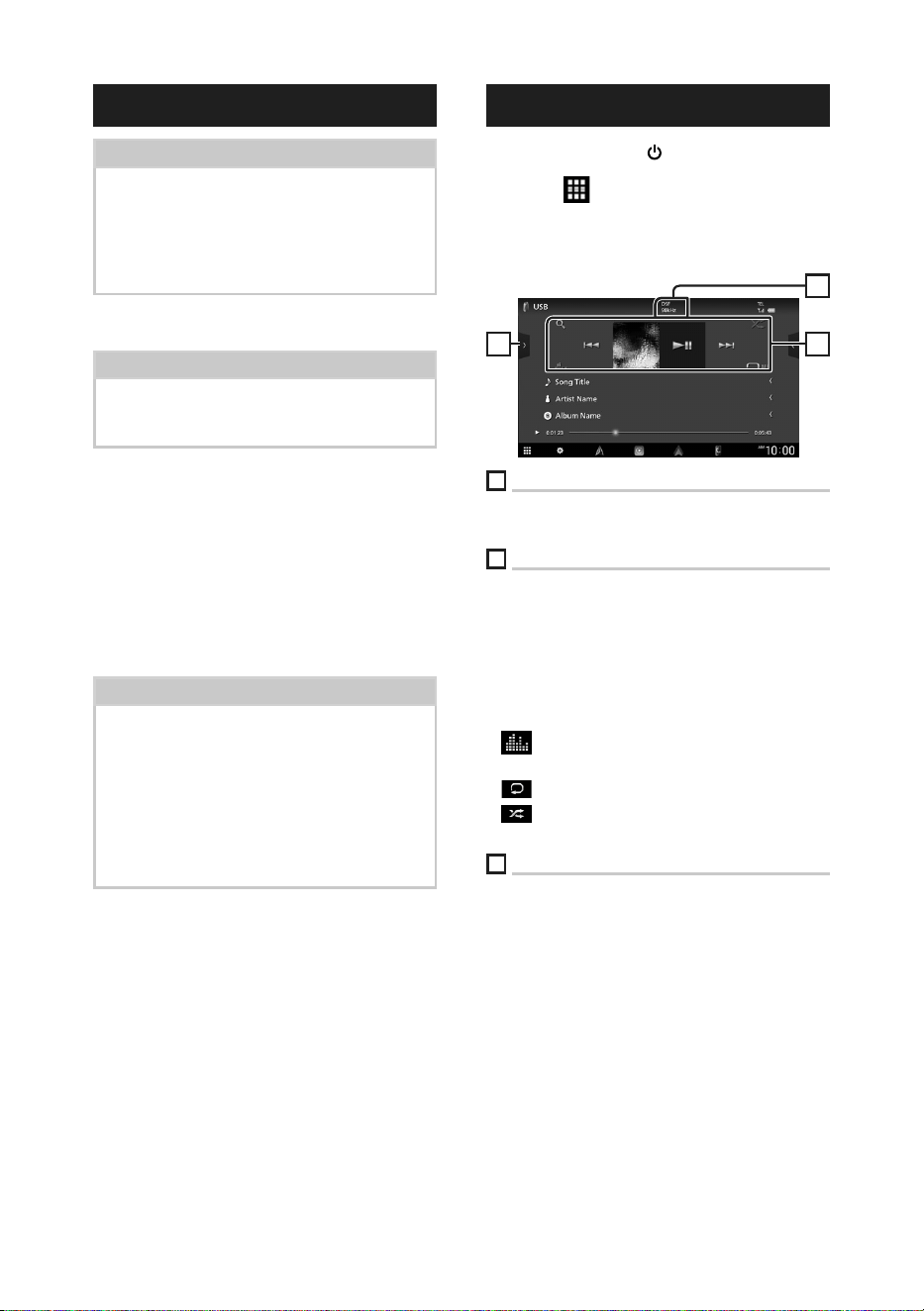
Control screen
3 2
1
1
CODEC
When a high-resolution source is played, its
format information is displayed.
2
Operation keys
• [1] : Searches track/file.
• [E] [F] : Searches the previous/next track/
file.
Touch and hold to fast forward or fast
backward. (It will be cancelled automatically
after about 50 seconds.)
• [DH] : Plays or pauses.
• [
] : Displays the Graphic Equalizer screen.
(P.24)
• [
] : Repeats the current track/folder.
• [
] : Randomly plays all tracks in the current
folder.
3
Content list
• Touch the left side of the screen to display the
Content list. Touch again to close the list.
• Displays the playing list. When you touch a
track/file name on the list, playback will start.
!B5K-0760-00_20DNX_K_FP_QSG.indb 18 2020/07/02 14:24
HD Radio™ Tuner
19English
HD Radio™ Tuner
HD Radio Tuner Basic
Operation
To listen to the HD Radio source, touch [HD
Radio] icon on the source selection screen.
(P.12)
NOTE
• HD Radio broadcasting is for North American
sales area only.
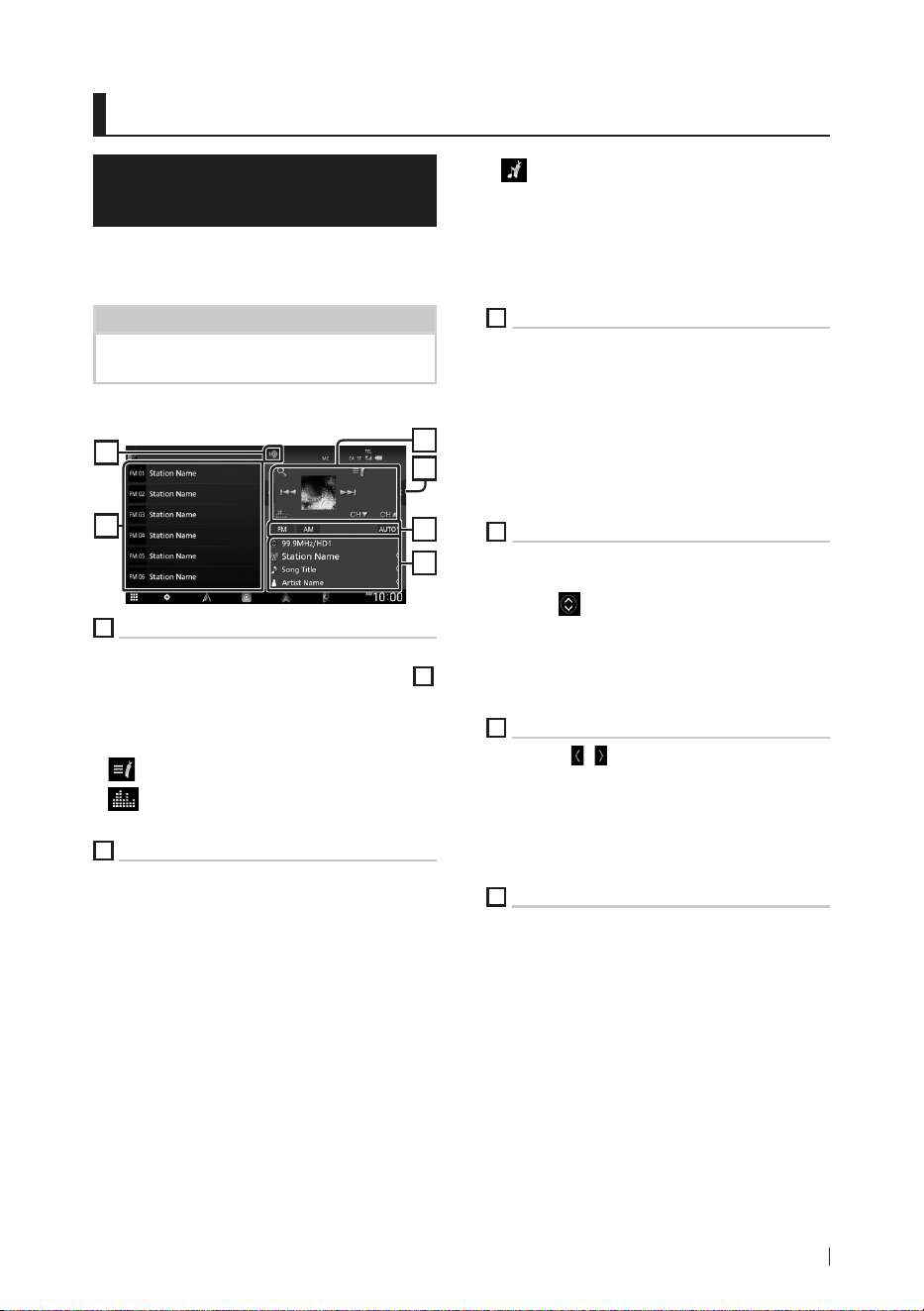
Control screen
3
4
6
5
1
2
1
Operation keys
• [E] [F] : Tunes in a station. The method of
switching frequencies can be changed (see
3
Seek mode/Band keys).
• [CHS] [CHR] : Selects a channel.
• [1] : Display the Channel List screen.
• [ ] : Display a list of registered bookmarks.
• [
] : Displays the Graphic Equalizer screen.
(P.24)
2
Function panel
Touch the right side of the screen to display the
function panel. Touch again to close the panel.
• [10key Direct]: Display the direct station/
channel search screen.
• [AME]: Presets stations automatically. (P.20)
• [RCV]: Change the HD Radio reception mode.
[Auto]: Switch between digital and analog
audio automatically.
[Digital]: Select this to tune to digital audio
only.
[Analog]: Select this to tune to analog audio
only.
• [PTY] (FM only): Searches for a program by
program type.
• [ ] : Stores the information about the song
being received.
• [Emergency Alerts] : Turn on or off the alert
message.
• [Alert Message Log] : Displays the alert
message received.
3
Seek mode/Band keys
• Touch to switch seek mode in the following
sequence: [AUTO1], [AUTO2], [MANUAL].
– [AUTO1]: Tunes in a station with good reception
automatically.
– [AUTO2]: Tunes in the memorized stations one after
another.
– [MANUAL]: Switches to the next frequency
manually.
• Switches bands (between FM and AM).
4
Information display
Displays the information on the current station:
Frequency and Channel
Touching [
] allows you to switch between
Content A, Content B and Content C.
Content A: Station name, Song Title, Artist Name
Content B: Station Message, Radio Text
Content C: PTY Genre, Album Name
5
Preset list
• Touching [
]/[ ] allows you to change the
display size.
• Recalls the memorized station or channel.
• When touched for 2 seconds, stores the
currently being received station or channel in
the memory.
6
Indicator display
While receiving an HD Radio station, it lights
with orange when the audio is digital and lights
with gray when it is analog. While receiving an
analog station, it is off.
!B5K-0760-00_20DNX_K_FP_QSG.indb 19 2020/07/02 14:24

HD Radio™ Tuner
20
Memory Operation
Ñ Auto memory
You can store stations with good reception in
the memory automatically.
1
Touch desired band key.
2
Touch [ ] on the right side of the screen.
Touch [AME].
3
Touch [Ye s ].
hh Auto memory starts.
Ñ Manual memory
You can store the currently being received
station or channel in the memory.
1
Select the station or channel you wish to
store in the memory.
2
Touch [FM#] (#:1-15) or [AM#] (#:1-5)
in which you want to store the station
or channel for 2 seconds until a beep
sounds.
Ñ Preset select
1
Touch [ ] on the left side of the screen.
Select a station or channel from the list.
!B5K-0760-00_20DNX_K_FP_QSG.indb 20 2020/07/02 14:24
Bluetooth Control
21English
Bluetooth Control
Register the Bluetooth device
It is necessary to register the Bluetooth audio
player or smartphone/cell-phone in this unit
before using the Bluetooth function.
1
Press the [HOME]/[ ] button.
2
Touch [ ].
3
Touch [SETUP].
hh SETUP Menu screen appears.
4
Touch [Connections & AV].
5
Touch [Device List].
6
Select a device type.
■ [Bluetooth]
To connect as Bluetooth audio source.
■ [Apple CarPlay]
To connect as Apple CarPlay source.
■ [Android Auto]
To connect as Android Auto source.
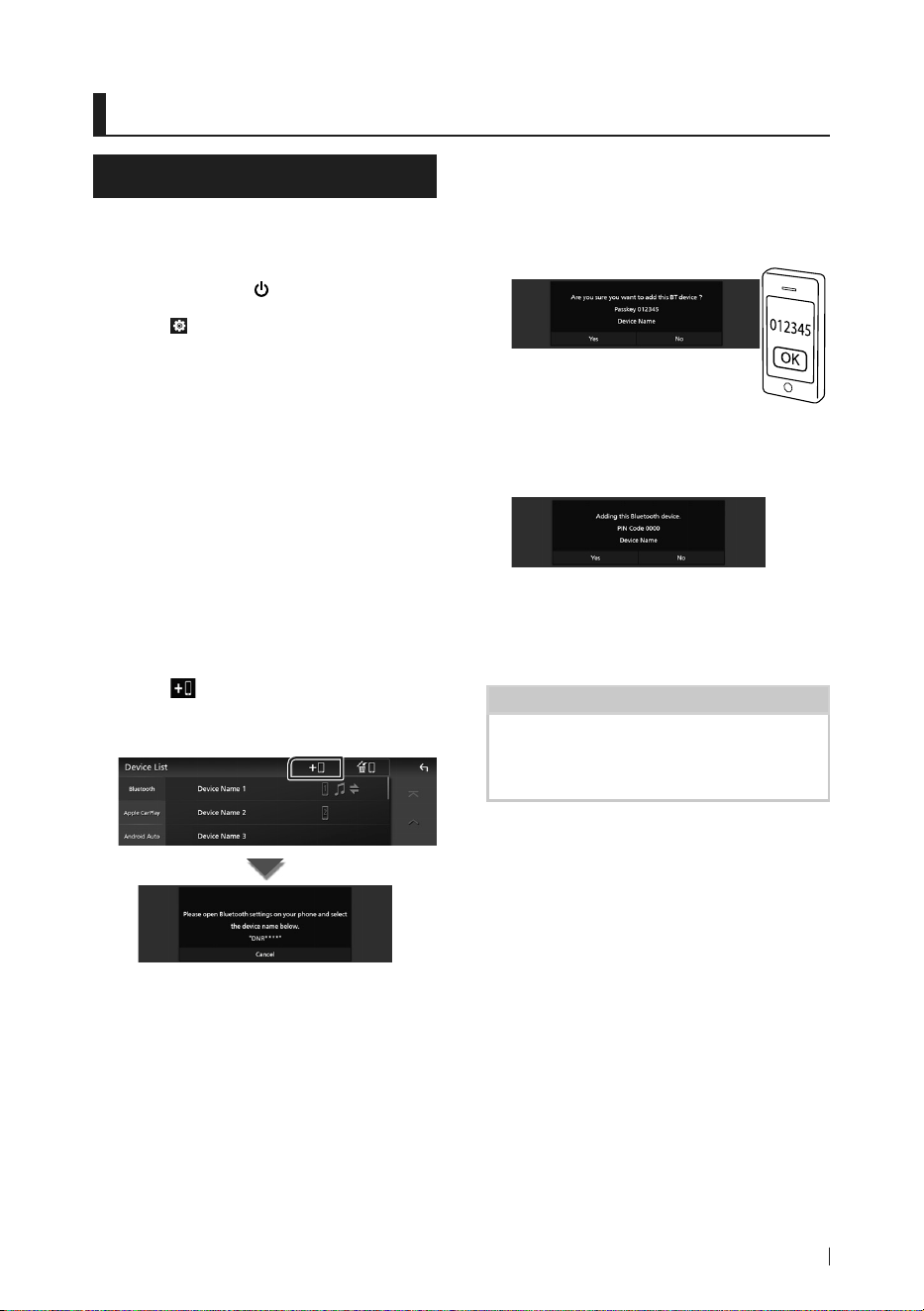
7
Touch [ ].
hh Bluetooth pairing waiting dialog
appears.
8
Search for the unit (”DNR1007XR”) from
your smartphone/cell-phone.
Complete steps 8 to 10 within 30 seconds.
9
Operate your smartphone/cell-phone
according to the displayed messages.
● Confirm the request both on the
smartphone/cell-phone.
● Input the PIN Code in your
smartphone/cell-phone.
PIN Code is set to “0000” as the default.
10
Touch [Ye s ].
When data transmission and connection
have completed, the Bluetooth connection
icon appears on the screen.
NOTE
• When registering the iPhone that is available for
Apple CarPlay wirelessly, a confirmation message
appears. Touch [Ye s ] to display the Apple CarPlay
screen for wireless connection.
!B5K-0760-00_20DNX_K_FP_QSG.indb 21 2020/07/02 14:24
Bluetooth Control
22
Using the Hands-Free Unit
You can use the telephone function by
connecting the Bluetooth telephone to this
unit.
NOTE
• While Apple CarPlay or Android Auto is
connected, the Bluetooth Hands-Free function
and two Bluetooth devices connections cannot
be used. Only the Apple CarPlay or Android Auto
Hands-Free function can be used.
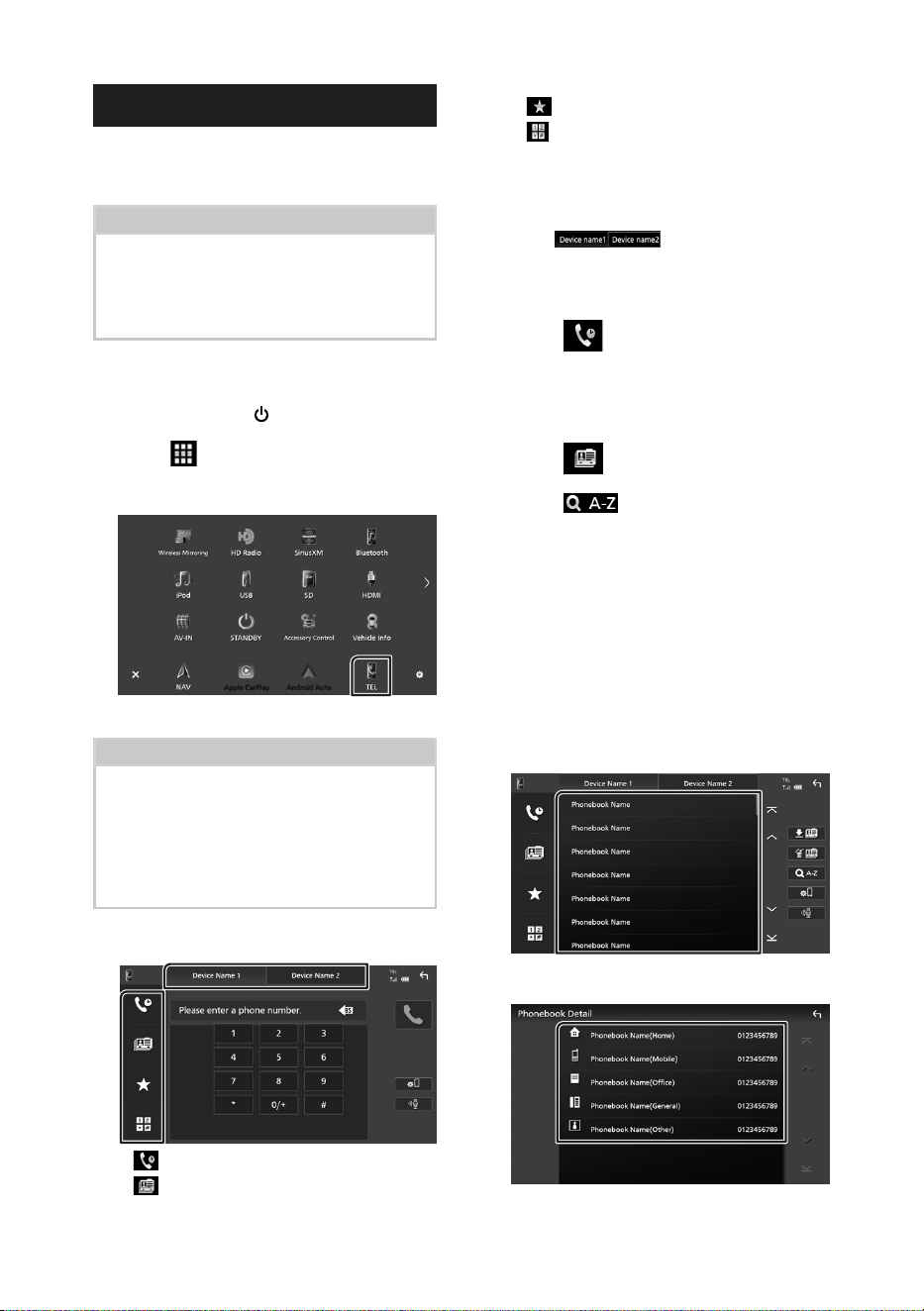
Ñ Make a call
1
Press the [HOME]/[ ] button.
2
Touch [ ].
3
Touch [TEL].
hh Hands-Free screen appears.
NOTE
• If your smartphone/cell-phone supports PBAP,
you can display the phonebook and call lists onto
the touch panel screen when the smartphone/
cell-phone is connected.
– Phonebook: up to 1000 entries
– Up to 50 entries including dialed calls, received
calls, and missed calls
4
Select a dialing method.
• [ ]: Call using call records
• [
]: Call using the phonebook
• [
]: Call using the preset number
• [
]: Call by entering a phone number
● Select the smartphone/cell-phone to use
When you connect two smartphones/cell-
phones
1) Touch [
] to select the phone
you want to use.
Call using call records
1
Touch [ ].
2
Select the phone number from the list.
Call using the phonebook
1
Touch [ ].
2
Touch [ ].
3
Select the initial.
• Characters with no corresponding name
will not appear.
• A first character with an accent character
such as “ü” can be searched for with a
non-accent character “u” . A character
with an accent character in a sentence
cannot be searched for.
4
Select the person you want to call from
the list.
5
Select the phone number from the list.
!B5K-0760-00_20DNX_K_FP_QSG.indb 22 2020/07/02 14:24
Bluetooth Control
23English
NOTE
• You can sort the phone numbers in the list by last
name or first name. For details, see Hands-Free
Setup (P.62) in the Instruction Manual.
• When Russian or Hebrew is selected in "Language
select", you can switch between English keyboard
and the selected language keyboard. For details,
see System Setup (P.72) in the Instruction
Manual.
• You can search with 3 initial letters on the English
keyboard and 1 initial letter on the Russian /
Hebrew keyboard.
Call using the preset number
1
Touch [ ].
2
Touch the name or phone number.
Call by entering a phone number
1
Touch [ ].
2
Enter a phone number with number keys.
3
Touch [ ].
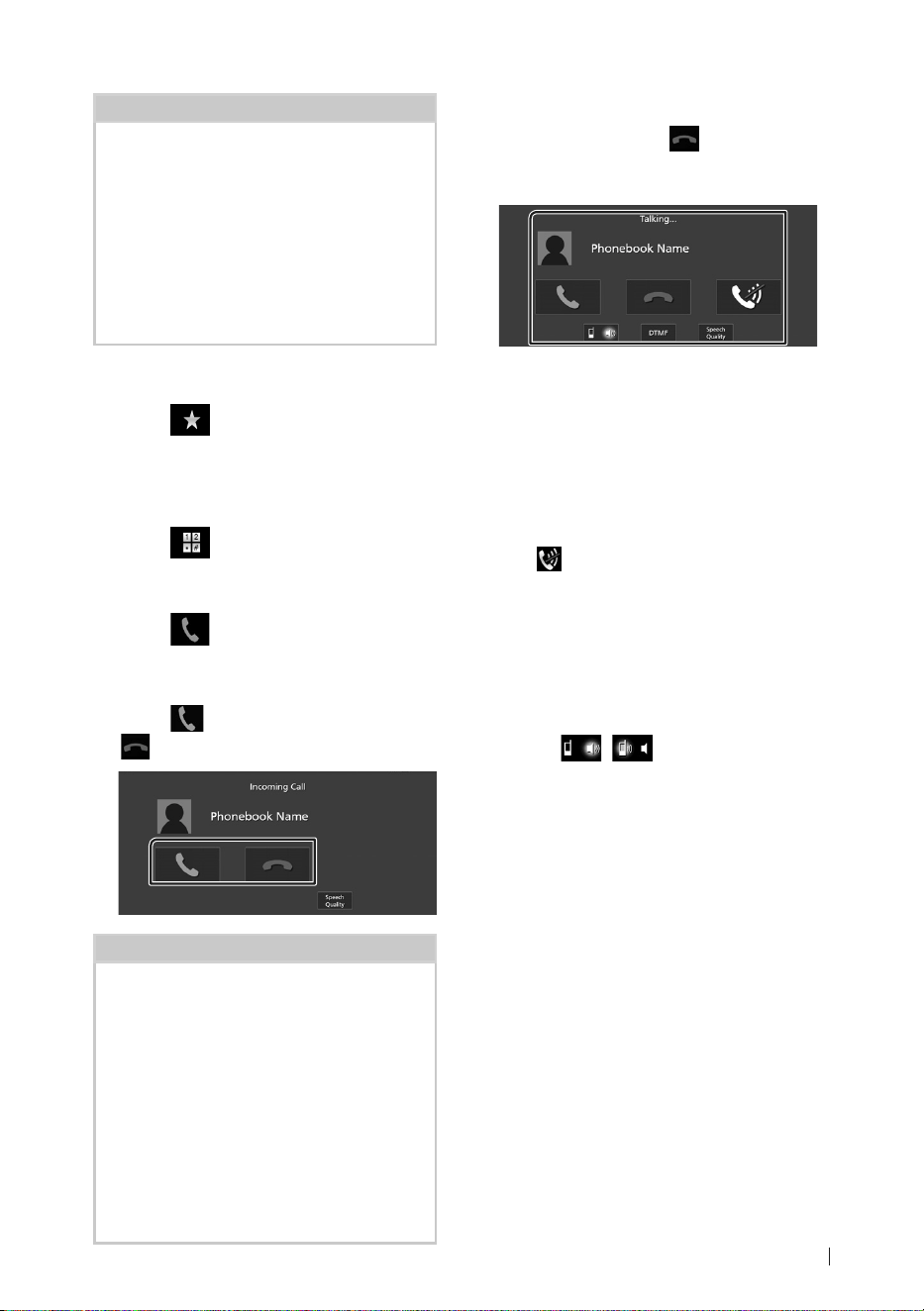
Ñ Receive a call
1
Touch [ ] to answer a phone call or
[
] to reject an incoming call.
NOTE
• When shifting the gear to the reverse (R) position
and monitoring the picture from the rear view
camera, this screen does not appear even if a call
comes in.
• The portrait registered in the phonebook is
displayed while making/receiving calls and
during a call.
• If you edit the phonebook on the connected
device side after downloading the phonebook,
the portrait may not be displayed depending on
the edited content. It is recommended that you
download the phonebook whenever you edit it.
• The image quality of a displayed portrait may
depends on a connected device.
To end call
1
While talking, touch [ ].
Ñ Operations during a call
● Adjust the volume of your voice
1) Touch [Speech Quality].
2) Touch [T] or [U] for [Microphone Level].
● Adjust the receiver volume
Turn the volume knob clockwise to increase,
and counter-clockwise to decrease.
● Mute your voice
Touch [
] to mute or not to mute your voice.
● Output the dial tone
Touch [DTMF] to display the tone input screen.
You can send tones by touching desired keys
on the screen.
● Switching between speaking voice
output destinations
Touching [
]/[ ] each time switches
speaking voice output destinations between
the smartphone/cell-phone and the speaker.
● Switching between the Hands Free screen
and the navigation screen
Press the [NAV]/[CAMERA] button to switch
between the Hands Free screen and the
navigation screen.
!B5K-0760-00_20DNX_K_FP_QSG.indb 23 2020/07/02 14:24
Controlling Audio
24
Controlling Audio
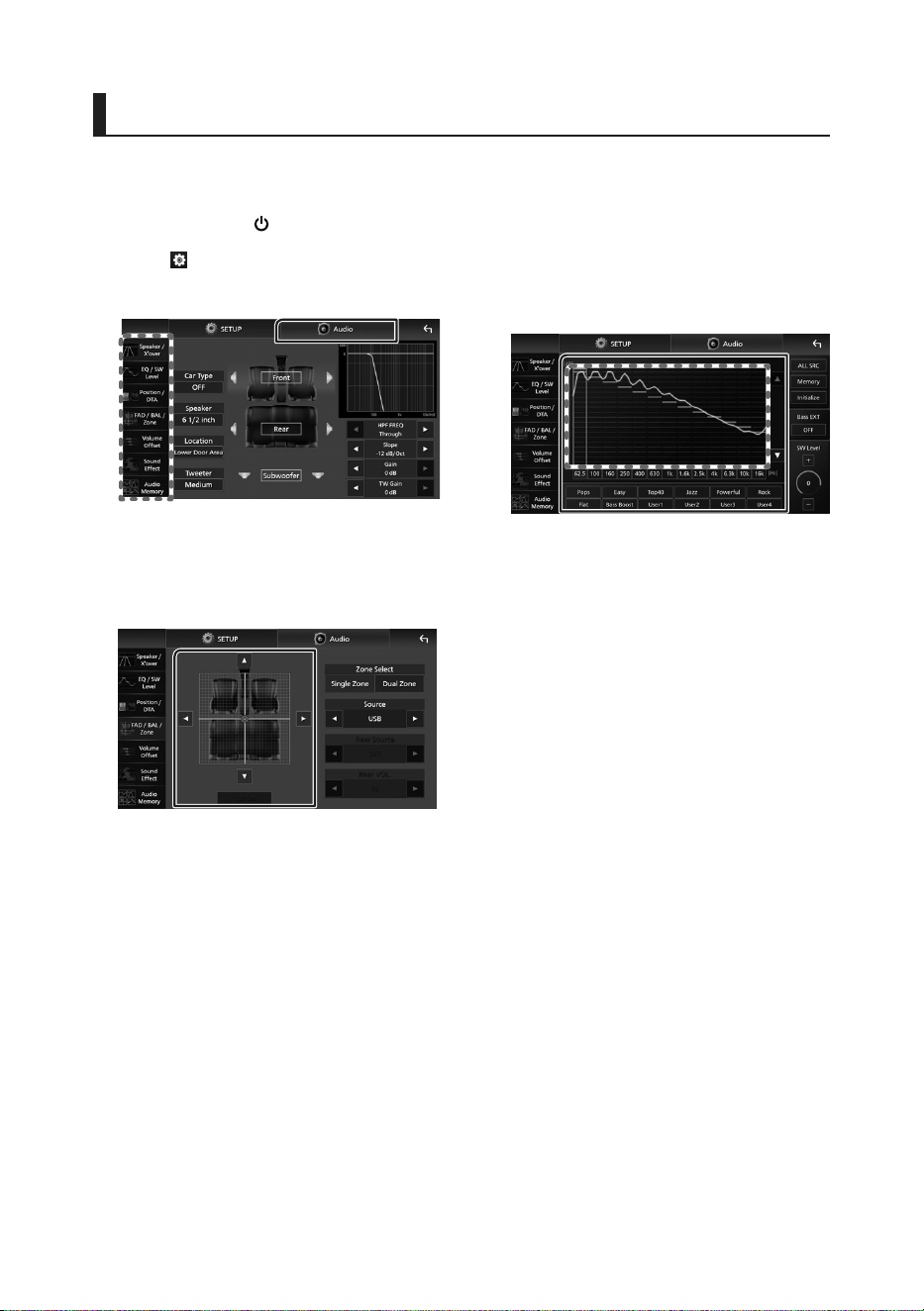
You can adjust various settings such as audio
balance or subwoofer level.
1
Press the [HOME]/[ ] button.
2
Touch [ ].
3
Touch [Audio].
Ñ Controlling General Audio
1
Touch [FAD / BAL / Zone].
2
Set each parameter as follows.
[C] and [D] adjust the left and right volume
balance.
[R] and [S] adjust the front and rear volume
balance.
■ [Center]
Clear the adjustment.
Ñ Equalizer Control
You can adjust equalizer by selecting the
optimized setting for each category.
1
Touch [EQ / SW Level].
2
Touch the screen and set the Graphic
Equalizer as desired.
■ Gain level (area in dotted frame)
Adjust the gain level by touching each
frequency bar.
You can select a frequency bar and adjust its
level by [R], [S].
■ [ALL SRC]
Apply the adjusted equalizer curve to all
sources. Touch [ALL SRC] and then touch
[OK] on the confirmation screen.
■ [Memory]
Saves the adjusted equalizer curve as “User1”
to “User4”.
■ [Initialize]
Initialize (flatten) the current EQ curve.
■ [Bass EXT] (Bass Extend Settings)
When turned on, the frequencies lower than
62.5 Hz is set to the same gain level (62.5 Hz).
■ [SW Level]
Adjust the subwoofer volume.
■ [Pops]/[Easy]/[Top40]/[Jazz]/[Powerful]/
[Rock]/[Flat]/[Bass Boost]/[User1]/
[User2]/[User3]/[User4]
Recall the preset EQ curve.
!B5K-0760-00_20DNX_K_FP_QSG.indb 24 2020/07/02 14:24

Connection/Installation
25English
Connection/Installation
This section is for the professional installer.
For safety’s sake, leave wiring and mounting to
professionals. Consult the car audio dealer.
Before Installation
Before installation of this unit, please note the
following precautions.
# WARNINGS
• If you connect the ignition wire (red) and
the battery wire (yellow) to the car chassis
(ground), you may cause a short circuit, that
in turn may start a fire. Always connect those
wires to the power source running through
the fuse box.
• Do not cut out the fuse from the ignition wire
(red) and the battery wire (yellow). The power
supply must be connected to the wires via
the fuse.
# CAUTION
• Install this unit in the console of your vehicle.
Do not touch the metal part of this unit during
and shortly after the use of the unit. Metal part
such as the heat sink and enclosure become
hot.
NOTE
• Mounting and wiring this product requires
skills and experience. For best safety, leave the
mounting and wiring work to professionals.
• Do not install the unit if it becomes an obstacle
to driver performance.
• Adjust the panel position not to become an
obstacle to driver performance.
• Adjust the panel position so that the panel can
be moved to an angle that allows an SD card
to be inserted and removed.
• Make sure to ground the unit to a negative 12V
DC power supply.
• Do not install the unit in a spot exposed to
direct sunlight or excessive heat or humidity.
Also avoid places with too much dust or the
possibility of water splashing.
• Do not use your own screws. Use only the
screws provided. If you use the wrong screws,
you could damage the unit.
• If the power is not turned ON (“There is an
error in the speaker wiring. Please check the
connections.” is displayed), the speaker wire
may have a short-circuit or touched the chassis
of the vehicle and the protection function may
have been activated. Therefore, the speaker
wire should be checked.
• If your car’s ignition does not have an ACC
position, connect the ignition wires to a power
source that can be turned on and off with the
ignition key. If you connect the ignition wire to
a power source with a constant voltage supply,
such as with battery wires, the battery may be
drained.
• If the console has a lid, the lid will not be
closed even when the unit is installed correctly.
• If the fuse blows, first make sure the wires are
not touching to cause a short circuit, then
replace the old fuse with one with the same
rating.
• Insulate unconnected wires with vinyl tape or
other similar material. To prevent a short circuit,
do not remove the caps on the ends of the
unconnected wires or the terminals.
• Connect the speaker wires correctly to the
terminals to which they correspond. The unit
may be damaged or fail to work if you share
the ¤ wires or ground them to any metal part
in the car.
• When only two speakers are being connected
to the system, connect the connectors either
to both the front output terminals or to both
the rear output terminals (do not mix front
and rear). For example, if you connect the ¢
connector of the left speaker to a front output
terminal, do not connect the ¤ connector to
a rear output terminal.
• After the unit is installed, check whether the
brake lamps, blinkers, wipers, etc. on the car
are working properly.
• Mount the unit so that the mounting angle is
30° or less.
• This unit has the cooling fan to decrease the
internal temperature. Do not mount the unit
in a place where the cooling fan of the unit is
blocked. Blocking these openings will inhibit
the cooling of the internal temperature and
result in malfunction.
!B5K-0760-00_20DNX_K_FP_QSG.indb 25 2020/07/02 14:24
Connection/Installation
26
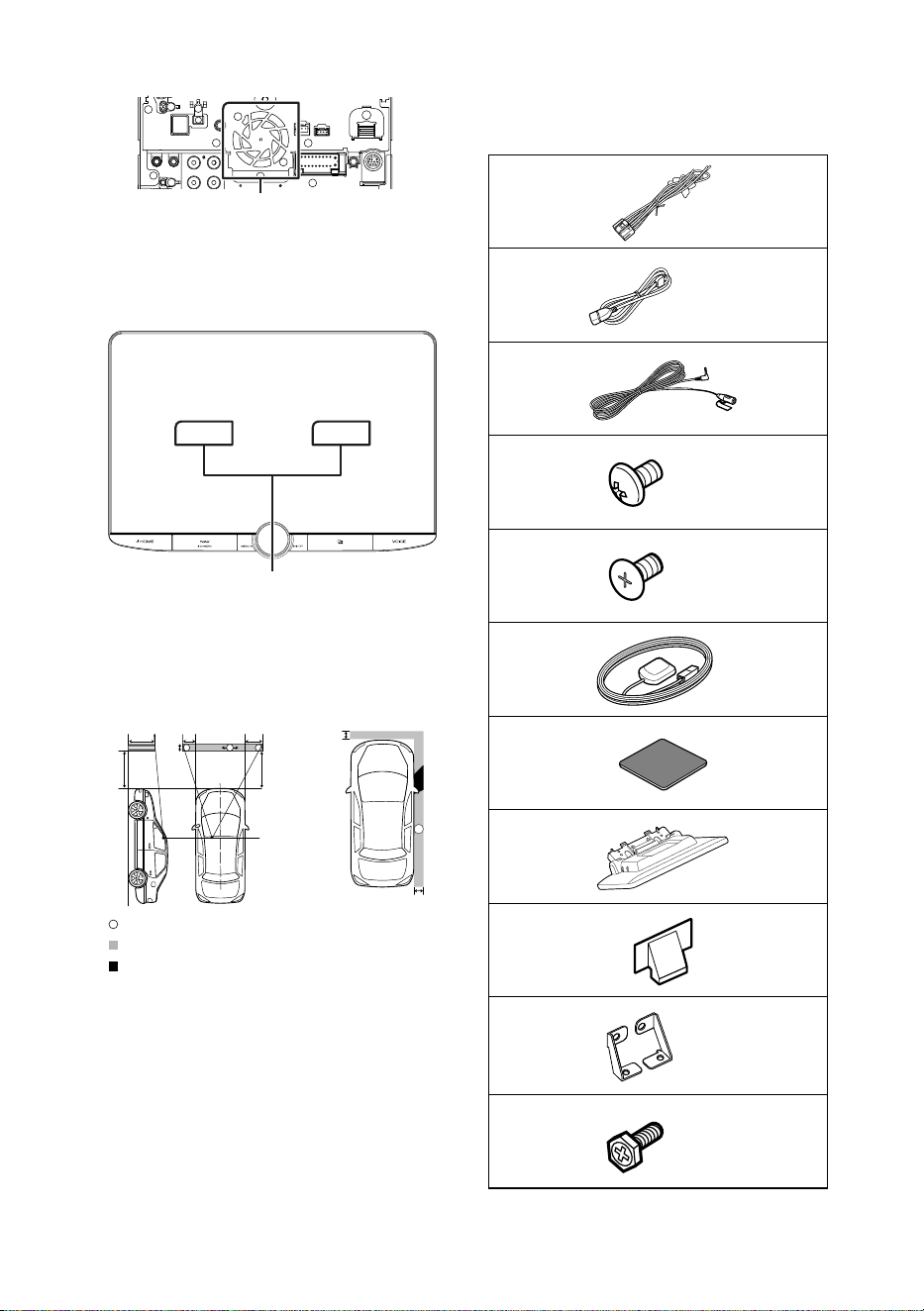
Cooling fan
• Do not press hard on the panel surface when
installing the unit to the vehicle. Otherwise
scars, damage, or failure may result.
• Reception may drop if there are metal objects
near the Bluetooth/Wi-Fi antenna.
Bluetooth/Wi-Fi antenna unit
● Forward and Lateral Fields of Vision
• To determine driver’s forward and lateral fields
of vision under normal conditions, place a
pole (directly visible from the front or visible
through the car rear-view mirror) as shown.
*
1
*
2
0.3 m
0.3 m
0.3 m
2 m
2 m
1 m 0.7 m 0.9 m
[ ]: Pole (height: 1m, diameter: 0.3m)
[ ]: Field of vision from steering position
[ ]: Exempted area (pole size is subject to
regulation)
• For right hand drive vehicles, standards are
reversed.
*1 The pole must be visible from the driver's position as
direct forward field of vision.
*2 The pole must be directly visible or indirectly visible
through the mirror, etc. from the driver's position.
Ñ Supplied accessories for
installation
1
x1
2
(Black 1 m)
x1
3
(3 m)
x1
4
(M5 x 8 mm)
x6
5
(M5 x 8 mm)
x6
6
(3.5 m)
x1
7
x1
8
x1
9
x2
0
Left/Right
x1
-
(M5 x 8 mm)
x6
!B5K-0760-00_20DNX_K_FP_QSG.indb 26 2020/07/02 14:24
Connection/Installation
27English
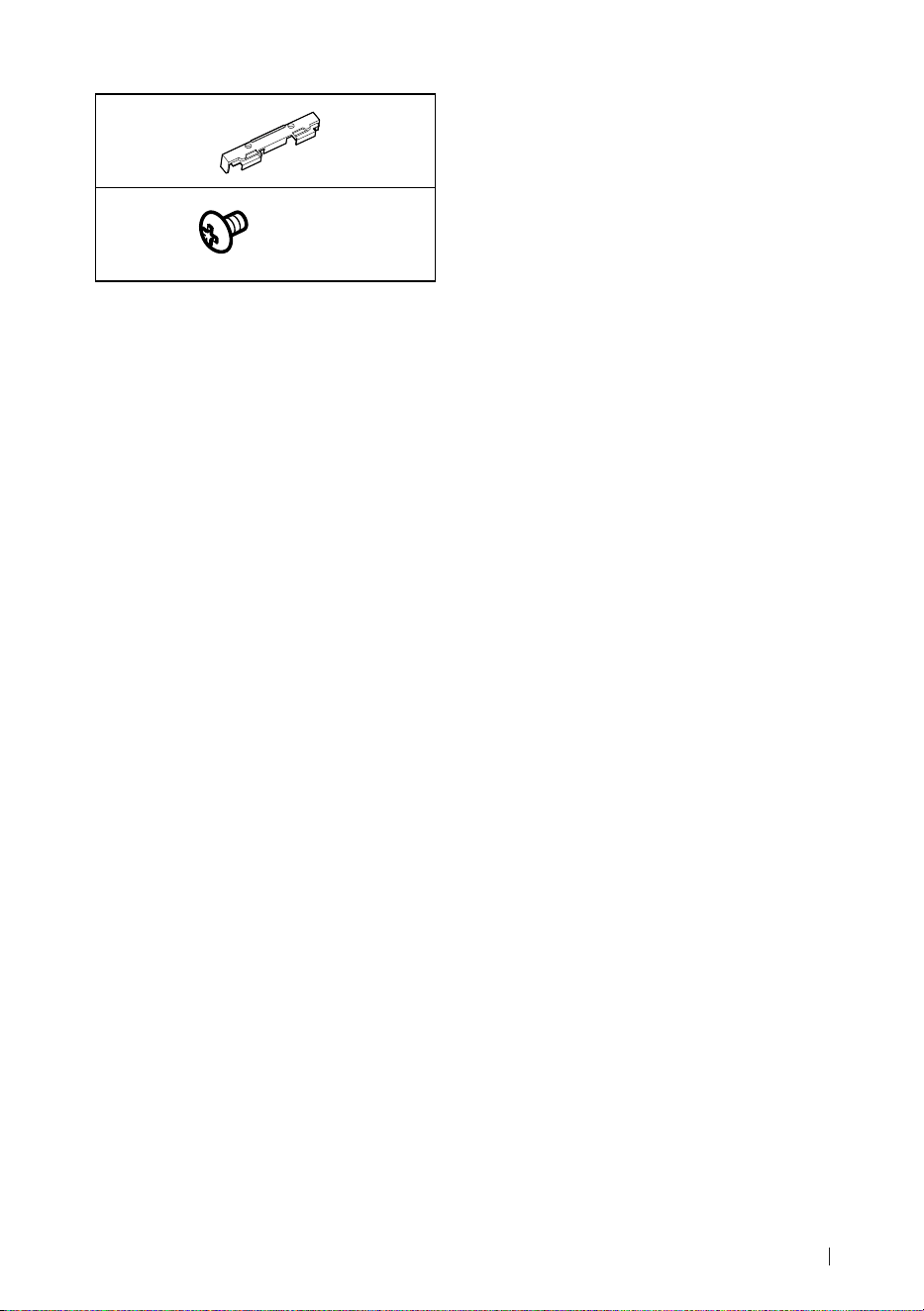
=
x1
~
(Ø3 x 6 mm)
(Black)
x2
Ñ Installation procedure
1) To prevent a short circuit, remove the key
from the ignition and disconnect the ¤
terminal of the battery.
2) Remove the vehicle parts for installing the
unit and connecting wires to terminal.
3) Make the proper input and output wire
connections for each unit.
4) Connect the speaker wires of the wiring
harness.
5) Connect wiring harness wires in the following
order; ground, battery, ignition.
6) Determine the height of the display unit and
position of the slider. See Distance between
the display unit and the main unit (P.28).
7) Connect the wiring harness connector to the
unit.
8) Install the main unit to the vehicle.
9) Reinstall the vehicle parts.
10) Install the display unit.
11) Reconnect the ¤ terminal of the battery.
12) Perform the Initial Setup.
See Initial SETUP (P.9).
!B5K-0760-00_20DNX_K_FP_QSG.indb 27 2020/07/02 14:24
Connection/Installation
28
Installing the unit
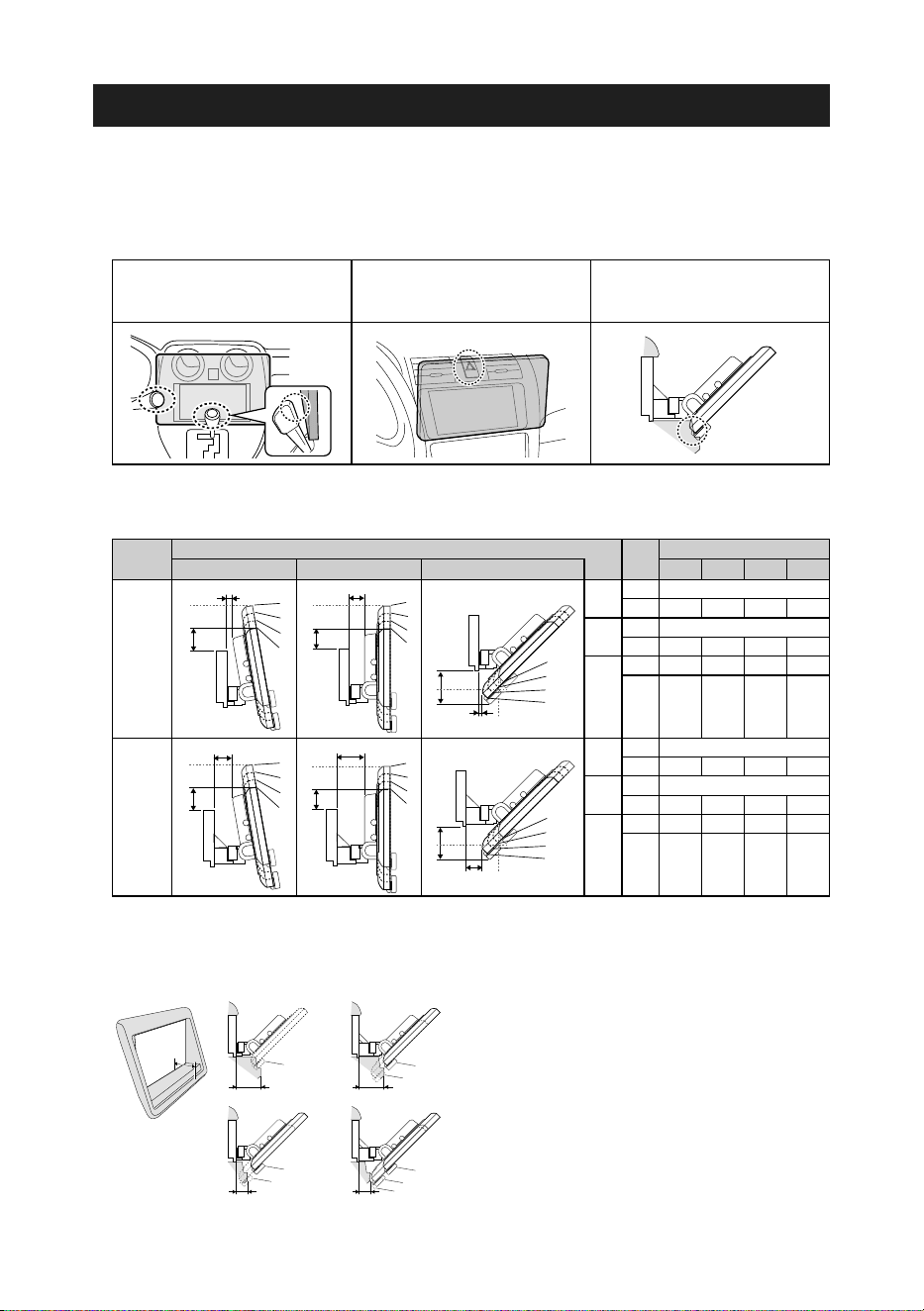
Ñ Confirm the installing position of the display unit
● Vehicles cannot be installed
It may be possible to install if it can avoid the following by adjustment for slider position and
display height.
Lever operations are interfered
such as shift lever, wiper lever,
winker lever when install the unit.
A hazard switch is hidden from a
driver seat.
The display unit hits a panel on the
vehicle.
● Distance between the display unit and the main unit
Adjust slider position and display height so that it does not interfere with display movement.
Slider
position
Display angle Display height
-10° 0° 45° 1 2 3 4
Back
position
4
3
2
1
a
4
3
2
1
4
3
2
1
4
3
2
1
4
3
2
1
4
3
2
1
b
a
c
a
a
b
b
d
d
b
c
4
3
2
1
a
4
3
2
1
4
3
2
1
4
3
2
1
4
3
2
1
4
3
2
1
b
a
c
a
a
b
b
d
d
b
c
4
3
2
1
a
4
3
2
1
4
3
2
1
4
3
2
1
4
3
2
1
4
3
2
1
b
a
c
a
a
b
b
d
d
b
c
-10°
a 10
b 38.1 50.9 63.8 76.5
0°
a 26.7
b 34.7 47.7 60.7 73.7
45°
c 5.7 14.4 24.1 33.4
d 55.4 46.3 37.1 27.8
Forward
position
4
3
2
1
a
4
3
2
1
4
3
2
1
4
3
2
1
4
3
2
1
4
3
2
1
b
a
c
a
a
b
b
d
d
b
c
4
3
2
1
a
4
3
2
1
4
3
2
1
4
3
2
1
4
3
2
1
4
3
2
1
b
a
c
a
a
b
b
d
d
b
c
4
3
2
1
a
4
3
2
1
4
3
2
1
4
3
2
1
4
3
2
1
4
3
2
1
b
a
c
a
a
b
b
d
d
b
c
-10°
a 30.1
b 38.1 50.9 63.8 76.5
0°
a 46.7
b 34.7 47.7 60.7 73.7
45°
c 25.7 34.9 44.1 53.3
d 55.4 46.3 37.1 27.8
Unit: mm
Examples
Cluster panel
on the vehicle
Slider in back
position
Slider in forward
position
C’
4
1
4
1
4
2
1
4
C’ =30mm C’ =30mm
C’ =50mm C’ =50mm
• C'=50mm;
Slider position: Forward position
Display height: Set only "4"
• C'=30mm;
Slider position: Back position
Display height: Set only "4"
Slider position: Forward position
Display height: Set "2"~"4"
!B5K-0760-00_20DNX_K_FP_QSG.indb 28 2020/07/02 14:24
Connection/Installation
29English
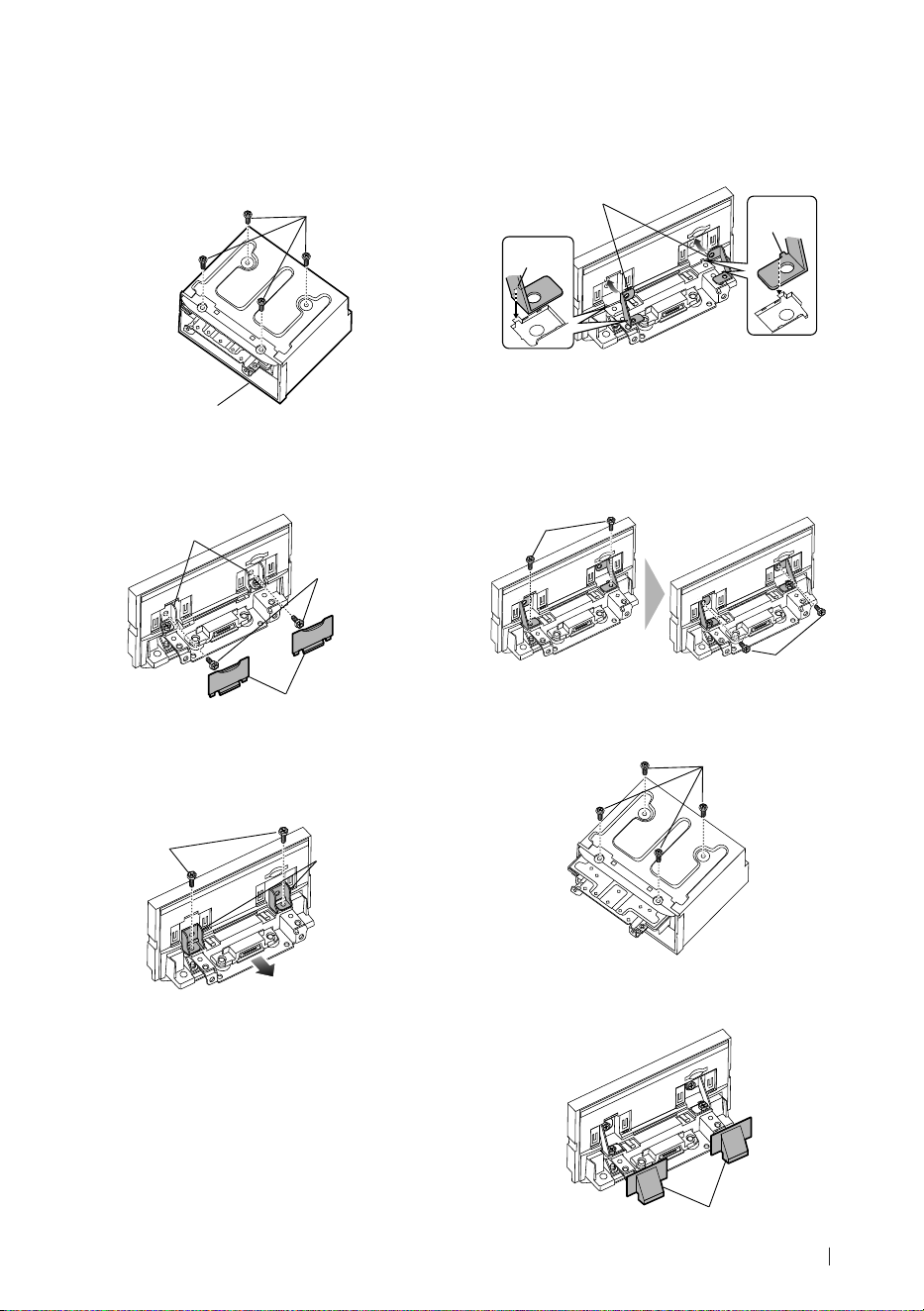
Ñ Positioning the slider in
forward
1
Remove the four screws from the bottom
of the main unit.
Main unit
Screw
2
Remove the two cover for back position,
and then remove the two hexagon head
screws from the bracket for back position.
Hexagon head
screw
Bracket for back
position
Cover for back
position
3
Pull the slider block forward and remove
the two hexagon head screws to remove
the bracket for back position.
Bracket for back
position
Hexagon head
screw
4
Install the bracket for forward position
(accessory 0) each side so that its
projections are aligned with the slots on
the main unit.
Projection
Projection
0
5
Fix the bracket for forward position to
the slider block with the two hexagon
head screws. Push the slider block until it
stops and then fix the bracket for forward
position to the main unit with the two
hexagon head screws.
Hexagon
head screw
Hexagon head
screw
6
Reinstall the four screws to the bottom of
the main unit.
Screw
7
Install the cover for forward position
(accessory 9) to two locations, as shown.
9
!B5K-0760-00_20DNX_K_FP_QSG.indb 29 2020/07/02 14:24
Connection/Installation
30
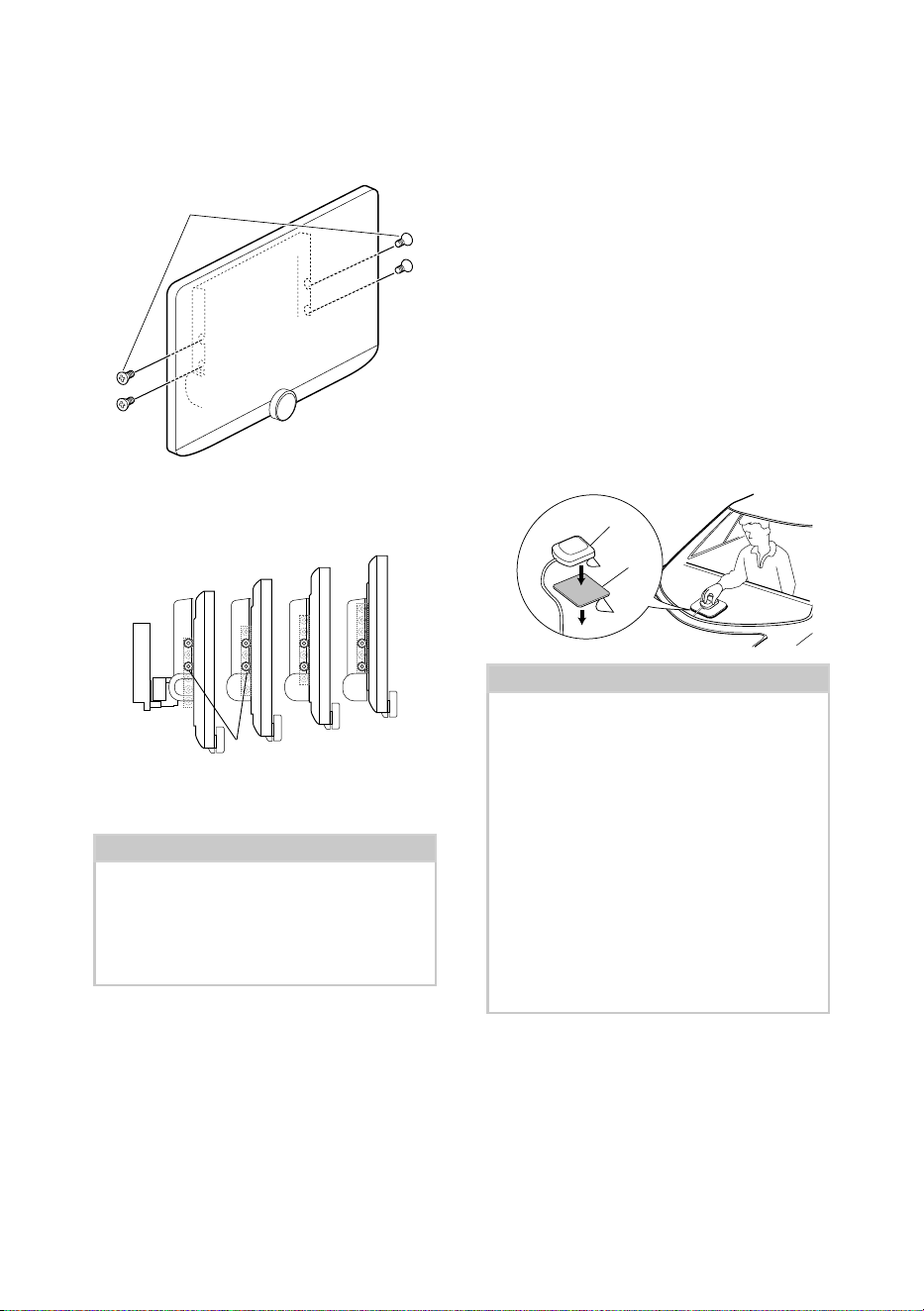
Ñ Adjusting the display height
1
Remove the four flat head screws from
both sides.
Flat head screw
2
Adjust the display height according to the
screw hole position.
Default is "1".
1
2
3
4
Screw hole position
3
Reinstall the four flat head screws on both
sides and fix the display.
NOTE
• Fix with flat head screws correctly. After installing
the display unit (accessory 8) to the main unit,
tilt the display forward until it stops and confirm
that the display unit (accessory 8) does not hit
vehicle parts. If the display unit hits vehicle parts,
adjust the display height again.
Ñ GPS antenna
GPS antenna is installed inside of the car. It
should be installed as horizontally as possible
to allow easy reception of the GPS satellite
signals.
To mount the GPS antenna inside your vehicle:
1) Clean your dashboard or other surface.
2) Remove the separator of the metal plate
(accessory 7).
3) Press the metal plate (accessory 7) down
firmly on your dashboard or other mounting
surface. You can bend the metal plate
(accessory 7) to conform to a curved surface,
if necessary.
4) Remove the separator of the GPS antenna
(accessory 6), and stick the antenna to the
metal plate (accessory 7).
7
6
NOTE
• Use the supplied GPS antenna. Using the GPS
antenna other than the supplied one may cause a
drop in positioning accuracy.
• Depending on the type of car, reception of the
GPS satellite signals might not be possible with
an inside installation.
• Please install this GPS antenna in an area away
from any antennas that are used with CB radios or
satellite televisions.
• The GPS antenna should be installed at a position
that is spaced at least 12 inch (30 cm) from
smartphone/cell-phone or other transmitting
antennas. Signals from the GPS satellite may be
interfered with by these types of communication.
• Painting the GPS antenna with (metallic) paint
may cause a drop in performance.
!B5K-0760-00_20DNX_K_FP_QSG.indb 30 2020/07/02 14:24
Connection/Installation
31English
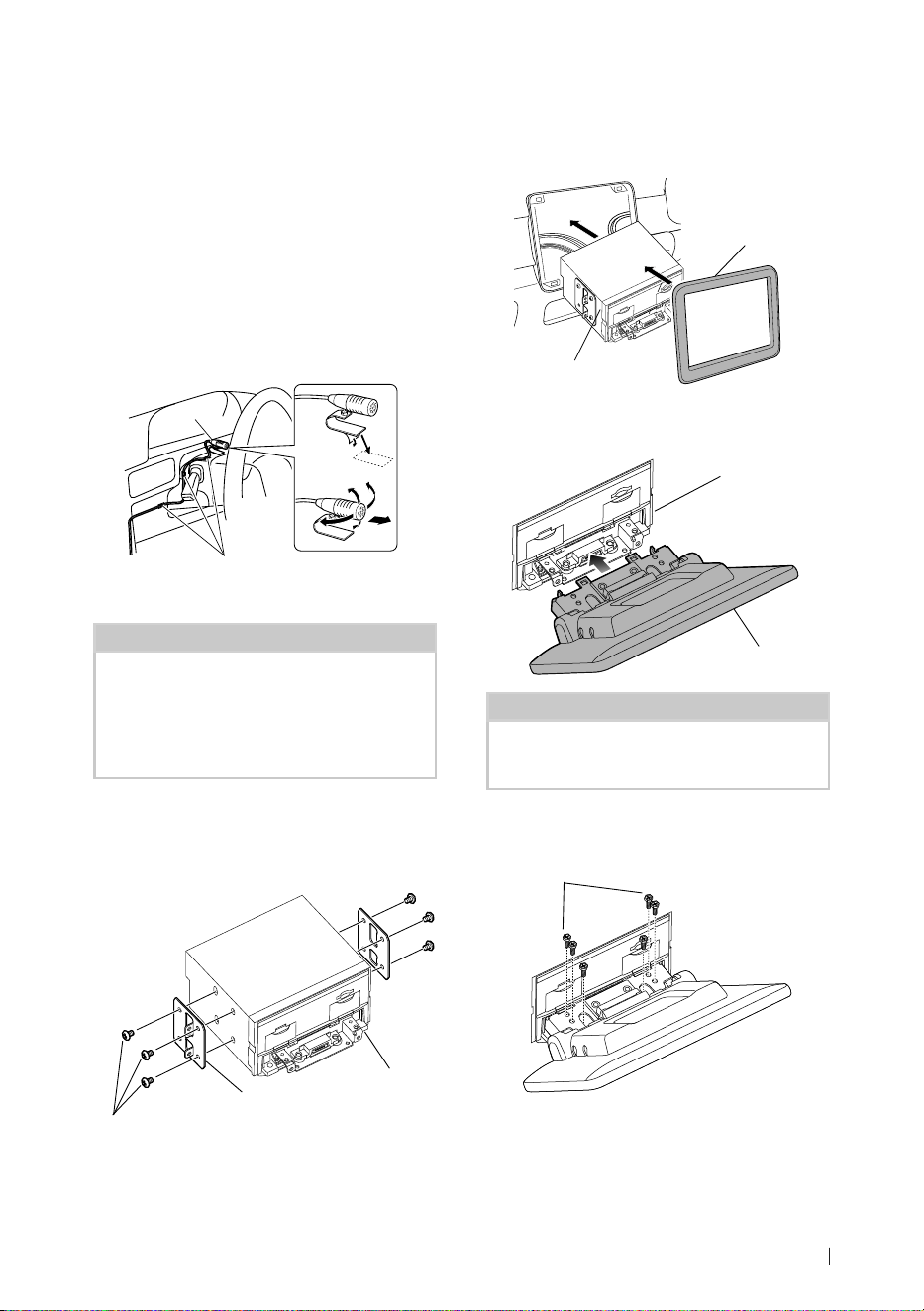
Ñ Microphone unit
1) Check the installation position of the
microphone (accessory 3).
2) Clean the installation surface.
3) Remove the separator of the microphone
(accessory 3), and stick the microphone to
the place shown below.
4) Wire the microphone cable up to the unit
with it secured at several positions using tape
or other desired method.
5) Adjust the direction of the microphone
(accessory 3) to the driver.
3
Fix a cable with a commercial item of tape.
Ñ Installing the main unit
NOTE
• Determine the slider position before installing the
main unit. (P.29) The slider position cannot be
changed after installing to the vehicle.
• Make sure that the unit is installed securely in
place. If the unit is unstable, it may malfunction
(eg, the sound may skip).
1
Remove parts that interfere with
installing such as a panel on the vehicle.
2
Install the car bracket to the main unit.
Car bracket
4 or 5
Main unit
3
Connect the wiring harness wires and
peripheral equipment.
4
Install the main unit to the vehicle.
5
Reinstall the removed parts such as a
panel on the vehicle.
Panel on the
vehicle
Main unit
6
Install the display unit (accessory 8) to
the main unit.
Main unit
8
NOTE
• If the display unit hits a panel on the vehicle,
adjust the display height by referring to
Adjusting the display height (P.30).
7
Fix the display unit with six hexagon head
screws (accessory -).
-
!B5K-0760-00_20DNX_K_FP_QSG.indb 31 2020/07/02 14:24
Connection/Installation
32
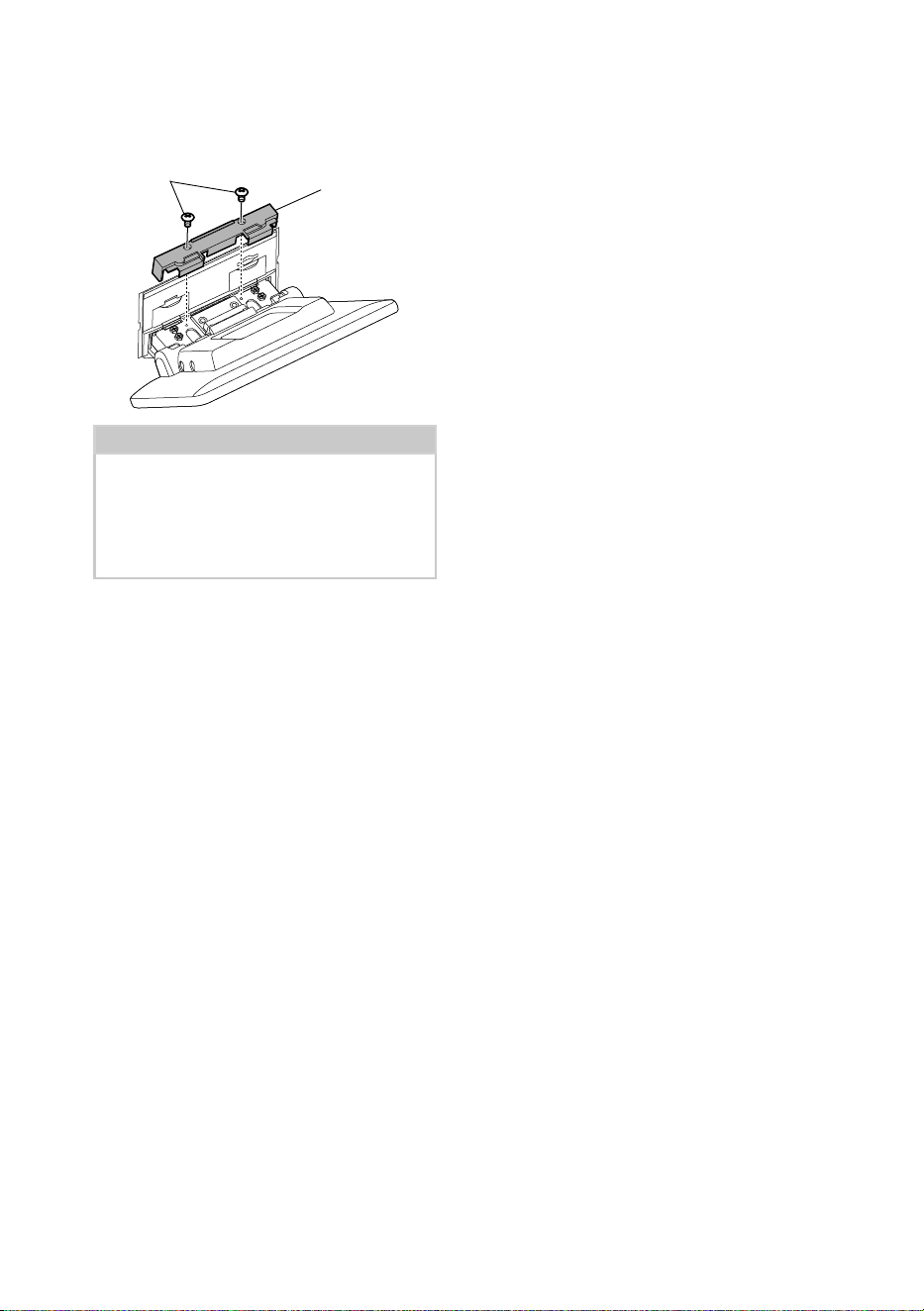
8
Attach the protective cover (accessory =)
to coupling part, and then fix it with two
binding head screws (accessory ~).
~
=
NOTE
• If the protective cover (accessory =) is not
attached, this unit will not turn on. Even if the
unit is turned on, the power may be turned off
halfway.
Be sure to attach the protective cover (accessory
=).
9
Raise the display manually.
!B5K-0760-00_20DNX_K_FP_QSG.indb 32 2020/07/02 14:24
Connection/Installation
33English
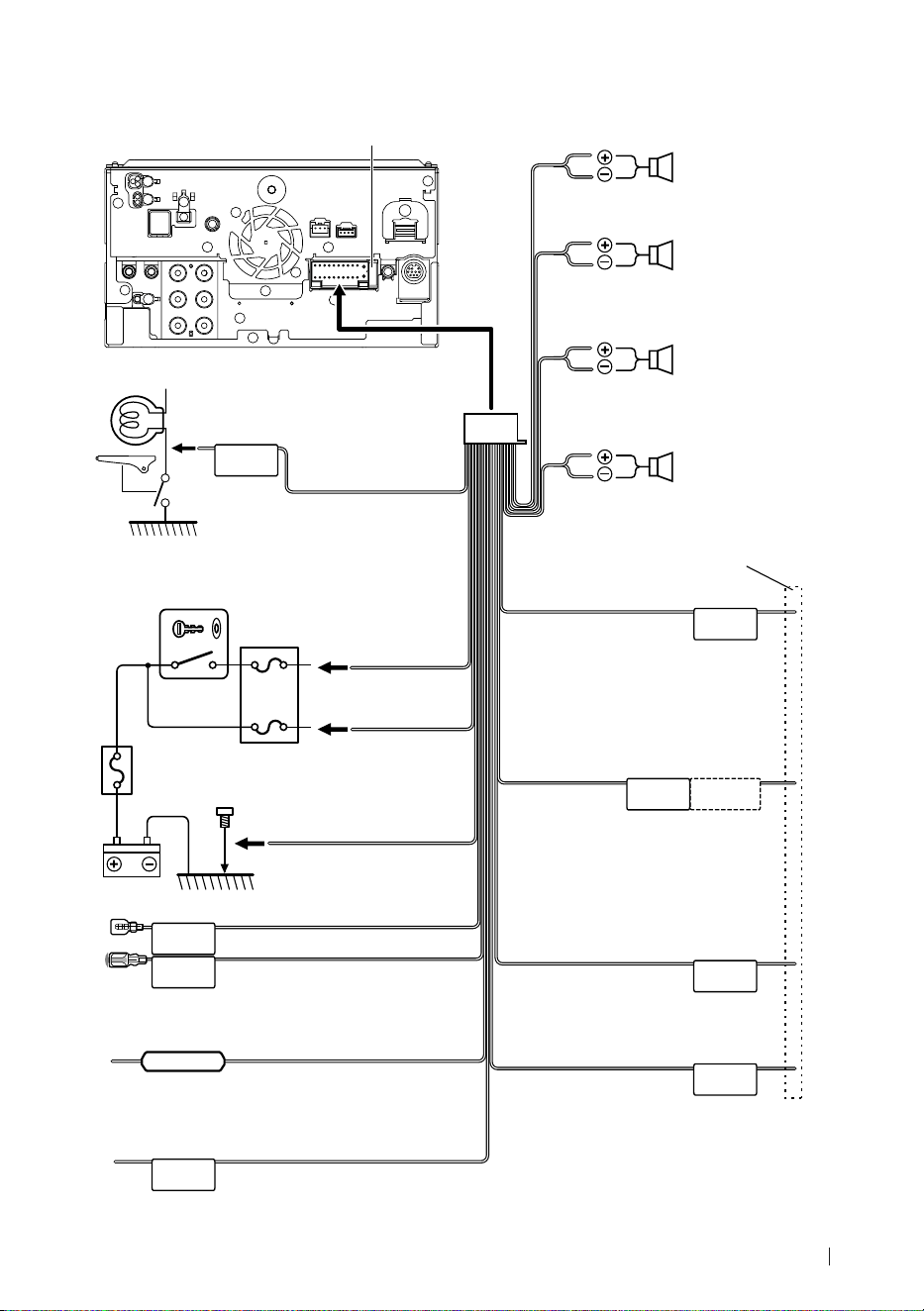
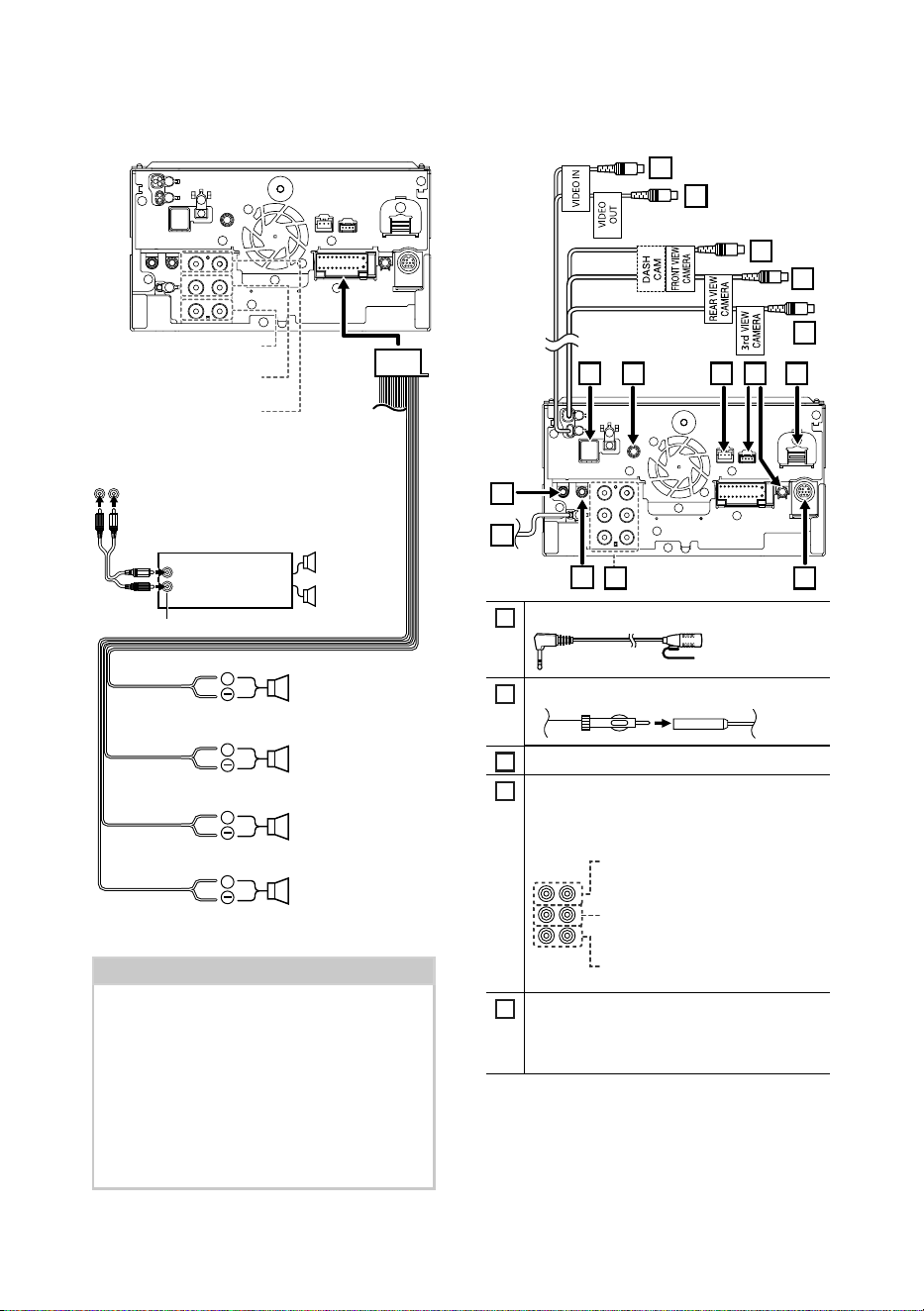
Ñ Connecting wires to terminals
ILLUMI
ANT CONT
STEERING WHEEL
REMOTE INPUT
REMOTE CONT
PRK SW
REVERSE
P. CONT
CAM+
CAM–
S SENS
Fuse (15A)
When using the optional power amplifier,
connect to its power control terminal.
(Max. 200mA, 12V)
Depending on what antenna you are using,
connect either to the control terminal of the
motor antenna, or to the power terminal for
the booster amplifier of the film-type antenna.
(Max. 300mA, 12V)
Blue/White
(Power control wire)
Green/White
Green/Red
To CMOS-3xx series (optional accessory) camera
control terminal
Blue
(Antenna control wire)
To car light control switch
Orange/White
(Dimmer control wire)
Connect to the vehicle’s speed pulse harness.
Do not cut the "S SENS" tag or failure may result.
Light Blue/Yellow
(Steering remote control wire)
Connect to vehicle’s reverse lamp harness when
using the optional rear view camera.
To steering remote
To use the steering wheel remote control
feature, you need an exclusive remote
adapter (not supplied) matched to your car.
If no connections are made, do not let
the cable come out from the tab.
Purple/Black
To rear right speaker
To rear left speaker
To front right speaker
To front left speaker
Speaker impedance: 4-8 Ω
Purple
Green/Black
Green
Gray/Black
Gray
White/Black
White
Accessory 1
Connect to the vehicle’s
parking brake detection switch
harness.
Light Green
(Parking sensor wire)
(2 m)
For best safety, be sure to
connect the parking sensor.
Ignition key switch
Red
(Ignition wire)
Yellow
(Battery wire)
Car fuse box
Battery
Black
(Ground wire) ¤
(To car chassis)
Pink (Speed Pulse Input) (2m)
Purple/White (Reverse sensor wire) (2 m)
!B5K-0760-00_20DNX_K_FP_QSG.indb 33 2020/07/02 14:24
Connection/Installation
34
+
+
+
+
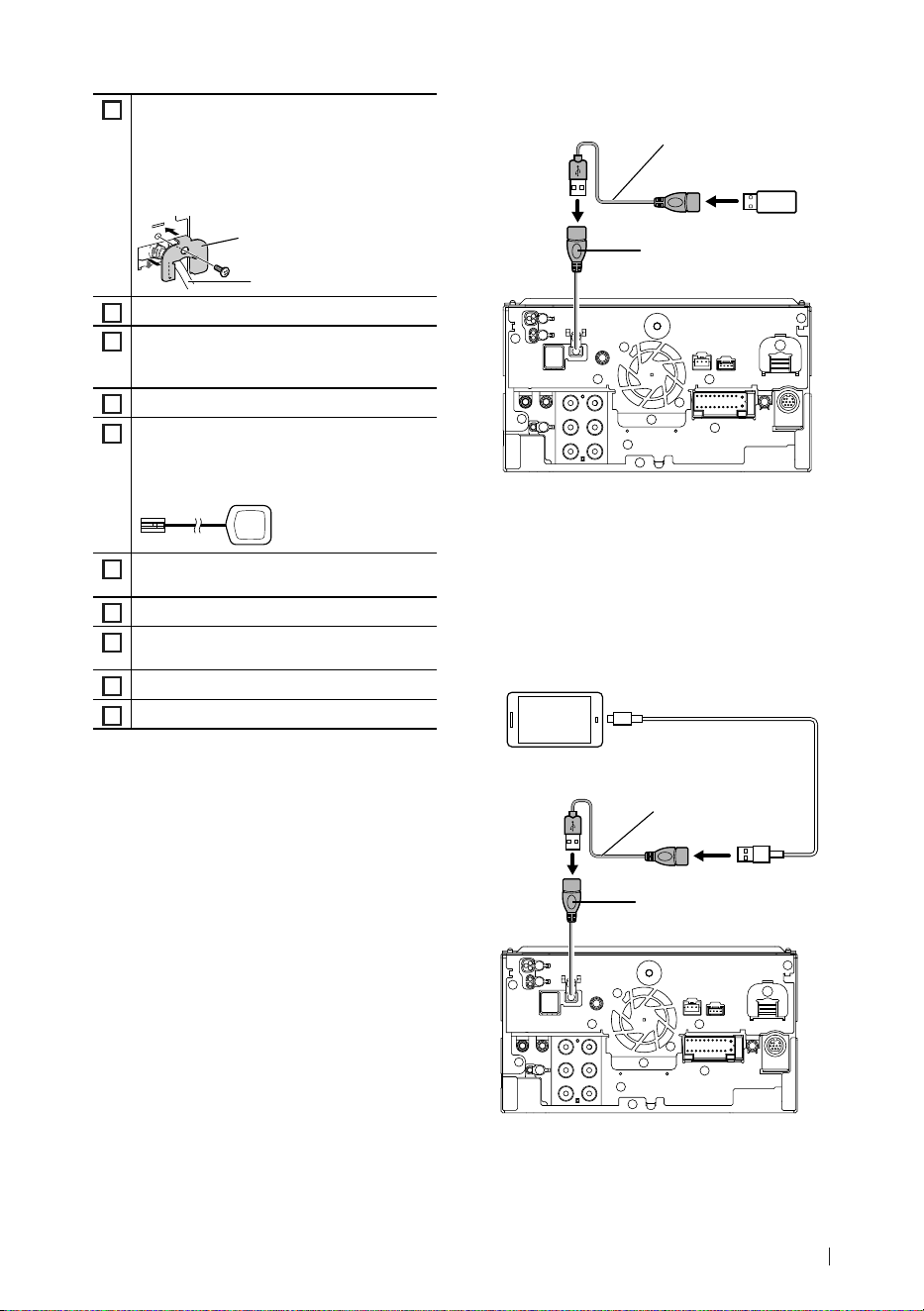
When connecting to an external amplifier,
connect its ground wire to the car’s chassis to
avoid damaging the unit.
White/Black
Gray/Black
Green/Black
Purple/Black
Speaker impedance: 4-8 Ω
Purple
Green
Gray
White
To mid range left
speaker
Subwoofer Preout
To mid range right
speaker
Mid Range Preout
To tweeter left speaker
Tweeter Preout
To tweeter right
speaker
Power amplifier
(optional
accessory)
RCA Cable
(Sold separately)
Input
Speaker
Preout
NOTE
• For speaker system setup, see 3-way speaker
system setup (P.74) in the Instruction Manual.
• For speaker setup and crossover setup, see
Speaker / X’over setup (P.75) in the
Instruction Manual.
• For how to connect speaker wires to terminals
other than speaker terminals and Preout
terminals, see Connecting the system and
external components (P.34) and Connecting
wires to terminals (P.33).
Ñ 3-way speaker system setup Ñ Connecting the system and
external components
12
13
14
15
678910
2
1
4 5
11
3
1
Accessory 3: Bluetooth Microphone
2
FM/AM antenna input
3
AV Audio output (ø3.5 mini jack)
4
When connecting to an external amplifier,
connect its ground wire to the car’s chassis to
avoid damaging the unit.
Rear Audio Preout
(Left; White, Right; Red)
Front Audio Preout
(Left; White, Right; Red)
Subwoofer Preout
(Left; White, Right; Red)
5
SiriusXM Connect Vehicle Tuner connector
For more information on how to install the
SiriusXM Connect Vehicle tuner, consult the
installation guide included with the tuner.
!B5K-0760-00_20DNX_K_FP_QSG.indb 34 2020/07/02 14:24
Connection/Installation
35English
6
HDMI input
Use HDMI cable KCA-HD100 (optional
accessory).
When you connect the cable to HDMI terminal,
remove the fixture. After connecting the cable,
put the fixture again.
HDMI connector
Fixture
7
iDatalink connector
8
Dashboard camera interface
Connect a Dashboard Camera DRV-N520
(optional accessory). (P.36)
9
AV Audio input (ø3.5 mini jack)
10
Accessory 6: GPS Antenna
Use the supplied GPS antenna. Using the GPS
antenna other than the supplied one may
cause a drop in positioning accuracy.
11
3rd view camera input (Yellow). See To set up
the camera assignment settings (P.37).
12
Rear view camera input (Yellow)*
1
13
Front view camera/Dashboard camera input
(Yellow).*
2
(P.37)
14
Video output (Yellow)
15
Video input (Yellow)
*1 Connect an HD camera to Rear view camera
input terminal to use HD video.
*2 Connect an HD camera to Front view camera/
Dashboard camera input terminal to use HD
video.
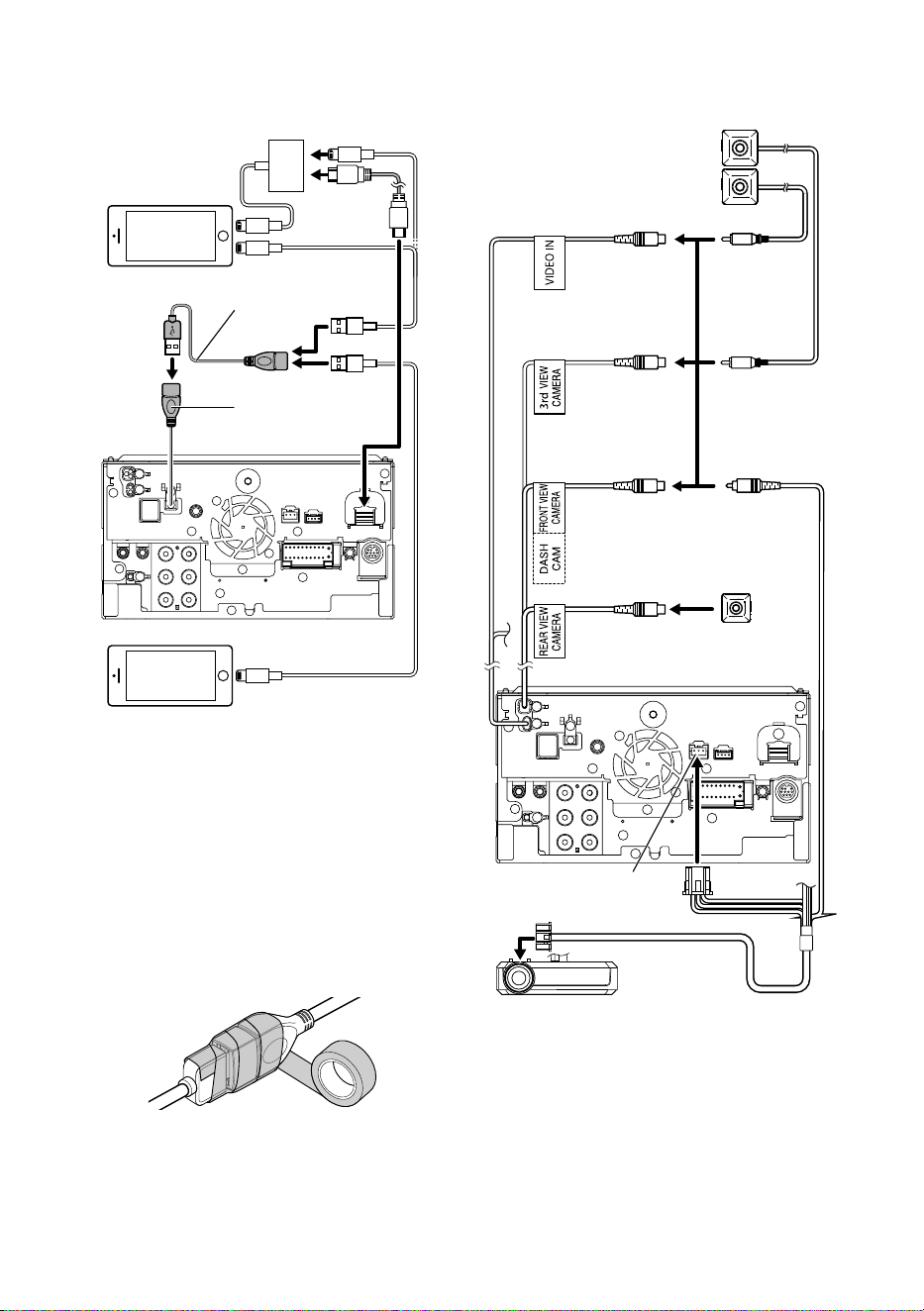
Ñ Connecting a USB device
USB device
[2]
USB terminal
[1]
Accessory 2 (1 m)
[3]
[1]
USB maximum power supply current :
DC 5 V = 1.5 A
[2]
Sold separately
[3]
See Securing the USB extension cable
(P.36).
Ñ Connecting an Android
smartphone
USB cable
[2]
Android smartphone
[2]
USB terminal
[1]
Accessory 2 (1 m)
[3]
[1]
USB maximum power supply current :
DC 5 V = 1.5 A
[2]
Sold separately
[3]
See Securing the USB extension cable
(P.36).
!B5K-0760-00_20DNX_K_FP_QSG.indb 35 2020/07/02 14:24
Connection/Installation
36
Ñ Connecting an iPod/iPhone
KCA-iP103 (0.8 m)
[3]
KCA-HD100
(1.8 m)
[3]
KCA-iP103 (0.8 m)
[3]
KCA-iP103 (0.8 m)
[3]
Lightning Digital AV
Adapter
[2]
iPod/iPhone
[2]
iPhone (with Apple CarPlay)
[2]
USB terminal
[1]
Accessory 2 (1 m)
[4]
[1]
USB maximum power supply current :
DC 5 V = 1.5 A
[2]
Sold separately
[3]
Optional accessory
[4]
See Securing the USB extension cable
(P.36).
Ñ Securing the USB extension
cable
Secure the USB extension cable with insulating
tape or the like so that its connectors are not
disconnected.
Ñ Connecting the camera
DRV-N520
[1]
3rd view camera
input (Yellow)
Front view camera/
Dashboard camera
input (Yellow)
[3]
Left side view camera and
Right side view camera
[2]
Front view camera
[4] [6]
Video input
(Yellow)
Rear view camera
input (Yellow)
Dashboard camera interface
Rear view camera
[4] [5]
[1]
Optional accessory
[2]
Sold separately
[3]
Up to 3 cameras of Dashboard camera, Front
view camera, Left side view camera and Right
side view camera can be connected. (P.37)
[4]
CMOS-3xx series (optional accessory) or
commercially available camera.
[5]
For HD video, an HD camera is also used as
Rear view camera.
[6]
For HD video, an HD camera is also used as
Front view camera.
!B5K-0760-00_20DNX_K_FP_QSG.indb 36 2020/07/02 14:24
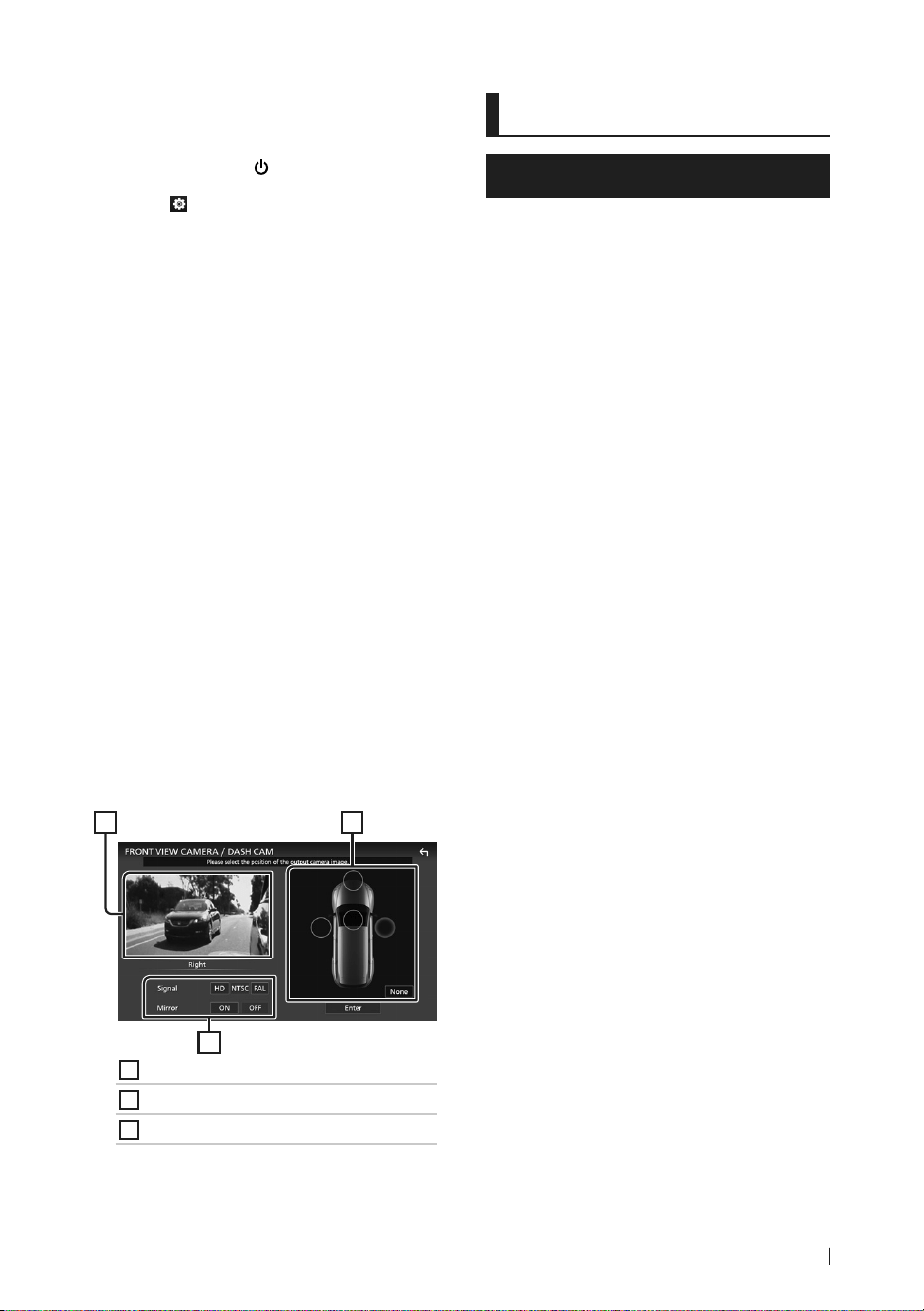
Appendix
37English
Ñ To set up the camera
assignment settings
1
Press the [HOME]/[ ] button.
2
Touch [ ].
3
Touch [SETUP].
hh SETUP Menu screen appears.
4
Touch [Camera].
hh Camera setting menu appears.
5
Touch [Camera Assignment Settings].
6
Select the item to set up.
■ [REAR VIEW CAMERA]
Set the camera assignment from view
camera connected to Rear view camera
input terminal.
■ [FRONT VIEW CAMERA / DASH CAM]
Set the camera assignment from view
camera connected to Front view camera/
Dashboard camera input terminal.
■ [3rd VIEW CAMERA]
Set the camera assignment from view
camera connected to 3rd view camera
input terminal.
■ [VIDEO IN]
Set the camera assignment from view
camera connected to Video input terminal.
7
Select the view camera to set up.
3
1 2
1
Picture from view camera
2
Camera position
3
Picture quality settings
8
Touch [Enter].
Appendix
Note for specifications
■ Bluetooth section
Frequency
: 2.402 – 2.480 GHz
RF Output Power (E.I.R.P.)
: +4 dBm (MAX), Power Class 2
■ General
Operating Voltage
: 12 V DC car battery
Speaker Impedance
: 4 – 8 Ω
!B5K-0760-00_20DNX_K_FP_QSG.indb 37 2020/07/02 14:24
Appendix
38
■ Copyrights
• The Bluetooth® word mark and logos are registered
trademarks owned by Bluetooth SIG, Inc. and any use
of such marks by JVCKENWOOD Corporation is under
license. Other trademarks and trade names are those
of their respective owners.
• DSD, LDAC and LDAC logo are trademarks of Sony
Corporation.
• Hi-Res Audio logo and Hi-Res Audio Wireless logo are
used under license from Japan Audio Society.
• Windows Media is a registered trademark or
trademark of Microsoft Corporation in the United
States and/or other countries.
This product is protected by certain intellectual
property rights of Microsoft. Use or distribution of
such technology outside of this product is prohibited
without a license from Microsoft.
• This software is based in part on the work of the
independent JPEG Group.
• Use of the Made for Apple badge means that an
accessory has been designed to connect specifically
to the Apple product(s) identified in the badge, and
has been certified by the developer to meet Apple
performance standards. Apple is not responsible for
the operation of this device or its compliance with
safety and regulatory standards. Please note that the
use of this accessory with an Apple product may
affect wireless performance.
• Apple, iPhone, iPod, iPod touch, and Lightning are
trademarks of Apple Inc., registered in the U.S. and
other countries.
• Apple, Siri, Apple CarPlay, Apple Music and Apple
CarPlay logo are trademarks of Apple Inc., registered
in the U.S. and other countries.
• App Store is a service mark of Apple Inc., registered in
the U.S. and other countries.
• IOS is a trademark or registered trademark of Cisco
in the U.S. and other countries and is used under
license.
• Sirius, XM and all related marks and logos are
trademarks of Sirius XM Radio Inc. All rights reserved.
• HD Radio Technology manufactured under license
from iBiquity Digital Corporation. U.S. and Foreign
Patents. For patents see https://dts.com/patents.
HD Radio and the HD, HD Radio, and "ARC" logos
are registered trademarks or trademarks of iBiquity
Digital Corporation in the United States and/or other
countries.
• INRIX is a registered trademark of INRIX, Inc.
• Google, Android, Google Play and Android Auto are
trademarks of Google LLC.
To use Android Auto on your car display, you’ll need
an Android Auto compatible vehicle or aftermarket
stereo, an Android phone running Android 5.0 or
higher, and the Android Auto app.
• SDXC Logo is a trademark of SD-3C LLC.
• Wi-Fi® is a registered trademark of Wi-Fi Alliance®.
• The Wi-Fi CERTIFIED™ Logo is a certification mark of
Wi-Fi Alliance®.
• Copyright© 2018 Techpoint, Inc. All rights reserved.
• The terms HDMI and HDMI High-Definition
Multimedia Interface, and the HDMI Logo are
trademarks or registered trademarks of HDMI
Licensing Administrator, Inc. in the United States and
other countries.
• This product includes FontAvenue® fonts licenced
by NEC Corporation.FontAvenue is a registered
trademark of NEC Corporation.
• This product includes "Ubiquitous QuickBoot
TM" technology developed by Ubiquitous Corp.
Ubiquitous QuickBoot TM is a trademark of
Ubiquitous Corp. Copyright© 2017 Ubiquitous Corp.
All rights reserved.
• Garmin® is a trademark of Garmin Ltd. or its
subsidiaries, registered in the USA and other
countries. ecoRoute™ is a trademark of Garmin Ltd.
or its subsidiaries. These trademarks may not be used
without the express permission of Garmin.
• THIS PRODUCT IS LICENSED UNDER THE AVC
PATENT PORTFOLIO LICENSE FOR THE PERSONAL
USE OF A CONSUMER OR OTHER USES IN WHICH IT
DOES NOT RECEIVE REMUNERATION TO (¡)ENCODE
VIDEO IN COMPLIANCE WITH THE AVC STANDARD
(“AVC VIDEO”) AND/OR (¡¡)DECODE AVC VIDEO
THAT WAS ENCODED BY A CONSUMER ENGAGED
IN A PERSONAL ACTIVITY AND/OR WAS OBTAINED
FROM A VIDEO PROVIDER LICENSED TO PROVIDE
AVC VIDEO. NO LICENSE IS GRANTED OR SHALL
BE IMPLIED FOR ANY OTHER USE. ADDITIONAL
INFORMATION MAY BE OBTAINED FROM MPEG LA,
L.L.C. SEE HTTPS://WWW.MPEGLA.COM
• THIS PRODUCT IS LICENSED UNDER THE MPEG-
4 VISUAL PATENT PORTFOLIO LICENSE FOR
THE PERSONAL AND NON-COMMERCIAL USE
OF A CONSUMER FOR (¡) ENCODING VIDEO IN
COMPLIANCE WITH THE MPEG-4 VISUAL STANDARD
(“MPEG-4 VIDEO”) AND/OR (¡¡) DECODING MPEG-
4 VIDEO THAT WAS ENCODED BY A CONSUMER
ENGAGED IN A PERSONAL AND NON-COMMERCIAL
ACTIVITY AND/OR WAS OBTAINED FROM A VIDEO
PROVIDER LICENSED BY MPEG LA TO PROVIDE
MPEG-4 VIDEO. NO LICENSE IS GRANTED OR SHALL
BE IMPLIED FOR ANY OTHER USE. ADDITIONAL
INFORMATION INCLUDING THAT RELATING TO
PROMOTIONAL, INTERNAL AND COMMERCIAL USES
AND LICENSING MAY BE OBTAINED FROM MPEG LA,
LLC. SEE HTTPS://WWW.MPEGLA.COM.
• THIS PRODUCT IS LICENSED UNDER THE VC-1 PATENT
PORTFOLIO LICENSE FOR THE PERSONAL AND NON-
!B5K-0760-00_20DNX_K_FP_QSG.indb 38 2020/07/02 14:24

Appendix
39English
COMMERCIAL USE OF A CONSUMER TO ( i ) ENCODE
VIDEO IN COMPLIANCE WITH THE VC-1 STANDARD
(“VC-1 VIDEO”) AND/OR ( ii ) DECODE VC-1 VIDEO
THAT WAS ENCODED BY A CONSUMER ENGAGED
IN A PERSONAL AND NON-COMMERCIAL ACTIVITY
AND/OR WAS OBTAINED FROM A VIDEO PROVIDER
LICENSED TO PROVIDE VC-1 VIDEO. NO LICENSE IS
GRANTED OR SHALL BE IMPLIED FOR ANY OTHER
USE. ADDITIONAL INFORMATION MAY BE OBTAINED
FROM MPEG LA, L.L.C. SEE HTTPS://WWW.MPEGLA.
COM
• libFLAC
Copyright (C) 2000-2009 Josh Coalson
Copyright (C) 2011-2013 Xiph.Org Foundation
Redistribution and use in source and binary forms,
with or without modification, are permitted provided
that the following conditions are met:
– Redistributions of source code must retain the
above copyright notice, this list of conditions and
the following disclaimer.
– Redistributions in binary form must reproduce the
above copyright notice, this list of conditions and
the following disclaimer in the documentation
and/or other materials provided with the
distribution.
– Neither the name of the Xiph.org Foundation
nor the names of its contributors may be used to
endorse or promote products derived from this
software without specific prior written permission.
THIS SOFTWARE IS PROVIDED BY THE COPYRIGHT
HOLDERS AND CONTRIBUTORS ``AS IS'' AND ANY
EXPRESS OR IMPLIED WARRANTIES, INCLUDING,
BUT NOT LIMITED TO, THE IMPLIED WARRANTIES OF
MERCHANTABILITY AND FITNESS FOR A PARTICULAR
PURPOSE ARE DISCLAIMED. IN NO EVENT SHALL THE
FOUNDATION OR CONTRIBUTORS BE LIABLE FOR ANY
DIRECT, INDIRECT, INCIDENTAL, SPECIAL, EXEMPLARY,
OR CONSEQUENTIAL DAMAGES (INCLUDING, BUT
NOT LIMITED TO, PROCUREMENT OF SUBSTITUTE
GOODS OR SERVICES; LOSS OF USE, DATA, OR
PROFITS; OR BUSINESS INTERRUPTION) HOWEVER
CAUSED AND ON ANY THEORY OF LIABILITY,
WHETHER IN CONTRACT, STRICT LIABILITY, OR TORT
(INCLUDING NEGLIGENCE OR OTHERWISE) ARISING
IN ANY WAY OUT OF THE USE OF THIS SOFTWARE,
EVEN IF ADVISED OF THE POSSIBILITY OF SUCH
DAMAGE.
• libvorbis
Copyright (c) 2002-2008 Xiph.org Foundation
Redistribution and use in source and binary forms,
with or without modification, are permitted provided
that the following conditions are met:
– Redistributions of source code must retain the
above copyright notice, this list of conditions and
the following disclaimer.
– Redistributions in binary form must reproduce the
above copyright notice, this list of conditions and
the following disclaimer in the documentation
and/or other materials provided with the
distribution.
– Neither the name of the Xiph.org Foundation
nor the names of its contributors may be used to
endorse or promote products derived from this
software without specific prior written permission.
THIS SOFTWARE IS PROVIDED BY THE COPYRIGHT
HOLDERS AND CONTRIBUTORS ``AS IS’’ AND ANY
EXPRESS OR IMPLIED WARRANTIES, INCLUDING,
BUT NOT LIMITED TO, THE IMPLIED WARRANTIES OF
MERCHANTABILITY AND FITNESS FOR A PARTICULAR
PURPOSE ARE DISCLAIMED. IN NO EVENT SHALL THE
FOUNDATION OR CONTRIBUTORS BE LIABLE FOR ANY
DIRECT, INDIRECT, INCIDENTAL, SPECIAL, EXEMPLARY,
OR CONSEQUENTIAL DAMAGES (INCLUDING, BUT
NOT LIMITED TO, PROCUREMENT OF SUBSTITUTE
GOODS OR SERVICES; LOSS OF USE, DATA, OR
PROFITS; OR BUSINESS INTERRUPTION) HOWEVER
CAUSED AND ON ANY THEORY OF LIABILITY,
WHETHER IN CONTRACT, STRICT LIABILITY, OR TORT
(INCLUDING NEGLIGENCE OR OTHERWISE) ARISING
IN ANY WAY OUT OF THE USE OF THIS SOFTWARE,
EVEN IF ADVISED OF THE POSSIBILITY OF SUCH
DAMAGE.
• libogg
Copyright (c) 2002, Xiph.org Foundation
Redistribution and use in source and binary forms,
with or without modification, are permitted provided
that the following conditions are met:
– Redistributions of source code must retain the
above copyright notice, this list of conditions and
the following disclaimer.
– Redistributions in binary form must reproduce the
above copyright notice, this list of conditions and
the following disclaimer in the documentation
and/or other materials provided with the
distribution.
– Neither the name of the Xiph.org Foundation
nor the names of its contributors may be used to
endorse or promote products derived from this
software without specific prior written permission.
THIS SOFTWARE IS PROVIDED BY THE COPYRIGHT
HOLDERS AND CONTRIBUTORS ``AS IS’’ AND ANY
EXPRESS OR IMPLIED WARRANTIES, INCLUDING,
BUT NOT LIMITED TO, THE IMPLIED WARRANTIES OF
MERCHANTABILITY AND FITNESS FOR A PARTICULAR
PURPOSE ARE DISCLAIMED. IN NO EVENT SHALL THE
FOUNDATION OR CONTRIBUTORS BE LIABLE FOR ANY
DIRECT, INDIRECT, INCIDENTAL, SPECIAL, EXEMPLARY,
OR CONSEQUENTIAL DAMAGES (INCLUDING, BUT
NOT LIMITED TO, PROCUREMENT OF SUBSTITUTE
GOODS OR SERVICES; LOSS OF USE, DATA, OR
PROFITS; OR BUSINESS INTERRUPTION) HOWEVER
CAUSED AND ON ANY THEORY OF LIABILITY,
WHETHER IN CONTRACT, STRICT LIABILITY, OR TORT
(INCLUDING NEGLIGENCE OR OTHERWISE) ARISING
IN ANY WAY OUT OF THE USE OF THIS SOFTWARE,
EVEN IF ADVISED OF THE POSSIBILITY OF SUCH
DAMAGE.
!B5K-0760-00_20DNX_K_FP_QSG.indb 39 2020/07/02 14:24
Avant l'utilisation
40
Avant l'utilisation
À propos du guide de
démarrage rapide
• Ce Guide de démarrage rapide décrit les fonctions de
base de cet appareil. Pour les fonctions qui ne sont
pas décrites dans ce guide, reportez-vous au mode
d'emploi sur le site Web suivant :
https://manual.kenwood.com/edition/im403/
• Le mode d'emploi est susceptible d'être modifié
suite aux changements pouvant être apportés aux
spécifications etc. Téléchargez impérativement
la dernière édition du mode d'emploi aux fins de
référence.
Comment lire ce manuel
• Les écrans et façades illustrés dans le présent manuel
sont des exemples destinés à fournir une explication
plus claire des opérations.
C'est pourquoi il est possible qu'ils soient différents
des écrans ou de la façade de l'appareil, ou que
certaines séquences d'affichage soient différentes de
celles utilisées.
• Langue d'affichage : L'anglais est utilisé dans un but
explicatif. Vous pouvez choisir la langue d'affichage à
partir du menu [SETUP]. Voir Configuration système
(p.72) dans le mode d'emploi.
Précautions
# AVERTISSEMENTS
Ñ Pour éviter toute blessure
ou incendie, prenez les
précautions suivantes:
• Pour éviter un court-circuit, ne mettez ni ne
laissez jamais d'objets métalliques (comme des
pièces de monnaie ou des outils métalliques) à
l'intérieur de l'appareil.
• Ne regardez pas ni ne fixez votre regard
sur l'affichage de l'appareil trop longtemps
pendant la conduite.
• Si vous rencontrez des problèmes pendant
l'installation, consultez votre revendeur
KENWOOD.
Avant l'utilisation ...............................40
À propos du guide de démarrage rapide ......40
Comment lire ce manuel ......................................40
Précautions ...............................................................40
Mesures de sécurité
et informations importantes .........................41
Utilisation de base .............................. 43
Fonctions des boutons en façade .....................43
Mise en marche de l'appareil..............................44
Paramètres initiaux ................................................45
Fonctionnement tactile ........................................46
Descriptions de l'écran d'ACCUEIL ....................47
Menu contextuel .....................................................48
Description de l'écran de sélection
de source ..............................................................48
Descriptions de l'écran de commande
de source ..............................................................50
Écran des listes .........................................................50
Fonctionnement de navigation.........................51
USB/SD/iPod........................................53
Connecter un périphérique USB .......................53
Insérer la carte SD ................................................... 53
Connectez un iPod/iPhone .................................54
Fonctionnement de base USB/SD/iPod ..........54
Syntoniseur HD Radio™ ......................55
Fonctionnement de base du syntoniseur
HD Radio ............................................................... 55
Utilisation de la mémorisation ...........................56
Utilisation du Bluetooth ....................57
Enregistrer l'appareil Bluetooth.........................57
Utilisation du module mains-libres ..................57
Contrôle de l'audio .............................60
Connexion/Installation ......................61
Avant l'installation .................................................. 61
Installation de l'appareil ....................................... 64
Annexes ............................................... 73
Note pour les spécifications ...............................73
Table des matières
!B5K-0760-00_20DNX_K_FP_QSG.indb 40 2020/07/02 14:24

Avant l'utilisation
41Français
Ñ Précautions d'utilisation de
l'appareil
• Lorsque vous achetez des accessoires en
option, vérifiez auprès de votre revendeur
KENWOOD qu'ils fonctionneront avec votre
modèle et dans votre région.
• Vous avez le choix de la langue dans laquelle
s'affichent les menus, les balises des fichiers
audio, etc. Voir Configuration système
(p.72) dans le mode d'emploi.
• Les fonctions Radio Broadcast Data System
sont inopérantes dans les zones où le service
n'est pris en charge par aucune station de
radiodiffusion.
Ñ Protection du moniteur
• Ne touchez pas le moniteur avec un stylo à
bille ou tout autre outil pointu. Cela pourrait
l'endommager.
Ñ Nettoyage de l'appareil
• Si la façade de l'appareil est tâchée, essuyez-la
avec un chiffon doux et sec comme un chiffon
en silicone. Si la façade est très sale, essuyez-
la avec un chiffon humidifié d'un produit de
nettoyage neutre, puis essuyez-la à nouveau
avec un chiffon doux et sec propre.
REMARQUE
• La pulvérisation directe de produit de nettoyage
sur l'appareil risque d'endommager les pièces
mécaniques. Si vous nettoyez la façade avec un
chiffon trop rugueux ou un liquide volatil, comme
un solvant ou de l'alcool, vous risquez d'en rayer
la surface ou d'effacer les caractères sérigraphiés.
Ñ Réception du signal GPS
Lors de la première mise sous tension de
l'appareil, vous devez attendre que le système
acquière les signaux satellite pour la première
fois. Ce processus peut durer quelques minutes.
Pour une acquisition rapide des signaux, veillez à
ce que votre véhicule se trouve à l'extérieur, sur
une zone ouverte éloignée des bâtiments hauts
et des arbres.
Après la première acquisition des signaux
satellite, le système pourra acquérir les signaux
satellite plus rapidement par la suite.
Ñ À propos de GLONASS
Cet appareil utilise le système mondial de
navigation par satellite (GLONASS) en plus du
GPS.
La combinaison du GPS et du GLONASS permet
d'affiner la précision de positionnement par
rapport à une utilisation du GPS seulement.
Ñ Avertissement pour les
utilisateurs de smartphones
L’exécution en simultané de plusieurs
applications sur votre smartphone, en écran
partagé, sollicite tout particulièrement son
microprocesseur, d’où une altération potentielle
des performances et de la qualité des
communications.
Afin d'obtenir des résultats optimaux lors de
l'association de votre smartphone avec votre
récepteur KENWOOD, assurez-vous de fermer
toutes les applications inutilisées.
Mesures de sécurité et
informations importantes
Veuillez lire ces informations attentivement
avant de commencer à utiliser le système de
navigation automobile KENWOOD et suivez
les instructions présentées dans le présent
mode d'emploi. Ni KENWOOD ni Garmin ne
sauront être tenus responsables des problèmes
ou accidents résultant du non-respect des
instructions présentées dans le présent mode
d'emploi.
# AVERTISSEMENT
Le non-respect des mesures visant à éviter
les situations potentiellement dangereuses
suivantes peut occasionner un accident ou
une collision pouvant entraîner la mort ou des
blessures graves.
Pendant le processus de navigation, comparez
soigneusement les informations affichées sur le
système de navigation à toutes les sources de
navigation, y compris la signalisation routière,
les signaux visuels et la cartographie. Pour des
raisons de sécurité, vous devez toujours résoudre
toute contradiction ou question avant de
poursuivre la route.
Conduisez toujours votre véhicule de manière
sûre.
Ne vous laissez pas distraire par le système de
navigation quand vous conduisez, et faites
toujours attention à toutes les conditions de
circulation. Minimisez le temps passé à visualiser
l'écran du système de navigation pendant que
vous conduisez, et utilisez le guide vocal aussi
souvent que possible.
!B5K-0760-00_20DNX_K_FP_QSG.indb 41 2020/07/02 14:24

Avant l'utilisation
42
N'entrez pas de destinations, ne modifiez pas
les réglages ou n'accédez pas aux fonctions
requérant une utilisation prolongée des
commandes du système de navigation quand
vous conduisez. Stoppez votre véhicule en toute
sécurité et conformément au code de la route
avant de procéder à ces opérations.
Maintenez le volume du système à un niveau
suffisamment bas pour pouvoir entendre
les bruits extérieurs quand vous conduisez.
Si vous ne pouvez plus entendre les bruits
extérieurs, il se peut que vous ne puissiez pas
réagir de manière appropriée aux conditions de
circulation. Cela peut occasionner des accidents.
Le système de navigation n'affichera pas
la position correcte du véhicule lors de la
première utilisation après l'achat ou si la pile est
déconnectée. Toutefois, les signaux satellite GPS
seront bientôt reçus et la position correcte sera
affichée.
Faites attention à la température ambiante.
L'utilisation du système de navigation à des
températures extrêmes peut occasionner un
dysfonctionnement ou endommager le système.
Notez également que les fortes vibrations, les
objets métalliques ou la pénétration d'eau dans
l'appareil risquent d'endommager l'appareil.
# ATTENTION
Le non-respect des mesures visant à éviter
les situations potentiellement dangereuses
suivantes peut occasionner des blessures ou
des dommages matériels.
Le système de navigation est conçu pour vous
fournir des suggestions de trajet. Il ne reflète
pas les fermetures de routes ni les conditions de
circulation ou autres facteurs pouvant affecter la
sécurité ou les horaires programmés quand vous
conduisez.
Utilisez le système de navigation uniquement
comme système auxiliaire. N'essayez pas
d'utiliser le système de navigation si vous
souhaitez obtenir des données précises
concernant la direction, le lieu ou la topographie.
Le Système de positionnement global (GPS) est
exploité par le gouvernement des États-Unis,
qui est seul responsable de sa précision et de
sa maintenance. Le système gouvernemental
peut être soumis à des modifications pouvant
affecter la précision et la performance de tous
les équipements GPS, y compris du système de
navigation. Bien que le système de navigation
soit un dispositif de précision, tout dispositif
de navigation peut faire l'objet d'une mauvaise
utilisation ou interprétation et donc, perdre en
fiabilité.
Ñ INFORMATIONS IMPORTANTES
Préservation de la batterie du véhicule
Le système de navigation peut être utilisé
quand la clé de contact est positionnée sur ON
ou ACC. Toutefois, afin de préserver la batterie,
il doit être utilisé, dans la mesure du possible,
quand le moteur tourne. L'utilisation prolongée
du système de navigation quand le moteur est
éteint peut décharger la batterie.
Informations cartographiques
L'un des objectifs de Garmin est de fournir aux
clients la cartographie la plus complète et la
plus précise qui soit à un coût raisonnable.
Nous utilisons une combinaison de sources de
données gouvernementales et privées que nous
identifions dans la documentation produit et
les messages de copyright affichés à l'attention
du consommateur. Presque toutes les sources
de données contiennent quelques données
imprécises ou incomplètes. Dans certains pays,
soit les informations cartographiques ne sont
pas disponibles, soit leur tarif est complètement
prohibitif.
!B5K-0760-00_20DNX_K_FP_QSG.indb 42 2020/07/02 14:24
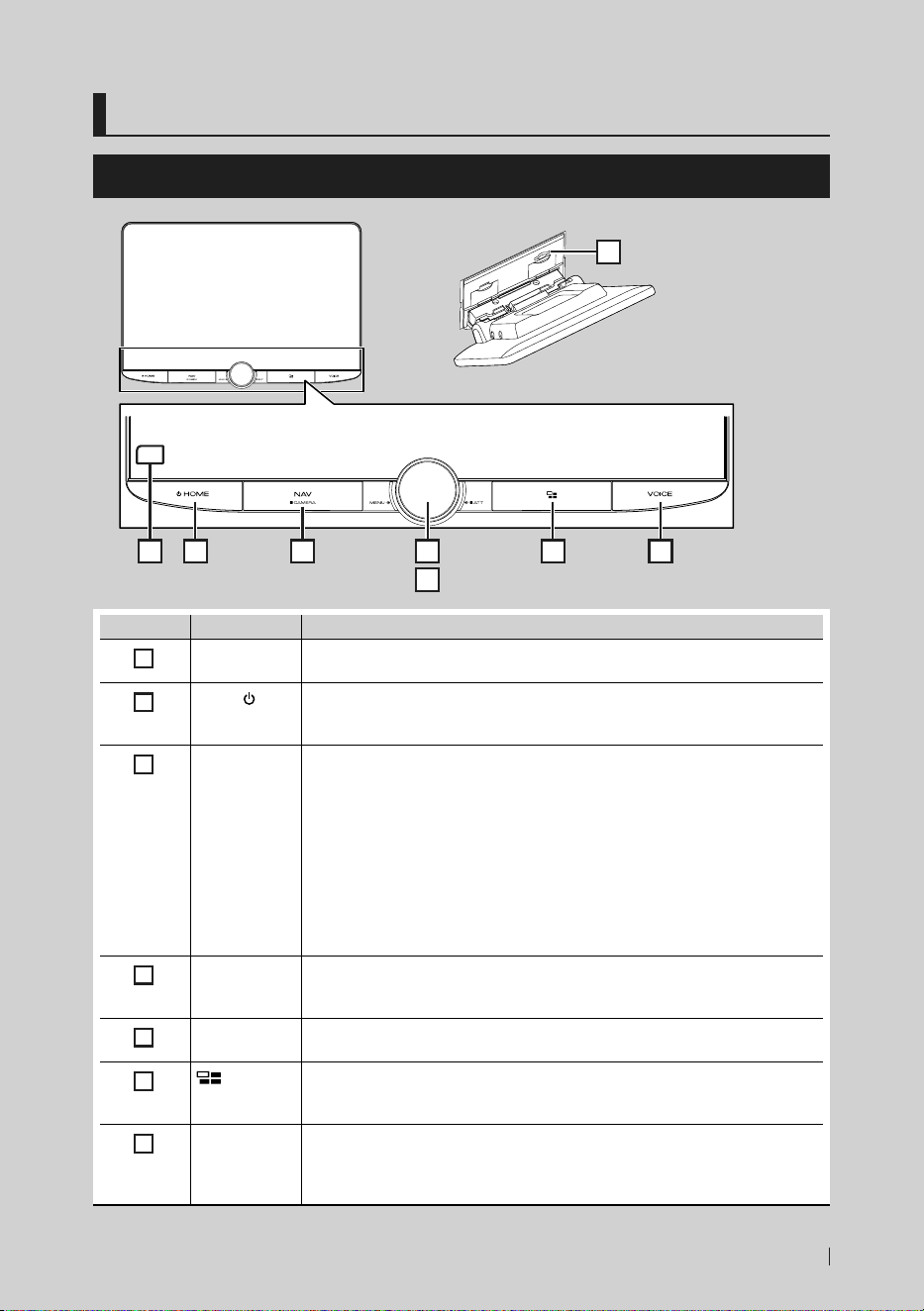
Utilisation de base
43Français
Utilisation de base
Fonctions des boutons en façade
2 3 4
5
6 71
8
Numéro Désignation Mouvement
1
Capteur de
télécommande
• Reçoit le signal de la télécommande.
2
HOME/[ ]
• Affiche l'écran d'ACCUEIL (p.47).
• Appuyez pendant 1 seconde pour éteindre l'appareil.
• Quand l'appareil est éteint, permet de le mettre en marche.
3
NAV/CAMERA • Affiche l'écran de navigation.
• Lorsqu'une application de navigation est activée sur l'appareil utilisé en tant que
source Apple CarPlay ou Android Auto, affiche l'écran de la source Apple CarPlay
ou Android Auto.
• Appuyez en maintenant enfoncé pour activer/désactiver l'affichage de la caméra
de vue.
L'appareil photo dont la vue est affichée en premier change en fonction des
paramètres d'assignation de l'appareil photo (p.73) et de la position du levier
de sélection dans la grille de sélection. La caméra dont la vue a été affichée
en dernier est conservée et la même vue sera affichée la prochaine fois. Si ses
paramètres d'assignation sont modifiés, la vue de la caméra arrière s'affiche.
4
MENU/ATT • Affiche l'écran du menu contextuel.
• Appuyer pendant 1 seconde commute l'atténuation de la marche/arrêt du
volume.*
5
Boulon du
volume
• Règle le volume.
6
• Affiche l'écran APP (CarPlay/Android Auto/Wireless Mirroring).
• Lorsque l'écran APP s'affiche, bascule vers l'écran de contrôle de la source en
cours.
7
VOICE • Active ou désactive la fonction de reconnaissance vocale.
• Lorsque ni Apple CarPlay, ni Android Auto, ou un téléphone mains libres
Bluetooth n'est connecté, le fait de maintenir enfoncé permet d'afficher la boîte
de dialogue de mise en attente d'appariement Bluetooth.
!B5K-0760-00_20DNX_K_FP_QSG.indb 43 2020/07/02 14:24
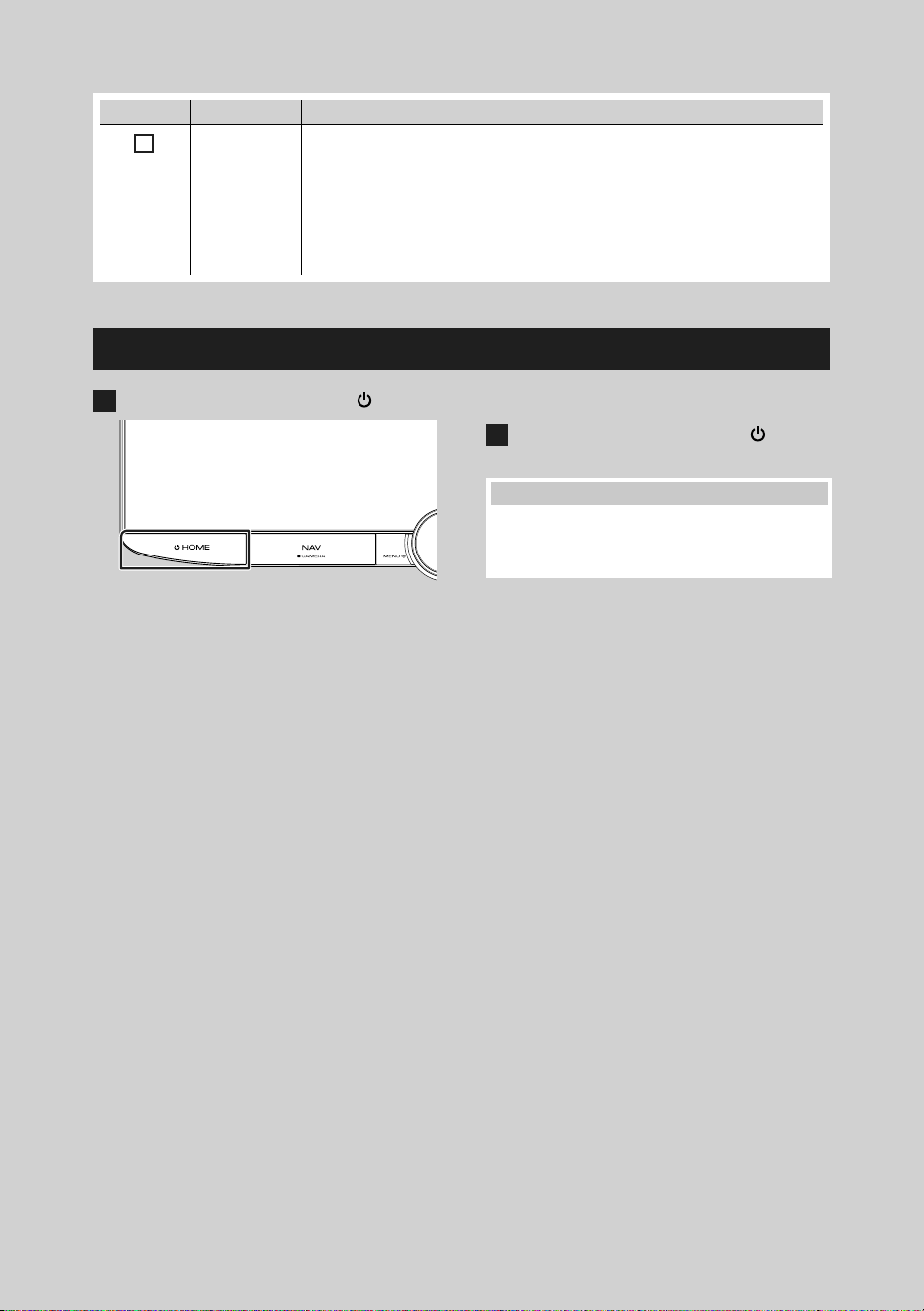
Utilisation de base
44
Numéro Désignation Mouvement
8
Logement pour
carte SD
• Logement où insérer une carte SD.
• Vous pouvez lire des fichiers audio/vidéo dans la carte. *
1
• Logement destiné à accueillir une carte SD de mise à niveau de la cartographie.
Pour savoir comment mettre à niveau la cartographie, consultez le mode
d'emploi du système de navigation. *
2
*1 Si le fichier de mise à jour de la carte reste dans la carte SD, vous ne pouvez pas
lire de fichiers audio/vidéo.
*2 Le système de l'appareil se réinitialise après insertion/retrait de la carte SD.
Mise en marche de l'appareil
1
Appuyez sur la touche [HOME]/[ ].
hh L'appareil se met en marche.
● Pour éteindre l'appareil:
1
Appuyez sur la touche [HOME]/[ ]
pendant 1 seconde.
REMARQUE
• Si c'est la première fois que vous mettez en
marche l'appareil après son installation, il vous
faut procéder à la configuration initiale (p.45).
!B5K-0760-00_20DNX_K_FP_QSG.indb 44 2020/07/02 14:24
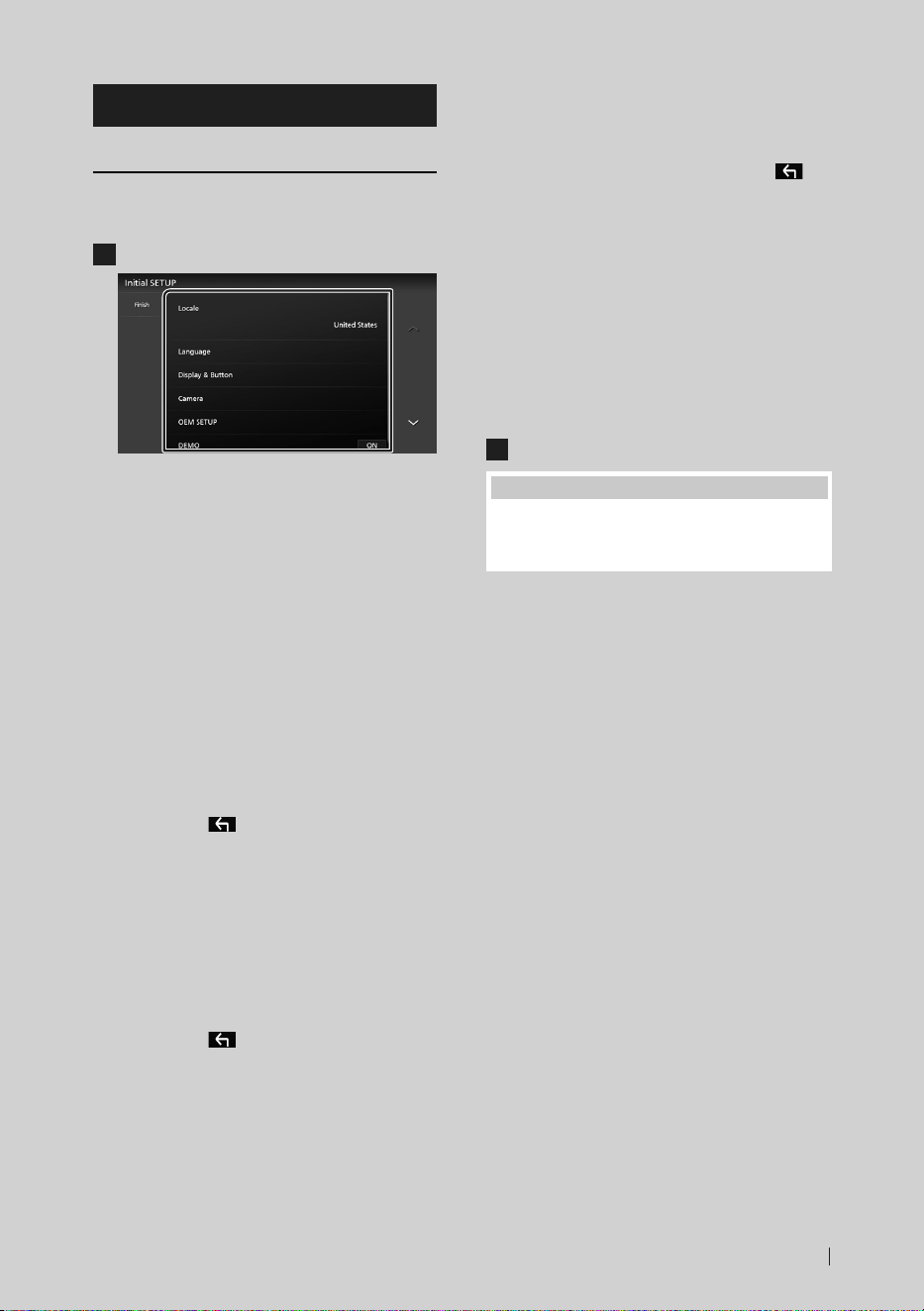
Utilisation de base
45Français
Paramètres initiaux
CONFIGURATION initiale
Effectuez cette configuration lors de la
première utilisation de cet appareil.
1
Réglez chaque option comme suit.
■ [Locale]
Sélectionnez le pays pour le système de
navigation.
La langue, l’unité de distance et l’unité de
carburant sont configurées.
1 Touchez [Locale].
2 Sélectionnez le pays souhaité.
■ [Language]
Sélectionne la langue utilisée sur l'écran
de commande et sur les éléments de
configuration. Le choix par défaut est
“American English (en)”.
1 Touchez [Language].
2 Touchez [Language Select].
3 Sélectionnez la langue désirée.
4 Touchez [
].
Pour plus de détails, voir Configuration
système (p.72) dans le mode d'emploi.
■ [Display & Button]
Configurez la couleur d'éclairage des
boutons.
1 Touchez [Display & Button].
2 Touchez [Button Illumination Color].
3 Sélectionnez la couleur désirée.
4 Touchez [
].
Pour plus de détails, voir Affichage et
configuration des boutons (p.70) dans
le mode d'emploi.
■ [Camera]
Configurez les paramètres de caméra.
1 Touchez [Camera].
2 Réglez chaque option et touchez [
].
Pour plus de détails, voir Configuration des
caméras (p.63) dans le mode d'emploi.
■ [OEM SETUP]
Cette fonction requiert un adaptateur
commercial.
Consultez votre revendeur KENWOOD pour
plus de détails.
■ [DEMO]
Permet de paramétrer le mode de
démonstration. Le choix par défaut est “ON”.
2
Touchez [Finish].
REMARQUE
• Ces réglages sont paramétrables depuis le menu
de configuration. Voir Configuration (p.68)
dans le mode d'emploi.
!B5K-0760-00_20DNX_K_FP_QSG.indb 45 2020/07/02 14:24
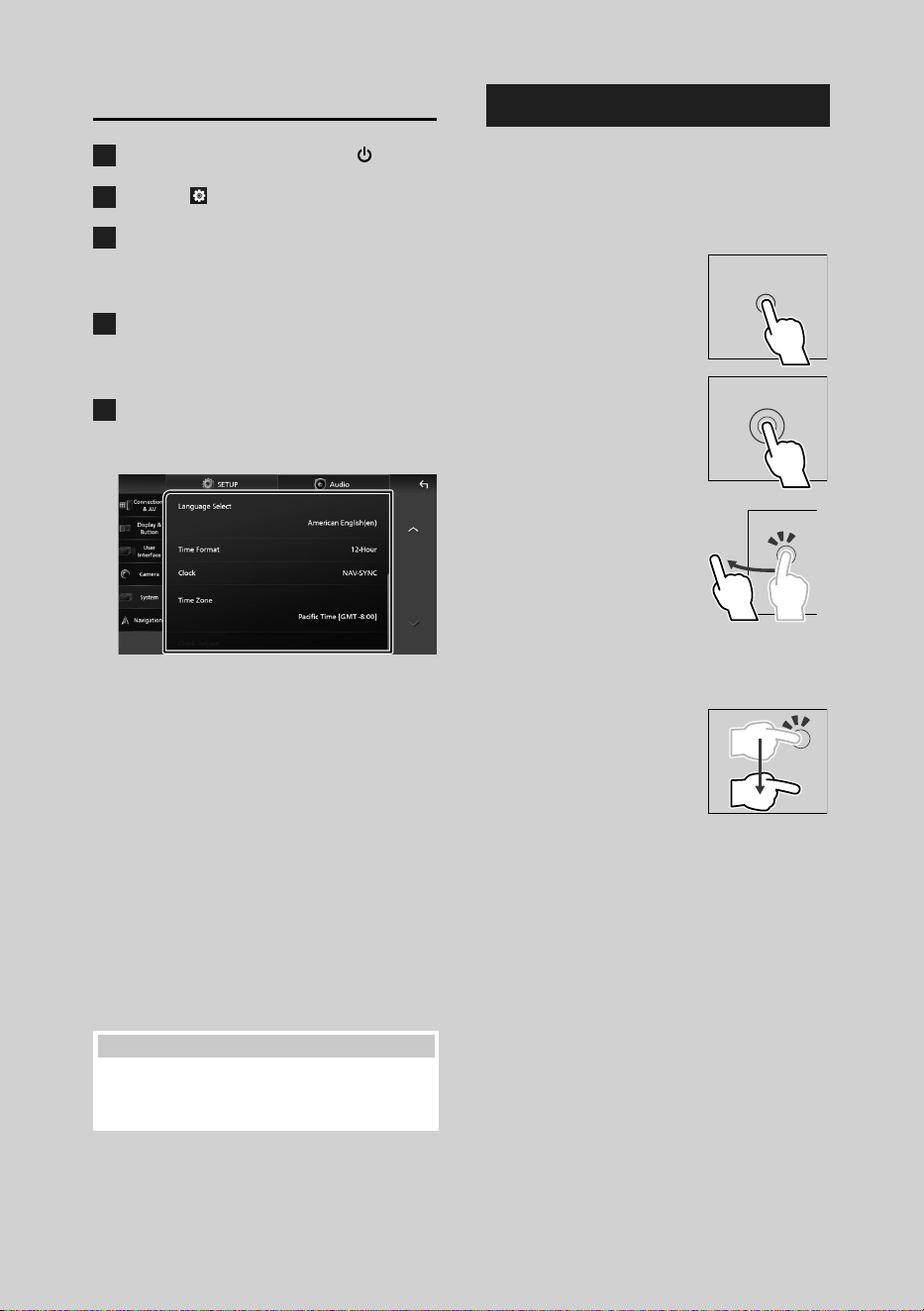
Utilisation de base
46
Réglages du calendrier/horloge
1
Appuyez sur la touche [HOME]/[ ].
2
Touchez [ ].
3
Touchez [SETUP].
hh L'écran de menu de configuration
s'affiche.
4
Touchez [System].
hh Le menu des paramètres système
s'affiche.
5
Réglez chaque option comme suit.
Faites défiler la page pour afficher les
éléments cachés.
■ [Time Format]
Sélectionnez le format d'affichage de l'heure.
[12-Hour] (Par défaut)/[24-Hour]
■ [Clock]
[NAV-SYNC ](Par défaut): Synchronise l'heure
de l'horloge avec les données GPS de
navigation.
[Manual]: Réglez l'horloge manuellement.
■ [Time Zone]
Si vous avez sélectionné [Manual] pour
l'horloge, veuillez sélectionner le fuseau
horaire.
■ [Clock Adjust]
Si vous sélectionnez [Manual] pour l'horloge,
réglez la date et l'heure manuellement.
REMARQUE
• Veuillez régler la date et l'heure. Si elles ne sont
pas réglées, certaines fonctions peuvent ne pas
fonctionner.
Fonctionnement tactile
Pour réaliser des opérations sur l'écran, vous
devez toucher, toucher longuement, feuilleter
ou défiler pour sélectionner un élément,
afficher l'écran de menu de réglage ou
changer les pages.
● Toucher
Touchez légèrement l'écran
pour sélectionner un
élément sur l'écran.
● Toucher longuement
Touchez l'écran et gardez
votre doigt sur l'écran
jusqu'à ce que l'affichage
change ou qu'un message
soit affiché.
● Feuilleter
Faites glisser votre doigt
rapidement vers la gauche
ou vers la droite sur l'écran
pour changer de page.
Vous pouvez faire défiler
un écran de liste en faisant
glisser votre doigt vers le
haut/bas sur l'écran.
● Défiler
Faites glisser votre doigt vers
le haut ou le bas pour faire
défiler l'écran.
!B5K-0760-00_20DNX_K_FP_QSG.indb 46 2020/07/02 14:24
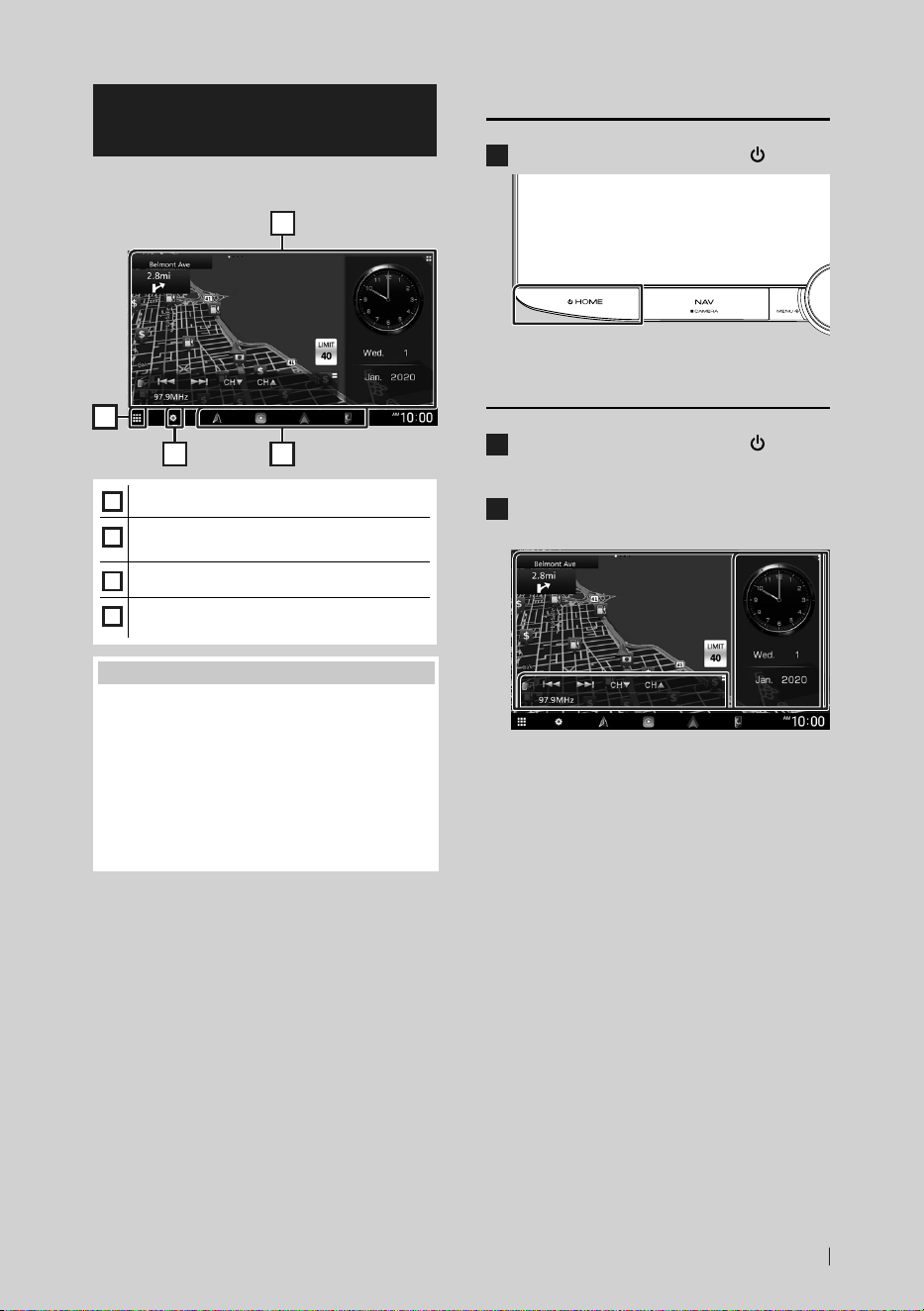
Utilisation de base
47Français
Descriptions de l'écran
d'ACCUEIL
La plupart des fonctions sont accessibles
depuis l'écran ACCUEIL.
1
2
43
1
• Widget (élément graphique)
2
• Affiche l'écran de sélection de la source.
(p.48)
3
• Affiche l'écran du menu de configuration.
4
• Icônes de raccourci de source de lecture
(p.49)
REMARQUE
• La fonction de limitation de vitesse sert
uniquement d'indication et ne se substitue en
aucun cas à votre responsabilité de tenir compte
de tous les signaux de limitation de vitesse et doit
adopter une conduite sûre à tout moment.
• Garmin et JVCKENWOOD Corporation ne sont
pas responsables pour les contraventions ou
sanctions que vous recevez en cas d'infraction
routière.
Affiche l'écran d'ACCUEIL
1
Appuyez sur la touche [HOME]/[ ].
hh L'écran d'ACCUEIL apparaît.
Widget (élément graphique)
1
Appuyez sur la touche [HOME]/[ ].
hh L'écran d'ACCUEIL apparaît.
2
Vous pouvez changer le widget ou
personnaliser la zone du widget.
Pour plus de détails, voir Widget (élément
graphique) (p.20) dans le mode
d'emploi.
!B5K-0760-00_20DNX_K_FP_QSG.indb 47 2020/07/02 14:24
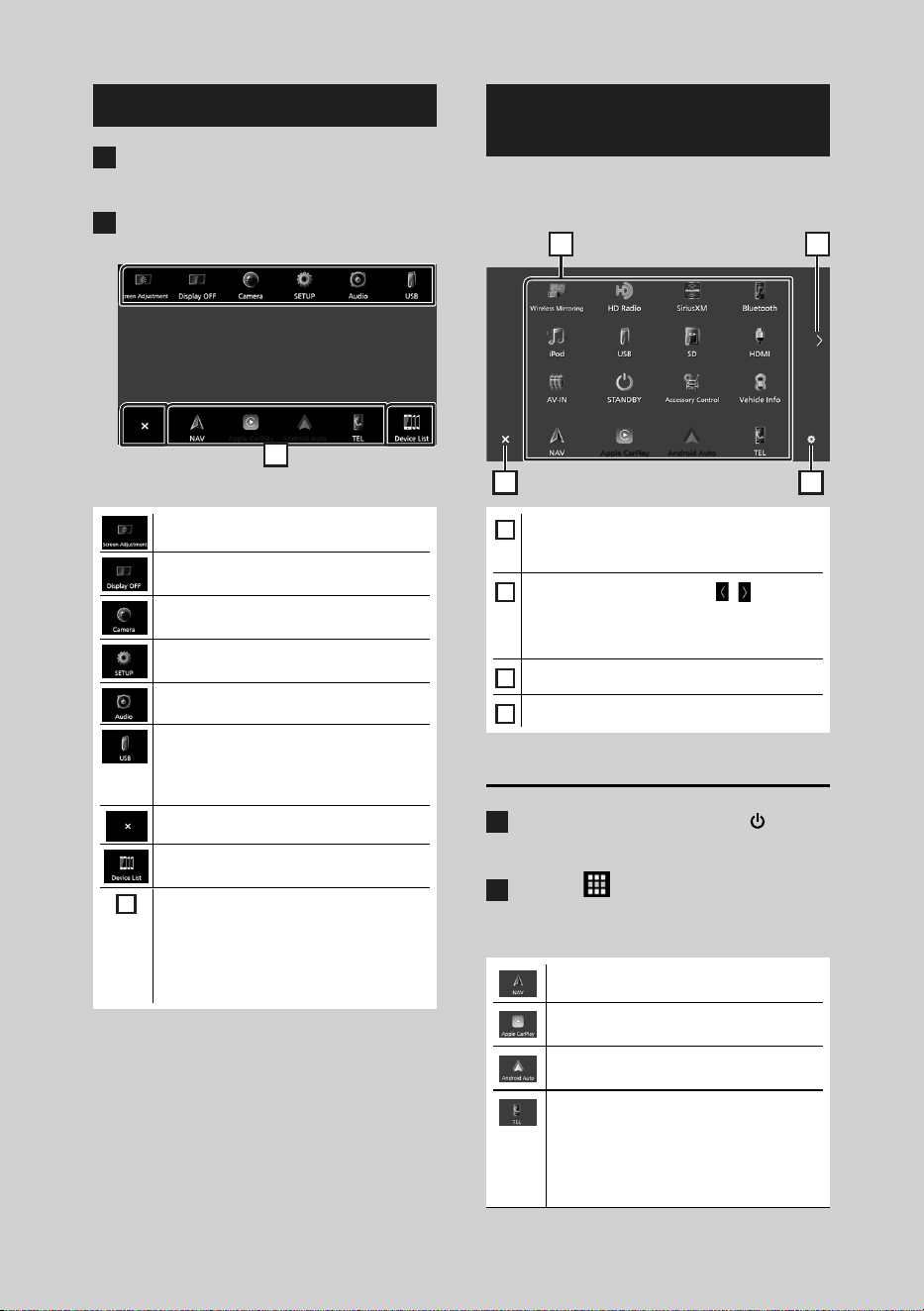
Utilisation de base
48
Menu contextuel
1
Appuyez sur le bouton [MENU]/[ATT].
hh Le menu contextuel s'affiche.
2
Appuyez pour afficher le menu
contextuel.
1
Le menu contient les options suivantes.
• Affiche l'écran de réglage de l'écran.
• Éteint l'affichage.
Pour allumer l'écran : Touchez l'affichage.
• Affiche l'écran de la caméra de vue.
• Affiche l'écran du menu de configuration.
• Affiche l'écran audio. (p.60)
• Affiche l'écran de contrôle de la source
en cours. Les fonctionnalités attachées au
pictogramme varient selon les sources.
Cette icône est pour la source USB.
• Fermez le menu contextuel.
• Affiche l'écran de la liste des
périphériques.
1
• Raccourcis des icônes de source : La
source change pour celle que vous avez
définie avec un raccourci. Pour le réglage
du raccourci, consultez Personnalisez
les raccourcis des icônes de source
(p.49).
Description de l'écran de
sélection de source
Vous pouvez afficher les icônes de toutes les
sources de lecture et les options sur l'écran de
sélection de source.
3 4
21
1
• Change les sources de lecture.
Pour les sources de lecture, voir Sélectionnez
la source de lecture (p.48).
2
• Change les pages. (Touchez [ ]/[ ].)
Vous pouvez aussi changer les pages en
feuilletant vers la gauche ou la droite sur
l'écran.
3
• Retourne à l'écran précédent.
4
• Affiche l'écran du menu de configuration.
Sélectionnez la source de lecture
1
Appuyez sur la touche [HOME]/[ ].
hh L'écran d'ACCUEIL apparaît.
2
Touchez [ ].
Depuis cet écran, vous pouvez sélectionner
les sources et fonctions suivantes.
• Affiche l'écran de navigation. (p.51)
• Bascule vers l'écran Apple CarPlay depuis
l'iPhone connecté.
• Passe à l'écran Android Auto depuis le
smartphone Android connecté.
• Affiche l'écran mains libres. (p.57)
Lorsque ni Apple CarPlay, ni Android
Auto, ni un téléphone mains libres
Bluetooth n'est connecté, la boîte
de dialogue de mise en attente de
l'appariement Bluetooth s'affiche.*
1
!B5K-0760-00_20DNX_K_FP_QSG.indb 48 2020/07/02 14:24
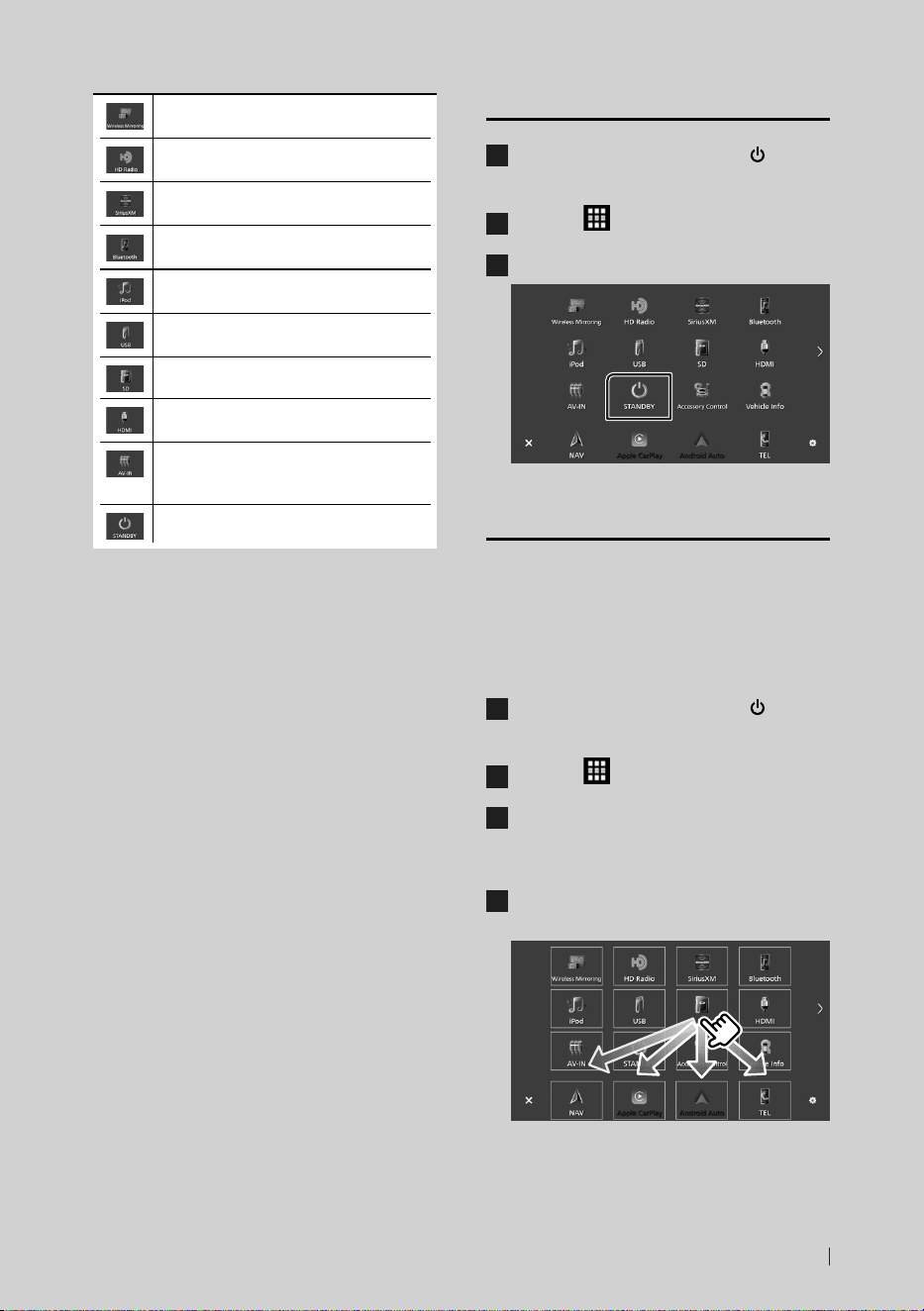
Utilisation de base
49Français
• Passe à l'écran Wireless Mirroring depuis
le smartphone Android connecté.
• Commute sur la réception HD Radio.
(p.55)
• Commute sur la réception radio satellite
SiriusXM®.
• Active un lecteur audio Bluetooth.
• Lit les fichiers sur un iPod/iPhone.
(p.54)
• Lit les fichiers sur un périphérique USB.
(p.53)
• Lit les fichiers sur une carte SD. (p.53)
• Lit le contenu d'un périphérique
connecté à la borne d'entrée HDMI.
• Commute sur un appareil extérieur
connecté à la borne d'entrée AV Audio et
à la borne d'entrée Vidéo. *
2
*
3
• Met l'appareil en veille. (p.49)
*1 Lorsque vous vous connectez avec Apple CarPlay
ou Android Auto, le mode de fonctionnement
est le même que sur un téléphone fourni dans
Apple CarPlay ou Android Auto. Si Apple CarPlay
ou Android Auto est connecté au cours d'une
conversation avec le dispositif Bluetooth ou un
téléphone iDatalink, l'appel en cours se poursuivra.
*2 Vous pouvez utiliser la source [AV-IN] lorsqu'un câble
d'une source visuelle à l'exception d'une caméra est
connecté à la borne d'entrée Vidéo et qu'un câble
est connecté à la borne d'entrée Audio AV. (p.70)
*3 Réglez « VIDEO IN » sur « None » dans les Paramètres
d'attribution de la caméra. (p.73)
Mettez l'appareil en veille
1
Appuyez sur la touche [HOME]/[ ].
hh L'écran d'ACCUEIL apparaît.
2
Touchez [ ].
3
Touchez [STANDBY].
Personnalisez les raccourcis des
icônes de source
Vous pouvez disposer les pictogrammes des
sources comme bon vous semble.
Les 4 éléments placés sur la ligne inférieure
s'affiche dans la barre inférieure des différents
écrans, comme les icônes de raccourci de la
source de lecture.
1
Appuyez sur la touche [HOME]/[ ].
hh L'écran d'ACCUEIL apparaît.
2
Touchez [ ].
3
Touchez et maintenez le pictogramme
que vous souhaitez déplacer en mode de
personnalisation.
4
Faites glisser le pictogramme vers la
position souhaitée.
!B5K-0760-00_20DNX_K_FP_QSG.indb 49 2020/07/02 14:24
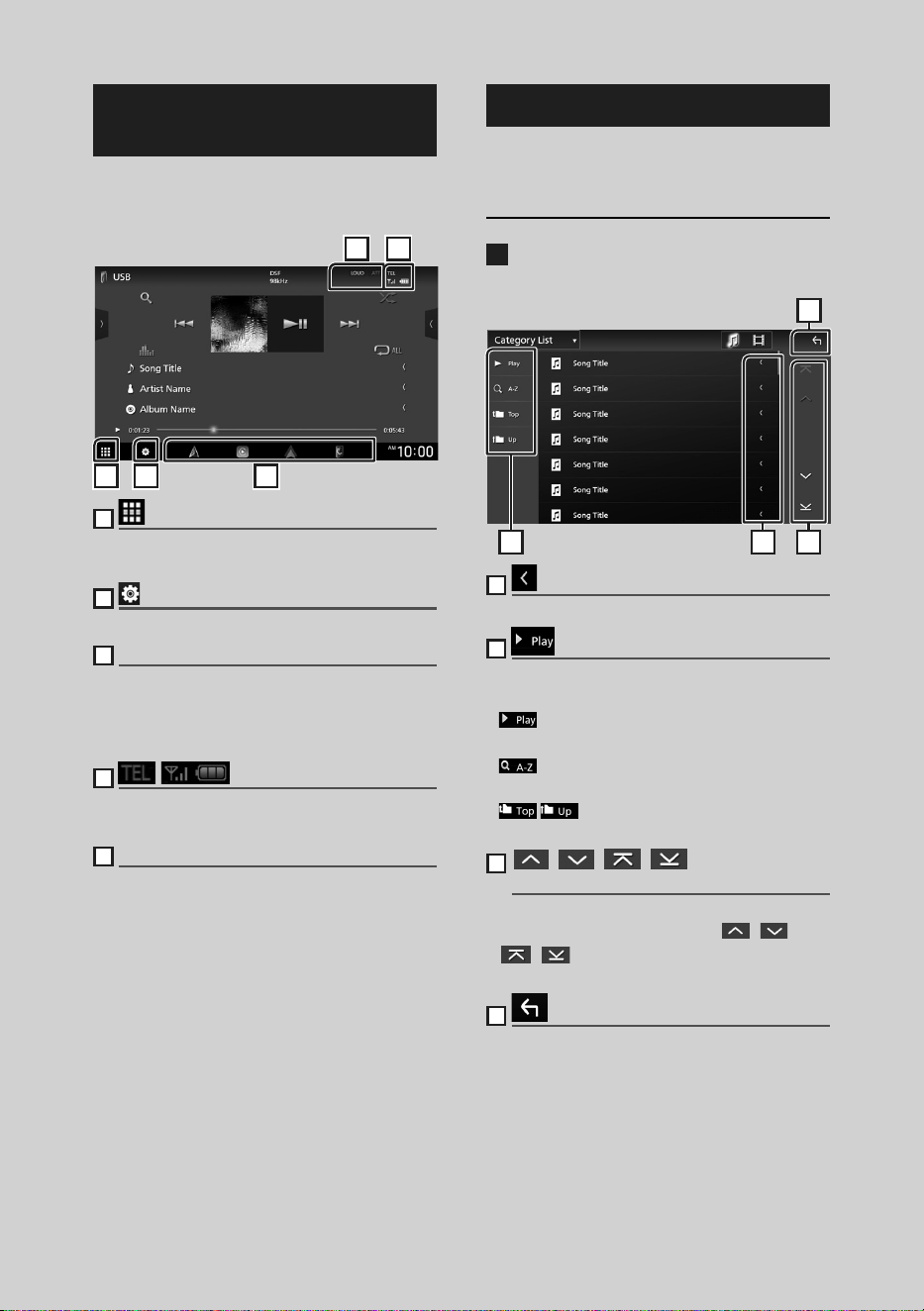
Utilisation de base
50
Descriptions de l'écran de
commande de source
Certaines fonctions peuvent être exécutées
depuis la plupart des écrans.
1 2 3
5 4
1
Affiche l'écran de sélection de la source.
(p.48)
2
Affiche l'écran du menu de configuration.
3
Raccourcis des icônes de source
La source change pour celle que vous avez
définie avec un raccourci. Pour le réglage
du raccourci, consultez Personnalisez les
raccourcis des icônes de source (p.49).
4
Informations concernant les périphériques
Bluetooth connectés.
5
Éléments indicateurs
Affiche l'état actuel de la source et ainsi de suite.
Écran des listes
Certaines touches de fonction sont communes
aux écrans de liste de la plupart des sources.
Afficher l'écran de liste
1
Touchez [1].
hh L'écran de liste s'affiche.
4
2
1 3
1
Défilement du texte
Fait défiler le texte affiché.
2
etc.
Les touches ayant plusieurs fonctions s'affichent
ici.
•
: Joue toutes les pistes dans le dossier
contenant la piste actuelle.
•
: Passe à la lettre que vous avez saisie
(recherche alphabétique).
•
: Remonte au niveau hiérarchique
supérieur.
3
[ ]/[ ]/[ ]/[ ] Défilement de la
page
Vous pouvez changer de pages pour afficher
plus d'éléments en appuyant sur [
]/[ ].
• [
]/[ ] : Affiche la page du haut ou la page
du bas.
4
Retour
Retourne à l'écran précédent.
!B5K-0760-00_20DNX_K_FP_QSG.indb 50 2020/07/02 14:24
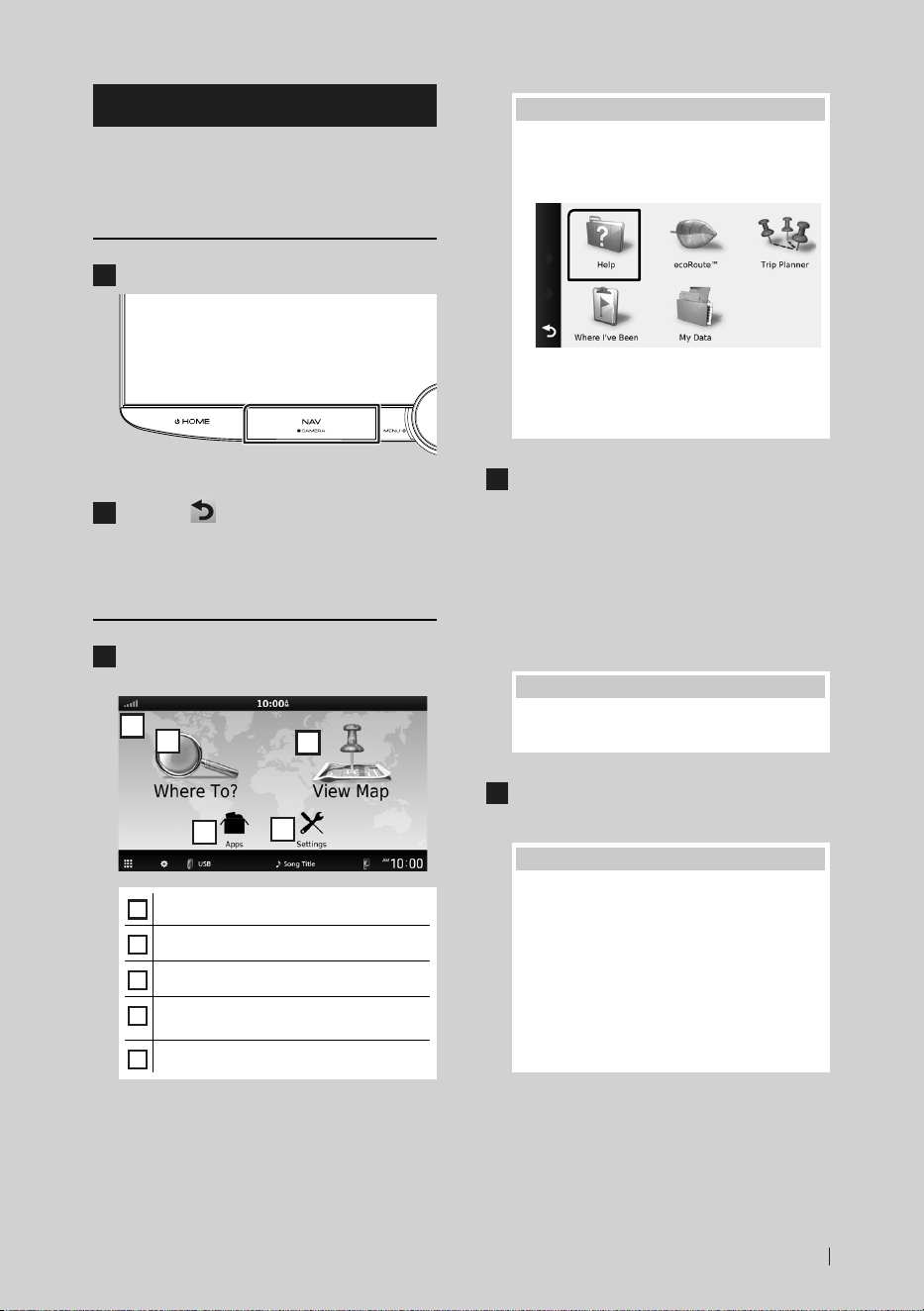
Utilisation de base
51Français
Fonctionnement de navigation
Pour des explications détaillées sur la fonction
de navigation, veuillez consulter le mode
d'emploi correspondant.
Afficher l'écran de navigation
1
Appuyez sur le bouton [NAV]/[CAMERA].
hh L'écran de navigation apparaît.
2
Touchez [ ].
hh L'écran du menu principal s'affiche.
Comment utiliser le système de
navigation
1
Activez la fonction souhaitée depuis
l'écran du Menu principal.
5
1
2
3
4
1
État du signal GNSS.
2
Cherche une destination.
3
Visualise la cartographie.
4
Utilise les applications (Apps) telles que
ecoRoute™ et Help (Aide).
5
Règle les paramètres.
REMARQUE
• L'Aide vous fournit des informations
supplémentaires sur le système de
navigation. Pour afficher l'Aide, touchez
[Apps] puis touchez [Help].
• Pour plus d'informations sur votre système de
navigation, téléchargez la dernière version du
mode d'emploi à l'adresse https://manual.
kenwood.com/edition/im403/
2
Saisissez votre destination, puis
démarrez le guidage.
Recherche des points d'intérêt
1 Touchez [Where To?].
2 Sélectionnez une catégorie et une sous-
catégorie.
3 Sélectionnez une destination.
4 Touchez [Go!].
REMARQUE
• Pour saisir les lettres du nom, touchez la barre
de recherche et saisissez les lettres.
3
Poursuivez votre trajet jusqu'à
destination.
REMARQUE
• L'icône de limitation de vitesse sert
uniquement d'indication et ne se substitue
en aucun cas à la responsabilité du
conducteur qui doit tenir compte de
tous les signaux de limitation de vitesse
et doit adopter une conduite sûre à
tout moment. Garmin et JVCKENWOOD
Corporation ne sont pas responsables pour
les contraventions ou sanctions que vous
pourriez recevoir en cas d'infraction routière.
Votre trajet est indiqué par une ligne
magenta. Lors de votre voyage, votre
système de navigation vous guide vers
la destination de votre choix à l'aide du
guide vocal, des flèches sur la carte et des
directions indiquées en haut de la carte.
!B5K-0760-00_20DNX_K_FP_QSG.indb 51 2020/07/02 14:24
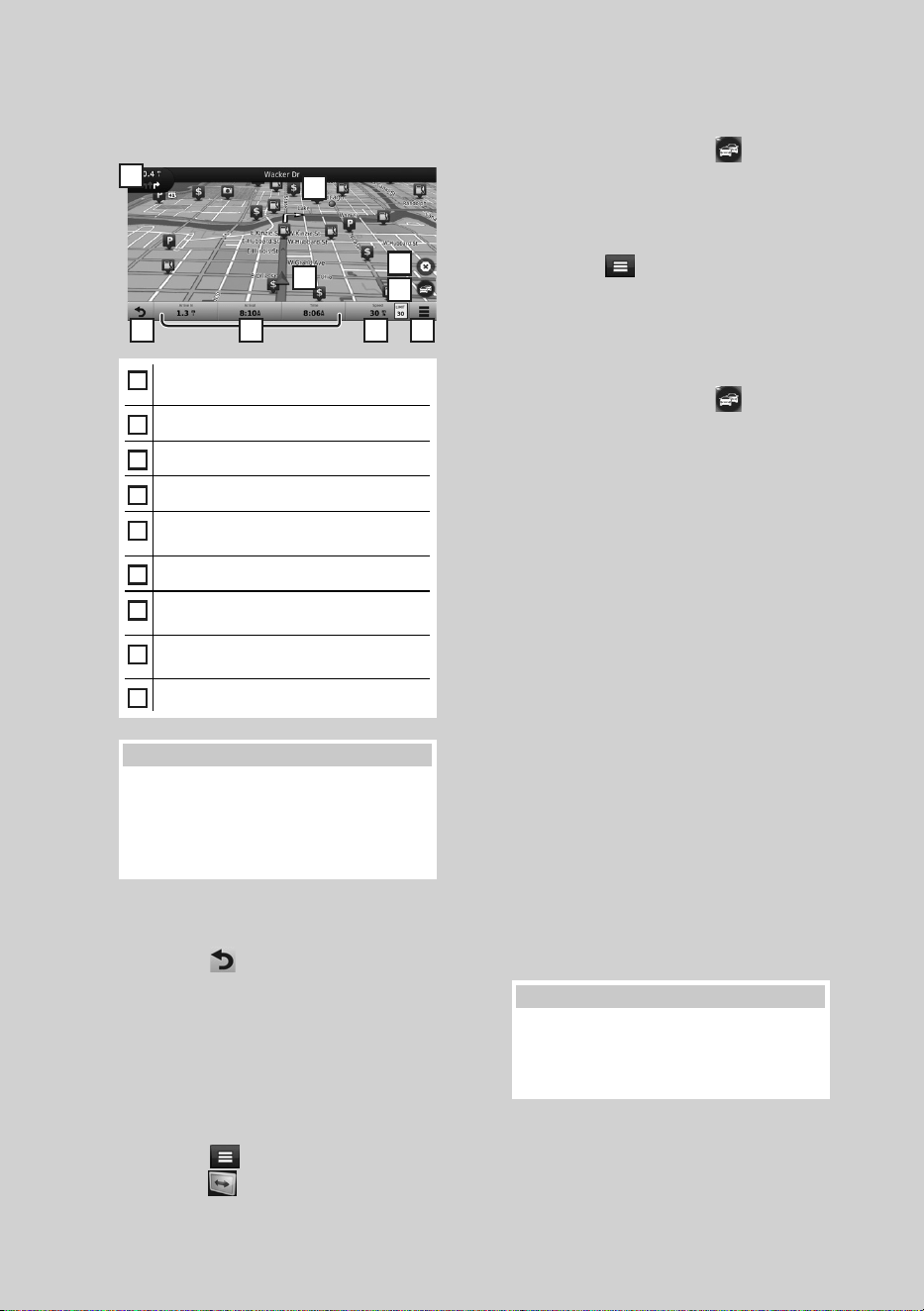
Utilisation de base
52
Si vous vous éloignez de votre trajet initial,
votre système de navigation recalcule le
trajet.
5
6 8 9
1
2
3
4
7
1
Visualise la page Next turn ou la page de
vue de la jonction, si disponible.
2
Visualise la page Turn List.
3
Visualise la page Where Am I? Page.
4
Arrête l'itinéraire en cours.
5
Affiche les informations routières de
l'itinéraire.
6
Retourne au menu principal.
7
Champ de données. Touchez pour afficher
un autre champ de données.
8
Vitesse du véhicule. Appuyez pour afficher
des informations sur un trajet.
9
Affiche des options supplémentaires.
REMARQUE
• Effleurez et glissez sur la carte pour visualiser
une autre zone de la carte.
• Il se peut qu'une icône de limitation de
vitesse apparaisse quand vous roulez sur les
autoroutes principales.
● Ajouter un arrêt
1 Quand vous naviguez dans un trajet,
touchez [
], puis [Where To?].
2 Chercher l'arrêt supplémentaire.
3 Touchez [Go!].
4 Touchez [Add to Active Route] pour
ajouter cet arrêt avant votre destination
finale.
● Faire un détour
1 Quand vous naviguez dans un trajet,
touchez [
].
2 Touchez [
].
■ Éviter manuellement le trafic sur votre
trajet
1 Sur la carte, appuyez sur [ ].
2 Touchez [Traffic On Route].
3 Si nécessaire, effleurez les flèches pour
visualiser d'autres retards de circulation
sur votre trajet.
4 Touchez [
] > [Avoid].
■ Visualisation de l'état du trafic
La carte de l'état du trafic indique à l'aide
de codes de couleur le flux du trafic et les
retards.
1 Sur la carte, appuyez sur [
].
2 Touchez [Traffic Conditions].
■ À propos du trafic
• Le service d'informations liées au trafic n'est
pas disponible dans certaines régions ou dans
certains pays.
• Garmin et JVCKENWOOD Corporation ne sont
pas responsables de la précision ou des délais
de transmission des informations routières.
• Vous pouvez recevoir les informations routières
INRIX et les prévisions météorologiques en
connectant votre iPhone ou smartphone
Android sur lequel l'application «KENWOOD
Traffic Powered By INRIX» est installée.
Pour plus de détails, voir l'application
«KENWOOD Traffic Powered By INRIX».
■ Mise à jour des cartes
Vous pouvez acheter une carte mise à jour
auprès de Garmin.
1 Accédez à https://kenwood.garmin.
com/kenwood/site
2 À partir de la section de mises à jour des
cartes, sélectionnez Mise à jour
3 Suivez les instructions à l'écran.
REMARQUE
• Après avoir mis à jour des données de carte
pour la première fois, il est possible d'utiliser
une carte SD et l'application Garmin Express™
pour effectuer des mises à jour futures.
!B5K-0760-00_20DNX_K_FP_QSG.indb 52 2020/07/02 14:24
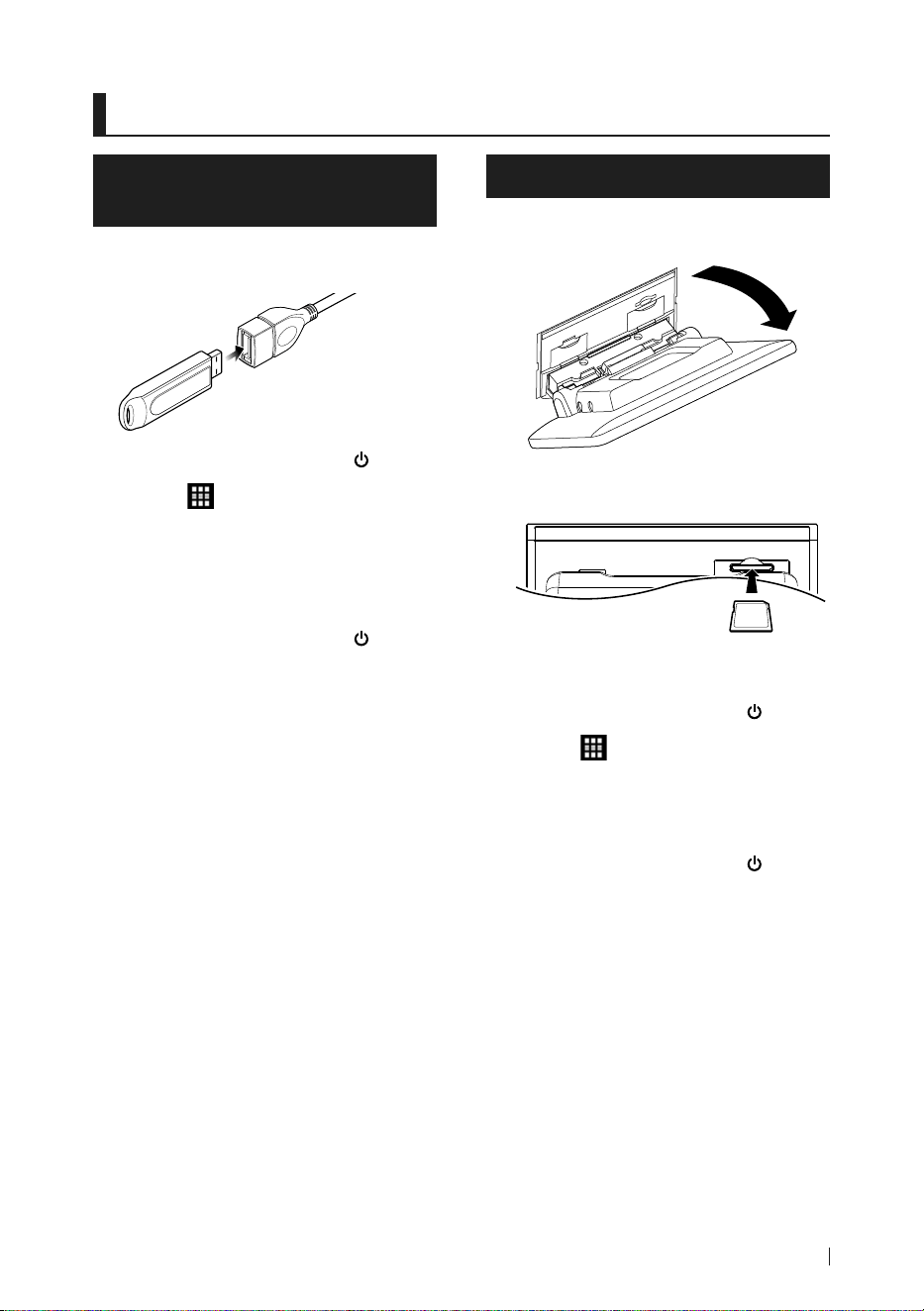
USB/SD/iPod
53Français
USB/SD/iPod
Connecter un périphérique
USB
1
Branchez le périphérique USB avec le
câble USB. (p.71)
2
Appuyez sur la touche [HOME]/[ ].
3
Touchez [ ].
4
Touchez [USB]. (p.48)
Ñ Déconnectez le périphérique
USB
1
Appuyez sur la touche [HOME]/[ ].
2
Touchez une source autre que [USB].
3
Débranchez le périphérique USB.
Ñ Périphérique USB utilisable
Vous pouvez utiliser une clé USB de mémoire de
masse avec cet appareil.
Le terme « périphérique USB » indique dans ce
manuel un dispositif mémoire flash.
Insérer la carte SD
1
Inclinez manuellement le panneau vers
vous.
2
Insérez la carte SD dans la fente jusqu'à
entendre un «clic».
3
Fermez le panneau.
4
Appuyez sur la touche [HOME]/[ ].
5
Touchez [ ].
6
Touchez [SD]. (p.48)
Ñ Retirez la carte SD
1
Appuyez sur la touche [HOME]/[ ].
2
Touchez une source autre que [SD].
3
Inclinez manuellement le panneau vers
vous.
4
Poussez sur la carte SD jusqu'à ce que
vous entendiez un "clic", puis ôtez votre
doigt de la carte. La carte se débloque de
sorte que vous puissiez la retirer avec vos
doigts.
5
Fermez le panneau.
!B5K-0760-00_20DNX_K_FP_QSG.indb 53 2020/07/02 14:24
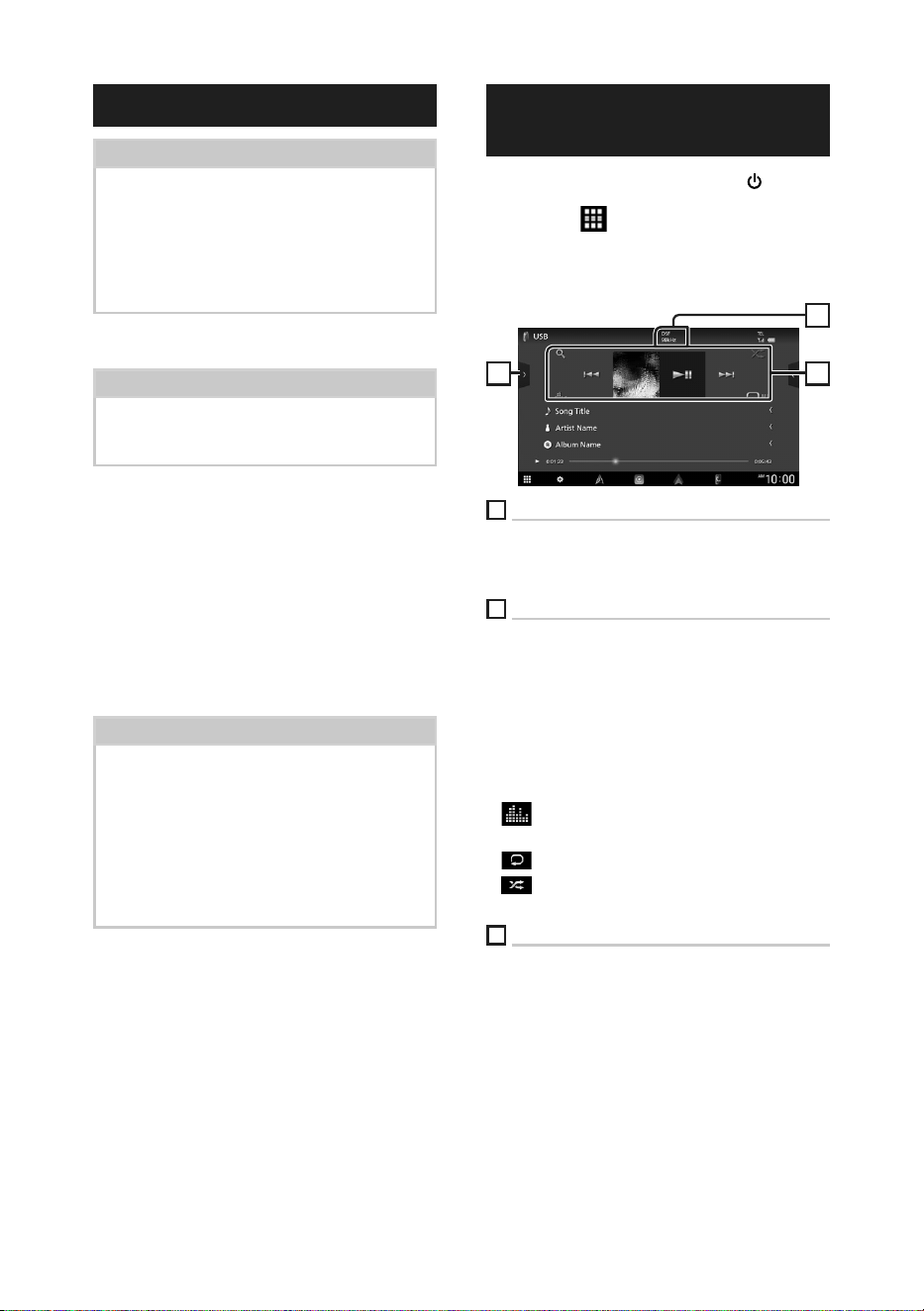
USB/SD/iPod
54
Connectez un iPod/iPhone
Préparation
• Avec un iPhone compatible avec Apple CarPlay,
désactivez Apple CarPlay en faisant fonctionner
l'iPhone en configuration fonctionnelle avant de
connecter l'iPhone. Pour des détails concernant
la méthode de configuration, veuillez contacter le
fabricant de la borne.
• Seule un iPod/iPhone peut être connecté.
Connexion par fil
Préparation
• Connectez un iPod/iPhone avec le KCA-iP103
(accessoire en option) lorsque CarPlay n'est pas
connecté.
1
Connectez l'iPod/iPhone à l'aide du KCA-
iP103. (p.72)
● Pour débrancher l’iPod/iPhone connecté
avec le câble :
1
Débranchez l'iPod/l'iPhone.
Connexion Bluetooth
Appariez le périphérique iPhone par
Bluetooth.
Préparation
• Pour connecter un iPhone via Bluetooth,
enregistrez-le comme un périphérique Bluetooth
et exécutez au préalable le réglage du profil de
la connexion. Voir Commutez le périphérique
connecté (p.53) dans le mode d'emploi et
Enregistrer l'appareil Bluetooth (p.57).
• Connectez un iPhone via Bluetooth lorsque Apple
CarPlay et l'iPod/iPhone ne sont pas connectés
via USB.
Ñ iPod/iPhone connectables
Les modèles suivants peuvent être reliés à cet
appareil.
Convient pour
• iPhone XS
Max
• iPhone XS
• iPhone XR
• iPhone X
• iPhone 8 Plus
• iPhone 8
• iPhone 7 Plus
• iPhone 7
• iPhone SE
• iPhone 6s
Plus
• iPhone 6s
• iPod
touch (6e
génération)
Fonctionnement de base USB/
SD/iPod
1
Appuyez sur la touche [HOME]/[ ].
2
Touchez [ ].
3
Appuyez sur [USB], [SD], ou [iPod]. (p.48)
Écran de contrôle
3 2
1
1
CODEC
Lorsqu'une source en haute résolution est en
cours de lecture, ses informations de format sont
affichées.
2
Touches de commande
• [1] : Fait une recherche de piste/fichier.
• [E] [F] : Recherche la piste/fichier
précédent/suivant.
Touchez et maintenez enfoncé pour effectuer
une avance ou un retour rapide. (Annulé
automatiquement au bout d'environ 50
secondes.)
• [DH] : Lit ou met en pause.
• [
] : Affiche l'écran de l'égaliseur graphique.
(p.60)
• [
] : Répète la piste/le dossier en cours.
• [
] : Lit de manière aléatoire tous les
morceaux du dossier en cours.
3
Liste des contenus
• Touchez le côté gauche de l'écran pour afficher
la liste de Contenu. Touchez de nouveau pour
fermer la liste.
• Affiche la liste de lecture. Lorsque vous
appuyez sur un nom de fichier/piste dans la
liste, la lecture démarre.
!B5K-0760-00_20DNX_K_FP_QSG.indb 54 2020/07/02 14:24
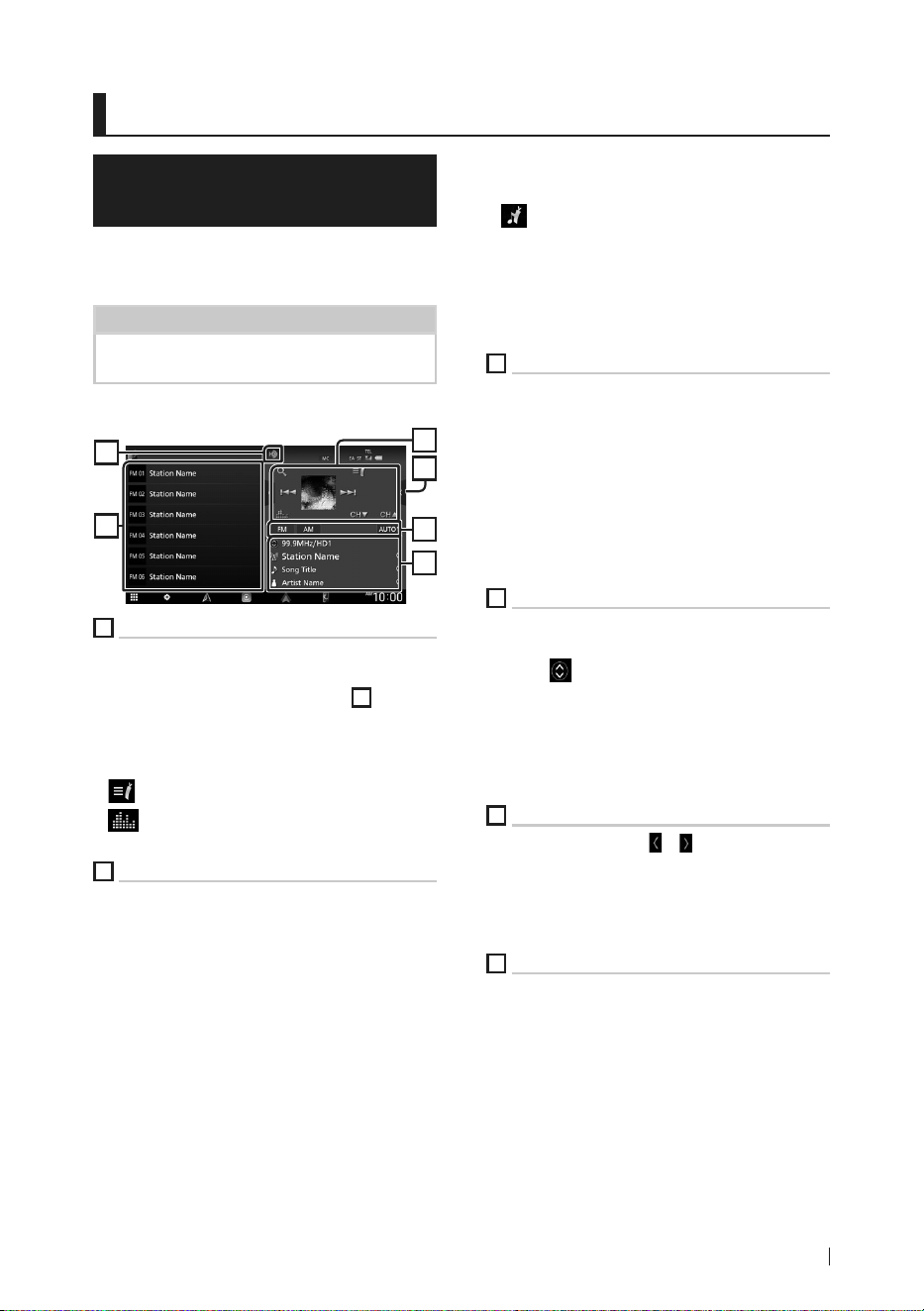
Syntoniseur HD Radio™
55Français
Syntoniseur HD Radio™
Fonctionnement de base du
syntoniseur HD Radio
Pour écouter la source HD Radio, touchez
l'icône [HD Radio] sur l'écran de sélection de la
source. (p.48)
REMARQUE
• La diffusion HD Radio est destinée au marché
d'Amérique du Nord uniquement.
Écran de contrôle
3
4
6
5
1
2
1
Touches de commande
• [E] [F] : Syntoniser sur une station.
Il est possible de changer la méthode de
commutation des fréquences (voir
3
Mode
de recherche/Touches de bande).
• [CHS] [CHR] : Sélectionne un canal.
• [1] : Affichez l'écran de liste des canaux.
• [ ] : Affichez une liste des signets enregistrés.
• [
] : Affiche l'écran de l'égaliseur graphique.
(p.60)
2
Panneau de fonction
Appuyez sur le côté droit de l'écran pour afficher
le panneau de fonction. Appuyez de nouveau
pour fermer le panneau.
• [10key Direct] : Affiche directement la station
/ l'écran de recherche de canaux.
• [AME] : Prédéfinit automatiquement les
stations. (p.56)
• [RCV] : Modifie le mode de réception HD Radio.
[Auto] : Bascule automatiquement entre
l'audio numérique et analogique.
[Digital] : Sélectionnez cela pour régler
uniquement sur audio numérique.
[Analog] : Sélectionnez cela pour régler
uniquement sur audio analogique.
• [PTY] (FM uniquement) : Recherche un
programme par type de programme.
• [
] : Enregistre les informations relatives à la
chanson en cours de réception.
• [Emergency Alerts] : Activez ou désactivez le
message d'alerte.
• [Alert Message Log] : Affiche le message
d'alerte reçu.
3
Touches mode/bande
• Touchez pour changer de mode de recherche
dans l'ordre suivant : [AUTO1], [AUTO2],
[MANUAL].
– [AUTO1] : Syntonise automatiquement sur une
station offrant une bonne réception.
– [AUTO2] : Syntonise les stations en mémoire les
unes après les autres.
– [MANUAL] : Commute sur la fréquence suivante
manuellement.
• Change les bandes (entre FM et AM).
4
Affichage des informations
Affiche les informations concernant la station en
cours : Fréquence et canal
Toucher [
] vous permet de basculer entre le
Contenu A, le Contenu B et le Contenu C.
Contenu A : Nom de la station, titre de la
chanson, nom de l'artiste
Contenu B : Message de la station, texte radio
Contenu C : Genre PTY, nom de l'album
5
Liste des présélections
• Un simple appui sur [
]/[ ] vous permet de
changer la taille de l'écran.
• Rappelle la station ou le canal mémorisé.
• Touchez pendant 2 secondes pour mémoriser
la station ou le canal en cours de réception.
6
Affichage de l'indicateur
Lorsque vous recevez une station HD Radio,
cela s'éclaire en orange lorsque l'audio est
numérique et en gris lorsque l'audio est
analogique. Lorsque vous recevez une station
analogique, cela s'éteint.
!B5K-0760-00_20DNX_K_FP_QSG.indb 55 2020/07/02 14:24

Syntoniseur HD Radio™
56
Utilisation de la mémorisation
Ñ Mémoire automatique
Vous pouvez enregistrer automatiquement les
stations offrant une bonne réception dans la
mémoire.
1
Touchez la touche de la bande de votre
choix.
2
Touchez [ ] sur le côté droit de l'écran.
Touchez [AME].
3
Touchez [Ye s ].
hh La mémorisation automatique se lance.
Ñ Mémoire manuelle
Vous pouvez enregistrer la station ou le canal
en cours de réception dans la mémoire.
1
Sélectionnez la station ou le canal que
vous souhaitez mémoriser.
2
Touchez [FM#] (#:1-15) ou [AM #] (#:1-5) à
laquelle vous souhaitez associer la station
ou le canal, pendant 2 secondes, jusqu'à
confirmation par un bip.
Ñ Sélection des présélections
1
Touchez [ ] sur le côté gauche de l'écran.
Sélectionnez dans la liste la station ou le
canal de votre choix.
!B5K-0760-00_20DNX_K_FP_QSG.indb 56 2020/07/02 14:24
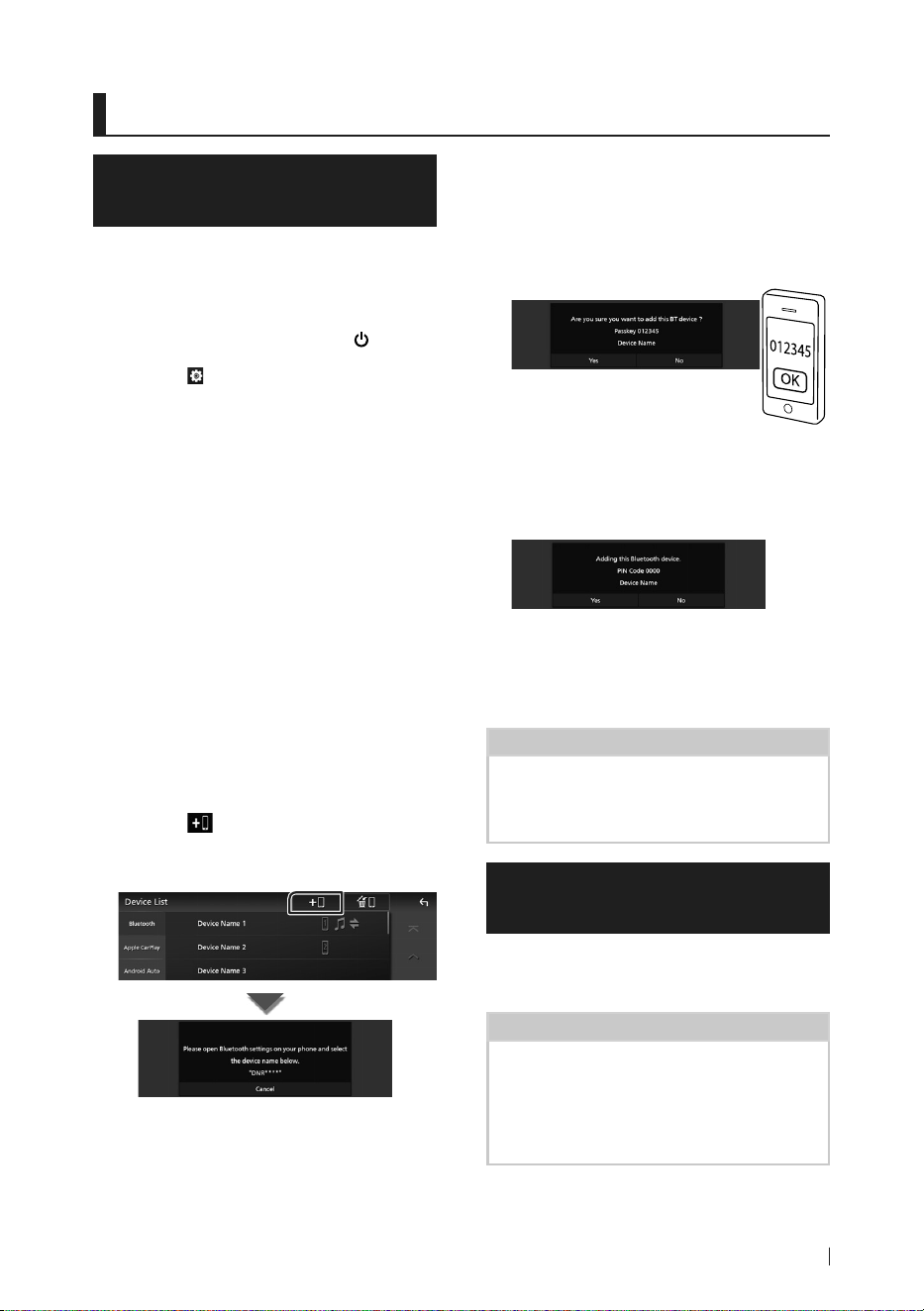
Utilisation du Bluetooth
57Français
Utilisation du Bluetooth
Enregistrer l'appareil
Bluetooth
Il est indispensable de déclarer à l'appareil le
lecteur audio ou le smartphone/téléphone
portable Bluetooth avant de pouvoir utiliser la
fonction Bluetooth.
1
Appuyez sur la touche [HOME]/[ ].
2
Touchez [ ].
3
Touchez [SETUP].
hh L'écran de menu de configuration
s'affiche.
4
Touchez [Connections & AV].
5
Touchez [Device List].
6
Choisissez un type de périphérique.
■ [Bluetooth]
Pour connecter un périphérique en tant
que source audio Bluetooth.
■ [Apple CarPlay]
Pour connecter un périphérique en tant
que source Apple CarPlay.
■ [Android Auto]
Pour connecter un périphérique en tant
que source Android Auto.
7
Touchez [ ].
hh La fenêtre de dialogue d'attente
d'appariement Bluetooth apparaît.
8
Recherchez l'appareil («DNR1007XR»)
à partir de votre smartphone/téléphone
portable.
Complétez les étapes 8 à 10 dans un délai de
30 secondes.
9
Utilisez votre smartphone/téléphone
portable en fonction des messages
affichés.
● Confirmez la requête sur le
smartphone/téléphone portable.
● Entrez le code PIN sur votre
smartphone/téléphone portable.
Le code PIN est défini par défaut en tant que
« 0000 ».
10
Touchez [Ye s ].
Lorsque la transmission et la connexion
des données sont terminées, l'icône de
connexion au Bluetooth apparaît sur l'écran.
REMARQUE
• Lors de l'enregistrement de l'iPhone disponible
pour Apple CarPlay sans fil, un message de
confirmation s'affiche. Touchez [Ye s ] pour afficher
l'écran Apple CarPlay pour une connexion sans fil.
Utilisation du module mains-
libres
Vous pouvez utiliser la fonction téléphone
en connectant le téléphone Bluetooth à cet
appareil.
REMARQUE
• Lorsque l'application Apple CarPlay ou Android
Auto est connectée, la fonction Bluetooth Mains
libres et les connexions de deux périphériques
Bluetooth ne peuvent pas être utilisées. Seule la
fonction Mains libres Apple CarPlay ou Android
Auto peut être utilisée.
!B5K-0760-00_20DNX_K_FP_QSG.indb 57 2020/07/02 14:24
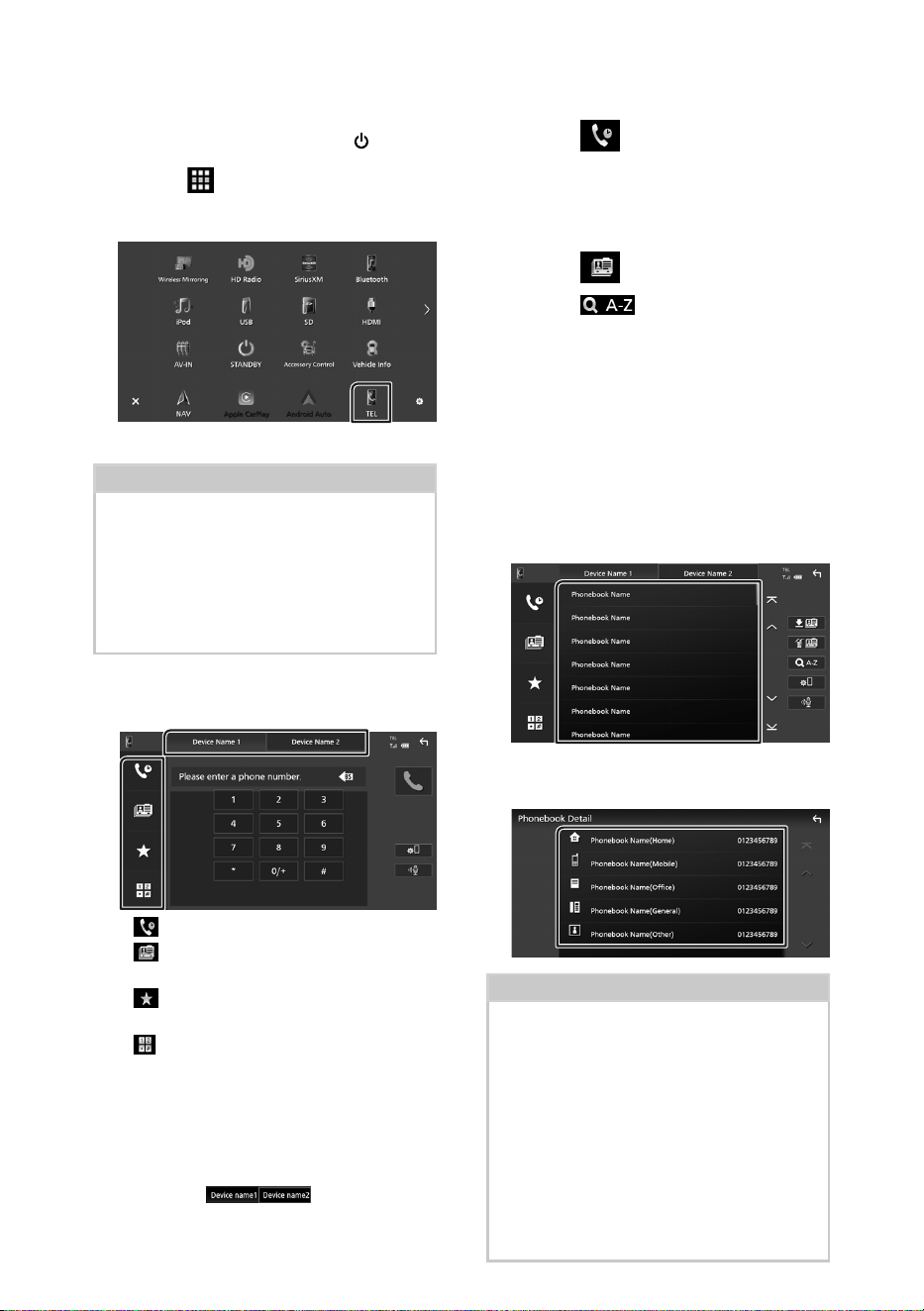
Utilisation du Bluetooth
58
Ñ Effectuez un appel
1
Appuyez sur la touche [HOME]/[ ].
2
Touchez [ ].
3
Touchez [TEL].
hh L'écran Mains libres s'affiche.
REMARQUE
• Si votre smartphone/téléphone portable est
compatible avec PBAP, vous pouvez afficher le
répertoire téléphonique et les listes d'appel sur
l'écran tactile lorsque le smartphone/téléphone
portable est connecté.
– Répertoire téléphonique : jusqu'à 1 000 entrées
– Jusqu'à 50 entrées, y compris appels
composés, appels reçus et appels manqués
4
Sélectionnez une méthode de
numérotation.
• [ ] : Appel depuis l'historique des appels
• [
] : Appel depuis le répertoire
téléphonique
• [
] : Appel depuis un numéro
présélectionné
• [
] : Appel en saisissant un numéro de
téléphone
● Sélectionnez le smartphone/téléphone
portable à utiliser
Lorsque vous connectez deux smartphones/
téléphones portables
1) Appuyez sur [
] pour
sélectionner le téléphone que vous voulez
utiliser.
Appel depuis l'historique des appels
1
Touchez [ ].
2
Sélectionnez dans la liste le numéro de
téléphone.
Appel depuis le répertoire téléphonique
1
Touchez [ ].
2
Touchez [ ].
3
Sélectionner l'initiale.
• Les caractères n'ayant aucun nom
correspondant ne sont pas affichés.
• Un premier caractère avec un accent tel
que « ü » peut être cherché à l'aide d'un
caractère sans accent « u ». Un caractère
avec un accent dans la phrase ne peut
pas être cherché.
4
Sélectionnez la personne que vous
souhaitez appeler dans la liste.
5
Sélectionnez dans la liste le numéro de
téléphone.
REMARQUE
• Vous pouvez trier les numéros de téléphone dans
la liste par nom de famille ou par prénom. Pour
plus de détails, voir Configuration Mains libres
(p.62) dans le mode d'emploi.
• Lorsque le russe ou l'hébreu est sélectionné
dans « Language select », vous pouvez basculer
entre le clavier Anglais et le clavier de la
langue sélectionnée. Pour plus de détails, voir
Configuration système (p.72) dans le mode
d'emploi.
• Vous pouvez effectuer une recherche avec 3
lettres initiales sur le clavier Anglais et 1 lettre
initiale sur le clavier Russe/Hébreu.
!B5K-0760-00_20DNX_K_FP_QSG.indb 58 2020/07/02 14:24
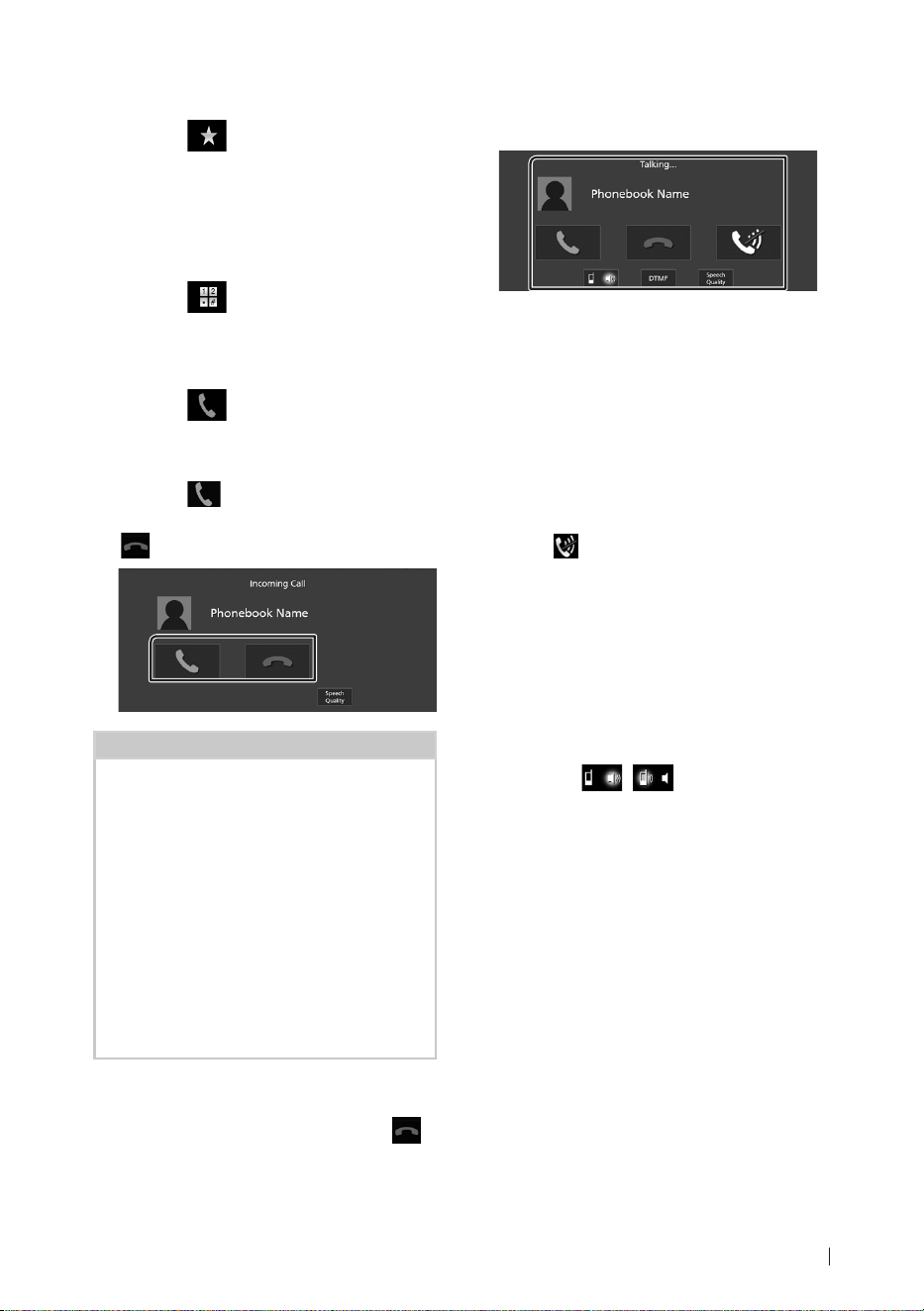
Utilisation du Bluetooth
59Français
Appel depuis un numéro présélectionné
1
Touchez [ ].
2
Touchez le nom ou le numéro de
téléphone.
Appel par entrée d'un numéro de
téléphone
1
Touchez [ ].
2
Utilisez les touches numériques pour
entrer un numéro de téléphone.
3
Touchez [ ].
Ñ Réception d'un appel
1
Touchez [ ] pour répondre à un appel
téléphonique ou
[
] pour rejeter un appel entrant.
REMARQUE
• Lors du passage du levier de vitesse en position
marche à arrière (R) et en surveillant l'image à
partir de la caméra de recul, cet écran n'apparaît
pas, même si un appel est reçu.
• Le portrait enregistré dans le répertoire s'affiche
pendant l'émission/la réception d'appels et
pendant un appel.
• Si vous modifiez le répertoire du côté de l'appareil
connecté après avoir téléchargé le répertoire,
le portrait peut ne pas s'afficher en fonction
du contenu modifié. Il est recommandé de
télécharger le répertoire à chaque fois que vous
le modifiez.
• La qualité d'image d'un portrait affiché peut
dépendre du périphérique connecté.
Pour mettre fin à l'appel
1
Pendant une conversation, touchez [ ].
Ñ Actions possibles pendant un
appel
● Régler le volume de votre voix
1) Touchez [Speech Quality].
2) Touchez [T] ou [U] pour [Microphone Level].
● Régler le volume de réception
Tournez le bouton du volume dans le sens des
aiguilles d'une montre pour l'augmenter et
dans le sens inverse des aiguilles d'une montre
pour le baisser.
● Mettre votre voix en sourdine
Touchez [
] pour mettre votre voix en
sourdine ou annuler cette fonction.
● Envoyer la tonalité de numérotation
Touchez [DTMF] pour afficher l'écran de saisie
des tonalités.
Vous pouvez envoyer des tonalités en
touchant les touches voulues à l'écran.
● Passer d'une destination de sortie vocale
à une autre
En touchant [
]/[ ], les destinations de
la sortie vocale basculent systématiquement
entre le smartphone/téléphone portable et le
haut-parleur.
● Basculer entre l'écran Mains-libres et
l'écran de navigation
Appuyez sur le bouton [NAV]/[CAMERA] pour
basculer entre l'écran mains libres et l'écran de
navigation.
!B5K-0760-00_20DNX_K_FP_QSG.indb 59 2020/07/02 14:24
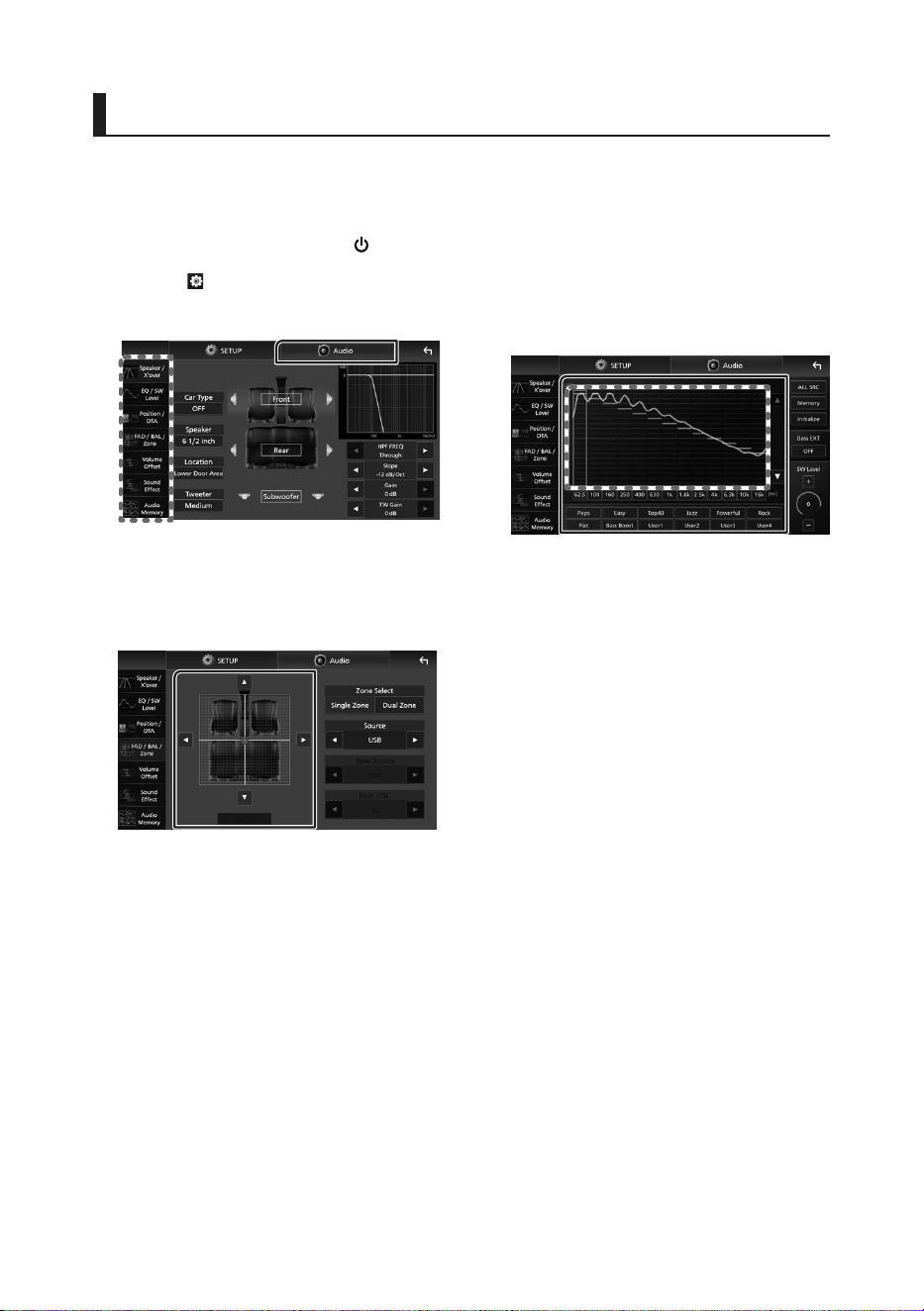
Contrôle de l'audio
60
Contrôle de l'audio
Vous pouvez régler différents paramètres,
comme la balance audio ou le niveau du
caisson de graves par exemple.
1
Appuyez sur la touche [HOME]/[ ].
2
Touchez [ ].
3
Touchez [Audio].
Ñ Contrôle de l’audio en général
1
Touchez [FAD / BAL / Zone].
2
Réglez chaque paramètre comme suit.
[C] et [D] permettent de régler la balance
gauche/droite.
[R] et [S] permettent de régler la balance
avant/arrière.
■ [Center]
Annulez le réglage.
Ñ Contrôle d'égaliseur
Vous pouvez régler l'égaliseur en sélectionnant
le réglage optimal pour chaque catégorie.
1
Touchez [EQ/SW Level].
2
Touchez l'écran pour configurer
l'égaliseur graphique comme vous le
souhaitez.
■ Niveau de gain (zone dans le cadre
pointillé)
Réglez le niveau de gain en touchant
chacune des barres de fréquences.
Vous pouvez sélectionner une barre de
fréquence et ajuster son niveau en utilisant
[R], [S].
■ [ALL SRC]
Appliquez la courbe de l'égaliseur ajustée
pour toutes les sources. Appuyez sur [ALL
SRC] puis appuyez sur [OK] sur l'écran de
confirmation.
■ [Memory]
Enregistre la courbe d'égaliseur ajustée de
« User1 » à « User4 ».
■ [Initialize]
Initialiser (aplatir) la courbe EQ actuelle.
■ [Bass EXT] (Réglages extension basse)
Lorsque cette fonction est active, les
fréquences inférieures à 62,5 Hz sont
configurées sur le même niveau de gain
(62,5 Hz).
■ [SW Level]
Réglez le volume du caisson de graves.
■ [Pops]/[Easy]/[Top40]/[Jazz]/[Powerful]/
[Rock]/[Flat]/[Bass Boost]/[User1]/
[User2]/[User3]/[User4]
Réaffiche la courbe de l'égaliseur préréglée.
!B5K-0760-00_20DNX_K_FP_QSG.indb 60 2020/07/02 14:24

Connexion/Installation
61Français
Connexion/Installation
Cette section est destinée à l'installateur
professionnel.
Pour des raisons de sécurité, confiez le câblage
et le montage à des professionnels. Consultez
le revendeur du système audio du véhicule.
Avant l'installation
Avant d'installer cet appareil, veuillez prendre
les mesures de précaution suivantes.
# AVERTISSEMENTS
• Si vous branchez le câble d'allumage (rouge)
et le câble de la batterie (jaune) au châssis
de la voiture (masse), il peut y avoir un court-
circuit entraînant, à son tour, un incendie. Il
faut toujours brancher ces câbles à la source
d'alimentation fonctionnant via le boîtier de
fusibles.
• Ne débranchez pas le fusible du câble
d'allumage (rouge) ni du câble de la batterie
(jaune). L'alimentation électrique doit être
connectée aux câbles via le fusible.
# ATTENTION
• Installez cet appareil dans la console du
véhicule.
Ne touchez pas les éléments métalliques de
cet appareil pendant et juste après l'utilisation
de l'appareil. Les éléments métalliques tels que
le dissipateur thermique et le coffret sont très
chauds.
REMARQUE
• Le montage et le câblage de ce produit
requièrent expérience et savoir-faire. Pour des
questions de sécurité, les travaux de montage
et de câblage doivent être effectués par des
professionnels.
• N'installez pas l'appareil s'il devient un obstacle
aux performances du conducteur.
• Ajustez la position du panneau pour qu'il ne
devienne pas un obstacle aux performances
du conducteur.
• Réglez la position du panneau de façon à ce
que le panneau puisse être déplacé à un angle
permettant d'insérer et de retirer une carte SD.
• Veillez à brancher l'appareil à une alimentation
électrique négative de 12 Vcc avec mise à la
terre.
• N'installez pas l'appareil dans un endroit
directement exposé aux rayons du soleil, à
une chaleur excessive ou à l'humidité. Évitez
également les endroits trop poussiéreux ou
susceptibles d'être éclaboussés par de l'eau.
• N'utilisez pas vos propres vis. N'utilisez que les
vis fournies. L'utilisation de vis non appropriées
risque d'endommager l'appareil.
• Si l'appareil n'est pas sous tension (« There is
an error in the speaker wiring. Please check
the connections. » (Il y a un problème avec
le câblage du haut-parleur. Veuillez vérifier
les branchements) s'affiche), le câble du
haut-parleur est peut-être en court-circuit
ou est en contact avec le châssis du véhicule
et la fonction de protection a peut-être été
enclenchée. C'est pourquoi il faut vérifier le
câble de l'enceinte.
• Si l'allumage de votre véhicule ne possède
pas de position ACC, branchez les câbles
d'allumage à une source d'alimentation que
la clé de contact peut allumer ou éteindre.
Si vous branchez le câble d'allumage à une
source d'alimentation à tension constante
comme les câbles de la batterie, il se peut que
la batterie se décharge.
• Si la console possède un couvercle, le
couvercle n'est pas fermé même lorsque
l'appareil est correctement installé.
• Si le fusible saute, vérifiez d'abord que les
câbles ne se touchent pas afin d'éviter tout
court-circuit, puis remplacez l'ancien fusible
par un nouveau fusible de même puissance.
• Isolez les câbles non connectés avec un ruban
vinyl, ou tout autre matériau similaire. Pour
éviter tout court-circuit, ne retirez pas les
capuchons placés aux extrémités des câbles
non connectés ou des bornes.
• Branchez correctement les câbles de l'enceinte
aux bornes correspondantes. L’appareil peut
subir des dommages et ne plus fonctionner
si vous partagez les fils ¤ ou les mettez à la
masse avec une partie métallique du véhicule.
!B5K-0760-00_20DNX_K_FP_QSG.indb 61 2020/07/02 14:24
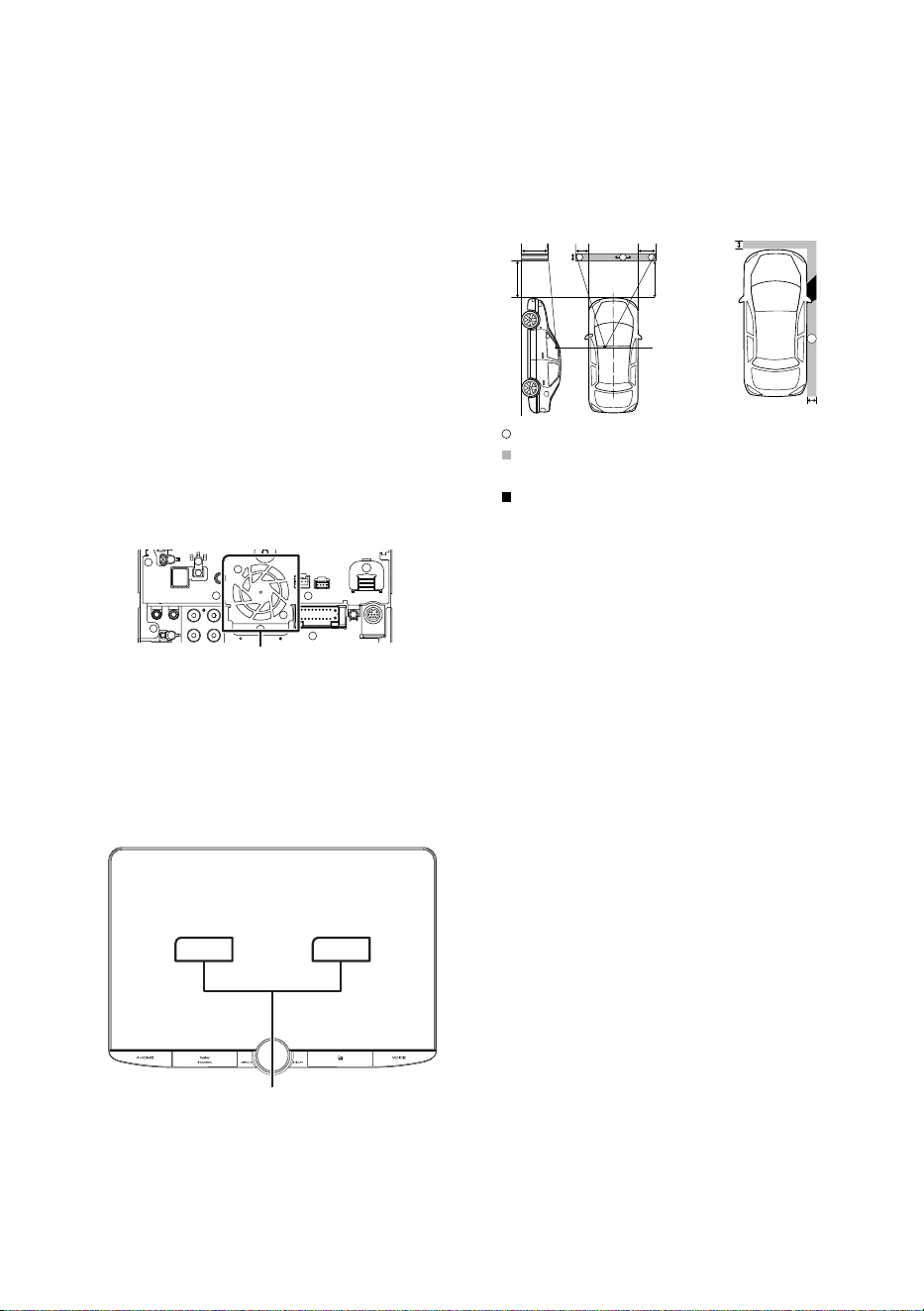
Connexion/Installation
62
• Si seulement deux enceintes sont branchées
au système, branchez les connecteurs soit
aux bornes de sortie avant soit aux bornes de
sortie arrière (ne pas mélanger les bornes de
sortie avant et arrière). Par exemple, si vous
connectez le connecteur ¢ de l'enceinte
gauche à une borne de sortie avant, ne
connectez pas le connecteur ¤ à une borne
de sortie arrière.
• Une fois l'appareil installé, vérifiez que les feux
de freinage, les clignotants et les essuie-glace,
etc. du véhicule fonctionnent correctement.
• L'angle de montage de l'appareil doit être
inférieur ou égal à 30°.
• Cet appareil est équipé d'un ventilateur destiné
à réduire la température interne. Ne montez
pas l'appareil dans un endroit où les orifices
du ventilateur seraient obstrués. L'obstruction
de ces orifices empêcherait le refroidissement
de la température interne du ventilateur,
provoquant alors un dysfonctionnement.
Ventilateur
• N'exercez pas de pression excessive sur la
surface du panneau lors de l'installation de
l'appareil dans le véhicule. Cela risque de rayer
la surface, de l'endommager ou d'entraîner
une défaillance.
• Il se peut que la réception soit mauvaise si des
objets métalliques se trouvent à proximité de
l'antenne Bluetooth/Wi-Fi.
Unité d'antenne Bluetooth/Wi-Fi
● Champs de vision avant et latéral
• Pour déterminer les champs de vision avant
et latéral du conducteur dans des conditions
normales, placez un poteau (directement
visible de l'avant ou à travers le rétroviseur de
la voiture) comme indiqué.
*
1
*
2
0,3 m
0,3 m
0,3 m
2 m
2 m
1 m 0,7 m 0,9 m
[ ] : Poteau (hauteur : 1 m, diamètre : 0,3 m)
[ ] : Champ de vision à partir de la position du
volant
[ ] : Zone exemptée (la taille du poteau est
soumise à la réglementation)
• Pour les véhicules à conduite à droite, les
normes sont inversées.
*1 Le poteau doit être visible depuis la position du
conducteur comme champ de vision directe vers
l'avant.
*2 Le poteau doit être directement visible ou
indirectement visible dans le rétroviseur, etc. depuis
la position du conducteur.
!B5K-0760-00_20DNX_K_FP_QSG.indb 62 2020/07/02 14:24
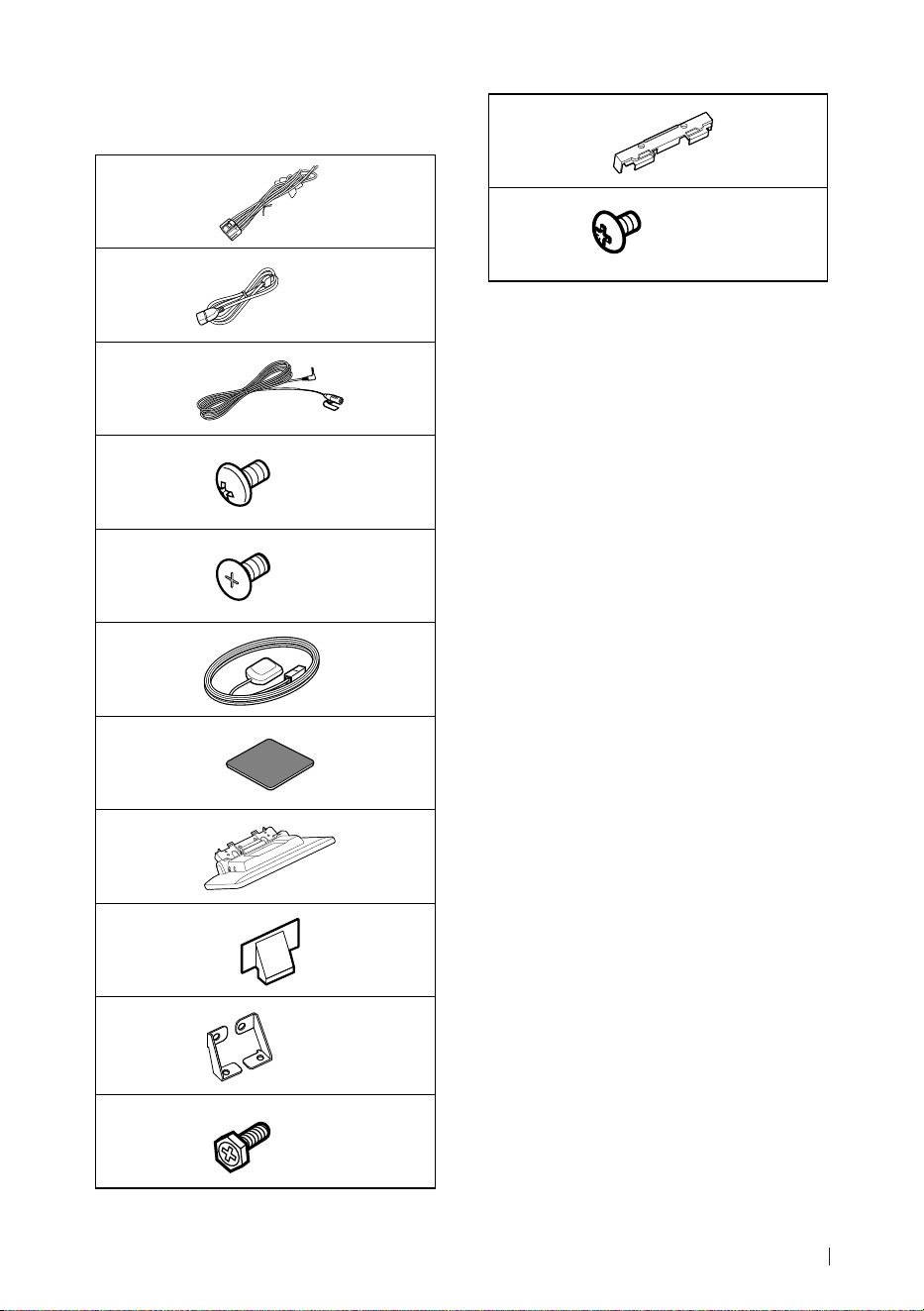
Connexion/Installation
63Français
Ñ Accessoires fournis pour
l'installation
1
x1
2
(Noir 1 m)
x1
3
(3 m)
x1
4
(M5 x 8 mm)
x6
5
(M5 x 8 mm)
x6
6
(3,5 m)
x1
7
x1
8
x1
9
x2
0
Gauche/Droite
x1
-
(M5 x 8 mm)
x6
=
x1
~
(Ø3 x 6 mm)
(Noir)
x2
Ñ Procédure d'installation
1) Pour éviter les courts-circuits, retirez la clé de
contact, puis débranchez la borne ¤ de la
batterie.
2) Retirez les pièces du véhicule pour
l'installation de l'appareil et la connexion des
câbles à la borne.
3) Veillez à effectuer correctement les
connexions des câbles d'entrée et de sortie
pour chaque appareil.
4) Brancher les fils de haut-parleur du faisceau
de câblage.
5) Brancher les fils du faisceau de câblage dans
l'ordre suivant : masse, batterie, contact.
6) Déterminez la hauteur de l'unité d'affichage
et la position du curseur. Voir Distance entre
l'unité d'affichage et l'appareil principal
(p.64).
7) Branchez le connecteur du faisceau de fils sur
l'appareil.
8) Installez l'appareil principal sur le véhicule.
9) Réinstallez les pièces du véhicule.
10) Installez l'unité d'affichage.
11) Reconnectez la borne ¤ de la batterie.
12) Procédez au réglage initial.
Voir CONFIGURATION initiale (p.45).
!B5K-0760-00_20DNX_K_FP_QSG.indb 63 2020/07/02 14:24
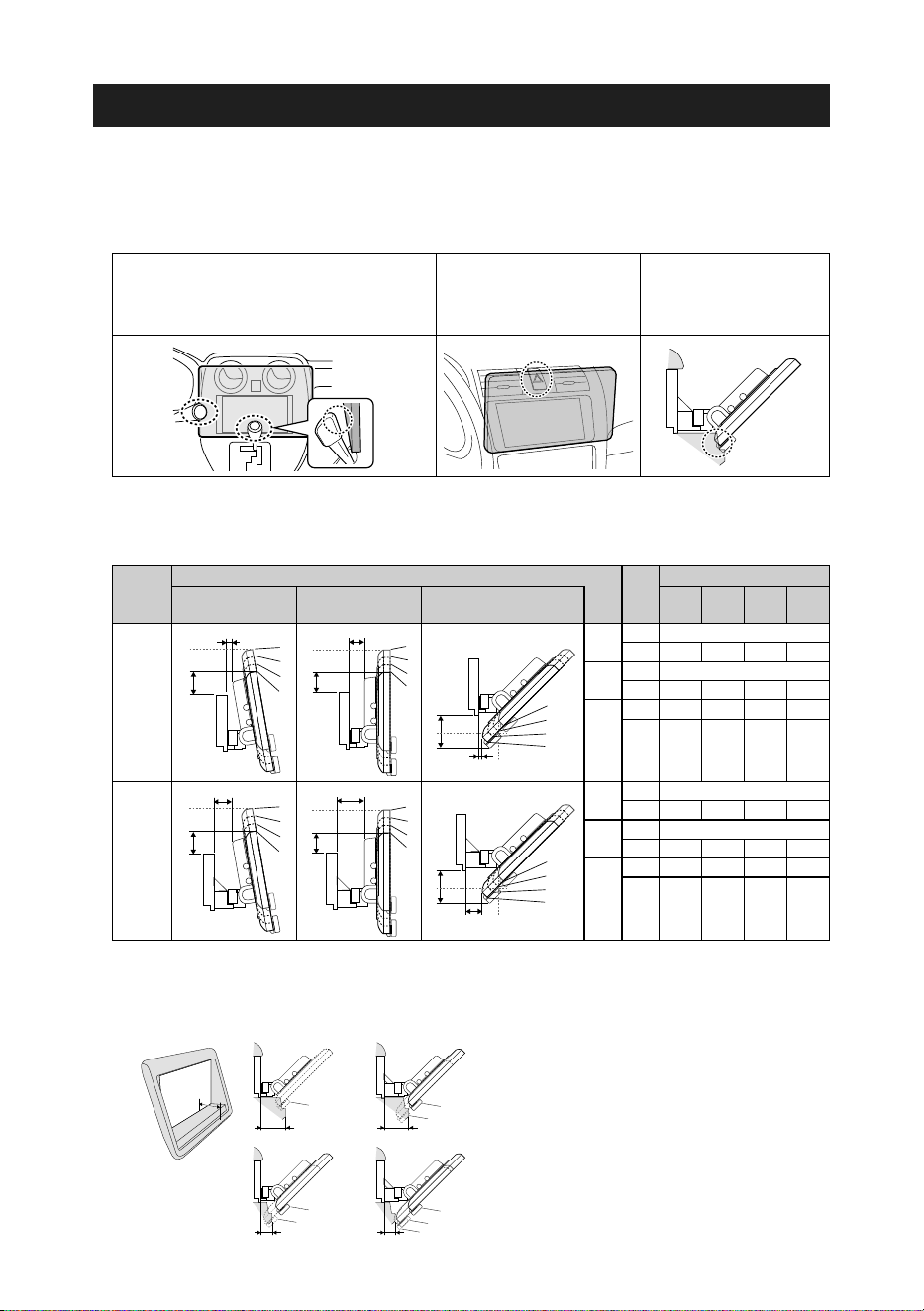
Connexion/Installation
64
Installation de l'appareil
Ñ Confirmez la position d'installation de l'unité d'affichage
● Installation impossible sur les véhicules
Il est possible de procéder à l'installation si l'on peut éviter ce qui suit en réglant la position du
curseur et la hauteur d'affichage.
Les opérations de levier sont gênées, comme
par exemple celles du levier de changement de
vitesse, du levier d'essuie-glace et du levier de
clignotant, lors de l'installation de l'appareil.
Un interrupteur de détresse
est caché sous le siège
conducteur.
L'unité d'affichage touche
un panneau sur le véhicule.
● Distance entre l'unité d'affichage et l'appareil principal
Réglez la position du curseur et affichez la hauteur de manière à ce qu'il n'interfère pas avec le
mouvement d'affichage.
Position
du
curseur
Angle d'affichage Hauteur d'affichage
-10° 0° 45° 1 2 3 4
Position
arrière
4
3
2
1
a
4
3
2
1
4
3
2
1
4
3
2
1
4
3
2
1
4
3
2
1
b
a
c
a
a
b
b
d
d
b
c
4
3
2
1
a
4
3
2
1
4
3
2
1
4
3
2
1
4
3
2
1
4
3
2
1
b
a
c
a
a
b
b
d
d
b
c
4
3
2
1
a
4
3
2
1
4
3
2
1
4
3
2
1
4
3
2
1
4
3
2
1
b
a
c
a
a
b
b
d
d
b
c
-10°
a 10
b 38,1 50,9 63,8 76,5
0°
a 26,7
b 34,7 47,7 60,7 73,7
45°
c 5,7 14,4 24,1 33,4
d 55,4 46,3 37,1 27,8
Position
avant
4
3
2
1
a
4
3
2
1
4
3
2
1
4
3
2
1
4
3
2
1
4
3
2
1
b
a
c
a
a
b
b
d
d
b
c
4
3
2
1
a
4
3
2
1
4
3
2
1
4
3
2
1
4
3
2
1
4
3
2
1
b
a
c
a
a
b
b
d
d
b
c
4
3
2
1
a
4
3
2
1
4
3
2
1
4
3
2
1
4
3
2
1
4
3
2
1
b
a
c
a
a
b
b
d
d
b
c
-10°
a 30,1
b 38,1 50,9 63,8 76,5
0°
a 46,7
b 34,7 47,7 60,7 73,7
45°
c 25,7 34,9 44,1 53,3
d 55,4 46,3 37,1 27,8
Appareil : mm
Exemples
Panneau de clusters
sur le véhicule
Curseur en
position arrière
Curseur en
position avant
C’
4
1
4
1
4
2
1
4
C’ =30mm C’ =30mm
C’ =50mm C’ =50mm
• C'=50 mm ;
Position du curseur : Position avant
Hauteur d'affichage : Configurez uniquement « 4 »
• C'=30 mm ;
Position du curseur : Position arrière
Hauteur d'affichage : Configurez uniquement « 4 »
Position du curseur : Position avant
Hauteur d'affichage : Configurez « 2 »~« 4 »
!B5K-0760-00_20DNX_K_FP_QSG.indb 64 2020/07/02 14:24
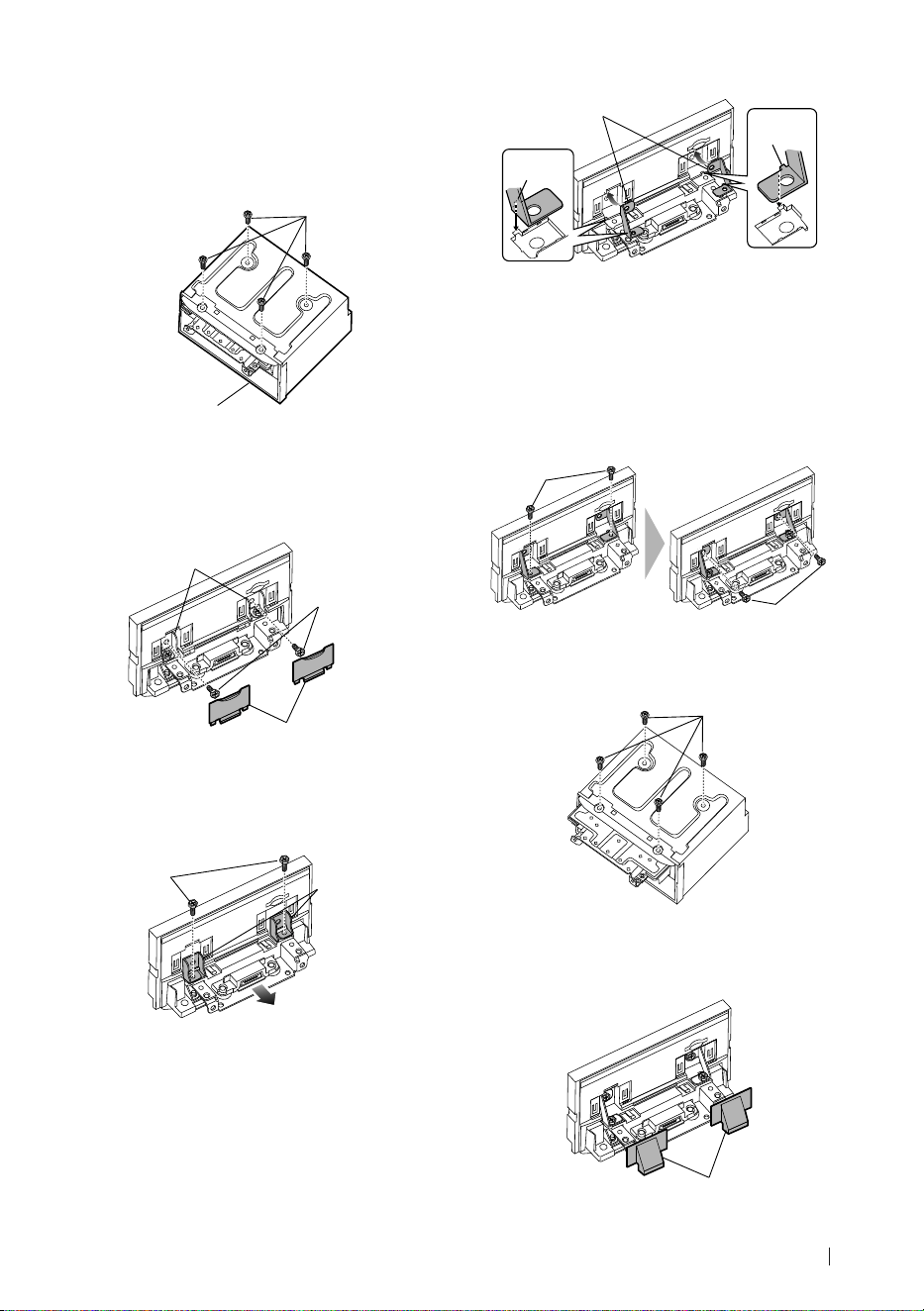
Connexion/Installation
65Français
Ñ Positionner le curseur vers
l'avant
1
Retirez les quatre vis du bas de l'appareil
principal.
Appareil principal
Vis
2
Retirez les deux couvercles pour la
position arrière, puis retirez les deux vis
à tête hexagonale du support pour la
position arrière.
Vis à tête
hexagonale
Support pour
position arrière
Couvercle pour la
position arrière
3
Tirez le bloc curseur vers l'avant et retirez
les deux vis à tête hexagonale pour retirer
le support pour la position arrière.
Support pour
position arrière
Vis à tête
hexagonale
4
Installez le support pour la position avant
(accessoire 0) de chaque côté de manière
à ce que ses saillies soient alignées avec
les fentes situées sur l'appareil principal.
Projection
Projection
0
5
Fixez le support pour la position avant
au bloc curseur avec les deux vis à tête
hexagonale. Poussez le bloc curseur
jusqu'à ce qu'il s'arrête, puis fixez
le support pour la position avant à
l'appareil principal avec les deux vis à tête
hexagonale.
Vis à tête
hexagonale
Vis à tête
hexagonale
6
Réinstallez les quatre vis sur le bas de
l'appareil principal.
Vis
7
Installez le couvercle de la position avant
(accessoire 9) à deux emplacements,
comme indiqué.
9
!B5K-0760-00_20DNX_K_FP_QSG.indb 65 2020/07/02 14:24
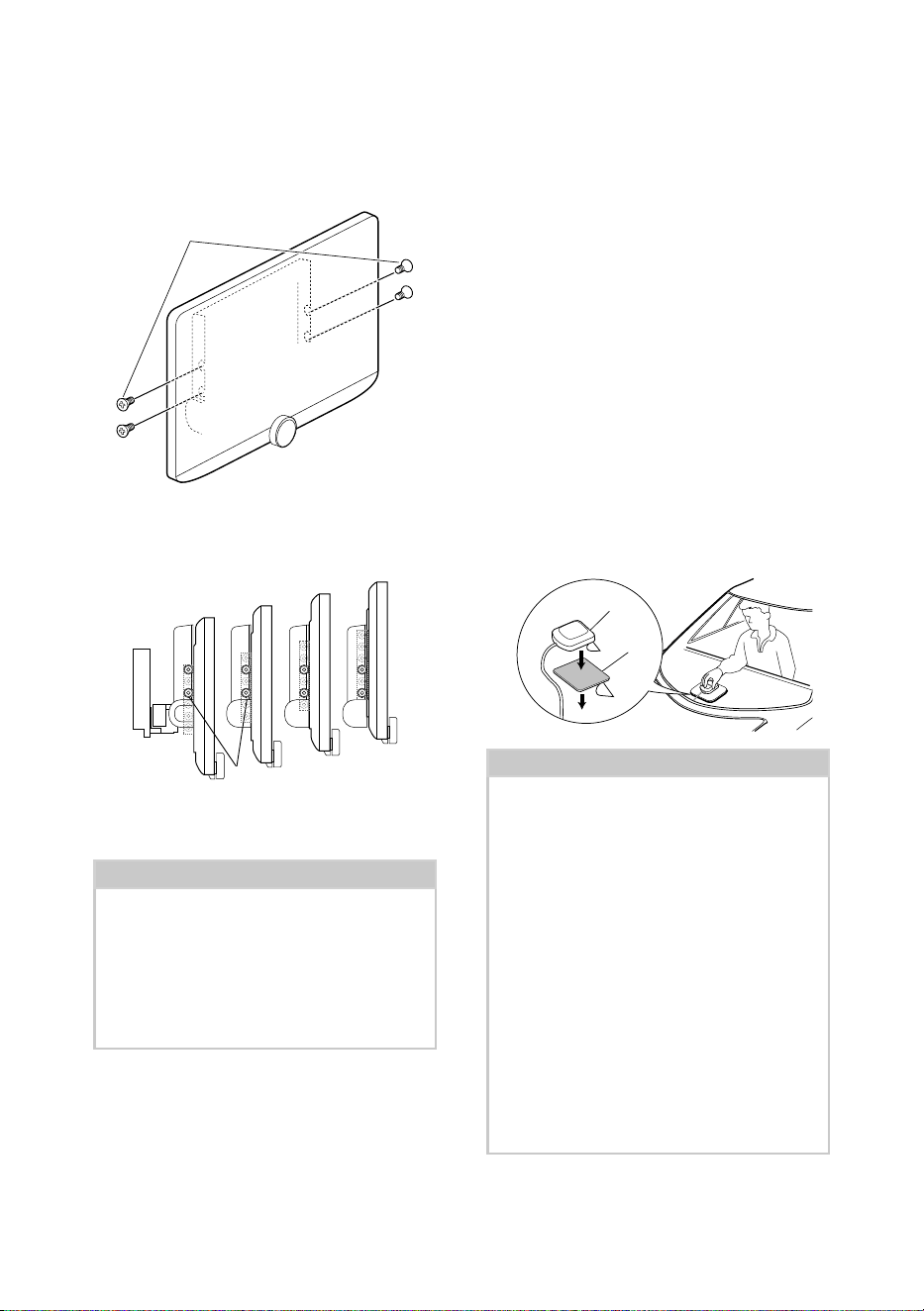
Connexion/Installation
66
Ñ Réglage de la hauteur
d'affichage
1
Retirez les quatre vis à tête plate de
chaque côté.
Vis à tête plate
2
Réglez la hauteur d'affichage en fonction
de la position du trou de vis.
La valeur par défaut est «1».
1
2
3
4
Position du trou de vis
3
Réinstallez les quatre vis à tête plate des
deux côtés et réglez l'affichage.
REMARQUE
• Fixez correctement avec les vis à tête plate. Après
l'installation de l'unité d'affichage (accessoire
8) sur l'appareil principale, inclinez l'affichage
vers l'avant jusqu'à ce qu'il s'arrête et vérifiez
que l'unité d'affichage (accessoire 8) ne touche
pas les pièces du véhicule. Si l'unité d'affichage
touche les pièces du véhicule, réglez à nouveau la
hauteur de l'affichage.
Ñ Antenne GPS
L'antenne GPS est installée à l'intérieur du
véhicule. Elle doit être installée dans une
position aussi horizontale que possible pour
permettre une réception aisée des signaux
satellite GPS.
Montage de l'antenne GPS à l'intérieur du
véhicule :
1) Nettoyez votre tableau de bord ou autre
surface de montage.
2) Retirez le séparateur de la plaque métallique
(accessoire 7).
3) Appuyez fermement la plaque métallique
(accessoire 7) contre votre tableau de
bord ou une autre surface de montage.
Vous pouvez courber la plaque de métal
(accessoire 7) pour l'adapter à une surface
incurvée, si nécessaire.
4) Retirez le séparateur de l'antenne GPS
(accessoire 6), et fixez l'antenne sur la plaque
métallique (accessoire 7).
7
6
REMARQUE
• Utilisez l'antenne GPS fournie. L'utilisation
d'une antenne GPS autre que celle fournie
peut entraîner une réduction de la précision de
positionnement.
• Selon le type de véhicule, il se peut que la
réception des signaux satellite GPS ne soit pas
possible avec une installation intérieure.
• Veuillez installer l'antenne GPS à distance des
antennes utilisées pour les radios CB ou les
télévisions par satellite.
• L'antenne GPS doit être installée à au moins
30 cm (12 pouces) du smartphone/téléphone
portable ou de toute autre antenne de
transmission. Ces types de communication
peuvent interférer avec les signaux du satellite
GPS.
• Le fait de peindre l'antenne GPS avec une
peinture (métallique) peut entraîner une baisse
de performance.
!B5K-0760-00_20DNX_K_FP_QSG.indb 66 2020/07/02 14:24
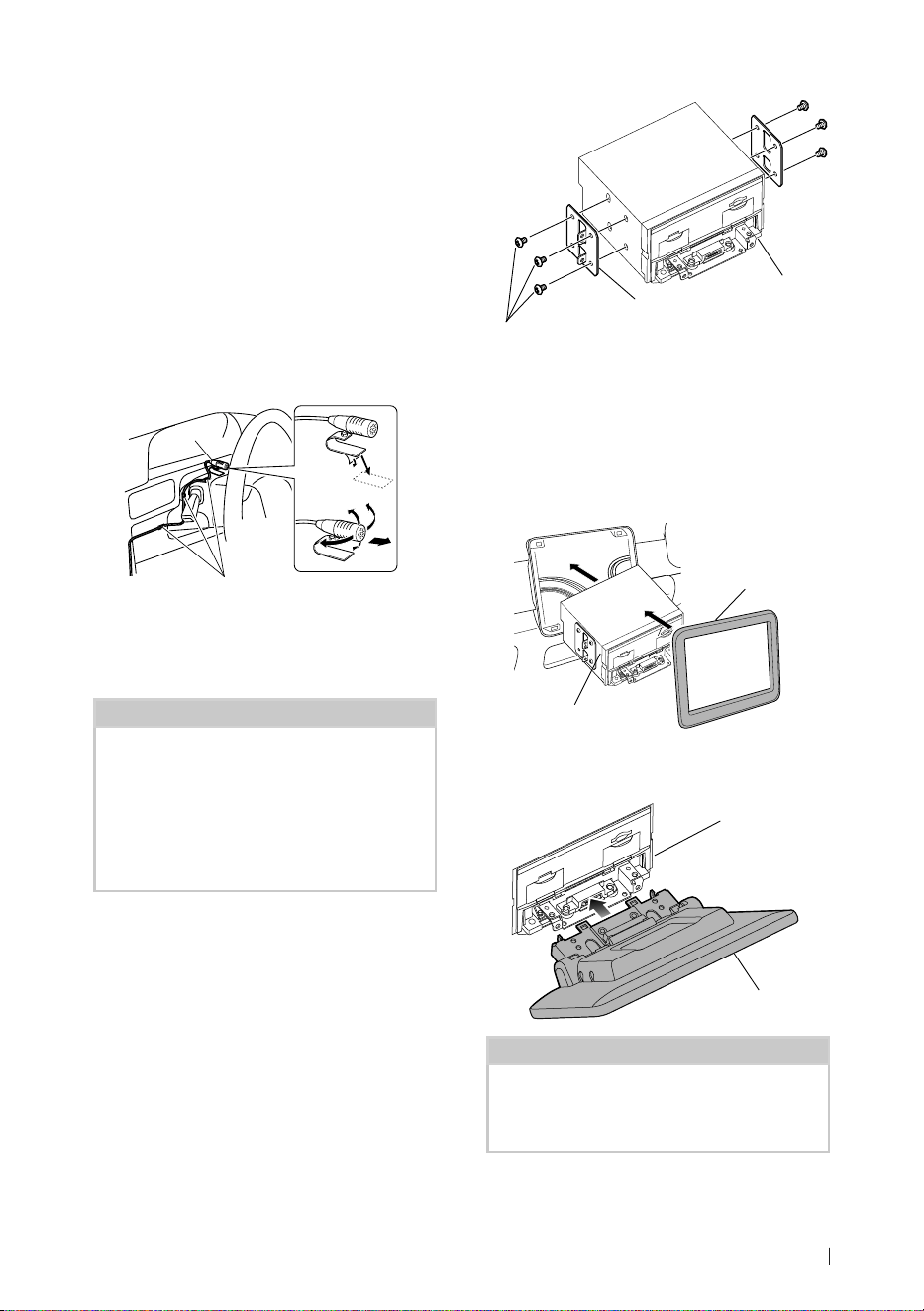
Connexion/Installation
67Français
Ñ Microphone
1) Vérifiez la position d'installation du
microphone (accessoire 3).
2) Nettoyez la surface d'installation.
3) Retirez le séparateur du microphone
(accessoire 3) et collez le microphone à
l'emplacement indiqué ci-dessous.
4) Branchez le câble du microphone sur
l'appareil en le fixant à divers endroits à l'aide
de ruban adhésif ou de toute autre méthode
appropriée.
5) Réglez l'orientation du microphone
(accessoire 3) en direction du conducteur.
3
Fixez un câble avec du ruban
spécialement prévu à cet effet.
Ñ Installation de l'appareil
principal
REMARQUE
• Déterminez la position du curseur avant
l'installation de l'appareil principal. (p.65) La
position du curseur ne peut pas être modifiée
après qu'il ait été installé sur le véhicule.
• Vérifiez que l'appareil est correctement en place.
Si l'appareil n'est pas stable, cela peut occasionner
un dysfonctionnement (le son peut par exemple
sauter).
1
Retirez les pièces qui gênent l'installation
telles qu'un panneau sur le véhicule.
2
Installez le support de voiture sur
l'appareil principal.
Support automobile
4 ou 5
Appareil principal
3
Branchez les fils du faisceau de câblage et
l'équipement périphérique.
4
Installez l'appareil principal sur le
véhicule.
5
Réinstallez les pièces retirées telles qu'un
panneau sur le véhicule.
Panneau sur
le véhicule
Appareil principal
6
Installez l'unité d'affichage (accessoire 8)
sur l'appareil principal.
Appareil principal
8
REMARQUE
• Si l'unité d'affichage touche un panneau sur le
véhicule, réglez la hauteur d'affichage en vous
référant à Réglage de la hauteur d'affichage
(p.66).
!B5K-0760-00_20DNX_K_FP_QSG.indb 67 2020/07/02 14:24
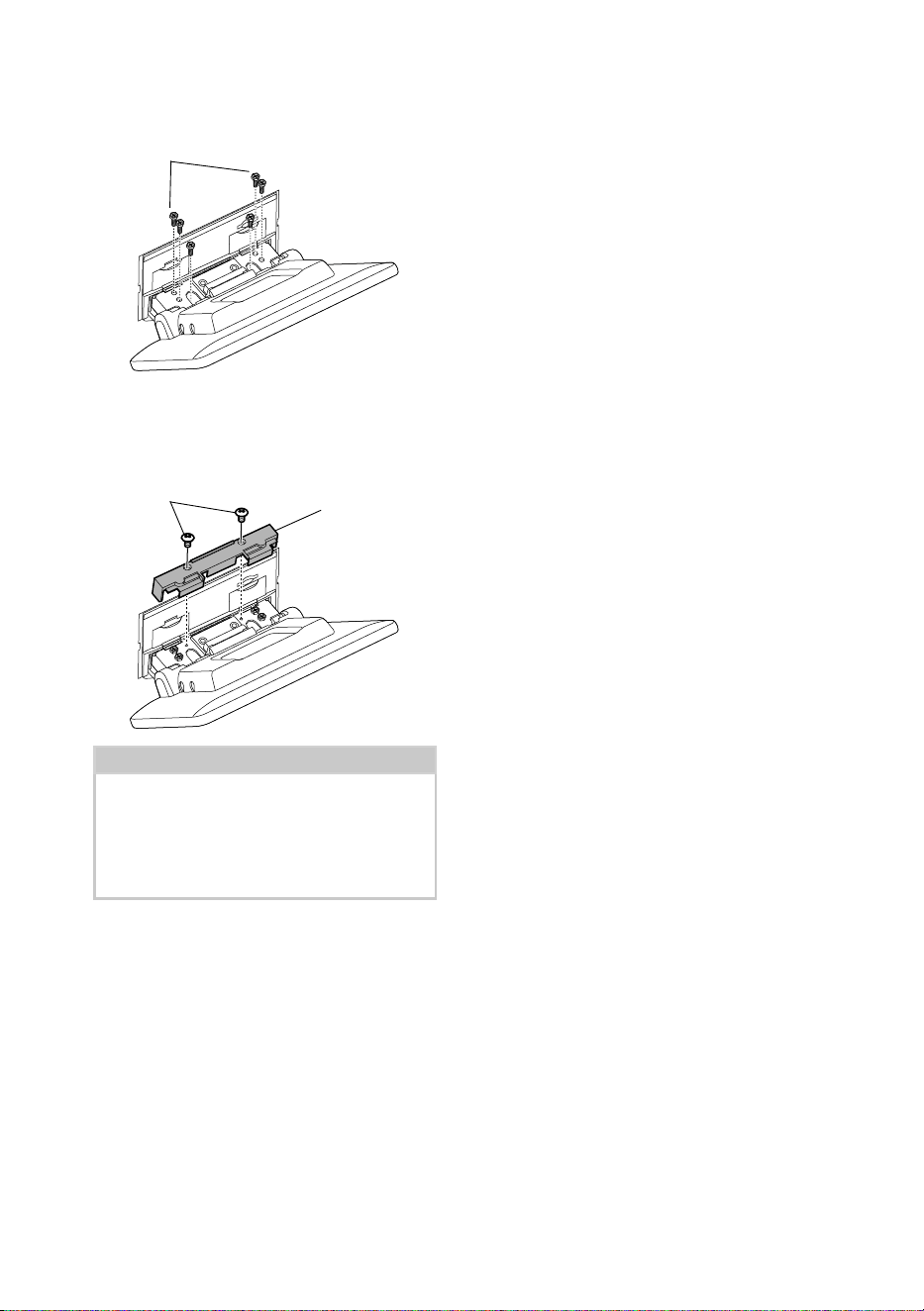
Connexion/Installation
68
7
Fixez l'unité d'affichage avec six vis à tête
hexagonale (accessoire -).
-
8
Fixez le couvercle de protection
(accessoire =) sur la pièce de couplage,
puis fixez-le à l'aide de deux vis à tête
cylindrique (accessoire ~).
~
=
REMARQUE
• Si le couvercle de protection (accessoire =) n'est
pas fixé, cet appareil ne s'allume pas. Même si
l'appareil est mis sous tension, l'alimentation peut
être coupée à mi-course.
Assurez-vous de fixer le couvercle de protection
(accessoire =).
9
Relevez l'écran manuellement.
!B5K-0760-00_20DNX_K_FP_QSG.indb 68 2020/07/02 14:24
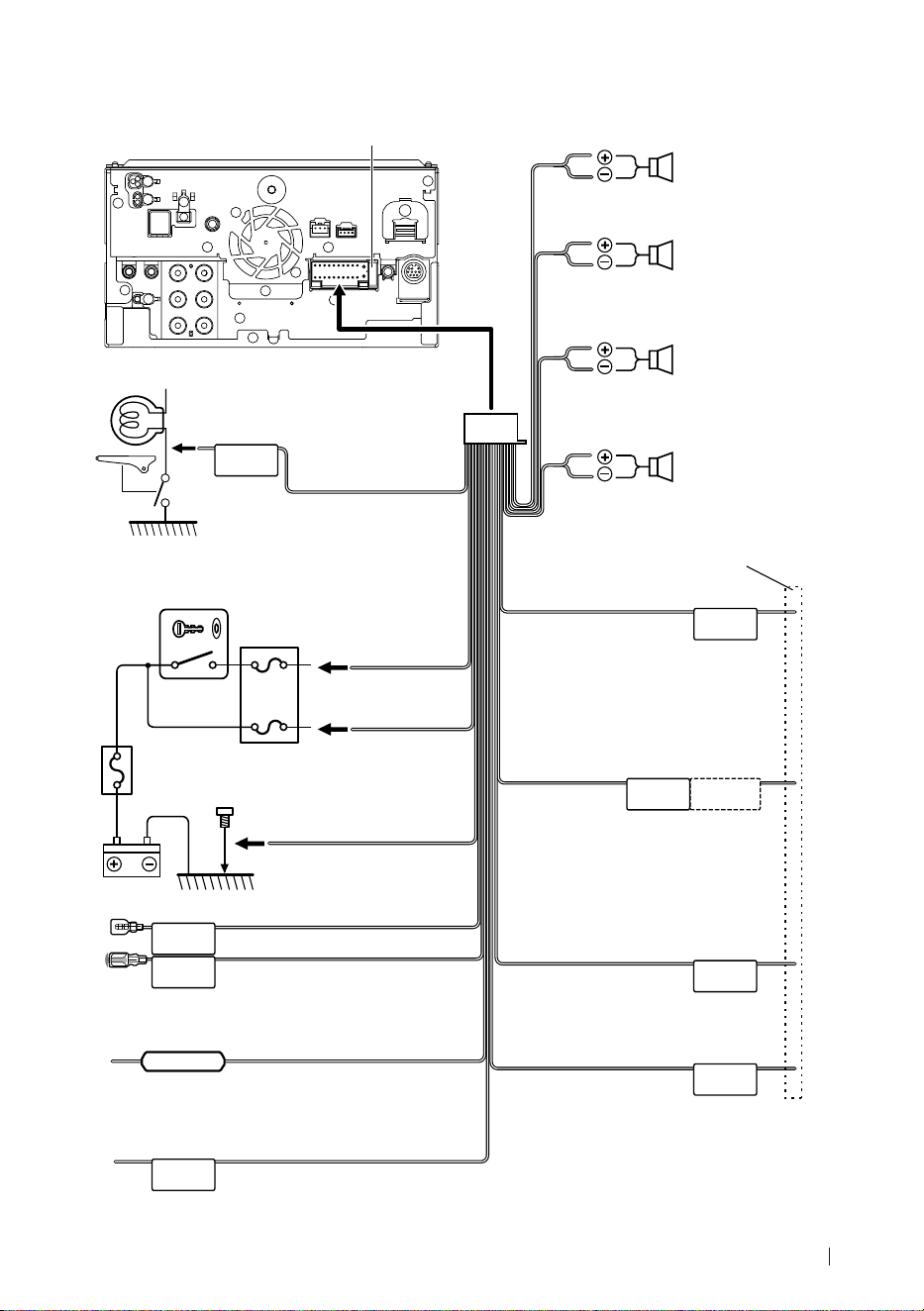
Connexion/Installation
69Français
Ñ Connexion des câbles sur les contacts électriques
ILLUMI
ANT CONT
STEERING WHEEL
REMOTE INPUT
REMOTE CONT
PRK SW
REVERSE
P. CONT
CAM+
CAM–
S SENS
Fusible (15 A)
Avec l'amplificateur de puissance en
option, relier ce fil à la borne de commande
d'alimentation (Max. 200 mA, 12 V)
Selon 'antenne que vous utilisez, vous devez
effectuer le branchement soit à la borne de
commande de l'antenne du moteur, soit à
la borne d'alimentation de l'amplificateur de
puissance de l'antenne de type film.
(Max. 300 mA, 12 V)
Bleu/blanc
(fil de commande d'alimentation)
Vert/Blanc
Vert/Rouge
Vers la borne de commande de la caméra de la série
CMOS-3xx (accessoire en option)
Bleu
(Fil de commande d'antenne)
Vers commutateur des feux
de la voiture
Orange/Blanc
(câble de commande du gradateur)
Connectez au faisceau d'impulsion de vitesse du véhicule.
Ne coupez pas l'étiquette « S SENS » car cela peut entraîner
une défaillance.
Bleu ciel/Jaune
(Câble de la télécommande au volant)
Connexion au faisceau du feu de marche arrière
du véhicule lors de l'utilisation de la vue arrière de
la caméra.
Vers la télécommande au volant
Pour utiliser la fonction de télécommande
au volant, vous avez besoin d'un
adaptateur de télécommande spécial (non
fourni) qui correspond à votre véhicule.
Si aucune connexion n'est faite, ne laissez
pas le câble sortir de la languette.
Violet/Noir
Vers haut-parleur arrière
droit
Vers haut-parleur arrière
gauche
Vers haut-parleur avant
droit
Vers haut-parleur avant
gauche
Impédance de haut-parleur
: 4-8 Ω
Violet
Vert/Noir
Vert
Gris/Noir
Gris
Blanc/Noir
Blanc
Accessoire 1
Connexion au commutateur de
détection du frein à main.
Vert clair
(câble du détecteur de
stationnement) (2 m)
Par mesure de sécurité,
connectez le détecteur de
stationnement.
Interrupteur de
commutateur à clef
Rouge
(Câble d'allumage)
Jaune
(Câble de la
batterie)
Boîte à fusibles de
la voiture
Batterie
Noir
(fil masse) ¤
(vers châssis de la voiture)
Rose (entrée d'impulsion de vitesse) (2 m)
Violet/Blanc (câble du capteur de marche arrière) (2 m)
!B5K-0760-00_20DNX_K_FP_QSG.indb 69 2020/07/02 14:24
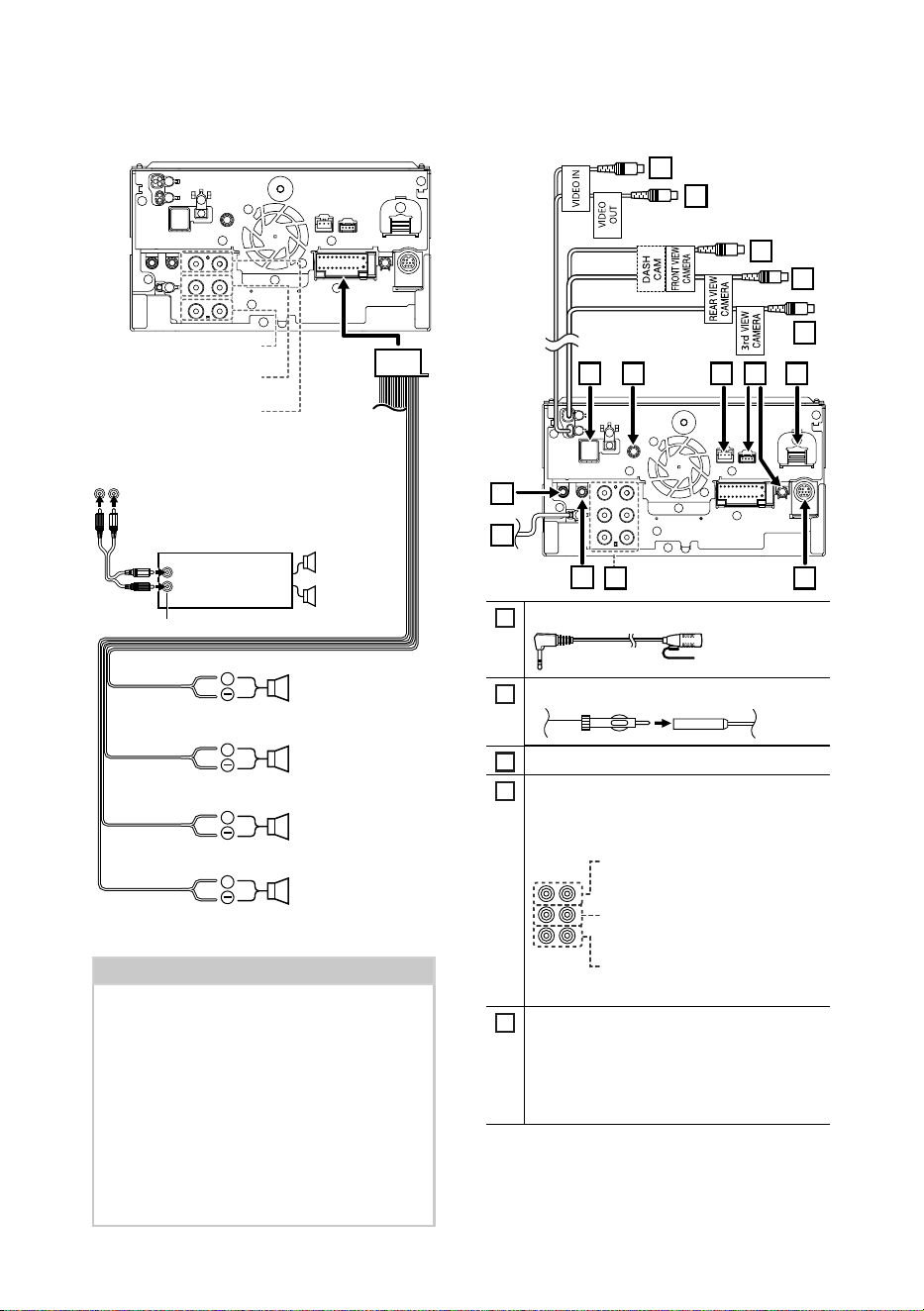
Connexion/Installation
70
+
+
+
+
Lors de la connexion à un amplificateur externe,
connectez son fil de terre au châssis de la voiture
afin d'éviter d'endommager l'unité.
Blanc/Noir
Gris/Noir
Vert/Noir
Violet/Noir
Impédance de haut-parleur : 4-8 Ω
Violet
Vert
Gris
Blanc
Vers l'enceinte gauche
des sons médiums
Préamplification du
caisson de basses
Vers l'enceinte droite
des sons médiums
Préamplification de
l'enceinte des médiums
Vers l'enceinte gauche
des aigus
Préamplification du haut-
parleur des aigus
Vers l'enceinte droite
des aigus
Amplificateur de
puissance (accessoire
en option)
Câble RCA
(Vendu séparément)
Entrée
Enceinte
Préamplification
REMARQUE
• Pour la configuration du système d'enceintes, voir
Configuration du système d'enceinte à 3 voies
(p.74) dans le mode d'emploi.
• Pour le réglage des enceintes et du répartiteur,
voir Configuration de l'enceinte/du répartiteur
(p.75) dans le mode d'emploi.
• Pour connecter les fils des enceintes aux bornes
autres que les bornes des enceintes ou les
bornes de préamplification, voir Connexion du
système et des composants externes (p.70)
et Connexion des câbles sur les contacts
électriques (p.69).
Ñ Configuration du système
d'enceinte à 3 voies
Ñ Connexion du système et des
composants externes
12
13
14
15
678910
2
1
4 5
11
3
1
Accessoire 3 : Microphone Bluetooth
2
Entrée de l'antenne FM/AM
3
Sortie audio et AV (mini jack ø3,5)
4
Lors de la connexion à un amplificateur externe,
connectez son fil de terre au châssis de la
voiture afin d'éviter d'endommager l'unité.
Préamplification audio arrière
(Gauche : blanc, Droite : rouge)
Préamplification audio avant
(Gauche : blanc, Droite : rouge)
Préamplification du caisson de
basses
(Gauche : blanc, Droite : rouge)
5
Connecteur du syntoniseur de véhicule
SiriusXMTuner
Pour plus d'informations sur la manière
d'installer le tuner pour véhicule SiriusXM,
consultez le Guide d'installation inclus avec
le tuner.
!B5K-0760-00_20DNX_K_FP_QSG.indb 70 2020/07/02 14:24
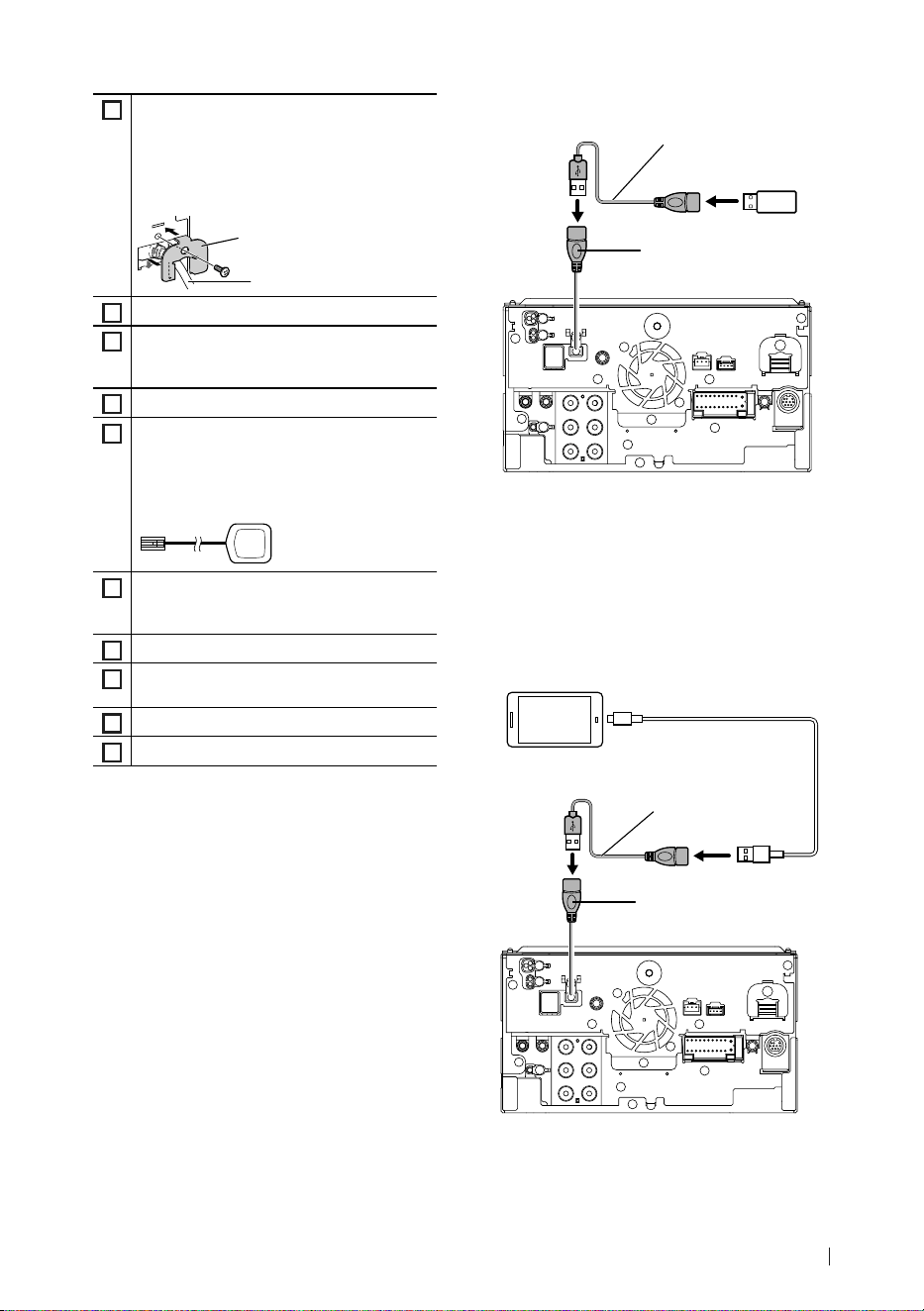
Connexion/Installation
71Français
6
Entrée HDMI
Utilisez le câble HDMI KCA-HD100 (accessoire
en option).
Lorsque vous connectez le câble à la borne
HDMI, retirez la fixation. Après avoir connecté le
câble, remettez la fixation en place.
Connecteur HDMI
Fixation
7
Connecteur iDatalink
8
Interface de la caméra du tableau de bord
Connectez une caméra de tableau de bord
DRV-N520 (accessoire en option). (p.72)
9
Entrée audio AV (mini jack ø3,5)
10
Accessoire 6 : Antenne GPS
Utilisez l'antenne GPS fournie. L'utilisation
d'une antenne GPS autre que celle fournie
peut entraîner une réduction de la précision de
positionnement.
11
Entrée de la 3ème caméra de vue (jaune). Voir
Pour configurer les réglages d'affectation de
la caméra (p.73).
12
Entrée de la caméra vue arrière (jaune) *
1
13
Entrée de la caméra de vue avant/caméra du
tableau de bord (jaune).*
2
(p.73)
14
Sortie vidéo (jaune)
15
Entrée vidéo (jaune)
*1 Connectez une caméra HD à la borne
d'entrée de la caméra de vue arrière pour
utiliser la vidéo HD.
*2 Connectez une caméra HD à la borne
d'entrée de la caméra de vue avant/tableau
de bord pour utiliser la vidéo HD.
Ñ Connecter un périphérique USB
Périphérique
USB
[2]
Borne USB
[1]
Accessoire 2 (1 m)
[3]
[1]
Tension d'alimentation maximum pour USB :
DC 5 V = 1,5 A
[2]
Vendue séparément
[3]
Voir Fixation d'un câble prolongateur USB
(p.72).
Ñ Connecter un smartphone
Android
Câble USB
[2]
Smartphone Android
[2]
Borne USB
[1]
Accessoire 2 (1 m)
[3]
[1]
Tension d'alimentation maximum pour USB :
DC 5 V = 1,5 A
[2]
Vendu séparément
[3]
Voir Fixation d'un câble prolongateur USB
(p.72).
!B5K-0760-00_20DNX_K_FP_QSG.indb 71 2020/07/02 14:24
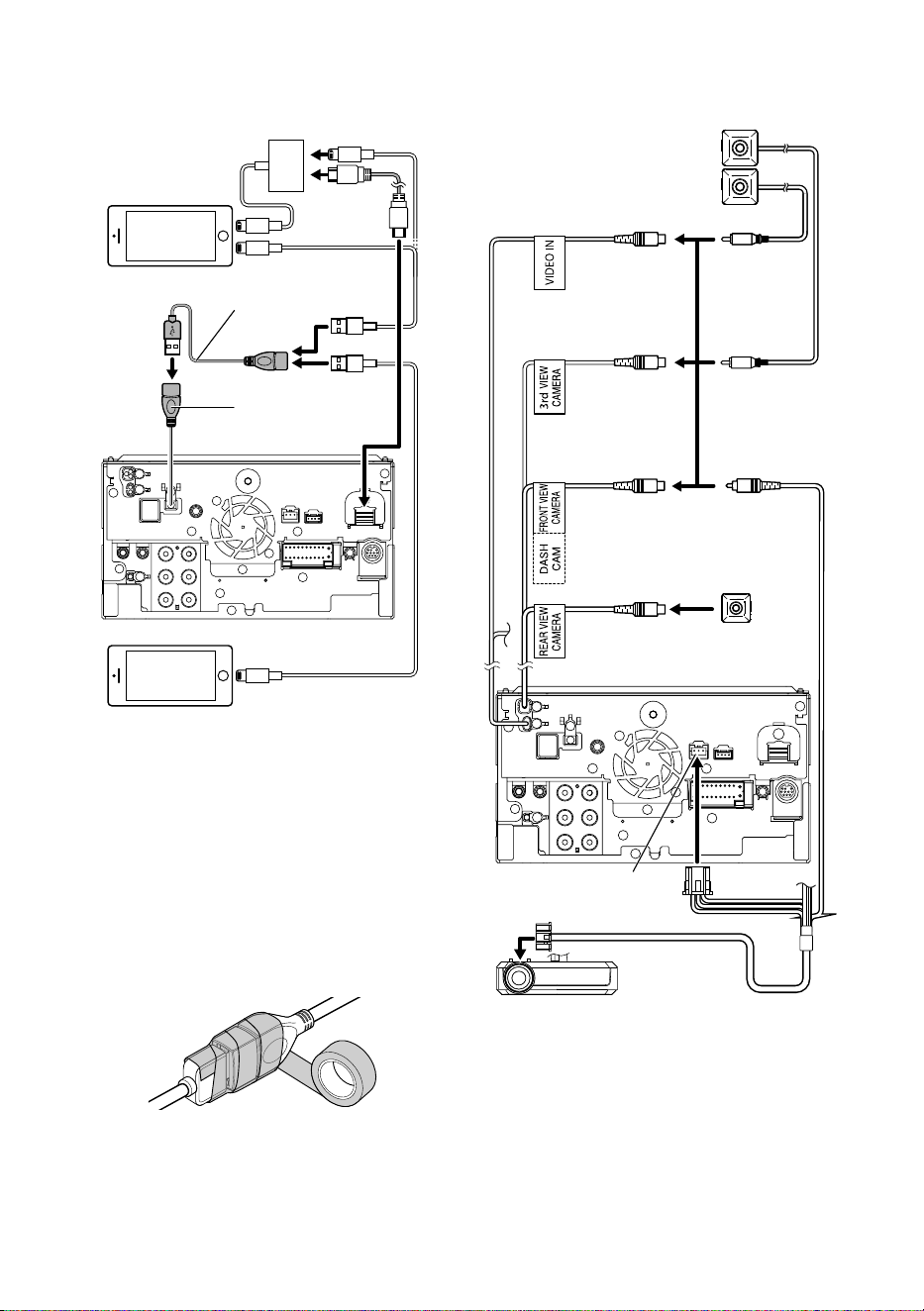
Connexion/Installation
72
Ñ Branchement d'un iPod/iPhone
KCA-iP103 (0,8 m)
[3]
KCA-HD100
(1,8 m)
[3]
KCA-iP103 (0,8 m)
[3]
KCA-iP103 (0,8 m)
[3]
Adaptateur AV
numérique d'éclairage
[2]
iPod/iPhone
[2]
iPhone (avec Apple CarPlay)
[2]
Borne USB
[1]
Accessoire 2 (1 m)
[4]
[1]
Tension d'alimentation maximum pour USB :
DC 5 V = 1,5 A
[2]
Vendu séparément
[3]
Accessoire proposé en option
[4]
Voir Fixation d'un câble prolongateur USB
(p.72).
Ñ Fixation d'un câble
prolongateur USB
Fixez le câble prolongateur USB avec une bande
isolante ou similaire afin que ses connecteurs ne
soient pas débranchés.
Ñ Connexion de la caméra
DRV-N520
[1]
Entrée de la 3ème
caméra de vue
(jaune)
Entrée de la caméra
vue avant/caméra du
tableau de bord (jaune)
[3]
Caméra de vue latérale gauche et
caméra de vue latérale droite
[2]
Caméra de vue avant
[4] [6]
Entrée vidéo
(jaune)
Entrée de la
caméra vue arrière
(jaune)
Interface de la caméra du
tableau de bord
Caméra de vue arrière
[4] [5]
[1]
Accessoire proposé en option
[2]
Vendu séparément
[3]
Jusqu'à 3 caméras sur le tableau de bord,
caméra de vue avant, caméra de vue latérale
gauche et caméra de vue latérale droite
peuvent être connectées. (p.73)
[4]
Série CMOS-3xx (accessoire en option) ou en
vente dans le commerce.
[5]
Pour la vidéo HD, une caméra HD est
également utilisée comme caméra de vue
arrière.
!B5K-0760-00_20DNX_K_FP_QSG.indb 72 2020/07/02 14:24
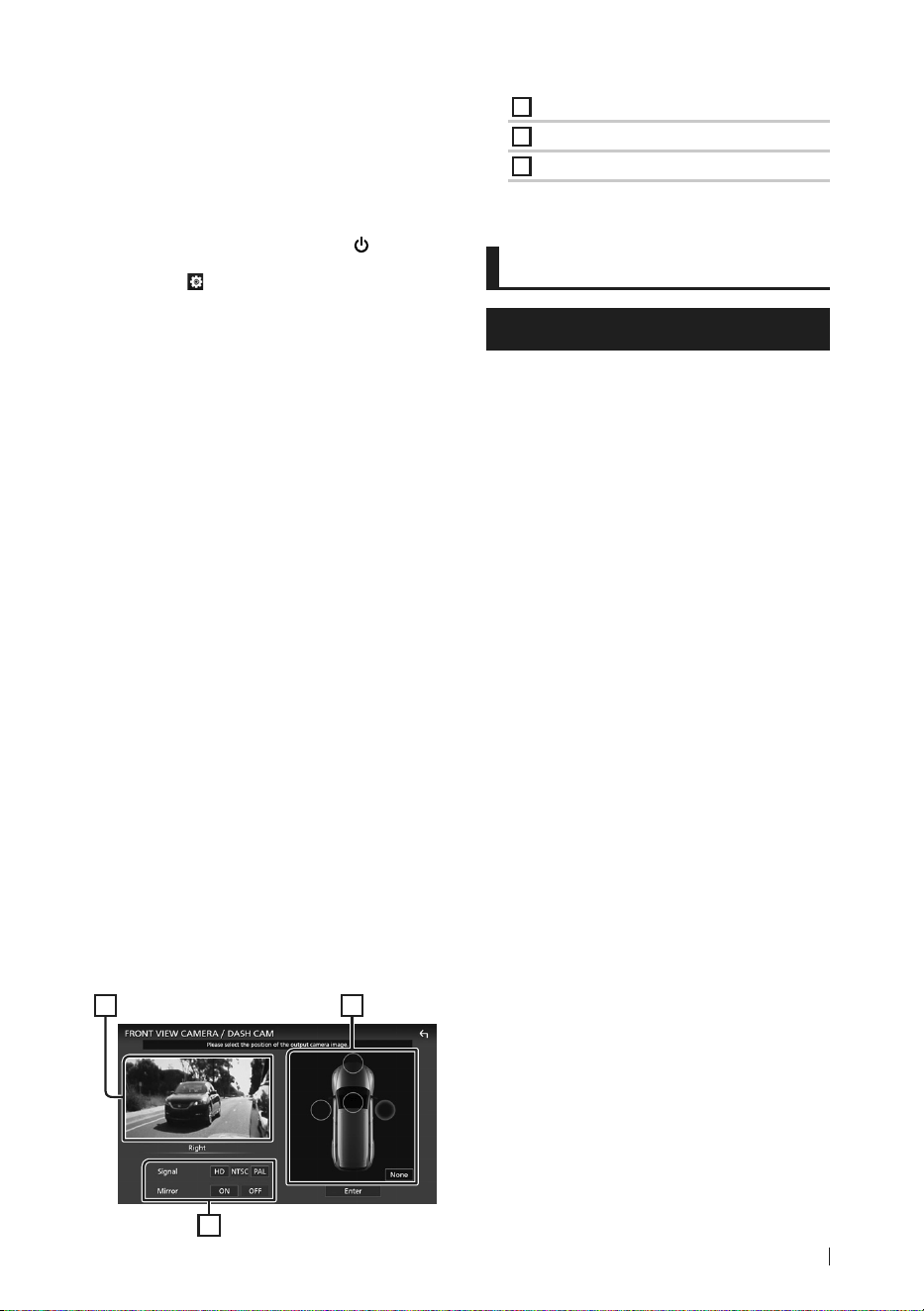
Annexes
73Français
[6]
Pour les vidéos HD, une caméra HD est
également utilisée comme caméra de vue
avant.
Ñ Pour configurer les réglages
d'affectation de la caméra
1
Appuyez sur la touche [HOME]/[ ].
2
Touchez [ ].
3
Touchez [SETUP].
hh L'écran de menu de configuration
s'affiche.
4
Touchez [Camera].
hh Le menu des paramètres de la caméra
s'affiche.
5
Touchez [Camera Assignment Settings].
6
Sélectionnez l'élément à configurer.
■ [REAR VIEW CAMERA]
Réglez l'affectation de la caméra depuis
la caméra de vue connectée à la borne
d'entrée de la caméra de recul.
■ [FRONT VIEW CAMERA / DASH CAM]
Réglez l'affectation de la caméra à partir
d'une caméra de vue connectée à la borne
d'entrée de la caméra de vue avant/caméra
de tableau de bord.
■ [3rd VIEW CAMERA]
Réglez l'affectation de la caméra depuis
la caméra de vue connectée à la borne
d'entrée de la 3ème caméra de vue.
■ [VIDEO IN]
Réglez l'affectation de la caméra depuis
la caméra de vue connectée à la borne
d'entrée Vidéo.
7
Sélectionnez la caméra de vue à
configurer.
3
1 2
1
Image de la caméra de vue
2
Position de la caméra
3
Paramètres de qualité d'image
8
Touchez [Enter].
Annexes
Note pour les spécifications
■ Section Bluetooth
Fréquence
: 2,402 – 2,480 GHz
Puissance de sortie RF (E.I.R.P.)
: +4 dBm (MAX), classe de puissance 2
■ Général
Tension de fonctionnement
: batterie de voiture 12 V CC
Impédance de haut-parleur
: 4 – 8 Ω
!B5K-0760-00_20DNX_K_FP_QSG.indb 73 2020/07/02 14:24
Annexes
74
■ Copyrights
• La marque du mot et les logos Bluetooth® sont
des marques déposées de Bluetooth SIG, Inc. et
toute utilisation de ces marques par JVCKENWOOD
Corporation est faite sous licence. Les autres
marques déposées et appellations commerciales
appartiennent à leurs propriétaires respectifs.
• DSD, LDAC and LDAC logo are trademarks of Sony
Corporation.
• Hi-Res Audio logo and Hi-Res Audio Wireless logo are
used under license from Japan Audio Society.
• Windows Media is a registered trademark or
trademark of Microsoft Corporation in the United
States and/or other countries.
This product is protected by certain intellectual
property rights of Microsoft. Use or distribution of
such technology outside of this product is prohibited
without a license from Microsoft.
• This software is based in part on the work of the
independent JPEG Group.
• Use of the Made for Apple badge means that an
accessory has been designed to connect specifically
to the Apple product(s) identified in the badge, and
has been certified by the developer to meet Apple
performance standards. Apple is not responsible for
the operation of this device or its compliance with
safety and regulatory standards. Please note that the
use of this accessory with an Apple product may
affect wireless performance.
• Apple, iPhone, iPod, iPod touch, and Lightning are
trademarks of Apple Inc., registered in the U.S. and
other countries.
• Apple, Siri, Apple CarPlay, Apple Music and Apple
CarPlay logo are trademarks of Apple Inc., registered
in the U.S. and other countries.
• App Store is a service mark of Apple Inc., registered in
the U.S. and other countries.
• IOS is a trademark or registered trademark of Cisco
in the U.S. and other countries and is used under
license.
• Sirius, XM and all related marks and logos are
trademarks of Sirius XM Radio Inc. All rights reserved.
• HD Radio Technology manufactured under license
from iBiquity Digital Corporation. U.S. and Foreign
Patents. For patents see https://dts.com/patents.
HD Radio and the HD, HD Radio, and "ARC" logos
are registered trademarks or trademarks of iBiquity
Digital Corporation in the United States and/or other
countries.
• INRIX is a registered trademark of INRIX, Inc.
• Google, Android, Google Play and Android Auto are
trademarks of Google LLC.
To use Android Auto on your car display, you’ll need
an Android Auto compatible vehicle or aftermarket
stereo, an Android phone running Android 5.0 or
higher, and the Android Auto app.
• SDXC Logo is a trademark of SD-3C LLC.
• Wi-Fi® is a registered trademark of Wi-Fi Alliance®.
• The Wi-Fi CERTIFIED™ Logo is a certification mark of
Wi-Fi Alliance®.
• Copyright© 2018 Techpoint, Inc. All rights reserved.
• The terms HDMI and HDMI High-Definition
Multimedia Interface, and the HDMI Logo are
trademarks or registered trademarks of HDMI
Licensing Administrator, Inc. in the United States and
other countries.
• This product includes FontAvenue® fonts licenced
by NEC Corporation.FontAvenue is a registered
trademark of NEC Corporation.
• This product includes "Ubiquitous QuickBoot
TM" technology developed by Ubiquitous Corp.
Ubiquitous QuickBoot TM is a trademark of
Ubiquitous Corp. Copyright© 2017 Ubiquitous Corp.
All rights reserved.
• Garmin® is a trademark of Garmin Ltd. or its
subsidiaries, registered in the USA and other
countries. ecoRoute™ is a trademark of Garmin Ltd.
or its subsidiaries. These trademarks may not be used
without the express permission of Garmin.
• THIS PRODUCT IS LICENSED UNDER THE AVC
PATENT PORTFOLIO LICENSE FOR THE PERSONAL
USE OF A CONSUMER OR OTHER USES IN WHICH IT
DOES NOT RECEIVE REMUNERATION TO (¡)ENCODE
VIDEO IN COMPLIANCE WITH THE AVC STANDARD
(“AVC VIDEO”) AND/OR (¡¡)DECODE AVC VIDEO
THAT WAS ENCODED BY A CONSUMER ENGAGED
IN A PERSONAL ACTIVITY AND/OR WAS OBTAINED
FROM A VIDEO PROVIDER LICENSED TO PROVIDE
AVC VIDEO. NO LICENSE IS GRANTED OR SHALL
BE IMPLIED FOR ANY OTHER USE. ADDITIONAL
INFORMATION MAY BE OBTAINED FROM MPEG LA,
L.L.C. SEE HTTPS://WWW.MPEGLA.COM
• THIS PRODUCT IS LICENSED UNDER THE MPEG-
4 VISUAL PATENT PORTFOLIO LICENSE FOR
THE PERSONAL AND NON-COMMERCIAL USE
OF A CONSUMER FOR (¡) ENCODING VIDEO IN
COMPLIANCE WITH THE MPEG-4 VISUAL STANDARD
(“MPEG-4 VIDEO”) AND/OR (¡¡) DECODING MPEG-
4 VIDEO THAT WAS ENCODED BY A CONSUMER
ENGAGED IN A PERSONAL AND NON-COMMERCIAL
ACTIVITY AND/OR WAS OBTAINED FROM A VIDEO
PROVIDER LICENSED BY MPEG LA TO PROVIDE
MPEG-4 VIDEO. NO LICENSE IS GRANTED OR SHALL
BE IMPLIED FOR ANY OTHER USE. ADDITIONAL
INFORMATION INCLUDING THAT RELATING TO
PROMOTIONAL, INTERNAL AND COMMERCIAL USES
AND LICENSING MAY BE OBTAINED FROM MPEG LA,
LLC. SEE HTTPS://WWW.MPEGLA.COM.
• THIS PRODUCT IS LICENSED UNDER THE VC-1 PATENT
PORTFOLIO LICENSE FOR THE PERSONAL AND NON-
!B5K-0760-00_20DNX_K_FP_QSG.indb 74 2020/07/02 14:24

Annexes
75Français
COMMERCIAL USE OF A CONSUMER TO ( i ) ENCODE
VIDEO IN COMPLIANCE WITH THE VC-1 STANDARD
(“VC-1 VIDEO”) AND/OR ( ii ) DECODE VC-1 VIDEO
THAT WAS ENCODED BY A CONSUMER ENGAGED
IN A PERSONAL AND NON-COMMERCIAL ACTIVITY
AND/OR WAS OBTAINED FROM A VIDEO PROVIDER
LICENSED TO PROVIDE VC-1 VIDEO. NO LICENSE IS
GRANTED OR SHALL BE IMPLIED FOR ANY OTHER
USE. ADDITIONAL INFORMATION MAY BE OBTAINED
FROM MPEG LA, L.L.C. SEE HTTPS://WWW.MPEGLA.
COM
• libFLAC
Copyright (C) 2000-2009 Josh Coalson
Copyright (C) 2011-2013 Xiph.Org Foundation
Redistribution and use in source and binary forms,
with or without modification, are permitted provided
that the following conditions are met:
– Redistributions of source code must retain the
above copyright notice, this list of conditions and
the following disclaimer.
– Redistributions in binary form must reproduce the
above copyright notice, this list of conditions and
the following disclaimer in the documentation
and/or other materials provided with the
distribution.
– Neither the name of the Xiph.org Foundation
nor the names of its contributors may be used to
endorse or promote products derived from this
software without specific prior written permission.
THIS SOFTWARE IS PROVIDED BY THE COPYRIGHT
HOLDERS AND CONTRIBUTORS ``AS IS'' AND ANY
EXPRESS OR IMPLIED WARRANTIES, INCLUDING,
BUT NOT LIMITED TO, THE IMPLIED WARRANTIES OF
MERCHANTABILITY AND FITNESS FOR A PARTICULAR
PURPOSE ARE DISCLAIMED. IN NO EVENT SHALL THE
FOUNDATION OR CONTRIBUTORS BE LIABLE FOR ANY
DIRECT, INDIRECT, INCIDENTAL, SPECIAL, EXEMPLARY,
OR CONSEQUENTIAL DAMAGES (INCLUDING, BUT
NOT LIMITED TO, PROCUREMENT OF SUBSTITUTE
GOODS OR SERVICES; LOSS OF USE, DATA, OR
PROFITS; OR BUSINESS INTERRUPTION) HOWEVER
CAUSED AND ON ANY THEORY OF LIABILITY,
WHETHER IN CONTRACT, STRICT LIABILITY, OR TORT
(INCLUDING NEGLIGENCE OR OTHERWISE) ARISING
IN ANY WAY OUT OF THE USE OF THIS SOFTWARE,
EVEN IF ADVISED OF THE POSSIBILITY OF SUCH
DAMAGE.
• libvorbis
Copyright (c) 2002-2008 Xiph.org Foundation
Redistribution and use in source and binary forms,
with or without modification, are permitted provided
that the following conditions are met:
– Redistributions of source code must retain the
above copyright notice, this list of conditions and
the following disclaimer.
– Redistributions in binary form must reproduce the
above copyright notice, this list of conditions and
the following disclaimer in the documentation
and/or other materials provided with the
distribution.
– Neither the name of the Xiph.org Foundation
nor the names of its contributors may be used to
endorse or promote products derived from this
software without specific prior written permission.
THIS SOFTWARE IS PROVIDED BY THE COPYRIGHT
HOLDERS AND CONTRIBUTORS ``AS IS’’ AND ANY
EXPRESS OR IMPLIED WARRANTIES, INCLUDING,
BUT NOT LIMITED TO, THE IMPLIED WARRANTIES OF
MERCHANTABILITY AND FITNESS FOR A PARTICULAR
PURPOSE ARE DISCLAIMED. IN NO EVENT SHALL THE
FOUNDATION OR CONTRIBUTORS BE LIABLE FOR ANY
DIRECT, INDIRECT, INCIDENTAL, SPECIAL, EXEMPLARY,
OR CONSEQUENTIAL DAMAGES (INCLUDING, BUT
NOT LIMITED TO, PROCUREMENT OF SUBSTITUTE
GOODS OR SERVICES; LOSS OF USE, DATA, OR
PROFITS; OR BUSINESS INTERRUPTION) HOWEVER
CAUSED AND ON ANY THEORY OF LIABILITY,
WHETHER IN CONTRACT, STRICT LIABILITY, OR TORT
(INCLUDING NEGLIGENCE OR OTHERWISE) ARISING
IN ANY WAY OUT OF THE USE OF THIS SOFTWARE,
EVEN IF ADVISED OF THE POSSIBILITY OF SUCH
DAMAGE.
• libogg
Copyright (c) 2002, Xiph.org Foundation
Redistribution and use in source and binary forms,
with or without modification, are permitted provided
that the following conditions are met:
– Redistributions of source code must retain the
above copyright notice, this list of conditions and
the following disclaimer.
– Redistributions in binary form must reproduce the
above copyright notice, this list of conditions and
the following disclaimer in the documentation
and/or other materials provided with the
distribution.
– Neither the name of the Xiph.org Foundation
nor the names of its contributors may be used to
endorse or promote products derived from this
software without specific prior written permission.
THIS SOFTWARE IS PROVIDED BY THE COPYRIGHT
HOLDERS AND CONTRIBUTORS ``AS IS’’ AND ANY
EXPRESS OR IMPLIED WARRANTIES, INCLUDING,
BUT NOT LIMITED TO, THE IMPLIED WARRANTIES OF
MERCHANTABILITY AND FITNESS FOR A PARTICULAR
PURPOSE ARE DISCLAIMED. IN NO EVENT SHALL THE
FOUNDATION OR CONTRIBUTORS BE LIABLE FOR ANY
DIRECT, INDIRECT, INCIDENTAL, SPECIAL, EXEMPLARY,
OR CONSEQUENTIAL DAMAGES (INCLUDING, BUT
NOT LIMITED TO, PROCUREMENT OF SUBSTITUTE
GOODS OR SERVICES; LOSS OF USE, DATA, OR
PROFITS; OR BUSINESS INTERRUPTION) HOWEVER
CAUSED AND ON ANY THEORY OF LIABILITY,
WHETHER IN CONTRACT, STRICT LIABILITY, OR TORT
(INCLUDING NEGLIGENCE OR OTHERWISE) ARISING
IN ANY WAY OUT OF THE USE OF THIS SOFTWARE,
EVEN IF ADVISED OF THE POSSIBILITY OF SUCH
DAMAGE.
!B5K-0760-00_20DNX_K_FP_QSG.indb 75 2020/07/02 14:24
Antes de la utilización
76
Antes de la
utilización
Acerca de la Guía de inicio
rápido
• Esta Guía de inicio rápido describe las funciones
básicas de esta unidad. En el caso de funciones
no descritas en la Guía, consulte el Manual de
instrucciones en el siguiente sitio web:
https://manual.kenwood.com/edition/im403/
• El Manual de instrucciones está sujeto a cambios
por modificaciones de las especificaciones, etc.
Asegúrese de descargar la última edición del Manual
de instrucciones a título de referencia.
Cómo leer este manual
• Las pantallas y paneles que se incluyen en este
manual son ejemplos utilizados para ofrecer
explicaciones claras de las distintas operaciones.
Por este motivo, pueden diferir de las pantallas o
paneles reales, y algunos patrones de visualización
también pueden ser diferentes de los reales.
• Idioma de la pantalla: En este manual, se utiliza
inglés para las explicaciones. Puede seleccionar
el idioma de la pantalla desde el menú [SETUP].
Consulte Configuración del sistema (P.72) en el
Manual de instrucciones.
Precauciones
# ADVERTENCIAS
Ñ Para evitar lesiones o incendios,
tome las precauciones
siguientes:
• Para evitar un cortocircuito, nunca coloque
ni deje objetos metálicos (como monedas o
herramientas metálicas) dentro de la unidad.
• No mire fijamente la pantalla de la unidad
mientras está conduciendo durante un
periodo prolongado de tiempo.
• Si tiene problemas durante la instalación,
consulte con su distribuidor KENWOOD.
Antes de la utilización ........................76
Acerca de la Guía de inicio rápido ....................76
Cómo leer este manual .........................................76
Precauciones ............................................................76
Precauciones de seguridad
e información importante ..............................77
Funciones básicas ............................... 79
Funciones de los botones del panel frontal .. 79
Poner en marcha la unidad .................................80
Ajustes iniciales .......................................................81
Operaciones de la pantalla táctil ......................82
Descripciones de la pantalla INICIO ................. 83
Menú emergente ....................................................84
Descripción de la pantalla de selección de
fuente .....................................................................84
Descripciones de la pantalla de control de
fuente .....................................................................86
Pantalla de lista ........................................................86
Operación de navegación ...................................87
USB/SD/iPod........................................89
Conexión de un dispositivo USB .......................89
Inserción de la tarjeta SD .....................................89
Conecte el iPod/iPhone ........................................ 90
Funcionamiento básico de USB/SD/iPod .......90
Sintonizador de HD Radio™ ...............91
Funcionamiento básico del sintonizador
HD Radio ............................................................... 91
Manejo de la memoria .......................................... 92
Control de Bluetooth ..........................93
Registre el dispositivo Bluetooth ......................93
Usar la unidad de manos libres .........................93
Control del audio ................................ 96
Conexión/Instalación .........................97
Antes de la instalación ..........................................97
Instalación de la unidad .................................... 100
Apéndice ...........................................109
Nota para las especificaciones ........................ 109
Contenido
!B5K-0760-00_20DNX_K_FP_QSG.indb 76 2020/07/02 14:24
Antes de la utilización
77Español
Ñ Precauciones para el uso de
esta unidad
• Cuando compre accesorios opcionales,
pregunte a su distribuidor KENWOOD si dichos
accesorios son compatibles con su modelo y
en su región.
• Puede seleccionar el idioma de visualización
de los menús, las etiquetas de archivos
de audio, etc. Consulte Configuración
del sistema (P.72) en el Manual de
instrucciones.
• La función Radio Broadcast Data System
no funcionará en lugares donde no existan
emisoras compatibles con este servicio.
Ñ Cómo proteger el monitor
• Para proteger el monitor de posibles daños, no
lo utilice con un bolígrafo con punta de bola
ni con ninguna herramienta similar de punta
afilada.
Ñ Limpieza de la unidad
• Si la placa frontal de la unidad está manchada,
límpiela con un paño suave y seco, como un
paño de silicio. Si la placa frontal está muy
manchada, límpiela con un paño humedecido
con detergente neutro y, después, vuelva a
limpiarla con un paño suave y seco.
NOTA
• Si aplica un limpiador en spray directamente
sobre la unidad, podría dañar sus componentes
mecánicos. Si limpia la placa frontal con un paño
áspero o con líquido volátil, como disolvente
o alcohol, puede rayar la superficie o borrar los
caracteres impresos.
Ñ Obtención de la señal GPS
La primera vez que encienda esta unidad, debe
esperar a que el satélite reciba las señales de
satélite por primera vez. Este proceso podría
durar varios minutos. Asegúrese de que su
vehículo está en el exterior en una zona abierta
apartado de edificios o árboles altos para una
mejor recepción.
Después de que el sistema reciba las señales
de satélite por primera vez, las sucesivas veces
recibirá las señales más rápidamente.
Ñ Sobre GLONASS
Esta unidad utiliza el Sistema de navegación
global por satélite (Global Navigation Satellite
System, GLONASS) además de GPS.
La combinación del GPS y el GLONASS puede
aumentar la precisión de posicionamiento en
comparación con solamente el GPS.
Ñ Precauciones para usuarios de
teléfonos inteligentes
Ejecutar simultáneamente múltiples aplicaciones
en su teléfono inteligente mientras comparte
pantalla implica una gran demanda en el
microprocesador del teléfono, afectando
potencialmente a la comunicación y al
rendimiento.
Para obtener los mejores resultados mientras
empareja su receptor KENWOOD, por favor,
asegúrese de cerrar cualquier aplicación no
utilizada.
Precauciones de seguridad e
información importante
Lea esta información cuidadosamente
antes de empezar a manejar el sistema de
navegación KENWOOD y siga las instrucciones
de este manual. Ni KENWOOD ni Garmin serán
responsables de problemas o accidentes
producidos por la inobservancia de las
instrucciones de este manual.
# ADVERTENCIA
Si no evita las situaciones potencialmente
peligrosas siguientes, podría producirse un
accidente o colisión que le ocasione heridas
graves o la muerte.
Cuando navegue, compare cuidadosamente
la información mostrada en el sistema con
todas las fuentes de navegación disponibles,
incluyendo información de señales de tráfico,
mapas o la información visual. Por seguridad,
resuelva siempre cualquier pregunta o
discrepancia antes de continuar con la
navegación.
Maneje el vehículo siempre de forma segura.
No se distraiga por el sistema de navegación
mientras conduce, y sea en todo momento
plenamente consciente de las condiciones de la
marcha. Minimice el tiempo empleado en mirar
la pantalla del sistema de navegación mientras
!B5K-0760-00_20DNX_K_FP_QSG.indb 77 2020/07/02 14:24

Antes de la utilización
78
conduce y utilice los comandos de voz siempre
que sea posible.
Mientras conduce, no introduzca destinos,
cambie la configuración ni acceda a funciones
que requieren un uso prolongado del sistema
de navegación. Detenga su vehículo de forma
segura y autorizada antes de realizar este tipo de
operaciones.
Mantenga el volumen del sistema en un nivel
suficientemente bajo como para escuchar
los ruidos del exterior mientras conduce. Si
no puede escuchar el exterior, puede no ser
capaz de reaccionar adecuadamente a las
circunstancias del tráfico. Ello podría causar
accidentes.
El sistema de navegación no mostrará la
posición actual correcta del vehículo la primera
que lo utilice después de su adquisición, o si
la batería del vehículo está desconectada. No
obstante, las señales de satélite GPS se recibirán
en breve y se mostrará la posición correcta.
Tenga cuidado con la temperatura ambiente.
El uso del sistema de navegación a
temperaturas extremas podría producir un mal
funcionamiento o daños en el mismo. Tenga
también en cuenta que la unidad puede ser
dañada por vibraciones fuertes, objetos de metal
o la penetración de agua en su interior.
# PRECAUCIÓN
Si no evita las situaciones potencialmente
peligrosas pueden producirse daños
personales o materiales.
El sistema de navegación está diseñado para
ofrecerle sugerencias de ruta. No refleja cierres
de carreteras, las condiciones de la calzada o las
climatológicas, ni ningún otro factor que pueda
afectar a la seguridad o a la gestión del tiempo
durante la conducción.
Utilice el sistema de navegación sólo a modo de
ayuda. No intente usar el sistema de navegación
para cualquier propósito que requiera medidas
de la dirección, la distancia, la localización o
topográficas.
El sistema GPS (Global Positioning System)
lo hace funcionar el gobierno de los EEUU,
que es el único responsable de su precisión y
mantenimiento. Este sistema gubernamental
está sometido a cambios que podrían afectar
la precisión y el rendimiento de todo el
equipamiento GPS, incluyendo el sistema de
navegación. Aunque el sistema de navegación
es un dispositivo preciso de navegación,
cualquier dispositivo de navegación podría ser
mal utilizado o mal interpretado, con lo cual no
sería seguro.
Ñ INFORMACIÓN IMPORTANTE
Conservación de la batería del vehículo
Este sistema de navegación puede utilizarse
cuando la llave de encendido está en ON o en
ACC. No obstante, para conservar la batería,
debe utilizarse con el motor en marcha
siempre que sea posible. El uso del sistema de
navegación durante un tiempo prolongado con
el motor apagado puede causar que se desgaste
la batería.
Información de datos de mapas
Uno de los objetivos de Garmin es ofrecer a sus
clientes la cartografía más completa y precisa
de la que disponemos a un coste razonable.
Empleamos una combinación de fuentes
de datos gubernamentales y privadas que
identificamos en la literatura del producto y en
los mensajes de copyright que mostramos al
consumidor. Prácticamente todas las fuentes
de datos contienen algunos datos imprecisos o
incompletos. En algunos países, la información
cartográfica completa y precisa no está
disponible o tiene unos costes prohibitivos.
!B5K-0760-00_20DNX_K_FP_QSG.indb 78 2020/07/02 14:24
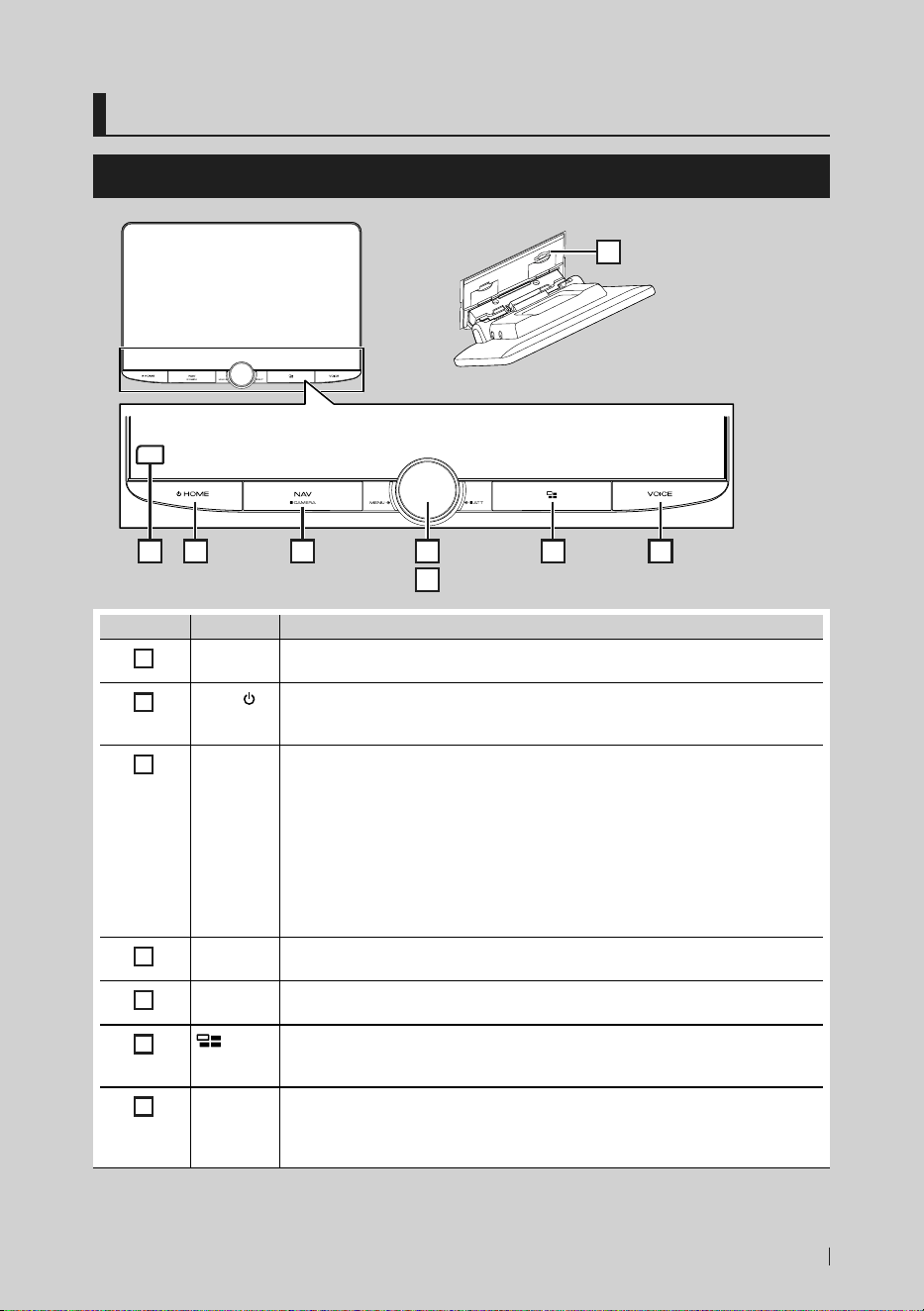
Funciones básicas
79Español
Funciones básicas
Funciones de los botones del panel frontal
2 3 4
5
6 71
8
Número Nombre Función
1
Sensor
remoto
• Recibe la señal del mando a distancia.
2
HOME/[ ]
• Muestra la pantalla de inicio (P.83).
• Pulsar durante 1 segundo apaga la alimentación.
• Si la unidad está apagada, la enciende.
3
NAV/
CAMERA
• Muestra la pantalla de navegación.
• Muestra la pantalla de la fuente Apple CarPlay o Android Auto mientras está activa
una aplicación de navegación en el dispositivo que se está usando como fuente de
Apple CarPlay o Android Auto.
• Mantener pulsado activa/desactiva la visualización de la vista de cámara.
La cámara cuya vista se muestra primero cambia según los Ajustes de asignación de
cámara (P.109) y la posición de la palanca de cambio en la puerta de cambio. Se
mantiene la cámara cuya vista se mostró por última y la misma vista de la cámara se
mostrará la próxima vez. Si cambia su configuración de asignación, se mostrará la
vista de la cámara trasera.
4
MENU/ATT • Muestra la pantalla de menú emergente.
• Al pulsar durante 1 segundo se activa/desactiva la atenuación del volumen.
5
Mando del
volumen
• Ajusta el volumen.
6
• Muestra la pantalla APP (Apple CarPlay/Android Auto/Wireless Mirroring).
• Mientras se visualiza la pantalla APP, cambia a la pantalla de control de la fuente
actual.
7
VOICE • Activa y desactiva la función de reconocimiento de voz.
• Si no están conectados Apple CarPlay, Android Auto ni un teléfono Bluetooth con
manos libres, mantener pulsado muestra el diálogo de espera de emparejamiento
Bluetooth.
!B5K-0760-00_20DNX_K_FP_QSG.indb 79 2020/07/02 14:24
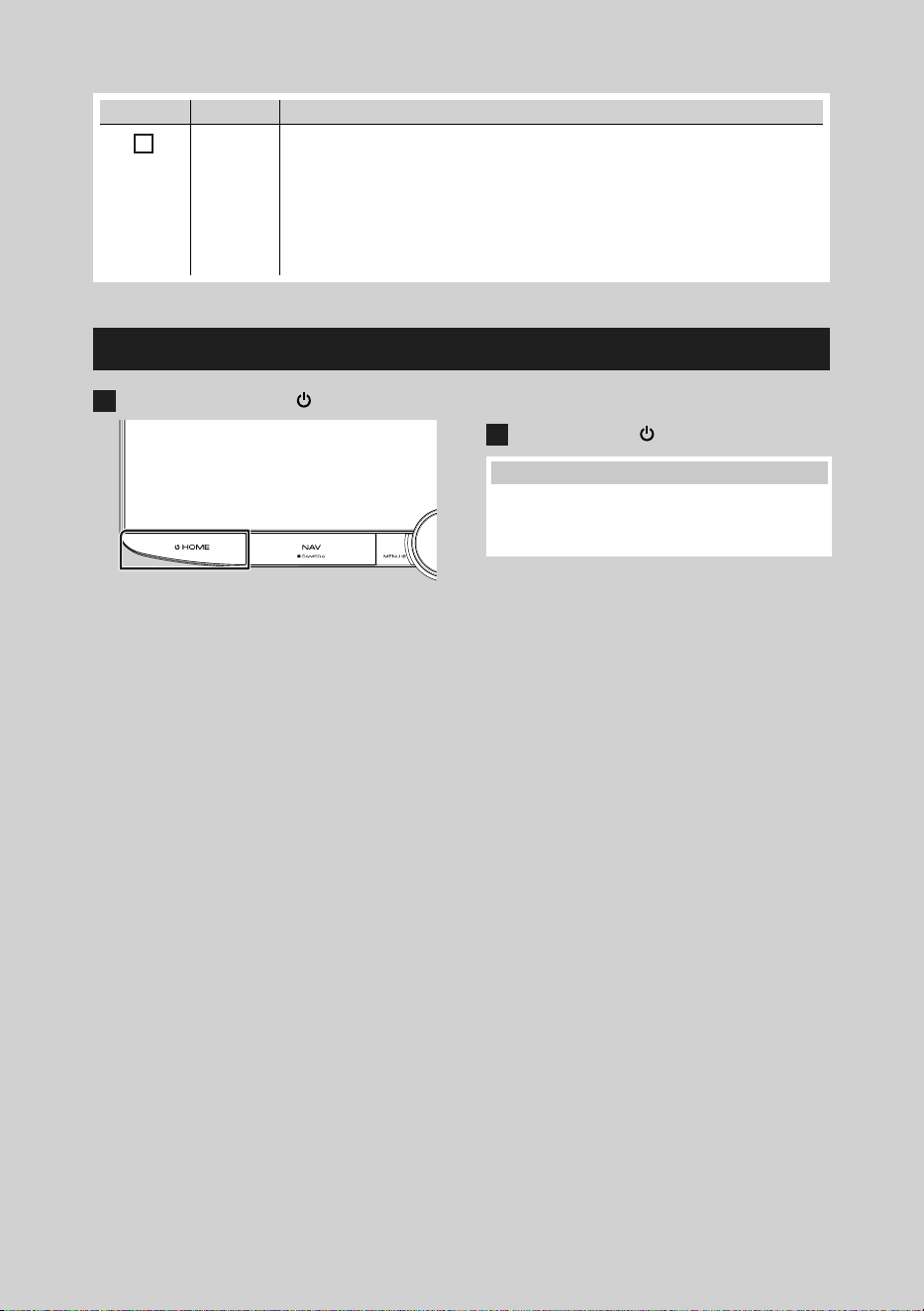
Funciones básicas
80
Número Nombre Función
8
Ranura para
tarjetas SD
• Ranura que permite insertar tarjetas SD.
• Podrá reproducir archivos de audio/vídeo en la tarjeta. *
1
• Una ranura para tarjetas SD para actualizar el mapa. Para obtener información
sobre cómo actualizar el mapa, consulte el manual de instrucciones del sistema de
navegación. *
2
*1 Si el archivo de actualización del mapa sigue en la tarjeta SD, no podrá reproducir
los archivos de audio/vídeo.
*2 El sistema de la unidad se reinicia después de introducir/extraer MAP SD.
Poner en marcha la unidad
1
Pulse el botón [HOME]/[ ].
hh La unidad se pone en marcha.
● Para apagar la unidad:
1
Pulse el [HOME]/[ ] durante 1 segundo.
NOTA
• La primera vez que se activa la unidad después
de la instalación, debe realizarse la configuración
inicial (P.81).
!B5K-0760-00_20DNX_K_FP_QSG.indb 80 2020/07/02 14:24
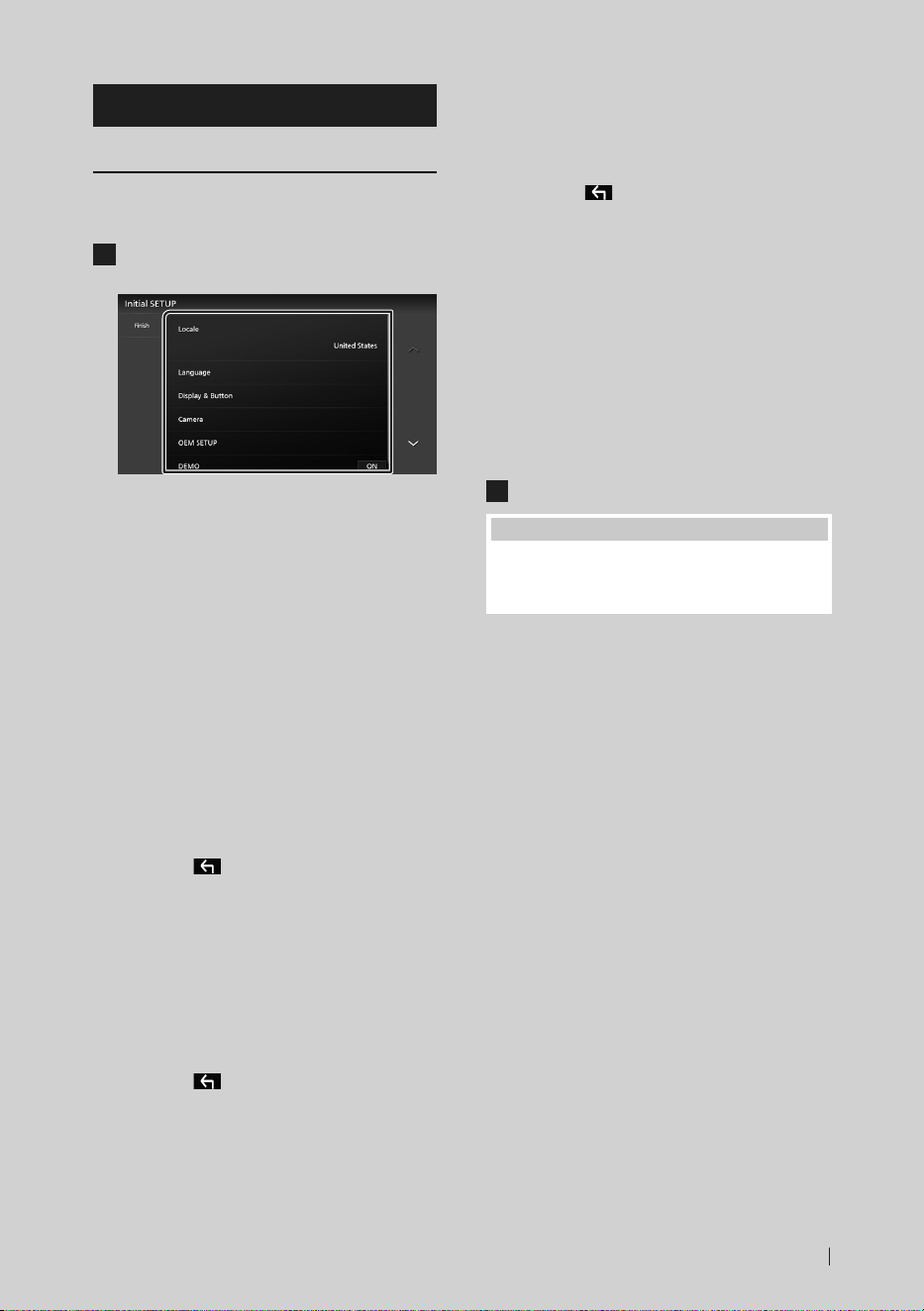
Funciones básicas
81Español
Ajustes iniciales
Configuración inicial
Realice esta configuración si es la primera vez
que utiliza esta unidad.
1
Ajuste cada elemento del modo
siguiente.
■ [Locale]
Seleccione el país para el sistema de
navegación.
Se configurarán el idioma, la unidad de
medida de distancia y la unidad de medida
de carburante.
1 Toque [Locale].
2 Seleccione el país deseado.
■ [Language]
Seleccione el idioma utilizado para la pantalla
de control y los elementos de configuración.
La opción predeterminada es “American
English (en)”.
1 Toque [Language].
2 Toque [Language Select].
3 Seleccione el idioma deseado.
4 Toque [
].
Para más información, consulte
Configuración del sistema (P.72) en el
Manual de instrucciones.
■ [Display & Button]
Ajuste el color de iluminación de los botones.
1 Toque [Display & Button].
2 Toque [Button Illumination Color].
3 Seleccione el color deseado.
4 Toque [
].
Para obtener más detalles, consulte
Configuración de la pantalla y los botones
(P.70) en el Manual de instrucciones.
■ [Camera]
Ajusta los parámetros de la cámara.
1 Toque [Camera].
2 Ajuste cada uno de los elementos y
toque [
].
Para más información, consulte
Configuración de la cámara (P.63) en el
Manual de instrucciones.
■ [OEM SETUP]
Esta función requiere un adaptador que se
encuentre disponible comercialmente.
Consulte a su distribuidor KENWOOD para
obtener más detalles.
■ [DEMO]
Configure el modo de demostración. La
opción predeterminada es "ON".
2
Toque [Finish].
NOTA
• Estas opciones pueden ajustarse desde el menú
SETUP. Consulte Configuración (P.68) en el
Manual de instrucciones.
!B5K-0760-00_20DNX_K_FP_QSG.indb 81 2020/07/02 14:24
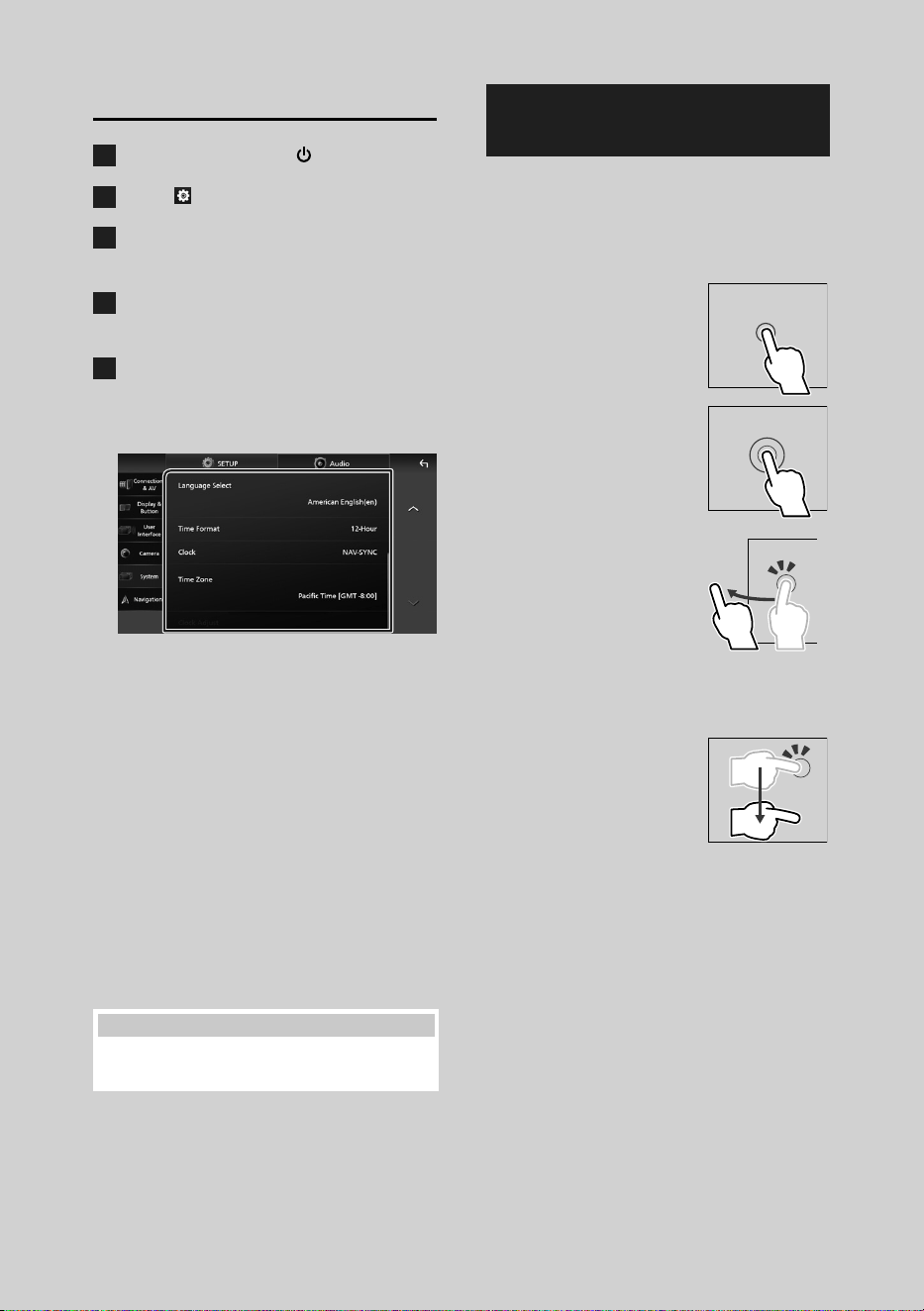
Funciones básicas
82
Ajustes del calendario/reloj
1
Pulse el botón [HOME]/[ ].
2
Toque [ ].
3
Toque [SETUP].
hh Aparece la pantalla SETUP Menu.
4
Toque [System].
hh Aparece el menú de ajustes del sistema.
5
Ajuste cada elemento del modo
siguiente.
Desplace la página para mostrar los
elementos ocultos.
■ [Time Format]
Seleccione el formato de visualización de la
hora.
[12-Hour] (predeterminado)/[24-Hour]
■ [Clock]
[NAV-SYNC] (predeterminado): Sincroniza
la hora del reloj con los datos de la
navegación GPS.
[Manual]: Ajuste el reloj manualmente.
■ [Time Zone]
Si ha seleccionado [Manual] para Reloj,
seleccione la zona horaria.
■ [Clock Adjust]
Si selecciona [Manual] para Reloj, ajuste la
fecha y la hora manualmente.
NOTA
• Configure la fecha y la hora. Si no se configuran,
algunas funciones podrían no funcionar.
Operaciones de la pantalla
táctil
Para realizar operaciones en la pantalla, deberá
tocar, mantener pulsado, pasar o deslizar un
dedo para seleccionar un elemento, visualizar
la pantalla del menú de configuración o
cambiar de página.
● Tocar
Toque suavemente la
pantalla para seleccionar un
elemento.
● Tocar y mantener
pulsado
Toque la pantalla y continúe
pulsando hasta que se
cambie la visualización o se
muestre un mensaje.
● Hojear
Deslice su dedo rápidamente
hacia la izquierda o hacia la
derecha de la pantalla para
cambiar de página.
Puede desplazar la pantalla
de lista pasando el dedo
hacia arriba/abajo por la
pantalla.
● Deslizar
Deslice el dedo hacia arriba
o hacia abajo en la pantalla
para desplazarse por la
misma.
!B5K-0760-00_20DNX_K_FP_QSG.indb 82 2020/07/02 14:24
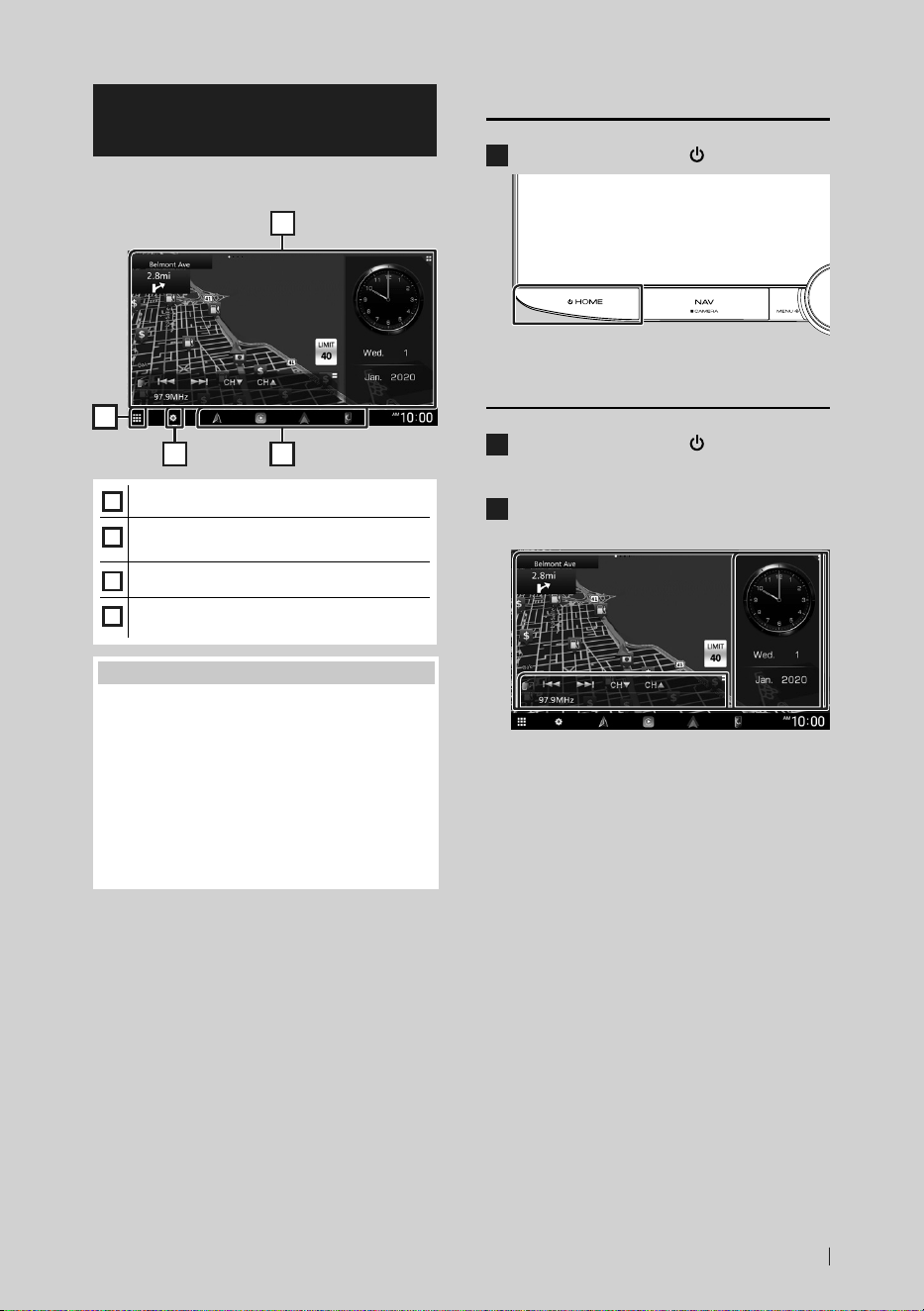
Funciones básicas
83Español
Descripciones de la pantalla
INICIO
La mayoría de las funciones pueden ejecutarse
desde la pantalla INICIO.
1
2
43
1
• Widget
2
• Muestra la pantalla de selección de fuente.
(P.84)
3
• Muestra la pantalla Menú CONFIGURACIÓN.
4
• Iconos de acceso directo a la fuente de
reproducción (P.85)
NOTA
• La función de límite de velocidad es solo a
efectos informativos y no puede sustituir su
responsabilidad para cumplir con las señales
de límite de velocidad ni su buen juicio para
mantener una velocidad adecuada en cada
momento.
• Garmin y JVCKENWOOD Corporation no se
responsabilizan de ninguna multa ni denuncia de
tráfico que reciba por no respetar todas las leyes y
señales de tráfico vigentes.
Visualización de la pantalla INICIO
1
Pulse el botón [HOME]/[ ].
hh Aparece la pantalla INICIO.
Widget
1
Pulse el botón [HOME]/[ ].
hh Aparece la pantalla INICIO.
2
Puede cambiar el widget o personalizar
el área de widgets.
Para más información, consulte Widget
(P.20) en el Manual de instrucciones.
!B5K-0760-00_20DNX_K_FP_QSG.indb 83 2020/07/02 14:24
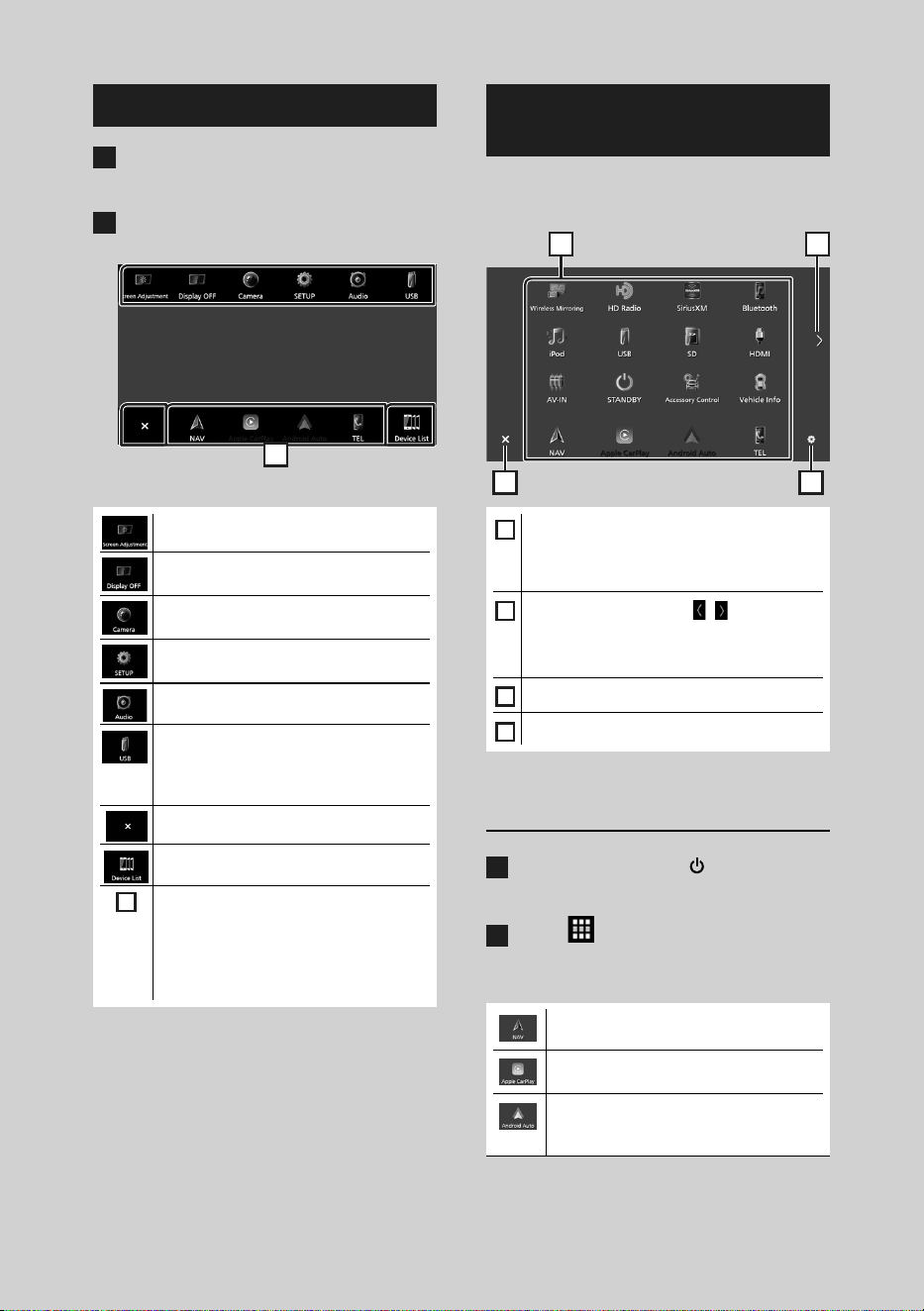
Funciones básicas
84
Menú emergente
1
Pulse el botón [MENU]/[ATT].
hh Aparece el menú emergente.
2
Toque para visualizar el menú
emergente.
1
El contenido del menú es el siguiente.
• Muestra la pantalla Ajuste de pantalla.
• Desactiva la visualización.
Para activar la pantalla: Toque la pantalla.
• Muestra la pantalla de vista de cámara.
• Muestra la pantalla Menú
CONFIGURACIÓN.
• Muestra la pantalla Audio. (P.96)
• Muestra la pantalla de control de la
fuente actual. La forma del icono varía en
función de la fuente. Este icono es para
la fuente USB.
• Cierre el menú emergente.
• Muestra la pantalla Lista de dispositivos.
1
• Iconos de fuentes de acceso directo: La
fuente cambia a una de las establecidas
con un acceso directo. Para el ajuste
de los accesos directos, consulte
Personalizar los iconos de las fuentes
de acceso directo (P.85).
Descripción de la pantalla de
selección de fuente
Puede visualizar iconos de todas las fuentes
de reproducción y opciones en la pantalla de
selección de fuente.
3 4
21
1
• Cambia las fuentes de reproducción.
Para las fuentes de reproducción, consulte
Selección de la fuente de reproducción
(P.84).
2
• Cambia páginas. (Toque [ ]/[ ]).
También puede cambiar de página pasando
el dedo hacia la izquierda o derecha en la
pantalla.
3
• Regresa a la pantalla anterior.
4
• Muestra la pantalla Menú CONFIGURACIÓN.
Selección de la fuente de
reproducción
1
Pulse el botón [HOME]/[ ].
hh Aparece la pantalla INICIO.
2
Toque [ ].
Desde la pantalla puede seleccionar las
siguientes fuentes y funciones.
• Muestra la pantalla de navegación.
(P.87)
• Cambia a la pantalla de Apple CarPlay
desde el iPhone conectado.
• Cambia a la pantalla de Android Auto
desde el teléfono inteligente Android
conectado.
!B5K-0760-00_20DNX_K_FP_QSG.indb 84 2020/07/02 14:24
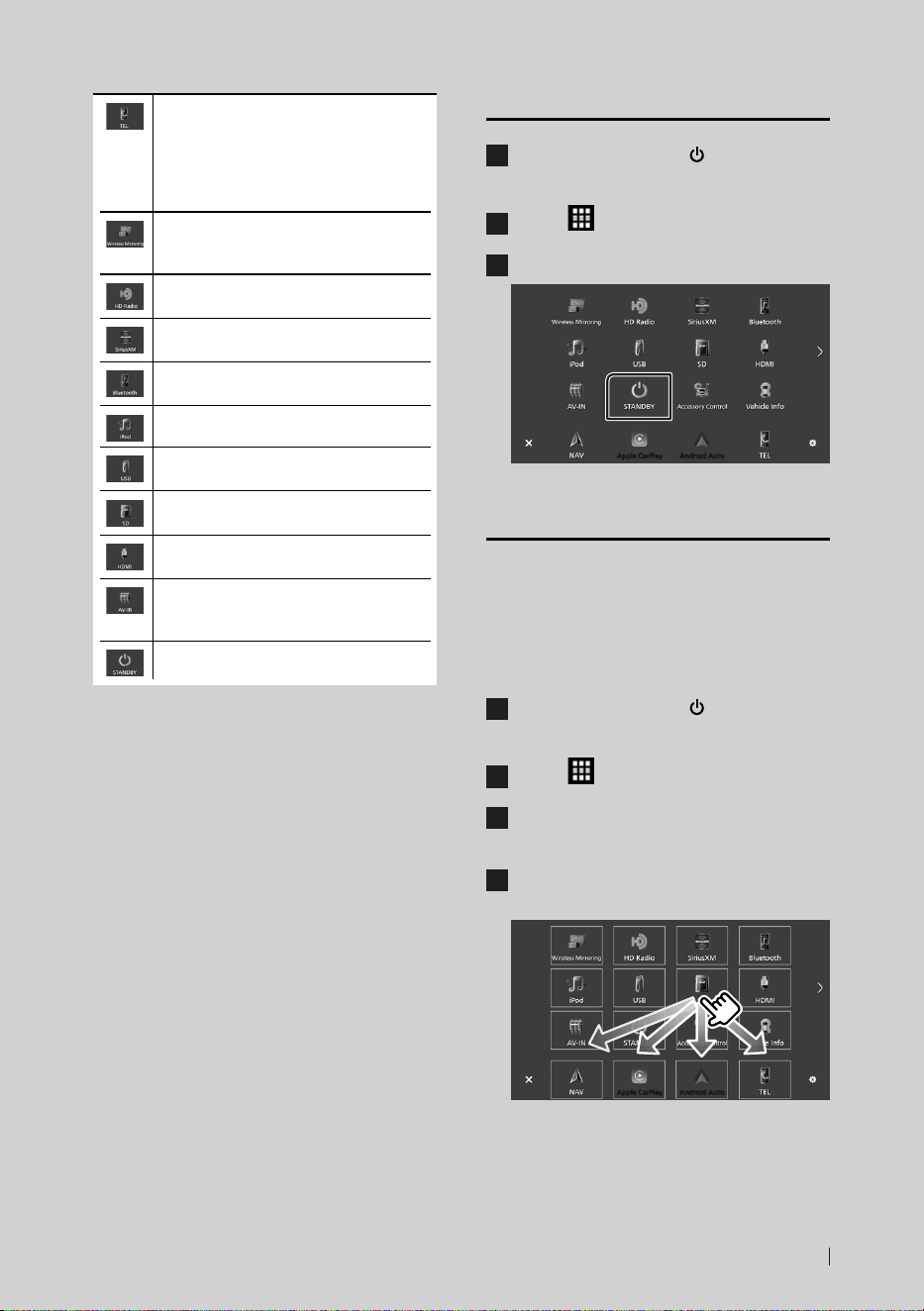
Funciones básicas
85Español
• Muestra la pantalla Manos libres.
(P.93)
Si no conecta Apple CarPlay, Android
Auto ni un teléfono Bluetooth manos
libres, se muestra el cuadro de diálogo de
espera de emparejamiento Bluetooth.*
1
• Cambia a la pantalla Wireless Mirroring
desde el teléfono inteligente Android
conectado.
• Cambia a la emisión de HD Radio.
(P.91)
• Cambia a la transmisión de radio satelital
SiriusXM®.
• Reproduce un reproductor de audio
Bluetooth.
• Reproduce un iPod/iPhone. (P.90)
• Reproduce archivos en un dispositivo
USB. (P.89)
• Reproduce archivos en una tarjeta SD.
(P.89)
• Reproduce un dispositivo conectado al
terminal de entrada HDMI.
• Cambia a un componente externo
conectado a los terminales de entrada de
audio AV y de entrada de vídeo. *
2
*
3
• Pone la unidad en espera. (P.85)
*1 Al conectar como Apple CarPlay o Android Auto,
funciona como un teléfono proporcionado en Apple
CarPlay o Android Auto. Si Apple CarPlay o Android
Auto están conectados una conversación a través del
dispositivo Bluetooth o teléfono iDatalink, continuará
la llamada actual.
*2 Puede usar la fuente [AV-IN] cuando haya conectado
un cable desde una fuente de vídeo (excepto una
cámara) al terminal de entrada de Vídeo y un cable al
terminal de entrada de Audio AV (P.106).
*3 Ajuste “VIDEO IN” en “None” en los Ajustes de
asignación de cámara (P.109).
Poner la unidad en espera
1
Pulse el botón [HOME]/[ ].
hh Aparece la pantalla INICIO.
2
Toque [ ].
3
Toque [STANDBY].
Personalizar los iconos de las
fuentes de acceso directo
Puede colocar los iconos de las fuentes en las
posiciones que desee.
Los 4 elementos situados en la línea inferior
aparecerán en la barra inferior de varias
pantallas como iconos de acceso directo a las
fuentes de reproducción.
1
Pulse el botón [HOME]/[ ].
hh Aparece la pantalla INICIO.
2
Toque [ ].
3
Mantenga pulsado el icono que desee
mover en el modo de personalización.
4
Arrastre el icono hasta la posición
deseada.
!B5K-0760-00_20DNX_K_FP_QSG.indb 85 2020/07/02 14:24
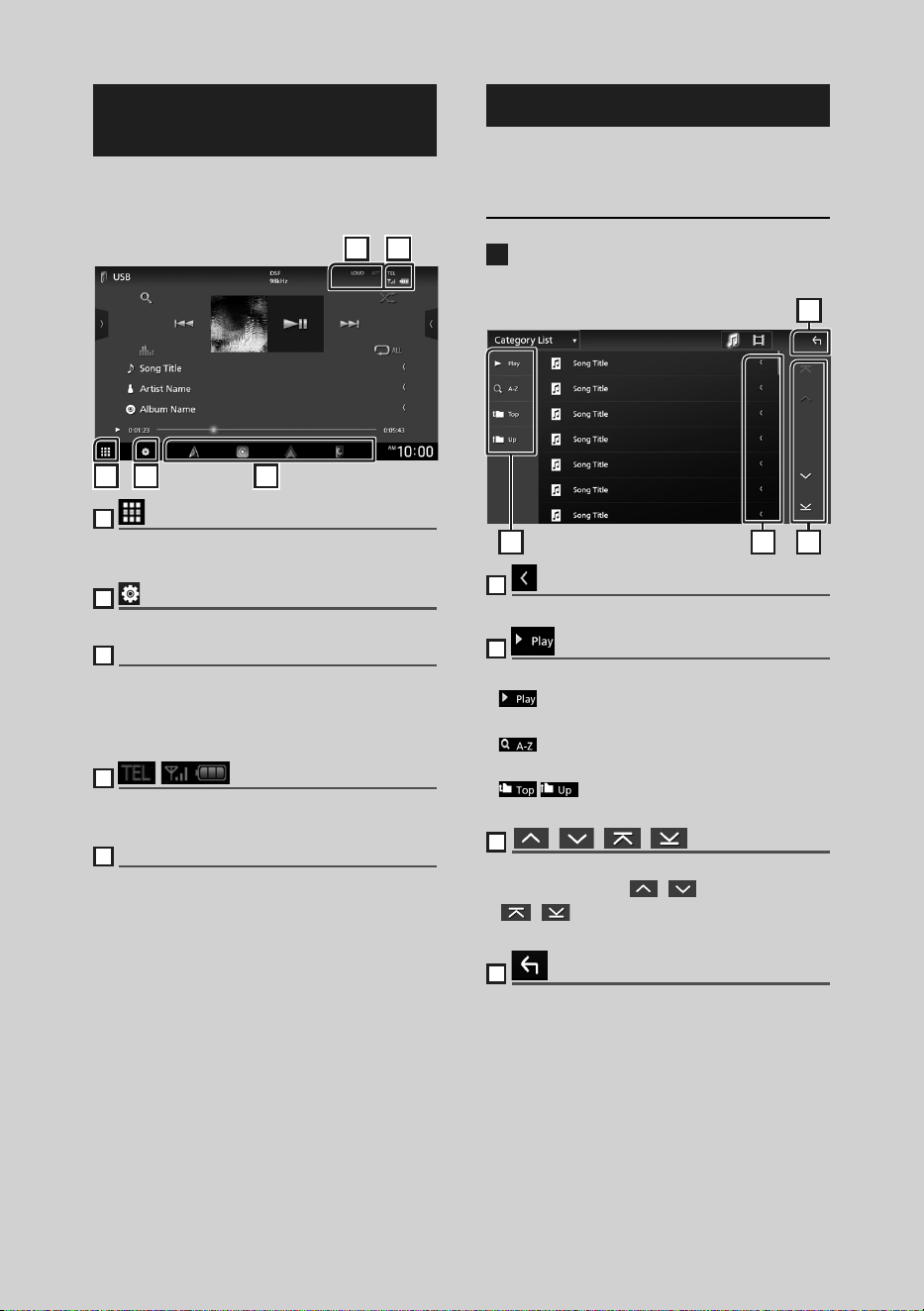
Funciones básicas
86
Descripciones de la pantalla de
control de fuente
Existen funciones que pueden ejecutarse
desde la mayoría de las pantallas.
1 2 3
5 4
1
Muestra la pantalla de selección de fuente.
(P.84)
2
Muestra la pantalla Menú CONFIGURACIÓN.
3
Iconos de fuentes de acceso directo
La fuente cambia a una de las establecidas con
un acceso directo. Para el ajuste de los accesos
directos, consulte Personalizar los iconos de
las fuentes de acceso directo (P.85).
4
Información del dispositivo Bluetooth
conectado.
5
Elementos del indicador
Muestra el estado de la fuente actual, etc.
Pantalla de lista
Existen teclas de funciones comunes en las
pantallas de listas de la mayoría de las fuentes.
Muestra la pantalla de lista
1
Toque [1].
hh Aparecerá la pantalla de lista.
4
2
1 3
1
Desplazar texto
Desplaza el texto visualizado.
2
etc.
Aquí se muestran teclas con varias funciones.
•
: Reproduce todas las pistas de la carpeta
que contiene la pista actual.
•
: Salta a la letra introducida (búsqueda
alfabética).
•
: Se desplaza al nivel jerárquico
superior.
3
[ ]/[ ]/[ ]/[ ] Desplazar página
Podrá cambiar las páginas para visualizar más
elementos tocando [
]/[ ].
• [
]/[ ] : Muestra la página superior o
inferior.
4
Retorno
Regresa a la pantalla anterior.
!B5K-0760-00_20DNX_K_FP_QSG.indb 86 2020/07/02 14:24
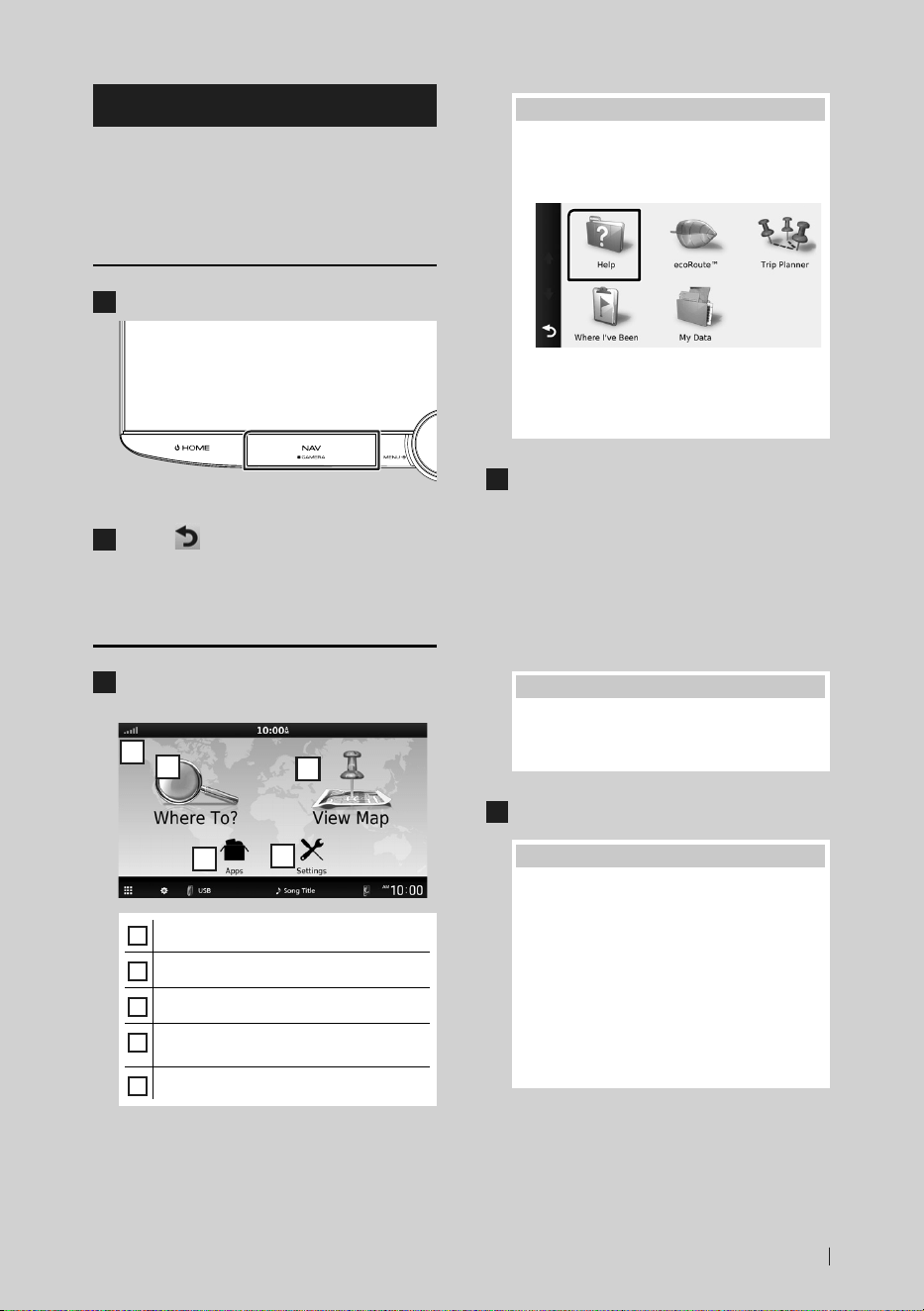
Funciones básicas
87Español
Operación de navegación
Para obtener más información acerca de la
función de navegación, consulte el manual de
instrucciones de navegación.
Visualizar la pantalla de
navegación
1
Pulse el botón [NAV]/[CAMERA].
hh Aparece la pantalla de navegación.
2
Toque [ ].
hh Aparece la pantalla Menú principal.
Cómo usar el sistema de
navegación
1
Active la función deseada desde la
pantalla Main Menu.
5
1
2
3
4
1
Estado de la señal GNSS.
2
Buscar un destino.
3
Ver el mapa.
4
Utiliza aplicaciones como ecoRoute™ y
Help (ayuda).
5
Ajustar la configuración.
NOTA
• Puede obtener información adicional sobre
el uso del sistema de navegación desde la
Ayuda. Para mostrar la ayuda, toque [Apps] y,
a continuación toque [Help].
• Para obtener más información acerca de su
sistema de navegación, descargue la última
versión del Manual de usuario desde https://
manual.kenwood.com/edition/im403/
2
Introduzca su destino y comience su viaje
guiado.
Para encontrar puntos de interés:
1 Toque [Where To?].
2 Seleccione una categoría y una
subcategoría.
3 Seleccione un destino.
4 Toque [Go!].
NOTA
• Para introducir letras que formen parte
del nombre, toque la barra de búsqueda e
introduzca las letras.
3
Siga la ruta hacia su destino.
NOTA
• La funcionalidad de icono de límite de
velocidad es sólo a efectos informativos y
no puede sustituir a la responsabilidad del
conductor para cumplir con las señales de
límite de velocidad ni su buen juicio para
mantener una velocidad adecuada en
cada momento. Garmin y JVCKENWOOD
Corporation no se responsabilizan de
ninguna multa ni denuncia de tráfico que
pueda recibir por no respetar todas las leyes
y señales de tráfico vigentes.
Su ruta se marca con una línea de color
magenta. Según viaja, su sistema de
navegación le guiará hacia su destino con
comandos de voz, flechas en el mapa y
direcciones en la parte superior del mapa.
!B5K-0760-00_20DNX_K_FP_QSG.indb 87 2020/07/02 14:24
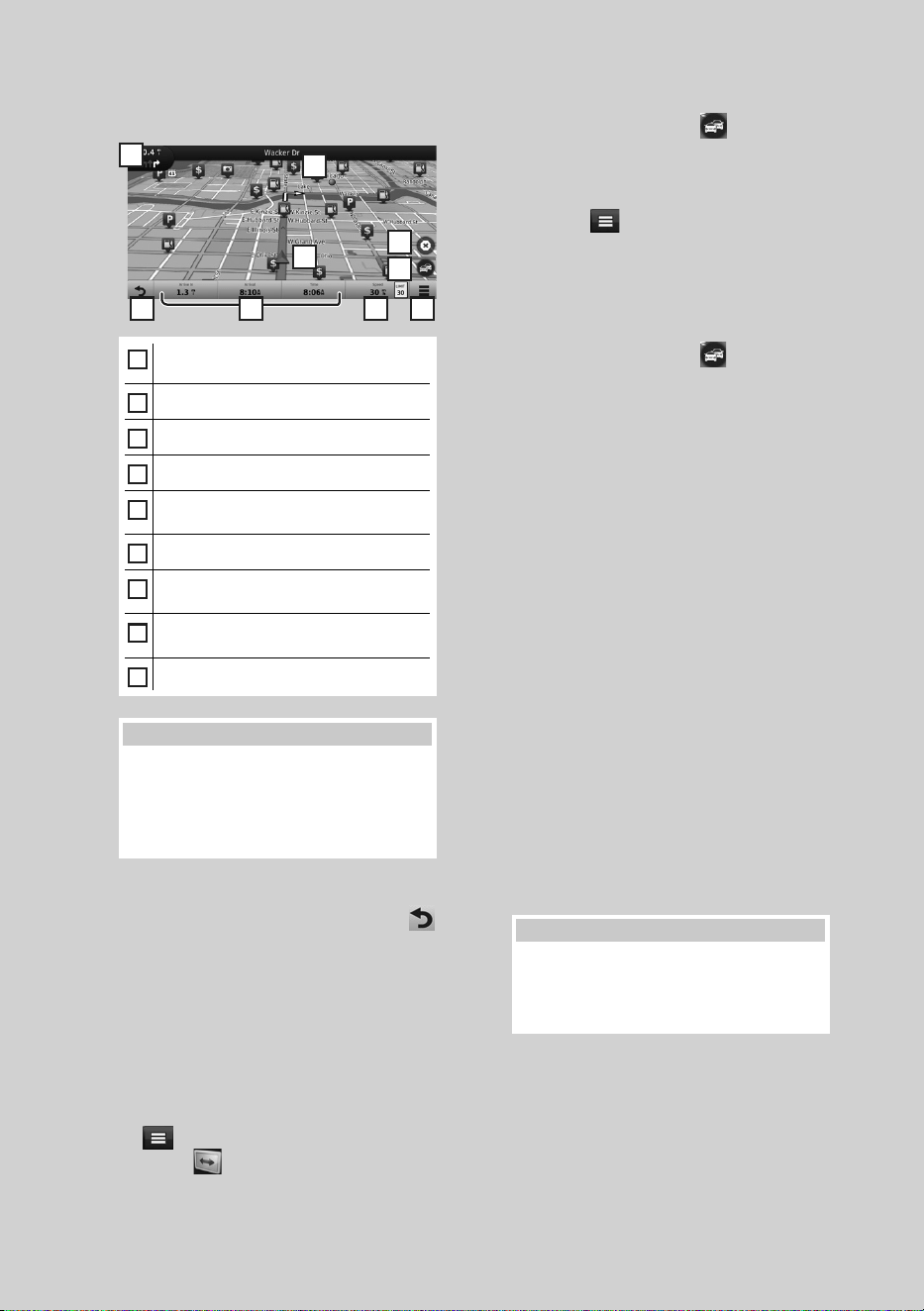
Funciones básicas
88
Si se aparta de la ruta original, su sistema
de navegación recalculará la ruta.
5
6 8 9
1
2
3
4
7
1
Visualiza la página del siguiente giro o la
página de vista de intersecciones, si la hay.
2
Visualiza la página de lista de giros.
3
Visualiza la página ¿Dónde estoy? .
4
Detiene la ruta actual.
5
Muestra la información del tráfico en la
ruta.
6
Vuelve al menú principal.
7
Campo de datos. Toque para visualizar un
campo de datos diferente.
8
Velocidad del vehículo. Toque para
visualizar información del viaje.
9
Muestra más opciones.
NOTA
• Toque y arrastre el mapa para ver un área
diferente del mismo.
• Si viaja por carreteras principales es posible
que aparezca un icono señalando el límite
de velocidad.
● Añadir una parada
1 Mientras navega por una ruta, toque [
] y, a continuación, toque [Where To?].
2 Búsqueda de una parada adicional.
3 Toque [Go!].
4 Toque [Add to Active Route] para
añadir esta parada antes de alcanzar el
destino final.
● Tomar un desvío
1 Mientras navega por una ruta, toque [
].
2 Toque [
].
■ Evitar manualmente el tráfico en la ruta
1 Desde el mapa, toque [ ].
2 Toque [Traffic On Route].
3 En caso necesario toque las flechas para
ver otros retrasos por el tráfico en su ruta.
4 Toque [
] > [Avoid].
■ Ver el mapa de tráfico
El mapa muestra el flujo de tráfico con una
codificación en colores y los retrasos en las
inmediaciones.
1 Desde el mapa, toque [
].
2 Toque [Traffic Conditions].
■ Sobre el tráfico
• El servicio Traffic no está disponible en algunas
áreas o países.
• Garmin y JVCKENWOOD Corporation no
se responsabilizan de la exactitud o la
temporización de la información del tráfico.
• Puede recibir el pronóstico del tiempo y la
información de tráfico de INRIX si conecta a
esta unidad un iPhone o smartphone Android
que tenga la aplicación “KENWOOD Traffic
Powered By INRIX ” instalada.
Para más detalles, consulte la aplicación
“KENWOOD Traffic Powered By INRIX ”.
■ Actualización de los mapas
Puede adquirir datos de mapa actualizados
desde Garmin.
1 Visite https://kenwood.garmin.com/
kenwood/site
2 En la sección Actualizaciones del mapa,
seleccione Actualizar
3 Siga las instrucciones en pantalla.
NOTA
• Tras actualizar los datos de los mapas por
primera vez, puede usar una tarjeta SD y
la aplicación Garmin Express™ para llevar a
cabo las futuras actualizaciones de los mapas.
!B5K-0760-00_20DNX_K_FP_QSG.indb 88 2020/07/02 14:24
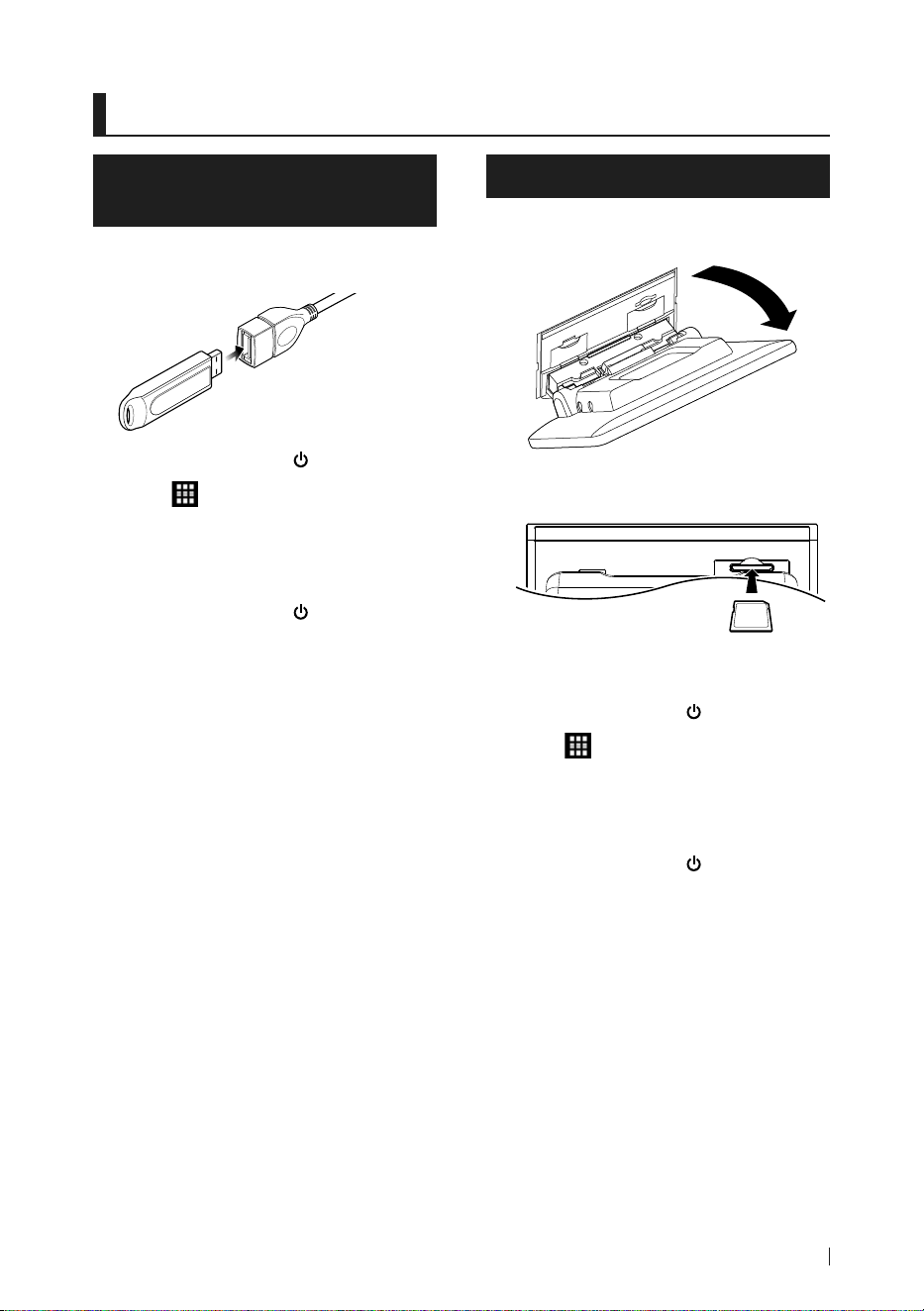
USB/SD/iPod
89Español
USB/SD/iPod
Conexión de un dispositivo
USB
1
Conecte el dispositivo USB con el cable
USB. (P.107)
2
Pulse el botón [HOME]/[ ].
3
Toque [ ].
4
Toque [USB]. (P.84)
Ñ Desconecte el dispositivo USB
1
Pulse el botón [HOME]/[ ].
2
Toque una fuente distinta a [USB].
3
Desconecte el dispositivo USB.
Ñ Dispositivos USB que pueden
utilizarse
En esta unidad puede utilizar un dispositivo USB
de tipo de almacenamiento masivo.
La palabra “USB device” que aparece en este
manual se refiere a un dispositivo de memoria
flash.
Inserción de la tarjeta SD
1
Incline el panel hacia usted de forma
manual.
2
Introduzca la tarjeta SD en la ranura hasta
que haga clic.
3
Cierre el panel.
4
Pulse el botón [HOME]/[ ].
5
Toque [ ].
6
Toque [SD]. (P.84)
Ñ Extracción de la tarjeta SD
1
Pulse el botón [HOME]/[ ].
2
Toque una fuente distinta a [SD].
3
Incline el panel hacia usted de forma
manual.
4
Presione la tarjeta SD hasta que
escuche un clic y, a continuación, retire
el dedo de la tarjeta. La tarjeta saldrá
automáticamente para que pueda
extraerla con los dedos.
5
Cierre el panel.
!B5K-0760-00_20DNX_K_FP_QSG.indb 89 2020/07/02 14:24
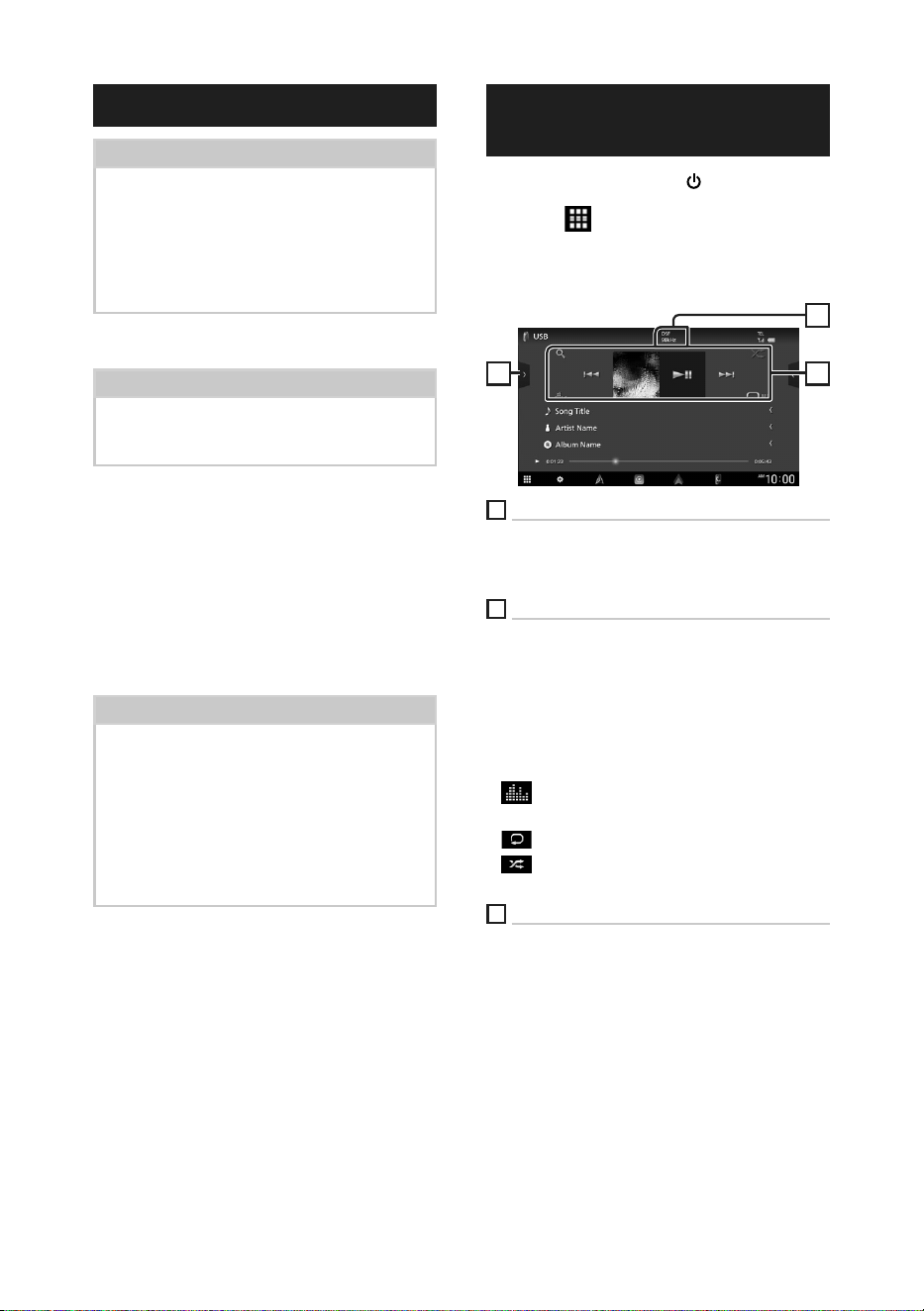
USB/SD/iPod
90
Conecte el iPod/iPhone
Preparativos
• Con un iPhone compatible con Apple CarPlay,
desactive Apple CarPlay usando la configuración
de funciones del iPhone antes de conectar el
iPhone. Para obtener más detalles acerca del
método de configuración, póngase en contacto
con el fabricante del terminal.
• Solamente puede conectarse un iPod/iPhone.
Conexión alámbrica
Preparativos
• Conecte un iPod/iPhone con el KCA-iP103
(accesorio opcional) mientras Apple CarPlay no
esté conectado.
1
Conecte el iPod/iPhone usando el KCA-
iP103. (P.108)
● Para desconectar el iPod/iPhone
conectado con el cable:
1
Desconecte el iPod/iPhone.
Conexión Bluetooth
Empareje el iPhone a través de Bluetooth.
Preparativos
• Para conectar un iPhone mediante Bluetooth,
regístrelo como dispositivo Bluetooth y realice
de antemano los ajustes del perfil de conexión.
Consulte Cambiar el dispositivo conectado
(P.53) en el Manual de instrucciones y
Registre el dispositivo Bluetooth (P.93).
• Conecte un iPhone mediante Bluetooth mientras
Apple CarPlay y un iPod/iPhone no estén
conectados mediante USB.
Ñ iPod/iPhone que pueden
conectarse
Los siguientes modelos pueden conectarse a
esta unidad.
Fabricados para
• iPhone XS
Max
• iPhone XS
• iPhone XR
• iPhone X
• iPhone 8 Plus
• iPhone 8
• iPhone 7 Plus
• iPhone 7
• iPhone SE
• iPhone 6s
Plus
• iPhone 6s
• iPod
touch (6.ª
generación)
Funcionamiento básico de
USB/SD/iPod
1
Pulse el botón [HOME]/[ ].
2
Toque [ ].
3
Toque [USB], [SD] o [iPod]. (P.84)
Pantalla de control
3 2
1
1
CÓDEC
Cuando se reproduce una fuente en alta
resolución, se muestra la información de su
formato.
2
Teclas de operación
• [1] : Busca una pista/un archivo.
• [E] [F] : Busca la pista o archivo anterior/
siguiente.
Mantenga pulsado para avanzar o retroceder
rápidamente. (Se cancelará automáticamente
después de aproximadamente 50 segundos).
• [DH] : Inicia la reproducción o hace una pausa.
• [
] : Muestra la pantalla Ecualizador gráfico.
(P.96)
• [
] : Repite la pista/carpeta actual.
• [
]: Reproduce aleatoriamente todas las
pistas de la carpeta actual.
3
Lista de contenido
• Toque el lado izquierdo de la pantalla para
visualizar la lista Contenidos. Toque de nuevo
para cerrar la lista.
• Muestra la lista de reproducción. Cuando
toque el nombre de un archivo/pista en la lista,
la reproducción se inicia.
!B5K-0760-00_20DNX_K_FP_QSG.indb 90 2020/07/02 14:24
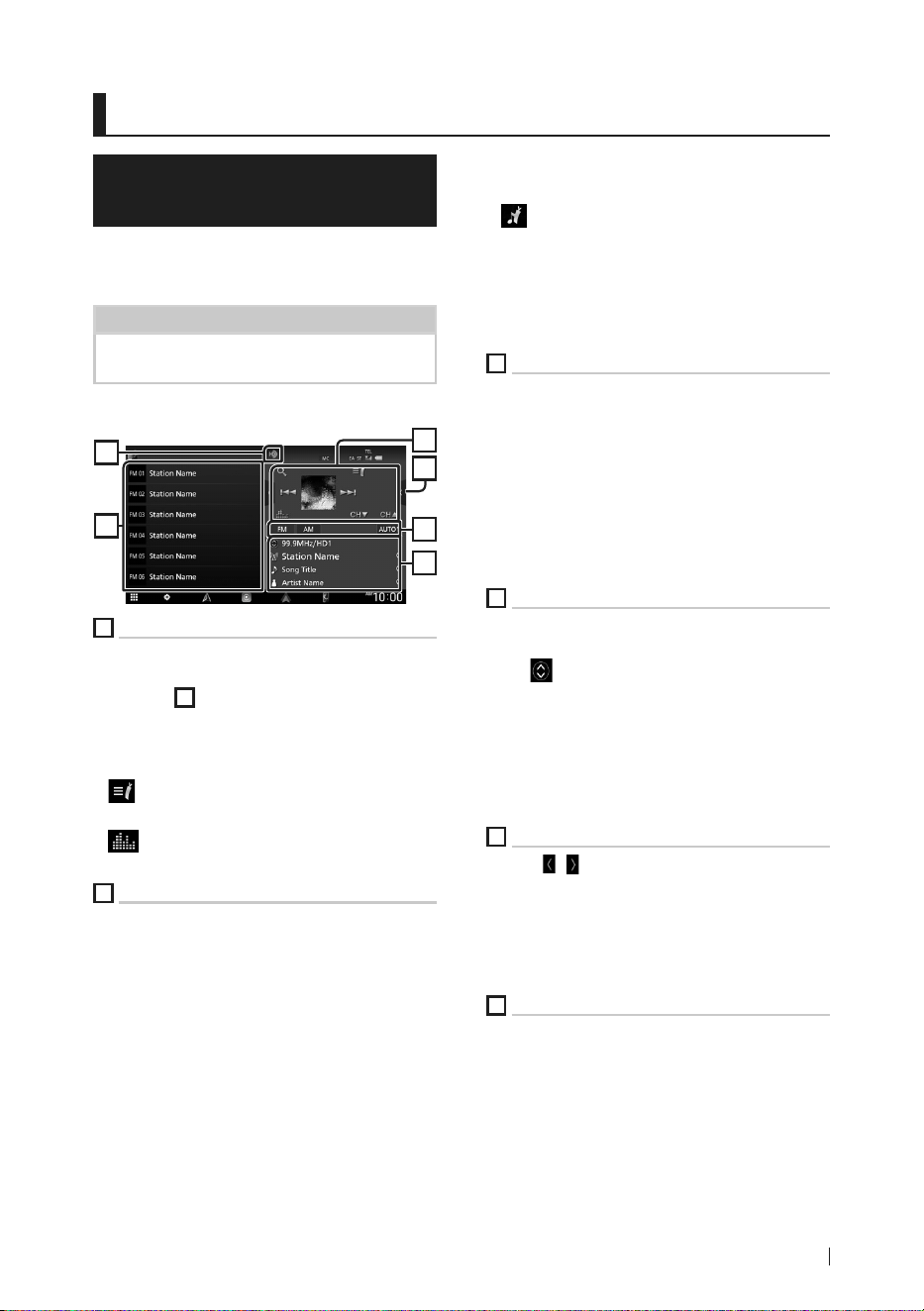
Sintonizador de HD Radio™
91Español
Sintonizador de HD Radio™
Funcionamiento básico del
sintonizador HD Radio
Para escuchar la fuente HD Radio, toque el
icono [HD Radio] en la pantalla de selección
de fuente. (P.84)
NOTA
• La difusión de HD Radio solo se ofrece para la
zona de ventas de América del Norte:
Pantalla de control
3
4
6
5
1
2
1
Teclas de operación
• [E] [F]: Sintoniza una emisora. El método
de cambio de frecuencia puede modificarse
(consulte
3
Teclas del modo de búsqueda/
banda).
• [CHS] [CHR] : Selecciona un canal.
• [1] : Visualice la pantalla Lista de canales.
• [ ] : Visualice una lista de los marcadores
registrados.
• [
] : Muestra la pantalla Ecualizador gráfico.
(P.96)
2
Panel de funciones
Toque el lado derecho de la pantalla para
mostrar el panel de funciones. Toque de nuevo
para cerrar el panel.
• [10key Direct]: Visualice la pantalla de
búsqueda directa de emisora/canal.
• [AME]: Preajusta emisoras automáticamente.
(P.92)
• [RCV]: Cambie el modo de recepción de HD
Radio.
[Auto]: Alterne entre audio digital y analógico
automáticamente.
[Digital]: Seleccione esta opción para
sintonizar solamente audio digital.
[Analog]: Seleccione esta opción para
sintonizar solamente audio analógico.
• [PTY] (FM solamente): Busca un programa por
tipo de programa.
• [
]: Guarda la información de la canción que
se está recibiendo.
• [Emergency Alerts]: Active o desactive el
mensaje de alerta.
• [Alert Message Log]: Muestra el mensaje de
alerta recibido.
3
Teclas del modo de búsqueda/banda
• Toque para cambiar al modo de búsqueda
en la siguiente secuencia: [AUTO1], [AUTO2],
[MANUAL].
– [AUTO1]: Sintoniza automáticamente una emisora
con buena recepción.
– [AUTO2]: Sintoniza las emisoras memorizadas una
después de la otra.
– [MANUAL]: Cambia a la frecuencia siguiente
manualmente.
• Cambia las bandas (entre FM y AM).
4
Pantalla de información
Muestra información sobre la emisora actual:
Frecuencia y canal
Tocar [
] le permite alternar entre el contenido
A, el contenido B y el contenido C.
Contenido A: Nombre de emisora, título de
canción, nombre de artista
Contenido B: Mensaje de emisora, radio texto
Contenido C: Nombre de emisora, nombre del
álbum
5
Lista de preselección
• Tocar [
]/[ ] le permite cambiar el tamaño de
la pantalla.
• Recupera la emisora o canal memorizados.
• Si se toca durante 2 segundos, almacena en la
memoria la emisora o el canal que se reciben
actualmente.
6
Visualización de indicador
Mientras recibe una emisora HD Radio, se
enciende en naranja cuando es digital y en
gris cuando es analógica. Mientras recibe una
emisora analógica, está apagada.
!B5K-0760-00_20DNX_K_FP_QSG.indb 91 2020/07/02 14:24

Sintonizador de HD Radio™
92
Manejo de la memoria
Ñ Memoria automática
Puede almacenar automáticamente en la
memoria las emisoras con buena recepción.
1
Toque la tecla de la banda deseada.
2
Toque [ ] en el lado derecho de la
pantalla.
Toque [AME].
3
Toque [Ye s ].
hh Se inicia la memoria automática.
Ñ Memoria manual
La emisora o canal que se está recibiendo
actualmente pueden almacenarse en la
memoria.
1
Seleccione la emisora o canal que desee
almacenar en la memoria.
2
Toque durante 2 segundos, hasta oír un
pitido, la posición [FM#] (#:1-15) o [AM#]
(#:1-5) en la que desee almacenar la
emisora o canal.
Ñ Selección de preajustes
1
Toque [ ] en el lado izquierdo de la
pantalla.
Seleccione una emisora o un canal de la
lista.
!B5K-0760-00_20DNX_K_FP_QSG.indb 92 2020/07/02 14:24
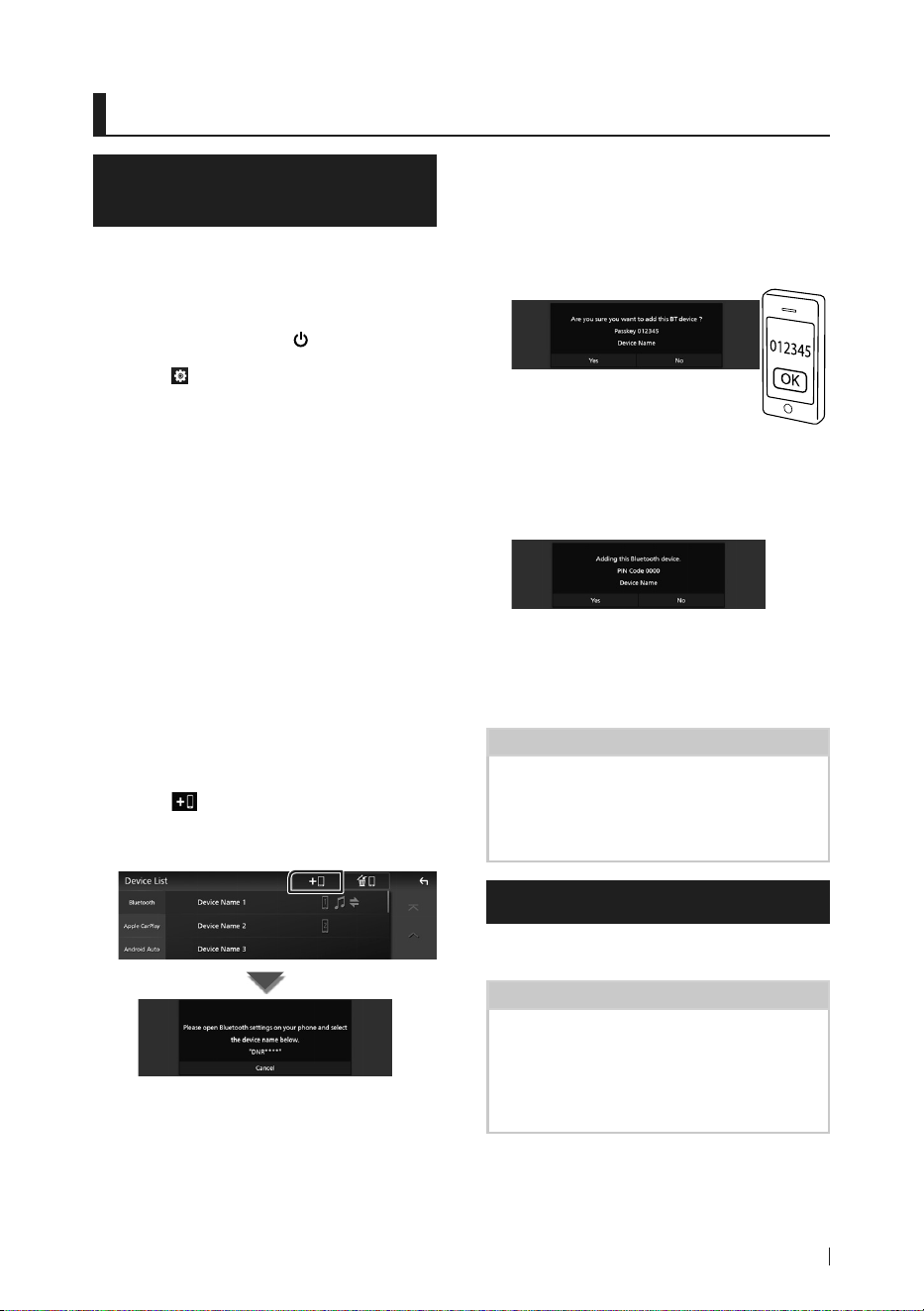
Control de Bluetooth
93Español
Control de Bluetooth
Registre el dispositivo
Bluetooth
Es necesario registrar el reproductor de audio
o el teléfono inteligente/teléfono móvil
Bluetooth en esta unidad antes de usar la
función Bluetooth.
1
Pulse el botón [HOME]/[ ].
2
Toque [ ].
3
Toque [SETUP].
hh Aparece la pantalla SETUP Menu.
4
Toque [Connections & AV].
5
Toque [Device List].
6
Seleccione un tipo de dispositivo.
■ [Bluetooth]
Para realizar la conexión como fuente de
audio Bluetooth.
■ [Apple CarPlay]
Para realizar la conexión como fuente
Apple CarPlay.
■ [Android Auto]
Para realizar la conexión como fuente
Android Auto.
7
Toque [ ].
hh Aparecerá el cuadro de diálogo de
espera de emparejamiento Bluetooth.
8
Busque la unidad (“DNR1007XR”) en su
teléfono inteligente/teléfono móvil.
Complete los pasos 8 a 10 en 30 segundos.
9
Accione su smartphone/teléfono móvil
en conformidad con los mensajes
visualizados.
● Confirme la solicitud en el
smartphone/teléfono móvil.
● Introduzca el código PIN en su
teléfono inteligente/teléfono móvil.
El código PIN está configurado como “0000”
de forma predeterminada.
10
Toque [Ye s ].
Una vez finalizada la transmisión de datos y
la conexión, el icono de conexión Bluetooth
aparecerá en la pantalla.
NOTA
• Al registrar el iPhone que está disponible para
Apple CarPlay de forma inalámbrica, aparece
un mensaje de confirmación. Toque [Ye s] para
mostrar la pantalla de Apple CarPlay para la
conexión inalámbrica.
Usar la unidad de manos libres
Puede usar la función de teléfono conectando
un teléfono Bluetooth a esta unidad.
NOTA
• Mientras Apple CarPlay o Android Auto están
conectados, no se pueden usar ni la función de
manos libres por Bluetooth ni dos conexiones
de dispositivos Bluetooth. Sólo se puede usar la
función manos libres de Apple CarPlay o Android
Auto.
!B5K-0760-00_20DNX_K_FP_QSG.indb 93 2020/07/02 14:24
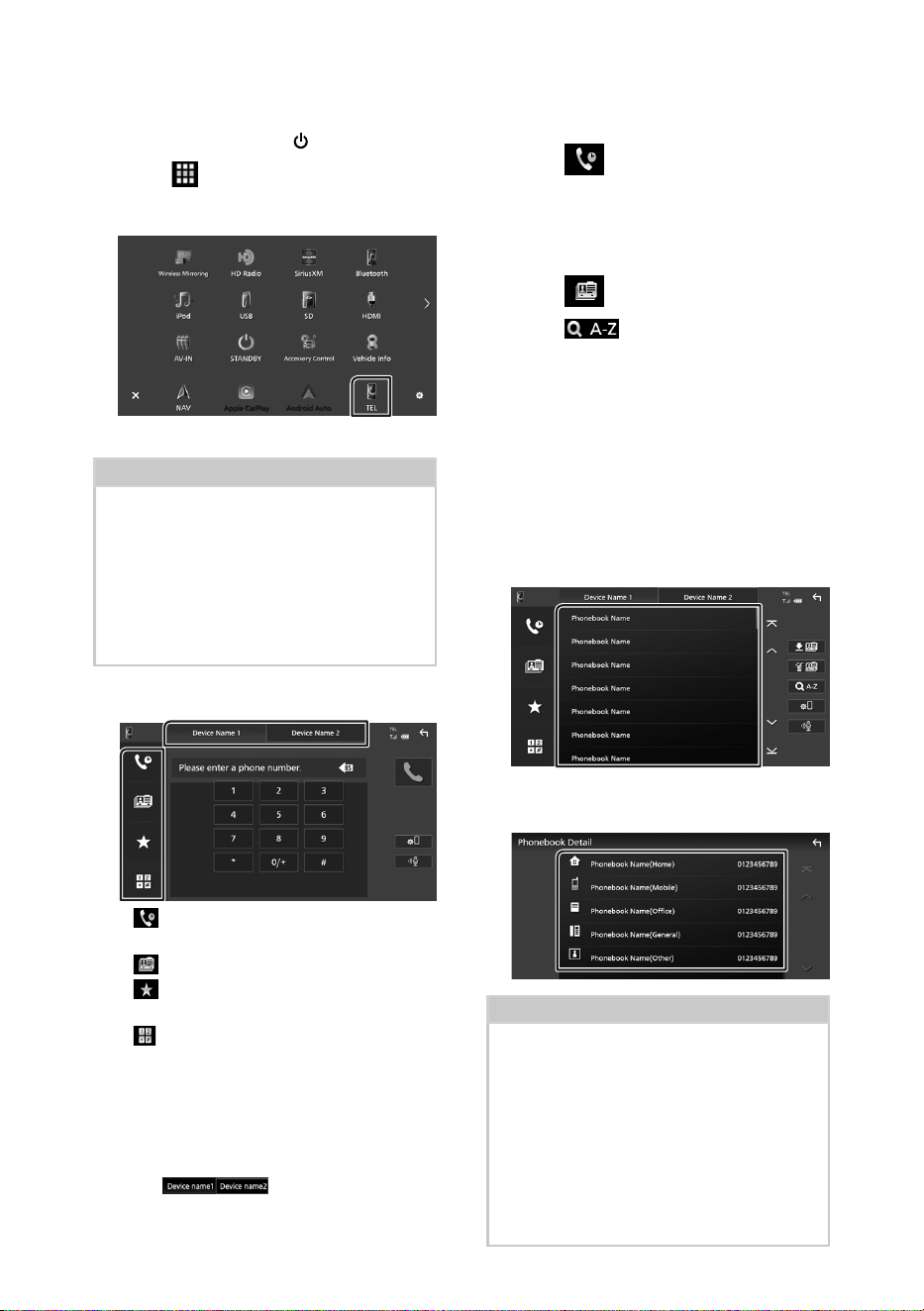
Control de Bluetooth
94
Ñ Haga una llamada
1
Pulse el botón [HOME]/[ ].
2
Toque [ ].
3
Toque [TEL].
hh Aparece la pantalla de Manos libres.
NOTA
• Si su teléfono inteligente/teléfono móvil es
compatible con PBAP, al conectar el teléfono
inteligente/teléfono móvil podrá visualizar la
agenda telefónica y las listas de llamadas en la
pantalla del panel táctil.
– Agenda telefónica: hasta 1000 entradas
– Hasta 50 entradas incluyendo llamadas
realizadas, llamadas recibidas y llamadas
perdidas
4
Seleccione un método de marcación.
• [ ]: Llamar usando los registros de
llamada almacenados
• [
]: Llamar usando la agenda telefónica
• [
]: Llamar usando el número
preseleccionado
• [
]: Llamar introduciendo un número
telefónico
● Seleccionar el teléfono inteligente/
teléfono móvil que se desea utilizar
Cuando conecte dos teléfonos inteligentes/
teléfonos móviles
1) Toque [
] para seleccionar el
teléfono que desee utilizar.
Llamar usando datos de llamada
almacenados
1
Toque [ ].
2
Seleccione el número de teléfono de la
lista.
Llamar usando la agenda telefónica
1
Toque [ ].
2
Toque [ ].
3
Seleccione la inicial.
• Los caracteres que no correspondan a
ningún nombre no aparecen.
• Se puede buscar un primer carácter con
signos diacríticos como, por ejemplo,
“ü” con un carácter sin signos diacríticos
como “u”. No se puede buscar un carácter
con signos diacríticos en una frase.
4
Seleccione en la lista la persona a la que
desea llamar.
5
Seleccione el número de teléfono de la
lista.
NOTA
• Puede clasificar los números de teléfono de la lista
por nombre o apellido. Para obtener más detalles,
consulte Configuración de la unidad de manos
libres (P.62) en el Manual de instrucciones.
• Si selecciona ruso o hebreo en “Language select”,
podrá alternar entre el teclado inglés y el teclado
del idioma seleccionado. Para más información,
consulte Configuración del sistema (P.72) en
el Manual de instrucciones.
• Puede buscar con 3 letras iniciales en el teclado
inglés y 1 letra inicial en el teclado ruso/hebreo.
!B5K-0760-00_20DNX_K_FP_QSG.indb 94 2020/07/02 14:24
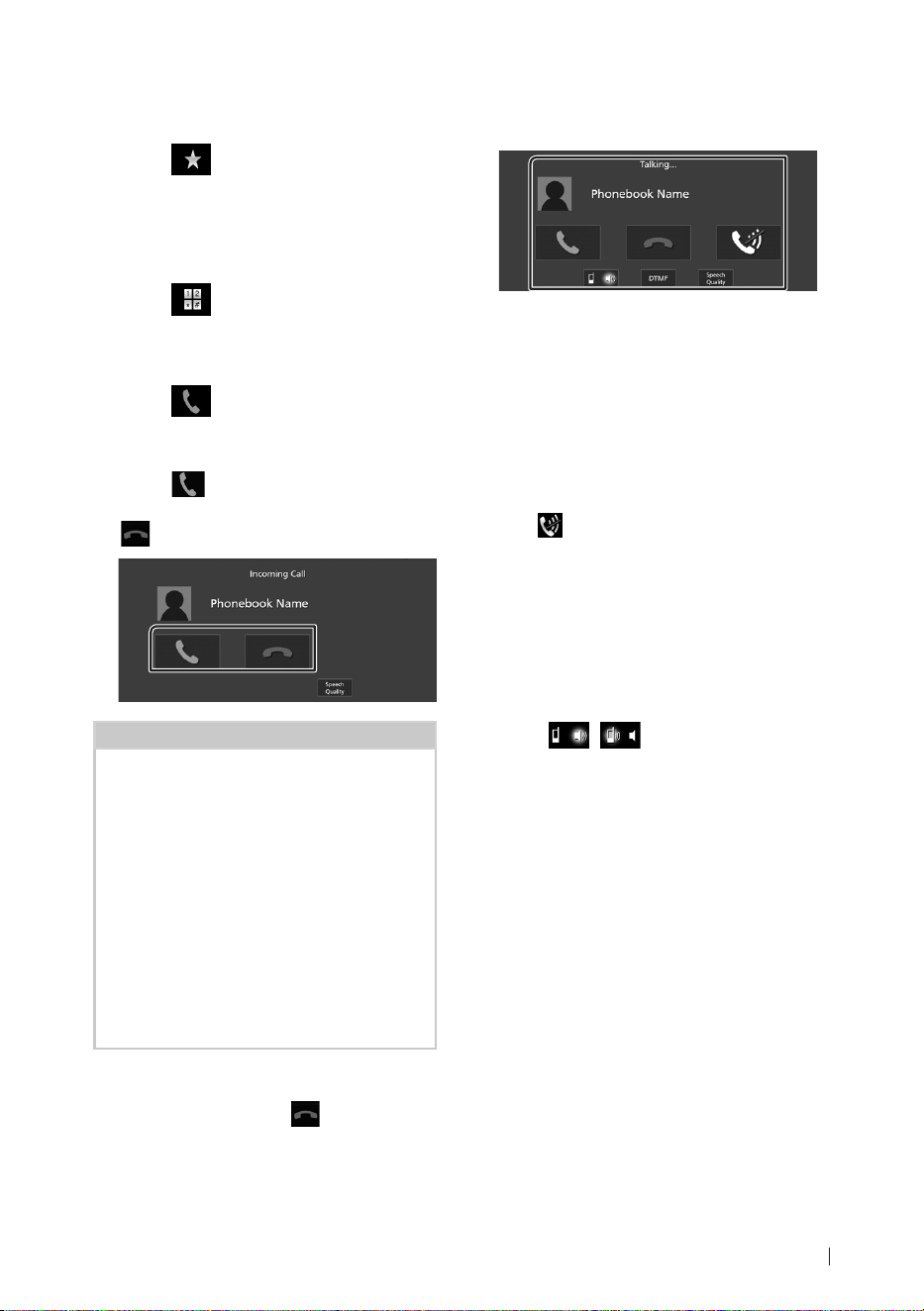
Control de Bluetooth
95Español
Llamar usando el número
preseleccionado
1
Toque [ ].
2
Toque el nombre o número de teléfono.
Llamar introduciendo un número
telefónico
1
Toque [ ].
2
Introduzca un número de teléfono con las
teclas numéricas.
3
Toque [ ].
Ñ Reciba una llamada
1
Toque [ ] para contestar una llamada
telefónica o
[
] para rechazarla.
NOTA
• Al cambiar la marcha a la posición de marcha
atrás (R) y monitorear la imagen desde la cámara
de visión trasera, esta pantalla no aparece incluso
si se recibe una llamada.
• El retrato registrado en la agenda telefónica se
muestra al hacer/recibir llamadas y durante una
llamada.
• Si edita la agenda telefónica en el lado del
dispositivo conectado después de descargarla,
es posible que el retrato no se muestre
dependiendo del contenido editado. Le
recomendamos que descargue la agenda
telefónica siempre que la edite.
• La calidad de imagen de un retrato visualizado
depende del dispositivo conectado.
Para finalizar una llamada
1
Mientras habla, toque [ ].
Ñ Operaciones durante una
llamada
● Ajuste del volumen de su voz
1) Toque [Speech Quality].
2) Toque [T] o [U] de [Microphone Level].
● Ajustar el volumen del receptor
Gire el mando del volumen en sentido horario
para aumentarlo y en sentido antihorario para
reducirlo.
● Silenciamiento de su voz
Toque [
] para silenciar o anular el
silenciamiento de su voz.
● Emitir el tono de llamada
Toque [DTMF] para visualizar la pantalla de
entrada de tono.
Puede enviar tonos tocando las teclas
correspondientes de la pantalla.
● Alternar entre destinos de salida de voz
Al tocar [
]/[ ] se cambian los
destinos de la salida de voz entre el teléfono
inteligente/teléfono móvil y el altavoz.
● Alternar entre la pantalla de Manos libres
y la pantalla de navegación
Pulse el botón [NAV]/[CAMERA] para alternar
entre la pantalla de Manos libres y la pantalla
de navegación.
!B5K-0760-00_20DNX_K_FP_QSG.indb 95 2020/07/02 14:24
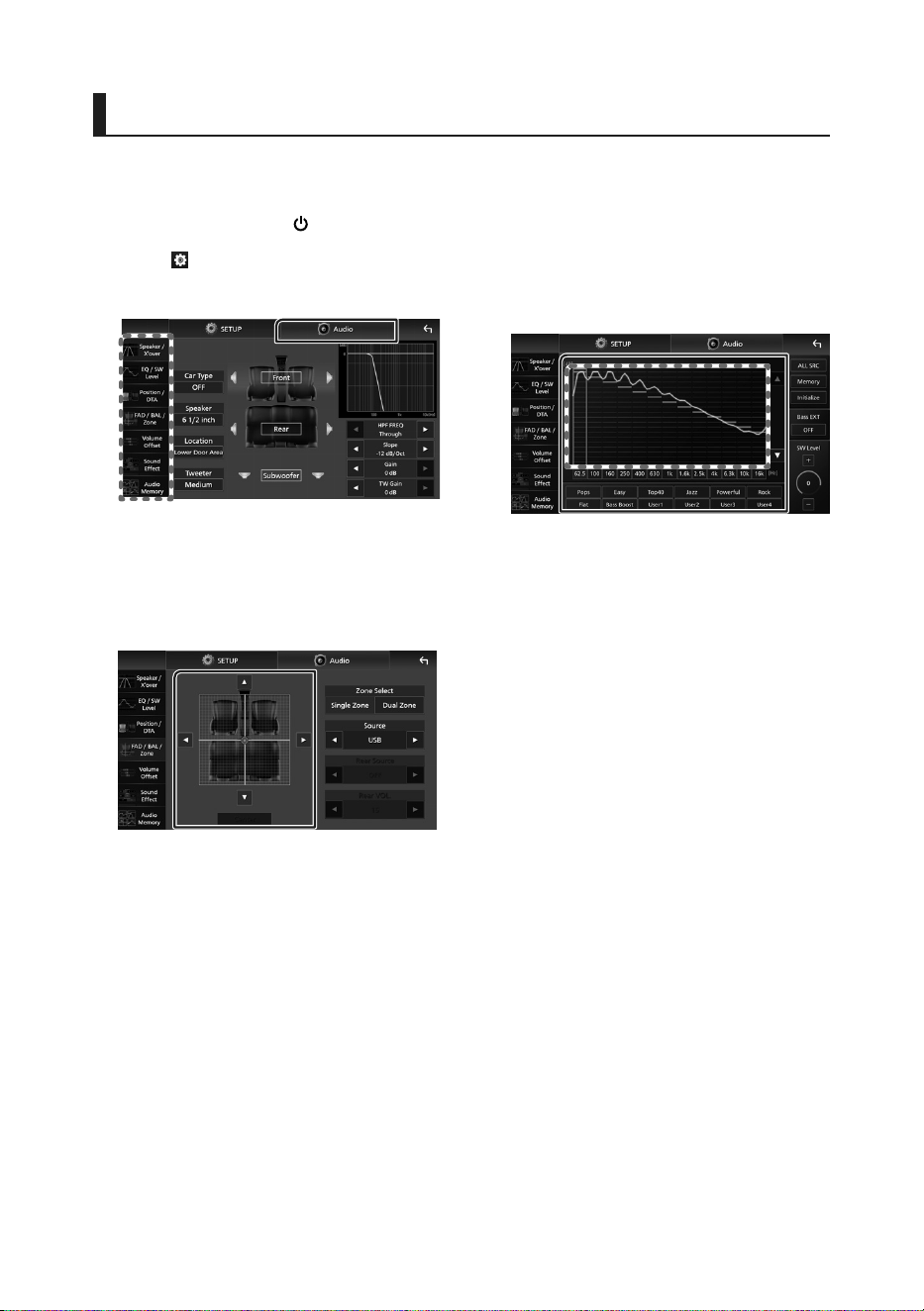
Control del audio
96
Control del audio
Puede configurar diversos ajustes como el
balance del audio o el nivel del subwoofer.
1
Pulse el botón [HOME]/[ ].
2
Toque [ ].
3
Toque [Audio].
Ñ Control general del audio
1
Toque [FAD / BAL / Zone].
2
Ajuste cada parámetro del modo
siguiente.
[C] y [D] ajustan el balance izquierdo y
derecho.
[R] y [S] ajustan el balance delantero y
trasero.
■ [Center]
Borre el ajuste.
Ñ Control del ecualizador
Puede ajustar el ecualizador seleccionando el
ajuste optimizado para cada categoría.
1
Toque [EQ / SW Level].
2
Toque la pantalla y ajuste a su gusto el
ecualizador gráfico.
■ Nivel de ganancia (área en el marco
punteado)
Ajuste el nivel de ganancia tocando cada una
de las barras de frecuencia.
Podrá seleccionar la barra de frecuencia y
ajustar su nivel usando [R], [S].
■ [ALL SRC]
Aplique la curva del ecualizador ajustado a
todas las fuentes. Toque [ALL SRC] (Todas
las fuentes) y a continuación toque [OK]
(Aceptar) en la pantalla de confirmación.
■ [Memory]
Guarda la curva del ecualizador ajustado
como “User1” a “User4”.
■ [Initialize]
Inicialice (aplane) la curva EQ actual.
■ [Bass EXT] (ajustes ampliados de
graves)
Si está activo, las frecuencias inferiores a 62,5
Hz se establecen al mismo nivel de ganancia
que (62,5 Hz).
■ [SW Level]
Ajustar el volumen del subwoofer.
■ [Pops]/[Easy]/[Top40]/[Jazz]/[Powerful]/
[Rock]/[Flat]/[Bass Boost]/[User1]/
[User2]/[User3]/[User4]
Recuperar la curva de EQ predeterminada.
!B5K-0760-00_20DNX_K_FP_QSG.indb 96 2020/07/02 14:24

Conexión/Instalación
97Español
Conexión/Instalación
Esta sección es para el instalador profesional.
Por razones de seguridad, deje las tareas de
cableado y montaje a profesionales. Consulte
al concesionario de audio del automóvil.
Antes de la instalación
Antes de la instalación de esta unidad, tenga
en cuenta las precauciones siguientes.
# ADVERTENCIAS
• Si conecta el cable de encendido (rojo) y
el cable de la batería (amarillo) al chasis
del automóvil (tierra), podría producir un
cortocircuito y esto, a su vez, un incendio.
Conecte siempre esos cables a la fuente de
alimentación que pasa por la caja de fusibles.
• No corte el fusible del cable de ignición (rojo)
y el cable de la batería (amarillo). El suministro
de energía debe conectarse a los cables por
medio del fusible.
# PRECAUCIÓN
• Instale esta unidad en la consola de su
vehículo.
No toque la parte metálica de esta unidad
durante e inmediatamente después del uso
de la unidad. Las partes metálicas, tales como
el disipador de calor o la carcasa, pueden estar
muy calientes.
NOTA
• La instalación y el cableado de este producto
requieren habilidad y experiencia. Para mayor
seguridad, deje el trabajo de montaje y
cableado en manos de profesionales.
• No instale la unidad si se va a convertir en un
obstáculo para la conducción.
• Ajuste la posición del panel de manera que
este no llegue a ser un obstáculo para la
conducción.
• Ajuste la posición de forma que el panel de
control se pueda mover a un ángulo que
permita insertar y extraer una tarjeta SD.
• Asegúrese de utilizar para la unidad una fuente
de alimentación de 12 V CC con conexión a
tierra negativa.
• No instale la unidad en un sitio expuesto a la
luz directa del sol, o excesivamente húmedo
o caluroso. Además deberá evitar sitios con
mucho polvo o con posibilidad de salpicaduras
de agua.
• No utilice sus propios tornillos. Utilice solo
los tornillos suministrados. El uso de tornillos
diferentes podría causar daños en la unidad.
• Si la alimentación no se enciende (se visualiza
“There is an error in the speaker wiring. Please
check the connections.” (Hay un error en el
cableado del altavoz. Por favor, compruebe
las conexiones)), puede que el cable del
altavoz haya sufrido un cortocircuito o que
haya tocado el chasis del vehículo y se haya
activado la función de protección. Por lo tanto,
el cable del altavoz debe ser revisado.
• Si el encendido de su automóvil no está
provisto de la posición ACC, conecte los cables
de encendido a una fuente de alimentación
que pueda conectarse y desconectarse con
la llave de encendido. Si conecta el cable de
encendido a una fuente de alimentación con
un suministro de voltaje constante, como
con los cables de la batería, la batería puede
agotarse.
• Si la consola tiene una tapa, dicha tapa no se
cerrará aunque la unidad se haya instalado
bien.
• Si se funden los fusibles, asegúrese primero
de que los cables no están en contacto pues
pueden ocasionar un cortocircuito, luego
reemplace el fusible dañado por uno nuevo
que tenga la misma potencia de servicio.
• Aísle los cables no conectados con una
cinta de vinilo u otro material similar. Para
evitar cortocircuitos, no retire las tapas de
los extremos de los cables o terminales no
conectados.
• Conecte los cables de los altavoces a cada uno
de los terminales correspondientes. La unidad
se puede dañar o no funcionar si comparte
los cables ¤ o los conecta a tierra a cualquier
parte metálica del vehículo.
!B5K-0760-00_20DNX_K_FP_QSG.indb 97 2020/07/02 14:24
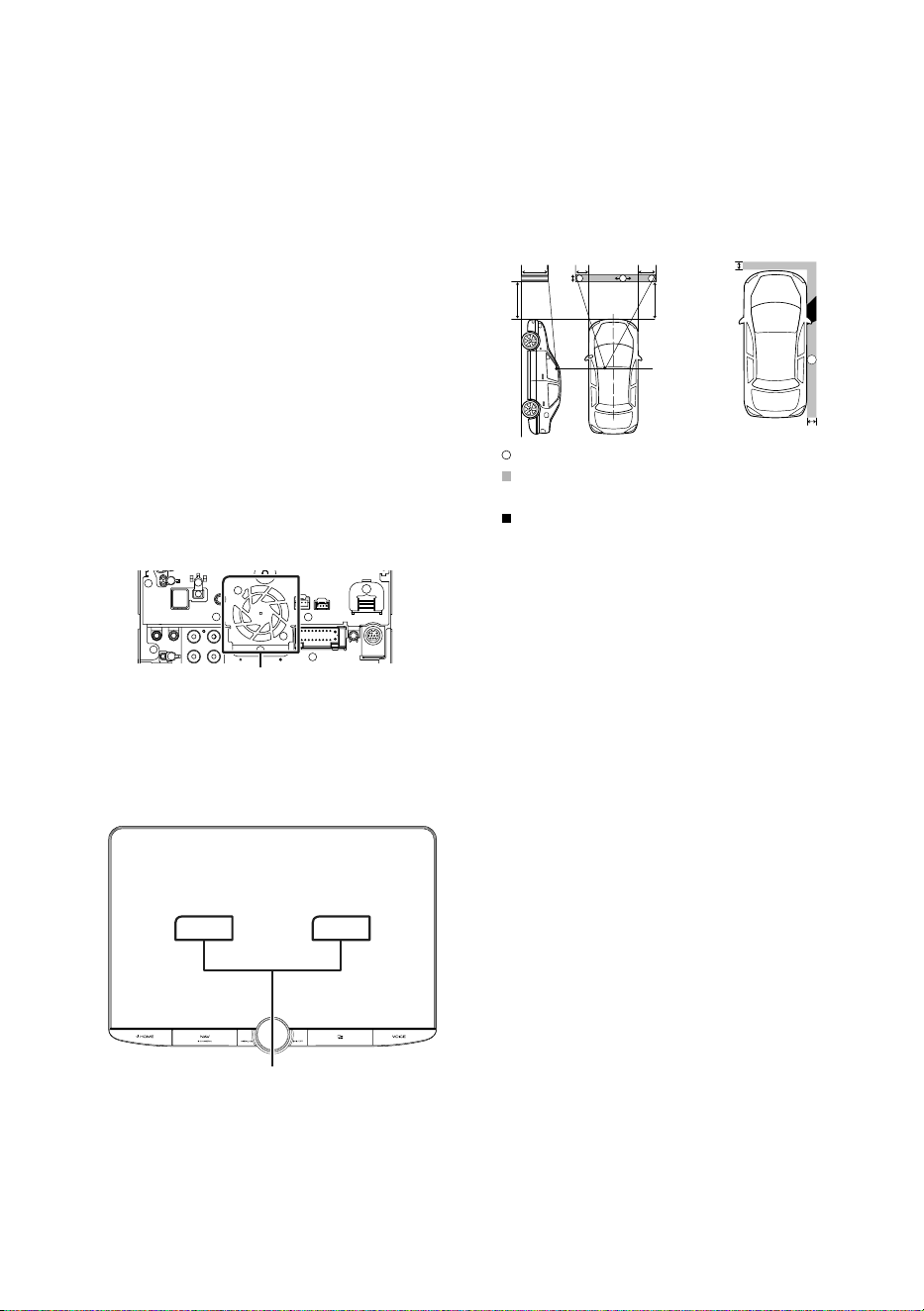
Conexión/Instalación
98
• Si se han conectado solamente dos altavoces
al sistema, enchufe los conectores a ambos
terminales de salida delanteros o a ambos
terminales de salida traseros (es decir, no
mezcle terminales delanteros y traseros). Por
ejemplo, si conecta el conector ¢ del altavoz
izquierdo a un terminal de salida delantero, no
conecte el conector ¤ a un terminal de salida
trasero.
• Después de instalar la unidad, compruebe
que las luces de freno, las luces intermitentes,
el limpiaparabrisas, etc., funcionan
satisfactoriamente.
• Instale la unidad en un ángulo de 30˚ o menos.
• Esta unidad cuenta con un ventilador de
refrigeración para reducir la temperatura
interna. No monte la unidad en un lugar en el
que el ventilador de refrigeración de la unidad
pueda quedar obstruido. Si estas aberturas
quedan bloqueadas, la refrigeración no se
producirá, aumentando la temperatura interna
y provocando averías.
Ventilador de refrigeración
• No presione con fuerza la superficie del panel
al instalar la unidad en el vehículo. De lo
contrario, pueden producirse marcas, daños
o fallos.
• La recepción podría ser baja si existen objetos
metálicos cerca de la antena Bluetooth/Wi-Fi.
Unidad de antena Bluetooth/Wi-Fi
● Campos de visión delanteros y laterales
• Para determinar los campos de visión laterales
y delanteros del conductor en condiciones
normales, coloque un poste (visible
directamente desde la parte delantera o visible
a través del espejo retrovisor) tal y como se
muestra.
*
1
*
2
0,3 m
0,3 m
0,3 m
2 m
2 m
1 m 0,7 m 0,9 m
[ ]: Poste (altura: 1 m; diámetro: 0,3 m)
[
]: Campo de visión desde la posición de
conducción
[
]: Zona excluida (el tamaño del poste está
sujeto a regulación)
• Los estándares se invierten para vehículos con
la dirección a la derecha.
*1 El poste debe ser visible desde la posición del
conductor como un campo de visión delantero
directo.
*2 El poste debe ser directamente visible o
indirectamente visible a través del retrovisor, etc.,
desde la posición del conductor.
!B5K-0760-00_20DNX_K_FP_QSG.indb 98 2020/07/02 14:24
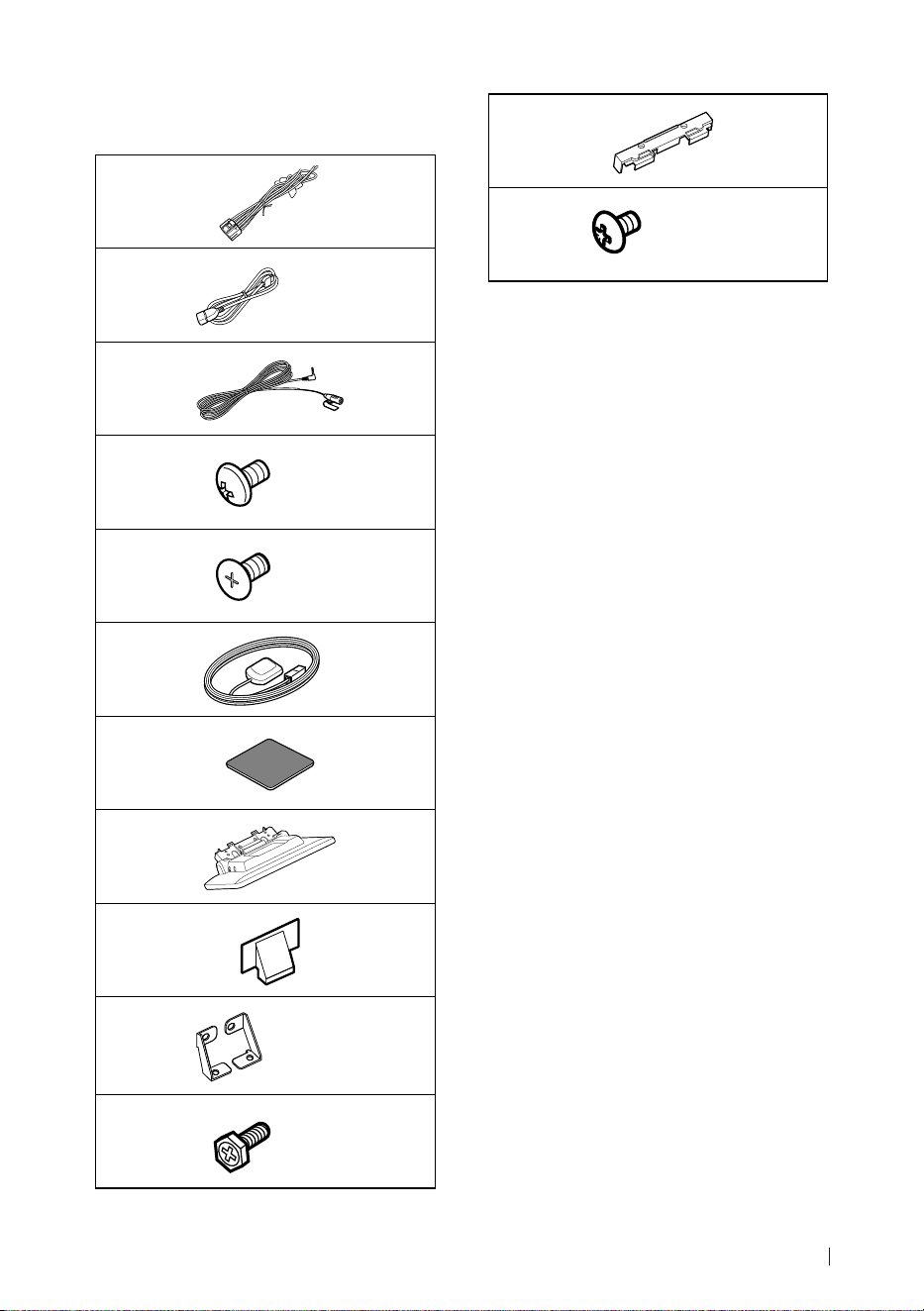
Conexión/Instalación
99Español
Ñ Accesorios suministrados para
la instalación
1
x1
2
(Negro 1 m)
x1
3
(3 m)
x1
4
(M5 x 8 mm)
x6
5
(M5 x 8 mm)
x6
6
(3,5 m)
x1
7
x1
8
x1
9
x2
0
Izquierda/derecha
x1
-
(M5 x 8 mm)
x6
=
x1
~
(Ø3 x 6 mm)
(Negro)
x2
Ñ Procedimiento de instalación
1) Para evitar cortocircuitos, retire la llave del
encendido y desconecte el terminal ¤ de la
batería.
2) Retire las piezas del vehículo para instalar la
unidad y conectar los cables a los terminales.
3) Realice de forma adecuada las conexiones
de los cables de entrada y salida para cada
unidad.
4) Conecte los cables del mazo de los altavoces.
5) Conecte los cables del mazo de cables en el
orden siguiente: tierra, batería, encendido.
6) Establezca la altura de la unidad de
visualización y la posición del deslizador.
Consulte Distancia entre la unidad de
visualización y la unidad principal
(P.100).
7) Conecte el mazo de cables a la unidad.
8) Instale la unidad principal en el vehículo.
9) Vuelva a instalar las piezas del vehículo.
10) Instale la unidad de visualización.
11) Conecte nuevamente el terminal ¤ de la
batería.
12) Realice la configuración inicial.
Consulte Configuración inicial (P.81).
!B5K-0760-00_20DNX_K_FP_QSG.indb 99 2020/07/02 14:24
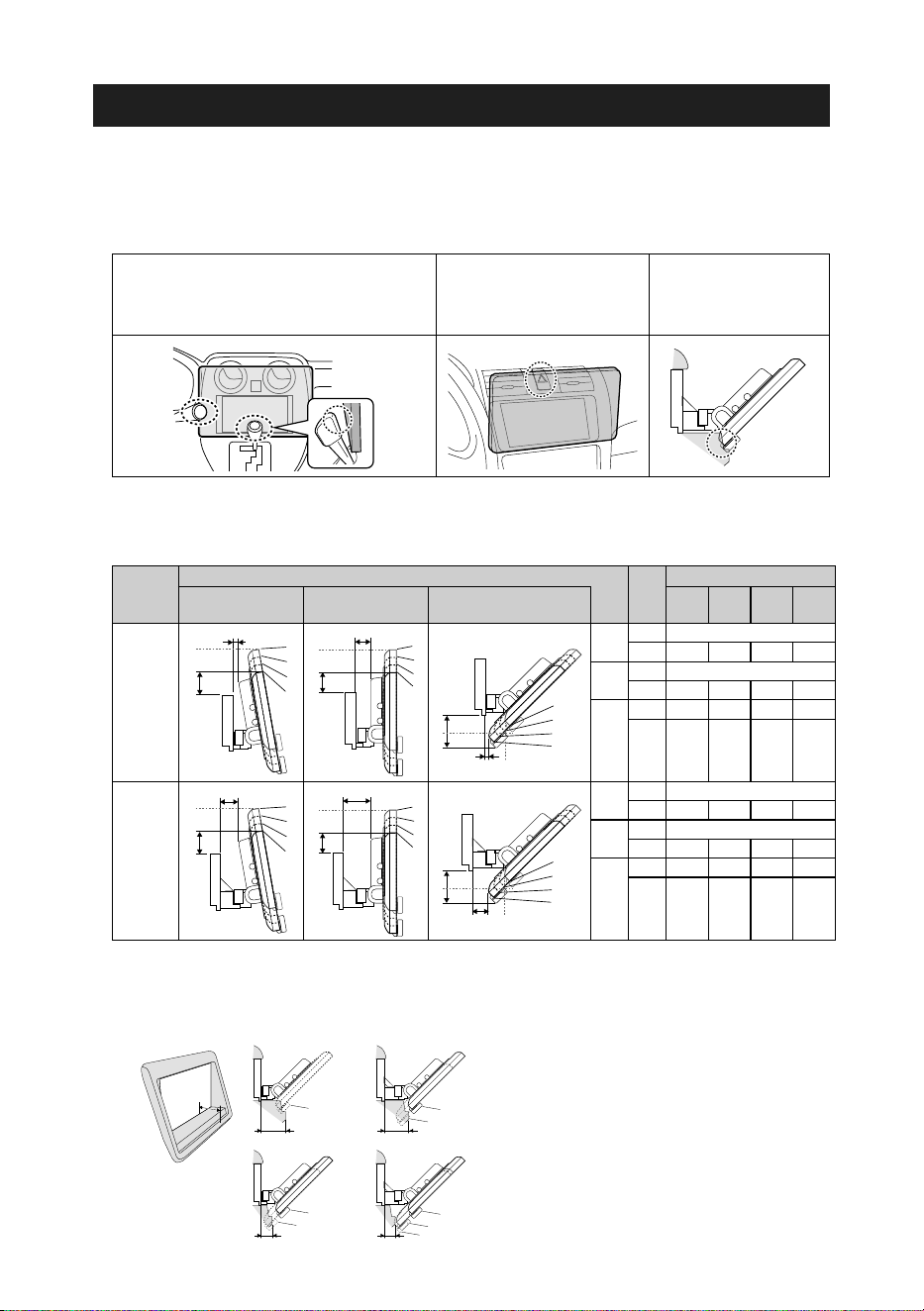
Conexión/Instalación
100
Instalación de la unidad
Ñ Comprobar la posición de instalación de la unidad de visualización
● Vehículos en los que no se puede instalar
Es posible instalar la unidad si se pueden evitar las situaciones siguientes ajustando la posición del
deslizador y la altura de la pantalla.
Las operaciones de las palancas como la palanca
de cambio, la palanca del limpiaparabrisas
o la palanca de los intermitentes se ven
obstaculizadas cuando instala la unidad.
El interruptor de las luces de
emergencia queda oculto
respecto el asiento del
conductor.
La unidad de visualización
golpea contra un panel
del vehículo.
● Distancia entre la unidad de visualización y la unidad principal
Ajuste la posición del deslizador y la altura de la pantalla de manera que no interfieran con el
movimiento de la pantalla.
Posición
del
deslizador
Ángulo de la pantalla Altura de la pantalla
-10° 0° 45° 1 2 3 4
Posición
trasera
4
3
2
1
a
4
3
2
1
4
3
2
1
4
3
2
1
4
3
2
1
4
3
2
1
b
a
c
a
a
b
b
d
d
b
c
4
3
2
1
a
4
3
2
1
4
3
2
1
4
3
2
1
4
3
2
1
4
3
2
1
b
a
c
a
a
b
b
d
d
b
c
4
3
2
1
a
4
3
2
1
4
3
2
1
4
3
2
1
4
3
2
1
4
3
2
1
b
a
c
a
a
b
b
d
d
b
c
-10°
a 10
b 38,1 50,9 63,8 76,5
0°
a 26,7
b 34,7 47,7 60,7 73,7
45°
c 5,7 14,4 24,1 33,4
d 55,4 46,3 37,1 27,8
Posición
delantera
4
3
2
1
a
4
3
2
1
4
3
2
1
4
3
2
1
4
3
2
1
4
3
2
1
b
a
c
a
a
b
b
d
d
b
c
4
3
2
1
a
4
3
2
1
4
3
2
1
4
3
2
1
4
3
2
1
4
3
2
1
b
a
c
a
a
b
b
d
d
b
c
4
3
2
1
a
4
3
2
1
4
3
2
1
4
3
2
1
4
3
2
1
4
3
2
1
b
a
c
a
a
b
b
d
d
b
c
-10°
a 30,1
b 38,1 50,9 63,8 76,5
0°
a 46,7
b 34,7 47,7 60,7 73,7
45°
c 25,7 34,9 44,1 53,3
d 55,4 46,3 37,1 27,8
Unidad: mm
Ejemplos
Panel de instrumentos
del vehículo
Deslizador en la
posición trasera
Deslizador en la
posición delantera
C’
4
1
4
1
4
2
1
4
C’ =30mm C’ =30mm
C’ =50mm C’ =50mm
• C'=50 mm;
Posición del deslizador: Posición delantera
Altura de la pantalla: Ajustar solo la “4”
• C'=30 mm;
Posición del deslizador: Posición trasera
Altura de la pantalla: Ajustar solo la “4”
Posición del deslizador: Posición delantera
Altura de la pantalla: Ajuste “2”~“4”
!B5K-0760-00_20DNX_K_FP_QSG.indb 100 2020/07/02 14:24
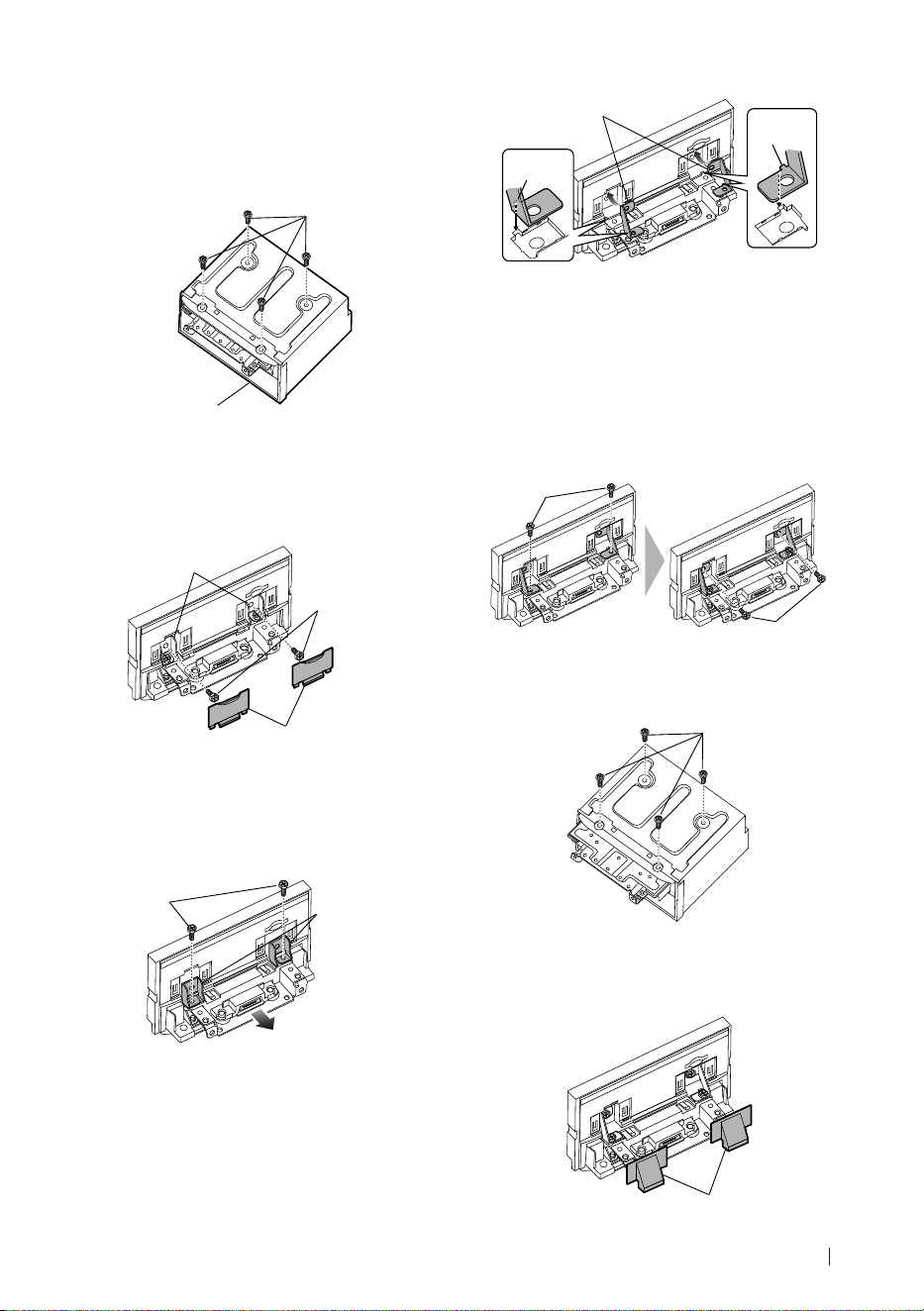
Conexión/Instalación
101Español
Ñ Posicionar el deslizador hacia
delante
1
Retire los cuatro tornillos de la parte
inferior de la unidad principal.
Unidad principal
Tornillo
2
Retire las dos cubiertas para la posición
trasera y, a continuación, retire los dos
tornillos de cabeza hexagonal del soporte
de la posición trasera.
Tornillo
de cabeza
hexagonal
Soporte para
posición trasera
Cubierta para
posición trasera
3
Arrastre el bloqueo del deslizador hacia
delante y retire los dos tornillos de cabeza
hexagonal para desmontar el soporte de
la posición trasera.
Soporte para
posición trasera
Tornillo
de cabeza
hexagonal
4
Instale el soporte de la posición delantera
(accesorio 0) en ambos lados de manera
que sus salientes queden alineados con
las ranuras de la unidad principal.
Saliente
Saliente
0
5
Fije el soporte de la posición delantera
en el bloqueo del deslizador con los dos
tornillos de cabeza hexagonal. Arrastre
el bloqueo del deslizador hasta que se
detenga y, a continuación, fije el soporte
de la posición delantera a la unidad
principal con los dos tornillos de cabeza
hexagonal.
Tornillo de cabeza
hexagonal
Tornillo de cabeza
hexagonal
6
Vuelva a instalar los cuatro tornillos en la
parte inferior de la unidad principal.
Tornillo
7
Instale la cubierta de la posición
delantera (accesorio 9) en las dos
ubicaciones tal y como se muestra.
9
!B5K-0760-00_20DNX_K_FP_QSG.indb 101 2020/07/02 14:24
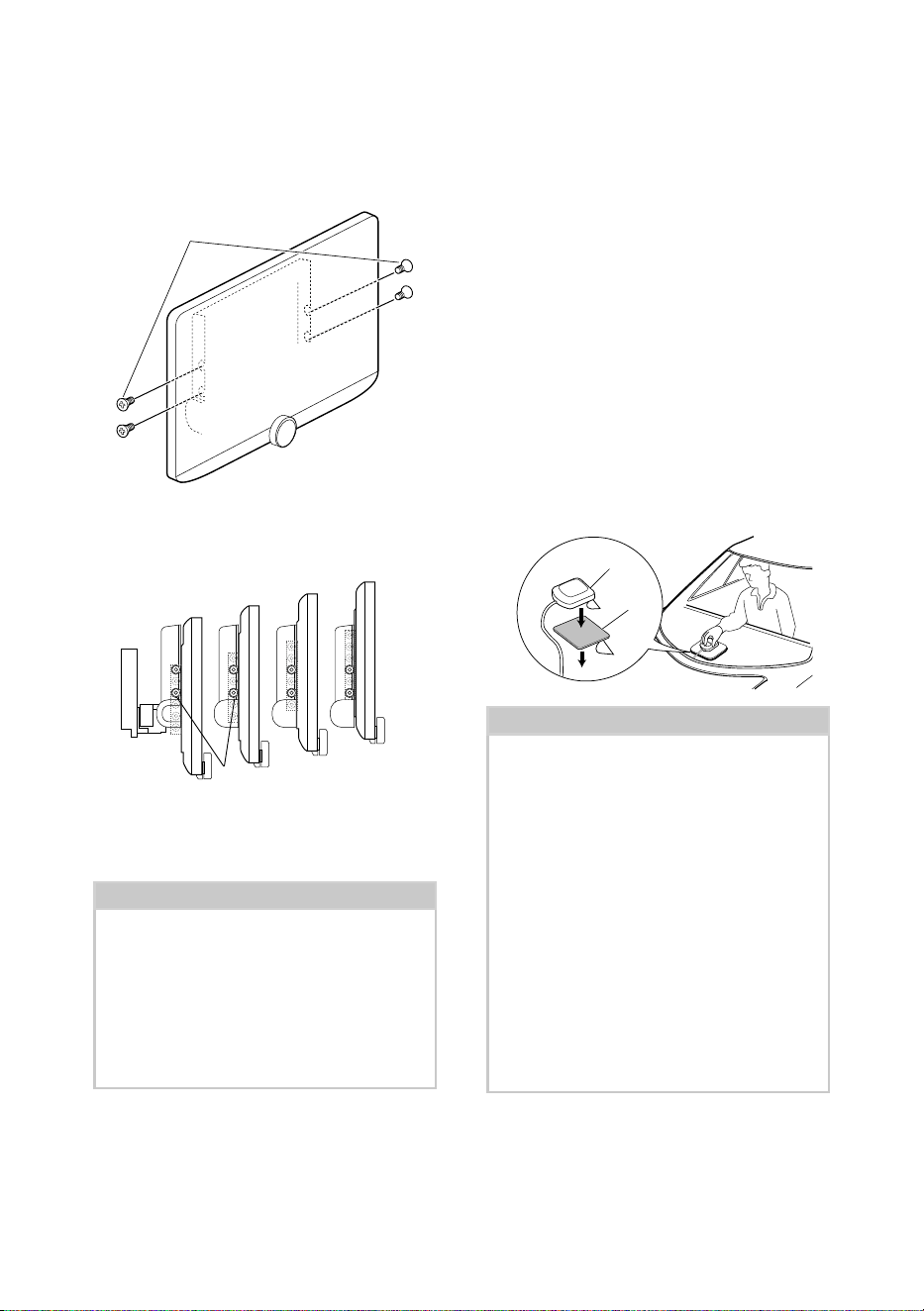
Conexión/Instalación
102
Ñ Ajuste de la altura de la
pantalla
1
Retire los cuatro tornillos de cabeza plana
de ambos lados.
Tornillo de cabeza plana
2
Ajuste la altura de la pantalla de acuerdo
con la posición del orificio del tornillo.
La opción predeterminada es “1”.
1
2
3
4
Posición del orificio del tornillo
3
Vuelva a instalar los cuatro tornillos de
cabeza plana en ambos lados y fije la
pantalla.
NOTA
• Fíjela con tornillos de cabeza plana de forma
correcta. Después de instalar la unidad de
visualización (accesorio 8) en la unidad
principal, incline la pantalla hacia delante hasta
que se detenga y confirme que la unidad de
visualización (accesorio 8) no golpea con piezas
del vehículo. Si la unidad de visualización golpea
contra piezas del vehículo, ajuste la altura de la
pantalla de nuevo.
Ñ Antena GPS
La antena GPS está instalada dentro
del vehículo. Debe instalarse lo más
horizontalmente posible para permitir una
fácil recepción de las señales de satélite GPS.
Para montar la antena GPS en el interior del
vehículo:
1) Limpie el salpicadero o la superficie en
cuestión.
2) Extraiga el separador de la placa metálica
(accesorio 7).
3) Presione con fuerza la placa metálica
(accesorio 7) sobre el salpicadero o cualquier
otra superficie de montaje. Si fuera necesario,
puede doblar la placa metálica (accesorio 7)
para adaptarla a una superficie curva.
4) Retire el separador de la antena del GPS
(accesorio 6) y pegue la antena a la placa de
metal (accesorio 7).
7
6
NOTA
• Utilice la antena GPS suministrada. Usar una
antena GPS que no sea la suministrada podría
causar una disminución en la precisión del
posicionamiento.
• Dependiendo del vehículo, la recepción de
la señal GPS podría no ser posible con una
instalación en el interior.
• Por favor, instale esta antena GPS en una zona
alejada de cualquier otra antena que se use con
radios BC o televisiones por satélite.
• La antena GPS debería instalarse en una
posición separada al menos 12 pulgadas (30
cm) del teléfono inteligente/teléfono móvil
u otras antenas transmisoras. Las señales del
satélite GPS podrían interferir con estos tipos de
comunicación.
• Pintar la antena GPS con pintura (metálica) podría
causar una disminución en su rendimiento.
!B5K-0760-00_20DNX_K_FP_QSG.indb 102 2020/07/02 14:24
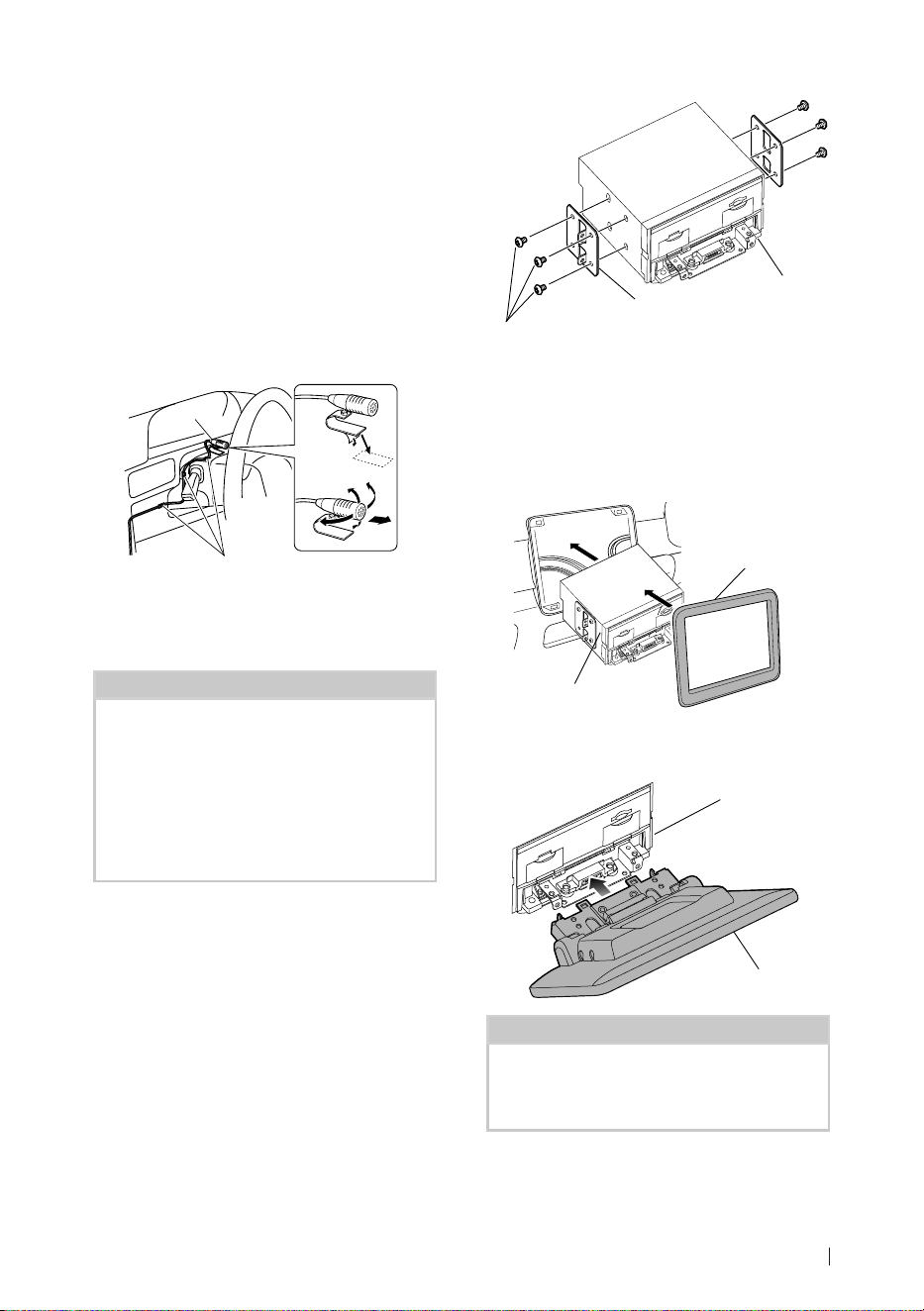
Conexión/Instalación
103Español
Ñ Unidad de micrófono
1) Compruebe la posición de instalación del
micrófono (accesorio 3).
2) Limpie la superficie de instalación.
3) Extraiga el separador del micrófono (accesorio
3) y fije el micrófono en la posición indicada
más abajo.
4) Conecte el cable del micrófono a la unidad de
forma segura en varias posiciones mediante
cinta u otro método.
5) Ajuste la dirección del micrófono (accesorio
3) hacia el conductor.
3
Fije un cable con una cinta adhesiva de
uso comercial.
Ñ Instalación de la unidad
principal
NOTA
• Determine la posición del deslizador antes de
instalar la unidad principal (P.101). La posición
del deslizador no se puede cambiar después de la
instalación en el vehículo.
• Asegúrese de que la unidad esté firmemente
instalada en su lugar. Si la unidad está en una
posición inestable, es posible que no funcione
correctamente (por ejemplo, el sonido puede
interrumpirse).
1
Retire las piezas que interfieran con la
instalación, como el panel del vehículo.
2
Instale el soporte del vehículo en la
unidad principal.
Soporte del vehículo
4 o 5
Unidad principal
3
Conecte los cables del mazo de cables y
los equipos periféricos.
4
Instale la unidad principal en el vehículo.
5
Vuelva a instalar las piezas desmontadas
como, por ejemplo, un panel del vehículo.
Panel del
vehículo
Unidad principal
6
Instale la unidad de visualización
(accesorio 8) en la unidad principal.
Unidad principal
8
NOTA
• Si la unidad de visualización golpea contra un
panel del vehículo, ajuste la altura de la pantalla
tomando como referencia el apartado Ajuste de
la altura de la pantalla (P.102).
!B5K-0760-00_20DNX_K_FP_QSG.indb 103 2020/07/02 14:24
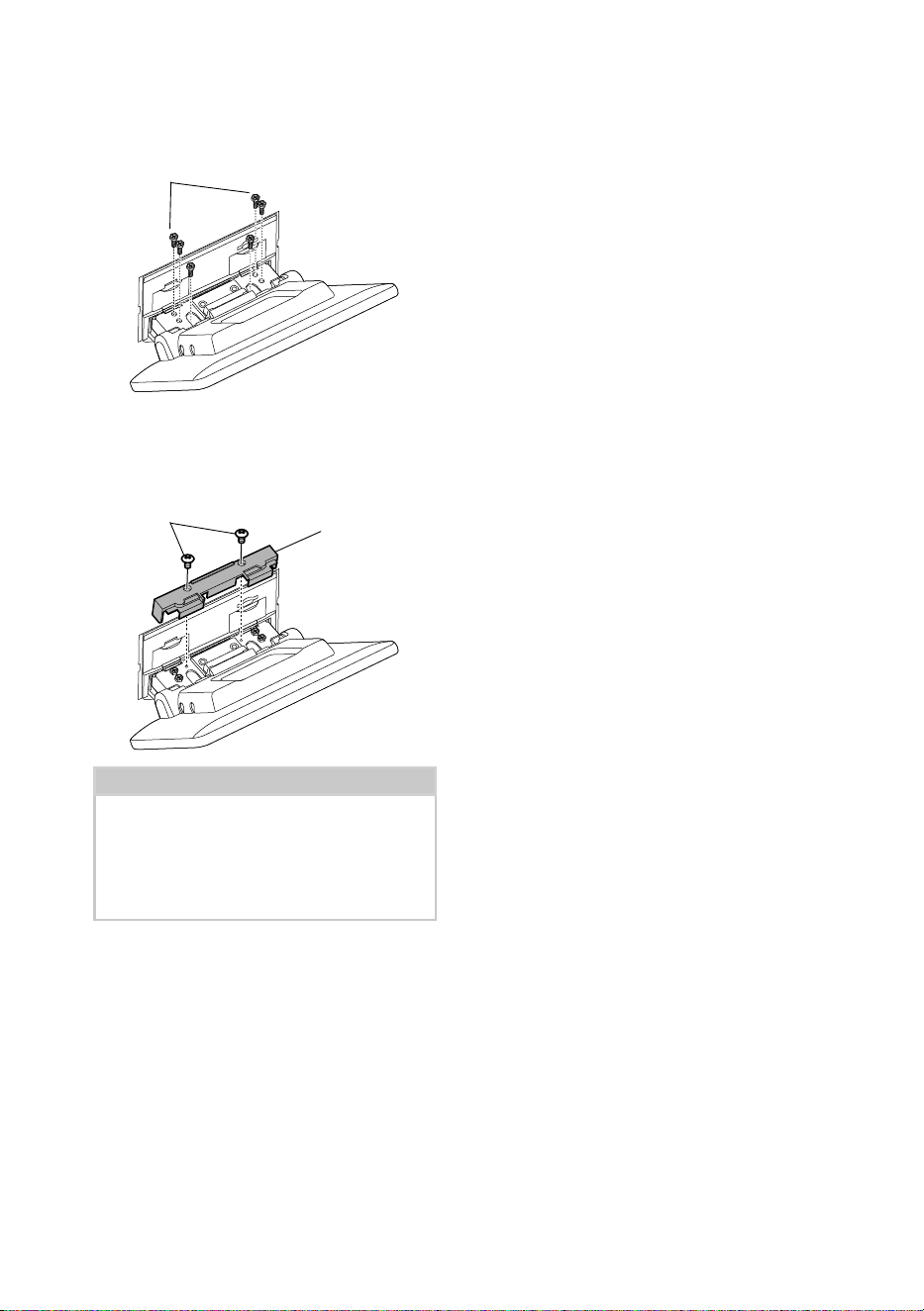
Conexión/Instalación
104
7
Fije la unidad de visualización con seis
tornillos de cabeza hexagonal (accesorio
-).
-
8
Coloque la cubierta protectora
(accesorio =) en la pieza de acople y, a
continuación, fíjela con dos tornillos de
fijación (accesorio ~).
~
=
NOTA
• Si la cubierta protectora (accesorio =) no está
instalada, esta unidad no se encenderá. Aunque
encienda la unidad, la alimentación se apagará en
mitad del proceso.
Asegúrese de instalar la cubierta protectora
(accesorio =).
9
Levante la pantalla manualmente.
!B5K-0760-00_20DNX_K_FP_QSG.indb 104 2020/07/02 14:24
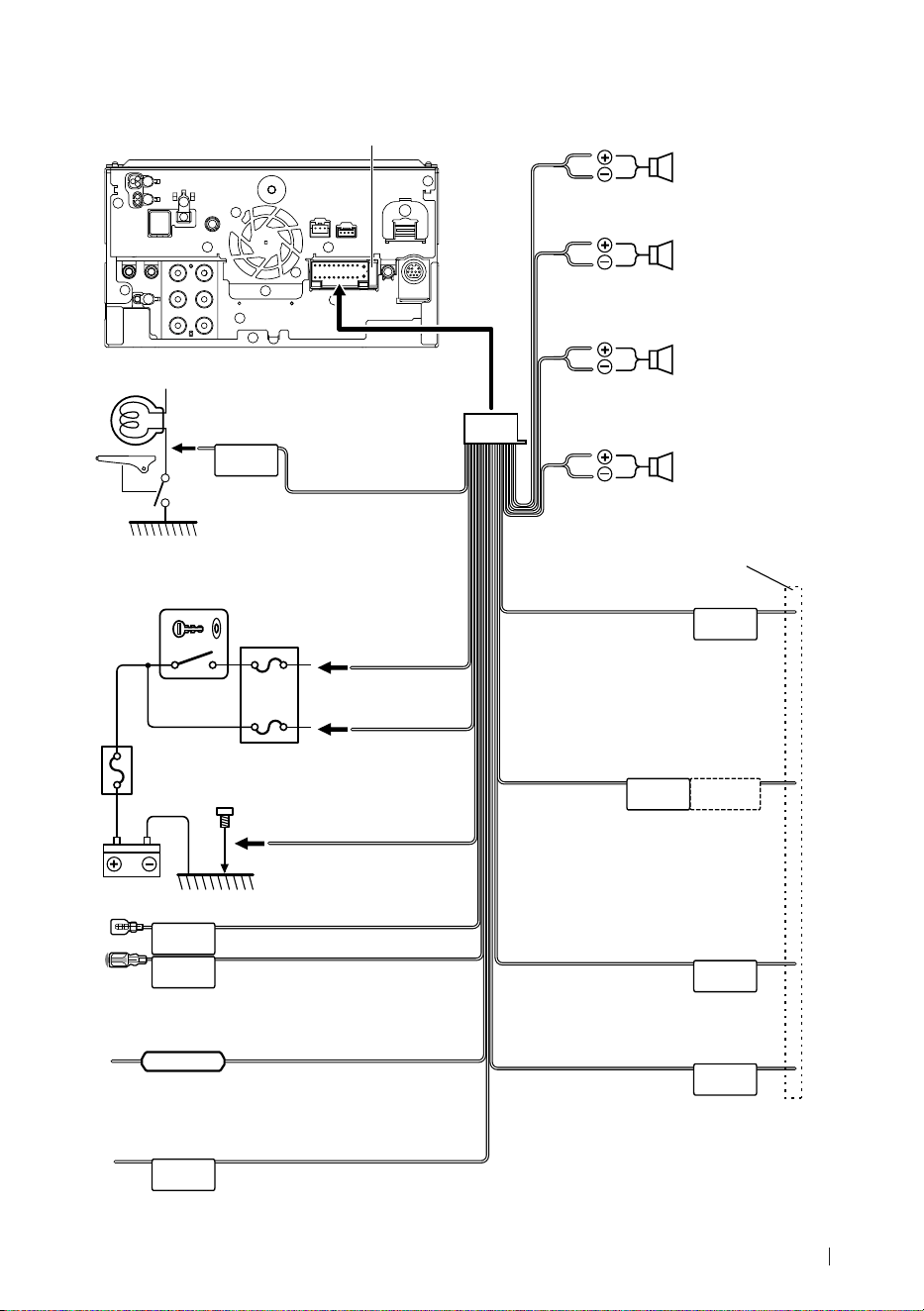
Conexión/Instalación
105Español
Ñ Conectar los cables a los terminales
ILLUMI
ANT CONT
STEERING WHEEL
REMOTE INPUT
REMOTE CONT
PRK SW
REVERSE
P. CONT
CAM+
CAM–
S SENS
Fusible (15A)
Si utiliza el amplificador de potencia
opcional, conecte su terminal de control de
potencia. (Máx. 200 mA, 12 V)
Dependiendo de la antena que use, conecte al
terminal de control de la antena del motor o al
terminal de alimentación del amplificador de
refuerzo de la antena tipo pelicular.
(Máx. 300 mA, 12 V)
Azul/Blanco
(cable de control de la alimentación)
Verde/Blanco
Verde/Rojo
Para el terminal de control de la cámara CMOS serie
3xx (accesorio opcional)
Azul
(cable de control de la antena)
Al interruptor de control de
iluminación del automóvil
Naranja/Blanco
(cable de control del atenuador)
Conecte al mazo de cables de pulsos de velocidad del
vehículo.
No corte la etiqueta “S SENS” o podría causar fallos.
Azul claro/Amarillo
(cable del mando a distancia de la
dirección)
Conecte el mazo de la luz de marcha atrás del
vehículo cuando utilice una cámara de visión
trasera opcional.
Al mando a distancia de la dirección
Para utilizar la función de mando a
distancia en el volante es necesario
un adaptador remoto exclusivo (no
suministrado) apropiado para su vehículo.
Si no se efectúan las conexiones, no deje
que el cable sobresalga de la lengüeta.
Púrpura/Negro
Al altavoz trasero
derecho
Al altavoz trasero
izquierdo
Al altavoz delantero
derecho
Al altavoz delantero
izquierdo
Impedancia del altavoz:
4-8 Ω
Púrpura
Verde/negro
Verde
Gris/Negro
Gris
Blanco/Negro
Blanco
Accesorio 1
Realice la conexión en el arnés
del interruptor de detección
del freno de estacionamiento
del vehículo.
Verde claro
(cable del sensor de
aparcamiento) (2 m)
Para mayor seguridad, asegúrese
de conectar el sensor de
estacionamiento.
Interruptor de llave de
encendido
Rojo
(cable de
encendido)
Amarillo
(cable de la batería)
Caja de fusibles del
automóvil
Batería
Negro
(cable de toma de tierra) ¤
(Al chasis del vehículo)
Rosa (entrada de pulsos de velocidad) (2 m)
Morado/Blanco (cable del sensor de marcha atrás) (2 m)
!B5K-0760-00_20DNX_K_FP_QSG.indb 105 2020/07/02 14:24
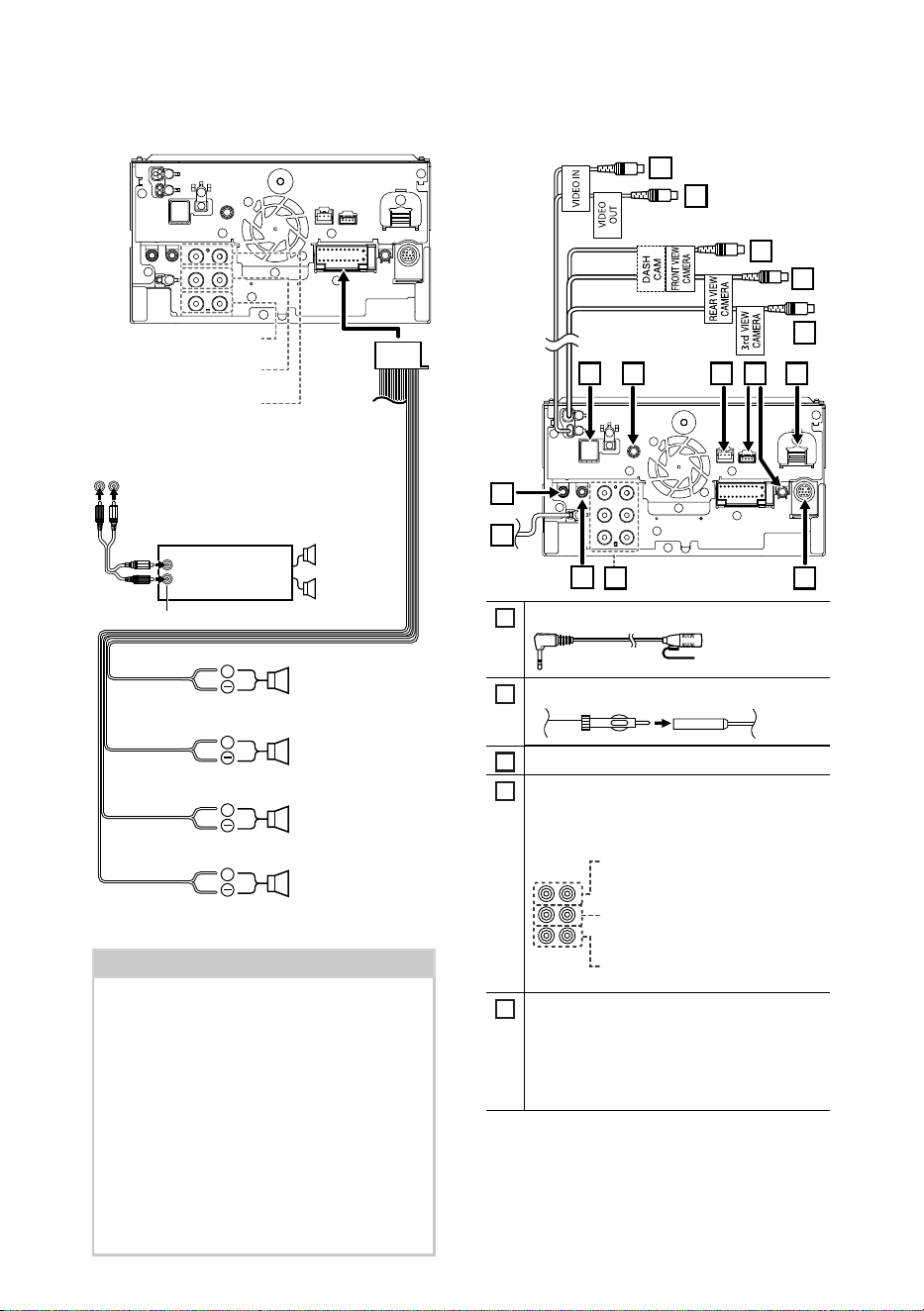
Conexión/Instalación
106
+
+
+
+
Al conectar a un amplificador externo, conecte
su cable de toma a tierra al chasis del coche para
evitar dañar la unidad.
Blanco/Negro
Gris/Negro
Verde/negro
Púrpura/Negro
Impedancia del altavoz: 4-8 Ω
Púrpura
Verde
Gris
Blanco
Para el altavoz
izquierdo de gama
media
Salida previa del
subwoofer
Para el altavoz derecho
de gama media
Salida preamplificada de
rango medio
Para el altavoz
izquierdo tweeter
Salida preamplificada del
tweeter
Para el altavoz derecho
tweeter
Amplificador de
potencia (accesorio
opcional)
Cable RCA
(Se vende por separado)
Entrada
Altavoz
Presalida
NOTA
• Para más información sobre la configuración del
sistema de altavoces, consulte Configuración de
sistema de altavoces de 3 vías (P.74) en el
Manual de instrucciones.
• Para la configuración de los altavoces y de
la transición, consulte Configuración del
altavoz/transición (P.75) en el Manual de
instrucciones.
• Para más información sobre cómo conectar los
cables de los altavoces a terminales que no sean
los terminales para altavoz y los terminales de
salida previa, consulte Conexión del sistema
y de los componentes externos (P.106) y
Conectar los cables a los terminales (P.105).
Ñ Configuración de sistema de
altavoces de 3 vías
Ñ Conexión del sistema y de los
componentes externos
12
13
14
15
678910
2
1
4 5
11
3
1
Accesorio 3: Micrófono Bluetooth
2
Entrada de antena FM/AM
3
Salida del audio AV (ø3,5 mini jack)
4
Al conectar a un amplificador externo, conecte
su cable de toma a tierra al chasis del coche
para evitar dañar la unidad.
Salida previa de audio trasera
(izquierda: blanca, derecha: roja)
Salida previa de audio delantera
(izquierda: blanca, derecha: roja)
Salida previa de subwoofer
(izquierda: blanca, derecha: roja)
5
Conector del sintonizador para vehículos
SiriusXM Connect
Para obtener más información acerca de cómo
instalar el sintonizador SiriusXM Connect
Vehicle, consulte la guía de instalación
suministrada con el sintonizador.
!B5K-0760-00_20DNX_K_FP_QSG.indb 106 2020/07/02 14:25
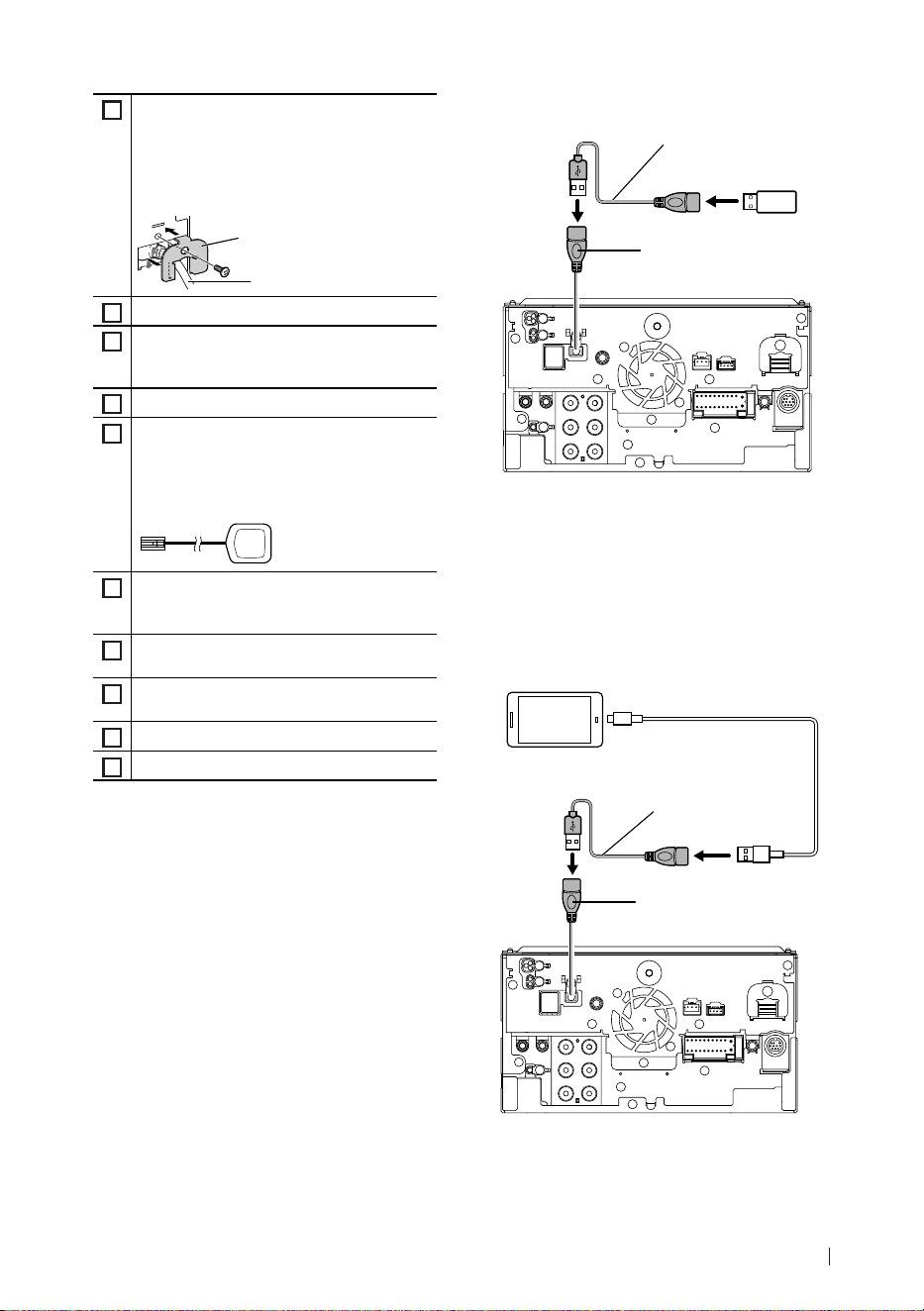
Conexión/Instalación
107Español
6
Entrada HDMI
Utilice el cable HDMI KCA-HD100 (accesorio
opcional).
Cuando conecte el cable al terminal HDMI,
retire la fijación. Después de conectar el cable,
vuelva a colocar la fijación.
Conector HDMI
Fijación
7
Conector iDatalink
8
Interfaz de cámara de salpicadero
Conecte una cámara de salpicadero DRV-N520
(accesorio opcional). (P.108)
9
Salida de audio AV (miniconector ø3,5)
10
Accesorio 6: Antena GPS
Utilice la antena GPS suministrada. Usar una
antena GPS que no sea la suministrada podría
causar una disminución en la precisión del
posicionamiento.
11
Entrada de la cámara de visión de terceros
(amarillo). Consulte Para configurar los
ajustes de asignación de la cámara (P.109).
12
Entrada de la cámara de visión trasera (amarillo)
*
1
13
Entrada de la cámara de visión delantera/
cámara de salpicadero (amarilla).*
2
(P.109)
14
Salida de vídeo (amarillo)
15
Entrada de vídeo (amarillo)
*1 Conecte una cámara HD al terminal de
entrada de la cámara de visión trasera para
usar video HD.
*2 Conecte una cámara HD a la cámara de visión
delantera/terminal de entrada de la cámara
del salpicadero para usar video HD.
Ñ Conexión de un dispositivo USB
Dispositivo
USB
[2]
Terminal USB
[1]
Accesorio 2 (1 m)
[3]
[1]
Corriente de alimentación máxima USB :
CC 5 V = 1,5 A
[2]
Vendida por separado
[3]
Consulte Asegurar el cable de extensión
USB (P.108).
Ñ Conexión de un teléfono
inteligente Android
Cable USB
[2]
Smartphone Android
[2]
Terminal USB
[1]
Accesorio 2 (1 m)
[3]
[1]
Corriente de alimentación máxima USB :
CC 5 V = 1,5 A
[2]
Se vende por separado
[3]
Consulte Asegurar el cable de extensión
USB (P.108).
!B5K-0760-00_20DNX_K_FP_QSG.indb 107 2020/07/02 14:25
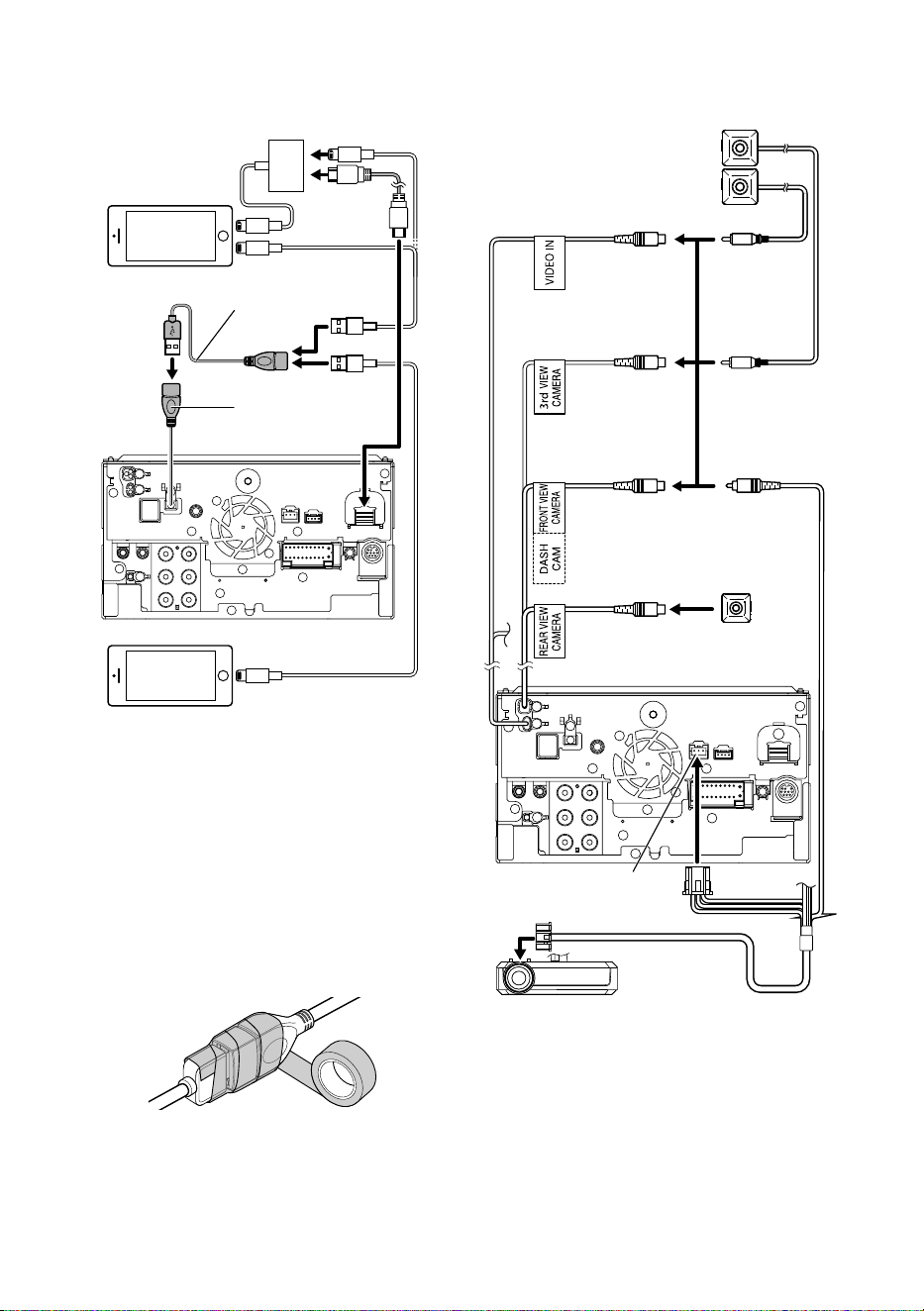
Conexión/Instalación
108
Ñ Conexión de un iPod/iPhone
KCA-iP103 (0,8 m)
[3]
KCA-HD100
(1,8 m)
[3]
KCA-iP103 (0,8 m)
[3]
KCA-iP103 (0,8 m)
[3]
Adaptador AV
digital Lightning
[2]
iPod/iPhone
[2]
iPhone (con Apple CarPlay)
[2]
Terminal USB
[1]
Accesorio 2 (1 m)
[4]
[1]
Corriente de alimentación máxima USB :
CC 5 V = 1,5 A
[2]
Se vende por separado
[3]
Accesorio opcional
[4]
Consulte Asegurar el cable de extensión
USB (P.108).
Ñ Asegurar el cable de extensión
USB
Asegure el cable de extensión USB con cinta
aislante o similar para que sus conectores no se
desconecten.
Ñ Conexión de la cámara
DRV-N520
[1]
Entrada de la
cámara de visión
de terceros
(amarillo)
Entrada de la cámara
de visión delantera/
cámara de salpicadero
(amarilla)
[3]
Cámara de visión lateral izquierda y
cámara de visión lateral derecha
[2]
Cámara de visión delantera
[4] [6]
Entrada de vídeo
(amarillo)
Entrada de la
cámara de visión
trasera (Amarillo)
Interfaz de cámara de
salpicadero
Cámara de visión trasera
[4] [5]
[1]
Accesorio opcional
[2]
Se vende por separado
[3]
Se pueden conectar hasta un máximo de
3 cámaras de entre cámara de salpicadero,
cámara de visión delantera, cámara de visión
lateral izquierda y cámara de visión lateral
derecha. (P.109)
[4]
Serie CMOS-3xx (accesorio opcional) o cámara
comercialmente disponible.
[5]
Para video HD, también se usa una cámara HD
como cámara de visión trasera.
!B5K-0760-00_20DNX_K_FP_QSG.indb 108 2020/07/02 14:25
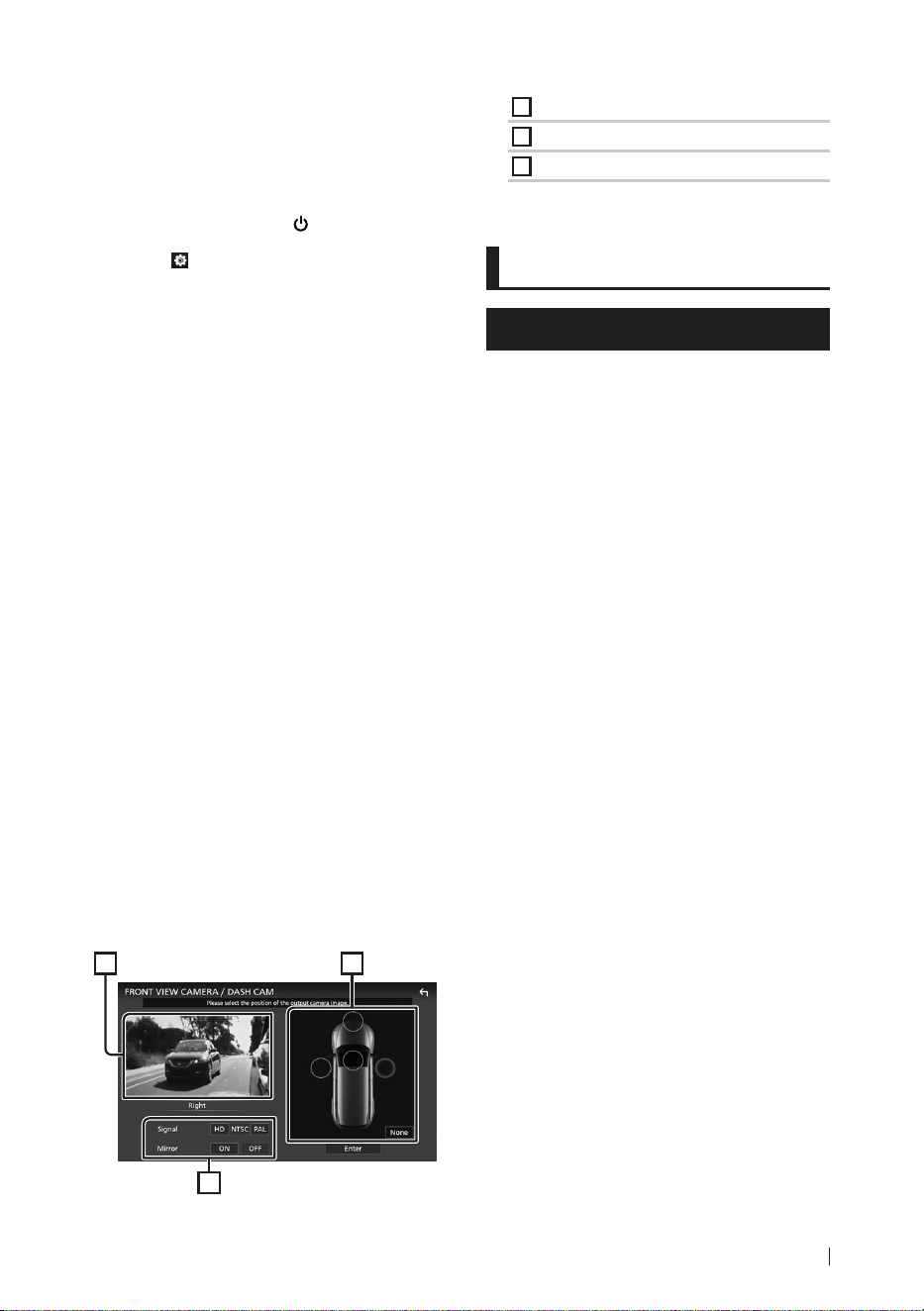
Apéndice
109Español
[6]
Para video HD, también se usa una cámara HD
como cámara de visión delantera.
Ñ Para configurar los ajustes de
asignación de la cámara
1
Pulse el botón [HOME]/[ ].
2
Toque [ ].
3
Toque [SETUP].
hh Aparece la pantalla SETUP Menu.
4
Toque [Camera].
hh Aparece el menú de ajustes de la
cámara.
5
Toque [Camera Assignment Settings].
6
Seleccione el elemento a configurar.
■ [REAR VIEW CAMERA]
Establezca la asignación de la vista de la
cámara conectada al terminal de entrada
de la cámara de visión trasera.
■ [FRONT VIEW CAMERA/DASH CAM]
Establezca la asignación de cámara
desde la vista de la cámara conectada al
terminal de entrada de la cámara de visión
delantera/cámara de salpicadero.
■ [3rd VIEW CAMERA]
Establezca la asignación de la vista de la
cámara conectada al terminal de entrada
de la cámara de visión de terceros.
■ [VIDEO IN]
Establezca la asignación de la cámara de la
vista de la cámara conectada al terminal de
entrada de vídeo.
7
Seleccione la vista de la cámara a
configurar.
3
1 2
1
Imagen de la vista de cámara
2
Posición de la cámara
3
Configuración de calidad de imagen
8
Toque [Enter].
Apéndice
Nota para las especificaciones
■ Sección de Bluetooth
Frecuencia
: 2,402 – 2,480 GHz
Potencia de salida de RF (PIRE)
: +4 dBm (MÁX.), potencia de clase 2
■ General
Voltaje de funcionamiento
: batería de coche de 12 V CC
Impedancia del altavoz
: 4 – 8 Ω
!B5K-0760-00_20DNX_K_FP_QSG.indb 109 2020/07/02 14:25
Apéndice
110
■ Derechos de autor
• La marca Bluetooth® y sus logotipos son marcas
registradas propiedad de Bluetooth SIG, Inc., y
cualquier uso de los mismos por JVCKENWOOD
Corporation se realiza bajo licencia. El resto de
marcas comerciales y nombres comerciales
corresponden a sus respectivos propietarios.
• DSD, LDAC and LDAC logo are trademarks of Sony
Corporation.
• Hi-Res Audio logo and Hi-Res Audio Wireless logo are
used under license from Japan Audio Society.
• Windows Media is a registered trademark or
trademark of Microsoft Corporation in the United
States and/or other countries.
This product is protected by certain intellectual
property rights of Microsoft. Use or distribution of
such technology outside of this product is prohibited
without a license from Microsoft.
• This software is based in part on the work of the
independent JPEG Group.
• Use of the Made for Apple badge means that an
accessory has been designed to connect specifically
to the Apple product(s) identified in the badge, and
has been certified by the developer to meet Apple
performance standards. Apple is not responsible for
the operation of this device or its compliance with
safety and regulatory standards. Please note that the
use of this accessory with an Apple product may
affect wireless performance.
• Apple, iPhone, iPod, iPod touch, and Lightning are
trademarks of Apple Inc., registered in the U.S. and
other countries.
• Apple, Siri, Apple CarPlay, Apple Music and Apple
CarPlay logo are trademarks of Apple Inc., registered
in the U.S. and other countries.
• App Store is a service mark of Apple Inc., registered in
the U.S. and other countries.
• IOS is a trademark or registered trademark of Cisco
in the U.S. and other countries and is used under
license.
• Sirius, XM and all related marks and logos are
trademarks of Sirius XM Radio Inc. All rights reserved.
• HD Radio Technology manufactured under license
from iBiquity Digital Corporation. U.S. and Foreign
Patents. For patents see https://dts.com/patents.
HD Radio and the HD, HD Radio, and "ARC" logos
are registered trademarks or trademarks of iBiquity
Digital Corporation in the United States and/or other
countries.
• INRIX is a registered trademark of INRIX, Inc.
• Google, Android, Google Play and Android Auto are
trademarks of Google LLC.
To use Android Auto on your car display, you’ll need
an Android Auto compatible vehicle or aftermarket
stereo, an Android phone running Android 5.0 or
higher, and the Android Auto app.
• SDXC Logo is a trademark of SD-3C LLC.
• Wi-Fi® is a registered trademark of Wi-Fi Alliance®.
• The Wi-Fi CERTIFIED™ Logo is a certification mark of
Wi-Fi Alliance®.
• Copyright© 2018 Techpoint, Inc. All rights reserved.
• The terms HDMI and HDMI High-Definition
Multimedia Interface, and the HDMI Logo are
trademarks or registered trademarks of HDMI
Licensing Administrator, Inc. in the United States and
other countries.
• This product includes FontAvenue® fonts licenced
by NEC Corporation.FontAvenue is a registered
trademark of NEC Corporation.
• This product includes "Ubiquitous QuickBoot
TM" technology developed by Ubiquitous Corp.
Ubiquitous QuickBoot TM is a trademark of
Ubiquitous Corp. Copyright© 2017 Ubiquitous Corp.
All rights reserved.
• Garmin® is a trademark of Garmin Ltd. or its
subsidiaries, registered in the USA and other
countries. ecoRoute™ is a trademark of Garmin Ltd.
or its subsidiaries. These trademarks may not be used
without the express permission of Garmin.
• THIS PRODUCT IS LICENSED UNDER THE AVC
PATENT PORTFOLIO LICENSE FOR THE PERSONAL
USE OF A CONSUMER OR OTHER USES IN WHICH IT
DOES NOT RECEIVE REMUNERATION TO (¡)ENCODE
VIDEO IN COMPLIANCE WITH THE AVC STANDARD
(“AVC VIDEO”) AND/OR (¡¡)DECODE AVC VIDEO
THAT WAS ENCODED BY A CONSUMER ENGAGED
IN A PERSONAL ACTIVITY AND/OR WAS OBTAINED
FROM A VIDEO PROVIDER LICENSED TO PROVIDE
AVC VIDEO. NO LICENSE IS GRANTED OR SHALL
BE IMPLIED FOR ANY OTHER USE. ADDITIONAL
INFORMATION MAY BE OBTAINED FROM MPEG LA,
L.L.C. SEE HTTPS://WWW.MPEGLA.COM
• THIS PRODUCT IS LICENSED UNDER THE MPEG-
4 VISUAL PATENT PORTFOLIO LICENSE FOR
THE PERSONAL AND NON-COMMERCIAL USE
OF A CONSUMER FOR (¡) ENCODING VIDEO IN
COMPLIANCE WITH THE MPEG-4 VISUAL STANDARD
(“MPEG-4 VIDEO”) AND/OR (¡¡) DECODING MPEG-
4 VIDEO THAT WAS ENCODED BY A CONSUMER
ENGAGED IN A PERSONAL AND NON-COMMERCIAL
ACTIVITY AND/OR WAS OBTAINED FROM A VIDEO
PROVIDER LICENSED BY MPEG LA TO PROVIDE
MPEG-4 VIDEO. NO LICENSE IS GRANTED OR SHALL
BE IMPLIED FOR ANY OTHER USE. ADDITIONAL
INFORMATION INCLUDING THAT RELATING TO
PROMOTIONAL, INTERNAL AND COMMERCIAL USES
AND LICENSING MAY BE OBTAINED FROM MPEG LA,
LLC. SEE HTTPS://WWW.MPEGLA.COM.
• THIS PRODUCT IS LICENSED UNDER THE VC-1 PATENT
PORTFOLIO LICENSE FOR THE PERSONAL AND NON-
!B5K-0760-00_20DNX_K_FP_QSG.indb 110 2020/07/02 14:25

Apéndice
111Español
COMMERCIAL USE OF A CONSUMER TO ( i ) ENCODE
VIDEO IN COMPLIANCE WITH THE VC-1 STANDARD
(“VC-1 VIDEO”) AND/OR ( ii ) DECODE VC-1 VIDEO
THAT WAS ENCODED BY A CONSUMER ENGAGED
IN A PERSONAL AND NON-COMMERCIAL ACTIVITY
AND/OR WAS OBTAINED FROM A VIDEO PROVIDER
LICENSED TO PROVIDE VC-1 VIDEO. NO LICENSE IS
GRANTED OR SHALL BE IMPLIED FOR ANY OTHER
USE. ADDITIONAL INFORMATION MAY BE OBTAINED
FROM MPEG LA, L.L.C. SEE HTTPS://WWW.MPEGLA.
COM
• libFLAC
Copyright (C) 2000-2009 Josh Coalson
Copyright (C) 2011-2013 Xiph.Org Foundation
Redistribution and use in source and binary forms,
with or without modification, are permitted provided
that the following conditions are met:
– Redistributions of source code must retain the
above copyright notice, this list of conditions and
the following disclaimer.
– Redistributions in binary form must reproduce the
above copyright notice, this list of conditions and
the following disclaimer in the documentation
and/or other materials provided with the
distribution.
– Neither the name of the Xiph.org Foundation
nor the names of its contributors may be used to
endorse or promote products derived from this
software without specific prior written permission.
THIS SOFTWARE IS PROVIDED BY THE COPYRIGHT
HOLDERS AND CONTRIBUTORS ``AS IS'' AND ANY
EXPRESS OR IMPLIED WARRANTIES, INCLUDING,
BUT NOT LIMITED TO, THE IMPLIED WARRANTIES OF
MERCHANTABILITY AND FITNESS FOR A PARTICULAR
PURPOSE ARE DISCLAIMED. IN NO EVENT SHALL THE
FOUNDATION OR CONTRIBUTORS BE LIABLE FOR ANY
DIRECT, INDIRECT, INCIDENTAL, SPECIAL, EXEMPLARY,
OR CONSEQUENTIAL DAMAGES (INCLUDING, BUT
NOT LIMITED TO, PROCUREMENT OF SUBSTITUTE
GOODS OR SERVICES; LOSS OF USE, DATA, OR
PROFITS; OR BUSINESS INTERRUPTION) HOWEVER
CAUSED AND ON ANY THEORY OF LIABILITY,
WHETHER IN CONTRACT, STRICT LIABILITY, OR TORT
(INCLUDING NEGLIGENCE OR OTHERWISE) ARISING
IN ANY WAY OUT OF THE USE OF THIS SOFTWARE,
EVEN IF ADVISED OF THE POSSIBILITY OF SUCH
DAMAGE.
• libvorbis
Copyright (c) 2002-2008 Xiph.org Foundation
Redistribution and use in source and binary forms,
with or without modification, are permitted provided
that the following conditions are met:
– Redistributions of source code must retain the
above copyright notice, this list of conditions and
the following disclaimer.
– Redistributions in binary form must reproduce the
above copyright notice, this list of conditions and
the following disclaimer in the documentation
and/or other materials provided with the
distribution.
– Neither the name of the Xiph.org Foundation
nor the names of its contributors may be used to
endorse or promote products derived from this
software without specific prior written permission.
THIS SOFTWARE IS PROVIDED BY THE COPYRIGHT
HOLDERS AND CONTRIBUTORS ``AS IS’’ AND ANY
EXPRESS OR IMPLIED WARRANTIES, INCLUDING,
BUT NOT LIMITED TO, THE IMPLIED WARRANTIES OF
MERCHANTABILITY AND FITNESS FOR A PARTICULAR
PURPOSE ARE DISCLAIMED. IN NO EVENT SHALL THE
FOUNDATION OR CONTRIBUTORS BE LIABLE FOR ANY
DIRECT, INDIRECT, INCIDENTAL, SPECIAL, EXEMPLARY,
OR CONSEQUENTIAL DAMAGES (INCLUDING, BUT
NOT LIMITED TO, PROCUREMENT OF SUBSTITUTE
GOODS OR SERVICES; LOSS OF USE, DATA, OR
PROFITS; OR BUSINESS INTERRUPTION) HOWEVER
CAUSED AND ON ANY THEORY OF LIABILITY,
WHETHER IN CONTRACT, STRICT LIABILITY, OR TORT
(INCLUDING NEGLIGENCE OR OTHERWISE) ARISING
IN ANY WAY OUT OF THE USE OF THIS SOFTWARE,
EVEN IF ADVISED OF THE POSSIBILITY OF SUCH
DAMAGE.
• libogg
Copyright (c) 2002, Xiph.org Foundation
Redistribution and use in source and binary forms,
with or without modification, are permitted provided
that the following conditions are met:
– Redistributions of source code must retain the
above copyright notice, this list of conditions and
the following disclaimer.
– Redistributions in binary form must reproduce the
above copyright notice, this list of conditions and
the following disclaimer in the documentation
and/or other materials provided with the
distribution.
– Neither the name of the Xiph.org Foundation
nor the names of its contributors may be used to
endorse or promote products derived from this
software without specific prior written permission.
THIS SOFTWARE IS PROVIDED BY THE COPYRIGHT
HOLDERS AND CONTRIBUTORS ``AS IS’’ AND ANY
EXPRESS OR IMPLIED WARRANTIES, INCLUDING,
BUT NOT LIMITED TO, THE IMPLIED WARRANTIES OF
MERCHANTABILITY AND FITNESS FOR A PARTICULAR
PURPOSE ARE DISCLAIMED. IN NO EVENT SHALL THE
FOUNDATION OR CONTRIBUTORS BE LIABLE FOR ANY
DIRECT, INDIRECT, INCIDENTAL, SPECIAL, EXEMPLARY,
OR CONSEQUENTIAL DAMAGES (INCLUDING, BUT
NOT LIMITED TO, PROCUREMENT OF SUBSTITUTE
GOODS OR SERVICES; LOSS OF USE, DATA, OR
PROFITS; OR BUSINESS INTERRUPTION) HOWEVER
CAUSED AND ON ANY THEORY OF LIABILITY,
WHETHER IN CONTRACT, STRICT LIABILITY, OR TORT
(INCLUDING NEGLIGENCE OR OTHERWISE) ARISING
IN ANY WAY OUT OF THE USE OF THIS SOFTWARE,
EVEN IF ADVISED OF THE POSSIBILITY OF SUCH
DAMAGE.
!B5K-0760-00_20DNX_K_FP_QSG.indb 111 2020/07/02 14:25

112
■ FCC CAUTION
Changes or modifications not expressly approved by
the party responsible for compliance could void the
user's authority to operate the equipment.
NOTE
• This equipment has been tested and found to
comply with the limits for a Class B digital device,
pursuant to part 15 of the FCC Rules. These limits
are designed to provide reasonable protection
against harmful interference in a residential
installation.
• This equipment generates, uses and can radiate
radio frequency energy and, if not installed
and used in accordance with the instructions,
may cause harmful interference to radio
communications. However, there is no guarantee
that interference will not occur in a particular
installation. If this equipment does cause harmful
interference to radio or television reception,
which can be determined by turning the
equipment off and on, the user is encouraged to
try to correct the interference by one or more of
the following measures:
– Reorient or relocate the receiving antenna.
– Increase the separation between the
equipment and receiver.
– Connect the equipment into an outlet on a
circuit different from that to which the receiver
is connected.
– Consult the dealer or an experienced radio/TV
technician for help.
This transmitter must not be co-located or operated in
conjunction with any other antenna or transmitter.
■ ISED CAUTION
This device contains licence-exempt transmitter(s)/
receiver(s) that comply with Innovation, Science and
Economic Development Canada’s licence-exempt
RSS(s).
Operation is subject to the following two conditions:
(1) This device may not cause interference.
(2) This device must accept any interference, including
interference that may cause undesired operation of
the device.
# CAUTION
This equipment complies with FCC/ISED radiation
exposure limits set forth for an uncontrolled
environment and meets the FCC radio frequency (RF)
Exposure Guidelines and RSS-102 of the ISED radio
frequency (RF) Exposure rules. This equipment should
be installed and operated keeping the radiator at least
20cm or more away from person’s body.
■ Attention de ‘ISED
L'émetteur/récepteur exempt de licence contenu dans
le présent appareil est conforme aux CNR d'Innovation,
Sciences et Développement économique Canada
applicables aux appareils radio exempts de licence.
L'exploitation est autorisée aux deux conditions
suivantes :
(1) L'appareil ne doit pas produire de brouillage.
(2) L'appareil doit accepter tout brouillage
radioélectrique subi, même si le brouillage est
susceptible d'en compromettre le fonctionnement.
# ATTENTION
Cet équipement est conforme aux limites d’exposition
aux rayonnements énoncées pour un environnement
non contrôlé et respecte les règles les radioélectriques
(RF) de la FCC lignes directrices d'exposition et
d’exposition aux fréquences radioélectriques (RF)
CNR-102 de l’ISED. Cet équipement doit être installé et
utilisé en gardant une distance de 20 cm ou plus entre
le radiateur et le corps humain.
!B5K-0760-00_20DNX_K_FP_QSG.indb 112 2020/07/02 14:25

113
Supplier’s Declaration of Conformity
Trade Name: KENWOOD
Products: GPS NAVIGATION SYSTEM
Model Name: DNR1007XR
Responsible Party: JVCKENWOOD USA
CORPORATION
2201 East Dominguez Street,
Long Beach, CA 90810, U.S.A.
PHONE: 310 639-9000
THIS DEVICE COMPLIES WITH PART 15 OF THE FCC
RULES. OPERATION IS SUBJECT TO THE FOLLOWING
TWO CONDITIONS:
(1) THIS DEVICE MAY NOT CAUSE HARMFUL
INTERFERENCE, AND
(2) THIS DEVICE MUST ACCEPT ANY INTERFERENCE
RECEIVED, INCLUDING INTERFERENCE THAT MAY
CAUSE UNDESIRED OPERATION.
■ Información acerca de la eliminación
de equipos eléctricos y electrónicos
al final de la vida útil (aplicable a los
países que hayan adoptado sistemas
independientes de recogida de
residuos)
Los productos con el símbolo de un contenedor con
ruedas tachado no podrán ser desechados como
residuos domésticos.
Los equipos eléctricos y electrónicos al final de la vida
útil, deberán ser reciclados en instalaciones que puedan
dar el tratamiento adecuado a estos productos y a sus
subproductos residuales correspondientes. Póngase
en contacto con su administración local para obtener
información sobre el punto de recogida más cercano.
Un tratamiento correcto del reciclaje y la eliminación
de residuos ayuda a conservar los recursos y evita al
mismo tiempo efectos perjudiciales en la salud y el
medio ambiente.
■ Informação sobre a eliminação de
pilhas
Este produto não deve ser eliminado como lixo
doméstico geral. Devolva a pilha usada ao revendedor
ou entidade autorizada para que a mesma seja
devolvida ao fabricante ou importador.
A reciclagem e a eliminação de lixo de maneira
apropriada ajudarão a conservar os recursos naturais ao
mesmo tempo que prevenirão os efeitos prejudicais à
nossa saúde e ao meio ambiente.
■ Para cumplimiento de la IFT:
“La operación de este equipo esta sujeta a las
siguientes dos condiciones:
(1) es posible que este equipo o dispositivo no
cause interferencia perjudicial y
(2) este equipo o dispositivo debe aceptar
cualquier interferencia,
incluyendo la que pueda causar su operación no
deseada.”
!B5K-0760-00_20DNX_K_FP_QSG.indb 113 2020/07/02 14:25

114
!B5K-0760-00_20DNX_K_FP_QSG.indb 114 2020/07/02 14:25

115
!B5K-0760-00_20DNX_K_FP_QSG.indb 115 2020/07/02 14:25
Hi-Res Audio logo and Hi-Res Audio
Wireless logo are used under license from
Japan Audio Society.
!B5K-0760-00_20DNX_K_FP_QSG.indb 116 2020/07/02 14:25