DOS1104 Digital Storage
Oscilloscope USER_MANUAL

Table of Contents
1. General Safety Requirements ..........................................................................................1
2. Safety Terms and Symbols ............................................................................................... 2
3. Quick Start ....................................................................................................................... 4
Introduction to the Structure of the Oscilloscope............................................................4
Front Panel ............................................................................................................................................. 4
Rear Panel.............................................................................................................................................. 5
Control Area ...........................................................................................................................................6
User Interface Introduction .....................................................................................................7
How to Implement the General Inspection......................................................................... 9
How to Implement the Function Inspection....................................................................... 9
How to Implement the Probe Compensation...................................................................10
How to Set the Probe Attenuation Coefficient................................................................ 11
How to Use the Probe Safely................................................................................................12
How to Implement Self-calibration..................................................................................... 12
Introduction to the Vertical System ....................................................................................13
Introduction to the Horizontal System.............................................................................. 14
Introduction to the Trigger System.................................................................................... 15
How to Measure Automatically ................................................................................................ 16
4. Communication with PC ............................................................................................... 17
5. Oscilloscopes Technical Specifications .........................................................................18

1.General Safety Requirements
1
1. General Safety Requirements
Before use, please read the following safety precautions to avoid any
possible bodily injury and to prevent this product or any other connected
products from damage. In order to avoid any contingent danger, ensure this
product is only used within the range specified.
Only the qualified technicians can implement the maintenance.
To avoid Fire or Personal Injury:
Connect the probe correctly. The grounding end of the probe
corresponds to the grounding phase. Please don't connect the
grounding end to the positive phase.
Use Proper Power Cord. Use only the power cord supplied with the product
and certified to use in your country.
Connect or Disconnect Correctly. When the probe or test lead is connected
to a voltage source, please do not connect and disconnect the probe or test
lead at random.
Product Grounded. This instrument is grounded through the power cord
grounding conductor. To avoid electric shock, the grounding conductor must be
grounded. The product must be grounded properly before any connection with
its input or output terminal.
When powered by AC power, it is not allowed to measure AC power
source directly, because the testing ground and power cord ground
conductor are connected together, otherwise, it will cause short circuit.
Check all Terminal Ratings. To avoid fire or shock hazard, check all ratings
and markers of this product. Refer to the user's manual for more information
about ratings before connecting to the instrument.
Do not operate without covers. Do not operate the instrument with covers or
panels removed.
Avoid exposed circuit. Do not touch exposed junctions and components
when the instrument is powered.
Do not operate if in any doubt. If you suspect damage occurs to the
instrument, have it inspected by qualified service personnel before further
operations.
Use your Oscilloscope in a well-ventilated area. Make sure the instrument
installed with proper ventilation, refer to the user manual for more details.
Do not operate in wet conditions.
Do not operate in an explosive atmosphere.
Keep product surfaces clean and dry.
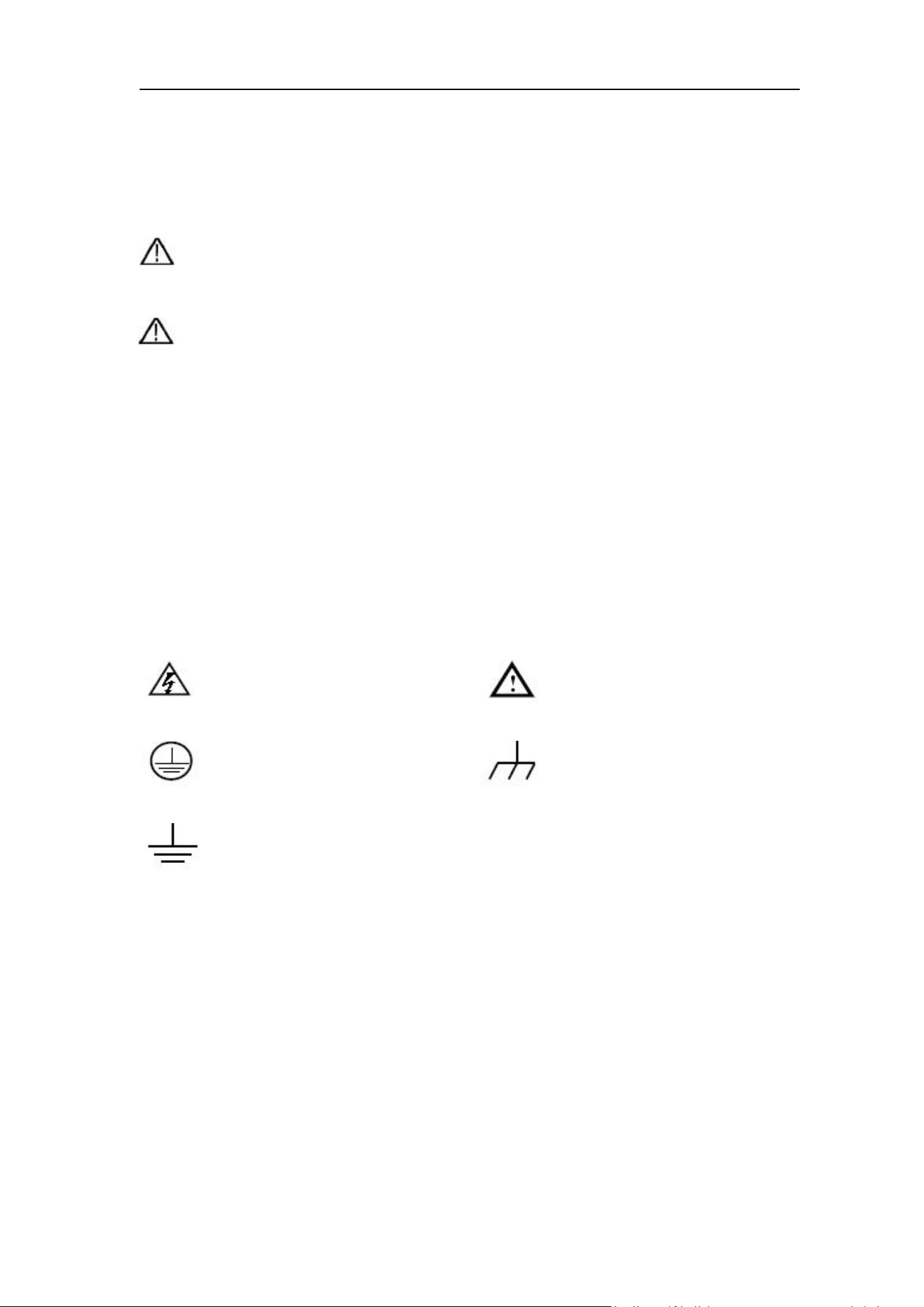
2.Safety Terms and Symbols
2
2. Safety Terms and Symbols
Safety Terms
Terms in this manual. The following terms may appear in this manual:
Warning: Warning indicates the conditions or practices that could result
in injury or loss of life.
Caution: Caution indicates the conditions or practices that could result in
damage to this product or other property.
Terms on the product. The following terms may appear on this product:
Danger: It indicates an injury or hazard may immediately happen.
Warning: It indicates an injury or hazard may be accessible potentially.
Caution: It indicates a potential damage to the instrument or other property might
occur.
Safety Symbols
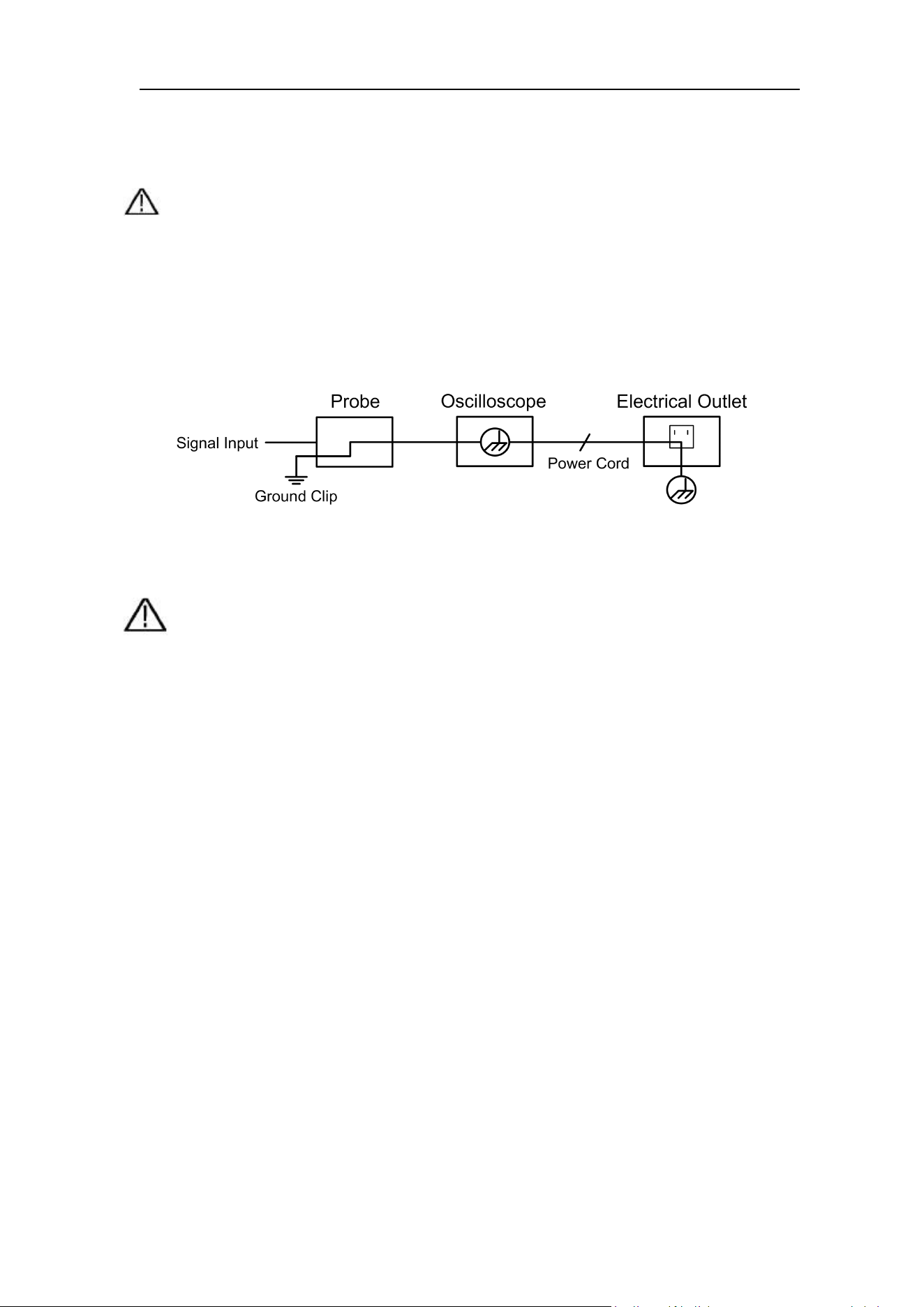
Symbols on the product. The following symbol may appear on the product:
Hazardous Voltage
Refer to Manual
Protective Earth Terminal
Chassis Ground
Test Ground
2.Safety Terms and Symbols
3
To avoid body damage and prevent product and connected equipment damage,
carefully read the following safety information before using the test tool. This
product can only be used in the specified applications.
Warning
:
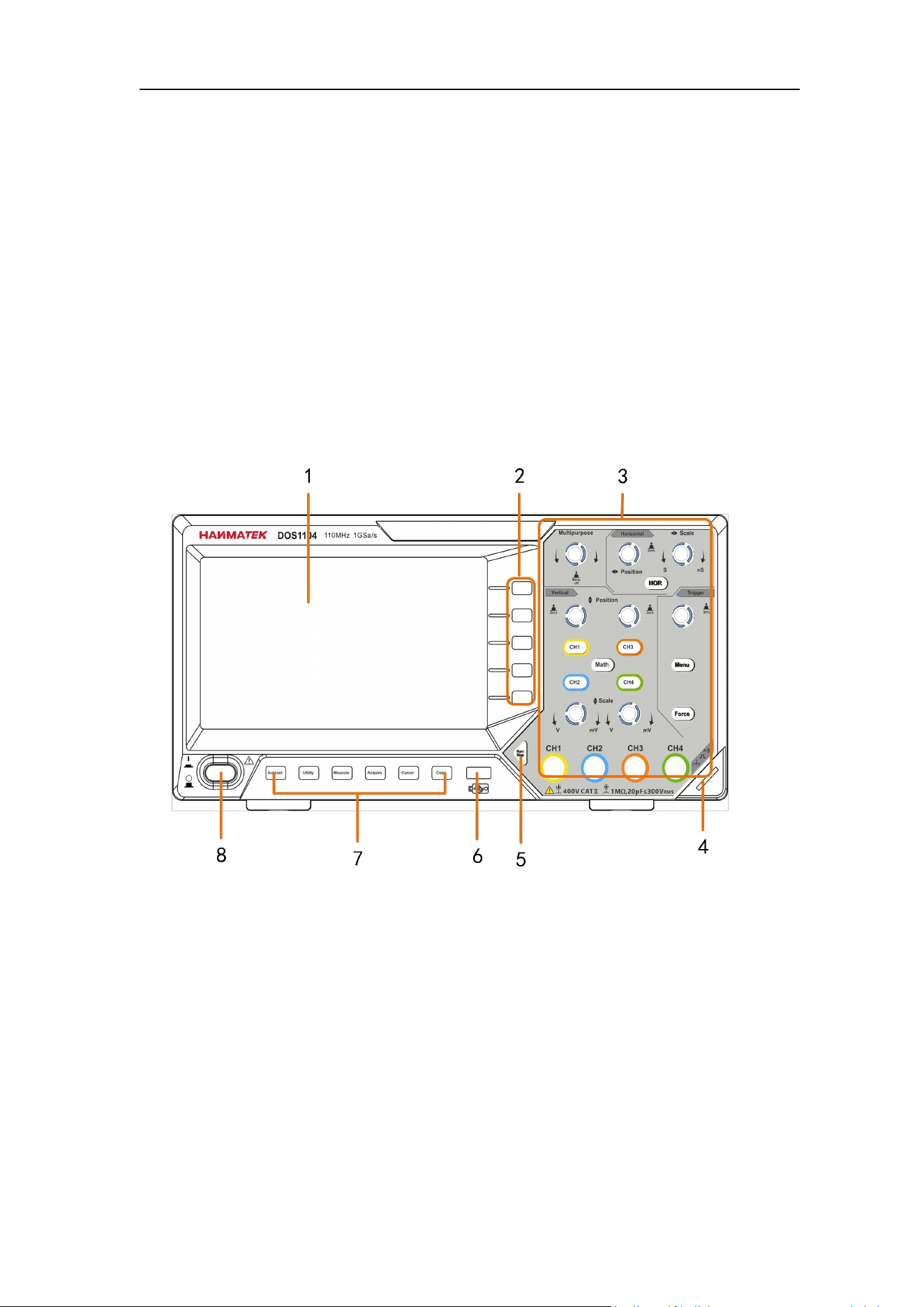
The four channels of the oscilloscope are not electrically isolated. The
channels should adopt a common ground during measuring. To prevent
short circuits, the 2 probe grounds must not be connected to 2 different
non-isolated DC levels.
The diagram of the oscilloscope ground wire connection:
It is not allowed to measure AC power when the AC powered oscilloscope is
connected to the AC-powered PC through the ports.
Warning:
To avoid fire or electrical shock, when the oscilloscope input
signal connected is more than 42V peak (30Vrms) or on circuits of
more than 4800VA, please take note of below items:
Only use accessory insulated voltage probes and test lead.
Check the accessories such as probe before use and
replace it if there are any damages.
Remove probes, test leads and other accessories
immediately after use.
Remove USB cable which connects oscilloscope and
computer.
Do not apply input voltages above the rating of the
instrument because the probe tip voltage will directly
transmit to the oscilloscope. Use with caution when the
probe is set as 1:1.
Do not use exposed metal BNC or banana plug connectors.
Do not insert metal objects into connectors.
3.Quick Start
4
3. Quick Start
Introduction to the Structure of the Oscilloscope
This chapter makes a simple description of the operation and function of the front
panel of the oscilloscope, enabling you to be familiar with the use of the
oscilloscope in the shortest time.
Front Panel
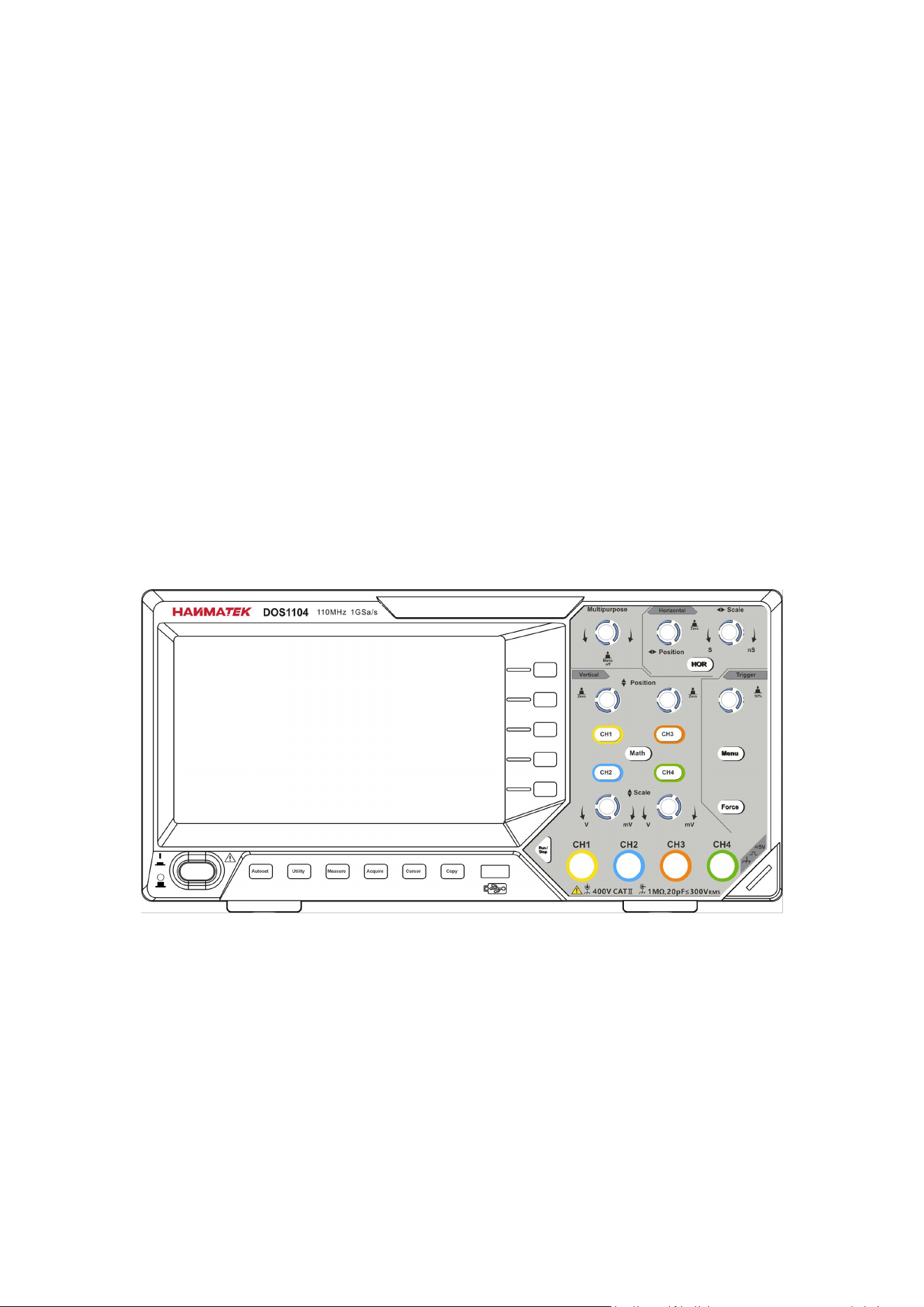
The front panel has knobs and function buttons. The 5 buttons in the column on
the right side of the display screen are menu selection buttons, through which, you
can set the different options for the current menu. The other buttons are function
buttons, through which, you can enter different function menus or obtain a specific
function application directly.
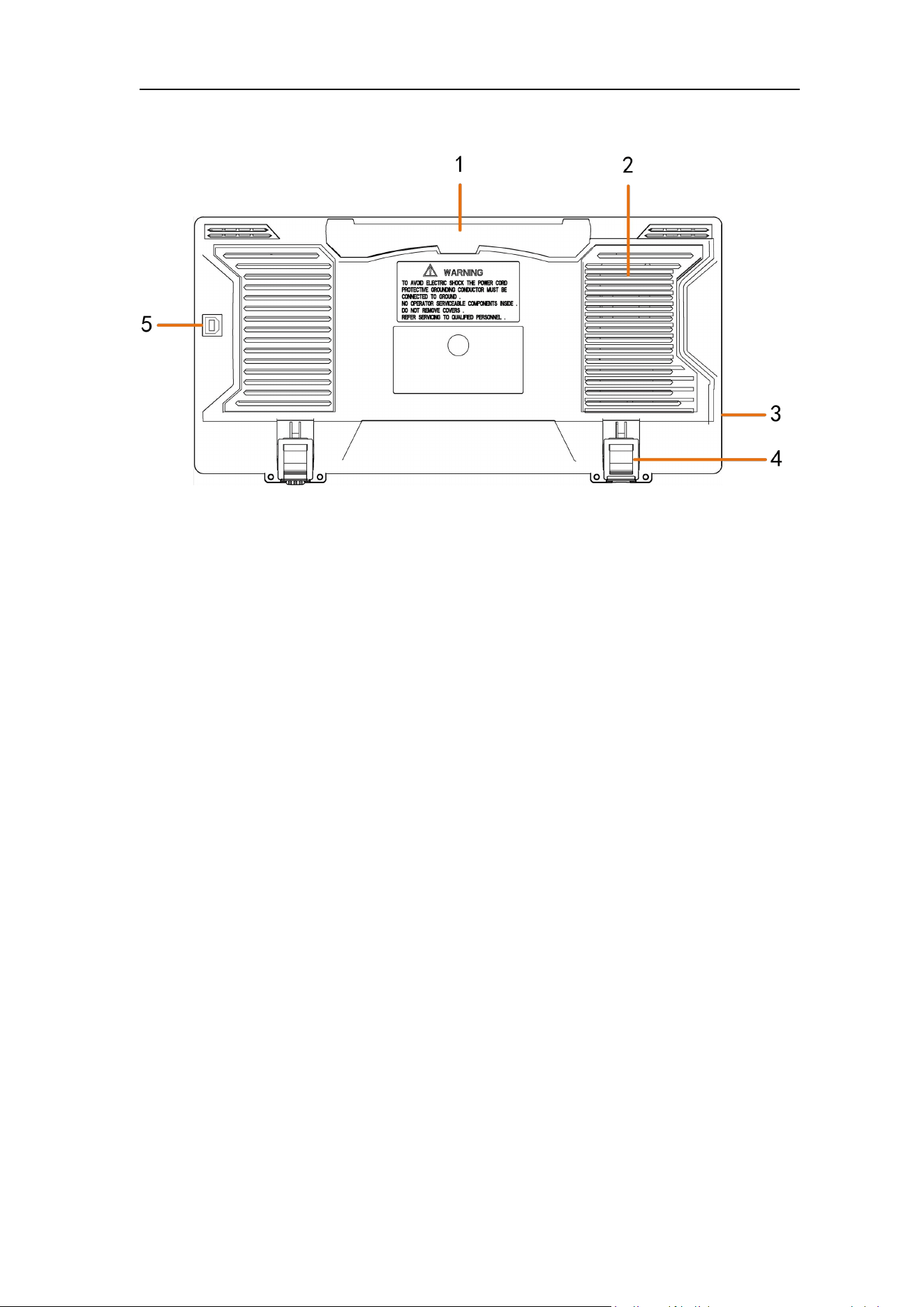
Figure 3- 1 Front panel
1. Display area
2. Menu selection buttons: Select the right menu item.
3. Control (button and knob) area
4. Probe Compensation: Measurement signal (5V/1kHz) output.
5. Run/Stop
6. USB Host port: It is used to transfer data when external USB equipment
connects to the oscilloscope regarded as "host device". For example: Saving
the waveform to USB flash disk needs to use this port.
7. Function button area: Total 6 buttons.
8. Power on/off
3.Quick Start
5
Rear Panel
Figure 3- 2 Rear Panel
1. Handle
2. Air vents
3. Input interface for DC power
4. Foot stool: Adjust the tilt angle of the oscilloscope.
5. USB Device port: It is used to transfer data when external USB equipment
connects to the oscilloscope regarded as "slave device". For example: to use
this port when connect PC to the oscilloscope by USB.
3.Quick Start
6
Control Area
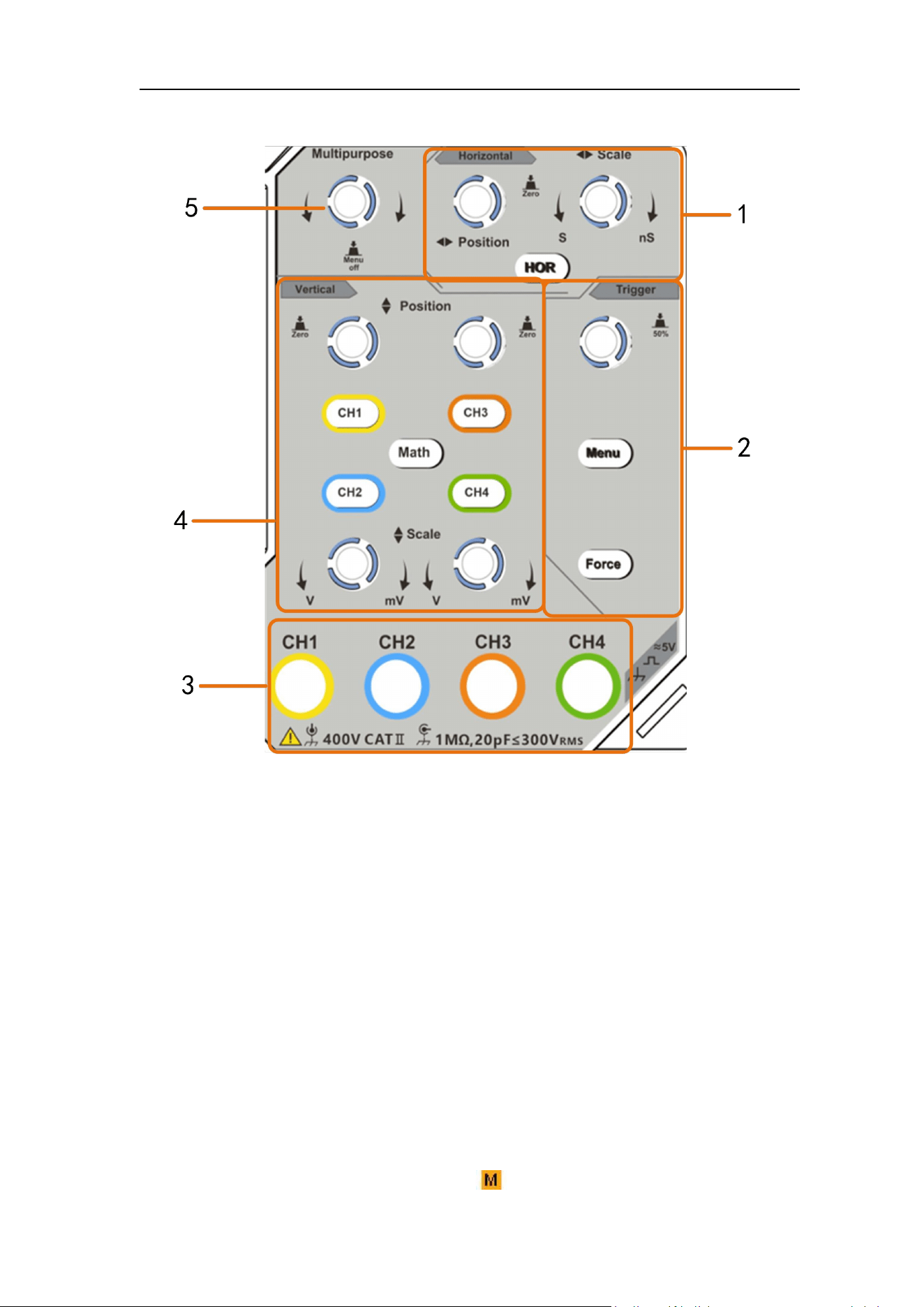
Figure 3- 3 Control Area Overview
1. Horizontal control area with 1 button and 2 knobs.
"HOR" button refer to horizontal system setting menu, "Horizontal Position"
knob control trigger position, " Horizontal Scale" control time base.
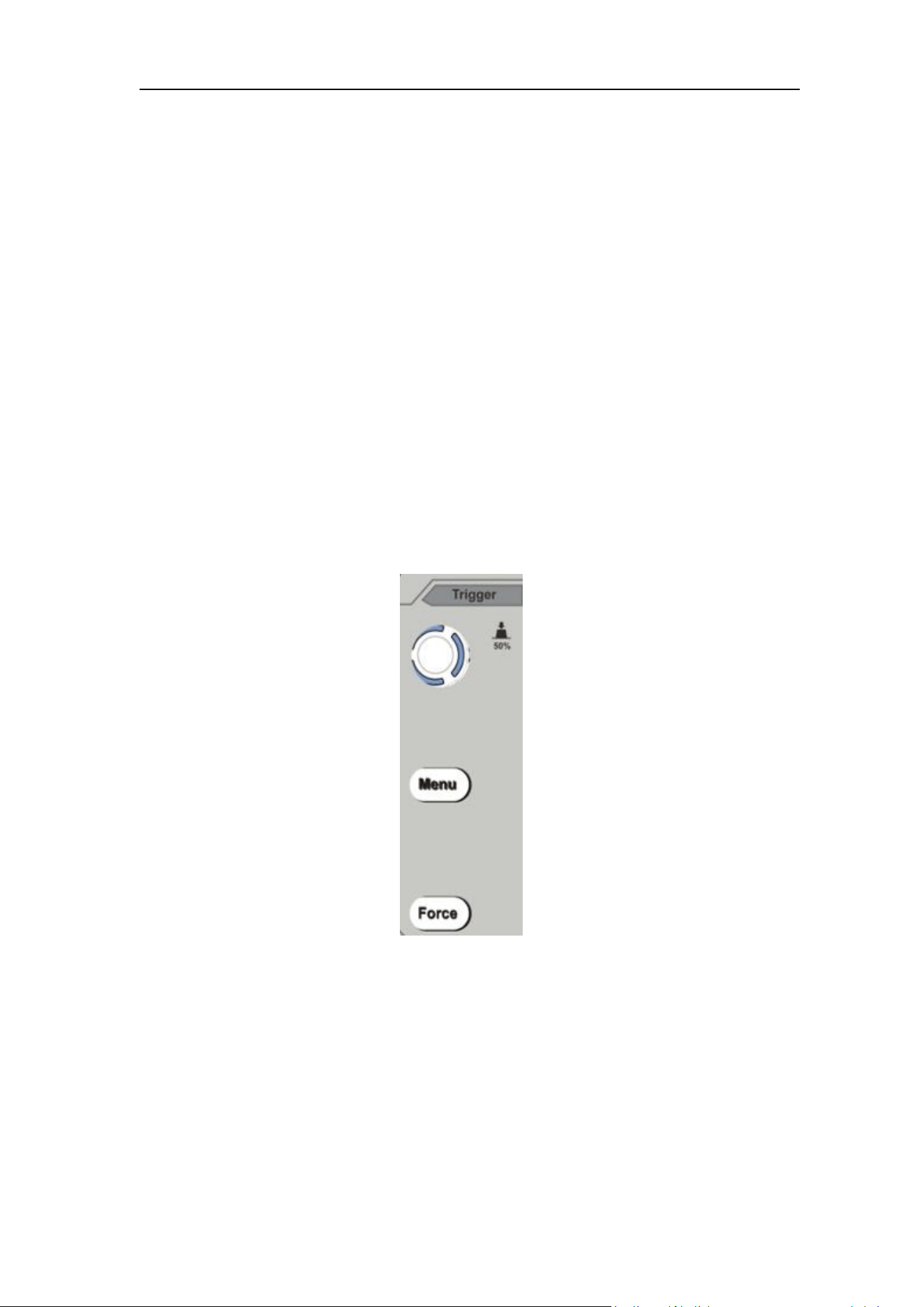
2. Trigger control area with 2 buttons and 1 knob.
The Trigger Level knob is to adjust trigger voltage. Other 2 buttons refer to
trigger system setting.
3. Signal Input Channel
4. Vertical control area with 5 buttons and 4 knobs.
CH1 - CH4 buttons correspond to setting menu in CH1 - CH4. "Math" button
provides access to math waveform functions (+, -, ×, /, FFT).
The left Vertical Position knob controls the vertical position of CH1&CH2; the ri
ght Vertical Position knob controls the vertical position of CH3&CH4. The left S
cale knob controls the voltage scale of CH1&CH2; the right Scale knob control
s the voltage scale of CH3&CH4..
5. M knob(Multipurpose knob): when a symbol appears in the menu, it
3.Quick Start
7
indicates you can turn the M knob to select the menu or set the value. You can
push it to close the menu on the left and right.
User Interface Introduction
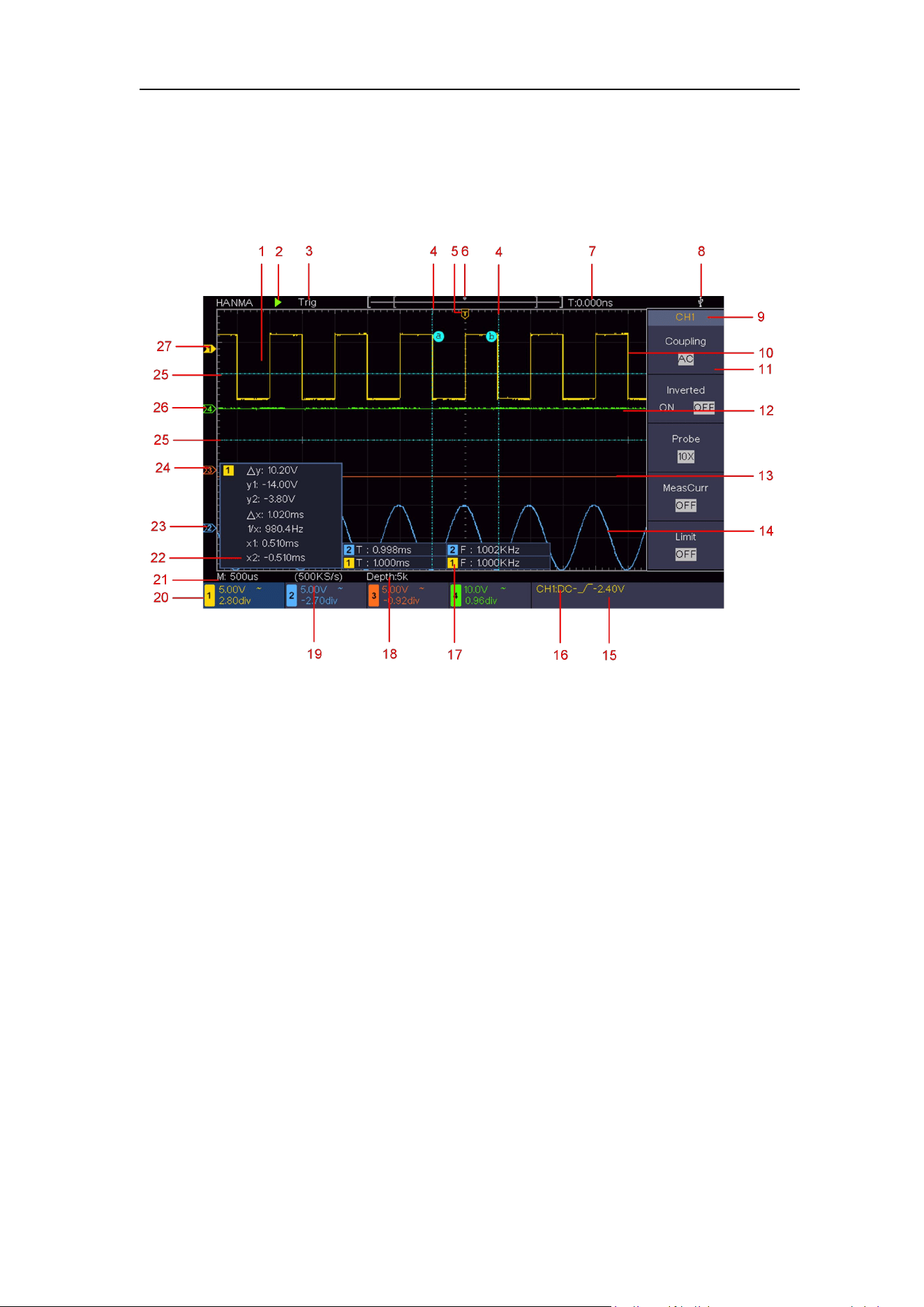
Figure 3- 4 Illustrative Drawing of Display Interfaces
1. Waveform Display Area.
2. Run/Stop
3. The state of trigger, including:
Auto: Automatic mode and acquire waveform without triggering.
Trig: Trigger detected and acquire waveform.
Ready: Pre-triggered data captured and ready for a trigger.
Scan: Capture and display the waveform continuously.
Stop: Data acquisition stopped.
4. The two blue dotted lines indicates the vertical position of cursor
measurement.
5. The T pointer indicates the horizontal position for the trigger.
6. The pointer indicates the trigger position in the record length.
7. It shows present triggering value and displays the site of present window in
internal memory.
8. It indicates that there is a USB disk connecting with the oscilloscope.
9. Channel identifier of current menu.
10. The waveform of CH1.
11. Right Menu.
3.Quick Start
8
12. The waveform of CH4
13. The waveform of CH3
14. The waveform of CH2.
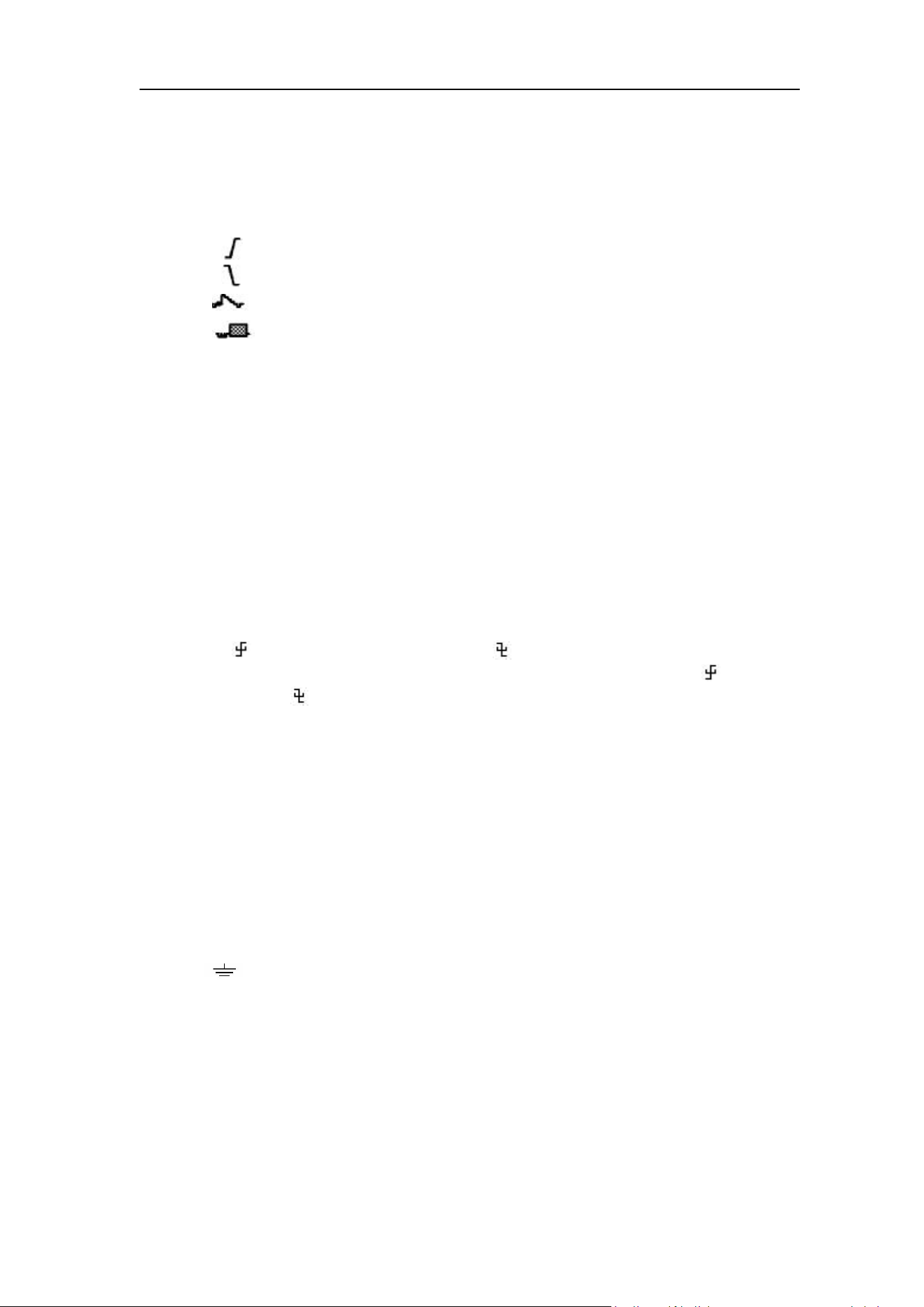
15. Current trigger type:
Rising edge triggering
Falling edge triggering
Video line synchronous triggering
Video field synchronous triggering
The reading shows the trigger level value of the corresponding channel.
16. The frequency of the trigger signal.
17. It indicates the measured type and value of the corresponding channel. "T"
means period, "F" means frequency, "V" means the average value, "Vp"
the peak-peak value, "Vr" the root-mean-square value, "Ma" the maximum
amplitude value, "Mi" the minimum amplitude value, "Vt" the Voltage value
of the waveform's flat top value, "Vb" the Voltage value of the waveform's
flat base, "Va" the amplitude value, "Os" the overshoot value, "Ps" the
Preshoot value, "RT" the rise time value, "FT" the fall time value, "PW" the
+width value, "NW" the -Width value, "+D" the +Duty value, "-D" the -Duty
value, "FRR" the FRR, "FRF" the FRF, "FFR" the FFR, "FFF" the FFF,
"LRR" the, "LRF" the LRF, "LFR" the LFR, "LFF" the LFF,"PD" the Delay
A->B value, "ND" the Delay A->B value, "TR" the Cycle RMS, "CR"
the Cursor RMS, "WP" the Screen Duty, "RP" the Phase A->B , "FP" the
Phase A->B , "+PC" the +Pulse count, "-PC" the - Pulse count, "+E" the
Rise edge count, "-E" the Fall edge count, "AR" the Area, "CA" the Cycle
area.
18. The readings show the record length.
19. The readings show current sample rate.
20. The readings indicate the corresponding Voltage Division and the Zero
Point positions of the channels. "BW" indicates bandwidth limit.
The icon shows the coupling mode of the channel.
"—" indicates direct current coupling
"
~
" indicates AC coupling
" " indicates GND coupling
21. The reading shows the setting of main time base.
22. It is cursor measure window, showing the absolute values and the
readings of the cursors.
23. The blue pointer shows the grounding datum point (zero point position) of
the waveform of the CH2 channel. If the pointer is not displayed, it means
that this channel is not opened.
24. The orange pointer shows the grounding datum point (zero point position)
of the waveform of the CH3 channel. If the pointer is not displayed, it

3.Quick Start
9
means that this channel is not opened.
25. The two blue dotted lines indicate the horizontal position of cursor
measurement.
26. The green pointer shows the grounding datum point (zero point position) of
the waveform of the CH4 channel. If the pointer is not displayed, it means
that this channel is not opened.
27. The yellow pointer indicates the grounding datum point (zero point position)
of the waveform of the CH1 channel. If the pointer is not displayed, it
means that the channel is not opened.
How to Implement the General Inspection
After you get a new oscilloscope, it is recommended that you should make a
check on the instrument according to the following steps:
1. Check whether there is any damage caused by transportation.
If it is found that the packaging carton or the foamed plastic protection cushion
has suffered serious damage, do not throw it away first till the complete device
and its accessories succeed in the electrical and mechanical property tests.
2. Check the Complete Instrument
If it is found that there is damage to the appearance of the instrument, or the
instrument can not work normally, or fails in the performance test, please get in
touch with our distributor responsible for this business or our local offices. If
there is damage to the instrument caused by the transportation, please keep
the package. With the transportation department or our distributor responsible
for this business informed about it, a repairing or replacement of the instrument
will be arranged by us.
How to Implement the Function Inspection
Make a fast function check to verify the normal operation of the instrument,
according to the following steps:
1. Connect the power cord to a power source. Press the button on the
bottom left of the instrument.
The instrument carries out all self-check items and shows the Boot Logo. Push
the Utility button, select Function in the right menu. Select Adjust in the left
menu, select Default in the right menu. The default attenuation coefficient set
value of the probe in the menu is 10X.
2. Set the Switch in the Oscilloscope Probe as 10X and Connect the
Oscilloscope with CH1 Channel.
3.Quick Start
10
Align the slot in the probe with the plug in the CH1 connector BNC, and then
tighten the probe with rotating it to the right side.
Connect the probe tip and the ground clamp to the connector of the probe
compensator.
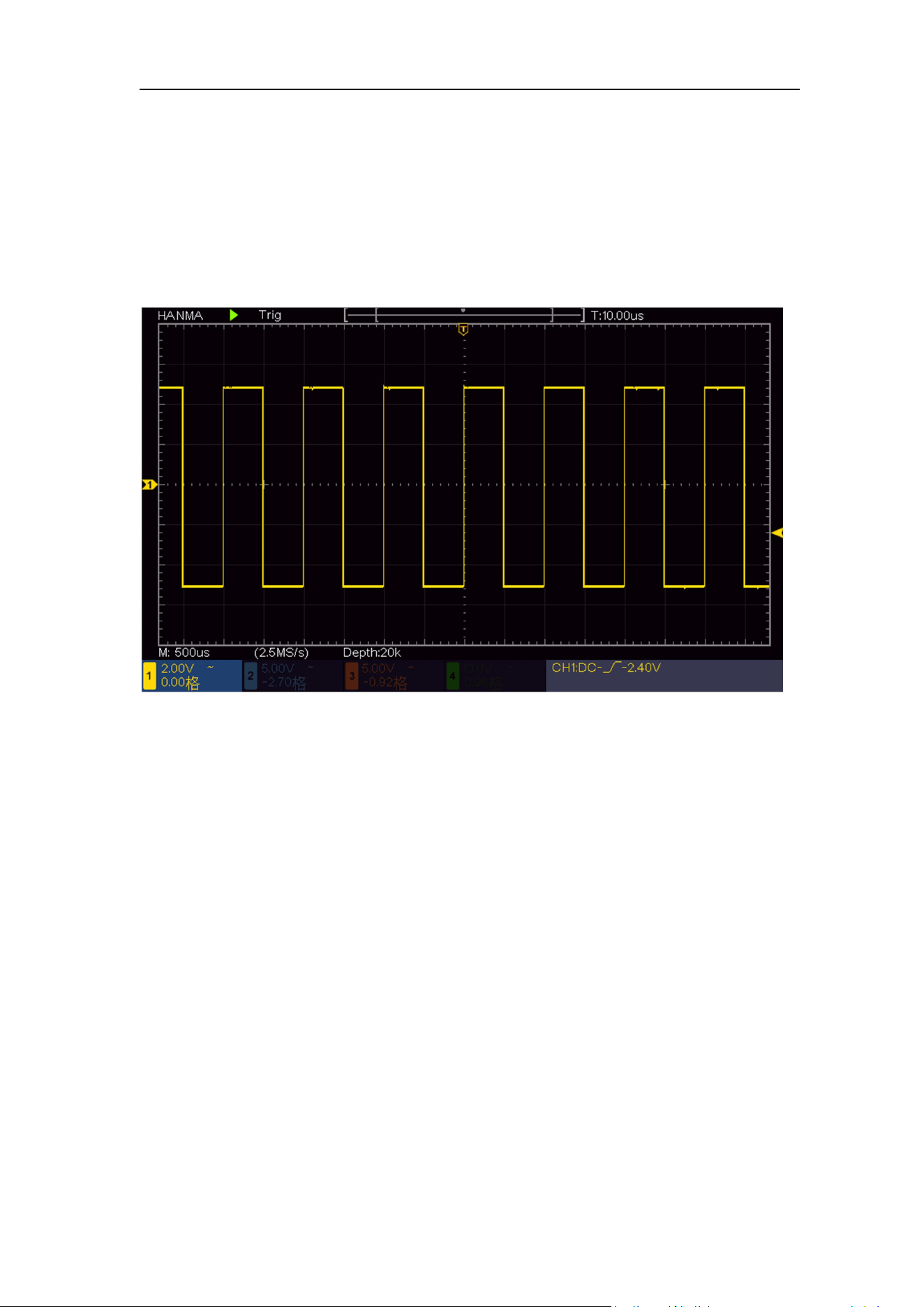
3. Push the Autoset Button on the front panel.
The square wave of 1 KHz frequency and 5V peak-peak value will be
displayed in several seconds (see Figure 3- 5).
Figure 3- 5 Auto set
Check CH2
、
CH3 and CH4 by repeating Step 2 and Step 3.
How to Implement the Probe Compensation
When connect the probe with any input channel for the first time, make this
adjustment to match the probe with the input channel. The probe which is not
compensated or presents a compensation deviation will result in the
measuring error or mistake. For adjusting the probe compensation, please
carry out the following steps:
1. Set the attenuation coefficient of the probe in the menu as 10X and that of
the switch in the probe as 10X (see "How to Set the Probe Attenuation
Coefficient" on P11), and connect the probe with the CH1 channel. If a
probe hook tip is used, ensure that it keeps in close touch with the probe.
Connect the probe tip with the signal connector of the probe compensator
and connect the reference wire clamp with the ground wire connector of
the probe connector, and then push the Autoset button on the front panel.
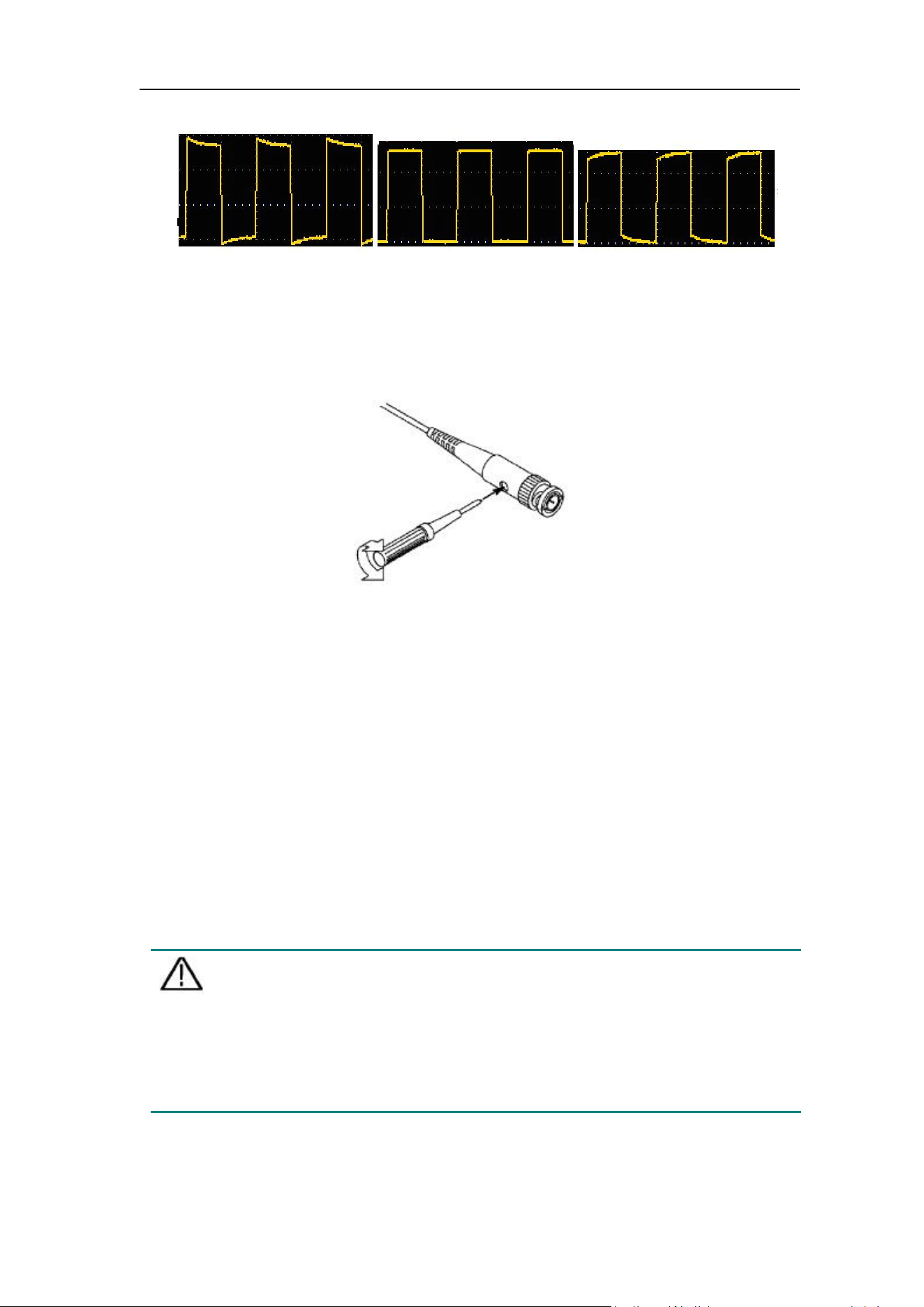
2. Check the displayed waveforms and regulate the probe till a correct
3.Quick Start
11
compensation is achieved (see Figure 3- 6 and Figure 3- 7).
Overcompensated Compensated correctly Under
compensated
Figure 3- 6 Displayed Waveforms of the Probe Compensation
3. Repeat the steps mentioned if needed.
Figure 3- 7 Adjust Probe
How to Set the Probe Attenuation Coefficient
The probe has several attenuation coefficients, which will influence the vertical
scale factor of the oscilloscope.
To change or check the probe attenuation coefficient in the menu of
oscilloscope:
(1) Push the function menu button of the used channels (CH1 – CH4 button).
(2) Select Probe in the right menu; turn the M knob to select the proper value
in the left menu corresponding to the probe.
This setting will be valid all the time before it is changed again.
Caution:
The default attenuation coefficient of the probe on the instrument is
preset to 10X.
Make sure that the set value of the attenuation switch in the probe is
the same as the menu selection of the probe attenuation coefficient in
the oscilloscope.
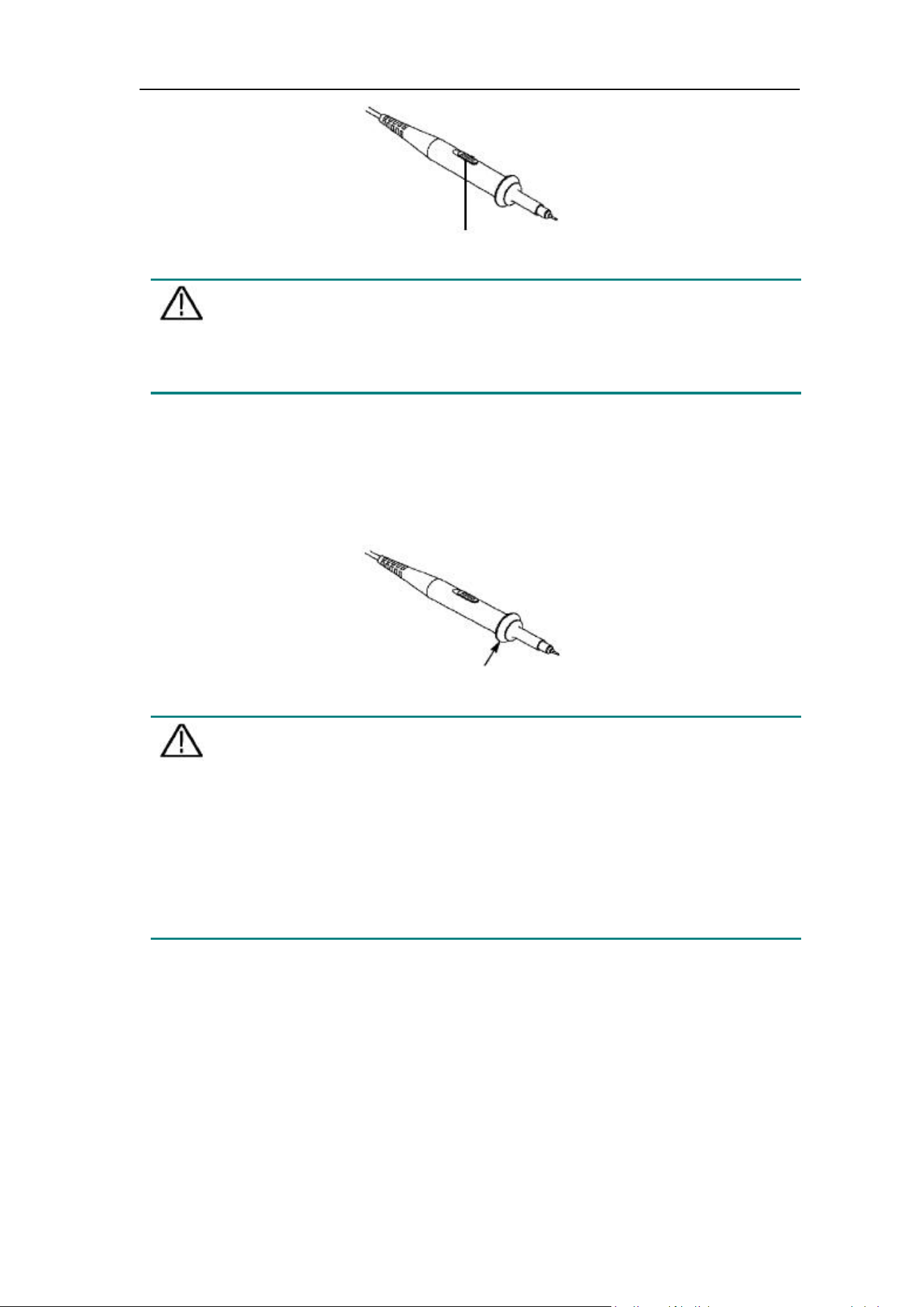
The set values of the probe switch are 1X and 10X (see Figure 3- 8).
3.Quick Start
12
Figure 3- 8 Attenuation Switch
Caution:
When the attenuation switch is set to 1X, the probe will limit the
bandwidth of the oscilloscope in 5MHz. To use the full bandwidth of
the oscilloscope, the switch must be set to 10X.
How to Use the Probe Safely
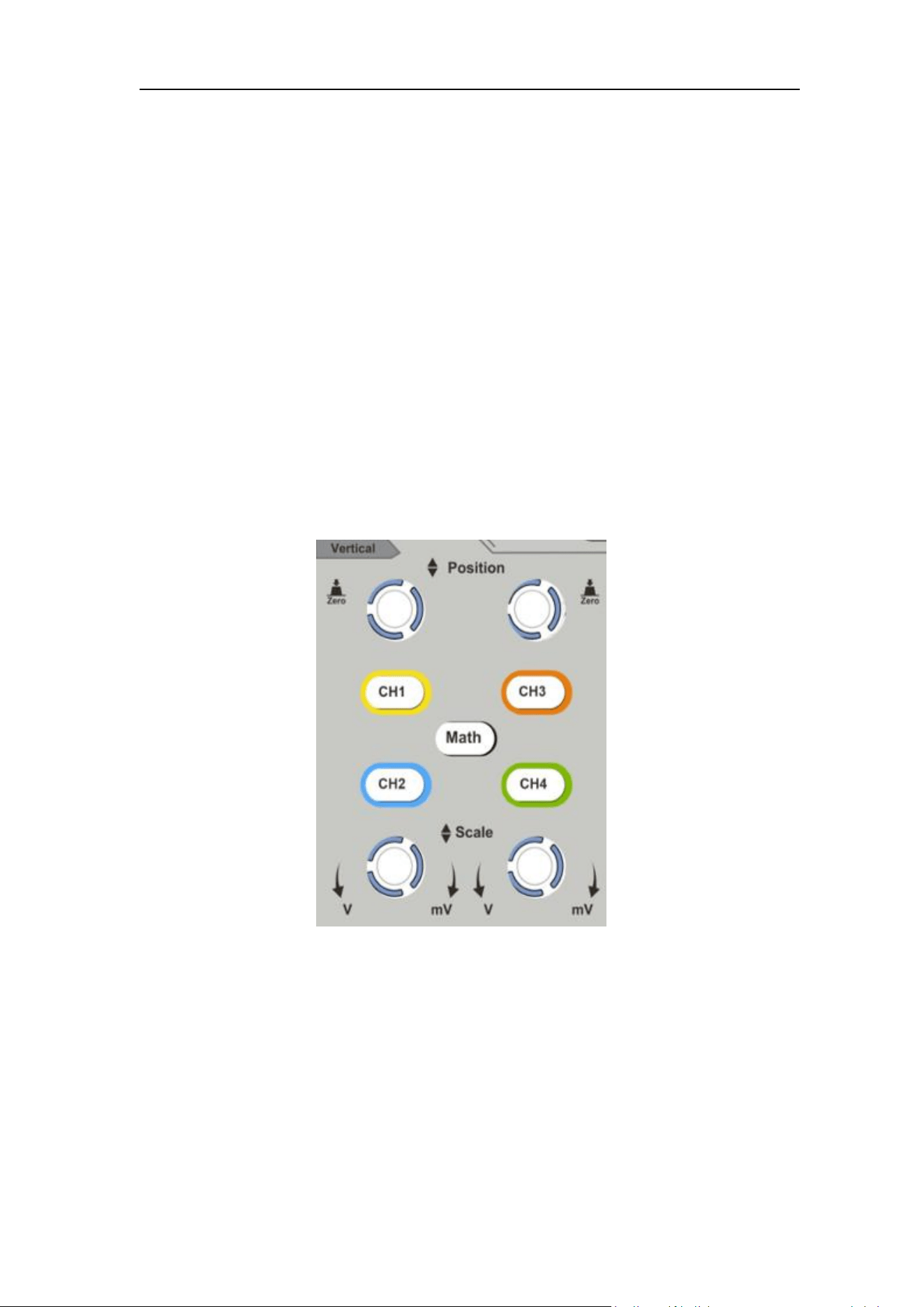
The safety guard ring around the probe body protects your finger against any
electric shock, shown as Figure 3- 9.
Figure 3- 9 Finger Guard
Warning:
To avoid electric shock, always keep your finger behind the safety
guard ring of the probe during the operation.
To protect you from suffering from the electric shock, do not touch any
metal part of the probe tip when it is connected to the power supply.
Before making any measurements, always connect the probe to the
instrument and connect the ground terminal to the earth.
How to Implement Self-calibration
The self-calibration application can make the oscilloscope reach the optimum
condition rapidly to obtain the most accurate measurement value. You can
carry out this application program at any time. This program must be executed
whenever the change of ambient temperature is 5℃ or over.
Before performing a self-calibration, disconnect all probes or wires from the
input connector. Push the Utility button, select Function in the right menu,
3.Quick Start
13
select Adjust. in the left menu, select Self Cal in the right menu; run the
program after everything is ready.
Introduction to the Vertical System
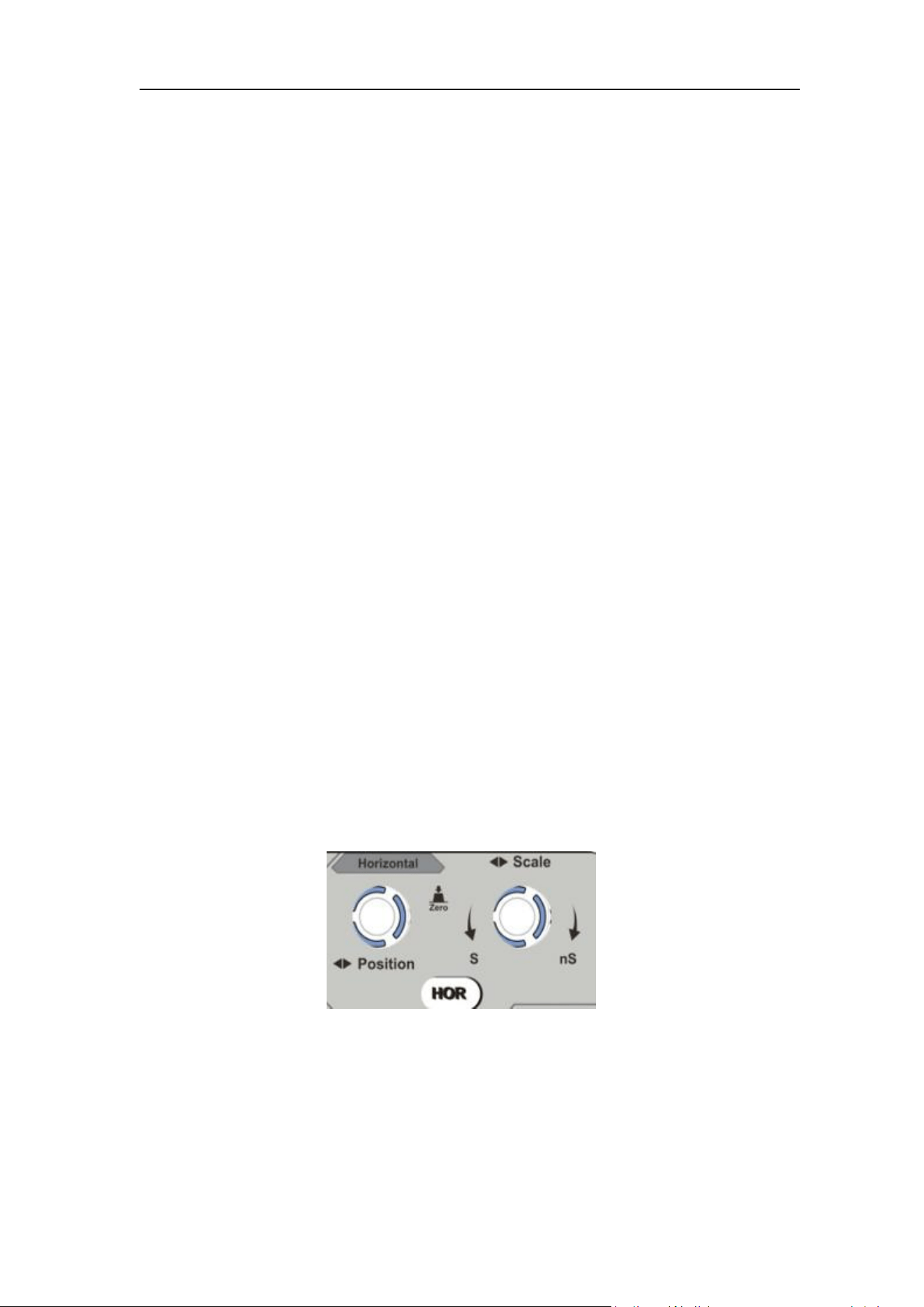
As shown in Figure 3- 10, there are a few of buttons and knobs in Vertical
Controls. The 4 channels are marked by different colors which are also used
to mark both the corresponding waveforms on the screen and the channel
input connectors. Press one of the channel buttons to open the corresponding
channel menu, and press again to turn off the channel.
Press the Math button to display the math menu in the bottom. The pink M
waveform appears on the screen. Press again to turn off the math waveform.
CH1&CH2 use the left Vertical Position and Vertical Scale knobs, and CH3&CH4
use the right Vertical Position and Vertical Scale knobs. If you need to set the verti
cal position and vertical scale of a channel, first press the CH1, CH2, CH3 or CH4
key to select the channel, and then select the corresponding Vertical Position and
Vertical Scale knob to set.
Figure 3- 10 Vertical Control Zone
The following practices will gradually direct you to be familiar with the using of
the vertical setting.
1. Press CH1, CH2, CH3 or CH4 to select the desired channel.
2. Use the Vertical Position knob to show the selected channel waveform in the
center of the waveform window. The Vertical Position knob functions the
regulating of the vertical display position of the selected channel waveform.
Thus, when the Vertical Position knob is rotated, the pointer of the earth datum
point of the selected channel is directed to move up and down following the
waveform, and the position message at the center of the screen would change
3.Quick Start
14
accordingly.
Measuring Skill
If the channel is under the DC coupling mode, you can rapidly measure the DC
component of the signal through the observation of the difference between the
wave form and the signal ground.
If the channel is under the AC mode, the DC component would be filtered out.
This mode helps you display the AC component of the signal with a higher
sensitivity.
Vertical offset back to 0 shortcut key
Turn the Vertical Position knob to change the vertical display position of
channel and push the position knob to set the vertical display position back to
0 as a shortcut key, this is especially helpful when the trace position is far out
of the screen and want it to get back to the screen center immediately.
3. Change the Vertical Setting and Observe the Consequent State Information
Change.
With the information displayed in the status bar at the bottom of the waveform
window, you can determine any changes in the channel vertical scale factor.
Turn the Vertical Scale knob and change the "Vertical Scale Factor
(Voltage Division)", it can be found that the scale factor of the channel
corresponding to the status bar has been changed accordingly.
Introduction to the Horizontal System
Shown as Figure 3- 11, there are a button and two knobs in the Horizontal
Controls. The following practices will gradually direct you to be familiar with
the setting of horizontal time base.
Figure 3- 11 Horizontal Control Zone
1. Turn the Horizontal Scale knob to change the horizontal time base setting
and observe the consequent status information change. Turn the
Horizontal Scale knob to change the horizontal time base, and it can be
found that the Horizontal Time Base display in the status bar changes
accordingly.
3.Quick Start
15
2. Use the Horizontal Position knob to adjust the horizontal position of the
signal in the waveform window. The Horizontal Position knob is used to
control the triggering displacement of the signal or for other special
applications. If it is applied to triggering the displacement, it can be
observed that the waveform moves horizontally with the knob when you
rotate the Horizontal Position knob.
Triggering displacement back to 0 shortcut key
Turn the Horizontal Position knob to change the horizontal position of
channel and push the Horizontal Position knob to set the triggering
displacement back to 0 as a shortcut key.
3. Push the Horizontal HOR button to switch between the normal mode and
the wave zoom mode.
Introduction to the Trigger System
As shown in Figure 3- 12, there are one knob and three buttons make up
Trigger Controls. The following practices will direct you to be familiar with the
setting of the trigger system gradually.
Figure 3- 12 Trigger Control Zone
1. Push the Trigger Menu button and call out the trigger menu. With the
operations of the menu selection buttons, the trigger setting can be
changed.
2. Use the Trigger Level knob to change the trigger level setting.
By turning the Trigger Level knob, the trigger indicator in the screen will
move up and down. With the movement of the trigger indicator, it can be
observed that the trigger level value displayed in the screen changes
accordingly.
Note: Turning the Trigger Level knob can change trigger level value and

3.Quick Start
16
it is also the hotkey to set trigger level as the vertical mid point values of
the amplitude of the trigger signal.
3. Push the Force button to force a trigger signal, which is mainly applied to
the "Normal" and "Single" trigger modes.
How to Measure Automatically
Push the Measure button to display the menu for the settings of the Automatic
Measurements. At most 8 types of measurements could be displayed on the
bottom left of the screen.
The oscilloscopes provide 39 parameters for auto measurement, including
Period, Frequency, Mean, PK-PK, RMS, Max, Min, Top, Base, Amplitude,
Overshoot, Preshoot, Rise Time, Fall Time, +PulseWidth, -PulseWidth, +Duty
Cycle, -Duty Cycle, FRR, FRF, FFR, FFF, LRR, LRF, LFR, LFF,Delay A->B ,
Delay A->B
,
Cycle RMS, Cursor RMS, Screen Duty, Phase A->B , Phase
A->B , +PulseCount, -PulseCount, RiseEdgeCnt, FallEdgeCnt, Area, and
Cycle Area.
E.g. Measure the period, the frequency of the CH1, following the steps below:
1. Push the Measure button to show the automatic measurement function
menu.
2. In the right menu, select CH1.
3. In the left Type menu, turn the M knob to select Period.
4. In the right menu, select Add. The period type is added.
5. In the left Type menu, turn the M knob to select Frequency.
6. In the right menu, select Add. The frequency type is added.
The measured value will be displayed at the bottom left of the screen
automatically.
4.Communication with PC
17
4. Communication with PC
The oscilloscope supports communications with a PC through USB port. You can
use the Oscilloscope communication software to store, analyze, display the data
and remote control.
For specific operation instructions of the oscilloscope PC software, please refer to
the user manual located in our random CD.
Below is a description of how to connect the oscilloscope to your computer. Please
obtain the PC software installation package from our random CD, and double-click
it on your computer. Follow the prompts and click until the installation is complete.
Here is how to connect with PC using USB port.
(1) Setup the protocol type for USB device of the instrument. Press Utility→
Function → Configure → Device, switch to PC.
(2) Connection: Use a USB data cable to connect the USB Device port in the
right panel of the Oscilloscope to the USB port of a PC.
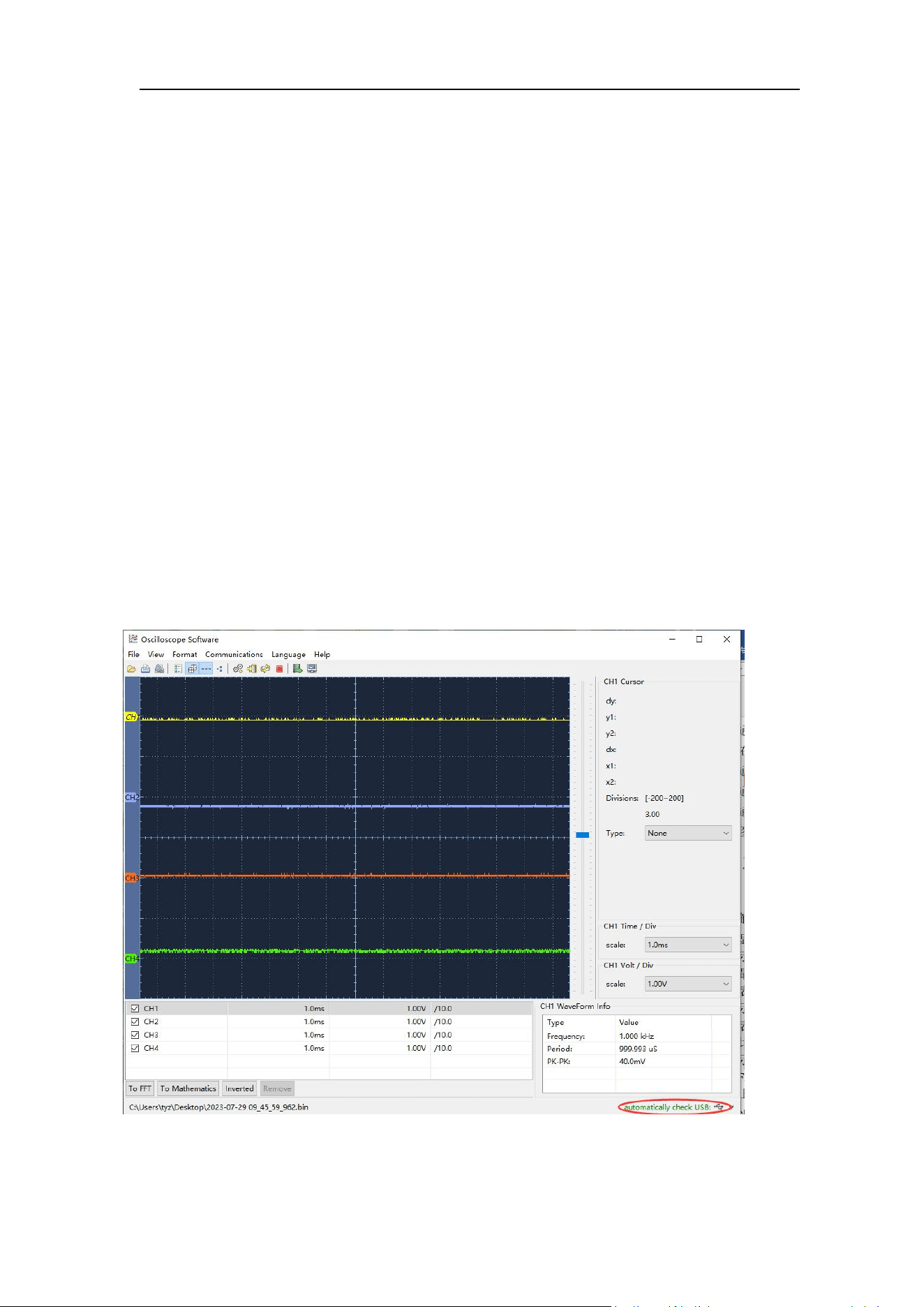
(3) Port setting of the software: Run the Oscilloscope software; click
"Communications" in the menu bar, choose "Ports-Settings", in the setting
dialog, choose "Connect using" as "USB". After connect successfully, the
connection information in the bottom right corner of the software will turn
green.
5.Oscilloscopes Technical Specifications
18
5. Oscilloscopes Technical Specifications
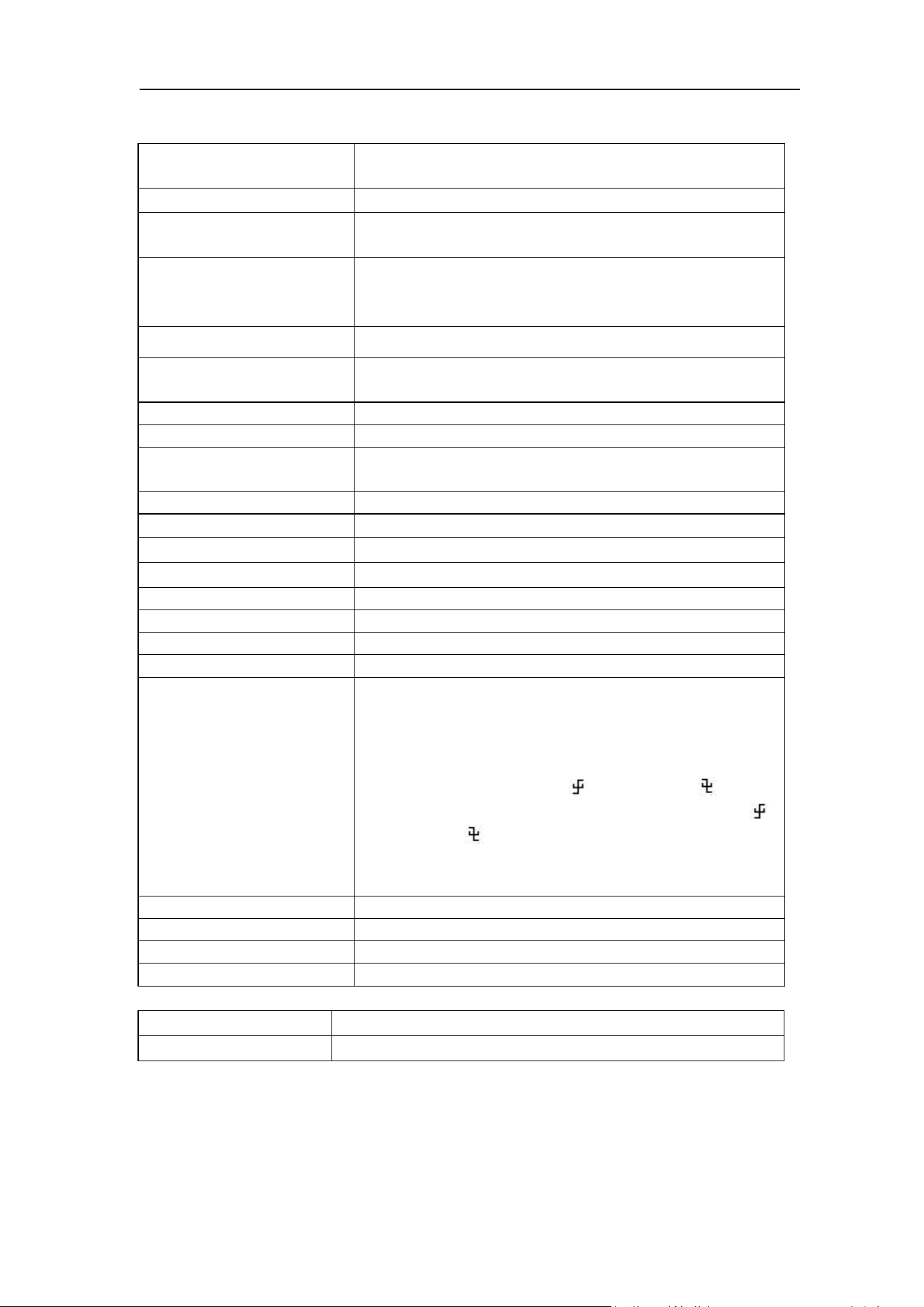
Performance
Characteristics
Instruction
Bandwidth
110 MHz
Rise Time(at input,
typical)
≤ 3.5 ns
Horizontal Scale
2 ns/div – 1000 s/div,step by 1 – 2 - 5
Sample rate(real time)
1 GS/s
Display
7" Colored LCD (Liquid Crystal Display),65536
colors, 800 x 480 pixels
Channel
4 channels
Max Record length
20K
Sampling rate / relay
time accuracy
±100 ppm
Input coupling
DC, AC , Ground
Input impedance
1 MΩ±2%, in parallel with 20 pF±10 pF
Max. input voltage
400V (DC+AC, PK - PK)
DC Gain Accuracy
±3%
Vertical Sensitivity
5 mV/div – 5 V/div
Trigger type
Edge, Video
Trigger mode
Auto, Normal, Single
Line/field frequency (Video)
Support standard NTSC, PAL and SECAM broadcast systems
Automatic measurement
Period, Frequency, Mean, PK-PK, RMS, Max, Min,
Top, Base, Amplitude, Overshoot, Preshoot, Rise
Time, Fall Time, +Pulse Width, -Pulse Width, FRR,
FRF, FFR, FFF, LRR, LRF, LFR, LFF, +Duty Cycle,
-Duty Cycle, Delay A->B , Delay A->B , Cycle
RMS, Cursor RMS, Screen Duty, Phase A->B ,
Phase A->B ,+Pulse Count, -Pulse Count, Rise
Edge Count, Fall Edge Count, Area, and Cycle
Area.
Waveform Math
+, -, ×, ÷, FFT
Waveform storage
16 waveforms
Communication interface
USB 2.0, USB flash disk storage
Power supply
DC 5V/2A
Mechanical Specifications
Dimension
301 mm× 152 mm×70 mm (L*H*W)
Weight
About 1.1 kg