User’s Manual
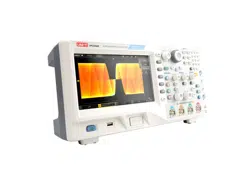
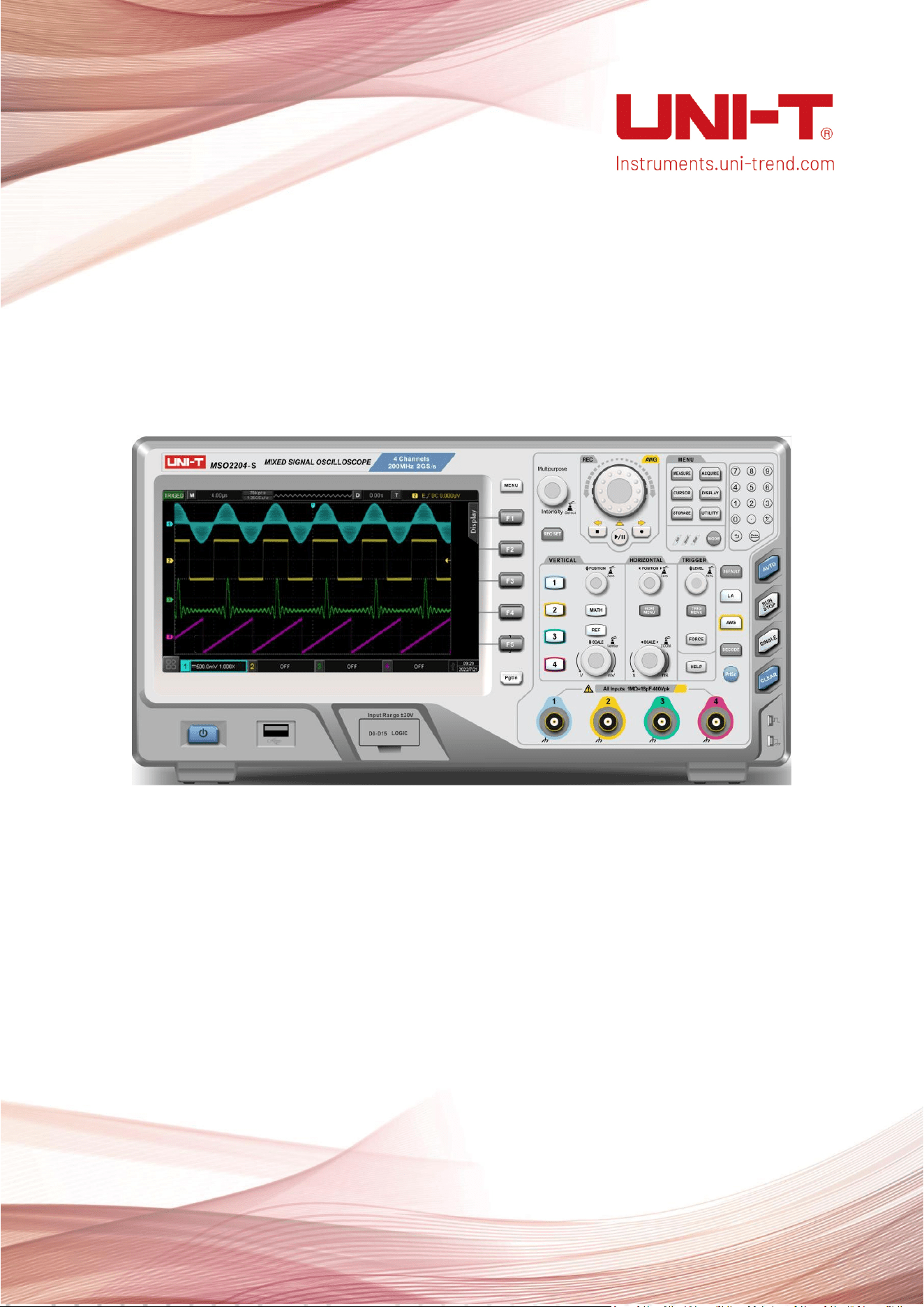
MSO/UPO2000 Series Digital Phosphor Oscilloscope

User’s Manual MSO/UPO2000 Seri es
2 / 137
Instruments.uni-trend.com
Foreword
Dear Users,
Hello! Thank you for choosing this brand new UNI-T instrument. In order to use this instrument safely and
correctly, please read this manual thoroughly, especially the Safety Requirements part.
After reading this manual, it is recommended to keep the manual at an easily accessible place, preferably
close to the device, for future reference.
Copyright Information
Uni-Trend Technology (China) Co., Ltd. All rights reserved.
Trademark Information
UNI-T is the registered trademark of Uni-Trend Technology (China) Co., Ltd.
Document Version
MSO/UPO200020220624-V1.00
Statement
UNI-T products are protected by patent rights in China and foreign countries, including issued and
pending patents.
UNI-T reserves the rights to any product specification and pricing changes.
UNI-T reserves all rights. Licensed software products are properties of Uni-Trend and its subsidiaries
or suppliers, which are protected by national copyright laws and international treaty provisions.
Information in this manual supersedes all previously published versions.

User’s Manual MSO/UPO2000 Series
3 / 137
Instruments.uni-trend.com
Warranty
UNI-T warrants that the product will be free from defects for a three-year period. If the product is re-sold,
the warranty period will be from the date of the original purchase from an authorized UNI-T distributor.
Probes, other accessories, and fuses are not included in this warranty.
If the product is proved to be defective within the warranty period, UNI-T reserves the rights to either repair
the defective product without charging of parts and labor, or exchange the defected product to a working
equivalent product. Replacement parts and products may be brand new, or perform at the same
specifications as brand new products. All replacement parts, modules, and products become the property of
UNI-T.
The “customer” refers to the individual or entity that is declared in the guarantee. In order to obtain the
warranty service, "customer" must inform the defects within the applicable warranty period to UNI-T, and to
perform appropriate arrangements for the warranty service. The customer shall be responsible for packing
and shipping the defective products to the designated maintenance center of UNI-T, pay the shipping cost,
and provide a copy of the purchase receipt of the original purchaser. If the product is shipped domestically
to the location of the UNI-T service center, UNI-T shall pay the return shipping fee. If the product is sent to
any other location, the customer shall be responsible for all shipping, duties, taxes, and any other expenses.
This warranty shall not apply to any defects or damages caused by accidental, machine parts’ wear and tear,
improper use, and improper or lack of maintenance. UNI-T under the provisions of this warranty has no
obligation to provide the following services:
a) Any repair damage caused by the installation, repair, or maintenance of the product by non UNI-T service
representatives.
b) Any repair damage caused by improper use or connection to an incompatible device.
c) Any damage or malfunction caused by the use of a power source which does not conform to the
requirements of this manual.
d) Any maintenance on altered or integrated products (if such alteration or integration leads to an increase
in time or difficulty of product maintenance).
This warranty is written by UNI-T for this product, and it is used to substitute any other express or implied
warranties. UNI-T and its distributors do not offer any implied warranties for merchant ability or applicability
purposes.
For violation of this guarantee, regardless of whether UNI-T and its distributors are informed that any
indirect, special, incidental, or consequential damage may occur, UNI-T and its distributors shall not be
responsible for any of the damages.
User’s Manual MSO/UPO2000 Series
4 / 137
Instruments.uni-trend.com
1. Introduction
This manual includes safety requirements, installment and the operation of MSO/UPO2000 oscilloscope.
2. Safety Requirements
This section contains information and warnings that must be followed to keep the instrument operating
under safety conditions. In addition, user should also follow the common safety procedures.
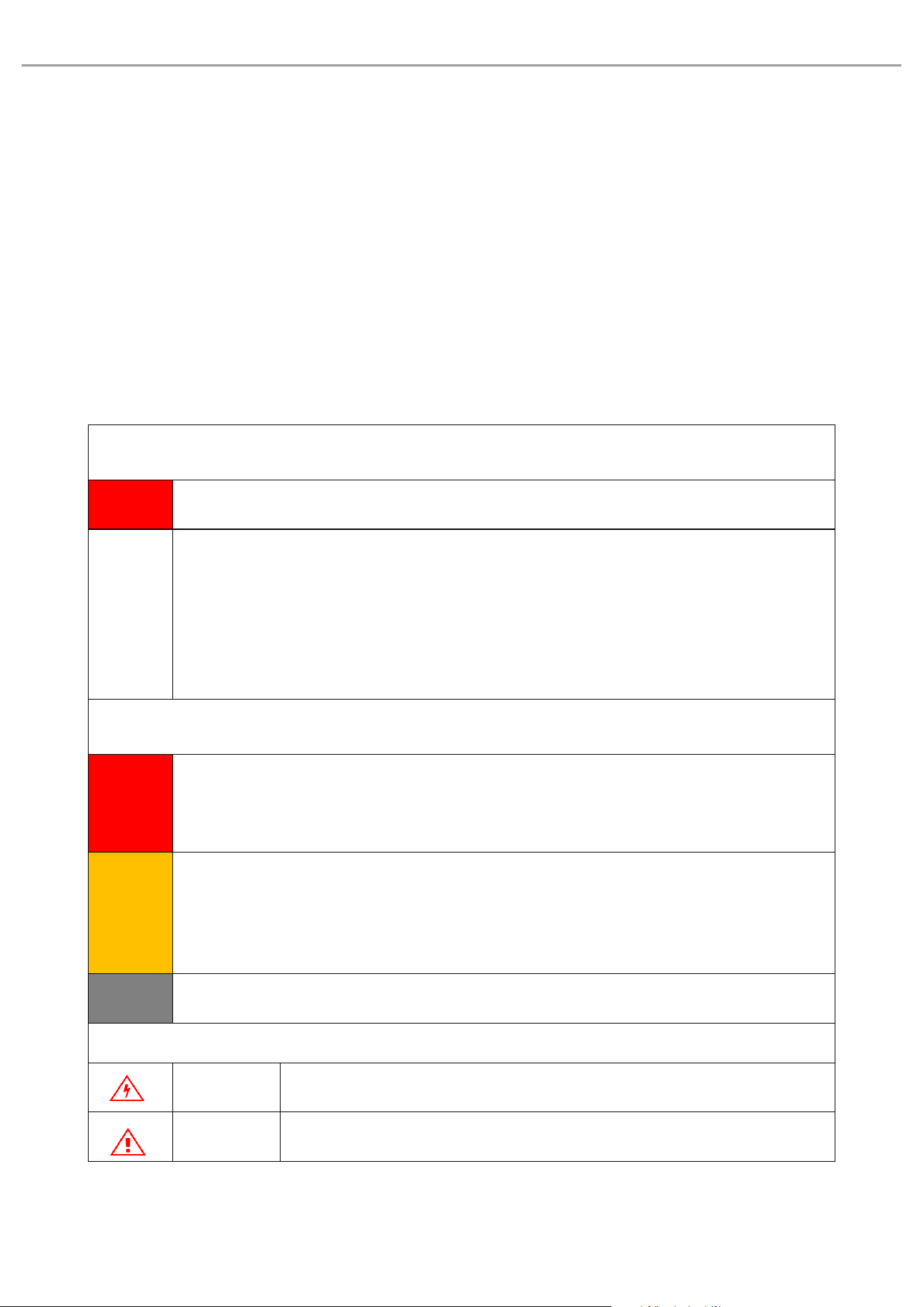
Safety Precautions
Warning
Please follow the following guidelines to avoid possible electric shock and risk to personal
safety.
Users must follow the following conventional safety precautions in operation, service and
maintenance of this device. UNI-T will not be liable for any personal safety and property loss
caused by the user’s failure to follow the following safety precautions. This device is
designed for professional users and responsible organizations for measurement purposes.
Do not use this device in any way not specified by the manufacturer. This device is only for
indoor use unless otherwise specified in the product manual.
Safety Statement
Warning
“Warning” indicates the presence of a hazard. It reminds users to pay attention to a certain
operation process, operation method or similar. Personal injury or death may occur if the rules
in the “Warning” statement are not properly executed or observed. Do not proceed to the next
step until you fully understand and meet the conditions stated in the “Warning” statement.
Caution
“Caution” indicates the presence of a hazard. It reminds users to pay attention to a certain
operation process, operation method or similar. Product damage or loss of important data
may occur if the rules in the “Caution” statement are not properly executed or observed. Do not
proceed to the next step until you fully understand and meet the conditions stated in the
“Caution” statement.
Note
“Note” indicates important information. It reminds users to pay attention to procedures,
methods and conditions, etc. The contents of the “Note” should be highlighted if necessary.
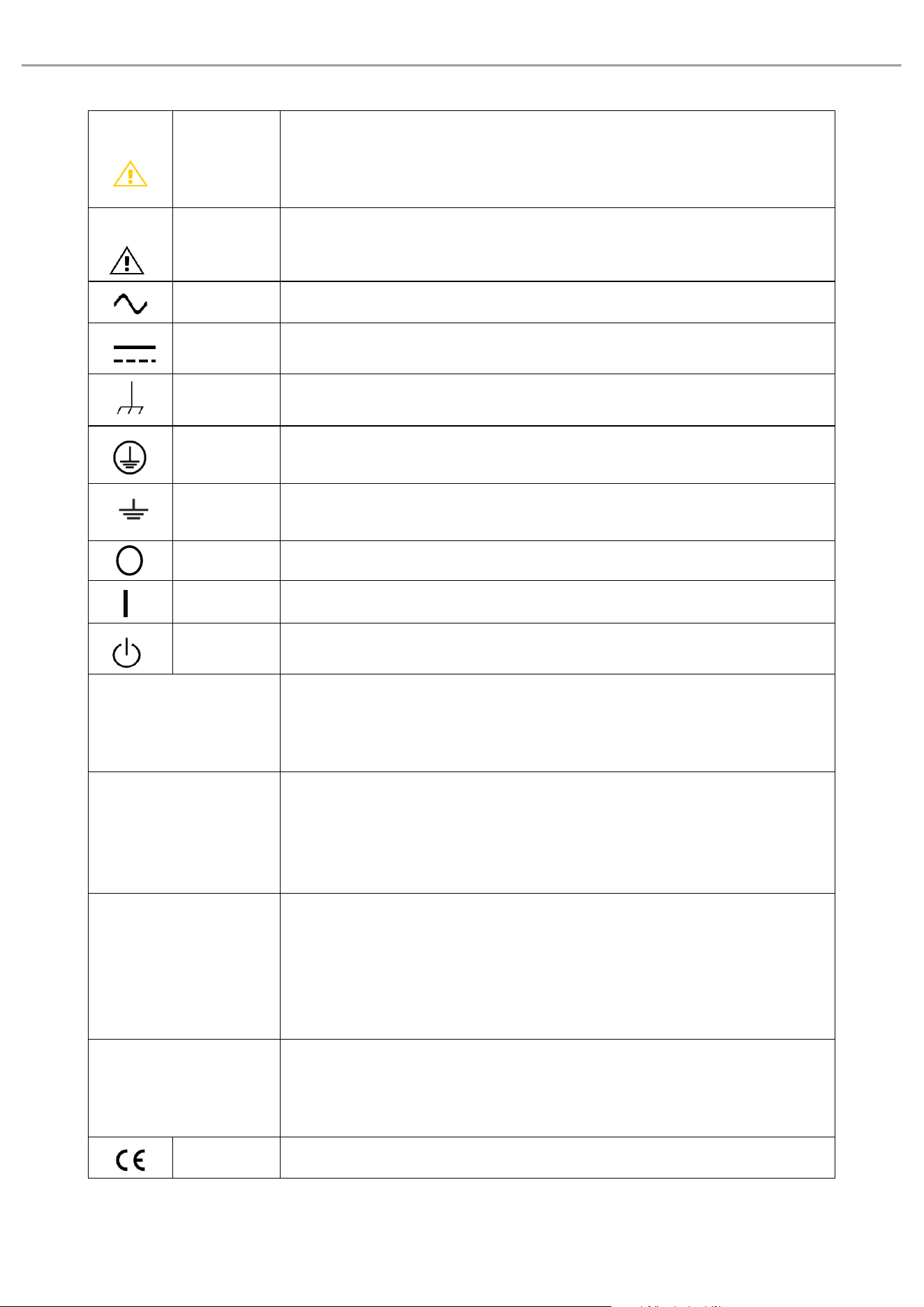
Safety Sign
Danger
It indicates possible danger of electric shock, which may cause personal
injury or death.
Warning
It indicates that you should be careful to avoid personal injury or product
damage.
User’s Manual MSO/UPO2000 Series
5 / 137
Instruments.uni-trend.com
Caution
It indicates possible danger, which may cause damage to this device or other
equipment if you fail to follow a certain procedure or condition. If the
“Caution” sign is present, all conditions must be met before you proceed to
operation.
Note
It indicates potential problems, which may cause failure of this device if you
fail to follow a certain procedure or condition. If the “Note” sign is present, all
conditions must be met before this device will function properly.
AC
Alternating current of device. Please check the region’s voltage range.
DC
Direct current device. Please check the region’s voltage range.
Grounding
Frame and chassis grounding terminal.
Grounding
Protective grounding terminal.
Grounding
Measuring grounding terminal.
OFF
Main power off.
ON
Main power on.
Power
Supply
Standby power supply: when the power switch is turned off, this device is not
completely disconnected from the AC power supply.
CAT I
Secondary electrical circuit connected to wall sockets through transformers
or similar equipment, such as electronic instruments and electronic
equipment; electronic equipment with protective measures, and any high-
voltage and low-voltage circuits, such as the copier in the office
CAT II
CATII: Primary electrical circuit of the electrical equipment connected to the
indoor socket via the power cord, such as mobile tools, home appliances,
etc. Household appliances, portable tools (e.g. electric drill), household
sockets, sockets more than 10 meters away from CAT III circuit or sockets
more than 20 meters away from CAT IV circuit
CAT III
Primary circuit of large equipment directly connected to the distribution
board and circuit between the distribution board and the socket (three-phase
distributor circuit includes a single commercial lighting circuit). Fixed
equipment, such as multi-phase motor and multi-phase fuse box; lighting
equipment and lines inside large buildings; machine tools and power
distribution boards at industrial sites (workshops)
CAT IV
Three-phase public power unit and outdoor power supply line equipment.
Equipment designed to “initial connection”, such as power distribution
system of power station, power instrument, front-end overload protection,
and any outdoor transmission line
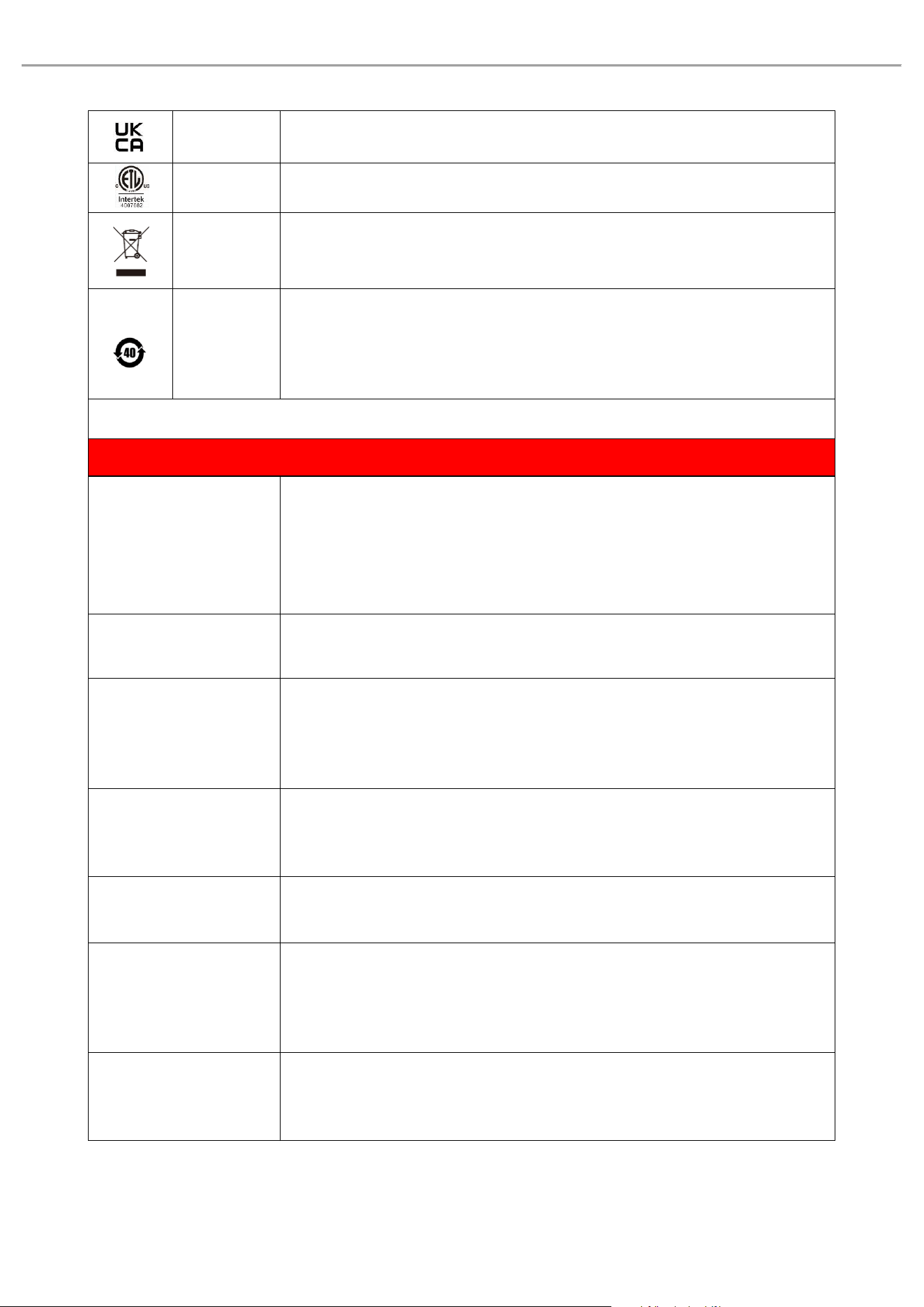
Certification
CE indicates a registered trademark of EU.
User’s Manual MSO/UPO2000 Series
6 / 137
Instruments.uni-trend.com
Certification
UKCA indicates a registered trademark of United Kingdom.
Certification
Conforms to UL STD 61010-1, 61010-2-030, Certified to CSA STD C22.2 No.
61010-1, 61010-2-030.
Waste
Do not place equipment and its accessories in the trash. Items must be
properly disposed of in accordance with local regulations.
EFUP
This environment-friendly use period (EFUP) mark indicates that dangerous
or toxic substances will not leak or cause damage within this indicated time
period. The environment-friendly use period of this product is 40 years,
during which it can be used safely. Upon expiration of this period, it should
enter the recycling system.
Safety Requirements
Warning
Preparation before use
Please connect this device to AC power supply with the power cable
provided;
The AC input voltage of the line reaches the rated value of this device. See
the product manual for specific rated value.
The line voltage switch of this device matches the line voltage;
The line voltage of the line fuse of this device is correct.
Do not used to measure MAINS CIRCUIT
Check all terminal rated
values
Please check all rated values and marking instructions on the product to
avoid fire and impact of excessive current. Please consult the product
manual for detailed rated values before connection.
Use the power cord
properly
You can only use the special power cord for the instrument approved by the
local and state standards. Please check whether the insulation layer of the
cord is damaged or the cord is exposed, and test whether the cord is
conductive. If the cord is damaged, please replace it before using the
instrument.
Instrument Grounding
To avoid electric shock, the grounding conductor must be connected to the
ground. This product is grounded through the grounding conductor of the
power supply. Please be sure to ground this product before it is powered on.
AC power supply
Please use the AC power supply specified for this device. Please use the
power cord approved by your country and confirm that the insulation layer is
not damaged.
Electrostatic prevention
This device may be damaged by static electricity, so it should be tested in the
anti-static area if possible. Before the power cable is connected to this
device, the internal and external conductors should be grounded briefly to
release static electricity. The protection grade of this device is 4KV for
contact discharge and 8KV for air discharge.
Measurement
accessories
Measurement accessories are of lower class, which are definitely not
applicable to main power supply measurement, CAT II, CAT III or CAT IV
circuit measurement.
User’s Manual MSO/UPO2000 Series
7 / 137
Instruments.uni-trend.com
Probe assemblies and accessories within the scope of IEC 61010-031, and
current sensors within the scope of IEC 61010-2-032 shall meet the
requirements thereof.
Use the input / output
port of this device
properly
Please use the input / output ports provided by this device in a properly
manner. Do not load any input signal at the output port of this device. Do not
load any signal that does not reach the rated value at the input port of this
device. The probe or other connection accessories should be effectively
grounded to avoid product damage or abnormal function. Please refer to the
product manual for the rated value of the input / output port of this device.
Power fuse
Please use power fuse of specified specification. If the fuse needs to be
replaced, it must be replaced with another one that meets the specified
specifications (Class T, rated current 5A, rated voltage 250V) by the
maintenance personnel authorized by UNI-T.
Disassembly and
cleaning
There are no components available to operators inside. Do not remove the
protective cover.
Maintenance must be carried out by qualified personnel.
Service environment
This device should be used indoors in a clean and dry environment with
ambient temperature from 0 ℃ to 40 ℃.
Do not use this device in explosive, dusty or humid air.
Do not operate in humid
environment
Do not use this device in a humid environment to avoid the risk of internal
short circuit or electric shock.
Do not operate in
flammable and explosive
environment
Do not use this device in a flammable and explosive environment to avoid
product damage or personal injury.
Caution
Abnormality
If this device may be faulty, please contact the authorized maintenance
personnel of UNI-T for testing. Any maintenance, adjustment or parts
replacement must be done by the relevant personnel of UNI-T.
Cooling
Do not block the ventilation holes at the side and back of this device;
Do not allow any external objects to enter this device via ventilation holes;
Please ensure adequate ventilation, and leave a gap of at least 15 cm on both
sides, front and back of this device.
Safe transportation
Please transport this device safely to prevent it from sliding, which may
damage the buttons, knobs or interfaces on the instrument panel.
Proper ventilation
Poor ventilation will cause the device temperature to rise, thus causing
damage to this device. Please keep proper ventilation during use, and
regularly check the vents and fans.
Keep clean and dry
Please take actions to avoid dust or moisture in the air affecting the
performance of this device. Please keep the product surface clean and dry.
Note
User’s Manual MSO/UPO2000 Series
8 / 137
Instruments.uni-trend.com
Calibration
The recommended calibration period is one year. Calibration should only be
carried out by qualified personnel.
Environmental Requirements
This instrument is suitable for the following environment:
Indoor use.
Pollution degree 2
In operating: altitude lower to 3000 meter;in non-operating: altitude lower to 15000 meter.
Operating temperature 0 ℃ to ﹢ 40 ℃ ; Storage temperature -20 ℃ to +70 ℃ (unless otherwise
specified).
In operating, humidity temperature below to +35℃, ≤90% relative humidity;
In non-operating, humidity temperature +35℃ to +40℃, ≤60% relative humidity.
There are ventilation opening on the rear panel and side panel of the instrument. So please keep the air
flowing through the vents of the instrument housing. To prevent excessive dust from blocking the vents,
please clean the instrument housing regularly. The housing is not waterproof, please disconnect the power
supply first and then wipe the housing with a dry cloth or a slightly moistened soft cloth.
Connecting Power Supply
The specification of AC power supply that can input
Voltage Range
Frequency
100-240VAC (Fluctuations±10%)
50/60Hz
Please use the attached power lead to connect to the power port.
Connecting to service cable
This instrument is a Class I safety product. The supplied power lead has good performance in terms of case
ground. This spectrum analyzer is equipped with a three-prong power cable that meets international safety
standards. It provides good case grounding performance for the specification of your country or region.
Please install AC power cable as follows:
• ensure the power cable is in a good condition.
• leave enough space for connecting the power cord.
• Plug the attached three-prong power cable into a well-grounded power socket.
Electrostatic Protection
Electrostatic discharge may cause damage to component. Components can be damaged invisibly by
electrostatic discharge during transportation, storage and use.
The following measure can reduce the damage of electrostatic discharge,
• Testing in antistatic area as far as possible;
• Before connecting the power cable to the instrument, inner and outer conductors of the instrument should
be briefly grounded to discharge static electricity;
• Ensure all the instruments are properly grounded to prevent the accumulation of static
User’s Manual MSO/UPO2000 Series
9 / 137
Instruments.uni-trend.com
3. Introduction of MSO/UPO2000 Series
Digital Phosphor Oscilloscope
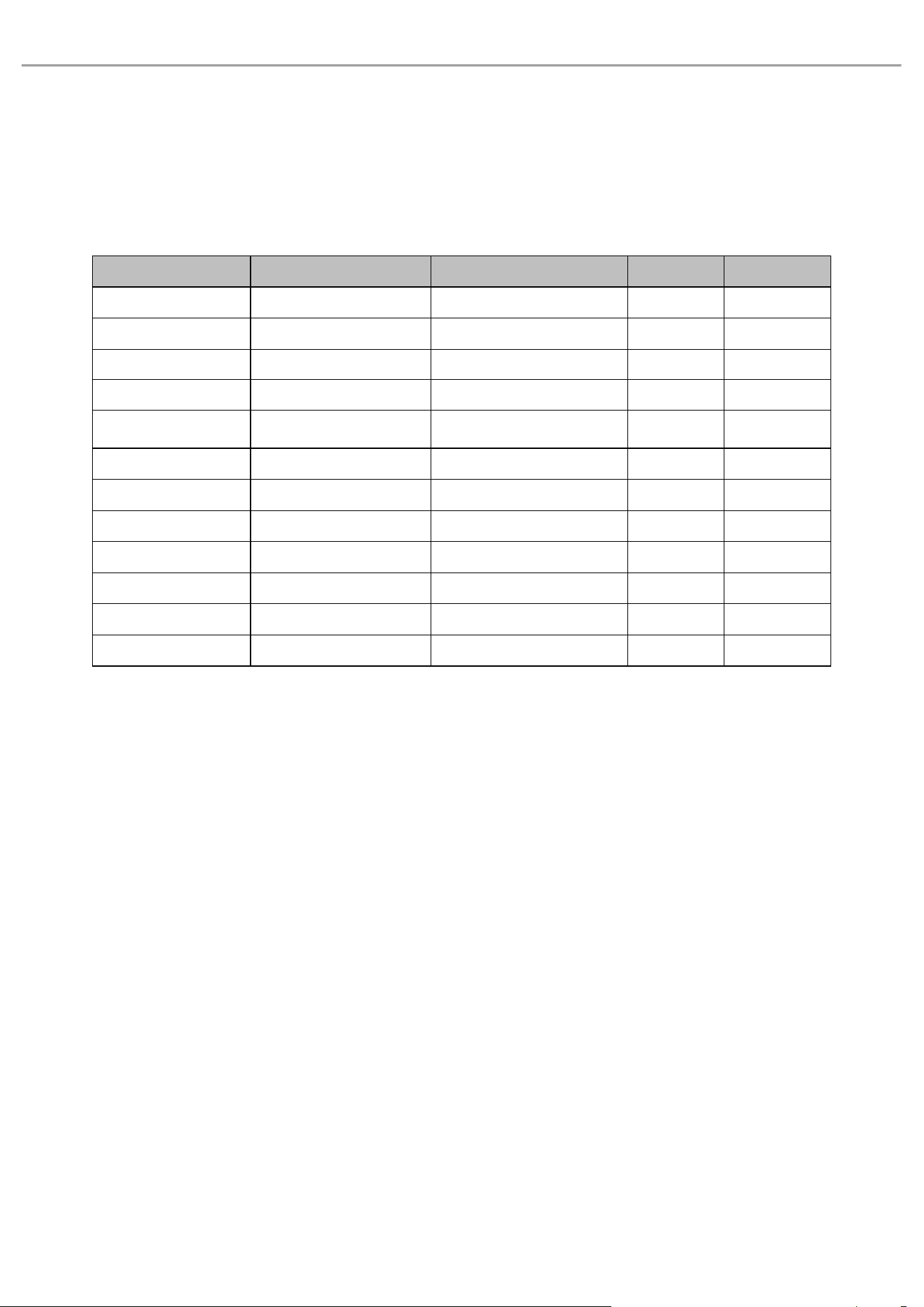
MSO/UPO2000 Series digital phosphor oscilloscope includes four models
Model
Analog Channel
Analog bandwidth
LA
AWG
UPO2102
2
100MHz
○
×
UPO2104
4
100MHz
○
×
UPO2202
2
200MHz
○
×
UPO2204
4
200MHz
○
×
MSO2102
2
100MHz
●
×
MSO2104
4
100MHz
●
×
MSO2202
2
200MHz
●
×
MSO2404
4
200MHz
●
×
MSO2102-S
2
100MHz
●
●
MSO2104-S
4
100MHz
●
●
MSO2202-S
2
200MHz
●
●
MSO2204-S
4
200MHz
●
●
○:Optional ●:Standard ×:Not support
MSO/UPO2000 Series digital phosphor oscilloscope is based on unique Ultra Phosphor 2.0 technology. A
multi-functional, high performance oscilloscope that is easy to use, with excellent technical specifications,
a perfect combination of many functionalities that can help users to quickly complete testing.
MSO/UPO2000 series is aimed at satisfying the most extensive oscilloscope markets, including
communications, semiconductors, computers, meter and instruments, aerospace defense, instrumentation,
industrial electronics, consumer electronics, automotive electronics, field maintenance, R&D, education,
etc.
Main Features:
Analog channel bandwidth: 200MHz, 100MHz
Analog channel with real-time sampling rate 2GS/s, digital channel with real-time sampling rate 1GS/s
(only for MSO)
Analog channel: 2 or 4 channel for selection, standard 56Mpts storage depth for each channel
16 digital channels, digital channel storage depth 56Mpts(only for MSO)
Waveform capture rate of up to 1,000,000 wfms/s

User’s Manual MSO/UPO2000 Series
10 / 137
Instruments.uni-trend.com
Build in 50MHz double channel function/arbitrary waveform generator (only for MSO-S), it supports real-
time loading data on the screen of the oscilloscope into AWG arbitrary waveform output
Bode Plots loop test analysis function
Up to 120,000 frames of hardware real-time waveform continuous recording and analysis function and
support USB storage device export.
Waveform operation: add, subtract, multiply, divide, digital filter, logical operation and advanced
operation
4M point enhance FFT, support frequency setting, waterfall curve, detection setting and mark
measurement
Automatic measurement of 36 waveform parameters
Multi-Scopes 2.0 supports multiple channels independent trigger fluorescent display
Multiple channels with independent hardware 7 digits frequency meter
DVM supports multiple channels independent AC/DC TRMS (true virtual value) measurement
Abundant trigger functions: edge, pulse width, video, ramp, runt pulse, over-amplitude pulse, delay,
timeout, duration, setup hold, Nth edge and pattern trigger
Region trigger function for capturing occasional signal and observing complex signal
Protocol trigger and decoding trigger with standard RS232, I
2
C, SPI and optional CAN, CAN-FD, LIN,
FlexRay
Ultra Phosphor display effect with 256 level gray scale display
8 inch high-definition capacitive touch(800×480)screen, support gesture operating click, slide, zoom,
edit and drag
Multiple peripheral interface: USB Host, USB Device, LAN, EXT Trig, AUX Out (Trig Out, Pass/Fail), AWG
output and VGA
Supporting SCPI programmable standard command
Support WEB access and control

User’s Manual MSO/UPO2000 Series
11 / 137
Instruments.uni-trend.com
4. Getting Started Guide
This chapter introduces on using the oscilloscope for the first time, the front and rear panels, the user
interface, as well as the built-in help system.
General Inspection
Before Use
Front Panel
Rear Panel
Operation Panel
User Interface
Touch Screen
Introduction of Special Symbol

User’s Manual MSO/UPO2000 Series
12 / 137
Instruments.uni-trend.com
4.1 General Inspection
It is recommended to inspect the instrument follow the steps below before using the UPO/MSO/UPO2000
series for the first time.
(1) Check for Damages caused by Transport
If the packaging carton or the foam plastic cushions are severely damaged, please contact the UNI-T
distributor of this product immediately.
(2) Check Attachment
Please check appendix for the list of accessories. If any of the accessories are missing or damaged,
please contact UNI-T or local distributors of this product.
(3) Machine Inspection
If the instrument appears to be damaged, not working properly, or has failed the functionality test,
please contact UNI-T or local distributors of this product.
If the equipment is damaged due to shipping, please keep the packaging and notify both the
transportation department and UNI-T distributors, UNI-T will arrange maintenance or replacement.
4.2 Before Use
To perform a quick verification of the instrument’s normal operations, please follow the steps below:
(1) Connect to the Power Supply
The power supply voltage range is from 100 VAC to 240 VAC, the frequency range is 50/60Hz. Connect
the oscilloscope to the power supply line that came with the oscilloscope or any power supply line that
meets the local country standards. Turn on the power button, which on the back of the oscilloscope. The
soft power button in the front of the oscilloscope should be on red.
(2) Boot Check
Press the soft power button and the light should change to green. The oscilloscope will show a
boot animation, and then enter the normal interface.
(3) Connect Probe
Use probe in the attachment and connect it BNC port to the channel 1 BNC port of the oscilloscope.
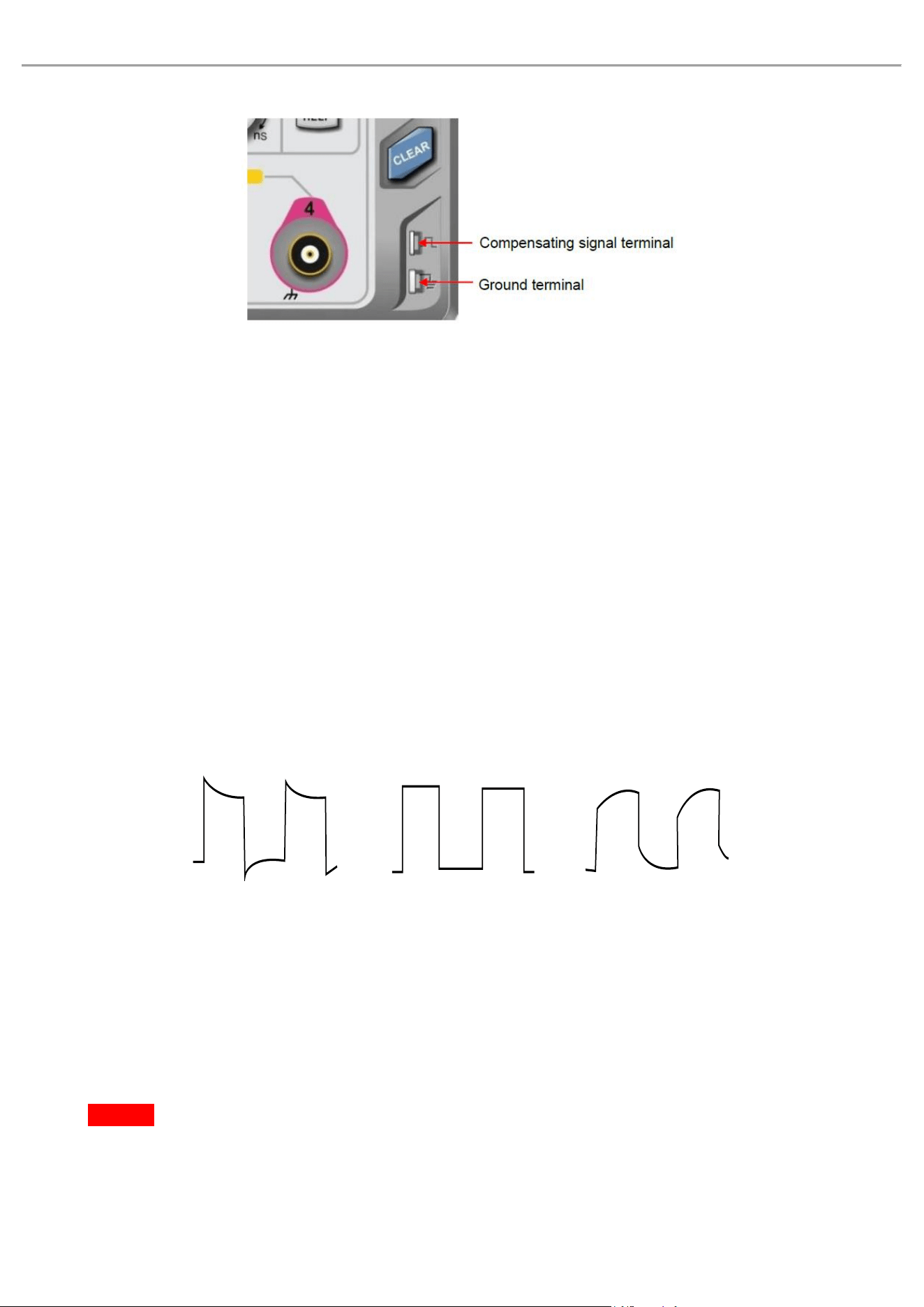
Connect the probe’s main alligator clip to the “Compensating signal port” and the ground clip is
connected to the “Ground terminal” shown below. The output of the compensating signal should be
amplitude 3 Vpp, default frequency is 1 kHz
User’s Manual MSO/UPO2000 Series
13 / 137
Instruments.uni-trend.com
Figure 4-1 Compensating signal and Ground terminal
(4) Function Check
Press the AUTO key, a 3 Vpp 1 kHz square wave should appear. Repeat step 3 for all channels. If the output
is not a square wave with the above descriptions, please perform the probe compensation step in the
next section.
(5) Probe Compensation
When the probe is connected to any input channel for the first time, this step might be adjusted in order
to match the probe and the input channel. Probes that are not compensated may lead to measurement
errors or mistake. Please follow the following steps:
① Set the attenuation coefficient in the probe menu and the switch on the probe to 10x, and connect
the probe to CH1. Make sure the probe’s connector is properly connected with the oscilloscope. Connect
the probe’s main clip and ground clip to the oscilloscope’s compensating signal and ground terminal
respectively. Open CH1 and press the AUTO button.
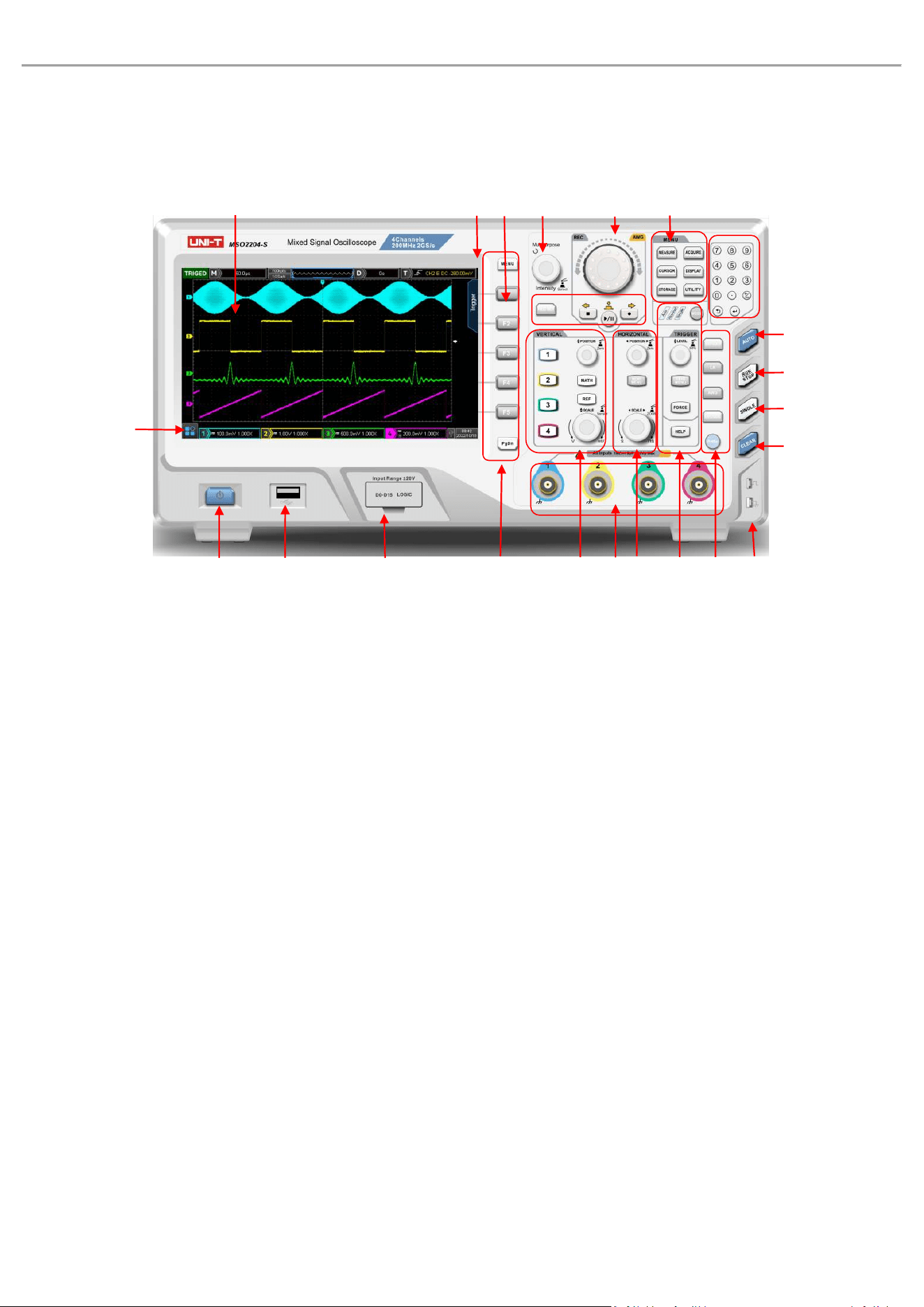
② View the displayed waveform, as shown in Figure 4-2.
Excessive Compensation Correct Compensation Insufficient Compensation
Figure 4-2 Compensating Calibration of Probe
② If the displayed waveform is look like the above “Insufficient Compensation” or “Excessive
Compensation”, use a non-metallic screwdriver to adjust the probe’s variable capacitance until the
display matches the "Correct compensation" waveform.
Warning: To avoid electric shock when using the probe to measure high voltage, please ensure that the probe
insulation is in good condition and avoid physical contact with any metallic part of the probe.
User’s Manual MSO/UPO2000 Series
14 / 137
Instruments.uni-trend.com
4.3 Front Panel
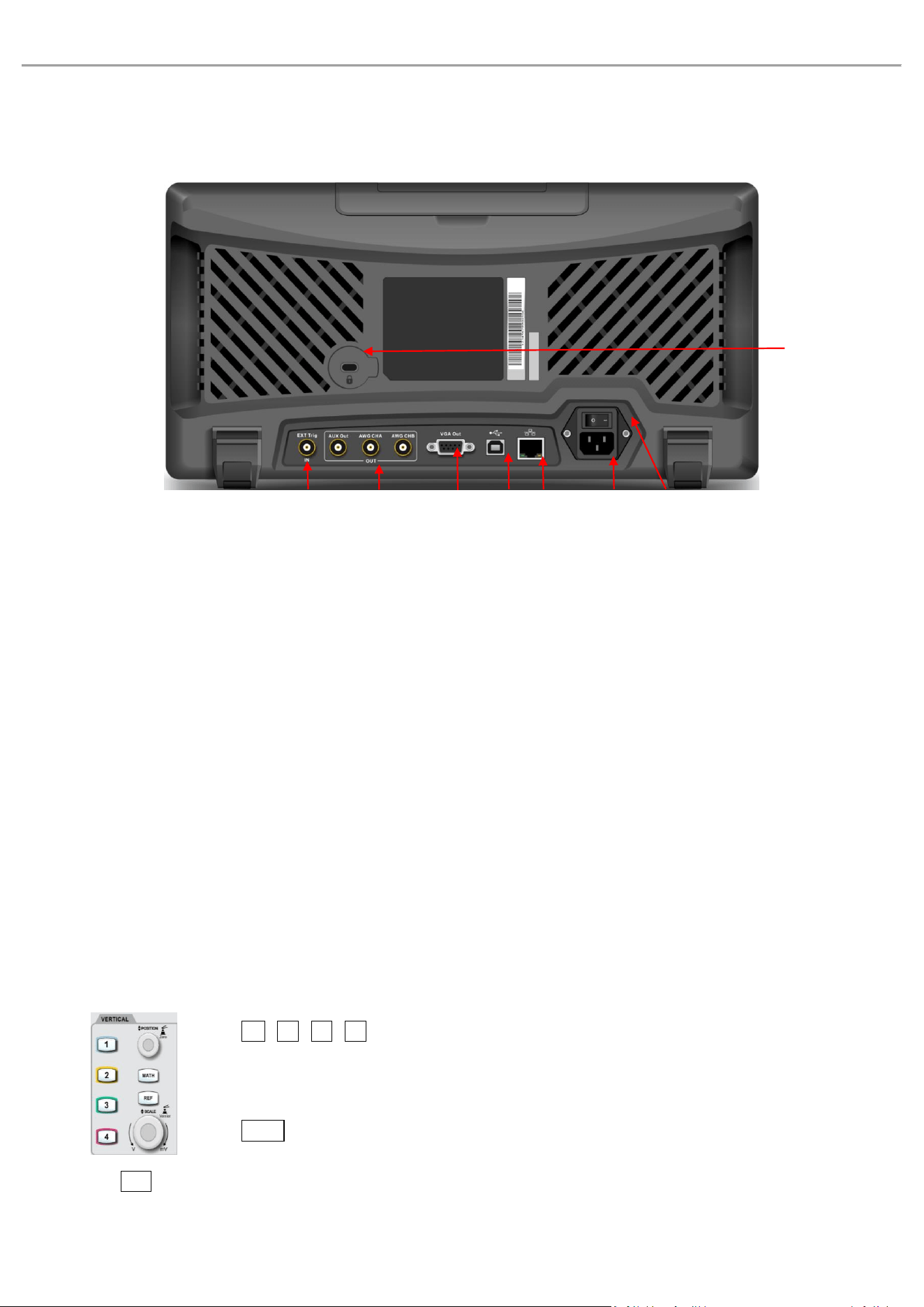
Figure 4-3 Front Panel
1. Screen display area
2. Multipurpose knob
3. Recording waveform
4. Jog dial knob
5. Function menu
6. Numeric keypad
7. Automatic control key
8. Run/Stop control key
9. Single trigger control key
10. Clear all control key
11. Compensating signal connector and ground terminal
12. Factory setting, LA(16 digital channel),AWG(function/arbitrary waveform generator), protocol
decoding, Print Screen key
13. Trigger control (TRIGGER)
14. Horizontal control (HORIZONTAL)
15. Analog channel input port
16. Vertical control (VERTICAL)
17. Menu control soft key
18. USB HOST interface
19. Power supply soft key
20. Digital channel input port
21. HOME Menu
7
8
9
10
15
20
12
13
14
16
17
11
18
19
1
5
6
4
2
3
21
User’s Manual MSO/UPO2000 Series
15 / 137
Instruments.uni-trend.com
4.4 Rear Panel
Figure 4-4 Rear Panel
1. EXT Trig: Input port of external trigger or external trigger /5
2. OUT: Output port supports AUX Out and AWG CHB for function/arbitrary waveform generator
3. VIDEO Out: VGA video signal output, it can convert screen to VGA output
4. USB Device:USB device interface, use this interface to communicate with PC
5. LAN: Use this interface to connect the oscilloscope to local area network for remote control
6. AC Power Input Socket: AC power input port. Use power cord supplied with accessory to connect the
oscilloscope to AC power (power supply requirements of this oscilloscope 100~240 V, 50/60Hz).
7. Power Switch: Turn on power switch after AC socket is connect properly, the oscilloscope can be power
on normally. Press “power supply soft key” on the front panel to boot the oscilloscope.
8. Safety Lock: Safety lock (sold separately) can be used for the oscilloscope stay at fixed position
4.5 Operation Panel
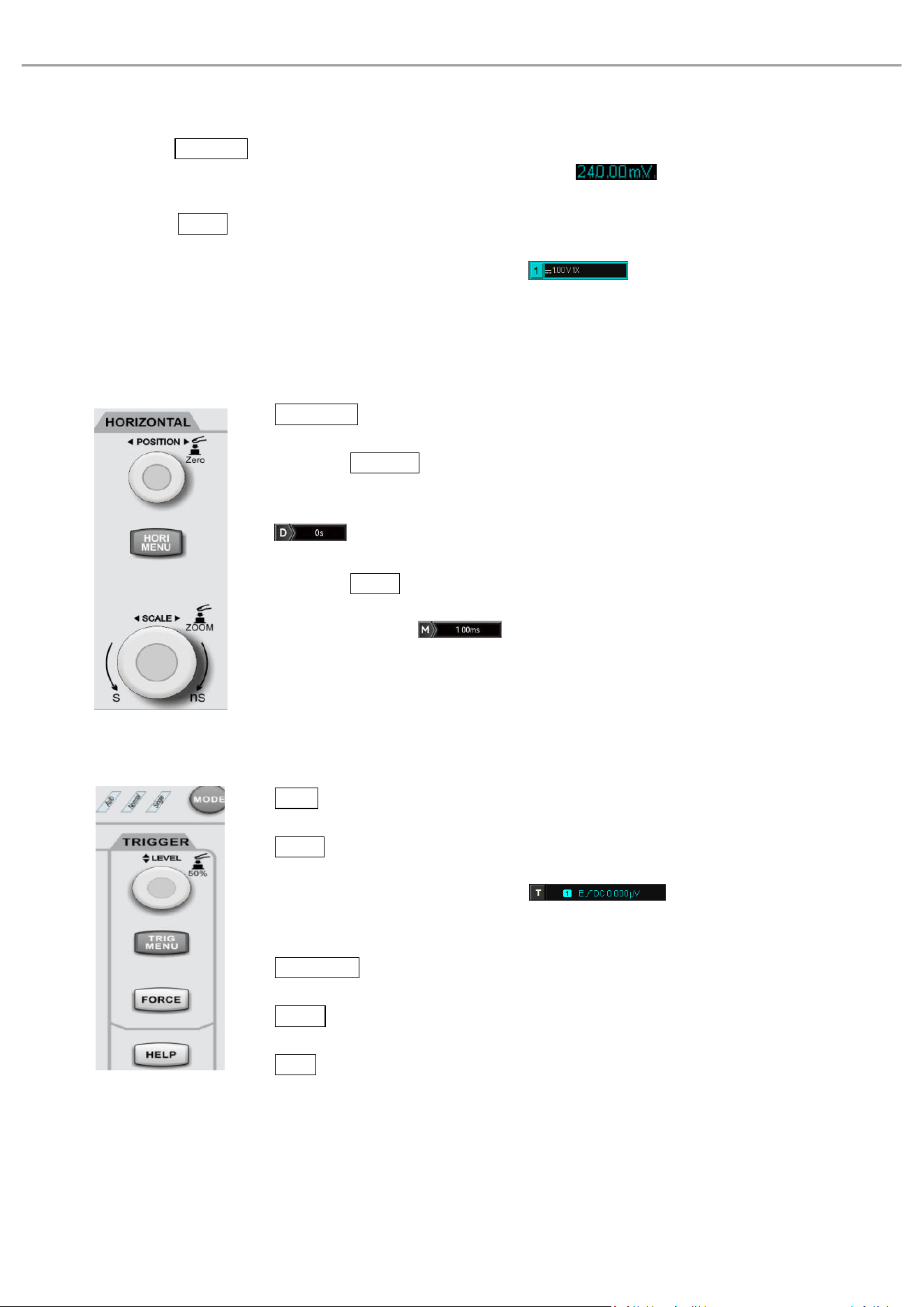
(1) Vertical Control
①
1 , 2 , 3 , 4 : Analog channel setting key, it represents CH1, CH2, CH3,
CH4 separately. Four channel identified by different colors and the color also
corresponding to waveform on the screen and channel input connector. Press any
key to turn on the related channel menu (to active or disable channel).
② MATH: Press this key to open the mathematical operation menu for add, subtract,
multiply, divide, FFT, digital filtering and advanced operations.
③ REF: For recall reference waveform stored in “internal or U flash dish”. It can compare the actual
1
2
3
4
5
6
7
8
User’s Manual MSO/UPO2000 Series
16 / 137
Instruments.uni-trend.com
measured waveform with reference waveform.
④ Vertical POSITION: Vertical position knob is used for move the vertical position of the current channel
waveform. The vertical displacement value will display at the baseline cursor. Press this knob to return
the channel display back to the vertical midpoint.
⑤ Vertical SCALE: Vertical position knob is used for adjusting the vertical scale, turn clockwise to
decrease the scale, turn counterclockwise to increase the scale. With this process, waveform will
display increasing or decreasing and position information will also be presented at the
same time. The vertical scale stepped as 1-2-5 order. Press the knob allows the vertical adjustment to
switch coarse and fine adjustment mode.
(2) Horizontal Control
① HORI MENU: Horizontal menu is for display window extension, Multi-Scopes,
time base (XY/YT) and trigger holdoff.
② Horizontal POSITION: The trigger point moves around the left or right of the
center of the screen when adjusting the horizontal position knob. And the
waveform of all the channel moves to left or right. Horizontal position parameter
will display on the top of the screen in real- time. Press this knob to
return the channel display back to the midpoint position.
③ Horizontal SCALE: The trigger point moves around the left or right of the center
of the screen when adjusting the horizontal scale knob. And horizontal
displacement value on the top of the screen will change in real-
time. Press this knob to return the channel display back to the midpoint
position. The time base scale stepped as 1-2-5 order. Press the knob to switch
main window and extension window.
(3) Trigger Control
① MODE: Press this key to switch mode to Auto, Normal or Single. The backlight
corresponding to the current trigger mode will turn on.
② LEVEL: Trigger level adjusting knob. Turn clockwise to increase the level and turn
counterclockwise to decrease the level. During the adjustment, the trigger level
at the top right corner of the screen will change in real-time.
Press this knob to quickly reset the trigger level back to 50% trigger signal
position.
③ TRIG MENU: Press to display trigger menu. For more details refer to Trigger
Setting System.
④ FORCE: Force trigger key. In Normal, Single trigger mode, press this key to force
a trigger.
⑤ HELP: Press to display built-in help system of the oscilloscope.
User’s Manual MSO/UPO2000 Series
17 / 137
Instruments.uni-trend.com
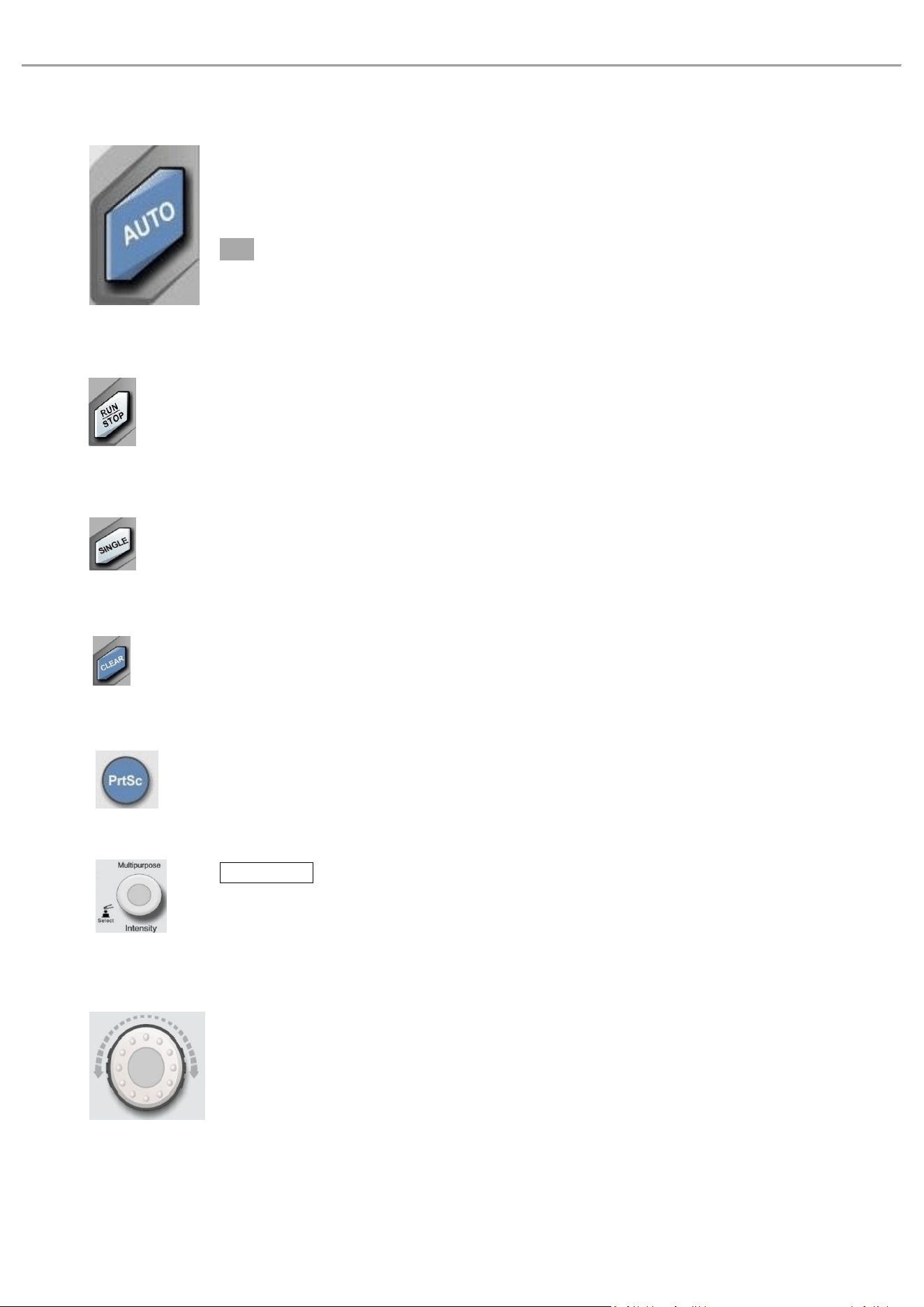
(4) Automatic Setting
Press this key, the oscilloscope will automatically adjust the vertical scale, scan time base
and trigger mode according to the input signal to realize optimum waveform display.
Note: Waveform auto setting function requires that the frequency of sine is no lower than
20 Hz; the amplitude must be at least 20 mVpp~120 Vpp. Otherwise, the waveform auto
setting function may be invalid.
(5) Run/Stop
Press this key set the operating state to "RUN" or "STOP".
In the "RUN" state, the key is illuminated in green.
In the "STOP “state, the key is illuminated in red.
(6) Single Trigger
Press this key to set trigger mode to “Single”, the key is illuminated in orange.
(7) Clear All
Press this key to clear all the recalled waveform on the screen. If the oscilloscope is in
RUN state, then keep refresh new waveform.
(8) PrintScreen
Press this key to save waveform as PNG format image and quick copy into USB device.
(9) Multipurpose Knob
Multipurpose:In menu operating, press the soft key of a menu and rotate the knob to
select a submenu under the menu. Then press the knob (that is, the select function) to
select the currently selected submenu.
(10) Jog Dial Knob
For numerical parameter that the setting range is large, this knob can be used to quick
adjustment. Rotate clockwise (anticlock wise) to increase (decrease) numerical value;
inner layer can be fine tunning, outer layer can be coarse tunning. Such as, rotate this
knob to quickly locate the waveform frame that need to recall. This knob also can be used
to set parameter like trigger holdoff time, pulse width setting and slope time.
User’s Manual MSO/UPO2000 Series
18 / 137
Instruments.uni-trend.com
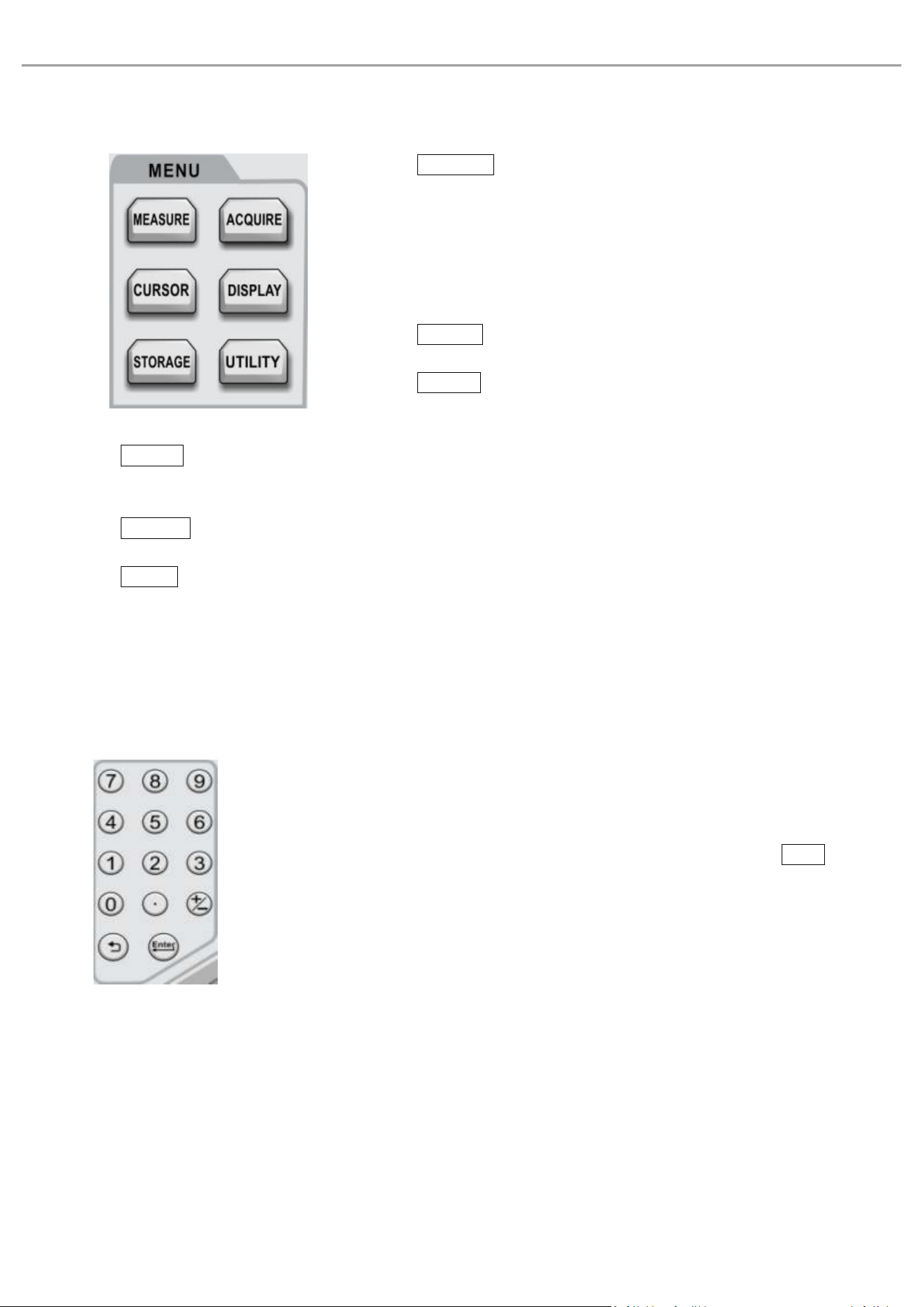
(11) Function Key
① MEASURE : Press this key to enable the measurement
setting menu. It can set the measurement source, all
parameter measurement, user-defined parameter,
measurement statistic and measure indicator. Turn on user-
defined, it has 36 types of parameter measurement. Press
Multipurpose knob to quick select parameter to measuring
and the result will show on the bottom of the screen.
② ACQUIRE: Press this key to enter sampling setting menu. It
can set sampling mode and deep storage and quick sampling.
③ CURSOR : Press this key to enter cursor measurement
menu. It can set time or voltage parameter of cursor
measuring waveform by manual.
④ DISPLAY: Press this key to enter display setting menu. It can set waveform display type, grid type, grid
brightness, waveform brightness, background brightness, duration, color temperature, anti-color
temperature, pop-up window transparency and default transparency.
⑤ STORAGE: Press this key to enter storage menu, storage type includes setting, waveform, arbitrary
waveform and picture. It can stored in the oscilloscope or external USB storage device.
⑥ UTILITY: Press this key to enter auxiliary function menu. It can set auto-calibration, system information,
language setting, interface setting, recording waveform, pass/fail test, square waveform, frequency
meter, output selection, auto-setting, clear data, SCPI setting, IP setting, time setting, refresh, bode
diagram, boot loading and power on mode.
(12) Numeric Keypad
For numerical parameter that the setting range is large, numeric keypad can input
digit with time unit, voltage unit directly. If the parameter is no unit, then press Enter
key to confirm.
User’s Manual MSO/UPO2000 Series
19 / 137
Instruments.uni-trend.com
(13) Recording Waveform
Stop/Delete Pause/Playback/Select Record/Right shift
① REC SET: Recording waveform setting menu, it can set recording interval, end frame, play delay, the
maximum frame setting or display.
② Stop: Press this key to stop recording or playback waveform.
③ Playback/Pause: In stop or pause state, press this key to playback waveform, press it again to pause
playback.
④ Record: Press this key to start recording waveform.
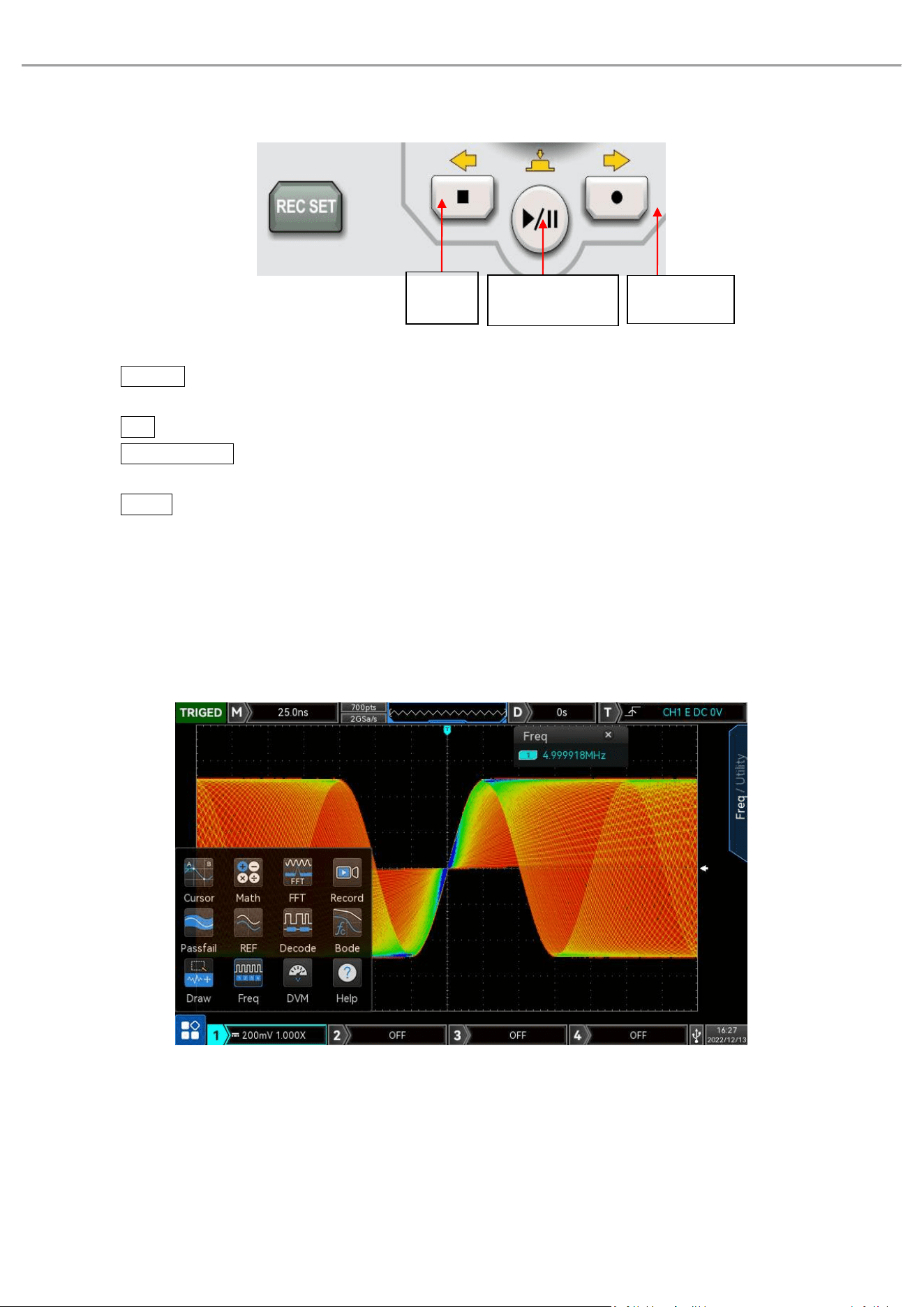
(14) HOME Menu
Tap HOME icon to pop out HOME shortcut menu list (as show in Figure 4-5), which includes cursor,
mathematical operation, spectrum analysis, recording waveform, pass/fail test, reference waveform,
decoding, bode diagram, drawing rectangle, frequency meter, voltmeter, and help menu. Through this
shortcut menu, user can quickly find and enter the function module.
Figure 4-5
4.
6 User Interface
Stop/Delet
e
Pause/Playback/Select
Record/move right
User’s Manual MSO/UPO2000 Series
20 / 137
Instruments.uni-trend.com
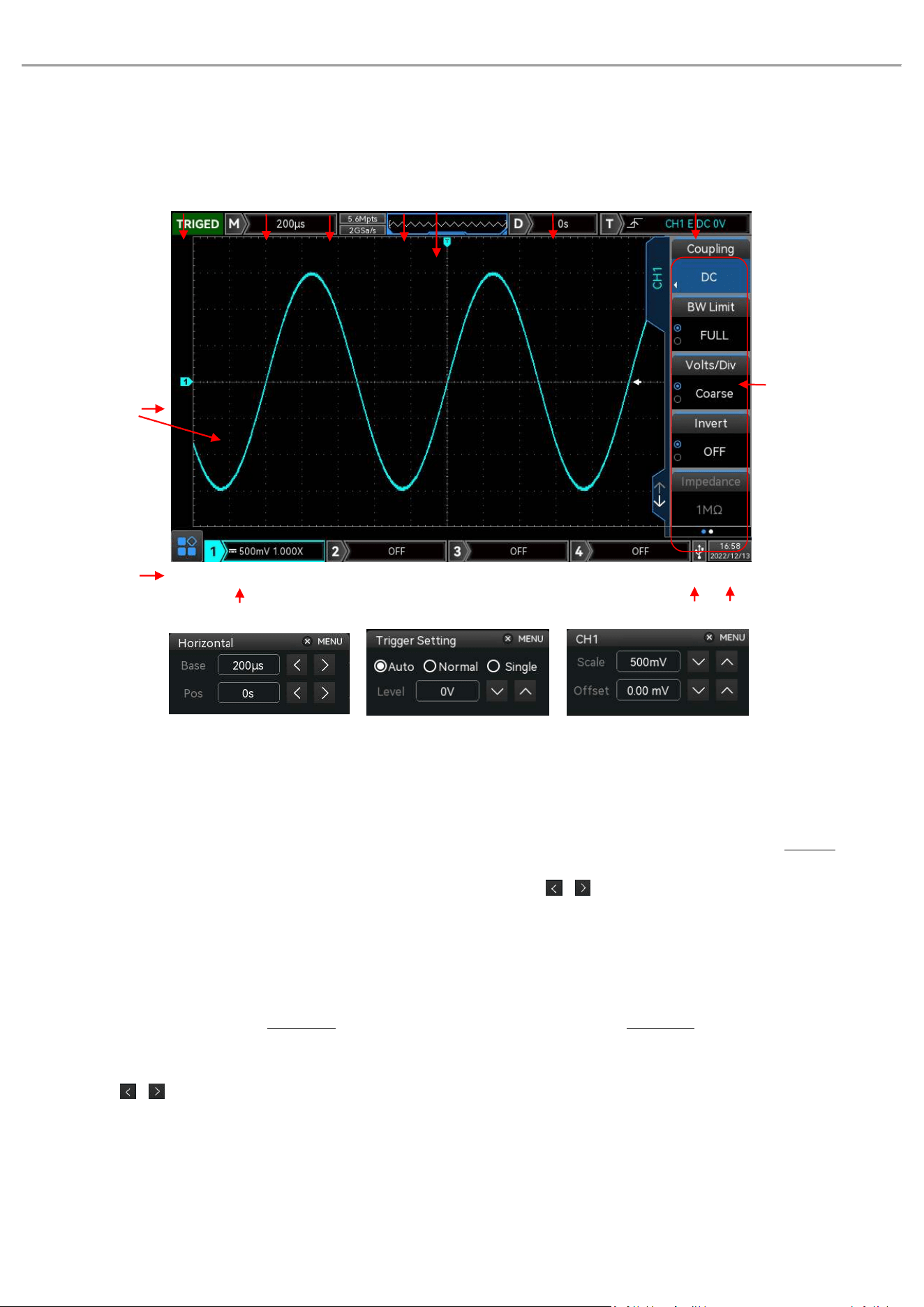
4.6 User Interface
Figure 4-6
a b c
Figure 4-7
User interface as shown in Figure 4-6 and the detailed description see the following.
1. Trigger status identification: TRIGED (has been triggered), AUTO, READY, STOP, and ROLL.
2. Time base scale: Indicates the amount of time represented by one grid, which can be adjusted by SCALE
knob on the horizontal control area. Tap time base scale to pop out horizontal interface as show in Figure
4-7(a), time base scale can change by using numeric keypad, , and SCALE knob .
3. Sampling rate/storage depth: Display sampling rate and storage depth of the current scale.
4. Waveform indicator
5. Waveform trigger position: Display the trigger position of the current waveform.
6. Horizontal displacement: Display the horizontal displacement value of waveform. Change this
parameter by using POSITION knob on horizontal control area. Press POSITION knob on horizontal
control area to make horizontal displacement value turn to 0. Tap time base scale to pop out horizontal
interface as show in Figure 4-7(a), horizontal displacement value can change by using numeric keypad,
, and POSITION knob.
7. Trigger status:Display the current trigger source, type, ramp, coupling and level status.
a. Trigger source: There are CH1~CH4, main electricity, EXT, EXT/5 and D0-D15 status. CH1~CH4 will
display different trigger state colors based on channel colors.
13
8
10
11
9
7
6
1
2
3
12
4
5

User’s Manual MSO/UPO2000 Series
21 / 137
Instruments.uni-trend.com
b. Trigger type: The types are edge, pulse width, video, ramp, and advanced trigger. For example,
represents edge trigger.
c. Trigger edge: The types are rising, falling, and random. For example, represents rising edge
trigger.
d. Trigger coupling: The types are DC, AC, HF rejection, LF rejection and noise rejection. For example,
indicates DC coupling.
e. Trigger level: Display the current trigger level value, it corresponding to the right side of screen .
Change this parameter by using LEVEL knob on trigger control area.
f. Tap trigger status area to pop out trigger setting interface as shown in Figure 4-7(b). Trigger level
value and trigger coupling mode can change by using numeric keypad, , and LEVEL knob.
8. Operation menu: Display the current operation menu, press the corresponding key to change the menu.
Press F1 ~ F5 to select the corresponding submenu.
9. Set year, month, date and time in Utility menu or tap this area to pop out time setting interface to setup.
10. USB DEVICE icon: This icon will appear when USB DEVICE connect with the instrument.
11. CH1vertical icon: Display activated state, channel coupling, bandwidth limit, vertical scale and probe
attenuation factor of CH1.
a. Channel activated stat:
b. Bandwidth limit: A“B” icon will appear in CH1 vertical state when this function is enabled,
c. Vertical scale: Display vertical scale of CH1 when CH1 is activated. This parameter can be changed by
using SCALE knob on vertical control area.
d. Probe attenuation factor: Display probe attenuation factor of CH1, which includes 0.001X, 0.01X, 0.1X,
1X, 10X, 100X, 1000X and user-defined.
e. Volts/div scale: A “ ” icon will appear in CH1 vertical state when volts/div scale setting is fine tunning.
g. Tap vertical state area to pop out channel 1 interface as shown in Figure 4-7(c)Volts/div scale,
vertical displacement value can be changed by using numeric keypad, , and vertical SCALE
knob and vertical Position knob.
h. Tap analog channel digit to enable, activate and disable the channel.
12. HOME Menu: HOME menu is in the left corner of the screen, which includes cursor, mathematical
operation, spectrum analysis, recording waveform, pass/fail test, reference waveform, decoding, bode
diagram, drawing rectangle, frequency meter, voltmeter and help shortcut menu.
(1) Cursor: Tap cursor icon in HOME menu to enter CURSOR menu, it can set cursor measurement
directly, refer to
Cursor Measurement for more details.
(2) Mathematical operation: Tap mathematical operation icon in HOME menu to enable MATH function
and set the type to MATH.
(3) Spectrum analysis: Tap spectrum analysis icon in HOME menu to enable MATH function and set the
type to FFT.
(4) Recording waveform: Tap recording waveform icon in HOME menu to enter recording waveform
menu and to setup. Refer to “Recording Waveform” for more details.
(5) Pass/fail test: Tap pass/fail test icon in HOME menu to enter pass/fail menu to setup. Refer to

User’s Manual MSO/UPO2000 Series
22 / 137
Instruments.uni-trend.com
“Pass/Fail Test” for more details.
(6) Reference waveform: Tap reference waveform icon in HOME menu to enter REF Load menu to
operating recall waveform.
(7) Decoding: Tap decoding icon in HOME menu to enter Decode menu to operating decoding. Refer to
“Protocol Decoding” for more details.
(8) Bode diagram: Tap bode diagram icon in HOME menu to enter bode diagram menu to setup. Refer
to “Bode Diagram” for more details.
(9) Drawing rectangle: Tap drawing rectangle icon in HOME menu to enter drawing rectangle menu to
setup. Refer to “Drawing Rectangle” for more details.
(10) Frequency meter: Tap frequency meter icon in HOME menu to turn on/off frequency meter quickly.
The frequency meter status of all channels is turned on by default. When the frequency meter is
turned on, the icon is highlighted.
(11) Voltmeter: Tap voltmeter icon in HOME menu to enter voltmeter menu to setup state of voltmeter,
source and mode. The voltmeter status of all channels is turned on by default.
a. Voltmeter state: ON or OFF
b. Source: Set the measuring source of multimeter, which can set to CH1, CH2, CH3 or CH4.
c. Mode: AC, DC, AC & DC.
(12) Help: Tap help icon in HOME menu to enter help menu.
13. Analog channel icon and waveform: Display channel identification and waveform of CH1~CH4, the color
of channel identification will be the same with waveform.
4.7 Touch Screen
MSO2000CS+ series provides 8 inch super capacitive touch screen, multiple point touch control and gesture
control. MSO200CS+ has easily operating system with flexible and high sensitive touch screen features for
great waveform display and excellent user experience.
Touch control function includes tap, squeeze, drag and drawing rectangle.
Hint: The menu displayed on the screen of the oscilloscope can use the touch control function.
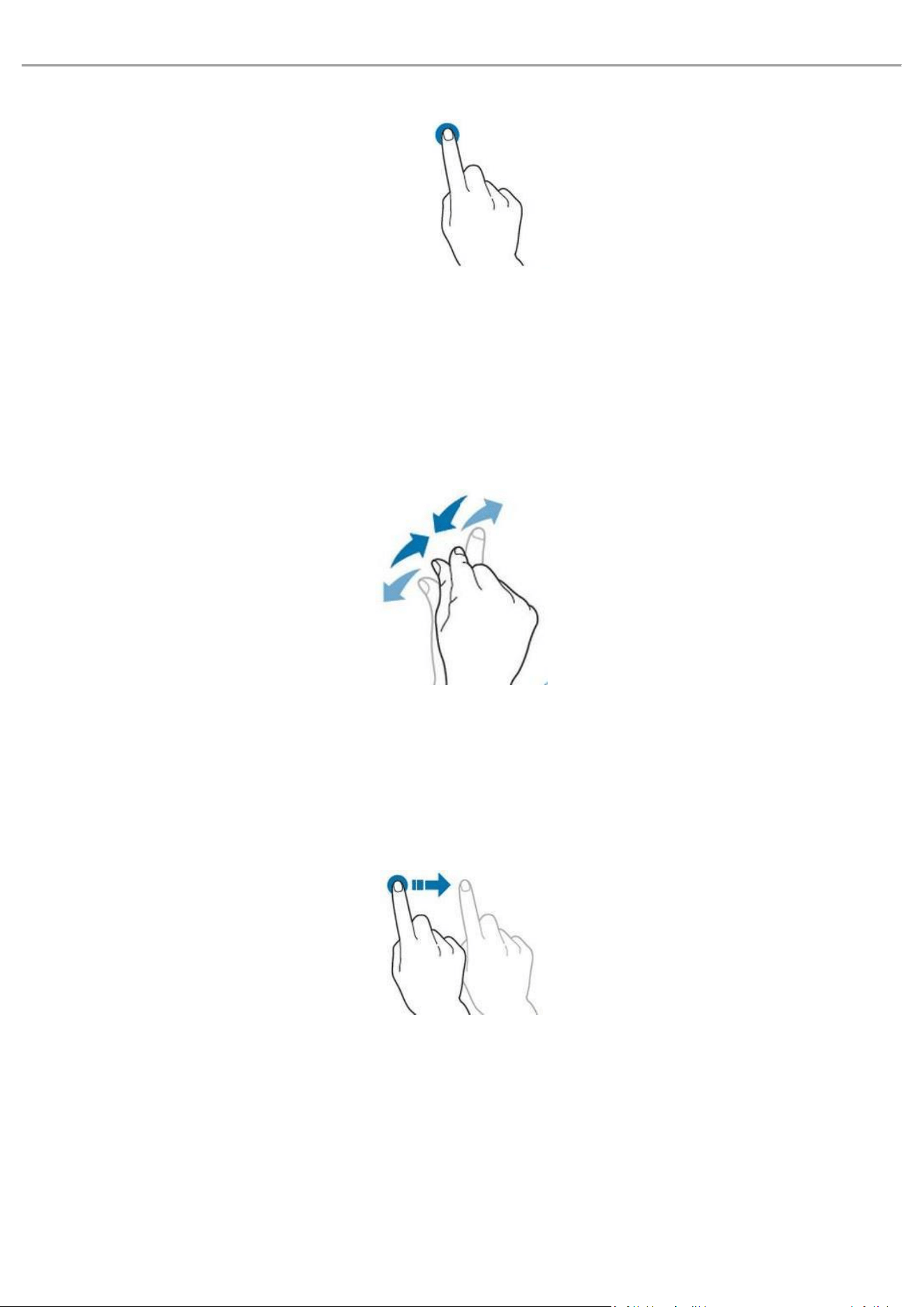
(1) Tap
Use one finger to slightly tap icon or word on the screen as shown in Figure 4-8. Tap gesture can use for:
Tap menu displayed on the screen and then to setup.
Tap the function guide icon on the left corner of the screen to enable it.
Tap to pop out numeric keypad to set parameter.
Tap virtual keyboard to set label and file name.
Tap message to pop out close button on the right corner to close it.
Tap other window displayed on the screen to setup.
User’s Manual MSO/UPO2000 Series
23 / 137
Instruments.uni-trend.com
Figure 4-8 Touch Gesture
(2) Squeeze
Squeeze two fingers together or separate. Squeeze gesture can zoom out or zoom in the waveform. If
the waveform need to zoom out, squeeze two finger together and then slide away; If the waveform need
to zoom out, separate two fingers and then squeeze two fingers together as shown in Figure 4-9.
Squeeze gesture can use for:
Adjusting horizontal time base of waveform on the horizontal direction.
Adjusting vertical scale of waveform on the vertical direction.
Figure 4-9 Squeeze Gesture
(3) Drag
Use one finger to press and drag the selected item to the aimed position as shown in Figure 4-10. Drag
gesture can use for:
Drag waveform to change waveform displacement or offset.
Drag window control to change window position (such as numeric keyboard).
Drag cursor to change cursor position.
Figure 4-10 Drag Gesture
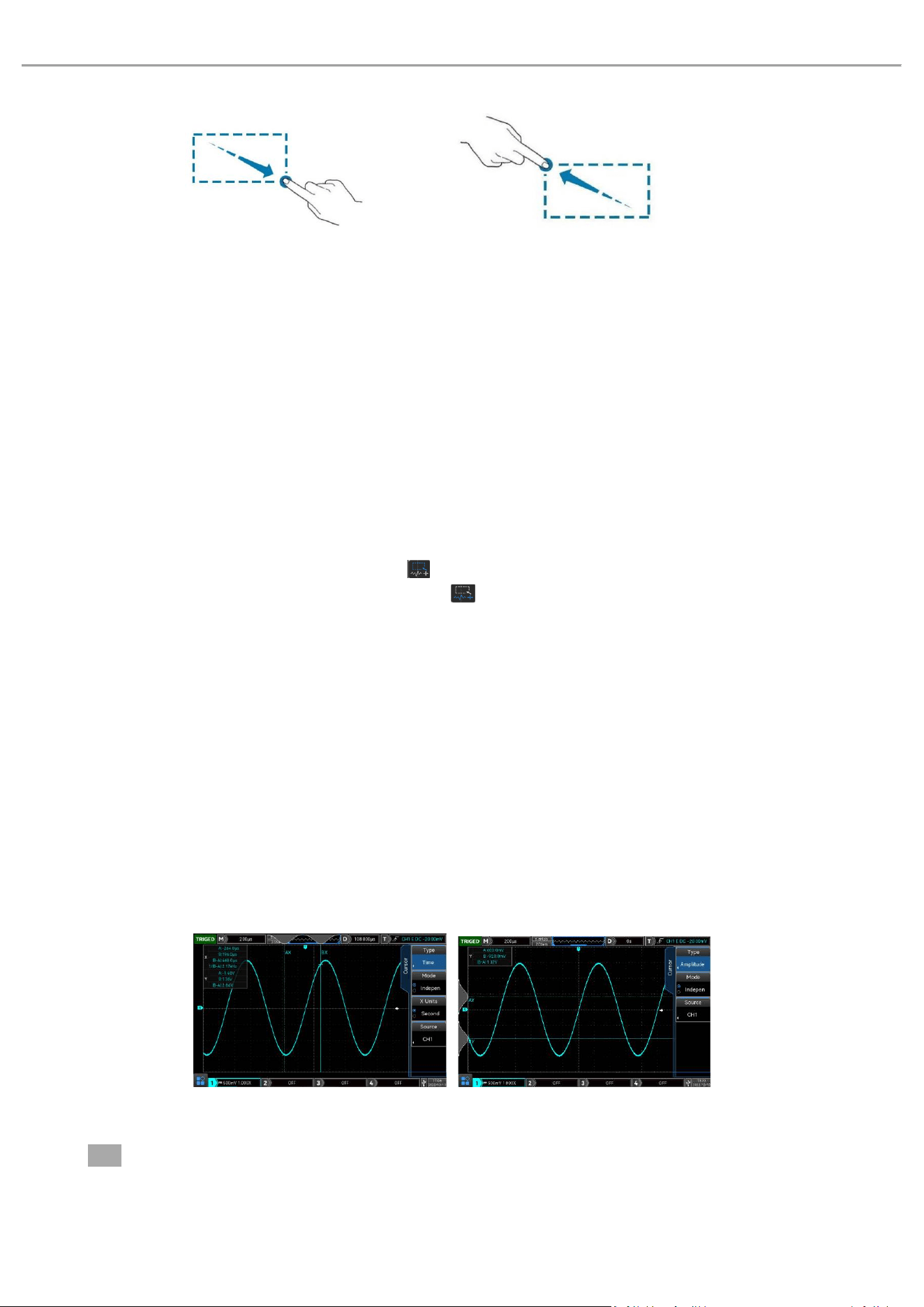
(4) Drawing Rectangle
Open function guide and tap drawing rectangle icon to switch drawing rectangle mode. Drag finger on
the screen to drawing rectangle as shown in Figure 4-11(a), 4-11(b). Move finger away from the screen,
menu displayed on the screen, tap to select “Area A enable”, “Area B enable”, “Intersection”, “Non-
intersecting”, “Source”. Drag finger on the screen form bottom right up to top left to drawing the trigger
area.
User’s Manual MSO/UPO2000 Series
24 / 137
Instruments.uni-trend.com
(a) (b)
Figure 4-11 Drawing Rectangle Gesture
Select “Area A”:
Drawing the area of trigger area A;
Open trigger area A;
Open “trigger area” menu.
Select “Area B”:
Drawing the area of trigger area B;
Open trigger area B;
Open “trigger area” menu.
Hints: Press “drawing rectangle” icon to switch drawing rectangle and operating waveform mode. Press
“drawing rectangle” icon, if icon displays , which represents the drawing rectangle mode is opened;
press “drawing rectangle” icon, if icon displays , which represents the operating waveform mode is
opened. Operating waveform mode of the oscilloscope is enabled by default.
(5) Touch shortcut operating
Separate two fingers and meanwhile slide two fingers to one direction, this gesture can quickly turn
on/off time measurement and voltage measurement cursor.
a. Time measurement cursor
Slide down in vertical to directly turn on time measurement cursor as shown in Figure 4-12 (a);
Slide up in vertical to directly turn off time measurement cursor;
b. Voltage measurement cursor
Slide right in horizontal to directly turn on voltage measurement cursor as shown in Figure 4-12 (b);
Slide left in horizontal to directly turn off voltage measurement cursor;
(a) (b)
Figure 4-12
Note: Turn on/off cursor requires that slide distance should be >3div.
User’s Manual MSO/UPO2000 Series
25 / 137
Instruments.uni-trend.com
4.8 Introduction of Special Symbol
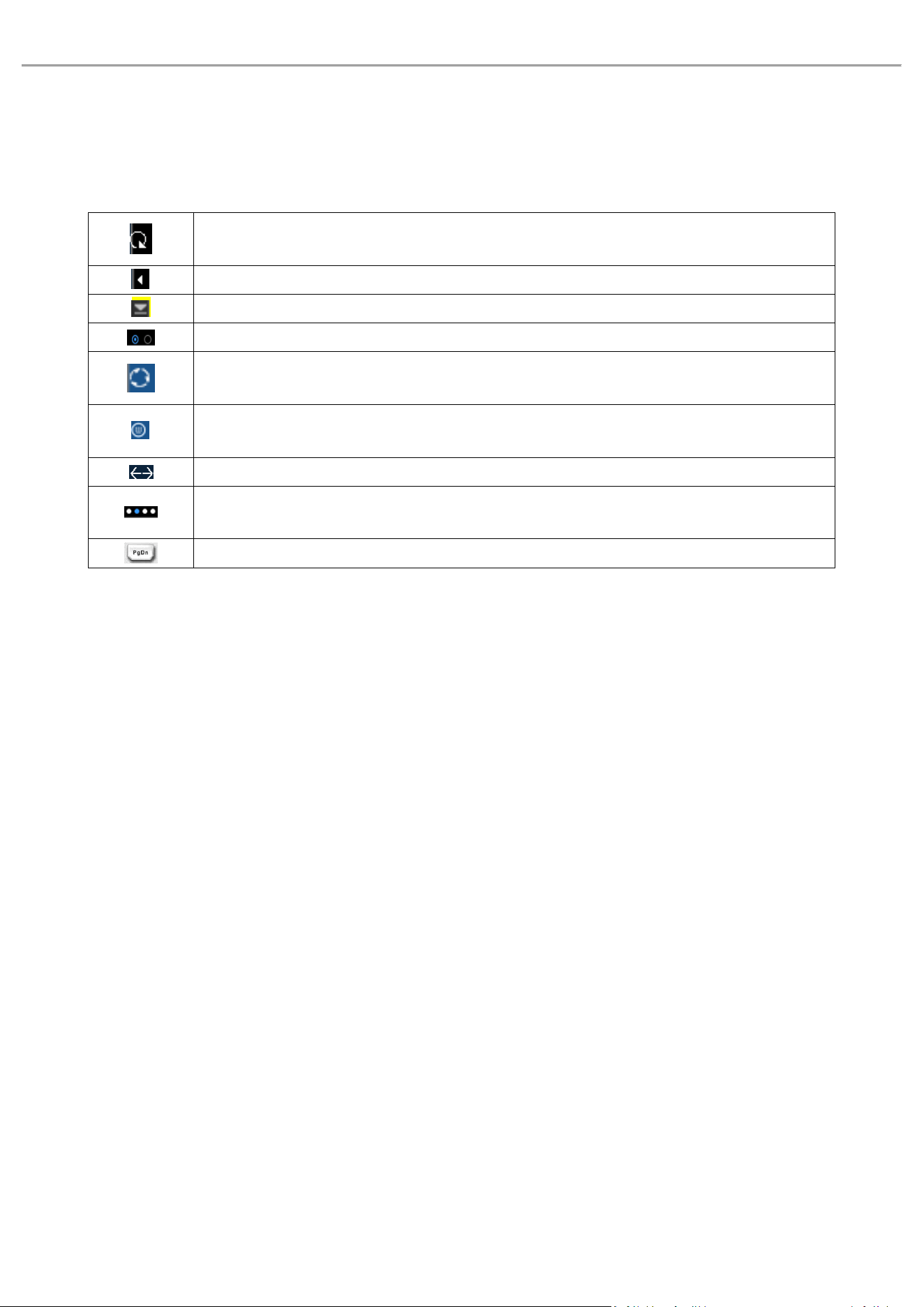
Press any soft key to activate the corresponding menu, the following icon may displayed on the menu.
This symbol represents that multipurpose knob on the front panel can be used to select
and adjust parameter.
This symbol represents that there are several options.
This symbol represents that there has next menu.
This symbol represents that the menu has two options.
This symbol represents that multipurpose knob and jog dial on the front panel can be used
to adjust parameter.
This symbol represents that numeric keypad on the front panel or touch to pop out numeric
keyboard to input content.
This symbol represents that the current page can be flipped up or down.
Circle numbers represents the total pages of menu. Single page has no circle display, two
pages or more have circle display. Use
key to turn page.

User’s Manual MSO/UPO2000 Series
26 / 137
Instruments.uni-trend.com
5. Vertical Channel
MSO/UPO2000 provides two models of 4 or 2 analog input channel. 4 analog channels are CH1~CH4. Vertical
channel setting method of each channel is quite the same. 2 analog channels are CH1~CH2.
In this chapter, take 1 (channel 1) as example to introduce vertical channel setting.
Turn on/off/Activate/ Analog Channel
Channel Coupling
Bandwidth Limitation
Volts/div Scale
Probe
Reverse Phase
Unit
Bias Voltage
User’s Manual MSO/UPO2000 Series
27 / 137
Instruments.uni-trend.com
5.1 Turn on/off/Activate/ Analog Channel
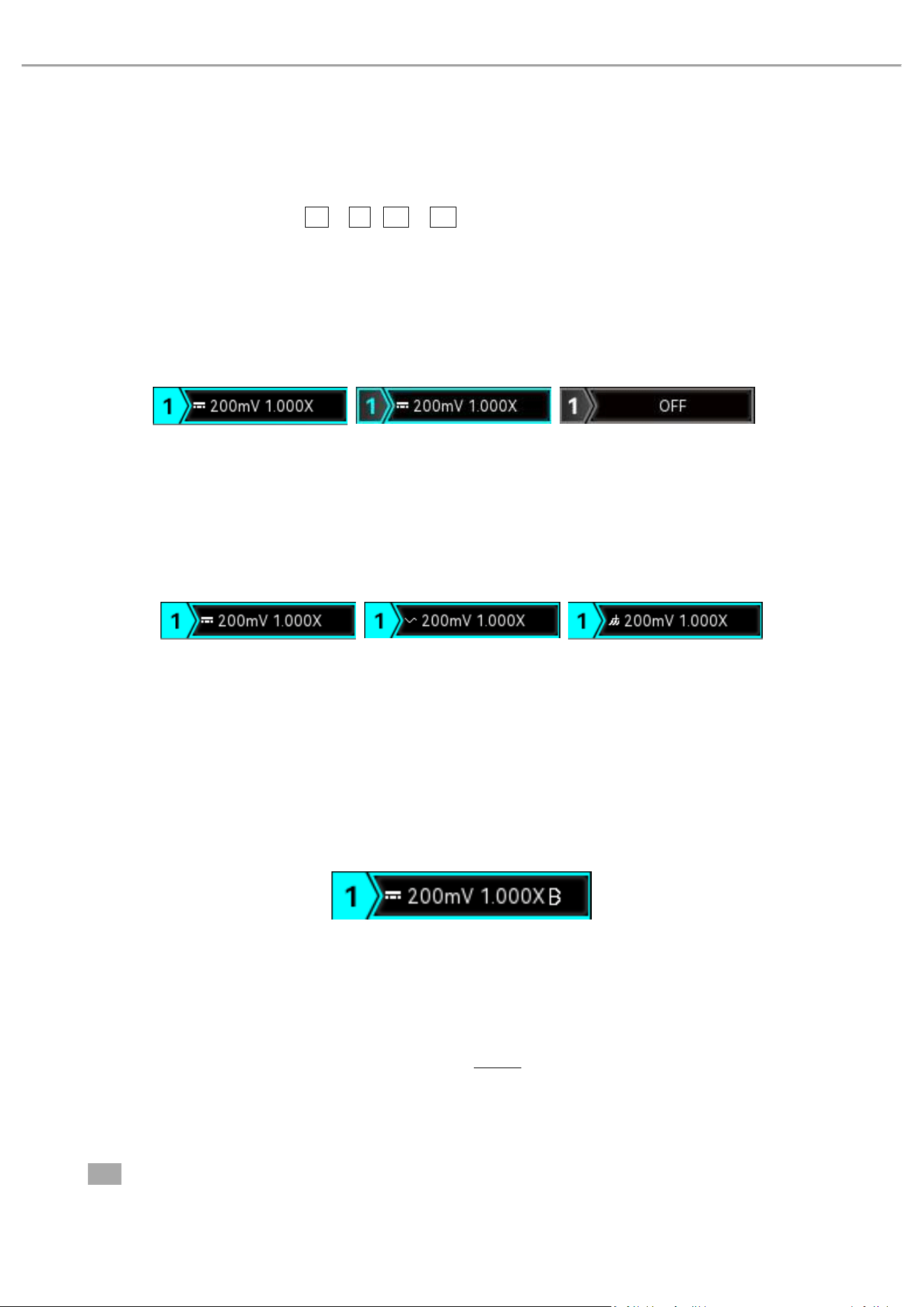
Four analog channel CH1~CH4 includes three states: Turn on, shut down and activate.
① Turn on: Press any one of 1 , 2 , 3 , 4 to turn on the channel when channel is shut down.
② Shut down: Waveform will not display in this state. Press the corresponding channel key to turn off
which channel has been opened and activated.
③ Activate: When multiple channels are enabled, only one channel can be activated (channel should be in
open state). Vertical scale, vertical displacement and channel setting can be adjusted in the activate
state. Any of the channels that have been opened but not activated could be activated by the
corresponding channel keys. The oscilloscope will display channel menu when the channel is activated.
Activated state Open but not activated Shut down
5.2 Channel Coupling
Set channel coupling mode in channel, which can select to DC (direct current), AC (alternating current) and
ground.
DC AC Ground
5.3 Bandwidth Limitation
The bandwidth limit can set to 20 MHz and full bandwidth. When soft key menu sets to 20 MHz, the bandwidth
of the oscilloscope is limited to about 20 MHz and the high frequency signal above 20MHz in the attenuation
signal. It is often used to observe high frequency noise when low frequency signals is reducing. When the
bandwidth limit function is turned on, the B icon will appear in the vertical state, as shown in Figure below.
B Icon
5.4 Volts/div Scale
Volts/div scale can be set in channel or press vertical SCALE knob to switch it. Volts/div scale can set to
“coarse /fine tunning”. Volts/div scale range is 500 uV/div~20 V/div,stepped in 1-2-5 order. In the coarse
tunning, it adjusts the vertical unit by normal order; in fine tunning, it adjusts the vertical scale within the
current vertical scale range by stepped 1%.
Note: div indicates the grid of waveform display area, /div represents each grid.
User’s Manual MSO/UPO2000 Series
28 / 137
Instruments.uni-trend.com
5.5 Probe
In order to match up the attenuation coefficient setting of the probe, the coefficient need to set in channel
operating menu. If the probe attenuation coefficient is 10:1, then the probe coefficient should set to 10X to
ensure the correct voltage reading. When channel unit is V, W, U, the probe value can be 0.001X, 0.01X, 0.1X,
1X, 10X, 100X, 1000X and user-defined; when channel unit is A, it displayed as current probe and the probe
value can be 5mV/A, 10mV/A, 50mV/A, 100mV/A, 200mV/A and user-defined.
5.6 Reverse Phase
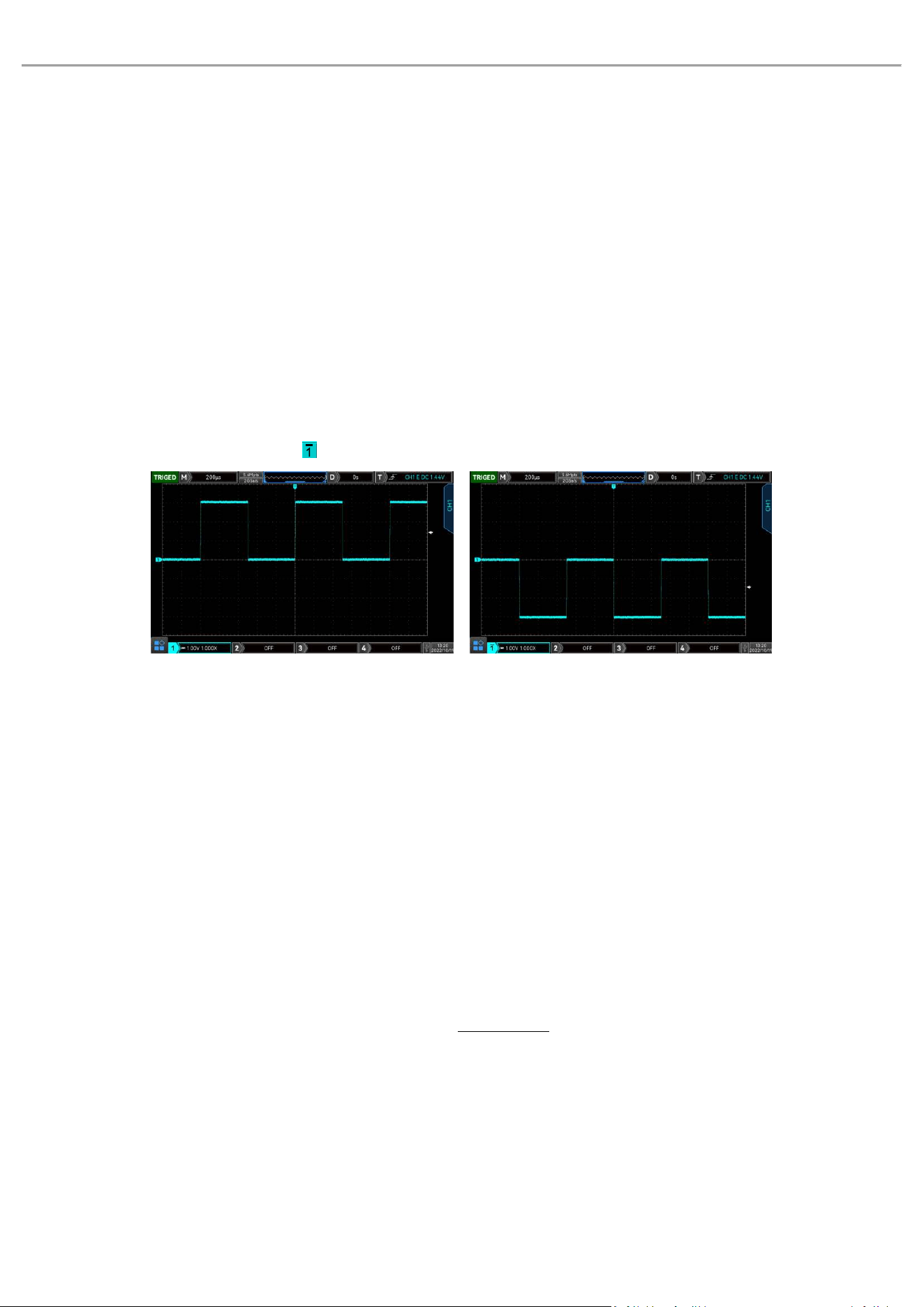
Set the reverse phase in channel. When reverse phase is turned on, the voltage value of waveform will be
reversed and the reverse icon will display on the screen (as shown in Figure 5-2).
Figure 5-1 Reverse Phase Closed Figure 5-2 Open Reverse Phase
5.7 Unit
Set the amplitude unit for the current channel. Unit setting should set in channel, it can set to “V”, “A”,”W”, “U”.
The default unit is V. Unit should switch to “A” when using current probe. After the setting, the unit in the
channel status label and measurement unit will be change accordingly.
5.8 Bias Voltage
Display bias voltage of the current channel. When waveform moved by vertical Position knob, its voltage value
will change accordingly. Change bias voltage value by Multipurpose knob or numeric keyboard, waveform will
also moved in vertical.

User’s Manual MSO/UPO2000 Series
30 / 137
Instruments.uni-trend.com
6.1 Horizontal Scale
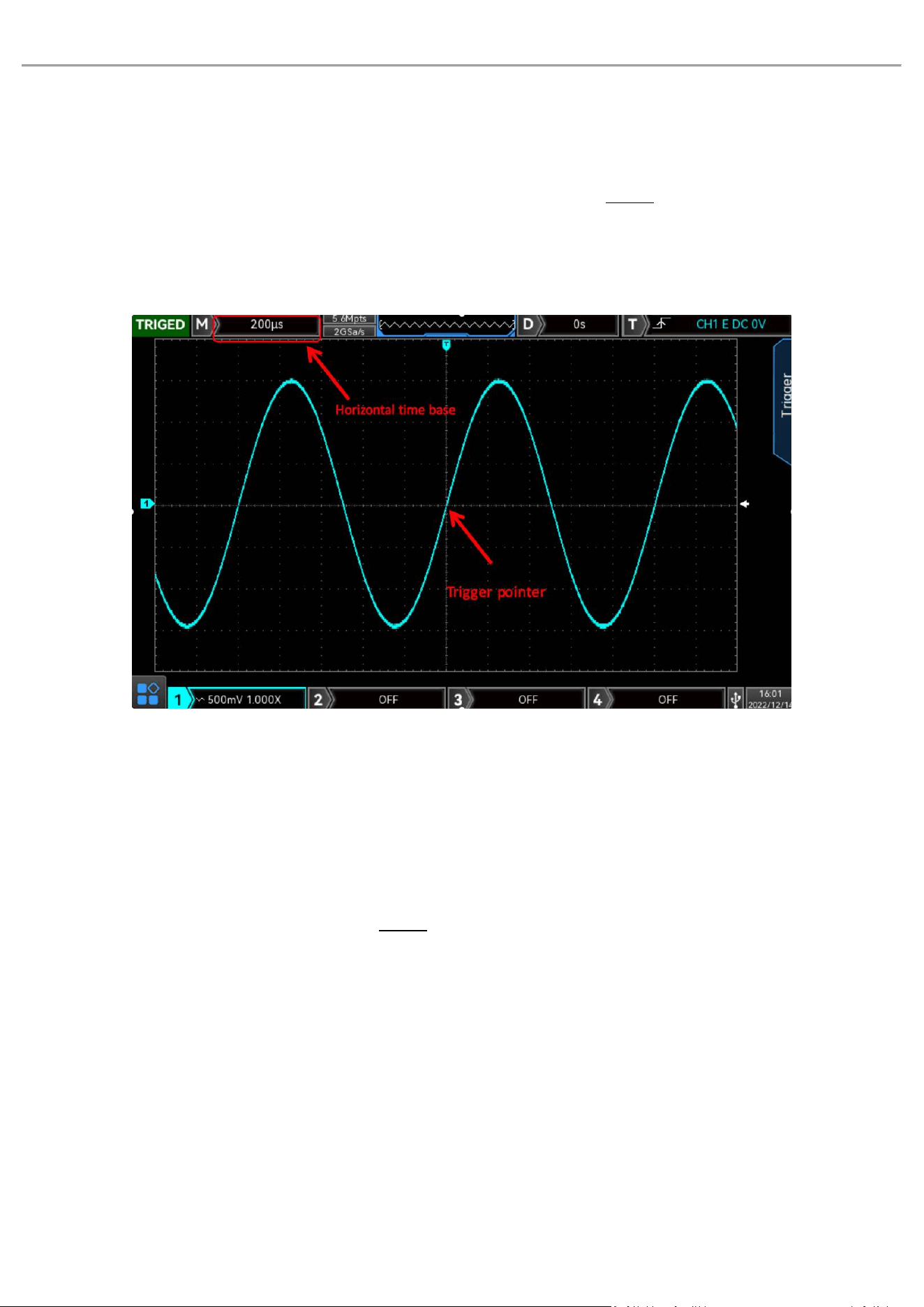
Horizontal scale which is horizontal time base, the amount of time represented by each scale on the
horizontal direction of the screen, usually expressed as s/div. Rotate the SCALE knob in the HORIZONTAL
control area to set the horizontal scale according to 1-2-5 order, that is 1 ns/div, 2 ns/div, 5ns/div, 10 ns/div,
20 ns/div... 500 s/div, 1 ks/div. Turn clockwise to decrease the scale, turn counterclockwise to increase the
scale. When adjusting the horizontal time base, the scale information will appear in the upper left corner of
the screen (as shown in Figure 6-1), it changes in real time.
Figure 6-1
When the time base is changing, waveform will be change with trigger point to extended or compressed
accordingly.
6.2 ROLL Mode
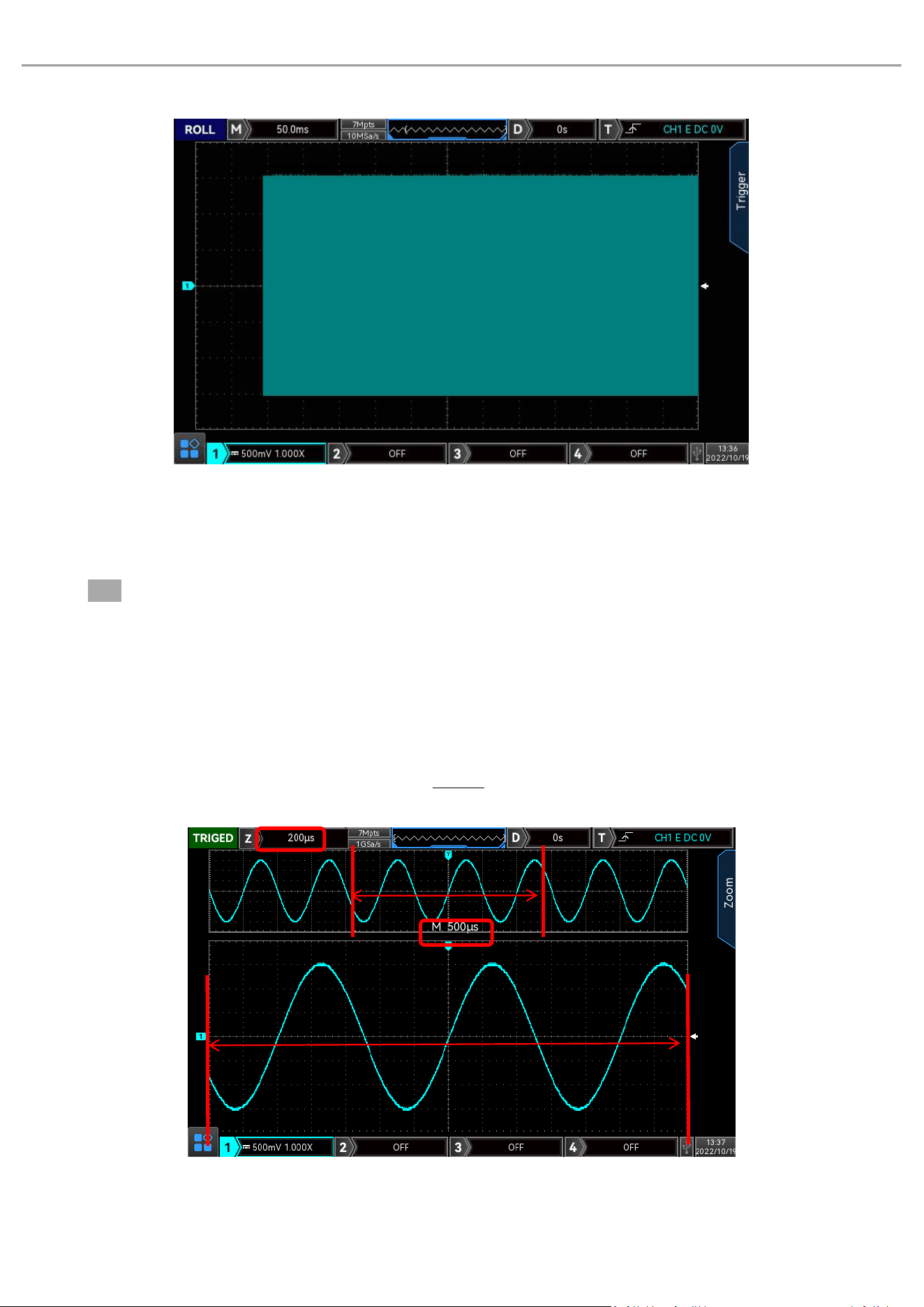
When trigger mode is in auto state, rotate SCALE knob in the HORIZONTAL control area, the oscilloscope will
enter ROLL mode when horizontal scale slow to 20 ms/div.
The oscilloscope will continuously draw a voltage-time trend of the waveform on the screen. In this mode,
the waveform is scrolled from right to left to refresh the display, and the latest waveform is drawn at the far
right end of the screen. The diagram as shown in Figure 6-2.
User’s Manual MSO/UPO2000 Series
31 / 137
Instruments.uni-trend.com
Figure 6-2
Apply to slow sweep mode to observe low-frequency signal, it’s recommend that set the channel coupling
mode to direct current.
Note: In ROLL mode, “horizontal displacement”, “protocol decoding”, “pass/fail test”, “parameter
measurement”, “recording waveform” and “waveform brightness” cannot be used.
6.3 Window Extension
Window extension is used for magnifying a waveform to view the image detail. Window extension can be
opened in horizontal menu or press HORIZONTAL SCALE knob to open.
In window extension mode, screen will be divided into two display area as shown in Figure 6-3.
Figure 6-3
Before enlarged waveform
Main time base
Extend time base
After enlarged waveform

User’s Manual MSO/UPO2000 Series
32 / 137
Instruments.uni-trend.com
The waveform before amplification is shown in the square brackets on the upper part of the screen. It can
move by horizontal Position or adjusting time base SCALE to increasing or decreasing this area.
Enlarged Waveform
The enlarged waveform is displayed on the bottom part of the screen, window extension improves resolution
relative to the main time base.
Time Base Selection
When window extension is selected, time base menu can set extended time base or main time base.
a. Extend Time Base: Rotate horizontal SCALE knob to change time base scale of extend time base.
b. Main Time Base: Rotate horizontal SCALE knob to change time base scale of main time base.
Note: Window extension requires that time base scale should at 20 ms/div~1 ns/div. Only in this range,
window extension can be functioned. If turn on extend time base in ROLL mode, the main time base sets to
20 ms by default.
6.4 XY
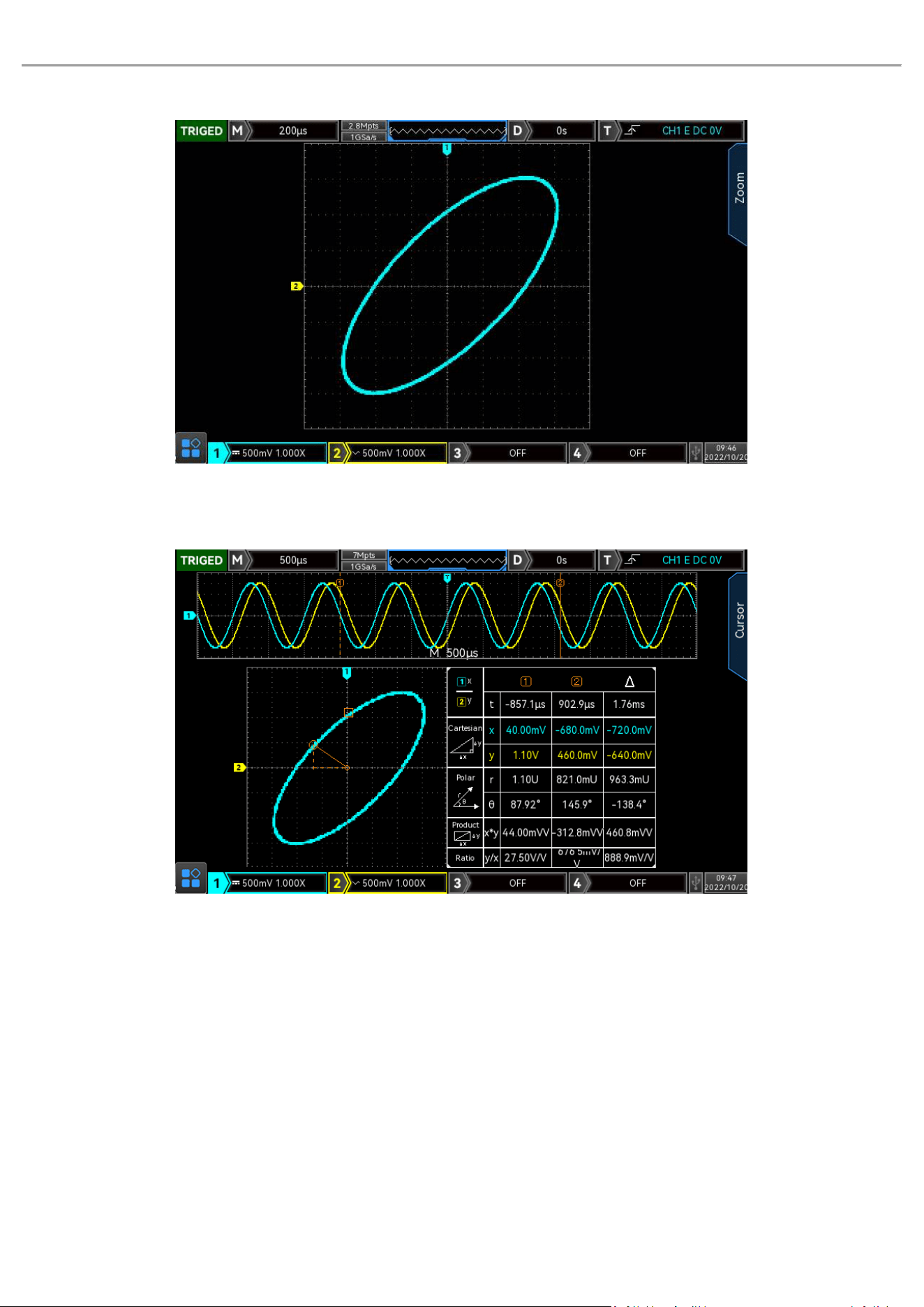
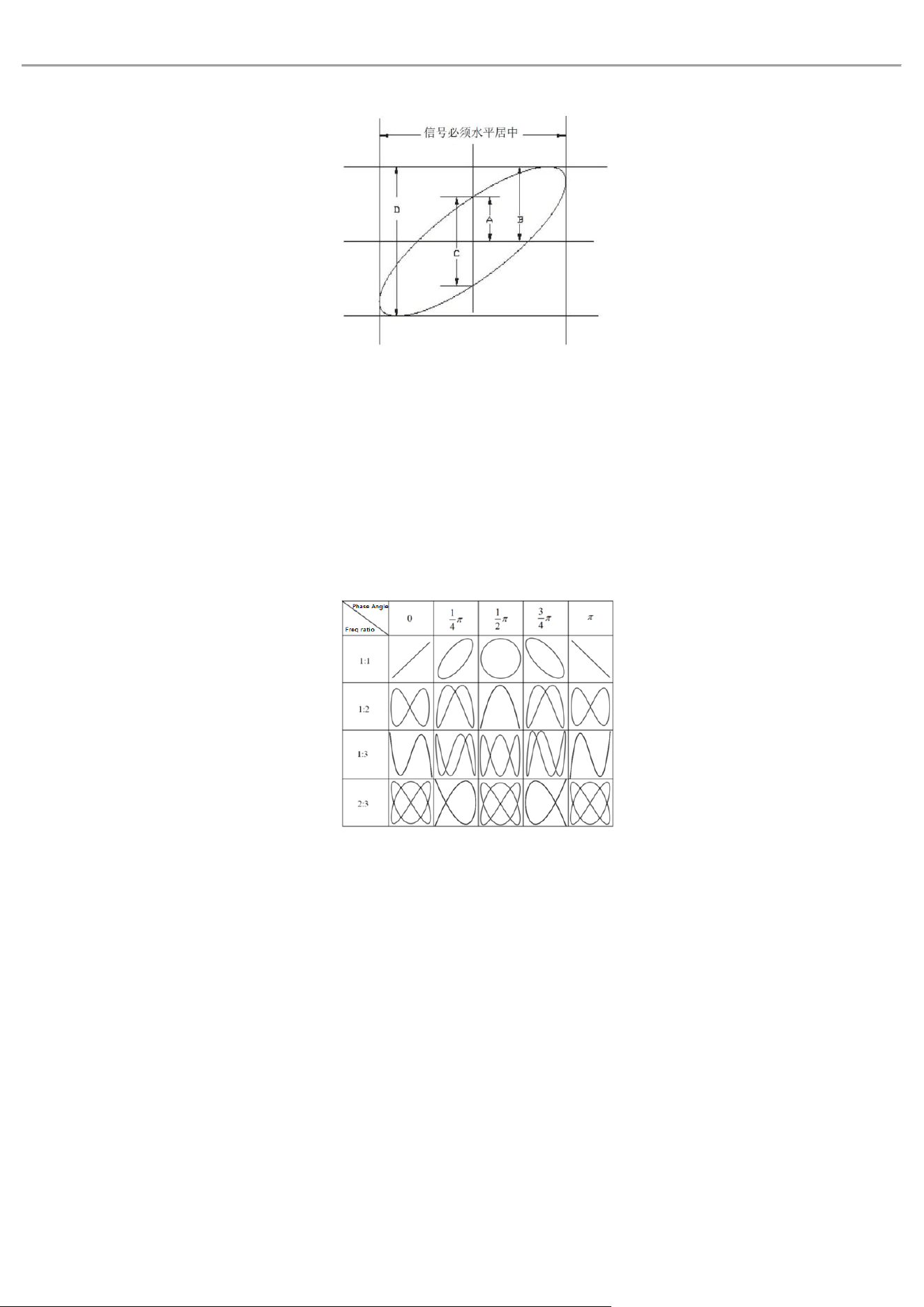
The waveform displayed in XY mode is also called Lissajous curve as shown in Figure 6-4. Meanwhile, XY
supports cursor measurement, it can quickly measuring the phase difference between two channels as
shown in Figure 6-5.
(1) Format of Time Base
a. YT: Display voltage value on time base (horizontal scale).
b. XY: Display Lissajous curve, it can easily measuring phase difference between two signals with
same frequency.
(2) Display
a. Full screen:Only display Lissajous curve on the screen.
b. Split screen:Display Lissajous curve on the bottom part of the screen, the upper part displays the
corresponding waveform of X-Y.
(3) X-Y
Set the waveform that has generated Lissajous curve, which can select CH1-CH2,、CH1-CH3, CH1-
CH4, CH2-CH3, CH2-CH4, CH3-CH4.
When X-Y menu select CH1-CH2, input CH1 signal on horizontal axis (X axis), input CH2 signal on vertical
axis(Y axis).
In XY mode, if CH1 or CH3 is activates, use POSITION knob on VERTICAL control area to move XY curve
on horizontal direction; if CH2 or CH4 is activated, use POSITION knob on VERTICAL control area to move
XY curve on vertical direction.
In order to get better display effect of Lissajous curve, to adjusting SCALE knob on VERTICAL control
area to change each channel’s amplitude scale and adjusting SCALE knob on HORIZONTAL control area
to change time base scale. Waveform in XY mode as shown in Figure 6-4.
User’s Manual MSO/UPO2000 Series
33 / 137
Instruments.uni-trend.com
Figure 6-4
Set display menu to split screen in this state and press CURSOR function key, as shown in Figure 6-5.
Figure 6-5
Time, rectangular coordinate, polar coordinate, product and proportion in sequence below Cursor①
Time, rectangular coordinate, polar coordinate, product and proportion in sequence below Cursor②
Delta (numerical difference between two cursors) in sequence below △
Application of XY Mode
Phase difference between in two signals with the same frequency can be easily observed through Lissajous
curve. The following figure explains the observation schematic of the phase difference.
User’s Manual MSO/UPO2000 Series
34 / 137
Instruments.uni-trend.com
Figure 6-6
Based on sinθ=A/B or C/D, θ is the phase angle between channels, the definition of A, B, C, D see Figure 6-6.
So the phase angle isθ=±arcsin(A/B)or θ=±arcsin(C/D).
If the main spindle of elliptical within
I, III quadrant, then the acquired phase angle should at I, IV quadrant,
that is within (0~π/2)or(3π/2~2π).
If the main spindle of elliptical within
II, IV, then the acquired phase angle should within (π/2~π)or(π~
3π/2).
In addition, if the frequency or phase difference of the two signal to be measured are integer times,
calculating the frequency and phase relation of the two signals based on the Figure 6-7.
Figure 6-7
6.5 Multi-Scopes
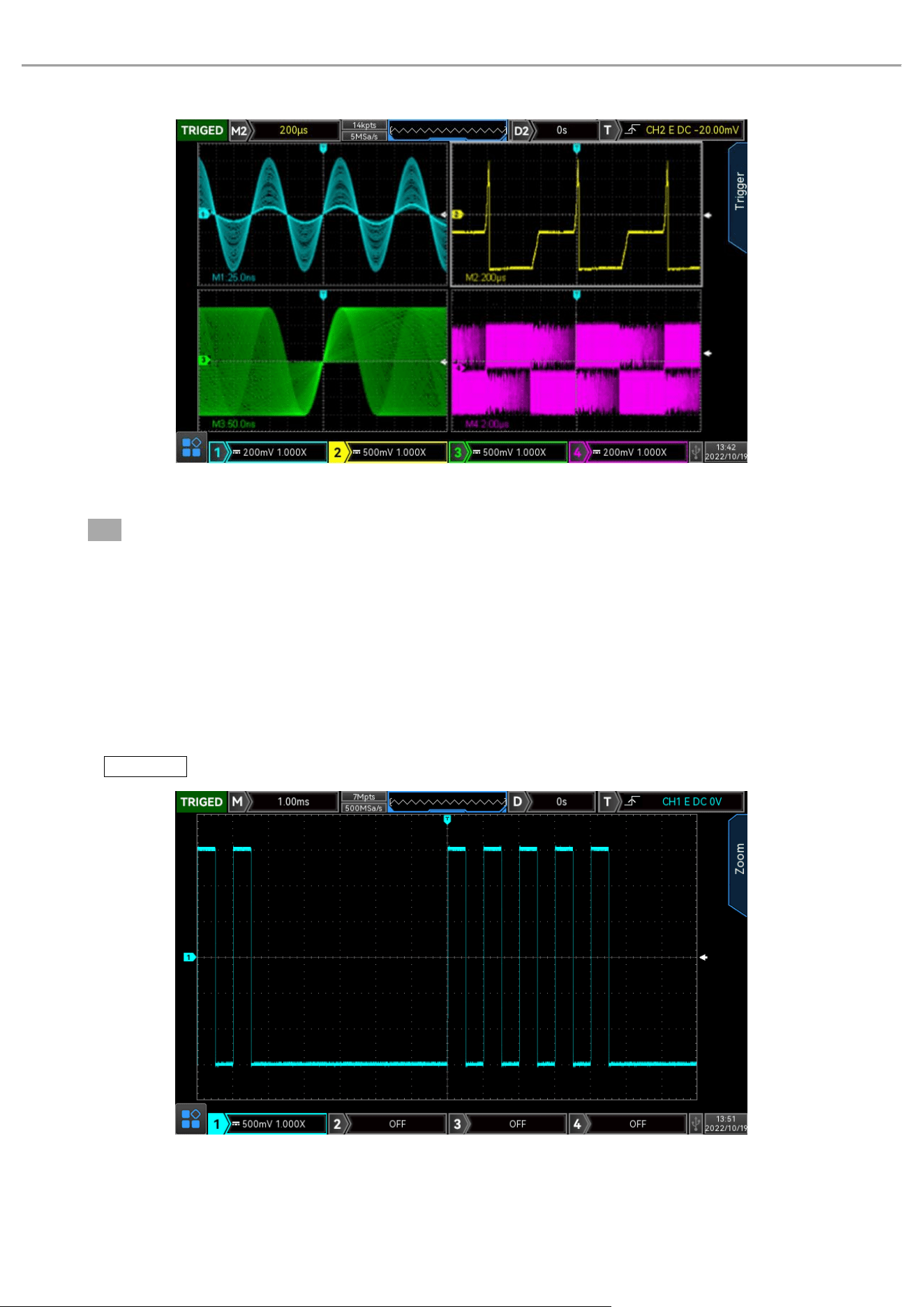
In multi-scopes, CH1~CH4 can be set to different time base scale, so that signals of different frequency in
multiple channels can be observed at the same time. Enter Multi-Scopes interface via horizontal menu.
Switch Multi-scopes to enter this mode as shown in Figure 6-8. Each channel can be set to different
frequency, amplitude and waveform and all can be stable generated in multi-scopes.
In multi-scopes, it can turn on, off, activate channel. Time base scale, volts/div scale, horizontal
displacement, vertical displacement, trigger setting of channel can be adjusted independently.
Multi-Scopes supports split the screen to display the current channel on the upper part for observing
waveform, as shown in Figure 6-5.
User’s Manual MSO/UPO2000 Series
35 / 137
Instruments.uni-trend.com
Figure 6-8
Note:When Multi-Scopes is split screen, horizontal of each screen is still 700 pixels, if the there are four
split screens, horizontal of each screen only has 350 pixels.
6.6 Trigger Holdoff
Trigger holdoff is used for viewing complicated waveform (such as pulse string). Holdoff time refers to the
time that the oscilloscope waits to restart the trigger circuit. During hold off, the oscilloscope will not trigger
until the end of holdoff time. For example, a group of pulse string, it requires that trigger the first pulse string
and the hold off time can be set as width of pulse string, as shown in Figure 6-6.
In HORI MENU use multipurpose knob, jog dial and numeric keyboard to set hold off time.
Figure 6-9

User’s Manual MSO/UPO2000 Series
36 / 137
Instruments.uni-trend.com
7. Trigger System
Trigger determines when the oscilloscope starts to collect data and display waveform. Once the trigger is
correctly setup, it can convert unstable signals into meaningful waveform. In the beginning of data
acquisition, it collects enough data to compose the waveform at the left side of the trigger point, and
continue to collect the data until the trigger condition is met. When a trigger is detected, the oscilloscope
continuously collecting enough data to draw the waveform at the right side of the trigger point.
In this chapter, take 4 analog channel (MSO2XX4CS) as example to introduce vertical channel setting.
Noun Explanation of Trigger System
Edge Trigger
Pulse Width Trigger
Video Trigger
Ramp Trigger
Runt Trigger
Over-Amplitude Pulse Trigger
Delay Trigger
Time-out Trigger
Duration Trigger
Setup/Hold Trigger
Nth Edge Trigger
Pattern Trigger
RS232 Trigger
I
2
C Trigger
SPI Trigger
CAN Trigger
CAN-FD Trigger
LIN Trigger
FlexRay Trigger
Regional Trigger

User’s Manual MSO/UPO2000 Series
37 / 137
Instruments.uni-trend.com
7.1 Noun Explanation of Trigger System
(1) Trigger Source
A signal for generating a trigger. Trigger can be obtained from a variety of information sources, such as
input channel (CH1, CH2, CH3, CH4), digital signal (D0~D15), external trigger (EXT, EXT/5), mains electricity,
etc.
a. Input channel: Select any one of the analog signal input port CH1~CH4 on the front panel of the
oscilloscope as a trigger signal.
b. Digital channel: when digital signal is connected and LA is opened, select any one of digital channel
as a trigger signal.
c. External trigger: Select the input signal EXT Trig (Input port of EXT or EXT/5) on the front of the
oscilloscope as a trigger signal. For example, the external clock input to EXT Trig port to be a trigger
source, which includes EXT and EXT/5. EXT signal trigger level can be set within the range from–1.8
V~ +1.8 V.
d. Mains electricity:Used to observe the related signal of mains electricity, such as the relation of
lighting equipment and power supply equipment, to obtain stable synchronization.
(2) Trigger Mode
Trigger mode determines the behavior of the wave during a trigger event. This oscilloscope provides
three kinds of trigger modes: auto, normal, and single.
a. Auto trigger:When there is no trigger signal, the system automatically collect and display data.
When the trigger signal is generated, it automatically switch to trigger scanning, so that the signal
will be synchronized.
Auto trigger mode is suitable for
Check DC signal or signal with unknown electrical feature
Note: This mode allows 50ms/div or in slower time base scale to set no trigger signal in ROLL mode.
b. Normal trigger: The oscilloscope can only collect data when the trigger condition is satisfied. When
there is no trigger signal, the oscilloscope will stop collect data. When the trigger condition is
satisfied, refresh the current waveform data display on the screen, otherwise, it remains the last
triggered waveform.
Normal trigger mode is suitable for
Only collect the specific event appointed by the trigger setting;
Rare trigger event, use normal mode can prevent the oscilloscope from automatic trigger, so that
the waveform can be stable display.
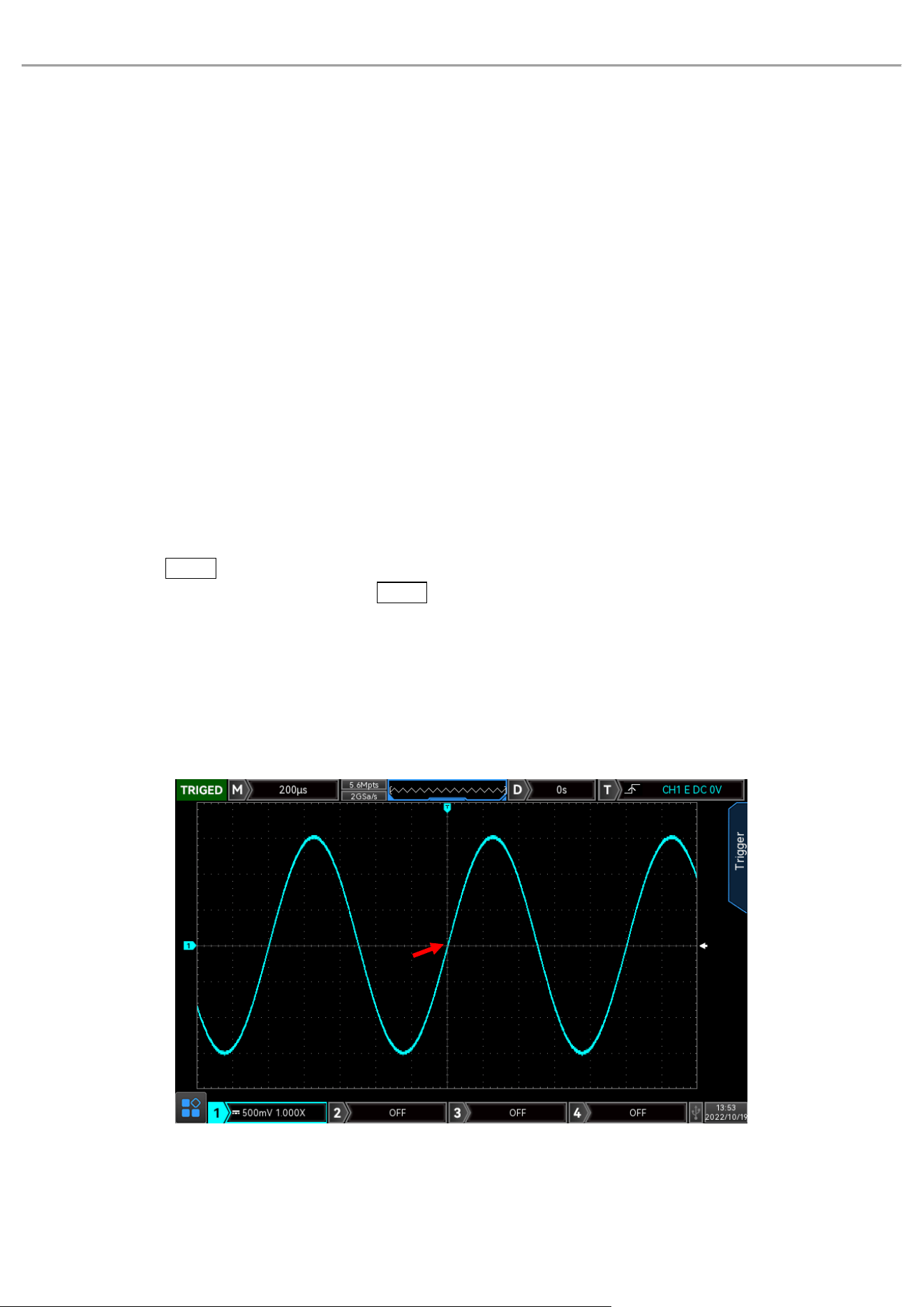
c. Single trigger: In single trigger mode, press SINGLE key to delete the waveform display on the
screen. The oscilloscope waits for the trigger. When the instrument detects a single trigger, the
waveform will be sampled and displayed, and then the instrument enters the STOP state.
Single trigger mode is suitable for
Capture casual event or aperiodicity signal, such as up, down waveform;
Rare trigger event
User’s Manual MSO/UPO2000 Series
38 / 137
Instruments.uni-trend.com
(3) Trigger Coupling
Trigger coupling determines which part of the signal will be transmitted to the trigger circuit. The
coupling type includes DC, AC, LF reject, HF reject and noise reject.
a. DC:Let all the components of the signal pass through
b. AC:Block the DC component of the signal
c. HF reject: Attenuate high frequency components over 40 kHz.
d. LF reject: Attenuate low frequency components below 40 kHz.
e. Noise reject: Suppress high frequency noise in the signal to reduce probability of touch error.
(4) Pretrigger / Delayed Trigger
Before trigger event / after collect data.
Trigger position is usually set at the horizontal center of the screen, user can observe 7 grids of
pretrigger and delay trigger information. Horizontal move the waveform to view more pretrigger
information. By observing the pretrigger data, the waveform before generated can be observed. For
example, capturing the glitch at the start of the circuit, observing and analyzing the pretrigger data to
find out the cause of the glitch.
(5) Force Trigger
Press FORCE key to force to generate a trigger signal. If waveform is not displayed on the screen in
normal or single trigger mode, press FORCE key to sampling signal baseline and ensure the sampling is
performed properly.
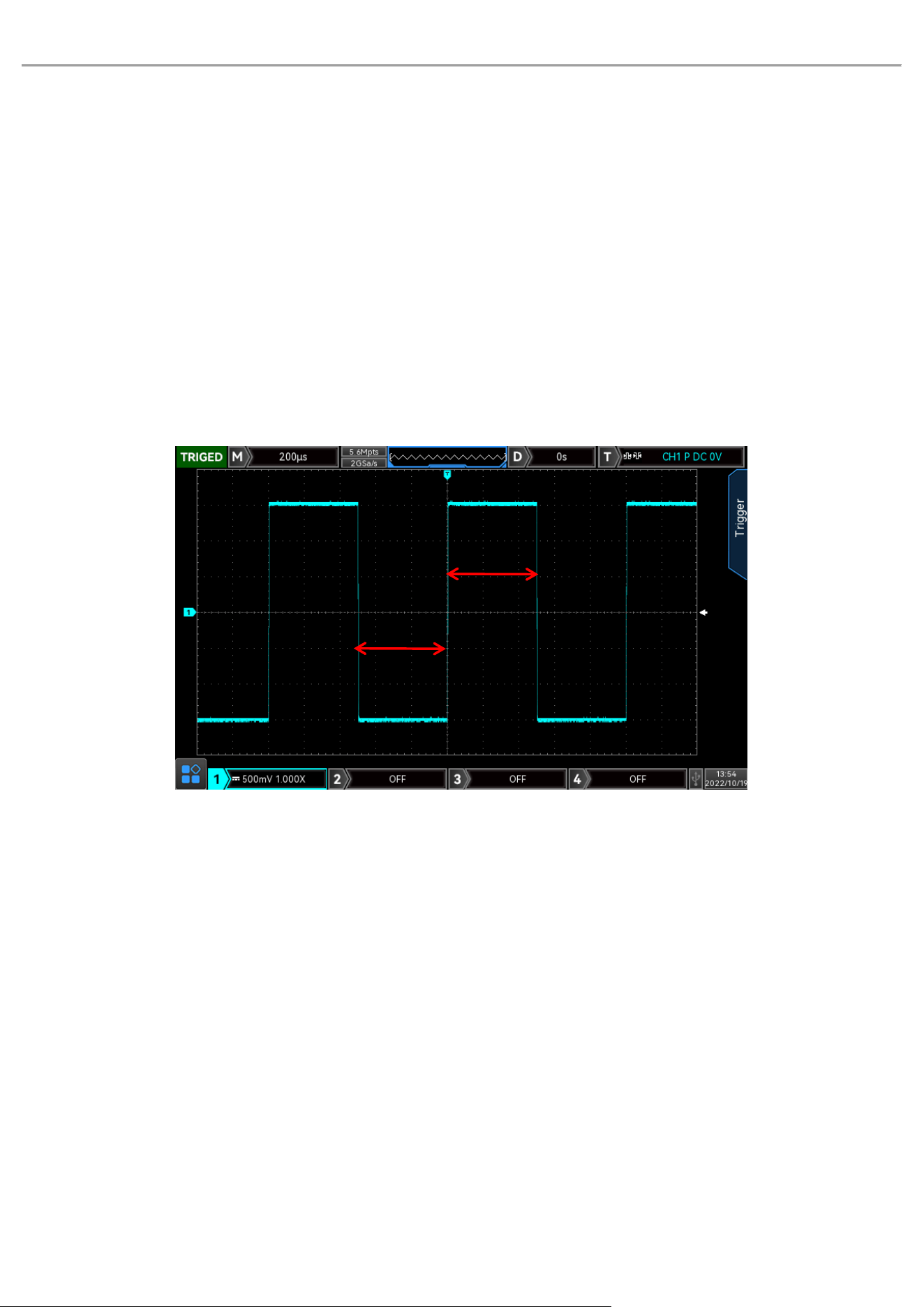
7.2 Edge Trigger
The edge can be identify by looking for the specific edge (rising edge, falling edge and rising & falling edge)
and electrical level. Press edge trigger menu to set source, trigger coupling, trigger mode and edge type.
Waveform can be stable generated when the condition is satisfied, as shown in Figure 7-1.
Figure 7-1
Rising edge
Falling edge
Trigger point
User’s Manual MSO/UPO2000 Series
39 / 137
Instruments.uni-trend.com
(1) Edge Type:
a. Rising edge: Set to trigger on the rising edge of the signal.
b. Falling edge:Set to trigger on the falling edge of the signal.
c. Random edge: Set to trigger on the rising edge and the falling edge of the signal.
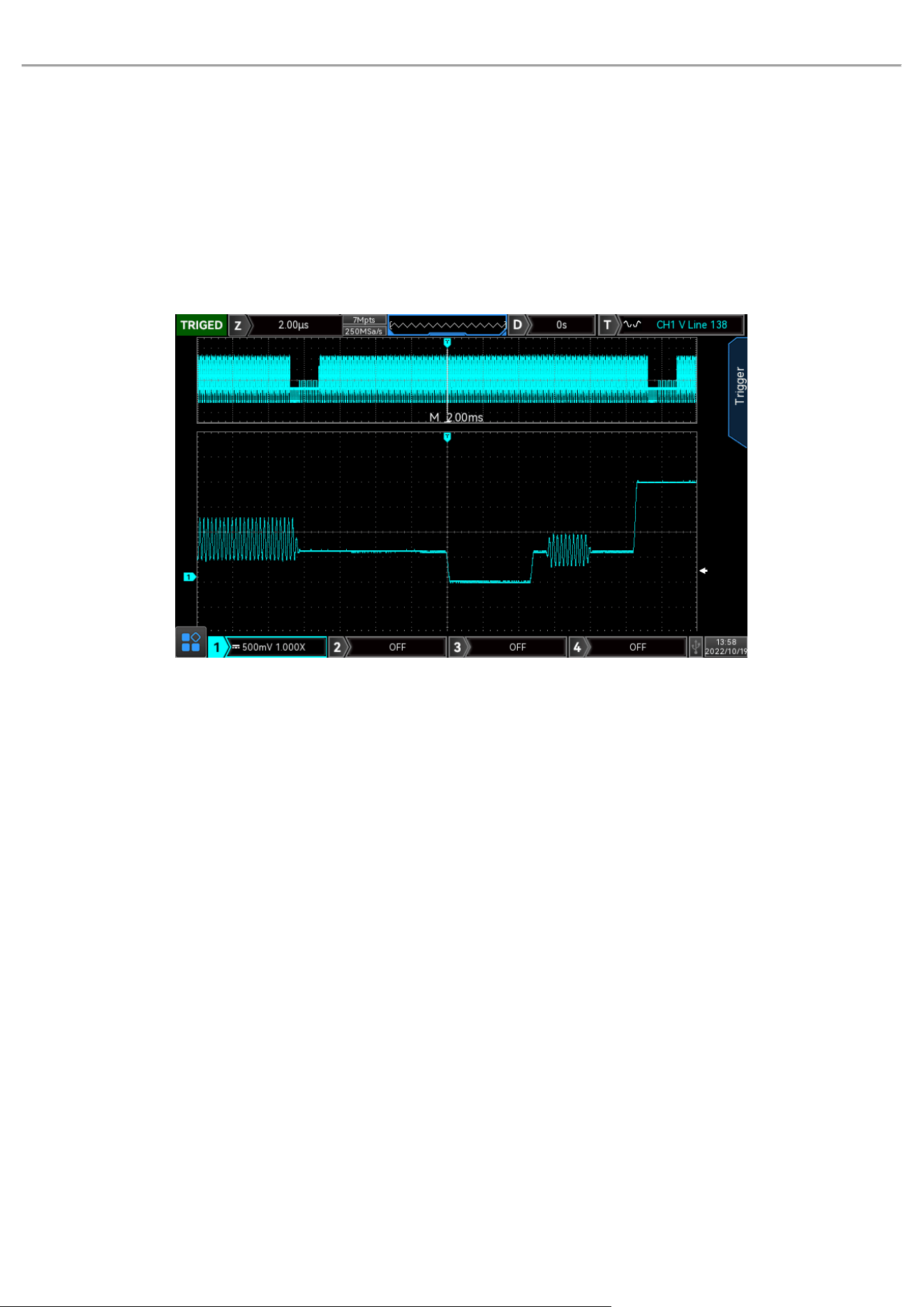
7.3 Pulse Width Trigger
Pulse width trigger can set the oscilloscope at specific width and generated the positive pulse or negative
pulse when meet the trigger condition. Pulse width trigger menu can set source, condition, the upper
/lower limit of pulse width, polarity of pulse width (positive and negative), trigger coupling, trigger mode,
etc. As shown in Figure 7-2.
Figure 7-2
(1) Condition
Select trigger condition:“>”,“<”,“≤≥”.
a. >:It will be generated when the pulse width of the trigger signal is greater than the pulse width
setting, it can set the lower limit of pulse width.
b. <:It will be generated when the pulse width of the trigger signal is smaller than the pulse width
setting, it can set the upper limit of pulse width.
c. ≤≥:It will be generated when the pulse width of the trigger signal is basically similar to the pulse
width setting or the pulse width of the trigger signal is in the setting scope, it can set the
lower/upper limit of pulse width.
(2) The upper /lower limit of pulse width
Compare the setting pulse width value with the signal pulse width. The trigger will be generated when
the condition is met. The range can be set to 1 ns ~4 s.
Negative pulse width
Positive pulse width
User’s Manual MSO/UPO2000 Series
40 / 137
Instruments.uni-trend.com
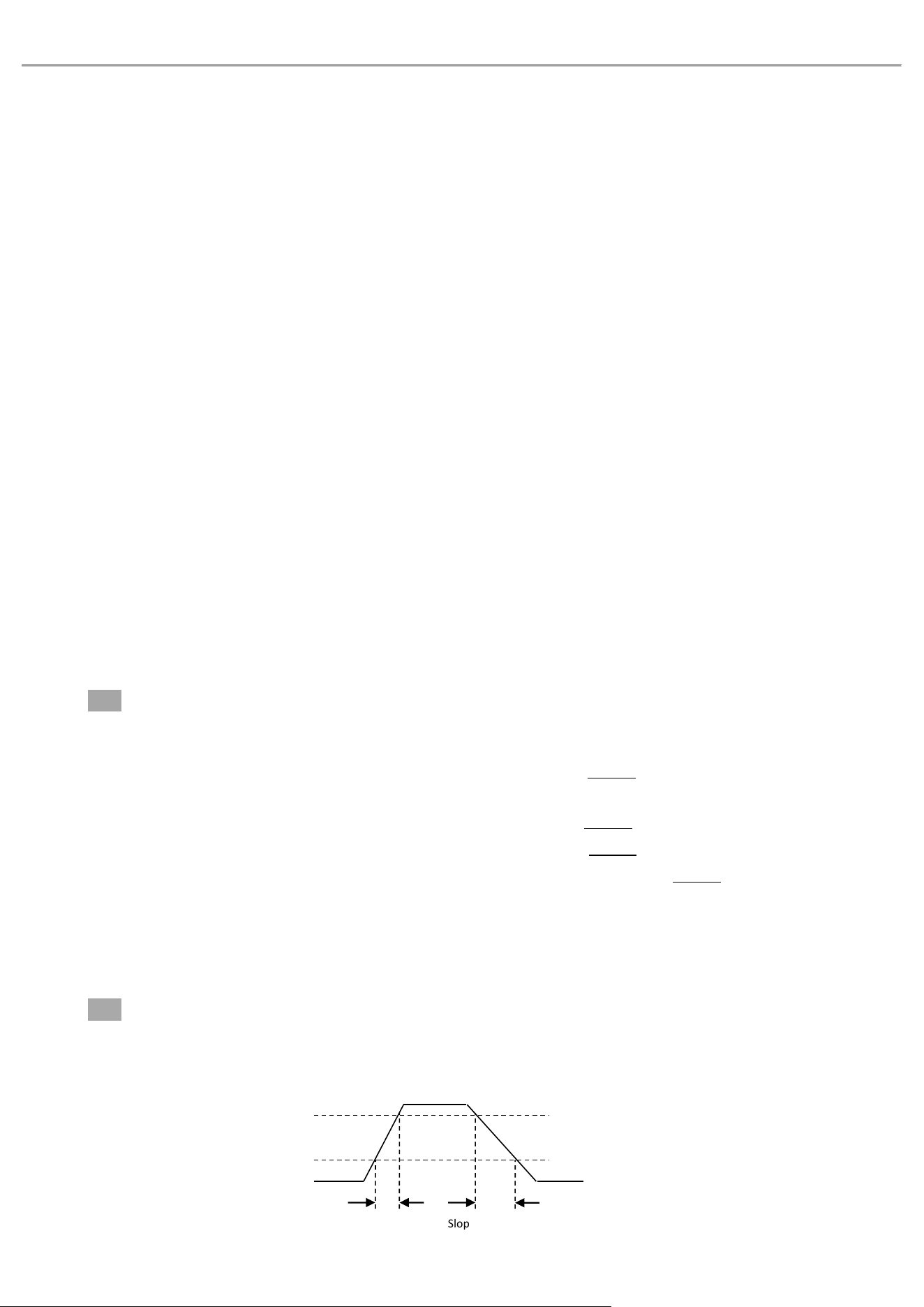
7.4 Video Trigger
The video signal includes the image and the time sequence information, it has multiple standards and
formats. MSO/UPO2000 provides the basic measurement functions, which can be triggered in the filed or
line of NTSC ( National Television Standards Committee ) , PAL (Phase Alternating Line) and SECAM
(Sequential Couleur A Memoire), as shown in Figure 7-3.
Figure 7-3
(2) Video Format
a. PAL: The frame frequency is 25 frames per second, the TV scan line is 625 lines, the odd field is in
the front and the even field is in the rear.
b. NTAC: The field frequency is 60 fields per second, and the frame frequency is 30 frames per
second. The TV scan line is 525 lines. The even field is in the front and the odd field is in the rear.
c. SECAM:The frame frequency is 25 frames per second, the TV scan line is 625 lines, interlaced
scanning.
(3) Video Synchronization
d. Even field: Set to trigger and synchronize on the even field of the video signal.
e. Odd field: Set to trigger and synchronize on the odd field of the video signal.
f. All lines: Set to trigger and synchronize on the line signal of the video signal.
g. Specified lines: Set to trigger and synchronize on the specified video lines. User can use the
Multipurpose knob to specify the line number, and the setting range is from 1 to 625 (PAL/SECAM),
or from 1 to 525 (NTSC).
Hint:In order to observe the waveform details in the video signal, user can set the memory depth a little
bigger.
The MSO/UPO2000 series utilize the UNI-T original digital 3D technology, it uses a multi-level grayscale
User’s Manual MSO/UPO2000 Series
41 / 137
Instruments.uni-trend.com
display function so that different brightness can reflect the frequency of different parts of the signal.
Experienced users can quickly judge the signal quality during the debugging process and find the unusual
conditions.
7.5 Ramp Trigger
Ramp trigger refers to triggering when the ramp of signal rising or falling conforms to the setting value. Ramp
trigger menu can set the source, trigger coupling, trigger mode, edge type (rising edge, falling edge), time
condition, the lower limit/ upper limit of time, level setting etc.
(1) Edge Type
a. Rising edge: Perform ramp trigger by using the rising edge of the trigger signal
b. Falling edge: Perform ramp trigger by using the falling edge of the trigger signal.
(2) Time Condition
a. >:It will be generated when the slope time of the trigger signal is greater than the setting slope
time, it can set the lower limit of time.
b. <:It will be generated when the slope time of the trigger signal is less than the setting slope time,
it can set the upper limit of time.
c. ≤≥:It will be generated when the slope time of the trigger signal is basically similar to the setting
slope time or the pulse width of the trigger signal is in the setting scope, it can set the lower/upper
limit of time.
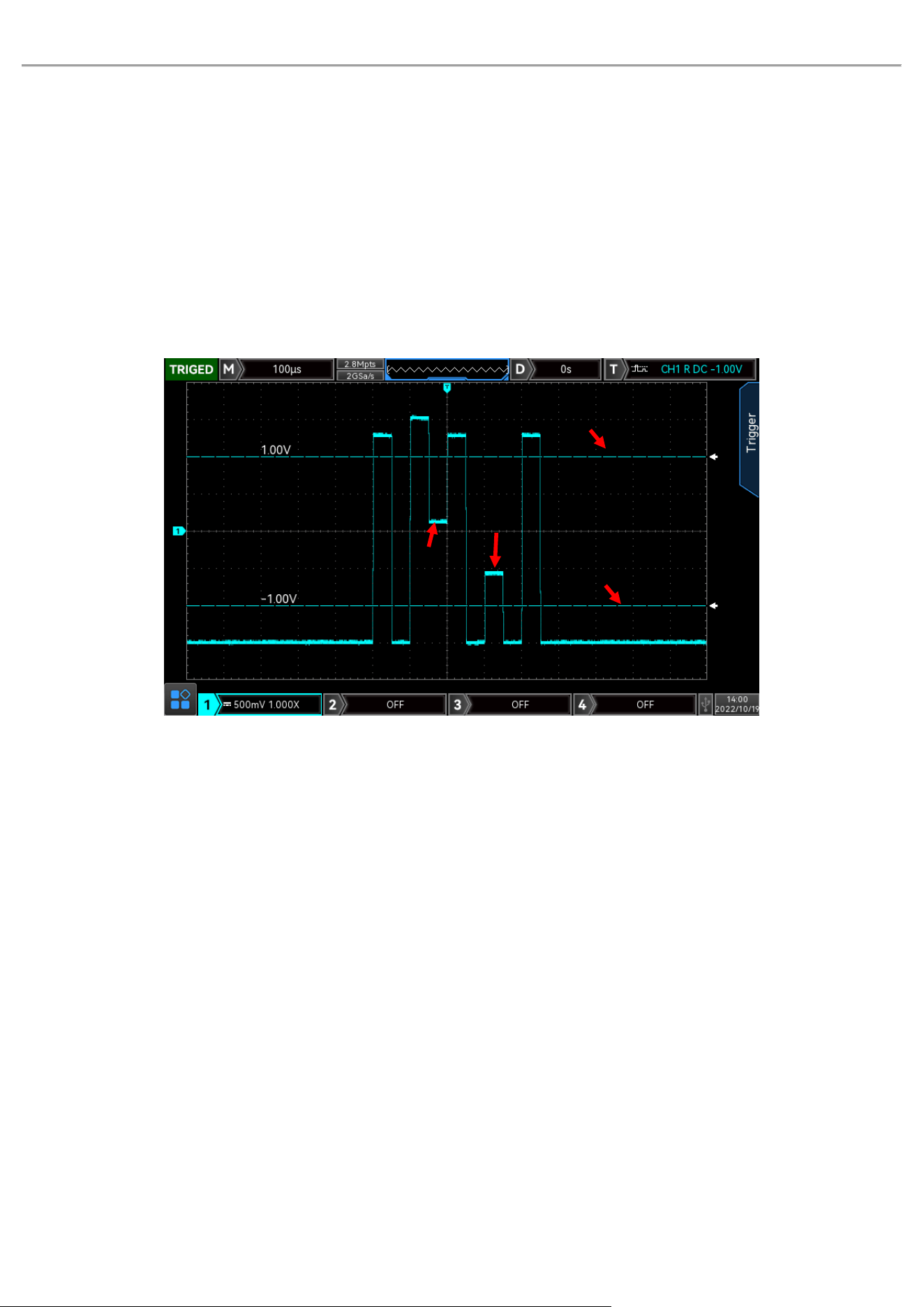
Note:Slope time of trigger signal refers to the figure shown “slope time of rising/ falling edge”.
(3) Level Setting
Level setting can set low level, high level and high-low level. Press LEVEL knob on trigger control area
to quickly switch the selection.
a. Low level:Adjust low level threshold of ramp trigger by using LEVEL knob on trigger control area.
b. High level:Adjust high level threshold of ramp trigger by using LEVEL knob on trigger control area.
c. High-low level:Adjust high-low level threshold of ramp trigger by using LEVEL knob on trigger
control area.
(4) The upper/lower limit of time
Set time value and the range can set to 8ns ~ 1s.
Note: In ramp trigger, the setting slew rate value will display on the left corner of the screen. The calculation
formula of slew rate value:
(High level threshold - low level threshold) ÷ Time
For the setting slew rate value, the time here is the slope time value for the setting slew rate.
Slope time of falling edge
Slop time of rising edge
High level threshold
Low level threshold
User’s Manual MSO/UPO2000 Series
42 / 137
Instruments.uni-trend.com
7.6 Runt Trigger
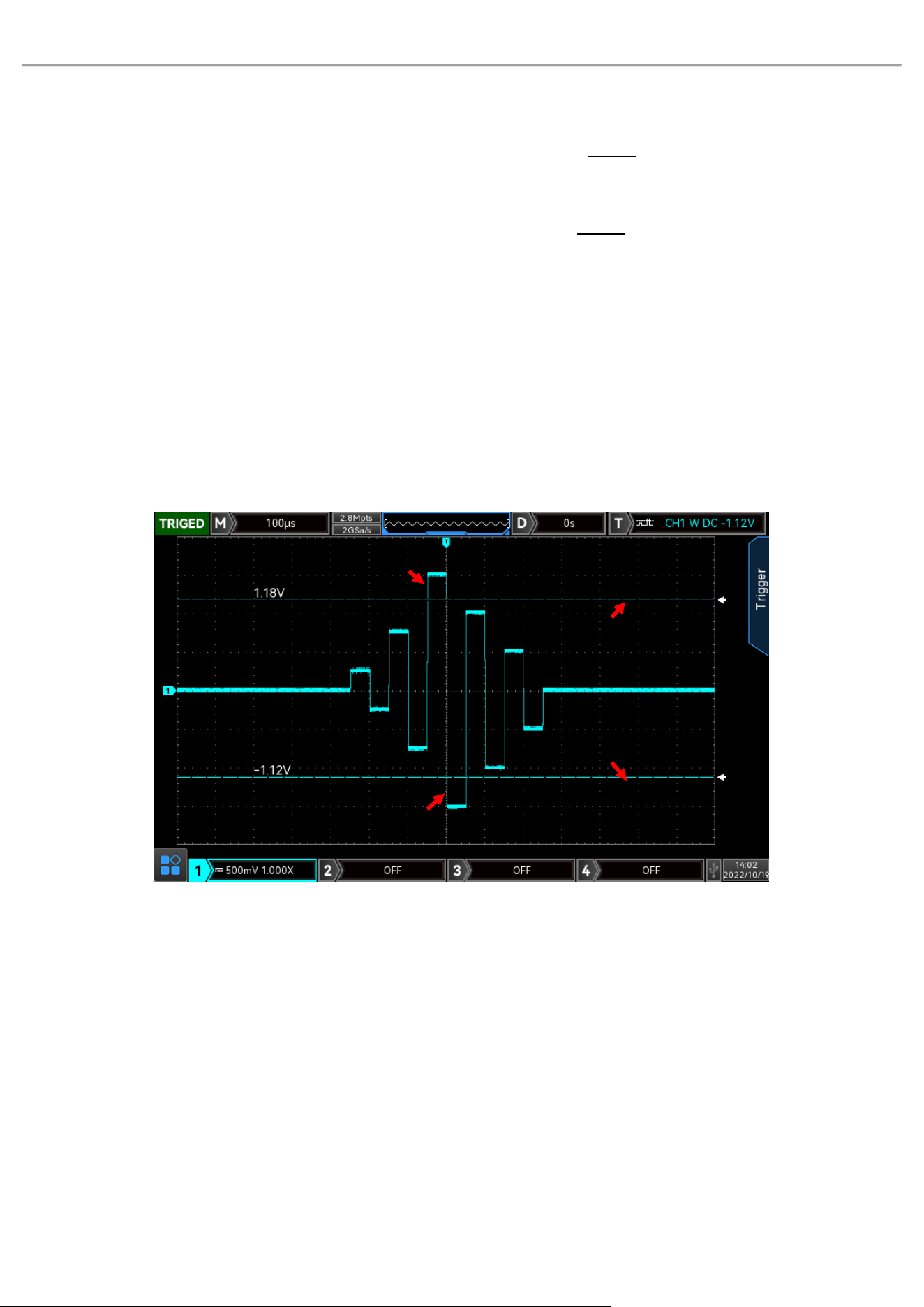
The runt trigger is used to trigger a pulse that has crossed one trigger level but not the other.
In this oscilloscope, the positive runt pulse is the pulse that crosses the lower limit of the trigger level but
does not cross the upper limit of the trigger level; the negative runt pulse is the pulse that crosses the upper
limit of the trigger level but does not cross the lower limit of the trigger level, as shown in Figure 7-4..
The runt trigger menu can set source, trigger coupling, trigger mode, polarity (positive, negative pulse), runt
condition (irrelevance, <, >,≤≥), the lower/upper limit of time, trigger level setting, etc.
Figure 7-4
(1) Trigger Polarity
a. Positive pulse: Set to trigger on the positive runt pulse.
b. Negative pulse: Set to trigger on the negative runt pulse.
(2) Condition
Trigger condition:Irrelevance, >, <, ≤≥.
a. Irrelevance:Does not set the runt pulse trigger condition.
b. >:It will be generated when the runt pulse width is greater than the setting pulse width, it can set
the lower limit of time.
c. <:It will be generated when the runt pulse width is less than the setting pulse width, it can set the
upper limit of time.
d. ≤≥:It will be generated when the runt pulse width is in the scope of the setting pulse width or
within a range, it can set the lower/upper limit of time.
(3) The lower/upper limit of time
a. Compare the setting pulse width value with pulse width of channel. It will generated when trigger
condition is met, range can be set to 8ns ~ 10s.
Negative runt amplitude
Positive runt amplitude
Trigger level-high level
Trigger level-low level
User’s Manual MSO/UPO2000 Series
43 / 137
Instruments.uni-trend.com
(4) Level Setting
Level setting can set low level, high level and high-low level. Press LEVEL knob on trigger control area
to quickly switch the selection.
a. Low level:Adjust low level threshold of ramp trigger by using LEVEL knob on trigger control area.
b. High level:Adjust high level threshold of ramp trigger by using LEVEL knob on trigger control area.
c. High-low level:Adjust high-low level threshold of ramp trigger by using LEVEL knob on trigger control
area.
7.7 Over-Amplitude Pulse Trigger
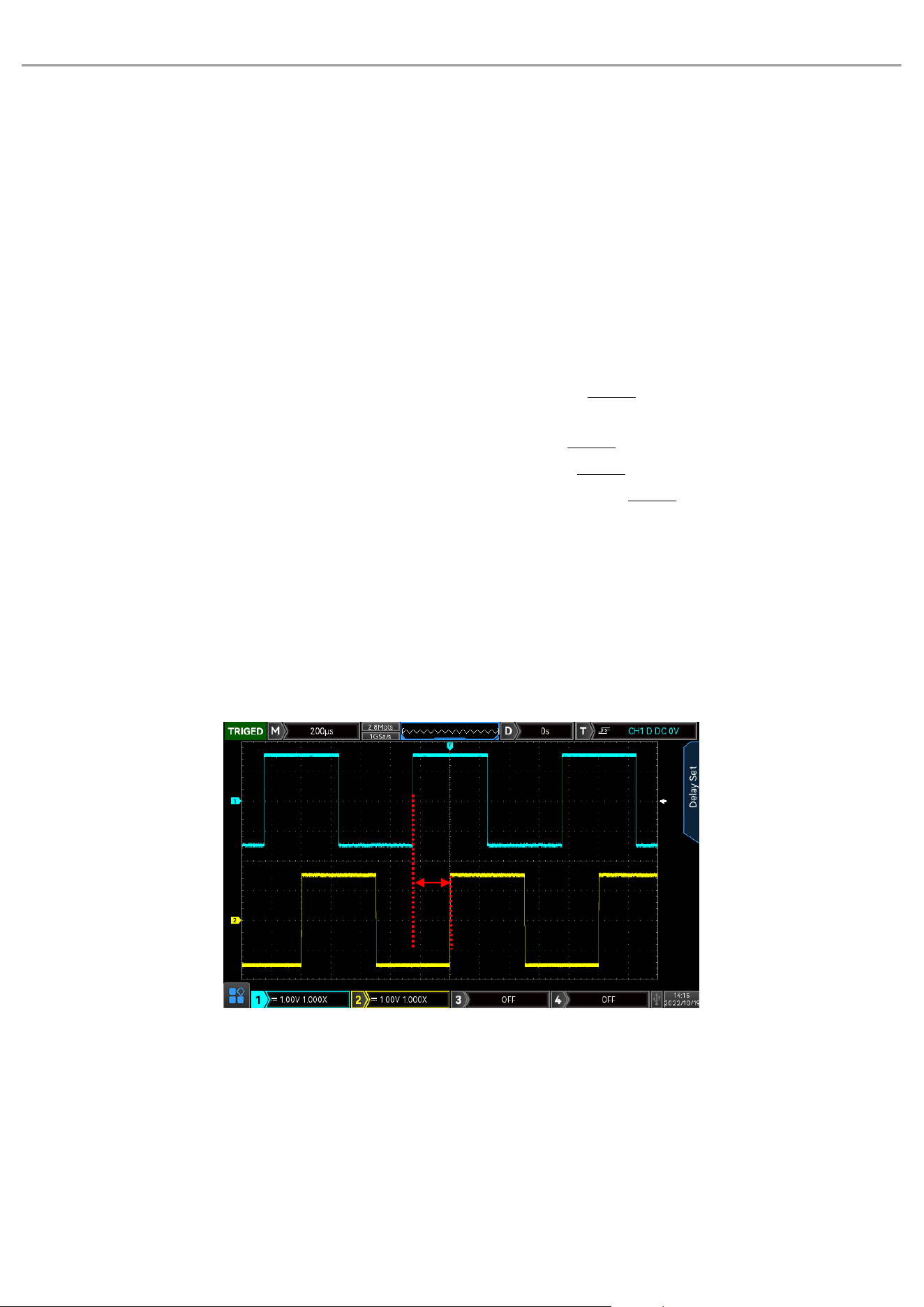
Trigger level of over-amplitude has a high level and a low level, when the rising edge of the input signal
crosses the high level or the falling edge crosses the low level, the oscilloscope will be triggered, as shown in
Figure 7-5. Over-amplitude pulse trigger menu can set source, coupling mode, trigger mode, over-amplitude
type (rising edge, falling edge, random edge), position (enter, exit, time), trigger setting, level setting, etc.
Figure 7-5
(1) Over-amplitude Type
Select which edge that the input signal can be triggered. It can select rising edge, falling edge or
random edge. The current slope is displayed in the upper right corner of the screen.
a. Rising edge:It will be generated when
the trigger on the rising edge of the input signal and the
voltage level is higher than the setting high level.
b. Falling edge:It will be generated when the trigger on the falling edge of the input signal and the
voltage level is lower than the setting low level.
c. Random edge:It will be generated when
the trigger on the rising/falling edge of the input signal
and the voltage level is within the setting level
.
(2) Trigger Position
Rising edge
Falling edge
Trigger level-high level
Trigger level-low level
User’s Manual MSO/UPO2000 Series
44 / 137
Instruments.uni-trend.com
Trigger position can set enter, exit and time. Select trigger position to confirm the timing of trigger.
a. Enter:It will be generated when the input signal enter the specified trigger level.
b. Exit:It will be generated when the input signal exit the specified trigger level.
c. Time:It will be generated when the over-amplitude entered, accumulated hold time is greater than
or equal to the preset over-amplitude time.
(3) Trigger Setting
When trigger position is set to “Over-amplitude Time”, the setting time takes effect and triggered
when condition is met. The range can be set to 8ns ~ 10s
.
(4) Level Setting
Level setting can set low level, high level and high-low level. Press LEVEL knob on trigger control area
to quickly switch the selection.
a. Low level:Adjust low level threshold of ramp trigger by using LEVEL knob on trigger control area.
b. High level:Adjust high level threshold of ramp trigger by using LEVEL knob on trigger control area.
c. High-low level:Adjust high-low level threshold of ramp trigger by using LEVEL knob on trigger control
area.
7.8 Delay Trigger
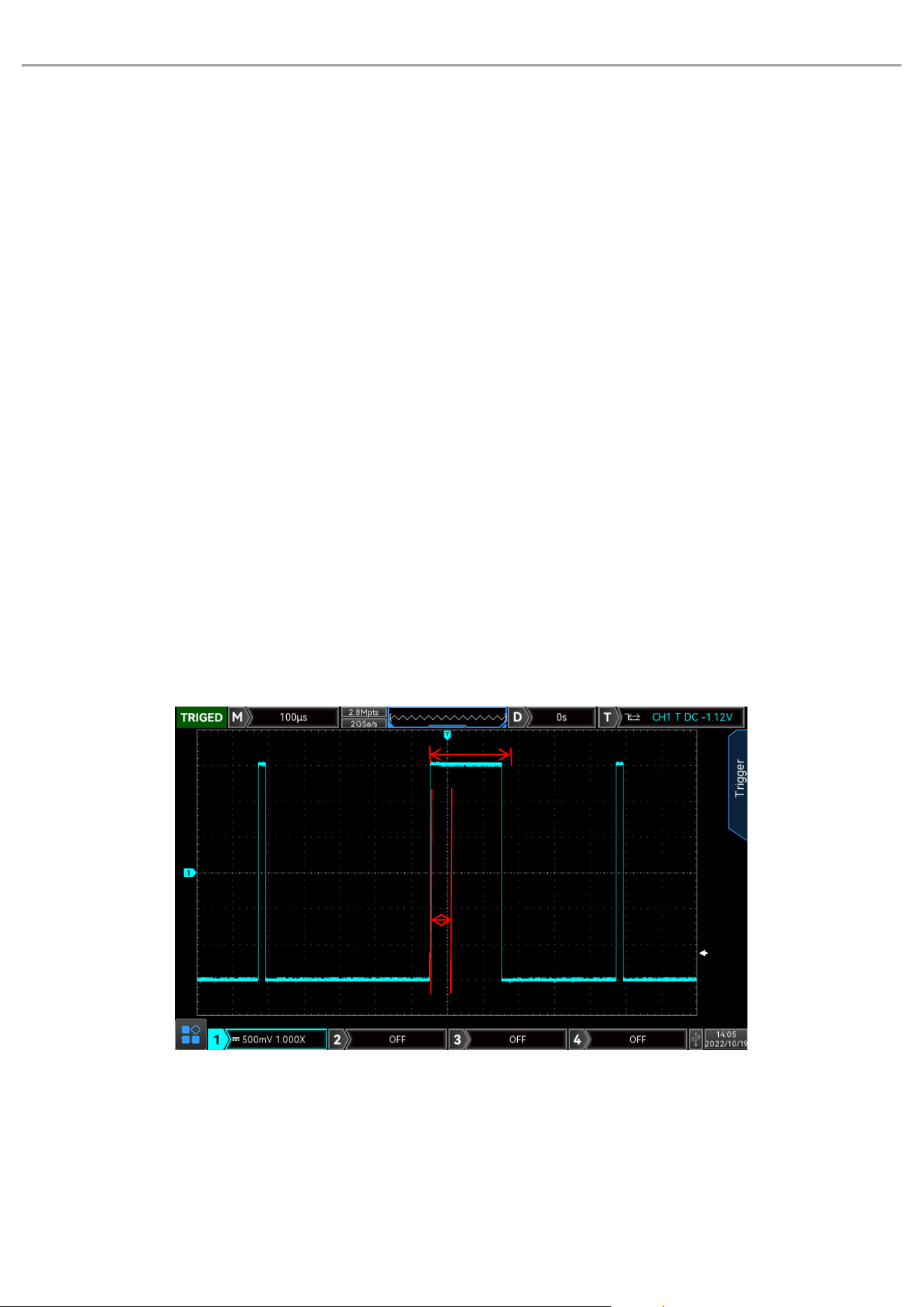
Delay trigger should set trigger source 1 and trigger source 2. When the time difference (△T) between the
edge set by source 1 (edge 1) and the edge set by source 2 (edge 2) meets the preset time limit, the
oscilloscope is triggered, as shown in Figure 7-6.
Figure 7-6
Edge 1 set as rising edge, edge 2 also set as rising edge. △T is the area marked by red color, as shown in
Figure 7-6.
Note:Edge 1 and edge 2 must be adjacent edges.
Note:Only the channel that has been connected to the signal, select it as the trigger source that can get the
stable trigger.
△T
User’s Manual MSO/UPO2000 Series
45 / 137
Instruments.uni-trend.com
(1) Delay Condition
Set delay condition to >, <, <>, ≤≥, >< .
a. >:It will be generated when the time difference (△T) between the edge of source 1 and the edge
of source 2 is greater than the setting lower limit of time, it can set the lower limit of time.
b. <:It will be generated when the time difference (△T) between the edge of source 1 and the edge
of source 2 is smaller than the setting upper limit of time, it can set the upper limit of time.
c. ≤≥:It will be generated when the time difference (△T) between the edge of source 1 and the edge
of source 2 is greater than the setting lower limit of time and smaller than the setting upper limit
of time, it can set the upper limit and lower limit of time.
d. > <:It will be generated when the time difference (△T) between the edge of source 1 and the
edge of source 2 is smaller than the setting lower limit of time or greater than the setting upper
limit of time. It can set the upper limit and lower limit of time.
(2) The upper/lower limit of time
Compare the setting time value with △T, it will be triggered when the condition is met. The range can
be set 8ns ~ 10s.
7.9 Time-out Trigger
Timeout trigger can generate the signal when the time interval (△T) from the rising edge (or falling edge) of
the input signal to adjacent falling edge (rising edge) across the trigger level is greater than the set timeout
time. As shown in Figure 7-7.
Figure 7-7
(1) Edge Type
Select which edge that the input signal can be triggered. It can select rising edge, falling edge, random
rising. The current slope is displayed in the upper right corner of the screen.
Timeout
△T
Timeout < △T
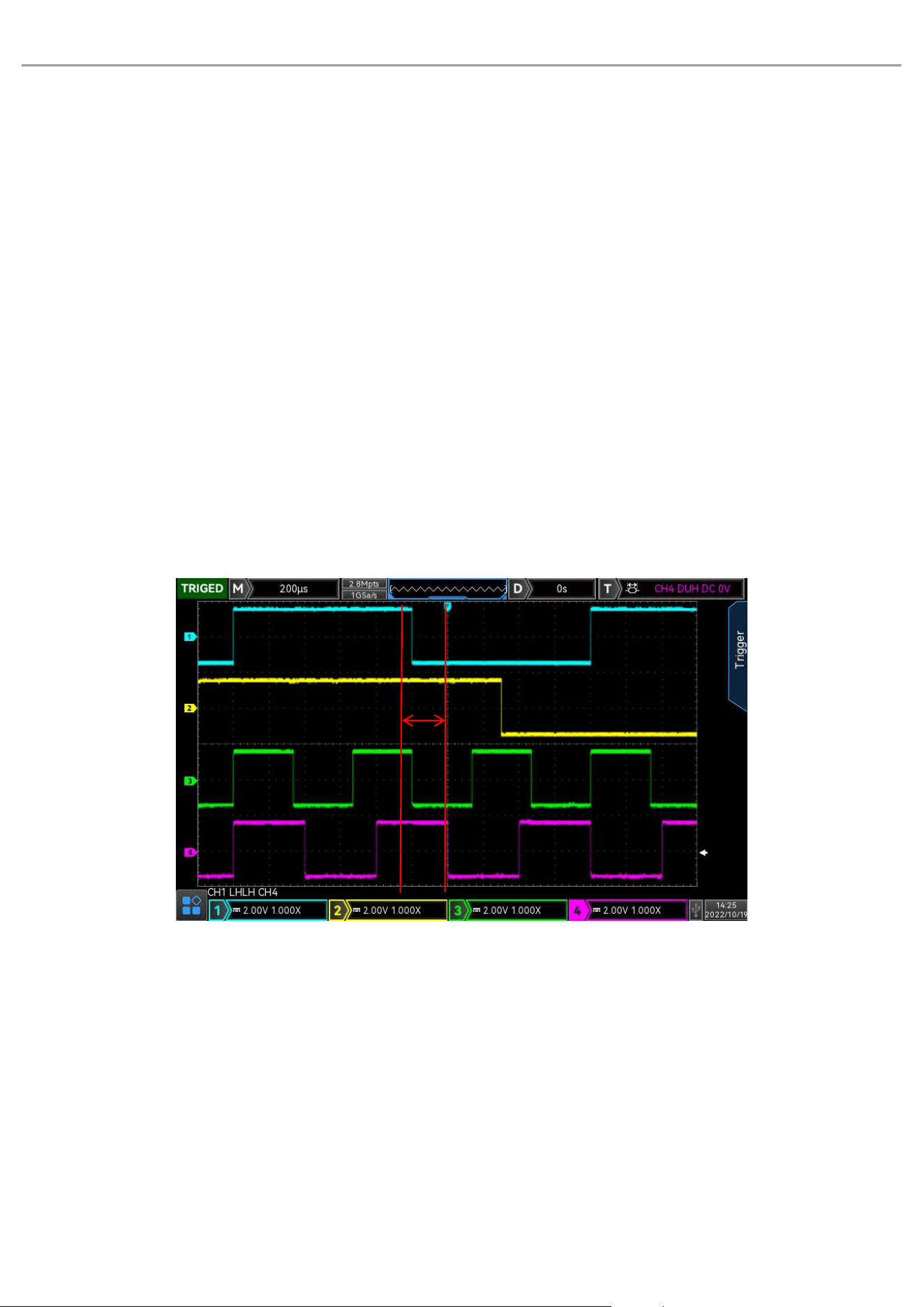
User’s Manual MSO/UPO2000 Series
46 / 137
Instruments.uni-trend.com
a. Rising edge:Set the timer to start when the rising edge of the input signal through the trigger
level.
b. Falling edge:
Set the timer to start when the falling edge of the input signal through the trigger
level
.
c. Random edge:Set the timer to start when the rising edge or the falling edge of the input signal
through the trigger level
.
(2) Timeout
Compare timeout with △T, it will be triggered when the condition is met. The range can be set 8ns ~
10s.
7.10 Duration Trigger
With duration trigger selected, the oscilloscope identifies the trigger condition by looking for the duration of
the specified codes. The codes are the combination of channel logic "AND", and the value of each channel
can be H (high), L (low), or X (ignored).It will be generated when the duration (△T) of the code meets a preset
time, as shown in Figure 7-8.
Figure 7-8
(1) Pattern
It has three modes H, L and X. The pattern setting of each channel is displayed at the bottom of the
screen, as shown in Figure 7-8.
a. H:Set the code value of the selected channel to "High", that is, the voltage level is higher than the
trigger level of the channel.
b. L:Set the code value of the selected channel to "Low", that is, the voltage level is lower than the
trigger level of the channel.
c. X:Set the code value of the selected channel to "Ignored", that is, the channel is not part of the
△T
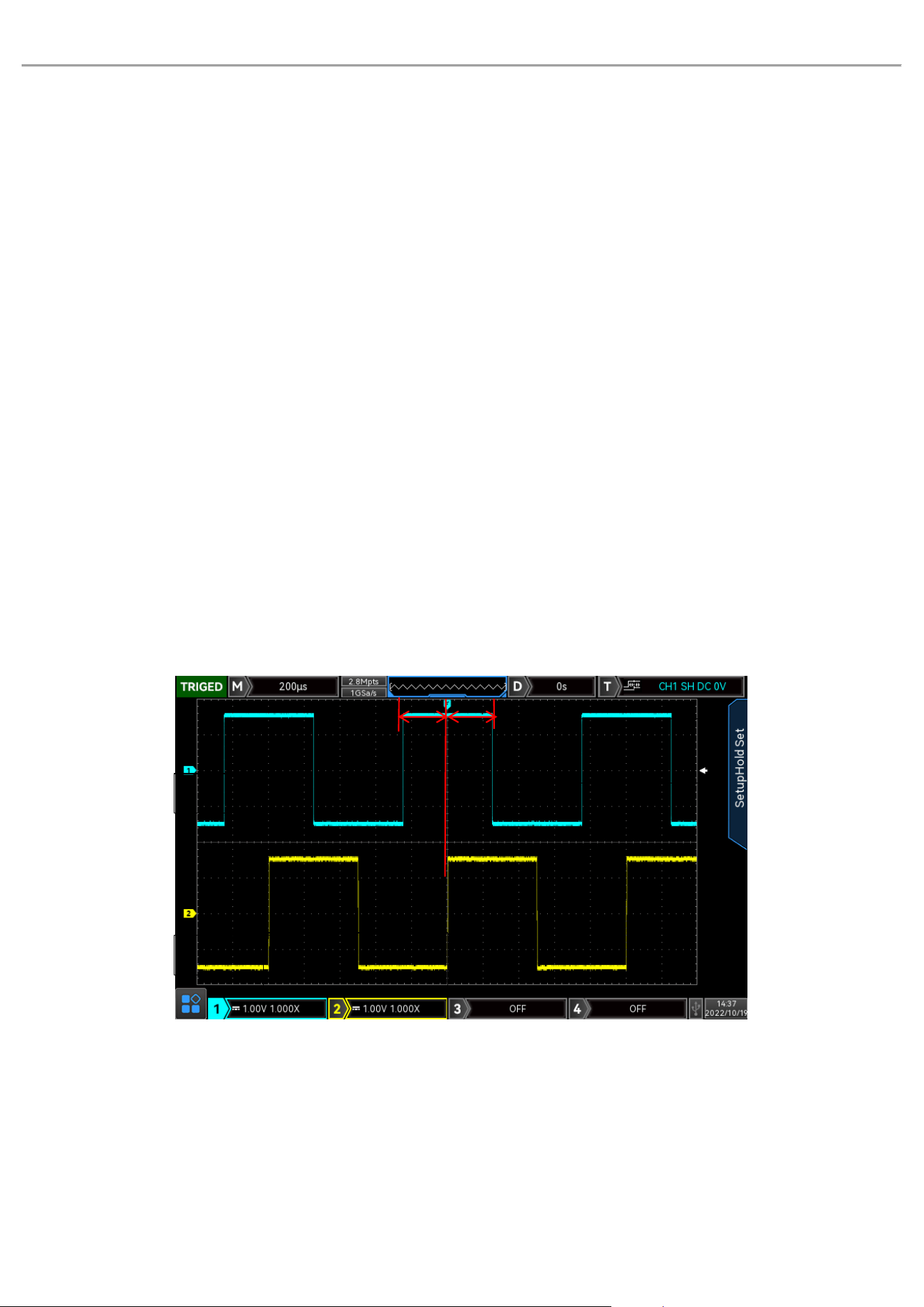
User’s Manual MSO/UPO2000 Series
47 / 137
Instruments.uni-trend.com
pattern. The oscilloscope will not trigger if all channels in the codes are set to "ignored".
(2) Trigger condition
a. >:It will be generated when the pattern duration is greater than the setting time, it can set the
lower limit of time.
b. <:It will be generated when the pattern duration is small than the setting time, it can set the
upper limit of time.
c. ≤≥:It will be generated when the pattern duration is small than the setting upper time limit and
greater and equal than the setting lower time limit, it can set the upper limit and the lower limit of
time.
(3) The upper/lower limit of time
Compare the duration time with the setting time of △T, it will be triggered when the condition is met.
The range can be set to 8ns ~ 10s.
7.11 Setup/Hold Trigger
In setup/hold trigger, the oscilloscope need to set up the data signal line and clock signal line. The setup time
begins when the data signal crosses the trigger level and ends when the specified clock edge arrives. The
hold time begins when the specified clock edge arrives and ends when the data signal crosses the trigger
level again (as shown in Figure 7-9). The oscilloscope will trigger when the setup time or the hold time is less
than the preset time. It is mainly used to locate and find error code, and quickly find the signal that cannot
meet setup hold time.
Figure 7-9
(1) Pattern setting
It has two modes H and L.
a. H:Set the valid pattern of the data signal to high level.
b. L:Set the valid pattern of the data signal to low level.
△T1
△T2
△T1 setup time
△T2 hold time
Data pattern:H
Edge type:rising edge
Data source
Clock source
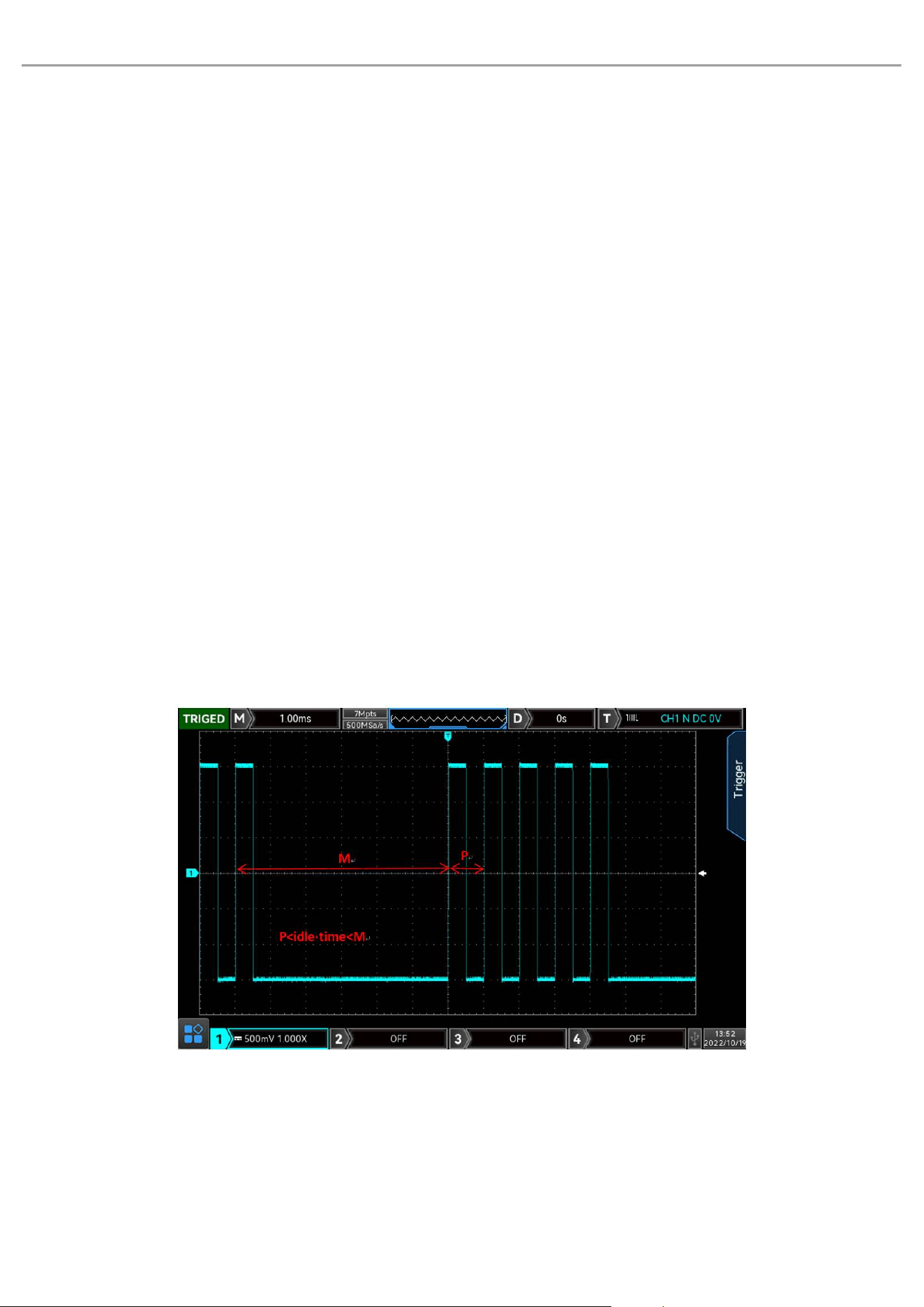
User’s Manual MSO/UPO2000 Series
48 / 137
Instruments.uni-trend.com
(2) Edge type
Select the clock edge type: rising edge and falling edge.
a. Rising edge: Set the clock edge type to rising edge.
b. Falling edge: Set the clock edge type to falling edge.
(3) Setup/Hold
It has three modes setup, hold, setup & hold.
a. Setup:It will be generated when the setup time is small than the setting value.
b. Hold:It will be generated when the hold time is small than the setting value.
c. Setup & hold:It will be generated when the setup time and the hold time are all small than the
setting value.
(4) Time
Compare the setup, hold time of pattern with the setting time of
△T, it will be triggered when the
condition is met. The range can be set 8ns ~ 10s.
7.12 Nth Edge Trigger
The Nth edge trigger is triggered on the Nth edge after the specified idle time. For example, waveform as
shown in Figure 7-10, it is set to trigger on the 2nd rising edge after the specified idle time (the time between
two adjacent rising edge), then set the idle time as P< idle time <M, M is the time between the 1st rising edge
and the next rising edge, P is the maximum time between the counting rising edge.
Figure 7-10
(1) Edge type
Select which edge that the input signal can be triggered. It can select rising edge, falling edge. The
current slope is displayed in the upper right corner of the screen.
a. Rising edge: Set to trigger on the rising edge of the signal.
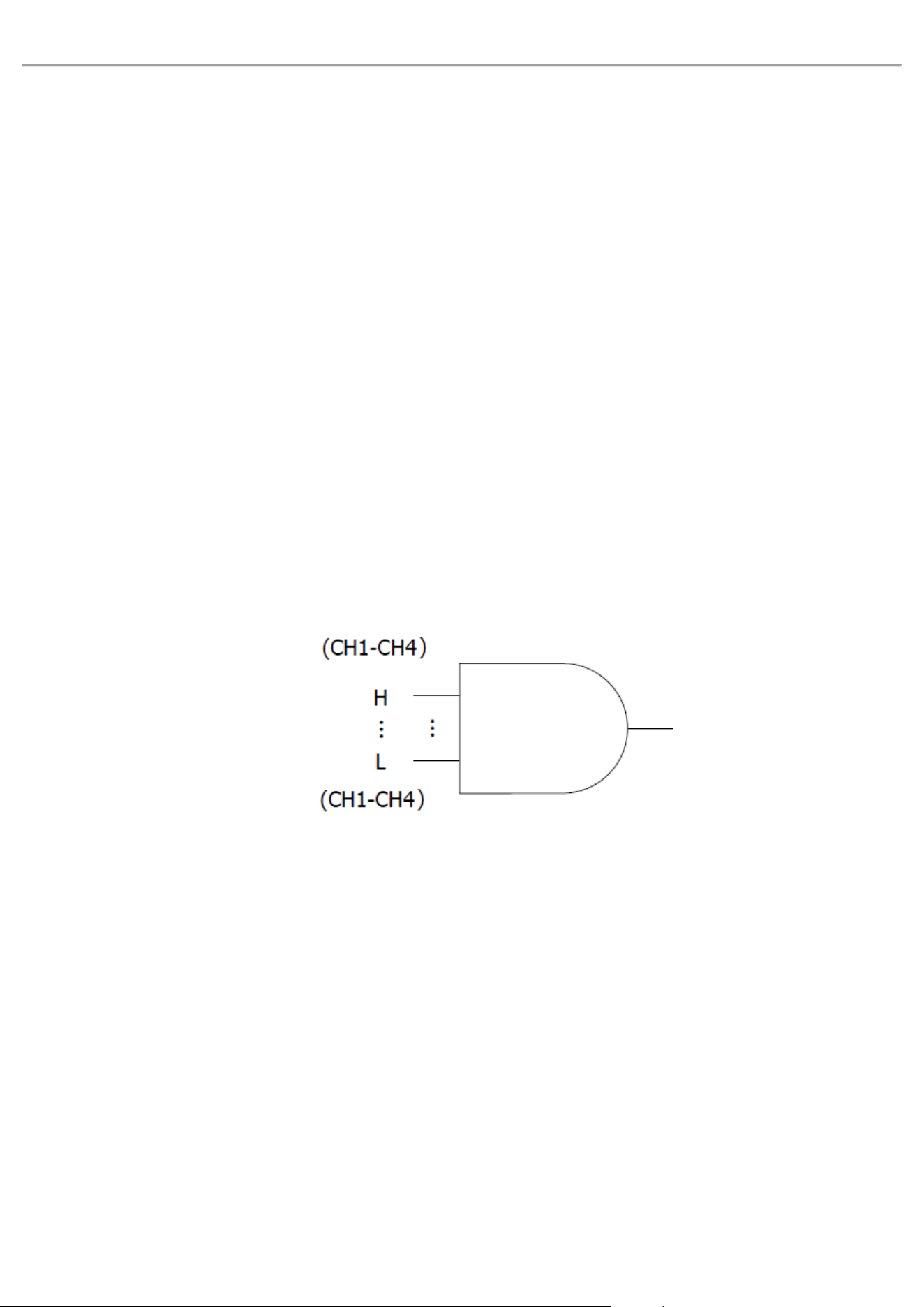
User’s Manual MSO/UPO2000 Series
49 / 137
Instruments.uni-trend.com
b. Falling edge: Set to trigger on the falling edge of the signal.
(2) Idle Time
Compare the idle time with pulse time, it will be triggered when the condition is met. The range can be
set 8ns ~ 10s.
(3) Edge Count
The number of edge means that the pulse string is triggered at which edge. The edge value can be
set by using multipurpose knob, jog dial and numeric keypad. The edge value range can be set 1 to
65535.
7.13 Pattern Trigger
The pattern trigger identifies the trigger condition by looking for the specified patterns. The pattern trigger
type is the combination of the channel logic "AND", each channel can be set to H (high), L (low), X (ignored).
You can also specify a channel in the type as a rising edge or falling edge (only one edge can be specified).
When the edge is assigned, if the pattern of the other channels are judged "true" (i.e., the actual pattern is
consistent with the preset pattern type), the oscilloscope will trigger on the specified edge. If the edge is not
assigned, the oscilloscope will trigger at the last edge of the code type "true". If the pattern of all channels
are set to "ignore", the oscilloscope will not be triggered.
(1) Pattern
There are H, L, X, rising edge, or falling edge. The pattern setting of each channel is displayed at the
bottom of the screen.
a. H:Set the pattern value of the selected channel to “High”, that is, the voltage level is higher than
the trigger level of the channel.
b. L:Set the pattern value of the selected channel to “Low”, that is, the voltage level is lower than the
trigger level of the channel.
c. X:Set the pattern value of the selected channel to “Ignored”, that is, the channel is not part of the
pattern. The oscilloscope will not be triggered if all channels in the pattern are set to “ignored”.
d. Rising edge: Set the pattern to the rising edge of the selected channel.
e. Falling edge: Set the pattern to the falling edge of the selected channel.

User’s Manual MSO/UPO2000 Series
50 / 137
Instruments.uni-trend.com
7.14 RS232 Trigger
RS232 decoding trigger can set trigger condition, data, trigger coupling, trigger mode and decoding setting.
(1) Trigger Condition
a. Start frame: Waveform triggering at the start bit of RS232 protocol. When send a single string or send
the same string several times, this trigger can be used to see a stable signal waveform, and if the sent
data changes, the corresponding waveform will also be change.
b. Error frame: When receiving 0 in the stop state or data error occurs in the middle of data bits.
c. Parity error: RS232 protocol sets the parity bit to 0 or 1 according to the parity rule when there is a
parity bit setting.
The parity rule is as follows.
Odd parity: If in data bits and parity bits, number of bit 1 is odd, then the transmission is correct.
Even Check: If in data bits and parity bits, number of bit 1 is even, then the transmission is correct.
Using this option, user can check the RS232 communication process and quickly find the transmission
process of parity error, so that you can easily locate the fault analysis.
d. Data: The trigger is generated when the data acquired by the oscilloscope is the same as the 2 bits
hexadecimal number set by the user. Using this option, user can quickly find the transmission signal of
the specific data that interested.
(2) Data
It will be valid when the trigger condition is "Data", the range can set to 00 ~ FF (hexadecimal number).
(3) Decoding Setting
Quickly enter the entrance of RS232 protocol decoding, refer to reference protocol decoding
“RS232
Decoding".
7.15 I
2
C Trigger
I2C decoding trigger can set trigger coupling, trigger mode, operating direction, decoding setting and trigger
condition.
(1) Operating Direction
It can set “write or read”.
a. Write: It will be generated when the “read/write” bit of the I
2
C protocol is “write”.
b. Read: It will be generated when the “read/write” bit of the I
2
C protocol is “read”.
(2) Trigger Condition
It can set the I
2
C trigger condition to start, restart, stop, loss confirmed, address, data and address data.
a. Start: It will be generated at the start time, that is, when the SCL is in high level, the SDA signal has
a falling edge.

User’s Manual MSO/UPO2000 Series
51 / 137
Instruments.uni-trend.com
b. Restart: It will be generated at the restarting time, that is, after a start signal, and before it stops,
the start signal appears again.
c. Stop: It will be generated when the stop bit occurs, that is, when the SCL is in high level, the SDA
signal jumps from low to high.
d. Loss Confirmed: In I
2
C protocol, every time after 8 bits of information are transmitted, the data
receiver needs to send an acknowledgement signal, which is the ACK bit in the above figure when
the SCL is in high level, the SDA signal is low. The loss trigger will occur while the SCL and SDA signal
at the ACK bit are both high.
e. Address: It will be generated when the communication address is the same with the user setting
address. It can help to quickly locate the address transmission.
f. Data: It will be generated when the detected data is equal to/ greater than/ less than/ not equal to
the setting value. This feature is convenient for the data analysis and can capture the abnormal
data.
g. Address & Data: It will be generated when the addresses are the same and the data relationship
meets the setting conditions during the transmission process. This trigger condition makes it easy
to implement the I
2
C specified address and data trigger, and help to analyze the transmission.
(3) Address Bit Width
When the trigger condition is select “address” or “address data”, the address bit width of I
2
C signal can
set to 7 bits or 10 bits.
(4) Address
It will be valid when the trigger condition is “address” or “address data”, the range can set to 00 ~
FFF(hexadecimal number).
(5) Byte Length
It will be valid when the trigger condition is “address” or “address data”, it can set the specific byte length ,
the range can be 1~5.
(6) Data
It will be valid when the trigger condition is “address” or “address data”, the range can set to
00~FFFFFFFFFF (hexadecimal number). Press Multipurpose knob to set the data.
(7) Decoding Setting
Quickly enter the entrance of I
2
C protocol decoding, refer to reference protocol decoding
“I
2
C Decoding".
7.16 SPI Trigger
SPI decoding trigger can set trigger condition, data, idle time, trigger coupling, trigger mode and decoding
setting.
(1) Trigger Condition
a. Enable chip selection includes chip selection and chip selection & data. It will generated on the edge

User’s Manual MSO/UPO2000 Series
52 / 137
Instruments.uni-trend.com
that chip selection level change invalid jump to valid.
b. Idle time includes idle and idle & data. Idle trigger is generated at start of the new data after a certain
idle time.
(2) Data
When trigger condition selects “chip selection & data” and “idle & data”, it can set the data parameter,
such as bit width, frame length, MOSI data.
Note:The maximum data length of a frame is 128 bits.
a. Bit Width
Set the bit width of each data unit signal in SPI protocol signal, the range can set to 4~32 bits.
b. Frame Length
Set the length of data unit, the range can set to 1~32.
c. MOSI Data
Set MOSI data which is relate to frame length and the range can set to 0 ~
FFFFFFFFFFFFFFFFFFFFFFFFFFFFFFFF.
(3) Idle Time
The idle time counter counts when the SCK is unchanged, and judges whether the count value exceeds
the preset value at the SCK valid edge, if it exceeds, it will be generated at the valid edge. The counter
will be cleared when each clock edge is valid. The range can set to 100ns ~ 1s.
(4) Decoding Setting
Quickly enter the entrance of SPI protocol decoding, refer to reference protocol decoding
“SPI Decoding”.
7.17 CAN Trigger
CAN decoding trigger can set trigger condition, trigger coupling, trigger mode and trigger setting.
(1) Trigger Condition
The CAN trigger condition can set start frame, data frame, remote frame, error frame, overload frame,
identifier, data, ID and data, end of frame, loss confirmed and bit stuff error.
a. Start Frame: The oscilloscope will generate waveform on start frame.
b. Data Frame:The oscilloscope will be generate on data frame match with CAN signal.
c. Remote Frame:It will be generated on remote frame.
d. Error Frame:The oscilloscope will be generated on error frame of CAN signal.
e. Overload Frame:The oscilloscope will be generated on overload frame of CAN signal.
f. Identifier:The oscilloscope will be generated on data frame that matches the specified ID.
g. Data:The oscilloscope will be generated on data frame that matches the specified ID. //(data
frame and remote frame have ID, data frame has data, remote frame has no data.)
h. ID and Data:The oscilloscope will be generated on data frame that matches the specified ID.
i. End of Frame:It will be generated on the end of frame of CAN signal.

User’s Manual MSO/UPO2000 Series
53 / 137
Instruments.uni-trend.com
j. Loss Confirmed:It will be generated on loss confirmed of CAN signal.
k. Bit stuff error:In the segment that requires bit filling, the waveform will be triggered when
continuous detect the error from the same level of 6 bits.
(2) Frame Format
It is valid when the trigger condition is “identifier” or “ID & data”, it can set to “standard format, extend
format”. Different frame format has different ID range value.
(3) ID Value
It is valid when the trigger condition is “identifier” or “ID & data”. It can set ID value, the range is 000~
7FF, 00000000~1FFFFFFF.
(4) Operating Direction
It is valid when the trigger condition is “identifier”. And can set “read, write, read or write”.
a. Write:It will be generated when the “read/write” bit of the CAN protocol is “write”.
b. Read:It will be generated when the “read/write” bit of the CAN protocol is “read”.
c. Read or write:It will be generated when the “read/write” bit of the CAN protocol is “write or read”.
(5) Byte Length
It is valid when the trigger condition is “data” or “ID & data”. Set the length byte of data to be triggered
and the range is 1~8.
(6) Data
Set the data to be triggered. It is valid when the trigger condition is “data” or “ID and data”, the length byte
of data is related to byte value and the range is 00~FFFFFFFFFFFFFFFF.
(7) Decoding Setting
Quickly enter the entrance of CAN protocol decoding, refer to reference protocol decoding
“CAN
Decoding”.
7.18 CAN-FD Trigger
CAN-FD decoding trigger can set trigger condition, trigger coupling, trigger mode and trigger setting.
(1) Trigger Condition
The CAN-FD trigger condition can set start frame, data frame, remote frame, error frame, overload
frame, identifier, data, ID and data, end of frame, loss confirmed and bit stuff error.
a. Start Frame: The oscilloscope will generate waveform on start frame of CAN-FD protocol.
b. Data Frame:The oscilloscope will be generate on data frame match with CAN-FD signal.
c. Remote Frame:It will be generated on remote frame.
d. Error Frame:The oscilloscope will be generated on error frame of CAN-FD signal.
e. Overload Frame:The oscilloscope will be generated on overload frame CAN-FD signal.
f. Identifier:The oscilloscope will be generated on data frame that matches the specified ID.
g. Data:It will be generated when CAN-FD protocol sampling data is consist with user-defined data. It
can help user can quickly find the transmission signal of the specific data that interested.

User’s Manual MSO/UPO2000 Series
54 / 137
Instruments.uni-trend.com
h. ID and Data:The oscilloscope will be generated on data frame that matches the specified ID.
i. End of Frame:It will be generated on the end of frame of CAN-FD signal.
j. Loss Confirmed:It will be generated on loss confirmed of CAN-FD signal.
k. Bit stuff error:In the segment that requires bit filling, the waveform will be triggered when continuous
detect the error from the same level of 6 bits.
(2) Frame Format
It is valid when trigger condition is “identifier” or “ID & data”. It can set “standard format, extend format,
FD standard format and FD extend format”. Different frame format has different ID range value. “Stand
format, extend format” is suitable for CAN signal; “FD standard format, FD extend format” is suitable for
CAN-FD signal.
(3) ID Value
It is valid when trigger condition is “identifier” or “ID & data”. It can set ID value, the range is 000~7FF,
00000000~1FFFFFFF.
(4) Data
a. Byte Length: set the byte length of data to be triggered. Different byte length has different data
range. The byte length rang is 1~16.
b. Data: Set data to be triggered, the range can set to 00~FFFFFFFFFFFFFFFFFFFFFFFFFFFFFFFF.
c. Bias:Set the data bias of byte data for delay trigger, it can set on or off. when it is on, display the
“byte bias” menu and the bias range is 0~63; when it is off, hide the” byte bias” menu.
(5) Decoding Setting
Quickly enter the entrance of CAN-FD protocol decoding, refer to reference protocol decoding
“CAN-FD
Decoding”.
7.19 LIN Trigger
LIN decoding trigger can set trigger condition, trigger coupling, trigger mode and decoding setting.
(1) Trigger Condition
LIN trigger condition can set synchronization, identifier, data, ID and data, wake-up frame, sleep frame
and error frame.
a. Synchronization: The oscilloscope will be generated when detect the synchronizing signal.
b. Identifier:The oscilloscope will be generated when detect ID is equal to the setting frame.
c. Data: Waveform will be generated when the sampled data by LIN protocol is in accord with user-
defined data. It can help user quickly find the transmission signal of the specific data that interested.
d. ID and Data: The oscilloscope will be generated when detect ID is equal to the setting frame.
e. Wake-up Frame: The oscilloscope will be generated on wake-up frame of signal.
f. Sleep Frame: The oscilloscope will be generated on sleep frame of signal.
g. Error Frame: The oscilloscope will be generated on error frame of LIN signal, which includes
synchronizing error, ID parity error and checksum error.

User’s Manual MSO/UPO2000 Series
55 / 137
Instruments.uni-trend.com
(2) ID Value
It is valid when trigger condition is “identifier” or “ID or data”. ID value can be set.
When ID parity check is set to “yes”, ID range can set to 00~FF.
When ID parity check is set to “no”, ID range can set to 00~3F.
(3) Byte Length
It is valid when trigger condition is “data” or “ID or data”. Set the byte length of data to be triggered.
Different byte length has different data range. Byte length range can set to 1~8.
(4) Data
Set the data to be triggered. It is valid when trigger condition is “data” or “ID & data” and the range is 00~
FFFFFFFFFFFFFFFF.
(5) Error Type
It is valid when trigger condition is “error”, it can set synchronization, ID parity check and checksum.
a. Synchronization: synchronizing error
b. ID parity check: ID parity check error
c. Checksum: data check and error
(6) Decoding Setting
Quickly enter the entrance of LIN protocol decoding, refer to reference protocol decoding
“LIN
Decoding”.
7.20 FlexRay Trigger
FlexRay decoding trigger can set trigger condition, trigger coupling, trigger mode and trigger setting.
(1) Trigger Condition
Set FlexRay trigger condition which includes start frame, indicating bit, identifier, cycle count, header
field, data, ID & data, end of frame and error.
a. Start frame:The oscilloscope generates at the start frame of the transmission.
b. Indicating bit:The waveform generates when the sampled information is in accord with the setting
indicating bit.
c. Identifier:The waveform generates when the sampled data is in accord with the setting identifier.
d. Cycle number:The waveform generates when the sampled cycle number is in accord with the
setting cycle number.
e. Header field:The waveform generates when the header field is in accord with the setting header
field.
f. Data:The waveform generates when FlexRay protocol samples the data is in accord with the user-
defined data. It can help user quickly find the transmission signal of the specific data that
interested.
g. ID and data:The oscilloscope generates when it detects its ID and data is equal to the frame of the
setting value.
h. End of Frame:The oscilloscope generates at the end of frame.
i. Error:The oscilloscope generates at bus error, which includes header CRC error, end of frame CRC
error, empty frame static error, empty frame dynamic error, synchronizing frame error and start
frame error.

User’s Manual MSO/UPO2000 Series
56 / 137
Instruments.uni-trend.com
(2) Indicating bit
Set the indicating bit of FlexRay protocol trigger, which can be (01XX), net load (11XX), empty (00XX),
synchronization (XX10), start (XX11).
(3) ID
It is valid when the trigger condition is “identifier” or “ID and data”. ID value can set to 000~7FF.
(4) Cycle number
It is valid when the trigger condition is “cycle number” or “header field”. Cycle number can set to 00~3F.
(5) Net load length
It is valid when the trigger condition is “header field”. Net load length can set to 00~7F.
(6) Header CRC
It is valid when the trigger condition is “header field”. Header CRC can set to 000~7FF.
(7) Data
a. Byte length:Set the data byte length which need to be trigger. Different byte length “data” has
different range. Byte length can set to 1~16.
b. Data: Set the user-defined data which need to be trigger. The range can set to 00 ~
FFFFFFFFFFFFFFFFFFFFFFFFFFFFFFFF.
c. Biased data:Set biased data of byte data for trigger, which can set ON or OFF. ON: display “biased
data” menu, the biased range is 0~253;
OFF: “biased data” menu will be hidden.
(8) Frame Type
It is valid when the trigger condition is “end of frame”. The frame can be static, dynamic or all frame.
a. Static frame: It will generated in static frame.
b. Dynamic frame(DTS):It will generated in dynamic frame.
c. All frame:It will generated in static frame and dynamic frame.
(9) Error Type
It is valid when the trigger condition is “error”. The error type includes header CRC error, end of frame
CRC error, empty frame static error, empty frame dynamic error, synchronizing frame error and start
frame error.
a. Header CRC:bus header CRC error.
b. End of frame CRC:bus end of frame CRC error.
c. Empty frame static error:bus empty frame static error.
d. Empty frame dynamic error:bus empty dynamic error.
e. Synchronizing frame error:FlexRay frame has a dedicated indicating bit in the frame header. When
this indicating bit is valid, the data frame is a synchronous frame.
f. Start frame:FlexRay frame has a dedicated indicating bit in the frame header. When this indicating
bit is valid, the data frame is a start frame.
(10) Decoding Setting
Quickly enter the entrance of FlexRay protocol decoding, refer to reference protocol decoding
“FlexRay
Decoding”.

User’s Manual MSO/UPO2000 Series
57 / 137
Instruments.uni-trend.com
7.21 Regional Trigger
For complicated and volatile circuit signal in circuit debugging, the oscilloscope with high waveform
capture rate can easily observe fleeting accidental abnormal signal. If user want to separate the
abnormal signal from complicated and volatile circuit and to stable triggered. It may take a lot of time to
learn the using of some advanced trigger and even so some more powerful advanced trigger also cannot
full triggered.
MSO/UPS2000 series add the screen touch regional trigger function, it’s really helpful for user to get the
using of advanced trigger. Regional trigger function is very easy to use. User just need to open rectangle
drawing function to draw one or two rectangle areas in the corresponding signal, it can quickly separate
it and for observing signal. Regional trigger can combine with basic trigger, advanced trigger and
protocol trigger function and it also supports decoding, recording waveform and pass/fail test. It’s really
convenient for debugging complicated signal.
Regional trigger provides tow rectangle areas: Region A and Region B. Both regions support setting the
region trigger condition to intersection or non-intersection; and the two regions support setting the
corresponding enable sources CH1, CH2, CH3, CH4.
(1) Rectangle drawing menu can set region A enable, source A, region B enable, source B.
a. Region A enable: Set whether Region A is effective, it can be ON or OFF.
If there is a region frame is display on the screen, ON: display region frame; OFF: turn off region
frame.
b. Source A: Set source of region A enable, which can be CH1~CH4.
c. Region B enable: Set whether Region B is effective, it can be ON or OFF.
If there is a region frame is display on the screen, ON: display region frame; OFF: turn off region
frame.
d. Source B: Set source of region B enable, which can be CH1~CH4.
(2) Rectangle drawing menu can set cancel, 1: intersection, 1: non-intersection, 2: intersection, 2: non-
intersection.
a. Cancel: Turn off the current drawn region and cancel the condition.
b. A: intersection: The current drawn region is Region A trigger.
Condition: It will be triggered if region A intersects with source A waveform, if it not triggered then
not intersected.
c. A: non-intersection: The current drawn region is Region A trigger.
Condition: It will be triggered if region A is not intersect with source A waveform, if it intersected
then not triggered.
d. B: intersection: The current drawn region is Region B trigger.
Condition: It will be triggered if region B intersects with source B waveform, if it not triggered then
not intersected.
e. B: non-intersection: The current drawn region is Region B trigger.
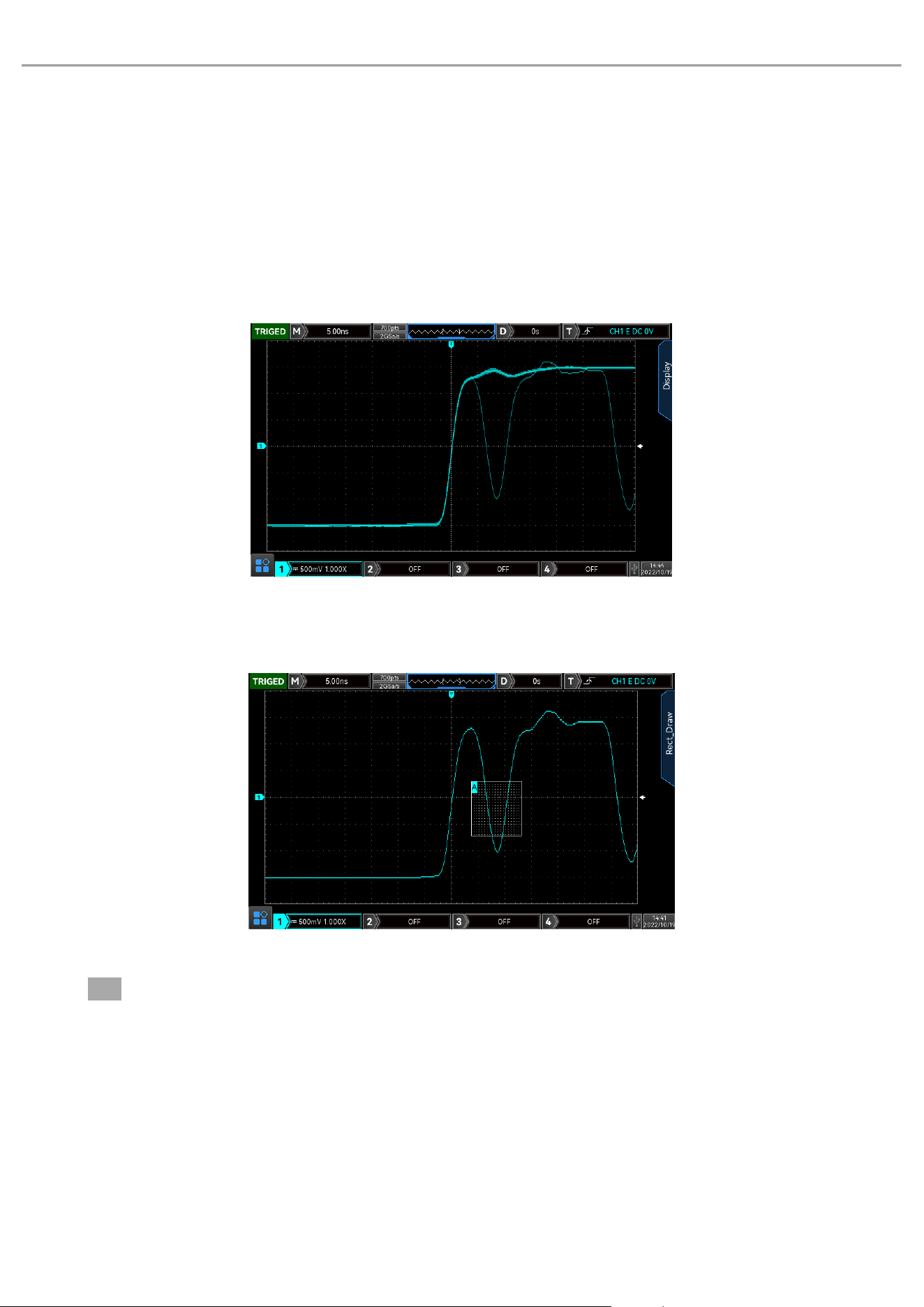
User’s Manual MSO/UPO2000 Series
58 / 137
Instruments.uni-trend.com
Condition: It will be triggered if region B is not intersect with source B waveform, if it intersected then
not triggered.
The dot is displayed in the intersecting area. The diagonal line is displayed in the non-intersecting area.
Clicking the region trigger frame on the screen can pop out the setting menu. Or it can touch the horizontal
position and vertical position of region trigger frame in moving area to adjust the waveform’s time base
scale, volts/div scale. The region trigger frame will extend and compressed accordingly.
Not open region trigger as shown in Figure 7-11.
Figure 7-11
Open regional trigger in the position of abnormal signal, as shown in Figure 7-12.
Figure 7-12
Note:If the currently selected region is already exists, then the current region trigger information will replace
the original region trigger message and the region area trigger frame will be closed.

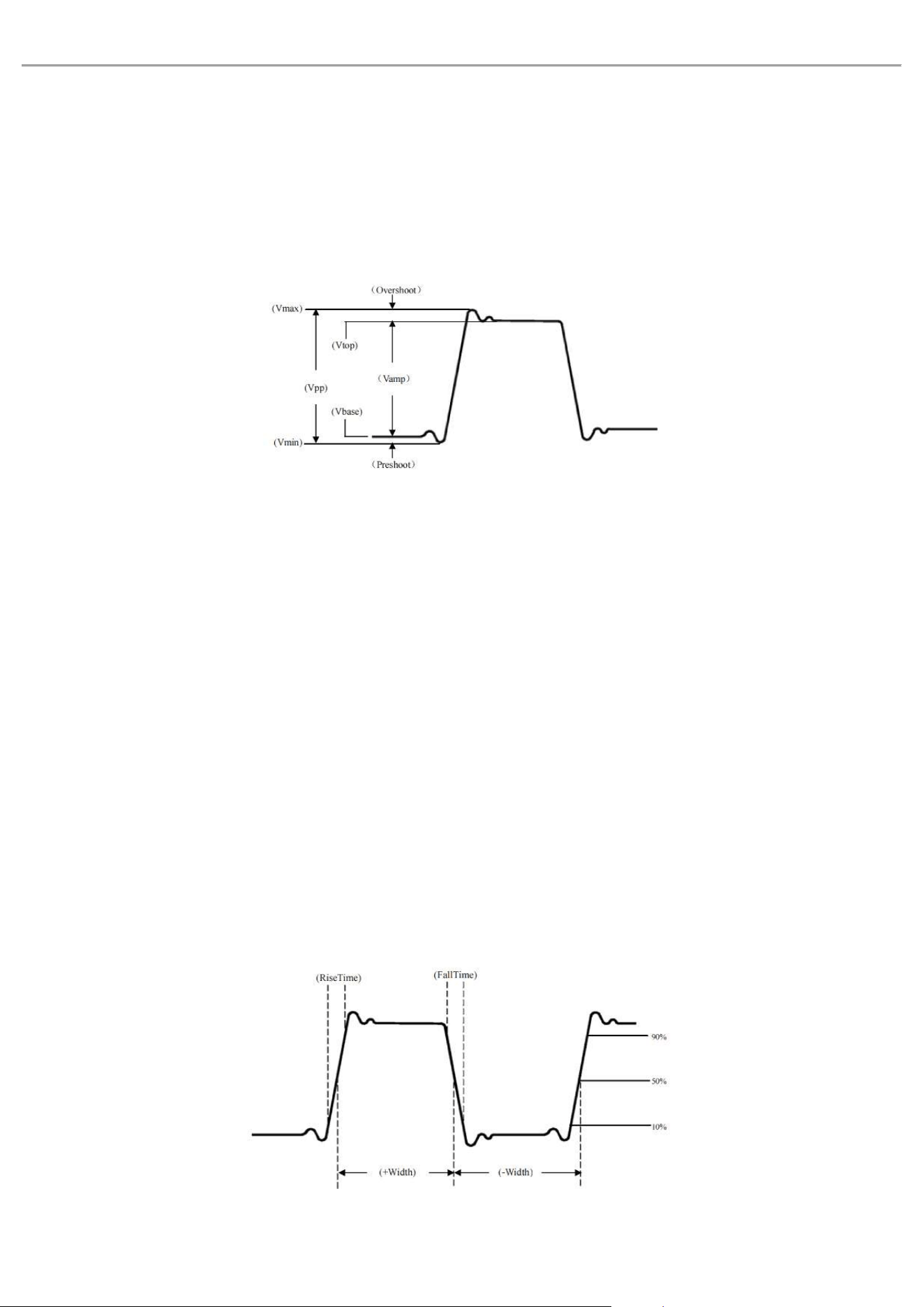
User’s Manual MSO/UPO2000 Series
60 / 137
Instruments.uni-trend.com
8.1 Parameter Measurement
MSO/UPO2000 series oscilloscope can automatically measure 36 kinds of parameters. It includes voltage,
time and other.
① Voltage
Max:The voltage from the highest point of the waveform to GND.
Min:The voltage from the lowest point of the waveform to GND.
High:The voltage value from the flat top of the waveform to GND.
Low: The voltage value from the bottom of the waveform to GND.
Middle: Half of the sum of the voltage values at the top and bottom of the waveform
Pk-Pk: Peak-to-peak value, the voltage value from the highest point to the lowest point of the waveform.
Amp:Voltage from top to bottom of the waveform.
Mean:The average amplitude of the waveform in the screen.
CycMean:Average amplitude of the waveform in one period.
RMS: The effective value. The energy generated by the conversion of AC signal, it corresponds to the DC
voltage that generates equivalent energy.
CycRMS: The energy produced by the conversion of AC signal in a period, it corresponds to a DC voltage
that generates equivalent energy.
AC RMS: The RMS value is the waveform which DC component has removed.
② Time
User’s Manual MSO/UPO2000 Series
61 / 137
Instruments.uni-trend.com
Period: Time between two consecutive, same-polarity edges of a repetitive waveform.
Frequency: The reciprocal of the period.
Rise time: Time needed for waveform amplitude rising from 10% to 90%.
Fall time: Time needed for waveform amplitude falling from 90% to 10%.
Rise delay: The delay time between the two rising edges of the primary and secondary signals.
Fall delay: The delay time between the two falling edges of the primary and secondary signals.
+Width: The width of a positive pulse at 50% amplitude.
-Width: The width of a negative pulse at 50% amplitude.
FRFR:Time from the first rising edge of source 1 to the first rising edge of source 2
FRFF:Time from the first rising edge of source 1 to the first falling edge of source 2
FFFR:Time from the first falling edge of source 1 to the first rising edge of source 2
FFFF:Time from the first falling edge of source 1 to the first falling edge of source 2
FRLF:Time from the first rising edge of source 1 to the last falling edge of source 2
FRLR:Time from the first rising edge of source 1 to the last rising edge of source 2
FFLR:Time from the last falling edge of source 1 to the last rising edge of source 2
FFLF:Time from the last falling edge of source 1 to the last falling edge of source 2
③ Other
+Duty: Ratio of positive pulse width to period.
-Duty: Ratio of negative pulse width to period.
OverSht:The ratio of the difference between the maximum value and the top value of a waveform to its
amplitude.
PreSht:The ratio of the difference between the minimum value and the bottom value of a waveform to
its amplitude.
Area:The algebraic sum of the time product of voltage at all points on the screen.
CycArea:The algebraic sum of the time product of voltage at all points in a cycle of waveform.
Phase: The phase difference between the master source and the slave source.
Pulse Count: Completed rising edge number on the screen.
8.2 Automatic Measurement Menu
Press MEASURE button on the front panel to enter the automatic measurement menu.
Automatic Measurement Menu (Page 1)
Function Menu
Setting
Description
Main Source
CH1,CH2,CH3,CH4,
MATH
Select any of CH1,CH2,CH3,CH4, MATH for automatic
parameter measurement
Slave Source
CH1,CH2,CH3,CH4,
MATH
Select the second source that requires two channels for
measurement
All Parameter
OFF
Turn off display frame of all parameter measurement
ON
Pops up a display frame of all parameters on the waveform display
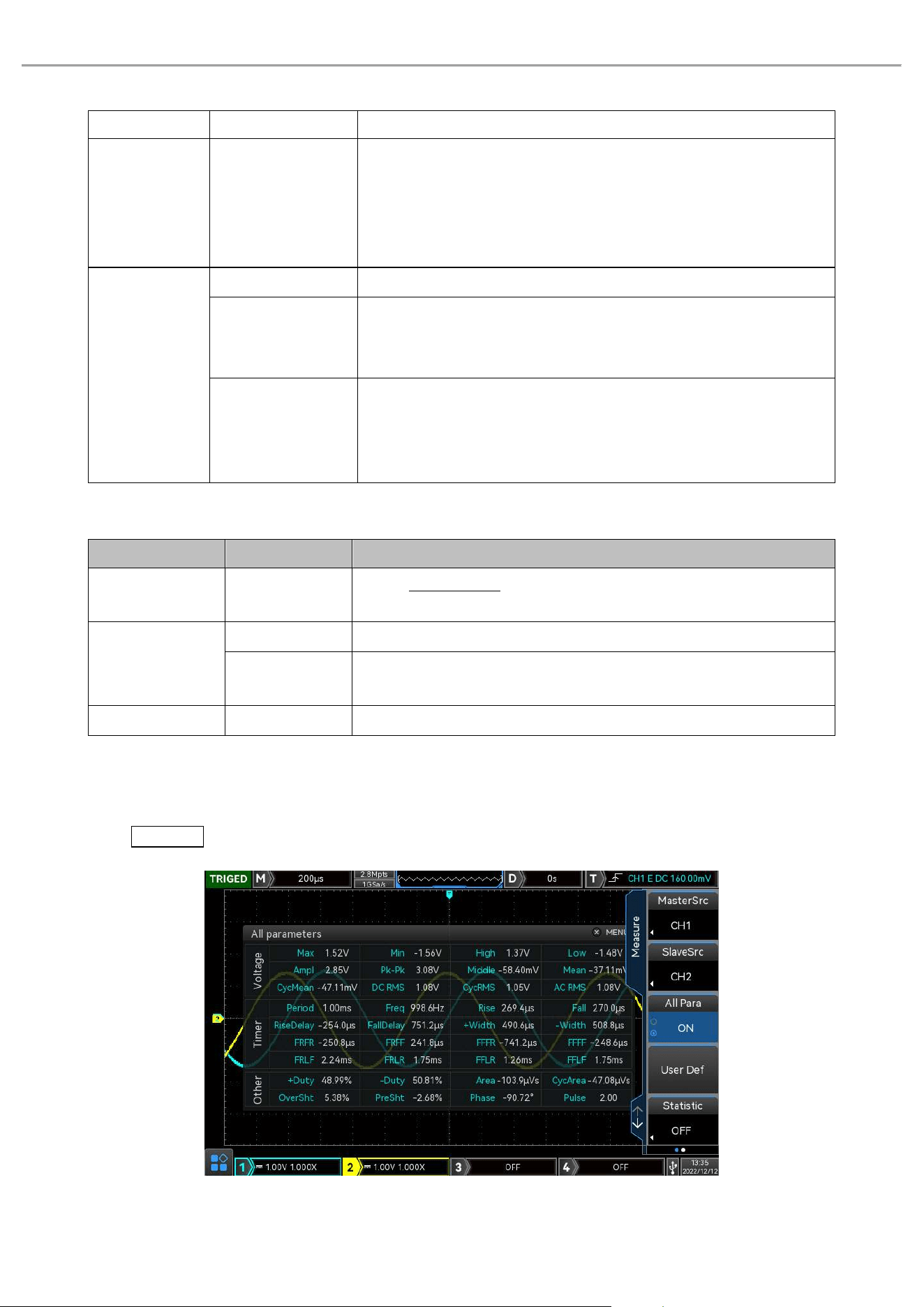
User’s Manual MSO/UPO2000 Series
62 / 137
Instruments.uni-trend.com
area
User-defined
A user-defined parameter selection interface pops up on the
waveform display area, adjust the Multipurpose knob to select and
press the knob to confirm to show the parameter on the screen.
Press the user defined key again to close the user-defined
parameter choice box.
Measurement
Statistical
Analysis
OFF
Turn off measurement statistical function
Extremum
Automatic calculates and displays the current user defined
parameters, the average, maximum, and minimum.
Only enabled when user defined parameters display on the screen.
Difference
Automatic calculates and displays the current user defined
parameters, the average, standard deviation and measurement
times.
Only enabled when user defined parameters display on the screen.
Automatic Measurement Menu (Page 2)
Function Menu
Setting
Description
Selection
Indicator
Press Multipurpose knob to select the parameter of selection
indicator.
Indicator
Off
Turn off the indicator function
On
Indicate the physical significance of the indicator parameter
intuitively by line
Delete
Clear all the user-defined parameter
8.3 All Parameter Measurement
Press MEASURE to pop out all parameter to measuring all parameters, as shown in Figure 8-1.
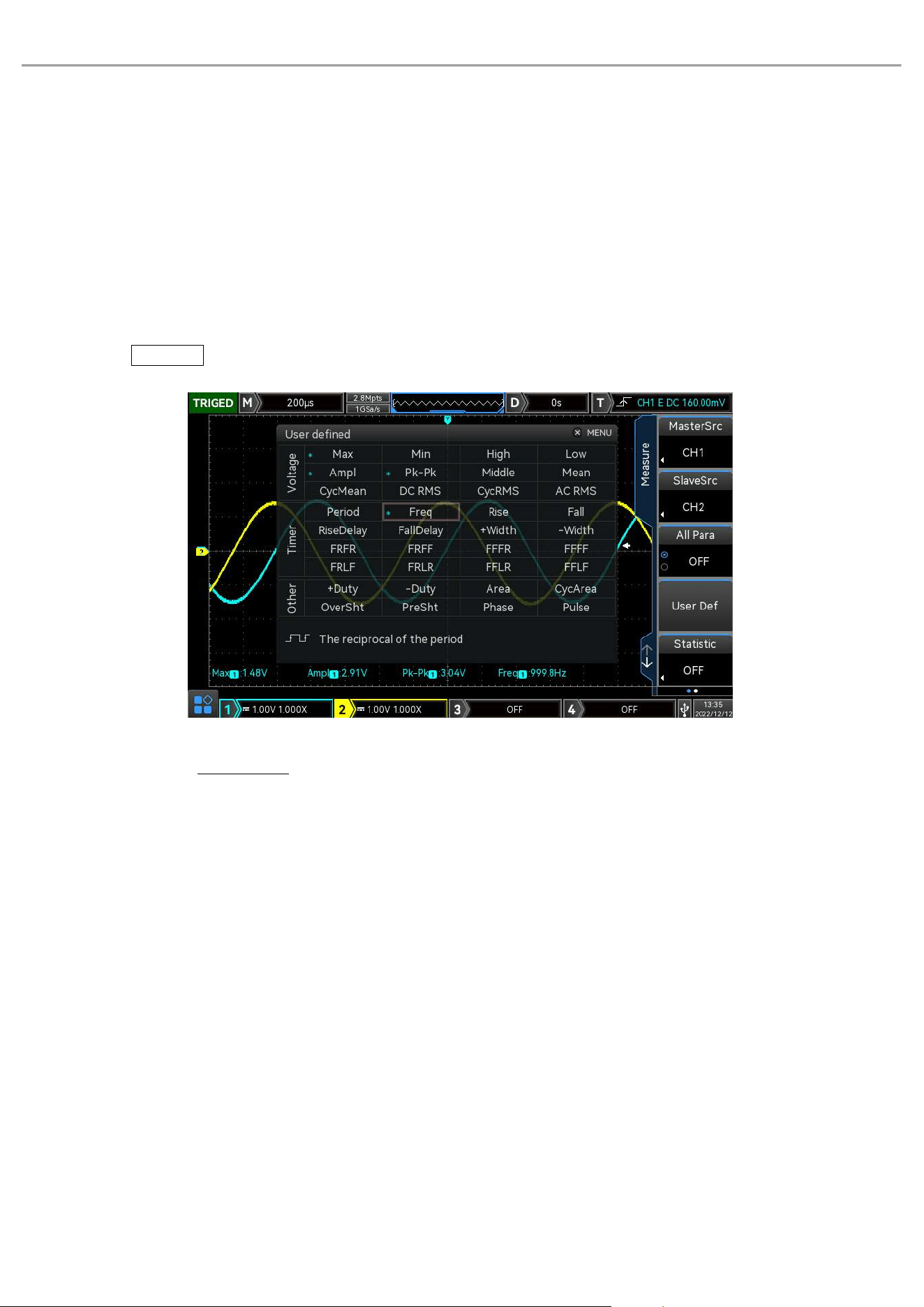
User’s Manual MSO/UPO2000 Series
63 / 137
Instruments.uni-trend.com
Figure 8-1
All parameters are always marked the same color with the current measuring channel (the main source).
When "----" is shown, it indicates that the current source has no signal input, or the measurement result is
not within valid range (too large or too small).
8.4 User-defined Parameter
Press MEASURE to pop out user defined menu, as shown in Figure 8-2.
Figure 8-2
Rotating the Multipurpose knob to select parameter and press the knob to confirm. For every selected
parameter, a * symbol will appear in front of the parameter. The user defined parameter will display on the
bottom of the screen, it can measuring 5 parameters at the same time.
User can select difference value, extremum to perform measuring statistic to the user-defined
parameters.

User’s Manual MSO/UPO2000 Series
64 / 137
Instruments.uni-trend.com
9. Cursor Measurement
The cursor can be used to measure the X axis value (time) and the Y axis value (voltage) of the selected
waveform.
Press the CURSOR button to enter the cursor measurement menu.
Time Measurement
Voltage Measurement
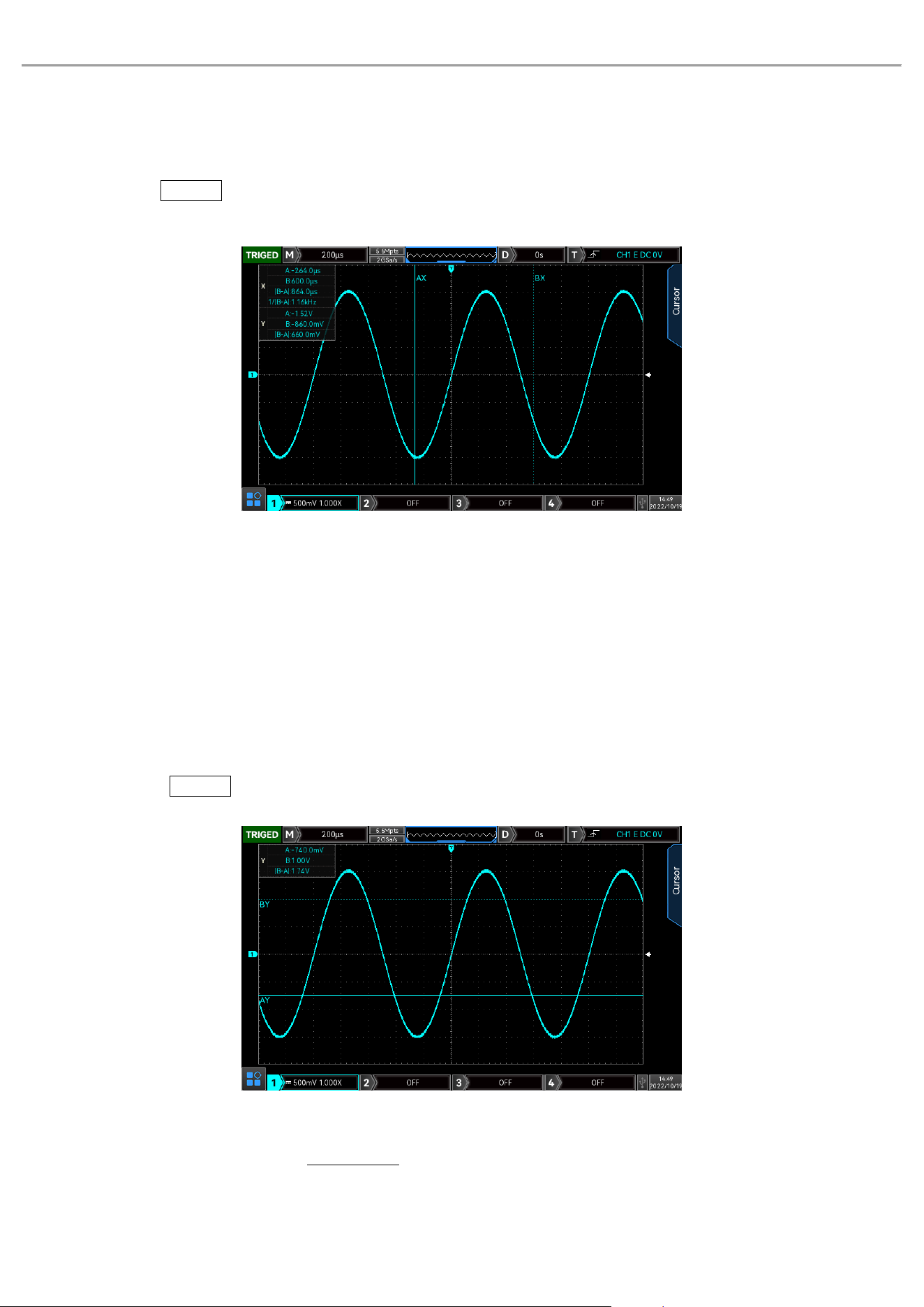
User’s Manual MSO/UPO2000 Series
65 / 137
Instruments.uni-trend.com
9.1 Time Measurement
Press the CURSOR button to enter the cursor measurement menu, select type, mode, unit and source to
measuring time, as shown in Figure 9-1.
Figure 9-1
The upper left corner of the display area shows the cursor measurement information:
“X” indicates the time measurement, and “Y” indicates the voltage measurement.
Press Multipurpose knob to adjusting the horizontal position of A and B to achieve time measurement.
9.2 Voltage Measurement
Voltage measurement is the same as time measurement, the difference is the vertical cursor of time
measurement change to horizontal cursor.
Press the CURSOR button to enter the cursor measurement menu, select voltage, mode and source to
measuring voltage, as shown in Figure 9-2.
Figure 9-2
The upper left corner of the display area shows the cursor measurement information: Y represents the result
of voltage measurement, Press Multipurpose knob to adjusting the vertical position of A and B to achieve the
voltage measurement.

User’s Manual MSO/UPO2000 Series
66 / 137
Instruments.uni-trend.com
10. Sampling System
Sampling is convert signal of analog input channel to discrete point via analog-digital converter (ADC).
Press ACQUIRE key on the front panel to enter sampling menu.
Sampling Rate
Acquisition Mode
Storage Depth
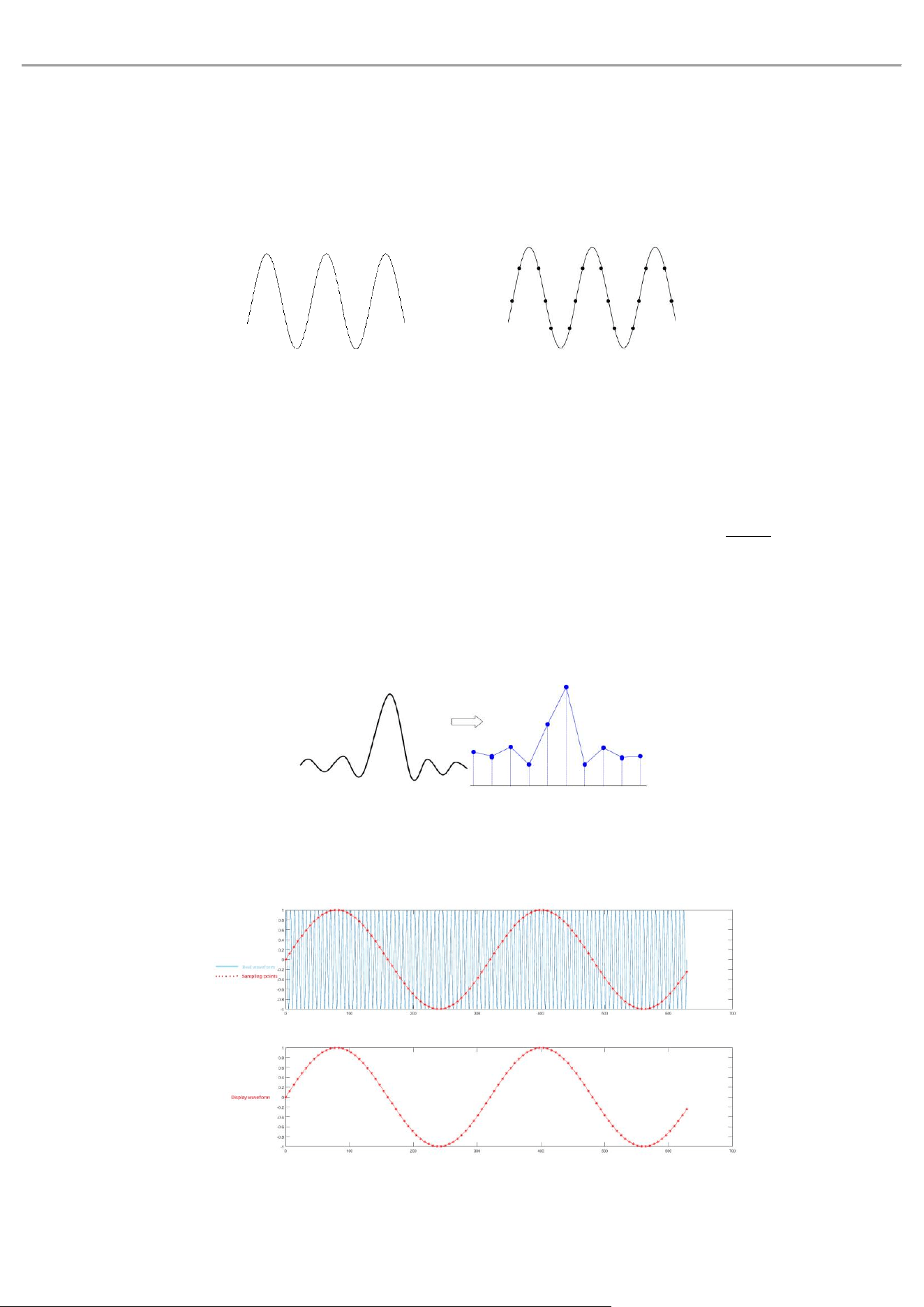
User’s Manual MSO/UPO2000 Series
67 / 137
Instruments.uni-trend.com
10.1 Sampling Rate
(1) Sampling and Sampling Rate
Sampling is the oscilloscope sampling the input analog signal and then convert it to digital data.
Gathering the digital data to waveform record and stored in sampling memory.
Analog Input Signal Sampling Point
Sampling rate refers to the time interval between two sampling points. The maximum sampling rate of the
MSO/UPO2000 series is 2 GS/s.
The sampling rate will be affected by the change of timing scale and storage depth. MSO/UPO2000 oscilloscopes
sampling rate is displayed in real-time in the status bar on the top of the screen. The horizontal SCALE knob can
adjust the horizontal time base or modify the memory depth to change it.
(2) The influence of low sampling rate
① Waveform Distortion: Due to low sampling rate, the details of the waveform might be missing,
the sampling waveform might be different than the actual signal. As shown in Figure 10-1.
Figure 10-1
② Wave Mixing: When the sampling rate is 2 times lower than the actual signal frequency
(Nyquist frequency), the frequency of the reconstructed signal will be less than the actual signal
frequency. As shown in Figure 10-2.
Figure 10-2
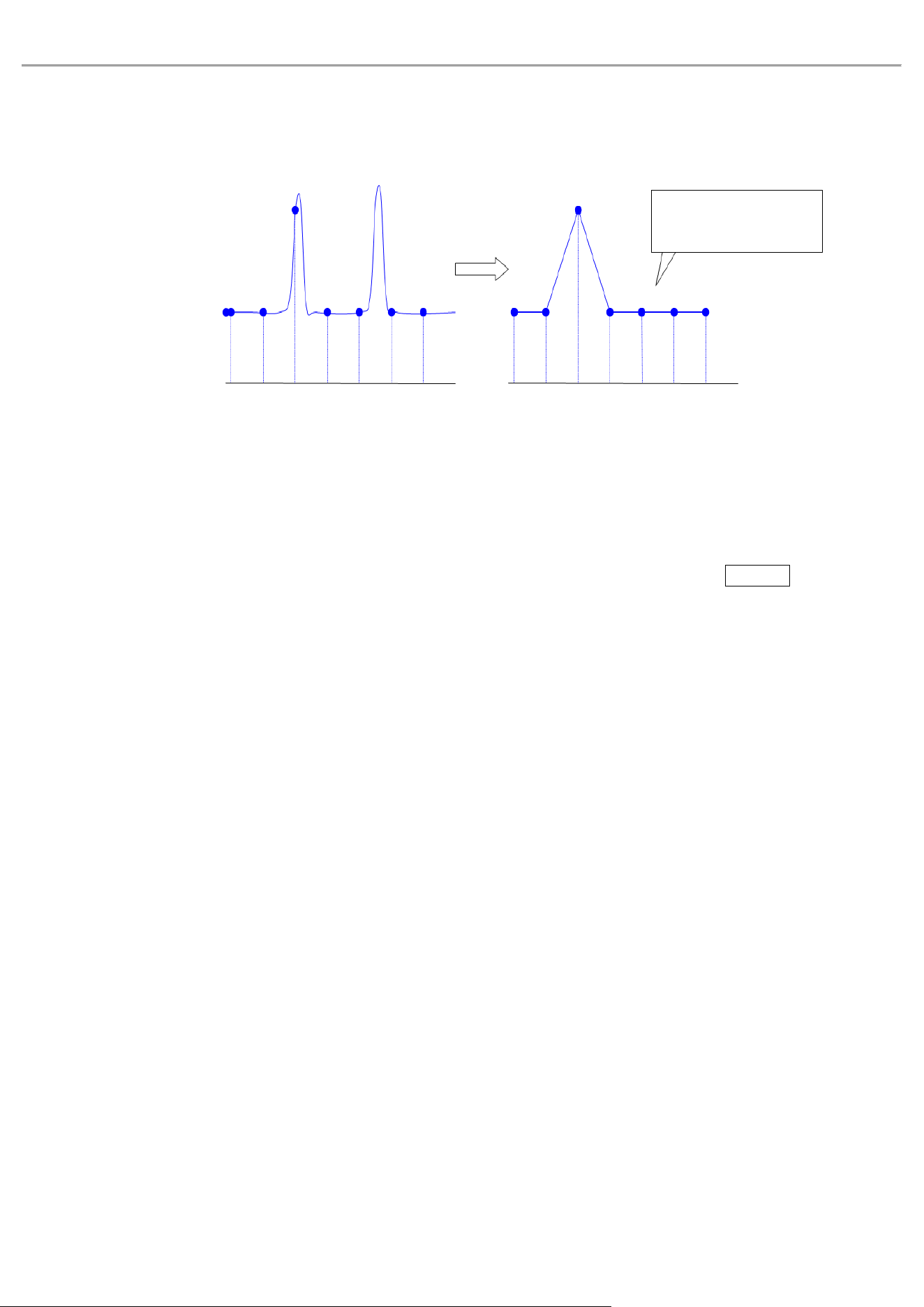
User’s Manual MSO/UPO2000 Series
68 / 137
Instruments.uni-trend.com
③ Waveform Leakage: Due to low sampling rate, the reconstructed waveform not reflect the actual
signal. As shown in Figure 10-3.
Figure 10-3
10.2 Acquisition Mode
Acquisition mode is used to control how to generate waveform from sampling points. Press ACQUIRE key to
switch acquisition mode.
(1) Normal Sampling
The signal is sampled and reconstructed with equal time intervals. For most waveforms, this mode can
perform the best display.
(2) Peak Sampling
The maximum and minimum values of the input signal are found at each sampling interval, and these
values to display the waveform. The oscilloscope can acquire and display a narrow pulse, otherwise the
narrow pulse might be missed in the normal mode. Noise might be enlarged in this mode.
(3) High Resolution
The oscilloscope will averaging the adjacent points of the sampled waveform, it can reduce random noise
from the input signal and generate smoother waveform.
(4) Average
The oscilloscope obtains several waveforms to take the average, and display the final waveform. This
method can reduce random noise.
By changing the acquisition mode setting to observe the waveform changes. If the signal contains large
noise, when the average mode is not adopted and when the 32 times average mode is adopted, the
sampled waveform is shown in the following figure.
Pulse disappear
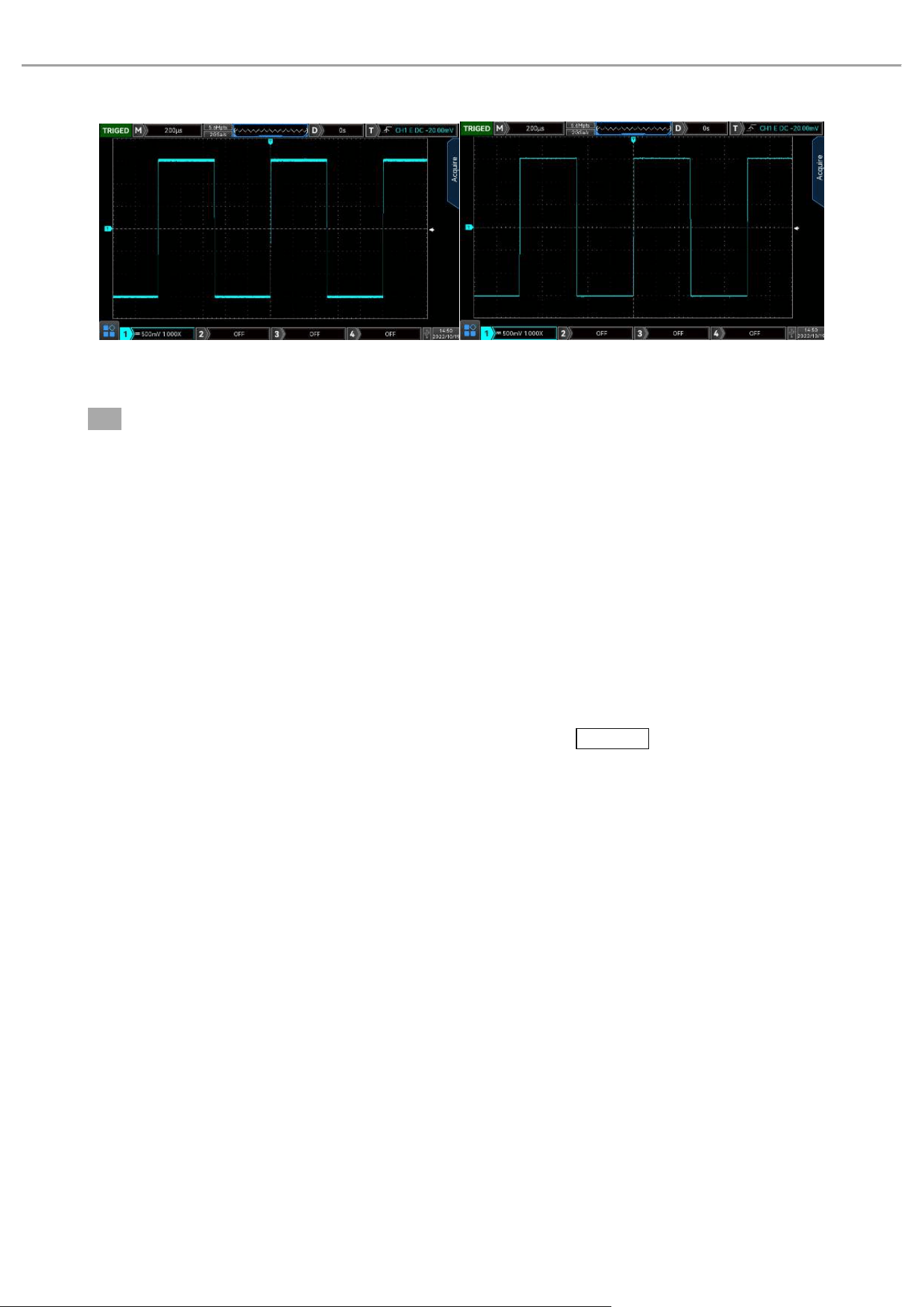
User’s Manual MSO/UPO2000 Series
69 / 137
Instruments.uni-trend.com
Waveform when the average mode is not adopted Waveform when the 32 times average mode
Note: Average and high resolution uses different average methods. The former is multiple sampling average,
the latter is single sampling.
10.3 Storage Depth
The storage depth is the number of waveform that can be stored in the oscilloscope during a trigger
acquisition. It reflects the memory storage capacity of the acquisition.
The relation of storage depth, sampling rate and waveform length should meet the calculating formula:
storage depth = sampling rate×horizontal time base× the number of grid of horizontal direction
MSO/UPO2000 the maximum storage depth 56 Mpts (per channel). In ACQUIRE menu, user can freely to
set the storage depth to auto, 700, 7 k, 70 k, 700 k, 7 M, 14 M, 28 M, 56 M.The default setting is auto.

User’s Manual MSO/UPO2000 Series
70 / 137
Instruments.uni-trend.com
11. Display System
11.1 Waveform Display
DISPLAY can set the display type of waveform, grid display type, grid brightness, waveform brightness,
background brightness, duration time, color temperature, anti-color temperature, transparency of pop out
dialog and default transparency.
(1) Display Type
① Vector:This mode provides the most realistic waveform in most cases and makes it easy to
ziew the steep edges of the waveform (e.g. square wave).
② Point:Displays sampling points directly.
(2) Grid Type
Grid type can be set in the DISPLAY menu, which includes full display, grid, crosshair and frame.
(3) Grid Brightness
Grid brightness can be set in the DISPLAY menu, rotating multipurpose knob, jag dial or drag scroll bar
to set the grid brightness. The default value is 50%.
(4) Waveform Brightness
Waveform brightness can be set in the DISPLAY menu, rotating multipurpose knob, jag dial or drag scroll
bar to set the grid brightness. The default value is 50%.
(5) Backlight Brightness
Backlight brightness can be set in the DISPLAY menu, rotating multipurpose knob, jag dial or drag scroll
bar to set the grid brightness, the default value is 50%.
(6) Persistence Time
Persistence time of waveform can be set in the DISPLAY menu, and it can set to the minimum value,
50ms, 100ms, 200ms, 500ms, 1s, 2s, 5s, 10s, 20s and infinite afterglow. The default value is the minimum.
(7) Color Temperature
Open color temperature in DISPLAY menu, it can intuitively reflect the probability of the occurrence of
waveform signals. The waveform with high frequency is displayed in warm color, and the waveform with
low frequency is displayed in cold color.
(8) Anti-color Temperature
Open color temperature in DISPLAY menu, anti-color temperature is the opposite of color
temperature.
(9) Transparency of Pop out Dialog
Set the percentage of transparency of pop out dialog, which can set to 20% ~ 100%, 100% means
non-transparent.
(10) Default Transparency
Restore the transparency of pop out dialog to default. The default value is 85%.

User’s Manual MSO/UPO2000 Series
71 / 137
Instruments.uni-trend.com
12. Storage and Recall
With the storage function, user can save the oscilloscope's settings, waveforms, and screen images to the
oscilloscope or external USB storage devices, and load the saved settings or waveforms anytime. Press the
STORAGE key to enter the storage function setting interface.
Note: For the external USB storage device, only supports FAT32 format, the NTFS format is not compatible.
Storage and Load Setting
Waveform Storage and Load
Print Screen
Arbitrary Waveform Storage and Loading
Picture Storage
Saved Path
User’s Manual MSO/UPO2000 Series
72 / 137
Instruments.uni-trend.com
12.1 Storage and Load Setting
Table 12-1 Storage Menu Setting
Function Menu
Setting
Description
Type
Setting
Disk
Local
Press save key, the setting will be saved in the oscilloscope
USB
Press save key, the setting will be saved in external USB storage device
Filename
Press filename soft key to pop out virtual keyboard, touch screen or adjusting
Multipurpose knob to select letter and digit. The default filename is UNIT001. Rotating
Multipurpose knob to directly change the filename, the length limit is 79 characters.
Save
Performing the save setting, save the setting as .set format to the specified storage
location.
Load
Loading the previously saved settings in the specified memory location, return the
oscilloscope to the previously saved setting state.
12.2 Waveform Storage and Load
Table 12-2 Waveform Storage Menu
Function Menu
Setting
Description
Type
Waveform
Source
CH1, CH2
Set which channel waveform to be saved.
Disk
Lock
Press save key, the waveform will be saved in oscilloscope.
USB
Press save key, the waveform will be saved in external USB storage device.
USB CSV
Press save key, the waveform will be saved as .csv format in external USB
storage device, this format can use Excel software open on PC.
Filename
Press filename soft key to pop out virtual keyboard, touch screen or adjusting
Multipurpose knob to select letter and digit. The default filename is UNIT001.
Rotating Multipurpose knob to directly change the filename, the length limit is
79 characters.
Save
Performing the save setting, save the setting as .dat format to the specified
storage location.
After the waveform is saved, user can select the REF key on VERTICAL control area to load waveform. Press
REF key to enter recall menu of reference waveform as the following.
Table 12-3 REF Waveform Load Menu
Function Menu
Setting
Description
Reference
Ref-A, Ref-B,
Ref-C, Ref-D
Select any of the four references to load waveforms.
Disk
Local
Press REF, loading the waveform form internal of the oscilloscope.
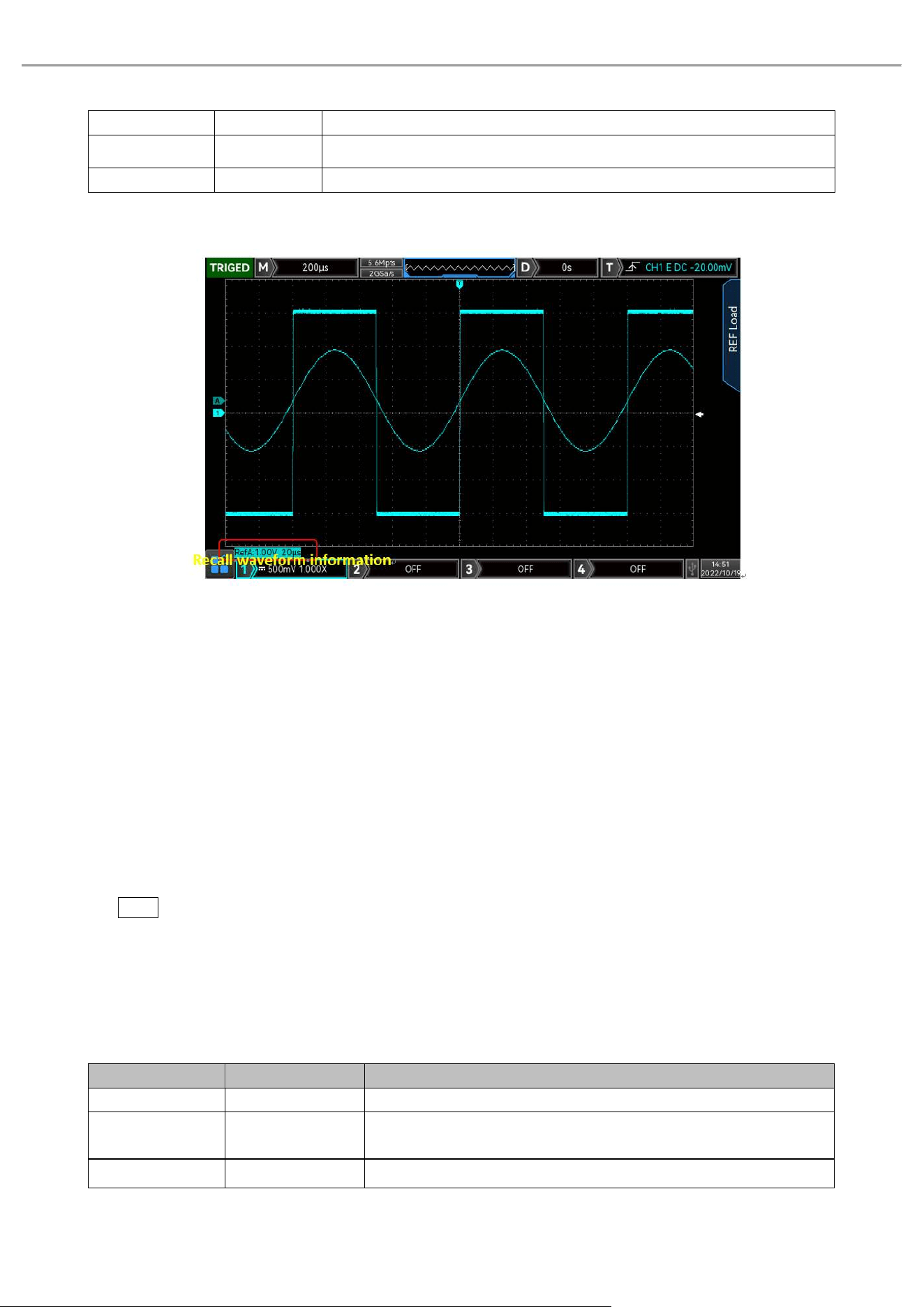
User’s Manual MSO/UPO2000 Series
73 / 137
Instruments.uni-trend.com
USB
Press REF, loading the waveform from external USB storage device.
Load
Press REF to pop out the select file frame, adjusting Multipurpose to select file
Delete
Turn off the current REF waveform.
The callback REF waveform is shown in Figure 12-1.
Figure 12-1
After the callback, the Ref waveform status will be displayed in the lower left corner, including time base
scale and amplitude scale. User can use the VERTICAL and HORIZONTAL control knob to adjust the Ref
waveform position on the screen and the time base scale and the amplitude scale.
Remark
Only when the oscilloscope is connected to an external USB storage device, user can select the
disk as USB, and then save the settings to the USB storage device. When the USB storage device
is not connected, it will prompt “Detect USB device is failed.”
12.3 Print Screen
The PrtSc key can be used to store the current screen in PNG format to an external USB storage device. The
bitmap can be opened directly on the PC. This function can only be used when external USB storage device
is connected.
12.4 Arbitrary Waveform Storage and Loading
Table 12-4 Arbitrary Waveform Menu
Function Menu
Setting
Description
Type
Arbitrary Waveform
Source
CH1,CH2, CH3, CH4
Set which channel waveform to be saved.
Disk
Local
Press save key, the arbitrary waveform will be saved in oscilloscope
User’s Manual MSO/UPO2000 Series
74 / 137
Instruments.uni-trend.com
USB
Press save key, the arbitrary waveform will be saved in external USB storage
device
Filename
Press filename soft key to pop out virtual keyboard, touch screen or adjusting
Multipurpose knob to select letter and digit. The default filename is UNIT001.
Rotating Multipurpose knob to directly change the filename, the length limit
is 79 characters.
Save
Performing the save setting, save the setting as .bsv format to the specified
storage location.
Time Cursor
Set the storage range of arbitrary waveform, it can adjust by Multipurpose
knob.
AWG CHA Output
AWG
Directly output the selected waveform on the screen into CHA/CHB of AWG
and named “Arb.csv”, the waveform file will not save.
AWG CHB Output
AWG
After the arbitrary waveform is saved, use AWG function to loading, the operating refer to
“Select arbitrary
waveform”.
12.5 Picture Storage
Table 12-5 Preview menu of picture storage
Function Menu
Setting
Description
Type
Picture
Format
Original picture
Oscilloscope screenshot is saved in the color displayed on the oscilloscope
interface
Save ink
Oscilloscope screenshot will turn the dark background into light color for
storage, the purpose is saving ink to printing photos.
Grayscale
Oscilloscope screenshot will turn the color picture to grayscale picture for
storage.
Save ink &
grayscale
Oscilloscope screenshot will turn the dark background into light color, color
picture to grayscale picture for storage.
Preview
Adjust the order of stored picture in USB device, display the corresponding
picture on the screen of the oscilloscope. And the picture is on the top. Press
other function key to automatically close the preview picture.
Save
Press save key, the current waveform will saved as .png format into external
USB device.
Exit
Turn off the display of preview picture.
12.6 Saved Path
After a file or picture is saved on a USB storage device, a UNIT folder is automatically generated in the root
directory of the USB storage device. In this folder, lower-level folders are automatically generated based on
file types. The saved files are stored in these folders. The system automatically classifies files based on their
types and saves them to folders of their own types.

User’s Manual MSO/UPO2000 Series
76 / 137
Instruments.uni-trend.com
13.1 System Function
(1) Automatic Calibration
Automatic calibration allows the oscilloscope to work optimally to obtain the most accurate
measurements. Automatic calibration divide into analog channel calibration and LA calibration. This
function can perform at any time, especially when the ambient temperature range reaches or exceeds
5 ℃ . Before performing the automatic calibration operation, make sure that the oscilloscope is
operating for more than 20 minutes.
a. Analog channel calibration:Only calibrating analog channel and calibrating time about 3 ~5min.
b. LA calibration:Only calibrating digital channel and calibrating time about 3 ~5min.
(2) System Information
System Information can view the system information of the oscilloscope, which includes model, SN
number, software version number, hardware version number, FPGA version number, manufacturer and
website’s QR code.
(3) Language
Language can set system language to English, simplified Chinese. By default, language display is the
current setting.
(4) Interface Setting
Interface menu can set menu display time and transparency of pop out dialog. Menu display time can
set to 5s, 10s, 20s or manual. The default setting is manual.
(5) Square Output
Square Output can set the output frequency of local square waveform, which can set to 10 Hz, 100 Hz, 1
kHz or 10 kHz. The default setting is 1 kHz.
(6) Frequency Meter
Frequency Meter can set the state of frequency meter (on/off). Source can set to CH1~CH4 or trigger
source. When the frequency meter is enabled, source and frequency meter information in Freq pop out
dialog will display on the top of the screen. When the frequency meter is disabled, Freq pop out dialog
will disappear. Frequency meter is the counter of trigger event frequency in the trigger channel, display
as hardware 7 digitals frequency meter.
(7) AUX Output Selection
Output Selection set which signal can output via AUX OUT port, it can select “trigger “or pass/fail test.
When “trigger” is selected, AUX OUT port exports trigger synchronizing signal. When “pass/fail test” is
selected, AUX OUT port exports the output signal of pass /fail test. The default setting is “trigger”.
(8) Automatic Setting
Auto can set hold or auto mode. Hold which is keep the setting before AUTO; AUTO which is freely to set
and not keep the setting, such as channel setting, sampling setting, trigger setting and active channel.
a. Channel setting:In hold mode, remain the bandwidth limit and inverse phase, restore coupling
(ground) and volts/div scale to the default value.
b. Sampling setting:In hold mode, remain the sampling mode and average time, restore the storage
User’s Manual MSO/UPO2000 Series
77 / 137
Instruments.uni-trend.com
depth to automatic.
c. Trigger setting:In hold mode, remain source and trigger coupling setting, other setting will restore
to “edge trigger, automatic, rising edge.”
d. Signal setting:Remain the channel state.
(9) Clear Data
Clear can delete stored waveform and the setting file in the oscilloscope.
(10) SCPI Port
SCPI port configuration can allocate USB and UART. The default setting is USB.
(11) Internet Setting
When the device is connected with available internet, IP setting can set the IP, subnet mask and gateway
of the oscilloscope.
a. Mode:Switch IP acquire mode, it can set manual or auto.
Manual:Set IP address, subnet mask and gateway by manual
Auto:Only for checking IP address, subnet mask and gateway
b. IP Address:IP address format is nnn.nnn.nnn.nnn,the first nnn range is from 1 to 233, the second
nnn range is from 0 to 255. It is recommended that user can consult network administrator for an
available subnet mask.
c. Subnet mask:The format is nnn.nnn.nnn.nnn,the nnn range is from 0 to 255. It is recommended
that user can consult network administrator for an available subnet mask.
d. Gateway:The format is nnn.nnn.nnn.nnn,the first nnn range is from 1 to 233, the second nnn range
is from 0 to 255. It is recommended that user can consult network administrator for an available
subnet mask.
(12) RTC Setting
RTC can set the time of the oscilloscope. User can separately set year, month, date, hour and second.
Switch the setting item by key. After the setting is completed, the oscilloscope will display the setting
time.
Note:If RTC time is networking and synchronizing the internet time, the adjustment will not take effect.
(13) Boot Loading
Boot Loading can set whether to automatically set the settings before the shutdown when the
oscilloscope starts up. It can set the last setting or the default setting.
Last setting: Load all the settings before shutdown;
Default setting: Restore the oscilloscope to the default factory setting after starting up.
(14) Power-on Mode
Set the power-mode of the oscilloscope, it can set always off, always on and last status.
Always off: After the power switch on the rear panel of the oscilloscope is turned on, user should press
the soft boot key by manual on the front panel of the oscilloscope. Then the oscilloscope will power on.
Always on: After the power switch on the rear panel of the oscilloscope is turned on, the oscilloscope
will directly power on.
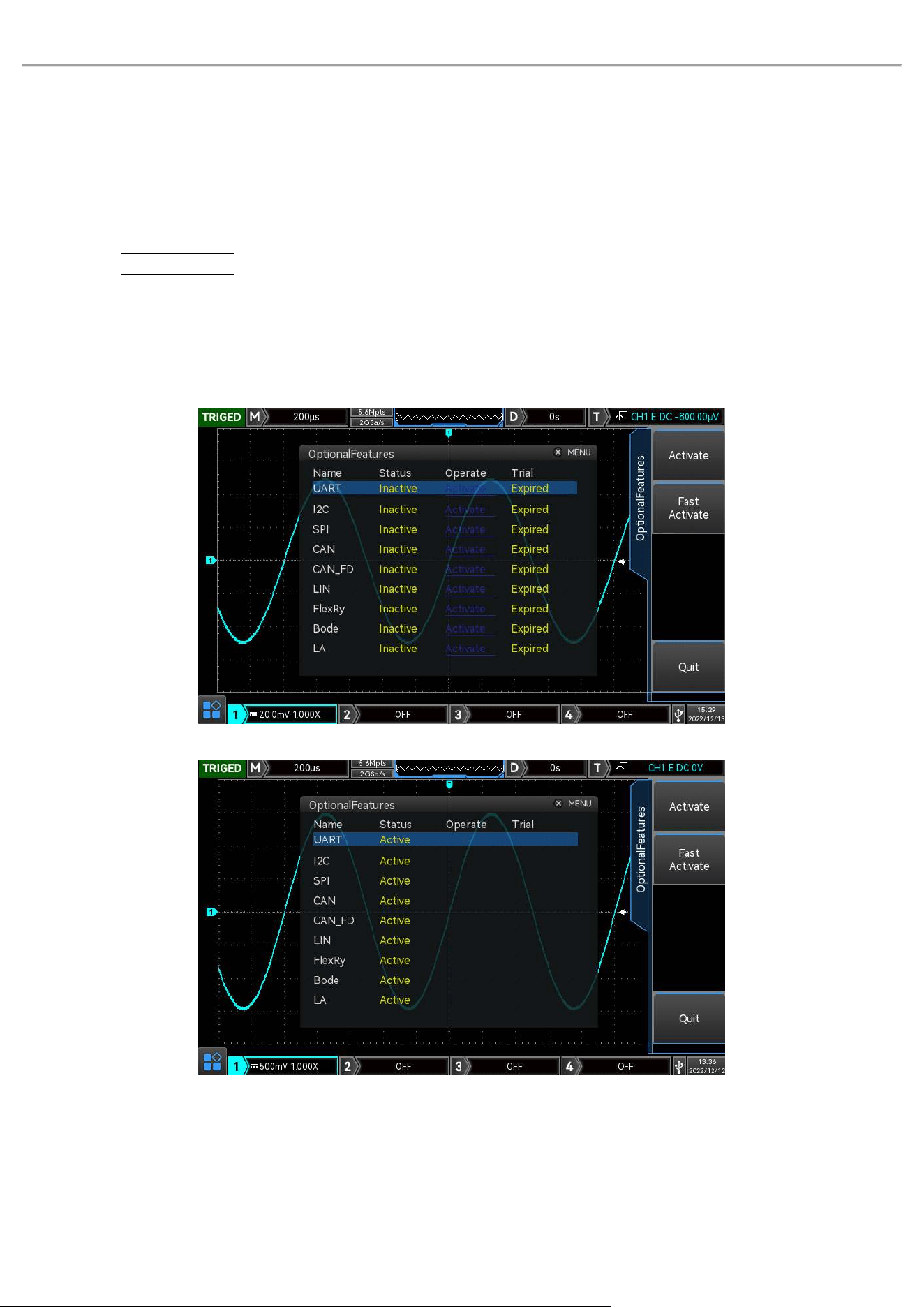
User’s Manual MSO/UPO2000 Series
78 / 137
Instruments.uni-trend.com
Last status: After the power switch on the rear panel of the oscilloscope is turned on, the oscilloscope
will rebooting with the last shut down status. If the last shut down is turned off by soft key, then the
oscilloscope should press the soft key to power on; if the last shut down is turned off directly, then it will
power on directly.
(15) Option Function
Option Function is the entrance of activating option, it can select to activate single option (as shown in
Figure 13-1) or activate all (as shown in Figure 13-2). All options supports free trial for 145 hours as shown
in Figure 13-1. After free trial, the option should purchase to use. Activating option should select the
purchased option and acquire the corresponding license and save it into USB and then insert to the
instrument. MSO2000+ option supports UART, I
2
C, SPI, CAN, CAN_FD, LIN, FlexRay, bode diagram and
LA.
Figure 13-1
Figure 13-2
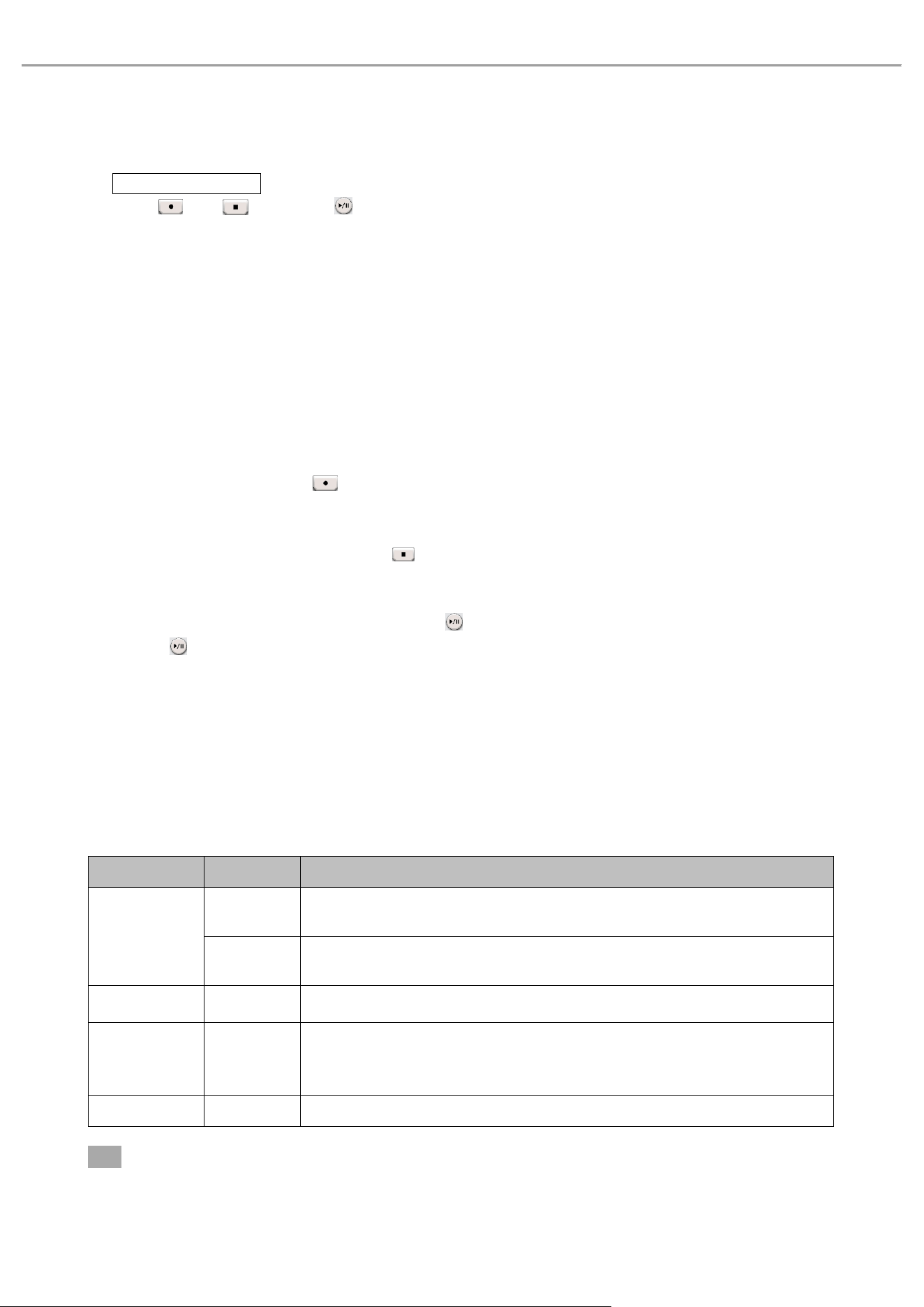
User’s Manual MSO/UPO2000 Series
79 / 137
Instruments.uni-trend.com
13.2 Recording Waveform
Recording Waveform can set to record the waveform, this function includes recording setting(REC SET),
record , stop and display .
(1) Recording Setting
Set the parameter of recording waveform, which includes recording interval, end of frame and playback
delay.
a.
Recording interval:Set time interval between each frame of waveform recording.
b.
End of frame:The waveform recording will automatically stop recording when it reaches the end
frame.
c.
Playback delay:Set time interval between each frame of playback waveform.
(2) Record
Start to recording or press to directly recording.
(3) Stop
Stop the waveform recording or press to stop it.
(4) Play
Start to play the waveform playback or press to start it. When the waveform play back is playing,
press to pause it. Adjusting Multipurpose knob (jag dial or numeric keyboard) to jump to the
specified frame.
(5) Quick Record
Quick record is continuously recording waveform for improving waveform capture rate; in quick record
mode, the waveform will not displayed on the screen. The waveform can only played when the recording
is finished. Quick record can set to on or off.
(6) Save the recording content
Table 13-1 Record Storage
Function Menu
Setting
Description
Type
Waveform
Save record waveform into USB. Open and play analysis in the analysis software of the
upper computer.
Picture
Save record waveform as picture format into USB. Open and play analysis in the analysis
software of the upper computer.
Disk
USB
Press save key, the setting will save into external USB storage device.
Filename
Press filename soft key to pop out virtual keyboard, touch screen or adjusting
Multipurpose knob to select letter and digit. The default filename is UNIT001. Rotating
Multipurpose knob to directly change the filename, the length limit is 79 characters.
Save
Press save key, save the setting to the specific storage position.
Note: Each stored frame is related to play delay when save recorded picture. The maximum picture storage
is 10000
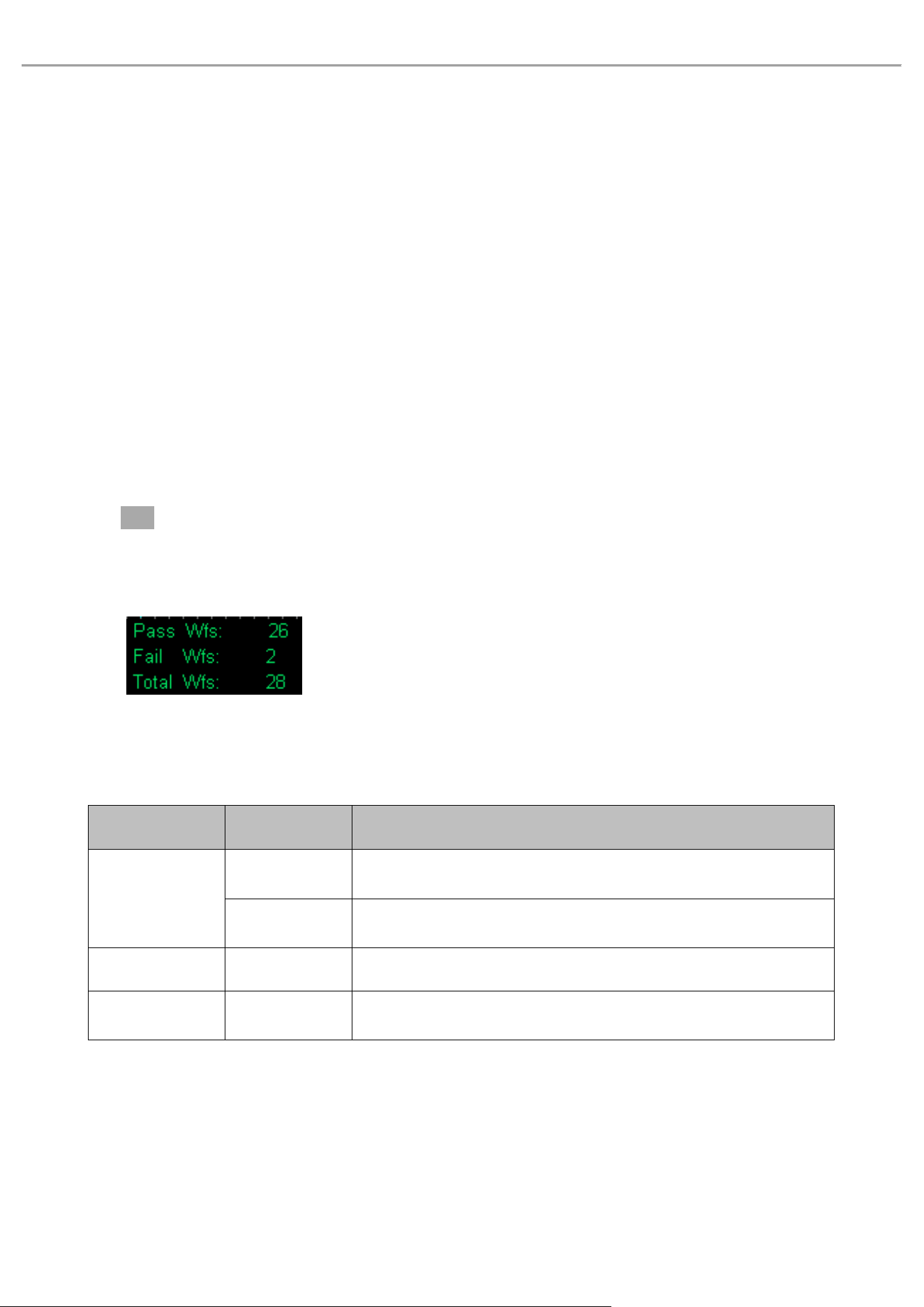
User’s Manual MSO/UPO2000 Series
80 / 137
Instruments.uni-trend.com
. 13.3 Pass/Fail Test
Pass/Fail can set the template and judgment condition to perform Pass/Fail test, which can set allow to test,
output, information source, operating, template and stop setting.
The Pass/Fail uses a template to detect whether the input signal within the range of the template
requirements. If the input signal exceeds the limited range of the template, it is judged as failed.
(1) Allow to test
Allow to test is to select whether perform test or not. ON: turn on to set and perform the test; OFF: not
allow to perform the test.
(2) Output
Set which signal output by AUX port, which can set pass or fail.
a. Fail:Set the AUX port on the rear panel of the oscilloscope to output pulse when it is “fail” and
produce beeps.
b. Pass:Set the AUX port on the back panel of the oscilloscope to output pulses when it is“pass” and
produce beeps.
Note:AUX output selection needs to switch to Pass test.
(3) Display Information
Set whether the test result is display on the right corner of the screen, as shown in the following figure.
Total Wfs represents the total frame number that has tested;
Pass Wfs represents the frame number that has passed;
Fail Wfs represents the frame number that has failed.
(4) Stop Setting
Set the stop conditions for pass/fail test, and automatically stop the test when the condition is met.
Table 13-2 Condition Setting
Function Menu
Setting
Description
Stop Type
Pass Count
Set the Pass/Fail function to stop the test automatically after it reaches the
specified threshold count of pass.
Fail Count
Set the Pass/Fail function to stop the test automatically after it reaches the
specified threshold count of failure.
Condition
>=, <=
Set stop condition
Threshold
Adjusting Multipurpose knob to set the threshold of stop condition. The default
value is 1.
(5) Template Setting
Template setting is to set the template of pass/fail test. CH1 is used as the reference waveform to create
a template by default. If the waveform is within the template range, then the output is successful. If the
waveform exceeds the template range, then the output is failed.
User’s Manual MSO/UPO2000 Series
81 / 137
Instruments.uni-trend.com
Table 13-3 Template Setting
Function Menu
Setting
Description
Reference
Waveform
CH1, CH2, CH3, CH4,
Local REF, USB REF
Specify a channel waveform in CH1~CH4, DSO REF, USB REF and plus the
horizontal and vertical tolerance as the conditions for creating a template
Horizontal
Tolerance
1~100
Adjusting Multipurpose knob to select the range of horizontal tolerance. The
default value is 5.
Vertical Tolerance
1~100
Adjusting Multipurpose knob to select the range of vertical tolerance. The
default value is 5.
REF Loading
Loading reference waveform as the reference waveform for creating
template.
(6) Operating
After all above setting is completed, press operating key to run the pass/fail test.
13.4 System Update
This series can use USB to update program. It’s convenient and flexible.
USB update has two methods. Method 1: Turn on the oscilloscope to detect USB update; Method 2:
utility-update-detect USB update file and select the file to update. The specific steps refer to the
following.
Method 1
a. Press UTILITY key to enter auxiliary function menu, press system key to check the system
information to find the model name, software and hardware version information.
b. Download the update file from UNI-T official website or ask UNI-T distributor to provide the
update file. The update file is the same as the model and hardware version of the instrument, the
software version is higher than the version of the instrument. Save the update file in the root
directory of the USB.
c. The instrument is in shut down state. Insert USB and boot the instrument, wait it to enter the
upgrade interface, and then press F1 to confirm to update.
d. Updating process requires about 5min. After it finished, turn off the instrument and plug out USB.
e. Reboot the instrument to check whether the system information is same as the provided version.
If it is the same that means the update is successful.
Method 2
a. Press UTILITY key to enter auxiliary function menu, press system key to check the system
information to find the model name, software and hardware version information.
b. Download the update file from UNI-T official website or ask UNI-T distributor to provide the
update file. The update file is the same as the model and hardware version of the instrument, the
software version is higher than the version of the instrument. Save the update file in the root
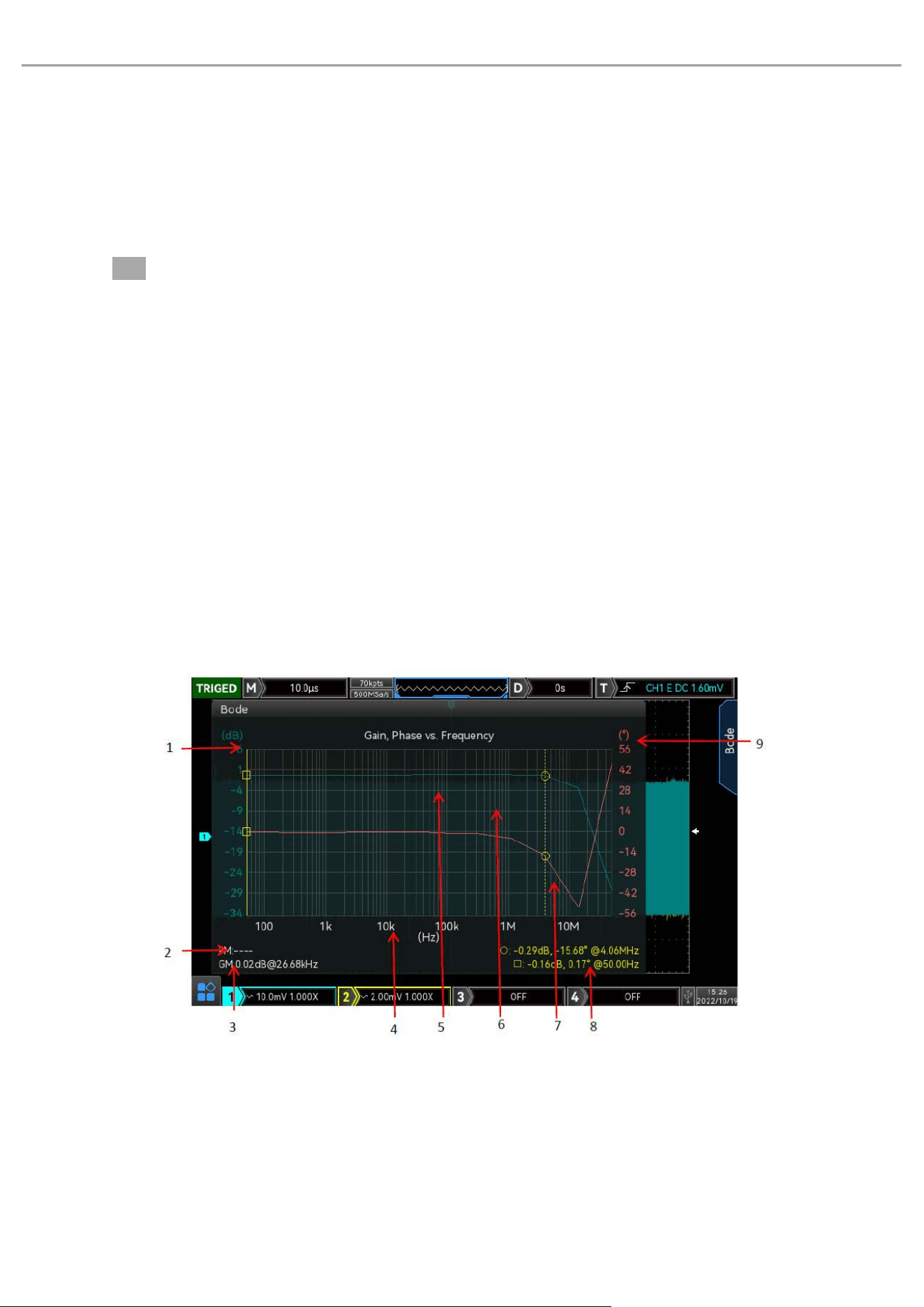
User’s Manual MSO/UPO2000 Series
82 / 137
Instruments.uni-trend.com
directory of the USB.
c. Turn on the oscilloscope and insert UBS into the oscilloscope. Press Utility- Upgrade to check the
update file.
d. Select the update file and confirm to upgrade.
e. After the upgrade is finished, reboot the oscilloscope to complete the update.
Note:Please ensure that the power is not turned off during the entire upgrade process, it is to avoid
failure to reboot due to incomplete system upgrade content.
13.5 Bode Diagram
Bode diagram function is for the frequency respond curve of the device under test DUT, as shown in
Figure 13-3.In scanning. During the scan, the oscilloscope configures the function/arbitrary waveform
generator output signal and connects to the DUT, then compares the DUT input signal with the DUT
output signal.
Each frequency will measuring gain (G) and phase (p) and drawing in the frequency respond bode diagram.
When the loop respond analysis is completed, user can move cursor on the diagram for checking the gain
and phase value of each frequency. User can also adjust the figure scale and displacement setting for
amplitude and phase graphs.
Figure 13-3
1:Gain scale is display based on the setting gain scale and gain displacement.
2: Phase Margin (PM) value is the difference value between the phase measurement corresponding
to the frequency point with a gain of 0dB and 0°.
3:Gain Margin (GM) value is the difference value between the gain measurement at 0dB and the
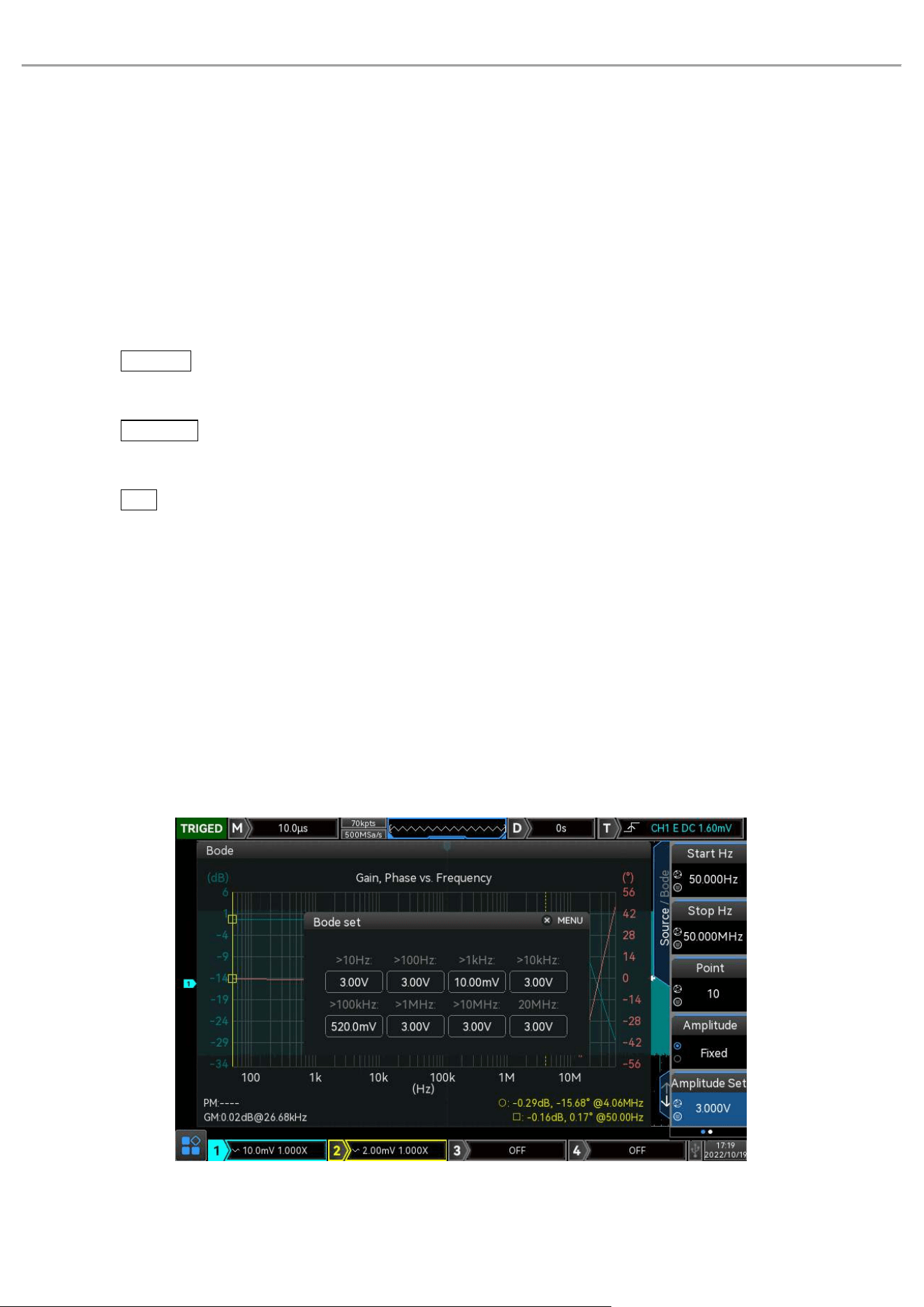
User’s Manual MSO/UPO2000 Series
83 / 137
Instruments.uni-trend.com
frequency point at 0° phase. That is GM=0db –gain measured value.
4:Frequency scale is display based on start frequency and stop frequency of the scanning .
5:Scanning the gain result curve.
6:Scanning the phase result curve.
7:Cursor,please refer to chapter “cursor”.
8:The gain value, phase value and frequency value of the intersection of the two cursor lines with the
gain curve and the phase curve.
9:Phase scale is display based on the setting phase scale and phase displacement.
(1) Operating
Operating can turn on/off bode diagram function.
(2) Scanning Mode
Scan Mode can set single scanning or continuous scanning
(3) Scanning Setting
Scan can set scanning parameter, which is start frequency, stop frequency, scanning point, amplitude
mode, amplitude setting, DC displacement and source impedance, as shown in Figure 13-4.
a. Start frequency:Set start frequency of the scanning, the range can set to 50Hz ~ 50MHz.
b. Stop frequency:Set stop frequency of the scanning, the range can set to 60Hz ~ 50MHz.
c. Scanning point:Set the scanning point, the higher the number of points the higher the scanning
resolution. The range can set to 1~1000.
d. Amplitude mode:Set the amplitude of scanning signal, which can be fixed amplitude or variable
amplitude.
e. Amplitude setting: In fixed amplitude mode, it can only set one fixed amplitude; in variable
amplitude, signal at different frequency can set different amplitude, the range can set to 10 mV ~
3 V.
f. DC displacement:Set the offset of the scanning signal, the rang can set to -1 V~1 V.
g. Source impedance:Set source load, which can be 50Ω or high resistance.
Figure 13-4

User’s Manual MSO/UPO2000 Series
84 / 137
Instruments.uni-trend.com
(4) Channel Selection
Channel Selection can set the input and output signal channel of DUT.
a. DUT input:Select the input signal channel of DUT, which can be CH1~CH4.
b. DUT output:Select the output signal channel of DUT, which can be CH1~CH4.
(5) Display Setting
Set the display parameter, which can set automatic setting, gain scale, gain displacement, phase scale,
phase displacement, start frequency, stop frequency, gain display and phase display.
a. Automatic setting: The oscilloscope is automatic set gain scale, gain displacement, phase scale,
phase displacement, start frequency, stop frequency based on the amplitude curve and phase
curve.
b. Gain scale:Set the gain scale in waveform window, the range can set to 1dB ~ 500dB.
c. Gain displacement:Set the gain displacement in window frame, the range can set to -250dB ~
250dB.
d. Phase scale:Set the phase scale in window frame, the range can set to 1°~ 180°.
e. Phase displacement:Set the phase displacement in window frame, the range can set to -180°~
180°.
f. Start frequency:Set the start frequency display on the horizontal axis in window frame, the range
can set to 50Hz ~ 50MHz.
g. Stop frequency:Set the stop frequency display on the horizontal axis in window frame, the range
can set to 60Hz ~ 50MHz.
h. Gain display:Set whether display gain data and the relevant information in window frame, which
can set ON or OFF.
i. Phase display:Set whether display phase data and the relevant information in window frame, which
can set ON or OFF.
(6) Cursor
MSO/UPO2000 supports using the cursor to assist in measuring the baud chart curve as shown in Figure
13-5. It can set cursor state and mode.
a. State:Turn on, off cursor.
Turn on:Two cursors will display in bode diagram curve. Using Multipurpose knob or touch gesture
to move cursor position. The data list will display its scanning point information and the phase value,
gain value and frequency value intersecting with the cursor will display on the right bottom corner.
Turn off:Hide cursor, the relevant measured value will not display on the right bottom corner.
b. Mode:Set cursor moving mode, which can set independent or track. Press Multipurpose knob to
switch the mode.
Independent:Two cursors can move independent.
Track:Two cursors can move in the same time.
(7) Data List
Data list displays all scanning point information scan by bode diagram as shown in Figure 15-5, which
includes serial number, frequency, amplitude, gain and phase information. It can set turn on or off.
a. ON:Turn on the left data list pop out frame. When the cursor is turned on, using Multipurpose knob
or touch to select scanning point, cursor on the right figure will move to the corresponding position.
b. OFF:Turn off pop out frame.
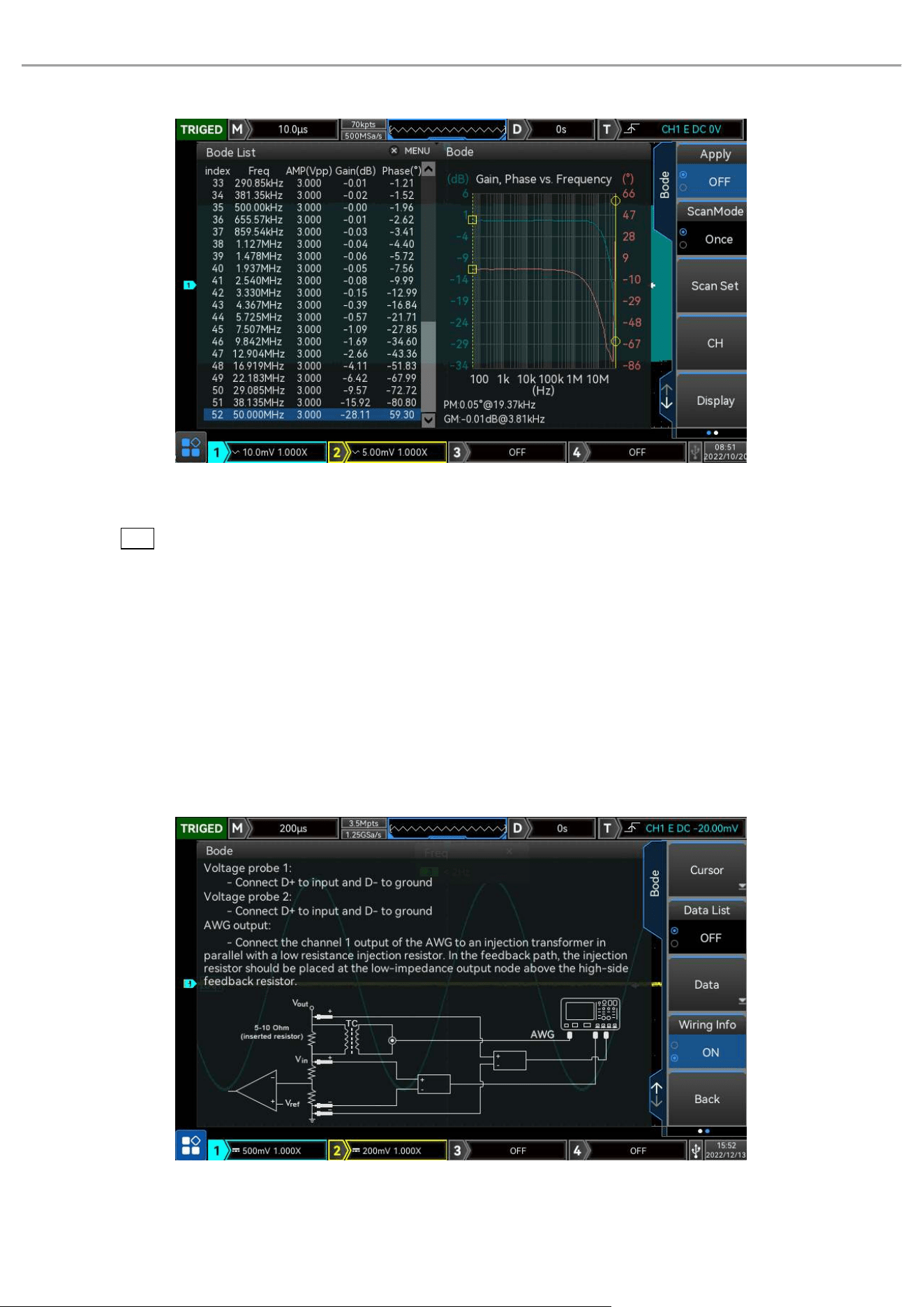
User’s Manual MSO/UPO2000 Series
85 / 137
Instruments.uni-trend.com
Figure 13-5
(8) Data
Data can set save and load the scanning data information of bode diagram, which is set the file name,
save or load the file.
a. Input name: Touch or press the input key to pop out the virtual keyboard , touch to select or adjust
Multipurpose knob to select letter and digit.
b. Storage:Save bode diagram’s scanned data as the .csv format into USB. Insert USB to set it.
c. Reload:Reload bode diagram’s scanned data from USB. Insert USB and it should has the relevant
data.
(9) Wiring Diagram
Before using bode diagram function, it should proper to set loop connecting as shown in Figure 13-6.
User can see the wiring explanation and wiring connecting figure in pop out window.
Figure 13-6
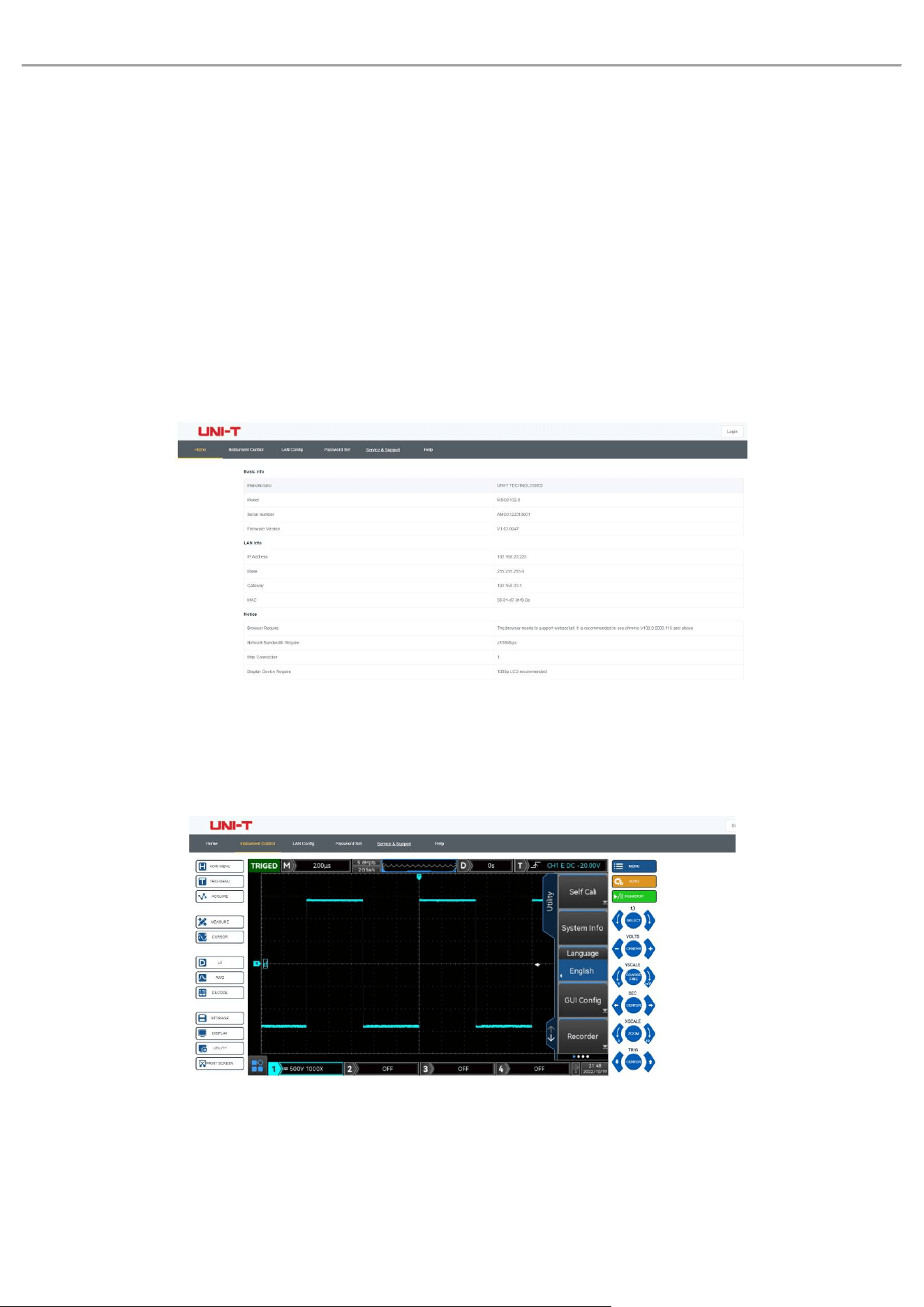
User’s Manual MSO/UPO2000 Series
86 / 137
Instruments.uni-trend.com
13.6 Web Access
(1) Access Local Area Network
The computer and the oscilloscope should under the same LAN. Check the IP address through the
UTILITY menu of the oscilloscope, and then the browser accesses the oscilloscope by IP: 9000 port.
Example:
Computer IP: 192.168.42.3
Oscilloscope IP: 192.168.42.12
PC browser using 192.168.42.12:9000 to access the oscilloscope
View the basic information, as shown in Figure 13-7.
Figure 13-7
Log in to check the instrument setting, internet setting and password setting. Web user name and password
see Utility/System Information. View waveform and control, as shown in Figure 13-8.
Figure 13-8
In Web page, click the corresponding key and knob to control the oscilloscope. Multiple operating can be set
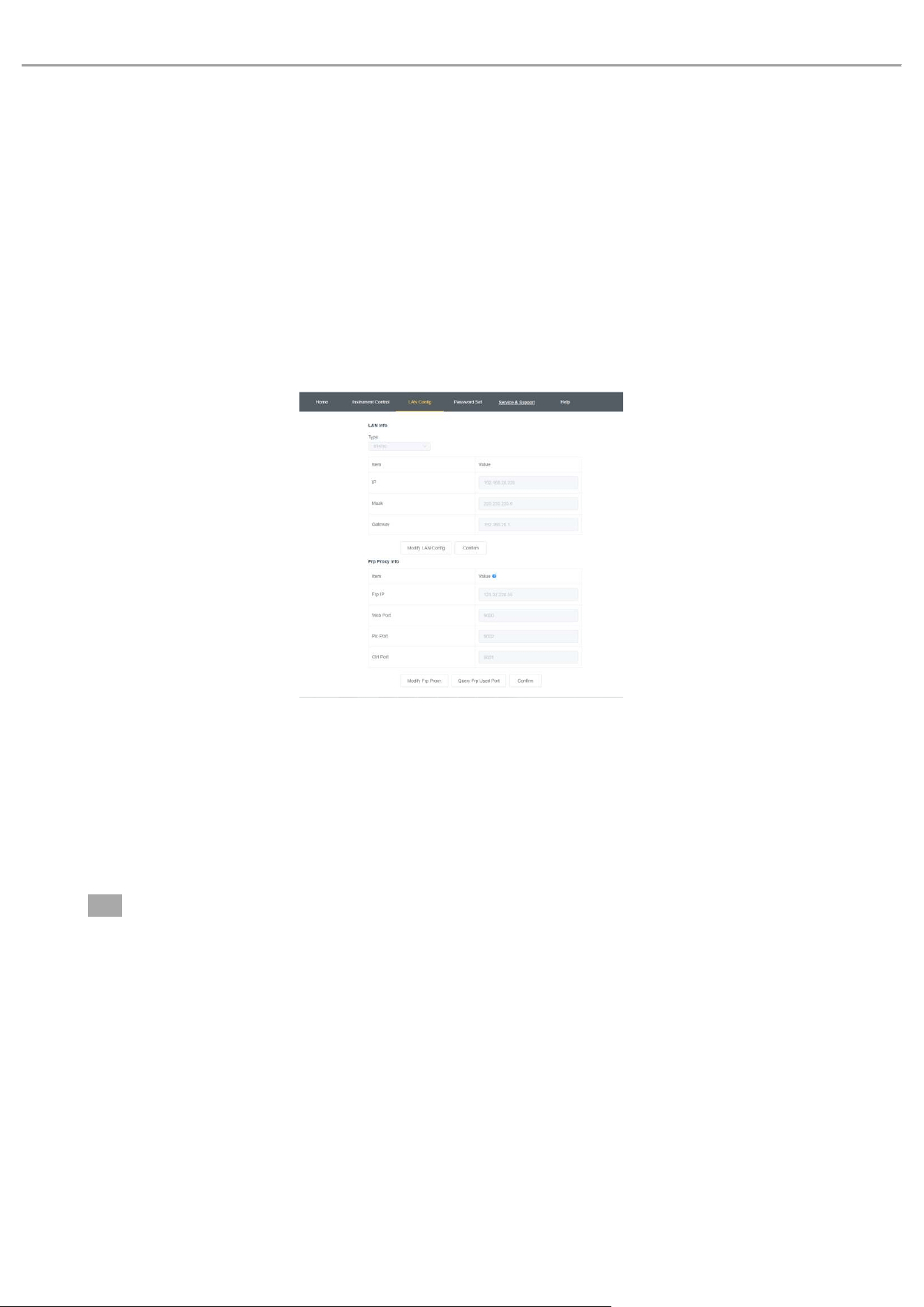
User’s Manual MSO/UPO2000 Series
87 / 137
Instruments.uni-trend.com
in screen part of the oscilloscope, such as
a. drag waveform cursor to adjust the vertical position of the waveform; drag the trigger position cursor to
adjust the trigger position.
b. click the channel to switch turn on/off the current channel
c. user mouse wheel to adjust the amplitude volts/div scale in the channel
d. user mouse wheel to adjust the time base scale in time base position (M)
e. slide left right to adjust the pretrigger position in D display area. Click the trigger delay to move the
pretrigger position to the center of the screen.
f. click menu to adjust the setting option directly
The internet setting information of the oscilloscope, as shown in Figure 13-9.
Figure 13-9
(2) Access Outer Network
a. Plug the network cable into the oscilloscope and the network can be access internet
b. Open frp proxy service on the server
c. Configure the oscilloscope frp proxy IP and port
d. The browser can access the proxy IP:9000 port, and the access interface LAN is consistent.
Note: This oscilloscope uses frp intranet penetration way to achieve external network access. frp use version
is 0.34.0. This machine with frp-0.34.0 client, it need use with the server, the server needs to open
frp server, the client connects to the frp server port is 7000, so the server needs to configure
bind_port = 7000
(3) Network Parameter Setting
a. Local area network setting
It should log in to access the internet setting of the oscilloscope, web user name and password see
Utility/System Information. The setting interface as shown in Figure 13-10.
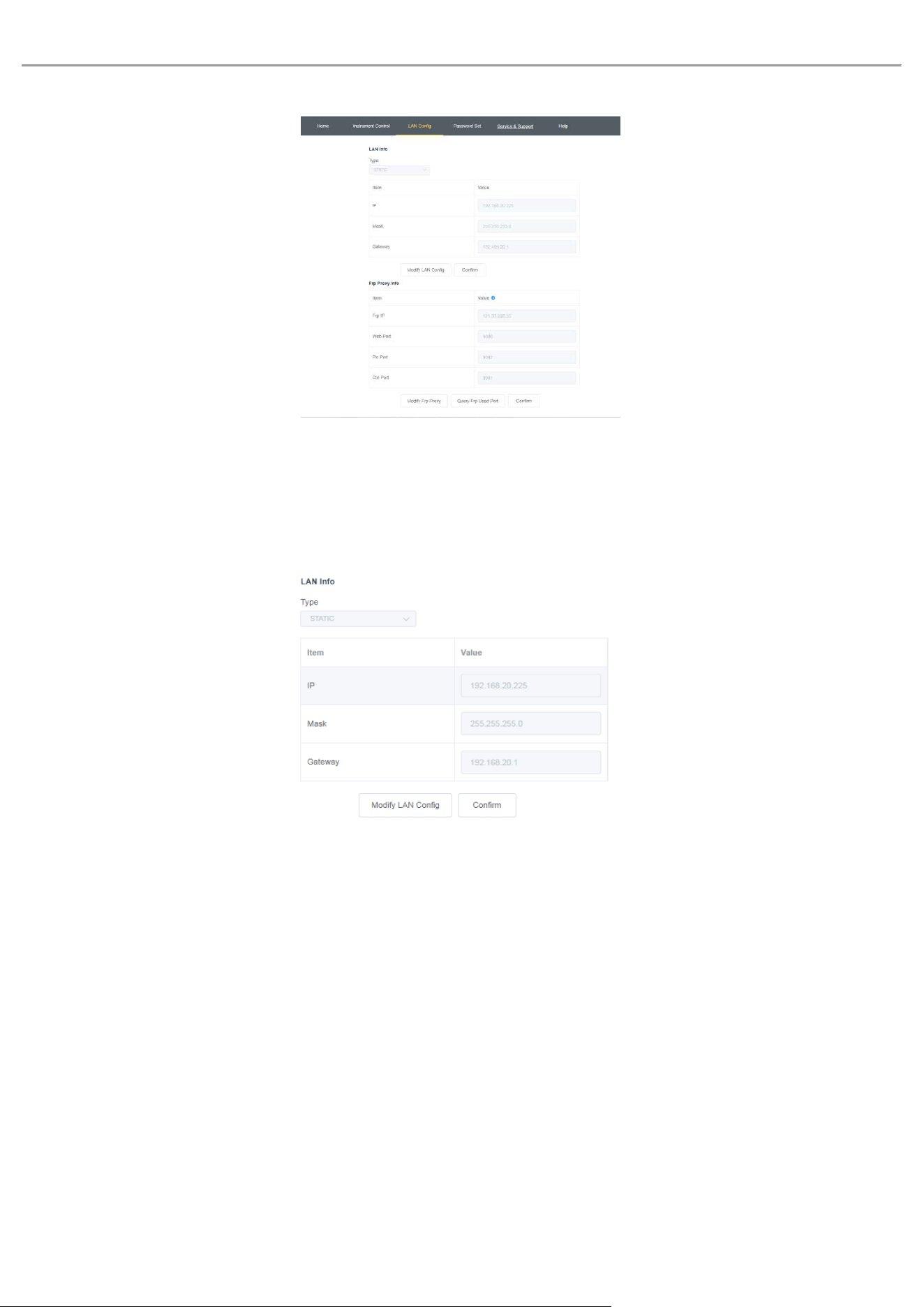
User’s Manual MSO/UPO2000 Series
88 / 137
Instruments.uni-trend.com
Figure 13-10
Internet information setting includes IP address acquisition method (dhcp/static), local IP address, subnet
mask and gateway. If IP setting is dhcp, it not need to fill in the configuration IP address, subnet mask and
gateway, click confirmation directly. If IP setting is STATIC, it should fill in the correct IP address, subnet
mask and gateway, and then click confirmation, as shown in Figure 13-11.
Figure 13-11
Click the confirmation after the input is completed, it can continuous to access according to the new
modified IP address information (in correct configuration)
b. frp proxy network information setting
The setting interface setting as shown in Figure 13-12.
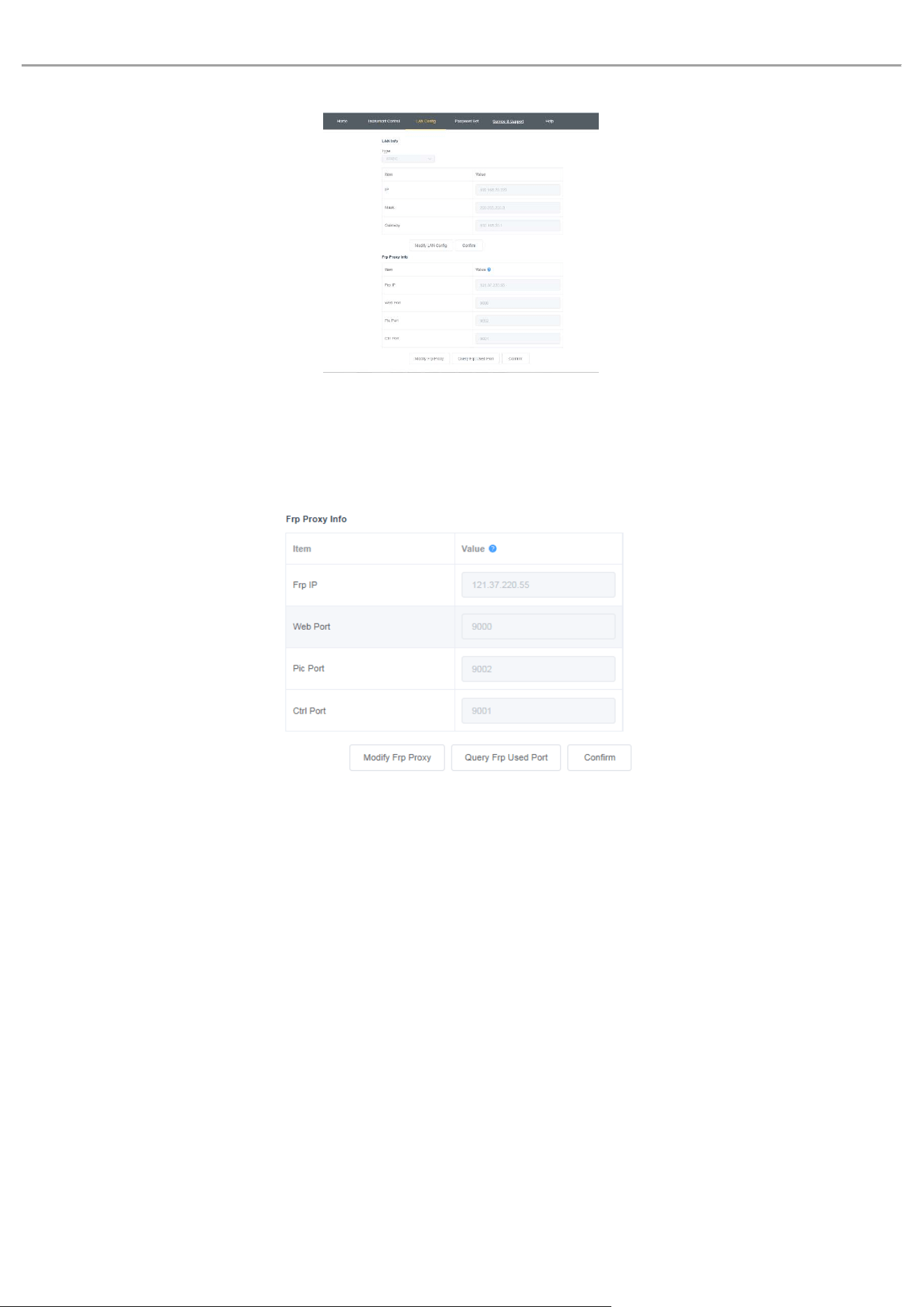
User’s Manual MSO/UPO2000 Series
89 / 137
Instruments.uni-trend.com
Figure 13-12
It includes frp proxy network server IP address, web_port,pic_port proxy port and ctrl_port proxy port.
Click to change frp setting,that is to edit proxy IP address, web_port,pic_port,ctrl_port,as shown in
Figure 13-13.
Figure 13-13
Click the confirmation after the input is completed, it can continuous to access according to the new
modified frp proxy IP address information (in correct configuration).
Note: If each oscilloscope is connect with the same frp server, then web_port,pic_port,ctrl_port of each
oscilloscope should be consistent , otherwise frp proxy fails and cannot access.
If frp proxy is modified, it cannot access by local area network IP: 9000. If user need to recover the normal
access, press the DEFAULT button on the oscilloscope panel to reset the configuration and then use IP:
9000 port to access.
(4) Password Setting
Password setting is for the user account to log in. After the user changes the login password, the user
needs to use the new password for the next login. If you forget the password, reset the password by
pressing the DEFAULT button on the oscilloscope panel.

User’s Manual MSO/UPO2000 Series
90 / 137
Instruments.uni-trend.com
14. Protocol Decoding
MSO/UPO2000 performs common protocol decoding for input signal of analog channel, which includes
RS232, I
2
C, SPI, CAN, CAN-FD, LIN and FlexRay. User can easily find error, debug hardware, and speed up
development progress through protocol decoding. It guarantee high speed and quality completion of
projects.
RS232 Decoding
I
2
C Decoding
SPI Decoding
CAN Decoding
CAN-FD Decoding
LIN Decoding
FlexRay Decoding
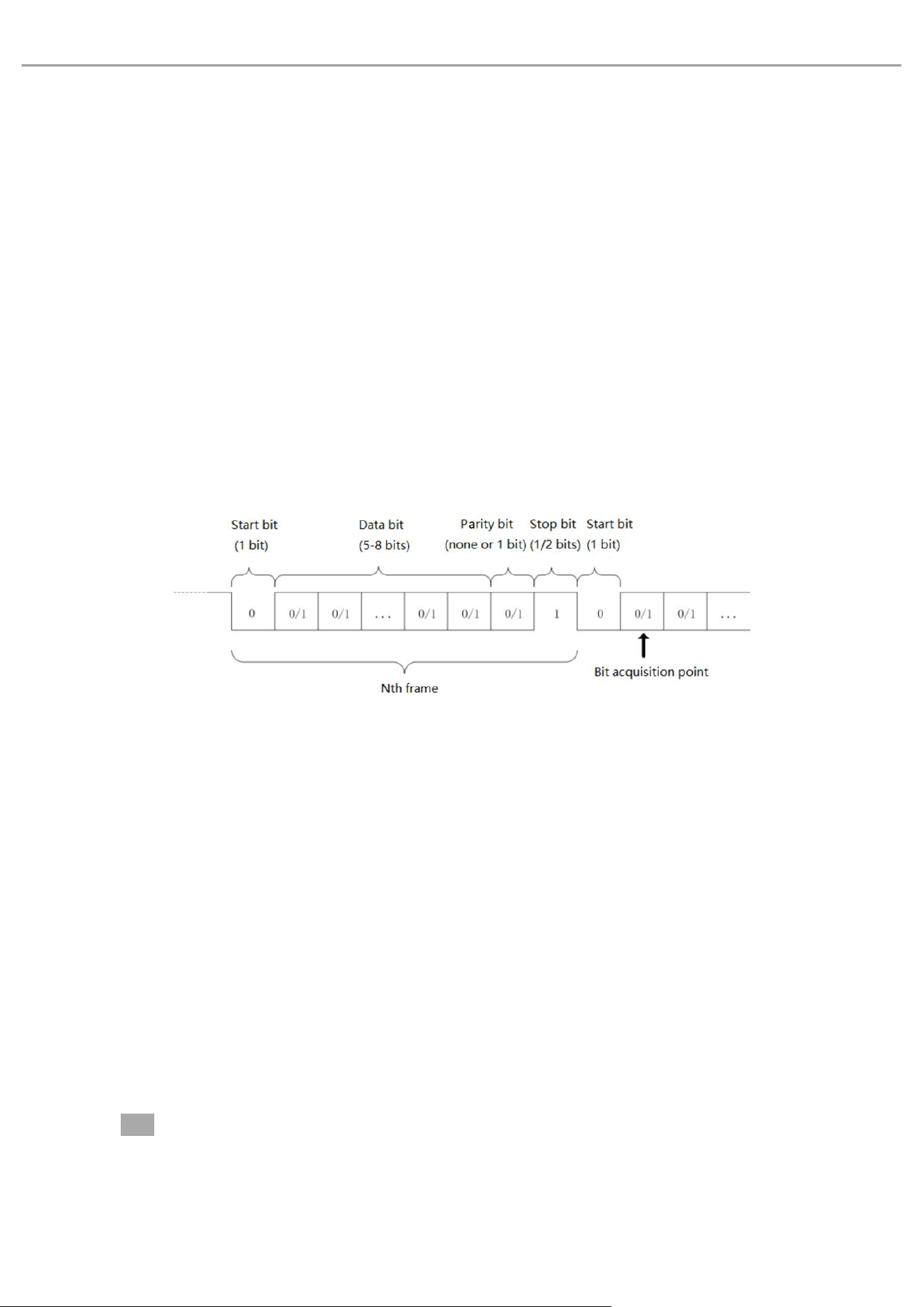
User’s Manual MSO/UPO2000 Series
91 / 137
Instruments.uni-trend.com
14.1 RS232 Decoding
RS232 interface is an asynchronous transmission standard interface developed by the Electronics Industry
Association. It is usually available in DB-9 or DB-25 applications. It is suitable for communication with data
transmission rate in the range of 0~29491200/s and is widely used in microcomputer communication
interface. The data to be sent is combined into a specific set of serial bits according to the protocol rules and
sent in an asynchronous serial.
The data sent each time is according to the following rules: send one start bit firstly, then 5 to 8 is data bits,
the next is optional parity bits, and the last is one or two stop bits. The number of data bits is agreed upon
by the two communicating parties and can be 5 to 8 bits, no parity bits, or select odd or even parity. Stop bit
can select one or two bits. In the following description, one data string transmission is referred to as one
frame, as shown in Figure 14-1.
Figure 14-1
(1) Bus Decoding
Bus decoding menu can set bus status, display format and event list and position.
a. Bus status: set whether bus decoding is enabled.
b. Display format: set the display format of bus decoding, it can be hexadecimal, decimal, binary
system or ASCII (Only for RS232).
c. Event list: display data after decoding in data line, the corresponding line number, time, data and
parity data in list format for observing the long decoded data.
d. Vertical position: adjusting Multipurpose knob to change the bus position, which can set the range
to 10~190.
(2) Information Source
Set the trigger source, which can be CH1, CH2, CH3, CH4 or D0-D15. The current selected source will
display on the right corner of the screen. The source supports display and select digital channel only
when the digital channel is opened in LA.
Note: Only the channel that has been connected to the signal, select it as the trigger source that can
get the stable trigger and correct decoding.

User’s Manual MSO/UPO2000 Series
92 / 137
Instruments.uni-trend.com
(3) Polarity
Press Polarity key to select the trigger polarity to positive or negative.
a. Negative: opposite logic level polarity, i.e. high level is 0 and low level is 1.
b. Positive polarity: normal logic level polarity, i.e. high level is 1, low level is 0.
(4) Parity
Set the parity mode of data transmission. It can select no parity, even parity or odd parity.
(5) Bit Width
Specify the data bit width of RS232 protocol signal to be decoded. 5 bits, 6 its, 7 bits, 8 bits can be
selected.
(6) Bit Order
Specify whether the data bits of the RS232 protocol signal to be decoded is high bit at the front (MSB) or
low bit at the front (LSB). MSB or LSB can be selected.
a. MSB:The high bit of data is transmitted first.
b. LSB:The low bit of data is transmitted first.
(7) Stop Bit
Stop bit which is set stop bit for each data frame. It can set to 1 bit or 2 bits.
(8) Baud Rate
When RS232 is asynchronous transmission communication, there is no accompanying clock signal
during data transmission. In order to solve the determination of data bits, the protocol stipulates that
both parties of communication should agree on the bit rate. Usually, the bit rate is defined as the number
of bits that can be transmitted in 1s. For example, 9600 bps means 9600 bits can be transmitted in 1s. It
should note that the start, data, parity and stop bits are all counted as bit, so the baud rate does not
directly equal to the effective data transmitting rate. The oscilloscope will sample the bit values
according to the setting baud rate.
Baud rate can be 2400 bps, 4800 bps, 9600 bps, 19200 bps, 38400 bps, 57600 bps, 115200 bps or user-
defined. The baud rate can be adjusted via the Multipurpose knob or jog dial when user-defined is
selected.
It is recommended to set the baud rate based on the hardware and software of RS232 communication
protocol. Due to the basic model of this transmission protocol, RS232 protocol is usually used for short
distance (under 20m) and low speed (under 1 Mbps) transmission. Communication beyond this range is
susceptible interference and unreliable.
14.2 I
2
C Decoding
I
2
C trigger usually used to connecting micro-controller and peripheral equipment, it’s widely applied in micro-
electronics area. This bus protocol has two lines to transmit, one line is serial data SDA,and another line is
serial clock SCL. Communicated by master-slave system which can both-way communication between
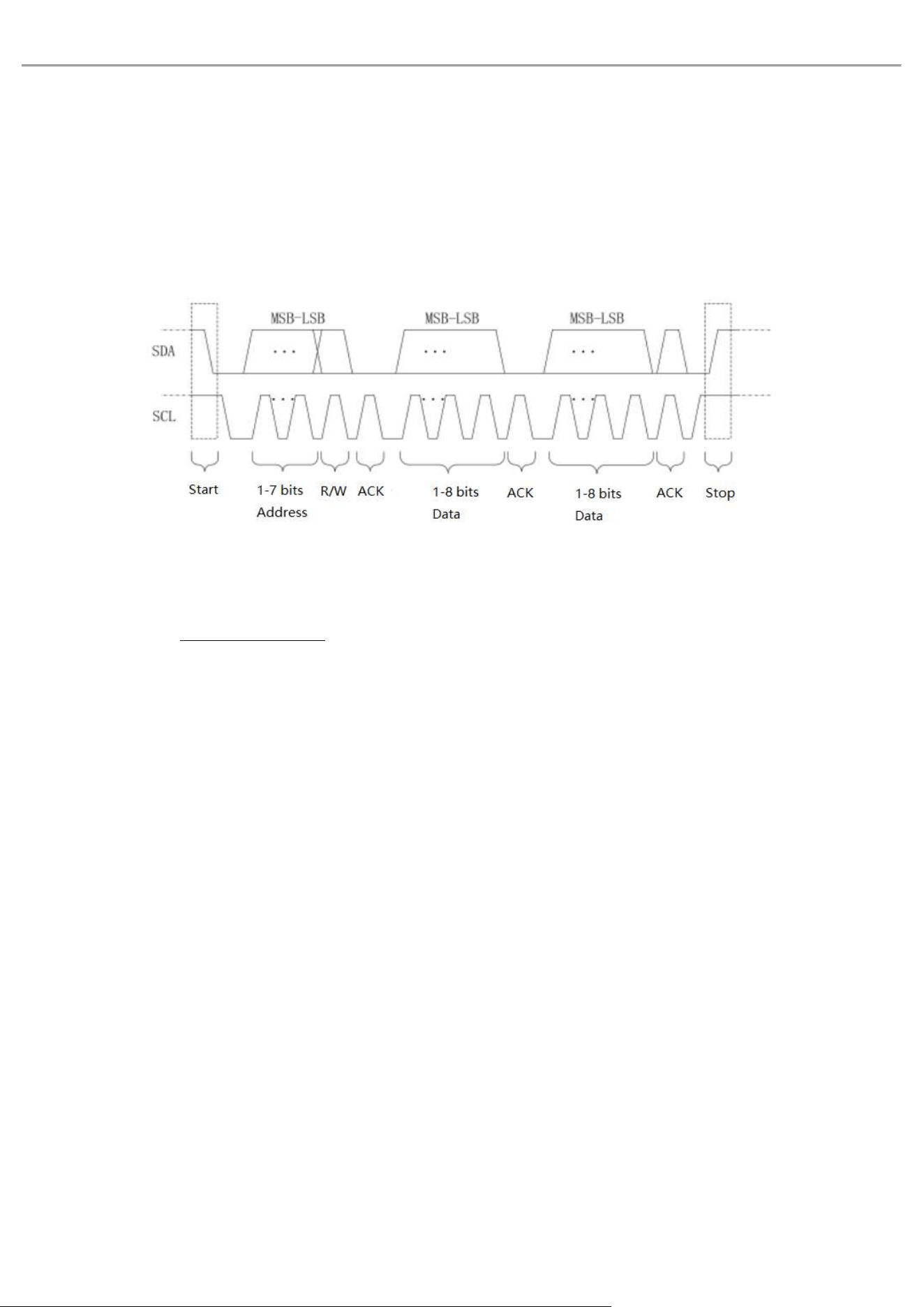
User’s Manual MSO/UPO2000 Series
93 / 137
Instruments.uni-trend.com
master and slave computer. The bus is a multiple master bus that prevents data corruption through conflict
detection and arbitration mechanisms. It is worth noting that the I
2
C bus has two address bit widths, 7 bits
and 10 bits, where 10 bits and 7 bits addresses are compatible that can be used in combination. When the bus
is idle, both lines are high level. When any device on the bus output low level, it will make the bus signal goes
low, i.e., the signals of multiple devices are " wired and" logic. This special logic relation is the key to bus
arbitration. The protocol requires that the data SDA must remain stable while the clock line SCL is high, and
the data is usually transmitted in MSB form. As shown in Figure 14-2.
Figure 14-2
(1) Bus Decoding
Refer to
RS232 Bus Decoding.
(2) SCL SOURCE
Select SCL source to any one of CH1~CH4 or D0-D15 to be clock input of I
2
C.
(3) SDA Source
Select SDA source to any one of CH1~CH4 or D0-D15 to be data input of I
2
C.
14.3 SPI Decoding
SPI (serial peripheral interface) can connect the host with peripheral equipment in serial way to
communication. It’s full duplex and synchronous communication bus. It’s usually use 4 signal connecting
line, MOSI: master data output, slave data input; MISO: master input, slave data output; SCLK: clock
signal generated by master; CS: chip select enable signal from slave.
SPI interface is mainly used for synchronous serial data transfer between the host and low-speed
peripheral equipment. Under the shift pulse of the host, the data is transferred bit by bit, the high bit in
front and behind is the low bit. SPI interface is widely used because it does not require slave address
addressing, which is full duplex communication and the protocol is simple. SPI protocol transmission as
shown in Figure 14-3.
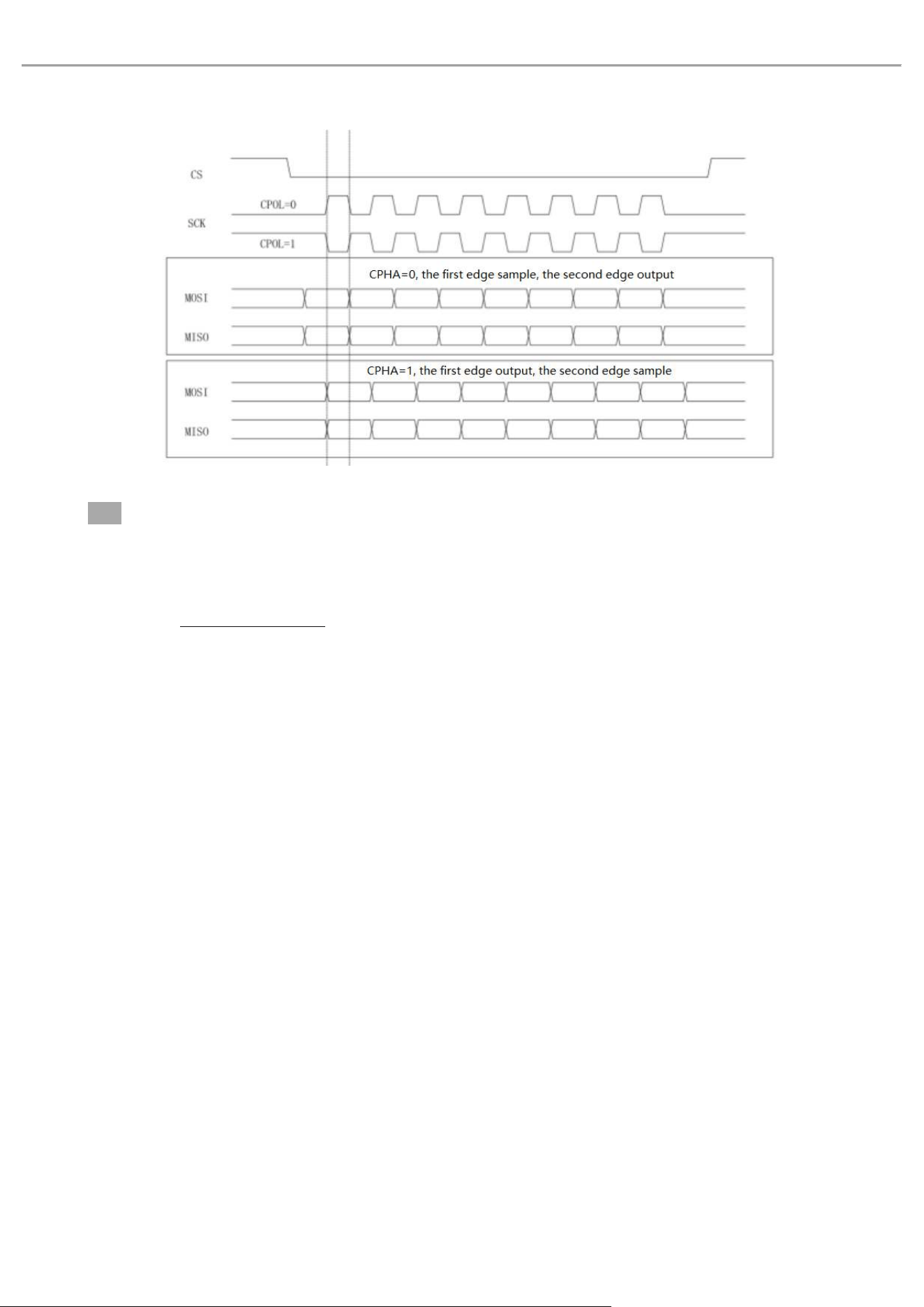
User’s Manual MSO/UPO2000 Series
94 / 137
Instruments.uni-trend.com
Figure 14-3
Note: The analog channels of the MSO/UPO2000 series 2-channel products do not have this feature
because the number of output channels needs to be at least 3.
(1) Bus Decoding
Refer t
o RS232 Bus Decoding.
(2) Bit Width
Set the bit width of each frame of SPI protocol signal, which can set to 4~32.
(3) Bit Order
Specify whether the data bits of the SPI protocol signal to be decoded is high bit at the front (MSB) or
low bit at the front (LSB). MSB or LSB can be selected.
a. MSB: The high bit of data is transmitted first.
b. LSB: The low bit of data is transmitted first.
(4) CS Source
CS source can set any one of CH1~CH4 or D0-D15 to be chip selection input of SPI decoding signal. The
source supports display and select digital channel only when the digital channel is opened in LA.
(5) SCLK Source
Press SCLK source key to set any one of CH1~CH4 or D0-D15 to be clock source of SPI decoding signal.
The source supports display and select digital channel only when the digital channel is opened in LA.
(6) Data Source
Press MOSI source key to set any one of CH1~CH4 or D0-D15 to be data MOSI input of SPI decoding
signal. The source supports display and select digital channel only when the digital channel is opened in
LA.
(7) CS Polarity

User’s Manual MSO/UPO2000 Series
95 / 137
Instruments.uni-trend.com
Set the polarity of chip selection enable signal to positive or negative.
a. Positive polarity: It is 1 when the setting signal is greater than threshold. Otherwise, it is 0.
b. Negative polarity: It is 1 when the setting signal is less than threshold. Otherwise, it is 0.
(8) SCLK Polarity
Set the edge of clock signal to rising edge or falling edge.
a. Rising edge: It will be generated on the rising edge of clock signal.
b. Falling edge: It will be generated on the falling edge of clock signal.
(9) Data Polarity
Set the polarity of data signal MOSI to positive or negative.
a. Positive polarity: It is 1 when the setting signal is greater than threshold. Otherwise, it is 0.
b. Negative polarity: It is 1 when the setting signal is less than threshold. Otherwise, it is 0.
14.4 CAN Decoding
(1) Bus Decoding
Refer to
RS232 Bus Decoding.
(2) Information Source
Set CAN protocol trigger source, which can be CH1, CH2, CH3, CH4 or D0-D15. The current selected
source will displayed on the right corner of the screen. The source supports display and select digital
channel only the digital channel is opened in LA.
Note: Only the channel that has been connected to the signal, select it as the trigger source that can
get the stable trigger and correct decoding.
(3) Signal Type
Set the input signal of the current source is high data line signal or low data line signal, which can select
CAN_H or CAN_L.
(4) Bit Rate(bps)
Set the bit rate of CAN bus serial data, which can select 10 k, 20 k, 25 k, 31.25 k, 33.3 k, 37 k, 50 k, 62.5 k,
68.266 k, 83.3 k, 92.238 k, 100 k, 125 k, 153 k, 250 k, 400 k, 500 k, 800 k, 1 M or user-defined. User can input
customized bit rate when “user-defined” is selected.
14.5 CAN-FD Decoding
(1) Bus Decoding
Refer to RS232
Bus Decoding.
(2) Information Source
User’s Manual MSO/UPO2000 Series
96 / 137
Instruments.uni-trend.com
Set CAN-FD protocol trigger source, which can be CH1, CH2, CH3, CH4 or D0-D15. The current selected
source display on the right corner of the screen. The source supports display and select digital channel
only when the digital channel is opened in LA.
Note: Only the channel that has been connected to the signal, select it as the trigger source that can
get the stable trigger and correct decoding.
(3) Signal Type
Set the input signal of the current source is high data line signal or low data line signal, which can select
CAN_H or CAN_L.
(4) Bit Rate(bps)
Set the bit rate of CAN-FD bus serial data, which can select 10k, 20k, 25k, 31.25k, 33.3k, 37k, 50k, 62.5k,
68.266k, 83.3k, 92.238k, 100k, 125k, 153k, 250k, 400k, 500k, 800k, 1M or user-defined. User can input
customized bit rate when “user-defined” is selected.
(5) FD Bit Rate
Set FD bit rate of CAN-FD bus serial data, which can select 250k, 500k, 800k, 1M, 1.5M, 2M, 4M, 6M, 8M
and user-defined. User can input customized bit rate when “user-defined” is selected.
14.6 LIN Decoding
(1) Bus Decoding
Refer to
RS232 Bus Decoding.
(2) Information Source
Set trigger source of LIN protocol, which can be CH1、CH2、CH3、CH4 or D0-D15. The current
selected source display on the right corner of the screen. The source supports display and digital
channel only when the digital channel is opened in LA.
Note: Only the channel that has been connected to the signal, select it as the trigger source that can
get the stable trigger and correct decoding.
(3) Polarity
Set the polarity of the input signal, which can be normal (high=1), inverse(high=0).
(4) Version
Set the version to v1.x, v2.x or random.
(5) Bit Rate (bps)
Set the bit rate of LIN, which can be 1.2k, 2.4k, 4.8k, 9.6k, 10.417k, 19.2k or user-defined. User can input
customized bit rate when “user-defined” is selected.
(6) ID Parity Bit

User’s Manual MSO/UPO2000 Series
97 / 137
Instruments.uni-trend.com
Set ID parity bit to “yes” or “no”. If “yes” is selected, it includes parity bit and ID; if “no” is selected, parity
bit and ID is not include.
(7) Setup Data Length
Set whether display the setting menu of data length. It can set yes or no.
Yes: Display the setting menu of data length
No: The setting menu of data length is not display.
(8) Data Length
Set LIN data length, the range can set to1~8. It is only valid when “ Setup data length” is ”Yes”.
14.7 FlexRay Decoding
(1) Bus Decoding
Refer to
RS232 Bus Decoding.
(2) Information Source
Set LIN protocol trigger source, which can be CH1, CH2, CH3, CH4 or D0-D15. The current selected
source display on the right corner of the screen. The source supports display and select digital channel
only when the digital channel is opened in LA.
Note: Only the channel that has been connected to the signal, select it as the trigger source that can get
the stable trigger and correct decoding.
(3) Polarity
Polarity can set to BM, BDiff or BP.
(4) Channel Type
Set signal channel type to A or B.
(5) Bit Rate(bps)
Set bit rate, which can be 2.5M, 5M, 10M or user-defined. User can input customized bit rate when “user-
defined” is selected.
User’s Manual MSO/UPO2000 Series
98 / 137
Instruments.uni-trend.com
15. Mathematical Operation
MSO&UPO2000 series digital phosphor oscilloscope carries a variety of mathematical operations, it includes
MATH, FFT, digital filter and advanced operation.
Enter mathematical operation menu, adjusting POSITION or SCALE knob on vertical control area to change
the vertical position and the vertical scale of the waveform. The math operation waveform cannot be
independent adjust the horizontal time base scale. it will change automatically according to the horizontal
time base scale of the analog input channel.
Math operation cursor marks the result of a mathematical operation.
Mathematical Function
FFT
Digital Filter
Advance Operation

User’s Manual MSO/UPO2000 Series
99 / 137
Instruments.uni-trend.com
15.1 Mathematical Function
Use operator“+” ,“-”,“x”,“÷” to operating the channel waveform to get the math waveform.
(1) Operator
Operator supports “+” ,“-”,“x”,“÷”.
a. +:The waveform of source 1 and source 2 are added point by point.
b. -:The waveform of source 1 and source 2 are subtracted point by point.
c. x:The waveform of source 1 and source 2 are multiplied point by point.
d. ÷:The waveform of source 1 and source 2 are divided point by point.
15.2 FFT
Using FFT (Fast Fourier Transform) mathematical operations, the time domain signal (YT) can be converted
into frequency domain signal. The following types of signals can be easily observed by using FFT:
Harmonic content and distortion in measurement system;
Perform the noise feature in DC power supply;
Vibration Analysis;
(1) Vertical Unit
The unit of the FFT operation result can select Vrms and dBVrms. Vrms and dBVrms display the vertical
amplitude size in a linear way and decibel volts way. If the FFT spectrum need to display in a large
dynamic range, dBVrms is recommended.
(2) Frequency Range
a. Range
Start Frequency:Set the start sweep frequency of FTT.
End of Frequency:Set the end sweep frequency of FTT.
Reference Frequency: Automatically set start frequency, end of frequency to a fit value for
observing the distinct sampling point of peak in FFT waveform.
b. Bandwidth
Center Frequency:Set the center frequency of the FFT waveform and the FFT waveform will be
changed accordingly.
Bandwidth: Set the bandwidth of FTT sweep.
Reference Frequency: Set the center frequency of the FFT waveform and the FFT waveform will
be changed accordingly.
(3) Count
Perform a data count of FFT operation, it can set to auto,1K, 2K, 4K, 8K, 16K, 32K, 64K, 128K, 256K,
512K, 1024K, 2048K and 4096K.
(4) Window
Window function can select Hamming, Blackman, Rectangle or Hanning.

User’s Manual MSO/UPO2000 Series
100 / 137
Instruments.uni-trend.com
a. Rectangle: It has the best frequency resolution and the worst amplitude resolution, which is
similar to the one with no window. It is suitable for measuring the following waveforms:
Transient or short pulse, the signal level is almost equal to before and after.
Equal amplitude sine wave with very similar frequency.
Wide-band random noise in a slowly changing spectrum.
b. Hanning: Compared with the rectangle window, it has better frequency resolution, but poorer
amplitude resolution. It is suitable for measuring sine, periodic and narrow-band random noise
waveforms.
c. Hamming: The frequency resolution is slightly better than that of Hanning window. It is suitable for
measuring transient or short pulse, and the waveform with great difference before and after the
signal level.
d. Blackman: It has the best amplitude resolution, and the worst frequency resolution. It is suitable
for measuring the single frequency signals or seeking higher harmonics.
(5) Display Mode
It can set to full screen, split screen and waterfall curve for observing spectrum figure.
a. Split screen: Display the source waveform and the waveform of FFT spectrum waveform in split
screen, and extend display the spectrum. As shown in Figure 15-1.
b. Full screen: Superimposed display the source waveform and the FFT spectrum waveform in full
screen. User can observe the spectrum more clearly and make more accurate measurements.
c. Waterfall curve 1: Spectrum, waterfall curve and waveform are separately display in 3 window.
Waterfall curve shows the time changing of dB value in spectrum. It has “record” function. Waterfall
curve can only select when enhance FFT is opened. The maximum record 200 spectrum which
corresponds to waterfall curve.
d. Waterfall curve 2: Spectrum and waterfall curve split to two window to display. Waterfall curve
shows the time changing of dB value in spectrum. It has “record” function. Waterfall curve can only
select when enhance FFT is opened. The maximum record 200 spectrum which corresponds to
waterfall curve. As shown in Figure 15-2.
Chip selection: In STOP state, use Multipurpose knob or keypad to input fragment. For observing
the spectrum waveform in a time point on waterfall curve.
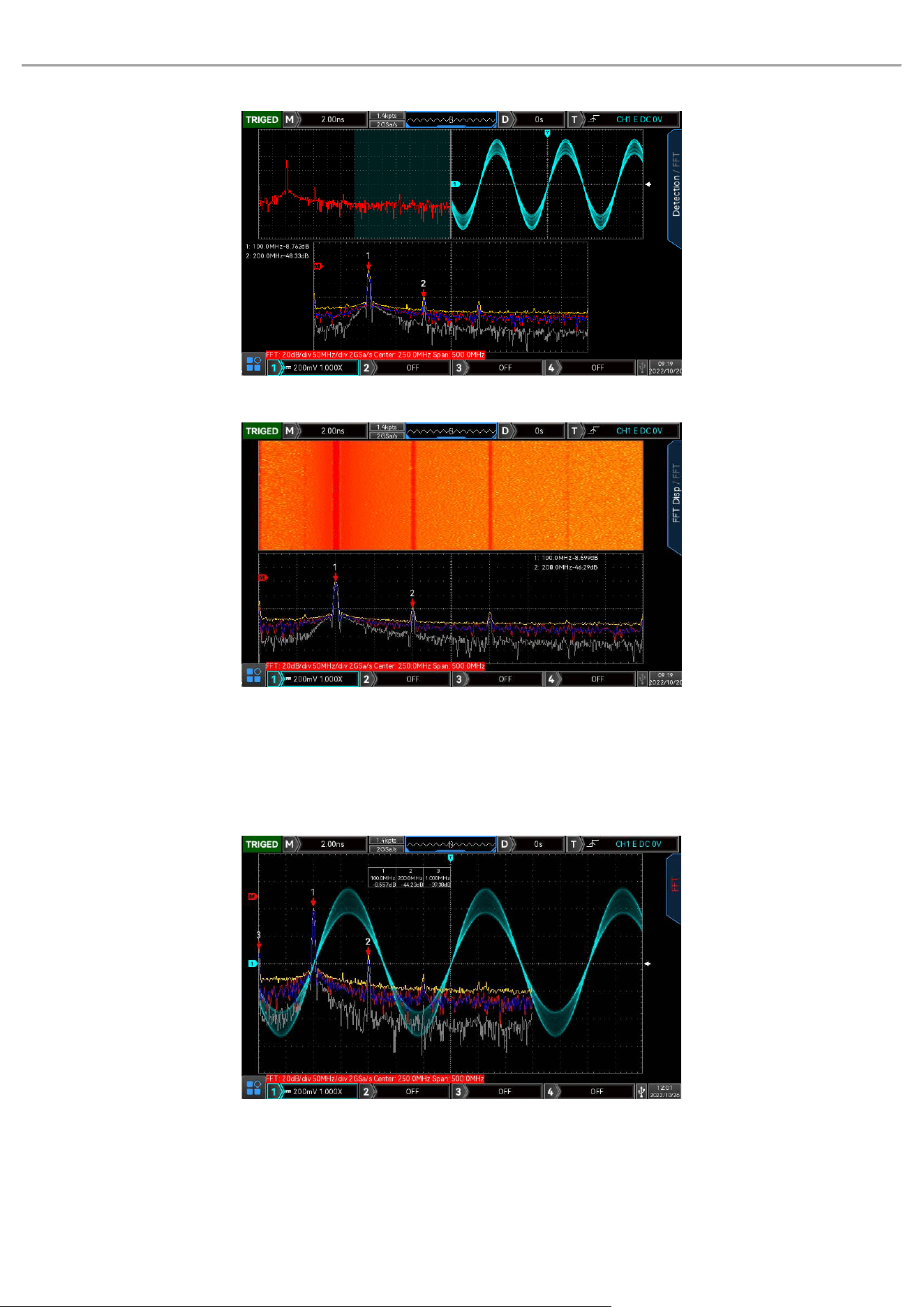
User’s Manual MSO/UPO2000 Series
101 / 137
Instruments.uni-trend.com
Figure 15-1
Figure 15-2
(6) FFT – Detecting Mode
The detecting mode is to set the way to display the sampling points of the raw data after FFT
operation. The display mode can be set to normal, average, maximum hold and minimum hold. The
sampling point mode can be set to + peak, - peak, average and sampling, as shown in Figure 15-3.
Figure 15-3
Display Mode
a. Normal: the spectrum waveform displays all sampled values, the corresponding spectrum waveform

User’s Manual MSO/UPO2000 Series
102 / 137
Instruments.uni-trend.com
is displayed in red color.
b. Average: the spectrum waveform displays the average value by sampling point in time interval, the
corresponding spectrum waveform is displayed in blue color.
Average time: set the number of times of the average calculation, when the average spectrum is
enabled, the number of times can set to 2, 4, 8, 16, 32, 64, 128, 256, 512, or 1024. The larger the
number, the smoother the average spectrum.
c. Maximum hold: the spectrum waveform displays the maximum value among the multiple sampling
data, and the corresponding spectrum waveform is displayed in yellow.
d. Minimum hold: the spectrum waveform displays the minimum value among the multiple sampling
data, and the corresponding spectrum waveform is displayed in gray.
Sampling Point Mode
a. OFF: turn off the detection display
b. + Peak: take the maximum value within the range of each sampling point.
c. – Peak: take the minimum value within the range of each sampling point.
d. Average: take the average value within the range of each sampling point.
e. Interval: perform sampling in the same time interval.
Reset trace: fresh every spectrum data
Note: A detection trace must be displayed in detecting mode. If all detecting mode is not enabled, the
default setting is normal detecting trace.
(7) Enhance FFT - Marker
To mark the point in spectrum and display frequency value and voltage value. Mark mode includes
auto, threshold and manual.
a. Auto
Mark trace: Select spectrum wave as the marker source, which is the spectrum waveform
generated by different detection types under the detecting mode, it can set to normal, average,
maximum hold and minimum hold.
Maximum count: Set the maximum marker point. The range can set to 1~50.
Event list: Display the information of current marker point, which is serial number of point,
frequency and voltage.
b. Threshold
Mark trace:Select spectrum wave as the marker source, which is the spectrum waveform
generated by different detection types under the detecting mode, it can set to normal, average,
maximum hold and minimum hold.
Threshold:Set the threshold value as the compare condition. Display the marker point when
peak value is greater than threshold. Otherwise, it will not display the marker point.
Event list: Display the information of current marker point, which is serial number of point,
frequency and voltage.
c. Manual: Adjust Multipurpose knob to move marker to any point on trace.
User’s Manual MSO/UPO2000 Series
103 / 137
Instruments.uni-trend.com
Mark trace: Select spectrum wave as the marker source, which is the spectrum waveform
generated by different detection types under the detecting mode, it can set to normal, average,
maximum hold and minimum hold.
Maximum peak value: Set manual mark trace to the maximum peak value of sampling point by
default.
Note: If the selected mark trace is not display which means there are no mark point. It can be mark only
when the mark trace is displayed.
FFT Operation Tips
Signals with DC components or deviations can cause errors or deviations in the FFT waveform
components.
To reduce the DC component, the channel can be set to AC coupling.
To reduce the random noise and aliasing frequency components of the repetitive or single pulse,
user can set the oscilloscope acquisition mode to average acquisition.
15.3 Digital Filter
(1) Filter Type
a. Low pass:Only signal with the source frequency lower than the upper limit of the current frequency
are allowed to pass.
b. High pass:Only signal with the frequency higher than the lower limit of the current frequency are
allowed to pass.
c. Band pass:Only signal with the frequency higher than the lower limit of current frequency and lower
than upper limit of the current frequency are allowed to pass.
d. Band Limited:Only signal with the frequency lower than the lower limit of the current frequency or
higher than the upper limit of the current frequency are allowed to pass.
(2) The lower limit of frequency
Adjusting the Multipurpose knob to change the value of the lower limit of frequency. In low pass, the
lower limit of frequency is invalid and the menu is hidden.
(3) The upper limit of frequency
Adjusting the Multipurpose knob to change the value of the high limit of frequency. In high pass, the high
limit of frequency is invalid and the menu is hidden.
Note: The range of the upper/lower limit of frequency is related to the current horizontal time base.
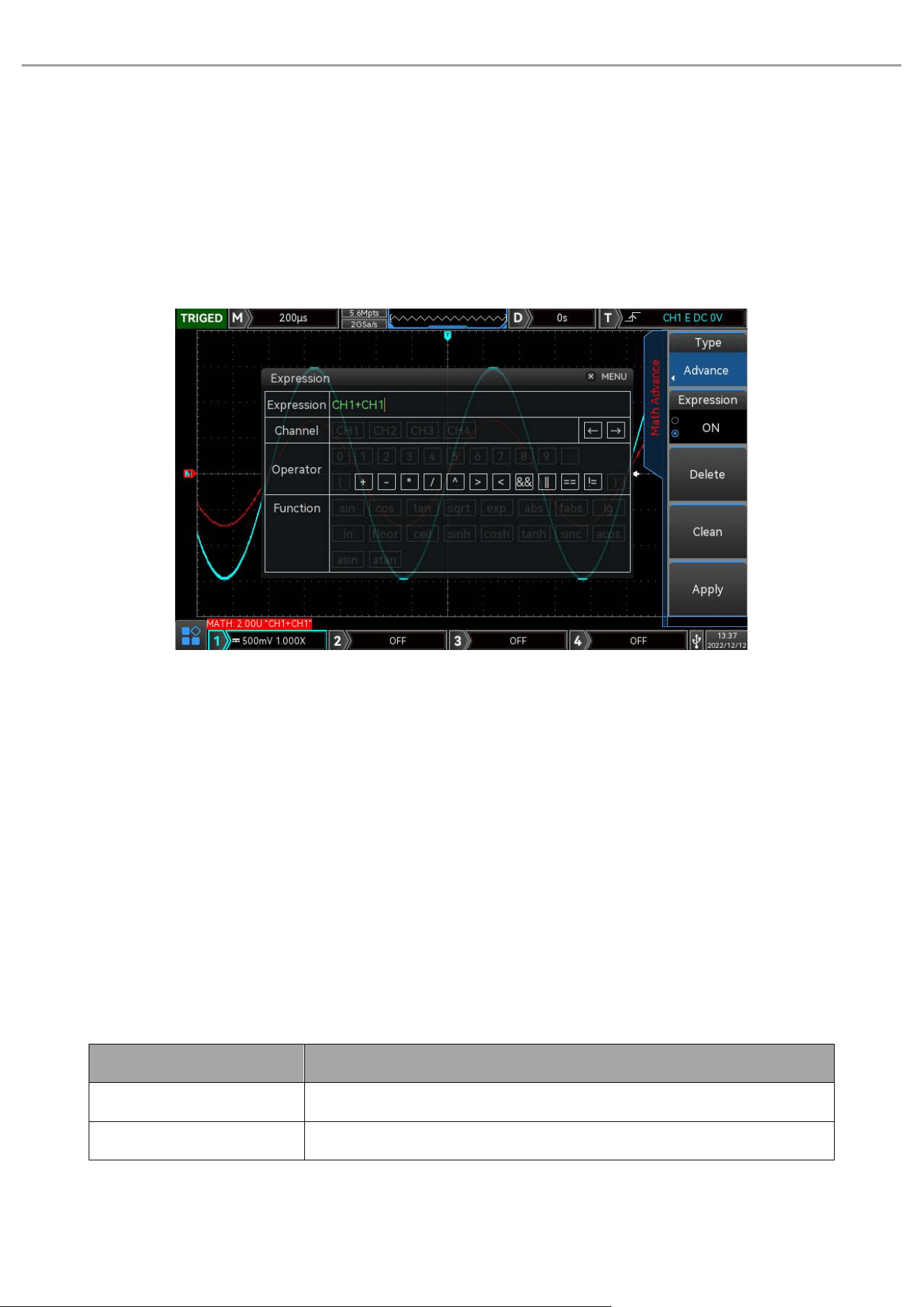
User’s Manual MSO/UPO2000 Series
104 / 137
Instruments.uni-trend.com
15.4 Advance Operation
User can freely defined the operation of each signal of input channel to get different operation result of MATH
waveform.
(1) Expression
This function can set to turn on/off. Turn on to pop out dialog frame as shown in Figure 15-4.
Figure 15-4
Adjust the Multipurpose knob to select “Channel”, ”Function”, or ”Operator”, then press the knob to display the
options in the list after Expression.
When editing the expression, user can press the delete key to “delete", "clear" and "application" the expression.
After applying the expression, the oscilloscope performs operations according to the expression and
displays the result.
(2) Expression Dialog Frame
a. exp: It represents the formula consist of channel, function, variation and operator. The length of
expression cannot over 40 characters.
b. Ch: Channel can select to CH1, CH2, CH3 or CH4.
c. Function: The function of each function option as shown in Table 15-1.
Table 15-1
Function Name
Description of Function
Sin
Calculating the sine of the selected source.
Cos
Calculating the cosine of the selected source.
User’s Manual MSO/UPO2000 Series
105 / 137
Instruments.uni-trend.com
Sinc
Calculating the normalization value of the selected source.
Tan
Calculating the tangent of the selected source.
Sqrt
Calculating the square root of the selected source.
Exp
Calculating the exponent of the selected source.
Log
Calculating the logarithm of the selected source.
Ln
Calculating the logarithm of the selected source.
floor
The selected source is round down to an integer.
ABS
The selected source take the absolute value (integer absolute value).
acos
Calculating the arccosine of the selected source.
asin
Calculating the arcsine of the selected source.
atan
Calculating the inverse tangent of the selected source.
sinh
Calculating the hyperbolic sine of the selected source.
tanh
Calculating the hyperbolic tangent of the selected source.
cosh
Calculating the hyperbolic cosine of the selected source.
ceil
The selected source is round up to an integer.
fabs
The selected source take the absolute value (floating number absolute
value).
d. Opt: The function of each operator as shown in Table 15-2.
Table 15-2
Function Name
Description of Function
+, -, *, /, ^
Mathematical operator: add, subtract, multiply, divide, exponent
( )
Parenthese is used to raise the priority of operations in parentheses.
<, > , ==, !=
Relation operator: greater than, less than, equal to, unequal to
|| , &&
Logical operator:or, and
0 ~ 9, .
Perform digit operation

User’s Manual MSO/UPO2000 Series
106 / 137
Instruments.uni-trend.com
16. Digital Channel
MSO/UPO2000 series digital phosphor oscilloscope has 2 analog channel and 16 digital channel. For digital
channel, the oscilloscope will compared the sampled voltage of each time to the preset logical threshold. If
the voltage of sampling point is greater than threshold, it will saved as logic 1. Otherwise, it will saved as logic
0. The oscilloscope can intuitively display the logic 1 and logic 0 in figure. It’s convenient for user to detect
and analysis the error in circuit design (hardware and software design).
This chapter is to introduce how to use the digital channel of MSO/UPO2000 series digital phosphor
oscilloscope.
Use the accessory UT-M15 logical probe to connect to the oscilloscope and the device under test before use
the digital channel. Application of logical probe refer to UT-M15 Logical Probe User’s Manual.
Open Digital Channel
Select Digital Channel
Waveform Size
Rank Selection
Threshold Setting
Data Bus Setting
Label Setting
Group Setting
Event List
Delay Calibration
User’s Manual MSO/UPO2000 Series
107 / 137
Instruments.uni-trend.com
16.1 Open Digital Channel
Enter switch setting menu of the digital channel via channel switch.
(1) Channel selection: Open D0-D15 channel selection list to select turn on/off arbitrary channel. Opened
channel indicates √ and displayed on the screen.
(2) Turn on/off D7-D0, D15-D8 channel;
(3) Turn on/off group, the selected group indicates √. If the group has digital channel, the channel will
displayed on the screen (user-defined group refer to “Group Setting”.
Note: Only digital channel group has set by group setting can be selected.
16.2 Select Digital Channel
The current channel can select any channel, the selected channel will be highlight. Rotary Multipurpose knob
to move the selected channel to the desired position.
Note: Only the channel that have been displayed on the oscilloscope screen, and the selected to move the
position can be effective.
16.3 Waveform Size
Waveform size can set to S, M, L. The default setting is S.
Note: L (large) display mode is only available if there are no more than 8 channels currently opened, and
requires sorting before and then it can take effect.
16.4 Rank Selection
Rank selection can select the waveform in opened channel. Rank order from top to down is “D0-D15” or “D15-
D0.” The default is “D0-D15”.
16.5 Threshold Setting
Threshold setting menu can independently set the threshold level of two group’s channel “Type L” and “Type
H”. When the voltage of input signal is greater than the current threshold, it judge to logic 1.Otherwise, it judge
to logic 0.
Type L or Type H can be preset value or user-defined.

User’s Manual MSO/UPO2000 Series
108 / 137
Instruments.uni-trend.com
a. Preset value includes TTL, 5.0V CMOS, 3.3V CMOS, 2.5V CMOS, 1.8V CMOS, ECL, PECL, CLDS and 0V.
After a type is selected, the threshold level corresponding to that type is applied to the type.
b. “User-defined”:Adjusting Multipurpose knob to set the desired threshold. The range can set to -20.0
V ~ +20.0 V.
16.6 Data Bus Setting
User can set three digital channels D0-D7, D8-D15, D0-D15 or None to data bus according to your needs.
Each data bus value will display in the data or figure format on the bottom of the screen. Three digital channel
groups is displayed as data bus. MSO/UPO2000 allows user to create 2 data buses.
(1) Bus:It can be “BUS1” or “BUS2”.
(2) Bus status: Turn on/off data bus.
(3) Quick selection: Select the corresponding channel group of BUS1 or BUS2, which can be D0-D7, D8-D15,
D0-D15 or None.
(4) Bit:Select the corresponding channel bit of the bus, which can be D0 ~ D15, CH1 or CH2.
(5) Bit order: Set the bus bit order, which can select “low to high”(D0 locate in low bit) or “high to low”(D0
locate in high bit).
(6) Clock:Select any one of channel(D0~D15, CH1, CH2)as the reference clock of bus. Select “NULL” means
not set the reference clock.
(7) Edge type: Set sampling edge type of reference clock, which can be “rising edge, falling edge”.
(8) Display type: Select display format of data bus, which can be hexadecimal, decimal, binary system, ASCII
or figure. In figure display mode, the oscilloscope will display the bus data to the level of the
corresponding value in a specific way. It is convenient to observe the changing trend of bus value, as
shown in Figure 16-1.
(9) Shake proof: Turn on/off shake proof function.
Shake: It indicates the short-term deviation of a signal at a particular moment relative to its ideal time
position, as shown in Figure T1 and T2. If the bus is not select the reference clock, the hopping state of
each channel will cause the change of the bus data. When bus data changes, unnecessary data will
occurs due to the shaking. When shake proof is opened, the bus will not display the change in bus data
caused by a certain shake time, but still maintain the valid data.
(10) Shake time: Rotating outer layer of jog dial knob to adjust shake time with a large stepped value.
Rotating inner layer of jog dial knob to adjust shake time with a small stepped value. The range can set
to 0ns~50us.
Note: Shake proof and shake time can only be set when data bus has no reference clock.
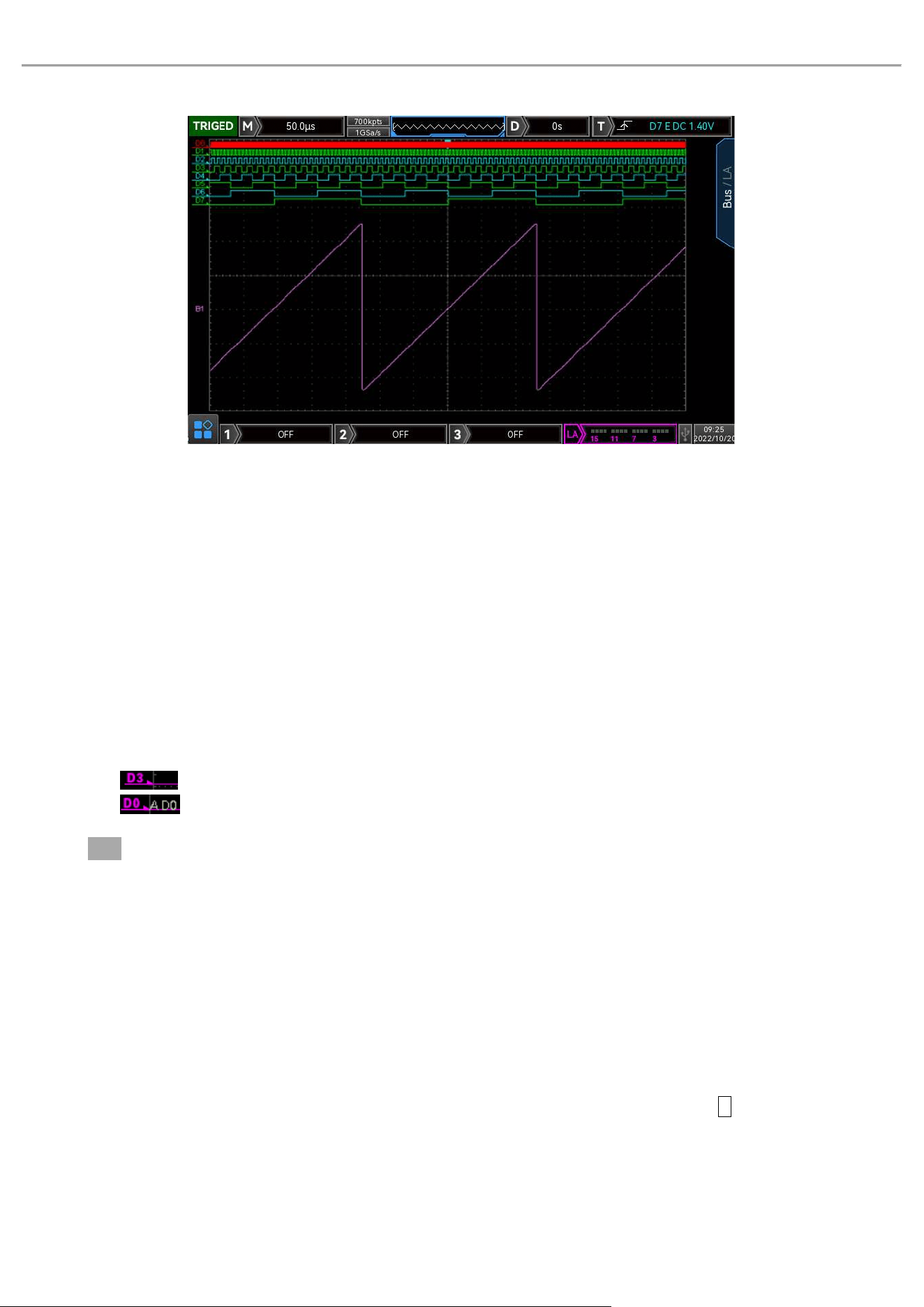
User’s Manual MSO/UPO2000 Series
109 / 137
Instruments.uni-trend.com
Figure 16-1
16.7 Label Setting
Label setting menu can set label for the specified digital channel. Label can set by preset label or input label.
(1) Preset Label
Select a digital channel which need to set label. The label can be select in preset list, which includes ACK,
AD0, ADDR, BIT, CAS, CLK, DATA, HALT, INT, UB, NIMI, OUT, PIN, RAS, RDY and RST.
(2) Input Label
Select a digital channel which need to input label(D0-D15). Press input to enter input interface, it can
input by manual. The way to input channel label as the following,
The oscilloscope is mark the corresponding channel with its channel number by default (such as
). For the convenience of using, user can set a custom label for each digital channel (such as
).
Note:User-defined label can include capital letter (A~Z), lowercase (a~z), digit (0~9) and special character.
The length cannot over 27 characters.
(3) Clear Label
Clear set label in all channel.
16.8 Group Setting
Group setting can random group or cancel group 16 digital channels, it supports divide into 4 groups. A
channel can join multiple groups and channel that have been added to a group will display √. In each group
option box, LA digital graphics display its current selected channel as shown in Figure 16-2.
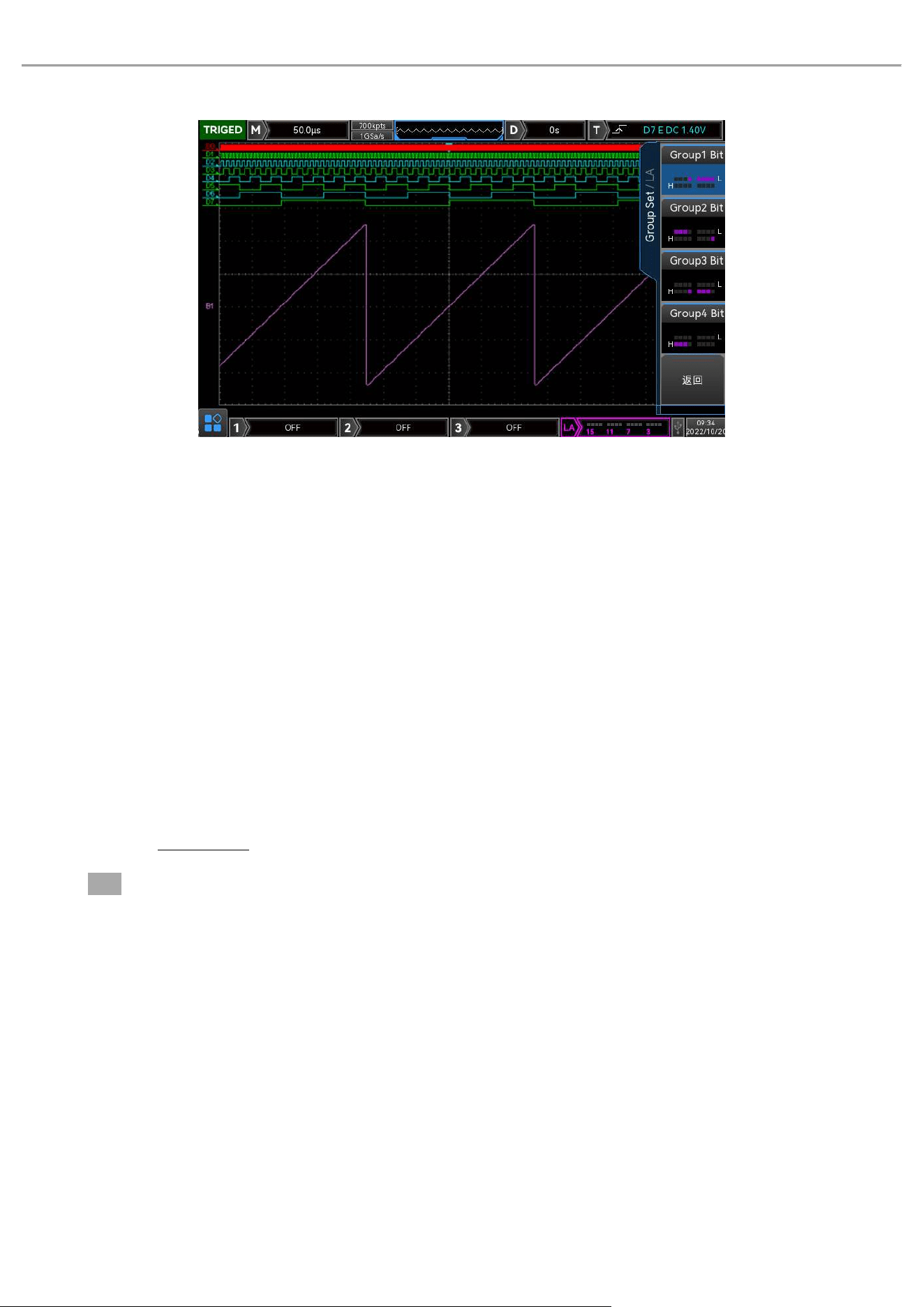
User’s Manual MSO/UPO2000 Series
110 / 137
Instruments.uni-trend.com
Figure 16-2
16.9 Event List
Event list displays the data, line number and time after decoding. It is convenience for observing the long
decoded data. (This function is only enabled when BUS state is opened.)
16.10 Delay Calibration
When use the oscilloscope to perform the actual measurement, transmit delay of probe cable may cause big
error (zero offset).
The zero offset is defined as the offset of the intersection of the waveform and the trigger level line relative
to the trigger position.
Adjusting Multipurpose knob to set delay time, which can set to -100 ns ~100 ns.
Note: This parameter setting is related to the instrument’s model and the current time base scale size. The
greater the time base scale, the larger the setting step.

User’s Manual MSO/UPO2000 Series
111 / 137
Instruments.uni-trend.com
17. Function/Arbitrary Waveform Generator
MSO/UPO2000 has built-in function/arbitrary waveform generator (only for MSO-S). It use direct digital
combination technology to generate accurate and stable waveform output with the resolution lower to 1 μHz.
MSO/UPO2000 is economical functional /arbitrary waveform generator.
Enable Function/Arbitrary Waveform Generator
Output Basic Waveform
Advanced Application
Common Setting
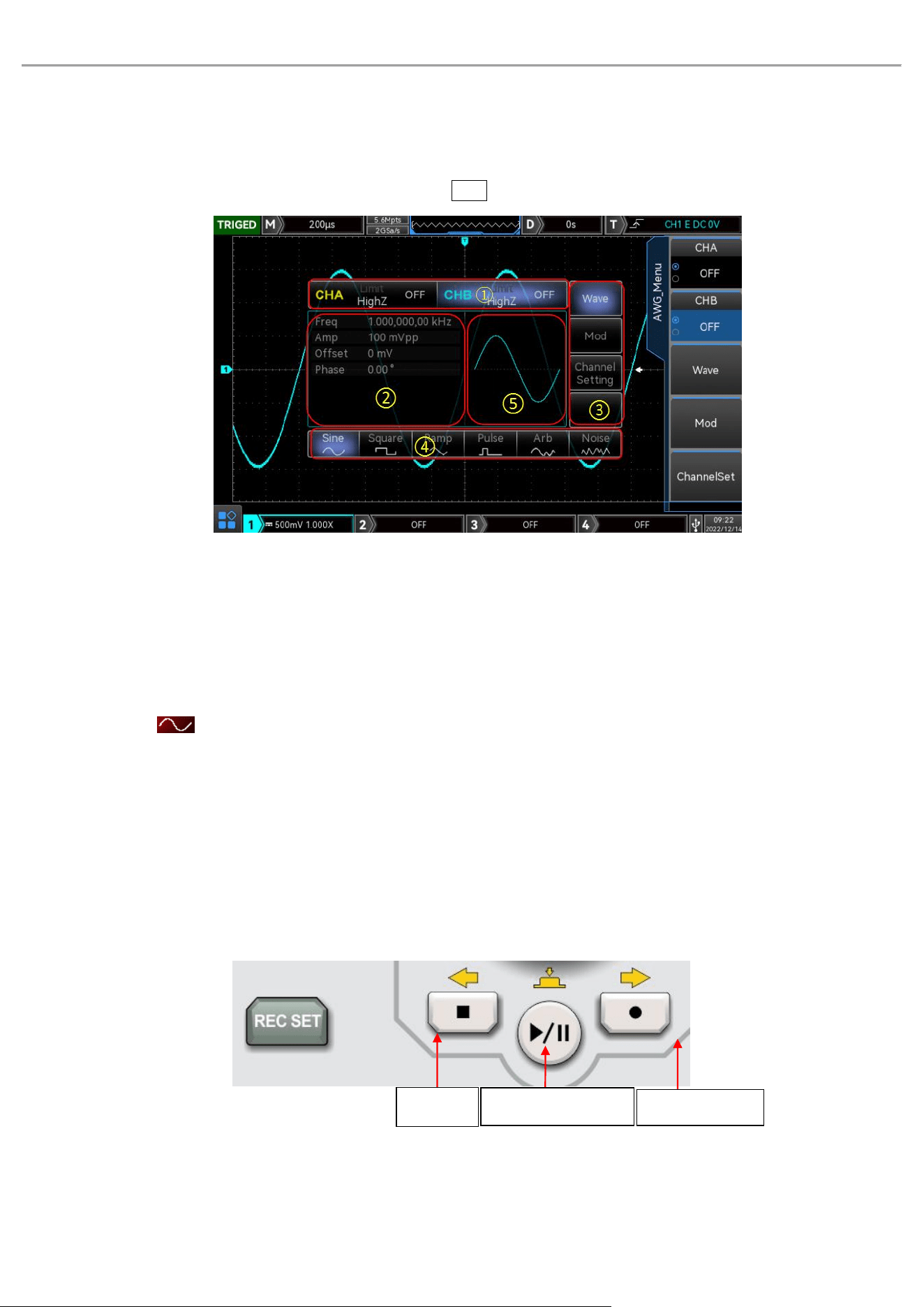
User’s Manual MSO/UPO2000 Series
112 / 137
Instruments.uni-trend.com
17.1 Enable Function/Arbitrary Waveform Generator
Enable functional /arbitrary waveform generator via AWG, as shown in Figure 17-1.
Figure 17-1
(1) The ① on the above figure is CHA/ CHB information:The currently selected channel will be highlight.
(2) “Limit” represents output amplitude limit, white is valid, gray is invalid.
a. “HighZ” represents the match impedance of output port is high resistance (it can select Highz or
50. The factory setting is High).
b. “ ” represents the currently sine wave.(In different operating mode, it may be “fundamental
wave” “modulating” “OFF” ).
(3) The ② on the above figure is waveform reference list: Display the parameter of waveform in the list
format. If an item in the list is in white, then it can use menu operating soft key, numeric keyboard,
direction key or Multipurpose knob to adjust the parameter. If the base color of the current character
is the color of the current channel (It is white when the system is in setting), which represents the
character is in the editing state and can be set with the direction key (as shown in Figure 17-2) or use
the numeric keypad or Multipurpose knob to set the parameter.
Figure 17-2
Stop/Delet
pause / playback /Select
Record/move right

User’s Manual MSO/UPO2000 Series
113 / 137
Instruments.uni-trend.com
① Stop:Stop key is left yellow arrow on the above figure. It can move to left when adjusting the numerical
value.
② Playback/Pause: Playback/Pause key is the yellow arrow in the middle on the above figure. It is for
selection when switch the parameter.
③ Record:Record key is right yellow arrow on the above figure. It can move to right when adjusting the
numerical value.
④ The ③ and ④ on the above figure is soft key label:It is for identify the function menu soft key next
to it and the current function of the menu operation soft key. Highlighting: Highlighting indicates that
the center of the label shows the current channel color or the gray color when the system is in setting
and the font is pure white. ③ represents if a label is highlighted, it is selected. ④ displays its
indicating content.
(4) The ⑤ on the above figure is waveform display area: Display the current waveform’s shape (It can
distinguish which channel is the current waveform by color or the highlight information bar of
CH1/CH2. The left parameter list displays the parameter of waveform.)
17.2 Output Basic Waveform
AWG can output basic waveform from single channel or output simultaneously form double channel, which
includes sine wave, square wave, ramp wave, arbitrary wave and noise wave. After press AWG key, the
oscilloscope outputs a sine wave with 1 kHz, amplitude 100 mVpp by default. This chapter is to introduce
how to configure the oscilloscope to output various types of basic waveforms, take CH1 as example.
(1) Set output frequency
When AWG is opened, the oscilloscope outputs a sine wave with 1 kHz, amplitude 100 mVpp by default.
It can adjust the frequency value by using the Multipurpose knob or numeric keyboard.
(2) Set output amplitude
The default configuration of waveform is sine wave with amplitude 100 mVpp. It can adjust the amplitude
value by using the Multipurpose knob or numeric keyboard.
(3) Set DC Offset Voltage
The DC offset voltage of waveform is 0 V by default. It can adjust the DC Offset voltage value by using
the Multipurpose knob or numeric keyboard. DC offset voltage range can set to -2.99 V ~ 2.99 V.
(4) Set the phase
The phase waveform is 0° by default. It can adjust the phase value by using the Multipurpose knob or
numeric keyboard. DC offset voltage range can set to -360° ~ 360°.
(5) Set duty cycle of pulse wave
Pulse wave with frequency 1 kHz, duty cycle 50% by default. The duty cycle is limited by the minimum
pulse width size 80ns. It can adjust the duty cycle by using the Multipurpose knob or numeric keyboard.
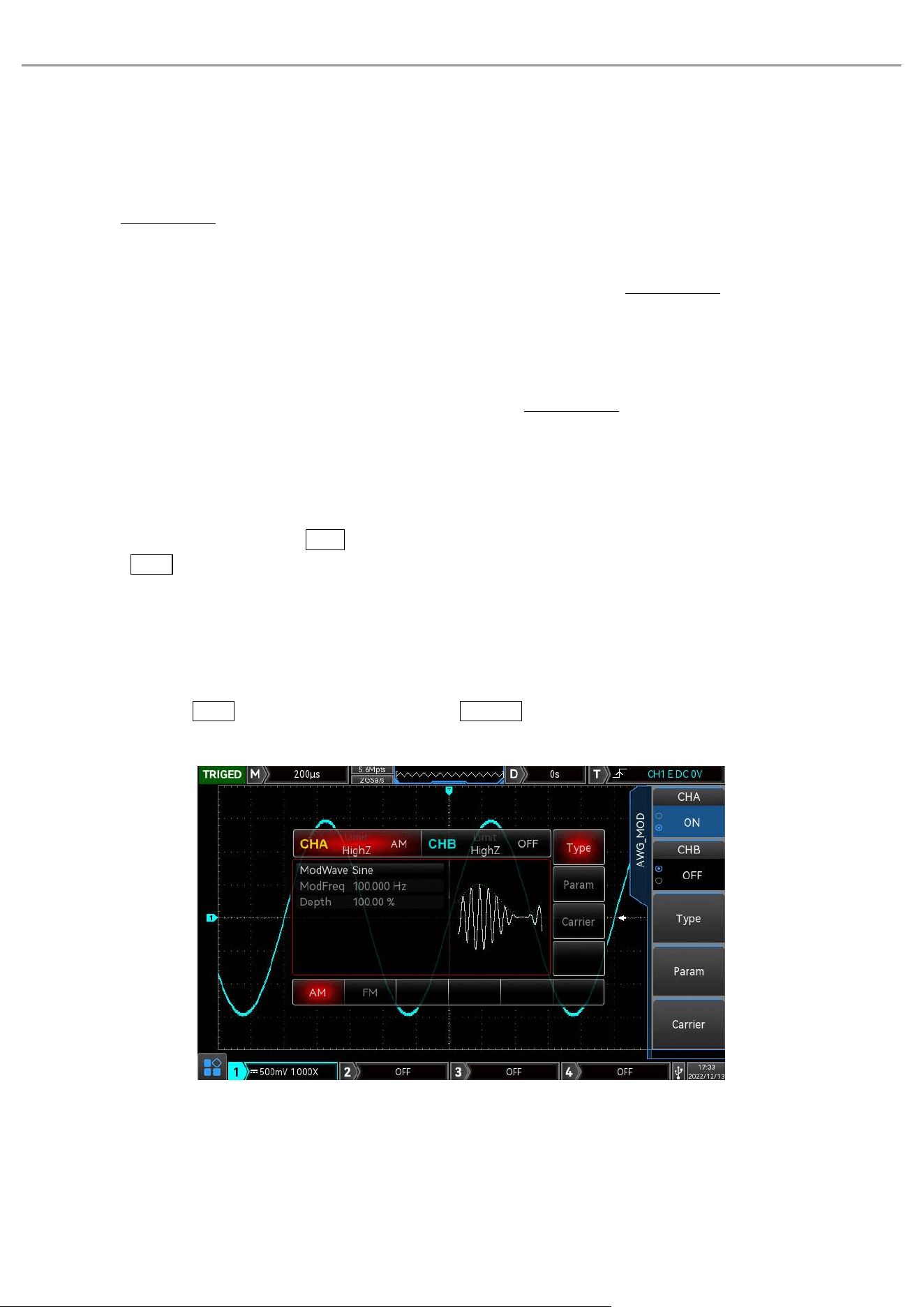
User’s Manual MSO/UPO2000 Series
114 / 137
Instruments.uni-trend.com
Duty cycle range can set to 1% ~ 99%.
(6) Set symmetry degree of ramp wave
Symmetry degree of ramp wave is 50% by default. It can adjust the symmetry degree by using the
Multipurpose knob or numeric keyboard. Symmetry degree range can set to 0.1% ~ 99.9%.
(7) Set DC voltage
DC voltage is 0 V by default. It can adjust DC voltage value by using the Multipurpose knob or numeric
keyboard. DC voltage value range can set to ±3 V (high resistance);±1.5 V (50 Ω).
(8) Set noise wave
The standard Gauss noise with amplitude 100 mVpp, DC offset 0 V by system default. It can adjust the
amplitude value and DC offset value of noise by using the Multipurpose knob or numeric keyboard.
17.3 Advanced Application
AWG can output AM, FM. Press AWG 可 key to turn on function/arbitrary generator and enter the interface,
press MENU to turn on modulation. Take CH1 as example to introduce.
(1) Amplitude Modulating(AM)
In amplitude modulating, modulated waveform is consist of carrier wave and modulating wave. The
amplitude of carrier wave will change along with the amplitude of modulating wave.
① Enable amplitude modulating
Press MENU to extend the menu list and press Modulate to select the amplitude modulating as shown in
Figure 17-3.
Figure 17-3
② Carrier wave
AM carrier wave can be sine, square, ramp, pulse or arbitrary waveform (except DC). The default is
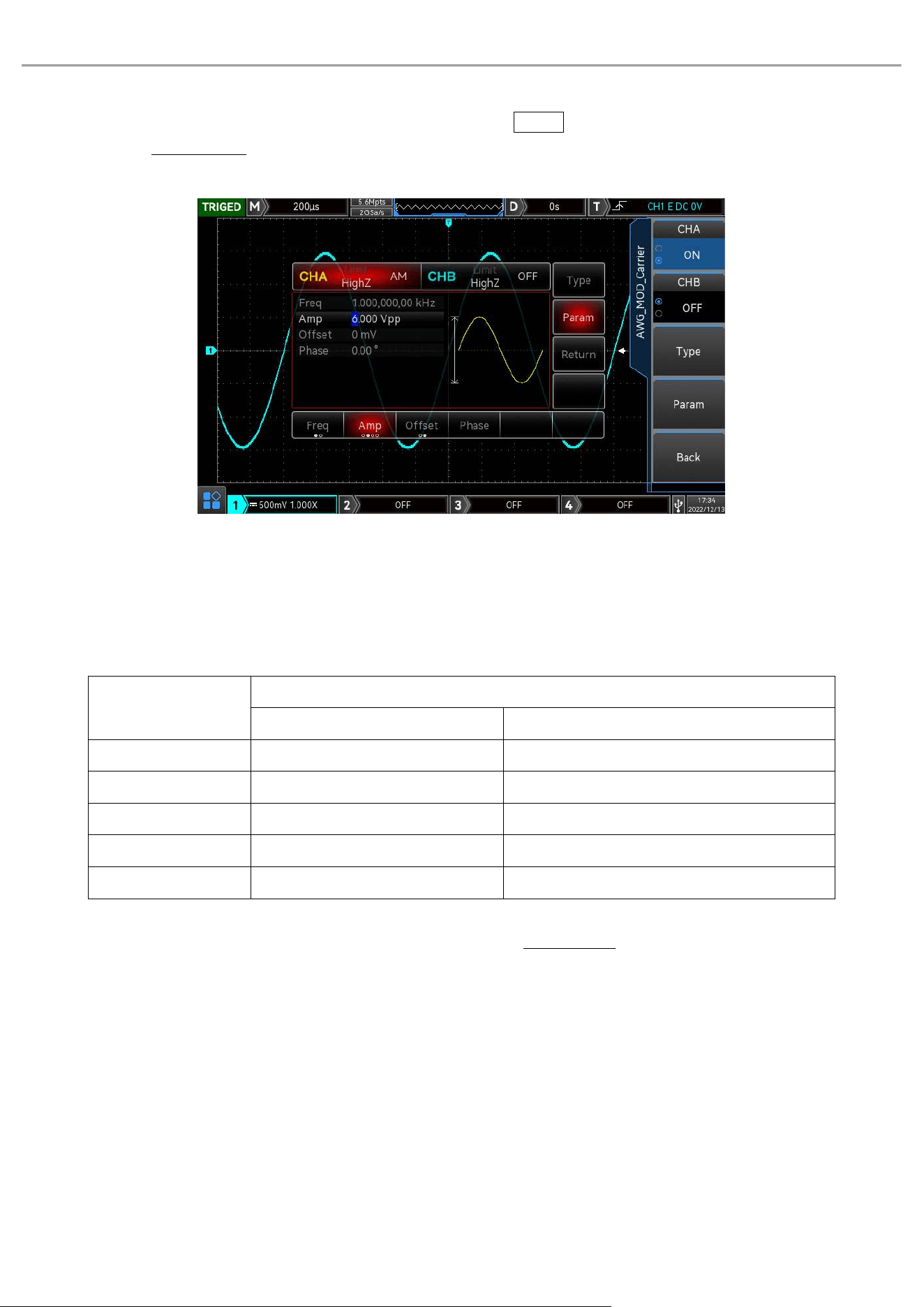
User’s Manual MSO/UPO2000 Series
115 / 137
Instruments.uni-trend.com
sine waveform. After select AM modulating, press Carrier soft key to enter the interface, press
Multipurpose knob to select the desired carrier wave as shown in Figure 17-4.
Figure 17-4
③ Carrier frequency
Different carrier wave has different frequency range. The default frequency of all carrier wave is 1
kHz. Frequency range for each carrier wave as shown in Table 17-1.
Table 17-1
Carrier Waveform
Frequency
Minimum Value
Maximum Value
Sine Wave
1 μHz
50 MHz
Square Wave
1 μHz
15 MHz
Ramp Wave
1 μHz
400 kHz
Pulse Wave
1 μHz
15 MHz
Arbitrary Wave
1 μHz
5 MHz
Set carrier frequency after select the carrier wave. Adjusting Multipurpose knob, numeric keyboard to set
the frequency value.
④ Modulating wave
Modulating wave can be sine wave, square wave, rising ramp wave, falling ramp wave, arbitrary wave or
noise. The default is sine wave. When AM function is enabled, the sine wave will appeared. Adjusting
Multipurpose knob to select the desired modulating wave.
Square wave: duty cycle is 50%
Rising ramp wave: symmetry degree is 100%
Falling ramp wave: symmetry degree is 0%
Arbitrary wave: select the arbitrary wave as the modulating wave, function/arbitrary waveform
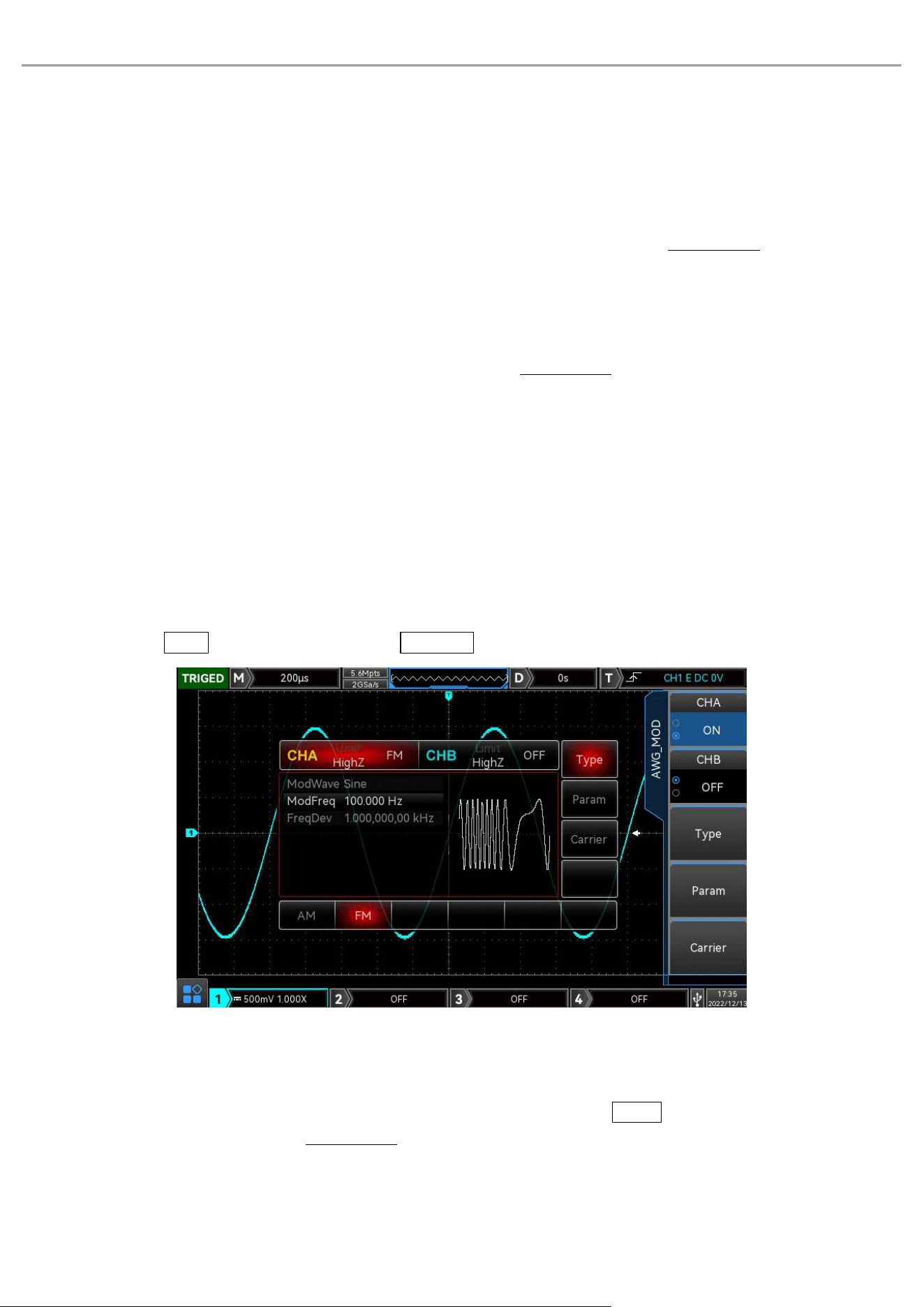
User’s Manual MSO/UPO2000 Series
116 / 137
Instruments.uni-trend.com
generator limits the length of arbitrary wave to 4 kpts by automatic sampling point mode.
Noise:White Gauss noise
⑤ Set the frequency of modulating wave
Set the frequency of modulating wave to 2mHz~50kHz (the default is 100Hz). When AM function is
enabled, the default frequency of modulating wave will be displayed. Adjusting Multipurpose knob,
numeric keyboard to set the frequency value.
⑥ Set the depth of modulating wave
Modulating depth indicates the changing of amplitude, it expressed by percentage. AM modulating
depth can set to 0%~120%. The default is 50%. Adjusting Multipurpose knob, numeric keyboard to set
the modulating value.
Output a constant amplitude when the modulating depth is 0% (a half of the setting carrier amplitude)
Output amplitude will change along with modulating wave when the modulating depth is 100%.
Output amplitude will not over 10 Vpp when the modulating depth is greater than 100%. (Load is 50Ω.)
(2) Frequency Modulating(FM)
In frequency modulating, the modulated waveform usually consists of a carrier wave and a modulated
wave, and the carrier frequency will change with the amplitude of the modulated wave.
① Enable FM modulating
Press MENU to extend menu list, press Modulate to select FM modulating as shown in Figure 17-5.
Figure 17-5
② Select carrier waveform
FM carrier waveform can be sine wave, square wave, ramp wave, pulse wave or arbitrary wave (except
DC). The default is sine wave. After FM modulating is selected, press Carrier soft key to enter carrier
waveform interface, press Multipurpose knob to select the desired carrier waveform, as shown in Figure
17-6.
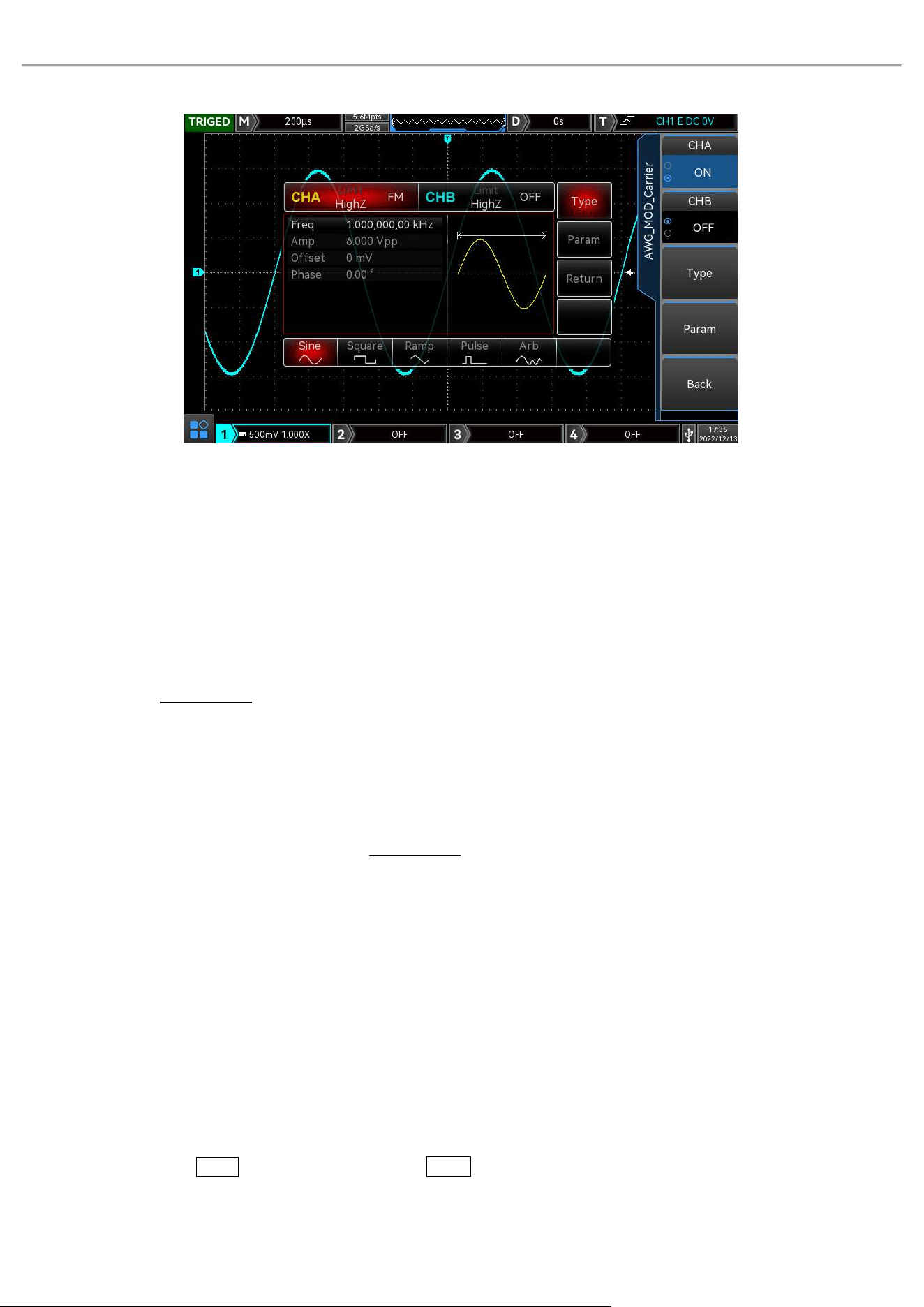
User’s Manual MSO/UPO2000 Series
117 / 137
Instruments.uni-trend.com
Figure 17-6
③ Carrier frequency
Refer to AM-carrier frequency.
④ Modulating wave
Refer to AM-modulating wave
⑤ Set modulating frequency
Set the frequency of modulation wave, the range can set to 2 mHz~50 kHz(the default is 100Hz). After
FM function is enabled, the default frequency100 Hz will appeared. The frequency value can adjust by
using Multipurpose knob or numeric keyboard.
⑥ Set frequency offset
Frequency offset represents the deviation of the frequency of the FM modulated waveform relative to
the carrier frequency. The FM frequency offset can be set from the minimum DC to half of the
maximum of the current carrier bandwidth, and the system default frequency offset is 100 Hz. The
frequency value can adjust by using Multipurpose knob or numeric keyboard.
Frequency offset ≤ carrier frequency. If the frequency value is greater than the carrier frequency value,
the instrument will automatically limit the offset to the maximum allowed by the current carrier
frequency.
The sum of frequency offset and carrier frequency ≤ the maximum frequency allowed by the current
carrier. If the frequency offset value is set to an invalid value, the instrument will automatically limit
the offset to the maximum allowed by the current carrier frequency.
(3) Output arbitrary wave
This oscilloscope has stored 200 kinds of arbitrary wave, each wave name refer to built-in arbitrary wave
list.
① Enable arbitrary wave
Press MENU to extend menu list, press WAVE and select arbitrary wave to enable its function. The
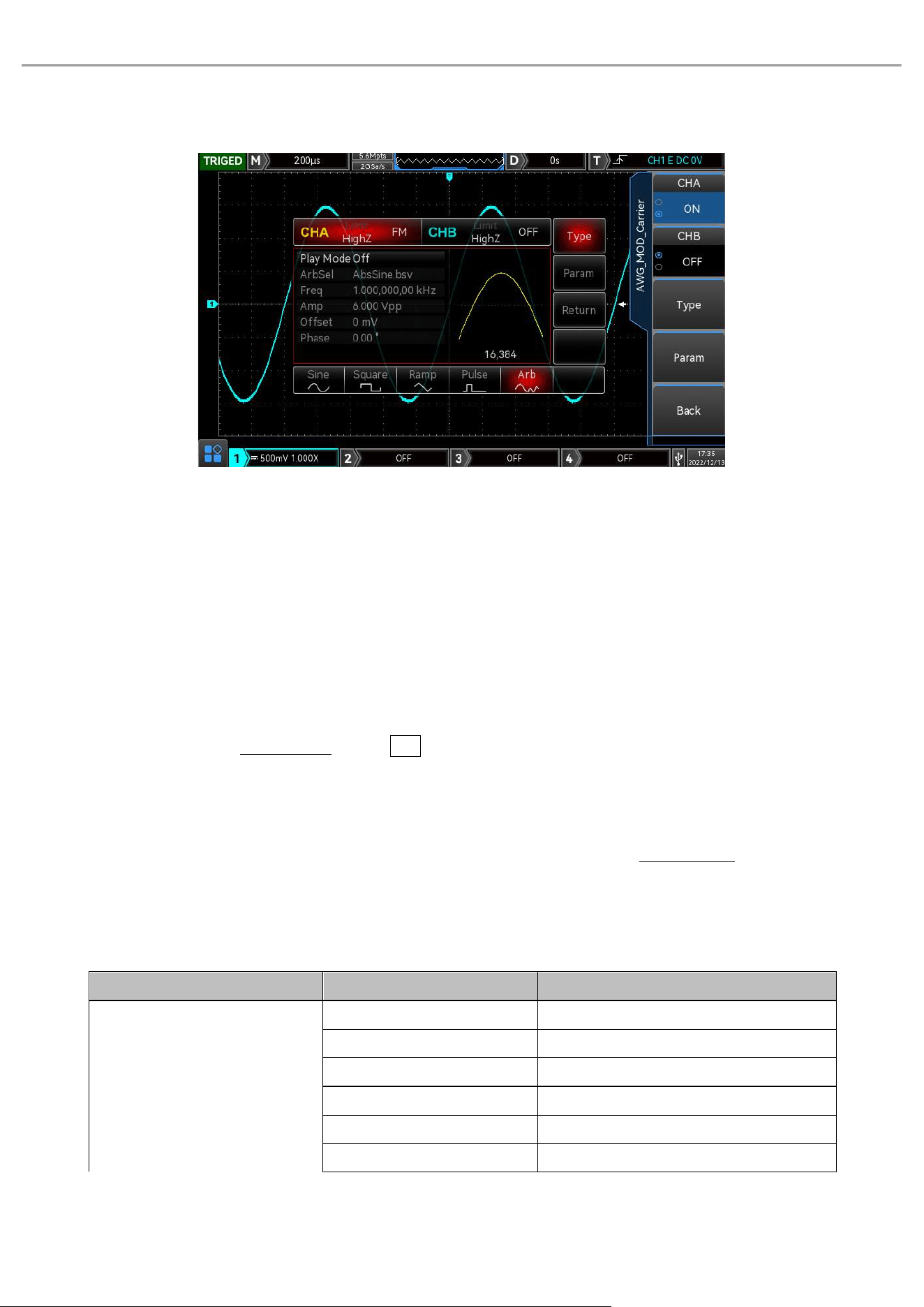
User’s Manual MSO/UPO2000 Series
118 / 137
Instruments.uni-trend.com
oscilloscope will output the arbitrary wave based on the current setting. As shown in Figure 17-7.
Figure 17-7
② Point by point output/ Play mode
AWG supports point-by-point output arbitrary waveform. In point-by-point output mode, the
signal generator automatically calculates the frequency of the output signal according by the
waveform length and sampling rate. The signal generator outputs waveform points one by one at
this frequency. The point-by-point output mode prevents the loss of important waveform points.
The default value is no. In this case, the waveform output arbitrary waveform at a fixed length and
frequency in the parameter list by means of automatic software interpolation and sampling point.
It can adjust Multipurpose knob to Play mode on the arbitrary wave interface and set play mode to
"On". The playback mode supports a maximum of 512 k.
③ Select arbitrary wave
User can select the arbitrary wave from the oscilloscope’s built-in or saved in internal or external of
the oscilloscope. When arbitrary wave function is enabled, adjusting Multipurpose knob to select
the arbitrary wave from different storage medium.
Built-in arbitrary wave as shown in Table 17-2
Table 17-2
Type
Name
Description
Common Function
(
11 kind
)
NegRamp
Anti-sawtooth wave
PPulse
Positive pulse
NPulse
Negative pulse
Sinc
Sinc function
Cardiac
Electrocardiograph
EEG
Electroencephalogram
User’s Manual MSO/UPO2000 Series
119 / 137
Instruments.uni-trend.com
DualTone
Dual tone signal
AbsSine
Absolute value of sine
StairDn
Stair down
StairUp
Stair up
Trapezia
Trapezia
BandLimited
Band limited signal
Engine(23 kind
)
BlaseiWave
Blasting vibration “time-vibration” curve
Butterworth
Butterworth filter
Chebyshev1
Chebyshev1 filter
Chebyshev2
Chebyshev2 filter
Combin
Combination function
CPulse
C-Pulse signal
CWPulse
CW pulse signal
DampedOsc
Damped vibration “time-displacement”
curve
Gamma
Gamma signal
GateVibar
Gate vibration signal
LFMPulse
Linear frequency-modulation pulse
MCNoise
Mechanical execution noise
Discharge
Discharge curve OF nickel-metal
hydride battery
Pahcur
Brushless DC motor current wave
Quake
Earthquake wave
Radar
Radar signal
Ripple
Power ripple
RoundHalf
Hemisphere wave
StepResp
Step response signal
SwingOsc
Swing oscillation-time curve
TV
TV signal
Voice
Voice signal
Maths
(
26 kind
)
Airy
Airy function
Besselj
Bessel function of the first kind
Besselk
Besselk function
Bessely
Bessel function of the second kind
Cauchy
Cauchy distribution
Cubic
Cubic function
Dirichlet
Dirichlet function
User’s Manual MSO/UPO2000 Series
120 / 137
Instruments.uni-trend.com
Erf
Error function
Erfc
Complementary error function
ErfcInv
Inverse complementary error function
ErfInv
Inverse error function
ExpFall
Exponent fall function
ExpRise
Exponent rise function
Gammaln
Napierian logarithm of gamma function
Gauss
Gauss distribution (normal distribution)
HaverSine
Haversine function
Laguerre
4
th
degree laguerre polynomial
Laplace
Laplace distribution
Legend
5
th
legendre Polynomials
LogNormal
Logarithmic normal distribution
Lorentz
Lorentz function
Maxwell
Maxwell distribution
Rayleigh
Rayleigh distribution
Versiera
Versiera
Weibull
Weibull distribution
ARB_X2
Square function
SectMod
(
5 kind
)
AM
Sine segment amplitude modulated
wave
FM
Sine segment frequency modulated
wave
PFM
Pulse segment frequency modulated
wave
PM
Sine segment phase modulated wave
PWM
Pulse width segment frequency
modulated wave
Bioelect
(
4 kind
)
EOG
Electro-Oculogram
EMG
Electromyography
Pulseilogram
Ordinary person’s sphygmogram
ResSpeed
Ordinary person’s expiration speed
curve
Medical
(
4 kind
)
LFPulse
Low frequency pulse electrotherapy
wave
Tens1
Electrical nerve stimulation wave 1
Tens2
Electrical nerve stimulation wave 2
Tens3
Electrical nerve stimulation wave 3
User’s Manual MSO/UPO2000 Series
121 / 137
Instruments.uni-trend.com
Standard (17 kind)
Ignition
Ignition of a car's internal combustion
engine wave
ISO16750-2 SP
Starting profile of the car with
oscillations
ISO16750-2 Starting1
Car voltage waveform caused by startup
1
ISO16750-2 Starting2
Car voltage waveform caused by startup
2
ISO16750-2 Starting3
Car voltage waveform caused by startup
3
ISO16750-2 Starting4
Car voltage waveform caused by startup
4
ISO16750-2 VR
Profile of the car's operating voltage
when it resetting
ISO7637-2 TP1
Due to power cut-off, it cause transient
phenomenon of a car
ISO7637-2 TP2A
Due to the inductance in wiring, it cause
transient phenomenon of a car
ISO7637-2 TP2B
Due to boot turn to shut down, it cause
transient phenomenon of a car
ISO7637-2 TP3A
Due to the conversion, it cause
transient phenomenon of a car
ISO7637-2 TP3B
Due to the conversion, it cause
transient phenomenon of a car
ISO7637-2 TP4
Operating profile of the car when it
starts booting
ISO7637-2 TP5A
Due to charge and power cut-off, it
cause transient phenomenon of a car
ISO7637-2 TP5B
Due to charge and power cut-off, it
cause transient phenomenon of a car
SCR
SCR
sintering temperature release figure
Surge
Surge Signal
Trigonome(20 kind)
CosH
Hyperbolic cosine
CosInt
Integral cosine
Cot
Cotangent function
CotHCon
Cupped hyperbolic cotangent
CotHPro
Raised hyperbolic cotangent
CscCon
Cupped cosecant
CscPro
Raised cosecant
CotH
Hyperbolic cotangent
CscHCon
Cupped hyperbolic cosecant
User’s Manual MSO/UPO2000 Series
122 / 137
Instruments.uni-trend.com
CscHPro
Raised hyperbolic cosecant
RecipCon
Cupped reciprocal
RecipPro
Raised reciprocal
SecCon
Cupped secant
SecPro
Raised secant
SecH
Hyperbolic secant
SinH
Hyperbolic sine
SinInt
Integral sine
Sqrt
Square root function
Tan
Tangent function
TanH
Hyperbolic tangent
AntiTrigonome(17 kind)
ACos
Arc cosine function
ACosH
Arc hyperbolic cosine function
ACotCon
Cupped arc cotangent function
ACotPro
Raised arc cotangent function
ACotHCon
Cupped arc hyperbolic cotangent
function
ACotHPro
Raised arc hyperbolic cotangent
function
ACscCon
Cupped arc cosecant function
ACscPro
Raised arc cosecant function
ACscHCon
Cupped arc hyperbolic cosecant
function
ACscHPro
Raised arc hyperbolic cosecant function
ASecCon
Cupped arc secant function
ASecPro
Raised arc secant function
ASecH
Arc hyperbolic function
ASin
Arc sine function
ASinH
Arc hyperbolic sine function
ATan
Arc tangent function
ATanH
Arc hyperbolic tangent function
Noise
(
6 kind
)
NoiseBlue
Blue noise
NoiseBrown
Brown(red) noise
NoiseGray
Gray noise
NoisePink
Pink noise
NoisePurple
Purple noise
Noisewhite
White noise
Window Function
(
17 kind
)
Bartlett
Bartlett window
User’s Manual MSO/UPO2000 Series
123 / 137
Instruments.uni-trend.com
BarthannWin
CalibratedBarthannwindow
Blackman
Blackman window
BlackmanH
BlackmanH window
BohmanWin
BohmanWin window
Boxcar
Rectangular window
ChebWin
Chebyshev window
GaussWin
Gauss window
FlattopWin
Flattop window
Hamming
Hamming window
Hanning
Hanning window
Kaiser
Kaiser window
NuttallWin
Minimum 4
th
Blackman-harris window
ParzenWin
Parzen window
TaylorWin
Taylaor window
Triang
Triangle window, it’s also called Fejer
window
TukeyWin
Tukey window
Complex
Wavelets
(
7 kind
)
Complex Frequency B-
spline
Complex Frequency B-spline function
Complex Gaussian
Complex Gaussian function
Complex Morlet
Complex Morlet wavelet
Complex Shannon
Complex Shannon function
Mexican hat
Mexican hat wavelet
Meyer
Meyer wavelet
Morlet
Morlet wavelet
Other
(
43 kind
)
ABA_1_1
ABA_1_2
ALT_03
ALT_04
ALT_05
AUDIO
AbsSineHalf
AmpALT
AttALT
COIL_2_1
COIL_2_2
DC_04
ECT_1_2
User’s Manual MSO/UPO2000 Series
124 / 137
Instruments.uni-trend.com
EGR_2
EGR_3_2
EST_03_2
GaussPulse
Gaussian monopulse
IAC_1_1
INJ_1_1
INJ_2
INJ_3
INJ_4
INJ_5_6
INJ_7
KS_1_1
Log10
MAF_1_1
MAF_1_2
MAF_5_3
MAP_1_1
MAP_1_2
MC_3
O2PROPA1
O2PROPA2
O2SNAP
RounsPM
STAR02_1
SineTra
SineVer
StairUD
TPS_1_1
TPS_1_2
User’s Manual MSO/UPO2000 Series
125 / 137
Instruments.uni-trend.com
17.4 Common Setting
Press MENU key to enter menu list, press Utility key to set the common parameter of channel, as shown in
Table 17-3.
Table 17-3
Function Menu
Submenu Function
Setting
Description
CHA and CHB Setting
Channel output
OFF, ON
Set the status of channel output. The
default is OFF.
Channel inverse
OFF, ON
Set the status of channel inverse. The
default is OFF.
Load
50Ω,high resistance
Set the channel’s load. The default is high
resistance.
Amplitude limit
OFF, ON
Set the status of amplitude limit. The
default is OFF.
Upper limit of
amplitude
Set the upper limit of channel amplitude
output.
Lower limit of
amplitude
Set the lower limit of channel amplitude
output.

User’s Manual MSO/UPO2000 Series
127 / 137
Instruments.uni-trend.com
18.1 Automatic Setting
Automatic settings will choose appropriate time base scale, amplitude scale and trigger parameter
according to the input signal so that the waveform will automatically display on the screen. Press the AUTO
key to enable automatic settings.
Automatic setting only applies to the following conditions:
a. Automatic setting is only suitable for simple single frequency signal. It is impossible to achieve effective
automatic setting for complex combination waves.
b. The measured signal frequency is not less than 20 Hz, and the amplitude is not less than 20 mVpp; the
duty cycle of square wave is greater than 5%.
18.2 Run/Stop
Use the RUN/STOP key on the front panel to set. When press this key and the green light is on, it indicates
the RUN state. If the red light is on after the key is pressed, it is the STOP state.
In the running state, the oscilloscope is continuously acquiring waveform and the upper part of the screen
shows “AUTO”; in the stop state, the oscilloscope stops the acquisition and the upper part of the screen
shows “STOP”. Press the RUN/STOP key to switch the waveform sampling between the run and stop states.
18.3 CLEAR
Use the CLEAR key on the front panel to set. Press this key to clear the recalled reference waveform on the
screen.
18.4 Factory Setting
Press the DEFAULT key on the front panel, the oscilloscope can quickly restore to factory setting.
MSO/UPO2000 series digital phosphor oscilloscope factory settings are as shown in Table 18-1.
Table 18-1
System
Function
Factory Setting
Vertical System
CH1
200mV/DIV
Vertical displacement
0(vertical midpoint)
Zero position
0(vertical midpoint)
Coupling
DC
Bandwidth limit
Full bandwidth
Volts/div scale
Coarse tunning
User’s Manual MSO/UPO2000 Series
128 / 137
Instruments.uni-trend.com
Deflection factor of fine tunning
0
Probe
1×
Phase inverse
OFF
Unit
V
CH2, CH3, CH4
OFF
MATH, REF
OFF
Horizontal System
Extension window
OFF
Split screen display
OFF
Multi-Scopes
OFF
Time base selection
Extension time base
Mode
YT
XY-CH
CH1-CH2
Horizontal time base
1μs/div
Horizontal displacement
0(horizontal midpoint)
Trigger System
Trigger mode
Edge
Trigger polarity1
Rising edge
Coupling mode
DC
Trigger condition
Greater than
Lower limit of time
20ns
Upper limit of time
20ns
Edge count
1
Trigger line L position
0
Trigger line H position
0
Trigger mode
Auto
Trigger holdoff
100ns
Source 1
CH1
Source 2
CH1
Trigger polarity 2
Rising edge
Video trigger
PAL
Video trigger synchronization
EVEN
Video trigger specified line
1
Display
Format
Vector
Grid display
Full display
Transparency of pop out dialog
85%
Menu display
Manual
Backlight brightness
50%
Duration
Minimum
User’s Manual MSO/UPO2000 Series
129 / 137
Instruments.uni-trend.com
Temperature color
OFF
Anti-temperature
OFF
Grid brightness
50%
Waveform brightness
50%
MATH
Type
MATH
Source 1
CH1
Operator
+
Source 2
CH1
Probe magnification
x1
FFT window function
Hamming
FFT unit
DBM
FFT count
Auto
FFT mark mode
OFF
FFT split screen
OFF
FFT mark threshold
0
Digital filter
Low pass
Measurement
Main source of measurement
CH1
All parameter measurement
OFF
User-defined parameter
OFF
Statistics
OFF
Slave source
CH1
Indicator enable
OFF
Indicator
Maximum
Pass/Fail Test
Output
Fail
Source
CH1
Display
OFF
Stop type
Fail time
Stop condition
Be equal or greater than
Threshold
1
Template waveform for reference
CH1
Horizontal position
5
Vertical position
5
Bus Decoding
Decoding type
RS232
Bus state
OFF
Display format
Hexadecimal
Event list
OFF
Bus position
10
User’s Manual MSO/UPO2000 Series
130 / 137
Instruments.uni-trend.com
RS232 source
CH1
RS232 polarity
Negative polarity
RS232 baud rate
2400
RS232 user-defined baud rate
9600
RS232 bit width
7 bits
RS232 bit order
MSB
RS232 stop bit
1
RS232 parity bit
none
RS232 trigger condition
Start frame
RS232 data
0
I
2
C SCL
CH1
I
2
C SDA
CH1
I
2
C address bit width
7 bits
I
2
C address
0
I
2
C address mask
0
I
2
C operating direction
Write
I
2
C trigger condition
ON
I
2
C byte size
1
I
2
C data
0
I
2
CC subnet mask
0
SPI CS
CH1
SPI CLK
CH1
SPI MOSI
CH1
SPI MISO
CH1
SPI CS Polarity
Positive polarity
SPI CLK Polarity
Positive polarity
SPI MOSI Polarity
Positive polarity
SPI MISO Polarity
Positive polarity
SPI bit order
MSB
SPI Bit Width
8 bits
SPI idle time
100ns
SPI frame size
1
SPI MOSI data
0
SPI MOSI subnet mask
0
LA
Low 8 channel threshold(user-defined)
0
High 8 channel threshold(user-defined)
0
Shake proof time of BUS 1
0
User’s Manual MSO/UPO2000 Series
131 / 137
Instruments.uni-trend.com
Shake proof time of BUS 2
0
Other System
Frequency meter
ON
Square wave output
1KHz
Synchronized output
OFF
SCPI port
USB
DHCP
Manual
Language
The current setting
Sampling mode
Normal sampling
Average sampling time
2
Storage depth
Auto
Cursor type
OFF
Cursor mode
Independent
Horizontal unit of cursor
Second
Cursor channel
CH1
Automatic channel
Autoset
Automatic sampling
Autoset
Automatic trigger
Autoset
Automatic signal
Autoset
Current channel selection
CH1
LA
OFF
RUN/STOP
RUN
Web Password
uni-t
User’s Manual MSO/UPO2000 Series
132 / 137
Instruments.uni-trend.com
19. System Prompt and Troubleshooting
19.1 Description of System Prompt
This chapter is to describe the system prompt, the detailed explanation as shown in Table 19-1
Table 19-1
Adjusting is up to extremity!
It is prompt that the adjusting is up to extremity in the current
status. It cannot be adjust. It will be prompt when vertical scale
rotary knob, time base knob, horizontal displacement, vertical
displacement and trigger level, trigger time is up to extremity.
There is no valid data!
It will be prompt when saving waveform.
Warning!It will clear all saved
waveforms and settings.
It will be prompt when using clear function.
Forbidden function!
It will be prompt if open event list when bus is disabled; switch
extend serial port in roll mode.
Fail to create a template!
It will be prompt when the selected reference waveform is not
opened in Pass/Fail template. It will be prompt when turn on
operation to run Pass/Fail test.
There is no record data!
It will be prompt if operating play and stop function when there is no
record data.
Attention!Pass/Fail function is
invalid when the scanning is
turned on.
It will be prompt when allow to test function is enabled.
I/O operation is failed!
It will be prompt when failed to save Bode data; failed to save
waveform.
Attention!It will restore the
system to factory setting.
It will be prompt when using the default function.
Storage is failed, please format
USB to FAT.
It will be prompt if using USB which is not FAT format to save data.
No USB has detected, please
insert USB device!
It will be prompt when USB is not connected.
Remove all input signals.
It will be prompt when using analog channel calibration and LA
calibration.
Auto-calibration is completed!
It will be prompt when auto-calibration is completed.
Channel has no signal!
It will be prompt when channel is no signal.
User’s Manual MSO/UPO2000 Series
133 / 137
Instruments.uni-trend.com
The record function is invalid in
Roll mode!
It will be prompt when the oscilloscope operates recording
waveform in Roll mode.
There is no parameter can be use,
please select user-defined
measurement parameter!
It will be prompt if there is no user-defined parameter when turn on
measurement statics.
Data storage is successful!
It will be prompt when save waveform, setting file, arbitrary wave is
completed.
Data storage is failed!
It will be prompt when save waveform, setting file, arbitrary wave is
failed.
Loading file is successful!
It will be prompt when recall saved setting or waveform and it
appeared in storage.
Loading file is failed!
It will be prompt if it not appeared in storage when recall saved
setting or waveform.
Invalid expression!
It will be prompt when MATH advanced operation and application
expression is invalid.
Screenshot is successful!
It will be prompt when save picture or use PrtSc to save picture is
completed.
The update path was not fund!
It will be prompt if USB is not insert to provide the update file when
the instrument is in updating.
The update file was not fund!
It will be prompt if USB cannot provide the update file when the
instrument is in updating.
The filename cannot be empty!
It will be prompt if the filename is empty when save waveform,
setting file, arbitrary wave, recording waveform.
Language package is error, please
check the language package!
It will be prompt when language package occurs error.
Clear data is successful!
It will be prompt when clear data is finished.
In Multi-Scopes, this function is
invalid!
It will be prompt when using extend window, recording waveform,
reload waveform, Pass/Fail test, MATH, DECODE, LA, drawing
rectangle in Multi-Scopes mode.
The program is in updating, do not
reboot!
It will be prompt when the program is in updating.
It cannot canceled during
update!
It will be prompt if press cancel function when the program is in
updating.
Update is failed, please check the
update package and version!
It will be prompt if the update program is not complete when the
program is in updating.
Update is completed, reboot
system now?
It will be prompt when the program is upgraded.
It is in recording, please exit the
recording!
It will be prompt if press other function key when in recording
waveform.
In Multi-Scopes mode, the
adjustment is up to extremity!
It will be prompt when adjusting horizontal time base is slow to
20ms.
User’s Manual MSO/UPO2000 Series
134 / 137
Instruments.uni-trend.com
In XY mode, this function cannot
be use!
It will be prompt when open MATH, REF, LA, DECODE function in XY
mode.
Start to update?
It will be prompt when select the update file to upgrade.
The channel is not open!
It will be prompt if the selected channel is not opened in cursor
measurement, Pass/Fail template, channel waveform storage,
arbitrary waveform storage function.
Turn on allow to test!
It will be prompt when allow to test function is disabled.
Waveform reference channel is
not open, there is no valid data!
It will be prompt if REF is not loading adjusting horizontal or vertical
when waveform reference is select REF in Pass/Fail test.
It’s not allow to test in XY and the
main window mode !
It will be prompt when Pass/Fail test and XY mode is enabled.
Turn off scanning!
It will be prompt if press other key when it in scanning.
There is no opened channel,
please turn on channel to
record!
It will be prompt if all analog channel is turned off when in recording
waveform.
In Multi-Scopes, LA is forbidden!
It will be prompt when turn on Multi-Scopes function and then open
LA.
In FFT split screen mode, this
function is invalid!
It will be prompt when using Pass/Fail test, bode diagram, reload
waveform, LA function in FFT split screen, waterfall curve mode.
In FFT split screen mode,
Pass/Fail test is forbidden!
It will be prompt when turn on Pass/Fail test function and then open
FFT split screen.
The file list is empty!
It will be prompt when if the filename is empty when reload
reference waveform, the setting file and bode diagram.
Auto-calibration is canceled!
It will be prompt if press MENU key to cancel auto-calibration when
in auto-calibration.
Restored to factory setting,
internet parameter is not
change!
It will be prompt when SCPI is connect the internet to send factory
setting command.
Shunt down, please wait...
It will be prompt when the oscilloscope is shutting down.
Turn off quick record and set
record interval!
It will be prompt when set the time interval in quick record.
No correct license is detected.
Confirm the purchase and try
again!
It will be prompt if there is no correct license when insert USB to
activate the optional.
Activation is successful!
It will be prompt when activation license is selected in USB.
This function is not activated,
please purchase activation
code!
It will be prompt when select the optional after the trail is ended.
The function is in trail. If need to
use it in the long run, please
purchase activation code!
It will be prompt if select the optional when it in trail.

User’s Manual MSO/UPO2000 Series
135 / 137
Instruments.uni-trend.com
19.2 Troubleshooting
(1) When press the button, the oscilloscope is blank screen.
a. Check whether the power is correctly connected, power supply is normal or not.
b. Check whether the power switch is really turned on. The soft power switch button should light in
green when the instrument is normal boot. And it should have relay sound.
c. If there is a relay sound, it indicates that the oscilloscope starts normally.
Try the following steps: press the DEFAULT key, then press F1, if device returns to normal, it means
backlight brightness is set too low.
d. After completing the above steps, restart the oscilloscope.
e. If the instrument still cannot work, please contact UNI-T.
(2) After signal acquisition, signal of waveform does not appear on the screen.
a. Check whether BNC port is connected properly.
b. Check whether the signal output channel has turned on.
c. Check whether the input signal channel has turned on.
d. Check whether has DC displacement in signal of information source.
e. Plug out the input signal, check whether the baseline is in the screen range (if not, please perform
auto-calibration.)
f. If the instrument still cannot work, please contact UNI-T.
(3) The measured voltage amplitude value is 10 times larger or smaller than the actual value: Check the
channel probe attenuation coefficient setting is consistent with the used probe attenuation rate.
(4) There is a waveform display but not stable
a. Check the trigger source in the trigger menu and confirm that it matches the input channel of the
actual signal.
b. Check the trigger type: general signal should use “Edge” trigger. The waveform can display stably
only the proper trigger type is used.
c. Change the trigger coupling setting to high-frequency or low-frequency reject, in order to filter out
the high-frequency or low-frequency noise that interferes with the trigger.
(5) No display after pressing Run/Stop button
a. Check whether the mode at the trigger panel (TRIGGER) is on “Normal” or “Single” and whether the
trigger level exceeds the waveform range.
b. If it exceeds,set the trigger level to the middle or set the trigger mode to Auto.
c. Press AUTO button could automatically finish the above setting.
(6) Waveform refresh is very slow
a. Check whether the acquisition method is average and the average times are large.
b. Check whether the holdoff time is large.
c. Check whether is single trigger and the current setting is slow time ase scale.
d. The above will cause slow refreshing of the waveform. It is advised to restore to the factory setting.
Waveform can be refresh normally.
User’s Manual MSO/UPO2000 Series
136 / 137
Instruments.uni-trend.com
20. Appendix
20.1 Appendix A Maintenance and Cleaning
(1) General Maintenance
Keep the instrument away from the direct sunlight.
Caution
Keep sprays, liquids and solvents away from the instrument or probe to avoid damaging the instrument or
probe.
(2) Cleaning
Check the instrument frequently according to the operating condition. Follow these steps to clean the
external surface of the instrument:
a. Please use a soft cloth to wipe the dust outside the instrument.
b. When cleaning the LCD screen, please pay attention and protect the transparent LCD screen.
c. When cleaning the dust screen, use a screwdriver to remove the screws of the dust cover and then
remove the dust screen. After cleaning, install the dust screen in sequence.
d. Please disconnect the power supply, then wipe the instrument with a damp but not dripping soft cloth.
Do not use any abrasive chemical cleaning agent on the instrument or probes.
Warning
Please confirm that the instrument is completely dry before use, to avoid electrical shorts or even personal
injury caused by moisture.
20.2 Appendix B Warranty Overview
UNI-T (UNI-TREND TECHNOLOGY (CHINA) CO., LTD.) ensures the production and sale of products, from
authorized dealer’s delivery date of three years, without any defects in materials and workmanship. If the
product is proven to be defective within this period, UNI-T will repair or replace the product in accordance
with the detailed provisions of the warranty.
To arrange for repair or acquire warranty form, please contact the nearest UNI-T sales and repair department.
In addition to permit provided by this summary or other applicable insurance guarantee, UNI-T does not
provide any other explicit or implied guarantee, including but not limited to the product trading and special
purpose for any implied warranties.
In any case, UNI-T does not bear any responsibility for indirect, special, or consequential loss.

User’s Manual MSO/UPO2000 Series
137 / 137
Instruments.uni-trend.com
20.3 Appendix C Contact Us
If the use of this product has caused any inconvenience, if you in mainland China you can contact UNI-T
company directly.
Service support: 8am to 5.30pm (UTC+8), Monday to Friday or via email. Our email address is infosh@uni-
trend.com.cn
For product support outside mainland China, please contact your local UNI-T distributor or sales center.
Many UNI-T products have the option of extending the warranty and calibration period, please contact
your local UNI-T dealer or sales center.
To obtain the address list of our service centers, please visit our website at URL: http://www.uni-
trend.com