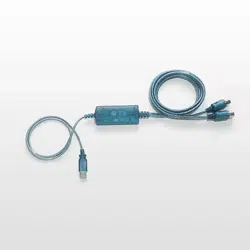

Owner's Manual
This includes Limited Warranty for products distributed
by YAMAHA CORPORATION OF AMERICA.
SPECIAL MESSAGE SECTION
This product utilizes an external power supply
(adapter). DO NOT connect this product to any
power supply or adapter other than one
described in the manual, on the name plate, or
specifically recommended by Yamaha.
WARNING:
Do not place this product in a
position where anyone could walk on, trip over,
or roll anything over power or connecting cords
of any kind. The use of an extension cord is not
recommended! If you must use an extension
cord, the minimum wire size for a 25' cord (or
less) is 18 AWG. NOTE: The smaller the AWG
number, the larger the current handling capacity.
For longer extension cords, consult a local
electrician.
This product should be used only with the
components supplied or; a cart, rack, or stand
that is recommended by Yamaha. If a cart, etc.,
is used, please observe all safety markings and
instructions that accompany the accessory
product.
SPECIFICATIONS SUBJECT TO
CHANGE:
The information contained in this manual is
believed to be correct at the time of printing.
However, Yamaha reserves the right to change
or modify any of the specifications without notice
or obligation to update existing units.
Do not attempt to service this product beyond
that described in the user-maintenance
instructions. All other servicing should be
referred to qualified service personnel.
This product, either alone or in combination with
an amplifier and headphones or speaker/s, may
be capable of producing sound levels that could
cause permanent hearing loss. DO NOT operate
for long periods of time at a high volume level or
at a level that is uncomfortable. If you experience
any hearing loss or ringing in the ears, you
should consult an audiologist. IMPORTANT: The
louder the sound, the shorter the time period
before damage occurs.
Some Yamaha products may have benches and/
or accessory mounting fixtures that are either
supplied with the product or as optional
accessories. Some of these items are designed
to be dealer assembled or installed. Please
make sure that benches are stable and any
optional fixtures (where applicable) are well
secured BEFORE using. Benches supplied by
Yamaha are designed for seating only. No other
uses are recommended.
NOTICE:
Service charges incurred due to a lack of
knowledge relating to how a function or effect
works (when the unit is operating as designed)
are not covered by the manufacturer's warranty,
and are therefore the owners responsibility.
Please study this manual carefully and consult
your dealer before requesting service.
ENVIRONMENTAL ISSUES:
Yamaha strives to produce products that are
both user safe and environmentally friendly. We
sincerely believe that our products and the
production methods used to produce them, meet
these goals. In keeping with both the letter and
the spirit of the law, we want you to be aware of
the following:
Disposal Notice:
Should this product become damaged beyond
repair, or for some reason its useful life is
considered to be at an end, please observe all
local, state, and federal regulations that relate to
the disposal of products that contain lead,
batteries, plastics, etc. If your dealer is unable to
assist you, please contact Yamaha directly.
NAME PLATE LOCATION:
The name plate is located on the bottom of the
product. The model number, serial number,
power requirements, etc., are located on this
plate. You should record the model number,
serial number, and the date of purchase in the
spaces provided below and retain this manual as
a permanent record of your purchase.
Model
Serial No.
Purchase Date
PLEASE KEEP THIS MANUAL
93-DC
* Please make a note of the model number, the serial number and the purchase date.
PRECAUTIONS
PLEASE READ CAREFULLY BEFORE PROCEEDING
* Please keep this manual in a safe place for future reference.
WARNING
Always follow the basic precautions listed below to avoid the possibility of serious injury or even death
from electrical shock, short-circuiting, damages, fire or other hazards. These precautions include, but are
not limited to, the following:
• Check the USB terminal periodically and remove any dirt
or dust which may have accumulated on it.
• Do not place the cable near heat sources such as heat-
ers or radiators, and do not excessively bend or other-
wise damage the cable, place heavy objects on it, or
place it in a position where anyone could walk on, trip
over, or roll anything over it.
• Do not open the instrument or attempt to disassemble
the internal parts or modify them in any way. The instru-
ment contains no user-serviceable parts. If it should
appear to be malfunctioning, discontinue use immedi-
ately and have it inspected by qualified Yamaha service
personnel.
• Do not expose the instrument to rain, use it near water or
in damp or wet conditions, or place containers on it con-
taining liquids which might spill into any openings.
• Never insert or remove cables with wet hands.
• Do not put burning items, such as candles, on the unit.
A burning item may fall over and cause a fire.
• If the USB cable becomes frayed or damaged, or if there
is a sudden loss of sound during use of the instrument,
or if any unusual smells or smoke should appear to be
caused by it, immediately disconnect the USB terminal,
and have the instrument inspected by qualified Yamaha
service personnel.
CAUTION
Always follow the basic precautions listed below to avoid the possibility of physical injury to you or others, or
damage to the instrument or other property. These precautions include, but are not limited to, the following:
• Do not expose the instrument to excessive dust or vibra-
tions, or extreme cold or heat (such as in direct sunlight,
near a heater, or in a car during the day) to prevent the
possibility of panel disfiguration or damage to the inter-
nal components.
• Do not use the instrument in the vicinity of a TV, radio, ste-
reo equipment, mobile phone, or other electric devices.
Otherwise, the instrument, TV, or radio may generate
noise.
• Do not place the instrument in an unstable position
where it might accidentally fall over.
• Before moving the instrument, remove all connected
cables.
• Before connecting the instrument to other electronic
components, turn off the power for all components.
Before turning the power on or off for all components, set
all volume levels to minimum. Also, be sure to set the
volumes of all components at their minimum levels and
gradually raise the volume controls while playing the
instrument to set the desired listening level.
• When cleaning the instrument, use a soft, dry cloth. Do
not use paint thinners, solvents, cleaning fluids, or chem-
ical-impregnated wiping cloths.
• Do not place vinyl, plastic or rubber objects on the instru-
ment, since this might discolor the panel or keyboard.
• Do not rest your weight on, or place heavy objects on the
instrument, and do not use excessive force on the con-
nectors.
Cables
Do not open
Water warning
Fire warning
If you notice any abnormality
Location
Connections
Yamaha cannot be held responsible for damage
caused by improper use or modifications to the
instrument, or data that is lost or destroyed.
Maintenance
Handling caution
(3)-7
4
Welcome to the UX16
Thank you for choosing the Yamaha UX16 USB-MIDI Interface Cable.
The UX16 is a MIDI interface that features simultaneous playback of up to 16 chan-
nels. Connect the UX16 to a computer that has a USB terminal and enjoy the
advantages of digital music.
Please read this owner’s manual thoroughly to make the best use of the UX16.
After you read this manual, please keep it in a safe place for future reference.
Table of Contents
UX16 Features.................................................................................. 5
Package Contents............................................................................. 6
Parts and Functions .......................................................................... 7
Connections..................................................................................... 8
Installing the Driver .......................................................................... 9
Changing the driver setting (MIDI Patch Screen)............................ 21
System Requirements ..................................................................... 24
Specifications ................................................................................. 24
Troubleshooting (FAQ)................................................................... 25
•
The screen displays in this Owner’s Manual are intended for instructional pur-
poses, and may appear somewhat different from the screens that appear on
your computer.
•
OMS
®
and are trademarks of Opcode Systems, Inc.
•
The company names and product names in this Owner’s Manual are the trade-
marks or registered trademarks of their respective companies.

5
UX16 Features
●
16 channel simultaneous playback
Supports your music production system with one MIDI OUT port (16 channels)
and one MIDI IN port (16 channels).
●
Easy Hot Swap Connection
With a USB connection, you can connect and disconnect the USB cable while the
power to the computer is on. The UX16 operates on USB bus power and does not
require a power adaptor.
●
Indicators show the operating status
The indicators of USB and MIDI IN/OUT make it easy to verify operation.
●
Connect multiple units to expand your system
You can easily expand the number of ports by using a USB hub to connect
multiple UX16 units.
A maximum of 32 units can be connected, but this will depend on your system.
●
Supports Windows and Macintosh
The UX16 supports Windows 98/Me/2000 and Mac OS 8.5 or higher (including
OS 9.1).
Notes on USB
Never connect or disconnect a USB cable under any of the following conditions.
Otherwise, the computer may lock up or UX16 functions may be disabled:
•
The computer is checking the device or loading the driver.
•
The computer is starting or quitting the OS.
•
The computer is in or canceling Save Energy (Sleep) mode.
•
A MIDI application program is running.
Also, do not perform any of the following operations. Otherwise, the computer
may lock up or the UX16 functions may be disabled:
•
Do not frequently connect or disconnect the cables.
•
Do not place the computer in or cancel Save Energy (Sleep) mode during MIDI
data transfer.
•
Do not connect or disconnect cables, restart the computer, or install the driver
while a large amount of data is being transferred.
If you are using Windows 2000, it may not be possible to suspend/resume, depending
on your USB host controller and other aspects of your system. (Even if this occurs, the
UX16 will operate correctly if you re-connect the USB cable.)
NOTE
NOTE
6
Package Contents
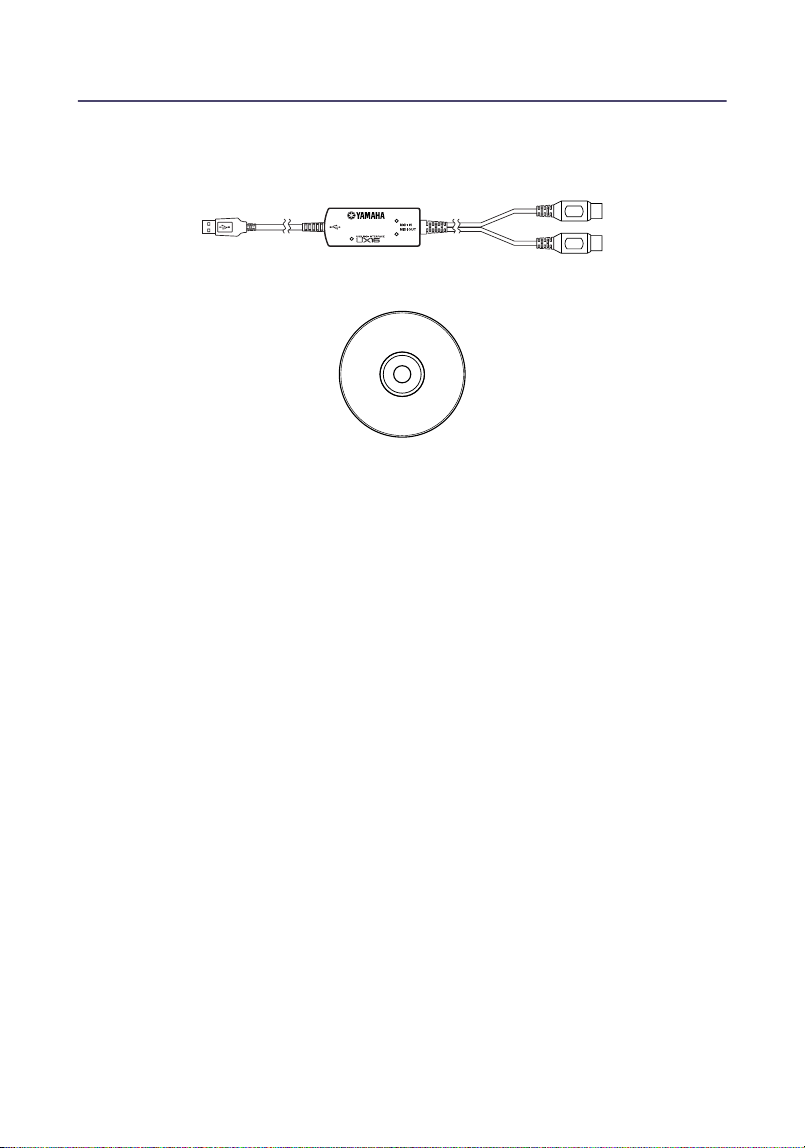
The UX16 package contains the following items. Check the contents for missing
items.
•
USB-MIDI interface cable (UX16 main unit)
•
CD-ROM (Windows/Macintosh hybrid CD)
About the included software
The included CD-ROM contains the following software (driver).
[Windows]
•
USB-MIDI driver (YAMAHA USB-MIDI Driver)
You need this driver to operate the UX16. See page 10 for information on
installing the driver.
[Macintosh]
•
OMS
This is a MIDI driver for Macintosh provided by Opcode Systems.
See page 16 and the included “OMS_2.3_Mac.pdf” OMS manual for
information on installing and using the driver.
•
USB-MIDI driver (YAMAHA USB-MIDI Driver)
You need this driver to operate the UX16.
Be sure to install the OMS driver first, then install this driver. See page 16 for
information on installing the driver.
IN
OUT
7
Parts and Functions
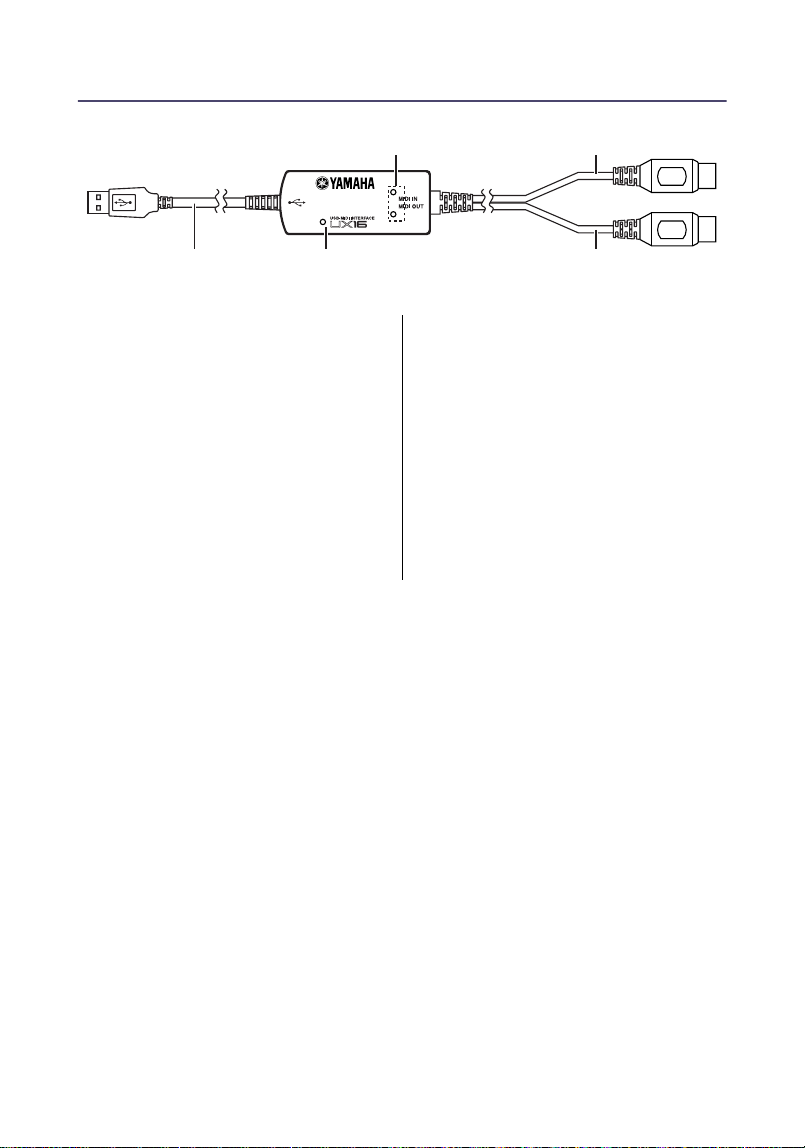
1
Power indicator
This will light when the USB
terminal is connected, supplying
power to the UX16.
2
MIDI IN/OUT indicators
These indicators will light when
MIDI messages pass through the
corresponding cable.
3
USB cable
Connect this to the USB terminal of
your computer or USB hub.
4
MIDI IN cable
This cable receives MIDI messages
from your keyboard or other MIDI
device. Connect it to the MIDI OUT
terminal of your MIDI device.
5
MIDI OUT cable
This cable transmits MIDI messages
to your tone generator or other
MIDI device. Connect it to the MIDI
IN terminal of your MIDI device.
IN
OUT
3 1 5
4
2
8
Connections
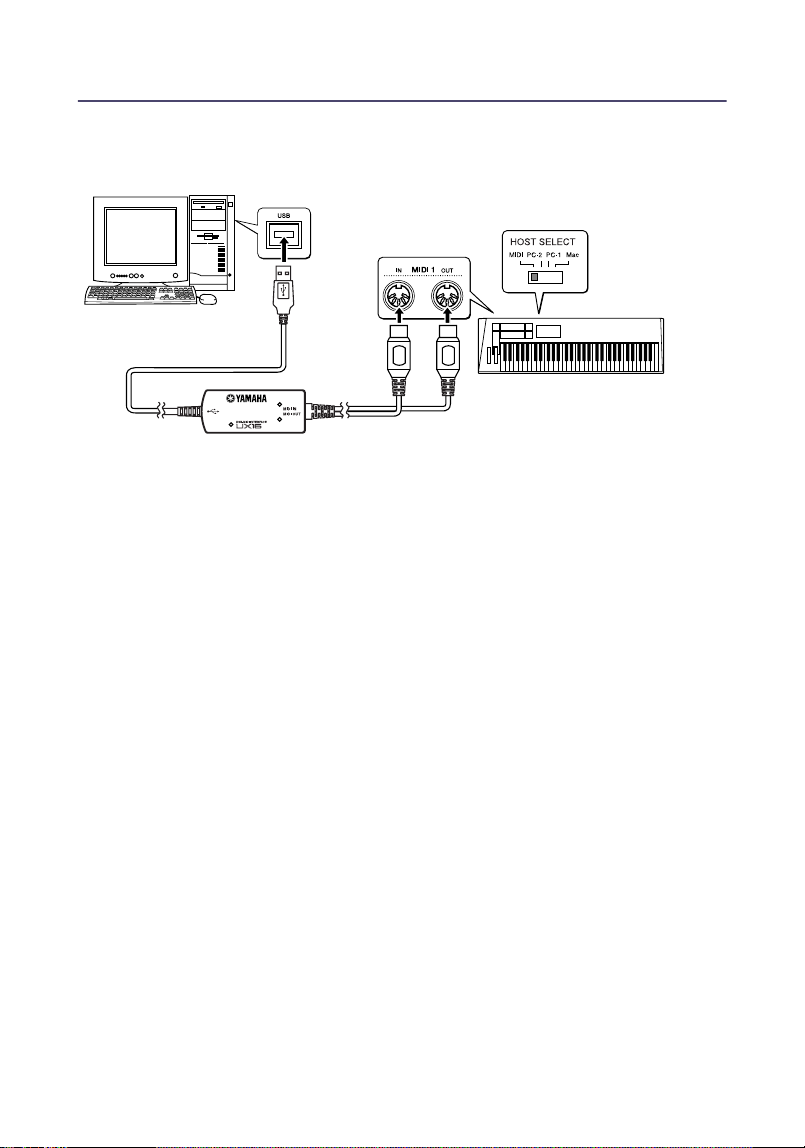
This section explains how to use the UX16 to connect your MIDI devices (tone
generator or keyboard, etc.) to your computer.
1.
Connections to your computer
Connect the USB cable to the USB terminal of your computer (or USB hub). It
is not necessary to turn off the power of your computer before doing so.
2.
Connections to MIDI devices
Turn off the power of your MIDI devices before connecting them. Connect the
MIDI OUT cable of the UX16 to the MIDI IN terminal of your MIDI device, and
connect the MIDI IN cable to the MIDI OUT terminal of your MIDI device. Set
the HOST SELECT switch of your MIDI device to “MIDI.”
Computer
Set the HOST SELECT
switch of the MIDI
device to “MIDI.”
MIDI device
IN
OUT
See page 9 for information
on installing the driver.
9
Installing the Driver
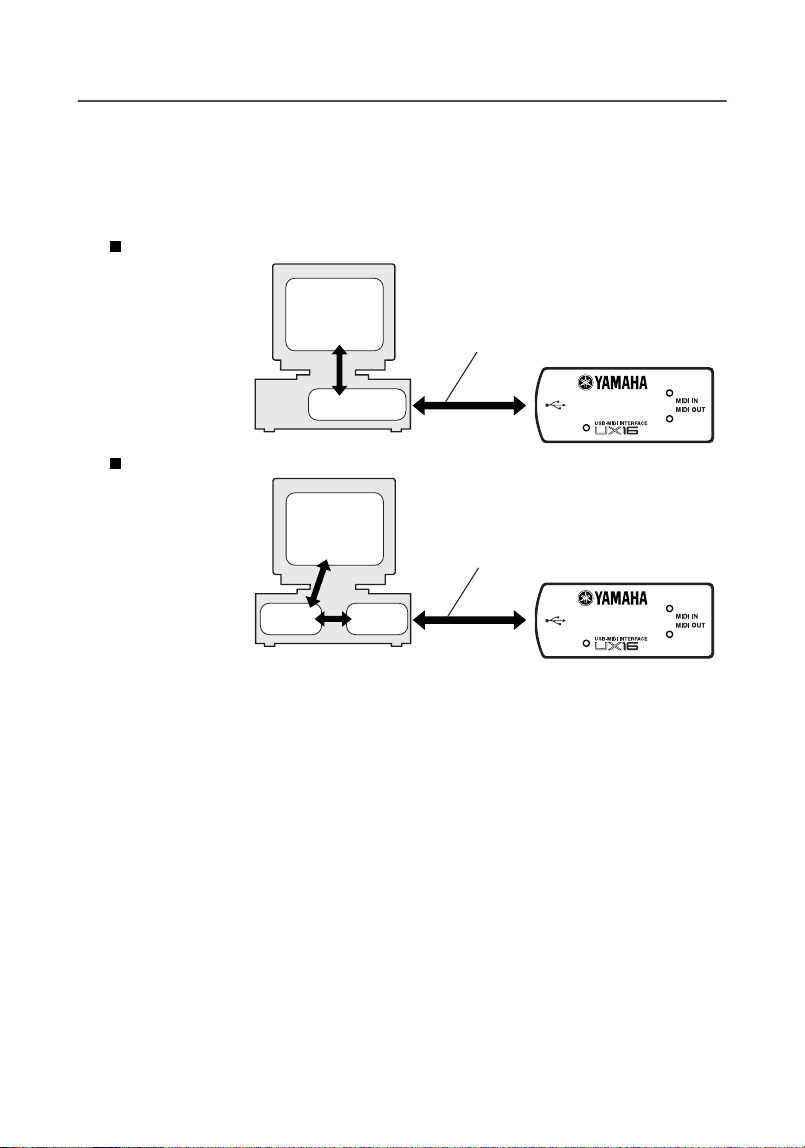
To operate the UX16, you need to install the driver on the computer correctly.
The USB-MIDI driver is software that transmits MIDI signals back and forth
between sequence software and the UX16 via a USB cable.
If you are using a Macintosh computer, you also need to install the OMS driver
(page 16) as well as the USB-MIDI driver.
Windows 98/Me users
→
See page 10.
Windows 2000 users
→
See page 13.
Macintosh users
→
See page 16.
UX16
UX16
OMS
Macintosh
Windows
Sequence
software
Sequence
software
Driver
Driver
Computer
Computer
USB cable
USB cable
10
Windows users:
●
Installing the driver on a Windows98/Me system
Before you continue, make a note of the drive name (D:, E:, Q:, etc.) for your CD-ROM
drive. The drive name is displayed under the CD-ROM icon in “My Computer.” (The
root directory of the CD-ROM drive will be (for example) D:\, E:\, or Q:\, etc.)
1.
Start the computer.
2.
Insert the included CD-ROM into the CD-ROM drive.
3.
Connect the USB cable to the USB terminal of the computer (or the USB hub).
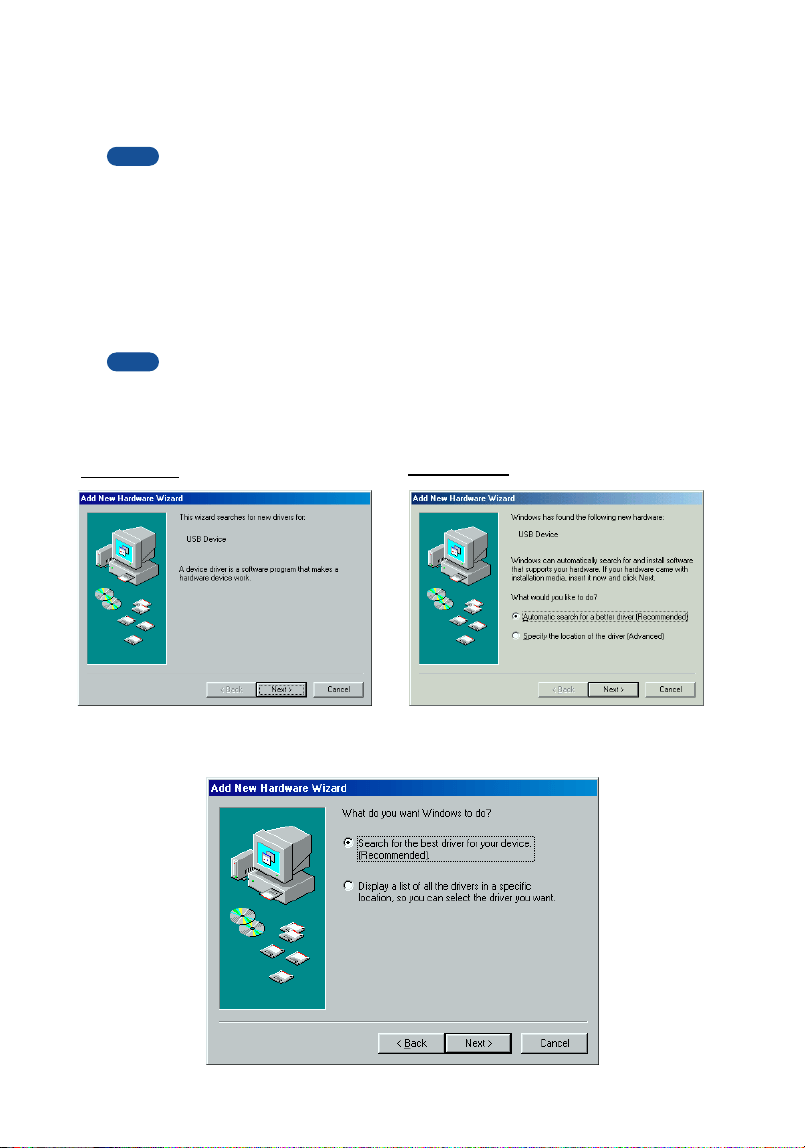
The UX16 is powered on and the system automatically displays the “Add New
Hardware Wizard.”
For Windows Me users, check the radio button to the left of “Automatic search for a
better driver (Recommended)” and click [Next]. The system automatically starts
searching and installing the driver. Proceed to Step 8. If the system does not detect
the driver, select “Specify the location of the driver (Advanced)” and specify the CD-
ROM drive’s root directory (e.g., D:\) to install the driver.
4.
Click [Next].
The system displays a screen that enables you to select the search method.
NOTE
NOTE
Windows 98
Windows Me
11
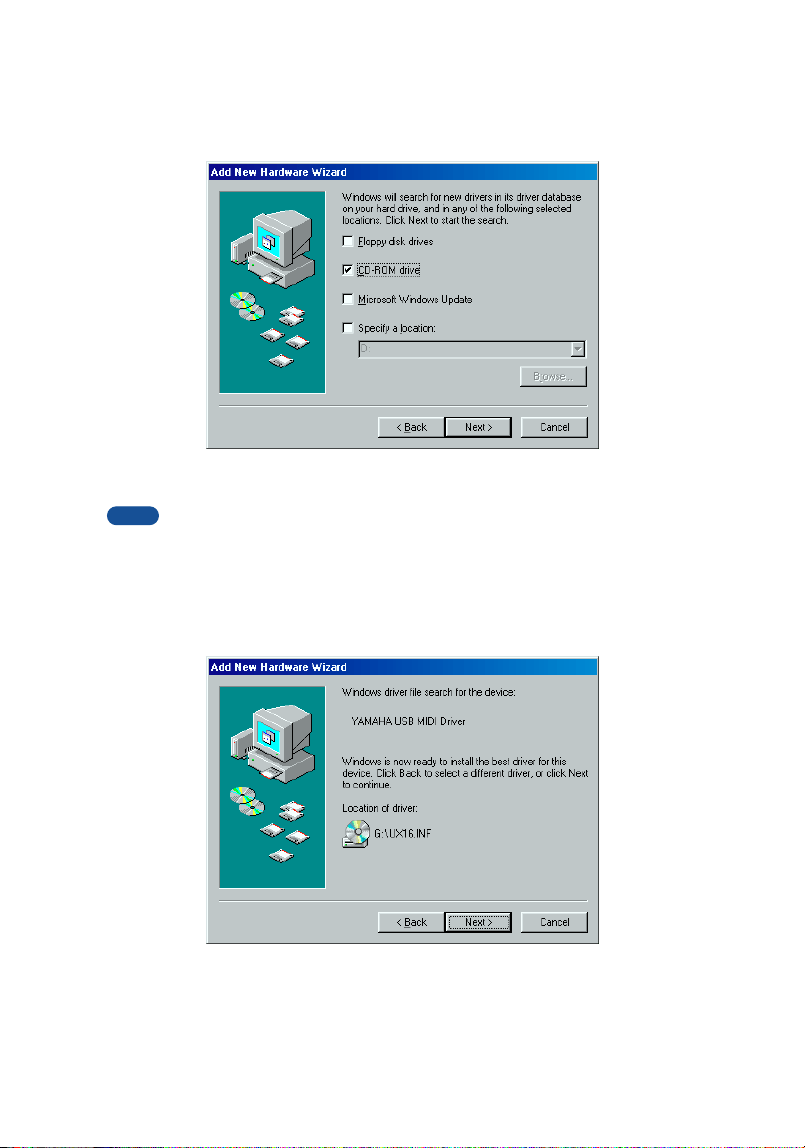
5.
Check the radio button to the left of “Search for the best driver for your device.
(Recommended).” Click [Next].
The system displays a screen that enables you to select a location in which to
install the driver.
6.
Check the “CD-ROM drive” box and uncheck all other items. Click [Next].
The system may ask you to insert a Windows CD-ROM while it checks for the driver.
Specify the root folder of the CD-ROM drive (such as D:\) and continue the installation.
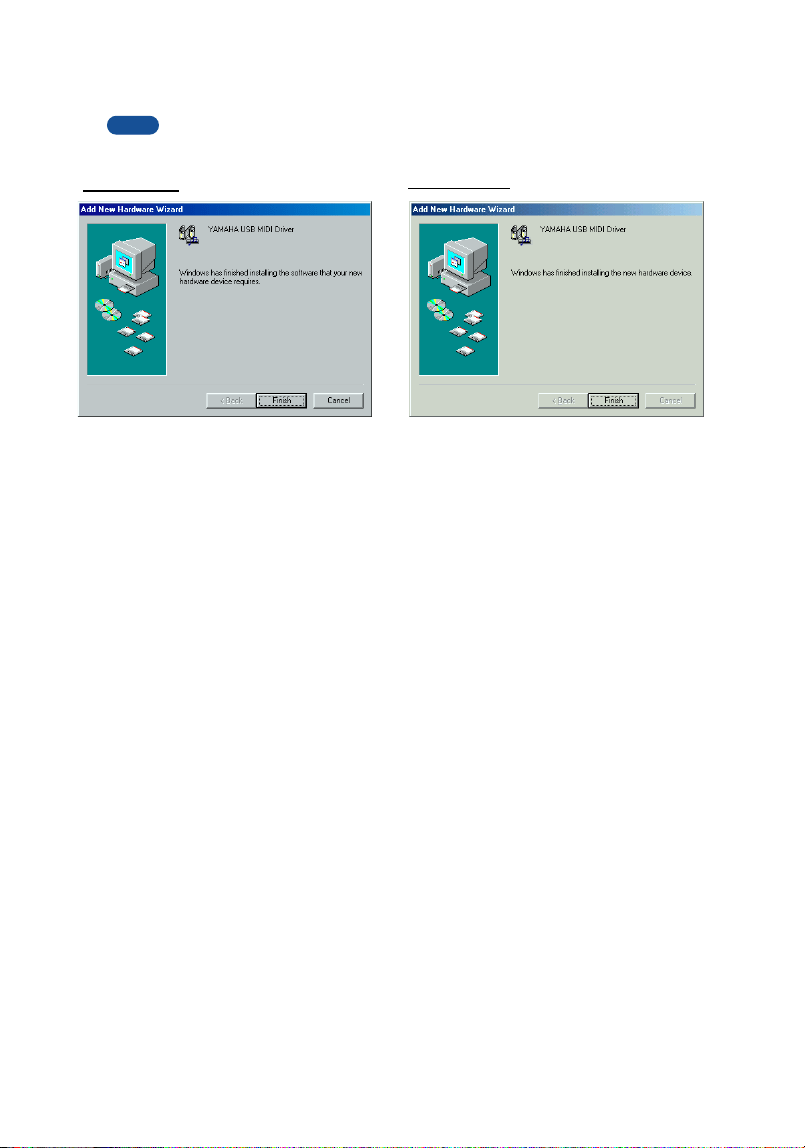
7.
When the system detects the driver on the CD-ROM and is ready for installa-
tion, it displays the following screen.
Make sure that the “YAMAHA USB MIDI Driver” is listed, and click [Next]. The
system starts the installation.
NOTE
12
8.
When the installation is complete, the following screen appears.
Click [Finish].
Some computers may take about ten seconds to show this screen after the installation
is complete.
The driver has been installed.
NOTE
Windows 98
Windows Me

13
●
Installing the driver on a Windows 2000 system
1.
Start the computer and use the “Administrator” account to log into Windows
2000.
2.
Select [My Computer | Control Panel | System | Hardware | Driver Signing | File
Signature verification], and check the radio button on the left of “Ignore -
Install all files, regardless of file signature” and click [OK].
3.
Insert the included CD-ROM into the CD-ROM drive.
4.
Connect the USB cable to the USB terminal of the computer (or the USB hub).
The UX16 is powered on and the system automatically displays the “Found
New Hardware Wizard.” Click [Next].
5.
Check the radio button to the left of “Search for a suitable driver for my device.
(Recommended).” Click [Next].
The system displays a screen that enables you to select a location in which to
install the driver.
6.
Check the “CD-ROM drives” box and uncheck all other items. Click [Next].
The system may ask you to insert a Windows CD-ROM while it checks for the driver.
Specify the root folder of the CD-ROM drive (such as D:\) and continue the installation.
7.
When the installation is complete, the system displays “Completing the Found
New Hardware Wizard.”
Click [Finish].
Some computers may take about ten seconds to show this screen after the installation
is complete.
8.
Restart the computer.
The driver has been installed.
NOTE
NOTE
14
●
Selecting the destination for the MIDI signal output
This section explains how to set up the UX16 for use with Windows Media Player
(included in Windows) or an equivalent program. For information on setting up
your sequence software, refer to the owner’s manual for the software.
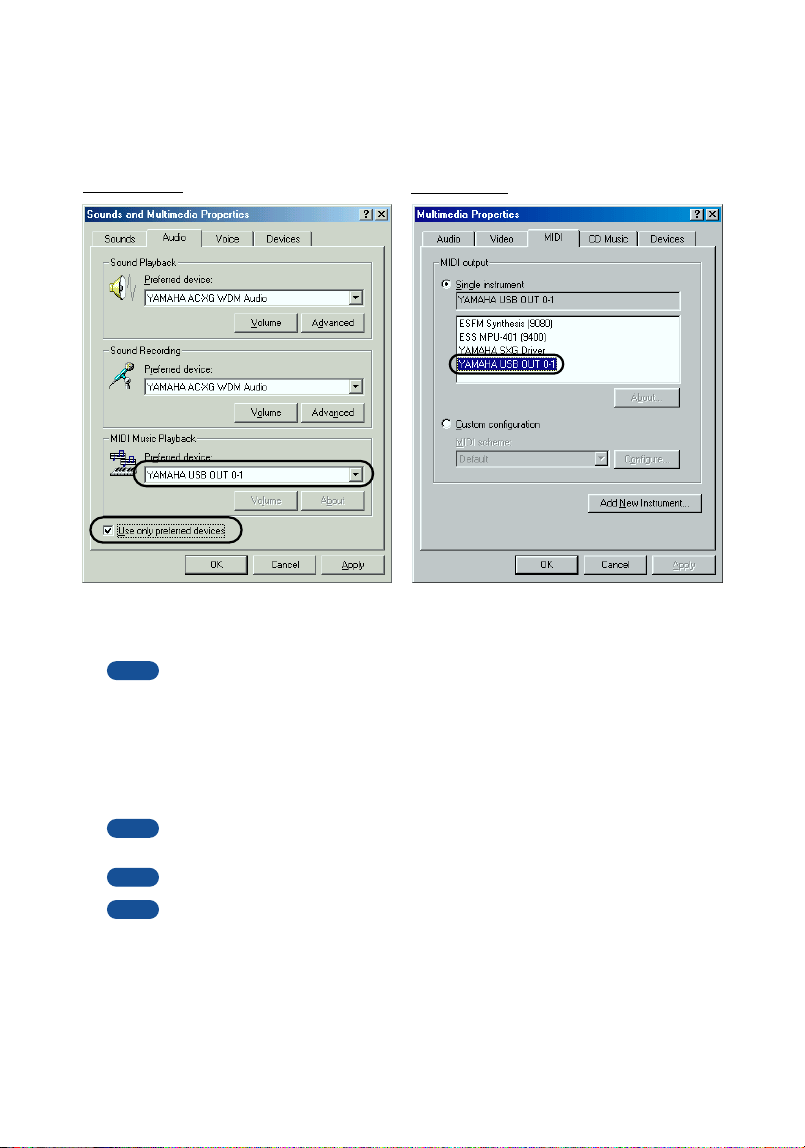
1.
Select [My Computer | Control Panel] and double-click to open “Sounds and
Multimedia (Multimedia).”
For Windows Me users, if you do not see “Sounds and Multimedia” in the “Control
Panel,” click “View all Control Panel options.”
2.
Click the “Audio (MIDI)” tab.
3.
Click “Preferred device” in “MIDI Music Playback” and select “YAMAHA USB
OUT xx-1.” For Windows Me users, check the “Use only preferred devices”
checkbox.
The variable “xx” represents the device number (page 22). If only one UX16 is
connected, the device number is “0.”
For Windows 98 users, select the driver while “Single instrument” is selected.
If “YAMAHA USB OUT xx-1” is not displayed, the drive has not been installed
correctly. Delete the driver (page 27) and re-install the driver.
4.
Click [OK].
Windows 98
Windows Me
NOTE
NOTE
NOTE
NOTE
15
1. Is the power indicator lit?
If the driver is installed correctly, the power indicator will light.
2. Does the MIDI OUT indicator blink?
Use your sequence software or the Windows Media Player to play back MIDI
data. Alternatively, click [Send All Note On] in the MIDI Patch screen
(page 21). The MIDI OUT indicator will light when MIDI messages pass
through the cable.
3. Does the MIDI IN indicator blink?
Use the MIDI IN cable to connect your MIDI keyboard etc., and play it. The
MIDI IN indicator will light when MIDI messages pass through the cable.
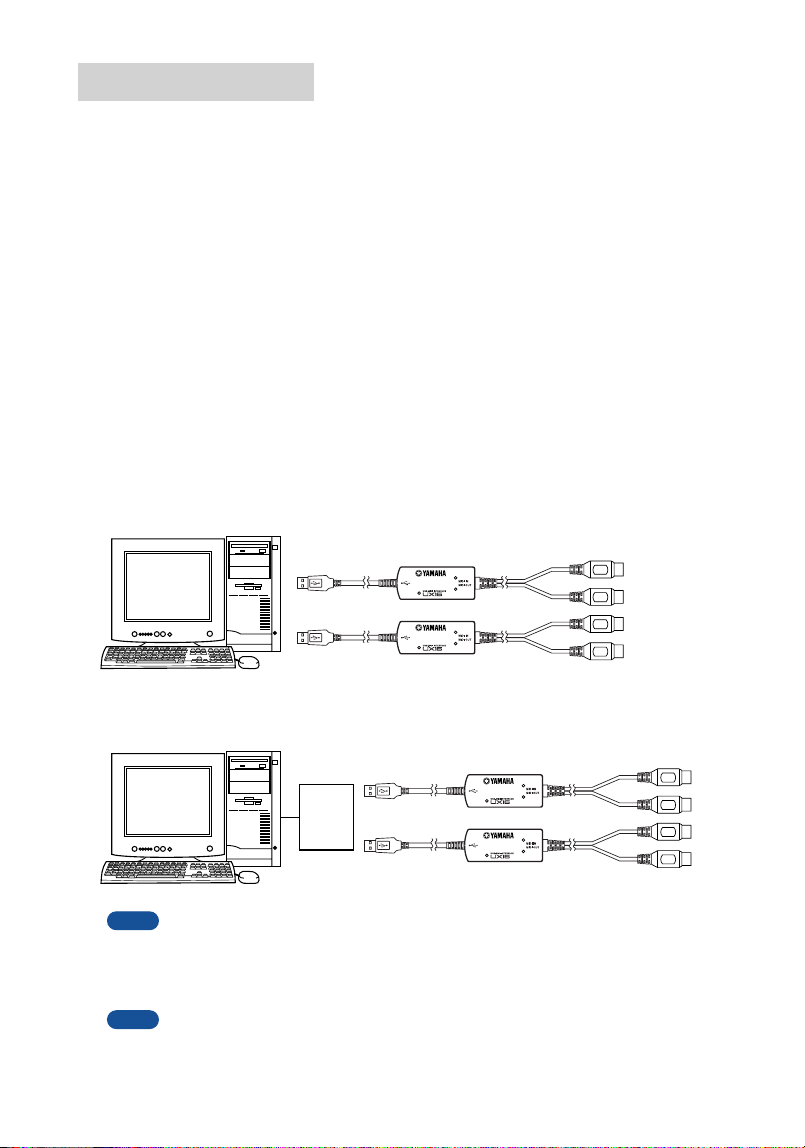
● Using two or more UX16s
Follow the steps below to connect two or more UX16s. You do not need to re-
install the driver.
1. Start up your computer.
2. Connect the USB cable to the USB terminal of your computer (or USB hub).
When you turn on the power to connected multiple UX16s, the device number is
assigned, starting with 0, to the units in the order in which you turn on the power. If
you turn on the power to all units simultaneously, the device number is assigned
based on the order of the port numbers of the USB hub. However, this order may
change depending on the hub.
Use a USB hub that obtains its power from a power adaptor. Operation may be
unstable with a bus-powered USB hub.
Checking operation
Computer
or
USB
hub
Computer
IN
OUT
IN
OUT
IN
OUT
IN
OUT
NOTE
NOTE
16
Macintosh users:
First install OMS before you install the USB-MIDI driver. Also, after installing the
driver, you will need to set up OMS (page 18).
● Installing OMS
1. Start the computer.
2. Insert the included CD-ROM into the CD-ROM drive. The system displays the
CD-ROM icon on the desktop.
3. Double-click to open the CD-ROM icon and double-click the “Install OMS
2.3.6” icon in the “OMS 2.3.6” folder inside “OMS E.”
Follow the instructions on the screen to install OMS. For more information on
installing and using OMS, refer to the included “OMS_2.3_Mac.pdf” manual.
● Installing the USB-MIDI driver
1. Start the computer.
2. Insert the included CD-ROM into the CD-ROM drive. The system displays the
CD-ROM icon on the desktop.
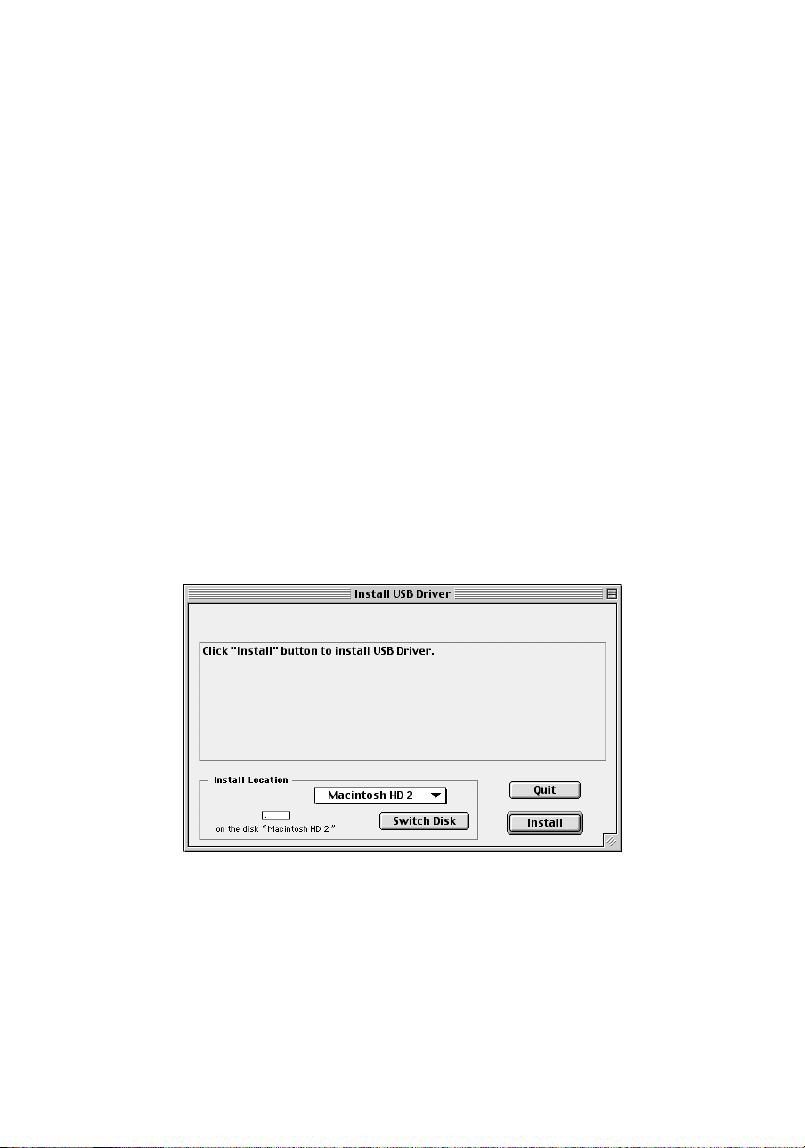
3. Double-click the CD-ROM icon and double-click the “Install USB Driver” icon to
display the following installation screen.
17
4. The “Install Location” box displays the destination of the installation. If you
wish to change the destination disk or folder, use the [Switch Disk] button and
the pop-up menu to specify the desired destination.
This box usually displays the start-up disk as the destination.
5. Click the [Install] button. The system displays the following message: “This
installation requires your computer to restart after installing this software. Click
Continue to automatically quit all other running applications.” Click [Con-
tinue].
To cancel the installation, click [Cancel].
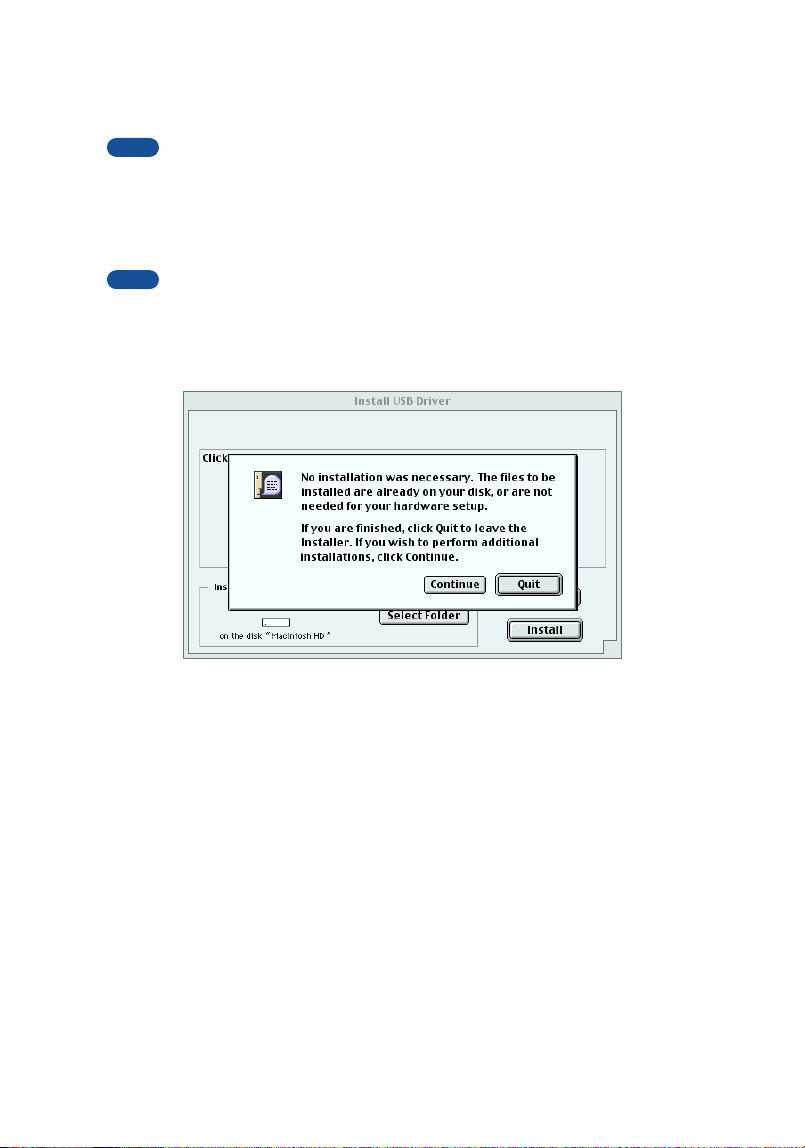
6. The installation starts. If the driver has already been installed, you will receive
the following message. To return to step 3, press [Continue]. To complete the
installation, click [Quit].
7. When the installation is complete, the system displays the following message:
“Installation was successful. You have installed software which requires you to
restart your computer.” Click [Restart]. The computer automatically restarts.
You can locate the installed files in the following locations:
• System Folder | Control Panels | YAMAHA USB MIDI Patch
• System Folder | Extensions | USB YAMAHA MIDI Driver
• System Folder | OMS Folder | YAMAHA USB MIDI OMS Driver
NOTE
NOTE
18
● Setting up OMS
1. Start the computer.
2. Connect the USB cable to the USB terminal of the computer (or the USB hub).
Make sure that the UX16 is powered on and the power indicator lights up.
3. Open the “OMS Applications” folder in the “Opcode” folder installed on the
hard disk, and double-click the “OMS Setup” icon to start the setup program.
4. If the AppleTalk dialog appears, click [Turn It Off], then click [OK] in the subse-
quent dialog box.
5. The system displays the “Create a New Studio Setup” dialog box. If this dialog
box does not appear, select “New Studio Setup” from the “File” menu.
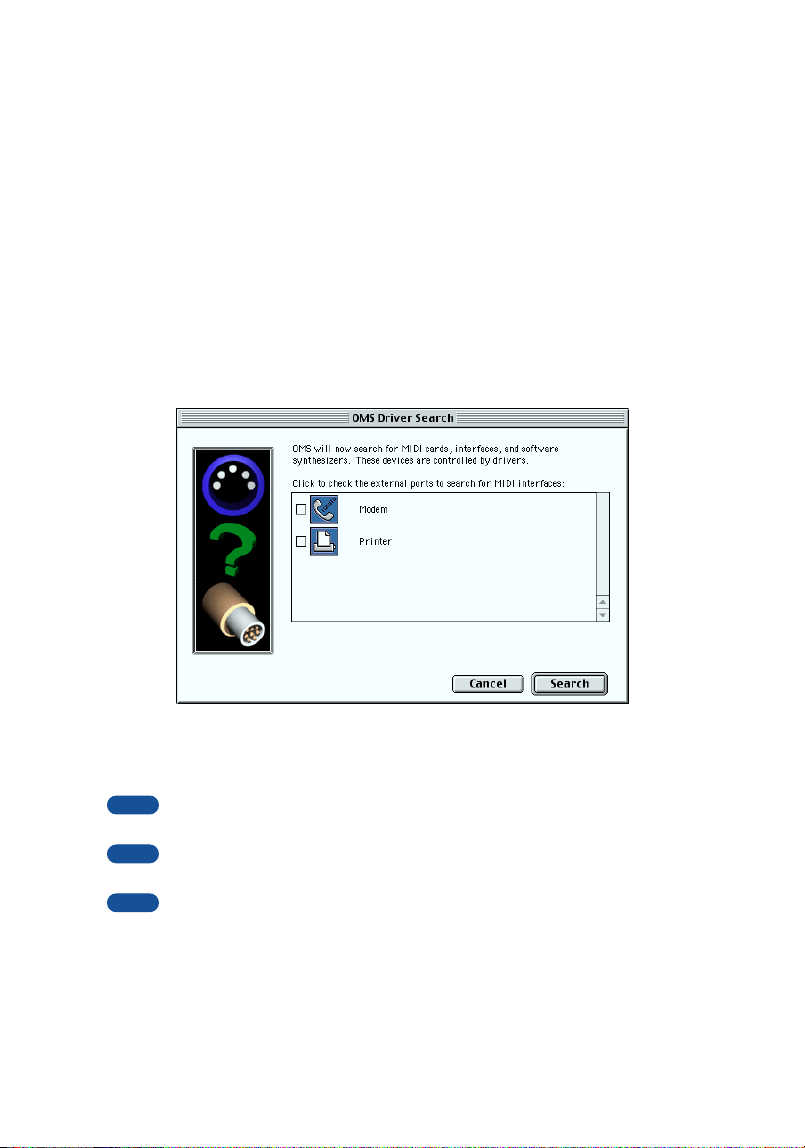
6. Click [OK]. The system displays the “OMS Driver Search” dialog box. Remove
the check from the “Modem” and “Printer” check boxes, and click [Search].
7. After the search operation is complete, make sure that “USB-MIDI 1” is listed in
the “OMS Driver Setup” dialog, then click [OK].
If the UX16 is not detected correctly, “USB-MIDI 1” does not appear. Check the cable
connection and repeat the procedure from the beginning.
If your iMac does not detect the UX16, “iMac Update 1.1” may not have been installed.
See page 24 for more information.
The system displays one “USB-MIDI x” message for each connected UX16.
NOTE
NOTE
NOTE
19
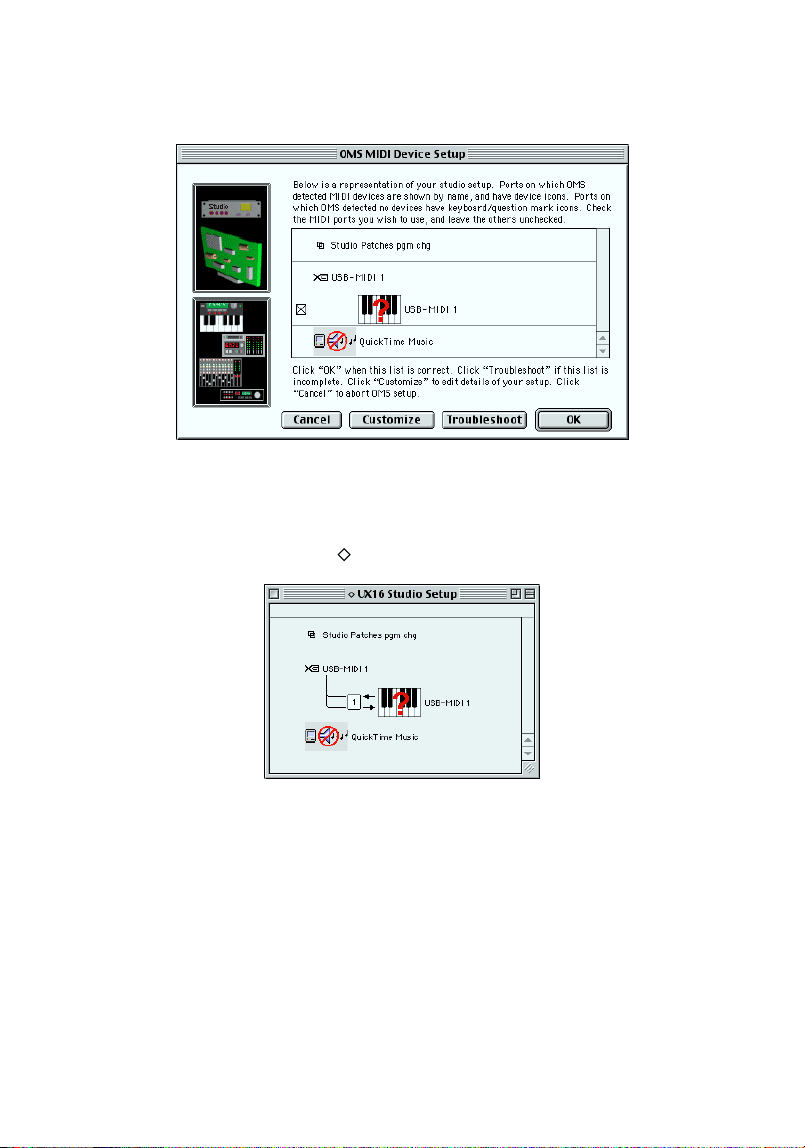
8. Make sure that “USB-MIDI 1” is displayed in the “OMS MIDI Device Setup” dia-
log and put the check box on it.
Click [OK].
9. The system displays a dialog box that enables you to save the setup file. Enter
the file name and click [Save].
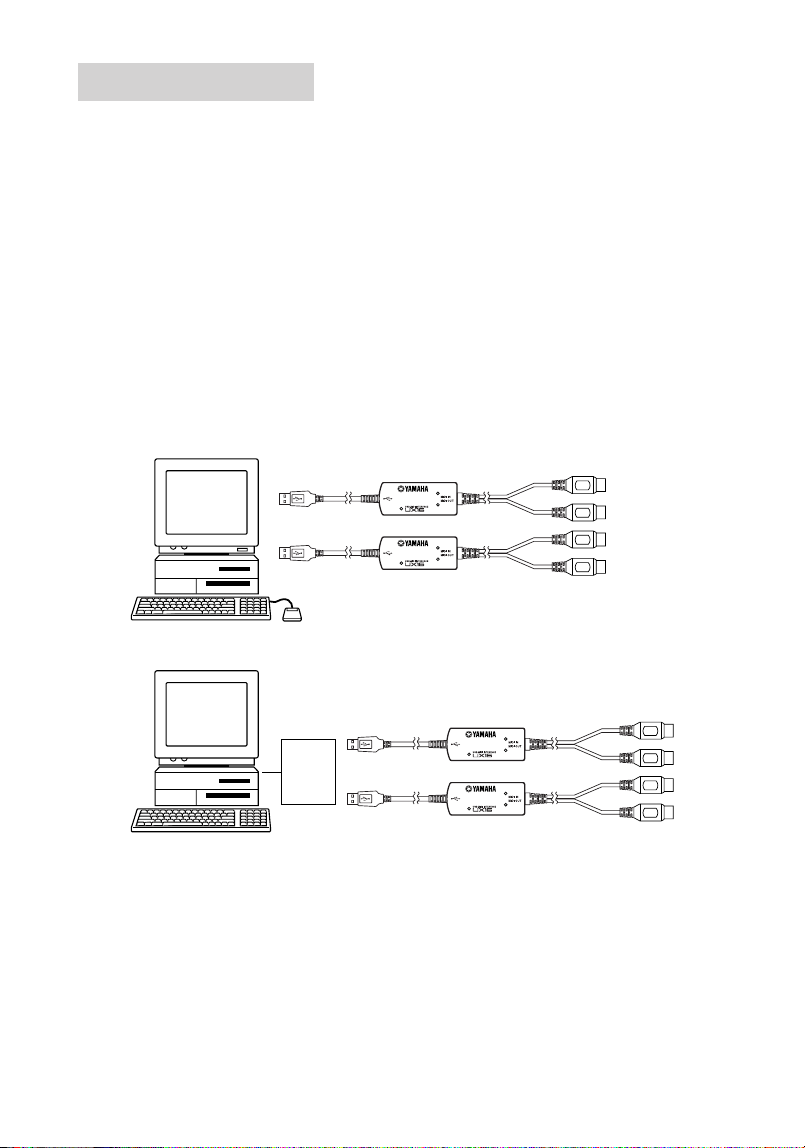
10.After you save the file, the system displays the following window.
The setting is complete if a “” mark appears before the file name.
The driver installation and OMS setup is now complete.
For more information, refer to the included “OMS_2.3_Mac.pdf.”
20
1. Is the power indicator lit?
If the USB cable is connected correctly, the power indicator will light.
2. Does the MIDI OUT indicator blink?
Use your sequence software to play back MIDI data. Alternatively, click [Send
All Note On] in the MIDI Patch screen (page 21). The MIDI OUT indicator will
light when MIDI messages pass through the cable.
3. Does the MIDI IN indicator blink?
Use the MIDI IN cable to connect your MIDI keyboard etc., and play it. The
MIDI IN indicator will light when MIDI messages pass through the cable.
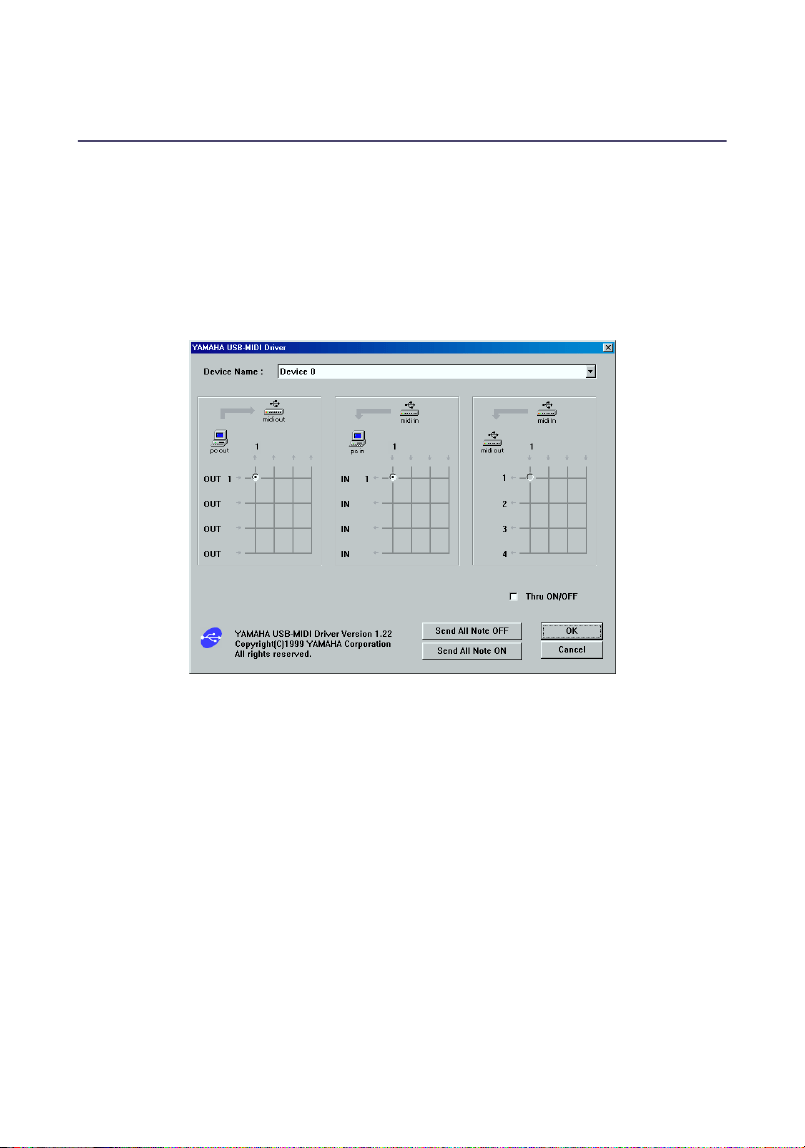
● Using two or more UX16s
First connect multiple UX16s, then proceed to the OMS setup procedure
(page 18).
Checking operation
IN
OUT
IN
OUT
IN
OUT
IN
OUT
Computer
or
USB
hub
Computer
21
Changing the driver setting (MIDI
Patch Screen)
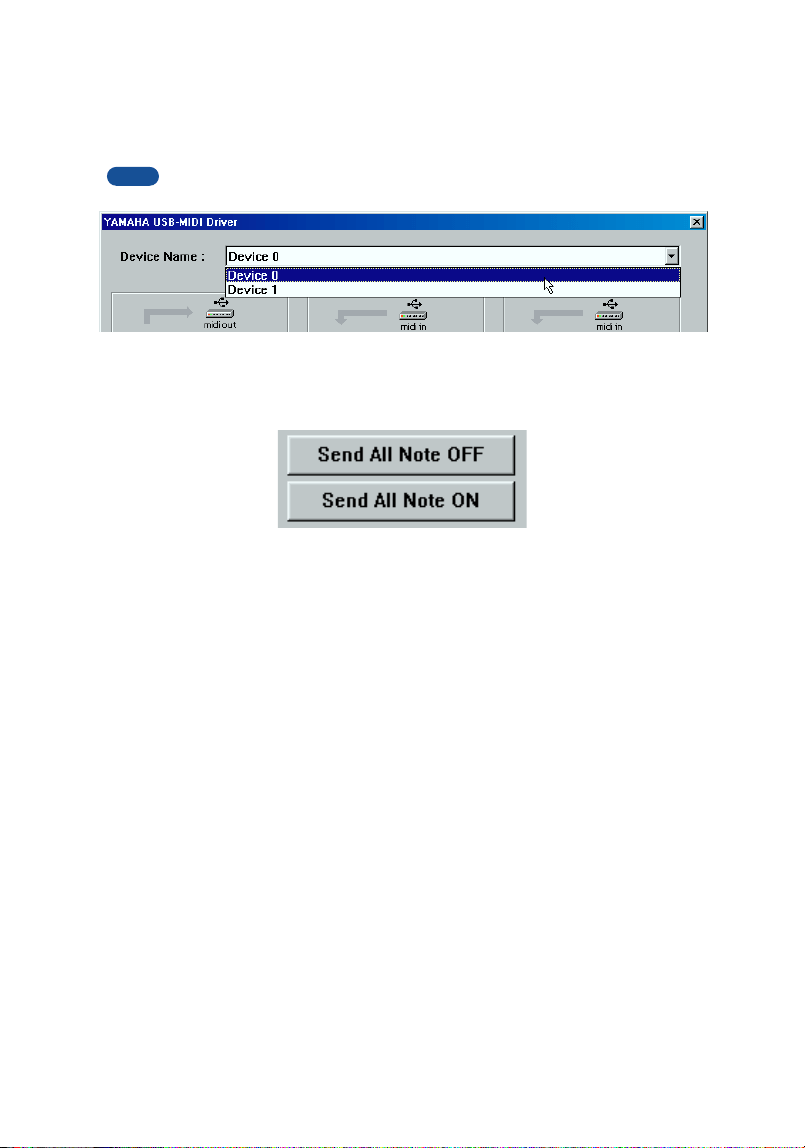
You can change the I/O assignment of the UX16 as required.
● Starting the MIDI Patch screen
The start-up method and the MIDI Patch screen differ slightly for Windows and
Macintosh systems. However, the basic operation of the screen is the same. The
following section explains how to operate the MIDI Patch screen on a Windows
system.
[Windows]
1. Double-click “Control Panel” in the “My Computer” folder.
2. Double-click “MIDI-USB Driver” to display the screen.
[Macintosh]
Select “Control Panels” from the Apple menu, then select “YAMAHA USB MIDI
Patch” to display the screen.
22
● Changing the device number
If you are using multiple UX16s, you can change the device number.
Click “Device Name.” The System displays the drop-down list. Select the device
for which you wish to change the setting.
If you are using a Macintosh computer, the device number is assigned sequentially,
such as “USB1,” “USB2,” etc., as the Device Name.
● Checking the signal path
To see if the MIDI device is connected correctly, you can try transmitting MIDI
signals.
• Note Off Message
When you click [Send All Note OFF], a MIDI All Note Off message will be sent
to the UX16.
• Note On Message
When you click [Send All Note On], a MIDI All Note On message will be sent
to the UX16.
●
Changing connections during playback (PC OUT→MIDI OUT)
The left column shows the computer’s output port (OUT 1), and the top column
shows the UX16’s output port (1). If you remove the check box, a MIDI signal
from the computer to a MIDI device does not flow.
● Changing connections during recording (MIDI IN→PC IN)
The left column shows the computer’s input port (IN 1), and the top column
shows the UX16’s input port (1). If you remove the check box, a MIDI signal from
a MIDI device to the computer does not flow.
NOTE

23
● THRU output of MIDI signals (MIDI IN→MIDI OUT)
You can route MIDI signals received at the input port of the UX16 directly to the
output port of the UX16 (this is called THRU output). This routing is useful when
you wish to route MIDI signals from a MIDI keyboard directly to a tone generator.
The left column shows the UX16’s output ports (1), and the top column shows
the UX16’s input port (1). To enable this function, check the “Thru ON/OFF”
check box in the lower right corner of the screen.
For Macintosh, this function is valid only when the MIDI Patch screen or sequence
software is running.
NOTE

24
System Requirements
[Windows]
OS: Windows98/Me/2000
Computer: USB-supported IBM-PC or compatible computer
CPU: Pentium 166MHz or higher
Memory: 32 MB or higher (64 MB or higher is recommended)
Hard Disk: 2 MB or more of free space
[Macintosh]
OS: MacOS 8.5 through OS 9.1
Computer: Macintosh computer with built-in USB port
With some iMac models, you need to install “iMac Update 1.1,” provided by Apple
Computer. This program improves the USB software. For more information, visit the
Apple Computer web site (www.apple.com).
Memory: 64 MB or higher (128 MB or higher is recommended)
Turn off virtual memory.
Hard Disk: 2 MB or more of free space
Other: OMS 2.3.6 or later (included in the CD-ROM in the
package)
Specifications
Connection cables: MIDI IN cable, MIDI OUT cable (each 1,250 mm)
USB cable (600 mm)
Indicators: Power indicator, MIDI IN indicator, MIDI OUT indicator
Power Supply: USB bus power supply
Dimensions: 86 (W) × 36 (D) × 16 (H) [mm]
Weight: approx. 140g (5 oz)
Specifications and descriptions in this Owner’s Manual are for information
purposes only. Yamaha Corp. reserves the right to change or modify products or
specifications at any time without prior notice. Since specifications, equipment or
options may not be the same in every locale, please check with your Yamaha
dealer.
NOTE
NOTE

25
Troubleshooting (FAQ)
● The driver cannot be installed.
• Is the USB cable connected correctly?
→ Check the USB cable connection. (page 8)
→ Disconnect the USB cable, then connect it again.
• [Windows] Is the USB function enabled on your computer?
→ When you connect the UX16 to the computer for the first time, if the “Add New
Hardware Wizard” (pages 10 and 13) does not appear, the USB function on the
computer may be disabled. Perform the following steps.
1. Double-click “System” in the Control Panel to open the System Properties
window.
2. Double-click the “Device Manager” tab and make sure that no “!” or “x”
marks appear at “Universal serial bus controller” or “USB Root Hub.”
If you see the “!” or “x” mark, the USB controller is disabled. For more
information, refer to the owner’s manual of your computer.
• [Windows] Is any unknown device registered?
→ If driver installation fails, the UX16 will be evaluated as an “Unknown device,”
and you will not be able to install the driver. Delete the “Unknown device” by fol-
lowing the steps below.
1. Double-click “System” in the Control Panel to open the System Properties
window.
2. Double-click the “Device Manager” tab. With the “View devices by type”
check box checked, look for “Other devices.”
3. If you find “Other devices,” double-click it to extend the tree to look for
“Unknown device.” If one appears, select it and click the [Remove] button.
4. Remove the USB cable, and make the connection again.
5. Install the driver by following the steps (starting from Step 3) described on
page 10.

26
● The UX16 does not operate correctly, or no sound is heard.
• Did you install the driver? (page 9)
• Are the USB cable, MIDI cables, and audio cables connected correctly?
(page 8)
• Is the volume setting of the tone generator, playback device, and applica-
tion program set to the appropriate level?
• Is the HOST SELECT switch on the tone generator set to “MIDI”?
• Have you selected an appropriate port in the sequence software?
● Playback response is delayed.
• Does your computer satisfy the system requirements? (page 24)
• Is any other application or device driver running?
[Macintosh]
→ Turn off virtual memory.
→ Disable AppleTalk.
● Cannot suspend or resume the computer correctly.
• Do not suspend the computer while the MIDI application is running.
• If you are using Windows 2000, it may not be possible to suspend/resume,
depending on your USB host controller and other aspects of your system.
(Even if this occurs, the UX16 will operate correctly if you re-connect the
USB cable.)

27
● How can I delete or re-install the driver?
[Windows Me/98]
1. When the UX16 is recognized correctly, double-click “System” in the Con-
trol Panel to open the System window.
2. Double-click the “Device Manager” tab, select “YAMAHA USB MIDI Driver”
and delete it.
3. Use MS-DOS prompt or Internet Explorer to delete the following three files.
To delete these files using Explorer, select “Folder Options” from the Tool (View)
menu, and select “Show all files (and folders).”
• \WINDOWS\INF\OTHER\YAMAHAUX16.INF
• \WINDOWS\SYSTEM\Xgusb.drv
• \WINDOWS\SYSTEM\Ymidusb.sys
4. Disconnect the USB cable.
5. Restart the computer.
6. Re-install the driver according to the instructions on page 10.
[Macintosh]
1. Delete the files in the following locations:
• System Folder | Control Panels | YAMAHA USB MIDI Patch
• System Folder | Extensions | USB YAMAHA MIDI Driver
• System Folder | OMS Folder | YAMAHA USB MIDI OMS Driver
2. Restart the computer.
3. Install the driver (page 16) and set up OMS (page 18).
NOTE

COMPLIANCE INFORMATION STATEMENT
(DECLARATION OF CONFORMITY PROCEDURE)
This device complies with Part 15 of the FCC Rules.
Operation is subject to the following two conditions:
(1) this device may not cause harmful interference, and
(2) this device must accept any interference received,
including interference that may cause undesired operation.
FCC INFORMATION (U.S.A.)
1. IMPORTANT NOTICE: DO NOT
MODIFY THIS UNIT!
This product,
when installed as indicated in the instruc-
tions contained in this manual, meets FCC
requirements. Modifications not expressly
approved by Yamaha may void your
authority, granted by the FCC, to use the
product.
2. IMPORTANT:
When connecting this
product to accessories and/or another
product use only high quality shielded
cables. Cable/s supplied with this product
MUST be used. Follow all installation
instructions. Failure to follow instructions
could void your FCC authorization to use
this product in the USA.
3. NOTE:
This product has been tested and
found to comply with the requirements
listed in FCC Regulations, Part 15 for
Class “B” digital devices. Compliance with
these requirements provides a reasonable
level of assurance that your use of this
product in a residential environment will not
result in harmful interference with other
electronic devices. This equipment gener-
ates/uses radio frequencies and, if not
installed and used according to the instruc-
tions found in the users manual, may
cause interference harmful to the opera-
tion of other electronic devices.
Compliance with FCC regulations does not
guarantee that interference will not occur in
all installations. If this product is found to
be the source of interference, which can be
determined by turning the unit “OFF” and
“ON”, please try to eliminate the problem
by using one of the following measures:
Relocate either this product or the device
that is being affected by the interference.
Utilize power outlets that are on different
branch (circuit breaker or fuse) circuits or
install AC line filter/s.
In the case of radio or TV interference,
relocate/reorient the antenna. If the
antenna lead-in is 300 ohm ribbon lead,
change the lead-in to co-axial type cable.
If these corrective measures do not pro-
duce satisfactory results,
please contact the local retailer authorized
to distribute this type of product. If you can
not locate the appropriate retailer, please
contact Yamaha Corporation of America,
Customer Service Division, 6600
Orangethorpe Ave, Buena Park, CA90620
The above statements apply ONLY to
those products distributed by Yamaha Cor-
poration of America or its subsidiaries.
*This applies only to products distributed by YAMAHA CORPORATION OF AMERICA
(class B)
Responsible Party: Yamaha Corporation of America
Address: 6600 Orangethorpe Ave., Buena Park,
California 90620
Telephone: 714-522-9011
Type of Equipment: USB-MIDI Interface
Model Name: UX16
Limited Warranty
90 DAYS LABOR 1 YEAR PARTS
Yamaha Corporation of America, hereafter referred to as Yamaha, warrants to the original consumer of a product included in the
categories listed below, that the product will be free of defects in materials and/or workmanship for the periods indicated. This
warranty is applicable to the following product:
UX16 USB-MIDI INTERFACE
If during the first 90 days that immediately follows the purchase date, your new Yamaha product covered by this warranty is
found to have a defect in material and/or workmanship, Yamaha and/or its authorized representative will repair such defect with-
out charge for parts or labor.
If parts should be required after this 90 day period but within the one year period that immediately follows the purchase date,
Yamaha will, subject to the terms of this warranty, supply these parts without charge. However, charges for labor, and/or any mis-
cellaneous expenses incurred are the consumers responsibility. Yamaha reserves the right to utilize reconditioned parts in repair-
ing these products and/or to use reconditioned units as warranty replacements.
THIS WARRANTY IS THE ONLY EXPRESS WARRANTY WHICH YAMAHA MAKES IN CONNECTION WITH
THESE PRODUCTS. ANY IMPLIED WARRANTY APPLICABLE TO THE PRODUCT, INCLUDING THE WAR-
RANTY OF MERCHANT ABILITY IS LIMITED TO THE DURATION OF THE EXPRESS WARRANTY. YAMAHA
EXCLUDES AND SHALL NOT BE LIABLE IN ANY EVENT FOR INCIDENTAL OR CONSEQUENTIAL DAMAGES.
Some states do not allow limitations that relate to implied warranties and/or the exclusion of incidental or consequential dam-
ages. Therefore, these limitations and exclusions may not apply to you.
This warranty gives you specific legal rights. You may also have other rights which vary from state to state.
CONSUMERS RESPONSIBILITIES
If warranty service should be required, it is necessary that the consumer assume certain responsibilities:
1. Contact the Customer Service Department of the retailer selling the product, or any retail outlet authorized by Yamaha to sell
the product for assistance. You may also contact Yamaha directly at the address provided below.
2. Deliver the unit to be serviced under warranty to: the retailer selling the product, an authorized service center, or to Yamaha
with an explanation of the problem. Please be prepared to provide proof purchase date (sales receipt, credit card copy, etc.)
when requesting service and/or parts under warranty.
3. Shipping and/or insurance costs are the consumers responsibility.* Units shipped for service should be packed securely.
*Repaired units will be returned PREPAID if warranty service is required within the first 90 days.
IMPORTANT:
Do NOT ship anything to ANY location without prior authorization. A Return Authorization (RA) will
be issued that has a tracking number assigned that will expedite the servicing of your unit and provide a tracking system
if needed.
4. Your owners manual contains important safety and operating instructions. It is your responsibility to be aware of the contents
of this manual and to follow all safety precautions.
EXCLUSIONS
This warranty does not apply to units whose trade name, trademark, and/or ID numbers have been altered, defaced, exchanged
removed, or to failures and/or damages that may occur as a result of:
1. Neglect, abuse, abnormal strain, modification or exposure to extremes in temperature or humidity.
2. Improper repair or maintenance by any person who is not a service representative of a retail outlet authorized by Yamaha to
sell the product, an authorized service center, or an authorized service representative of Yamaha.
3. This warranty is applicable only to units sold by retailers authorized by Yamaha to sell these products in the U.S.A., the Dis-
trict of Columbia, and Puerto Rico. This warranty is not applicable in other possessions or territories of the U.S.A. or in any
other country.
Please record the model and serial number of the product you have purchased in the spaces provided below.
Model___________________________ Serial #________________________________ Sales Slip
#________________________________
Purchased from____________________________________________________________
Date______________________________________
(Retailer)
YAMAHA CORPORATION OF AMERICA
Electronic Service Division
6600 Orangethorpe Avenue
Buena Park, CA 90620
KEEP
THIS DOCUMENT FOR YOUR RECORDS. DO NOT MAIL!
* Please make a note of the model number, the serial number and the purchase date.
For details of products, please contact your nearest Yamaha or
the authorized distributor listed below.
Pour plus de détails sur les produits, veuillez-vous adresser à
Yamaha ou au distributeur le plus proche de vous figurant dans la
liste suivante.
Die Einzelheiten zu Produkten sind bei Ihrer unten aufgeführten
Niederlassung und bei Yamaha Vertragshändlern in den jeweili-
gen Bestimmungsländern erhältlich.
Para detalles sobre productos, contacte su tienda Yamaha más
cercana o el distribuidor autorizado que se lista debajo.
CANADA
Yamaha Canada Music Ltd.
135 Milner Avenue, Scarborough, Ontario,
M1S 3R1, Canada
Tel: 416-298-1311
U.S.A.
Yamaha Corporation of America
6600 Orangethorpe Ave., Buena Park, Calif.
90620, U.S.A.
Tel: 714-522-9011
MEXICO
Yamaha de Mexico S.A. De C.V.,
Departamento de ventas
Javier Rojo Gomez No.1149, Col. Gpe Del
Moral, Deleg. Iztapalapa, 09300 Mexico,
D.F.
Tel: 686-00-33
BRAZIL
Yamaha Musical do Brasil LTDA.
Av. Rebouças 2636, São Paulo, Brasil
Tel: 011-853-1377
ARGENTINA
Yamaha Music Argentina S.A.
Viamonte 1145 Piso2-B 1053,
Buenos Aires, Argentina
Tel: 1-4371-7021
PANAMA AND OTHER LATIN
AMERICAN COUNTRIES/
CARIBBEAN COUNTRIES
Yamaha de Panama S.A.
Torre Banco General, Piso 7, Urbanización
Marbella,
Calle 47 y Aquilino de la Guardia,
Ciudad de Panamá, Panamá
Tel: 507-269-5311
THE UNITED KINGDOM
Yamaha-Kemble Music (U.K.) Ltd.
Sherbourne Drive, Tilbrook, Milton Key-
nes,
MK7 8BL, England
Tel: 01908-366700
IRELAND
Danfay Ltd.
61D, Sallynoggin Road, Dun Laoghaire,
Co. Dublin
Tel: 01-2859177
GERMANY/SWITZERLAND
Yamaha Europa GmbH.
Siemensstraße 22-34, 25462 Rellingen,
F.R. of Germany
Tel: 04101-3030
AUSTRIA
Yamaha Music Austria
Schleiergasse 20, A-1100 Wien Austria
Tel: 01-60203900
THE NETHERLANDS
Yamaha Music Nederland
Kanaalweg 18G, 3526KL, Utrecht, The
Netherlands
Tel: 030-2828411
BELGIUM
Yamaha Music Belgium
Keiberg Imperiastraat 8, 1930 Zaventem,
Belgium
Tel: 02-7258220
FRANCE
Yamaha Musique France,
Division Claviers
BP 70-77312 Marne-la-Vallée Cedex 2,
France
Tel: 01-64-61-4000
ITALY
Yamaha Musica Italia S.P.A.,
Home Keyboard Division
Viale Italia 88, 20020 Lainate (Milano),
Italy
Tel: 02-935-771
SPAIN/PORTUGAL
Yamaha-Hazen Electronica Musical, S.A.
Ctra. de la Coruna km. 17, 200, 28230
Las Rozas (Madrid) Spain
Tel: 91-201-0700
GREECE
Philippe Nakas S.A.
Navarinou Street 13, P.Code 10680, Athens,
Greece
Tel: 01-364-7111
SWEDEN
Yamaha Scandinavia AB
J. A. Wettergrens Gata 1
Box 30053
S-400 43 Göteborg, Sweden
Tel: 031 89 34 00
DENMARK
YS Copenhagen Liaison Office
Generatorvej 8B
DK-2730 Herlev, Denmark
Tel: 44 92 49 00
FINLAND
F-Musiikki Oy
Kluuvikatu 6, P.O. Box 260,
SF-00101 Helsinki, Finland
Tel: 09 618511
NORWAY
Norsk filial av Yamaha Scandinavia AB
Grini Næringspark 1
N-1345 Østerås, Norway
Tel: 67 16 77 70
ICELAND
Skifan HF
Skeifan 17 P.O. Box 8120
IS-128 Reykjavik, Iceland
Tel: 525 5000
OTHER EUROPEAN COUNTRIES
Yamaha Europa GmbH.
Siemensstraße 22-34, 25462 Rellingen,
F.R. of Germany
Tel: 04101-3030
Yamaha Corporation,
Asia-Pacific Music Marketing Group
Nakazawa-cho 10-1, Hamamatsu, Japan
430-8650
Tel: 053-460-2312
TURKEY/CYPRUS
Yamaha Europa GmbH.
Siemensstraße 22-34, 25462 Rellingen,
F.R. of Germany
Tel: 04101-3030
OTHER COUNTRIES
Yamaha Music Gulf FZE
LB21-128 Jebel Ali Freezone
P.O.Box 17328, Dubai, U.A.E.
Tel: 971-4-881-5868
HONG KONG
Tom Lee Music Co., Ltd.
11/F., Silvercord Tower 1, 30 Canton Road,
Tsimshatsui, Kowloon, Hong Kong
Tel: 2737-7688
INDONESIA
PT. Yamaha Music Indonesia (Distribu-
tor)
PT. Nusantik
Gedung Yamaha Music Center, Jalan Jend.
Gatot Subroto Kav. 4, Jakarta 12930, Indo-
nesia
Tel: 21-520-2577
KOREA
Cosmos Corporation
1461-9, Seocho Dong, Seocho Gu, Seoul,
Korea
Tel: 02-3486-0011
MALAYSIA
Yamaha Music Malaysia, Sdn., Bhd.
Lot 8, Jalan Perbandaran, 47301 Kelana
Jaya,
Petaling Jaya, Selangor, Malaysia
Tel: 3-703-0900
PHILIPPINES
Yupangco Music Corporation
339 Gil J. Puyat Avenue, P.O. Box 885
MCPO,
Makati, Metro Manila, Philippines
Tel: 819-7551
SINGAPORE
Yamaha Music Asia Pte., Ltd.
11 Ubi Road #06-00, Meiban Industrial
Building, Singapore
Tel: 65-747-4374
TAIWAN
Yamaha KHS Music Co., Ltd.
10F, 150, Tun-Hwa Northroad,
Taipei, Taiwan, R.O.C.
Tel: 02-2713-8999
THAILAND
Siam Music Yamaha Co., Ltd.
121/60-61 RS Tower 17th Floor,
Ratchadaphisek RD., Dindaeng,
Bangkok 10320, Thailand
Tel: 02-641-2951
THE PEOPLE’S REPUBLIC OF CHINA
AND OTHER ASIAN COUNTRIES
Yamaha Corporation,
Asia-Pacific Music Marketing Group
Nakazawa-cho 10-1, Hamamatsu, Japan
430-8650
Tel: 053-460-2317
AUSTRALIA
Yamaha Music Australia Pty. Ltd.
Level 1, 99 Queensbridge Street, South-
bank, Victoria 3006, Australia
Tel: 3-9693-5111
NEW ZEALAND
Music Houses of N.Z. Ltd.
146/148 Captain Springs Road, Te Papapa,
Auckland, New Zealand
Tel: 9-634-0099
COUNTRIES AND TRUST
TERRITORIES IN PACIFIC OCEAN
Yamaha Corporation,
Asia-Pacific Music Marketing Group
Nakazawa-cho 10-1, Hamamatsu, Japan
430-8650
Tel: 053-460-2312
NORTH AMERICA
CENTRAL & SOUTH AMERICA
EUROPE
AFRICA
MIDDLE EAST
ASIA
OCEANIA
HEAD OFFICE Yamaha Corporation, Pro Audio & Digital Musical Instrument Division
Nakazawa-cho 10-1, Hamamatsu, Japan 430-8650
Tel: 053-460-3273
Yamaha PK CLUB (Portable Keyboard Home Page)
http://www.yamahaPKclub.com/
[PK] 20