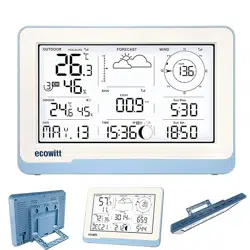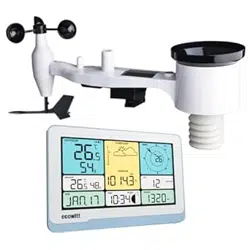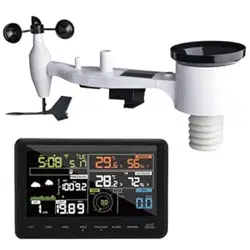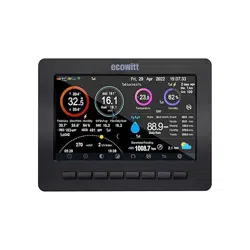
1
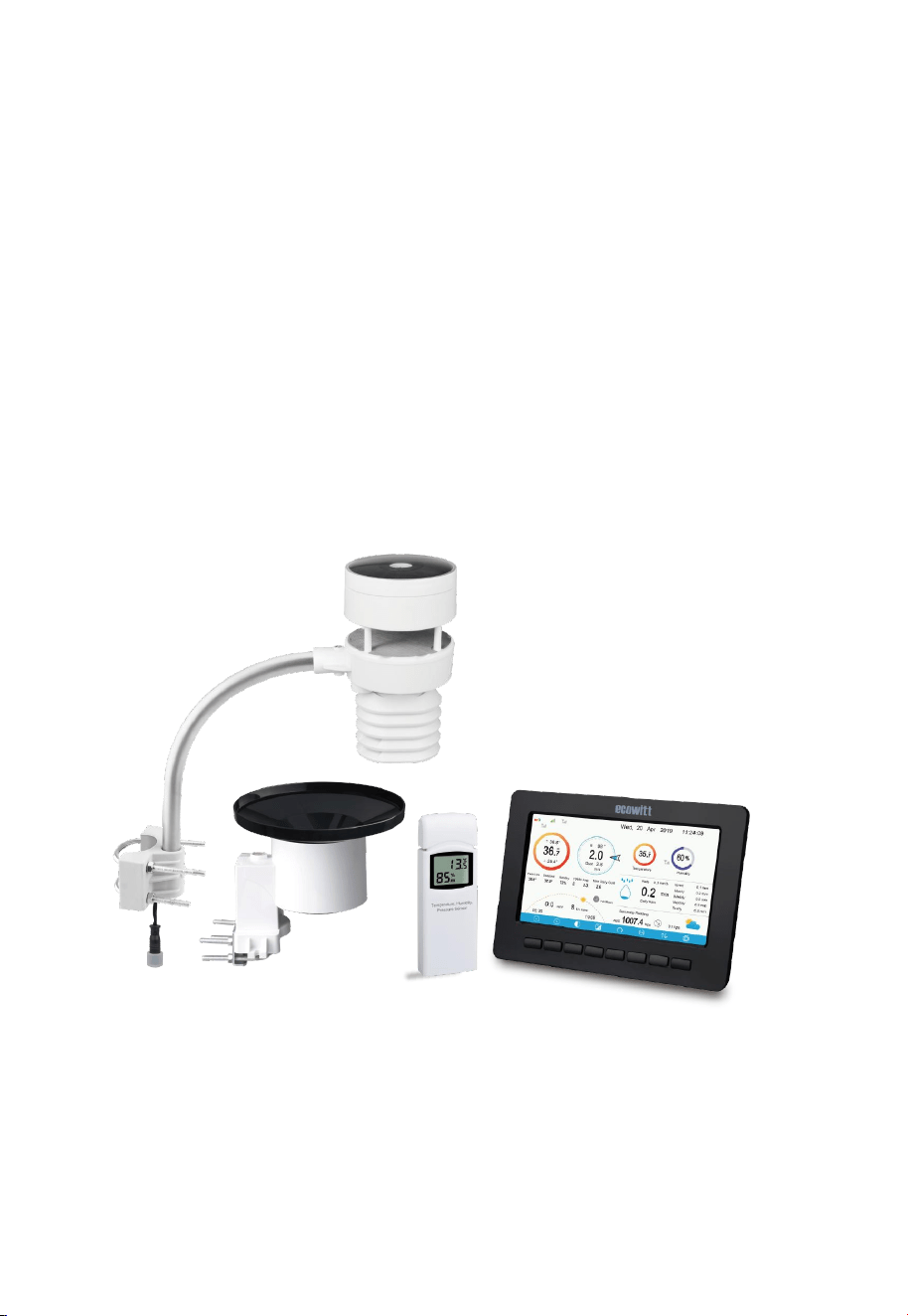
TFT Large Display Wi-Fi Weather Station
With Ultrasonic Anemometer Sensor Package and Rain Gauge
SensorOperation Manual
Model: HP2553
Thank you for purchasing this HP2553 TFT Large Display Wi-Fi Weather
Station, a complete weather station with ultrasonic anemometer and
independent self-emptying rain gauge.
This manual will guide you, step-by-step, through setting up your weather
station and base unit, and understanding the operation of your weather
station.
2
*Please scan the QR code to
read English manual and keep it
for future reference
*Bitte scannen Sie den QR-Code
zudeutsche Anleitung lesen und
aufbewahren füZukunftsbezug
*
Si prega di scansionare il codice
QR perleggi il manuale italiano e
conservalo perReferenza futura
Instruction manuals
https://www.ecowitt.com/support/download/4
Help
Our product is continuously changing and improving, particularly online se-
rvices and associated applications. To download the latest manual and addit-
ional help, please contact our technical support team:
support@ecowitt.com
support.eu@ecowitt.net (EU/UK)

3
1 Table of Contents
1 Table of Contents.........................................................................................3
2 Unpacking....................................................................................................5
3 Overview......................................................................................................7
3.1 Display Console ....................................................................................7
3.2 Indoor sensor ........................................................................................ 8
3.3 Ultrasonic anemometer with 6-in-1 sensors ......................................... 9
3.4 Rain Sensor ...........................................................................................9
3.5 Features...............................................................................................10
4 Set up Guide .............................................................................................. 11
4.1 Site Survey ..........................................................................................12
4.2 Ultrasonic Anemometer package assembly........................................12
4.2.1 Install batteries in sensor package............................................... 13
4.2.2 Mount ultrasonic anemometer assembly ..................................... 14
4.2.3 Reset Button and Transmitter LED ............................................. 18
4.3 Rain Gauge Sensor Set Up and Installation ........................................18
4.3.1 Install rain gauge filter.................................................................19
4.3.2 Install rain collector top ...............................................................19
4.3.3 Install Batteries in rain gauge sensor...........................................20
4.3.4 Mounting......................................................................................21
4.4 Indoor Sensor Set Up..........................................................................23
4.4.1 Sensor Placement .........................................................................23
4.5 Best Practices for Wireless Communication ...................................... 24
4.6 Console Display ..................................................................................26
4.6.1 Initial Display Console Set Up.................................................... 28
4.6.2 Key functions ...............................................................................29
4.6.3 Main interface icons explain........................................................30
4.7 Multiple Channel Selection and Scroll Mode.....................................32
4.8 History Mode ......................................................................................33
4.8.1 View and Reset MAX/MIN.........................................................33
4.8.2 History Record Mode .................................................................. 34
4.8.3 Graph Mode .................................................................................37
4.8.4 Optional Sensor Display Mode....................................................38
4.9 Setting Mode .......................................................................................38

4
4.9.1 Date and Time setting..................................................................40
4.9.2 Time Format setting .....................................................................41
4.9.3 Date Format setting......................................................................42
4.9.4 Temperature unit setting ..............................................................42
4.9.5 Barometric unit ............................................................................ 42
4.9.6 Wind speed unit ........................................................................... 42
4.9.7 Rainfall unit ................................................................................. 42
4.9.8 Solar Rad. Unit ............................................................................ 42
4.9.9 Multi Channel Sensor.................................................................. 42
4.9.10 Backlight setting ........................................................................ 45
4.9.11 Longitude: Latitude setting ........................................................46
4.9.12 Barometric display .....................................................................47
4.9.13 Rainfall season (default: January) ............................................. 47
4.9.14 Storing Interval (1-240minutes Selectable)...............................48
4.9.15 Weather Server .......................................................................... 48
4.9.16 Connect Console to Your Router: Wi-Fi scan...........................63
4.9.17 Background................................................................................65
4.9.18 Alarm Setting Mode .................................................................. 66
4.9.19 Calibration Mode .......................................................................67
4.9.20 More ...........................................................................................72
4.9.21 Factory reset ...............................................................................76
5 Other Console Functions........................................................................... 79
5.1 Beaufort Wind Force Scale .................................................................79
5.2 Weather Forecasting........................................................................... 80
5.3 Lightning Alert ................................................................................... 80
5.4 Weather Forecasting Description and Limitations............................. 81
5.5 Moon Phase ........................................................................................ 81
6 Maintenance...............................................................................................83
7 Troubleshooting Guide .............................................................................. 85
8 Specifications.............................................................................................88
9 Warranty Information ................................................................................ 90
5
2 Unpacking
Open your weather station box and inspect that the contents are intact
(nothing broken) and complete (nothing missing). Inside you should find the
following:
QTY
Item Description
1
Display Console
1
Indoor sensor unit(temp/humidity/pressure)
1
Solar powered ultrasonic anemometer with Light and UV, air
temperature/humidity sensor integrated( optional heater for
climate with snow/ice conditions available)
1
Rain gauge
2
U-Bolts set for mounting on a pole (2pcs/set)
2
Threaded nuts for U-Bolts set (M5 size) (4pcs/set)
1
Metal mounting plate set to be used with U-Bolts (1pcs/set)
1
Mounting arm for ultrasonic anemometer
1
Mounting bracelet for ultrasonic anemometer
1
Mini wrench for M5 bolts
1
Stainless steel filter for rain gauge collector
1
AC adapter
1
User manual (this manual)
Table 1: Package content
If any component is missing from the package, or broken, please contact our
Customer Service department to resolve the issue.
Note: The console operates using an AC adapter. The included adapter is a
switching-type adapter and can generate a small amount of electrical
interference with the RF reception in the console, when placed too

6
close to the console. Please keep the console display at least 2 ft. or
0.5 m away from the power adapter to ensure best RF reception
from the outdoor sensor package.
Note: The console can store historical data on a memory card. This
memory card is not included. If you want to use one you will need
a microSD memory card. The supported max capacity of the card is
32G(Format: FAT32). A 1GB card will store more than 10 years’
data. There is also no requirement on the speed class of this card as
data writing happens infrequently and is not speed critical.
Note: Batteries for the ultrasonic anemometer and the rain gauge sensor
are not included. You will need 2 AA size Lithium battery for the
ultrasonic anemometer, which is primarily for startup and backup
purpose. After setup and during normal operation, the unit is getting
its power from solar cell. One AA size battery, alkaline or Lithium
(recommended for colder climates) is required for the rain gauge.
Two AA size alkaline batteries are required for the indoor sensor.
Note: There are two sets of U-bolts in the box, one is for the ultrasonic
anemometer sensor and the other one is for the rain gauge sensor.
7
3 Overview
3.1 Display Console
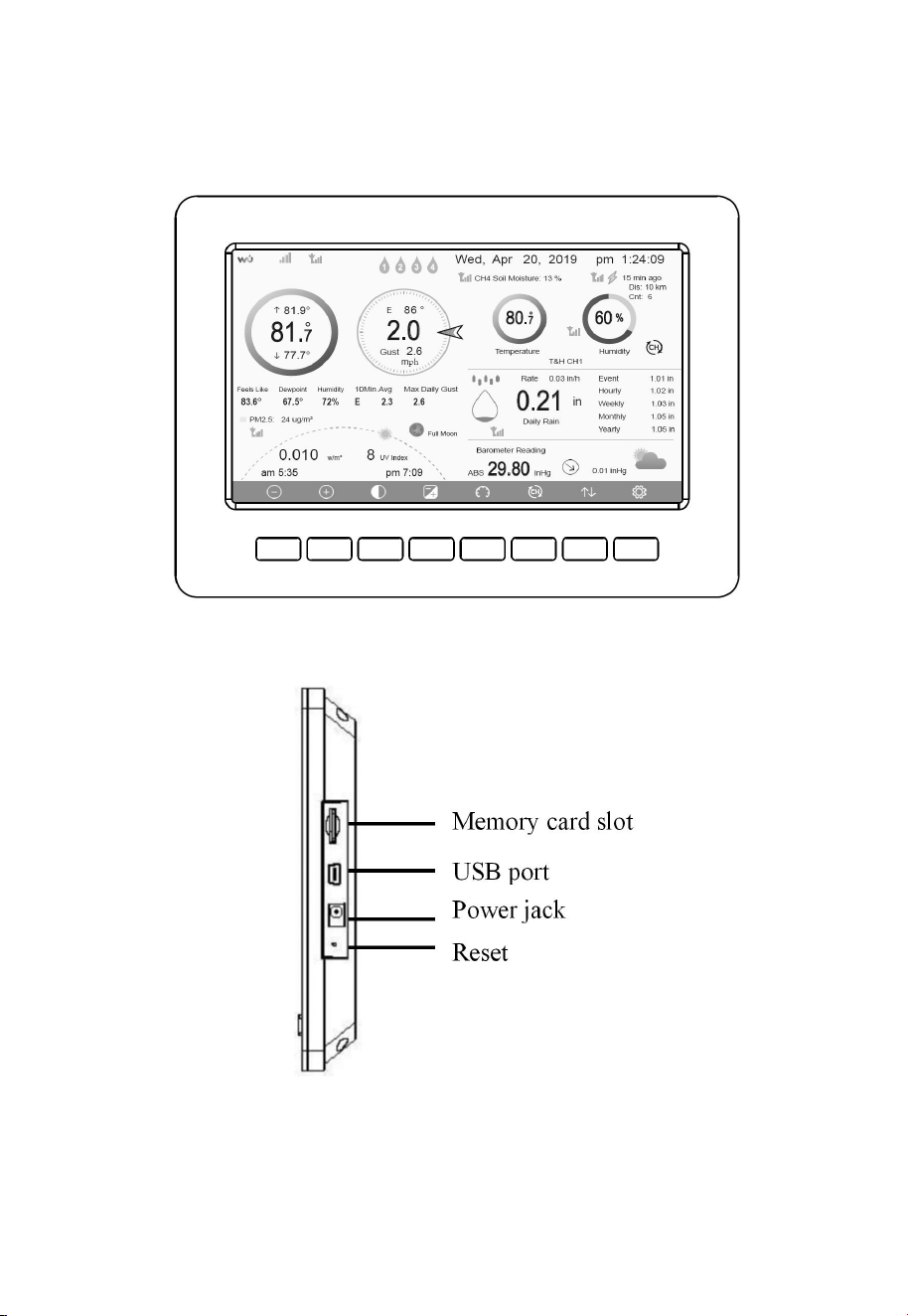
Figure 1: Display console screen
Figure 2: Display console side views
8
Note: The USB port in the console is only for factory internal use, not
available for users.
You can use a microSD card for the firmware update.( microSD card not
included). Update firmware process: visit www.ecowitt.com for available
update, copy “user.bin” file onto microSD card main root. Insert SD card
while display in operation, it will immediately show an update process,
follow the instruction to complete update.
3.2 Indoor sensor
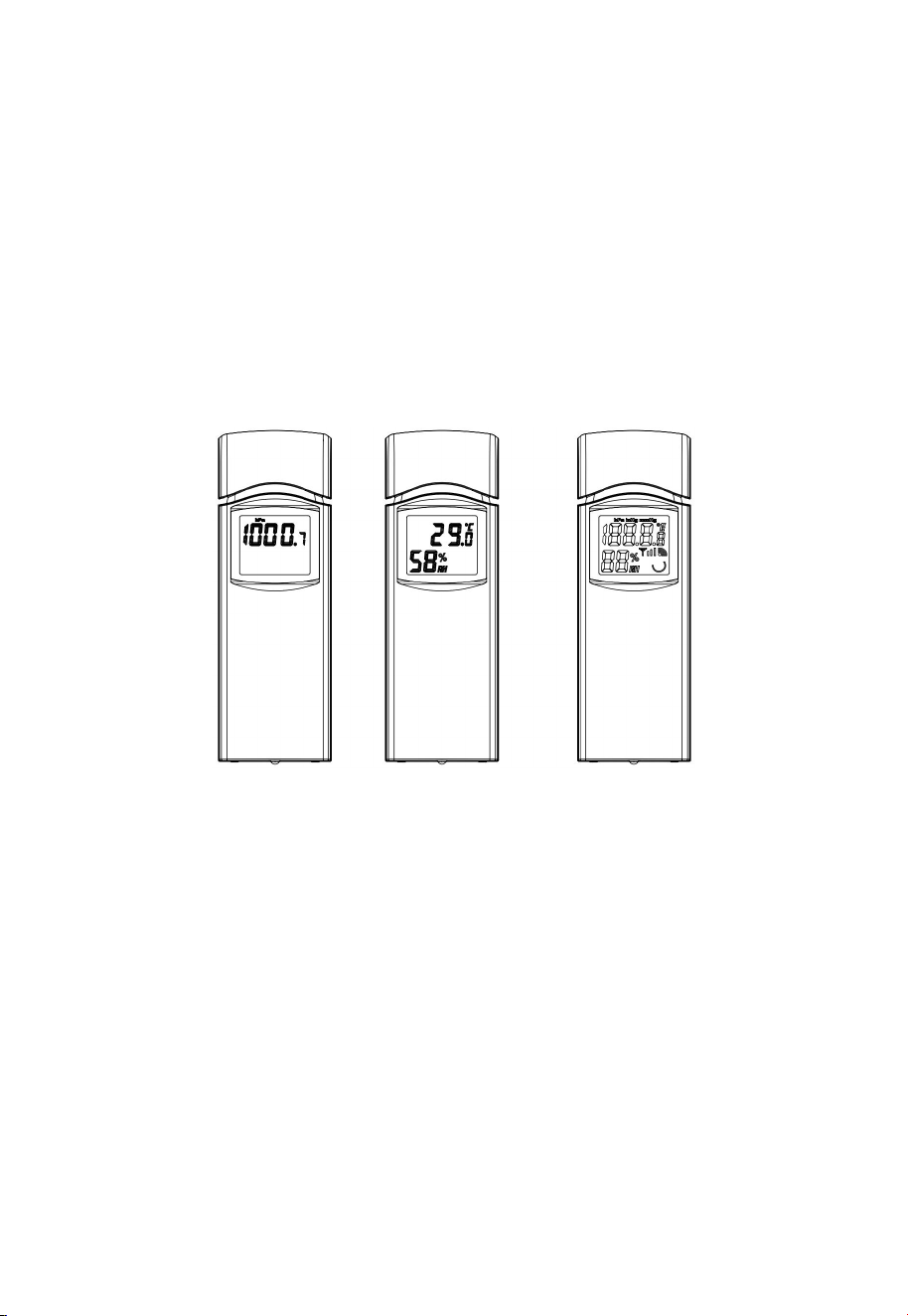
Figure 3: Indoor sensor 2 display variations
The indoor sensor will display indoor temperature, humidity and barometric
pressure alternately.
9
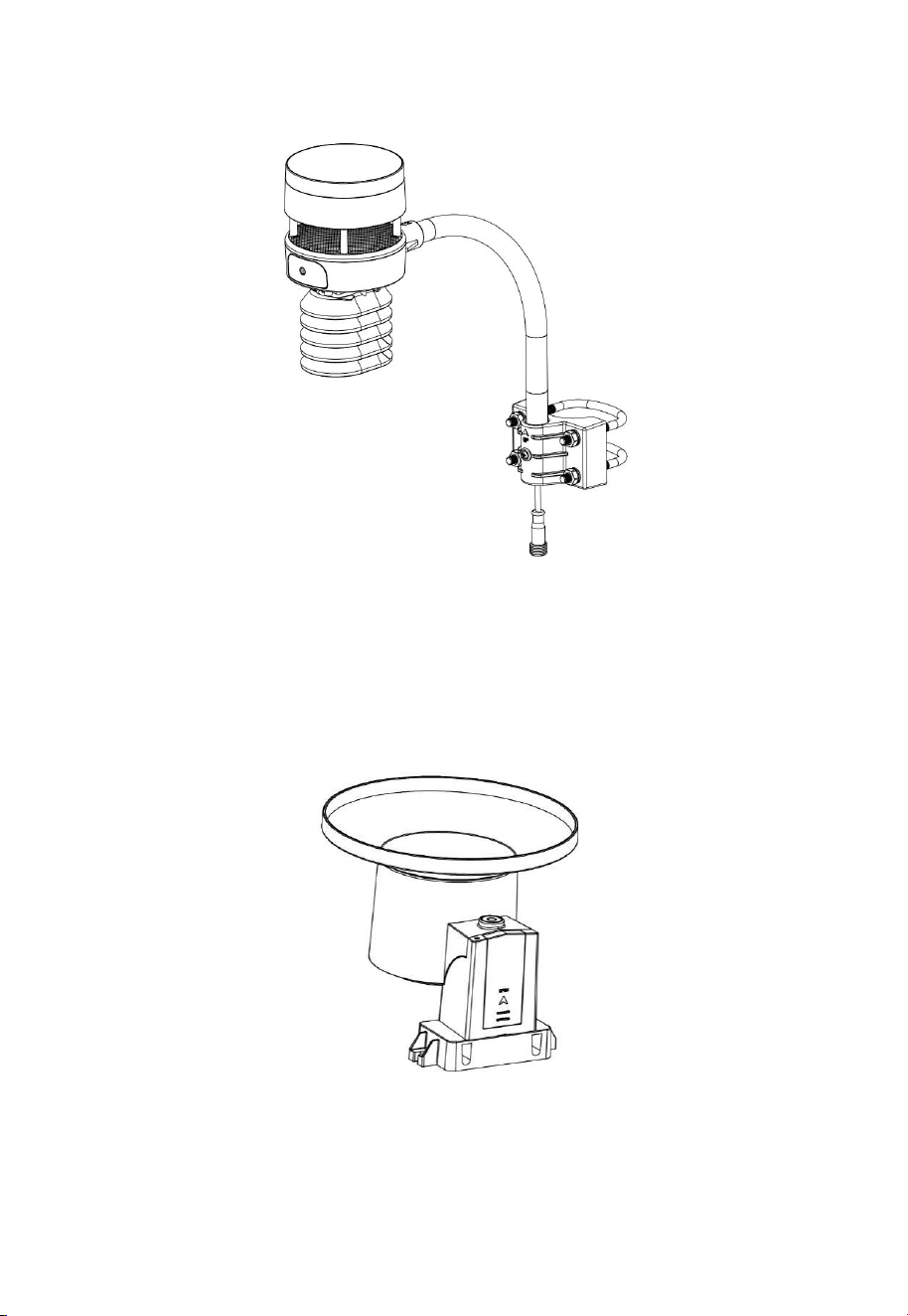
3.3 Ultrasonic anemometer with 6-in-1 sensors
Figure 4: Solar powered ultrasonic anemometer with integrated solar & uv,
thermo-hygrometer sensor
3.4 Rain Sensor
Figure 5: Self emptying rain gauge

10
3.5 Features
7" large TFT (high resolution) colored display console
Two background (dark/light) themes selectable
Indoor temperature, humidity
Absolute and Relative barometric pressure
Wind speed, wind direction, rainfall, outdoor temperature and humidity,
solar radiation and UV.
Calculates dew point, wind chill, heat index, moon phase and
sunset/sunrise time
Weather forecast & alarm
View historical records of sensors and graph directly on the console
Collects sensor data from various supported wireless sensors.
Additional/optional sensors:
Up to 8 WH31 multi-channel temperature and humidity sensors
Up to 8 WH51/WN51 soil moisture sensors
Up to 4 WH41/WH43 PM2.5 air quality sensors
Up to 4 WH55 Water leak sensors
One WH57 Lightning sensor
Up to 8 WN34 Temp Sensors
Pushes sensor data to cloud weather services:
https://www.ecowitt.net
https://www.wunderground.com
https://www.weathercloud.com/
https://www.wow.com
Custom own server data hosting possible when server data exchange
is compatible with either Wunderground or Ecowitt protocol.
Manage sensor calibration setup.
Manage sensor via sensor ID.
Data storage service on Ecowitt server: https://ecowitt.net
Stores data for past year days at 5-minute intervals
Stores data for past 2 years at 30-minute intervals

11
Note: The optional sensors can be purchased separately. If more info
needed, please visit our website: http://www.ecowitt.com. Make
sure to select the model of the units with the same RF frequency as
your gateway (the frequency is different for various countries
because of regulations).
Note: There’s a built-in heat plate in the 6-in-1 sensor package body, if the
lowest temperature at your place is below -3°C, or 26.6°F, and the
weather is mostly snowy or rainy, then you may need to
activate the heater by supplying an external 5V/1A power to the
sensor heating element for melting accumulated snow or ice, which
can influence wind measurement accuracy significantly. Please
information if needed.
There’s a built-in thermostat inside the anemometer sensor
to control the power supply for the heat plate, which will automatical
ly turnon below 0
℃
(30
℉
) and automatically turn off above 10
℃
(5
0
℉
).
4 Set up Guide
Before you start, you will need a Philips screwdriver (size PH0, not
provided) and find the wrench (size M5) included in package.
Note: We suggest you assemble all components of the weather station,
including base unit in one location so you can easily test
functionality. After testing, place the outdoor sensors in the desired
location. Note, however, that movement during assembly, and
movement after assembly can cause the rain sensor to “falsely”
register rain. It is possible to reset the rain total to 0 via WS View
Plus app.
Attention:
Follow the suggested order for battery installation (outdoor sensor(s)
first, indoor sensor(s) second, optional base unit last).

12
Ensure batteries are installed with correct polarity (+/-).
Only use new batteries for all battery-operated sensors.
Avoid rechargeable batteries being used.
If outdoor temperature may go below 32 F or 0 C for prolonged periods,
Lithium based batteries are suggested over alkaline type batteries for
any outdoor sensor.
4.1 Site Survey
Location of various sensors is paramount to good data collection.
Abbreviated instructions follow, but for a detailed reference, see:
https://www.weather.gov/media/epz/mesonet/CWOP-Siting.pdf.
Perform a site survey before installing the weather station. Consider the
following:
Anemometer
Ideally mounted at least 32 feet, or 10 meters above ground level.
Try to make the anemometer the highest object around. 7 feet, or 2.75
meters) or more above the surrounding obstructions is best.
Rain Gauge
Ideally mounted at a height of 4 to 6 feet, or 1.5 to 2 meters above the
ground.
Ideally located at a horizontal distance of 4 times the height, above the
rain gauge, of the nearest obstruction.
Ensure the rain gauge is mounted level to the ground, away from any
horizontal surface that can introduce rain-splashing or surrounding snow
buildup.
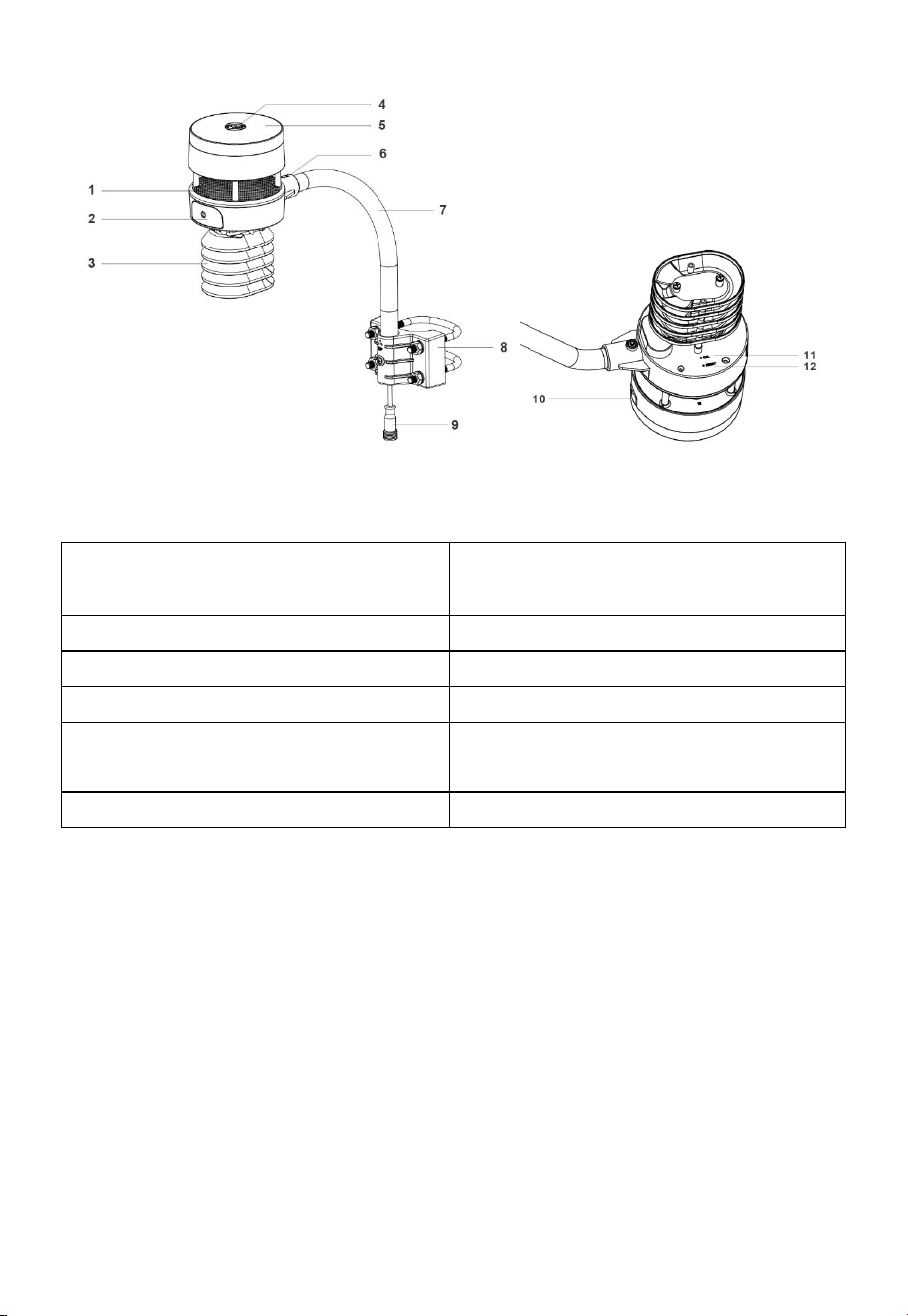
4.2 Ultrasonic Anemometer package assembly
See Figure 6 to locate and understand all the parts of the ultrasonic
anemometer package with UV & light, thermo-hygrometer sensors, once
fully assembled.
13
Figure 6: Sensor package assembly components
1. Surface tension conditioner layer
( patent pending)
7. Mounting arm
2. Battery compartment
8. Mounting bracelet and U-bolt set
3. Temperature & humidity sensor
9. Power cord for built-in heater
4. Light & UV sensor, LED indicator
10. USB port (factory use only )
5. Solar Panel
11.Calibration button (factory use
only )
6. NORTH alignment indicator
12. Reset button
Table 2: Sensor package assembly component list
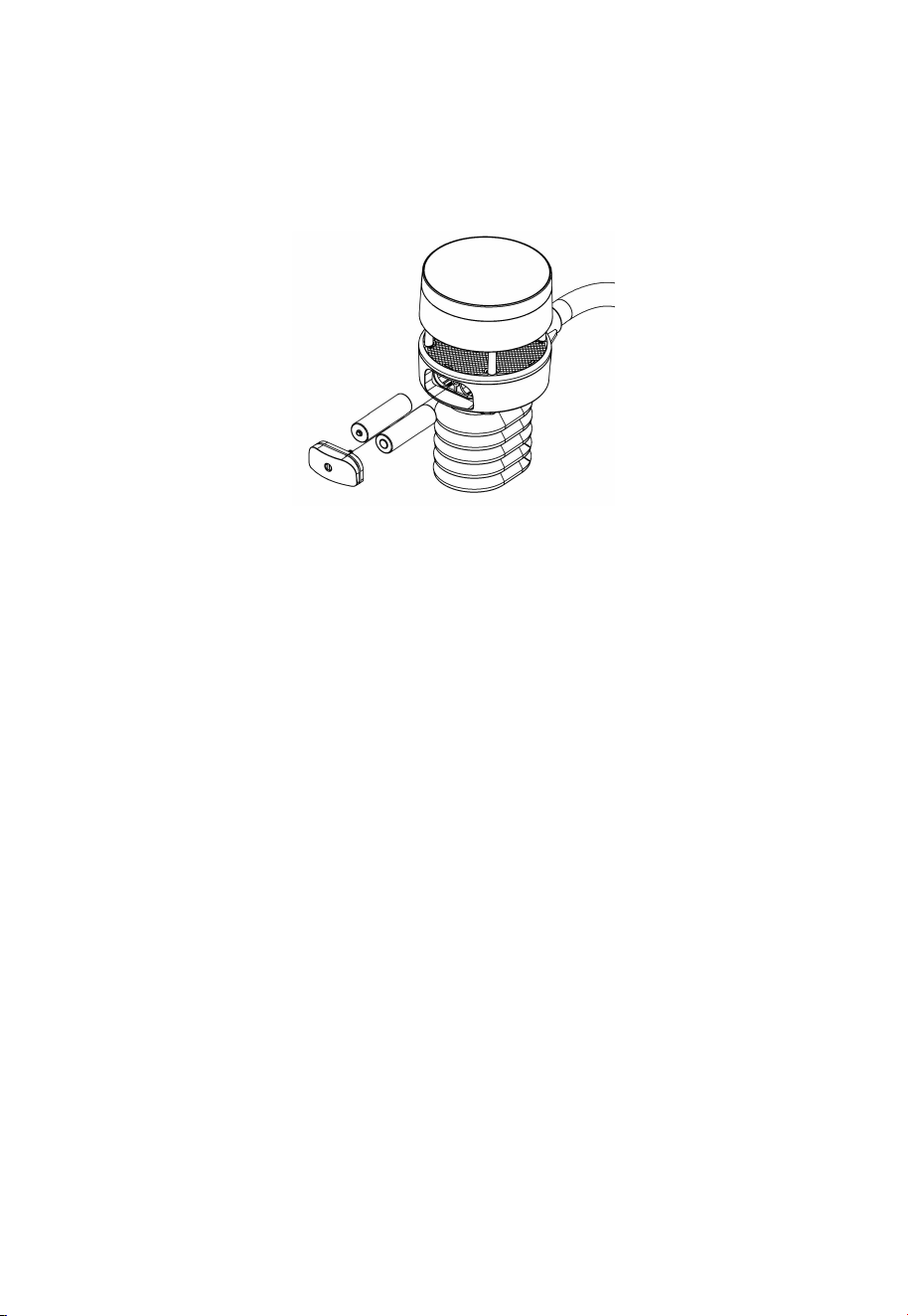
4.2.1 Install batteries in sensor package
Open the battery compartment with a screwdriver and insert 2 AA batteries
in the battery compartment, and press “Reset” button, the LED indicator on
the back of the sensor package (item 4) will turn on for 3 seconds and then
flash once every 4.8 seconds indicating sensor data transmission. If you did
not pay attention, you may have missed the initial indication. You can
always press the reset button to start over. Make sure you see the flash once
every 4.8 seconds.
14
If sensor has been put outside for some time, and solar panel has charged up
the internal accumulator fully or partially, if you install the 2 AA backup
battery, the system might not start up properly. So you can always make a
system reset by press the “Reset” button.
Figure 7: Battery installation diagram
Note: Please make sure the battery is inserted correctly for its polarity as
the system needs its initial power from this backup battery to start
up the system before solar panel charges up the accumulator and
supply system power afterwards. when in high altitude area, during
wintertime, sunshine time is short, thus system needs to be powered
from this backup battery, we recommend Lithium batteries to be
used for cold weather climates. Please avoid alkaline batteries,
especially when internal heater is to be activated during cold and
wet weather conditions as when heater activated, the trapped heat
inside will warm up internally, and alkaline batteries are extremely
susceptible to leakage when temperature is over certain limits.
4.2.2 Mount ultrasonic anemometer assembly
4.2.2.1 Before you mount
Before installing your outdoor sensor in the permanent location, we
recommend operating the device for one week in a temporary location with
easy access. This will allow you to check out all of the functions, ensure
proper operation and familiarize you with the weather station performance.
15
4.2.2.2 Mounting
You can attach a pole(not included) to a permanent structure and then
attach the sensor package to it (see Figure 8-12).
The U-Bolts will accommodate a pole diameter of 1.25-2 inches (pole
not included).
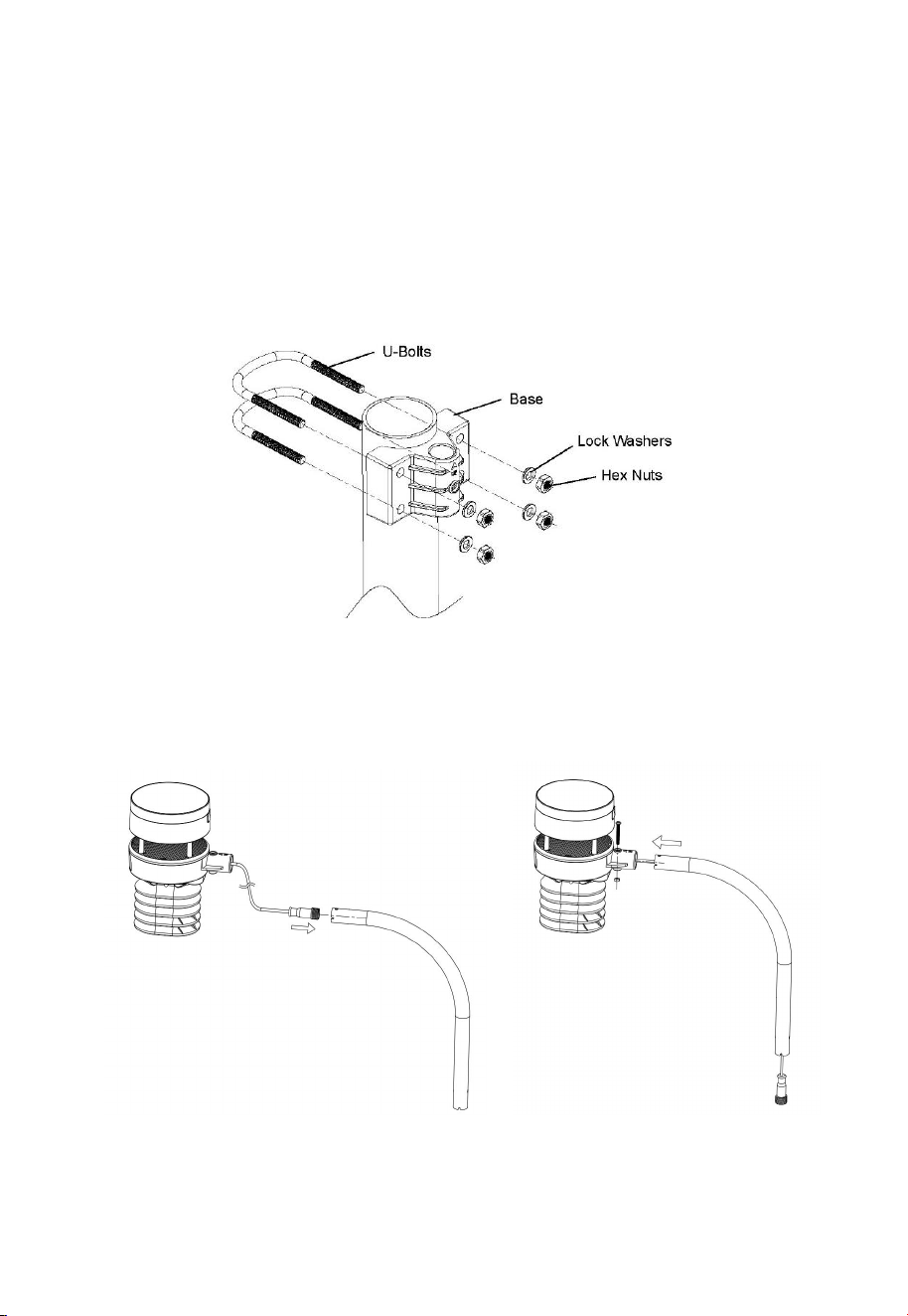
1. Install the base on a pole (1.25inch~2inch) as Figure 8.
Figure 8: Sensor package mounting diagram 5-1
2. Pass the connector cord through the arm tube as Figure 9:
Figure 9: Sensor package mounting diagram 5-2
3. Attaching the arm tube to the Ultrasonic Sensor as Figure 10.
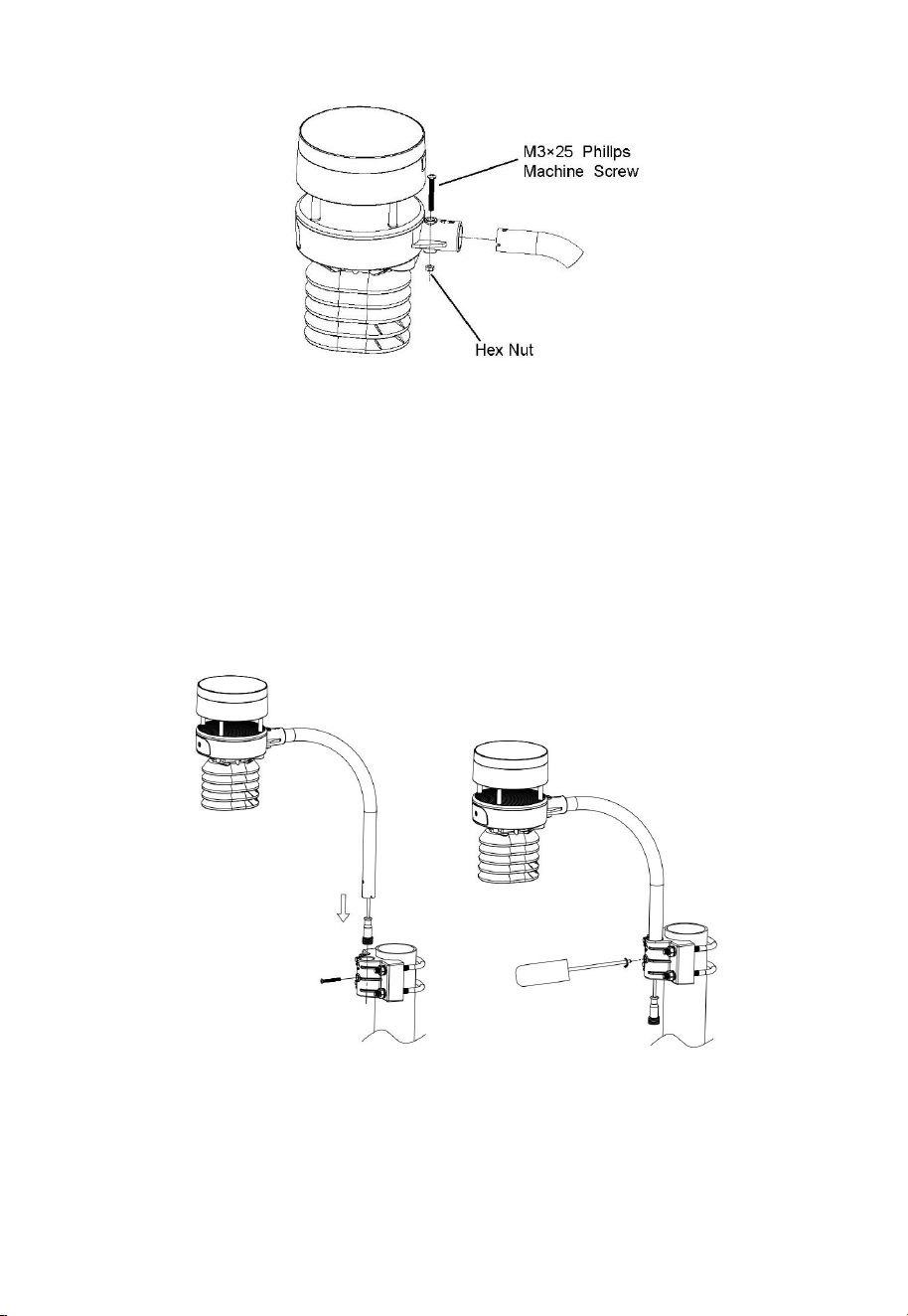
16
Figure 10: Sensor package mounting diagram 5-3
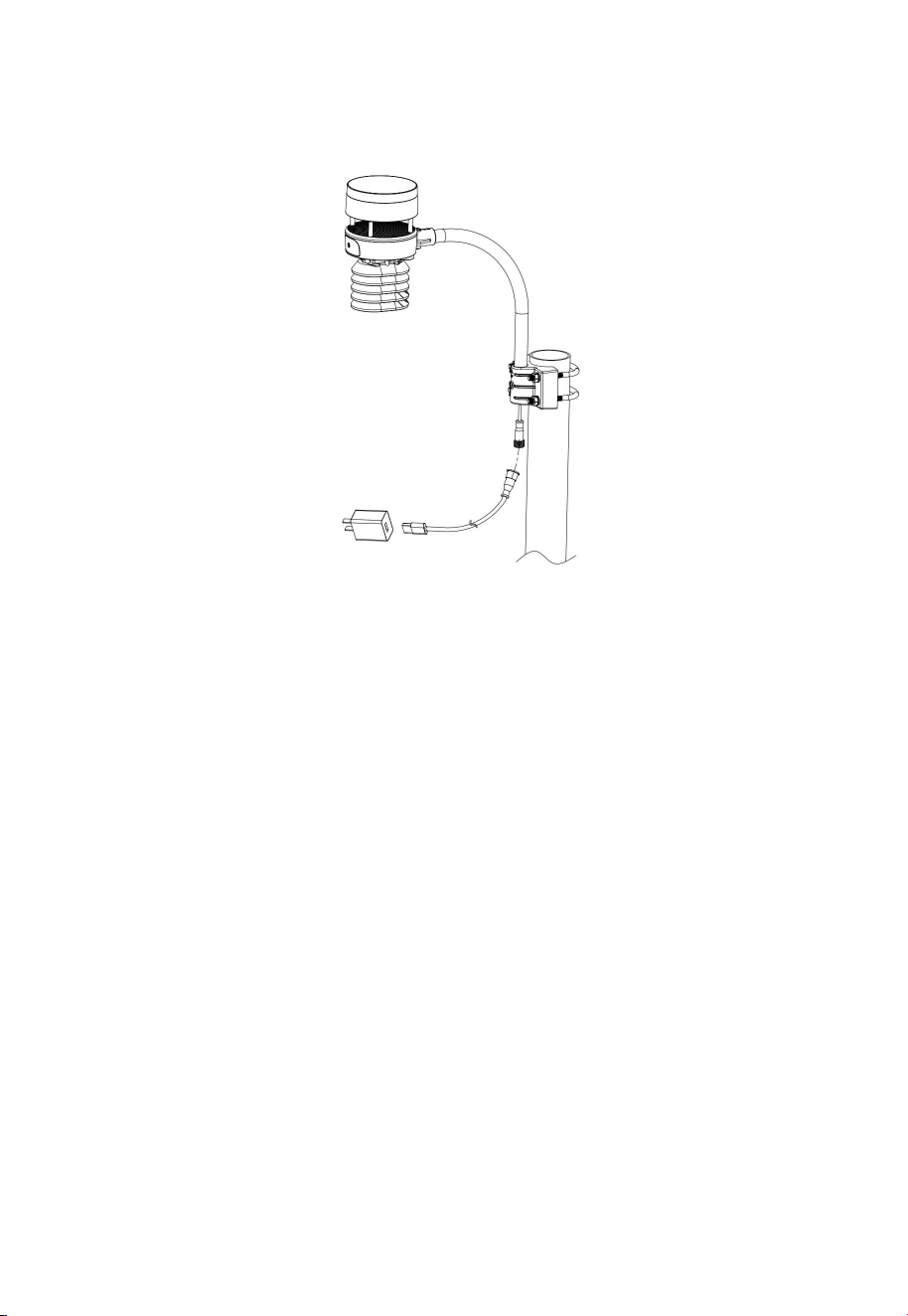
4. Insert the arm tube into the base as Figure 11. Be sure to line up the
small hole in the arm with the holes in the base. Insert the machine
screw through the holes in the base and arm. ( if you don’t need to
power up the heater, you should keep the power cord terminal inside
the mounting arm and this can make the installation looks neat and tidy.
You may take it out when needed.)
Figure 11: Sensor package mounting diagram 5-4
Make sure the mounting pole is vertical, or very close to it. Use a level as
needed.
17
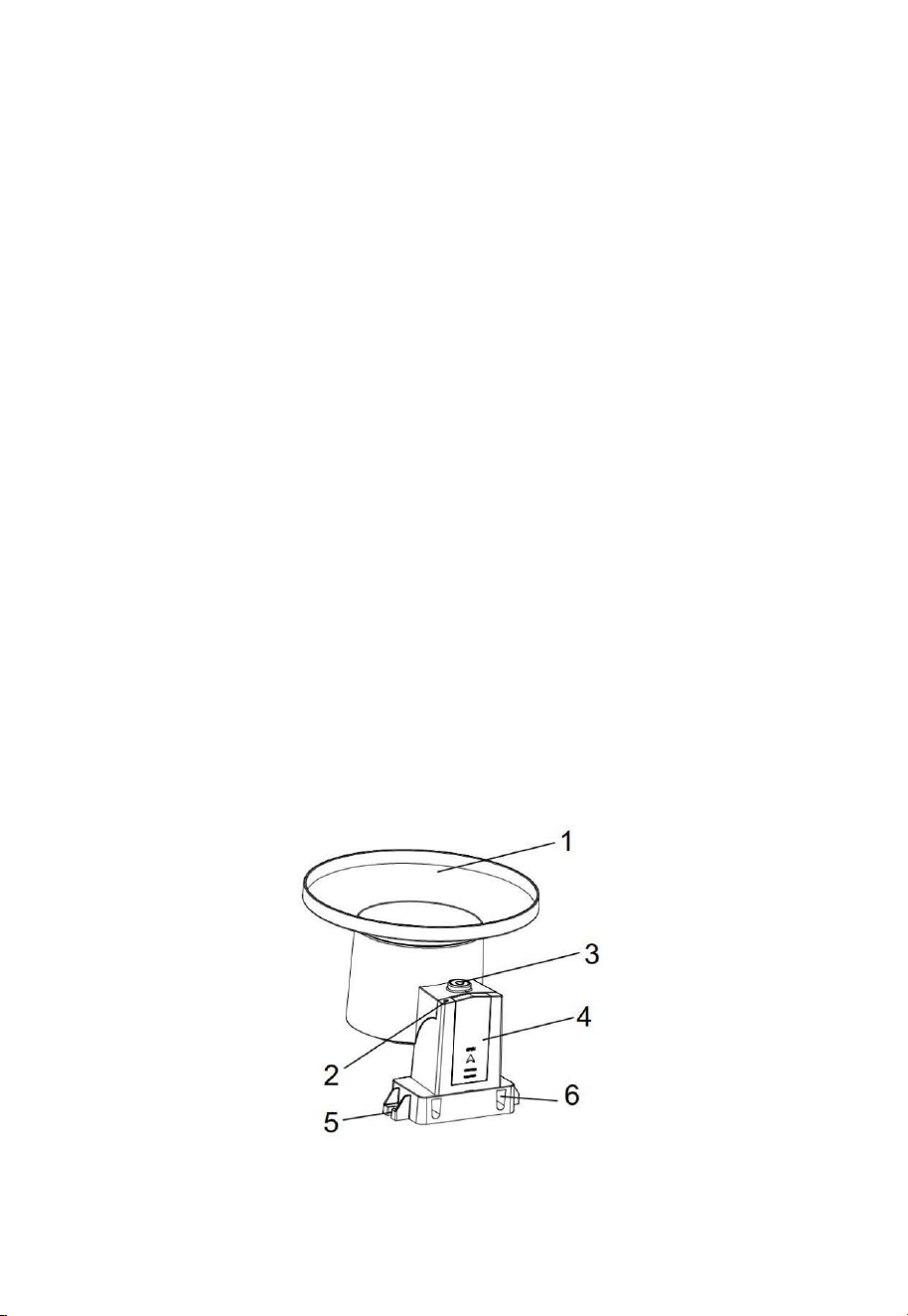
5. If optional extension cord is added, connect the cord to the connector
and insert the USB port into the AC adaptor as Figure 10 show:
Figure 12: Sensor package mounting diagram 5-5
Finally, place the sensor package on top of the prepared mounting pipe. The
U-Bolts should be loose enough to allow this but loosen the nuts as
necessary. Once placed, hand tighten all four nuts, taking care to do so
evenly. Do not use a wrench yet!
Now you will need to align the whole package in the proper direction by
rotating it on top of the mounting pipe as needed. Locate the arrow labeled
“NORTH” that you will find on top of the connector tube of the sensor
package (item 6). You must rotate the whole sensor package until this arrow
points due north. To achieve proper alignment, it is helpful to use a compass
(many cell phones have a compass application). Once rotated in the correct
orientation, lightly tighten the bolts a little more (use a wrench) to prevent
further rotation.
Note: In Southern hemisphere, it is not necessary to change the orientation
to SOUTH as its solar panel is a rounded type and it is orientation
free for its charging capability.
18
Make sure the mounting tube for the sensor package is installed vertically
(use a level at 90-degree offsets around the tube). Adjust the mounting pipe
as necessary. Next also make sure the mounting of the anemometer body on
the pipe is level. If it is not, wind direction and speed readings may not
operate correctly or accurately. Adjust the mounting assembly as necessary.
Make sure you check, and correct if necessary, the north orientation again,
as the final installation step, and now tighten the bolts with a wrench. Do not
over tighten, but make sure strong wind and/or rain cannot move the sensor
package.
4.2.3 Reset Button and Transmitter LED
In the event the sensor package is not transmitting, reset the sensor.
Using a bent-open paperclip, press and hold the RESET BUTTON (item 12)
to affect a reset: the LED turns on while the RESET button is depressed, and
you can now let go. The LED should then resume as normal, flashing
approximately once every 4.8 seconds.
4.3 Rain Gauge Sensor Set Up and Installation
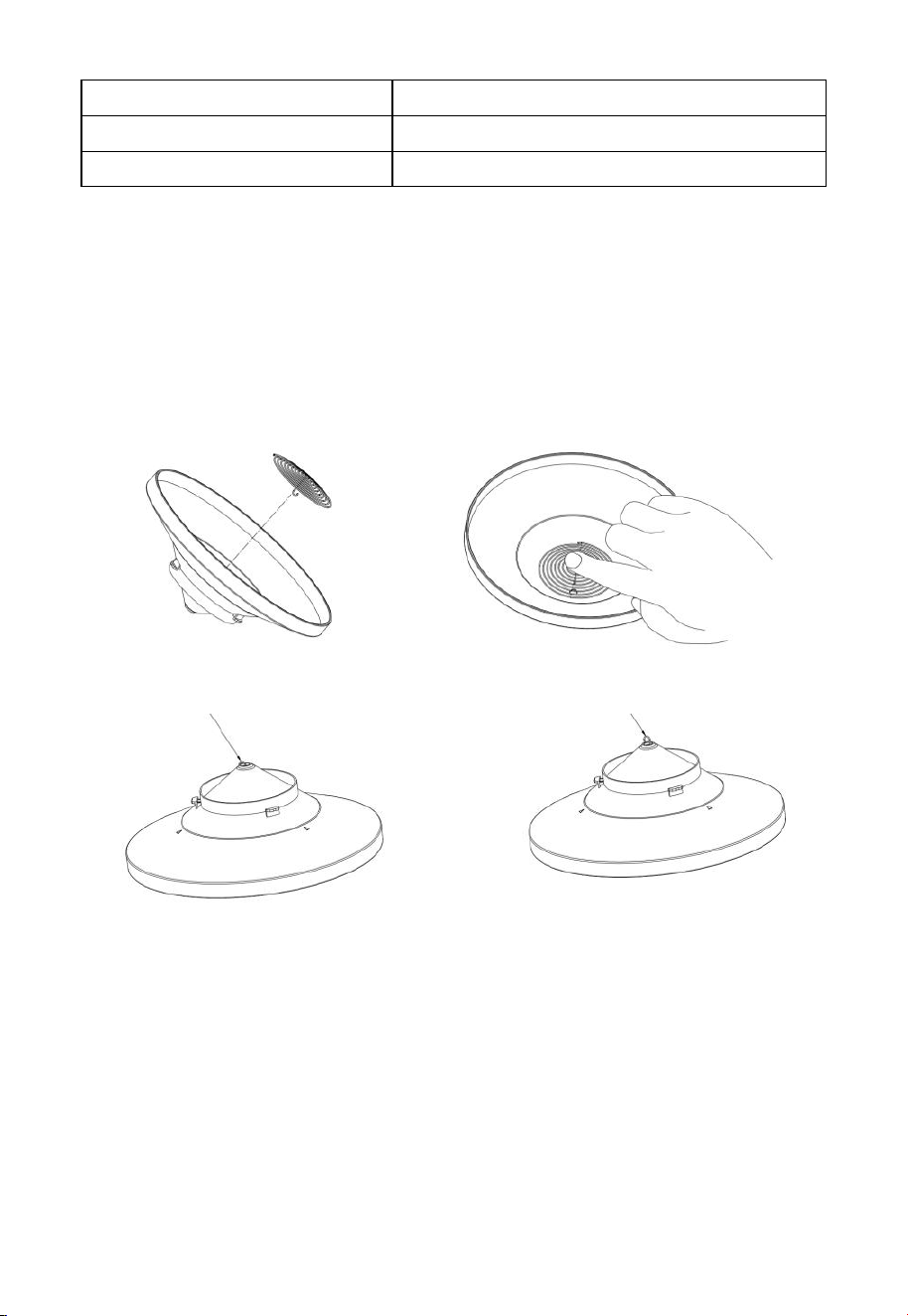
See Figure 13 to locate and understand all the parts of the rain gauge sensor
once fully assembled.
Figure 13: Sensor assembly components
19
1 Rain collector funnel
4 Battery compartment door
2 LED Indicator
5 Surface installation screw hole
3 Bubble level
6 U-bolt installation hole
Table 3: Sensor assembly detailed items
4.3.1 Install rain gauge filter
There’s a stainless steel filter included in the package. It’s aimed to stop
leaves or bird's dropping to avoid the obstruction of the cone hole. The
installation is simple: press the filter until the hook is inside the outlet hole
and self -locked. The spring tension will keep the filter sit tight on the funnel.
Figure 14: Rain gauge filter in/un-installation diagram
4.3.2 Install rain collector top
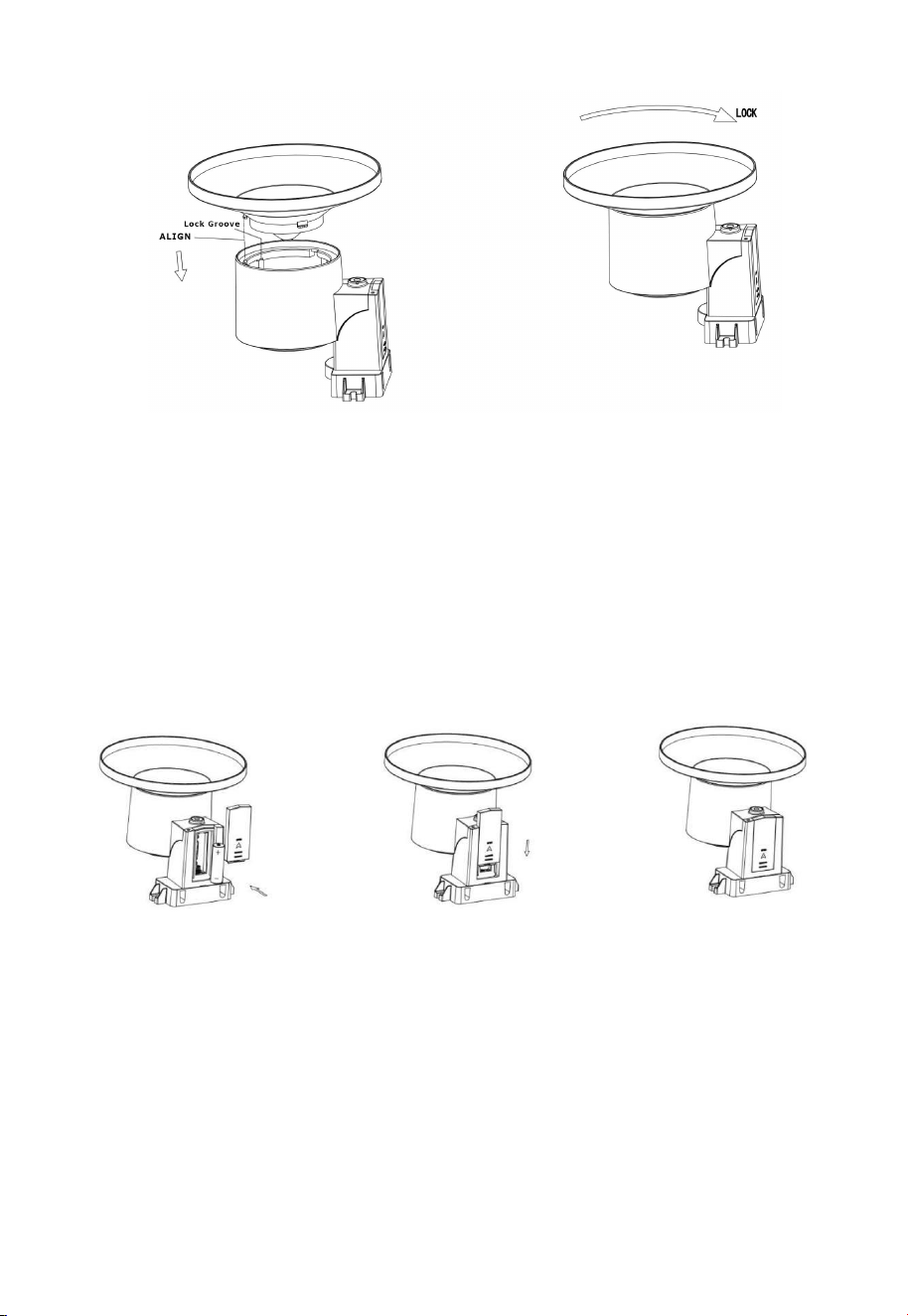
Align the rain collector top with the rain bucket, pay attention to the lock
groove position as shown on the left side in Figure 13. Next, lock the top
clockwise to the lock groove position, as shown on the right side of the
figure, until it comes to a stop and the top cannot be removed from the
bucket. Failure to do this may cause the collector top to blow away in strong
winds!
Hook the filter hook on the edge to install.
Take out the filter hook from the edge to uninstall.
20
Figure 15: Rain collector top installation diagram
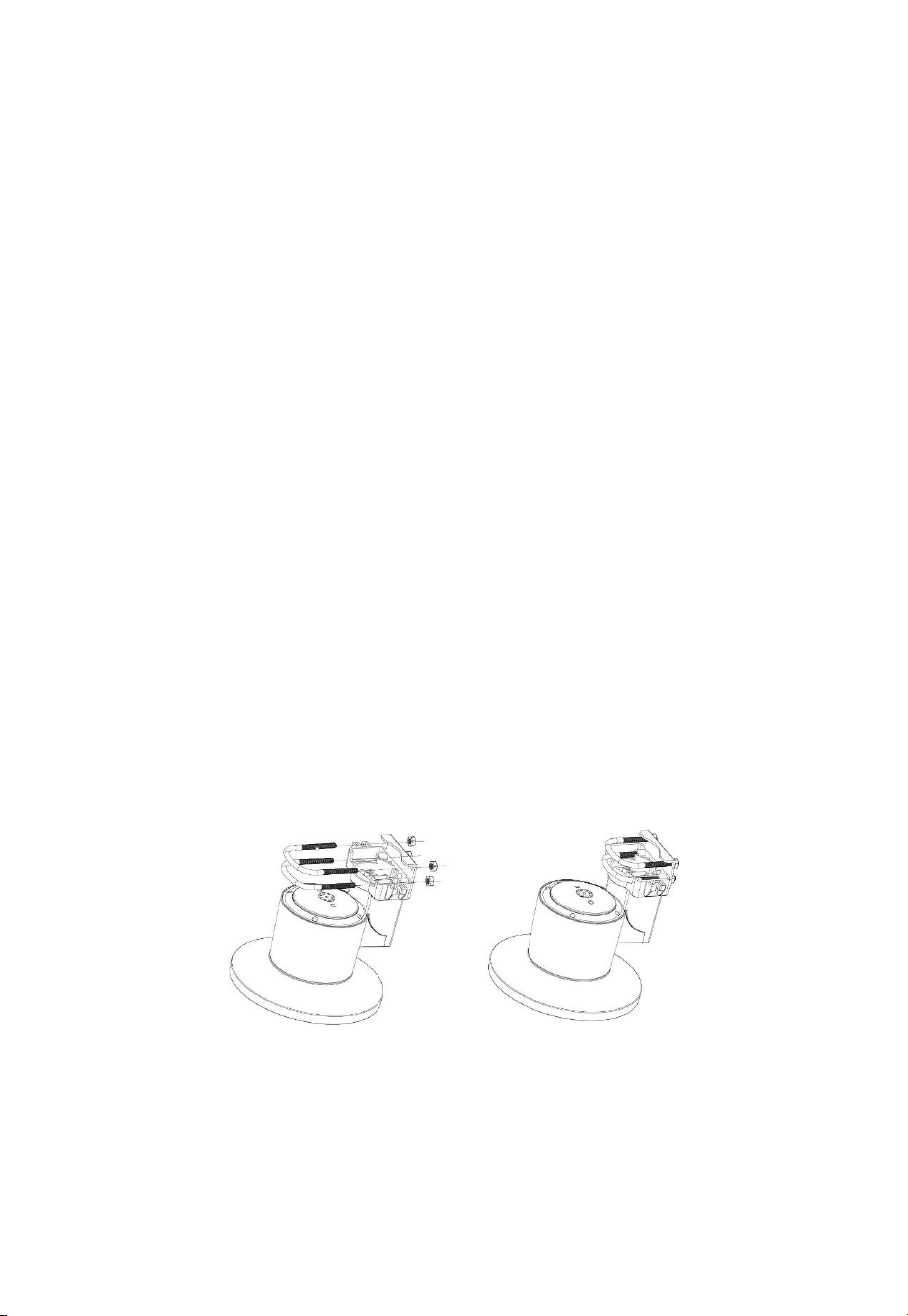
4.3.3 Install Batteries in rain gauge sensor
Remove the battery door on the back of the sensor by sliding it in the
direction of the arrow. Insert one AA battery as described and put
compartment door back and slide it in the opposite direction to lock. Make
sure battery door is firmly press and closed properly, which is
extremely important in preventing any water entering inside.
Figure 16: Rain gauge sensor battery installation diagram
The LED indicator on the top of the battery door (item 2) will turn on for 4
seconds and then flash once every 49 seconds indicating sensor data
transmission. If you did not pay attention, you may have missed the initial
indication. You can always remove the batteries and start over, but if you
see the flash once every 49 seconds, everything should be OK.
Note: If no LED light up or is lighted permanently, make sure the battery
is inserted the correct way or a proper reset is happened. Do not
21
install the battery backwards. You can permanently damage the
outdoor sensor.
We recommend lithium batteries for cold weather climates, but alkaline
batteries are sufficient for most climates.
4.3.4 Mounting
4.3.4.1 Before you mount
Before proceeding with the outdoor mounting detailed in this section, you
may want to skip to setup instructions in section 4.5 and onwards first, while
you keep the assembled rain gauge sensor nearby (although preferably not
closer than 5 ft. from the gateway). This will make any troubleshooting and
adjustments easier and avoids any distance or interference related issues
from the setup.
After setup is complete and everything is working, return here for outdoor
mounting. If issues show up after outdoor mounting they are almost
certainly related to distance, obstacles etc.
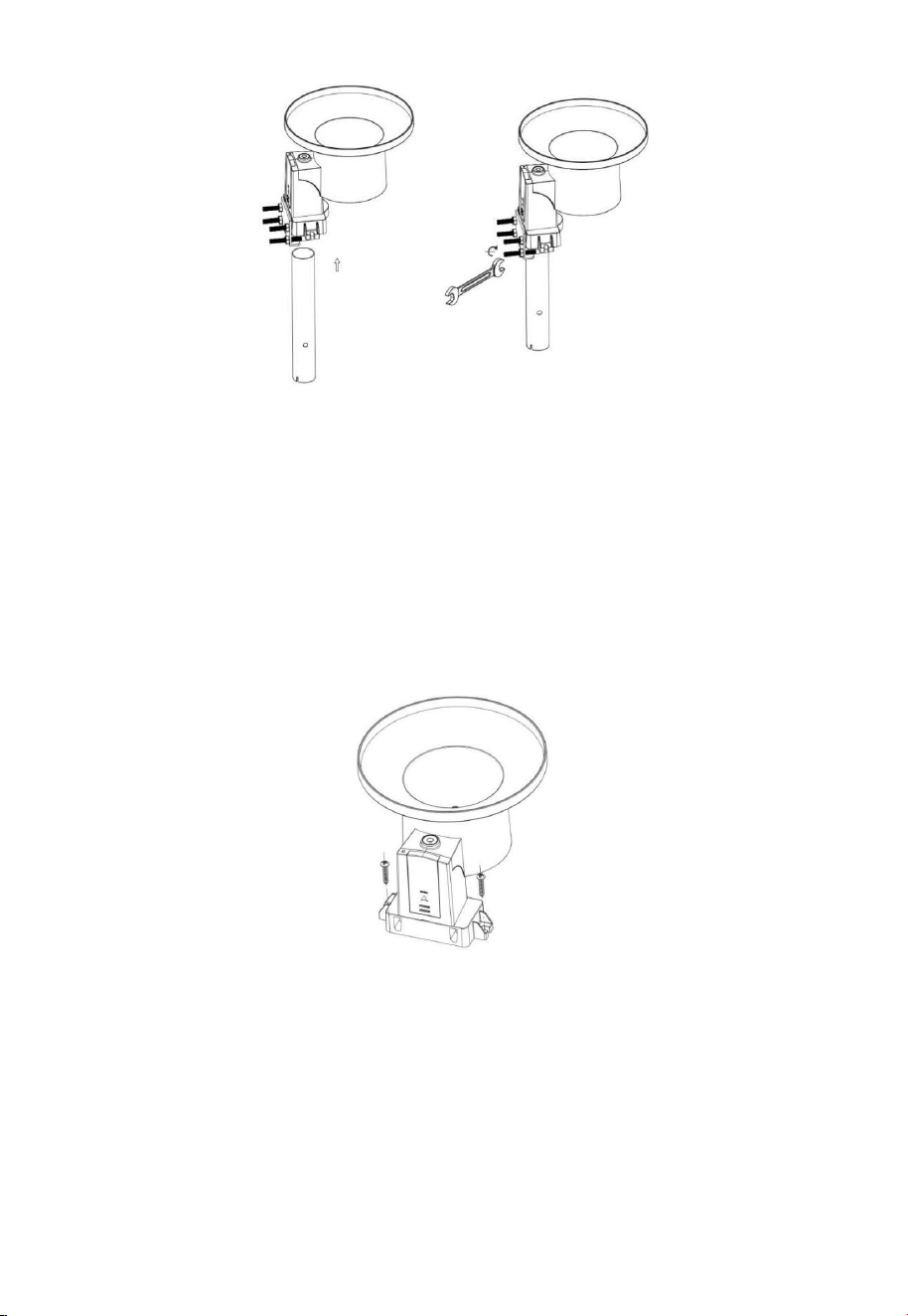
4.3.4.2 Mounting with U-bolts
The mounting assembly includes two U-Bolts and a bracket that tightens
around a 1-2" diameter pole (not included) using the four U-Bolt and nuts.
22
Figure 17: Rain gauge installation with U-bolts
Note: Use the bubble level one the side of the rain gauge as a guide to
verify that the sensor is leveled (for proper measurements).
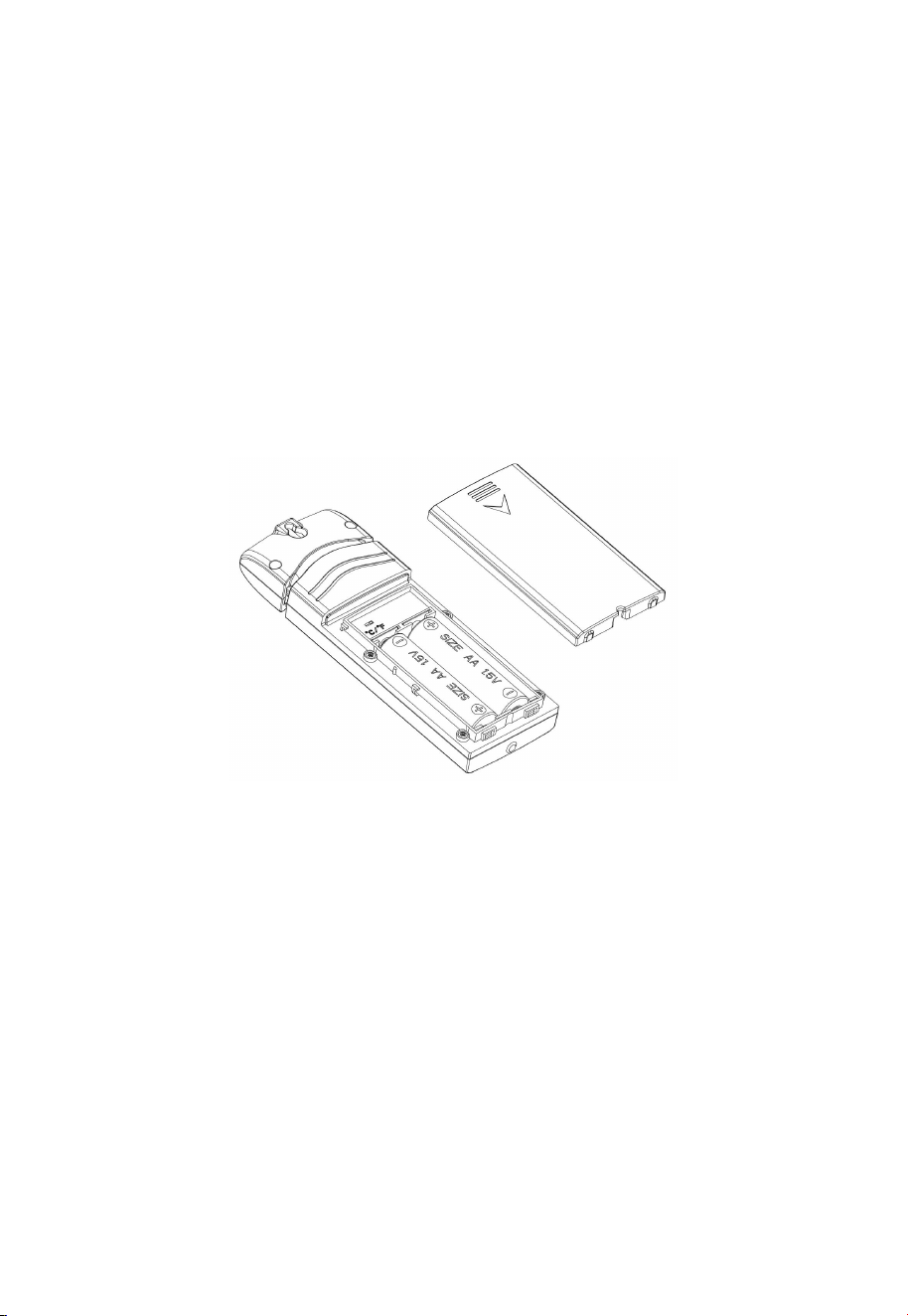
4.3.4.3 Mounting with screws
The mounting assembly also includes two screws for installation on a flat
surface.
Figure 18: Rain gauge sensor mounting with screws installation diagram
Note: Use the bubble level beside the rain sensor as a guide to verify that
the sensor is leveled. Use shims as necessary to achieve level
installation.
23
4.4 Indoor Sensor Set Up
Note: To avoid permanent damage, please take note of the battery polarity
before inserting the batteries. Looking at Figure 19 from left to right
the left-most (or bottom) battery is to be installed with its + terminal
pointing down, and the other battery with its + terminal pointing up.
Remove the battery door on the back of the sensor by sliding it in the
direction of the arrow. Insert two AA batteries as described and put
compartment door back and slide it in the opposite direction to lock.
Switch C/F to select temperature display unit in Celsius or Fahrenheit.
Figure 19: Indoor sensor battery installation
4.4.1 Sensor Placement
The best mounting location for the indoor sensor is in a location that never
receives direct sunlight, not even through windows. Also, do not install in a
location where a nearby radiant heat source (radiator, heaters, etc.) will
affect it. Direct sunlight and radiant heat sources will result in inaccurate
temperature readings.
The sensor is meant to provide indoor conditions for display on the console,
but if you would rather have a second source for outdoor conditions instead,
you can mount this unit outside. The unit is weatherproof, but besides
24
heeding the placement instructions above, you should also attempt to mount
the unit under cover (eve or awning or similar).
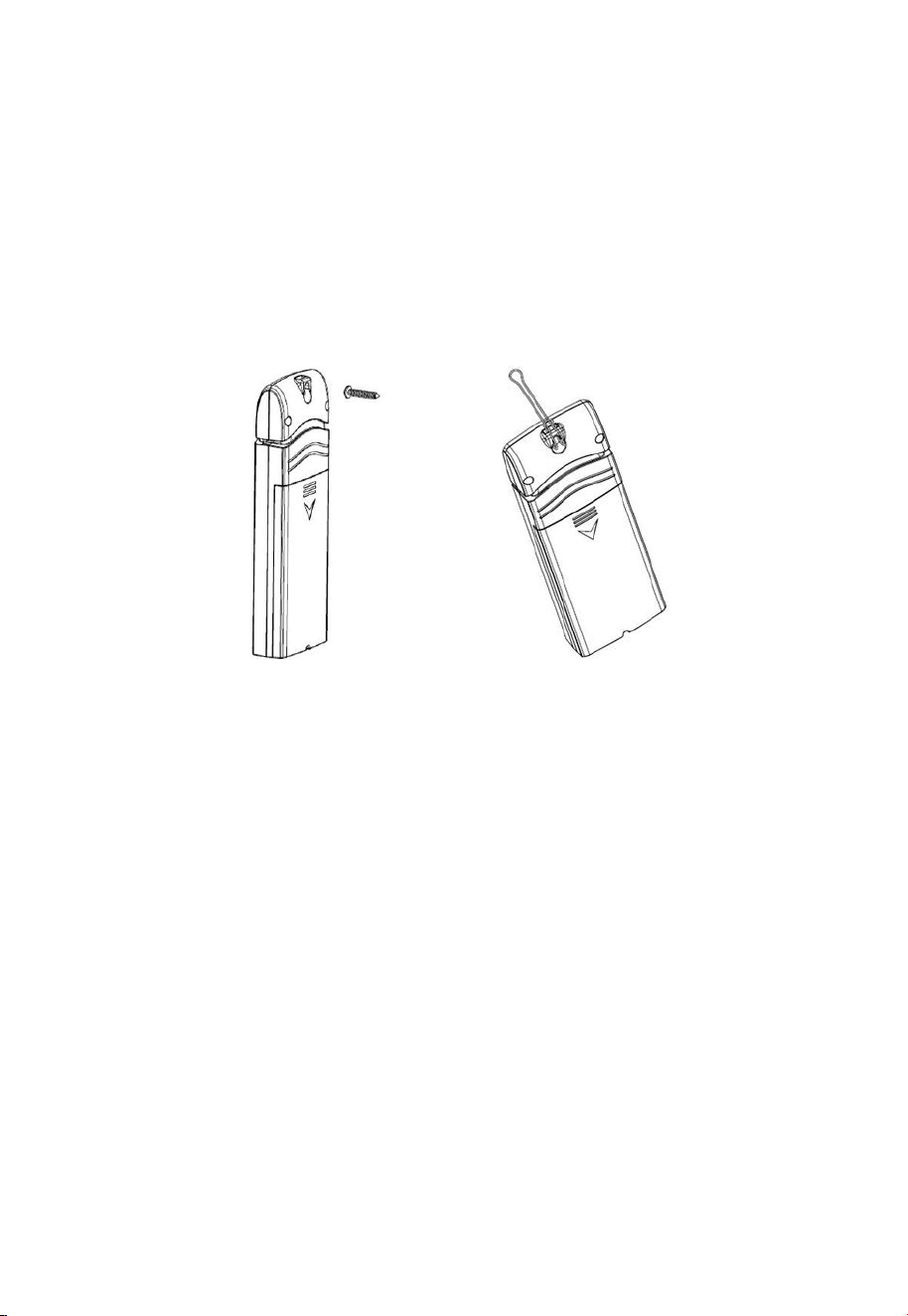
To mount or hang the unit on a wall or wood beam:
Use a screw or nail to affix the remote sensor to the wall, as shown on
the left side of Figure 20,
Hang the remote sensor using a string, as shown in right side of Figure
20.
Figure 20: Indoor sensor mounting
Note: Make sure the sensor is mounted vertically and not lying down on a
flat surface. This will insure optimum reception. Wireless signals
are impacted by distance, interference (other weather stations,
wireless phones, wireless routers, TVs and computer monitors), and
transmission barriers, such as walls. In general, wireless signals will
not penetrate solid metal and earth (down a hill, for example).
4.5 Best Practices for Wireless Communication
Wireless (RF) communication is susceptible to interference, distance, walls
and metal barriers. We recommend the following best practices for trouble
free wireless communication between both sensor packages and the base
unit:
25
Indoor/outdoor sensor placement: The sensor will have the longest
reach for its signal when mounted or hung vertically. Avoid laying it
down on a flat surface.
Electro-Magnetic Interference (EMI). Keep the base unit several feet
away from computer monitors and TVs.
Radio Frequency Interference (RFI). If you have other devices
operating on the same frequency band as your indoor and/or outdoor
sensors and experience intermittent communication between sensor
package and base unit, try turning off these other devices for
troubleshooting purposes. You may need to relocate the transmitters or
receivers to avoid the interference and establish reliable communication.
The frequencies used by the sensors are one of (depending on your
location): 433, 868, or 915 MHz (915 MHz for United States).
Line of Sight Rating. This device is rated at 300 feet line of sight
(under ideal circumstances; no interference, barriers or walls), but in
most real-world scenarios, including a wall or two, you will be able to
go about 100 feet.
Metal Barriers. Radio frequency will not pass through metal barriers
such as aluminum siding or metal wall framing. If you have such metal
barriers and experience communication problems, you must change the
placement of sensor package and or base unit.
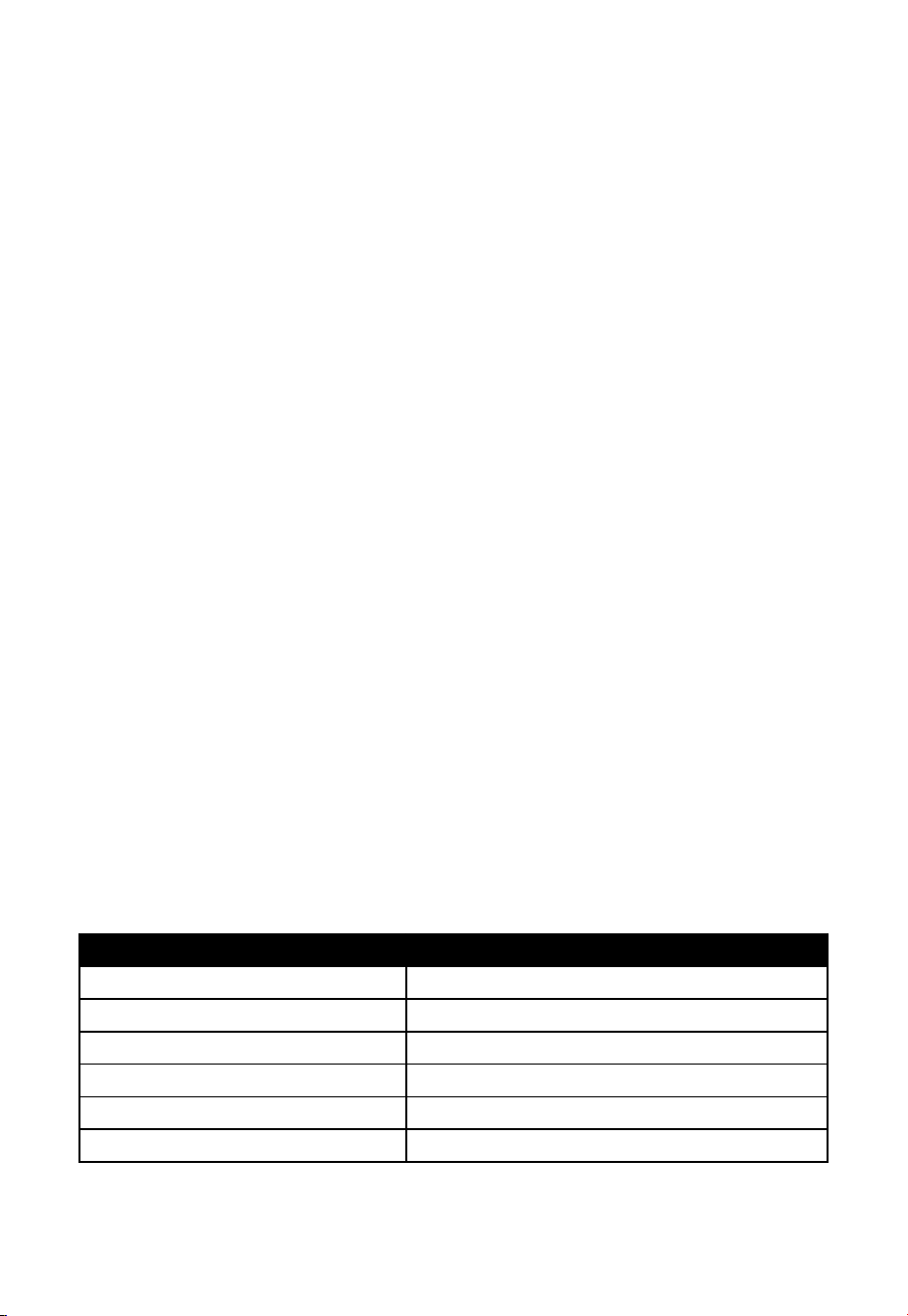
The following table shows different transmission media and expected signal
strength reductions. Each “wall” or obstruction decreases the transmission
range by the factor shown below.
Medium
RF Signal Strength Reduction
Glass (untreated)
5-15%
Plastics
10-15%
Wood
10-40%
Brick
10-40%
Concrete
40-80%
Metal
90-100%
Table 4: RF Signal Strength reduction
26
4.6 Console Display
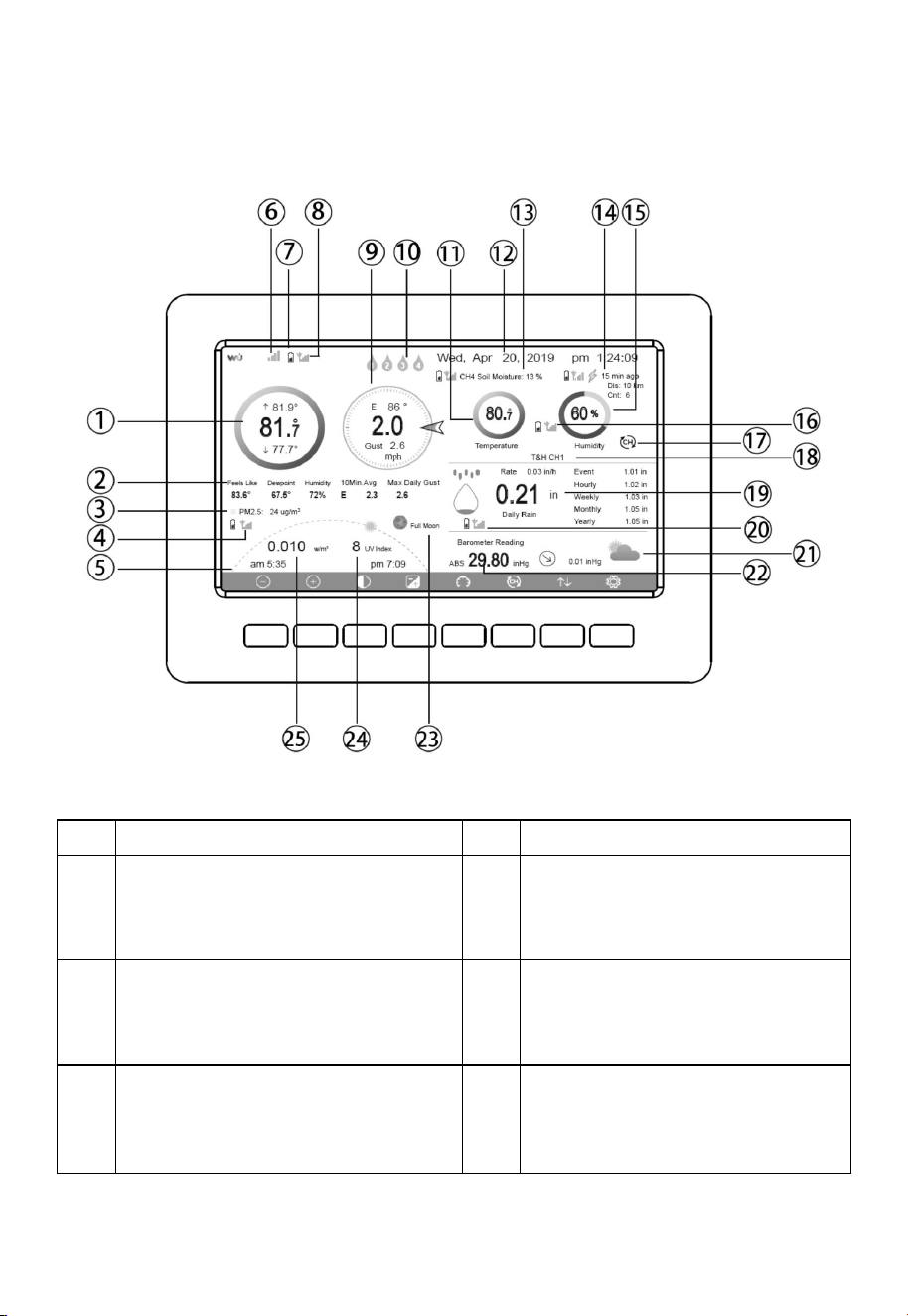
See Figure 21 to help you identify elements of the console’s display screen.
Figure 21: Display Console Screen Layout
No
Description
No
Description
1
Outdoor temperature
14
Last lightning strikes detected
time / distance; daily counts
(optional sensor)
2
Outdoor Feels Like/Dew
point/Humidity/10Min. Average
Wind Direction/Max Daily Gust
15
Indoor humidity
3
PM2.5 concentration(optional
sensor)
16
RF signal bar for multi-channel
temperature and humidity
sensor(optional sensor)
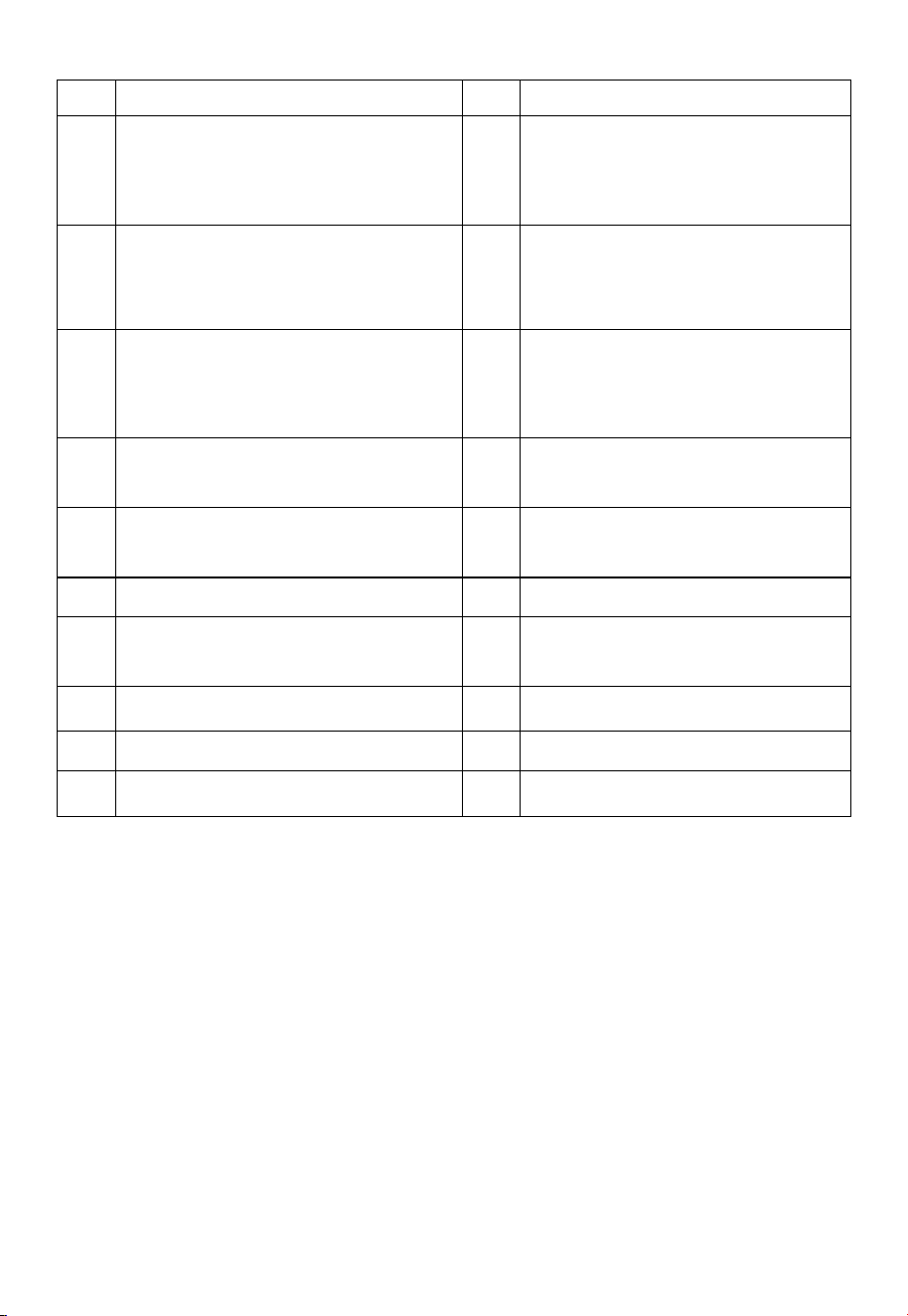
27
No
Description
No
Description
4
RF signal bar for PM2.5
sensor(optional sensor)
17
Multi-channel temperature and
humidity sensor cycle display
mode icon(optional sensor)
5
Sunrise / Sunset Time
18
Multi-channel temperature and
humidity sensor channel
number (optional sensor)
6
Wi-Fi signal bar
19
Rain fall
Daily/Event/Hourly/Weekly/
Monthly/Yearly
7
Low battery power indicator for
each sensor
20
RF signal bar for rain fall
sensor
8
RF signal bar for outdoor sensor
array
21
Weather forecast
9
Wind direction/Wind speed/Gust
22
ABS/REL Barometer
10
Multi-channel water leak sensor
(optional)
23
Moon Phase
11
Indoor temperature
24
UV
12
Date and time
25
Solar Radiation
13
Soil moisture(optional sensor)
Table 5: Display console detailed items
Note: If you have purchased the optional WH55 water leak sensor, please
check the following instructions for the display color:
Green - normal
Red & Flash - leaking
Yellow - low battery alert
Orange - offline over 10 mins
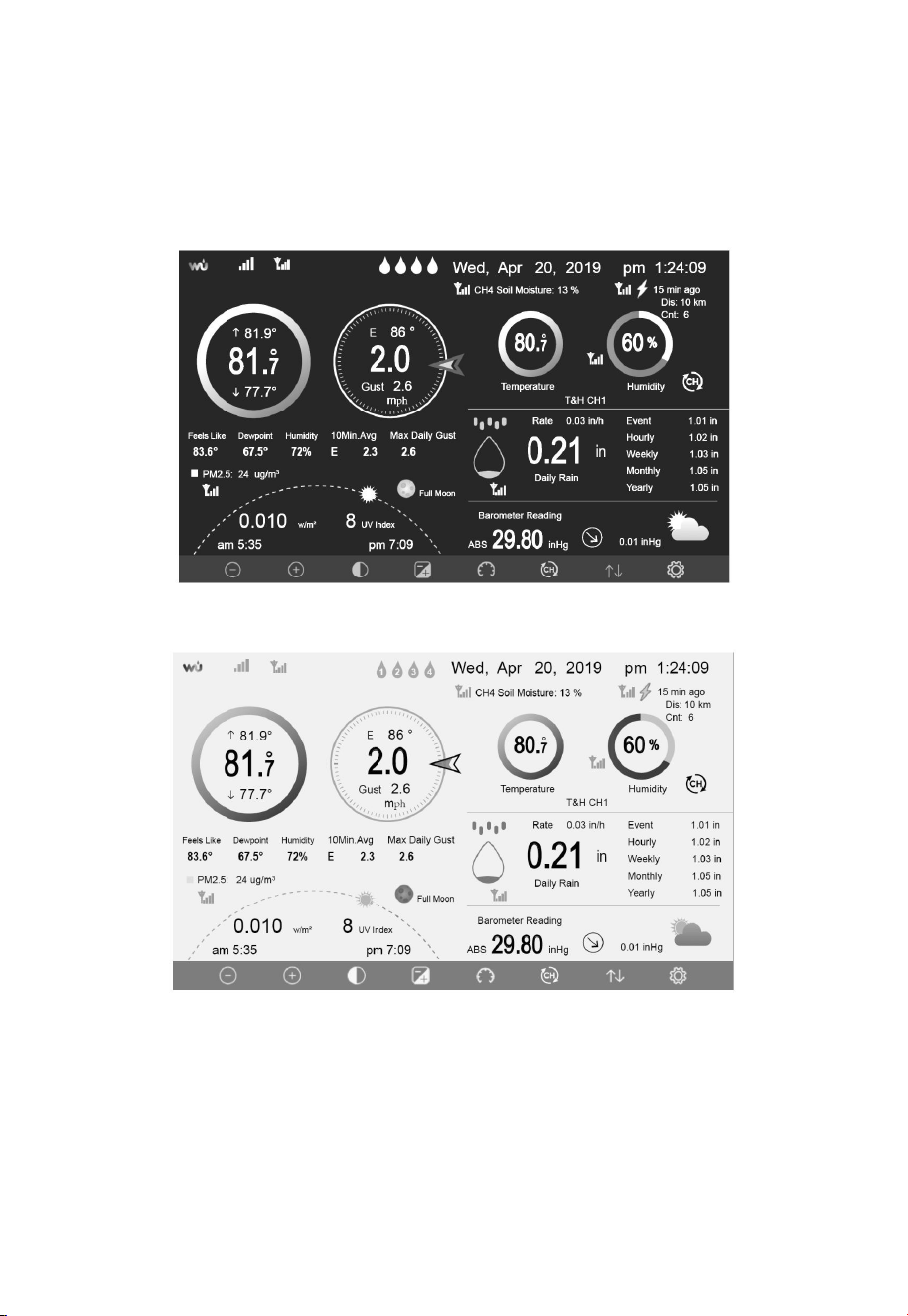
28
4.6.1 Initial Display Console Set Up
Immediately after power up (inserting power adapter), the unit will turn on
the display, and the unit will start to look for reception of the indoor and
outdoor sensor data. This may take up to 3 minutes.
Dark Background Display
Light Background Display
Note: Sunrise/sunset time display will only work properly when GEO
location has been set up correctly. GEO setup can be carried out under setup
menu.
29
4.6.2 Key functions
Figure 22: Buttons around the display
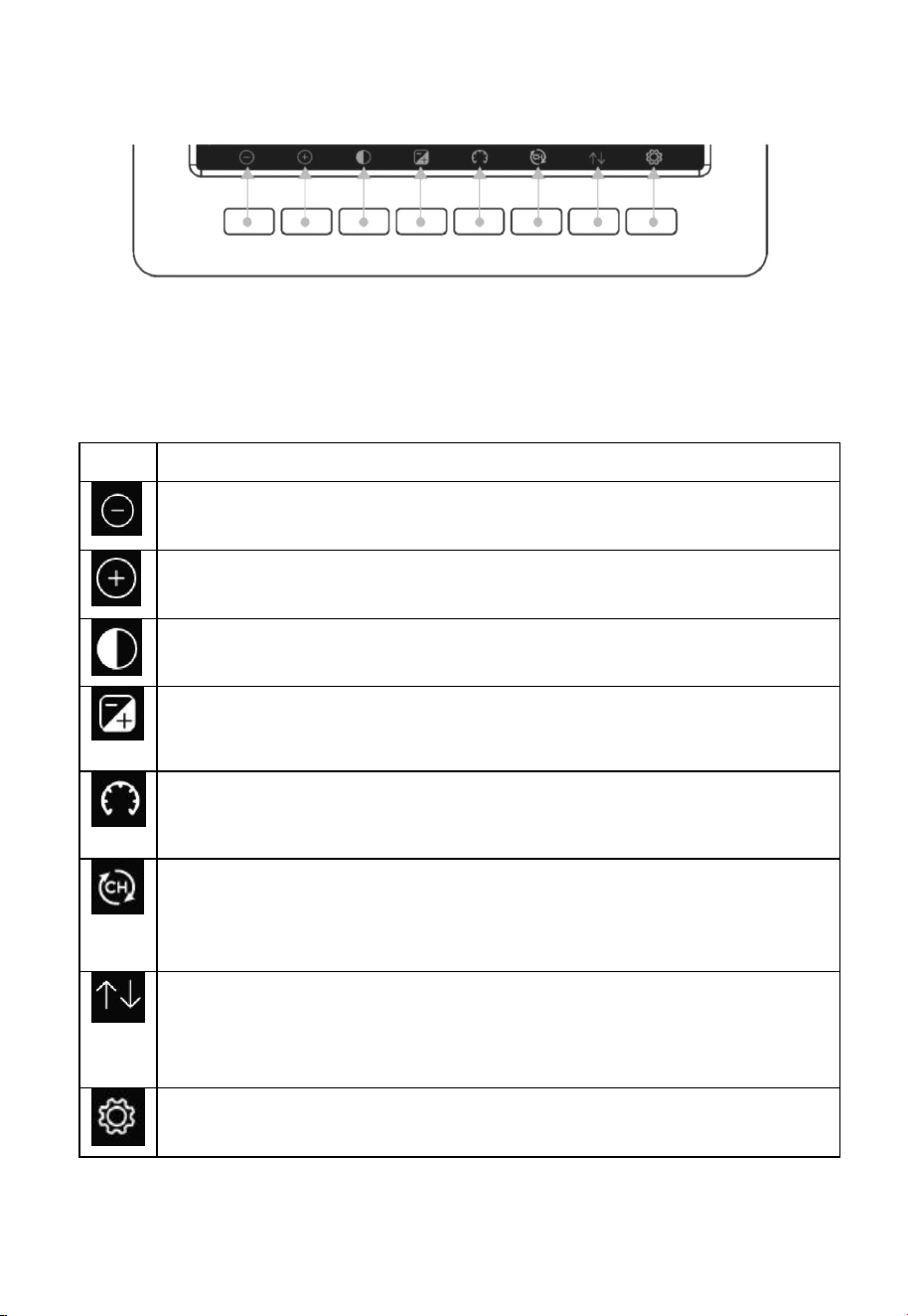
There is a set of eight keys on the bottom of the display console. The
following tables briefly explains the function of these keys.
Icon
Description
Brightness control key
Press this key to decrease the brightness
Brightness control key
Press this key to enhance the brightness
Backlight on/off key
Press this key to on/off the backlight
Background key
Press this key to choose between dark background display and light
background display
Pressure display key
Press this key to choose the display between Absolute pressure and
Relative pressure.
Channel key
Press this key to Shift the display between indoor temp &
humidity, Multiple Channel temp& humidity and scroll
automatically mode
History key
Press this key once to view Max/Min record; Press twice to enter
History mode;Press three times to enter Graph Mode; Press four
times to enter optional Sensors Display Mode
Setting key
Press this key to enter Setting Mode
Table 6: Console buttons
30
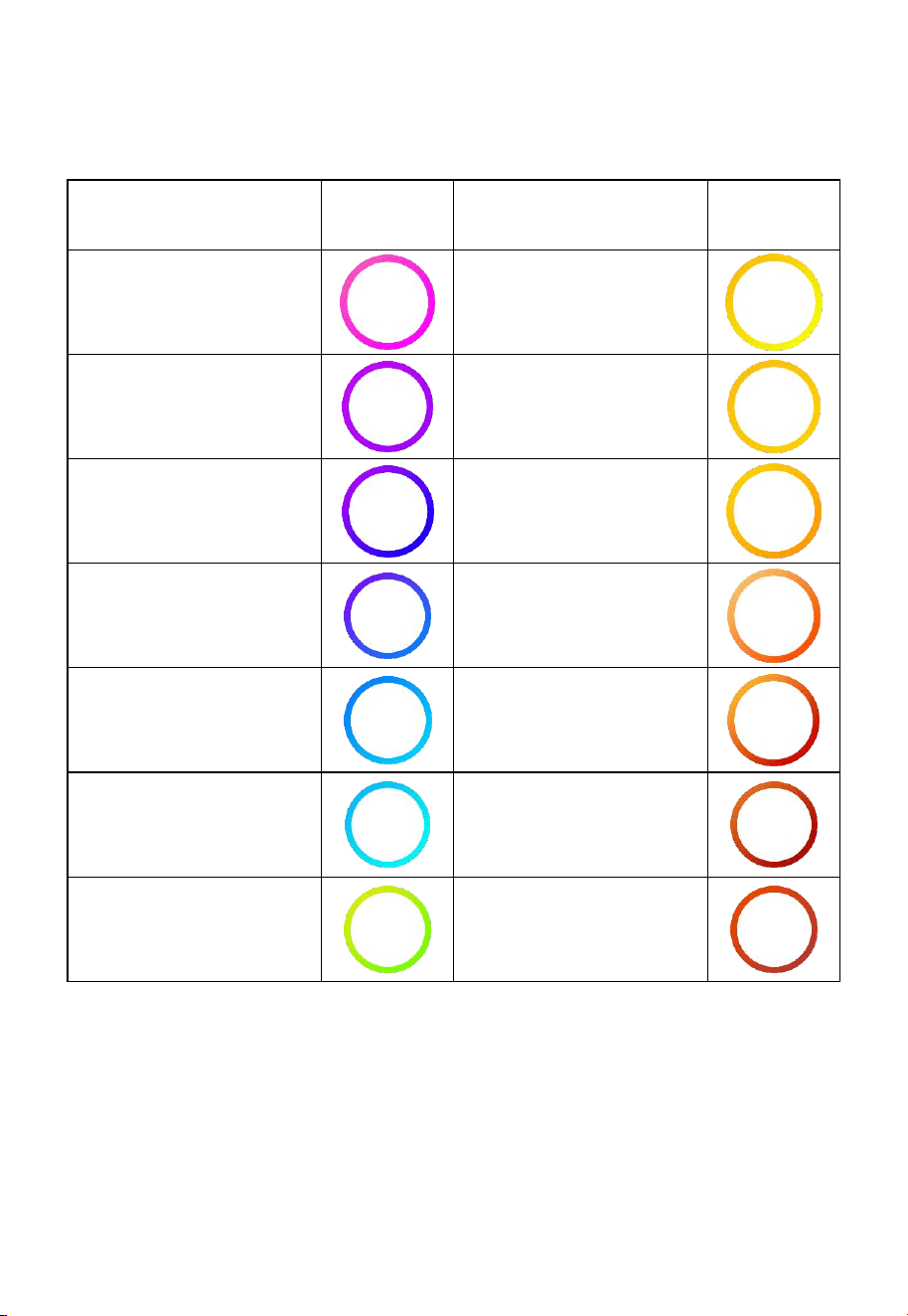
4.6.3 Main interface icons explain
4.6.3.1 Temperature Icon
Temperature Range
(degF)
Color
Ring
Temperature Range
(degF)
Color
Ring
< -10
50-60
-10 to 0
60-70
0 to 10
70-80
10-20
80-90
20-30
90-100
30-40
100-110
40-50
> 110
Note: please refer to the online manual for colorful display.
31
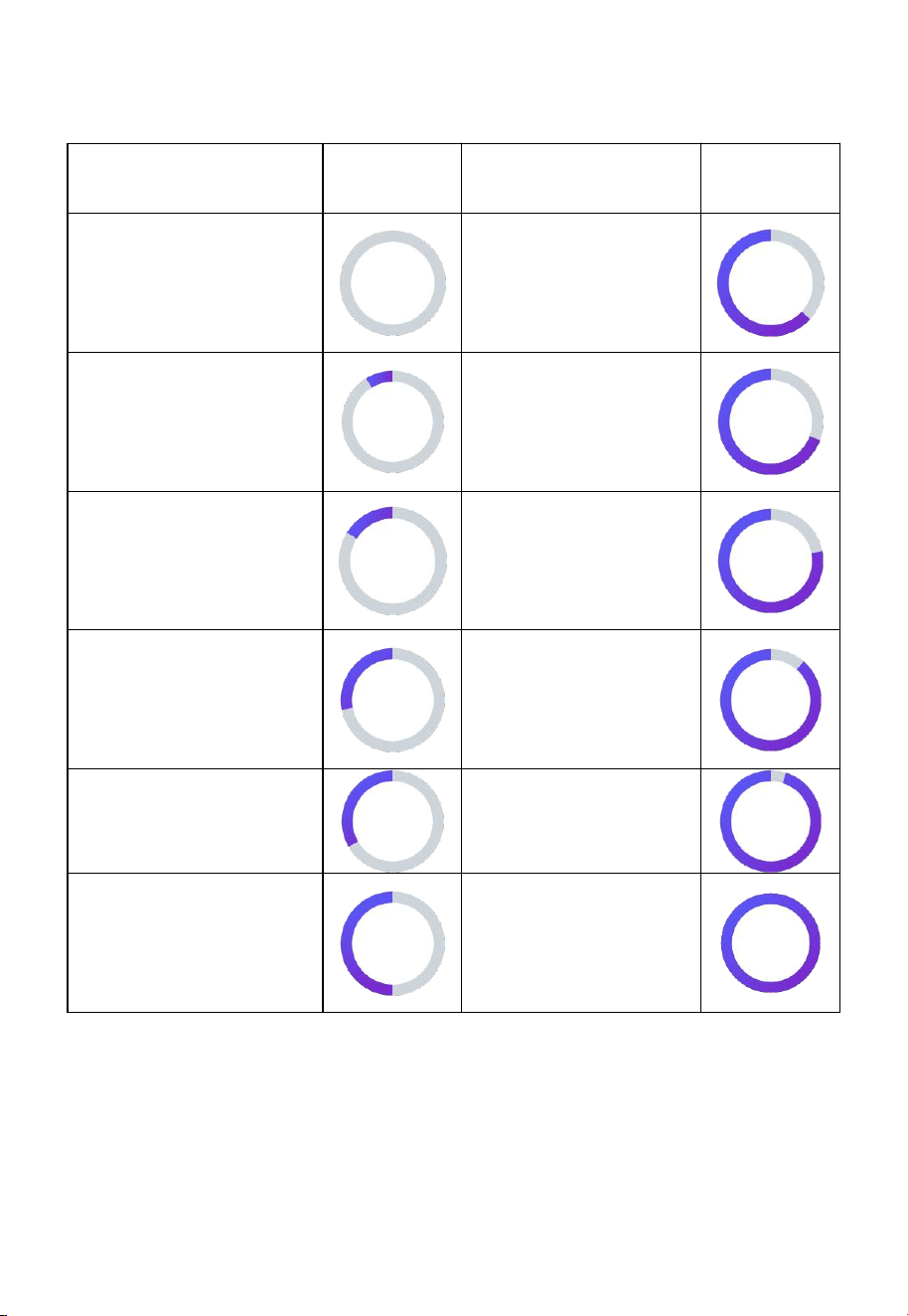
4.6.3.2 Humidity Icon
Humidity Range (%)
Color
Ring
Humidity Range
(%)
Color
Ring
0%, No signal or
dashes
50 to 60
1 to 10
60 to 70
10 to 20
70 to 80
20 to 30
80 to 90
30 to 40
90 to 99
40 to 50
100%
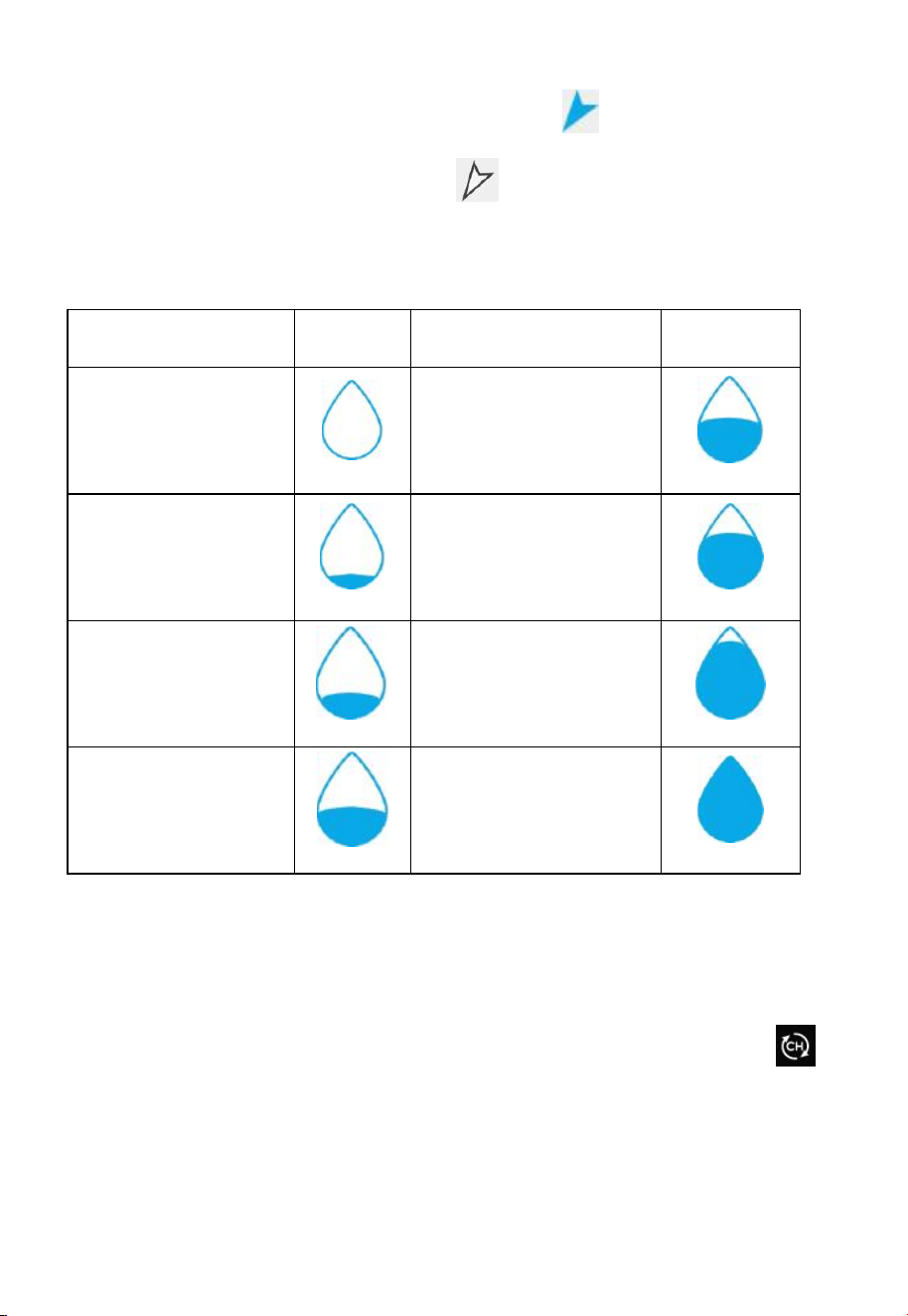
32
4.6.3.3 Current wind direction indication , 10-minute average
wind direction indication .
4.6.3.4 Hourly Rainfall Icon
Hourly Rain (in)
Icon
Hourly Rain (in)
Color Ring
0.0
0.6 to 0.8
0 to 0.2
0.8 to 1
0.2 to 0.4
1 to 1.2
0.4 to 0.6
1.2 to 1.4
4.7 Multiple Channel Selection and Scroll Mode
The multi-channel sensor is an optional sensor, not included in the package.
If you have multiple wireless sensors, while in normal mode, press the
key to toggle display in sequence of indoor, ch1, ch2….ch8, scroll display.
Please note if only CH2 is received, it will skip CH1, and toggle only
between indoor and already learned sensors.
33
While in Scroll display mode, the scroll icon will be displayed next to
the indoor humidity, and will scroll every 5 seconds.
Note: For all optional sensor(s), the history data will be saved to a microSD
card(not included).
4.8 History Mode
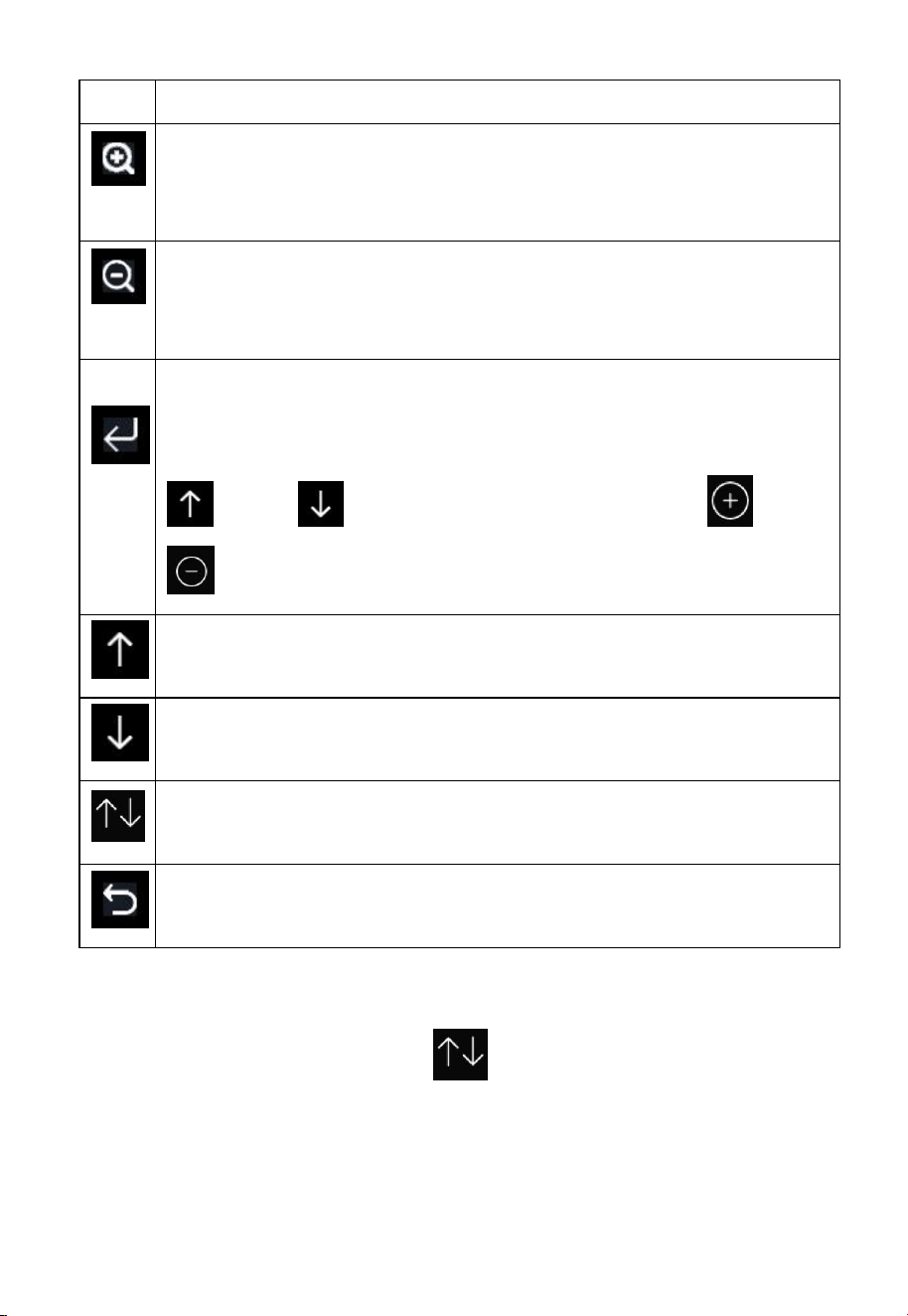
4.8.1 View and Reset MAX/MIN
While in normal display, press the key once to view and reset
minimum and maximums.
Figure 23: Max/Min Screen
34
Icon
Description
Selection key
Press this key to select the weather MAX/MIN record which need
to clear
Selection key
Press this key to select the weather MAX/MIN record which need
to clear
Enter key
While the desired weather MAX/MIN record selected , press this
key to popup Message Box ”Clear the Max/Min record?”. Press
key or key to select YES or NO. Press the key or
key to confirm the selection.
Up arrow key
Press this key to change the activated option field
Down arrow key
Press this key to change the activated option field
History key
Press this key to select History data display.
Return key
Press this key to return to normal display mode
4.8.2 History Record Mode
While in normal display, press the key twice to enter History Record
Mode.
35
Figure 24: History record Screen
Icon
Description
File Select key
Press this key to clear all history record
Page Select key
Press this key to enter particular page of the history data. Each
page contains 16sets data.
Scroll left key
Press this key to view the left of the scrollable area.
Scroll right key
Press this key to view the right of the scrollable area.
Page up key
Press this key to scroll up the page you are viewing
Page down key
Press this key to scroll down the page you are viewing
History key
Press this key to select the Max/Min record or History.
Return key
Press this key to return to previous mode
36
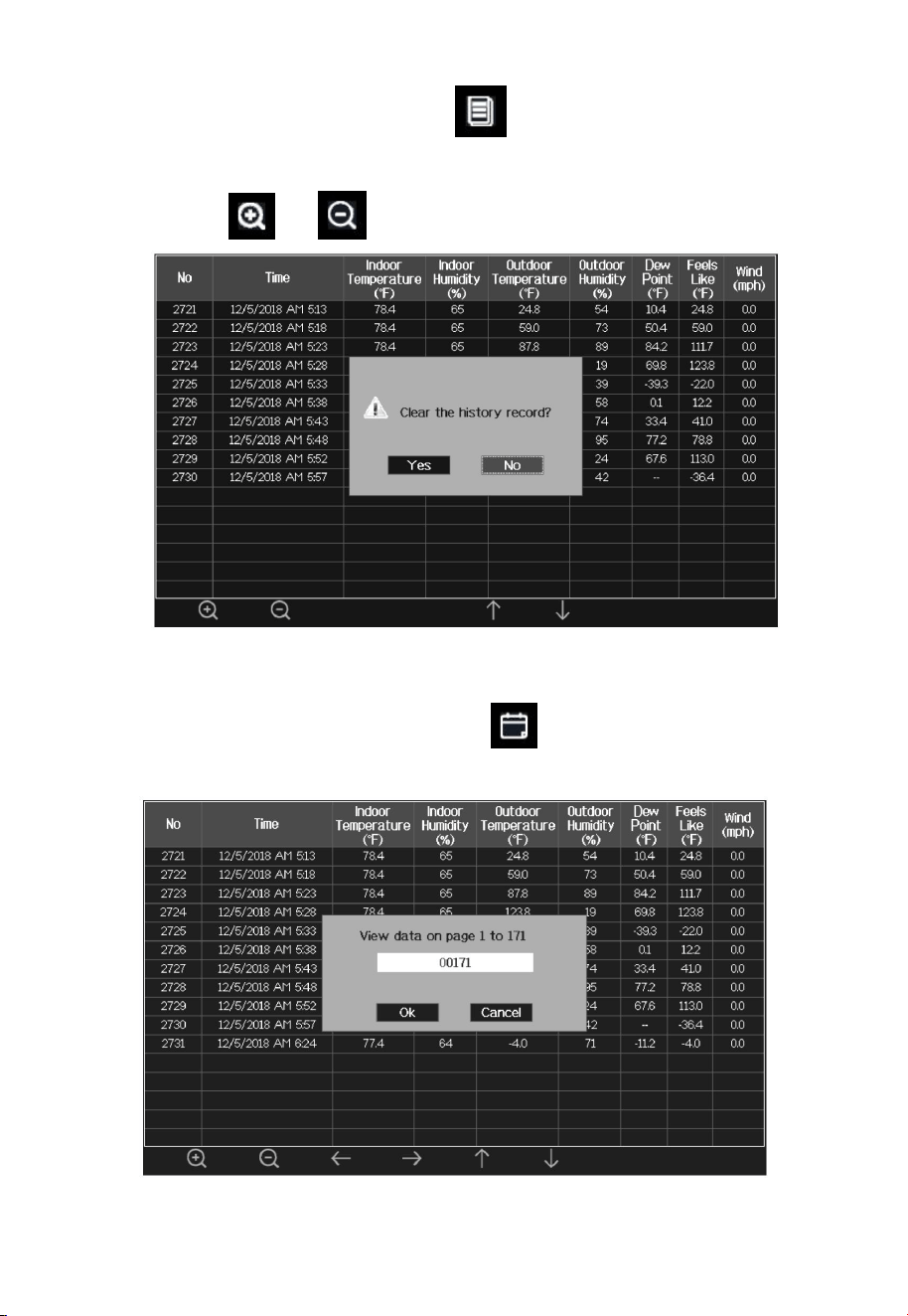
While in History Record Mode, press key to popup the Message Box:
“Clear the history record?” Press “Yes” to clear all history records saved on
console. Press or key to return to History record Mode.
Figure 25: Clear History Record Screen
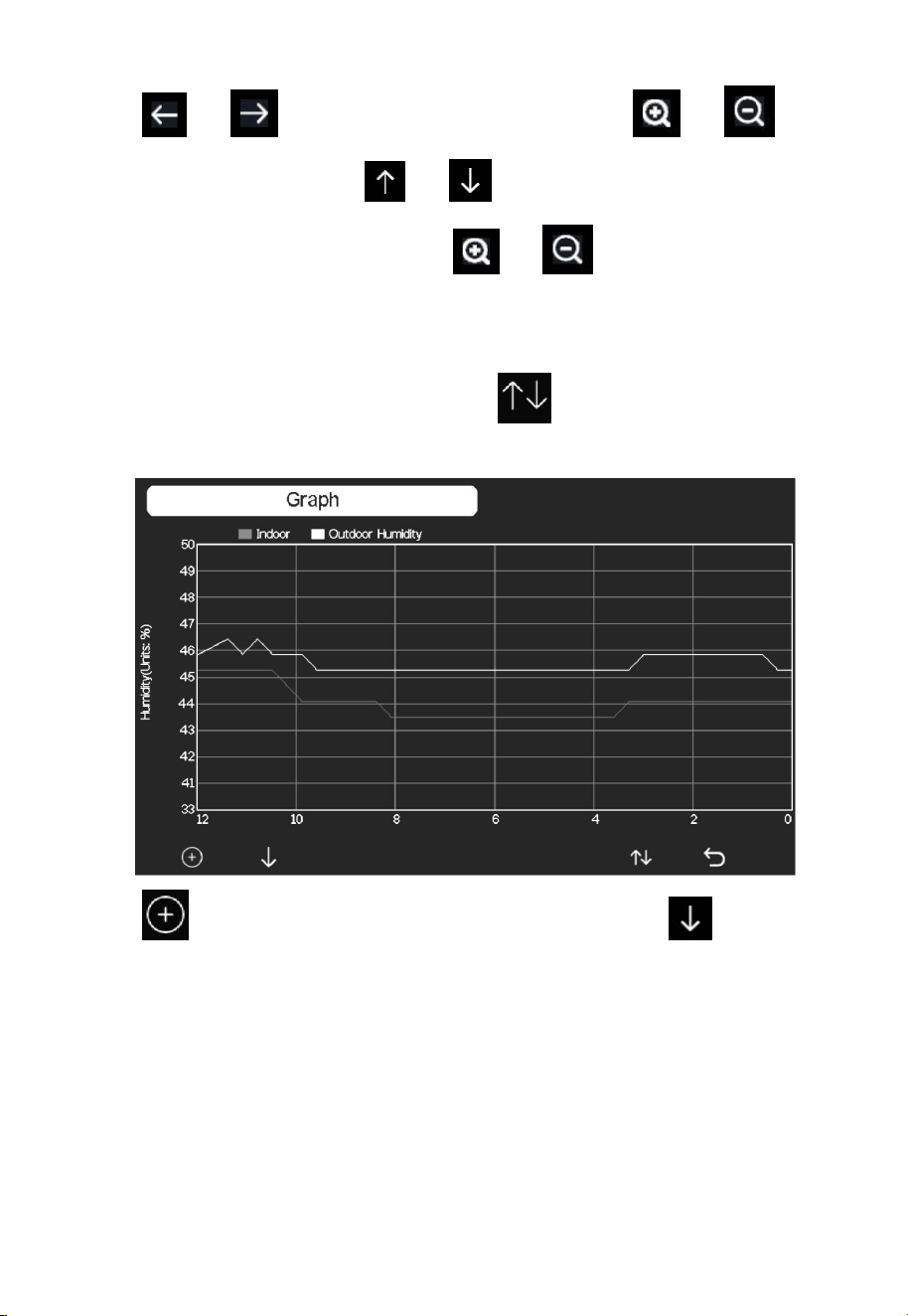
While in History Record Mode, press the key to enter the page
selection mode:
Figure 26: view a specific page of history Screen
37
Press or to select a digit in a number, press or key
to change the number. Press or to change the activated option
field, toggle OK or Cancel then press or key to confirm.
4.8.3 Graph Mode
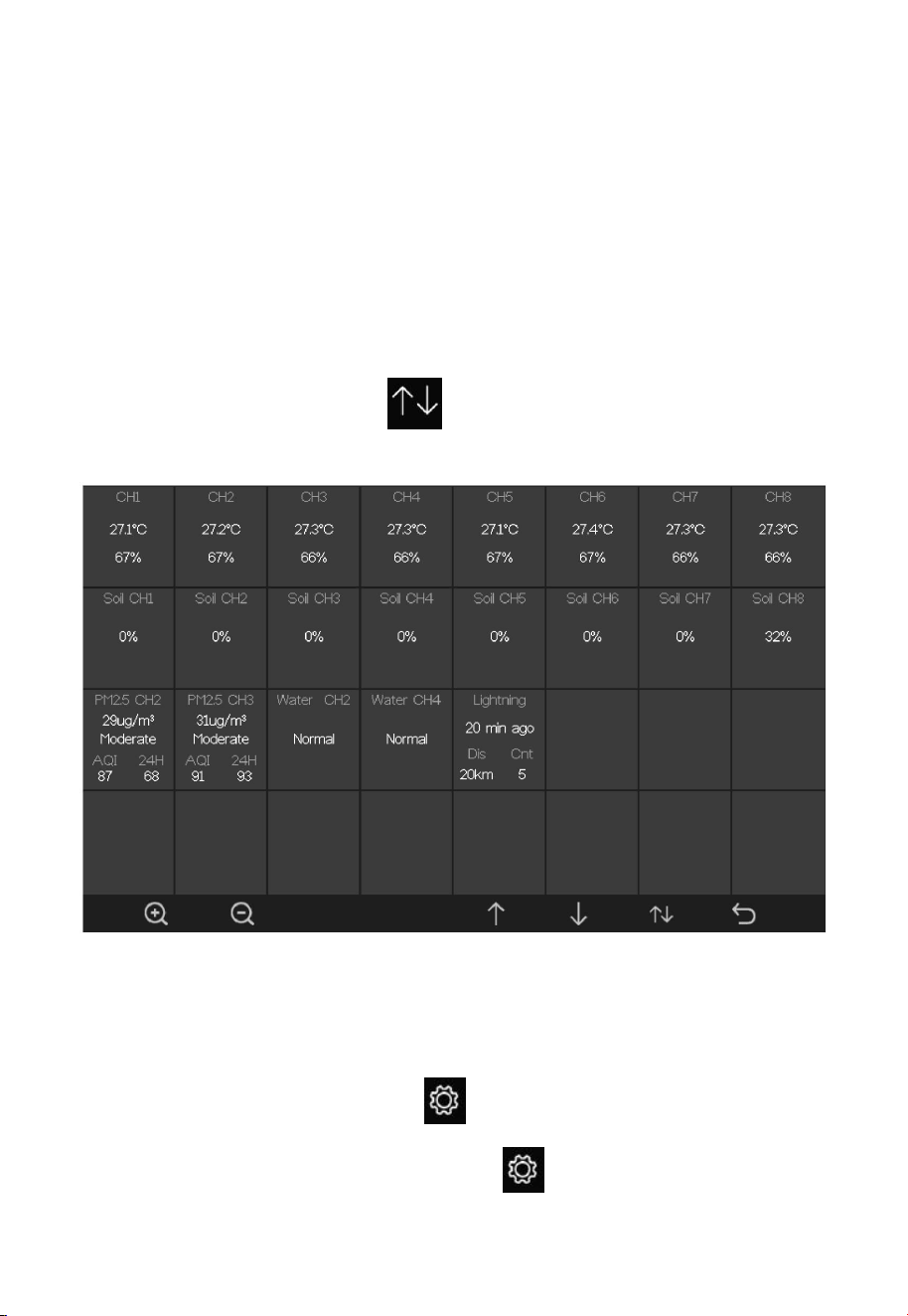
While in History Record Mode, press the key once to enter Graph
Mode.
Press to shift the data display of 12/24/48/72H. Press to view
the graph of the following data:
Indoor outdoor humidity
Dew Point and Feels like
Indoor outdoor temperature
Wind speed and Gust
Wind Direction
UVI
38
Solar radiation
Rainfall hourly and daily
Barometer(REL & ABS)
4.8.4 Optional Sensor Display Mode
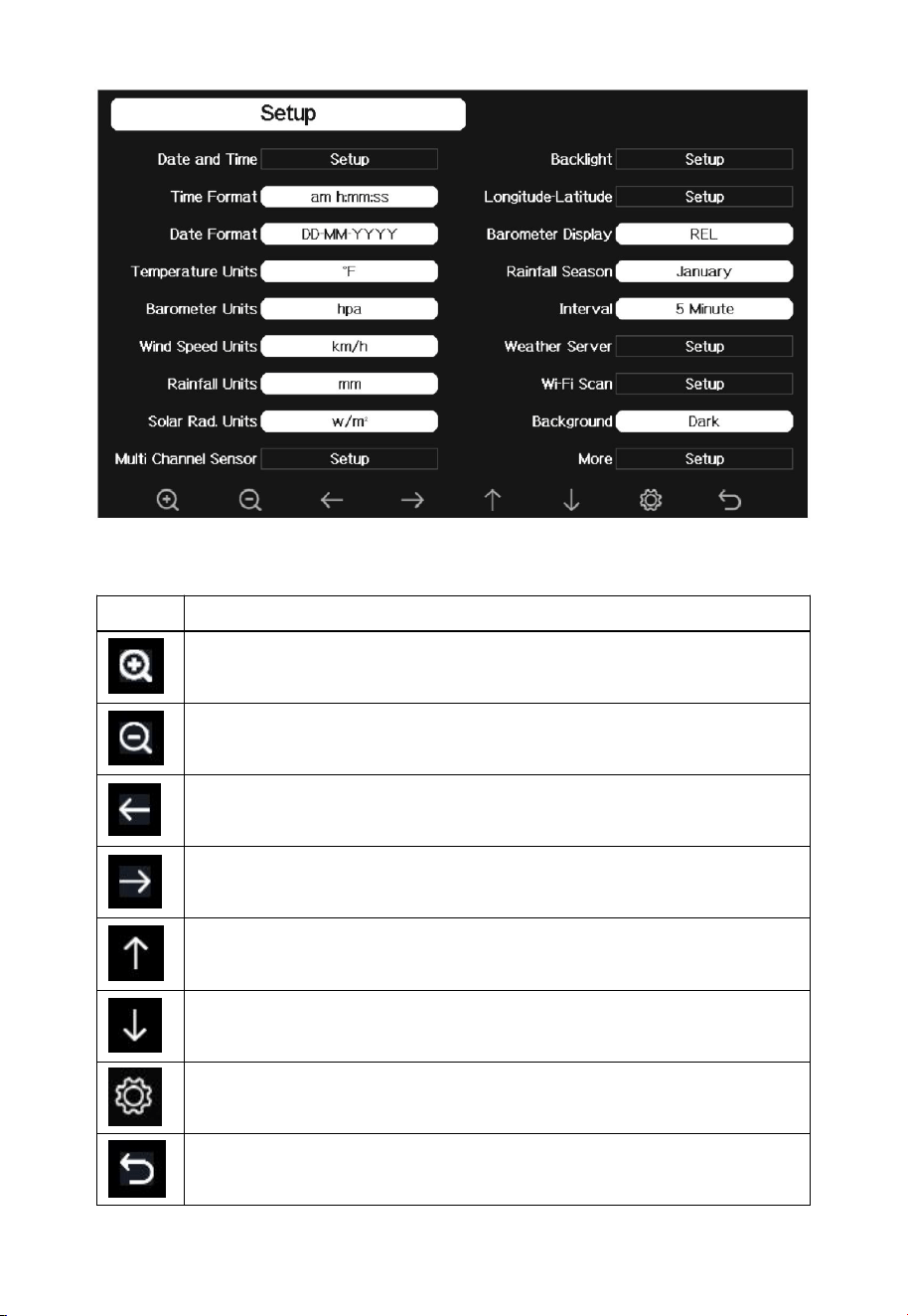
For optional WH41/WH43 PM2.5 sensor, only the first channel data will
display on the main screen of the console. To view the full display of multi-
channel sensors you can do this:
While in Graph Mode, press the key once to enter Optional Sensor
Display Mode.
Note: Channel names can be edited on this page
4.9 Setting Mode
While in normal display, press the key to enter Setting Mode. You can
select the below sub-mode by pressing the key
39
Figure 27: Setup Menu Screen
Icon
Description
Select key
Press this key to select the unit or scrolls the value
Select key
Press this key to select the unit or scrolls the value.
Left key
Press this key to select the set value.
Right key
Press this key to select the set value.
Up arrow key
Press this key to change the activated option field
Down arrow key
Press this key to change the activated option field
Set key
Press this key to select the Setting sub-Mode
Return key
Press this key to return to previous mode
40
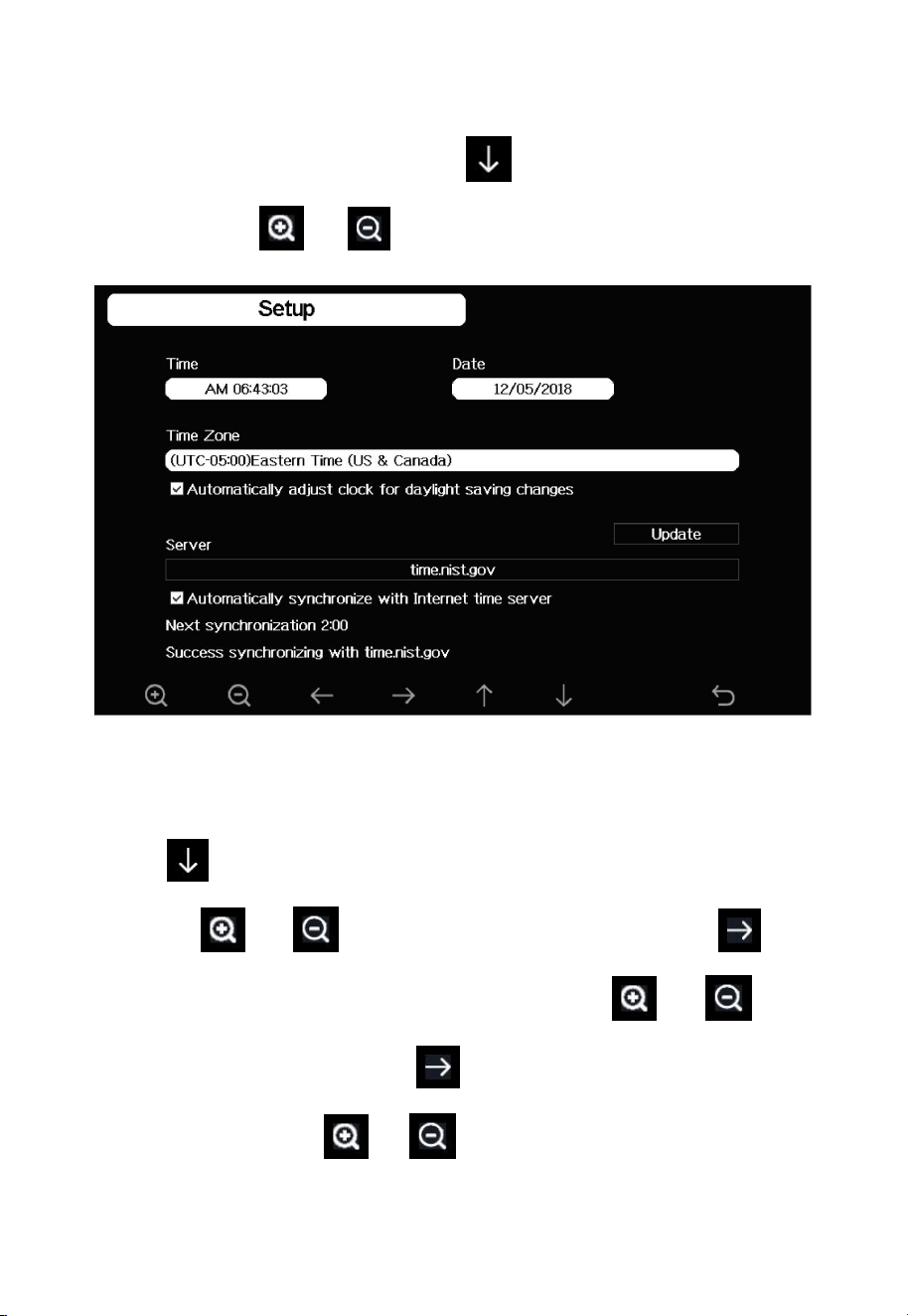
4.9.1 Date and Time setting
While in Menu Setting Mode, press key to select Date and Time
Setup field, press or key to enter Date and Time Setup mode:
Figure 28: Time and date Setup Screen
1) Time setting (hour/minute/second)
Press key to select time setting field, and the hour digit will turn red,
press the or key to change the hour setting. Press to set
the minute, the minute digit will turn red, press the or key to
change the minute setting. Press to set the second, and the second digit
will turn red, press the or key to change the second setting
41
2) Date setting
Press key to select Date setting field, the day digit on focus turns red,
press the or key to change the day setting. Press to set the
month, then month digit focused will turn red, press the or key
to change the month setting. Press to set the year, the year digit on
focus will turn red, press the or key to change the year setting
3) Time zone setting
Press key to select Time zone setting field, press the or
key to change the time zone setting. Press key to select Update field,
press the or key to update the time immediately.
4) Automatically synchronize with internet time server
The time server is time.nist.gov. Press the or key to tick”
Automatically synchronize with internet time server” and press” update” to
synchronize with time server immediately. Console time will be updated at
2:01am automatically when internet access is possible.
4.9.2 Time Format setting
Press to change the time format between hour: minute: second
(h:mm:ss), hour: minute: second AM (h:mm:ss AM) and AM hour: minute:
second (AM h:mm:ss).
42
4.9.3 Date Format setting
Press to change the time format between DD-MM–YYYY, YYYY-
MM- DD and MM-DD-YYYY
4.9.4 Temperature unit setting
Press to change the temperature units of measure between °F and °C.
4.9.5 Barometric unit
Press to change the temperature units of measure between inHg,
mmHg and hPa
4.9.6 Wind speed unit
Press to change the wind speed units of measure between mph, bft
(Beaufort scale), ft/s, m/s, km/h and knot.
4.9.7 Rainfall unit
Press to change the rainfall units of measure between in and mm
4.9.8 Solar Rad. Unit
Press to change the solar radiation units of measure between W/m^2,
lux and fc.
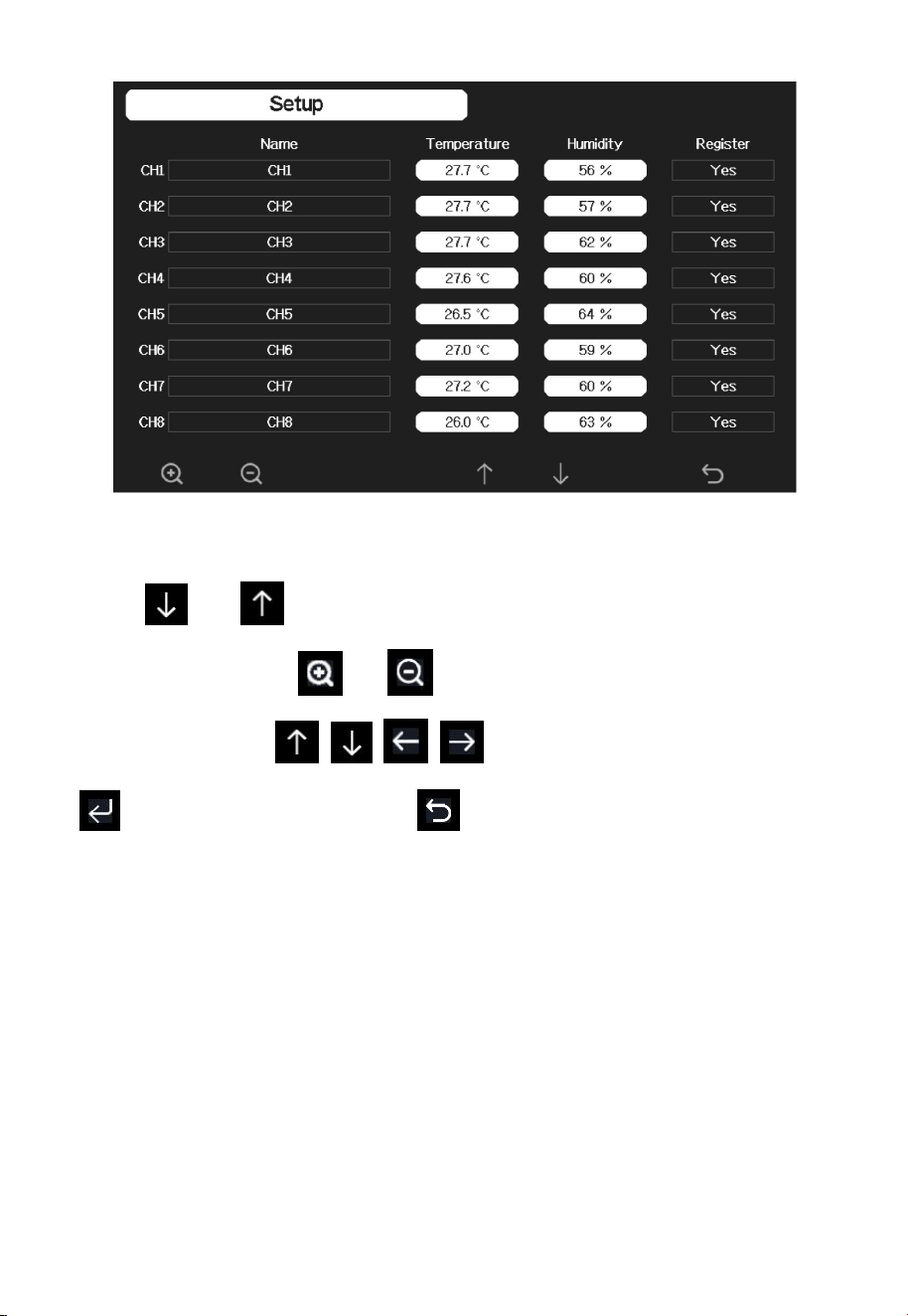
4.9.9 Multi Channel Sensor
In Multi channel sensor Setup Screen, you can rename the sensor or register
the sensor again while the sensor lost connection to console display.
43
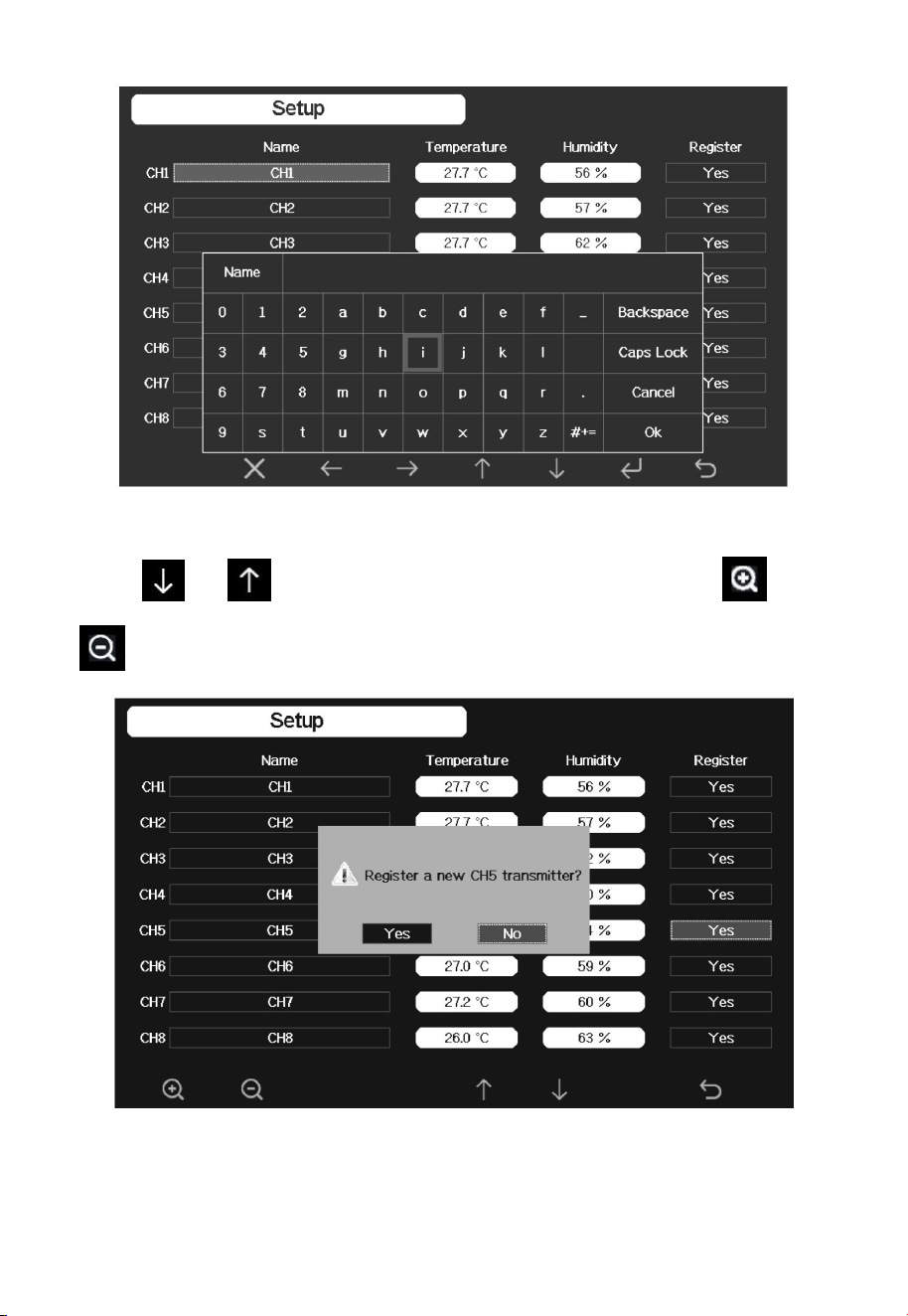
Figure 29: Multi channel sensor Setup Screen
Press or key to select Name setting field, the name on focus
turns green, press the or key to pop up the keyboard to enter the
sensor name. Press to scroll to the character and press
to select the character. Press to return to the setup page.
44
Figure 30: rename the sensor Screen
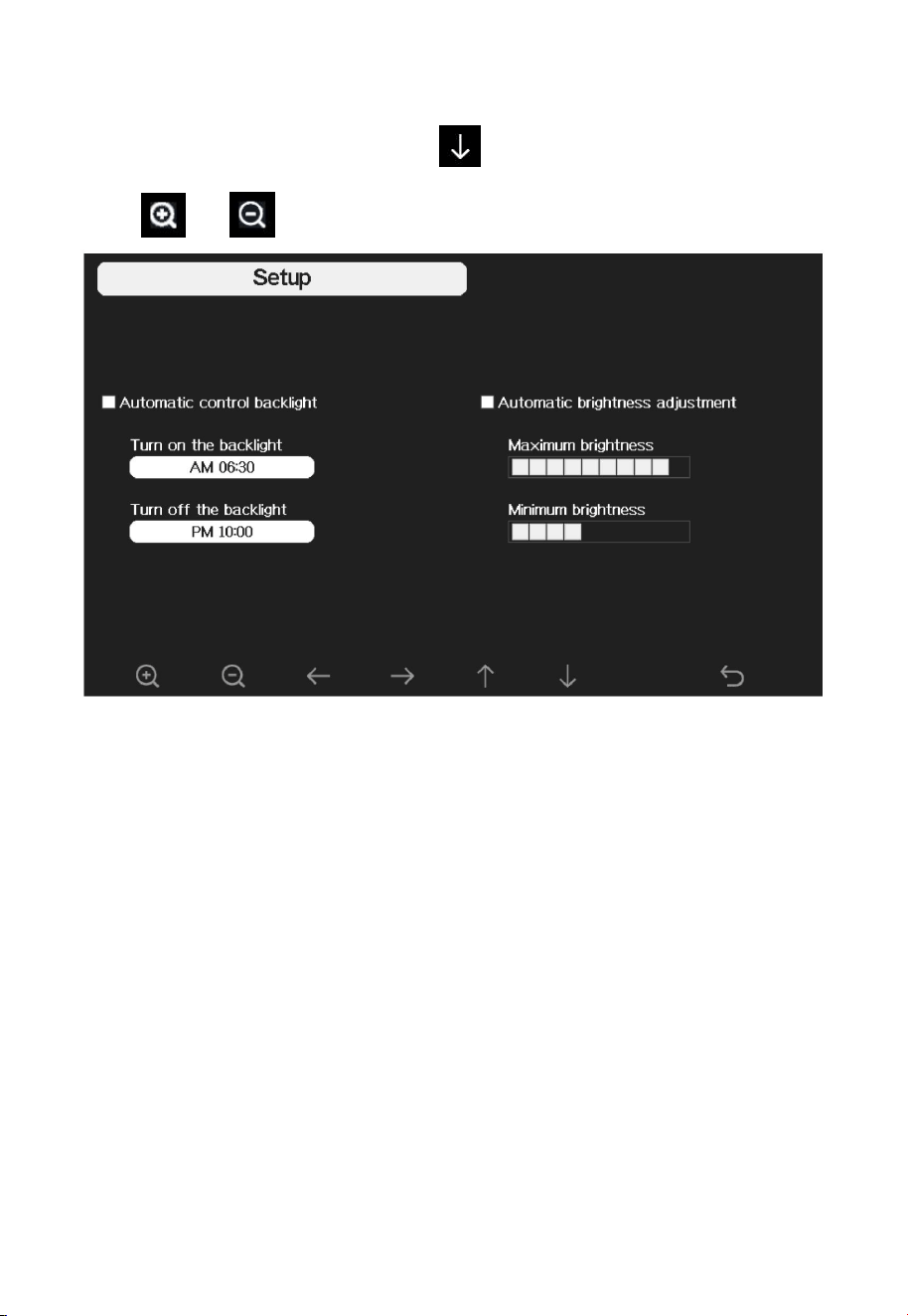
Press or key to select Register setting field, press the or
key to register the selected sensor
45
4.9.10 Backlight setting
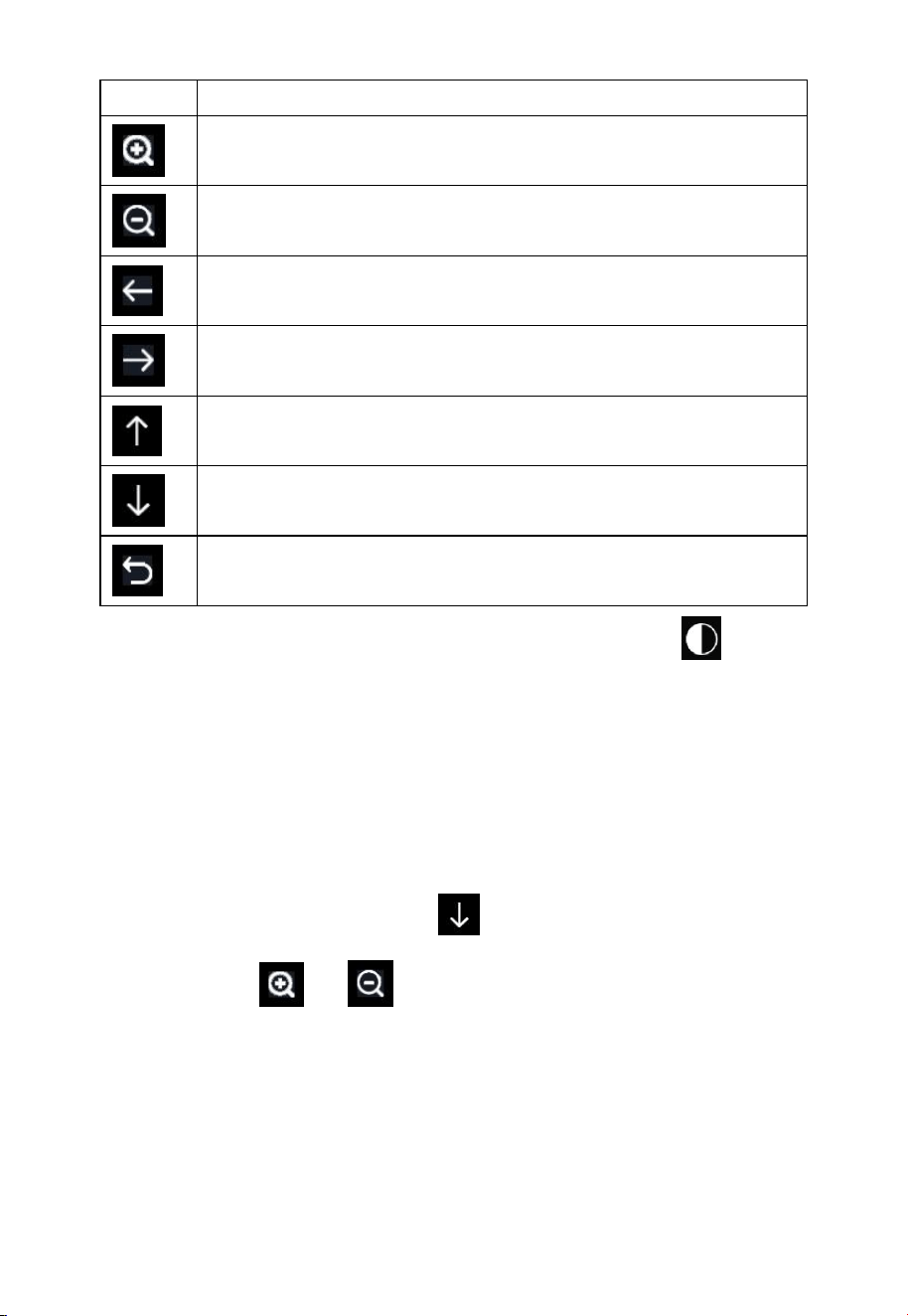
While in Menu Setting Mode, press key to select Backlight Setup field,
press or key to enter backlight Setup mode:
Figure 31: Backlight Setting Screen
Automatic control backlight: select this option, the backlight will auto turn
on and off according the set time
Turn on the backlight: set the time of turning on backlight
Turn off the backlight: set the time of turning off backlight
Automatic brightness adjustment: select this option, the brightness will
change according to the light intensity measured from outdoor sensor
Maximum brightness: set the maximum brightness while it is the highest
light intensity
Minimum brightness: set the minimum brightness while it is the weakest
light intensity
46
Icon
Description
Select key
Press this key to select the unit or scrolls the value
Select key
Press this key to select the unit or scrolls the value.
Left key
Press this key to select the set value.
Right key
Press this key to select the set value.
Up arrow key
Press this key to change the activated option field
Down arrow key
Press this key to change the activated option field
Return key
Press this key to return to previous mode
If the auto backlight turn-on time has been set, you can press key to
turn off the backlight within the turn on time. Backlight will turn on again
automatically at next turn on time. You can press any key to turn on the
backlight for 60s within the turn off time
4.9.11 Longitude: Latitude setting
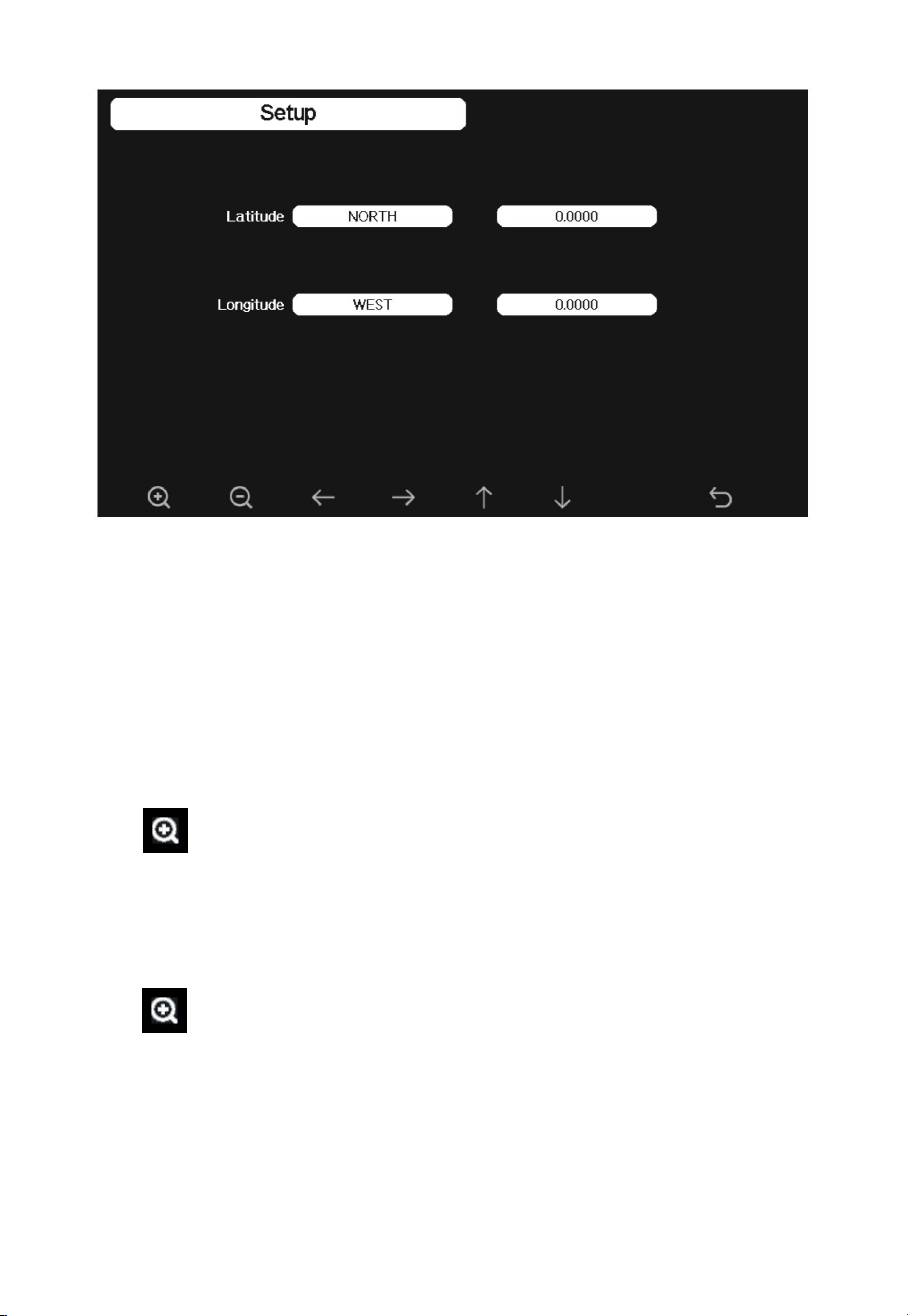
While in Menu Setting Mode, press key to select Longitude: Latitude
Setup field, press or key to enter Longitude Latitude Setup
mode:
47
Figure 32: Longitude and Latitude Setting Screen
The sunrise/sunset times will be calculating automatically base on the
Longitude and Latitude. Your location GEO info can be found on mobile
compass page. Two digits after decimal should be enough for this feature to
be working correctly.
4.9.12 Barometric display
Press to change the barometer display between REL (relative pressure)
and ABS (absolute pressure)
4.9.13 Rainfall season (default: January)
Press to change the beginning of the rainfall yearly season month. The
default is January. Rainfall season influence the annual rainfall maximum,
minimum and total value. When one month was selected, the annual rainfall
and annual max/min rainfall were zero clearing at 0:00 of the first day of the
selected month.
48
4.9.14 Storing Interval (1-240minutes Selectable)
4.9.15 Weather Server
You may jump to section 4.9.16 now to have your console connected with
your Wi-Fi network first. Then back to this section to have cloud data
hosting setup completed.
Your console is capable of sending your sensor data to select internet-based
weather services. The supported services are shown in the table below:
Service
Description
Weather
Underground
Site: https://wunderground.com
provides local & long-range weather forecasts, weather
reports, maps & tropical weather conditions for
locations worldwide.
WOW
Site: https://wow.metoffice.gov.uk
A UK based weather observation website.
Weather Cloud
Site: https://weathercloud.net
A large network of weather stations reporting data in
real time from all over the world.
Ecowitt Weather
Site: https://www.ecowitt.net
Ecowitt’s new weather server that can host a bunch of
sensors that other services don’t support at this time.
Table 7: Supported weather services
Note: If you are testing the setup with the outdoor sensor package nearby
and indoor, you may want to consider connecting to Wi-Fi, but not yet
configuring any of the weather services. The reason is that while indoor the
temperatures and humidity recorded by the outdoor sensor, and as reported
to the weather service(s) will reflect indoor conditions, and not outdoor
conditions. Therefore, they will be incorrect. Furthermore, the rainfall
bucket may be tripped during handling, causing rain to register while it may
not actually have been raining. One way to prevent this is to follow all
instructions, except to use an incorrect password, on purpose! Then, after
49
final outdoor installation, come back and change the password after clearing
console history. That will start uploading to the services with a clean slate.
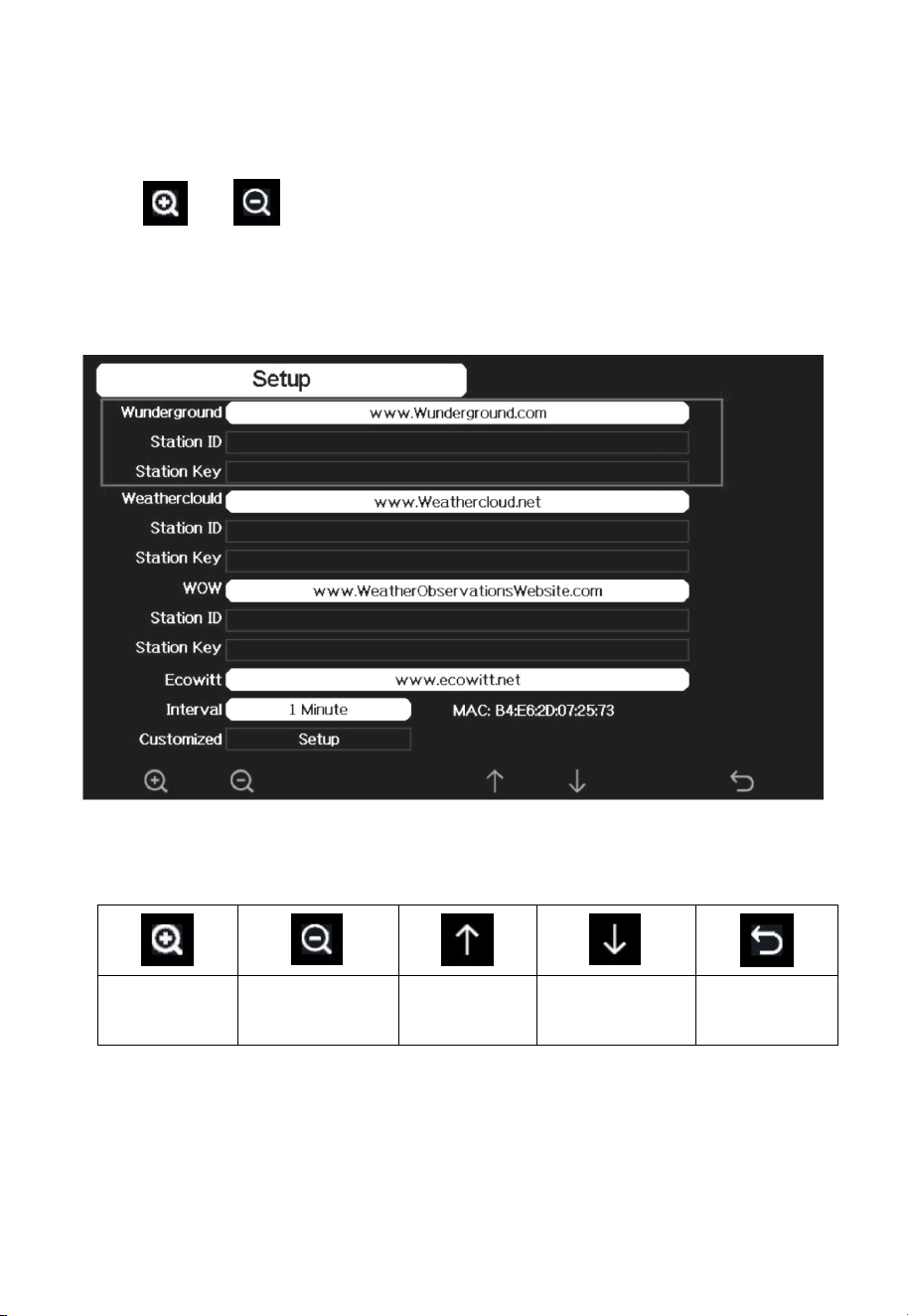
Press or key to enter Weather Server set up mode. The device
can be configured to send real-time data to wunderground.com®. Enter the
Station ID and Password obtained from Wunderground.com.
Figure 33: Weather Server setup screen
scroll value
up
scroll value
down
Scroll field
up
Scroll field
down
return to
Setup
50
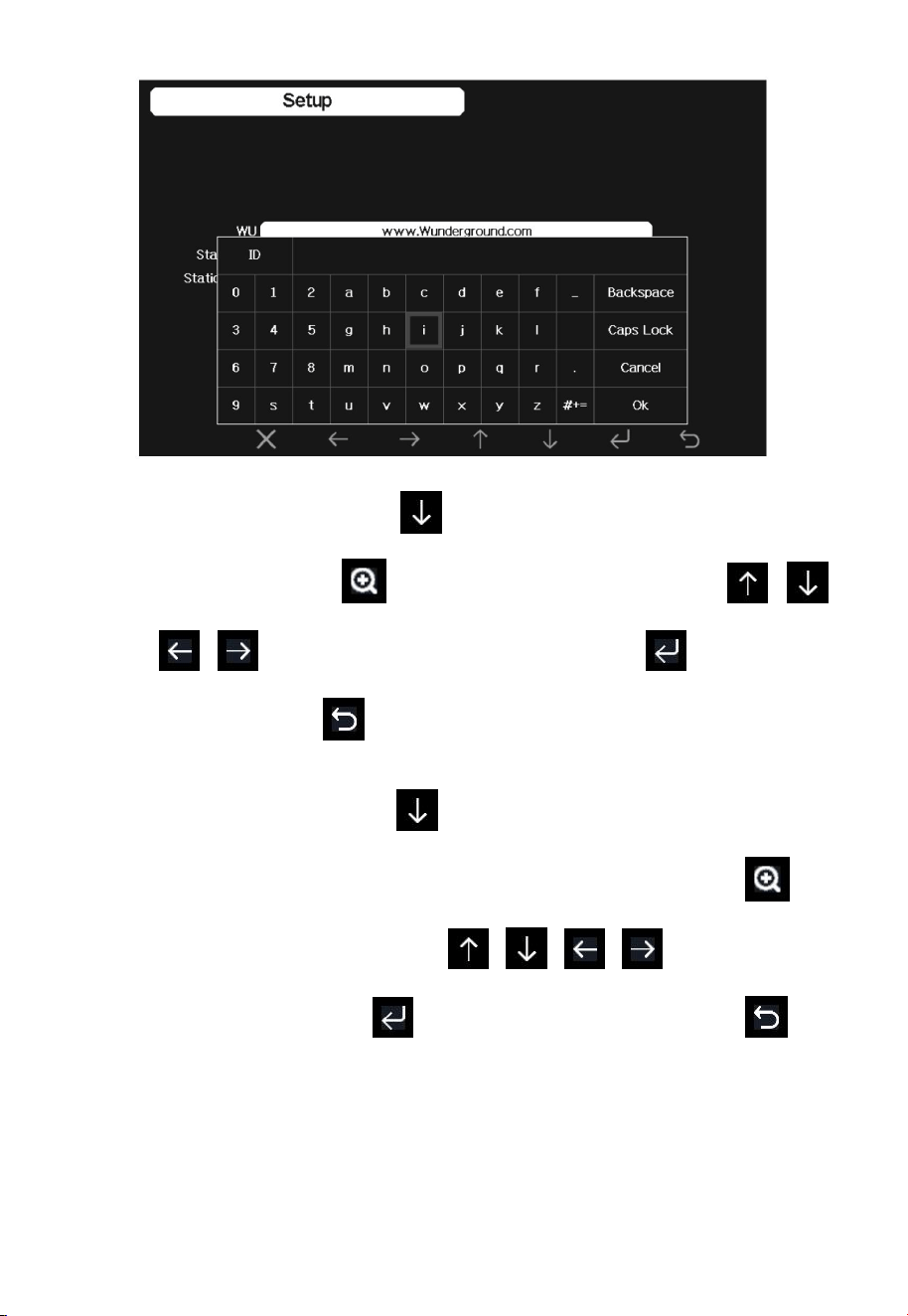
1) Set Station ID. Press to highlight the Station ID. Enter your
station ID. Press to display the keyboard. Press
to scroll to the character and press to select the
character. Press to return to the setup page.
2) Set Station Key. Press to highlight the station key. Enter your
password obtained from according weather server. Press to
display the keyboard. Press to scroll to the
character and press to select the character. Press to
return to the setup page.
51
4.9.15.1 Registering with and using wunderground.com
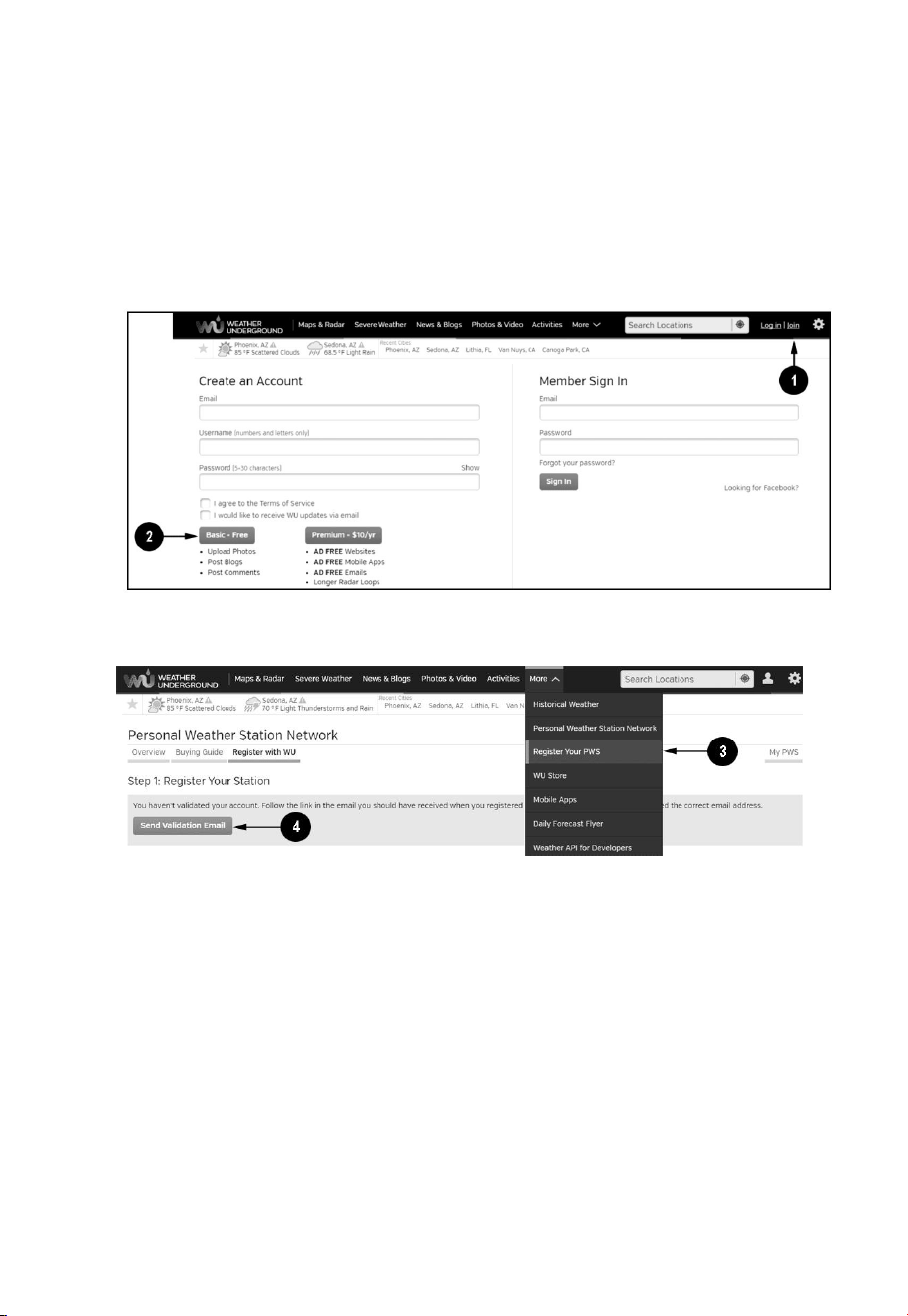
Perform the following steps to get the Station ID and Password on
wunderground.com:
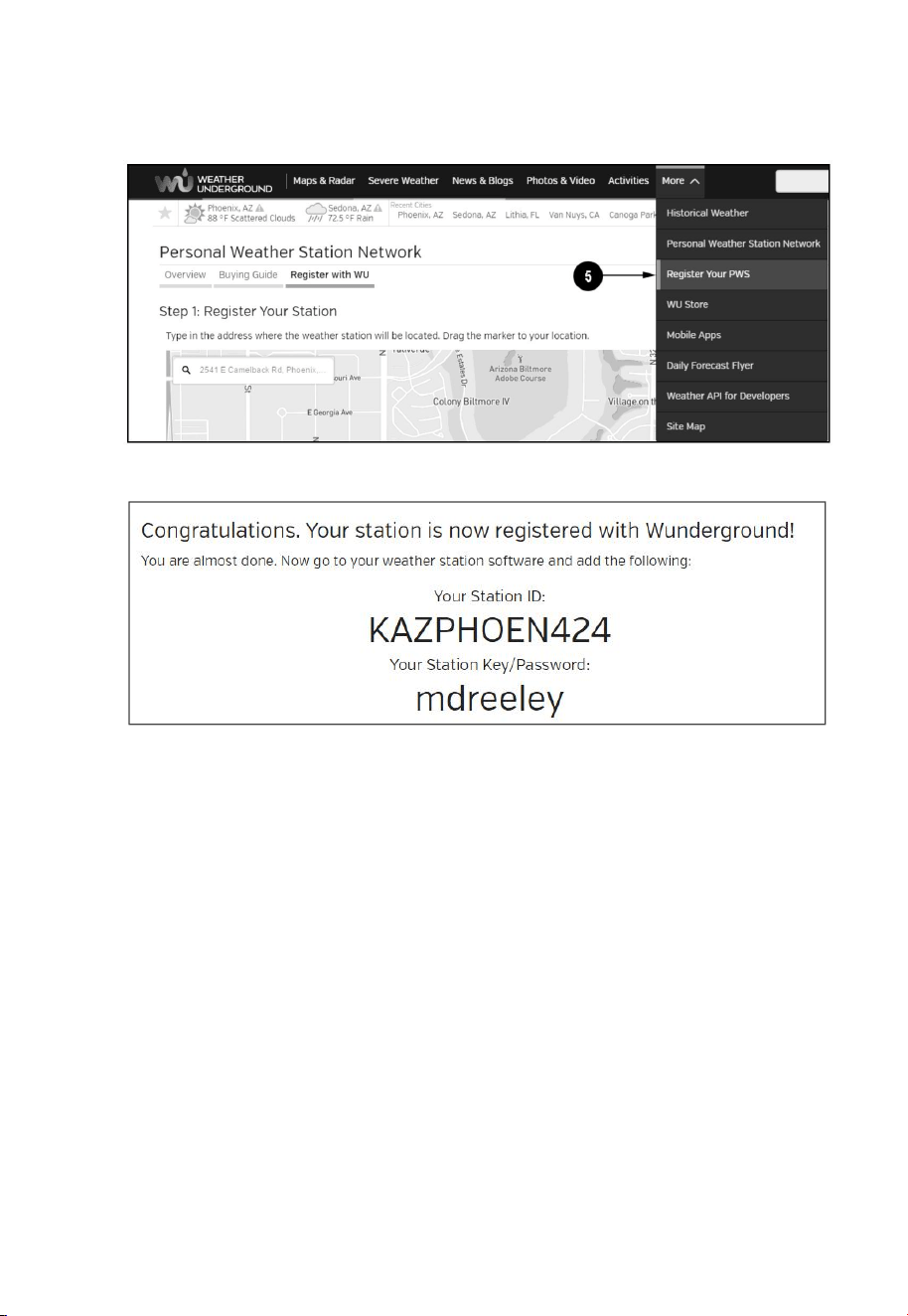
1. Visit Wunderground.com and select the Join link (1) at the top of the
page and select the Free (2) sign up option.
2.
Select More | Register Your PWS (3)
3. Click Send Validation Email (4). Respond to the validation email
from Wunderground.com (it may take a few minutes).
52
4. Select More | Register Your PWS (5) again. This time you will be
asked details about your weather station. Go ahead and fill out the form
After completing the weather station, you will see something like this:
Your station ID will have the form: KSSCCCC###, where K is for USA
station (I for international), SS is your state, CCCC is an abbreviation for
your city and ### is the station number in that city. In the example above,
you see station 424 in the state of Arizona (AZ) in the United States (K).
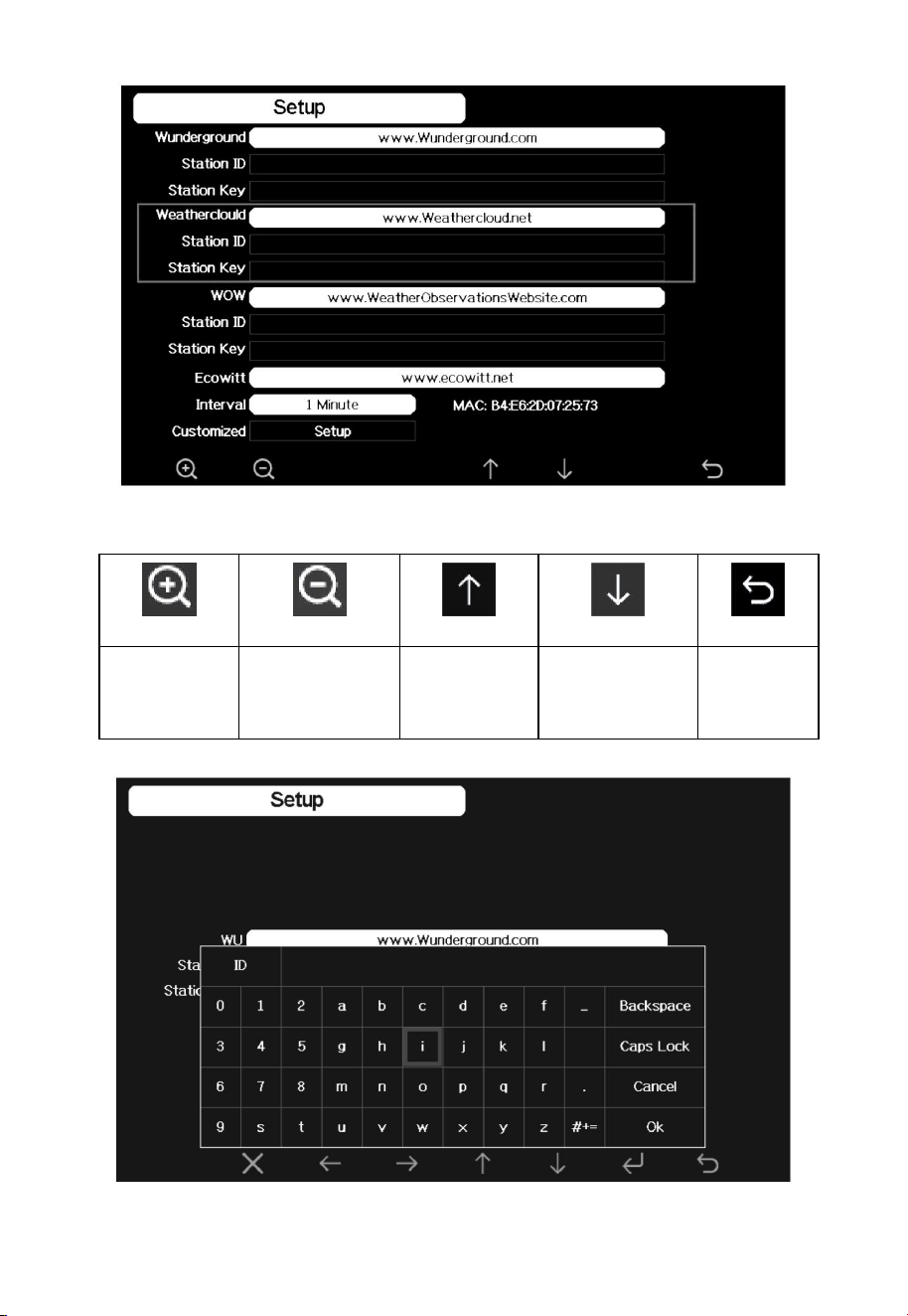
5. Take note of the station ID and key/password and enter it in the
Weather Server:
53
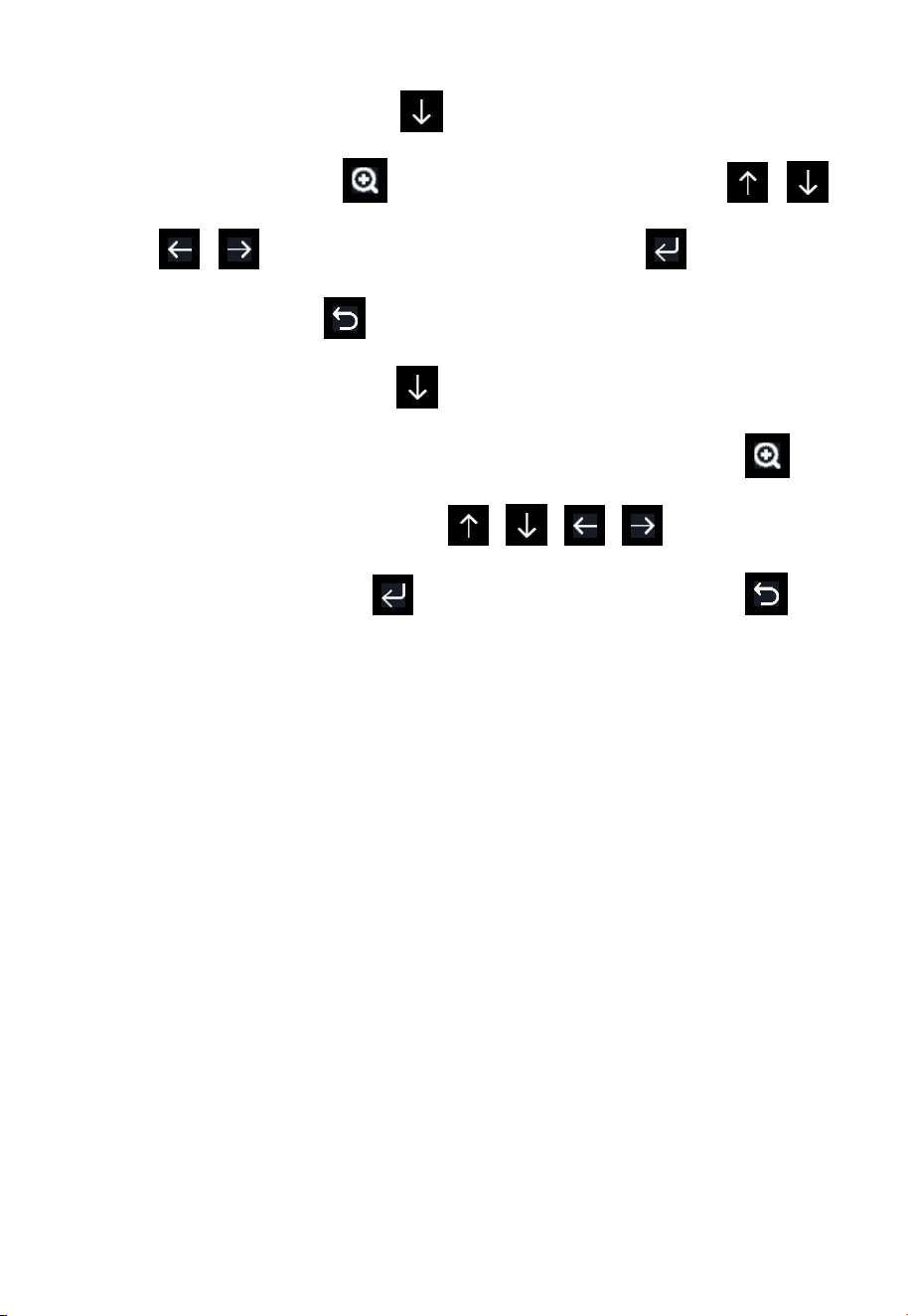
Figure 34: Weather Server setup screen
scroll value
up
scroll value
down
Scroll field
up
Scroll field
down
return to
Setup
54
1) Set Station ID. Press to highlight the Station ID. Enter your
station ID. Press to display the keyboard. Press
to scroll to the character and press to select the
character. Press to return to the setup page.
2) Set Station Key. Press to highlight the station key. Enter your
password obtained from according weather server. Press to
display the keyboard. Press to scroll to the
character and press to select the character. Press to
return to the setup page.
4.9.15.2 Viewing data on wunderground.com
The most basic way to observe your weather station’s data is by using the
wunderground.com web site. You will use a URL like this one, where your
station ID replaces the text “STATIONID”:
http://www.wunderground.com/personal-weather-station/dashboard?ID=STAT
IONID
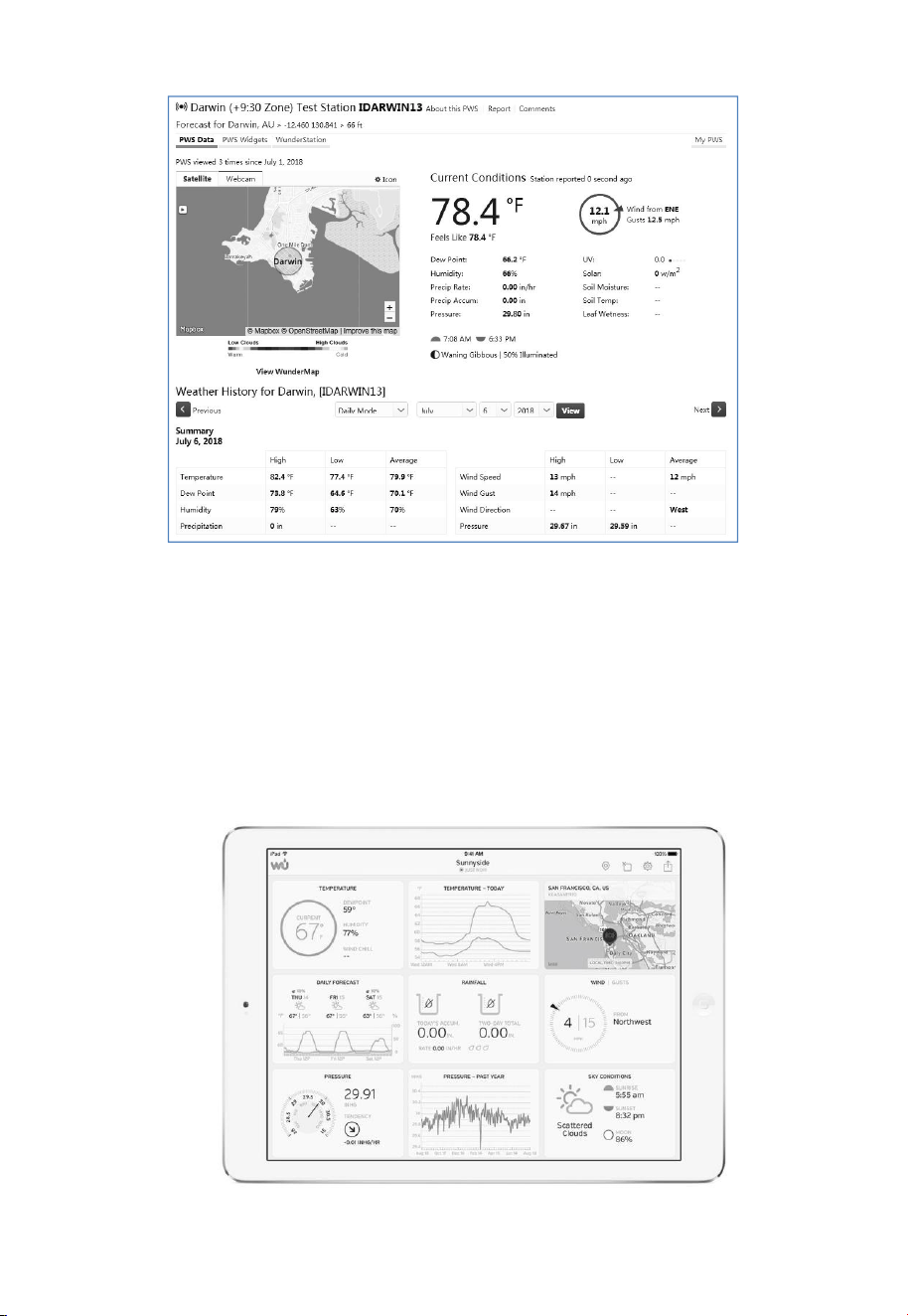
It will show a page such as this, where you can look at today’s data and
historical data as well:
55
There are also some very useful mobile apps. The URLs provided here go to
the Web version of the application pages. You can also find them directly
from the iOS or Google Play stores:
WunderStation: iPad application for viewing your station’s data and
graphs
https://itunes.apple.com/us/app/wunderstation-weather-from-your-neigh
borhood/id906099986
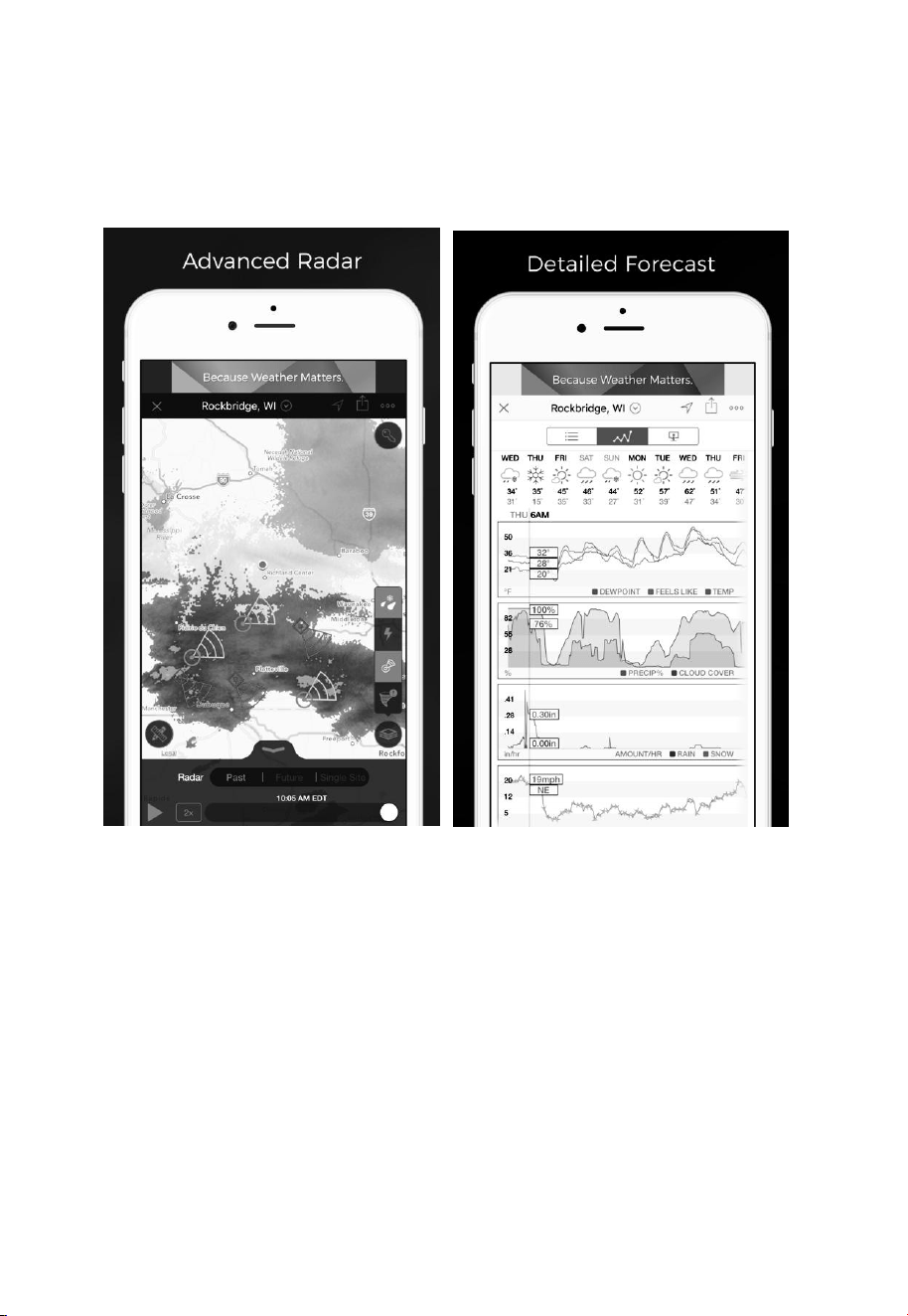
56
WU Storm: iPad and iPhone application for viewing radar images,
animated wind, cloud coverage and detailed forecast, and PWS station
data
https://itunes.apple.com/us/app/wu-storm/id955957721
Weather Underground: Forecast: iOS and Android application for
forecasts
https://itunes.apple.com/us/app/weather-underground-forecast/id486154808
https://play.google.com/store/apps/details?id=com.wunderground.androi
d.weather&hl=en
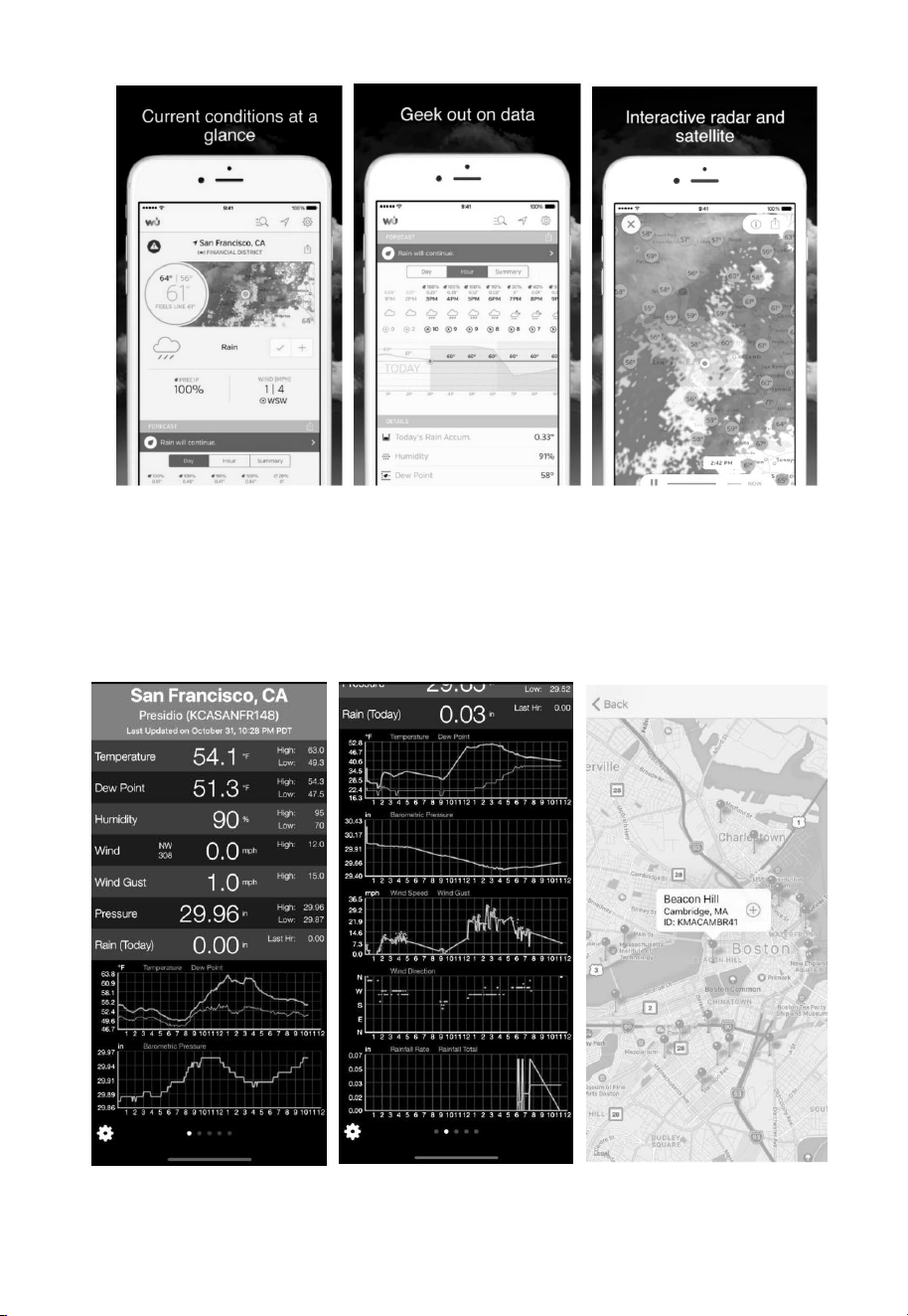
57
PWS Weather Station Monitor: View weather conditions in you
rneighborhood, or even right in your own backyard. Connects to
wunderground.com
https://itunes.apple.com/us/app/pws-weather-station-monitor/id713705
929

58
4.9.15.3 Registering with and using Ecowitt Weather
You can also use the Ecowitt Weather server to monitor and record all your
sensors’ data. Configure as follows:
On the Weather Server page, set the reporting interval time(default: 1
minute).
Visit the website: https://www.ecowitt.net on your computer and finish
the registration on the page.
Press the upper left menu button and select Devices.
Press Add Device and input all the information needed(The MAC
address can be found on the Weather Server page).
Press Save.
Press Dashboard on the menu. Your sensor data would be available
on the dashboard within several minutes.
Note: When select device address on map, please wait until the map
displays before selecting your address.
You may add a shortcut to the ecowitt.net website on the home page of your
phone so that you can visit it just like opening an app.
4.9.15.4 Viewing data on ecowitt.net
You can observe your sensor’s data by using the ecowitt.net web site. You
will use a URL like this one, where your station ID replaces the text
“STATIONID”.
https://www.ecowitt.net/home/index?id=STATIONID
Note: If you want to share your station data with other users, you’ll need to
set your data to be public. Other users need to log in the ecowitt.net first to
view your data.
It will show a page such as this, where you can look at today’s data and
historical data as well.
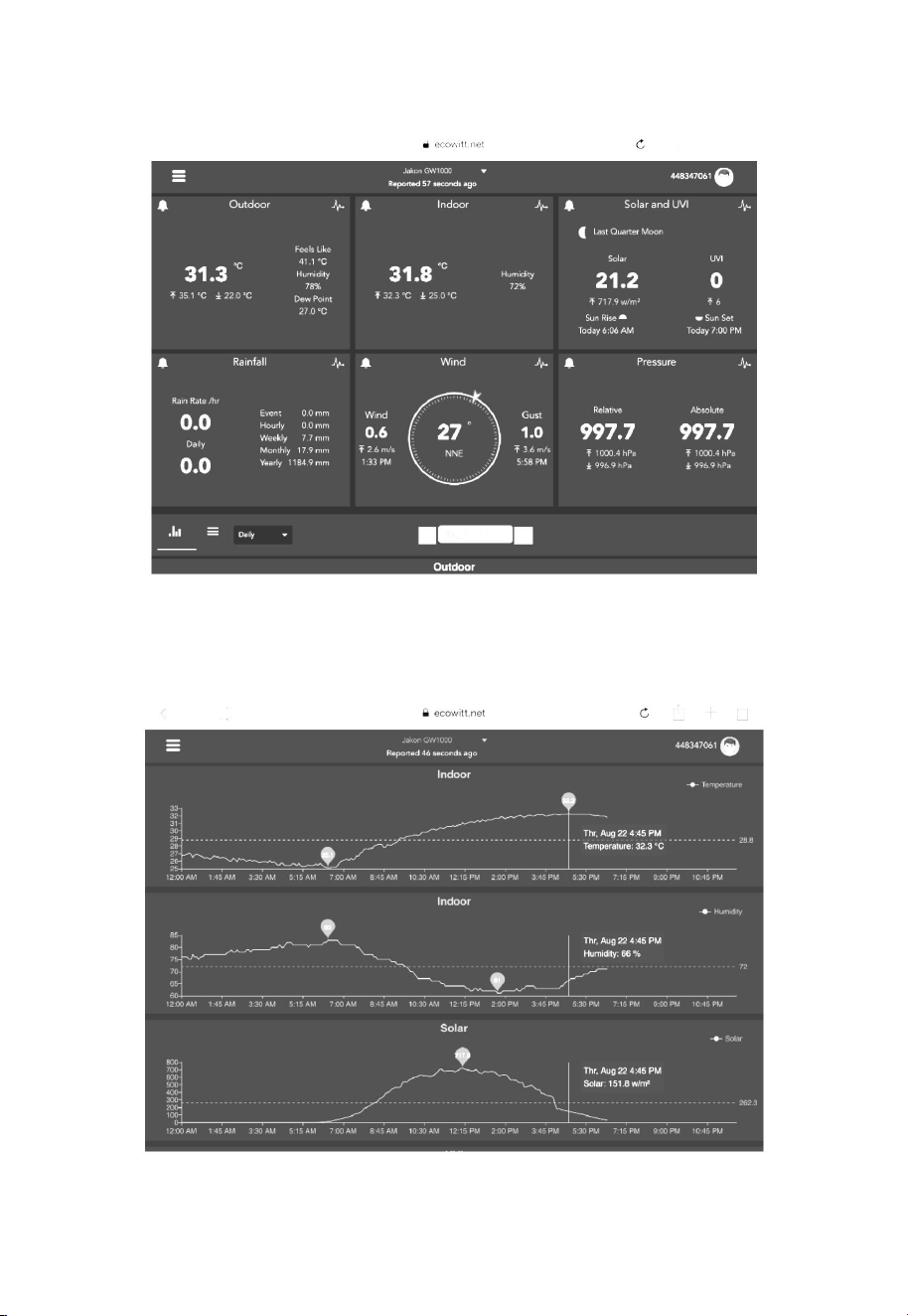
59
Dashboard
Graph display
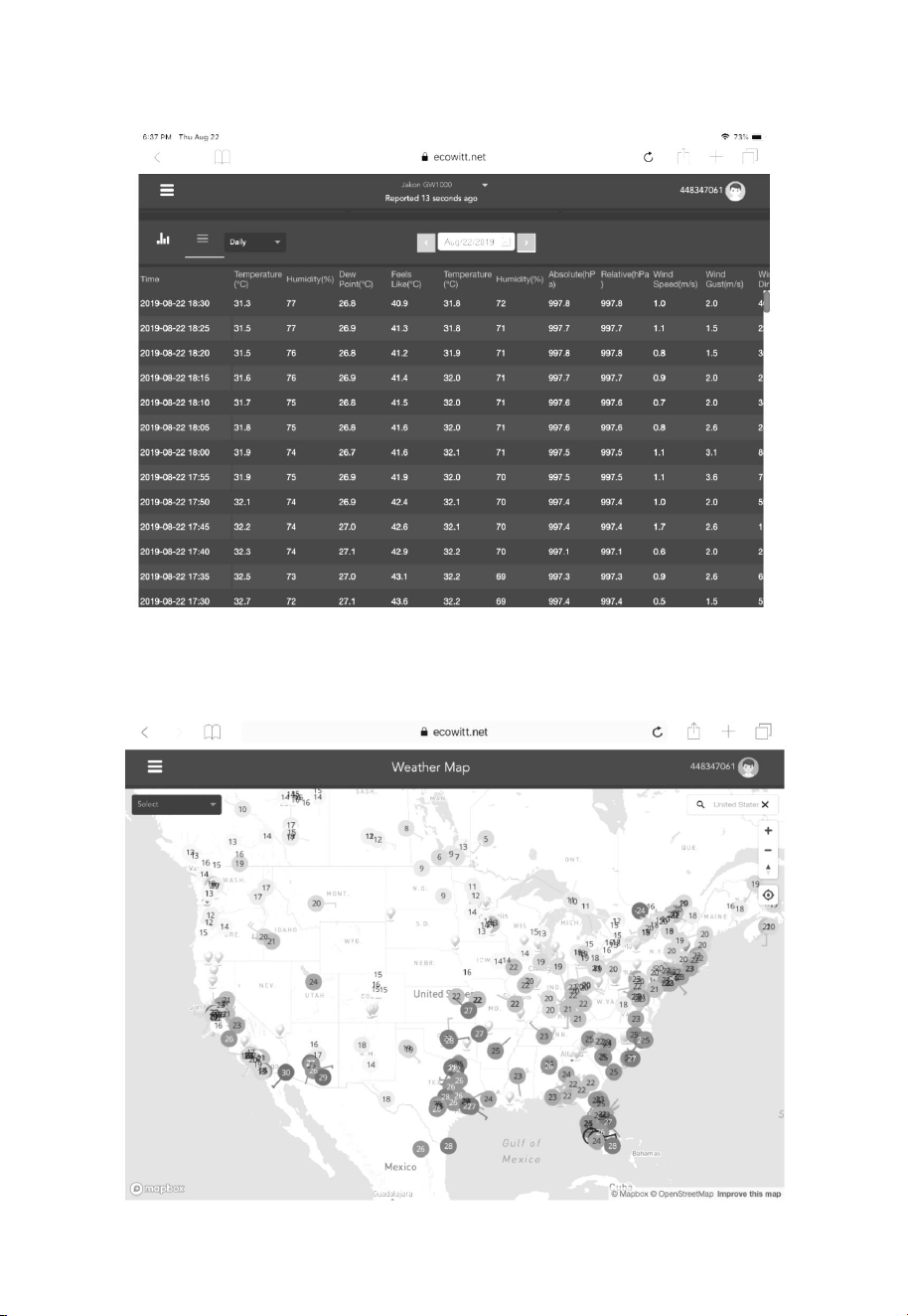
60
List display
Weather Map
61
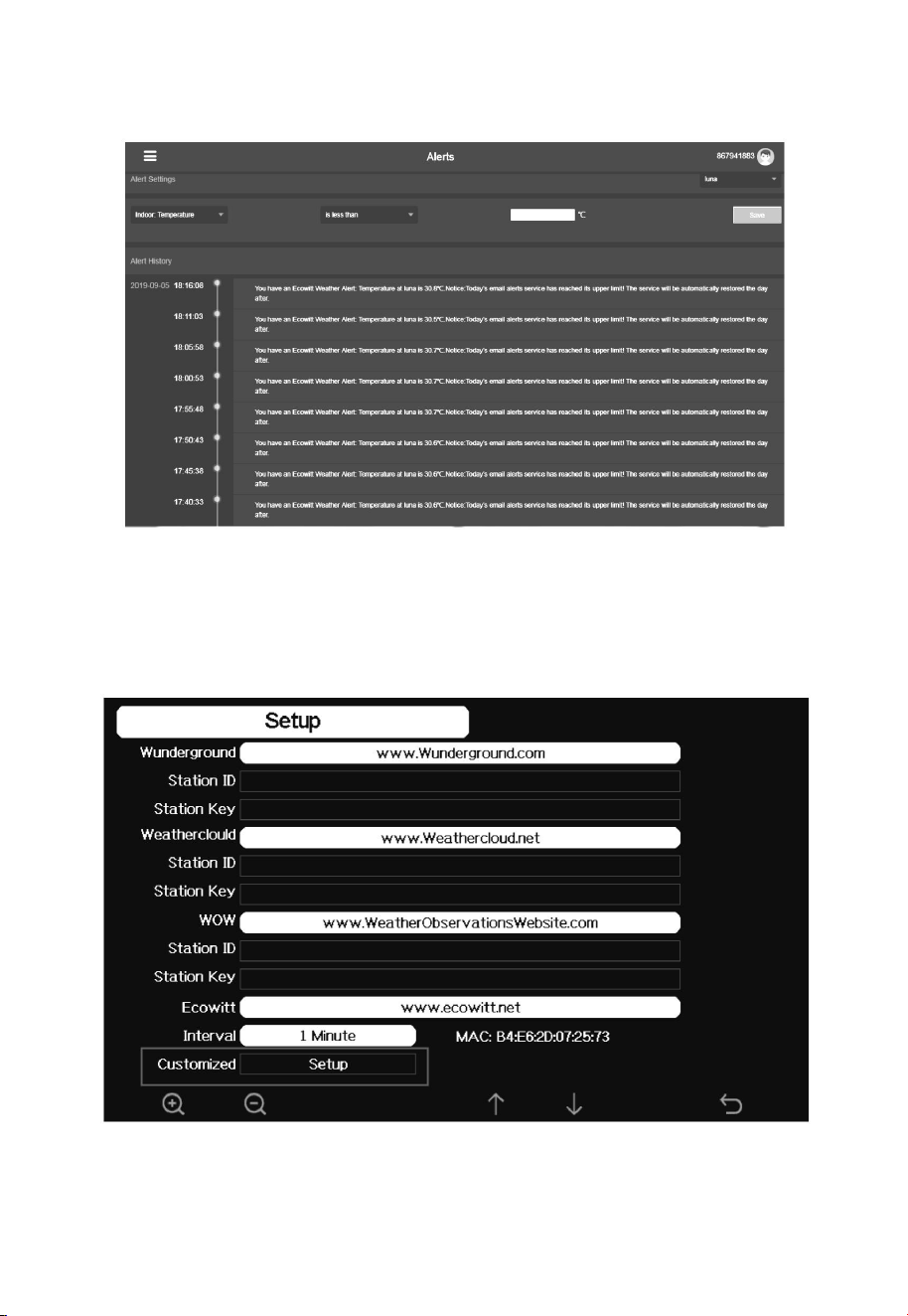
Email Alerts
4.9.15.5 Customized server setup
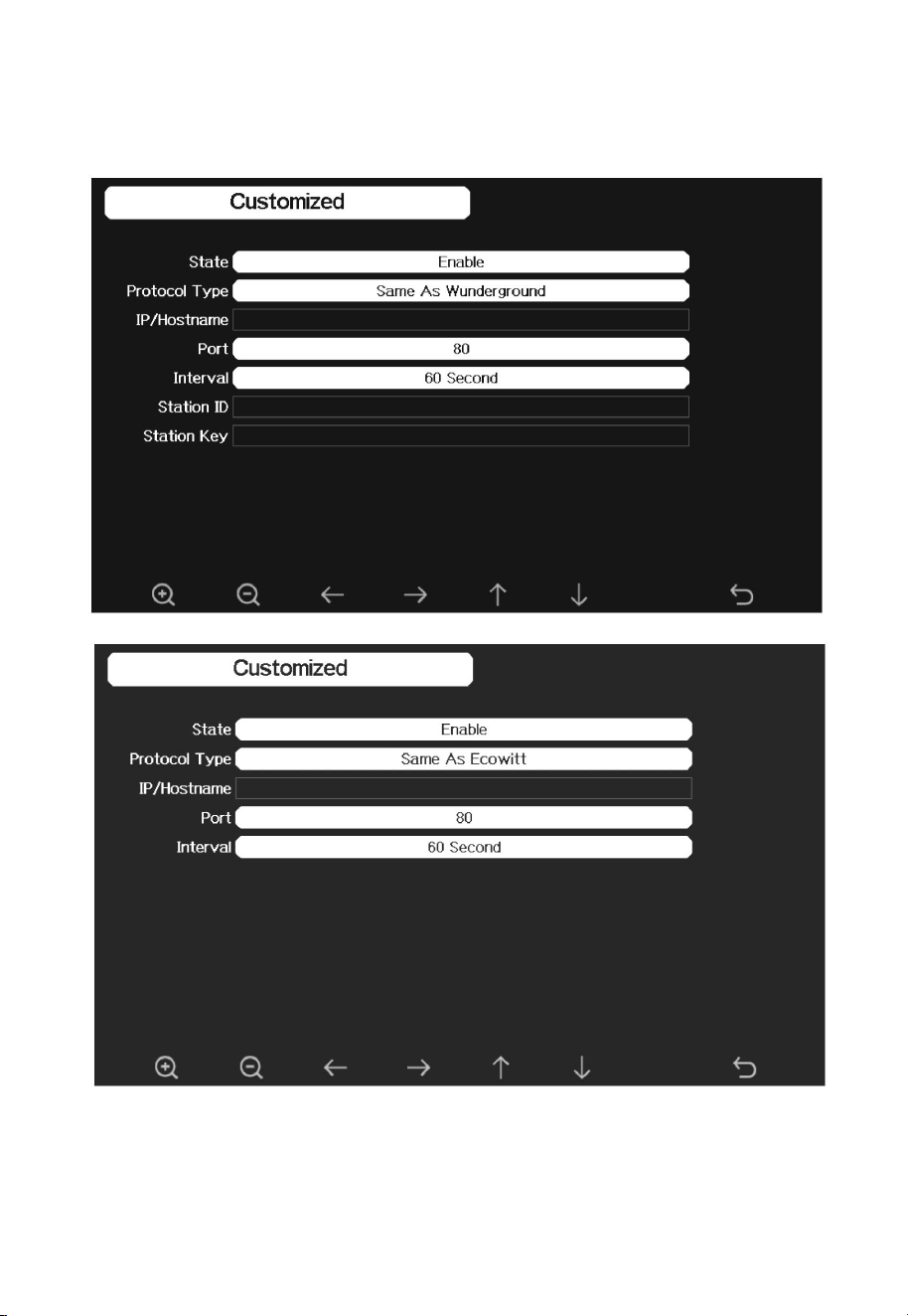
For highly experienced users, it offers the option to send data to the user’s own
server. Press the “setup” button to enter Customized setup screen,
Figure 35: Server setup screen
62
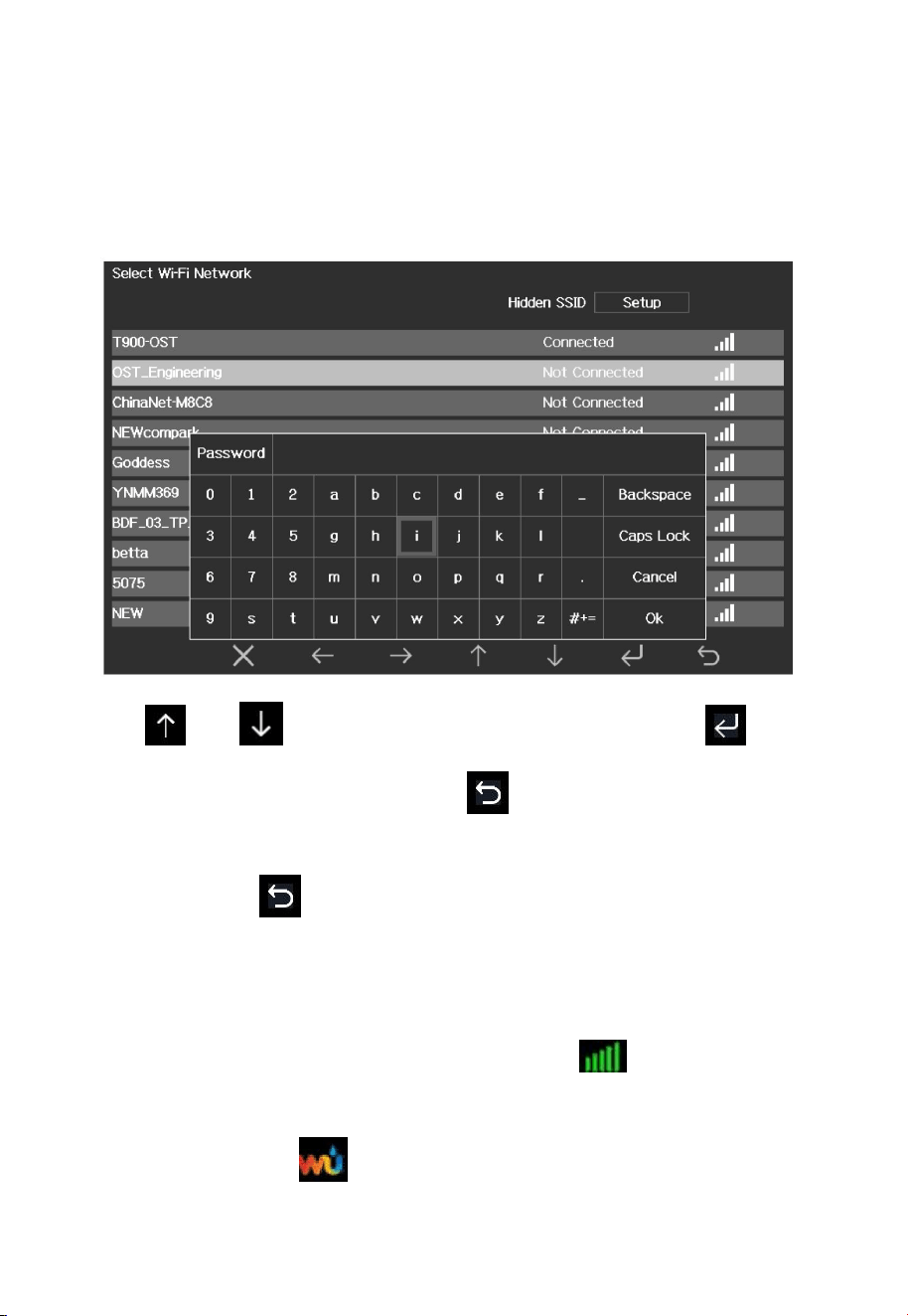
Select Enable button and select the protocol type. The website should has the
same protocol with Wunderground or Ecowitt. Input all the information needed.
63
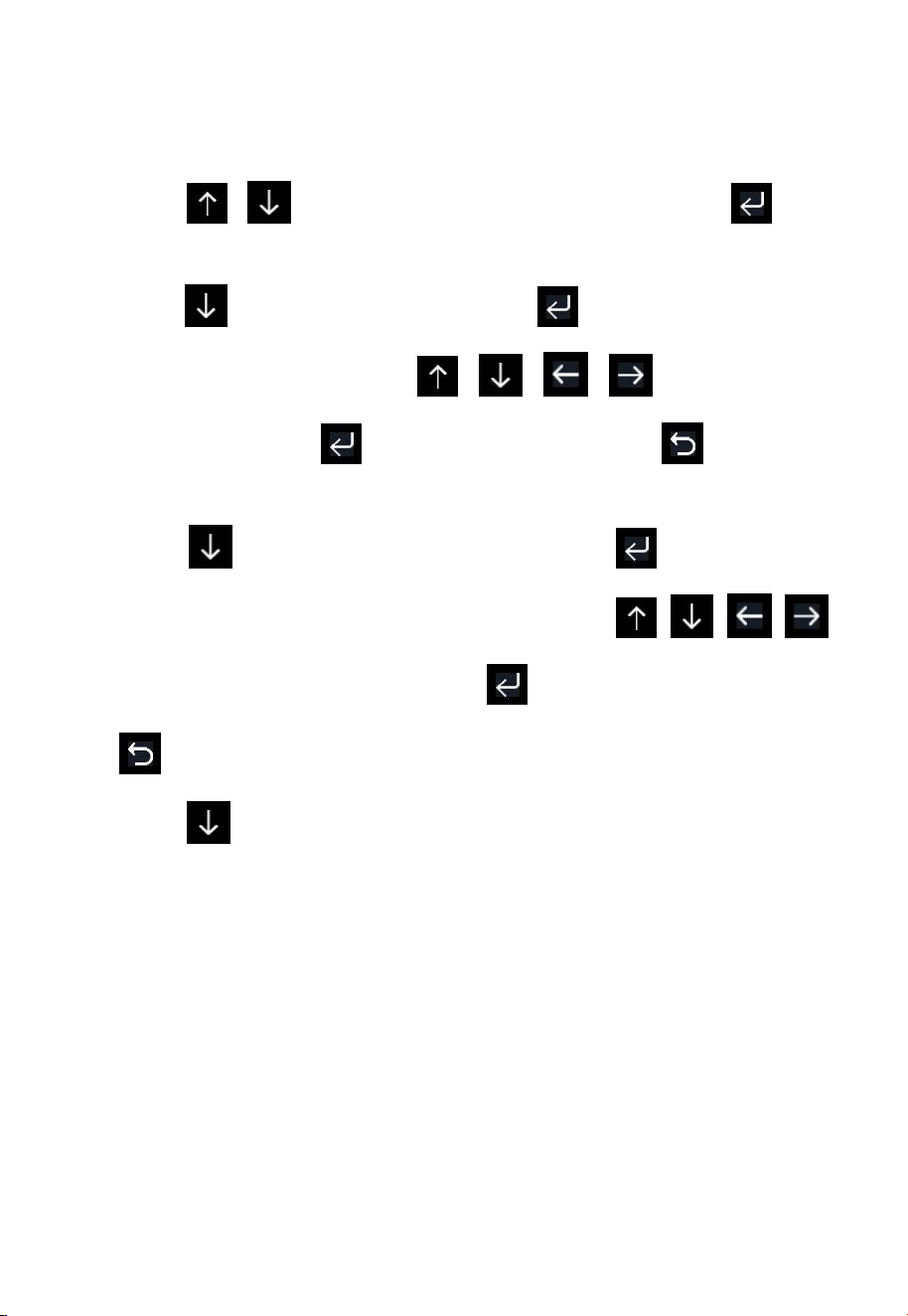
4.9.16 Connect Console to Your Router: Wi-Fi scan
Entering this mode, system will display all the available Wi-Fi networks.
Select the SSID that you want console to be connected with (only supports
2.4GHz band Wi-Fi network ) , and enter passer word as required.
Press or key to select the Wi-Fi network. Press key to
confirm and enter the password. Press key to return to normal display
mode. It is possible that your network is not listed when Wi-Fi Scan is
performed. Press button and restart Wi-Fi Scan, this will usually solve
the problem.
Only after connect to WLAN you can upload the data to weather website. If
the Wi-Fi network connects successfully, the icon will show on the left
top of the console display. If the data upload to Wunderground.com
successfully, the icon will show on the left top of the console display.
64
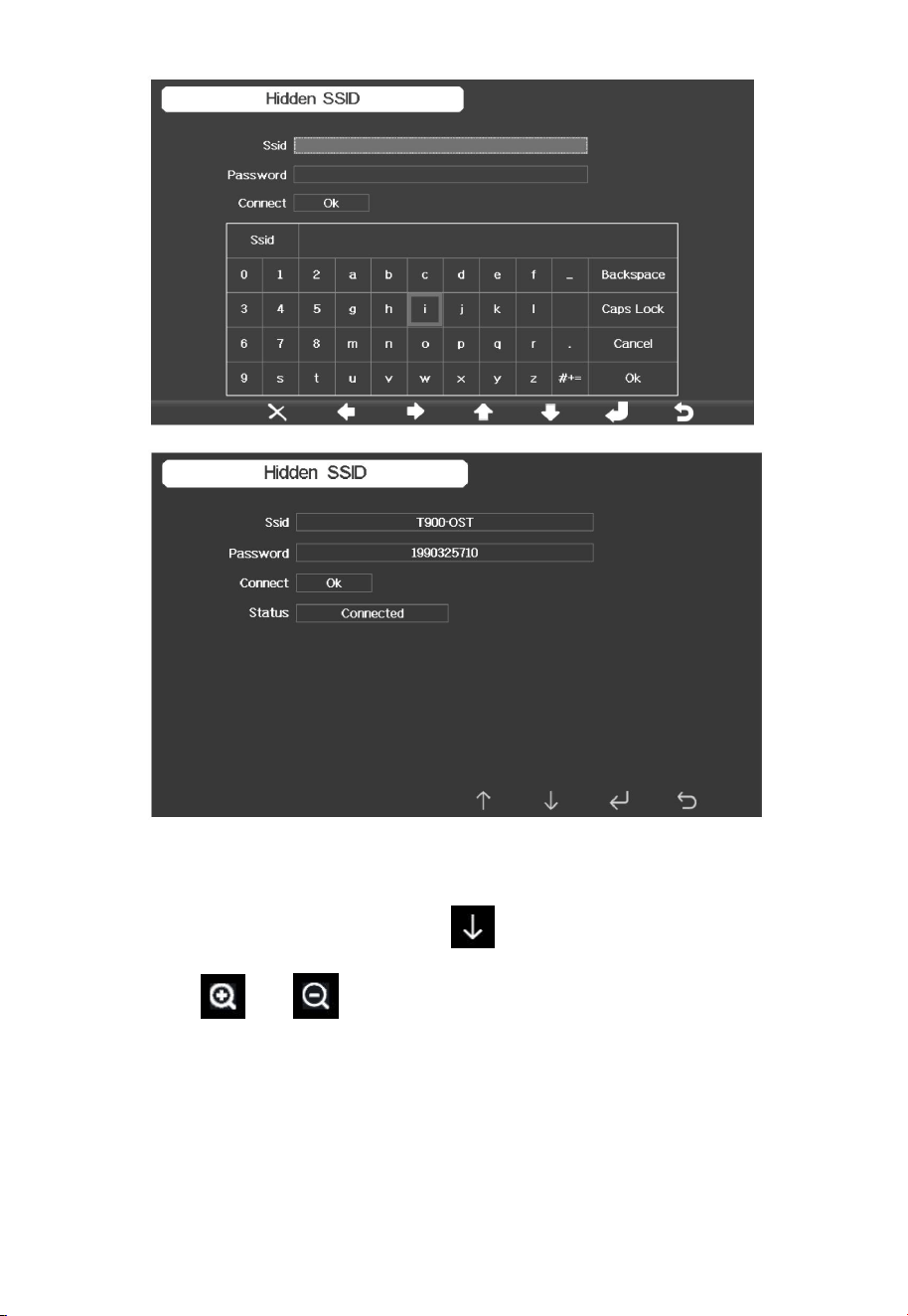
If the Wi-Fi network you would like to connect is with a hidden SSID,
please follow below steps to connect:
1) Press to select Hidden SSID setup, and press key
directly to enter.
2) Press to highlight the SSID. Press to display the keyboard
and enter your SSID. Press to scroll to the
character and press to enter the character. Press to return to
the setup page.
3) Press to highlight the Password. Press to display the
keyboard and start to enter your password.. Press
to scroll to the character and press to enter the character. Press
to return to the setup page.
4) Press to highlight the “OK” button beside “Connect ” to start
connecting.
After connected successfully, the status will display” Connected”.
65
4.9.17 Background
While in Menu Setting Mode, press key to select Background Setup
field, press or key to choose between dark background display
and light background display
66
4.9.18 Alarm Setting Mode
Icon
Description
Select key
Press this key to select the unit or scrolls the value
Select key
Press this key to select the unit or scrolls the value.
Left key
Press this key to select the set value.
Right key
Press this key to select the set value.
Up arrow key
Press this key to change the activated option field
Down arrow key
Press this key to change the activated option field
Set key
Press this key to select the Setting sub-Mode
Return key
Press this key to return to previous mode
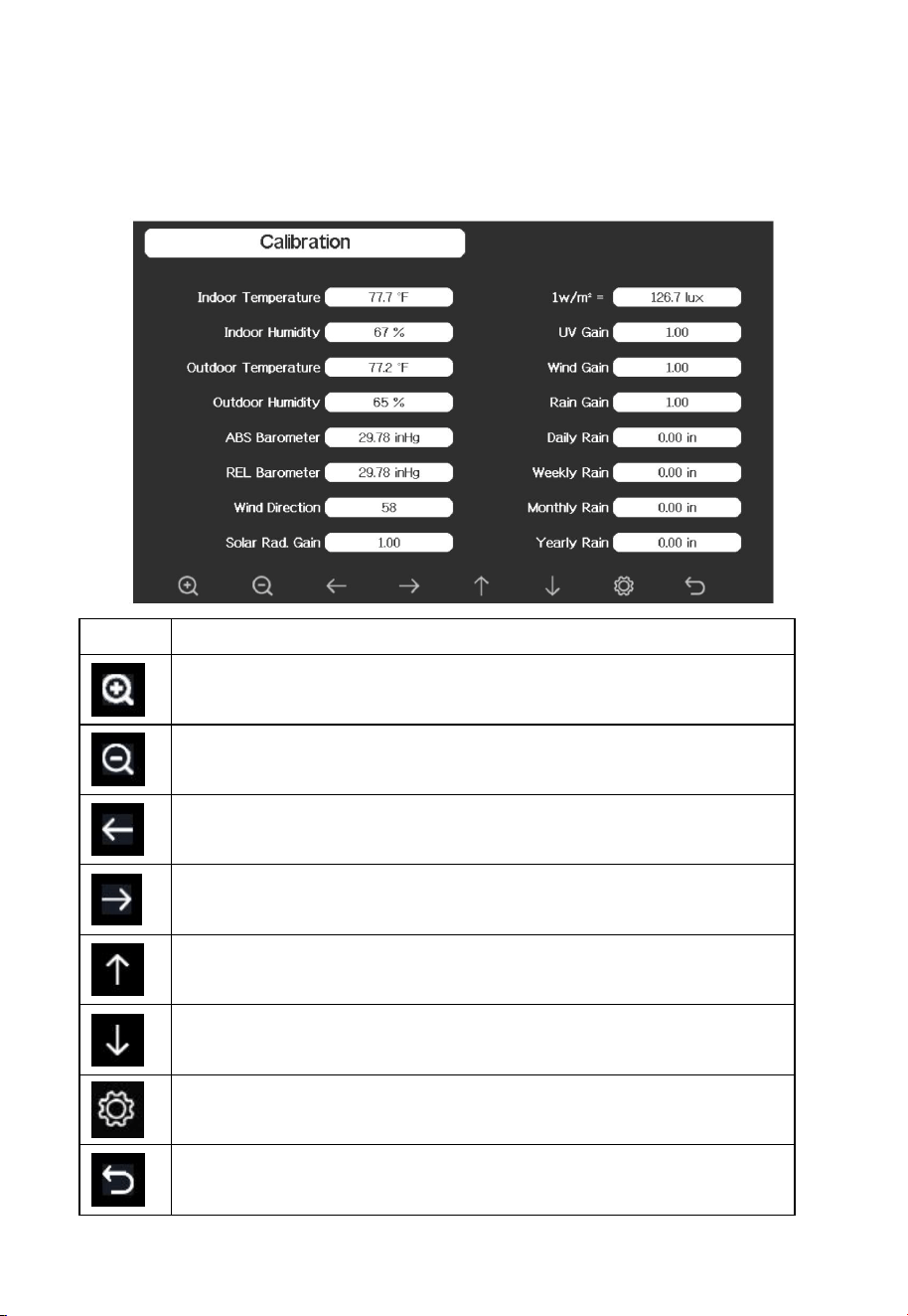
The first row is high alarm value and the second row is low alarm value.
When weather alarm condition has been triggered, that particular alarm will
67
sound for 120 second and the corresponding icon will flash until the weather
condition doesn’t meet the user set level. Press any key to mute the alarm.
4.9.19 Calibration Mode
Icon
Description
Select key
Press this key to select the unit or scrolls the value
Select key
Press this key to select the unit or scrolls the value.
Left key
Press this key to select the set value.
Right key
Press this key to select the set value.
Up arrow key
Press this key to change the activated option field
Down arrow key
Press this key to change the activated option field
Set key
Press this key to select the Setting sub-Mode
Return key
Press this key to return to previous mode
68
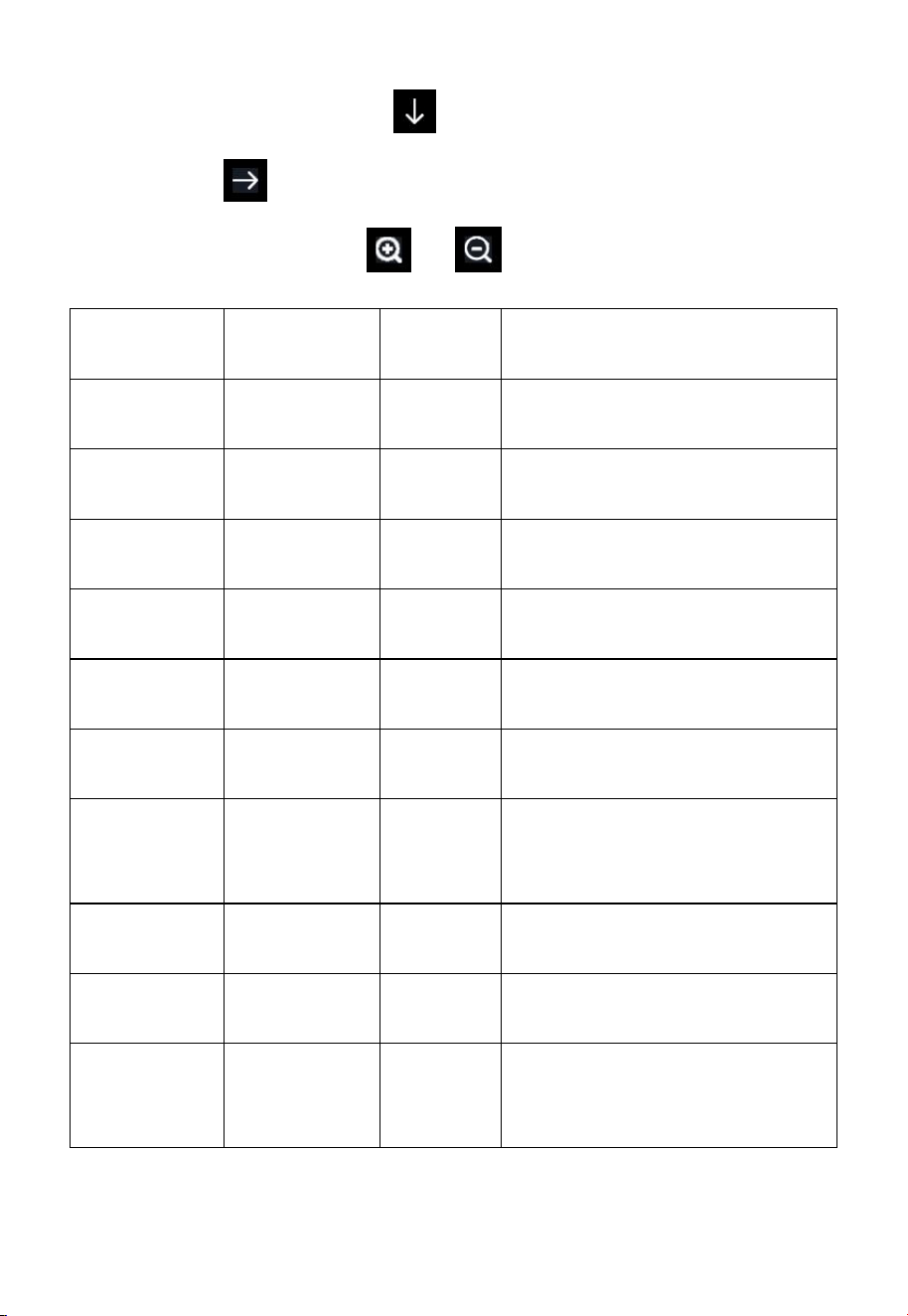
To adjust the parameter, press to scroll to the parameter you wish to
change. Press to highlight the sign (positive vs. negative, if applicable)
and significant digit. Press or to change the calibrated value.
Parameter
Type of
Calibration
Default
Typical Calibration Source
Temperature
Offset
Current
Value
Red Spirit or Mercury
Thermometer (1)
Humidity
Offset
Current
Value
Sling Psychrometer (2)
ABS
Barometer
Offset
Current
Value
Calibrated laboratory grade
barometer
REL
Barometer
Offset
Current
Value
Local airport (3)
Wind
Direction
Offset
Current
Value
GPS, Compass (4)
Solar
Radiation
Gain
1.00
Calibrated laboratory grade
solar radiation sensor
1 w/m
2
Gain
126.7
lux
Solar radiation conversion from
lux to w/m
2
for wavelength
correction (5)
Wind
Gain
1.00
Calibrated laboratory grade
wind meter (6)
Rain
Gain
1.00
Sight glass rain gauge with an
aperture of at least 4” (7)
Daily Rain
Offset
Current
Value
Apply an offset if the weather
station was not operating for
the entire day.
69
Weekly
Rain
Offset
Current
Value
Apply an offset if the weather
station was not operating for
the entire week.
Monthly
Rain
Offset
Current
Value
Apply an offset if the weather
station was not operating for
the entire month.
Yearly Rain
Offset
Current
Value
Apply an offset if the weather
station was not operating for
the entire year.
(1) Temperature errors can occur when a sensor is placed too close to a
heat source (such as a building structure, the ground or trees).
To calibrate temperature, we recommend a mercury or red spirit
(fluid) thermometer. Bi-metal (dial) and digital thermometers (from
other weather stations) are not a good source and have their own
margin of error. Using a local weather station in your area is also a
poor source due to changes in location, timing (airport weather
stations are only updated once per hour) and possible calibration
errors (many official weather stations are not properly installed and
calibrated).
Place the sensor in a shaded, controlled environment next to the
fluid thermometer, and allow the sensor to stabilize for 3 hours.
Compare this temperature to the fluid thermometer and adjust the
console to match the fluid thermometer.
(2) Humidity is a difficult parameter to measure electronically and drifts
over time due to contamination. In addition, location has an adverse
affect on humidity readings (installation over dirt vs. lawn for
example).
Official stations recalibrate or replace humidity sensors on a yearly
basis. Due to manufacturing tolerances, the humidity is accurate to

70
± 5%. To improve this accuracy, the indoor and outdoor humidity
can be calibrated using an accurate source, such as a sling
psychrometer.
(3) The display console displays two different pressures: absolute
(measured) and relative (corrected to sea-level).
To compare pressure conditions from one location to another,
meteorologists correct pressure to sea-level conditions. Because the
air pressure decreases as you rise in altitude, the sea-level corrected
pressure (the pressure your location would be at if located at sea-
level) is generally higher than your measured pressure.
Thus, your absolute pressure may read 28.62 inHg (969 mb) at an
altitude of 1000 feet (305 m), but the relative pressure is 30.00 inHg
(1016 mb).
The standard sea-level pressure is 29.92 in Hg (1013 mb). This is
the average sea-level pressure around the world. Relative pressure
measurements greater than 29.92 inHg (1013 mb) are considered
high pressure and relative pressure measurements less than 29.92
inHg are considered low pressure.
To determine the relative pressure for your location, locate an
official reporting station near you (the internet is the best source for
real time barometer conditions, such as Weather.com or
Wunderground.com), and set your weather station to match the
official reporting station.
(4) Only use this if you improperly installed the weather station sensor
array, and did not point the direction reference to true north.
(5) The default conversion factor based on the wavelength for bright
sunlight is 126.7 lux / w/m
2
. This variable can be adjusted by
photovoltaic experts based on the light wavelength of interest, but
for most weather station owners, is accurate for typical applications,

71
such as calculating evapotransporation and solar panel efficiency.
(6) Wind speed is the most sensitive to installation constraints. The rule
of thumb for properly installing a wind speed sensor is 4 x the
distance of the tallest obstruction. For example, if your house is 20’
tall and you mount the sensor on a 5’ pole:
Distance = 4 x (20 – 5)’ = 60’ or =4 x (6.10-1.52)=18.32m.
Many installations are not perfect and installing the weather station
on a roof can be difficult. Thus, you can calibrate for this error with
a wind speed multiplier.
In addition to the installation challenges, wind cup bearings (moving
parts) wear over time.
Without a calibrated source, wind speed can be difficult to measure.
We recommend using a calibrated wind meter (not included) and a
constant speed, high speed fan.
(7) The rain collector is calibrated at the factory based on the funnel
diameter. The bucket tips every 0.01” or 0.1m of rain (referred to as
resolution). The accumulated rainfall can be compared to a sight
glass rain gauge with an aperture of at least 4” or 0.1m.
Make sure you periodically clean the rain gauge funnel.
Note: The purpose of calibration is to fine tune or correct for any sensor
error associated with the devices margin of error. Errors can occur due to
electronic variation (example, the temperature sensor is a resistive thermal
device or RTD, the humidity sensor is a capacitance device), mechanical
variation, or degradation (wearing of moving parts, contamination of
sensors).
Calibration is only useful if you have a known calibrated source you can
compare it against, and is optional. This section discusses practices,
procedures and sources for sensor calibration to reduce manufacturing and
72
degradation errors. Do not compare your readings obtained from sources
such as the internet, radio, television or newspapers. The purpose of your
weather station is to measure conditions of your surroundings, which vary
significantly from location to location.
Note: UV Calibration MUST be performed every 2 to 3 months to improve
results. Over time, UV Index may alter results based on bright and strong
sunlight conditions. This is why diligent UV Calibration is recommended.
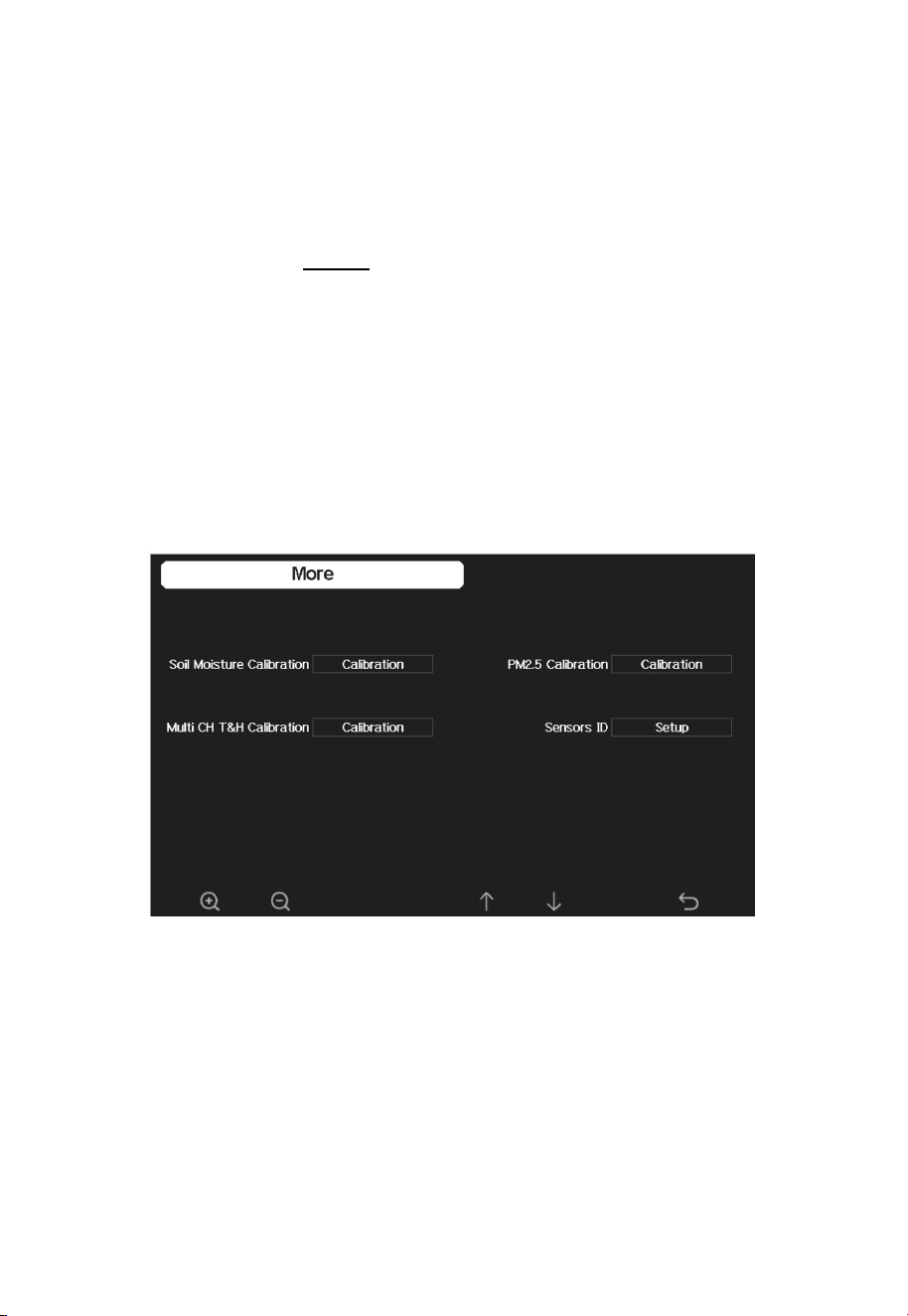
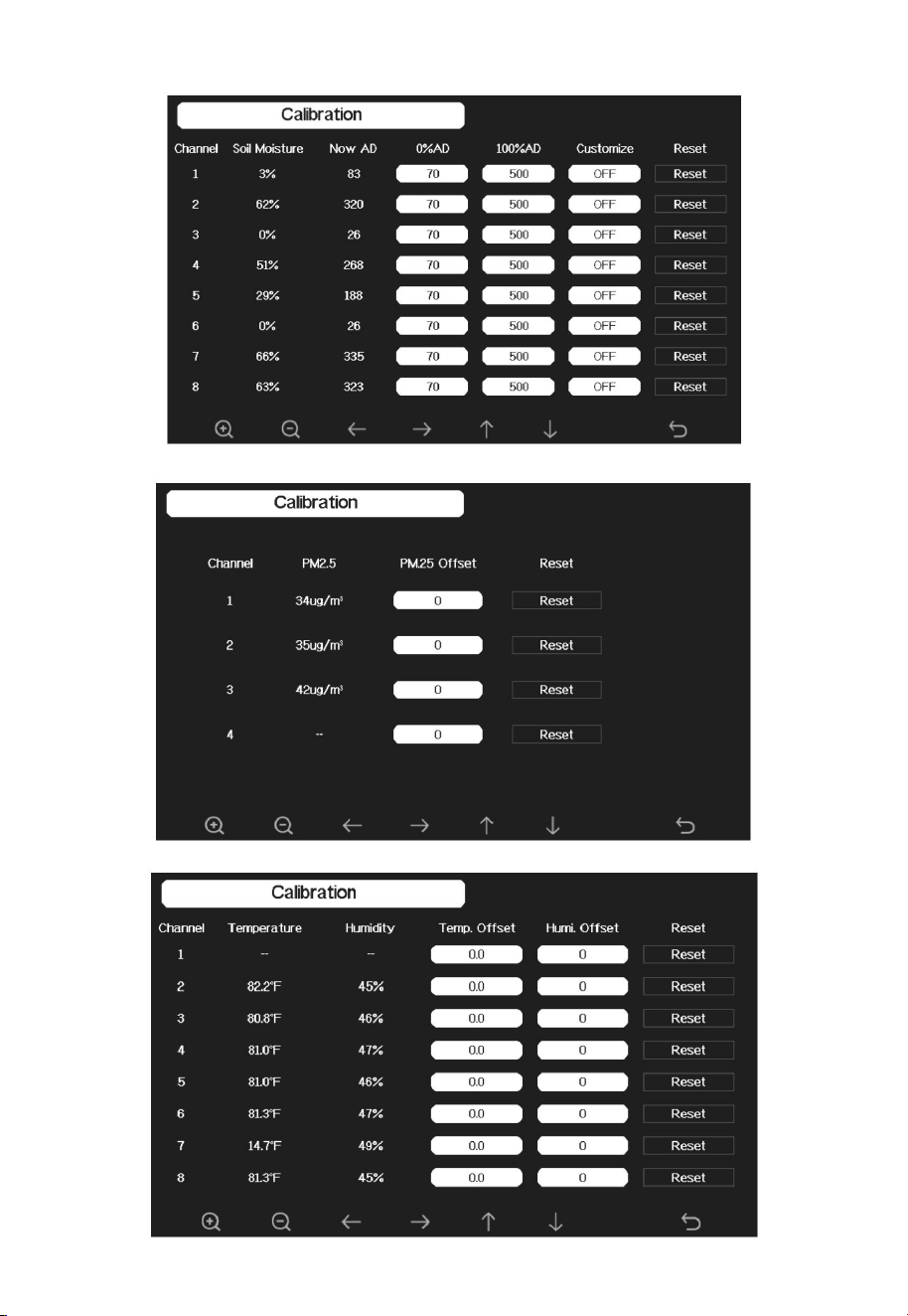
4.9.20 More
On the More page, you can set the Calibration for the optional multi-channel
soil moisture/PM2.5/temp and humidity sensor. You can also view or
manage all the sensors ID on the Sensors ID Setup page.
73
74
Note:
To calibrate the optional soil moisture sensor, please refer to the manual of
the WH51 soil moisture senor.
To calibrate the PM2.5 sensor, you’ll need to find a reliable source, such as
professional devices from your local air quality service.
To calibrate the temp and humidity sensor, please refer to section 4.9.19.
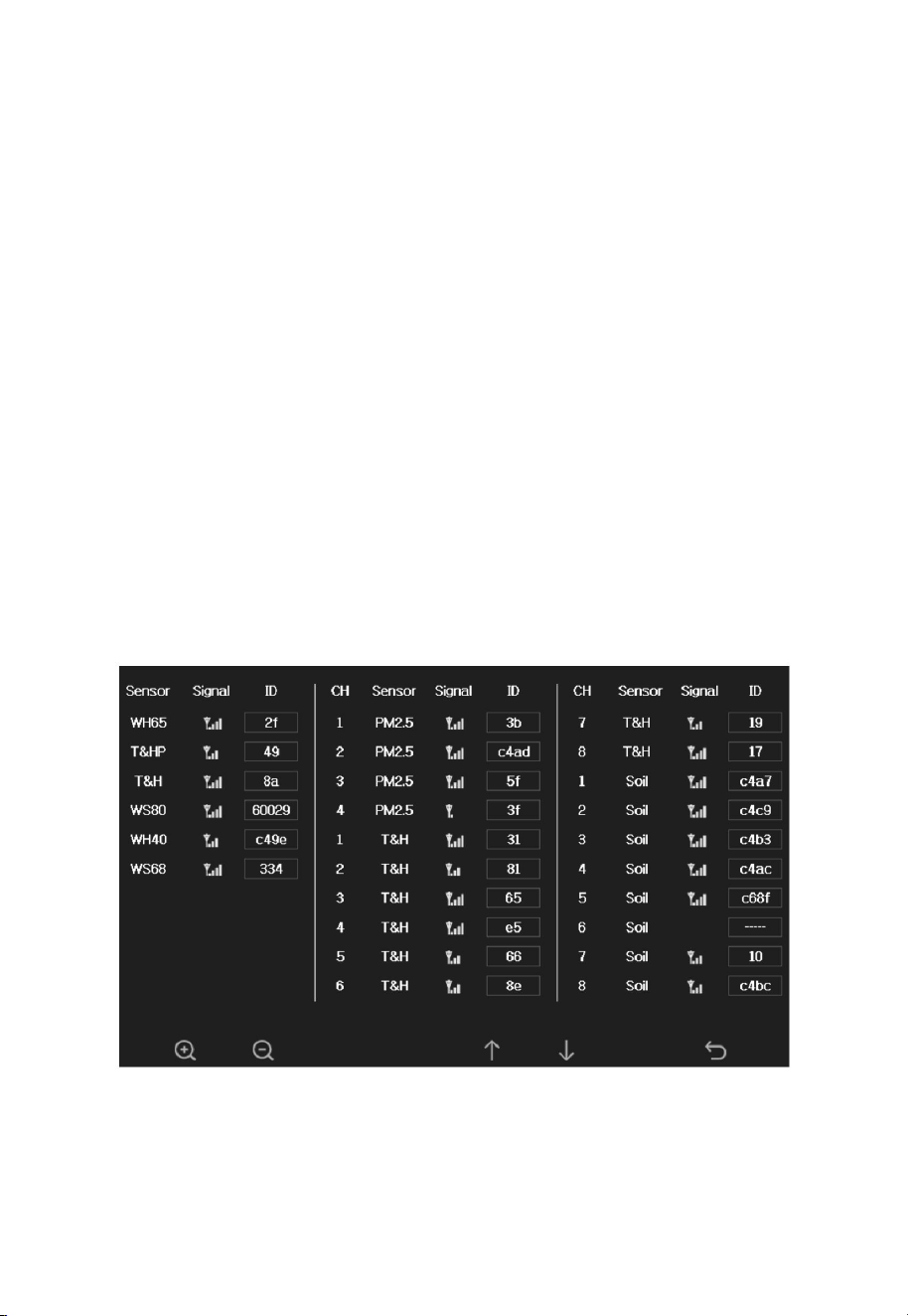
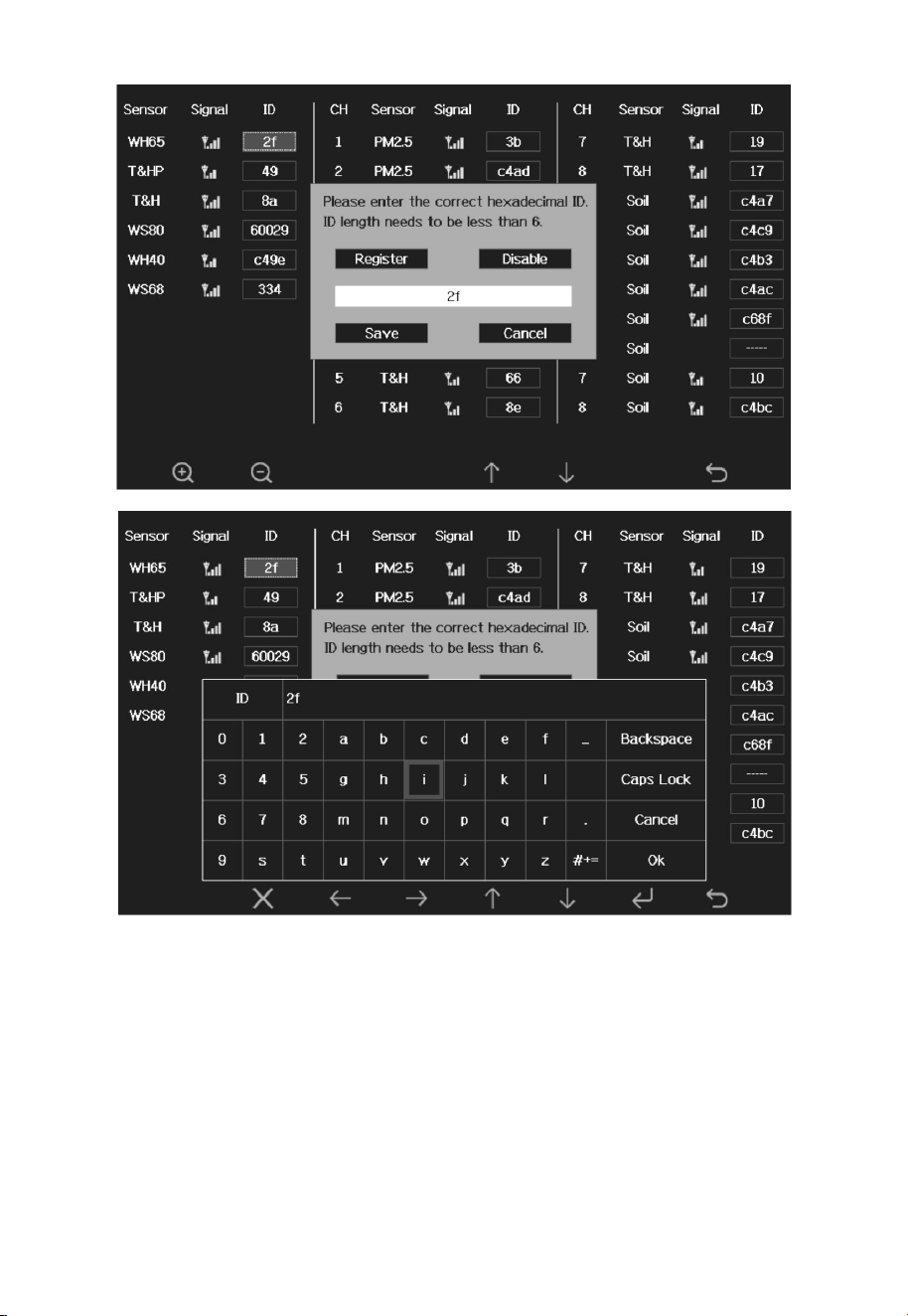
Sensor ID Setup
On this page you can set the following:
View sensor ID, signal strength and battery power condition. 1-4 bars
means 1-4 successful successive signal receptions without missed ones.
Register the sensor when offline.
Enable or disable the sensor.
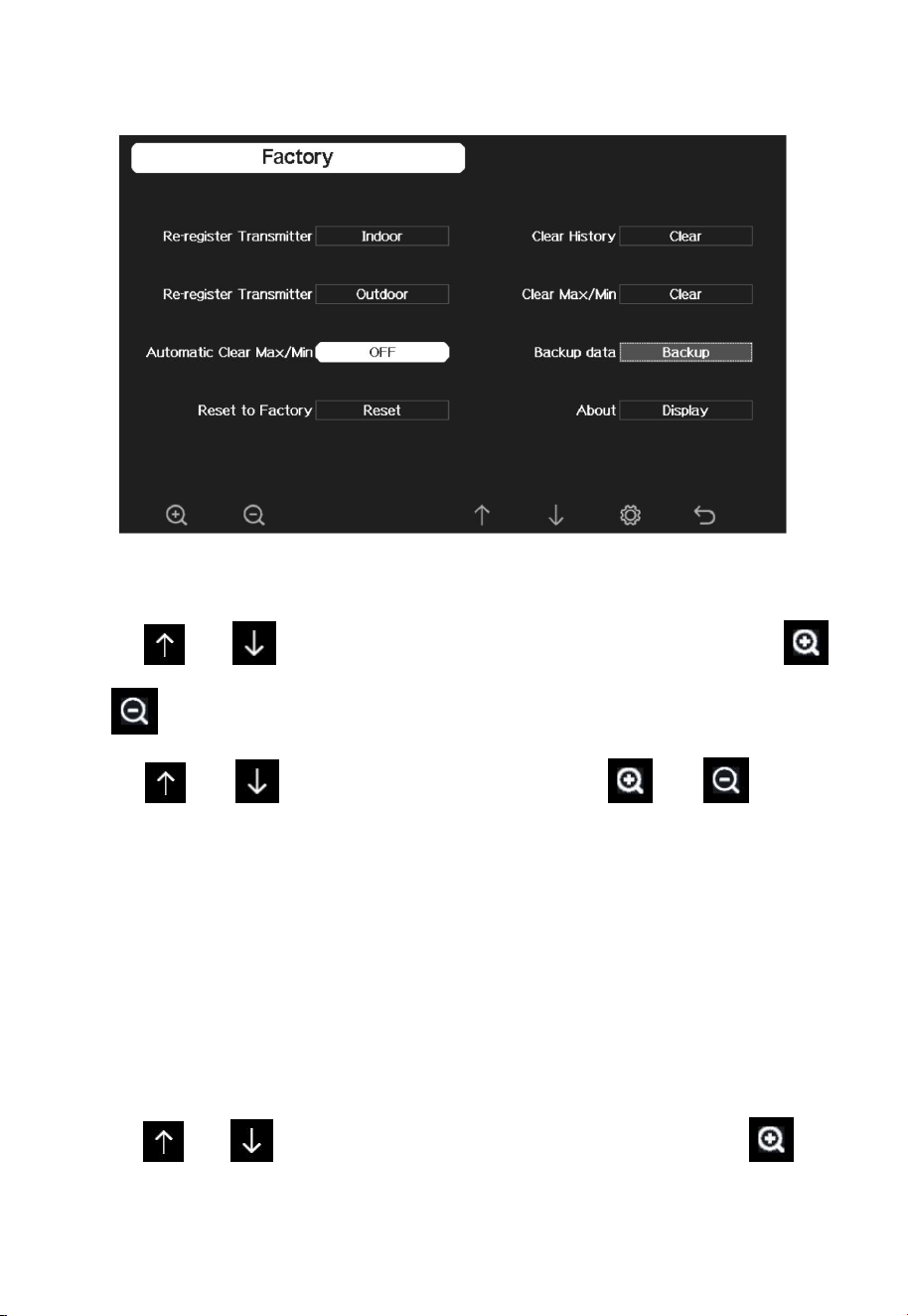
Input the Sensor ID when offline.
75
76
4.9.21 Factory reset
4.9.21.1 Re-register indoor transmitter
Press or key to select re-register indoor transmitter. Press
or key to popup the Message Box ”Register a new indoor transmitter?”
Press or to select Yes or No. Press the or key to
confirm the selection.
4.9.21.2 Re-register outdoor transmitter
Please reference section 5.13.1. Procedures and settings are similar to re-
register indoor transmitter.
4.9.21.3 Automatic Clear Max/Min
To turn on/off automatically clear Max/Min record at 0:00hr every day.
Press or key to select Automatic clear Max/Min. Press or
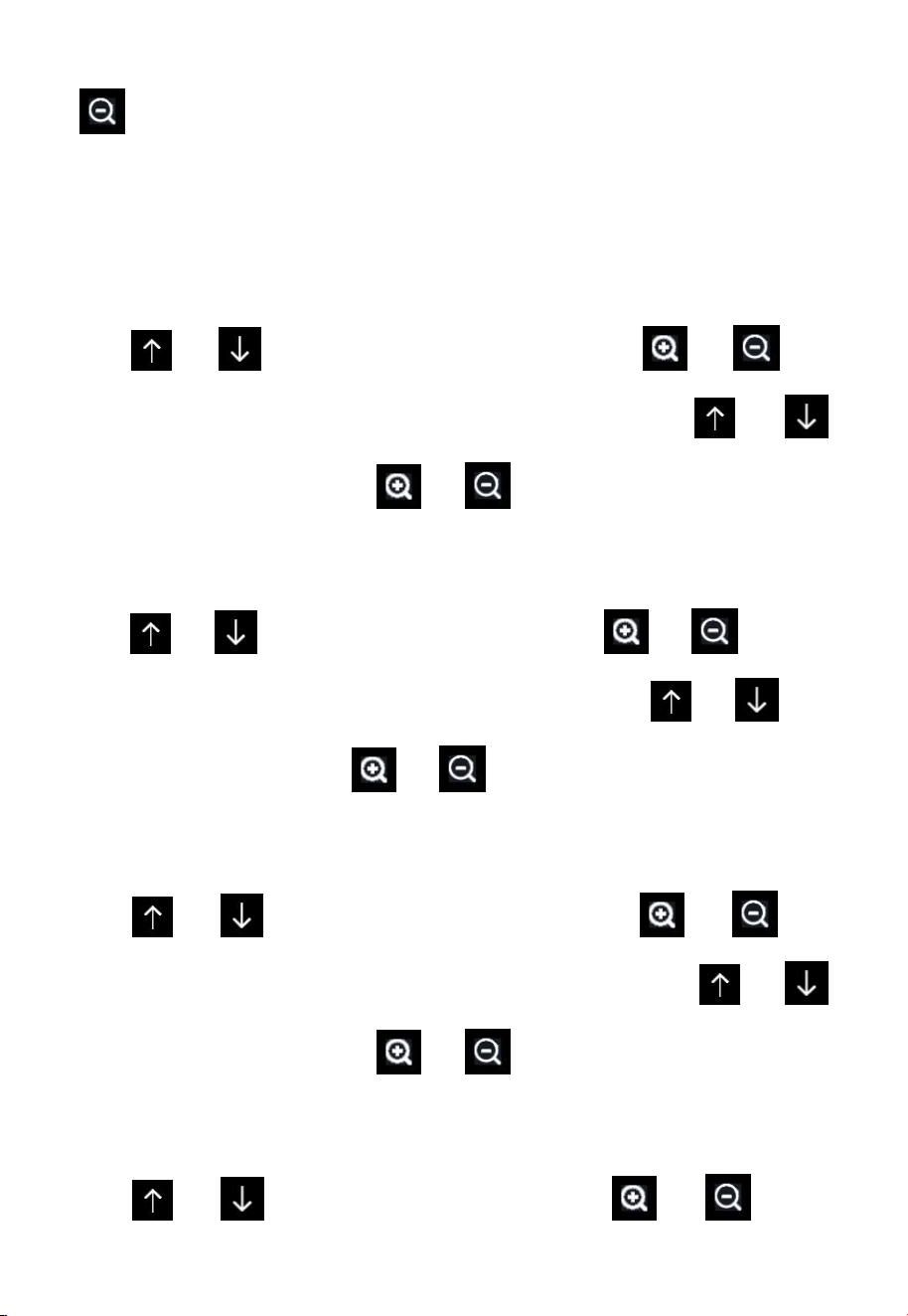
77
key to switch on/off.
When it is selected with ON option, min/max will be presented as daily
min/max, and with OFF option selected, it is for history min/max record.
4.9.21.4 Reset to Factory
Press or key to select Reset to Factory. Press or key
to popup the Message Box ”Reset to factory default?” Press or
to select Yes or No. Press the or key to confirm the selection.
4.9.21.5 Clear History
Press or key to select Clear History. Press or key to
popup the Message Box ”Clear the history record?” Press or to
select Yes or No. Press the or key to confirm the selection.
4.9.21.6 Clear Max/Min
Press or key to select Clear Max/Min. Press or key
to popup the Message Box ”Clear the max/min record?” Press or
to select Yes or No. Press the or key to confirm the selection.
4.9.21.7 Backup data
Press or key to select Backup data. Press or key to
78
popup the Message Box ”Copy history data to SD card?” Press or
to select OK or Cancel. Press the or key to confirm the
selection.
Note: You need to insert a SD card(not included) into the console before
using this function.
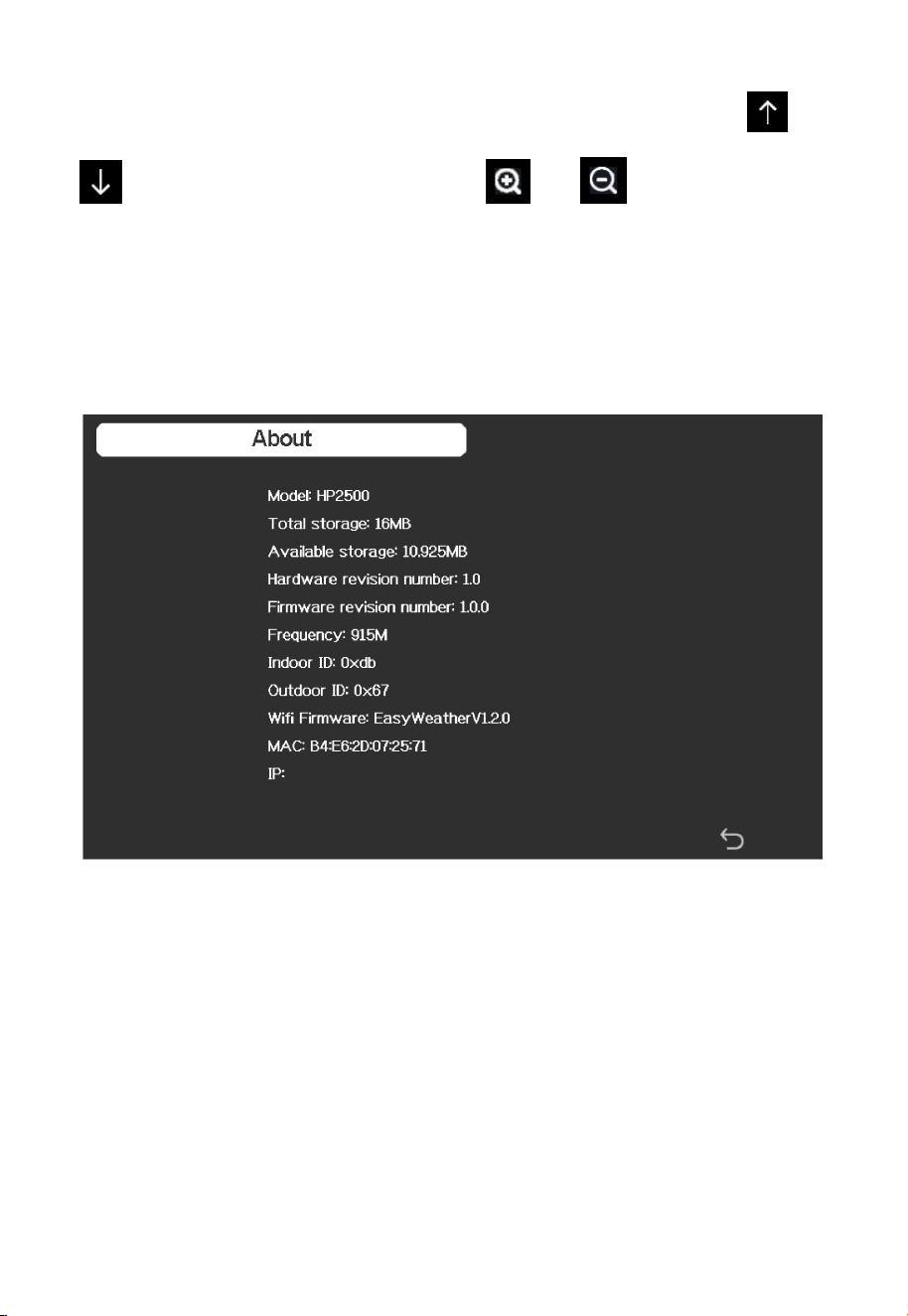
4.9.21.8 About information
Note: This figure is just for reference(model and frequency will change
according to different market). The actual display console may be with
higher firmware version than this manual described because we will update
the firmware occasionally.
79
5 Other Console Functions
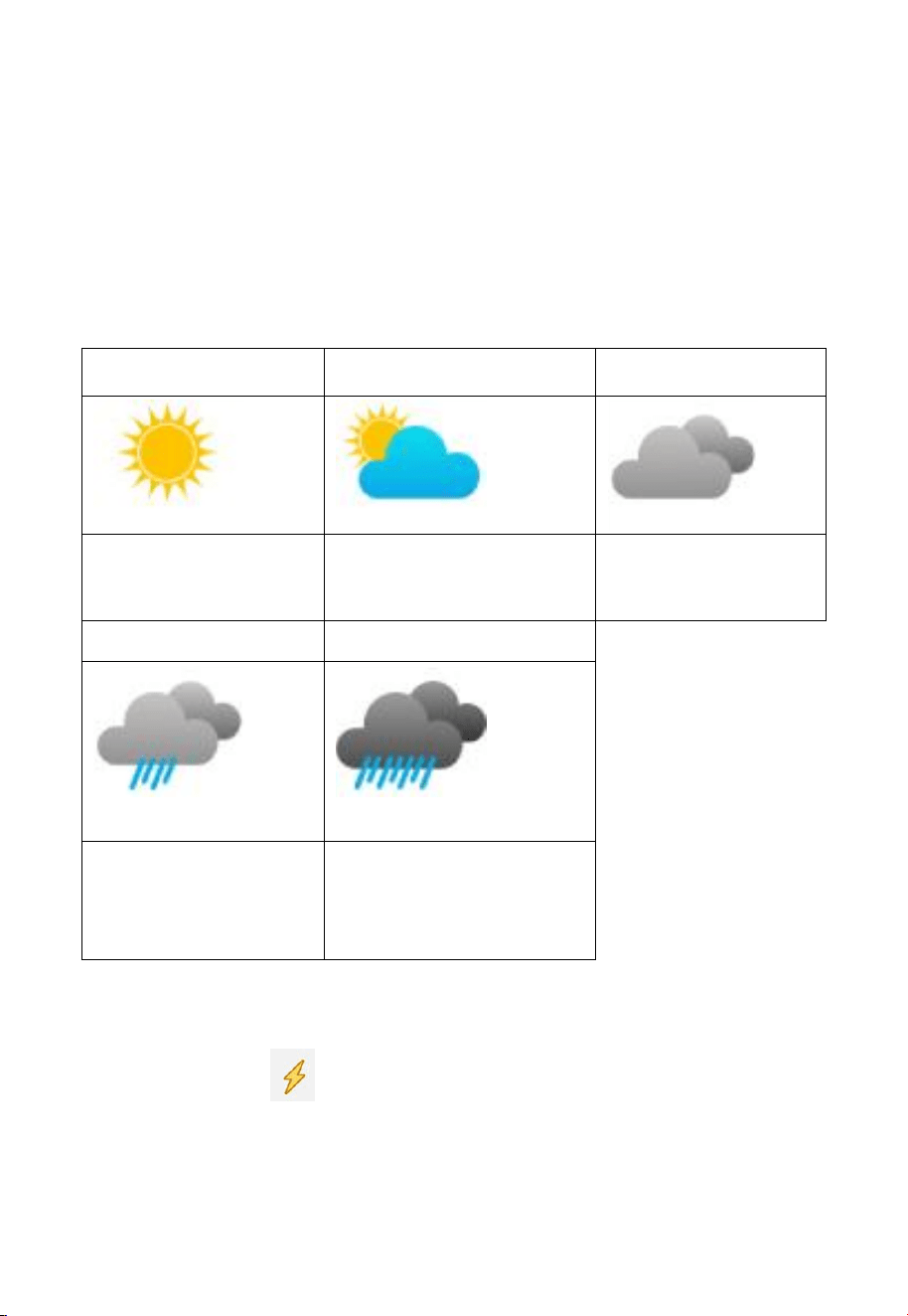
5.1 Beaufort Wind Force Scale
If you have selected the use of Beaufort wind speed units, you can use the
table below for reference. The Beaufort scale is based on qualitative wind
conditions and how they would affect a ship’s (frigate) sails (so yes, it is
an “old” standard). It is therefore less precise than the other scales but is
still in use in various locales.
Wind speed
Beaufort
number
Description
0 - 1 mph, or 0 - 1.6 km/h
0
Calm
1 - 3 mph, or 1.6 - 4.8 km/h
1
Light air
3 - 7 mph, or 4.8 - 11.3 km/h
2
Light breeze
7 - 12 mph, or 11.3 -1 9.3 km/h
3
Gentile breeze
12 - 18 mph, or 19.3 - 29.0 km/h
4
Moderate breeze
18 - 24 mph, or 29.0 - 38.6 km/h
5
Fresh breeze
24 - 31 mph, or 38.6 - 49.9 km/h
6
String breeze
31 - 38 mph, or 49.9 - 61.2 km/h
7
Near gale
38 - 46 mph, or 61.2 - 74.1 km/h
8
Gale
46 - 54 mph, or 74.1 - 86.9 km/h
9
Strong gale
55 - 63 mph, or 88.5 - 101.4 km/h
10
Storm
64 - 73 mph, or 103 - 117.5 km/h
11
Violent storm
74 mph and above, or 119.1 km/h
and above
12
Hurricane
Table 8: Beaufort wind force scale
80
5.2 Weather Forecasting
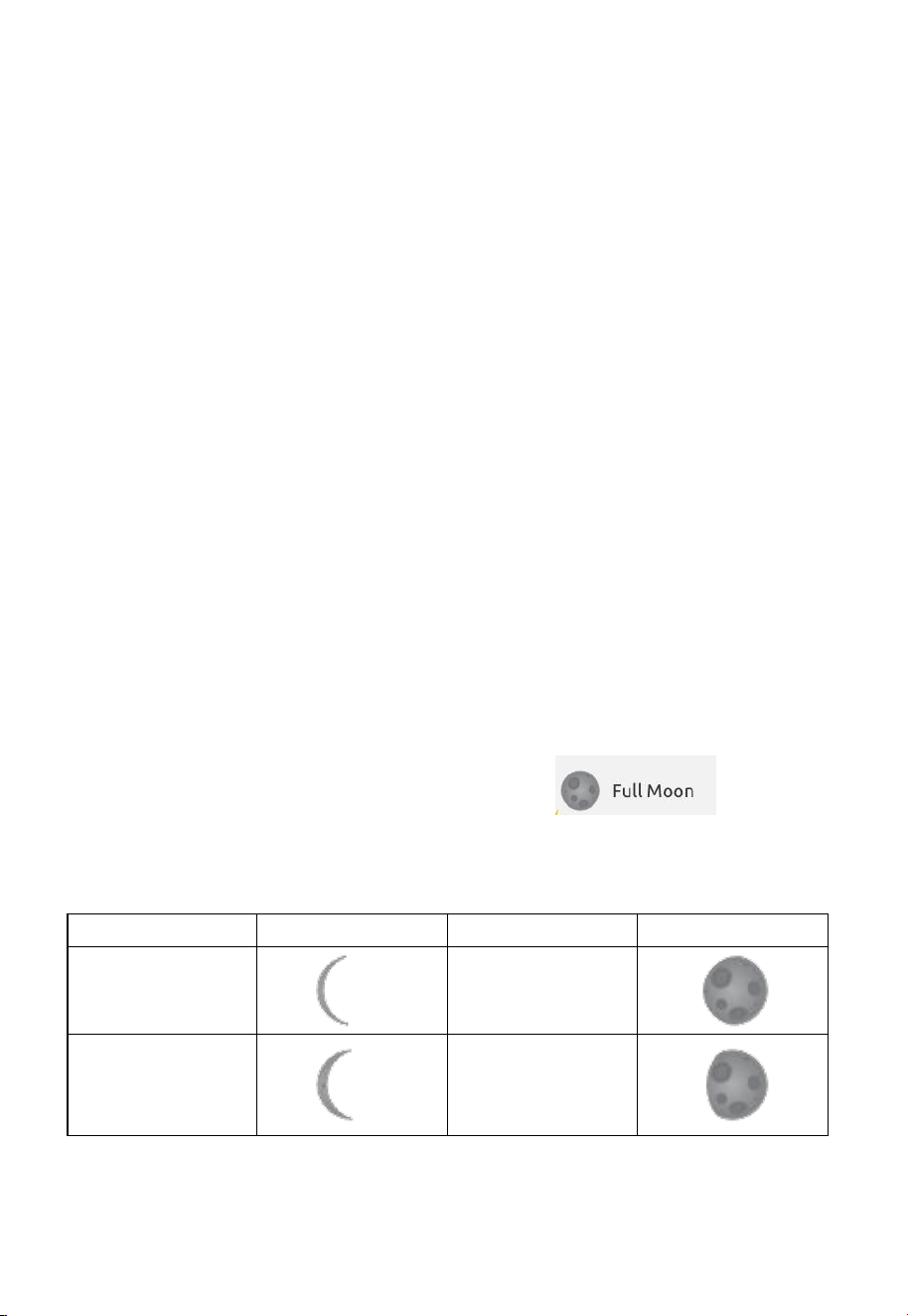
The five weather icons are Sunny, Partly Cloudy, Cloudy, Rainy and
Stormy.
The forecast icon is based on the rate of change of barometric pressure.
Please allow at least one month for the weather station to learn the
barometric pressure over time.
Sunny
Partly Cloudy
Cloudy
Pressure increases for a
sustained period of time
Pressure increases slightly
or initial power up
Pressure decreases
slightly
Rainy
Stormy
Pressure decreases for
a sustained period of
time
Pressure rapidly
decreases
5.3 Lightning Alert
The lightning icon will appear if the Dew Point exceeds 70 F. This
means there is a chance of lightning storms forming.
81
5.4 Weather Forecasting Description and Limitations
In general, if the rate of change of pressure increases, the weather is
generally improving (sunny to partly cloudy). If the rate of change of
pressure decreases, the weather is generally degrading (cloudy, rainy or
stormy). If the rate of change is relatively steady, it will read partly cloudy.
The reason the current conditions do not match the forecast icon is because
the forecast is a prediction 24-48 hours in advance. In most locations, this
prediction is only 70% accurate and it is a good idea to consult the National
Weather Service for more accurate weather forecasts. In some locations, this
prediction may be less or more accurate. However, it is still an interesting
educational tool for learning why the weather changes.
The National Weather Service (and other weather services such as
Accuweather and The Weather Channel) have many tools at their disposal to
predict weather conditions, including weather radar, weather models, and
detailed mapping of ground conditions.
5.5 Moon Phase
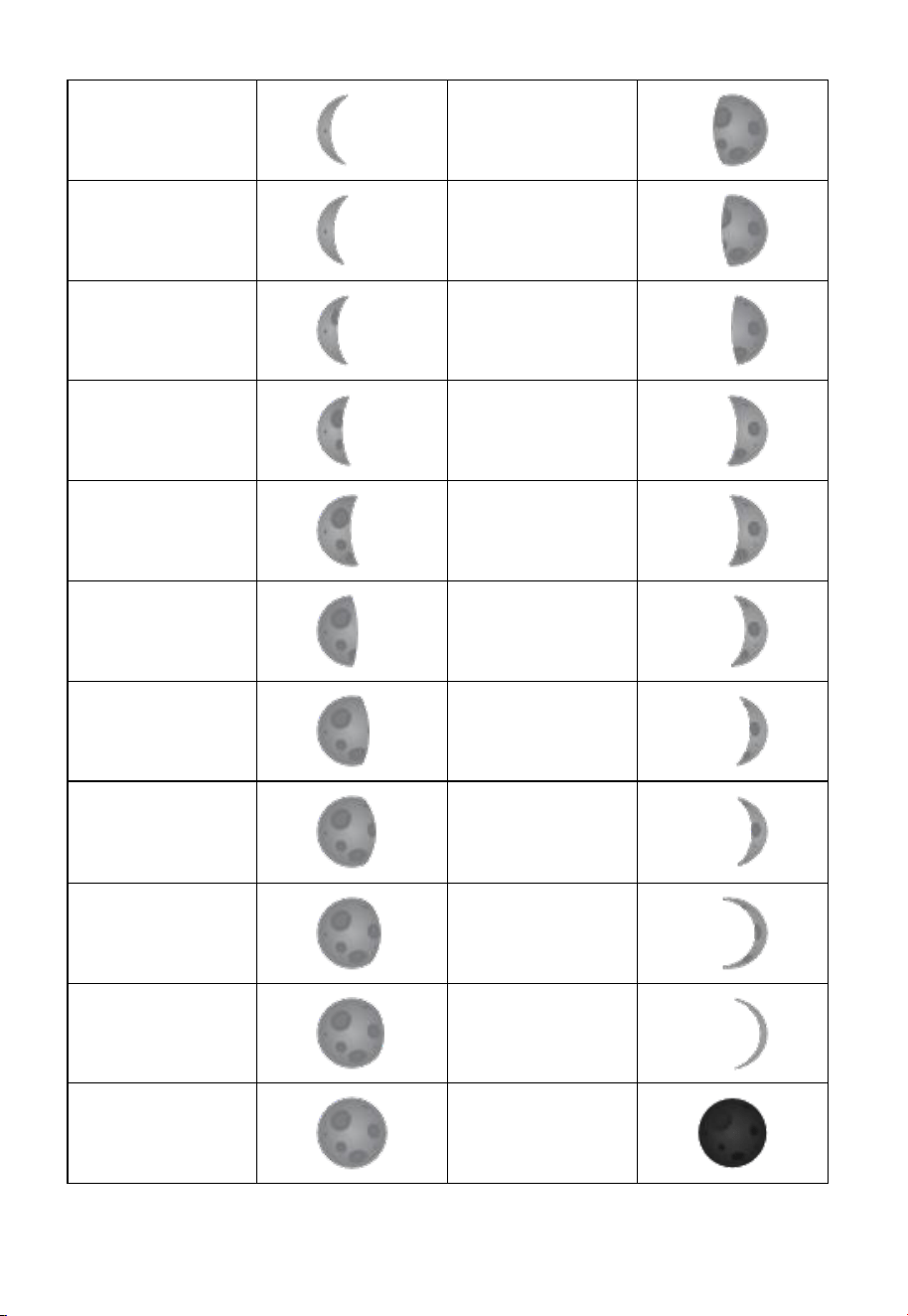
In the event the moon phase is 100%, the icon will appear
in its place. In the event of 0%, the word “New Moon” will appear in its
place.
Moon Phase
Image
Moon Phase
Image
Day 1
Day 14
Day 2
Day 15
82
Day 3
Day 16
Day 4
Day 17
Day 5
Day 18
Day 6
Day 19
Day 7
Day 20
Day 8
Day 21
Day 9
Day 22
Day 10
Day 23
Day 11
Day 24
Day 12
Day 25
Day 13
Full Moon
Day 26
New Moon
83
6 Maintenance
The following steps should be taken for proper maintenance of your station
Clean Rain Gauge
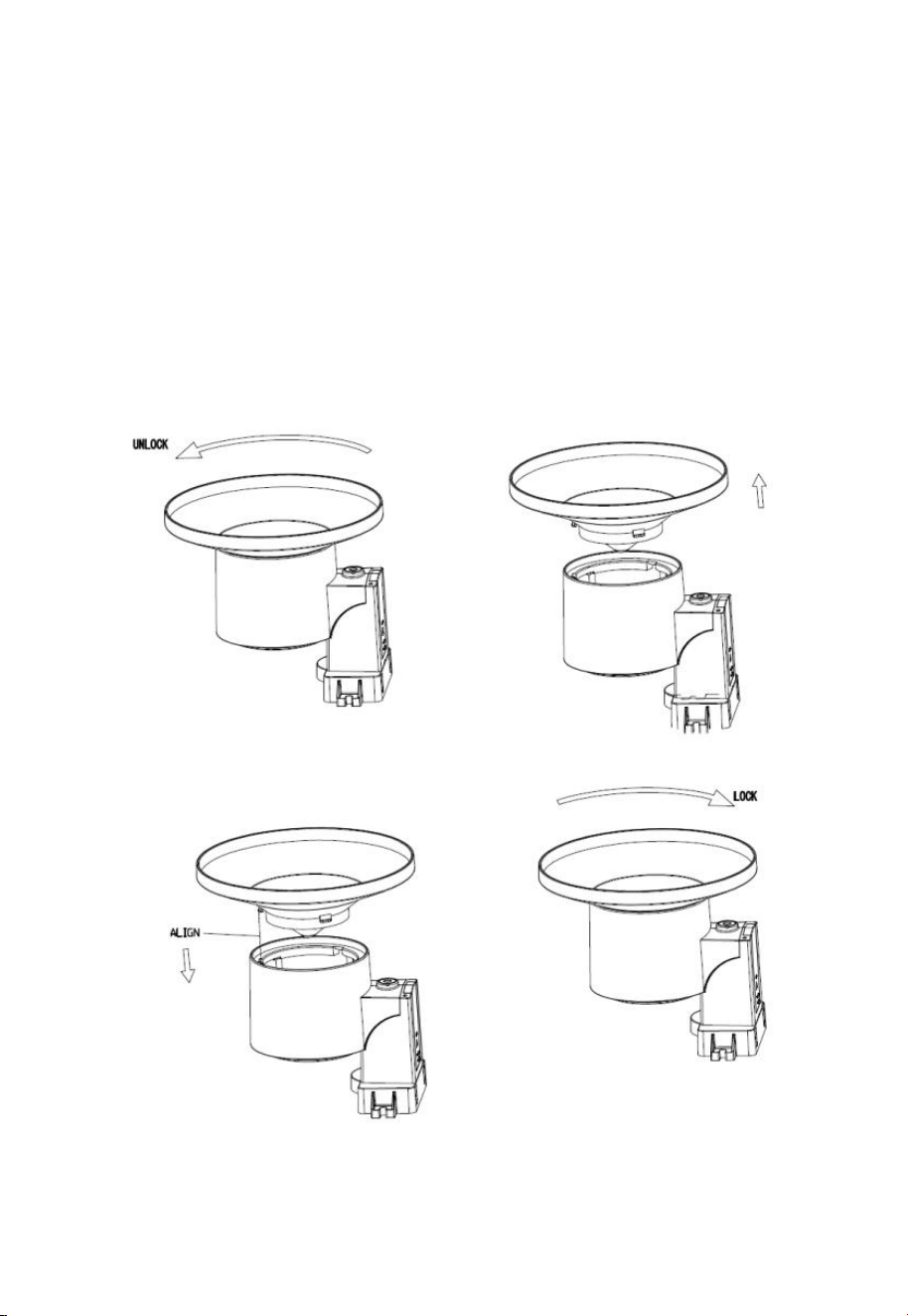
Check the rain gauge every 3 months. Rotate the funnel counterclockwise
and lift it up. Clean the funnel and bucket with a damp cloth to remove any
dirt, debris and insects. Spray the array lightly with insecticide, if there’s a
bug infestation.
Figure 36: Rain gauge maintenance

84
Clean solar radiation sensor and solar panel
The solar radiation sensor and solar panel of the outdoor sensor array need
to be cleaned with a non-abrasive slightly damp cloth every 3 months.
Replacing batteries regularly
Batteries of the outdoor sensor array should be replaced every 1-2 years. In
applications where data dropouts cannot be tolerated, check the batteries
every 3 months and apply a corrosion preventing compound (not included)
on the battery terminals for protection.
Prevent snow build up
In snowy environments, use anti-icing silicon spray on the top of the
weather station, and rain collection top, to prevent snow build up.
Rain Gauge Accuracy Cross Check
To tell if the rain gauge is accurate or not, it is not correct to compare to a
rain meter nearby around. Because it is not necessary having a same rain
intensity, even I they are not far from each other. To judge if your rain meter
is correct or not, you may do the following:
1. Use a narrowed neck bottle that can sit under the rain gauge water
outlet holes. Collect the water during a rain event and measure its
weight. E.g. 353 g.
2. 353 g equals 353 ml, divided by rain collector size of 250 cm2, you get
353/250 = 1.412 cm = 14.1 mm.
3. Compare the rain readings from your gateway to your local rain event
reading, or a reading from a calibrated manual gauge, to see if they are
matching or not.
4. Since there may be some water left in the tip bucket, and also some on
the rain collector itself, the observed rain is normally slightly less than
the actual rainfall, but his is normally within 5%. If the deviation is
larger than this, then you can change rain calibration settings
accordingly, or contact the customer service for replacement.
85
7 Troubleshooting Guide
Look through the following table and locate an issue or problem you are
experiencing in the left column and read possible solutions in the right
column.
Problem
Solution
Wireless remote (thermo-
hygrometer) not reporting
in to console.
There are dashes on the
display console.
The maximum line of sight communication range
is about 600’. Move the sensor assembly closer to
the display console.
Resynchronize the remote sensor(s).
Install a fresh set of batteries in the remote
sensor(s).
Make sure the remote sensors are not transmitting
through solid metal (acts as an RF shield), or
earth barrier (down a hill).
Radio Frequency (RF) Sensors cannot transmit
through metal barriers (example, aluminum
siding) or multiple, thick walls.
Move the display console around electrical noise
generating devices, such as computers, TVs and
other wireless transmitters or receivers.
Outdoor sensor does not
communicate to the
display console.
The sensor may have initiated properly and the
data is registered by the console as invalid, and
the console must be reset. Press the reset button
as described in Section Installation.
With an open ended paperclip, press the reset
button for 3 seconds to completely discharge the
voltage.
86
Take out the batteries and wait one minute, while
covering the solar panel to drain the voltage.
Put batteries back in and resync with console by
powering down and up the console with the
sensor array about 10 feel away.
Bring the sensor array inside the house (you can
disconnect it from the rest of the sensors). The
LED next to the battery compartment will flash
according to the reporting time on the
specifications. If the LED is not flashing as
that…
Replace the batteries in the sensor.
If the batteries were recently replaced, check the
polarity. If the sensor is flashing normally,
proceed to the next step.
There may be a temporary loss of communication
due to reception loss related to interference or
other location factors,
or the batteries may have been changed in the
sensor and the console has not been reset. The
solution may be as simple as powering down and
up the console.
Replace the batteries in the sensor.
With the sensor and console 10 feet away from
each other, remove AC power from the display
console and wait 10 seconds. Re-connect power.
87
Temperature sensor reads
too high in the day time.
Make certain that the sensor is not too close to
heat generating sources or strictures, such as
buildings, pavement, walls or air conditioning
units.
Use the calibration feature to offset installation
issues related to radiant heat sources.
Absolute pressure does
not agree with official
reporting station
You may be viewing the relative pressure, not the
absolute pressure.
Select the absolute pressure. Make sure you
properly calibrate the sensor to an official local
weather station. Reference Section 4.9.19 for
details.
Rain gauge reports rain
when it is not raining
An unstable mounting solution (sway in the
mounting pole) may result in the tipping bucket
incorrectly incrementing rainfall. Make sure you
have a stable, level mounting solution.
Data not reporting to
Wunderground.com
Confirm your password is correct. It is the
password you registered on Wunderground.com.
Your Wunderground.com password cannot begin
with a non-alphanumeric character (a limitation
of Wundeground.com, not the station). Example,
$oewkrf is not a valid password, but oewkrf$ is
valid.
Confirm your station ID is correct. The station ID
is all caps, and the most common issue is
substituting an O for a 0 (or visa versa). Example,
KAZPHOEN11, not KAZPH0EN11
If there's a number "1" on the station key, try to
input the lower case of letter "L" to replace it.
Make sure the date and time is correct on the
console. If incorrect, you may be reporting old
data, not real time data.
Make sure your time zone is set properly. If
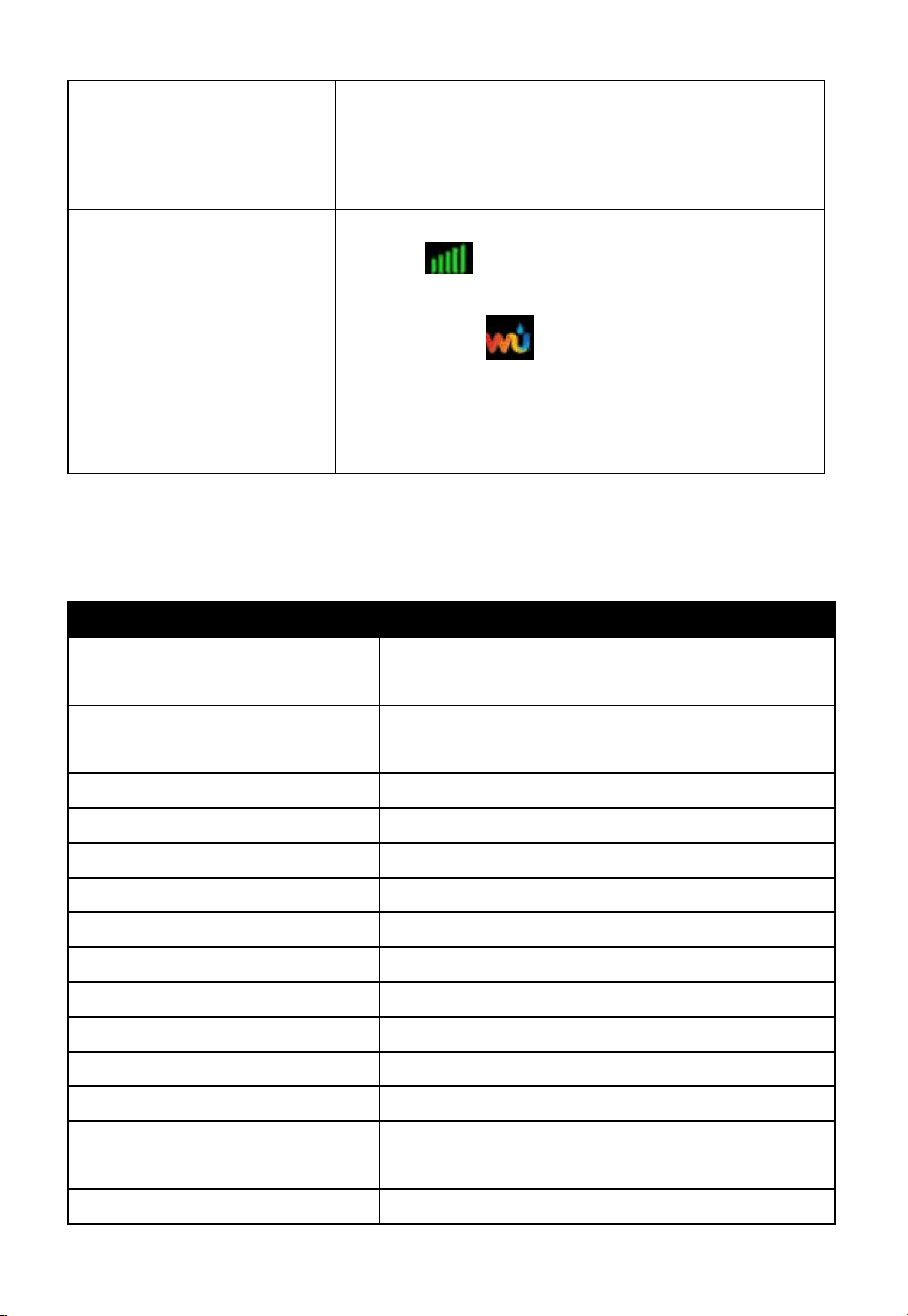
88
incorrect, you may be reporting old data, not real
time data.
Check your router firewall settings. The console
sends data via Port 80.
No WiFi connection
Check for WiFi signal strength symbol on the
display . If wireless connectivity is
successful and reporting to Wunderground.com,
the WiFi icon will be displayed the home
page.
Make sure your modem WiFi settings are correct
(network name, password and security settings).
8 Specifications
Note: Out of range values will be displayed using “---”
Outdoor sensor
Specification
Transmission distance in
open field
200 m (600 ft.)
RF Frequency
433 / 868 / 915 MHz depending on location
United States: 915 MHz
Temperature range
-40°C – 60°C (-40°F - 140°F)
Temperature accuracy
± 1°C, or ± 2°F
Temperature resolution
0.1°C, or 0.1°F
Humidity range
1% ~ 99%
Humidity accuracy
±4%
Humidity resolution
1%
Rain volume display range
0 – 6000 mm
Rain volume accuracy
± 5%
Rain volume resolution
0.1mm/0.01inch
Wind speed range
0 – 40 m/s (0 ~ 89mph)
Wind speed accuracy
<10m/s, +/-0.5m/s
≥10m/s, +/-5%
Wind direction accuracy
<10m/s, TBA
89
≥10m/s, ±15°
UV-Index range
0 - 15
Light range
0 – 120 kLux
Light accuracy
± 15%
Sensor reporting interval
Anemometer sensor : 4.8s
(wind speed sampling:
4s when less than 3m/s;
2s when wind speed > 3m/s but < 5m/s
1s when wind speed > 5m/s )
rain gauge sensor: 49s
Table 9: Outdoor sensor specification
Note:
When the maximum wind speed of the last 4s is >=5m/s, the wind speed is
detected by 1s; when the maximum wind speed of the last 4s is >=3m/s and
less than 5m/s, the wind speed is detected by 2s; when the maximum wind
speed of the last 4s is <3m/ s, the wind speed is detected by 4s.
The wind speed reading will be a real-time value (The latest sampling data
will be reporting to the receiver).
The wind gust reading will be the max wind speed in the past 28s.
When the wind speed is lower than 5m/s, the dispersion of wind direction
will increase.
Indoor sensor
Specification
Temperature range
-10°C – 60°C (14°F - 140°F)
Temperature resolution
0.1°C, or 0.1°F
Humidity range
10% ~ 99%
Humidity resolution
1%
Barometric pressure range
300 – 1,100 hPa (8.85 – 32.5 inHg)
Barometric pressure accuracy
± 3 hPa in 700 – 1,100 hPa range
Barometric pressure resolution
0.1 hPa (0.01 inHg)
Sensor reporting interval
60 seconds
Alarm Duration
120 seconds
Table 10: Indoor sensor specification
90
Power
Specification
Base station/console
5V DC Adapter (included)
Indoor sensor
2 x AA 1.5 Alkaline batteries (not included)
Rain gauge sensor
1 x AA 1.5V LR6 Alkaline (not included), or
1 x AA 1.5V Lithium battery (not included)
Anemometer sensor
Solar panel (built-in): 6.5V/4mA
Anemometer sensor
(backup)
2 x AA 1.5V Lithium battery (not included)
Table 11: Power specification
Note: The primary power source for the outdoor sensor is the solar panel.
When available solar power (light over recent period) is insufficient, the
batteries will be used. In outdoor climates that frequently have sustained
temperatures below 0°C (or 32°F) the use of Lithium batteries is strongly
suggested as these are performing better than Alkaline batteries under such
circumstances.
9 Warranty Information
We disclaim any responsibility for any technical error or printing error,
or the consequences thereof.
All trademarks and patents are recognized.
We provide a 1-year limited warranty on this product against manufacturing
defects, or defects in materials and workmanship.
This limited warranty begins on the original date of purchase, is valid only
on products purchased, and only to the original purchaser of this product. To
receive warranty service, the purchaser must contact us for problem
determination and service procedures.
This limited warranty covers only actual defects within the product itself and
does not cover the cost of installation or removal from a fixed installation,
normal set-up or adjustments, or claims based on misrepresentation by the
seller, or performance variations resulting from installation-related
circumstances.