
2
Table of Contents
1. Introduction........................................................................................... 4
2. Installation............................................................................................. 5
2.1 Part List............................................................................................5
2.2 Wi-Fi Configuration.........................................................................5
2.2.1 Power-up................................................................................... 5
2.2.2 Download the Ecowitt App .......................................................6
2.2.3 Connect the Station to Wi-Fi via Ecowitt App ......................... 7
2.2.4 Web Page 192.168.4.1............................................................ 11
2.2.5 Device Location, Timezone, DST, and Data Public ...............14
2.2.6 Replacing Wi-Fi Router ..........................................................15
2.3 Adding Sensors.............................................................................. 15
2.4 Upload Data to Server....................................................................16
3. Instructions for Use ..............................................................................17
3.1 Multiple Views and Size ................................................................17
3.2 Features .......................................................................................... 19
3.3 Icon Explanation............................................................................ 21
3.3.1 Date & Time ........................................................................... 22
3.3.2 CO₂/PM1.0/PM2.5/PM10/AQI...............................................23
3.3.3 Weather Forecast .................................................................... 24
3.3.4 Pressure Trend Function......................................................... 25
3.3.5 Wi-Fi Icon ...............................................................................25
3.3.6 Indoor Temperature, Humidity, and Pressure .........................26
3.3.7 Outdoor Temperature and Humidity .......................................26
3.3.8 Wind........................................................................................26
3.3.9 Rainfall....................................................................................27
3.3.10 UVI....................................................................................... 28
3.3.11 Moon Phase ...........................................................................29
3.3.12 Feels Like ..............................................................................29
3.4 LCD Display Brightness ................................................................ 30
3.5 Buttons ........................................................................................... 31
3.6 Product Modes ............................................................................... 33
3.6.1 Normal Mode ..........................................................................33
3.6.2 Setting Mode ...........................................................................35
3.6.3 Max/Min Value Mode .............................................................35
3.6.4 Alarm Setting Mode................................................................36
3.6.5 MAC Address Display............................................................37
3.7 Historical Data Export and Clear ...................................................37
3.7.1 Export History Data................................................................ 37

3
3.7.2 Clear History Data .................................................................. 38
3.8 Firmware Upgrade......................................................................... 39
4. Optional Sensors .................................................................................. 40
4.1 Sensors ........................................................................................... 40
4.1.1 Sensor Data Can be Displayed on the WS3800/WS3820 ...... 41
4.1.2 Sensor Data Can Only be Uploaded to the Cloud ...................43
4.2 IoT Device ..................................................................................... 44
4.2.1 Method 1 to Add Sub-device ................................................. 44
4.2.2 Method 2 to Add Sub-device .................................................. 45
5. Calibration............................................................................................47
5.1 Data Calibration .............................................................................47
5.2 Rainfall Calibration ........................................................................48
6. Others...................................................................................................49
6.1 Lightning Distance Unit .................................................................49
7. Specifications.......................................................................................50
8. Warranty and Certification .................................................................. 51
8.1 Warranty ........................................................................................ 51
8.2 FCC ................................................................................................52
9. Care and Maintenance ..........................................................................53
10. Contact Us ..........................................................................................54
10.1 After-sales Service.......................................................................54
10.2 Stay in Touch ............................................................................... 54
4
1. Introduction
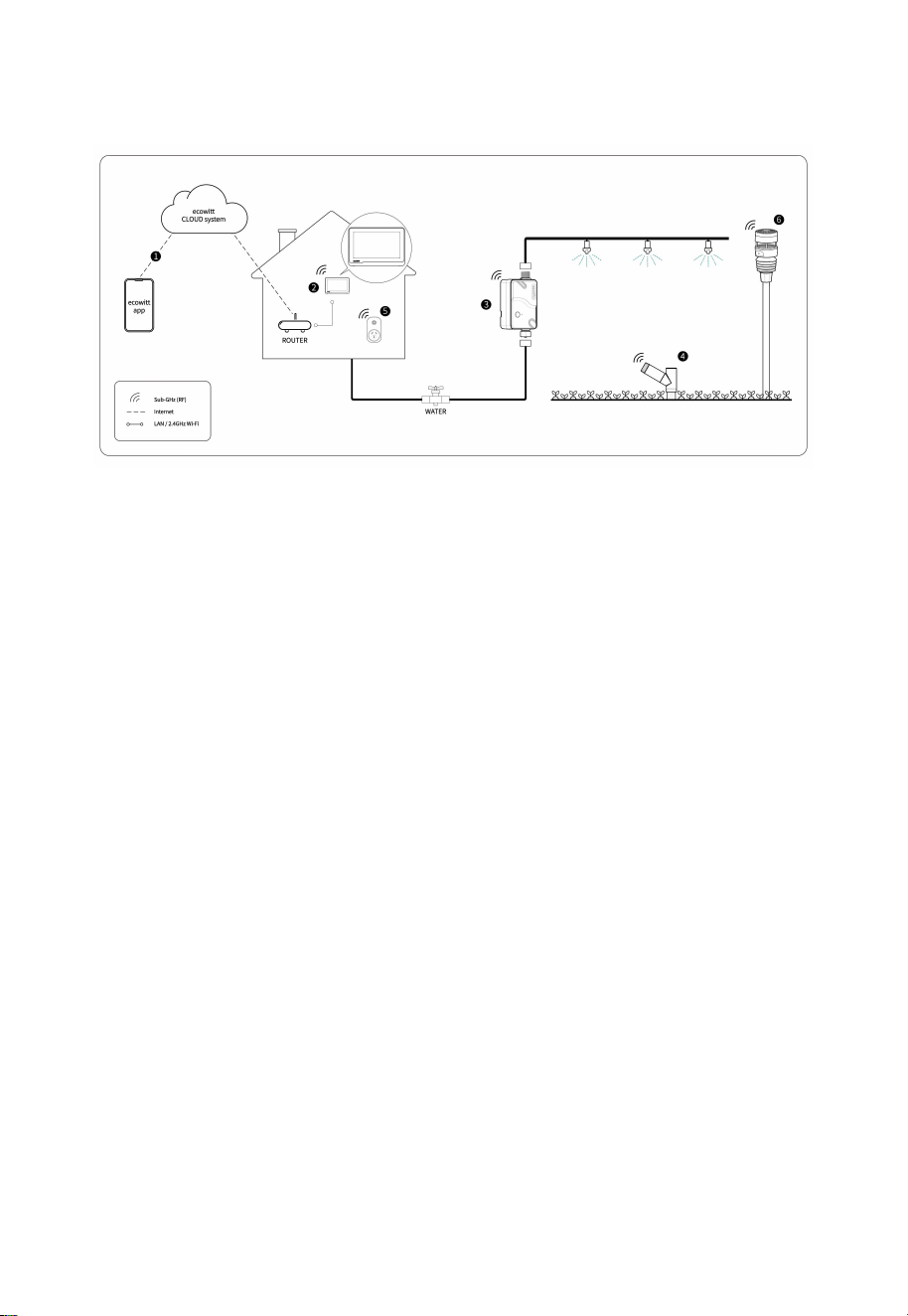
Figure 1: How Ecowitt system works
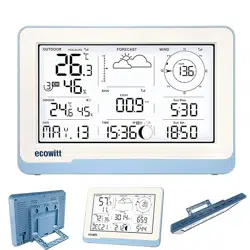
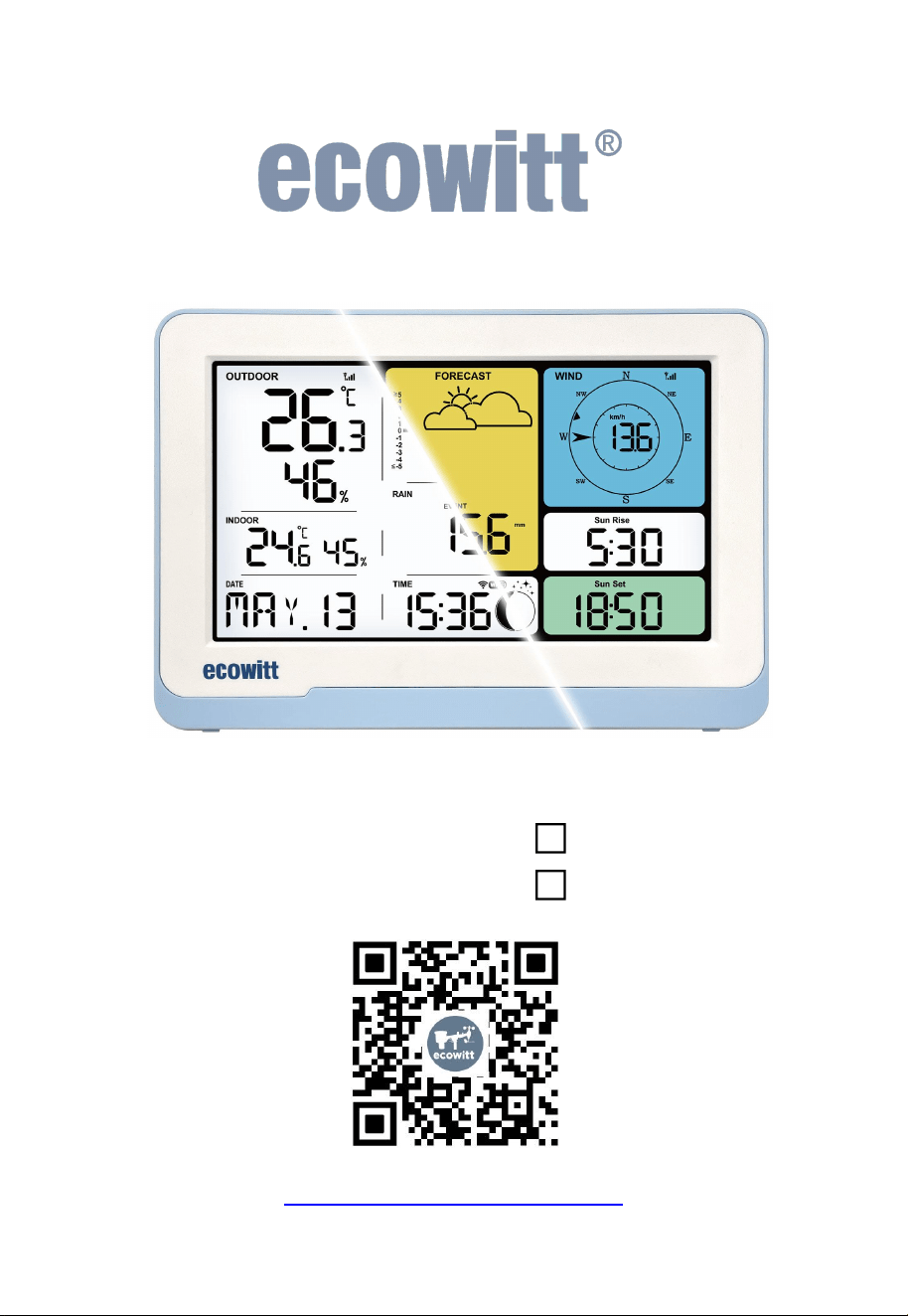
Thank you for your purchase of Ecowitt WS3800/WS3820 weather
station receiver.
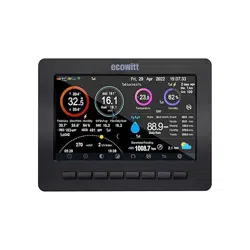
Ecowitt WS3800 has a 7.5" LCD white screen, and WS3820 has a 7.5"
LCD color screen, both are Wi-Fi weather station receivers. They support
monitoring indoor and outdoor conditions, and have built-in temperature,
humidity, and barometric pressure sensors, and can connect almost all
Ecowitt transmitters with the same RF frequency to use together, to get
accurate weather data including wind speed, wind direction, rainfall, UV,
solar radiation, outdoor temperature, outdoor humidity, dew point, feels
like, CO₂, PM1.0, PM2.5, PM10 and more.
Meanwhile, they support connecting IoT devices, such as WFC01 and
AC1100, to achieve smart control through Ecowitt App, which are
powerful weather station receivers.
WS3800/WS3820 supports connecting to a 2.4 GHz Wi-Fi network for
viewing data from anywhere on your phone, tablet, and computer
browser, all for free.
Just so you know, the WS3800/WS3820 needs to be used with optional
sensors to obtain outdoor weather data and is not a standalone product.
The following user guide provides step by step instructions for
installation and operation. Use this manual to become familiar with your
5
professional weather station and save it for future reference.
2. Installation
2.1 Part List
1 x WS3800/WS3820 Weather Station Receiver
1 x User Manual
1 x DC to USB Cable
2.2 Wi-Fi Configuration
2.2.1 Power-up
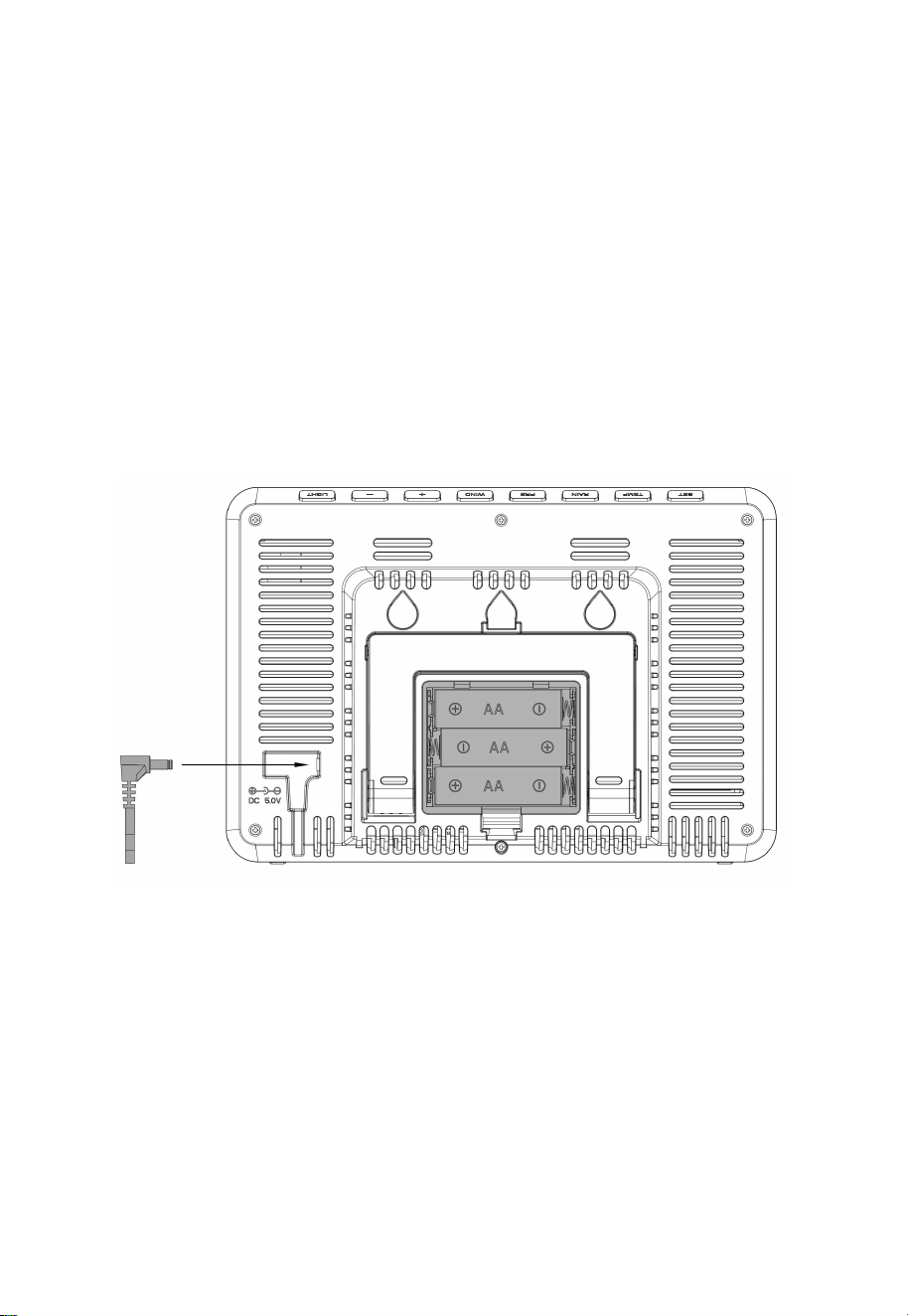
Figure 2: Power-up
Plug the 5V 1A Power Adapter into a main outlet, then connect it to
the Power socket on the back of the station to power on the device.
Then the console will enter automatically into pairing mode.
Optional: Insert 3 fresh AA alkaline or lithium batteries (not
included) into the Battery Compartment to power the station for
everyday use. Powered on batteries alone the WiFi mode will not be
turned on.
6
The software version number and frequency are displayed for 1 second,
then the full screen is displayed for 3 seconds and finally enters normal
mode.
2.2.2 Download the Ecowitt App
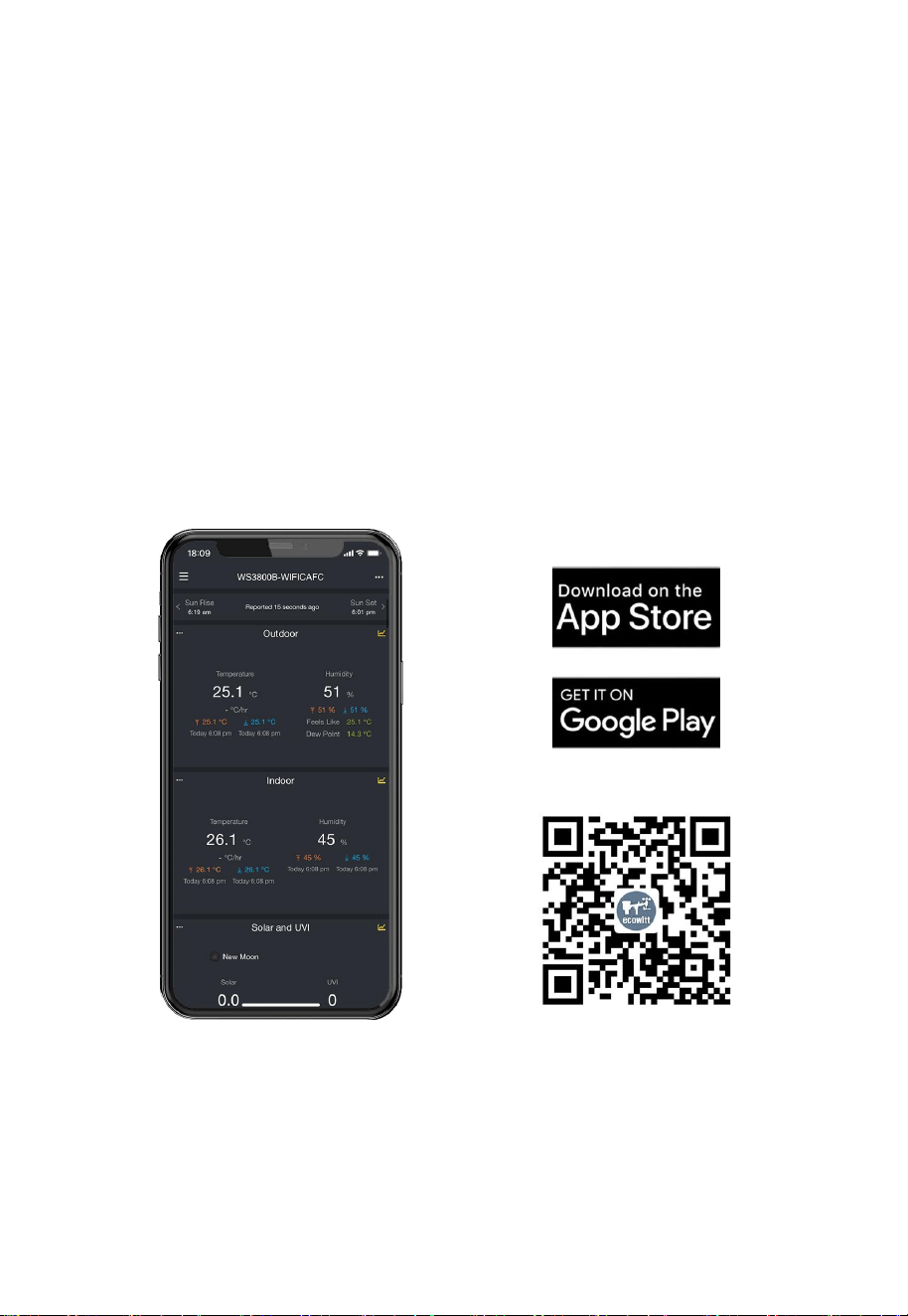
Visit the App Store or Google Play Store or scan the QR code below to
download the free Ecowitt App onto your mobile device.
Open the Ecowitt App, follow the on-screen setup instructions to create
an account, add a new device, and follow Section 2.2.3 or 2.2.4 below to
connect your station to your Wi-Fi network.
Figure 3: Download Ecowitt App
Note: For Section 2.2.3 or 2.2.4 below
(
2 ways to complete Wi-Fi
configuration
)
, you'll need your Wi-Fi network name (SSID) and
password.
7
2.2.3 Connect the Station to Wi-Fi via Ecowitt App
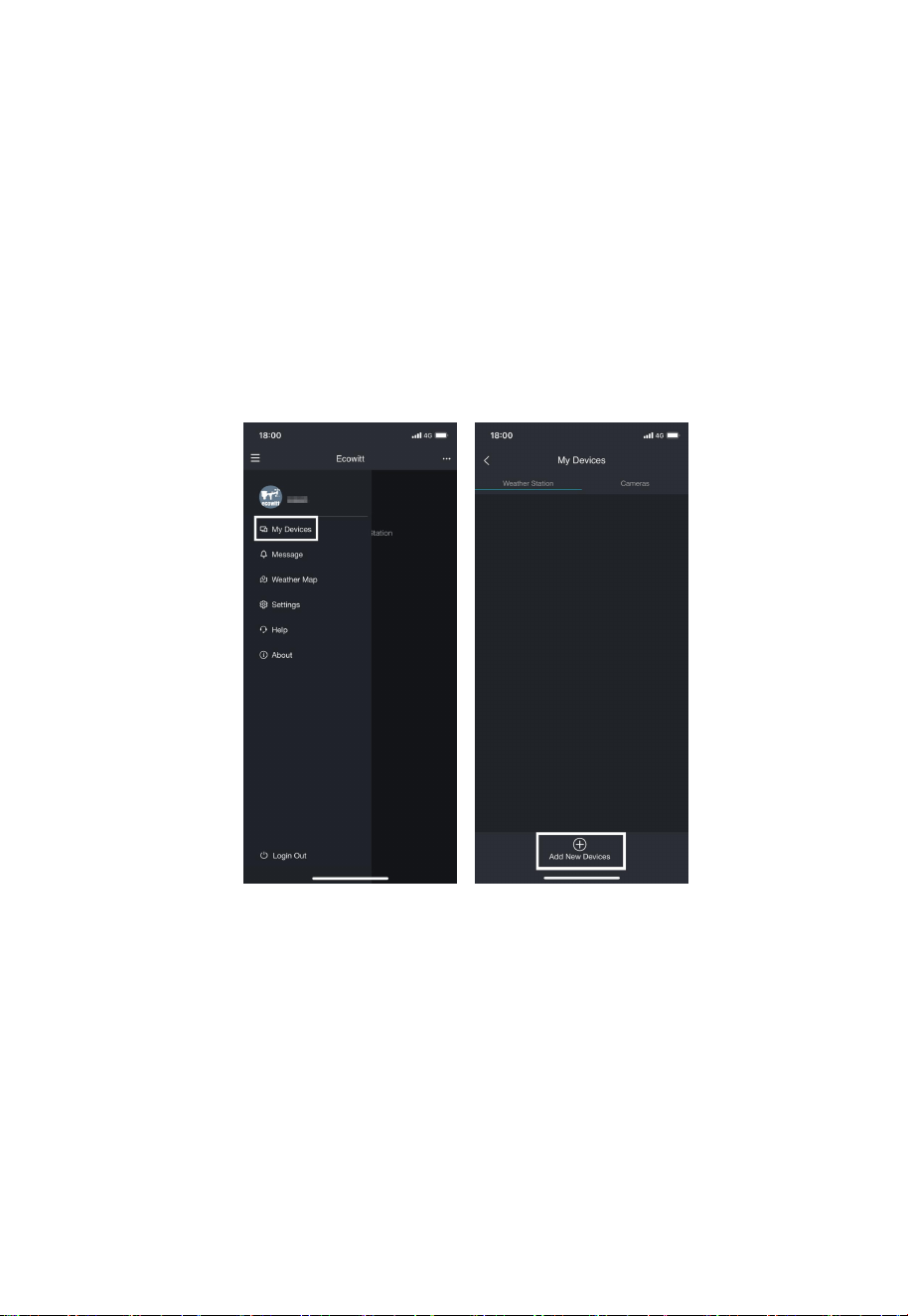
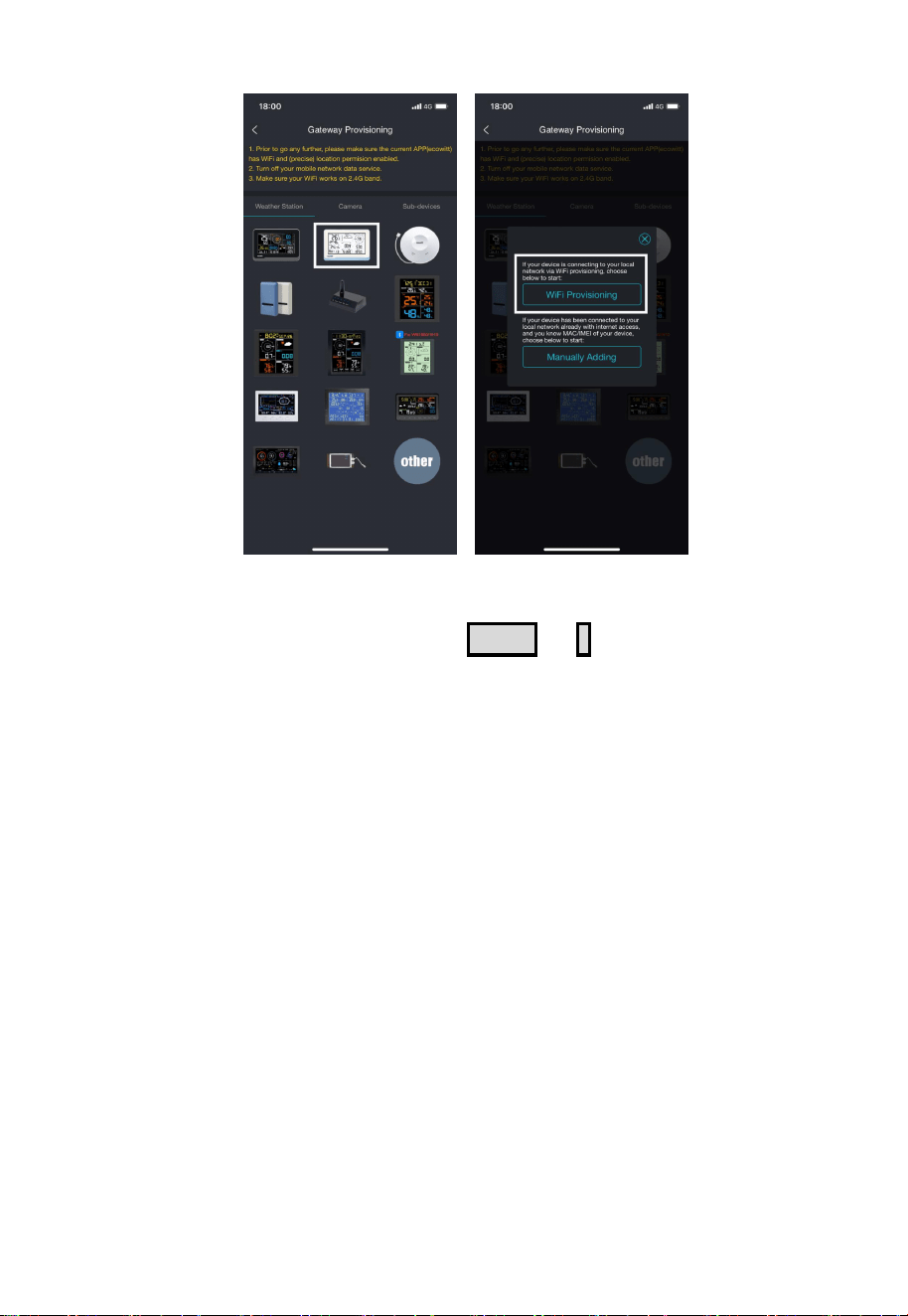
(1) Open Ecowitt App →"My Devices"→"Add New Devices"→click
WS3800/WS3820 icon→choose WiFi Provisioning:
8
Figure 4
(2) Hold WS3800/WS3820's button TEMP + - for more than 2s in
normal mode will turn on its hotspot, Wi-Fi icon will flash fast on the
screen. Use mobile phone to connect to the hotspot "WS3800x-
WIFIxxxx"/"WS3820x-WIFIxxxx"emitted by the receiver. Then tick
"Operation Completed"→"Next".
Note:
1. The Wi-Fi function does not turn on when the device is running solely
on battery power.
2. WS3800x-WIFIxxxx, the first x represents the frequency, A=868MHz,
B=915MHz, C=433MHz, xxxx represents the last 4 digits of the product
MAC address.
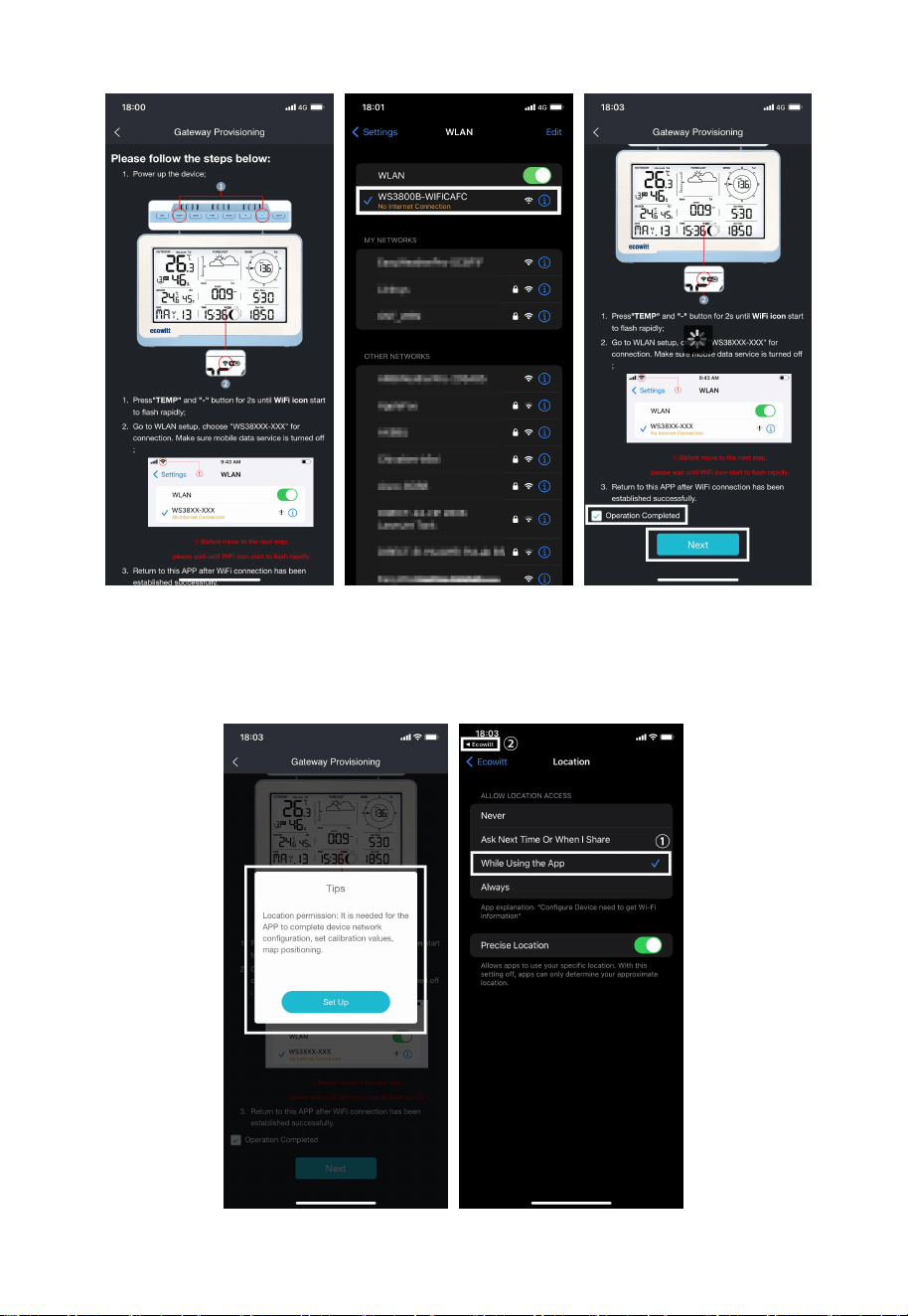
9
Figure 5
(3) Allow location access, recommend selecting "While Using the App".
Then return to the Ecowitt App.
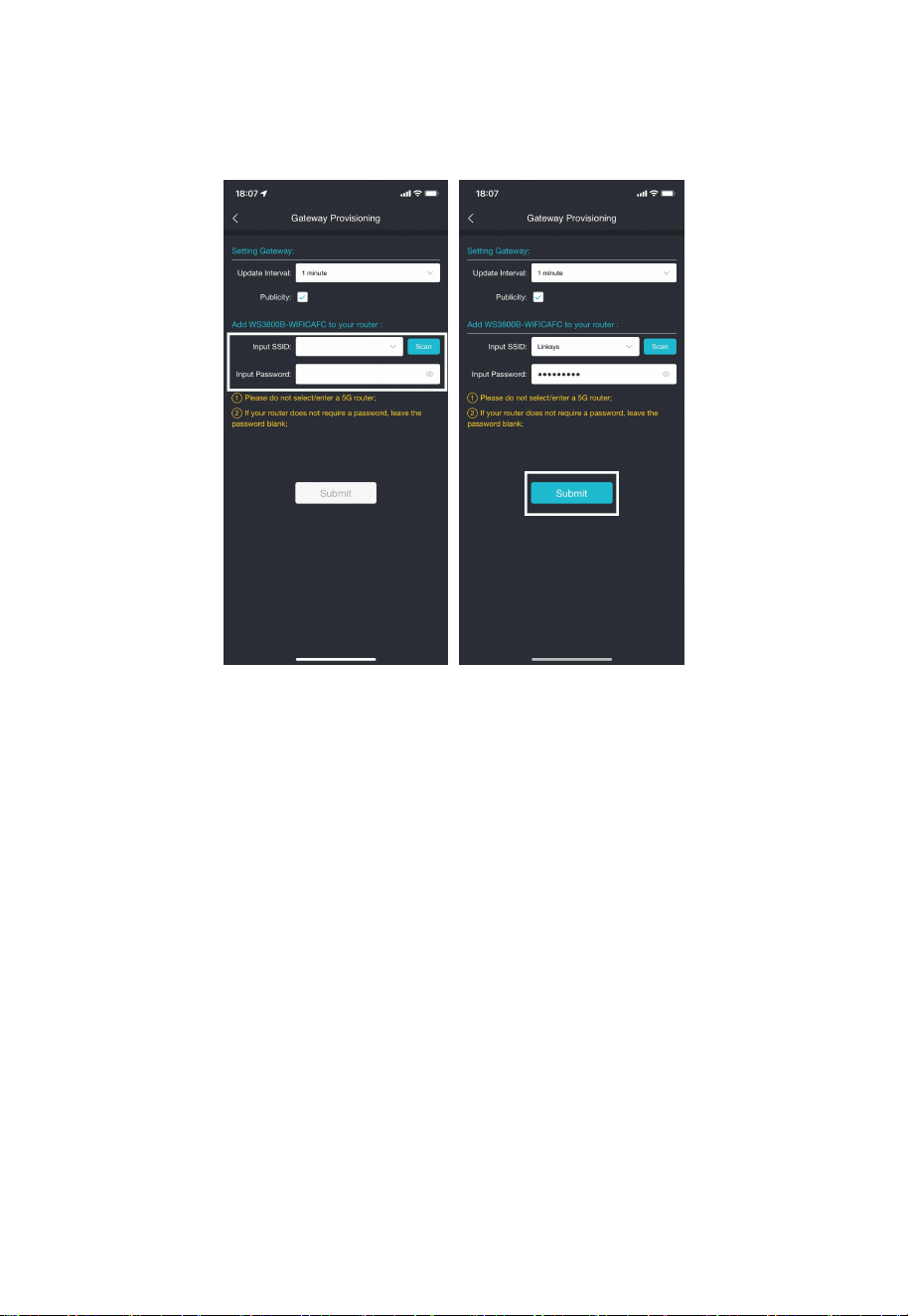
10
Figure 6
(4) Fill in the Wi-Fi SSID and password, then click "Submit".
Figure 7
(5) Now the gateway setup is successful. Switch the network of phone to
the same Wi-Fi WS3800/WS3820 is connected to. The receiver has been
successfully added to the App, then the data can be viewed online.
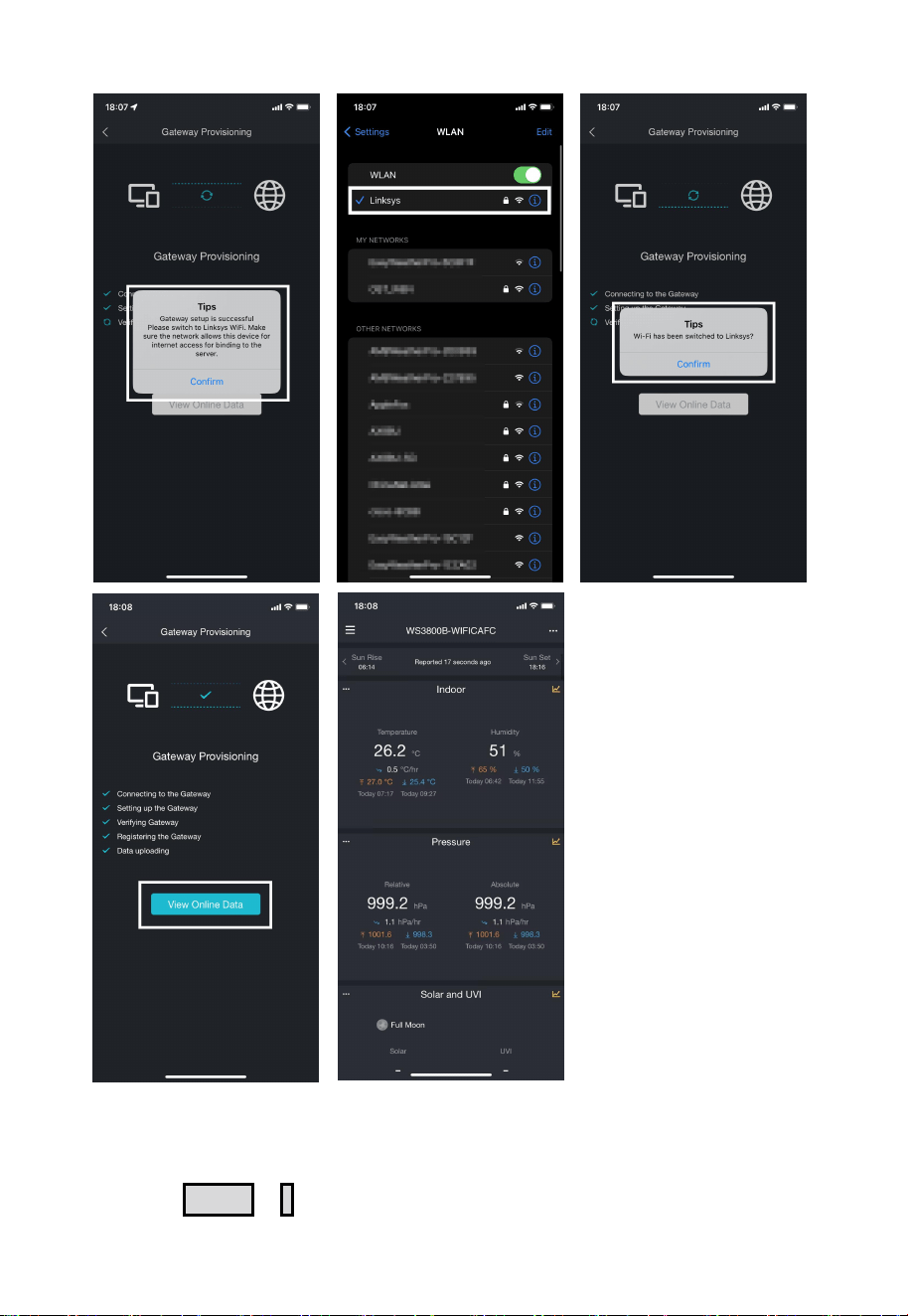
11
Figure 8
2.2.4 Web Page 192.168.4.1
(1) Hold TEMP + - to turn on WS3800/WS3820’s hotspot and connect
Note: If you are
unable to connect the
WS3800/WS3820 to
Wi-Fi using the
Ecowitt App, we
recommend using the
setup via Embedded
Web Page
192.168.4.1 on the
next page.
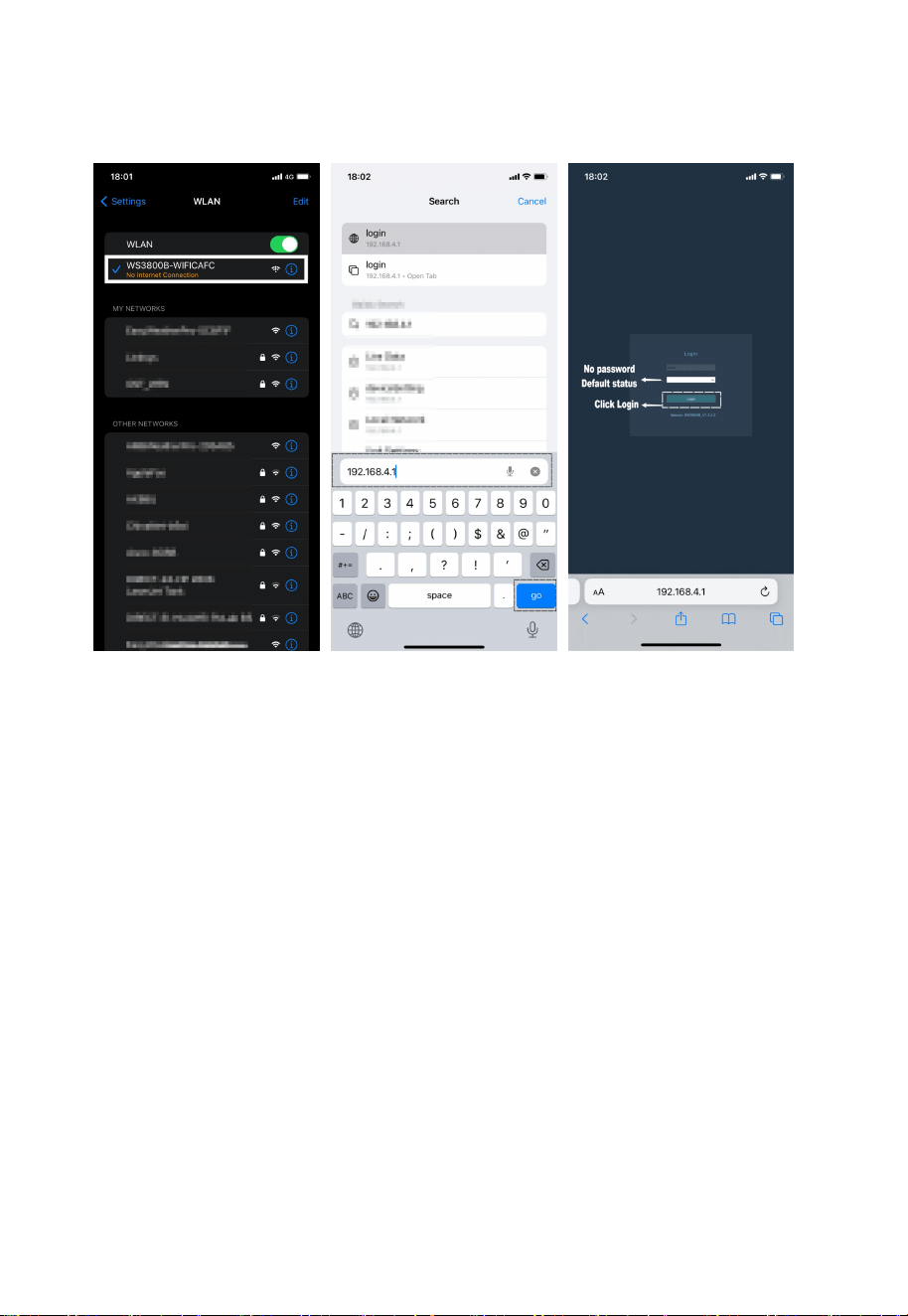
12
to this hotspot with your mobile device. Use mobile browser to search the
URL: 192.168.4.1. No password is set by default. Click login.
Figure 9
(2) Click Local Network. Input the name and password of the router.
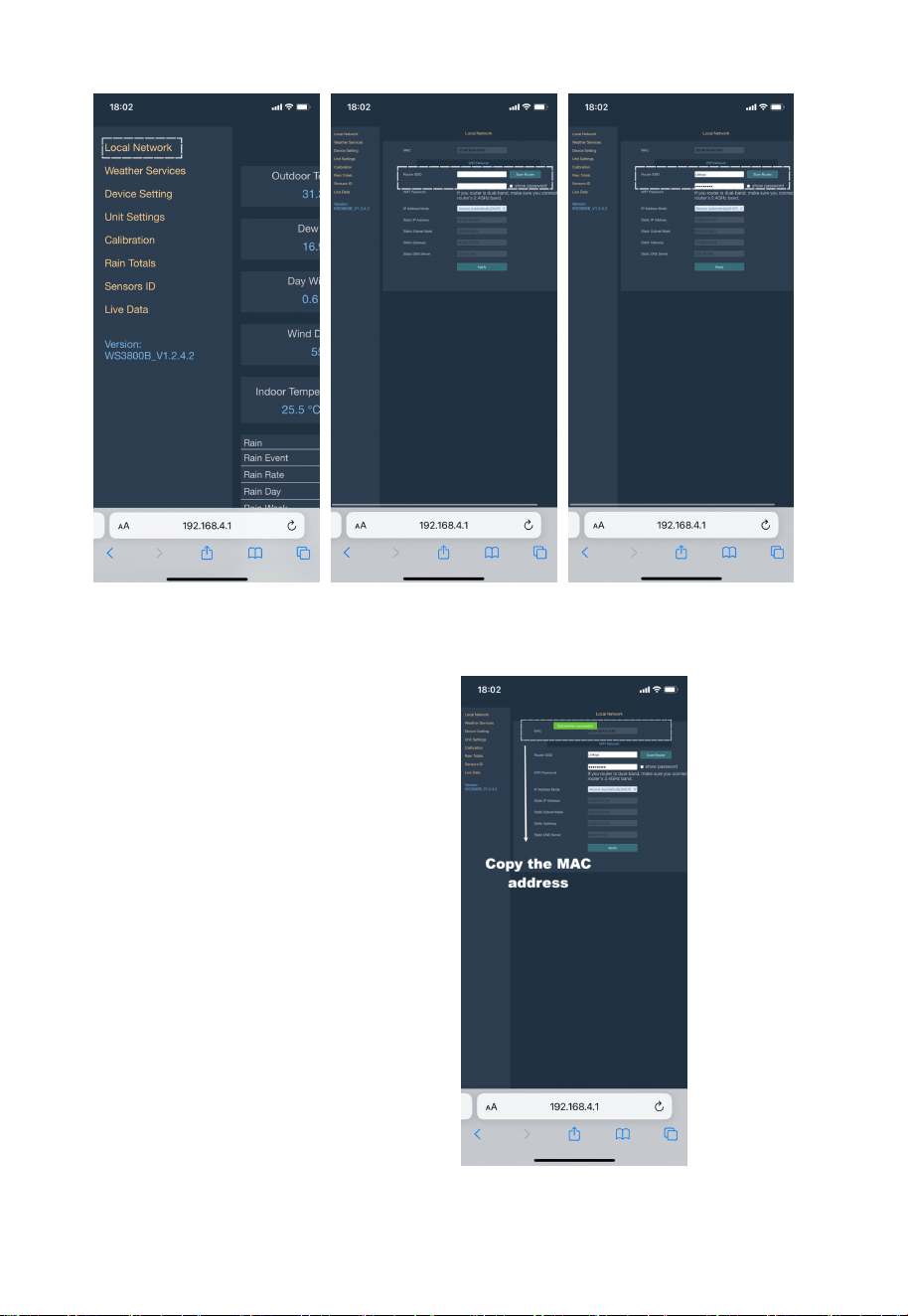
13
Figure 10
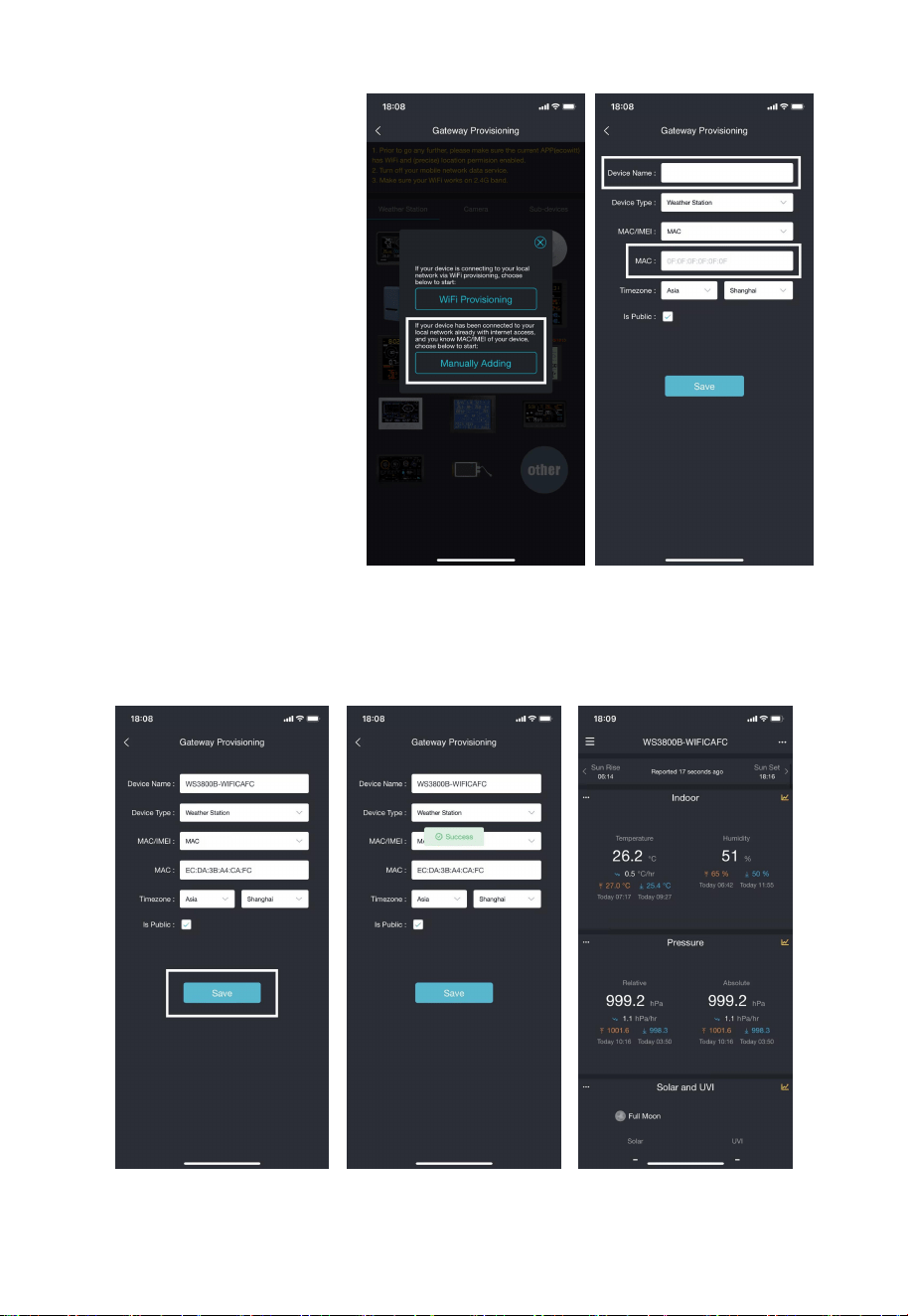
(3) Now the
WS3800/WS3820 is
successfully connected to
the Wi-Fi router. Copy the
MAC address for the
following steps.
Figure 11: Copy the MAC address
14
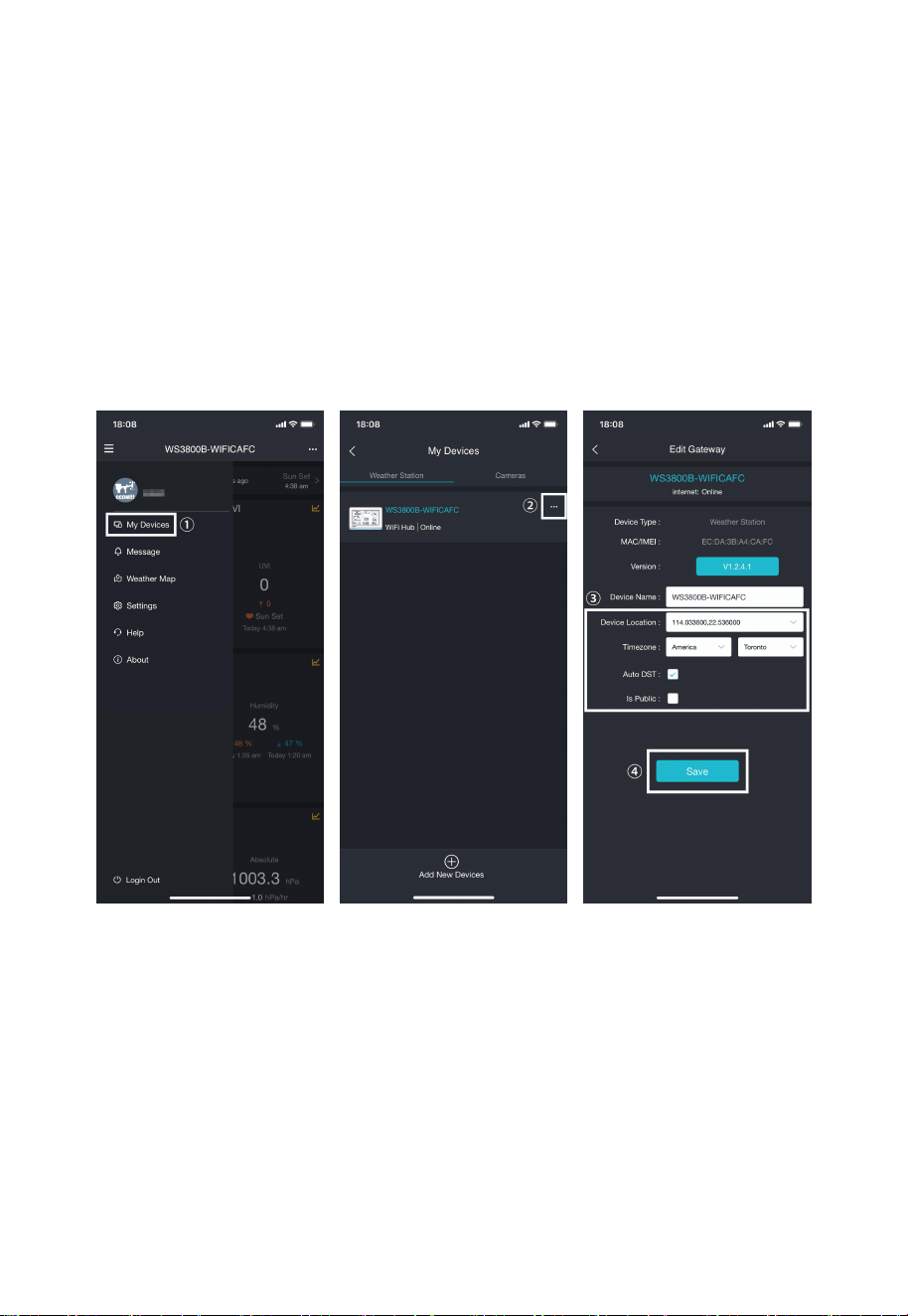
Figure 12
(5) Edit the Device Name and paste the MAC address copied in step (3)
into the box, and click "Save", then the data can be viewed online.
Figure 13
(4) Switch the
network of phone to
the same Wi-Fi
WS3800/WS3820 is
connected to. Open
Ecowitt App →"My
Devices"→"Add New
Devices"
→
click
WS3800/WS3820
icon→choose
Manually Adding.
15
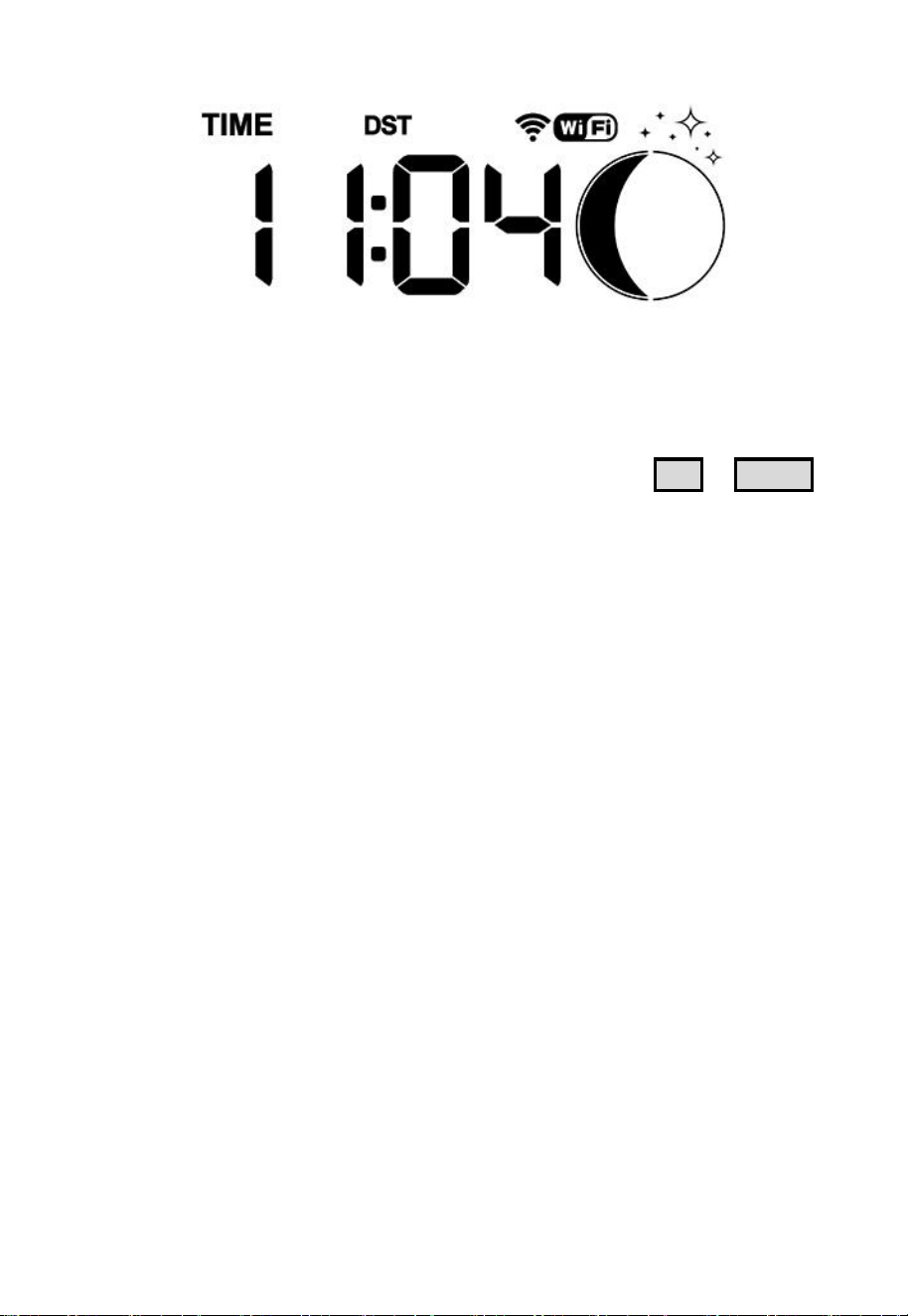
2.2.5 Device Location, Timezone, DST, and Data Public
After completing the Wi-Fi configuration, follow these steps for Device
location, Timezone, DST (Daylight Saving Time), and Data public
settings.
1. Click on "My Devices".
2. Click on the "..." icon.
3. Set the Device's location and Timezone on this interface. Tick "Auto
DST" and "Is Public" when necessary.
4. Click "Save", then reboot the WS3800/WS3820, the receiver will
automatically synchronize time and DST.
Figure 14: Related settings via Ecowitt App
Note: After completing the above Wi-Fi configuration and related
settings, the WS3800/WS3820 screen will display a stable Wi-Fi signal
tower, auto time zone, and DST (when necessary).
16
Figure 15: WS3800/WS3820 sync App related settings
2.2.6 Replacing Wi-Fi Router
If you want to change your router, follow Section 2.2.3 or 2.2.4 again
after restoring the gateway to its factory settings (Hold SET + LIGHT
for a factory reset).
2.3 Adding Sensors
To pair the optional sensors (refer to Section 4 for more optional sensors)
with the WS3800/WS3820, please do as follows:
1. Power the sensor on and place it next to the console.
2. Wait for 1~2 minutes, check whether the console will pick up the sensor
data automatically and display it on the screen or App.
3. If data is not received from a registered sensor, the RF icon will
decrease the signal by one frame; if data is received, the RF icon will
increase the signal by one frame.
4. If data is not received, try the following: after making sure the phone
and WS3800/WS3820 are connected to the same Wi-Fi network, open
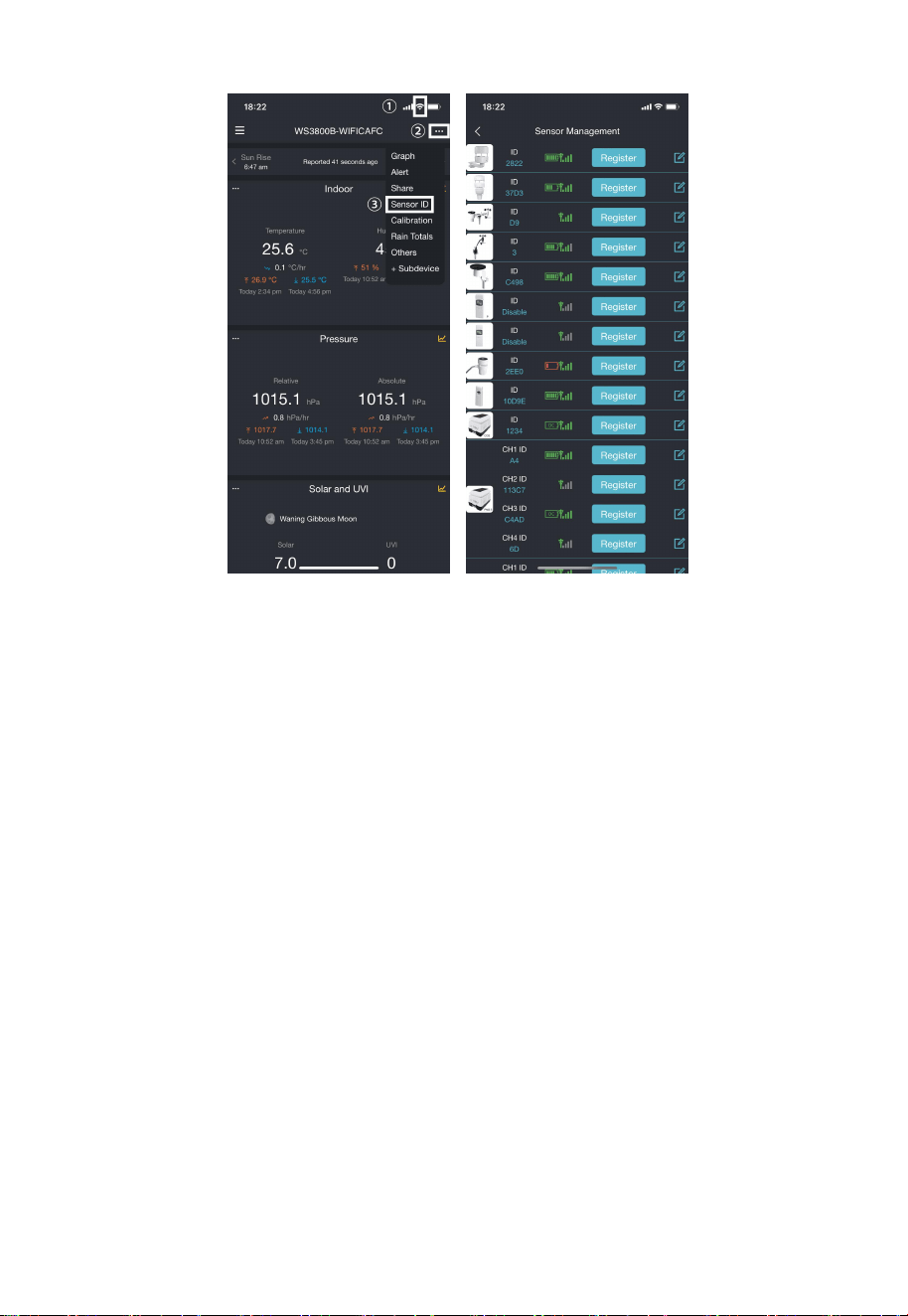
the Ecowitt App→Sensor ID→enter the Sensor Management page.
5. In the Sensor Management page, find the sensor you want to pair, select
the ID number box and register it.
6. Once successful, you may return to the main interface to check the data.
7. If you know exactly the sensor ID, and want the WS3800/WS3820 to
pair that sensor only, you may enter the sensor ID, and save the change
to make it effective.
17
Figure 16: Sensor Management page
2.4 Upload Data to Server
After the Wi-Fi configuration is successful, data can be uploaded to the
following weather station servers:
A. ecowitt.net (Default upload to this server)
B. wunderground.com
C. weathercloud.net
D. wow.metoffice.gov.uk
E. Customized servers
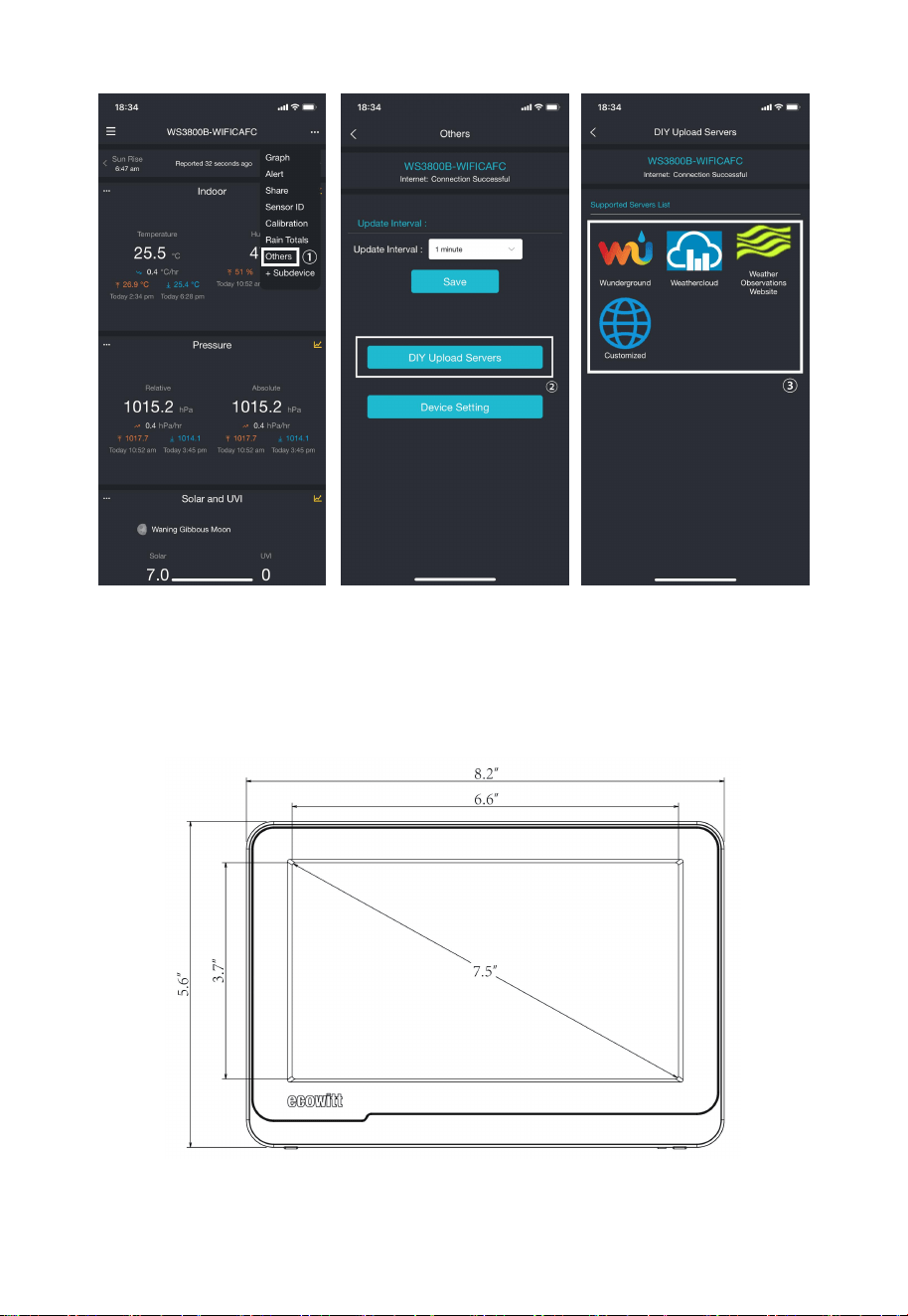
Upload servers management:
(1) Ensure that the mobile phone and WS3800/WS3820 receiver are
using the same Wi-Fi.
(2) Ecowitt App → "..." at the top right corner → "Others" → "DIY
Upload Servers".
18
Figure 17: Upload data to server
3. Instructions for Use
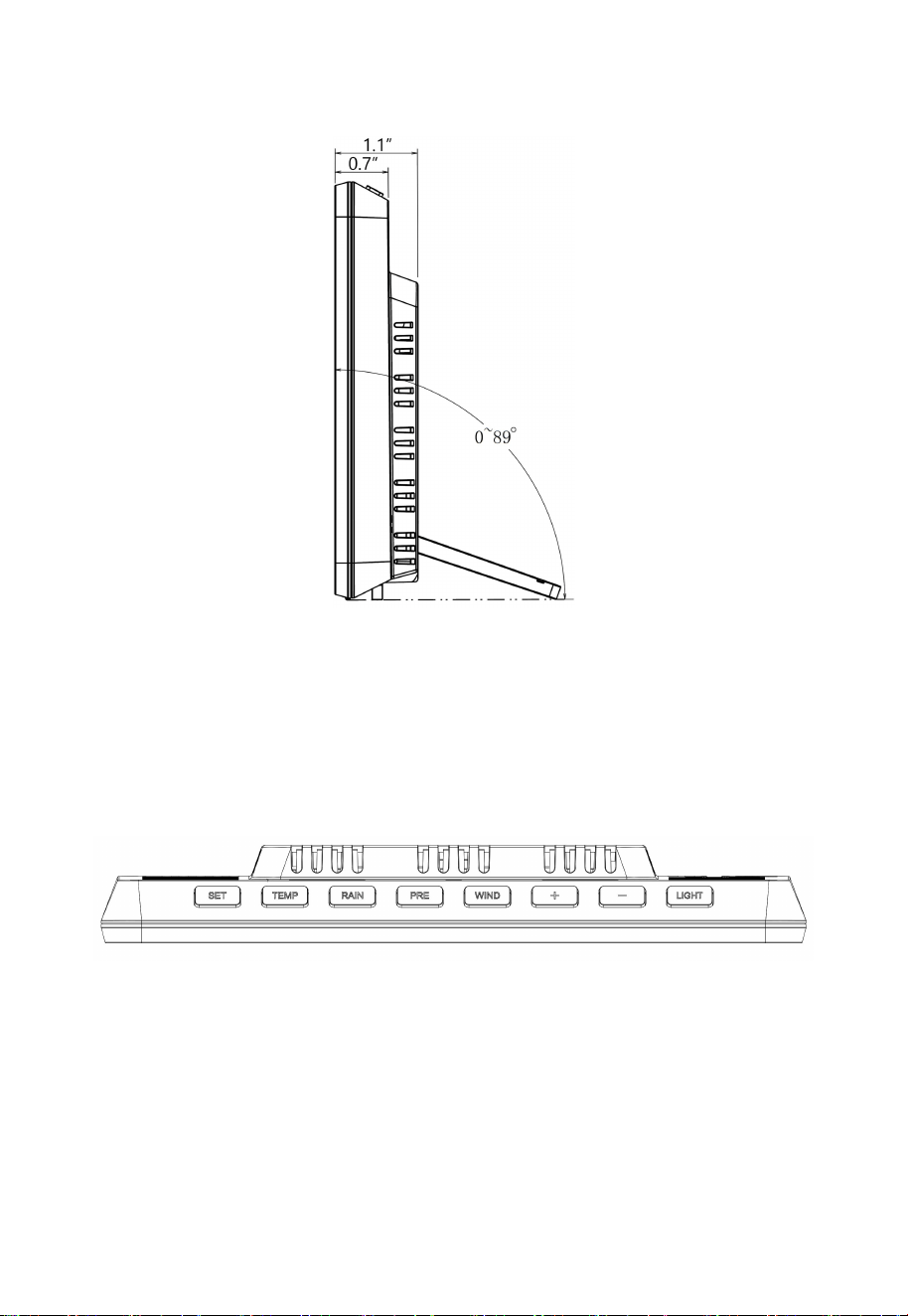
3.1 Multiple Views and Size
Figure 18: Main view
19
Figure 19: Right view
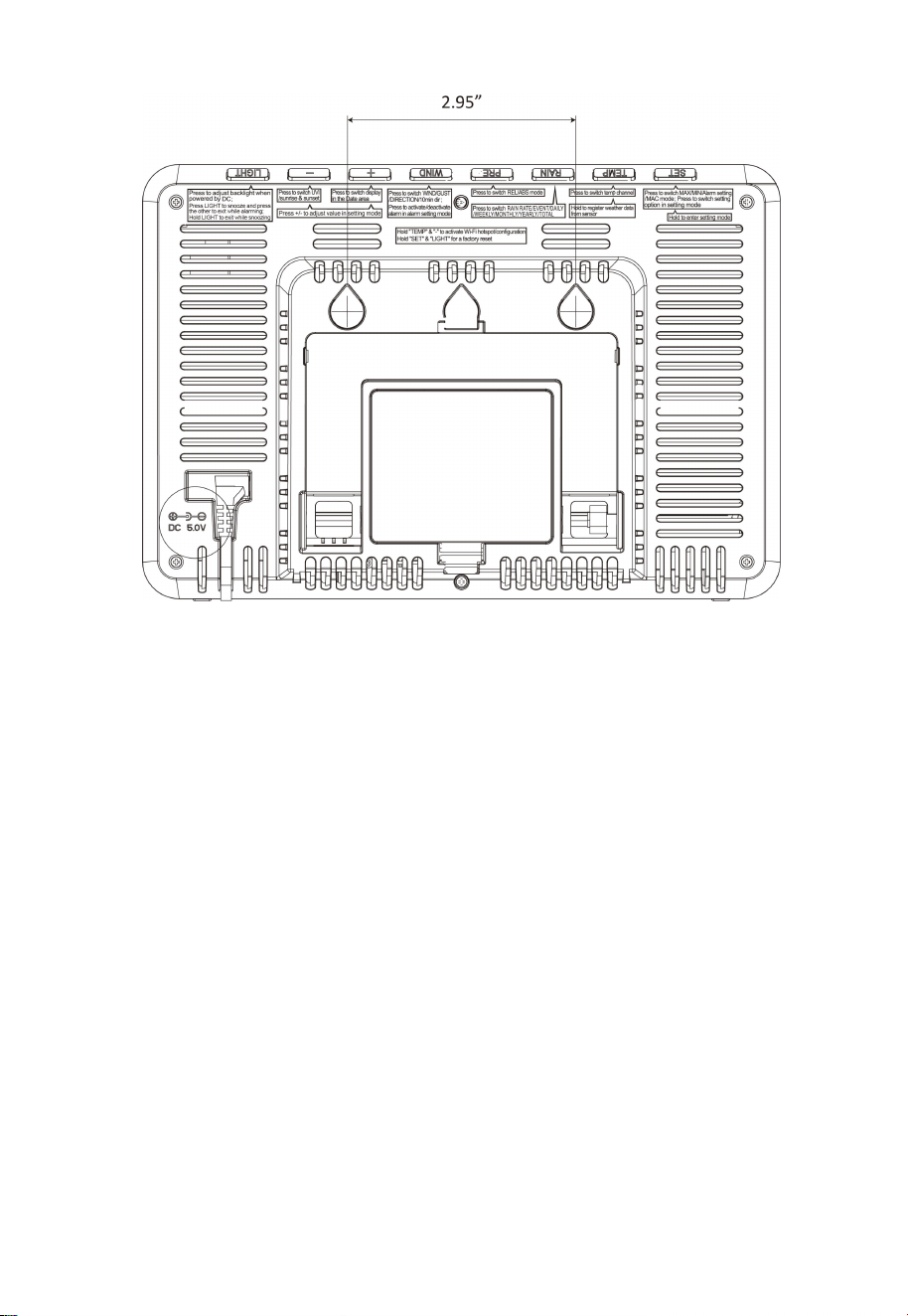
Figure 20: Top view
20
Figure 21: Rear view (Refer to Section 3.5 for Button functions)
3.2 Features
WS3800: 7.5" LCD, white screen
WS3820: 7.5" LCD, color screen
8 physical buttons
Support DC powered and 3 x AA alkaline or lithium batteries
powered (3 fresh AA batteries (not included) can only run for 15-
25days. Only used as a short-term backup power)
Calendar, date, time, moon phase, sunrise, and sunset
Built-in temperature humidity sensor, and barometric pressure
sensor
Support displaying indoor temperature, humidity, pressure, and
changing trend
Support receiving and displaying 8 channels temperature and
humidity sensor data
Support receiving and displaying wind speed, wind direction,

21
rainfall, UV, solar radiation, feels like, dew point, CO₂, PM1.0,
PM2.5, PM10, and AQI data
Weather forecast: Sunny, Partly Cloudy, Cloudy, Rainy, Stormy,
Snowy and Storm Snowy
Record Max & Min value
Alarm & Snooze function
Support unit setting
Support DST (Daylight Saving Time)
RST function (Clear daily max/min values)
Support backlight adjustment under DC power supply
Can be used as a Wi-Fi gateway to support the reception of more
sensors' data, which can be viewed through the web page
Support Wi-Fi configuration on the web page (192.168.4.1), view
more sensor data, set up server, set up calibration parameters, set
up sensor ID
Data storage on Ecowitt server: https://ecowitt.net
Support uploading data to the weather station server after
connecting to the Wi-Fi network:
■ ecowitt.net (Default upload to this server)
■ wunderground.com
■ weathercloud.net
■ wow.metoffice.gov.uk
■ Customized servers
Support optional sensors, please refer to Section 4
22
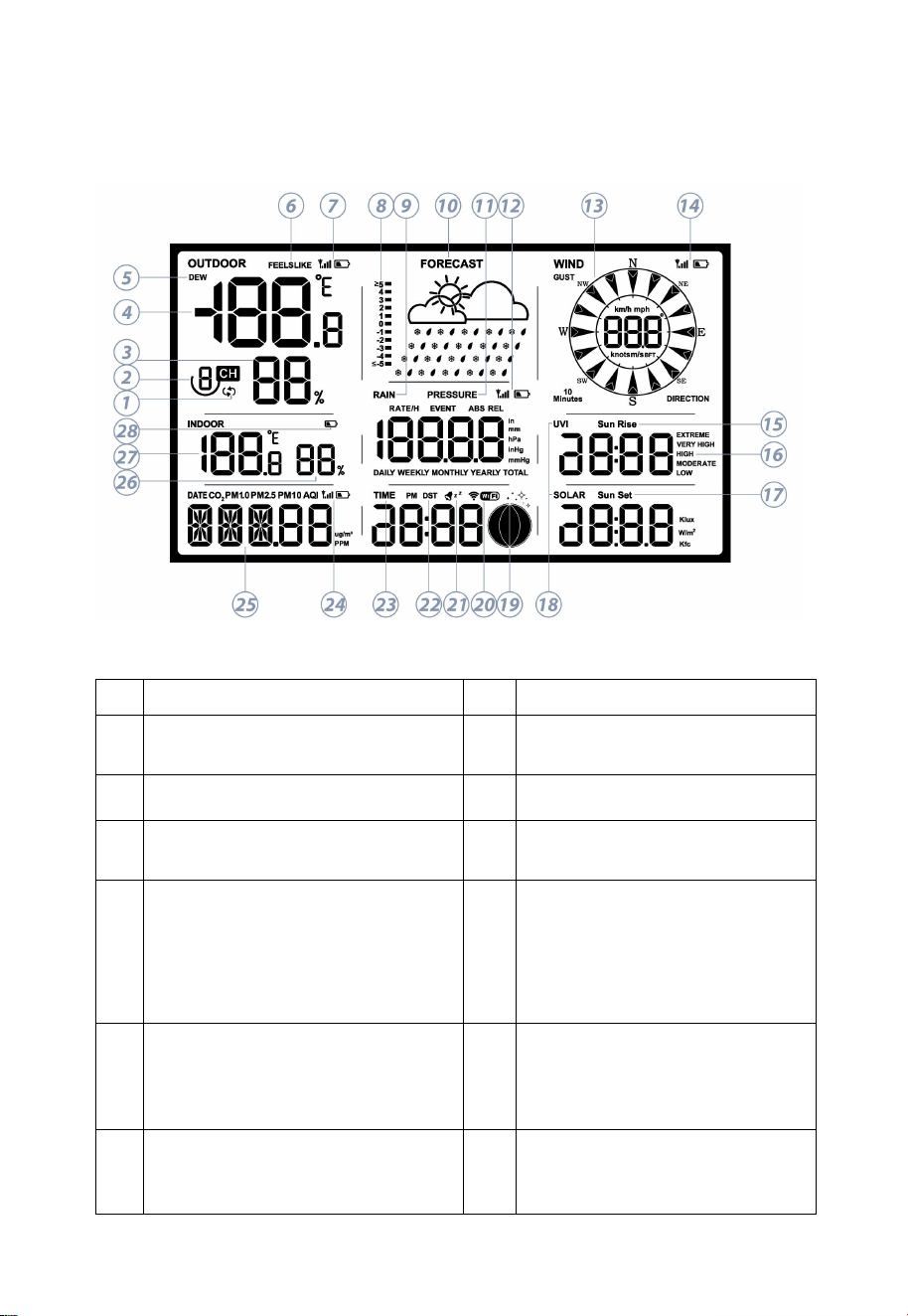
3.3 Icon Explanation
See Figure 22 to help you identify icons of the console's display screen.
Figure 22
No
Description
No
Description
1
Auto-Scroll
2
Multi-channel temperature
and humidity sensors
3
Outdoor humidity
4
Outdoor temperature
5
Dew point
6
Feels like/Apparent
temperature
7
RF signal bar and low battery
power indicator for WS69
outdoor sensor array or
WN30/31/36 multi-channel
sensors
8
Pressure trend function
9
Rain Rate/Event/Daily/
Weekly/Monthly/Yearly/
Total
10
Weather forecast
11
ABS/REL pressure
12
RF signal bar and low
battery power indicator for
WH40 rain gauge sensor
23
Table 1: Icon explanation
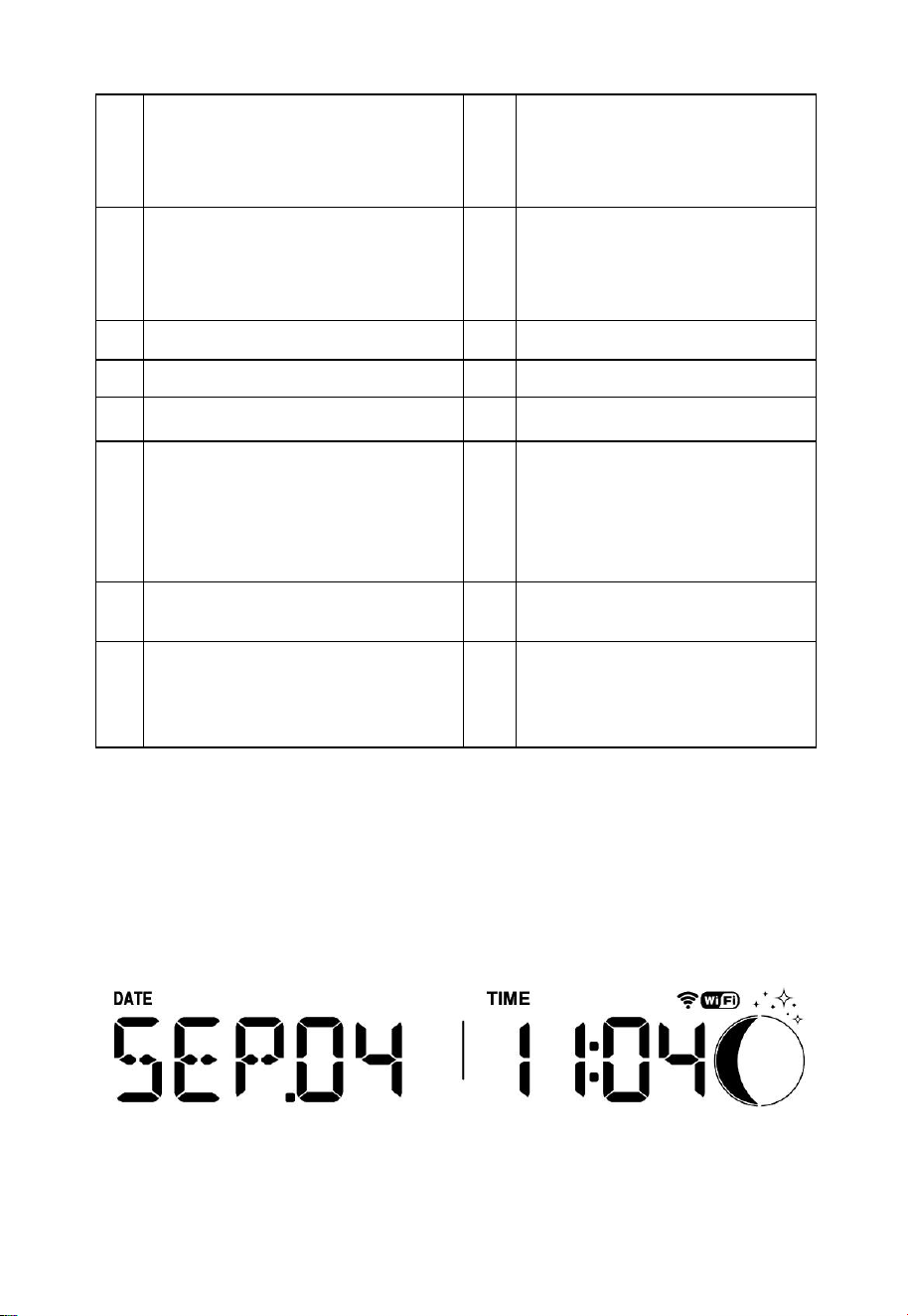
3.3.1 Date & Time
The date and time will be automatically updated when the Wi-Fi
configuration is finished, and the automatic time zone is set. (refer to
Section 2.2 for Wi-Fi configuration)
Figure 23: Date & Time
13
Wind speed/Gust/Direction/
10min direction
14
RF signal bar and low
battery power indicator for
WS90/WS85/WS80/WS68
outdoor sensor array
15
Sunrise
16
Range of variation of UV
index (EXTREME/VERY
HIGH/HIGH/MODERATE/
LOW)
17
Sunset
18
UVI & Solar radiation
19
Moon phase
20
Wi-Fi signal bar
21
Alarm & Snooze
22
DST (Daylight Saving Time)
23
Time
24
RF signal bar and low
battery power indicator for
WH45/WH46 air quality
sensor
25
Date/CO₂/PM1.0/PM2.5/
PM10/AQI
26
Indoor humidity
27
Indoor temperature
28
Low battery power/no
battery indicator for
WS3800/WS3820
24
Every 5 seconds, switch the display between the month and day of the
week in the same area.
Figure 24: Month & Week
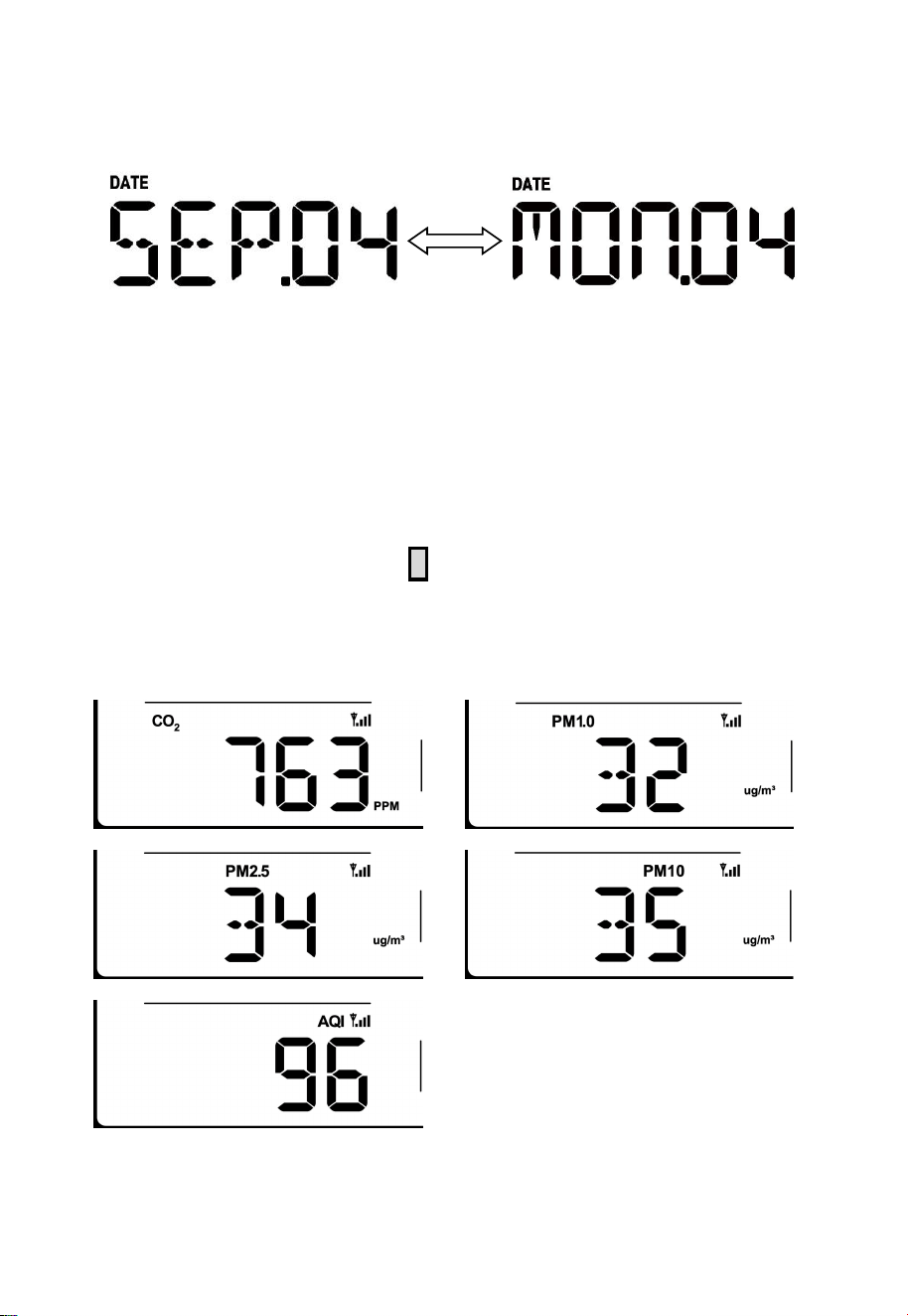
3.3.2 CO₂/PM1.0/PM2.5/PM10/AQI
WS3800/WS3820 supports connecting one WH45 or one WH46 air
quality sensor and displaying CO₂/PM1.0(only WH46)/PM2.5/PM10/
AQI data. Air quality data share the same display area with Date, which
can be switched by pressing the + button.
Note: PM4.0, temperature, and humidity (measured by WH46) readings
are only available in the Ecowitt App or web page, not on the display.
Temperature and humidity measured by WH45 are also the same.
Figure 25: CO₂/PM1.0/PM2.5/PM10/AQI
25
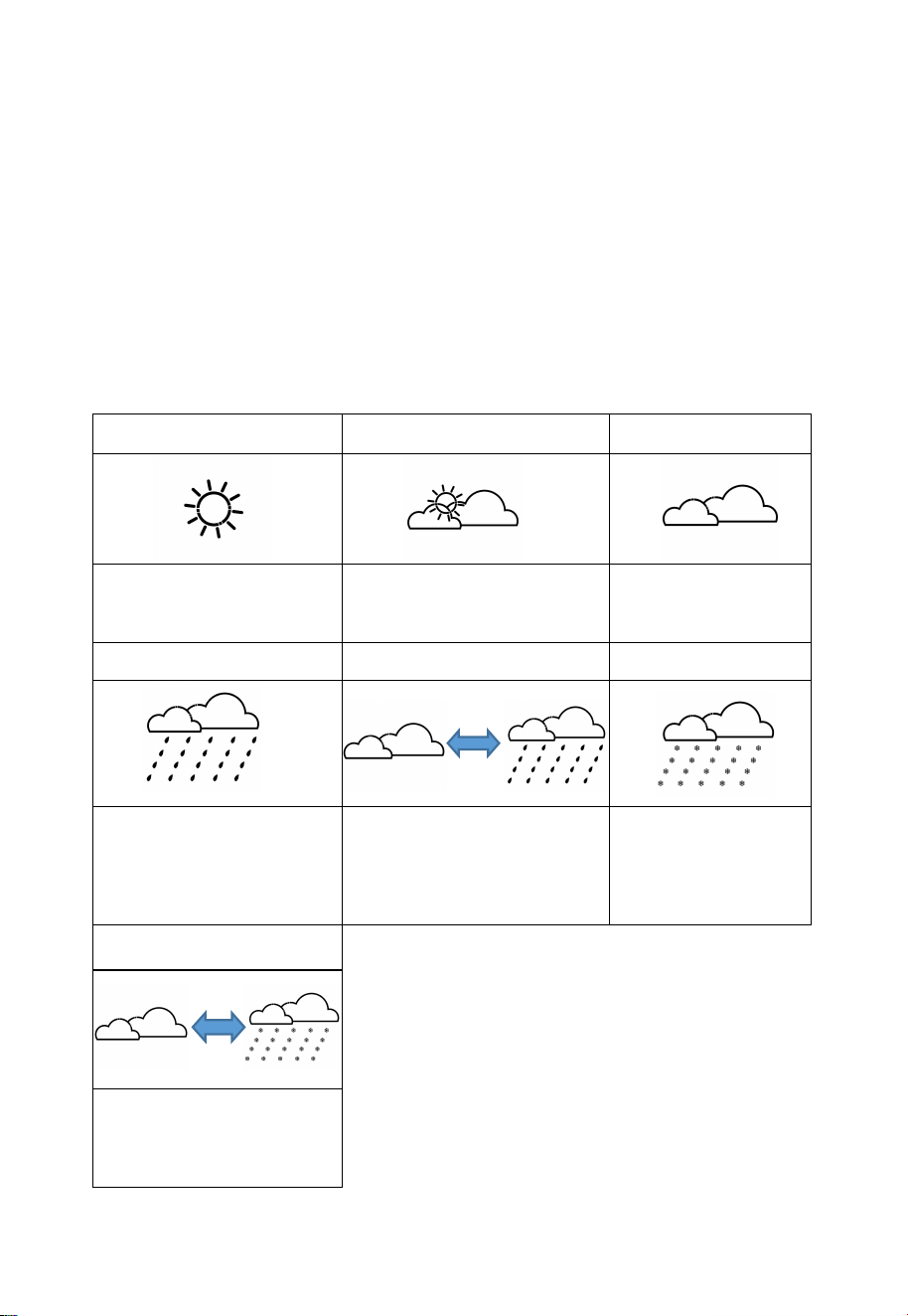
3.3.3 Weather Forecast
Weather forecast is based on learning the local air pressure over a period
(at least one month) and then making a prediction of the weather for the
day ahead based on the change in air pressure.
There are seven weather conditions: Sunny, Partly Cloudy, Cloudy,
Rainy, Stormy, Snowy and Storm Snowy.
Rain/snow will blink when in a Stormy/Storm Snowy condition. When
the outdoor temperature is below 32°F (0°C) and the weather forecast is
Rainy or Stormy, the display will show the Snowy condition.
Table 2: Weather forecast
Sunny
Partly Cloudy
Cloudy
Pressure increases for a
sustained period of time
Pressure increases slightly
or initial power up
Pressure decreases
slightly
Rainy
Stormy
Snowy
Pressure decreases for a
sustained period of time
Pressure rapidly decreases
Pressure decreases
for a sustained
period of time, and
temperature ≤0℃
Storm Snowy
Pressure rapidly
decreases, and
temperature ≤0℃
26
Figure 26: Pressure Trend
3.3.5 Wi-Fi Icon
Wi-Fi Icon Status
Description
Flash
Situation 1: Device power up or hold TEMP + - .
Situation 2: WS3800/WS3820 is not connected to
the router.
Slow flash
WS3800/WS3820 is connected to the router
but has no internet access. The data hasn't been
successfully uploaded.
Constant light
The data has been uploaded to the server.
The Wi-Fi icon indicates the signal strength.
Table 3:Wi-Fi icon
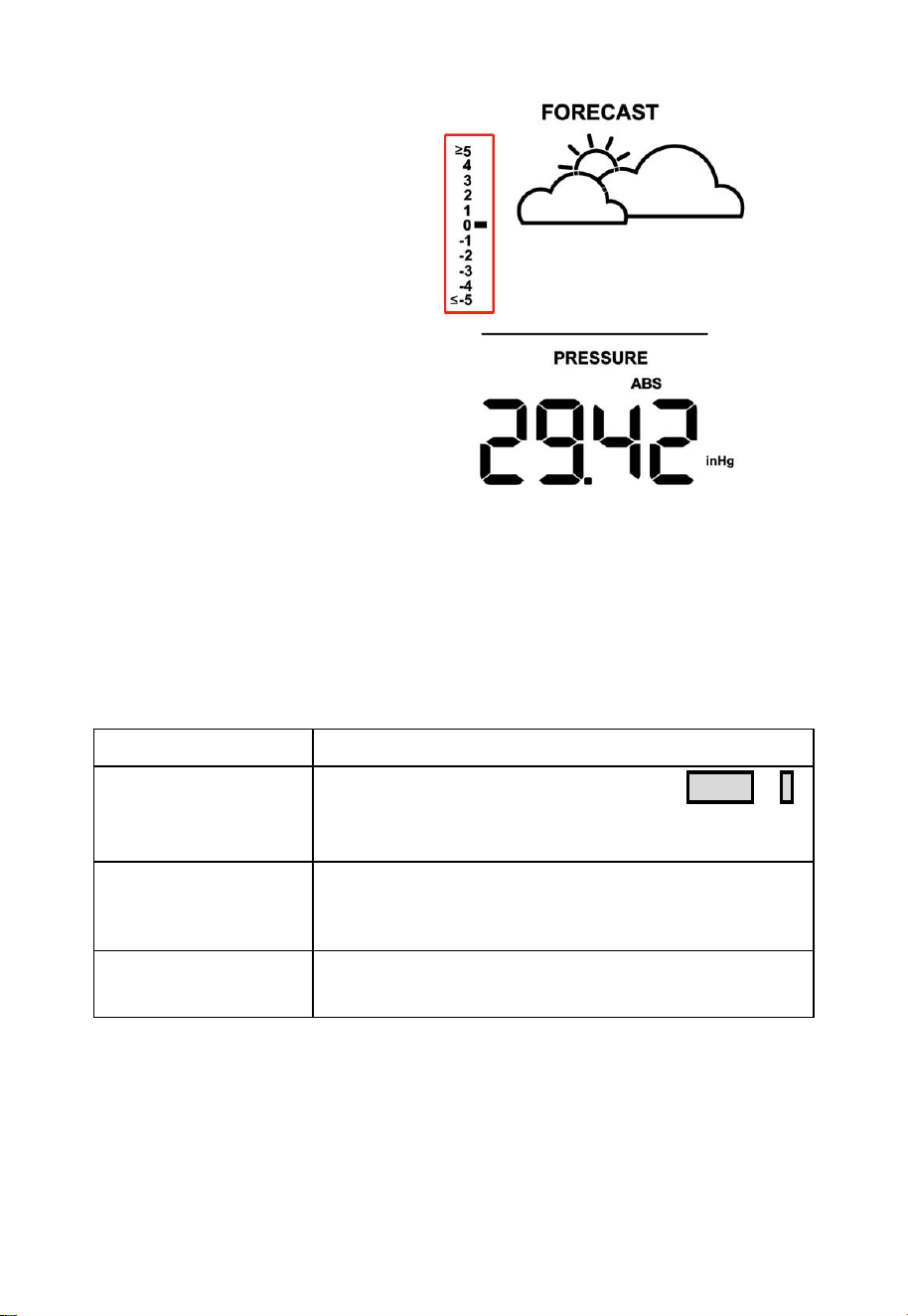
3.3.4 Pressure Trend
Function
Indicates the difference
between the current
barometric pressure and the
average barometric pressure
over the past 30 days.
27
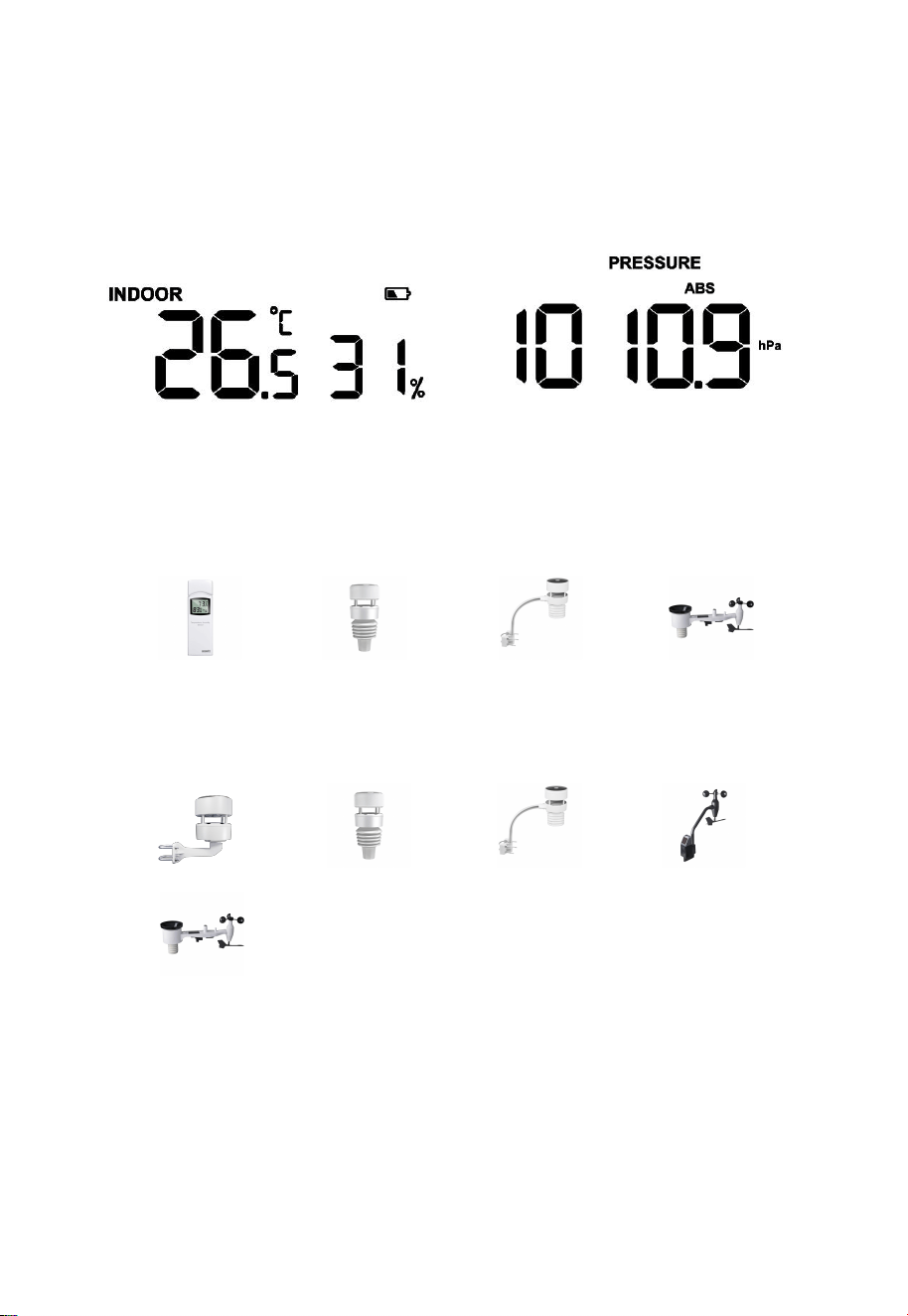
3.3.6 Indoor Temperature, Humidity, and Pressure
WS3800/WS3820 has a built-in temperature & humidity sensor, and a
barometric pressure sensor. The WN32P can be used to replace the built-
in sensor data.
Figure 27: Indoor temperature, humidity, and pressure
3.3.7 Outdoor Temperature and Humidity
Temperature and humidity display priority:
WN32 > WS90 > WS80 > WS69
3.3.8 Wind
1. Wind display priority:
WS85 > WS90 > WS80 > WS68 >
WS69
2. Wind values and units:
When the wind speed unit is selected via buttons (refer to Section 3.6.2 to
adjust the unit) or web page 192.168.4.1 (Unit Settings), the
WS3800/WS3820 will display the corresponding unit and value on the
screen. Units set by the Ecowitt App or Ecowitt.net website will not be
synchronized to the receiver.
28
3.3.9 Rainfall
1. Rainfall Definition:
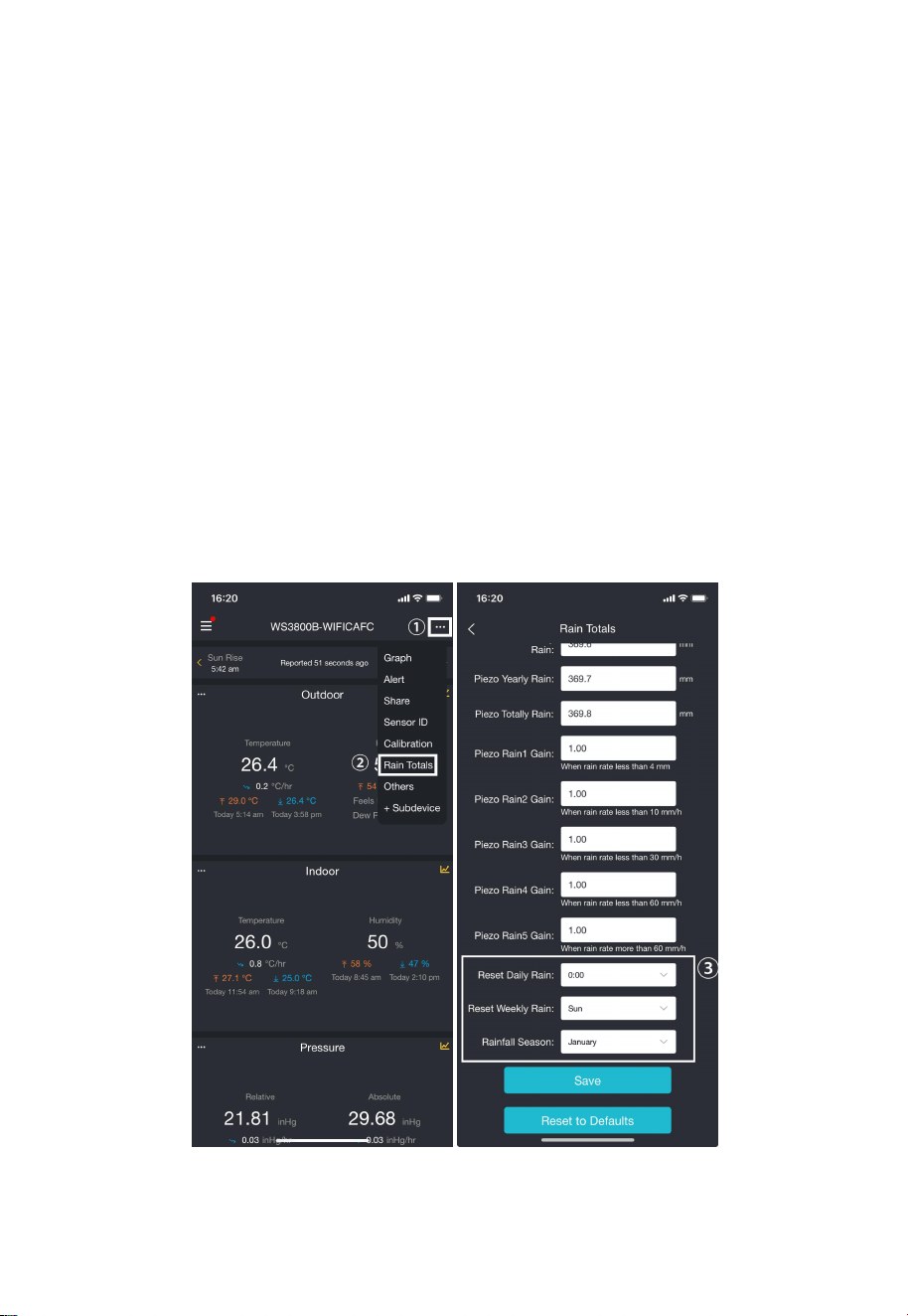
Rate/H: The last 10 minutes of rainfall multiplied by 6.
Event: If the last 24-hour rainfall is less than 1 mm and the last 1 hour
has not had rainfall, the rain event is over.
Daily: Rainfall from 0:00 to 24:00, reset time can be set on the App.
Weekly: The rainfall of Sunday ~ Saturday/Monday ~ Sunday, the start
time can be set.
Monthly: Rainfall of a natural month.
Yearly: Rainfall of a year, the start month can be set.
Total: Running total since station was powered up.
Figure 28: Reset Daily, Weekly and Rainfall Season
29
2. Rainfall display priority:
Traditional rainfall: WH40 > WS69
Piezoelectric rainfall: WS85 > WS90
3. Display rules
The WS3800/WS3820 can display either rainfall or piezoelectric rainfall,
simply by selecting the rainfall rule you want to display via the "Rainfall
data priority" on the App or web page.
4. Units
Refer to 3.3.8 Wind units setting.
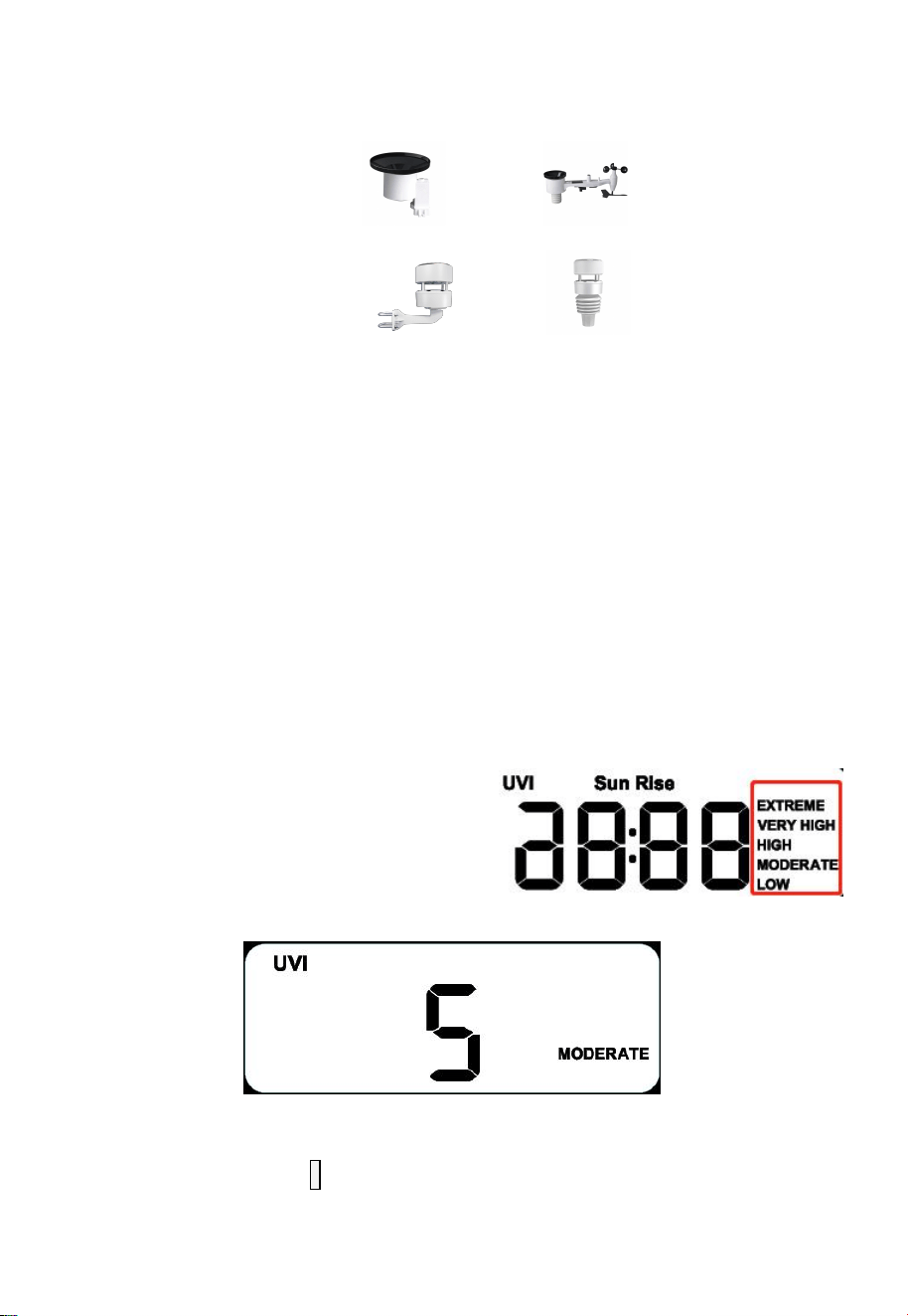
3.3.10 UVI
The UV index varies between 0 ~ 15. The bar graph is divided into 6
levels of display.
Level 5: 12 < value < =15, EXTREME
Level 4: 9 < value < =12, VERY HIGH
Level 3: 6 < value < =9, HIGH
Level 2: 3 < value <= 6, MODERATE
Level 1: 0 < value < =3, LOW
Level 0: 0 = value, (no display)
e.g.:
Figure 29: UVI
In normal mode, hold - to switch to UVI/Solar radiation/Sunrise/Sunset
display.
30
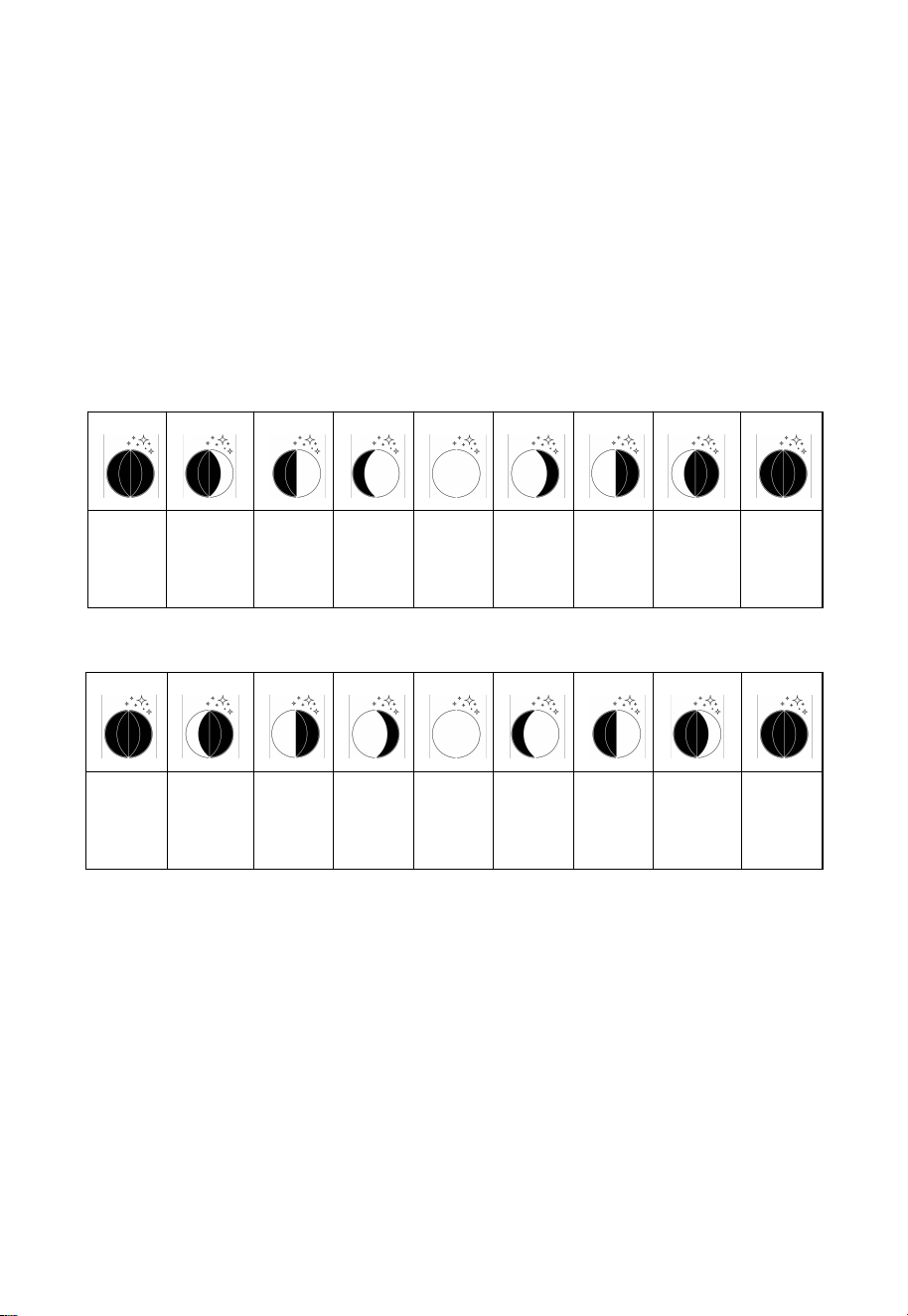
3.3.11 Moon Phase
The WS3800/WS3820 will be set to the Southern or Northern
Hemisphere by default depending on the RF frequency:
915/868MHz: Northern Hemisphere
433MHz: Southern Hemisphere
The following moon phases are displayed based on the calendar date.
Northern Hemisphere:
New
Moon
Waxing
Crescent
First
Quarter
Waxing
Gibbous
Full
Moon
Waning
Gibbous
Third
Quarter
Waning
Crescent
New
Moon
Southern Hemisphere:
New
Moon
Waxing
Crescent
First
Quarter
Waxing
Gibbous
Full
Moon
Waning
Gibbous
Third
Quarter
Waning
Crescent
New
Moon
Table 4: Moon phase
3.3.12 Feels Like
Feels Like measurement range: -40°F ~ 140°F (-40°C ~ 60°C).
When the outdoor temperature is less than 50°F (10°C), the value of
Feels Like is wind chill.
When the outdoor temperature is greater than or equal to 50°F(10°C) and
less than or equal to 80°F (26.7°C), the value of Feels Like is the outdoor
temperature.

31
When the outdoor temperature is greater than 80°F (26.7°C), the value of
Feels Like is the heat index.
Users have the option to choose between "Feels Like Temperature" and
"Apparent Temperature" on the App or ecowitt.net.
Take the App as an example: Open Ecowitt App → "Menu" → "Settings"
→
"Temp Index"
→
"Feels Like Temperature" or "Apparent Temperature".
If the user selects "Apparent Temperature", the numerical value for
"Feels Like" on the LCD screen will be displayed as the value of
"Apparent Temperature".
3.4 LCD Display Brightness
The WS3800/WS3820 has 5 levels of brightness, which are Max → High
→
Medium
→
Low
→
Off.
A. When Battery Powered:
When the battery power is supplied, pressing any button will turn on the
backlight, and the brightness will turn off automatically after 15s without
button operation. When only battery powered, the brightness is only
"Max" and "Off".
Note: 3 fresh AA alkaline or lithium batteries can run for 15~25 days.
B. When DC Powered:
1. The brightness will be adjusted to "Medium" automatically when the
DC power supply is connected.
2. After disconnecting the DC power supply, the backlight will keep the
brightness for 15s and then turn off.
3. When DC power is supplied, press LIGHT to adjust the brightness:
Max → High → Medium → Low → Off.
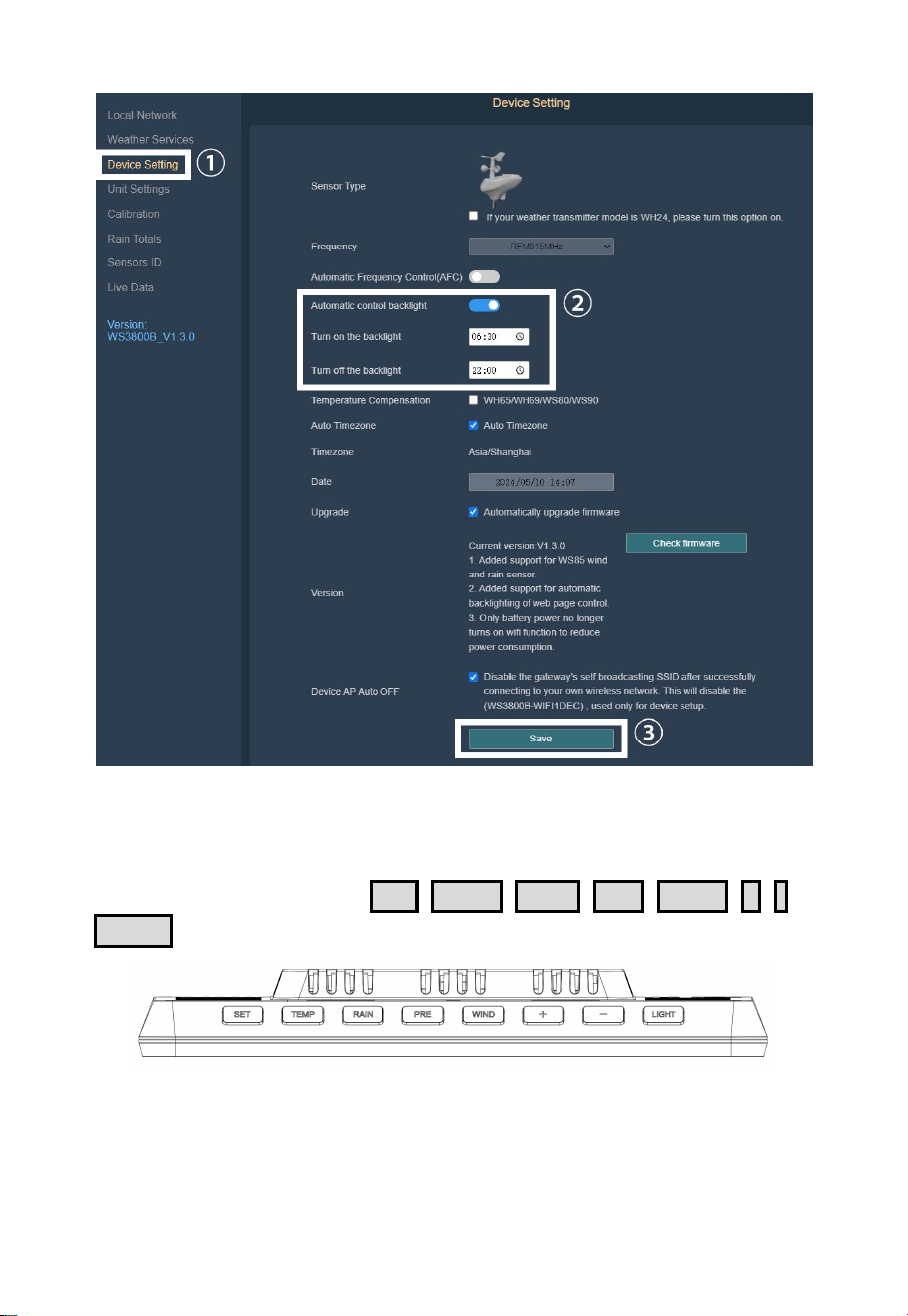
C. Automatic Control Backlight:
Version 1.3.0 and later support automatic backlight settings for web page.
Please refer to section 2.2.4 to access webpage settings.
32
Figure 30: Automatic Control Backlight
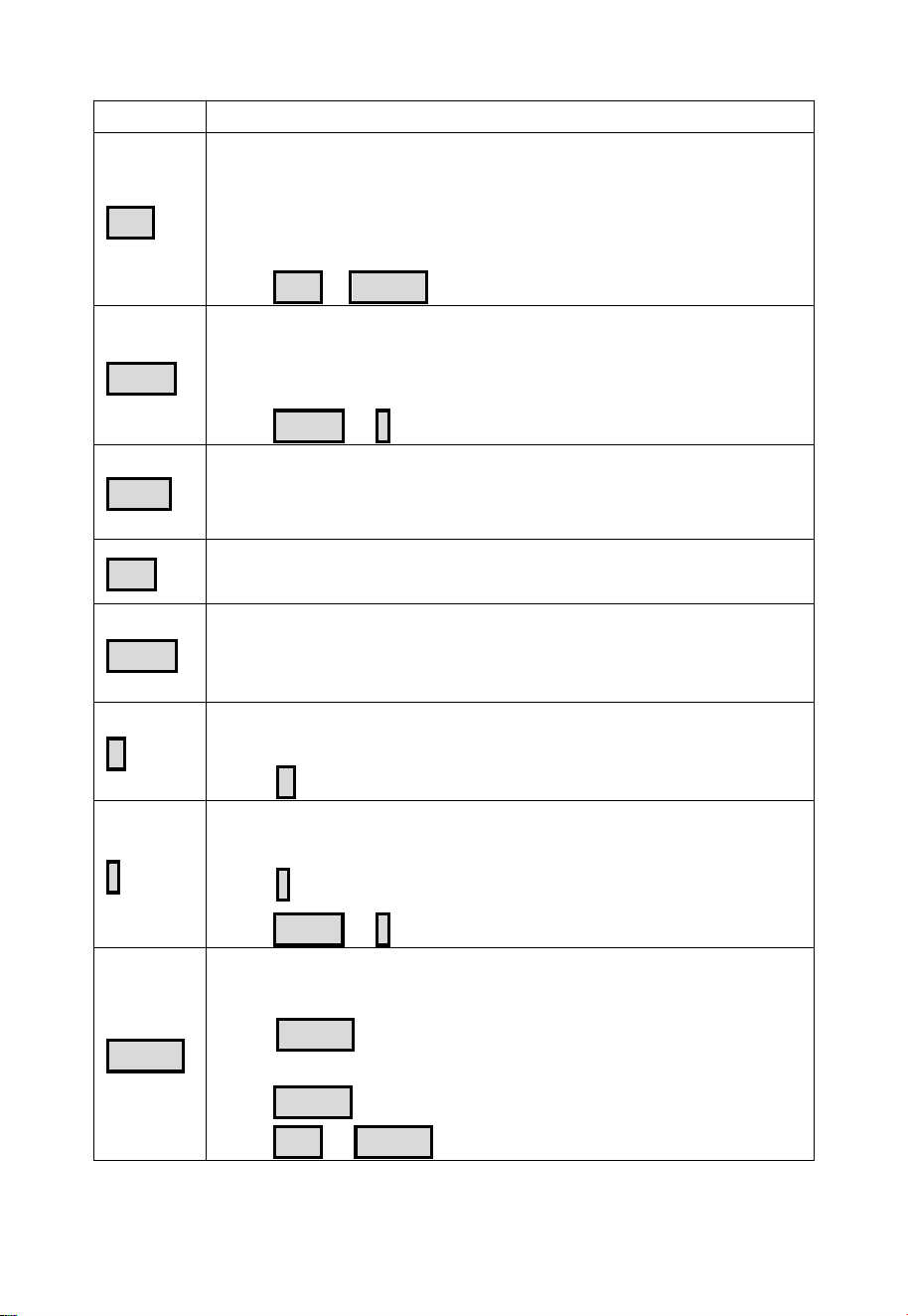
3.5 Buttons
There are 8 buttons in total: SET , TEMP , RAIN , PRE , WIND , + , - ,
LIGHT .
Figure 31: 8 Buttons
There are 8 buttons on the top of the display console. The following
tables briefly explain the function of these buttons.
33
Table 5: Button functions
Buttons
Functions
SET
Setting button
Press to switch MAX/MIN/Alarm setting/MAC mode.
Press to switch setting option in setting mode.
Hold to enter setting mode.
Hold SET + LIGHT for a factory reset.
TEMP
Temperature display button
Press to switch temp channel.
Hold to register weather data from sensor.
Hold TEMP & - to activate Wi-Fi hotspot/configuration.
RAIN
Rain display button
Press to switch RAIN RATE/EVENT/DAILY/WEEKLY/
MONTHLY/YEARLY/TOTAL.
PRE
Pressure display button
Press to switch REL/ABS mode.
WIND
Wind display button
Press to switch WIND/GUST/DIRECTION/10min direction.
Press to activate/deactivate alarm in alarm setting mode.
+
Plus button
Press to switch display in the Date area.
Press + to adjust value in setting mode.
-
Reduce button
Press to switch UVI/sunrise & sunset.
Press - to adjust value in setting mode.
Hold TEMP & - to activate Wi-Fi hotspot/configuration.
LIGHT
Brightness adjustment button
Press to adjust backlight when powered by DC.
Press LIGHT to snooze and press the other to exit while
alarming.
Hold LIGHT to exit while snoozing.
Hold SET & LIGHT for a factory reset.
34
3.6 Product Modes
There are 5 modes in total: Normal mode, Setting mode, Max/Min value
mode, Alarm setting mode, and MAC address display.
3.6.1 Normal Mode
1. The product will enter the main page of Normal mode by default when
it is normally powered on. In other modes, no button operation for 30
seconds or press LIGHT can also return to the main page of normal
mode.
2. In Normal mode, press SET to change the mode.
Sequence: Normal mode → Maximum value → Minimum value →
Alarm setting → MAC address display.
3. Press TEMP in Normal mode to switch the display: OUTDOOR →
FEELSLIKE → DEW → CH1 → CH2 → CH3 → CH4 → CH5 → CH6
→ CH7 → CH8 → Auto-Scroll mode.
4. Hold TEMP for more than 5 seconds in OUTDOOR, FEELSLIKE or
DEW display mode will re-register all non-disabled states outdoor
temperature and humidity transmitters (WN32/WS90/WS80/WS69).
5. Hold TEMP for more than 5s in single CH mode will re-register the
corresponding CH sensor.
6. Hold TEMP for more than 5s in Auto-Scroll mode will re-register
the WN32, WS90, WS80, WS69 and CH1~CH8 sensors.
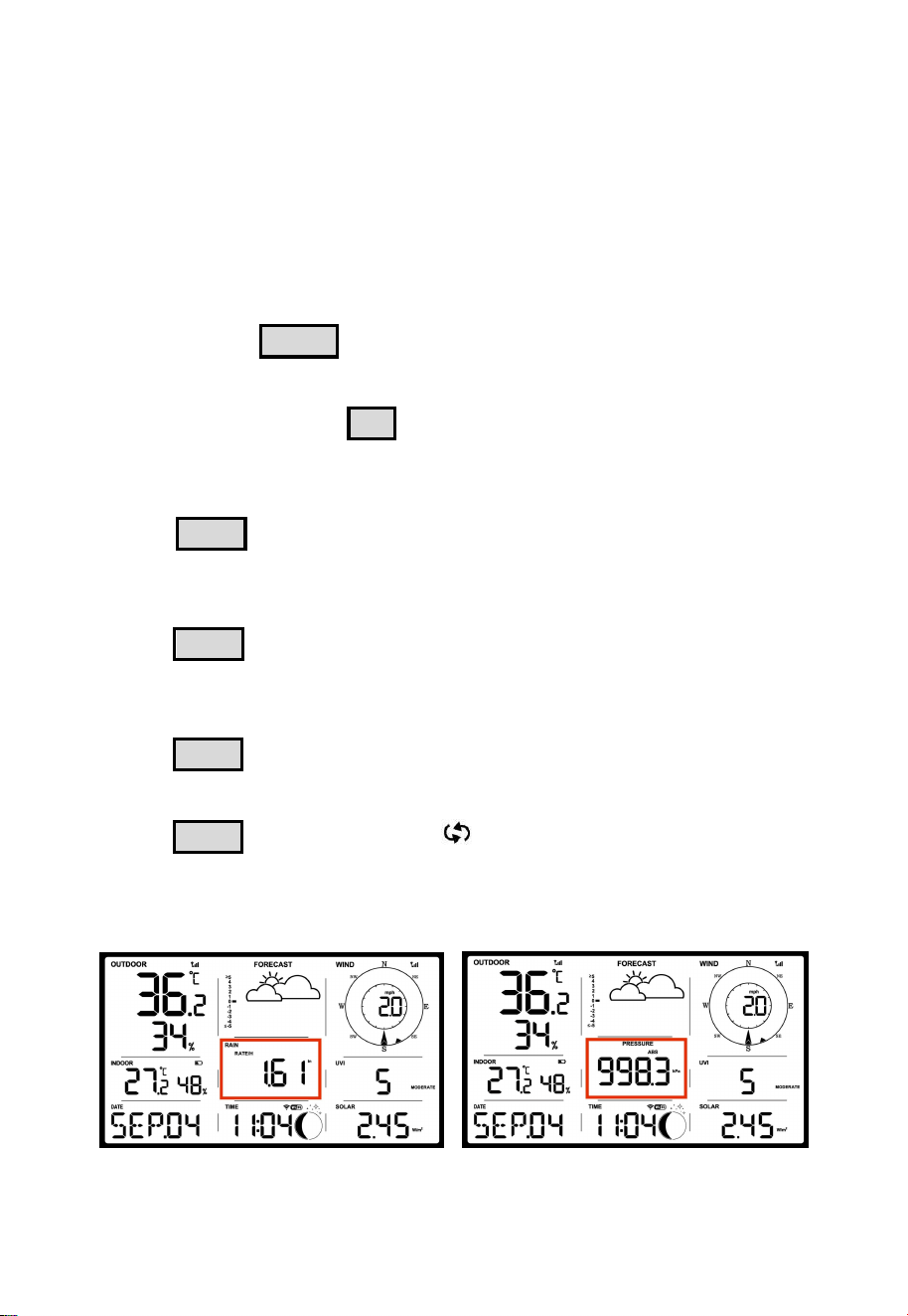
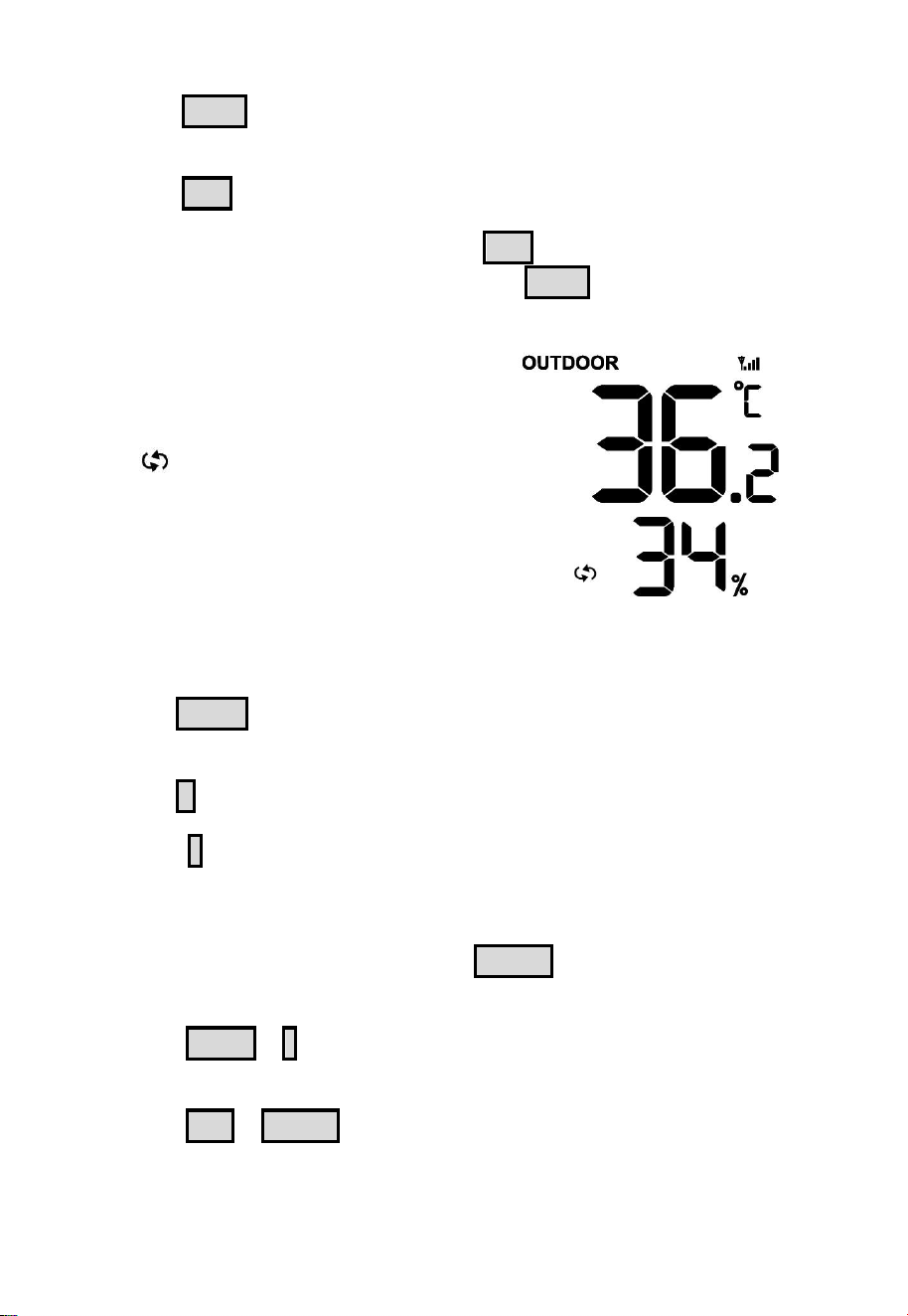
7. RAIN and PRESSURE share the same display area:
Figure 32: Switching display of rainfall and pressure
35
① Press RAIN to switch RAIN RATE/EVENT/DAILY/WEEKLY/
MONTHLY/YEARLY/TOTAL display.
② Press PRE to switch PRESSURE ABS/REL display.
③
If the current display is RAIN, press PRE to switch to PRESSURE
ABS/REL display. On the other hand, press RAIN to switch to rain
display.
F
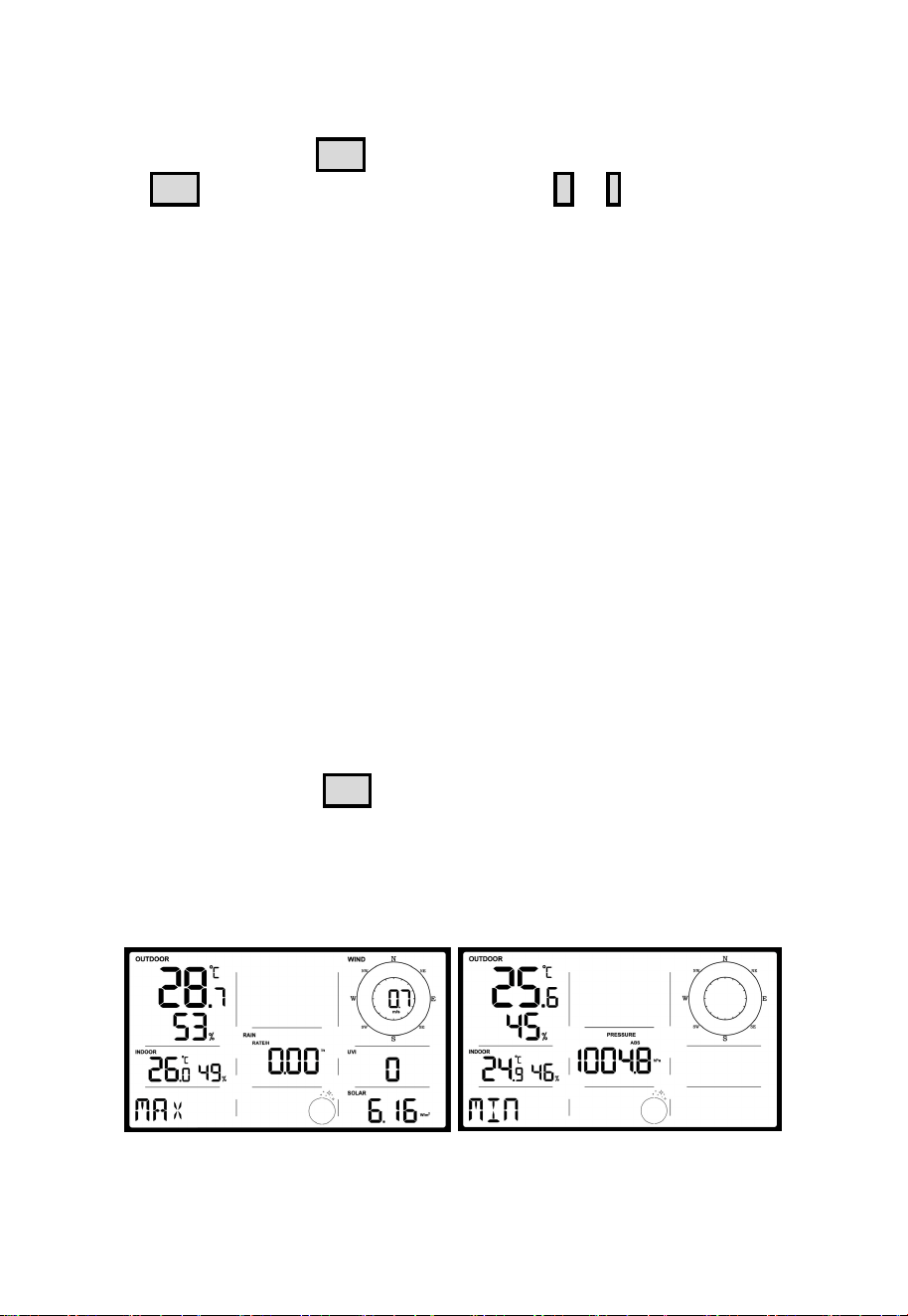
Figure 33: Auto-Scroll mode
8. Press WIND to switch WIND/GUST/DIRECTION/10min direction
display. Numbers indicate the angle of the wind direction.
9. Press + to switch Date/CO₂/PM1.0/PM2.5/PM10/AQI display.
10. Press - to switch to UVI/Solar radiation/Sunrise/Sunset display. The
exponential intensity graph on the right side synchronizes the display of
UVI values.
11. When DC power is supplied, press LIGHT on the main page to
adjust the backlight in 5 levels: Max → High → Medium → Low → Off.
12. Hold TEMP + - for more than 2s to open hotspot, Wi-Fi signal icon
fast flash, you can connect to this hotspot on a mobile phone or PC.
13. Hold SET + LIGHT for 5 seconds the device will restore factory
settings and reboot, and all setup parameters will be cleared.
Notes:
* In Auto-Scroll mode, only
registered sensors are displayed.
* Max and Min values will be cleared
together if the multi-channel
temperature and humidity sensor is
re-registered.
36
3.6.2 Setting Mode
In Normal mode, hold SET for more than 2s to enter Setting mode. Then
press SET to switch the setting item, press the + or - button to adjust
the setting value:
①Beep sound (ON/OFF)
②
RST daily High and Low reset switch
③
Hour format (12 hours/24 hours)
④Hour setting
⑤Minute setting
⑥Year setting
⑦Month setting
⑧
Day setting
⑨
Pressure unit selection (inHg, mmHg, hPa)
⑩
Relative pressure setting (700hPa-1100hPa)
⑪
Temperature unit selection (°C, °F)
⑫Wind speed unit selection (mph, knots, BFT, m/s, km/h)
⑬Rainfall unit selection (in, mm)
⑭Solar Light unit selection (W/m2, Kfc, Klux)
⑮Selection of the northern and southern hemispheres (NTH, STH)
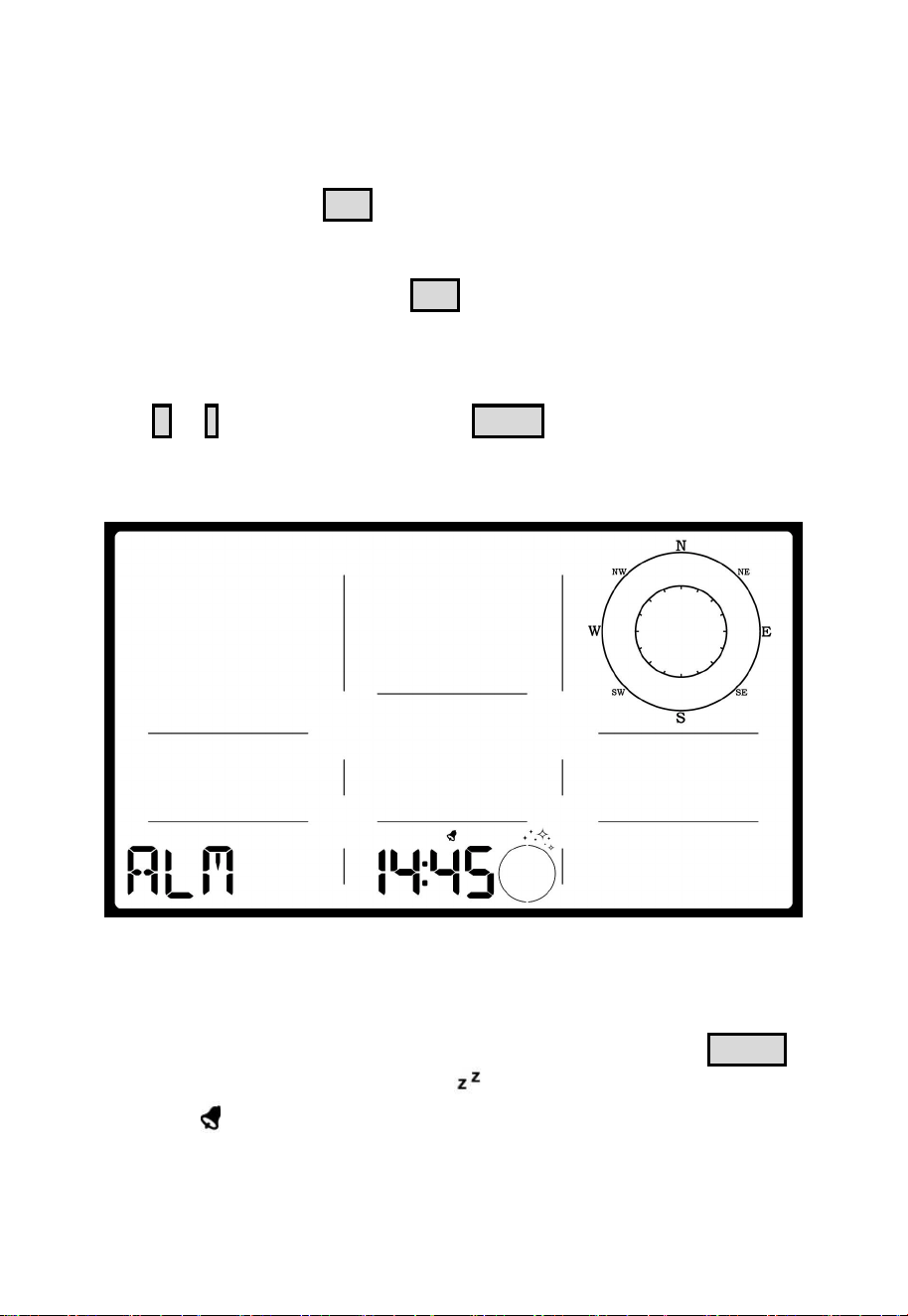
3.6.3 Max/Min Value Mode
In Normal mode, press SET to enter Max/Min value mode.
Sequence: Normal mode → Maximum value → Minimum value.
Max value: outdoor/indoor temperature & humidity, feels like, dew point,
pressure, rainfall, wind speed, gust speed, UVI, and solar radiation.
Min value: outdoor/indoor temperature & humidity, feels like, dew point,
and pressure.
Figure 34:Max/Min value mode
37
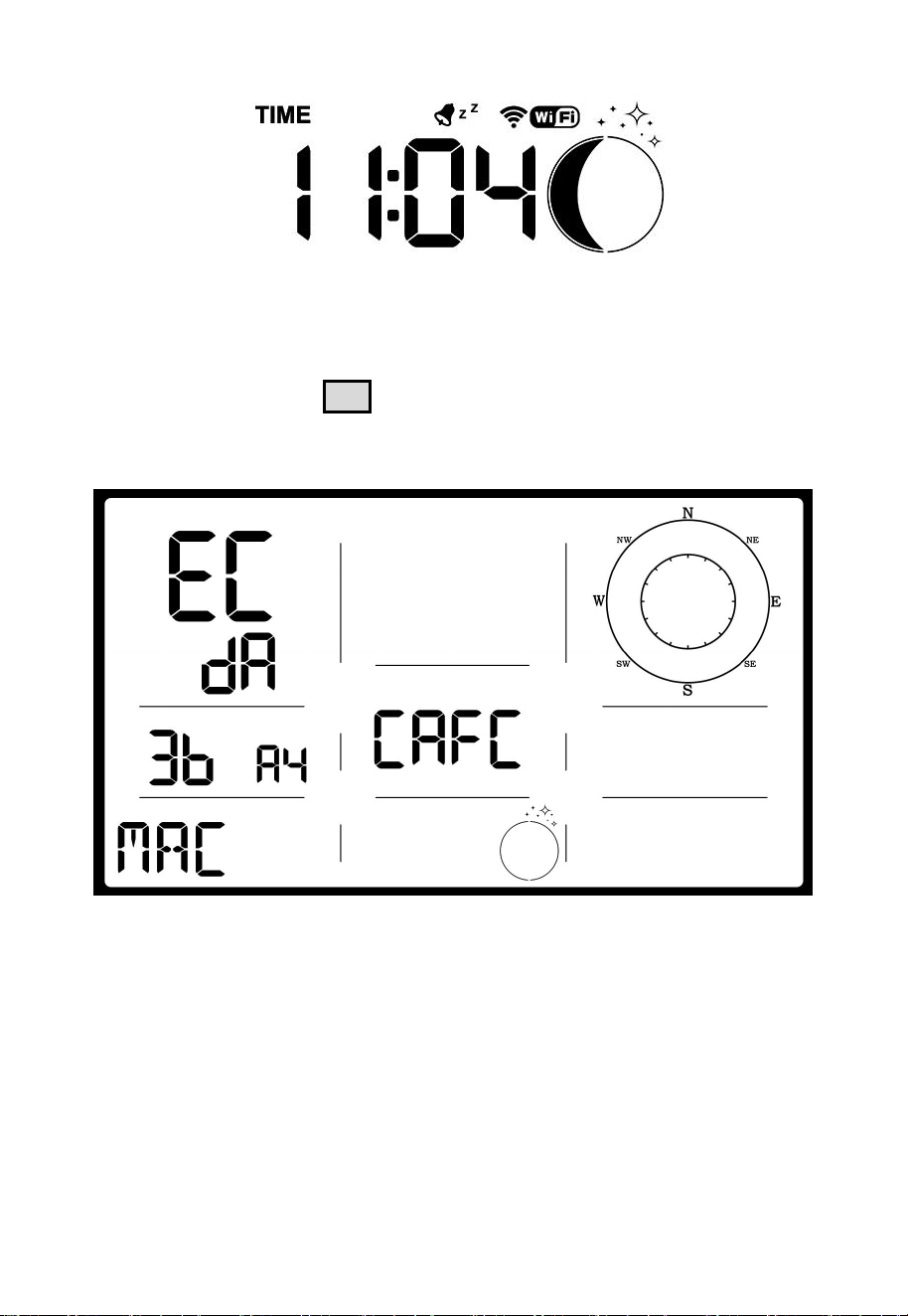
3.6.4 Alarm Setting Mode
A. Alarm Function
In Normal mode, press SET to enter Alarm setting mode.
Sequence: Normal mode → Maximum value → Minimum value →
Alarm setting.
In the alarm setting mode, press SET to switch the alarm clock setting
item:
①
Alarm hour setting
② Alarm minute setting
Press + or - to adjust the value. Press WIND to switch on/off the alarm.
After the alarm is triggered, the alarm will continue to sound for 2
minutes when no button is pressed, and the alarm will become more and
more rapid within these 2 minutes.
Figure 35: Alarm setting
B. Snooze Function
When the alarm clock is set and the alarm is triggered, press LIGHT to
enter snooze mode, the snooze icon will be displayed near the alarm
clock icon , and the alarm will sound again after 10 minutes.
Hold any button for 2 seconds after entering snooze mode will exit
snooze mode.
38
Figure 36: Snooze function
3.6.5 MAC Address Display
In Normal mode, press SET to change the mode.
Sequence: Normal mode → Maximum value → Minimum value →
Alarm setting → MAC address display.
Figure 37:
MAC address: EC:DA:3B:A4:CA:FC
3.7 Historical Data Export and Clear
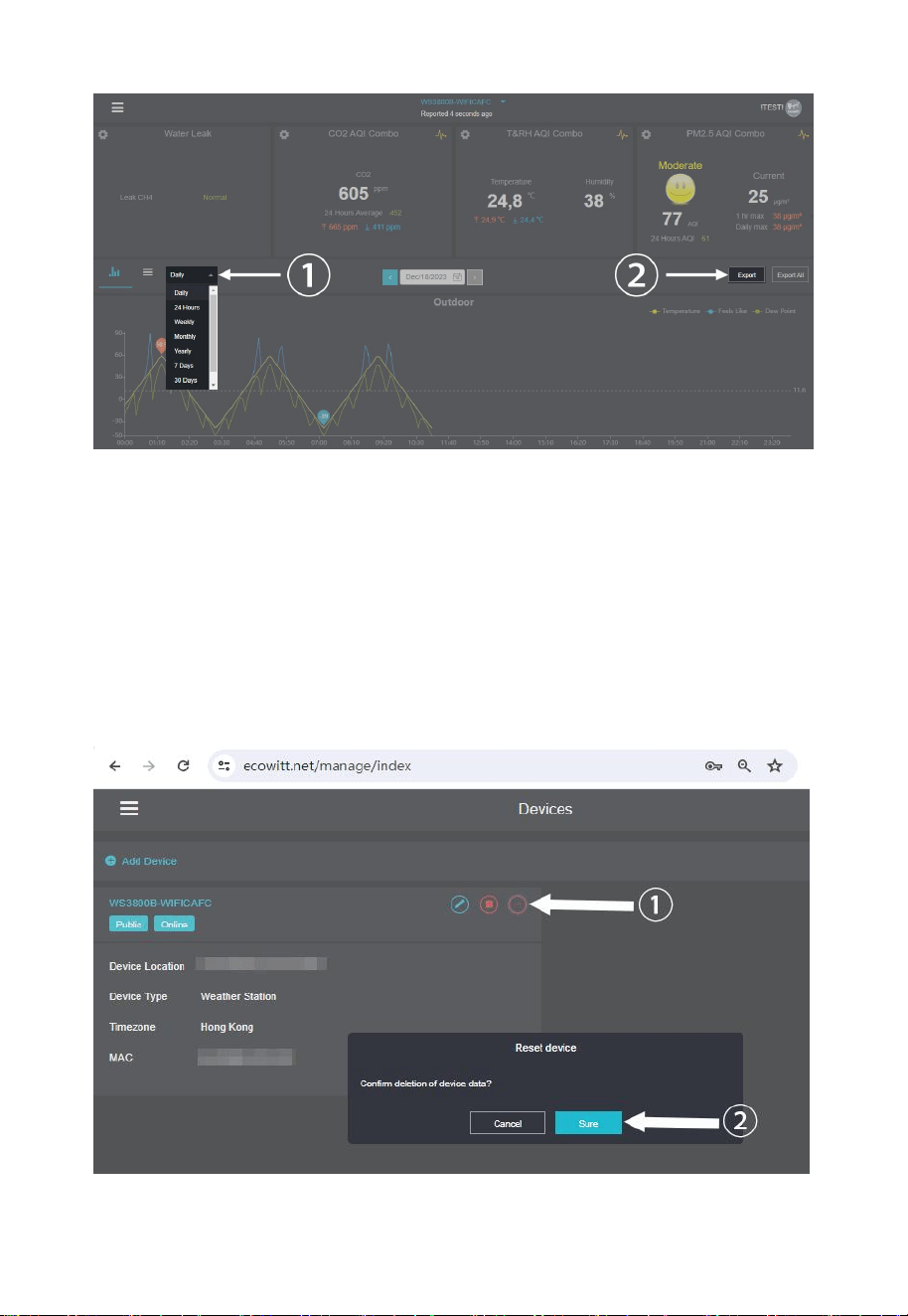
3.7.1 Export History Data:
WS3800/WS3820 doesn't support a memory card to store data, when the
Wi-Fi configuration (refer to Section 2.2 for Wi-Fi Configuration) is
completed, you can log in to Ecowitt.net to export the data in xlsx file
format.
39
Figure 38: Export Historical Data from Ecowitt.net
Note:
Data with a query period of days/24 hours is retained for 3 months.
Data with a weekly query period is retained for 1 year.
Data with a monthly query period is retained for 2 years.
Data with a yearly query period is retained for 4 years.
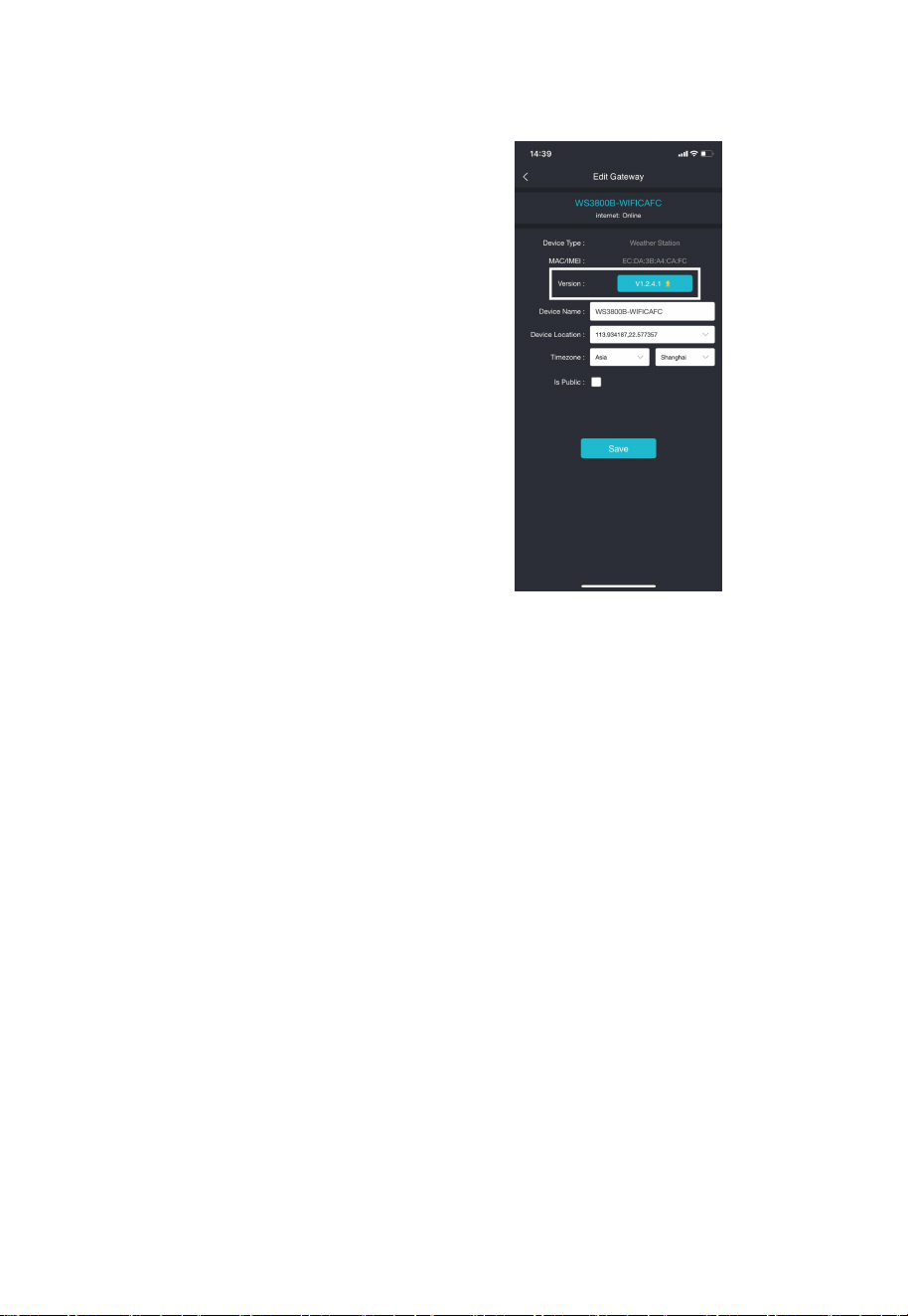
3.7.2 Clear History Data:
Under "menu"
→
"devices"
→
"..."
→
"Sure".
Figure 39: Clear History Data
40
3.8 Firmware Upgrade
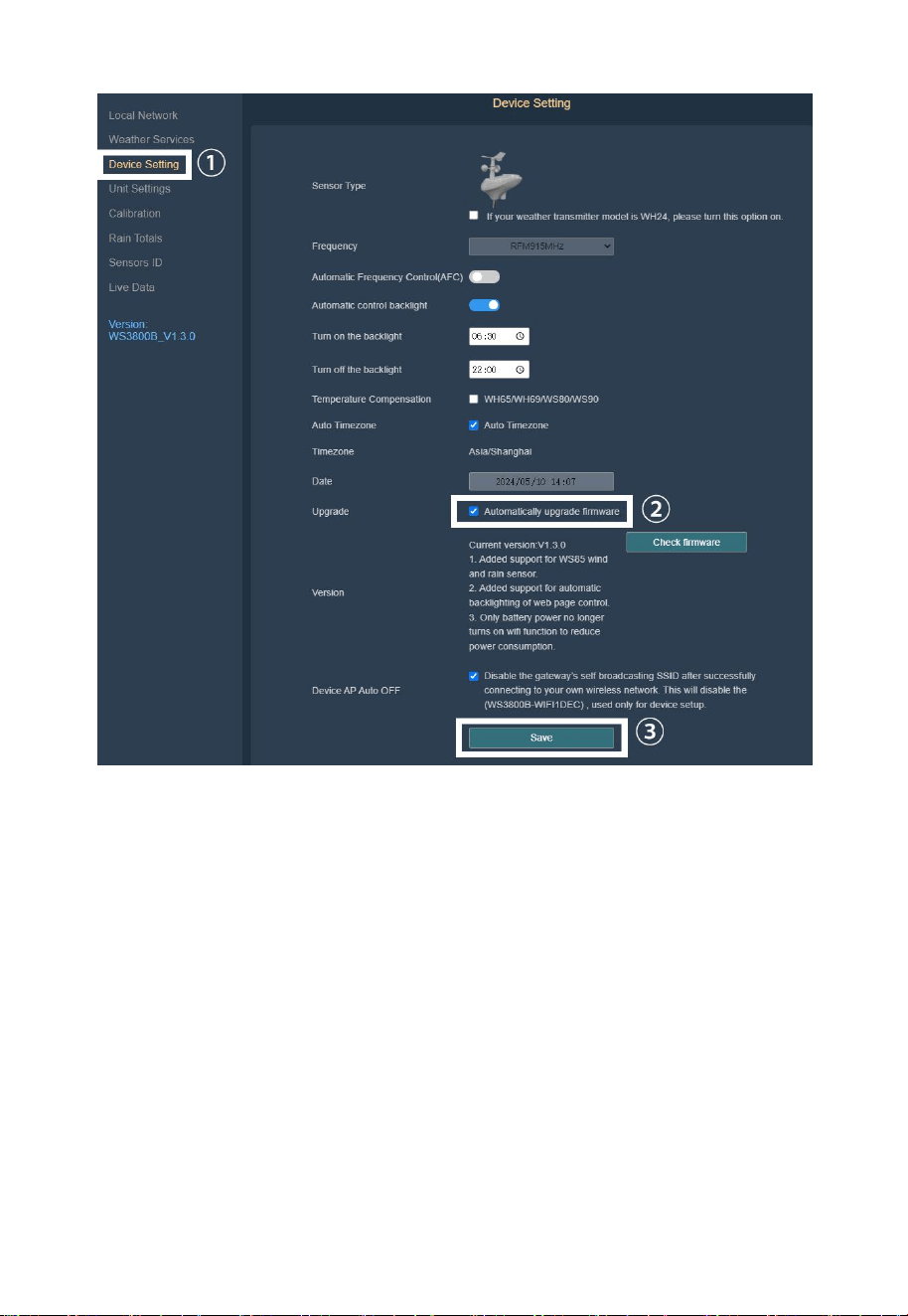
Figure 40: Upgrade Firmware on the App
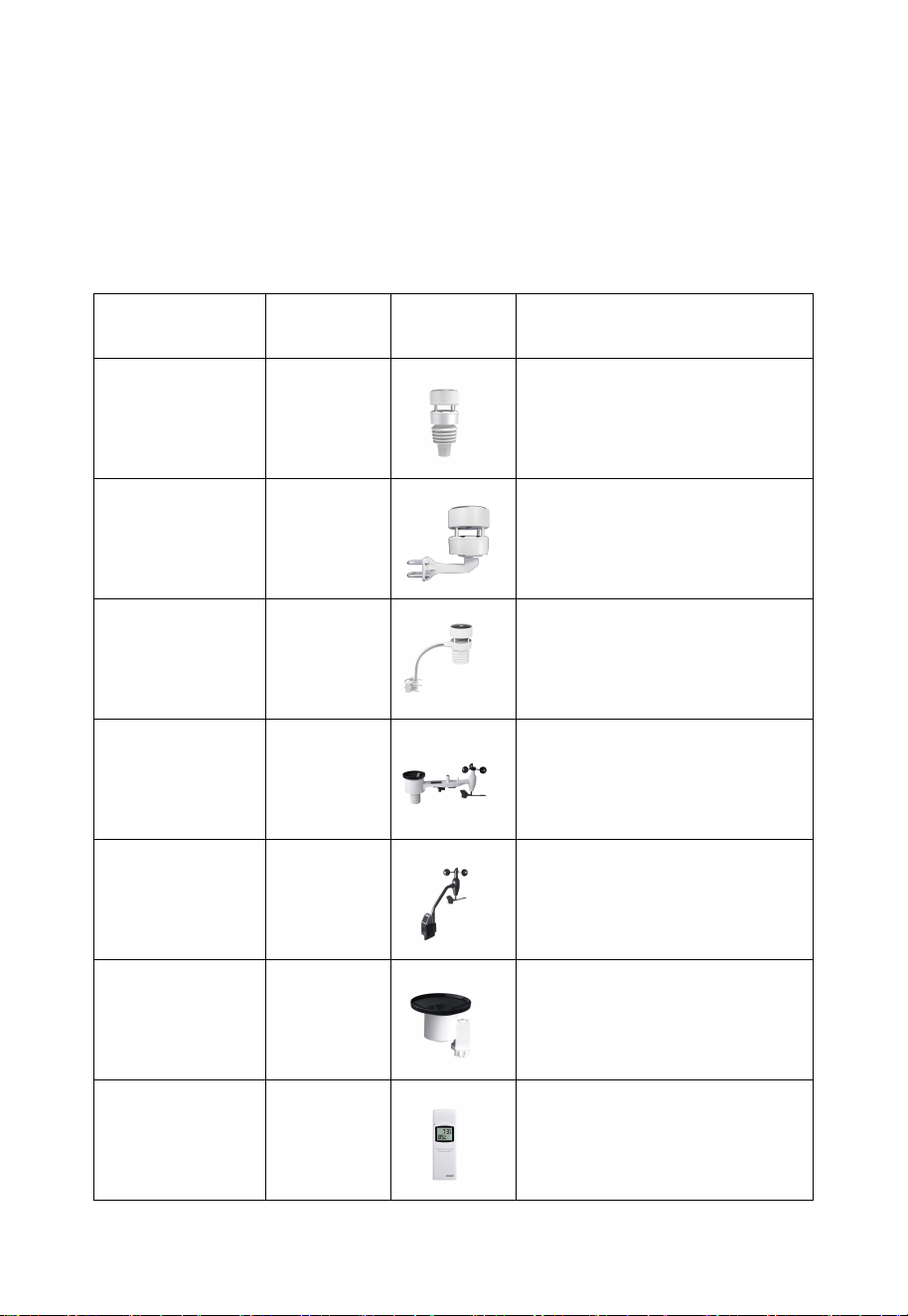
Method 2: Via web page 192.168.4.1
If you choose "Automatically upgrade firmware" on the web page
192.168.4.1(refer to Section 2.2.4 to access the web page),
WS3800/WS3820 will enter OTA every time when there is a new
firmware, and the screen will display the "OTA" character. When the
automatic firmware update is successful, it will display "OTA OK" and
reboot automatically. (Automatic update interval is 24 hours).
Method 1: Via Ecowitt App
Open Ecowitt App → My
Devices →"…" (Open the Edit
Gateway page) → tap the
firmware version number to
upgrade if there is a new version
available. When the upgrade is
complete, the WS3800/WS3820
will reboot into the latest version.
41
Figure 41: Automatically upgrade firmware setting on the web page
4. Optional Sensors
The RF reception function will always be turned on to receive data from
multiple sensors at any time.
4.1 Sensors
When powered by DC or battery, the device supports these sensors as
below, power consumption can be high if only battery power is available.
The following sensors can be purchased separately. For more information,
please visit our website: http://www.ecowitt.com. Make sure to select the
model of the units with the same RF frequency as your gateway or
42
display (the frequency is different for various countries because of
regulations).
Note: Max QTY of the following table means the maximum number
of different sensors that can be connected to the WS3800/WS3820.
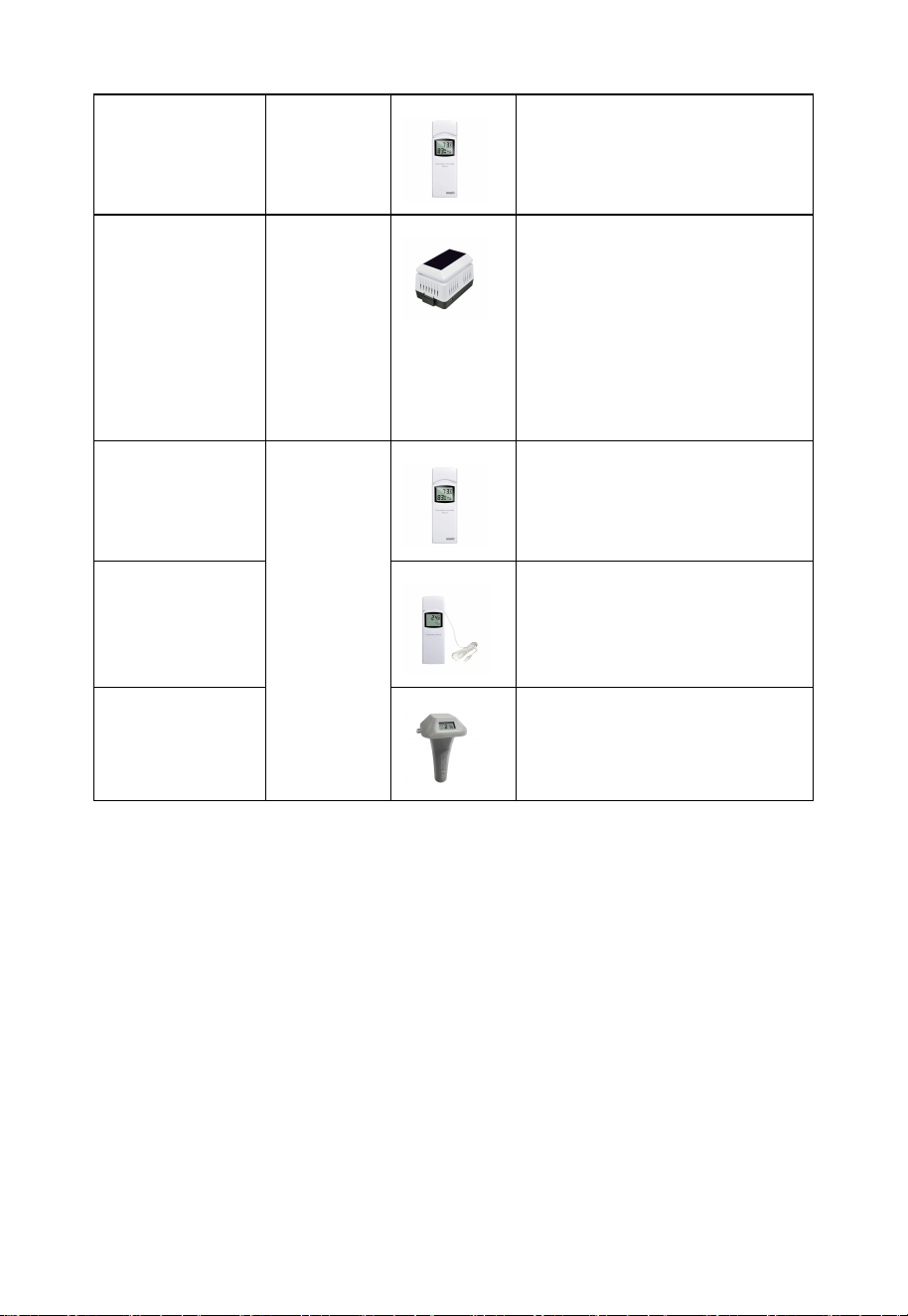
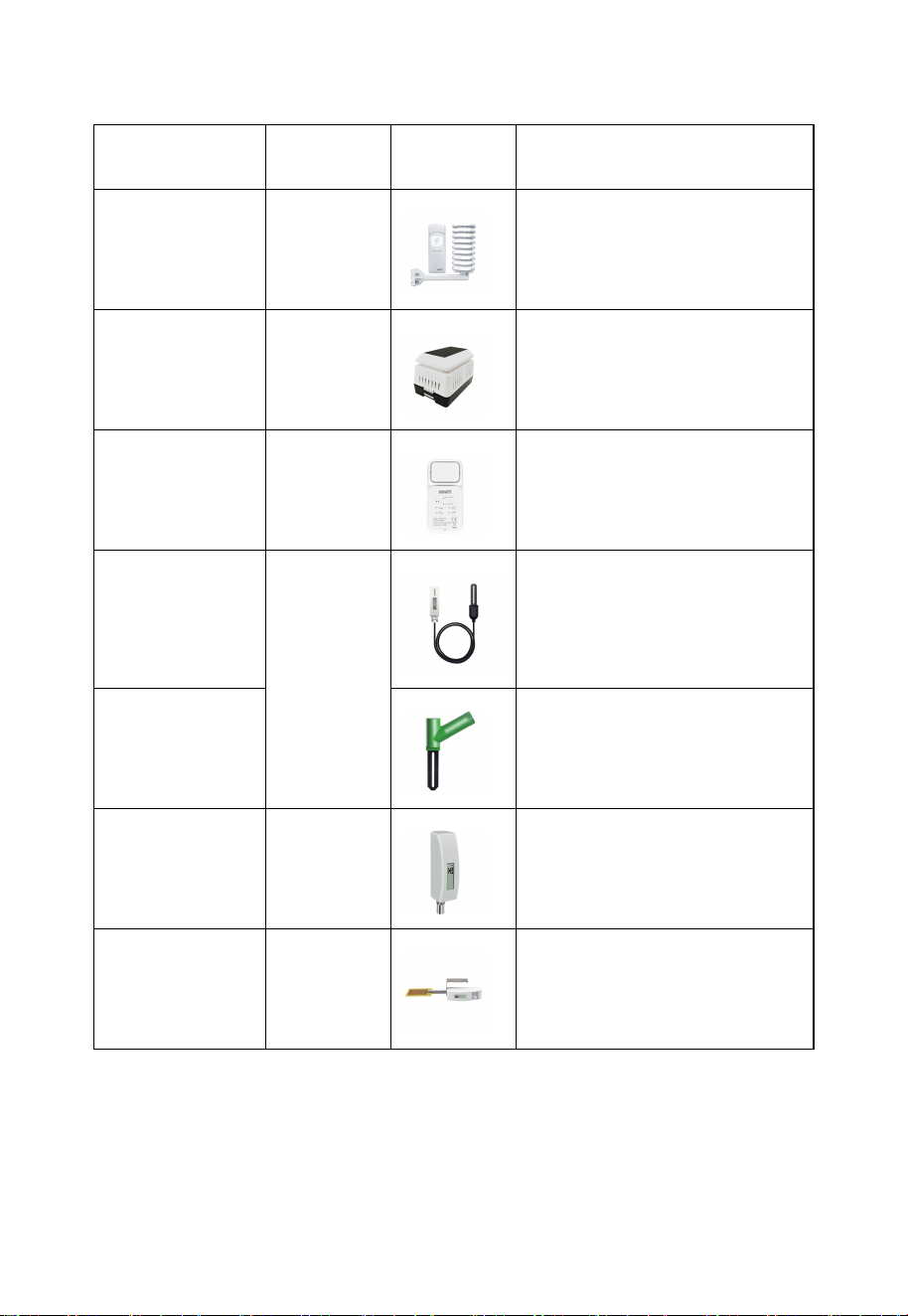
4.1.1 Sensor Data Can be Displayed on the WS3800/WS3820
Sensor Model
Max QTY
Picture
Functions
WS90
1
Outdoor temperature &
humidity, light, UV, wind
speed/direction, rainfall
WS85
1
Wind speed/direction,
rainfall
WS80
1
Outdoor temperature &
humidity, light, UV, wind
speed/direction
WS69
1
Outdoor temperature &
humidity, light, UV, wind
speed/direction, rainfall
WS68
1
Light, UV, wind speed/
direction
WH40
1
Rainfall
WN32P
1
Indoor temperature,
humidity and pressure
43
WN32
1
Outdoor temperature and
humidity
WH45/WH46
1
WH45: CO₂, PM2.5,
PM10, temperature and
humidity
WH46: CO₂, PM1.0,
PM2.5, PM4.0, PM10,
temperature and humidity
WN31
8
Temperature and humidity
WN30
Temperature
WN36
Pool temperature
Table 6: Optional sensors
Note:
1. Some data of WS90/85/80/69/68/WH40/WN32 exist display priority,
please refer to Section 3.3.7~3.3.9.
2. Some data of WH45/WH46 would not show on the WS3800/WS3820.
Please refer to Section 3.3.2.
44
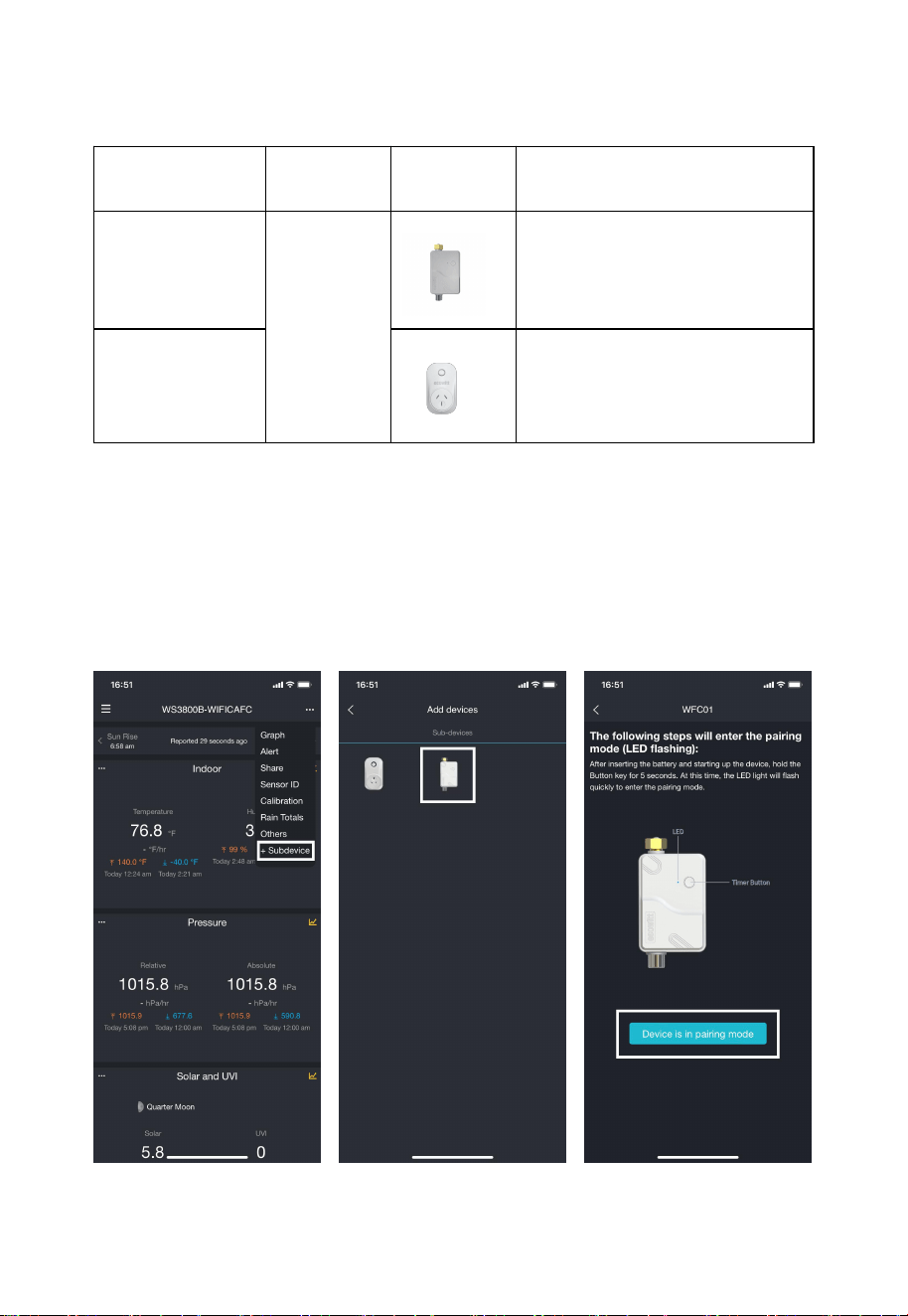
4.1.2 Sensor Data Can Only be Uploaded to the Cloud
Sensor Model
Max QTY
Picture
Functions
WH57
1
Lightning detection
WH41/WH43
4
PM2.5
WH55
4
Water leak detection
WH51L
8
Soil moisture
WH51
Soil moisture
WN34L/S/D
8
Temperature
WN35
8
Leaf wetness
Table 7: Optional sensors
45
4.2 IoT Device
:
Sensor Model
Max QTY
Picture
Functions
WFC01
16
Smart water timer
AC1100
Smart plug
Table 8: IoT device
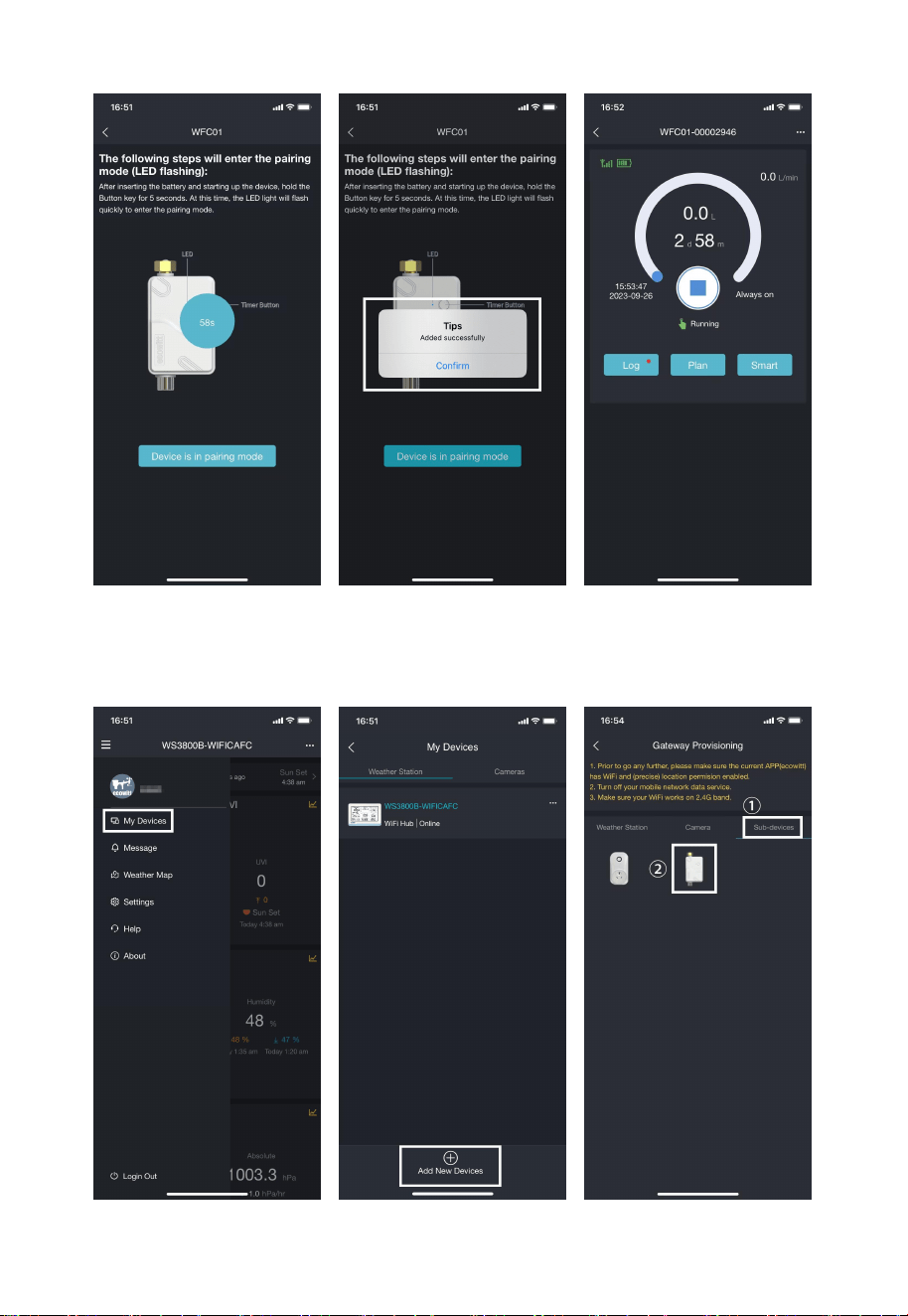
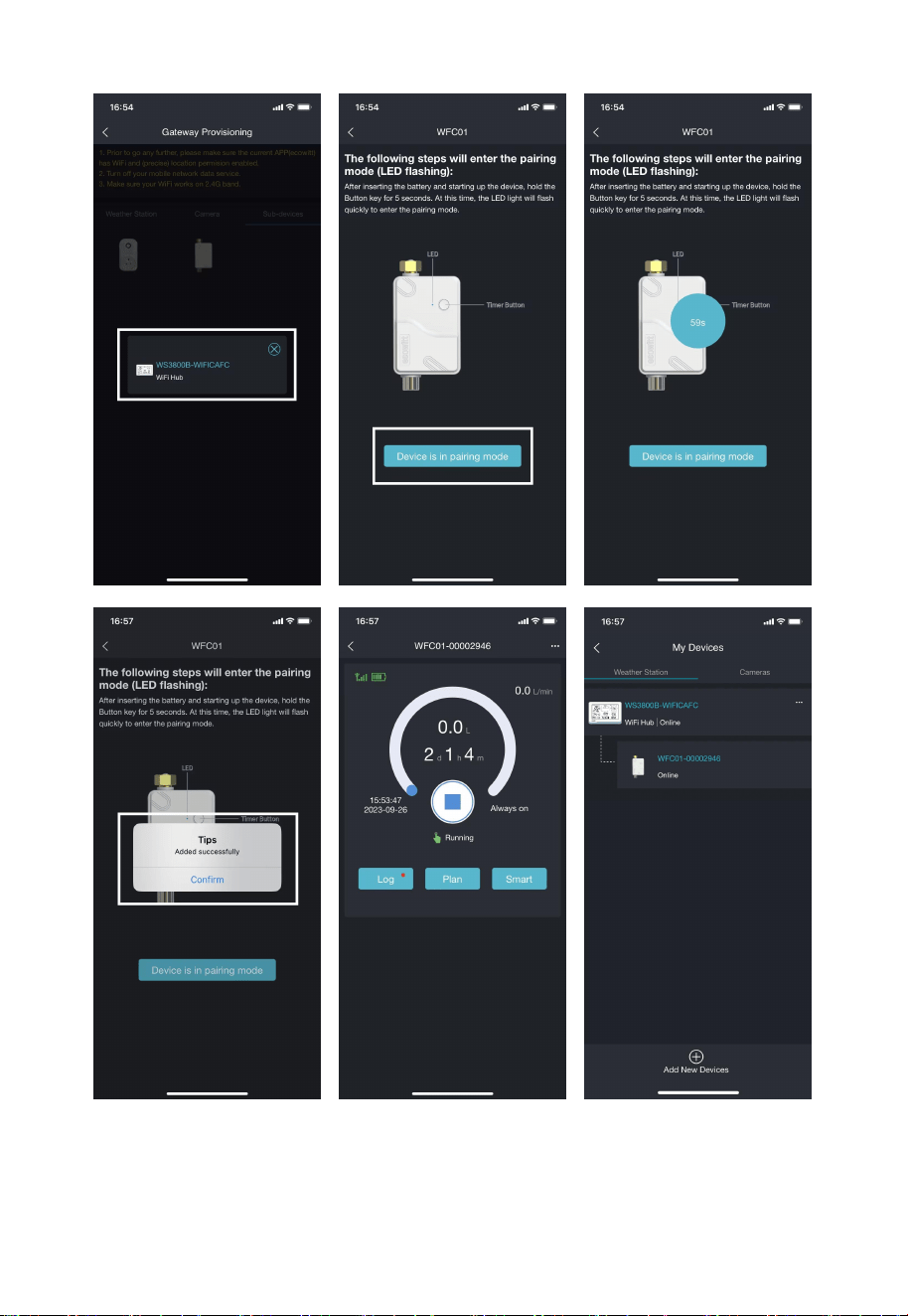
After the Wi-Fi configuration of WS3800/WS3820 is finished (refer to
Section 2.2), IoT products can be connected to the App in two methods.
Take WFC01 for an example:
4.2.1 Method 1 to Add Sub-devices
46
Figure 42: Method 1 to connect IoT device
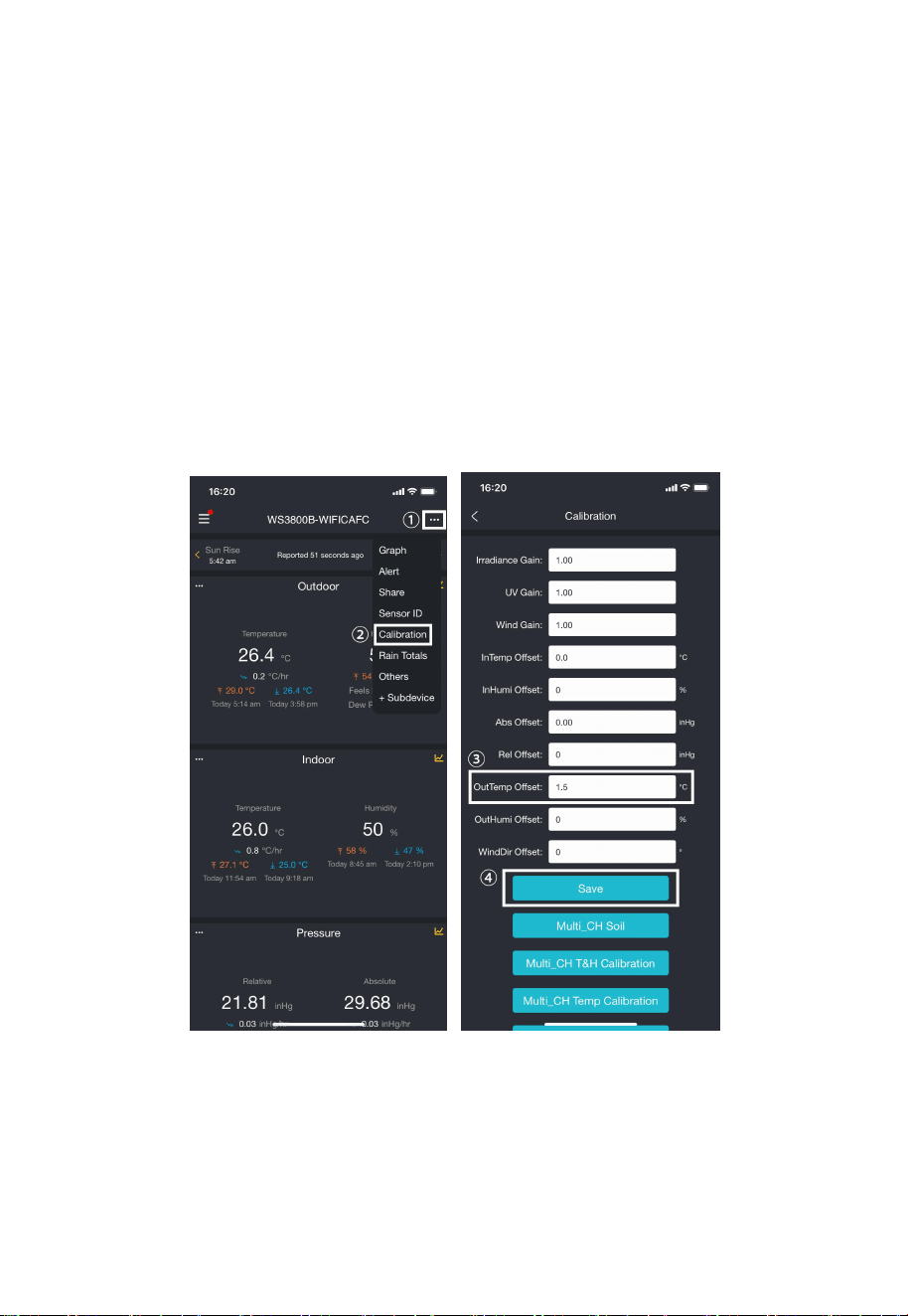
4.2.2 Method 2 to Add Sub-devices
47
Figure 43: Method 2 to connect IoT device
48
5. Calibration
5.1 Data Calibration
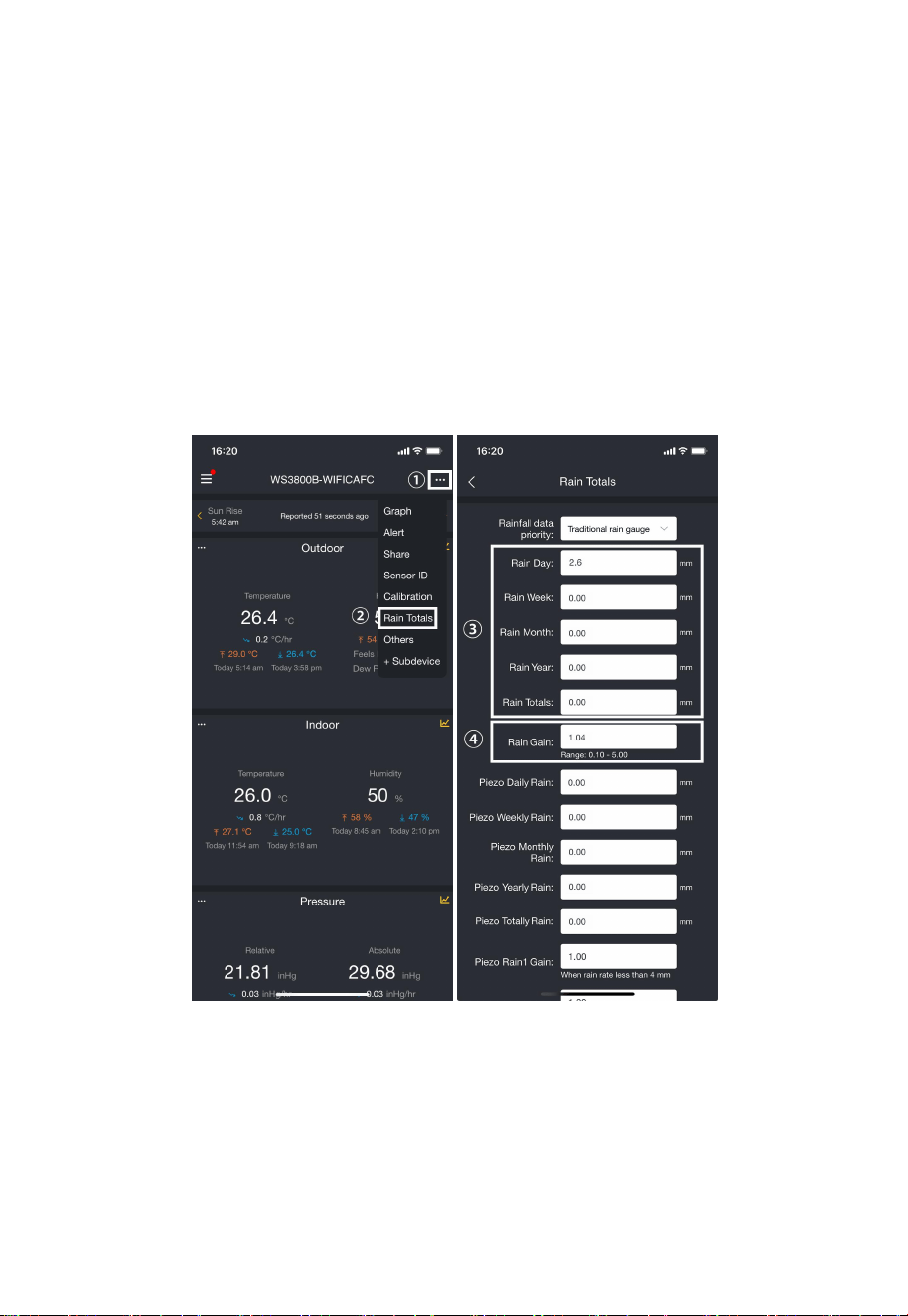
If you have data from a relatively accurate weather station. You can use
the data to do the calibration.
1. Make sure your mobile device is connected to the same Wi-Fi network
that WS3800/WS3820 is connected to.
2. Click "…" on top right corner and choose "Calibration".
3. For a certain parameter (Take Outdoor temperature as an example in
the Figure 44). Calculate the offset of data from accurate weather station
and ecowitt sensor.
4. Fill in the offset got from step3, click Save.
Figure 44:
Data
Calibration
49
5.2 Rainfall Calibration
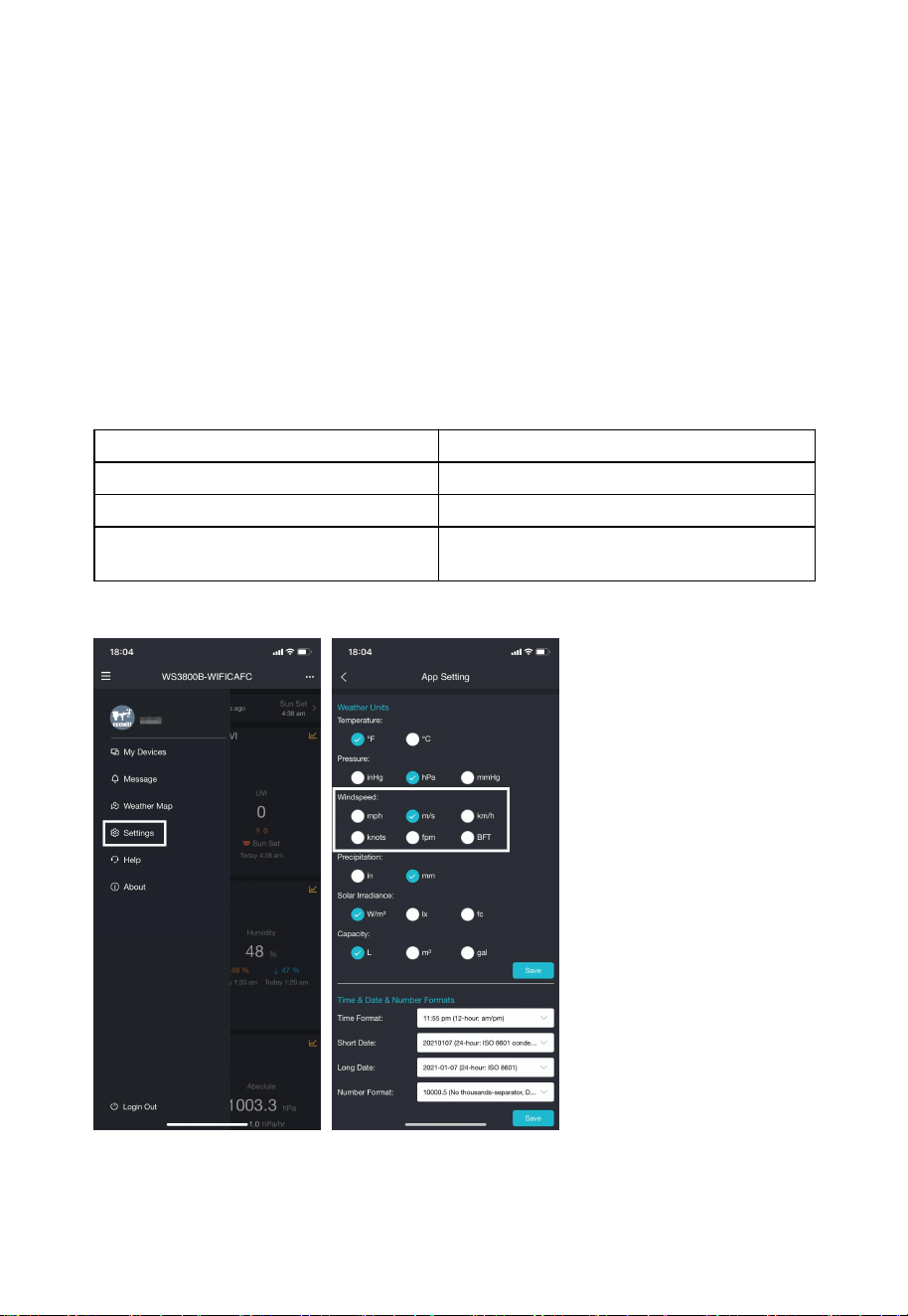
The access steps are shown in Figure 45.
Take the Traditional rain gauge as an example:
Suppose your device measures a daily rainfall of 2.5mm, while another
device (assuming it’s a super pro device) measures a daily rainfall of
2.6mm. Therefore, we calibrate the “Rain Day” to 2.6mm.
Or we set Rain Gain to 2.6/2.5 = 1.04. Then the rainfall will be calibrate
to: 2.5*1.04=2.6mm. Only when different rainfall is recorded does the
gain index take effect.
Figure 45: Rainfall Calibration
50
6. Others
6.1 Lightning Distance Unit
WS3800/WS3820 can connect one WH57 lightning sensor, and the
lightning data can only be viewed through Ecowitt App, website, and web
page, if you need to modify the lightning distance unit, you can modify it
by modifying the wind speed unit on the App, website or web page.
We here recommend modifying units on the App, the lightning units will
be used in daily viewing and exporting data on the website.
Table 9: Corresponding table of wind speed and lightning distance units
Figure 46: Setting lightning units by setting wind speed units on the App
Wind Speed Unit
Lightning Distance Unit
m/s, km/h, BFT
km
knots
nmi
mph, fpm (fpm can only be set in
App/website)
mi
Note: The wind speed
units set on the App
will not be
synchronized to the
WS3800/WS3820.
51
7. Specifications
Table 10: Specifications
Note: When working with other transmitters, the screen displays the
following range of data:
Model
WS3800/WS3820
Name
Weather Station (receiver)
Dimensions
8.2 x 5.6 x 1.1 inch
Screen Size
6.6 x 3.7 inch
Weight
368.9(g)
Material of Plastic Casing
ABS
Material of Screen
HTN-LCD
Temperature Metering Range
-9.9°C to 60°C (14°F to 140°F)
Temperature Metering Accuracy
±0.2°C (±0.4℉)
Temperature Metering Resolution
0.1°C (0.2℉)
Humidity Metering Range
1% to 99%
Humidity Metering Accuracy
±2%
Humidity Metering Resolution
1%
Barometric Pressure Metering
range
300 to 1100 hPa (8.85 to 32.5 inHg)
Barometric Pressure Metering
accuracy
±1.5hpa (absolute pressure); ±2hpa
(relative pressure)
Barometric Pressure Metering
resolution
0.1 hPa (0.01 inHg)
Reading Update Interval
About 1 minute
RF Connection Frequency
915/868/433MHz (depending on
local regulations)
RF Wireless Range
Over 100 meters (in open areas)
WLAN
802.11 b/g/n 2.4 GHz (802.11n, Max
150 Mbps)
WLAN Range
Over 30 meters (in open areas)
Console Operating Temperature
-10°C to 50°C (14℉ to 122℉)
Power Supply
DC 5V 1A or 3 fresh AA alkaline/
lithium batteries (not included)
Battery Life
15~25 days (Back-up only)
52
Table 11
8. Warranty and Certification
8.1 Warranty
We disclaim any responsibility for any technical error or printing error or
the consequences thereof.
All trademarks and patents are recognized.
We provide a 1-year limited warranty on this product against
manufacturing defects or defects in materials and workmanship.
This limited warranty begins on the original date of purchase, is valid
only on products purchased, and only to the original purchaser of this
product. To receive warranty service, the purchaser must contact us for
problem determination and service procedures.
This limited warranty covers only actual defects within the product itself
and does not cover the cost of installation or removal from a fixed
installation, normal set-up or adjustments, or claims based on
misrepresentation by the seller, or performance variations resulting from
installation-related circumstances.
Indoor Temperature
-9.9 to 60℃
Outdoor Temperature
-40 to 60°C
Humidity
1% to 99%
Wind Speed
0 to 180km/h
Wind Direction
0 to 359 degrees
Rainfall
0 to 9999mm
UVI
0 to 15
Solar
0 to 300Klux
CO₂
0 to 40000ppm
PM1.0, PM2.5, PM10
0 to 999ug/m³
AQI
0 to 500

53
8.2 FCC
This device complies with part 15 of the FCC Rules. Operation is subject
to the following conditions: (1) this device should not cause harmful
interference, and (2) this device must accept any interference received,
including interference that may cause undesired operation.
Changes or modifications not expressly approved by the party responsible
for compliance could void the user's authority to operate the equipment.
NOTE: This equipment has been tested and found to comply with the
limits for a Class B digital device, pursuant to Part 15 of the FCC Rules.
These limits are designed to provide reasonable protection against
harmful interference in a residential installation. This equipment
generates, uses and can radiate radio frequency energy and, if not
installed and used in accordance with the instructions, may cause harmful
interference to radio communications. However, there is no guarantee
that interference will not occur in a particular installation.
If this equipment does cause harmful interference to radio or television
reception,which can be determined by turning the equipment off and on,
the user is encouraged to try to correct the interference by one or more of
the following measures:
-- Reorient or relocate the receiving antenna.
-- Increase the separation between the equipment and receiver.
-- Connect the equipment to an outlet on a circuit different from that to
which the receiver is connected.
-- Consult the dealer or an experienced radio/TV technician for help.
To maintain compliance with RF Exposure guidelines, This equipment
should be installed and operated with a minimum distance between 20cm
of the radiator and your body. Use only the supplied antenna.
IC Caution:
English:
This device contains license-exempt transmitter(s)/receiver(s) that
comply with Innovation, Science, and Economic Development Canada’s
license-exempt RSS(s). Operation is subject to the following two
Conditions:
1. This device may not cause interference.

54
2. This device must accept any interference, including interference that
may cause undesired operation of the device.
French:
L’émetteur/récepteur exempt de licence contenu dans le présent appareil
est conforme aux CNR d’Innovation, Sciences et Développement
économique Canada applicables aux appareils radio exempts de licence.
L’exploitation est autorisée aux deux conditions suivantes :
1. L’appareil ne doit pas produire de brouillage;
2. L’appareil doit accepter tout brouillage radioélectrique subi, même si
le brouillage est susceptible d’en compromettre le fonctionnement.
Manufacture: Shenzhen Fine Offset Electronics Co., Ltd.
Address: 4/F, Block C, JiuJiu Industrial City, Shajing Town, Baoan
District, Shenzhen City, China
9. Care and Maintenance
When batteries of different brand or type are used together, or new and
old batteries are used together, some batteries may be over-discharged
due to a difference of voltage or capacity. This can result in venting,
leakage, and rupture and may cause personal injury.
• Do not mix Alkaline, Lithium, standard, or rechargeable batteries.
• Always purchase the correct size and grade of battery most suitable for
the intended use.
• Always replace the whole set of batteries at one time, taking care not to
mix old and new ones, or batteries of different types.
• Clean the battery contacts and also those of the device prior to battery
installation.
• Ensure the batteries are installed correctly with regard to polarity (+ and
-).
• Remove batteries from product during periods of non-use. Battery
leakage can cause corrosion and damage to this product.

55
• Remove used batteries promptly.
• For recycling and disposal of batteries, and to protect the environment,
please check the internet or your local phone directory for local recycling
centers and/or follow local government regulations
10. Contact Us
10.1 After-sales Service
Order Issues:
If you encounter any missing or incorrect shipments of Ecowitt products
purchased, please reach out to the respective platform's customer service
from the store where you bought the product for assistance.
Usage Inquiries:
Our product is continuously changing and improving, particularly online
services and associated applications. To download the latest manual, and
additional help, and for any issues related to product usage feel free to
committed to providing assistance and resolving any concerns you may
have.
10.2 Stay in Touch
Ask questions, watch setup videos, and provide feedback on our social
media outlets. Follow Ecowitt on Discord, YouTube, Facebook and
Twitter.
Copyright © 2025 ecowitt All Rights Reserved. DC020725