USER MANUAL
V1.0-9/2024
Please read the user manual carefully before
using the product and keep it properly.
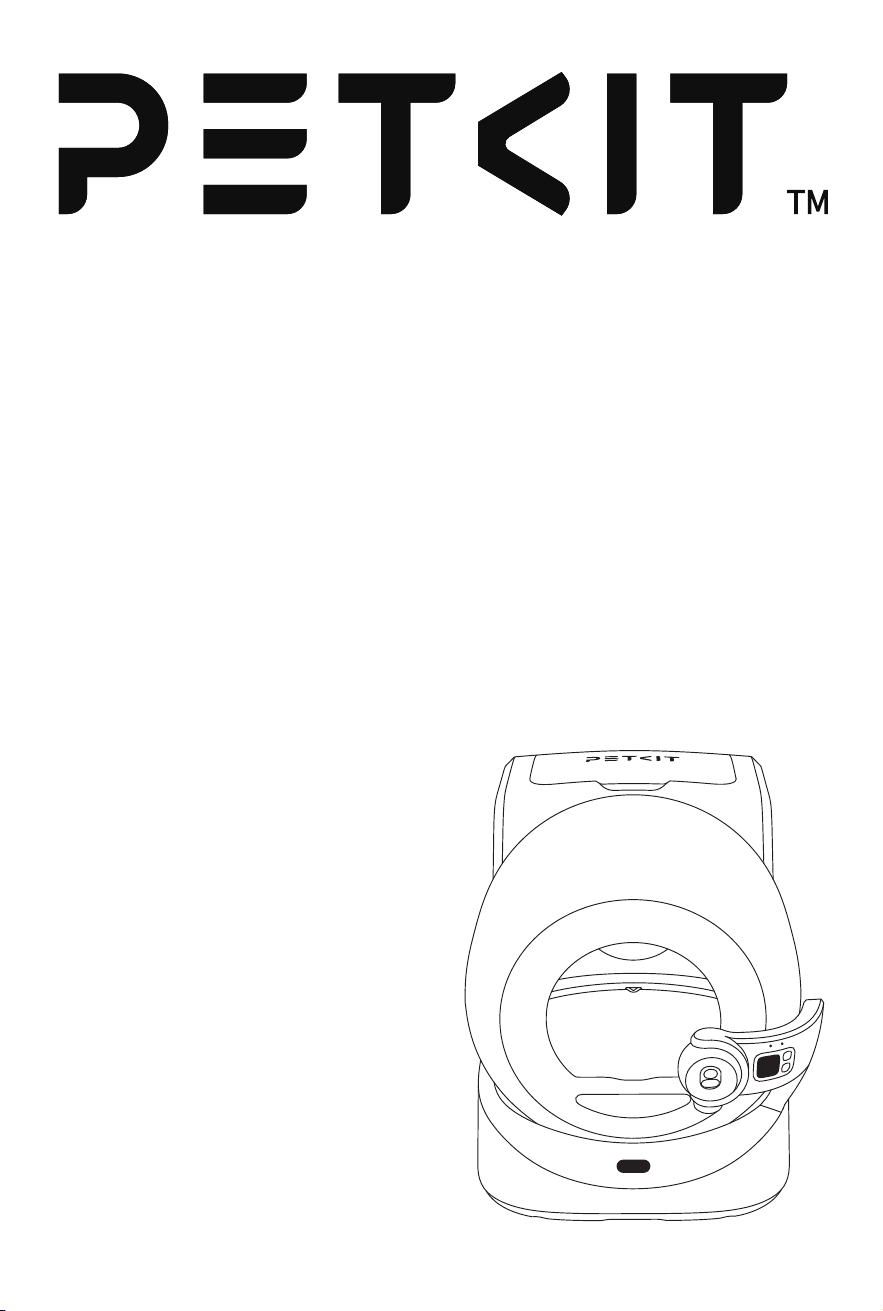
PETKIT PUROBOT ULTRA WITH CAMERA
SELF-CLEANING CAT LITTER BOX

RETURN TO
CONTENTS
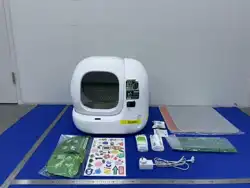
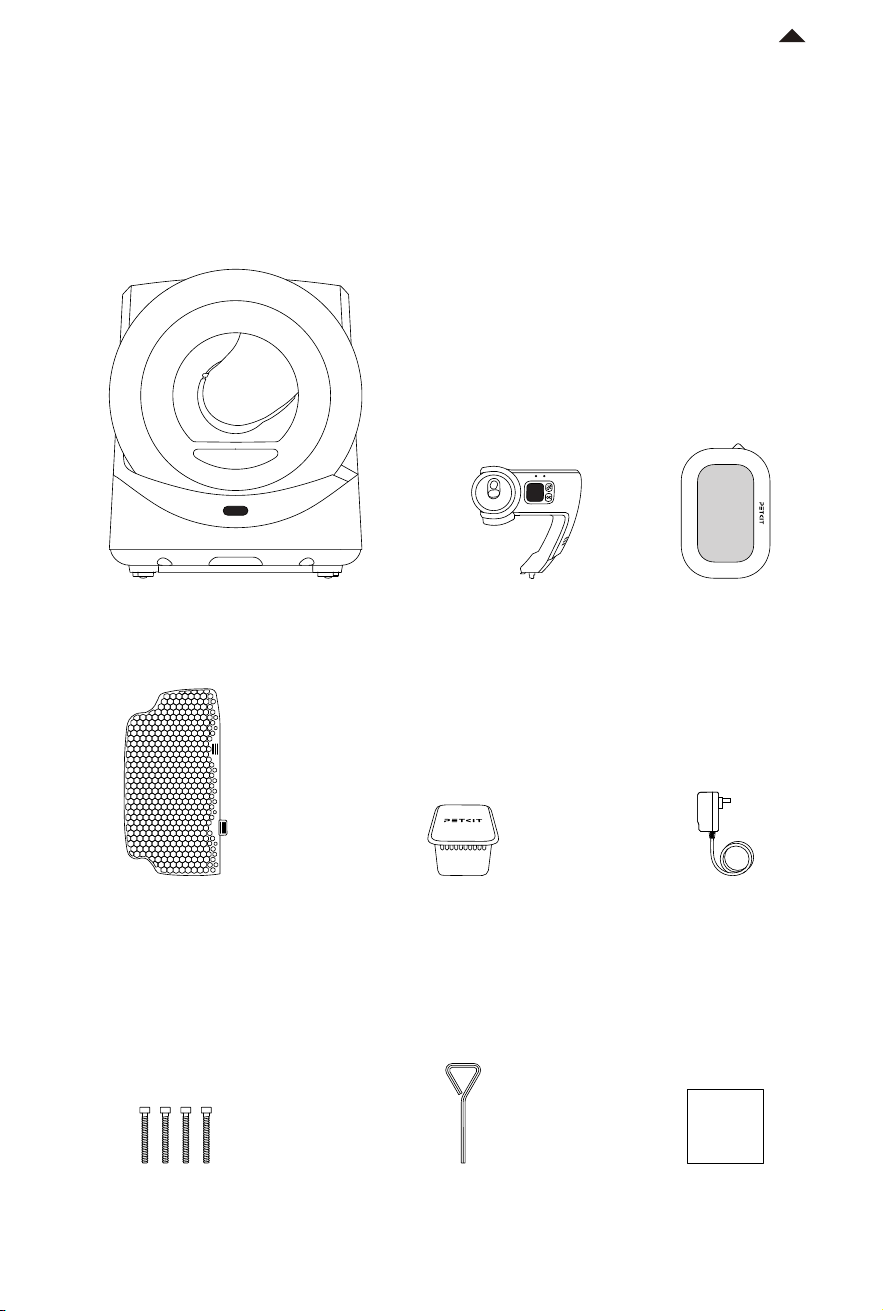
PACKAGE LIST
01
-3-
Main Unit AI Camera
Power Adapter
Pet Odor
Eliminator N60
Hex Key
Screw * 4
User Manual
Honeycomb Fine Litter
Sier P99032 (Exclusive
for mineral cat litter)
Refill Ring P99034
USER
MANUAL
* Before installation and use, please take out the accessory box from the trunk and check
if all accessories arecomplete according to the following list:
RETURN TO
CONTENTS
-4-
PRODUCT DESCRIPTION
02
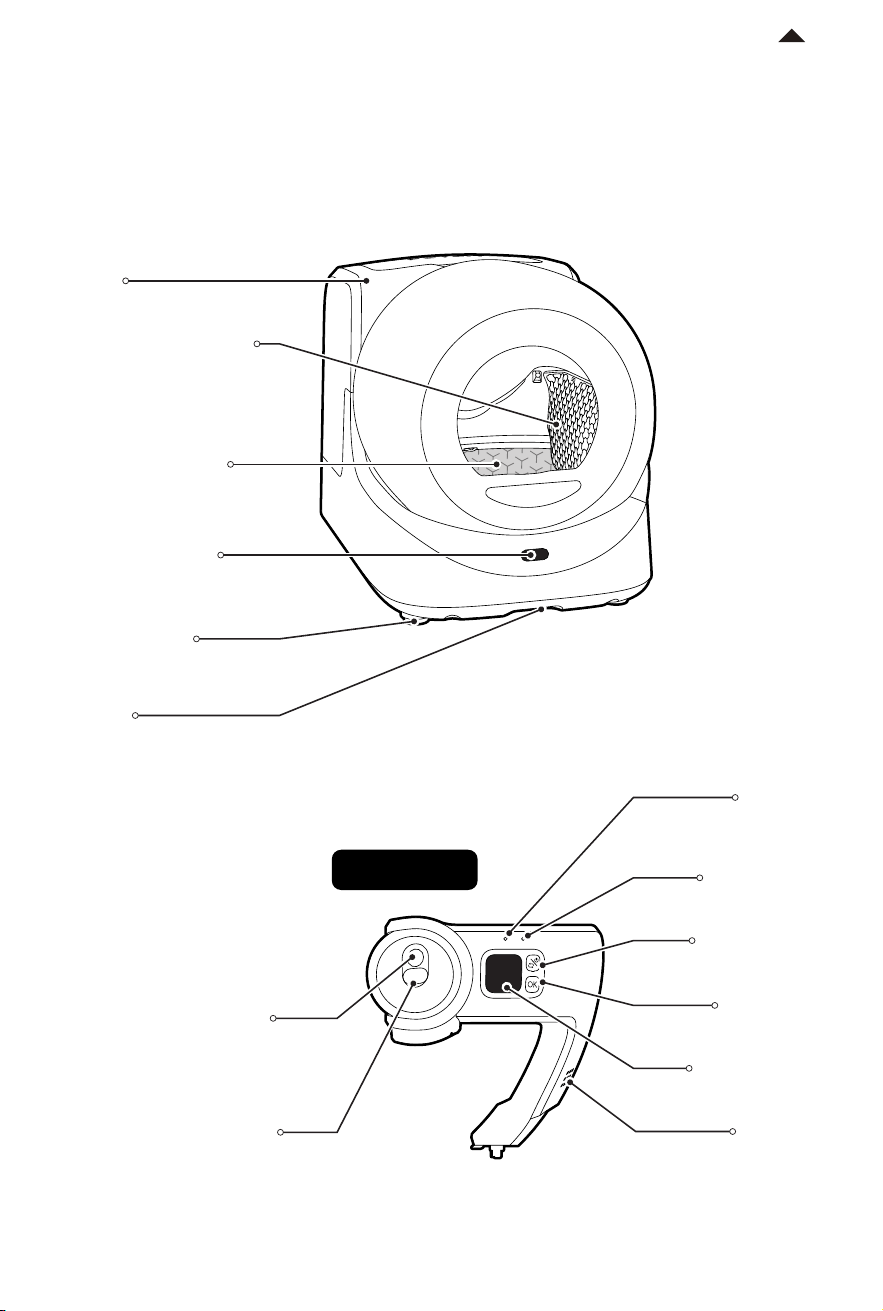
(Li the device by holding
the handle to move it.)
Proximity Sensor
Weight Sensor
Handle
High Performance
Cat Litter Pad ULTRA
P99035
Fill Light
Camera
OLED Display
Screen
Speaker
OK Button
Microphone
Trunk
Standard Litter Sier
P99031(Exclusive for
tofu cat litter and
mixed cat litter)
Camera
Indicator Light
Menu Button
AI Camera
RETURN TO
CONTENTS
-5-
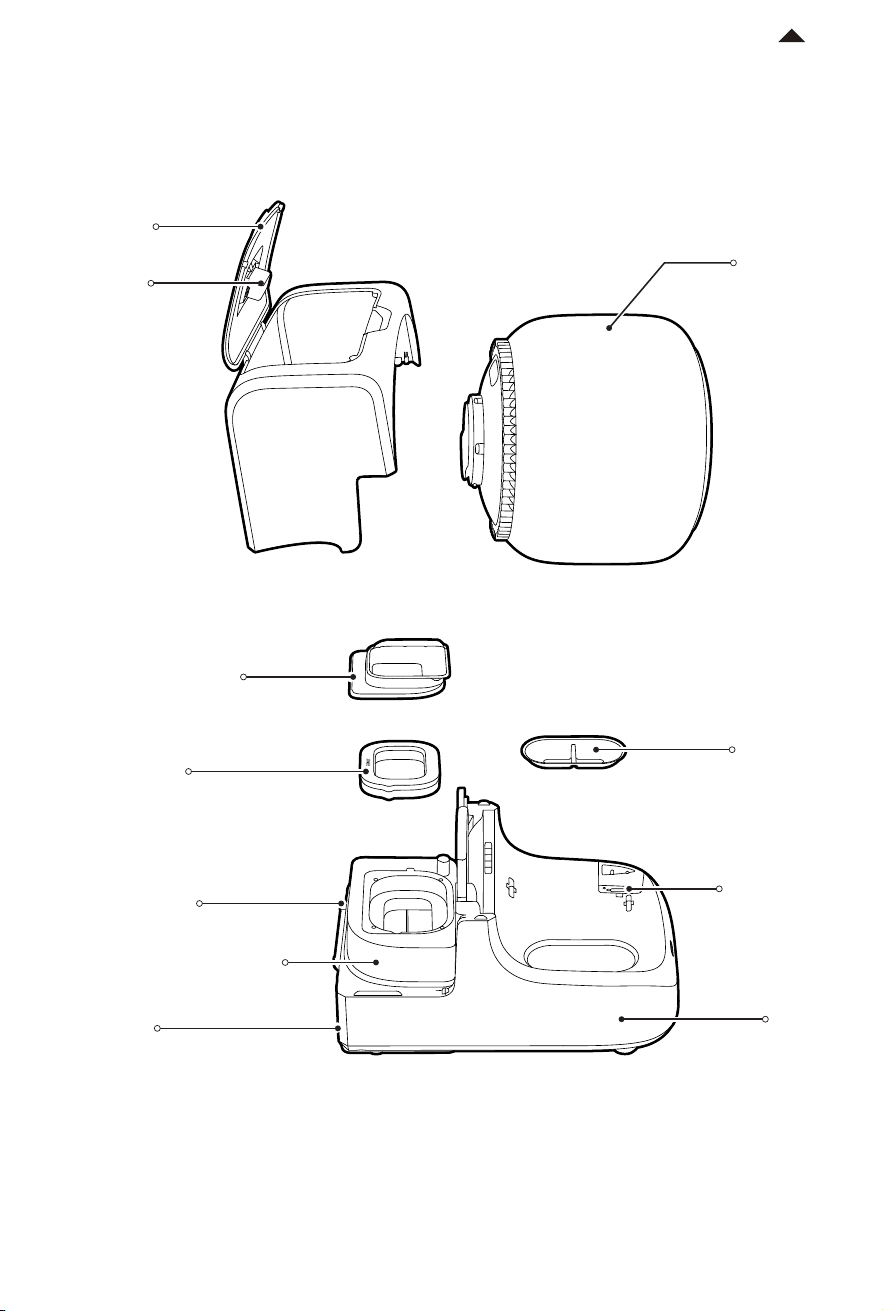
#1 Litter
Collection Tray
Base
Wheel
Cylinder
Power Port
Pet Odor
Eliminator N60
Trunk Lid
Auto-packing Module
Refill Ring Cover
Refill Ring
AI Camera
Installation
Port
* Note: The actual product may dier from the image shown due to continuous product improvements;
the actual product shall prevail.
Self-installation
required
Do not dispose
RETURN TO
CONTENTS
-6-
Component Description
Components
AI Camera
Functional Description
Real-time monitoring of pet's toilet status
Auto-packing Module
Automatically seal and replace the trash bag
Litter Sier P99031
Eectively si clumps without jamming or missing;
suitable for tofu cat litter and mixed cat litter
Litter Sier P99032
Eectively si clumps; suitable for fine granular
cat litter such as mineral cat litter and bentonite
High Performance Cat
Litter Pad ULTRA P99035*
Non-stick, scratch-resistant, waterproof, and easy
to clean
Pet Odor Eliminator N60*
Long-lasting fragrance and non-irritating
* High Performance Cat Litter Pad ULTRA P99035* is hereinaer referred to as litter pad.
* Pet Odor Eliminator N60 is hereinaer referred to as N60.
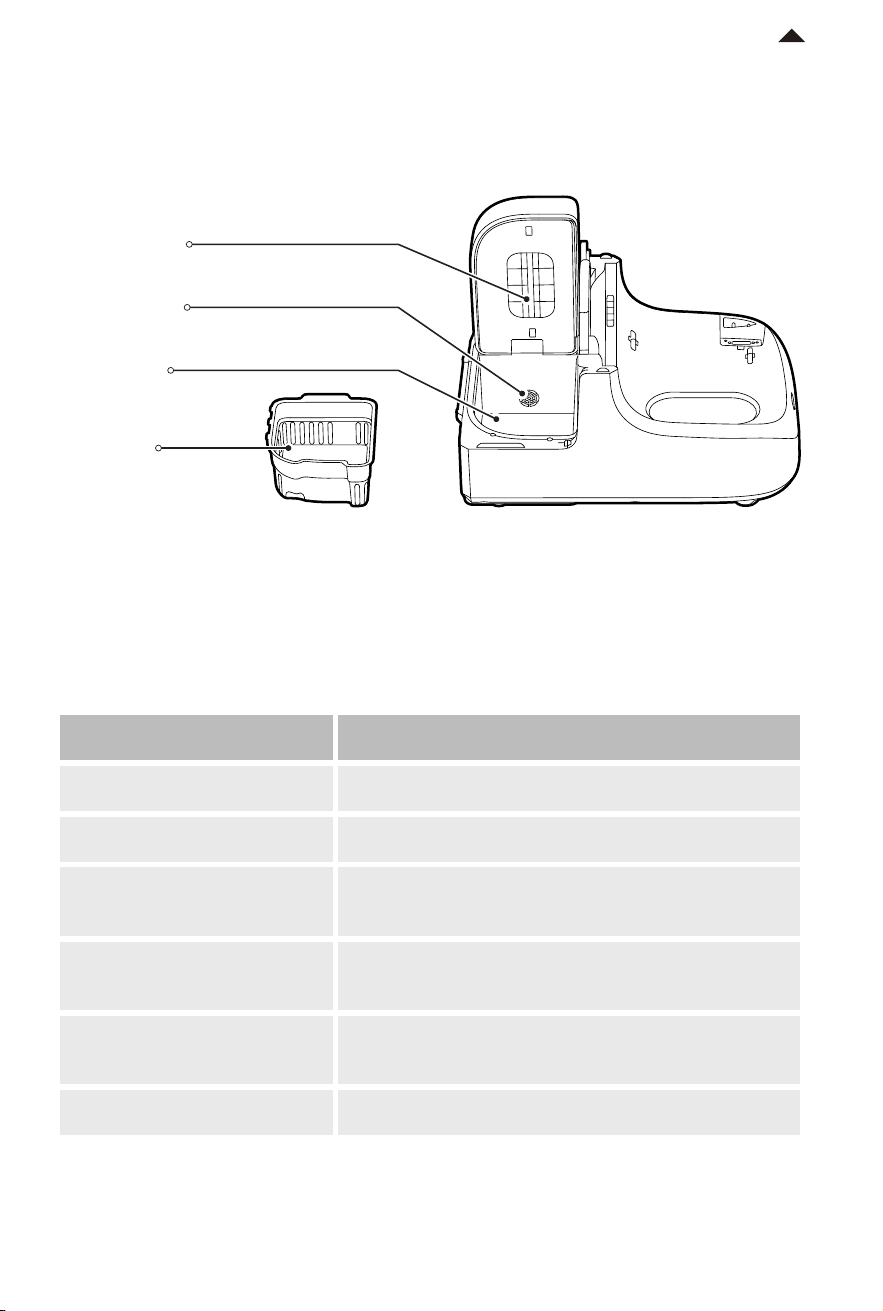
Turbine Fan
Waste Bin
#2 Litter
Collection Tray
(in the waste bin)
Sealed Door
Do not dispose
RETURN TO
CONTENTS
-7-
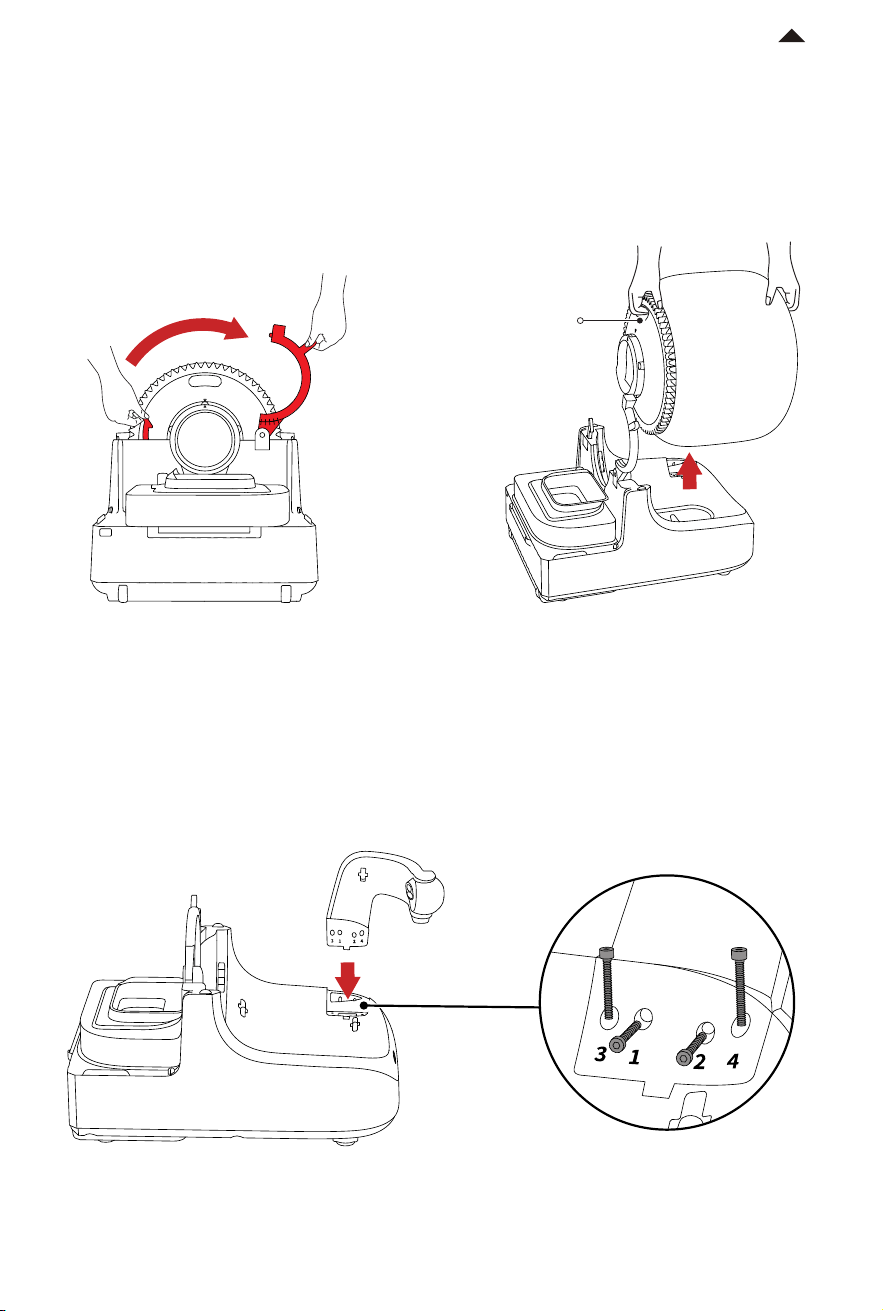
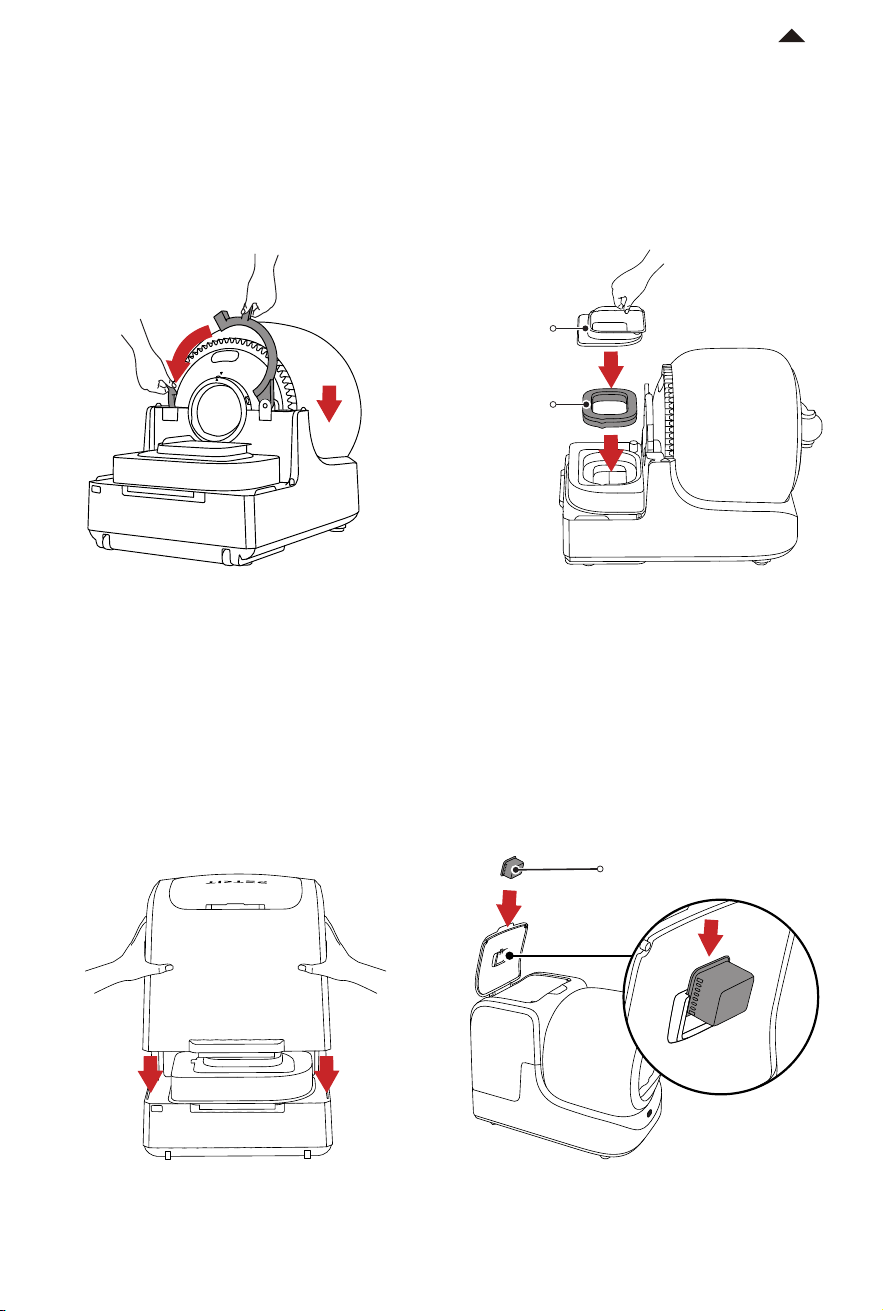
❶ Unlock the buckle to remove the cylinder.
PRODUCT INSTALLATION
03
❷ Insert the AI camera into the installation
port. (as shown in the figure)
❸ Install the “1” and “2” screws first (in a
horizontal direction), then install the “3”
and “4” screws (in a vertical direction),
and tighten them with the hex key.
Handle
3.1 Install AI Camera
RETURN TO
CONTENTS
-8-
❹ Place the cylinder on the base and lock
the buckle, ensuring it is fastened.
* Handle with care; Do not bump the AI
camera.
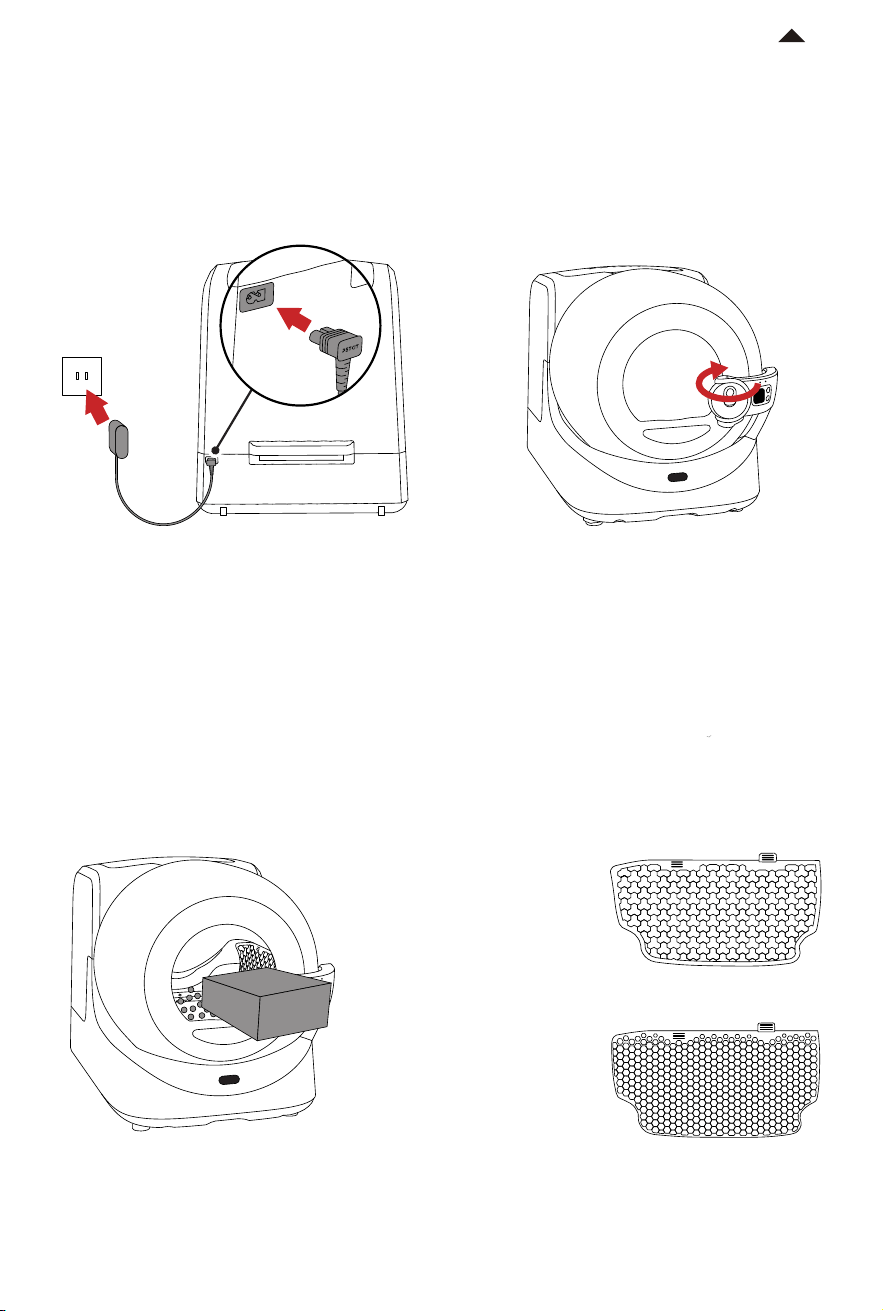
3.2 Install Refill Ring and N60
❶ Remove the refill ring cover, put the
refill ring in, and put the cover back.
❷ Install the trunk, ensuring that it
attaches to the magnets on both sides.
Refill Ring
Cover
Refill Ring
❸ Open the lid, install the N60, and close
the lid.
* Do not place anything on the lid to avoid
risks ofdamaging the device.
N60
RETURN TO
CONTENTS
-9-
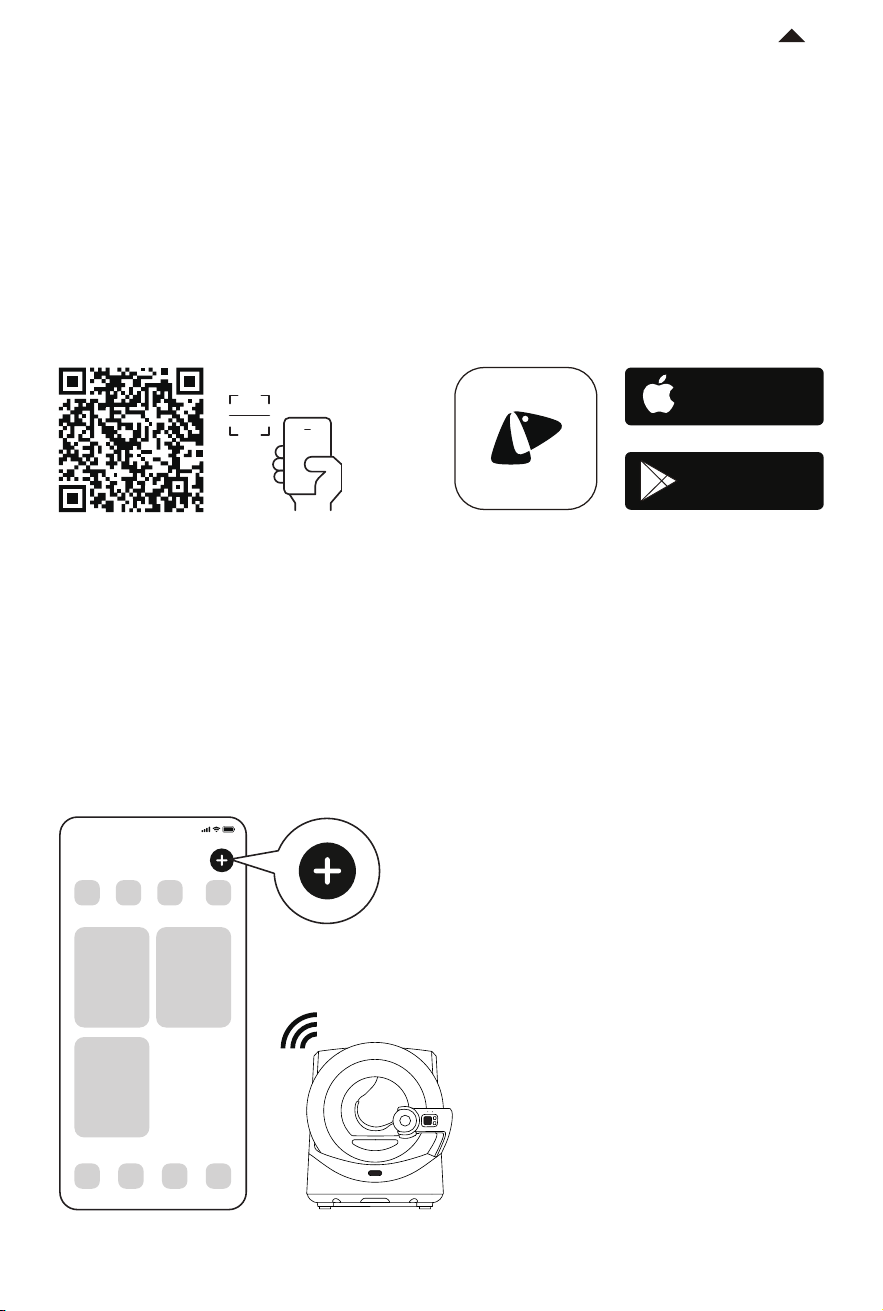
3.3 Power On
❶ Connect to the power supply, and the
cylinder will reset automatically.
❷ The camera will rotate.
❸ Select the litter sier according to the cat litter. If it is mineral cat litter, please use the
litter sier P99032. Pour in the cat litter and do not exceed the MAX line.
(See 7.1.2 and 7.2.4 for the replacement method of litter sier)
Litter Sier P99031
(Exclusive for tofu cat litter
and mixed cat litter)
Litter Sier P99032
(Exclusive for
mineral cat litter)
返回目录
-10-
-10-
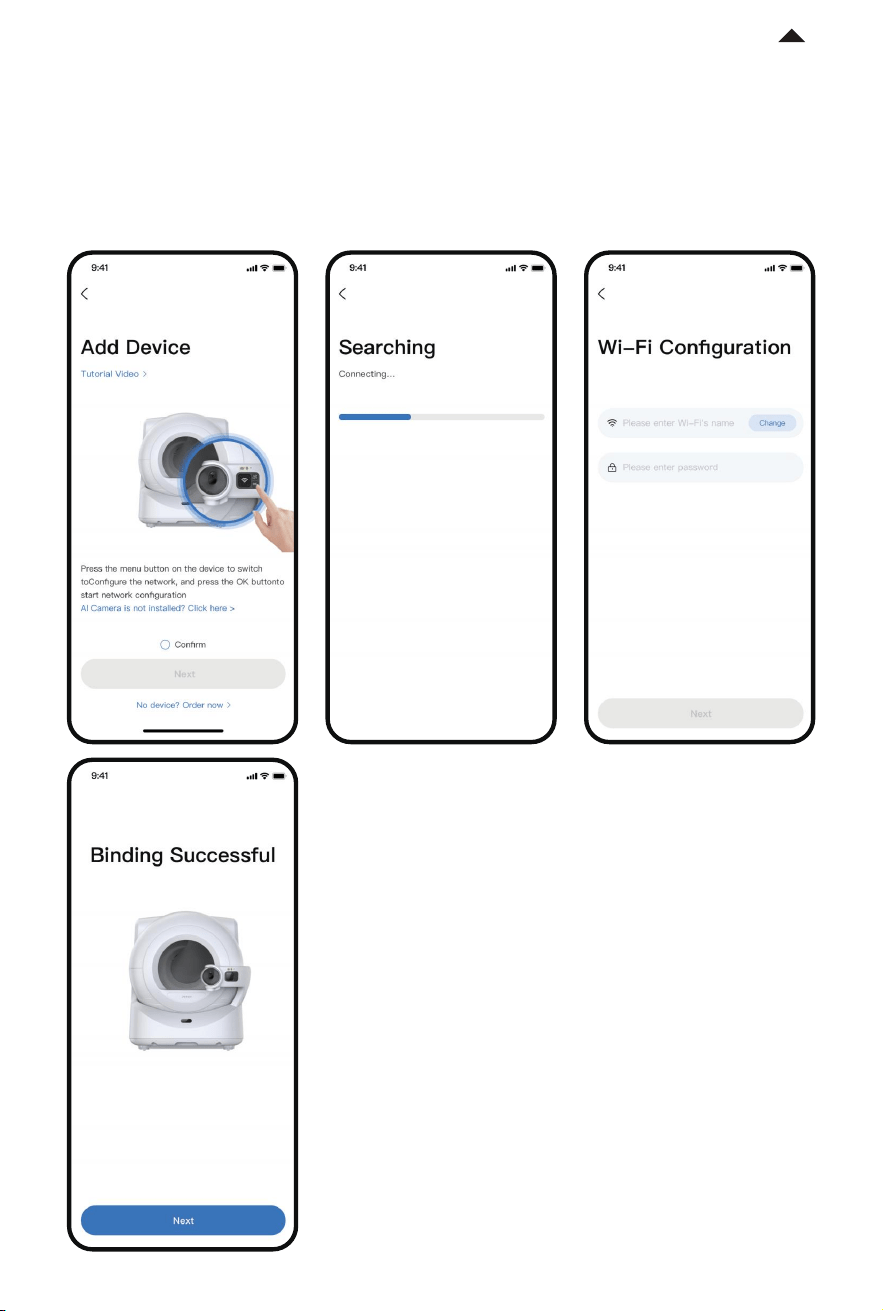
4.1 Device Binding
❶ Download the App
❷ Add the device
Open the app, click “+” and select PETKIT PUROBOT ULTRA WITH CAMERA SELF-CLEANING
CAT LITTER BOX.
Download the PETKIT App from the App Store or Google Play.
Or scan the QR code to download and install.
Available on the
App Store
Get it on
Google play
* The interface may be dierent due to soware
version update; the actual interface shall prevail.
04
PRODUCT USAGE
9:41
PETKIT
* Please bind the device with the app before using it for the first time. The device can be
used only aer successful binding.
RETURN TO
CONTENTS
-11-
❸ Start connection
* The interface may be dierent due to soware
version update; the actual interface shall prevail.
Press the menu button on the device and switch to “Connect to the network”, then press
the OK button, and the screen will display “Connecting”. Please follow the instructions in
the App until the binding is successful.
RETURN TO
CONTENTS
-12-
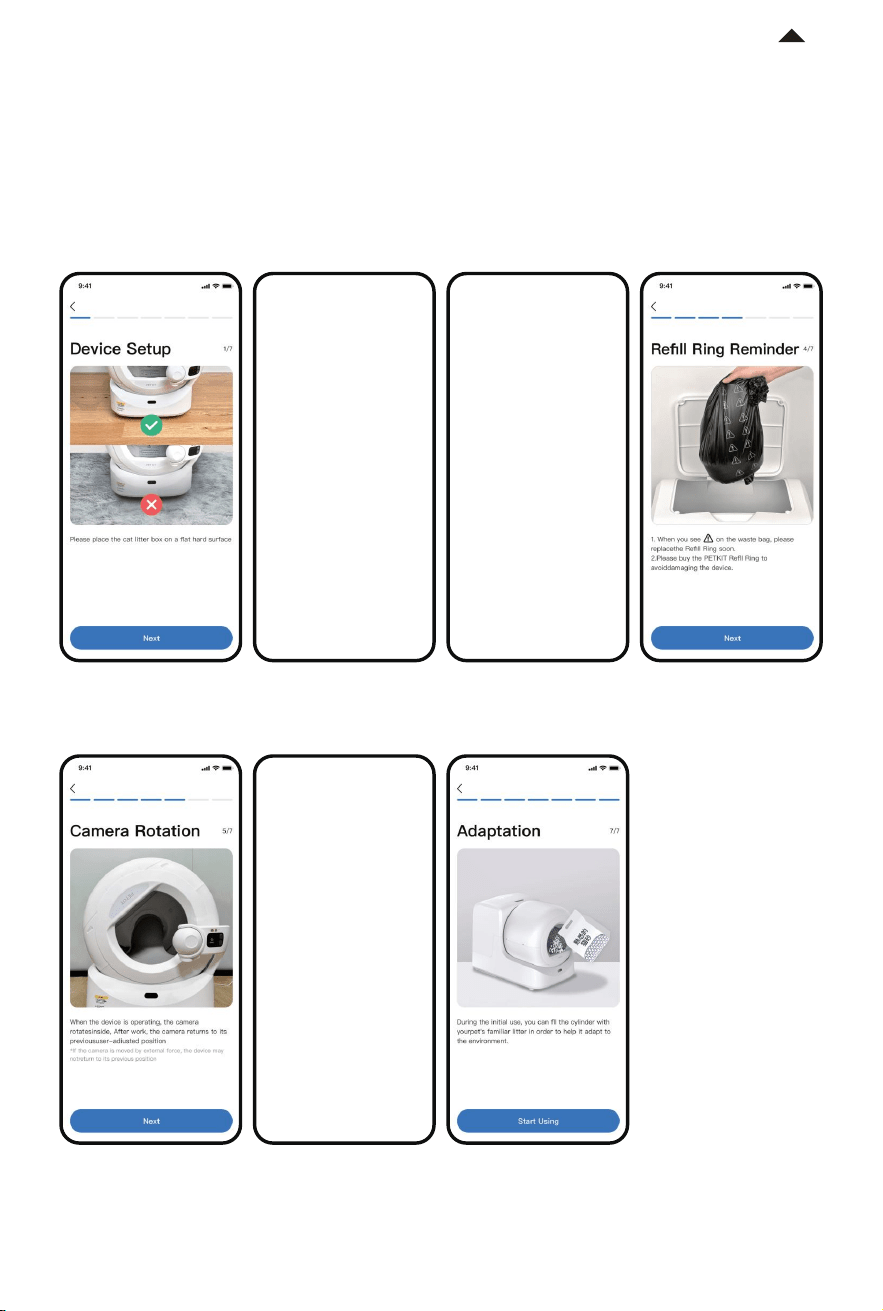
❹ Read instructions
To ensure the safety of pets and the correct use of this product, please read the instructions
carefully and use the product properly according to the usage guide aer the first successful
connection to the device.
* The interface may be dierent due to soware
version update; the actual interface shall prevail.
RETURN TO
CONTENTS
-13-
05
APP FUNCTIONS
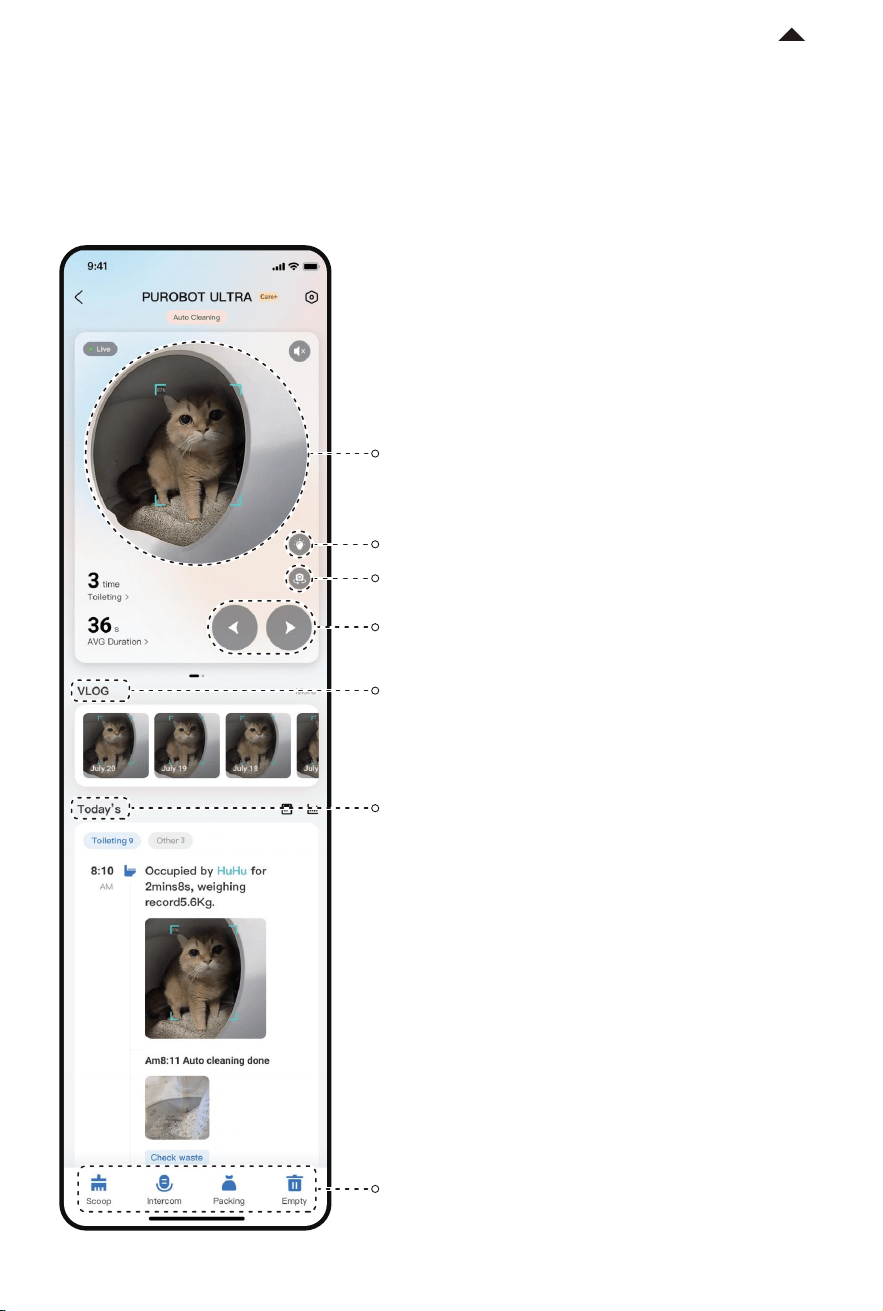
5.1 Homepage
❶ Live view:
❷ Light button:
Monitor pet's status in real time.
Turn on the light in the camera.
❸ Toggle:
Rotate the camera outward or inward with one
click.
A collection of highlight videos from the previous
day is automatically generated daily at 8am.
Up to 7 days of videos are displayed.
❹ Camera rotation controls:
Rotate the viewing angle
in a horizontal direction.
❺ VLOG:
The AI algorithm categorizes the captured video,
which is convenient for you to view by category.
* Only event images can be viewed if the PETKIT Care+
service is not subscribed to. To view full video playback,
highlight, etc., please subscribe to the PETKIT Care+
service.
❻ Today’s timeline:
❼ Function button
* The interface may be dierent due to soware
version update; the actual interface shall prevail.
RETURN TO
CONTENTS
-14-
* The interface may be dierent due to soware
version update; the actual interface shall prevail.
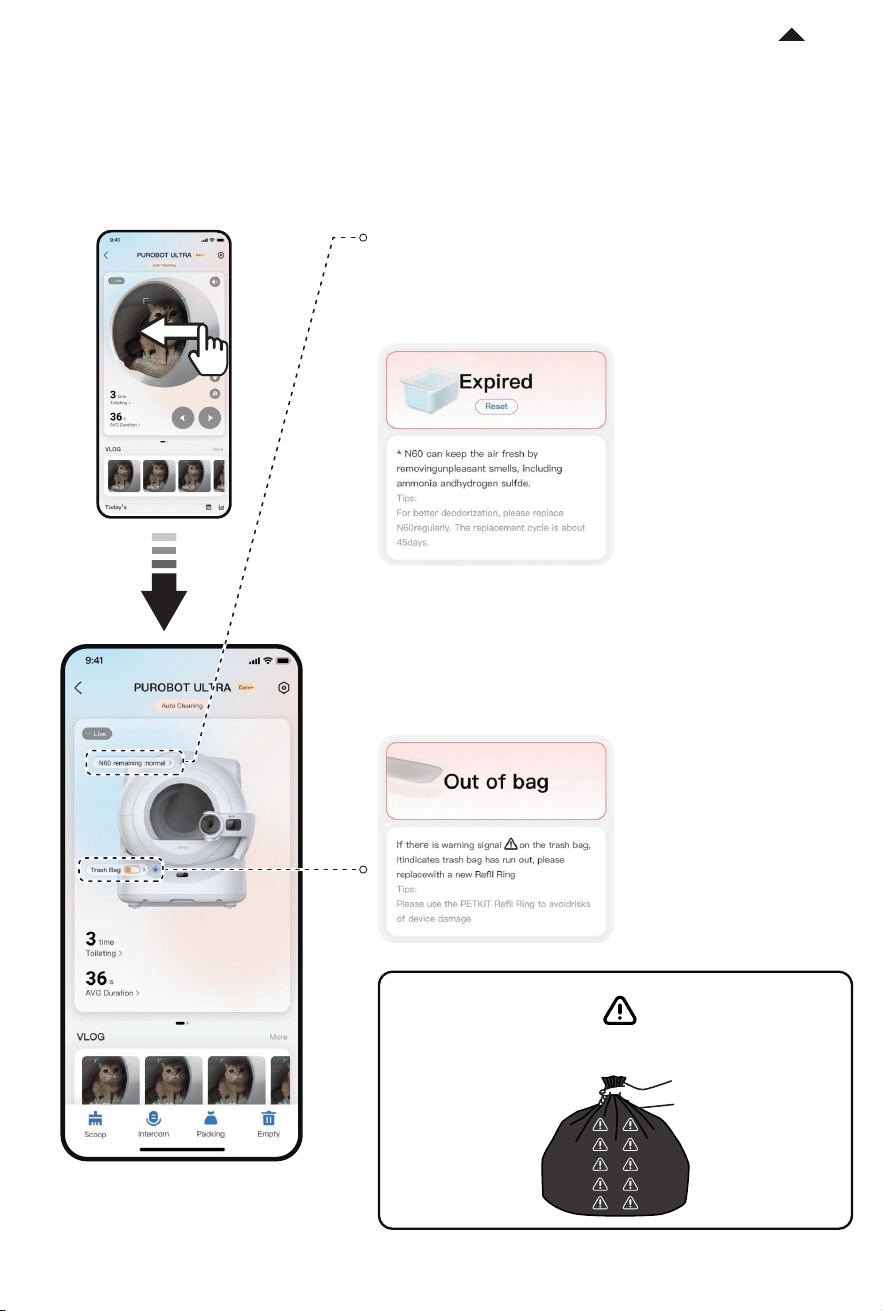
5.2 Label Description
Swipe le on the homepage to enter the label page, which displays the status of the N60
and the Trash Bag.
When the N60 label turns red and displays “N60 has expired”,
please replace it promptly. Aer replacing the N60 with a new
one, click Reset, and when it displays “Normal”, the N60 is
installed in place.
❶ Replace N60
When the trash bag label turns red and displays “Out of trash bag”,
please replace the Refill Ring with a new one promptly.
❷ Replace the Refill Ring
TIP
If there are warning signs on the packed trash bag,
it indicates that the trash bag has run out. Please replace
the Refill Ring with a new one.
RETURN TO
CONTENTS
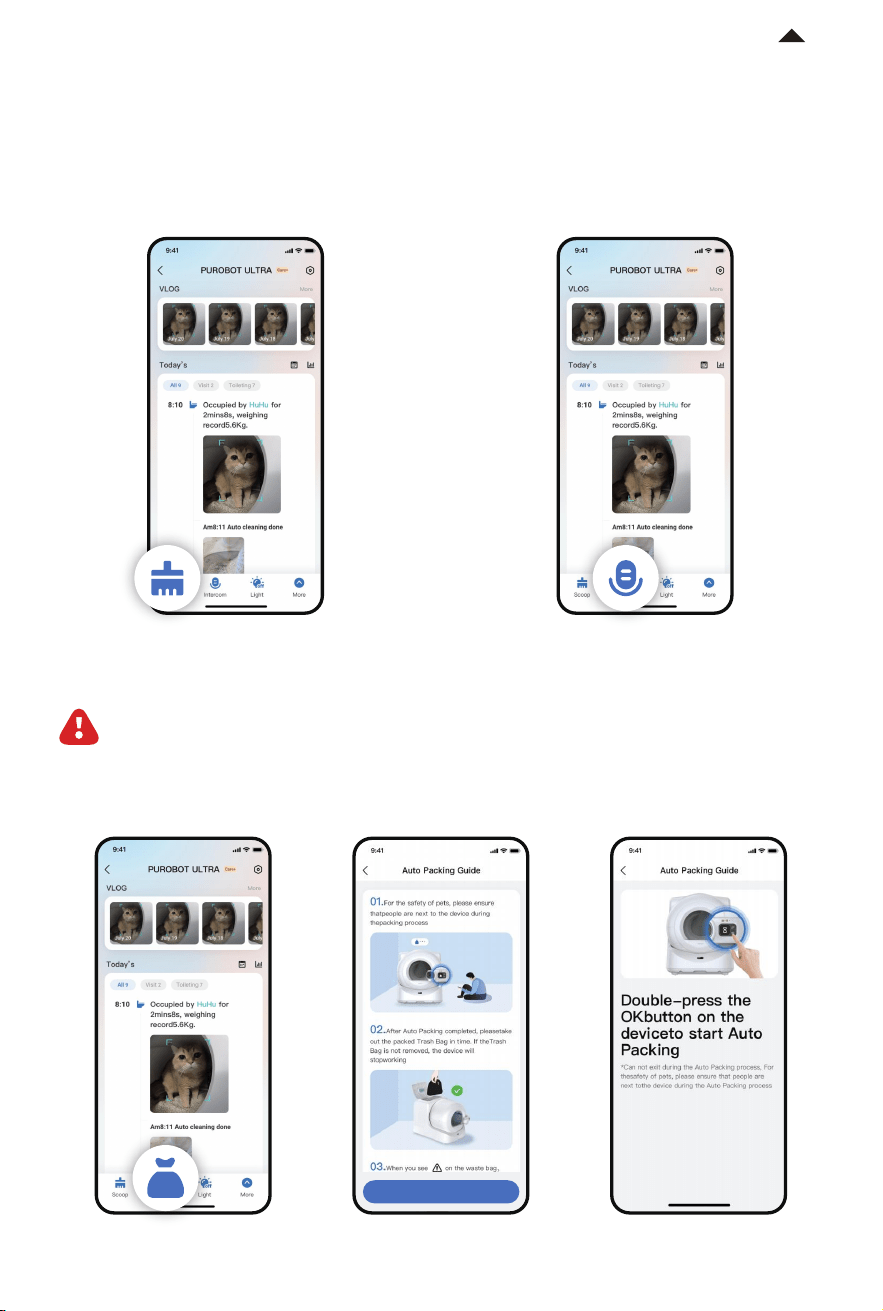
❸ Pack
Click this button, follow the prompts and double press the OK button on the device to start
auto-packing.
CAUTION: This function needs to be operated on the control panel. Do not leave the
device during the packing process.
5.3 Description of Function Buttons
❶ Scoop ❷ Intercom
Click this button to clean out the clumps
from the cylinder.
Hold the button to talk to your pets.
下一步
下一步
下一步
* The interface may be dierent due to soware
version update; the actual interface shall prevail.
-15-
RETURN TO
CONTENTS
-16-
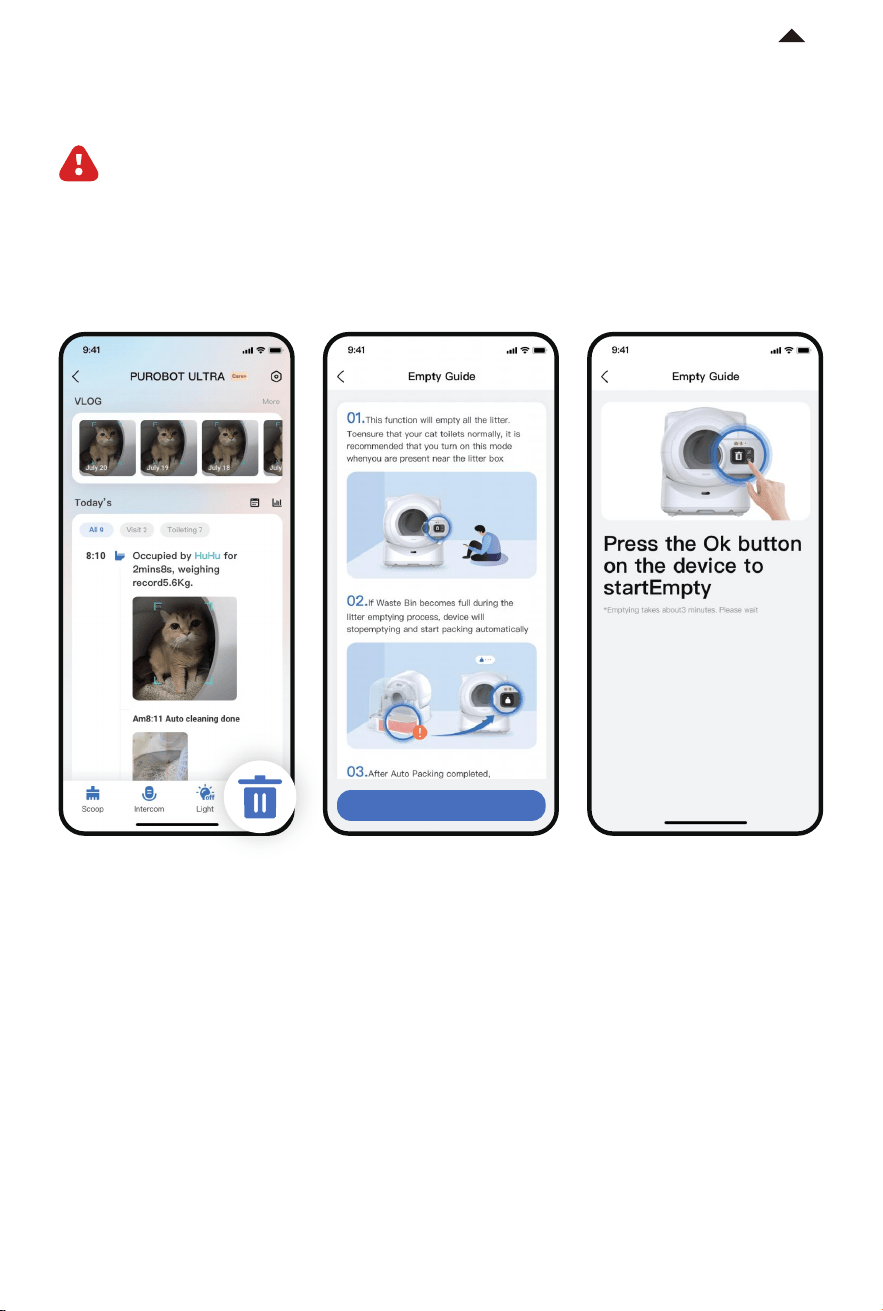
❹ Empty
Click this button, then follow the prompts and double press the OK button on the device
to start emptying all cat litter.
CAUTION: This function needs to be operated on the control panel. Do not leave the
device during the packing process.
* The interface may be dierent due to soware
version update; the actual interface shall prevail.
RETURN TO
CONTENTS
下一步
下一步
下一步
-17-
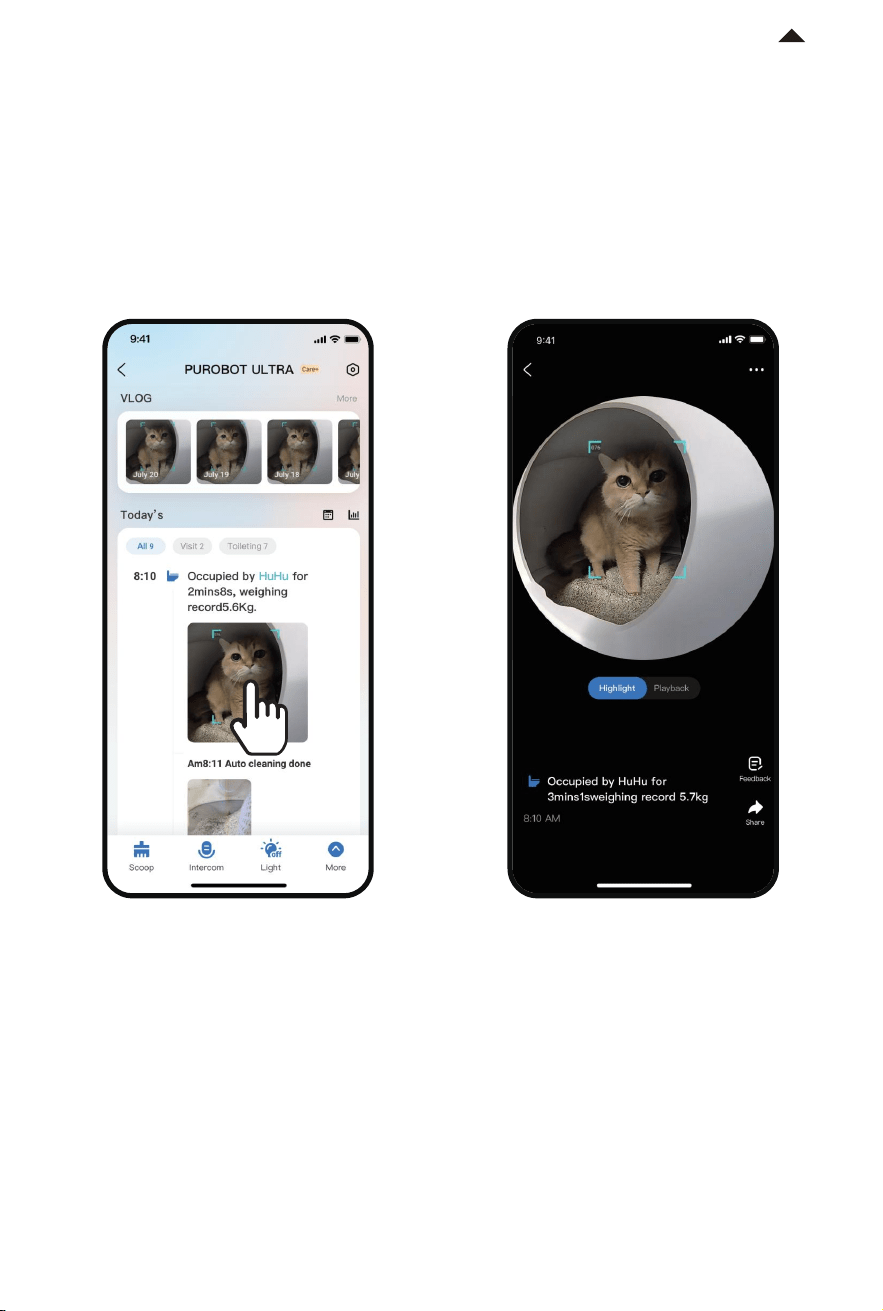
5.4 Play Videos
❶ Highlight playback
Click on the video in the timeline to see the accelerated version of highlights.
Aer subscribing to the PETKIT Care+ service, you can view the highlights and full video
playback.
RETURN TO
CONTENTS
* The interface may be dierent due to soware
version update; the actual interface shall prevail.
-18-
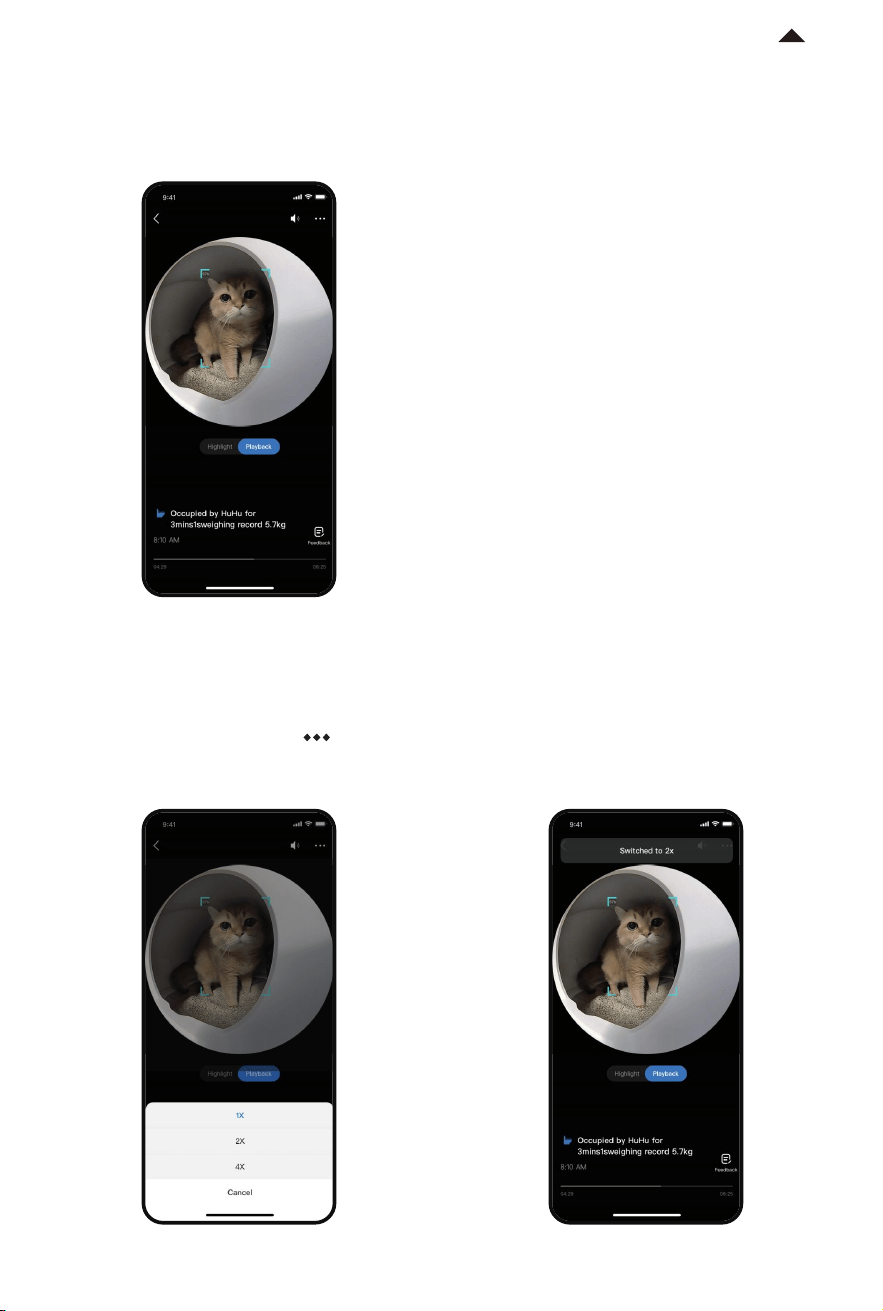
❷ Full clips playback
❸ Speedup playback
下一步
下一步
下一步
Click Playback to view the complete video footage.
In the Playback page, click “ · · ·
” on the top right corner to choose the speed, or hold the
center of the screen to play in 2x speed.
* The interface may be dierent due to soware
version update; the actual interface shall prevail.
RETURN TO
CONTENTS
-19-
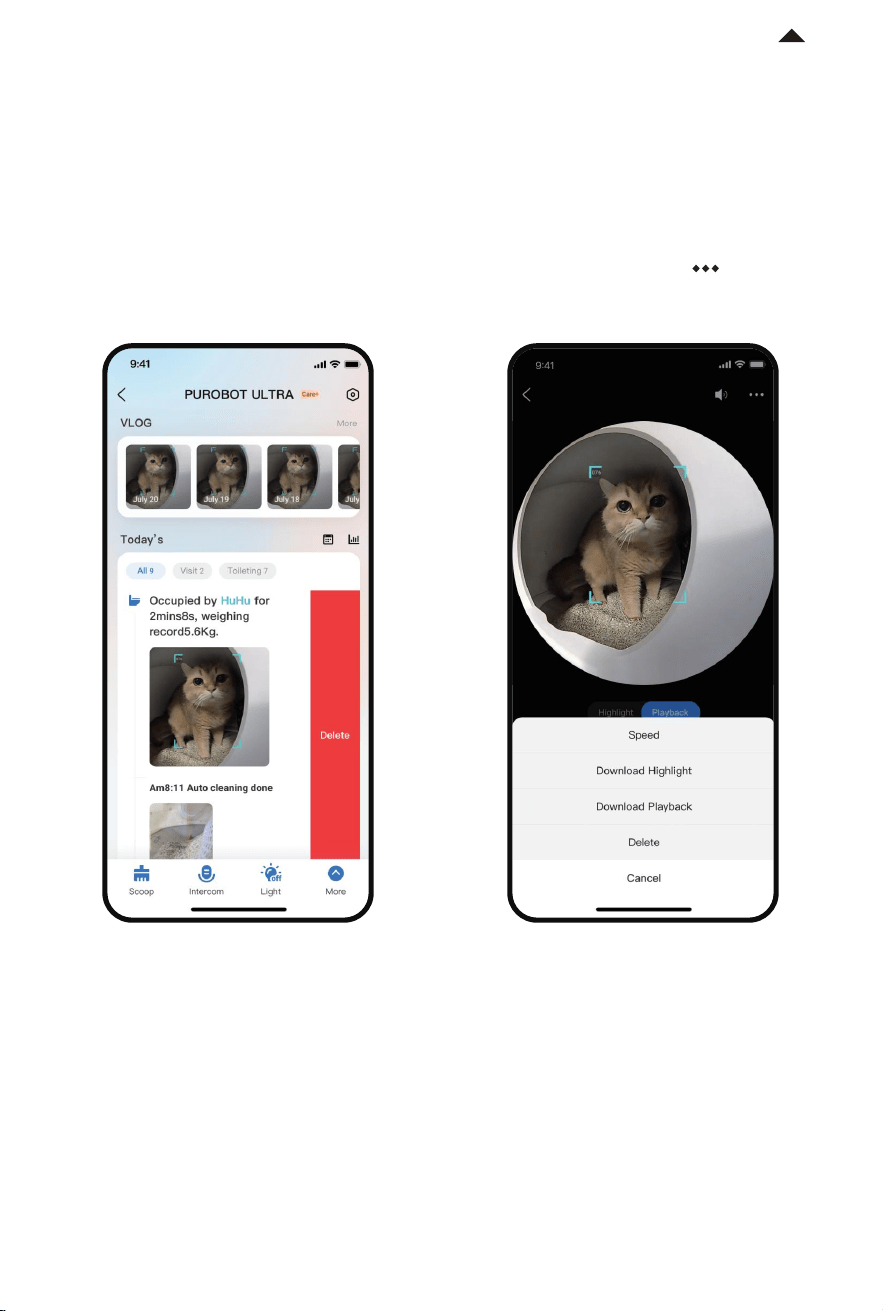
5.5 Delete video clips
❶ Method 1: ❷ Method 2:
Swipe le in the timeline and delete the
video.
Click on the video you want to delete,
switch to Playback, click “ · · ·
” on the top
right corner and delete the video.
You can delete recorded video clips as you need.
* The interface may be dierent due to soware
version update; the actual interface shall prevail.
RETURN TO
CONTENTS
-20-
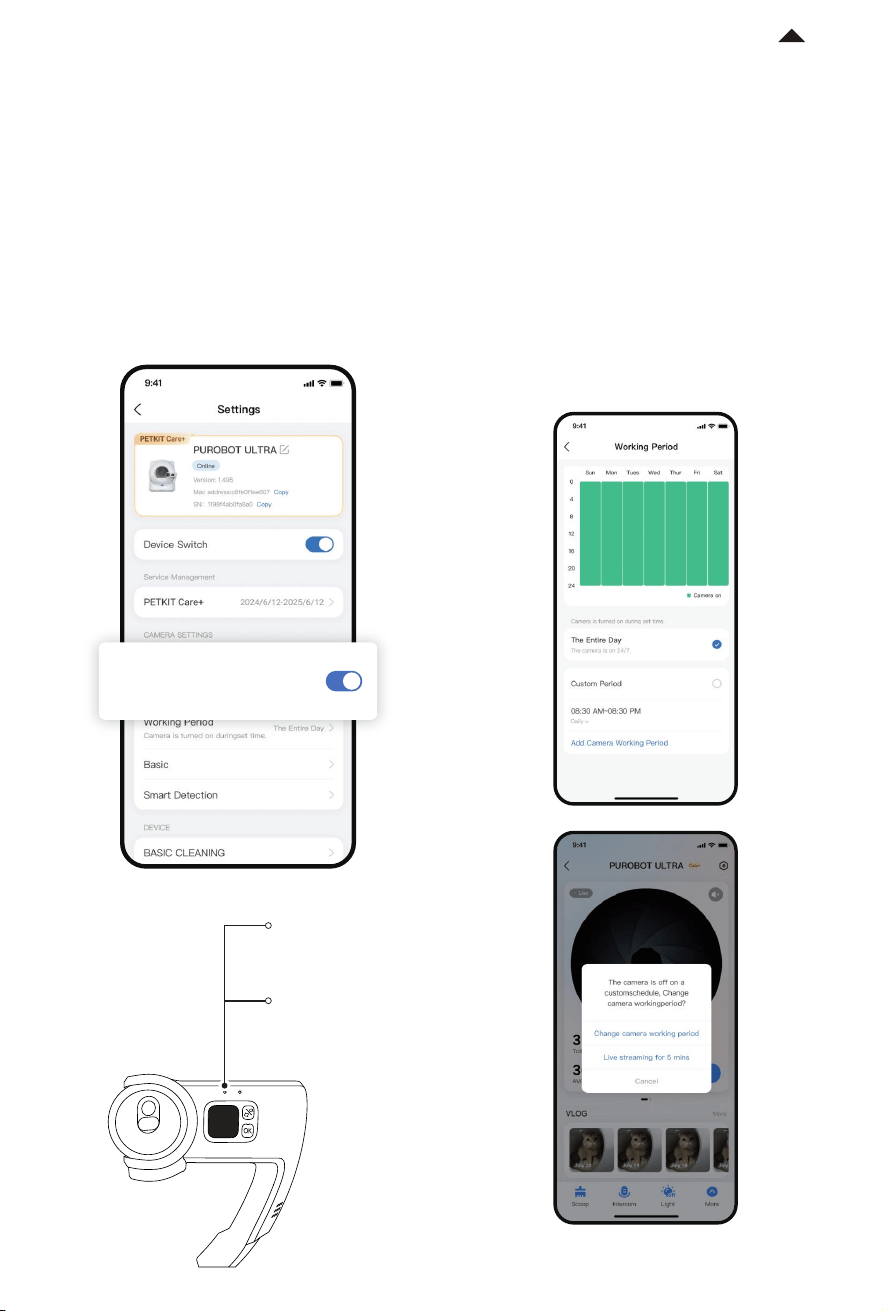
5.6 Privacy Protection
Note: The camera automatically rotates
to the cylinder when it is turned o and
will no longer record videos.
Note: Out of the customized periods, the
camera will not record videos. You can
watch a temporary 5-minute live stream.
❷ Customize the camera operating time
period
❶ Activate or deactivate the camera
You can customize time slots to turn on
the camera. Beyond those time slots, the
camera will be automatically turned o.
You can turn on or turn o the camera as
you need.
Camera Switch
No video footage will be generated if
youturn this feature off, but auto cleaning
willstill work
Solid Green
Camera on
Light O
Camera o
* The interface may be dierent due to soware
version update; the actual interface shall prevail.
RETURN TO
CONTENTS
-21-
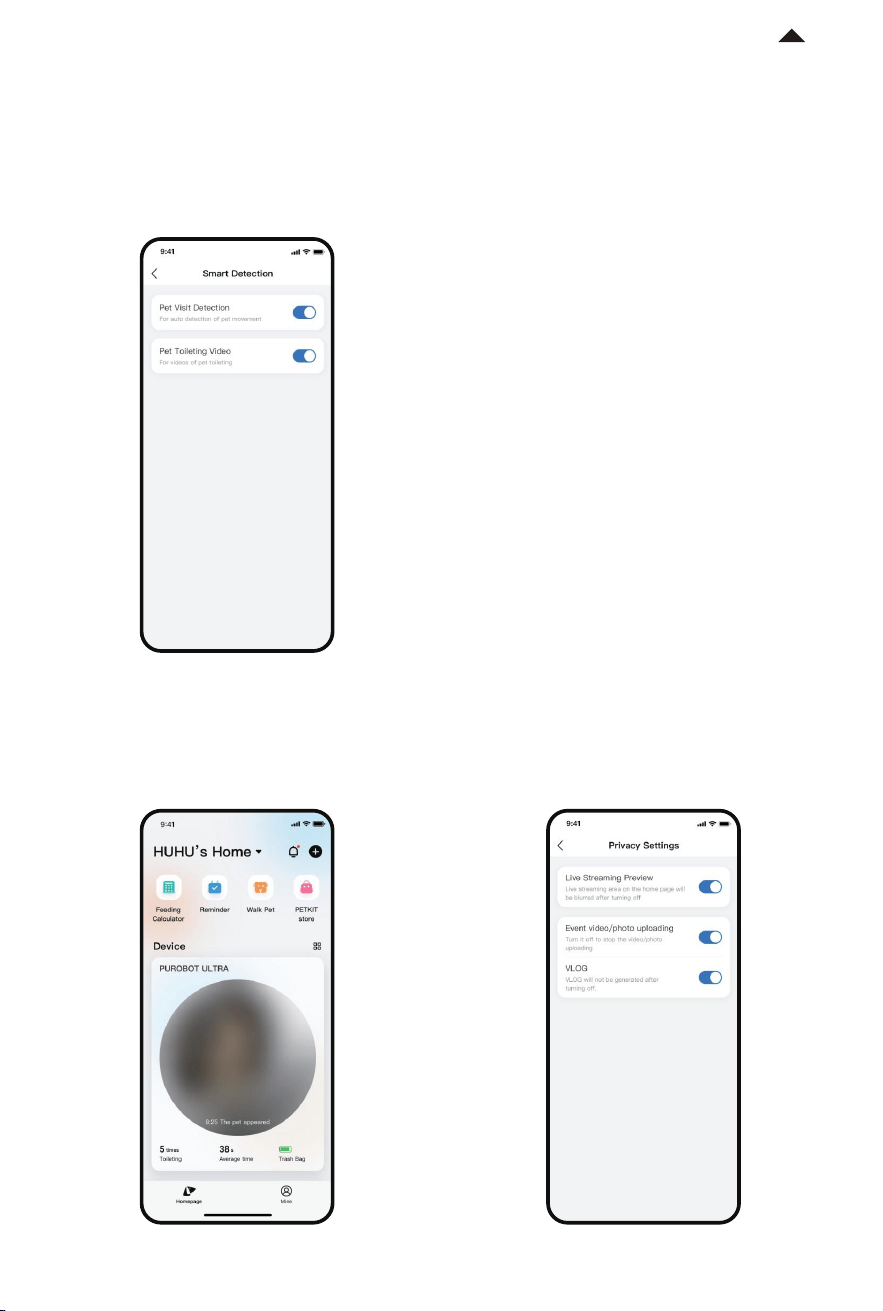
❸ Smart detection
下一步
Aer turning o the Pet Approach Detection, the camera will no longer record videos
outside the litter box. Aer turning o the Pet Toileting Video, the camera will no longer
record pet toileting videos.
❹ Live area privacy protection
With this feature on, when you enter the device homepage, the live area will be blurred to
protect your privacy.
下一步
下一步
* The interface may be dierent due to soware
version update; the actual interface shall prevail.
RETURN TO
CONTENTS
-15-
-22-
5.7 Other Settings
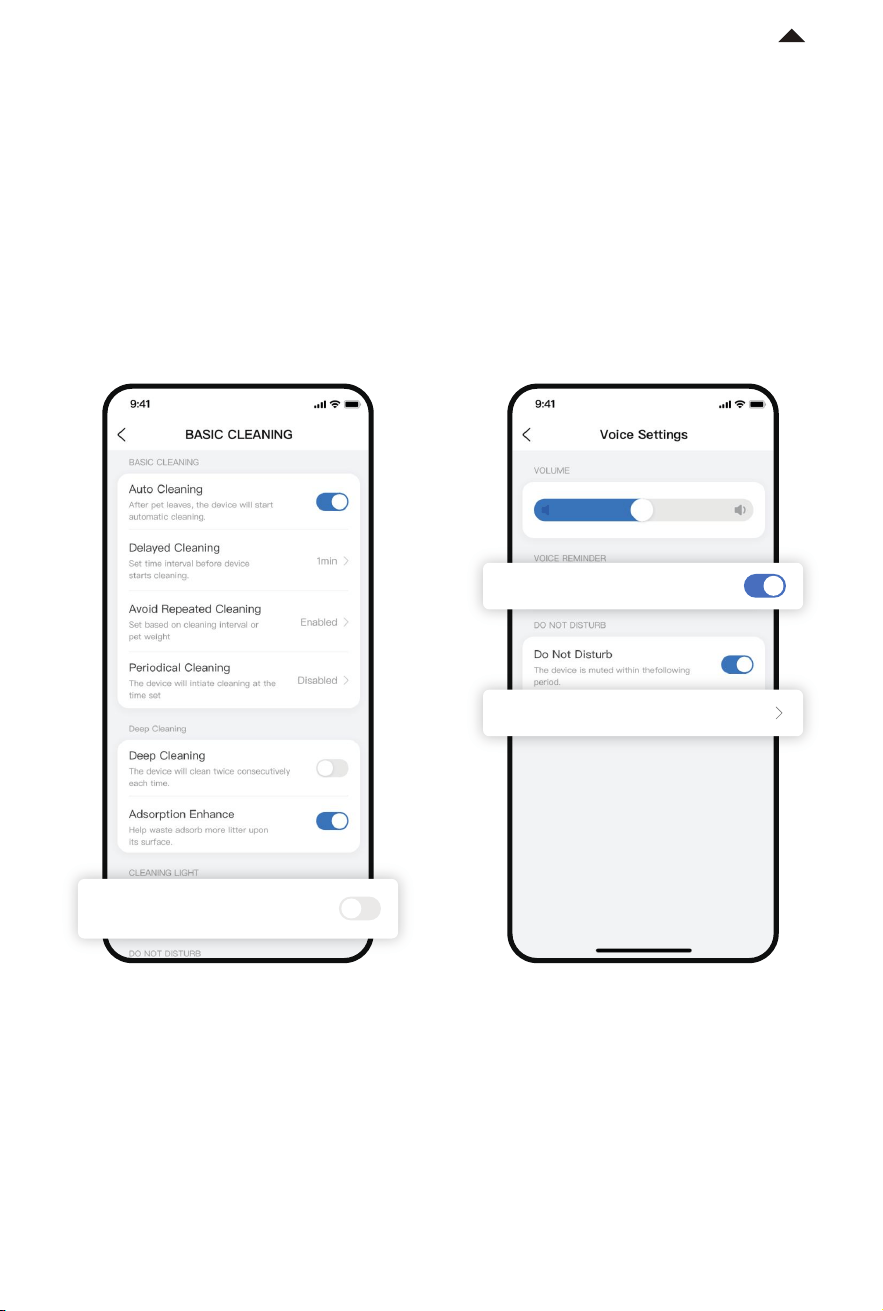
❷ Turn o voice prompt
❶ Make fecal pictures clearer
Method 1: Go to Settings > Voice Settings
and turn o Voice Prompt.
Method 2: Go to Settings > Voice Settings
and turn on Do Not Disturb and set the
undisturbed period.
Go to Settings > Scooping Setup and turn
on Light Assist. Aer activating this
function, the light will automatically turn
on during every scooping and turn o
when the scooping is complete.
Light Assist
Lights on when cleaning
Device Sound
Undisturbed Period
22:00~06:00
* The interface may be dierent due to soware
version update; the actual interface shall prevail.
RETURN TO
CONTENTS
-23-
❸ Cloud storage
Videos are stored for a limited time, and stored videos exceeding the time will be periodically
cleared. (e.g., 7-day loop means that videos or pictures from the last 7 days are retained,
and content from the eighth day forward is automatically cleared). All videos can be
downloaded, and the downloaded videos can be viewed in the local album of your phone
and in the App album.
❹ PETKIT Care+ service
Aer subscribing to the PETKIT Care+ service, HD video complete playback and other
privileges are available. The details are subject to the page description. PETKIT Care+
service can be transferred to another PETKIT PUROBOT ULTRA, which is only once per
year. PETKIT Care+ service is a virtual commodity and is non-refundable once purchased.
Click here to view the PETKIT Care+ Service Agreement.
RETURN TO
CONTENTS
-24-
INSTRUCTIONS
FOR CONTROL PANEL
06
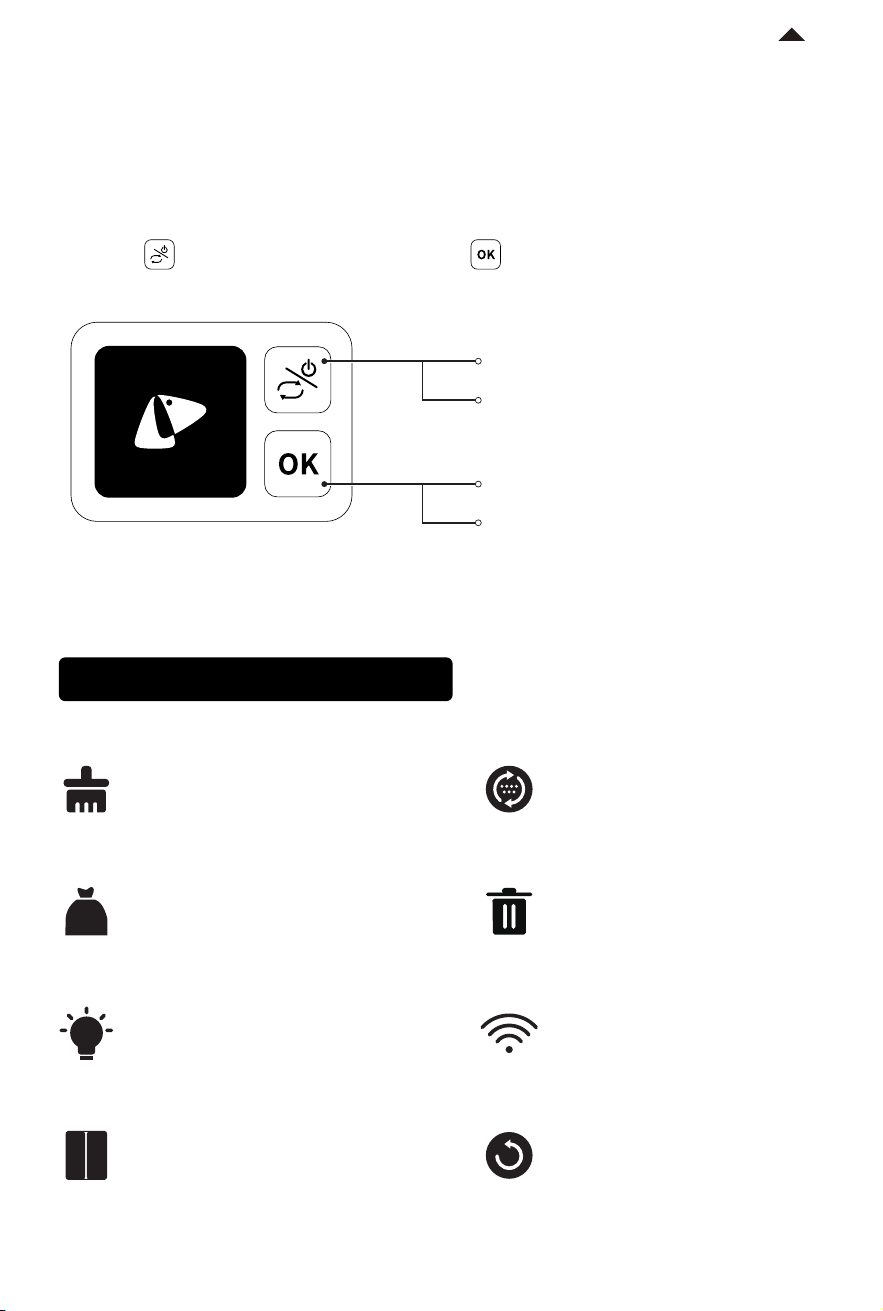
6.1 Control Panel
❶ Press to switch functions and press to execute the function.
Press and hold: Turn on or turn o
Level cat litter
Switch functions (The screen will
show the selected function)
Execute the selected function
Press:
Press:
Double press:
Description of Displayed Functions
Light
Scoop
Pack
Open / Close sealed door
Level cat litter
Empty cat litter
Connect to the network
Reset
Turn on the fill light in the camera.
Automatically si out clumps from
cat litter.
Automatically seal the trash bag.
Open or close the sealed door of the
auto-packing module.
Make cat litter evenly distributed
in the cylinder; Use it aer refilling
cat litter.
Empty all cat litter from the cylinder.
Use it when binding the App.
Adjust the cylinder to the correct
position.
RETURN TO
CONTENTS
-25-
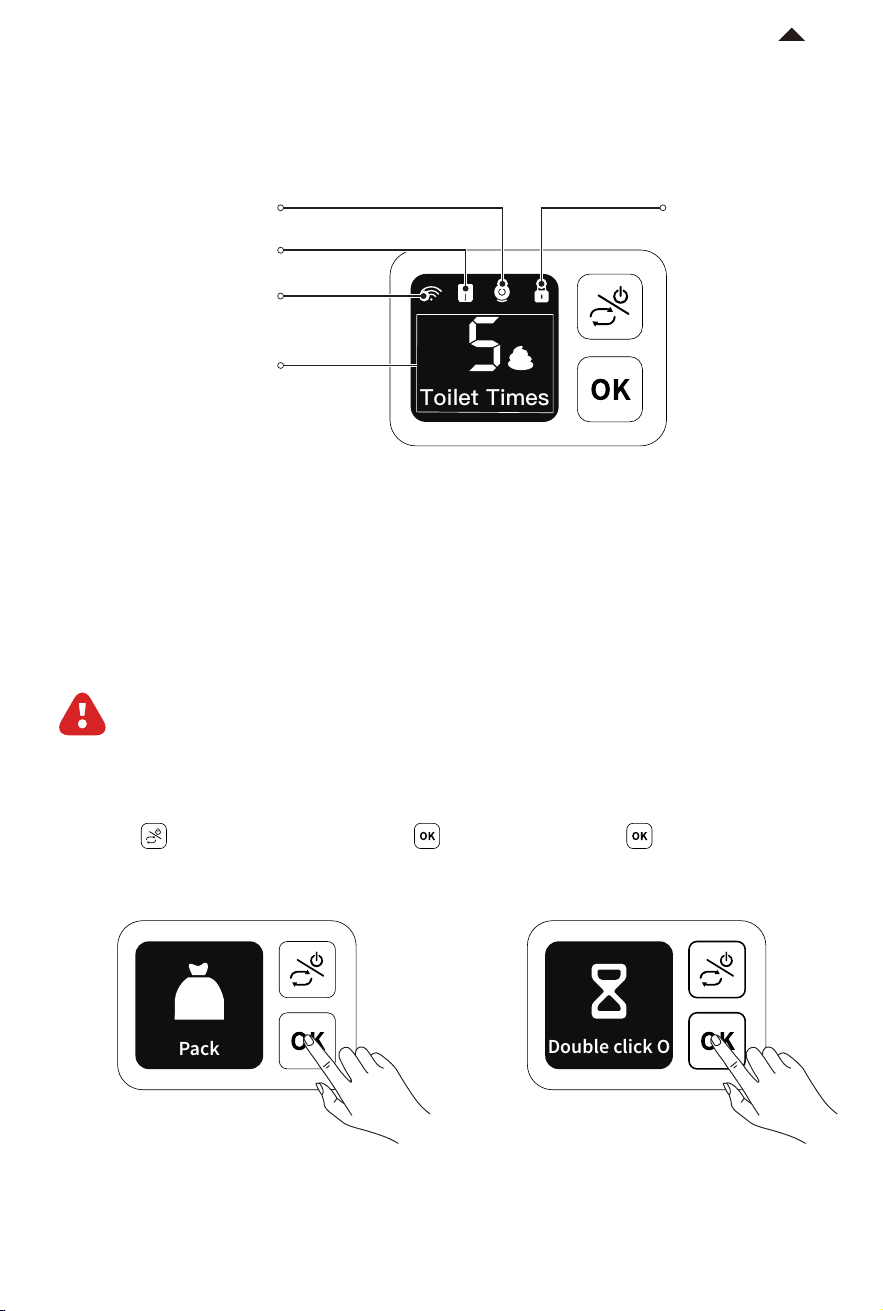
❷ Description of displayed status
Toilet Times
Camera on
Child lock on
Total toilet times today
Network connected
Sealed door open
6.2 Auto-Packing
The auto-packing function needs to be operated on the control panel. Do not leave
the device during the packing process.
❶ Press to select “Pack” and press , then double press as prompted on
the screen, and the device will start packing.
Pack
Double click O
* When packing and refilling, the device will make a sound, which is normal and does not
indicate any issues with the product's quality.
RETURN TO
CONTENTS
-26-
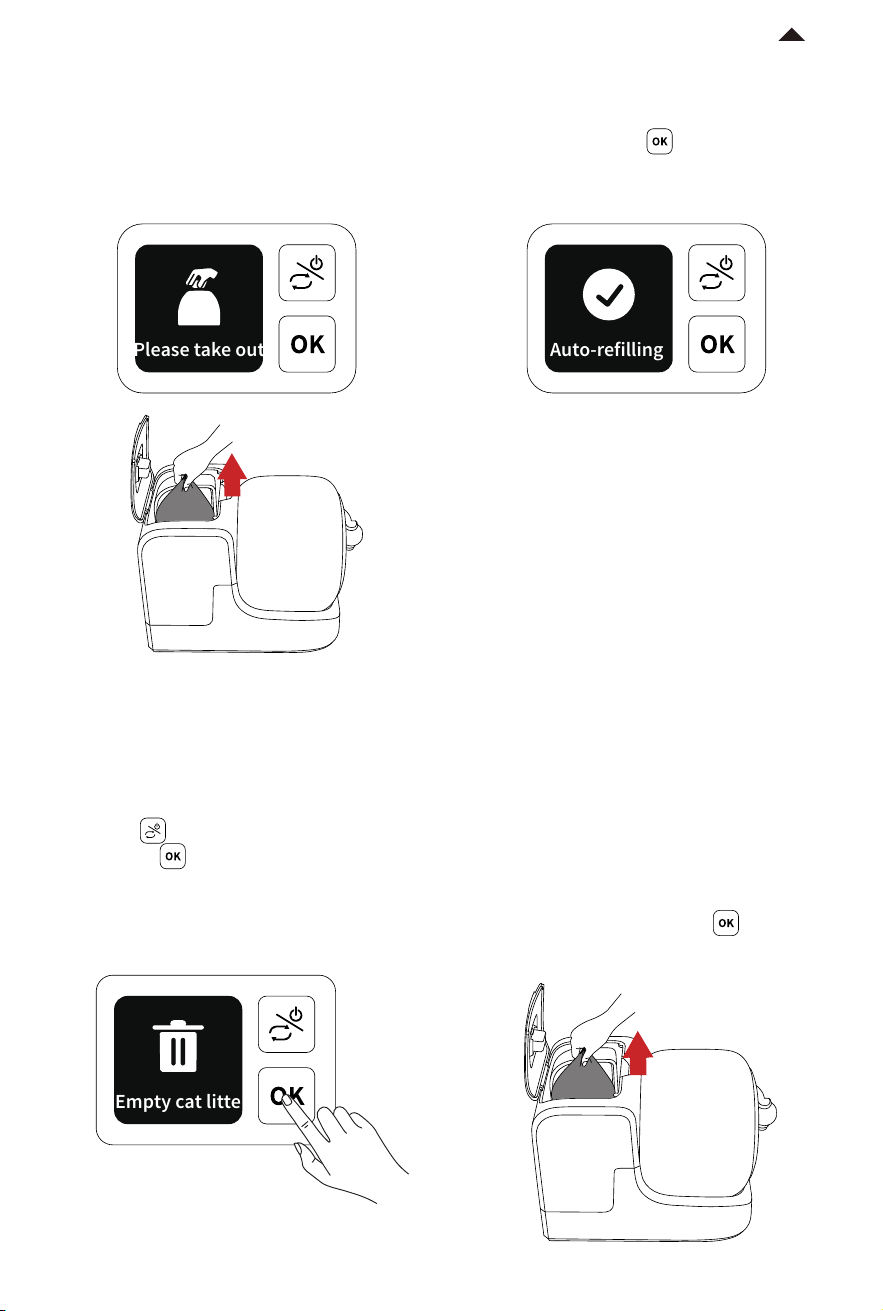
❷ Aer the screen shows the following
icon and the device plays the prompt voice,
open the lid, take out the packed trash bag,
and close the lid.
❸ Aer removing the packed trash bag,
please double press according to the
screen and voice prompts to start
auto-refilling.
Please take out
Auto-refilling
6.3 Empty Cat Litter
* Do not leave the device during the emptying process.
* Aer emptying all cat litter in the cylinder, you can replace the new cat litter or clean the device.
❷ If the waste bin is full during the
emptying process, the device will stop
emptying and start auto-packing. Aer
packing, please take out the packed trash
bag, and then double press to start
auto-refilling.
❶ Press to select “Empty cat litter”,
then press , and the device will
automatically empty all cat litter in the
cylinder.
Empty cat litte
RETURN TO
CONTENTS
-20-
-27-
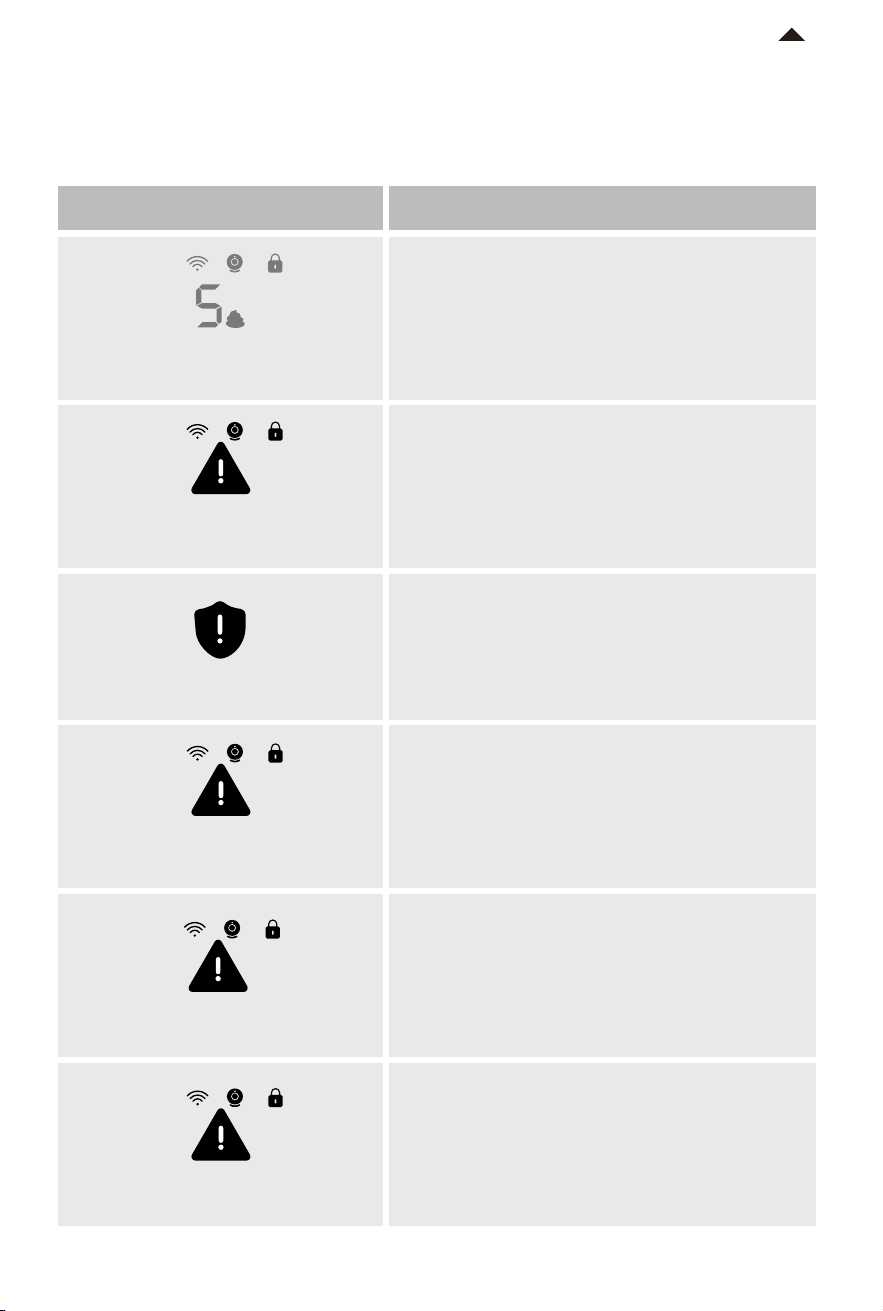
The trash bag is running out.
Please prepare a new refill ring.
Cat has approached
The cat approaches or enters the
litter box during operation. (The device
will automatically pause and alert,
and it will resume aer the pet leaves.)
Waste bin is not bagged.
Please double press OK button
to start auto-refilling.
Trash bag not refilled, please double
click OK button to start auto-refilling
The trunk is not installed. Please check.
The trash bag has run out.
Please replace a new refill ring.
Trunk not installed
Device failure, please check the details
in the App.
Device failure
Out of trash bag, please
replace the refill ring now
Prompts
Description
Out of trash bag soon, please
replace the refill ring in time
6.4 Description of other prompts
There will be scrolling text at the bottom of the screen.
RETURN TO
CONTENTS
-28-
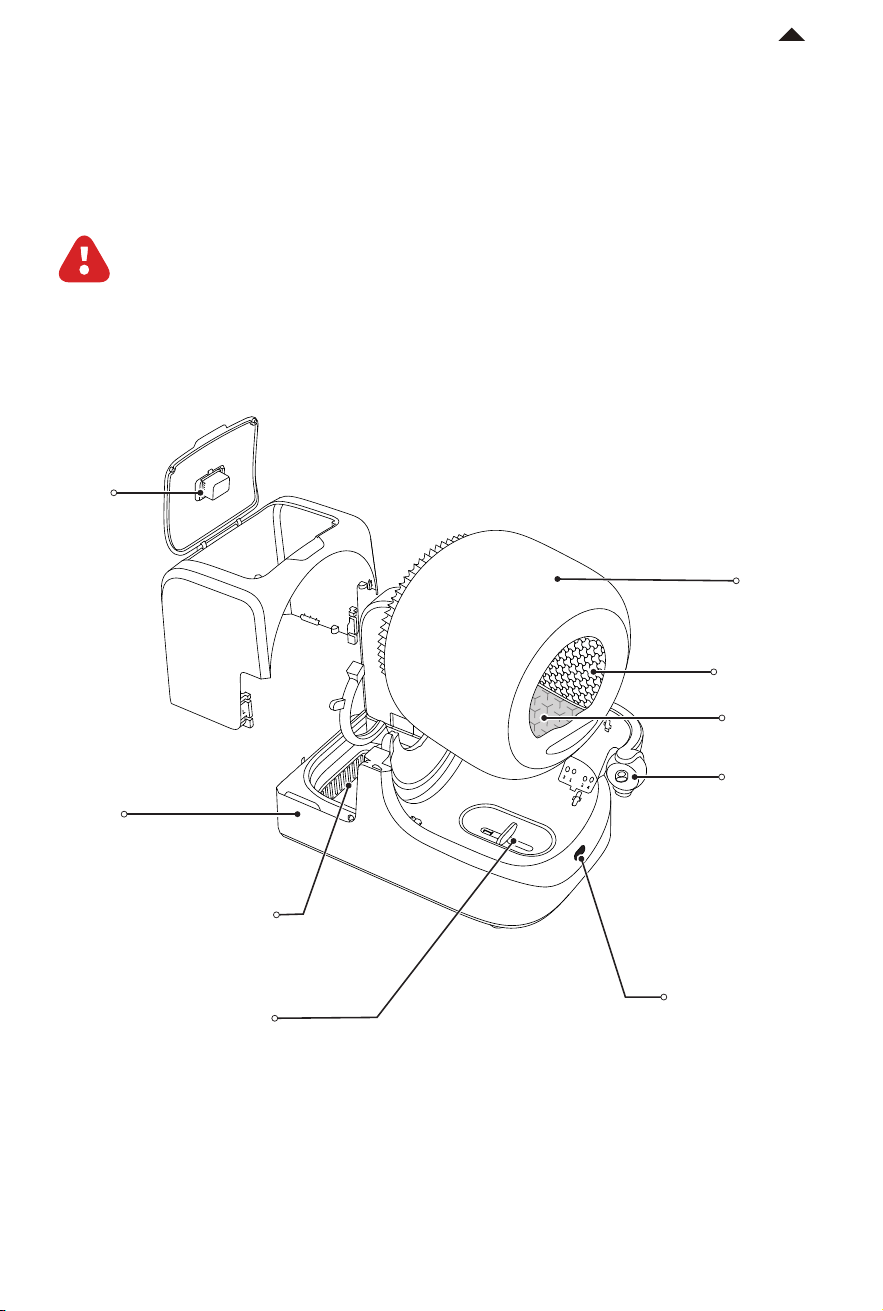
For the cat’s health, it is suggested to regularly clean or replace these parts.
Do not rinse or soak these parts: base, AI camera, and auto-packing module;
otherwise, it may lead to device damage. Only wipe them.
CLEANING AND MAINTENANCE
07
Base
N60
#1 litter collection tray
AI camera
Do not rinse or soak.
Do not rinse or soak.
Do not rinse or soak.
Detachable
Detachable
Proximity sensor
Cylinder
Litter sier
Litter pad
#2 litter collection tray
RETURN TO
CONTENTS
-29-
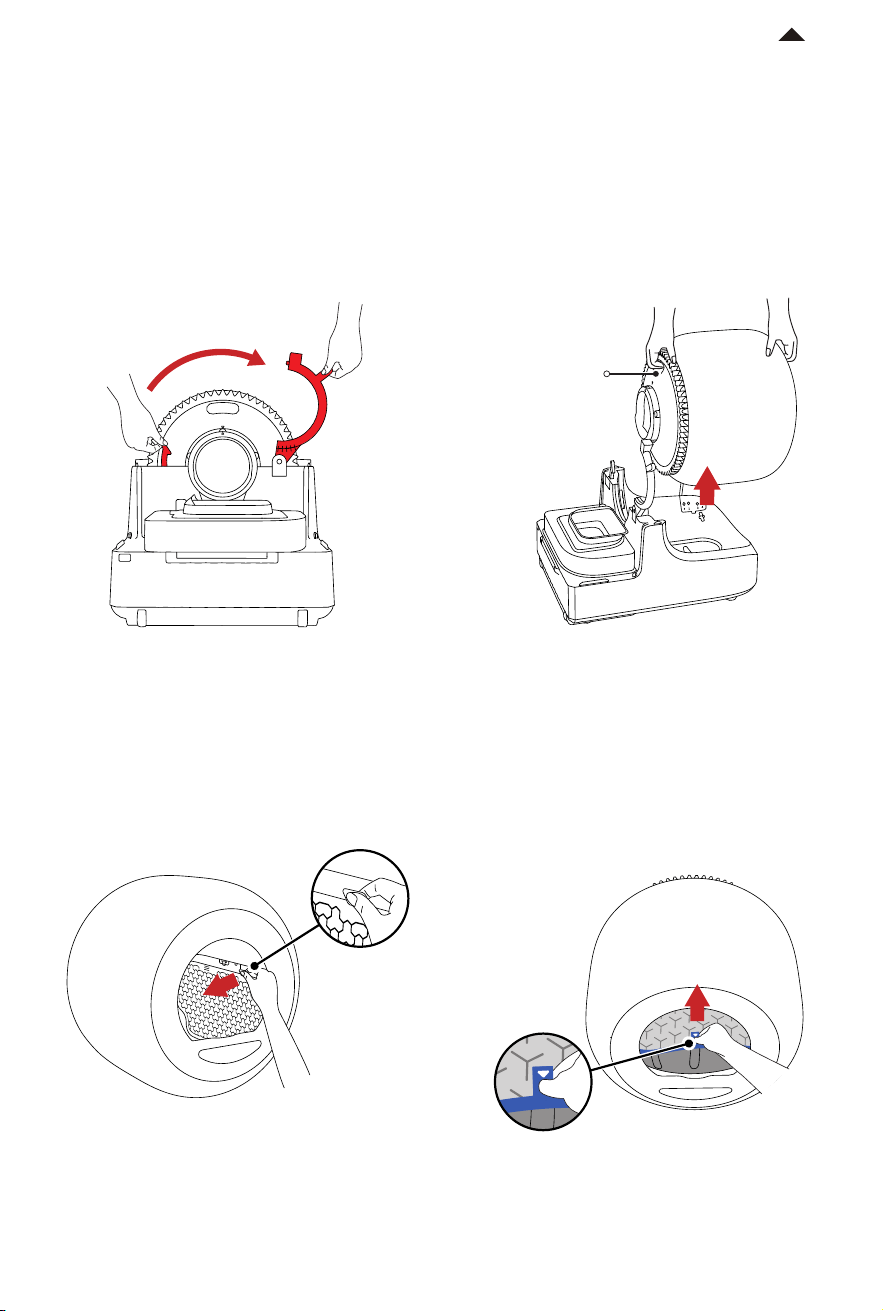
❶ Remove the trunk, unlock the buckle, and remove the cylinder.
* Before removing the cylinder, please empty all cat litter in it.
* Before disassembly, please turn o the device or unplug it.
7.1 Detach Cylinder and Clean It
❷ Pinch the handle of the litter sier to
pull it out.
❸ Pinch the handle of the litter pad to
pull it out.
Handle
RETURN TO
CONTENTS
-30-
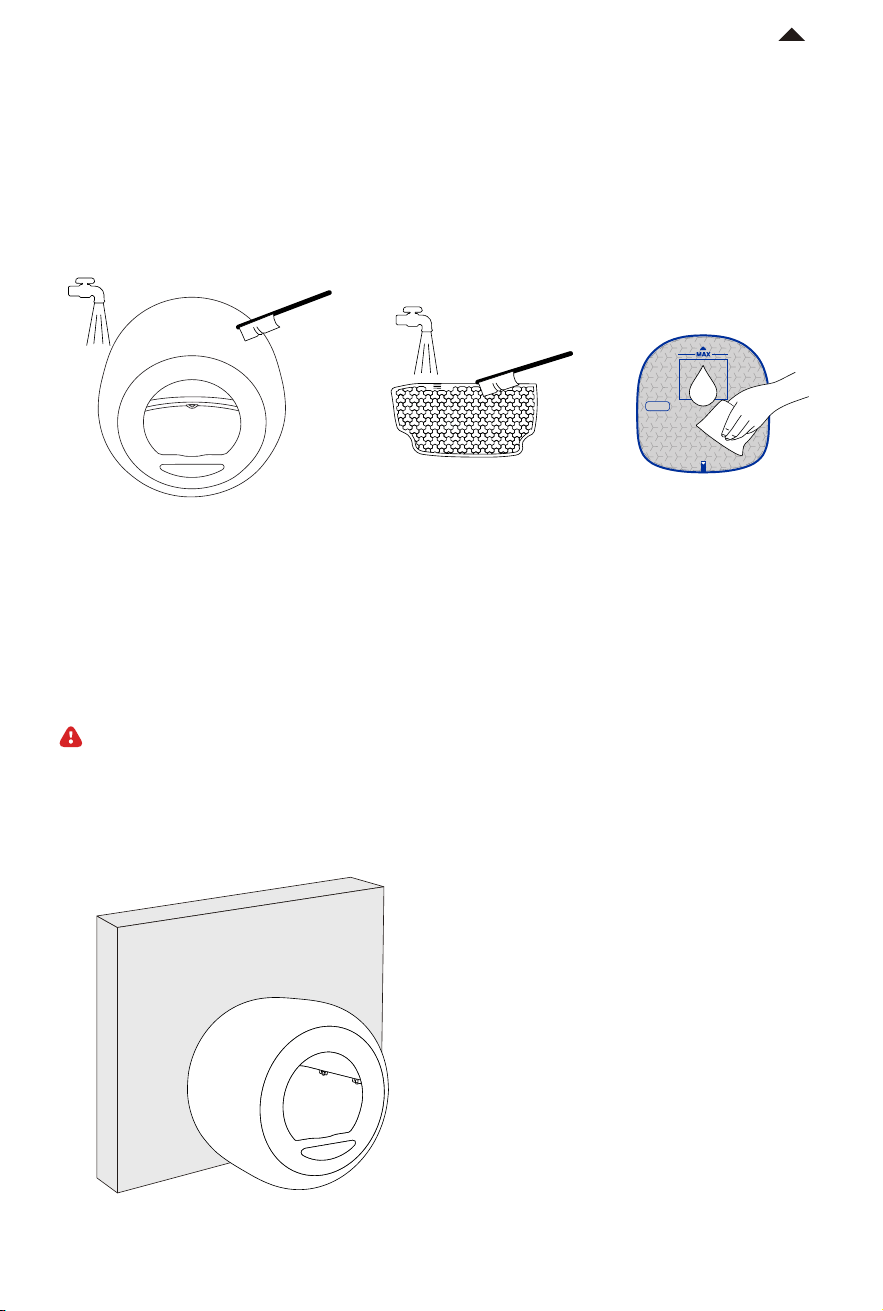
❹ Clean the cylinder and the litter sier with a brush, and rinse them. Wipe the litter pad
with a so cloth.
* Do not brush the litter pad violently to avoid damaging the coating. Do not clean with
alcohol, disinfectant, bleach, non-neutral detergent, etc.
LEFT RIGHT
❶ Place the cylinder against the wall.
7.2 Install Components
Install components only when they are completely dry.
RETURN TO
CONTENTS
-31-
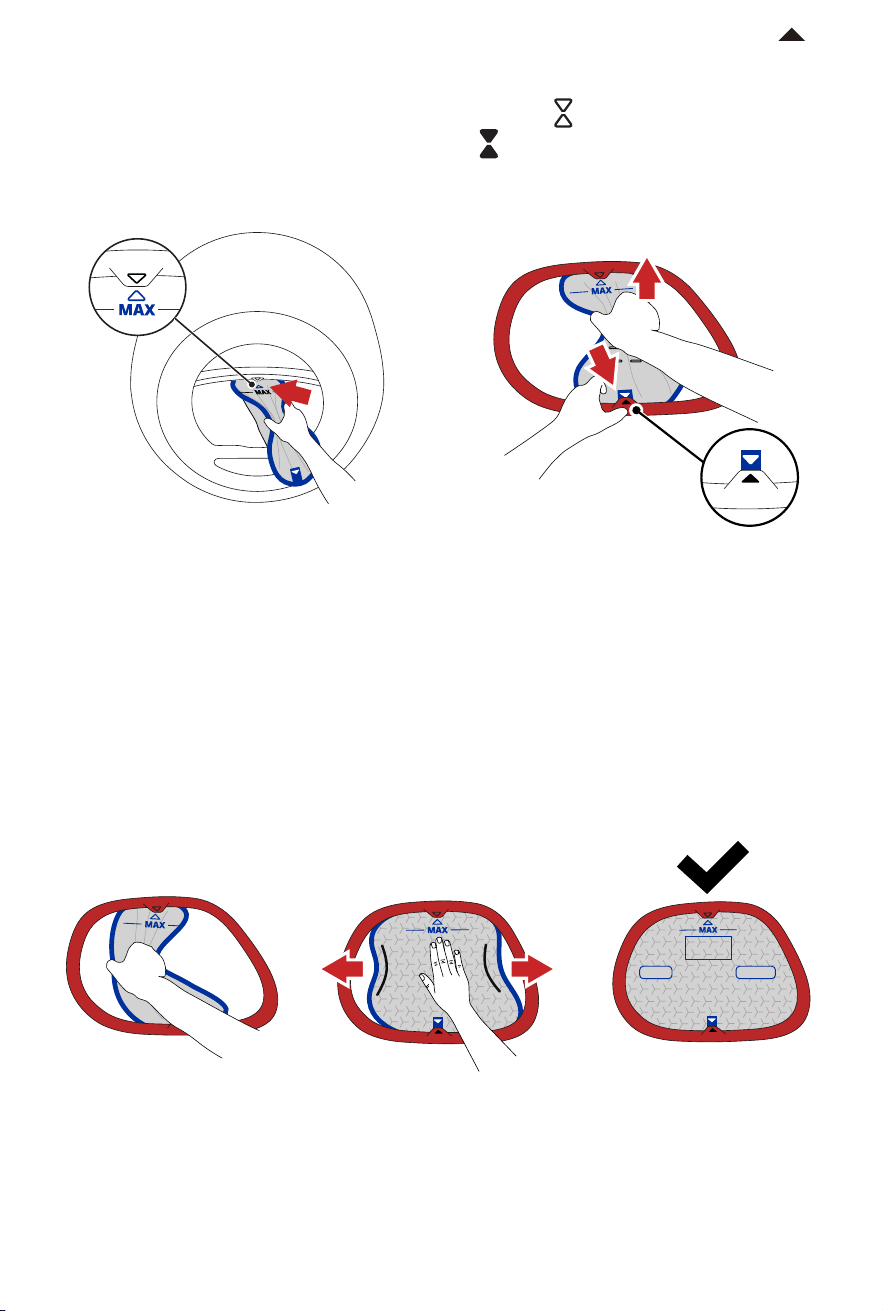
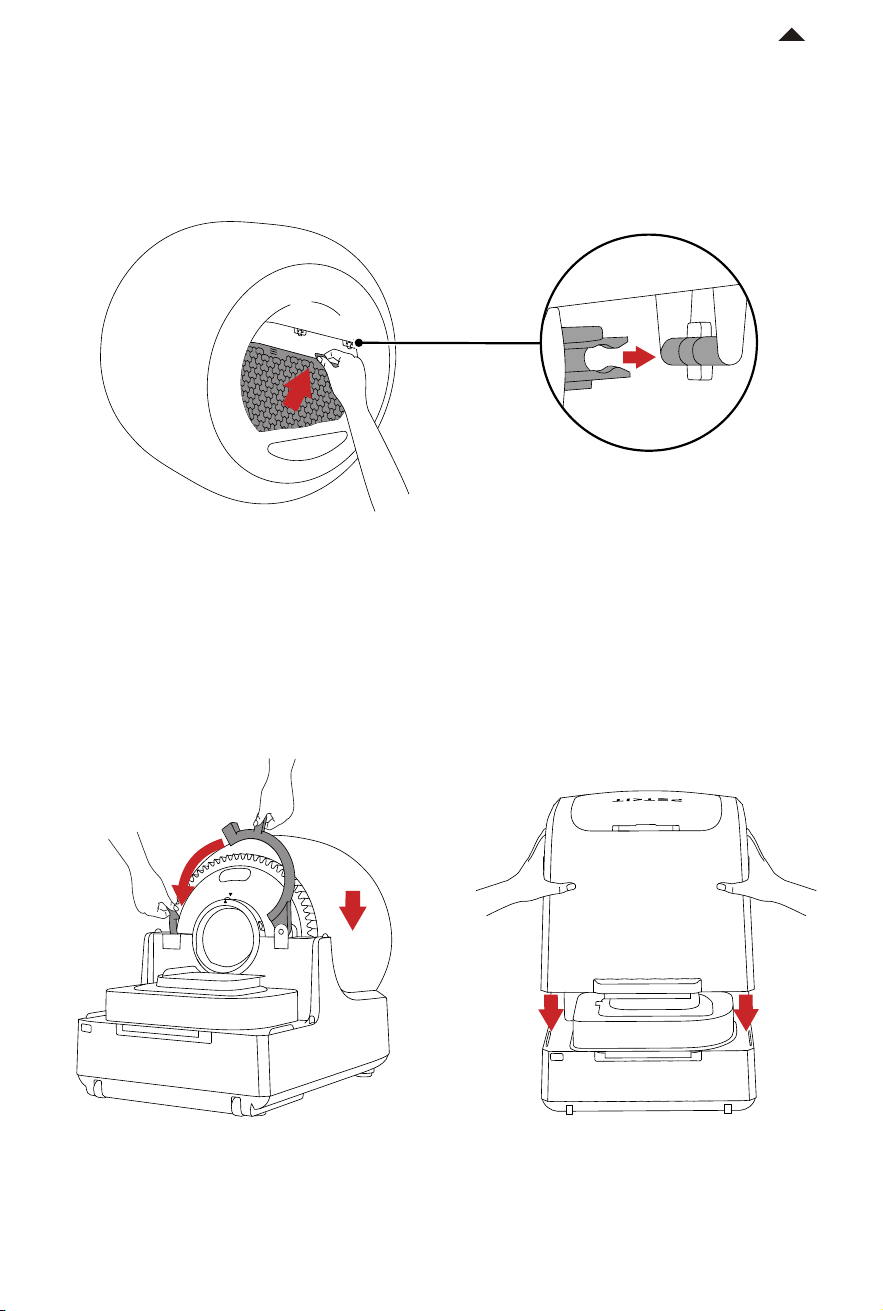
❸ Gently press and release the pad, and the two sides of it will be naturally stuck into the
groove.
* Before use, ensure that the blue edge is fully stuck into the groove and that the arrows
on both ends are aligned with the indicated direction.
If the blue edge is not visible,
the installation is successful.
LEFT RIGHT
❷ Hold the litter pad, insert the top of it into the groove ( arrows need to be aligned),
and then insert the bottom of it into the groove ( arrows need to be aligned).
RETURN TO
CONTENTS
-32-
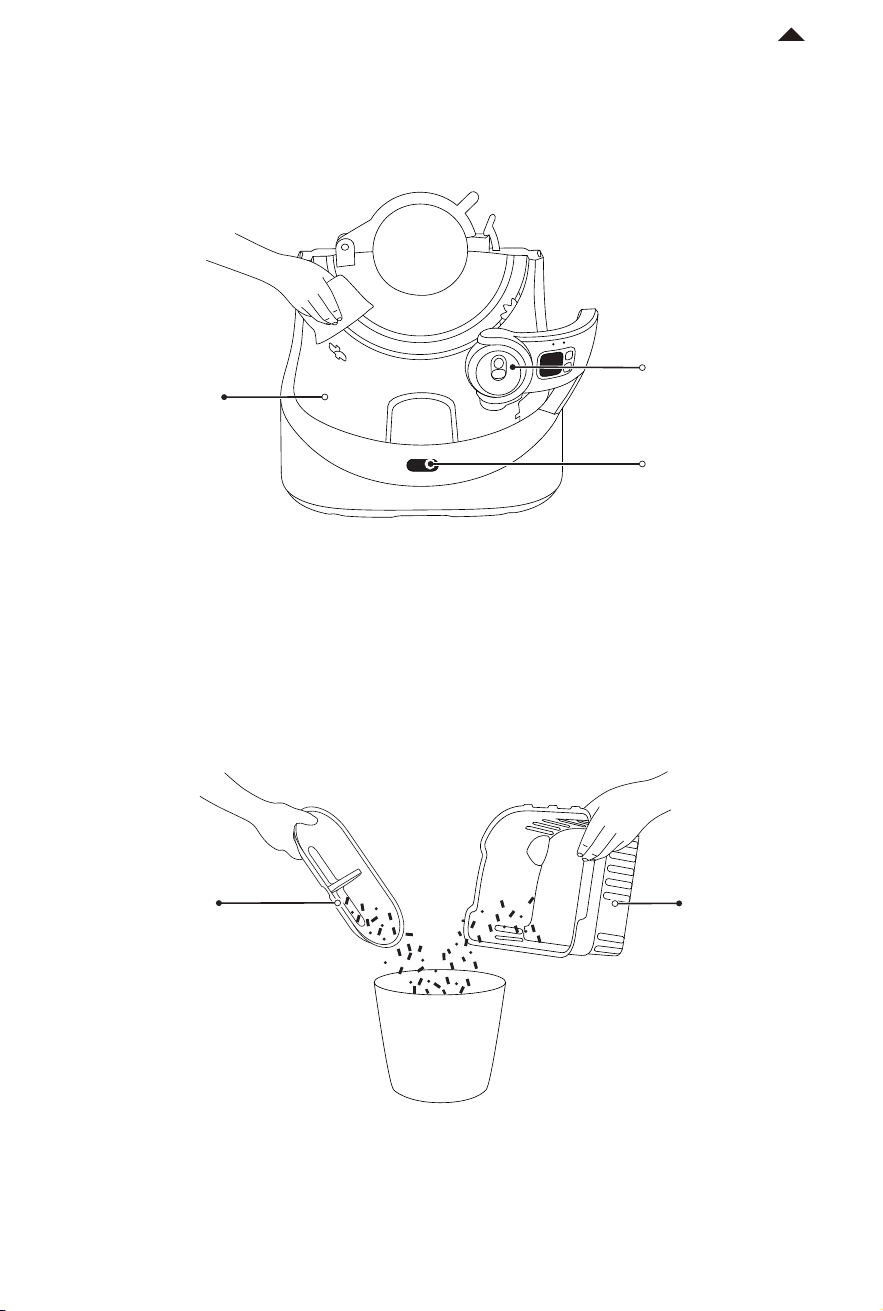
❻ Install the trunk. The installation is
complete.
❹ Pinch the handle of the litter sier, first insert one buckle into point A, then insert the
other buckle into point B.
* Please check: If the little sier can swing back and forth, the installation is successful .
A
B
❺ Put the cylinder on the base, lock the
buckle, and make sure the buckle is
fastened.
RETURN TO
CONTENTS
-33-
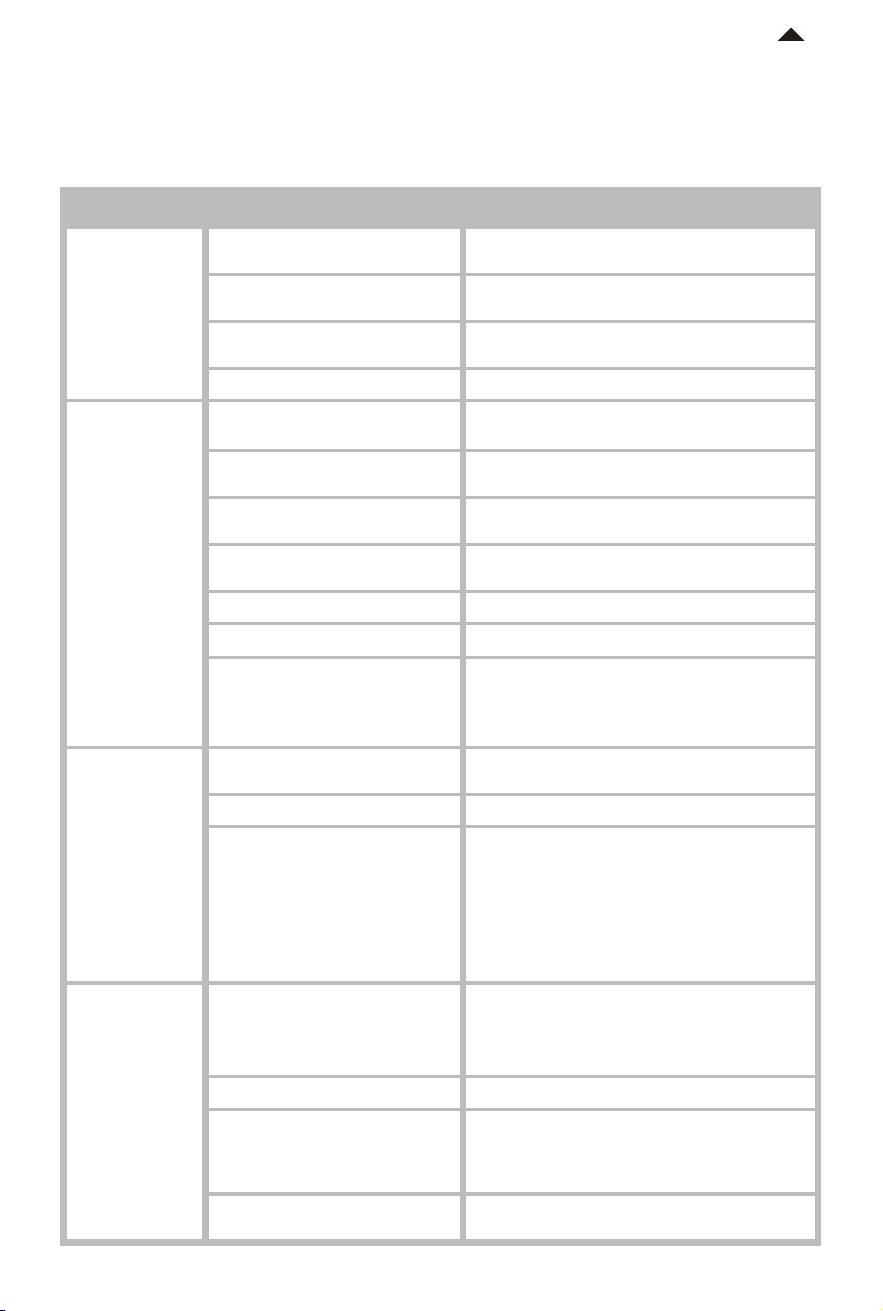
❶ Wipe these components with a so cloth: AI camera, base, and proximity sensor.
❷ If there is some litter in the #1 and #2 litter collection trays, take them out, dump the
litter, and put them back.
Proximity sensor
AI camera
Base
#1 litter
collection tray
#2 litter
collection tray
7.3 Maintenance of Other Components
RETURN TO
CONTENTS

-34-
VIDEO GUIDE
08
8.1 Video of Installation and Usage
8.2 Video of Cleaning and Maintenance
Please copy the video URL and open it in your browser to view the video.
Please copy the video URL and open it in your browser to view the video.
https://usage.petkt.com/web-app/video-manual/product/video/list?deviceType=t6&
language=en-US&selectedIndex=1
https://usage.petkt.com/web-app/video-manual/product/video/list?deviceType=t6&
language=en-US
Components
AI Camera
Base
Cylinder
Litter Sier
When
to Clean
Clean it when
the lens is
not clear.
Clean it aer
removing the
cylinder.
Clean it
when the
inner
surface is
dirty.
Clean it
when your
pet has
loose stools.
How
to Clean
Wipe with a
so cloth.
Wipe with a
wet tissue.
Clean with
a brush.
Clean with
a brush.
When to
Replace
/
/
/
Replace it
when it is
damaged
or broken.
How to
Detach
/
/
See
5.1-①
See
5.1-②
Litter Pad
Clean it
when
it’s dirty.
Wipe with a
so cloth.
Do not scrub.
Replace it
when it
sticks to
cat litter or
is broken.
See
5.1-③
Caution
Do not rinse
or soak.
Do not rinse
or soak.
/
Avoid
squeezing or
exposure to
sunlight.
N60
/ / /
About two
months.
Slide
upward.
Do not clean
with alcohol,
disinfectant,
bleach,
non-neutral
detergent, etc.
RETURN TO
CONTENTS
-35-
TROUBLESHOOTING
09
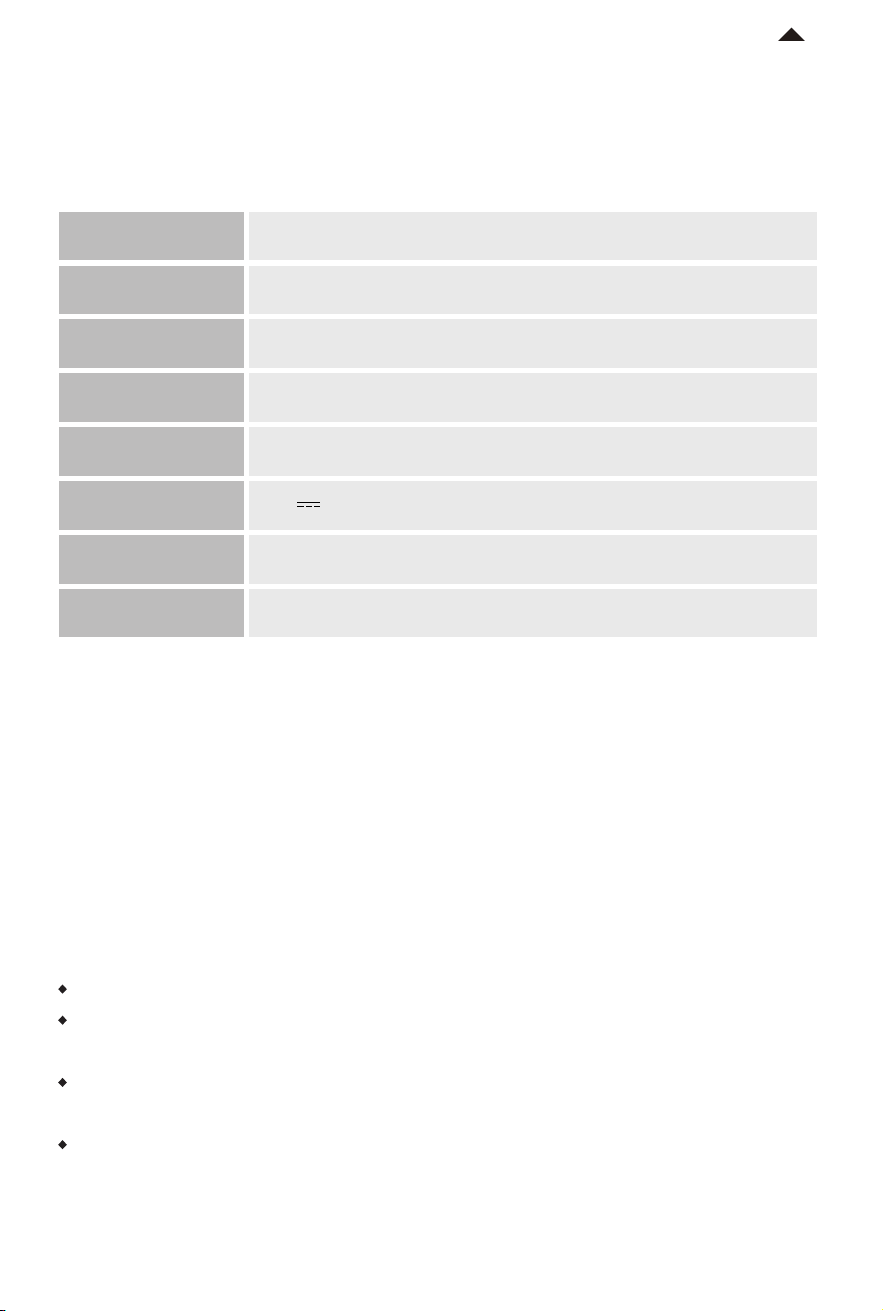
Problems
Possible Sources Solutions
Failed to
turn on
Cylinder
cannot
rotate
during cleaning,
emptying, etc
Auto-packing
failure
Auto-refilling
failure
The plug was improperly plugged in.
The socket was broken or not powered
on.
The AI camera was improperly installed.
Used a non-original power cable.
Check if the plug is properly inserted.
Re-insert the plug into the socket.
Check if the socket is powered on. Turn on the switch
or replace the socket.
Power o, re-install the AI camera, and tighten the four
screws.
Use the original power cable.
The device was not bound to the app
and is not activated.
Pet is in the device.
Some components were improperly
installed.
Trash bag is broken.
Waste bin is full.
There is an abnormality with the refill ring.
Cylinder gear is stuck with foreign
objects.
Bind the app before first-time use. The device can be
used only aer successful binding.
Check if there is a pet inside. Aer the pet exits,
double press the OK button to resume operation.
Power o, then check if the refill ring, the refill ring
cover, and the trunk are properly installed.
Power o, then check if the trash bag has been removed
and if the waste bin has been cleaned.
Please pack in time.
Replace with a new refill ring.
Some components were improperly
installed.
Trash bag has run out.
Auto-packing module failure
(including sealed door, slider)
Power o, then check if the refill ring cover and the
trunk are properly installed.
Replace with a new refill ring.
Waste bin was not bagged.
Trash bag has run out.
Auto-packing module failure
Some components are improperly
installed.
❶ Power o and remove the trunk.
❷ Press the trash bag manually to the bottom.
❸ Install the trunk, power o, and double press
OK butt
on to restart auto-refilling.
Replace with a new refill ring.
❶ Power o, check the auto-packing module, then
manually put it do
wn.
❷ Power on, then double press the OK button to
r
estart auto-refilling.
Power o, then check if the refill ring, the refill ring
cover, and the trunk are properly installed.
❶ Power o, then remove the trunk and the cylinder.
❷ Check for foreign objects near the gear and clean up.
❸ Install the cylinder and the trunk, power on, then
double pr
ess the OK button to resume operation.
❶ Power o and remove the trunk.
❷ Check for foreign objects near the sealed door and
w
aste bin inside.
❸ Clean up foreign objects.
❹ Put down the auto-packing module manually and
inst
all the trunk.
❺ Power on, then double press the OK button according
t
o the prompts on the screen to restart auto-packing.
RETURN TO
CONTENTS
-36-
A MESSAGE TO OUR
VALUED CUSTOMERS
11
· Thank you for choosing the PETKIT PUROBOT ULTRA WITH CAMERA SELF-CLEANING CAT LITTER BOX.
· Please read the user manual carefully before installing and using the product. Any installation or usage
qindicates that you have read and accepted the safety guide below.
· PETKIT is not responsible for or legally liable for any accidents or injuries resulting from the improper
use of the product.
· PETKIT reserves the right to interpretation and revision.
BASIC SPECIFICATIONS
10
Product Name
Product Model
Materials
Dimensions
Weight
Rated Input
Connection
Range of Application
PETKIT PUROBOT ULTRA WITH CAMERA SELF-CLEANING CAT LITTER BOX
P9903
ABS, PP, TPE, Silicone
532 x 818 x 612 mm (20.94 x 32.20 x 24.09 in)
about 14.6 kg (32.18 lbs)
12V 4A
Wi-Fi
Cats older than 6 months
RETURN TO
CONTENTS

-37-
SAFETY INSTRUCTIONS
12
* Failure to follow the safety guides below may result in product malfunction or other unforeseen losses.
·
Please install and use the device according to the user manual.
· Kittens younger than 6 months old are prohibited from using this device. Cats weighing less than 1.5 kg
are prohibited from using this device.
· Do not drag the AI camera.
· Do not scratch the lens with sharp objects.
· Do not place the device in a high-temperature or high-humidity environment.
· The device is for indoor use only. Avoid direct sunlight exposure and keep it away from open flames.
· Although the device is powered by a low voltage, electric leakage may occur if the pet bites the power
cord. Please keep your pets from biting the power cord.
· Please use only the original adapter to avoid device damage or safety hazards.
· Place the device on a firm, level surface, and avoid touching the wall.
· Do not tilt the device to avoid safety hazards.
· Do not rinse or soak the bottom of the device.
· There are weight sensors at the bottom of the device. Please handle it gently.
· Unplug it if the device is not used for an extended period.
· Children should use this device under the supervision and guidance of adults.
· Repairs should only be performed with professionals’ guidance to avoid accidental damage.
· Do not place anything on top of the device or press the top of it.
· Before leaving for an extended period, please ensure that there is suicient cat litter in the litter box
and enough space in the waste bin.
· If you have any problems with the product, please contact our customer service for assistance.
RETURN TO
CONTENTS

-38-
RETURN TO
CONTENTS
Disposal
The European directive 2012 / 19 / CE on Waste Electrical and Electronic Equipment(WEEE), requires that old household electrical appliances
must not be disposed in the normal unsorted municipal waste stream. Old appliances must be collected separately in order to optimize the
recovery and recycling of the materials theycontain and reduce the impact on human health and the environment. The crossed out "wheeled
bin" symbol on the product reminds you of your obligation,that when you dispose of the appliance it must be separately collected.
Consumers should contact their local authority or retailer for information concerning the correct disposal of their old appliance.
This device complies with part 15 of the FCC Rules. Operation is subject to the following two conditions:
(1) This device may not cause harmful interference, and ;
(2) this device must accept any interference received, including interference that may cause undesired operation.
FCC warning:
Any Changes or modifications not expressly approved by the party responsible for compliance could void the user's authority to operate the
equipment. Note: This equipment has been tested and found to comply with the limits for a Class B digital device, pursuant to part 15 of the
FCC Rules.These limits are designed to provide reasonable protection against harmful interference in a residential installation. This
equipment generates uses and can radiate radio frequency energy and, if not installed and used in accordance with the instructions, may
cause harmful interference to radio communications. However, there is no guarantee that interference will not occur in a particular
installation. If this equipment does cause harmful interference to radio or television reception, which can be determined by turning the
equipment o and on, the user is encouraged to try to correct the interference by one or more of the following measures:
-Reorient or relocate the receiving antenna.
-Increase the separation between the equipment and receiver.
-Connect the equipment into an outlet on a circuit dierent from that to which the receiver is connected.
-Consult the dealer or an experienced radio/TV technician for help.
ThedevicehasbeenevaluatedtomeetgeneralRFexposurerequirement.
This equipment complies with FCC radiation exposure limits set forth for an uncontrolled environment. This equipment should be installed
and operated with minimum distance 20cm between the radiator & your body.
IC warning
- English:
This device complies with Industry Canada licence-exempt RSS standard(s). Operation is subject to the following two conditions:
(1) This device may not cause interference, and
(2) This device must accept any interference, including interference that may cause undesired operation of the device.
- French:
Le présentappareilestconforme aux CNR d'Industrie Canada applicables aux appareils radio exempts de licence.
L'exploitationestautorisée aux deux conditions suivantes:
(1) l'appareil ne doit pas produire de brouillage, et
(2) l'utilisateur de l'appareildoit accepter tout brouillageradioélectriquesubi, mêmesi le brouillageest susceptible d'encompromettre le
fonctionnement.