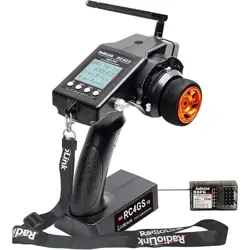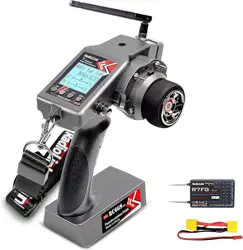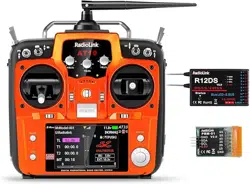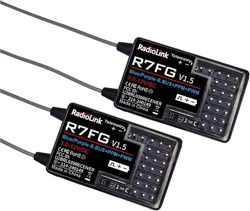
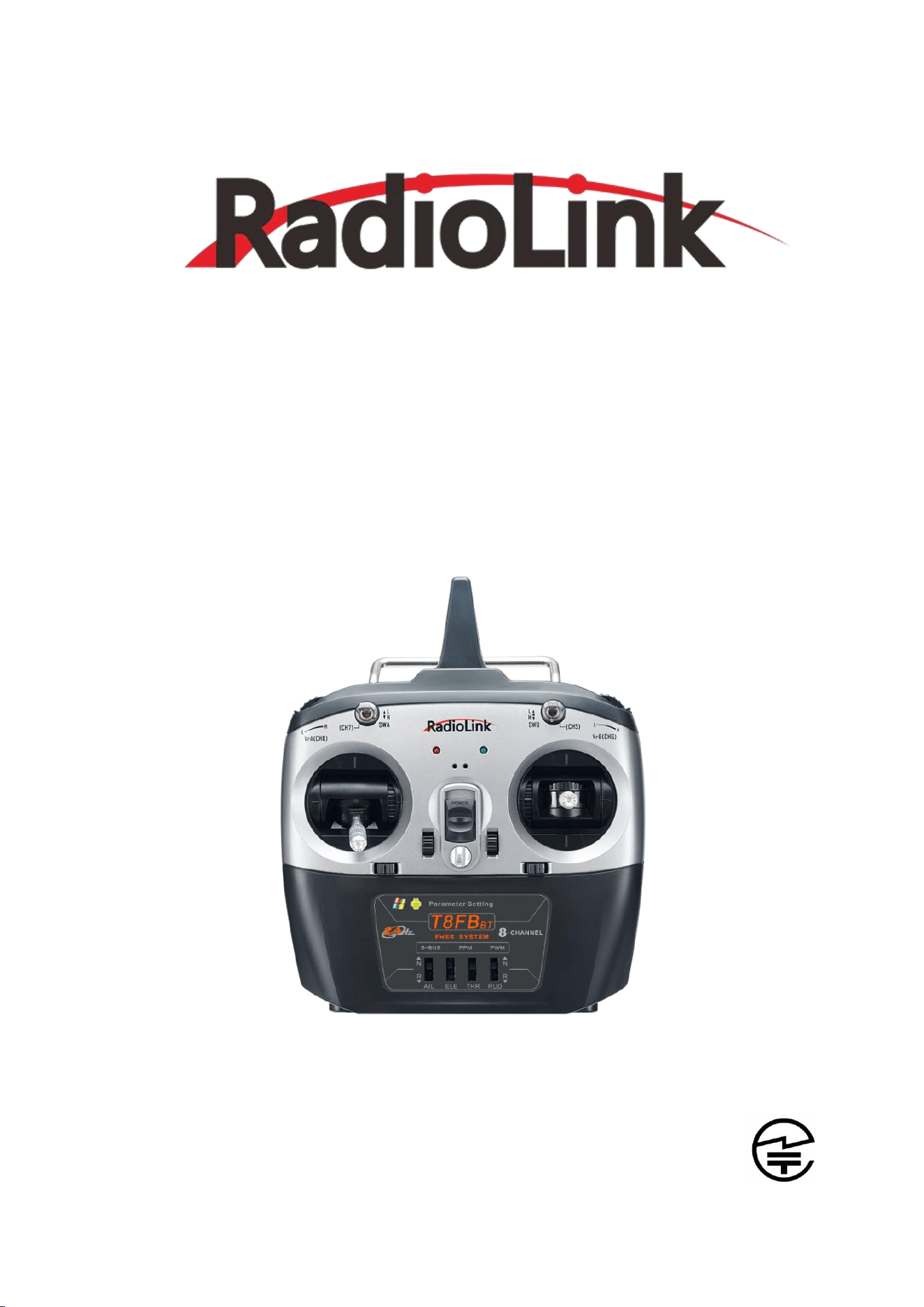
T8FB(BT)
User Manual
8-Channel Remote Controller
APP Parameter Setting via Bluetooth Connection
Compatible with Fixed-wings/Gliders/Multirotors/Cars/Boats/Robots
CE FCC RoHS

1
Contents
Chapter 1 Introduction ..................................................................................................................................................3
1.1 Safety precautions ................................................................................................................................................... 3
1.2 T8FB+R8EF introduction........................................................................................................................................4
1.2.1 Specifications........................................................................................................................................ 4
1.2.2 Packing List ............................................................................................................................................ 5
1.2.3 Transmitter Overview......................................................................................................................... 5
1.2.4 Transmitter Battery ..............................................................................................................................6
1.3 R8EF Receiver.............................................................................................................................................................7
1.3.1 Receiver Mode and Signal Switch..................................................................................................7
1.3.2 Guide of Receiver Install....................................................................................................................9
1.3.3 Binding .....................................................................................................................................................9
Chapter 2 Parameters Setup APP ........................................................................................................................... 10
2.1 Mobile phone APP ................................................................................................................................................ 10
2.1.1 Mobile Phone APP Installation .....................................................................................................10
2.1.2 Mobile Phone APP Connection ....................................................................................................10
2.1.3 Mobile Phone APP Parameters Setup Menu ...........................................................................11
2.2 Software APP on Computer ...............................................................................................................................13
2.2.1 Software APP Installation on Computer ................................................................................... 13
2.2.2 Software APP Connection on Computer .................................................................................. 13
Chapter 3 Function Setup Menu on APP .............................................................................................................15
3.1 SERVO Menu........................................................................................................................................................... 15
3.2 BASIC Menu .............................................................................................................................................................16
3.2.1 REVERSE ................................................................................................................................................16
3.2.2 SUB-TRIM .............................................................................................................................................17
3.2.3 END POINT ADJUSTMENT (EPA)..................................................................................................18
3.2.4 FAIL SAFE (F/S)....................................................................................................................................18
3.2.5 DELAY.....................................................................................................................................................20
3.3 ADVANCED Menu ..................................................................................................................................................20
3.3.1 D/R (Dual Rate) .................................................................................................................................. 20
3.3.2 ATTITUDE ..............................................................................................................................................22
3.3.3 ELEVON ................................................................................................................................................. 23
3.3.4 V-TAIL.................................................................................................................................................... 24
3.4 PROG.MIX Menu ....................................................................................................................................................25
3.4.1 PROG.MIX .............................................................................................................................................25

2
3.4.2 TH/CURE ...............................................................................................................................................27
3.4.3 DR/CURE ...............................................................................................................................................28
3.4.4 SYSTEM Menu..................................................................................................................................................... 28
3.4.4.1 AUX.CH .............................................................................................................................................. 28
3.4.4.2 ALARM ...............................................................................................................................................29
3.4.4.3 Version MODE .................................................................................................................................30
3.4.4.4 RESET ..................................................................................................................................................32
Chapter 4 Firmware Upgrade ...................................................................................................................................33
4.1 Firmware Version................................................................................................................................................... 33
4.2 Firmware Upgrade Steps.....................................................................................................................................33
Chapter 5 T8FB Joystick Calibration...................................................................................................................... 34
Technical Support ......................................................................................................................................................... 35

3
Chapter 1 Introduction
1.1 Safety precautions
1) Do not use the remote controller in the rain! Avoid moisture entering the transmitter. If it is
unavoidable to use this product in humid weather (such as competitions), please cover your
remote controller and receiver with a waterproof cloth, and do not fly if there is lightning.
2) Do not use it in rainy and snowy weather. This weather environment will interfere with the
remote controller equipment, resulting in loss of control and accidents!
3) Do not use this equipment in crowded areas and places prohibited by national laws and
regulations!
4) Do not allow children (Less than 14 years old) to touch this product. This product is not a toy.
Please be careful when operating in scenes where children are present.
5) Please strictly abide by local laws and regulations when flying to ensure safe flight!
6) Make sure the throttle stick and trim button are set at the lowest end before turning on, then
turn on the power button and check whether the power supply is sufficient, then turn on the
receiver!
7) Check whether the various actions of servo are consistent with the direction of the
corresponding joystick before operating the model. If they are inconsistent, please adjust
before using!
8) Please turn off the receiver and controlled equipment before stopping use, and then turn off
the power supply of the transmitter. If the operation is reversed, it may cause loss of control
and cause an accident!
9) T8FB with an operating voltage of 4.8V~18V. Please do not use a battery outside this voltage
range when replacing the battery by yourself.
10) The T8FB is compatible with R8EF/R8F/ R8FM/R8XM/R8SM/R8FG/R7FG/R6FG/R6F/R4FGM/
R4F receivers. Other brands of receivers cannot be used.
11) Please refer to the website to modify the throttle hand and return to the center position
joystick: https://www.youtube.com/watch?v=hp4g-NTMqMg
12) Please strictly follow the precautions and instructions to use this product. The loss caused by
misuse of this product shall be borne by the user.
4
1.2 T8FB+R8EF introduction
1.2.1 Specifications
T8FB Transmitter
Size
173*102*206mm (6.81”*4.02”*8.11”)
Weight ((with R8EF))
0.47kg (13.05oz)
Channel Quantity
8 channels
Control Range
2000 meters in the air, 500 meters on the ground (actual distance depends on the environment)
Operating Current
<80mA
Operating Voltage
4.8V~18V
Output Frequency
2.4GHz ISM band (2400MHz~2483.5MHz)
Modulation Mode
GFSK
Channel Bandwidth
400KHZ
Channel Pacing
1200KHz
Spread Spectrum Mode
FHSS 67 channels pseudo-random frequency hopping
Adjacent Channel
Rejection
>36dBM
Transmitter Power
<100mW (20dBM)
Reception Sensitivity
-104dBM
Transmission Rate
38kbps
PWM Output Range
1.0ms~2.0ms
Section precision
4096, 0.5us per section
Cycle
15ms/per frame
Battery Box Size
115*36*23.5mm (4.53”*1.42”*0.93”)
Operating Temperature
-20° to 85° C (-4° to 185° F)
Compatible receivers
R8EF(Standard), R8SM, R8FM, R8XM, R8F, R8FG, R7FG, R6FG, R6F, R4FGM, R4F
R8EF Receiver
Size
41.5*21.5*11.5mm (1.63” *0.85” *0.45”)
Weight:
7g
Antenna length
210mm (8.26”)
Channel Quantity
8 channels
Control distance
2000 meters in the air, 500 meters on the ground (actual distance depends on the environment)
Operating Current
38-45mA@5V
Operating Voltage
3-15V DC
Signals Output
PWM(red LED) and PWM&SBUS&PPM(blue/purple LED)
Section Precision
4096, 0.25us per section
Compatible transmitter
T8FB/T8S/RC8X/RC6GS V3/RC4GS V3/RC6GS V2/RC4GS V2/RC6GS/RC4GS
5
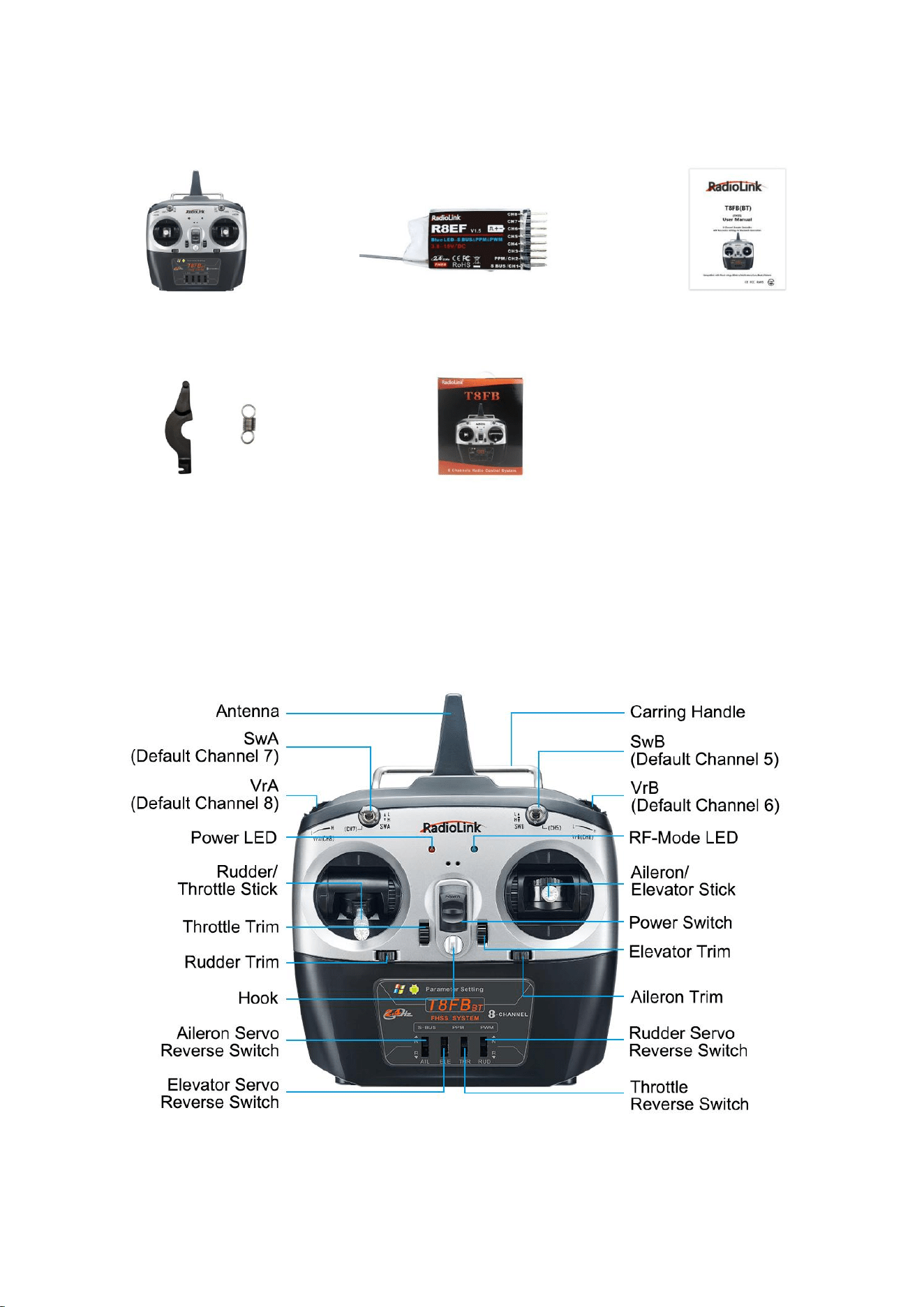
1.2.2 Packing List
T8FB Transmitter *1 R8EF Receiver *1 User Manual *1
Throttle Return Accessories *1 Packing Box *1
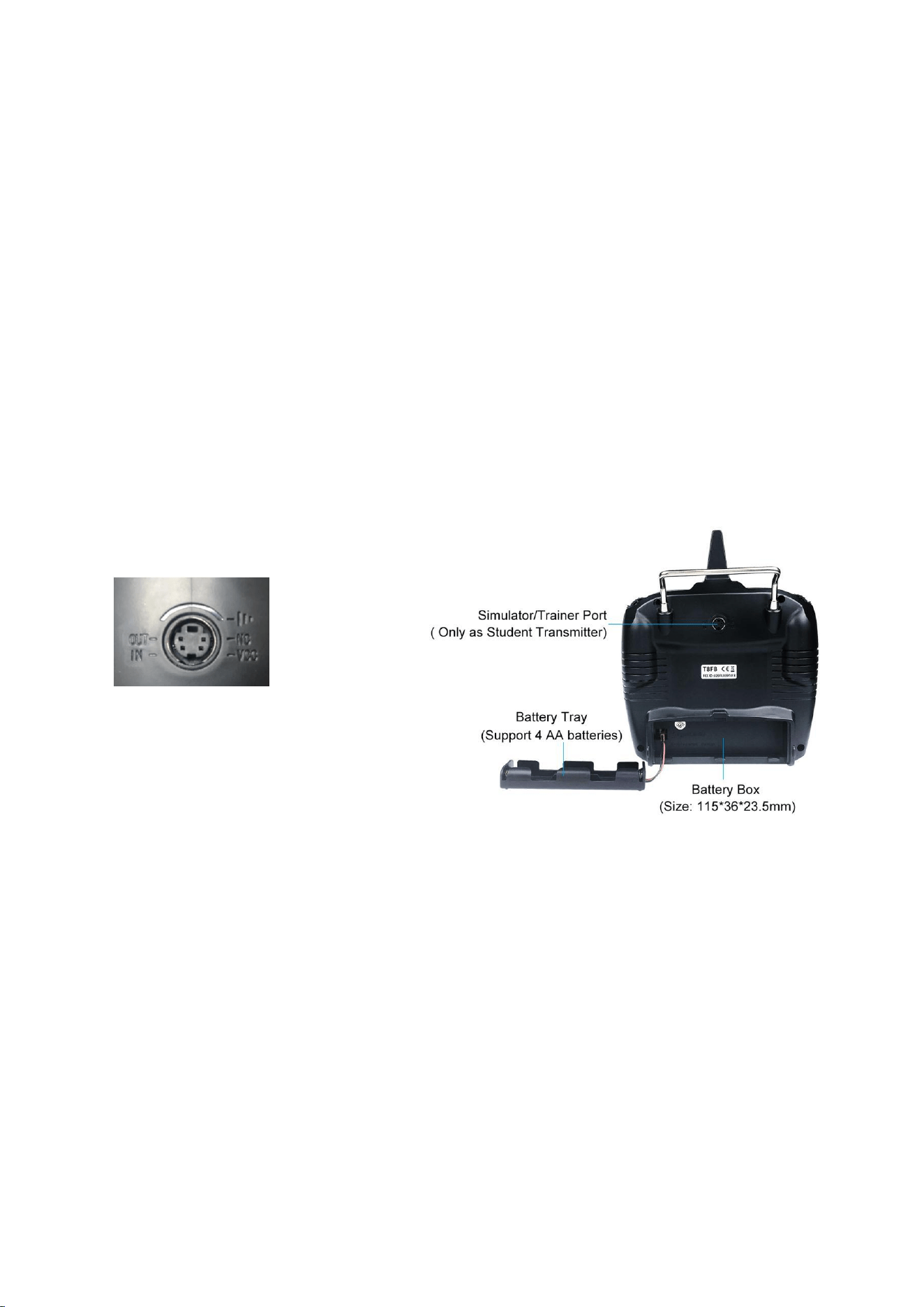
1.2.3 Transmitter Overview
T8FB (Mode 2) is shown as below
Note: The directions of the 4 channels can be easily changed by toggling the corresponding
Reverse Switches instead of modifying the parameter data in the software/APP.
6
T8FB Buttons and Switches:
Power button: Push it up or down to turn it on or off.
Throttle/Rudder/Aileron/Elevator Stick: The default Channel 1 to Channel 4 controls the roll,
pitch, throttle and yaw of the aircraft.
Trimmer buttons: T8FB has 4 groups trimmer buttons (two for each group), which can trim roll,
pitch, throttle and yaw respectively. The trimmer buttons are used to quickly adjust the model
during flight.
Switch A and Switch B: SWA (CH7) is two-way switch, and SWB (CH5) is three-way switch.
which can be assigned to the auxiliary channel through APP to control the equipment connected
to this channel. (Note: If you have purchased RadioLink RTF with a T8FB transmitter, the three-way
switch SWB (CH5) controls the switching of the flight mode by default.)
Slider switch: VRA (CH8) and VRB (CH6) can be set by parameter setting APP according to your
needs, and is mostly used for Pan/Tilt/Zoom adjustment.
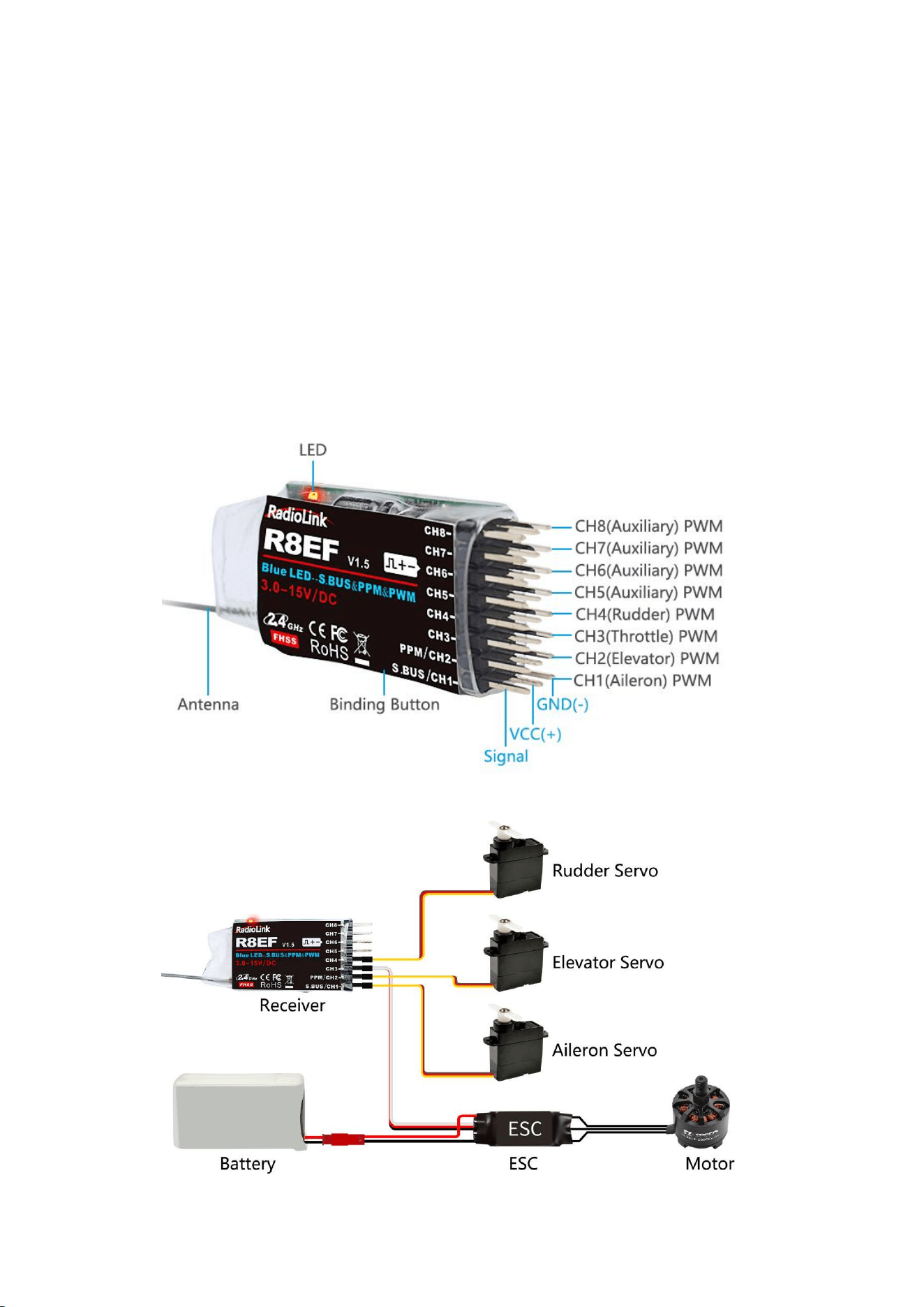
The back part of T8FB:
1.2.4 Transmitter Battery
The working voltage of T8FB is 4.8V-18V, and the low voltage alarm is self-adaptive. For
example: if you are using a 2S lithium battery to power T8FB, T8FB will send out a beep sound
alarm when the battery voltage reaches 7.3V automatically, with no separate settings.
Power supply battery selection for T8FB: You can use the standard battery box to with 4 pieces
AA batteries for power supply, or use lithium batteries (2S/3S/4S) to supply power.
Note:
(1) When inserting the battery, please make sure the positive and negative poles are inserted
correctly. Since the T8FB has anti-reverse insertion function, if the positive and negative poles are
inserted reversely, T8FB will not be powered on, and the T8FB will not be damaged. So please
insert the battery correctly when the positive and negative poles are reversed.
1. GND
2. Null
3. Voltage Output: 4.8-18V
4. Output: PPM
5. Input
:
RSSI
1
2
3
4
5
7
(2) When 4 AA batteries are used to supply power to T8FB, if there is D sound warning once
T8FB is powered on, it is highly possible that the battery voltage is lower than the warning voltage,
please replace the fully-charged battery.
1.3 R8EF Receiver
1.3.1 Receiver Mode and Signal Switch
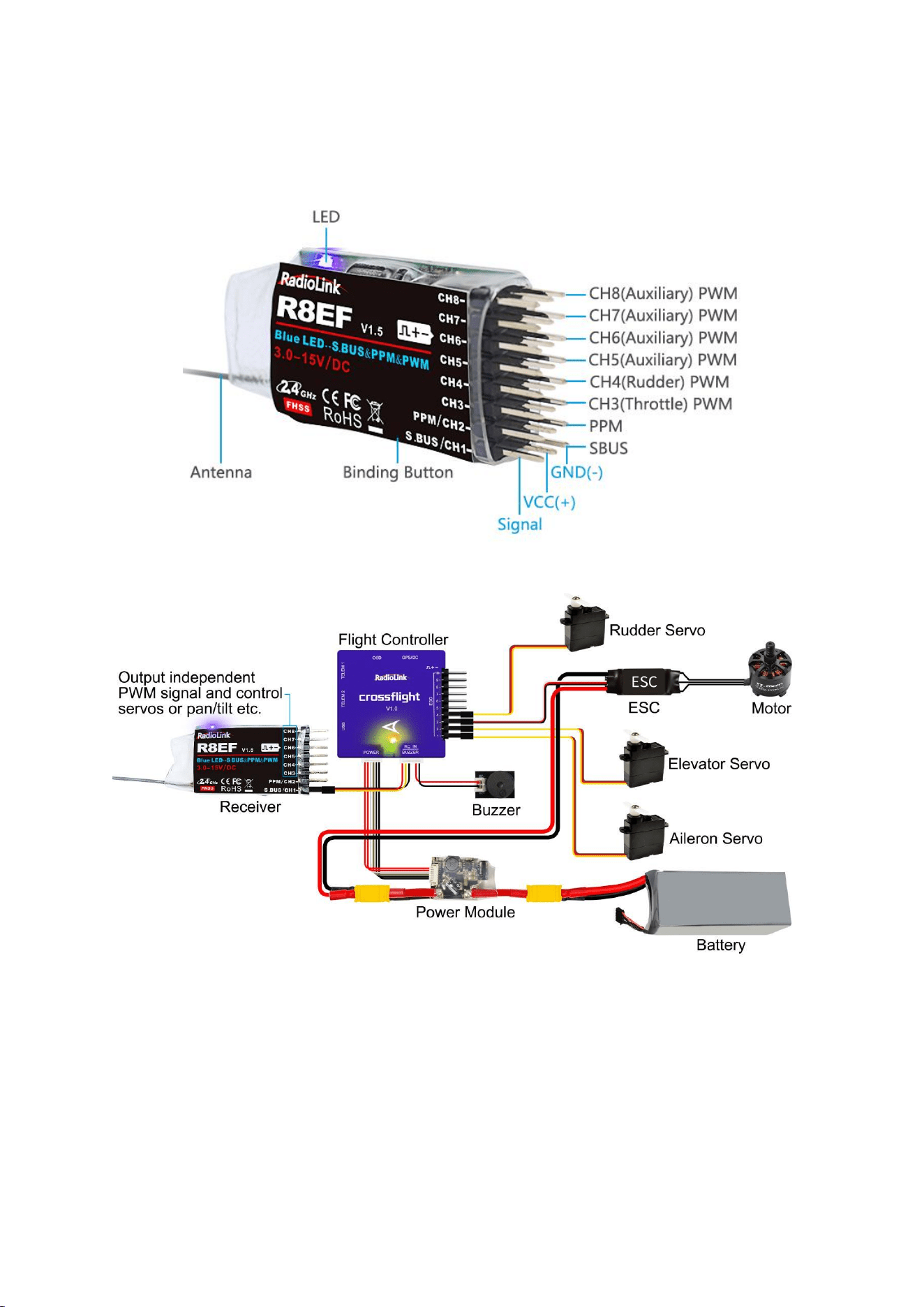
The standard receiver packed with T8FB is R8EF, 8-channel receiver with PWM and SBUS/PPM
signal output supported.
Signal Working Mode
(1) PWM Working Mode: Receiver indicator is RED with all 8 channels output PWM signal.
8
(2) SBUS/PPM Working Mode
Receiver indicator is Blue(Purple) with 8 channels output in total. Channel 1 is SBUS signal,
channel 2 PPM signal and channel 3 to 8 PWM signal.
Note: Fixed wing equipped with flight controller is taken as an example.
Signal Switch between SBUS&PPM and PWM
Short press the binding button on the receiver twice within 1 second to switch the SBUS/PPM
signal to PWM signal.

9
1.3.2 Guide of Receiver Install
(1) Please test RSSI (Received Signal Strength Indicator) before operating models. For methods
on how to test it, please refer to https://www.radiolink.com/newsinfo/477894.html
(2) If the antenna of the receiver is damaged, replace it with a new antenna or receiver in time.
(3) Keep antennas as straight as possible, or the effective control range will reduce. PS: Generally,
the receiver’s antenna is longer than the body of drone, but also shouldn't break or shrink the
antenna into it.
(4) Big models may contain metal parts that influence signal emission. In this case, antennas
should be positioned at both sides of the model to ensure the best signal status in all
circumstances.
(5) Antennas should be kept away from metal conductor and carbon fiber at least half inch away
and no over bending.
(6) Keep antennas away from motor, ESC or other possible interference sources.
(7) Receiver contains some electronic components of high-precision. Be careful to avoid strong
vibration and high temperature.
(8) Special vibration-proof material for R/C like foam or rubber cloth is used to pack to protect
receiver. Keeping the receiver in a well-sealed plastic bag can avoid humidity and dust, which
would possibly make the receiver out of control. Putting the receiver into a plastic bag can
also prevent fuel and residue from entering.
1.3.3 Binding
Every transmitter has a unique ID code. Before using, binding transmitter to receiver on
aircraft is a must. When binding is finished, ID code will be stored in the receiver, no need to
rebind, unless the receiver is going to work with another transmitter. If you purchase a new
compatible receiver, binding needs to be done before using.
Binding steps:
① Put the transmitter and the receiver close to each other in parallel (about 50 centimeters).
② Push the Power Switch to power on T8FB.
③ Power on the R8EF, the LED of R8EF will start flashing slowly.
④ There is a binding button(ID SET) on the side of receiver. Press the button until the LED
flashing quickly and release, binding process is ongoing.
⑤ When the LED stops flashing and turns to always on, binding is complete. If not succeed,
the LED will keep flashing slowly to notify, repeat the above steps.
Check the binding tutorial here: https://www.youtube.com/watch?v=D2cwvloIMDM
10
Chapter 2 Parameters Setup APP
2.1 Mobile phone APP
2.1.1 Mobile Phone APP Installation
Android APP:
Visit
https://www.radiolink.com/t8fb_bt_app
to download the android APP to setup T8FB
parameters by Bluetooth connection.
NOTE: The APP will not collect any user's information,
you can even use this APP without Internet connecting. The
APP asked for Location Permission only used for connecting
and telemetry function.
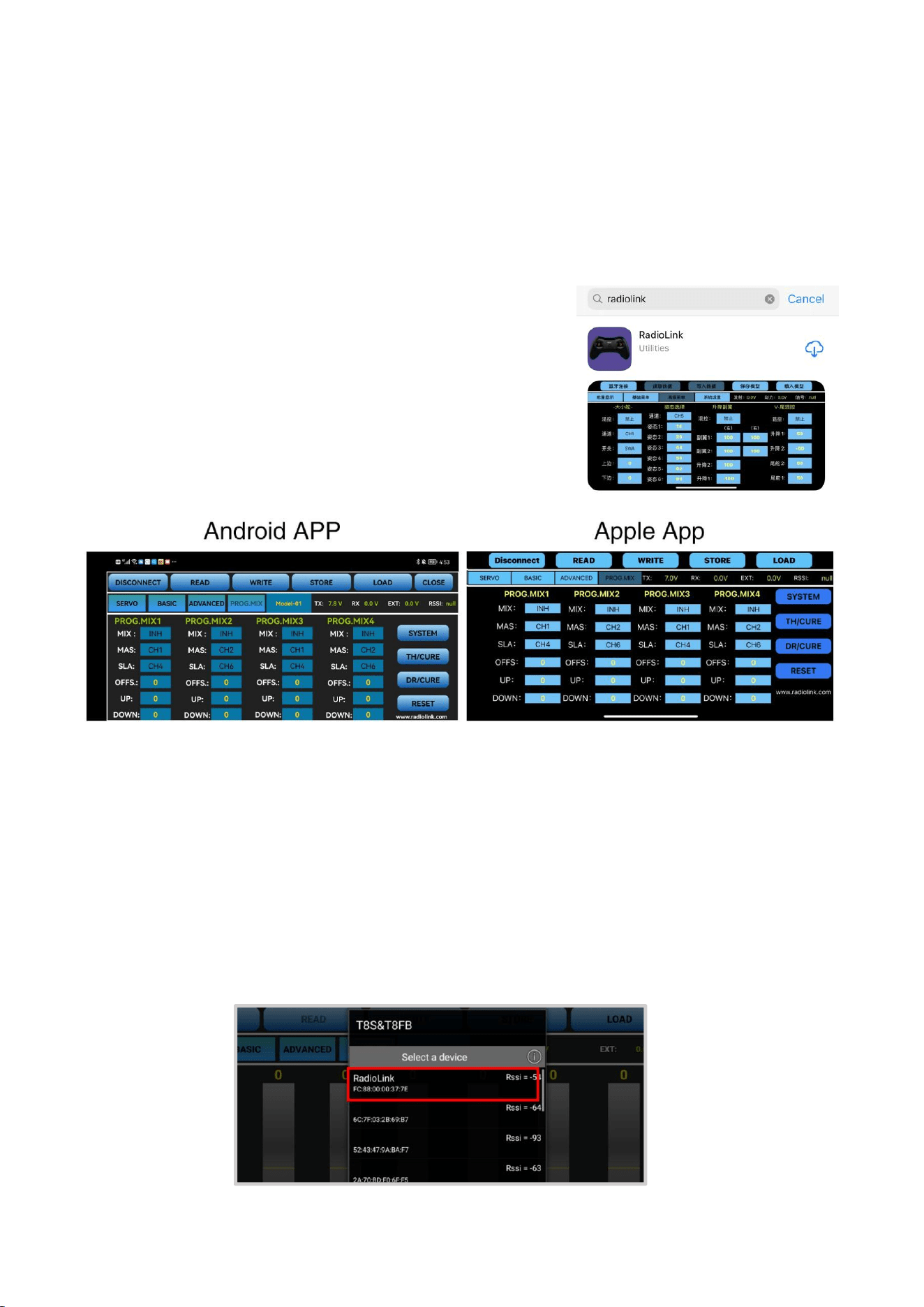
Apple APP: Search Radiolink in Apple store (See picture
on the right) and then click it to download.
2.1.2 Mobile Phone APP Connection
Connection of both Android APP and Apple APP to T8FB are the same as below:
① When the installation of parameter setup APP is complete, push the power button to turn
on T8FB.
② Click to enter the APP, a message will pop out to ask for permission to turn on the
Bluetooth function.
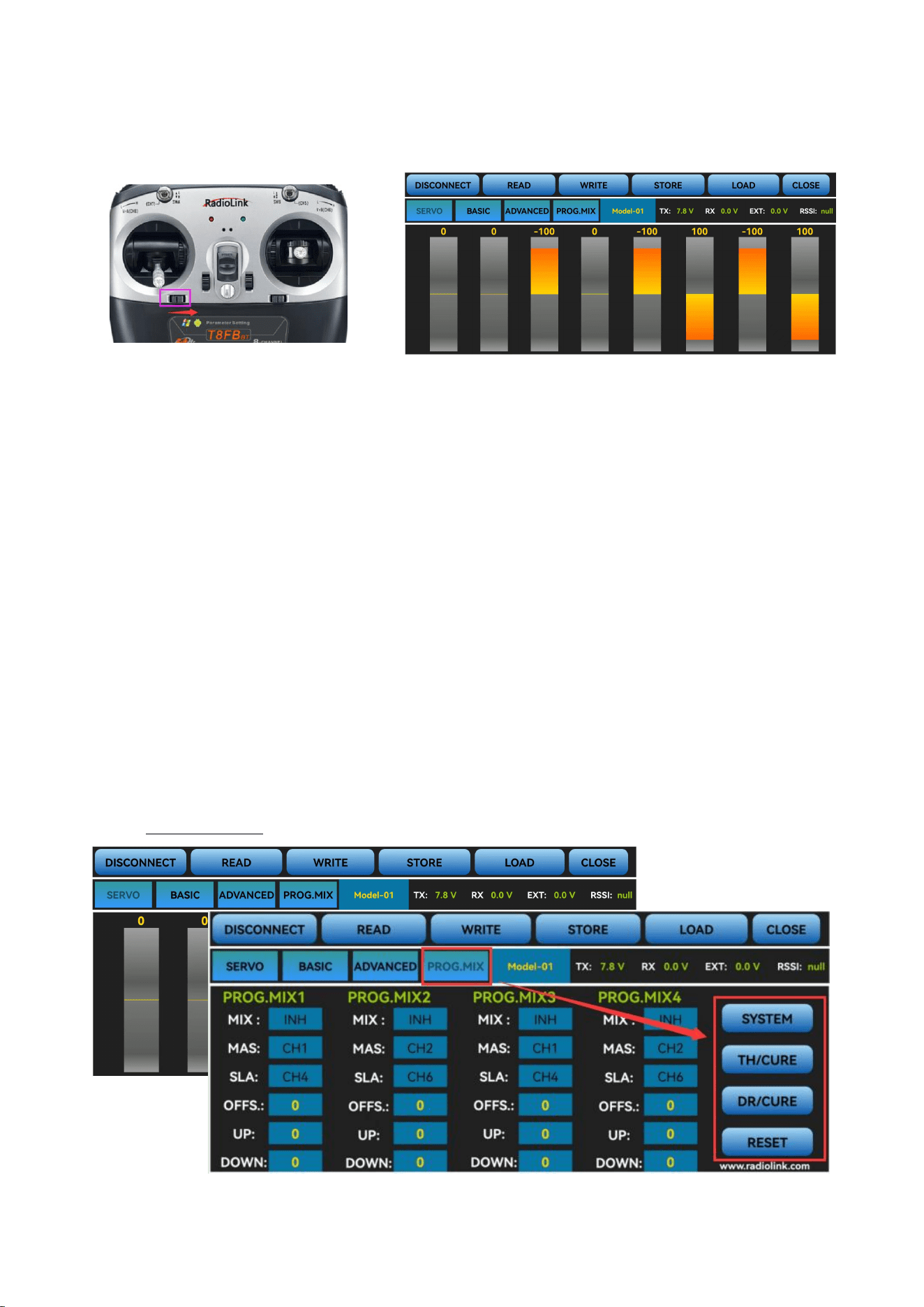
③ Click CONNECT on the top left of interface, a list of devices will pop out for selection.
④ Select RadioLink device, the two LED indicators at rightmost will flash with DD sounds.
11
⑤ Push any of the trimmer buttons to stop the DD sounds and the servo range will display on
the APP, meaning connection between the APP and T8FB succeed.
Note:
If there is no servo range display in APP, it means the connection is unsuccessful and you need
to reconnect.
If you cannot find the Bluetooth device with the name “RadioLink” after clicking
“CONNECT”. Please check whether the “Location Information” of your phone is turned on, if
not, please open the “Location Information”;
If the “Location Information” is on, but you still can’t find “RadioLink Bluetooth device”.
Please open the application in the phone --settings-application management--T8S&T8FB
permissions--location information, change the location information from “only allowed during
use” to “Prohibited”, and then change to “allowed only during use”again.
If all the steps above have finished, but the mobile phone parameter setup APP still cannot
connect the transmitter success, please download the version V603.
2.1.3 Mobile Phone APP Parameters Setup Menu
Parameters setup of both Android APP and Apple APP are the same.
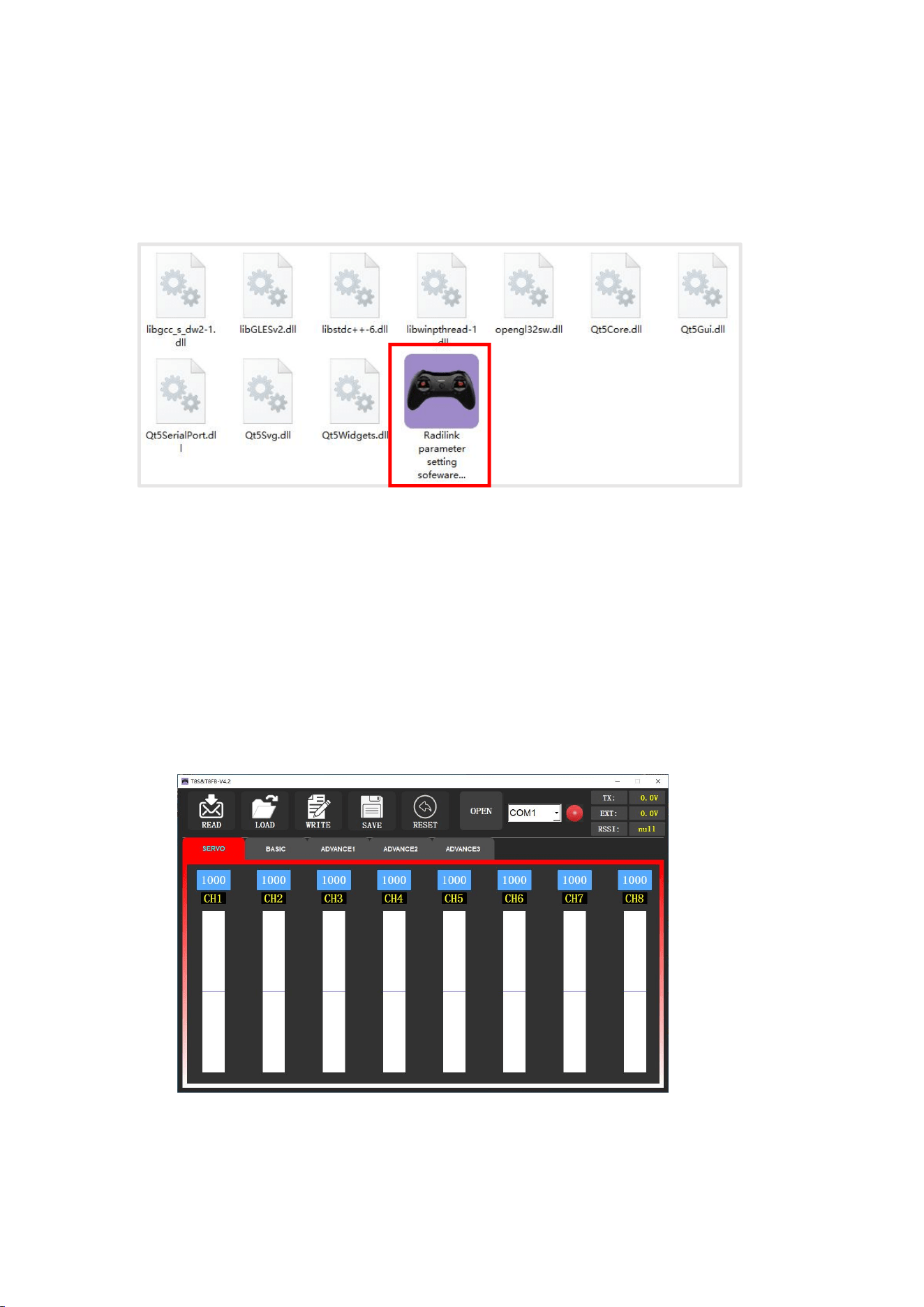
The setup menu includes: SERVO, BASIC, ADVANCE, PROG.MIX. After click PROG.MIX, there
are 4 PROG.MIX setting, SYSTEM, TH/CURE, DR/CURE, RESET. For detailed setting method, please
refer to 3.2 Basic Menu.

12
There are function keys on the top of the parameter setup interface.
(DIS)CONNECT: When APP is opened and T8FB is powered on, click CONNECT and a list of
Bluetooth devices will pop out and select the RadioLink device to make connection. The two LED
at the rightmost will flash with DD sounds, press any of the trimmer buttons to stop the DD
sounds and the servo range will display on the APP. If fails, press DISCONNECT and CONNECT
again.
READ: Click READ, two short D sounds will be heard and the APP starts reading the data in
T8FB. Every time the APP is reopened, the data displayed is the initial default value. If the
parameters are modified, you need to click to
“
READ
”
again to display the modified data.
WRITE: Click “WRITE” and three slow D sounds mean the modified data have been written
successfully. If no D sound means written failure, please reconnect T8FB to the APP and re-write.
Note:
1. Click “WRITE” each time parameter is modified to make sure it’s well input to the T8FB. The
modified parameters won
’
t be saved if
“
WRITE
”
is not clicked.
2. If you want restore the factory default settings, please reconnect to the APP, and click "Reset".
LOAD(Load/New/Delete model):
There are three functions can be set by press LOAD, that is load or select model data that have
set already and add a new model.
① Load model: A tooltip will pop out when Click LOAD, and then click
“
SELECT
”
to load the
model data from this tooltip. If there is no model data have stored successfully, the tooltip will
show blank.
② Create new model: Click "NEW" and name the new model, for example,
“
RacingDrone1
”
.
Click "YES" to save the new model’s name, then click the model’s name, the gray title bar on the
top of tooltip will change to RacingDrone1, click “SELECT” to select the model’s name, and then
set up all the parameters depends on your drone, click
“
STORE
”
to save the settings,
“/mode/RacingDrone1.txt” pop out means the new model have set successful.
③ Delete model: choose a model’s name from the tooltip, for example, still the
“
RacingDrone1
”
, the gray title bar on the top of tooltip will change to RacingDrone1, then click
“DELECT”, an alert box will pop out, click “YES” to delete the model data.
STORE: Click to save the APP data as a file in the mobile. T8FB support unlimited number of
model data to store, and easy to search in the phone. If the new file created is forgotten to rename,
but STORE as Model-New, the data in this file will be cleaned automatically when trying to create
another new file sharing the same file name.
Note: Each interface can display the transmitter voltage, receiver voltage, RSSI signal strength
value, power battery voltage telemetry (when using R8FG, R7FG, R8F, R8XM receivers with
telemetry function)
CLOSE: Click “CLOSE” to exist the APP.
13
2.2 Software APP on Computer
2.2.1 Software APP Installation on Computer
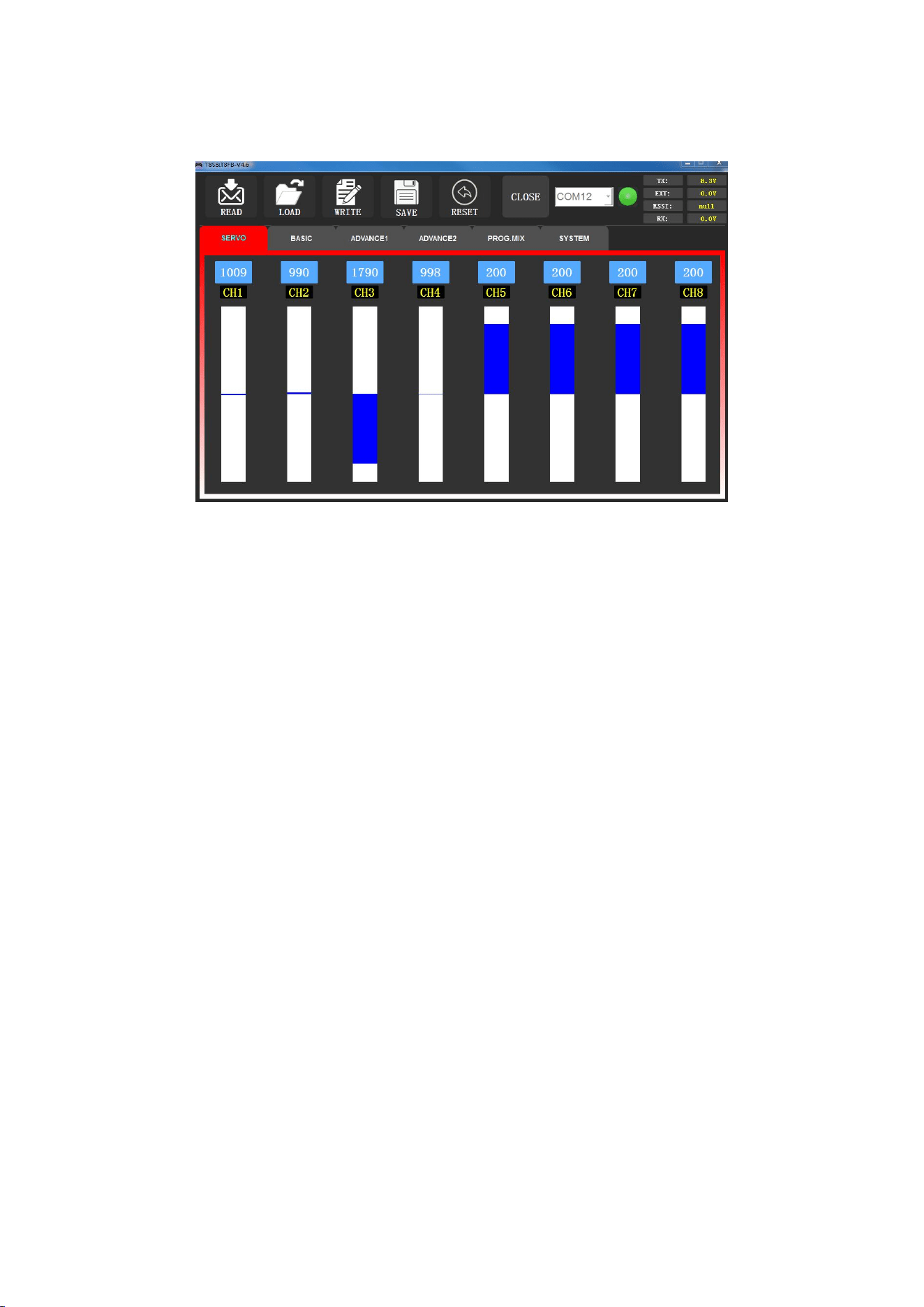
Go to the official website https://www.radiolink.com/t8fb_bt_app to download the computer
software APP, and run the program below.
If it
’
s your first time to use computer parameter APP, you need to install the driver before
using it. Please click the link below to download and install driver:
http://www.radiolink.com.cn/firmware/transmitter/T8FB(BT)/
or contact us by email at: after_service@radiolink.com.cn
2.2.2 Software APP Connection on Computer
After the driver is installed, T8FB transmitter can connect to computer parameter software.
(1) Turn on T8FB transmitter, and connect it to the computer with a USB data cable.
(2) Open the parameter software in the downloaded file. Choose Port Number (The COM
port of different computers will be different), click OPEN to connect.
Note: If the driver is installed normally, but the COM port connected to T8FB cannot be
detected, you could try another USB data cable. Do not use USB charging cable.
14
(3) T8FB will make DD sounds, press any of the trimmer buttons to stop the DD sounds.
READ: Click READ, two short D sounds will be heard and the APP starts reading the data in
T8FB. Every time the APP is reopened, the data displayed is the initial default value. If the
parameters are modified, you need to click to “READ” again to display the modified data.
WRITE: Click
“
WRITE
”
and three slow D sounds mean the modified data have been written
successfully. If no D sound means update failure, please reconnect T8FB to the APP and re-write.
Click “WRITE” each time parameter is modified to make sure it’s well input to the T8FB.
* After modifying the parameters, please click to write data, otherwise the modification will be
invalid.
* If you want to restore the factory default settings, you can click "Factory Settings".
LOAD: Click LOAD and a pop out of ‘Model Select’ will display. If there is no successfully
stored data, there will be no display. Besides, user also can create a new file or select among the
saved files.
SAVE: Click to save the APP data as a file in the computer.
Note: Each interface can display the transmitter voltage, receiver voltage, RSSI value, and
telemetry battery voltage (Telemetry function is available when using R8FG, R7FG, R8F, R8XM
receivers ).
15
Chapter 3 Function Setup Menu on APP
3.1 SERVO Menu
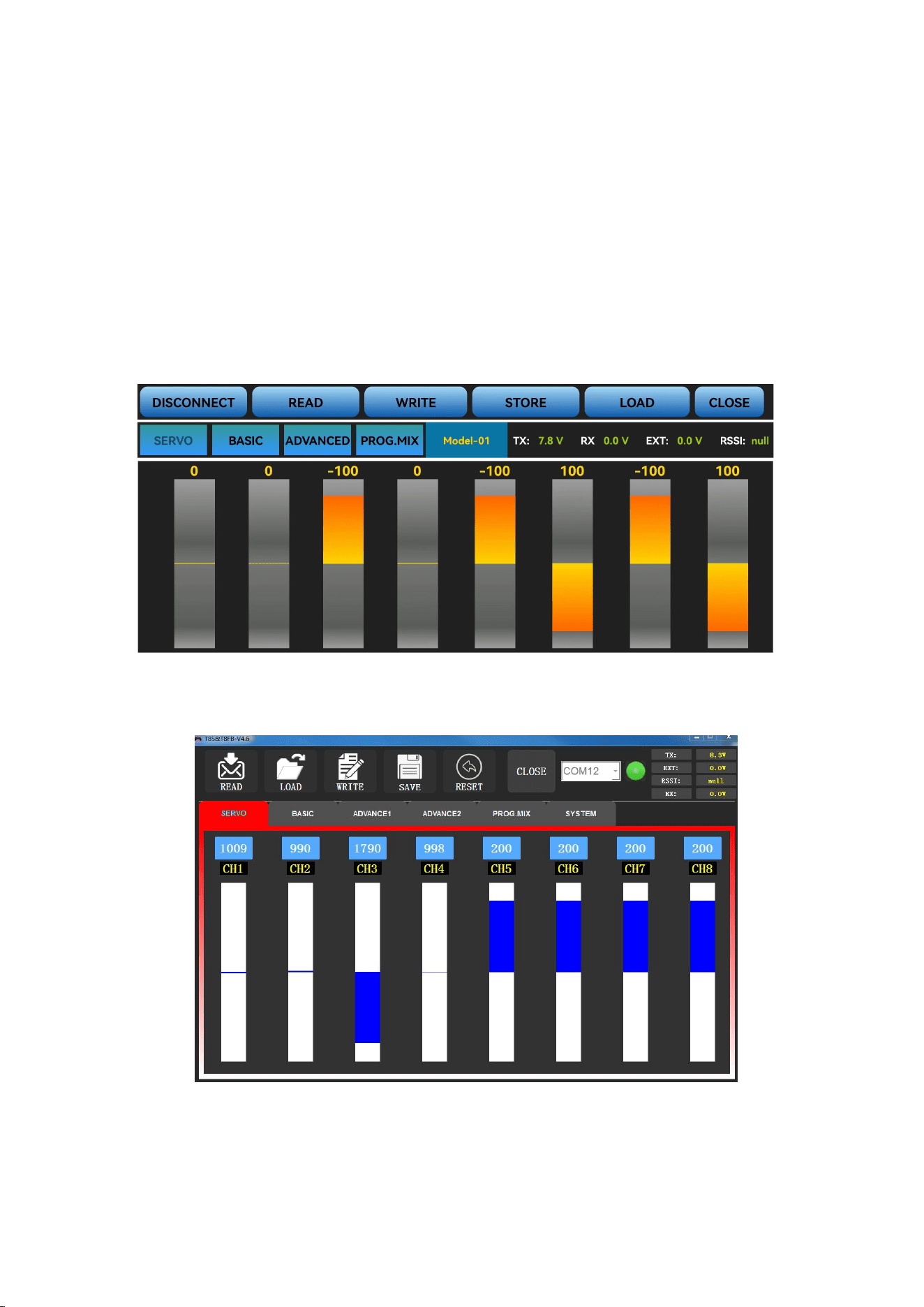
The 8 rectangles show the CH1-CH8 servos range instantly (4 basic channels and 4 auxiliary
channels) from left to right. CH1--Aileron, CH2--Elevator, CH3--Throttle, CH4--Rudder, CH5 to
CH8--Auxiliary channels.
There is a real-time display when you are toggle any channel switch, it is suitable for set up
complex mix control functions.
The interface of parameter setup APP on phone.
The interface of parameter setup software on computer.
16
3.2 BASIC Menu
3.2.1 REVERSE
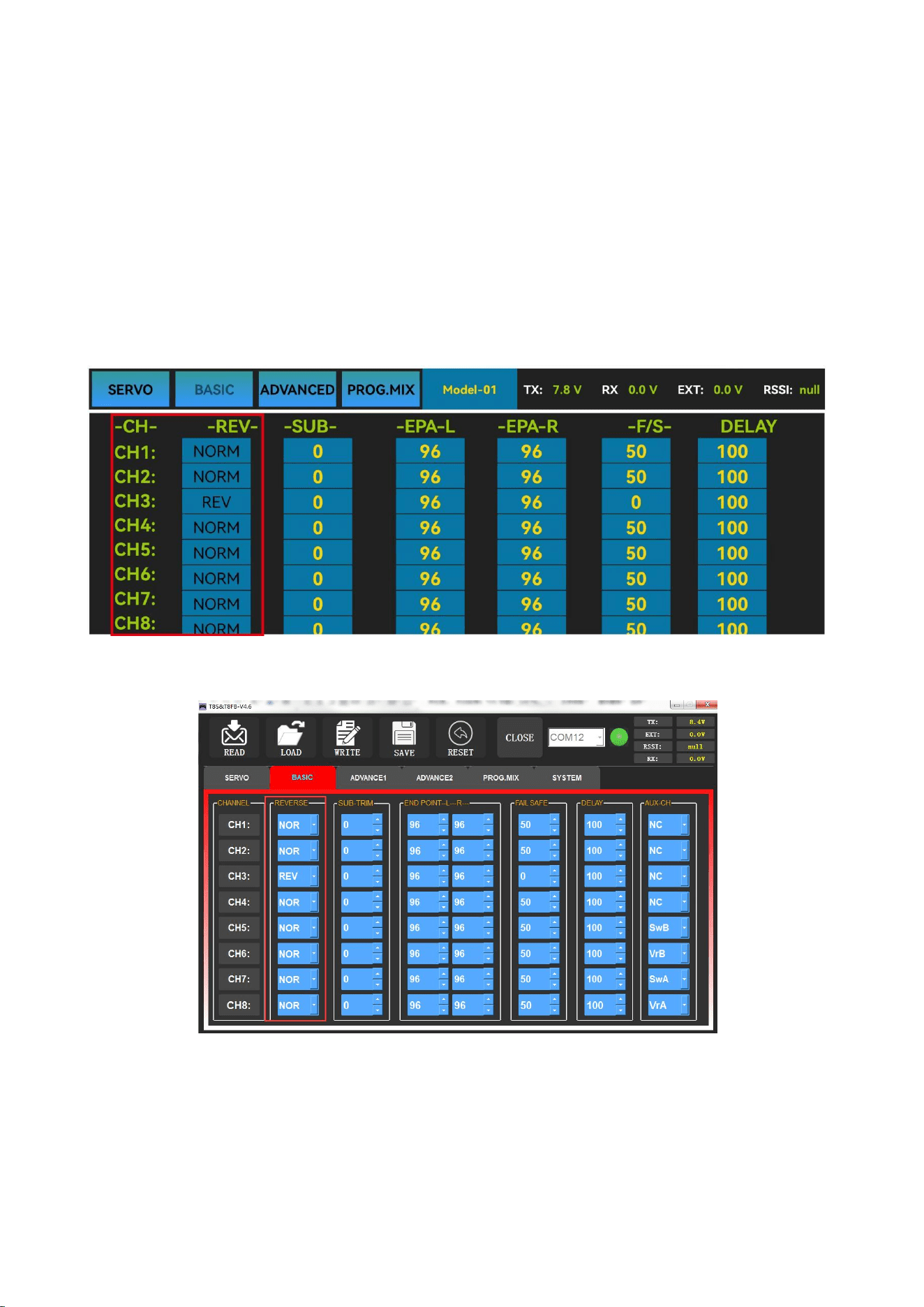
This function is to change the direction of the servo in response to the remote controller input.
Make sure to check all servos move to the correct direction as wish under control.
Note: If programmable mix control function is used to control several servos for fixed
wing/gliders, e.g. V-TAIL mix control, make sure to set the phase in advance to avoid possible
confusion.
The interface of parameter setup APP on phone.
The interface of parameter setup software on computer.
After changing the channel phase, please check the control of the corresponding channel on
the model, to make sure the response direction of the channel is correct. Make sure that the
response of each servo with the operation of transmitter is correct.
17
3.2.2 SUB-TRIM
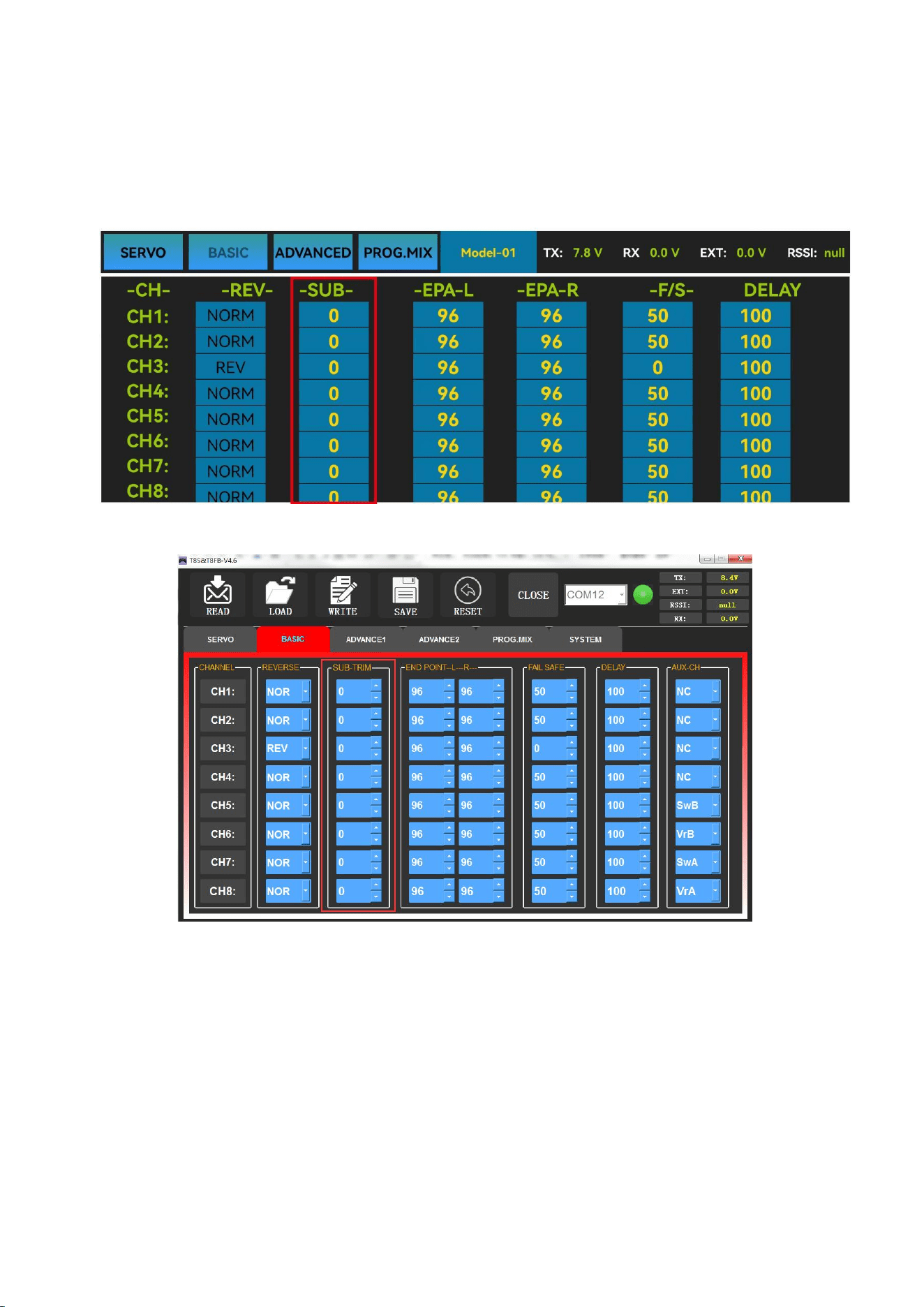
Makes small changes or corrections to the neutral position of each servo. The default is 0
setting by factory setting. That is, no SUB-TRIM. The range is from -100 to +100 and can be
modified with actual need.
The interface of parameter setup APP on phone.
The interface of parameter setup software on computer.
This function is used to set the neutral position of the servo, not to set the servo surface to be
horizontal. So, the recommended steps are as follows:
• Zero out the SUB-TRIM when the servo is not connected to servo surface, and adjust the
neutral position of the servo through SUB-TRIM.
• Zero out the SUB-TRIM.
• Mount servo arms and linkages so that the control surface’s neutral is as correct as possible.
•
Modify with SUB-TRIM small range value to make fine corrections.
18
3.2.3 END POINT ADJUSTMENT (EPA)
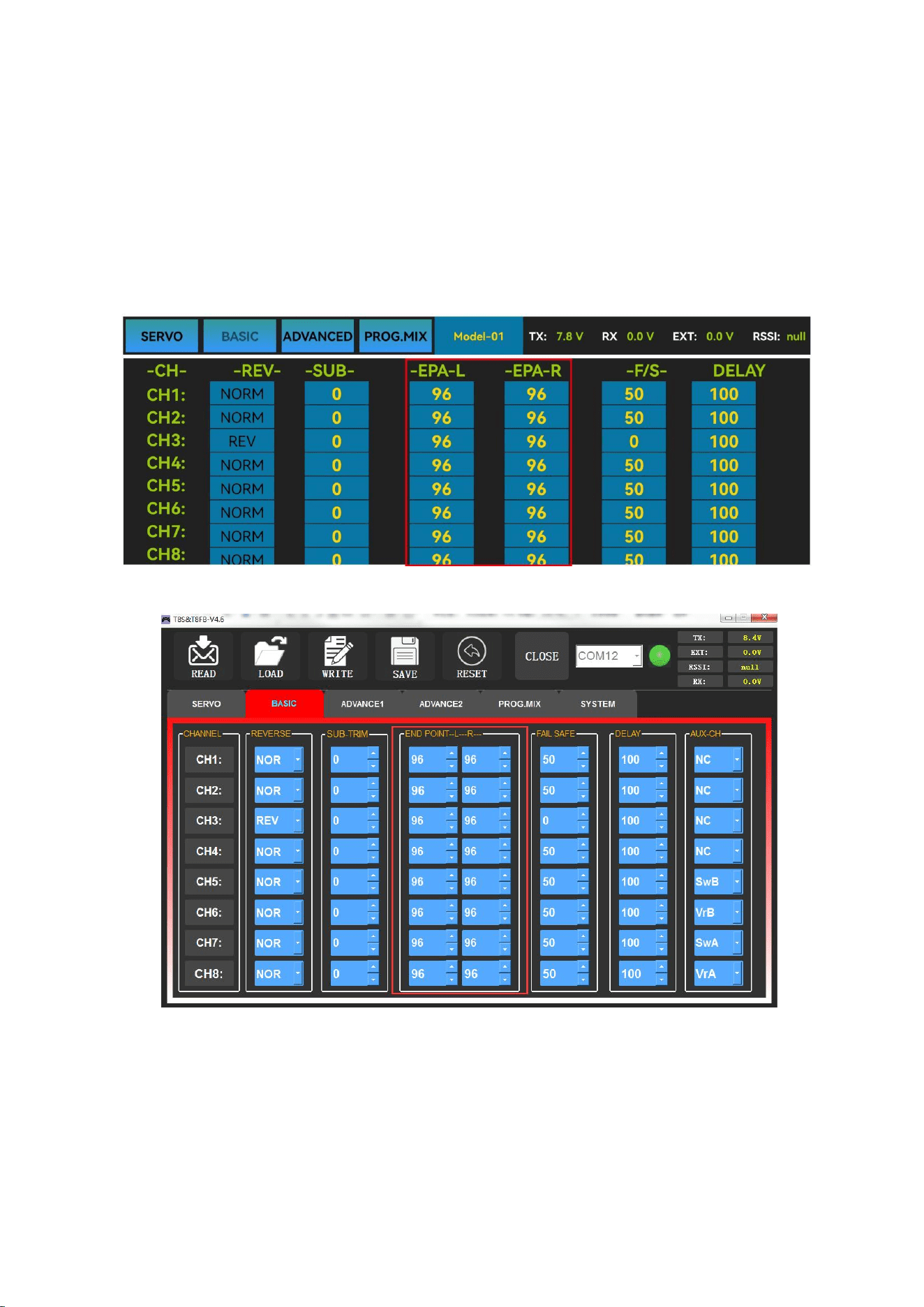
This function is used to set travel range of the servo connected to the channel.
When setting the model or after the first flight, if you feel that the movement of the model is
still relatively small when you move the joystick to the maximum position. You can increase the
travel range percentage of the corresponding channel of the servo (the maximum can be adjusted
to 120, The default is 96). EPA-L and EPA-R respectively represent the travel range on two sides of
the neutral point. You can choose the side you want to modify to adjust travel range percentage.
The interface of parameter setup APP on phone.
The interface of parameter setup software on computer.
3.2.4 FAIL SAFE (F/S)
If the flight has reached the limit control distance, there is strong interference in the flight
area, there are obstacles between the transmitter and the receiver, or T8FB low voltage it will
cause loss of control. At this time, you can set the Fail-Safe, so that the model can maintain
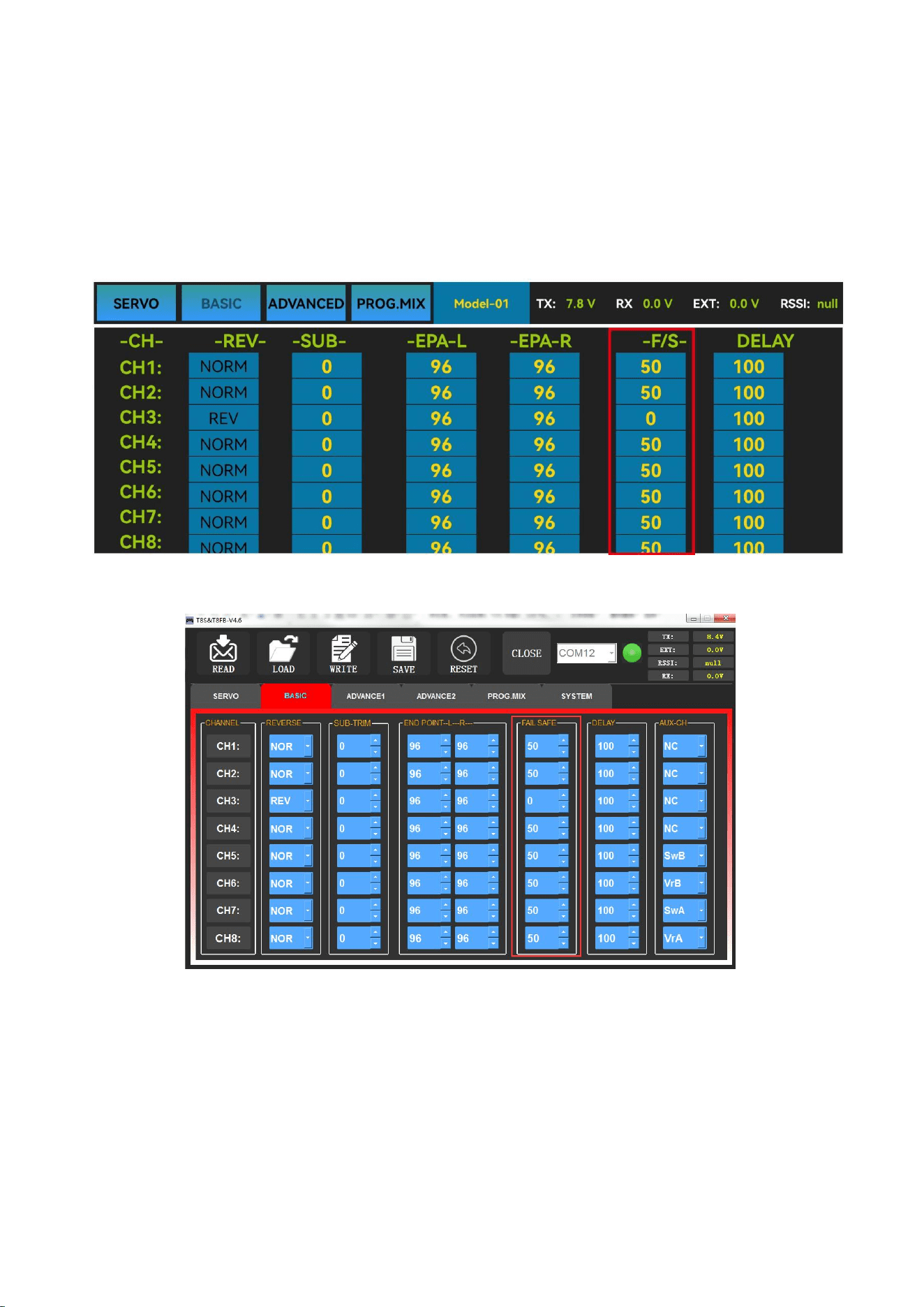
19
working at the F/S value you set after loss of control. F/S needs to be set in advance. Each channel
can be set independently.
According to your needs, set the servo travel range output by the channel. After setting it, the
receiver will continue to output the servo travel range according to the value you set when the
receiver loses the control of transmitter.
The interface of parameter setup APP on phone.
The interface of parameter setup software on computer.
Note:
1. The setting of the throttle F/S also applies to the low battery voltage. F/S value 0 means
throttle stick at the lowest point while 50 means at the central point.
2. The F/S (Fail-safe) function can be used in certain competitions to ensure safe landing of
the model prior to flying away and dropping. Besides, it can also be used make all servos neutral
to maximize the flight time.
20
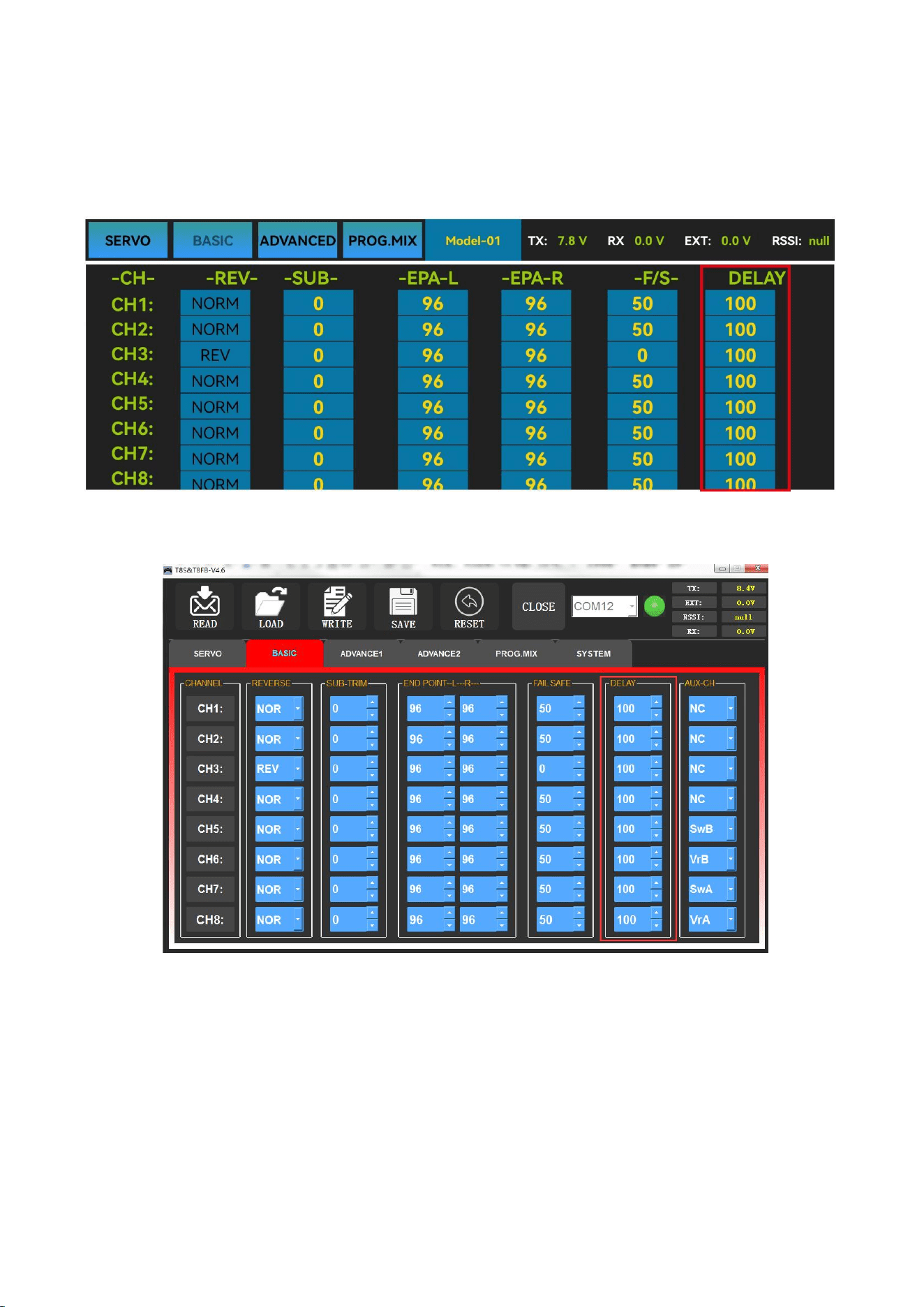
3.2.5 DELAY
Adjusts the synchronous ratio between the servos position and the actual operation. The
default value is 100 by factory setting meaning no delay.
The interface of parameter setup APP on phone.
The interface of parameter setup software on computer.
3.3 ADVANCED Menu
3.3.1 D/R (Dual Rate)
The model can be controlled to work on different servo travel range by a switch. Before using
this function, set the state of “Mix” from “INH” to “ON”.CH1/2/3/4 can be chosen to set
separately. the switch can be set to SWA or SWB. “Up” and “Down” correspond to the
positions of switch. The value of “Up” and “Down” is maximum servo travel range you set.
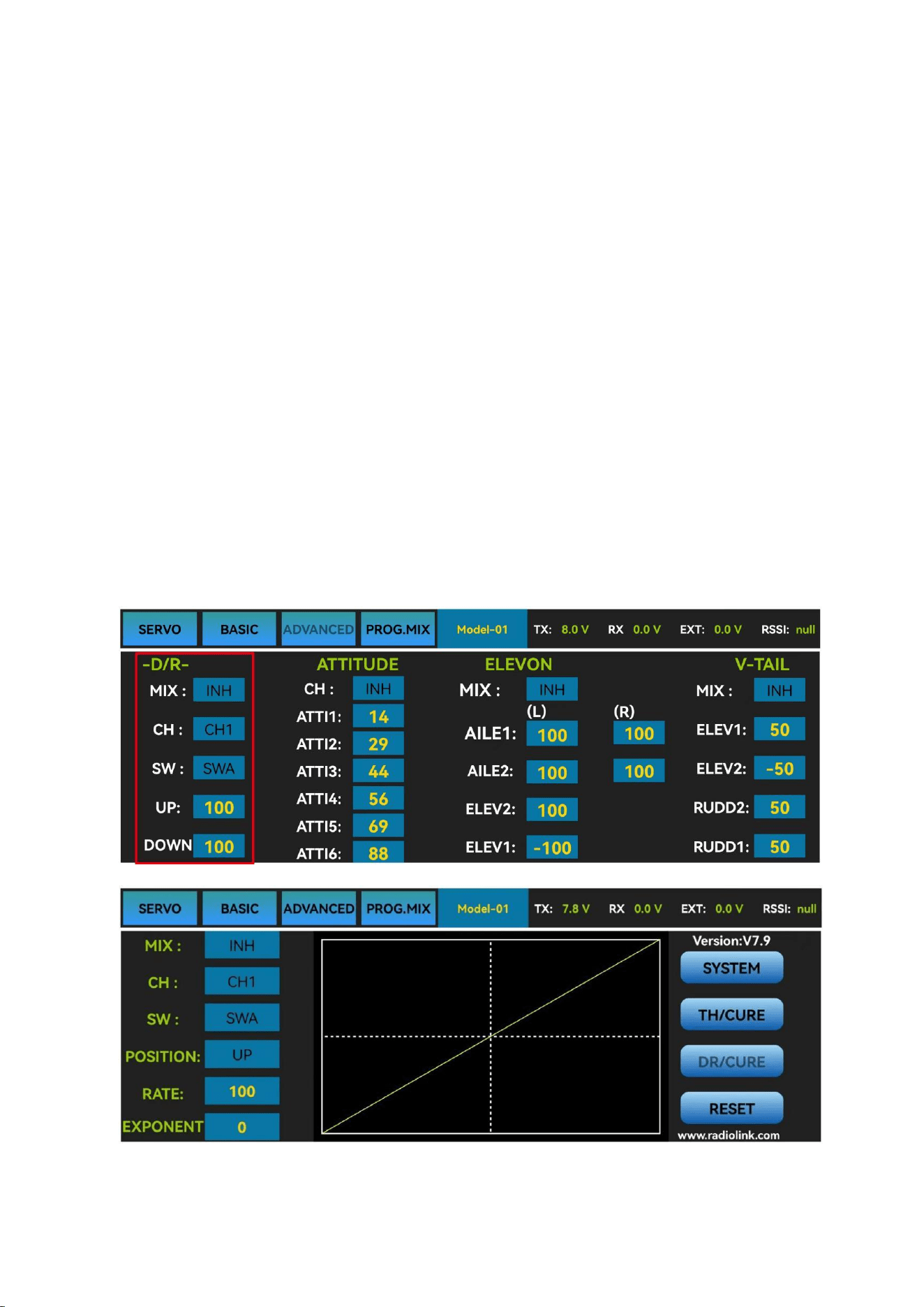
21
Channels 1 to 4 can be set for different servo travel range both individually and at the same
time.
When setting one channel for different servo travel range, click “WRITE” after setting D/R
value for the corresponding channel. When setting 4 channels for different servo travel range at
the same time, click “WRITE” after setting D/R value for each channel. For example: after setting
D/R value of channel 1, click “WRITE” to save the settings, and then switch the channel to
“CH2”. Set D/R value of channel 2, and then click “WRITE” to save the settings. Repeat this
step for channel 3 and channel 4.
DR/CURE: It’s an index. When it is not set, the value defaults to 0, and the output servo travel
range of the corresponding channel will be output in proportion to the move of the joystick. The
value can be set from -100% to +100%. The change of the index will not change the maximum
and minimum servo travel range. When controlling the aircraft, the index setting value is usually
negative.
When the index is a negative value, the greater the negative value, the lower the sensitivity of
the joystick in the neutral position and the higher the sensitivity at both ends position.
When the index is a positive value, the greater the positive value, the higher the sensitivity of
the joystick in the neutral position, and the lower the sensitivity at both ends position.
The interface of parameter setup APP on phone.
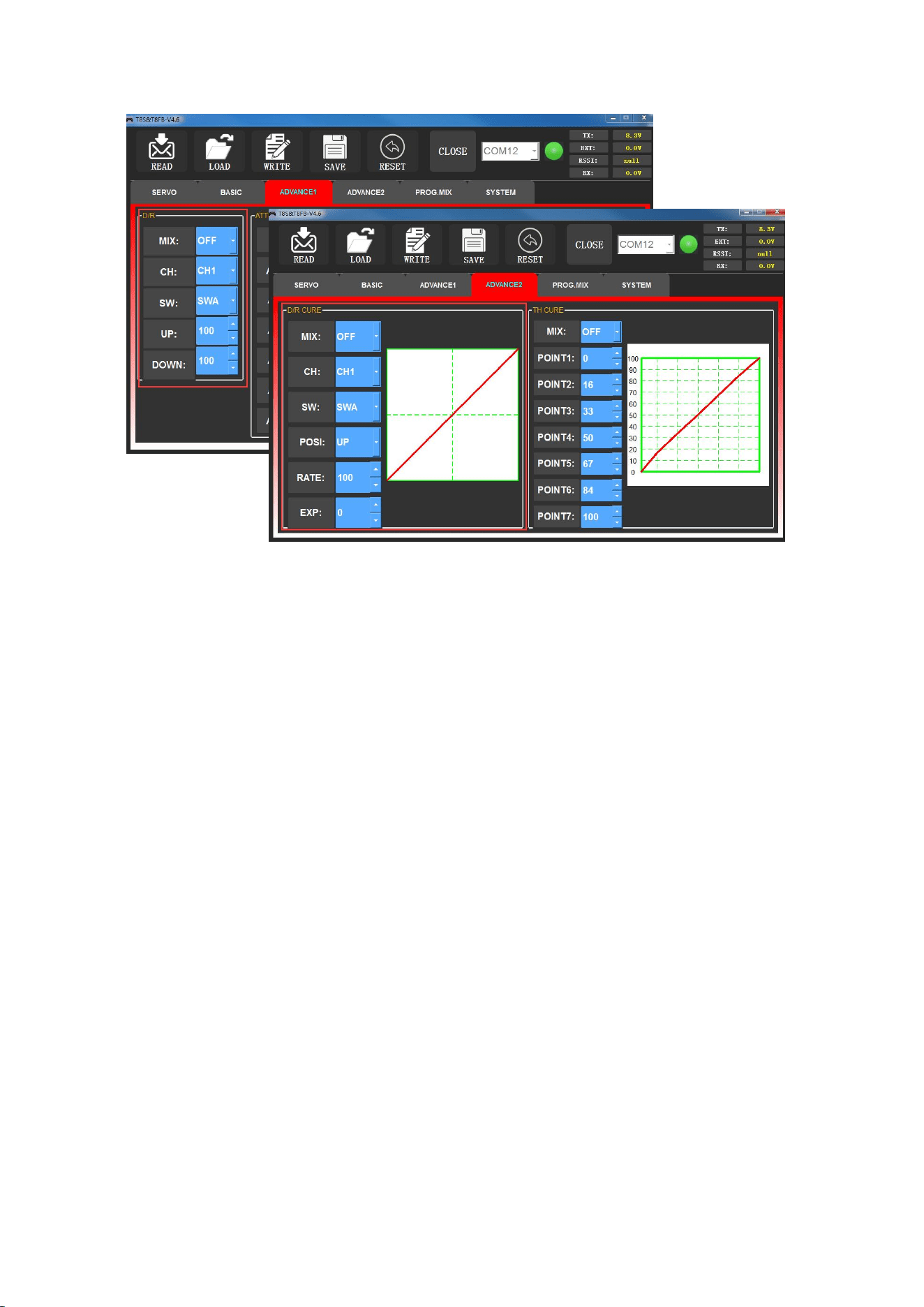
22
The interface of parameter setup software on computer.
3.3.2 ATTITUDE
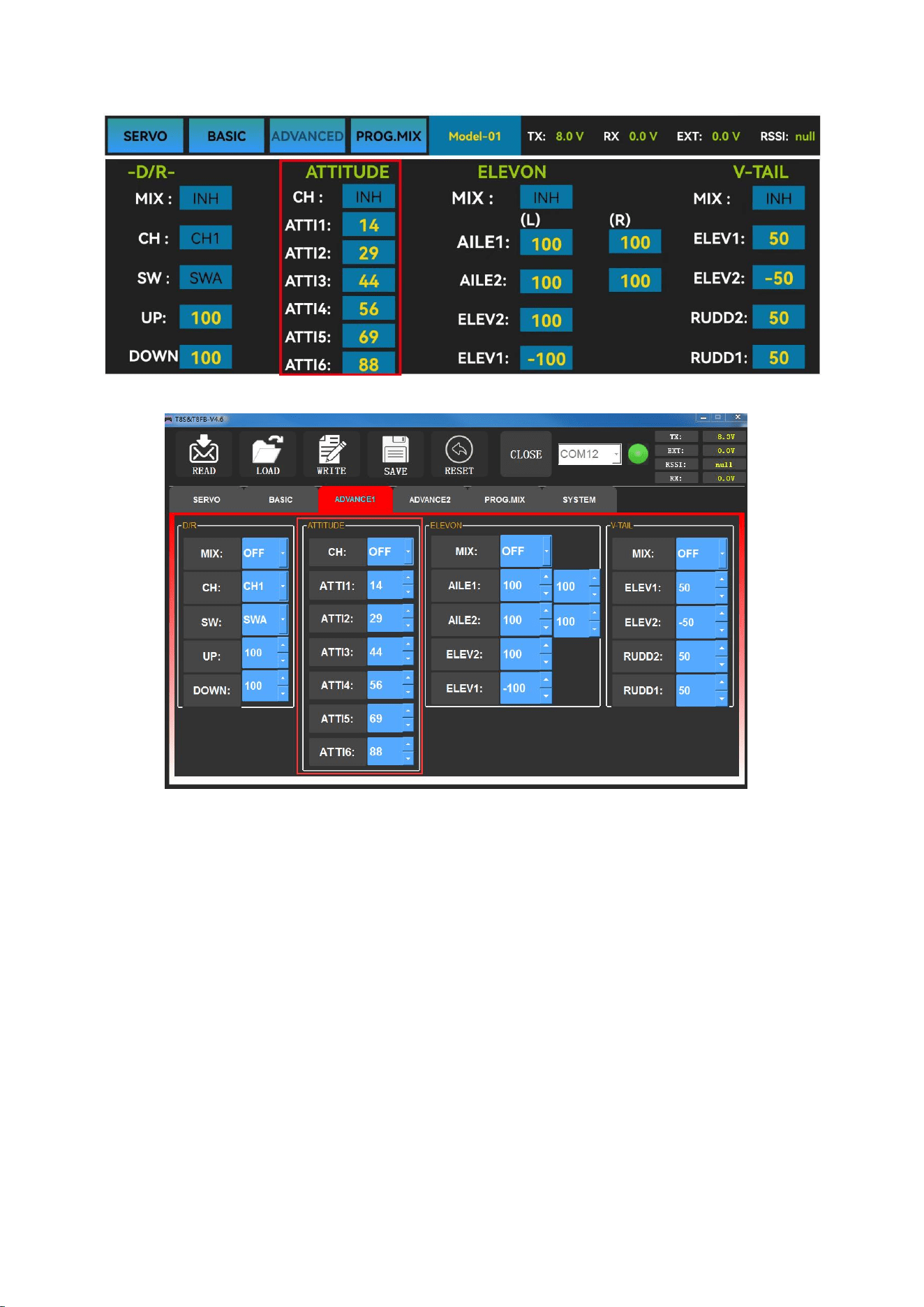
Select the preferred channel from CH5 through CH8. CH5 is always the default switch to
change attitude when connect to flight controller PIXHAWK/MINI PIX/crossflight/APM/TURBO
PIX with multi-rotor firmware, and CH8 is the default switch with fixed-wing firmware, while CH7 is
default when connect to DJI flight controller. For the default channel to switch attitudes, please
refer to the flight controller user manual.
Note: After open the “Attitude” function, the switch of CH5 and CH7 will be used by default
to control the output of the “attitude channel”.
The values behind each channel means different control percentage output different control
signals. The default values of T8FB of each attitude is corresponding to the values of flight
controller PIXHAWK/MINI PIX/crossflight/APM/TURBO PIX. That is, when the above flight
controllers are used with T8FB, attitude can be selected on the Mission Planner and no need to
setup specific parameter.
Different values can be set for ATTI 1 to ATTI 6. Then you can change the flight attitude by
press CH5/CH7.
23
The interface of parameter setup APP on phone.
The interface of parameter setup software on computer.
3.3.3 ELEVON
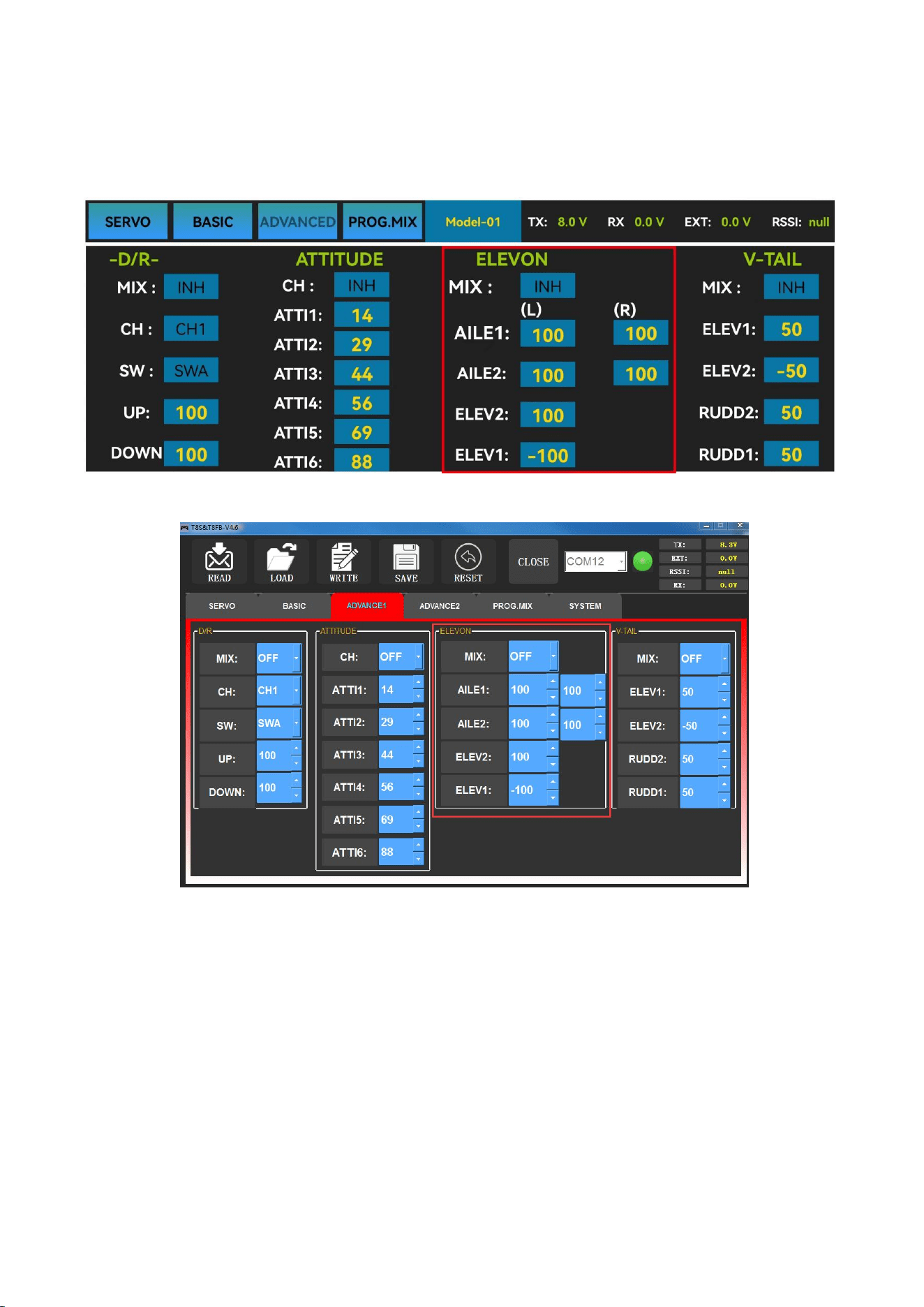
“Elevator mix” is also known as “delta wing mix”. It is often used for delta wing aircraft.
Two servos can control two servos surfaces that on the left and right sides of the aircraft
separately, and operate aileron function and elevator function.
When “MIX” is set from “INH” to “ON”, the “AILE” and “ELEV” function is turned on.
When this function is turned on, then both CH 1 and CH2 will respond, and servo travel range can
be adjusted individually.
AILE 1 and ELEV 2 correspond to the response rate of channel 1 when performing aileron
operation and elevator operation.
AILE 2 and ELEV 1 correspond to the response rate of channel 2 when performing aileron
operation and elevator operation.
24
The specific value is the amount of servo travel range when the corresponding channel
performs the aileron or elevator operation. Positive and negative values represent different
directions of movement.
The interface of parameter setup APP on phone.
The interface of parameter setup software on computer.
3.3.4 V-TAIL
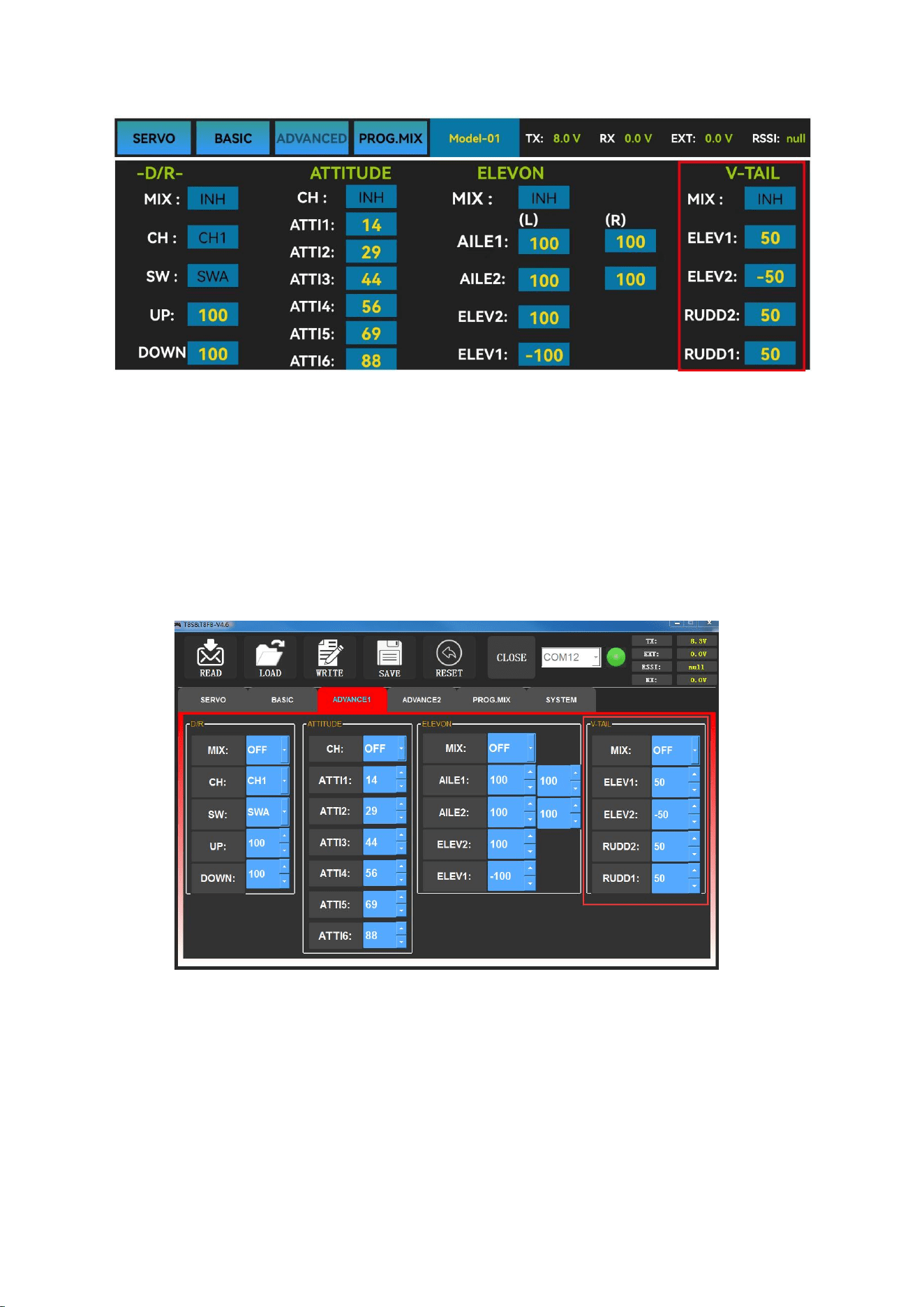
V-TAIL used for fixed wing with v-tail. Two servos can control two servos surfaces that on the
left and right sides of the aircraft separately, and operate aileron function and elevator function.
When “MIX” is set from “INH” to “ON”, the “ELEV “and “RUDD “function is turned
on. When this function is turned on, then both CH2 and CH4 will respond, and servo travel range
can be adjusted individually.
25
The interface of parameter setup APP on phone
ELEV 1 and RUDD 2 correspond to the response rate of channel 2 when performing elevator
operation and rudder operation.
ELEV 2 and RUDD 1 correspond to the response rate of channel 4 when performing elevator
operation and rudder operation.
The specific value is the amount of servo travel range when the corresponding channel
performs the elevator or rudder operation. Positive and negative values represent different
directions of movement.
The interface of parameter setup software on computer
3.4 PROG.MIX Menu
3.4.1 PROG.MIX
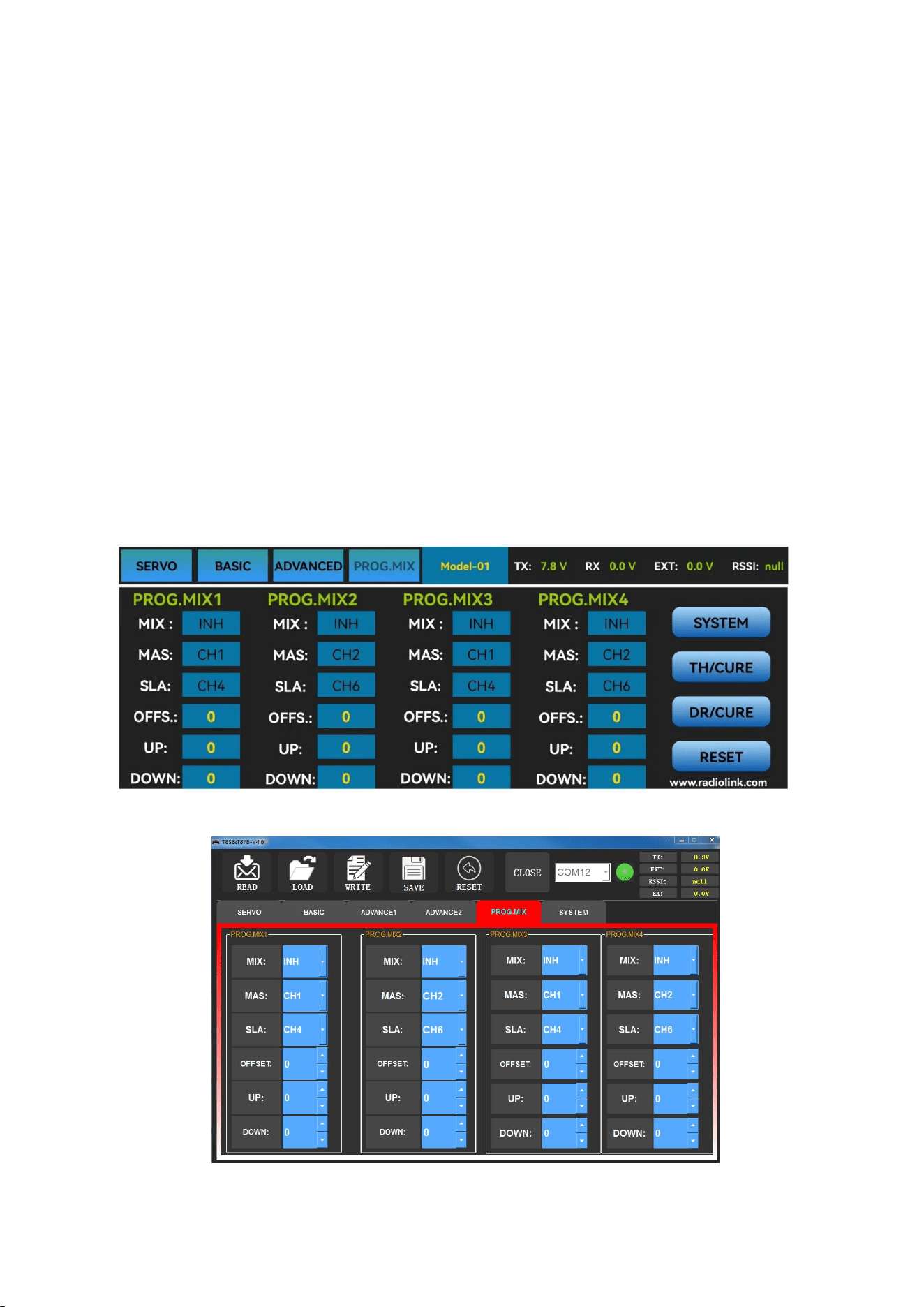
Programmable mix control is custom mix settings, which can independently select the
master channel and slave channel. It is often used to compensate for the attitude changes of the
aircraft.
26
There are 4 groups of programmable mix control that can be set.
Programmable mixing controls are to:
① Diversify attitude changes of aircraft (e.g. Rolling to realize when rudder is commanded);
② Control a certain axis with two or more servos (e.g. 2 rudder servos);
③ Correct special movement automatically (e.g. Lower FLAP and ELEVATOR servos at the
same time);
④ Control the second channel to respond to the movement of the first channel (e.g. Increase
smoke oil to respond to high speed, but only when the smoke switch is activated);
⑤ Turn off the main control under certain circumstances (e.g. For dual-engine aircraft, turn
off a motor or speed up/down one motor to assist rudder to turn).
MAS: Master channel. Other channels need to cooperate with movements of the master
channels.
SLA: Slave channel. Many mix controls are controlled by one master channel.
You can turn the “MIX” from “INH” to “ON”, and set master channel, slave channel. Set
“UP” and “DOWN” to the same value. This value determines the servo travel range and
movement direction of slave channel.
The interface of parameter setup APP on phone.
The interface of parameter setup software on computer.
27
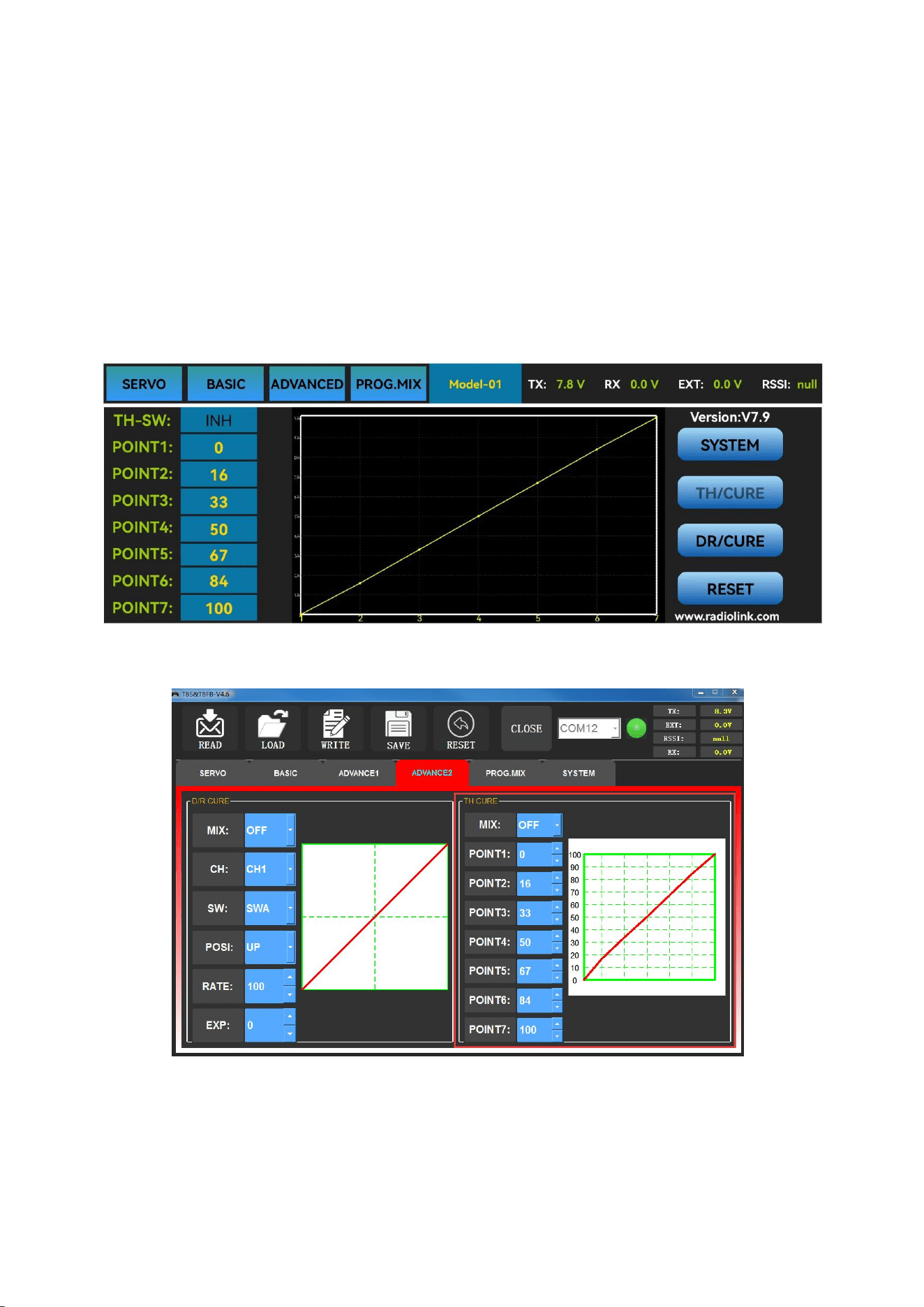
3.4.2 TH/CURE
Throttle curve (TH/CURE) is the set output travel by throttle. It is to coordinate the motor
response and the throttle operation. The horizontal ordinate is the joystick position while the
vertical ordinate is the throttle output.
When “TH-SW” is set from “OFF” to “ON”, the throttle curve function is turned on.
Adjust the value of 7 points. The adjustable range is from 0 to 100. The larger the value it is, the
larger the output throttle is when the throttle joystick moves to the corresponding position.
The interface of parameter setup APP on phone
The interface of parameter setup software on computer
28
3.4.3 DR/CURE
Please refer to Chapter 3.3 ADVANCE Menu.
3.4.4 SYSTEM Menu
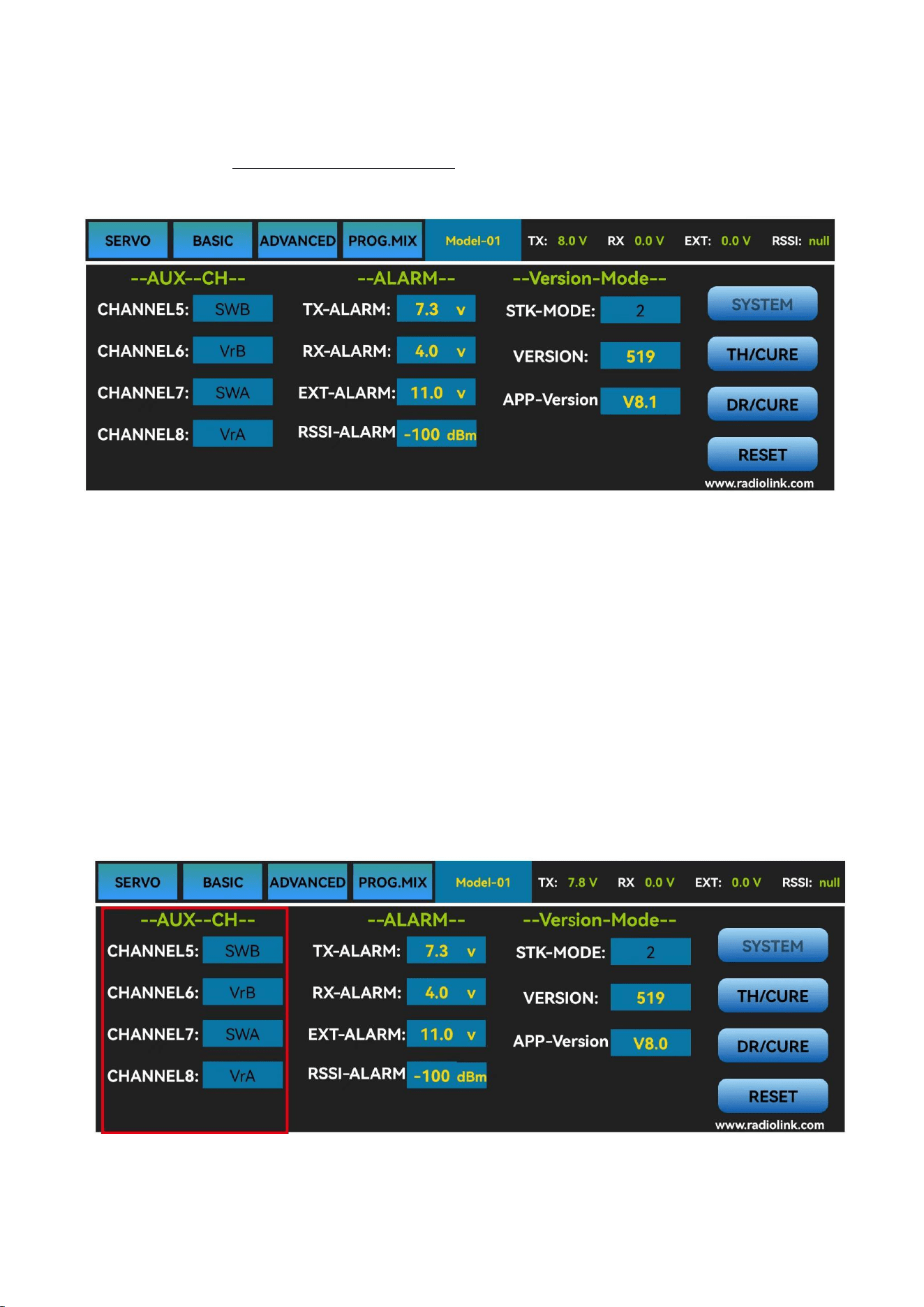
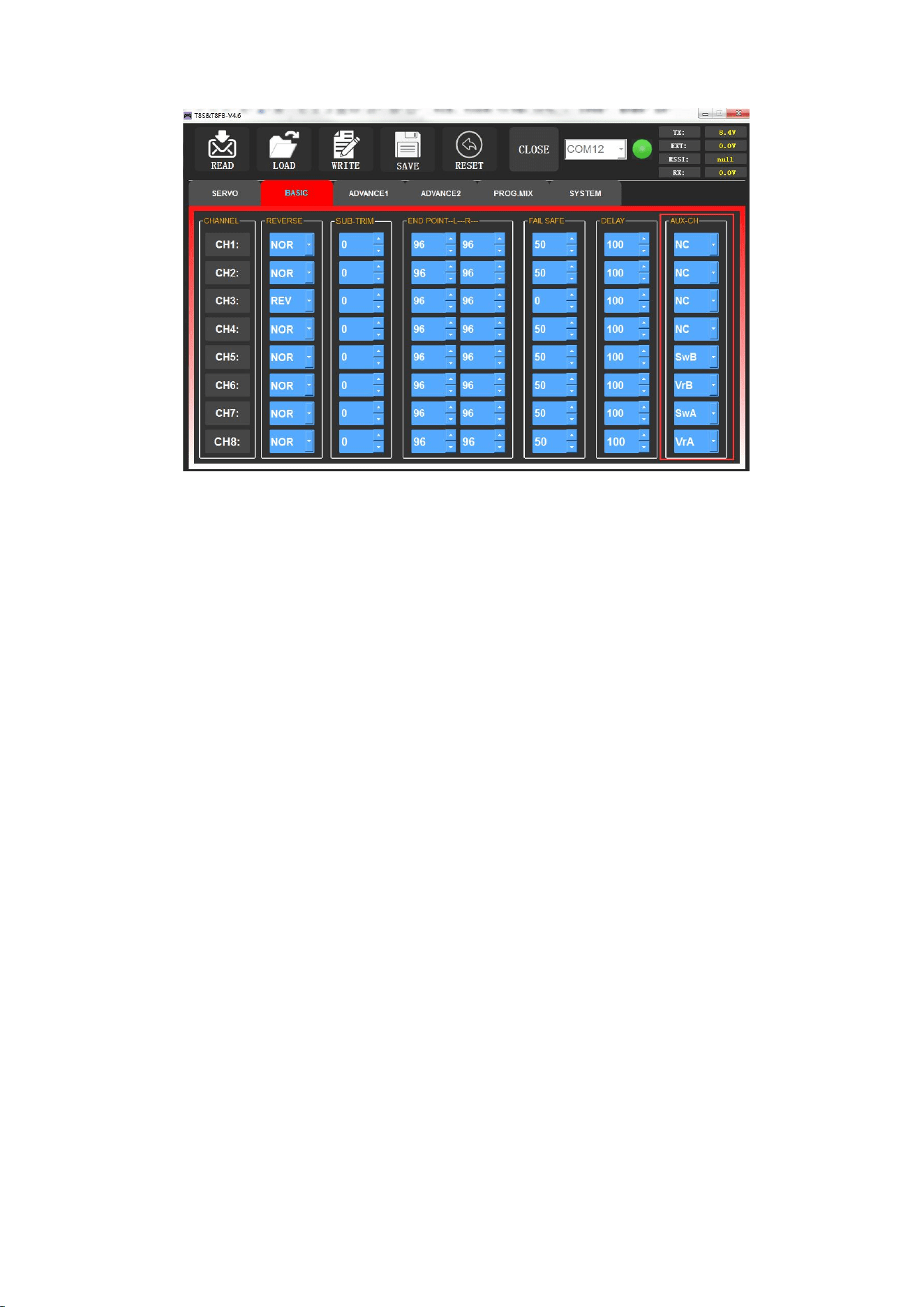
3.4.4.1 AUX.CH
The CH1/2/3/4 of the T8FB transmitter are 4 basic channels, and CH5/6/7/8 are auxiliary
channels. The switch of the basic channel cannot be modified. But different switches can do some
auxiliary functions by setting CH5/6/7/8, such as control the opening and closing of the bait
hopper, control whether the machine releases smoke or not etc.
Each auxiliary channel can be customized with one of three-way switch, toggle-switch or
push-switch. Any one of three-way switch, toggle-switch or push-switch can also be set to control
different channels.
And the final effect can be seen on the “SERVO MENU” interface.
Note: If you flip any switch and two channels will change, please check whether the two
auxiliary channels are set to the same switch.
Click the auxiliary function of CH5/6/7/8, there will be five options of “SWA”, “SWB”,
“VrA”, “VrB” and “NULL” for selection.” NULL “means no switch control.
The interface of parameter setup APP on phone.
29
The interface of parameter setup software on computer.
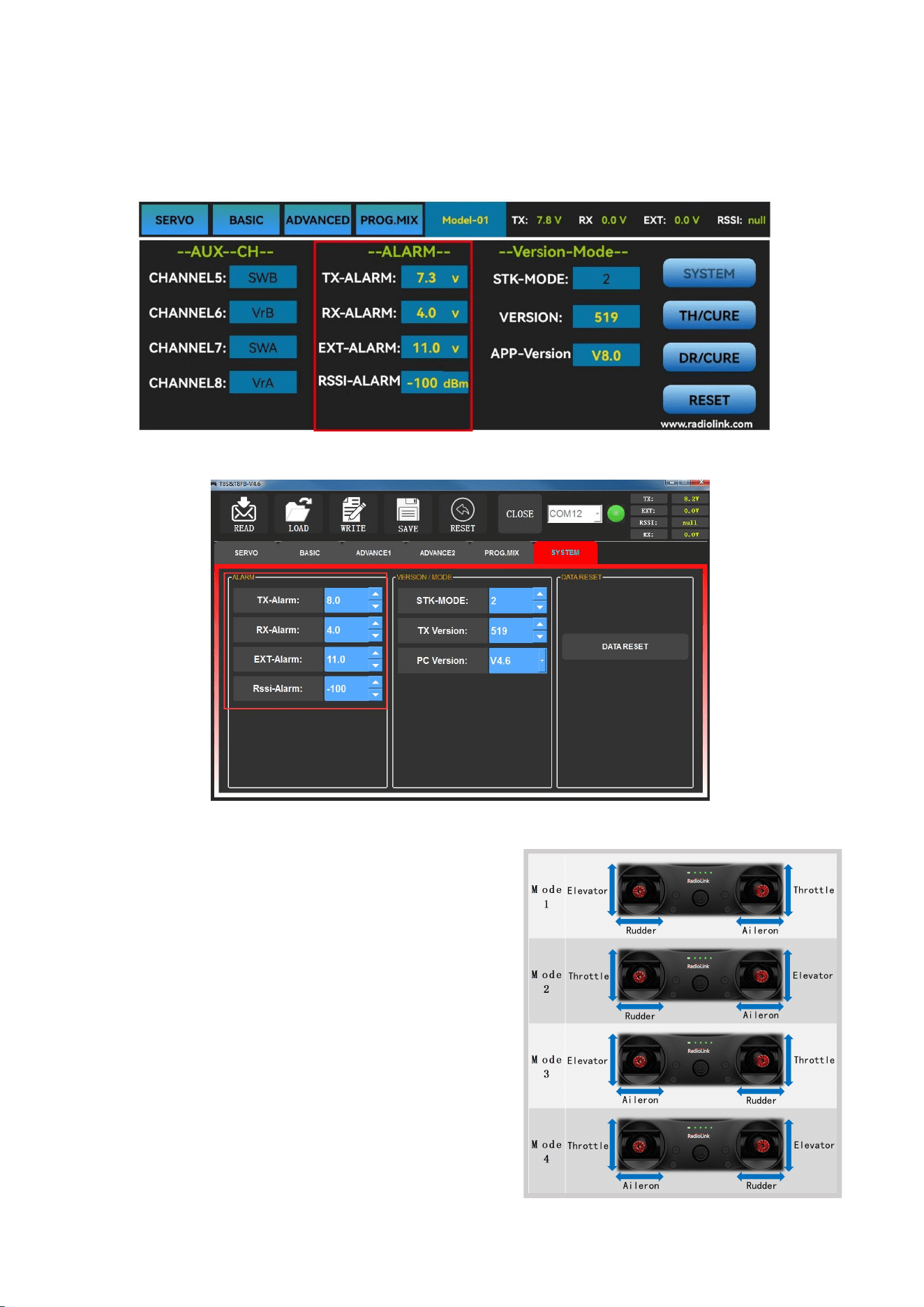
3.4.4.2 ALARM
TX-ALARM
The default low voltage value of transmitter is automatically set according to the battery used.
For 2S lipo battery, it is 7.3V. For 3S lipo battery, it is 11V. For 4 AA batteries with 1.5V, the default
low battery alarm voltage is 5V. When the transmitter voltage is lower than the alarm value, T8FB
will continuously make “D” sounds to warn.
RX-ALARM
The default low voltage value of receiver is automatically set 4V by default, and small
adjustments are also supported. When the compatible receiver supports receiver voltage
telemetry and the receiver voltage is lower than the value set, T8FB will make “DDDDD” sounds
as a unit to warn. (Note: R8EF receiver does not support receiver voltage telemetry)
EXT-ALARM
To return the model voltage, RadioLink receivers of telemetry functions R8XM, R8FG, R7FG or
R8F should be used. Small adjustments are also supported. When the model voltage goes lower
than the set value, T8FB will make “DDD” sounds as a unit to warn. We suggest that 7.4V set for
2S lithium battery, 11.1V set for 3S lithium battery, 14.8V set for 4S lithium battery.
RSSI-ALARM
The default signal strength alarm value of the T8FB is -100dBm. You can set a reasonable value
according to the actual situation to prevent the model from losing control due to weak signal.
When the RSSI goes lower than value you set, T8FB will make ”DDDD” sounds as a unit to warn.
30
The best RSSI-ALM is depends on the control range test at your flying area. For example, you
have tested the control distance of your T8FB is 2000 meters at your flying area, and the RSSI
shows -86dBm at this time, then you can set the RSSI alarm data is -86dBm.
The interface of parameter setup APP on phone
The interface of parameter setup software on computer
3.4.4.3 Version MODE
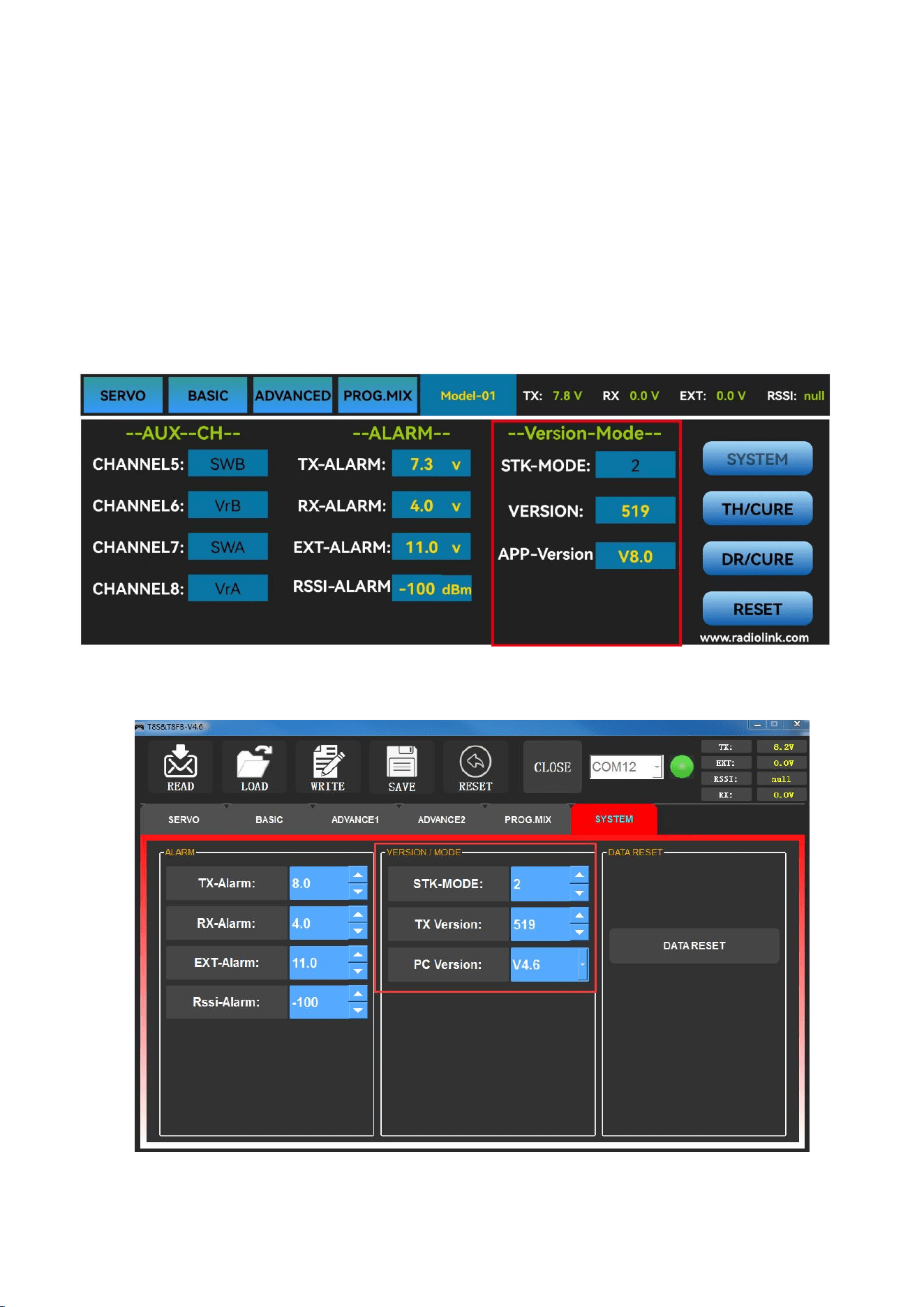
STK-MODE
The T8FB transmitter has 4 STK-MODES, Mode 1
(Japanese hand), Mode 2 (American hand), Mode 3
(Chinese hand) and Mode 4 (others). The factory
default of T8FB transmitter is mode 1 or mode 2, you
can also modify it according to your habits.
Mode 1: left joystick-Rudder and Elevator; right
joystick-Aileron and Throttle
Mode 2: left joystick-Rudder and Throttle, right
joystick-Aileron and Elevator
31
Mode 3: left joystick-Aileron and Elevator, right joystick-Rudder and Throttle
Mode 4: left joystick- Aileron and Throttle, right joystick-Rudder and Elevator
VERSION
The numbers mean current firmware versions. The detailed steps of firmware upgrade please refer
to Chapter 2.
APP-VERSION
The numbers mean current Parameter Setup APP versions.
The interface of parameter setup APP on phone.
The interface of parameter setup software on computer.
32
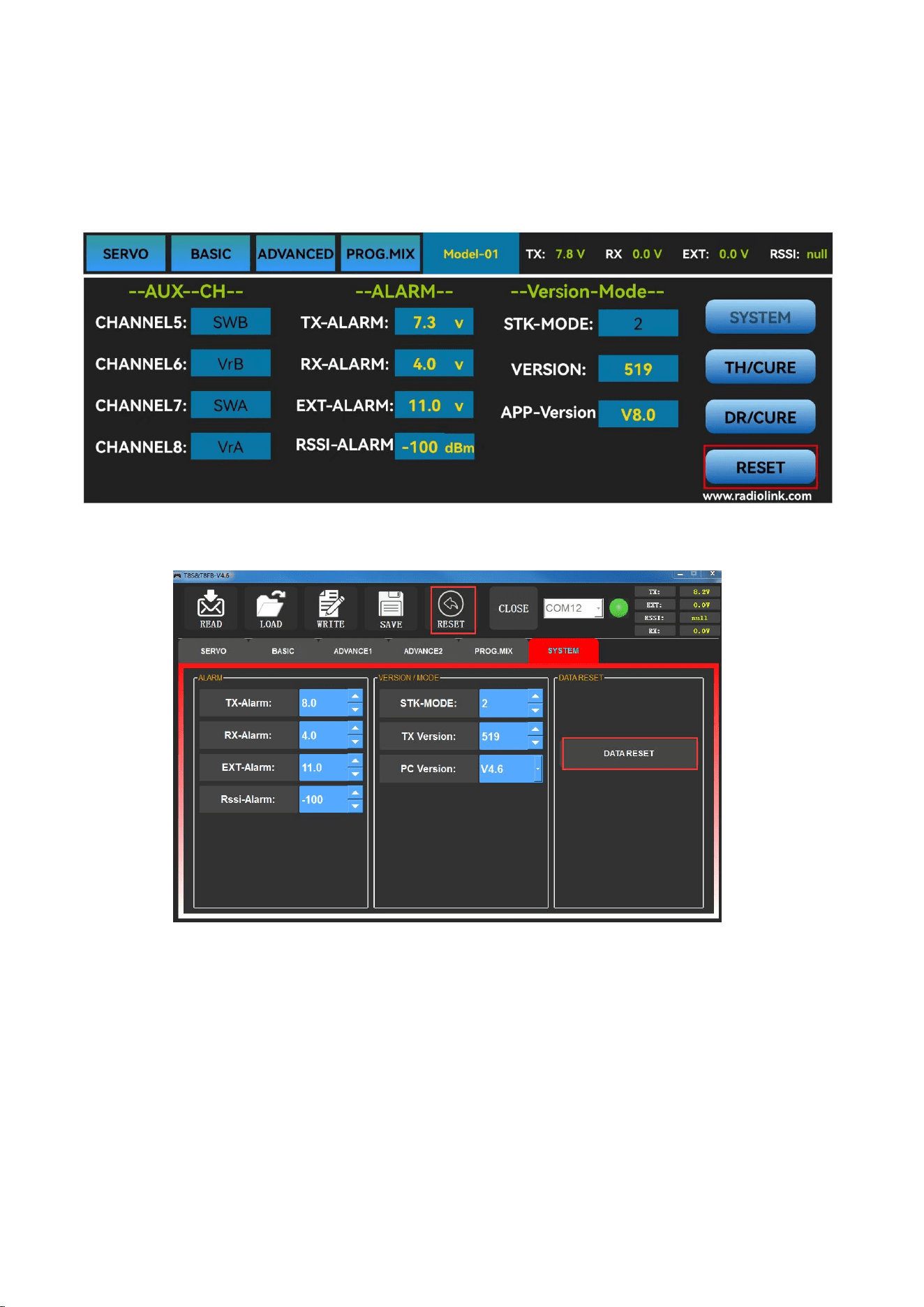
3.4.4.4 RESET
This function is to restore the factory setting when necessary. When press this “RESET” button,
T8FB will make three slow D sounds, meaning default setting is set.
The interface of parameter setup APP on phone
The interface of parameter setup software on computer
33
Chapter 4 Firmware Upgrade
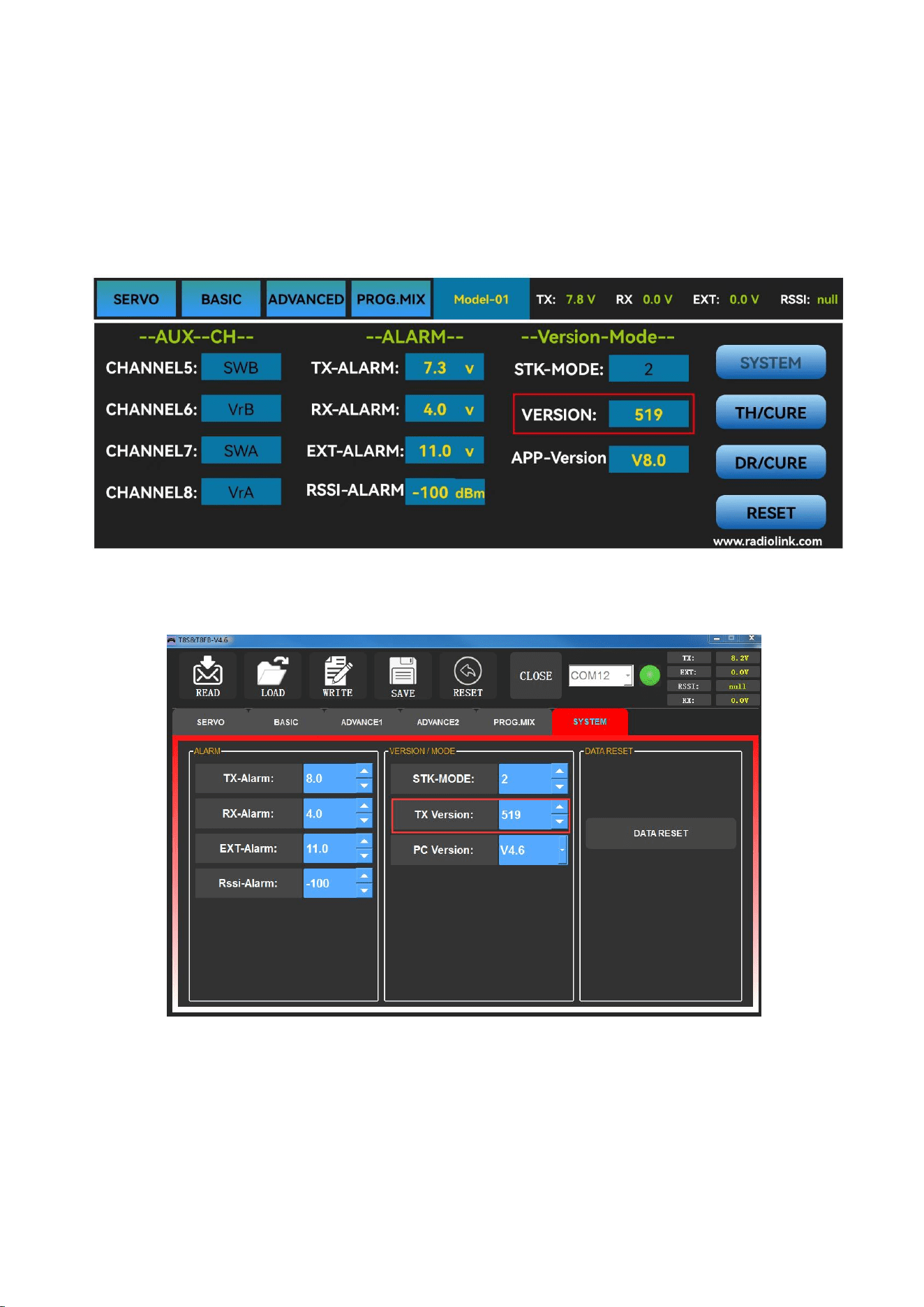
4.1 Firmware Version
The firmware version can be checked through mobile phone or computer, and you can judge
whether it is necessary to upgrade the firmware according to the current T8FB version number.
The interface of parameter setup APP on phone
The interface of parameter setup software on computer
4.2 Firmware Upgrade Steps
Please refer to the link https://www.radiolink.com/t8fb_bt_firmwares to download the latest
firmware of T8FB and view the detailed steps on how to update it.
34
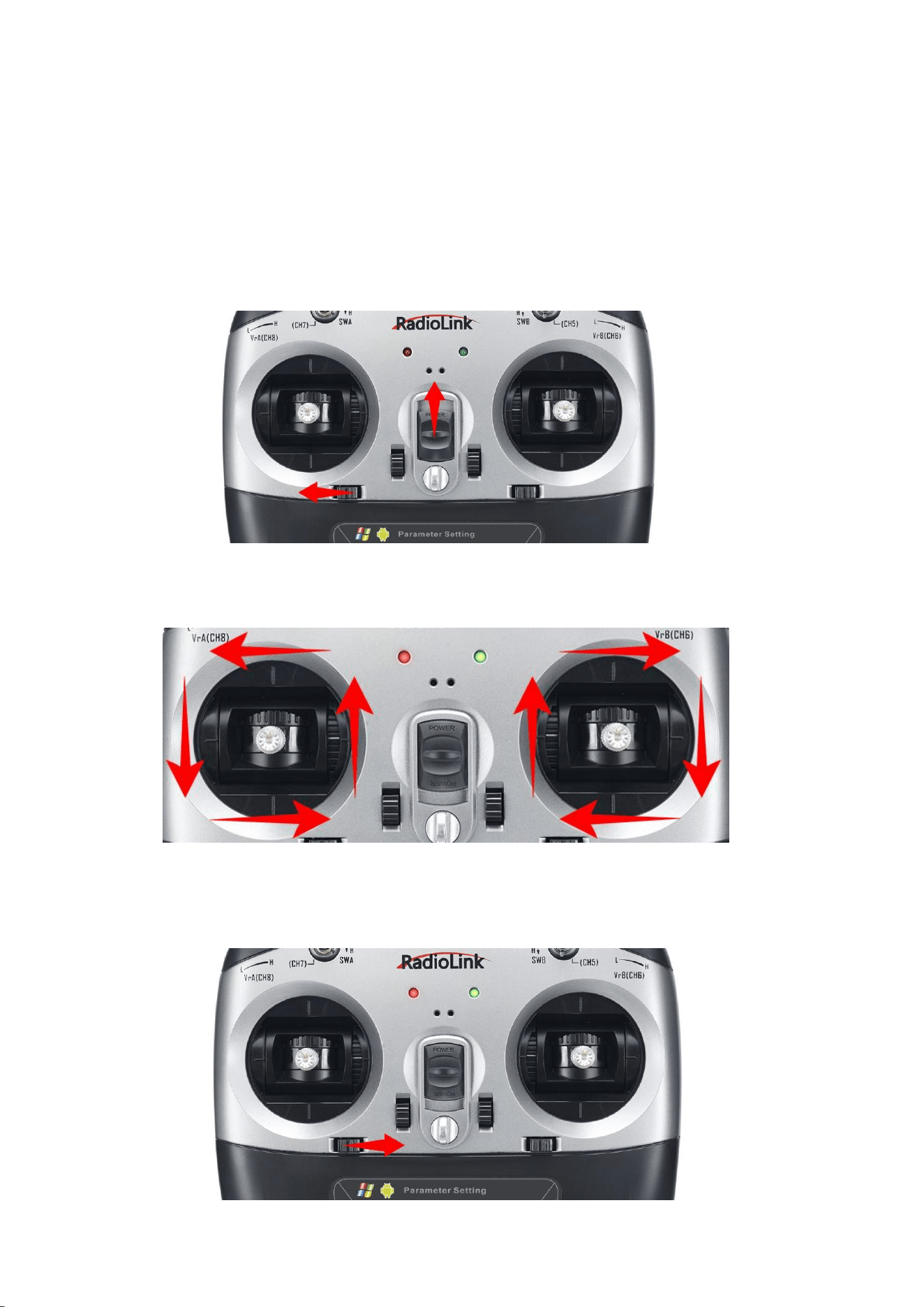
Chapter 5 T8FB Joystick Calibration
When the joystick of the T8FB is not in the center position, or there is large difference of the
travel amount, the joysticks need to be calibrated. T8FB joystick calibration method is as follows:
1. When the transmitter is power-off, toggle both sticks at the central point. Press rudder trimmer
left and turn on transmitter at the same time, red and green LED will start flashing and the T8FB is
ready to be calibrated.
2. Range Calibration: Toggle both sticks (Ch1-4) to the highest point/maximum and the lowest
point/minimum. Then back to the central point. (Refer to image below)
3. Central Point Calibration: When the joysticks are back to the central point, press rudder
trimmer right, and then red and green LED always on means sticks calibration is done with
success. Then turn off T8FB and repower it on.

35
Technical Support Here
Contact RadioLink RL T8FB User Manual T8FB Tutorials
via Facebook Messenger
If the above communication cannot solve your problem, you can also send emails to our technical
support: after_service@radiolink.com.cn
This content is subject to change. Download the latest version from
https://www.radiolink.com/t8fb_bt_manual
Thank you again for choosing RadioLink product.