©COPYRIGHT AVPRO GLOBAL HOLDINGS 2024 - 2222 E 52ND STREET N SIOUX FALLS, SD 57104 ~ 1.877.866.5112
1
User Manual
18Gbps True 4K60 4:4:4
16x16 Matrix
AC-MX-1616

©COPYRIGHT AVPRO GLOBAL HOLDINGS 2024 - 2222 E 52ND STREET N SIOUX FALLS, SD 57104 ~ 1.877.866.5112
2
Table of Contents
Introduction ................................................................................................................................ 4
Features ..................................................................................................................................... 4
What’s in the box ......................................................................................................................... 4
Specifications ............................................................................................................................. 5
Front and Rear Panel Overview .................................................................................................... 6
Initial Setup: WebUI .................................................................................................................... 7
Advanced Setup: WebUI Input Settings ....................................................................................... 11
Advanced Setup: WebUI Output Settings ..................................................................................... 13
Advanced Setup: ........................................................................................................................ 14
WebUI Extracted Audio Output Settings ...................................................................................... 14
WebUI: Video Matrix ................................................................................................................... 16
WebUI: Audio Matrix ................................................................................................................... 18
WebUI: I/O Config - Input Settings ............................................................................................... 19
Global Input Settings .................................................................................................................. 20
WebI: I/O Config - Output Settings ............................................................................................... 21
WebUI: I/O Config – Extracted Audio Output ................................................................................ 23
WebUI: System - IP Settings ........................................................................................................ 24
WebUI: System - Telnet Settings .................................................................................................. 24
WebUI: System - Admin Web Interface ........................................................................................ 25
WebUI: System - User Web Interface ........................................................................................... 26
WebUI: System - Cloud Services ................................................................................................. 27
WebUI: System - Firmware Update .............................................................................................. 28
WebUI: System - Hardware ......................................................................................................... 29
WebUI: Diagnostics - HDMI IN ..................................................................................................... 30

©COPYRIGHT AVPRO GLOBAL HOLDINGS 2024 - 2222 E 52ND STREET N SIOUX FALLS, SD 57104 ~ 1.877.866.5112
3
WebUI: Diagnostics - HDMI OUT .................................................................................................. 32
WebUI: Console ......................................................................................................................... 33
Command List ........................................................................................................................... 35
IR Control: IR Remote ................................................................................................................. 37
RS-232 and TCP/IP Control: ......................................................................................................... 38
Extracted Audio: ......................................................................................................................... 38
Audio Output Logic and Cable Prep: ............................................................................................ 39
Troubleshooting ......................................................................................................................... 39
Bandwidth Chart ........................................................................................................................ 40
Maintenance .............................................................................................................................. 41
Support ..................................................................................................................................... 41
Warranty .................................................................................................................................... 42
Thank you for choosing AVPro Edge! ............................................................................................ 44

©COPYRIGHT AVPRO GLOBAL HOLDINGS 2024 - 2222 E 52ND STREET N SIOUX FALLS, SD 57104 ~ 1.877.866.5112
4
Introduction
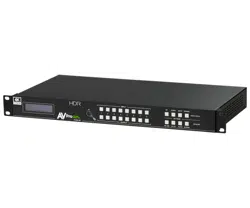
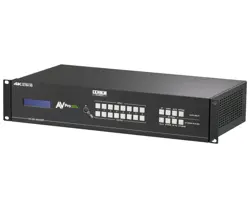
The AC-MX-1616 is a 16x16 HDMI matrix switch that supports HDMI 2.0(a/b), HDCP 2.3, up to 4K video
resolution, and up to 18 Gbps bandwidth. This switch allows any source (Blu-ray, UHD Blu-ray, satellite
receiver, game consoles, PCs, etc ... ) to show on any connected displays. This matrix equalizes and
amplifies the output to ensure the HDMI signal transmits through long HDMI cables without losing
quality.
Audio Delay is “On-Board” so integrators can manage lip-sync issues before they become a problem.
Video signal management is also possible with built-in scalers. So, if the installation has a couple of older
displays, integrators don’t need to forfeit 4K signals to pass the signal to all displays. In addition to
scalers, this matrix supports complete EDID management, allowing maximum flexibility with today’s
broad mixture of sources and displays.
What’s in the box
• AC-MX-1616 (Matrix Switch)
• 12V Locking Power Supply
• 1 x Ground Strap
• 1 x IR Remote Control (Battery not
included)
• 1 x IR Extension Cable
• 16 x 5-Pin 2 Channel Audio Extraction
Cables
• 1 x 3 Pin Terminal Connector (For RS232)
• Mounting Brackets
• 4 x Rubber Feet
Features
•
HDMI 2.0(a/b)
•
18Gbps Bandwidth Support
•
4K60 4:4:4 Support
•
Full HDR Support (HDR 10 & 12 Bit)
•
Dolby Vision, HDR10+ and HLG
Support
•
HDCP 2.3 (and all earlier versions
supported)
•
4K > 1080p Down Scalers on each
output
•
Advanced EDID Management
•
IR, RS-232 and LAN Control Options
•
Balanced Analog Out (2CH PCM)
•
Audio Delay for Analog Out
•
Driver Support for Crestron, C4, RTI, ELAN and more
•
Extracted Audio Now Has 3 Operating Modes. Bound
to Input, Bound to Output, or Independent Matrix
•
Built in Test Pattern on Each Output to Verify
Infrastructure
3V CR2025 Battery Required for IR
Remote Control.
©COPYRIGHT AVPRO GLOBAL HOLDINGS 2024 - 2222 E 52ND STREET N SIOUX FALLS, SD 57104 ~ 1.877.866.5112
5
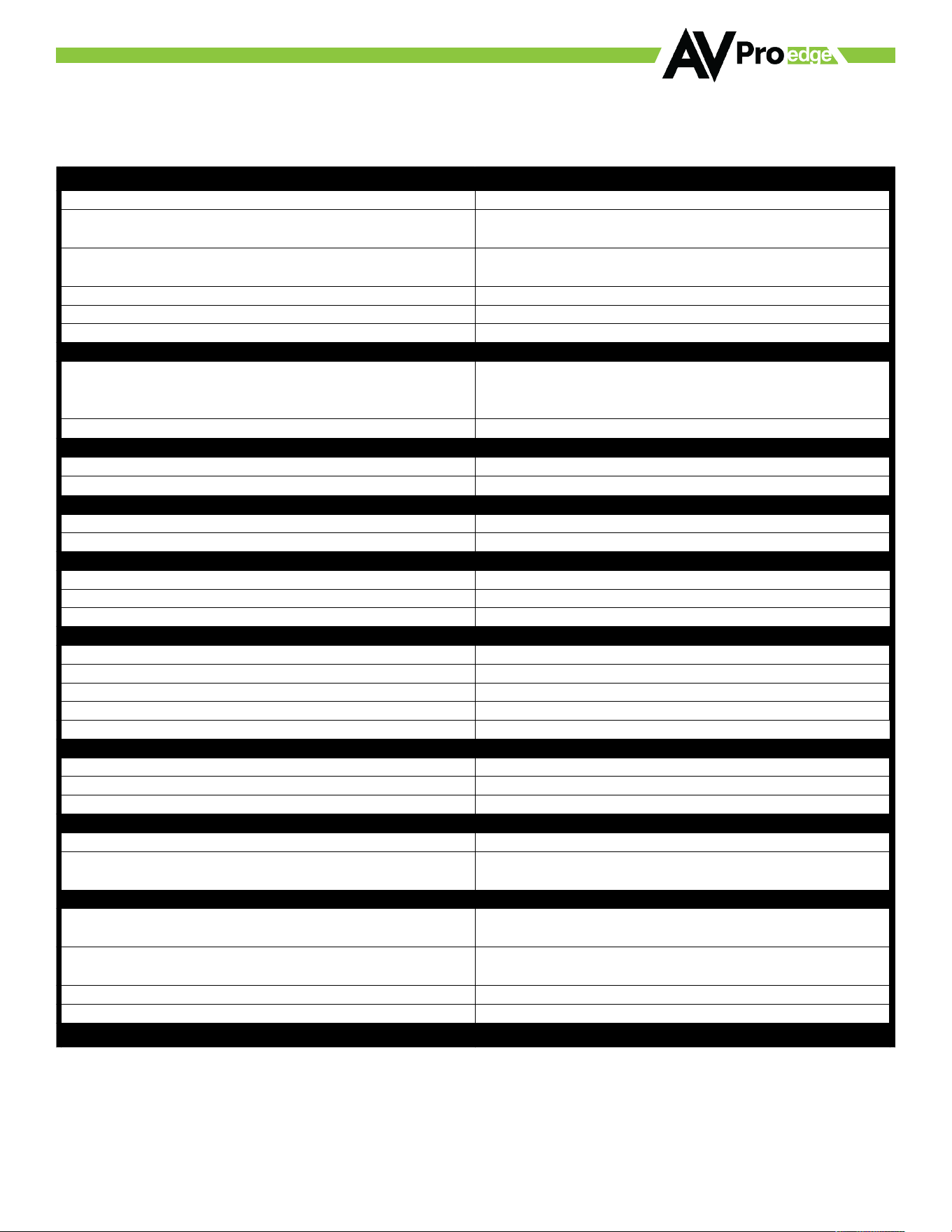
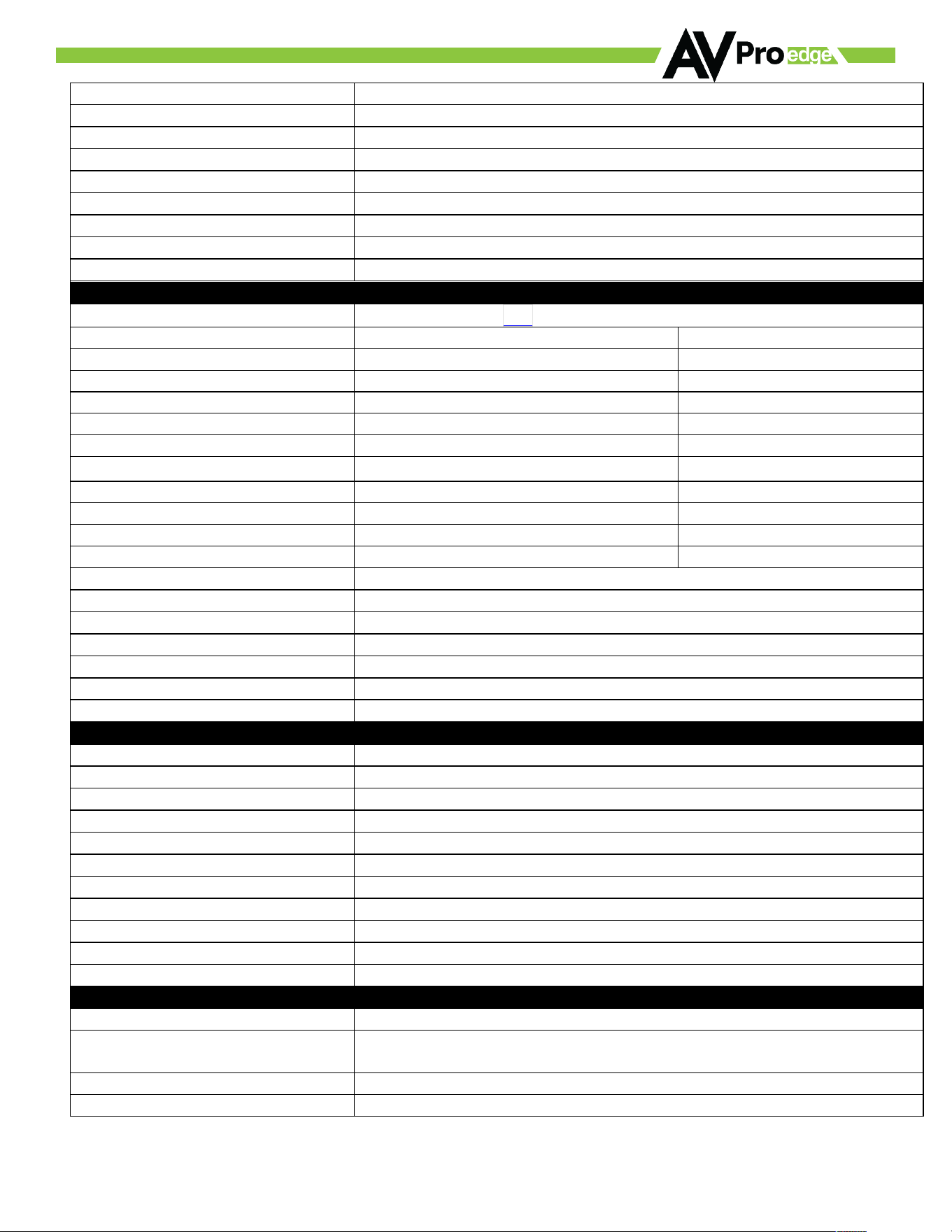
Specifications
Video Resolutions Up to 4K 60Hz 4:2:0 & 4K 30Hz 4:4:4
HDR Formats/Resolutions
420, 422, 444 (10 AND 12 DEEP COLOR)
HDR10, HDR10+, DOLBY VISION, HLG
Color Space
YUV (Component), RGB
(CSC: Rec. 601, Rec. 709, BT2020, DCI, P3 D6500)
Chroma Subsampling 4:4:4, 4:2:2, 4:2:0 Supported
Deep Color Up to 16 bit
Scaling
4k to 1080p
Audio Formats Supported HDMI
PCM 2.0 Ch, LPCM 5.1 & 7.1, Dolby Digital, DTS 5.1, Dolby
Digital Plus, Dolby TrueHD, DTS-HD Master Audio, DTS-X,
Dolby Atmos
Audio Formats Supported Extracted (Balanced 5Pin)
PCM 2 CH
HDMI In/Out (4k60 4:4:4) UP TO 50 FEET (USING BULLET TRAIN HDMI)
HDMI In/Out (W/ AOC Cable) (4k60 4:4:4) UP TO 130 FEET (USING BULLET TRAIN AOC)
Bandwidth 18 Gbps (TMDS)
HDCP HDCP 2.3 and Earlier
Ports Lan, RS232
Drivers C4, RTI, ELAN, URC (for more - see Drivers Page)
AVPro WebUI YES
HDMI Type A
LAN RJ45 w/ Web Interface/ Control
Audio (Extracted Analog) 5 PIN Terminal Block (Balanced)
Firmware USB C
RS232 3 Pin Terminal Block
Operating Temperature 23 to 125°F (-5 to 51°C)
Storage Temperature -4 to 140°F (-20 to 60°C)
Humidity Range 5-90% RH (No Condensation)
Power Consumption (Total) 92 Watts Max
Power Supply
Input: AC 100-240V ~ 50/60Hz
Output: DC 48V 2.7A
Dimensions (Unit Only Length/Width/Height)
mm: 258.7752 X 439.7502 X 44.45
inch:10.188 X 17.313 X 1.75
Dimensions (Packaged Length/Width/Height) (Kit)
mm: 444.5 X 495.3 X 88.9
inch: 17.5 X 19.5 X 3.5
Weight (Unit) 9.13 lbs (4.14 Kg)
Weight (Packaged) 12.09 lbs (5.48 Kg)
Power:
Dimensions:
*Specifications subject to change without notice. Mass & dimensions are approximate
Video:
Audio:
Distance:
Other:
Ports:
Environmental:
Control:
©COPYRIGHT AVPRO GLOBAL HOLDINGS 2024 - 2222 E 52ND STREET N SIOUX FALLS, SD 57104 ~ 1.877.866.5112
6
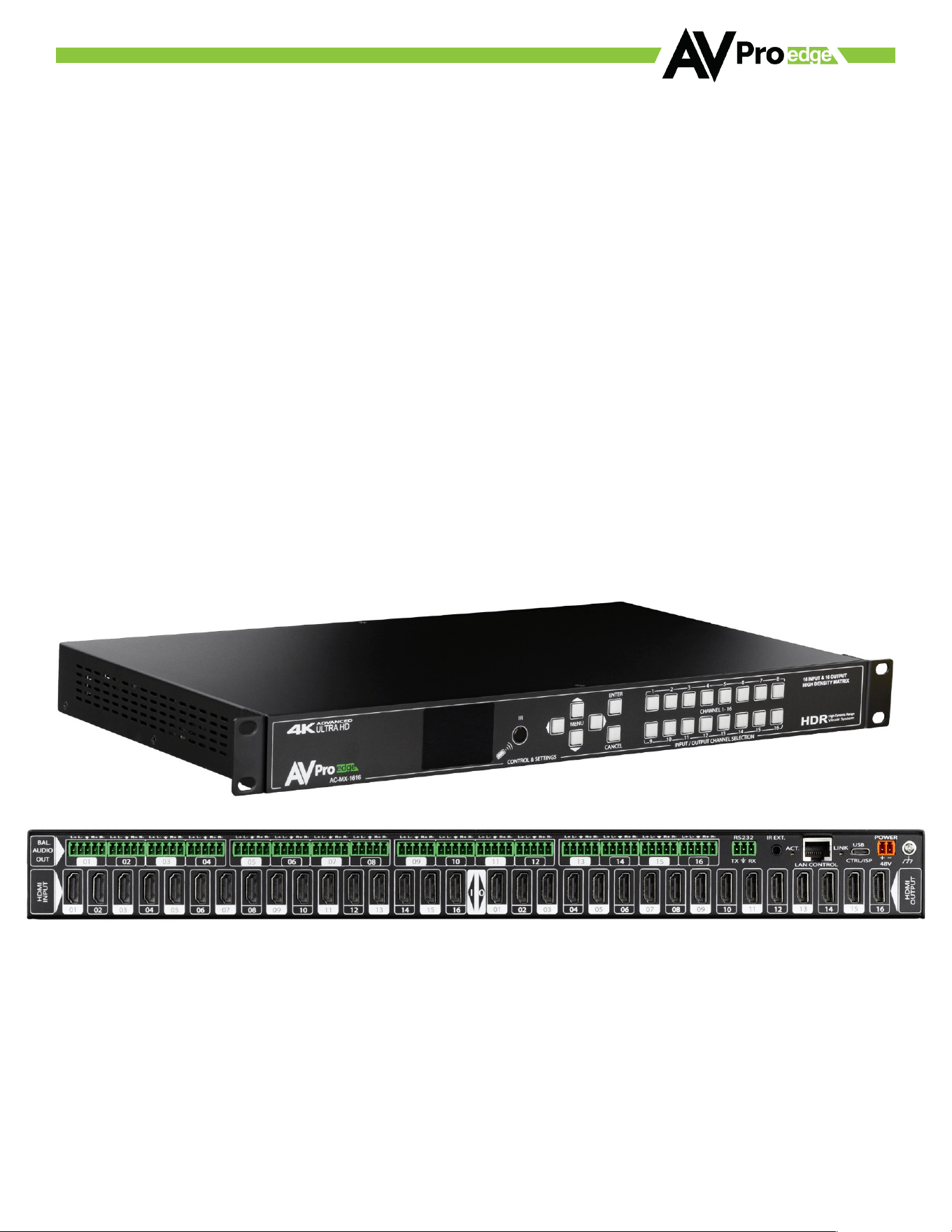
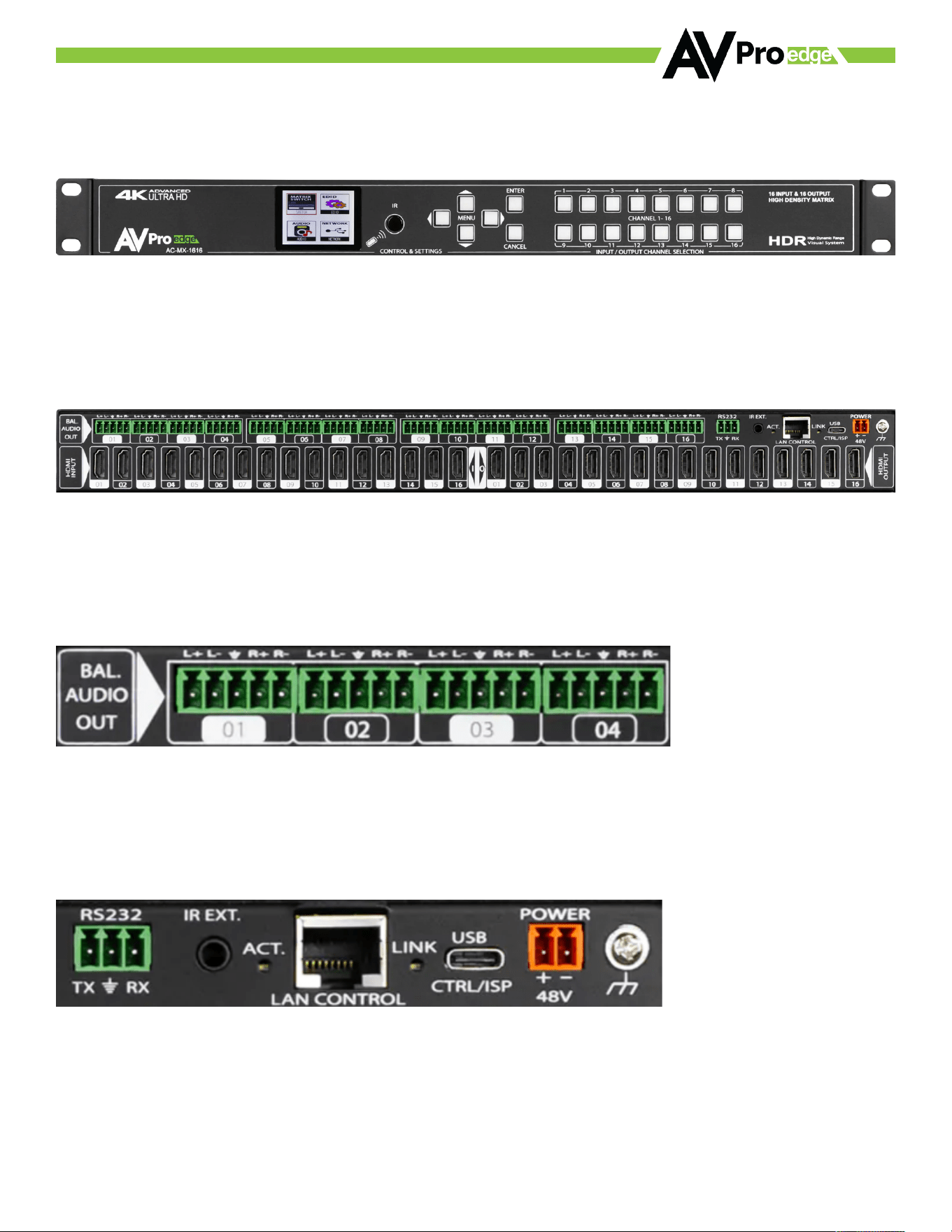
Front and Rear Panel Overview
©COPYRIGHT AVPRO GLOBAL HOLDINGS 2024 - 2222 E 52ND STREET N SIOUX FALLS, SD 57104 ~ 1.877.866.5112
7
Initial Setup: WebUI
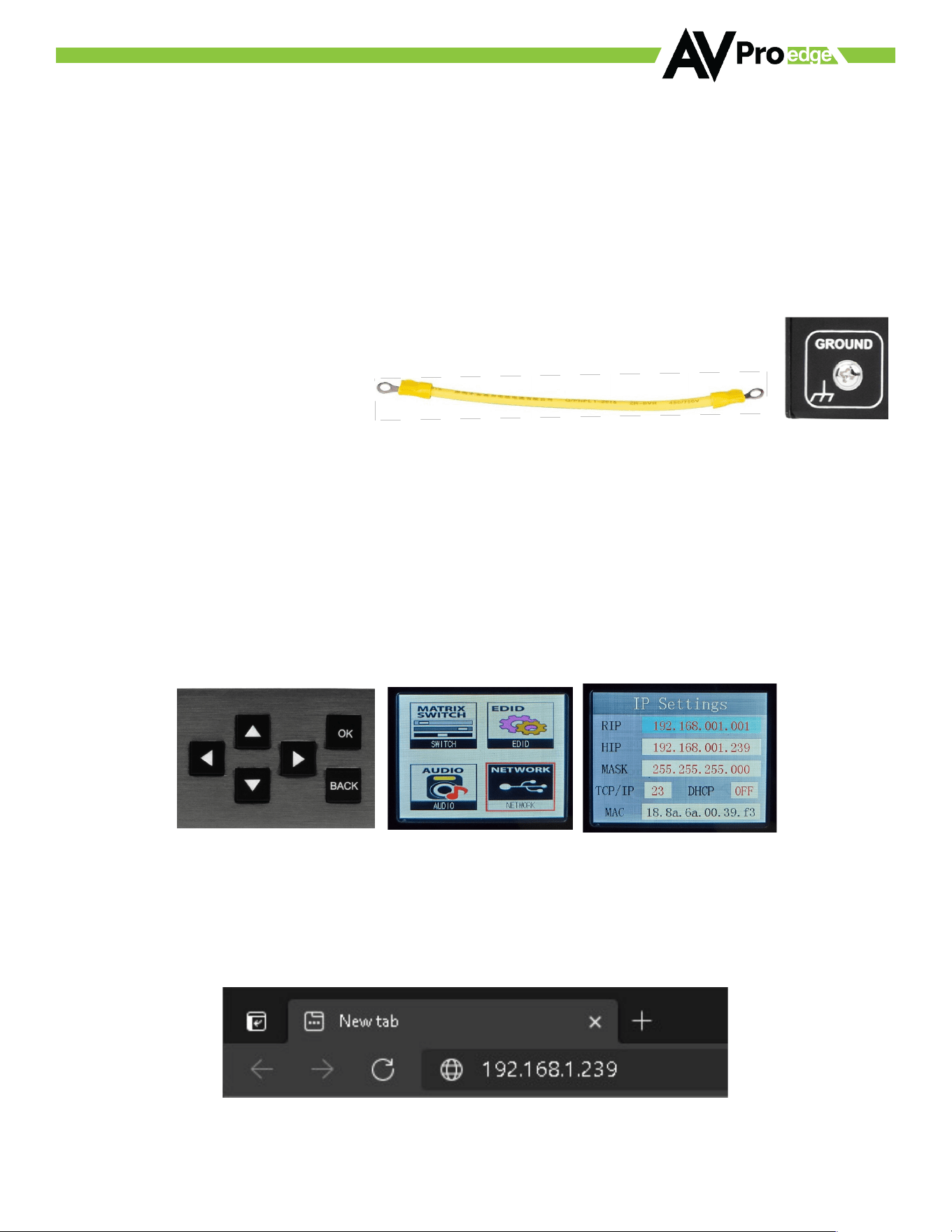
The AC-MX-1616 can be controlled using the Micro USB port, 3pin RS232, or over TCP/IP using the LAN connection.
For initial setup it is recommended to connect the matrix to a local area network (LAN) and use a computer on the
same network in conjunction with the built in WebUI. After making all the physical connections, the first step will
be to check for any Firmware Updates. The steps below are an example of this setup, other control options are
covered in separate sections of this user manual.
1. With the AC-MX-1616 placed into its new home (AV Rack, cabinet, tabletop) take a Phillips head screwdriver and
attach the included yellow ground strap to the back of the chassis using the pre-installed screw, then attach the
other end to a suitable grounded object.
2. Connect the HDMI Input sources to the HDMI Inputs on the back of the matrix.
3. Connect the HDMI/devices to the HDMI Outputs.
4. Connect the network LAN cable to the RJ45 port labeled LAN (between the Micro USB and 3pin RS232 port).
5. Power on the sources (Inputs).
6. Power on the Output devices/displays.
7. Connect the 48V power supply to power on the matrix and then to a suitable power source.
8. Using the front panel display and control/arrow buttons navigate to NETWORK and press the OK button
to enter the IP Settings menu.
9. Either manually enter your desired IP settings or enable DHCP and let your network assign the correct settings.
Use the UP/DOWN arrow keys to highlight the row you want to change (HIP, RIP, TCP Port, etc), click OK, use
left/right arrow keys to select and the UP/DOWN arrow keys to change the setting. Click the OK button again to
confirm those changes.
10. With the matrix connected to the local network, using a computer on the same network open a web browser
and type the HIP (Host IP Address) into the address bar to navigate to the WebUI.
©COPYRIGHT AVPRO GLOBAL HOLDINGS 2024 - 2222 E 52ND STREET N SIOUX FALLS, SD 57104 ~ 1.877.866.5112
8
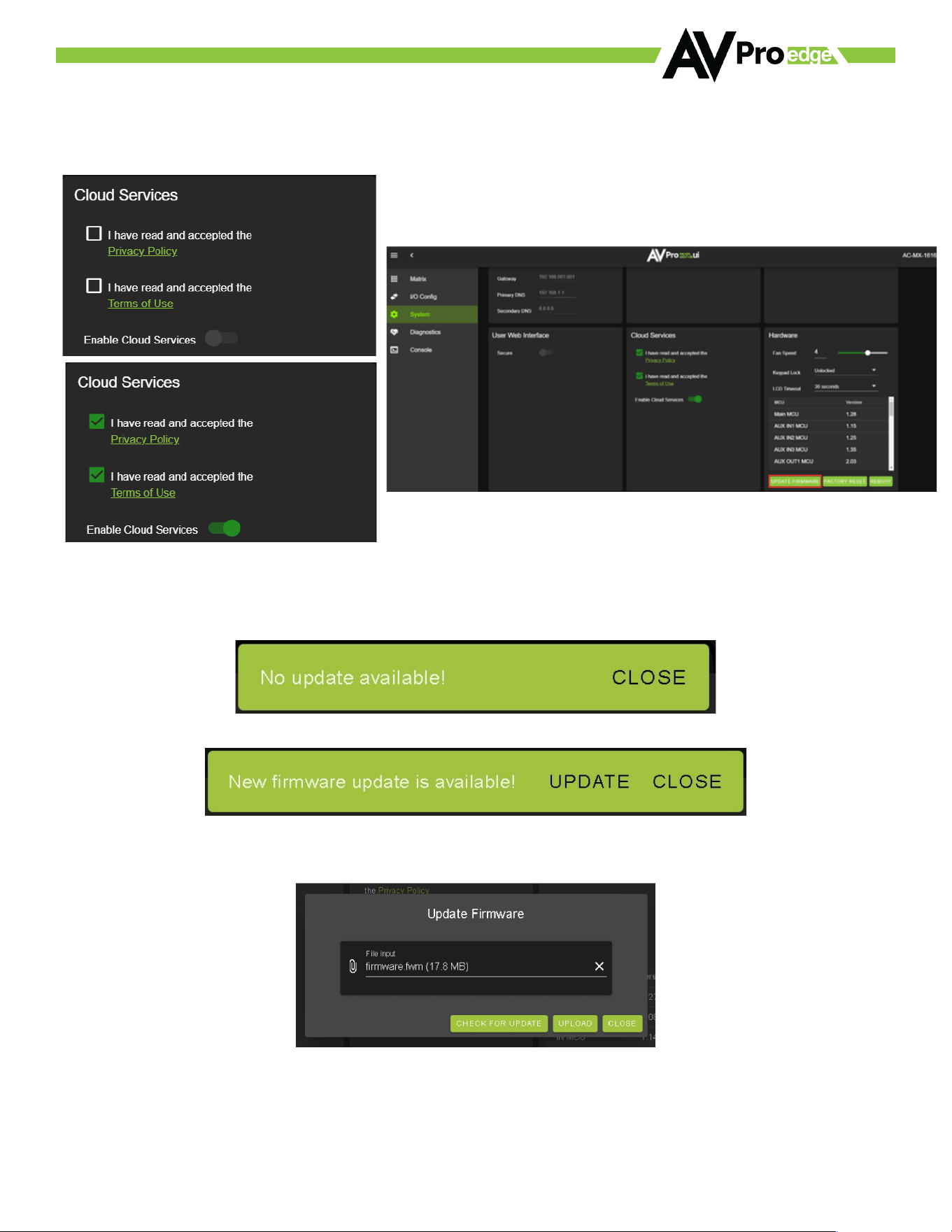
11. With the WebUI open, navigate to System. Click on the Privacy Policy and Terms of Use, this will open these
documents in a new tab for review. Once read click on the boxes next to each to agree. When both are checked
the switch for Enable Cloud Services will be selectable (will be red or disabled by default). Click to enable (the
switch will turn green).
12. With Cloud Services enabled under the Hardware section click the Update Firmware button to check for new
Firmware OTA (over the air). This will compare the firmware versions currently loaded on the AC-MX-1616 and
compare them to the latest available. If it is up to date, you will see a prompt stating “No update available!”
13. If an update is available, the following prompt will show. Simply click UPDATE.
14. If a new update is available a file will automatically be selected, simply click the UPLOAD button to load the
firmware files to the Matrix. Uploading does not install the Firmware, that is the next step.
©COPYRIGHT AVPRO GLOBAL HOLDINGS 2024 - 2222 E 52ND STREET N SIOUX FALLS, SD 57104 ~ 1.877.866.5112
9
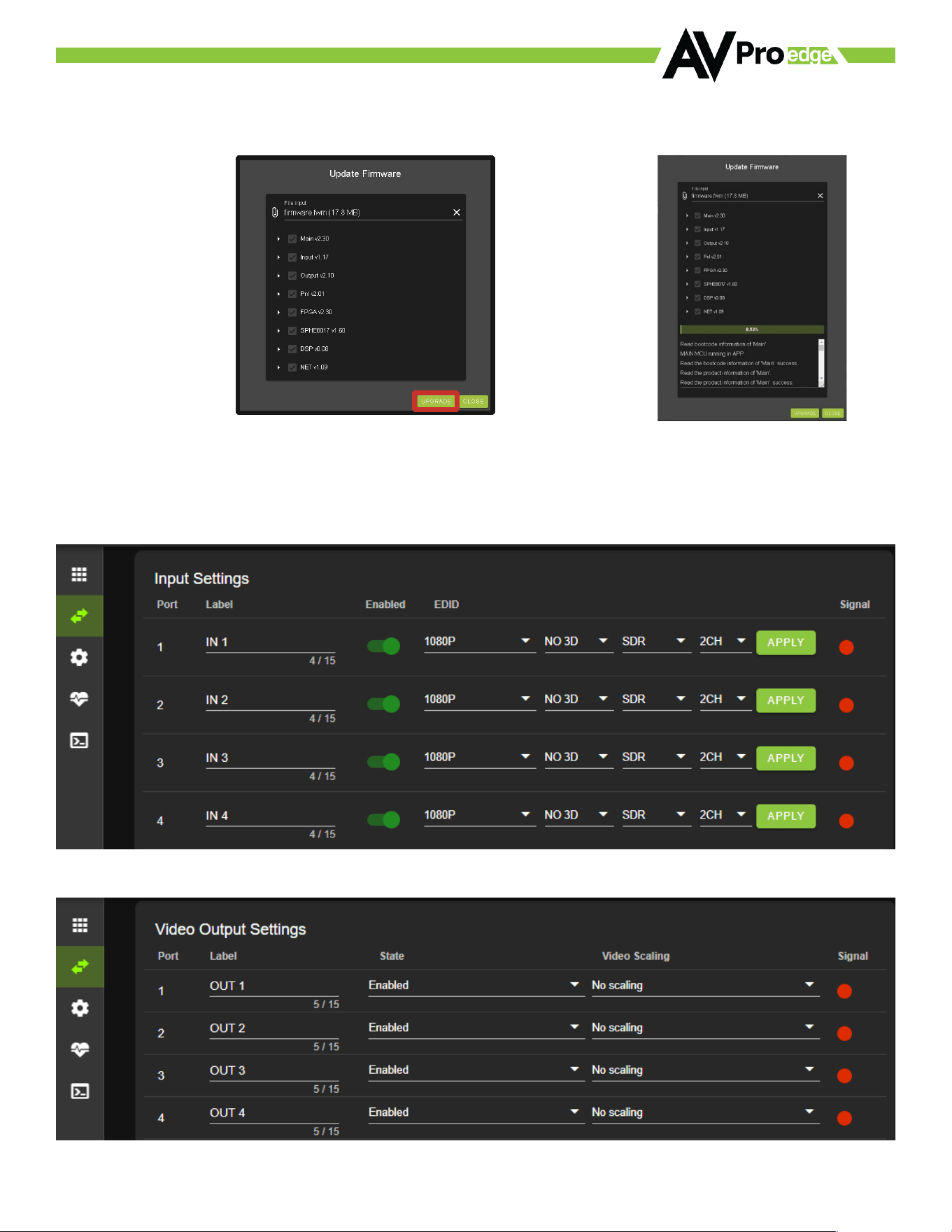
15. Once the firmware file has been uploaded, it will display all containing firmware files. Here you can select
individual firmware files to load or simply leave all files/options selected. If the version currently installed is not
newer (does not need to be updated), then that update will be skipped automatically. Click the UPLOAD button to
start.
16. Once the progress bar hits 100%, click the CLOSE button, the firmware upgrade process is complete.
17. With the Firmware up to date it’s time to start setting up the matrix. With the AVPro Edge WebUI open, navigate
to the I/O Conifg section. Label the applicable Inputs (Apple TV, Cable Box, Roku, etc) under the Input Settings -
Label.
18. Label the Outputs (Living Room, Bedroom, Den, etc) under the Video Output Settings - Label.

©COPYRIGHT AVPRO GLOBAL HOLDINGS 2024 - 2222 E 52ND STREET N SIOUX FALLS, SD 57104 ~ 1.877.866.5112
10
19. Set the HDMI Video Scaling if needed. HDMI outputs can down-scale a 4K signal to 1080P.
20. With the system and all its components powered up it’s time to verify signal path from source to sync. For now,
leave EDID settings to their default 1080P 2CH, the next section Advanced Setup will cover the more advance
settings.
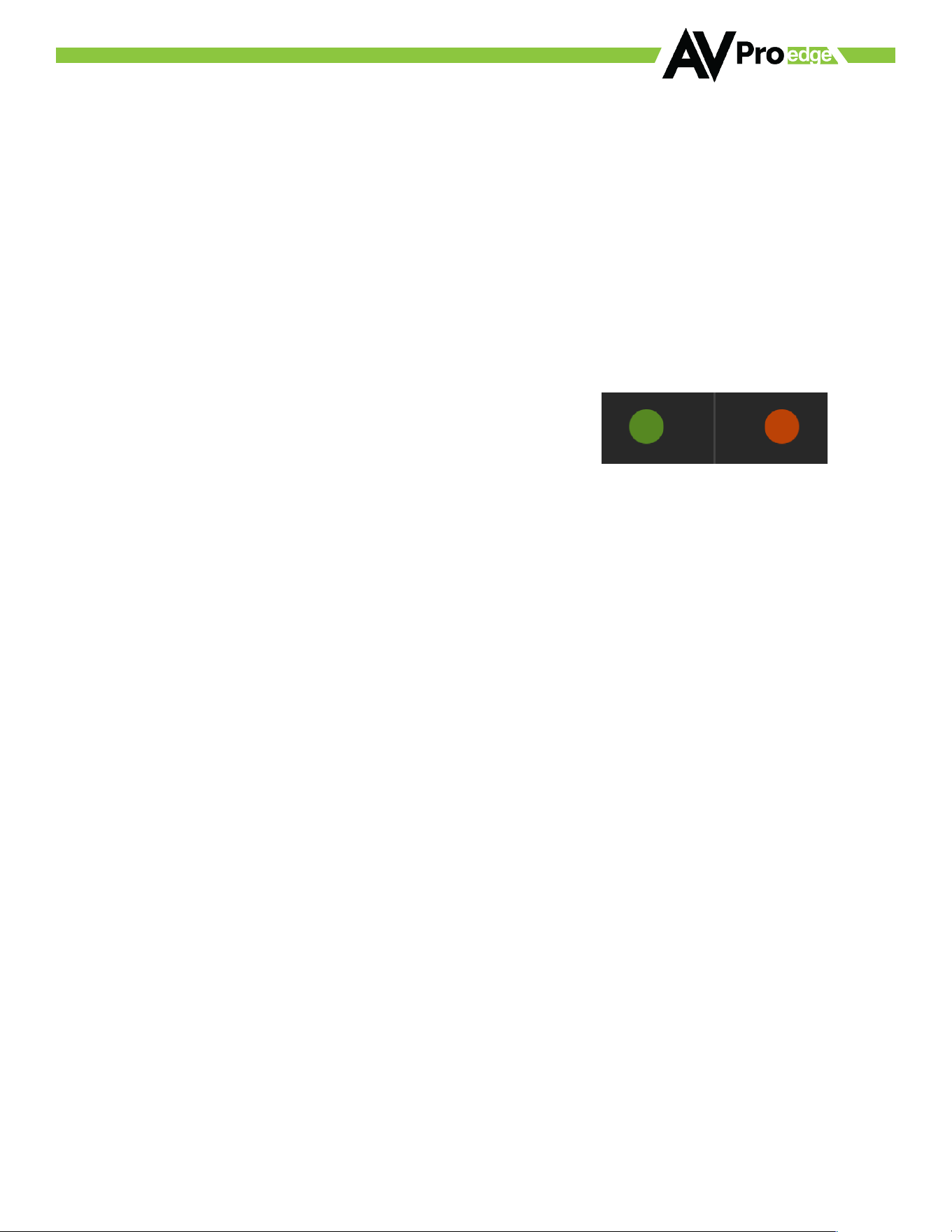
21. Use Signal Indicator on the HDMI INPUTS. Green means HDMI source is detected, red means that the source is
not detected. If red verify that the input is powered on and that the HDMI cable is properly connected to the source
and to the back of the matrix.
22. Now verify that the connections to the HDMI outputs using the Signal indicator. Green means HDMI sync is
detected, red means that the HDMI sync is not detected. If red verify that the sync devices are powered on and
that the HDMI/HD cables are properly connected to the back of the matrix.
23. With everything connected and powered on, green indicators across the applicable inputs and outputs verify
you are getting all of your sources on all of your displays.
24. Problems with a source or sync, see the Troubleshooting section for help.
©COPYRIGHT AVPRO GLOBAL HOLDINGS 2024 - 2222 E 52ND STREET N SIOUX FALLS, SD 57104 ~ 1.877.866.5112
11
Advanced Setup: WebUI Input Settings
After verifying the good signal path from source to sync now it is time to go through the rest of the settings to
maximize the setup. Starting with the input side with the EDID and Audio Mode settings.
1. With the WebUI open, navigate to the I/O Conifg tab and focus on the Input Settings section at the top.
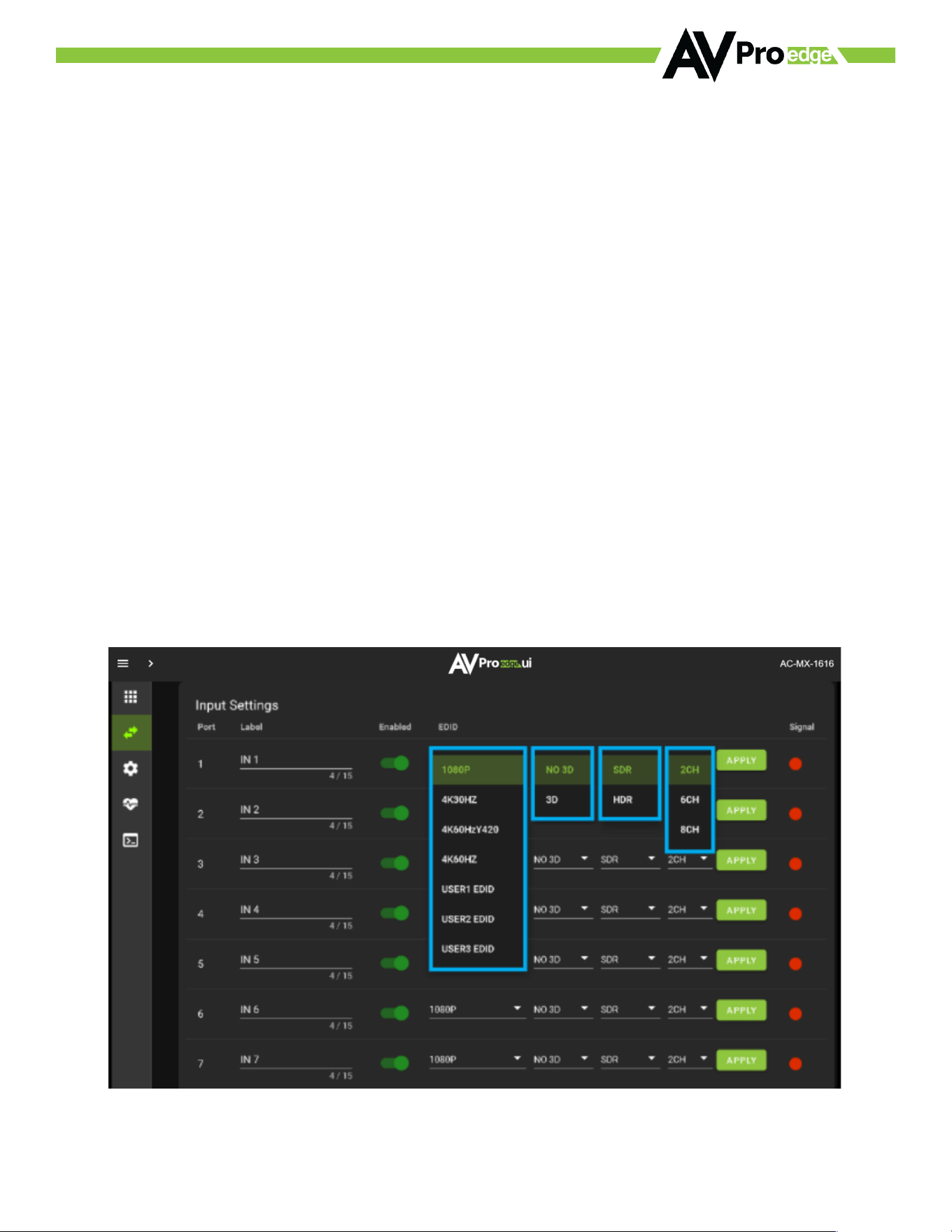
2. Set the EDID on each input by selecting the resolution drop-down first (default is set to 1080P). The options are
1080P, 4K30Hz, 4K60Hz Y420, and 4K60Hz. If you select USER1 EDID, then the dropdowns change to allow you to
select from and output to copy from. You can select any of the 16 HDMI outputs then click the COPY button. This
will save that outputs EDID to the USER1 slot.
3. Next use the drop-down to select NO 3D, or 3D depending on the display’s capability.
NOTE: Currently the only resolution you can choose NO 3D for is 1080P.
4. Next drop-down select either SDR (standard dynamic range) or HDR (High Dynamic Range).
5. The fourth drop-down in the EDID section is for the audio, you can select 2CH, 6CH, or 8CH.
6. Click the APPLY button to set the EDID.

©COPYRIGHT AVPRO GLOBAL HOLDINGS 2024 - 2222 E 52ND STREET N SIOUX FALLS, SD 57104 ~ 1.877.866.5112
12
7. Verify you are still getting that source to all your displays and that the image looks correct.
NOTE: Some older displays may take an HDR signal and display correctly (ignoring the HDR Metadata)
others will not ignore the HDR part of the signal and may display incorrectly.
8. Signal - The Signal Indicator on the HDMI INPUTS shows the current state of the connection HDMI source. Green
means the HDMI source is detected, red means that the source is not detected. If red verify that source is powered
on and that the HDMI cable is properly connected to the source and to the back of the matrix.
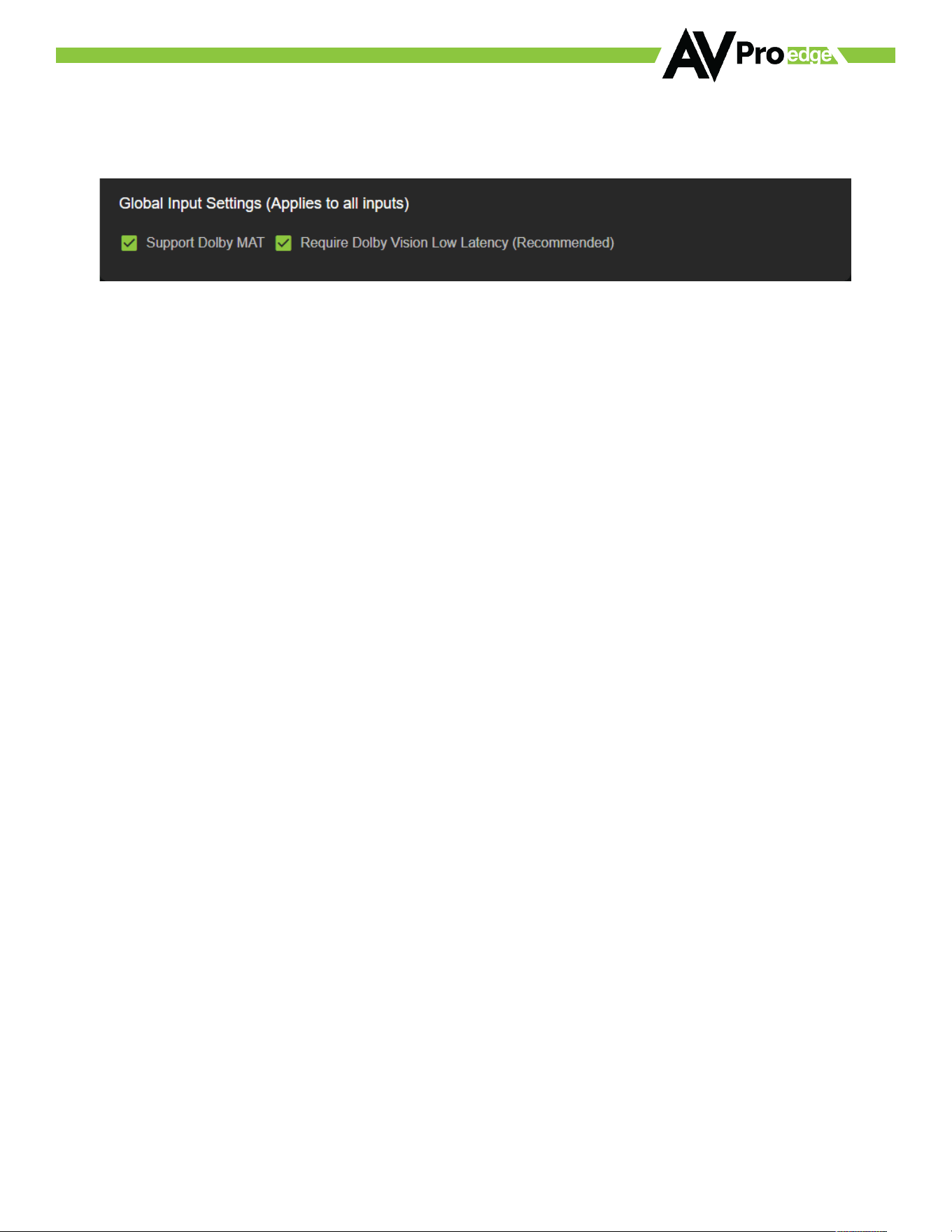
9. Global Input Settings (Applies to all inputs)
· Support Dolby MAT - Check this box to enable Dolby MAT audio
· Requires Dolby Vision Low Latency (Recommended) - Check this box to require Dolby Vision Low Latency
(Player-led) over Standard Dolby Vision (TV-Led). Sources like the Apple TV and X-Box Series X use Dolby Vision
Low Latency.
10. Now navigate to the Video Output Settings under I/O Config
©COPYRIGHT AVPRO GLOBAL HOLDINGS 2024 - 2222 E 52ND STREET N SIOUX FALLS, SD 57104 ~ 1.877.866.5112
13
Advanced Setup: WebUI Output Settings
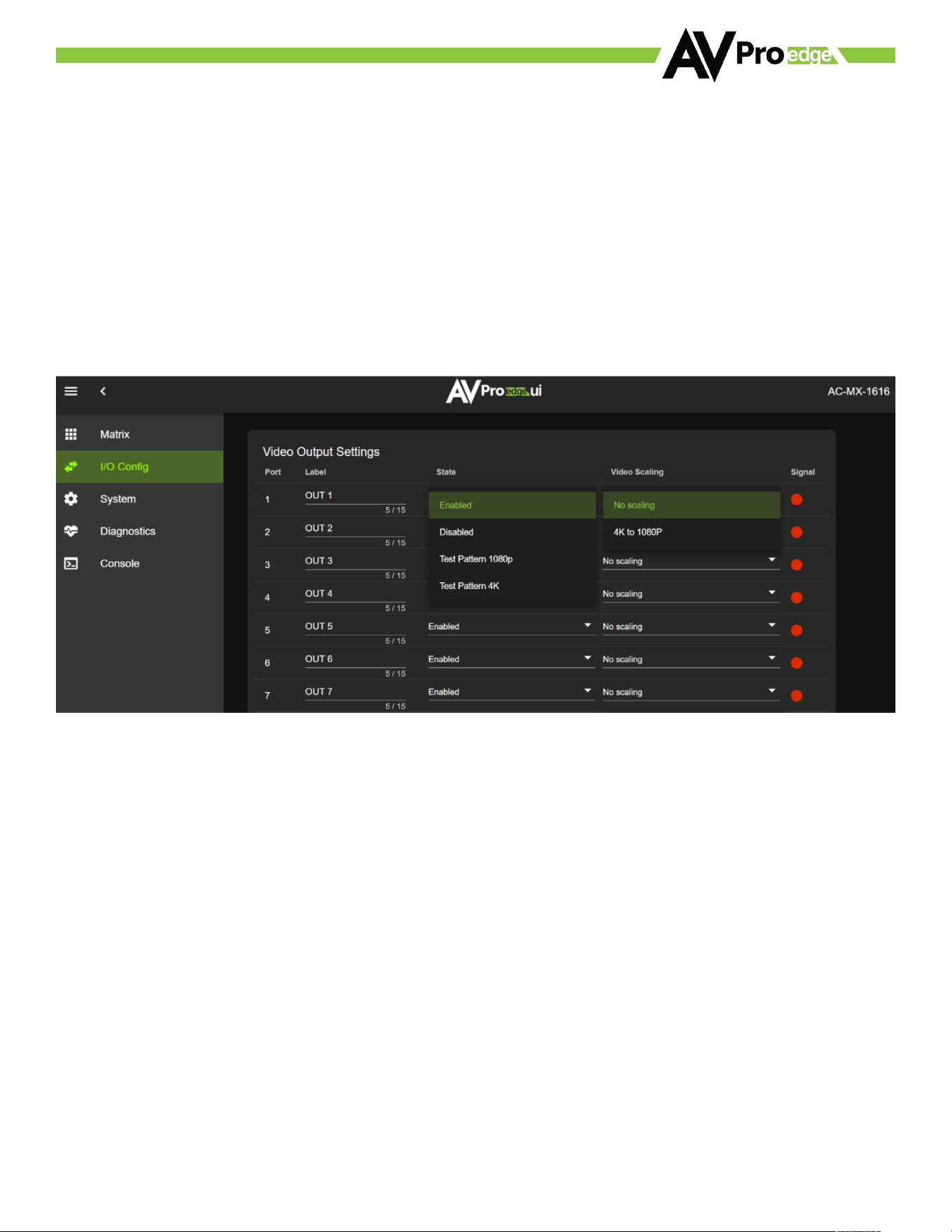
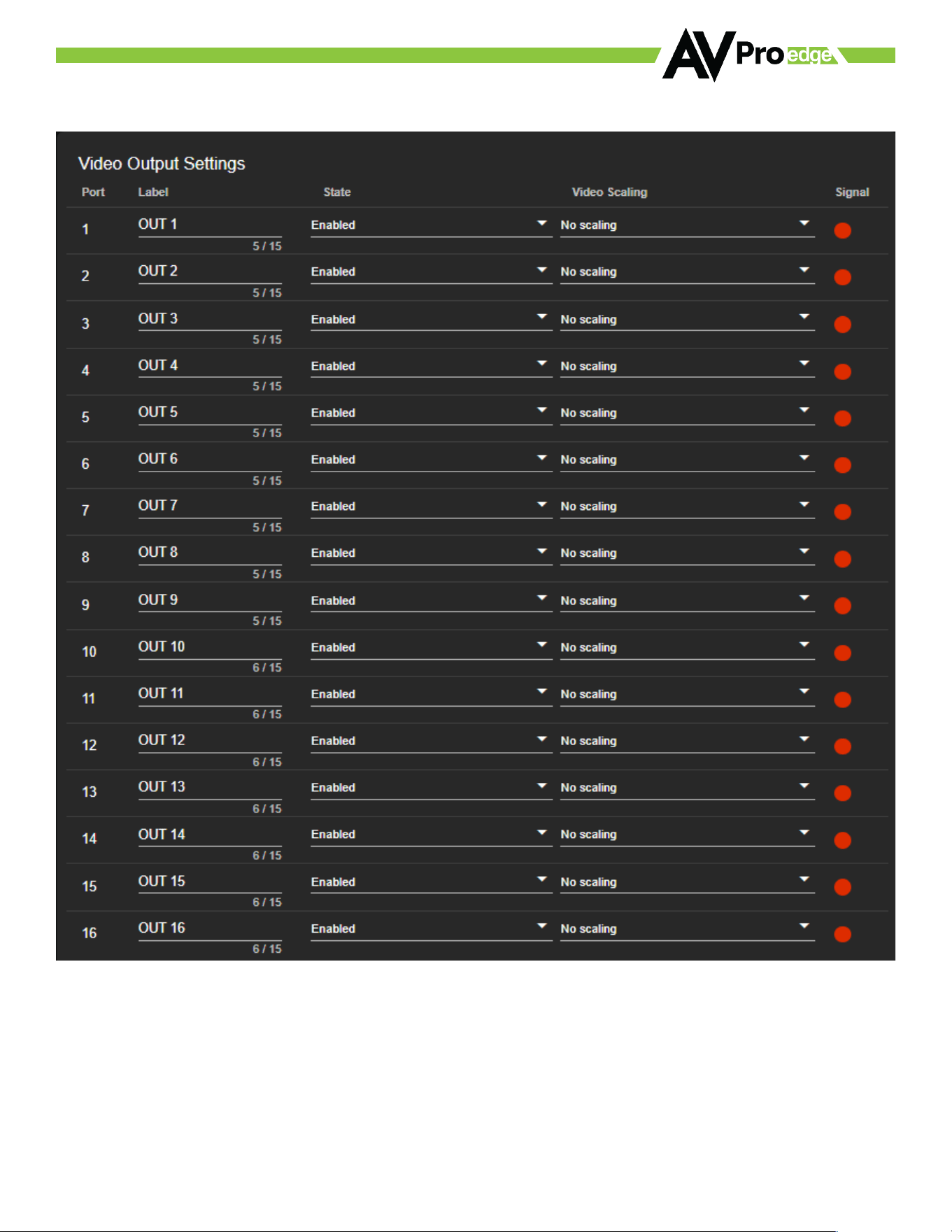
11. In addition to the output Label (name/alias), there are 3 settings for each HDMI output.
12. Under State there are 4 options.
· Enabled (Default) - HDMI Port is on (normal functionality)
· Disabled - HDMI Output Port will not output a signal
· Test Pattern 1080P - Enables a 1080P Color bar test pattern on that port
· Test Pattern 4K - Enables a 4K Color bar test pattern on that port
13. Under the Video Scaling mode, you can choose No Scaling (oo), 4K to 1080P.
· No Scaling (Default) - Signal remains untouched
· 4K to 1080P - Down-scales any 4K signal down to 1080P
14. Signal - The Signal Indicator on the HDMI outputs show the current state of the connected HDMI device. Green
means HDMI signal is detected, red means that the signal is not detected. If red verify that the HDMI cable is
properly connected to both the matrix and HDMI sync device.
©COPYRIGHT AVPRO GLOBAL HOLDINGS 2024 - 2222 E 52ND STREET N SIOUX FALLS, SD 57104 ~ 1.877.866.5112
14
Advanced Setup:
WebUI Extracted Audio Output Settings
1. Now navigate to the Extracted Audio Output Settings under I/O Config.
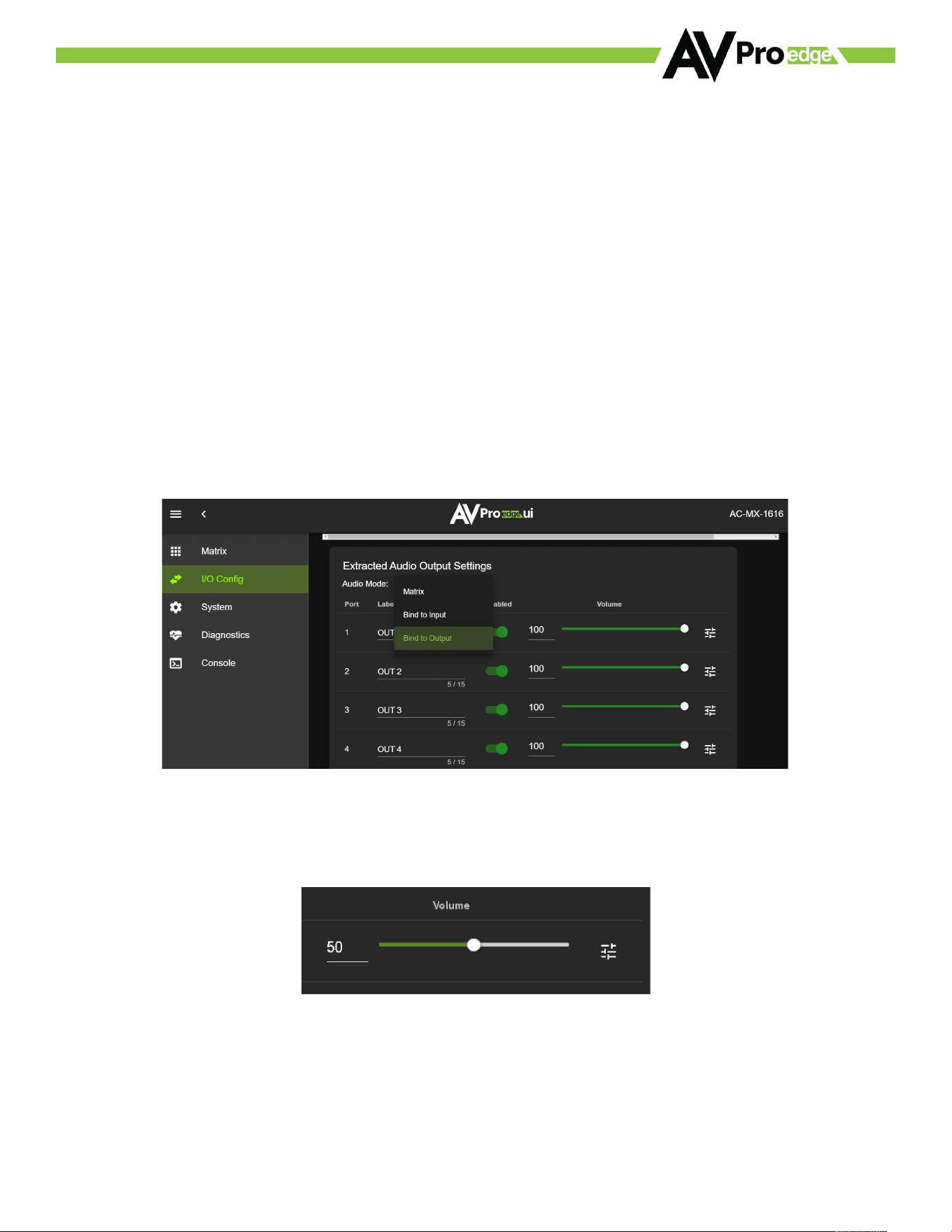
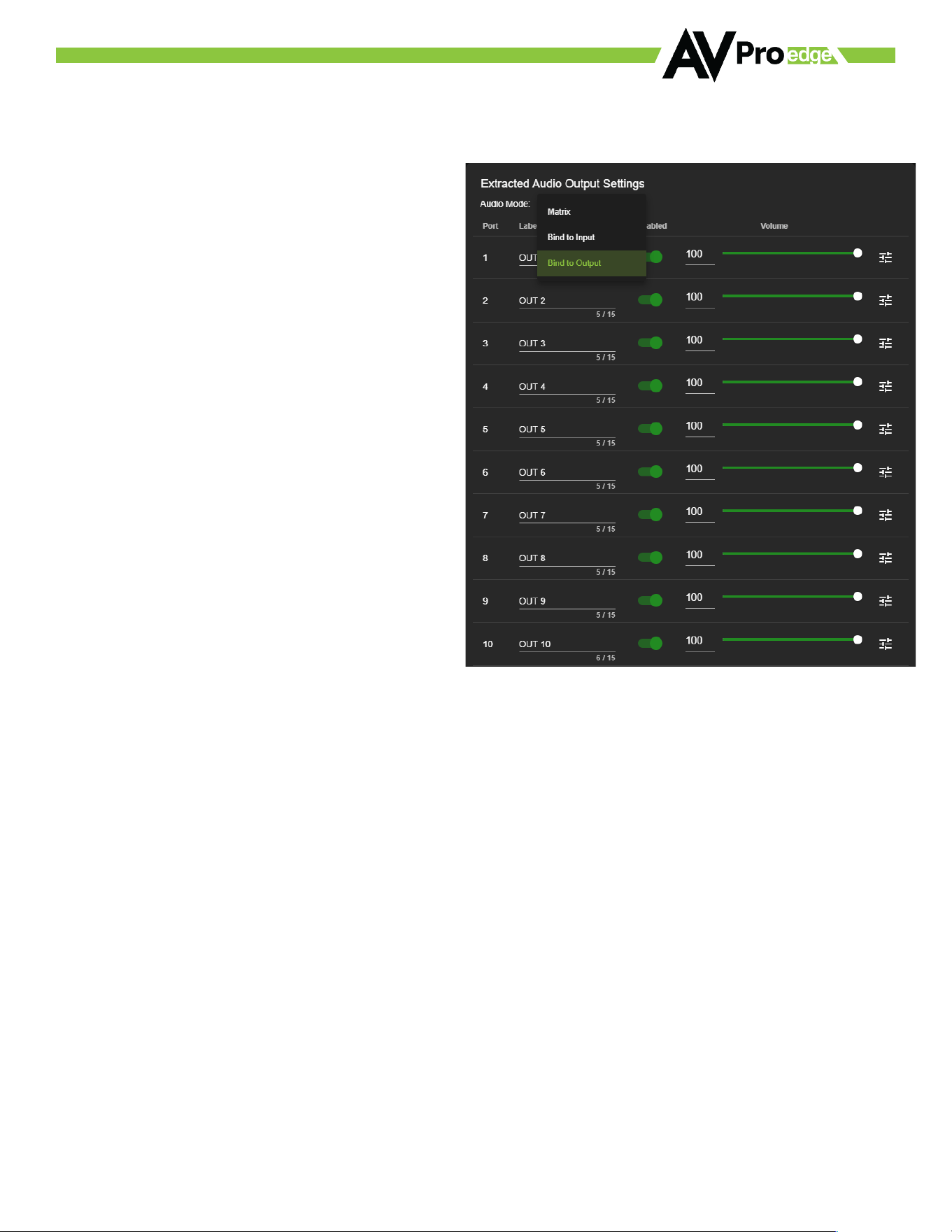
2. The extracted audio ports have 3 distinct operating modes, use the drop-down at the top to select. The three
options are.
Bind to Input (Default) - where the audio port number corresponds to the input signal. This is ideal for systems
where audio is matrixed separately in a zoned amplifier.
Bind to Output - this configuration the audio will automatically follow the HDMI output. This is ideal for systems
that use local AVR’s for some of the Zones.
Matrix - This mode allows you to matrix the extracted audio ports independently from the HDMI outputs. In this
mode there will be a Tab for the extracted audio under the Matrix page, allowing you to route the audio just like
routing the video. If the matrix is set to Bind to Input or Bind to Output this tab will not be visible.
3. Other available settings for the extracted audio ports include Enable/Disable, Volume control (1-100), EQ
presets (7 generic preset options to choose from), Left/Right balance, and audio delay. Each of these 5 settings can
be changed per extracted audio port.
4. You can use the slider or text box to change the volume (settings are 0-100).
©COPYRIGHT AVPRO GLOBAL HOLDINGS 2024 - 2222 E 52ND STREET N SIOUX FALLS, SD 57104 ~ 1.877.866.5112
15
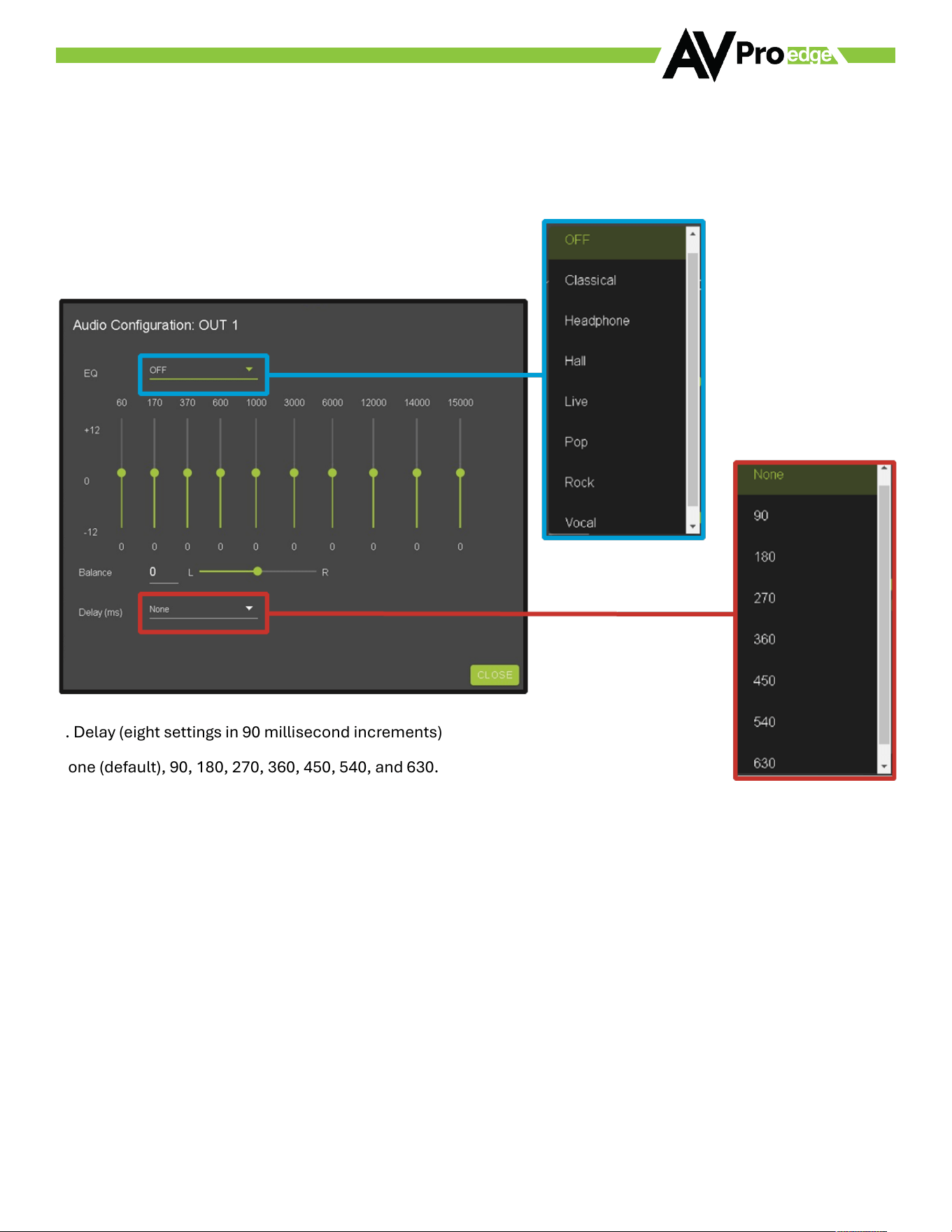
5. To ch ange the EQ set tings of that port, click on the emblem to the right of the volume slider. This will bring up the
Audio Configuration Page. Here you can choose from 8 dioerent EQ settings, change the Left / Right balance, and
set the audio delay.
6. Delay (eight settings in 90 millisecond increments)
None (default), 90, 180, 270, 360, 450, 540, and 630.
©COPYRIGHT AVPRO GLOBAL HOLDINGS 2024 - 2222 E 52ND STREET N SIOUX FALLS, SD 57104 ~ 1.877.866.5112
16
WebUI: Video Matrix
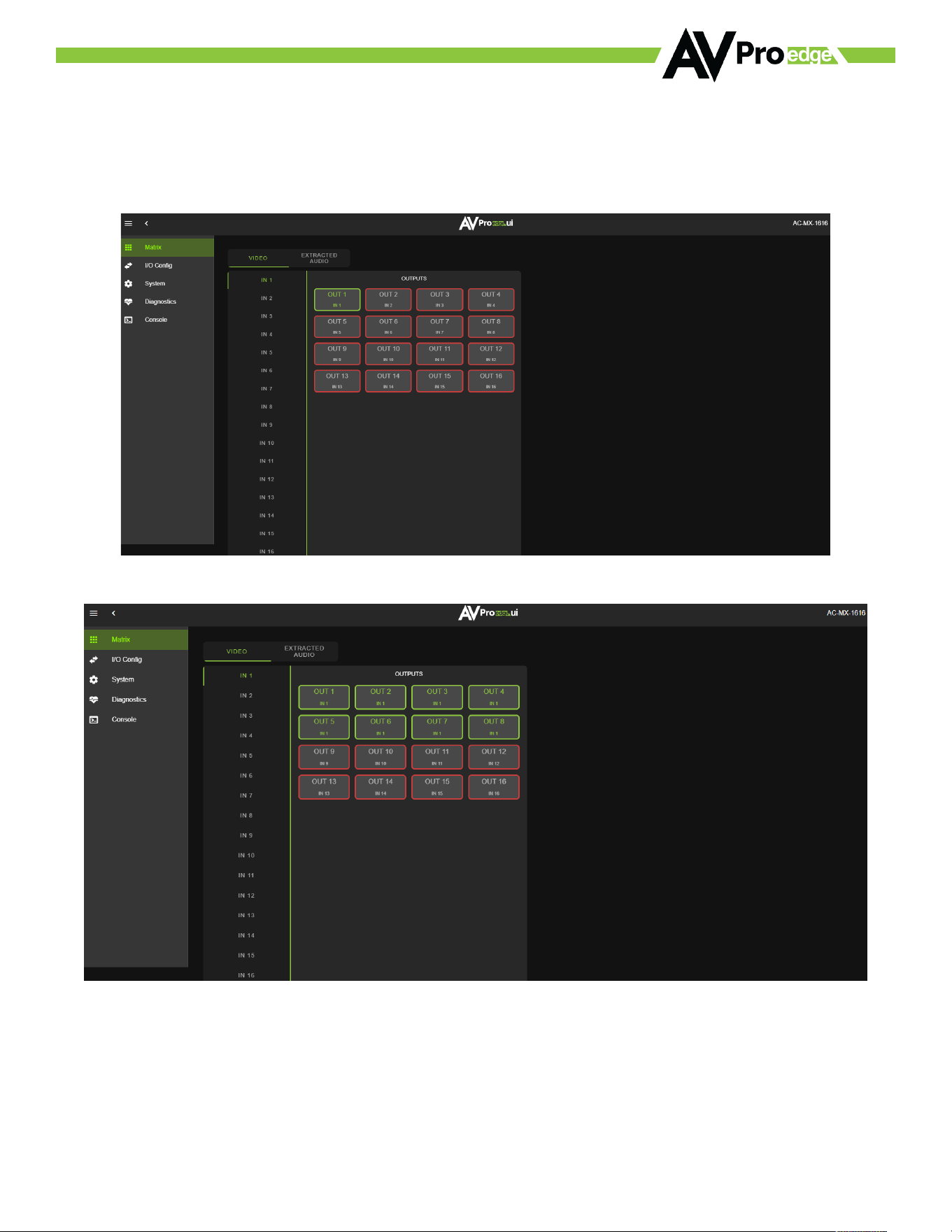
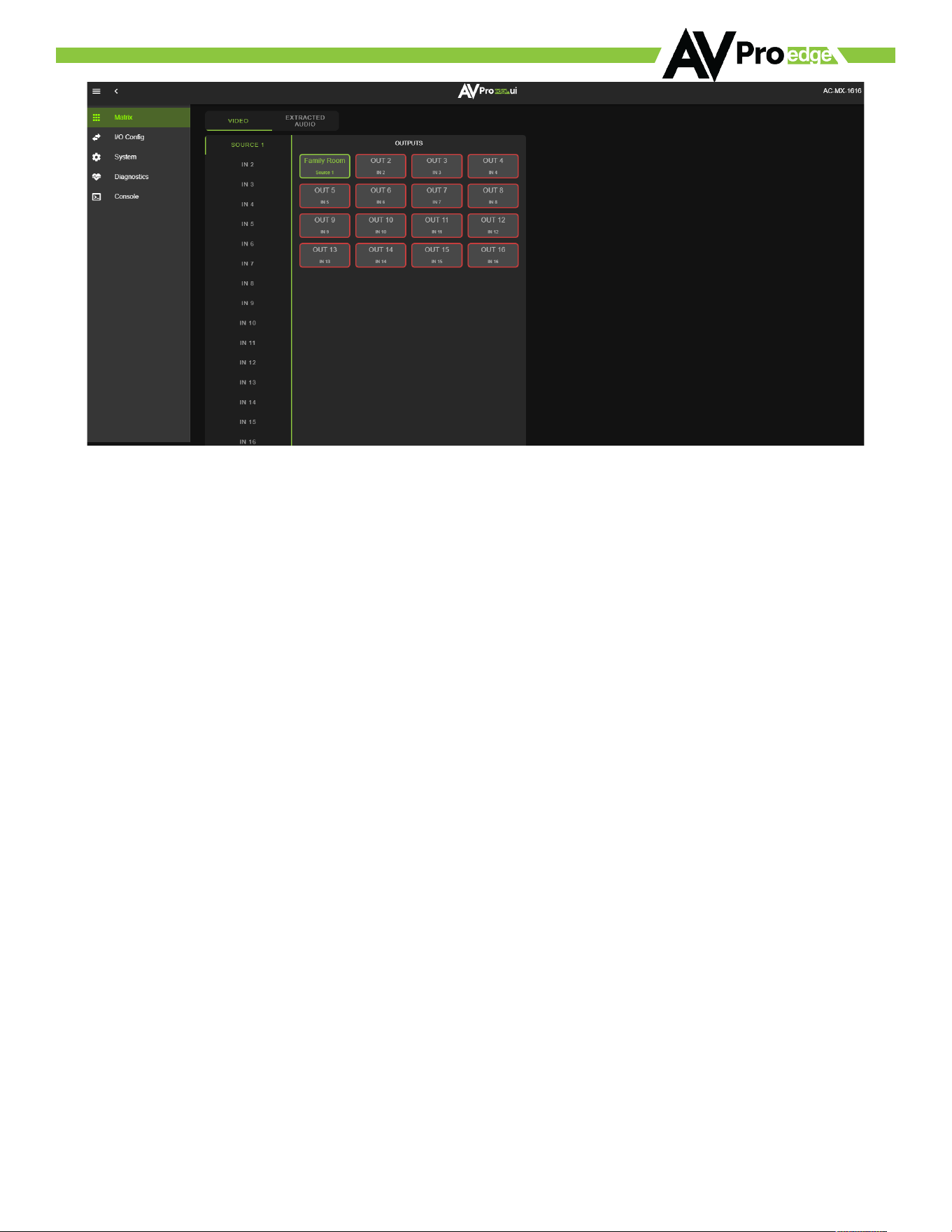
Use this page to route the video INPUTS and OUTPUTS.
· Click on the INPUT number to select (example below shows IN 1)
· With the INPUT selected simply click on the OUTPUT you want to send that source to.
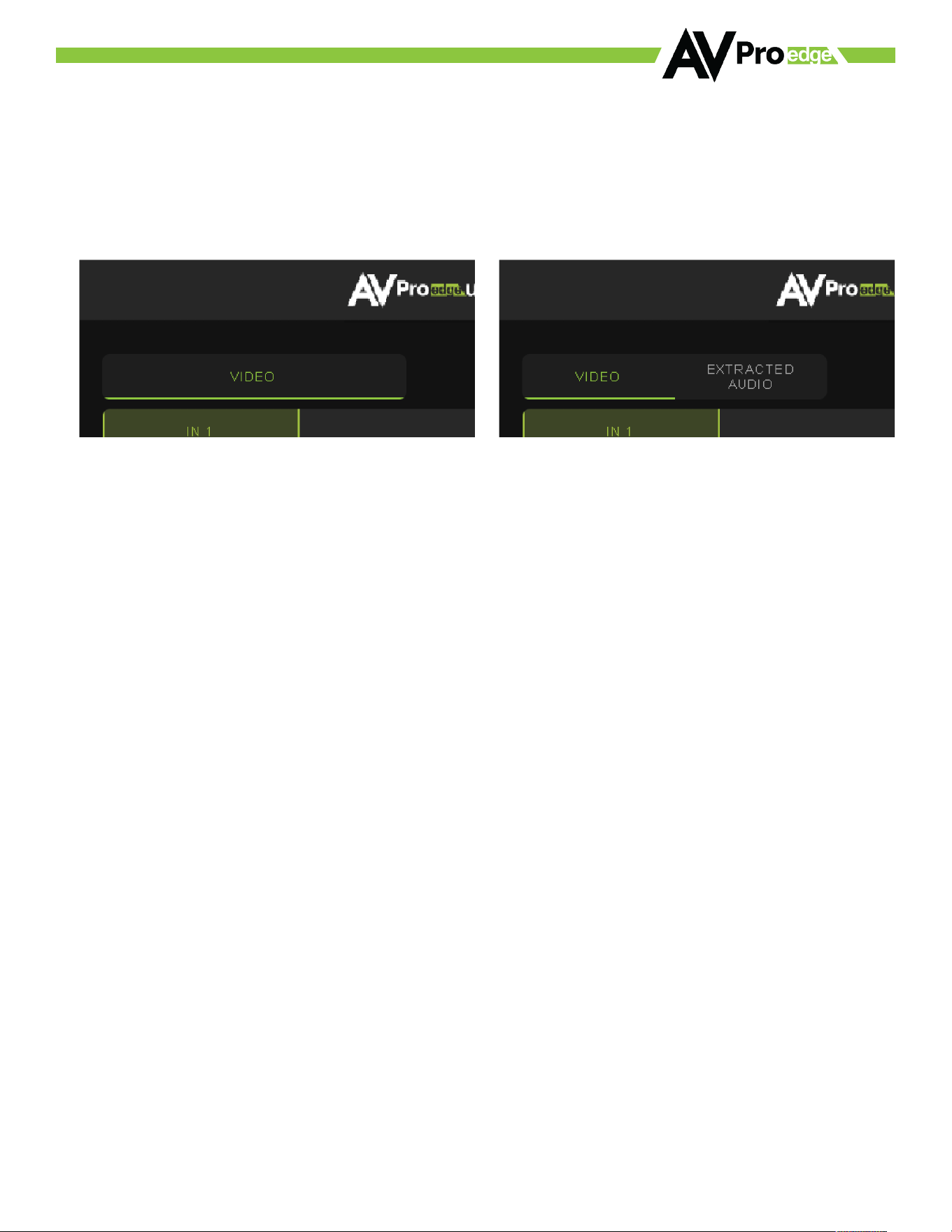
· Note: If you rename the INPUTS/OUTPUTS using the I/O Config page they will display here.
©COPYRIGHT AVPRO GLOBAL HOLDINGS 2024 - 2222 E 52ND STREET N SIOUX FALLS, SD 57104 ~ 1.877.866.5112
17
©COPYRIGHT AVPRO GLOBAL HOLDINGS 2024 - 2222 E 52ND STREET N SIOUX FALLS, SD 57104 ~ 1.877.866.5112
18
WebUI: Audio Matrix
Use this page to route the extracted audio.
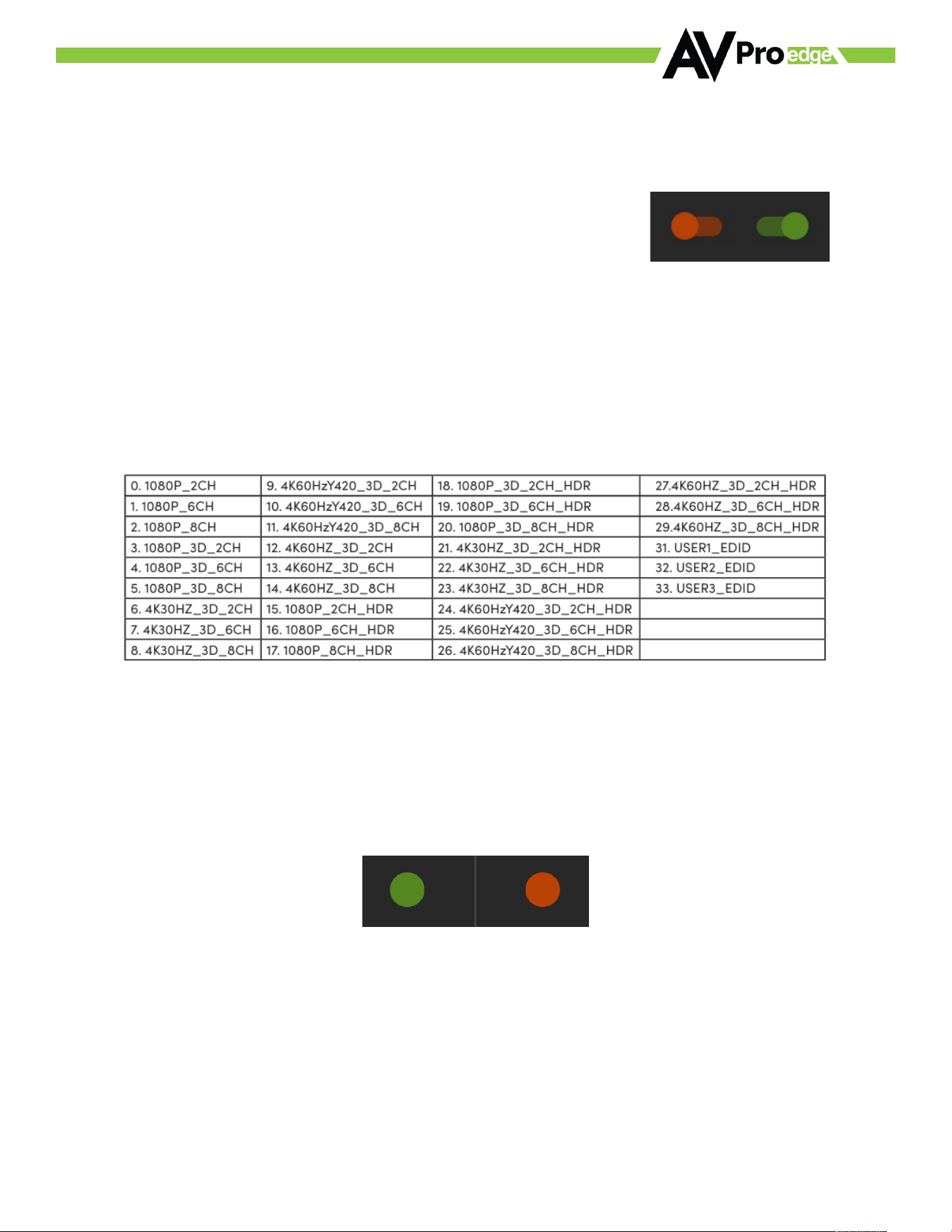
NOTE: The extracted audio ports can only be manually changed (matrixed) when in Matrix Mode. If the extracted
audio is set to Bind to Input (default) or Bind to Output then this tab will not be visible, example below. See Page 14
“Advanced Setup: WebUI Extracted Audio Output Settings” for more info.
· Click on the INPUT number to select
· With the INPUT selected simply click on the OUTPUT you want to send that audio too.
· Note: If you rename the INPUTS/OUTPUTS using the I/O Config page they will display here.
©COPYRIGHT AVPRO GLOBAL HOLDINGS 2024 - 2222 E 52ND STREET N SIOUX FALLS, SD 57104 ~ 1.877.866.5112
19
WebUI: I/O Config - Input Settings
Input Settings Label - Use this to give a name/alias to your inputs (Apple TV, Cable Box, Roku, etc). Note: There
is a 15-character limit to this field, the name will replace the default “IN #” throughout the rest of the WebUI (for
instance the Video Matrix tab).
O; On
Input Settings Enable switch - Use this enable/disable switch to turn the corresponding Input port on or oo.
The default setting is enabled (green) by default.
Disabled Enabled
WebUI: I/O Config - Input Settings Cont.
Input Settings EDID - Use these four dropdowns to select your preferred EDID. The available combinations are
as follows.
NOTE: If you select USER1 EDID, then drop-downs change to allow you to select from and output to copy from. You
can select any of the 16 HDMI outputs then click the COPY button (this replaces the Apply button). This will save
that outputs EDID to the USER1 slot.
Input Settings Signal - The Signal Indicator on the HDMI INPUTS shows the current state of the connection HDMI
source. Green means the HDMI source is detected, red means that the source is not detected. If red verify that
source is powered on and that the HDMI cable is properly connected to the source and to the back of the matrix.
©COPYRIGHT AVPRO GLOBAL HOLDINGS 2024 - 2222 E 52ND STREET N SIOUX FALLS, SD 57104 ~ 1.877.866.5112
20
Global Input Settings
- There are two settings available
· Supports Dolby MAT - Check this box to enable Dolby MAT audio
· Requires Dolby Vision Low Latency - Check this box to require Dolby Vision Low Latency (Player-led) over
Standard Dolby Vision (TV-Led). Sources like Apple TV and X-Box Series X use Low Latency.
©COPYRIGHT AVPRO GLOBAL HOLDINGS 2024 - 2222 E 52ND STREET N SIOUX FALLS, SD 57104 ~ 1.877.866.5112
21
WebI: I/O Config - Output Settings
©COPYRIGHT AVPRO GLOBAL HOLDINGS 2024 - 2222 E 52ND STREET N SIOUX FALLS, SD 57104 ~ 1.877.866.5112
22
Output Settings Label - Use this to give a name/alias to your outputs (Living Room, Den, Kitchen, etc).
Note: There is a 15-character limit to this field, the name will replace the default “OUT #” throughout the rest of the
WebUI (for instance the Video Matrix tab).
Output Settings State - This drop-down has 4 settings, just like the input settings you can Enable or disable this
port. In addition, you can also choose Test Pattern to enable a 1080P or 4K color bar test pattern on that output.
This is helpful in verifying the signal chain from Matrix to sync (display). To disable the test pattern, change the
state back to Enabled (default).
Output Settings Video Scaling - The HDMI outputs can down-scale a 4K signal down to 2K (1080P).
Output Settings Signal - The Signal Indicator on the HDMI OUTPUTS shows the current state of the connection
HDMI Output. Green means HDMI sync is detected, red means that the sync is not detected. If red verify that the
output is powered on and that the HDMI cable is properly connected to the sync and to the back of the matrix.
On O;
©COPYRIGHT AVPRO GLOBAL HOLDINGS 2024 - 2222 E 52ND STREET N SIOUX FALLS, SD 57104 ~ 1.877.866.5112
23
WebUI: I/O Config – Extracted Audio Output
Audio Mode – This dropdown switches between the
three audio binding modes
• BIND TO OUTPUT (extracted audio switches
with the video, this is the default mode)
• BIND TO INPUT (extracted audio is fixed to
the corresponding input by the same number)
• MATRIX (extracted audio can be routed
independently of video to function as a
separate audio matrix)
Output Settings Label - Use this to give an
alias/name to your extracted audio outputs.
Note: There is a 15-character limit to this field, the
name will replace the default “OUT #” throughout the
rest of the WebUI (for instance the Video Matrix tab).
Output Settings Enabled - This is an
enable/disable switch. By default, this will be
Enabled/Green. To change the setting simply click to
switch. Disabled/Red there will be no Audio passed
on that extracted audio port
Output Settings Volume - Here you can use the slider bar to adjust the extracted port volume (0~100). You can
also use the text box and enter a value (0~100).
Output Settings EQ Settings - To open th e EQ Setti ngs cli ck o n the symbol next to the Volume slider.
EQ Drop-down contains 8 settings. The default oo, Classical, Headphone, Hall, Live, Pop, Rock, and Vocal.
Output Settings Balance - Use this slider to adjust the Left/Right balance.
Note: Default is 0 (zero), value can be -10~10
Output Settings Delay (ms) - Audio delay drop-down has eight available settings, these are measured in
milliseconds.
None (default), 90ms, 180ms, 270ms, 360ms, 450ms, 540ms, and 630ms.
©COPYRIGHT AVPRO GLOBAL HOLDINGS 2024 - 2222 E 52ND STREET N SIOUX FALLS, SD 57104 ~ 1.877.866.5112
24
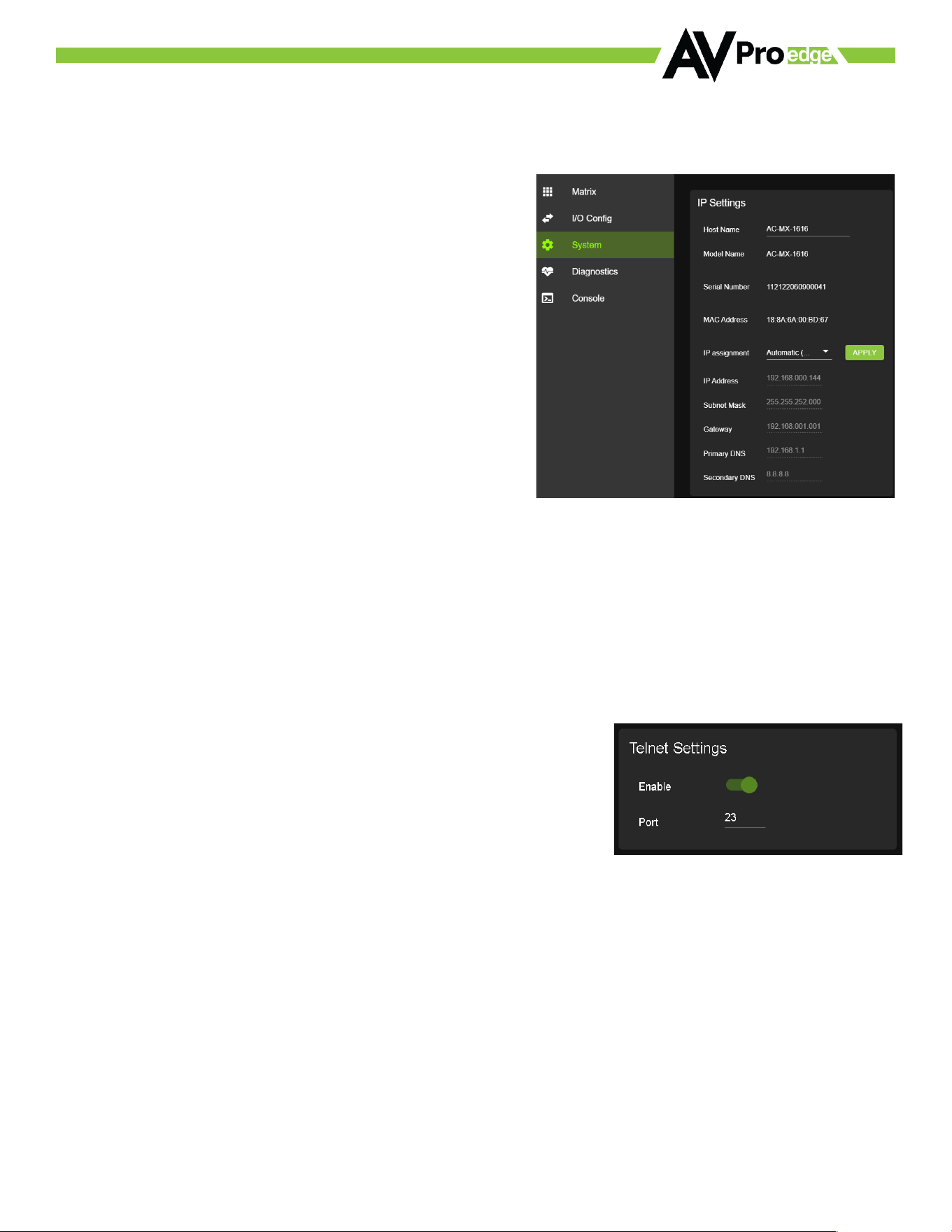
WebUI: System - IP Settings
This area contains relevant network information for the AC-MX-1616.
Host Name - Devices name on the network. This field is
automatically filled with Model Name by default.
Model Name - Displays the AVPro Edge Model/Part number.
Serial Number - Displays the Serial Number of the matrix.
MAC Address - Displays the devices MAC Address.
IP assignment - This drop-down has two options.
1. Manual
2. Automatic (DHCP)
Default out of the box will be set to Automatic (DHCP), the IP
Address, Subnet Mask, Gateway, Primary DNS, and Secondary DNS will be assigned by your network controller. If
you select Manual, you can use the text fields to enter your own Network settings. Once all fields have been filled
out, click the green Apply Button to set. A prompt will appear to confirm the change, click OK to confirm.
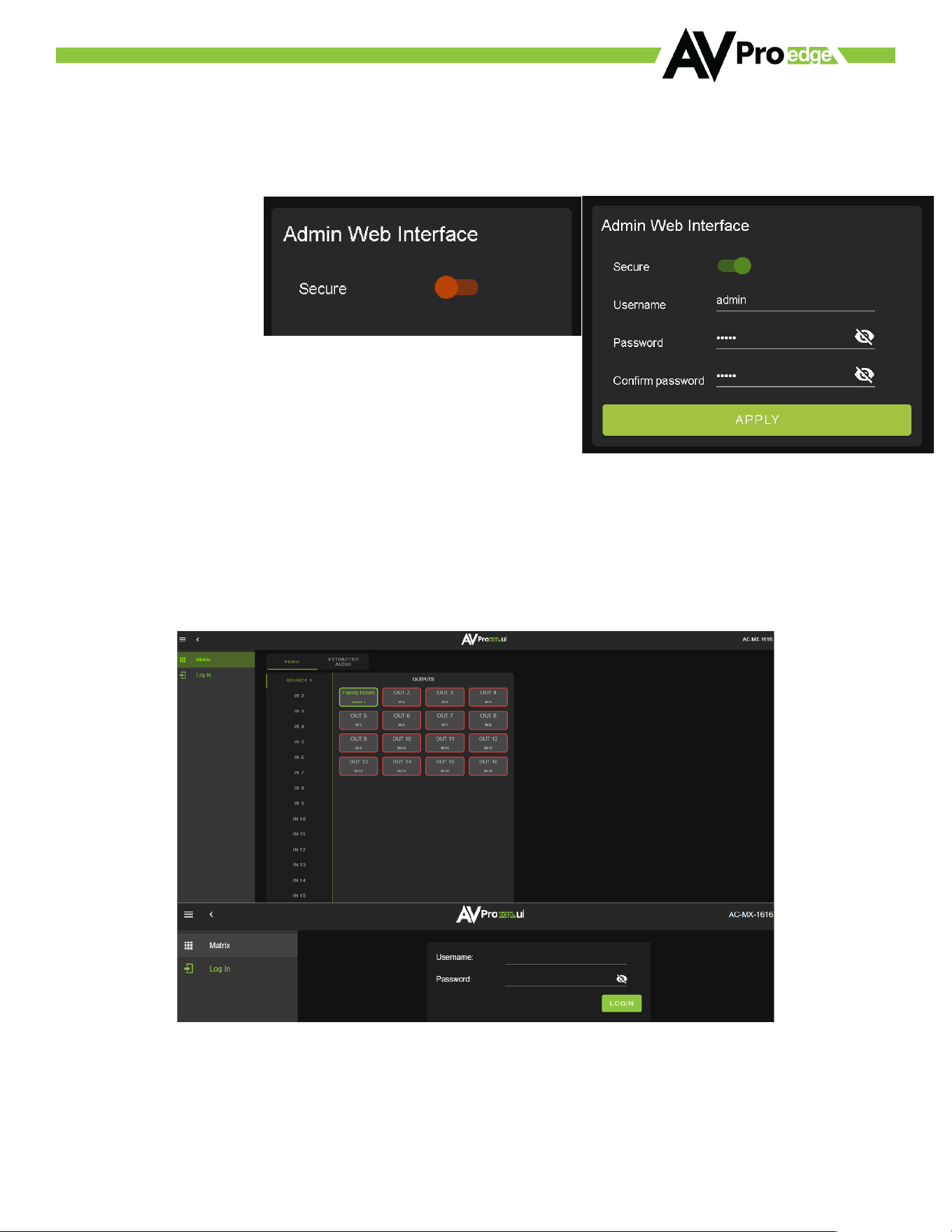
WebUI: System - Telnet Settings
This area contains relevant Telnet settings for the AC-MX-1616. There are two fields that can be changed, Enable
Disable switch and Port Number.
• Enable - This switch has two options, Green/Enabled (Default) and
Red/Disabled.
• Port - This field is used to change the Telnet Port of the AC-MX-1616. You
can use the text filed to enter a number or use the Up/Down arrow buttons
to increase/decrease the number.
©COPYRIGHT AVPRO GLOBAL HOLDINGS 2024 - 2222 E 52ND STREET N SIOUX FALLS, SD 57104 ~ 1.877.866.5112
25
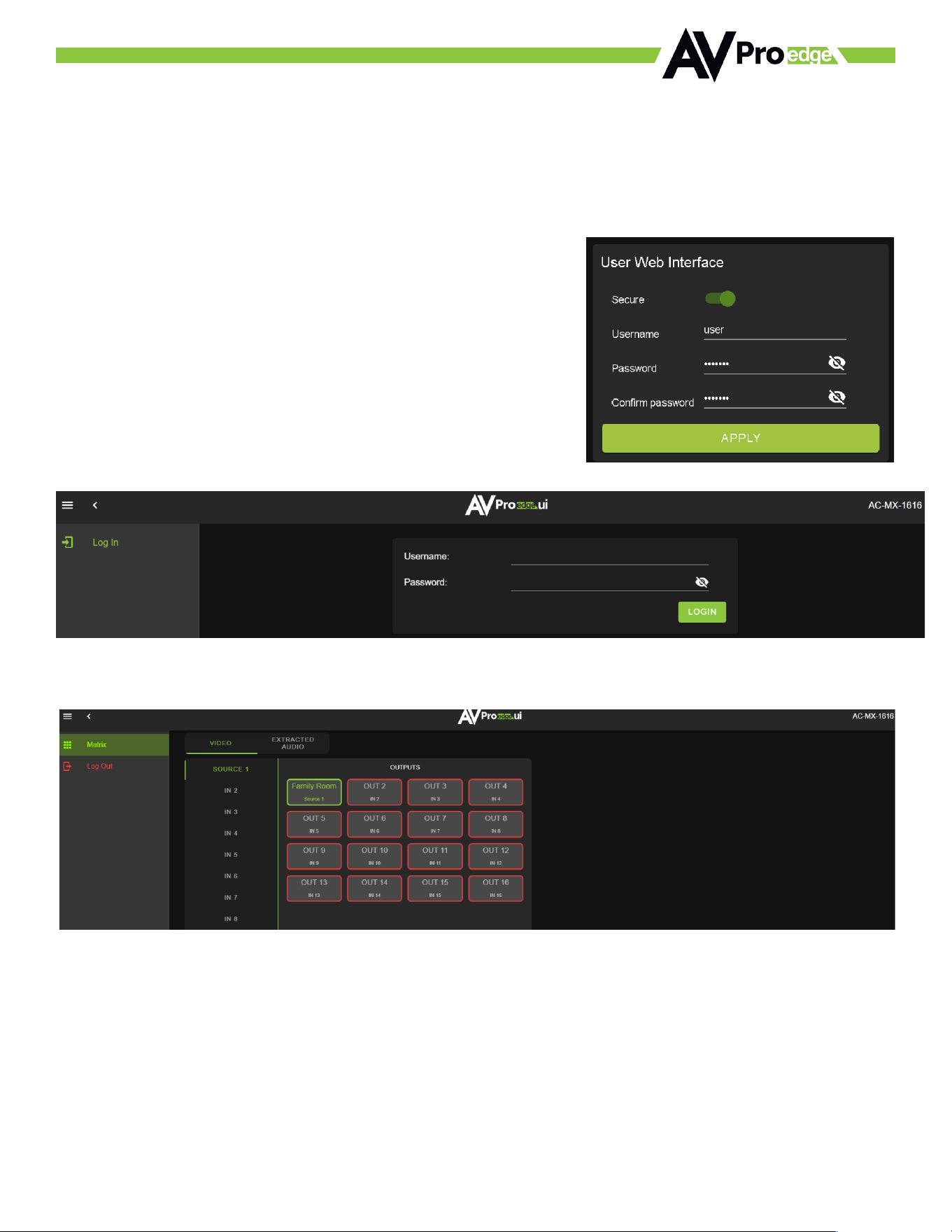
WebUI: System - Admin Web Interface
This switch has two options, Red/Disabled (Default) and Green/Enabled. When enabled (green) there will be three
fields that appear, Username, Password, and Confirm Password.
Default Username - admin
Default Password - admin
Once the desired Username and Password has been entered, click
the green APPLY button to set.
With the Admin Web Interface enabled, the only menu that will be accessible using the WebUI will be the Matrix
tab. The rest of the settings will require the admin log in to access.
©COPYRIGHT AVPRO GLOBAL HOLDINGS 2024 - 2222 E 52ND STREET N SIOUX FALLS, SD 57104 ~ 1.877.866.5112
26
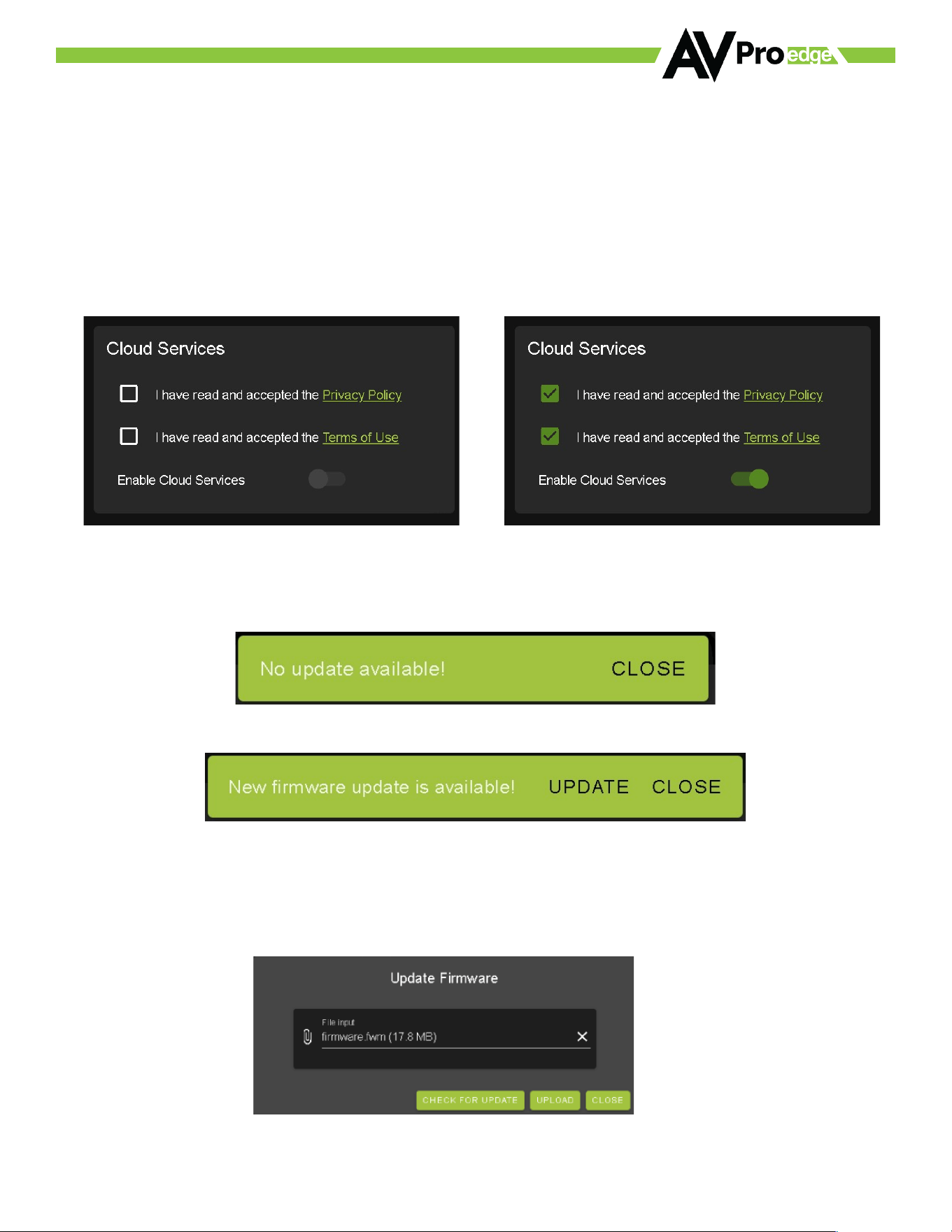
WebUI: System - User Web Interface
This switch has two options, Red/Disabled (Default) and Green/Enabled. When enabled (green) there will be three
fields that appear, Username, Password, and Confirm Password.
NOTE: The Admin Web Interface must first be Enabled and set up before this field will be available to change.
Default Username - user
Default Password - user123
Once the desired Username and Password has been entered, click the
green APPLY button to set.
Note: The webpage will reload to the Log In page.
With both Admin and User Web Interfaces enabled, no menus will be
accessible using the WebUI without first logging in (see image below).
Logging in with the User credentials, the only menu that will be accessible will be the Matrix tab. The rest of the
settings will require the admin user to log in.
©COPYRIGHT AVPRO GLOBAL HOLDINGS 2024 - 2222 E 52ND STREET N SIOUX FALLS, SD 57104 ~ 1.877.866.5112
27
WebUI: System - Cloud Services
By enabling Cloud Services your device will have the ability to connect to firmware servers for over-the-air (OTA)
updates and enable third-party remote management services. If Cloud Services are disabled, your device will opt-
out of any previously enabled services and will not be able to access OTA updates.
Before you can enable the cloud services you must first agree to the “Privacy Policy” and “Terms of Use”.
You can view these documents by clicking on Privacy Policy or Terms of Use links, this will open a PDF copy of that
document in a new tab.
With the Cloud Services enabled you can use the System tab to check for new Firmware OTA (over the air).
This will check the firmware versions currently loaded on the AC-MX-1616and compare them to the latest
available. If it is up to date, you will see a prompt stating “No update available!” click CLOSE to exit.
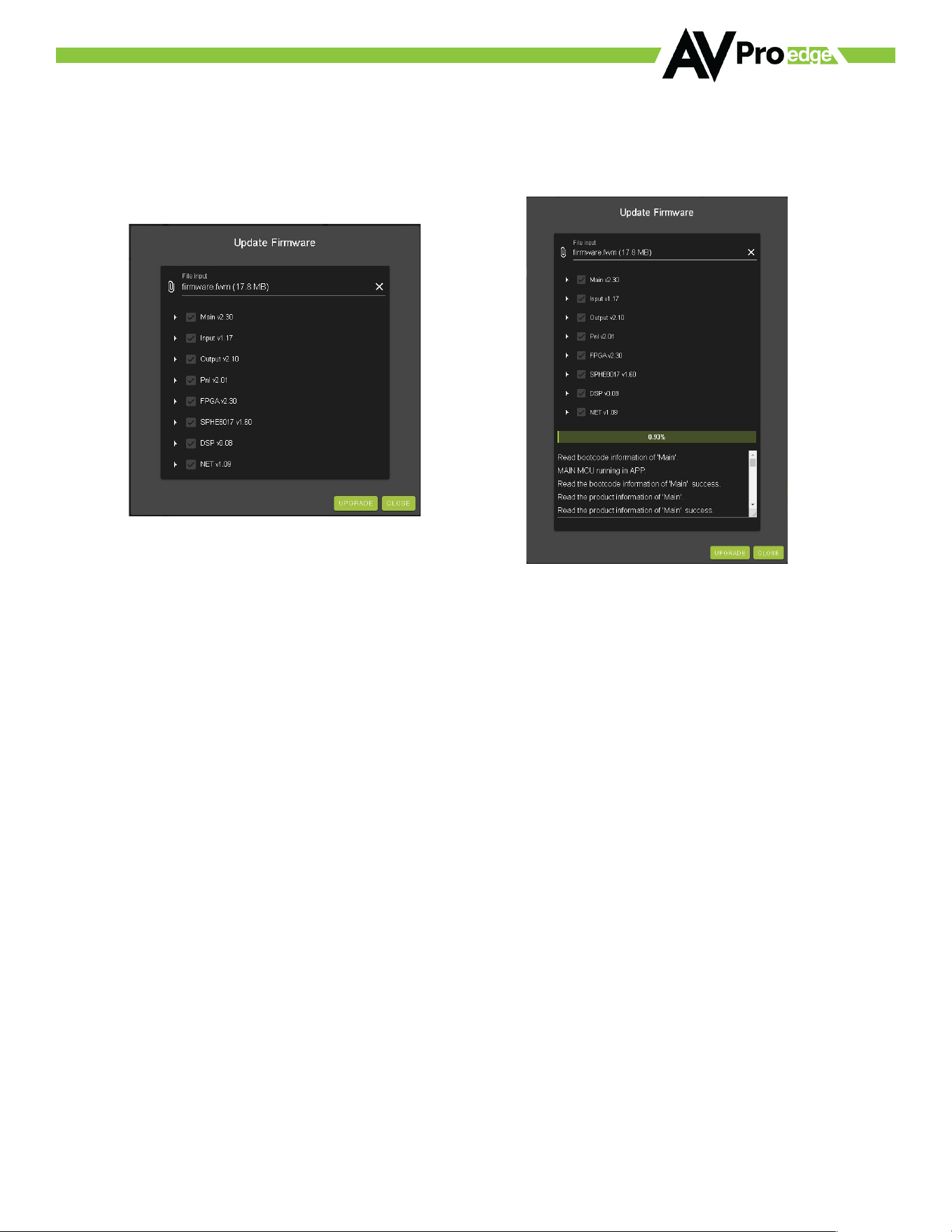
If an update is available, the following prompt will show. Simply click the UPDATE button to load.
NOTE: When loading firmware (depending on the firmware files that are being updated) some settings will revert to
Factory Defaults. Take note of the I/O Config tab. Settings like the INPUT/OUTPUT labels, EDID Settings, Video
Scaling, Audio Settings, etc. as they will have to be re-applied after the firmware updates are completed.
If an update is available a file will automatically be selected, simply click the UPLOAD button to load the firmware
files to the Matrix.
©COPYRIGHT AVPRO GLOBAL HOLDINGS 2024 - 2222 E 52ND STREET N SIOUX FALLS, SD 57104 ~ 1.877.866.5112
28
WebUI: System - Firmware Update
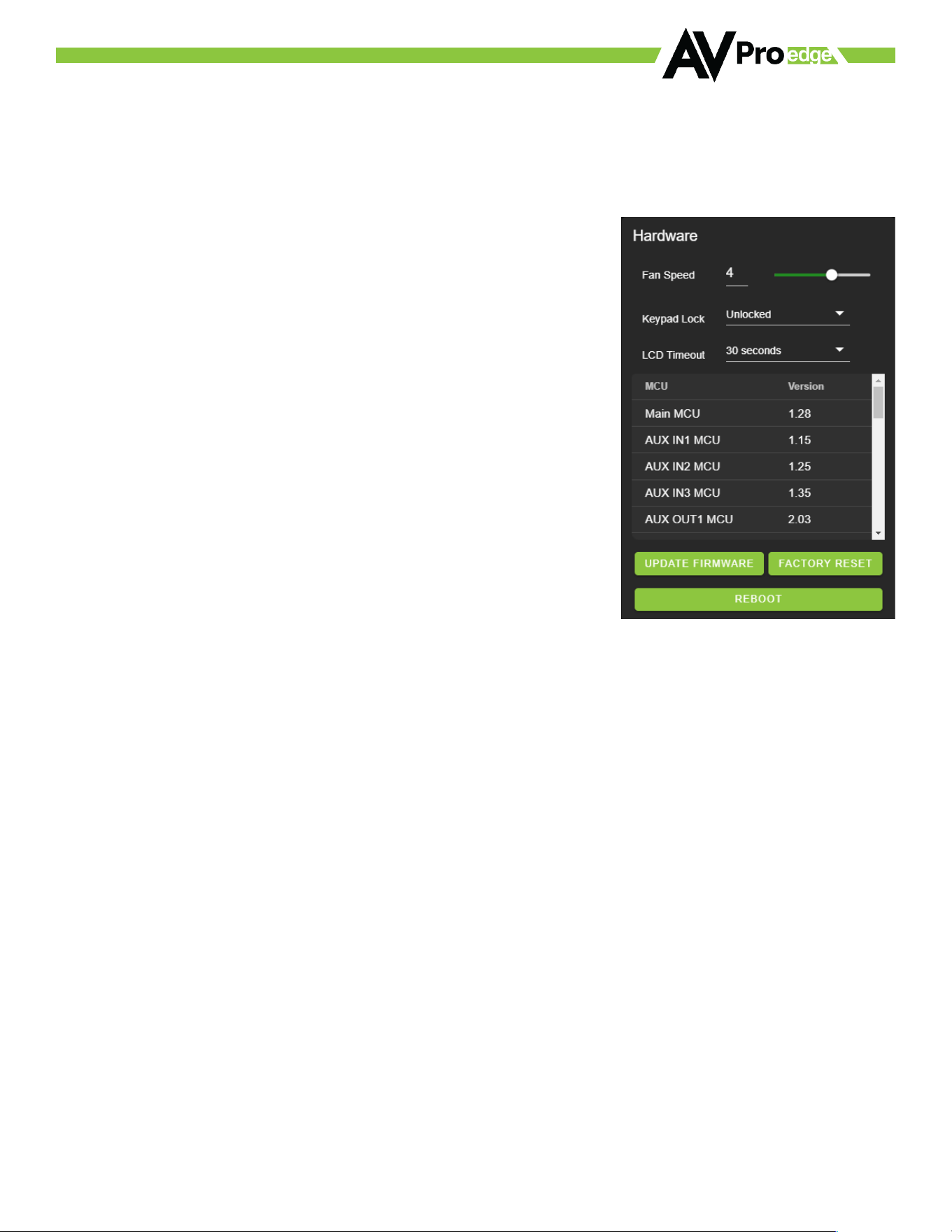
Once the firmware file has been uploaded, it will display all containing firmware files. Here you can select
individual firmware files to load or simply leave all files/options selected. If the version is currently installed not
newer, then that update will be skipped automatically.
Once the progress bar hits 100% click the CLOSE button, the firmware upgrade process is complete.
Now you will want to go back and re-apply settings like INPUT/OUTPUT Labels, applied EDIDs, Video Scaler
Settings, Audio Settings, etc.
©COPYRIGHT AVPRO GLOBAL HOLDINGS 2024 - 2222 E 52ND STREET N SIOUX FALLS, SD 57104 ~ 1.877.866.5112
29
WebUI: System - Hardware
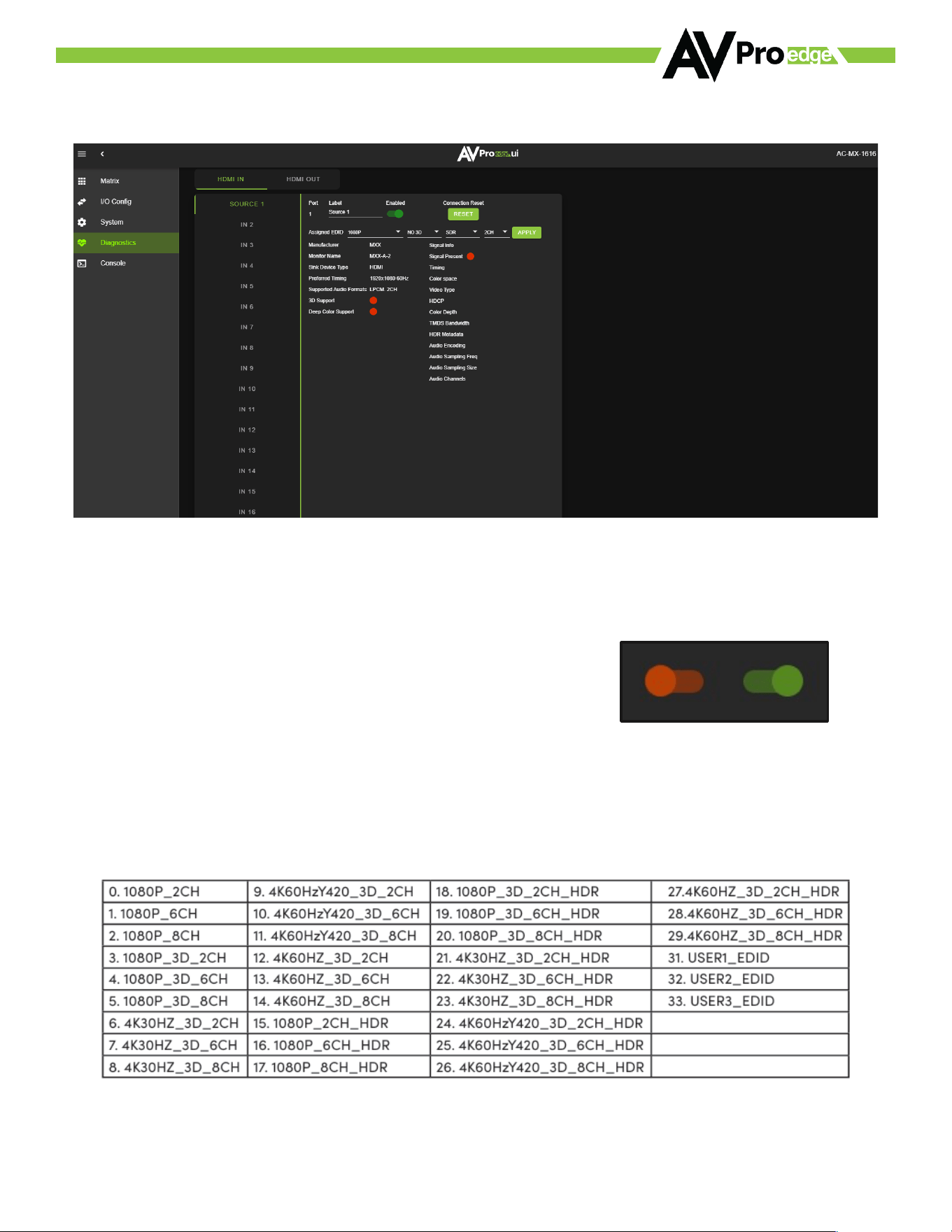
Fan Speed – This adjusts the AC-MX-1616’s internal fan speeds.
LCD Timeout - This adjusts the time the front panel display will stay lit up when a button is pressed.
There are four settings available
1. Always on (Default)
2. 15 Seconds
3. 30 Seconds
4. 45 Seconds
Keypad Lock - Enable or Disable (default) the front panel Keypad Lock.
MCU/Version - Lists the current Firmware Versions
UPDATE FIRMWARE -Check/upload firmware.
FACTORY RESET - Restores matrix to Factory Defaults
REBOOT - Reboots the AC-MX-1616
©COPYRIGHT AVPRO GLOBAL HOLDINGS 2024 - 2222 E 52ND STREET N SIOUX FALLS, SD 57104 ~ 1.877.866.5112
30
WebUI: Diagnostics - HDMI IN
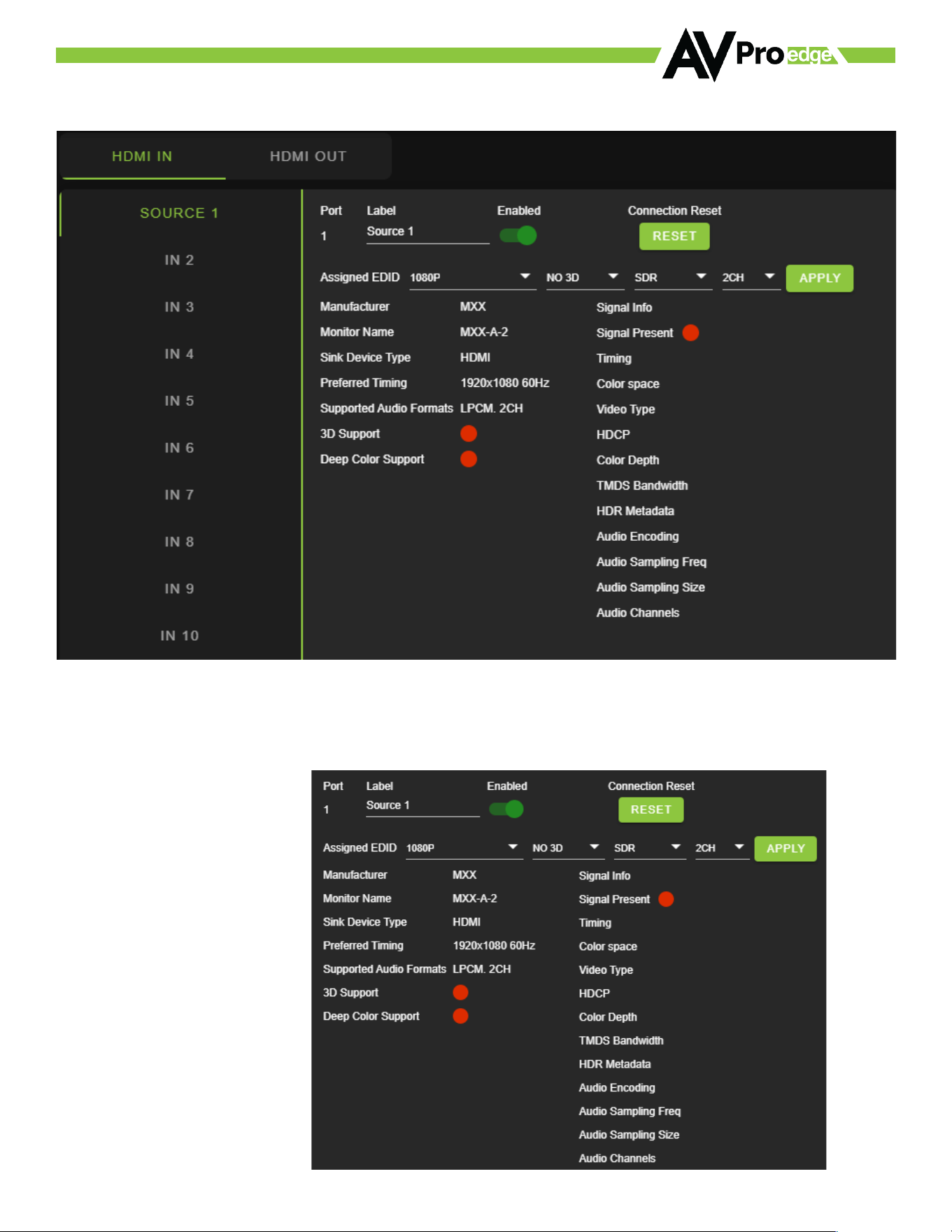
Input Settings Label - Use this to give a name/alias to your inputs (Apple TV, Cable Box, Roku, etc). Note: There
is a 15-character limit to this field, the name will replace the default “IN #” throughout the rest of the WebUI (for
instance the Video Matrix tab).
Input Settings Enable switch - Use this enable/disable switch to turn the corresponding Input port on or oo.
The default setting is enabled (green) by default.
Disabled Enabled
Connection Reset - Use this button to perform a reset of the HDMI Input connection.
Input Settings EDID - Use these four dropdowns to select your preferred EDID. The available combinations are
as follows.
©COPYRIGHT AVPRO GLOBAL HOLDINGS 2024 - 2222 E 52ND STREET N SIOUX FALLS, SD 57104 ~ 1.877.866.5112
31
On the left, you will see the current applied EDID information. In the example above, you will see a canned 1080P -
No 3D - SDR - 2CH EDID applied to IN 1. Any EDID change once applied will be displayed here.
Signal Info shows the connected source’s current output information. This includes
· Timing
· Color Space
· Video Type
· HDCP Version
· TMDS Bandwidth
· HDR Metadata
· Audio Sampling Frequency
· Audio Sampling Size
· Audio Channels
©COPYRIGHT AVPRO GLOBAL HOLDINGS 2024 - 2222 E 52ND STREET N SIOUX FALLS, SD 57104 ~ 1.877.866.5112
32
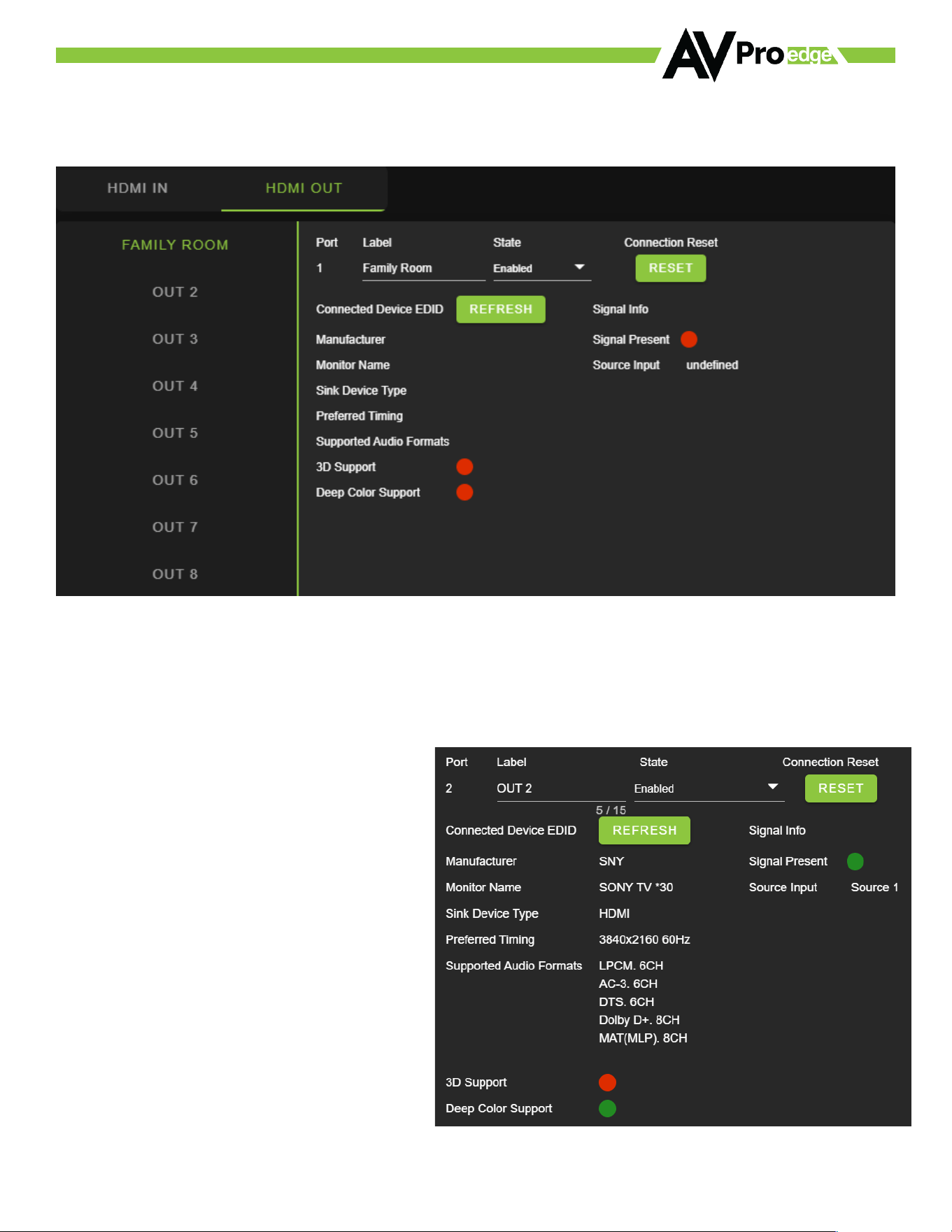
WebUI: Diagnostics - HDMI OUT
HDMI Output Label, State, and Connection Reset.
Connected Device EDID shows the connected sync’s preferred EDID information and current state.
This includes
· Manufacturer
· Monitor Name
· Sink Device Type
· Preferred Timing
· Supported Audio Formats
· 3d Support
· Deep Color Support
· Signal Present
· Source Input
©COPYRIGHT AVPRO GLOBAL HOLDINGS 2024 - 2222 E 52ND STREET N SIOUX FALLS, SD 57104 ~ 1.877.866.5112
33
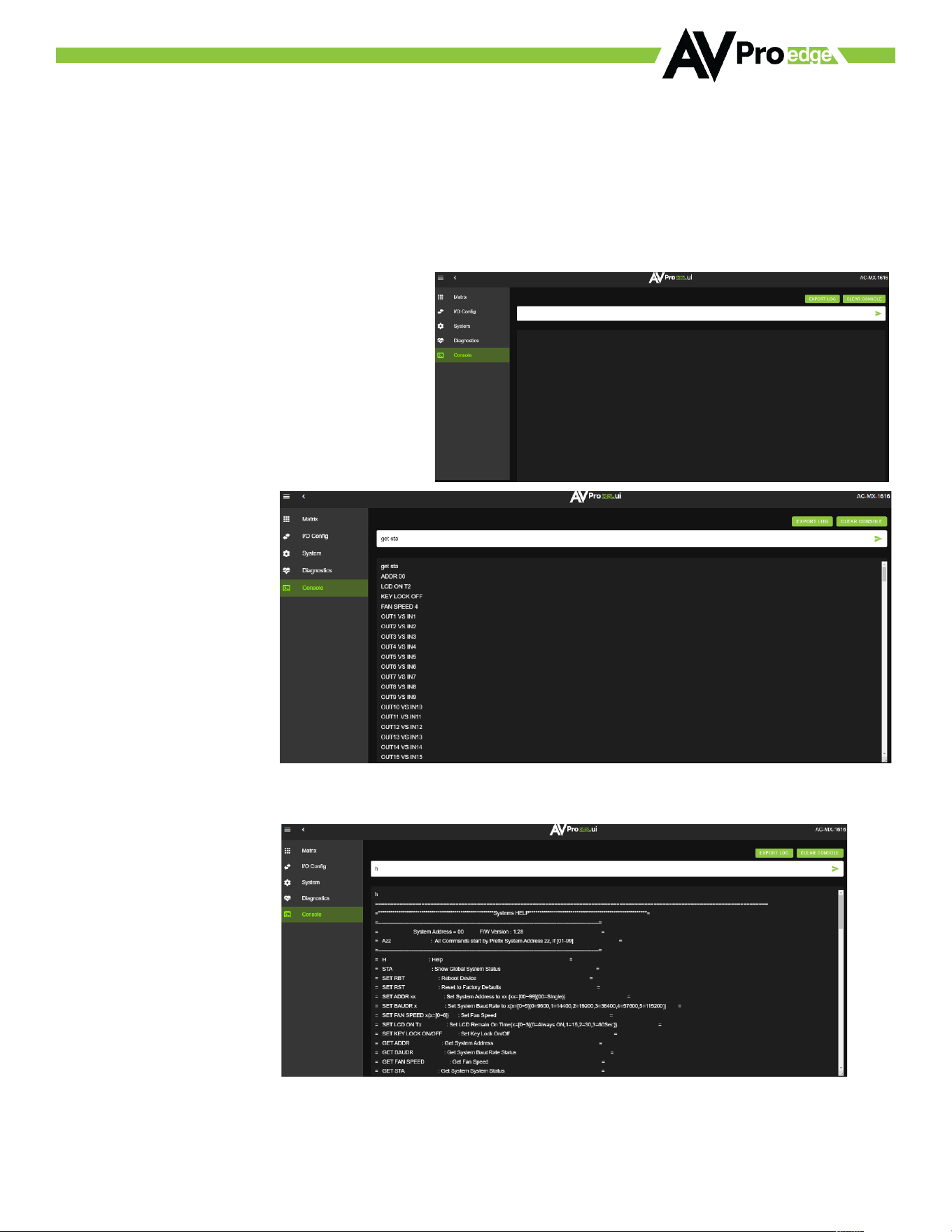
WebUI: Console
There is a built in Command Console
Using the command API (command list) you can send device specific commands or use as a live monitor while
sending commands from a control system (helpful in troubleshooting
Example
1. Click in the white box and type
a. GET STA
Click the green arrow or hit ENTER/RETURN on
your keyboard
The command response will be shown in the field
below.
Example - “GET STA”
Get status
Example - “H”
Help command
Returns all Available Commands
©COPYRIGHT AVPRO GLOBAL HOLDINGS 2024 - 2222 E 52ND STREET N SIOUX FALLS, SD 57104 ~ 1.877.866.5112
34
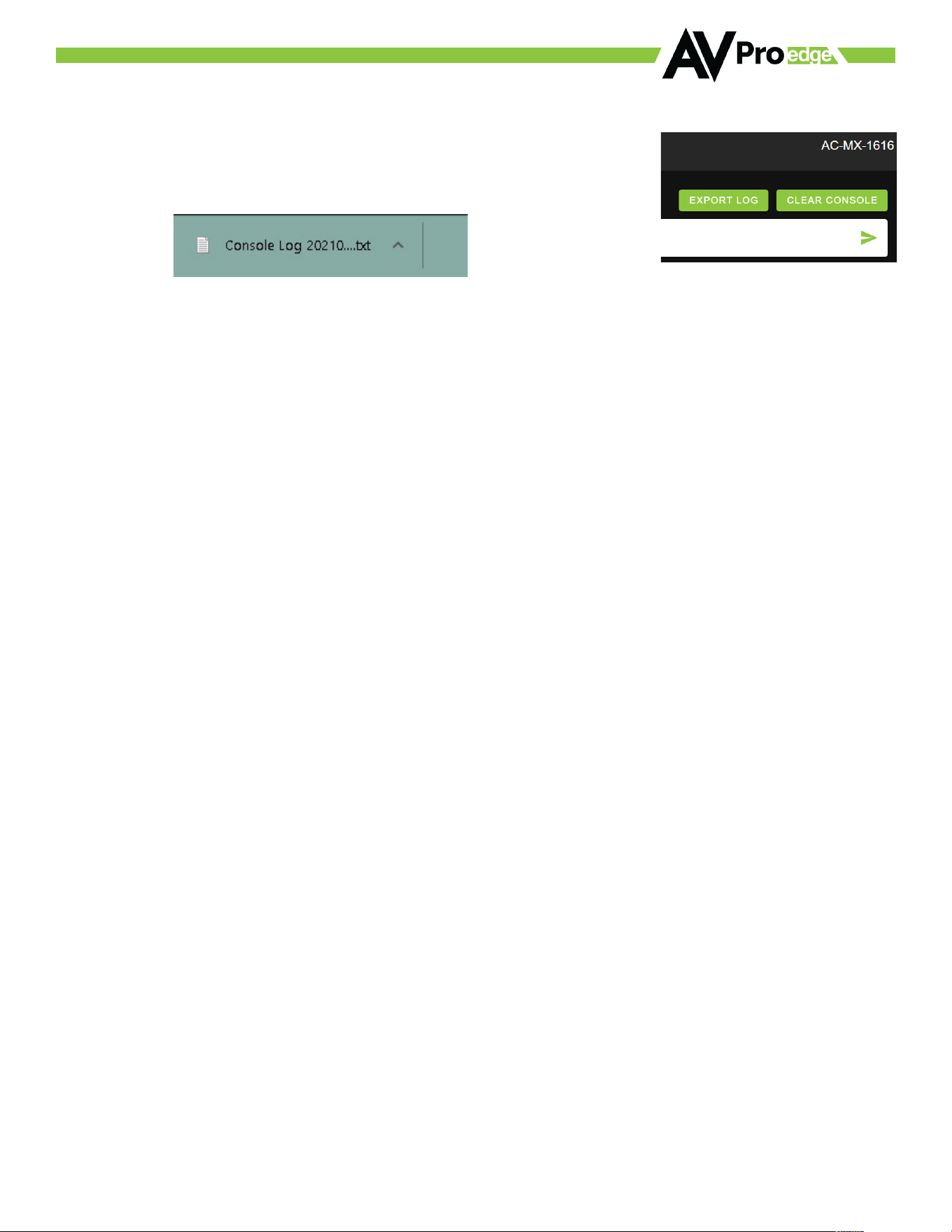
EXPORT LOG - Button
This button will generate a text file containing the console in formation in
your web browsers download folder.
CLEAR CONSOLE - Button
This button will clear the current console session.
©COPYRIGHT AVPRO GLOBAL HOLDINGS 2024 - 2222 E 52ND STREET N SIOUX FALLS, SD 57104 ~ 1.877.866.5112
35
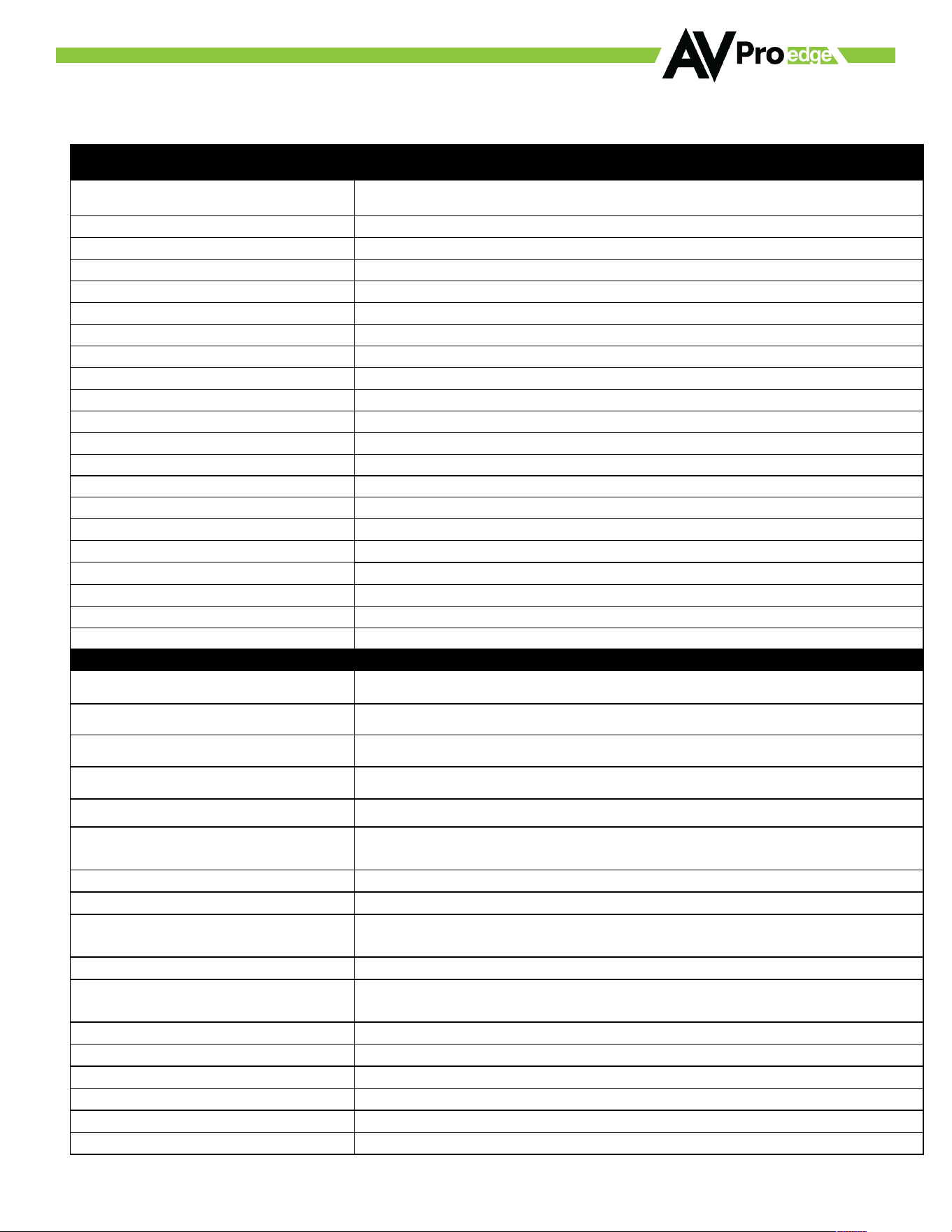
Command List
Command
Action
H
Help
STA
Show Global System Status
SET RBT
Reboot Device
SET RST
Reset to Factory Defaults
SET ADDR xx
Set System Address to xx {xx=00~99}
SET BAUDR x
Set System BaudRate to x{x=0~5}
SET FAN SPEED x{x=[0~6]}
Set Fan Speed
SET LCD ON Tx
Set LCD Remain On Time{x=[0~3](0=Always ON,1=15,2=30,3=60Sec)}
SET KEY LOCK ON/OFF
Set Key Lock On/Oo
GET ADDR
Get System Address
GET BAUDR
Get System BaudRate Status
GET FAN SPEED
Get Fan Speed
GET STA
Get System System Status
GET DEV TEMP
Get Device Temperature
GET INx SIG STA
Get Input x Signal Status{x=0~16}
GET OUTx SIG STA
Get Output x Signal Status{x=0~16}
GET INx AUD FMT INF
Get Input x Audio information{x=0~16}
GET INx VID FMT INF
Get Input x Video information{x=0~16}
GET OUTx HPD
Get Output x HPD Status{x=0~16}
GET LCD ON T
Get LCD Remain On Time
GET KEY LOCK
Get Key Lock Status
Output Setup Commands:
SET OUTx VS INy
Set Output x To Input y{x=0~16, y=[1~16]}
SET OUTx VIDEOy
Set Output x VIDEO Mode {x=0~16, y=1,2}
SET OUTx EXAUD LEVy
Set Output x Ex-Audio(Balanced) Volume Levely{x=0~16,y=[0~100]}
SET OUTx EXA LVLy
Set Output x Ex-Audio(Balanced) Left Volume Levely{x=0~16,y=[0~10]}
SET OUTx EXA RVLy
Set Output x Ex-Audio(Balanced) Right Volume Levely{x=0~16,y=[0~10]}
SET OUTx EXEQ MODEy
Set Output x EX-Audio Volume EQ Modey{x=0~16, y=[0~7]} y=[0-OFF],[1-
Classical],[2-Headphone],[3-Hall],[4-Live],[5-Pop],[6-Rock],[7-Vocal]
SET OUTx EXA EN/DIS
Set Ex-Audio Output Enable/Disable{x=0~16}
SET OUTx EXADL PHy
Set Ex-Audio Delay{x=0~16, y=0~7}
SET EXAMX MODEx
Set Ex-Audio Matrix Mode{x=[0~2](0=Bind To Output,1=Bind To
Input,2=Matrix}
SET OUTx AS INy
Set Ex-Audio Output x To Input y{x=0~16, y=[1~16]}
SET OUTx SGMT y
Set Output x Signal Generator Timing {x=0~16,y=[0~2](0=Signal Generator
OFF,1=1080p 60Hz,2=4K 30Hz)}
SET OUTx STREAM ON/OFF
Set Output x Stream ON/OFF{x=0~16}
GET OUTx VS
Get Output x Video Route{x=0~16}
GET OUTx VIDEO
Get Output x Video Mode{x=0~16}
GET OUTx EDID DATA
Get Output x EDID DATA{x=[1~16]}
GET OUTx EXAUD LEV
Get Output x Ex-Audio(Balanced) Volume Level{x=0~16}
GET OUTx EXA LVL
Get Output x Ex-Audio(Balanced) Left Volume Level{x=0~16}
©COPYRIGHT AVPRO GLOBAL HOLDINGS 2024 - 2222 E 52ND STREET N SIOUX FALLS, SD 57104 ~ 1.877.866.5112
36
GET OUTx EXA RVL
Get Output x Ex-Audio(Balanced) Right Volume Level{x=0~16}
GET OUTx EXA RLVL
Get Output x Ex-Audio(Balanced) Right Left Volume Level{x=0~16}
GET OUTx EXEQ MODE
Get Output x EX-Audio Volume EQ Mode Status{x=0~16}
GET OUTx EXA
Get Ex-Audio Output Enable/Disable Status{x=0~16}
GET OUTx EXADL PH
Get Ex-Audio Output Delay Status{x=0~16}
GET EXAMX MODE
Get Ex-Audio Matrix Mode
GET OUTx AS
Get Output x Ex-Audio Route{x=0~16}
GET OUTx SGMT
Get Output x Signal Generator Timing Status{x=0~16}
GET OUTx STREAM
Get Output x Stream ON/OFF Status{x=0~16}
Input Setup Commands:
SET INx EDID y
Set Input x EDID{x=0~4, y=[0~32]}
0:1080P_2CH
1:1080P_6CH
2:1080P_8CH
3:1080P_3D_2CH
4:1080P_3D_6CH
5:1080P_3D_8CH
6:4K30HZ_3D_2CH
7:4K30HZ_3D_6CH
8:4K30HZ_3D_8CH
9:4K60HzY420_3D_2CH
10:4K60HzY420_3D_6CH
11:4K60HzY420_3D_8CH
12:4K60HZ_3D_2CH
13:4K60HZ_3D_6CH
14:4K60HZ_3D_8CH
15:1080P_2CH_HDR
16:1080P_6CH_HDR
17:1080P_8CH_HDR
18:1080P_3D_2CH_HDR
19:1080P_3D_6CH_HDR
20:1080P_3D_8CH_HDR
21:4K30HZ_3D_2CH_HDR
22:4K30HZ_3D_6CH_HDR
23:4K30HZ_3D_8CH_HDR
24:4K60HzY420_3D_2CH_HDR
25:4K60HzY420_3D_6CH_HDR
26:4K60HzY420_3D_8CH_HDR
27:4K60HZ_3D_2CH_HDR
28:4K60HZ_3D_6CH_HDR
29:4K60HZ_3D_8CH_HDR
30:USER1_EDID
31:USER2_EDID
32:USER3_EDID
SET INx EDID CY OUTy
Copy Output y EDID To Input x (USER1 BUF) {x=0~16, y=[1~16]}
SET INx Uy EDID CY OUTz
Copy Output z EDID To Input x and User y Buoer {x=0~16, y=[1~3], z=[1~16]}
SET INx EDID Uy DATAz
Write EDID To User y Buoer of Input x {x=0~16, y=[1~3], z=[EDID Data]}
SET INx TMDS ON/OFF
Set Input Port Power On/Oo {x=0~16}
GET INx EDID
Get Input x EDID Index {x=0~16}
GET INx EDID y DATA
Get Input x EDID y Data {x=[1~16], y=[0~32]}
GET INx TMDS
Get Input Port Power On/Oo State {x=0~16}
Network Setup Command: (xxx= [000-255], zzzz=[0001~9999]
SET RIP xxx.xxx.xxx.xxx
Set Route IP Address to xxx.xxx.xxx.xxx
SET HIP xxx.xxx.xxx.xxx
Set Host IP Address to xxx.xxx.xxx.xxx
SET NMK xxx.xxx.xxx.xxx
Set Net Mask to xxx.xxx.xxx.xxx
SET TIP zzzz
Set TCP/IP Port to zzzz
SET DHCP y
Set DHCP {y=[0~1](0=Disable, 1=Enable)}
GET RIP
Get Route IP Address
GET HIP
Get Host IP Address
GET NMK
Get Net Mask
GET TIP
Get TCP/IP Port
GET DHCP
Get DHCP Status
GET MAC
Get MAC Address
IR Code Setup Command:
SET IR SYS xx.yy
Set IR Custom Code {xx=[00-FFH], yy=[00-FFH]}
SET IR OUTx INy CODE mm.nn
Set IR Code for Output x and Input y {x=[1~16], y=[1~16], mm=[00FFH,
Output], nn=[00FFH, Input]}
GET IR SYS
Get IR Custom Code
GET IR OUTx INy CODE
Get IR Code for Output x and Input y {x=[1~16], y=[1~16]}
©COPYRIGHT AVPRO GLOBAL HOLDINGS 2024 - 2222 E 52ND STREET N SIOUX FALLS, SD 57104 ~ 1.877.866.5112
37
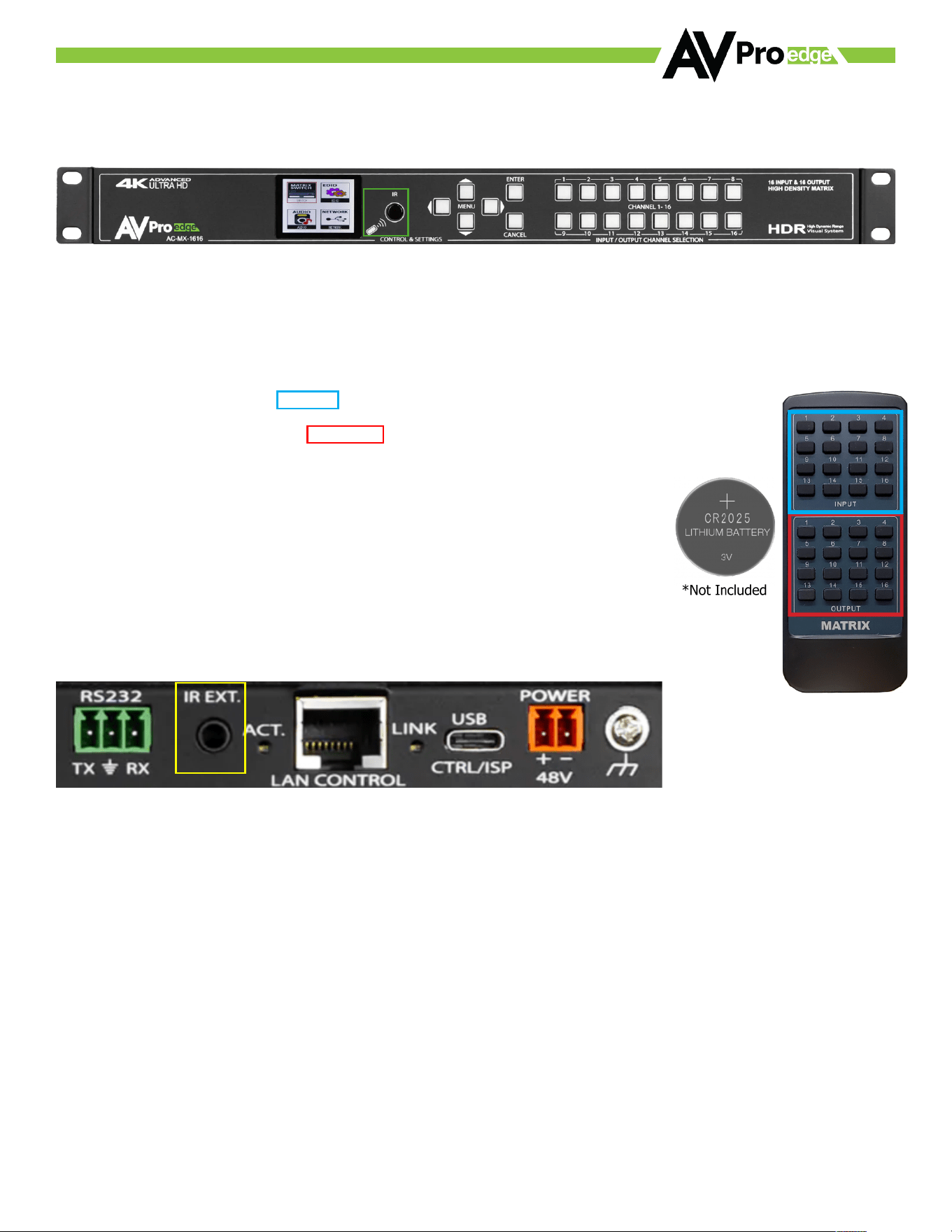
IR Control: IR Remote
IR Remote Control:
When routing HDMI, the matrix can be controlled by using the IR remote supplied with the product (battery not
included, requires CR2025).
The buttons on the top are the INPUTs.
The buttons on the bottom are the OUTPUTs. To make a change, press the desired OUTPUT button
on the bottom first, the press the INPUT button you want to route. So, to route INPUT14 to OUT9,
you would press OUTPUT#9 on the bottom, then press the INPUT#14 button
IR Control: Extension Port
The IR EXT. port on the back can accept an IR Receiving Eye (one included in the box).
©COPYRIGHT AVPRO GLOBAL HOLDINGS 2024 - 2222 E 52ND STREET N SIOUX FALLS, SD 57104 ~ 1.877.866.5112
38
RS-232 and TCP/IP Control:
The AC-MX-1616 can be controlled with either RS-232 or TCP/IP commands. Certain switching
or format configurations can only be done using these commands. We recommend using
either the MyUART (RS-232 - free) or Hercules (TCP/IP - free) apps as they are very easy to use
for sending commands to the machine.
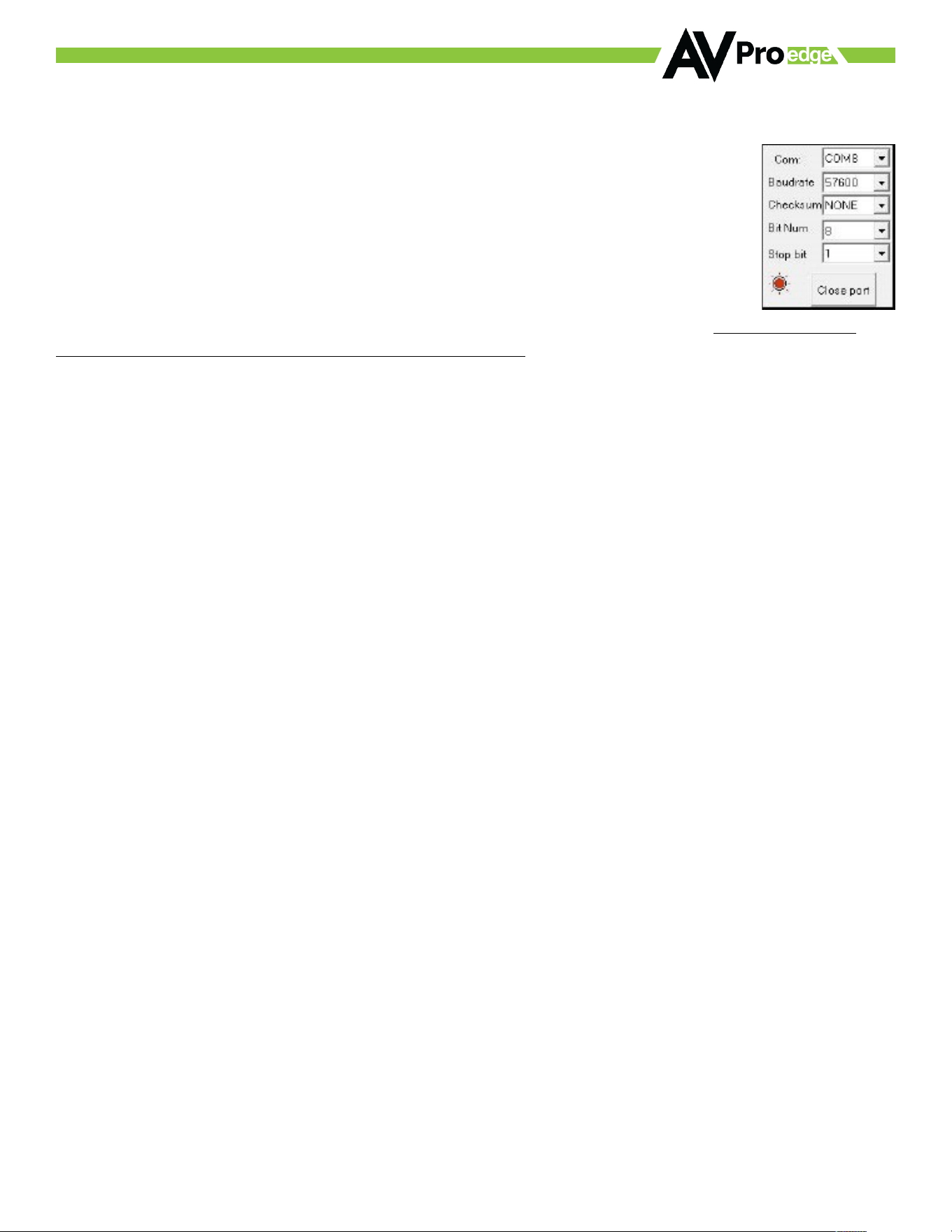
For TCP/IP control commands use Telnet Port 23.
For RS-232, use a null modem serial cable adapter and set the serial communications to: 57600, n,8,1 (baud:
57600, no parity, 8 data bits and 1 stop bit) with no handshaking.
Please add a carriage return (Enter key) after each command when using direct commands. The unified command
list (ASCII) is listed on the following pages. Text version available here, and under the resources tab of on the
products web page.
Extracted Audio:
The extracted audio ports have three distinct operating modes. Your desired mode can be set to suit your
installation.
The 3 modes are:
Bind to Input - This is the default configuration. In this mode the audio port number corresponds to the INPUT
signal. This is ideal for systems where audio is matrixed separately in a zoned amplifier.
Bind to Output - This configuration will automatically have the audio follow OUTPUT, so the audio from the
extracted port always matches the HDMI output. This is ideal for systems that use local AVR’s for some of the
zones.
Matrix/ Independent - This mode allows you to matrix the extracted audio outputs independent of HDMI. In this
mode a new set of commands becomes available to be able to route audio however you want. This can be used as
a separate zoned audio matrix with only using an amplifier.
Balanced 5 pin 2Ch Audio Port:
2 Ch audio only This means for these ports to function the sources must be set to 2 Ch PCM this unit does NOT
down mix the audio.
©COPYRIGHT AVPRO GLOBAL HOLDINGS 2024 - 2222 E 52ND STREET N SIOUX FALLS, SD 57104 ~ 1.877.866.5112
39
Audio Output Logic and Cable Prep:
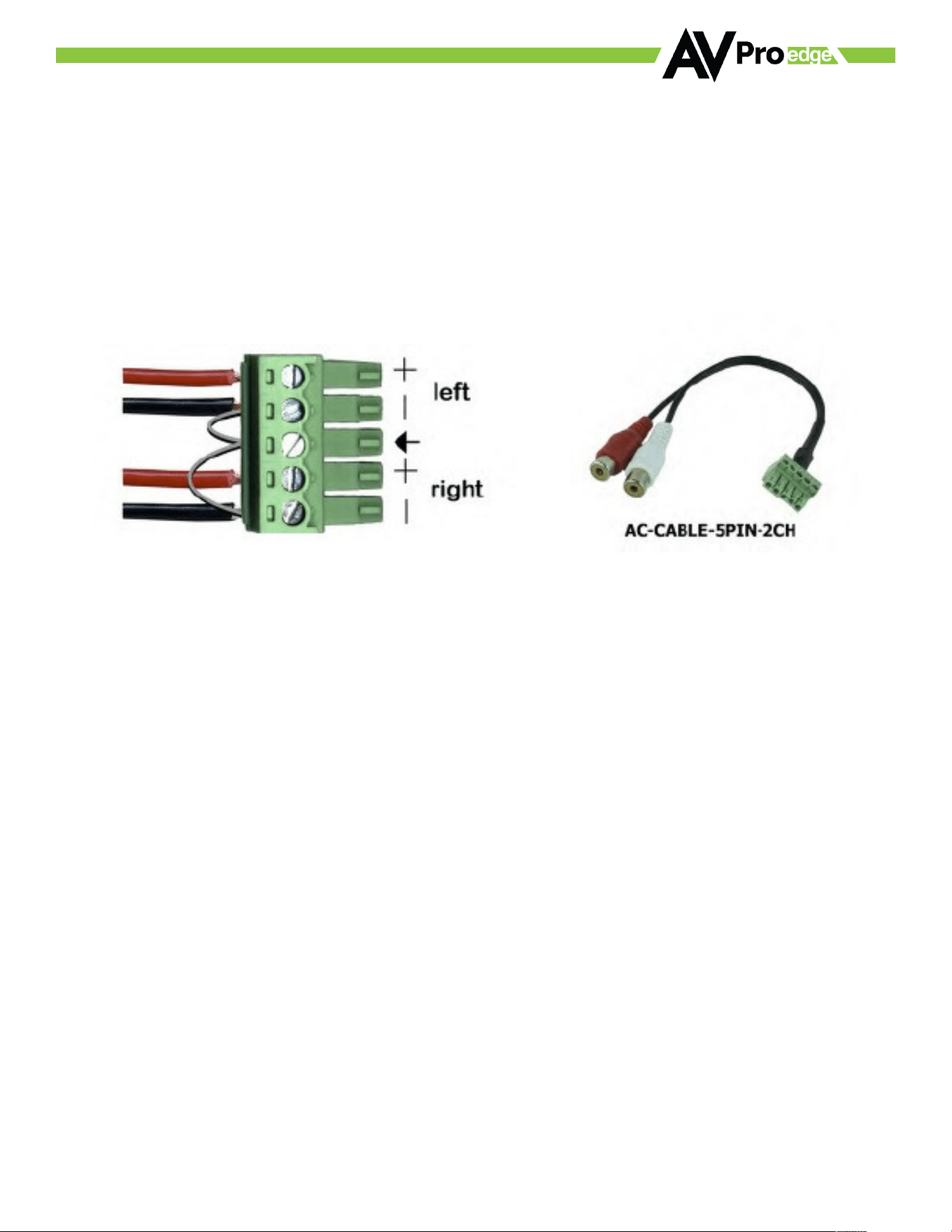
You can extract audio from balance 2CH Audio.
2CH Balanced Audio Port - Supports 2CH PCM audio only, which is ideal for 2 Channel systems and zoned audio
systems.
You can use balanced analog outputs in a balanced system, but you can also prepare a cable as shown below to
convert to a traditional 2CH unbalanced (L/R) system. You can also purchase pre-made cables (AC-CABLE-5PIN-
2CH) four of these are included in the box when purchased.
Troubleshooting
· Verify Power - Check that the power supply is properly connected and on an active circuit.
· Verify Connections - Check that all cables are properly connected.
· IR Issues - Verify correct connections
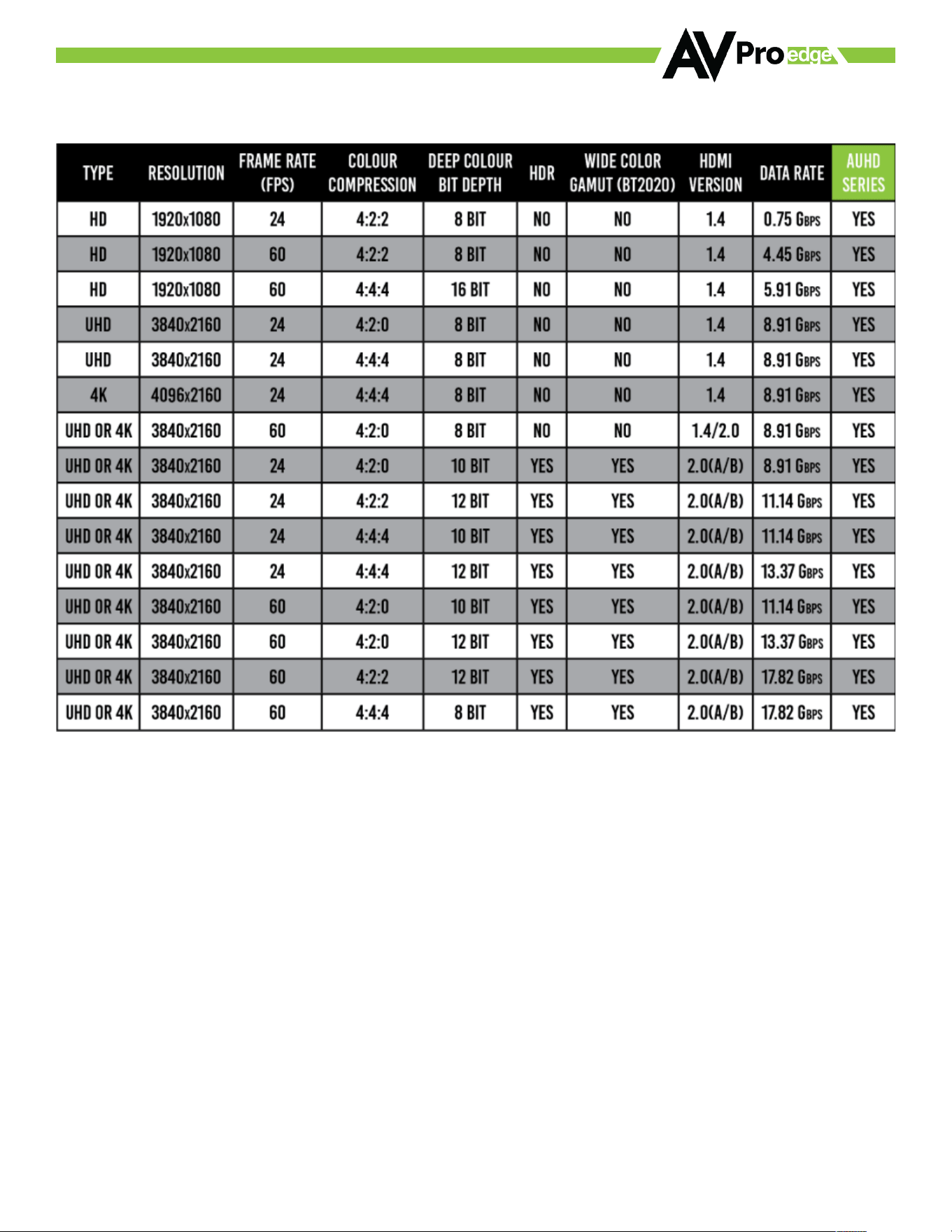
· Lights indicate everything is good but still not getting a picture, this may be a bandwidth limitation. See
Bandwidth Chart below to verify the signal is not exceeding the bandwidth of the Extender kit (limited to 10.2Gbps).
©COPYRIGHT AVPRO GLOBAL HOLDINGS 2024 - 2222 E 52ND STREET N SIOUX FALLS, SD 57104 ~ 1.877.866.5112
40
Bandwidth Chart

©COPYRIGHT AVPRO GLOBAL HOLDINGS 2024 - 2222 E 52ND STREET N SIOUX FALLS, SD 57104 ~ 1.877.866.5112
41
Maintenance
To en sure reliable operat ion of this produ ct as well as protecting the safety of any person using or handling this
device while powered, please observe the following instructions.
· Use the power supplies provided. If an alternate supply is required, check voltage, polarity and that it has
suoicient power to supply the device it is connected to.
· Do not operate these products outside the specified temperature and humidity range given in the above
specifications.
· Ensure there is adequate ventilation to allow this product to operate eoiciently.
· Repair of the equipment should only be carried out by qualified professionals as these products contain sensitive
components that may be damaged by any mistreatment.
· Only use this product in a dry environment. Do not allow any liquids or harmful chemicals to come into contact
with these products.
· Clean this unit with a soft, dry cloth. Never use alcohol, paint thinner or benzene to clean this unit.
Damage Requiring Service
The unit should be serviced by qualified service personnel if:
· The DC power supply cord or AC adapter has been damaged
· Objects or liquids have gotten into the unit
· The unit has been exposed to rain
· The unit does not operate normally or exhibits a marked change in performance
· The unit has been dropped or the housing damaged
Support
Should you experience any problems while using this product, first, refer to the Troubleshooting section of this
manual before contacting Technical Support. When calling, the following information should be provided:
· Product name and model number
· Product serial number
· Details of the issue and any conditions under which the issue is occurring
· Clean this unit with a soft, dry cloth. Never use alcohol, paint thinner or benzene to clean this unit.

©COPYRIGHT AVPRO GLOBAL HOLDINGS 2024 - 2222 E 52ND STREET N SIOUX FALLS, SD 57104 ~ 1.877.866.5112
42
Warranty
THE BASICS.
AVPro Edge warranties its products that are purchased from all Authorized AVPro Edge Resellers or direct
purchases. Products are guaranteed to be free from manufacturing defects and of sound physical and electronic
condition.
AVPro Edge has developed a warranty that anyone can get behind. We really wanted to take all the “redtape” out of
a warranty and just make is simple. Our 10 YEAR NO BS warranty hinges on 3 elements.
1. If you are having trouble, call us. We will attempt to troubleshoot your issue over the phone.
2. If it’s broke - We’ll replace it in advance on our dime. (We’ll cover return shipping too.) Repair is an option
too, but it’s YOUR call.
3. We know you know what you are doing. We will not make you go through unnecessary steps to
troubleshoot an extender...
COVERAGE DETAILS.
AVPro Edge will replace or repair (at customer choice) the defective product. If the product is out of stock or on
back order it can either be replaced with a comparable product of equal value/feature set (if available) or repair.
Your warranty begins at receipt of product (as confirmed by shipping firm tracking). If tracking information is
unavailable for any reason, the warranty will commence 30 ARO (After Receipt of Order). The coverage continues
for 10 YEARS.
RED TAPE.
AVPro Edge is not responsible for untraceable purchases or those that were made outside of an authorized
channel.
If we conclude that a product or serial number has been tampered with as identified by warranty seal or physical
examination the warranty will be void. Additionally, excessive physical damage (beyond normal wear & tear) the
warranty may be voided or pro-rated based on the extent of the damage as examined by an AVPro Edge
representative.
Damage caused by “acts of God” are not covered. They can include natural disasters, power surges, storms,
earthquakes, tornadoes, sink holes, typhoons, tidal waves, hurricanes, or any other uncontrollable event related to
nature.
Damage caused by incorrect installation will not be covered. Incorrect power supply, inadequate cooling, improper
cabling, inadequate protection, static discharge are examples of this.
Products installed or sold by a third party to AVPro Edge will be serviced by the Authorized AVPro Edge Re-seller.
Accessories (IR Cables, RS-232, Power Supplies, etc…) are not included in the warranty. We will make an
acceptable eoort to source and supply replacements for defective accessories at a discounted rate as needed.

©COPYRIGHT AVPRO GLOBAL HOLDINGS 2024 - 2222 E 52ND STREET N SIOUX FALLS, SD 57104 ~ 1.877.866.5112
43
OBTAINING AN RMA.
Dealers, Re-sellers, and Installers can request an RMA AVPro Edge Tech Support Rep or their Sales Engineer. Or
you may email support@avproedge.com or fill out the general contact form at www.avproedge.com
End users may not request and RMA directly from AVPro Edge and will be referred back to the Dealer, Re-seller or
Installer.
SHIPPING.
For USA (not including Alaska and Hawaii). Shipping is covered on advanced replacements for FedEx Ground
(some expressed exceptions may apply). Defective product return shipping is covered by AVPro Edge using an
emailed return label. Item must be returned within 30 days of receipt of replacement product, after 30 days, the
customer will be billed. Other return shipping methods will not be covered.
For International (and Alaska and Hawaii) return shipping costs will be the responsibility of the returnee. Once the
unit is scanned for return shipping AVPro Edge will ship new unit for replacement.
LEGAL STUFF.
Limitation on Liability
The maximum liability of AVPro Global Holdings LLC under this limited warranty shall not exceed the actual
purchase price paid for the product. AVPro Global Holdings LLC is not responsible for direct, special, incidental or
consequential damages resulting from any breach of warranty or condition, or under any other legal theory to the
maximum extent permitted by law.
Taxes, Duties, VAT, and freight forwarding service charges are not covered or paid for by this warranty.
Obsolescence or incompatibility with newly invented technologies (after manufacture of product) is not covered by
this warranty.
Obsolescence is defined as:
“Peripherals are rendered obsolete when current technology does not support product repair or re-manufacture.
Obsolete products cannot be re-manufactured because advanced technologies supersede original product
manufacturer capabilities. Because of performance, price and functionality issues, product redevelopment is not
an option.”
Discontinued or out of production items will be credited at fair market value towards a current product of equal or
comparable capabilities and cost. Fair market value is determined by AVPro Edge.
Exclusive Remedy
To th e maximum ex tent permitted by l aw, t his limi ted warranty, and the remedies set forth above are exclusive and
in lieu of all other warranties, remedies and conditions, whether oral or written, express or implied. To th e
maximum extent permitted by law, AVPro Global Holdings LLC specifically disclaims any and all implied
warranties, including, without limitation, warranties of merchantability and fitness for a particular purpose. If
AVPro Global Holdings LLC cannot lawfully disclaim or exclude implied warranties under applicable law, then all
implied warranties covering this product, including warranties of merchantability and fitness for a particular
purpose, shall apply to this product as provided under applicable law.
This warranty supersedes all other warranties, remedies and conditions, whether oral or written, express or
implied.

©COPYRIGHT AVPRO GLOBAL HOLDINGS 2024 - 2222 E 52ND STREET N SIOUX FALLS, SD 57104 ~ 1.877.866.5112
44
Thank you for choosing AVPro Edge!
Please contact us with any questions, we are
happily at your service!
2222 E 52nd Street North, Sioux Falls, SD 57104
support: 877.886.5112
support@avproedge.com