EVISTR L53 User Manual
PART 1
Thank you for purchasing a recorder from
EVISTR. Customer satisfaction is our priority.
If you have questions or problems, please
feel free to contact to us.
The Booklet Compiled by 7 main parts: Pack-
age Information, Warranty, Product Sketch,
Quick Operation Guide, Basic Operation
Guide, Menu Option, Frequently Asked Ques-
tion
At the Menu Options Parts, we can find all
functions for the devices
Our customer support email:
support@evistr.com
Keep this booklet for future reference.
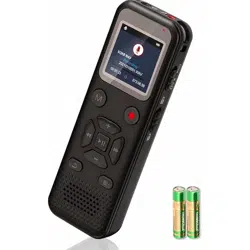
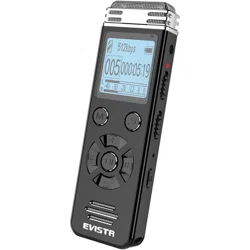
1 x L53 Device
1 year warranty unless registered with
Evistr VIP
Package List
Package Information
Product Warranty
1 x Earphone
1 x LINE IN Cable
1 x External Microphone
1 x USB Cable (for data transfer and
charging)
V1 2
We highly recommend you register at our site to
receive an extended warranty (18months), to
verify the product authentication, and to have
better customer service. Registration is free.
Register VIP within 30days via
http://www.evistr.com/vip
or email support@evistr.com
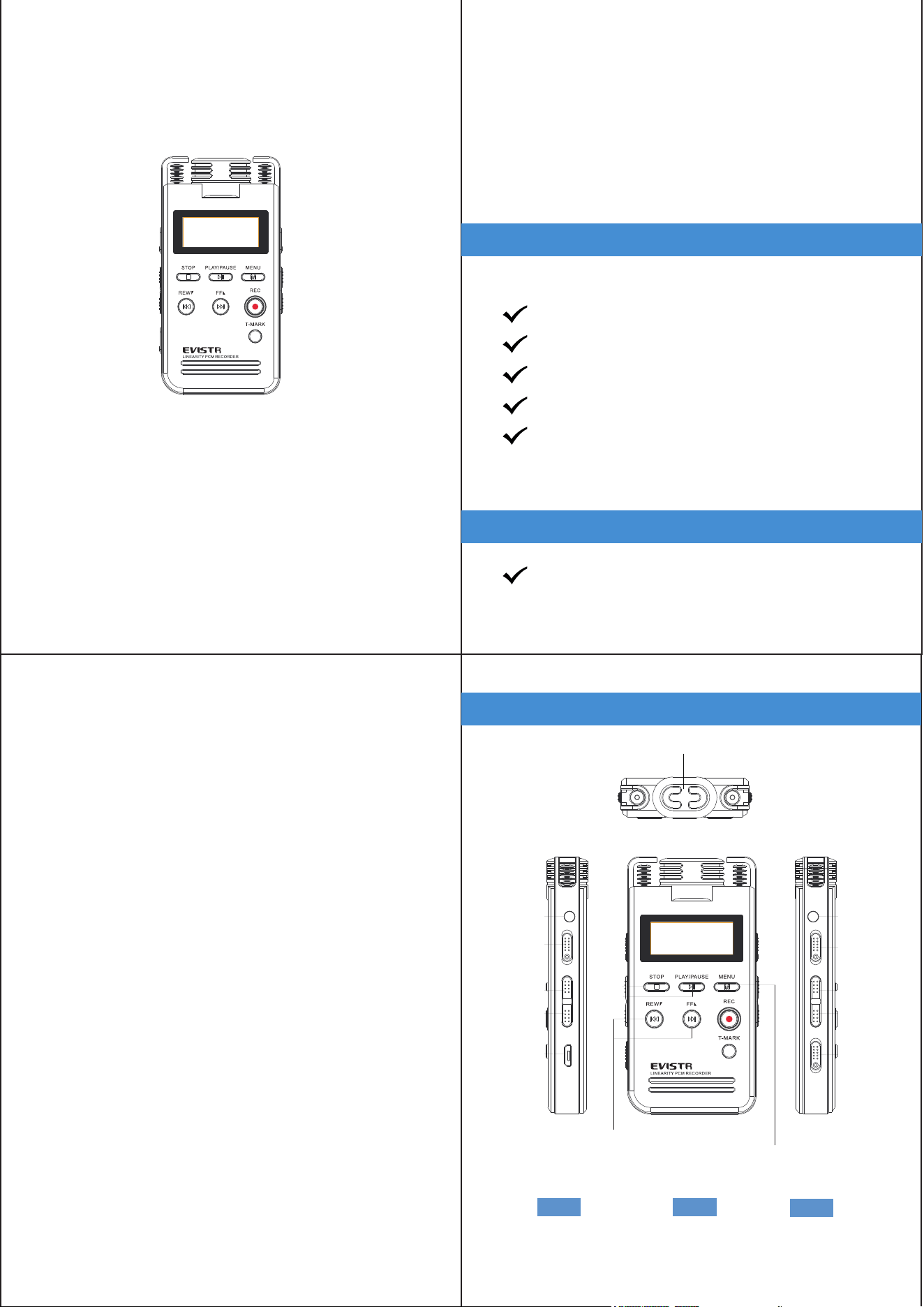
Product Sketch
RIGHT FRONT
LEFT
Built-in MIC
LINE IN Jack
LINE IN Jack
MUSIC/DVR
A-B Repeat
Erase
Power Button
MENU: menu
options / confirm
REW/FF: selection /
fast forward/rewind
Noise Reduce
Vol+
STOP
PLAY/
PAUSE
Vol-
USB Socket
3 4
Learn how to operate the buttons in the
product sketch.
Vol+/Vol-: Adjust speaker volume when
playback; Change MICROPHONE sensitivity
when recording
Speaker: Device has a built-in speaker. You
can hear the playback without earphones.
REW/FF: As Selection buttons , hold it for
rewind / fast forward when playback
M to confirm. Press Stop to return
M: Menu options. Use REW/FF to select, use
Power Button: power on / off device
ERASE: delete file
A-B: lock/unlock device; A-B repeat function
when playback
DVR/MUSIC: switch between RECORD and
MUSIC folder
Built-in Mic: Captures the voice and records.
Do not click on buttons when device is
recording
Earphone: You may plug in earphones to
hear the playback
LINE-IN: Connect LINE IN cable / external
microphone
Denoise: noise cancellation
REC: Button for recording
STOP: Save recording, stop playback
USB: For charging or downloading recordings
to a computer
PLAY/PAUSE: Play recordings or turn on/off
the device
5 6
13 24
5
7
6
8 9
Turn ON device: Press PLAY button for two
seconds to turn on the device. (when power
button at ON position)
Recording: press REC button to begin record-
ing
Quick Start Guide
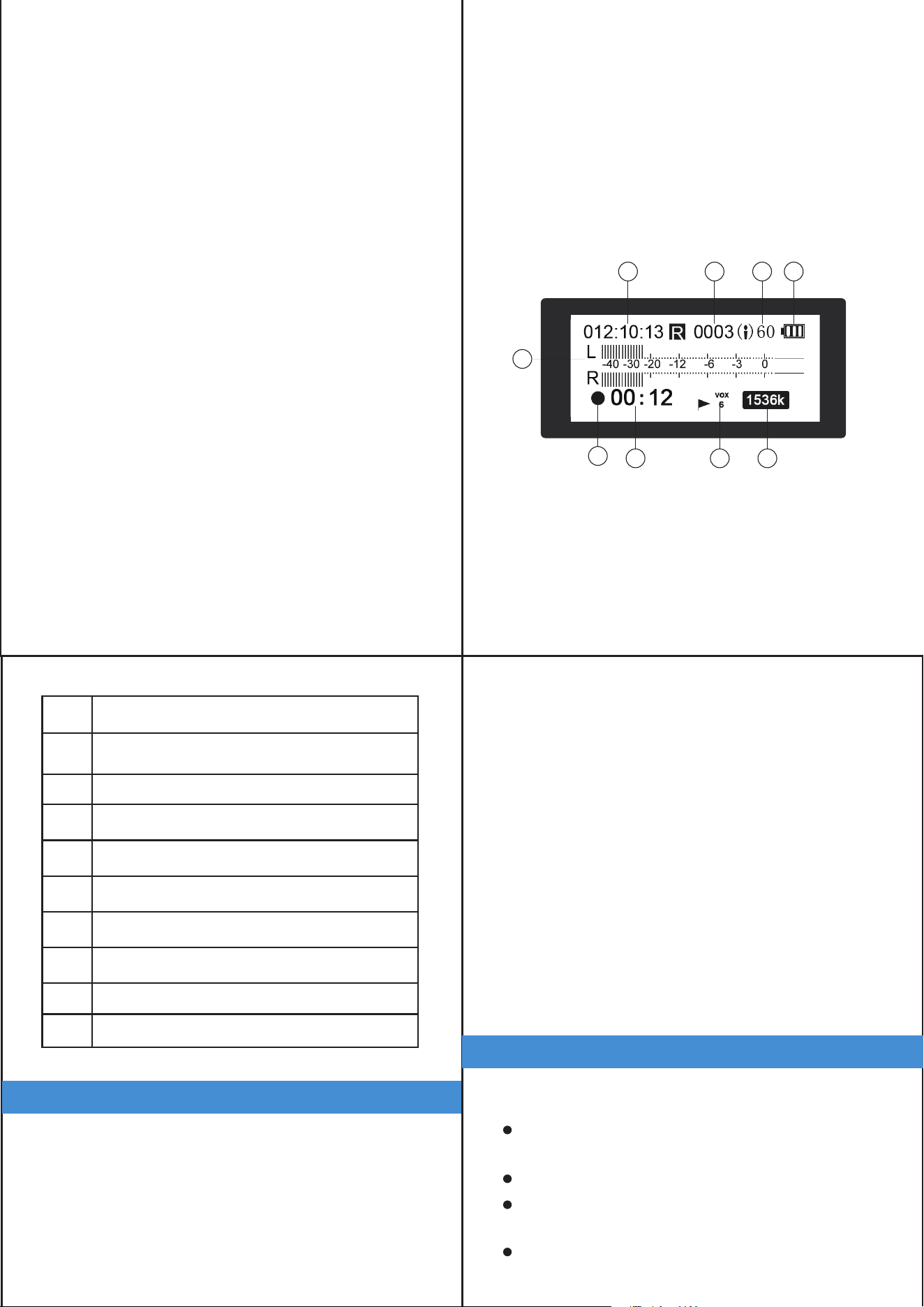
Battery Bar (when battery bar is empty,
battery needs recharging)
NO.
1
Microphone Sensitivity
2
Total Recording File Count
3
Remaining Recording Time (remaining capacity)
4
L / R Channel meter
5
Recording Status
6
Recording time
7
voice activated recording
8
Recording quality bit rate
9
Function
7
Save Recording: press STOP button to save
recording
Delete Recording: when turn on device, press
REW/FF to select file, and then press ERASE
button. We can delete the file we just saw.
Hold down ERASE button to delete all files
Play a Recording: by pressing PLAY button
turn on the device, press REW/FF button to
choose the recording you wish to hear ->
press PLAY
Play Next / Previous Recording: press the
REW/FF button
Fast Forward / Rewind: press and hold the
REW/FF button
Listen to a test file on the device to check
sound levels.
DOs
Important Notice for Using This Device
Backup data as frequently as possible.
Remember to hit STOP and save your
recording each time.
Keep this booklet for future reference.
8
DON’Ts
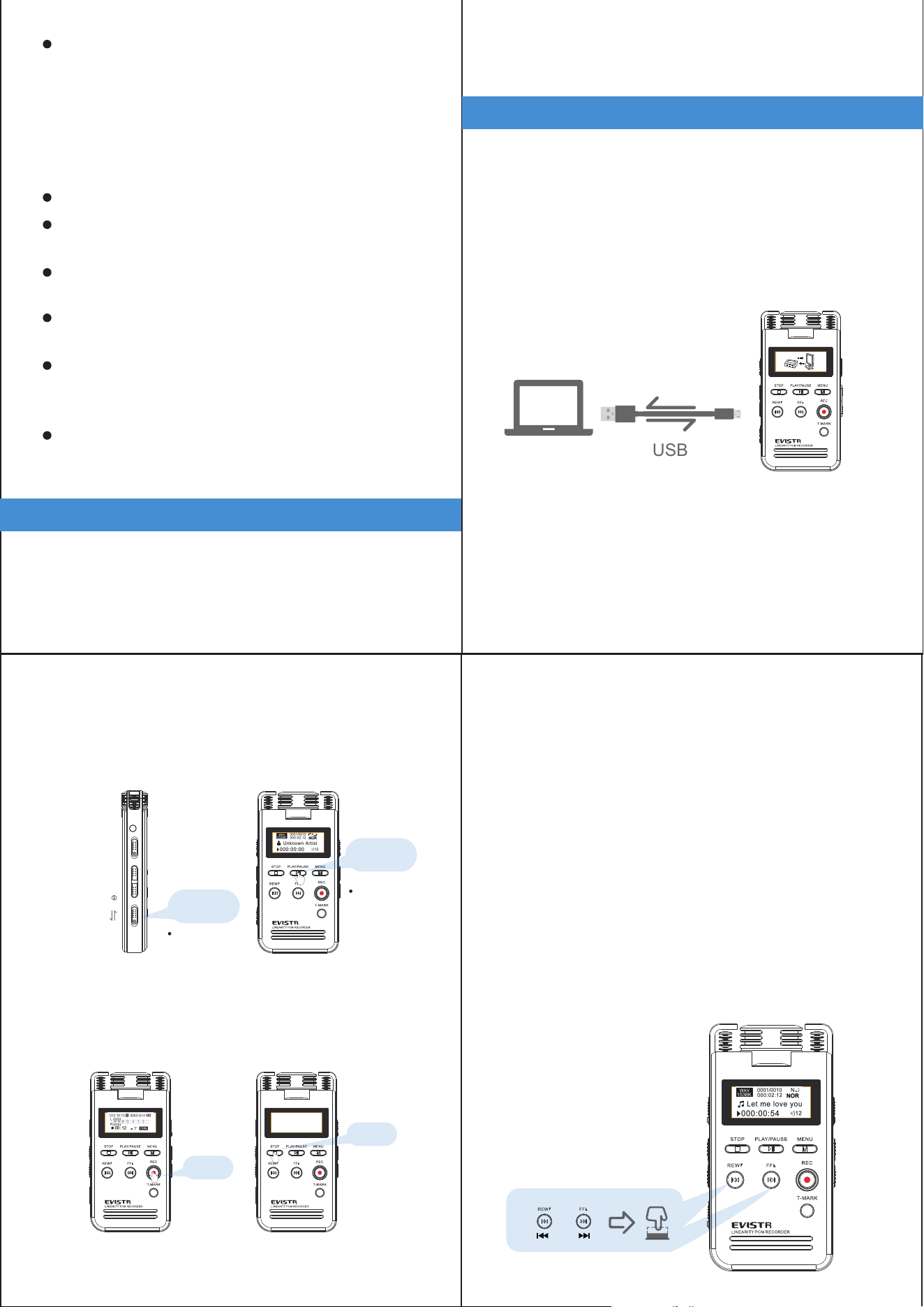
1)Charging the device
2) Download file to computer
Operational Explanations:
Basic Operation Guide
Do not scratch the recorder body.
These instructions will say “hit” or “press and
hold.”
Use the USB cable provided. Connect to a
computer, USB socket, or USB Adapter. The
battery can be fully charged in 2 hours, single
full charge can work up to 12 hours.
Use the USB cable provided to connect to
your computer. Find the file (L53) on your
computer. Drag & Drop or Copy and Paste
the recordings from the recorder file to your
computer and share with friends.
Press and hold: press the button a few seconds
until the screen shows the information.
Hit: a short press of the button.
If typing or writing near the device while
record function is on, it will capture the noise.
Do not delete a file or format the device
unless the files have been backed up.
Do not press any buttons when device is
connected to a computer.
Do not use non-original micro USB cable to
transfer data from device to computer. Not
all micro USB cables support data transfer.
Do not use the Voice Activated Function
unless needed. It may not record some low
decibel voice you want recorded.
Contact customer service with Order ID or
System Firmware Version Information, or
Bar Code on the package for a more
effective reply.
USB
RECORD
9 10
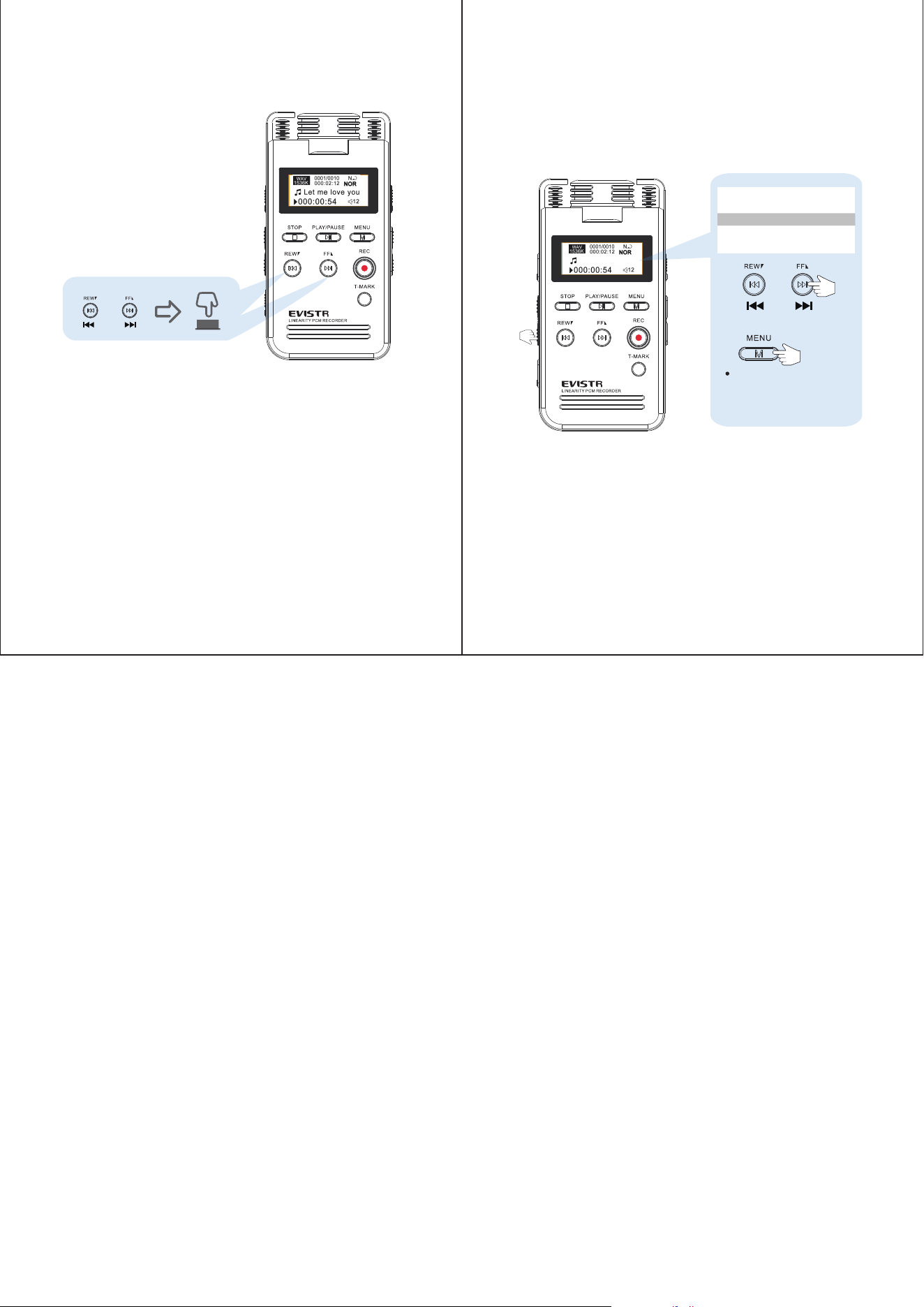
3) Turn on the recorder
4) Recording
5) Pause / Resume Recording
6) Play Recording
7) Adjust Speaker Volume
8) Fast Forward / Rewind
During recording, hit PLAY button to pause
recording.
Once you have saved a recording, hit PLAY
button and play back what was just recorded.
During playback, use + / - to adjust speaker
volume.
During playback,
press and hold FF to
use fast forward.
During playback,
press and hold REW
to rewind.
Hit PLAY button again to resume recording.
Notice: During recording, press VOL+/VOL-,
we can control the microphone gain
Push power button to ON position, in future,
we can press PLAY button to turn ON/OFF
the recording device.
Always
keep power
button On
Hit REC button to begin recording. Press
STOP to save recording successfully, it will
show “saved!”.
ON
OFF
Press and hold
11 12
REC
ON
PLAY
STOP
saevd
press PLAY
turn on / off
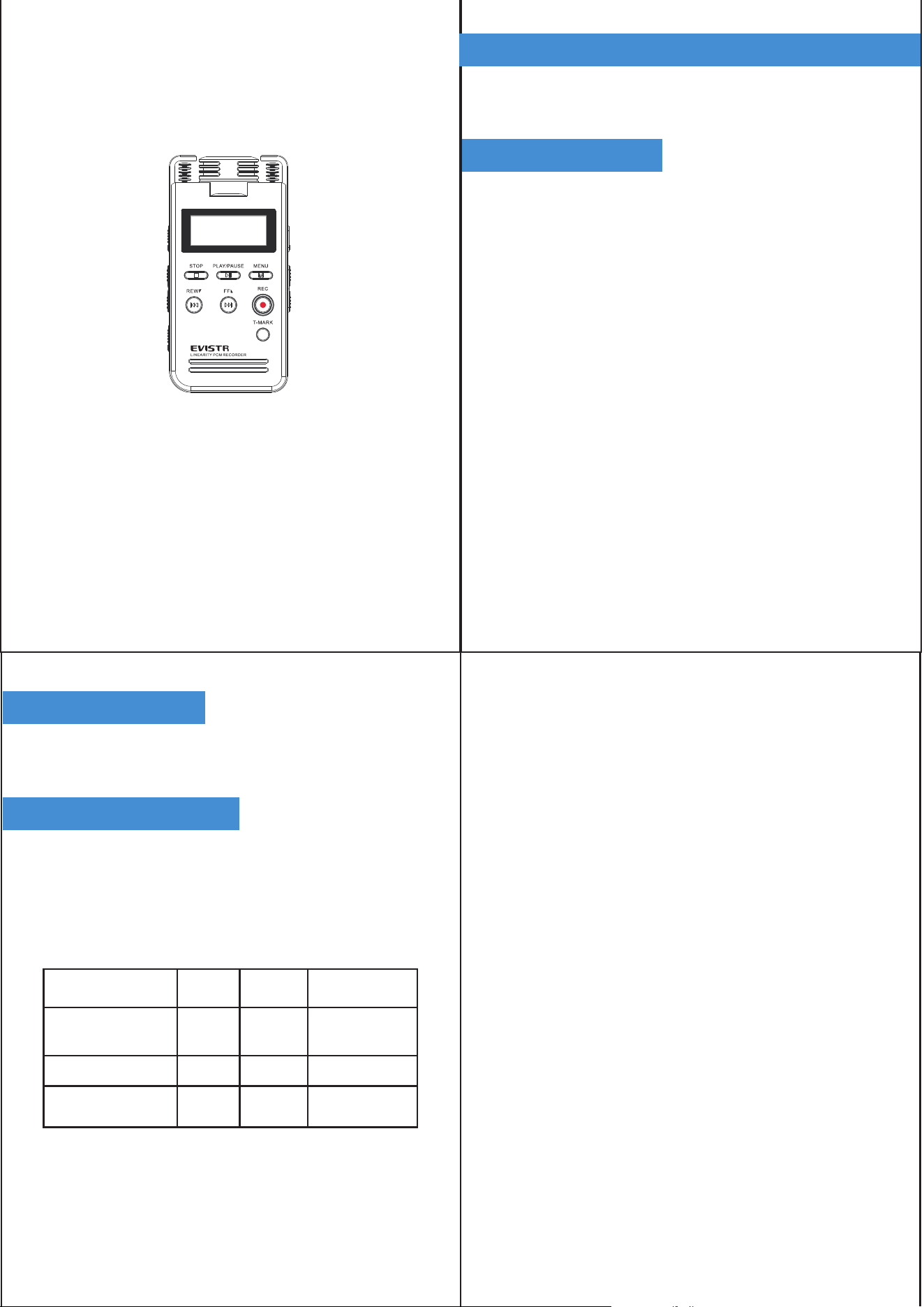
9) Previous / Next
10) Play Music (use as MP3 Player)
11) Delete Recording
Tap REW or FF to select, move to previous /
next recording file (or music track).
NOTE: When turning on the device, we can
press REW / FF button to select file to
Delete, in default, it reads the latest file, so if
we directly go to delete option, it will delete
the latest file.
Turn on the device by pressing Play.
Press REW/FF to select a file to delete ->
press ERASE button, directly enter delete
option
Push the DVR/MUSIC button and switch to
music folder.
Note: the songs do not put inside the RECORD
folder, you could create a new folder for it.
Attach device to computer. Transfer music file
from computer to recorder. Detach device
from computer and turn on.
Tap it
ERASE
201909181...
No
Yes
Select Yes, and tap M
13 14
201909181...
PART 2
L53 User Manual
In this booklet, it contains Menu Options,
T-mark Functions and FAQ, at this parts we
can find all the functions the device had.
The menu option part have listed a full func-
tions of the device sequenced as the menu
options
Menu Options
The M button works as OK/Confirm in menu
options
We can set the Equalizer, off, Rock, Popular,
Soft, Jazz, Classical, Techno
Repeat Settings: it sets for A-B repeat, in this
option, we can set replay times, replay interval
Repeat all: repeats all files in directory from
A-Z again and again.
Press Play (turn on device)-> tap M -> Play
Setting -> Hit M
Shuffle: play file in random, in this option, we
can turn on/off the function
Repeat one: repeats single file again and again.
Repeat: in this menu options, we can select
repeat 1, repeat all, repeat off
1.1 Play Mode
1.2 Sound Settings
2V1
1. Play Setting
2. Folder View
Press Play (turn on device) -> hit M -> use
FF/REW to Record Settings -> hit M
Select at this settings, hit M, we can choose
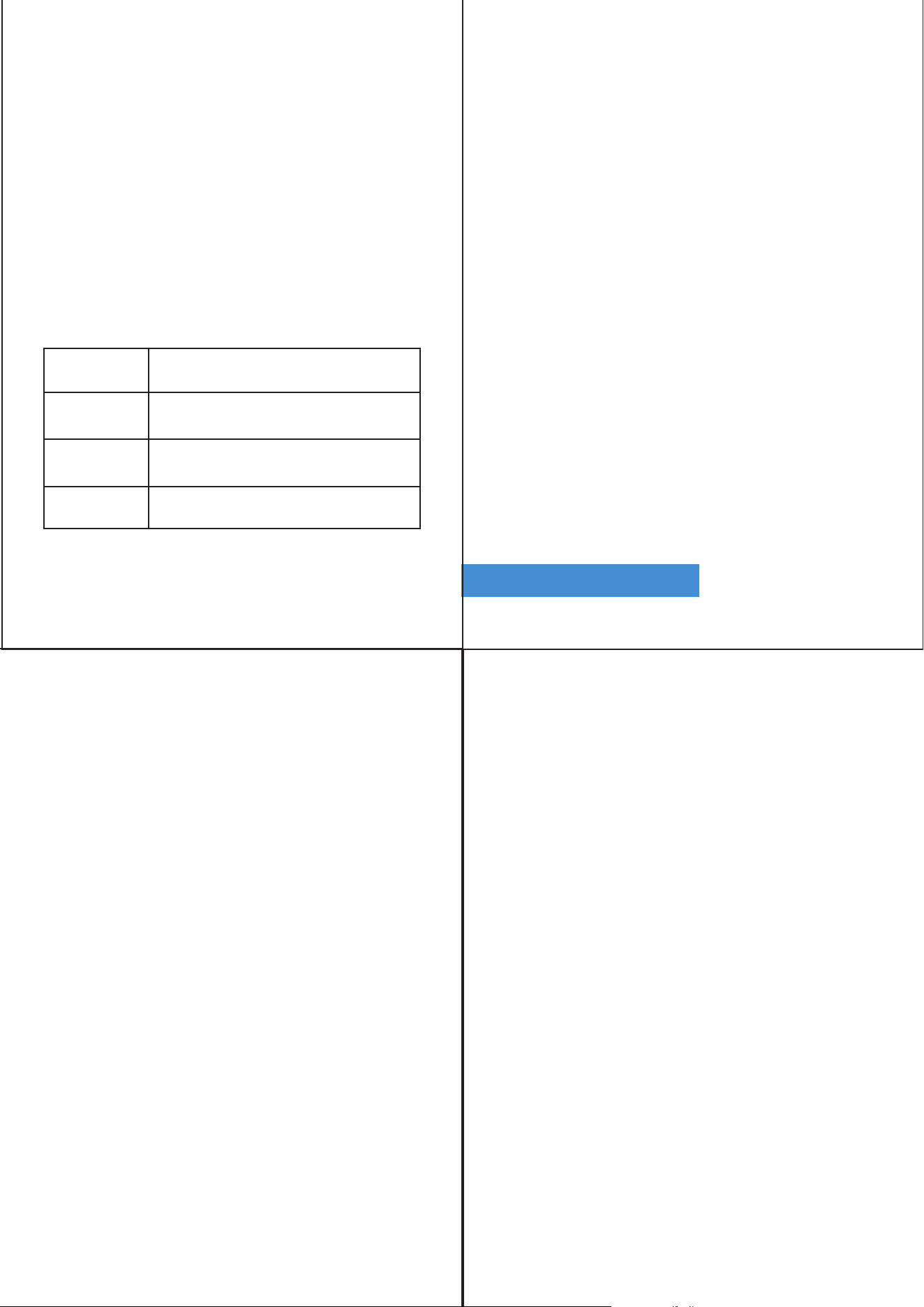
Options Format
WAV
MP3
MP3
BitRate
1536kpbs 12Hours
145hours
290hours
128kbps
64kpbs
8G Recording
time length
PCM RECORD
(default setting)
High Quality Record
Long Time Record
At this option, we can see All Folders on the
devices. All recordings was saved into the
RECORD folder
Select at this settings, hit M, We can choose
the recording file time length at Half Hour,
One Hour, Two Hour, CLOSE.
When this function was set, the recording
device will automatically save a file at the
selected time length and start a new recording,
unless we press STOP to save and finish the
recording task.
When this function was ON, we press REC to
record, the device will detect whether there is
loud enough voice or not. If voice detected, it
start a new recording. No voice detected more
than 5 seconds, it will save file.
AVR Switch: turn on / off Activated Voice
Record Mode
AVR Level: select the voice activated recorder
sensitivity level
At AVR mode, we still need to press STOP to
save recordings when we complete a record-
ing task.
Voice Activated Sensitive Level
3.1 Recording Quality
3.2 Subsection Record
3.3 Track On Record
3.4 AVR Mode
3 4
3. Record Settings
Options What is for
Use the built-in microphone to record
Use for recording with telephone adapter
Use for recording with line in cable, or
external microphone
Microphone
Telephone
Line In
From Level 1 to Level 5: Level 1 only picks up
voice or sound above 70db, a very loud sound.
Level 5 is very sensitive, so any quiet sound
will be recorded. (i.e. normal environmental
noise will activate recording).
Turn On, plug in earphone, we can hear and
monitor what it is recording
Record on/off: turn on the auto record function
Start Time: set when the device start to record
End Time: set when the device save file and
stop record
Record Cycle: set auto record function cycle. It
can function at Once, Daily or Work Day
To use this function properly, we must do this:
A. Set correctly system time for the device
B. Keep the power button at ON position,
ON: default. LED indicator light is ON. OFF:
turn off the LED indicator light.
Return to up level menu choice
Note: do not turn on this function for important
lectures or meetings. It may skip or lose some
very important sentences at low decibels. Use
regular on/record/stop for meetings.
At this option, we can choose Microphone,
Telephone, Line In
3.5 Record From
3.7 Auto Record
3.8 Record LED
3.9 Exit
3.6 Record Monitor
5 6
4. System Settings
Press Play (turn on device) -> hit M -> use
FF/REW to System Setting -> hit M
It can set 10seconds, 20seconds, 30seconds,
always on.
Select at Set Time, Hit M
Press REW/FF to adjust, press PLAY to move
next. When set correctly, hit M to confirm and
finish setting.
When always on, the device screen will not go
dark, it will consume a lot of battery power.
OFF: close this function
Set sleep timer: use FF/REW to set the sleep
timer, range from 1 to 240 minutes
Notice: When this function was ON, device will
count down at the set time, and force to shut
down the device when time was elapsed
4.1 Sleeper Timer
4.2 Backlight Timer
4.3 Date and Time
4.3.1 Set Time
7
Press REW/FF to adjust, press PLAY to move
next. When set correctly, hit M to confirm and
finish setting.
This will format the disk and erase all data on
the device, so remember to back up important
files before doing.
Select Yes, press M confirm. Device will start
to reformat and erase all data. Wait until the
device reboots and completes the process.
Device shows the firmware version and the
release date.
English default. We can select for other
language of the device. If, unfortunately,
the device is set to the wrong language,
please contact customer service. sup-
port@evistr.com.
Device shows the free space and total space.
4.5 Information
4.4 Language
4.6 Format Device
4.5.1 Player Information:
4.5.2 Disk space:
4.3.2 Set Date
8
1. Add T-Mark to Recordings
2. Edit Recordings
2.1 Voice Cut:
2.2 Voice Divide:
2.3 Voice Insert:
T-Mark Function
Note: Do not turn off power when formatting
device. If, unfortunately, the devise is mistak-
enly cut off, it will show as disk error.
Push down the power button from ON to OFF
position. Connect the device to a Windows
computer, and format the disk from the com-
puter to return to normal state.
Restores to factory default. Very helpful if
confusion arises when creating settings.
Select Yes, press M to confirm. Device will
start to restore factory settings. When com-
pleted, it will show Restored!
T-Mark: when record at WAV format, it can
add max 10 bookmarks for the file. It will
display a small flag when adding T-mark.
During Recording, hit the T-mark button, we
can add a flag/bookmark for the recording
So when playback the recording, we press
FF/REW, instead of moving to next file, we
can directly jump the bookmark position.
For the file recorded at wav format, we can
edit the recording by pressing T-mark button
When playback a recording file at point, and
we stop, Voice Cut, we can cut the rest file,
and drop it.
When playback a recording file at point, and
we stop, Voice Divide, we can split the record-
ings into 2 files at that point
When playback a recording file at point, and
we stop, Voice Insert, we can insert new
recording at that point
Note: If you are using a MAC computer,
please contact our customer support. Refor-
matting on a MAC computer needs different
options.
To correct disk error.
4.7 Factory Setting:
9 10
2.5 Go to Bookmark:
2.6 Delete Bookmark:
1) No Voice Recordings
2) How to Turn Off the Record Light
2.4 Voice Append:
Technical Parameter Frequently Asked Question
If a recording had bookmarks, go browse it
If a recording had bookmarks, go to delete it
Product Dimension 3.5 X 1.8 X 0.55inch (88 x 45 x 14mm)
Memory
Battery
Support Music
Format
8G / 16G / 32G (Subject to the device)
3.7V 800mAH Lion Polymer
Max Recording
Battery Time
Full charged, recording at 64kpbs
could work 15 hours
MP3 / WAV / FLAC / APE / OGG / WMA
Music Playback
Battery Time
12 hours (single full charged with
earbud, screensaver)
Product Weight 90g (3.17oz)
Screen Size 1.1inch, 128 X 48 LCD
When playback a recording file at point, and
we stop, Voice Append, we can append new
recording at the end of that recording
If there is no voice recording or all recordings
have been deleted, when device is turned on it
will display “no voice recordings” or “no songs”
on the screen. Not to worry, go ahead and
press REC or M (menu).
Go to Menu Choice -> Record setting ->
REW/FF button -> Record led -> select OFF.
When recording, the record light will not light
up or flash.
USB Socket USB 2.0 High Speed (Charging and
Data Transfer)
Charging Input < 1A 5V
Record Bit Rate 1536kpbs, 128kpbs, 64kpbs
Windows98 and later version, XP,
Windows 7 /8 /10
Support System
Earphone Output
Max 10mW+ (30Ohm), Freq 20Hz -
20KHz, S/N ratio > 90db, Distortion
factor 0.05%
11 12

3) Format Error
4) Disk Error
5) Failed to Connect to Computer
6) Can Recordings Be Deleted from the
Computer?
7) Cannot Find My Recordings in the
Recorder
8) It Show LOCK, No button works
During recording, pushing down the POWER
BUTTON to OFF position will cause file
damage. Before switching off recorder, first
press STOP to save the recordings.
Due to static shock, like over charging, record-
er cuts off its power when the formatting
process doesn't complete, and device loses
system firmware.
Yes. When the recorder is successfully connect-
ed to a computer, find it as the removable drive
name “L53.” All recordings are saved in a folder
named “RECORD” in the drive.
the recorder. Otherwise, it will exit connection
mode, and fail to connect to the computer. At
this status, it will only charge the voice recorder.
For more failed connect to computer issues,
please contact us. We will reply promptly.
You may delete the file or copy the file onto an
ordinary USB Flash Drive.
Check if it was read the MUSIC folder, push the
DVR/MUSIC button to DVR position.
Press and hold A-B button to unlock
Before connecting the recorder to a computer,
turn off the recorder.
When connecting to a computer, do not press
any buttons on the recorder or do any operations
How to Rescue: Keep power button at OFF
position, connect device to Windows computer,
and format the recorder disk again. Device will
be normal.
This usually happens because of three reasons.
The recordings time is less than 5 seconds.
13 14