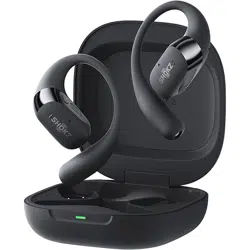

T511
User Guide
OPENFIT AIR
APP
Download the Shokz App
The Shokz app allows you to switch EQ modes, con-
nect to two devices simultaneously, customize
touch controls, upgrade firmware, and more. Down-
load the app now for a simple and seamless audio
experience.
*Apple and the Apple logo are trademarks of Apple
Inc., registered in the U.S. and other countries. Google
Play is a trademark of Google LLC.
Catalogue
Catalogue
IN THE BOX
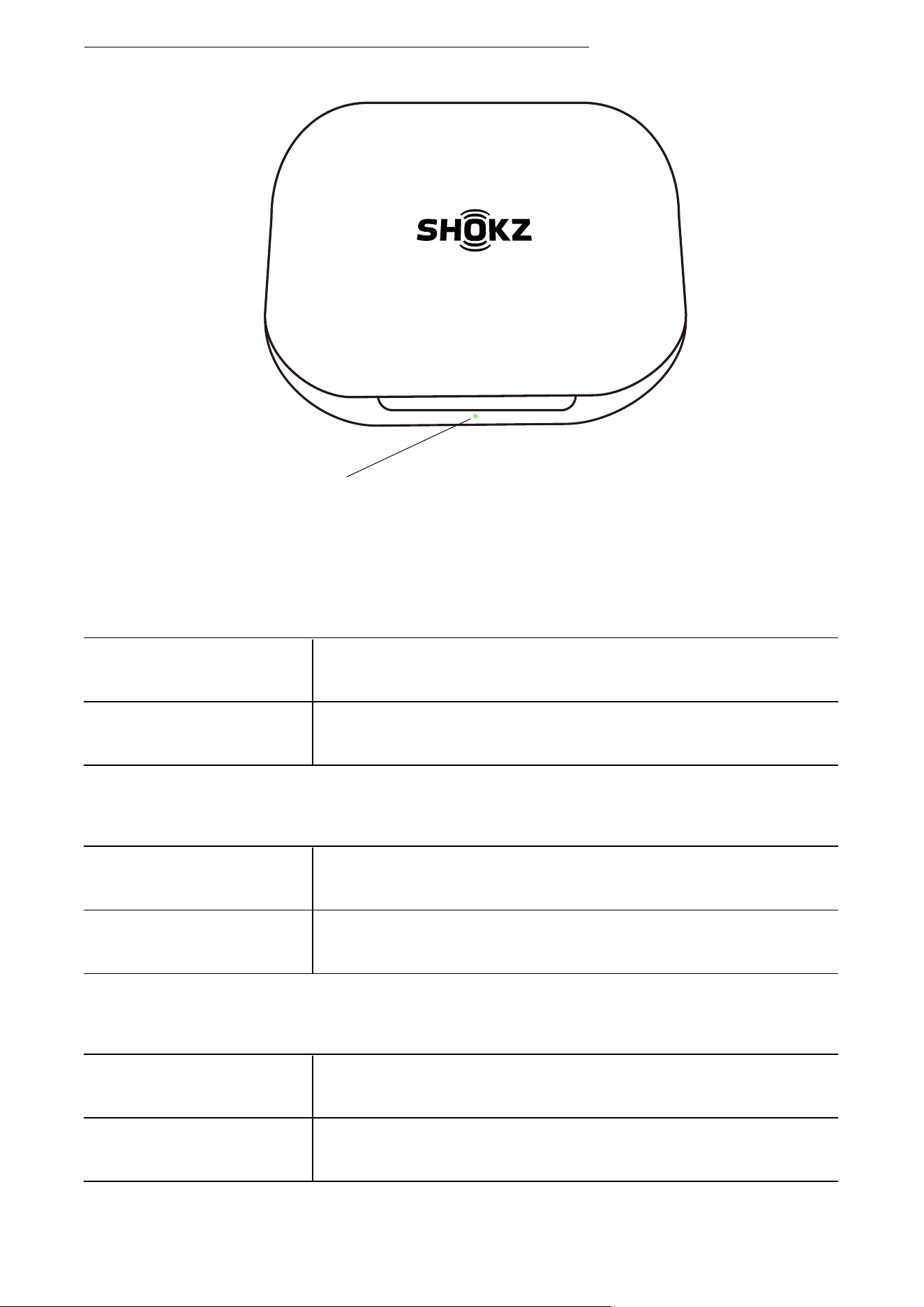
Charging Case Indicator LED
INDICATOR LED
WEAR & USE
Pairing
Earbud Diagram
Wearing
Call Control
Volume Control
Music Control
TOUCH CONTROL
03
05
12
17
06
Charging Case
07
08
10
13
14
15
Charging the Earbuds
Charging the Charging Case
On/Off/Standby
POWER SOURCE
20
21
23
24
18
Single Earbud Control
16
01
02
IP rating
32
AFTER-SALES SERVICE
Warranty
Serial Number Location
34
35
33
Auto Connect
MultiPoint Pairing
ADDITIONAL FEATURES
25
Cleaning
MAINTENANCE
31
30
26
28
Resetting
29
Catalogue

03
In the Box
In the Box
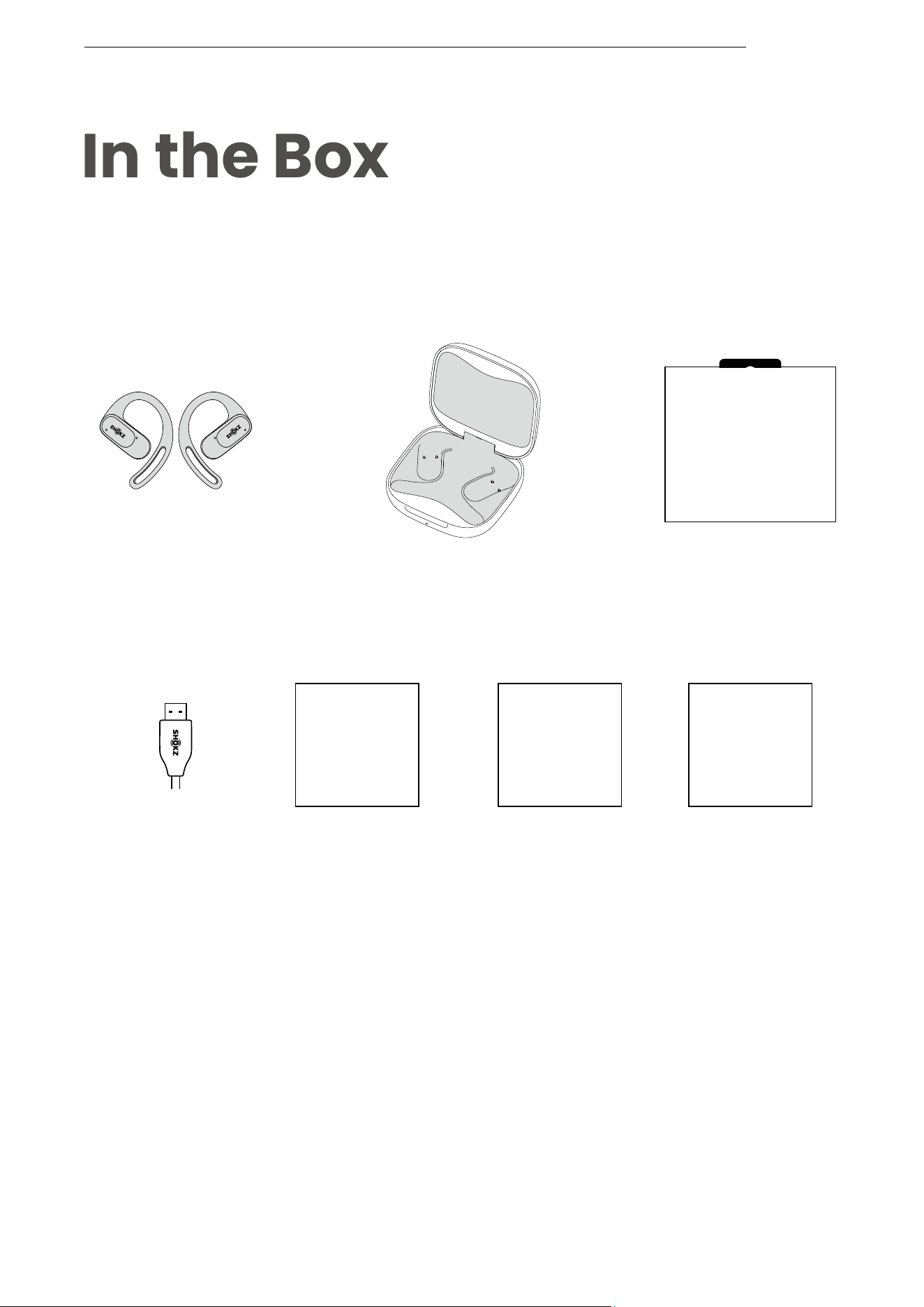
Do not use the product if any of the above items are missing
or the product is damaged. Please contact your dealer, or
reach out to us immediately.
(See Page 33 : After-Sales Service - Contact Us)
User Guide *1
User Guide
Legal Statement *1
Legal
Statement
In the Box
OpenFit Air
True Wireless Earbuds *2
OpenFit Air
Charging Case *1
OpenFit Air
Packing Box *1
OPENFIT AIR
USB-C
Charging Cable *1
Warranty
Warranty Card *1
04
Wear & Use
05
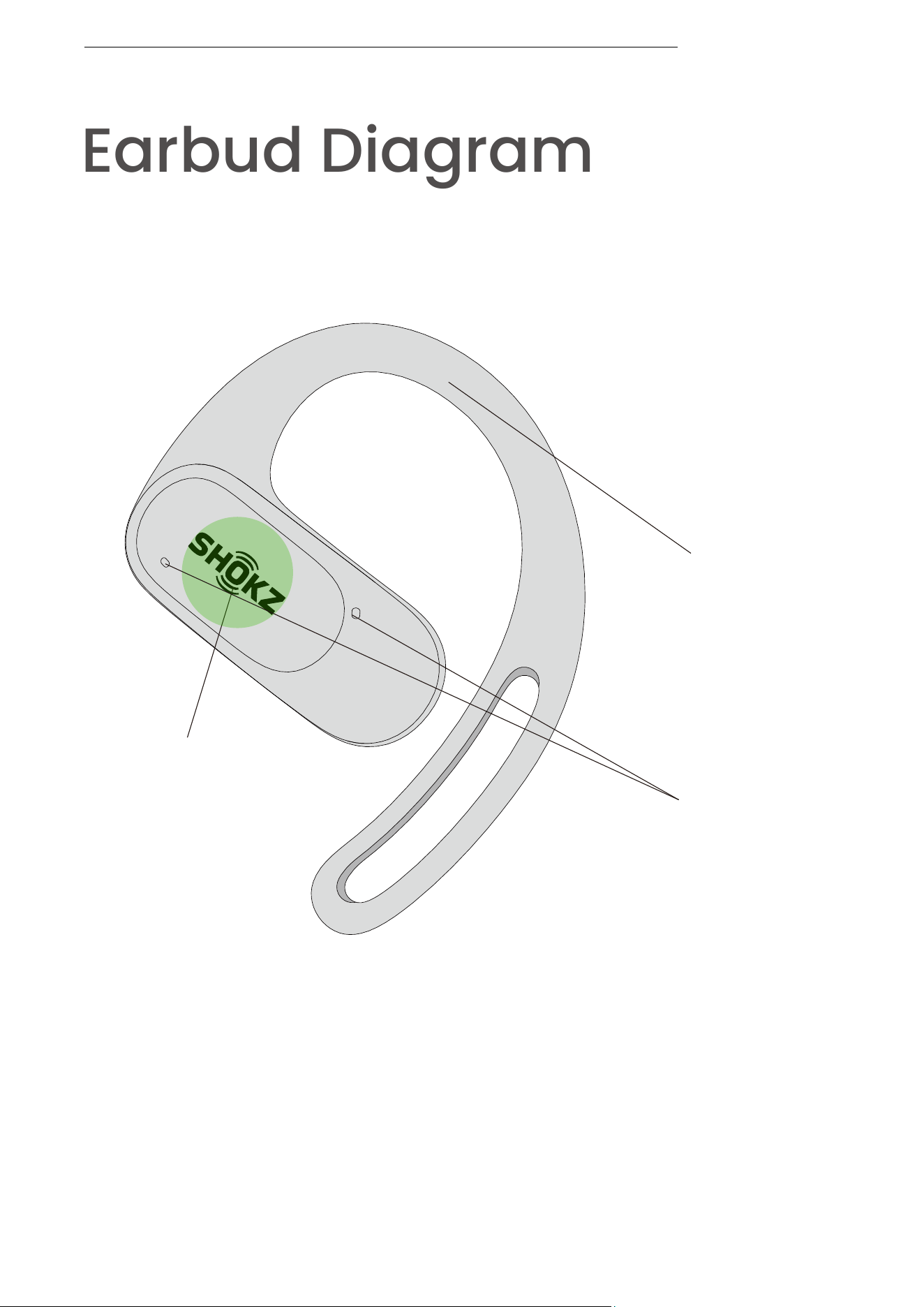
Ear hooks
Earbud Diagram
Earbud Diagram
Touch area
*The touch button is located on the area of the earbud with the Shokz logo.
Microphone
06
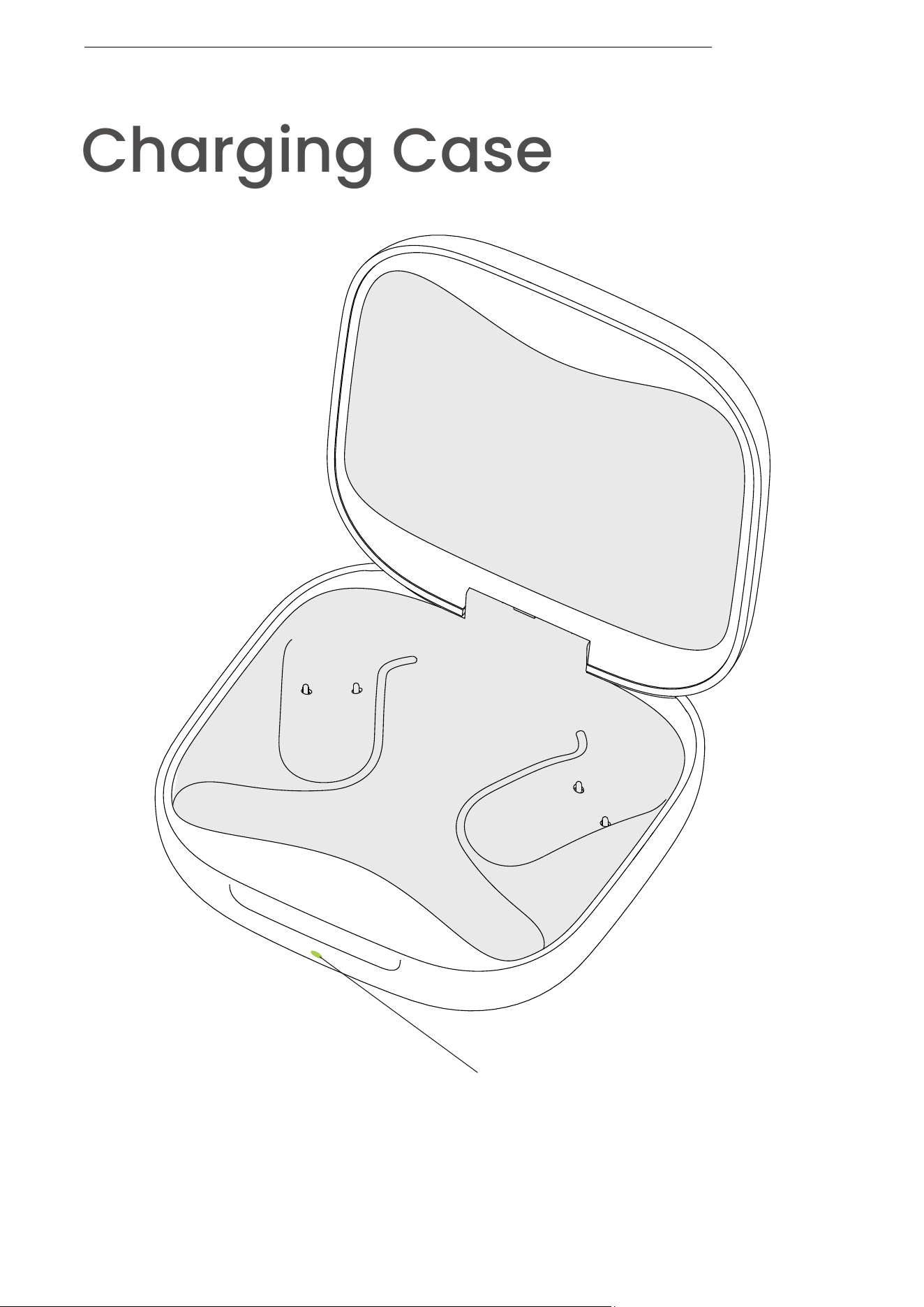
Charging Case
Charging Case
Charging Case Indicator LED
07
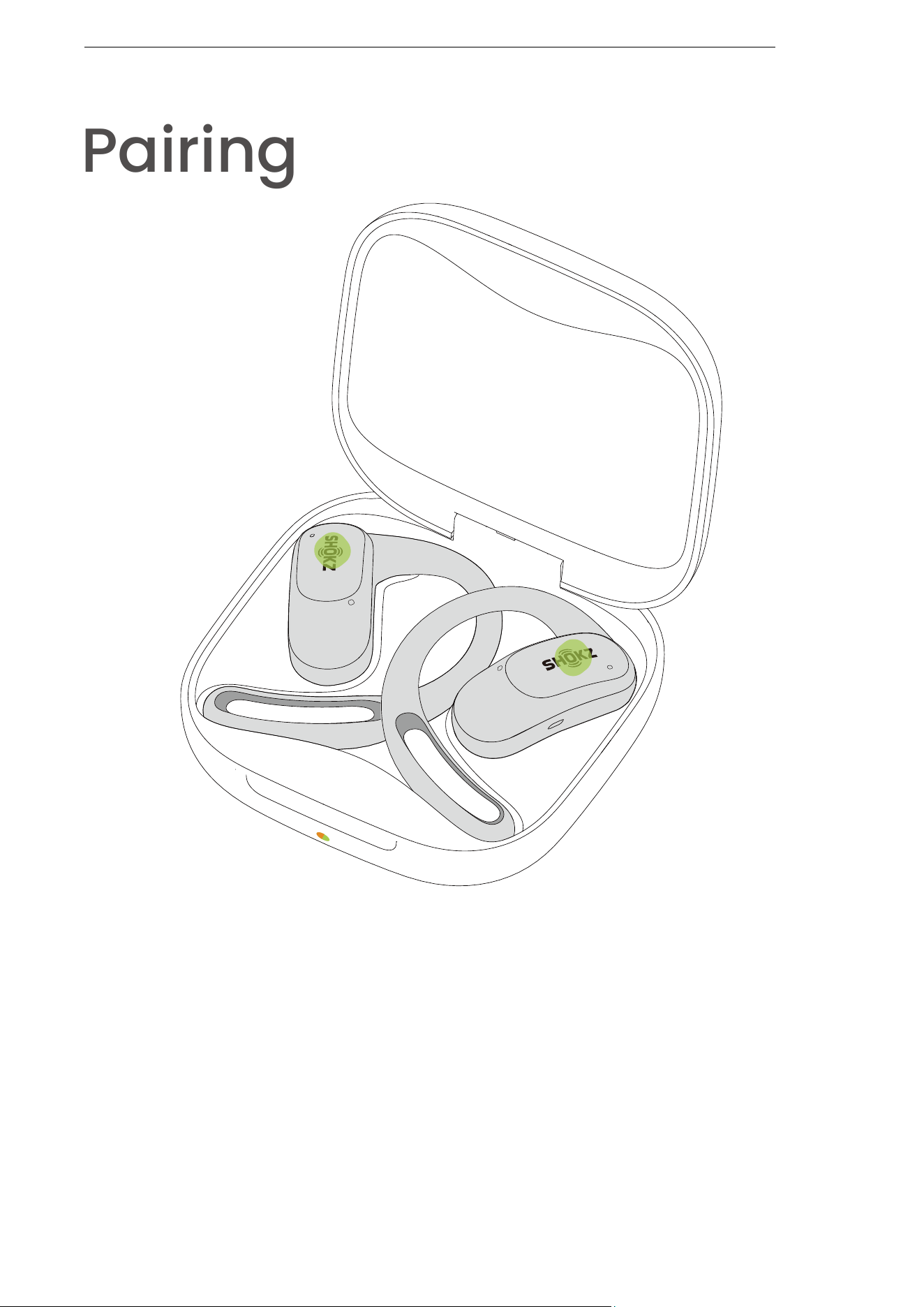
Pairing
Pairing
When using for the first time: Open the charging case
to immediately enter Bluetooth pairing mode, with the
indicator light flashing orange and green.
For subsequent pairings:
1. Place both earbuds into the charging case;
2. Simultaneously press and hold the touch area of
both earbuds with two fingers (one finger per earbud)
until the indicator lights flash orange and green, indi-
cating that the earbuds have entered pairing mode;
08
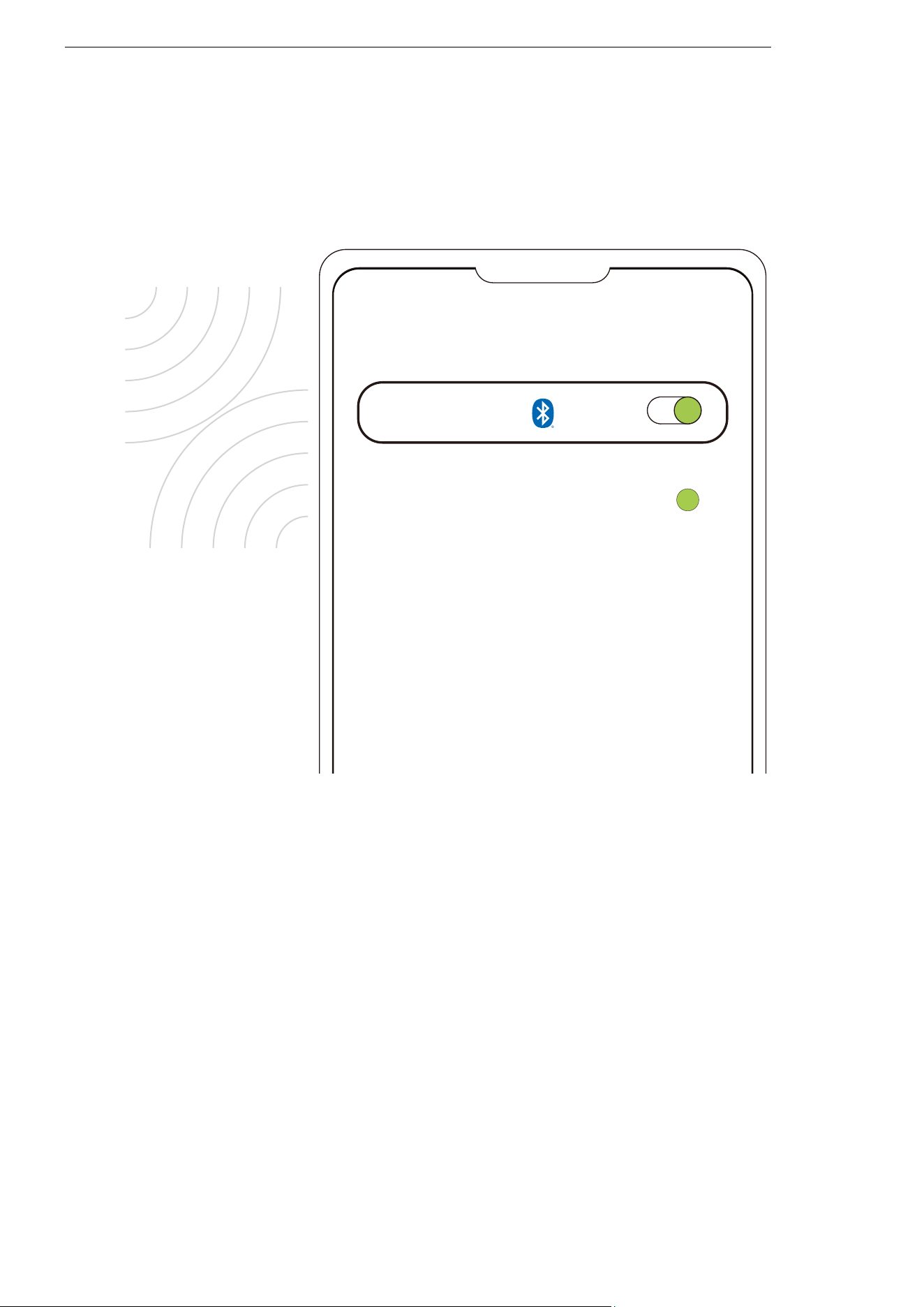
3. Enable the Bluetooth function and select "OpenFit Air
by Shokz." The device will display the successful pairing
when complete.
Settings
Bluetooth
OpenFit Air by Shokz
Pairing
09
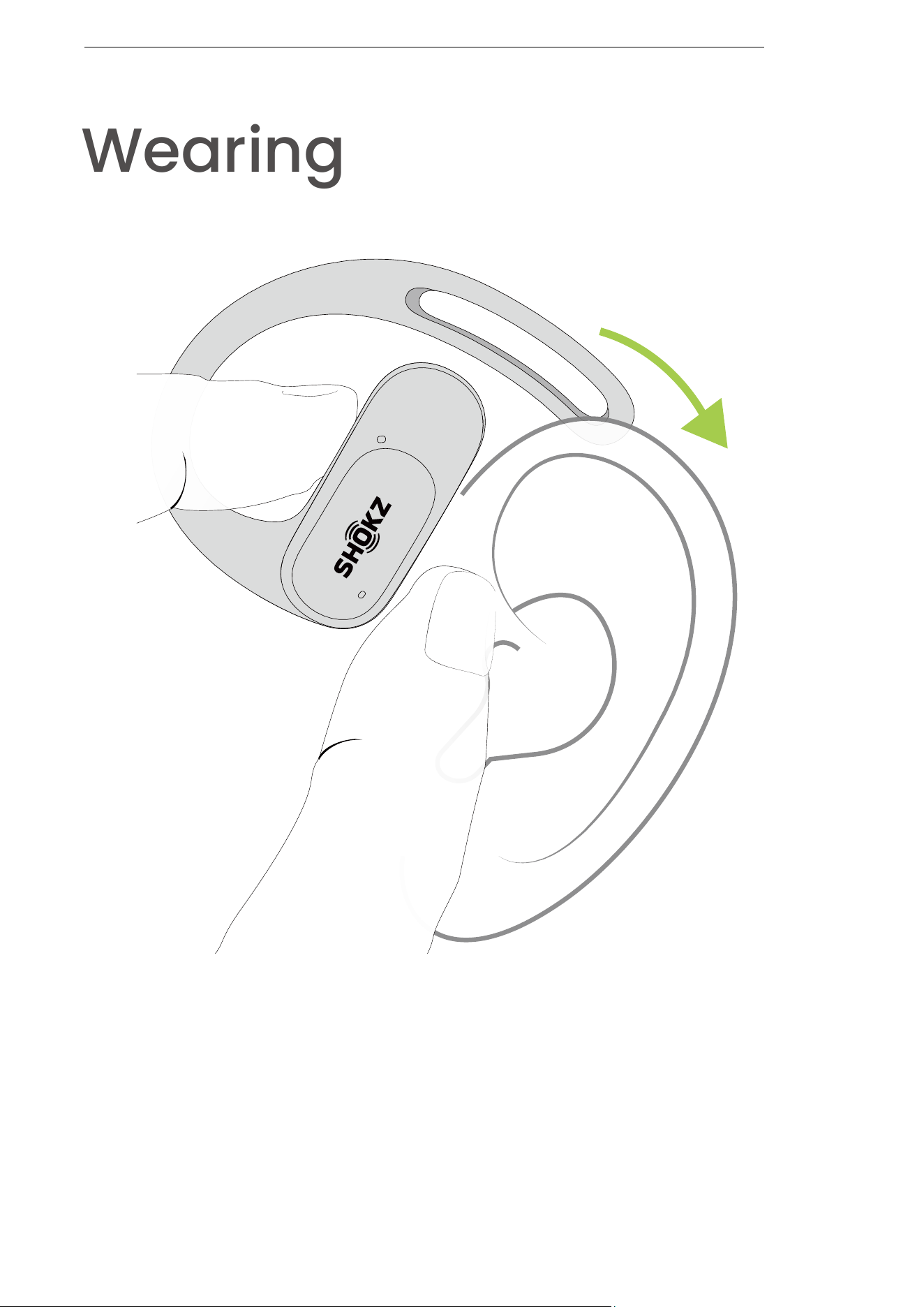
1. Take the earbuds out of the case.
2. Position them above your ears.
Wearing
Wearing
10
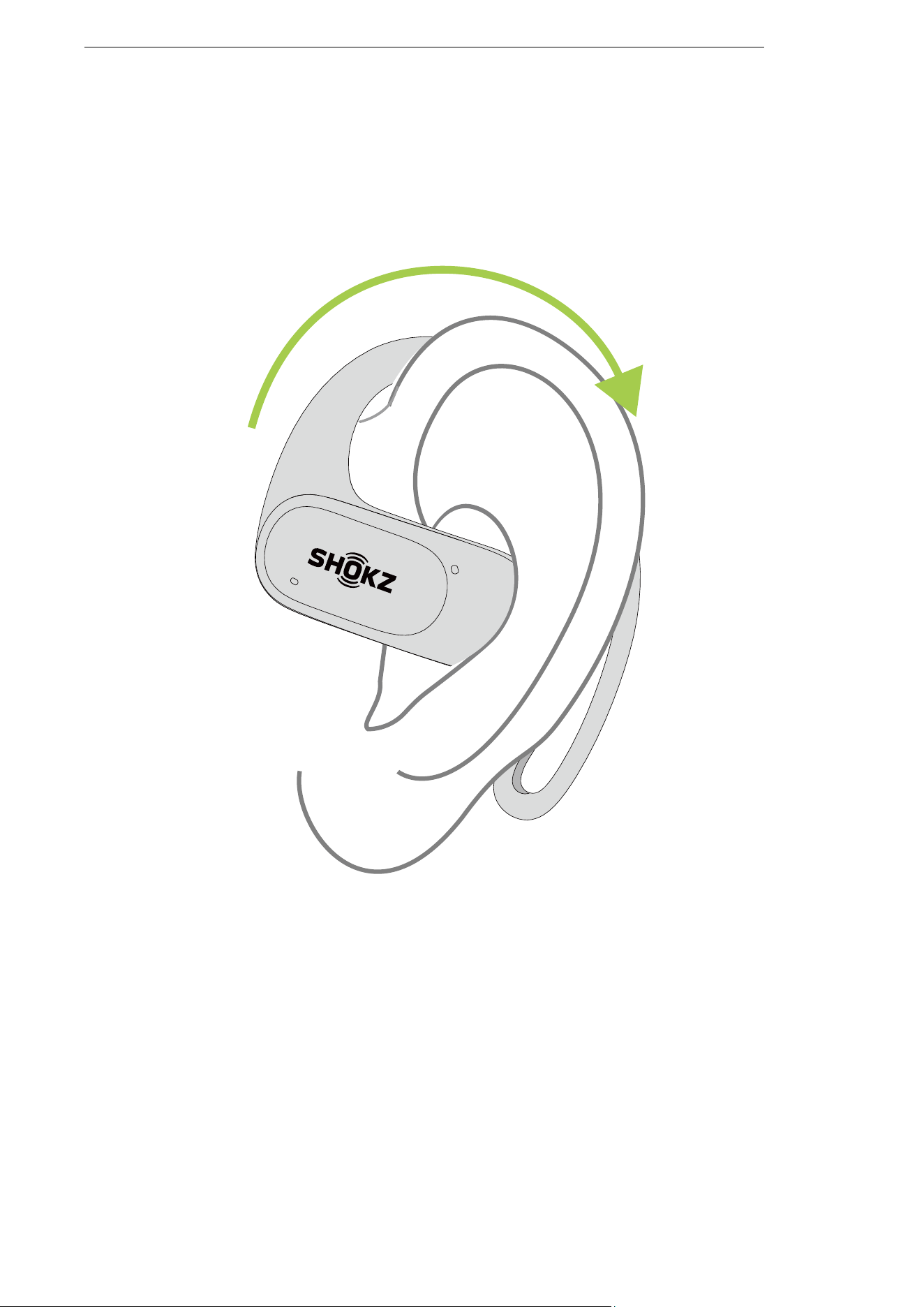
3. Gently rotate the earbuds backward, allowing the hook
to curl around your ears.
4. You're ready to go.
Wearing
11
Touch Control
12
Music Control
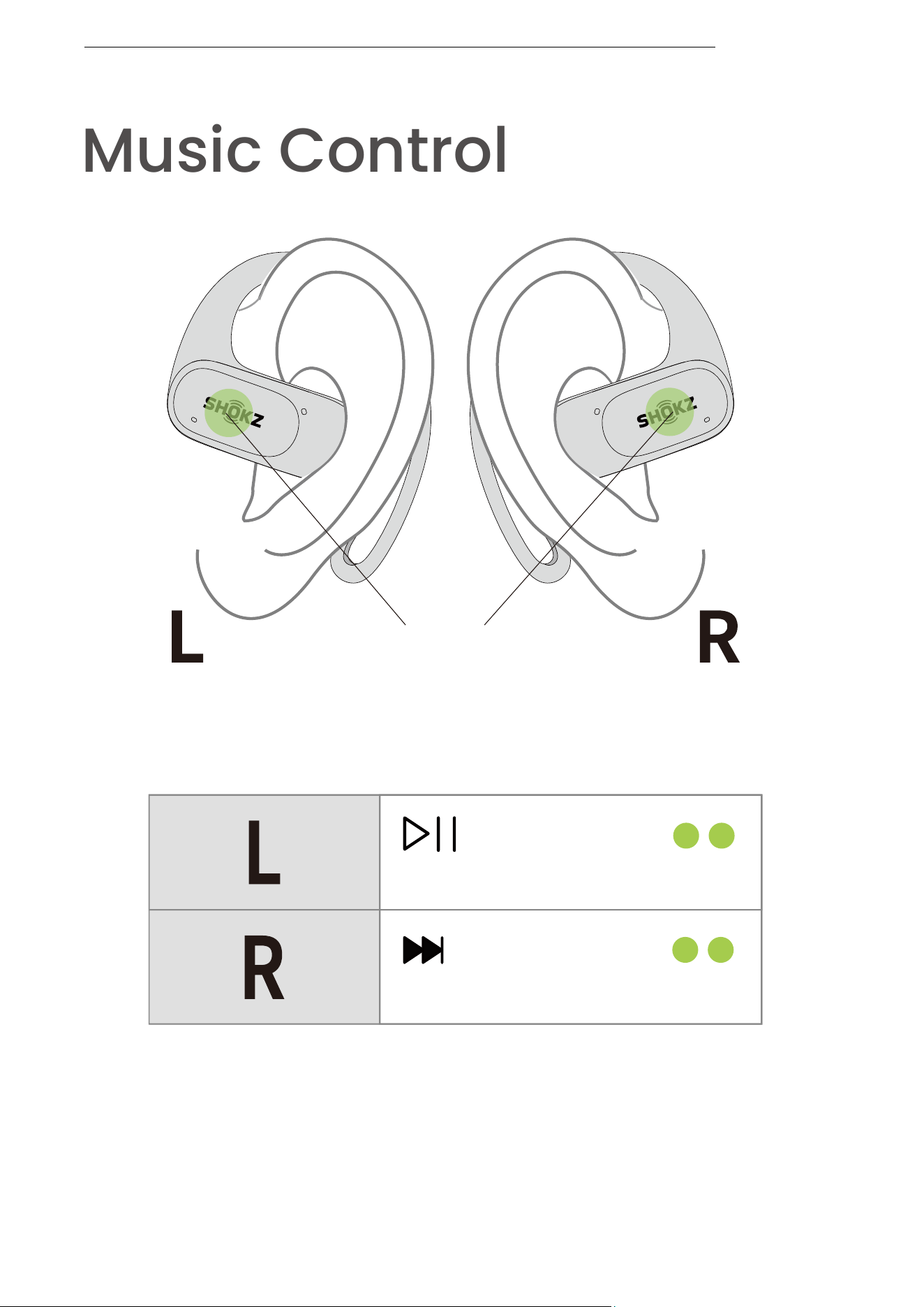
Music Control
Double-tap while playing music
Double-tap while playing music
Play/pause music
Play next track
Touch area
13
Call Control
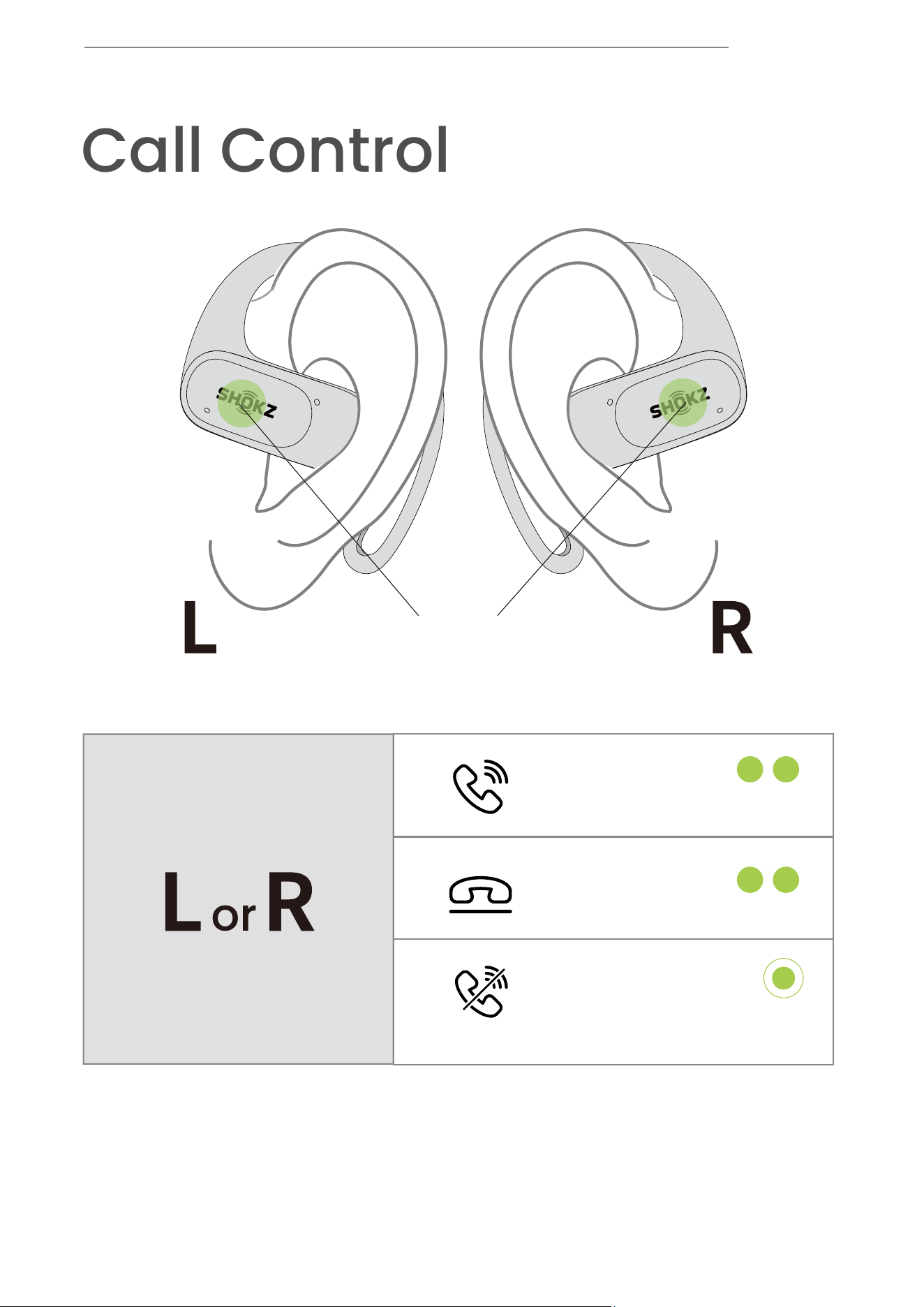
Call Control
Double-tap either earbud
Double-tap either earbud
Answer Call
End Call
Long-press either L or R
when receiving a call
Reject Call
Touch area
14
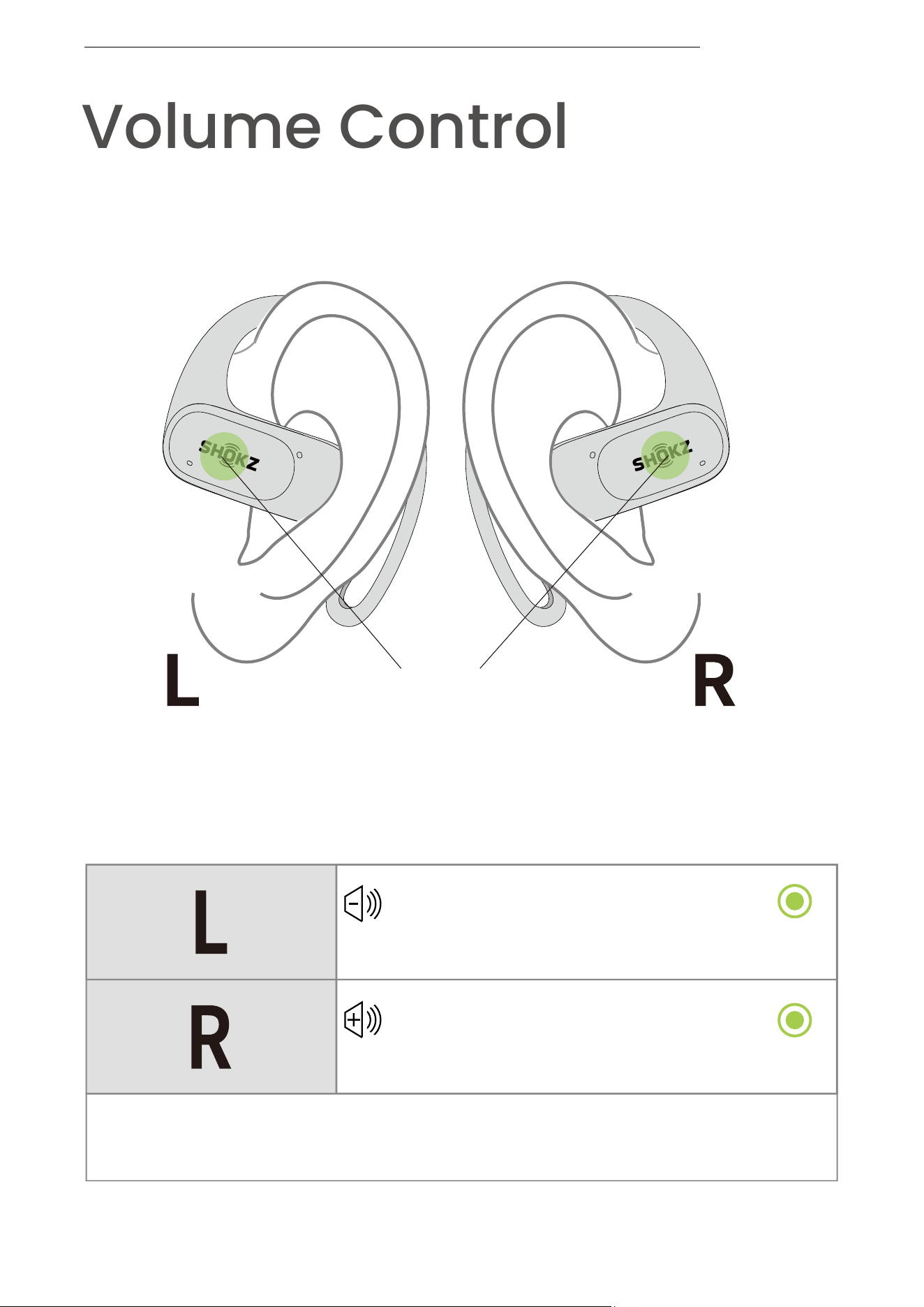
Long-press for 2 seconds during music or calls
Long-press for 2 seconds during music or calls
Volume down one level
Volume up one level
# Continuous Volume Control: During music or calls, long-press
corresponding earbud until desired volume is reached
Volume Control
Volume Control
Touch area
15
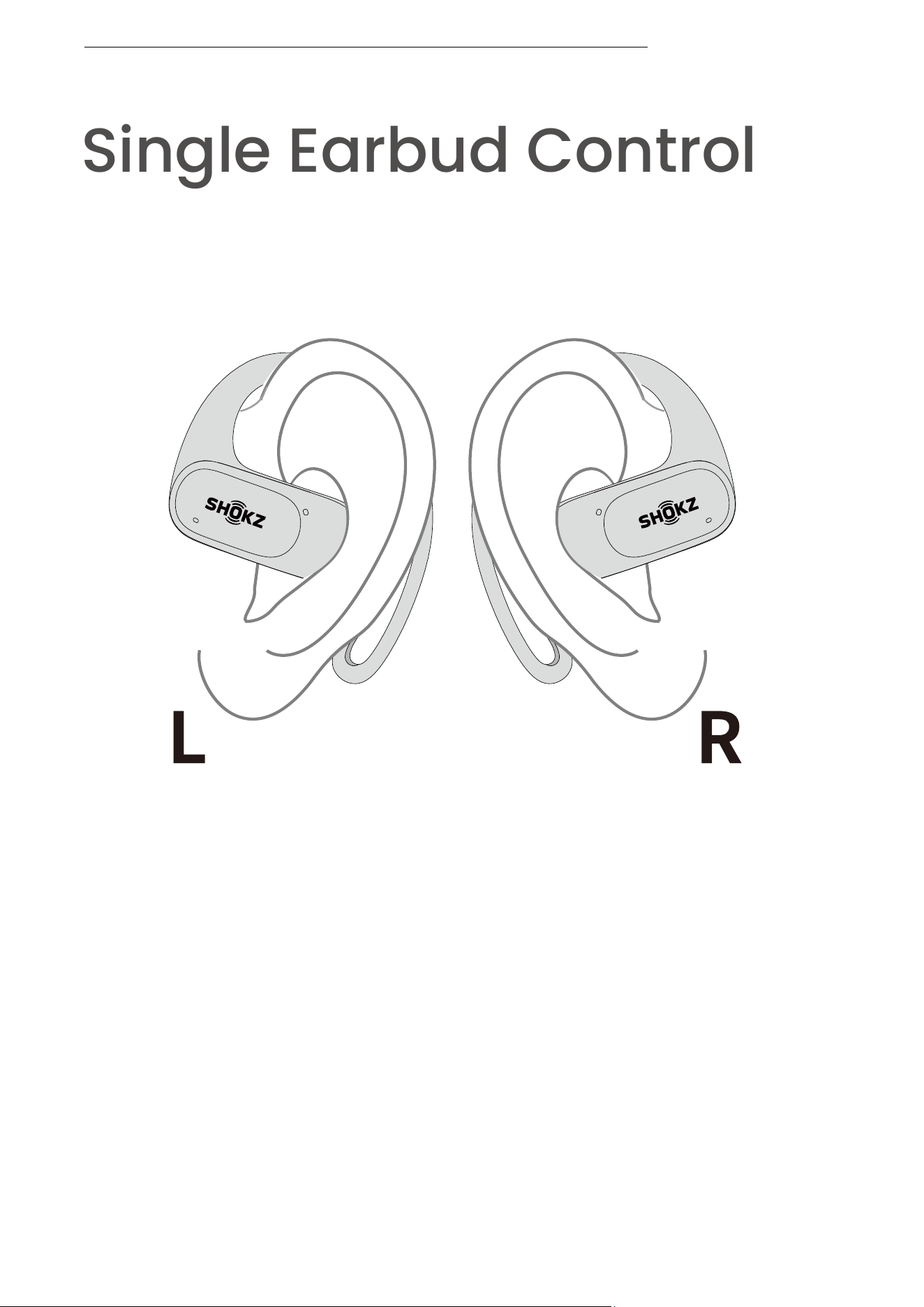
Single Earbud Control
Single Earbud Control
Both earbuds are designed for independent use, allowing
for mono music playback or calls. When used individually,
each earbud maintains its respective button functionality.
For music control, please refer to Page 13, and for call
control, refer to Page 14.
16
Indicator LED
17
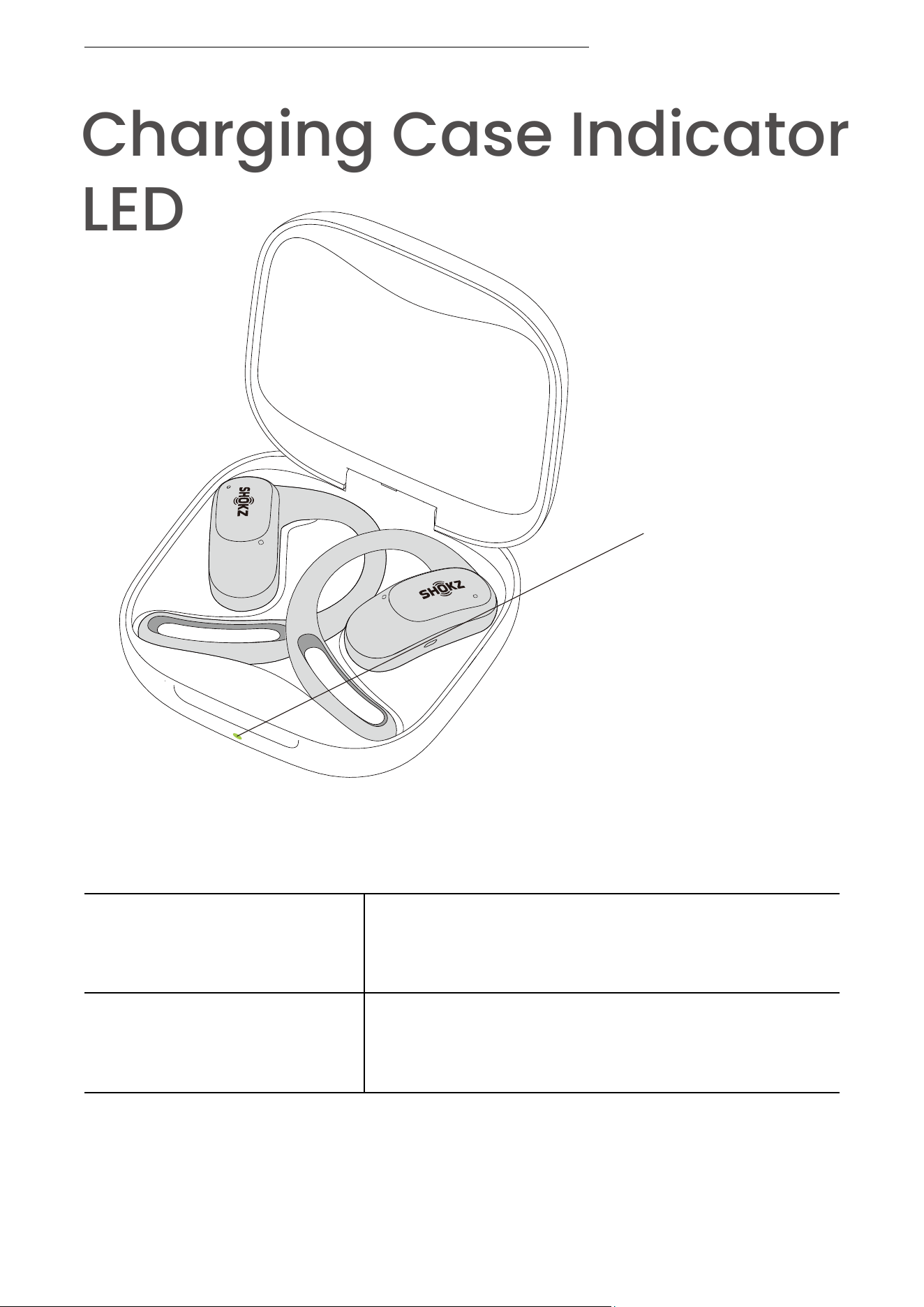
Charging Case Indicator
LED
1. When the earbuds are in the charging case,
the indicator displays the earbud battery level.
*Note: When both earbuds are placed in the charging
case, the indicator displays the power level of the
earbud with the lower battery level.
Charging Case
Indicator LED
Low battery level
High battery level
When opening, the orange light
goes off after 5 seconds
When opening, the green light
goes off after 5 seconds
Charging Case Indicator LED
18
Charging case with
high battery level
Charging case with
low battery level
2.When the earbuds are not in the charging case,
the indicator displays the charging case battery level.
Charging completed
The green light turns off after 5 seconds upon
opening or closing the case
The orange light turns off after 5 seconds upon
opening or closing the case
The indicator is solid green
Charging
3. When connected to an external power supply.
The indicator is solid orange
Factory data reset The indicator flashes orange for 5 seconds
Pairing
4. Others
The indicator flashes orange and green
Charging Case Indicator LED
Charging Case Indicator LED
19

Power Source
20
On/Off/Standby
On/Off/Standby
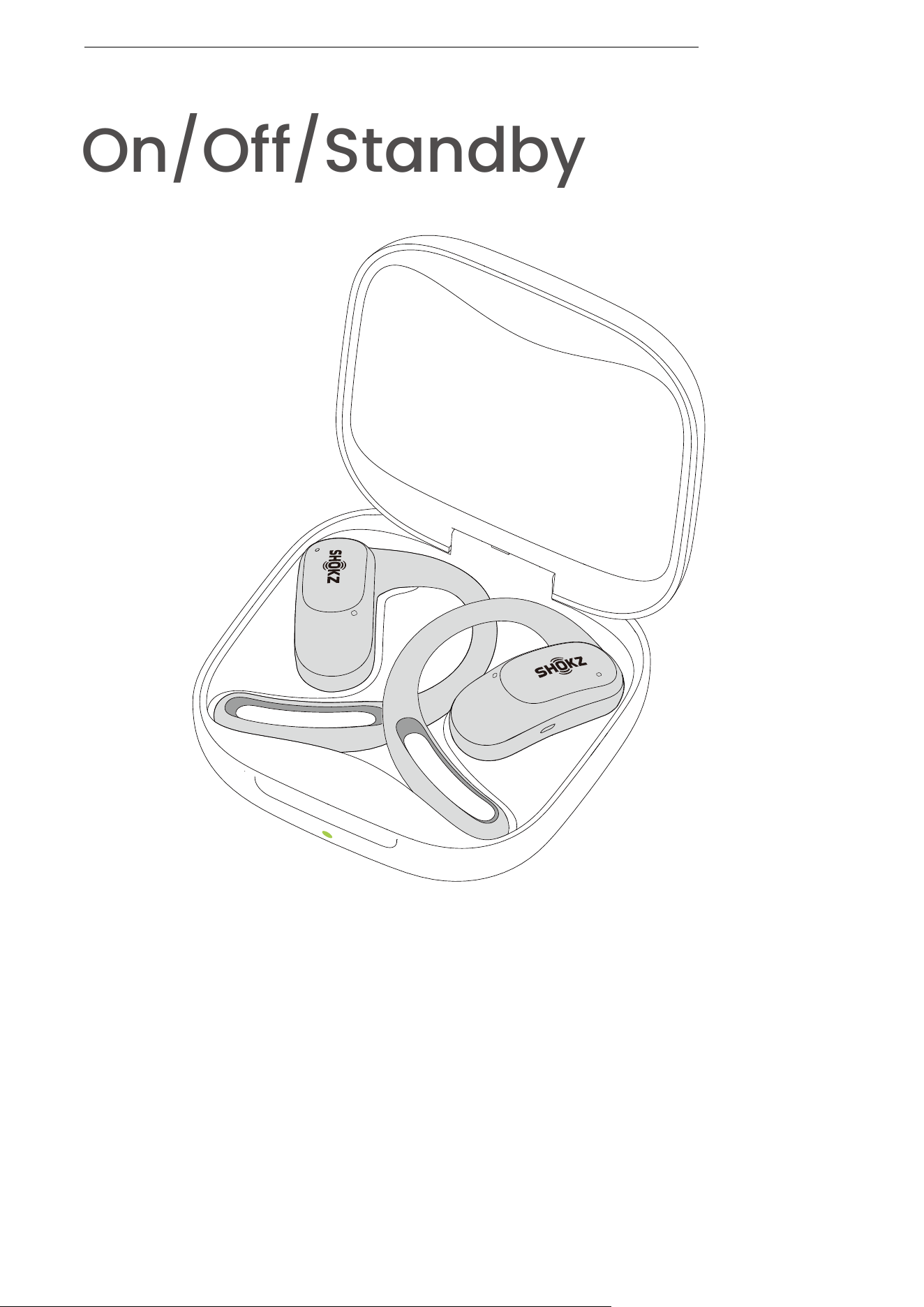
1. On:
When the earbuds are placed in the charging case,
opening the case will activate the indicator light and
power on the earbuds.
*Note: Closing the charging case after removing the
earbuds helps preserve battery life and prevents
debris from entering the case.
21
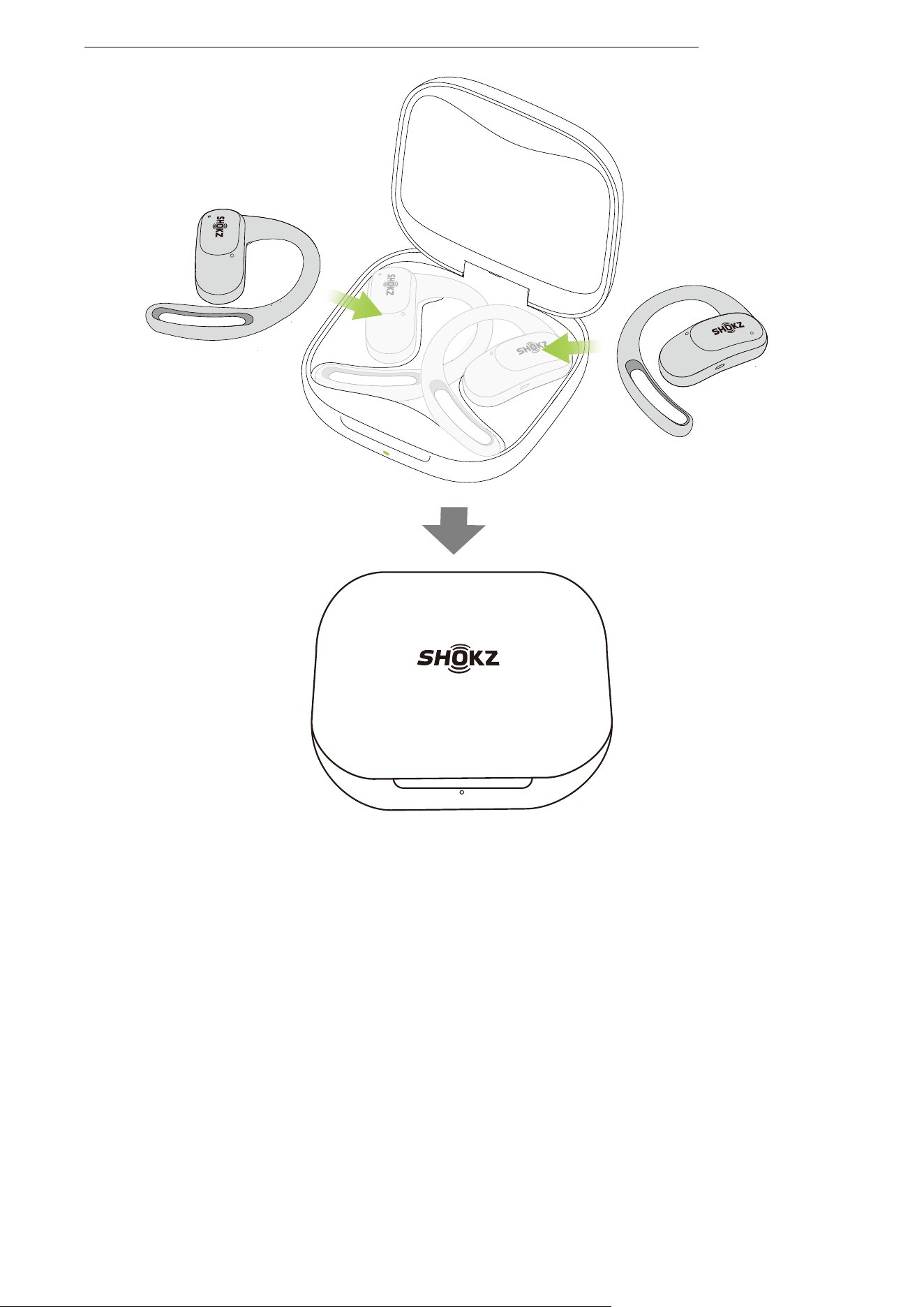
2. Off:
When the charging case is closed with both earbuds
inside, they will automatically power off.
3. Standby:
When the earbuds are not placed in the charging
case and remain disconnected from Bluetooth devices
for 3 minutes, they will enter standby mode to preserve
battery life.
On/Off/Standby
22
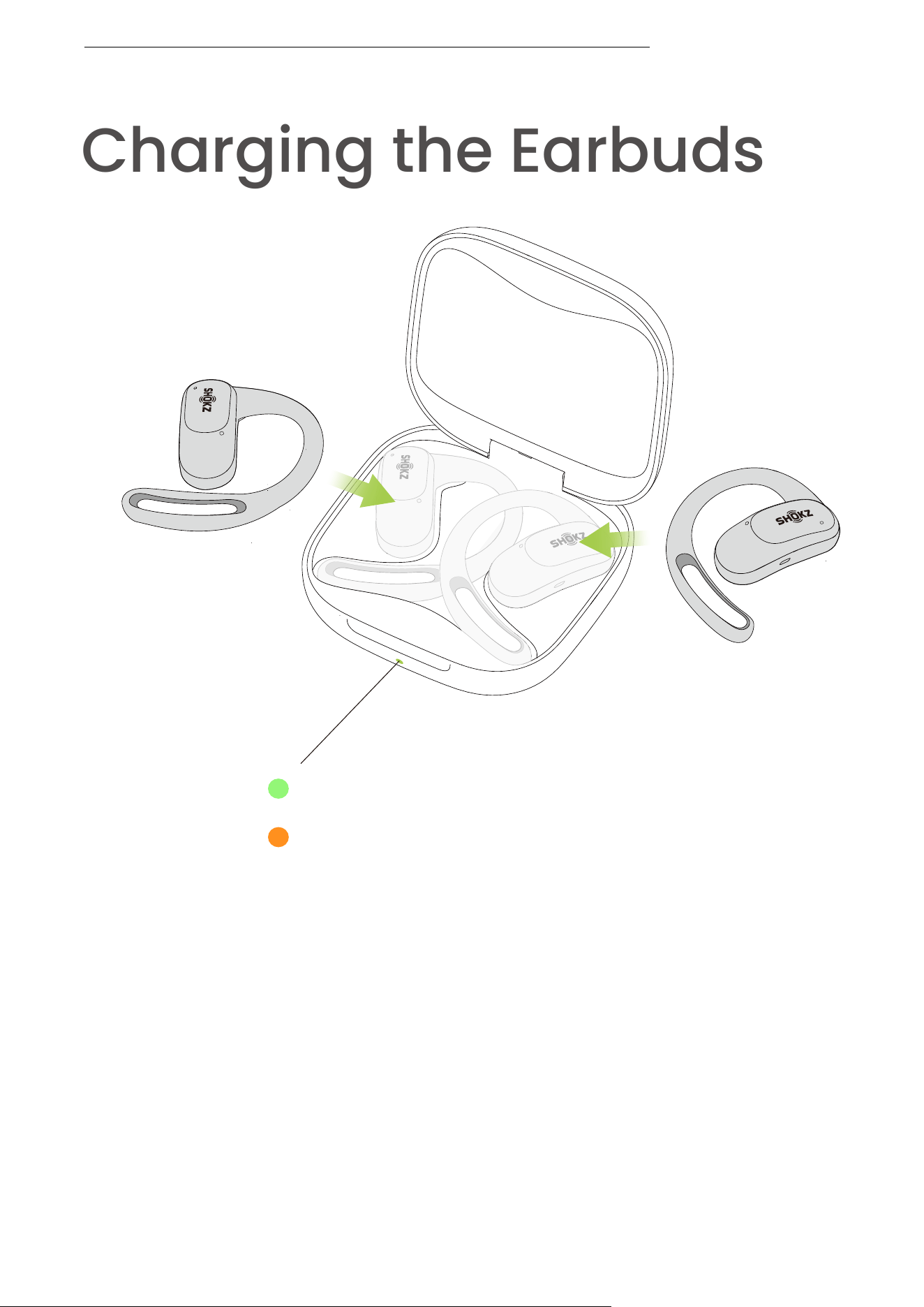
Place the earbuds into the charging case until they
magnetically attach. Close the charging case once the
indicator light is on.
*Note: The earbuds will reach full charge after
approximately 60 minutes inside the charging case.
Ensure that the charging case has sufficient battery
level to charge the earbuds.
Charging the Earbuds
Charging the Earbuds
Green light -High battery level
Orange light-Low battery level
23
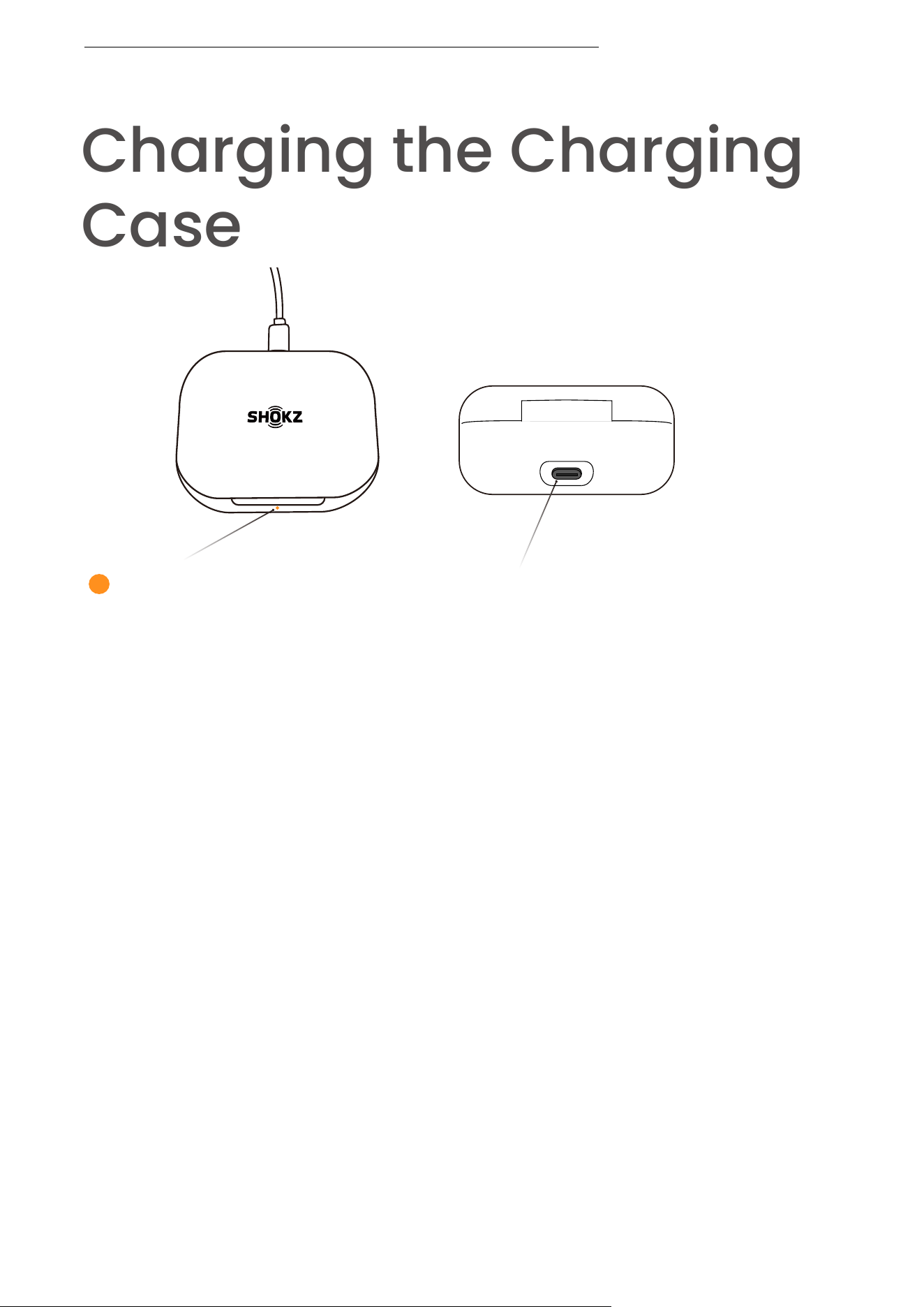
Charging the Charging
Case
Connect the USB-A to USB-C charging cable to the charging
case and plug it into a USB-A power supply or certified wall
charger. A solid orange light on the charging case indicates
that it is currently charging, while a solid green light indicates
that the case is fully charged.
*Note:
• The charging case requires approximately 2 hours to reach
full charge. It operates using the standard 5V±5A USB voltage.
We advise against using high-voltage power sources to
charge the earbuds, as this may cause damage. Additionally,
using third-party charging cables may result in longer
charging times.
• Before charging, ensure that the charging port is dry and
free of liquid residue like sweat. Use a soft, dry cloth to wipe
away any moisture or residue from the charging port.
Charging the Charging Case
Orange light on the charging case Charging port
24

Additional Features
25
Charging Case
Indicator LED
MultiPoint Pairing
MultiPoint Pairing
26
OPENFIT AIR
MultiPoint Pairing
Off
*Please update the Shokz App to the latest version in
the App Store. Follow the instructions to update the
headphone firmware to the latest version. Ensure
that Bluetooth is enabled on your pairing device.
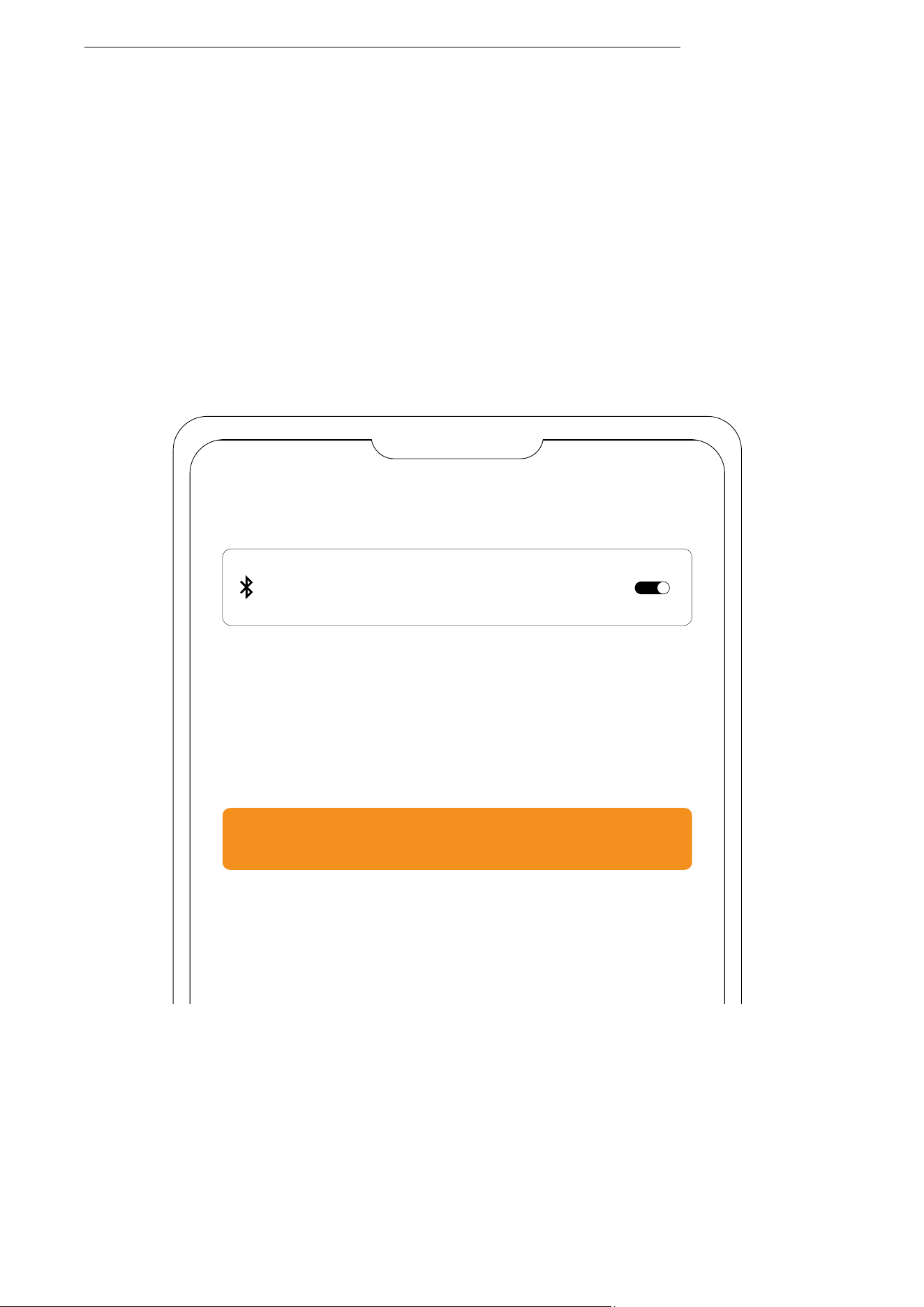
1. Start by selecting “MultiPoint Pairing” in the Shokz
App.
27
MultiPoint Pairing
MultiPoint Pairing
Connect to the Second Device
2. On the pop-up page, confirm to open the Multi-
Point Pairing function.
3. Select "Connect To The Second Device" and follow
the instructions to establish a connection with the
second device.
4. Yourheadphonesarenowconnectedtotwode-
vices.YoucanmanagetheirBluetoothconnections
convenientlythroughtheShokzApp.
MultiPoint Pairing
Auto Connect
Auto Connect
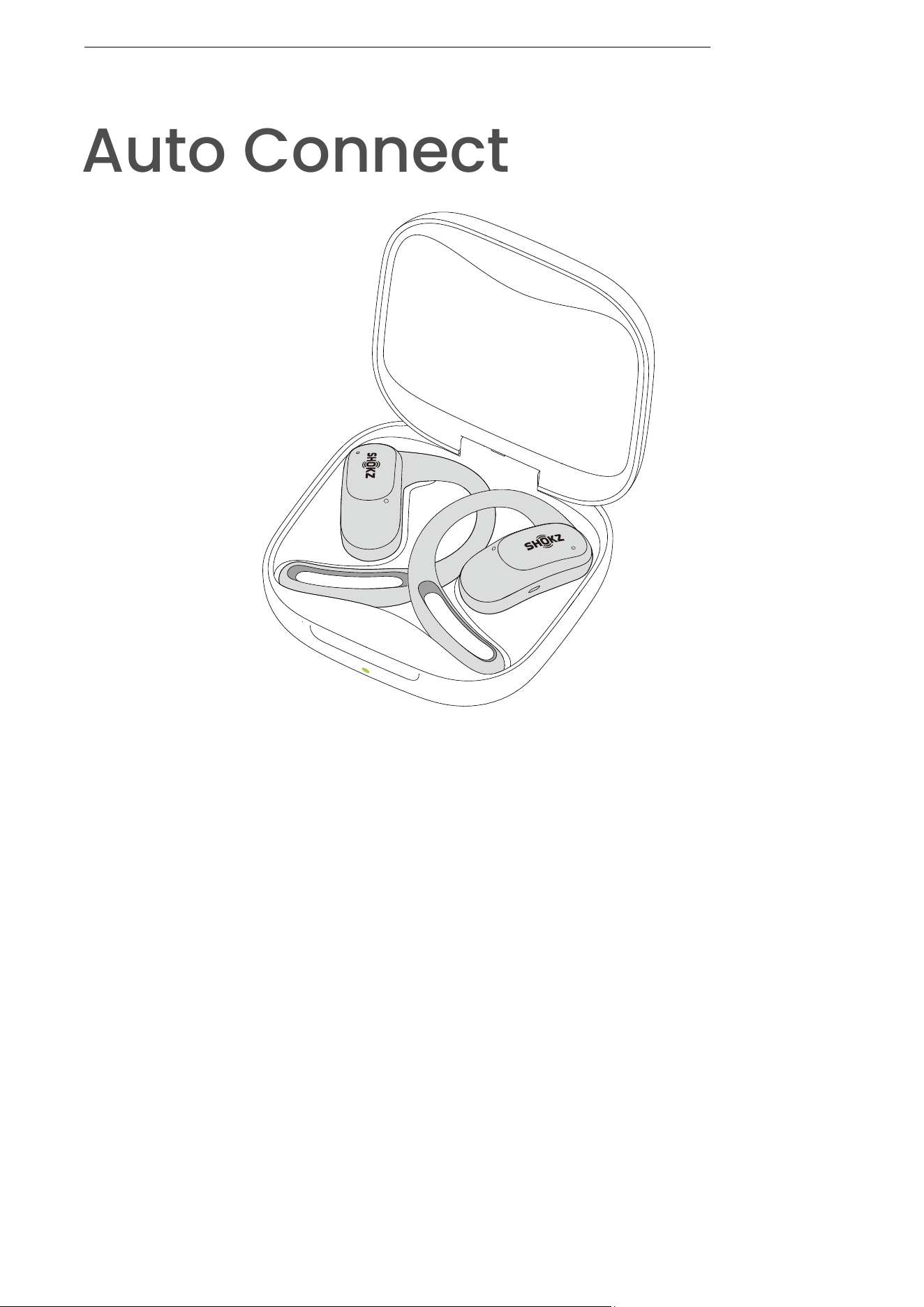
1. Once the earbuds are powered on, they'll automatically at-
tempt to connect to the last paired device and emit a beep to
indicate a successful connection.
2. While in use, the earbuds may disconnect from the paired
device due to connection range limitations. If they come back
within range within 3 minutes, they'll re-establish connection
with the last paired device automatically, emitting a beep indi-
cating successful reconnection.
3. Should the earbuds re-enter the connectable range after 3
minutes, double-tap either earbud to trigger automatic recon-
nection.
4. With multipoint pairing enabled, simply double-tap either
earbud to reconnect to both devices.
*Please ensure that the paired devices are within the connection
range (10m) and powered on. Also, make sure that your desired
device has Bluetooth enabled.
28
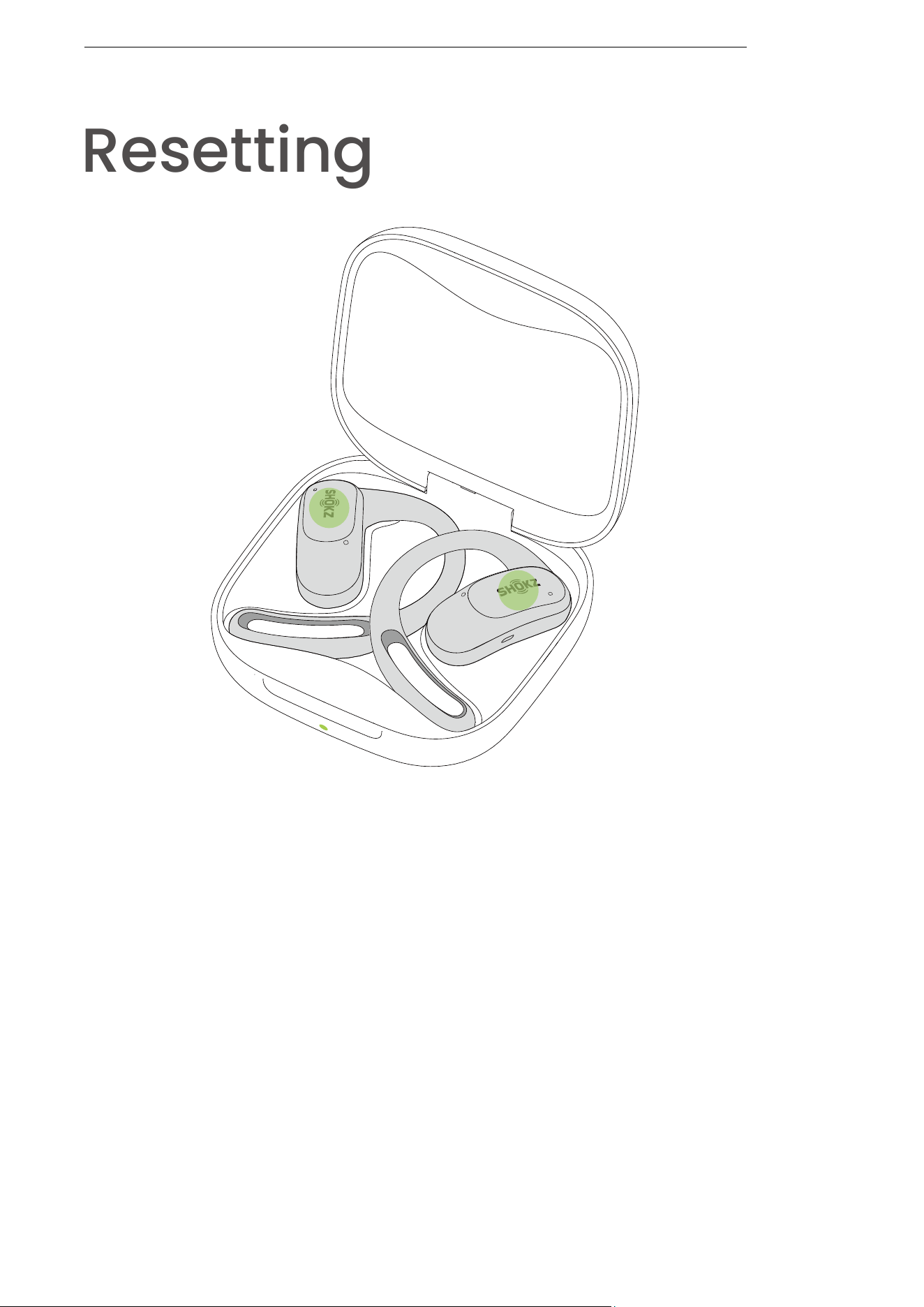
Resetting the earbuds will clear the list of paired devices
and reset all settings.
1. Place both earbuds in the charging case.
2. Press and hold the touch area of both earbuds
simultaneously with two fingers for 15 seconds. The
indicator will flash orange for five seconds before turning
off, indicating that the reset is complete. Next, the indicator
will flash orange and green, indicating that the earbuds
have entered pairing mode.
Resetting
Resetting
29
Maintenance
30

Cleaning
Cleaning
1. Earbuds:
• Use a soft, clean, dry cloth to wipe the earbuds.
• When cleaning the earphone mesh, gently brush away dirt and
earwax with a dry cotton swab, then wipe with a soft cloth.
*Please note:
• Ensure the earbuds are powered off and disconnected from all de-
vices before cleaning.
• Do not wash the earbuds with water or use ultrasonic cleaning.
• Prevent liquid from entering any openings of the earbuds.
• Do not use abrasive cleaners, high-concentration chemicals, alco-
hol, or acetone solvents, as they may cause damage, deformation, or
discoloration.
• Avoid using sharp or abrasive objects.
2. Charging Case:
• Use a soft, clean, and dry cloth to wipe the exterior of the charging
case.
• Use a clean, dry, soft brush to remove any debris from the charging
interface.
• Gently wipe the charging contact surface inside the charging box
using a clean and dry cotton swab.
*Please note:
• Ensure the charging case is powered off and disconnected from all
devices before cleaning.
• Avoid using abrasive materials to clean the charging case.
31
IP rating
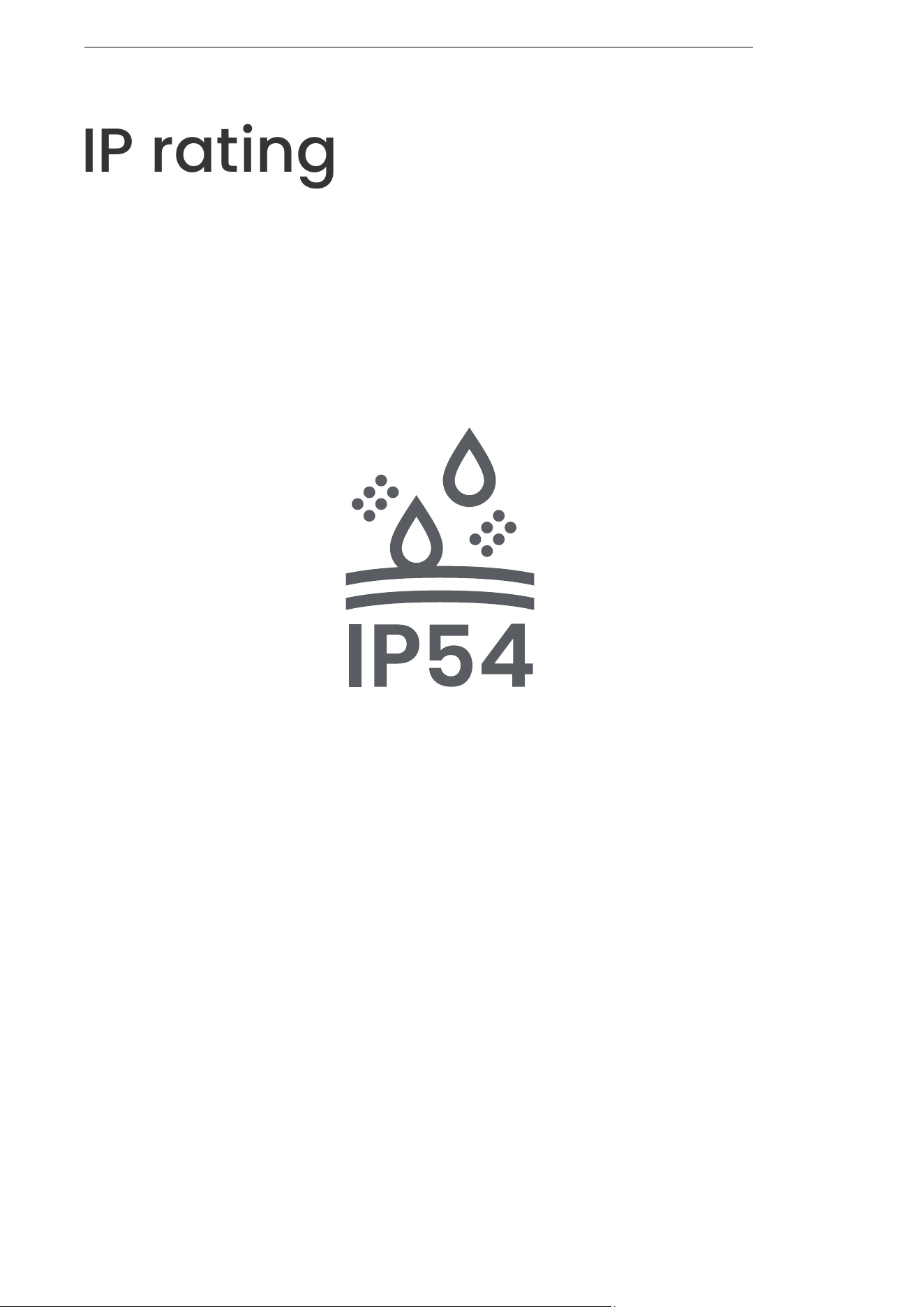
*Please note:
• The IP54 dust and water-resistant rating applies solely
to the earbuds, not the charging case.
• The splash-proof feature is subject to degradation with
regular use.
• Do not immerse the product in water, and avoid pro-
longed exposure to wet conditions. Do not use it during
activities like swimming, water skiing, surfing, or other
water sports.
• In the event of accidental water exposure, promptly
wipe the product and accessories dry, then allow them to
air dry in a cool, ventilated area. Do not use or charge
until completely dry.
Tested under controlled laboratory conditions, the
earbud components of this product are rated to with-
stand splashes at an IP54 level according to the IEC
60529 standard.
1. Earbuds:
• Use a soft, clean, dry cloth to wipe the earbuds.
• When cleaning the earphone mesh, gently brush away dirt and
earwax with a dry cotton swab, then wipe with a soft cloth.
*Please note:
• Ensure the earbuds are powered off and disconnected from all de-
vices before cleaning.
• Do not wash the earbuds with water or use ultrasonic cleaning.
• Prevent liquid from entering any openings of the earbuds.
• Do not use abrasive cleaners, high-concentration chemicals, alco-
hol, or acetone solvents, as they may cause damage, deformation, or
discoloration.
• Avoid using sharp or abrasive objects.
2. Charging Case:
• Use a soft, clean, and dry cloth to wipe the exterior of the charging
case.
• Use a clean, dry, soft brush to remove any debris from the charging
interface.
• Gently wipe the charging contact surface inside the charging box
using a clean and dry cotton swab.
*Please note:
• Ensure the charging case is powered off and disconnected from all
devices before cleaning.
• Avoid using abrasive materials to clean the charging case.
IP rating
32

After-Sales Service
33
Serial Number Location
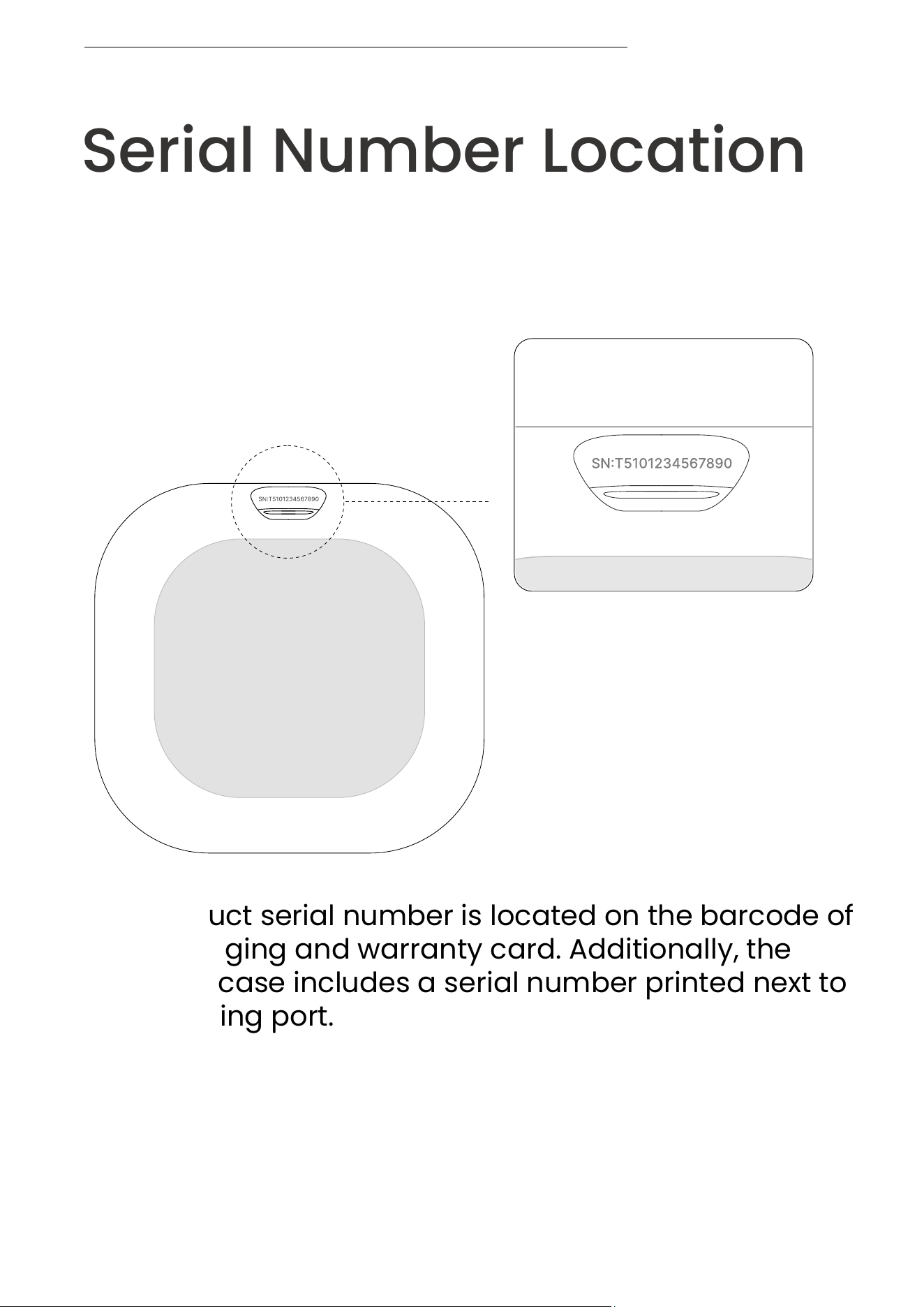
The product serial number is located on the barcode of
the packaging and warranty card. Additionally, the
charging case includes a serial number printed next to
the charging port.
Serial Number Location
34

Warranty
Warranty
Your headphones are covered by a warranty. Visit our
website at https://shokz.com/pages/warranty-return
for details of the limited warranty
35