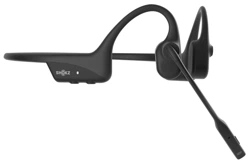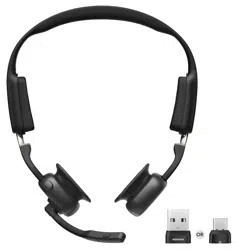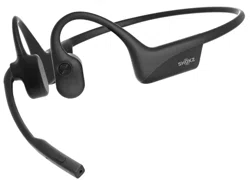

User Guide
OPENCOMM2 2025 Upgrade
OPENCOMM2 UC 2025 Upgrade
Contents
CONTENTS
Troubleshooting
Warranty
HOW IT WORKS
Headset Controls
ON/OFF
Pairing to Mobile Device
Pairing to PC
How to Wear
Music and Calls
Wireless Adapter
Check Battery Status
EQ Modes
Switching EQ Modes
Turn MultiPoint Pairing On
Turn MultiPoint Pairing Off
EXTRA FEATURES
Restore Factory Settings
Charging Tips
CARE AND MAINTENANCE
Changing Languages
27
04
05
06
07
09
10
12
14
16
17
18
19
20
22
25
26
01

CONTENTS
WHAT’S IN THE BOX
28
SHOKZ APP & SHOKZ CONNECT
29
02
How It Works
03
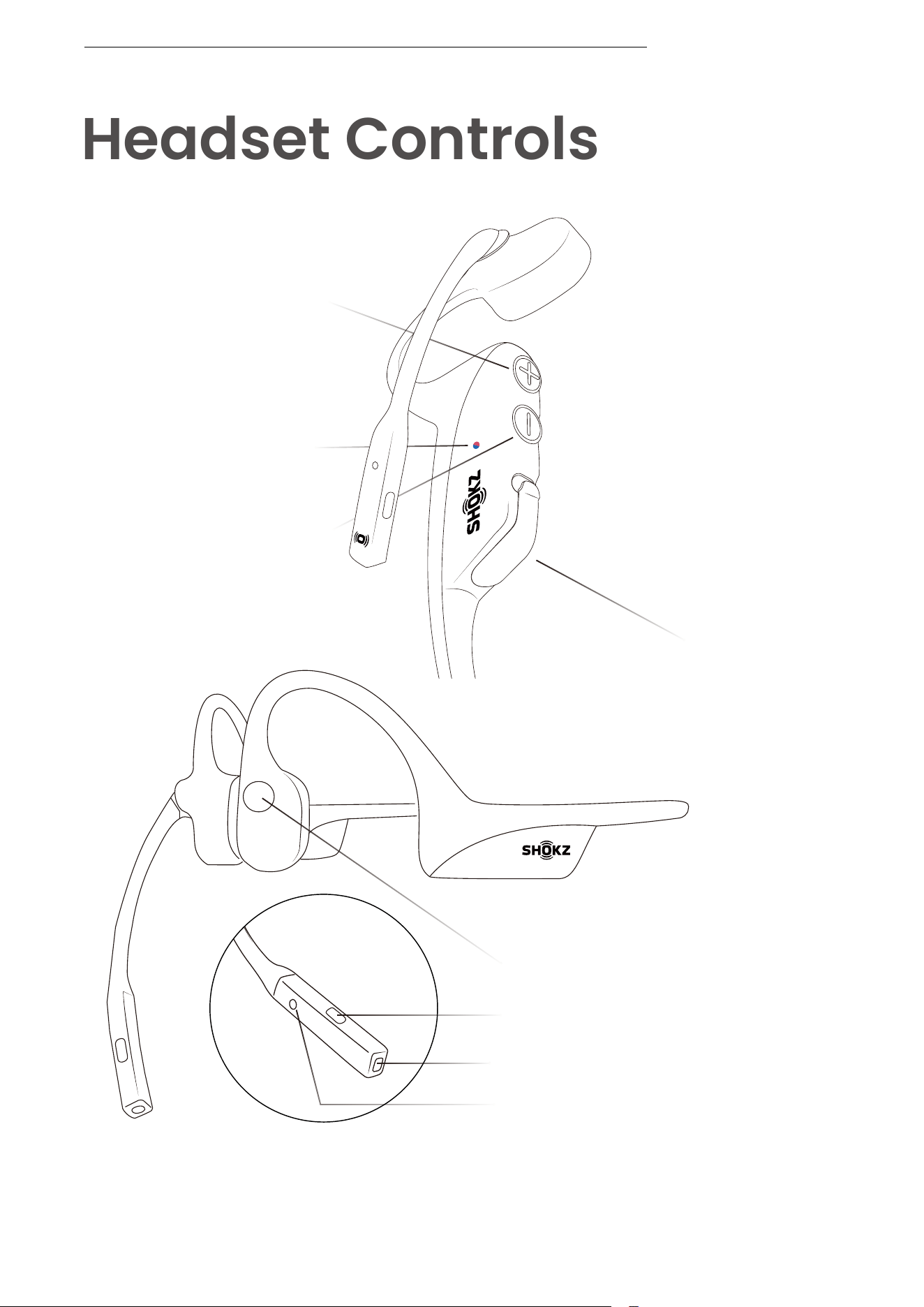
Power/Volume+ Button
* MIC is used for voice calls only
USB-C Charging Port
Volume- Button
Multifunction Button
Headset Controls
HEADSET CONTROLS
Microphone 1
Mute/unmute Microphone
Microphone 2
LED Indicator
04
ON/OFF
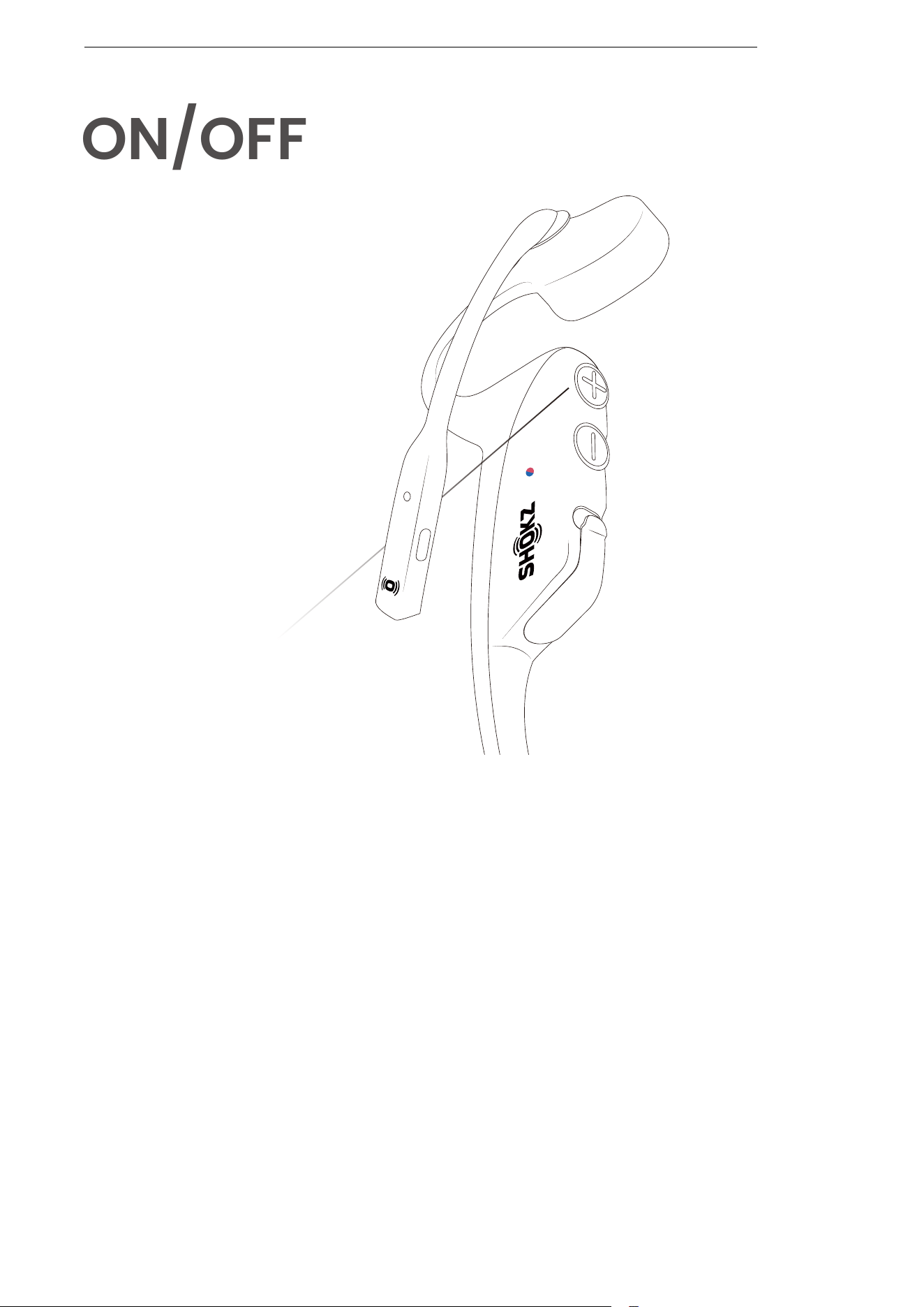
Turn on the headset:
Press and hold the Power/Volume+ Button until the LED
indicator flashes blue.
*Audrey will say, “Welcome to Shokz.”
Turn off the headset:
Press and hold the Power/Volume+ Button until the LED
indicator flashes red.
*Audrey will say, “Power off.”
ON/OFF
Power/Volume+ Button
05
OpenComm2 by Shokz_II
Settings
BLUETOOTH
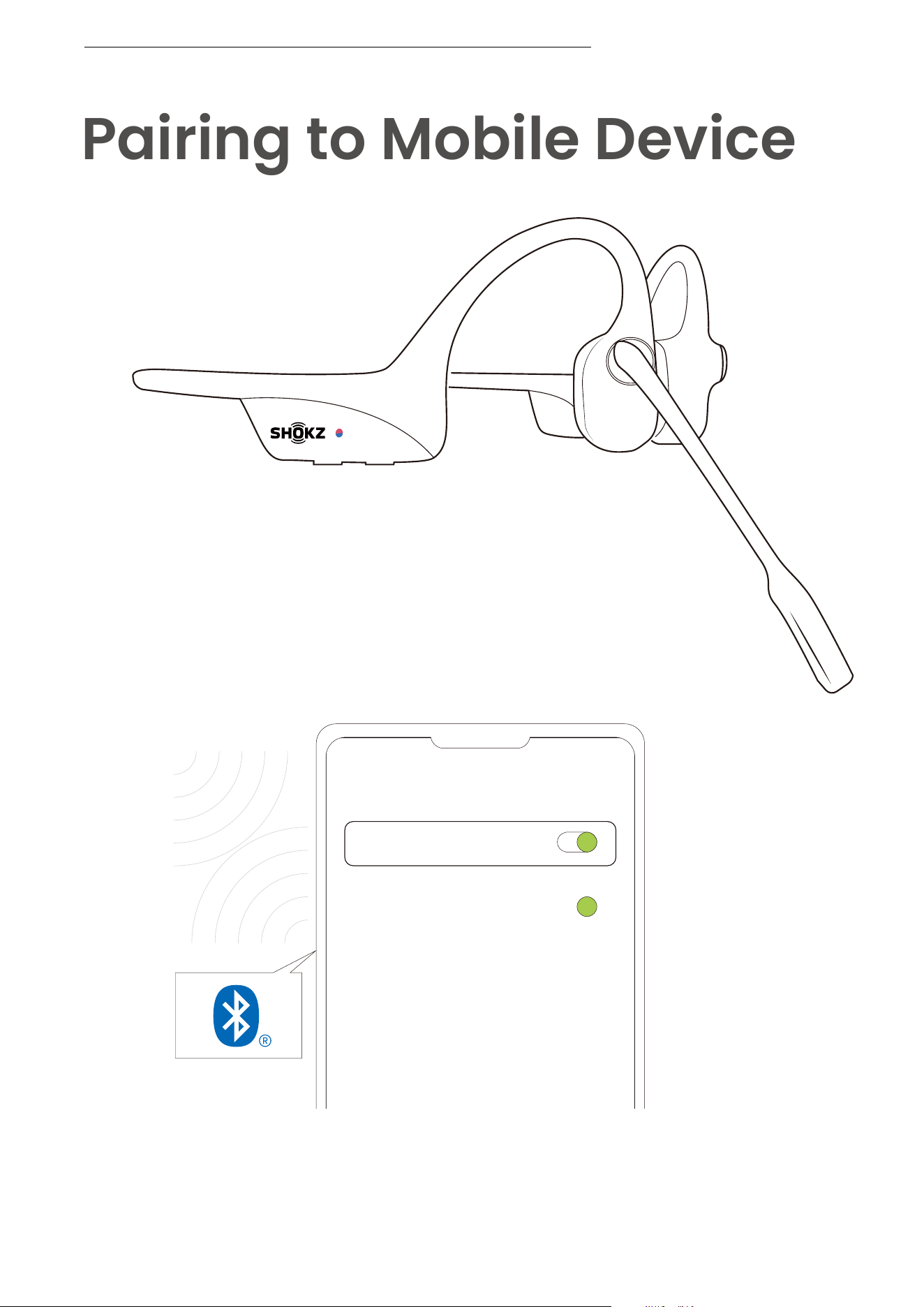
Operate controls with your headset powered off.
1. Start with your headset turned off.
2. Press and hold the Volume+ Button until the LED
indicator flashes red and blue alternately.
3. Select "OpenComm2 by Shokz_II" on your device's
Bluetooth settings. Audrey will say, "Connected".
Pairing to Mobile Device
PAIRING TO MOBILE DEVICE
06
Pairing to PC
PAIRING TO PC
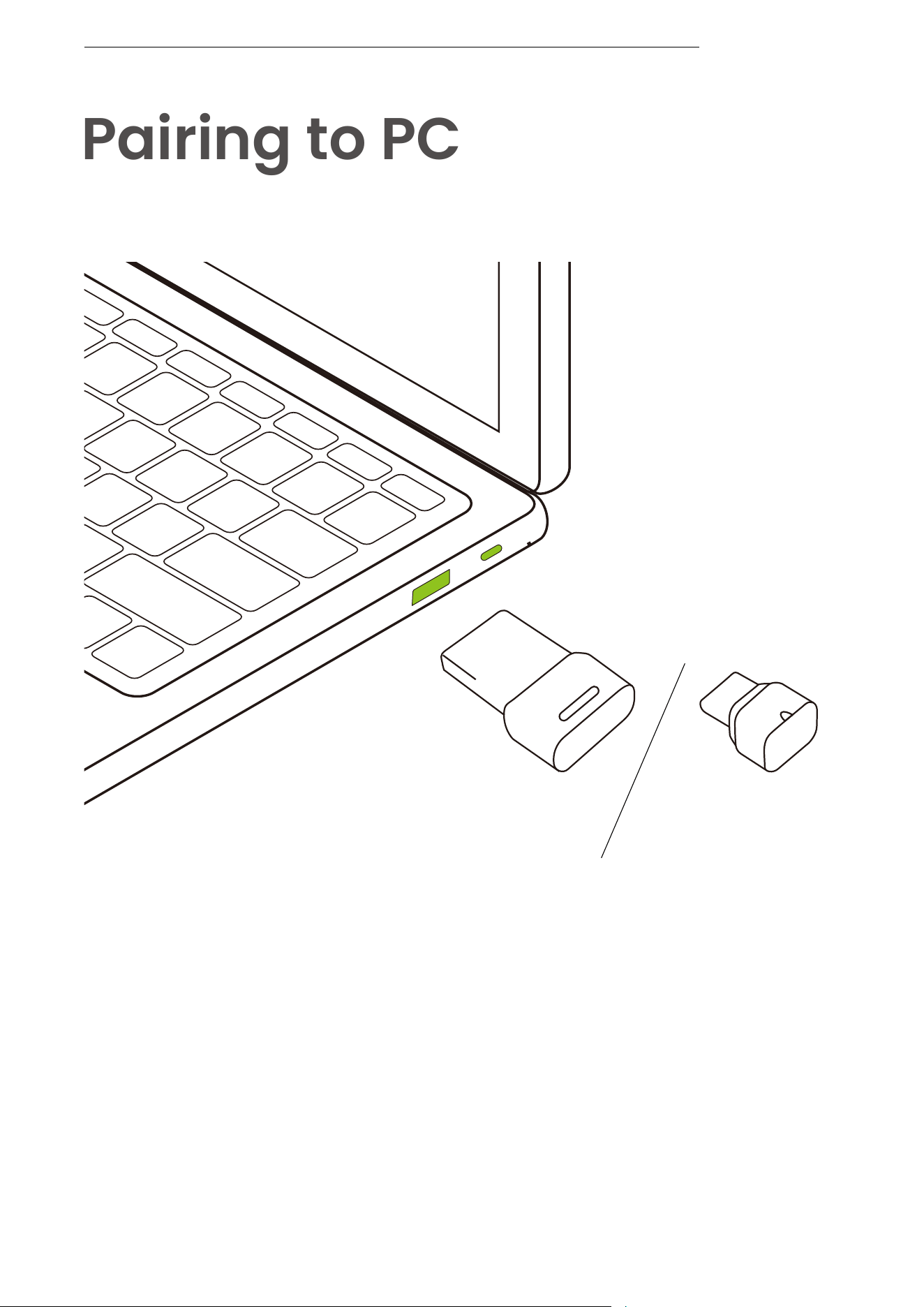
Operate controls with your headset powered off.
1. Start with your headset turned on.
2. Plug the included USB adapter into a USB port on your PC.
3. Connection is established when Audrey says "Connected" or
beeps, and the LED indicator on the USB adapter is
solid cyan.
Loop120
USB-C
Loop120
USB-A
07
Loop120 by Shokz
Connected
SELECT YOUR HEADSET:
Configure
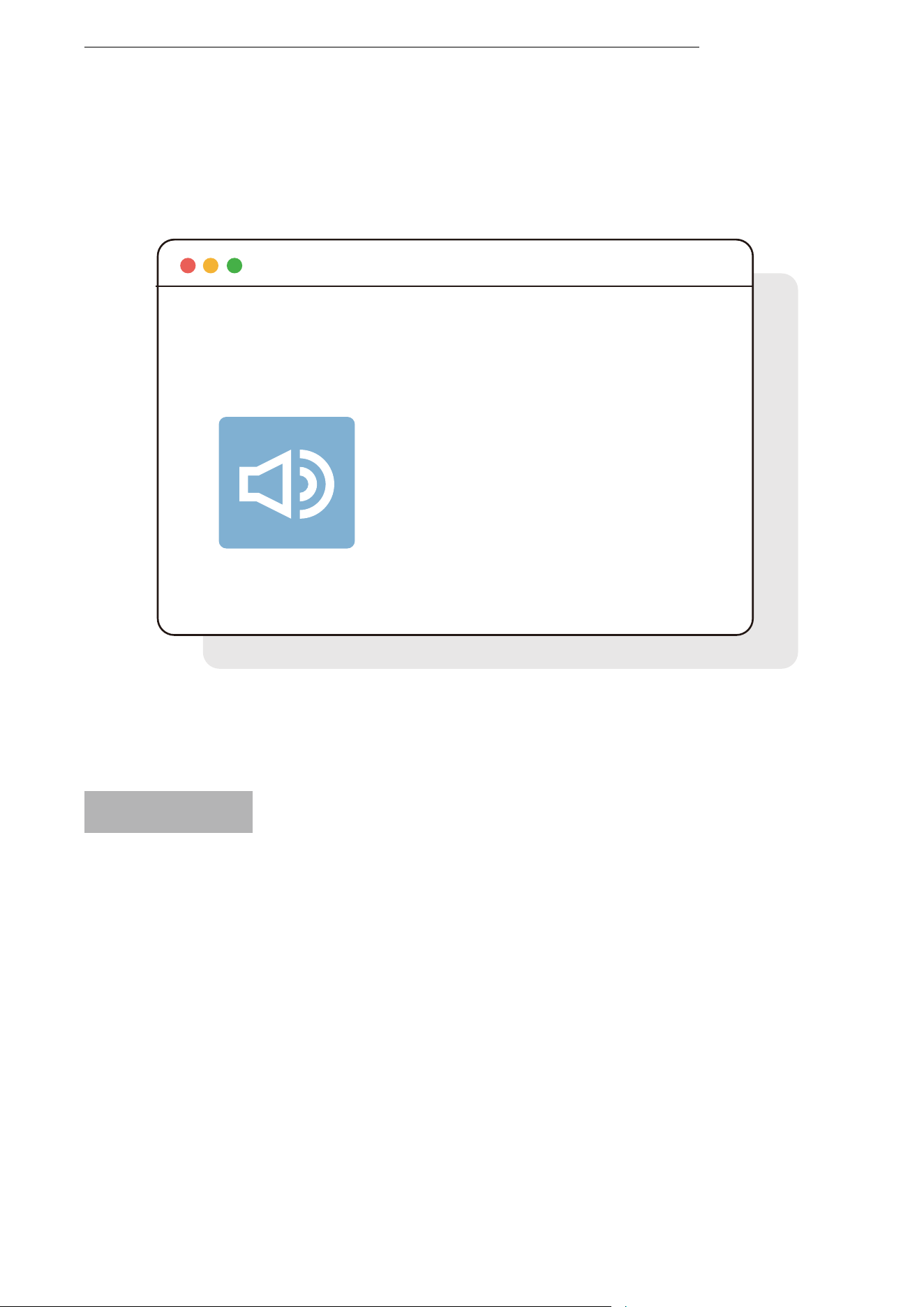
To play music or take calls on the headset, please ensure the
“Loop120 by Shokz” is both identified as the default input and
output devices in your operating system’s audio settings.
* Only for headsets connected with the wireless adapter.
PAIRING TO PC
08
How to Wear
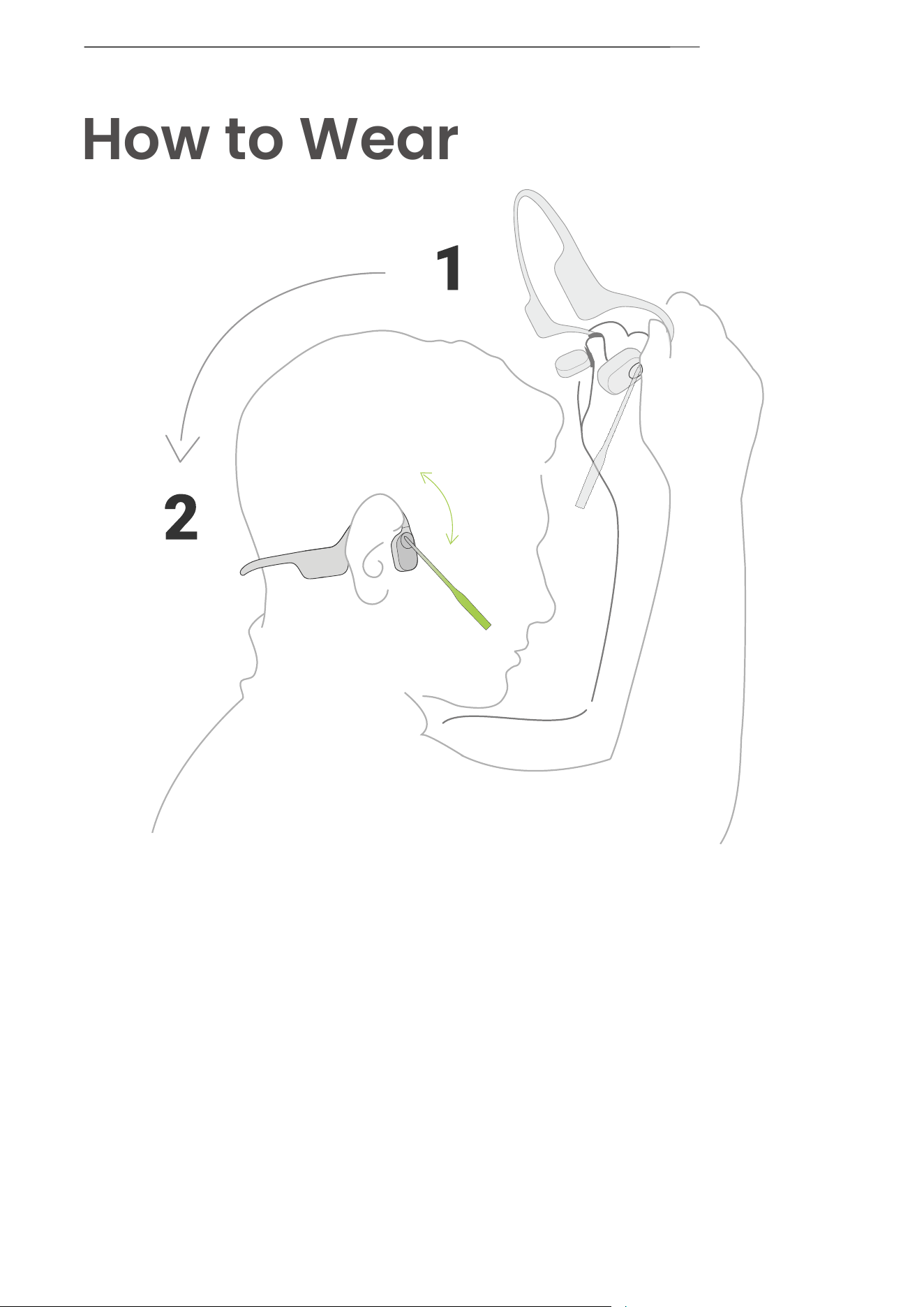
*Position the noise-canceling microphone close to your mouth.
*Wearing your headset the wrong way could cause discomfort.
Be sure you have the transducers resting in front of your ears.
HOW TO WEAR
Slide the headset over your head, bring
it to the back of your neck and position
the ear hooks on your ears.
09
MUSIC AND CALLS
Music and Calls
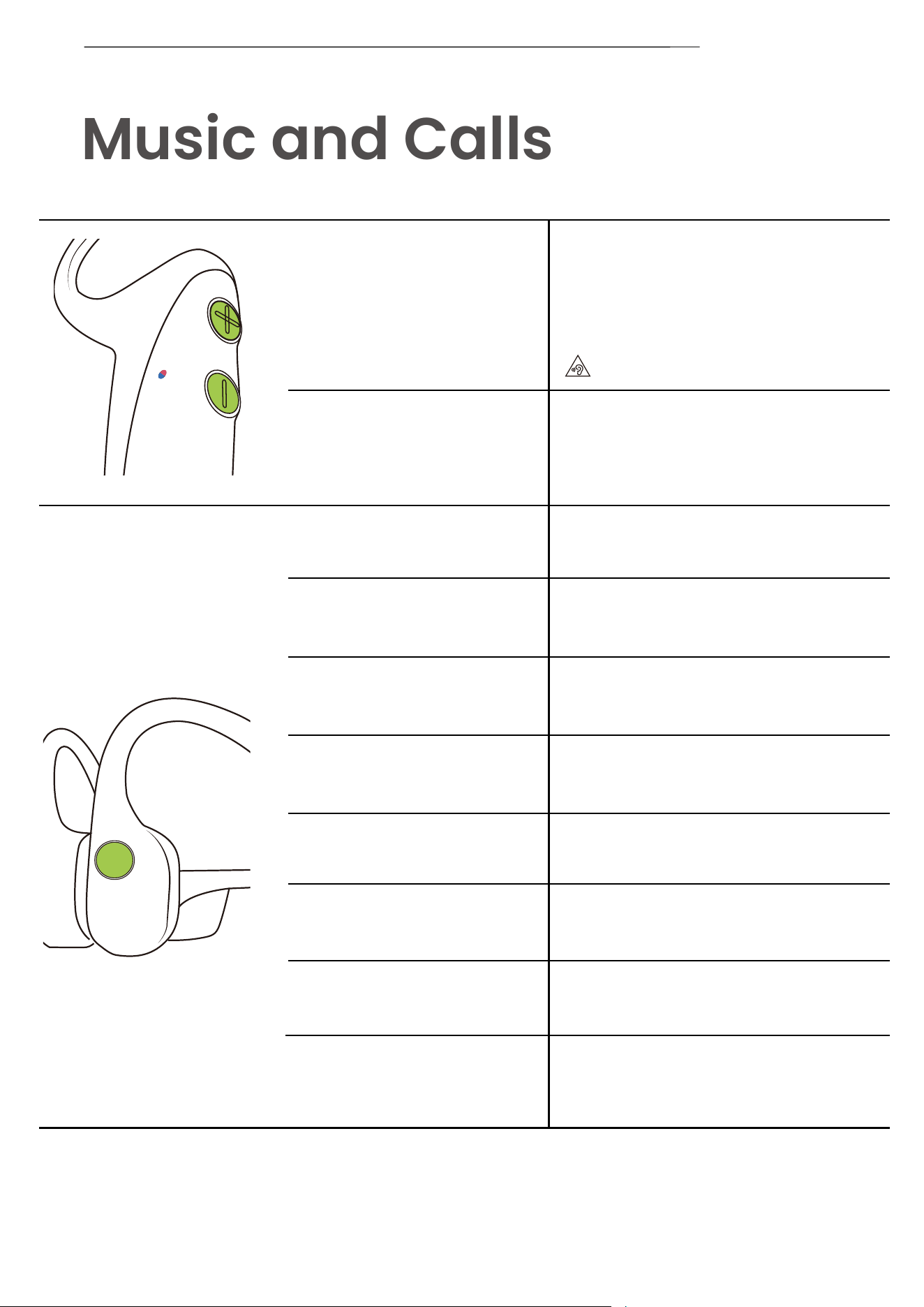
Adjust volume
While your audio is playing,
adjust the headset volume by
pressing either the “Volume+” or
“Volume-” buttons.
*A “beep” will sound when the volume is at its
max.
Switching EQ Modes
Play/pause music
Next song
Previous song
Switch language
Answer call
End call
Reject call
Answer an incoming call
and end the current call
Click once
Double-click while music is playing
Triple-click while music is playing
Double-click while pairing
Click once when a call comes in
Click once
Double-click the multifunction button
Click once
Press and hold both buttons
(Power/Volume+ button and
Volume- button) while music is play-
ing until you hear a voice prompt.
*Listening with your headset at a high volume may
affect your hearing and the audio will be distorted.
10
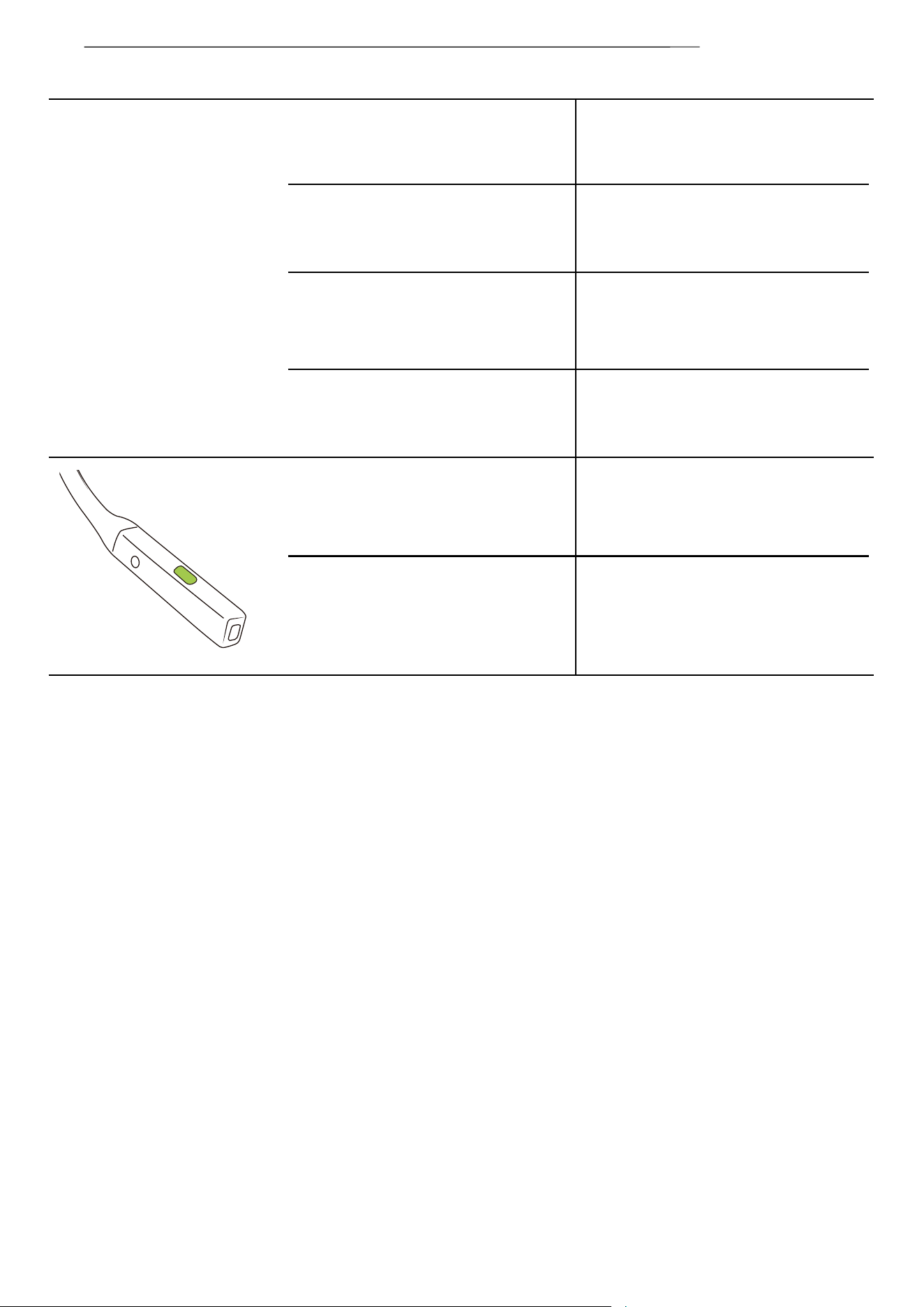
Mute microphone
Unmute microphone
Click once when on a call
*Audrey will say, “Mute on”.
Click once when on a call
*Audrey will say, “Mute off”.
Answer an incoming call and
place the current on hold
Switching between calls
Ending a call and switching
to a call on hold
Activate voice assistant
Press and hold for 2 seconds
Press and hold for 2 seconds
Click once
Press and hold the mute button for
2 seconds when not on a call.
MUSIC AND CALLS
11
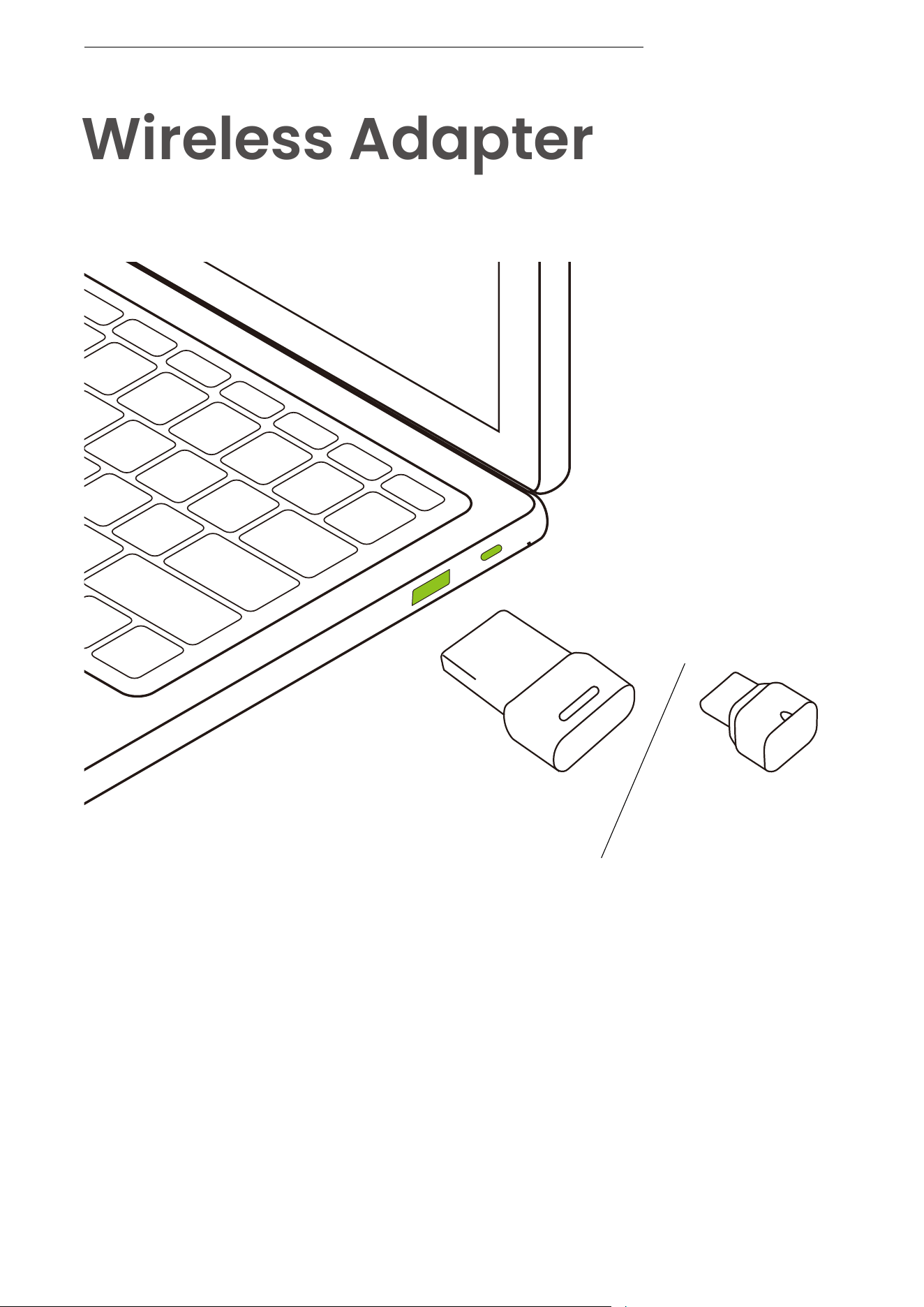
Wireless Adapter
Install Shokz Connect on your computer to access additional
information related to pairing, firmware updates, feature
settings, and resets for the Shokz Bluetooth adapter.
WIRELESS ADAPTER
Loop120
USB-C
Loop120
USB-A
12
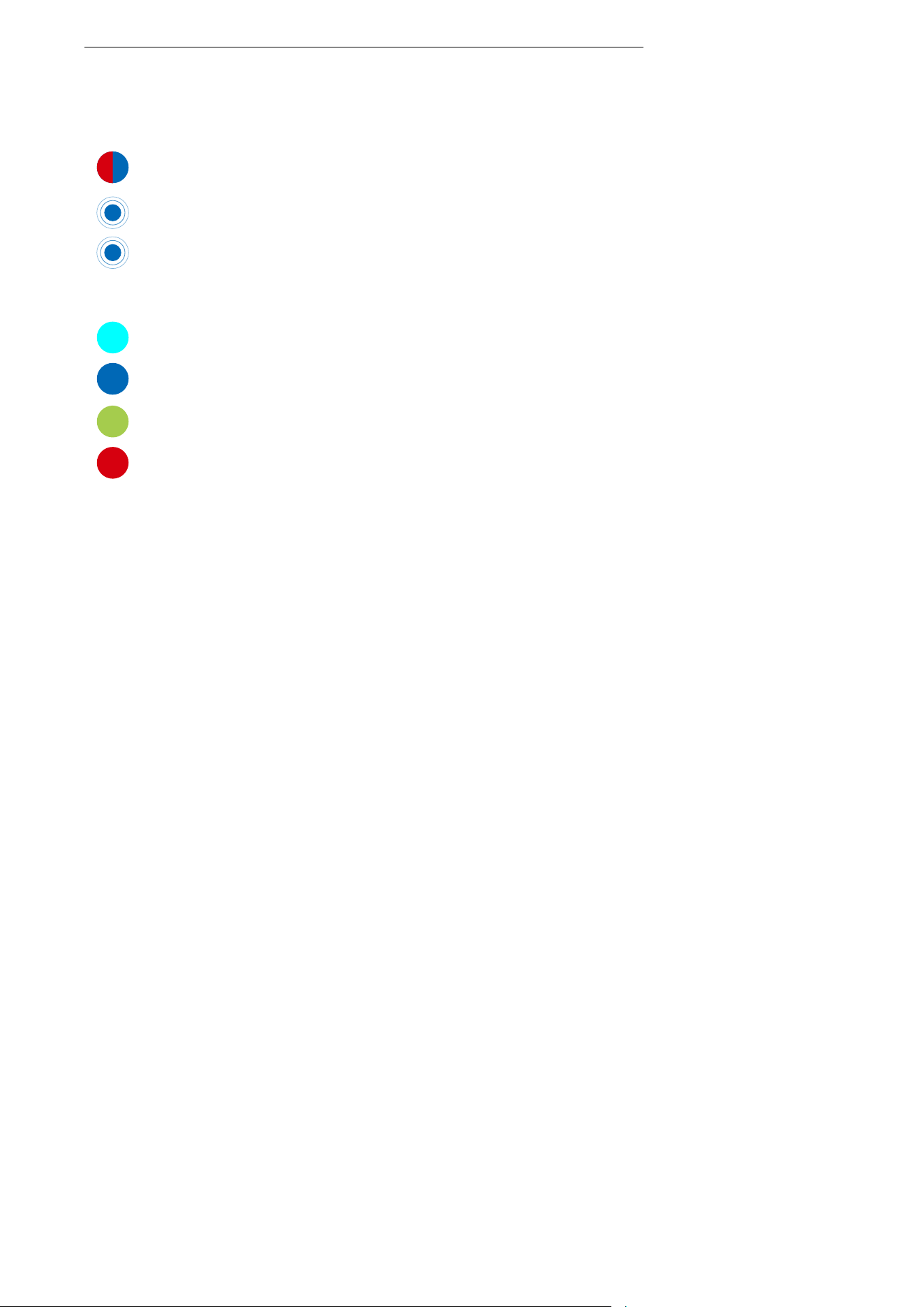
Pairing Mode: Flashes red and blue
Reconnect Mode: Flashes blue every second
Standby Mode: Flashes blue every five seconds and
stop flashing in one minute
Bluetooth Connection: Solid cyan
Streaming Music/Media: Solid blue
On a Call: Solid green
Muted During a Call: Solid red
LED on the adapter
WIRELESS ADAPTER
13
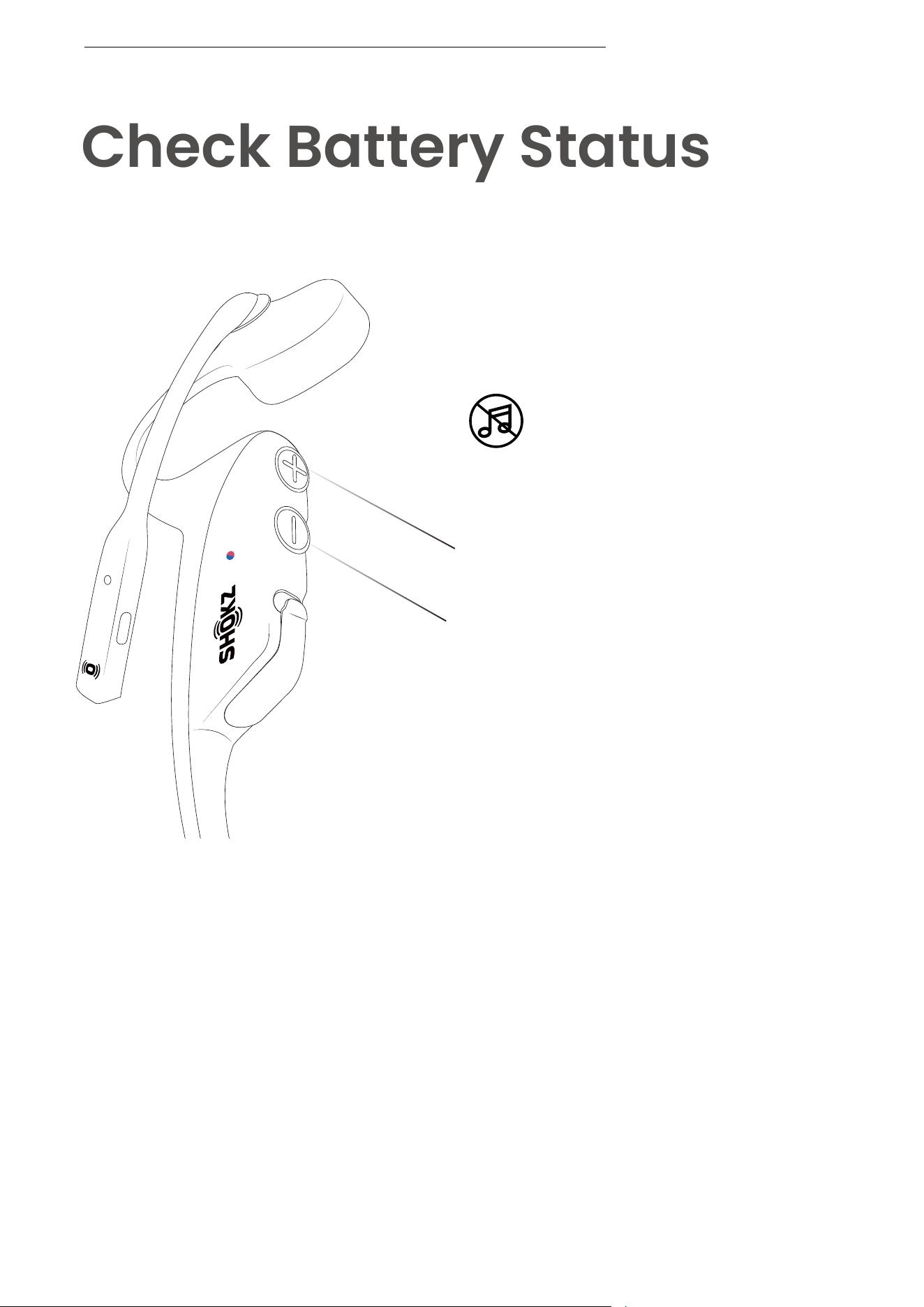
Operate controls while
audio is not playing
How to check battery status:
Click the “Volume+” or “Volume-” button while music is paused,
Audrey will tell you what the battery status is:
* "Battery high/Battery medium/Battery low/Charge me"
Power/Volume+ Button
Volume- Button
Check Battery Status
CHECK BATTERY STATUS
14

Extra Features
15
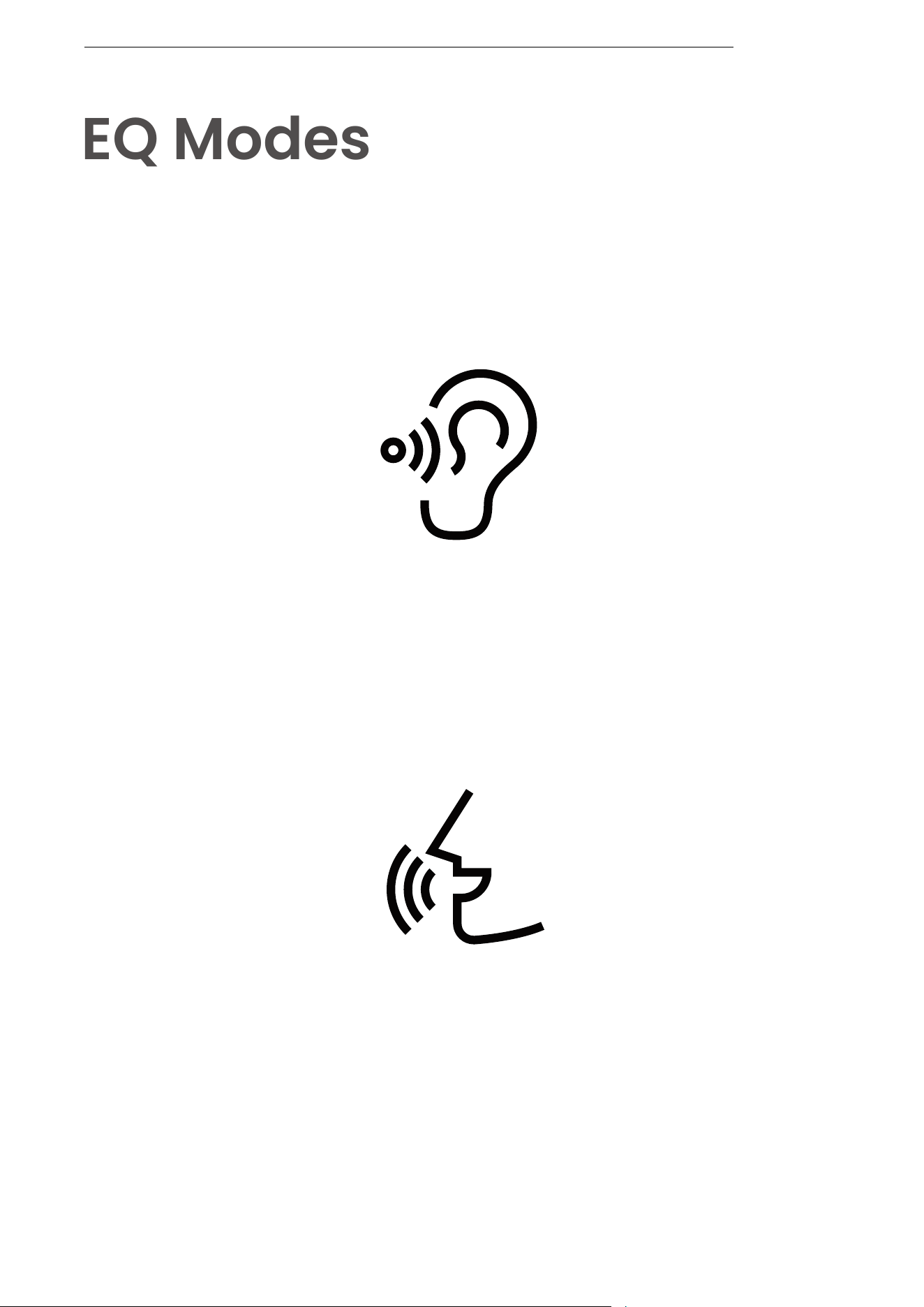
EQ Modes
EQ MODES
Vocal Booster Mode
Enhanced intermediate frequencies
for audiobooks, podcasts, etc.
Standard Mode
Balanced frequency for listening to music
16
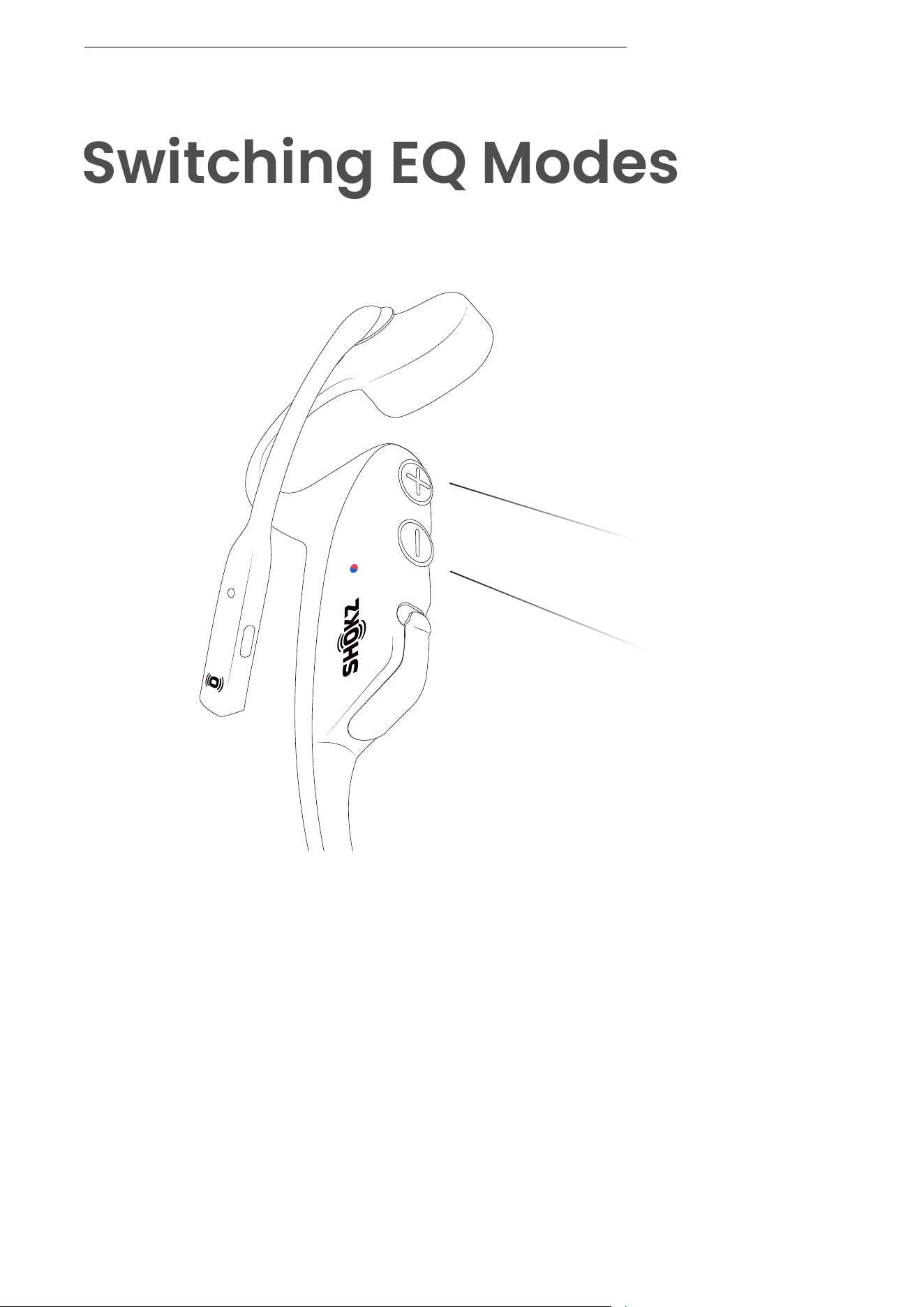
Switching EQ Modes
How to switch EQ mode:
Press and hold both buttons (Power/Volume+ Button and
Volume- Button) while music is playing until you hear a beep.
*Audrey will say, “Standard Mode/Vocal Booster Mode.”
Power/Volume+ Button
Volume- Button
SWITCHING EQ MODES
17
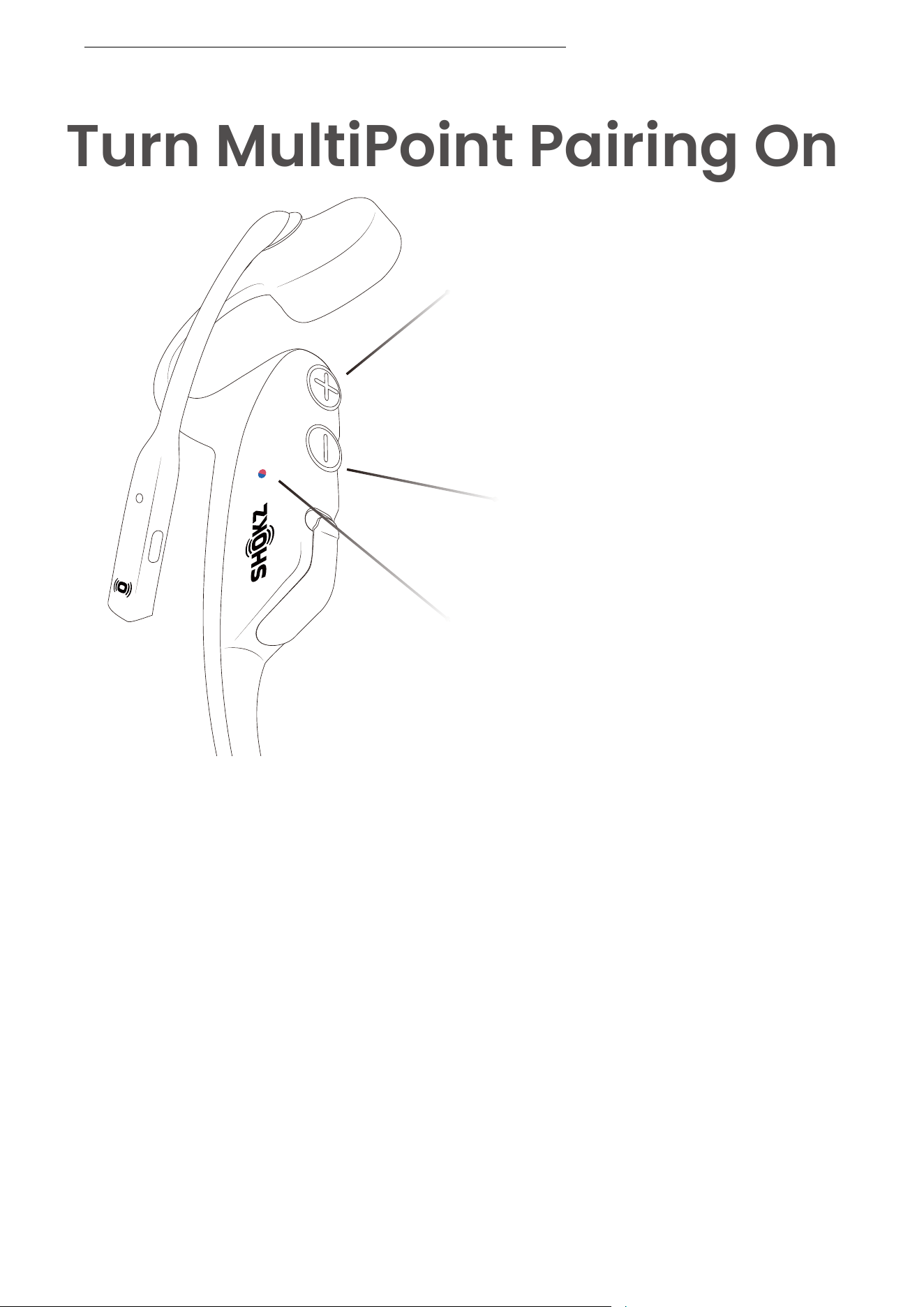
TURN MULTIPOINT PAIRING ON
18
Turn MultiPoint Pairing On
1. Start with your headset powered off.
2. Press and hold Volume+ until Audrey will say “Pairing” and the LED indicator
flashes red and blue alternately.
3. Press and hold the multifunction button and Volume+ button until Audrey
will say "MultiPoint enabled."
4. Open first device's Bluetooth® menu and select "OpenComm2 by
Shokz_II"Audrey will say "Connected".
5. Turn your headset off.
6. Re-enter pairing mode by pressing and holding Volume+ until
Audrey says “Pairing”and the LED indicator flashes red and blue
alternately.
7. Open second device's Bluetooth® menu and select "OpenComm2 by
Shokz_II"Audrey will say "Connected."
8. Turn your headset off.
9. Turn your headset on. Your headset is now connected to both devices.
LED Indicator
Power/Volume+ Button
Volume- Button
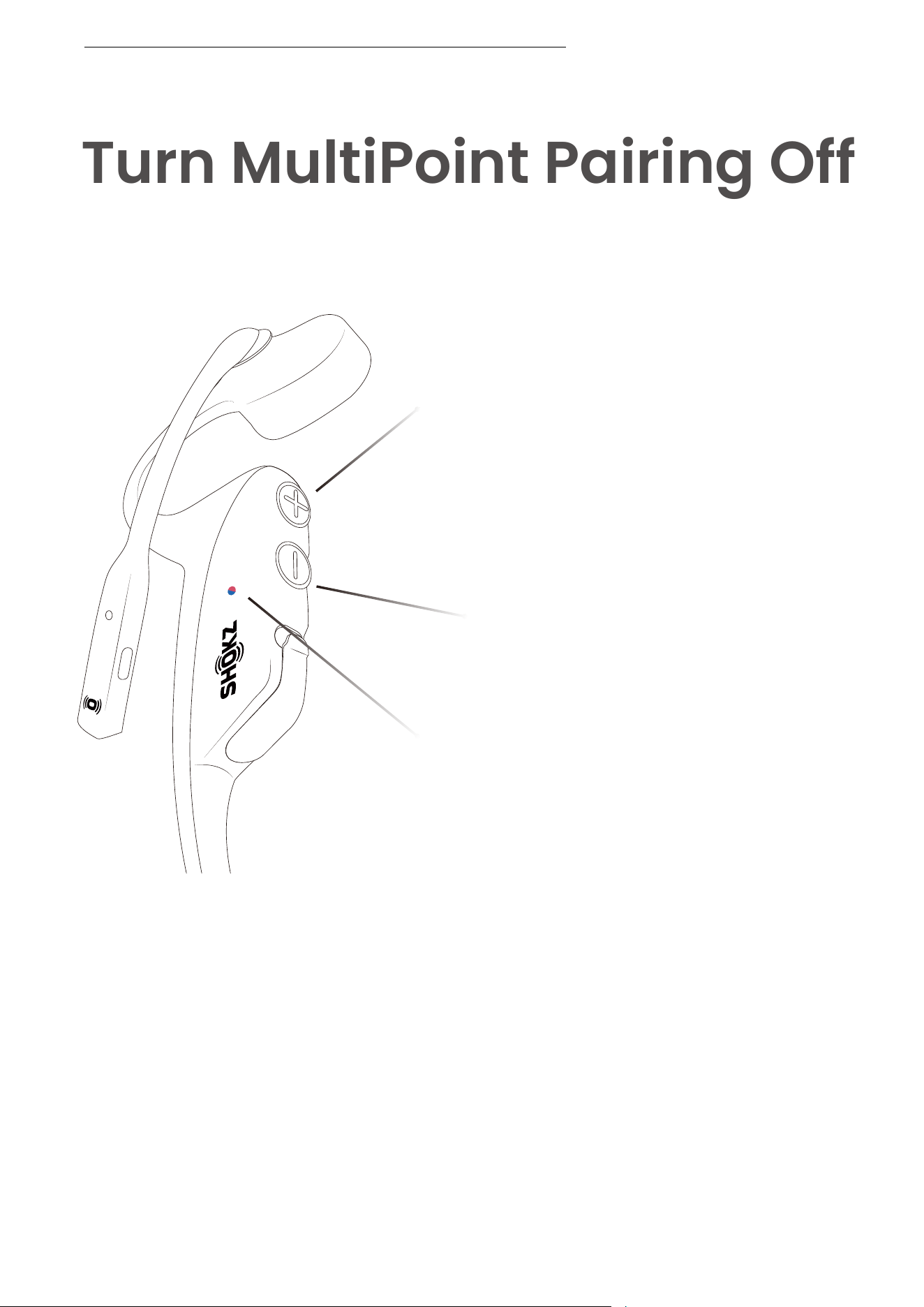
Turn MultiPoint Pairing Off
TURN MULTIPOINT PAIRING OFF
19
LED Indicator
Power/Volume+ Button
Volume- Button
1. Start with your headset powered off.
2. Press and hold Volume+ until Audrey will say “Pairing” and
the LED indicator flashes red and blue alternately.
3. Press and hold the multifunction button and Volume+
button until Audrey will say "MultiPoint Pairing disabled."
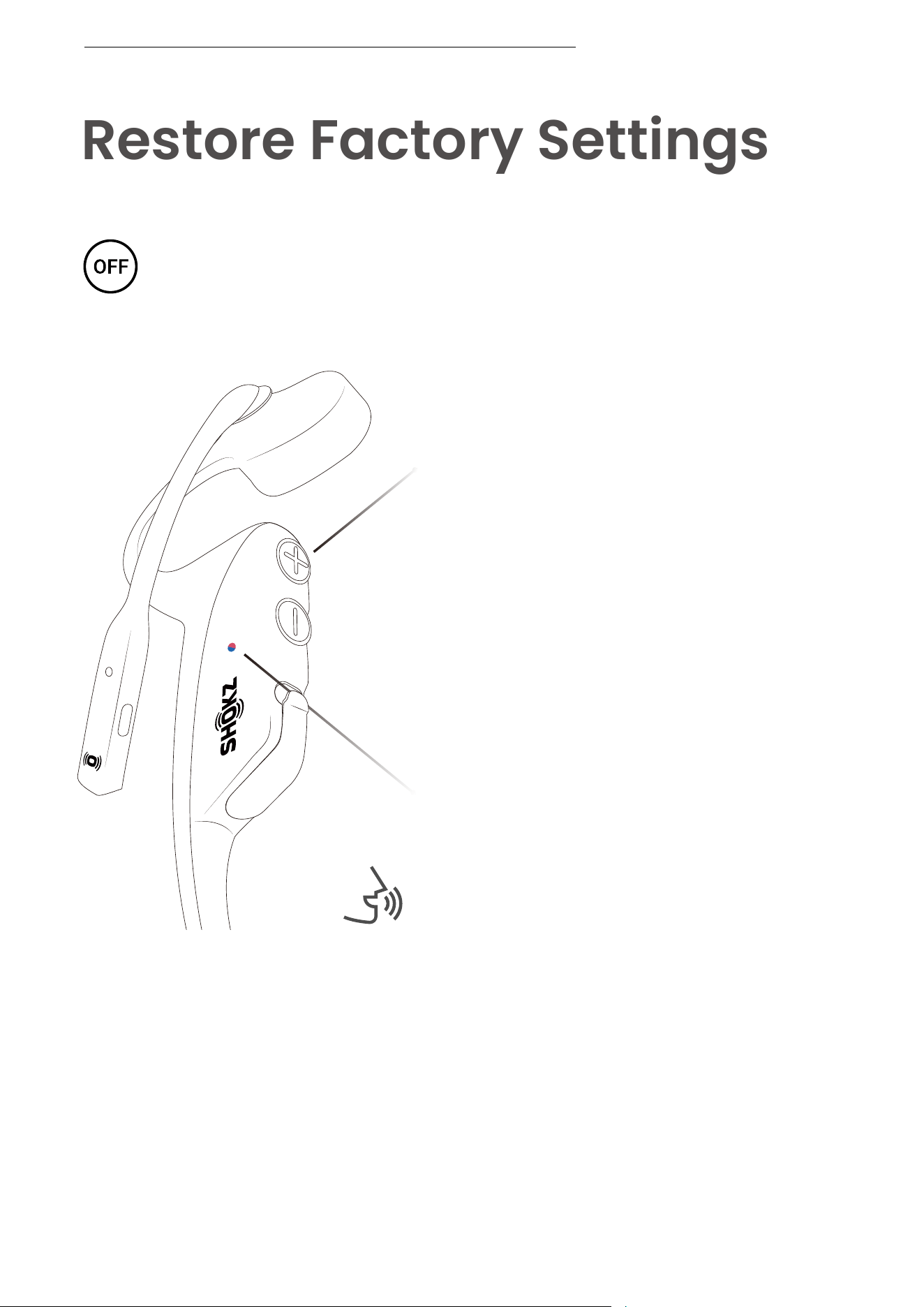
Restore Factory Settings
Operate controls with
headset powered off
1. Start with your headset powered off.
2. Press and hold the “Volume+” button until Audrey says
“Pairing”. The LED indicator will flash red and blue.
Audrey will say, “Pairing.”
LED Indicator
Power/Volume+ Button
RESTORE FACTORY SETTINGS
20
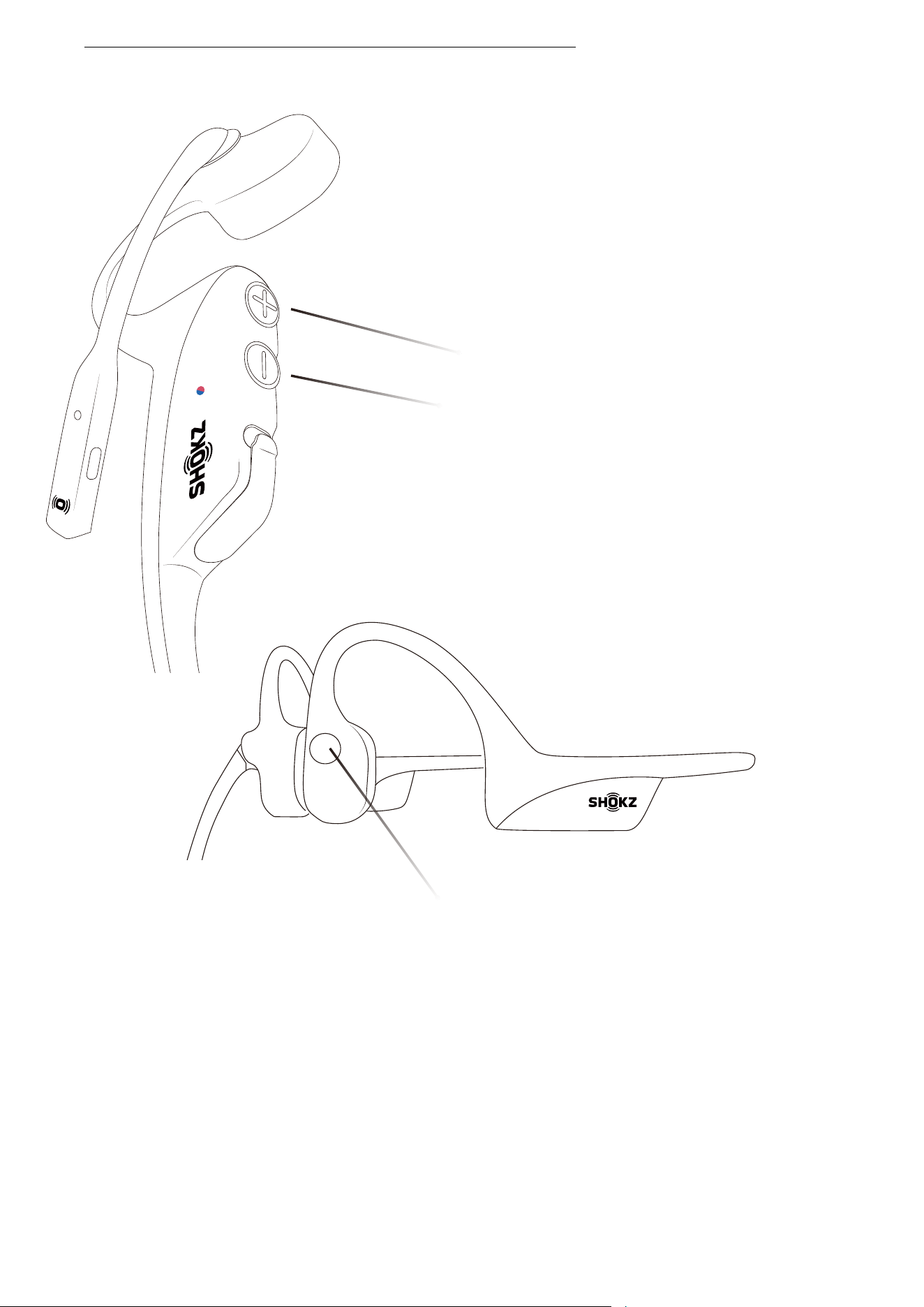
Volume- Button
Power/Volume+ Button
3. Hold down the Multifunction button, the Volume- button,
and the Volume+ button until you hear two beeps.
4. Turn your headset off. The headset is now reset and can
be re-paired to your device.
Multifunction Button
RESTORE FACTORY SETTINGS
21
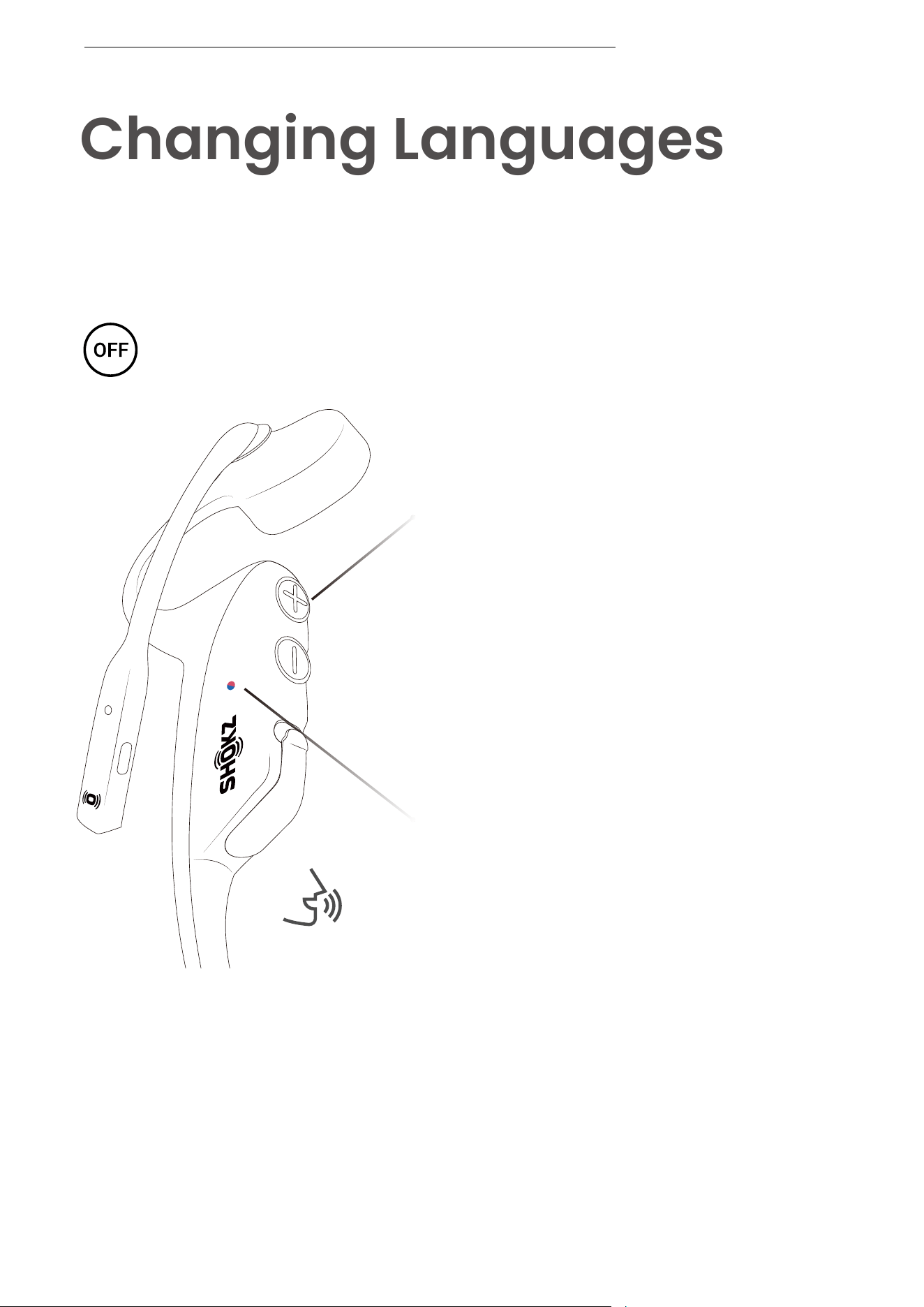
Follow the instruction when your headset
is powered off.
1. Start with your headset powered off.
2. Press and hold Volume+ until Audrey says “Pairing”
and the LED indicator flashes red and blue alternately.
Audrey will say, “Pairing.”
Changing Languages
Your headset has four built-in languages:
Chinese, English, Japanese and Korean.
CHANGING LANGUAGES
LED Indicator
Power/Volume+ Button
22
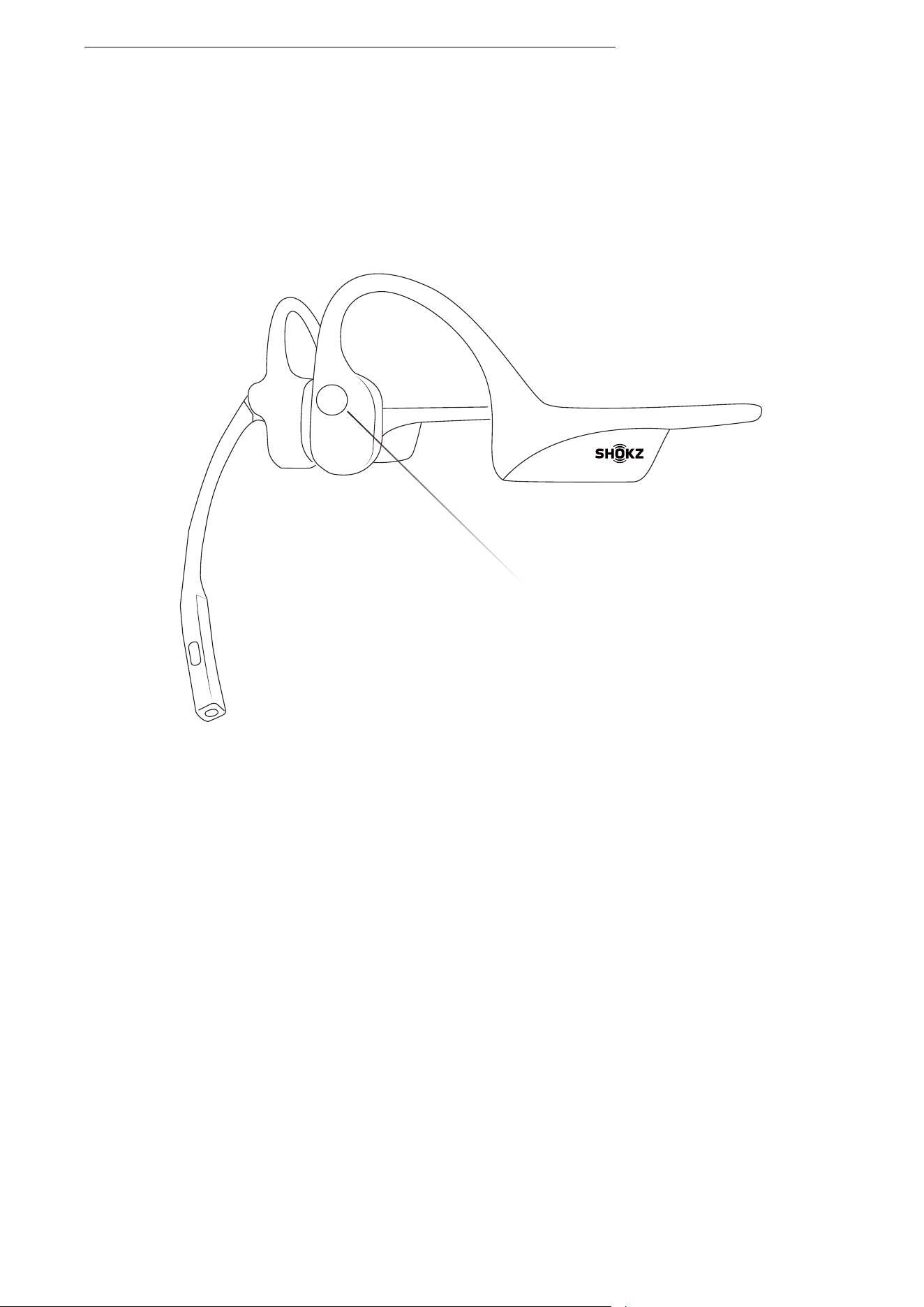
3. Double-press the multifunction button. Languages have
been switched when you hear the corresponding language.
Multifunction Button
CHANGING LANGUAGES
23
Care and
Maintenance
24
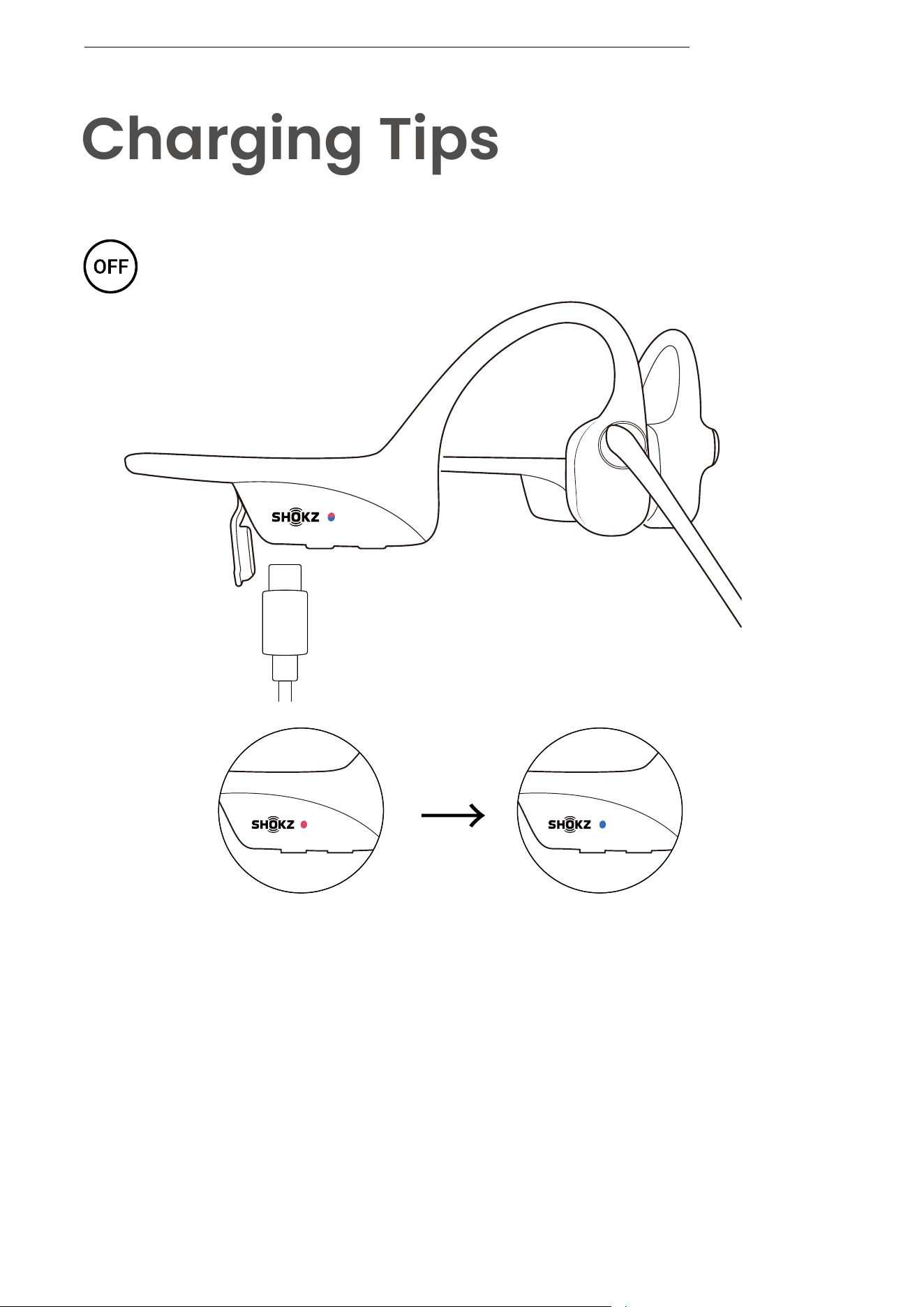
When the headset's battery is low, you will hear a “Charge
me” prompt, and the red light will flash. Use the provided
charging cable to recharge.
The LED indicator will light up red while charging, and the
headset will automatically power off. Once fully charged,
the LED indicator will turn from red to blue.
Charging Completed
Charging
Charging Tips
The headset will automatically
shut down when charging
CHARGING TIPS
25

Your headset is covered by a warranty. Visit our website at
https://shokz.com/pages/warranty-landing for details of the
limited warranty. *Failure to register will not affect your limited
warranty rights.
Warranty
WARRANTY
26
If you experience any issues or problems,
please visit https://shokz.com/pages/faq
for more support
Troubleshooting
TROUBLESHOOTING
27
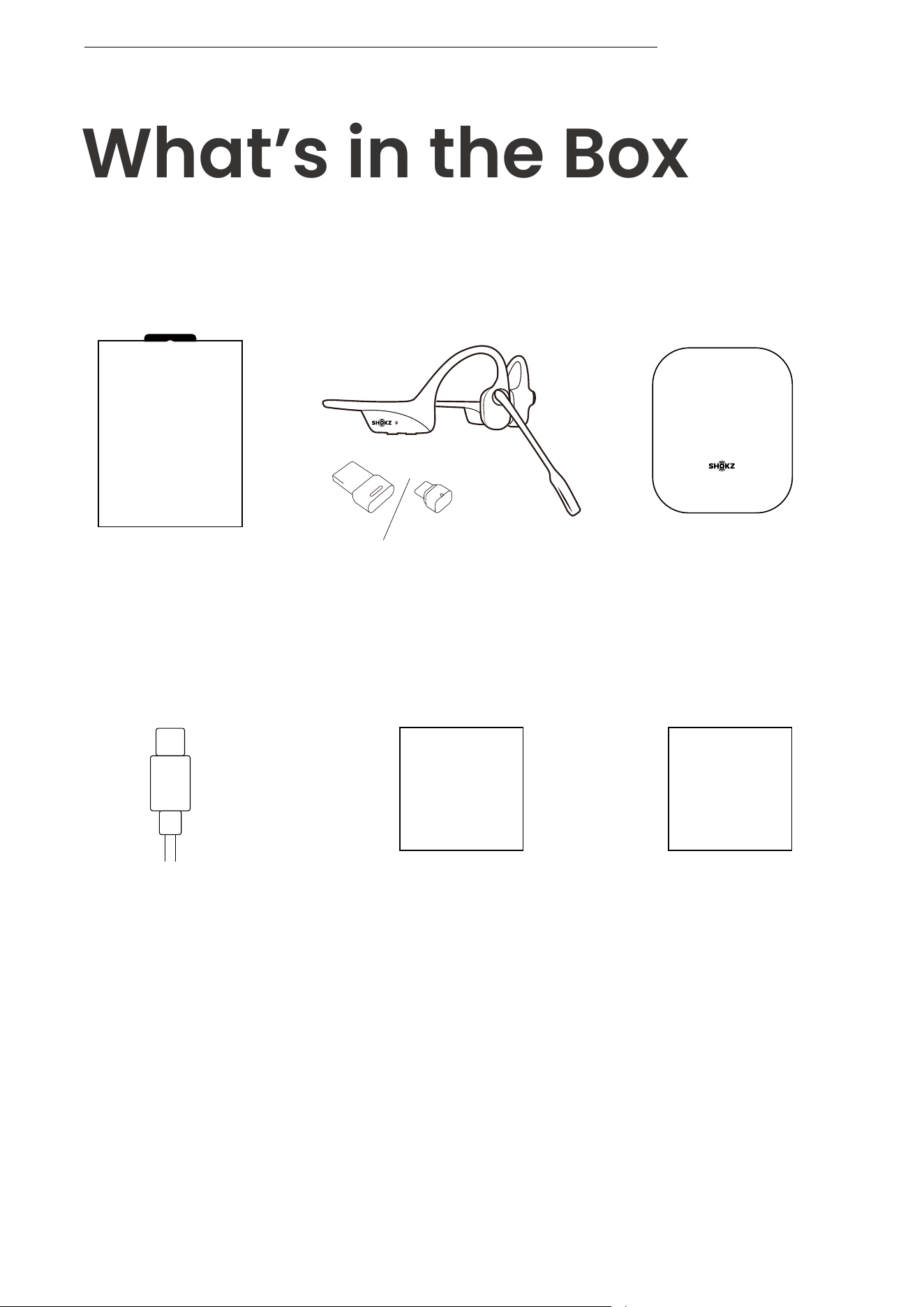
What’s in the Box
If any part of your product is damaged or missing, do not use it.
Contact an authorized Shokz dealer or Shokz customer service.
*Please note that product packaging may vary depending on
the sales region.
WHAT’S IN THE BOX
OPENCOMM2 UC
OpenComm2 Headset OpenComm2 & UC
Package
OpenComm2 & UC
Box
Legal Statement
LegalUser Guide
USB-C
Charging Cable
OpenComm2 & UC
User Guide
*Loop 120 USB-A/USB-C Dongle
(UC version only)
Loop120
USB-C
Loop120
USB-A
28
Download the Shokz App for your phone and Shokz
Connect for your computer for the latest features
and technical support.
Shokz Connect
* Please note, the headset only supports the Android
version of the Shokz App.
* Google Play is a trademark of Google LLC.
Shokz App & Shokz
Connect
SHOKZ APP & SHOKZ CONNECT
29