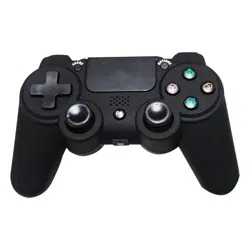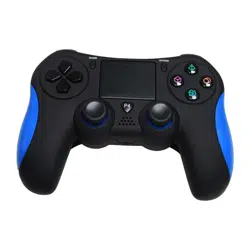
with LED Lights, Built-in Speaker 6-Axis Sensor
PGMC3WPS4
Game Console Handle Wireless Controller

www.PyleUSA.com
2
Please read this instruction manual thoroughly before
using the unit. Please keep for future reference.
Contents:
• 1 Wireless Controller
• 1 Changing Cable
• 1 User Manual
A complete guide for beginners to pair and operate
There are two pairing method for this product:
Wireless BT pairing and wired direct connection (data cable included
can also be used as charging cable)
Wireless Pairing Operation Steps
1. Using the PGMC3WPS4 controller on video game console for the
rst time, connect the PGMC3WPS4 controller to the console
using USB cable included to complete device registration.
The PGMC3WPS4 controller will connect to the video game
console automatically in the future.
2. Press "SHARE+HOME KEY" simultaneously for 2 seconds, blue light
will ash quickly, now you can pair the controller with the console.
3. If it still does not work, you may need to restart it or charge it fully.
Wired Operation Steps
PC can be connected directly with the data cable.
The driver will install automatically (The wireless connection also
supports PS3, but does not support mobile phones, TV Box).
www.PyleUSA.com
3
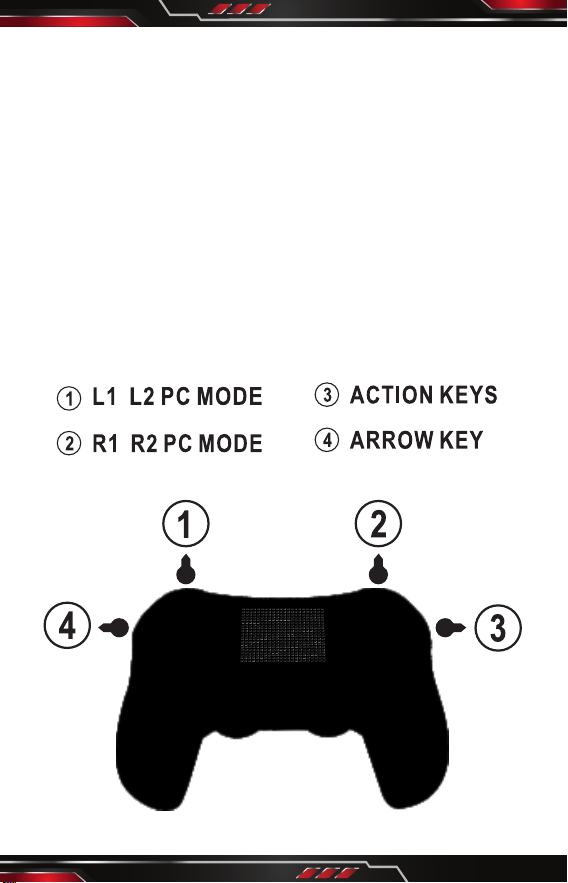
How To Use the Wing Button
1. The four-wing buttons on the back can replace the function of any
button within 1, 2, 4, 3.
2. First, make sure to format the controller rst with this process:
• Press the share and any wing button together, then release the
wing button and share button in sequence (wing button mut be
released rst).
3. Now you can set any button you want to be replaced by the
wing button with this process:
• Press the share and any button within 1, 2, 4, 3 then press any
wing button, nally release the wing button rst then other
buttons. The setting will be successfull.
www.PyleUSA.com
4
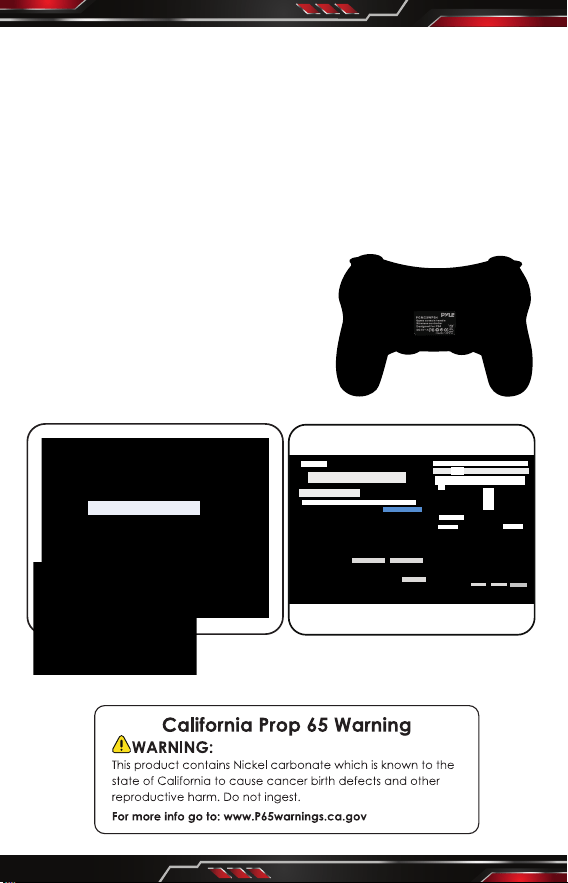
How To Use The Wing Button
• Those four wing buttons on the back can replace the function of
any button within 1, 2, 4, 3.
• Make sure to format the controller rst with this process.
• Press the share and any wing button together, then release the wing
button and share button in sequence.
(wing button must be released rst)
• Now you can set any button you want to be replaced by the wing
button with this process.
• Press the share and any button within
1, 2, 4, 3, then press any wing button,
nally release the wing button rst
then other buttons, the setting will be
successfull.
Gam e Contr oller s etup( G)
Cre ating s hortc uts(S )
Del ete dev ice(V )
Pro blem so lver( T)
Att ribut e®
Gam e Contr oller
The se sett ings wi ll help y our con figura tion in stall t he game
con troll er on you r calcu lator
Ins tall th e game co ntrol ler(N )
con troll er
Sta tus
Det ermin e
Adv anced (D)
Att ribut e(P)
Det ermin e
Wir eless C ontro ller Att ribut e
Set up
Testi ng
Test Gam e Contr oller. I f the con trol is n ot work ing
prop erly, the c ontro ller ne eds to be c alibr ated. To
cali brate t he cont rolle r, go to the s ettin gs page
Axle s
Z Axles
X Whir ling
Y Whir ling
Z Whir ling
X/Y Axl es
Push B utton
Visua l Helme t
Det ermin e
Can cels
App licat ions
Cat egori es: Gam e Contr oller
Wir eless C ontro ller Mo de: Wir eless C ontro ller
www.PyleUSA.com
5
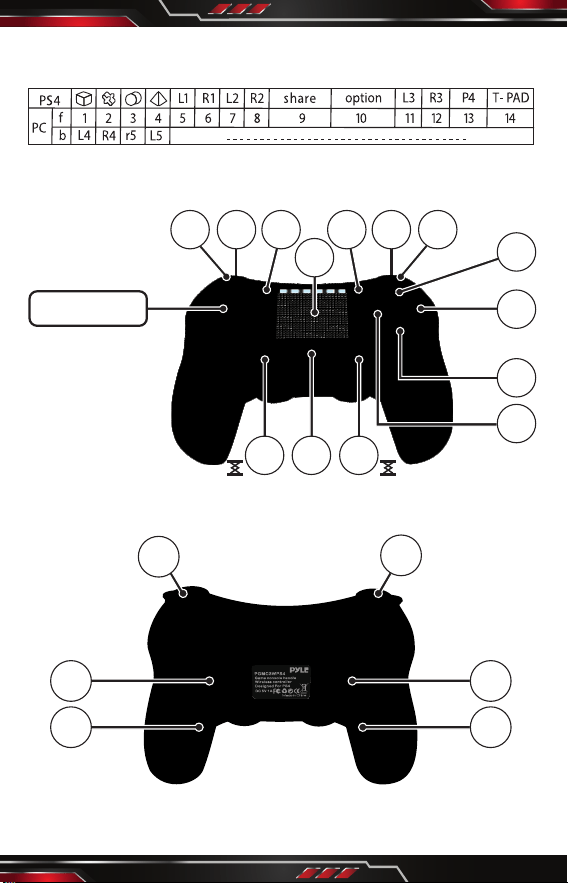
Controller button corresponding table
FRONT
BACK
2
4
5
67 89 10
11 1213
14
1
3
X/Y AXIS
7
8
42
r5 L5
1
3
L4R4