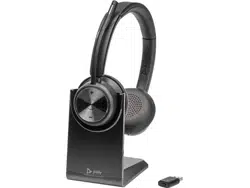

Savi 7310/7320 UC
Wireless DECT headset system for
computer
User Guide

Contents
DECT Information 3
DECT Enhanced Security 3
Overview 4
Headset overview 4
Charge stand (select models only) 4
D400 DECT USB adapter 5
Fit and charge 6
Wear on the right or left 6
Charge your headset 6
Talk Time 6
Battery 6
Connect to PC 7
Subscribe D400 USB adapter again 7
Configure USB adapter for streaming audio 7
Load software 9
Update firmware 9
The basics 10
Headset overview 10
Power on/off 10
Make, answer, end calls 10
Adjust volume 11
Mute 11
Interact with Microsoft Teams 11
View Microsoft Teams notifications 11
More Features 12
Optimize audio quality 12
Limit office noise 12
Set up a conference call 12
Subscribe D400 USB adapter again 12
End subscription mode 13
Online indicator 13
Out of Range Warning Tones 13
Troubleshooting 14
Headset 14
Softphone 14
What's in the box 16
Support 17

DECT Information
DECT products should never be used outside the region in which they were originally
purchased and intended to be used.
The enclosed DECT 6.0 wireless product uses restricted wireless radio frequencies which
vary by country. DECT 6.0 devices are generally authorized for use in the US/Canada/
Mexico. Use of this DECT 6.0 product in unauthorized countries is a violation of law, may
disrupt telecommunications networks and devices, and can subject you to fines and
penalties by regulatory agencies.
DECT Enhanced Security
Poly is a member of the DECT Forum and has fully adopted their recommendations for
enhancements to security within all DECT products.
Poly DECT-based products now fully incorporate the latest recommendations on
Enhanced Security from the DECT Forum and ETSI. These improvements cover
registration, authentication, authorization and encryption procedures. Poly DECT
products are now secure against known vulnerabilities that were highlighted by the
public announcements of the Chaos Communication Congress in 2009.
Poly DECT products have been tested against and passed the DECT Forum security
certification requirements and consequently have been granted 'DECT Forum security'
logo certification.
Poly DECT products using the new enhanced version of DECT that includes these
security improvements are marked on the base with the DECT Forum security logo.
3
Overview
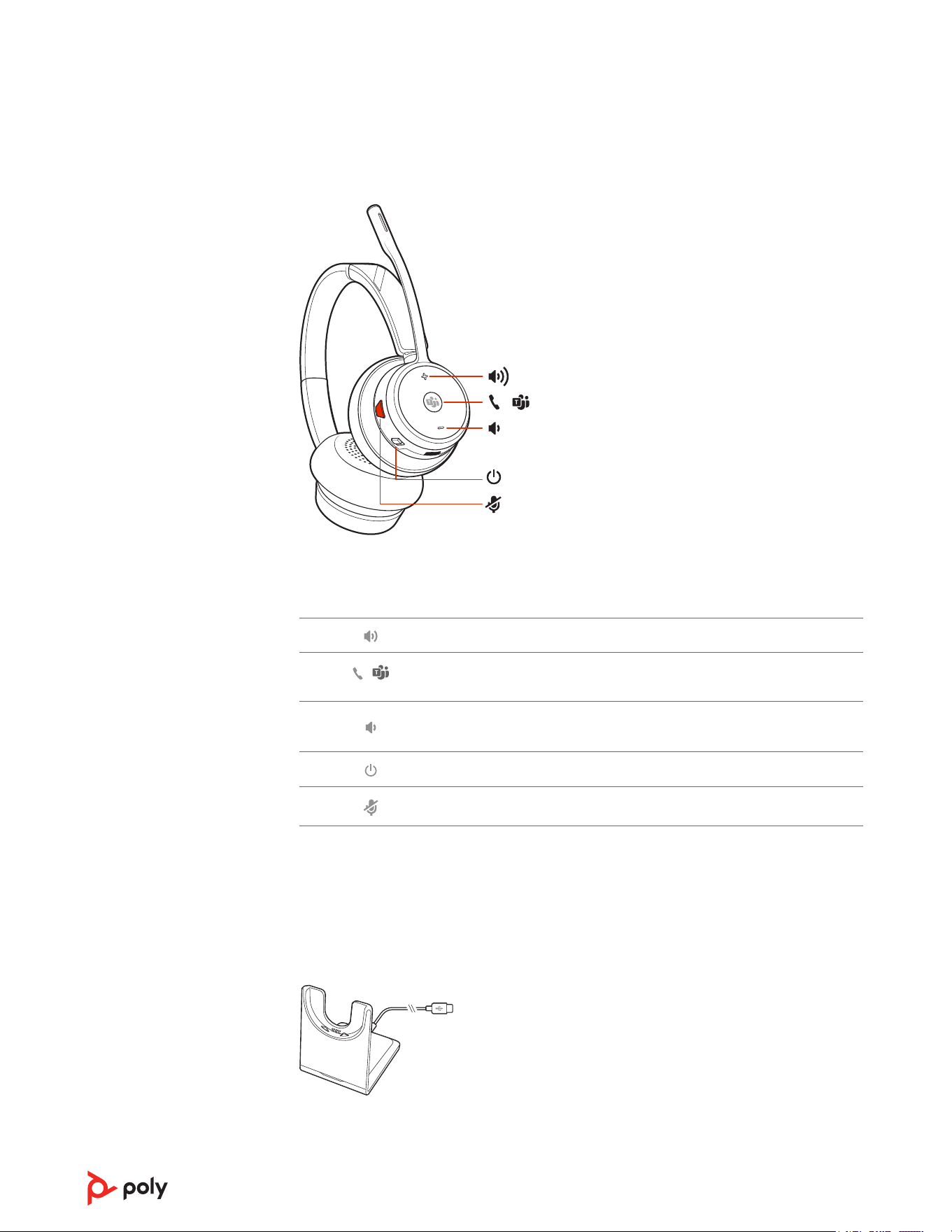
Headset overview
/
Note: Headset design may vary but function is the same.
Volume up
/
Call / Press to interact with Microsoft Teams (Teams model only, app
required)
Volume down
Power
Mute/unmute
Be safe
Please read the safety guide for important safety, charging, battery and regulatory
information before using your new headset.
Charge stand (select models only)
Note: The charge stand plugs into a computer or wall charger's USB port.
4
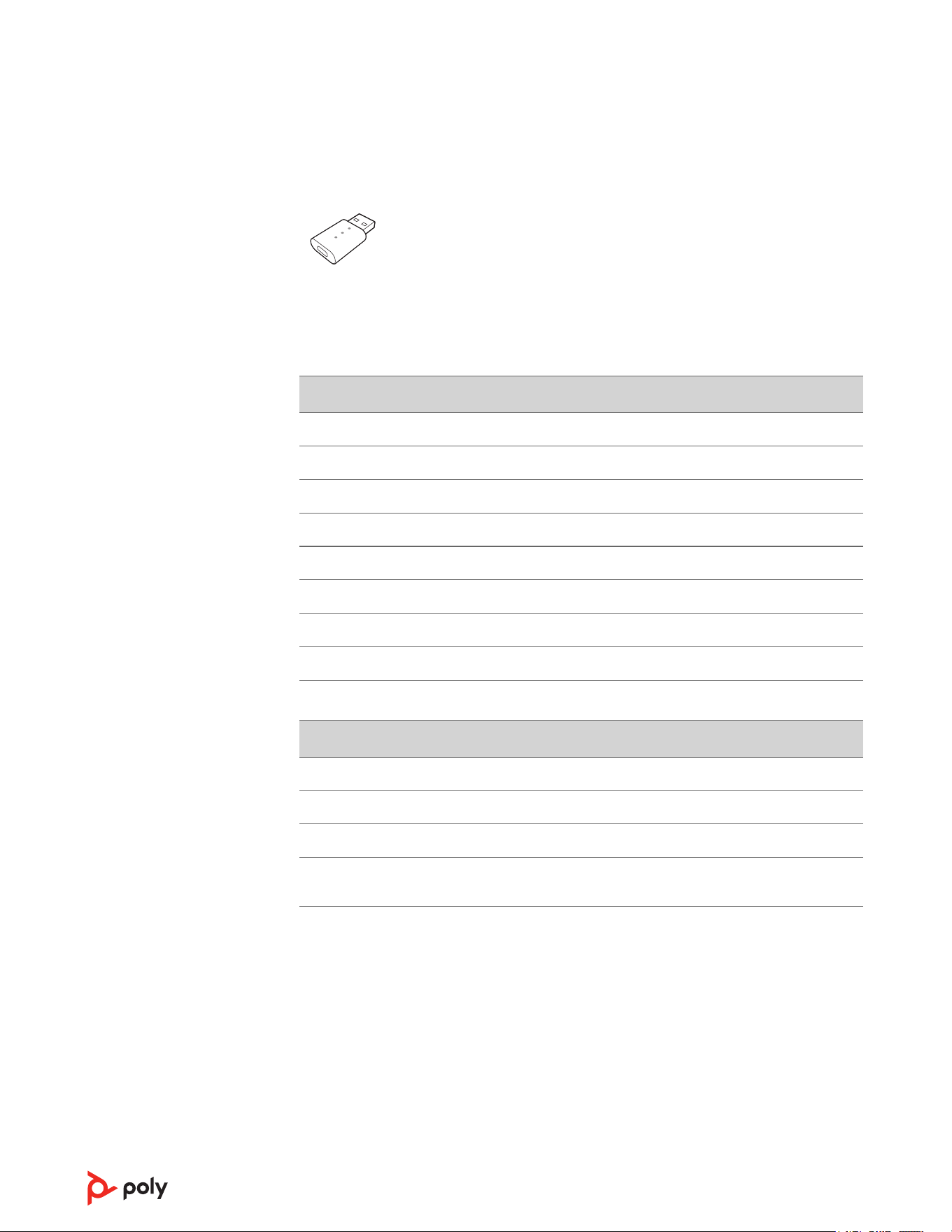
D400 DECT USB adapter
Note: The DECT adapter connects to a USB-A port on your computer. To connect to a
USB-C port, first connect your DECT adapter to the accessory USB-C adapter and plug
into your computer.
Standard LEDs
USB LEDs Status
Solid green Headset connected; subscription successful
Fast flashing green Incoming call
Flashing green On a call; call on hold; streaming media
Solid red Call is muted
Flashing red and green Subscribe mode
Flashing green Update in progress
Red for 4 seconds Subscription failed
LEDs when Microsoft Teams* is detected
USB LEDs Status
Solid white Connected to Teams
Pulsing white Teams notification
Flashing white for 10
seconds
Teams connection failed
Note: *Requires Microsoft Teams desktop application.
5
Fit and charge
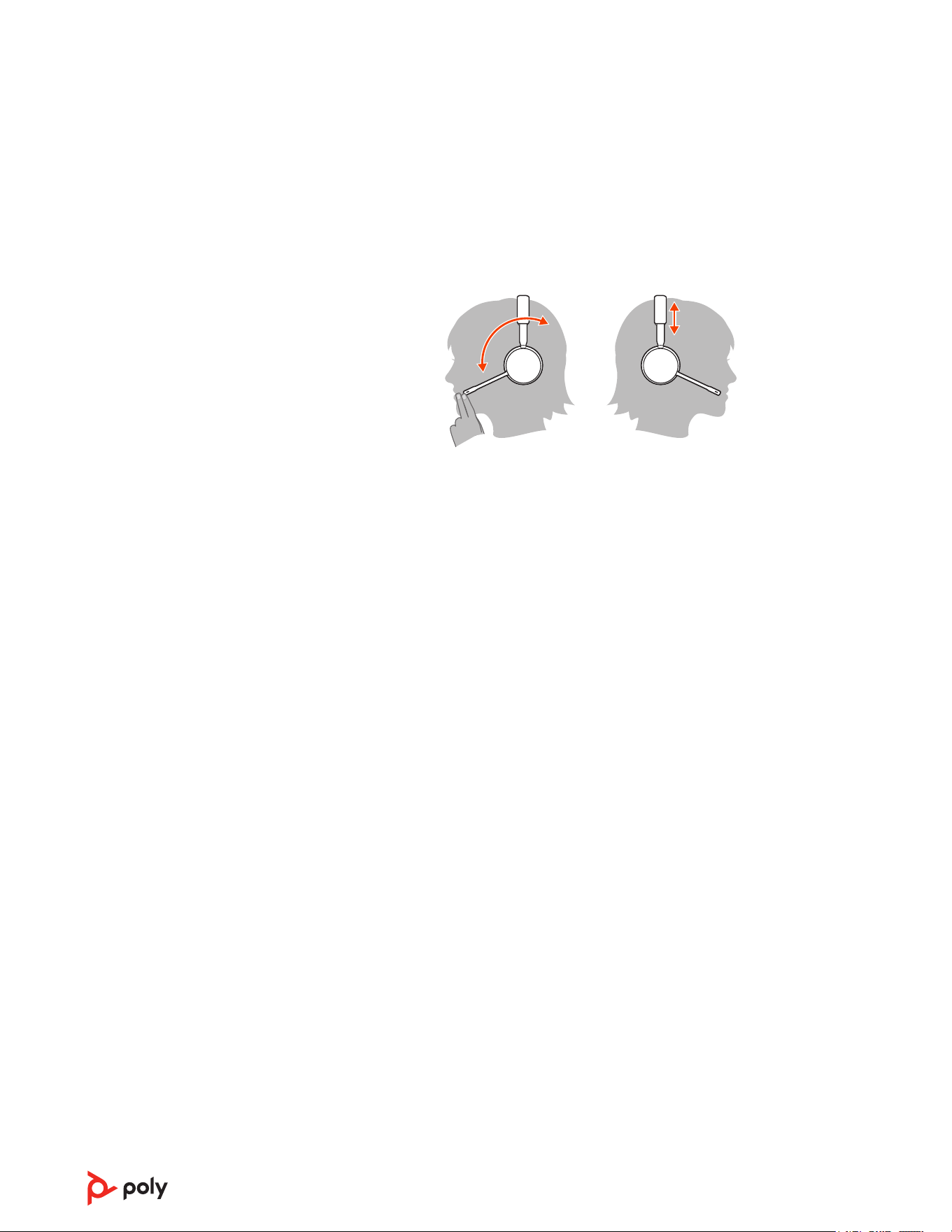
Wear on the right or left
• To position the microphone on the right or left side, rotate the microphone boom up
and over. Bend the boom so it is approximately 2 finger widths from the corner of
your mouth.
• Gently flex the headband wider if the fit is uncomfortable on your ears.
Charge your headset
Place the headset in the charge cradle. The charging LED flashes when charging the
headset and remains steady when the headset is fully charged. Charge for at least 20
minutes prior to the first use.
Talk Time
With a single full charge, the headset provides up to 13 hours of continual talk time in
wideband mode.
Battery
This product has a replaceable battery. To ensure replacement batteries meet high
quality standards and for optimal performance, only use replacement batteries provided
by Poly.
6
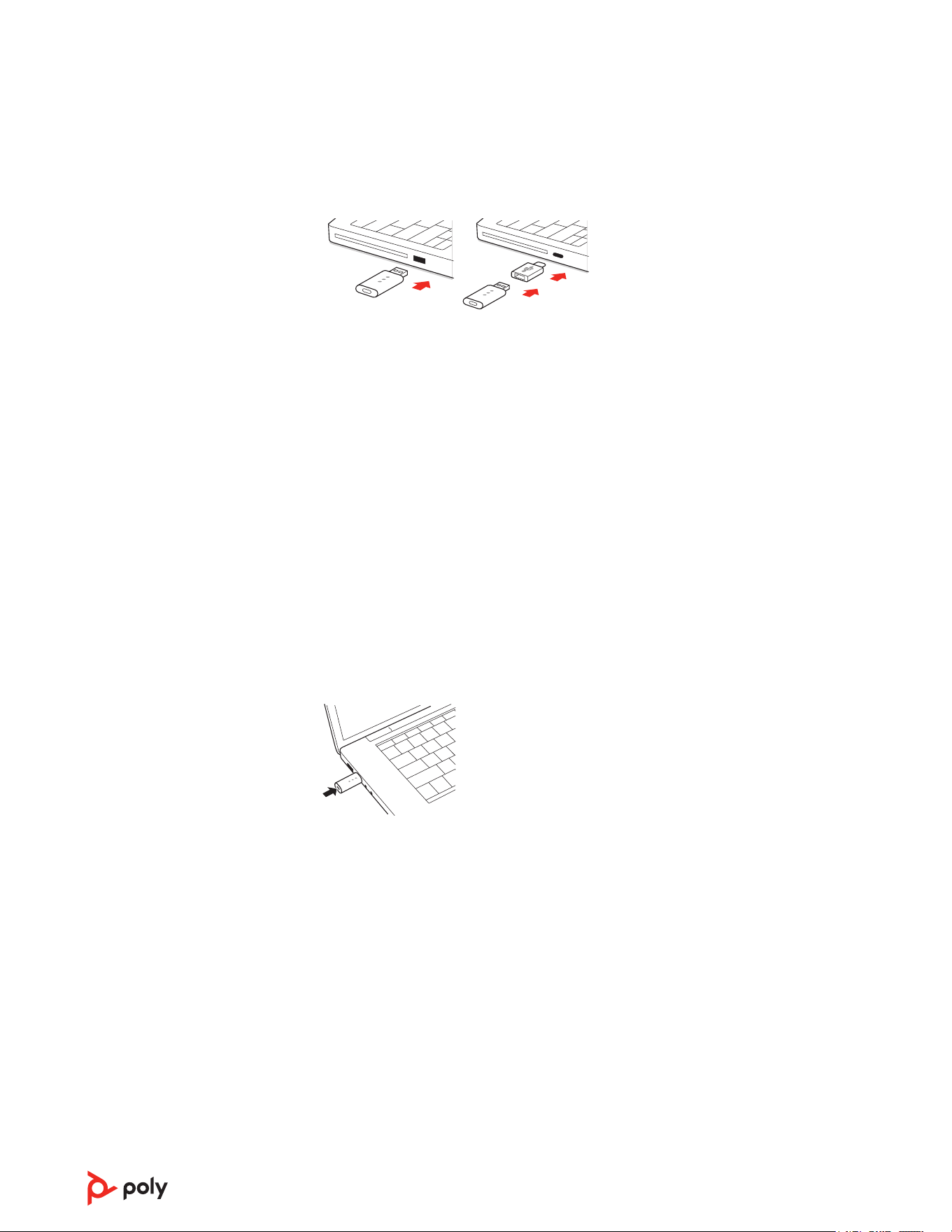
Connect to PC
Your DECT
™
USB adapter is pre-subscribed (connected) to your headset.
1 Turn on your headset and insert the DECT USB adapter into your laptop or PC.
D400 adapter: To connect your DECT adapter to a USB-C port, use it with the
optional USB-C adapter.
2 The USB adapter LED is solid red when inserted and then turns solid green or blue to
indicate the headset is connected to the USB adapter. If you are wearing your headset
you will hear “Base connected” to indicate the connection has been established.
When on a call, the LED on the USB adapter flashes green or blue. When not on a call
the LED is solid green or blue. LED color varies by USB adapter model.
Subscribe D400 USB adapter again
Typically, your DECT USB adapter is subscribed (connected) to your headset. In the event that
your adapter is disconnected or bought separately, you will need to subscribe the adapter to
your headset.
1 Insert the DECT USB adapter into your laptop or computer and wait for the LED to
light up.
2 To put your headset in subscribe mode, press and hold the Volume up button for 4
seconds. Your headset LED lights up.
3 To put your DECT USB adapter into subscribe mode, double press the subscription
button until the USB adapter flashes red and green.
Note: To connect your DECT adapter to a USB-C port, use it with the optional USB-
C adapter.
4 Subscription is successful when you hear "pairing successful" and "base connected"
and the DECT USB adapter LED is solid green.
Note: If the USB adapter LED goes solid red after flashing red and green, the
subscription attempt has failed and should be repeated.
End Subscription
If the USB adapter is in subscription mode and you want to stop the adapter from
searching for a headset, press the subscription button once. The subscription light will be
solid red for four seconds and then go to its previous state.
Configure USB adapter for streaming audio
Your DECT USB adapter comes ready to take calls. If you want to listen to music, you will
need to configure your DECT USB adapter.
7

Windows
1 To configure your DECT USB adapter to play music, go to Start menu > Control Panel
> Sound > Playback tab. Select your headset and set it as the Default Device and click
OK.
2 To pause music when you place or receive calls, go to Start menu > Control Panel >
Sound > Communications tab and select the desired parameter.
Mac
3 To configure the DECT USB adapter, go to Apple menu > System Preferences >
Sound. On both the Input and Output tabs, select your headset.
8

Load software
Download Poly Lens App to get the most out of your device. Some softphones require the
installation of Poly software to enable device call control (answer/end and mute)
functionality. Download: poly.com/lens.
• Enable features
• Change settings
• Configure call control for softphones
• Update device firmware
• Manage notifications and alerts
• Schedule health and wellness reminders
Update firmware
Keep your firmware up-to-date to improve performance and add new features to your
Poly device.
Update your firmware using your computer with Poly Lens Desktop App. Download at
poly.com/lens.
While updating firmware:
• Do not use your Poly device until the update is complete.
• Do not start a second update from a second device.
• Do not stream media.
• Do not answer or place a call.
9
The basics
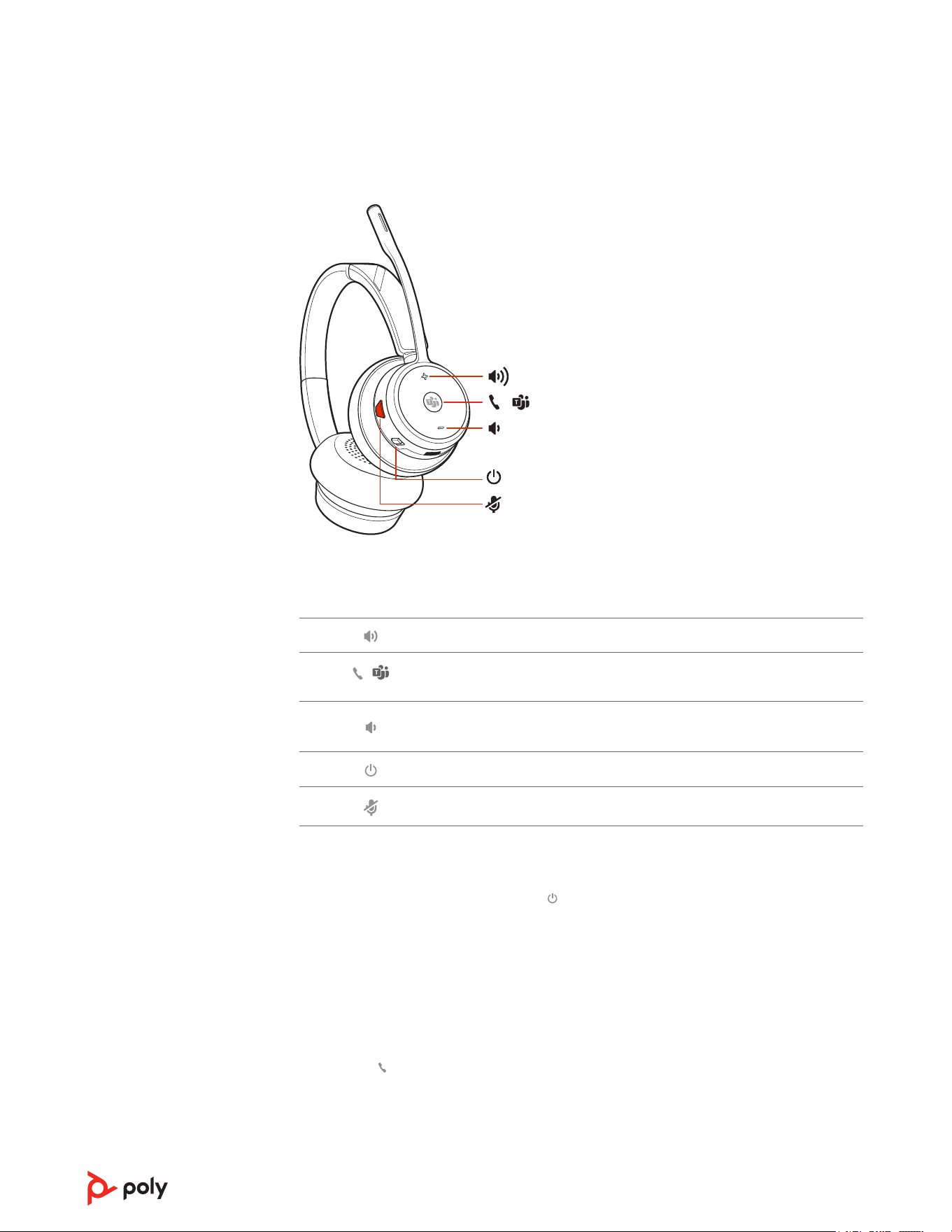
Headset overview
/
Note: Headset design may vary but function is the same.
Volume up
/
Call / Press to interact with Microsoft Teams (Teams model only, app
required)
Volume down
Power
Mute/unmute
Power on/off
To turn on the headset, slide the Power button to reveal green.
Make, answer, end calls
Make a call
Dial from your softphone.
Answer or end a call
Tap the Call button.
Answer a second call
1 While on a call, press the headset Call button for 2 seconds to answer the second call.
This will place the first call on hold.
10

2 To switch between the calls, press the headset Call button for 2 seconds.
Switch between calls (flash)
To switch between calls, press the headset Call button for 2 seconds.
Adjust volume
Fine-tune your headset volume by adjusting the volume controls.
Adjust headset microphone volume (softphone)
Place a test softphone call and adjust softphone volume and PC sound volume
accordingly.
Mute
During an active call, tap the Mute button to mute or unmute your headset.
Interact with Microsoft Teams
Press the Teams button to interact with Microsoft Teams when not on a call (model
and application required).
Note: Your headset's Call button is also the Microsoft Teams button.
View Microsoft Teams notifications
Your USB Adapter Microsoft Teams LED pulses when you have a Teams notification.
Tap your headset Call button to view notifications on your computer.
11

More Features
Optimize audio quality
There are 3 audio modes: wideband stereo (hybrid), wideband (conversation) and
multimedia (music).
To optimize your audio quality for your activity, with the system idle, press the headset
Mute button for 4 seconds. The headset cycles through the modes with each 4 second
press. Also configurable in
Poly Lens Desktop App.
Limit office noise
You can limit the amount of nearby conversation that is transmitted during your calls.
Customize feature in Poly Lens Desktop App.
Set up a conference call
You can set up a conference call with 3 additional Savi headsets.
1 While on a call, press the USB adapter subscription button. D200 adapter: press the
USB adapter's recessed subscription button with a pen or paper clip.
The adapter subscription LED flashes red and green or red and blue.
2 On guest headset, press and hold the Volume up button or turn the Volume wheel up
until the headset LED lights up. Method varies by model.
3 The primary user will hear "Conference requested." To accept the request, press the
primary user's headset Call button. Both users hear "Conference accepted." View
conference call status by going to
Poly Lens Desktop App. Guest headsets can remain
as guests through multiple calls.
4 To remove a guest headset, either press the guest headset's Call button or dock the
primary user's headset in the charge cradle.
Subscribe D400 USB adapter again
Typically, your DECT USB adapter is subscribed (connected) to your headset. In the event that
your adapter is disconnected or bought separately, you will need to subscribe the adapter to
your headset.
1 Insert the DECT USB adapter into your laptop or computer and wait for the LED to
light up.
2 To put your headset in subscribe mode, press and hold the Volume up button for 4
seconds. Your headset LED lights up.
3 To put your DECT USB adapter into subscribe mode, double press the subscription
button until the USB adapter flashes red and green.
Note: To connect your DECT adapter to a USB-C port, use it with the optional USB-
C adapter.
4 Subscription is successful when you hear "pairing successful" and "base connected"
and the DECT USB adapter LED is solid green.
12

Note: If the USB adapter LED goes solid red after flashing red and green, the
subscription attempt has failed and should be repeated.
End subscription mode
End subscription mode to stop the USB adapter from searching for a headset. Method
varies by adapter model.
• D400 adapter: Press the subscription button once.
• D200 adapter: Press the recessed subscription button once with a pen or paperclip.
Subscription mode ends and the USB adapter LED is solid red for 4 seconds and reverts
to its previous state.
Online indicator
Your headset LED illuminates red to inform others that you are on a call. Manage settings
in Poly Lens App.
Out of Range Warning Tones
If you are on a call and go out of the operating range, you will hear three low tones. You
will hear a single mid tone when you are back in range.
If you stay out of range, active calls will be suspended. Calls will be re-established when
you walk back into range. If you remain out of range for more than 5 minutes, the system
will drop the call.
If you are not on a call and go out of the operating range and press the call button, you
will hear a single tone for the button press and three low tones for the failure to make a
link.
13

Troubleshooting
Headset
I can’t hear anything in the
headset.
Ensure your headset is powered on.
Press the headset Call button.
Make sure your headset is charged.
Fine tune the listening volume.
Ensure that your headset is the default sound device by going
to your Sound Control Panel (Windows) or your Sound
System Preferences (Mac).
Make sure your headset is subscribed to the DECT USB
adapter. See Subscribe D400 USB adapter again on page 7.
When should I replace my
rechargeable battery?
Replace your rechargeable battery after 3 years or 300
charge cycles, whichever occurs first.
Talk time performance is
significantly degraded even after
a full recharge.
Battery is wearing out. Contact us at poly.com/support.
Softphone
When I dial from my softphone
application, nothing happens.
Ensure your headset is powered on.
Press the headset Call button.
Make sure your headset is charged.
Fine tune the listening volume.
Ensure that your headset is the default sound device by going
to your Sound Control Panel (Windows) or your Sound
System Preferences (Mac).
Make sure your headset is subscribed to the DECT USB
adapter. See Subscribe D400 USB adapter again on page 7.
Ensure that the Poly Lens Desktop App is installed. To
download, visit poly.com/software.
Ensure that you are using a compatible softphone
application. For a list of compatible softphones, visit
poly.com/software.
If the Poly Lens Desktop App is not installed and you do not
have a compatible softphone, you must first press the
headset Call button and then use the softphone interface to
place/answer/end calls.
Restart your computer.
How do I interact with Microsoft
Teams or Skype for Business?
• For Microsoft Teams, tap the Call button to interact
(Teams app required).
• For Skype for Business, press and hold the Call button
for 2 seconds to interact (Skype for Business app
required).
• Set your target softphone by going to Poly Lens Desktop
App.
14

Does my Microsoft Teams-
enabled headset work with other
softphones?
Yes, while your headset is optimized for Microsoft Teams, it
can be configured to use with other supported softphones.
Set your target phone by going to Poly Lens Desktop App
When you configure another softphone, the Call button:
• doesn't interact with Teams
• doesn't go to Teams notifications
• will not launch Cortana
Speaking and/or listening volume
is too low or too high.
Adjust headset listening volume.
Adjust listening/speaking volumes in the computer’s sound
control panel/system preferences.
Adjust listening/speaking volumes in the softphone
application.
The sound is distorted or I hear
an echo in the headset.
Reduce speaking and/or listening volume on the computer
using your softphone application.
Point microphone towards your chin.
If the distortion is still present, lower the volume on the
headset.
I can no longer hear any audio
through my PC Speakers.
Change the default sound device by going to your Sound
Control Panel (Windows) or your Sound System Preferences
(Mac) and selecting your PC speakers or internal speakers.
No audio connection to PC.
Unplug USB adapter and then reconnect it.
Quit and then re-start your PC or softphone application.
15
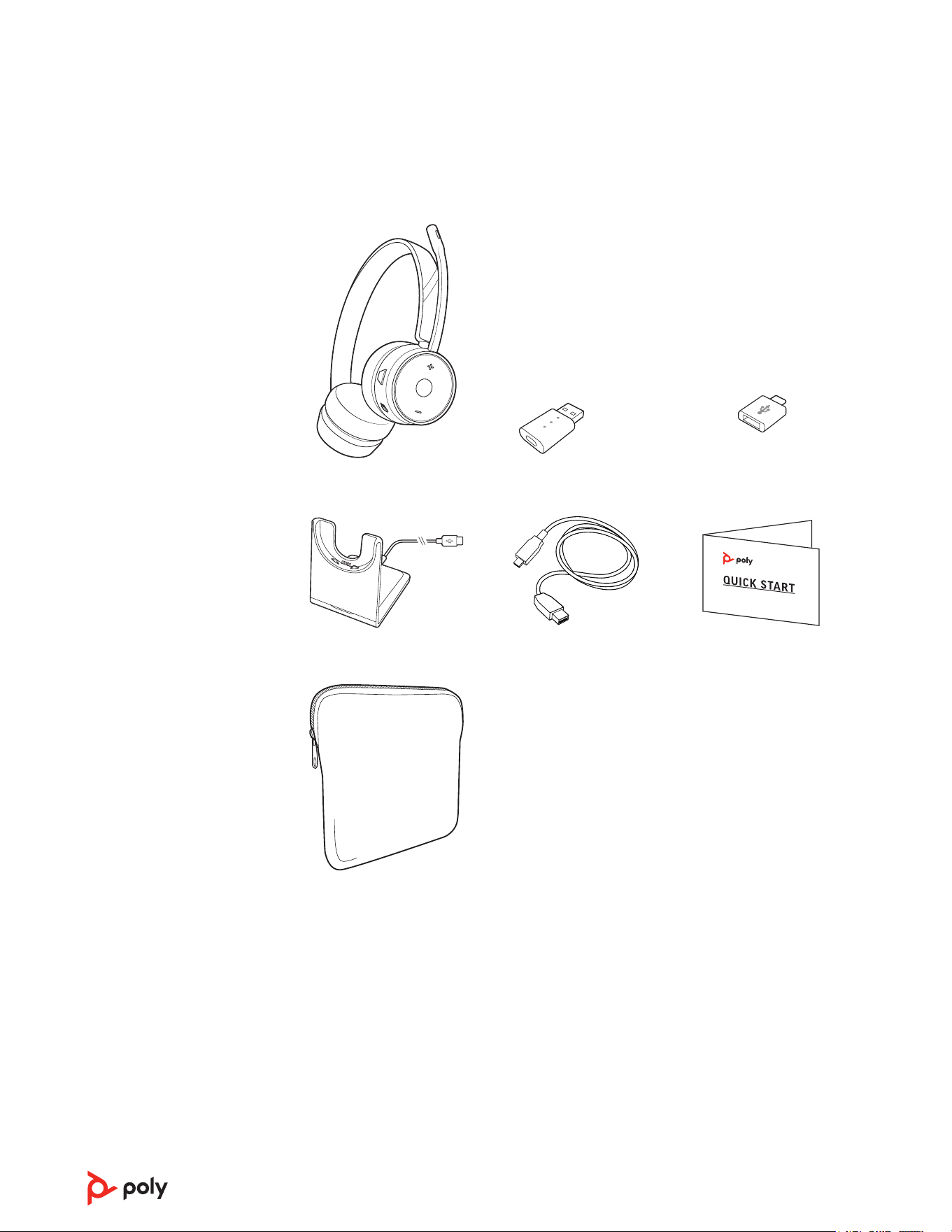
What's in the box
Contents may vary by product.
Headset DECT USB adapter Optional USB-C adapter
Charge stand USB cable Quick start guide
Carrying case
16

Support
NEED MORE HELP?
poly.com/support
Manufacturer:
Plantronics, Inc.
Plantronics B.V. Plantronics Ltd.
345 Encinal Street
Santa Cruz, CA 95060
United States
Scorpius 171
2132 LR Hoofddorp
Netherlands
Building 4, Foundation Park
Cannon Lane, Part 1st Floor
Maidenhead, SL6 3UD
United Kingdom
©
2023 Poly. All trademarks are the property of their respective owners. Manufactured
by Plantronics, Inc.
Model ID: S7310/S7310-M (may be followed by /A, /J, /P or /S), S7320/S7320-M (may be
followed by /A, /J, /P or /S), D400 (may be followed by /A, /J, /P or /S). System sentence:
Savi 7310/7320 UC (-M) has a D400 adapter (may be followed by /A, /J, /P or /S) and a
W7310T/W7320T headset (may be followed by /A, /J, /P or /S).
222420-06 02.23
17