
What's in the Box
Product Overview
LCD Screen Guide
On-Screen Icons
Inteace Controls
Status Indication
Recharging Your Power Station
AC Recharging
Solar Panel Recharging
DC Recharging
Charging Your Devices
Turning On / O the Power Station
AC Charging
USB Charging
Car Socket Charging
Uninterruptible Power Supply (UPS)
SurgePad™
Using the Anker App
Adding Your Power Station
Firmware Update
Charging / Discharging Limit
Output Port Memory
Power Mode
Standard Mode
Time-of-Use (TOU) Mode
Backup Mode

01
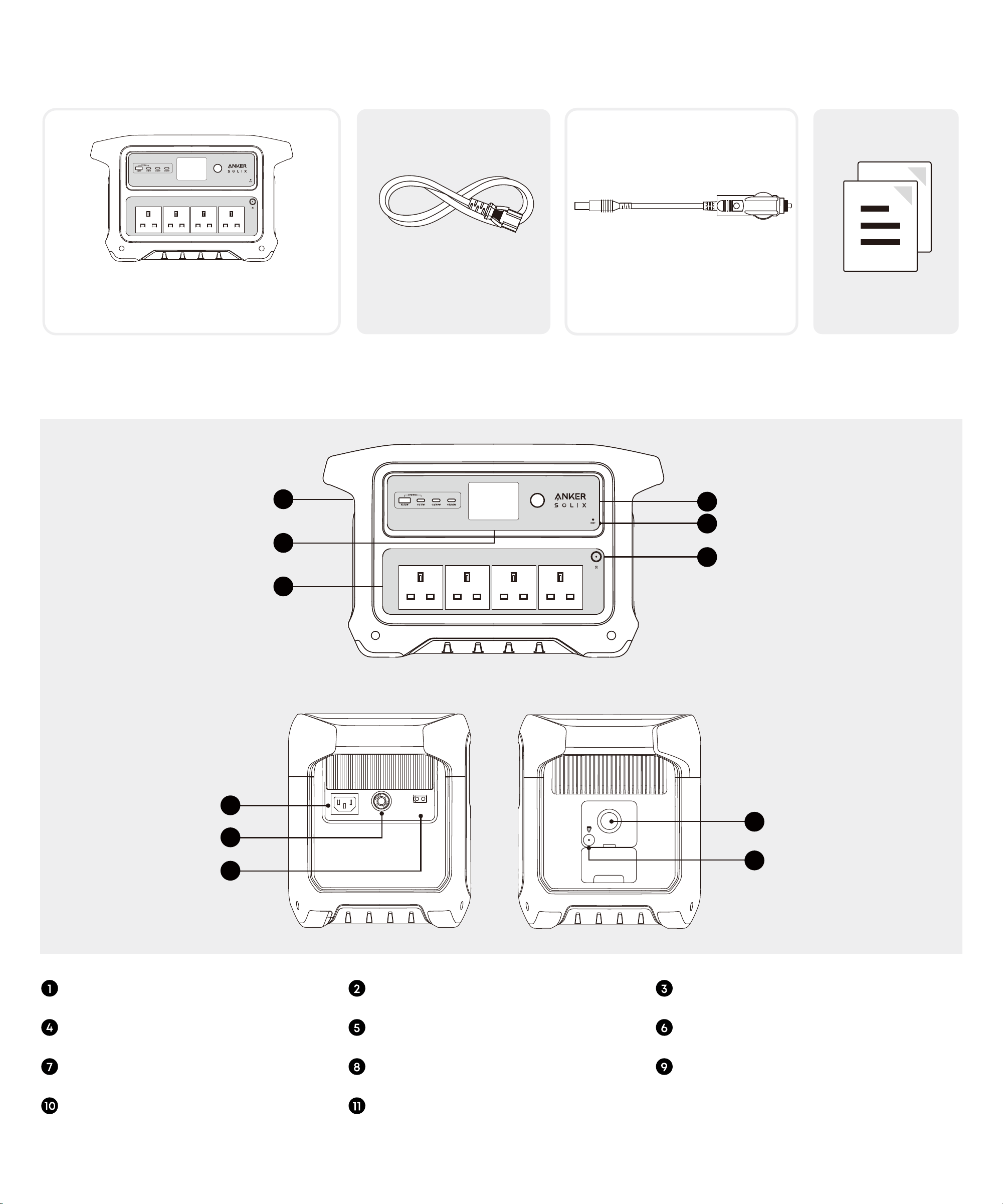
What's in the Box
Anker SOLIX C1000 Gen 2
Portable Power Station
DC Charging Cable
Documents
AC Charging Cable
Product Overview
1
4
6
5
3
7
8
9
2
10
11
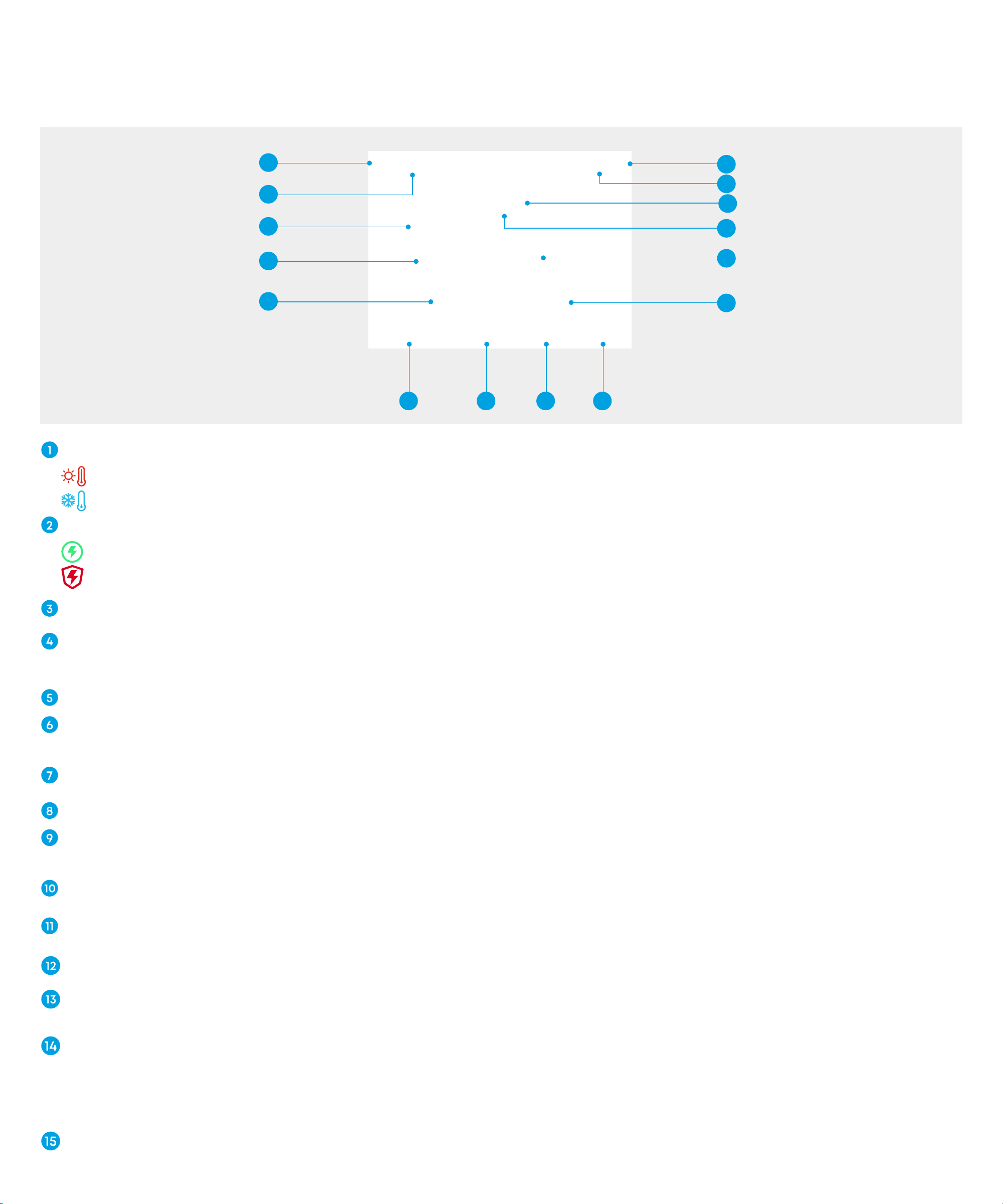
USB Ports LCD Screen AC Output Ports
Main Power Button Reset Hole AC Output Button
AC Input Port Overload Protection Switch XT60i Input Port
Car Socket Car Socket Button
02
LCD Screen Guide
On-Screen Icons
1
3
4
2
5
15
14
12
13
11
10
6 7 8 9
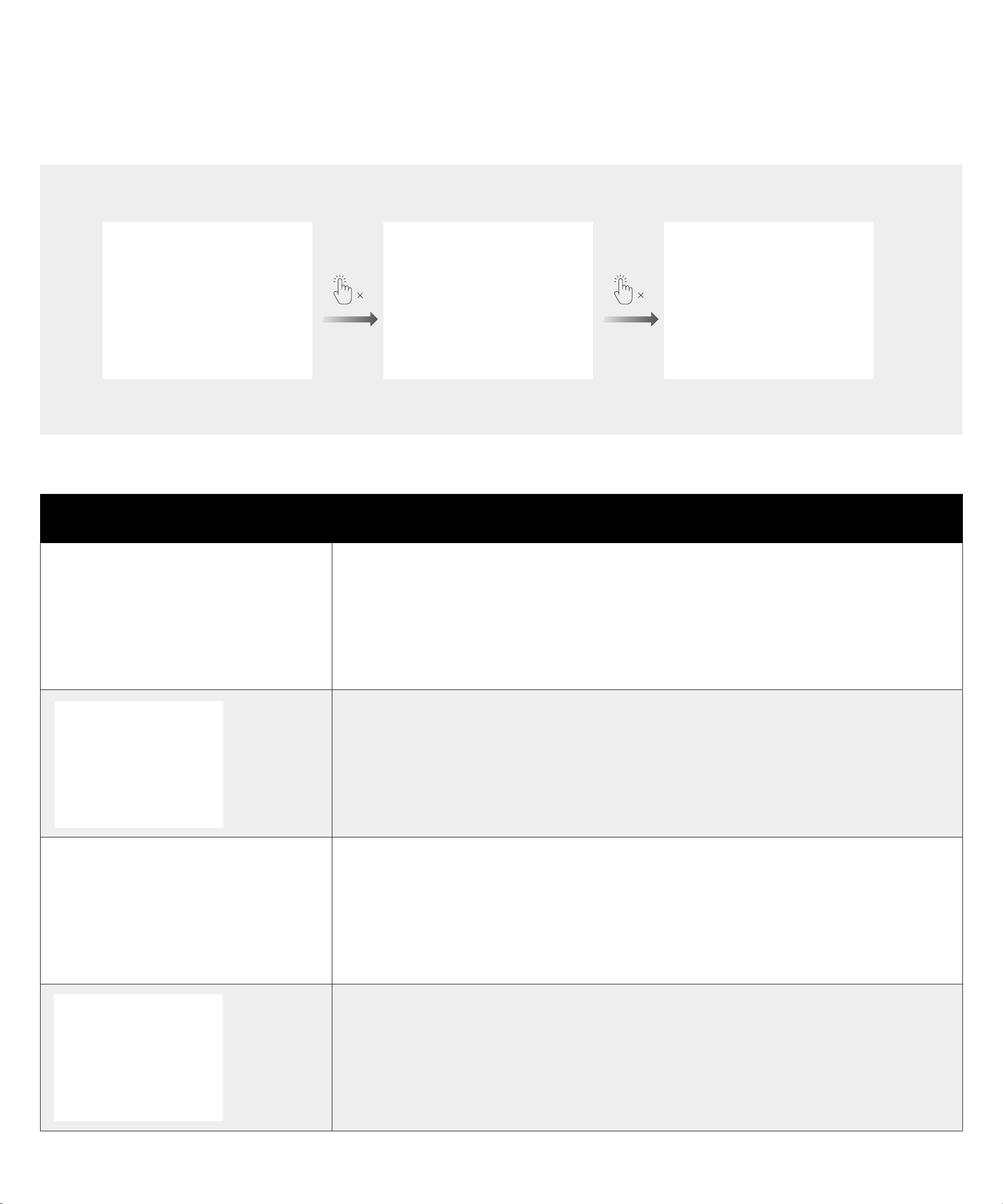
High-Temperature / Low-Temperature Alert
When this icon appears, stop using the power station and let it cool down until the icon disappears.
When this icon appears, stop using the power station until the icon disappears.
Backup Mode
Fast Charging Plan is enabled and the battery is currently charging.
Storm Guard is enabled and the battery is currently charging..
Battery Level Ring
Charging / Discharging Limit
The lower limit can be set between 1% and 20%, while the upper limit can be set between 80% and 100% in the app.
Current Input Power
AC Charge Frequency
This icon lights up when the AC output button is pressed.
USB-C Output Port
USB-A Output Port
DC Output Port
This icon lights up when the car socket button is pressed.
Current Output Power
Battery Level
Estimated Time to Charge / Discharge
Error Code
Please refer to the Appendix - Error Code section for detailed types and explanations of the error codes.
Automatic Correction of Battery Level
If a charging / discharging limit is set, the power station will fully recharge to 100% aer 720 hours of operation,
regardless of mode or status. This calibrates the battery level. Once fully charged, the power station will return to
the state or mode it was in prior to recharging.
Wi-Fi / Bluetooth
03
Inteace Controls
• Turn On Screen: Press the main power button once.
• Switch Inteace: Press the main power button once.
• Auto Return: If there is no operation on the inteace for 20 seconds, it will automatically return to the main inteace.
1 1
Status Indication
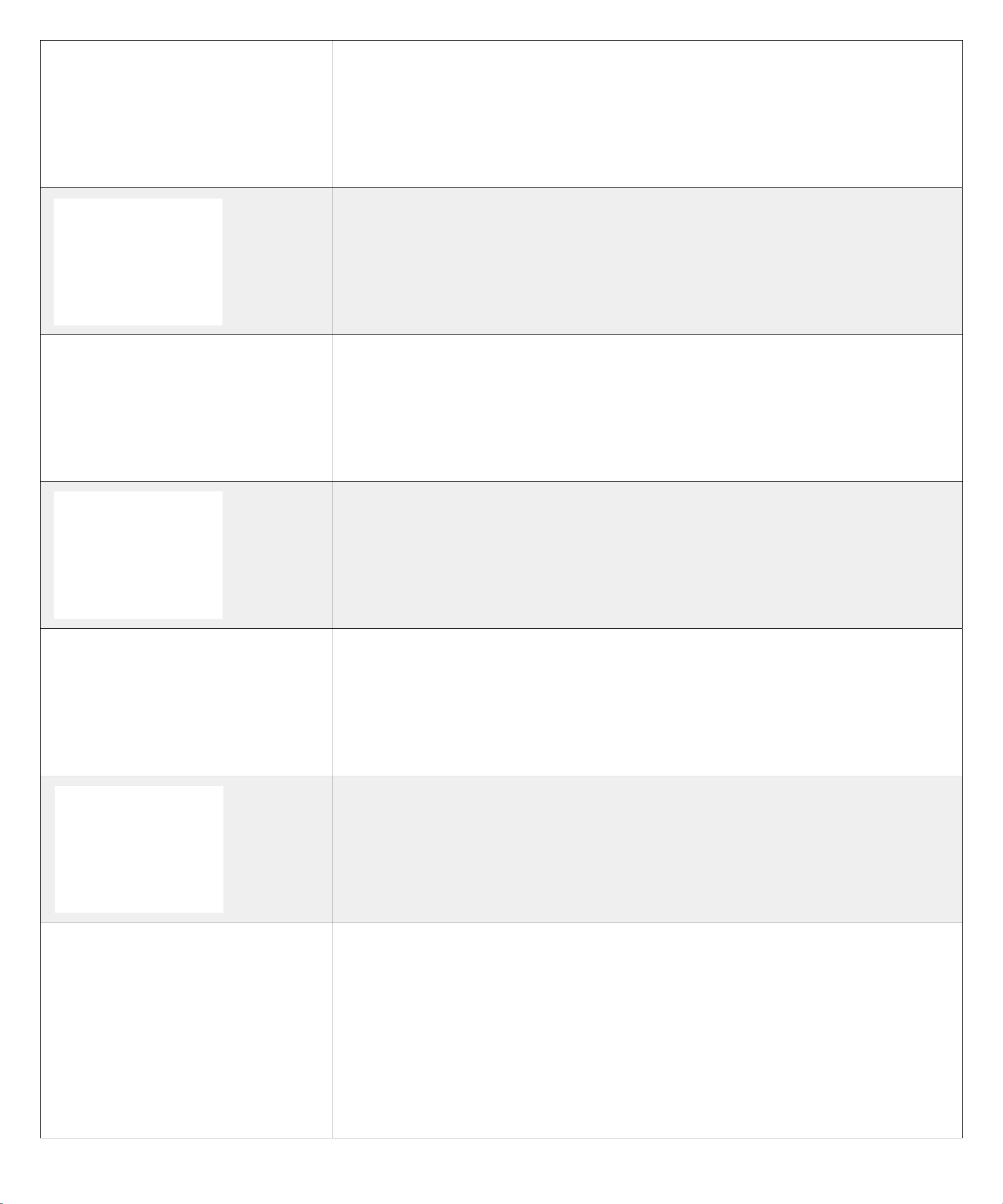
Screen Display Status
No charging or recharging.
Charging the devices.
*Upper limit: 90% / Lower limit: 10%
Recharging the power station.
*Upper limit: 90% / Lower limit: 10%
Recharging specifications during simultaneous charging and recharging.
04
Charging specifications during simultaneous charging and recharging.
Time of use mode.
Fast recharging.
UltraFast recharging.
Silent recharging.
*Input power is under 600W.
Solar recharging.
Screensaver.
Note:
• You can set the screensaver's clock style in the app to be 12-hour or 24-hour,
or you can select another screen saver.
• Display only when recharging.
• The display brightness defaults to 5% and can be adjusted in the app to a
maximum brightness of 20%.
05
Recharging Your Power Station
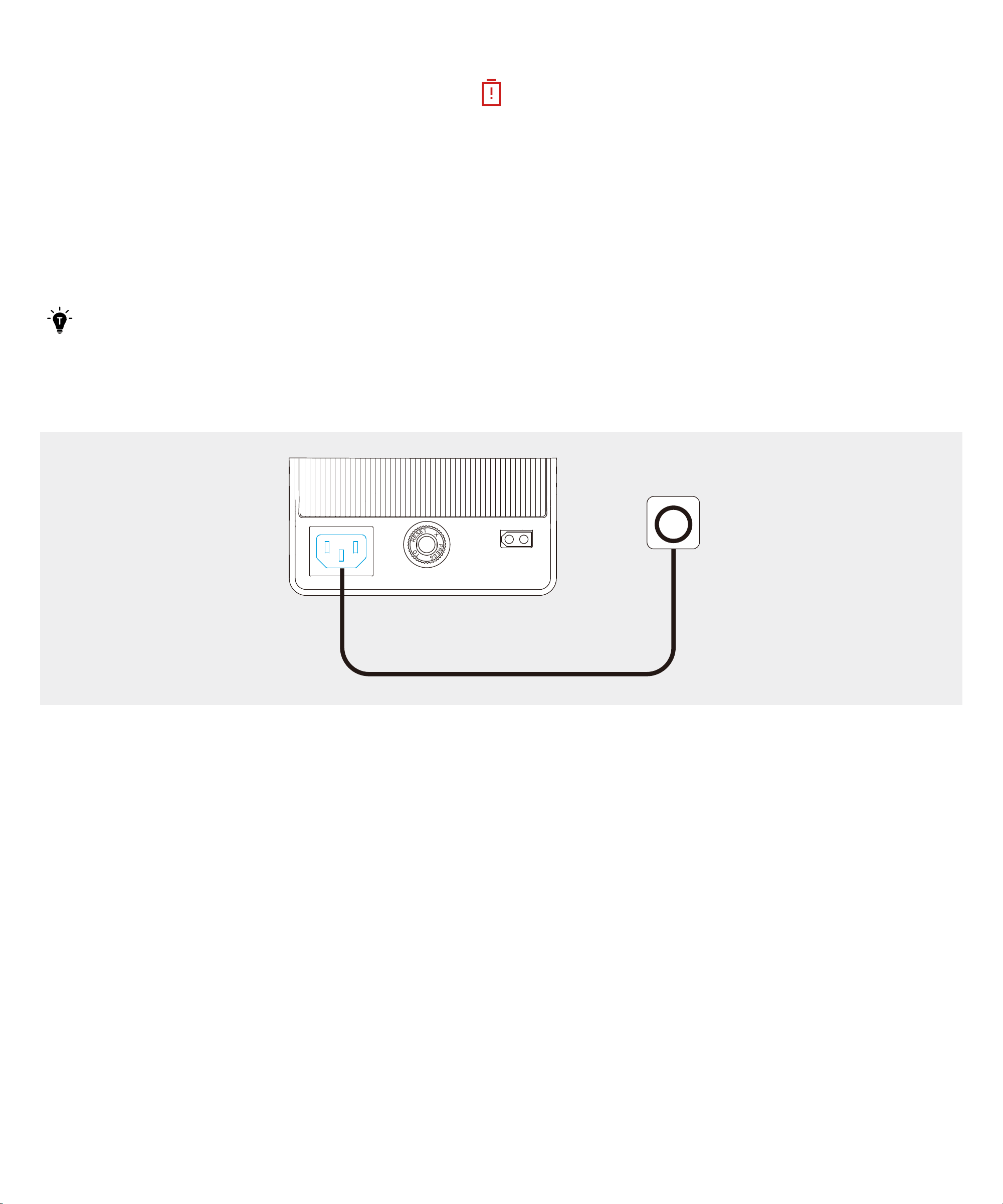
When your power station only has 1% battery remaining, will appear to remind you to recharge.
AC Recharging
Standard Recharging
Recharge the power station by connecting to a wall outlet with the AC charging cable. The maximum input power of
the AC port is 1,200W.
UltraFast Recharging
The UltraFast feature can be enabled or disabled via the Anker app, it allows the power station to be recharged at a
maximum input power of 1,600W.
• Recharging at a normal speed can best protect the battery, so we recommend using the UltraFast feature only
when necessary.
• Every time you unplug the AC charging cable, the UltraFast recharging feature will automatically be disabled,
and you need to enable it in the app.
06
Solar Panel Recharging
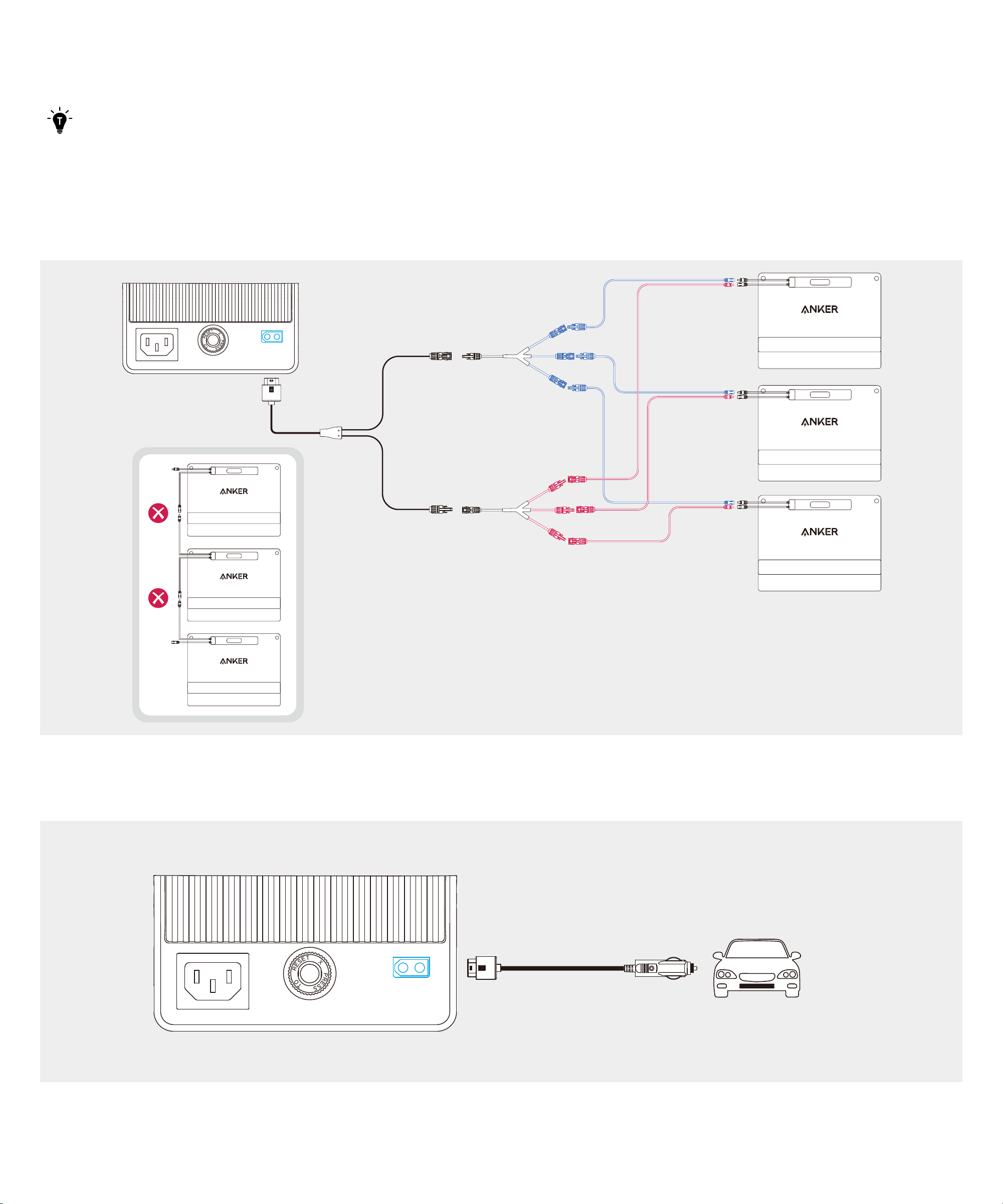
Recharge the power station by connecting the solar panel to the XT60i input port. The maximum input power is 600W.
• Ensure that the total open-circuit voltage (Voc) of the solar panels is within 60V, and the total short-circuit current
(Isc) is within 15A.
• To avoid damaging the product, solar panels must be connected in parallel.
• For better compatibility with the power station, it is recommended to use Anker solar panels and PV connectors
(sold separately).
DC Recharging
Recharge the power station by connecting to a DC output port with the DC charging cable.
07
Charging Your Devices
Turning On / O the Power Station
Press the main power button for 3 seconds to turn the power station on or o. When "Battery Level" digit show on the
LCD screen, your power station is ready to charge devices.
• Press the main power button once to turn the screen on. The screen will be turned o automatically aer 30
seconds of lighting up. The auto-o time can be set in the Anker app.
• The default standby duration of the power station is 12 hours, which can be set in the Anker app.
ON/OFF
ON
3 s
× 1
AC Charging
Press the AC output button and connect your devices with the AC output ports.
The AC output ports can intelligently identify whether a plug is inserted. This helps prevent power waste by
automatically turning o the power station if no plug is detected for more than 15 minutes.
USB Charging
Connect your devices to USB ports.
08
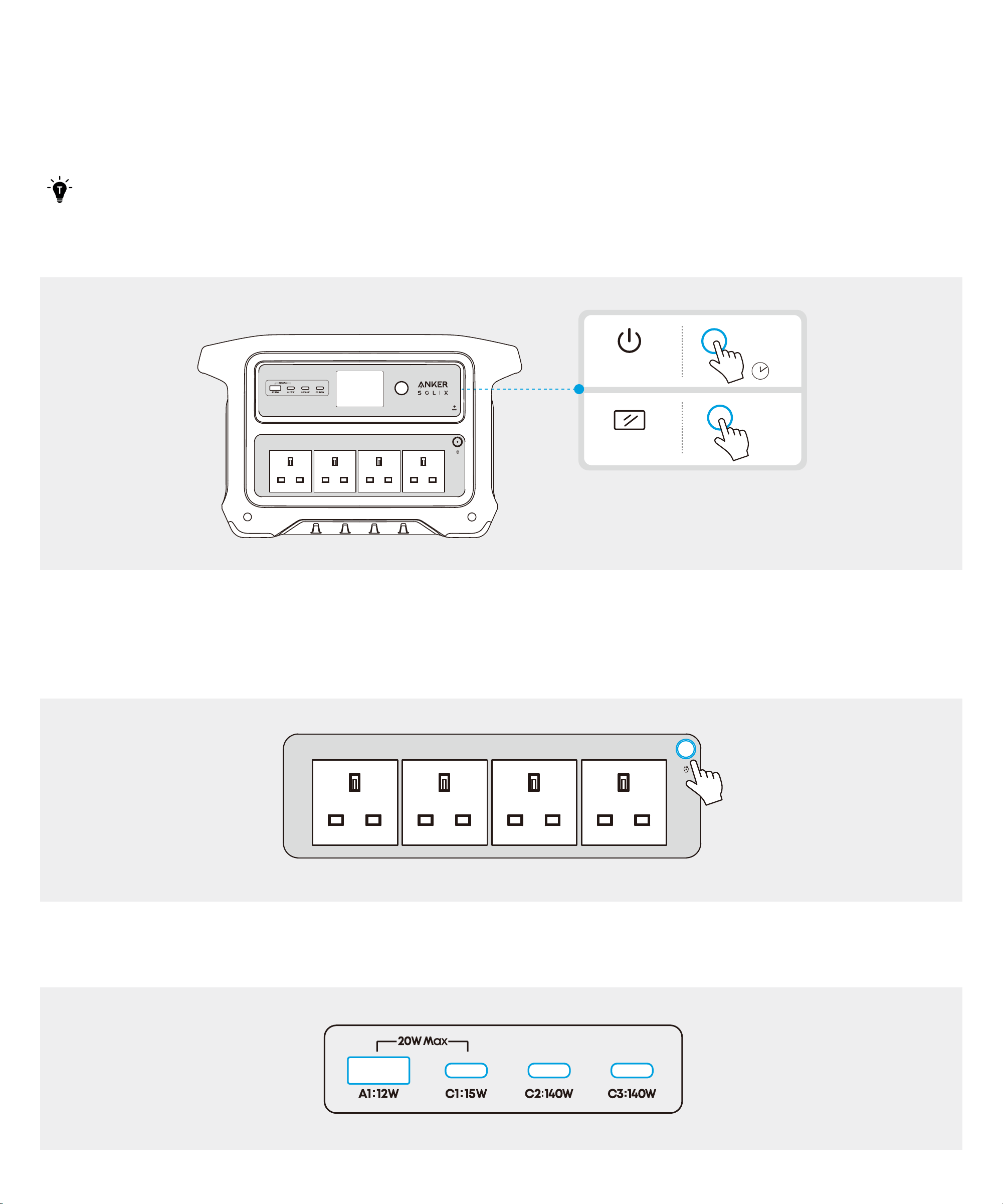
Car Socket Charging
Press the car socket button and connect your devices to the car socket.
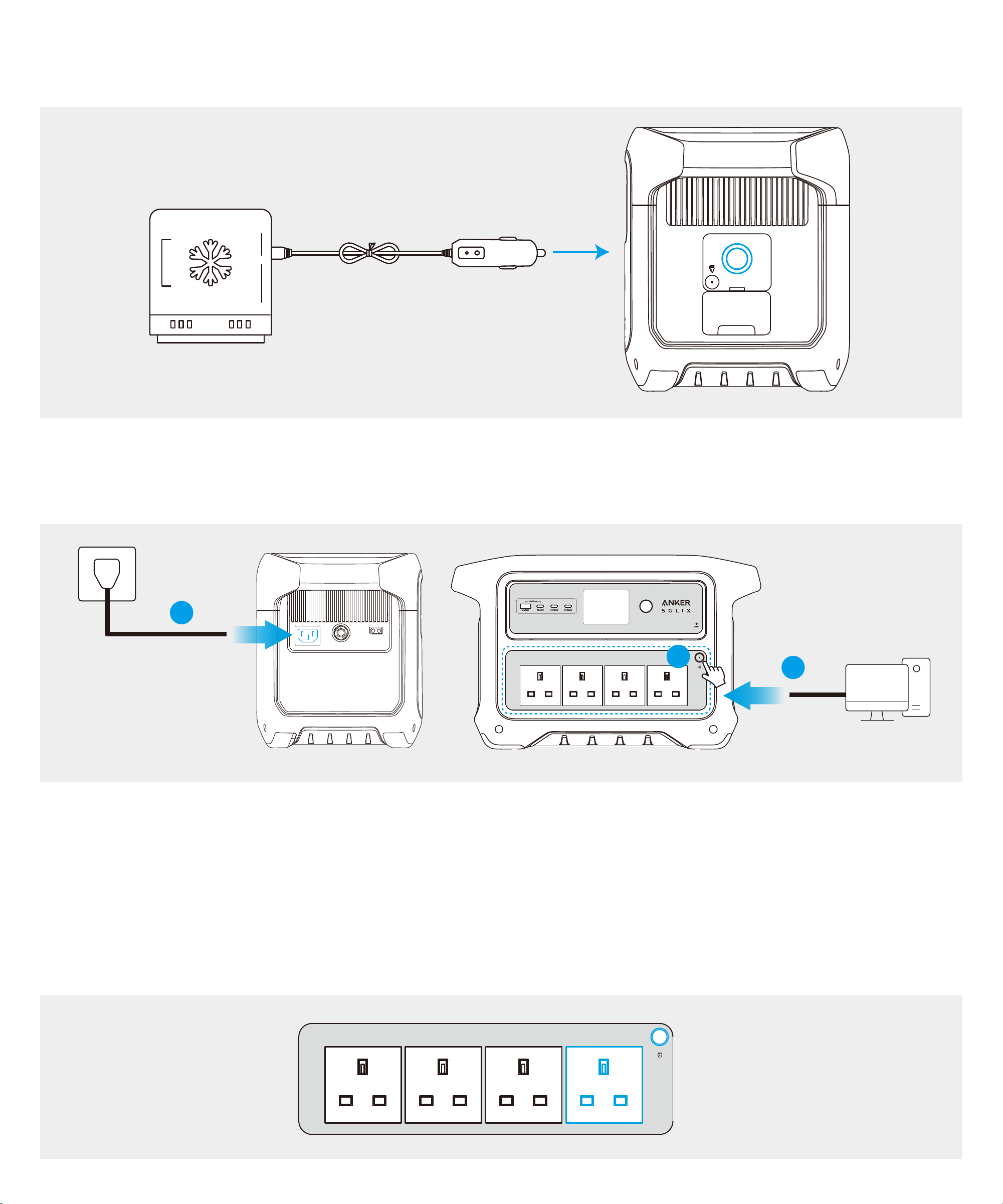
Uninterruptible Power Supply (UPS)
To use the UPS feature, connect your power station to a wall outlet with the provided AC charging cable, then press
the AC output button and connect your devices via the AC output ports. UPS supports 10 ms.
1
2
3
SurgePad™
The power station supports the SurgePad™ feature for up to 2,400W AC output.
• SurgePad™ automatically turns on when the total output exceeds the rated output, allowing the power station to
deliver rated power to high-wattage devices.
• SurgePad™ does not function in bypass mode (when the power station is being charged with the AC output on).
• SurgePad™ works better with devices that generate heat, but does not support precision instruments and other
devices that have voltage protection or strict voltage requirements. To see if SurgePad™ works with your high-
wattage devices, try powering them with the power station.

09
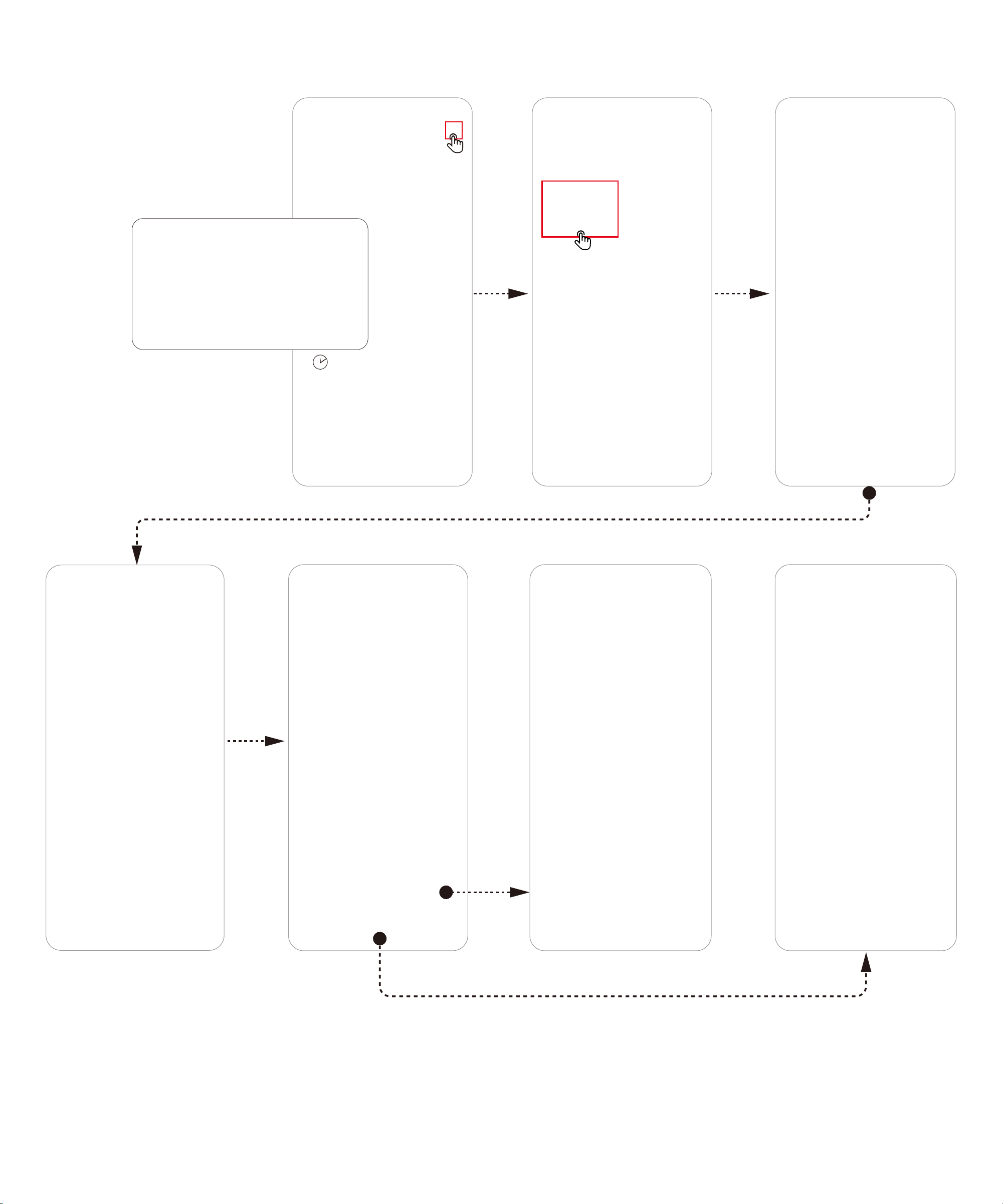
Using the Anker App
• You can remotely control your power station using the Anker app.
• The information below may not list all of the features available on the Anker app. To ensure access to new and
improved features, download updated versions of the app as they become available.
Adding Your Power Station
1. Download the Anker app from the App Store (iOS devices) or Google Play (Android devices), or by scanning the QR
code.
2. Sign in or create an account. Please be reminded that the country or region must match where you live. An
incorrect country or region may cause the device connection to fail.
10
3. Follow the in-app instructions to add the power station and complete the setup.
3 s
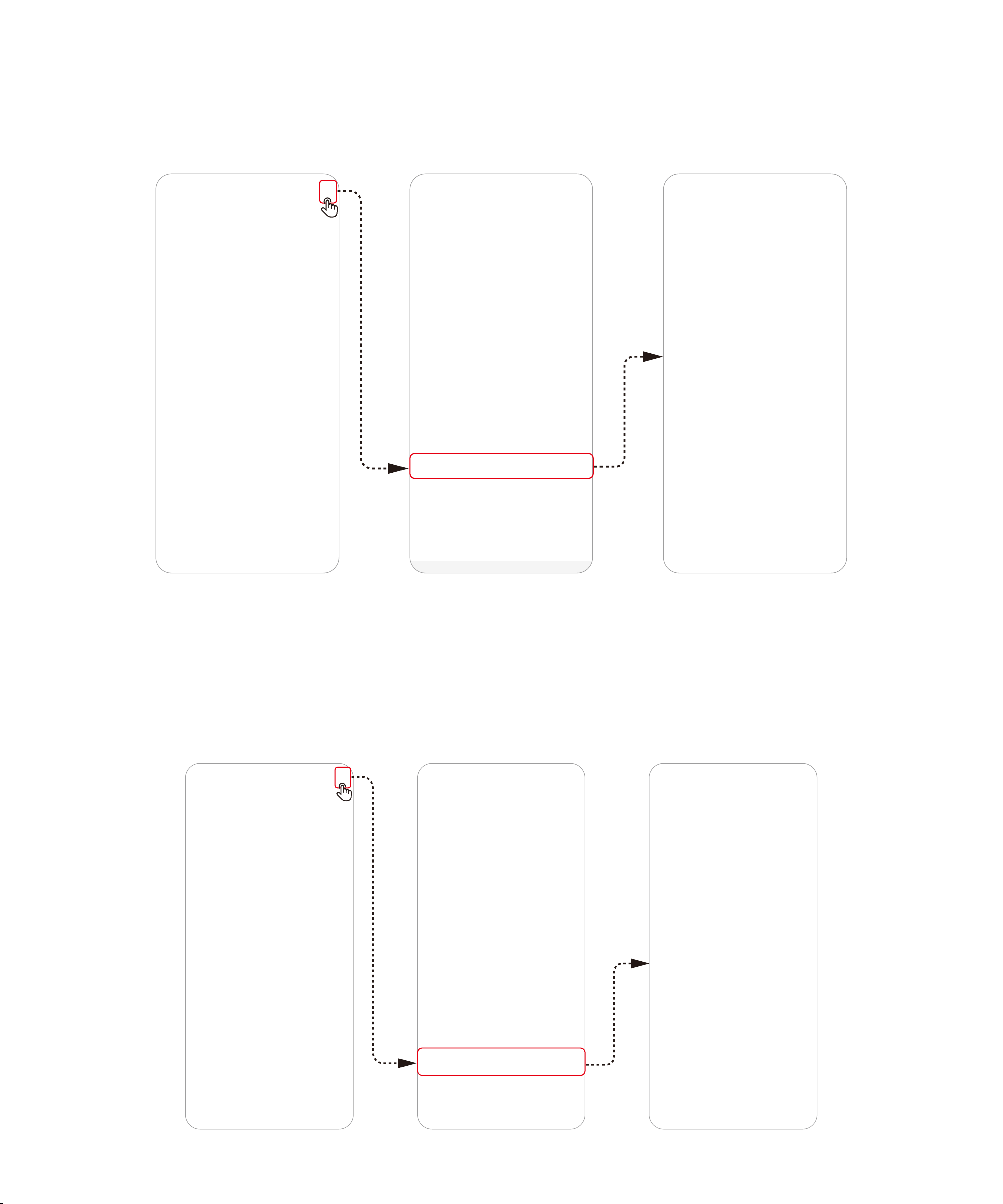
Firmware Update
You will be informed once a new firmware version is detected when you connect the power station to the app. During
the update, ensure the battery level of the power station is above 5% and connected to Wi-Fi or Bluetooth.
11
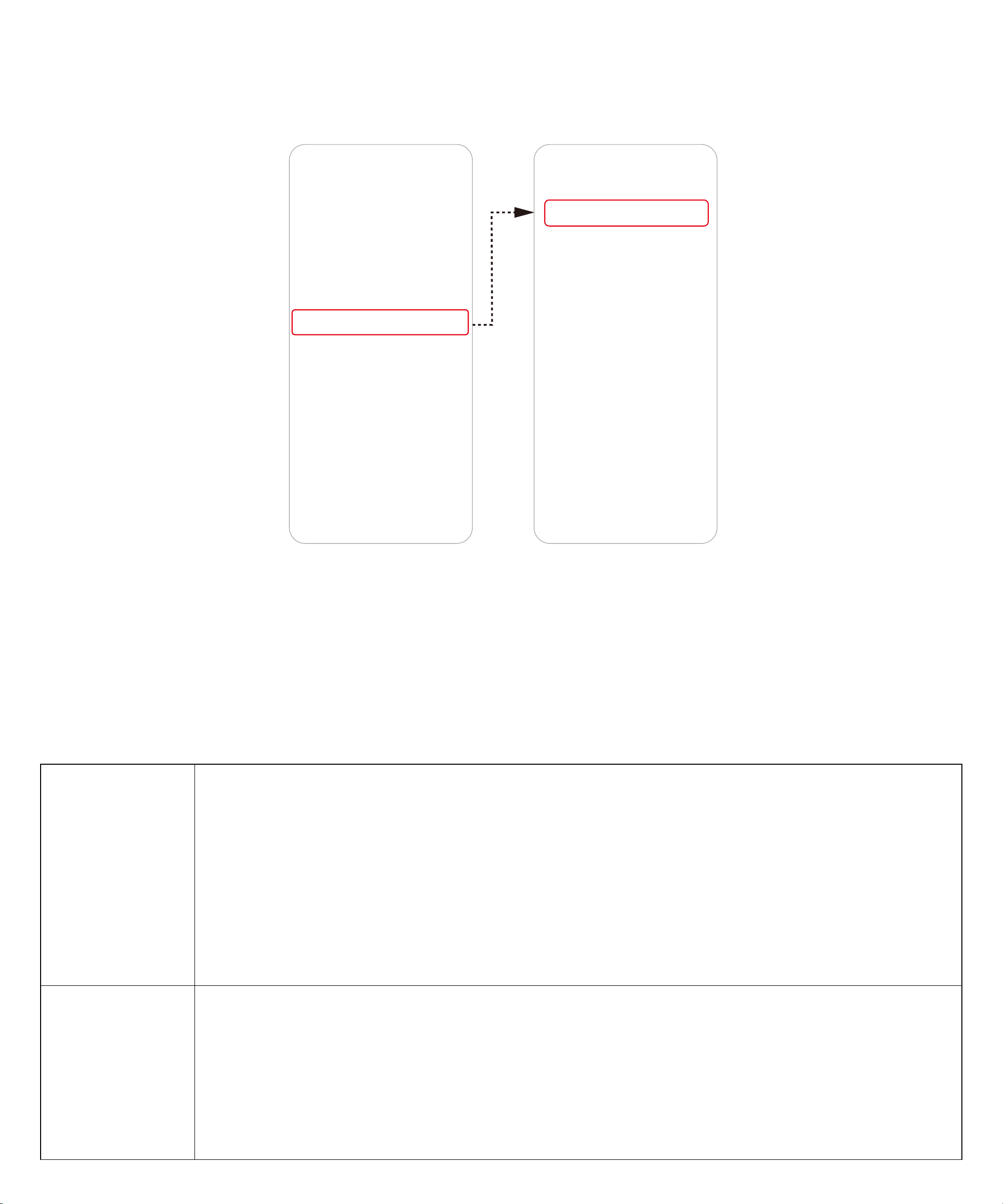
Charging / Discharging Limit
The upper charging limit and lower discharging limit of the power station can be set in the app. When recharging
the power station, once the selected upper charging limit is reached, the recharging will automatically stop. When
charging a device by power station, it will stop once the selected lower discharging limit is reached. This feature
allows the battery to improve peormance.
Output Port Memory
The output port memory switch can be turned on or o in the app.
On: If the power station is powered o due to the low battery level, it will automatically memorize the on/o status of
AC and DC output ports before powering o. When the power station is charged to the SOC lower limit plus 10%, the
on/o status of AC and DC output ports will be restored.
O: The power station will not automatically memorize the on/o status of AC and DC output ports.
12
Power Mode
Standard Mode
If no other mode is selected, the default is standard mode.
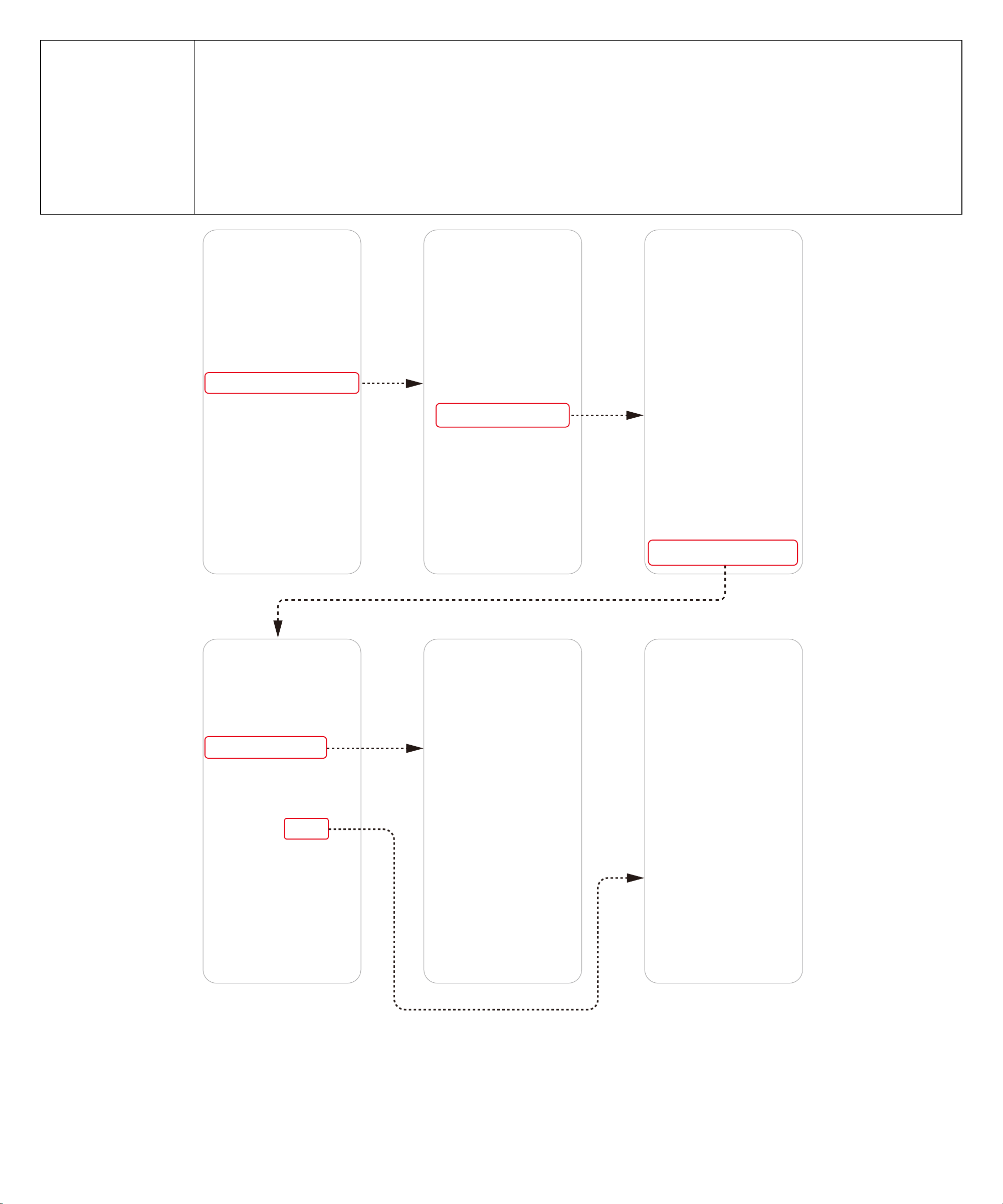
Time-of-Use (TOU) Mode
TOU mode saves your electricity costs by automatically scheduling charging and discharging based on fixed time
periods and power rates. Set your own peak and o-peak times to optimize household energy use.
TOU Mode cannot be used with UltraFast Recharging simultaneously.
Requirement
Keep the power station connected to Wi-Fi and the grid.
Time Periods
O-Peak Period
Features:
• Electricity rates are at their lowest.
• This period typically occurs at night or early morning when demand is low.
Operation:
• The battery charges during this period.
• Both solar power and grid power can be used to charge the battery.
• The battery supplies power only to DC devices.
• The grid supplies power directly to AC devices (bypass mode).
Mid-Peak Period
Features:
• Electricity rates are moderate.
• This period usually happens during early evening or midday when demand is average.
Operation:
• The battery neither charges nor discharges to AC devices.
• The battery supplies power only to DC devices.
• The grid supplies power directly to AC devices (bypass mode).
13
Peak Period
Features:
• Electricity rates are highest.
• This period is usually during daytime hours when demand is high.
Operation:
• The battery only discharges; it does not charge during this period.
• The battery supplies power to both AC and DC devices.
• Aer the battery is depleted, the grid supplies power directly to AC devices (bypass mode).
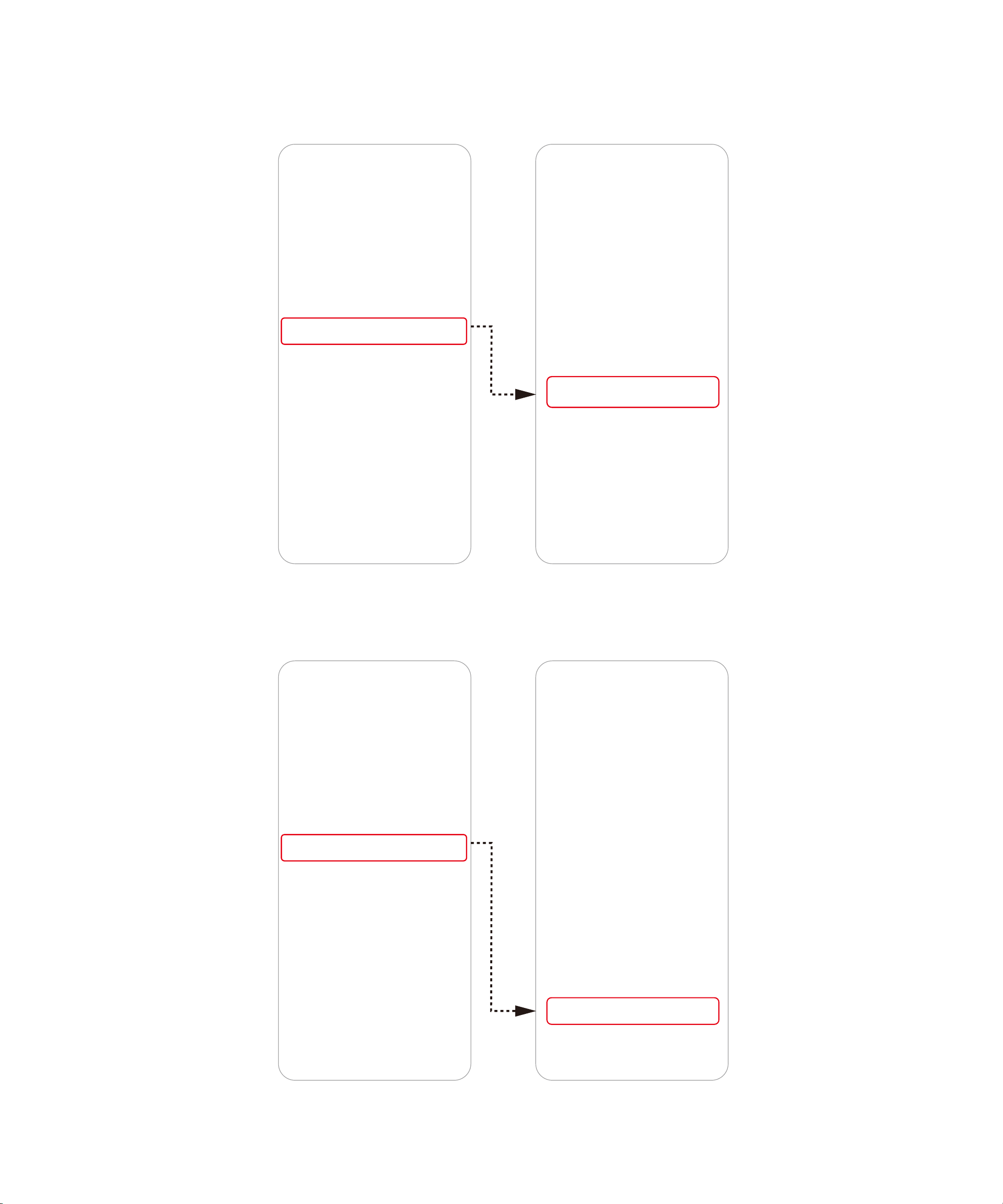
Backup Mode
Backup mode ensures your power station is always ready for unexpected power outages. In this mode, normal
charging limits and AC recharging settings are not applicable. The system prioritizes keeping the battery fully
charged for emergency use. To guarantee instant backup, keep your power station connected to Wi-Fi.
14
Storm Guard
When a severe weather alert is issued for your area, the battery will automatically charge at full speed. To receive
alerts, set your location in the app.
Fast Charging Plan
Fully charge the battery using the maximum available power.
15
FAQ
1. What is the maximum power output of the AC output ports?
The AC output ports can deliver a maximum of 2,000W rated power to connected devices.
2: What should I do when using a DC input to charge the power station?
1) Use Anker original wiring to achieve better charging peormance. Please note that the XT60i input port supports
11V to 60V input voltage. When the input voltage is between 11V and 28V, the maximum input current is 8.2A. When the
input voltage is between 28V and 60V, the maximum input current is 14.5A, and the maximum input power is 600W.
2) When charging with multiple solar panels, ensure that each solar panel is connected in parallel, and the input
voltage is less than or equal to 60V, otherwise the power supply may be damaged.
3: Can the USB-C ports charge the power station (input only), or are they output only?
The USB-C ports support output only.
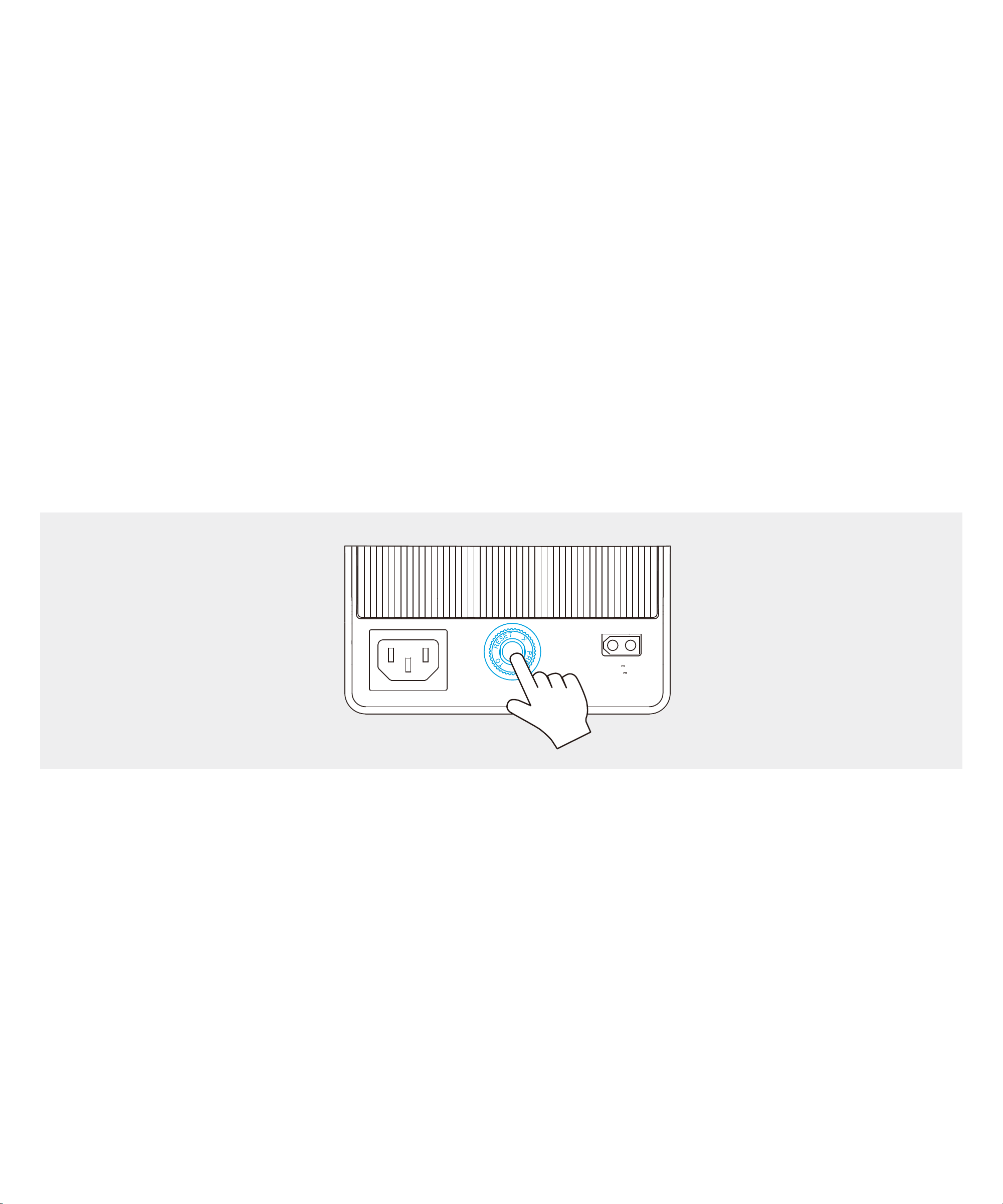
4: What should I do when AC recharging fails?
If AC recharging does not work, check if the overload protection switch is turned on. If it is on, press to reset and
then continue recharging.
5: Why is the power station not working aer it hasn't been used for a long time?
If the power station is stored at a low capacity for a long time, lithium batteries will self-consume power which may
lead to a quick discharge. This oen leads to poor conductivity and a reduced battery lifespan that causes the
battery not to work.
6: How should I store and maintain the power station?
To store your portable power station, please make sure that you:
1) Turn o all outputs when not in use to avoid battery power loss.
2) Store in a dry and cool area.
3) Check battery capacity each week. If the battery level is below 30%, charge to 100%.
4) If the power station will not be used for an extended period, fully charge it to 100% at least once every three
months.
16
7: Can solar charging and AC charging be peormed simultaneously?
Yes. When solar and AC charging are peormed at the same time, the power station prioritizes maximizing the use
of solar energy for charging, and the remaining charging capacity is supplemented by AC charging.
8: Why did USB ports shut o automatically?
To reduce power consumption and prolong the usage time, when power station detects that the USB output
power is less than 1W for a long time, it will determine that your device is fully charged and turn o the USB output
automatically. To restart the output, just plug and unplug the USB cable again.
9: Why can't my device work with the power station's AC output?
Some devices require a neutral-ground bond to function properly. The power station uses a floating ground design,
so you'll need to purchase a ground neutral plug. Simply plug the ground neutral plug into one of the AC outlets on
the power station, and your device will work as expected.
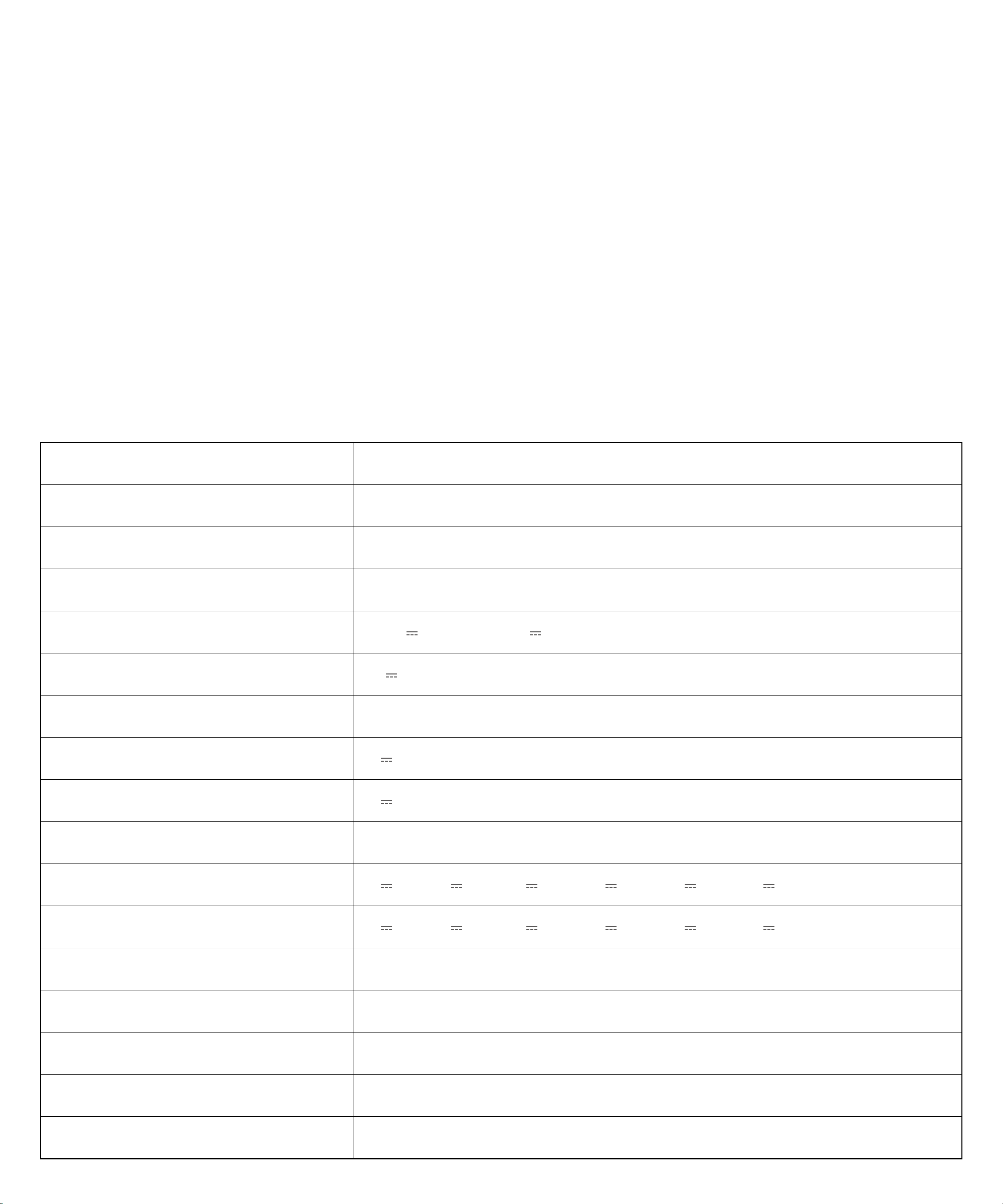
Specifications
Capacity 1,024Wh
AC Input Power (Charging) 1,200W Max
AC Input Power (Bypass Mode) 2,250W Max
AC Input Power (UltraFast Charging) 1,600W Max
Solar Panel Input 11-28V
8.2A ; 28V-60V 14.5A (600W Max)
Car Charger Output 12V
10A
AC Output Power 2,000W
USB-A Output 5V
2.4A (12W Max)
USB-C 1 Output 5V
3A (15W Max)
USB-A and USB-C1 Total 20W Max
USB-C 2 Output 5V
3A / 9V 3A / 15V 3A / 20V 3A / 20V 5A / 28V 5A (140W Max)
USB-C 3 Output 5V
3A / 9V 3A / 15V 3A / 20V 3A / 20V 5A / 28V 5A (140W Max)
UPS 10 ms
Discharging Temperature -4°F to 104°F / -20°C to 40°C
Charging Temperature
32°F to 104°F / 0°C to 40°C
Size
384 × 208 × 244 mm / 15.12 × 8.19 × 9.61"
Net Weight 11.3 kg / 24.9 lb

17
Default Exposed Network Inteaces and Services
Bluetooth Low Energy (BLE) Status: When the equipment is not yet connected to a network, it will automatically
enable BLE broadcasting and activate BLE services to provide Bluetooth network configuration capabilities.
Note: During the BLE configuration process, ensure your network environment is stable and follow the instructions to
complete the setup.
Appendix
Error Code
Code Problem Solution
E0003
The voltage of the USB-A port is above 5.7V or
below 3.8V.
Plug in the device connected to the USB-A port again,
or short press the car socket button.
E0008
The charging current for the device connected
to the 15W USB-C port exceeds 3.8A.
Plug in the device connected to the 15W USB-C port
again, or short press the car socket button.
E0009
Overloads or short circuits in connected devices
and cables cause the output to shut down.
Disconnect, then plug in devices connected to USB-C
ports.
E0010
Overloads or short circuits in connected devices
and cables cause the output to shut down.
Disconnect, then plug in devices connected to USB-C
ports.
E0014
The voltage of the car socket is above 14.4V or
below 10.4V.
Press the car socket button aer 30 seconds.
E0027
The charging temperature of the BMS exceeds
136.4°F / 58°C.
Stop using the power station until its temperature is
below 131°F / 55°C.
E0028
The charging temperature of the BMS is below
35.6°F / 2°C
Stop using the power station until its temperature is
above 37.4°F / 3°C.
E0032
The discharging temperature of the BMS
exceeds 145.4°F / 63°C.
Stop using the power station until its temperature is
below 140°F / 60°C.
E0033
The discharging temperature of the BMS is
below -2.2°F / -19°C.
Stop using the power station until its temperature is
above 1.4°F / -17°C.
E0036
The output power of the AC port exceeds about
2,500W.
Ensure that the power of the device connected to the
AC output port is under 2,400W and press the AC output
button again.