McIntosh Laboratory, Inc. 2 Chambers Street Binghamton, New York 13903-2699 Phone: 607-723-3512 www.mcintoshlabs.com
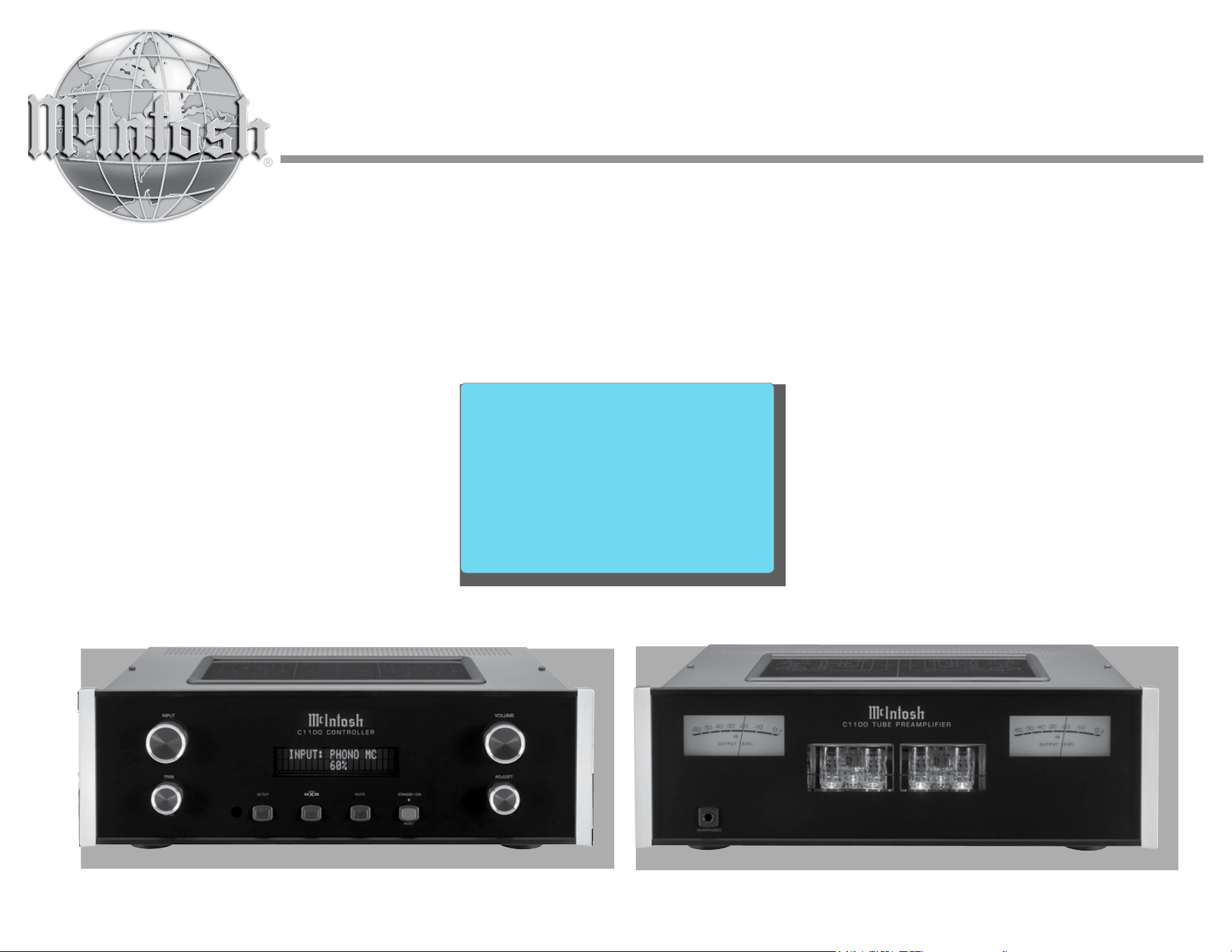
C1100
Controller and
Tube Preamplifier
Owner’s Manual
2
17. If this equipment is supplied with AC /DC Adapter with
separate power supply cord or the AC/DC Adapter plug-
ging directly into an a.c. receptacle, they shall remain
readily operable. To completely disconnect this equip-
ment from the a.c. mains remove the AC /DC Adapter
mains power supply cord from the a.c. receptacle or
remove the AC /DC Adapter when it is directly plugged
into the a.c. receptacle.
Si l’équipement est alimenté par un adaptateur AC/DC
munis d’un cordon d’alimentation ou un adaptateur AC/
DC qui est alimenté directement à la prise murale, ils
doivent demeurer aisément accessibles. Pour déconnect-
er complètement l’équipement du réseau d’alimentation,
déconnecter l’adaptateur AC/DC de la prise murale ou
déconnecter le cordon d’alimentation de l’adaptateur
AC/DC de la prise murale.
18. WARNING: Do not expose batteries or battery pack to
excessive heat such as sunshine, re or the like.
AVERTISSEMENT: Les batteries ou bloc de batteries
ne doivent pas etre exposees a une chaleur excessive
telle que celle du soleil, feu ou autre source de chaleur
similaire.
19. CAUTION: danger of explosion if battery is incorrectly
replaced. Replace only with the same or equivalent type.
ATTENTION: danger d’explosion si la pile n’est pas
remplacée correctement. Ne remplacer que par le même
type ou un type équivalent.
20. Connect mains power supply cord only to a mains
socket outlet with a protective earthing connection.
caution when moving the cart/apparatus combination to
avoid injury from tip-over.
13. Unplug this apparatus during lightning storms or when
unused for long periods of time.
14. Refer all servicing to qualied service personnel. Ser-
vicing is required when the apparatus has been dam-
aged in any way, such as power-supply cord or plug is
damaged, liquid has been spilled or objects have fallen
into the apparatus, the apparatus has been exposed to
rain or moisture, does not operate normally, or has been
dropped.
15. Do not expose this equipment to dripping or splashing
and ensure that no objects lled with liquids, such as
vases, are placed on the equipment.
Ne pas exposer cet appareil à des éclaboussures ou
gouttelettes d’un liquide. Aucun objet remplie de liq-
uide comme par exemple un vase ne doit être placé sur
l’appareil.
16. If this equipment is supplied with a power supply cord
only, the mains plug of the power supply cord shall
remain readily operable. To completely disconnect this
equipment from the a.c. mains remove the plug from the
a.c. receptacle.
Si l’équipement est uniquement alimenté par un cordon
d’alimentation, la che du cordon d’alimentation doit
demeurer aisément accessible. Pour déconnecter
complètement l’équipement du réseau d’alimentation,
déconnecter la che du cordon d’alimentation de la
prise murale.
1. Read these instructions.
2. Keep these instructions.
3. Heed all warnings.
4. Follow all instructions.
5. Do not use this apparatus near water.
6. Clean only with a dry cloth.
7. Do not block any ventilation openings. Install in accor-
dance with the manufacturer’s instructions.
8. Do not install near any heat sources such as radiators,
heat registers, stoves, or other apparatus (including
ampliers) that produce heat.
9. Do not defeat the safety purpose of the polarized or
grounding-type plug. A polarized plug has two blades
with one wider than the other. A grounding type plug
has two blades and a third grounding prong. The wide
blade or the third prong are provided for your safety. If
the provided plug does not t into your outlet, consult
an electrician for replacement of the obsolete outlet.
10. Protect the power cord from being walked on or
pinched particularly at plugs, convenience receptacles,
and the point where they exit from the apparatus.
11. Only use attachments/accessories specied by the
manufacturer.
12. Use only with the cart, stand, tripod, bracket,
or table specied by the manufacturer, or sold
with the apparatus. When a cart is used, use
The lightning ash with arrowhead, within an equilateral triangle,
is intended to alert the user to the presence of uninsulated “dan-
gerous voltage” within the product’s enclosure that may be of suf-
cient magnitude to constitute a risk of electric shock to persons.
The exclamation point within an equilateral triangle is intended to
alert the user to the presence of important operating and mainte-
nance (servicing) instructions in the literature accompanying the
appliance.
ATTENTION:
RISQUE DE CHOC ELECTRIQUE - NE PAS OUVRIR
WARNING - TO REDUCE RISK OF
FIRE OR ELECTRICAL SHOCK, DO
NOT EXPOSE THIS EQUIPMENT TO
RAIN OR MOISTURE.
NO USER-SERVICEABLE PARTS INSIDE. RE-
FER SERVICING TO QUALIFIED PERSONNEL.
To prevent the risk of electric shock,
do not remove cover or back. No
user-serviceable parts inside.
IMPORTANT SAFETY
INSTRUCTIONS!
PLEASE READ THEM BEFORE
OPERATING THIS EQUIPMENT.

3
Your decision to own this McIntosh C1100 Tube Pre-
amplifier ranks you at the very top among discrimi-
nating music listeners. You now have “The Best.” The
McIntosh dedication to “Quality,” is assurance that
you will receive many years of musical enjoyment
from this unit.
Please take a short time to read the information in
this manual. We want you to be as familiar as pos-
sible with all the features and functions of your new
McIntosh.
Copyright 2015 © by McIntosh Laboratory, Inc.
Table of Contents
Thank You
Please Take A Moment
Technical Assistance
If at any time you have questions about your McIntosh
product, contact your McIntosh Dealer who is familiar
with your McIntosh equipment and any other brands
that may be part of your system. If you or your Dealer
wish additional help concerning a suspected problem,
you can receive technical assistance for all McIntosh
products at:
McIntosh Laboratory, Inc.
2 Chambers Street
Binghamton, New York 13903
Phone: 607-723-3512
Fax: 607-724-0549
Customer Service
If it is determined that your McIntosh product is in
need of repair, you can return it to your Dealer. You
can also return it to the McIntosh Laboratory Service
Department. For assistance on factory repair return
procedure, contact the McIntosh Service Department
at:
McIntosh Laboratory, Inc.
2 Chambers Street
Binghamton, New York 13903
Phone: 607-723-3515
Fax: 607-723-1917
The serial number, purchase date and McIntosh Dealer
name are important to you for possible insurance
claim or future service. The spaces below have been
provided for you to record that information:
Serial Number: _______________________________
Purchase Date: _______________________________
Dealer Name: ________________________________
Safety Instructions ..................................................... 2
Thank You and Please Take a Moment ...................... 3
Technical Assistance and Customer Service ............. 3
Table of Contents ....................................................... 3
General Information .................................................. 4
Connector and Cable Information ............................. 4
Introduction ................................................................ 5
Performance Features ................................................ 5
C1100C Dimensions ................................................... 6
C1100C Installation .................................................... 7
C1100T Dimensions ................................................... 8
C1100T Installation .................................................... 9
Connections:
C1100C and C1100T Rear Panel Connections .......... 10
(Separate Sheet) ...............................Mc3B, MC3B
Connecting Components .......................................11-12
(Separate Sheets) ...... Mc1A, Mc1B, Mc2A, Mc2B
Input Assignment Chart
(Separate Sheet) ................................Mc5A, Mc5B
Remote Control:
HR085 Remote Control Push-buttons ...................... 14
How to use the HR085 Remote Control ................... 15
Front Panel:
C1100C Front Panel Displays, Controls, and Push-
buttons ....................................................................... 16
C1100T Front Panel Displays and Jack ..................... 17
Setup:
How to Operate the Setup Mode .............................. 18
Default Settings......................................................... 18
Fi r mware Version ...................................................... 18
Input Settings ....................................................... 18-20
Output Settings ......................................................... 20
Headphone Settings ............................................. 20-21
Power Control Triggers 1 and 2, 3 and 4 .................. 21
Data Ports .................................................................. 22
Passthru and Comm Port Baud Rate ........................ 22
Remote Control Codes .............................................. 23
IR Sensor and Power Mode ...................................... 23
Factory Reset ............................................................ 24
Operation:
How to Operate the C1100 ........................................ 26
Trim Functions ..................................................... 26-29
Mute, Trim, Adjust, HXD, Output Meters ............... 29
Passthru ..................................................................... 29
Headphone Jack and How to make a Recording ....... 30
Reset of Microprocessors .......................................... 30
Additional Information:
Photos .................................................................... 31-33
Specifications ............................................................ 34
Packing Instruction ................................................... 35
4
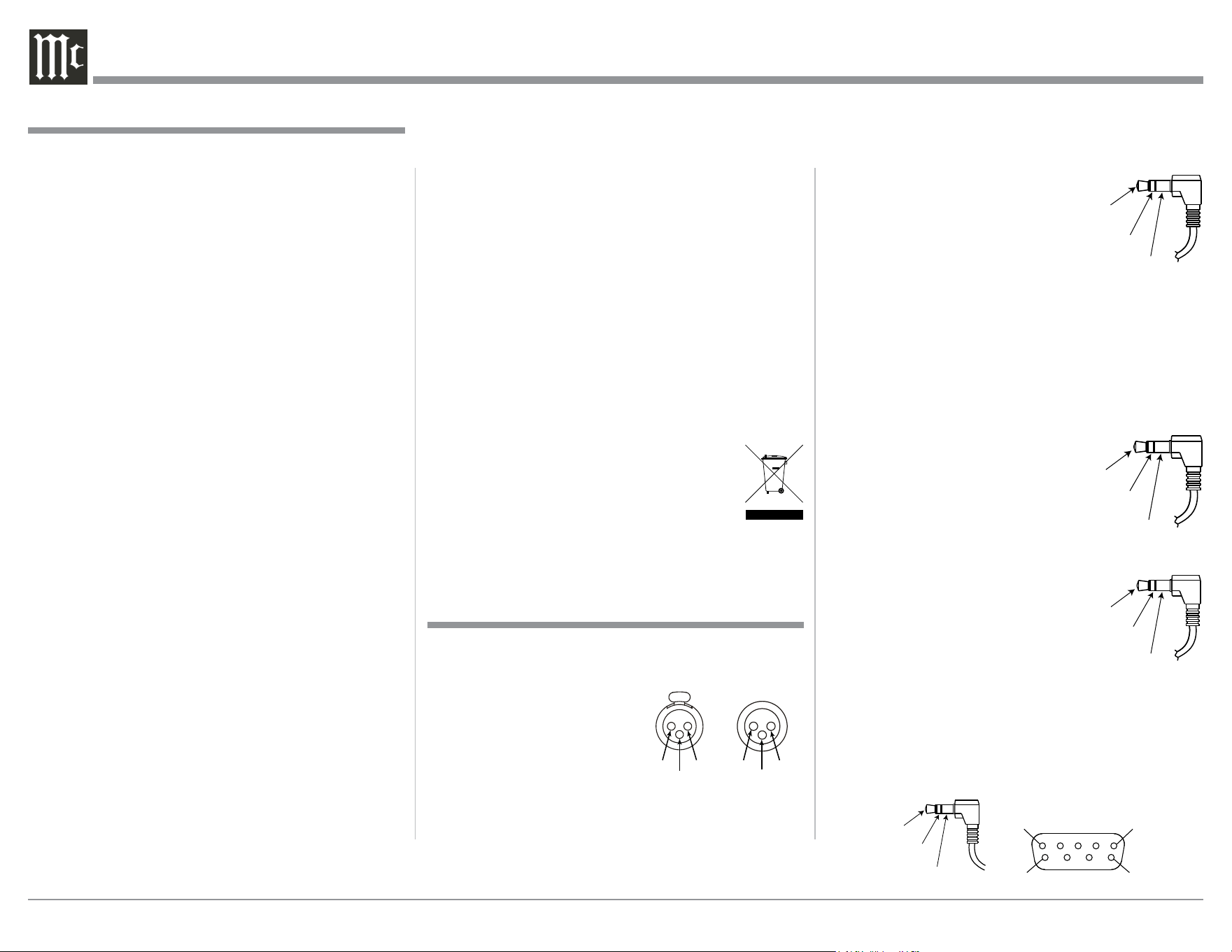
ponents. An additional connection
is for controlling the illumination of
the Power Output Meters on McIn-
tosh Power Amplifiers. A 3.5mm
stereo mini phone plug is used for
connection to the Power Control,
Trigger and PASSTHRU Outputs on
the C1100.
Note: The Power Control, Trigger, PASSTHRU and Data
Connecting Cable is available from the McIntosh
Parts Department:
Power Control, Trigger, PASSTHRU and Data
Cable Part No. 170-202
Six foot, shielded 2 conductor, with 3.5mm stereo
mini phone plugs on each end.
Data Port Connectors
The C1100 Data Out Ports send
Remote Control Signals to
Source Components. A 3.5mm
stereo mini phone plug is used
for connection.
IR IN Port Connectors
The IR IN Port also uses a 3.5mm
stereo mini phone plug and allows
the connection of other brand IR
Receivers to the C1100.
RS232 Data Port Cable
The RS232 Data Cable is a 3.5mm stereo mini phone
plug to a sub miniature DB 9 connector:
General Information and Connector Information
Connector and Cable Information
XLR Connectors
Below is the Pin configuration for the XLR Balanced
Input and Output Connectors on the C1100. Refer to
the diagrams for connections:
PIN 1: Shield/Ground
PIN 2: + Output
PIN 3: - Output
Power Control and Trigger Connectors
The C1100 Power Control Out, Trigger and PASSTH-
RU Output Jacks send Power On/Off Signals (+12
volt/0 volt) when connected to other McIntosh Com-
Data
Signal
N/C
Data
Ground
PIN 2 PIN 1
PIN 3
PIN 1
PIN 2
PIN 3
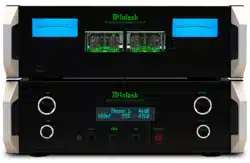
1. The C1100 System consists of two separate chassis.
The C1100 Controller Chassis will be referred to as
the C1100C throughout this Owner’s Manual. In a
similar manner, the C1100 Tube Preamplifier Chas-
sis will be referred to as the C1000T throughout
this Owner’s Manual.
2. For additional connection information, refer to the
owner’s manual(s) for any component(s) connected
to the C1100 Audio Preamplifier.
3. The Main AC Power going to the C1100 and any
other McIntosh Component(s) should not be applied
until all the system components are connected
together. Failure to do so could result in malfunc-
tioning of some or all of the system’s normal opera-
tions. When the C1100 and other McIntosh Com-
ponents are in their Standby Power Off Mode, the
Microprocessor’s Circuitry inside each component
is active and communication is occurring between
them.
4. Balanced and Unbalanced Inputs and Outputs can
be mixed. For example, you may connect signal
sources to Unbalanced Inputs and send signals
from the Balanced Outputs. You can also use Bal-
anced and Unbalanced Outputs simultaneously,
connected to different Power Amplifiers.
5. Sound Intensity is measured in units called Deci-
bels and “dB” is the abbreviation.
6. The McIntosh C1100 is factory configured for im-
mediate use. It can also be customized to comple-
ment the components making up your system. Refer
to the C1100 “Setup Mode” starting on page 18 for
additional information.
7. The Remote Control Supplied with the C1100 Pre-
amplifier is capable of operating other components.
For additional information go to www.mcintosh-
labs.com.
General Information
Power
Control
Meter
Illumination
Control
Ground
Main, Triggers 1-4
and PASSTHRU
8. The IR Input, with a 3.5mm mini phone jack, is
configured for non-McIntosh IR sensors such as
a Xantech Model HL85BK Kit. Use a Connection
Block such as a Xantech Model ZC21 when two
or more IR sensors need to be connected to the
C1100. The signal from a connected External IR
Sensor will have priority over the signal from the
Front Panel IR Sensor.
9. Controller to Preamplier Cable Part No. 171‑872
is three foot, shielded 23 conductor, male-to-fe-
male custom cable. Two cables are required be-
tween Controller and Preamplier. Do not use any
other cable when connecting the C1100C Control-
ler to the C1100T Tube Preamplier.
10. When discarding the unit, comply with local rules
or regulations. Batteries should never be
thrown away or incinerated but disposed
of in accordance with the local regula-
tions concerning battery disposal.
11. For additional information on the C1100 and other
McIntosh Products please visit the McIntosh Web
Site at www.mcintoshlabs.com.
IR Data
Control
Ground
N/C
PIN 1
PIN 6
PIN 5
PIN 9
Data In
(DB9-pin2)
Ground
(DB9-pin5)
Data Out
(DB9-pin3)
DB9
(male connector)

5
Introduction
Performance Features
Introduction and Performance Features
The McIntosh C1100 Tube Preamplifier is one of the
finest Preamplifiers ever created with connections for
both analog and digital sources. The C1100T Outputs
have the ability to drive multiple Power Amplifiers.
The C1100 Audio Reproduction is sonically transpar-
ent and absolutely accurate. The McIntosh Sound is
“The Sound of the Music Itself.”
• Dual Chassis with Dual Mono Design
The Dual Chassis design completely separates all
power supply, microprocessor and control circuits
from the pure audio circuits for total noise isolation.
To further aid in channel isolation, the circuitry for
both channels is totally separate, physically isolated
and shielded. The C1100C incorporates two identical
power supplies one for each channel, to help assure
total channel isolation.
• Fully Balanced Circuitry
The C1100T utilizes the very latest in Fully Balanced
Circuitry from the Input Connectors all the way to the
Output Connectors for the lowest possible noise and
distortion.
• Electromagnetic Input Switching with Level Trim
Adjustment
Digital Logic integrated circuits drive Electromag-
netic Switches on all Inputs and operating functions
for reliable, noiseless, distortion free switching. All
the Inputs on the C1100T can be matched in level, so
there are no abrupt changes in volume levels between
the different Inputs.
• Moving Coil and Moving Magnet Phono Inputs
The C1100T has two precision Phono Preamplifier
Circuits, one for Moving Coil Phono Cartridges and
the other for Moving Magnet Cartridges. Both phono
inputs have selectable loading. The circuits use the
latest designs providing the lowest possible noise and
distortion. The close tolerance resistors and capacitors
used in the RIAA Correction Equalization Circuitry
provide an extremely flat frequency response.
• Balanced Inputs
The Balanced Inputs allow the connection of a source
component using long cable lengths without a loss in
sound quality.
• Precision Tracking Volume Control
Volume levels are controlled by a Precision Balanced
Digitally Controlled Attenuator System with an Opti-
cal Encoder Rotary Control. This assures a 0.1dB
tracking accuracy between channels. There are 214
individual 0.5dB volume level steps with no noise as
the volume level is changed.
• Variable Rate Volume and Balance Controls
The C1100T Preamplifier’s Volume and Balance
Control Circuitry provides an ideal rate of change with
control rotation.
• HXD
®
for Headphones
The C1100T Headphone Crossfeed Director Circuitry
(HXD
® )
improves the sound localization for Head-
phone Listening. HXD
TM
restores the directionality
component of the spatial sound stage normally heard
with Loudspeaker listening.
• Alphanumeric Fluorescent Display
The Front Panel Information Display indicates the
Source Selection, Volume/Balance Levels and Setup
Mode Selections. The display intensity is adjustable.
• PASSTHRU Mode
The Automatic PASSTHRU Mode allows the C1100T
to become part of a Home Theater Multichannel
Sound System.
• Remote Control with External Sensor Input
The Remote Control provides control of the C1100C
operating functions and McIntosh Source Components
connected to it. Enjoy your McIntosh System from
another room in your home by connecting an external
sensor.
• Power Control Output and Trigger Assignment
A Power Control connection for convenient Turn-On
of McIntosh Power Amplifiers, Source Components
and Accessories is included. The Power Control Trig-
ger Ouputs may be assigned to activate when a given
Input/Output is selected.
• Dual Special Power Supply
Two fully separate and regulated Power Supplies with
special R-Core Power Transformers ensure stable
noise free operation even though the power line varies.
• LED Front Panel Illumination
The even Illumination of the Front Panel is accom-
plished by multiple extra long life Light Emitting
Diodes (LEDs) arranged with a special orientation.
• Glass Front Panel and Super Mirror Chassis
Finish
The famous McIntosh Illuminated Glass Front Panel
and the Lower Chassis are Stainless Steel with a
Mirror Finish. The Upper Chassis and Top Cover is
hairline brushed black Titanium Stainless Steel Finish.
This will ensure the pristine beauty of the C1100 will
be retained for many years to come.
HXD
®
is a registered trademark of McIntosh Laboratory, Inc.
6
C1100C Dimensions
Dimensions
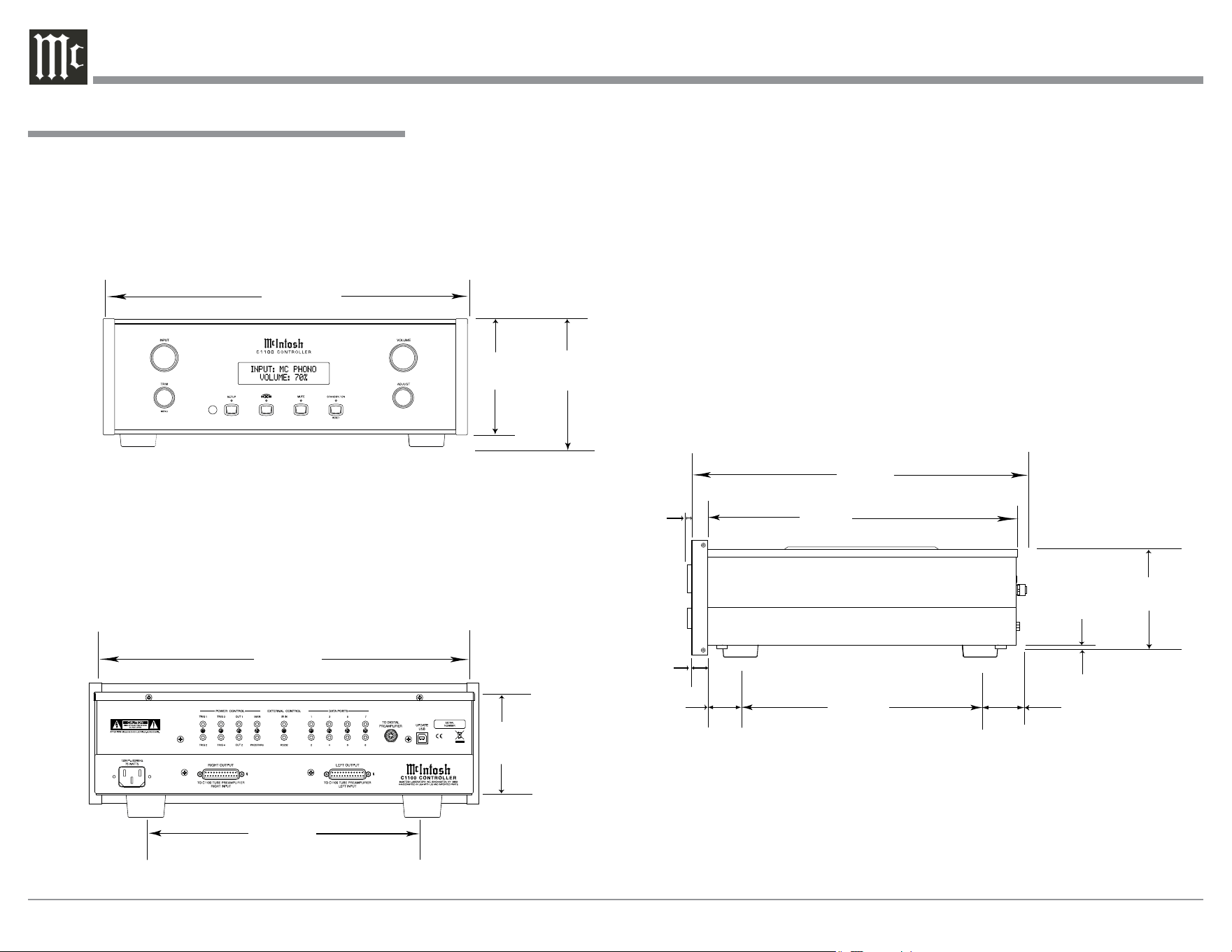
The following dimensions can assist in determining
the best location for your C1100C. There is additional
information on the next page pertaining to installing
the C1100C into cabinets.
Side View of the C1100C
Front View of the C1100C
Rear View of the C1100C
17-1/2"
44.5cm
6"
15.2cm
5-3/8"
13.7cm
4-5/8"
11.8cm
13-1/4"
33.7cm
17"
43.2cm
14-1/2"
36.8cm
15-7/8"
40.3cm
3/16"
0.5cm
4-13/16"
12.2cm
10-9/16"
26.8cm
5/8"
1.6cm
13/16"
2.0cm
2"
5.1cm
1-15/16"
4.9cm
7
C1100C Installation
Installation
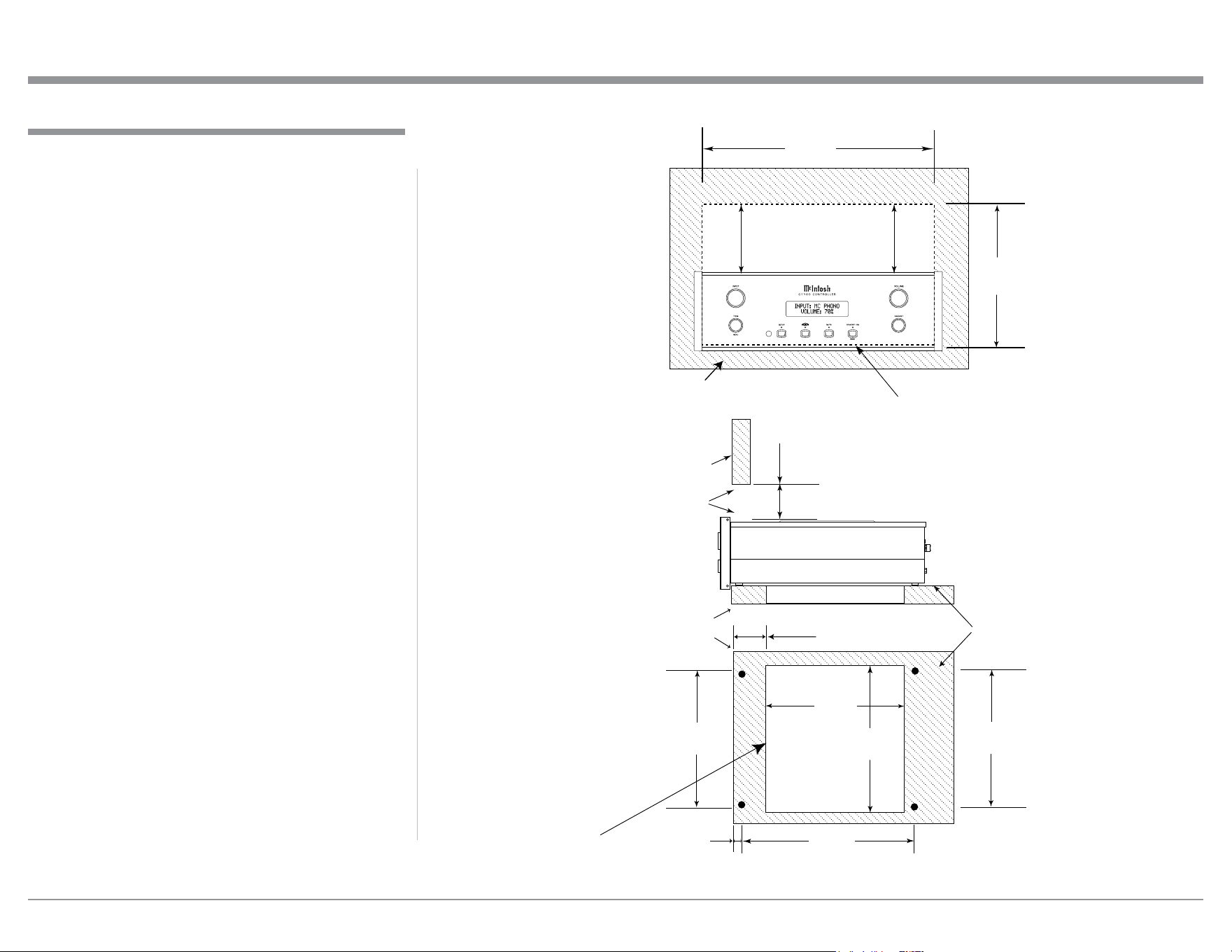
The C1100C can be placed upright on a table or
shelf, standing on its four feet. It also can be custom
installed in a piece of furniture or cabinet of your
choice. The four feet may be removed from the bottom
of the C1100C when it is custom installed as outlined
below. The four feet together with the mounting
screws should be retained for possible future use if the
C1100C is removed from the custom installation and
used free standing. The required panel cutout, ventila-
tion cutout and unit dimensions are shown.
Always provide adequate ventilation for your
C1100C. Cool operation ensures the longest possible
operating life for any electronic instrument. Do not
install the C1100C directly above a heat generating
component such as a high powered amplifier. Also
do not stack the C1100T on top of the C1100C. If all
the components are installed in a single cabinet, a
quiet running ventilation fan can be a definite asset in
maintaining all the system components at the coolest
possible operating temperature.
A custom cabinet installation should provide the
following minimum spacing dimensions for cool
operation.
Allow at least 6 inches (15.2cm) above the top, 2
inches (5.1cm) below the bottom and 1 inch (2.5cm)
on each side of the Preamplifier, so that airflow is not
obstructed. Allow 20 inches (50.8cm) depth behind the
front panel. Allow 1‑7/16 inch (3.7cm) in front of the
mounting panel for knob clearance. Be sure to cut out
a ventilation hole in the mounting shelf according to
the dimensions in the drawing.
C1100C Front Panel
Custom Cabinet Cutout
Cutout
Opening
for
Ventilation
Cutout Opening
for Ventilation
Support
Shelf
Chassis
Spacers
C1100C Side View
in Custom Cabinet
Note: Center the cutout Horizontally
on the unit. For purposes of
clarity, the above illustration
is not drawn to scale.
C1100C Bottom View
in Custom Cabinet
2-
7/8"
7.3cm
17-3/16"
43.66cm
Cutout Opening for Custom Mounting
Cabinet Front Panel
10-3/4"
27.3cm
Opening for Ventilation
Cabinet
Front
Panel
6"
15.2cm
Opening
for Ventilation
15-1/16"
39.6cm
8-1/8"
23.2cm
13-1/8"
33.3cm
12-5/16"
31.3cm
1-1/8"
2.9cm
15-1/16"
38.3cm
8
C1100T Dimensions
Dimensions
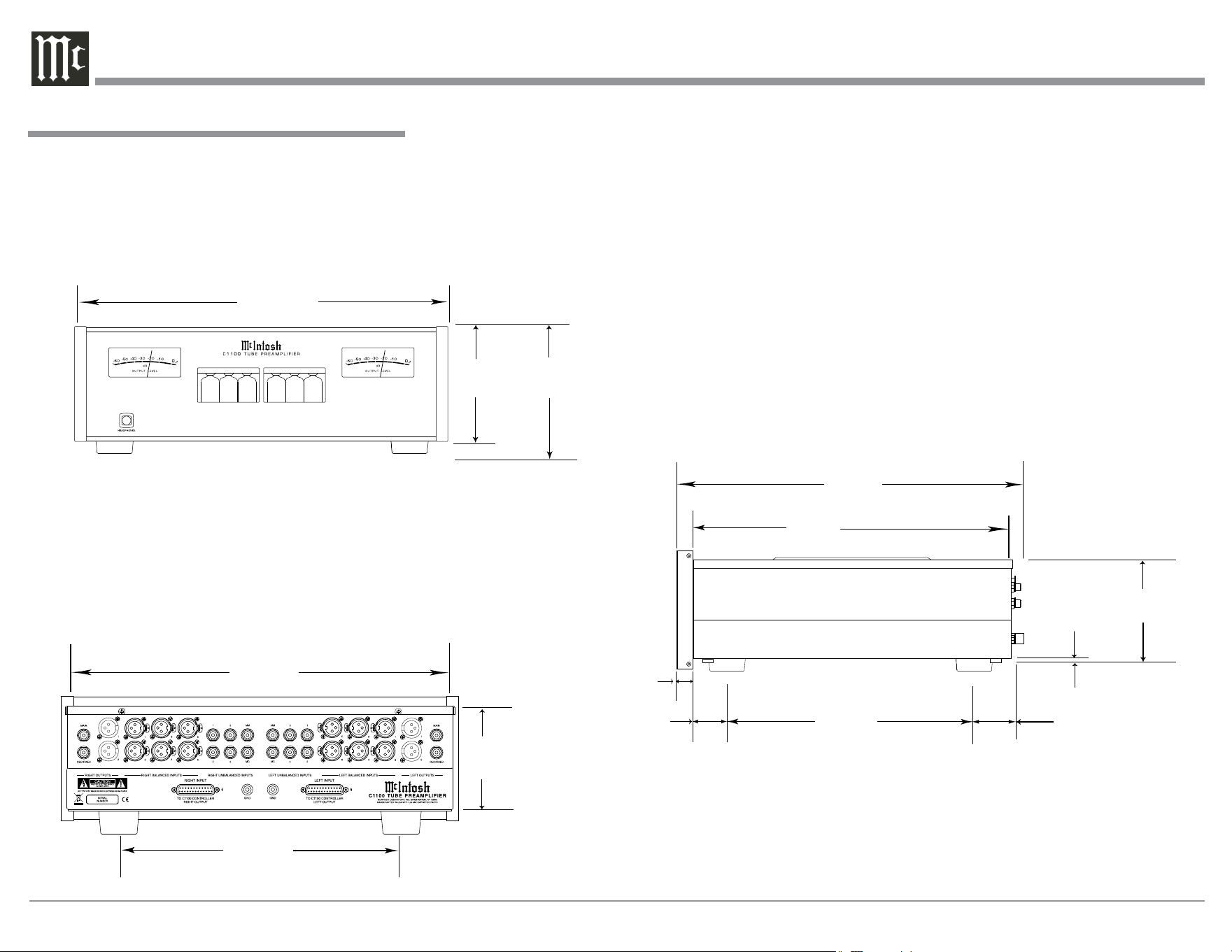
The following dimensions can assist in determining
the best location for your C1100T. There is additional
information on the next page pertaining to installing
the C1100T into cabinets.
Side View of the C1100T
Front View of the C1100T
Rear View of the C1100T
17-1/2"
44.5cm
6"
15.2cm
5-3/8"
13.7cm
4-5/8"
11.8cm
13-1/4"
33.7cm
17"
43.2cm
14-1/2"
36.8cm
15-7/8"
40.3cm
3/16"
0.5cm
4-13/16"
12.2cm
10-9/16"
26.8cm
13/16"
2.0cm
2"
5.1cm
1-15/16"
4.9cm
9
C1100T Installation
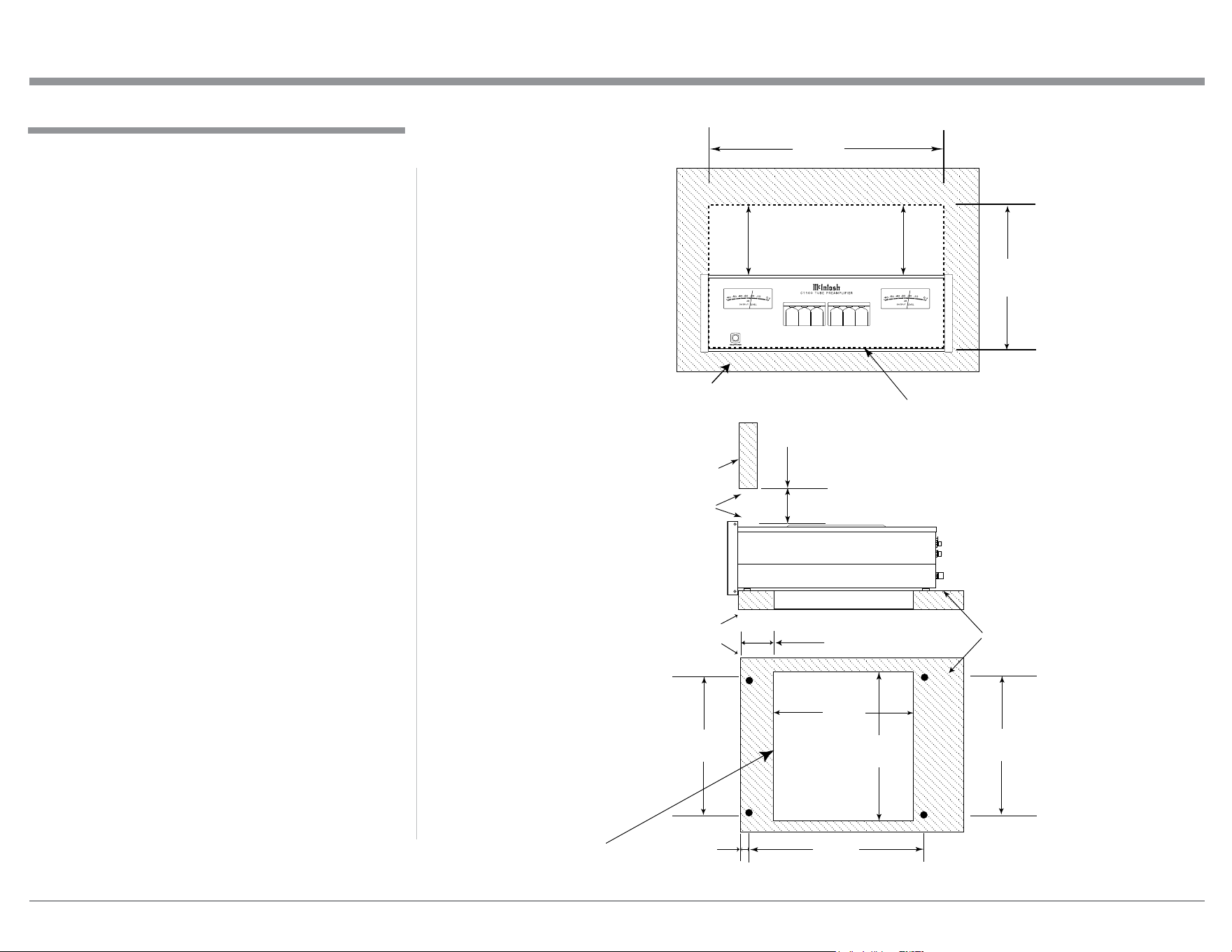
Installation
The C1100T can be placed upright on a table or
shelf, standing on its four feet. It also can be custom
installed in a piece of furniture or cabinet of your
choice. The four feet may be removed from the bottom
of the C1100T when it is custom installed as outlined
below. The four feet together with the mounting
screws should be retained for possible future use if the
C1100T is removed from the custom installation and
used free standing. The required panel cutout, ventila-
tion cutout and unit dimensions are shown.
Always provide adequate ventilation for your
C1100T. Cool operation ensures the longest possible
operating life for any electronic instrument. Do not
install the C1100T directly above a heat generating
component such as a high powered amplifier. Also
do not stack the C1100C on top of the C1100T. If all
the components are installed in a single cabinet, a
quiet running ventilation fan can be a definite asset in
maintaining all the system components at the coolest
possible operating temperature.
A custom cabinet installation should provide the
following minimum spacing dimensions for cool
operation.
Allow at least 6 inches (15.2 cm) above the top, 2
inches (5.1cm) below the bottom and 1 inch (2.5cm)
on each side of the Preamplifier, so that airflow is not
obstructed. Allow 20 inches (50.8cm) depth behind the
front panel. Allow 1‑7/16 inch (3.7cm) in front of the
mounting panel for knob clearance. Be sure to cut out
a ventilation hole in the mounting shelf according to
the dimensions in the drawing.
C1100T Front Panel
Custom Cabinet Cutout
Cutout
Opening
for
Ventilation
Cutout Opening
for Ventilation
Support
Shelf
Chassis
Spacers
C1100T Side View
in Custom Cabinet
Note: Center the cutout Horizontally
on the unit. For purposes of
clarity, the above illustration
is not drawn to scale.
C1100T Bottom View
in Custom Cabinet
17-3/16"
43.66cm
Cutout Opening for Custom Mounting
Cabinet Front Panel
10-3/4"
27.3cm
Opening for Ventilation
Cabinet
Front
Panel
6"
15.2cm
Opening
for Ventilation
15-5/8"
39.6cm
15-1/16"
38.3cm
2-7/8"
7.3cm
8-1/8"
23.2cm
13-1/8"
33.3cm
12-5/16"
31.3cm
1-1/8"
2.9cm
10
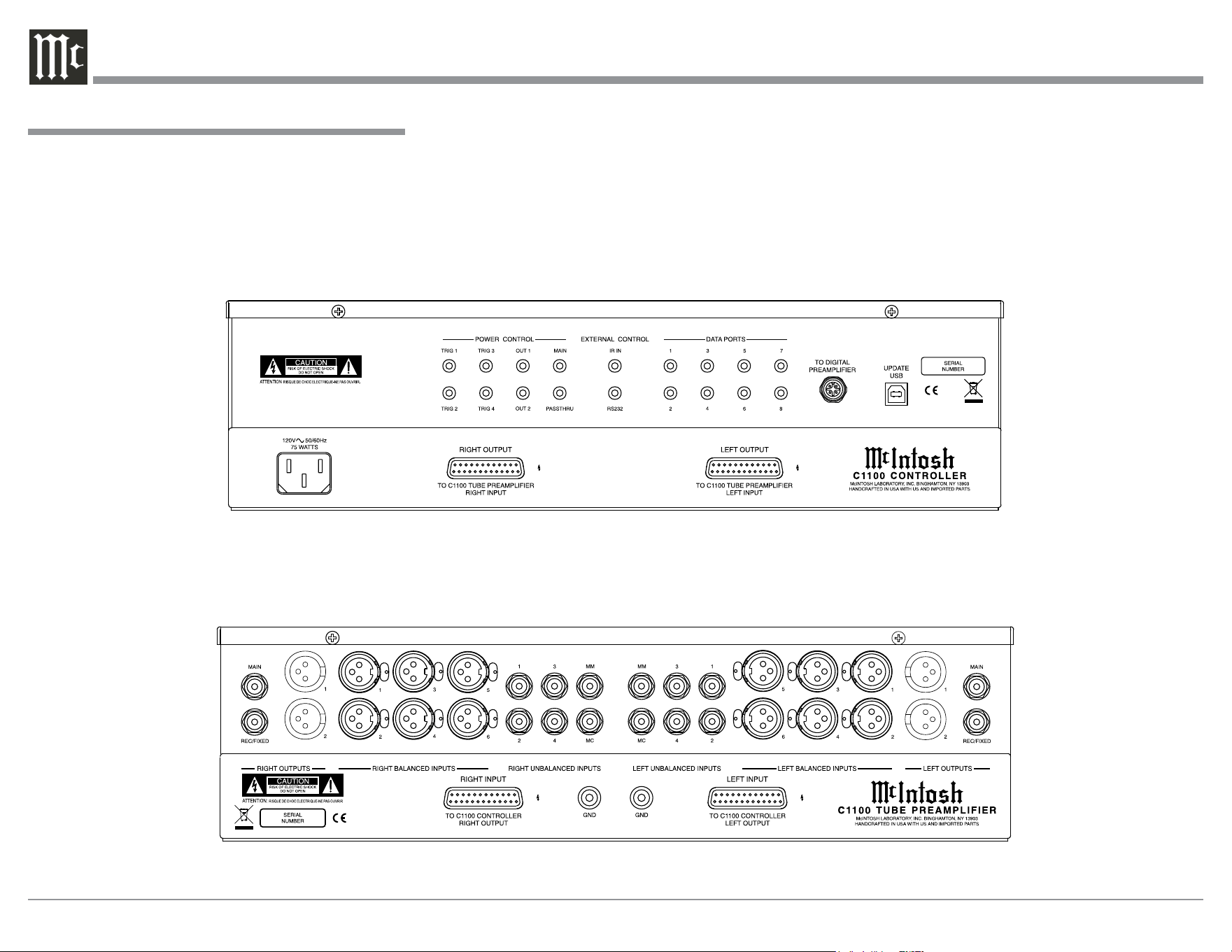
The identification of Rear Panel Connections for the
C1100C Controller and C1100T Tube Preamplifier is
located on a separate folded sheet contained in the
Owner’s Manual Packet.
Refer to separate sheet “Mc 3A” and “Mc3B” for
the Rear Panel Connections.
Rear Panel Connections
C1100C Controller Rear Panel
C1100T Tube Preamplifier Rear Panel

11
Connecting Components
Rear Panel Connections and Connecting Components
The C1100C has the ability to automatically switch
power On/Off to Source Components via the Power
Control connections. The Data Port Connections al-
low for the remote operation of basic functions using
the C1100C HR085 Remote Control. With an exter-
nal sensor connected to the C1100C, remote control
operation of the system is possible from another room
and/or when the C1100 is located in a cabinet with the
doors closed.
The connection instructions below, together with
the C1100 Input/Output/Control/PASSTHRU Con-
nection Diagrams are located on the separate folded
sheets “Mc1A/1B and Mc2A/2B”. The Connection
Diagrams are examples of a typical audio system.
Your system may vary from this, however the actual
components would be connected in a similar manner.
For additional information refer to “Connector and
Cable Information” on page 4.
Notes: 1. The C1100C allows re-naming of the Audio
Input Names as indicated on the Front Panel
Information Display. Example, “UNBAL 1” may
be changed to “TUNER” or your own personal
preference. Refer to Setup “Inputs” on page 18.
2. For convenience, an “Input Assignment Chart”
on a separate sheet “Mc5A/5B” has been pro-
vide to keep track of changes.
Power Control Connections:
1. Connect a Control Cable from the C1100C POW-
ER CONTROL MAIN Jack to the Power Control
In on the Turntable.
2. Connect a Control Cable from the Turntable Pow-
er Control Out Jack to the Digital Audio Player
Trigger In Jack.
3. Connect a Control Cable from the Digital Audio
Player Trigger Out Jack to the SACD/CD Player
Power Control In Jack.
4. Connect a Control Cable from the SACD/CD
Player Power Control Out Jack to the AM/FM
Tuner In Jack.
5. Connect a Control Cable from the AM/FM Tuner
Power Control Out Jack to the Media Bridge Pwr
Ctrl (Power Control) In Jack.
6. Connect a Control Cable from the C1100C POW-
ER CONTROL OUT 1 Jack to the Power Ampli-
fier Power Control In Jack.
Notes: 1. If two separate Power Amplifiers are used
(Left and Right Channels), connect the Power
Control Output of the first Amplifier to the
Power Control Input on the second Amplifier.
2. By the defaut settings, POWER CONTROL
OUT 1 and 2 are active by default. They can
be switched On/Off by using the C1100C TRIM
Function.
7. Optionally, connect a Control Cable from the
C1100CS POWER CONTROL OUT 2 Jack to the
Power Amplifier (Secondary Room) Power Control
In Jack.
8. Connect any additional Components in a similar
manner, as outlined in steps 1 thru 5.
Data Control Connections:
9. Connect a Control Cable from the C1100C DATA
PORTS 2 Jack to the TUNER Data In Jack.
Note: To have source components (e.g. Tuner) respond
only to their specific “Function Commands”
issued by the Remote Control, it is first neces-
sary change the Data Ports Default settings for
the “Tuner” Input. Refer to Setup “Data Port
Assignment”on page 22.
10. Connect a Control Cable from the C1100C CD
DATA PORT 3 Jack to the SACD/CD Player Data
In Jack.
11. Connect a Control Cable from the C1100C DATA
PORT 1 Jack to the Media Bridge Data In Jack.
12. Connect any additional McIntosh Components in a
similar manner, as outlined in steps 9 thru 11.
Sensor Connection:
13. Connect a Control Cable from the C1100C IR
INput Connector to the external Sensor. For addi-
tional information, refer to “General Information”
note 8 on page 4.
Audio Connections:
14. Connect an Audio Cable from the C1100T UN-
BALANCED INPUT 1 (Left and Right Channels)
Jacks to the Tuner Unbalanced Output Jacks.
15. Connect XLR Audio Cables from the C1100T
BALANCED INPUT 1 (Left and Right Chan-
nels) connectors to the SACD/CD Player Balanced
output connectors.
16. Connect XLR Audio Cables from the C1100T
BALANCED INPUT 3 (Left and Right Channels)
connectors to the Media Bridge Balanced output
connectors.
17. Connect XLR Audio Cables from the C1100T
BALANCED INPUT 2 (Left and Right Channels)
connectors to the Digital Audio Player Balanced
output connectors.
18. Connect the Audio Cables coming from the Turn-
table to the C1100T MC PHONO INPUT (Left and
Right Channels) Jacks.
Note: If the Turntable has a Moving Magnet Car-
tridge, connect the audio cables to the C1100T
MM PHONO INPUT instead of the MC Input.
19. Connect XLR Audio Cables from the C1100T
OUTPUT 1 connectors (Left and Right Channels)
to the Power Amplifiers (Primary Room) Balanced
(Left and Right) Inputs.

12
Connecting Components, con’t
20. Optionally, connect XLR Audio Cables from the
C1100T OUTPUT 2 connectors (Left and Right
Channels) to the Power Amplifier (Secondary
Room) Balanced (Left and Right) Inputs.
21. Connect any additional McIntosh Components in a
similar manner, as outlined in steps 14 thru 19.
Optional PASSTHRU Connections:
22. Connect XLR Audio Cables from the A/V Pro-
cessor, Front Channels (Left and Right) Balanced
Output connectors to the C1100T BALANCED
INPUT 6 connectors (Left and Right Channels).
Note: Refer to Setup “PASSTHRU” on page 22 to acti-
vate the BALANCED 6 Input.
23. Connect a Control Cable from the C1100C
PASSTHRU Jack to A/V Processor Power Control
Zone ZA Jack.
Ground Connections:
24. Connect the Ground Cable coming from the Turn-
table to the C1100T PHONO INPUT GND Bind-
ing Post.
C1100C and C1100T Inner Connections:
25. Connect one of the supplied custom cables from
the C1100C RIGHT OUTPUT Socket to the
C1100T RIGHT INPUT Socket. In a similar man-
ner, connect the second cable from the C1100C
LEFT OUTPUT Socket to the C1100T LEFT
INPUT Socket.
AC Power Cord Connections:
26. Connect the C1100C to a live AC Outlet using the
supplied Power Supply Cord.

13
Notes
14
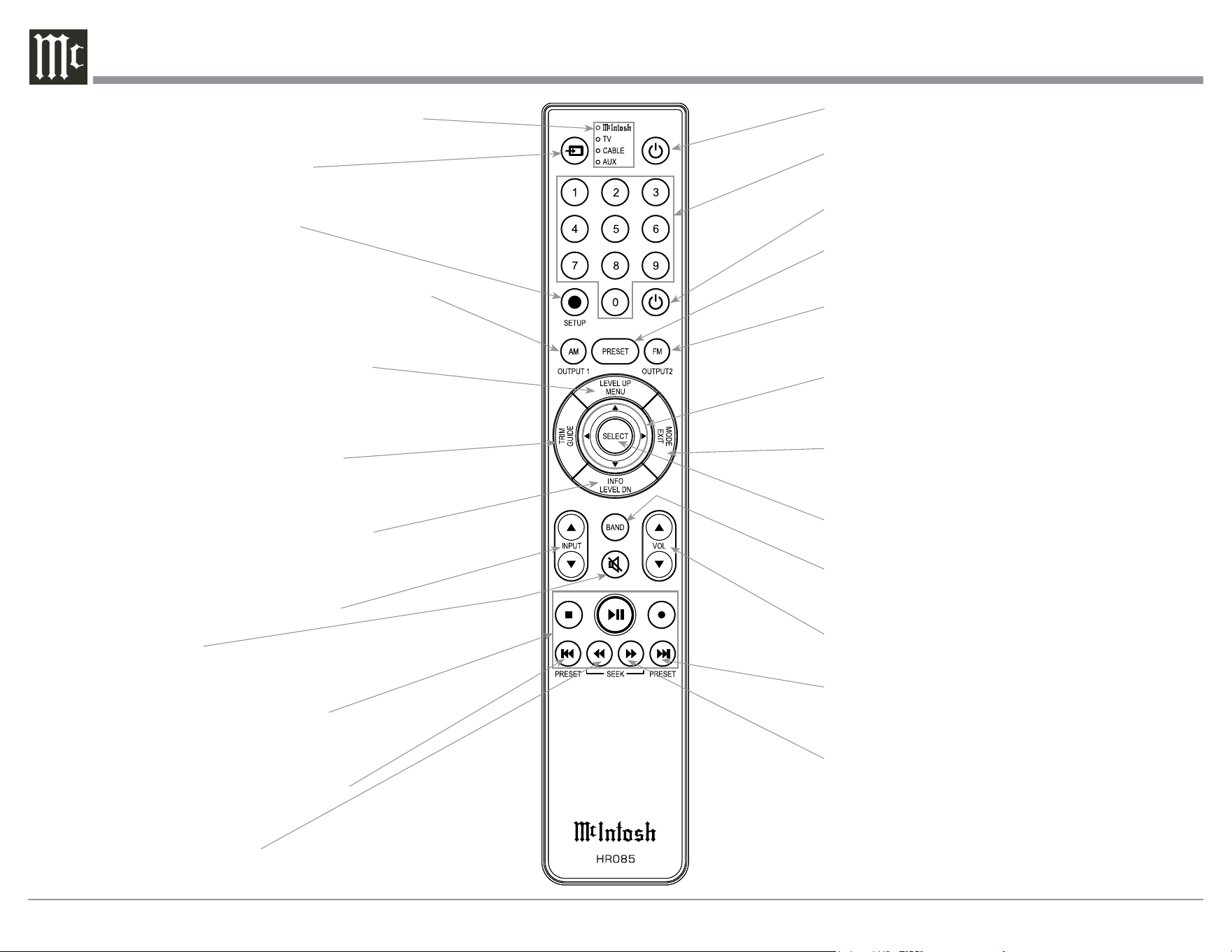
Note: Push-buttons whose function is not identified
above are for use with other McIntosh Products.
Press to Power the Preamplifier ON
Use to select tuner presets, direct ac-
cess an AM/FM Station Frequency,
disc tracks or any numbered operation
Mutes the audio
Adjusts the VOLume level up or down
Selects FM Tuner Operating Functions, select Output
2 when used with the SETUP/shift Push-button and
Track Selection on certain McIntosh CD Players
LEDs illuminate during the time a remote command
is sent and when programming the remote control
Press the Trim Push-button and then the
LEVEL UP Push-button to select and adjust
various functions. MENU is used with Mc-
Intosh Models displaying choices on a video
screen
Press to Power the Preamplifier OFF
Scrolls through the available INPUTS
Used to SELECT/Enter the indicated choice
Use p and q to tune Up or Down the AM/FM
Dial, use u and t for the next or previous HD
Radio Program (were applicable)
Activates the TRIM Mode. GUIDE is
used with McIntosh Models displaying
instructions on a video screen
Press to change broadcast bands on a
connected Tuner. Select certain functions
on a variety of McIntosh Models
Select the DEVICE to issue a remote
control command to
Direct access to stored Tuner PRESETS when
used with the numeric Push‑buttons (0 thru 9)
Press the Trim Push-button and then the
LEVEL DOWN Push-button to select and
adjust various functions. INFO is used with
McIntosh Models displaying information on
a video screen
Selects transport functions of STOP,
PLAY/PAUSE, RECORD, BACK for
the previous-selection, FAST-RE-
VERSE, FAST-FORWARD and NEXT
for the next selection
Selects Previous Tuner Station PRESET
Tuner scans Down the dial
to SEEK the next Station
Selects Next Tuner Station PRESET
Tuner scans Up the dial to
SEEK the next Station
HR085 Remote Control Push-Buttons
Selects AM Tuner Operating Functions, select Output
1 when used with the SETUP/shift Push-button and
Track Selection on certain McIntosh CD Players
SETUP Push-button is used as a
“Shift Key” to select a function
with blue color nomenclature
EXIT the TRIM Menu and is used with McIntosh
Models displaying information or choices on a video
screen

15
How to use the HR085 Remote Control
How to use the Remote Control
The supplied C1100 Remote Control (HR085) is ca-
pable of directly controlling the functions of contem-
porary McIntosh Source Components connected to the
C1100 via the Data Ports.
Notes: 1. If at any time the C1100 seems unresponsive
to HR085 Remote Control Commands, press
the DEVICE Push-button to select
first.
2. For additional information on using the
HR085 Remote Control with the McIntosh
Model, please refer to “How to Operate”
starting on page 26.
3. For additional information on assigning the
Data Ports, refer to “How to Setup” on page
18.
Trim
Press the TRIM Push-button until the desired Trim
function (Balance, Trim Level, etc.) appears on the
C1100 Front Panel Display, then press the LEVEL Up
or Down Push-button to adjust the Trim setting.
Note: Press the TRIM Push-button to recall the last Trim
function selected. For additional information on
using the Trim Functions refer to “How to Oper-
ate” page 26.
Output Selection
Press the BLUE (Setup) Push‑button followed by
the AM (Output 1) or FM (Output 2) Push‑button, to
control the Rear Panel Audio OUTPUTS 1, 2 (ON or
OFF) and Power Control TRIG 1 / TRIG 2.
Note: For additional information on assigning the Out-
puts (1 and 2) and Power Control Triggers (1 and
2) refer to page 21.
16
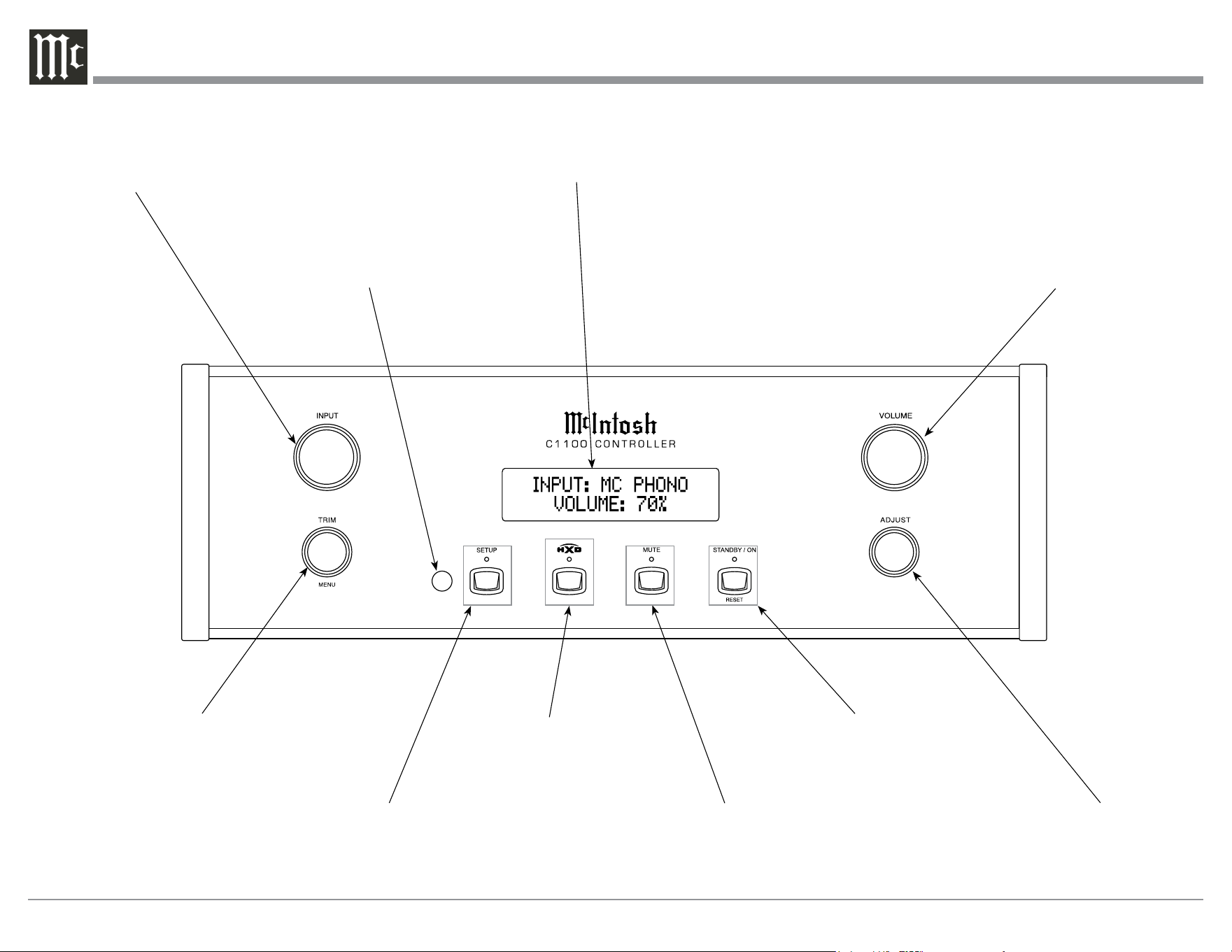
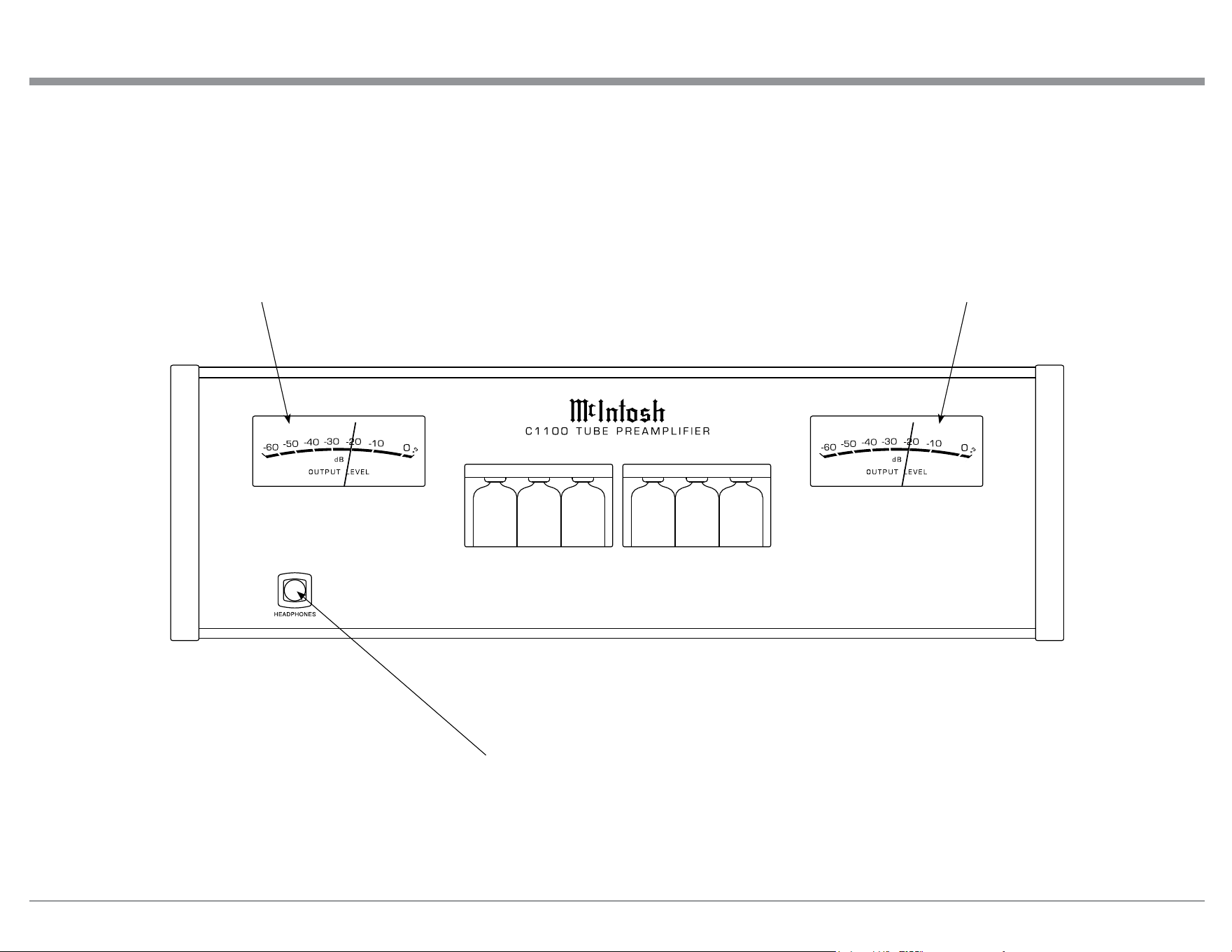
IR Sensor receives
commands from a
Remote Control
STANDBY/ON Push-button
with indicator, switches the
C1100 ON or OFF (Standby) and
resets the microprocessors
VOLUME Control allows
adjustment of the listening
level for both channels
MUTE Push-button mutes
the audio from the Loud-
speakers and Headphones
INPUT Control used to se-
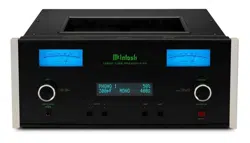
lect a source for listening and
recording. The control is also
used in the SETUP Modes
INFORMATION DISPLAY indicates
the Sources, Volume, other Audio
Settings, Operational Functions and
Setup Mode Settings
TRIM Control allows
selection of Trim set-
tings and is also used
in the SETUP Mode
HXD Push-button with indicator,
activates the Crossfeed Director
Circuitry for Headphones
SETUP Push-button with indicator,
activates the Setup Mode allowing
changes to the default settings
ADJUST Control used for
Trim Mode Adjustments and
also various SETUP Functions
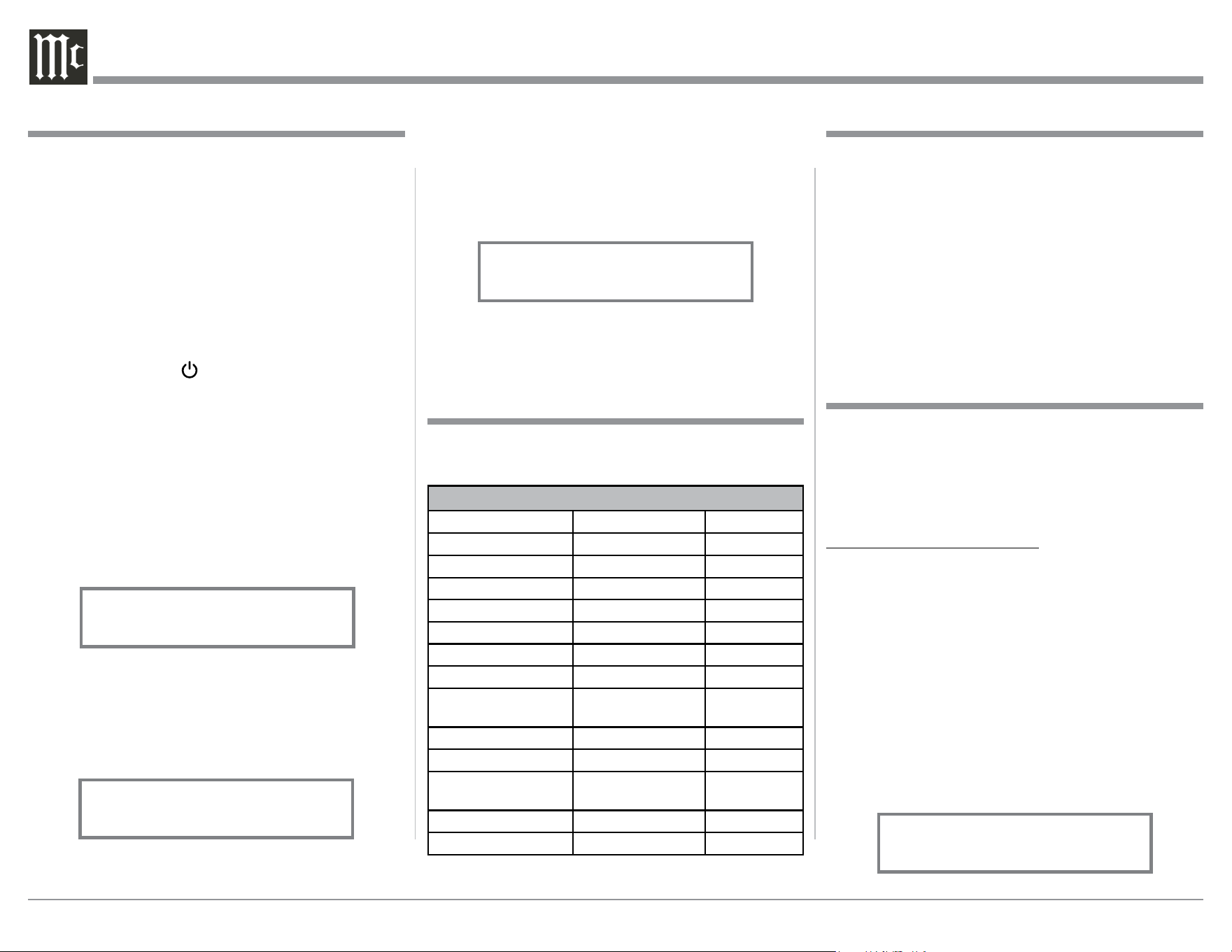
17
Connection for low impedance
dynamic headphones, for private
listening
Meter indicates the
Right Channel Output
of the Preamplifier
Meter indicates the
Left Channel Output
of the Preamplifier
Front Panel Displays, Controls, Push-buttons and Jack
18
3. Rotate the TRIM Control to select the next Setup
Mode Menu item, “SETUP: BAL 1, On / Re-
name.” Refer to figure 3. Continue to rotate the
INPUT CONTROL to view the other SETUP
Mode Options.
4. To exit from the SETUP Mode, press the SETUP
Push-button and the Front Panel Display will re-
vert back to its normal display. Refer to figure 1.
Your McIntosh C1100 has been factory configured for
default operating settings that will allow immediate
enjoyment of superb audio without the need for fur-
ther adjustments. If you wish to make changes to the
factory default settings, a Setup Feature is provided to
customize the operating settings using the Front Panel
Information Display. Refer to the C1100C Front Panel
Illustration on page 16 while performing the following
steps.
Note: If the C1100 is currently On, proceed to step 2.
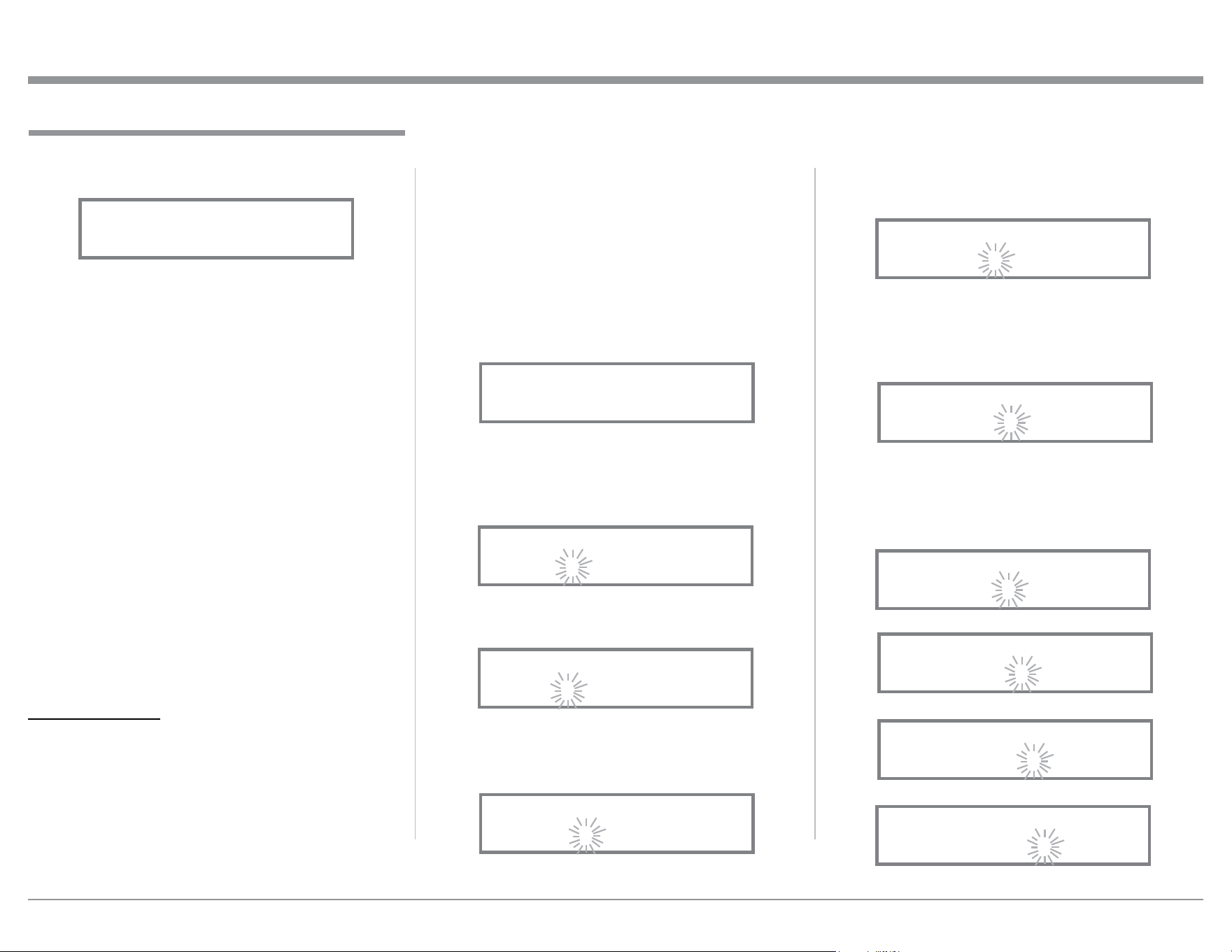
1. Press the STANDBY/ON Push-button on the Front
Panel or press the (Power ON) Push‑button on
the Remote Control to switch On the C1100. The
C1100 will go through a TUBE WARMUP (15
seconds) with the Tubes in the C1100T glowing an
amber color and a brief startup initialization with
the Front Panel Information Display indicating the
last used source and volume setting. The illumina-
tion of the Tubes will now glow a green color; this
is followed by the volume setting indication start-
ing at zero, then increasing to the last used volume
setting. Refer to figure 1.
2. Press the SETUP Push-button, rotate TRIM
(MENU) Control until the Front Panel Informa-
tion Display indicates “C1100, V_.__ - S/N:
AEE____” (or higher Firmware version). Refer to
figure 2.
How to Operate the Setup Mode
The Default Settings Chart below indicates the Func-
tion Name, Default Setting and the Page Number for
additional information.
Default Settings
Firmware Version
Default Settings
Function Name Setting Page No.
C110 0 V_._ _ - _._ 18
INPUTS On / Rename 18
OUTPUTS (1 & 2) Switched 20
HEADPHONES Main = Unmuted 20
TRIGGER 1 Output 1 21
TRIGGER 2 Output 2 21
TRIGGERS (3 thru 4) Main 21
DATA PORTS
(1 thru 8)
All Data 22
PASST HRU OFF 22
RS232 (Rate) 115200 Baud 22
Remote Control
(IR Codes)
Normal
23
IR Sensor Enabled 23
Power Mode Enabled 24
Setup
Figure 2
C1100 V1.00
S/N: AEE____
Figure 1
INPUT: BAL 1
15%
The C1100 provides the ability to switch unused
INPUTS Off (or back On if they have been previously
switched Off). The default INPUT Names can be
changed to match the name of the component con-
nected to it or any other custom name desired (within
10 Characters).
INPUT SWITCHED ON/OFF:
In the following example, the UNBAL 4 Input will be
switched Off.
Notes: 1. When an INPUT is swiched Off, its name will
no longer appear on the Front Panel Informa-
tion Display when using the INPUT Control
(Front Panel or Remote Control).
1. Press the SETUP Push-button to enter the SETUP
MODE. Refer to figure 2.
2. Rotate the TRIM Control until “SETUP: _____,
On / Rename” appears on the Information Display.
Refer to figure 3.
3. Then rotate the INPUT Control to select the UN-
BAL 4 Input. Refer to figure 4.
Input Settings
Figure 3
SETUP: BAL 1
On / Rename
Figure 4
SETUP: UNBAL 4
On / Rename
The C1100 functionality is controlled by internal
software that is know as Firmware. The Version of the
Firmware in the C1100 can be identified at any time
by utilizing the Setup Mode.
1. Press the SETUP Push-button to enter Setup
Mode.
2. Referring to the Front Panel Information Display-
the number after the character “V” is the Firm-
ware number. Refer to figure 2.
3. To exit the Setup Mode, press the SETUP Push-
button.
19
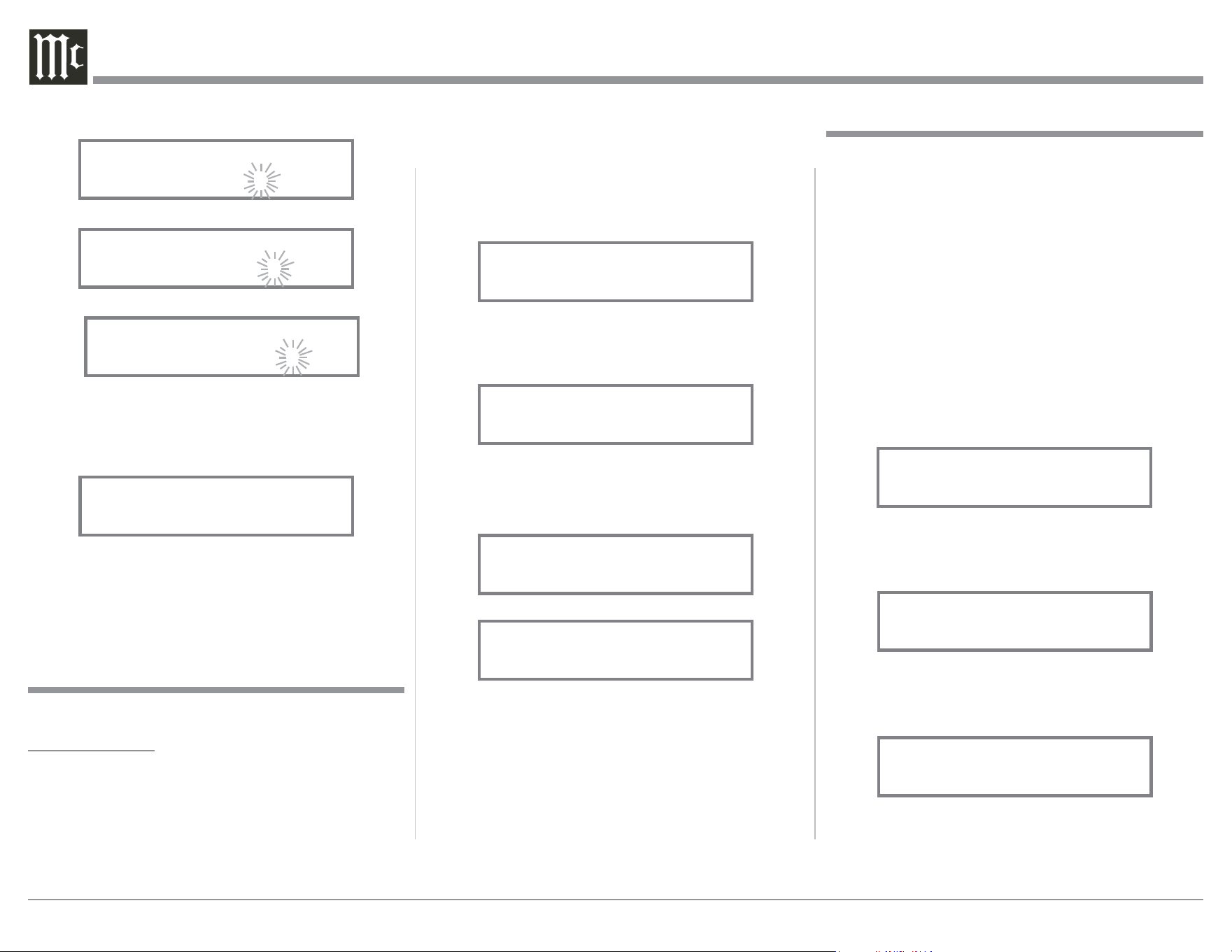
16. Rotate the TRIM Control until the character
“L” is flashing, then rotate the ADJUST Con-
trol to change the character “L” to “D”. Refer to
figure 10.
17. Rotate the TRIM Control until the “_” empty space
to the right of character D is flashing, then rotate
the ADJUST Control to change the “_” empty
space to character to “I”. Refer to figure 11.
18. Repeat steps 14 thru 17 until the new name of “
RENAME: BAL 1, MEDIA BRDG” is indicated
on the Front Panel Display. Refer to figures 12
thru 15 and figures 16 thru 18.
4. To switch the UNBAL 4 Input Off, rotate the AD-
JUST Control until the display indicates SETUP:
UNBAL 4, Off”. Refer to figure 5.
5. Exit the SETUP Mode by pressing the SETUP
Push-button.
In the following example, the UNBAL 4 Input will be
switched On.
Notes: 1. When an INPUT is swiched ON, its name will
appear on the Front Panel Information Display
when using the INPUT Control (Front Panel or
Remote Control).
6. Press the SETUP Push-button to enter the SETUP
MODE. Refer to figure 2, on page 18.
7. Rotate the TRIM Control until “SETUP: _____,
On / Rename” appears on the Information Display.
Refer to figure 3.
8. Rotate the INPUT Control to select the UNBAL 4
Input. Refer to figure 5.
9. To switch the UNBAL 4 Input On, rotate the AD-
JUST Control until the display indicates SETUP:
UNBAL 4, On / Rename”. Refer to figure 4 on
page 18.
10. Exit the SETUP Mode by pressing the SETUP
Push-button.
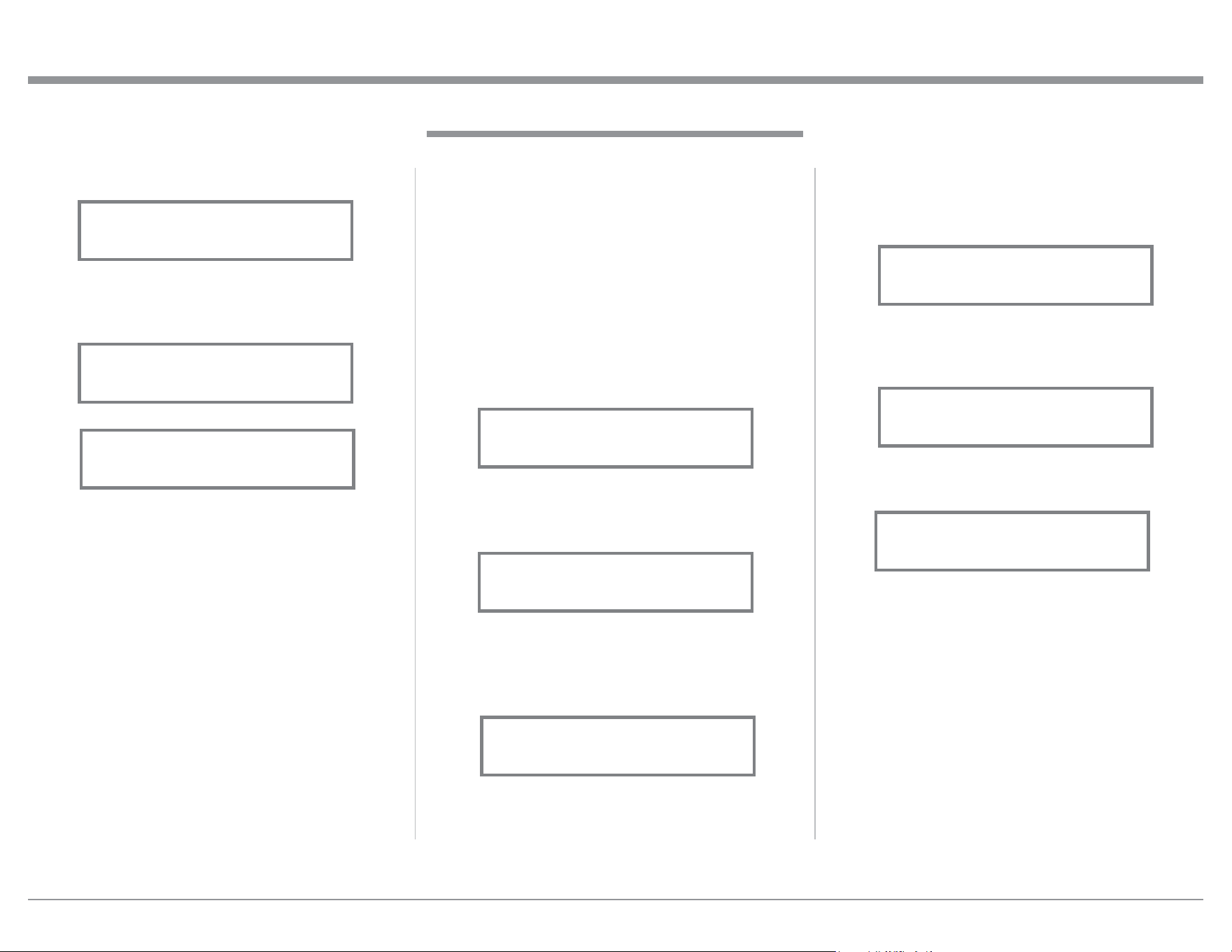
R ENAME I N PUT:
In the following example, the BALANCED 1 (BAL
1) Input will be renamed to match up with the compo-
nent connected (refer to page 11, step 16).
The C1100 Default Input Names (UNBAL 1, BAL 1,
etc.) as indicated on the Front Panel Display can be
customized to a different name up to ten characters
long (TUNER, CD PLAYER, etc.). The available
characters for renaming the input include the follow-
ing: ! < > * , / - _ 0 1 2 3 4 5 6 7 8 9 A B C D E F G H
I J K L M N O P Q R S T U V W X Y Z .
In the following example, the BAL 1 Input will be
renamed to “MEDIA BRDG”.
11. Press the SETUP Push-button to enter the SETUP
MODE. Refer to figure 2, on page 18.
12. Rotate the TRIM Control until “SETUP: _____,
On / Rename” appears on the Information Display.
Then rotate the INPUT Control to select the “BAL
1” Input. Refer to figure 6.
13. Press and hold in the SETUP Push-button until
“RENAME: BAL 1, >BAL 1 < ” appears on the
Display. The character “B” is flashing to indicate
it is ready to be changed. Refer to figure 7.
14. Rotate the ADJUST Control to change the charac-
ter “B” to “M”. Refer to figure 8.
15. Rotate the TRIM Control until the character “A”
is flashing, then rotate the ADJUST Control to
change the character “A” to “E”. Refer to figure 9.
Input Settings, con’t
Figure 5
SETUP: UNBAL 4
Off
Figure 6
SETUP: BAL 1
On / Rename
Figure 8
RENAME: BAL 1
>MAL 1 <
Figure 13
RENAME: BAL 1
>MEDIA <
Figure 10
RENAME: BAL 1
>MED 1 <
Figure 9
RENAME: BAL 1
>MEL 1 <
Figure 12
RENAME: BAL 1
>MEDI <
Figure 7
RENAME: BAL 1
>BAL 1 <
Fig u re 11
RENAME: BAL 1
>MED <
Figure 14
RENAME: BAL 1
>MEDIA <
Figure 15
RENAME: BAL 1
>MEDIA B <
20
1. Press the SETUP Push-button to enter the SETUP
MODE. Refer to figure 2, on page 18.
2. Rotate the TRIM Control until “SETUP: OUT-
PUT 1, Switched” appears on the Information
Display. Refer to figure 20.
3. Rotate the ADJUST Control until “SETUP:
OUTPUT 1, Unswitched” appears on the Informa-
tion Display. Refer to figure 21.
4. In a similar manner, perform steps 2 and 3 to
change the OUTPUT 2 setting. Refer to figures 22
and 23.
5. Exit the SETUP Mode by pressing the SETUP
Push-button.
The Output Settings provide the ability to change how
the C1100 Output 1 and Output 2 function.
OUTPUT 1 and 2:
By defaut OUTPUT 1 and 2 are set to go On/Off by
using the Front Panel TRIM and ADJUST Controls
or the OUTPUT 1 and 2 Push-buttons on the Remote
Control. If it is desirable to have OUTPUT 1 and/or
2 always On regardless of the TRIM setting, perform
the following:
The C1100 has the ability to automatically mute the
Output Jacks and/or Connectors when a Headphone
Cable Plug is inserted into the C1100T Front Panel
HEADPHONES Jack. The Output Default Settings
are: MAIN - Unmuted
OUTPUT 1 - Muted
OUTPUT 2 - Muted
In the following examples the MAIN Output Jacks
will Mute and the OUTPUT 1 Connectors will not
Mute when Headphones are connected:
1. Press the SETUP Push-button to enter the SETUP
MODE. Refer to figure 2, on page 18.
2. Rotate the TRIM Control until “SETUP: MUTE
WITH HDPH, Main = Unmuted ” appears on the
Information Display. Refer to figure 24.
3. Rotate the ADJUST Control to change the current
setting to “SETUP: MUTE WITH HDPH, Main =
Muted”. Refer to figure 25.
4. Rotate the INPUT Control to change the current
setting to “SETUP: MUTE WITH HDPH, Output
1 = Muted”. Refer to figure 26.
19. To save the new name, press and hold in the SET-
UP Push-Button until “SETUP: MEDIA BRDG ,
ON / Rename” appears on the Front Panel Infor-
mation Display. Refer to figure 19.
21. Exit the SETUP Mode by pressing the SETUP
Push-button.
Note: For convenience, an “Input Assignment
Chart” on a separate sheet “Mc5A/5B” has
been provided to keep track of changes.
Figure 16
RENAME: BAL 1
>MEDIA BR <
Figure 17
RENAME: BAL 1
>MEDIA BRD <
Figure 18
RENAME: BAL 1
>MEDIA BRDG <
Figure 19
SETUP: MEDIA BRDG
On / Rename
Output Settings
Figure 21
SETUP: OUTPUT 1
Unswitched
Figure 20
SETUP: OUTPUT 1
Switched
Figure 23
SETUP: OUTPUT 2
Unswitched
Figure 22
SETUP: OUTPUT 2
Switched
SETUP:MUTE WITH HDPH
Output 1 = Muted
Figure 26
Figure 24
SETUP:MUTE WITH HDPH
Main = Unmuted
Figure 25
SETUP:MUTE WITH HDPH
Main = Muted
Headphone Settings
21
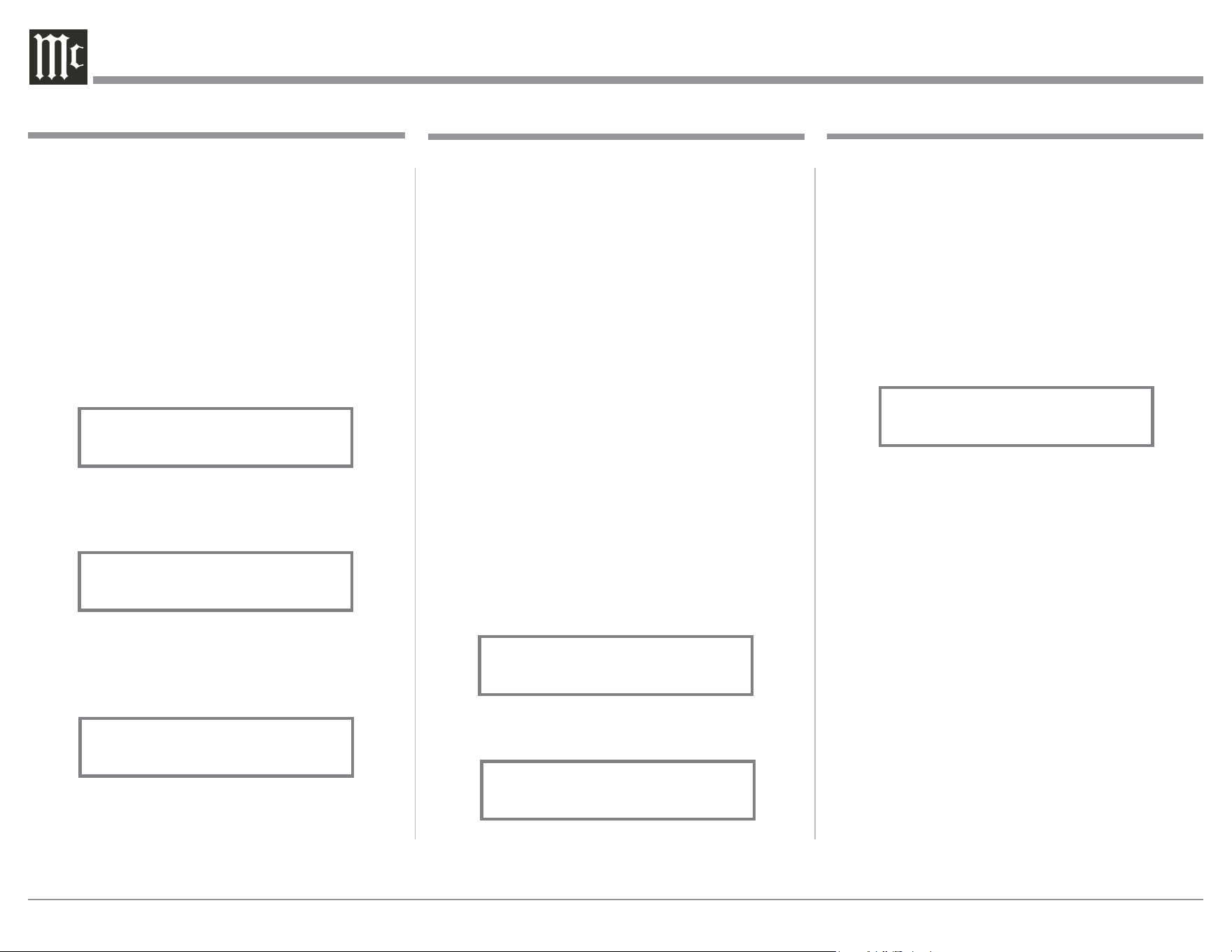
5. Rotate the ADJUST Control to change the current
setting to “SETUP: MUTE WITH HDPH, Output
1 = Unmuted”. Refer to figure 27.
6. In a similar manner, perform steps 4 and 5 to
change the OUTPUT 2 setting. Refer to figures 28
and 29.
7. Exit the SETUP Mode by pressing the SETUP
Push-button.
Setup, con’t
The second example will use selection of the Trigger 3
to activate when the BAL 1 Input is selected:
5. Rotate the INPUT Control to select “SETUP:
TRIGGER 3, Main” appears on the Display. Refer
to figure 33.
6. Rotate the ADJUST Control until “SETUP:
TRIGGER 3, Bal 1: OFF” appears on the Display.
Refer to figure 34.
7. Rotate the VOLUME Control to select “Bal 1:
ON”. Refer to figure 35.
8. Exit the SETUP Mode by pressing the SETUP
Push-button.
Power Control Triggers 1 and 2
By default the Power Control TRIGger 1 thru TRIG-
ger 4 Outputs function the same as the MAIN Power
Control Jack, switching On/Off with the C1100. Trig-
gers 1 thru 4 are also reassignable to activate when
Output 1 or 2 is selected. All four Triggers can also be
assigned to a given Input or Inputs.
In the first example, the Power Control Triggers 1
and 2 will be assigned to Output 1 and 2 respectively:
1. Press the SETUP Push-button to enter the SETUP
MODE. Refer to figure 2, on page 18.
2. Rotate the TRIM Control until SETUP: TRIG-
GER 1, MAIN” appears on the Display. Refer to
figure 30.
3. Rotate the ADJUST Control to select either Output
1, from the available additional selections includ-
ing Output 2 or Input. Refer to figure 31.
4. To change the Trigger 2 setting from Main to
OUTPUT 2, first rotate the INPUT Control to
select TRIGGER 2. Then Rotate the ADJUST
Control to select Output 2. Refer to figure 32.
Figure 33
SETUP: Trigger 3
Main
Figure 30
SETUP: TRIGGER 1
Main
Figure 31
SETUP: TRIGGER 1
Output 1
Figure 32
SETUP: TRIGGER 2
Output 2
Figure 34
SETUP: TRIGGER 3
Bal 1: OFF
Figure 35
SETUP: TRIGGER 3
Bal 1: ON
SETUP:MUTE WITH HDPH
Output 2 = Unmuted
Figure 29
Figure 27
SETUP:MUTE WITH HDPH
Output 1 = Unmuted
Figure 28
SETUP:MUTE WITH HDPH
Output 2 = Muted
22
When the C1100 is part of a Home Theater or Multi-
channel Audio System the Right and Left Front Chan-
nels from an Audio/Video Processor or Surround De-
coder can “Passthru” the C1100 and onto its associated
Power Amplifier(s). The Setup Mode allows selection
of the specified C1100 Input to be used for the Right
and Left Front Channels. In the example below, the
Right and Left Front Channels from the Audio/Video
Processsor will be connected to the BALanced 6 Input
Connectors on the C1100. Refer to pages 8 and 9 for
additional connection information.
Notes: 1. The Phono Inputs are not assignable as a
Passthru Input.
2. If Balanced Input 6 is already assigned to a
given Input, it will not appear in the list of
available Inputs.
3. When one of the Unbalanced Inputs is selected
as a Passthru Input, it is advisable to remove it
from the Input List by switching it Off. Refer to
“Input Settings” on page 18.
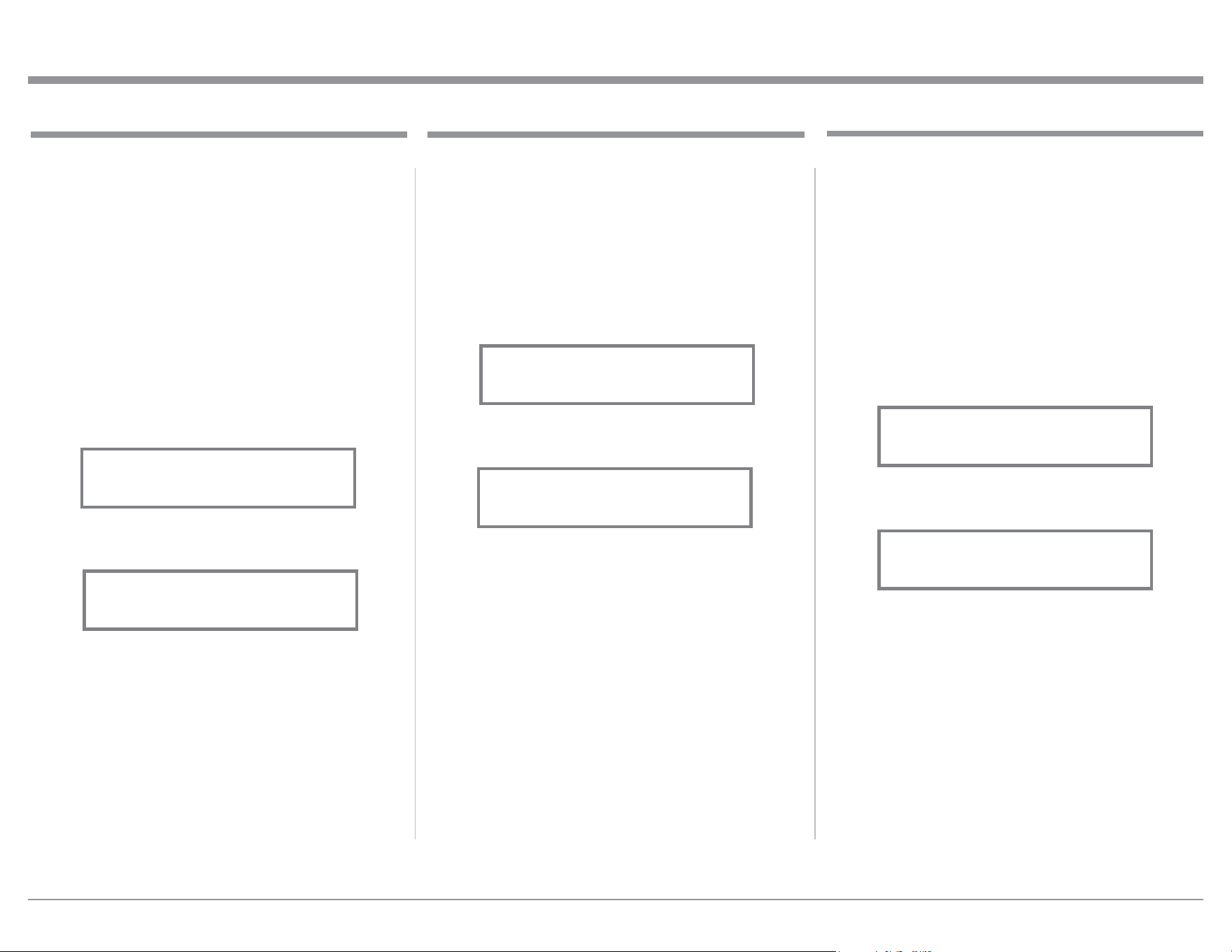
1. Press the SETUP Push-button to enter the SETUP
MODE. Refer to figure 2, on page 18.
2. Rotate the TRIM Control until “SETUP: Passthru,
Off” appears on the Information Display. Refer to
figure 39.
3. Rotate the ADJUST Control to select “BAL 6”
Input. Refer to figure 40.
4. Exit the SETUP Mode by pressing the SETUP
Push-button.
The C1100 may be remotely controlled from other
equipment connected to the Rear Panel RS232 Jack.
The speed at which the C1100 communicates (8 bit, no
parity and 1 stop bit) with other equipment is adjust-
able from 9,600 bits per second to 115,200 bits per
second. To change from the default speed of 115,200
bits per second, perform the following steps:
1. Press the SETUP Push-button to enter the SETUP
MODE. Refer to figure 2, on page 18.
2. Rotate the TRIM Control until “SETUP: RS232,
115200 Baud” appears on the Information Dis-
play. Refer to figure 41.
3. Rotate the ADJUST Control to select the desired
Baud Rate Speed (115200 thru 9600).
4. Exit the SETUP Mode by pressing the SETUP
Push-button.
Comm Port Baud Rate
SETUP: Passthru
BAL 6
Figure 40
SETUP: Passthru
Off
Figure 39
Passthru
Figure 41
SETUP: RS232
115200 Baud
Data Ports
Data Ports Connections between the C1100 and a
McIntosh Source Component allow for basic function
control of the source component using the C1100 sup-
plied Remote Control. By default, all eight Data Ports
are sent the same Data for the selected source. To
dedicate a Data Port for only one source component
(BAL 1 Input will be assigned to Data Port 1) perform
the following Steps:
1. Press the SETUP Push-button to enter the SETUP
MODE. Refer to figure 2, on page 18.
2. Rotate the TRIM Control until “SETUP: Data Port
1, All Data” appears on the Information Display.
Refer to figure 36.
3. Rotate the ADJUST Control until “SETUP: DATA
PORT 1, BAL 1 Data” appears on the Display.
Refer to figure 37.
4. To assign additional Data Ports, first rotate the IN-
PUT Control to select the Data Port and then rotate
the ADJUST Control to select the desired Input.
Refer to figure 38.
5. In a similar manner, assign any additional Data
Ports.
6. Exit the SETUP Mode by pressing the SETUP
Push-button.
Figure 36
SETUP: DATA PORT 1
All Data
Figure 37
SETUP: DATA PORT 1
BAL 1 Data
Figure 38
SETUP: DATA PORT 2
UNBAL 1 Data
23
Setup, con’t
Remote Control Codes
The Remote Control included with the C1100 utilizes
the NORMAL McIntosh Control Codes. The Second
Set of Control Codes the C1100 will respond to is
referred to as the ALTERNATE Codes. The Alternate
Codes are used when the C1100 is used in the same
location as another McIntosh Preamplifier and/or A/V
Processor. This will prevent the Remote Control from
affecting the operation of both units at the same time.
To activate the Remote Control ALTERNATE Codes
perform the following steps:
1. Press the SETUP Push-button to enter the SETUP
MODE. Refer to figure 2, on page 18.
2. Rotate the TRIM Control until “SETUP: IR
Codes, Normal” appears on the Information
Display. Refer to figure 42.
3. Rotate the ADJUST Control to select the Alter-
nate Codes. Refer to figure 43.
4. It is now necessary to change the HR085 Remote
Control over to the Alternate Codes. Information
on the HR085 Remote Control is available for
download from the McIntosh Web Site:
http://www.mcintoshlabs.com/us/Products/pages/
ProductDetails.aspx?CatId=preamplifiers&Produ
ctId=C1100
5. Exit the SETUP Mode by pressing the SETUP
Push-button.
Figure 42
SETUP: IR Codes
Normal
Figure 43
SETUP: IR Codes
Alternate
Power Mode
The C1100 incorporates an Auto Off Feature, which
automatically places the preamplifier into the Power
Saving Standby/Off Mode. This occurs approximately
30 minutes after there has been an absence of audio
input or user activity (includes changes to any of the
Operation Functions such as source selection, volume
adjustment, etc). If it is desirable to disable the Auto
Off Feature perform the following steps:
1. Press the SETUP Push-button to enter the SETUP
MODE. Refer to figure 2, on page 18.
2. Rotate the TRIM Control until “SETUP: Auto
Off, Enabled” appears on the Information Display.
Refer to figure 46.
3. Rotate the ADJUST Control to select Disabled.
Refer to figure 47.
4. Exit the SETUP Mode by pressing the SETUP
Push-button.
Figure 46
SETUP: Auto-Off
Enabled
Figure 47
SETUP: Auto Off
Disabled
IR Sensor
The C1100 Front Panel Sensor, which receives the sig-
nals from the HR085 Remote Control, can be switched
off to prevent interference when an external IR Sensor
is connected. To de-activate the Front Panel IR Sensor
perform the following steps:
1. Press the SETUP Push-button to enter the SETUP
MODE. Refer to figure 2, on page 18.
2. Rotate the TRIM Control until “SETUP: Front
IR, Enabled” appears on the Information Dis-
play. Refer to figure 44.
3. Rotate the VOLUME (ADJUST) Control to select
Disabled. Refer to figure 45.
4. Exit the SETUP Mode by pressing the SETUP
Push-button.
Figure 44
SETUP: Front IR
Enabled
Figure 45
SETUP: Front IR
Disabled
24
Factory Reset
If it becomes desirable to reset all the adjustable set-
tings (Setup and Trim Settings) to the factory default
values, perform the following steps:
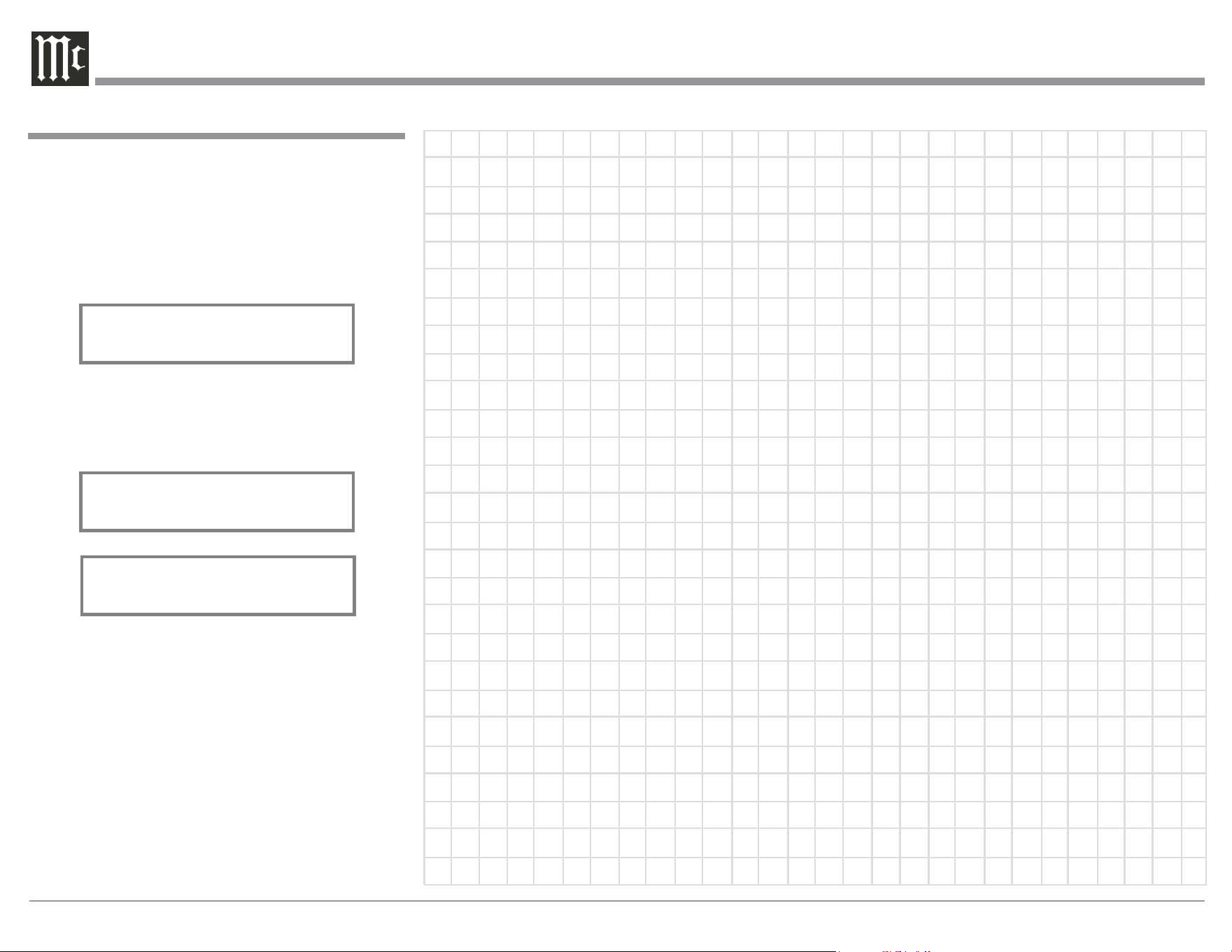
1. Press the SETUP Push-button to enter the SETUP
MODE. Refer to figure 2, on page 18.
2. Rotate the TRIM Control until “FACTORY RE-
SET, (Hold SETUP)” appears on the Information
Display. Refer to figure 48.
3. Press and hold in the SETUP Push-button until
“FACTORY RESET, In Progress” appears on
the Information Display, then release the SETUP
Push-button. Refer to figures 49 and 50.
4. Press the Front Panel STANDBY/ON Push-button
to switch the C1100 on.
Figure 50
FACTORY RESET
Completed!
Figure 48
FACTORY RESET
(Hold SETUP)
Figure 49
FACTORY RESET
In Progress

25
Notes
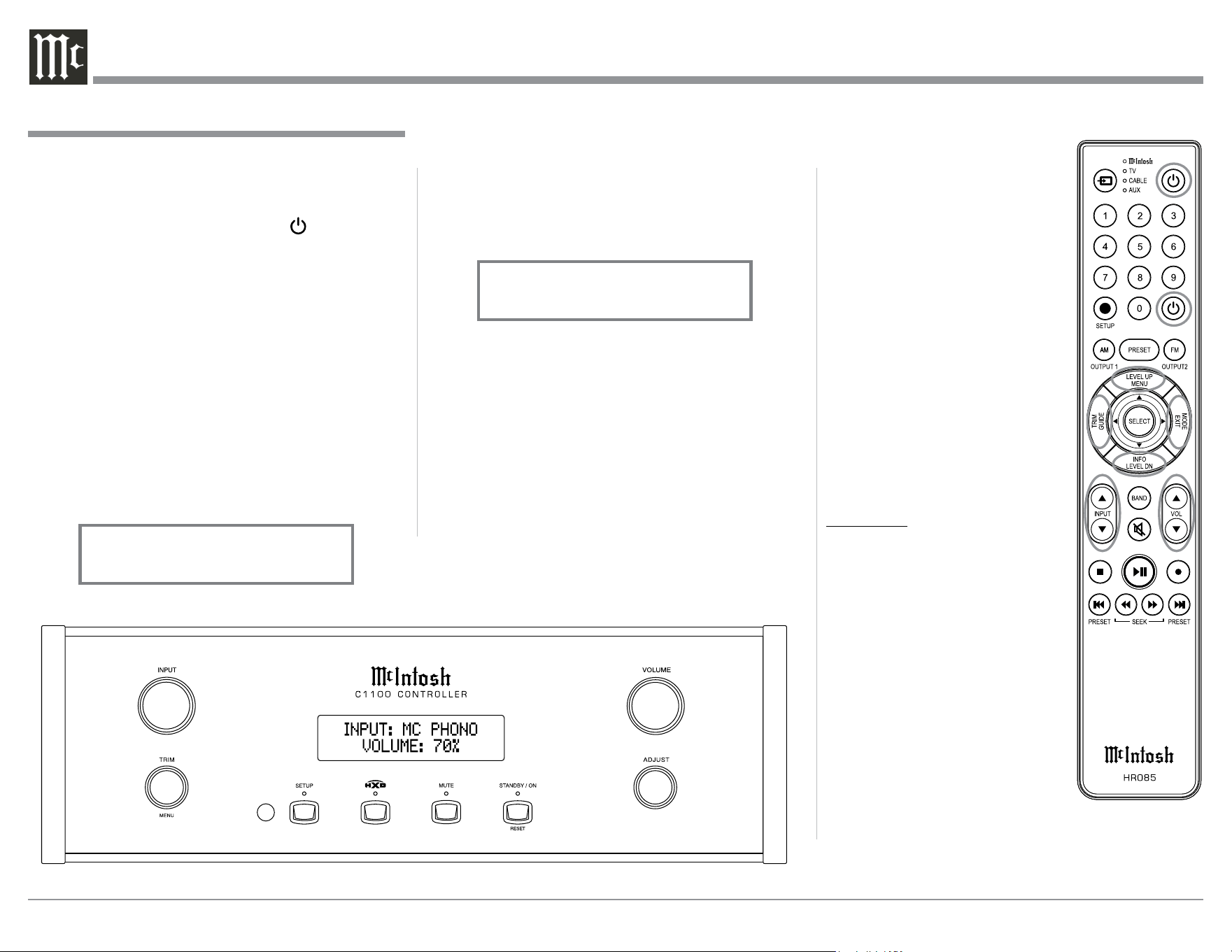
26
Source Selection
Rotate the Front Panel INPUT Control to select the
desired source or press the INPUT Upp or Downq
Push-button on the Remote Control. Refer to figures
60, 62 and 63.
Volume Control
Rotate the Front Panel VOLUME Control or use the
VOLUME Upp or Downq Push-buttons on the Re-
mote Control for the desired listening level. Refer to
figures 60 and 63.
Trim Functions
The C1100 has nine different Trim Selections with Ad-
justments. The Trim Selections include Balance, Input
Trim Level, Output 1, Output 2, Meter Lights, Display
Brightness, Phono Cartridge (MC & MM) Loading
(when the Input is Selected) , and Headphone HXD
Mode and Headphone Gain. The Trim Settings are
Power On and Off
The Red LED above the STANDBY/ON Push-button
lights to indicate the C1100 is in Standby mode.
To switch ON the C1100, press the STANDBY/ON
Push‑button on the Front Panel or the (Power On)
Push-button on the Remote Control. The C1100 will
go through a TUBE WARMUP (15 seconds) with the
Tubes in the C1100T glowing an amber color, a brief
startup initialization with the Front Panel Information
Display indicating the last used source and volume
setting. The illumination of the Tubes will now glow
a green color; this is followed by the volume setting
indication starting at zero, then increasing to the last
used volume setting. Refer to figures 60, 61, 62 and
63. To switch OFF the C1100, press the STANDBY/
ON Push-button on the Front Panel or the OFF Push-
button on the Remote Control.
Note: For an explanation of the Remote Control
Push-button functions, refer to pages 14 and 15.
stored in memory independently
for each Input Source Selected,
except the Meter Illumination,
Display Brightness and Head-
phone Settings of which are the
same for all inputs.
Note: Selection and Adjustment of
all Trim Functions may be
performed by rotating the
Front Panel TRIM Control
and then use the ADJUST
Control to change the set-
ting. Remote Control TRIM
Push-Button together with
the LEVEL UP / Down
Push-button may also be
used. Refer to figures 60
and 63.
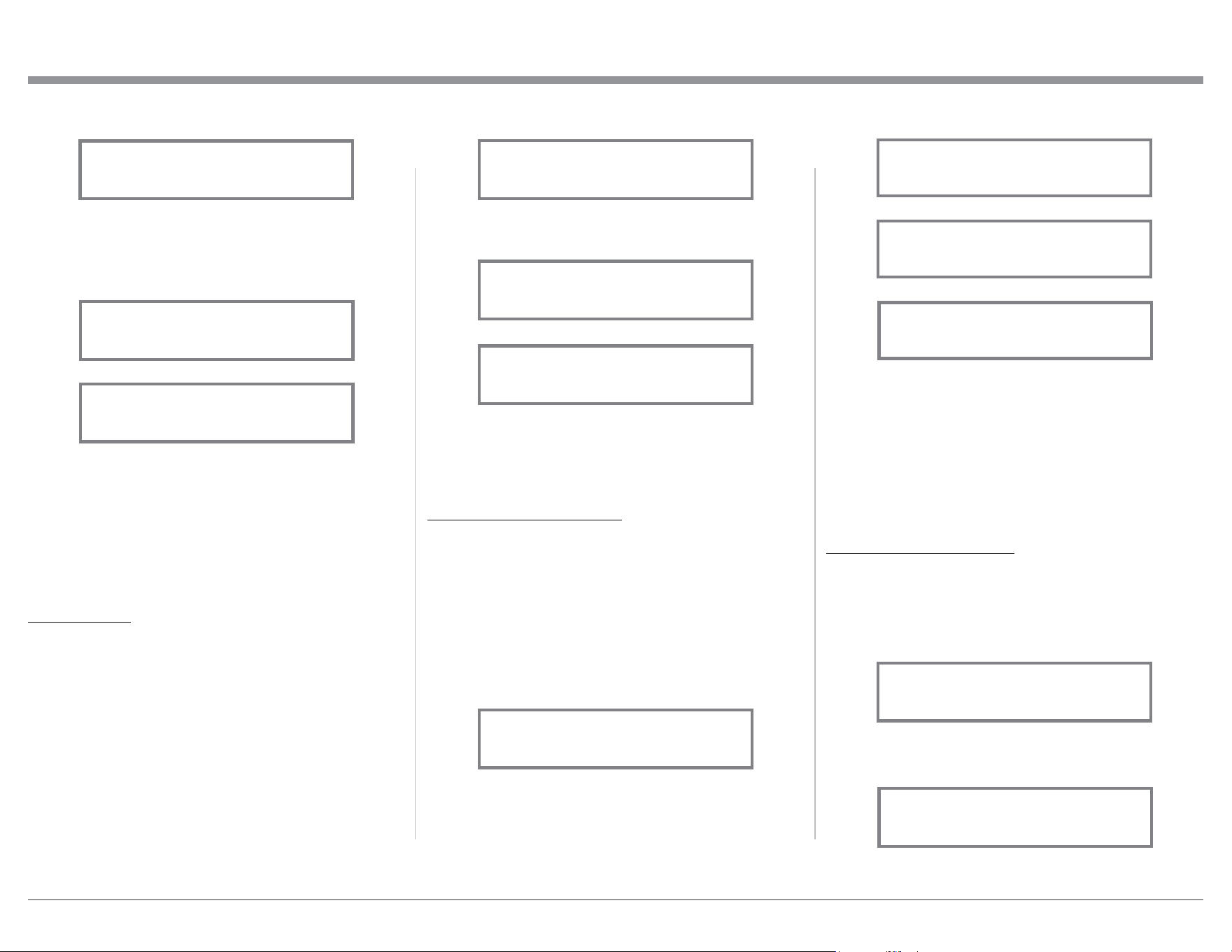
BALANCE
Listening balance varies with
different program sources, room
acoustics and listening positions
relative to the Loudspeakers. Use
the Balance (Trim Function) as
needed to achieve approximately
equal listening volume levels in
each Loudspeaker. To adjust the
Balance perform the following:
1. Press the TRIM Push-button
repeatedly on the Remote
Control until “L BALANCE
R” appears on the Front Panel
Information Display. Refer to
figure 64.
Note: The Front Panel TRIM and ADJUST Controls
may also be used.
How to Operate the C1100
Figure 60
Figure 61
INPUT: BAL 1
15%
Figure 62
INPUT: MC PHONO
30%
Figure 63
27
listened to. The range of adjustment is ± 6.0dB in
half dB steps. Refer to figures 68 and 69.
After approximately 10 seconds the Information
Display returns to indicate the Source Selection and
Volume Level.
OUTPUT 1 and OUTPUT 2
The Rear Panel Output 1 and Output 2 Connectors
(along with the Power Control Output 1 and 2) can be
switched On or Off by using the TRIM FUNCTIONS
OUTPUT 1 and OUTPUT 2. The default settings for
TRIM OUTPUT 1 and OUTPUT 2 is ON. To change
the setting perform the following:
1. Select “OUTPUT 1” as indicated on the Front
Panel Information Display. Refer to figures 60, 63
and 70.
2. Either rotate the Front Panel ADJUST Control or
LEVEL UP / Down Push-button on the Remote
Control to change the setting for OUTPUT 1 or
OUTPUT 2. Refer to figures 71 thru 73.
Note: The OUTPUT 1 and OUTPUT 2 Remote Con-
trol Push- buttons may also be used. Refer to
“Output Selection” on page 15 for additional
information.
After approximately 10 seconds the Information
Display returns to indicate the Source Selection and
Volume Level.
METER ILLUMINATION
The C1100 Front Panel Meter Illumination may be
switched On or Off by performing the following:
1. Select “METER LIGHTS, On” as indicated on the
Front Panel Information Display. Refer to figures
60, 63 and 74.
2. Switch Off the Meter Illumination. Refer to
figure 75.
2. Press the LEVEL UP / DOWN Push-buttons on
the Remote Control to emphasize the Right Chan-
nel (refer to figure 65) or the Left Channel (refer to
figure 66).
The Front Panel Display indicates the Balance changes
are from 0 to 50dB. After approximately 10 seconds
the Information Display returns to indicate the Source
Selection and Volume Level. To verify the Balance
setting without changing it, use the TRIM Push-button
and select Balance.
TRIM LEVEL
Source Components can have slightly different volume
levels resulting in the need to readjust the C1100
Volume Control when switching between different
sources. The C1100 allows the adjustment of levels for
each of the Source Inputs for the same relative volume.
To adjust the Trim Level for the currently selected
Input Source perform the following steps:
1. Select “INPUT TRIM” as indicated on the Front
Panel Information Display. Refer to figures 60, 63
and 67.
2. Adjust the Trim Level of each Input to match the
average volume level of the Input most frequently
Figure 64
L BALANCE R
||
How to Operate the C1100
Figure 65
¦
¦
¦
¦
¦
¦
¦
¦
L BALANCE R
Figure 67
INPUT TRIM
0.0 dB
Figure 68
INPUT TRIM
-2.5 dB
Figure 66
¦
¦
¦
¦
¦
¦
¦
¦
¦
L BALANCE R
Figure 69
INPUT TRIM
+4.0 dB
Figure 70
OUTPUT 1
ON
Figure 71
OUTPUT 1
OFF
Figure 72
OUTPUT 2
ON
Figure 73
OUTPUT 2
OFF
Figure 74
METER LIGHTS
On
Figure 75
METER LIGHTS
Off
28
2. Reduce the Brightness level by adjusting the
TRIM LEVEL. Refer to figure 78.
After approximately 10 seconds the Information
Display returns to indicate the Source Selection and
Volume Level.
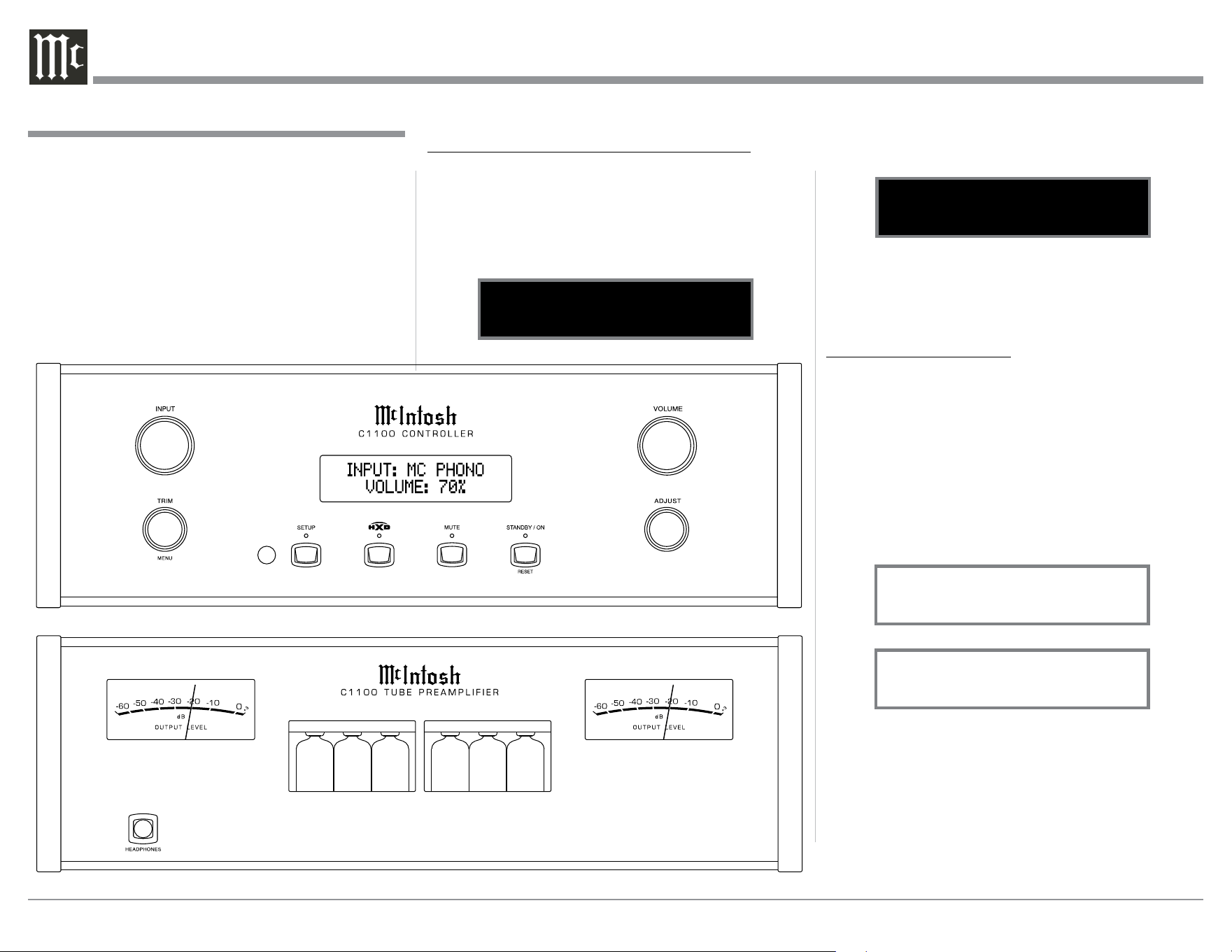
PHONO ADJUSTMENTS
When the Phono MC or Phono MM Input is selected
an additional TRIM SELECT FUNCTION becomes
available for adjustment. Perform the following steps
to make the Phono Trim Adjustments:
1. Select either the Phono MM or Phono MC Source
Input.
2. Select “MC PHONO LOAD, 400Ω (ohms)” or
“MM PHONO LOAD, 50pF” as indicated on the
Front Panel Information Display. Refer to figures
79 and 80.
3. Set the desired phono cartridge loading value
(Ohms for a Moving Coil Cartridge or Capaci-
tance for a Moving Magnet Cartridge) that comes
closest to the Phono Cartridge Makers recom-
mended value.
After approximately 10 seconds the Alphanumeric
After approximately 10 seconds the Information
Display returns to indicate the Source Selection and
Volume Level.
Notes: 1. Meter Illumination of recent McIntosh Power
Amplifiers will also switch On/Off when
connected to the C1100 via a power control
cable.
2. Some A/V Processors will provide an On/
Off Control Signal when the C1100 Passthru
Input Jack is connected to the A/V Processor
via the power control cable.
INFORMATION DISPLAY ILLUMINATION
The Brightness Level of C1100 Front Panel Informa-
tion Display can be adjusted from bright to dim by
performing the following:
1. Select “DISPLAY BRIGHTNESS” as indicated
on the Front Panel Information Display. Refer to
figures 60, 63 (on page 26) and 77.
How to Operate the C1100, con’t
Figure 78
DISPLAY
BRIGHTNESS
Figure 77
DISPLAY
BRIGHTNESS
Figure 79
MC PHONO LOAD
400O
Figure 80
MM PHONO LOAD
50pF
Figure 60
Figure 76
29
seconds after Trim Function Selection and/or adjust-
ments have stopped, the C1100 will switch the Trim
Mode Off.
Adjust
The Front Panel ADJUST Control is used to make
changes to the currently selected TRIM FUNCTION.
HXD
Press the the Front Panel HXD Push-button to activate
or de-activate the HXD Circuitry. Refer to “HEAD-
PHONE HXD SELECTION” elsewhere on this page-
for additional information.
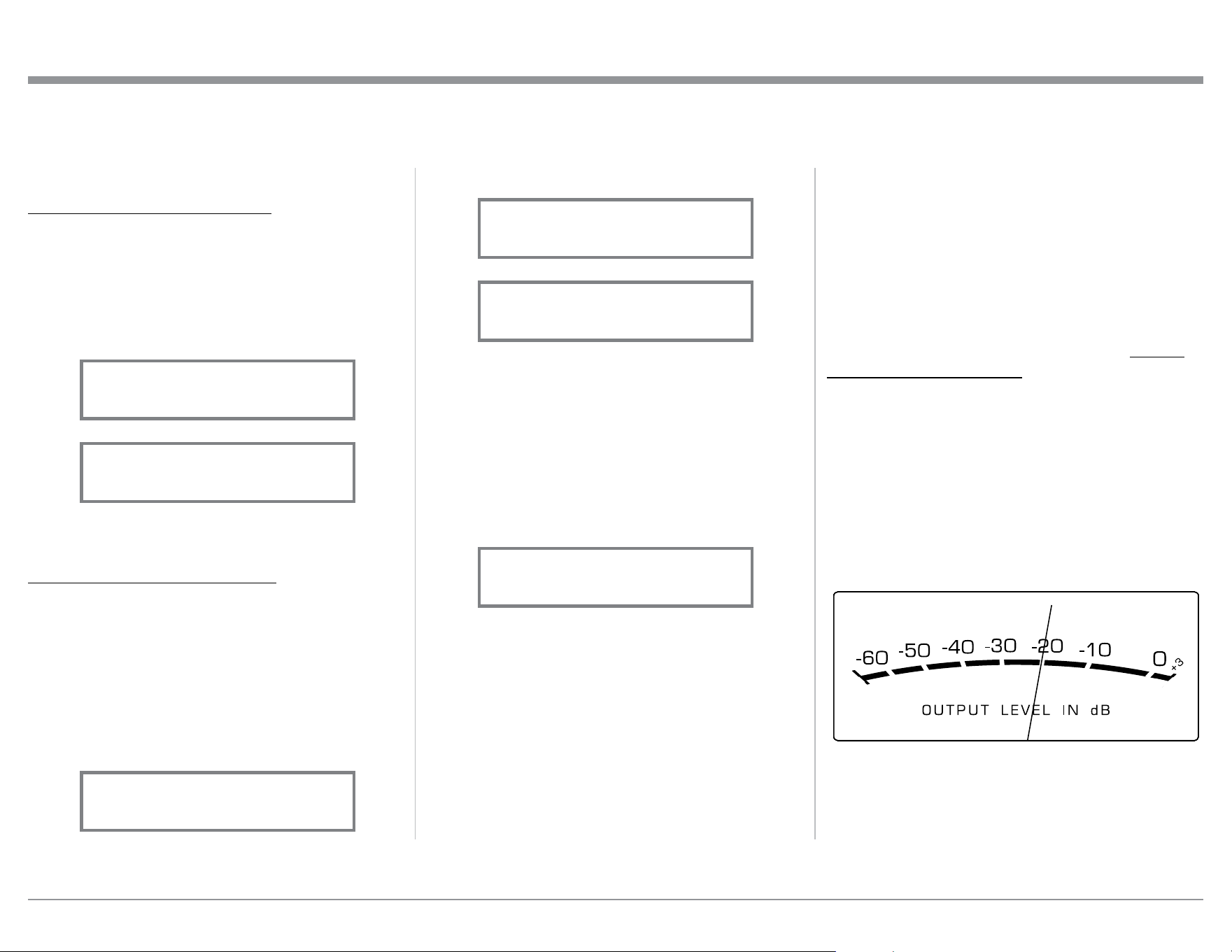
Output Meters
The C1100 Output Meters indicate the Output Level in
Decibels (dB) available at the MAIN, OUTPUT 1 and
OUTPUT 2 Connectors/Jacks to drive Power Ampli-
fiers. Refer to figure 87. The Meters are calibrated in
dB (decibels) and respond to all the peaks contained
in the musical information. A meter reading of 0dB
indicates the C1100 is delivering its rated output.
Passthru
The C1100 will automatically turn On and switch to
the previously setup Passthru Input when the McIn-
tosh A/V Processor or Multichannel Surround Decod-
er is turned-on. The Audio Preamplifier Front Panel
Display returns to indicate the Source Selection and
Volume Level.
HEADPHONE HXD SELECTION
The C1100 Internal Headphone Amplifier incorpo-
rates McIntosh HXD Circuitry bringing acoustical
depth and spatiality of music normally heard with
loudspeakers, to your headphones. It can be switched
On or Off as follows:
1. Select the “HEADPHONE HXD, ___” TRIM
FUNCTION. Refer to figures 81 and 82.
2. Select either ON or OFF.
HEADPHONE GAIN SELECTION
The C1100 Internal Headphone Amplifier Circuitry
also incorporates three available Ranges of Ampli-
fier Gain, to more closely match the impedance Ω
(ohms) of the connected Headphones (16Ω ‑ 40Ω,
40Ω ‑ 150Ω, 150Ω ‑ 600Ω), for the best performace.
To select one of the three available ranges perform the
following:
1. Select the “HEADPHONE GAIN, 40Ω ‑ 150Ω”,
default setting. Refer to figure 83.
2. If the impedance of the connected Headphones
doesn’t match within the current setting, select one
of the other choices. Refer to figures 84 and 85.
Mute
Press the MUTE Push-button, on the C1100 Front
Panel or on the Remote Control, to Mute the Audio
in all outputs (Main, Output 1, Output 2 and Head-
phones) except the FIXED OUTPUT. The Front Panel
Information Display will indicate the Source Name
and the word MUTE in place of the actual volume set-
ting. Refer to figure 86.
Pressing the Mute Push-button a second time or
adjusting the volume control (either the Front Panel or
Remote Control) will unmute the C1100.
Trim
Momentarily press the Front Panel INPUT Control to
activate the C1100 Trim Functions. Rotate the INPUT
Control to select the desired Trim Function and then
use the VOLUME (adjust) Control to change the Trim
setting. Refer to figures 60 and 63 on page 26. The
Remote Control TRIM and LEVEL UP / DOWN-
Push-buttons may also be used. Approximately 10
How to Operate the C1100, con’t
Figure 86
INPUT: BAL 1
MUTE
Figure 87
Figure 81
HEADPHONE HXD
Off
Figure 82
HEADPHONE HXD
On
Figure 83
HEADPHONE GAIN
40O - 150O
Figure 84
HEADPHONE GAIN
16O - 40O
Figure 85
HEADPHONE GAIN
150O - 600O
30
Alphanumeric Display will indicate “PASSTHRU”.
Refer to figure 88.
The Front Panel Controls and Push-buttons are deac-
tived when in the Passthru Mode.
Headphones Jack
Connect a pair of dynamic headphones to the Head-
phones Jack with a 1/4” (0.635cm) stereo phone type
plug for private listening. The default setting is for the
OUTPUT 1 and OUTPUT 2 Power Amplifier Output
Connections to automatically mute, when headphones
are connected to the C1100 Front Panel Jack.
How To Make a Recording
1. Select the desired signal source you wish to record
by using the Front Panel INPUT Control or us-
ing the INPUT UP / DOWN Push-button on the
Remote Control.
2. Adjust the record level using the recorder level con-
trol and proceed with the recording process.
3. Listen to the playback of the program source just
recorded by selecting the Input Source connected to
the recorder component output.
Reset of Microprocessors
In the unlikely event the controls of the C1100 stop
functioning, the microprocessors can be reset by per-
forming the following:
1. Press and hold in the STANDBY/ON Push-button
until the LED above the STANDBY/ON Push-
button illumination is extinguished. Then release
the STANDBY/ON Push-button.
How to Operate the C1100, con’t
Figure 88
PASSTHRU
2. To switch the C1100 back On press the STAND-
BY/ON Push-button.
Note: This can be performed with the C1100 On or in
the Standby Mode.
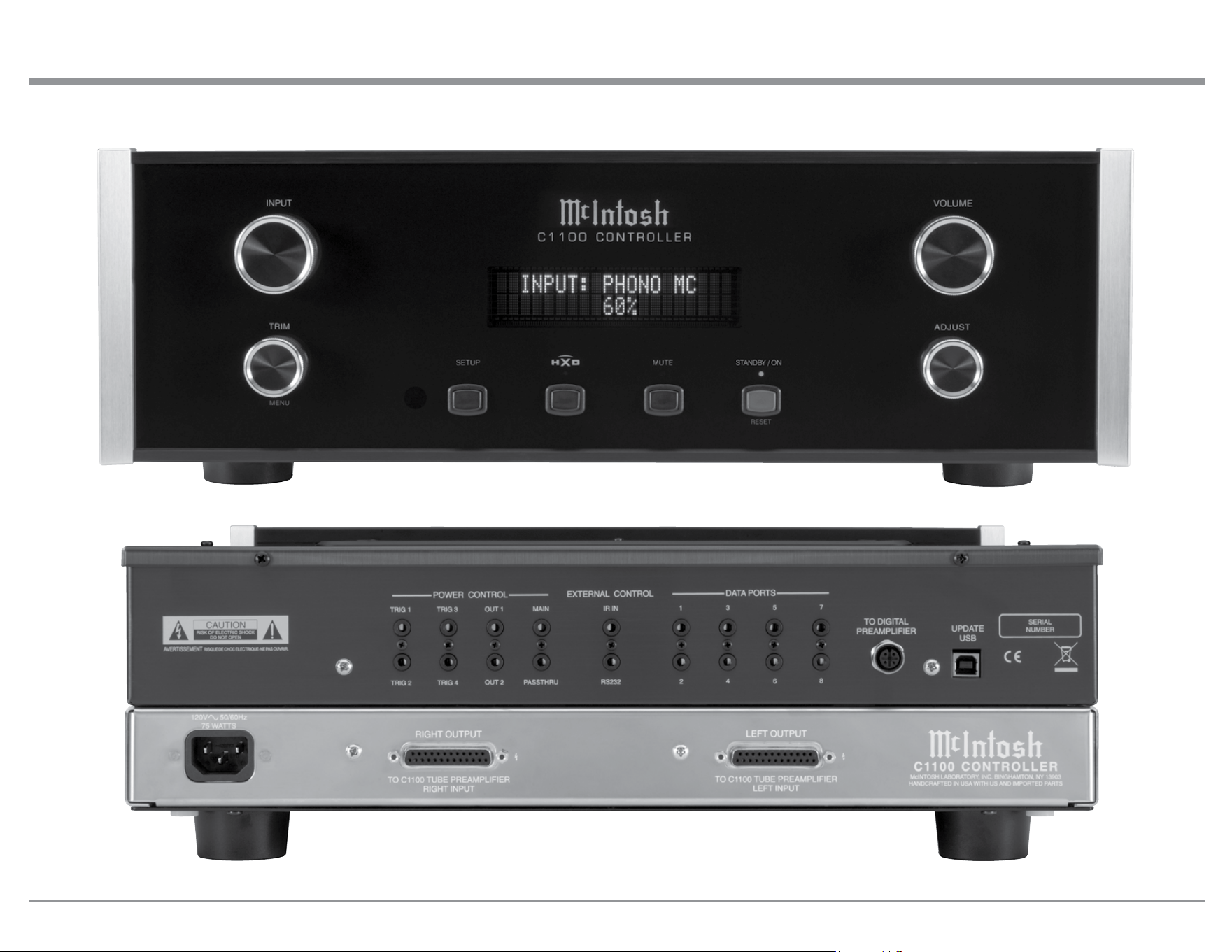
31
Photos
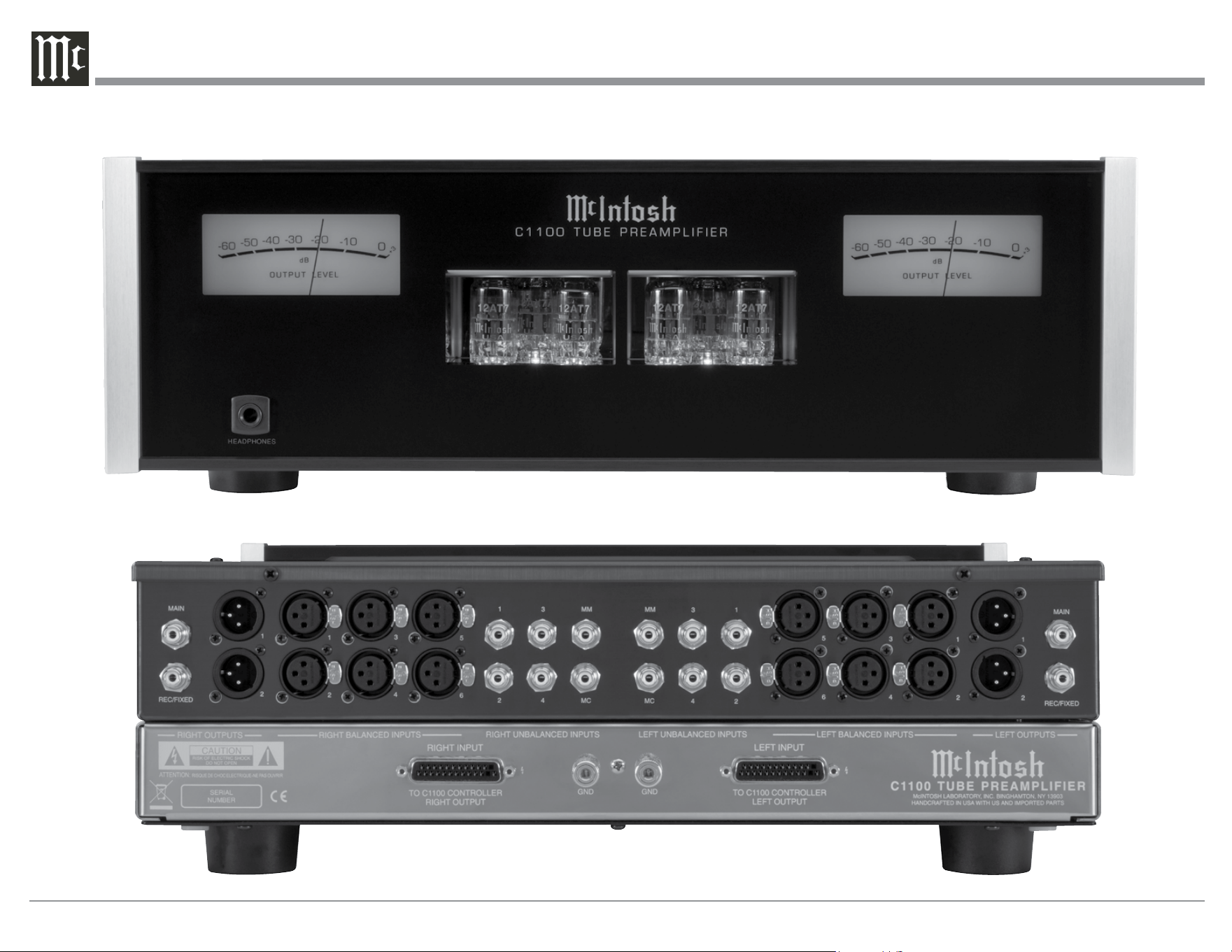
32
33
Photos, con’t

34
Specifications
Specifications
Frequency Response
+0, -0.5dB from 20Hz to 20,000Hz
+0, -3dB from 10Hz to 100,000Hz
Total Harmonic Distortion
0.005% maximun from 20Hz to 20,000Hz
(High Level Inputs)
0.05% maximun from 20Hz to 20,000Hz
(Phono Inputs)
Rated Output
5V Balanced, 2.5V Unbalanced (Main Outputs)
Maximum Voltage Output
20V RMS Balanced, 10V RMS Unbalanced
Sensitivity (for rated output)
High Level, 450mV Unbalanced, 900mV Balanced
Phono MM, 4.5mV
Phono MC, 0.45mV
Signal To Noise Ratio (A-Weighted)
High Level ‑ 107dB (Below rated output)
MM Phono ‑ 77dB (Below 5mV input)
MC Phono ‑ 79dB (Below 0.5mV input)
Input Impedance
High Level - 44K ohms Balanced
22K ohms Unbalanced
Phono MC - 25, 50, 100, 200, 400 or 1,000 ohms;
220pF
Phono MM - 50 to 800pF, in 50pF steps;
47K ohms
Maximum Input Signal
High Level, 20V Balanced, 10V Unbalanced
Phono MC, 10mV
Phono MM, 100mV
Voltage Gain
High Level to Main, Output1 and 2: 15dB
High Level to Rec/Fixed Output: 0dB
Phono MC to Rec/Fixed Output: 60dB
Phono MM to Rec/Fixed Output: 40dB
Output Impedance
200 ohms Balanced
100 ohms Unbalanced
Headphone Load Impedance (Selectable)
16 - 40 ohms, 40 - 150 ohms, 150 - 600 ohms
Headphone Voltage Gain (From Main Output)
16 - 40 ohms, 0dB
40 - 150 ohms, 6dB
150 - 600 ohms, 12dB
Headphone Output
150mW minimum from 16 ohms to 600 ohms load
Power Control and Trigger Output
12VDC, 25mA
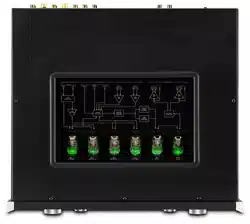
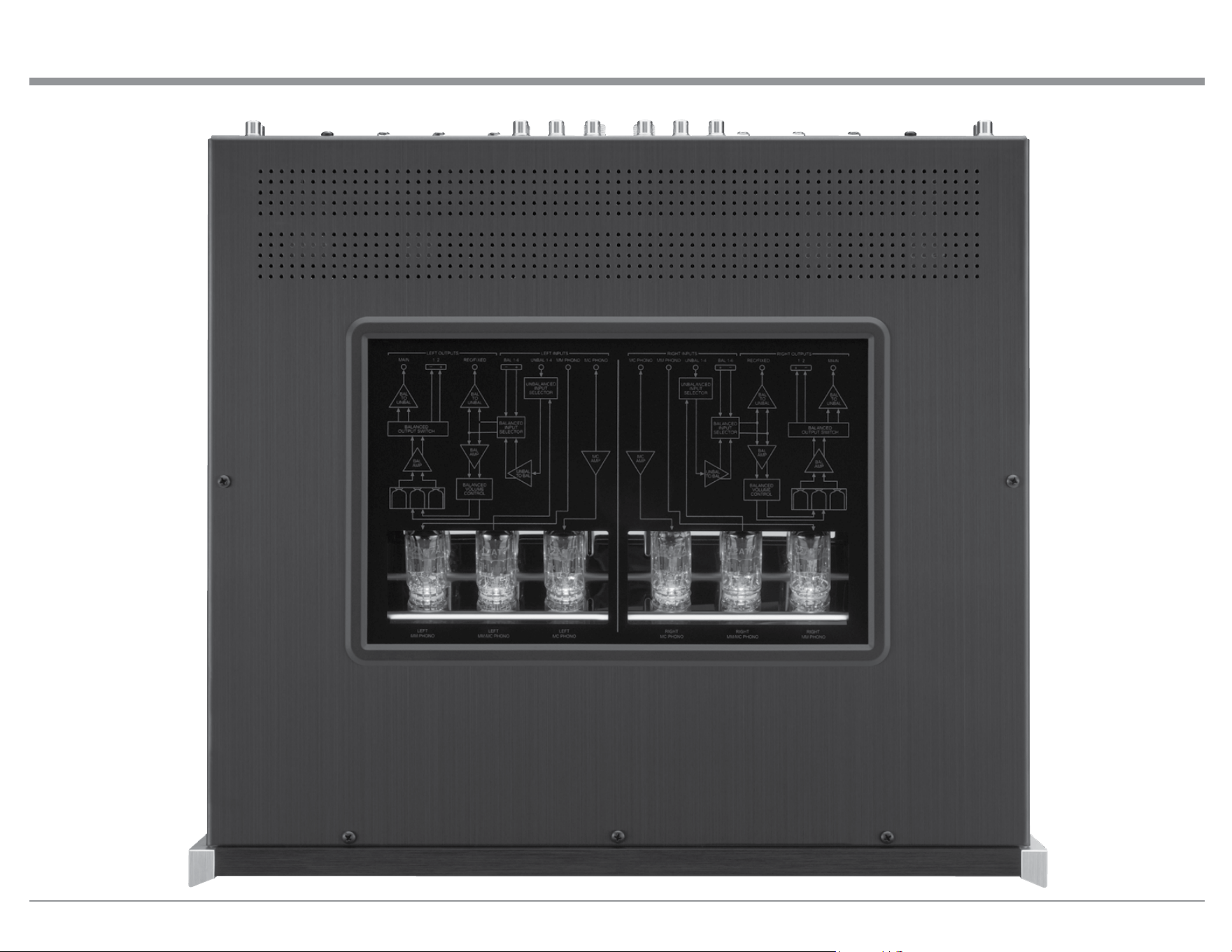
Tube Complement
12 Tubes, Six - 12AX7A and Six - 12AT7
High level - one 12AX7A and two 12AT7 (per channel
viewed from Front Panel Window)
Phono MC - one 12AX7A and one-half 12AT7
(per channel viewed from the Top
Cover Window)
Tube Complement, con’t
Phono MM - one 12AX7A and one-half 12AT7
(per channel viewed from the Top
Cover Window)
Power Requirements
Field AC Voltage conversion of the C1100 is not pos-
sible. The C1100 is factory configured for one of the
following AC Voltages:
100 Volts, 50/60Hz at 75 watts
110 Volts, 50/60Hz at 75 watts
120 Volts, 50/60Hz at 75 watts
220 Volts, 50/60Hz at 75 watts
230 Volts, 50/60Hz at 75 watts
240 Volts, 50/60Hz at 75 watts
Standby Power, less than 0.5 watts
Note: Refer to the rear panel of the C1100C Controller
for the correct voltage.
Overall Dimensions
Width is 17‑1/2 inches (44.45cm)
Height is 6 inches (15.2cm) including feet
Depth is 19 inches (48.3cm) including the Front Panel,
Knobs and Cables
Weight
C1100C Controller ‑ 27 pounds (12.3 kg) net,
42 pounds (19.5 kg) in shipping
carton
C1100T Preamplifier ‑ 25 pounds (11.3 kg) net,
39 pounds (17.7 kg) in shipping
carton
Shipping Carton Dimensions
Width is 27 inches (68.6cm)
Height is 12 inches (30.5cm)
Depth is 25 inches (63.5cm)
35
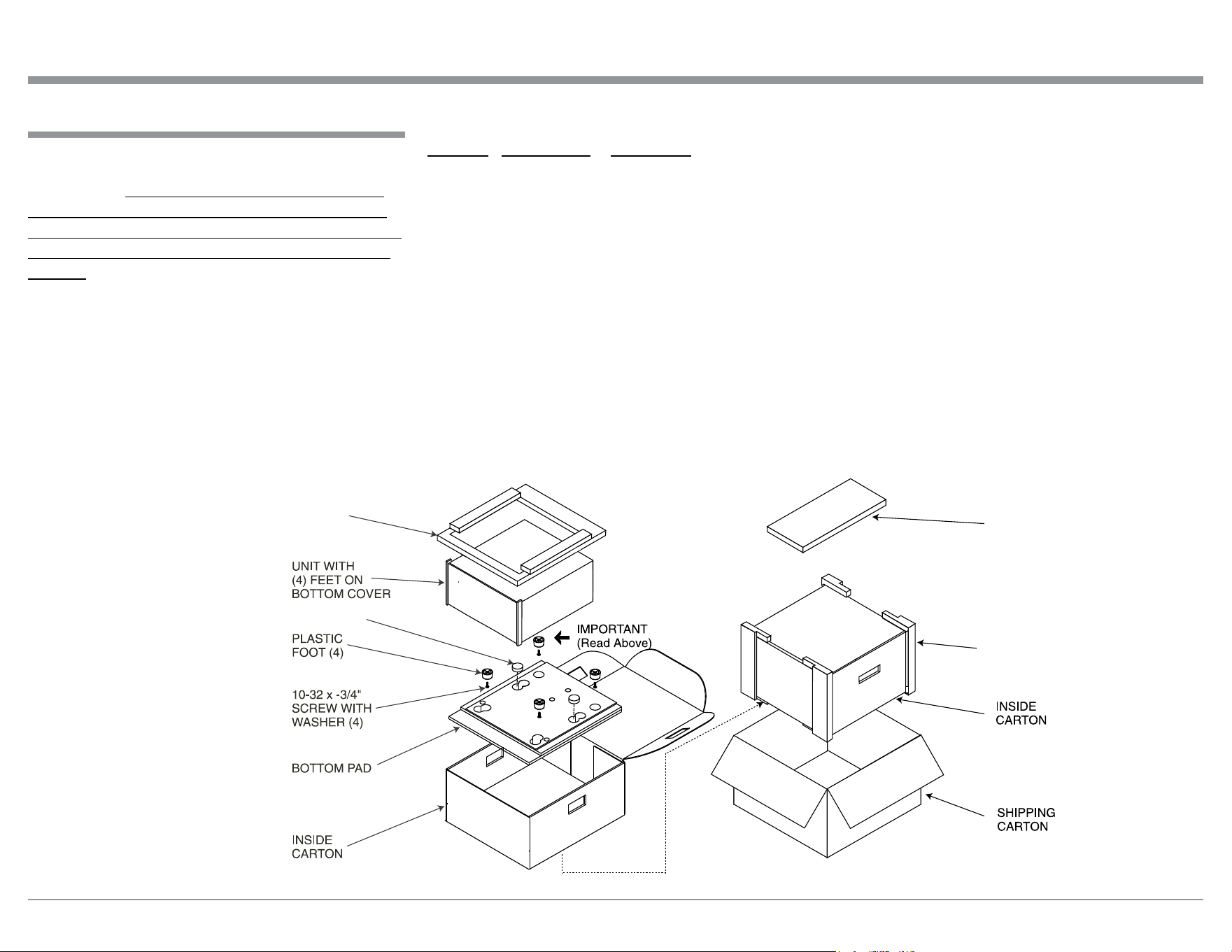
Packing Instructions
Packing Instructions
In the event it is necessary to repack the equipment for
shipment, the equipment must be packed exactly as
shown below. It is very important that the four plas-
tic feet are attached to the bottom of the equipment.
This will ensure the proper equipment location on the
bottom pad. Failure to do this will result in shipping
damage.
Use the original shipping carton and interior parts
only if they are all in good serviceable condition. If
a shipping carton or any of the interior part(s) are
needed, please call or write Customer Service Depart-
ment of McIntosh Laboratory. Refer to page 3. Please
see the Part List for the correct part numbers.
Note: The McIntosh C1100C Controller and C1000T Tube
Preamplifier use the same shipping carton. The
C1100C Controller Shipping Carton also includes
the “C1100C Accessories” separate package.
Quantity Part Number Description
1 033838 Shipping carton only
2 033837 Side foam pad
1 033836 Inside carton only
1 034414 Top foam pad
1 034301 Bottom pad
4 017937 Plastic foot
4 400159 #10-32 x 3/4” screw
4 404080 #10-7/16” Flat washer
FOAM PLUG
C1100C
ACCESSORIES
Top Foam
Pad
Side Foam Pad

The continuous improvement of its products is the
policy of McIntosh Laboratory Incorporated who
reserve the right to improve design without notice.
Printed in the U.S.A.
McIntosh Laboratory, Inc.
2 Chambers Street
Binghamton, NY 13903
www.mcintoshlabs.com
McIntosh Part No. 04158803