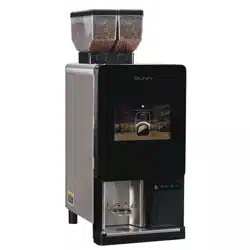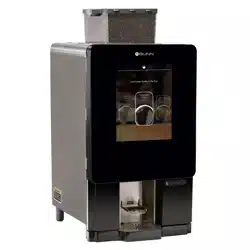
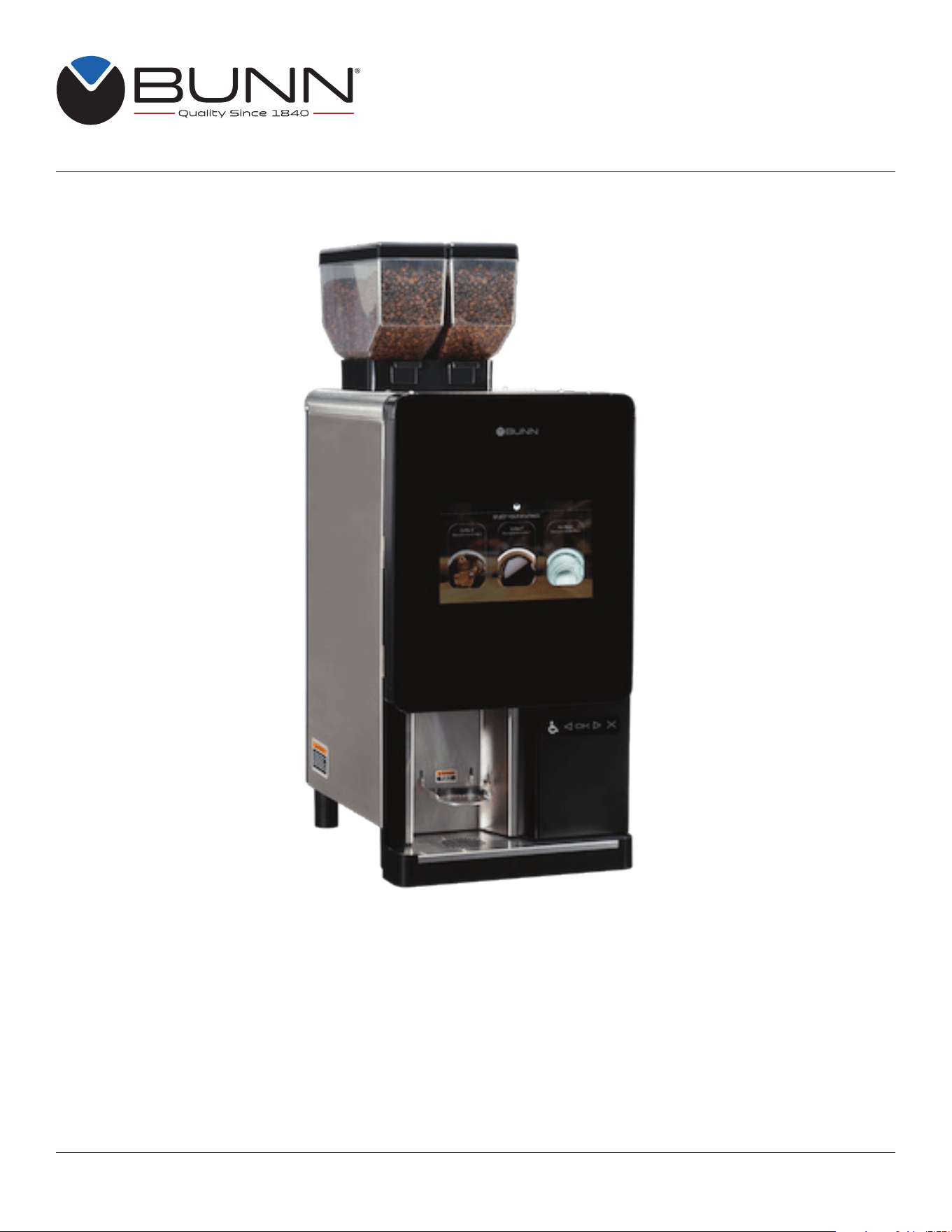
Sure Immersion
®
220
Bean to Cup Coffee System
53058.0000 N 05/25 © 2016 - 2025 Bunn-O-Matic Corporation
Bunn-O-Matic Corporation
Post Office Box 3227, Springfield, Illinois 62708-3227
Phone (217) 529-6601 | Fax (217) 529-6644
www.bunn.com
INSTALLATION & OPERATING GUIDE
For Technical Service, contact Bunn-O-Matic Corporation at 1-800-286-6070.

2
Bunn-O-Matic Corp. (“BUNN”) warrants the BUNN Sure Immersion
®
system as further described below for a warranty
period of 1 year parts and labor.
For customers subscribed to BUNNlink
®
, BUNN reserves the right to periodically auto-push critical software updates
that will enhance functionality or performance of the BUNN equipment, unless the customer requests advance notice
of such software updates from BUNN in writing.
These warranty periods run from the date of installation. BUNN warrants that the equipment manufactured by it will
be commercially free of defects in material and workmanship existing at the time of manufacture and appearing within
the applicable warranty period. This warranty does not apply to any equipment, component or part that was not manu-
factured by BUNN or that, in BUNN’s judgment, has been affected by misuse, neglect, alteration, improper installation
or operation, improper maintenance or repair, non periodic cleaning and descaling, equipment failures related to poor
water quality, damage or casualty. This warranty is conditioned on the Buyer 1) giving BUNN prompt notice of any claim
to be made under this warranty by telephone at (217) 529-6601 or by writing to Post Office Box 3227, Springfield,
Illinois 62708-3227; 2) if requested by BUNN, shipping the defective equipment prepaid to an authorized BUNN service
location; and 3) receiving prior authorization from BUNN that the defective equipment is under warranty. Additionally, the
following is excluded from the warranty period:
Warranty Exclusions:
• Parts such as, but not limited to, hoppers and lids, drip trays, and plastic parts damaged due to improper handling
or cleaning agents.
• Replacement of wear items such as, but not limited to, O-rings, gaskets, tubes, brew box seal, hoses,
and valve seats.
• Repairs made necessary due to poor water quality, such as dispense valves, coils, water inlet valves,
scaling in hot water boilers.
• Improper voltage, (See equipment operations manual for voltage specifications).
• Touch screen due to improper use or damage.
• Failure to perform cleaning procedures constitutes improper maintenance.
• Failure to have required preventive maintenance performed by a BUNN technician or an authorized
BUNN service agent.
• Parts replaced under the terms of this warranty carry the remainder of the machine’s parts warranty term,
or 60 days, whichever is greater.
THE FOREGOING WARRANTY IS EXCLUSIVE AND IS IN LIEU OF ANY OTHER WARRANTY, WRITTEN OR
ORAL, EXPRESS OR IMPLIED, INCLUDING, BUT NOT LIMITED TO, ANY IMPLIED WARRANTY OF EITHER
MERCHANTABILITY OR FITNESS FOR A PARTICULAR PURPOSE. The agents, dealers or employees of BUNN
are not authorized to make modifications to this warranty or to make additional warranties that are binding on BUNN.
Accordingly, statements by such individuals, whether oral or written, do not constitute warranties and should not be
relied upon.
If BUNN determines in its sole discretion that the equipment does not conform to the warranty, BUNN, at its exclusive
option while the equipment is under warranty, shall either 1) provide at no charge replacement parts and/or labor
(during the applicable parts and labor warranty periods specified above) to repair the defective components, provided
that this repair is done by a BUNN Authorized Service Representative; or 2) shall replace the equipment or refund the
purchase price for the equipment.
THE BUYER’S REMEDY AGAINST BUNN FOR THE BREACH OF ANY OBLIGATION ARISING OUT OF THE
SALE OF THIS EQUIPMENT, WHETHER DERIVED FROM WARRANTY OR OTHERWISE, SHALL BE LIMITED, AT
BUNN’S SOLE OPTION AS SPECIFIED HEREIN, TO REPAIR, REPLACEMENT OR REFUND.
In no event shall BUNN be liable for any other damage or loss, including, but not limited to, lost profits, lost sales, loss
of use of equipment, claims of Buyer’s customers, cost of capital, cost of down time, cost of substitute equipment,
facilities or services, or any other special, incidental or consequential damages.
BUNN-O-MATIC COMMERCIAL PRODUCT WARRANTY

3
CONTENTS
BUNN-O-MATIC COMMERCIAL PRODUCT WARRANTY ......................................................................................2
NORTH AMERICAN REQUIREMENTS .................................................................................................................... 4
CE REQUIREMENTS ................................................................................................................................................4
USER NOTICES ........................................................................................................................................................ 5
LOCATIONS OF SERIAL NUMBER .......................................................................................................................... 5
SITE REQUIREMENTS .............................................................................................................................................6
Plumbing ...............................................................................................................................................................6
Water Treatment ...................................................................................................................................................6
Plumbing Hook-Up ...............................................................................................................................................6
ELECTRICAL HOOKUP ............................................................................................................................................ 7
Site Requirements ................................................................................................................................................7
Electrical Hook-Up ................................................................................................................................................7
INITIAL SETUP .........................................................................................................................................................8
FILTER PAPER INSTALLATION ..............................................................................................................................10
BUNNLINK ACTIVATION ........................................................................................................................................ 13
Ethernet WI-FI Board Activation ......................................................................................................................... 13
BUNNlink Tab Information When Active ..........................................................................................................16
OPERATING INTERFACE ....................................................................................................................................... 19
ADA Interface ..................................................................................................................................................... 21
VirtualTOUCH .....................................................................................................................................................23
Optional Cashless Payment System ..................................................................................................................25
Barcode Printer Setup ........................................................................................................................................26
Clear Barcode Number .......................................................................................................................................27
Setting Beverage Prices ..................................................................................................................................... 28
Set Print Fields ...................................................................................................................................................29
Export Settings ...................................................................................................................................................29
Print Settings ......................................................................................................................................................30
Print Last Receipt ...............................................................................................................................................30
FILTER PAPER REMOVAL ..................................................................................................................................... 31
Removing Spent Filter Paper ..............................................................................................................................31
SERVICE ACCESS .................................................................................................................................................33
Care and Cleaning ..............................................................................................................................................33
Daily ................................................................................................................................................................33
Weekly .............................................................................................................................................................34
Active Notices ..................................................................................................................................................... 39
Notice History .....................................................................................................................................................39

4
NORTH AMERICAN REQUIREMENTS
CE REQUIREMENTS
• This appliance must be installed in locations where it can be overseen by trained personnel.
• For proper operation, this appliance must be installed where the temperature is between 41°F to 95°F
(5°C to 35°C).
• Appliance shall not be tilted more than 10° for safe operation.
• An electrician must provide electrical service as specified in conformance with all local and national codes.
• This appliance must not be cleaned by pressure washer.
• This appliance can be used by persons if they have been given supervision or instruction concerning use
of the appliance in a safe way and if they understand the hazards involved.
• Keep the appliance and its cord out of reach of children.
• Appliances can be used by persons with reduced physical, sensory or mental capabilities or lack of
experience and knowledge if they have been given supervision or instruction concerning use of the
appliance in a safe way and understand the hazards involved.
• If the power cord is ever damaged, it must be replaced by the manufacturer or authorized service
personnel with a special cord available from the manufacturer or its authorized service personnel
in order to avoid a hazard.
• Machine must not be immersed for cleaning.
This appliance is intended for commercial use in applications such as:
– staff kitchen areas in shops, offices and other working environments
– by clients in hotel and motel lobbies and other similar types of environments
• Access to the service areas permitted by Authorized Service personnel only.
• This appliance must be installed in locations where it can be overseen by trained personnel.
• For proper operation, this appliance must be installed where the temperature is between 5°C to 35°C.
• Appliance shall not be tilted more than 10° for safe operation.
• An electrician must provide electrical service as specified in conformance with all local and national codes.
• This appliance must not be cleaned by water jet.
• This appliance is not intended for use by persons (including children) with reduced physical, sensory
or mental capabilities, or lack of experience and knowledge, unless they have been given instructions
concerning use of this appliance by a person responsible for its safety.
• This appliance is intended to be used for commercial applications, for example in kitchens of restaurants,
canteens, hospitals and in commercial enterprises such as bakeries, butcheries, etc., but not for continuous
mass production of food.
• Children should be supervised to ensure they do not play with the appliance.
• If the power cord is ever damaged, it must be replaced by the manufacturer or authorized service
personnel with a special cord available from the manufacturer or its authorized service personnel in
order to avoid a hazard.
• Machine must not be immersed for cleaning.
• Machine rated IX P1.
5
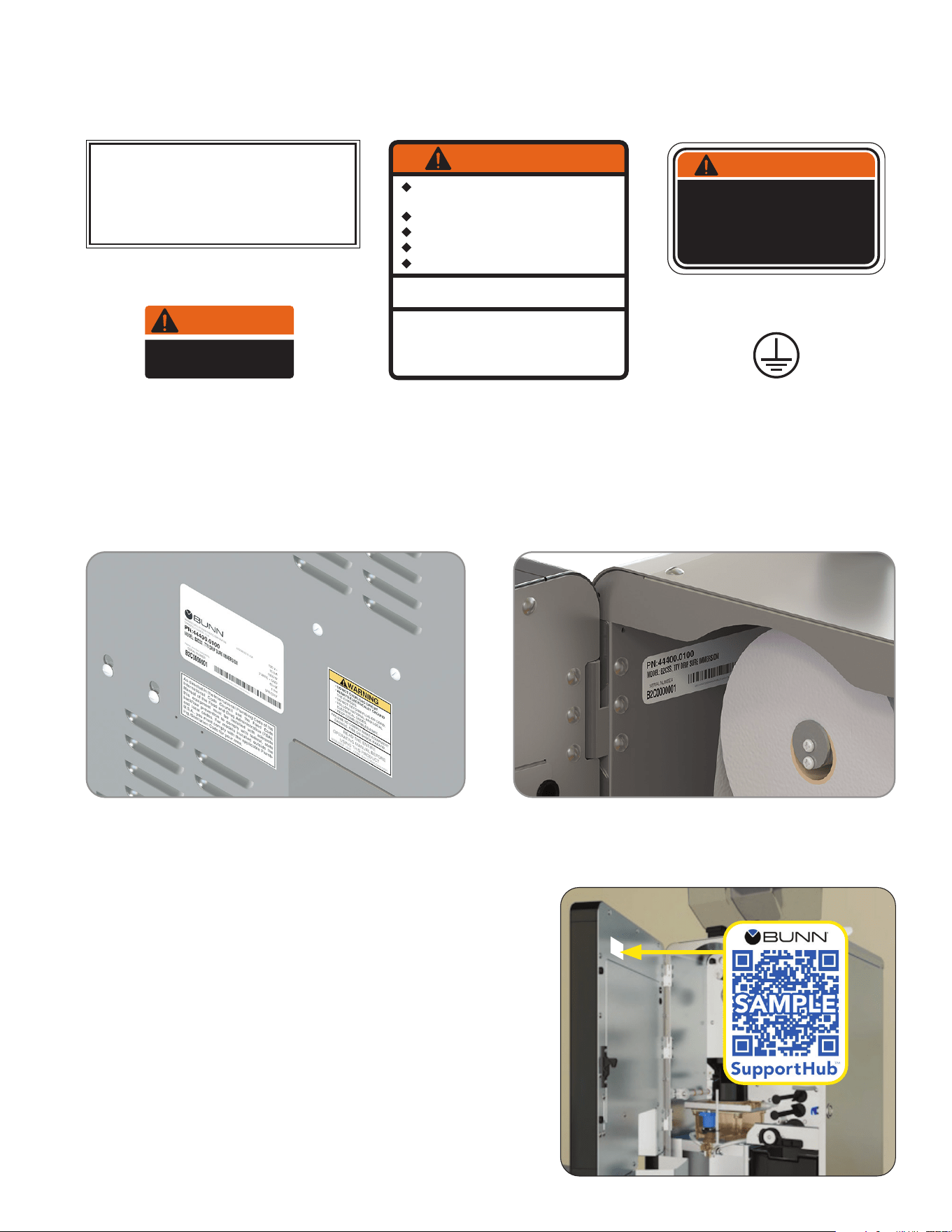
Carefully read and follow all notices on the equipment and in this manual. They were written for your
protection. All notices are to be kept in good condition. Replace any unreadable or damaged labels.
35710.0000
WARNING
HOT
LIQUID
The serial number is located on the data plate at the rear of the machine and inside front door on left side.
The complete serial number will need to be documented on all work orders and warranty tags.
00656.0001
As directed in the International Plumbing Code of the
International Code Council and the Food Code
Manual of the Food and Drug Administration (FDA),
this equipment must be installed with adequate
backflow prevention to comply with federal, state
and local codes. For models installed outside the
U.S.A., you must comply with the applicable Plumb-
ing /Sanitation Code for your area.
WARNING
FAILURE TO COMPLY RISKS EQUIPMENT
DAMAGE, FIRE OR SHOCK HAZARD.
READ THE ENTIRE
OPERATING MANUAL BEFORE
USING THIS PRODUCT
00986.0000M 10/14 ©1994 Bunn-O-Matic Corporation
Use only on a properly protected
circuit capable of the rated load.
Electrically ground the chassis.
Follow national/local electrical codes.
Do not use near combustibles.
Do not deform plug or cord.
00824.0002
37881.0000
To reduce the risk of electric shock,
do not remove or open cover.
No user-serviceable parts inside.
Authorized service personnel only.
Disconnect power before servicing.
WARNING
USER NOTICES
LOCATIONS OF SERIAL NUMBER
BUNN SupportHub
®
BUNN SupportHub provides easy access to comprehensive
information and resources tied to the specific serial number
for this product. Open the door and scan the QR code with
any smart device for access to manuals, product information,
training videos, service support and other related information.
SUPPORT
6
Plumbing
1. These brewers must be connected to a cold water system with operating pressure between 20 and 90
psi (0.138 and 0.620 MPa) from a 1⁄4" or larger supply line. Install a regulator in the line when pressure
is greater than 90 psi (0.620 MPa) to reduce it to 50 psi (0.345 MPa).
NOTE: Requires a minimum of 1 gallon per minute flow rate.
2. Shut off valve should be present between water supply and machine.
3. Flush the water line and securely attach it to the inlet fitting at the rear of the brewer.
4. Turn on the water supply.
NOTE: Bunn-O-Matic recommends 1⁄4" copper tubing for installations of less than 25 feet and 3⁄8"
for more than 25 feet from the 1⁄2" water supply line. A tight coil of copper tubing in the water line will
facilitate moving the brewer to clean the counter top. Bunn-O-Matic does not recommend the use of a
saddle valve to install the brewer. The size and shape of the hole made in the supply line by this type of
device may restrict water flow.
Water Treatment
1. No Chlorine.
2. Water Hardness 6 to 10 grains or less total hardness
3. Water Filtration System
As directed in the International Plumbing Code of the International Code Council and the Food Code Manual of
the Food and Drug Administration (FDA), this equipment must be installed with adequate back flow prevention
to comply with federal, state and local codes. For models installed outside the U.S.A., you must comply with
the applicable Plumbing /Sanitation Code for your area.
Plumbing Hook-Up
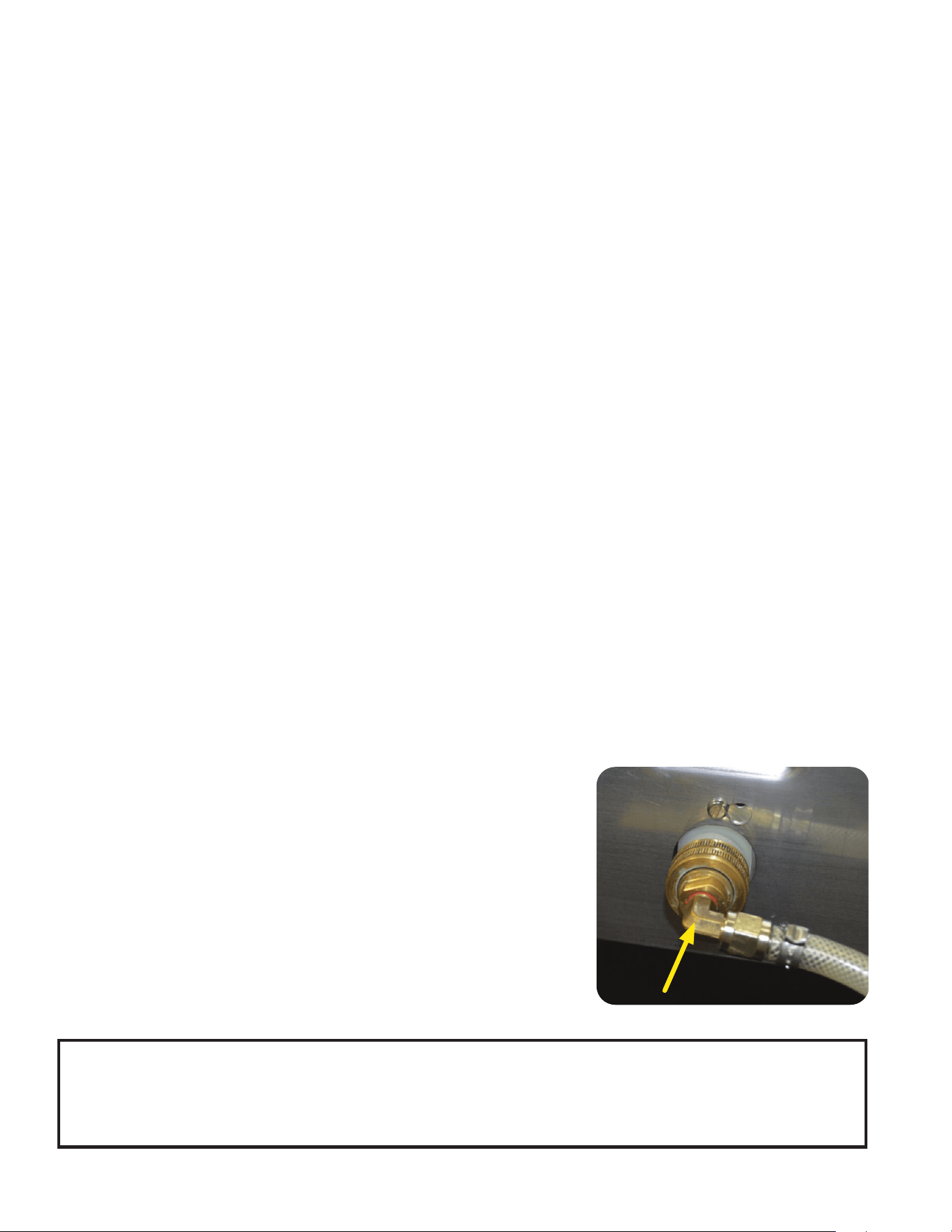
The plumbing connection is a 1/4" male flare adapter located on the
lower rear of the machine as shown.
NOTE: Water pipe connections and fixtures directly connected to
a potable water supply shall be sized, installed, and maintained in
accordance with federal, state, and local codes.
SITE REQUIREMENTS
WARNINGS
• Unplug the machine or turn off the main switch before servicing the interior components of the machine.
• Never operate the machine without water.
• Never touch brew module, spouts, and hot water dispense pipes. They are HOT and could cause burns.
• The machine must be operated with clean water. Make sure to use water filters and/or softeners as needed.
7
Site Requirements
1. Counter able to support at least 200 pounds (90kg).
2 Counter area large enough for machine.
3. Minimum clearance of 2˝ around machine.
4. Machine must be level within 2˚ for proper operation.
ELECTRICAL HOOKUP
Electrical Hook-Up
CAUTION: Improper electrical installation will damage electronic components.
1. An electrician must provide electrical service as specified.
2. Using a voltmeter, check the voltage and color coding of each conductor at the electrical source.
3. Connect the dispenser to the power source.
4. If plumbing is to be hooked up later be sure the dispenser is disconnected from the power source. If
plumbing has been hooked up, the dispenser is ready for Initial Fill & Heat.
FOR INDOOR USE ONLY
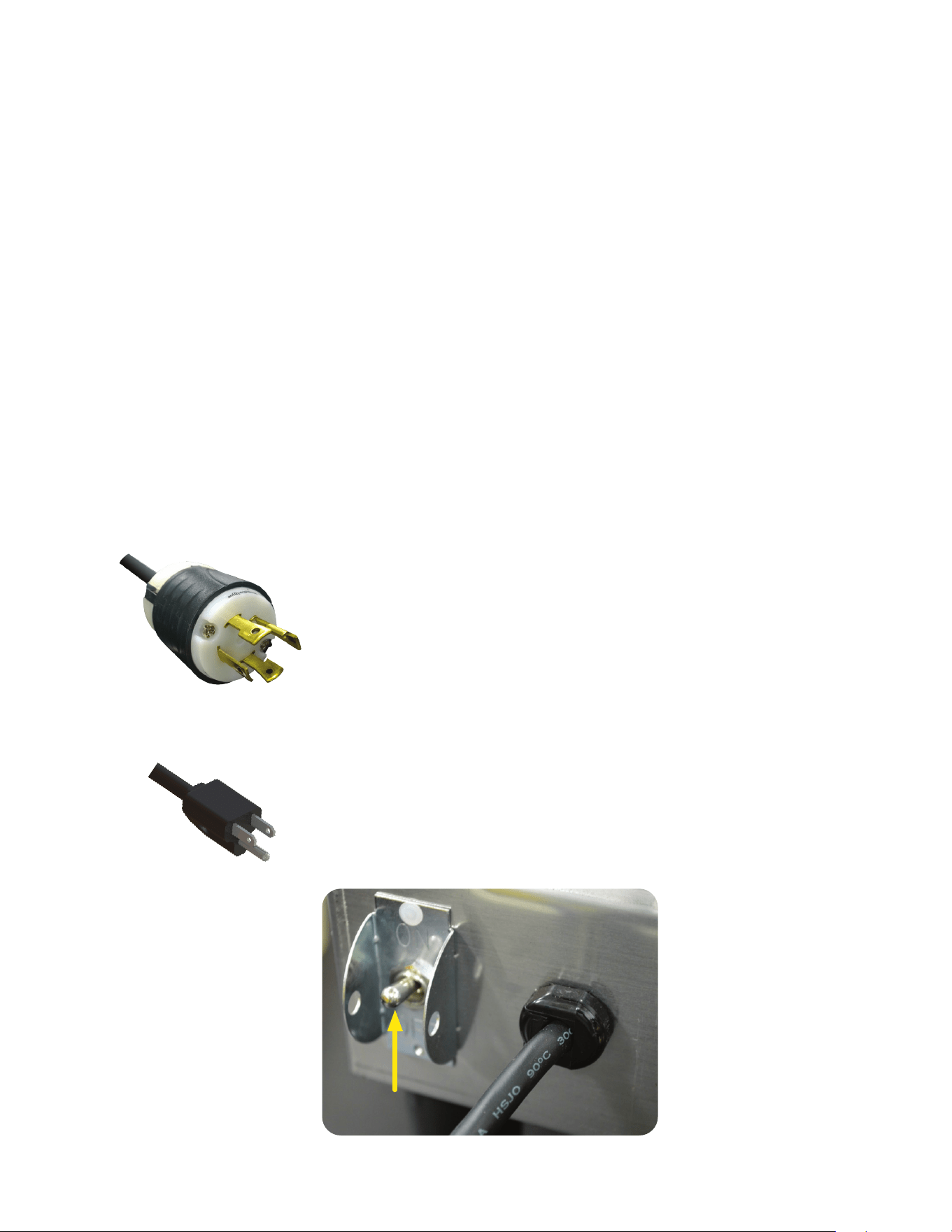
120 / 208-240 volt ac models
NOTE: This electrical service requires 3 current carrying conductors
(Neutral, L1 and L2) and a separate conductor for earth ground.
120/208 & 120/240V AC
Single phase models
120V
Models
120 volt ac models
NOTE: This electrical service consists of 2 current carrying conductors
(L1 and Neutral) and a separate conductor for chassis ground.
WARNING
The brewer must be disconnected from the power source until specified in Initial Setup. Refer to Data Plate
on the Brewer, and local/national electrical codes to determine circuit requirements.
POWER SWITCH LOCATION
8
INITIAL SETUP
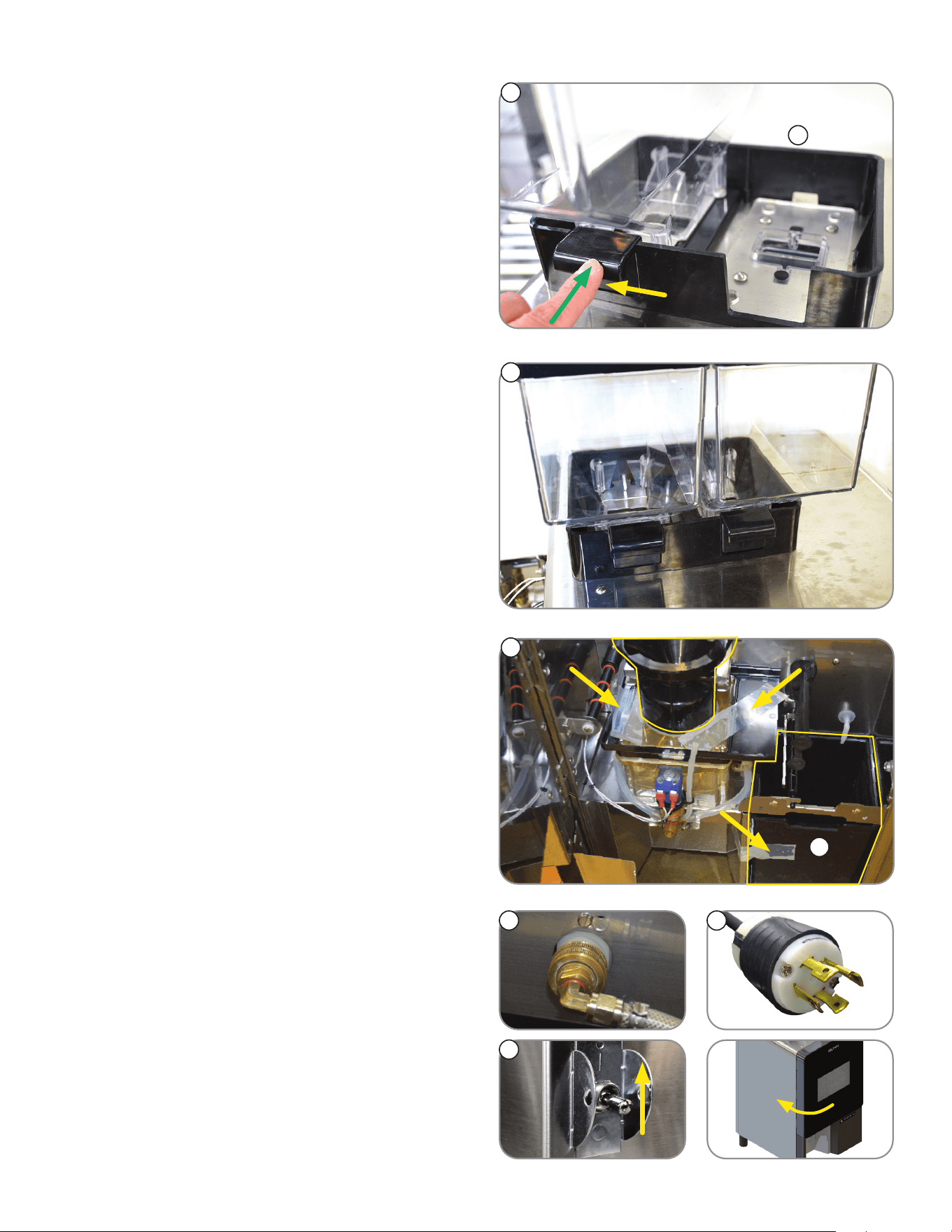
3. Remove the bean hoppers from the packaging,
and note the differences; shown in the image to
the right; is the Left hopper and the Right hopper
NOTE: They cannot be installed opposite to this
configuration.
4. Prior to installing the bean hoppers, visually
verify that there are no obstructions or any
debris blocking the bean chutes or bean
detection sensors (not shown).
5. Shown is the left hopper set in place.
NOTE: The hopper should sit flat.
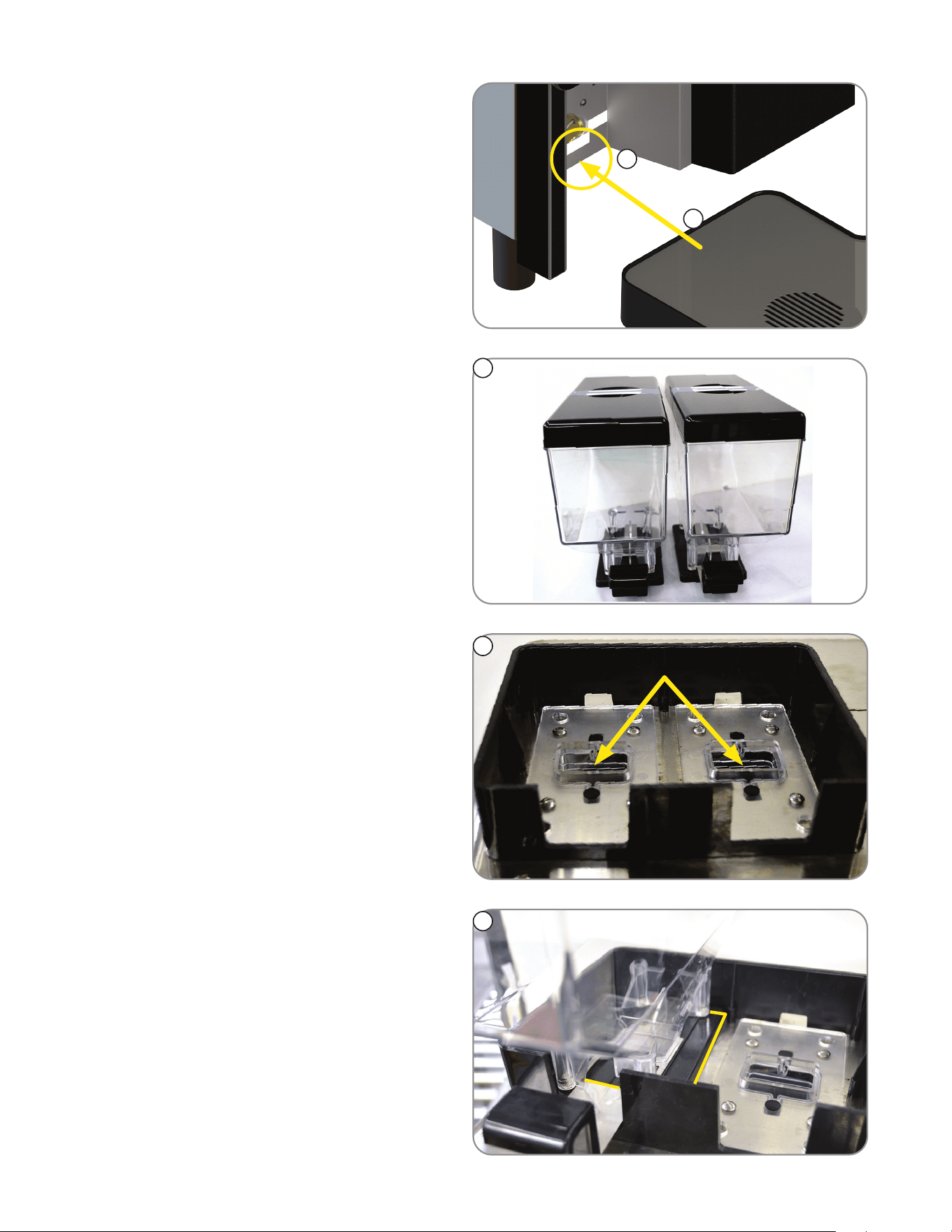
1. Unpack the Drip Tray assembly and slide it in
between the front legs.
2. Remove taped Keys from above Drip Tray and
use them to unlock the front door.
1
2
3
4
5
Chutes
continued >
Left Right
9
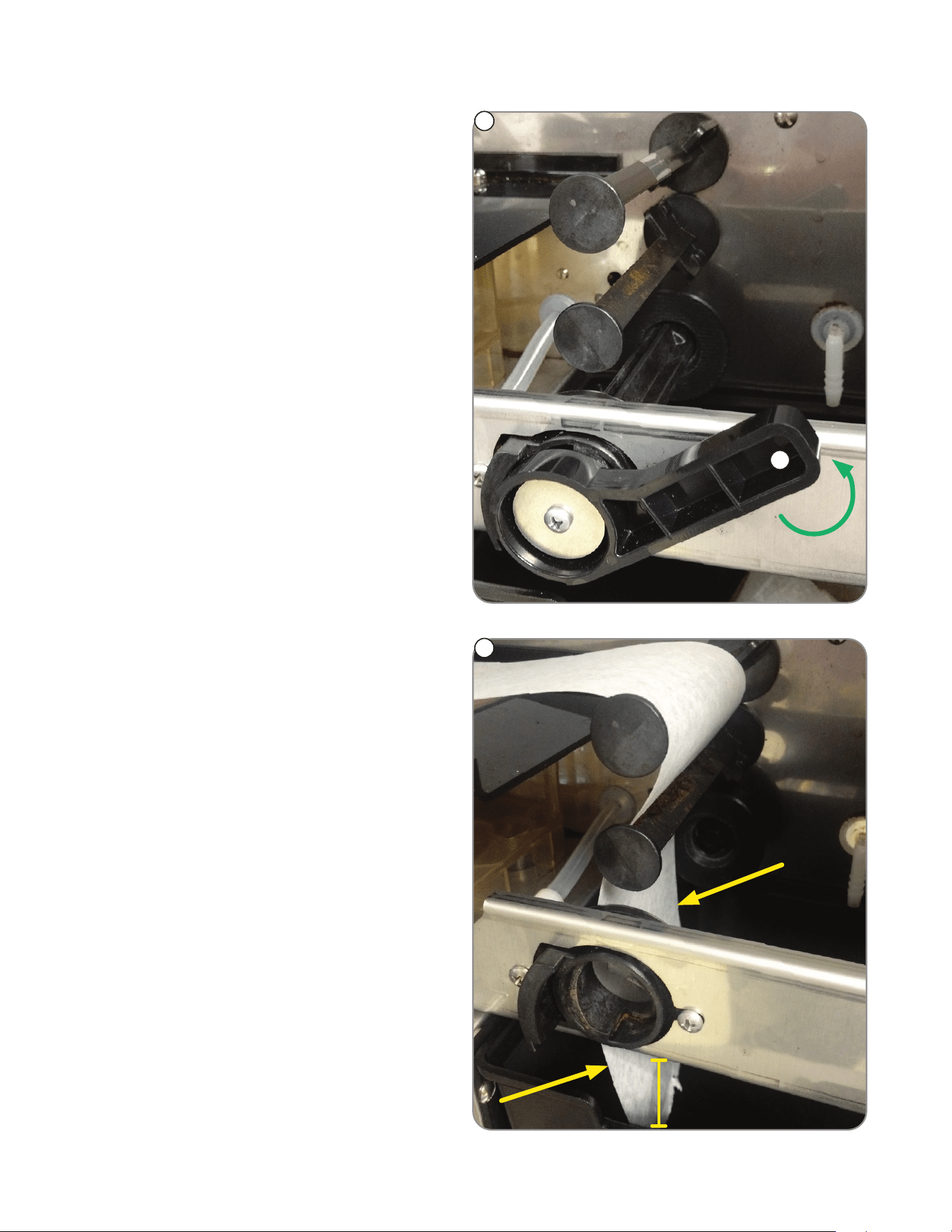
5. Push the hopper locking lever towards the back.
This locks the hopper in place and allows beans
to flow downward to the grinder.
8. Unlock and open the front door to reveal the
inside of the machine.
INITIAL SETUP
5
6
7
8
9
10
6. Repeat Steps 3 and 4 for Right Hopper.
Lock
Lever
7. The hoppers are ready to be filled with beans.
9. Find the Waste Bin in the lower right.
Remove the packing tape from Waste Bin and
Brew Funnel areas.
10. With the water supply line connected to the unit,
turn the water on & check for leaks.
11. Connect the unit to the power source (plug it in).
12. Turn the unit on by moving the power switch to
the "ON" position.
NOTE: The door must be closed to begin the
initialization sequence, it may take 60-90
seconds, and the machine will cycle in
preparation for operation.
11
12
Left Right
10
After Initial Setup and once the initialization sequence is complete, the Filter Paper must be loaded.
FILTER PAPER INSTALLATION
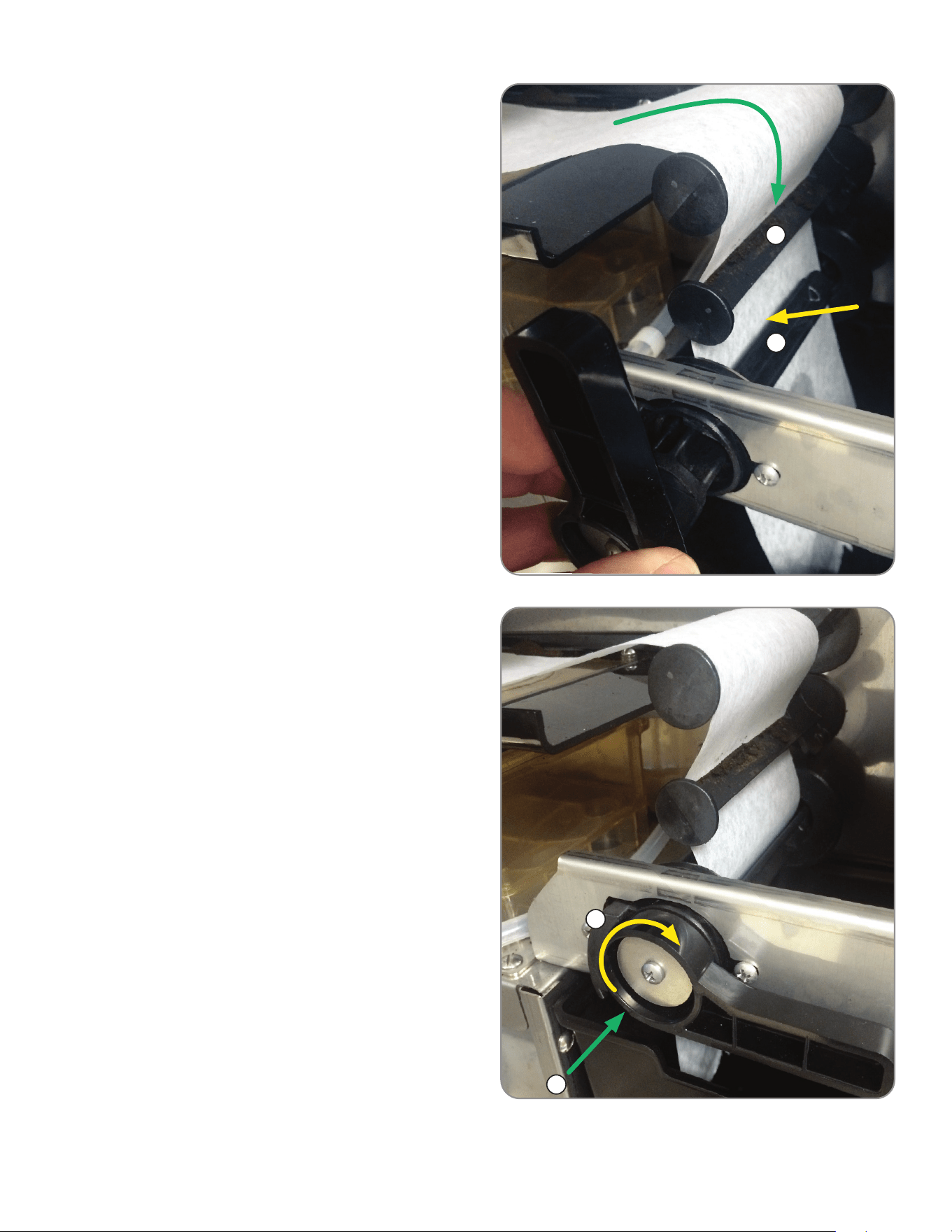
3. Load the Filter Paper.
NOTE: Filter paper should be at least three
inches (3") past the take up roller position.
1
3
2
1. Open the door to access the brewing system.
2. On the lower right, turn the Paper Roller
handle to the vertical position, then pull
forward to remove the paper take up roller.
3 inches
continued >
11
4. With the handle in the vertical position, slide the
Filter Paper through the guide.
7. Then turn the handle clockwise to the
horizontal position.
1
4
7
6
5
FILTER PAPER INSTALLATION
5. Next, pull the Filter Paper through the slot in
the Paper Roller.
6. Push the Paper Roller in until it engages the
roller drive.
continued >
12
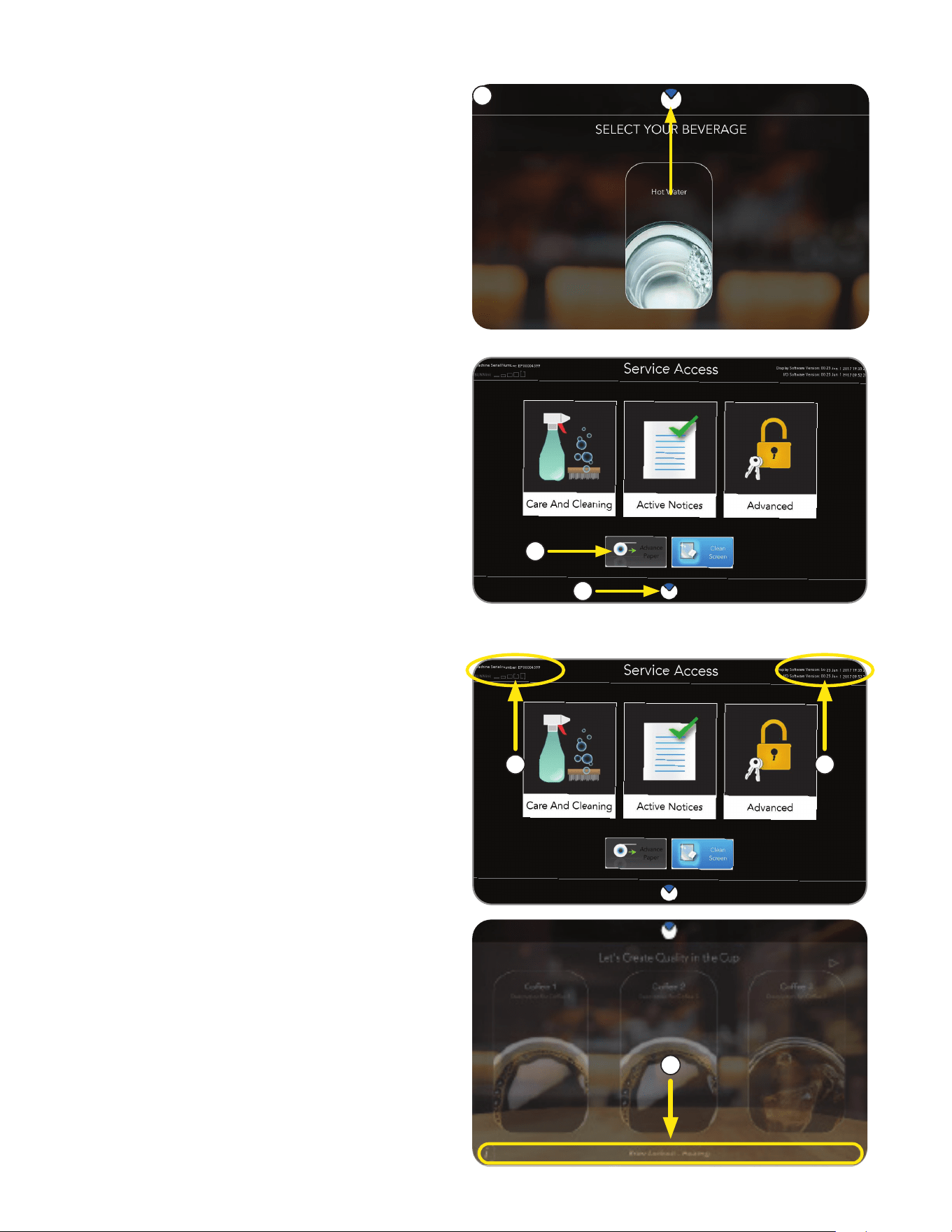
3. The Information Bar located at the bottom of
the home screens provides status of active
notice information.
8. Close the door, then press and hold the BUNN
logo for 3 seconds until SERVICE ACCESS
appears on the display.
1. The machine Serial Number is found on
the SERVICE ACCESS screen in the
upper left corner.
FILTER PAPER INSTALLATION
TOUCH SCREEN
10
9
9. In the lower left corner of the SERVICE
ACCESS screen, press and hold the Advance
Paper button.
NOTE: It will stop when there is a sufficient
amount of Filter Paper on the take-up roller.
10. Press the BUNN logo icon button at the bottom
of the screen to return to the home screen.
8
2. The Software Version is shown in the upper right
corner of the SERVICE ACCESS screen.
1 2
3
13
continued >
BUNNLINK ACTIVATION
These instructions are for connecting BUNNlink
from a compatible machine through WiFi using an
Ethernet connection.
Ethernet WI-FI Board Activation
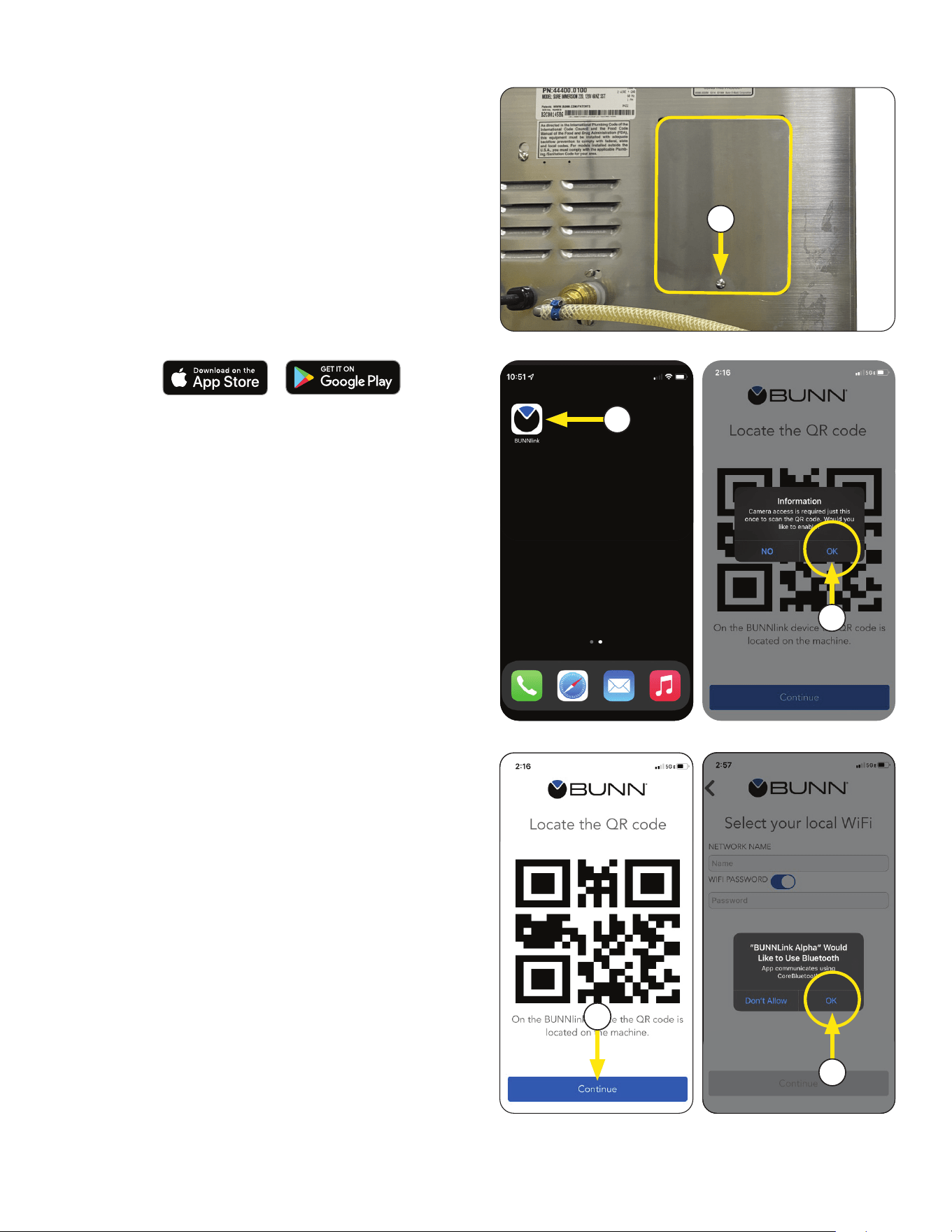
1. If you are connecting to an Ethernet cable,
remove the screw and then the back panel it's
holding to locate the Ethernet cable port.
If you are using WiFi only, proceed to next step.
2. Download the latest version of the BUNNlink
Mobile App to your smart phone through either
the Apple
®
App store for IOS or Google Play
®
store for Android.
NOTE: It will appear with the BUNN logo icon.
4. The app will ask you to enable the camera to
scan the QR code.
Select OK.
3. Open App when complete.
6. The app will ask permission to use Bluetooth.
Select OK.
5. This screen will display once accessed.
Press the CONTINUE button.
1
3
4
5
6
041424
14
* * * *
BUNNLINK ACTIVATION
The location’s Wi-Fi network name and
password is required before BUNNlink
activation.
If you experience any issues with activation; contact
BUNN Tech Services at (800) 286-6070 or
email: bunnlink@bunn.com.
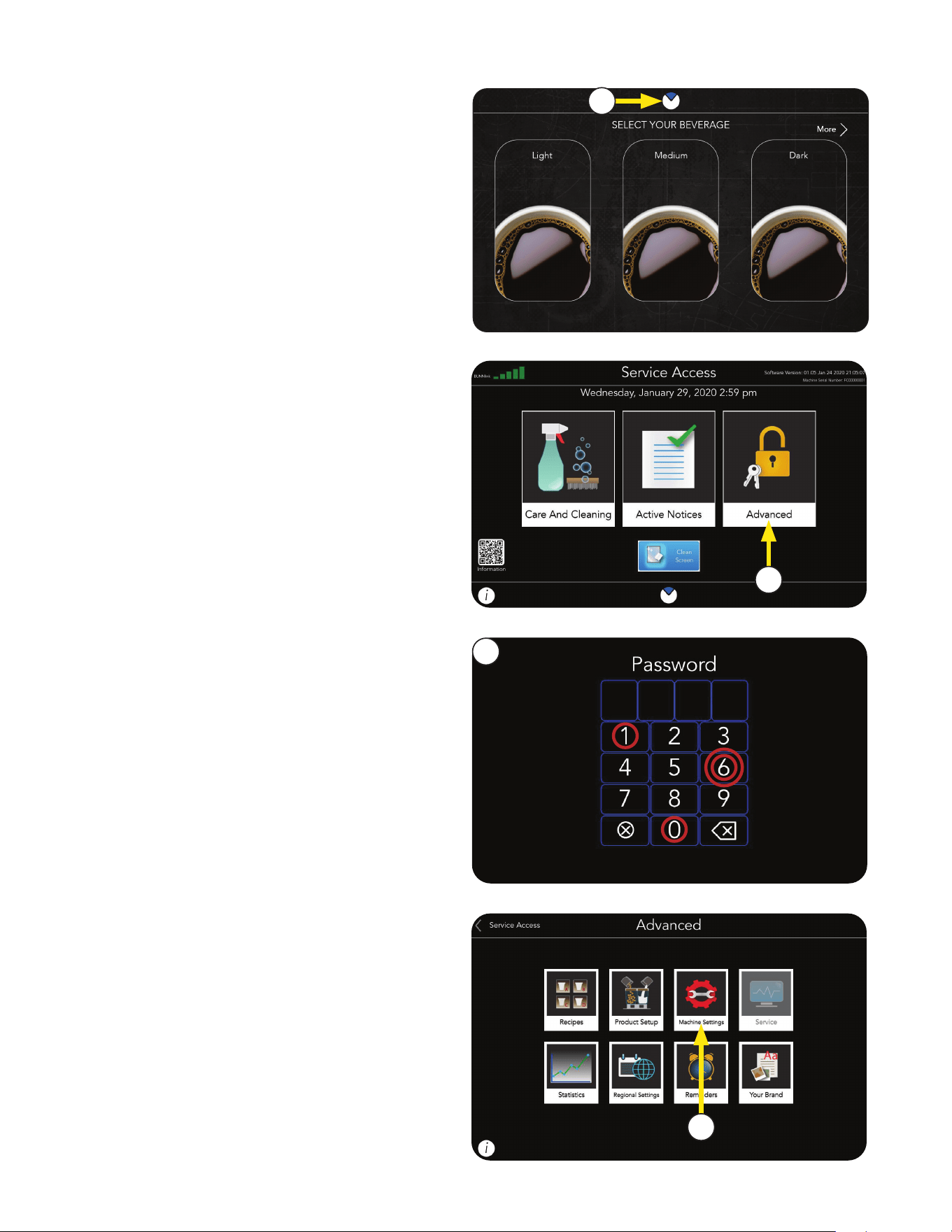
2. Select Advanced button
Steps to find out:
1. Press the BUNN Logo to open Service Access
screen.
1
2
3
4. Select Machine Settings.
3. Select 6601 for Password.
4
041424
15
BUNNLINK ACTIVATION
Continued >
5
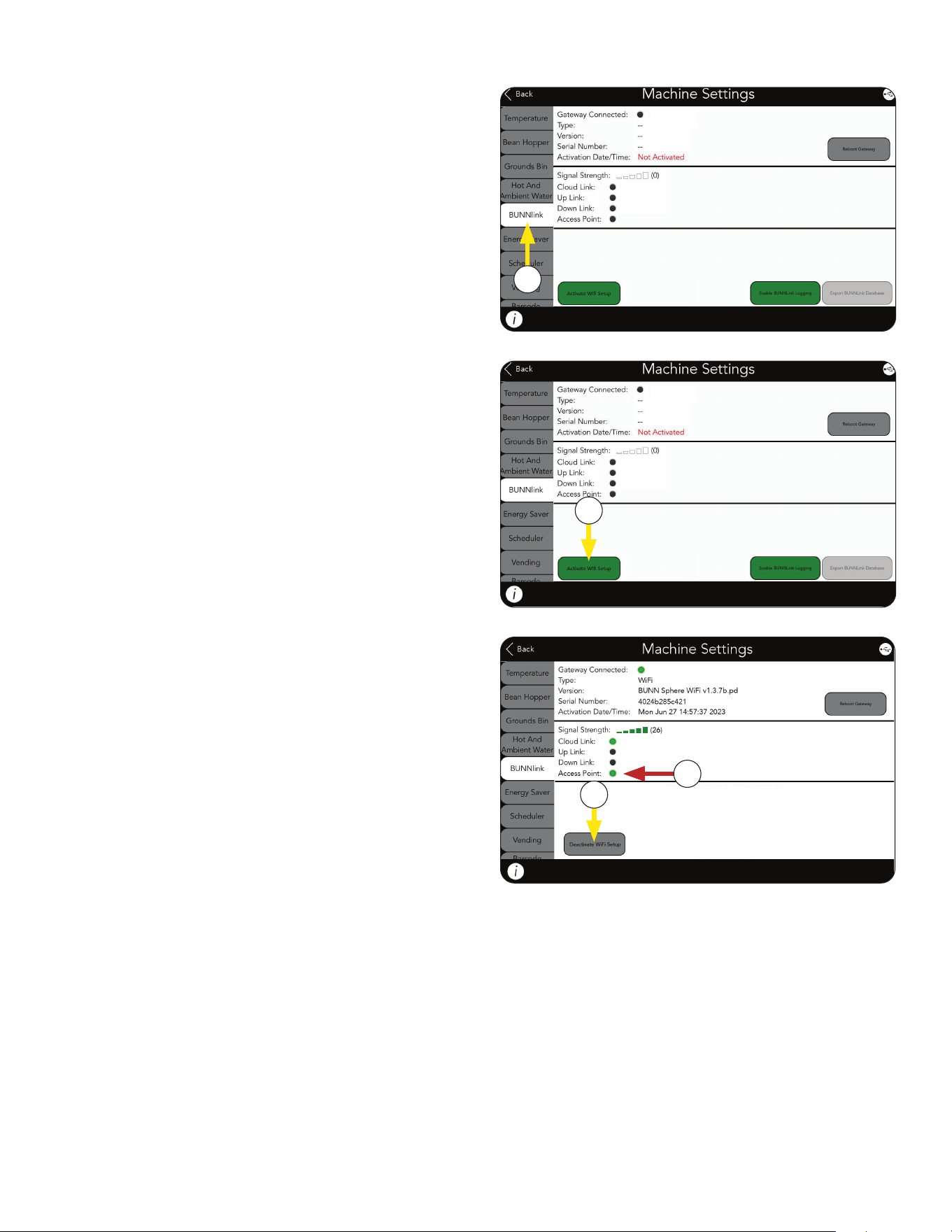
5. Select BUNNlink Tab.
6. If not active, click on the Activate WiFi
Setup button.
6
continued from previous page
7
7. The button should change to grey and say
Deactivate WIFI Setup.
8. The Access Point dot should turn green.
NOTE: If Access Point is dark, power cycle the
machine for 5 minutes and start over.
8
041424
16
BUNNLINK ACTIVATION
continued >
continued from previous page
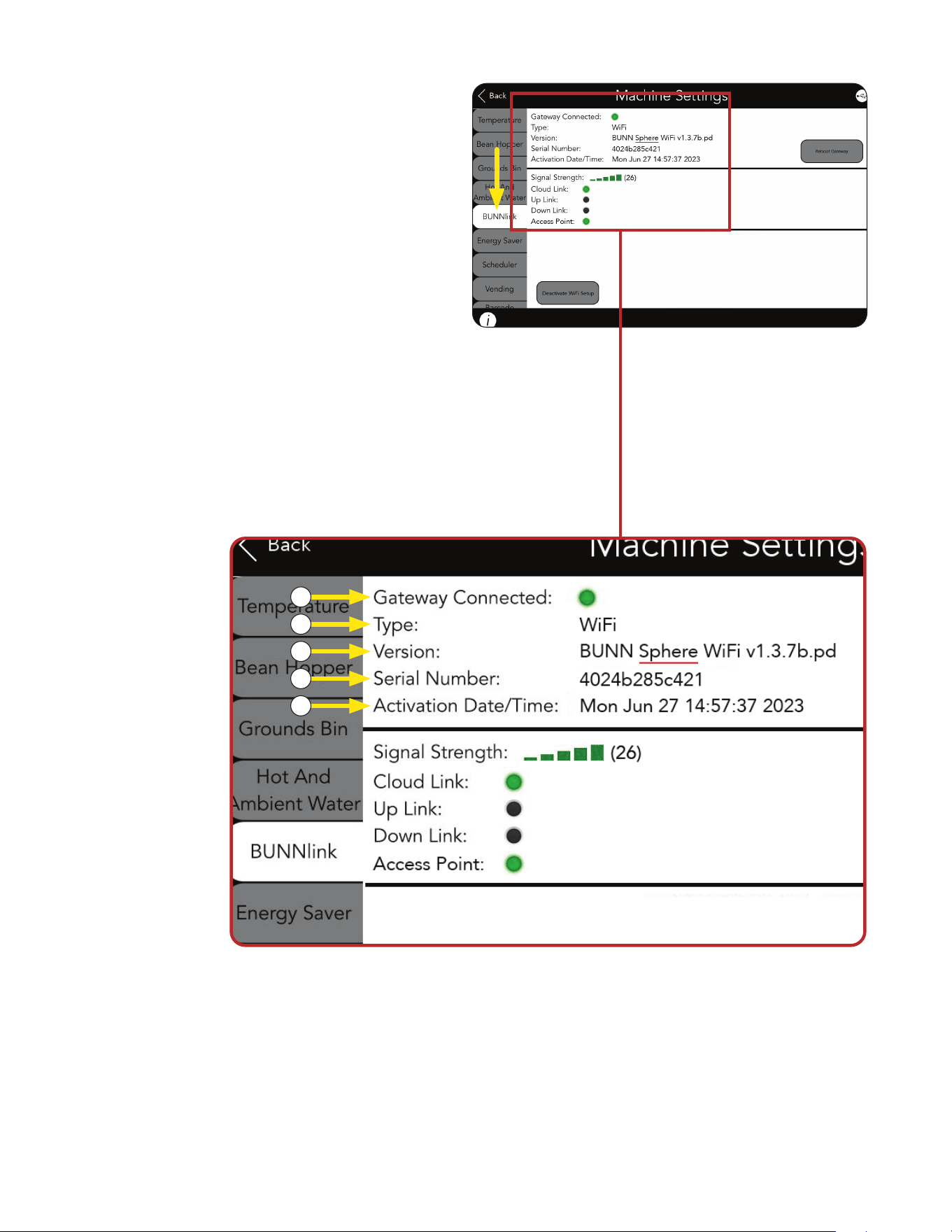
a. Gateway Connected should be green to
indicate the machine and BUNNlink
gateway see each other.
b. Type of board shown as WiFi.
c. Sphere WiFi type should appear with/its
software version.
d. The Serial Number that appears on this
screen is the Mac Address for a Bunnlink
WiFi board.
BUNNlink Tab Information When Active
b
a
c
d
NOTE: If whitelisting is needed, this is the
12-digit Mac Address that should be added
to the list.
e. Activation Date/Time when BUNNlink was
first enabled on the machine’s interface.
e
Fig. 1
041424
17
continued >
BUNNLINK ACTIVATION
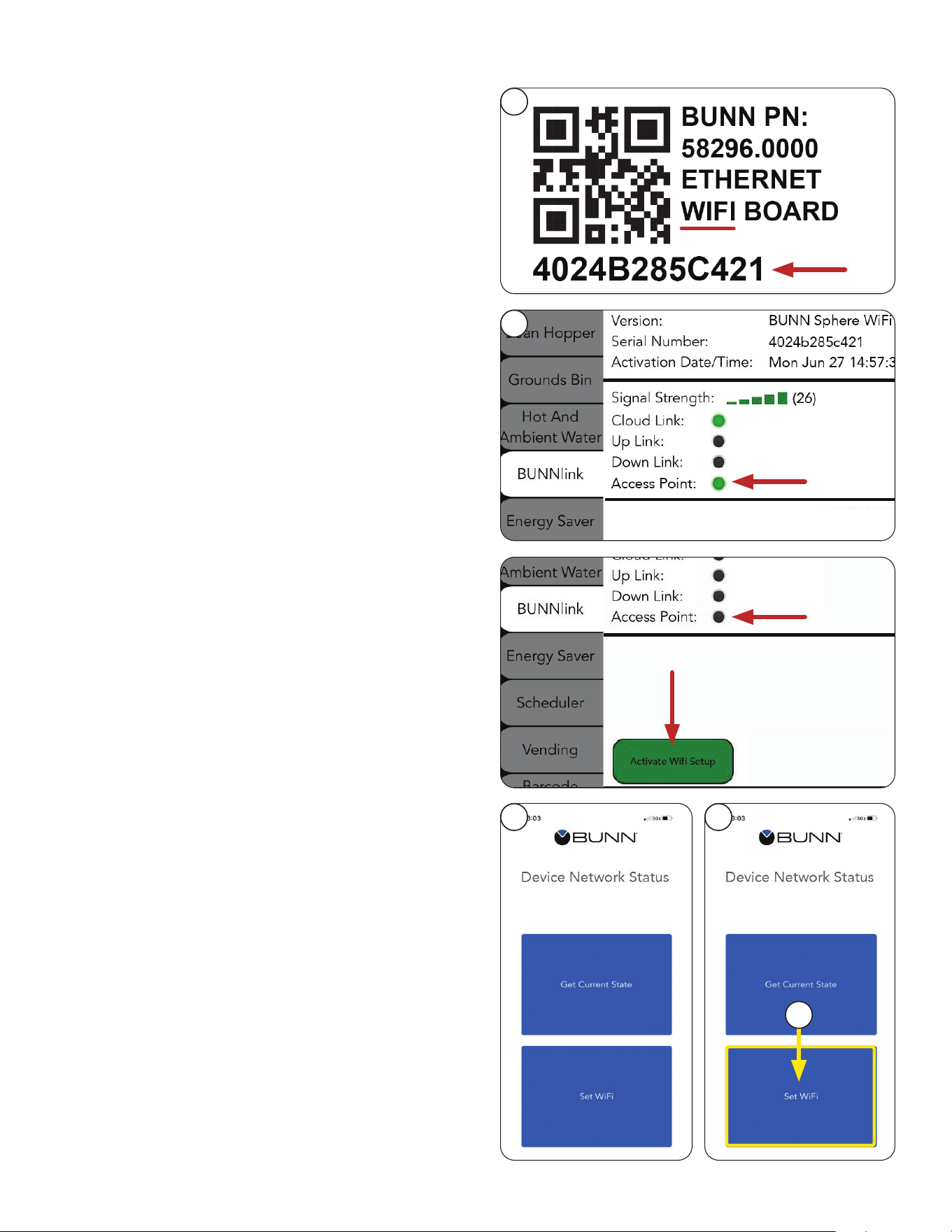
9. Locate the QR Code decal either behind the
display or behind the door.
The decal should say it is for an Ethernet WiFi
Board and include a Serial Number with 12
alpha numeric characters underneath the
QR code image.
10. From the machine, go to the BUNNlink tab.
The Access Point should be green.
Proceed to step 12.
NOTE: The Serial Number that appears on
the decal should match the one on the screen
example in Fig. 1 (d).
NOTE: New kits will have a decal behind the
board, on the anti-static packaging, plus a spare
decal to stick on the machine when replacing or
installing a board.
11. If the Access Point is not green, click on the
Activate WiFi button.
When Access Point is green, proceed to
step 12.
12. Scan the QR code using the BUNNlink Mobile App.
NOTE: It may take a couple of attempts.
Sometimes pulling back away from the image
while scanning works better than trying to get
the camera too close.
If you can’t scan the QR code, contact
bunnlink@bunn.com or 217-331-8428.
Leave a message if necessary. Your call will
be returned.
13. Connect to the WIFI Board. After a successful QR
Code scan, two buttons will appear on the mobile
app – Get Current State and Set WiFi on the
Device Network Status screen.
14. On the mobile app, click on Set WiFi.
continued from previous page
9
10
12 13
14
041424
18
BUNNLINK ACTIVATION
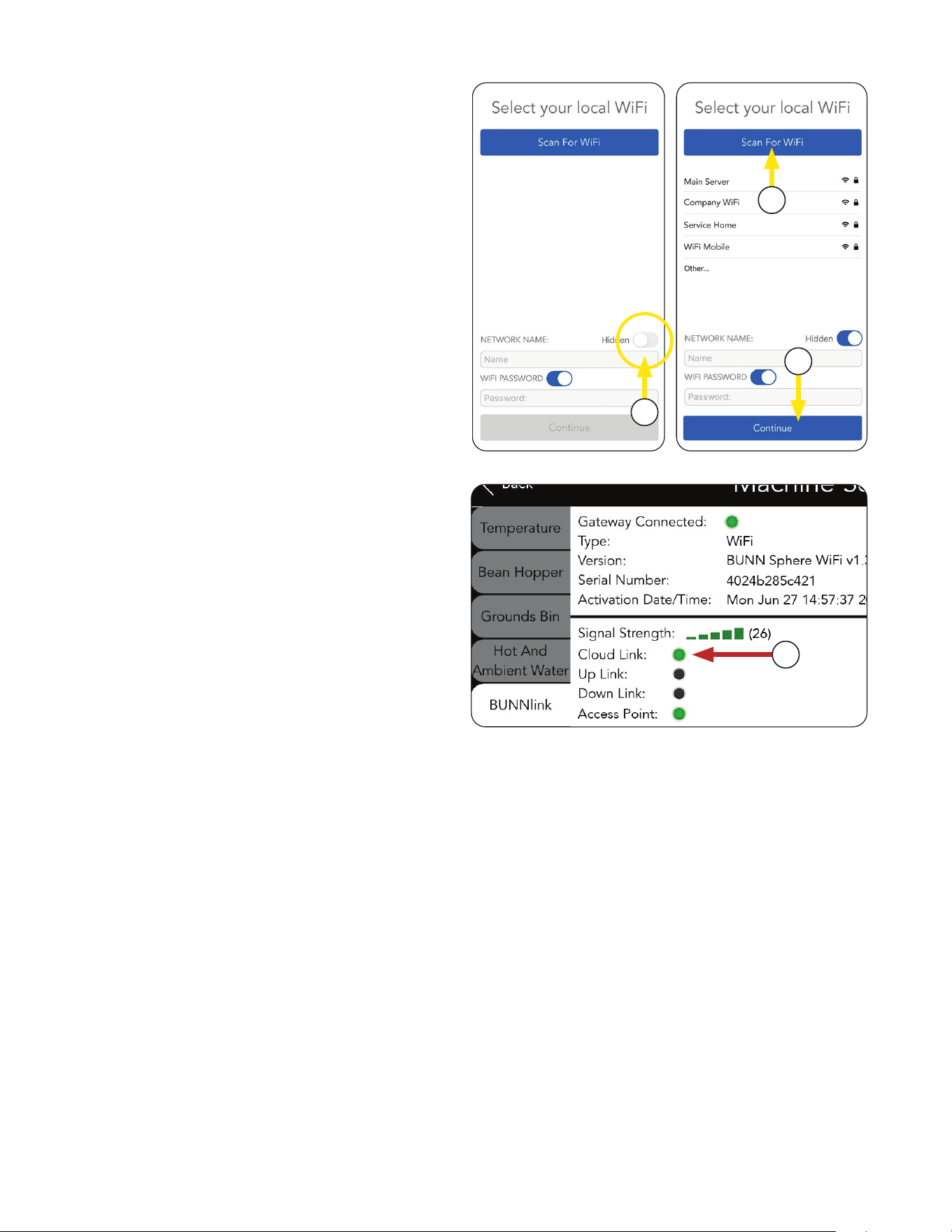
17. Click Continue.
NOTE: If it fails, see Troubleshooting section.
18. If successful, Cloud Link will turn green and
become steady, signal strength will show
green bars.
YOUR CONNECTION IS NOW COMPLETE.
15. If you are connecting to a hidden network,
enable the Hidden toggle located on the app
before Scanning for WiFi.
If successful, a list of available networks
will appear.
16. If you have the location’s network name and
password, you may enter it manually, or select
the name from the list of available networks and
enter the password.
continued from previous page
16
18
17
15
BUNNLINK ACTIVATION
16
18
17
15
041424
19
OPERATING INTERFACE
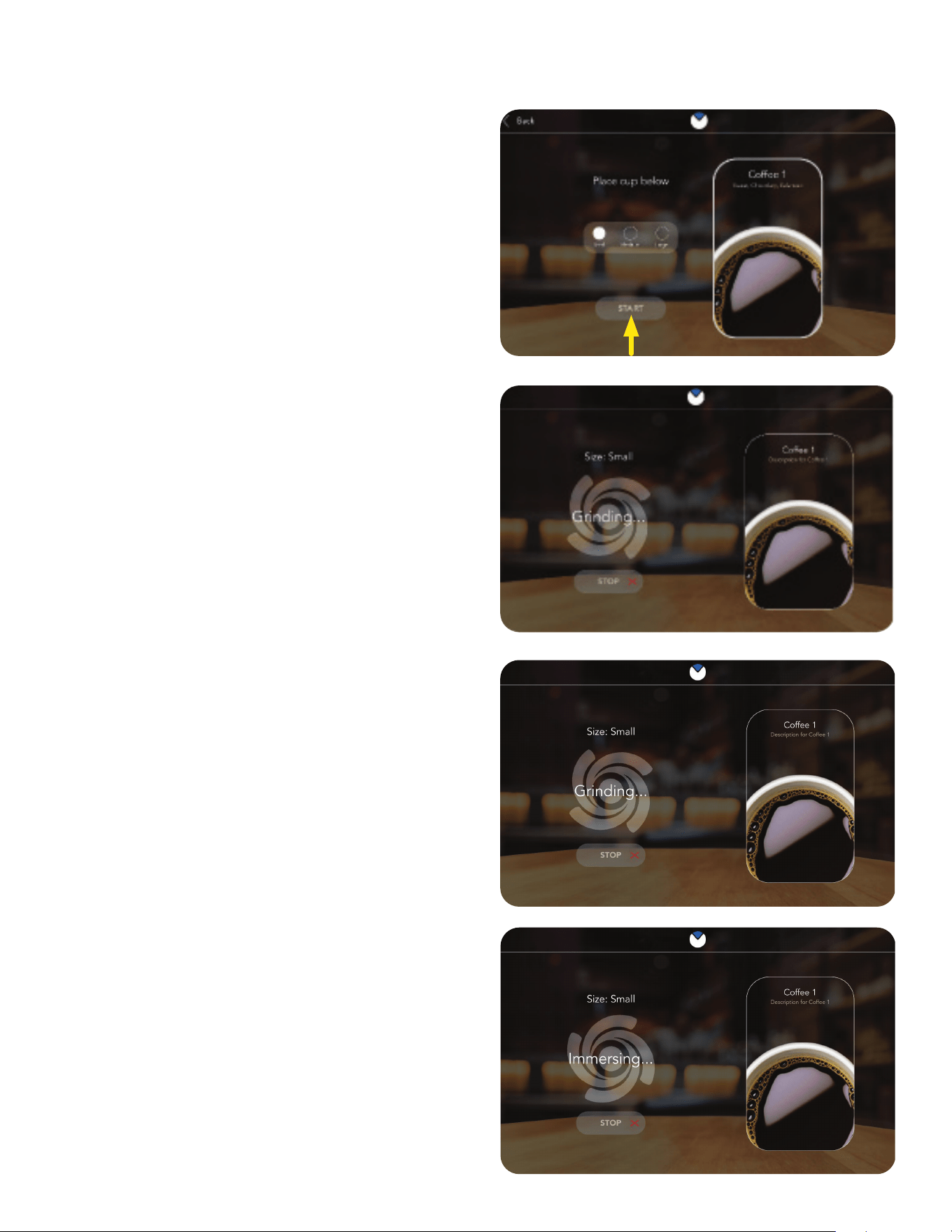
1. The first screen to appear is a "User" interface
screen, also known as the beverage "Carousel".
Drink selections viewable are accessed by
swiping left or right across the screen, or by
touching the arrows located on the left and right.
Press the desired drink icon to select.
2. Once a selection has been made by touching
the screen, the user is prompted to select the
desired beverage size, and then to place the
beverage container (cup) on tray below. The
user will then touch the "START" button on
the screen to begin.
NOTE: If the beverage selected is an iced
beverage, the screen will prompt the user to
fill the cup with ice prior placing the beverage
container (cup) on the tray.
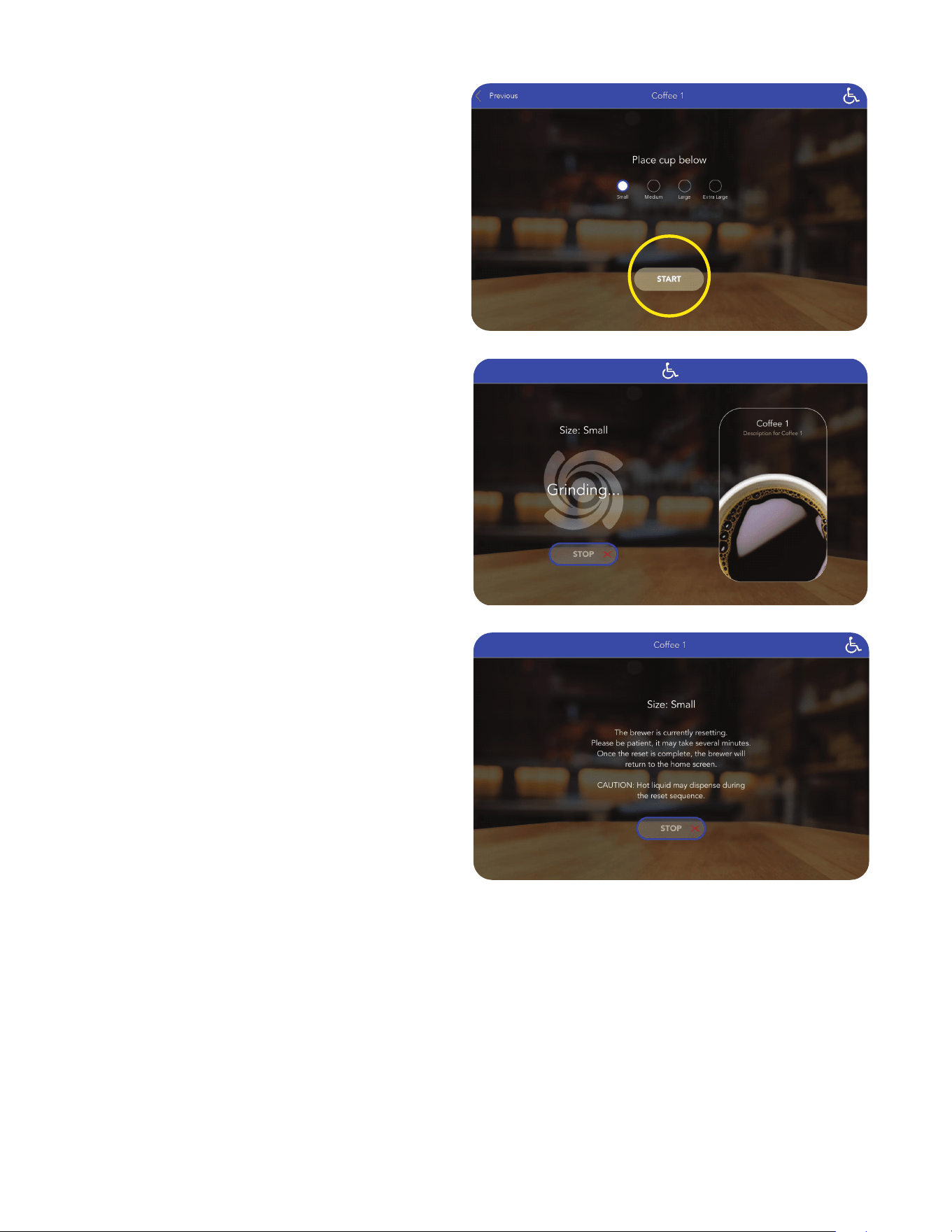
3. The next screen after pressing the start button
is the "Grinding" screen. The user is shown the
coffee selection and that the coffee beans are
being ground.
NOTE: The user can press the "STOP" during
this process to cancel this beverage.
NOTE: The machine comes pre-loaded with four (4) recipes; two (2) hot beverage, and two (2) cold beverage.
continued >
112822
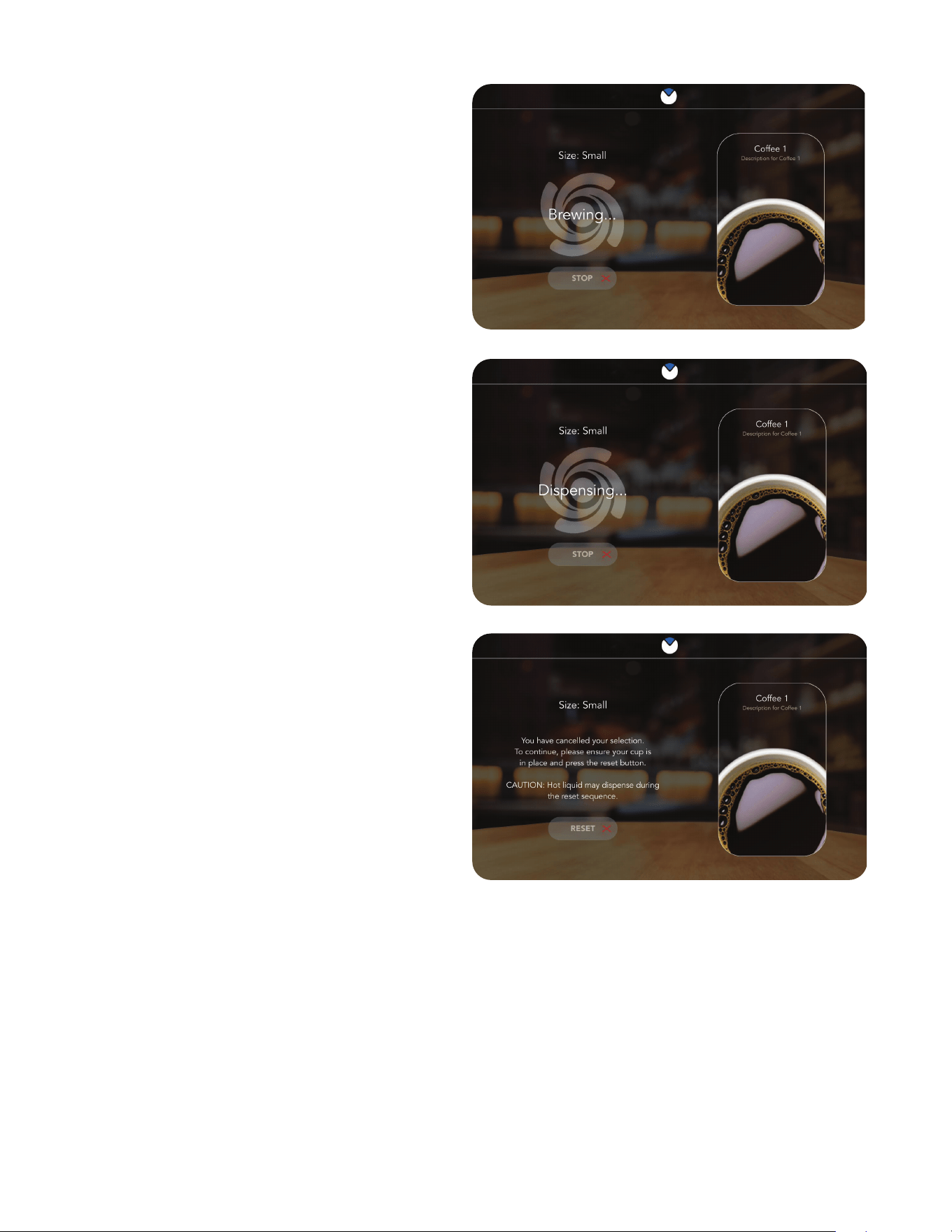
4. The next screen shown after "Grinding" is
"Immersing" where brew water is added to
the ground beans.
20
OPERATING INTERFACE
5. The next screen after "Immersing", is the
"Brewing" screen. The ground beans and
brew water is allowed to sit permitting the
flavors to bloom.
6. The next screen shown to the user is the
"Dispensing" screen. The user's selection is
now being dispensed.
8. After pressing the "RESET" button, the user will
be presented with a new screen indicating that
the machine is "RESETTING".
NOTE: Do not remove your cup from the drip
tray while the machine is resetting. This is a
system reset & the machine will perform a
reset cycle.
NOTE: liquid may be dispensed.
The user will then be returned to the original
selection screen.
7. If the "STOP" button has been pressed, the
user will be presented with a new screen
that indicates that the unit has "Paused"
(cancelling) the beverage selection.
continued >
112822
21
OPERATING INTERFACE
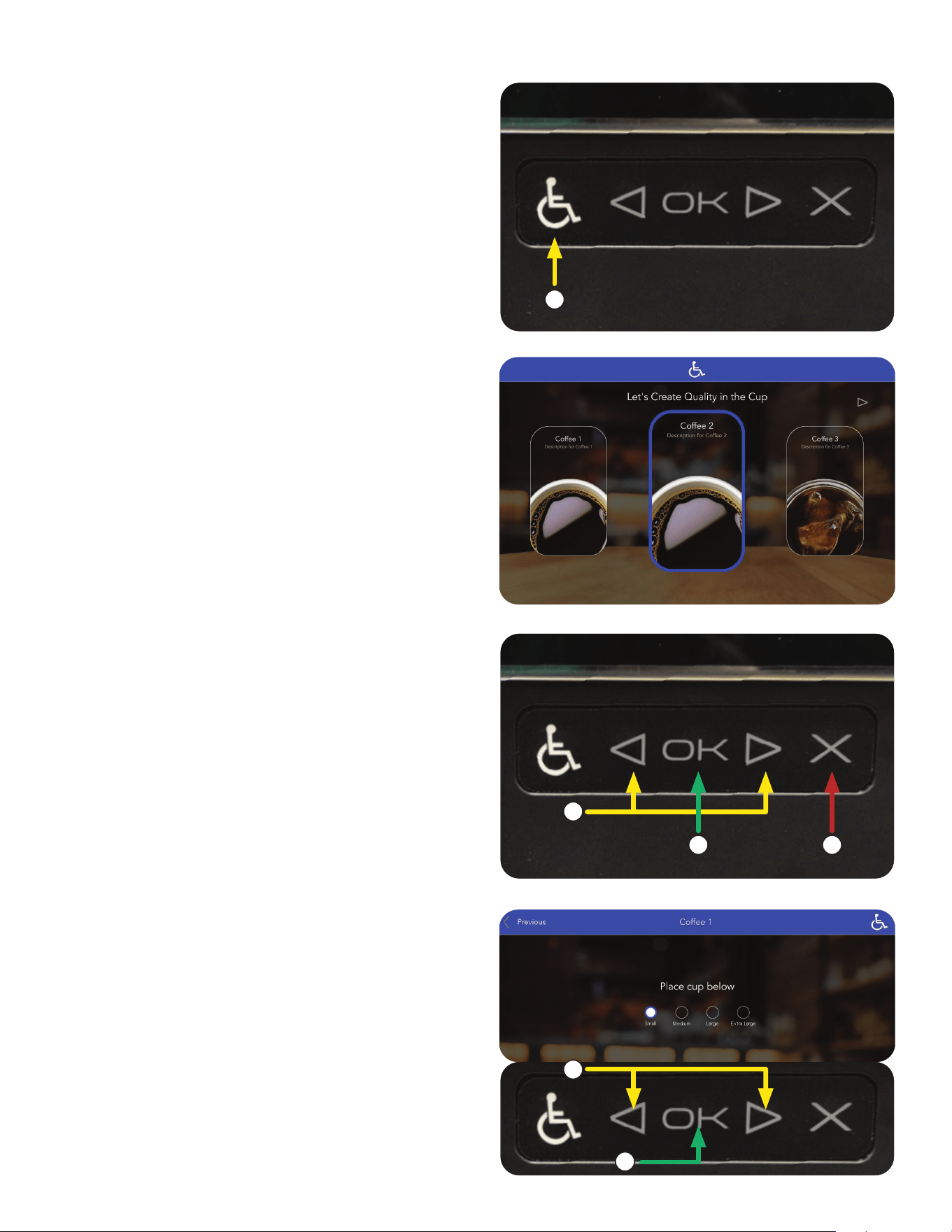
1. To activate the ADA screen interface, the
user must press the accessibility symbol
(wheelchair icon).
This will cause the screens to be modified with
a blue banner at the top and a blue highlight
around the items being selected. The left/right
arrows will move the blue highlight from one
selection to the next.
1
ADA Interface
continued >
112822
3. Navigate around the screens using the Left and
Right arrows on the ADA interface.
a. Select a beverage
(using left and right arrows).
b. Press the "OK" button to confirm it.
c. Pressing the "X" cancels the selection.
a
b c
NOTE: If the beverage selected is an Iced
Beverage, the screen will prompt the user to
fill the cup with ice prior placing the beverage
container (cup) on the tray.
2. When activated, the screen will have a blue
banner at the top, and a blue highlight around
the item being selected.
4. Selections available through the ADA interface
on this screen; Previous, Small, Medium, Large,
Extra Large and Start.
a. Next, using the ADA arrows, choose a
Beverage size.
b. Press OK to enter selection.
a
b
22
OPERATING INTERFACE
6. During operation, the following screens will
appear in this order: Grinding, Immersing,
Brewing, Dispensing.
The user can press the STOP button during
this process to cancel this recipe selection.
7. The Stop/Reset is automatically highlighted.
The user can cancel and reset by pressing
OK or X.
120122
5. Press start.
ADA Interface
23
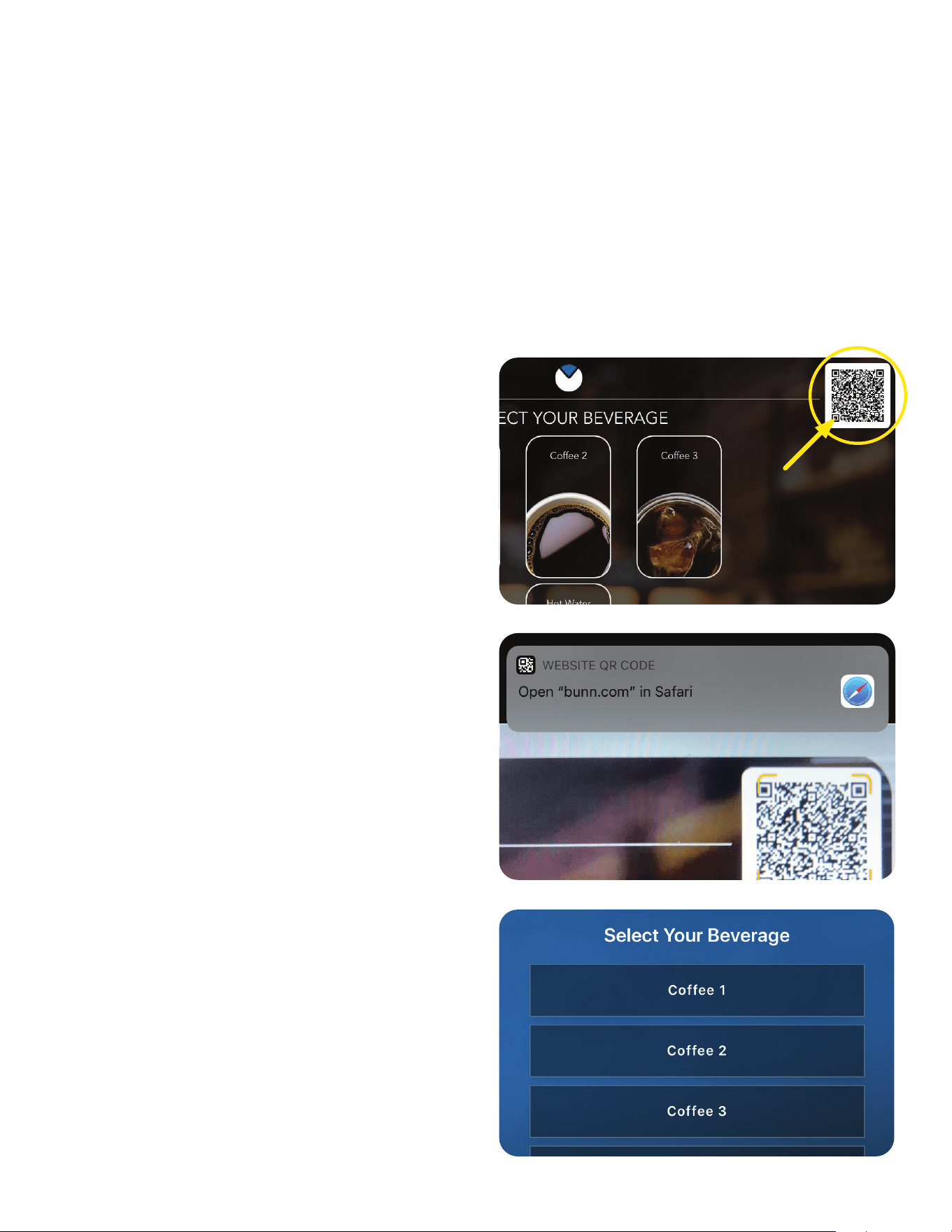
BUNN VirtualTOUCH requires a QR code scanner to access the application to dispense a drink. Depending
on what brand tablet or smartphone you carry, it may require you to download a QR code app before using
VirtualTOUCH.
What is needed:
• Installed and registered BUNNlink connectivity on the machine.
• VirtualTOUCH feature enabled on the machine
• Smartphone that can read QR codes (most of the smartphones today are already capable or
you can easily download a free QR code app)
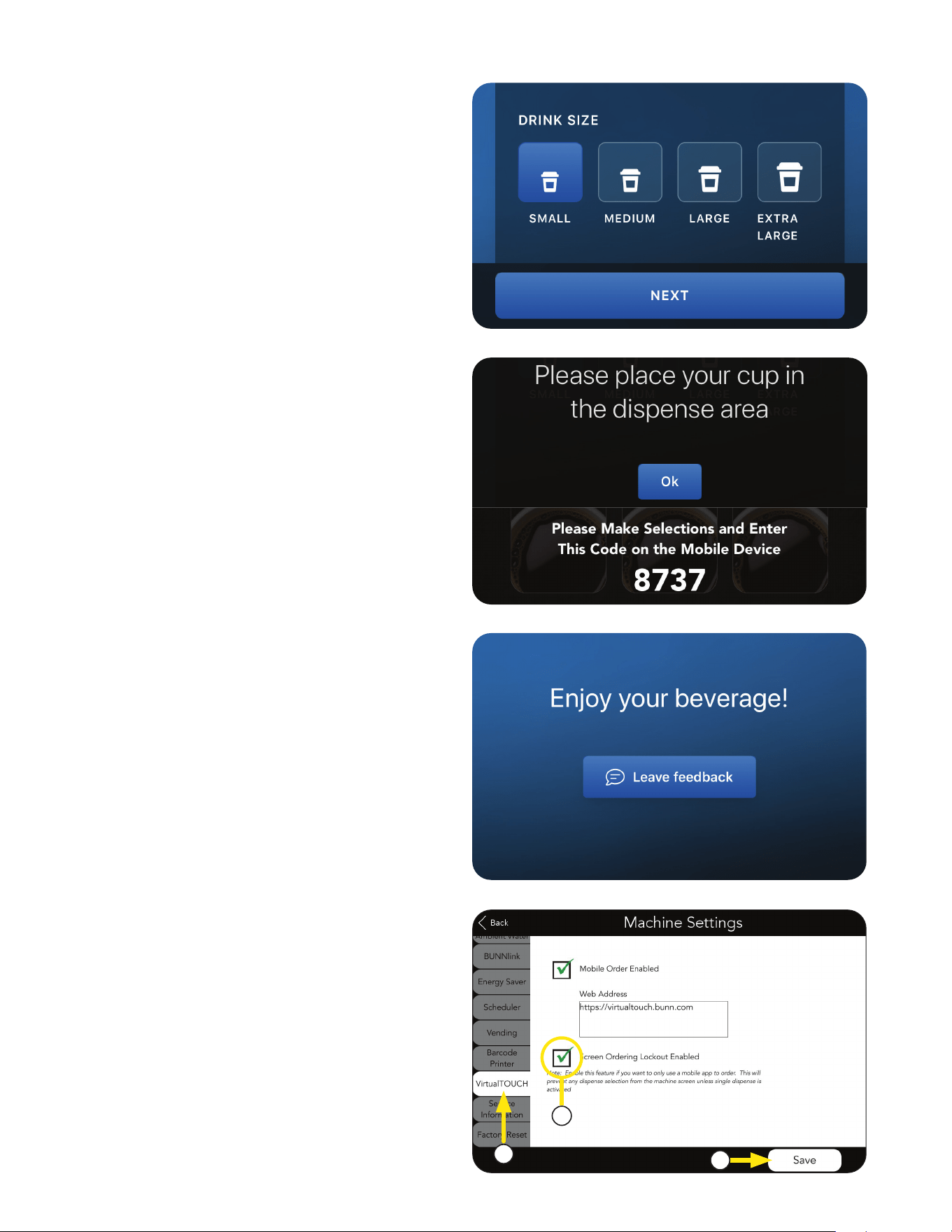
3. Select your favorite beverage shown on the
VirtualTOUCH webpage.
VirtualTOUCH
®
is a beverage dispensing experience that is powered by BUNNlink
®
, our state-of-the-art cloud
based IoT (Internet of Things) solution. Your customers now have the option of selecting and dispensing a
beverage on their favorite bean to cup machine using the most convenient device, their personal smartphone.
How to use VirtualTOUCH:
1. Use the smartphone to scan the QR code visible
on the display of the machine.
2. When prompted click on the link to open the
BUNN VirtualTOUCH webpage.
(www.bunn.com/clean-contact-solutions).
It acts just like an APP without the need to install
one from an app store.
NOTE: Your default web browser will vary.
continued >
120122
OPERATING INTERFACE
VirtualTOUCH
24
7. Allow time for the beverage to finish dispensing
before removing the cup.
Enjoy!
4. Select Size.
Press NEXT.
5. Place your Cup in position. For iced beverage,
place cup with ice in position. Press OK.
6. Enter the 4-digit code as it is shown on the
display of the machine and press DISPENSE.
NOTE: This is to confirm that you are standing in
front of the machine and ready to take the drink.
Screen Ordering Lockout
Allows you to enable lockout for touchless
dispensing only.
1. In MACHINE SETTINGS select
VirtualTOUCH tab.
2. Select Checkbox next to SCREEN ORDERING
LOCKOUT ENABLED to use this feature.
3. Press SAVE.
1
3
2
continued >
120122
VirtualTOUCH
OPERATING INTERFACE
25
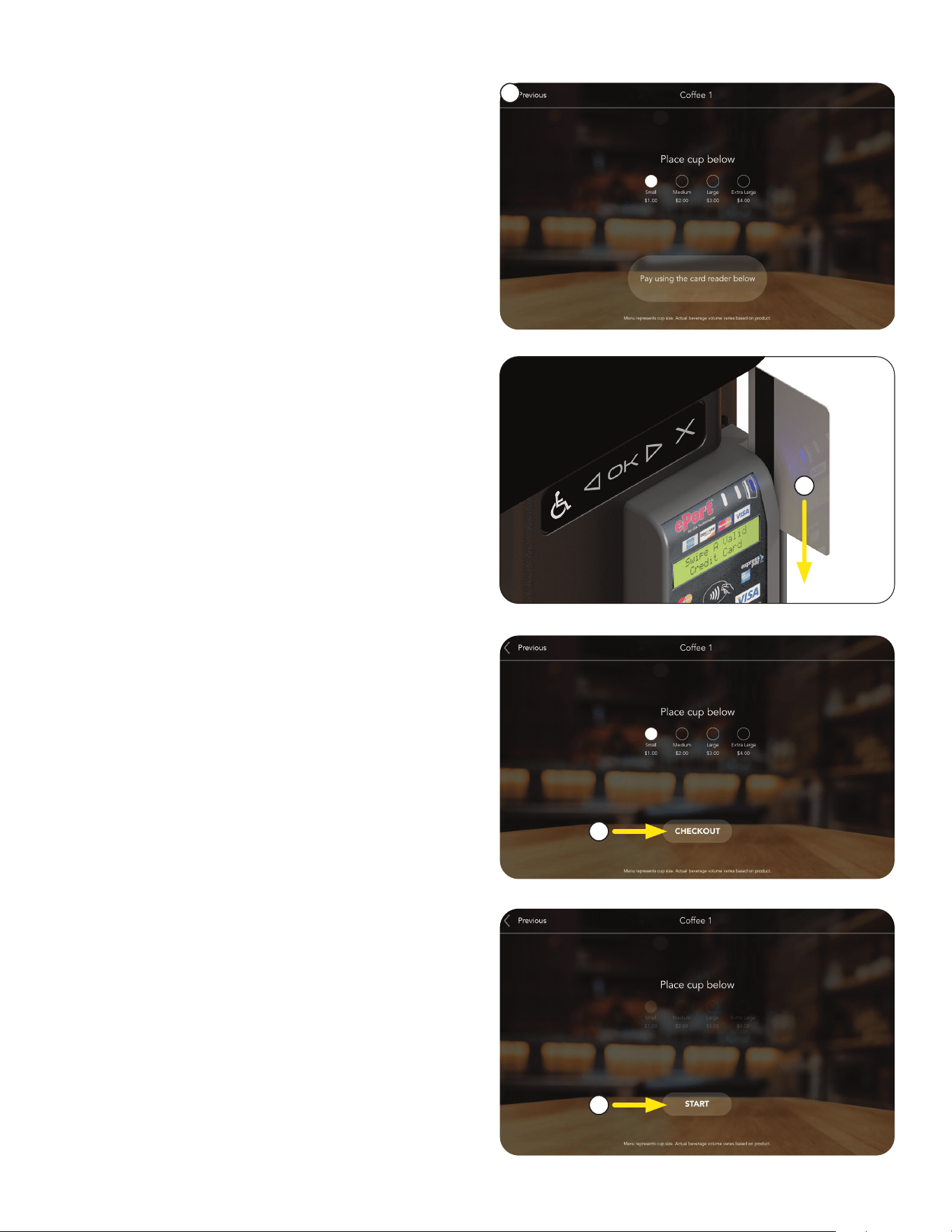
1. Place cup under dispense nozzle.
Select cup size.
2. Swipe credit/debit card to start process.
3. Press the CHECKOUT button to lock in
size selection.
4. Press the START button to dispense.
1
2
3
4
continued >
120122
Optional Cashless Payment System
OPERATING INTERFACE
26
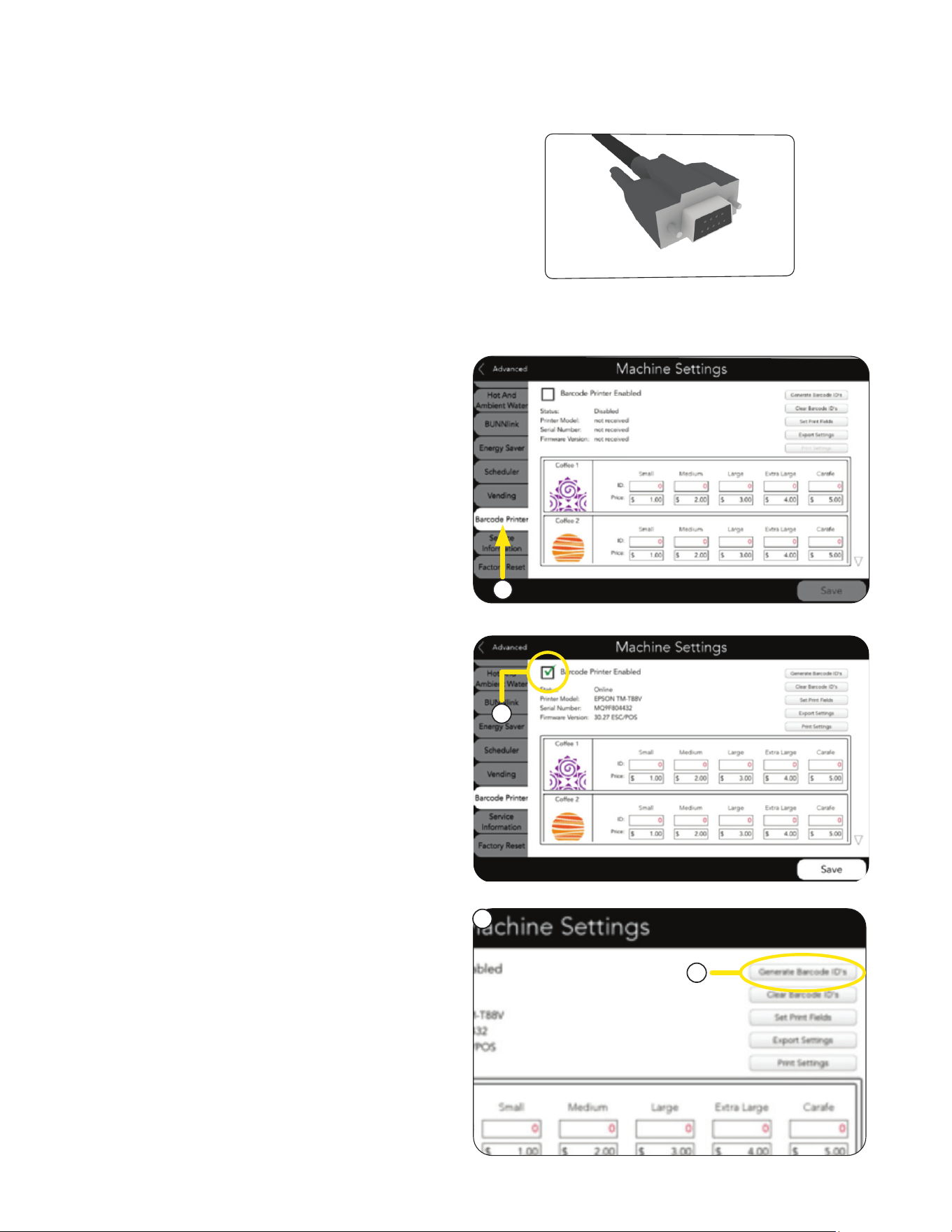
1. If the machine is printer capable, and a printer
has been connected, the machine must be set
up to enable printing.
3. Check the box next to BARCODE PRINTER
ENABLED in the upper left of the screen.
a. Press the GENERATE BARCODE ID’S
button in the upper right corner.
2. Navigate to the MACHINE SETTINGS screen,
and touch the BARCODE PRINTER tab on
the left.
NOTE: Printer hook up to the machine requires a db-9 cable.
4. Barcodes can be entered for each product
two ways - Automatically and Manually:
Automatically
3
4
2
a
continued >
120122
OPERATING INTERFACE
Barcode Printer Setup
27
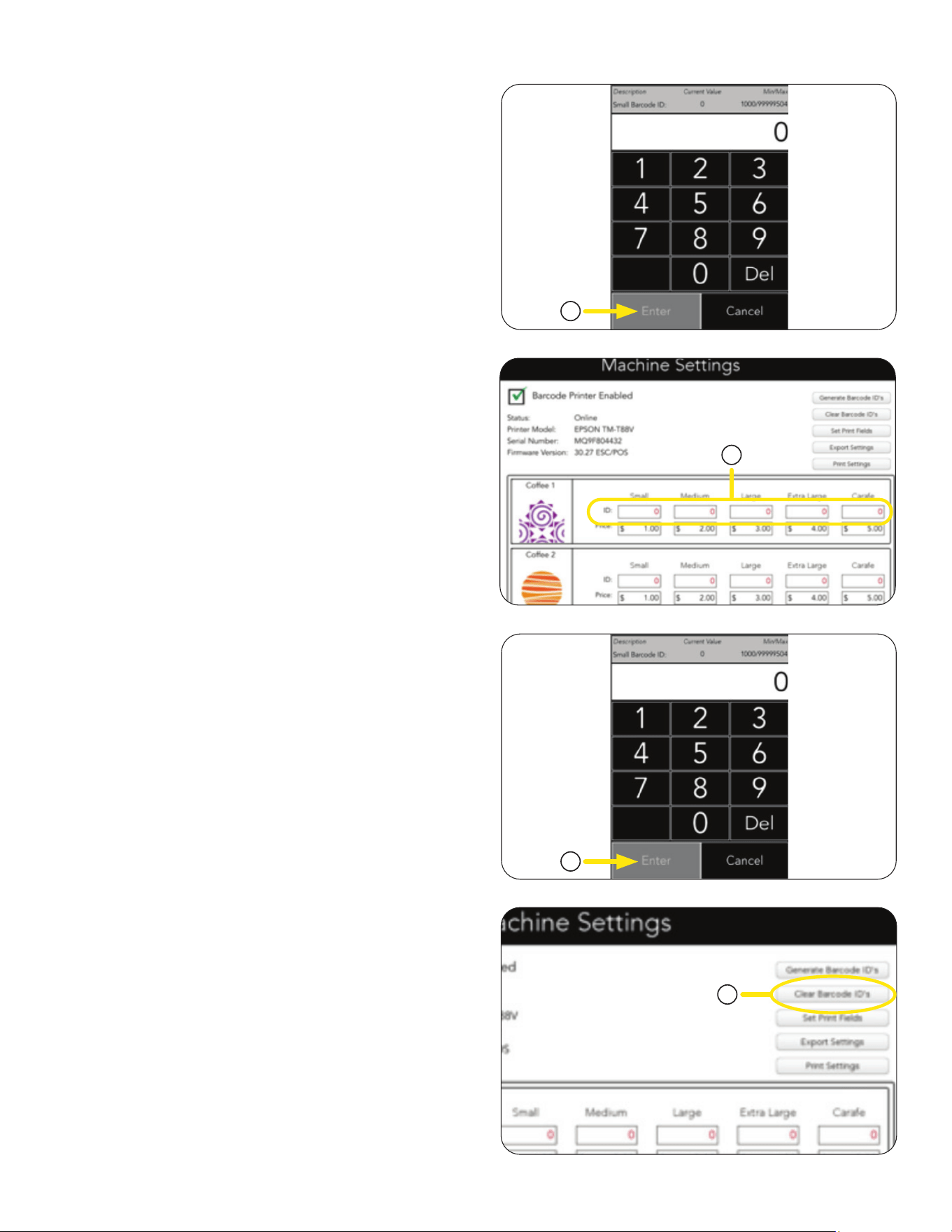
d. The ID fields will be automatically populated
with barcodes, starting with the ID number
you entered.
d. The ID fields will be automatically populated
with barcodes, starting with the ID number
you entered.
a. Barcodes can be manually entered for
each beverage by touching the ID box
for that beverage.
e. Repeat for each beverage and size.
e. Repeat for each beverage and size.
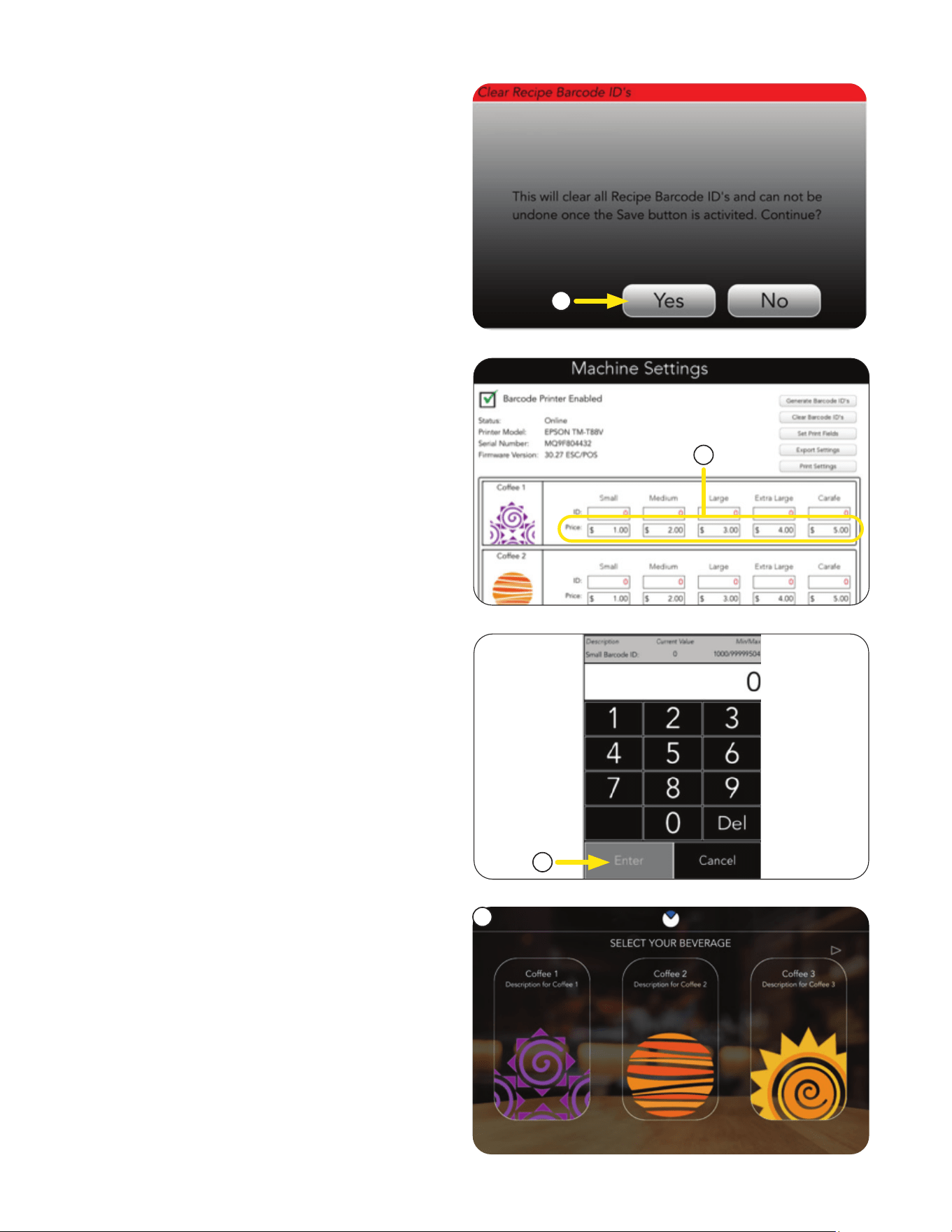
1. Barcode ID's can be cleared by touching the
Clear Barcode ID's button in the
upper right.
b. Use the keypad to enter the barcode ID
number for the first barcode you require.
Automatically
Generate Barcode ID’s (continued)
c. Press ENTER.
c. Hit ENTER
Manually
Clear Barcode Number
b. The keypad will appear.
c
a
c
1
continued >
120122
OPERATING INTERFACE
28
2. Use the keypad to set the price, then
press ENTER.
Repeat for the remaining sizes and
beverages.
2. Press Yes to clear all barcode ID's, or No to
exit the menu.
Setting Beverage Prices
1. To set the price for a size, press the Price box
for the size to be set.
3. The main screen will return.
3
1
2
2
4. Select any beverage.
continued >
120122
OPERATING INTERFACE
Clear Barcode Number
29
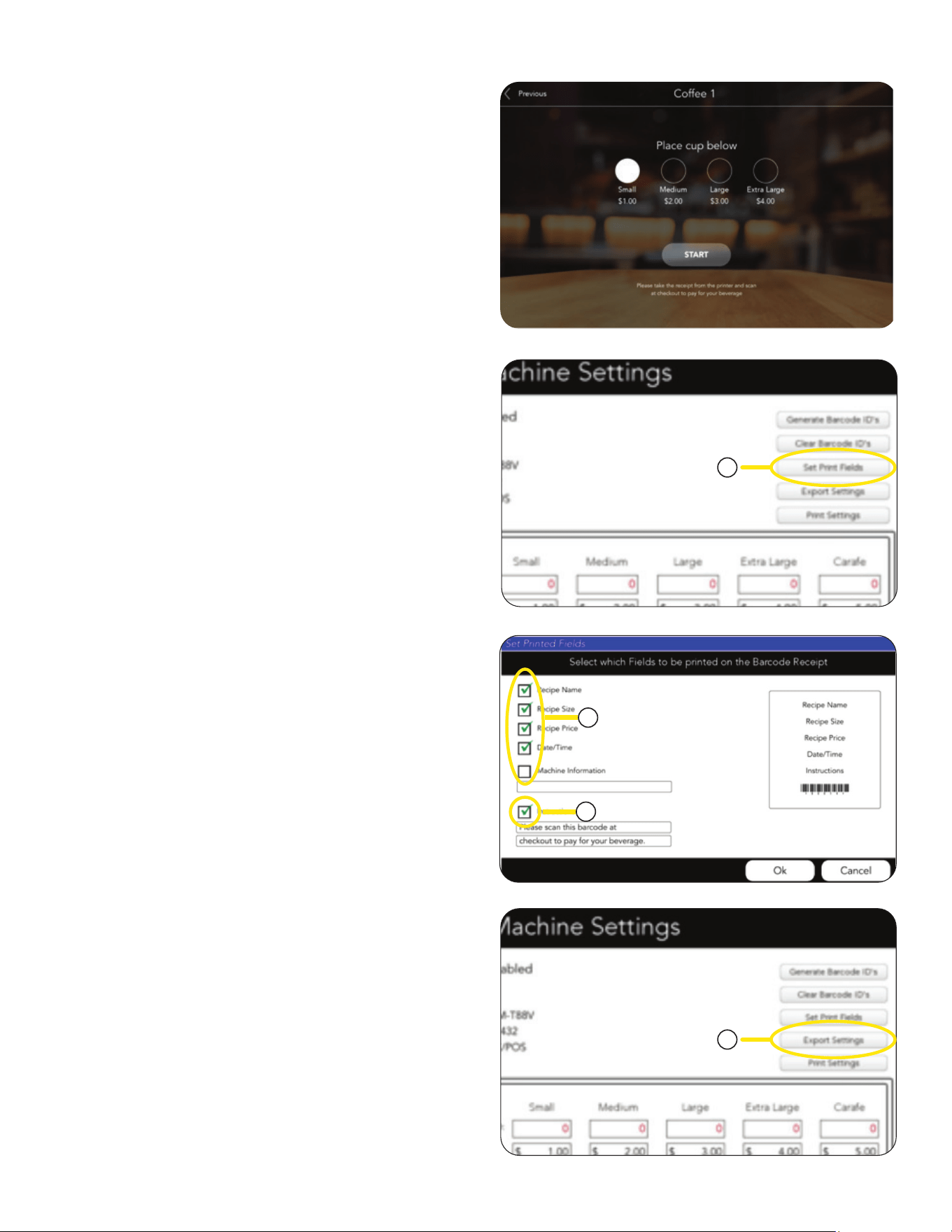
1. The barcode and price settings can be exported
by pressing the EXPORT SETTING button.
2. Check or uncheck boxes to select the
fields which are to be printed on the
barcode receipt.
Setting Beverage Prices
3. If instructions is checked; touch inside the box
to bring up a keypad to enter the desired
instructions.
4. Press Return key to save, press keyboard icon
on lower right of keyboard to cancel.
Export Settings
1. Fields to be printed can be selected by pressing
the SET PRINT FIELD button in the upper right.
Set Print Fields
5. Verify that the correct price is shown for each
size selection.
2
1
1
3
continued >
120122
OPERATING INTERFACE
30
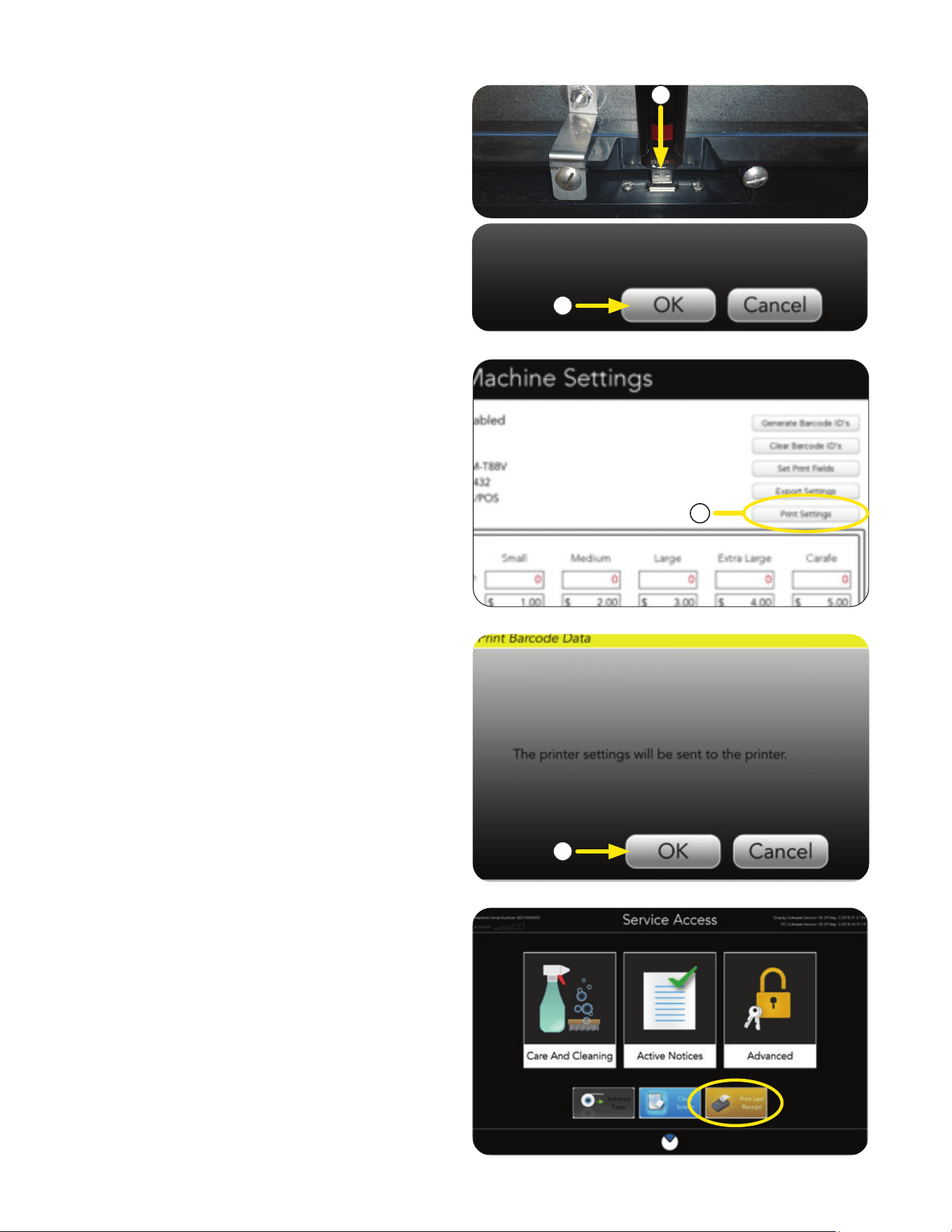
2. Insert a USB stick into the USB port on the back
side of the front door.
3. Press OK.
4. The main screen will return.
5. Remove USB stick.
6. Close door.
1. Printer setting can be sent to the printer by
pressing the PRINT SETTINGS button.
2. Press OK to print the printer settings.
On the service access panel, the last receipt
can be printed by pressing the PRINT LAST
Receipt button in the lower right.
Print Settings
Print Last Receipt
2
1
3
2
120122
OPERATING INTERFACE
Export Settings
31
FILTER PAPER REMOVAL
Removing Spent Filter Paper
When the take-up roller has reached the maximum
allowable amount, the machine will signal a paper
roller full condition, and lock out brewing.
The used paper must be removed.
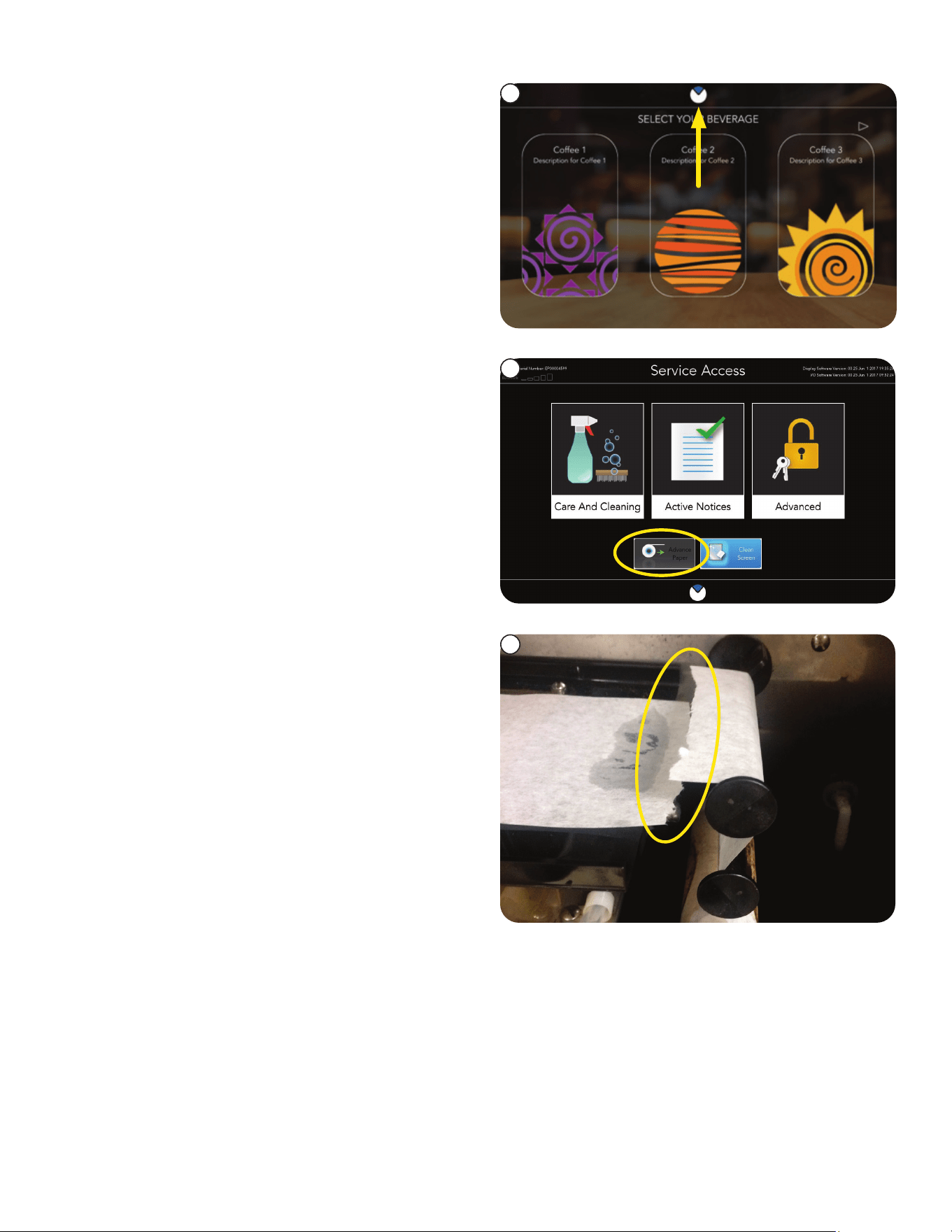
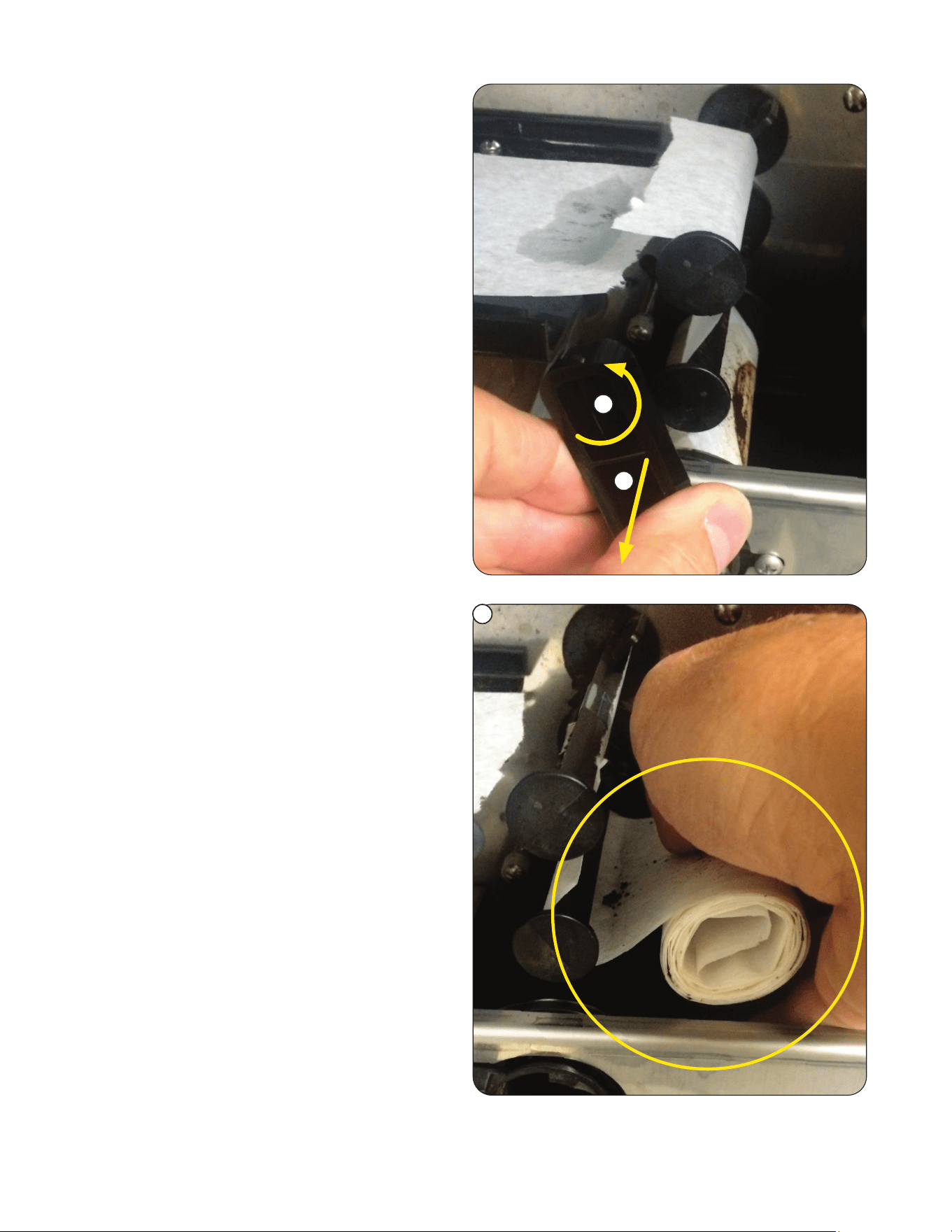
3. Open the brewer door and cut or tear the filter.
1. To remove the used paper, press and hold the
BUNN logo icon at the top of the screen for
3 seconds to access the SERVICE ACCESS
screen.
2. Press & hold the ADVANCE PAPER button for
3 seconds to dispense all of the used grounds.
NOTE: The DOOR MUST REMAIN CLOSED!
3
1
2
continued >
120122
32
FILTER PAPER REMOVAL
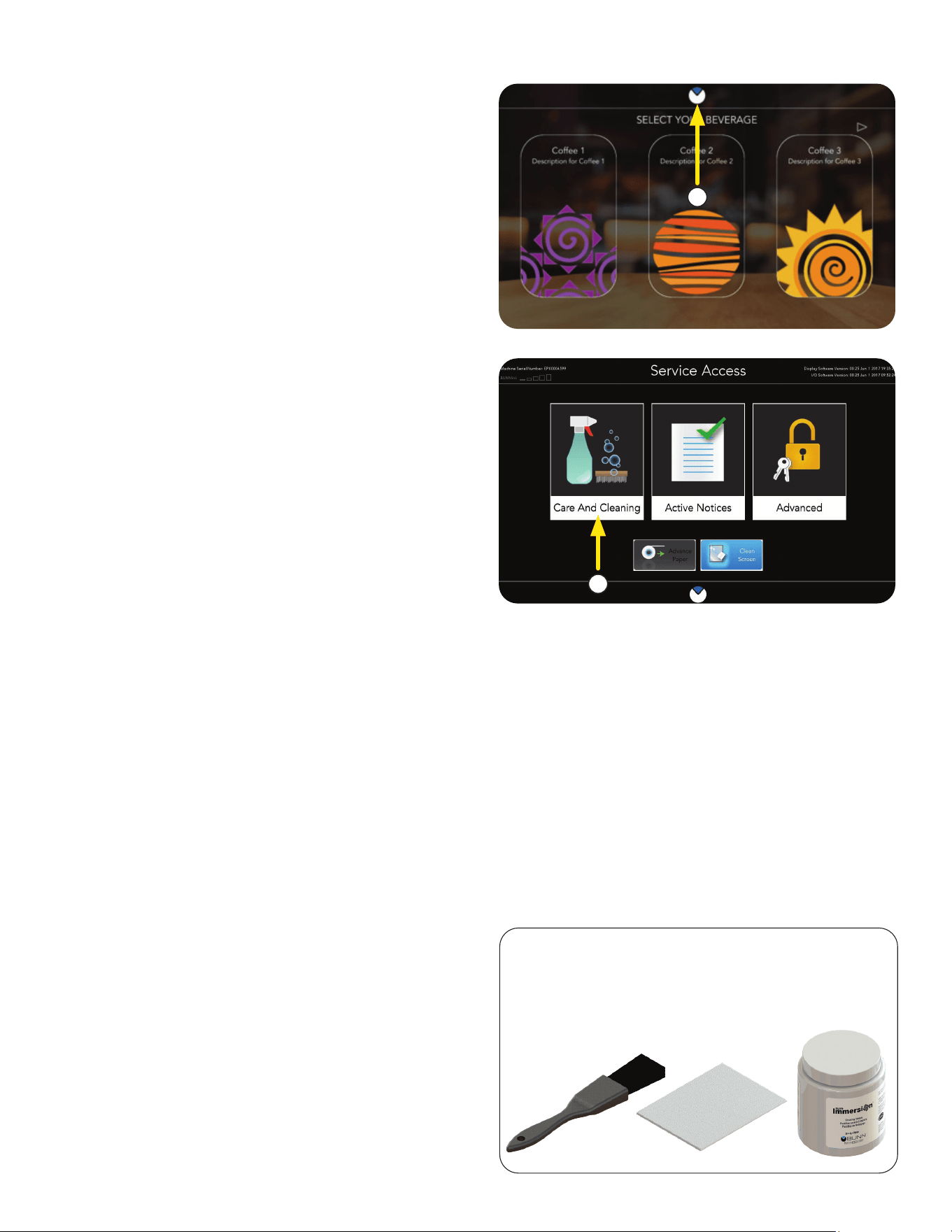
6. Remove the used paper roll from the machine,
or push it into the grounds bin.
Refer to "Filter Paper Installation" section in this
manual to reset the take-up roller.
4. Turn the handle for the paper take-up roller to
the vertical position.
4
5
5. Pull the handle away from the machine to
remove.
120122
Removing Spent Filter Paper
6
33
SERVICE ACCESS
The use of a damp cloth rinsed in any mild, non-abrasive, liquid detergent is recommended for cleaning all
surfaces on Bunn-O-Matic equipment.
Exterior Surfaces
• Do not use any abrasive materials.
• Use a soft, dry cloth to wipe down the exterior surfaces of the dispenser to maintain the luster of the
stainless steel finish.
• Wash the stainless steel interior surfaces of the dispenser with warm, soapy water. Rinse with warm,
clear water. If the water is hard, wipe the dispenser dry with a soft cloth to prevent spotting.
• Use cleaning cloth provided, to clean the acrylic door panel.
DAILY
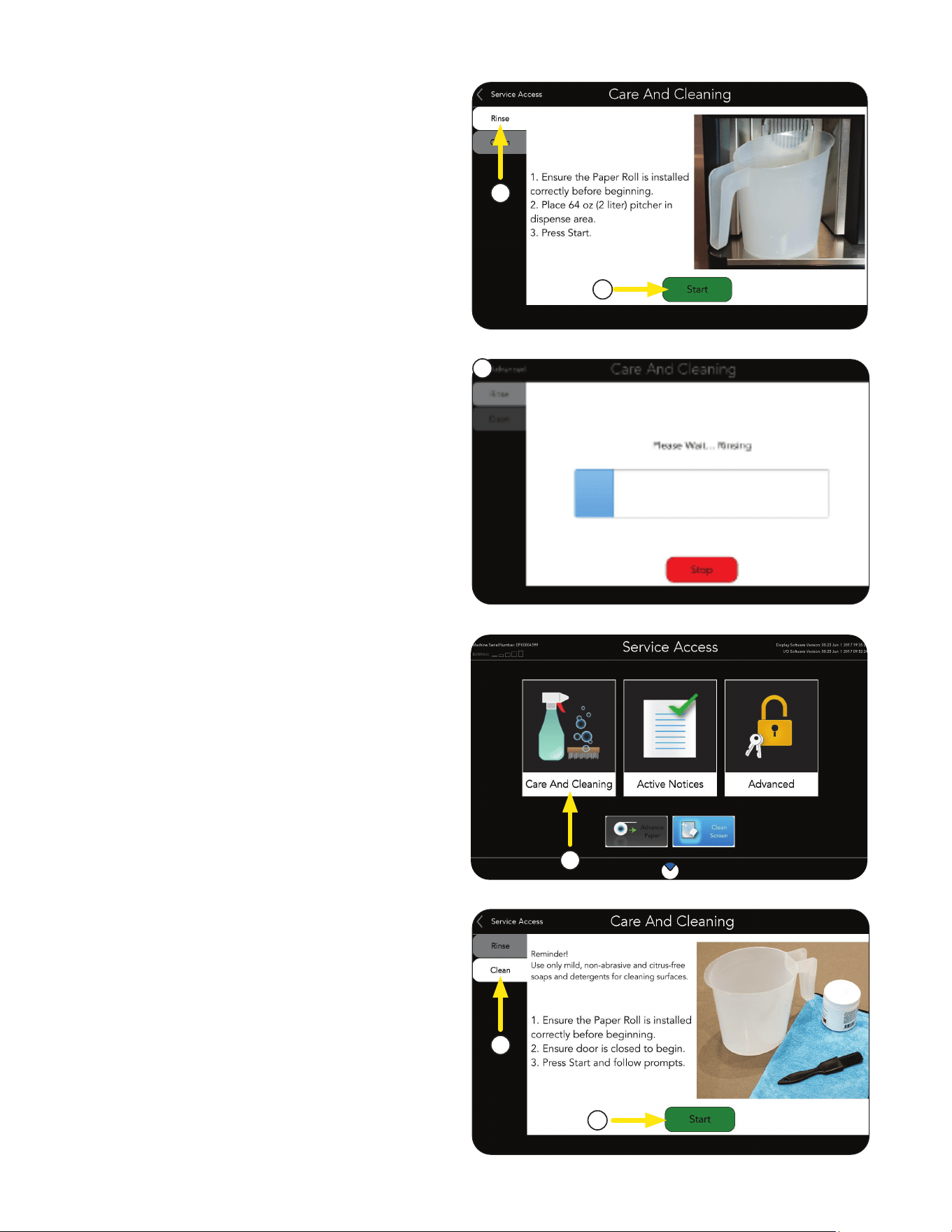
1. Press and hold the BUNN logo at the top
of the screen for 3 seconds to access the
SERVICE ACCESS screen.
1
2
Parts Washing
a. Remove and wash the drip tray and drip tray
cover in a mild detergent solution.
b. Rinse thoroughly.
c. Wipe the lower front panel, door, and cabinet
with a clean damp cloth.
CLEANING SUPPLIES INCLUDED WITH MACHINE
1. Brush and cloth for touchscreen cleaning.
2. Low foam tablets formulated specifically for
Sure Immersion systems.
2. From the SERVICE ACCESS screen, press the
CARE AND CLEANING button.
continued >
120122
Care and Cleaning
34
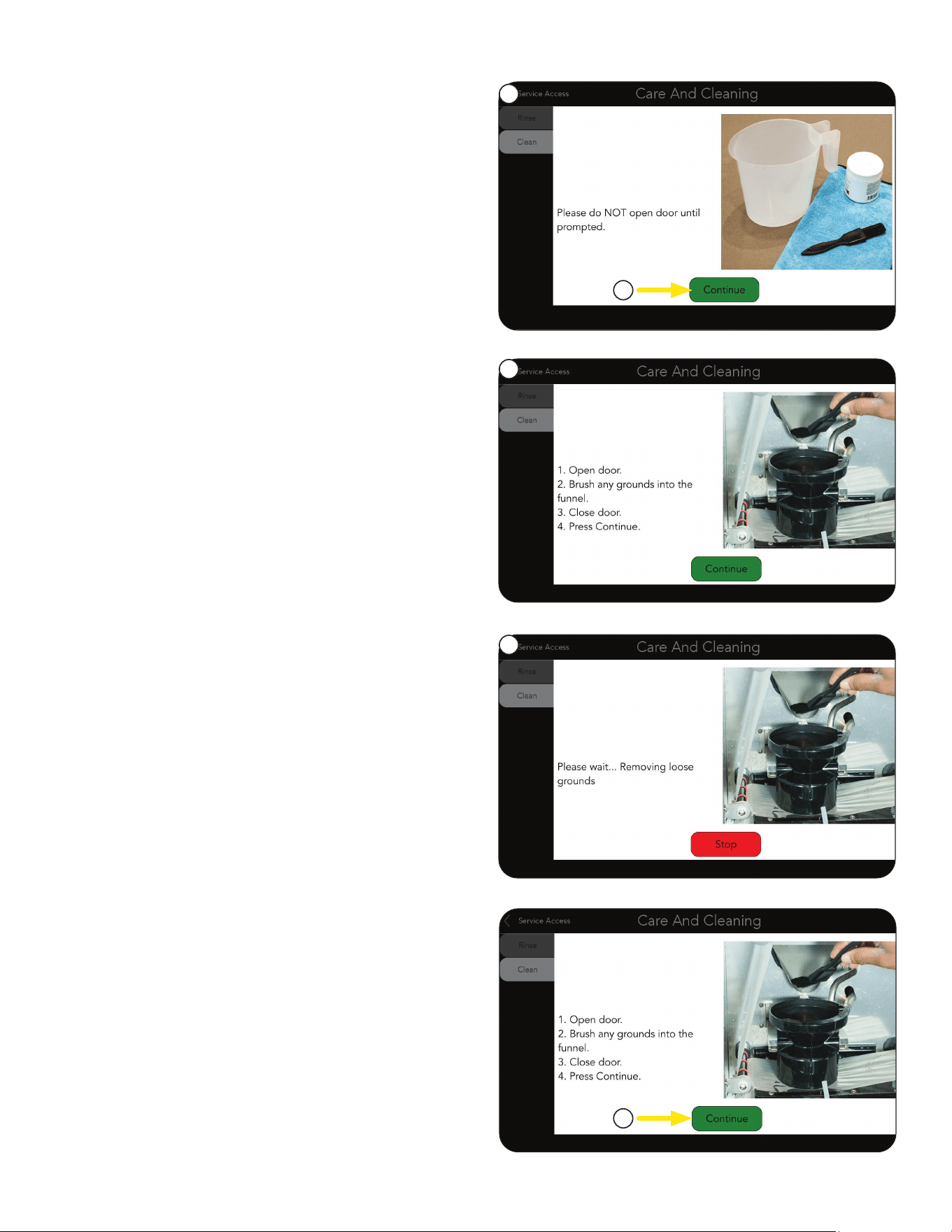
1. From the CARE AND CLEANING screen,
select the RINSE tab to prepare the equipment
for rinsing the Brew Funnel and Brew Box.
WEEKLY
SERVICE ACCESS
DAILY
1
1
2
3
1. From the SERVICE ACCESS screen, press the
CARE AND CLEANING button.
3. The CARE AND CLEANING screen will show
a progress bar with the message "Please
Wait - Rinsing".
2. Press the START button.
Follow the directions shown on the screen.
NOTE: If for any reason the rinsing process
needs to be halted, press the STOP button.
The machine will pause. The user will then
need to press the reset button to reset the
machine. Insure the 64oz (2 liter) pitcher is
ready to capture any water that is dispensed
during the reset sequence.
3. Press the START button to begin.
NOTE: In the upper left corner of the screen is
a back arrow button that will allow the user to
return to the previous Advanced Access screen.
2
3
2. From the CARE AND CLEANING screen,
select the CLEAN tab to prepare the equipment
for cleaning of the brew system.
Rinse Tab
Clean Tab
continued >
120122
35
4. Once the START button has been pressed, a
message saying "Please do NOT open door
until prompted" will be displayed.
SERVICE ACCESS
7. During the "Removing Loose Grounds" step,
there is no operator interaction.
After the step has been completed, the operator
will be prompted with a new screen.
4
6
7
6. Once the CONTINUE button has been pressed,
the operator will be presented with a new
screen indicating that the cleaning process
has begun, and to "Please Wait... Removing
Loose Grounds".
5
8
NOTE: If at any time during the cleaning
cycle, the process needs to be halted, press
the Stop button.
The machine will reset, and return to the
original start-up screen.
8. Press the CONTINUE button to resume the
cleaning process.
WEEKLY
Clean Tab
5. Press CONTINUE button.
NOTE: Once a cleaning process has started, the
user can not exit without completing the cleaning
or performing a Stop/Reset.
continued >
120122
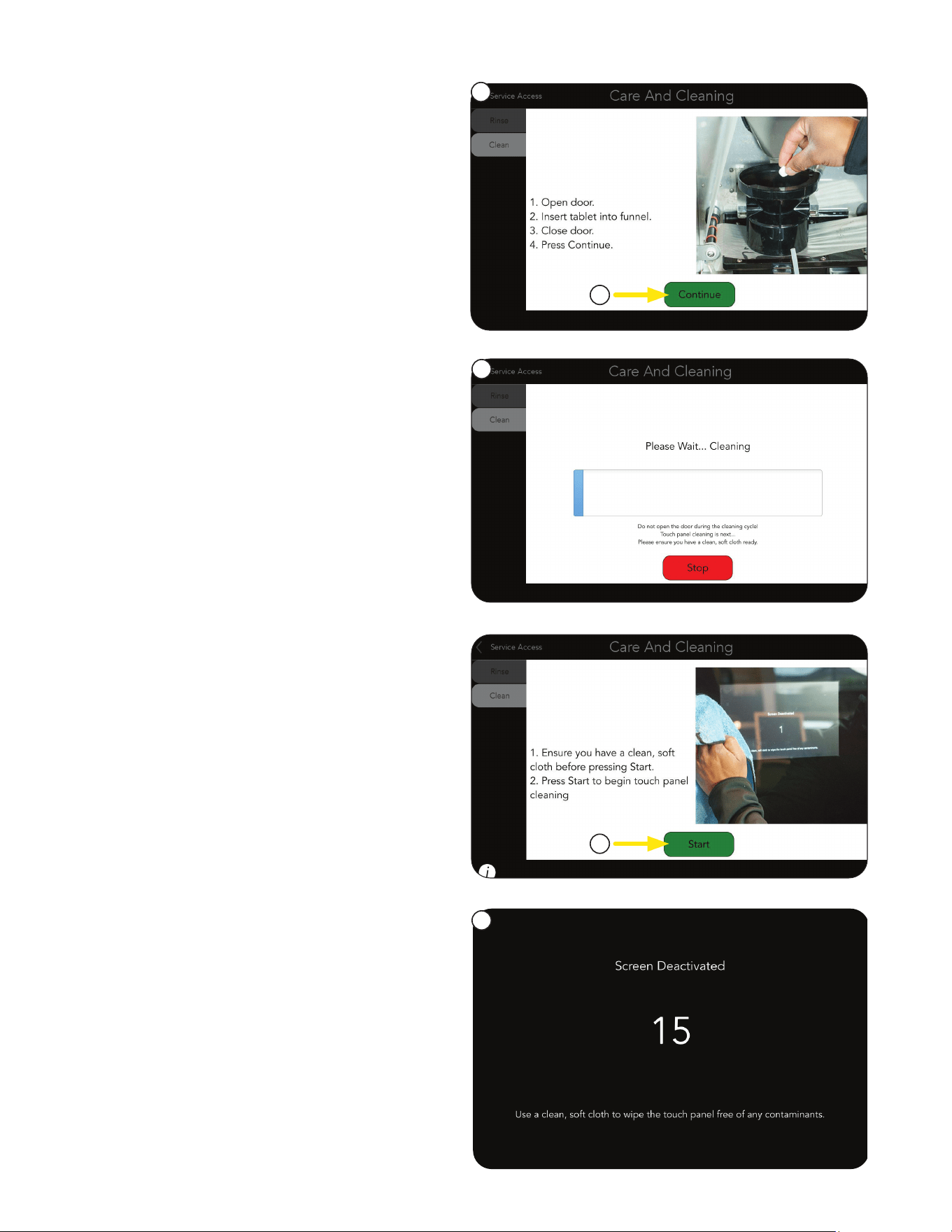
36
11. The operator will be shown a progress bar
with the message "Please Wait... Cleaning".
When finished, the screen will return to the
original startup screen.
10
NOTE: If at any time during the cleaning
cycle, the process needs to be halted, press
the STOP button.
The machine will reset, and return to the
original startup screen.
9. Following the steps to add a Cleaning Tablet.
10. Press CONTINUE button.
a. Open door.
b. Insert Cleaning Tablet into Funnel.
c. Close door.
9
11
2. Once the Start button is pressed, the Touch
Screen is deactivated for 15 seconds.
During this time, the screen will change and
provide a countdown allowing it to be cleaned
without activating any other operations.
NOTE: Clean the screen using the cloth provided
in the cleaning products. The Surface should
be free of debris and dry to the touch when
completed.
Once the allotted time for touch screen cleaning
has expired, the system will reset, and return to
the home screen.
With internal cleaning complete, the operator will
be prompted with a new screen to "Begin Cleaning
Touch Panel".
1. Press START button.
Touch Screen
1
2
SERVICE ACCESS
continued >
120122
37
WEEKLY
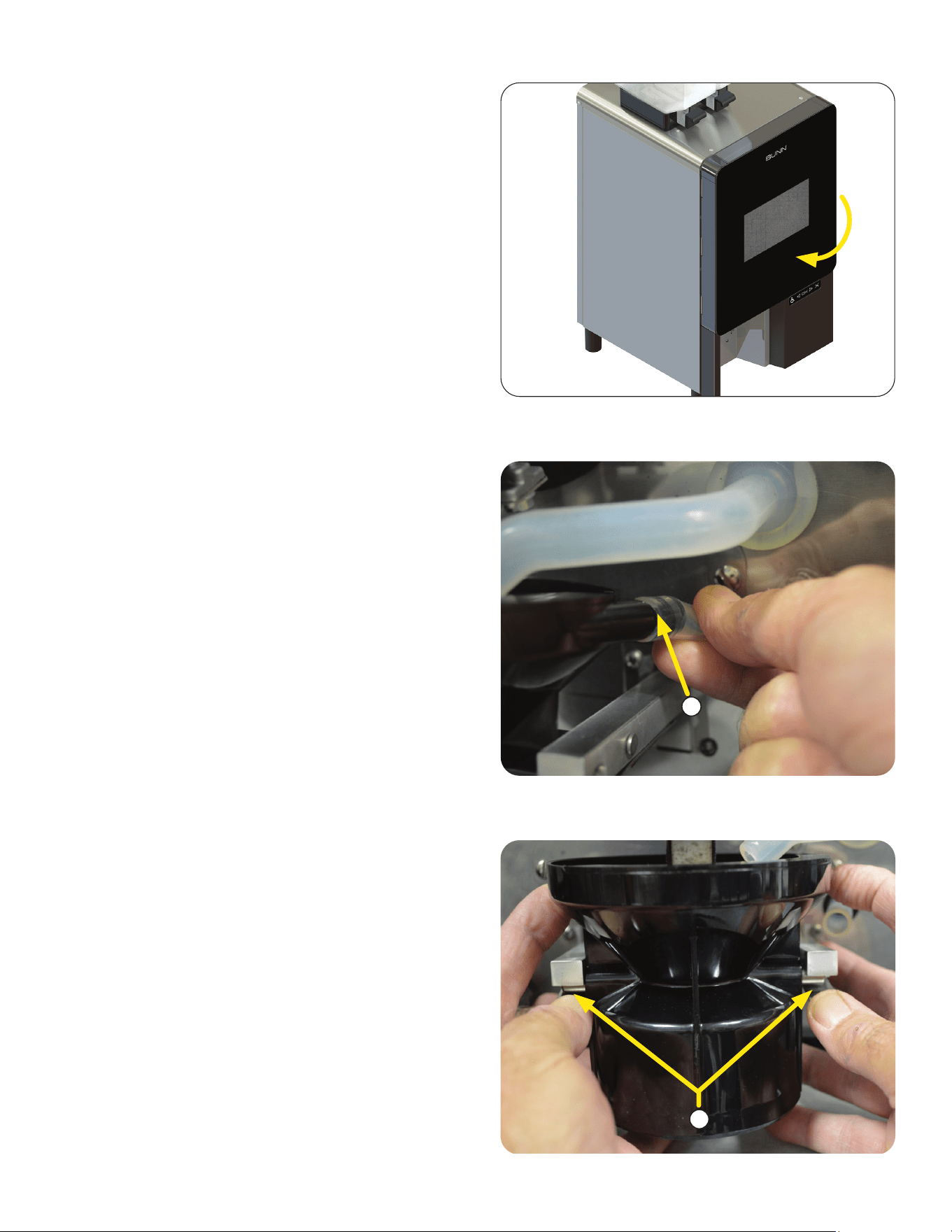
The Brew Funnel can be removed for a more
thorough cleaning. This is recommended weekly or
more often if required (heavy usage of the machine).
Brew Funnel - Removal and Washing
1. Open front door to remove Brew Funnel.
NOTE: Brew Funnel must be in the upper
position to be removed.
2
2. Slide the Rubber Hose (attached to the Brew
Funnel) towards the rear of the machine to
disconnect it from the Brew Funnel.
3. While pressing down on both Flat Springs under
the funnel arms, pull the funnel down and for-
ward to release it from the funnel arms.
3
SERVICE ACCESS
continued >
120122
38
4. Clean the funnel using any mild, non-abrasive,
liquid detergent. Do Not use abrasives to clean
as this can damage the surface of the funnel.
Rinse and Dry.
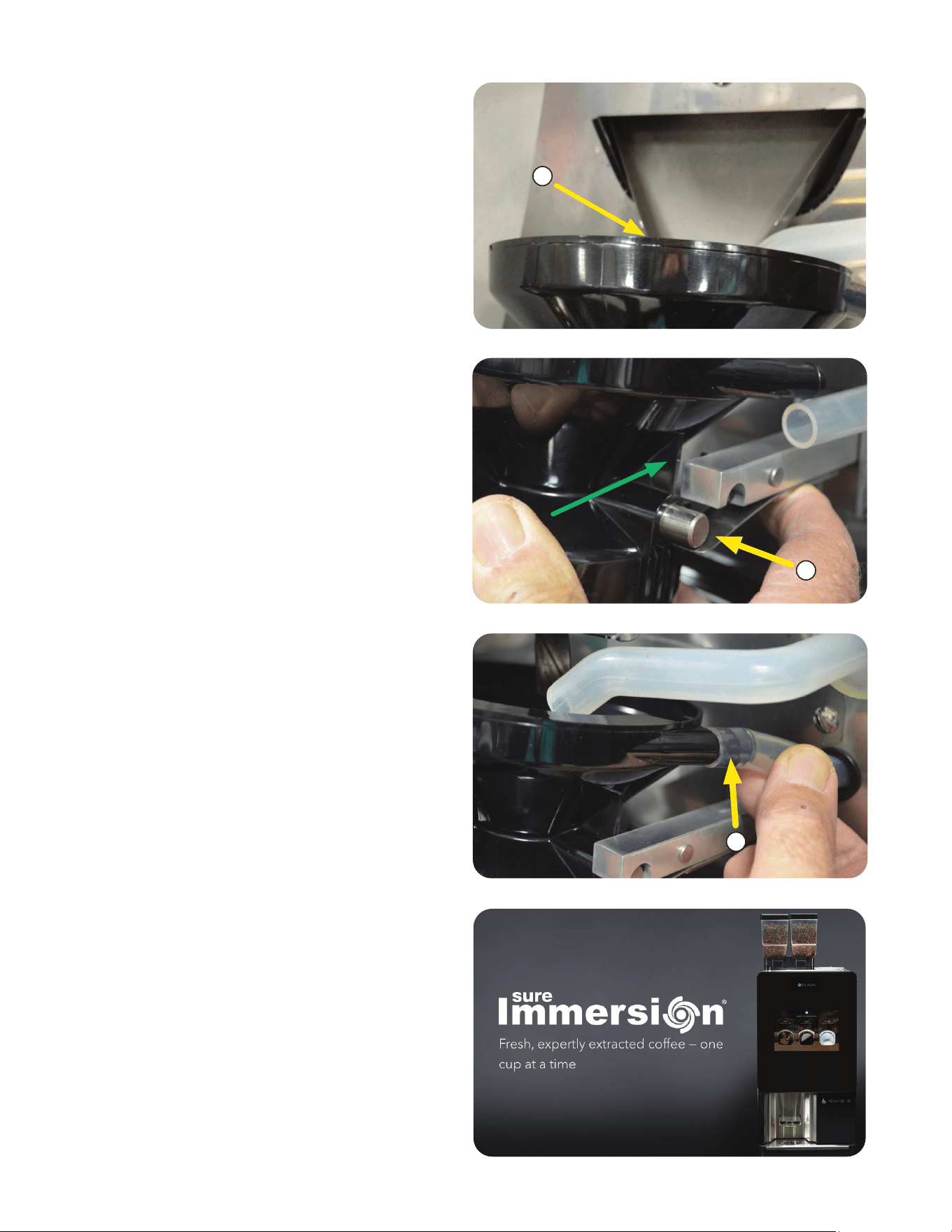
7. Reconnect the Rubber Hose by sliding it over
the funnel inlet fitting. The hose must be fully
engaged on the fitting.
8. Close the front door to resume normal operation.
5. To reinstall the funnel, tip the top edge of the
funnel under the Coffee Chute.
5
6
6. Place the Metal Pins on the Flat Springs.
Push down and toward the rear of the machine
to snap the funnel into the funnel arms.
7
continued >
120122
SERVICE ACCESS
Brew Funnel Cleaning
Preventive Maintenance
There is a recommended PM kit available. Refer to
the illustrated parts catalog on the BUNN website
for the Sure Immersion 220 to obtain part number
for ordering:
- Sure Immersion 220 12-Month Preventive
Maintenance Kit.
39
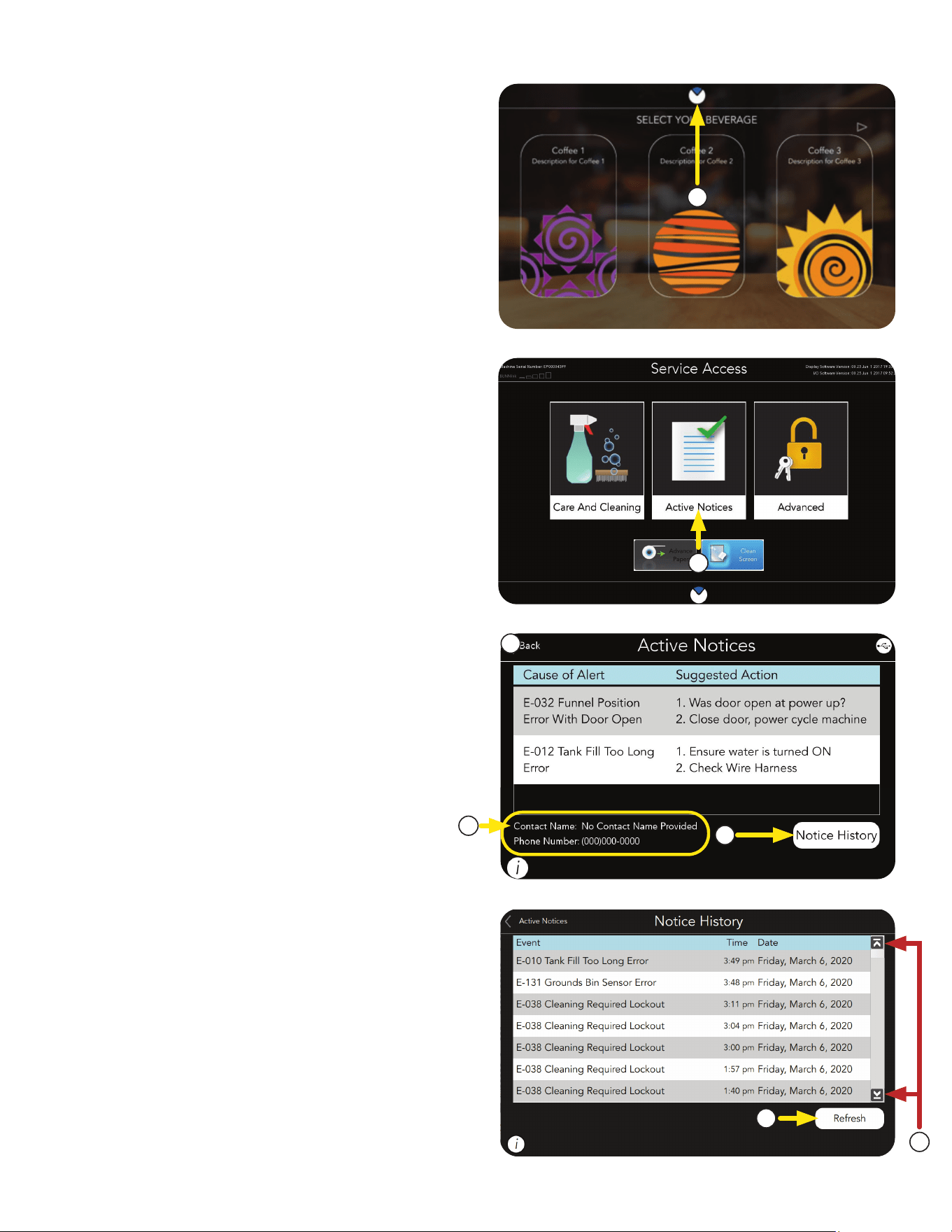
2. From the SERVICE ACCESS screen, press the
ACTIVE NOTICES button.
3. The ACTIVE NOTICES screen will display any
faults that have occurred by name & description,
and give probable causes, and a solution to
clear the fault.
4. A NOTICE HISTORY button is located in the
lower right portion of the screen, and can be
used to view previous events (Notices).
5. Service Contact information is
also provided.
Notice History
2
3
4
6. Use the UP or DOWN Arrows shown on the
right side of the screen to scroll through the
events list.
7. Press the Refresh button located in the lower
right portion of the screen to refresh the list.
6
7
5
This screen will display the event name, the date
it occurred, what time of the day it occurred, how
many times it happened, and the machine's state.
1. Press and hold the BUNN logo at the top
of the screen for 3 seconds to access the
SERVICE ACCESS screen.
1
NOTE: Pressing the BUNN icon will return the
user to the main screen.
120122
Active Notices
SERVICE ACCESS