.
Step 1:Press "Add Device" or press " ".
Step 2:When the device is found, press Add. The Bluetooth function must be enabled during this process.
)krowten G4.2 a esu ot erus eB(.krowten iF-iW ruoy tceleS:3 petS
Step 4:Enter your router password.
Step 5:Wait for connection and click "NEXT".
Step 6:Once the device is added, you can use the menu to change the name and location of the device.
Step 7:When you are finished, click "Done".
Step 1:Press "Add Device" or press " ".
Step 2:Select the corresponding product type and click the product diagram of the corresponding model.
+ -
G
3
Step 3:After the product is shut down, press " Next ".
Step 4: Long pressing " "and" - " on the control panel of the refrigerator for 3 seconds and
hearing one beep,Press "Next".
)krowten G4.2 a esu ot erus eB(.krowten iF-iW ruoy tceleS:5 petS
Step 6:Enter your router password.
Step 7:Click "Confirm." The next screen will say "Connect your mobile phone to the device's
hotspot."
Step 8:Click "Go to connect." This will take you to your phone's settings (or Wi-Fi list for Android).
Step 9:Select "SmartLife-XXXX."
Step 10:Navigate back to the QZsmart App.
Step 11:Click "Next." Your smartphone will automatically connect.
Step 12:Once the device is added, you can use the menu to change the name and location of the
device.
Step 13:When you are finished, click "Done."
+
-
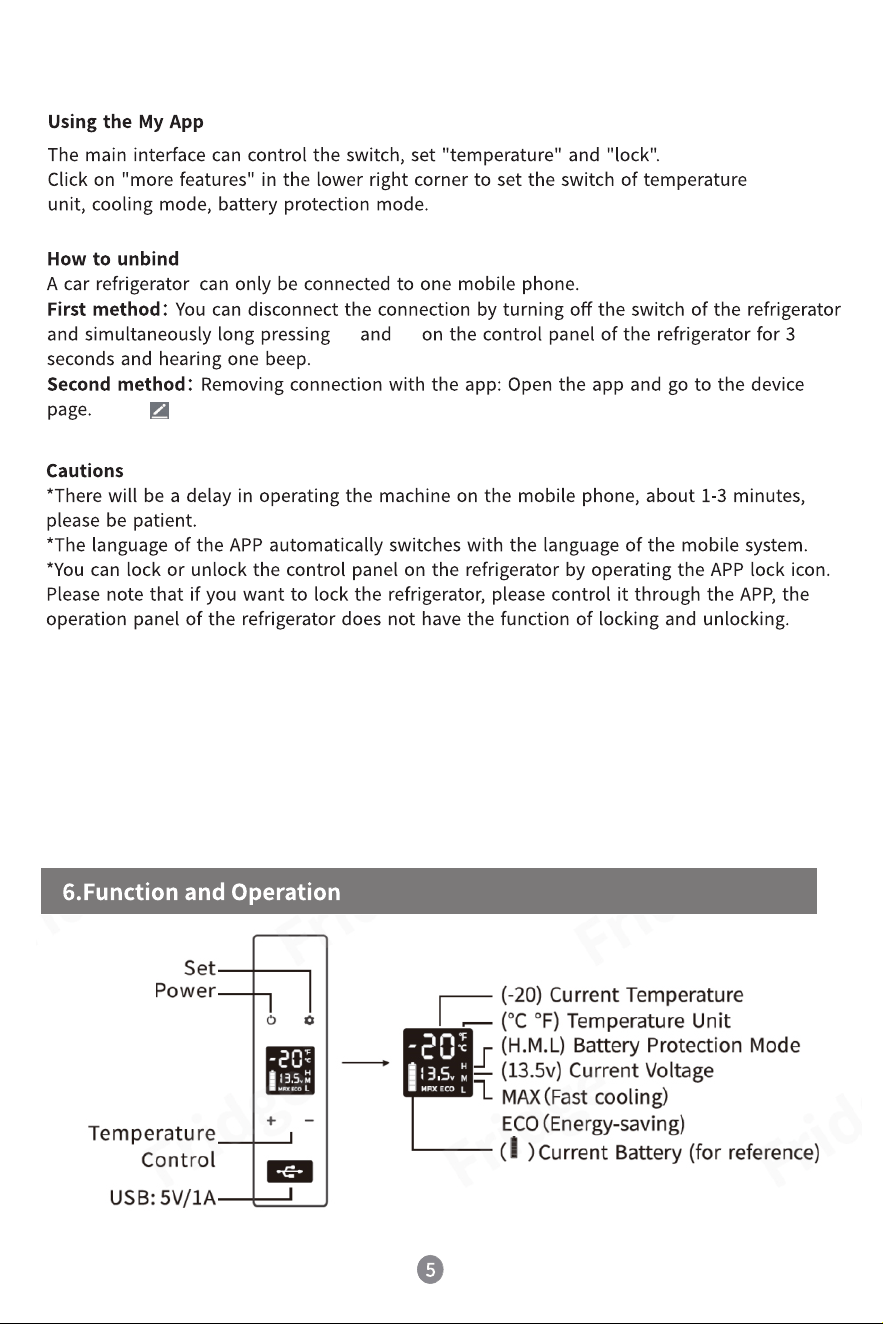
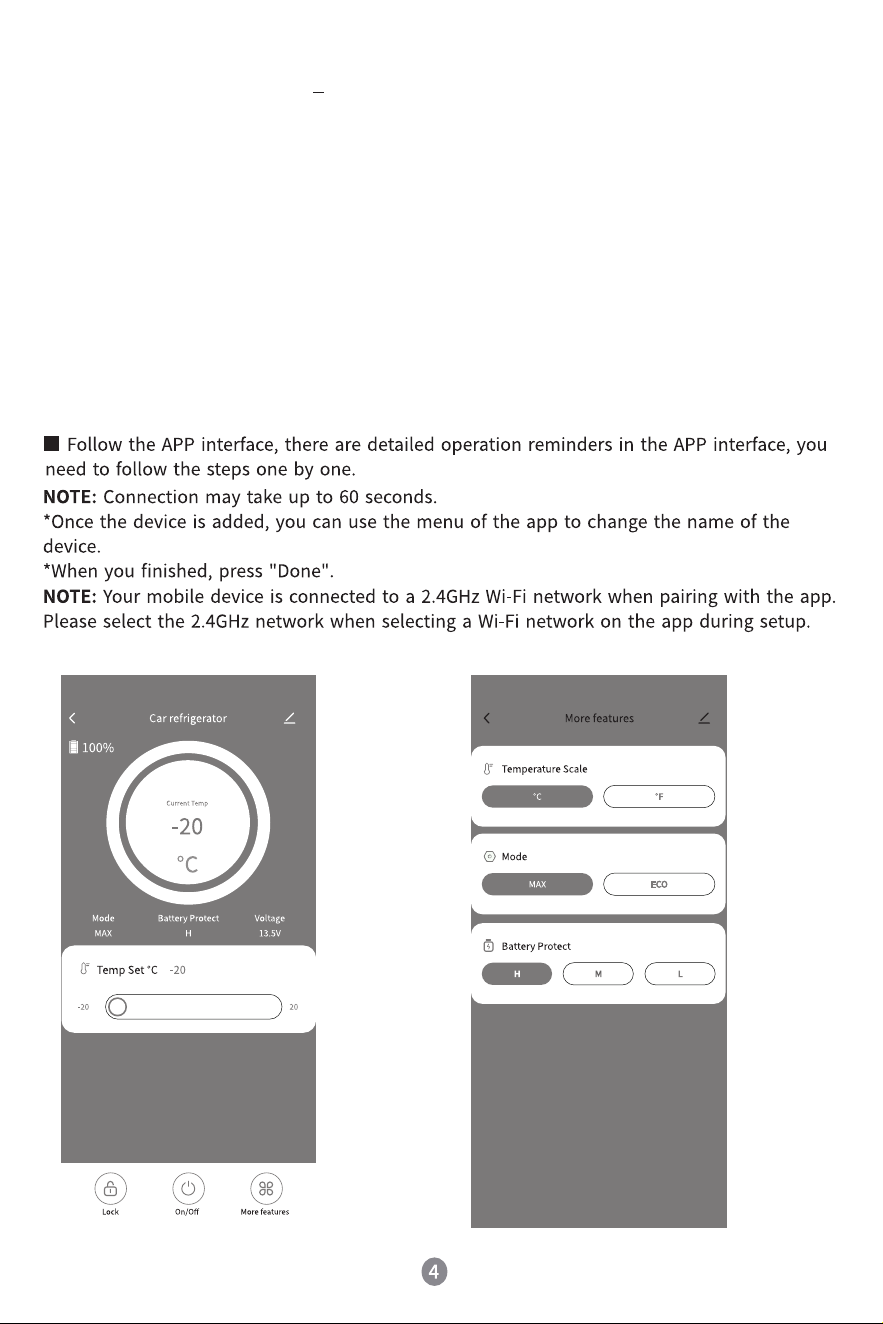
*This product includes WIFI plus Bluetooth function. Bluetooth function can be used in non-wifi
environment. If you need to use Bluetooth function, please be sure to connect WIFI 、successfully
for the first time. (Again, you must connect to WIFI first, otherwise you will not be able to use
Bluetooth in non-wifi environments.)
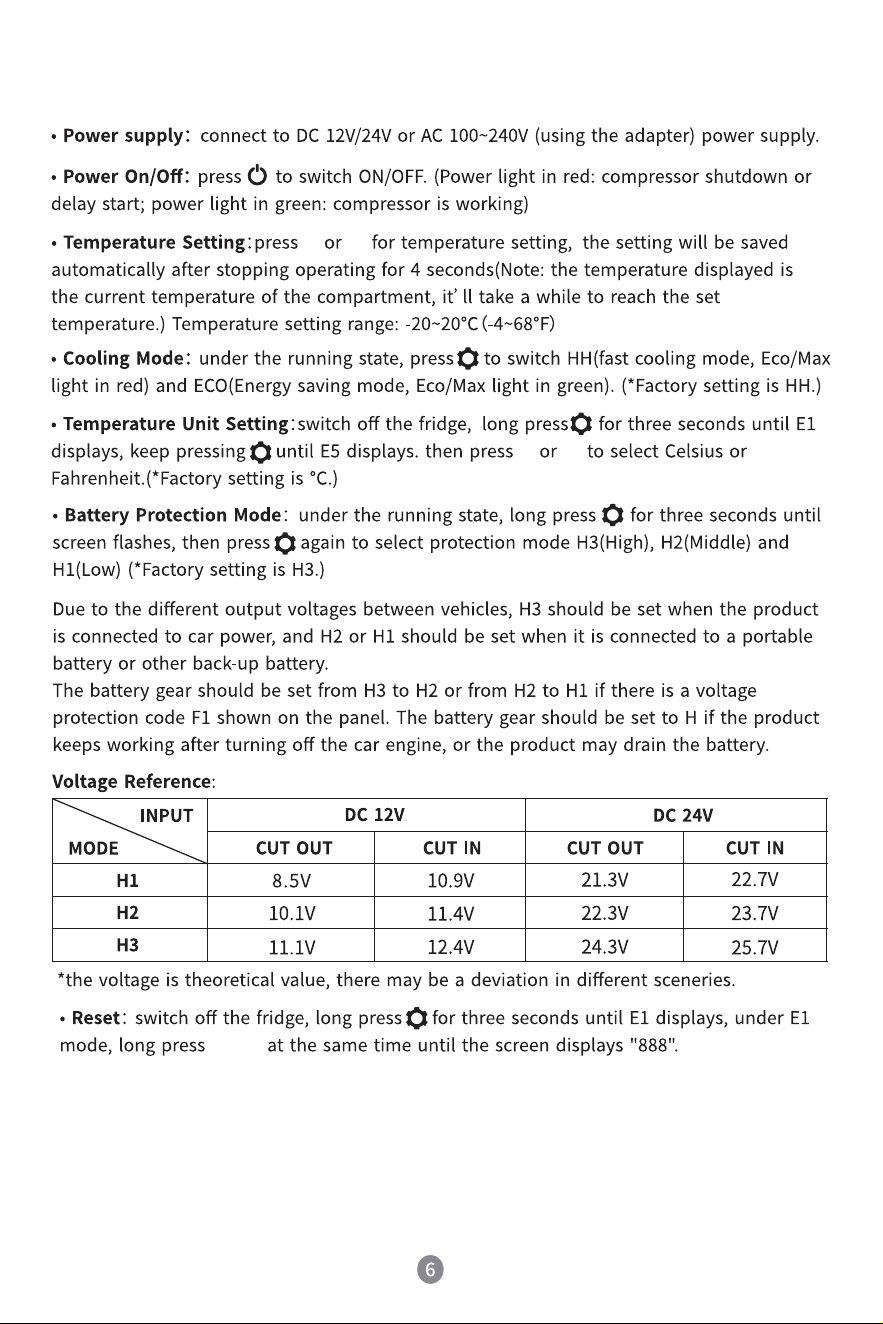
Click " " in the upper right corner, and then click "Remove Device" at the bottom.
+ -
+ -
+ -
+ -
10