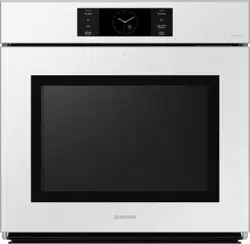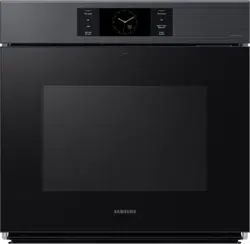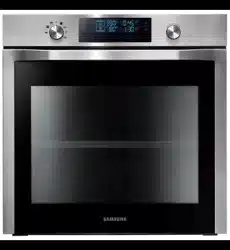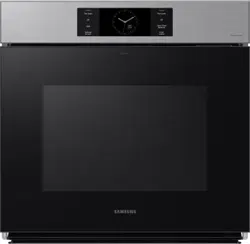
Built-In Electric Wall Oven
User manual
NV51**700S*

2 English
Regulatory Notice
FCC STATEMENT:
This equipment has been tested and found to comply within the limits
for a Class B digital device, pursuant to part 15 of the FCC Rules. These
limits are designed to provide reasonable protection against harmful
interference in a residential installation.
This equipment generates, uses, and can radiate radio frequency energy
and, if not installed and used in accordance with the instructions, may
cause harmful interference to radio communications. However, there is
no guarantee that interference will not occur in a particular installation.
If this equipment does cause harmful interference to radio or television
reception, which can be determined by turning the equipment off and
on, the user is encouraged to try to correct the interference by one or
more of the following measures:
• Reorienting or relocating the receiving antenna
• Increasing the separation between the equipment and receiver
• Connecting the equipment to an outlet that is on a different
• circuit than the radio or TV
• Consulting the dealer or an experienced radio/TV technician for
help.
1. FCC Notice
CAUTION
FCC CAUTION: Any changes or modications not expressly approved by
the party responsible for compliance could void the user’s authority to
operate the equipment.
This device complies with Part 15 of FCC Rules. Operation is Subject to
following two conditions:
1) This device may not cause harmful interference period.
2) This device must accept any interference received including interference
that cause undesired operation.
For products sold in the US and Canadian markets, only channels 1
~
11
are available. You cannot select any other channels.

English 3
Regulatory Notice
IC RADIATION EXPOSURE STATEMENT:
This equipment complies with IC RSS-102 radiation exposure limits
set forth for an uncontrolled environment. This equipment should be
installed and operated so there is at least 8 inches (20 cm) between
the radiator and your body. This device and its antenna(s) must not
be co-located or operated in conjunction with any other antenna or
transmitter.
FCC RADIATION EXPOSURE STATEMENT:
This equipment complies with FCC radiation exposure limits set forth
for an uncontrolled environment. This equipment should be installed
and operated so there is at least 8 inches (20 cm) between the radiator
and your body. This device and its antenna(s) must not be co-located or
operated in conjunction with any other antenna or transmitter.
2. IC Notice
The term “IC” before the radio certication number only signies
that Industry Canada technical specications were met. Operation is
subject to the following two conditions: (1) this device may not cause
interference, and (2) this device must accept any interference, including
interference that may cause undesired operation of the device.
This Class B digital apparatus complies with Canadian ICES-003.
For products sold in the US and Canadian markets, only channels 1
~
11
are available. You cannot select any other channels.

4 English
Contents
Contents
Important safety instructions 5
What you need to know about safety instructions 5
California Proposition 65 Warning 6
For your safety 6
Electrical safety 8
Child safety 8
Oven 9
Self-cleaning ovens 10
Ventilating hood 11
Critical installation warnings 11
Critical usage warning 12
Usage cautions 15
Critical cleaning warnings 17
Introducing your new oven 18
Overview 18
What’s included with your oven 18
Assembling the steam container (applicable models only) 19
Before you begin 20
Energy saving tips 20
Water reservoir 20
Push to open door 21
Camera In Oven (applicable models only) 22
Operating the oven 23
Control panel 23
Display 23
Control lockout 24
Kitchen Timer 24
How to change timer name 25
Timed cooking 26
Delay start 27
Using the Temp Probe 27
Twin cooking mode temperature setting ranges 29
Oven functions 30
Broiling recommendation guide 33
Air Fry 33
Setting the mode 35
Setting the temperature 36
Basic baking and broiling instructions 36
Steam Cook 38
Air Sous Vide 40
Convection Vegetable 41
Guided Cook feature 42
Using the special function feature 44
Using the smart control feature 45
Bixby 46
Amazon Alexa & Google Assistant 46
Installation Guide 46
Using the oven racks 47
Using the gliding rack 49
Using the divider 50
Using the clean feature 50
Steam-Cleaning 53
Settings 56
Using the sabbath feature 58
Maintaining your appliance 60
Care and cleaning of the oven 60
Removing the oven doors 62
Replacing the oven doors 63
Troubleshooting 64
Troubleshooting 64
Information codes 66
Warranty (U.S.A) 67
Warranty (CANADA) 69
Appendix 70
Open Source Announcement 70
English 5
Important safety instructions
READ AND SAVE THESE INSTRUCTIONS
CAUTION
To reduce the risk of re, explosion, electric shock, or personal injury
when using your oven, follow these basic safety precautions.
Do NOT attempt.
Do NOT disassemble.
Do NOT touch.
Follow directions explicitly.
Unplug the power plug from the wall socket.
Make sure the machine is grounded to prevent electric shock.
Call a Samsung service center for help.
Note
These warning signs are here to prevent injury to you and others. Please
follow them explicitly.
After reading this section, keep it in a safe place for future reference.
Important safety instructions
Read and follow all instructions before using your oven to prevent the
risk of re, electric shock, personal injury, or damage when using the
oven. This guide does not cover all possible conditions that may occur.
Always contact your service agent or the manufacturer about problems
that you do not understand.
WHAT YOU NEED TO KNOW ABOUT SAFETY INSTRUCTIONS
Warnings and important safety instructions in this manual do not
cover all possible conditions and situations that may occur. It is your
responsibility to use common sense, caution, and care when installing,
maintaining, and operating your oven.
Important safety symbols and precautions
What the icons and signs in this user manual mean:
WARNING
Hazards or unsafe practices that may result in severe personal injury or
death.
CAUTION
Hazards or unsafe practices that may result in minor personal injury or
property damage.
6 English
Important safety instructions
READ AND SAVE THESE INSTRUCTIONS
Important safety instructions
Always disconnect the power to the appliance before
servicing by removing the fuse or switching off the
circuit breaker.
• Do not enter the oven.
• Do not leave children alone. Never leave children
alone or unattended in an area where this
appliance is in use. They should never be allowed
to sit or stand on any part of the appliance.
• Never use your appliance for warming or heating
the room.
• Do not use water on grease res. Turn off the oven
to avoid spreading the ames. Smother the re or
ames by closing the door or use a dry chemical,
baking soda, or foam-type extinguisher.
• Avoid scratching or striking the glass doors and the
control panel. Doing so may lead to glass breakage.
Do not cook on a product with broken glass. Shock,
re, or cuts may occur.
CALIFORNIA PROPOSITION 65 WARNING
WARNING
Cancer and Reproductive Harm - www.P65Warnings.ca.gov.
FOR YOUR SAFETY
When using electrical appliances, you should follow
basic safety precautions, including the following:
CAUTION
•
Use this appliance only for its intended purpose as
described in this Owner’s Manual.
• Potentially hot surfaces include the oven vent
opening, surfaces near the opening, and crevices
around the oven door.
Proper Installation - Be sure your appliance is
properly installed and grounded by a qualied
technician.
User servicing - Do not repair or replace any part of
the appliance unless specically recommended in this
manual. All other servicing should be referred to a
qualied technician.
English 7
Important safety instructions
READ AND SAVE THESE INSTRUCTIONS
• Use only dry potholders. Placing moist or damp
potholders on hot surfaces may result in burns
from steam. Do not let the potholder touch hot
heating elements. Do not use a towel or other
bulky cloth instead of a potholder.
• Teach children not to play with the controls or any
other part of the oven.
• For your safety, do not use high-pressure water
cleaners or steam jet cleaners to clean any part of
the oven.
• If the power cord is damaged, it must be replaced
by the manufacturer, its service agent, or similarly
qualied persons to avoid creating a hazard.
• The appliance is not intended for use by persons
(including children) with reduced physical, sensory
or mental capabilities, or lack of experience
and knowledge, unless they have been given
supervision or instruction concerning use of the
appliance by a person responsible for their safety.
• If there is a re in the oven during self-cleaning,
turn the oven off and wait for the re to go out.
Do not force the door open. The introduction of
fresh air at self-cleaning temperatures may lead
to a burst of ame from the oven. Failure to follow
these instructions may result in severe burns.
• If the oven is heavily soiled with oil, self-clean the
oven before using the oven again. Leaving the oil in
place creates a risk of re.
• Wipe up heavy soil on the oven bottom with a
paper tower or rag before self-cleaning. Self-
cleaning the oven when there is heavy soil on the
oven bottom requires longer cleaning cycles and
produces more smoke.
• Storage in or on the appliance. Do not store
ammable materials in the oven or near the
surface units. Be sure all packing materials are
removed from the appliance before operating it.
Keep plastics, clothes, and paper away from parts
of the appliance that may become hot.
• Wear proper apparel. Never wear loose-tting or
hanging garments while using the appliance.
8 English
Important safety instructions
READ AND SAVE THESE INSTRUCTIONS
Important safety instructions
WARNING
Ensure that the appliance is switched off before replacing the
lamp to avoid possibility of an electric shock.
CHILD SAFETY
WARNING
•
This appliance is not intended for use by young
children or inrm persons without the adequate
supervision of a responsible adult.
• Young children should be supervised to ensure that
they do not play with the appliance.
• Keep children away from the door when opening or
closing it as they may bump themselves on the door
or catch their ngers in the door.
• During self-cleaning, the surfaces may get hotter
than usual. Keep small children away from the oven
when it is in the self-cleaning mode.
WARNING
Accessible parts may become hot during use. To avoid
burns, young children should be kept away.
ELECTRICAL SAFETY
• Use only the factory installed exible power cord to
connect to the power supply. Do not use a 3rd party
power supply cord kit.
• The appliance should be serviced only by qualied
service personnel. Repairs carried out by unqualied
individuals may cause injury or a serious malfunction.
If your appliance is in need of repair, contact a
Samsung authorized service center. Failure to follow
these instructions may result in damage and void the
warranty.
• Flush - mounted appliances may be operated only after
they have been installed in cabinets and workplaces
that conform to the relevant standards. This ensures
that the appliances are installed in compliance with the
appropriate safety standards.
• If your appliance malfunctions or if fractures, cracks, or
splits appear:
- Switch off the oven.
- Unplug the oven from the AC wall outlet.
- Contact your local Samsung service center.
English 9
Important safety instructions
READ AND SAVE THESE INSTRUCTIONS
• Use care when opening the door. Let hot air or steam
escape before you remove food from or put food into
the oven.
• Protective liners. Do not use aluminum foil to line the
oven bottoms, except as suggested in this manual.
Improper installation of these liners may result in a
risk of electric shock or re.
• Keep oven vent ducts unobstructed. The oven vent
is located above the right rear surface unit. This area
could become hot during oven use. Never block this
vent or place plastic or heat-sensitive items on it.
• Placement of oven racks. Always place oven racks in
the desired location while the oven is cool. If the rack
must be moved while the oven is hot, use potholders.
Do not let the potholders come in contact with the
hot heating element in the oven.
• Do not allow aluminum foil or a meat probe to contact
the heating elements.
• During use, the appliance becomes hot.
Care should be taken to avoid touching heating
elements inside the oven.
• Do not use harsh abrasive cleaners or sharp metal
scrapers to clean the oven door glass. They can
scratch the surface which may result in the glass
shattering.
OVEN
• DO NOT TOUCH THE HEATING ELEMENTS OR
INTERIOR SURFACES OF THE OVEN. Heating elements
may be hot even though they are dark in color.
Interior surfaces of an oven become hot enough to
cause burns. During and after use, do not touch or let
clothing or other ammable materials contact the
heating elements or interior surfaces of the oven until
they have had sufcient time to cool. Other surfaces
of the appliance may become hot enough to cause
burns. Among these surfaces are oven vent openings
and surfaces near these openings, the oven door, and
the window of the oven door.
• Do not heat unopened food containers. The build-
up of pressure may cause the container to burst and
result in injury.
• Do not use the oven to dry newspapers. If overheated,
newspapers can catch re.
• Do not use the oven for a storage area. Items stored in
an oven can ignite.
10 English
Important safety instructions
READ AND SAVE THESE INSTRUCTIONS
Important safety instructions
SELF-CLEANING OVENS
Do not clean the door gasket. The door gasket is essential
for a good seal. Care should be taken not to rub, damage, or
move the gasket.
• Never keep pet birds in the kitchen. Birds are extremely
sensitive to the fumes released during an oven self-
clean cycle. Fumes may be harmful or fatal to birds.
Move birds to a well-ventilated room.
• Clean only the parts listed in this manual in the self-
clean cycle. Before self-cleaning the oven, remove the
divider, rack, utensils, and any food.
• Before operating the self-clean cycle, wipe grease and
food soils from the oven. Excessive amounts of grease
may ignite, leading to smoke damage to your home.
• Do not use any commercial oven cleaner or oven liner
protective coating of any kind in or on the outside of the
oven.
• Remove the nickel oven shelves from the oven before
you begin the self-cleaning cycle or they may discolor.
• If the self-cleaning mode malfunctions, turn the oven
off and disconnect the power supply. Have it serviced by
a qualied technician.
• Excess spillage must be removed before you run the
self-cleaning cycle.
CAUTION
Do not attempt to operate the oven during a power failure.
If the power fails, always turn the oven off. If the oven is not
turned off and the power returns, the oven may begin to
operate again. Food left unattended could catch re or spoil.
English 11
Important safety instructions
READ AND SAVE THESE INSTRUCTIONS
• This appliance must be properly grounded.
• Do not ground the appliance to a gas pipe, plastic water
pipe, or telephone line.
- This may result in electric shock, re, an explosion,
or problems with the product
• Do not cut or remove the ground prong from the power
cord under any circumstances.
• Connect the oven to a circuit that provides the correct
amperage.
• Do not install this appliance in a humid, oily or dusty
location, or in a location exposed to direct sunlight or
water (rain drops).
- This may result in electric shock or re.
• Do not use a damaged power cord or loose wall socket.
- This may result in electric shock or re.
• Do not pull or excessively bend the power cord.
• Do not twist or tie the power cord.
• Do not hook the power cord over a metal object, place a
heavy object on the power cord, or insert the power cord
between objects.
- This may result in electric shock or re.
If the power cord is damaged, contact your nearest
Samsung service center.
VENTILATING HOOD
• Clean ventilating hoods frequently. Do not let grease
accumulate on the hood or lter.
• When flaming foods under the hood, turn the fan on.
CRITICAL INSTALLATION WARNINGS
WARNING
• This appliance must be installed by a qualied
technician or service company.
- Failing to have a qualied technician install the
oven may result in an electric shock, re, explosion,
problems with the product, or injury.
• Unpack the oven, remove all packaging material
and examine the oven for any damage such as dents
on the interior or exterior of the oven, broken door
latches, cracks in the door, or a door that is not lined
up correctly. If there is any damage, do not operate the
oven and notify your dealer immediately.
• Plug the power cord into a properly grounded outlet
with the proper conguration. Your oven should be the
only item connected to this circuit.
• Keep all packaging materials out of the reach of
children.
12 English
Important safety instructions
READ AND SAVE THESE INSTRUCTIONS
Important safety instructions
• If materials inside the oven should ignite, keep the
oven door closed, turn the oven off and disconnect
the power cord, or shut off power at the fuse or circuit
breaker panel. If the door is opened, the re may
spread.
• Always observe safety precautions when using your
oven. Never try to repair the oven on your own - there
is dangerous voltage inside. If the oven needs to be
repaired, contact an authorized Samsung service
center near you.
• If you use the appliance when it is contaminated by
foreign substances such as food waste, it may result in
a problem with the appliance.
• Use caution when removing the wrap around the food
taken out of the appliance.
- If the food is hot, hot steam may be emitted
abruptly when you remove the wrapping and
this may result in burns.
• Do not attempt to repair, disassemble, or modify the
appliance yourself.
- Since a high voltage current enters the
product chassis, it may result in electric
shock or re.
- When a repair is needed, contact your nearest
Samsung service center.
CRITICAL USAGE WARNING
CAUTION
• If the appliance is ooded by any liquid, please
contact your nearest Samsung service center. Failing
to do so may result in electric shock or re.
• If the appliance produces a strange noise, a burning
smell, or smoke, unplug the power plug immediately
and contact your nearest Samsung service center.
- Failing to do so may result in electric shock or
re
• In the event of a gas leak (such as propane gas, LP gas,
etc.), ventilate the area immediately. Do not touch the
power cord. Do not touch the appliance.
- A spark may result in an explosion or re.
• Be careful not to contact the oven door, heating
elements, or any of the other hot parts with your body
while cooking or just after cooking.
- Failing to do so may result in burns.
English 13
Important safety instructions
READ AND SAVE THESE INSTRUCTIONS
• Do not touch the inside of the appliance
immediately after cooking. The inside of the
appliance will be hot.
- Failing to do so may result in burns.
• Do not use or place ammable sprays or objects
near the oven.
- Flammable items or sprays can cause re or
an explosion.
• Do not insert ngers, foreign substances, or metal
objects such as pins or needles into inlets, outlets,
or holes. If foreign substances are inserted into any
of these holes, contact your product provider or
nearest Samsung service center.
• Do not tamper with or make any adjustments or
repairs to the door. Under no circumstances should
you remove the door or outer shell of the oven.
• Do not store or use the oven outdoors.
• Never use this appliance for purposes other than
cooking.
- Using the appliance for any purpose other
than cooking may result in re.
• If any foreign substance such as water has entered
the appliance, contact your nearest Samsung
service center.
- Failing to do so may result in electric shock or
re.
• Do not touch the power cord with wet hands.
- This may result in electric shock.
• Do not turn the appliance off while an operation is
in progress.
- This may cause a spark and result in electric
shock or re.
• Do not let children or any person with reduced
physical, sensory, or mental capabilities use this
appliance unsupervised.
• Make sure that the appliance’s controls and cooking
areas are out of the reach of children.
- Failing to do so may result in electric shock,
burns, or injury.
14 English
Important safety instructions
READ AND SAVE THESE INSTRUCTIONS
Important safety instructions
• Do not apply excessive pressure to the door or the
inside of the appliance. Do not strike the door or the
inside or the appliance.
- Hanging on to the door may result in the
product falling and cause serious injury.
- If the door is damaged, do not use the
appliance. Contact a Samsung service center.
• Do not hold food in your bare hands during or
immediately after cooking.
- Use cooking gloves. The food may be very hot
and you could burn yourself.
- As the handle and oven surfaces may be hot
enough to cause burns after cooking, use
cooking gloves to protect your hands from
burns.
• Open the cap or stopper of sealed containers (herb
tonic tea bottle, baby bottle, milk bottle and so on)
before heating them. Make a hole in food items
that have shells (eggs, chestnuts, etc) with a knife
before cooking them.
- Failing to do so may result in burns or injury.
• Never heat plastic or paper containers and do not
use them for cooking.
- Failing to do so may result in re.
• Do not heat food wrapped in paper from magazines,
newspapers, etc.
- This may result in re.
• Do not open the door when the food in the oven is
burning.
- If you open the door, it causes an inow of
oxygen and may cause the food to ignite.
English 15
Important safety instructions
READ AND SAVE THESE INSTRUCTIONS
• Use caution when heating liquids such as water
or other beverages.
- Make sure to stir during or after cooking.
- Avoid using a slippery container with a
narrow neck.
- Wait at least 30 seconds after heating before
removing the heated liquid.
- Failing to do so may result in an abrupt
overow of the contents and cause burns.
USAGE CAUTIONS
CAUTION
• If the surface is cracked, turn the appliance off.
- Failing to do so may result in electric shock.
• Dishes and containers can become hot. Handle
with care.
• Hot foods and steam can cause burns. Carefully
remove container coverings, directing the steam
away your hands and face.
• Remove lids from baby food jars before heating.
After heating baby food, stir well to distribute
the heat evenly. Always test the temperature by
tasting before feeding the baby. The glass jar or
the surface of the food may appear to be cooler
than the interior, which can be hot enough to
burn an infant’s mouth.
• Beverages or food may be very hot after heating.
- Especially when feeding a child, make sure
the food or beverage has cooled sufciently.
16 English
Important safety instructions
READ AND SAVE THESE INSTRUCTIONS
Important safety instructions
• Do not put your face or body close to the
appliance while cooking or when opening the
door just after cooking.
- Do not let children come too close to the
appliance.
- Failing to do so may result in a burn.
• Do not place food or heavy objects over the edge
of the oven door.
- If you open the door, the food or object may
fall and this may result in burns or injury.
• Do not abruptly cool the door, the inside of the
appliance, or a dish by pouring water over it
during or just after cooking.
- This may result in damage to the appliance.
The steam or water spray may result in burns
or injury.
• Do not operate while empty except for self-
cleaning.
• Do not defrost frozen beverages in narrow-
necked bottles as bottles can break.
• Do not scratch the glass of the oven door with a
sharp object.
- This may result in the glass being damaged
or broken.
• Do not stand on top of the appliance or place
objects (such as laundry, an oven cover, lighted
candles, lighted cigarettes, dishes, chemicals,
metal objects, etc.) on the appliance.
- Items, such as a cloth, may get caught in the
door.
- This may result in electric shock, re,
problems with the product, or injury.
• Do not operate the appliance with wet hands.
- This may result in electric shock.
• Do not spray volatile substances such as
insecticide onto the surface of the appliance.
- These substances are not only harmful, but
may also result in electric shock, re, or
problems with the product.
English 17
Important safety instructions
READ AND SAVE THESE INSTRUCTIONS
• Do not store anything directly on top of the
appliance when it is in operation.
• Do not use sealed containers. Remove seals
and lids before cooking. Sealed containers can
explode due to the build up of pressure even
after the oven has been turned off.
• Make sure the food you are cooking in the oven
does not come into contact with the heating
element.
- This may result in re.
• Do not over-heat food.
- Overheating food may result in re.
• Use caution when opening or closing the door.
Your ngers may be pinched, resulting in
physical injury.
• The door reveals wires at the bottom for
connecting LED lights. So use caution not to pull
or cut the wires when handling the door.
CRITICAL CLEANING WARNINGS
CAUTION
• Do not clean the appliance by spraying water directly on to it.
• Do not use benzene, thinner, or alcohol to clean the appliance.
- This may result in discoloration, deformation, damage,
electric shock, or re.
• Be cautious not to hurt yourself when cleaning the appliance
(externally or internally).
- You may hurt yourself on the sharp edges of the appliance.
• Do not clean the appliance with a steam cleaner.
- This may result in corrosion.
• Keep the inside of the oven clean. Food particles or spattered
oils stuck to the oven walls or oor can cause paint damage
and reduce the efciency of the oven.
18 English
Introducing your new oven
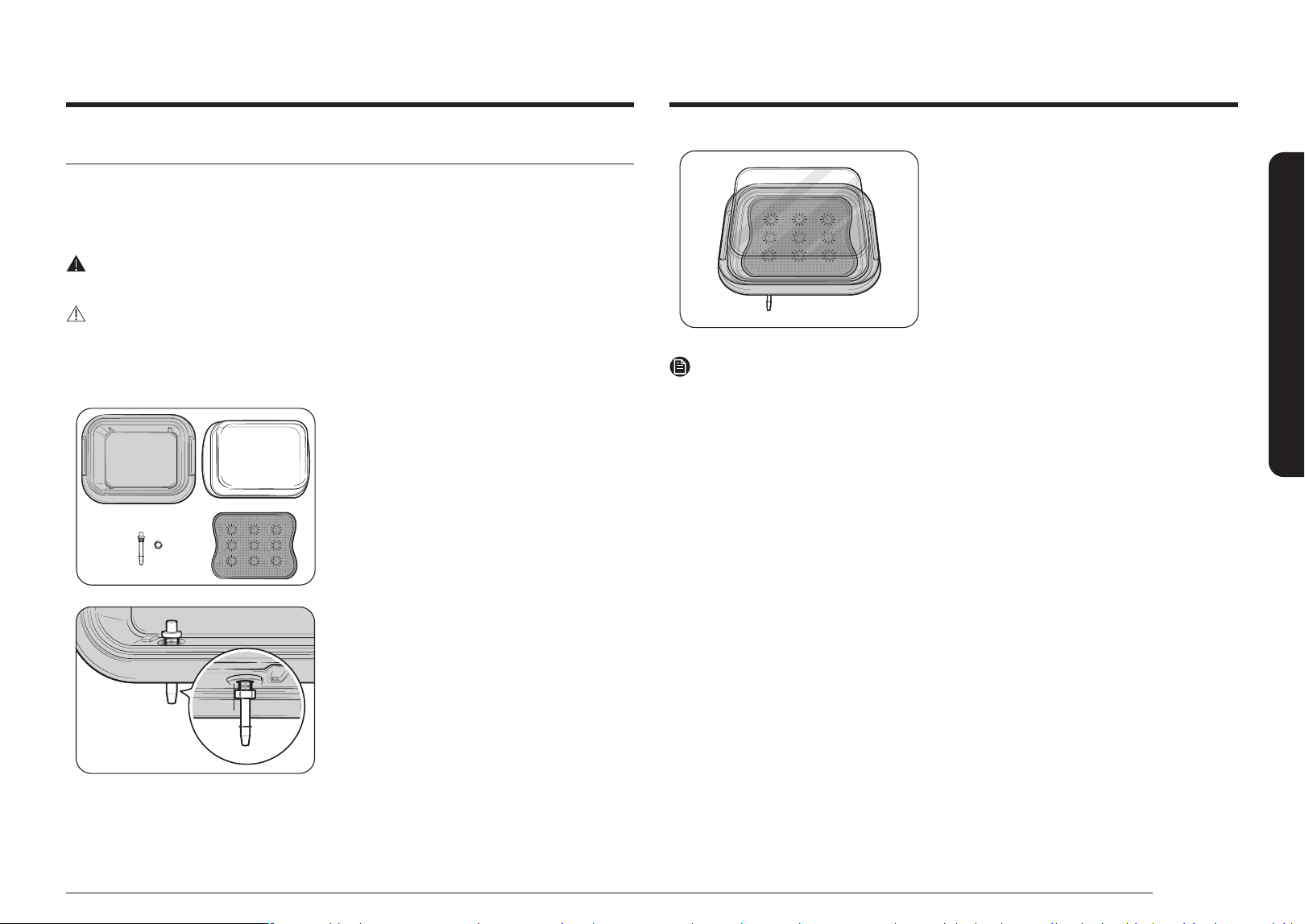
What’s included with your oven
Wire rack (1)* Gliding rack (1)* Divider (1)*
Temp Probe (1)* Air Fry tray (1)* Wire Rack Steam (1)*
NOTE
If you need an accessory marked with a *, you can purchase by calling the Samsung Contact
Center (1-800-726-7864 or www.samsung.com/us/support).
Introducing your new oven
Overview
01
02
03
04
10
06
07 0805
09
01 Oven control panel 02 Oven door 03 Oven gasket
04 Door LED light 05 LED lamp 06 Camera
07 Door latch 08 Water reservoir 09 Convection fan
10 Rack position
English 19
Introducing your new oven
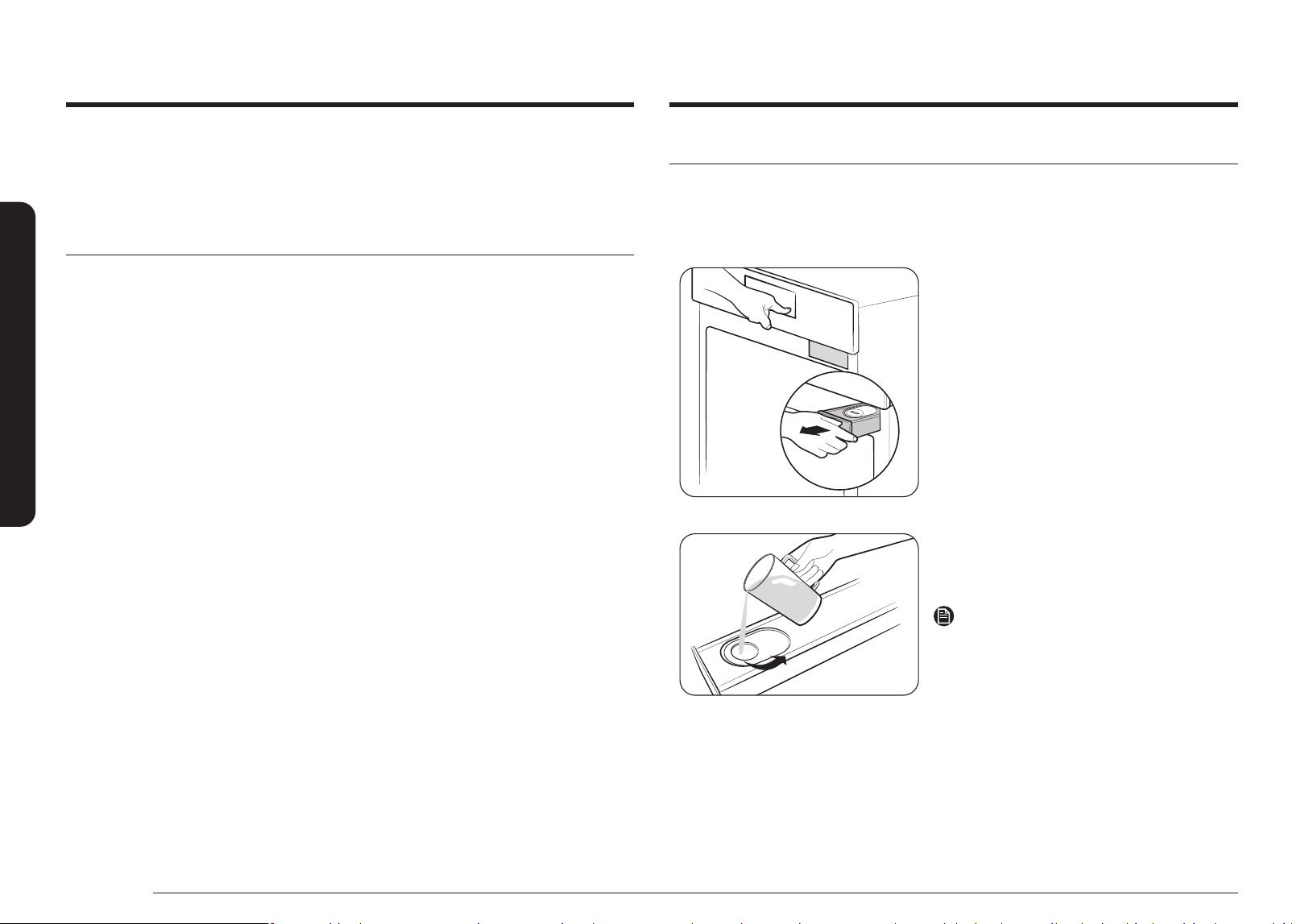
3. Put the steam tray in the metal pan, and
then close the glass lid to use it in the oven.
NOTE
If you need a steam container, you can purchase by calling the Samsung Contact Center (1-
800-726-7864 or www.samsung.com/us/support).
Assembling the steam container (applicable models only)
The Steam container and glass lid are only for full steam cook function. Use the Steam
container on the Wire rack steam only and make sure to insert fully into the comparment so
the container touches the rear wall.
The steam container has 4 separate parts : Glass lid, metal pan, steam tray, and steam nozzle.
WARNING
Do not use glass lid for broiling, baking. Use the Steam cook mode only.
CAUTION
• Always wear oven mittens when handling the steam container and be careful not to drop
the steam container.
• Sudden temperature changes could cause glass parts to break or shatter.
1. Check and make sure you have all the parts
for the steam container.
• Parts includes glass lid, metal pan,
steam tray, and steam nozzle.
2. Insert the steam nozzle to the hole on the
right-rear side of the metal pan, and then
tighten the provided nut.
20 English
Before you begin
Before you begin
Clean the oven thoroughly before using it for the rst time. Then, remove the accessories, set
the oven to Bake, and then run the oven at 400 °F for 1 hour. There will be a distinctive odor.
This is normal.
Ensure your kitchen is well ventilated during this conditioning period.
Energy saving tips
• During cooking, the oven door should remain closed except when you turn food over. Do
not open the door frequently during cooking to maintain the oven temperature and to
save energy.
• If cooking time is more than 30 minutes, you can switch the oven off 5 - 10 minutes
before the end of the cooking time to save energy. The residual heat will complete the
cooking process.
• To save energy and reduce the time needed for re-heating the oven, plan oven use to
avoid turning the oven off between cooking one item and the next.
• Whenever possible, cook more than one item at a time.
Water reservoir
The water reservoir is used for the Steam Bake, Steam Roast, Steam Cook and Steam Proof
functions and also to remove water scale that may form on the oven walls, especially after
Steam Baking, Steam Roasting, Steam Cooking and Steam Proong. Fill it with water before
steam cooking or descaling.
1. Locate the water reservoir. The water
reservoir is on the right side of the oven, just
above the oven opening. Touch Open/Close
Reservoir on the control panel to eject the
water reservoir.
Grab the front of the reservoir, and then slide
it out to remove.
2. Open the reservoir cap, and then ll the
reservoir with 22 oz (650ml) of drinkable
water.
NOTE
You can open the reservoir by removing the
rubber cap or by removing the clear plastic top.
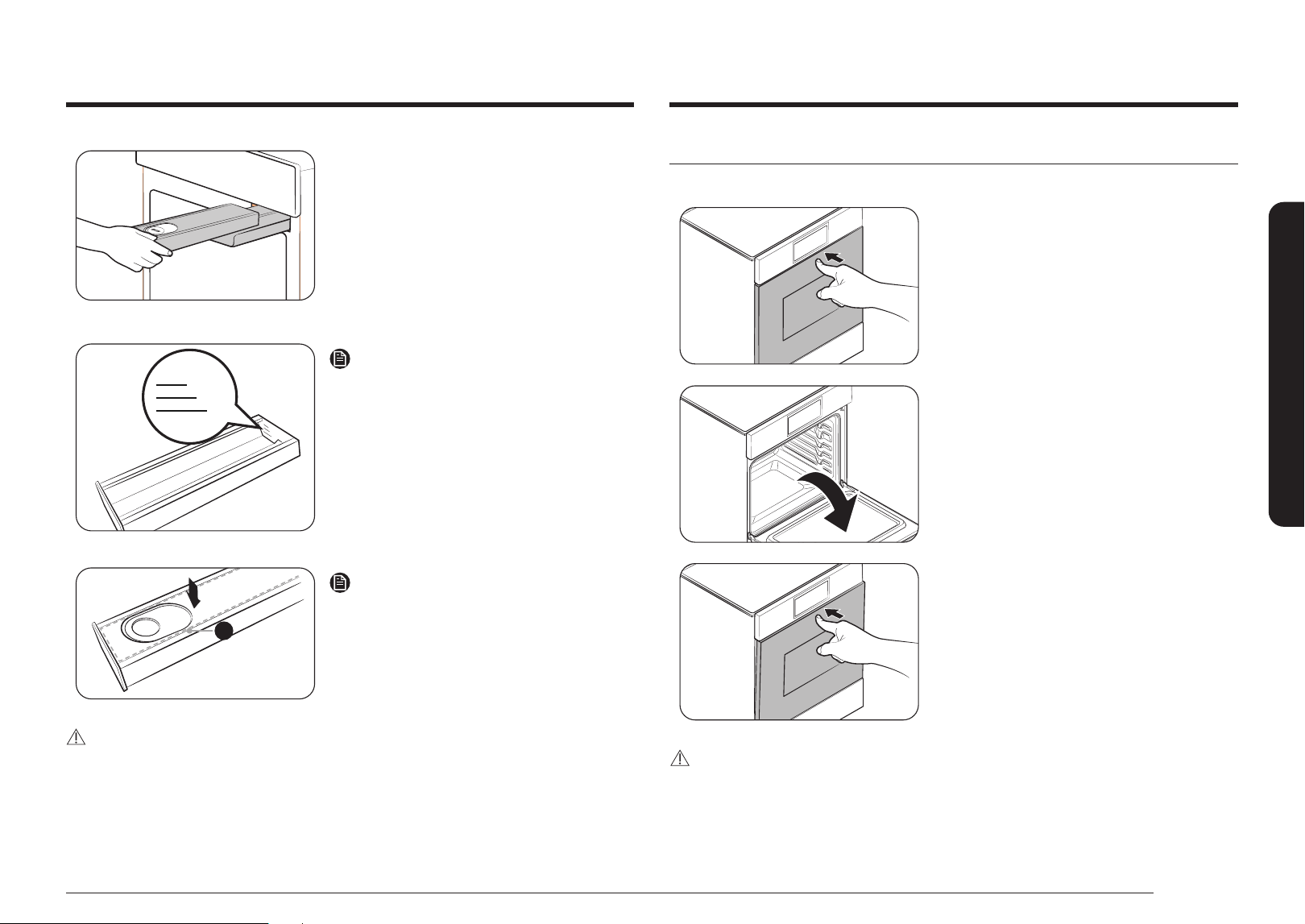
English 21
Before you begin
3. Replace the cap or the clear plastic top, and
then slide the water reservoir back into the
reservoir slot.
4. Push the reservoir in. There will be soft click
when it is in place correctly. Touch Open/
Close Reservoir. The oven retracts the water
reservoir.
5. Close the oven door.
Max
0.5L
0.3L
NOTE
Do not exceed the max line.
A
NOTE
Make sure the cap and the upper portion of the
water reservoir (labeled A) are closed before using
the oven.
CAUTION
The water reservoir becomes hot during cooking. Make sure you wear oven gloves to remove
or rell the water reservoir.
Push to open door
Push to open door can be opened and closed by simply pressing it.
1. Press the upper side of the door.
2. The door slowly open.
3. To close the door, press the upper side of the
door again.
CAUTION
You can get hurt when the door opens and closes.
Make sure you keep your distance from it.
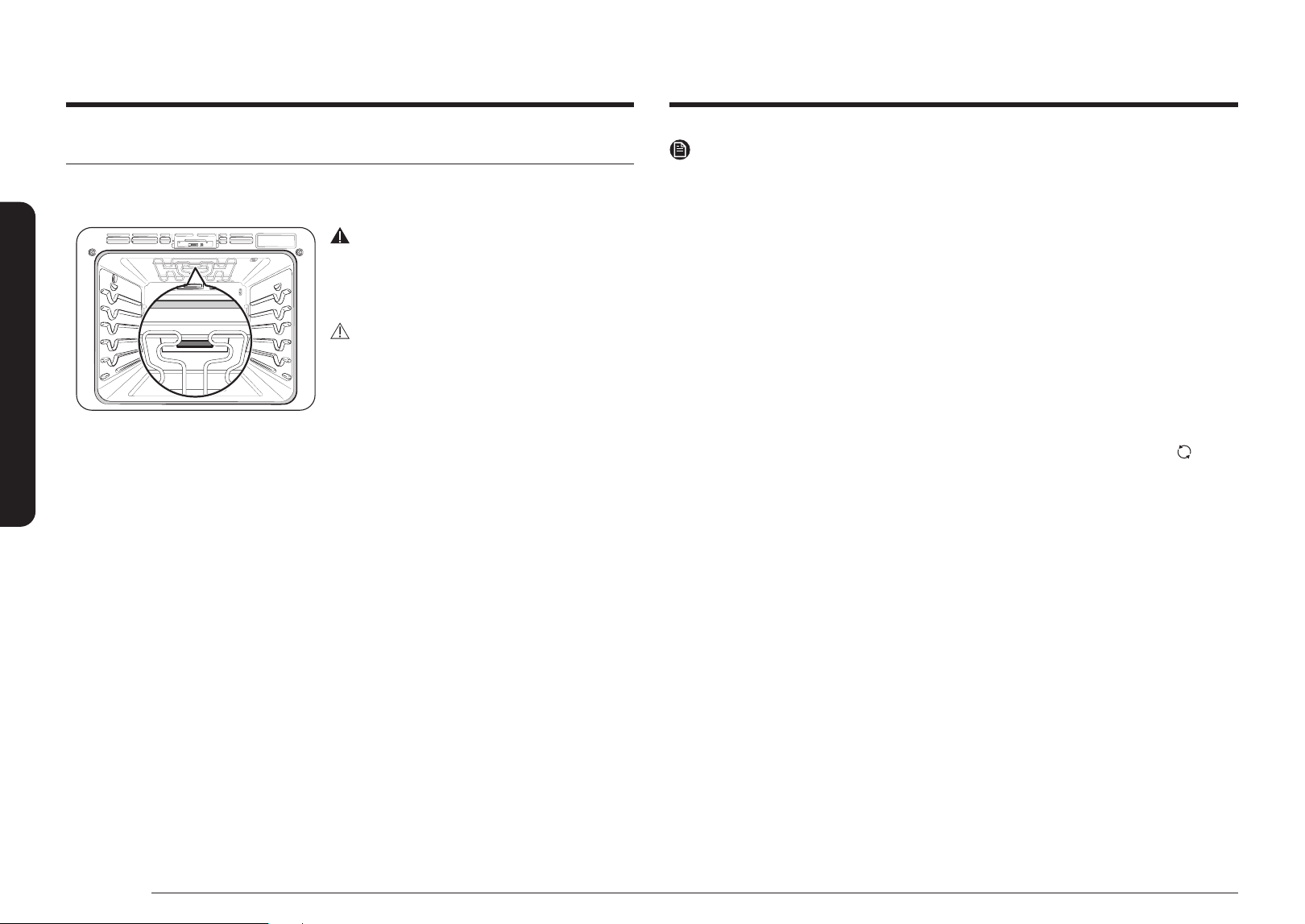
22 English
Before you begin
Before you begin
NOTE
•
The camera may not recognize the food depending on the dish. In this case, use the
Guided Cook functions.
• For optimal camera recognition, clean the transparent cover of the camera and upper
LED light on the ceiling inside oven on the regular basis.
• Clean the inside of the oven after it completely cools down.
• Do not wipe too hard when cleaning the transparent cover of the camera. It may cause
scratches or other damage.
• Do not disassemble the transparent cover of the camera for cleaning purposes. It may
cause the camera to malfunction.
• While the Live Streaming feature is on, the food image from the camera may be steamed
or fogged up depending on the food.
• While the Live Streaming feature is on, the food image may break off or pause due to a
weak Wi-Fi signal depending on the product's distance to the router. Press the
button
to refresh the image.
• Depending on the router/network condition, the food image may break or pause.
A connection over 5GHz Wi-Fi helps you enjoy the product without affecting the
experience.
• Objects between the product and the router may affect the Live Streaming image
quality. Please check if the internet upload speed is consistently over 30 Mbps at the
product location.
• If the streaming image quality is low on your mobile device, please check if the download
speed is at least 30 Mbps.
• The screen may be blurred by the internal lights when there is no food inside or
depending on the food placement.
• The recognition rate may be affected by the food condition, a position of rack, the
container, etc. Please follow the automatic cooking instructions.
• The Food Recognition function only works while the oven is on cooking standby. The
Food Recognition function does not work if you start preheating the oven manually.
• The colors of oven lighting can change to improve the performance of camera.
Camera In Oven (applicable models only)
Camera in Oven
WARNING
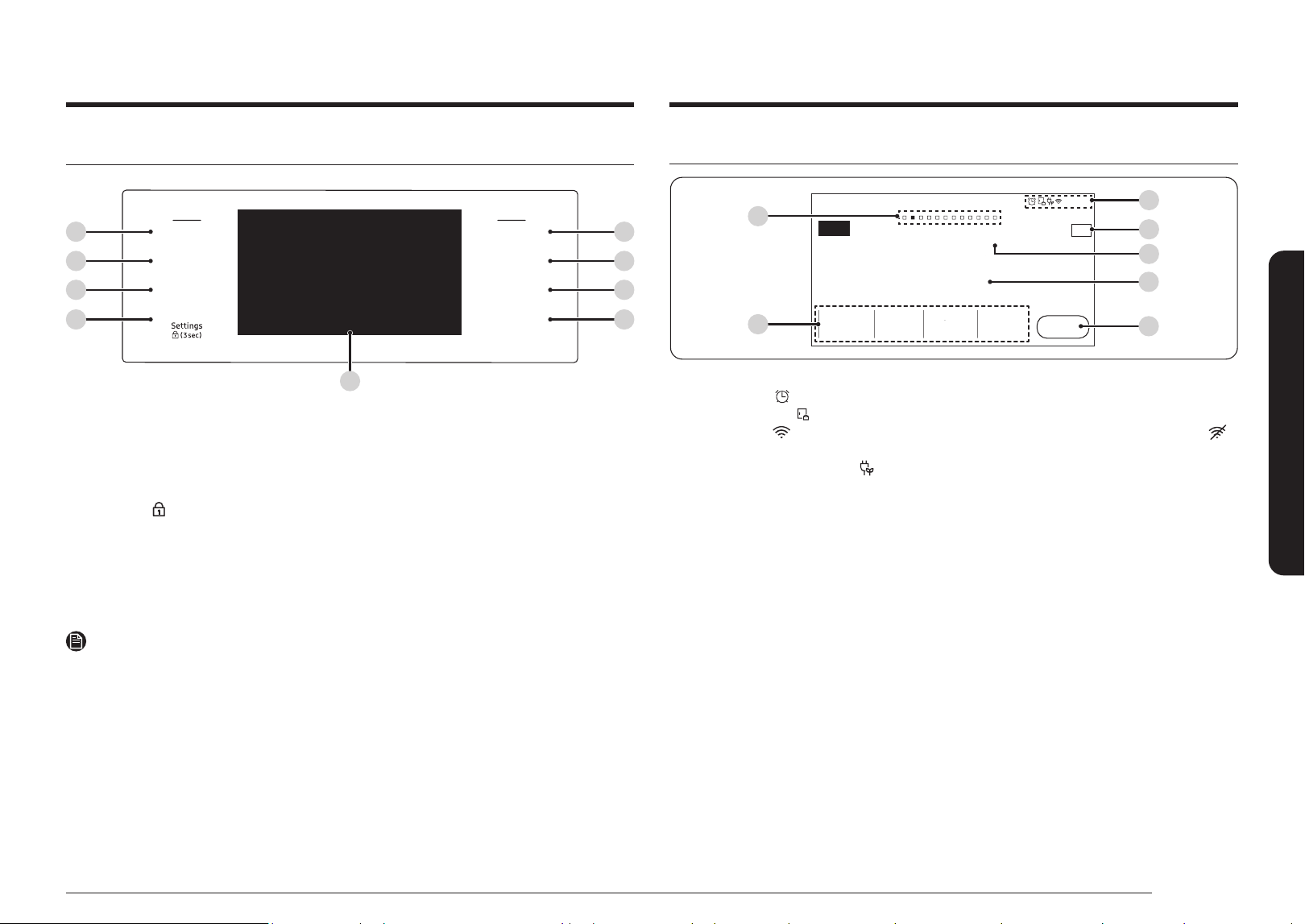
Clean the transparent cover of the camera after
the product cools down.
• You may get a burn due to the heat.
CAUTION
Do not wipe too hard when cleaning transparent
cover of the camera that have the camera
functions.
• It could be damaged as it is made of glass.
The built-in camera not only enables you to monitor the cooking process using the
SmartThings app, but it also provides Food Recognition, Food Recommendation, Doneness
Guide, and Burn Prevention functions for certain food items. Check the Camera Vision settings
in Options - Settings.
It is only available if the product is connected to Wi-Fi through Easy Connection. For
supported recipes, see the Auto Cook Programmes table.
1. Live Streaming: Monitors the cooking status in the oven with the SmartThings app.
2. Food Recognition: When the door is closed, recommends the most appropriate recipe
from Guided Cook Programmes by recognizing the food item and its serving size.
3. Doneness Guide: After connecting the temperature probe, the cooking is completed with
the recommended or desired doneness. (Requires temperature probe connection, See
Using the Temp Probe section on page.27)
4. Burn Notication: Provides a notication when the food seems to start burning.
However, the camera does not operate during certain modes, such as the Cleaning and lower
setting in twin cooking mode.
The upper LED light is turned on while the camera is in operation. (The camera will turn off if
you turn off the Light switch.)
Before you begin
English 23
Operating the oven
Operating the oven
Control panel
Off
Flex Lower
Open/Close
Reservoir
Smart
Control
Flex Upper
Off
Light
01
05
06
07
01
02
03
04
08
01 Flex Upper, Flex Lower : Use to display the upper oven or lower oven mode screen on the
display. Touching here does not turn the ovens on or off. It only displays their current
status.
02 Off : Use to cancel when ex upper oven is cooking.
03 Light : Use to turn the oven light on or off.
04 Settings
(3 sec) : Use to display the Setting screen. If you touch and hold this key for 3
seconds, all oven function will be disabled.
05 Off : Use to cancel when ex lower or single oven is cooking.
06 Open/Close Reservoir : Touch to open or close the water reservoir.
07 Smart Control : Use to select the smart control feature.
08 Display : Swipe to navigate through the menus and tap to select a desired setting.
NOTE
If you tap or touch the display while wearing plastic gloves or oven mitts, the display will not
operate properly. Take the gloves/mitts off rst, and then tap with a bare nger.
Display
Convection Bake
Faster, more even baking
325
°F
No Preheat
Off
Cook Time
None
Temp Probe
Delay Start
None
Start
OVEN
MODE
TIP
150
°F
4:35 PM
01
05
06
03
02
04
Faster, more even baking
TIP
Temp Probe
Cook Time
None None Off
Start
Delay Start
No Preheat
Convection Bake
07
01 Indicator area
• Timer ( ): When the timer is set, the Timer indicator is displayed.
• Door lock ( ): Displayed when the oven door is locked.
• Wi-Fi ( ): Shows Wi-Fi signal strength in 5 steps. When Wi-Fi is disconnected,
is shown.
• 12-hour energy saving (
)
:
Displayed when 12-hour energy saving is turned on.
• Current time
:
The Current time is displayed.
02 Page indicator:
Shows location of current mode.
03 Mode: The current or selected menu is displayed with a Mode description.
04 Temperature: The current or selected temperature is displayed. When you tap this area,
the Temperature adjustment screen is displayed.
05 Information area
• Temp Probe: The set temperature of the temp probe is displayed. When you tap this
area, the Temp Probe screen is displayed.
• Cook Time: The cooking time is displayed. When you tap this area, the cooking time
screen is displayed.
• Delay Start: The delay start time is displayed. When you tap this area, the Delay
Start screen is displayed.
• No Preheat: Indicates if the No Preheat feature is on or off.
(Only displayed when you are using the Convection Bake or Convection Roast
mode.)
• Steam: The steam level is displayed. When you tap this area, the Steam level screen
is displayed. (Only displayed when you are using the Steam Bake or Steam Roast
mode.)
06 Start: Tap to start the oven using the displayed settings.
07 Tip: Tap to show popup guide about temp. (Only displayed when you are using the
convection bake or convection roast mode.)
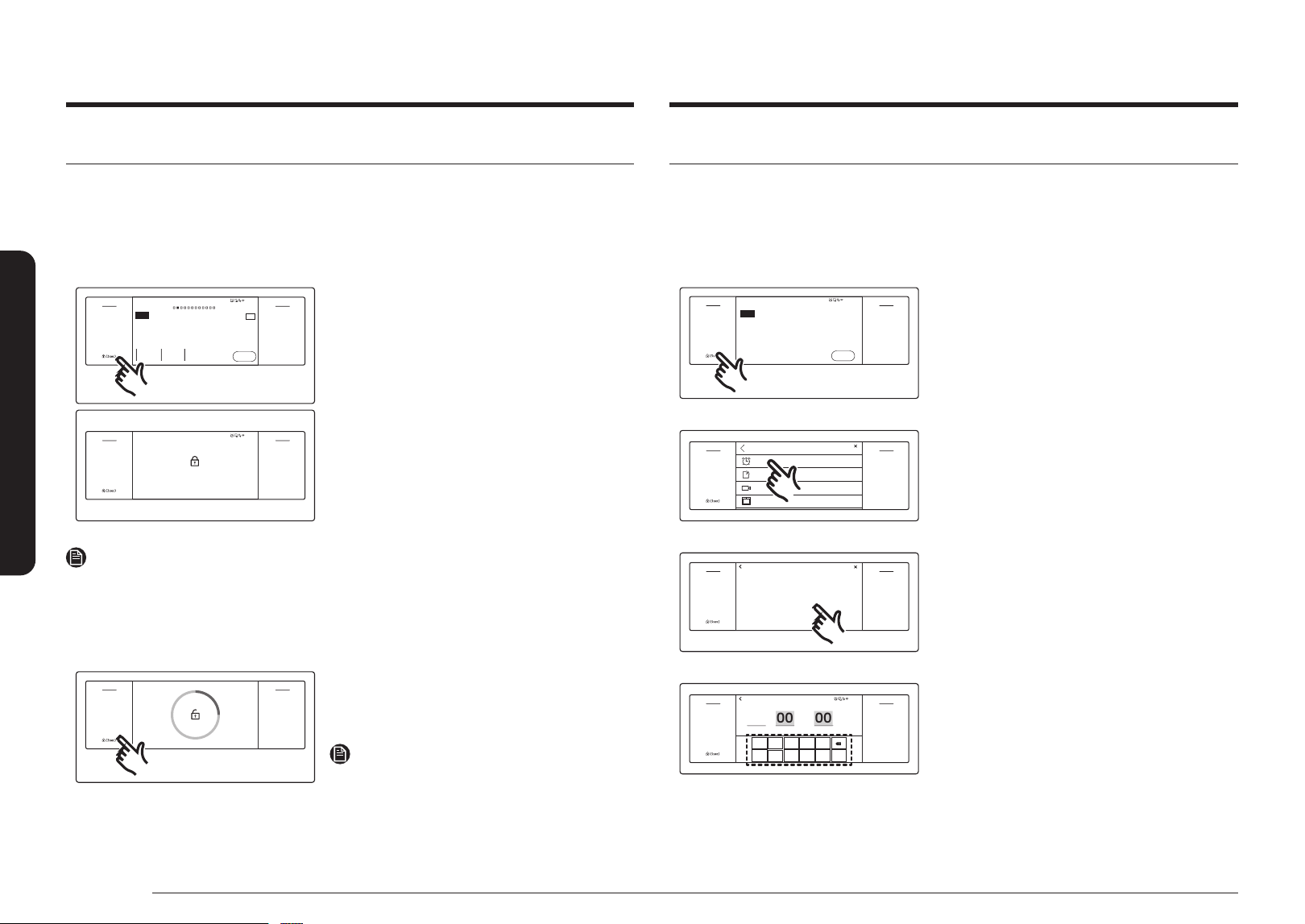
24 English
Operating the oven
Operating the oven
Control lockout
Control lockout lets you lock the buttons on the touchpad so they cannot be activated
accidently. Control lockout also locks both oven doors so they cannot be opened. You can only
activate Control lockout when the oven is in standby mode.
How to activate the Control Lockout feature
Off
Open/Close
Reservoir
Off
Light
Smart
Control
Flex LowerFlex Upper
Settings
4:35 PM
Convection Bake
Faster, more even baking
325
°F
Cook Time
None
No Preheat
Off
Delay Start
None
Start
OVEN
MODE
TIP
Convection Bake
Faster, more even baking
TIP
Cook Time Delay Start No Preheat
Start
None None Off
Child Lock
4:35 PM
Off
Open/Close
Reservoir
Off
Light
Smart
Control
Flex LowerFlex Upper
Settings
Child Lock
1. Cancel or turn off all functions.
2. Touch Settings for 3 seconds.
• The display will change to the control
lock screen and the control lock
conrmation will appear at the bottom
of the screen.
NOTE
• Control Lockout is available only when the oven temperature is under 400 °F.
• All other functions must be cancelled before you activate Control Lockout.
How to unlock the controls
Off
Open/Close
Reservoir
Off
Light
Smart
Control
Flex LowerFlex Upper
Settings
1. Touch Settings for 3 seconds.
The control lock conrmation and the lock
icon will disappear from the display.
NOTE
It may take up to 10 seconds for the doors to
unlock.
Kitchen Timer
The kitchen timer serves as an extra timer that will beep when the set time has elapsed. It
does not start or stop cooking functions. You can use the kitchen timer with any of the other
oven functions.
How to set the timer
4:35 PM
Start
Off
Open/Close
Reservoir
Off
Light
Smart
Control
Flex LowerFlex Upper
Settings
Broil
Direct heat cooking
High
OVEN
MODE
Broil
High
Direct heat cooking
Start
1. Touch Settings.
Settings
Connections
Camera Vision
Display
Timer
Off
Open/Close
Reservoir
Off
Light
Smart
Control
Flex LowerFlex Upper
Settings
Timer
Connections
Settings
Camera Vision
Display
2. Tap Timer. The display will be Changed to
the timer screen.
+
Add
Timer
Off
Open/Close
Reservoir
Off
Light
Smart
Control
Flex LowerFlex Upper
Settings
Add
Timer
3. Tap +Add.
Timer 01
1
6 7 8 9 0
2 3 4 5
OK
hr 00 min 00 sec 0
4:35 PM
Off
Open/Close
Reservoir
Off
Light
Smart
Control
Flex LowerFlex Upper
Settings
Timer 01
hr min sec
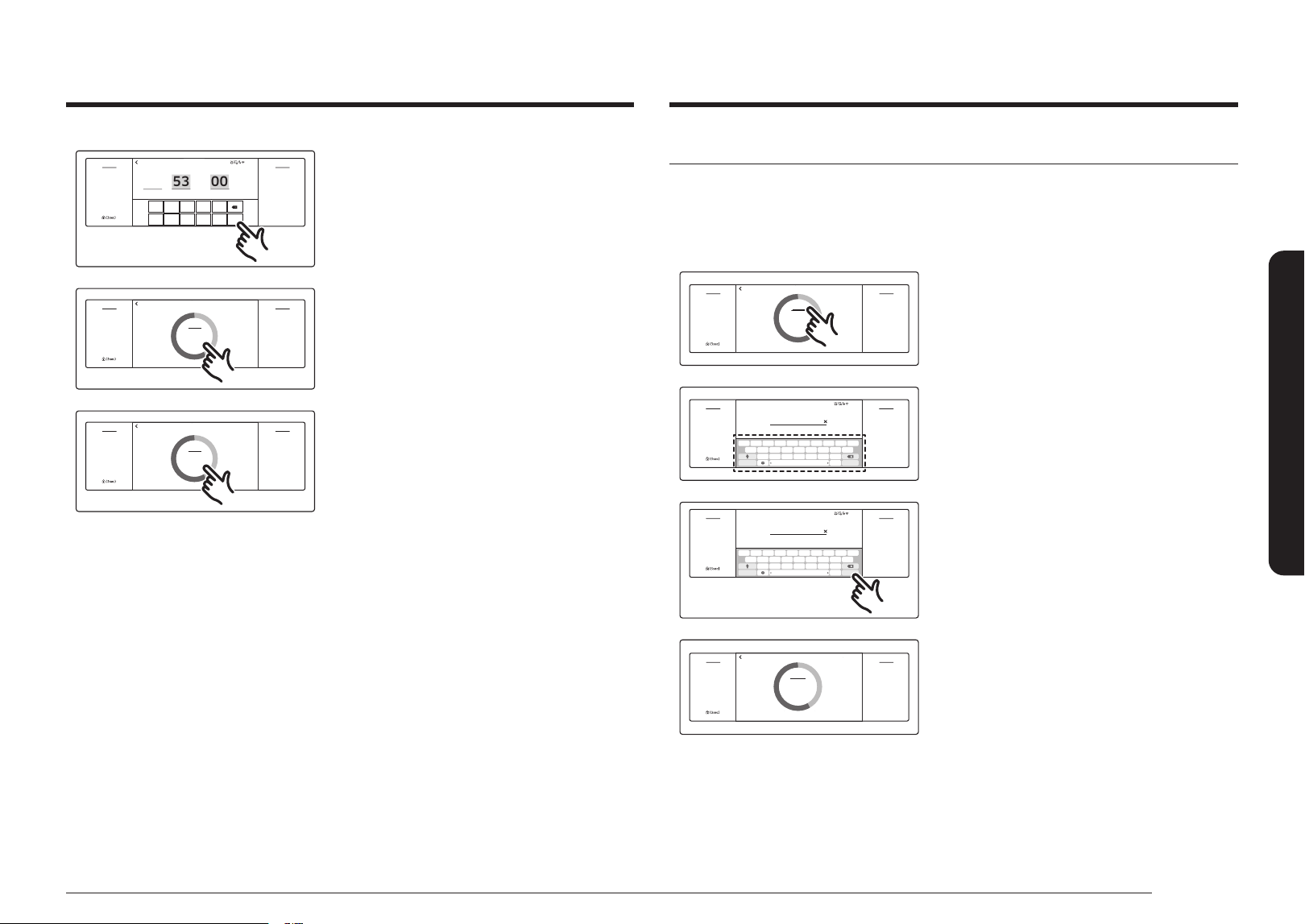
4. Tap the numbers on the numeric pad to
set the time. (You can set the timer for any
amount of time from 1 sec to 99 hr 59 min
59 sec).
English 25
Operating the oven
How to change timer name
You can change the timer name to identify
what you are timing, for example, a chicken defrosting
Change timer name in Timer home
Timer
Off
Open/Close
Reservoir
Off
Light
Smart
Control
Flex LowerFlex Upper
Settings
Timer 01
01:53:03
Start
Delete Cancle
Timer
Start
Delete
Cancle
Timer 01
+Add
1. Tap the timer name area.
• The key board appears.
Timer 01
OK
English?123
sa d f g h j k l
wq e r t y u i o p
z x c v b n m
.
... ...
1 2 3 4 5 6 7 8 9 0
- @ * ^ : ; ( )
/ ‘ “ : , ? !
~
Enter timer name.
4:35 PM
Off
Open/Close
Reservoir
Off
Light
Smart
Control
Flex Upper
Settings
Off
Open/Close
Reservoir
Off
Light
Smart
Control
Flex Lower
Enter timer name.
Timer 01
Chicken
OK
English?123
sa d f g h j k l
wq e r t y u i o p
z x c v b n m
.
... ...
1 2 3 4 5 6 7 8 9 0
- @ * ^ : ; ( )
/ ‘ “ : , ? !
~
Enter timer name.
4:35 PM
Off
Open/Close
Reservoir
Off
Light
Smart
Control
Flex LowerFlex Upper
Settings
Chicken
Enter timer name.
2. Enter the new timer name, and then tap OK.
• Enter the new timer name, and then
tap OK.
Timer
Off
Open/Close
Reservoir
Off
Light
Smart
Control
Flex LowerFlex Upper
Settings
Chicken 01
01:53:03
Start
Delete Cancle
Timer
Start
Delete
Cancle
Chicken 01
+Add
Timer 01
1
6 7 8 9 0
2 3 4 5
OK
hr 53 min 00 sec 1
4:35 PM
Off
Open/Close
Reservoir
Off
Light
Smart
Control
Flex LowerFlex Upper
Settings
Timer 01
hr min sec
5. Tap OK.
The timer is displayed on the screen.
Timer
Off
Open/Close
Reservoir
Off
Light
Smart
Control
Flex LowerFlex Upper
Settings
Timer 01
01:53:03
Start
Delete
Timer
Start
Delete
Timer 01
+Add
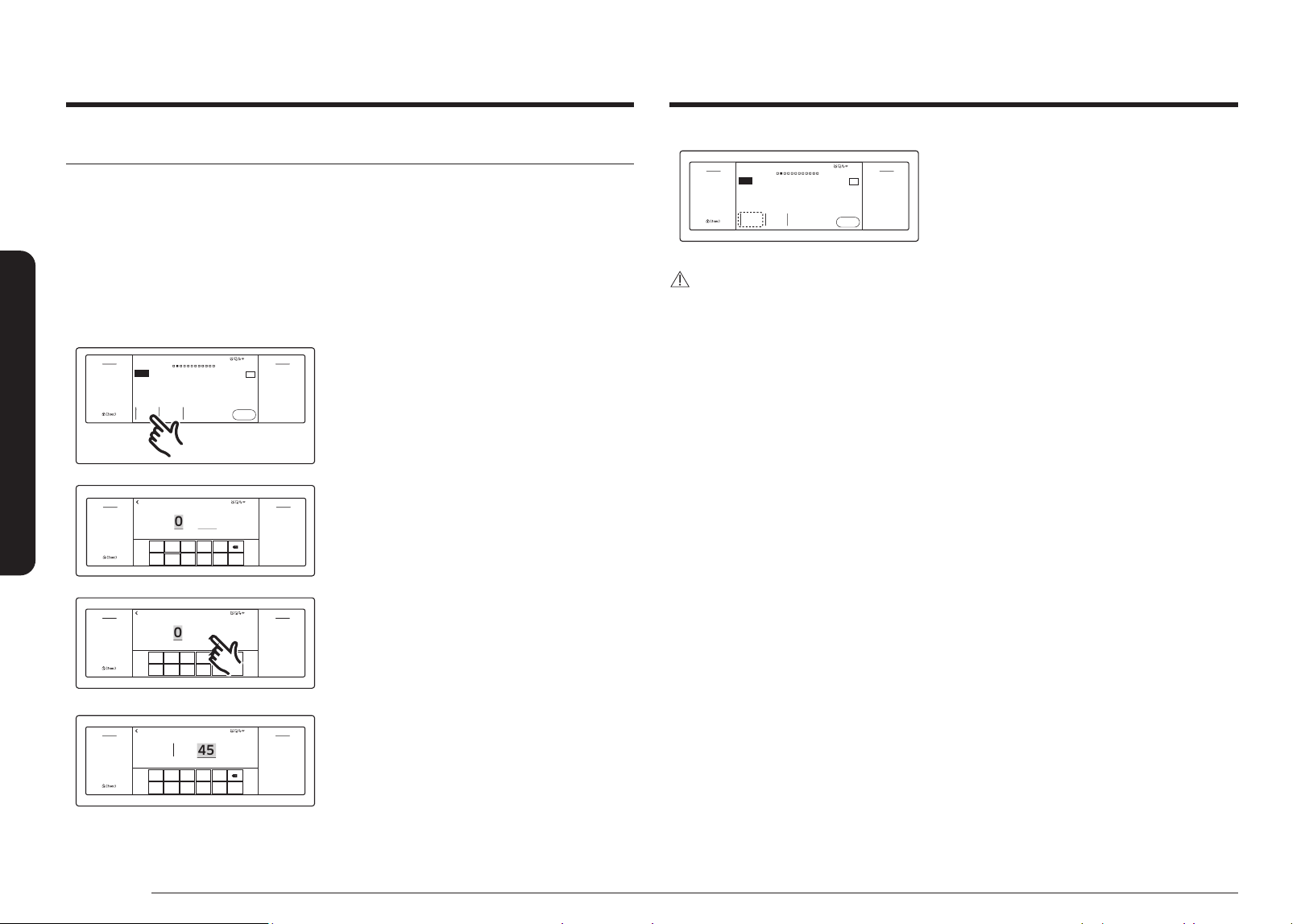
6. Tap Start.
When the set time has elapsed, the oven will
beep and the display will show the Timer has
nished.
• You can Pause, Cancel, or Delete the
timer at any time by touching the
screen.
Timer
Off
Open/Close
Reservoir
Off
Light
Smart
Control
Flex LowerFlex Upper
Settings
Timer 01
01:53:03
Pause
Delete
Timer
Pause
Delete
Timer 01
+Add
26 English
Operating the oven
Operating the oven
Timed cooking
In timed cooking mode, the oven turns on immediately and cooks for the length of time you
select.
At the end of the cooking time, the oven turns off automatically.
• You can use the timed cooking feature only with another cooking operation. (Bake,
Convection Bake, Convection Roast, Convection Vegetable, Steam Bake, Steam Roast,
Steam Cook, Air-Fry, Air Sous Vide, Steam Proof, Proof, Dehydrate).
How to set the oven for timed cooking
4:35 PM
Convection Bake
Faster, more even baking
325
°F
Cook Time
None
No Preheat
Off
Delay Start
None
Start
OVEN
MODE
TIP
Off
Open/Close
Reservoir
Off
Light
Smart
Control
Flex LowerFlex Upper
Settings
Convection Bake
Faster, more even baking
Cook Time Delay Start No Preheat
None None Off
Start
TIP
1. Tap the screen and then swipe to the cooking
operation you want.
2. Tap Cook Time. The display will change to
the cooking time screen.
1
6 7 8 9 0
2 3 4 5
OK
0 hr 00 min
Set cooking time
4:35 PM
Off
Open/Close
Reservoir
Off
Light
Smart
Control
Flex LowerFlex Upper
Settings
Set cooking time
hr min
1
6 7 8 9 0
2 3 4 5
OK
0 hr 30 min
Set cooking time
4:35 PM
Off
Open/Close
Reservoir
Off
Light
Smart
Control
Flex LowerFlex Upper
Settings
Set cooking time
hr
min
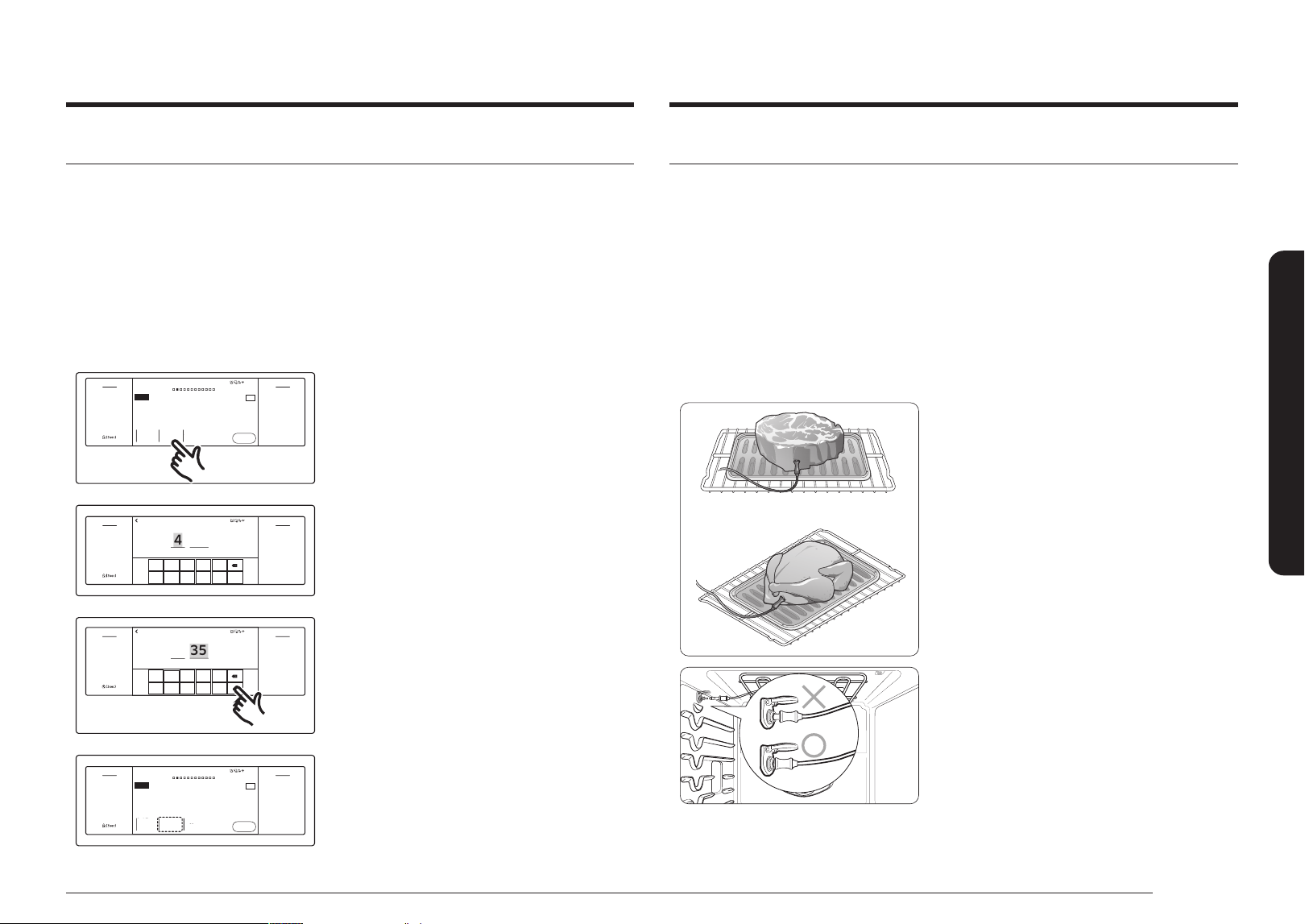
3. Tap numbers on the numeric pad to set the
cooking time. (You can set the cooking time
for any amount of time from 1 minute to 9
hours and
59 minutes).
1
6 7 8 9 0
2 3 4 5
OK
1 hr 45 min
Set cooking time
Ready at 6:20PM
4:35 PM
Off
Open/Close
Reservoir
Off
Light
Smart
Control
Flex LowerFlex Upper
Settings
Set cooking time
Ready at 6:20 PM
hr
min
Cook Time
1hr 45min
Delay Start
None
No Preheat
Off
4:35 PM
Convection Bake
Faster, more even baking
325
°F
Start
OVEN
MODE
TIP
Off
Open/Close
Reservoir
Off
Light
Smart
Control
Flex LowerFlex Upper
Settings
Convection Bake
Faster, more even baking
TIP
Cook Time Delay Start No Preheat
1hr 45min None Off
Start
• The cooking time is displayed in the Cook
Time area on the screen.
• You can cancel a cook time at any time by
setting the Cook Time to 0 minutes.
CAUTION
Be careful when using the timed cooking or delay start features. You can use these features to
cook cured or frozen meats and most fruits and vegetables.
For food that can easily spoil, such as milk, eggs, and unfrozen or fresh sh, meat, or poultry,
chill them in the refrigerator rst.
Even when chilled, they should not stand in the oven for more than 1 hour before cooking
begins, and should be removed promptly when cooking is completed.
Eating spoiled food can result in sickness from food poisoning.
English 27
Operating the oven
Delay start
In the delay timed cooking mode, the oven’s timer turns the oven on at a time you select in
advance. You can have the oven turn off automatically after a set time has elapsed by setting
the Timed Cooking function as well.
• You can use the delay start feature only with another cooking operation (Bake,
Convection Bake, Convection Roast, Convection Vegetable, Steam Bake, Steam Roast,
Steam Cook, Air-Fry, Air Sous Vide, Steam Proof, Proof, Dehydrate, Self Clean).
• You can set the oven for a delay start before setting other cooking operations.
• The clock must be set to the current time.
How to set the oven for delay timed cooking
Cook Time
None
Delay Start
None
No Preheat
Off
4:35 PM
Convection Bake
Faster, more even baking
325
°F
Start
OVEN
MODE
TIP
Off
Open/Close
Reservoir
Off
Light
Smart
Control
Flex LowerFlex Upper
Settings
TIP
Convection Bake
Faster, more even baking
Cook Time Delay Start No Preheat
None
None Off
Start
1. Position the oven rack(s) and place the food
in the oven.
2. Tap the screen and then swipe to the cooking
operation you want.
3. Set the cooking time if you want the oven to
turn off automatically after a set time. (See
the Timed cooking section on page 26.)
4. Tap Delay Start. The current time is displayed
as the rst entry.
1
6 7 8 9 0
2 3 4 5
OK
4
:
35
AM
PM
Set start time
4:35 PM
Off
Open/Close
Reservoir
Off
Light
Smart
Control
Flex LowerFlex Upper
Settings
Set start time
1
6 7 8 9 0
2 3 4 5
OK
5
:
35
AM
PM
Set start time
4:35 PM
Off
Open/Close
Reservoir
Off
Light
Smart
Control
Flex LowerFlex Upper
Settings
Set start time
5. Tap numbers on the numeric pad to set the
time you want the oven to start.
Cook Time
1hr 45min
Delay Start
5:35 PM
No Preheat
Off
4:35 PM
Convection Bake
Faster, more even baking
UPPER
325
°F
Start
OVEN
MODE
TIP
Off
Open/Close
Reservoir
Off
Light
Smart
Control
Flex LowerFlex Upper
Settings
Convection Bake
Faster, more even baking
TIP
Cook Time Delay Start No Preheat
1hr 45min 5:35 PM Off
Start
• The Delay Start screen closes. The start
time, and, if you set it, the cooking time, is
displayed on the screen.
Using the Temp Probe
For many foods, especially roasts and poultry (beef, chicken, turkey, pork, lamb, etc),
measuring the internal temperature is the best way to determine if the food is properly
cooked. The temp probe lets you cook meat to the exact internal temperature you want,
taking the guess work out of determining whether a piece of meat is done or not. This
function can be used with Bake, Convection Bake, Convection Roast, or Convection Vegetable.
After the internal temperature of the food reaches 100 °F, the increasing internal temperature
will be shown in the display.
How to use the Temp probe
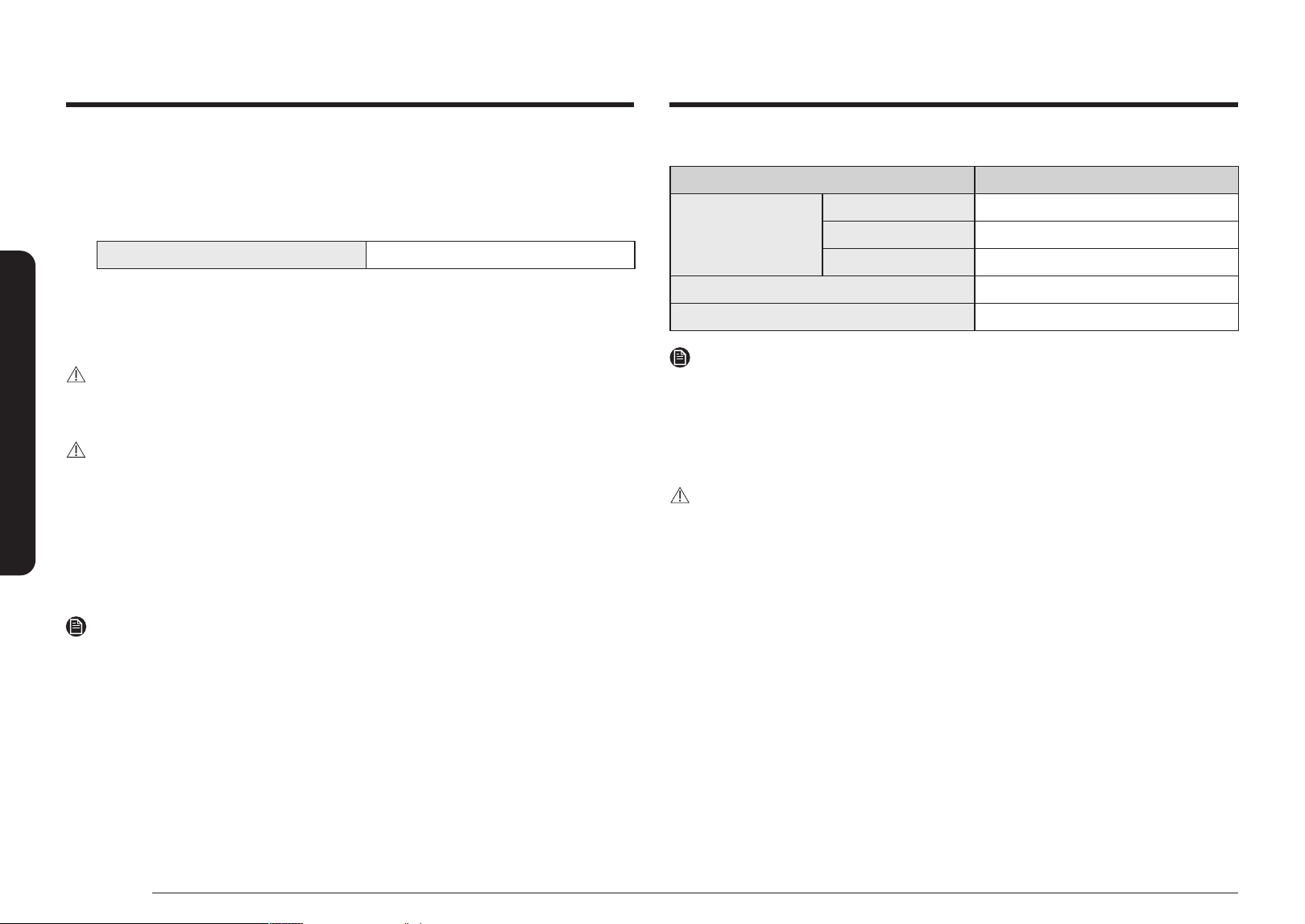
1. Push the tip of the temp probe into the meat as fully as possible, so that the tip is in the
center of the meat.
• Insert the probe completely into the meat as
shown in the illustrations.
It should not touch bone, fat, or gristle.
• If you do not fully insert the probe into the
meat, the Temp Probe function will not work
properly as the probe will sense the oven
temperature and not the temperature of the
meat.
• For bone-in meats, insert the probe into the
center of the lowest and thickest portion of
the piece.
• For whole poultry (turkey, large chickens,
etc.), insert the probe into the thickest part
of the inner thigh, parallel to the leg.
• If you activate the Keep Warm function to
keep the meat warm after you have cooked
it using the Temp Probe function, the meat’s
internal temperature will exceed the
temperature you want.
2. Insert the temp probe plug into the socket on the top side wall of the oven as far as it will
go.
28 English
Operating the oven
Operating the oven
3. Tap the screen oven to select the desired cooking mode
(Bake, Convection Bake, Convection Roast, or Convection Vegetable.). Set the cooking
temperature. (See page 36.)
4. Tap Temp Probe to set the desired internal temperature.
5. Set the desired internal temperature using the numeric pad.
Available temperatures 100 °F to 200 °F
6. If you want to use the Cook time or Delay start, set the desired function.
7. Tap Start.
8. When the desired internal temperature is reached, the function automatically stops and
an alarm sounds.
CAUTION
To protect the temp probe’s tip, be careful not to insert the probe so that the tip protrudes
through the surface of the meat. Make sure that the tip is in or near the center of the meat.
CAUTION
• Do not store the probe in the oven.
• Do not leave the probe inside the oven during a self-cleaing or broiling cycle. You can
permanently damage the probe and it will no longer work.
• To avoid breaking the probe’s tip, defrost your food completely.
• Do not use tongs when inserting or removing the probe. Tongs can damage the probe.
• Use the temp probe for Temp Probe function cooking only.
Do not use the temp probe for any other purpose.
NOTE
• If you remove the temp probe while the temp Probe function is operating or insert the
temp probe while baking or cooking normally, cooking will stop after 1 minute.
• If you use the probe to cook frozen food, there are times when it cannot be detected.
(The probe icon won't appear in the display.)
Temp Probe table
Type of Food Internal temperature
Beef / Lamb
Rare 140 °F
Medium 160 °F
Well done 170 °F
Pork 170 °F
Poultry 180 - 185 °F
NOTE
If you cover the meat with aluminum foil and allow it to stand for 10 minutes after cooking,
the Internal temperature will rise 5 - 10 degrees.
Removing the Temp Probe
Remove the temp probe plug from the socket.
CAUTION
After cooking, the temp probe is hot enough to cause burns. Let it cool sufciently before
attempting to remove it.
English 29
Operating the oven
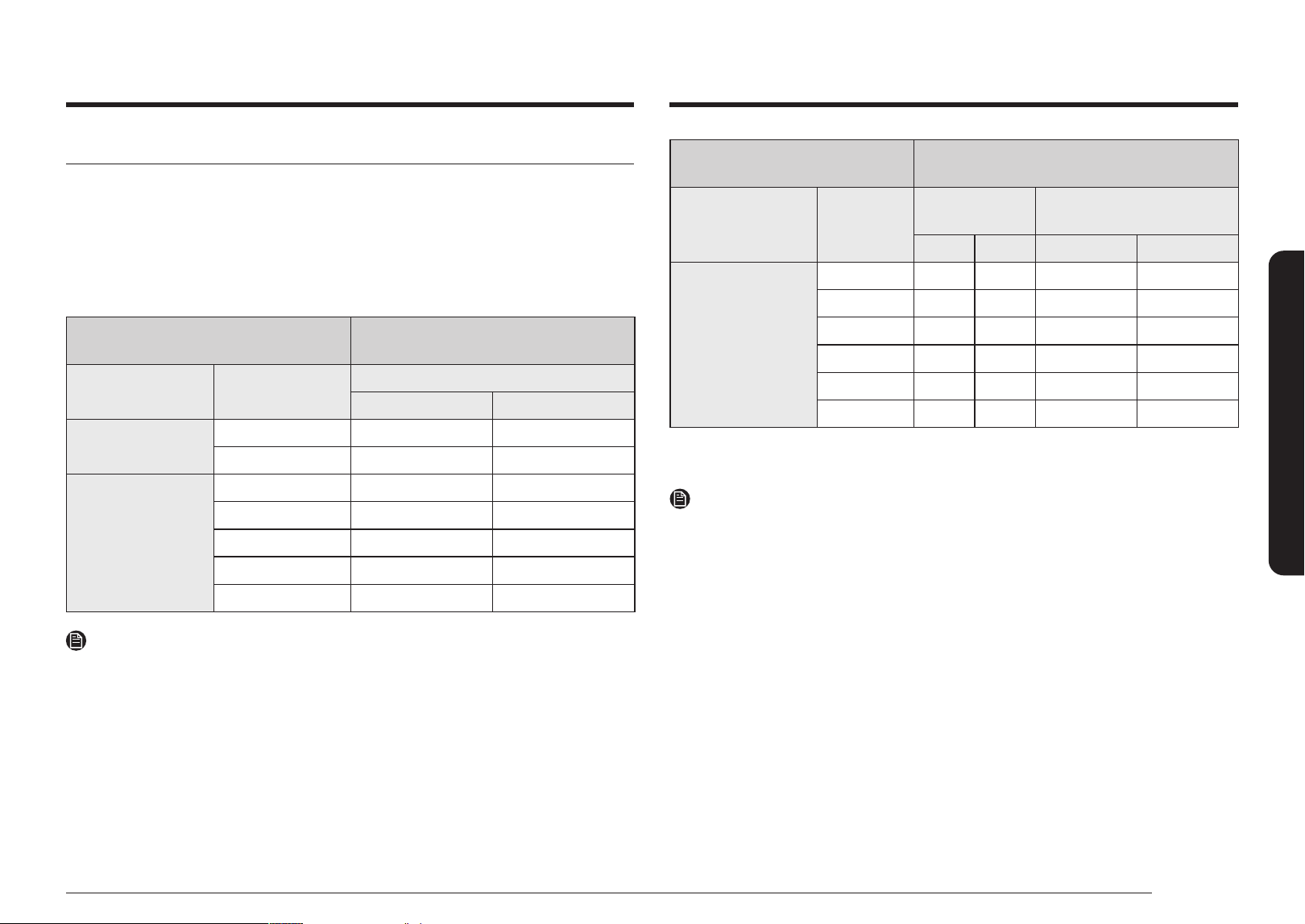
Twin cooking mode temperature setting ranges
Using the divider, you can divide, the oven into two compartments, upper and lower. This
is also called twin mode. When you use the upper and lower compartments in the oven at
the same time, each oven has a minimum and maximum amount of power available and
consequently minimum and maximum temperature settings.
Oven temperatures in the lower compartment also limit broil settings in the upper
compartment. The temperature and broil setting limitations are shown in the table below and
on the next page.
UPPER COMPARTMENT
LOWER COMPARTMENT
(Available function settings and temperatures)
Mode Set Temp.
Bake, Convection Bake
Min Max
Broil
Hi 400 °F 480 °F
Low 325 °F 480 °F
Convection Bake /
Convection Roast
480 °F 400 °F 480 °F
450 °F 350 °F 480 °F
300 °F 250 °F 375 °F
250 °F 225 °F 300 °F
175 °F 175 °F 200 °F
NOTE
To insert the divider, see page 50.
LOWER COMPARTMENT
UPPER COMPARTMENT
(Available function settings and temperatures)
Mode Set Temp.
Broil
Convection Bake, Convection
Roast
Low Hi Min Max
Bake /
Convection Bake
480 °F O O 400 °F 480 °F
450 °F O O 350 °F 480 °F
350 °F O X 275 °F 450 °F
325 °F O X 275 °F 400 °F
250 °F X X 225 °F 300 °F
175 °F X X 175 °F 200 °F
O = Available X = Not Available
NOTE
The twin cooking mode lets you use different settings for the upper and lower compartments,
such as different switch off times, cooking times, and temperatures settings.
To apply or modify settings in either compartment, tap the respective touch pad.
30 English
Operating the oven
Operating the oven
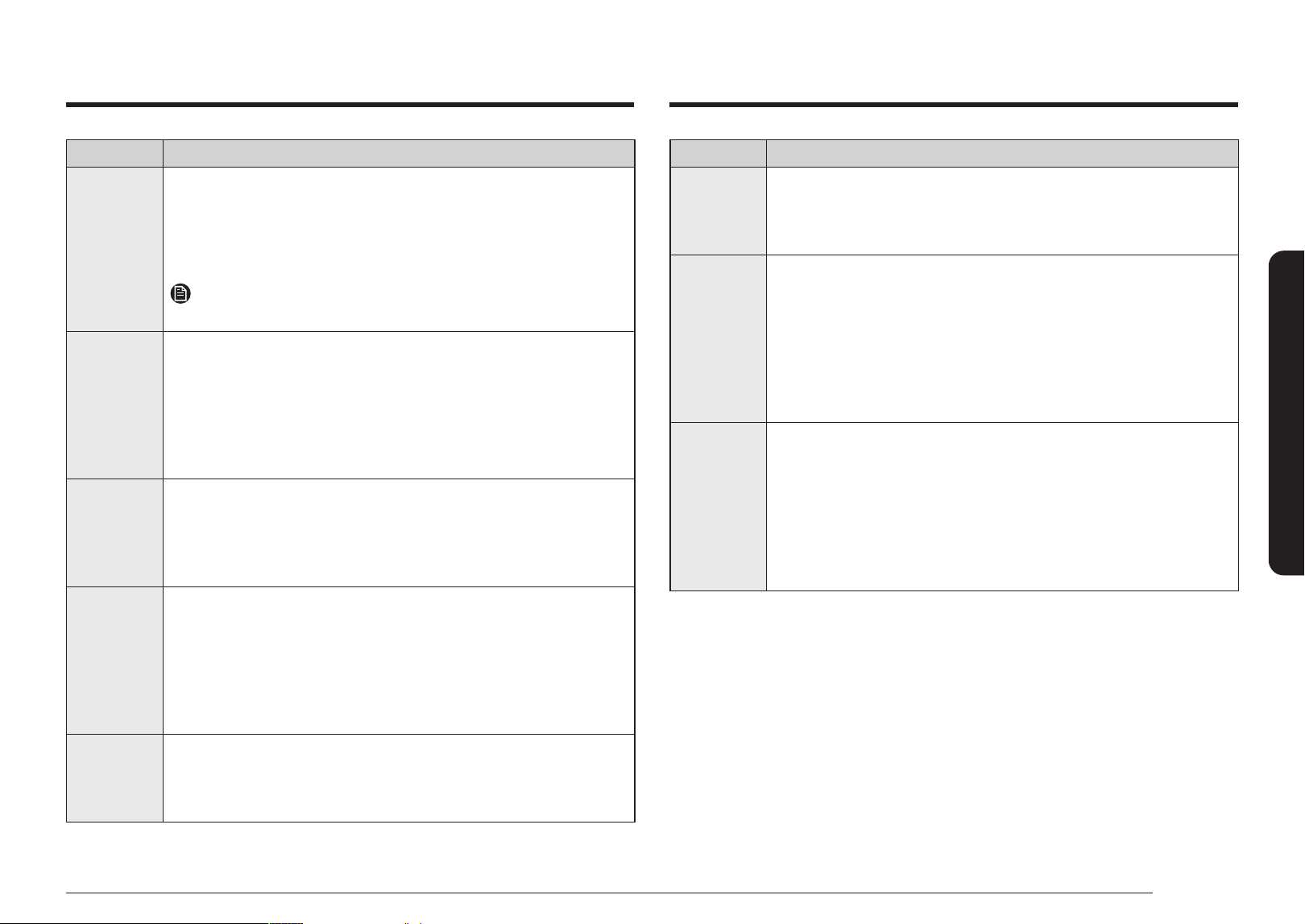
Oven functions
Oven Oven Functions
Single
Without a divider
Single oven
Bake, Broil, Convection Bake,
Convection Roast, Convection
Vegetable, Steam Bake, Steam Roast,
Air-Fry, Air Sous Vide, Steam Cook ,
Guided Cook. Keep Warm, Steam Proof,
Proof, Dehydrate, Smart Control, Clean
Flex Lower
Flex Upper
With a divider
*Twin
oven
Flex Upper
Broil, Convection Bake,
Convection Roast, Smart Control
Flex Lower Bake, Convection Bake, Smart Controll
* To use the twin oven functionality, you must insert the divider into the upper oven and
divide it into an upper and lower compartment. See page 50.
Cooking mode
Tap the screen to select the cooking mode.
Set
the temperature using the numeric pad or the wheel picker. See Setting the Temperature on
page 36 and Basic Baking and Broiling Instructions starting on page 36.
Mode
Temperature range
Single oven
*Twin oven
Temp
Probe
No
preheat
Single oven *Twin oven Upper Lower
Bake
175 °F (80 °C) - 550
°F (285 °C)
175 °F (80 °C) - 480
°F (250 °C)
O - O O -
Broil
L0 / HI L0 / HI
O O - - -
Convection
Bake
175 °F (80 °C) - 550
°F (285 °C)
175 °F (80 °C) - 480
°F (250 °C)
O O O O O
Convection
Roast
175 °F (80 °C) - 550
°F (285 °C)
175 °F (80 °C) - 480
°F (250 °C)
O O - O O
Convection
Vegetable
350 °F (175 °C) - 450
°F (230 °C)
- O - - O -
Steam Bake
230 °F (110 °C) - 550
°F (285 °C)
- O - - - -
Steam Roast
230 °F (110 °C) - 550
°F (285 °C)
- O - - - -
Steam Cook O - O - - - -
Air fry
350 °F (175 °C) - 500
°F (260 °C)
- O - - - -
Air Sous Vide
100 °F (40 °C) - 205
°F (95 °C)
- O - - - -
Dehydrate
100 °F (40 °C) - 225
°F (105 °C)
- O - - - -
Proof
95 °F (35 °C) or 105
°F (40 °C)
- O - - - -
Steam Proof
95 °F (35 °C) or 105
°F (40 °C)
- O - - - -
Keep Warm 175 °F (80 °C) - O - - - -
O = Available - = Not Available
* To use the twin oven functionality, you must insert the divider into the upper oven and
divide it into an upper and lower compartment. See page 50.
English 31
Operating the oven
Mode Instruction
Steam Roast
• Steam Roast provides excellent cooking conditions for roasted meats
or poultry by maintaining a crispy surface while sealing in the juices
for a moist and tender result.
• See the Steam cook section starting on page 38.
Steam Cook
• Steam Cook allows you to use an indirect cooking method that uses
hot steam generated from water to cook food.
• The hot steam from the steam generator is injected through the
steam nozzle into the oven to cook food. This mode is a healthy way to
cook vegetables, meats and sh so they keep their nutrients.
• For the best results, use this mode in single oven mode and place the
Steam container in position 1.
• Preheating is not necessary for this mode.
Air Fry
• Air Fry uses hot air for crispier and healthier frozen or fresh foods
without or less oil than normal convection mode.
• For best results, use this mode in single oven mode and place the Air
Fry tray in position 3.
• Preheating is not necessary for this mode.
• The temperature can be set between 350°F - 500°F.
• See the Air Fry section starting on page 33.
Mode Instruction
Bake
• Bake is used to cook cakes, cookies, and casseroles. Always preheat the
oven rst.
• Baking temperatures and times will vary depending on the ingredients
and the size and shape of the baking pan used.
• Dark or nonstick coatings may cook faster with more browning.
NOTE
For performance reasons, the convection fan may turn on or off during baking.
Broil
• Broiling is a method of cooking tender cuts of meat by direct heat under
the broil element of the oven.
• The high heat cooks quickly and gives a rich, brown outer appearance.
Broil mode is best for meats, sh, and poultry up to 1 inch thick.
• Always preheat the oven for 5 minutes before broiling.
• See the Broiling recommendation guide section starting on
page 33.
Convection
Bake
• Convection Bake uses a fan to circulate the oven’s heat evenly and
continuously within the oven.
• This improved heat distribution allows for even cooking and excellent
results while using multiple racks at the same time.
• Breads and pastries brown more evenly.
Convection
Roast
• Convection Roast is good for cooking large tender cuts of meat,
uncovered. The convection fan circulates the heated air evenly over and
around the food.
• Meat and poultry are browned on all sides as if they were cooked on a
rotisserie.
• The heated air seals in juices quickly for moist and tender results while, at
the same time, creating a rich golden brown exterior.
Steam Bake
• Steam Bake provides excellent baking conditions for breads, pastries,
and desserts by increasing moisture content and improving texture
and avor.
• See the Steam cook section starting on page 38.
32 English
Operating the oven
Operating the oven
Mode Instruction
Air Sous Vide
• Air sous vide mode uses low-temperature hot air to implement Sous
Vide mode without steam or the water tank.
• In this mode, the oven keeps constant low temperatures, cooking
food that can keep its original fragrance and nutrients while offering
enriched avor and soft texture.
• It is not necessary to preheat the oven when using Air Sous Vide mode.
• Place the sealed vacuum bags of food on the rack 3 of the oven.
• The temperature can be set between 100 °F - 205 °F.
• Use it to cook meat, sh, seafood, poultry or vegetables.
• Use fresh and quality ingredients only. Trim them in a clean condition
and store under refrigeration.
• Use heat-resistant vacuum bags for moving and storing ingredients.
• Use Air Sous Vide recommendation guide. To nd the recommended
cooking time and temperature for the food.
See the Air Sous Vide section starting on page 40.
Convection
Vegetable
• Convection Vegetable provides excellent cooking conditions for
vegetables such as potatoes, tomatoes, onions, carrots, bell peppers,
broccoli and It creates optimal texture and taste for vegetable by
increasing moisture content when compared to general convection.
• The uniform air circulation provided by Pure Convection allows you to
use more oven capacity at once.
• For best results, use this mode in single oven mode and place the
cooking tray in position 3.
• Preheating is not necessary for this mode.
• See the Convection Vegetable recommendation guide section starting
on page 41.
NOTE
For performance reasons, the convection fan may turn on or off during
baking.
Mode Instruction
Dehydrate
• Dehydrate dries food or removes moisture from food via heat
circulation. Place the food on rack position 3 or 4.
• After drying the food, keep it in a cool and dry place.
• For fruit, adding lemon or pineapple juice or sprinkling sugar on the
fruit helps the fruit retain sweetness.
• See the table below for Dehydrate settings.
Proof
• Proof provides an optimal temperature for thebread proong process,
and therefore does not require a temperature adjustment.
• Place the dough on rack position 2. Proof needs to cover with cloth or
with plastic wrap.
• For the best results, always start the Proof option with a cool oven.
Steam Proof
• For bread dough (yeast dough and sour dough), added steam shortens
fermentation time and keeps the surface of the dough from drying
out.
• Place the dough on rack position 2 or 3. There is no need to cover it
with cloth or with plastic wrap.
• For the best result, always start the Steam Proof option with a cool
oven.
• Do not use Steam Bread Proof for warming food. The proong
temperature is not hot enough to keep food warm.
Keep Warm
• The keep warm mode will keep cooked food warm for serving up to 3
hours after cooking has nished.
• You can use the keep warm mode without any other cooking
operations or you can set it to activate after a timed or delay timed
cooking operation.
• You should not use this mode to reheat cold food.
English 33
Operating the oven
Broiling recommendation guide
The size, weight, thickness, starting temperature, and your doneness preference will affect
broiling times. This guide is based on meats at refrigerator temperature. Always use a broiler
pan and its grid when broiling. Always preheat the oven for 5 minutes before broiling.
Food Doneness Size Thickness
Level
Rack
positon
Cooking time(min)
1st side 2nd side
Hamburgers
Medium 9 patties 3/4" Hi 6 3:00 2:00
Medium 9 patties 1" Hi 6 3:20 2:20
Beef steaks
Rare - 1" Hi 5 5:00 4:00
Medium - 1 - 1 1/2" Hi 5 6:00 - 6:30 4:30 - 4:00
Well done - 1 - 1 1/2" Lo 4 7:00 - 8:00 4:00 - 5:00
Chicken
pieces
Well done 4.5 lbs. 1/2 - 3/4" Lo 3 16:00 - 18:00 13:00 - 15:00
Well done 2 lbs. 1/2 - 3/4" Lo 3 or 4 15:00 - 16:00 10:00 - 12:00
Pork chops Well done 1 lbs. 1" Lo 3 8:00 - 10:00 6:00 - 8:00
Fish llets Well done - 1/4 - 1/2" Lo 3 or 4 7:00 - 8:00 4:00 - 5:00
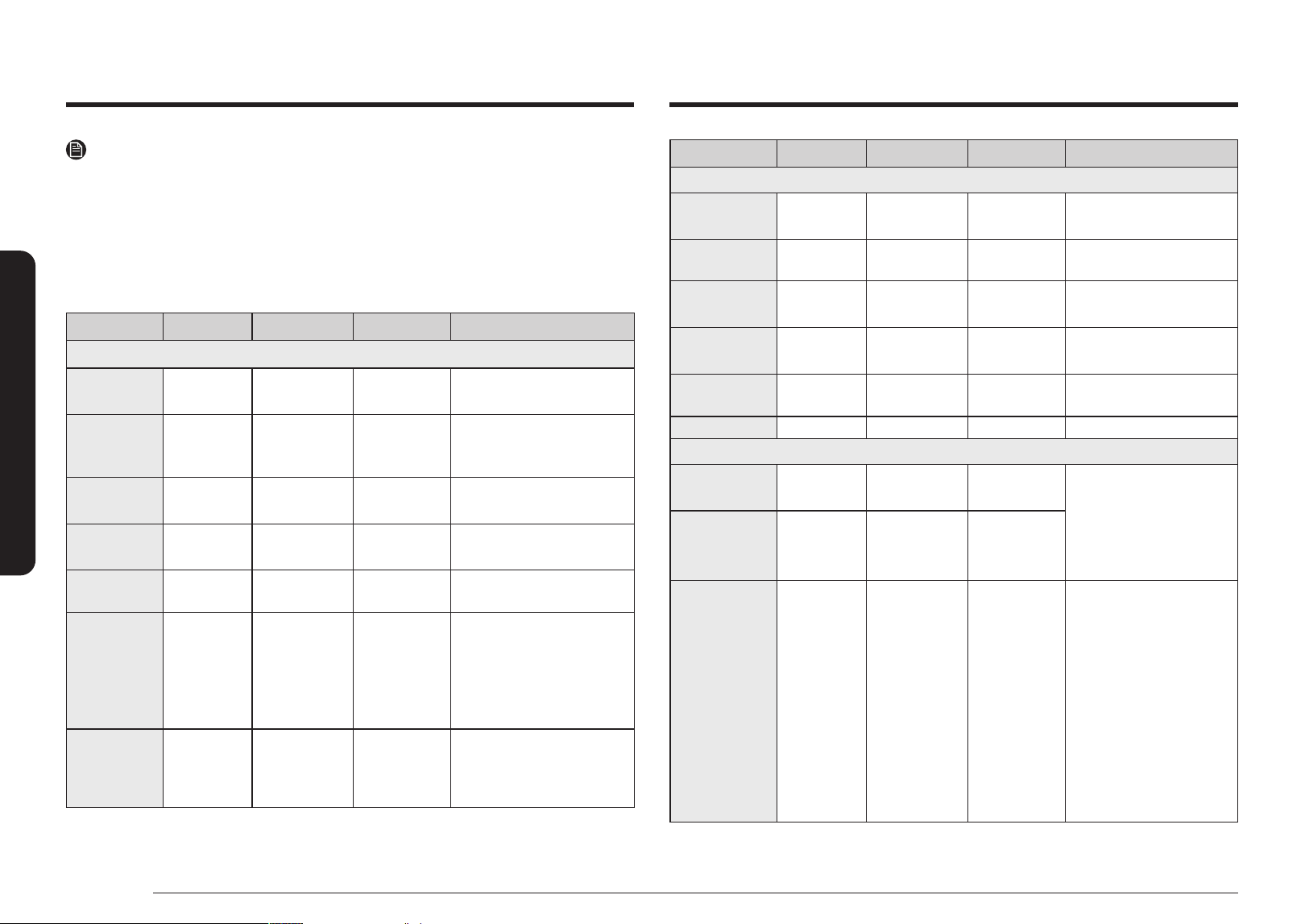
Air Fry
Tray or Baking sheetTray or Baking sheet
Air Fry trayAir Fry tray
Air Fry Tray recommended placement
NOTE
• Place a baking sheet or tray on the rack
below the Air Fry Tray for getting any
drippings. This will help to reduce splatter
and smoke for high fat foods, such as chicken
wings.
• Air Fry is designed for baking on a single
oven rack. Place food on rack position 3 for
best results. (Rack position number counts
from the bottom.)
• Before using a baking ware, check the maximum allowable temperature of baking sheet.
• Place under a few sheets of paper like parchment paper to absorb the fat for reducing
splatter and smoke during the Air Fry.
• For cooking fresh or homemade foods, spread the oil over a larger area more evenly,
crisping up the food more effectively.
• Wet or thicken coating will not crisp or set to use with the Air Fry.
CAUTION
•
Foods that are high in fat will smoke when using the Air Fry model, such as chicken
wings, bacon, sausage and turkey legs.
• Before you start Air Fry, turn on an exhaust hood at a high level fan setting.
• Open a window in your kitchen if it is possible to make sure the kitchen is well-
ventilated.
• Once the oven has cooled, wipe down the interior of the oven before and after Air Fry
cooking.
• Regularly, clean the grease lters of exhaust hood for preventing smoke during cooking.
• Avoid opening the oven door, or else it is difcult to maintain the oven temperature,
prevent heat loss, and save energy.
34 English
Operating the oven
Operating the oven
NOTE
• Preheating is not necessary.
• Place the Air Fry Tray on position 3.
• It is recommended to use avocado oil.
• Place a baking sheet or tray on the rack below the Air Fry Tray to catch any drippings.
This will help to reduce splatter and smoke.
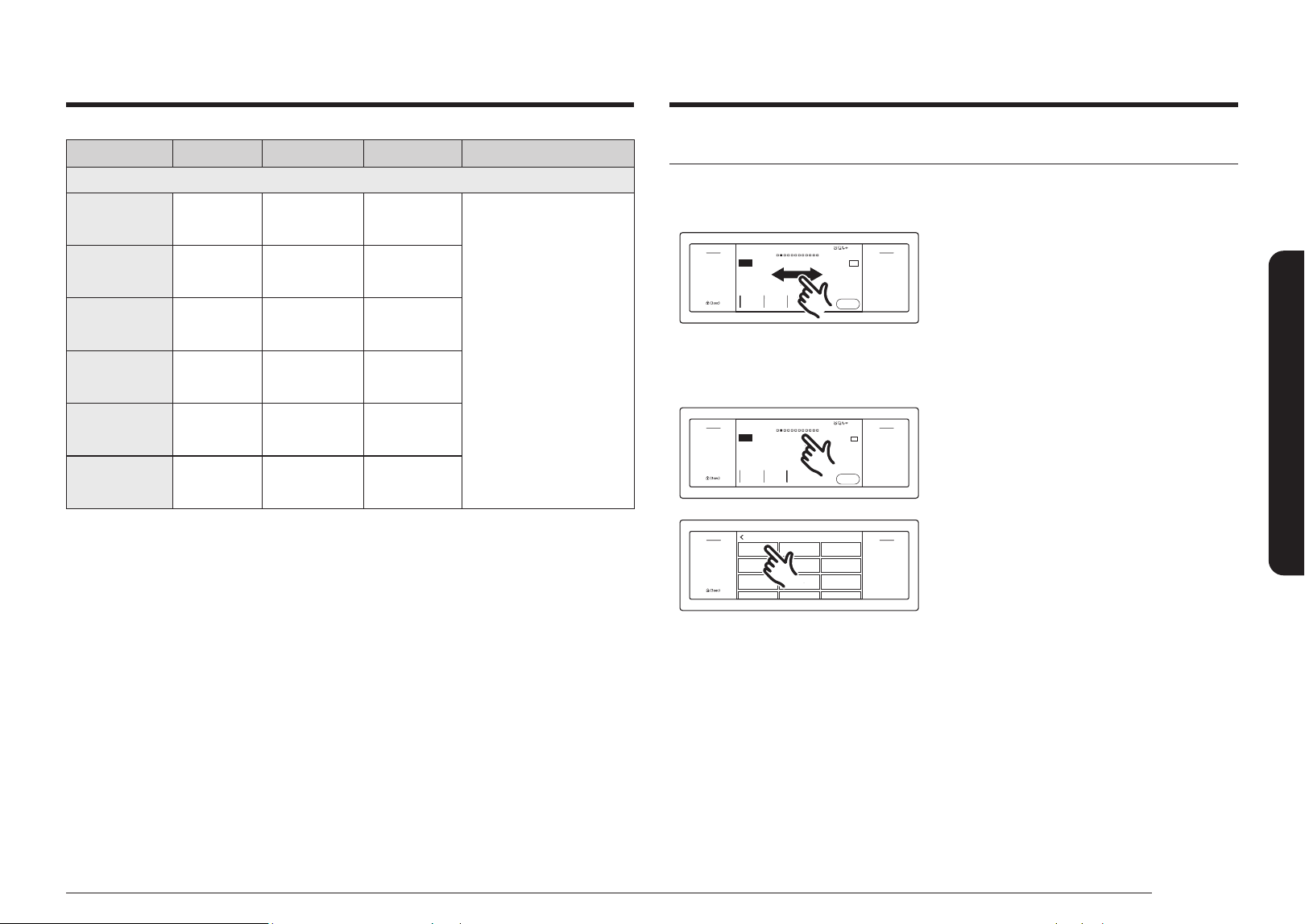
Air Fry recommendation guide
Item Amount Temperature Time Tips
Potatoes
Frozen French
Fries
30 - 35 oz
425 °F -
450 °F
25 - 30 min -
Frozen
French Fries,
Seasoned
25 - 30 oz
425 °F -
450 °F
20 - 25 min -
Frozen Tater
Tots
40 - 45 oz 450 °F 20 - 25 min -
Frozen Hash
Brown
25 - 30 oz 450 °F 20 - 25 min -
Frozen Potato
Wedges
30 - 35 oz
425 °F -
450 °F
20 - 25 min -
Homemade
French Fries
25 - 30 oz 425 °F 25-30 min
Peel potatoes and cut into
sticks with a thickness of ⅓
inch. Soak in cold water for
30 min. Brush with 3tbsp
of oil. Add salt and pepper
to taste.
Homemade
Potato
Wedges
25 - 30 oz 450 °F 25 - 30 min
Cut them into wedges.
Brush with 3 tbsp of oil.
Add salt and pepper to
taste.
Item Amount Temperature Time Tips
Frozen
Frozen Chicken
Nuggets
24 - 28 oz
400 °F -
425 °F
15 - 25 min -
Frozen Chicken
Wings
30 - 35 oz 425 °F 20 - 30 min -
Frozen Onion
Rings
20 - 25 oz 425 °F 15 - 20 min -
Frozen Fish
Fingers
20 - 25 oz 425 °F 18 - 22 min -
Frozen Chicken
Strips
25 - 30 oz
425 °F -
450 °F
25 - 30 min -
Frozen Churros
20 - 25 oz 425 °F 18 - 22 min -
Poultry
Fresh
Drumsticks
35 - 45 oz
425 °F -
450 °F
30 - 35 min
Brush with 3 tbsp of oil.
Add salt and pepper to
taste.
Air frying foods that are
high in fat can create
smoke.
Fresh Chicken
Wings
30 - 35 oz
425 °F -
450 °F
25 - 30 min
Chicken
Breasts,
Breaded
30 - 35 oz
400 °F -
425 °F
25 - 30 min
Dip chicken breasts into
the our mixture. Whisk
the egg and milk. Dip
our coated breasts
into the egg mixture.
Place them into breaded
crumbs and toss until
items are coated with
crumbs. Add salt and
pepper to taste. Brush
with 3 tbsp of oil.
English 35
Operating the oven
Setting the mode
Swipe the screen
4:35 PM
Convection Bake
Faster, more even baking
325
°F
Start
View
Summary
OVEN
MODE
TIP
Cook Time
None
No Preheat
Off
Delay Start
None
Off
Open/Close
Reservoir
Off
Light
Smart
Control
Flex LowerFlex Upper
Settings
Convection Bake
Faster, more even baking
TIP
Cook Time Delay Start No Preheat
None None Off
Start
Swipe the screen to select mode you want. (You
can swipe left or right).
Summarized mode
4:35 PM
Convection Bake
Faster, more even baking
325
°F
Start
View
Summary
OVEN
MODE
TIP
Cook Time
None
No Preheat
Off
Delay Start
None
Off
Open/Close
Reservoir
Off
Light
Smart
Control
Flex LowerFlex Upper
Settings
Convection Bake
Faster, more even baking
Cook Time Delay Start No Preheat
None None Off
Start
1. Tap the mode area or Oven Mode to display
the summarized mode.
Oven Mode
Bake
350 °F
Convection
Vegetable
400 °F
Steam Cook
Convection Bake
325 °F
Broil
High
Guided Cook
Convection Roast
325 °F
Steam Bake
325 °F
Special Function
Air Fry
425 °F
Steam Roast
325 °F
Air Sous Vide
150 °F
Off
Open/Close
Reservoir
Off
Light
Smart
Control
Flex LowerFlex Upper
Settings
Bake
Steam Roast
Steam Cook
Convection Bake
Oven Mode
Air Fry
Guided Cook
Broil Steam Bake
Convection Roast
Air Sous Vide
Special Function
Convection
Vegetable
2. Tap the mode you want.
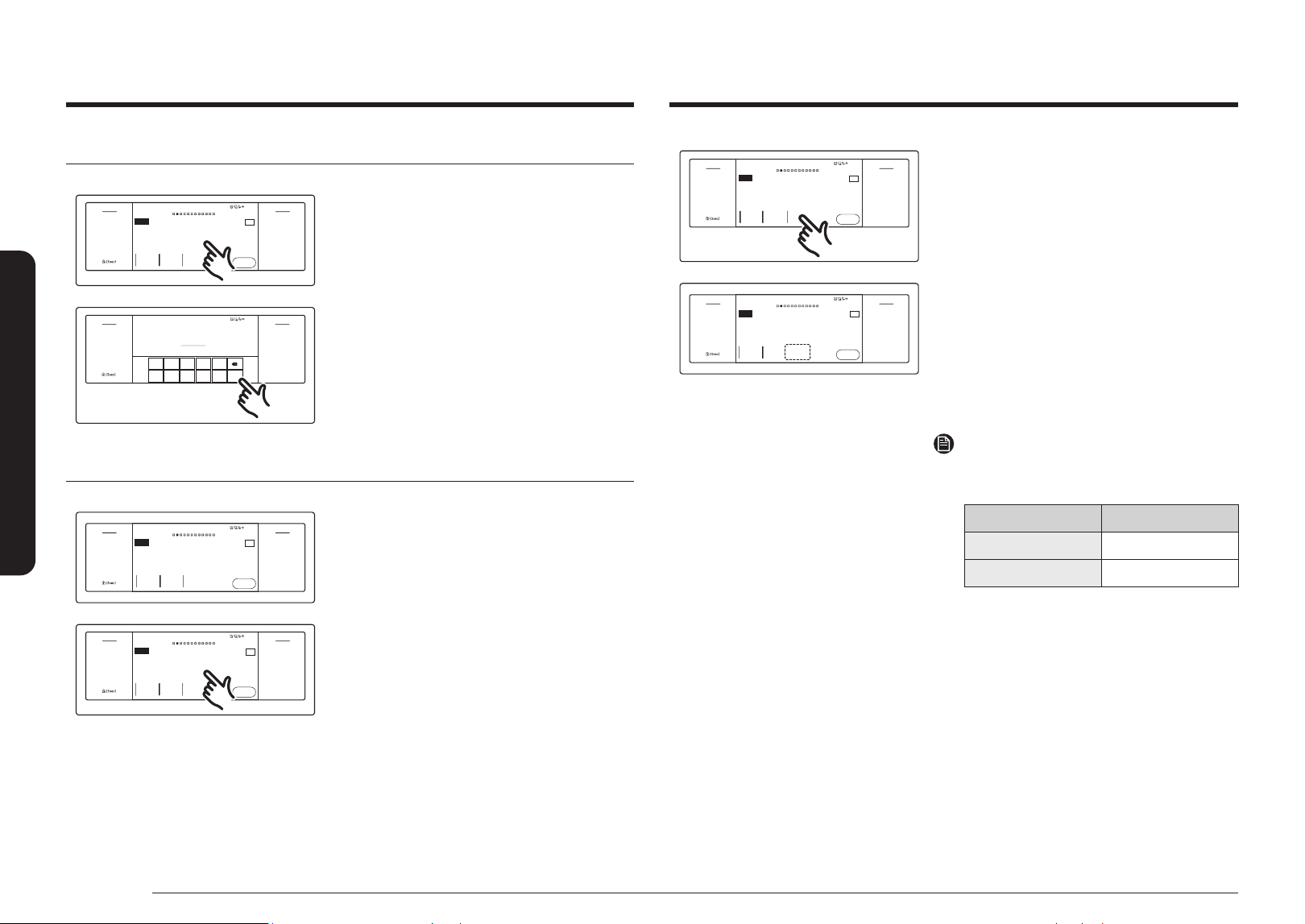
Item Amount Temperature Time Tips
Vegetables
Asparagus,
Breaded
15 - 20 oz 425 °F 20 - 25 min
Dip sliced vegetables into
the our mixture. Whisk
the egg and milk. Dip
our coated vegetables
into the egg mixture.
Place them into breaded
crumbs and toss until
items are coated with
crumbs. Add salt and
pepper to taste. Brush
with 3 tbsp of oil.
Egg Plants,
Breaded
20 - 25 oz 425 °F 20 - 25 min
Mushroom,
Breaded
18 - 22 oz 425 °F 20 - 25 min
Onions,
Breaded
18 - 22 oz 425 °F 20 - 25 min
Cauliowers,
Breaded
18 - 22 oz
400 °F -
425 °F
20 - 25 min
Vegetable Mix,
Breaded
30 - 35 oz
400 °F -
425 °F
20 - 25 min
36 English
Operating the oven
Operating the oven
Setting the temperature
4:35 PM
Convection Bake
Faster, more even baking
325
°F
Start
OVEN
MODE
TIP
Cook Time
None
No Preheat
Off
Delay Start
None
Off
Open/Close
Reservoir
Off
Light
Smart
Control
Flex LowerFlex Upper
Settings
Convection Bake
Faster, more even baking
TIP
Cook Time Delay Start No Preheat
None None Off
Start
1. Tap the temperature area to display the
numeric pad.
2. Tap the numbers on the numeric pad to set
the temperature.
3. Tap OK.
1
6 7 8 9 0
2 3 4 5
OK
Adjust temp. 175°F ~ 550°F
325
°F
4:35 PM
Off
Open/Close
Reservoir
Off
Light
Smart
Control
Flex LowerFlex Upper
Settings
Adjust temp. 175°F ~ 550°F
Basic baking and broiling instructions
4:35 PM
Convection Bake
Faster, more even baking
325
°F
Start
OVEN
MODE
TIP
Cook Time
None
No Preheat
Off
Delay Start
None
Off
Open/Close
Reservoir
Off
Light
Smart
Control
Flex LowerFlex Upper
Settings
Convection Bake
Faster, more even baking
TIP
Cook Time Delay Start No Preheat
None None Off
Start
1. Tap the screen and then swipe to select the
desired cooking mode.
4:35 PM
Convection Bake
Faster, more even baking
325
°F
Start
OVEN
MODE
TIP
Cook Time
None
No Preheat
Off
Delay Start
None
Off
Open/Close
Reservoir
Off
Light
Smart
Control
Flex LowerFlex Upper
Settings
Convection Bake
Faster, more even baking
Cook Time Delay Start No Preheat
None None Off
Start
TIP
2. Set the temperature you want.
(See the Setting the temperature section on
this page.)
• Broil mode can be set only Hi or Low.
• Keep Warm temperature is xed and
cannot be changed.
Cook Time
None
Delay Start
None
No Preheat
Off
4:35 PM
Convection Bake
Faster, more even baking
325
°F
Start
OVEN
MODE
TIP
Off
Open/Close
Reservoir
Off
Light
Smart
Control
Flex LowerFlex Upper
Settings
Cook Time Delay Start No Preheat
None None Off
Start
Convection Bake
Faster, more even baking
TIP
3. Follow the steps below to use the
No preheat, Steam Bake or Steam Roast
feature. If you are not using these features,
skip these steps and go to Step 4 on the next
page.
No Preheat
a. If you select Convection Bake or
Convection Roast, the display will
show the No Preheat information. (The
default is Off).
b. Tap the No Preheat area.
The No Preheat feature is activated and
the display will show On.
NOTE
• For best performance, we recommend
cooking on a single rack.
Type Rack Positions
Baking 3 or 4
Roasting 1 or 2
• Place food in the oven before you start
cooking when using the No Preheat feature.
• For best performance, preheat the oven
when baking rising bakery products such
as angel food cakes, bundt cakes, or puff
pastries.
Delay Start
None
No Preheat
On
4:35 PM
Convection Bake
Faster, more even baking
325
°F
Start
View
Summary
OVEN
MODE
TIP
Cook Time
None
Off
Open/Close
Reservoir
Off
Light
Smart
Control
Flex LowerFlex Upper
Settings
Convection Bake
Faster, more even baking
TIP
Start
Cook Time Delay Start No Preheat
None None Off
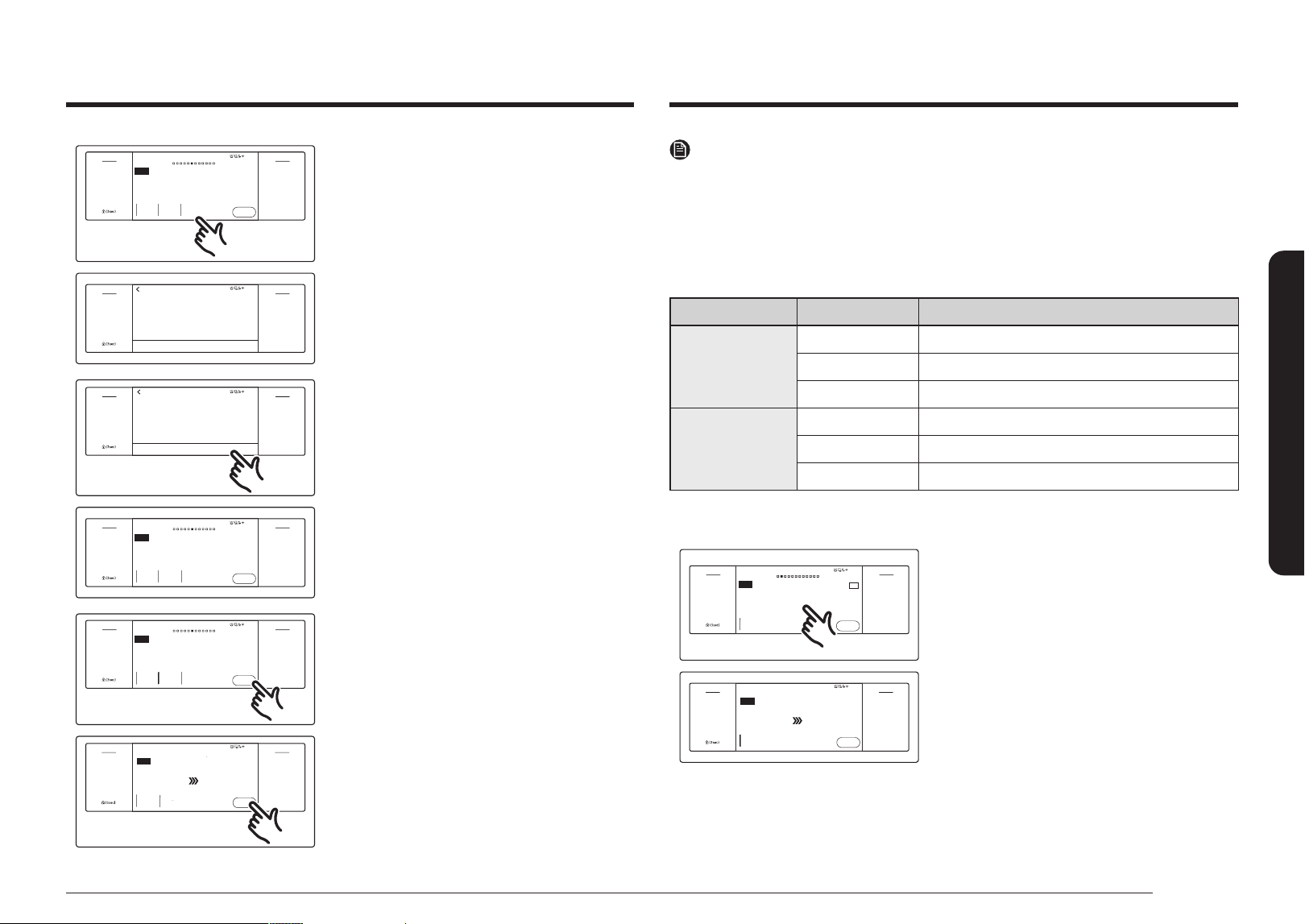
English 37
Operating the oven
Cook Time
0
hr
40
min
Steam
Medium
Delay Start
4
:
35
PM
4:35 PM
Steam Bake
Steam baking
350
°F
Start
View
Summary
OVEN
MODE
Off
Open/Close
Reservoir
Off
Light
Smart
Control
Flex LowerFlex Upper
Settings
Steam Bake
Steam baking
Start
Cook Time
Delay Start No Preheat
0hr 45min 4:35 PM Medium
Steam Bake, Steam Roast
a. If you selected Steam Bake or Steam
Roast, the display will show the
steam-level information. (The default is
Medium).
b. Tap the Steam area to adjust the steam
level. The steam-level adjustment
screen appears. You can set the steam
level to Low, Medium, or High.
c. Tap OK. The steam-level adjustment screen
closes and the steam-level information is
displayed on the screen.
Important : You must ll the water reservoir
before you start steam cooking. See the
Water reservoir section on page 20.
Low
High
Medium
Cancle OK
4:35 PM
Adjust steam level
Off
Open/Close
Reservoir
Off
Light
Smart
Control
Flex LowerFlex Upper
Settings
Medium
High
Low
Adjust steam level
Cancle OK
Low
High
Medium
Cancle OK
4:35 PM
Adjust steam level
Off
Open/Close
Reservoir
Off
Light
Smart
Control
Flex LowerFlex Upper
Settings
Medium
High
Low
Adjust steam level
Cancle OK
Cook Time
0
hr
40
min
Steam
High
Delay Start
4
:
35
PM
4:35 PM
Steam Bake
Steam baking
350
°F
Start
View
Summary
OVEN
MODE
Off
Open/Close
Reservoir
Off
Light
Smart
Control
Flex LowerFlex Upper
Settings
Steam Bake
Steam baking
Start
Cook Time Delay Start Steam
0hr 40min
4:35 PM
High
4. If you want to use the Cook Time, or Delay
Start function, set each function now. See
pages 26 and 27 for instructions.
Cook Time
0
hr
40
min
Steam
High
Delay Start
4
:
35
PM
4:35 PM
Steam Bake
Steam baking
350
°F
Start
View
Summary
OVEN
MODE
Off
Open/Close
Reservoir
Off
Light
Smart
Control
Flex LowerFlex Upper
Settings
Steam Bake
Steam baking
Start
Cook Time Delay Start Steam
0hr 40min
4:35 PM
High
5. Tap Start to begin cooking.
Steam
Medium
Steam Bake
Preheating...
OVEN
MODE
Time Left
None
325
°F
175
°F
Off
Off
Open/Clo
se
Reservoir
Off
Light
Smart
Control
Flex Lower
Fl
ex Upper
Settings
4:35 PM
Steam Bake
Preheating...
Off
Time Left
Steam
None Medium
6. Tap Off when cooking is done or if you want
to cancel cooking.
NOTE
When Steam Cook is enabled and the water reservoir runs out of water, the display will show "Please add
more water".
The oven continues to operate but the steam generator stops operation until you rell the water
reservoir with water.
See the Draining section starting on page 55.
Steam Bake, Steam Roast recommendation guide
Steam mode Steam level Recommended Foods
Steam Bake
High Rye breads, Desserts (Flan caramel)
Med Croissants, Pies, Reheats (Pizza, Casserole)
Low Pastries
Steam Roast
High -
Med Meats, Poultry
Low Turkey, Large meats
How to adjust the temperature while cooking
4:35 PM
Convection Bake
Cooking in Progress...
175
°F
Off
View
Summary
OVEN
MODE
TIP
Off
Open/Clo
se
Reservoir
Off
Light
Smart
Control
Flex Lower
Fl
ex Upper
Settings
Cook Time
None
175
°F
Convection Bake
Faster, more even baking
Cook Time
None
Off
TIP
Tap the temperature area, enter the new
temperature using the numeric keypad and then
tap OK.
Convection Bake
Preheating...
OVEN
MODE
Time Left
None
325
°F
175
°F
4:35 PM
Off
Off
Open/Clo
se
Reservoir
Off
Light
Smart
Control
Flex Lower
Fl
ex Upper
Settings
Convection Bake
Faster, more even baking
Time Left
None
Off
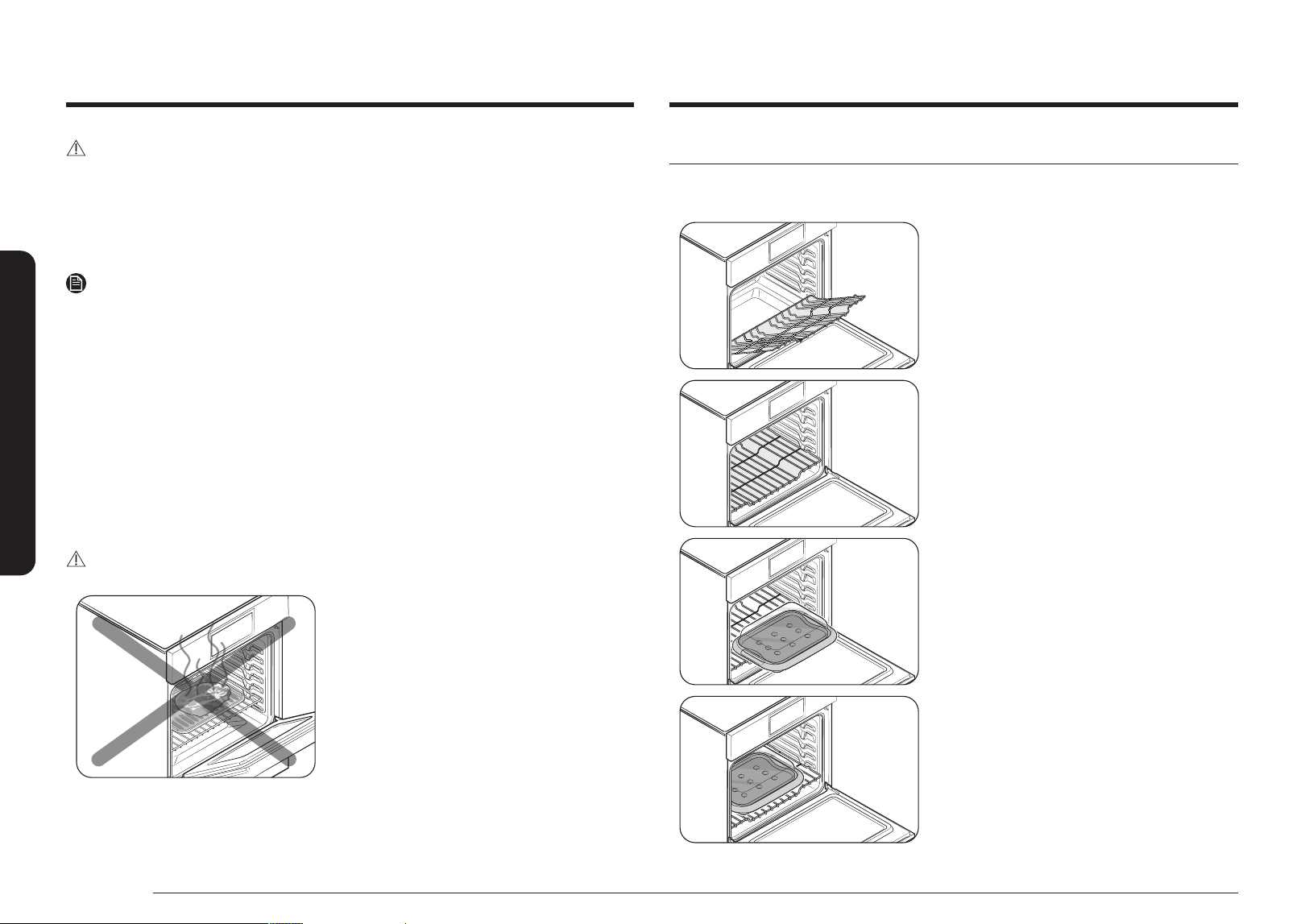
38 English
Operating the oven
Operating the oven
Steam Cook
Replacing the wire rack steam and steam container
1. Place the end of the wire rack steam on the
support.
2. Tilt the front end up and push the rack in.
3. Place the steam container on the rack.
4. Push the container in until the steam nozzle
enters the hole on the convection fan cover.
CAUTION
• Place food in the oven after preheating if the recipe calls for it. Preheating is very important for
good results when baking cakes, cookies, pastry, and breads.
• The convection oven fan shuts off when the oven door is opened.
• DO NOT leave the door open for long periods of time while using convection cooking or you may
shorten the life of the convection heating element.
NOTE
• If you leave the oven door open for more than 2 minutes when the oven is on, all heating elements
will shut off automatically.
• When you have nished cooking, the cooling fan will continue to run until the oven has cooled
down.
• Make sure to drain the remaining water after using steam cooking. Once the oven starts draining,
wait until the draining cycle is complete.
• When a steam function is complete, you must empty the water reservoir because the remaining
water can affect other cooking modes.
• If you are using an oven thermometer in the oven chamber, the temperature registered by the
thermometer may differ from the actual set oven temperature.
• For performance reasons, the convection fan may turn on or off while the oven is operating.
• This oven is designed for closed-door broiling. The oven door must be closed during broiling.
CAUTION
Always broil with the oven door closed. Use care
when opening the door.
Let hot air or steam escape before you remove
food from or put food into the oven.
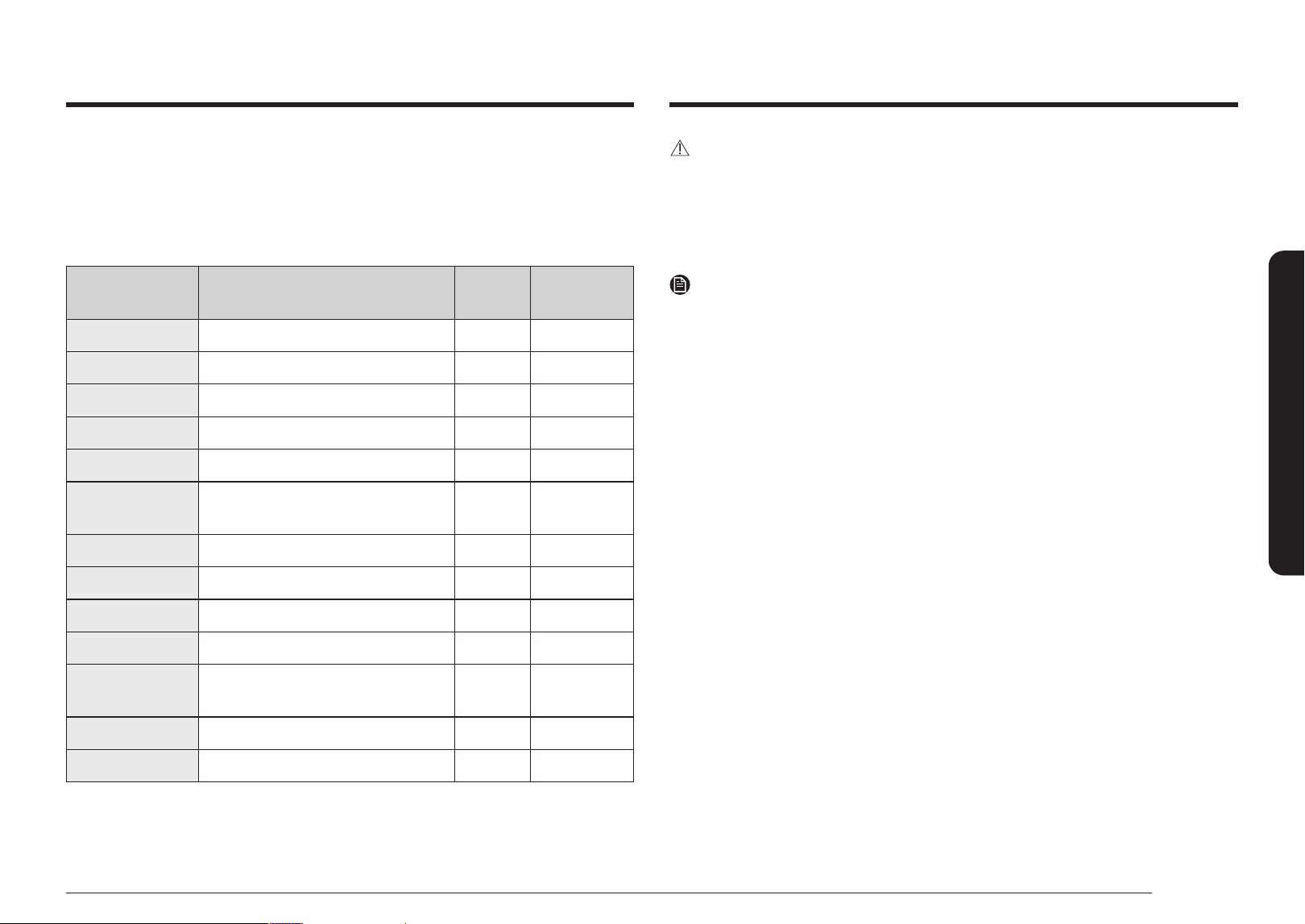
English 39
Operating the oven
CAUTION
• The steam container becomes hot during cooking. Make sure you wear oven gloves to
remove it.
• Be careful hot steam when you remove the glass lid of the steam container after
nishing.
• Make sure to insert fully into the comparment so the container touches the rear wall.
NOTE
• See the Steam container section starting on page 19.
• See the Water reservoir section starting on page 20.
Steam Cook recommendation guide
• Preheating is not required, it can be cooked immediately.
• Fill the reservoir with water up to the max line before using.
• Use the Steam container, place it in position 1.
• Use the Wire rack steam for the Steam container. (See the Introducing your new oven
section staring on page 18.)
Items Accessories
Rack
position
Cooking time
(min)
Broccoli orets Steam container, Wire rack steam 1 10 - 15
Asparagus, green Steam container, Wire rack steam 1 10 - 15
Asparagus, white Steam container, Wire rack steam 1 15 - 20
Green beans Steam container, Wire rack steam 1 10 - 15
Brussel sprouts Steam container, Wire rack steam 1 15 - 20
Peeled potato
halves
Steam container, Wire rack steam 1 25 - 35
Spinach Steam container, Wire rack steam 1 10 - 13
White sh, llets Steam container, Wire rack steam 1 20 - 25
Salmon, llets Steam container, Wire rack steam 1 20 - 25
Prawns Steam container, Wire rack steam 1 15 - 20
Mussels, on the half
shell
Steam container, Wire rack steam 1 15 -20
Chicken breasts Steam container, Wire rack steam 1 25 -35
Eggs, boiled Steam container, Wire rack steam 1 20 -30
* This table is for reference only
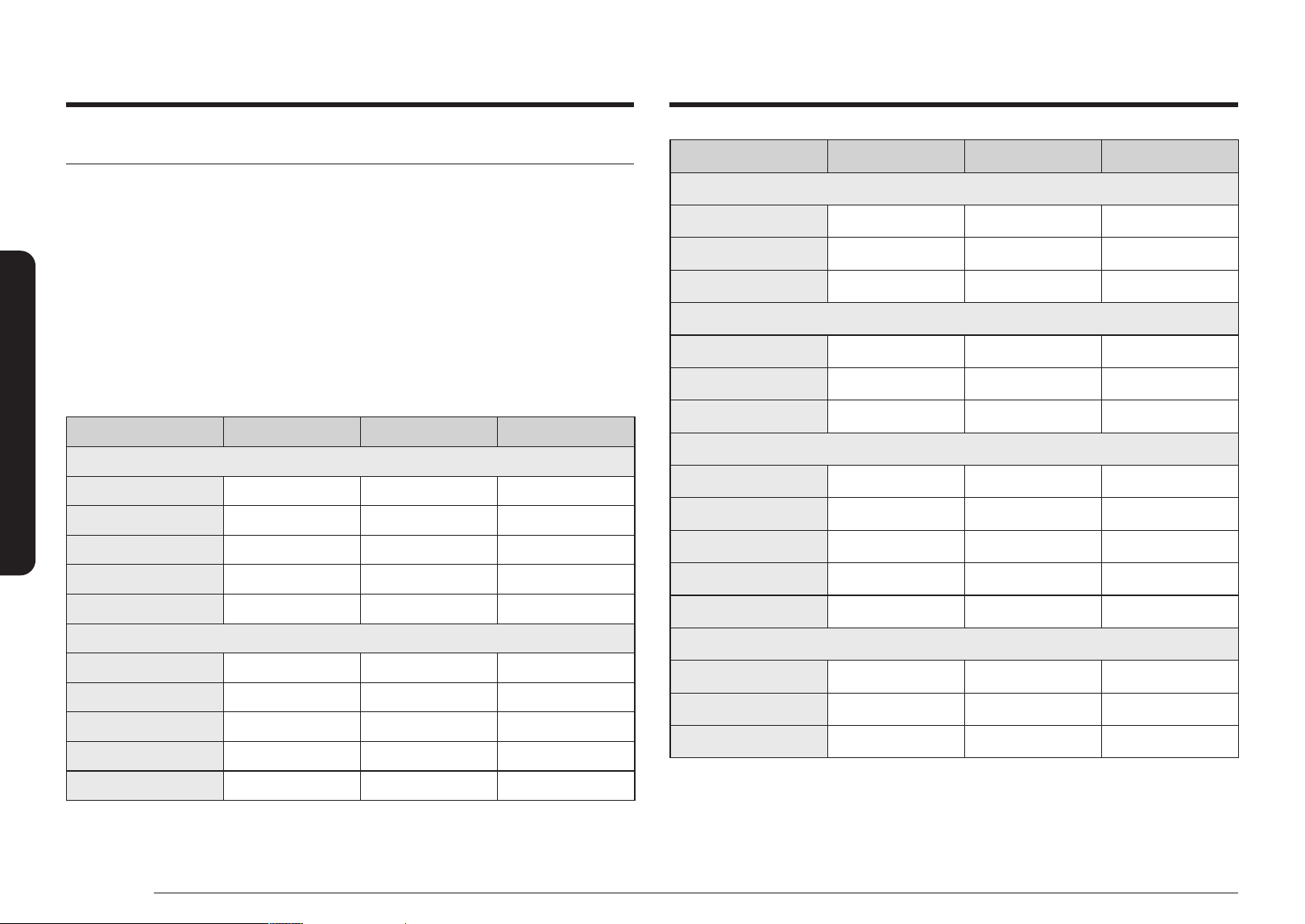
40 English
Operating the oven
Operating the oven
Food Doneness Temperature(°F) Time(hrs.)
Poultry
Chicken, breast Tender 145 °F 2.5 - 4
Chicken, breast Firm 160 °F 3 - 4
Duck, breast Tender 145 °F 3 - 4
Fish
Salmon steak Tender 130 °F 2 - 3
Salmon steak Well done 145 °F 1.5 - 3
Cod llet Tender 130 °F 1.5 - 3
Vegetables
Asparagus - 180 °F 0.5 - 2
Potato, sliced - 200 °F 2 - 4
Sweet potato, sliced - 200 °F 2 - 4
Carrot, sliced - 190 °F 2 - 4
Squash, cubes - 180 °F 2 - 4
Fruit
Apple, sliced - 180 °F 1 - 2
Pineapple, sliced - 180 °F 1 - 2
Pear, sliced - 180 °F 1 - 2
* This table is for reference only
Air Sous Vide
• It is not necessary to preheat the oven when using Air Sous Vide mode.
• Use it to cook meat, sh, seafood, poultry or vegetables.
• Use fresh and quality ingredients only. Trim them in a clean condition and store under
refrigeration.
• Use heat-resistant vacuum bags for this mode surely.
• Use heat-resistant vacuum bags for moving and storing ingredients.
• Do not reuse the heat-resistant bags.
• Place the sealed vacuum bags of food on the rack 3 of the oven.
• The temperature can be set between 100 ˚F - 205 ˚F
• Only use temperature below 140 ˚F (60 ˚C) to cook foods that can be safely eaten raw.
Air Sous Vide recommendation guide
Food Doneness Temperature(°F) Time(hrs.)
Beef
Steak, 1.5" thick Rare 130 °F 2.5 - 4
Steak, 1.5" thick Medium 140 °F 2.5 - 4
Steak, 1.5" thick Well done 155 °F 2.5 - 4
Roast Medium 150 °F 6 - 12
Roast Well done 155 °F 6 - 12
Pork
Chop, boneless Tender 150 °F 3 - 5
Chop, boneless Firm 160 °F 3 - 5
Roast Medium 150 °F 4 - 6
Roast Well done 160 °F 4 - 6
Pulled pork Well done 160 °F 15 - 48
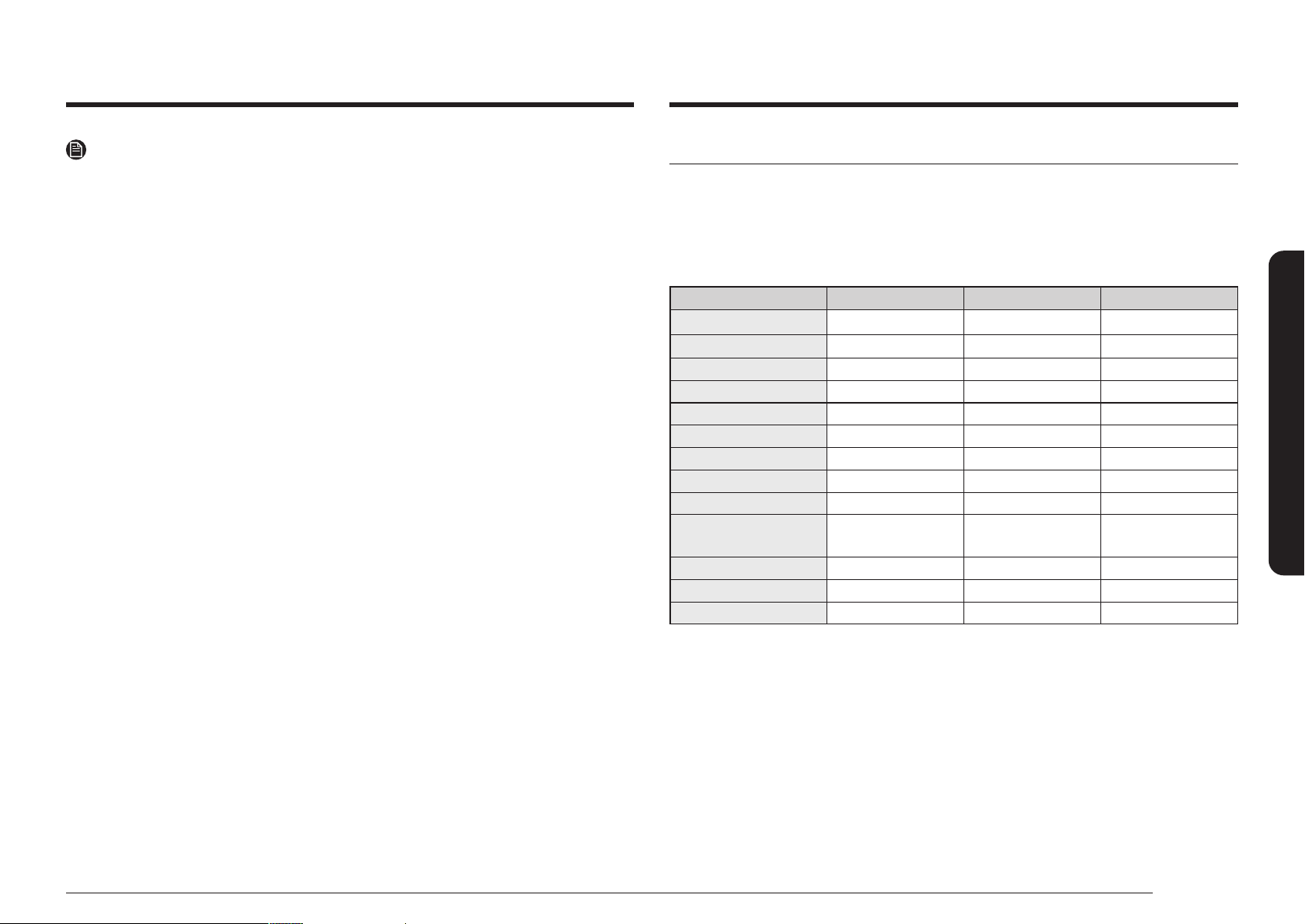
English 41
Operating the oven
NOTE
• The cooking time depends on the thickness of food. Addition of salt or sugar may
shorten the cooking time.
• Use Air Sous Vide recommendation guide to nd the recommended cooking time and
temperature for the food.
• Only use temperatures below 140 ˚F (60 ˚C) to cook foods that can be safely eaten raw.
• To keep the original taste, we recommend you use less herbs and spices than in ordinary
recipes.
• Meat and shery offer better avors when seared and served.
• Sous vide dishes are best served immediatly after cooking.
• If not served immediately after cooked, put the food in ice water and cool down
completely. Then, store them under 40 ˚F (5 ˚C) to keep the fragrance and texture of
food.
Convection Vegetable
Convection Vegetable recommendation guide
• Preheating is not necessary.
• For best results, use this mode on a single oven rack and place the dish on the rack
position 3.
• The temperature can be set between 350 °F - 450 °F. The default temperature is 400 °F.
Items Temperature Rack position Cooking time(min)
Potatoes 375 - 425 °F 3 45 - 65
Tomatoes, sliced 425 - 450 °F 3 15 - 20
Onions, sliced 400 - 425 °F 3 15 - 25
Carrots, sliced 375 - 425 °F 3 30 - 45
Bell peppers, sliced 375 - 425 °F 3 15 - 25
Broccoli, orets 400 - 425 °F 3 15 - 20
Cauliower, orets 400 - 425 °F 3 15 - 20
Asparagus 425 - 450 °F 3 15 - 20
Mushroom 425 - 450 °F 3 15 - 25
Zucchini, quartered
lengthwise
375 - 400 °F 3 30 - 50
Squash, sliced 375 - 400 °F 3 30 - 50
Eggplant, sliced 400 - 425 °F 3 15 - 20
Green beans 400 - 425 °F 3 15 - 20
* This table is for reference only
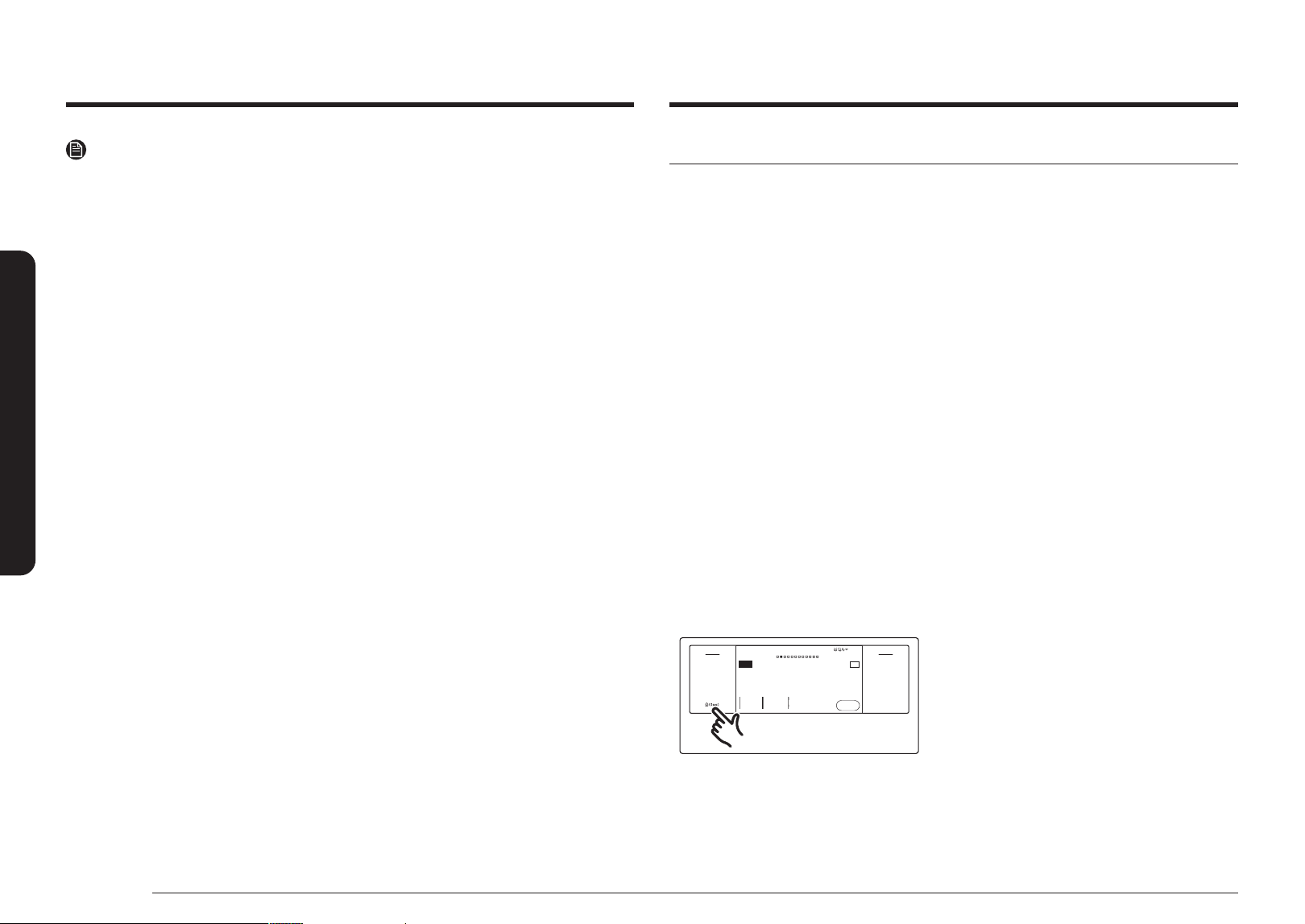
42 English
Operating the oven
Operating the oven
NOTE
• When cooking vegetables, place baking paper on a baking sheet or tray to catch any
drippings.
• It is recommended to use some oil such as olive oil or avocado oil and some salt or
pepper.
• It is recommended to serve with fresh herbs such as basil leaves, rosemary leaves and
grated cheeses as your taste after cooking.
• Serve cooked vegetables with your favorite main dish.
• It is recommended to take cooked vegetables every day for your health.
• Vegetables not listed in the table are recommended to be cooked at the default
temperature at rst, and then cooked at a higher or lower temperature.
• For performance reasons, the convection fan may be turned on or off during the
operation automatically.
• For more information, the Samsung website offers special menus and recipes to enjoy
cooked vegetables on the guide table, you can download detailed recipes for each
feature from the our website. (www.samsung.com/us/support)
Guided Cook feature
Your oven is equipped with the convenience of the Guided Cook system.
The Guided Cook takes a lot of the guesswork out of cooking.
You select the type of food, and the oven will set the temperature, the mode and show you
the amount of time required to cook.
You can view the detailed recipes in the SmartThings Cooking service.
Save time and effort choosing recipes and serve delicious meals.Using an internal camera,
recognizing* the ingredients in the oven it recommends recipes and optimizes the settings**
to achieve great cooking results. A camera and food probe also monitor how well done the
food is using ‘big data’ analysis, so it guides you to cook your dish properly and will alert you if
burning is detected***.
1. A dish should be placed in the center of the oven to achieve the best recognition. The
accuracy of the recognition may vary depending on the actual usage conditions, such as
the type of ingredients, cleanliness of the cavity and the brightness of the room light.
For more detailed information, please refer to the user guide enclosed with the package.
2. Based on an AI-created algorithm and not real-time learning. After the ingredients have
been identied and the recipe selected, if pre-heating is required, the ingredients need
to be removed from the oven during pre-heating. If pre-heating is not required, they can
be cooked immediately after they have been identied.
3. May not work properly when cooking specic food items that are a dark color or have
a cover, which can hinder recognition. So you should also monitor the cooking status
yourself.
Cook Time
None
Delay Start
None
4:35 PM
Convection Bake
Faster, more even baking
325
°F
Start
OVEN
MODE
TIP
No Preheat
Off
Off
Open/Clo
se
Reservoir
Off
Light
Smart
Control
Flex Lower
Fl
ex Upper
Settings
Convection Bake
Faster, more even baking
TIP
Start
Cook Time Delay Start No Preheat
None None Off
1. Tap Settings. The display will show the
Setting item.
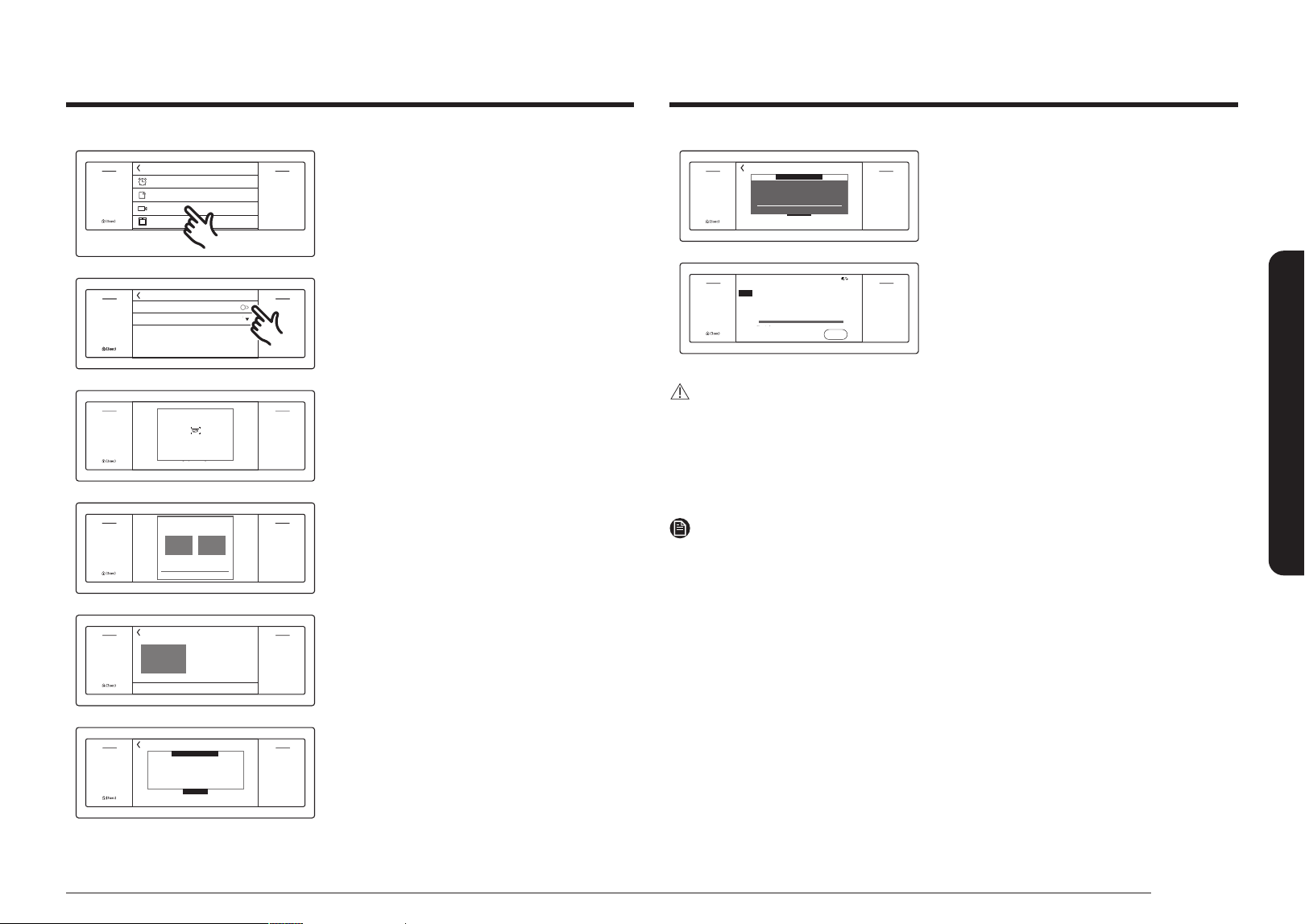
English 43
Operating the oven
Settings
Off
Open/Clo
se
Reservoir
Off
Light
Smart
Control
Flex Lower
Fl
ex Upper
Settings
Connections
Camera Vision
Display
Timer
Timer
Connections
Camera Vision
Display
Settings
2. Tap the camera vision.
Camera Vision
Recipe Recommendation
Burn Notification
off
The colors of oven lighting can change to improve
the performance of camera.
*
Off
Open/Close
Reservoir
Off
Light
Smart
Control
Flex LowerFlex Upper
Settings
Off
Open/Close
Reservoir
Off
Light
Smart
Control
Flex LowerFlex Upper
Settings
Camera Vision
Recipe Recomme ndation
Burn Notication
* The colors of oven lighting can change to improve
the performance of camera.
off
3. Tap recipe recommendation to turn on.
Cook manually
Recognizing food
Off
Open/Clo
se
Reservoir
Off
Light
Smart
Control
Flex Lower
Fl
ex Upper
Settings
Recognizing food
Cook manually
4. Place food in the oven and close the door.
Then The oven will recognize food.
Cook manually
Which recipe do you want to cook?
Whole chicken Butterfly chicken
Off
Open/Clo
se
Reservoir
Off
Light
Smart
Control
Flex Lower
Fl
ex Upper
Settings
Which recipe do you want to cook?
Whole chicken Buttery chicken
Cook manually
5.
After recognizing, tap the recipe you want
to cook.
Next
Use a wire rack or a gliding
rack on the 3rd level.
Butterfly Chicken
Off
Open/Clo
se
Reservoir
Off
Light
Smart
Control
Flex Lower
Fl
ex Upper
Settings
Use a wire rack or a gliding
rack on the 3rd level.
Buttery Chicken
Next
6. Check the rack position and tap Next.
Previous Delay Start Start
Butterfly Chicken
Cook Time
Convection Roast
Burn noti. Off
1hr 00min
425
°F
Off
Open/Clo
se
Reservoir
Off
Light
Smart
Control
Flex Lower
Fl
ex Upper
Settings
Buttery Chicken
Previous StartDelay Start
Convection Roast
Burn noti. Off
Cook Time
7.
You can set the Temperature, Cook Time and
Delay Start.
Set the settings and tap Start.
Convection Bake
Burn noti. Off
Previous StartDelay Start
Madeleines
Off
Open/Clo
se
Reservoir
Off
Light
Smart
Control
Flex Lower
Fl
ex Upper
Settings
Buttery Chicken
Remove the food from the oven to
preheat.
OK
Previous StartDelay Start
Convection Bake
8. If you need to preheat before cooking,
remove the food from the oven and tap OK.
Time Left
1
hr
00
min
6:05 AM
Butterfly Chicken
Convection Roast
Ready at 7:05 AM
425
°F
Off
OVEN
MODE
Off
Open/Clo
se
Reservoir
Off
Light
Smart
Control
Flex Lower
Fl
ex Upper
Settings
Off
Buttery Chicken
Convection Roast
Ready at 7:05 AM
1hr 00min
Time Left
9.
If you need to stop or interrupt guided cook,
tap Off.
CAUTION
• Be sure to follow the guide (recipe, preheating, rack position, dish size, etc.).
• It can be overcooked or undercooked slightly, if you change the default mode,
temperature, and time.
• If you change the mode, temperature, and time, the burn notication is released.
• Using a black coating container can shorten the cooking time.
NOTE
• Some cooking allow you to skip preheat. Follow the prompts on screen for guidance
throughout the cooking process.
• Place baking paper on a baking sheet or tray to catch any drippings while cooking the
guided cook.
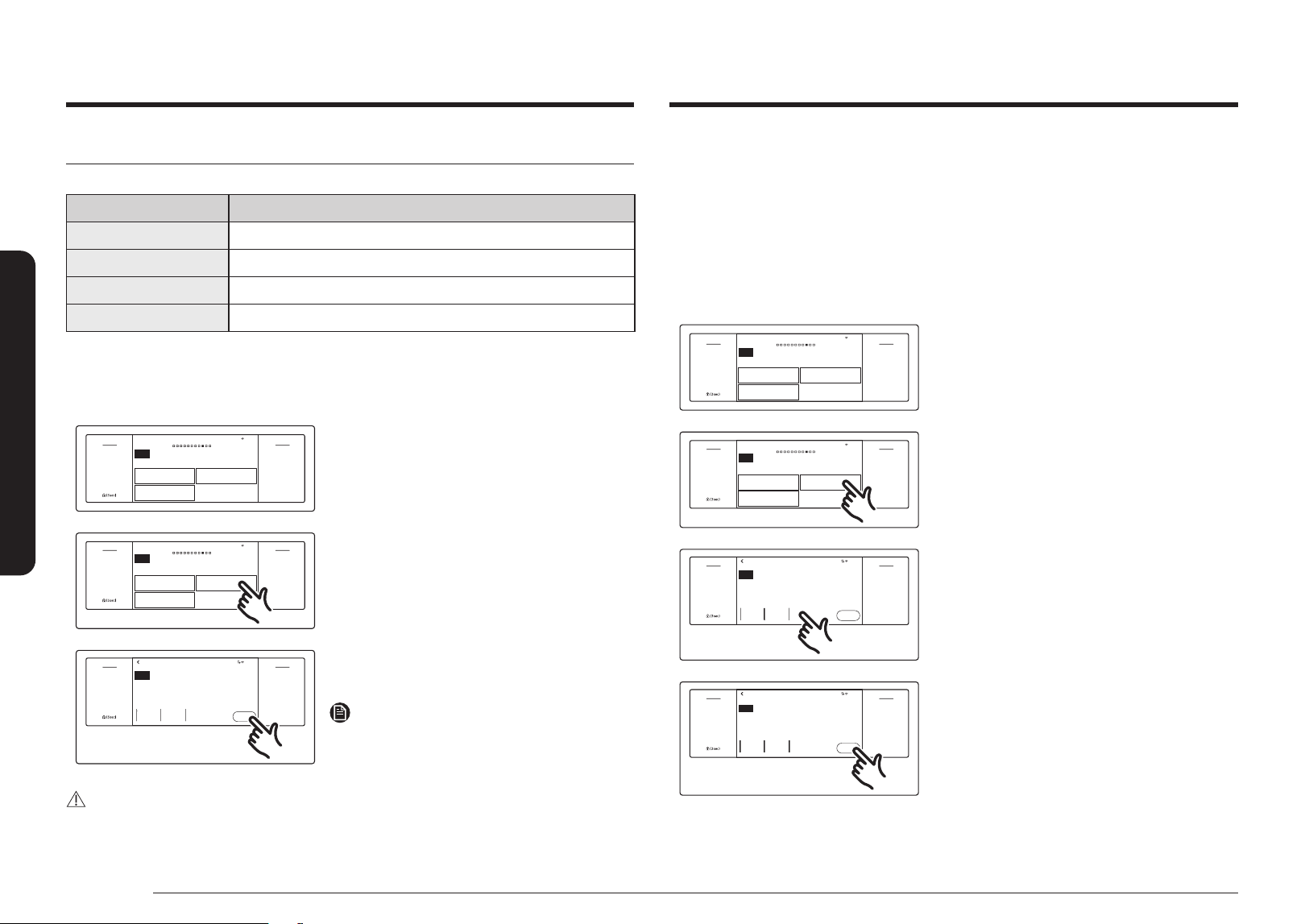
44 English
Operating the oven
Operating the oven
• Do not use Proof for warming food. The proong temperature is not hot enough to keep
food warm.
• Place the dough in a heat-safe container on rack position 2 and cover it with a cloth or
with plastic wrap. You may need to anchor the plastic wrap underneath the container so
that the oven does not blow the plastic wrap off the dough.
• To avoid lowering the temperature and extending proong time, do not open the oven
door.
Steam Proof
4:35 PM
Special Function
Additional Cooking Modes
OVEN
MODE
Keep Warm
Dehydrate
Steam Proof
Off
Open/Clo
se
Reservoir
Off
Light
Smart
Control
Flex Lower
Fl
ex Upper
Settings
Special Function
Additional Cooking Modes
Keep Warm
Dehydrate
Steam Proof
1. Swipe the screen to the Special function.
The display will show the specialized cooking
options.
4:35 PM
Special Function
Additional Cooking Modes
Keep Warm
Dehydrate
Steam Proof
Off
Open/Clo
se
Reservoir
Off
Light
Smart
Control
Flex Lower
Fl
ex Upper
Settings
OVEN
MODE
Special Function
Additional Cooking Modes
Keep Warm
Dehydrate
Steam Proof
2. Tap the cooking option you want.
4:35 PM
Steam Proof
105
°F
Delay Start
None
Steam
Off
Cook Time
None
Start
Proong
Off
Open/Clo
se
Reservoir
Off
Light
Smart
Control
Flex Lower
Fl
ex Upper
Settings
OVEN
MODE
Steam Proof
Proong
Cook Time
None
Delay Start
None
Steam
Off
Start
3. Tap Steam and set the temperature you
want.
Steam Proof
105
°F
4:35 PM
Delay Start
None
Steam
On
Cook Time
None
Start
Proong
Off
Open/Clo
se
Reservoir
Off
Light
Smart
Control
Flex Lower
Fl
ex Upper
Settings
OVEN
MODE
Steam Proof
Proong
Cook Time
None
Delay Start
None
Steam
On
Start
4. Tap Start.
Using the special function feature
Special function provides 4 different specialized cooking options.
Mode Temperature range
Keep Warm **None
Proof 95 °F (35 °C) / 105 °F (40 °C)
Steam Proof 95 °F (35 °C) / 105 °F (40 °C)
Dehydrate 100 °F (40 °C) - 225 °F (105 °C)
** None means that a factory set temperature is applied for the best performance. You
cannot adjust this temperature.
Proof
4:35 PM
Special Function
Additional Cooking Modes
OVEN
MODE
Keep Warm
Dehydrate
Steam Proof
Off
Open/Clo
se
Reservoir
Off
Light
Smart
Control
Flex Lower
Fl
ex Upper
Settings
Special Function
Additional Cooking Modes
Keep Warm
Dehydrate
Steam Proof
1. Swipe the screen to the Special function.
The display will show the specialized cooking
options.
4:35 PM
Special Function
Additional Cooking Modes
Keep Warm
Dehydrate
Steam Proof
Off
Open/Clo
se
Reservoir
Off
Light
Smart
Control
Flex Lower
Fl
ex Upper
Settings
OVEN
MODE
Special Function
Additional Cooking Modes
Keep Warm
Dehydrate
Steam Proof
2. Tap the cooking option you want.
Steam Proof
105
°F
4:35 PM
Delay Start
None
Steam
Off
Cook Time
None
Start
Proong
Off
Open/Clo
se
Reservoir
Off
Light
Smart
Control
Flex Lower
Fl
ex Upper
Settings
OVEN
MODE
Steam Proof
Proong
Cook Time
None
Delay Start
None
Steam
Off
Start
3. Set the temperature you want.
4. Tap Start.
NOTE
You cannot adjust the temperature on Keep Warm
mode.
CAUTION
• Do not use Proof when the oven temperature is above 125 °F. If temperature is above 125
°F, this mode won't function properly. Wait until the oven cools down.
English 45
Operating the oven
Using the smart control feature
To use the oven’s Smart Control, you must download the SmartThings app to a mobile
device. Functions that can be operated using the SmartThings app may not work smoothly if
communication conditions are poor or the oven is installed in a place with a weak Wi-Fi signal.
Please refer to the following table for the main functions that can be operated from the app.
When Smart Control on the oven
is off
Monitoring (Oven, Probe), Oven off
When Smart Control on the oven
is on.
Monitoring (Oven, Probe), Oven start, Oven off, Error
check
How to connect the oven
1. Download and open the SmartThings app on your smart device.
2. Follow the app’s on-screen instructions to connect your oven.
3. Once the process is complete, the connected
icon located on your oven displays and
the app will conrm you are connected.
4. If the connection icon does not turn on, follow the instruction in the app to reconnect.
CAUTION
• Do not use Steam Proof when the oven temperature is above 125 °F. If temperature is
above 125 °F, this mode won't function properly. Wait until the oven cools down.
• Do not use Steam Proof for warming food. The proong temperature is not hot enough
to keep food warm.
• Place the dough in a heat-safe container on rack position 2 or 3 and cover it with a cloth
or with plastic wrap. You may need to anchor the plastic wrap underneath the container
so that the oven does not blow the plastic wrap off the dough.
• To avoid lowering the temperature and extending proong time, do not open the oven
door.
NOTE
• Preheating is not necessary on special function feature.
• An error beep sounds if the temperature setting is out of the set range.
Rack position chart for special cooking options
Mode Rack position
Keep Warm 2
Steam Proof 2 or 3
Stone Bake Mode 1 or 2
Dehydrate 3 or 4
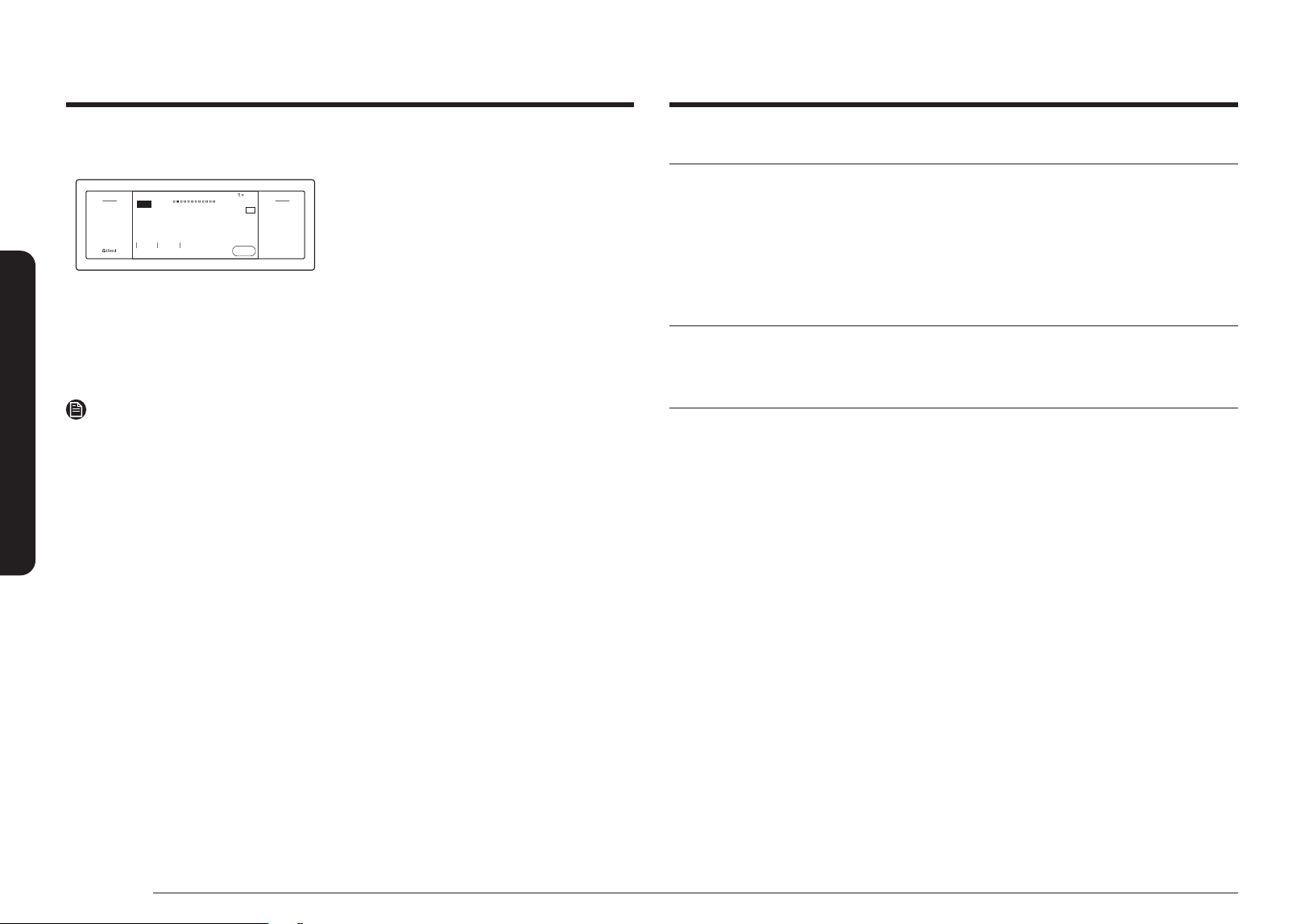
46 English
Operating the oven
Operating the oven
Bixby
• Bixby is the name of Samsung's articial intelligence solution that makes it possible to
control the product by voice.
• To use the voice recognition function, you need to connect the SmartThings app and the
product on your smartphone.
• For models that do not directly recognize voice input for the product after connecting to
the app, some functions can still be controlled through Bixby on Samsung smartphones.
Amazon Alexa & Google Assistant
Samsung smart home appliances are supported by SmartThings skill in Alexa and Action in
Google Assistant.
Installation Guide
Here's how to link SmartThings account into Amazon Alexa or Google Assistant. SmartThings
App and Alexa App (or Google Assistant App) should be installed on your phone.
1. Setup supported devices on SmartThings
2. After device setup, tap 'Voice assistant' and link your Samsung account to Amazon Alexa.
3. Check to see if the devices are visible on Amazon Alexa app. If visible, account linking
is complete. (Check that the devices are visible and set the location (home & room) of
devices in Google home app. Then account linking is complete.)
To start the oven remotely
Cook Time
4:35 PM
Convection Bake
Faster, more even baking
325
°F
Start
TIP
SteamDelay Start
Smart Control is on
Off
Open/Clo
se
Reservoir
Off
Light
Smart
Control
Flex Lower
Fl
ex Upper
Settings
OVEN
MODE
Convection Bake
Faster, more even baking
TIP
Start
Cook Time Delay Start Steam
Smart Control is on
Tap the Smart Control on the screen.
The oven can now be started and controlled
remotely by a connected mobile device.
When Smart Control is on you can:
• Remotely change oven settings (mode, time, temperature) using your mobile device.
• Remotely start the oven.
• Remotely turn off the oven.
• Once cooking starts, you can change the cooking time and temperature remotely.
NOTE
• Important: Self Clean mode cannot be started remotely.
• This appliance is congurable to allow remote operation at any time.
Do not store any ammable materials or temperature sensitive items inside, on top or
near surface units of the appliance.
• When Smart Control is deactivated, you can still monitor the oven's status and turn the
oven off.
• When oven cooking is nished or cancelled, Smart Control will be deactivated.
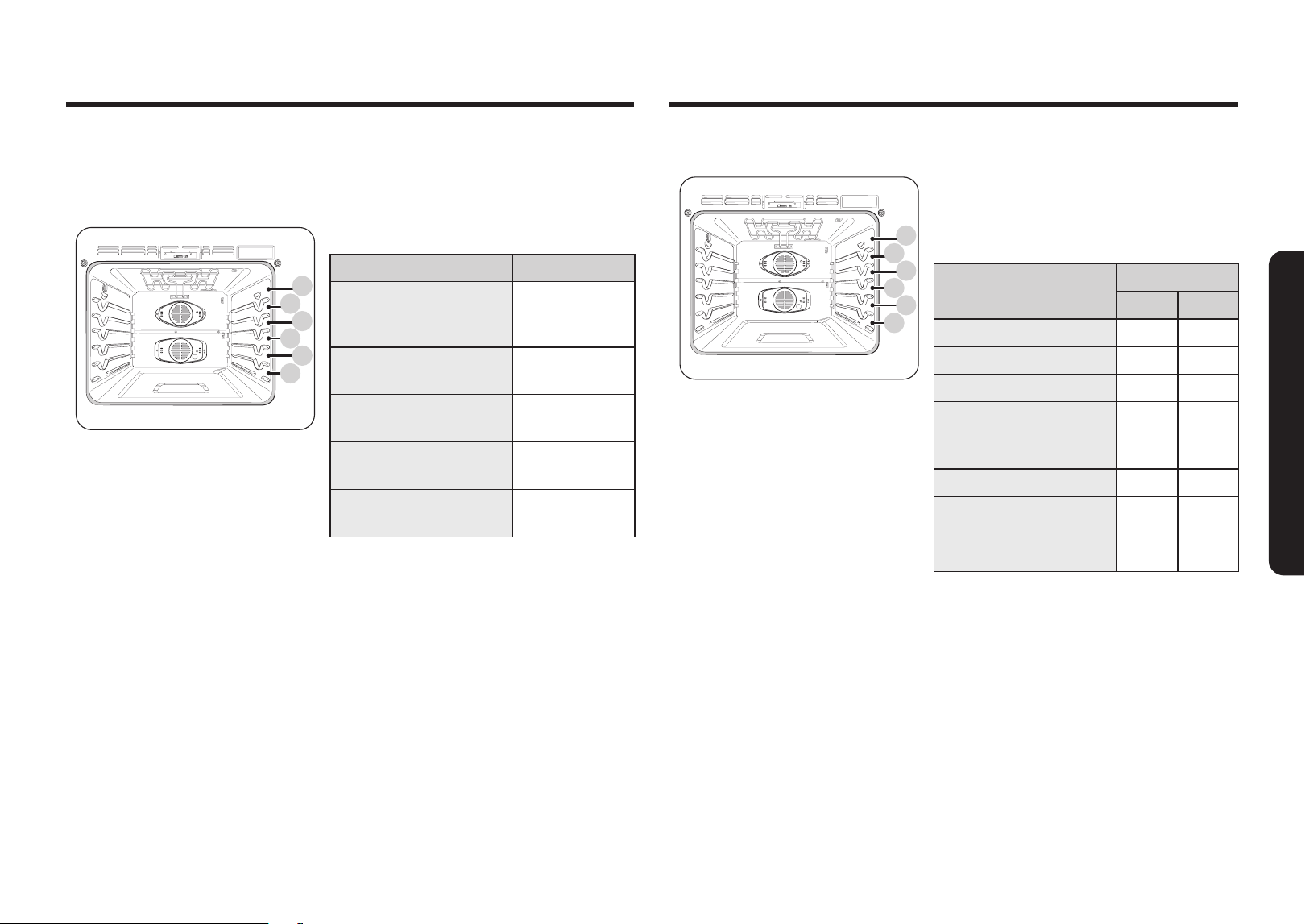
English 47
Operating the oven
Using the oven racks
Oven rack positions (single mode)
01
03
05
02
04
06
Recommended rack positions for cooking
TYPE OF FOOD RACK POSITION
Broiling hamburgers 6
Broiling meats or small
cuts of poultry, sh
3 - 5
Bundt cakes, pound cakes,
frozen pies, casseroles
4 or 3
Angel food cakes, small
roasts
2
Turkeys, large roasts, hams,
fresh pizza
1
• This table is for reference only
Oven rack positions with divider (twin mode)
01
03
A
02
04
B
The upper compartment has 2 rack positions (A,
B).
The lower compartment has 3 rack positions
(1 - 3).
TYPE OF FOOD
RACK POSITION
Upper Lower
Frozen pies A 1
Angel food cakes - 1
Bundt or pound cakes - 1
Mufns, browines, cookies,
cupcakes, layer cakes, Pies,
Biscuits
A 1
Casseroles A 1
Small roast, hams A 1
Small turkeys, medium
roasts
- 1
• This table is for reference only
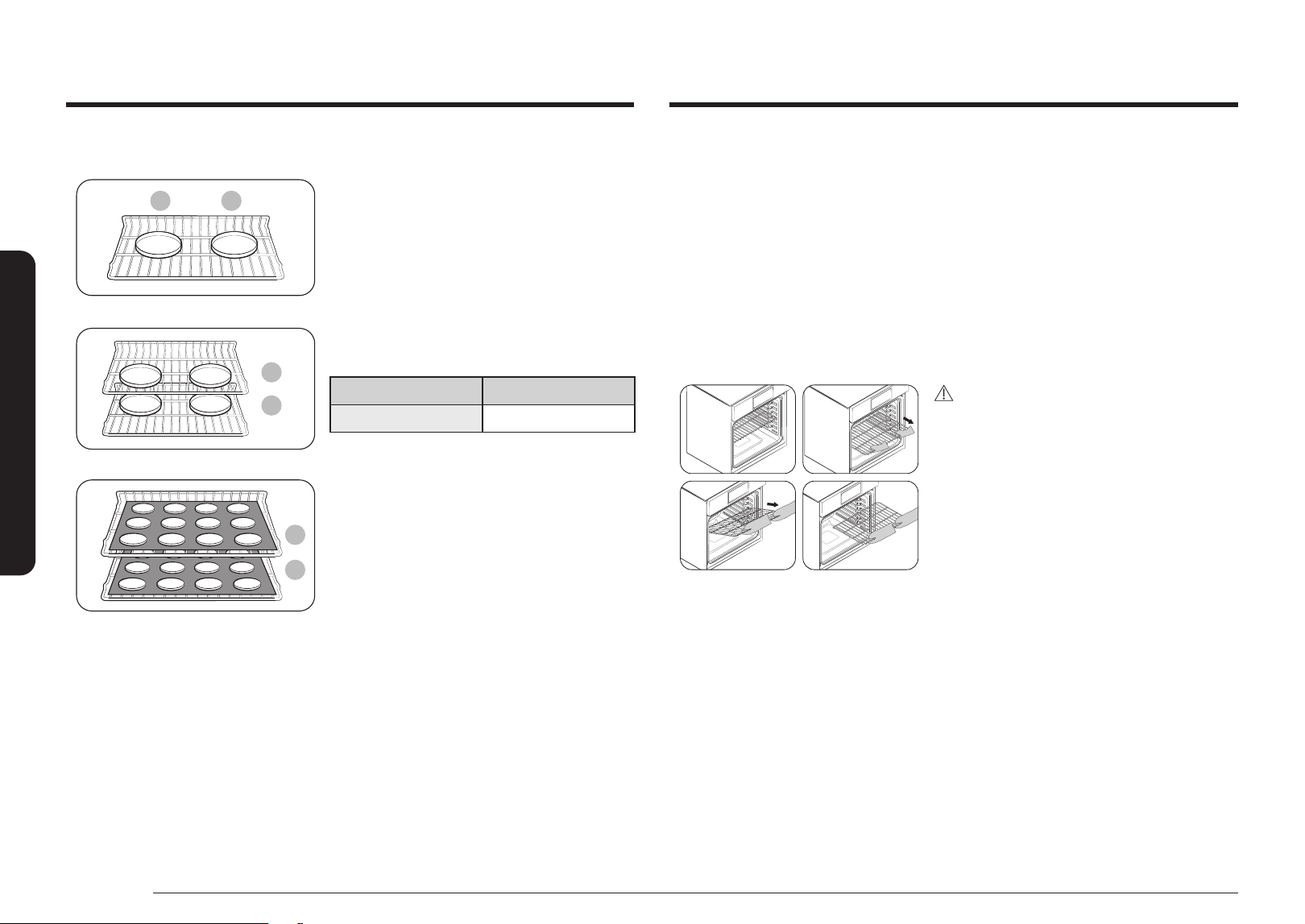
48 English
Operating the oven
Operating the oven
Rack and Pan placement
Single Oven RackSingle Oven Rack
3 4
Multiple Oven RacksMultiple Oven Racks
5
3
Multiple Oven RacksMultiple Oven Racks
5
3
Centering baking pans in the oven as much as
possible will produce better results. If baking with
more than one pan, place the pans so each has at
least 1˝ to 1½˝ of air space around it.
When baking on a single oven rack, place the oven
rack in position 3 or 4. See the gure on the left.
When baking cakes and cookies on multiple racks,
place the oven racks in positions 3 and 5.
Using multiple oven racks
Type of Baking Rack Positions
Cakes and cookies 3 and 5
Before using the racks
Each rack has stops that need to be placed correctly on the supports. These stops will keep
the rack from coming completely out.
Removing the racks
1. Pull the rack straight out until it stops.
2. Lift up the front of the rack, and then pull it out.
Replacing the racks
1. Place the end of the rack on the support.
2. Tilt the front end up and push the rack in.
CAUTION
• Do not cover a rack with aluminum foil or
place aluminum foil on the oven bottom.
This will hamper heat circulation, resulting
in poor baking, and may damage the oven
bottom.
• Arrange the oven racks only when the oven
is cool.
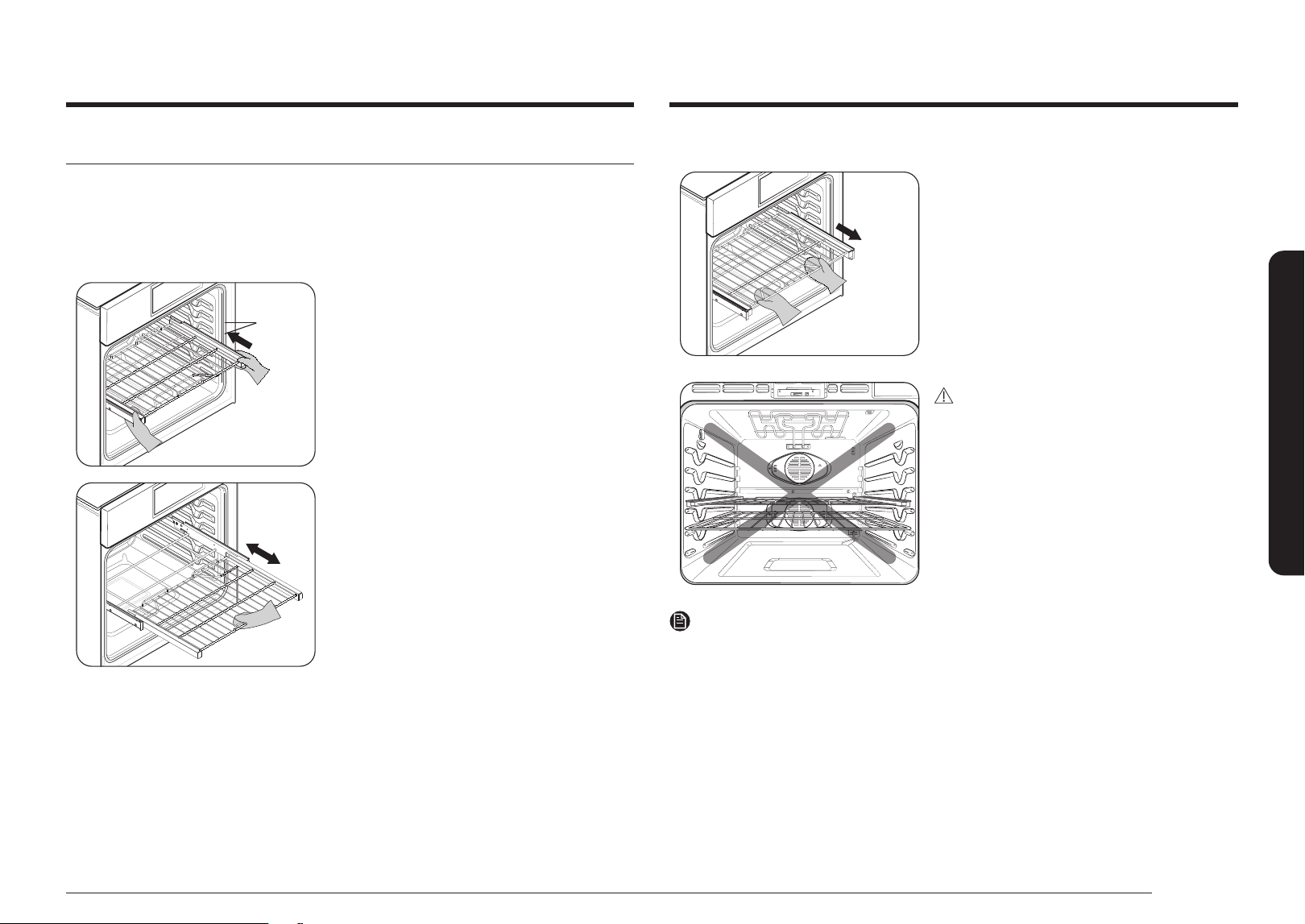
English 49
Operating the oven
Using the gliding rack
The fully extendable Gliding rack makes food preparation easier, especially when you are
preparing heavier dishes. The Gliding rack has 2 glide tracks that allow you to extend the rack
well out of the oven without touching the sides of the oven walls.
Installing the Gliding rack
Rack Rack
GuidesGuides
With the Gliding rack in the Closed position and
the oven off, carefully insert the Gliding Rack
between the guides until the rack reaches the
back.
When using the Gliding rack in the oven, be sure
to pull on the handle of the rack only to slide it
in and out. If you grasp the frame while using
the rack, the entire Gliding rack will be removed.
Make sure you use oven gloves when handling the
Gliding rack during cooking.
Removing the Gliding rack
With the Gliding rack in the Closed position and
the oven off and cool, grasp the rack and frame
and pull both forward to remove.
CAUTION
Do not install the Gliding rack directly above the
Wire rack.
You will not be able to install it properly and the
rack could fall.
NOTE
You can install the Gliding rack in any rack positions except the lowest rack position in the
oven (level 1).
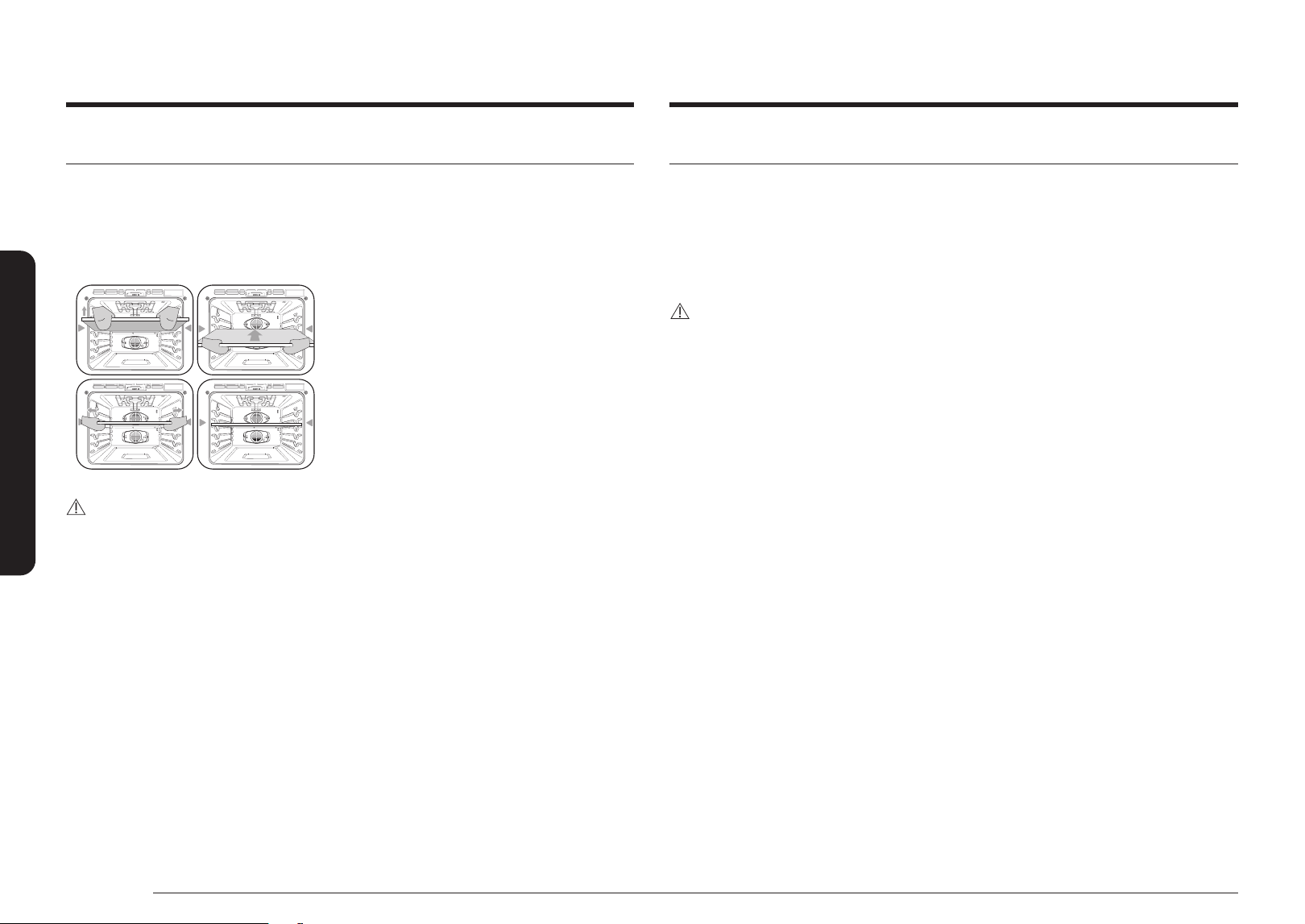
50 English
Operating the oven
Operating the oven
Using the divider
• To use twin mode operation, insert the divider.
• Handle the divider with both hands.
• Use oven gloves when inserting or removing the divider.
To Install the Divider into the Oven Cavity
1. Insert the divider into the 4th rack position
of the cavity.
2. Push the divider in until its back end rests
against the back of the cavity.
CAUTION
If the oven displays -dC-
• Check the divider to see if it is installed correctly.
Using the clean feature
The Clean feature has four selections: Self-Clean, Steam-Clean, Descale, and Draining.
Self Clean
This self-cleaning oven uses high temperatures (well above cooking temperatures) to burn
off leftover grease and residue completely or reduce them to a nely powdered ash that you
can wipe away with a damp cloth.
CAUTION
• During the self-cleaning cycle, the outside of the oven will become very hot to the touch.
Do not leave small children unattended near the appliance.
• Some birds are extremely sensitive to the fumes given off during the self-cleaning cycle
of any oven. Move birds to another well-ventilated room.
• Do not line the oven walls, racks, bottom, or any other part of the oven with aluminum
foil. Doing so will result in poor heat distribution, poor baking results, and cause
permanent damage to the oven interior. Aluminum foil will melt and adhere to the
interior surface of the oven.
• The oven door locks during self-cleaning. Do not force the oven door open. This can
damage the automatic door locking system. Use care when opening the oven door after
the self-cleaning cycle is complete. Stand to the side of the oven when opening the door
to allow hot air or steam to escape. The oven may still be VERY HOT.
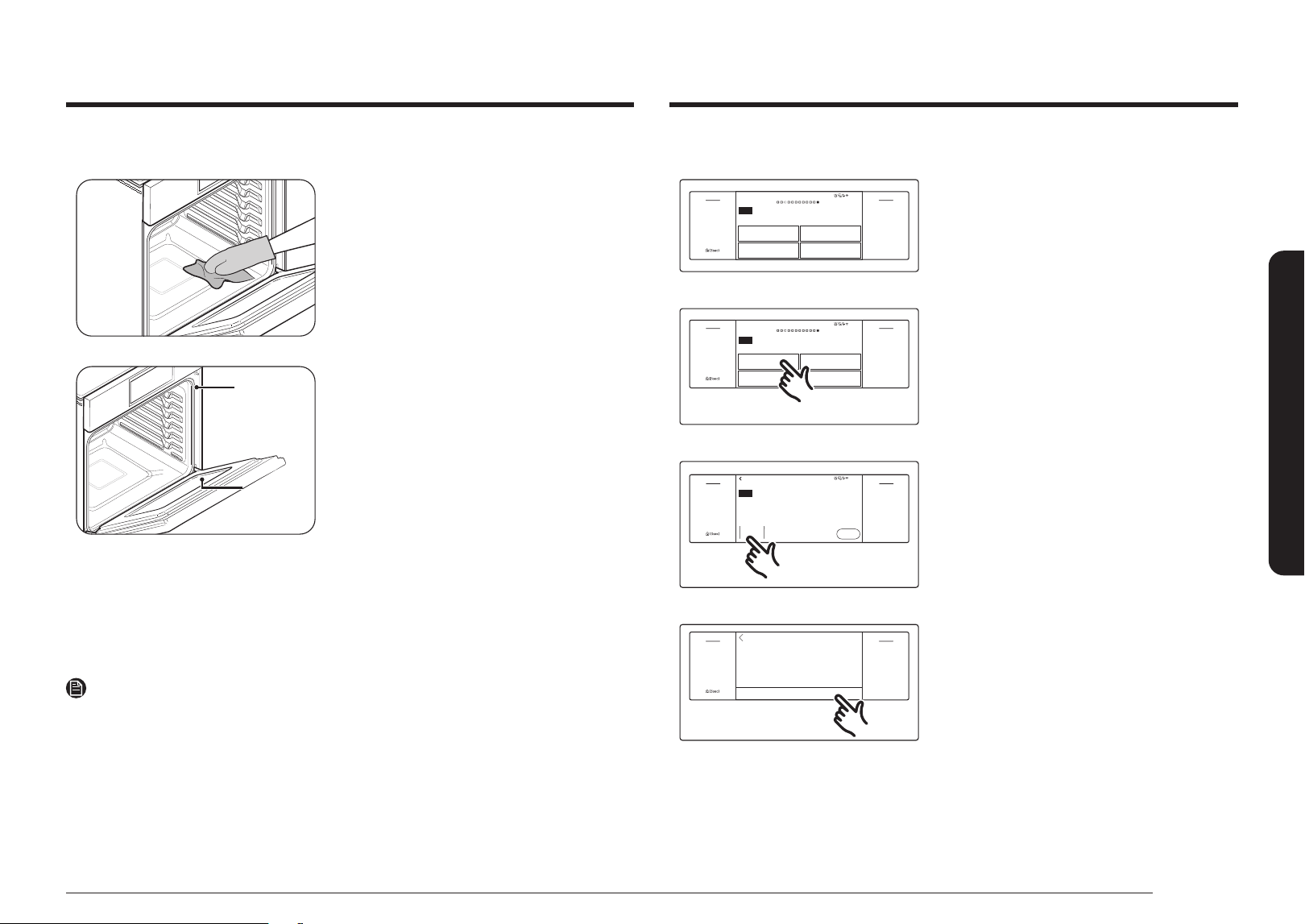
English 51
Operating the oven
How to run a self-cleaning cycle
Self clean
Descale Drain
Steam clean
Clean
Oven cleaning
4:35 PM
Off
Open/Clo
se
Reservoir
Off
Light
Smart
Control
Flex Lower
Fl
ex Upper
Settings
OVEN
MODE
Clean
Oven cleaning
Self clean
Descale
Steam clean
Drain
1. Swipe the screen to Clean. The display will
show 4 cleaning selections.
Self clean
Descale Drain
Steam clean
Clean
Oven cleaning
4:35 PM
Off
Open/Clo
se
Reservoir
Off
Light
Smart
Control
Flex Lower
Fl
ex Upper
Settings
OVEN
MODE
Clean
Oven cleaning
Self clean
Descale
Steam clean
Drain
2. Tap Self Clean.
Self clean
Oven cleaning
Delay Start
None
Clean Time
3
hr
00
min
4:35 PM
Next
Off
Open/Clo
se
Reservoir
Off
Light
Smart
Control
Flex Lower
Fl
ex Upper
Settings
OVEN
MODE
Self clean
Oven cleaning
Clean Time
3hr 00min
Delay Start
None
Next
3. Tap Clean Time.
Cancel OK
5
2
3
hr
Off
Open/Clo
se
Reservoir
Off
Light
Smart
Control
Flex Lower
Fl
ex Upper
Settings
Set clean time
2
3hr
5
Set clean time
Next
Cancel OK
4. Flick the screen to set the clean time. You
can choose 2 hours, 3 hours, or
5 hours. (The default is 3 hr).
5. Tap OK.
Before a self cleaning cycle
Fig. 1Fig. 1
Fig. 2Fig. 2
Don’t hand Don’t hand
clean the oven clean the oven
door gasket.door gasket.
You may You may
hand clean hand clean
the door.the door.
• We recommend venting your kitchen with
an open window or using a ventilation fan or
hood during the self-cleaning cycle.
• Remove the wire rack, broil pan, broil pan
insert, all cookware, and any aluminum foil
from the oven.
• Wipe up debris from the oven bottom. (Fig. 1)
• The silver-colored oven racks can be self-
cleaned, but they will darken, lose their
luster, and become hard to slide.
• Residue on the front frame of the oven and
outside the gasket on the door will need to
be cleaned by hand. Clean these areas with
hot water, soap-lled steel-wool pads, or
cleansers such as Soft Scrub. Rinse well with
clean water and dry.
• Do not clean the gasket. The berglass
material of the oven door gasket cannot
withstand abrasion. It is essential for the
gasket to remain intact. If you notice it
becoming worn or frayed, have it replaced.
(Fig. 2)
• Make sure the oven light cover is in place
and the oven light is off.
NOTE
Remove oven racks and accessories before srarting the self-clean mode.
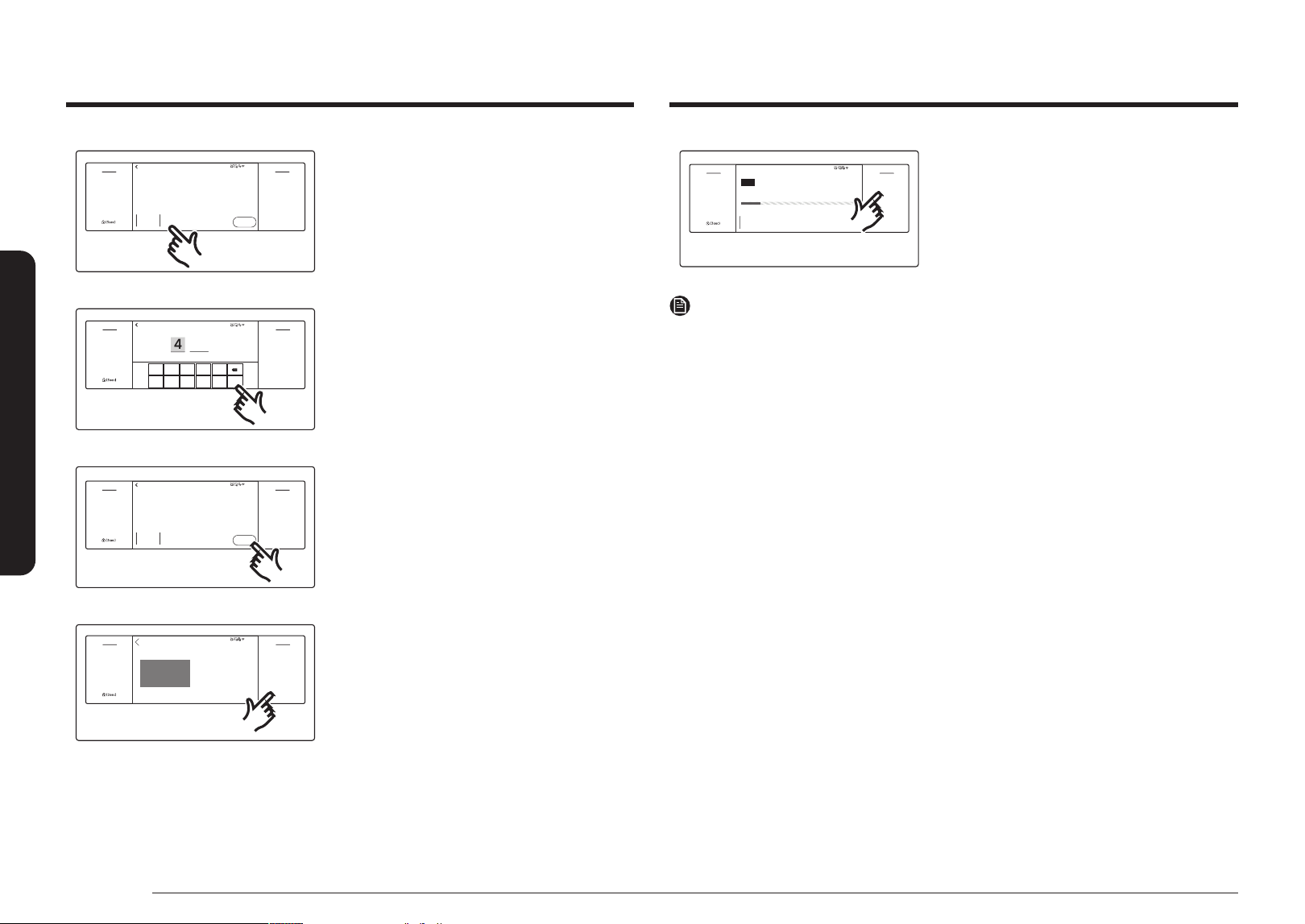
52 English
Operating the oven
Operating the oven
End at 07:48 AM
Self clean
Cleaning in progress...
Time Left
3
hr
00
min
OVEN
MODE
4:35 PM
Off
Open/Clo
se
Reservoir
Off
Light
Smart
Control
Flex Lower
Fl
ex Upper
Settings
Self clean
Cleaning in progress...
End at 07:48 AM
Time Left
3hr 00min
10. If you need to stop or interrupt a self
cleaning cycle, tap Off.
NOTE
• You will not be able to start a self-cleaning cycle if the control lockout feature is
activated or if the oven’s temperature is too hot.
• The oven doors lock automatically. The display will show the cleaning time remaining.
You cannot open the oven doors until the temperature drops to a safe/cool temperature.
• Clean the transparent cover of the camera and the upper LED glass regularly to monitor
through the camera. If there are severe stains on these parts, perform self cleaning and
then wipe them by using a scouring pad.
• Do not clean it with a stainless steel spiral pad. It may cause scratches or other damage
to the lens.
After a self-cleaning cycle
• You may notice some white ash in the oven. Wipe it up with a damp cloth after the oven
cools. (If white spots remain, remove them with a soap-lled steel wool pad and rinse
thoroughly with a vinegar and water mixture.)
• If the oven is not clean after one cycle, repeat the cycle.
• You cannot set the oven for cooking until the oven is cool enough for the door to unlock.
Self clean
Oven cleaning
Delay Start
None
Clean Time
3
hr
00
min
4:35 PM
Next
Off
Open/Clo
se
Reservoir
Off
Light
Smart
Control
Flex Lower
Fl
ex Upper
Settings
Next
Self clean
Oven cleaning
Clean Time
3hr 00min
Delay Start
None
6. If you don't want to use the Delay Start
feature, go to Step 8. Otherwise, tap Delay
Start, and then go to Step 7.
1
6 7 8 9 0
2 3 4 5
OK
4
:
35
Set start time
End at 12:38PM
AM
PM
4:35 PM
Off
Open/Clo
se
Reservoir
Off
Light
Smart
Control
Flex Lower
Fl
ex Upper
Settings
Set start time
End at 12:38PM
7. Set the time you want self-cleaning to start,
and then tap OK.
Self clean
Oven cleaning
Delay Start
None
Clean Time
3
hr
00
min
4:35 PM
Next
Off
Open/Clo
se
Reservoir
Off
Light
Smart
Control
Flex Lower
Fl
ex Upper
Settings
Self clean
Oven cleaning
Clean Time
3hr 00min
Delay Start
None
Next
8. Tap Next.
Self clean
4:35 PM
Off
Open/Clo
se
Reservoir
Off
Light
Smart
Control
Flex Lower
Fl
ex Upper
Settings
Please remove all pans
and racks from oven.
Then, press the Smart
Control for 3 secs to
begin.
Self clean
Please remove all pans
and racks from oven.
Then, press the Smart
Control for 3 secs to
begin.
9. Press the Smart Control for 3 secs to begin
self-cleaning. The motor-driven door lock
will engage automatically.
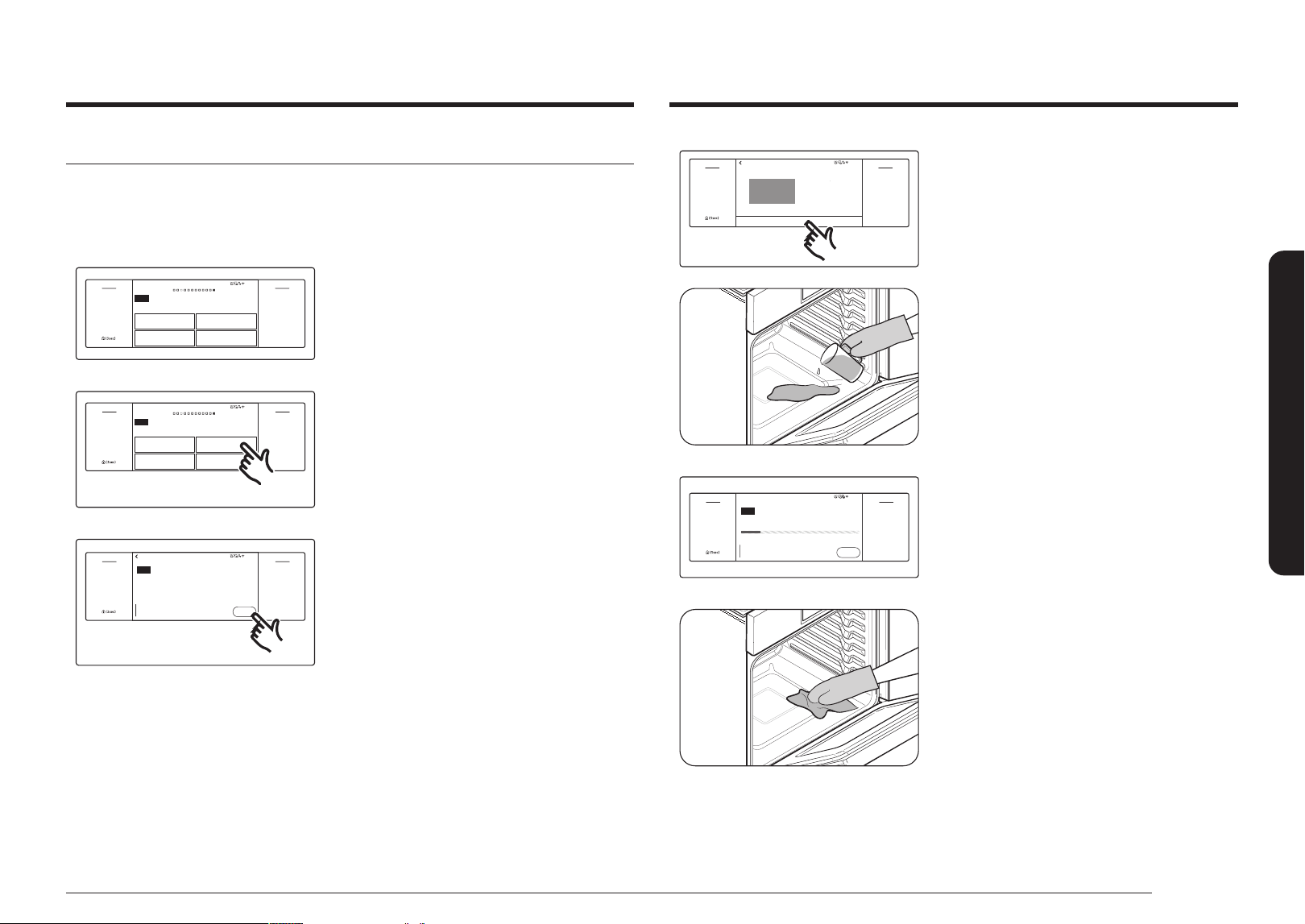
English 53
Operating the oven
Steam-Cleaning
How to set the oven for steam-cleaning
For light cleaning, the steam-cleaning function saves time and energy, For heavier duty
cleaning, use the self-cleaning function.
Self clean
Descale Drain
Steam clean
Clean
Oven cleaning
4:35 PM
Off
Open/Clo
se
Reservoir
Off
Light
Smart
Control
Flex Lower
Fl
ex Upper
Settings
OVEN
MODE
Clean
Oven cleaning
Self clean
Descale
Steam clean
Drain
1. Swipe the screen to Clean. The display will
show 4 cleaning selections.
Self clean
Descale Drain
Steam clean
Clean
Oven cleaning
4:35 PM
Off
Open/Clo
se
Reservoir
Off
Light
Smart
Control
Flex Lower
Fl
ex Upper
Settings
OVEN
MODE
Clean
Oven cleaning
Self clean
Descale
Steam clean
Drain
2. Tap Steam Clean.
Steam clean
Chemical and odor-free oven cleaning
Clean Time
20
min
4:35 PM
Start
OVEN
MODE
Off
Open/Clo
se
Reservoir
Off
Light
Smart
Control
Flex Lower
Fl
ex Upper
Settings
Steam clean
Chemical and odor-free oven cleaning
Clean Time
20min
Start
3. Remove all accessories from the oven.Tap
Start.
Steam clean
OK
Pour 10oz (300ml)
of water in oven.
4:35 PM
Off
Open/Clo
se
Reservoir
Off
Light
Smart
Control
Flex Lower
Fl
ex Upper
Settings
OK
Steam clean
Pour 10 oz (300 ml)
of water in oven.
4. Pour approximately 10 oz. (300 ml) of water
onto the bottom of the empty oven and then
close the oven door. Use normal water only,
not distilled water.
Tap OK to begin steam-cleaning. The motor-
driven door lock will engage automatically.
• Important : Both doors lock when you
run a steam cleaning cycle on either
oven.
End at 04:55 AM
Steam clean
Cleaning in progress...
Time Left
19
min
4:35 PM
Off
OVEN
MODE
Off
Open/Clo
se
Reservoir
Off
Light
Smart
Control
Flex Lower
Fl
ex Upper
Settings
Steam clean
Cleaning in progress...
End at 04:55 AM
Time Left
19min
Off
5. If you need to stop or interrupt a steam
cleaning cycle, tap Off.
6. Clean the oven's interior.
There will be a signicant amount of water
remaining on the bottom of the oven after a
steam-cleaning cycle. Remove the residual
water with a sponge or soft dry cloth.
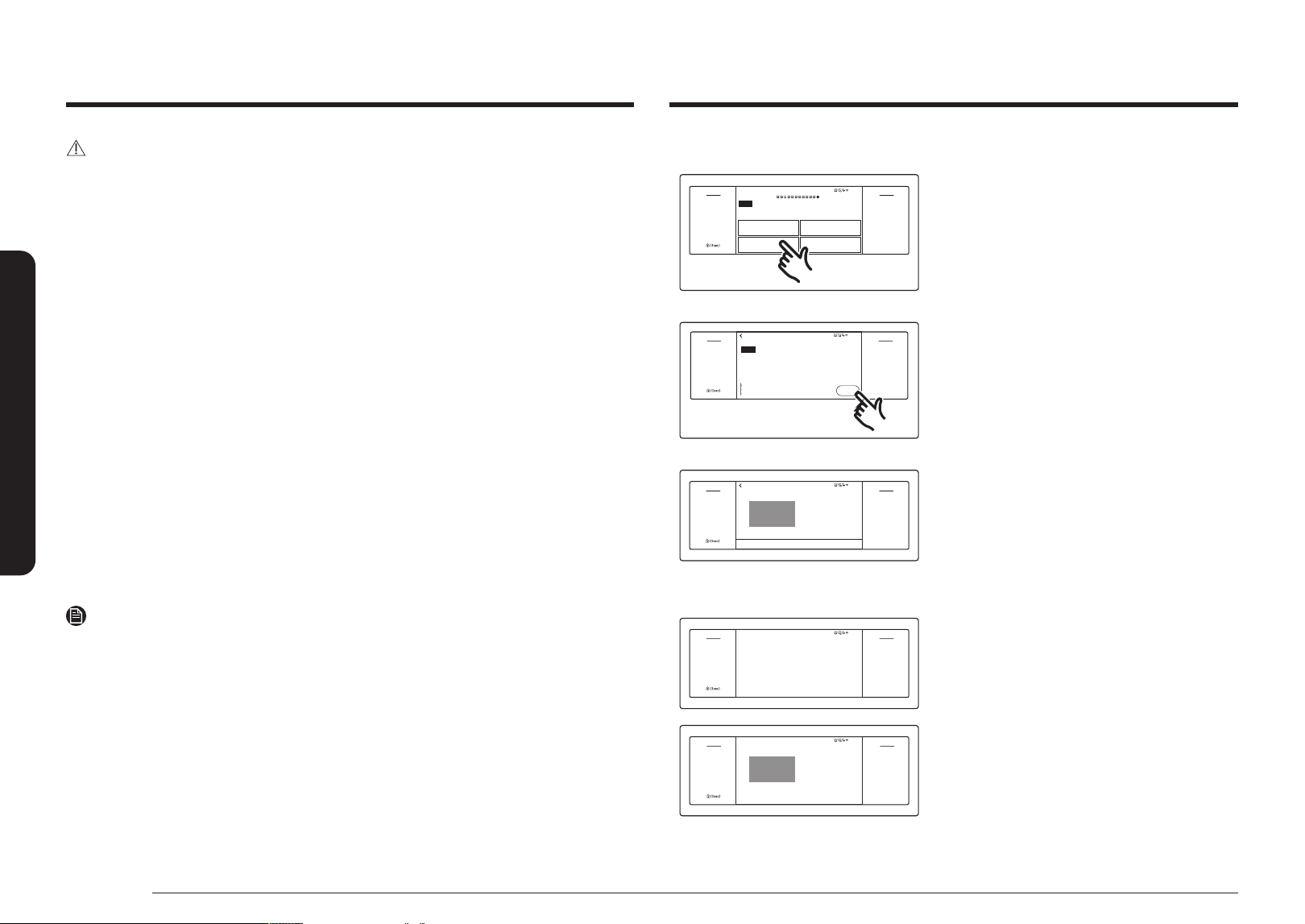
54 English
Operating the oven
Operating the oven
CAUTION
Wear gloves during cleaning.
After a steam-cleaning cycle
•
Use cautious when opening the door before a steam-cleaning procedure has ended. The
water on the bottom is hot.
• Open the oven door and remove the remaining water with a sponge. Do not leave the
residual water in the oven for any length of time. Wipe the oven clean and dry with a soft
cloth. Do not forget to wipe under the oven door seal.
• Use a detergent-soaked sponge, a soft brush, or a nylon scrubber to wipe the oven
interior. Remove stubborn residue with a nylon scourer. You can remove lime deposits
with a cloth soaked in vinegar.
• If the oven remains dirty, you can repeat the procedure once the oven has cooled.
• For heavy residue, such as grease left over from roasting, we recommend that you rub
detergent into the residue before activating the steam-cleaning function.
• After cleaning, leave the oven door ajar at a 15° angle to allow the interior enamel
surface to dry thoroughly.
Descale
If you use Steam Bake or Steam Roast functions frequently, we recommend descaling
regularly to remove minerals from the oven that may affect the taste or quality of food
cooked. When running a descaling cycle, use only descaling agents that are specic to steam
ovens or coffee machines.
NOTE
If you use Steam Bake or Steam Roast functions for more than a total of 12 hours,
the Descale indicator turns on. You can still enable the Steam Bake or Steam Roast functions
for the next two hours without descaling. However, after those two hours are up, the Steam
Bake or Steam Roast functions will be disabled until you run a descaling cycle.
How to run a descale cycle
Self clean
Descale Drain
Steam clean
Clean
Oven cleaning
4:35 PM
Off
Open/Clo
se
Reservoir
Off
Light
Smart
Control
Flex Lower
Fl
ex Upper
Settings
OVEN
MODE
Clean
Oven cleaning
Self clean
Descale
Steam clean
Drain
1. Swipe the screen to Clean. The display will
show 4 cleaning selections.
2. Tap Descale.
Descale
Please descale Water Reservoir to improve quality.
Clean Time
3
hr
00
min
4:35 PM
Start
Off
Open/Clo
se
Reservoir
Off
Light
Smart
Control
Flex Lower
Fl
ex Upper
Settings
OVEN
MODE
Descale
Please descale Water Reservoir to improve quality.
Clean Time
3hr 00min
Start
3. Tap Start.
Descale
OK
Pour 13.5oz (400ml) water
and 1.7oz (50ml) descaling
solution into Water
Reservoir.
4:35 PM
Off
Open/Clo
se
Reservoir
Off
Light
Smart
Control
Flex Lower
Fl
ex Upper
Settings
Descale
OK
Pour 13.5oz (400ml) water
and 1.7oz (50ml) descaling
solution into Water
Reservoir.
4. Follow the on-screen instructions.
It takes 3 hours to complete the cycle.
• Empty and clean the water reservoir,
and then ll it with 1.7 oz (50 ml) of
descaling agent and 13.5 oz (400 ml) of
drinkable water.
Descale
Draining…
Caution: Hot Water.
Do not remove Water Reservoir while draining.
4:35 PM
Off
Open/Clo
se
Reservoir
Off
Light
Smart
Control
Flex Lower
Fl
ex Upper
Settings
Descale
Draining…
Caution: Hot Water.
Do not remove Water Reservoir while draining.
5.
When descailling is complete, the oven
drains water automatically.
6. Use oven gloves to remove and empty the
water reservoir, and then rell it with 22 oz
(650 ml) of drinkable water for rinsing.
7. Follow the on-screen instructions, and then
tap OK to start rinsing.
Descale
Pour 22oz (650ml) of water
into Water Reservoir to rinse.
4:35 PM
Off
Open/Clo
se
Reservoir
Off
Light
Smart
Control
Flex Lower
Fl
ex Upper
Settings
Descale
Pour 22 oz (650 ml) of water
into Water Reservoir to rinse.
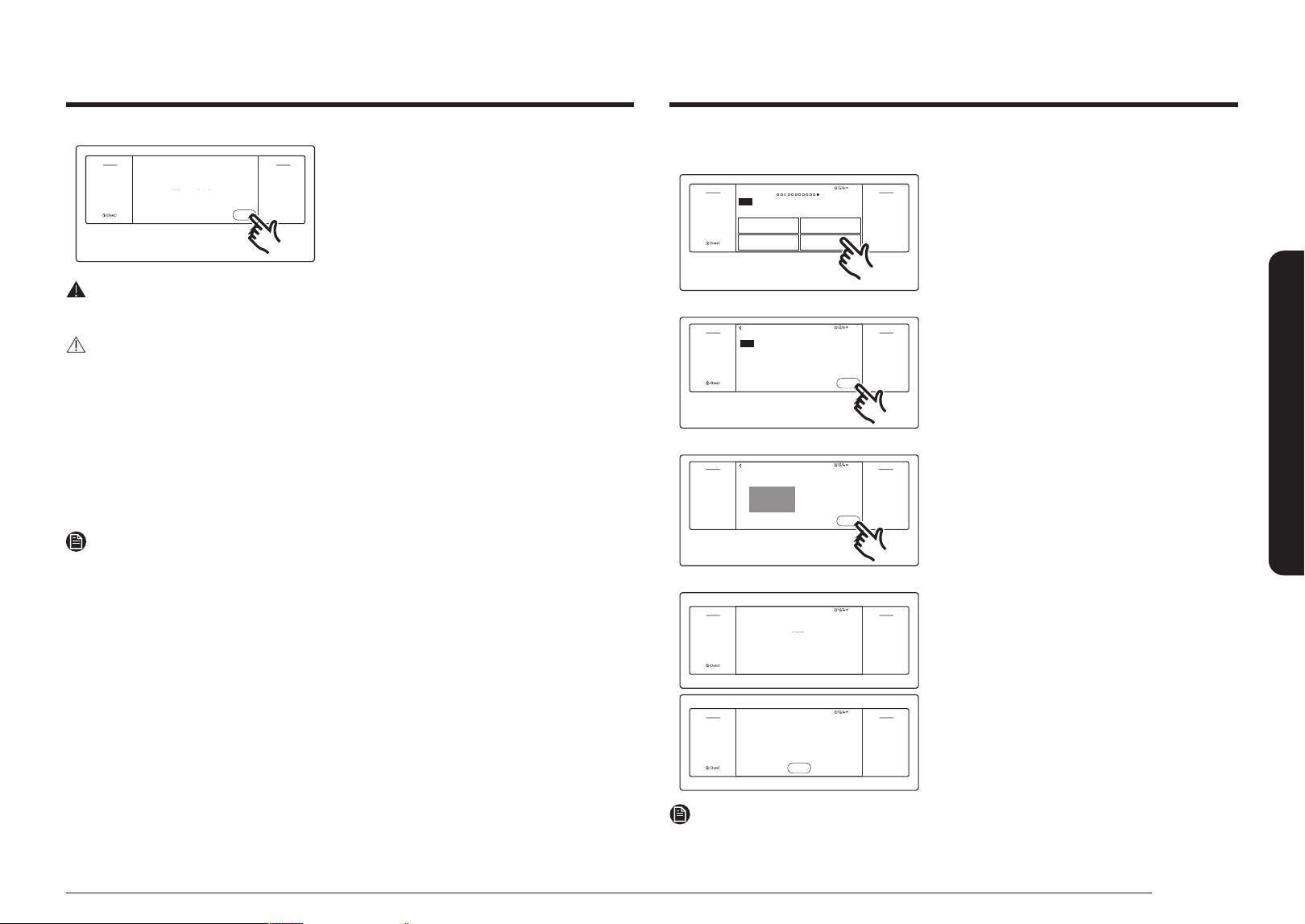
English 55
Operating the oven
How to run a draining
Self clean
Descale Drain
Steam clean
Clean
Oven cleaning
4:35 PM
Off
Open/Clo
se
Reservoir
Off
Light
Smart
Control
Flex Lower
Fl
ex Upper
Settings
OVEN
MODE
Clean
Oven cleaning
Self clean
Descale
Steam clean
Drain
1. Swipe the screen to Clean. The display will
show 4 cleaning selections.
2. Tap Drain.
Draining
Water is draining after running Steam function.
4:35 PM
Start
Off
Open/Clo
se
Reservoir
Off
Light
Smart
Control
Flex Lower
Fl
ex Upper
Settings
OVEN
MODE
Draining
Water is draining after running Steam function.
Start
3. Tap Start. The oven drains water from the
steam generator to the water reservoir.
Drain
Please empty Reservoir.
4:35 PM
OK
Off
Open/Close
Reservoir
Off
Light
Smart
Control
Flex LowerFlex Upper
Settings
Lock(3 sec)
Drain
Please empty Reservoir.
OK
4. Prior to draining, empty the water reservoir
to prevent overow.
Draining
Draining…
Caution: Hot Water.
Do not remove Water Reservoir while draining.
4:35 PM
Off
Open/Clo
se
Reservoir
Off
Light
Smart
Control
Flex Lower
Fl
ex Upper
Settings
Draining
Draining…
Caution: Hot Water.
Do not remove Water Reservoir while draining.
Draining is complete.
OK
Off
Open/Clo
se
Reservoir
Off
Light
Smart
Control
Flex Lower
Fl
ex Upper
Settings
4:35 PM
Draining is complete.
OK
5. When draining is complete, use oven gloves
to remove and empty the water reservoir.
NOTE
Once the oven starts draining, wait until the draining cycle is complete.
Cleaning is complete.
Wipe oven interior.
OK
Off
Open/Clo
se
Reservoir
Off
Light
Smart
Control
Flex Lower
Fl
ex Upper
Settings
Cleaning is complete.
Wipe oven interior.
OK
8. When rinsing is complete, use oven gloves to
empty and clean the water reservoir.
WARNING
Use only descaling agents that are specic to steam ovens or coffee machines.
CAUTION
• Running the Descaling function disables Steam Bake and Steam Roast.
Do not cancel descaling while it is in process. If you stop it, you must restart the
descaling cycle and complete it within the next three hours to re-enable the Steam Bake
and Steam Roast functions.
• To avoid accidents, keep children away from the oven.
• For the correct ratio of water to descalling agent, follow the agent manufacturer’s
instructions. If the ratio of water to descaling agent differs from the instructions here (8
to 1), use the ratio indicated in the instructions for the descaling agent.
NOTE
Although the oven automatically starts descaling in 5 seconds without your conrmation,
we recommend that you conrm your selection. This is to prevent descaling from starting by
mistake.
Draining
When a steam function is complete, you must drain the remaining water to prevent the water
from affecting other cooking modes.
To drain the water, follow these steps:
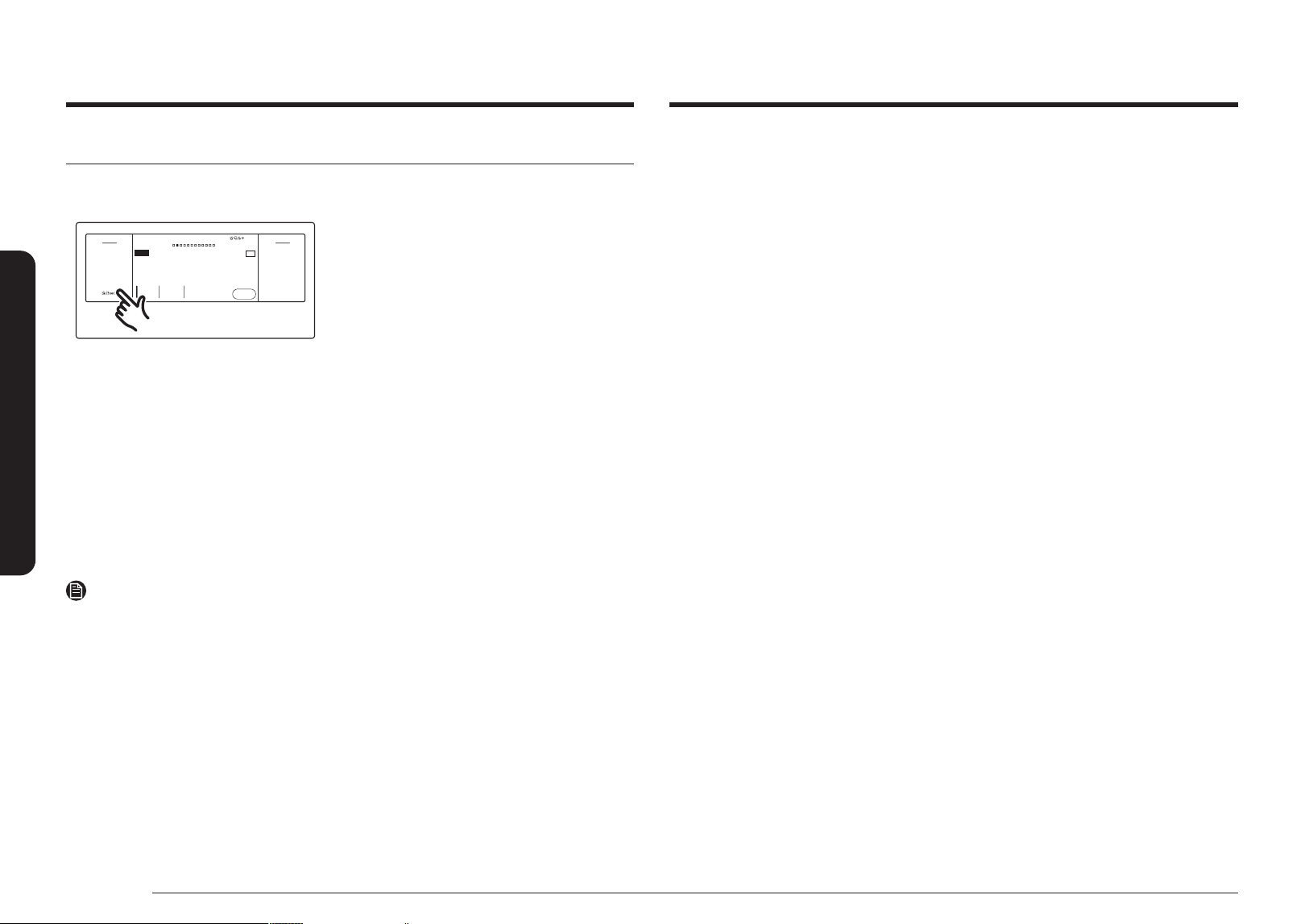
56 English
Operating the oven
Operating the oven
Display
1. Brightness
You can change the brightness of the display screen.
• Tap Settings > Display > Brightness, and then use the bar next to Brightness to adjust the
brightness of the screen.
2. Screen saver
If screen saver is turned off, the Clock theme and Timeout menu are disabled.
• Tap Settings > Display > Screen saver, and then tap On in the right screen.
3. Clock theme
• Tap Settings > Display > Clock theme, and then tap in the right screen. You can select a
theme.
4. Timeout
• Tap Settings > Display > Timeout, and then tap in the right screen. You can select a time
from 5 minutes to 60 minutes or Always on.
Date & Time
To enable automatic date and time
1. Turn on the Wi-Fi connection.
2. Tap Settings > Date & Time > Automatic date and time, and then tap On in the right
screen. The date and time are set automatically.
To manually input date and time
1. Tap Settings > Date & Time > Automatically date and time, and then tap Off in the right
screen. Time zone, set date, and set time are activated.
2. You can set the time zone, date, and time.
To change the time format
1. Tap Settings > Date & Time > Select time format, and then tap in the right screen.
2. You can select 12-hour clock or 24-hour clock.
Settings
In Settings, you can change the default settings to your preference or diagnose problems with
the network connection.
Cook Time
None
Delay Start
None
No Preheat
Off
4:35 PM
Convection Bake
Faster, more even baking
325
°F
Start
OVEN
MODE
TIP
Off
Open/Clo
se
Reservoir
Off
Light
Smart
Control
Flex Lower
Fl
ex Upper
Settings
Convection Bake
Faster, more even baking
TIP
Cook Time
None
Delay Start
None
No Preheat
Off
Tap Settings. The display will show the
Setting item.
Wi-Fi
To enable a Wi-Fi connection
1. Tap Settings > Connections > Wi-Fi, and then tap ON in the right screen.
2. Tap Wi-Fi, and then tap a Wi-Fi network in the list that appears.
3. You will be prompted to provide a password for a secure network. Enter the password.
To manually input an IP
1. Tap Settings > Connections > Wi-Fi, and then tap ON in the right screen.
2. Tap Wi-Fi, and then tap Add Network.
3. Enter an IP manually, and then tap Connect to apply your settings.
NOTE
• To disable a Wi-Fi connection, Tap Settings > Connections > Wi-Fi, and then tap Off in the
right screen.
• For details about the Wi-Fi connection and using the SmartThings app, see the
SmartThings app user manual.

English 57
Operating the oven
Language
Choose a display language.
1. Tap Settings > Language, and then tap in the right screen.
2. You can select English, Spanish, or French.
Volume
Adjust the volume level for beeps and melodies.
• Tap Settings > Volume, and then use the bar next to Volume to adjust the volume.
Temp
1. Temp unit
You can program the oven control to display the temperature in Fahrenheit or Celsius. The
oven has been preset at the factory to display in Fahrenheit.
• Tap Settings > Temperature > Temperature Unit, and then tap in the right screen. You
can select °C or °F.
2. Temp adjust
The temperature in the oven has been calibrated at the factory. When rst using the oven, be
sure to follow recipe times and temperatures.
If you think the oven is too hot or too cool, you can correct the temperature in the oven.
Before correcting, test a recipe by using a temperature setting that is higher or lower than the
recommended temperature.
The baking results should help you to decide how much of an adjustment is needed. The oven
temperature can be adjusted ±35 °F (±19 °C).
• Tap Settings > Temperature > Temperature Adjust, and then tap in the right screen. You
can increase or decrease the temperature by 35 °F (19 °C).
NOTE
• This adjustment will not affect the broiling or the self-cleaning temperatures.
• The adjustment will be retained in memory after a power failure.
12 hour energy Saving
If you accidently leave the oven on, this feature will automatically turn off the oven after 12
hours during baking functions or after 3 hours during a broil function.
1. Tap Settings > 12 hour Energy Saving, and then tap ON in the right screen.
2. The 12 hour energy saving icon will appear in the indicator area.
Easy connection
Easy connection enables you to easily congure the network settings including the
authentication procedure.
• Tap Settings > Connections > Easy Connection, and then tap Connect.
Help
Help provides useful tips and explanations on a specic item that you select.
1. Troubleshooting
• Tap a checkpoint directly on the screen, and try the suggestions.
2. Guide for rst use
• Provides simple instructions on the basic use of the oven.
About device
You can see information about the oven and do a software update.
To update the software:
1. Tap Settings > About device > SW Update, and then tap Update in the right screen.
2. Tap INSTALL. The software is updated and the system restarts automatically.
Sabbath
You can set Sabbath mode. See the Using the sabbath feature section on the next page.

58 English
Operating the oven
Operating the oven
Demo mode
This option is for use by retail establishments for display purposes only. (The heating element
does not operate.)
1. Set the time to 12:34.
2. Tap Settings and Smart Control at the same time for 5 seconds.
3. The Demo mode indicator appears on screen.
Factory reset
You can reset your oven setting.
1. Tap Settings > Factory Reset, and then tap Reset in the screen.
2. SAMSUNG logo appears on the screen and the oven resets.
CAUTION
Before reset the oven settings, turn off all oven functions.
Remote Management
The call center will access your product remotely to check internal when you have some
problems.
• Tap Settings > Connections > Remote management, and then tap Activate.
Using the sabbath feature
(For use on the Jewish Sabbath & Holidays)
K
For further assistance, guidelines for proper usage, and a complete list of models with
the Sabbath feature, please visit the web at
http:\\www.star-k.org.
You can use the Sabbath feature with baking only. The oven temperature may be set higher
or lower after you set the Sabbath feature. (The oven temperature adjustment feature should
be used only during Jewish holidays.) The display, however, will not change and tones will
not sound when a change occurs. Once the oven is properly set for baking with the Sabbath
feature active, the oven will remain on continuously until the Sabbath feature is cancelled.
This will override the factory preset 12 hour energy saving feature. If the oven light is needed
during the Sabbath, touch Light before activating the Sabbath feature. Once the oven light
is turned on and the Sabbath feature is active, the oven interior light will remain on until the
Sabbath feature is turned off. If the oven light needs to be off, be sure to turn the oven light
off before activating the Sabbath feature.
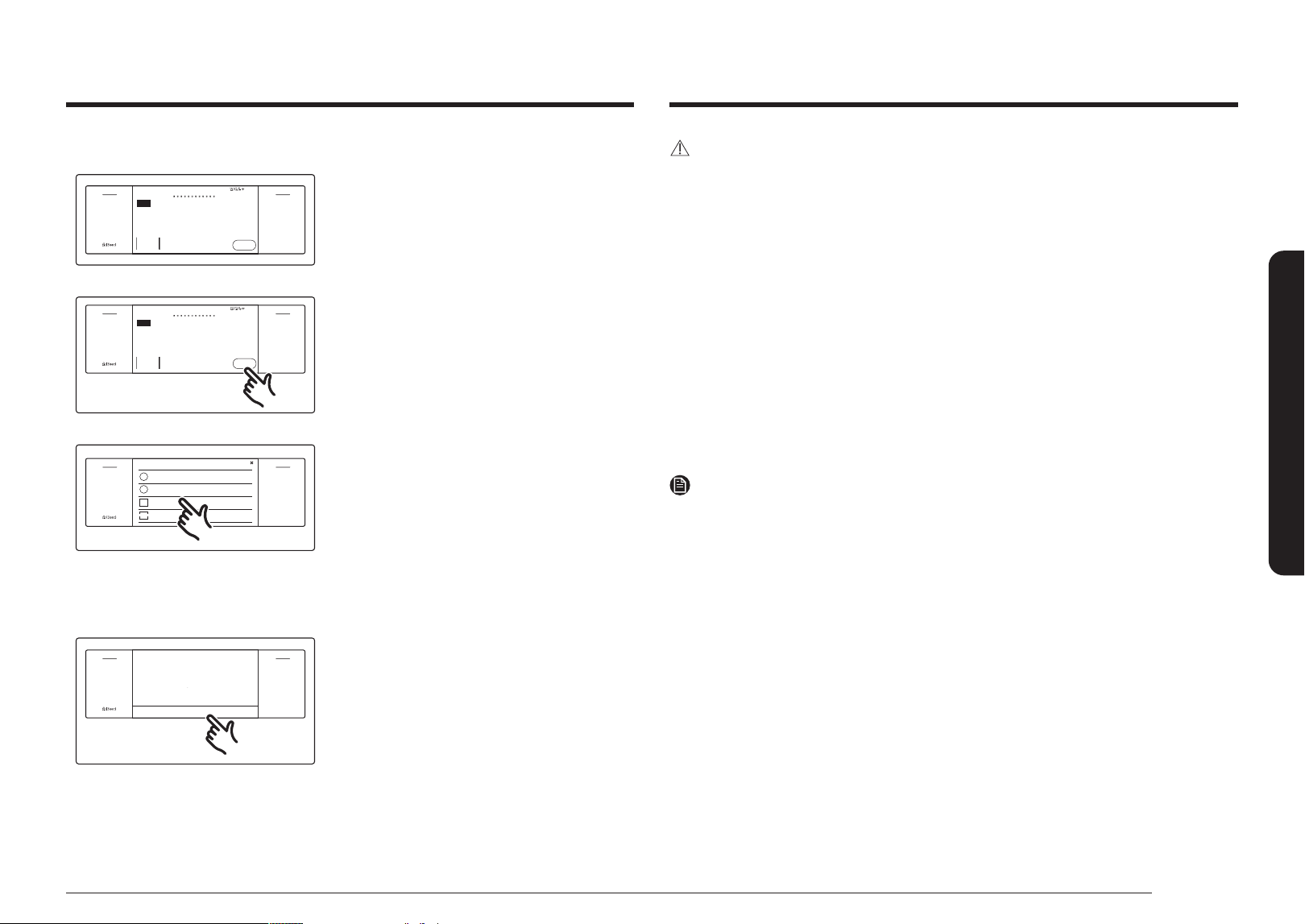
English 59
Operating the oven
CAUTION
• You can change the oven temperature, but the display will not change and tones will not
sound when a change occurs. (The oven temperature adjustment feature should be used
only on Jewish holidays.) After you change the temperature while the unit is in Sabbath
mode, there is a 15 second delay before the unit recognizes the change.
• You can set the Cook Time function before activating the Sabbath feature.
• Should you experience a power failure or interruption, the oven will shut off. When power
is returned, the oven will not turn back on automatically. Sabbath will be displayed in
the oven control display, but the oven will not operate. Food may be safely removed from
the oven while it is still in the Sabbath mode, however the oven cannot be turned back
on until after the Sabbath Holidays. After the Sabbath observance, turn off the Sabbath
mode.
Touch and hold Sabbath Mode Off for 3 seconds.
• The oven lamp color may change depending on the situation. No matter what color the
oven is before the Sabbath Mode operation (White or Yellow), If you enter Sabbath Mode,
it will become white.
NOTE
• Do not to attempt to activate any other program feature except Bake while the Sabbath
feature is active.
• Do not open the oven door or change the oven temperature for about 30 minutes after
you have started Sabbath mode to allow the oven to reach the set temperature. Note
that for best performance, the oven fan operates only when the oven temperature is
rising.
How to use the Sabbath feature
Bake
Thermal heat baking
Cook Time
None
Delay Start
None
350
°F
4:35 PM
Start
Off
Open/Clo
se
Reservoir
Off
Light
Smart
Control
Flex Lower
Fl
ex Upper
Settings
OVEN
MODE
Bake
Thermal heat baking
Cook Time
None
Delay Start
None
Start
1. Swipe the screen to Bake mode.
Bake
Thermal heat baking
Cook Time
None
Delay Start
None
350
°F
4:35 PM
Start
Off
Open/Clo
se
Reservoir
Off
Light
Smart
Control
Flex Lower
Fl
ex Upper
Settings
OVEN
MODE
Bake
Thermal heat baking
Cook Time
None
Delay Start
None
Start
2. Set the temperature and cook time you want.
3. Tap Start.
Settings
About device
Sabbath
Factory Reset
Help
?
i
12th
+
DEMO
Off
Open/Clo
se
Reservoir
Off
Light
Smart
Control
Flex Lower
Fl
ex Upper
Settings
Help
About device
Sabbath
Factory Reset
4. Tap Settings > Sabbath, and then tap
Sabbath to use the Sabbath feature.
The oven will not beep or display any
further changes. You may change the oven
temperature once baking has started.
Remember that the oven will not beep
or display any further changes once the
Sabbath feature is engaged.
Sabbath
- Temperature +
Sabbath Mode Off (3 sec)
Off
Open/Clo
se
Reservoir
Off
Light
Smart
Control
Flex Lower
Fl
ex Upper
Settings
Sabbath
- Temperature +
Sabbath Mode Off (3 sec)
5. You can turn the oven off at any time by
touching Off. Note that this does not turn
Sabbath mode off.
6. To turn Sabbath mode off, touch and hold
Sabbath Mode off for 3 seconds.
60 English
Maintaining your appliance
Oven racks
• If the racks are left in the oven during a self-cleaning cycle, their color will turn slightly
blue and the nish will be dull. After the self-cleaning cycle is complete and the oven
has cooled, rub the sides of the racks with wax paper or a cloth containing a small
amount of oil. This will help the racks glide more easily on their tracks.
• Gliding racks may be cleaned by hand with an abrasive cleaner or steel wool. During
cleaning, be careful not to allow water or cleaner to enter the slides on the sides of rack.
NOTE
• Do not clean in a dishwasher.
• If the rack becomes hard to remove or replace, lightly wipe the oven rack guides with
cooking oil. Do not wipe cooking oil on the slides.
• If the rack becomes difcult to slide, the rack may need to be lubricated using a graphite
lubricant.
• To order graphite lubricant., call Samsung customer care at
1-800-SAMSUNG (726-7864) or visit our homepage (www.samsung.com/us/support,
www.samsung.com/ca/support, or www.samsung.com/ca_fr/support) and search for
part number DG81-01629A.
• If you want to buy directly, go to http://www.samsungparts.com.
Maintaining your appliance
Care and cleaning of the oven
Cleaning painted parts and decorative trim
• For general cleaning, use a cloth with hot, soapy water.
• For more difcult residue and built-up grease, apply a liquid detergent directly onto the
area and leave for 30 to 60 minutes. Wipe with a damp cloth and dry. Do not use abrasive
cleaners on any oven surface. They can be scratched.
Cleaning stainless steel surfaces
1. Shake a bottle of Stainless Steel Appliance Cleaner or Polish well.
2. Place a small amount of stainless steel appliance cleaner or polish on a damp cloth or
damp paper towel.
3. Clean a small area, rubbing with the grain of the stainless steel if applicable.
4. Dry and buff with a clean, dry paper towel or soft cloth.
5. Repeat as necessary.
NOTE
• Do not use a steel-wool pad. It will scratch the surface.
• If a mineral oil-based stainless steel appliance cleaner has been used before to clean
the appliance, wash the surface with dishwashing liquid and water prior to using the
Stainless Steel Appliance Cleaner or Polish.
Air Fry tray
To keep the Air Fry tray clean, remove them from the cavity, and soak them in Lukewarm
soapy water. Then, scour soil of the Air Fry tray using a plastic scouring pad.
NOTE
The Air Fry tray is dishwasher-safe.
CAUTION
Do not leave the Air Fry tray in the oven during the self-cleaning cycle. The extreme heat
generated in this cycle can permanently peel off the air fry coating, their color will turn
slightly blue and nish will be dull.
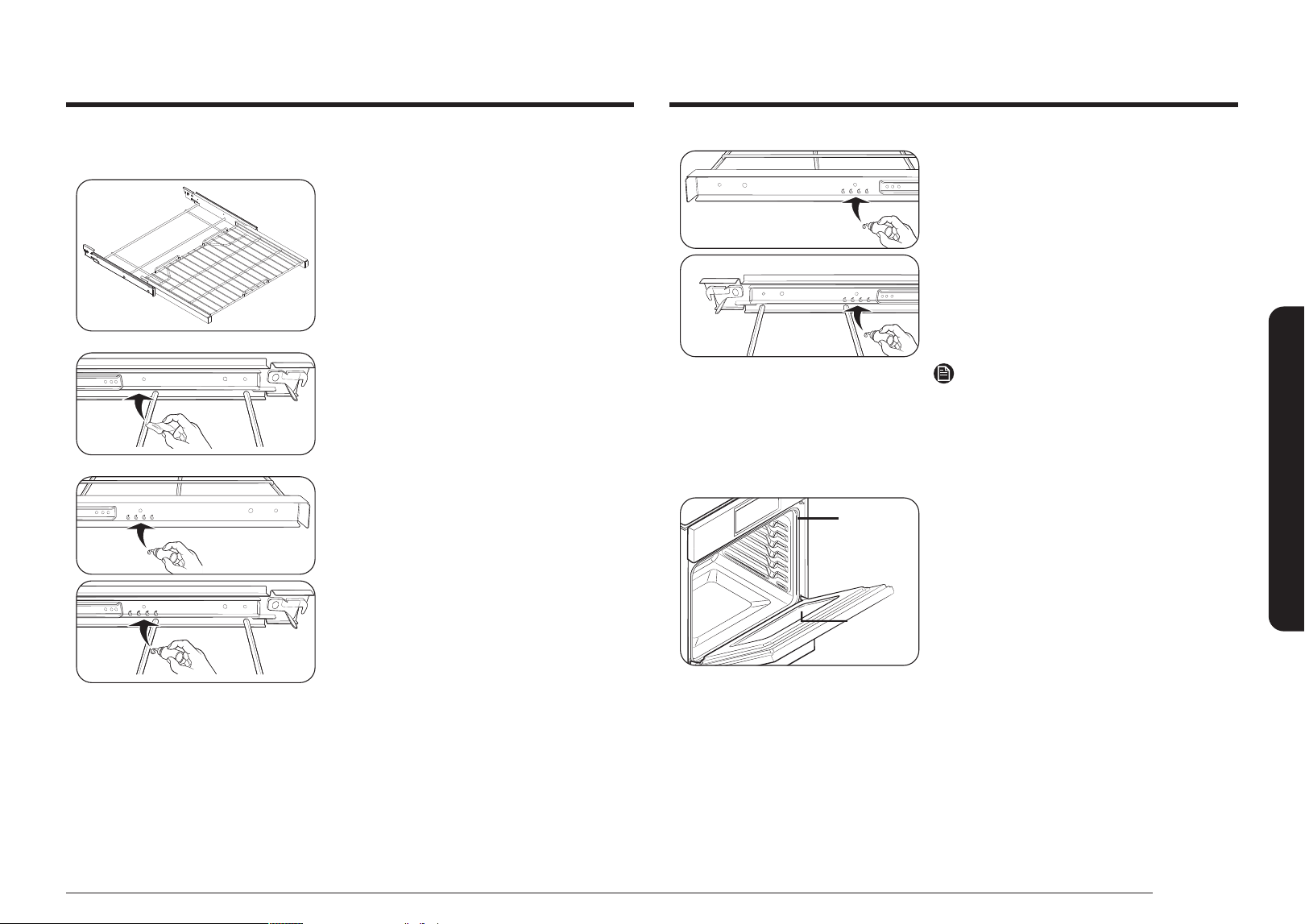
English 61
Maintaining your appliance
5. Repeat for the right (front and back) slide
mechanism of the rack.
6. Open and close the rack several times to
distribute the lubricant.
7. Replace the cap on the lubricant and shake
it again. Turn the rack over and repeat steps
3, 4, 5, and 6.
8. Close the rack, turn the rack right-side-up,
and then place in oven. See Installing the
Gliding rack on page 49.
NOTE
Do not spray the gliding rack with cooking spray
or other lubricant sprays.
Oven door
Don’t hand Don’t hand
clean the oven clean the oven
door gasket.door gasket.
You may You may
hand clean hand clean
the door.the door.
• Use soap and water to thoroughly clean
the top, sides, and front of the oven door.
Rinse well. You may use a glass cleaner on
the outside glass of the oven door. DO NOT
immerse the door in water. DO NOT spray
or allow water or the glass cleaner to enter
the door vents. DO NOT use oven cleaners,
cleaning powders, or any harsh abrasive
cleaning materials on the outside of the
oven door.
• DO NOT clean the oven door gasket. The
oven door gasket is made of a woven
material which is essential for a good seal.
Care should be taken not to rub, damage, or
remove this gasket.
To lubricate the slides of the gliding rack
1. Remove the rack from the oven.
See removing the gliding rack in the Using
the gliding rack section on
page 49.
2. Fully extend the rack on a table or
countertop. Newspaper may be placed
underneath the rack for easy cleanup.
3. If there is debris in the slide tracks, wipe
it away using a paper towel. (Any graphite
lubricant wiped away must be replaced - See
steps 4 through 7).
4. Shake the graphite lubricant before opening
it. Starting with the left (front and back) slide
mechanism of the rack, place four (4) small
drops of lubricant on the two (2) bottom
tracks of the slide close to the bearing
carriers.
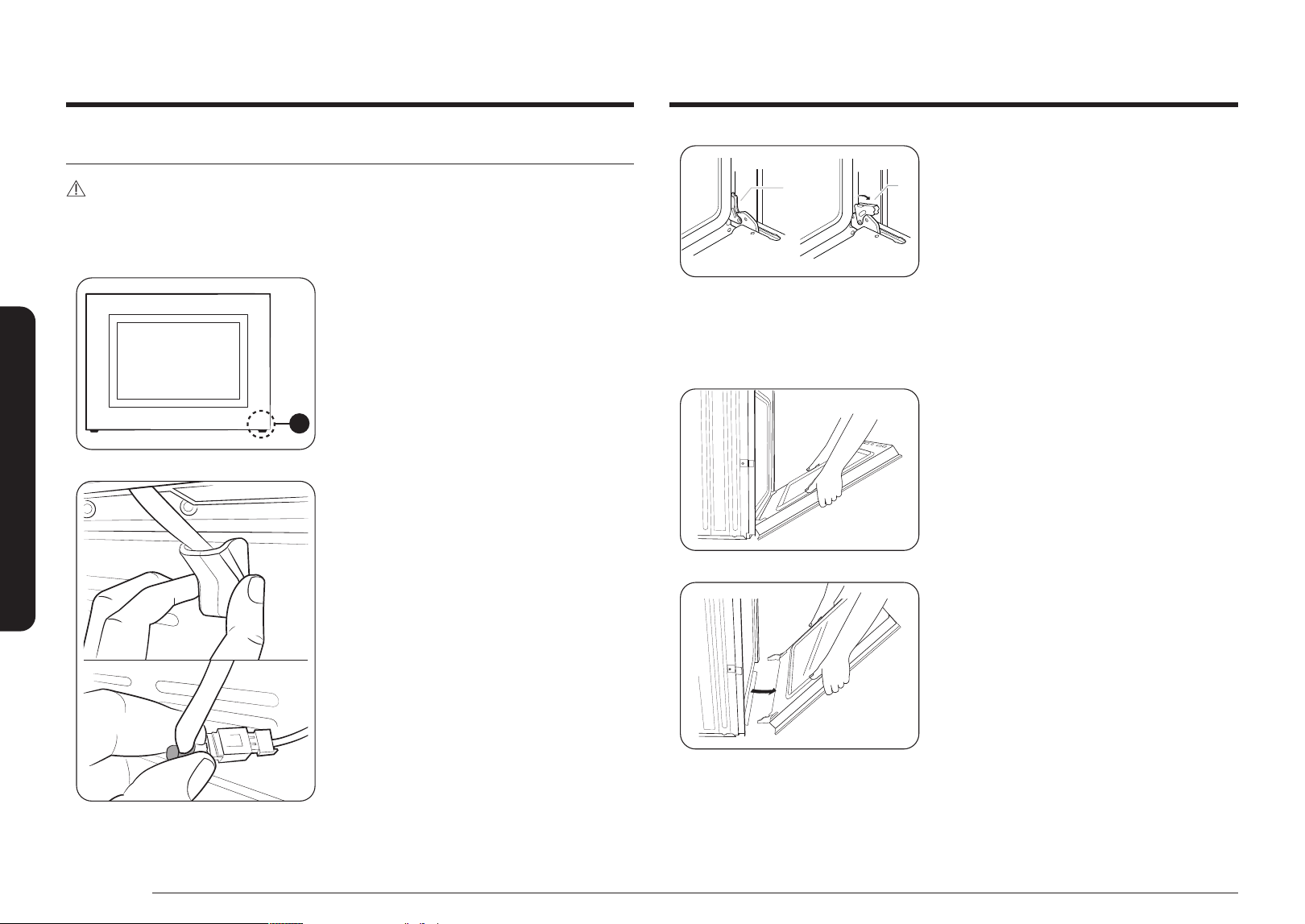
62 English
Maintaining your appliance
Maintaining your appliance
A
B
A. Oven door hinge lock in locked
position
B. Oven door hinge lock in unlocked
position
3. Open the oven door.
4. Locate the oven door hinge locks in both
corners of the oven door, and then rotate
the hinge locks toward the oven door to the
unlocked position. If the door hinge lock is
not rotated fully (see illustration B on the
left for an example of full rotation), you will
not be able to remove the door properly.
5. Partially close the door to engage the door
latch locks. The door will stop at this point.
6. Using two hands, grasp the edges of the
oven door. Lift and pull the oven door toward
you and remove. You may need to gently
shift the door from side to side as you pull.
7. Set the oven door aside on the prepared
covered work surface with the oven door
resting on its handle.
Removing the oven doors
CAUTION
• The door is very heavy. Be careful when removing and lifting the door.
• Use two hands to remove an oven door. For double ovens, repeat the process for each
door.
A
A. Wire Harness
1. Prior to removing the oven door, prepare a
surface where you will place it. This surface
should be at and covered with a soft
blanket. You can also use the corner posts
from your packaging material.
2. Remove the rubber cap and then disconnect
the LED light's Wire Harness from the
bottom right of the door.
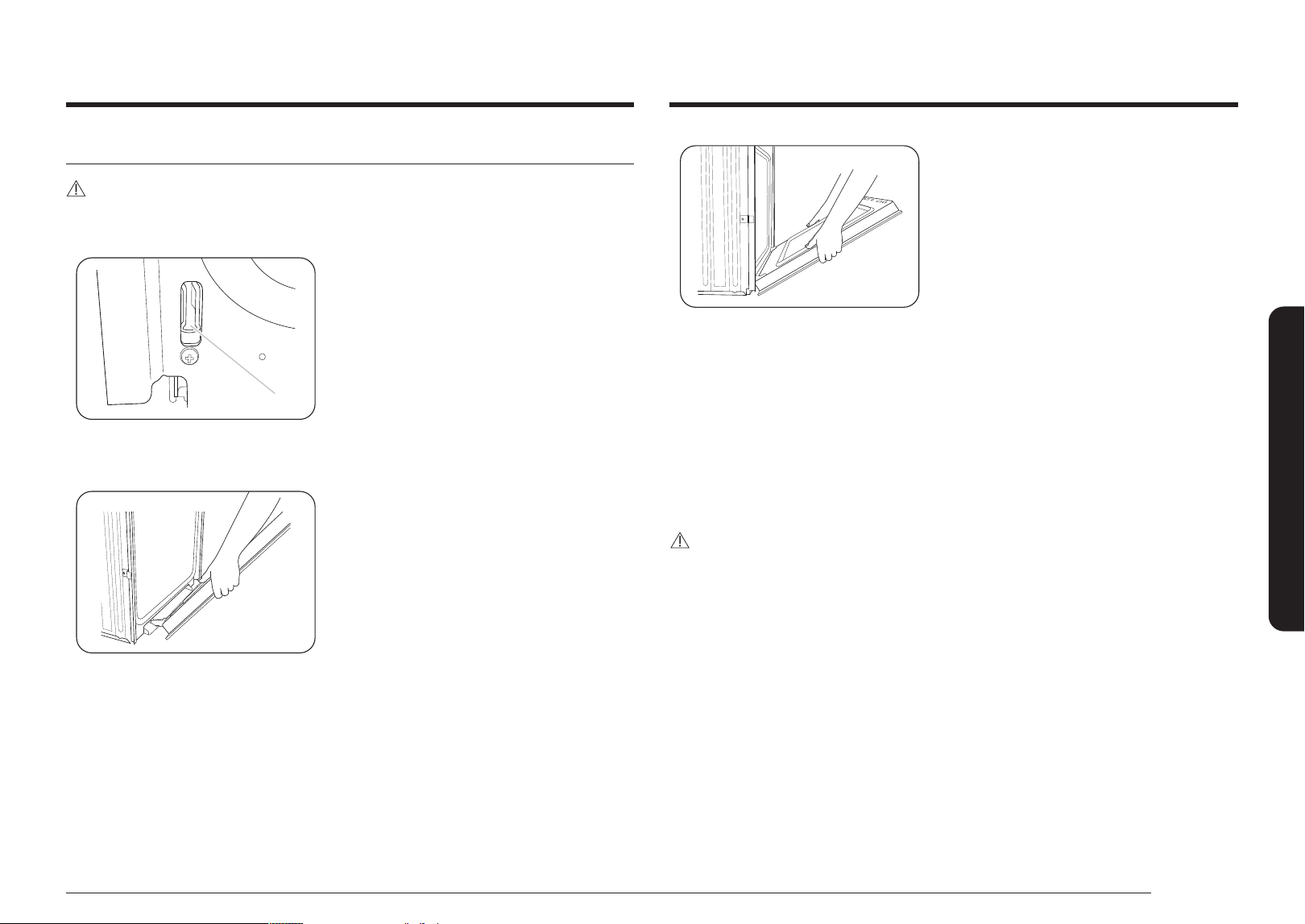
English 63
Maintaining your appliance
4. Lower the oven door to the fully open
position. If the oven door does not open to a
full 90 °, repeat steps 1 through 3.
5. Locate the oven door hinge locks in the
corners of the oven door, and rotate the
hinge locks toward the oven cavity to the
locked position. See Step 3 (illustration A) in
the Removing the oven doors section for the
proper locked position.
6. Close the oven door.
7. When the hinges are properly installed and
the door is closed, there should be an even
gap between the door and the control panel.
If one side of the oven door is hanging lower
than the other, the hinge on that side is not
properly installed.
8. Reconnect the LED light's Wire Harness and
re-insert the rubber.
CAUTION
After replacing the door, make sure to reconnect the wires. Push them inward to arrange
them as they were before you removed the door. Wires that are not connected or arranged
correctly can be caught in the door or damaged by heat.
Replacing the oven doors
CAUTION
The door is very heavy. You may need help lifting the door high enough to slide it into the
hinge slots. Do not lift the door by the handle.
A
A. Slot in the oven cavity for the door
hinge lock
1. Using two hands, grasp the side edges of the
door at the midpoint. Face the oven cavity.
2. Locate the slots on each side of the oven
cavity for the door hinge locks.
3. Hold the door at a 45 ° angle, and then align
the door hinges with the slots in the lower
front of the oven cavity. Slowly insert the
door, making sure you maintain the 45 °
angle. You will know the door is engaged in
the slot when you feel a slight drop.
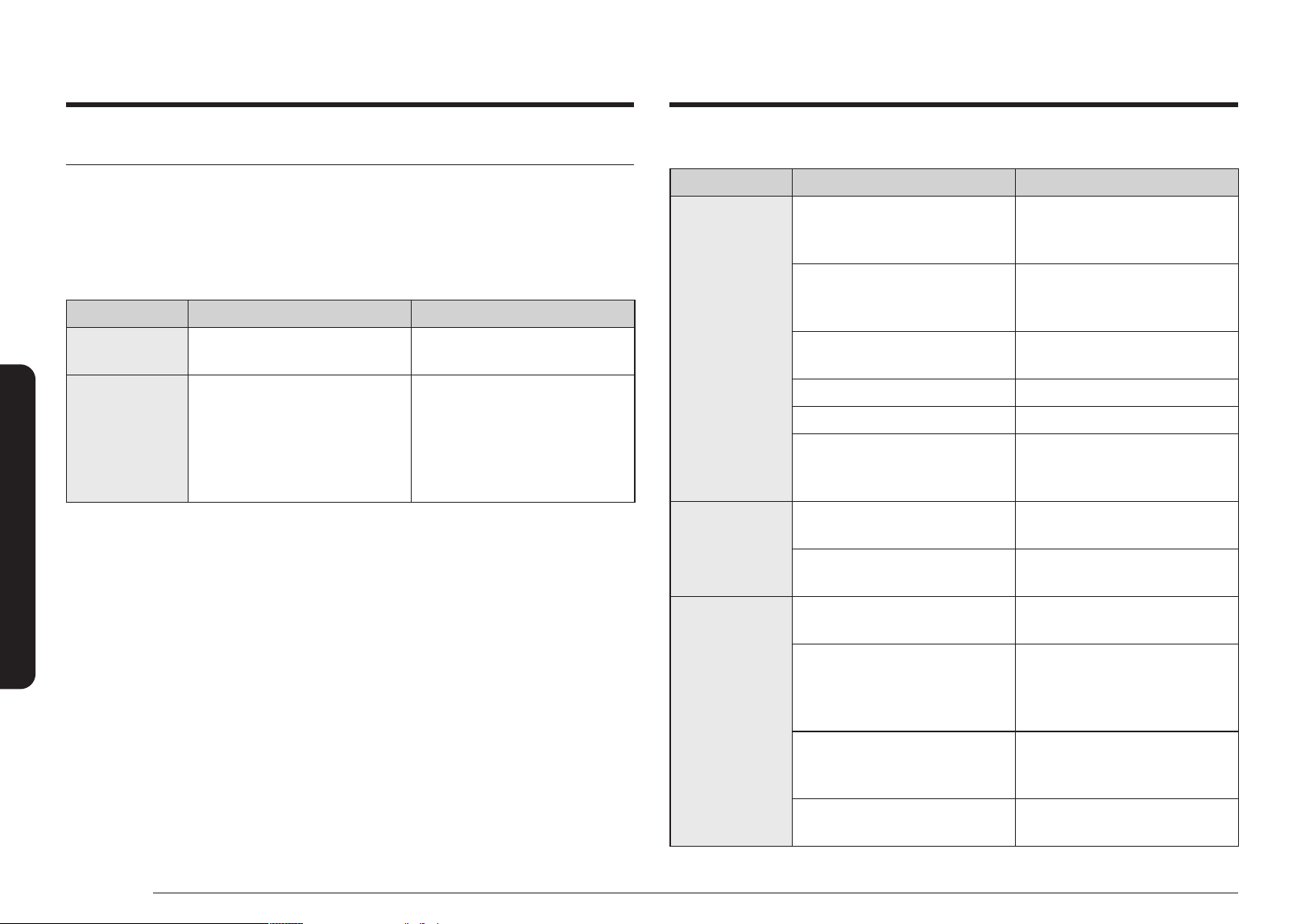
64 English
Troubleshooting
Troubleshooting
Troubleshooting
At Samsung we want to ensure that you don’t have problems with your new electric oven.
If you run into unexpected trouble, look rst for a solution in the tables below. If you’re still
having trouble after trying the suggested solution, call Samsung at 1-800-SAMSUNG (1-800-
726-7864).
CONTROL DISPLAY
Problem Possible cause Solution
The display goes
blank.
A fuse in your home may be blown
or the circuit breaker tripped.
Replace the fuse or reset the
circuit breaker.
The buttons
cannot be
pressed properly.
• There is foreign matter
caught between the buttons
• Touch model: There is
moisture on the exterior
• The lock function is set
• Remove the foreign matter
and try again.
• Remove the moisture and
try again.
• Check whether the lock
function is set.
OVEN
Problem Possible cause Solution
The oven will not
turn on.
The oven is not completely
plugged into the electrical outlet.
Make sure the electrical plug
is inserted into a live, properly
grounded outlet.
A fuse in your home may be blown
or a circuit breaker may have
tripped.
Replace the fuse or reset the
circuit breaker.
The oven controls have been set
improperly.
See the Operating the oven section
starting on page 23.
The oven is too hot. Allow the oven to cool.
Incomplete service wiring. Call for service.
Power outage. Check to see if the house lights
will turn on. If necessary, call your
local electric company for service.
The oven light
will not turn on.
The light is loose or defective. Call for service if the door light
does not turn on.
The switch operating the light is
broken.
Call for service.
The oven smokes
excessively
during broiling.
The oven controls have not been
set properly.
See the Operating the oven section
starting on page 23.
The meat has been placed too
close to the element.
Reposition the rack to provide
proper clearance between the
meat and the element. Preheat
the broil element for searing.
The meat has not been properly
prepared.
Remove excess fat from the meat.
Cut away fatty edges that may
curl, leaving the lean intact.
Grease has built up on oven
surfaces.
Regular cleaning is necessary
when broiling frequently.
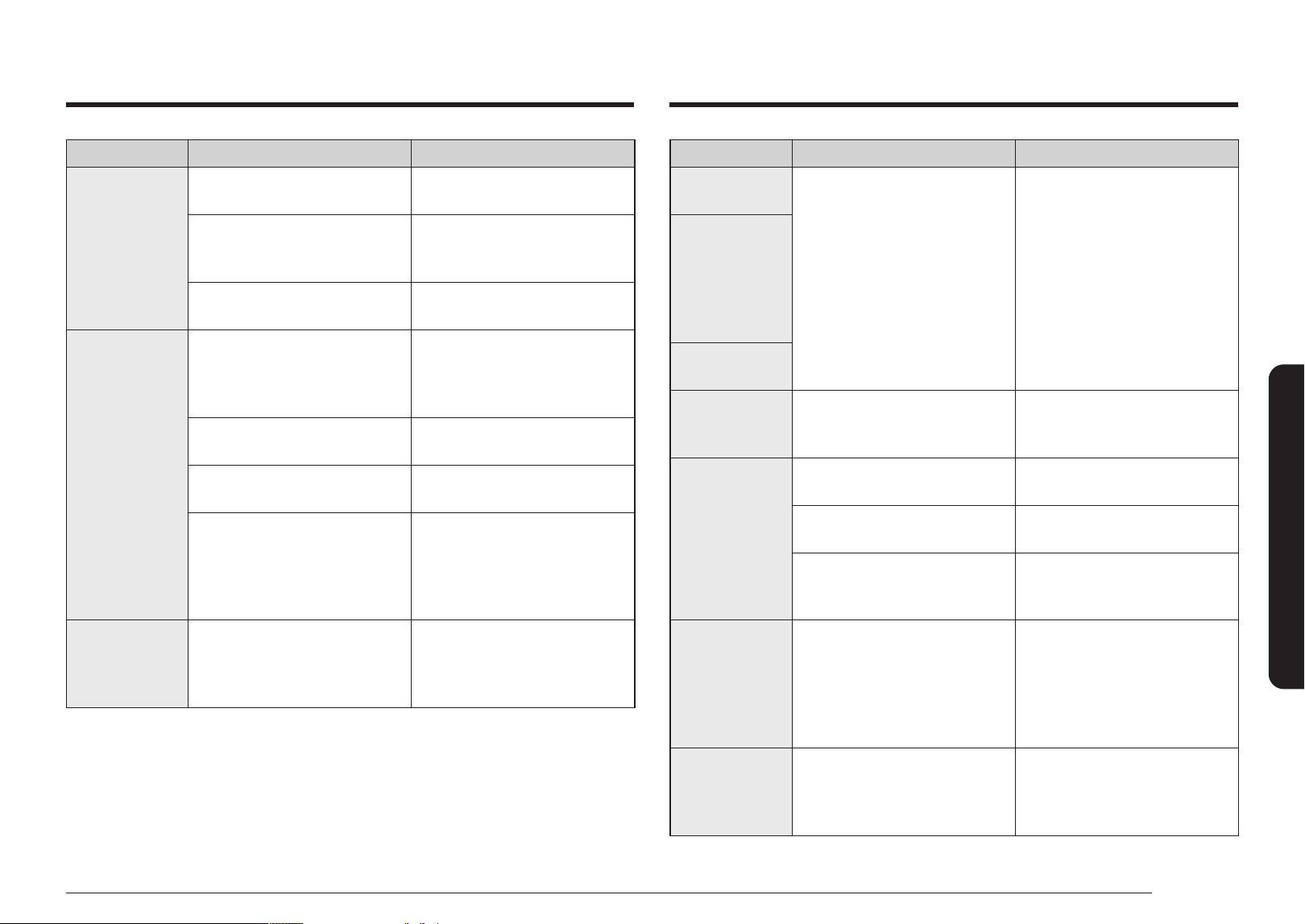
English 65
Troubleshooting
Problem Possible cause Solution
Food does not
bake or roast
properly.
The oven controls have not been
set correctly.
See the Operating the oven section
starting on page 23.
The oven rack has been
positioned incorrectly or is not
level.
See the Using the oven racks
section on page 47.
The oven thermistor needs to be
adjusted.
See Temp adjust in the Settings
section on page 57.
Food does not
broil properly.
The serving size may not be
appropriate.
Refer to the Broiling
recommendation guide for serving
sizes on page 33, and then try
again.
The rack has not been properly
positioned.
See the Broiling recommendation
guide on page 33.
The cookware is not suited for
broiling.
Use suitable cookware.
In some areas, the power (voltage)
may be low.
• Preheat the broil element for
10 minutes.
• See the Broiling
recommendation guide on
page 33.
The oven
temperature is
too hot or too
cold.
The oven thermistor needs to be
adjusted.
See Temp adjust in the Settings
section on page 57.
Problem Possible cause Solution
There is water
dripping.
You may see water or steam in
some cases depending on the
food you are cooking. This is not a
product malfunction.
Let the oven cool and then wipe
with a dry dish towel.
There is steam
coming through
the crack
between the
oven body and
the door.
Water remains in
the oven.
I can hear water
boiling during
steam cooking.
Water is being heated by the
steam heater.`
This is not a product malfunction.
The oven will not
self-clean.
The oven temperature is too high
to start a self-clean operation.
Allow the oven to cool and then
reset the controls.
The oven controls have been set
incorrectly.
See the Self Clean section on page
50.
A self-cleaning cycle cannot be
started if the oven lockout feature
has been activated.
Deactivate the oven lockout (see
page 24).
Excessive
smoking during
a self-cleaning
cycle.
There is excessive soiling in the
oven.
Press Off. Open the windows
to rid the room of smoke. Wait
until the self-cleaning cycle is
cancelled. Wipe up the excessive
soil and then start the self-
cleaning cycle again.
The oven door
will not open
after a self-
cleaning cycle.
The oven is too hot. Allow the oven to cool.
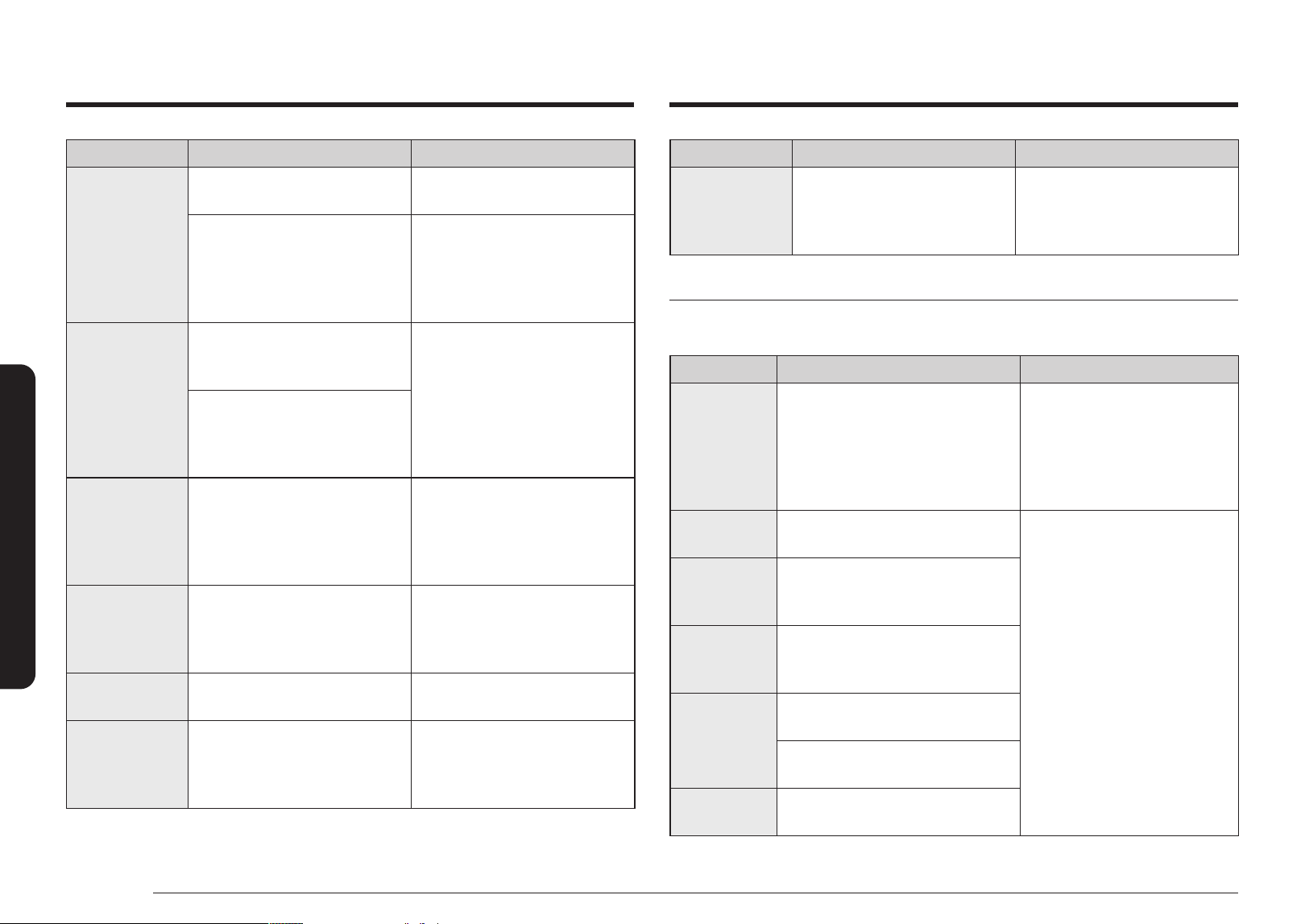
66 English
Troubleshooting
Troubleshooting
Problem Possible cause Solution
The oven door is
locked.
The circuit breaker has been
tripped or there was a power
failure while the oven door was
locked.
Activate Control Lockout, and
then unlock the control. See the
Control Lockout section on page
24.
Information codes
OVEN
Displayed Code Possible cause Solution
C-d0
This code occurs if the control key is
short for 1 minute.
Clean the buttons and make
sure there is no water on/around
them. Turn off the oven and try
again. If the problem continues,
contact a local Samsung service
center.
C-d5
This code occurs if the door lock is
mispositioned.
Try to open the door.
Press Off, and then restart the
oven. If the problem persists,
disconnect all power to the oven
for at least 30 seconds and then
reconnect the power. If this does
not solve the problem, call for
service.
C-F0
This code occurs if communication
between the Main and Sub PBA is
interrupted.
C-F2
This code occurs if communication
between the Main and Touch is
interrupted.
C-20
The oven sensor is open when the
oven is operating.
The oven sensor is short when the
oven is operating.
C-21
This code occurs if the internal
temperature rises abnormally high.
Problem Possible cause Solution
The oven is not
clean after a self-
cleaning cycle.
The oven controls were not set
correctly.
See the Self Clean section on page
50.
The oven was heavily soiled. Wipe up heavy spillovers before
starting the self-cleaning cycle.
Heavily soiled ovens may need
to be self-cleaned again or for a
longer period of time.
Steam is coming
out of the vent.
When using the convection
feature, it is normal to see steam
coming out of the oven vent.
This is normal operation and not a
system failure.
Use the oven as usual.
As the number of racks or amount
of food being cooked increases,
the amount of visible steam will
increase.
A burning or oily
odor is coming
from the vent.
This is normal for a new oven and
will disappear in time.
• To speed the process, set
a self-cleaning cycle for a
minimum of 3 hours.
• See the Self Clean section on
page 50.
Strong odor. An odor coming from the
insulation around the inside of
the oven is normal for the rst
few times the oven is used.
Operate the oven empty on the
bake setting at 400 °F for 1 hour.
Fan noise. A convection fan may
automatically turn on and off.
This is not a system failure but
normal operation.
The oven racks
are difcult to
slide.
The shiny, silver-colored racks
were cleaned in a self-cleaning
cycle.
Apply a small amount of
vegetable oil to a paper towel,
and then wipe the edges of the
oven racks with the paper towel.
English 67
Warranty (U.S.A)
Displayed Code Possible cause Solution
C-23
The temp probe sensor is short when
the oven is operating.
Press Off, and then restart the
oven. If the problem persists,
disconnect all power to the oven
for at least 30 seconds and then
reconnect the power. If this does
not solve the problem, call for
service.
C-30
The PCB sensor is open when the
oven is operating.
The PCB sensor is short when the
oven is operating.
C-31
This code occurs if the PCB
temperature rises abnormally high.
Call for service
-dC-
This code appears if the divider is
inserted or removed while the oven is
operating.
Make sure the divider is inserted
properly, and then restart the
oven.
If the problem persists,
disconnect all power to the oven
for at least 30 seconds and then
reconnect the power. If this does
not solve the problem, call for
service.
C-70
The steam sensor is open when the
oven is operating
Press Off, and then restart the
oven. If the problem presists,
disconnect all power to the oven
for at least 30 seconds and then
reconnect the power. If does
not solve the problem, call the
service.
The steam sensor is short when the
oven is operating
C-72
There are drain system-related
problems.
C-A2
The cooling motor is operating
abnormally.
Call for service.
Warranty (U.S.A)
PLEASE DO NOT DISCARD. THIS PAGE REPLACES THE WARRANTY PAGE IN
THE USE & CARE GUIDE
SAMSUNG ELECTRIC OVEN
LIMITED WARRANTY TO ORIGINAL PURCHASER WITH PROOF OF PURCHASE
This SAMSUNG brand product, as supplied and distributed by SAMSUNG ELECTRONICS AMERICA,
INC. (SAMSUNG) and delivered new, in the original carton to the original consumer purchaser,
is warranted by SAMSUNG against manufacturing defects in materials or workmanship for the
limited warranty period, starting from the date of original purchase, of:
One (1) Year Parts and Labor
This limited warranty is valid only on products purchased and used in the United States that have
been installed, operated, and maintained according to the instructions attached to or furnished
with the product. To receive warranty service, the purchaser must contact SAMSUNG at the
address or phone number provided below for problem determination and service procedures.
Warranty service can only be performed by a SAMSUNG authorized service center. The original
dated bill of sale must be presented upon request as proof of purchase to SAMSUNG or
SAMSUNG’s authorized service center to receive warranty service.
SAMSUNG will provide in-home service within the contiguous United States during the warranty
period at no charge, subject to availability of SAMSUNG authorized servicers within the customer’s
geographic area. If in-home service is not available, SAMSUNG may elect, at its option, to provide
transportation of the product to and from an authorized service center. If the product is located in
an area where service by a SAMSUNG authorized servicer is not available, you may be responsible
for a trip charge or required to bring the product to a SAMSUNG authorized service center for
service.
To receive in-home service, product must be unobstructed and accessible to the service agent.
68 English
Warranty (U.S.A)
Warranty (U.S.A)
During the applicable warranty period, a product will be repaired, replaced, or the purchase
price refunded, at the sole option of SAMSUNG. SAMSUNG may use new or reconditioned parts
in repairing a product, or replace the product with a new or reconditioned product. Replacement
parts and products are warranted for the remaining portion of the original product’s warranty
or ninety (90) days, whichever is longer. All replaced parts and products are the property of
SAMSUNG and you must return them to SAMSUNG.
This limited warranty covers manufacturing defects in materials or workmanship encountered in
normal household, noncommercial use of this product and shall not cover the following: damage
that occurs in shipment, delivery, installation, and uses for which this product was not intended;
damage caused by unauthorized modication or alteration of the product; product where the
original factory serial numbers have been removed, defaced, changed in any way, or cannot be
readily determined; cosmetic damage including scratches, dents, chips, and other damage to the
product’s nishes; damage caused by abuse, misuse, overheating due to overcooking, glass tray or
turntable, pest infestations, accident, re, oods, or other acts of nature or God; damage caused
by use of equipment, utilities, services, parts, supplies, accessories, applications, installations,
repairs, external wiring or connectors not supplied or authorized by SAMSUNG; damage caused
by incorrect electrical line current, voltage, uctuations and surges; damage caused by failure to
operate and maintain the product according to instructions; in-home instruction on how to use
your product; service to correct installation not in accordance with electrical or plumbing codes
or correction of household electrical or plumbing (i.e., house wiring, fuses, or water inlet hoses). In
addition, damage to the glass cooktop caused by (i) use of cleaners other than the recommended
cleaners and pads or (ii) hardened spills of sugary materials or melted plastic that are not cleaned
according to the directions in the use and care guide are not covered by this limited warranty.
The cost of repair or replacement under these excluded circumstances shall be the customer’s
responsibility.
Visits by an authorized servicer to explain product functions, maintenance or installation are not
covered by this limited warranty. Please contact SAMSUNG at the number below for assistance
with any of these issues.
EXCLUSION OF IMPLIED WARRANTIES
IMPLIED WARRANTIES, INCLUDING THE IMPLIED WARRANTIES OF MERCHANTABILITY OR FITNESS
FOR A PARTICULAR PURPOSE, ARE LIMITED TO ONE YEAR OR THE SHORTEST PERIOD ALLOWED
BY LAW. Some states do not allow limitations on how long an implied warranty lasts, so the above
limitations or exclusions may not apply to you. This warranty gives you specic rights, and you may
also have other rights, which vary from state to state.
LIMITATION OF REMEDIES
YOUR SOLE AND EXCLUSIVE REMEDY IS PRODUCT REPAIR, PRODUCT REPLACEMENT, OR REFUND
OF THE PURCHASE PRICE AT SAMSUNG’S OPTION, AS PROVIDED IN THIS LIMITED WARRANTY.
SAMSUNG SHALL NOT BE LIABLE FOR SPECIAL, INCIDENTAL OR CONSEQUENTIAL DAMAGES,
INCLUDING BUT NOT LIMITED TO TIME WAY FROM WORK, HOTELS AND/OR RESTAURANT MEALS,
REMODELING EXPENSES, LOSS OF REVENUE OR PROFITS, FAILURE TO REALIZE SAVINGS OR
OTHER BENEFITS REGARDLESS OF THE LEGAL THEORY ON WHICH THE CLAIM IS BASED, AND
EVEN IF SAMSUNG HAS BEEN ADVISED OF THE POSSIBILITY OF SUCH DAMAGES. Some states do
not allow exclusion or limitation of incidental or consequential damages, so the above limitations
or exclusions may not apply to you. This warranty gives you specic rights, and you may also have
other rights, which vary from state to state.
SAMSUNG does not warrant uninterrupted or error-free operation of the product. No warranty
or guarantee given by any other person, rm, or corporation with respect to this product shall be
binding on SAMSUNG.
To obtain warranty service, please contact SAMSUNG at:
Samsung Electronics America, Inc.
85 Challenger Road
Ridgeeld Park, NJ 07660
1-800-SAMSUNG (726-7864) and www.samsung.com/us/support
Warranty (U.S.A)
English 69
Warranty (CANADA)
Warranty (CANADA)
PLEASE DO NOT DISCARD. THIS PAGE REPLACES THE WARRANTY PAGE IN
THE USE & CARE GUIDE
SAMSUNG ELECTRIC OVEN
LIMITED WARRANTY TO ORIGINAL PURCHASER
This SAMSUNG brand product, as supplied and distributed by SAMSUNG ELECTRONICS
CANADA, INC. (SAMSUNG) and delivered new, in the original carton to the original consumer
purchaser, is warranted by SAMSUNG against manufacturing defects in materials and
workmanship for a limited warranty period of:
One (1) Year Parts and Labor
This limited warranty begins on the original date of purchase, and is valid only on products
purchased and used in the CANADA. To receive warranty service, the purchaser must contact
SAMSUNG for problem determination and service procedures. Warranty service can only be
performed by a SAMSUNG authorized service center. The original dated bill of sale must be
presented upon request as proof of purchase to SAMSUNG or SAMSUNG’s authorized service
center. Samsung will provide in-home service during the warranty period at no charge subject
to availability within the contiguous CANADA. In home service is not available in all areas.
To receive in home service, the product must be unobstructed and accessible to the service
agent. If service is not available Samsung may elect to provide transportation of the product
to and from an authorized service center.
SAMSUNG will repair or replace this product, at our option and at no charge as stipulated
herein, with new or reconditioned parts or products if found to be defective during the limited
warranty period specied above. All replaced parts and products become the property of
SAMSUNG and must be returned to SAMSUNG. Replacement parts and products assume the
remaining original warranty, or ninety (90) days, whichever is longer. This limited warranty
covers manufacturing defects in materials and workmanship encountered in normal,
noncommercial use of this product and shall not apply to the following: damage which occurs
in shipment; delivery and installation; applications and uses for which this product was not
intended; altered product or serial numbers; cosmetic damage or exterior nish; accidents,
abuse, neglect, re, water, lightning or other acts of nature; use of products, equipment,
systems, utilities, services, parts, supplies, accessories, applications, installations, repairs,
external wiring or connectors not supplied or authorized by SAMSUNG which damage this
product or result in service problems; incorrect electrical line voltage, uctuations and
surges; customer adjustments and failure to follow operating instructions, maintenance
and environmental instructions that are covered and prescribed in the instruction book;
product removal and reinstallation; problems caused by pest infestations, and overheating or
overcooking by user. This limited warranty shall not cover cases of incorrect electric current,
voltage or supply, light bulbs, house fuses, house wiring, cost of a service call for instructions,
or xing installation errors. SAMSUNG does not warrant uninterrupted or error-free operation
of the product.
70 English
Appendix
EXCEPT AS SET FORTH HEREIN THERE ARE NO WARRANTIES ON THIS PRODUCT EITHER
EXPRESS OR IMPLIED AND SAMSUNG DISCLAIMS ALL WARRANTIES INCLUDING, BUT NOT
LIMITED TO, ANY IMPLIED WARRANTIES OF MERCHANTABILITY, INFRINGEMENT OR FITNESS
FOR A PARTICULAR PURPOSE. NO WARRANTY OR GUARANTY GIVEN BY ANY PERSON, FIRM
OR CORPORATION WITH RESPECT TO THIS PRODUCT SHALL BE BINDING ON SAMSUNG.
SAMSUNG SHALL NOT BE LIABLE FOR LOSS OF REVENUE OR PROFITS, FAILURE TO REALIZE
SAVINGS OR OTHER BENEFITS, OR ANY OTHER SPECIAL, INCIDENTAL OR CONSEQUENTIAL
DAMAGES CAUSED BY THE USE, MISUSE OR INABILITY TO USE THIS PRODUCT, REGARDLESS
OF THE LEGAL THEORY ON WHICH THE CLAIM IS BASED, AND EVEN IF SAMSUNG HAS BEEN
ADVISED OF THE POSSIBILITY OF SUCH DAMAGES. NOR SHALL RECOVERY OF ANY KIND
AGAINST SAMSUNG BE GREATER IN AMOUNT THAN THE PURCHASE PRICE OF THE PRODUCT
SOLD BY SAMSUNG AND CAUSING THE ALLEGED DAMAGE. WITHOUT LIMITING THE
FOREGOING, PURCHASER ASSUMES ALL RISK AND LIABILITY FOR LOSS, DAMAGE OR INJURY
TO PURCHASER AND PURCHASER’S PROPERTY AND TO OTHERS AND THEIR PROPERTY
ARISING OUT OF THE USE, MISUSE OR INABILITY TO USE THIS PRODUCT. THIS LIMITED
WARRANTY SHALL NOT EXTEND TO ANYONE OTHER THAN THE ORIGINAL PURCHASER OF
THIS PRODUCT, IS NONTRANSFERABLE AND STATES YOUR EXCLUSIVE REMEDY.
Some states do not allow limitations on how long an implied warranty lasts, or the exclusion
or limitation of incidental or consequential damages, so the above limitations or exclusions
may not apply to you. This warranty gives you specic legal rights, and you may also have
other rights which vary from state to state.
To obtain warranty service, please contact SAMSUNG at:
Samsung Electronics Canada Inc.
2050 Derry Road West, Mississauga, Ontario L5N 0B9 Canada
1-800-SAMSUNG (726-7864) and www.samsung.com/ca/support (English)
www.samsung.com/ca_fr/support (French)
Appendix
Open Source Announcement
The software included in this product contains open source software. You may obtain the
complete corresponding source code for a period of three years after the last shipment of this
product by contacting our support team via http://opensource.samsung.com (Please use the
“Inquiry” menu.)
It is also possible to obtain the complete corresponding source code in a physical medium
such as a CD-ROM; a minimal charge will be required.
The following URL http://opensource.samsung.com/opensource/COMMON_TZ6_0/seq/0
leads to the open source license information as related to this product. This offer is valid to
anyone in receipt of this information.
Warranty (CANADA)

Memo
Please be advised that the Samsung warranty does NOT cover service calls to explain product operation, correct improper installation, or perform normal cleaning or maintenance.
QUESTIONS OR COMMENTS?
COUNTRY CALL OR VISIT US ONLINE AT
U.S.A
Consumer Electronics
1-800-SAMSUNG (726-7864) www.samsung.com/us/support
CANADA 1-800-SAMSUNG(726-7864)
www.samsung.com/ca/support (English)
www.samsung.com/ca_fr/support (French)
NV51CG700S_AA-00
Scan the QR code* or visit
www.samsung.com/spsn
to view our helpful
How-to Videos and Live Shows
* Requires reader to be installed on your
smartphone
Scan this with your smartphone.