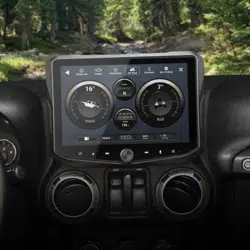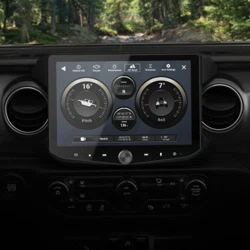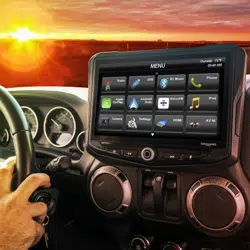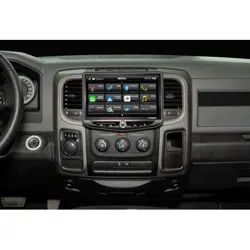
HEIGH10 (UN1810) / SRK-CHR15H Installer Set Up Guide
Accessing Installer Settings...............................................2
Installer Settings.................................................................3
Advanced Vehicle Settings.................................................3
Checking System Firmware Version.................................4
Updating Firmware............................................................5
Checking PAC Integration APK Version............................8
Updating PAC Integration APK.........................................9
Default Settings.................................................................9
PAC SWC Settings ...........................................................10
Camera Settings...............................................................11
Vehicle Audio Settings.......................................................14
Factory Amplifed Systems................................................14
About (PAC Module Information)......................................15
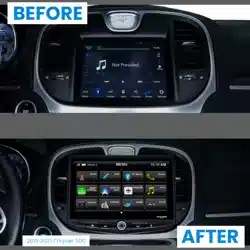
SRK-CHR15H PAC Integration Kit
for Chrysler 300, Dodge Challenger/Charger
Check/Update the HEIGH10 (UN1810) System Firmware:
Once installed and powered-up, the System Firmware needs to be up-to-date and include the latest
PAC Integration APK. Step-by-step instructions for checking and updating the System Firmware can
be found on Page 4 of this Installer Set-Up Guide.
Vehicle Specic User Guide:
The included postcard should be given to the end user, but you may want to look over the User Guide
to become familiar with all the vehicle specic user features and settings.
Factory Amplied Systems:
If the vehicle is equipped with a factory amplied sound system, view the Amplier Set Up sheet at
https://catalog.pac-audio.com/catalog/radio-replacement/srk-chr15h
Need Help?
If you have followed 1-4 above, and still have questions, reach out to our Technical Support Team:
Phone: 727-592-5991
Email: [email protected]
Chat: stingerelectronics.com
3
4
5
2
1
Read the included SRK-CHR15H Installation Manual:
The manual includes step-by-step instructions and color photos of vehicle disassembly, radio and
vehicle connections, radio mounting and vehicle installation. Or, to view the manual online, go to
https://catalog.pac-audio.com/catalog/radio-replacement/SRK-CHR15H
Installers! Important Steps For Installation
This is a supplemental set-up guide for the UN1810 when integrated with the SRK-CHR15H Chrysler/Dodge kit. This
guide covers specic intergrated features and installer settings. Information regarding the general operation, features
and settings of the HEIGH10 (UN1810) can be found in the Vehicle Specic User Guide.
Stinger and PAC Are Power Brands of AAMP Global
15500 Lightwave, Clearwater, Florida 33760
P: 888-228-5560 | © 2022 AAMP Global
ISG-SRK-CHR15H REV. 032822
®
®
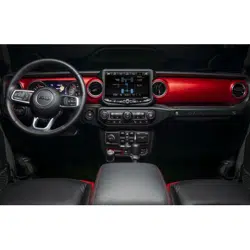
SRK-JW18EH PAC Integration Kit
Jeep Wrangler JL | Gladiator JT
2 3
SRK-CHR15H PAC Integration Kit
®
®
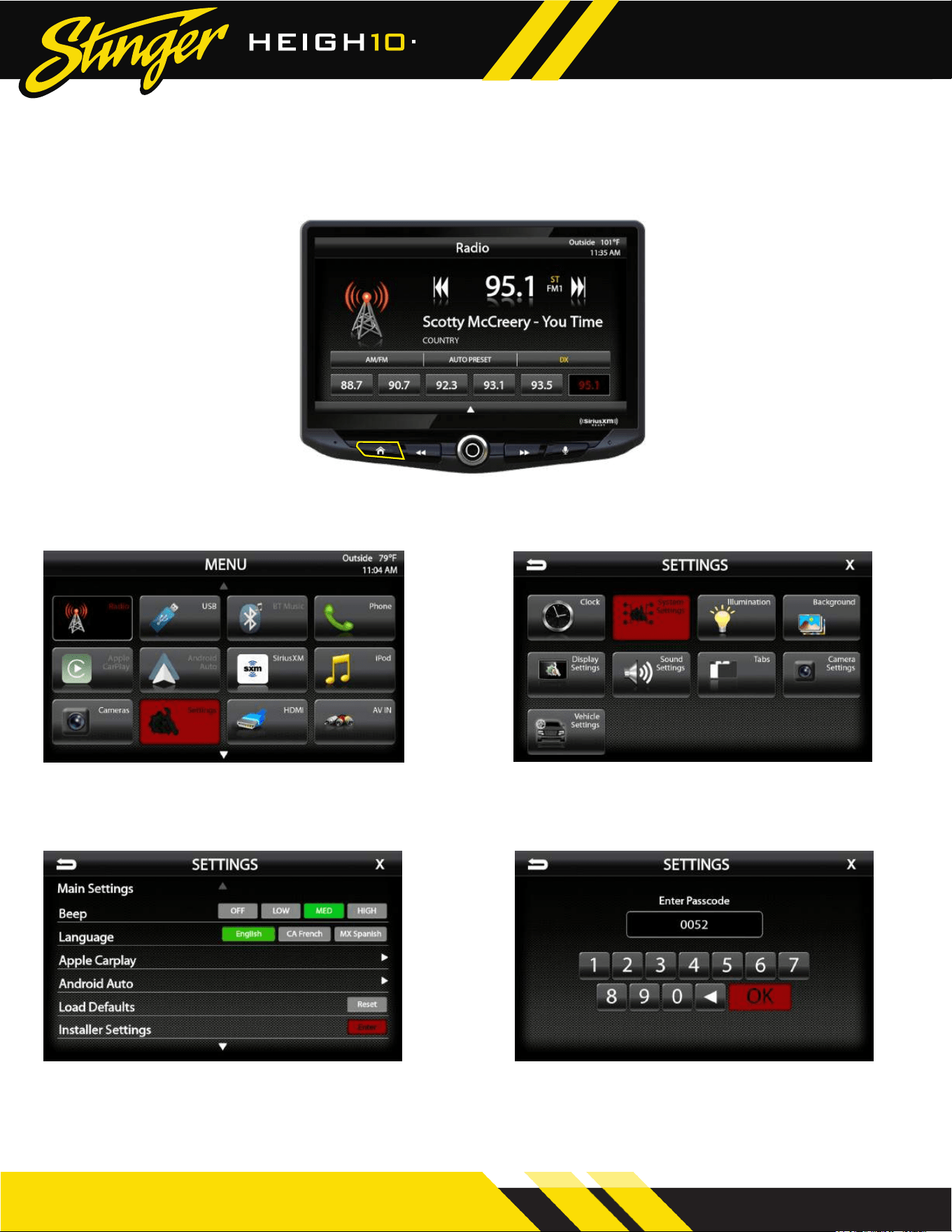
Accessing the Installer Settings
1. From any source, press the HOME Button
2. From the HOME MENU select Settings 3. Select System Settings
4. Select Installer Settings > Enter
5. Enter Passcode 0052 > OK
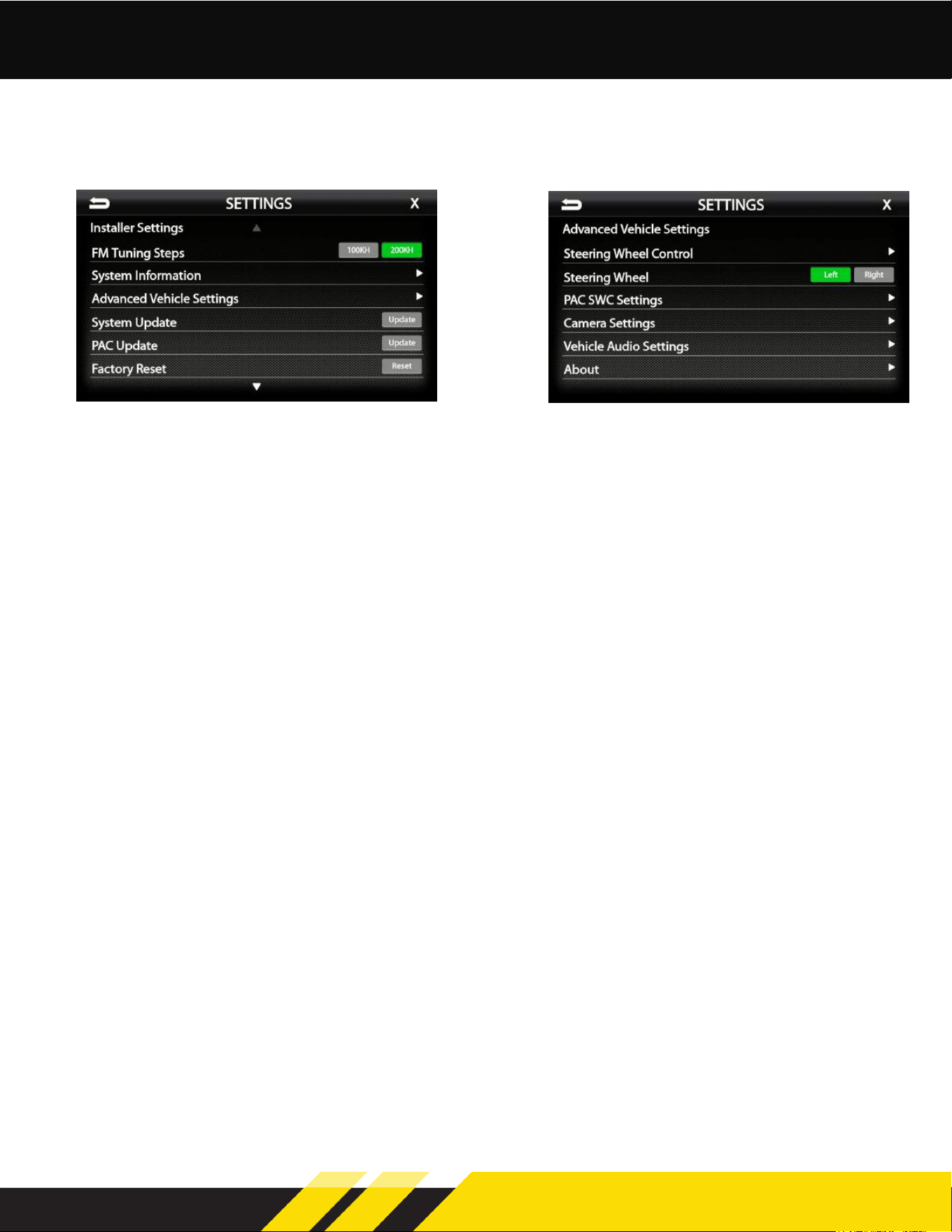
Installer Settings
Advanced Vehicle Settings
FM Tuning Steps [100KH - 200KH]
Sets the FM radio tuning to 1 or 2 digit
increments. USA is 200KH and Europe
is 100KH.
System Information
Select to view current rmware revision.
(Page: 4)
Advanced Vehicle Settings
Select to access system dened vehicle
settings.
System Update
Select to update system rmware.
(Page: 5)
PAC Update
Select to update PAC Integration APK.
(Page: 9)
Factory Reset
Resets radio to Vehicle Application maintaining
any updated version on Integration APK.
Master Reset
Resets radio to Universal Application wiping out
any updated version of Integration APK.
Steering Wheel Control
Universal SWC programming. (Not used when
when linked to PAC interface).
Steering Wheel [Left - Right]
Denes how user interface will be congured,
mainly in Apple CarPlay.
PAC SWC Settings
Select to access steering wheel control
conguration. (Page: 10)
Camera Settings
Select to congure cameras and triggers.
(Page: 11)
Vehicle Audio Settings
Select to congure factory audio settings.
(Page: 14)
About
Select to view/update PAC interfaces.
(Page: 15)
SRK-JW18EH PAC Integration Kit
Jeep Wrangler JL | Gladiator JT
2 3
SRK-CHR15H PAC Integration Kit
®
®
Accessing the Installer Settings
1. From any source, press the HOME Button
2. From the HOME MENU select Settings 3. Select System Settings
4. Select Installer Settings > Enter
5. Enter Passcode 0052 > OK
Installer Settings
Advanced Vehicle Settings
FM Tuning Steps [100KH - 200KH]
Sets the FM radio tuning to 1 or 2 digit
increments. USA is 200KH and Europe
is 100KH.
System Information
Select to view current rmware revision.
(Page: 4)
Advanced Vehicle Settings
Select to access system dened vehicle
settings.
System Update
Select to update system rmware.
(Page: 5)
PAC Update
Select to update PAC Integration APK.
(Page: 9)
Factory Reset
Resets radio to Vehicle Application maintaining
any updated version on Integration APK.
Master Reset
Resets radio to Universal Application wiping out
any updated version of Integration APK.
Steering Wheel Control
Universal SWC programming. (Not used when
when linked to PAC interface).
Steering Wheel [Left - Right]
Denes how user interface will be congured,
mainly in Apple CarPlay.
PAC SWC Settings
Select to access steering wheel control
conguration. (Page: 10)
Camera Settings
Select to congure cameras and triggers.
(Page: 11)
Vehicle Audio Settings
Select to congure factory audio settings.
(Page: 14)
About
Select to view/update PAC interfaces.
(Page: 15)
SRK-JW18EH PAC Integration Kit
Jeep Wrangler JL | Gladiator JT
4 5
SRK-CHR15H PAC Integration Kit
®
®
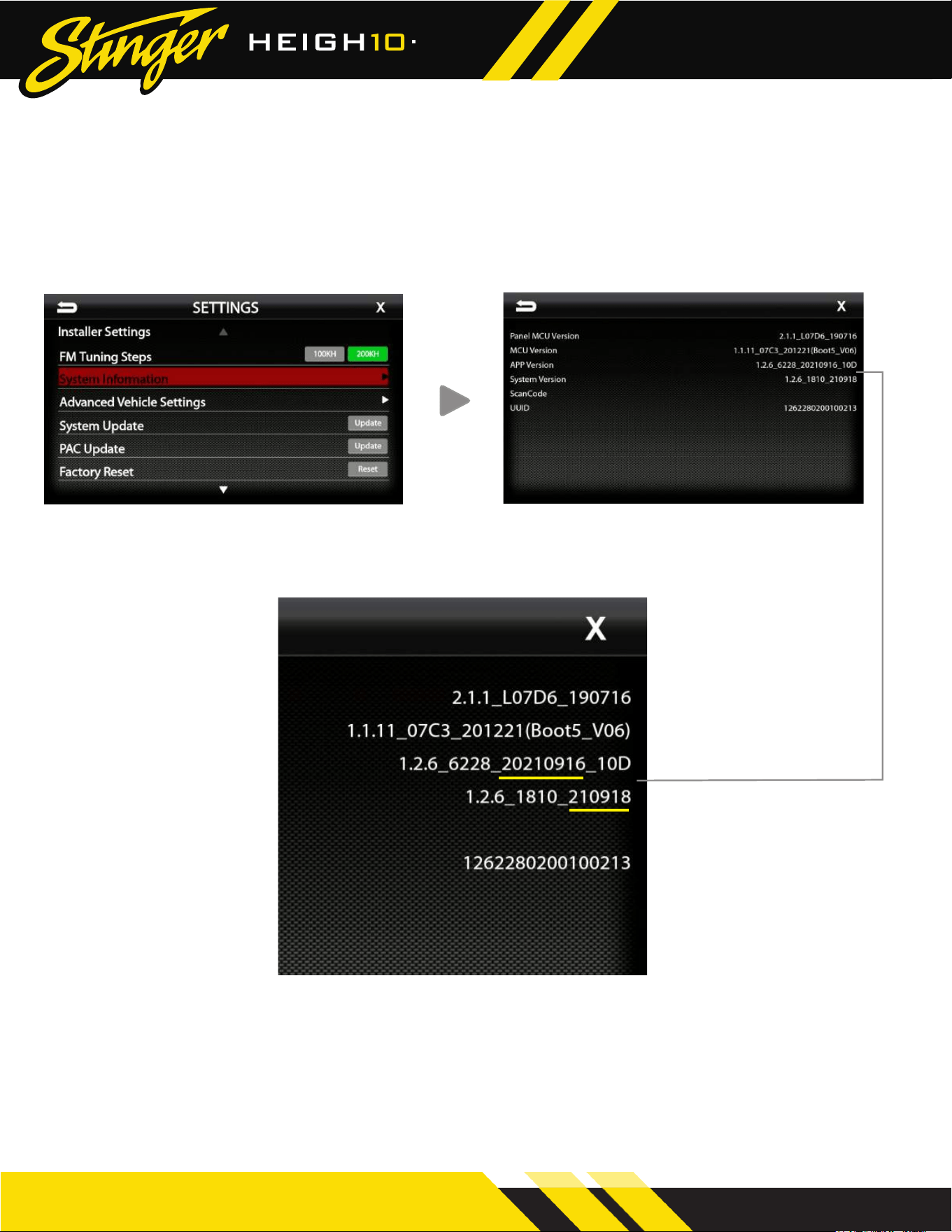
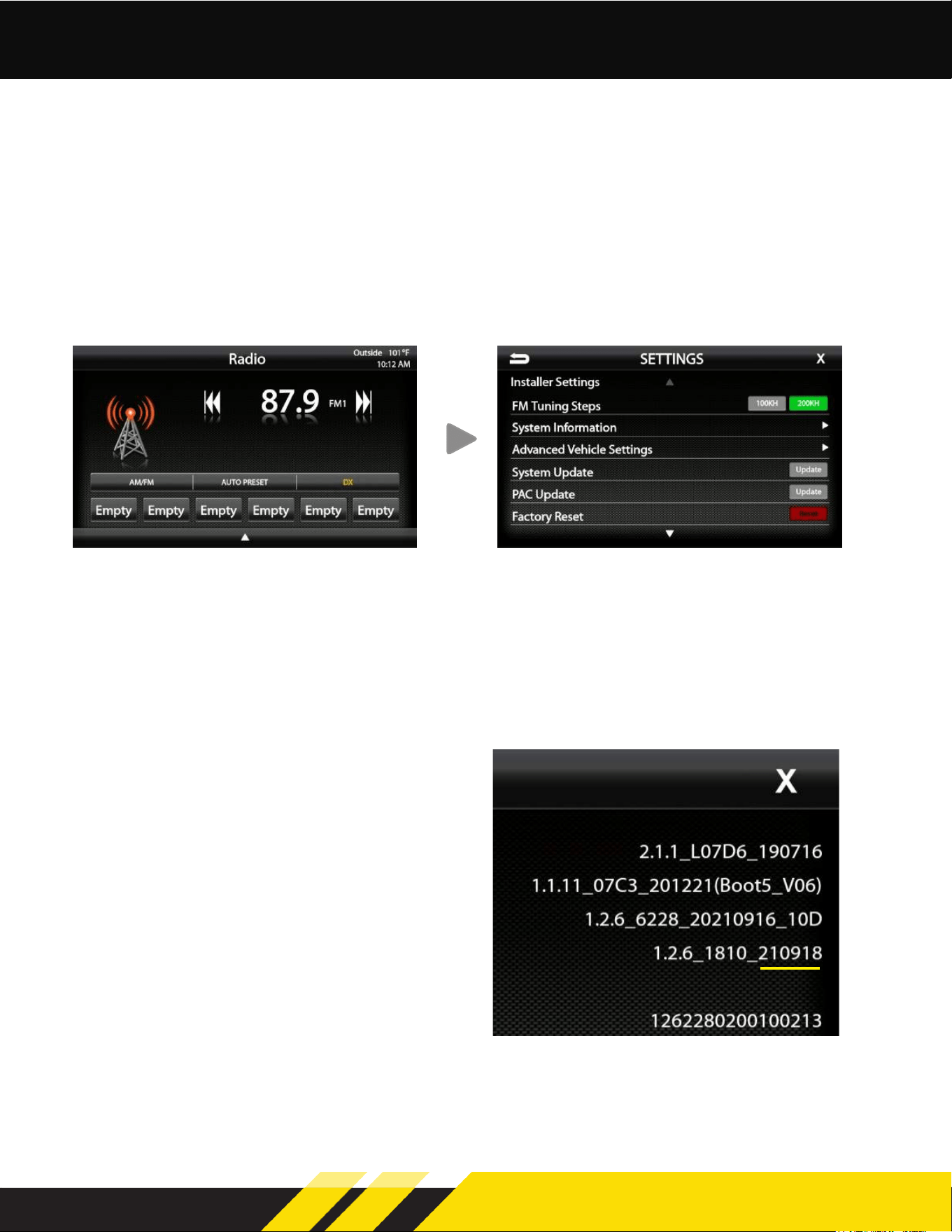
Checking System Firmware Version
1. Access the Installer Settings (Page: 2) and select
System Information to view rmware information.
2. Note the APP and System Versions and head over to the UN1810 product page on stingerelectronics.com.
Select the New Firmware Tab on the product page. The most current rmware will be listed with a date.
The 8 digits of the APP Version is the APP Version date code (YYYYMMDD). The 6 digits of the System
Version is the version date (YYMMDD). If the date code of either the APP or System rmware is older
than the current rmware on the website, proceed to Updating System Firmware.
Checking and updating the System Firmware and PAC Integration APK is an important step for
proper operation. This should be done rst before setting any system and vehicle settings as those
settings may be lost after an update.
Updating System Firmware
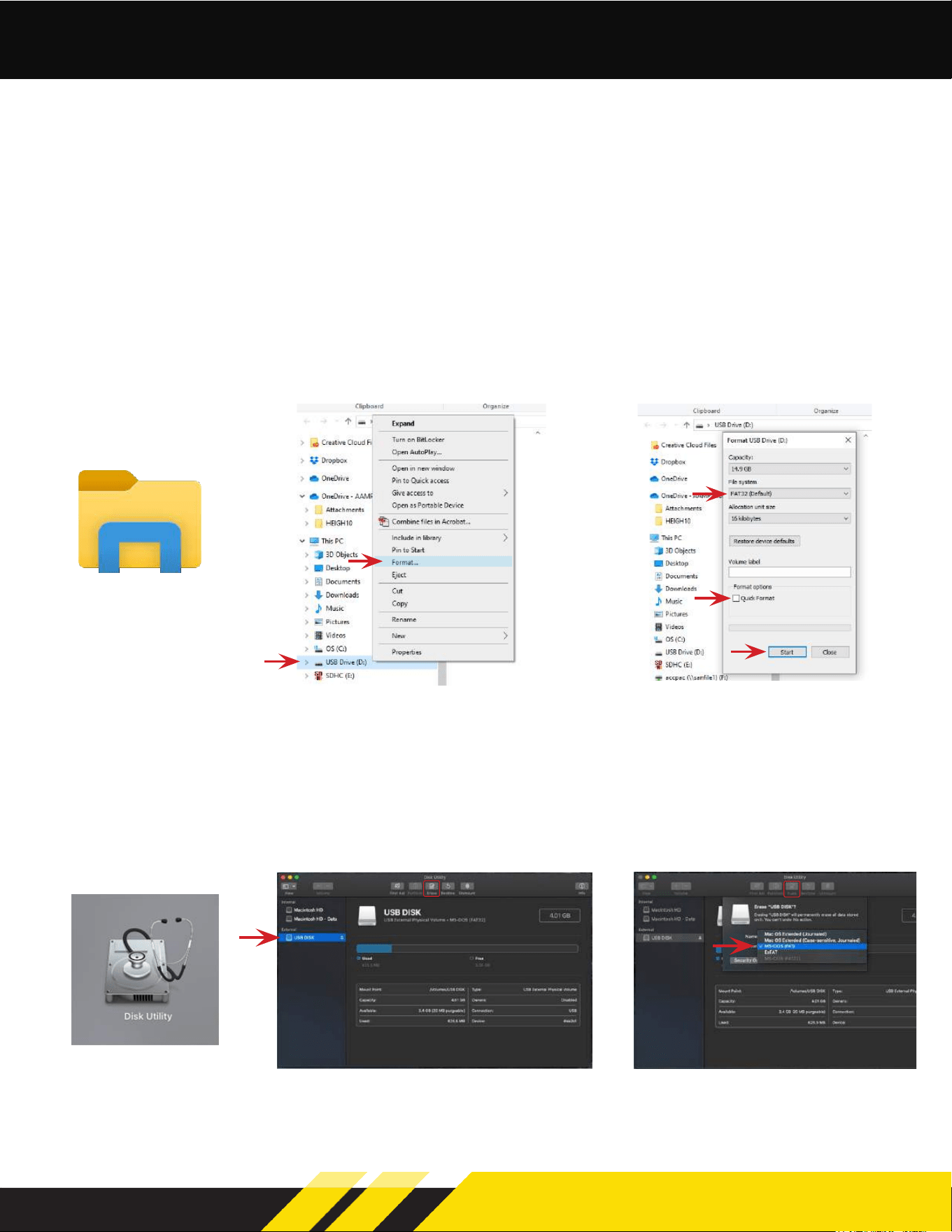
1. Format a USB Drive
Before copying the rmware le to a USB Flash Drive, the USB drive will need to be
formatted to FAT32 / MS-DOS(FAT)
USB Drive Format: Windows PC
A. Insert a 4GB+ USB Drive
D. Select FAT 32 File System and un-
check Quick Format and click Start.
B. Open File Explorer
C. Right click on USB Drive & select
Format
USB Drive Format: Mac
A. Insert a 4GB+ USB Drive
D. Select MS-DOS(FAT) from the
format drop-down menu and click Erase
B. Launch the Disk Utility
App from the Utilities folder
C. Select the USB drive from the
“External” List and click Erase
SRK-JW18EH PAC Integration Kit
Jeep Wrangler JL | Gladiator JT
4 5
SRK-CHR15H PAC Integration Kit
®
®
Checking System Firmware Version
1. Access the Installer Settings (Page: 2) and select
System Information to view rmware information.
2. Note the APP and System Versions and head over to the UN1810 product page on stingerelectronics.com.
Select the New Firmware Tab on the product page. The most current rmware will be listed with a date.
The 8 digits of the APP Version is the APP Version date code (YYYYMMDD). The 6 digits of the System
Version is the version date (YYMMDD). If the date code of either the APP or System rmware is older
than the current rmware on the website, proceed to Updating System Firmware.
Checking and updating the System Firmware and PAC Integration APK is an important step for
proper operation. This should be done rst before setting any system and vehicle settings as those
settings may be lost after an update.
Updating System Firmware
1. Format a USB Drive
Before copying the rmware le to a USB Flash Drive, the USB drive will need to be
formatted to FAT32 / MS-DOS(FAT)
USB Drive Format: Windows PC
A. Insert a 4GB+ USB Drive
D. Select FAT 32 File System and un-
check Quick Format and click Start.
B. Open File Explorer
C. Right click on USB Drive & select
Format
USB Drive Format: Mac
A. Insert a 4GB+ USB Drive
D. Select MS-DOS(FAT) from the
format drop-down menu and click Erase
B. Launch the Disk Utility
App from the Utilities folder
C. Select the USB drive from the
“External” List and click Erase
SRK-JW18EH PAC Integration Kit
Jeep Wrangler JL | Gladiator JT
6 7
SRK-CHR15H PAC Integration Kit
®
®
Updating System Firmware (cont.)
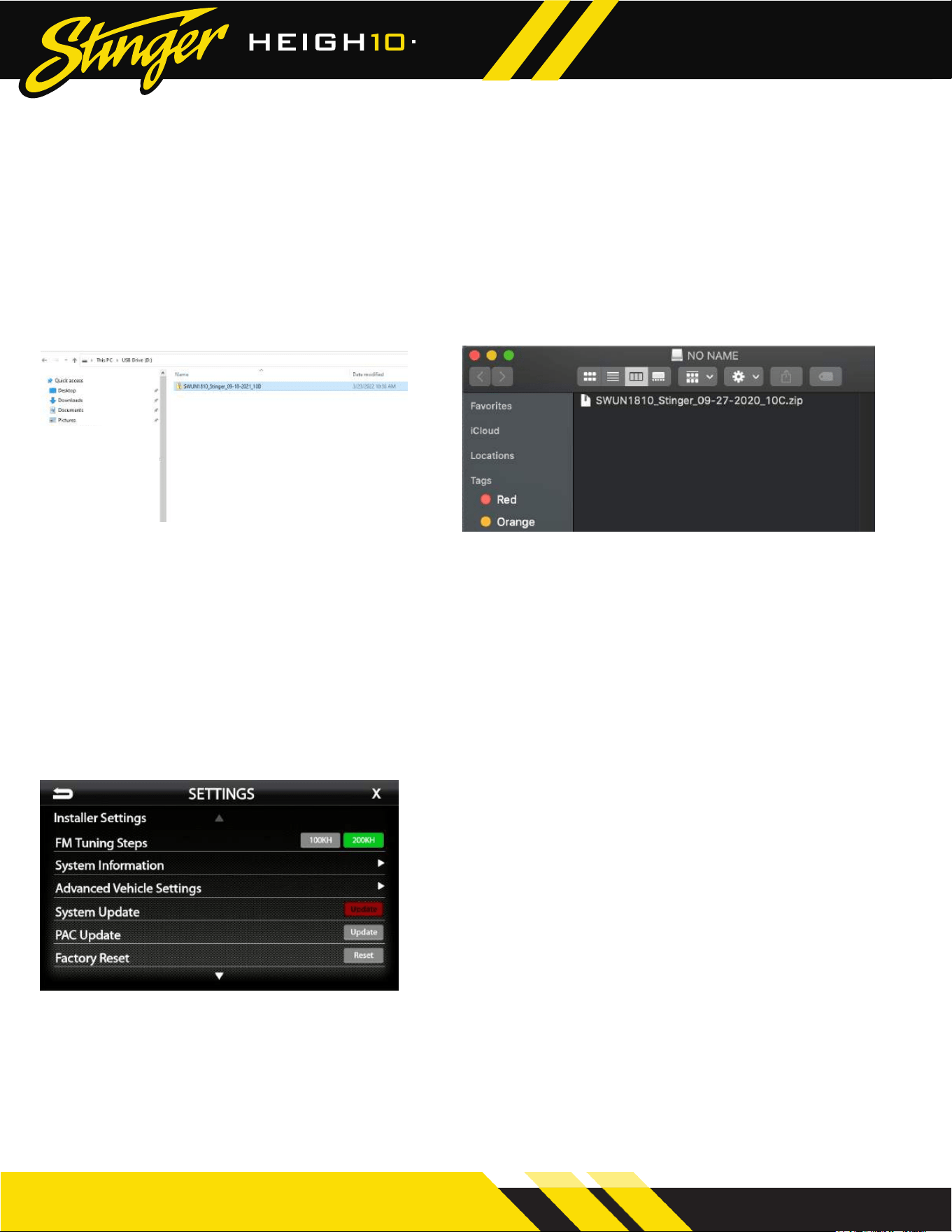
2. Download Firmware
Download the rmware le from StingerElectronics.com. Transfer the rmware le “as is” onto the formatted USB
drive. The le must be in the root directory of the USB drive. Do not unzip the le. See example A for Windows
and B for Mac.
A. Windows PC
B. Mac
3. Install System Update
Insert the USB drive into either USB port on the radio.
NOTE: When updating the rmware, all settings will be reset to factory defaults.... station presets,
EQ presets, audio/crossover settings, time alignment, camera settings. If need be, record this
information before updating rmware.
A. Access the Installer Settings (Page: 2) and
select System Update > Update
The update will take 8-10 minutes.
Do not attempt to stop the update.
DO NOT turn off power. The system will be
damaged if power is lost during the
update process.
Updating System Firmware (cont.)
4. Factory Reset
When the update is complete and the display is on the Radio source, access the Installer Settings
(Page 2), and select Factory Reset > Reset. The reset process takes 1-2 minutes, when completed,
the unit will return to the Radio source.
6. Conrm Firmware Update
Conrm rmware update by following
steps on page 4.
5. Nap Time
Once the Factory Reset is complete, turn the vehicle off, remove the key, lock the car using the
factory key fob, and let the vehicle sit for 10 minutes. This will ensure that the vehicle data-bus goes
to sleep and the Integration APK will function as intended.
SRK-JW18EH PAC Integration Kit
Jeep Wrangler JL | Gladiator JT
6 7
SRK-CHR15H PAC Integration Kit
®
®
Updating System Firmware (cont.)
2. Download Firmware
Download the rmware le from StingerElectronics.com. Transfer the rmware le “as is” onto the formatted USB
drive. The le must be in the root directory of the USB drive. Do not unzip the le. See example A for Windows
and B for Mac.
A. Windows PC
B. Mac
3. Install System Update
Insert the USB drive into either USB port on the radio.
NOTE: When updating the rmware, all settings will be reset to factory defaults.... station presets,
EQ presets, audio/crossover settings, time alignment, camera settings. If need be, record this
information before updating rmware.
A. Access the Installer Settings (Page: 2) and
select System Update > Update
The update will take 8-10 minutes.
Do not attempt to stop the update.
DO NOT turn off power. The system will be
damaged if power is lost during the
update process.
Updating System Firmware (cont.)
4. Factory Reset
When the update is complete and the display is on the Radio source, access the Installer Settings
(Page 2), and select Factory Reset > Reset. The reset process takes 1-2 minutes, when completed,
the unit will return to the Radio source.
6. Conrm Firmware Update
Conrm rmware update by following
steps on page 4.
5. Nap Time
Once the Factory Reset is complete, turn the vehicle off, remove the key, lock the car using the
factory key fob, and let the vehicle sit for 10 minutes. This will ensure that the vehicle data-bus goes
to sleep and the Integration APK will function as intended.
SRK-JW18EH PAC Integration Kit
Jeep Wrangler JL | Gladiator JT
8 9
SRK-CHR15H PAC Integration Kit
®
®
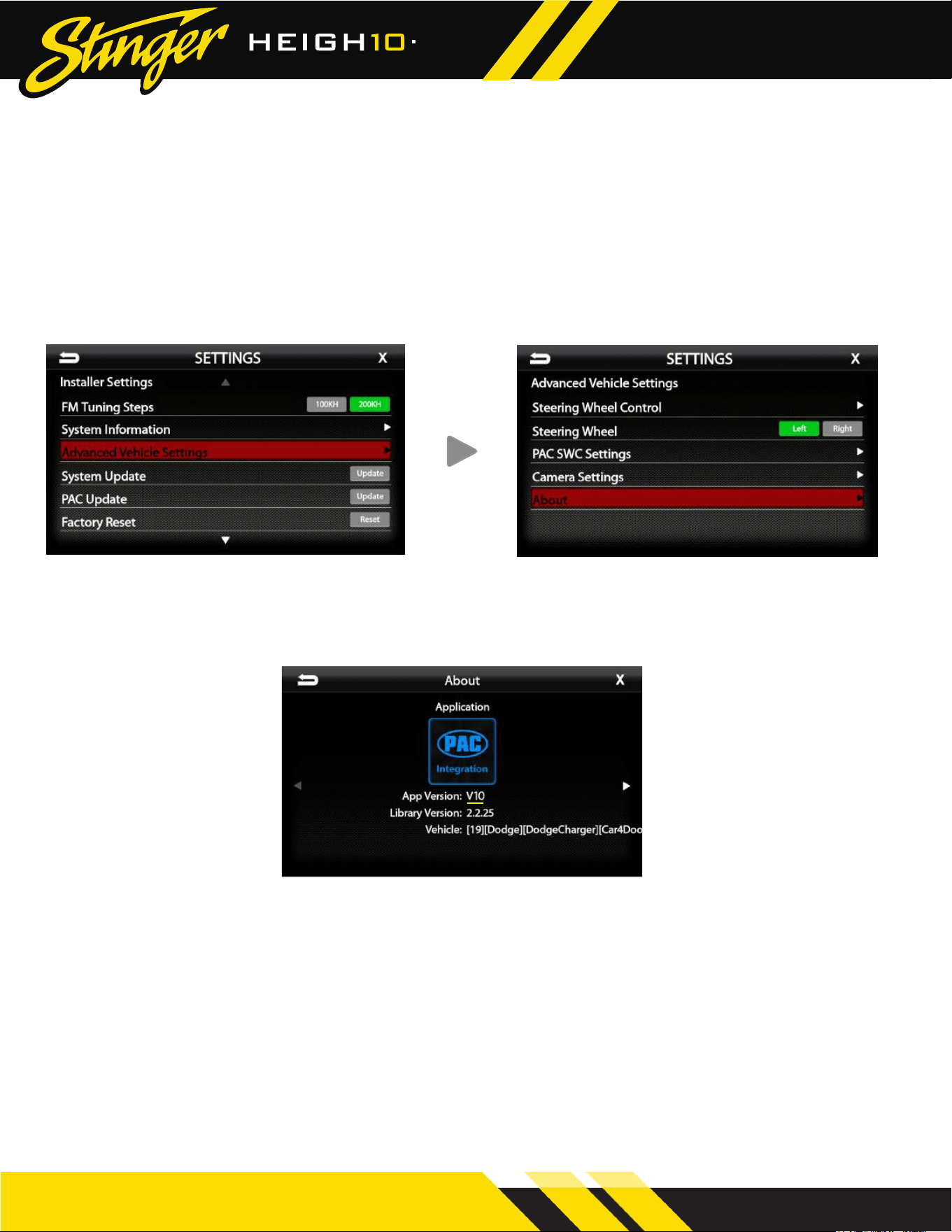
Checking the PAC Integration APK Version
1. Access the Installer Settings (Page: 2) and
select Advanced Vehicle Settings
3. Note the App Version and head over to the UN1810 product page on stingerelectronics.com. Select
the Firmware Tab on the product page. The last digit of the App Version is the revision. If the revision
number of the installed PAC Integration APK is older (smaller number) than the current revision on the
website, proceed to Updating the PAC Integration APK.
NOTE! Using the Left/Right arrows on the About screen will cycle through all the PAC modules installed
in the vehicle. See Page 16 for more information.
2. From Advanced Vehicle Settings select
About
D. Once the PAC Update is complete, turn vehicle off, remove the key, lock the car using the
factory key fob, and let the vehicle sit for 10 minutes. This will ensure that the vehicle data-bus
goes to sleep and the Integration APK will function as intended.
The PAC Integration APK is the application that controls vehicle specic features and settings.
Although the PAC Integration APK is included with the System Firmware, it can be updated inde-
pendently as new vehicle specic features become available.
NOTE! If Advanced Vehicle Settings does not include the About option, the System Firmware needs
to be updated to the current version (Page: 5)
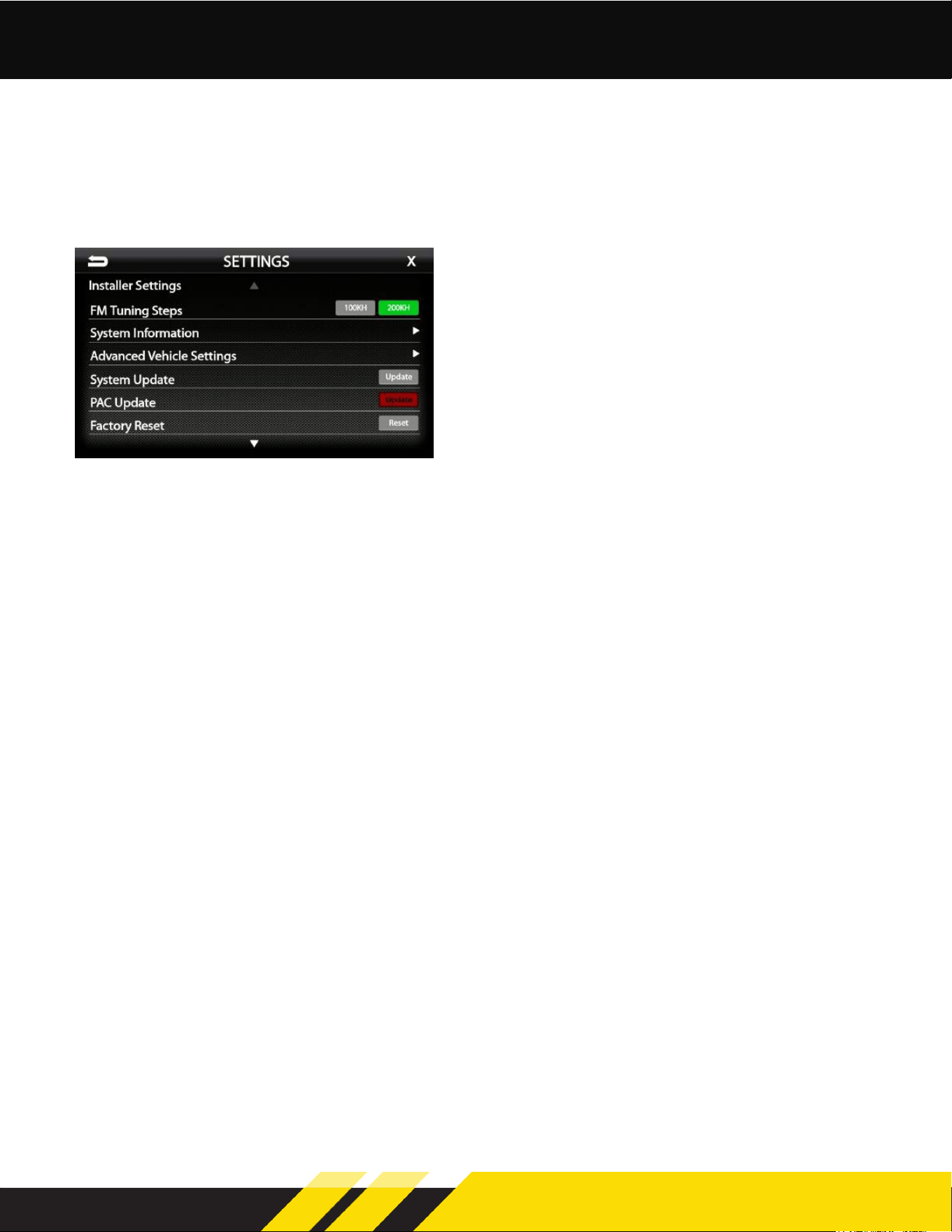
Updating the PAC Integration APK
Default Settings
C. Access the Installer Settings (Page: 2) and
select PAC Update.
A. Download the PAC Integration APK le and transfer to a USB drive.
B. Insert the USB drive into either USB port on the radio.
Once installed, the PAC Integration APK will recognize certain vehicle features and default to the
appropriate settings. Icons will be added for Climate Control, Vehicle Info and Vehicle Settings.
Steering wheel controls will be pre-programmed. Some settings can be modied as needed to
match the installation and customer preference.
Retains These Features, If Equipped:
• Factory rear camera
• Dual and single zone factory climate control
• Factory amplier
• Safety group chimes, including ParkSense®
• Steering wheel controls
• Heated/cooled seats / heated steering wheel
• On-screen vehicle settings menu
SRK-JW18EH PAC Integration Kit
Jeep Wrangler JL | Gladiator JT
8 9
SRK-CHR15H PAC Integration Kit
®
®
Checking the PAC Integration APK Version
1. Access the Installer Settings (Page: 2) and
select Advanced Vehicle Settings
3. Note the App Version and head over to the UN1810 product page on stingerelectronics.com. Select
the Firmware Tab on the product page. The last digit of the App Version is the revision. If the revision
number of the installed PAC Integration APK is older (smaller number) than the current revision on the
website, proceed to Updating the PAC Integration APK.
NOTE! Using the Left/Right arrows on the About screen will cycle through all the PAC modules installed
in the vehicle. See Page 16 for more information.
2. From Advanced Vehicle Settings select
About
D. Once the PAC Update is complete, turn vehicle off, remove the key, lock the car using the
factory key fob, and let the vehicle sit for 10 minutes. This will ensure that the vehicle data-bus
goes to sleep and the Integration APK will function as intended.
The PAC Integration APK is the application that controls vehicle specic features and settings.
Although the PAC Integration APK is included with the System Firmware, it can be updated inde-
pendently as new vehicle specic features become available.
NOTE! If Advanced Vehicle Settings does not include the About option, the System Firmware needs
to be updated to the current version (Page: 5)
Updating the PAC Integration APK
Default Settings
C. Access the Installer Settings (Page: 2) and
select PAC Update.
A. Download the PAC Integration APK le and transfer to a USB drive.
B. Insert the USB drive into either USB port on the radio.
Once installed, the PAC Integration APK will recognize certain vehicle features and default to the
appropriate settings. Icons will be added for Climate Control, Vehicle Info and Vehicle Settings.
Steering wheel controls will be pre-programmed. Some settings can be modied as needed to
match the installation and customer preference.
Retains These Features, If Equipped:
• Factory rear camera
• Dual and single zone factory climate control
• Factory amplier
• Safety group chimes, including ParkSense®
• Steering wheel controls
• Heated/cooled seats / heated steering wheel
• On-screen vehicle settings menu
SRK-JW18EH PAC Integration Kit
Jeep Wrangler JL | Gladiator JT
10 11
SRK-CHR15H PAC Integration Kit
®
®
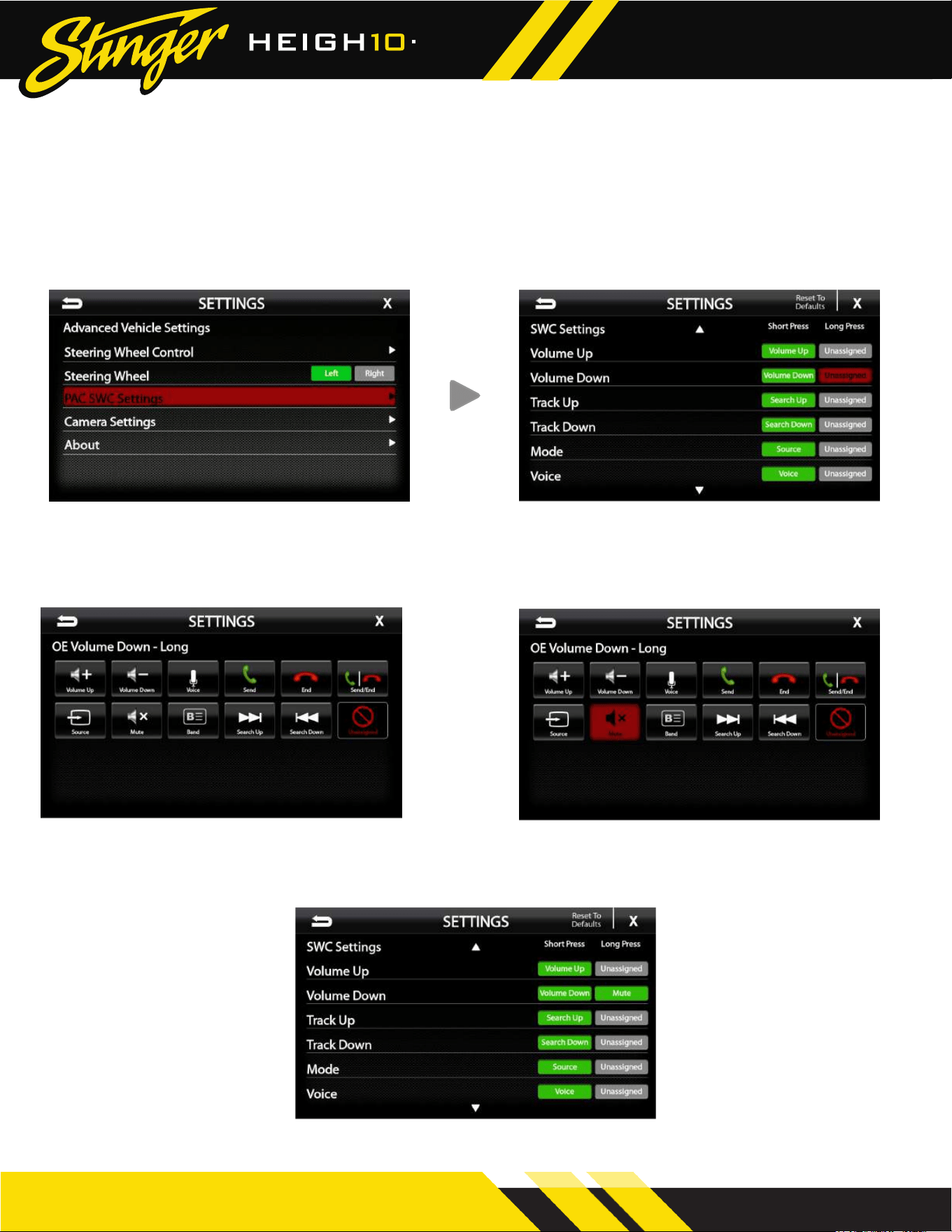
PAC SWC Settings
To view or change the default steering wheel
control functions, select Advanced Vehicle
Settings > PAC SWC Settings from the Installer
Settings.
The default settings will be displayed. To
change or add a SWC function, touch the
corresponding Short or Long Press button
assignment.
Select any of the functions shown to assign that
function to the button.
The PAC interface allows retention and customization of the factory steering wheel control but-
tons. By default they will be programmed according to the factory functions. You may change
the function or add Long Press functionality to any button. For example you can assign Long Press
on Volume Down to activate Mute.
After pressing a button assignment, a menu of
functions will be displayed, with the current
function highlighted.
The image above now shows Volume Down
Long Press will activate Mute
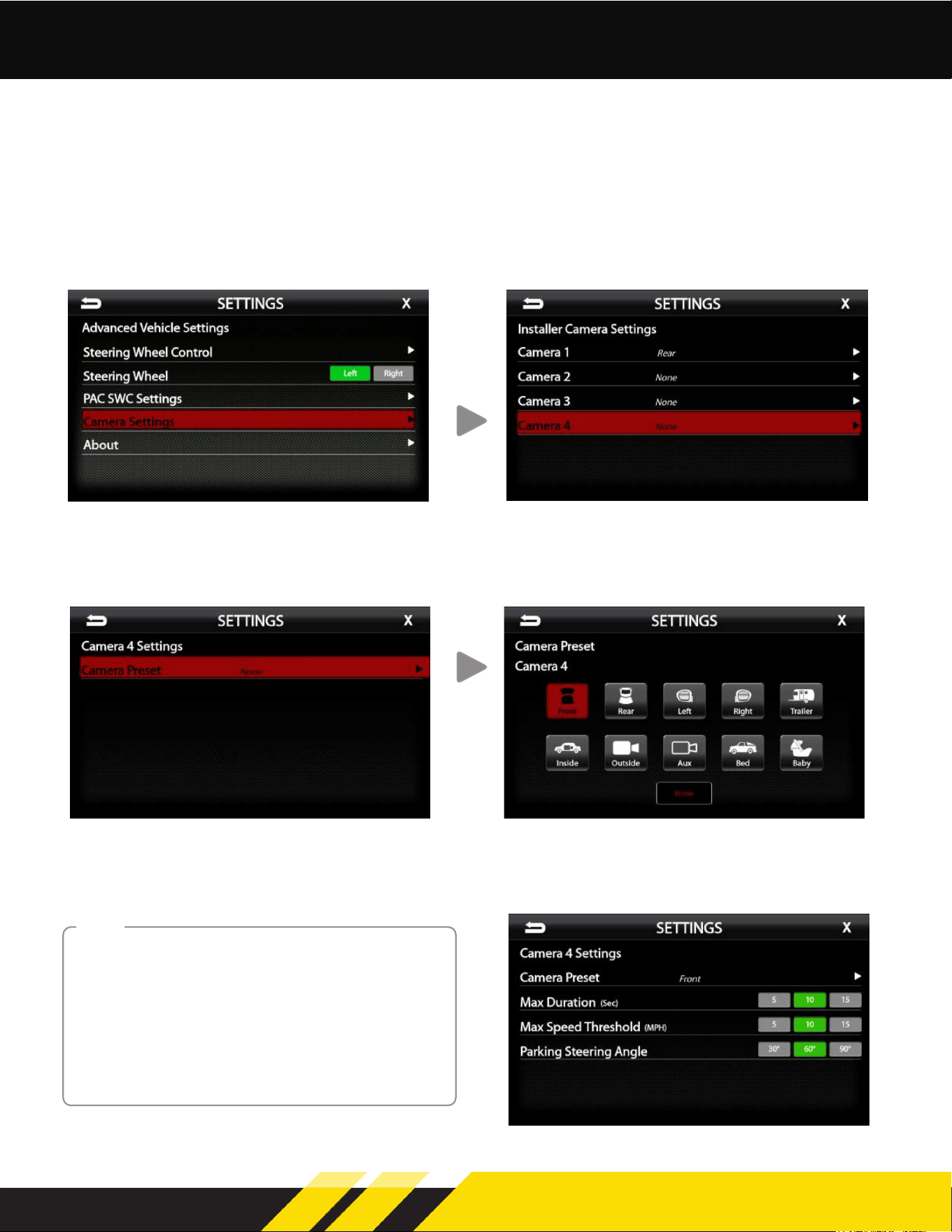
The SRK-CHR15H allows retention of the factory rear camera and factory cargo camera if
equipped. Up to four cameras may be added with a variety of trigger options. Camera 1
corresponds to the REVERSE CAMERA IN RCA input, and Cameras 2, 3, 4 correspond to
CAMERA 2, CAMERA 3 and CAMERA 4 inputs on the HEIGH10.
Installer Camera Settings
To view or change the camera settings, select
Advanced Vehicle Settings > Camera Settings
from the Installer Settings.
The Installer Camera Settings menu will display
which cameras are active and camera location.
Selecting any camera from the menu will bring
up the corresponding Camera Settings page.
From the individual Camera Settings page,
Camera Presets can be assigned and trigger
parameters can be edited.
Selecting Front will activate and label Camera
4 as the Front camera. Use the Back arrow
to edit any available trigger options.
Disabling a Camera Preset trigger(s) is done in
the User Camera Settings. Users can manually
activate camera(s) and access certain settings
when selecting the Camera source in the user
interface.
For example, to bypass the turn signals activating
the side cameras is done in User Camera Settings.
NOTE:
SRK-JW18EH PAC Integration Kit
Jeep Wrangler JL | Gladiator JT
10 11
SRK-CHR15H PAC Integration Kit
®
®
PAC SWC Settings
To view or change the default steering wheel
control functions, select Advanced Vehicle
Settings > PAC SWC Settings from the Installer
Settings.
The default settings will be displayed. To
change or add a SWC function, touch the
corresponding Short or Long Press button
assignment.
Select any of the functions shown to assign that
function to the button.
The PAC interface allows retention and customization of the factory steering wheel control but-
tons. By default they will be programmed according to the factory functions. You may change
the function or add Long Press functionality to any button. For example you can assign Long Press
on Volume Down to activate Mute.
After pressing a button assignment, a menu of
functions will be displayed, with the current
function highlighted.
The image above now shows Volume Down
Long Press will activate Mute
The SRK-CHR15H allows retention of the factory rear camera and factory cargo camera if
equipped. Up to four cameras may be added with a variety of trigger options. Camera 1
corresponds to the REVERSE CAMERA IN RCA input, and Cameras 2, 3, 4 correspond to
CAMERA 2, CAMERA 3 and CAMERA 4 inputs on the HEIGH10.
Installer Camera Settings
To view or change the camera settings, select
Advanced Vehicle Settings > Camera Settings
from the Installer Settings.
The Installer Camera Settings menu will display
which cameras are active and camera location.
Selecting any camera from the menu will bring
up the corresponding Camera Settings page.
From the individual Camera Settings page,
Camera Presets can be assigned and trigger
parameters can be edited.
Selecting Front will activate and label Camera
4 as the Front camera. Use the Back arrow
to edit any available trigger options.
Disabling a Camera Preset trigger(s) is done in
the User Camera Settings. Users can manually
activate camera(s) and access certain settings
when selecting the Camera source in the user
interface.
For example, to bypass the turn signals activating
the side cameras is done in User Camera Settings.
NOTE:
SRK-JW18EH PAC Integration Kit
Jeep Wrangler JL | Gladiator JT
12 13
SRK-CHR15H PAC Integration Kit
®
®
Camera Presets
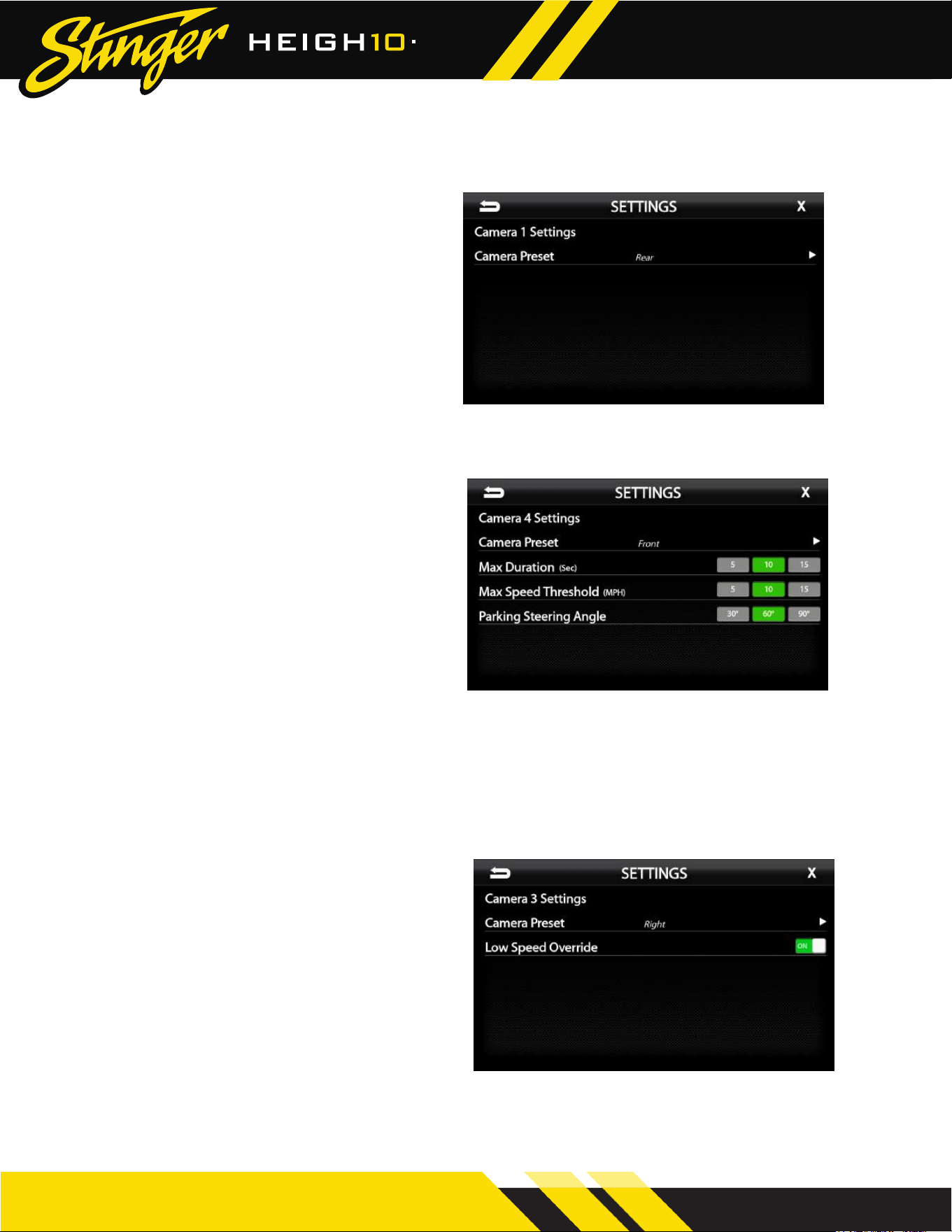
Camera Preset: Front
The Front preset will activate a camera
whenever the vehicle is shifted into Drive
and by steering wheel rotation (when
Camera Park Assist is enabled).
Max Duration (Sec) [5–10–15]
Sets duration, in seconds, that camera
will be active when triggered.
Max Speed Threshold (MPH) [5–10–15]
Sets speed threshold for camera deactivation.
Parking Steering Angle [30°–60°–90°]
Sets steering wheel rotation for activating
the camera when Park Assist is selected in the
User Camera source.
Camera Preset: Rear
By default, Camera 1 is set to Rear
and uses reverse gear as the trigger.
These settings are not editable. The
rear camera will overide any other
active camera, unless manually
deactivated.
If there is not a rear camera installed,
the reverse trigger can be shut off in
the User Camera Settings.
Camera Presets (cont.)
Camera Preset: Left / Right
Activates left or right camera whenever
the turn signal is active.
Low Speed Override [ON-OFF]
When set to ON, camera will only trigger
when vehicle speed is over 3 MPH and
automatically shut off an active camera
when vehicle speed falls below 3 MPH.
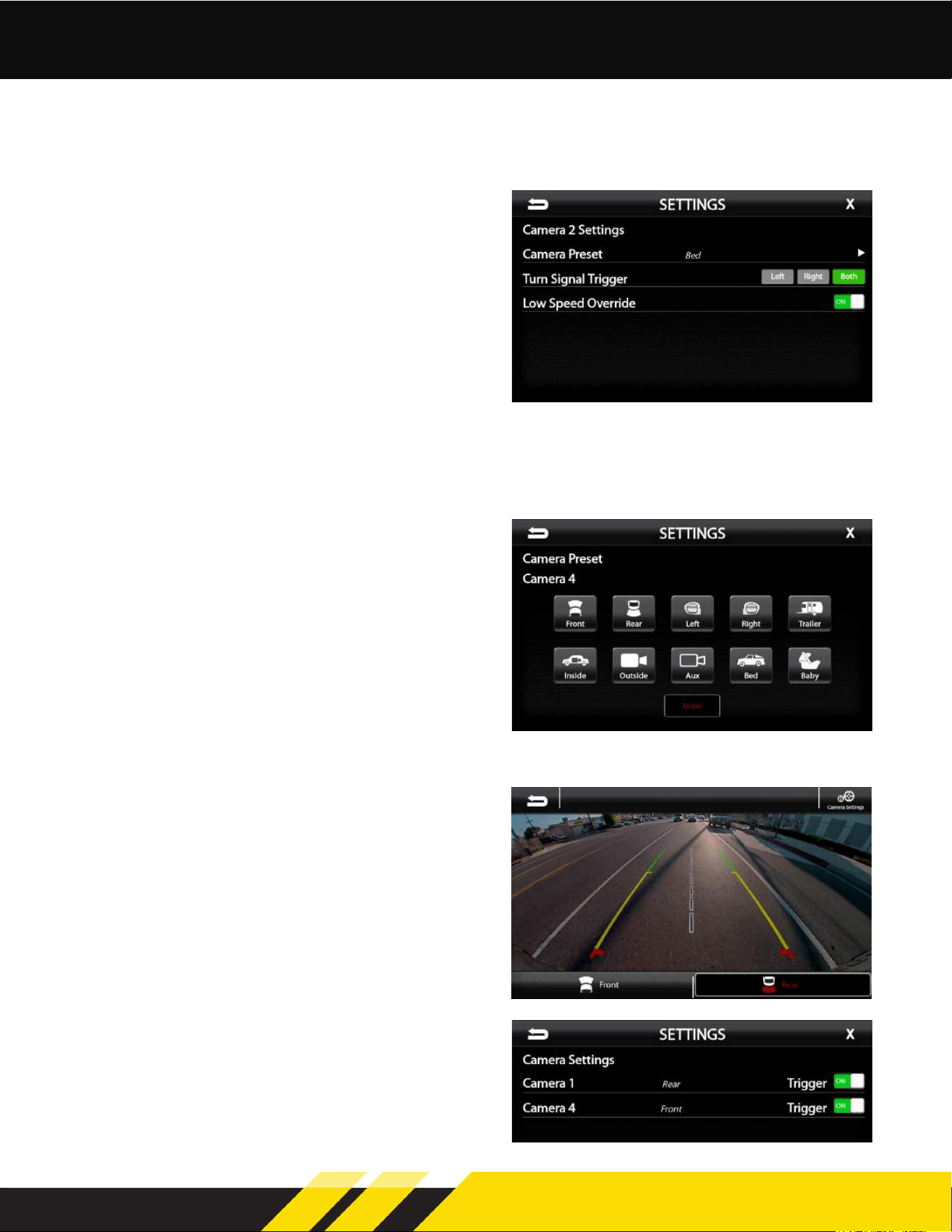
Camera Preset: Bed
Allows the turn signals to activate the
Bed camera for blind spot viewing in
addition to manual activation.
Turn Signal Trigger [LEFT-RIGHT-BOTH]
Sets status of turn signals for camera
activation.
Low Speed Override [ON-OFF]
When set to ON, the turn signals will only
trigger the camera when vehicle speed is
over 3 MPH and automatically shut off an
active camera when vehicle speed falls
below 3 MPH.
Trailer, Inside, Outside, Aux, Baby Presets
The remaining presests allow labeling of various
cameras. These presets require manual camera
activation using the Camera source. There are
no trigger options.
User Camera Settings
Selecting Camera as the source from the Main
Menu or Tabs will allow manual activation of
any installed camera.
Selecting Settings from the Camera source will
allow users to turn Camera Preset trigger options
On and Off.
Whenever a camera is triggered and displayed
on the screen, the top and bottom menu bars
will disappear after three seconds. Touching the
display will reactivate the menu bars.
The settings shown above will activate the Right
Camera for as long as the turn signal is active
and vehicle speed is over 3 MPH.
The settings shown above will activate a Front
camera, when shifted into Drive, for 10 seconds or
when vehicle speed reaches 10mph. If Park Assist
is active, the Front camera will activate whenever
steering wheel rotation is 60° or more.
The settings shown above will activate the Bed
Camera for as long as the turn signal is active
and vehicle speed is over 3 MPH.
SRK-JW18EH PAC Integration Kit
Jeep Wrangler JL | Gladiator JT
12 13
SRK-CHR15H PAC Integration Kit
®
®
Camera Presets
Camera Preset: Front
The Front preset will activate a camera
whenever the vehicle is shifted into Drive
and by steering wheel rotation (when
Camera Park Assist is enabled).
Max Duration (Sec) [5–10–15]
Sets duration, in seconds, that camera
will be active when triggered.
Max Speed Threshold (MPH) [5–10–15]
Sets speed threshold for camera deactivation.
Parking Steering Angle [30°–60°–90°]
Sets steering wheel rotation for activating
the camera when Park Assist is selected in the
User Camera source.
Camera Preset: Rear
By default, Camera 1 is set to Rear
and uses reverse gear as the trigger.
These settings are not editable. The
rear camera will overide any other
active camera, unless manually
deactivated.
If there is not a rear camera installed,
the reverse trigger can be shut off in
the User Camera Settings.
Camera Presets (cont.)
Camera Preset: Left / Right
Activates left or right camera whenever
the turn signal is active.
Low Speed Override [ON-OFF]
When set to ON, camera will only trigger
when vehicle speed is over 3 MPH and
automatically shut off an active camera
when vehicle speed falls below 3 MPH.
Camera Preset: Bed
Allows the turn signals to activate the
Bed camera for blind spot viewing in
addition to manual activation.
Turn Signal Trigger [LEFT-RIGHT-BOTH]
Sets status of turn signals for camera
activation.
Low Speed Override [ON-OFF]
When set to ON, the turn signals will only
trigger the camera when vehicle speed is
over 3 MPH and automatically shut off an
active camera when vehicle speed falls
below 3 MPH.
Trailer, Inside, Outside, Aux, Baby Presets
The remaining presests allow labeling of various
cameras. These presets require manual camera
activation using the Camera source. There are
no trigger options.
User Camera Settings
Selecting Camera as the source from the Main
Menu or Tabs will allow manual activation of
any installed camera.
Selecting Settings from the Camera source will
allow users to turn Camera Preset trigger options
On and Off.
Whenever a camera is triggered and displayed
on the screen, the top and bottom menu bars
will disappear after three seconds. Touching the
display will reactivate the menu bars.
The settings shown above will activate the Right
Camera for as long as the turn signal is active
and vehicle speed is over 3 MPH.
The settings shown above will activate a Front
camera, when shifted into Drive, for 10 seconds or
when vehicle speed reaches 10mph. If Park Assist
is active, the Front camera will activate whenever
steering wheel rotation is 60° or more.
The settings shown above will activate the Bed
Camera for as long as the turn signal is active
and vehicle speed is over 3 MPH.
SRK-JW18EH PAC Integration Kit
Jeep Wrangler JL | Gladiator JT
14 15
SRK-CHR15H PAC Integration Kit
®
®
Vehicle Audio Settings
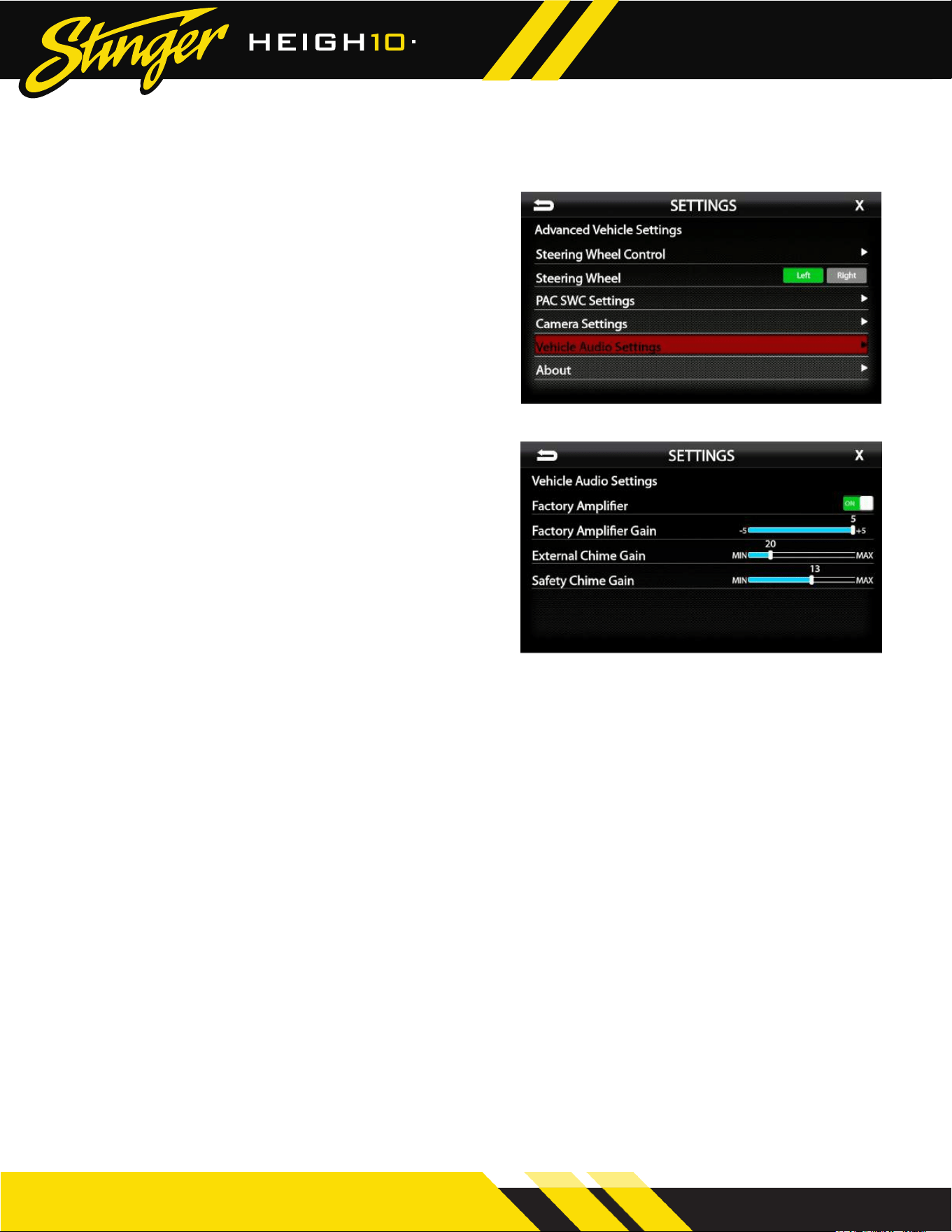
If the vehicle is equipped with a factory amplier,
Vehicle Audio Settings will be present in the
Advanced Vehicle Settings.
To view or change the default factory audio
settings, select Advanced Vehicle Settings >
Vehicle Audio Settings from the Installer Settings.
Factory Amplier [ON-OFF]
When set to ON, factory crossovers and time
correction are retained and the UN1810’s cross-
overs and time correction are disabled. Set to
OFF to enable the UN1810’s crossovers and time
correction.
Factory Amplier Gain [-5 - +5]
Adjusts the gain of the factory amplier up or
down.
External Chime Gain [0-100]
Sets the chime level of the external speaker if
installed.
Safety Chime Gain [7-17]
Sets the gain level of the factory chimes.
Factory Amplied System Settings
Note: The factory sound system crossover and time correction points are pre-tuned from the factory and
saved on the factory amplier and cannot be changed.
When the SRK-CHR15H is installed in a vehicle with a factory amplied system, crossover and time
correction adjustments will not be available by default. If any adjustments are needed for either settings,
the ”Factory Amplier” setting will need to be set to “OFF”.
If the vehicle is equipped with a factory amplied sound system, view the Amplier Set Up sheet at
https://catalog.pac-audio.com/catalog/radio-replacement/SRK-CHR15H to set the gain and EQ.
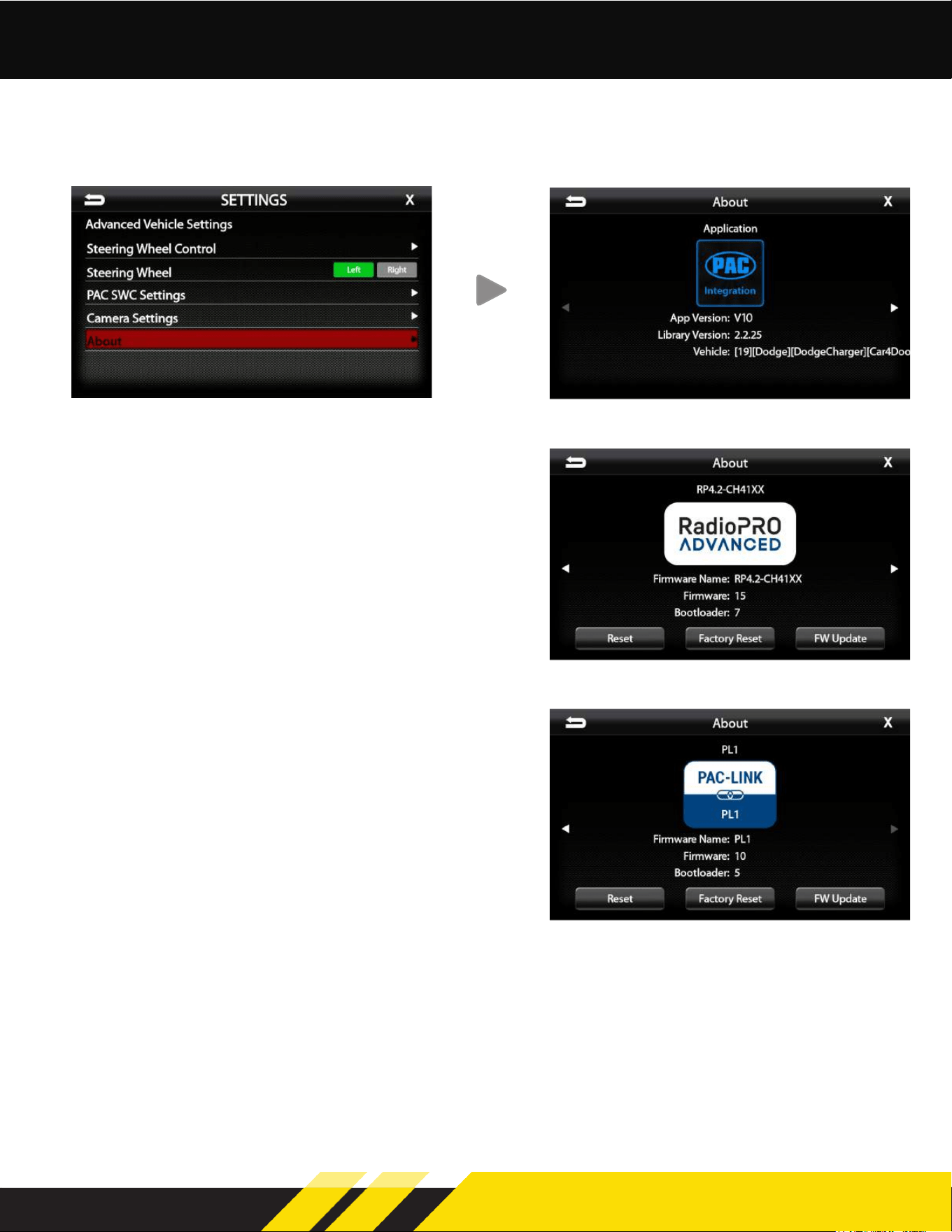
About (PAC Information)
To view or update the PAC Integration modules,
select Advanced Vehicle Settings > About from
the Installer Settings.
Swipe or use the Left / Right arrows to cycle
through the installed PAC Modules
PAC Integration APK
To update the PAC Integration APK, see Page: 7
Reset:
Causes module to reboot/power cycle.
Any settings the module has will be maintained.
Factory Reset:
Causes any settings in the module to be
defaulted and then rebooted.
FW Update
To update a PAC module using the UN1810 USB
ports, download the appropriate rmware from
PAC-Audio.com and transfer to a USB drive. Insert
the drive into either UN1810 USB ports. Select the
module from the About section and select FW
Update.
RadioPro Advanced / PAC-LINK
SRK-JW18EH PAC Integration Kit
Jeep Wrangler JL | Gladiator JT
14 15
SRK-CHR15H PAC Integration Kit
®
®
Vehicle Audio Settings
If the vehicle is equipped with a factory amplier,
Vehicle Audio Settings will be present in the
Advanced Vehicle Settings.
To view or change the default factory audio
settings, select Advanced Vehicle Settings >
Vehicle Audio Settings from the Installer Settings.
Factory Amplier [ON-OFF]
When set to ON, factory crossovers and time
correction are retained and the UN1810’s cross-
overs and time correction are disabled. Set to
OFF to enable the UN1810’s crossovers and time
correction.
Factory Amplier Gain [-5 - +5]
Adjusts the gain of the factory amplier up or
down.
External Chime Gain [0-100]
Sets the chime level of the external speaker if
installed.
Safety Chime Gain [7-17]
Sets the gain level of the factory chimes.
Factory Amplied System Settings
Note: The factory sound system crossover and time correction points are pre-tuned from the factory and
saved on the factory amplier and cannot be changed.
When the SRK-CHR15H is installed in a vehicle with a factory amplied system, crossover and time
correction adjustments will not be available by default. If any adjustments are needed for either settings,
the ”Factory Amplier” setting will need to be set to “OFF”.
If the vehicle is equipped with a factory amplied sound system, view the Amplier Set Up sheet at
https://catalog.pac-audio.com/catalog/radio-replacement/SRK-CHR15H to set the gain and EQ.
About (PAC Information)
To view or update the PAC Integration modules,
select Advanced Vehicle Settings > About from
the Installer Settings.
Swipe or use the Left / Right arrows to cycle
through the installed PAC Modules
PAC Integration APK
To update the PAC Integration APK, see Page: 7
Reset:
Causes module to reboot/power cycle.
Any settings the module has will be maintained.
Factory Reset:
Causes any settings in the module to be
defaulted and then rebooted.
FW Update
To update a PAC module using the UN1810 USB
ports, download the appropriate rmware from
PAC-Audio.com and transfer to a USB drive. Insert
the drive into either UN1810 USB ports. Select the
module from the About section and select FW
Update.
RadioPro Advanced / PAC-LINK

SRK-JW18EH PAC Integration Kit
Jeep Wrangler JL | Gladiator JT
16
®
®
Stinger and PAC Are Power Brands of AAMP Global
15500 Lightwave, Clearwater, Florida 33760
P: 888-228-5560 | © 2021 AAMP Global
Technical Support:
Phone: 727-592-5991
Email: [email protected]
Chat: stingerelectronics.com
ISG-SRK-CHR15H REV. 032822