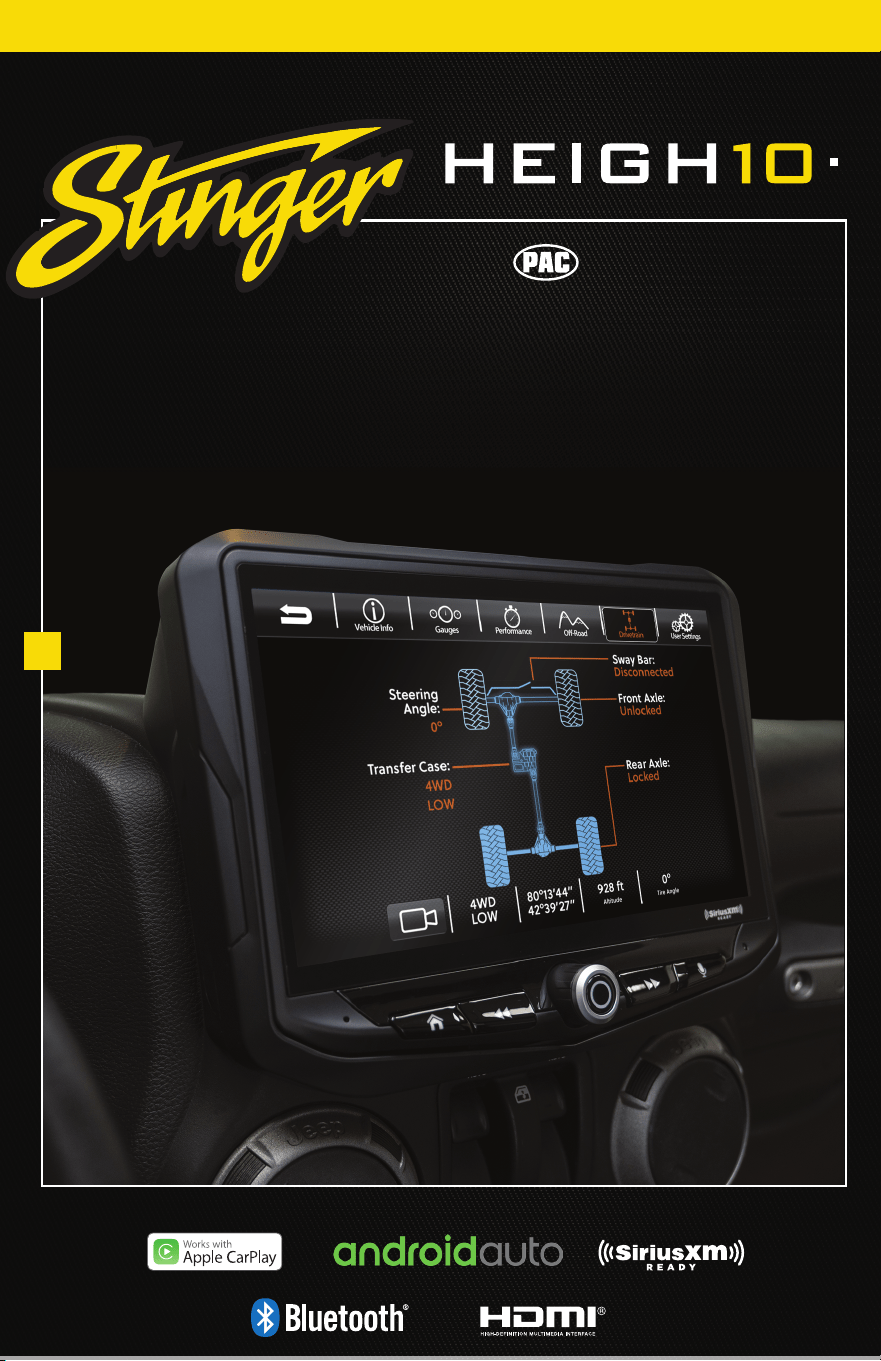
®
PN: UN1810
USER GUIDE
INTEGRATED MULTIMEDIA DISPLAY
FOR JEEP WRANGLER JK/JKU
SRK-JK11H
®
®
®
2
3
StingerElectronics.com StingerElectronics.com
®
®
AM/FM Radio............................18
Bluetooth Phone.......................19
Pairing a Device...................20
BT Device Settings...................21
Contacts/Call Log..................22
Bluetooth Music........................23
SiriusXM
®
.
...................................
24
SiriusXM Replay™...................27
SiriusXM Lock Code................28
USB Media.................................29
Apple CarPlay
®
.........................30
Android Auto™
........................31
iPod.................................
.
.........32
HDMI...................
...................
....33
AV In..........................................33
Cameras...................................34
Navigation................................35
Display Off...........
.................
...35
The Controls................................4
Getting Started...........................6
Selecting a Source.....................7
Setting the Clock........................7
Setting the Tabs..........................8
Audio Settings.........................40
Equalizer.................................41
Factory EQ.............................41
Crossover...............................42
Time Correction....................43
Toslink.....................................44
Gain/Volume........................44
WELCOME TO YOUR NEW
Enjoy the ride
THE BASICS
THE SOURCES GENERAL SETTINGS TECH SPECS
AUDIO SETTINGS
VEHICLE SPECIFIC
Vehicle Info................................9
Gauges...................................10
Performance..........................11
Off-Road.................................12
Drivetrain.................................13
User Settings............................14
Off-Road Camera...................15
Vehicle Settings.............
...
........16
USB Ports...................................17
Settings......................................36
Clock.......................................36
System Settings.......................36
Illumination.............................37
Backgrounds...........................38
Display.....................................38
Tabs.........................................38
Cameras.................................39
Reset Button............................45
Troubleshooting......................46
Specications.
........................
48
Technical Support...................49
®
4
5
StingerElectronics.com StingerElectronics.com
®
®
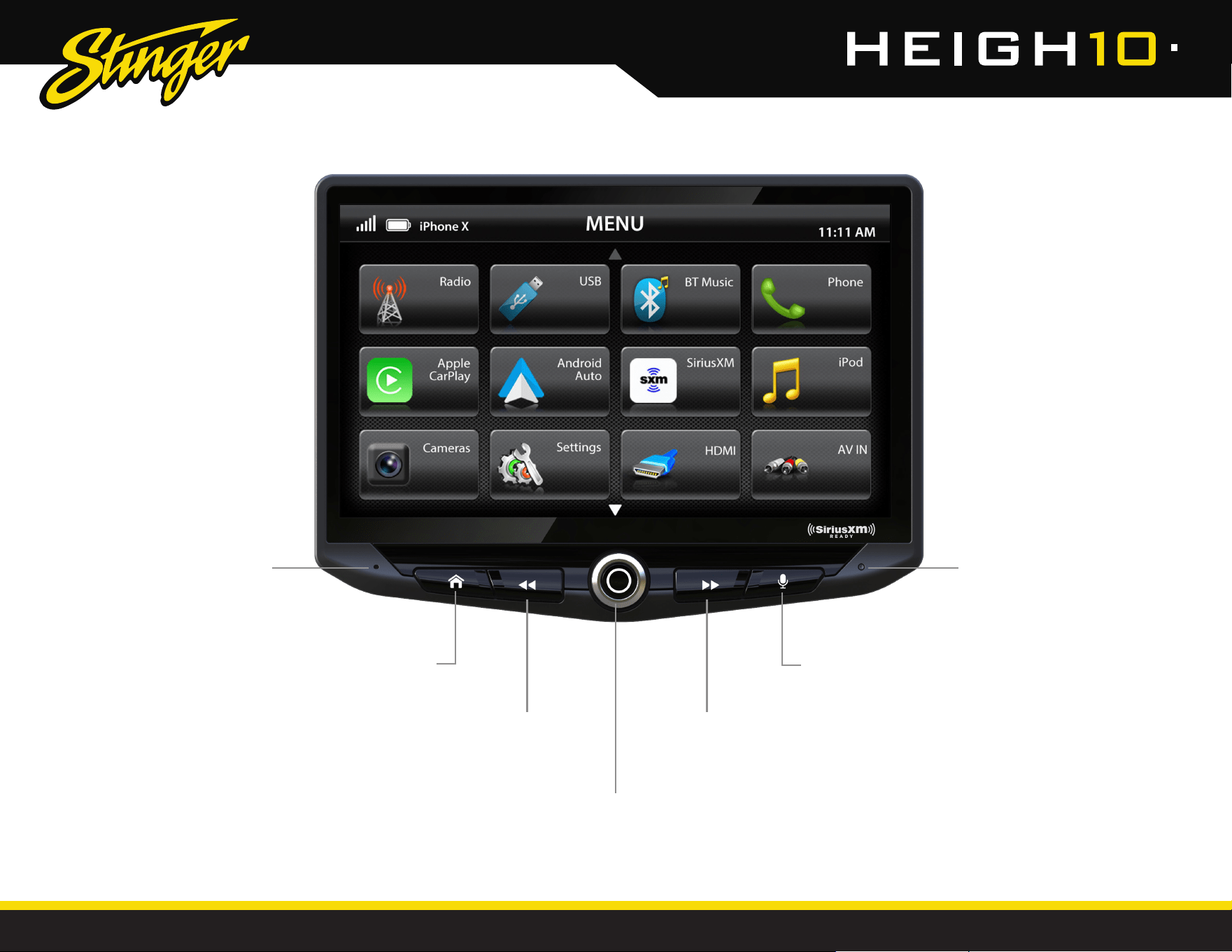
THE CONTROLS
Internal
Microphone
Reset
Button
Multifunction Knob
Press & Hold to Power On/Off
Turn to adjust Volume Up/Down
Press to Mute/Unmute
Home Button
Access the Home Menu
Press and Hold to launch Navigation.
When iGo Navigation is present, it will have
priority over phone based navigation.
Voice Button
Launches voice control
Tune/Track Up Button
Media control Next, Forward, Seek
Press & hold function in select sources
Tune/Track Down Button
Media control Previous, Back, Seek
Press & hold function in select sources
6
7
StingerElectronics.com StingerElectronics.com
®
®
GETTING STARTED
SELECTING A SOURCE
Back Arrow Exit
POWER UP!
With the vehicle ignition in the ON or
ACC position, Press and hold the knob
for 2 seconds to power ON/OFF.
The source will automatically default to
the last source used prior to powering
down.
You can adjust the audio volume at
start-up in Sound Settings on page 44.
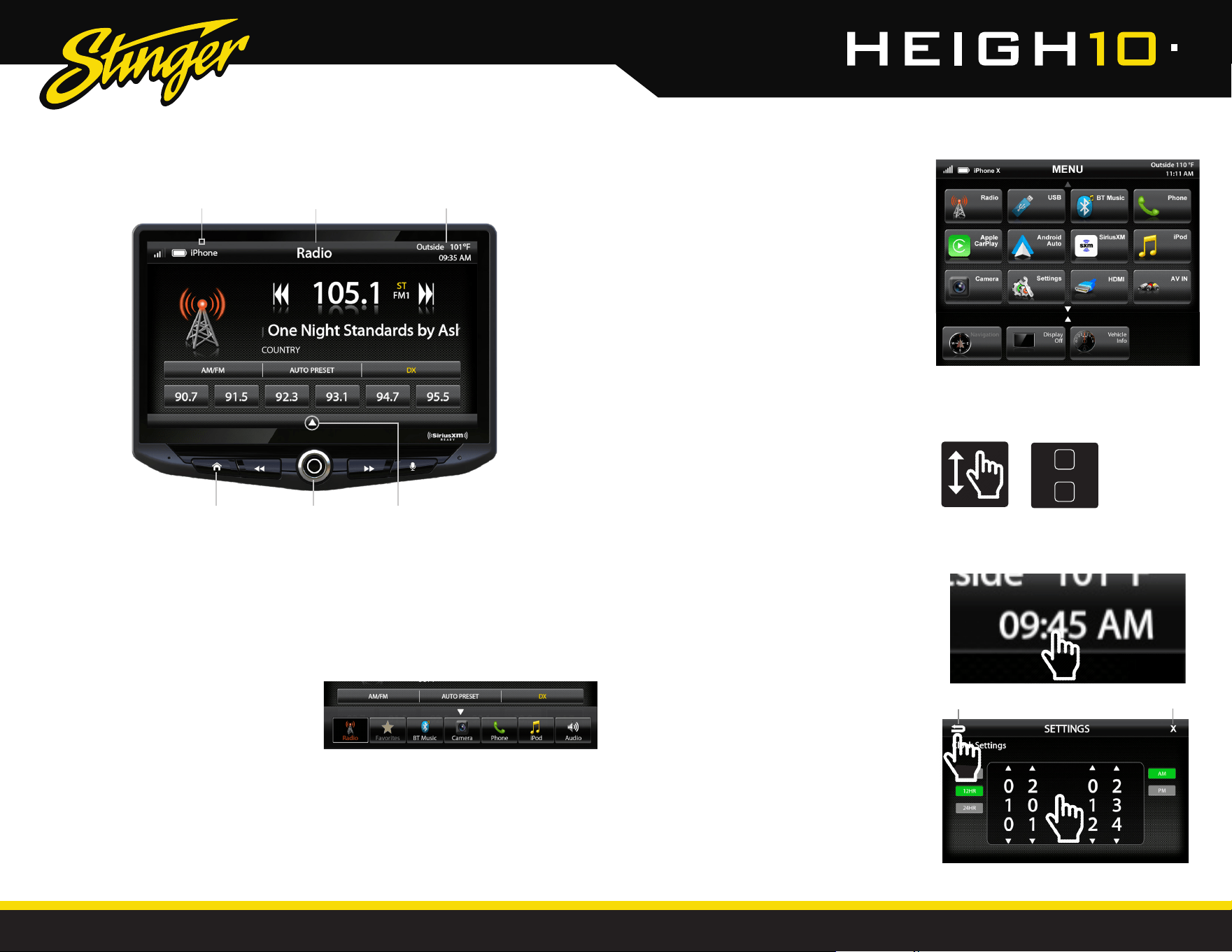
The Information Bar is located at the
top of the screen. Depending on the
SOURCE, it will provide information
or content-sensitive controls. It also
displays temperature, time, phone
info and may contain BACK ARROW
and EXIT buttons.
Customizable TABS can be accessed by
swiping the up arrow at the bottom
of the screen. Tabs give direct access to
sources/settings and can be customized
as shown on Page 8.
The active Tab will be highlighted, and
sources that are not available will be
dimmed out. Once the Tabs are opened,
they will auto-close after 5 seconds, or
press the down arrow to close the tabs.
There are multiple ways to scroll...
Swiping Up/Down, Up/Down Arrows
SETTING THE TIME
1) Touch and hold the Time Display
on the Information Bar for 2 seconds
to access the clock settings.
2) Swipe or click the arrows to set
time and format.
3) Touch the BACK ARROW or EXIT
to save and exit.
2
1
To select a source, press the HOME
button.
The HOME MENU displays all Sources,
along with Settings, Audio, Camera
and Vehicle options.
SOURCES that are not currently
available are dimmed out.
QUICK TIP
Information Bar
Source/Info
Temperature/
Time
Power
ON/OFF
Swipe Up
To Open TABS
HOME
Button
3
8
9
StingerElectronics.com StingerElectronics.com
®
®
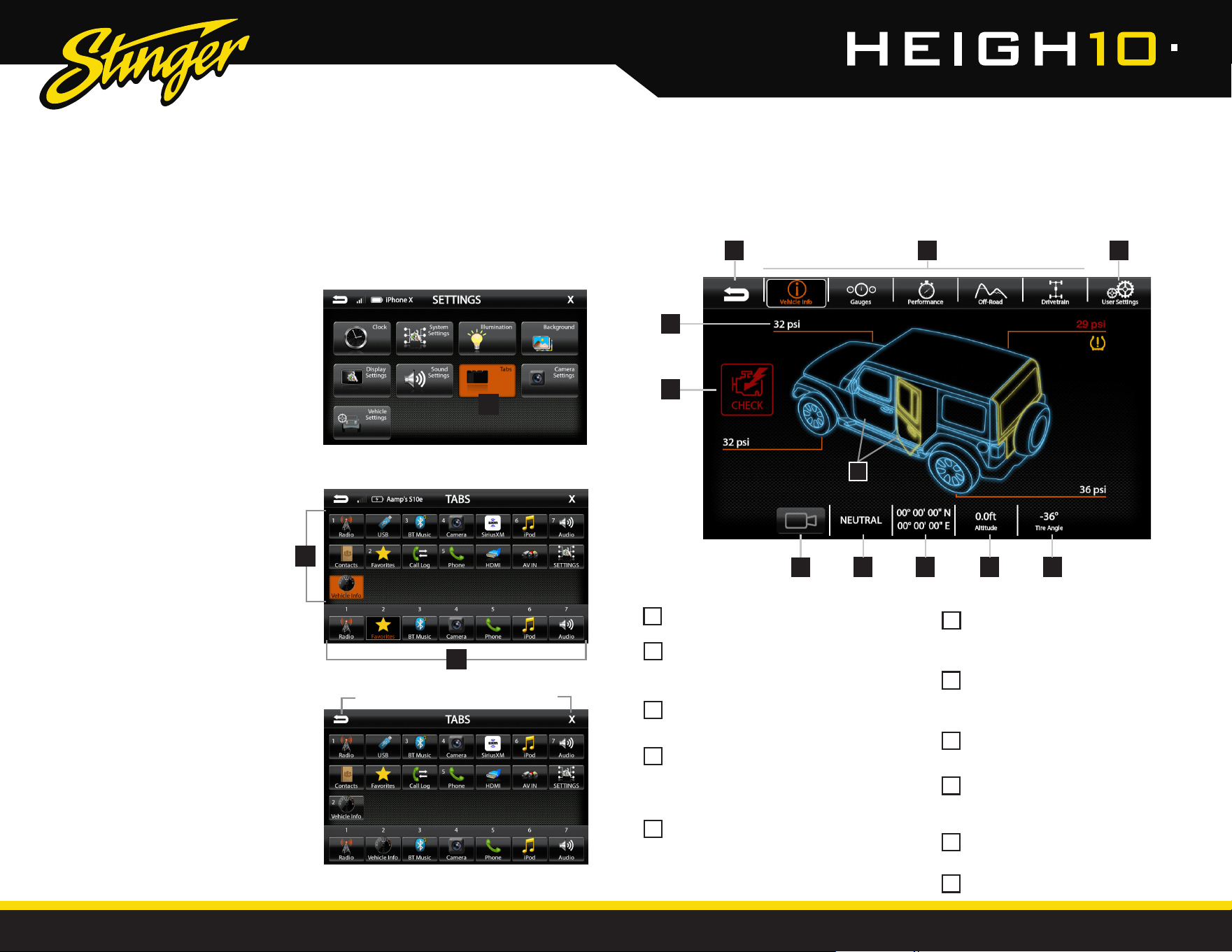
The Tabs can be congured to provide quick access to your favorite sources
or settings. The steps below show changing Favorites to Climate. Vehicle Info is
another option to consider adding to the Tabs.
CUSTOMIZING THE TABS
HOME BUTTON > SETTINGS > TABS
To Program a Tab:
1) Press the HOME button and select SETTINGS
2) From the SETTINGS menu, select TABS [1]
3) Select a Tab postition (1–7) on the
bottom row. [2]
4) Select the desired source or setting
from the options on the top rows. [3]
Now Favorites in position 2 is replaced
with Vehicle Info. Continue customizing or
touch EXIT (X) to return to current source
or the BACK arrow to return to SETTINGS.
1
3
2
BACK
EXIT
Vehicle Info
1 2 3
7
8
10 11
9
4
5
HOME BUTTON > Vehicle Info
Selecting Vehicle Info from the HOME Menu or Tabs will display information
and status for various vehicle systems.
BACK - Return to the previous screen.
Vehicle Info Menu - Provides access
to various vehicle display modes. The
current mode will be highlighted.
User Settings - Access tire pressure,
camera and GPS options.
Tire Pressure - Provides tire pressure and
low pressure warnings. Low pressure
warnings can be customized in User
Settings.
Malfunction Indicator - Displays current
malfunction indicators. Touch the
indicator for more information.
Door Closed/Opened - Indicates door,
and rear gate status. (Removed doors
show Closed)
Camera - Activates default camera.
Default camera can be set in User
Settings.
Transfer Case Status - Displays current
transfer case position.
GPS Coordinates - Displays GPS
information. Sensitivity can be adjusted
in User Settings.
Altitude - Displays altitude above/
below sea level.
Tire Angle - Displays front tire angle.
1
5
2
6
3
7
4
8
9
10
11
6
10
11
StingerElectronics.com StingerElectronics.com
®
®
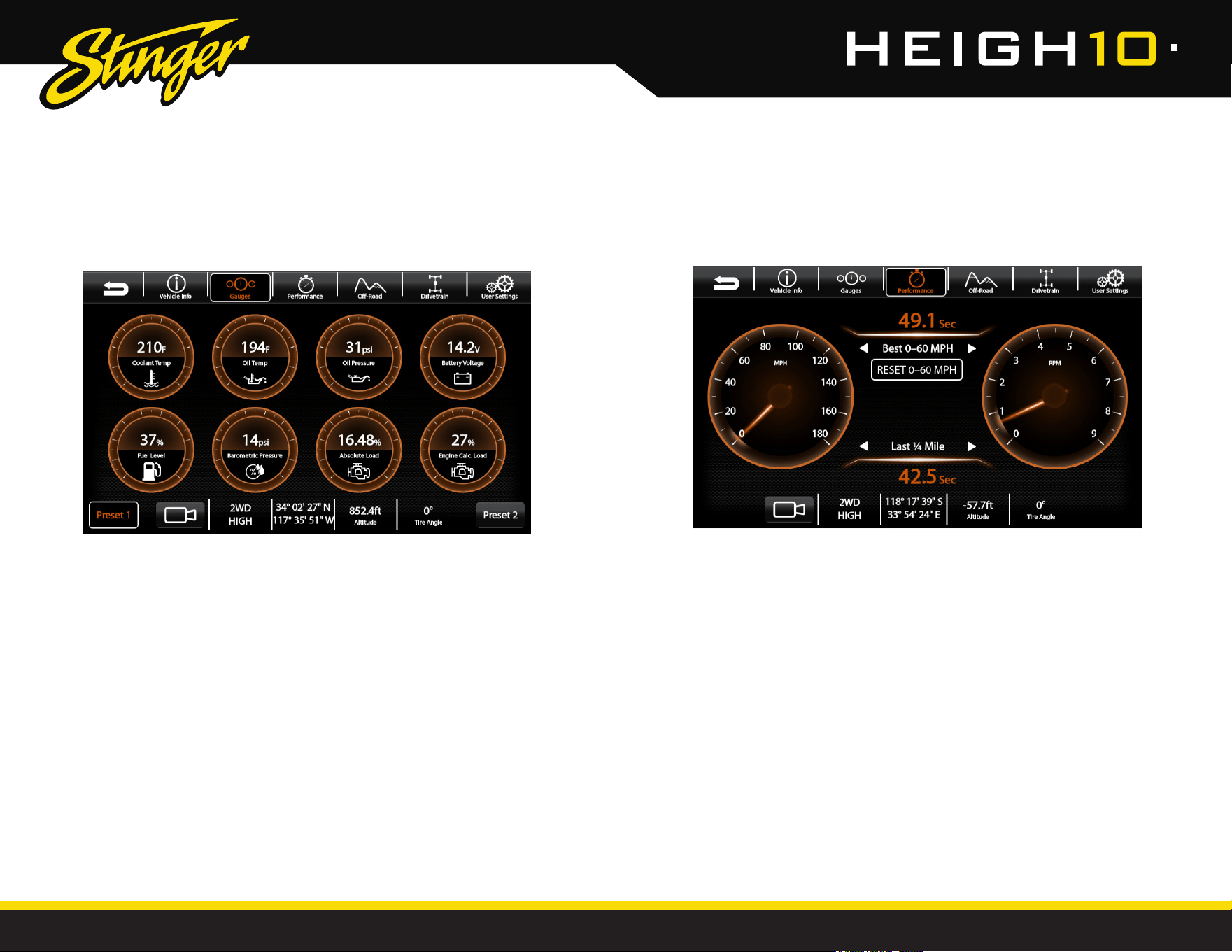
Vehicle Info > Gauges
To Change the Gauge Type:
Lightly tapping any gauge cycles
through the available gauge types.
Saving a Gauge Setup:
Press and hold either of the two Preset
buttons in the bottom corners to save
and later recall a gauge combination.
NOTE: To change the color of the
gauges, see Illumination Page 37
NOTE: To change the Units used for the
gauges, see Vehicle Settings on Page
16.
Available Gauge Types*:
Engine Coolant Temp
Engine Intake Temp
Engine Absolute Load
Intake Manifold Pressure
Ignition Timing
Engine Runtime
Fuel Level
Barometric Pressure
Battery Voltage
Engine Calculated Load
Engine Oil Pressure
Engine Oil Temp
Transmission Temp
Selecting Gauges from the Vehicle Info Menu will display eight gauges that can be
user dened and saved. Please note, gauge selection will vary with vehicle model
year and equipment.
Vehicle Info > Performance
Selecting Performance from the Vehicle Info Menu will display a digital
speedometer and tachomoter along with performance measurement options.
Best 0–60 MPH / Best ¼ Mile / Best 60–0
Whenever a performance measurement is achieved,
the results will be displayed. Use the left and right
arrows to recall Best measurements.
RESET
The RESET button will reset both Best and Last results.
Last 0–60 MPH / Last ¼ Mile / Last 60–0
Use the left and right arrows to recall the Last
measurement for each option.
*Gauge selection will vary with vehicle model year and equipment.
12
13
StingerElectronics.com StingerElectronics.com
®
®
Vehicle Info > Off-Road
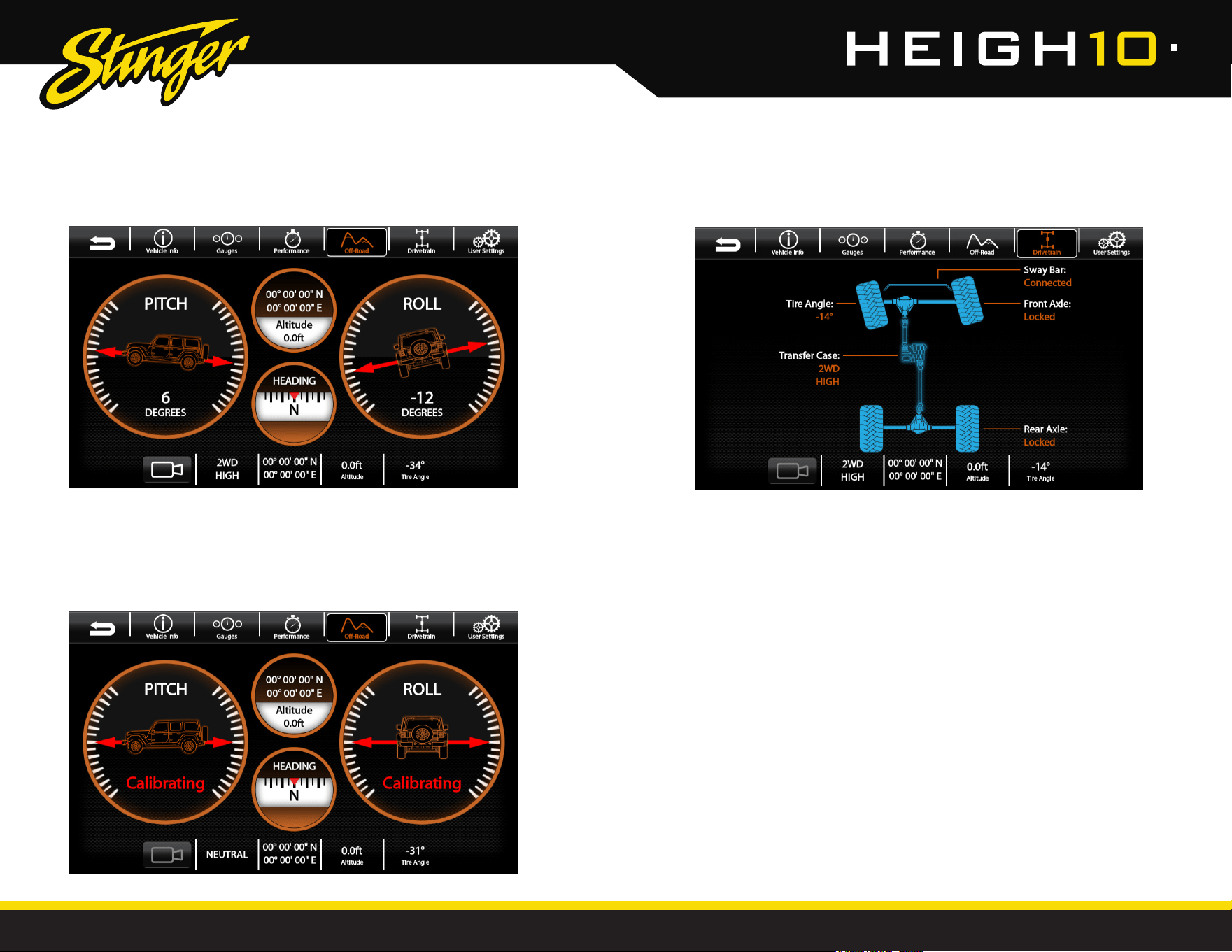
Selecting Off-Road from the Vehicle Info Menu will display digital pitch and roll
gauges along with the vehicle's GPS position, altitude and compass heading.
NOTE: When rst installed, the pitch and roll will show Calibrating. After a period
of driving, making left and right turns, the pitch and roll gauges will display
in degrees. The gauges will continually update as you drive, increasing the
accuracy of the gauges.
Vehicle Info > Drivetrain
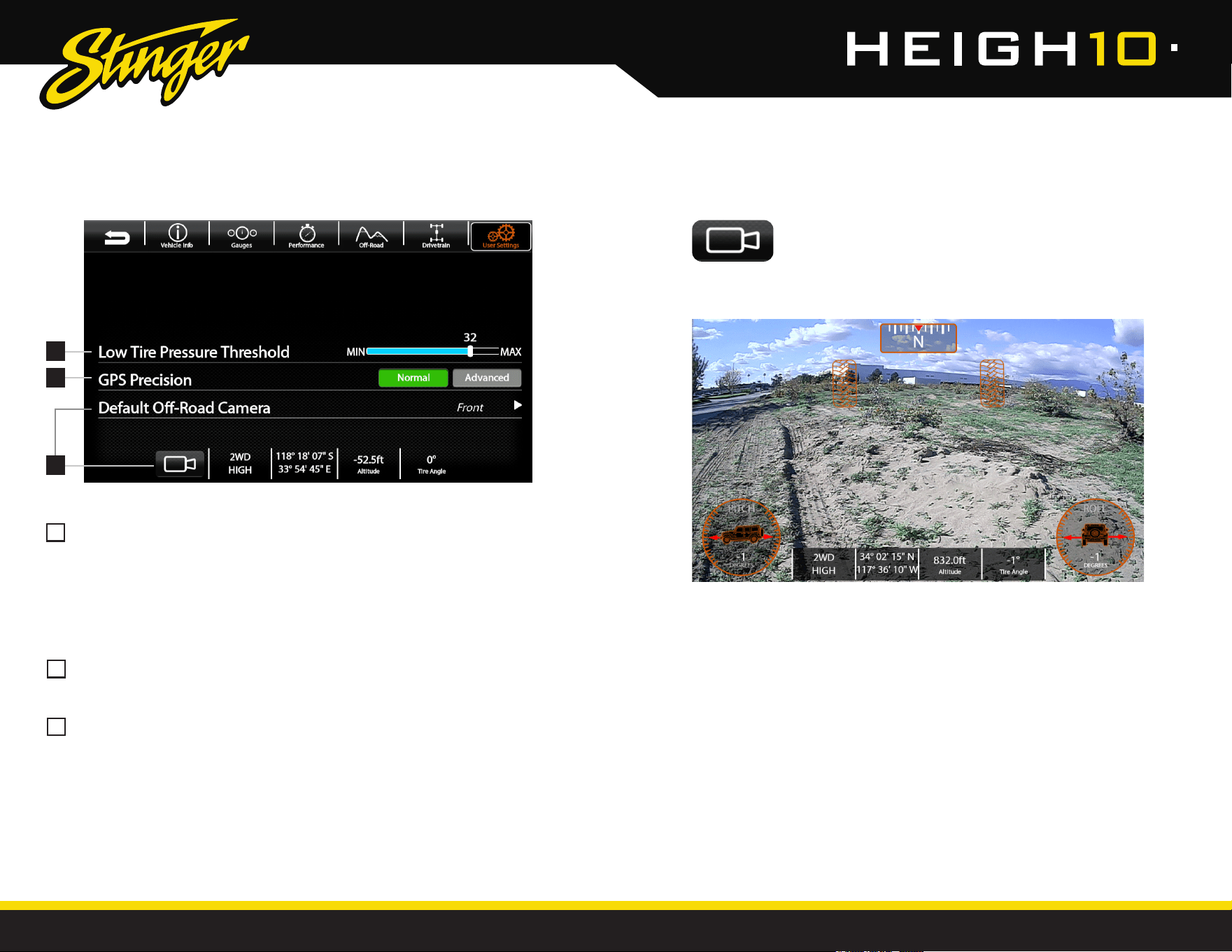
Selecting Drivetrain from the Vehicle Info Menu will display a visual status
for the transfer case, axles, sway bar and tire angle.
14
15
StingerElectronics.com StingerElectronics.com
®
®
Vehicle Info > User Settings
Vehicle Info > Off-Road Camera
1
2
3
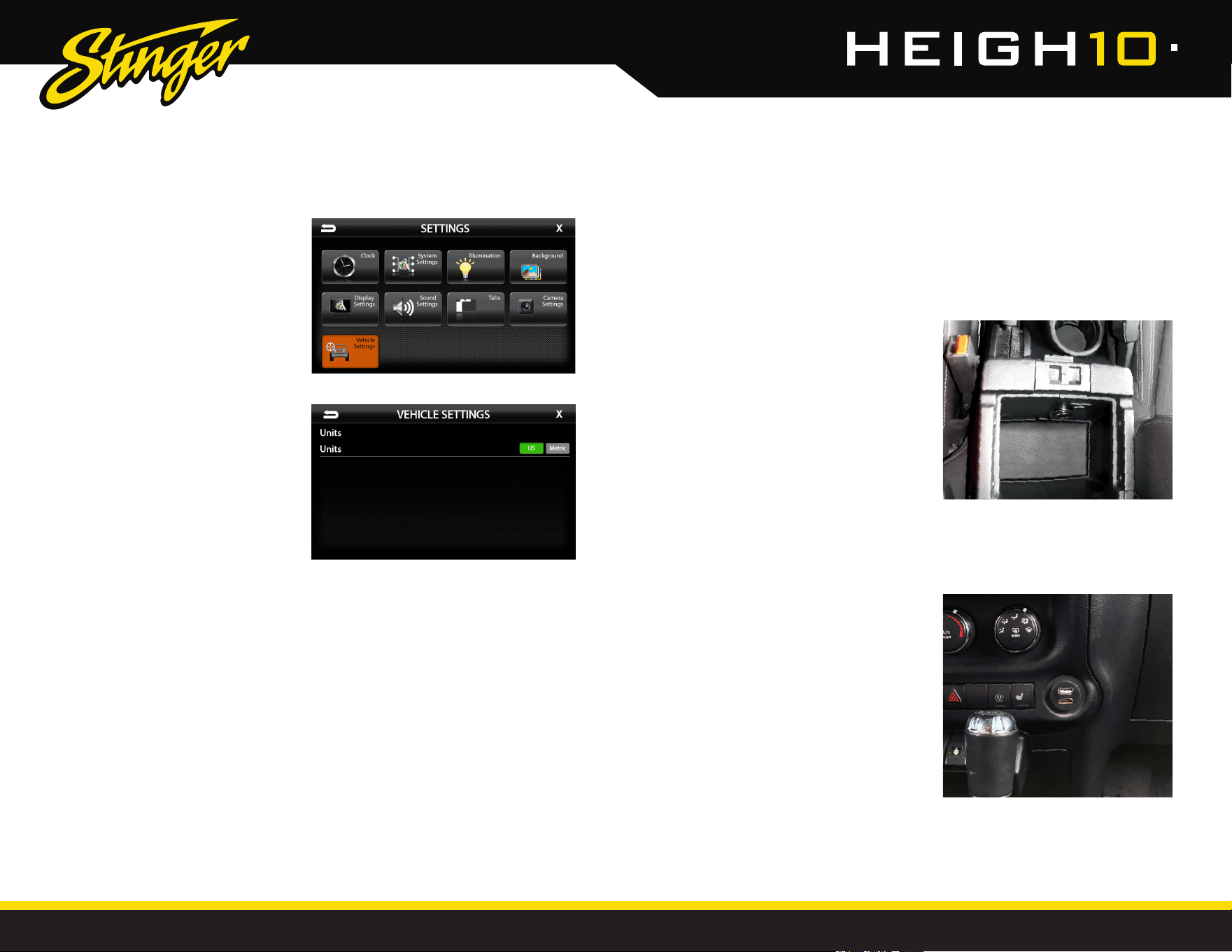
Low Tire Pressure Threshold [0–40 PSI]
Sets the threshold, in PSI, for the low tire
pressure warning shown on the Vehicle Info
display.
Note: This does not change the factory low
tire pressure warning shown in the instrument
cluster.
GPS Precision [Normal-High]
Sets the accuracy of the displayed GPS
coordinates.
Default Off-Road Camera
Select which camera activates when
pressing the camera button.
1
2
3
Selecting the Camera Icon from any of the Vehicle Info
screens will display the default Off-Road Camera selected
in the User Settings if installed. Along with the camera
image, an overlay showing pitch, roll, tire angle and other information will
be displayed.
16
17
StingerElectronics.com StingerElectronics.com
®
®
Vehicle Settings
HOME BUTTON > Settings > Vehicle Settings
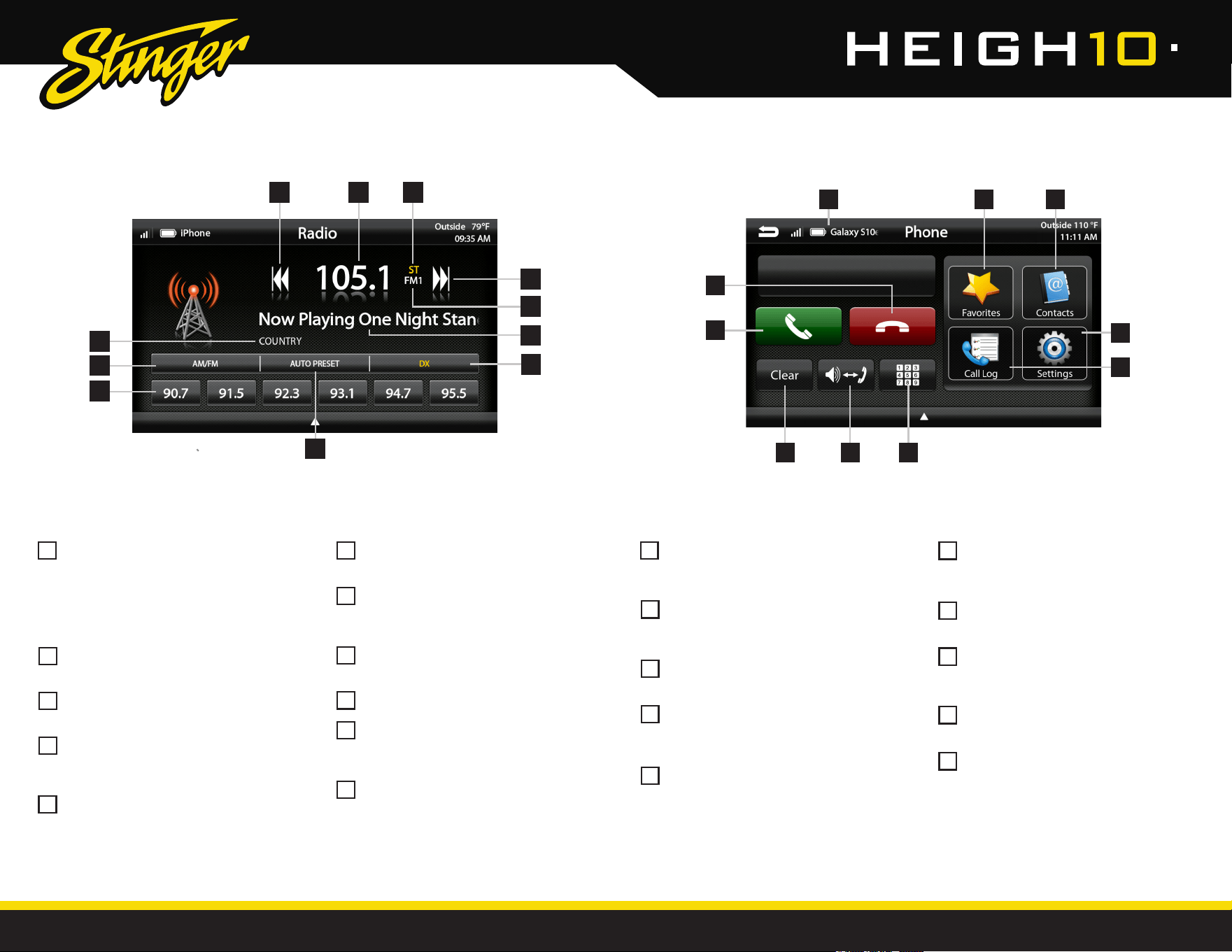
Selecting Vehicle Settings allows
changing the Units displayed in
the Vehicle Info screens to US or
Metric.
USB Ports
HOME BUTTON > USB
Primary USB1:
Apple CarPlay
Android Auto
USB Drive Media (Page: 29)
Charging
Firmware Updates
Secondary USB2:
USB Drive Media
Charging
Firmware Updates
Depending on the installation, there will be one or two USB ports. If there is
only one USB port, it will support all USB functions. If there is a second USB
port, one will support all USB functions and the other will support media,
charging and rmware updating only.
If the vehicle was equipped with
Uconnect and the PAC USB adapter
is installed, the factory USB port inside
the center console will be retained.
The PAC HDMI-USB adapter adds a
USB and HDMI port.
18
19
StingerElectronics.com StingerElectronics.com
®
®
AM/FM RADIO
Bluetooth PHONE
Station Presets - To assign a preset, go
to the desired station, and press and
hold a preset location until the preset
button highlights and station frequency
appears. A total of 18 FM and 12 AM
stations can be stored in memory.
AM/FM - Press to cycle through AM/FM
presets (FM1-FM2-FM3-AM1-AM2)
PTY Program Type - Indicates radio
station type.
Tune/Seek Down - Press and release to
Tune Down. Press and hold to Seek the
next available radio station.
Station Display - Displays current
frequency.
Number Pad - Touch to launch
the number pad for dialing phone
numbers.
Speaker/Phone - Switches phone calls
between the car speakers and the
phone handset.
Clear - Clear/delete last number
entered.
Call/Answer - Dials the number entered
on the phone or on the number pad.
Answers an incoming call.
End/Decline - Press to end an active
call or decline an incoming call.
ST Indicator - Indicates when the
current radio station is in Stereo.
Tune/Seek Up - Press and release to
Tune Up. Press and hold to Seek the
next available radio station.
Preset Bank - Indicates current preset
bank.
RT Info- Station/title/artist information.
DX/LOC - Changes the radio tuner
sensitivity. Touch to toggle between
Distant (DX) and Local (LOC).
Auto Preset - Touch to automatically
set the 6 presets with current location
radio stations.
Device Info - Displays the name of
the currently paired device, signal
strength and battery status.
Favorites - Customizable list of
favorite contacts.
Contacts - List of contacts from the
paired phone. Not supported by all
phones.
Settings - List of devices and settings.
Add or Delete devices.
Call Log - Recent Dialed, Received
and Missed calls.
2
1
123
6
6 7 8
10
9
1
1
5
5
2
2
6
6
3
3
7
7
4
4
8
8
10
9
10
11
9
3
4
5
9
8
Press the HOME BUTTON > Radio to select the Radio Press the HOME BUTTON > Phone to select the Phone
11
10
4
5
7
20
21
StingerElectronics.com StingerElectronics.com
®
®
Bluetooth PHONE Bluetooth PHONE
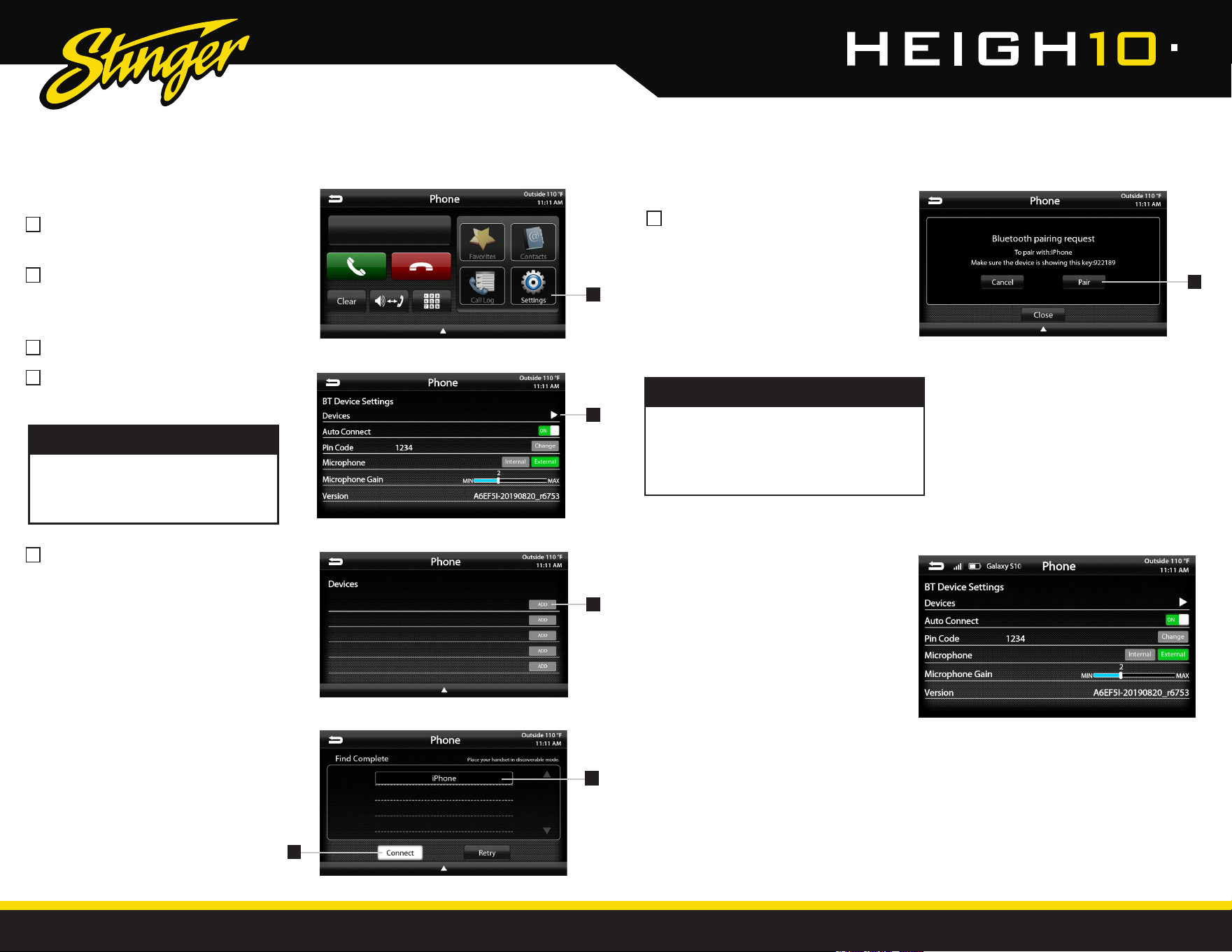
Select Settings from the Phone main
menu to go to BT Device Settings.
Select Devices on the BT Device
settings page.
Place your device in Discoverable Mode.
Select ADD on the Devices page.
Select your device from the list.
If your device does not appear in the
device list, conrm it is discoverable
and select Retry
NOTE!
2
4
1
3
5
6
Pairing a Device
Select Connect to initiate pairing.
Select Pair when prompted.
Conrm the Key Code on device
and select Pair on the device.
If prompted, select Allow to share
contacts.
2
1
3
4
5
6
BT Device Settings
Once a device is paired and connected,
settings can be set on the BT Device
Settings page.
Devices
Access list of all devices in memory.
Connect/Add/Delete devices.
Auto Connect [ON/OFF]
Set to ON if you want the device to
automatically connect when the system is
turned on.
Pin Code [CHANGE]
Change the pin code for Bluetooth
connection. The default pin code is "1234".
Microphone [Internal/External]
Set to External if external microphone is
installed. Set to Internal to use the microphone
located on the front of the display.
Microphone Gain [0–6]
Adjusts the volume (sensitivity) of the
microphone when using hands-free phone.
Once a device is paired, it will automatially
connect whenever the system is turned on
and the device is within range. To manually
connect or connect to a different device,
go to Phone > Settings > Devices
NOTE!
22
23
StingerElectronics.com StingerElectronics.com
®
®
Bluetooth PHONE
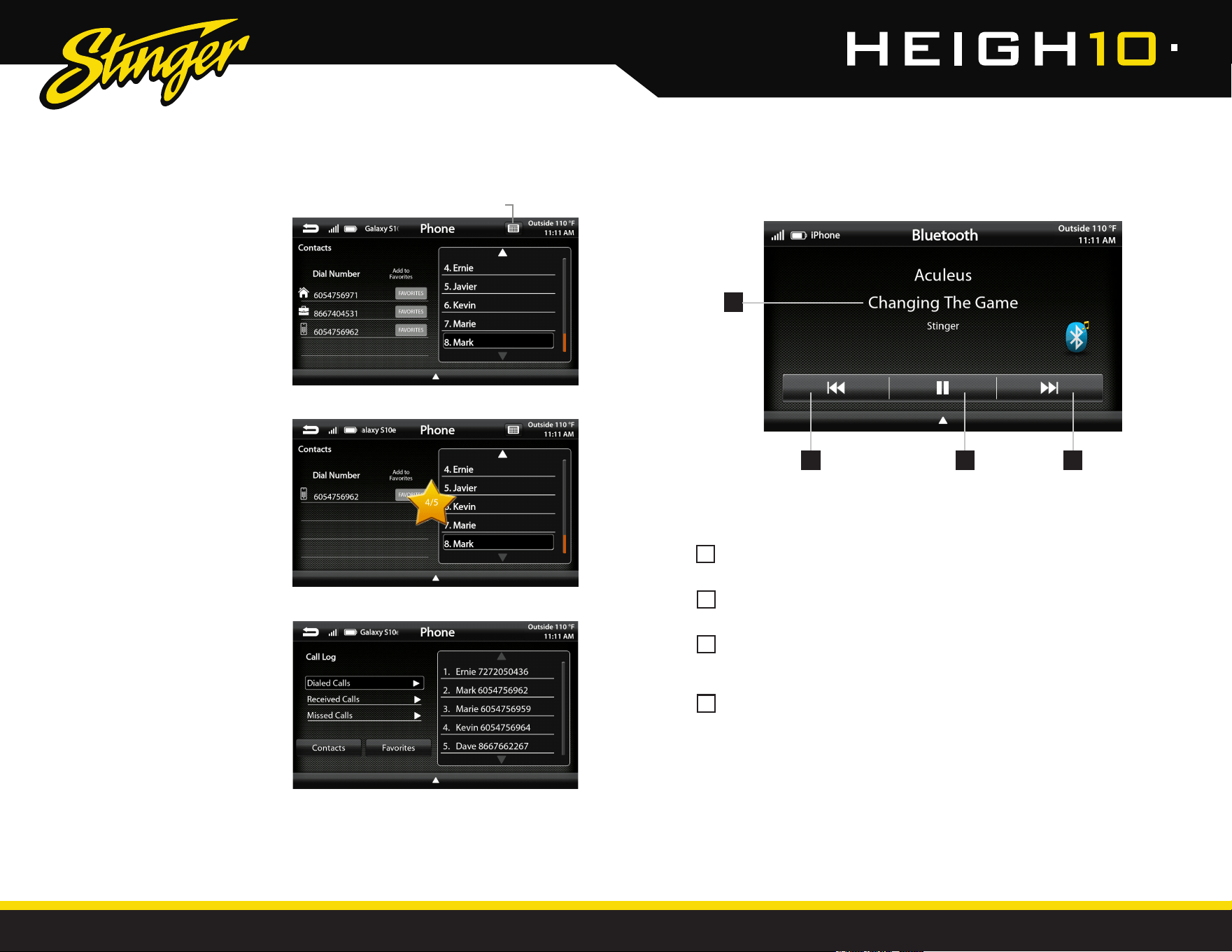
Contacts
While a device is paired, Contacts can
be accessed by selecting Contacts
from the Phone main menu. It may take
several minutes to load all contacts.
When a contact is selected from the list,
all associated numbers (Home/Work/
Mobile) will be displayed on the left side
of the screen. Touch the number you
want to dial.
To add a contact number to the
Favorites list, touch FAVORITES next to
the contact phone number and it will
be added to your Favorites list.
The Favorites list can be accessed from
the Phone main menu.
To Search your contact list, select the
keyboard icon on the Information Bar.
Call Log
The Call Log lists recently Dialed,
Received and Missed calls. Touch the
contact or phone number to dial a
number.
Search Contacts
Bluetooth MUSIC
Next Track/Program - Touch to
advance to the next track/program.
Play/Pause - Touch to play or pause
the audio.
Previous Track/Program - Touch once
to restart current track; touch again for
previous track.
Song/Program Information - Displays
information for the current track.
123
4
1
2
3
4
Press the HOME BUTTON > BT Music to select the BT Music source
24
25
StingerElectronics.com StingerElectronics.com
®
®
SiriusXM
Satelite Radio
SiriusXM
Satelite Radio
®
(OPTIONAL)
Only SiriusXM brings you more of what you love to listen to, all in one place. Get
over 140 channels, including commercial-free music plus the best sports, news,
talk, comedy and entertainment. Welcome to the world of satellite radio.
A SiriusXM Vehicle Tuner and Subscription are required.
For more information, visit www.siriusxm.com
Activating your SiriusXM Subscription
After installing your SiriusXM Connect Vehicle Tuner and antenna, power on your
radio and select SiriusXM mode. You should be able to hear the SiriusXM preview
channel on Channel 1. If you cannot hear the preview channel, please check the
installation instructions to make sure your SiriusXM Connect tuner is properly installed.
After you can hear the preview channel, tune to Channel 0 to nd the Radio ID
of your tuner. The Radio ID is also located on the bottom of the SiriusXM Connect
Vehicle Tuner and its packaging. You will need this number to activate your
subscription. Write the number down for reference.
Note: the SiriusXM Radio ID does not include the letters I, O, S or F.
In the USA, you can activate online or by calling SiriusXM Listener Care:
•Visit www.siriusxm.com/activatenow
•Call SiriusXM Listener Care at 1- 866- 635- 2349
For Canadian Subscriptions, please contact:
• Visit www.siriusxm.ca/activatexm
• Call XM Customer Care at 1- 877- 438- 9677
As part of the activation process, the SiriusXM satellites will send an activation
message to your tuner. When your radio detects that the tuner has received the
activation message, your radio will display: Subscription Updated. Once subscribed,
you can tune to channels in your subscription plan. Please note that the activation
process usually takes 10 to 15 minutes, but may take up to an hour. Your radio will
need to be powered on and receiving the SiriusXM signal to receive
the activation message.
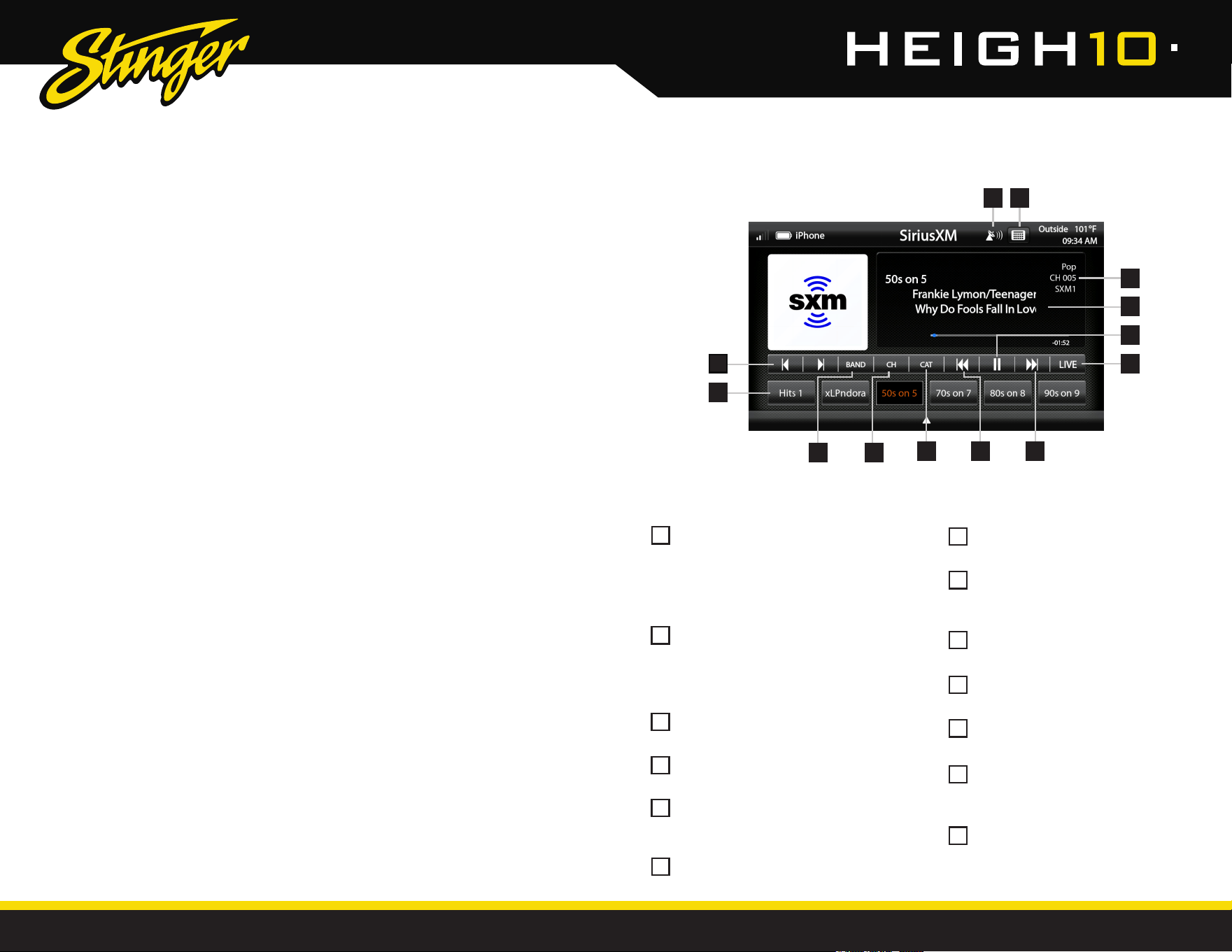
Channel Presets - To assign a preset,
go to the desired channel, press and
hold a preset location until the preset
button highlights and channel name
appears. A total of 18 channels can
be stored in memory.
Channel Down/Up - Touch to go to
previous channel / advance to next
channel. Touching and holding either
button will rapidly browse through the
channels.
Signal Strength - Displays tuner signal
strength, 0-3 bars.
Keypad - Touch to display keypad for
direct channel number entry.
SiriusXM Info - Displays current
channel category, channel number
and preset bank number.
Channel Info - Displays channel
name, song/content info.
Pause/Play - Pause live broadcast/
Play stored audio.
LIVE - Select to return to live
broadcast when listening to stored
audio.
Fast Forward/Track Up - Move
forward through stored audio.
Rewind/Track Down - Move
backwards through stored audio.
CAT - Touch to display a list of
channel Categories.
CH - Touch to display a list of
available channels with channel
information.
BAND - Press to cycle through SXM
preset banks [SXM1-SXM2-SXM3]
1213
1
5
2
6
3
7
4
8
10
11
12
13
9
3
4
7
8
9
5
6
1
2
11 10
Press the HOME BUTTON > SiriusXM to select the SiriusXM source.
26
27
StingerElectronics.com StingerElectronics.com
®
®
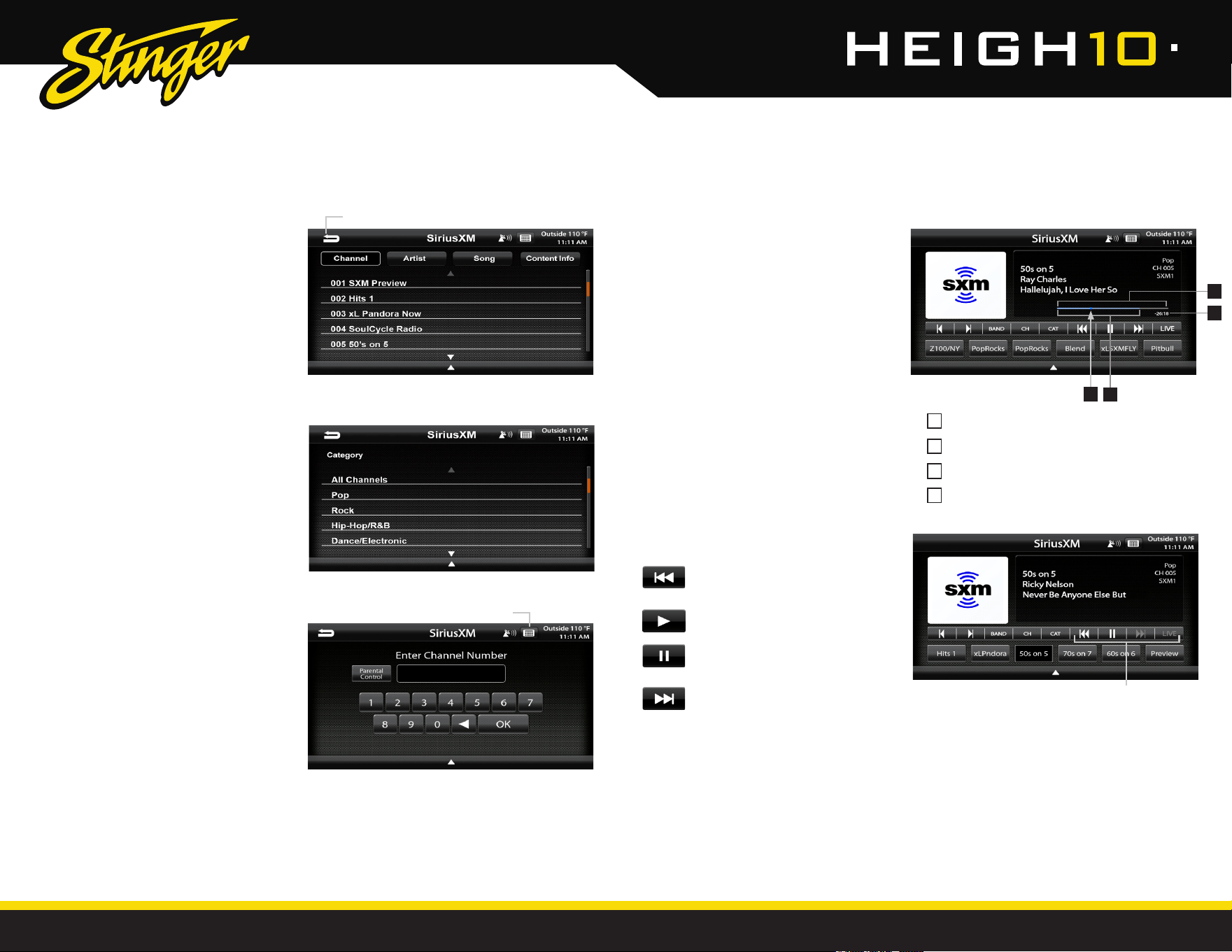
Channels [CH]
Displays a list of availble SiriusXM
channels in numerical order. Swipe up/
down to navigate and touch to select
desired channel. Selecting Content Info,
Artist or Song buttons will toggle the
information displayed.
Categories [CAT]
Displays a list of channel categories.
When a category is selected, a list of
matching channels will display. Selecting
All Channels will display all channels in
numerical order.
SiriusXM
Satelite Radio SiriusXM
Satelite Radio
Replay Controls
SiriusXM Replay™
Replay allows you to pause, rewind
and replay up to 1 hour of live SiriusXM
Satellite Radio.
Pressing Pause or Rewind while listening
to a live broadcast will enable Replay
mode.
The Replay Time Bar will appear
when Replay is active.
Touch for Previous Song
Touch & Hold for Rewind
Play
Pause
Touch for Next Song
Touch & Hold for Fast Forward
When you reach the end of the stored
audio buffer, you will return to the live
broadcast. Or, touch the LIVE button
in the Replay view to return to the live
broadcast of the current channel.
Replay Controls
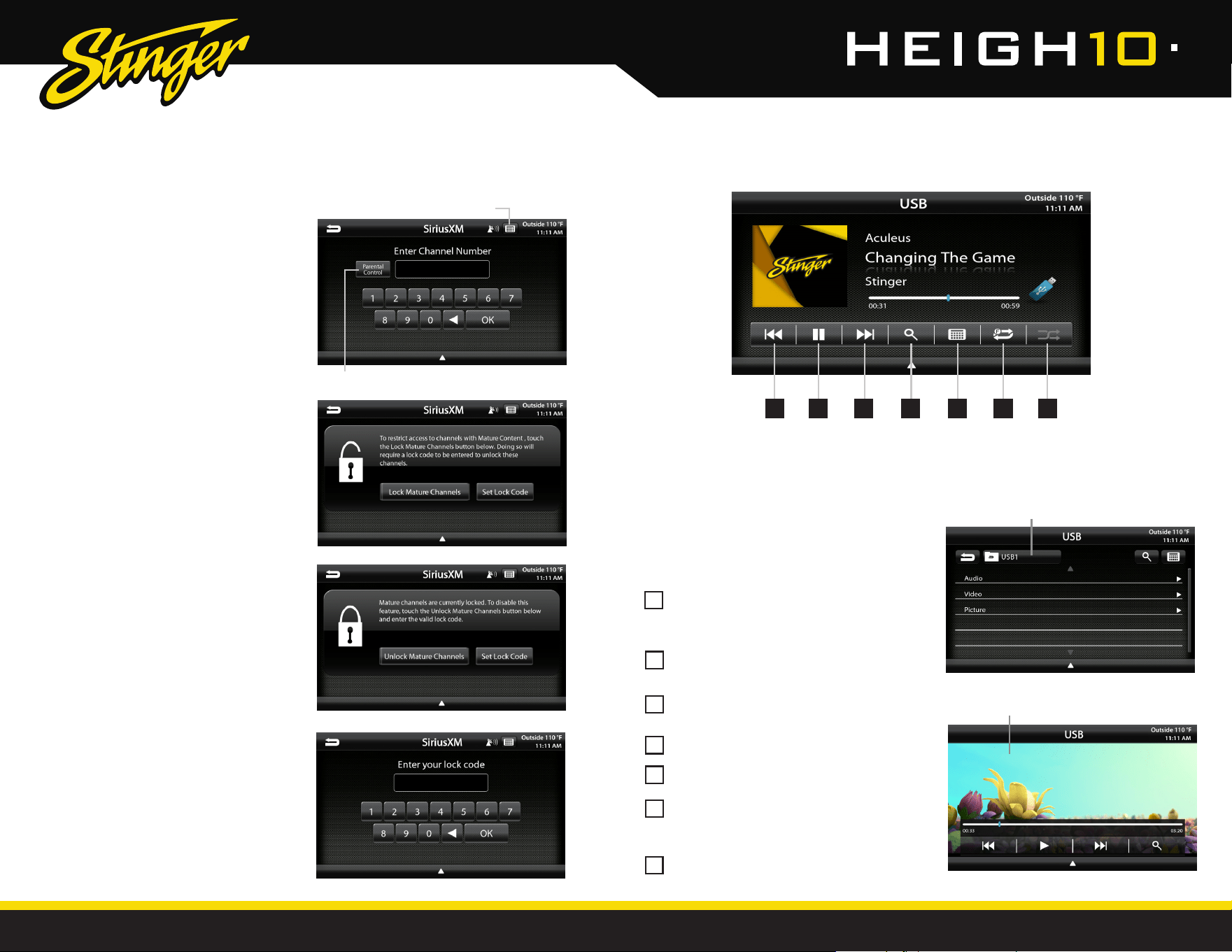
Direct Tuning
Selecting the Keypad Icon on the
Information Bar will launch a numeric
keypad for direct channel number entry
(See Page 28 for Parental Control function).
Keyboard
Return to SiriusXM main screen
2
4
1
3
2
4
3
Current Replay Point
Buffer Range (Light Blue line)
Replay Range
Time to Live
1
28
29
StingerElectronics.com StingerElectronics.com
®
®
SiriusXM
Satelite Radio
Parental Control
The SiriusXM Parental Control feature
allows you to prevent access to
inappropriate mature content for a
younger listener. When enabled, the
Parental Control feature requires you
to enter a passscode to access the
channels that are rated as Mature
Channels.
By default, all channels are Unlocked and
the Lock Code is 1234.
Lock Mature Channels:
1. Touch the Keyboard icon on the
Information Bar.
2. Touch the Parental Control button.
3. Select Lock Mature Channels.
4. Enter 4 digit lock code.
Unlock Mature Channels:
1. Touch the Keyboard icon on the
Information Bar.
2. Touch the Parental Control button.
3. Select Unlock Mature Channels.
4. Enter 4 digit lock code.
Set/Change Lock Code:
Select Set Lock Code, enter the old code
and then enter the new code.
Reset Lock Code:
To reset the Lock Code to default code
(1234),
go to System Settings > Load De-
faults. The reset process takes 5–7 minutes
and will reset ALL saved settings to factory
default.
Keyboard Icon
Parental Control
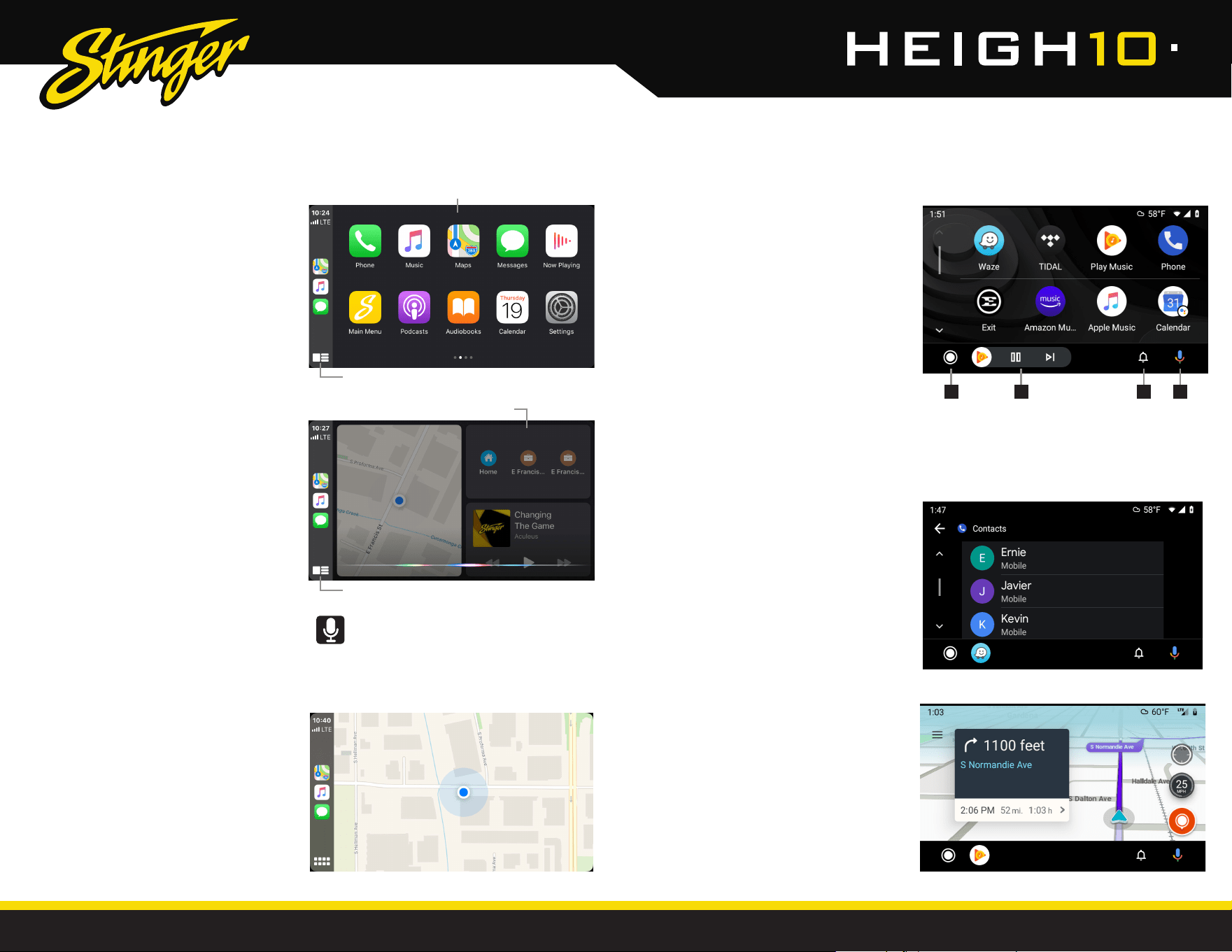
USB Root Menu
Video / Image Files
USB Media
Previous Track - Touch once to restart
current track; touch again for Previous
track.
Play/Pause - Touch to play or pause
the audio.
Next Track - Touch to advance to the
Next track.
Browse - Browse artist, album or songs.
Keyboard - Direct input song search
Repeat - Press once to repeat the
current track (1); press again to repeat
album/folder (F).
Shufe - Plays tracks in random order.
1
5
6
7
2
3
4
With a USB drive plugged in, press the HOME BUTTON > USB to select USB.
1 2 3 4 75 6
From the USB Root Menu, you can
browse Audio, Video and Image les.
See page 49 for a list of supported le
types.
Touch to select a le to view/play.
30
31
StingerElectronics.com StingerElectronics.com
®
®
Set up Apple CarPlay
You can use Apple CarPlay to get
directions, make calls, send and receive
text messages, and more.
You need an iPhone 5 or later to use
Apple CarPlay. Also, make sure that
you're in an area that supports Apple
CarPlay and that Siri is on. To turn on Siri
on your phone, go to Settings > Siri &
Search.
With the your vehicle running, plug your
iPhone into the Apple CarPlay USB port.
Apple CarPlay will launch automatically.
If your iPhone is already plugged into
the USB, press the HOME BUTTON > Apple
CarPlay to launch Apple CarPlay.
NOTE: If Apple CarPlay will not launch,
see Troubleshooting.
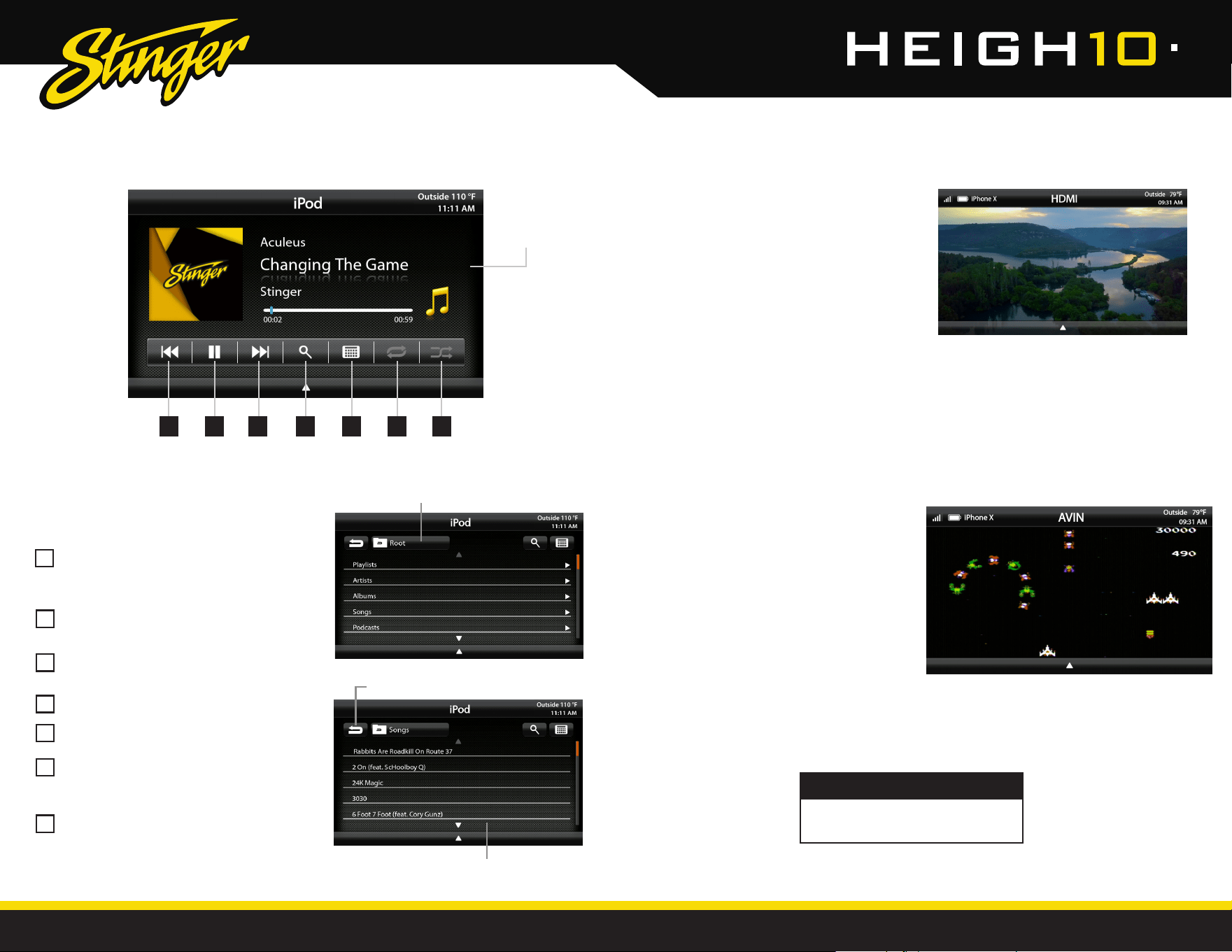
The display will show available apps.
Only apps that are supported by Apple
CarPlay will appear.
To add, remove, or customize the order
that the apps are in, follow these steps
on your iOS device:
1. Go to Settings > General, and tap
CarPlay.
2. Select UN1810.
3. Select Customize.
4. Use the add or delete icons to add or
remove apps. Tap and drag an app to
change the icon order.
To exit Apple CarPlay, press the Stinger
Main Menu icon.
For details about Apple CarPlay, visit
https://support.apple.com/en-us/HT205634
Ask Siri for what you need. Press the
Voice Control button or the Home/
Dashboard button in Apple CarPlay until Siri
appears on the display, then say what you
need.
Toggle CarPlay Home / Dashboard
Press & Hold for Siri
CarPlay Home
CarPlay Dashboard
Apple CarPlay
®
Set up Andriod Auto
Make sure your phone is running Android
5.0 (Lollipop) or later. Download the
Android Auto app from Google Play on
your device. Once the app is installed,
open the app and follow the setup steps.
Connect your phone
Before you connect your phone for the
rst time, turn on your car. Make sure it's in
park (P) and that you have time to set up
Android Auto.
1. Unlock your phone's screen.
2. Connect your phone using a USB cable.
3. Your phone might ask you to download
or update certain apps, like Google
Maps.
4. Review the Safety Information and
Android Auto permissions to access your
apps.
5. Turn on notications for Android Auto.
For the best experience, we recommend
accepting all requests.
Your phone’s Bluetooth will be turned
on automatically when Android Auto is
connected to the car via USB.
To exit Android Auto, touch the Exit icon.
For details about AndroidAuto, visit
https://www.android.com/auto/
1 Home Button
2 Audio Controls
3 Notications
4 Voice Command
1 2 3 4
Android Auto
TM
32
33
StingerElectronics.com StingerElectronics.com
®
®
iPod
1 2 3 4 75 6
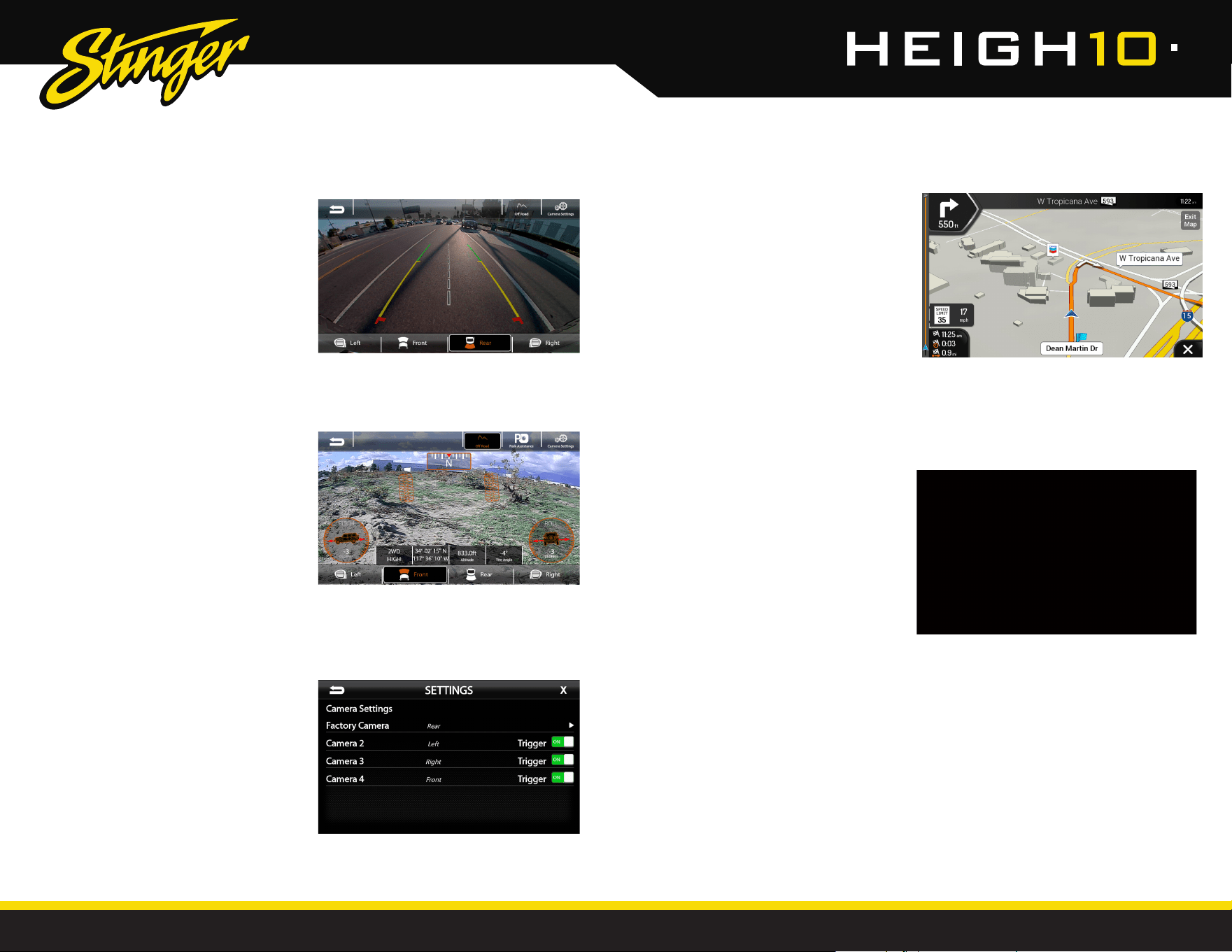
Previous Track - Touch once to restart
current track; touch again for Previous
track.
Play/Pause - Touch to play or pause
the audio.
Next Track - Touch to advance to the
Next track.
Browse - Browse artist, album or songs.
Keyboard - Direct input song search.
Repeat - Press once to repeat the
current track (1); press again to repeat
album/folder.
Shufe - Plays tracks in random order.
1
5
6
7
2
3
4
Track Detail
View
iPod Root Menu
Return to Track Detail View
Browse and Select by
Artists, Albums, Playlists, Songs...
®
Press MENU > iPod to select iPod as
the source.
HDMI INPUT
Press the HOME BUTTON > HDMI
to switch to the HDMI input.
The HDMI input can be used for an
external DVD player, streaming sticks,
media players and smartphone mirroring.
You can only view HDMI content with the
vehicle in Park and the parking brake ON.
When viewing HDMI content, the
Information Bar will auto-hide. To access
the Information Bar, touch anywhere on
the screen.
AV IN
Press the HOME BUTTON > AV IN
to switch to the AV input.
You can only view the AV input with the
vehicle in Park and the parking brake
ON.
When viewing the AV IN, the Information
Bar will auto-hide. To access the
Information Bar, touch anywhere on the
screen.
WARNING!
A driver is prohibited by law from
viewing a video signal on any in-dash
monitor while the vehicle is in motion.
34
35
StingerElectronics.com StingerElectronics.com
®
®
CAMERAS
DISPLAY OFF
Press the HOME BUTTON > Display Off
or Screen Off on the factory controls
to turn off the LCD display.
This is useful at night to prevent eye
fatigue.
Tap anywhere on the screen to return to
the regular display.
iGO NAVIGATION
To access the optional Navigation,
press the HOME BUTTON > Navigation
The User Manual for iGO Navigation can be
found on StingerElectronics.com
To add navigation, ask your dealer about
Stinger's pre-loaded iGO Navigation SD Card
(Part Number: SE-P14).
(OPTIONAL)
FIG. A
FIG. B
In addition to the rear camera
input, HEIGH10 can support
up to three additional cameras.
To access any installed camera,
press the HOME BUTTON > Cameras
When a camera is rst activated,
there will be menu bars at the top and
bottom of the display. The top menu
bar contains the BACK arrow to return
to the previous screen, and the Off-
Road button will display the camera
image along with the off-road gauges
and information (FIG. A). Selecting
the Camera Settings button will open
up the Camera Settings menu (FIG. B).
The bottom menu bar displays available
cameras. Touch any available camera
to switch camera views.
NOTE The top and bottom menu bars
will auto-hide after ve seconds, and
tapping the screen will re-display the
menu bars.
Camera Settings
The Camera Settings page displays all
enabled cameras. Cameras can be
shut off using the Trigger selection.
36
37
StingerElectronics.com StingerElectronics.com
®
®
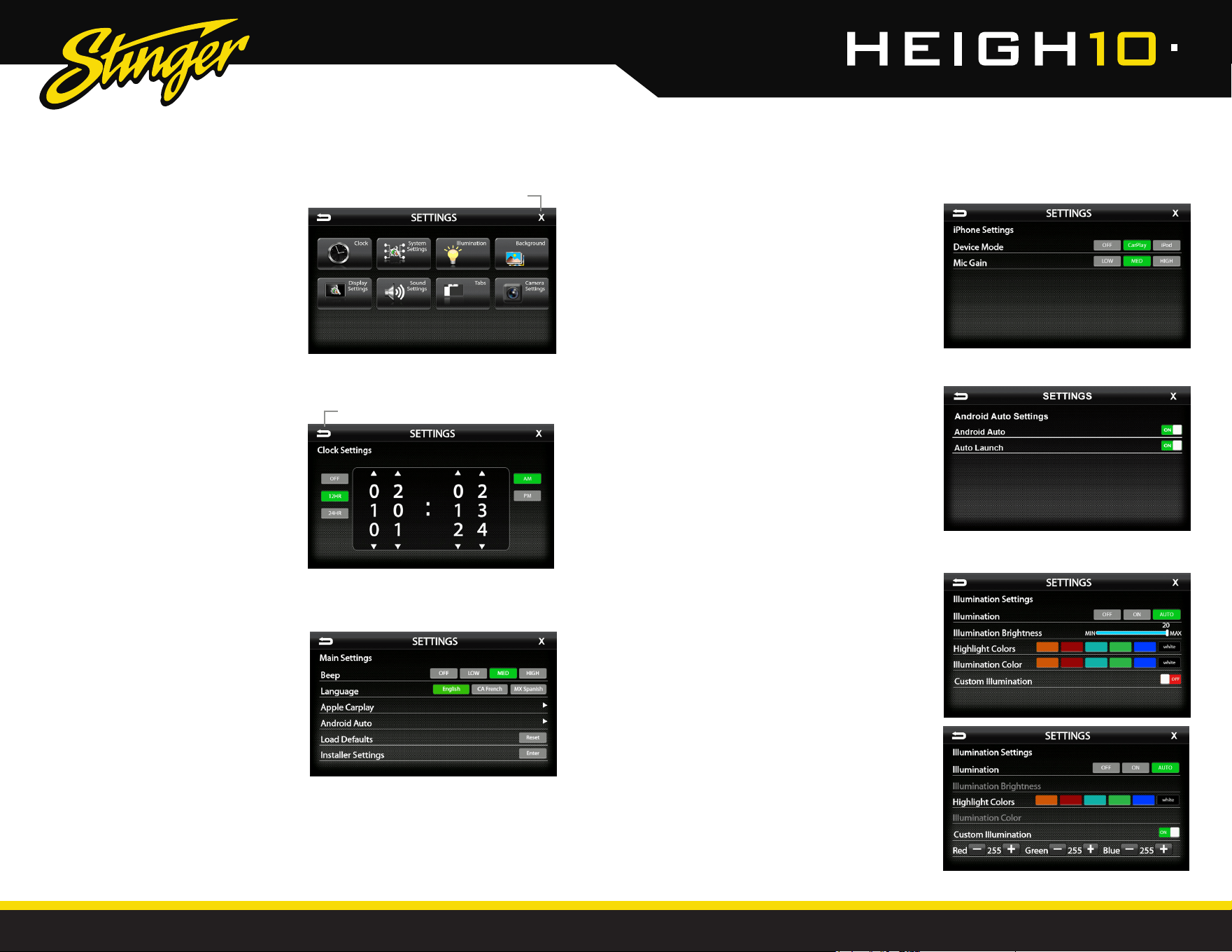
SETTINGS
Settings > System Settings
Beep [OFF-LOW-MED-HIGH]
Sets volume of conrmation beeps.
Language [ENGLISH-FRENCH-SPANISH]
Set display language
Apple CarPlay [See Page 37]
Android Auto [See Page 37]
Load Defaults [RESET]
Selecting Reset will reset all settings to factory
defaults. This process takes 5-7 minutes and
system must NOT be shut down during the
reset.
Installer Settings [ENTER]
See Installation Guide or Firmware Update
Instructions for more information.
Settings > Illumination
Illumination[OFF-ON-AUTO]
Turn button illumination ON/OFF. Set to AUTO
for buttons to illuminate only when vehicle
lights are on.
llumination Brightness[0-20]
Set brightness of button illumination.
Highlight Colors
[AMBER-RED-AQUA-GREEN-BLUE-WHITE]
Set on-screen highlight color.
Illumination Color
[AMBER-RED-AQUA-GREEN-BLUE-WHITE]
Set button illumination color.
Custom Illumination [OFF-ON]
When Custom Illumination is set to ON, it
allows custom illumination color based on
RGB values.
Settings > Clock
Clock Settings [OFF-12HR-24HR]
Select time format. Swipe or click arrows
to set the time.
Press the HOME BUTTON > Settings
to access the Settings main menu.
Clock
System Settings
Illumination
Background
Display Settings
Sound Settings
Tabs
Camera Settings
SETTINGS
Settings > System Settings > Apple CarPlay
Device Mode [OFF-CarPlay-iPod]
Determines how iPhone will be used when
plugged into USB port. OFF is charging only.
Mic Gain [LOW-MED-HIGH]
Sets microphone gain (sensitivity) when using
Apple CarPlay.
Settings > System Settings > Android Auto
Android Auto [ON-OFF]
Set to OFF for charging only with Android devices.
Auto Launch [ON-OFF]
When set to ON, Android Auto will automatically
launch when a compatible Android device is
plugged into USB port.
BACK to previous screen
EXIT current screen
38
39
StingerElectronics.com StingerElectronics.com
®
®
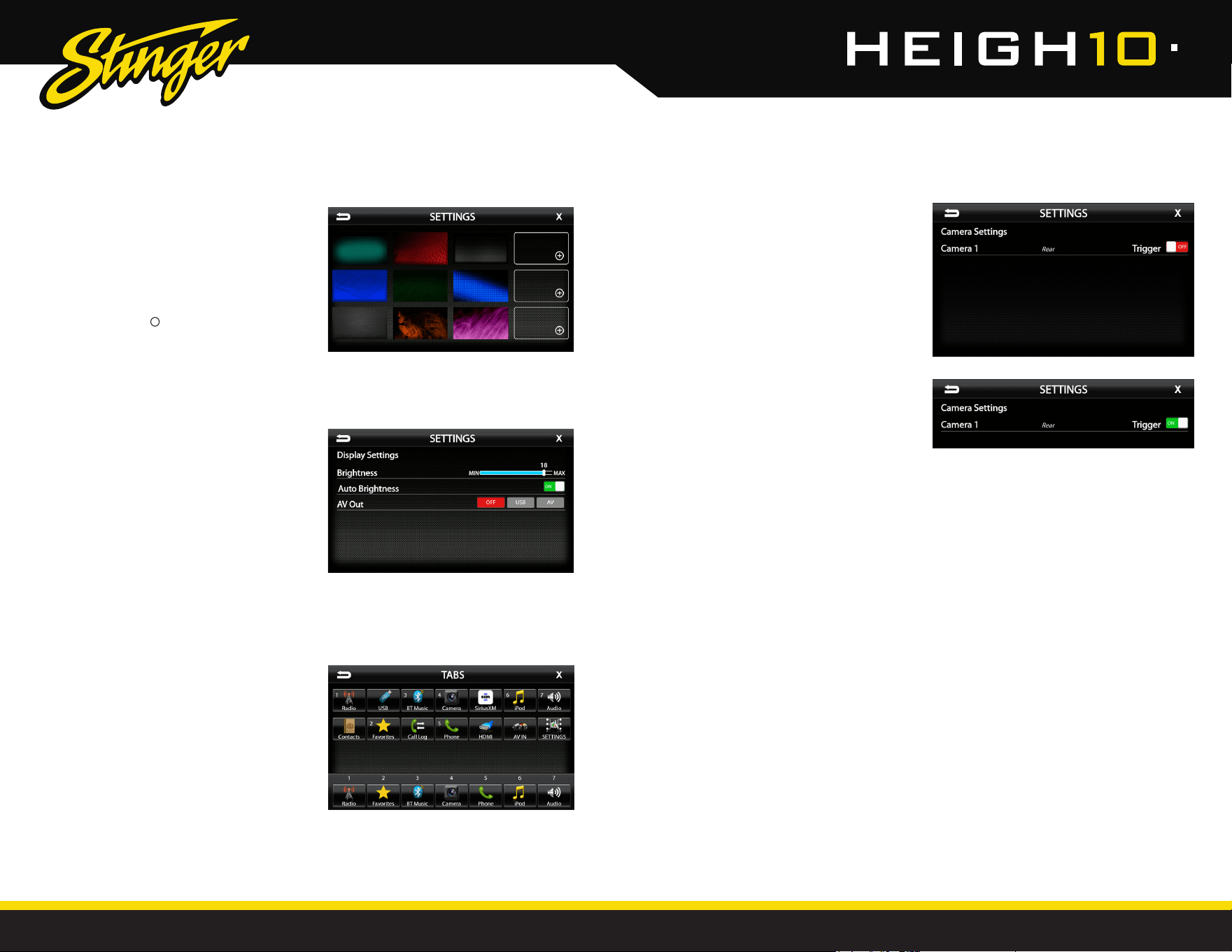
Settings > Background
Allows you to change the background
image. Touch image thumbnail to
select. You can upload up to 3 of your
own images. To upload an image(s),
copy images onto a USB thumb drive
and connect the drive to one of the
USB ports. Touch the + symbol and
select a le. Images should be JPG or
PNG le format and 1024x600 resolution
SETTINGSSETTINGS
Settings > Display Settings
Brightness [0–20]
Adjusts Day and Night brightness of the LCD
display. To adjust Night brightness level, turn on
vehicle's lights and then adjust brightness.
Auto Brightness [ON-OFF]
When set to ON, the display screen will automatically
dim when vehicle's lights are turned on.
AV [OFF-USB-AV]
Determines which source is routed to the AV
outputs.
Settings > Tabs
The Tabs are customizable and can be
congured to include favorite sources or
settings.
To Program a Tab:
1) Select a Tab postition (1–7) on the bottom row.
2) Select the desired source or setting from the
options on the top rows.
Settings > Camera Settings
The Camera Settings screen lists all
installed cameras and allows the camera
triggers to be turned on and off.
NOTE: The default initial camera setting is
Camera 1 > Rear > Trigger OFF. If a Rear
camera has been installed, the Trigger
needs to be switched to ON to enable the
camera to automatically turn on when
vehicle is placed in reverse.
40
41
StingerElectronics.com StingerElectronics.com
®
®
SOUND SETTINGS
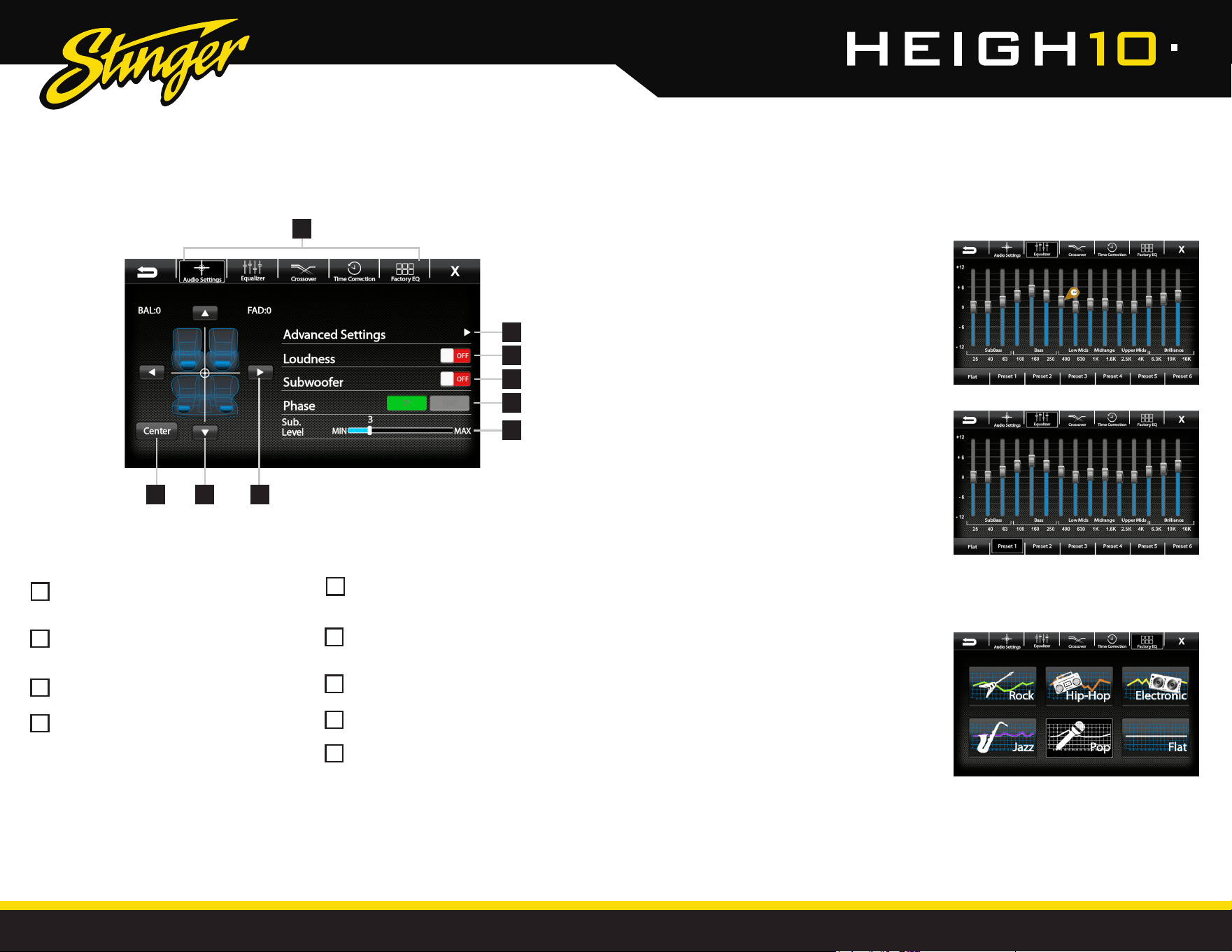
Saving EQ Settings
There are 6 user Presets that can be used
to save EQ settings. This is usefull for having
EQ settings for differnet types of music and
volume levels or for different sources.
When you are done adjusting the EQ, touch
and hold a Preset location to save the
settings. The Preset will highlight.
SOUND SETTINGS
Balance [-9 - 0 - 9]
Using the Left and Right arrows, adjusts the
speaker balance Left/Right.
Fader [-9 - 0 - 9]
Using the Up and Down arrows fades the
speakers Front/Rear.
Center
Press to set balance and fade to zero (0).
Audio Menu Bar
Access to Equalizers, Crossovers and Time
Correction.
123
7
8
9
5
6
4
Advanced Settings
Access to gain/volume settings, Toslink,
and microphone settings. (See page 44).
Loudness [ON-OFF]
When ON, boosts low and high frequencies
when listening at lower volume.
Subwoofer [ON-OFF]
Turns subwoofer output ON/OFF.
Phase [0°-180°]
Changes thephase of subwoofer signal.
Sub Level [0-15]
Adjusts volume level of the subwoofer output.
Sound Settings > Equalizer
Selecting Equalizer from the Audio Menu Bar
will bring up the 15 band graphic equalizer
and presets. Frequency adjustments can be
made by touching and sliding the frequency
sliders up/down. Once the desired sound is
acheived, it can be saved as a Preset.
Sound Settings > Factory EQ
Selecting Factory EQ from the Audio Menu
Bar will access factory equalizer presets for
different music types:
Rock - Hip-Hop - Electronic - Jazz - Pop
When a Factory EQ preset is selected, it can
be ne-tuned using the Equalizer and then
re-saved as a User Preset.
1
5
2
6
3
4
6
7
9
8
Settings > Sound Settings
42
43
StingerElectronics.com StingerElectronics.com
®
®
SOUND SETTINGS SOUND SETTINGS
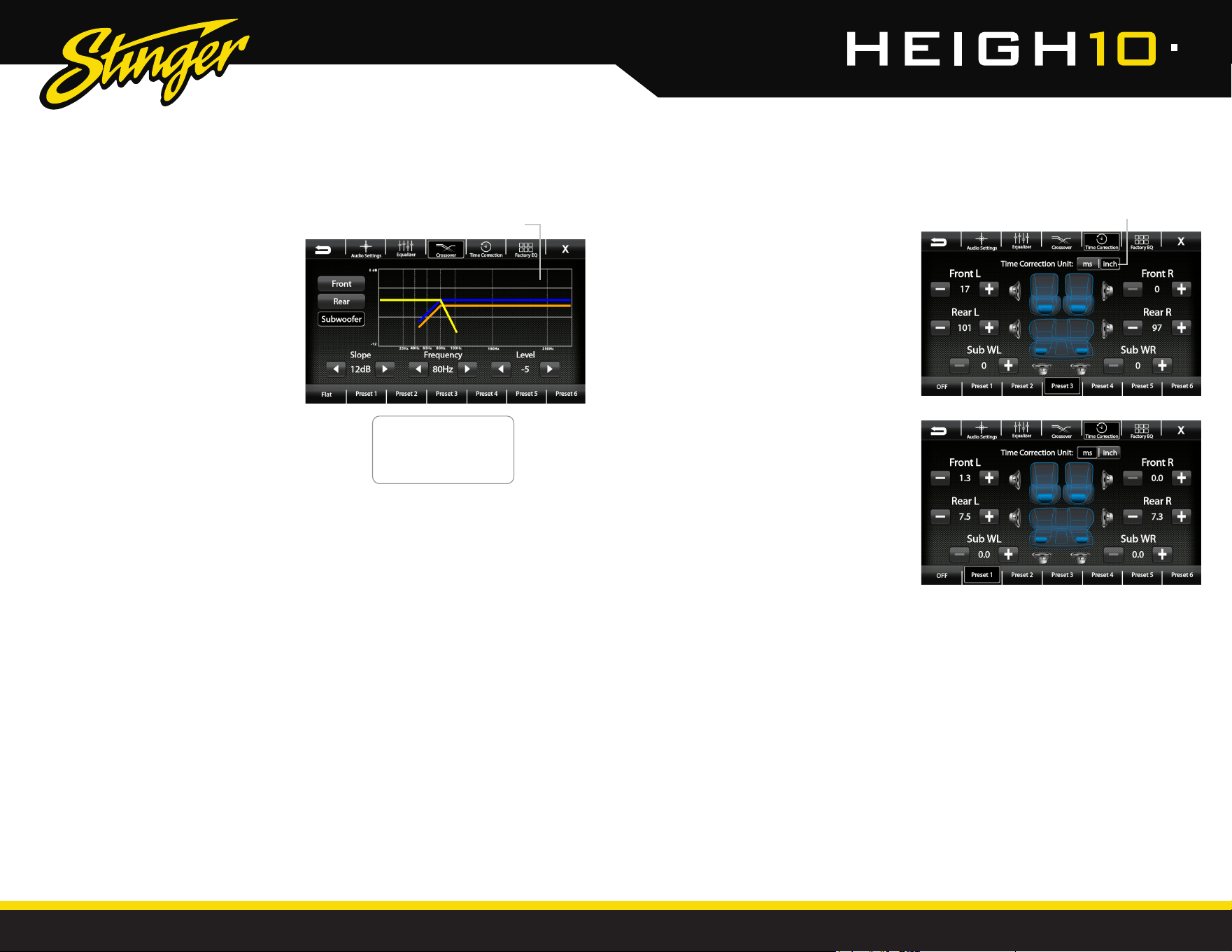
Sound Settings > Crossover
Selecting Crossover from the Audio
Menu Bar will access the internal
electronic variable crossover. Crossover
settings can be saved and recalled via
Presets.
Front/Rear/Subwoofer Channels
Select Front, Rear or Subwoofer to set
crossover.
Slope [6dB-12dB-18dB]
Adjusts the slope of the crossover.
Frequency
[BYPASS-25-40-63-80-100-160-250Hz]
Adjusts crossover frequency. Front and Rear
channels are High Pass and Subwoofer is
Low Pass.
Level [-12–0]
Adjusts signal level. Channel levels can be
adjusted regardless of crossover settings.
Sound Settings > Time Correction
Selecting Time Correction from the Audio
Menu Bar will access the Time Correction
settings. Time Correction settings can be
saved and recalled via Presets.
Time Correction compensates for the
uneven distances between the speak-
ers and a listeners ears. Time Correction
delays signals from the closest speaker(s),
so that all the sound arrives at the listen-
ing position at the same time, giving the
listener a more accurate, life-like stereo
image.
To set Time Correction, select a listening
position, for example the driver's seat
headrest. Then, measure from each
speaker to the listening position. Set Units
to Inch, and input the speaker distance
values into the appropriate positions using
the +/- buttons.
Saving Crossover Settings
There are 6 user Presets that can be
used to save Crossover settings.
When you are done adjusting the
Crossover, touch and hold a Preset
location to save the settings. The Preset
will highlight.
Saving Time Correction Settings
There are 6 user Presets that can be used
to save settings. When you are done
adjusting the Time Correction, touch and
hold a Preset location to save the settings.
The Preset will highlight.
Graphical representation of crossover
Slope, Frequency and Level.
Select milliseconds or inches
Front Channel = Blue
Rear Channel = Orange
Subwoofer = Green
Active (Selected) = Yellow
NOTE: If the vehicle is equipped with a factory amplier,
Crossover is not selectable by default.
NOTE: If the vehicle is equipped with a factory amplier,
Time Correction is not selectable by default.
44
45
StingerElectronics.com StingerElectronics.com
®
®
Settings > Sound Settings > Advanced Settings
SOUND SETTINGS
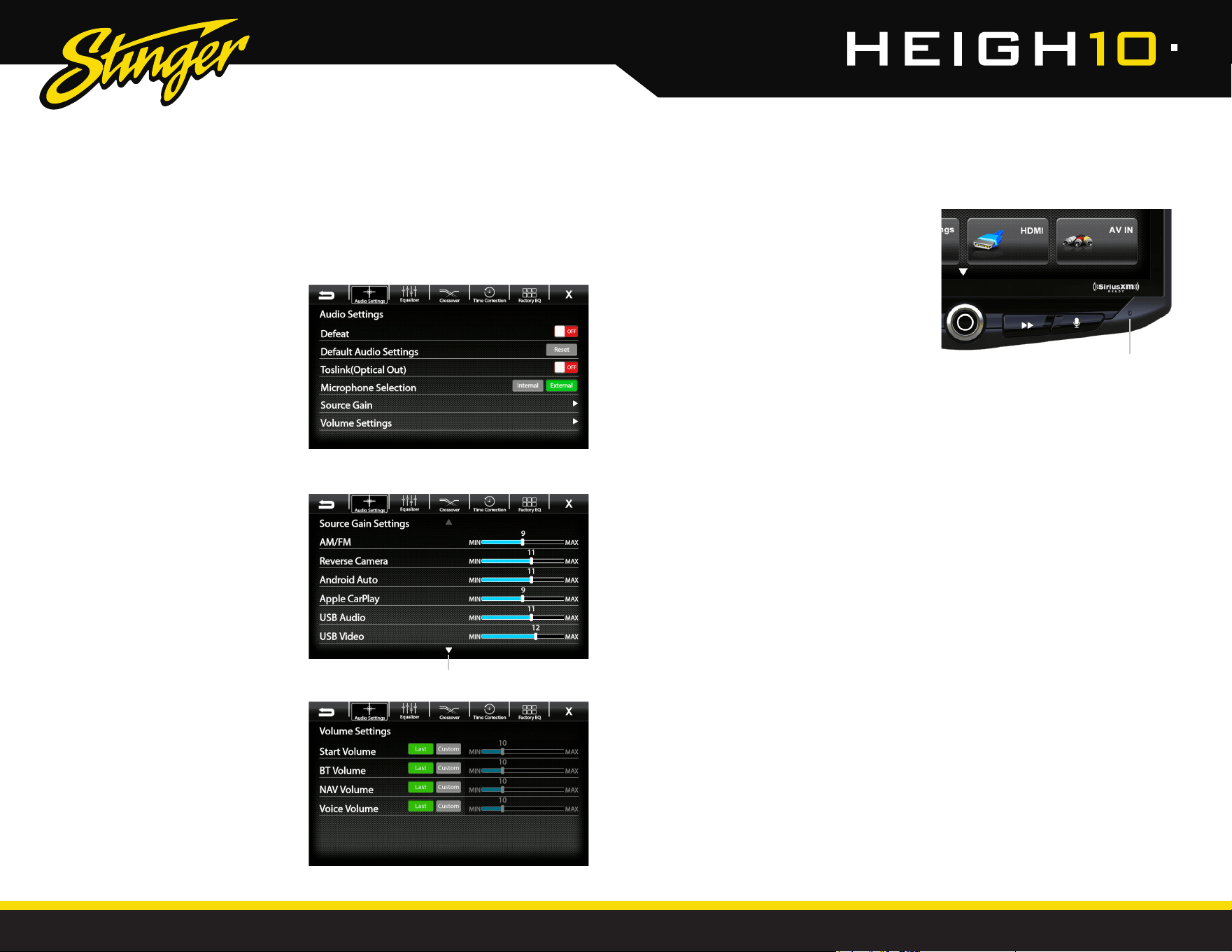
Selecting Advanced Settings from
the Audio Settings screen will access
the following settings:
Defeat [ON-OFF]
When set to ON, this will defeat/bypass all
equalizer, crossover and speaker settings.
This is useful when connecting to a DSP.
Default Audio Settings [Reset]
Press to Reset all audio settings to default.
Toslink (Optical Out) [ON-OFF]
Turns variable digital output ON/OFF.
Microphone Selection [INTERNAL-EXTERNAL
]
Select External if external microphone is
installed. Select Internal to use the built-in
microphone.
Arrow down for additional sources
Source Gain Settings
Selecting Source Gain from the Advanced Audio
Settings will allow gain/volume adjustments for
individual sources. For example, if AM/FM is much
louder than BT Music, lower AM/FM and/or raise BT
Music to even out the volume levels.
Volume Settings
Selecting Volume Settings from the Advanced Audio
Settings will access the following Volume settings:
Start Volume [LAST-CUSTOM]
LAST will be same level as when unit was shut off.
CUSTOM will be a preset level adjusted below.
Volume Slider [0–40]
Adjusts CUSTOM volume level to a specic level.
The Volume Mode is adjustable for Bluetooth(BT),
Navigation (NAV) and Voice using the same
procedure.
Reset Button
The Reset Button is located on the
lower right hand corner of the display.
To reset the unit, the power must be on,
use a paper clip or similar to push the
reset button for 2 seconds and release.
The reset will take a few minutes; do not
turn of power during this time.
Reset Button
46
47
StingerElectronics.com StingerElectronics.com
®
®
TROUBLE SHOOTING
TROUBLE SHOOTING
SiriusXM Satellite RadioGeneral
Bluetooth
Video/Cameras
Check Antenna
The radio has detected a fault with the
SiriusXM antenna. The antenna cable may be
either disconnected or damaged.
- Verify that the antenna cable is connected
..to the SiriusXM Connect Vehicle Tuner.
- Inspect the antenna cable for damage and
kinks.
Replace the antenna if the cable is damaged.
SiriusXM products are available at your local
car audio retailer or online at www.shop.
siriusxm.com.
Check Tuner
The radio is having difculty communicating
with the SiriusXM Connect Vehicle Tuner. The
tuner may be disconnected or damaged.
- Verify that the SiriusXM Connect Vehicle
..Tuner cable is securely connected to the
..radio.
No Signal
The SiriusXM Connect Vehicle Tuner is having
difculty receiving the SiriusXM satellite signal.
- Verify that your vehicle is outdoors with a
..clear view of the sky.
- Verify that the SiriusXM magnetic mount
..antenna is mounted on a metal surface on
..the outside of the vehicle.
- Move the SiriusXM antenna away from any
obstructions. Inspect the antenna cable for
damage and kinks.
- Consult the SiriusXM Connect vehicle tuner
installation manual for more information on
antenna installation.
Replace the antenna if the cable is damaged.
SiriusXM products are available at your local
car audio retailer or online at www.shop.
siriusxm.com.
Channel Locked
The channel that you have requested is
Locked by the radio Parental Control feature.
See the Parental Control section on Page 28
for more information on the Parental Control
feature and how to access locked channels.
Black Screen with Audio
Touch the screen anywhere as it may have
been turned off (see Page 35).
Ensure the cables on the back of the screen
are fully locked into place and also properly
connected at the back of the radio module.
Check for damaged/kinked cables.
Press the HOME Button.
Device will not Pair
Ensure Bluetooth is turned ON in your
device settings. Delete all unused devices.
Delete any "Stinger" device. Restart/
Reboot device and try pairing again (see
Page 20).
Music Volume is low
- Turn up volume on device.
- Turn up volume on head unit.
- Turn up BT Volume Gain (see page 44).
Phone Volume is low
- Turn up volume on device.
- Turn up volume on head unit.
- Turn up BT Volume Gain (see page 44).
- Turn up Mic Gain (see Page 21).
Phone Microphone not working
- Verify microphone setting (see page 21).
Rear Camera not displaying in reverse
- Make sure rear camera trigger is ON
(see Page 39)
- If display is showing NO SIGNAL in reverse,
..ensure camera RCA is plugged into the
correct RCA input (CAMERA IN).
- Conrm camera has power and ground.
- Conrm camera trigger is receiving
..positve 12V signal.
Note: NTSC and PAL video formats only.
Apple CarPlaySiriusXM Satellite Radio (cont)
Android Auto
Apple CarPlay will not start/launch
- Ensure you are using a Apple-certied
..cable.
- Make sure you are plugged into USB 2 in
the center console.
- Make sure Apple CarPlay is turned ON
..(see Page 30).
Subscription Updated
The radio has detected a change in your
SiriusXM subscription status.
- Press anywhere on the screen to clear the
..message.
In the U.S.A., visit www.siriusxm.com or call
1- 866-635-2349 if you have questions about
your subscription. In Canada, visit www.
siriusxm.ca or call 1- 877-438-9677 if you have
questions about your subscription.
Channel Unavailable
The channel that you have requested is not
a valid SiriusXM channel or the channel that
you were listening to is no longer available.
You may also see this message briey when
rst connecting a new SiriusXM Connect
Vehicle tuner.
Visit www.siriusxm.com for more information
about the SiriusXM channel lineup.
Memory End
This message will display when the beginning
of stored audio has been reached. You
cannot rewind any further.
Memory Full
The stored audio memory has became full
while audio was paused. Resume playback.
Channel Unsubscribed
The channel that you have requested is
not included in your SiriusXM subscription
package or the channel that you were
listening to is no longer included in your
SiriusXM subscription package.
In the U.S.A., visit www.siriusxm.com or call
1- 866-635-2349 if you have questions about
your subscription package or would like to
subscribe to this channel. In Canada, visit
www.siriusxm.ca or call 1- 877-438-9677.
Android Auto
- Ensure you are using a USB certied cable
- Make sure Android Auto app is
..downloaded and installed on your device.
- Make sure you are plugged into USB 2 in
the center console.
- Make sure Android Auto is turned ON (see
Page 31).

48
49
StingerElectronics.com StingerElectronics.com
®
®
GENERAL
Operating Voltage: 9.0VDC to 18VDC
Grounding system: Negative Ground
Max current consumption: 10A fused
DIMENSIONS
Radio Module:
178 mm x 100 mm x 116 mm (W x H x D)
Display:
247.2 mm x 180.6 mm x 48.5 mm (W x H x D)
DISPLAY
10-inch Diagonal
16:9 aspect ratio
1024 x 600
Pixels: 1,843,200
Active area: 222.72 (W) x 125.28 (H) mm
Operating Temperature (C): -20° to 70°
AUDIO
Peak power output: 50W x 4ch/4Ω
Load impedance: 4Ω nominal / 2Ω allowable
Continuous power output:
25W x 4ch/4Ω 20Hz to 20KHz,
1% THD at 14.4V
Audio output level (max): 4.0V preout
EQ: (15-band)
25Hz/40Hz/63Hz/100Hz/160Hz/250Hz/400Hz/
630Hz/1KHz/1.6KHz/2.5KHz/4KHz/6.3KHz/
10KHz/16KHz
Gain: ±12dB (2dB/step)
HPF: 25Hz/40Hz/63Hz/80Hz/100Hz/160Hz/250Hz
Slope: 6dB, 12dB, 18dB
AUDIO (cont.)
Subwoofer Preout
LPF:
25Hz/40Hz/63Hz/80Hz/100Hz/160Hz/250H
z
Slope: 6dB, 12dB, 18dB
Gain: -14dB to 7dB (1dB/step)
Phase: 0 or 180
Speaker level: ±9dB (1dB/step)
Time correction: 0 to 133 step (inch/ms)
USB
USB 2.0
Max current supply: 1.5A
USB Class:
MSC (Mass Storage Class),
MTP (Media Transfer Protocol)
File system: FAT32, NTFS
BLUETOOTH
V4.2 dual
4dBm Class2
2.4GHz to 2.48GHz
FM TUNER
87.9MHz to 107.9MHz
Usable sensitive 0dB (mono S/N: 30dB)
SNR: 65dB
AM TUNER
530KHz to 1710KHz
Usable sensitive 0dB (mono S/N:20dB)
SNR: 58dB
CAMERA(S) VIDEO INPUTS
NTSC OR PAL video formats
HDMI INPUT
Supported HDMI Resolutions:
640*480p, 720*480p, 1280*720p,
1920*1080i, 1920*1080p
TOSLINK (OPTICAL)
Output: 48khz Variable
BACKGROUND IMAGE (USER)
File Format: JPG / PNG
Resolution: 1024 x 600
File size is not limited
AUDIO/VIDEO FORMATS
AUDIO
MPEG-1 Audio Layer-3 (.mp3)
FLAC (.ac)
MPEG-2 Advanced Audio (.aac)
MPEG-4 Audio (.m4a)
Windows Audio (.wav)
OGG Audio (.ogg)
VIDEO
QuickTime (.mov)
MPEG-4 Video (.mp4)
Microsoft AVI (.avi)
MPG Video (.mpg)
MPEG Video 1/2 (.mpeg)
VOB DVD (.vob)
Flash Video (.v)
IMAGE
JPEG (.jpg)
CompuServe GIF (.gif)
PNG (.png)
JPEG (.jpeg)
Bitmap (.bmp)
SPECIFICATIONS SPECIFICATIONS
TECHNICAL SUPPORT:
800-477-2267
CUSTOMER SOLUTIONS:
800-477-2267
AGREEMENT: End user agrees to use this
product in compliance with the instructions
and terms of use and with all State and
Federal laws. STINGER provides instructions
and safety warnings with respect to this
product and disclaims all liability for any
use not in conjunction with those instructions
or other misuse of its product. If you do not
agree, please discontinue use and contact
STINGER. This product is intended for off-road
use and passenger use only.
Visit StingerElectronics.com for updates and further detailed information.
Apple CarPlay is a trademark of Apple Inc
Use of the Apple CarPlay logo means that a
vehicle user interface meets Apple performance
standards. Apple is not responsible for the
operation of this vehicle or its compliance with
safety and regulatory standards. Please note
that the use of this product with iPhone, iPod, or
iPad may affect wireless performance.
“Made for iPod,” “Made for iPhone,” and
“Made for iPad” mean that an electronic
accessory has been designed to connect
specically to iPod, iPhone, or iPad, respectively,
and has been certied by the developer to
meet Apple performance standards. Apple is
not responsible for the operation of this device
or its compliance with safety and regulatory
standards. Please note that the use of this
accessory with iPod, iPhone, or iPad may affect
wireless performance. iPad, iPhone, iPod nano,
and iPod touch are trademarks of Apple Inc.,
registered in the U.S. and other countries.
SiriusXM and all related marks and logos
are trademarks of Sirius XM Radio Inc.
All rights reserved.
Android, Android Auto, Google Play and
other marks are trademarks of Google
LLC.
The Bluetooth word mark and logos are
registered trademarks owned by
Bluetooth SIG, INC. and any use of such
marks by AAMP Global is under license.
HDMI, the HDMI Logo, and High-Denition
Multimedia Interface are trademarks
or registered trademarks of HDMI
Licensing LLC in the United States and
other countries
Stinger and the Stinger logo are
trademarks or registered trademarks of
AAMP Global in the United States and
other countries.
HEIGH10 and the HEIGH10 logo are
trademarks or registered trademarks of
AAMP Global in the United States and
other countries.
TM
®
®
Stinger is a Power Brand of AAMP Global
15500 Lightwave Drive, Suite 202
Clearwater, Florida 33760
©2022 AAMP Global
SRKJK11H-UG REV121122