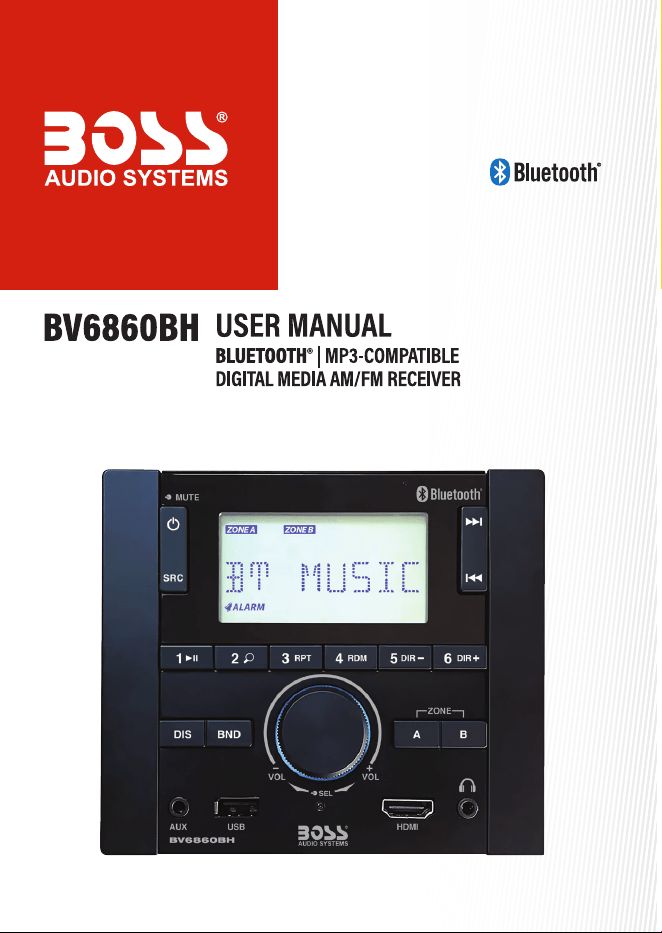

- 1 -
Thank you for purchasing this product.
Please read the instructions carefully, so you will know how to operate your product
properly. After you have nished reading the instructions, keep this document in a safe
place for future reference.
Table of Contents
Introduction ........................................................................................................................ 2
Package Contents ............................................................................................................. 2
Important ........................................................................................................................... 2
Control Panel ..................................................................................................................... 4
Mounting on Dashboard ................................................................................................... 6
Wiring ................................................................................................................................ 6
Power on/off ......................................................................................................................8
Set Clock ........................................................................................................................... 8
Adjust Volume .................................................................................................................... 8
Adjust Screen Brightness .................................................................................................. 9
Reset the Unit .................................................................................................................... 9
Listen to Radio ................................................................................................................. 10
Bluetooth Streaming ........................................................................................................ 11
Play Audio from USB ....................................................................................................... 12
Set an Alarm Timer ......................................................................................................... 14
Set a Sleep Timer ........................................................................................................... 14
Sound Settings ................................................................................................................ 15
Preference Settings ......................................................................................................... 16
Audio Output .................................................................................................................... 16
Audio Input ...................................................................................................................... 17
Pass-through Connection ................................................................................................ 18
Troubleshooting ............................................................................................................... 19
Specications .................................................................................................................. 20
- 2 -
Introduction
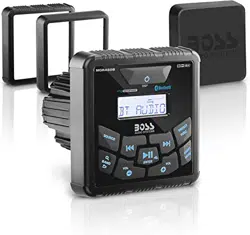
The product is designed to be installed in an RV, Motorhome, or any panel that can
accommodate the mounting hole (W x H): 3.86” x 3.98” (98 x 101 mm), and the mounting
depth: 2.64” (67 mm).
The product has an integrated four-channel amplier. You can stream audio from a mobile
phone to this product via Bluetooth. You can also play music les stored in a USB ash
drive, and music from your mobile phone or a playback device (e.g. a CD or an external
media player) via audio input.
Please be sure to read the manual thoroughly to become familiar with all the features from
volume A/B zones to sleep timer and everything in between.
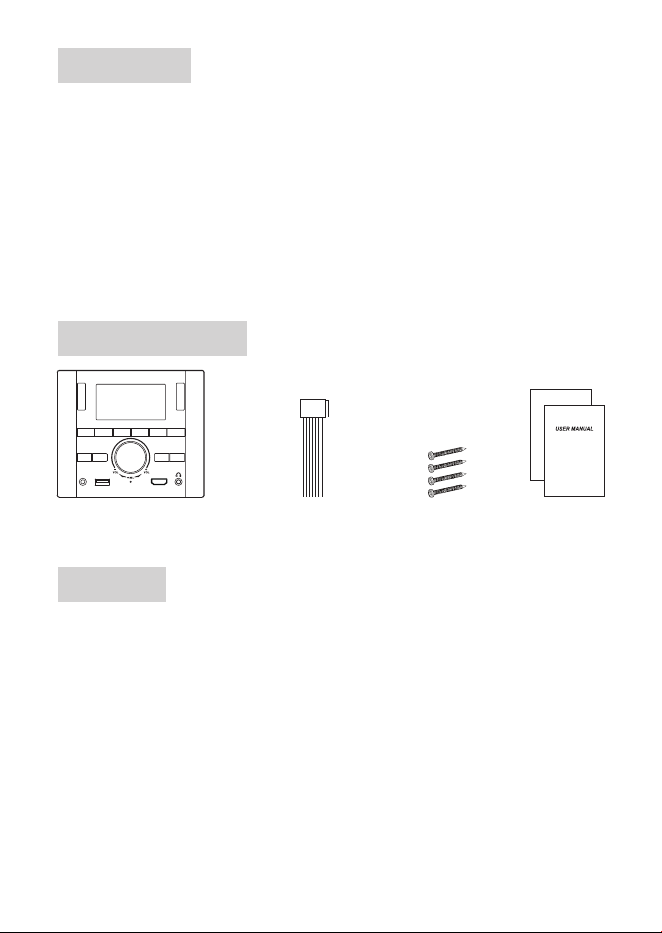
Package Contents
Multi-Media Receiver
x2
1x Power Wire Harness
1x Speaker Wire Harness
4x Screws User Manual &
Warranty Card
Important
Please read and understand all instructions before you use your product. If you do
not follow the instructions in this manual, we are not responsible for injury or damage
resulting from improper handling. This will also void the warranty.
Important Safety Precautions
• Be sure to observe the following guidelines:
- Do not increase speaker volume so high that you cannot hear what is around you.
- Use caution or temporarily discontinue use in potentially hazardous situations.
• Do not make any adjustment on the product when driving or in other situations
where distractions can be hazardous. Responsible and safe driving is your primary
responsibility when operating a vehicle.

- 3 -
• Start volume at a low setting then gradually increase the volume until you can hear it
comfortably, without sound distortion or ear discomfort.
• In the event of smoke, strange noise or odor emitted from the product or any other
abnormal operational signs appearing on the product, disconnect the product from the
power supply. Discontinue use and contact your dealer or our technical support. Using
the product in this condition may result in permanent damage to the system.
• Servicing must only be carried out by a technician. Contact our technical support for
any service questions.
Installation Precautions
• WARNING: Always consult a professional installer.
• Installation must be performed by a professional. Contact our technical support for any
installation questions.
• Use only the installation parts provided with the product.
• Before installation, disconnect the negative terminal of the vehicle battery to prevent
damage to the product, re, and/or possible injury.
• The positive battery terminal must be connected to the wires through a minimum 15A
fuse (not included). This can prevent a short circuit.
• The length of the ground cable should be as short as possible. Connect the ground cable
to a metal part of your vehicle. If your vehicle does not have a grounded chassis frame,
connect the ground cable to the battery’s negative terminal.
The metal surface where the ground cable is connected must be free of paint, dirt and
rust. The ground cable must be rmly fastened with a screw or bolt. If extending the
ground cable, make sure to use a high quality cable with a proper gauge rating.
• Replace the old fuse with the new one of the same rating.
• Observe the safety and operating instructions of the devices which are connected to
the product.
Care of the Environment
Do not throw away the product with normal household waste at the end of its life. Follow
your local laws when disposing of electronic products. By doing this, you help preserve the
environment.
- 4 -
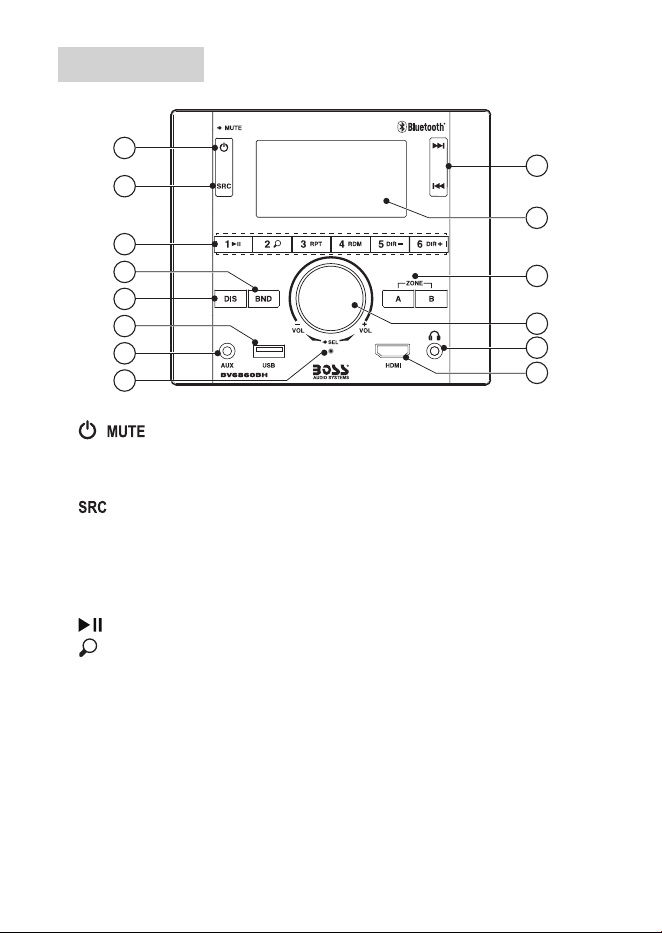
Control Panel
14
13
12
9
1
2
3
5
4
7
6
11
10
8
1 /
• Press briey to power the unit on; press and hold to power the unit off.
• When powered on, press briey to mute or restore volume.
2
• Select a source: Radio, Bluetooth, USB, AUX IN 1 and AUX IN 2
AUX IN 1 for the front 3.5 mm audio input, AUX IN 2 for the rear RCA audio input.
USB source is not selectable if no USB ash drive is connected.
3 Numeric Preset Buttons (1-6)
• : For USB/Bluetooth source, start, pause or resume play.
• : For USB source, press to play the rst ten seconds of each le; press and hold to
enter le searching mode.
In Bluetooth source, press and hold to disconnect or re-connect Bluetooth connection.
• RPT: For USB source, select a repeat play mode.
• RDM: For USB source, turn on or off random play.
• DIR +/-: For USB source, select the next or previous le folder.
4 BND
• Select a radio band (FM1/FM2/FM3/AM1/AM2); hold down to auto search and store
radio stations in FM or AM band.

- 5 -
5 DIS
• Press to switch between clock and current status display.
• Press and hold to select screen brightness options: High or Low.
6 USB Port
• Audio input from a USB ash drive.
• Charge a USB device (e.g. a mobile phone).
7 AUX Input (3.5 mm)
• Audio input from a playback device (e.g. a mobile phone or MP3 player).
8 Reset Button
• Use a pin to press the button. Reset the unit if the unit fails to function normally.
9 HDMI Port (Input)
• Connect to the HDMI output on a digital device (e.g. a DVD or game console).
The unit’s front and rear HDMI ports allow signals to pass through without being
processed.
10
• 3.5 mm audio output. Connect to your headphones.
11 Function knob
• Rotate to adjust volume, or to select menu options/setting values.
• Press to enter the sound setting options; press and hold to enter the preference
setting options.
12 ZONE A/B
• Press to enter ZONE A or ZONE B volume setting mode.
• Press and hold to mute or restore ZONE A or ZONE B volume (ZONE A controls
volume of the front speakers, subwoofer, headphones, ZONE B for the rear speakers).
13 LCD display
• Show current status, menu options or clock.
14 /
• For USB/Bluetooth source, select the previous/next audio le; hold down to fast search.
• In radio source, tune to a radio station; hold down to enter manual tuning mode.

- 6 -
Mounting on Dashboard
See the section “Installation Precautions”. (P.3)
Use only installation parts provided with the product. Using other mounting
methods may void the warranty.
Before you drill or cut any holes, investigate your vehicle’s layout very carefully.
Take special care when you work near the fuel tank, fuel lines, hydraulic lines
and electrical wiring.
1. In the dashboard, cut a mounting hole (W x H): 3.86” x 3.98” (98 x 101 mm).
2. Remove the left and right trim plates from the front panel.
3. Fasten the unit to the dashboard with four supplied screws. Then replace the trim plates.
Cutout (W x H): 3.86” x 3.98” (98 x 101 mm)
Right trim plate
Left trim plate
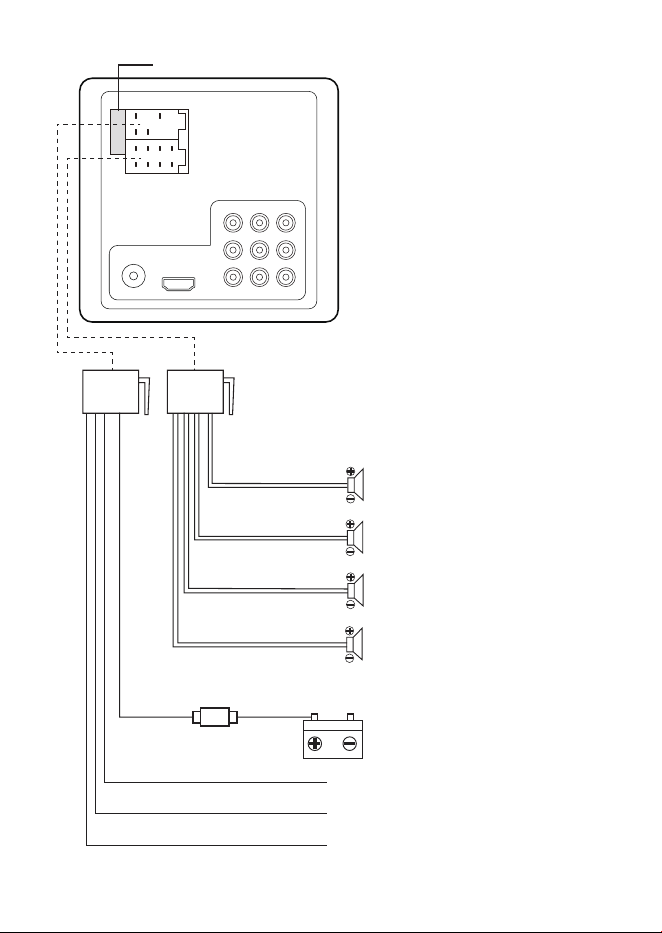
Wiring
See the section “Installation Precautions”. (P.3)
Disconnect the negative terminal of the vehicle battery prior to wiring.
Connect the unit to a 12VDC battery and negative ground only.
To prevent a short circuit, the positive battery terminal must be connected to the
wires through a fuse (minimum 15A).
Never ground or short the speaker wires.
Insulate all bare wires and unconnected wires with electrical tape.
- 7 -
V-OUT
ANT
HDMI
10
V-IN
FR-OUT
FL-OUT
RL-OUT
RR-OUT R-IN
L-IN
SUB
Pre-amp audio outputs
Connect the following audio outputs to
the audio inputs on an amplier.
• FR-OUT: front right speaker output
• FL-OUT: front left speaker output
• RR-OUT: rear right speaker output
• RL-OUT: rear left speaker output
• SUB: subwoofer output
V-IN/ R-IN/ L-IN (audio/video input)
To video/audio output on a playback
device (e.g. a DVD).
V-OUT (video output)
To video input on a monitor (e.g. a TV)
HDMI (output)
To HDMI input on a monitor (e.g. a TV)
ANT
To FM/AM radio antenna (not included)
To power terminal on an optional amplier
Purple
Fuse (10A)
To accessory power switch
To vehicle’s metal frame
To rear right speaker
Purple/Black
Gray
Gray/Black
White
White/Black
Green
Green/Black
To front right speaker
To front left speaker
To rear left speaker
+12V Constant Power Supply (Yellow)
Fuse (not included)
Power Antenna (Blue)
+12V Accessory/Switch (Red)
Ground Wire (Black)
4 - 8 Ω speakers only

- 8 -
Power on/off
• To power the unit on, press briey .
- When powered on, the unit switches to the last selected source and the function knob
backlight is illuminated.
• To power the unit off, press and hold .
- When powered off, clock is displayed and the function knob backlight is off. The
screen will be kept on if the LED is set on through the preference settings.
Set Clock
1. When powered on, press and hold the function knob to access the preference setting
options.
2. When a setting option is displayed, press the function knob until the hour and minute
digits are displayed. Set the hour and minute as follows.
a. When the hour digits ash, rotate the function knob to set the hour.
b. Press the function knob to conrm. The minute digits ash.
c. When the minute digits ash, rotate the function knob to set the minute.
d. Press the function knob to conrm.
Set 12/24 hour format
• Press and hold the function knob to access the setting options, then press the function
knob until “CLOCK 12” or “CLOCK 24” is displayed, and rotate the function knob to
select the option. The setting will be saved after three seconds of button inactivity.
Display clock when powered on
• In current status display, press briey DIS. The unit will switch to clock display.
• To switch back to the current status display, press DIS again.
Adjust Volume
The unit has two separate volume controls, named ZONE A and ZONE B.
ZONE A controls volume of the front speakers, subwoofer and headphones.
ZONE B controls volume of the rear speakers.

- 9 -
Adjust volume simultaneously
1. Simply rotate the function knob to adjust two ZONEs (if neither ZONE is muted).
Adjust volume independently
1. Press briey ZONE A or ZONE B. “ZONE A” or “ZONE B” ashes on the display.
2. Rotate the function knob to adjust ZONE A or ZONE B volume.
Mute volume
• Press briey . Both ZONEs will be muted. “MUTE” is displayed.
• To mute ZONE A or ZONE B independently, press and hold ZONE A or ZONE B. Press
and hold the button again to restore the volume.
Adjust Screen Brightness
When the unit is powered on, press and hold DIS to select screen brightness: High or Low.
Set screen on/off when powered off
1. When powered on, press and hold the function knob to access the preference setting
options.
2. When a setting option is displayed, press the function knob until “LED ON” or “LED
OFF” is displayed.
3. Rotate the function knob to select “LED ON” or “LED OFF”. When “LED OFF” is
selected, the screen will be off when powered off. Otherwise, the screen will be kept on.
Reset the Unit
If the unit fails to operate properly, reset the unit. After resetting, all the settings will restore
to the default.
• In the front panel, locate the reset button right under the function knob. Then use a
pin to press the reset button. “RESET” is displayed briey. The unit will switch back to
power-on after resetting.

- 10 -
Listen to Radio
You can listen to FM and AM radio, and preset the radio stations. The preset radio stations
will be retained if the unit is disconnected from the vehicle’s battery.
Select a Radio Band
• Press BND repeatedly to select FM1, FM2, FM3, AM1 or AM2.
Tune to a Radio Station
1. Select an FM or AM radio band.
2. Press / briey. The unit will nd a station with strong reception.
- If an FM radio station with stereo signal is reached, the icon will be displayed.
3. Repeat the steps above until your nd your desired station.
To tune to a weak station
1. Press and hold / to enter manual tuning mode. “MANUAL” is displayed briey.
2. Press / repeatedly to search by frequency step until you nd a desired station
with acceptable reception.
- NOTE: Manual tuning mode will automatically exit after ve seconds of button
inactivity. “AUTO” is displayed briey.
Store Radio Stations Automatically
Each radio band (FM1/FM2/FM3/AM1/AM2) can store six radio stations.
1. In radio source, press BND to select an FM or AM band.
2. Press and hold BND for two seconds to start searching radio stations.
- All FM or AM stations will be stored in the six numeric buttons of each band.
- After all the radio stations are stored, each stored station will automatically broadcast
for ve seconds.

- 11 -
Preset a Radio Station
You can preset six radio stations in each radio band (FM1/FM2/FM3/AM1/AM2).
1. Select a radio band and tune to a radio station.
2. Press and hold a numeric button (1-6) for two seconds. The current station will be
saved in the numeric button. The current preset number is displayed.
3. Repeat the steps above to preset more radio stations.
Select a Stored/Preset Station
1. Select a radio band.
2. Press a numeric button (1-6) to select a stored/preset radio station.
- The current preset number is displayed.
- If an FM radio station is broadcast with stereo, the icon is displayed.
Bluetooth Streaming
Pair with a Mobile Phone
Before you can stream music from your mobile device to the unit, you must pair the unit with
your mobile device through Bluetooth.
1. Press SRC repeatedly to select Bluetooth source.
- “BT MUSIC” is displayed briey. Then “UNPAIRED” is displayed, and this indicates
that the unit is in pairing mode.
2. On your mobile device, enable Bluetooth and select “BOSS AUDIO BV6860BH” to pair
the unit with your mobile device. If prompted for password, input “0000” on your mobile
device.
- When the unit connects to your mobile device, the icon is displayed.
- The unit automatically connects the last paired device each time the two are powered
on. To change Bluetooth source, disconnect the Bluetooth connection on the current
mobile device, then repeat Step 2 above to pair/connect with another mobile device.

- 12 -
Playback Control through Bluetooth
1. When the unit connects to your mobile device, you can then play audio les from your
mobile device. Music will be streamed to the unit.
- Music title will scroll on the display.
- For best sound performance, set the volume of your mobile device to maximum, then
adjust the volume through control on the unit.
- NOTE: If there is distortion heard, you may need to turn the volume of the mobile
device down a level or two.
2. Control playback as follows.
• To pause or resume playback, press .
• To select the previous or next music le, press / .
• To search fast backward or forward, press and hold / .
- If there is an incoming call during playback, music will automatically pause and
resume after the call ends.
To disconnect or re-connect Bluetooth connection
• In Bluetooth source, press and hold .
Play Audio from USB
This unit can play audio les stored in a USB ash drive.
1. Insert a USB ash drive to the USB port on the unit.
2. The unit will automatically switch to USB source. “USB” ashes on the display, and audio
les from the USB device will play automatically.
- If a USB ash drive is not inserted or has no playable media, USB source will not
be selected.
- During playback, the display scrolls the following information: le name, folder name,
le format, ID3 tag (if available), track number and elapsed track time.
- To switch between USB source and other sources, press SRC repeatedly.
3. Control playback as follows.
• To pause or resume playback, press .
• To select the previous/next music le, press / .
• To search fast backward or forward, press and hold / .

- 13 -
Select Play Mode
• Press RPT repeatedly to select a play mode. The display shows the following play mode
options.
- RPT ONE: play the current track repeatedly.
1
is displayed.
- RPT FOLD: play the current music folder repeatedly.
F
is displayed.
- RPT ALL: play all the audio les repeatedly.
• Press RDM repeatedly to turn on or off random play mode.
• RDM ON: play all the audio les randomly. is displayed.
• RDM OFF: cancel random play mode.
Search by Folder
• During USB playback, press DIR +/- to select a music folder.
The display shows the selected folder name. Playback will automatically start from the
rst le in the selected folder.
• Or you may press and hold DIR +/- to skip 10 music les at a time.
The display shows the selected le. Playback will start from the selected le.
Search by Track Number
1. During USB playback, press and hold . “NUM 0000” is displayed.
2. When “NUM 0000” is displayed, rotate the function knob to select a track number.
Or directly input a track number using the numeric buttons (1-6). To input digits of 7, 8,
9 and 0, use the following buttons: BND = 7, = 8, =9, DIS = 0
Make Intro Play
1. During USB playback, press briey . When “INT ON” is displayed, the unit will play
the rst ten seconds of each music le stored in the USB ash drive.
2. To stop intro play, press again. “INT OFF” is displayed briey.

- 14 -
Set an Alarm Timer
This unit features an alarm function.
1. Make sure the clock is correctly set. (P.8)
2. When powered on, press and hold the function knob to access the preference setting
options.
3. When “ALARM ON” is displayed, press the function knob to enter alarm setting mode (if
“ALARM OFF” is displayed, rotate the function knob to select “ALARM ON”). Hour and
minute digits are displayed. Set the hour and minute as follow.
a. When the hour digits ash, rotate the function knob to set the hour.
b. Press the function knob to conrm. The minute digits ash.
c. When the minute digits ash, rotate the function knob to set the minute.
d. Press the function knob to conrm.
4. When the alarm volume option is displayed, rotate the function knob to set your desire
alarm volume level.
5. The setting will be saved after ve seconds of button inactivity.
“ALARM” will appear on the display to indicate that an alarm is activated.
Silence Alarm
When the alarm beeps, press any button on the front panel. The alarm will remain 24-hour
repeat.
TIP: When the alarm beeps, you may rotate the function knob to increase or decrease alarm
volume. The adjusted volume will be the set volume for the alarm going forward.
Deactivate Alarm
Go to the preference setting options (Step 2 above), and select “ALARM OFF”.
When alarm is deactivated, “ALARM” will disappear on the display.
Set a Sleep Timer
The unit can power off automatically after a set period of time (up to 59 minutes).
1. When powered on, press and hold the function knob to access the preference setting
options.

- 15 -
2. When a setting option is displayed, press the function knob until “SLEEP ON” is
displayed (if “SLEEP OFF” is displayed, rotate the function knob to select “SLEEP ON”).
3. When “SLEEP ON” is displayed, press the function knob to enter sleep setting mode.
Two digits are displayed and ashed.
4. When the digits are ashed, rotate the function knob to set time (in minutes). Up to 59
minutes can be set.
5. The setting will be saved after ve seconds of button inactivity.
“SLEEP” will appear on the display to indicate that an alarm is activated.
Deactivate Sleep Function
Go to the preference setting options (Step 2 above), and select “SLEEP OFF”.
When sleep function is deactivated, “SLEEP” will disappear on the display.
Sound Settings
This section helps you change the sound settings of this unit.
1. When powered on, press the function knob briey and repeatedly to select setting
options.
2. When an option is displayed, rotate the function knob to adjust values or settings. The
settings will be saved after three seconds of button inactivity, then the menu option will
automatically exit.
• BAS: Change output level for bass sound (available only when EQ is set off).
• TRE: Change output level for treble sound (available only when EQ is set off).
• BAL: Adjust left-and-right speaker volume balance.
• EQ: Select a preset sound mode (a preset equalizer setting).
• LOUD ON/OFF: Enable or disable loudness function. Enabling will boost output level of
low and high frequencies.”LOUD” is displayed when enabled.

- 16 -
Preference Settings
This section helps you change the preference settings of this unit.
1. When powered on, press and hold the function knob to access the preference setting
options. Then press the function knob briey and repeatedly to select setting options.
2. When an option is displayed, rotate the function knob to adjust values or settings. The
settings will be saved after three seconds of button inactivity, then the menu option will
automatically exit.
• ALARM ON/OFF: Set alarm on or off. (P.14)
• SLEEP ON/OFF: Set sleep timer on or off. (P.14)
• Time: Set hours and minutes. (P.8)
• LED ON/OFF: Turn screen on or off when the unit is powered off.
• BEEP ON/OFF: Enable or disable key-press tone.
• CLOCK 12/24: Select 12 or 24 hour format.
• AREA USA/EUR: Select America or Europe you are in to receive radio signal.
• DX/LOC (Distance/Local): Select “DX” when most FM stations are weak (e.g. in the
countrysides). Stations with both strong and weak signals will be received.
Select “LOC” when most FM stations are strong enough (e.g. in urban areas). Only the
stations with strong signal will be received.
• STEREO/MONO: Select stereo or mono reception. When FM signal is weak, select
mono to improve sound quality (stereo will be lost).
Audio Output
You can output audio from the unit to an external amplier or powered speakers.
1. Using RCA audio cables (not included), connect the RCA audio outputs (marked FL-
OUT/FR-OUT/RL-OUT/RR-OUT/SUB) on the rear panel to the corresponding RCA
audio inputs on an amplier or powered speakers.
2. Start playback on the unit and audio will be output to the connected device.

- 17 -
Audio Input
You can input audio from a playback device (e.g. a mobile phone, MP3 player, or CD/DVD
player) through the 3.5 mm audio input or RCA audio inputs.
Using 3.5 mm Audio Connector
1. Connect the AUX input (3.5 mm) on the front panel to the headphone jack on your
mobile phone (or MP3 player), using the following cable.
• For a mobile phone with 3.5 mm headphone jack, use a 3.5 mm audio cable (not
included).
• For a mobile phone with a USB-C port, use a USB-C to 3.5 mm audio cable (not
included).
• For an iPhone, use a lightning to 3.5 mm audio cable (not included).
2. Press SRC repeatedly to select AUX IN 1 source (AUX IN 2 for RCA audio connection).
3. Start playback on the connected device and audio will play through the unit.
- For best sound performance, set the volume of the connected device to maximum.
Using RCA Audio Connectors
1. Using RCA audio cables (not included), connect the RCA audio inputs (marked L-IN and
R-IN) on the rear panel to the RCA audio outputs on your CD/DVD players.
2. Press SRC repeatedly to select AUX IN 2 source (AUX IN 1 for 3.5 mm audio connection).
3. Start playback on the connected device and audio will play through the unit.
- For best sound performance, set the volume of the connected device to maximum.

- 18 -
Pass-through Connection
For your cable routing convenience, the unit has HDMI and RCA video input and output
connectors which allow HDMI and RCA signals to pass through the unit without being
processed.
Using HDMI Connectors
1. Using a high quality HDMI cable (not included), connect the HDMI output on your DVD
player (or game console) to the HDMI input on the unit’s front panel.
2. Using another high quality HDMI cable (not included), connect the HDMI output on the
unit’s rear panel to a monitor (e.g a TV).
- NOTE: To ensure good performance, the combined HDMI cable length should not
exceed 12 ft.
3. Your DVD player or game console is now connected to the TV through this unit. No
feature operation on the unit will affect the HDMI playback.
Using RCA Video Connectors
1. Using an RCA video cable (not included), connect the RCA video output on your DVD
player (or game console) to the V-IN video input on the unit’s rear panel.
2. Using another RCA video cable (not included), connect the V-OUT video output on the
unit’s rear panel to a monitor (e.g. a TV).
3. Your DVD player or game console is now connected to the TV through this unit. No
feature operation on the unit will affect the RCA video playback.
- 19 -
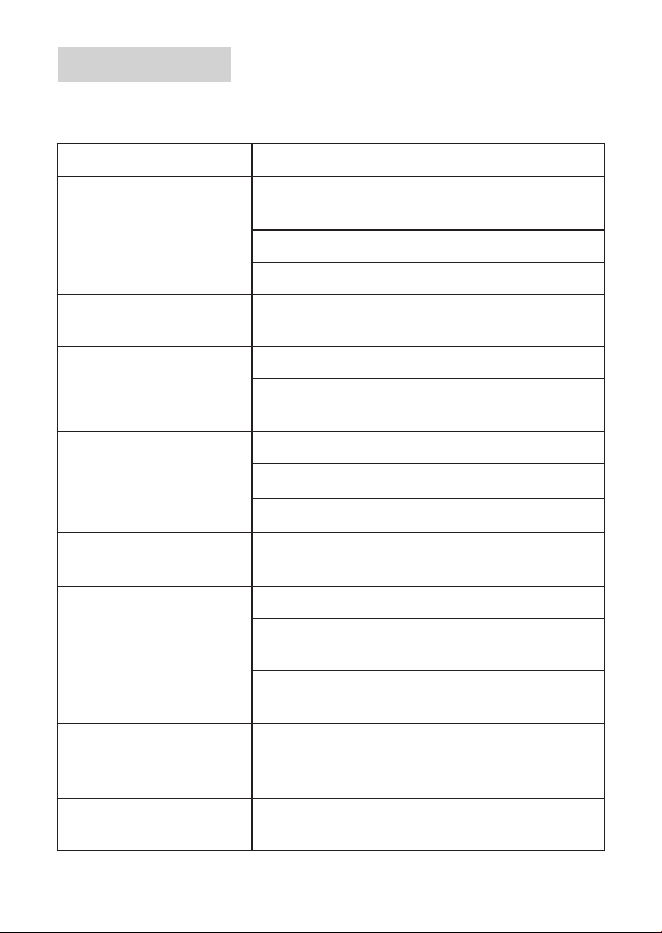
Troubleshooting
If you have problems using this product, check the following points before you request
service. If you still have a problem, contact our technical support.
Problem Solution
No power Check that the power cables (battery/ignition/ground)
are properly connected. (P.6)
Check that the vehicle ignition power is switched on.
The fuse is blown. Replace with the same rating.
No clock memory Clock will not be retained after a battery power cut. Set
the clock again. (P.8)
No sound Check that playback is not muted or paused.
Incorrect source input. Press SRC to select the correct
source.
Poor radio reception Check that a radio antenna is connected to the unit.
Fine tune the radio station. (P.10)
Disable FM local and stereo reception. (P.16)
USB not playable Files are not playable, or the USB device is not
compatible with the unit.
Bluetooth not connected Check that Bluetooth on your mobile device is enabled.
Make sure your mobile device is located in Bluetooth
range.
The unit is connected with another Bluetooth device.
Disconnect the current Bluetooth connection.
Poor audio quality from
Bluetooth connection
Move your mobile device closer to the unit, or remove
obstacles or sources of interference that are affecting
Bluetooth reception.
No response Reset the unit. Use a pin to press the reset button on
the front panel. (P.4)

- 20 -
Specications
Audio
Max output power ..................................... 40 W x 4
Speaker impedance ..................................4 - 8 Ω
Frequency response ................................. 20 Hz-20 kHz
Signal-to-noise ratio .................................. >65 dB
AUX input sensitivity ................................. 1000 mV
RCA input sensitivity .................................1000 mV
Pre-amp outputs......................................... Full range for front, rear, and subwoofer (mono)
FM Tuner
Frequency range ...................................... 87.5 – 107.9 MHz (USA)
87.5 – 108 MHz (Europe)
Frequency step ......................................... 200 kHz (USA)
50 kHz (Europe)
Usable sensitivity ...................................... 4μV (S/N=30dB)
Stereo separation ..................................... >25 dB
AM Tuner
Frequency range ...................................... 530 – 1710 kHz (USA)
522 – 1620 kHz (Europe)
Frequency step ......................................... 10 kHz (USA)
9 kHz (Europe)
Usable sensitivity ...................................... 36 dBμV (S/N=20dB)
Bluetooth
Bluetooth version ...................................... 5.0
Bluetooth proles. ..................................... A2DP, AVRCP
Bluetooth frequency .................................. 2402 - 2480 MHz
Transmission power.................................. <4 dBm
Transmission distance .............................. Up to 33 ft /10 m (line of sight)

- 21 -
USB
Compatibility ............................................. Type A, USB 2.0 (High-Speed)
File system ............................................... FAT32
USB charging ........................................... 5VDC, 1A (not for mobile phone playback)
Audio playback ......................................... MP3, WMA
General
Power supply ............................................ 12VDC
Current consumption ................................ max 10A
Fuse .......................................................... ATO type, 10A
Screen ...................................................... LCD display
Operating/Storage temperature ................ -4 to 140°F / -20 to 60°C
Dimensions
Unit Dimensions ....................................... A: 4.4” (112 mm)
B: 5.1” (129 mm)
C: 2.6” (65 mm)
Mounting depth ......................................... D: 2.64” (67 mm)
Mounting cutout ........................................ E: 3.86” (98 mm)
F: 3.98” (101 mm)
A
B
C
D
E
F
Specications are subject to change without notice.