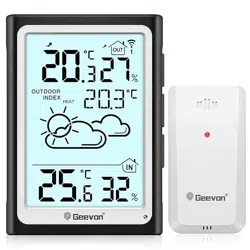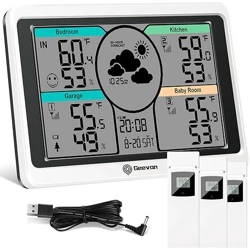
8664 User Manual
Features & Benefits:
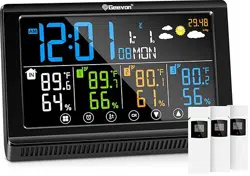
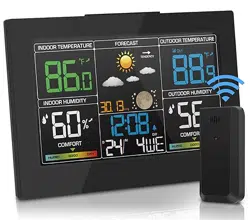
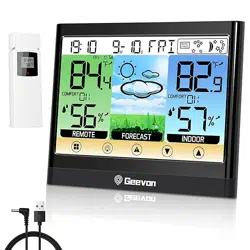
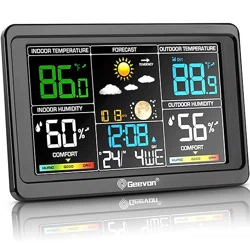
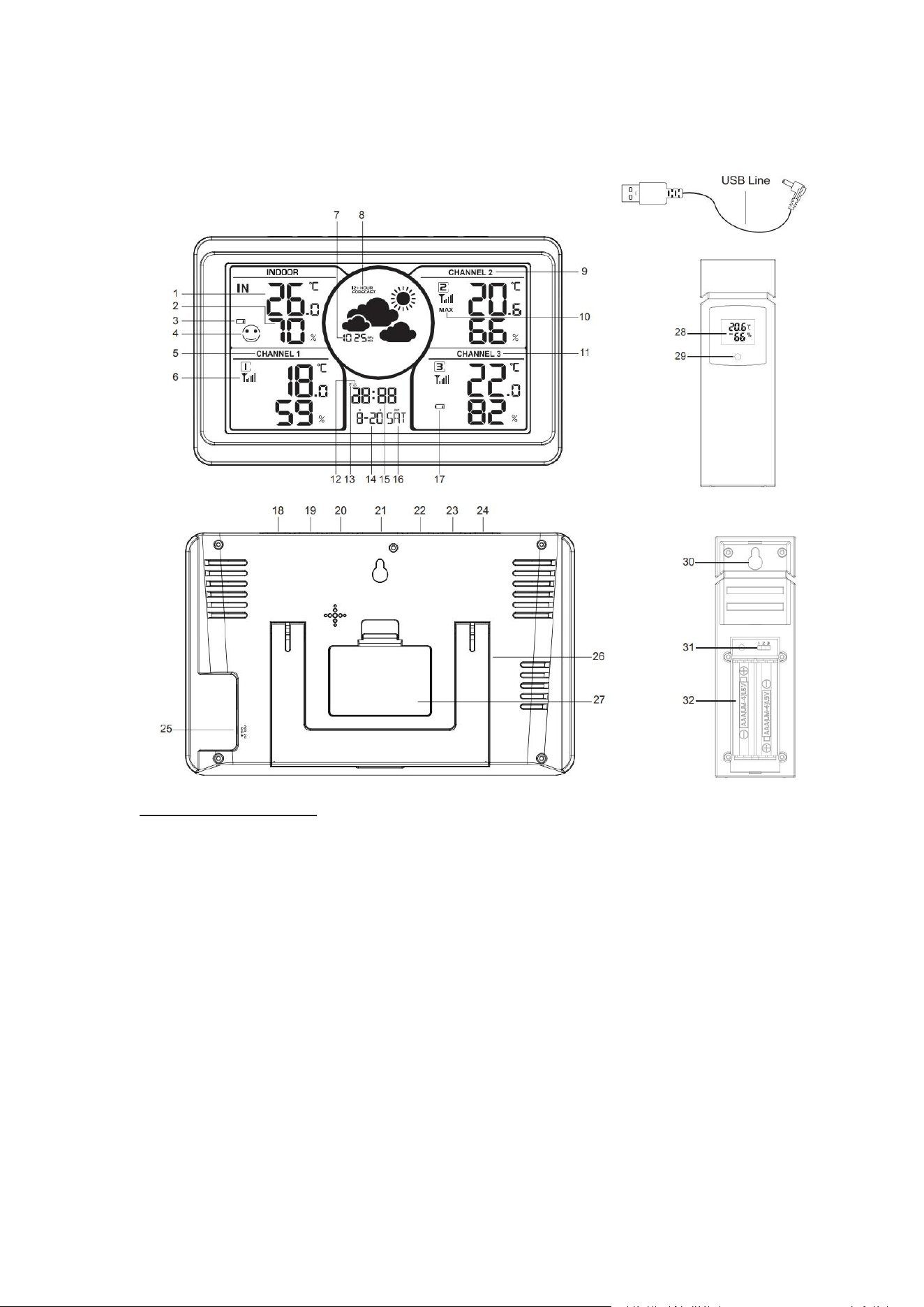
DISPLAY UNIT & OUTDOOR SENSOR
1. Indoor temperature
2. Indoor humidity
3. Display low battery indicator
4. Indoor comfort display
5. Channel 1 outdoor temperature and humidity
6. Channel 1 outdoor sensor signal strength
7. Barometer
8. Weather forecast icon
9. Channel 2 outdoor temperature and humidity
10. Channel 2 outdoor temperature and humidity MAX/MIN records
11. Channel 3 outdoor temperature and humidity
12. Alarm icon
13. Snooze icon

14. Calendar display
15. Time display
16. Weekday display
17. Channel 3 sensor low battery indicator
18. MODE button
19. UP button
20. DOWN button
21. SNZ/LIGTH button
22. MEM button
23. CH button
24. ALARM button
25. External power supply socket
26. Stand bracket
27. Battery Compartment 3xAAA (batteries not included)
28. Outdoor sensor display
29. Wireless signal indicator(Flashes when data is being sent to the display
unit)
30. Integrated hang hole
31. TX channel selector, select external sensor channel
32. Compartment 2xAAA batteries (batteries not included)
Package Contents:
1. Display Unit
2. Outdoor Sensors
3. Instructions Manual
4. USB Line
Installing or Replacing Batteries:
We recommend using high quality batteries for the best product performance.
Heavy duty or rechargeable batteries are not recommended. The outdoor sensor
requires lithium batteries in low temperature conditions. Cold temperatures can
cause alkaline batteries to function improperly.
Do not mix old and new batteries. Do not mix alkaline, standard, and/or
rechargeable batteries.
Default settings:
1. Default time:12:00(US) 0:00(EU)
2. Default date: 01/01 ,Year: 2019, date form: M/D[US],date form: D/M[EU])
3. Default week: TUE(Language: ENG, 7 languages can be selected,[US])
DIE(Language: GER, 7 languages can be selected,[EU])
4. Weather forecast: Partly Sunny
5. Default temperature: °F(US)/ °C(EU)
6.Barometer unit:mmHg(US)/hPa(EU)
7. Default alarm:AM 6:30,default snooze time: 5min.
The LCD display fully for 3 seconds when changing new battery or resetting,
then with a sound BI into the normal state, after testing temperature, receiving

RF for 3 minutes.
Display / Keys Details:
There are totally 7 keys for the alarm clock, they are included: MODE, UP, DOWN,
SNZ/LIGHT,MEM,CH,ALARM.
1. MODE button
Press and hold for 3 seconds during normal mode to enter setting mode.
2. UP buttons:
a. Press to increase the setting value during setting.
b. Press and hold 3 seconds button for fast adjust during setting mode.
c. In normal display mode, press this button to switch between Celsius and
Fahrenheit at any time
3. DOWN button:
a. Press to decrease the setting value during setting.
b. Press and hold 3 seconds button for fast adjust during setting mode.
c. In normal display mode, press this button to switch between 12H and 24H at
any time.
4. SNOOZE/LIGHT button:
a. Press this button to open backlight for 10 seconds (without USB line).
b. Press to activate the snooze function when alarming
c. Press this button to open or close backlight (with USB line).
5. MEM button
a. Press the MEN button to display max/min temperature/humidity.
b. Press and hold the MEM button 3 seconds to clear the record of MAX/MIN
temperature and humidity when display shows MAX or MIN temperature and
humidity.
6. CH button:
a. In normal display mode, press and hold to search RF.
7. ALARM button
a. Press the ALARM button to show alarm time.
b. In alarm mode, press the ALARM button to open or close time alarm.
c. Press and hold for 2 seconds enter alarm setting mode.
Manually Setting the Time, Date & Units:
Press " MODE " button to confirm your setting, the the 12/24 hour mode starts
to flash, use“UP” or “DOWN”buttons to set the correct 12/24 hour mode.
Press "SET" button to confirm your setting, the hour display starts to flash, use
“UP” or “DOWN” buttons to set the correct hour.
Press "SET" button to confirm your setting, the minute display starts to flash, use
“UP” or “DOWN” buttons to set the correct minute.
Press " MODE " button to confirm your setting, the year display starts to flash, use
“UP” or “DOWN” buttons to set the correct year.
Press " MODE " button to confirm your setting, the Month and Date icon display
starts to flash, use “UP” or “DOWN” buttons to set the date display on Month/Date
or Date/Month
Press " MODE " button to confirm your setting, the month display starts to flash, use
“UP” or “DOWN” buttons to set the correct month.
Press " MODE " button to confirm your setting, the date display starts to flash, use
“UP” or “DOWN” buttons to set the correct date.
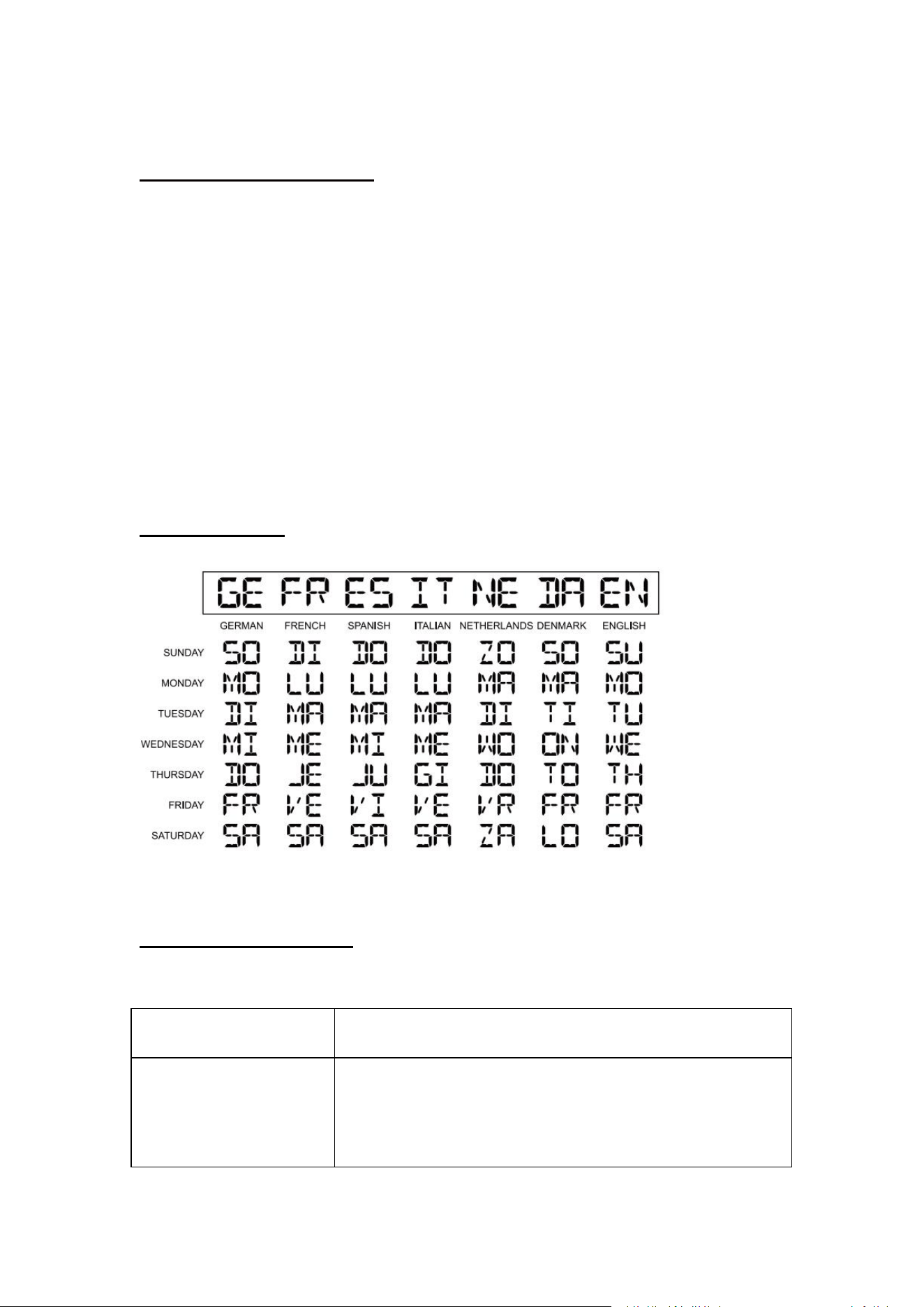
Press "MODE" button to confirm your setting, the language start to flash, use “UP”
or “DOWN” buttons set the correct language.
Press " MODE " button to confirm your setting, the pressure units start to flash, use
“UP” or “DOWN” buttons set the correct units.
Press " MODE" button to confirm your setting and to end the setting procedures,
enter the normal mode.
NOTE: You will automatically exit settings mode if no buttons are pressed for 20
seconds. Enter settings mode again at any time by pressing and holding theMODE
SET button for 3 seconds.
Setting the Alarm:
a. Press the ALARM button to enter alarm mode.Use “UP” or “DOWN” buttons to
open and close alarm.
b.Under the alarm mode,press and hold ALARM button for 3 seconds, the
icon starts to flash, use “UP” or “DOWN” buttons to switch the weekdays(
)
or
weekend( ) alarm time.
c.Press and hold the ALARM button,the hour display starts to flash, use
“UP” or “DOWN” buttons (press and hold to fast adjust) to set the correct hour.
d.Press the ALARM button to proceed to the alarm minute preference. Press the
“UP” or “DOWN” buttons (press and hold to fast adjust), press the ALARM button
again to exit alarm settings.
e. When the alarm is in operation it will begin beeping with one short beep and
continue with many short beeps if the alarm rings longer than 20 seconds. You can
snooze the alarm for 5 minutes by pressing the SNZ/LIGHT button.
Indoor / outdoor temperature and humidity
1. Indoor temperature :0°C ~ 50°C
2. Outdoor temperature -40°C ~ 70°C , display LL.L when below -40°C and display
HH.H when higher than 70°C.
3. Indoor humidity range: 1%-99%
4. Outdoor humidity range: 20%-95%, display 20% when below 20% and display
95% when higher than 95%.
5. When alarm ringing, temperature and humidity test will be stopped.
Accuracy:
1. Temperature accuracy:
-40°C ~ -20°C: ± 4°C
-20°C ~ 0°C: ± 2°C
0°C ~ +50°C: ±1°C
Note: when the temperature in 50°C ~ 70°C range, the temperature is only for
reference.
Humidity accuracy: +/- 5 % RH (@25°C , 30%RH to 50%RH);+/- 15 % RH
(@25°C ,20%RH to 29%RH, 51%RH to 95%RH).
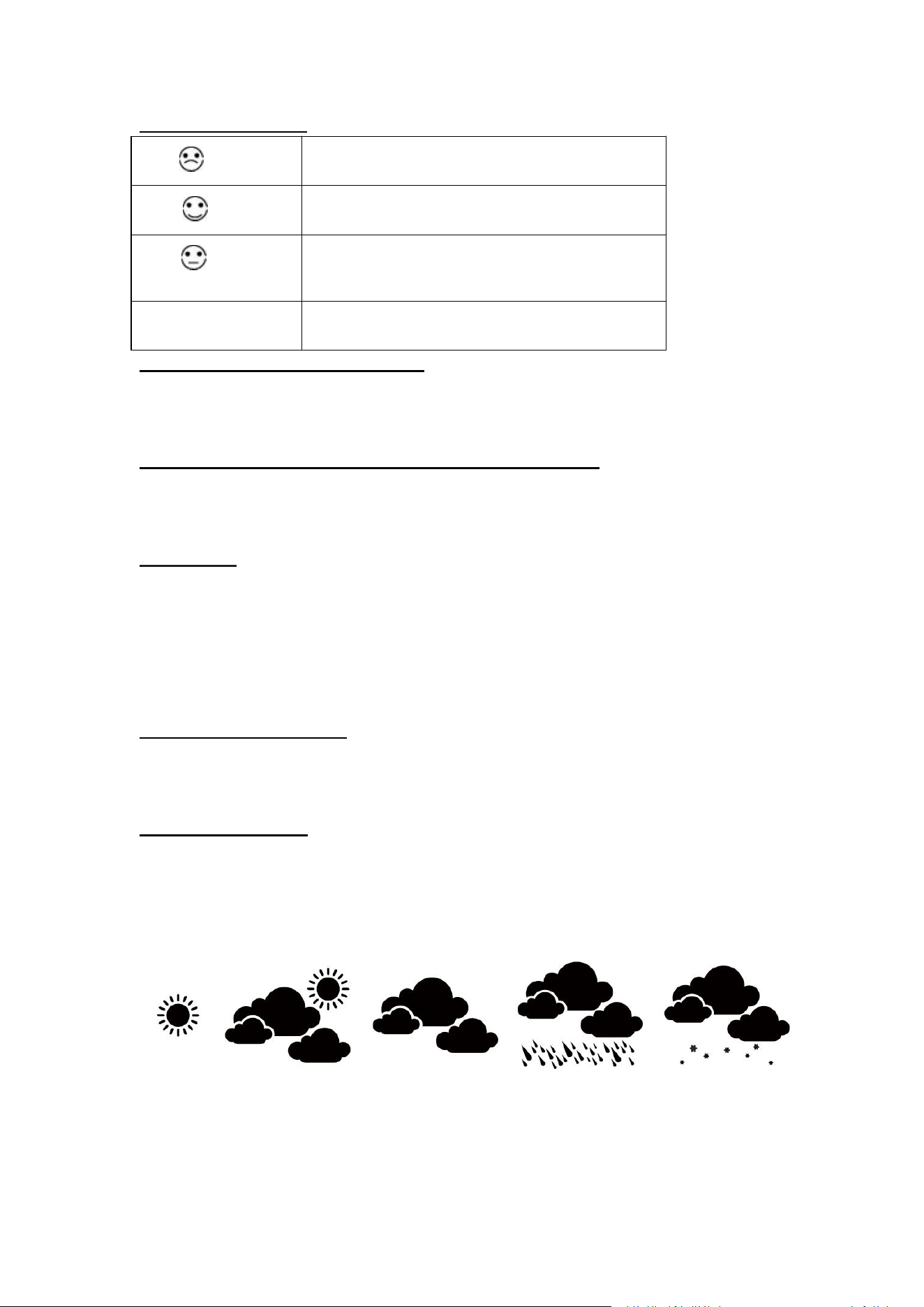
Comfortable level:
DRY
Indoor humidity < 40%
COM
Indoor temperature is between 20°C to 25°C
and indoor humidity is between 40% to 70%
WET
Indoor humidity > 70%
NOT DISPLAY
Indoor temperature is outside 20°C to 25°C
and indoor humidity is outside 40% to 70%
Setting the Temperature Units:
To switch the temperature measurement between Celsius and Fahrenheit, press the
“UP” button which is also the C/F option button. You can switch between Celsius and
Fahrenheit at any time (except when setting other setting options.)
Checking the MAX/MIN temperature and humidity
a. Press the “MEM” button to check MAX/MIN temperature and humidity.
b. Press and hold the “MEM” button to clear the record of MAX/MIN temperature and
humidity when display shows MAX or MIN temperature and humidity.
Back Light:
When the display unit is powered by battery only the back light will be off to
preserve the battery. Press the SNZ/LIGHT button to turn the back light on
for 10 seconds.
When the display unit is powered by the USB line the back light will always
remain on. Press the SNZ/LIGHT button to adjust the brightness of the back
light between HIGH /LOW/ OFF.
Low Battery Indicator:
If the low battery indicator is displayed on the LCD for either the outdoor sensor
or the display unit, immediately change the batteries to prevent disruptions in
communications of the devices.
Weather Forecast:
a. The unit predicts weather condition of the next 12-24 hours based on the
change of atmospheric pressure. The weather forecast is based on atmospheric
pressure change and is about 70-75% correct.
The following are icons that will show:
Sunny Partly sunny Cloudy Rainy Snowy
NOTE: After setting up, weather forecast readings should be disregarded for the
next 24 hours. This will allow sufficient time for the weather station to collect data
and therefore result in a more accurate forecast. Common to weather forecasting,
absolute accuracy cannot be guaranteed. The weather forecasting feature is
estimated to have an accuracy level of about 75% due to the varying areas the
weather station has been designed for use in.
Placement of the Device:
Proper placement of both the display unit and the outdoor sensor are critical to the
accuracy and performance of this product.
DISPLAY UNIT PLACEMENT
Place the display unit in a dry area free of dirt and dust. Display unit stands up right
for tabletop/countertop use.
Important Placement Guidelines
a. To ensure accurate temperature measurement, place units out of direct sunlight,
rain, and away from any heat/moisture sources or vents.
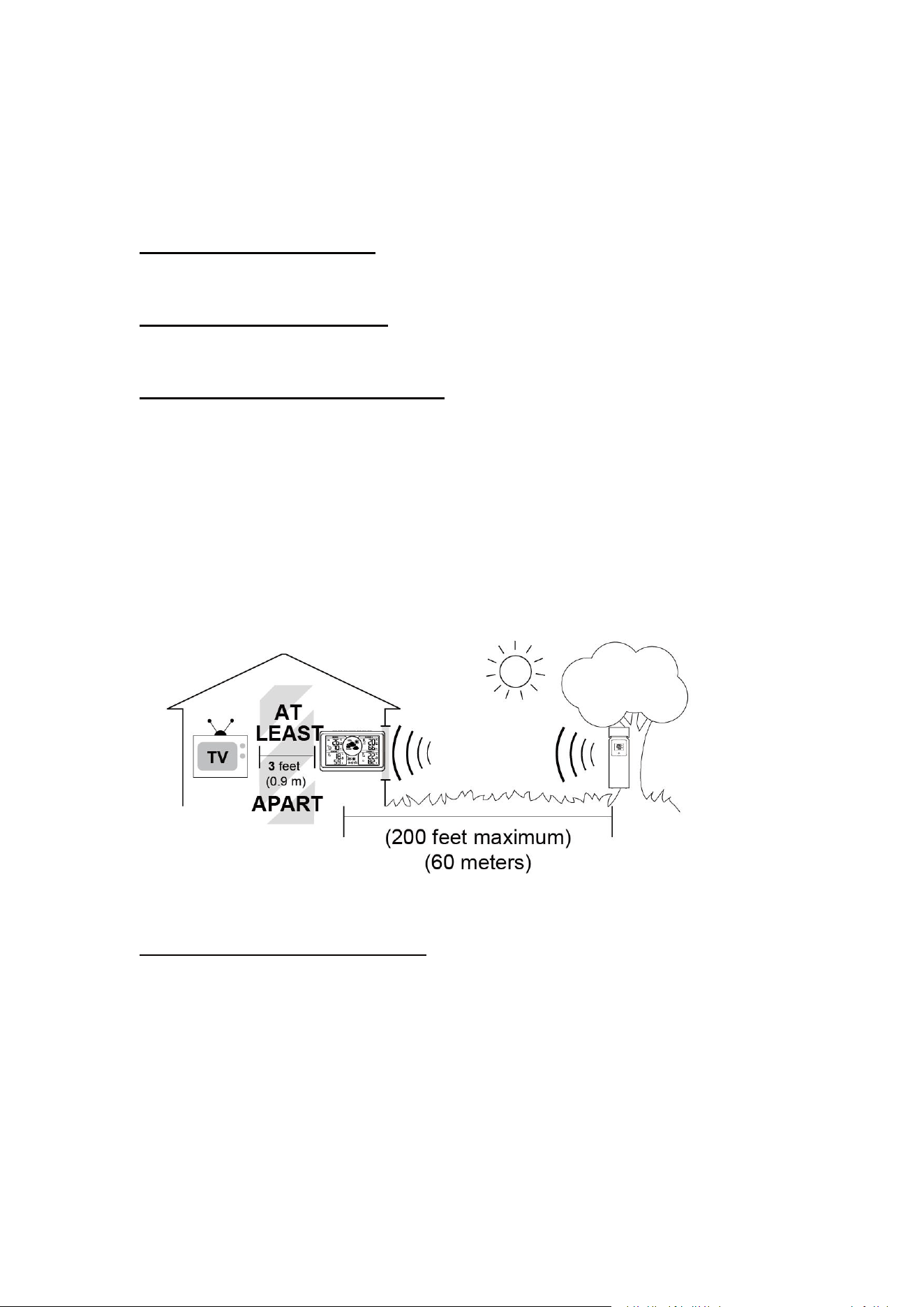
b. Display unit and outdoor sensor must be within 200ft (60m) of each other.
c. To maximize wireless range, place units away from large metallic items,
thick walls, metal surfaces, or other objects that may limit wireless
communication.
d. To prevent wireless interference, place both units at least 3ft (1 m) away from
electronic devices (TV, computer, microwave, radio, etc.)
OUTDOOR SENSOR PLACEMENT
a. The sensor must be placed outside to observe outdoor conditions. It is water
resistant and designed for general outdoor use, however, to prevent damage place
the sensor in an area which is protected from the direct weather elements and direct
sunshine. The best location is 4 to 8 feet above the ground with permanent shade
and plenty of fresh air to circulate around the sensor.
b. Display unit and outdoor sensor must be within 200(60m) feet of each other.
c. In order to maximize the wireless range, place units away from large metallic
items, thick walls, metal surfaces or other objects that may limit wireless
communications.
d. To prevent wireless interferences, place both units at least 3 feet away from
electronic devices (EX: TV, computer, microwave etc.)
Outdoor Sensor Function:
a. Once the display unit has been set up and the channel synchronized with the
outdoor sensor, the display unit will begin the registration process. It can take up to
3 minutes to complete the registration, where the display unit will search for an RF
(Radio Frequency) signal from the outdoor sensor. The outdoor sensor signal
strength will show the connection strength to the outdoor sensor. If there are no
bars or if bars are not showing at its maximum strength (5 bars) try placing the
outdoor sensor or display unit elsewhere for better connection.
b. If the RF Signal was lost and not reconnected, the outdoor temperature and
humidity level will begin to flash after 1 hour of lost connection. If no connection was
found after 2 hours only a dotted line ‘ - - - ’ will be displayed in place of the
temperature and humidity level.
c.
To manually restar
t t
he RF registration, press and hold the “
CH
” bu
tto
n for 3
seconds. The display unit will now search for the RF signal for
the next 3 minutes.
Week Display:
TROUBLESHOOTING:
Problem
Possible Solution
Outdoor Reading Is Flashing or
Showing Dashes
Flashing of the outdoor reading is generally an indication of wireless
interference. This weather station is arranged to communicate with three
external sensors.

1. Bring both of the sensor and display indoors, side by side and remove
batteries from each.
2. Power the weather station as described in Getting started.
3. Insert the batteries in the external sensor. Set the selector in the outdoor
sensor to the desired transmission channel (1, 2, or 3). Automatic data will be
transmitted.
No outdoor sensor reception
1. Reload the batteries of both outdoor sensor and main unit. (Please refer to
the SENSOR SETUP section.)
2. Press and hold the CH button to receive RF signal.
3. Always make sure the channel chosen on the outdoor sensor is different
from each other(channel 1, channel 2, channel 3).
4. Relocate the main unit and/or the outdoor sensor. The units must be
within 200 ft (60m) of each other.
5. Make sure both units are placed at least 3 ft (1m) away from electronics
that may interfere with the wireless communication (such as TV, microwave,
computer, radio, etc).
6. Do not use heavy duty or rechargeable batteries. The outdoor sensor
requires lithium batteries in low temperature conditions. Cold temperatures
would cause alkaline batteries work improperly.
7. Do not mix old and new batteries.
Inaccurate
temperature/humidity
1. Temperature accuracy:
-40°C ~ -20°C: ± 4°C
-20°C ~ 0°C: ± 2°C
0°C ~ +50°C: ±1°C
2. Humidity accuracy:
+/- 5 % RH (@25°C , 30%RH to 50%RH); +/- 15 % RH (@25°C ,20%RH to
29%RH, 51%RH to 95%RH)
3. When it is first stalled,it takes at least 1 Hour to have accurate temperature
and humidity data.

4. Make sure both the main unit and sensor are placed out of direct sunlight
and away from any heat sources, vents or moisure sources.
5. Do not tamper with the internal components.
Backlight doesn't stay on
Adjutable and continuous backlight requires to plug in the weather station
with USB line.
Care and maintenance
1. To maximize wireless range, place units away from large metallic items,
thick walls, metal surfaces, or other objects that may limit wireless
communication.
2. Please immediately change the batteries if the low battery indicator is
displayed on the LCD for sensor.
3. Do not clean any part of the product with benzene,thinner or other solvent
chemicals. When necessary, clean it with a soft cloth.
4. Never immerse the product in water. This will damage the product.
5. Do not subject the product to extreme force, shock, or fluctuations in
temperature.
"HH/LL" display in indoor and/or
outdoor temperature
If the temperature is higher than the detection range, HH will display on
screen for indication; if lower than the detection range, LL will display on
screen for indication.
If your Geevon product does not operate properly after trying the troubleshooting steps, contact the seller on
your order page or shoot an email to : support@geevon.com.