The 2N TELEKOMUNIKACE a.s. is a Czech manufacturer and supplier of
telecommunications equipment.
The product family developed by 2N TELEKOMUNIKACE a.s. includes GSM gateways,
private branch exchanges (PBX), and door and lift communicators. 2N
TELEKOMUNIKACE a.s. has been ranked among the Czech top companies for years
and represented a symbol of stability and prosperity on the telecommunications
market for almost two decades. At present, we export our products into over 120
countries worldwide and have exclusive distributors on all continents.
2N is a registered trademark of 2N TELEKOMUNIKACE a.s. Any product and/or other
®
names mentioned herein are registered trademarks and/or trademarks or brands
protected by law.
2N TELEKOMUNIKACE a.s. administers the FAQ database to help you quickly find
information and to answer your questions about 2N products and services. On www.
faq.2n.cz you can find information regarding products adjustment and instructions for
optimum use and procedures „What to do if...".
2N TELEKOMUNIKACE a.s. hereby declares that the 2N product complies with all
basic requirements and other relevant provisions of the 1999/5/EC directive. For the
full wording of the Declaration of Conformity see the CD-ROM (if enclosed) or our
website at www.2n.cz.
The 2N TELEKOMUNIKACE a.s. is the holder of the ISO 9001:2009 certificate. All
development, production and distribution processes of the company are managed by
this standard and guarantee a high quality, technical level and professional aspect of
all our products.

2N TELEKOMUNIKACE a.s., www.2n.cz4/135
3. 2N® Indoor Touch 2.0 Configuration
3.1 Factory Reset
3.2 Home Screen
3.3 Device Configuration
3.3.1 User Settings
3.3.1.1 Device
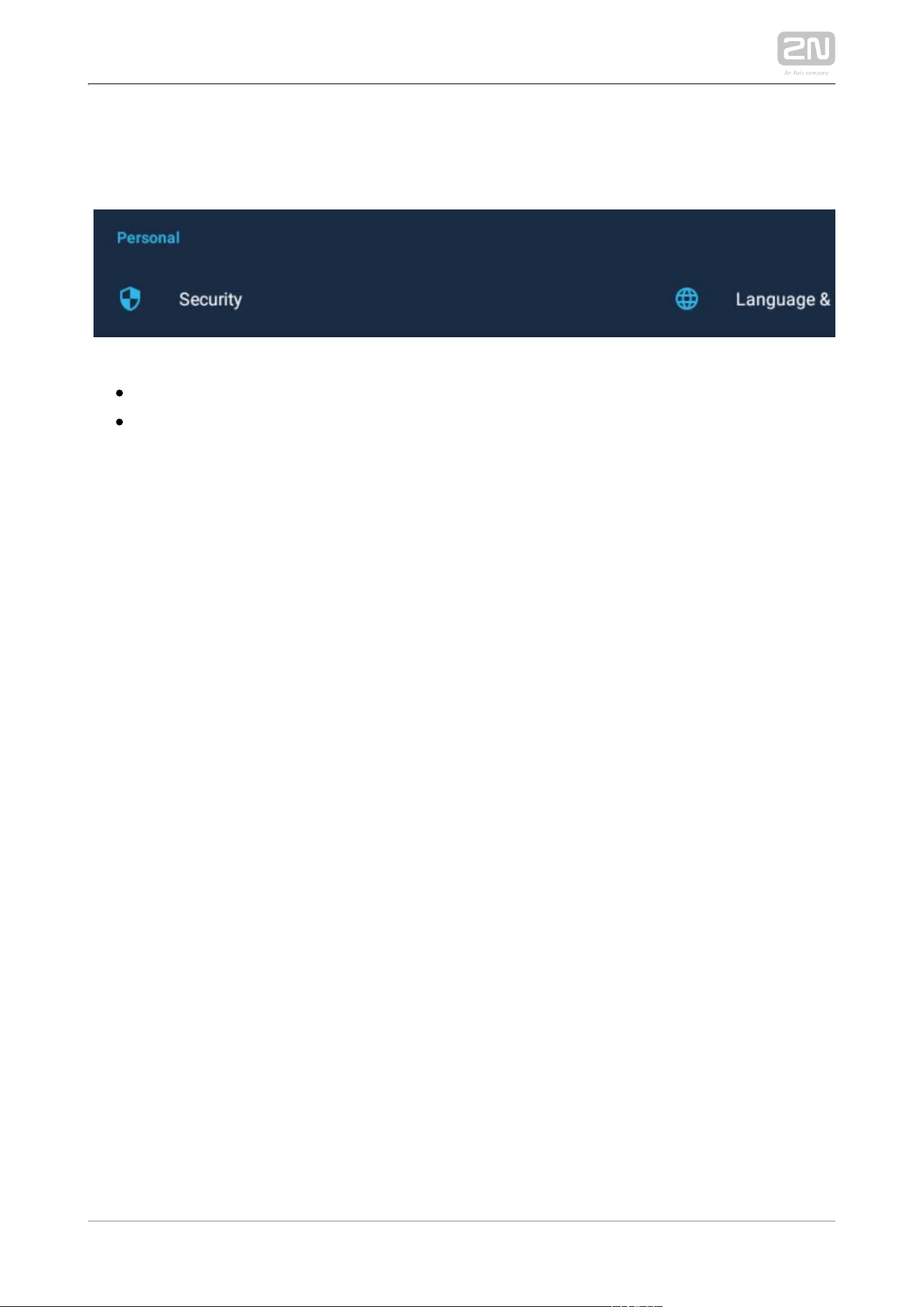
3.3.1.2 Personal
3.3.1.2.1 Security
3.3.1.2.2 Language and Input Methods
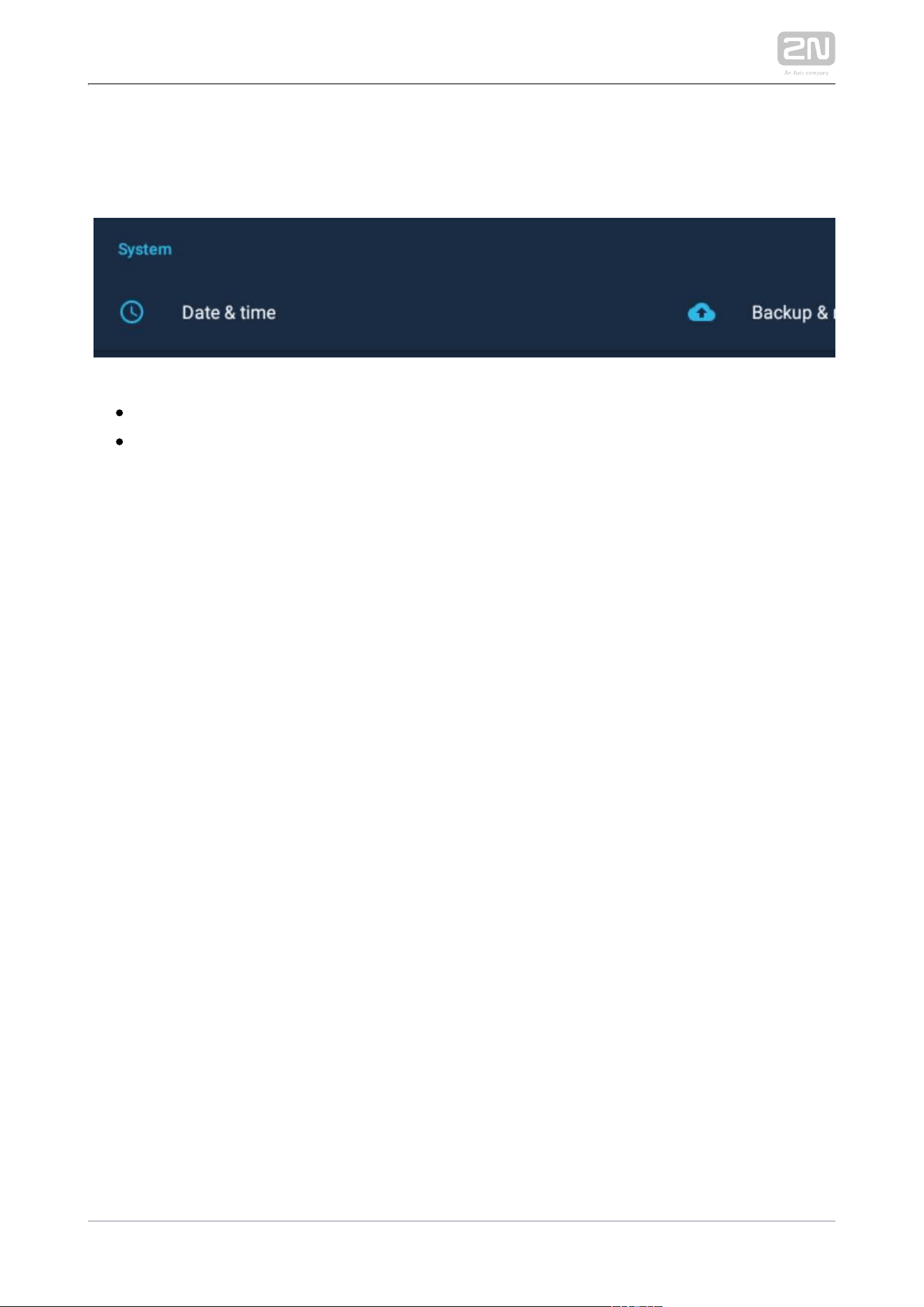
3.3.1.3 System
3.3.1.3.1 Date & Time
3.3.1.3.2 Backup & Reset
3.3.2 Administrator Settings
3.3.2.1 Device
3.3.2.2 Wireless & Networks
3.3.2.3 Security
3.3.2.4 Backup & Reset
3.3.3 Intercoms
3.3.3.1 General Settings
3.3.3.2 Call Settings
3.3.3.3 My2N/SIP Configuration
3.3.3.4 Video
3.3.3.5 Recorder
3.3.3.6 Input and Output
3.4 Device Upgrade

2N TELEKOMUNIKACE a.s., www.2n.cz5/135
4. Intercoms Applications Configuration
4.1 Application Description
4.2 Application Environment and Configuration
4.2.1 Device
4.2.2 Call Log
4.2.3 Dial Pad
4.2.4 Settings
4.3 Notifications in 2N® Indoor Touch Environment
4.4 Application Use
4.4.1 LAN Calls
4.4.2 SIP Proxy Server Calls
4.4.3 2N® Mobile Video Calls
4.5 Supplementary Information
4.5.1 Troubleshooting
5. Web Interface Configuration
5.1 Login
5.2 System Info
5.2.1 Status
5.3 Device
5.3.1 Network
5.3.2 Home Screen
5.3.3 Local Settings
5.3.4 Display
5.3.5 Audio
5.3.6 System Administration
5.4 Application
5.4.1 Intercoms
5.4.2 Settings
5.5 Limitations
6. Technical Parameters
7. Supplementary Information
7.1 Troubleshooting
7.2 Directives, Laws and Regulations - General Instructions and Cautions

2N TELEKOMUNIKACE a.s., www.2n.cz6/135
1. Product Overview
In this section, we introduce the product, outline its application 2N Indoor Touch 2.0
®
options and highlight the advantages following from its use. The section also includes
safety precautions.
Here is what you can find in this section:
1.1 Product Description
1.2 Differences between Models
1.3 Terms and Symbols
1.4 Safety Precautions

2N TELEKOMUNIKACE a.s., www.2n.cz7/135
1.1 Product Description
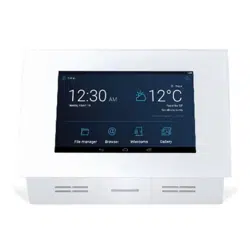
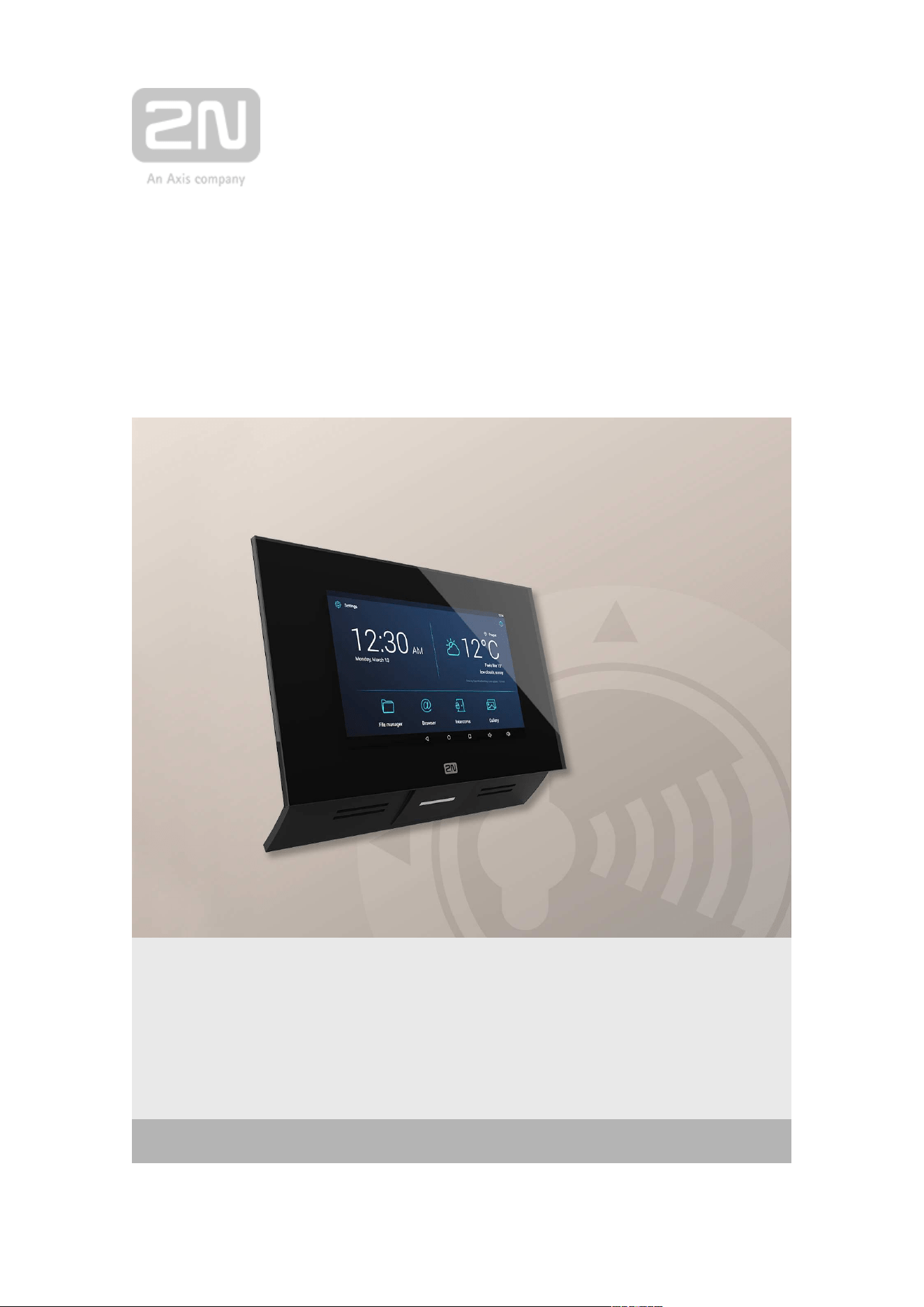
Based on the Android OS, helps load third party applications to
2N Indoor Touch 2.0
®
a device (if enabled so in the device configuration), thus improving its flexibility. It
contains a 7" colour LCD display with a capacitive touch layer, loudspeaker,
microphone and Ethernet and WiFi interfaces (depending on the Part No.) for LAN
connection. Analogue inputs and outputs are also part of the equipment.
2N Indoor Touch 2.0
®
has a factory pre-installed application –, which 2N IP Mobile
®
helps establish video calls with any other video call supporting devices (SIP + H.263
/4). Primarily, the application is intended for the family.
2N IP intercom
2N Indoor Touch 2.0
®
contains a specific user interface for an increased user comfort
and safety.
2N Indoor Touch 2.0
®
basic features:
7" LCD colour display with capacitive touch layer
Wall mounting option
LAN interface with PoE supply option
802.11bgn WiFi interface (depending on the Part No.)
Status RGB LED at front
Binary inputs and outputs for control of other devices
Android operating system with pre-installed basic applications and own user
interface
Pre-installedapplication
2N IP Mobile
®
2N TELEKOMUNIKACE a.s., www.2n.cz8/135
1.2 Differences between Models
This manual is valid for all the types. Therefore, please note that
2N Indoor Touch 2.0
®
several features described in this document are only available in selected models or
need to be activated with a licence key. If a feature is not available in all the models, a
note is added to the respective subsection.
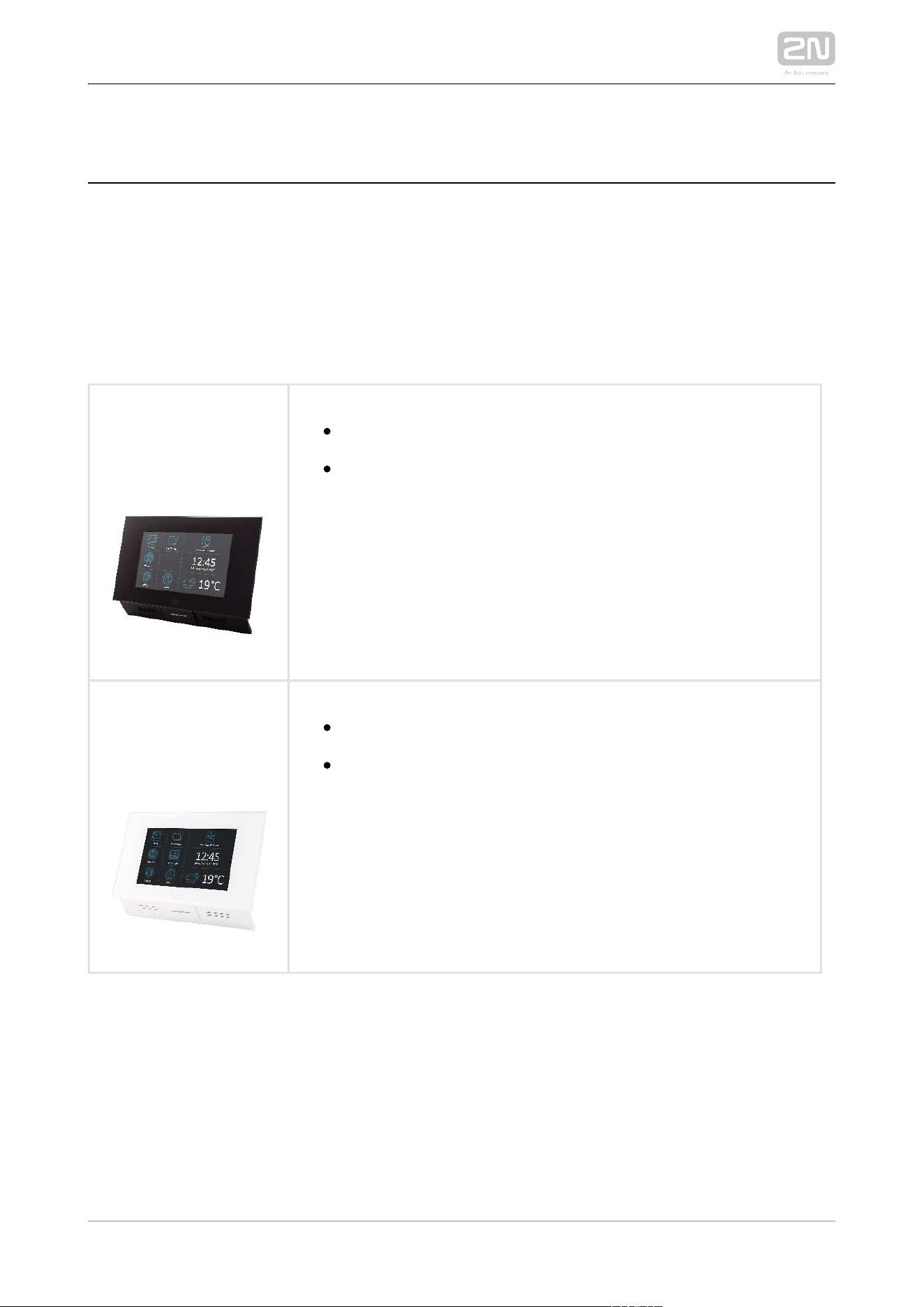
2N ® Indoor Touch Types 2.0
Part Nos.:
91378375
91378376
– black2N Indoor Touch 2.0
®
WiFi version (lower Part No.)
Part Nos.:
91378375WH
91378376WH
– white2N Indoor Touch 2.0
®
WiFi version (lower Part No.)
2N TELEKOMUNIKACE a.s., www.2n.cz9/135
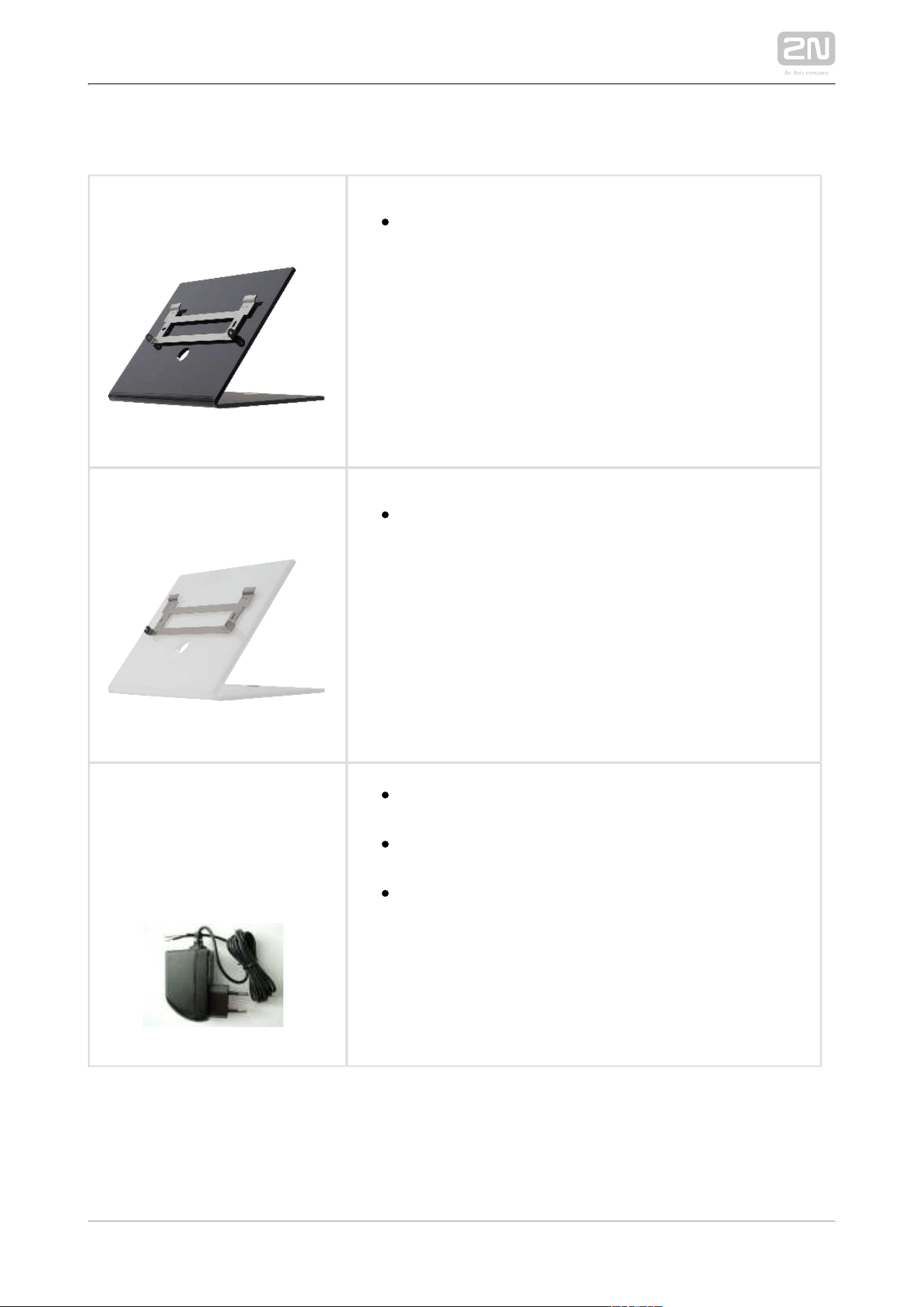
Accessories
Part No.:
91378382, 01425-001
2N Indoor Touch
®
desk stand black
Part No.:
91378382W, 01426-001
2N Indoor Touch
®
desk stand white
Part Nos.:
91378381E
91378381GB
91378381US
Stabilised 12 V / 0,75 A source to be used where PoE
supply is unavailable.
The part numbers differ in their electric socket
markings (E/GB/US).
The exclusive type of power adapter to SYS1561-0912
be used with all 2N Indoor Touch 2.0 devices.
®
2N TELEKOMUNIKACE a.s., www.2n.cz10/135
Licence
Part No.Description
91378395– the licence unlocks the HTTP API functions
HTTP API
2N TELEKOMUNIKACE a.s., www.2n.cz11/135
1.3 Terms and Symbols
The following symbols and pictograms are used in the manual:
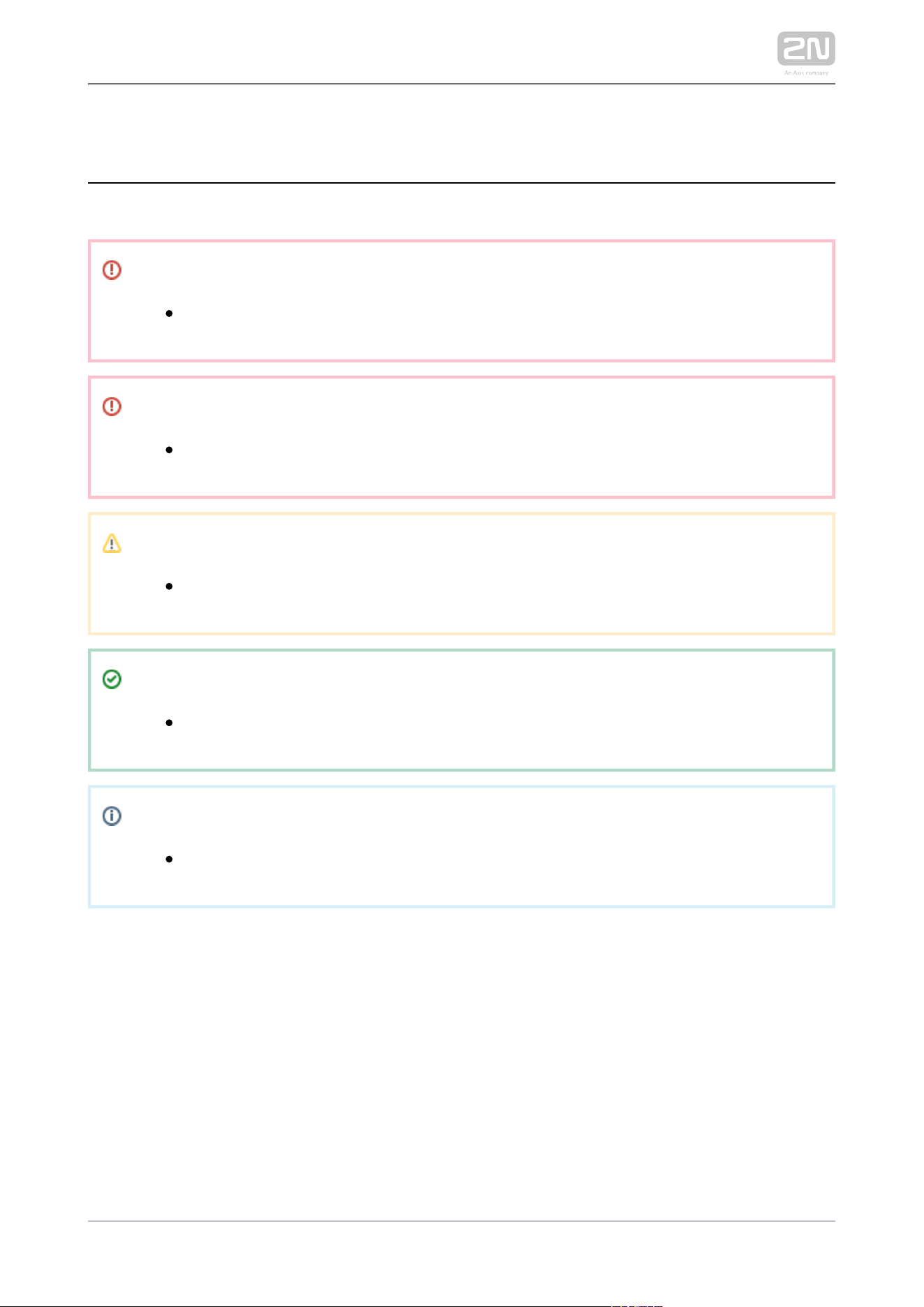
Safety
Always abide by this information to prevent persons from injury.
Warning
Always abide by this information to prevent damage to the device.
Caution
Important information for system functionality.
Tip
Useful information for quick and efficient functionality.
Note
Routines or advice for efficient use of the device.

2N TELEKOMUNIKACE a.s., www.2n.cz12/135
1.4 Safety Precautions
The manufacturer reserves the right to modify the product in order to improve its
qualities. The manufacturer continuously responds to the clients' requirements by
improving the software. Refer to the company websites for the latest
www.2n.cz2N
®
firmware and User Manual.
Indoor Touch 2.0
It is prohibited to use any transmitters, including with an
2N Indoor Touch 2.0
®
internal WiFi adapter, in areas where explosives are used, such as quarries.
WiFi adapters may affect sensitive life-saving devices in medical centres.
Therefore, it is prohibited to use devicewith an internal WiFi adapter in such
facilities.
In general, any RF energy radiation prohibition regarding WiFi antenna equipped
devices applies to device with an internal WiFi adapter.
Where necessary, a device unit can be installed at a safe distance from the
prohibited area and an Ethernet cable can only be carried to the required site.
Although the device is not intended for cars or aeroplanes, all prohibitions and
regulations relating to adapter equipped devices apply to device too.

2N TELEKOMUNIKACE a.s., www.2n.cz13/135
2. Description and Installation
This section describes the installation and correct connection.2N Indoor Touch 2.0
®
Here is what you can find in this section:
2.1 Before You Start
2.2 Brief Installation Guide
2.3 Installation Conditions
2.4 Status LED
2.5 First Startup
The device is designed solely for wall mounting. Install the device with the aid of a
holder, which is included in the product and Installation Manual delivery.
Prepare the proper wall fittings (screws and wall plugs suitable for the given wall type
and structure). Respect the local standards for installation of electronic devices onto
flammable materials while mounting!
Use a cross-point screwdriver for tightening the fitting screws on the device sides to
place properly.
2N Indoor Touch 2.0
®
2N TELEKOMUNIKACE a.s., www.2n.cz14/135
2.1 Before You Start
Product Completeness Check
Please check the delivery before starting installation:
2N Indoor Touch 2.0
®
1
2N Indoor Touch 2.0
®
1Quick Start manual
1Wall holder (screwed to device)
1Installation fittings (2 screws, 2 plugs for flush mounting)
1Microfiber screen cleaning cloth
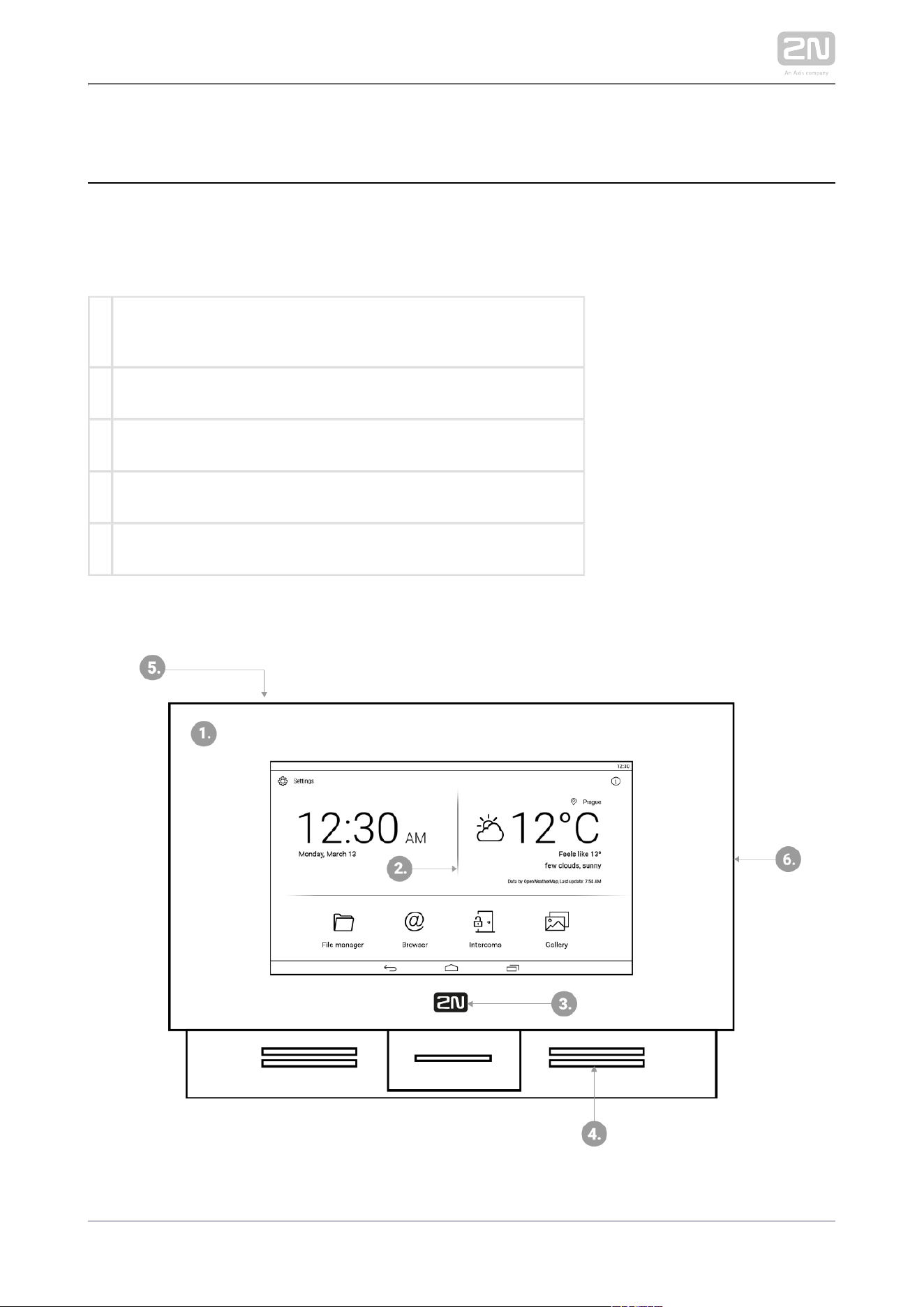
Front Layout
2N TELEKOMUNIKACE a.s., www.2n.cz15/135
1.
2.
3.
4.
5.
6.
Glass frame
LCD display with capacitive touch layer
Status RGB LED
Loudspeaker
Microphone
Micro SD card slot
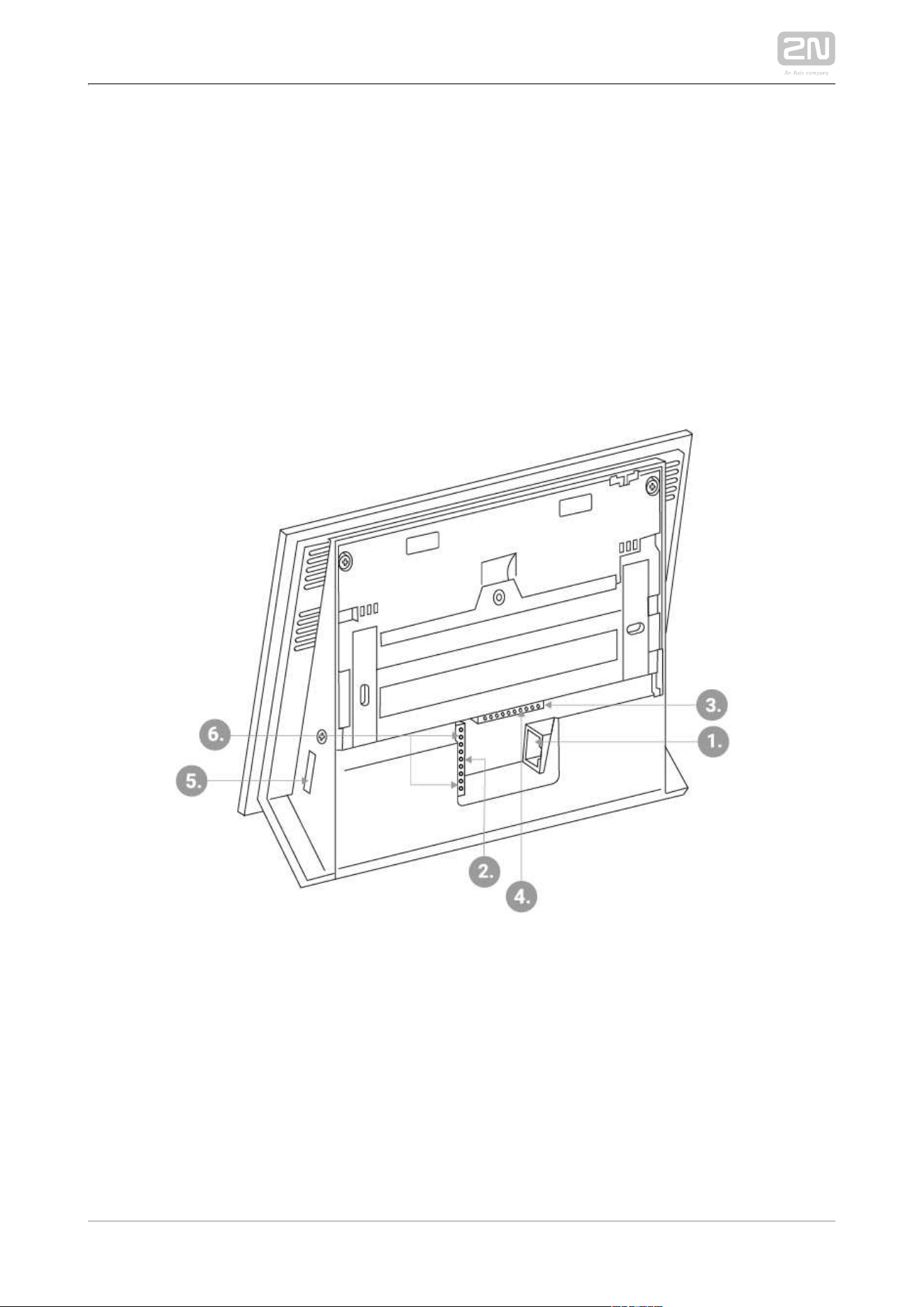
Backside Connectors
2N TELEKOMUNIKACE a.s., www.2n.cz16/135
1.
2.
3.
4.
5.
6.
RJ-45 LAN 10/100BaseT connector
12 V / 0,75 A DC supply terminal board (only if PoE is not used)
Restart/Factory reset button
Binary input/output terminal board (for application control)
Micro SD card slot
Logic inputs and outputs
Tip
External doorbell button or Relay connection guides are available at faq.
.
2n.cz
Warning
Do not remove the backside rubber sealing as it improves the accoustic
properties of the product during wall mounting.
2N TELEKOMUNIKACE a.s., www.2n.cz17/135
1.
2.
a.
b.
c.
3.
a.
b.
4.
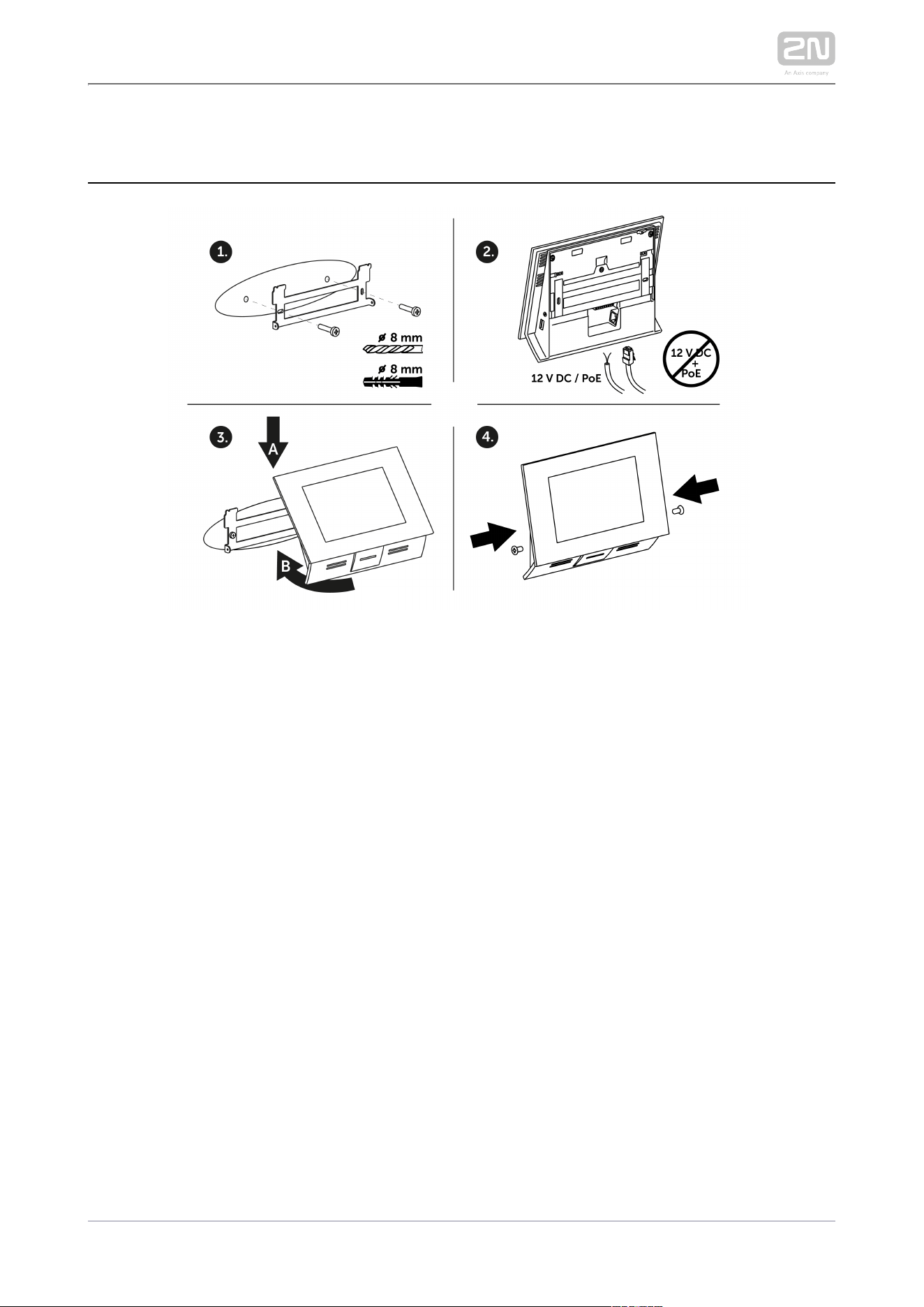
2.2 Brief Installation Guide
Install the device holder onto a vertical wall. The recommended installation
height is 120 cm above the floor. The product package includes screws and plugs
for mounting into classic bricks. Use appropriate installation fittings for a
different type of wall material!
Feed the device via an Ethernet PoE adapter (or PoE supporting Ethernet switch
/router) or a 12 V / 0,75 A DC power adapter.
With PoE supply, just snap RJ-45 into the appropriate connector.
With 12 V DC 0,75 A supply, screw the power adapter plus and minus
cables into the appropriate terminal board on the device.
Simultaneous PoE + 12 V / 0,75 A DC supply is not recommended!
Put the device on the holder as follows:
Place the device carefully from top to bottom with its bottom part slightly
away (up to 5 cm) from the wall.
When the device fits to the main holder supports, push the device bottom
part onto the wall.
Tighten the safety screws on both the device sides.

2N TELEKOMUNIKACE a.s., www.2n.cz18/135
1.
2.
3.
4.
2.3 Installation Conditions
Make sure that the following installation conditions are met:
2N Indoor Touch 2.0
®
There must be enough space for device installation.
Device is designed for vertical wall mounting (perpendicular to the floor) in the
height of up to 120 cm above the floor. If necessary, operate device in a position
other than as aforementioned for a short time only, for quick testing purposes in
a servicing centre, for example.
Exceeding the allowed operating temperature may not affect the device
immediately but leads to premature ageing and lower reliability. Refer to
for the acceptable range of operating temperatures and
6. Technical Parameters
relative humidity values.
Device is not designed for environments with increased vibrations such as
means of transport, machine rooms and so on.
Device is not intended for dusty environments and places with unstable humidity
and abrupt temperature changes.
Device may not be exposed to aggressive gas, acid vapours, solvents, etc.
Device is not intended for direct connection into the Ethernet/Internet.
Device must be connected to the Ethernet/Internet via a separating active
network element (switch/router).
Device is designed for indoor use. It may not be exposed to rain, flowing water,
condensing moisture, fog, etc.
Device cannot be operated on places exposed to direct sunshine and near heat
sources.
Keep some free space above and below device to allow air to flow and conduct
heat away.
No strong electromagnetic radiance is allowed on the installation site.
The VoIP connection must be configured properly according to the SIP and
other VoIP recommendations.
It is recommended that the power adapter be connected to the mains via a UPS
and reliable overvoltage protection.
Wall Mounting
is designed for wall mounting. Follow the steps below:2N Indoor Touch 2.0
®
Unscrew the holder-fitting screws on the device sides.
Turn the metal holder slightly aside in the upper part of the device.
Move the holder downwards.
Fit the loose holder to the wall on the installation site.
2N TELEKOMUNIKACE a.s., www.2n.cz19/135
5.
1.
2.
Put the device on the holder and tighten the safety screws.
Follow the installation instructions printed on the device package.
Power Supply Connection
You can feed as follows:
2N Indoor Touch 2.0
®
Use 12 V / 0,75 A DC power adapter (order no. 91378381E/91378381GB
/91378381US)connected to the terminal board (see the figure).
Use an Ethernet cable connected to a PoE supply or PoE supporting Ethernet
switch/router.
A successful operation is indicated by a status RGB LED or LCD display.
PoE Supply Connection
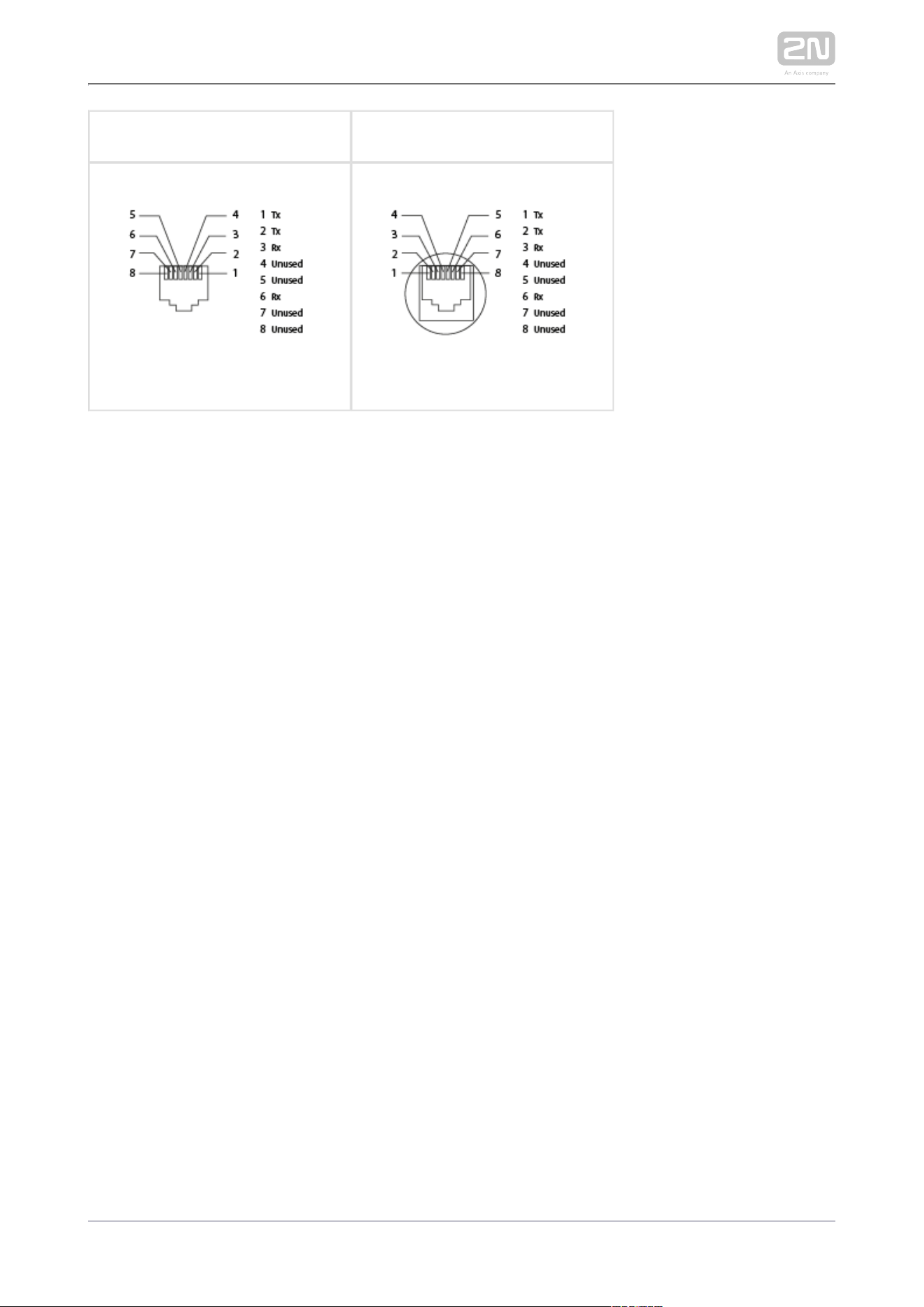
Use a standard straight RJ-45 terminated cable to connect device to the Ethernet. The
device supports the 10BaseT and 100BaseT protocols. The Ethernet connection state
is indicated by the LEDs placed on the RJ-45 connector.
Refer to for the factory settings of the device Ethernet
3.3 Device Configuration
interface.
Caution
Factory reset results in a change of the Ethernet interface configuration!
A defective Ethernet cable may lead to a high packet loss in the
Ethernet and subsequent instability and poor video call quality!
Warning
Connection of a defective or improper power adapter may lead to a
temporary or permanent failure of the unit!
2N Indoor Touch 2.0
®
2N TELEKOMUNIKACE a.s., www.2n.cz20/135
Ethernet cable connectorEthernet port
Licence Limitations
2N Indoor Touch 2.0
®
can contain time-limited software licences. Refer to 3.3 Device
for details.
Configuration
Firmware Upgrade
We recommend you to upgrade the device firmware during installation. Refer to www.
for the latest FW version. Refer to for the firmware upgrade
2n.cz3.4. Device Upgrade
procedure.
2N TELEKOMUNIKACE a.s., www.2n.cz21/135
2.4 Status LED
Status LED indicates the device states when the LCD display is switched off or the
device is in the service mode. See the table below for the LED colours and states:
Device Startup:
ColourState
Blue is on Device initialisation
Red is on First boot phase
Green is on Operating system start
Yelow is onFactory setting initialisation
Blue is flashing Factory reset
Purple is flashing System upgrade process
No lightDevice state is displayed
Standard Operation:
ColourState
No lightDevice state is displayed
Blue is onStand-by mode (display off)
Other
states
Notification of other states of applications running in the system (, e.
2N IP Mobile
®
g.).
2N TELEKOMUNIKACE a.s., www.2n.cz22/135
2.5 First Startup
When you start the device for the first time, the initial initialisation (longer start) is
performed and indicated by the following LED notification sequence:
Red Blue Green
Boot animation on the screen Introductory system screen.
The introductory screen provides essential information for User Manual saving
/reading.
Select "Don't show welcome screen and run 2N IP Mobile
®
at next start
instead" to deactivate this screen for future system startups.
Caution
If you do not select the "Don't show welcome screen and run 2N IP
®
at next start instead" option on the welcome screen before
Mobile
quitting and then enable the launch after the system
2N IP Mobile
®
startup in the Launcher configuration, the application will not be started
for technical reasons. Therefore, be sure to disable the welcome screen
start to make run automatically after the system startup.
2N IP Mobile
®
The table below shows the factory values of relevant device parameters:
ParameterValue
IP addresswill be assigned by the DHCP server
IP maskwill be assigned by the DHCP server
IP gatewaywill be assigned by the DHCP server
Access password to configuration2n
Administrator password2n
Time/weather locationPrague, CZ
Stand-by switching time1 minute
SW licence
Basic unlimited licence
2N TELEKOMUNIKACE a.s., www.2n.cz23/135
ParameterValue
(or according to the Part No.)
Caution
Change the access password while configuring the device for the first
time to avoid unauthorised access to configuration!
System Licence
2N Indoor Touch 2.0
®
has a factory licence key, which can be time-limited (depending
on the Part No.). The licence expiry may cause a partial limitation of the device
functionality! Refer to for the current licence state and licence
3.3 Device Settings
adding procedure if necessary.

2N TELEKOMUNIKACE a.s., www.2n.cz25/135
1.
2.
a.
b.
c.
3.1 Factory Reset
Follow the steps below to reset the factory values:
2N Indoor Touch 2.0
®
Press the Factory Data Reset button in Settings / Administrator mode – ON /
Backup & reset.
Press and hold the Reset button on the device backside:
Remove the device from the installation holder.
Press and hold the Reset button until the notification RGB LED lights up
(yellow, approx. 10 seconds).
Release the Reset button and follow the instructions displayed.
Caution
You can reset the factory values only if the administrator mode is on.
Factory reset results in a complete deletion of all user data.
2N TELEKOMUNIKACE a.s., www.2n.cz26/135
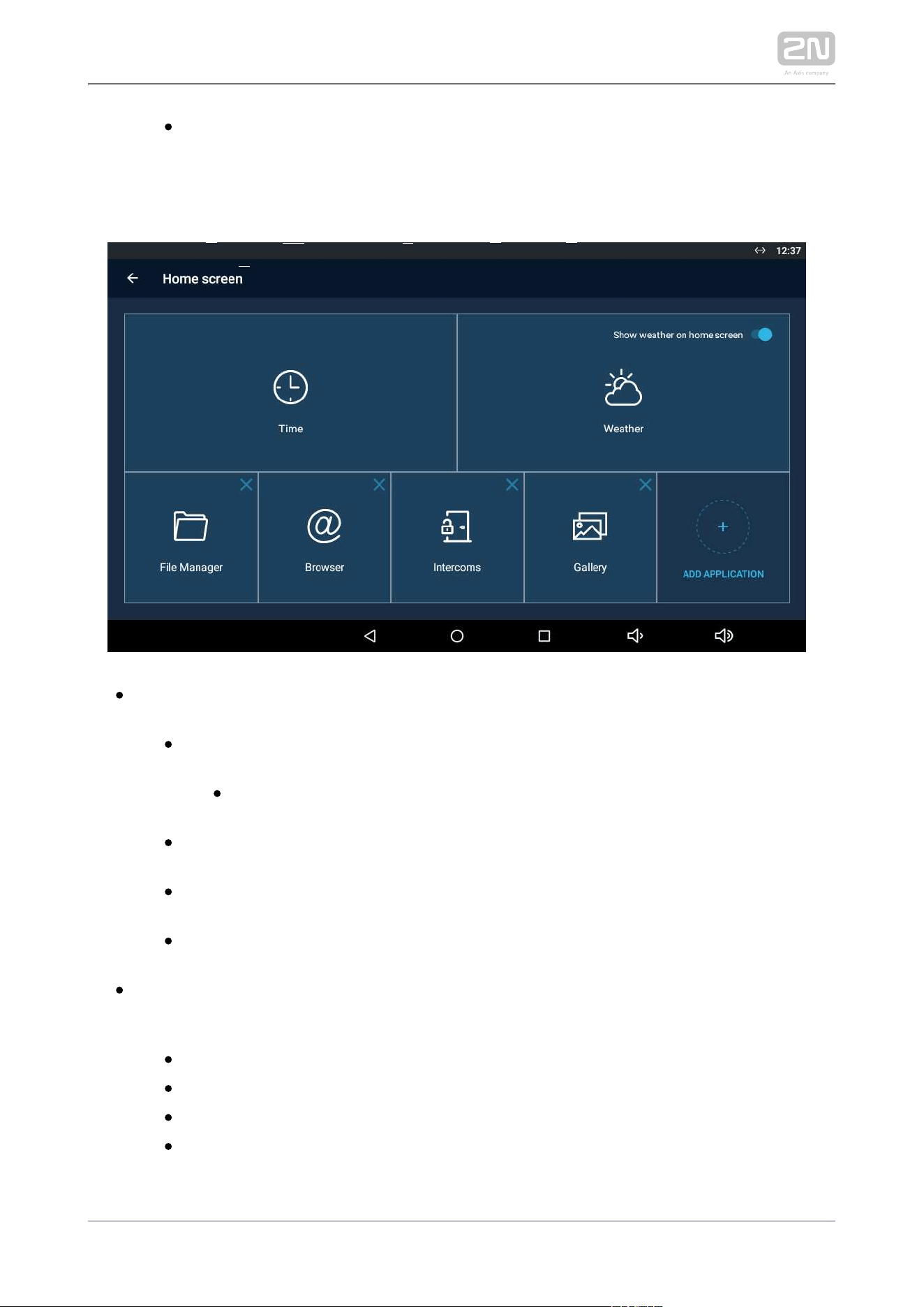
3.2 Home Screen
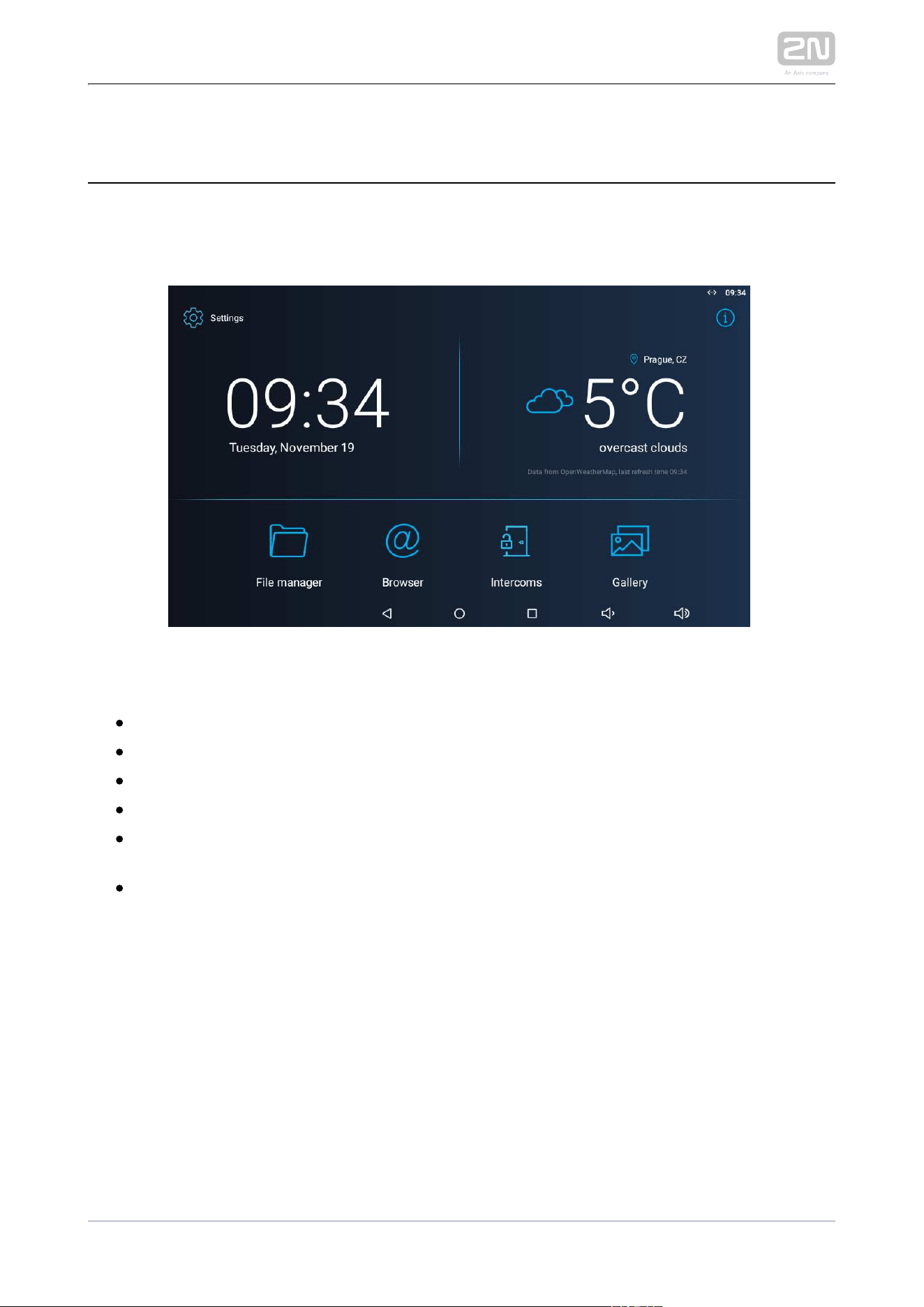
The Home Screen is divided into three subsections: Current time and date, Weather
widget and five configurable application positions. The Setting and Information
buttons are also available here.
Factory settings:
Time/Date tiles
Weather tile
File Manager – standard file system application
Browser – Internet browser application
Intercoms – application responsible for communication of the 2N IP intercoms
with other answering units
Gallery – photo/image processing application
2N TELEKOMUNIKACE a.s., www.2n.cz27/135
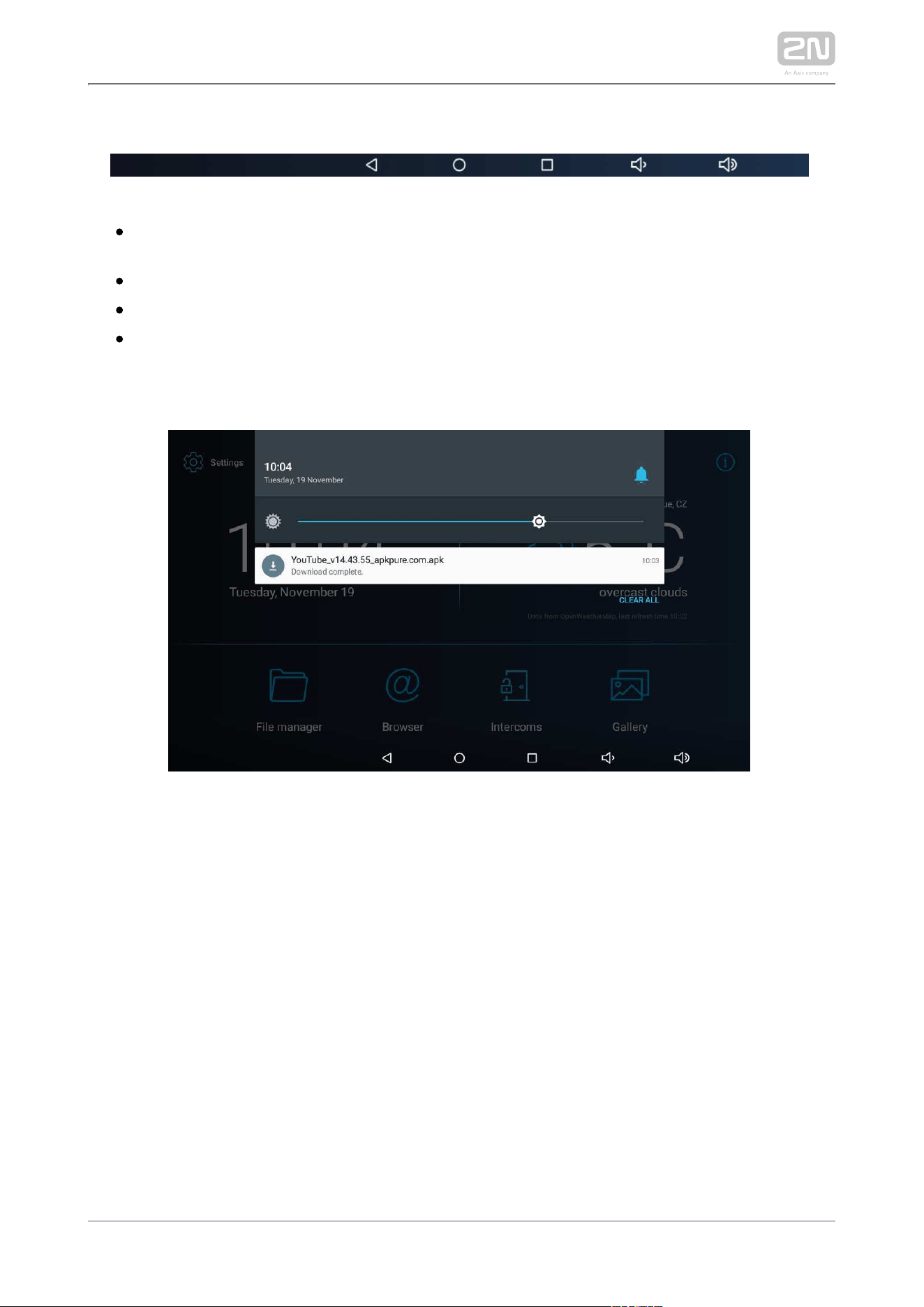
The lower graphic bar includes five graphic controls:
Back icon (triangle) – return one level higher or one step back (depending on
the application type).
Home icon (circle) – return to the introductory screen.
Square icon – switch the currently launched applications.
Speaker icons – increase/decrease the system loudspeaker volume.
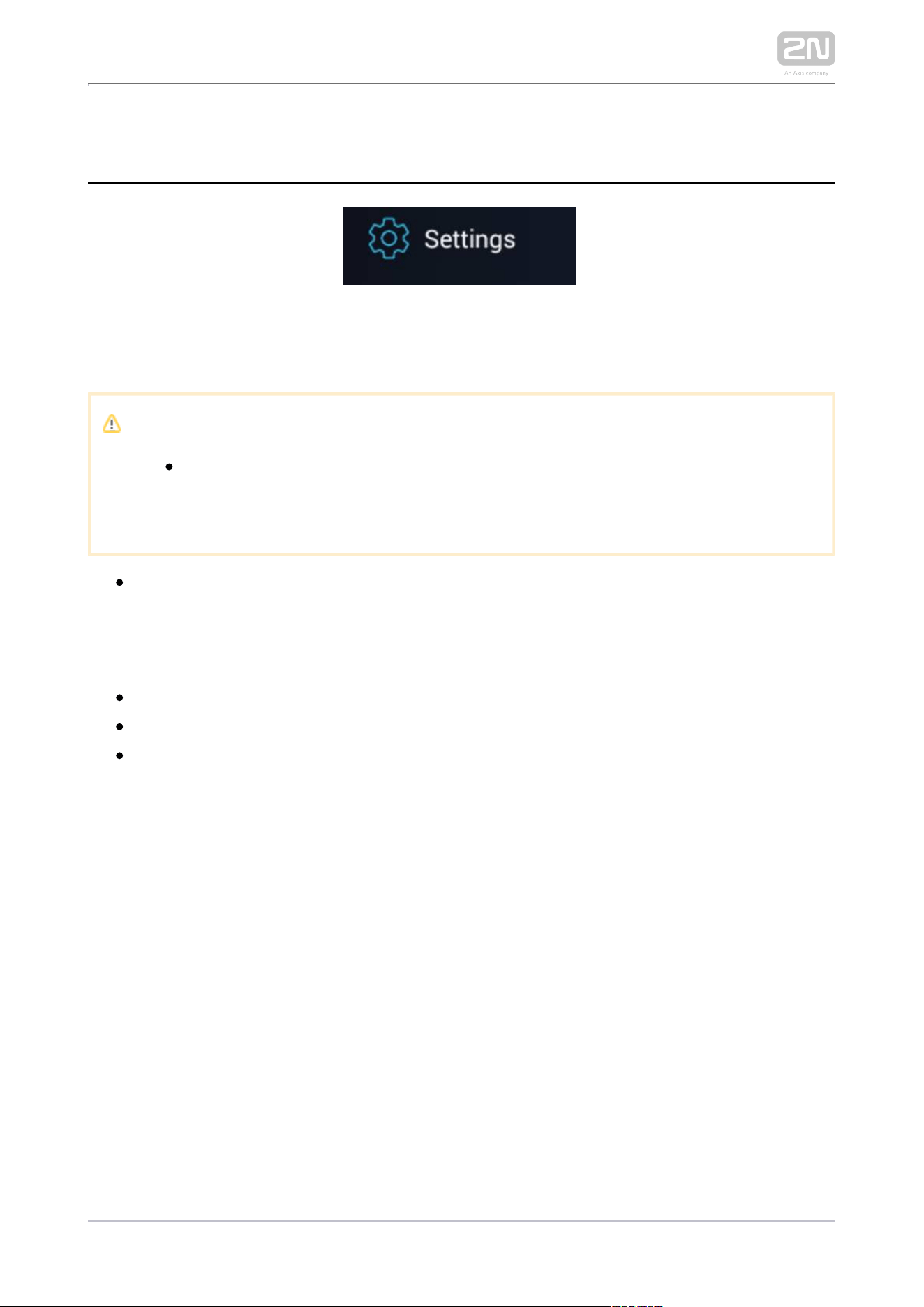
Notification Bar
The notification bar provides a list of missed events and notifications allowing you to
set the DND mode and display brightness level instantly. Swipe your finger in a
straight downward line from the upper edge of the screen to pull down the
notification bar. Click the Delete all icon to remove the notification list.
2N TELEKOMUNIKACE a.s., www.2n.cz28/135
3.3 Device Configuration
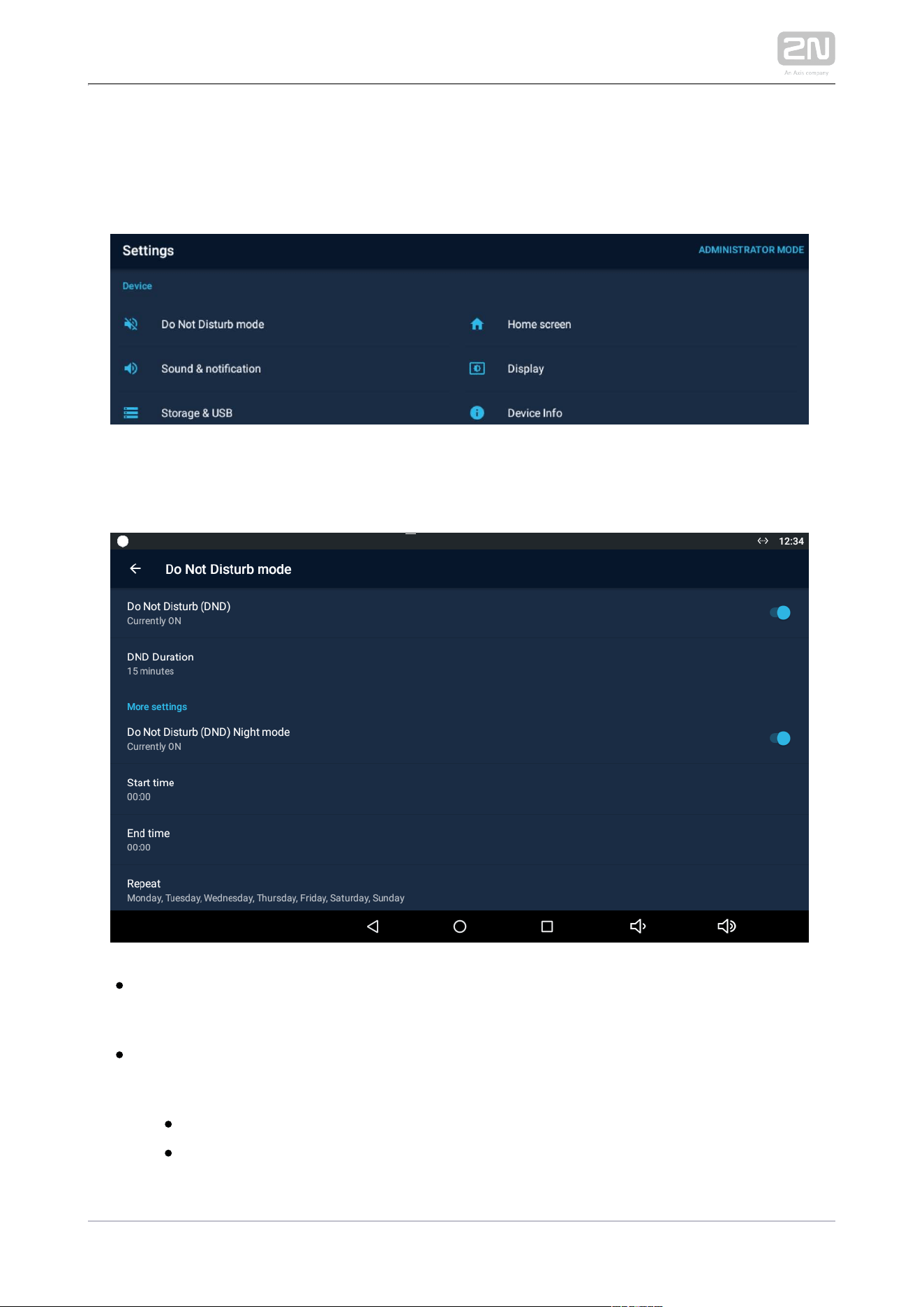
Click the button on the introductory page to access the configuration section. Settings
Complete the correct access password.
Caution
The factory access password is "2n“. If you lose the access data, you will
have to factory reset the device! Change the password in the Settings /
Personal / Language & input.
Administrator mode – configure advanced functions.
The device configuration consists of five sections: Device, Wireless & Networks, 2N® IP
Mobile, Personal, System; each section is divided into subsections, see below.
3.3.1 User Settings
3.3.2 Administrator Settings
3.3.3 Intercoms

2N TELEKOMUNIKACE a.s., www.2n.cz30/135
3.3.1.1 Device
This section helps you set the first menu level and quick navigation parameters (click
any subsection) into selected device configuration sections.
Do Not Disturb Mode
– disable any notification while DND is active. While Do Not Disturb (DND)
activating DND you can set any interval in the range between 15 minutes and 24
hours, or permanently.
– disable any notification while DND is active. Do Not Disturb (DND) Night mode
Set this mode for each weekday with repetition and specify the start and end
time.
– set the beginning of the DND Night mode time validity.Start time
– set the end of the DND Night mode time validity.
End time
2N TELEKOMUNIKACE a.s., www.2n.cz31/135
– set the days on which the DND Night mode is to be applied Repeat
repeatedly.
Home Screen
– click to move the user to the section for setting the time, time format and Time
time zone.
– activate the use of date and time from the
Automatic date & time
network.
– set the date and time manually if Automatic date
Set date and time
and time is disabled.
– set the time zone for the installation site to include the
Select time zone
time shift and summer/winter time transition.
– display the 24-hour format. If disabled, the 12-hour
Use 24-hour format
format is displayed including the a.m./p.m. information.
– select one of the three available date formats.
Choose date format
click to move the user to the section for setting the current weather – Weather
forecast. Use the introductory weather tile to deactivate the function. Deactivate
the weather tile if necessary.
– set the geographical position of the installation site manually.Position
– set 60 or 120 minutes for weather info refreshment.
Refresh frequency
– set metric (°C) or imperial (°F) units.
Units
– display the weather info source.Source
2N TELEKOMUNIKACE a.s., www.2n.cz32/135
Tip
The weather forecast location includes the town and abbreviated
country name. If typed incorrectly, the weather forecast will not be
displayed. make sure that the Internet is connected while setting the
location. refer to
http://openweathermap.org/ for location codes .
Pre-Installed Applications
– a file management application, which can be replaced with any
File manager
other application.
– a www navigation tool, which can be replaced with any other
Browser
application.
– provides communication with the 2N IP intercoms and other
Intercoms
answering units and can be replaced with any other application.
– an image/photo processing application, which can be replaced with
Gallery
any other application
– add an application from a list and edit its name/icon if
Add Application
necessary.
Caution
The application installations depend on the product licensing. Make sure
that the key is active to install an application. Check Settings /
APP
Device / Licence after activating the administrator mode for the current
licence state.
2N TELEKOMUNIKACE a.s., www.2n.cz33/135
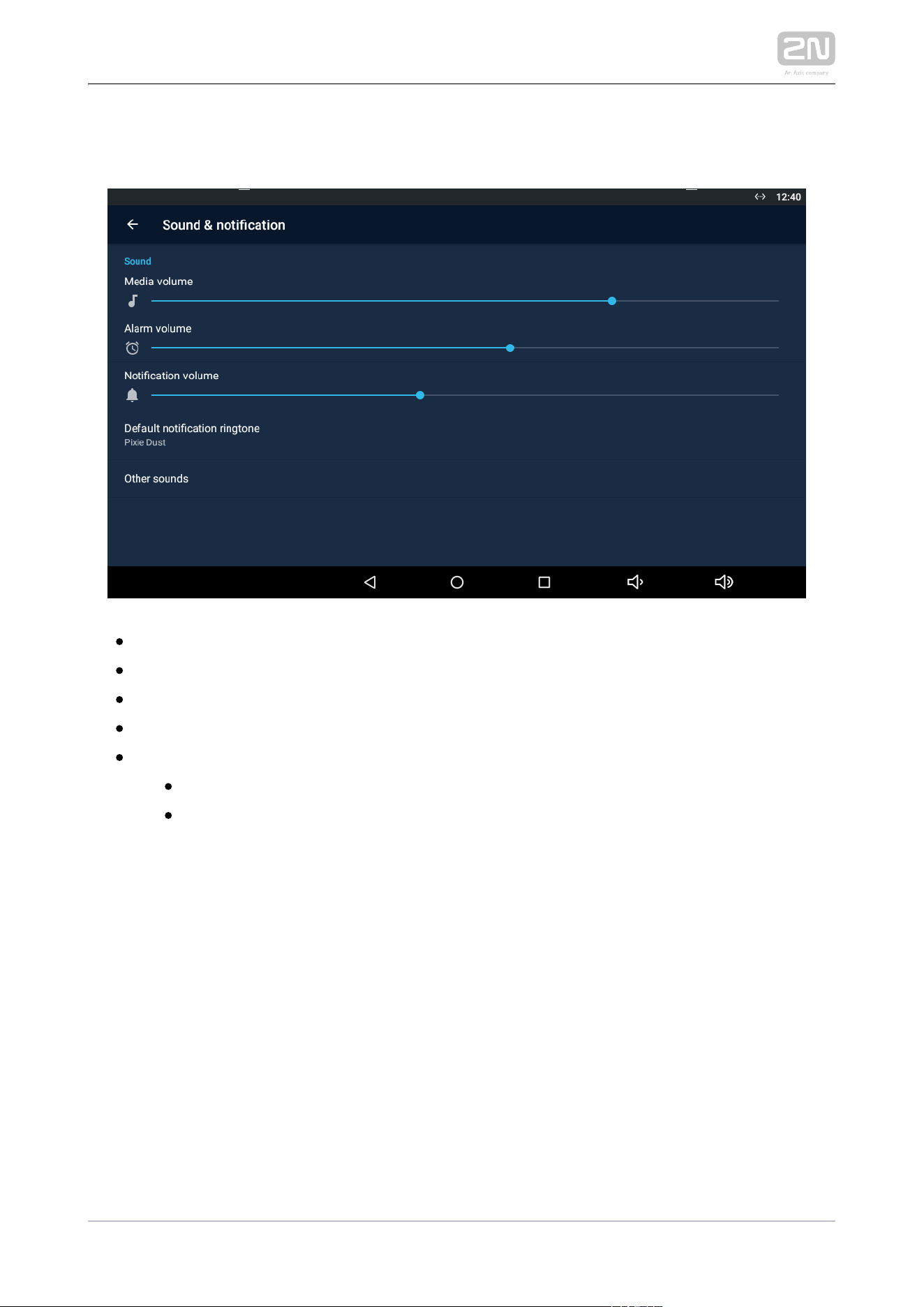
Sound & Notification
– set the media volume.Media volume
– set the alarm clock volume.
Alarm volume
– set the default notification ringtone volume.
Notification volume
– set the default notification ringtone.
Default notification ringtone
– enable/disable sound signalling.
Other sounds
– enable/disable the screen lock sound.
Screen locking sound
– enable/disable the display touch sound.
Touch sounds
2N TELEKOMUNIKACE a.s., www.2n.cz34/135
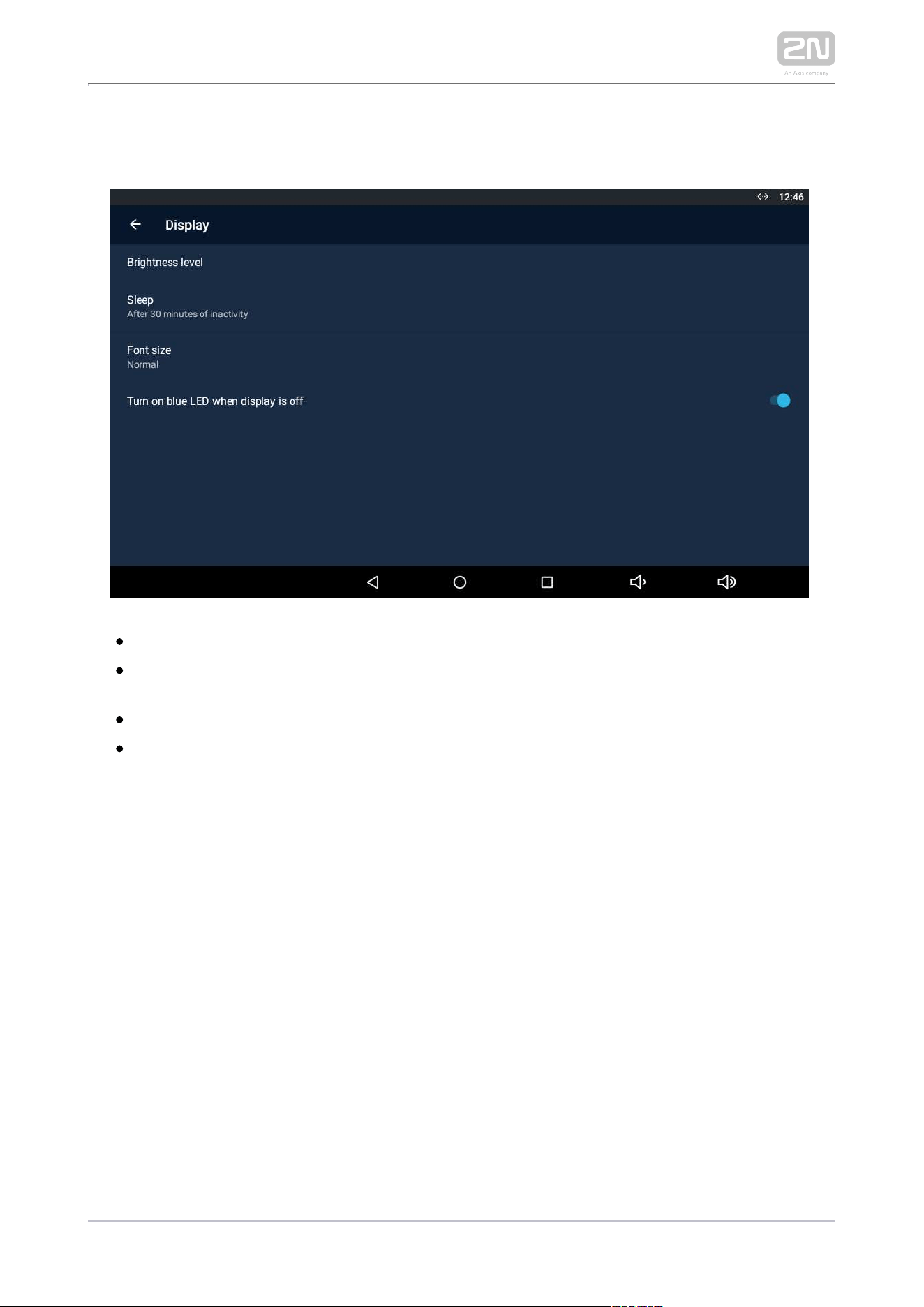
Display
– set the backlight brightness values.Brightness level
– set the maximum user idle timeout after which the sleep mode is
Sleep
automatically switched on. Select a value between 15 seconds and 30 minutes.
– set the font size: Small / Normal / Large / Very large.
Font size
– turn the blue LED on when the display is
Turn on blue LED when display is off
off.
2N TELEKOMUNIKACE a.s., www.2n.cz35/135
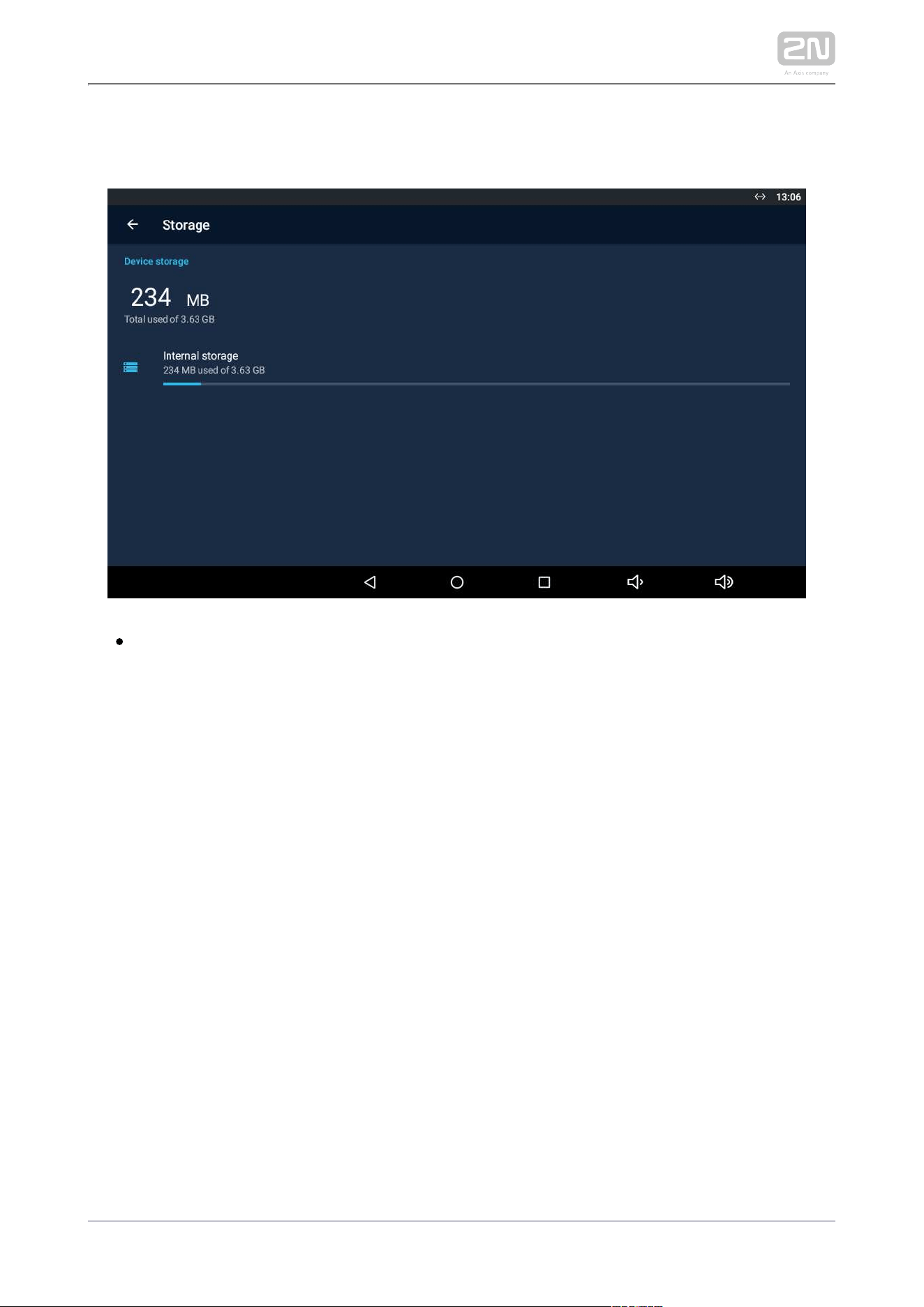
Storage & USB
– display the internal storage state for downloaded files and Internal storage
photos. Click to display the storage details.
2N TELEKOMUNIKACE a.s., www.2n.cz36/135
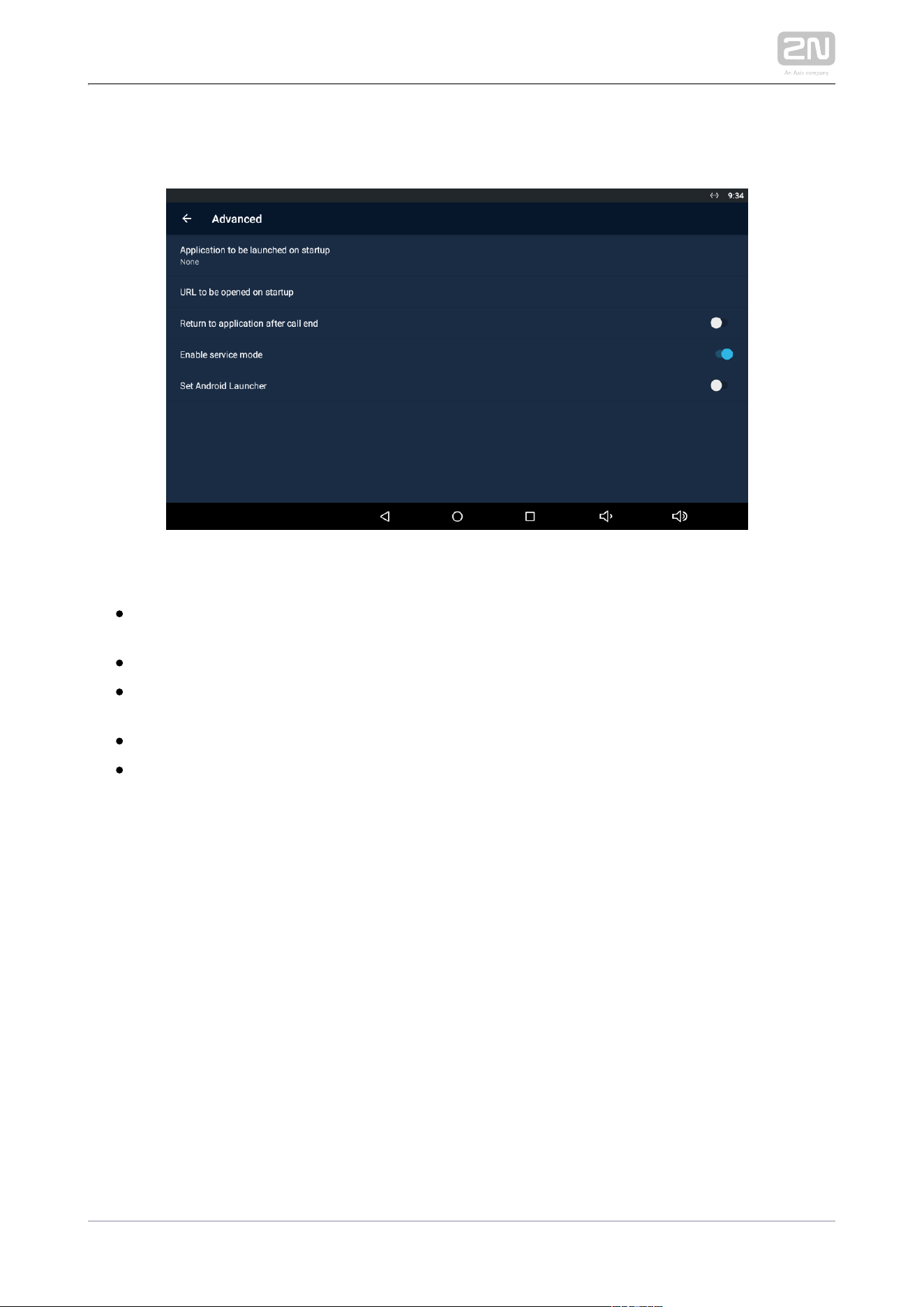
Advanced
The Advanced subsection is only available when the administrator mode is active.
– display the list of available applications.
Application to be launched on startup
Select the application to be launched upon startup.
– set the URL address to be opened upon startup.
URL to be opened on startup
– set return to the application when the call
Return to application after call end
is terminated.
– allow the device to be connected via a service tool.
Enable servise mode
– set the Android Launcher.
Set Android Launcher
2N TELEKOMUNIKACE a.s., www.2n.cz37/135
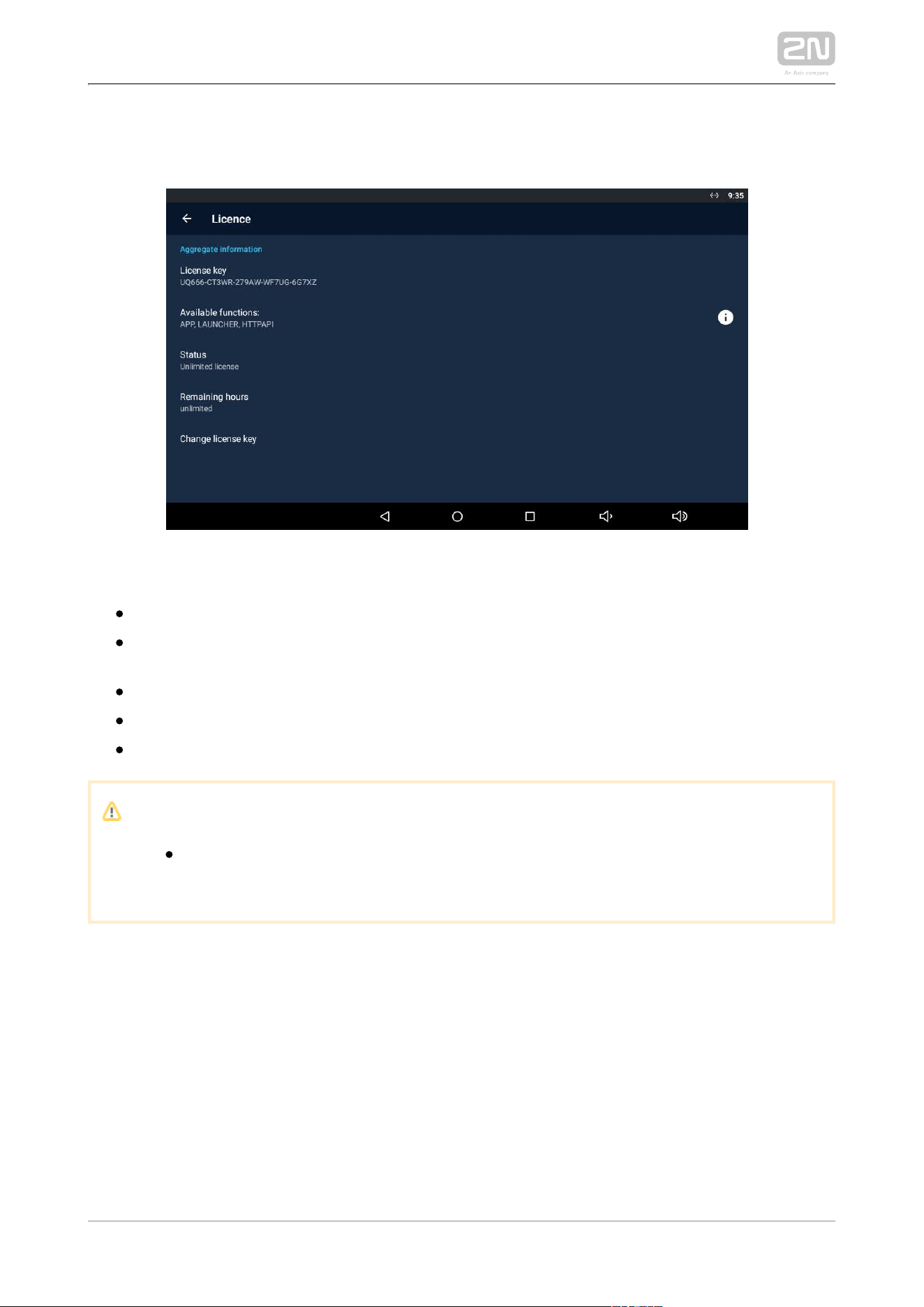
Licence
The Licence subsection is only available when the administrator mode is active.
– display the licence key used.
Licence key
– display the list of available functions depending on the
Available functions
licence type purchased.
– display the licence type (limited, unlimited).
Status
– display the licence remaining hours.
Remaining hours
– change the licence key.
Change licence key
Caution
The original licence key will be overwritten by the new one! Be sure to
insert a valid licence key obtained from your supplier!
2N TELEKOMUNIKACE a.s., www.2n.cz38/135
Warning
The licence unlocks for loading user APP2N
®
Indoor Touch 2.0
applications from a microSD card (SDHC), up to 16 GB. If, however, any
user applications are installed, does not
2N TELEKOMUNIKACE a.s.
guarantee a proper function and stability of such user applications and
/or a correct function of the applications pre-installed in
2N
®
Indoor
. Should troubles occur, remove the user applications or reset
Touch 2.0
the factory values to get rid of the user applications and settings.
device
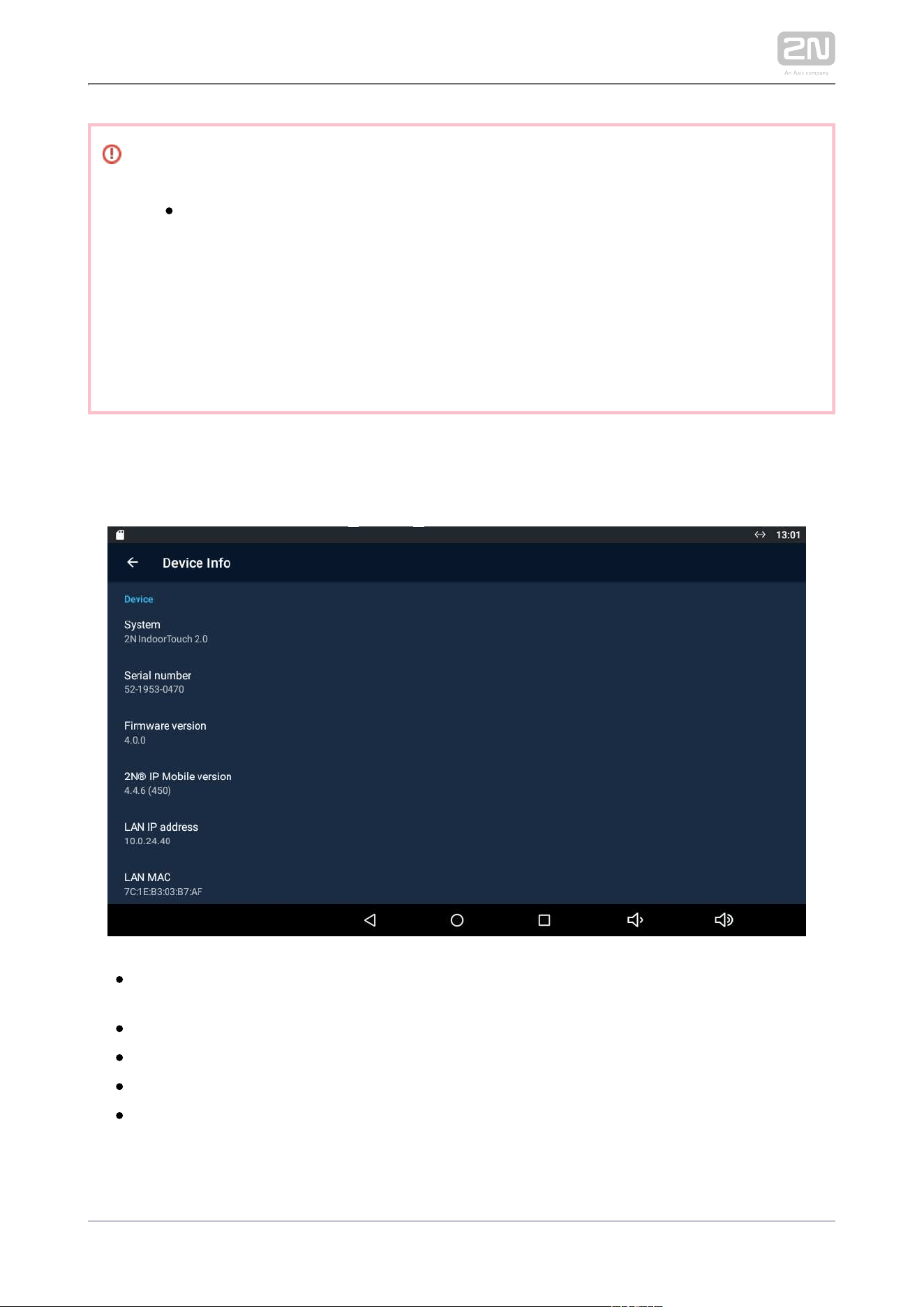
Device Info
– display basic information on the device (serial number, hardware Device
version, firmware version...).
– display the official name of the device.
System
– display the device date and time.
Date and time
– display the RAM state.
RAM info
– display the list of open-source licences used in the device.
Legal information
2N TELEKOMUNIKACE a.s., www.2n.cz40/135
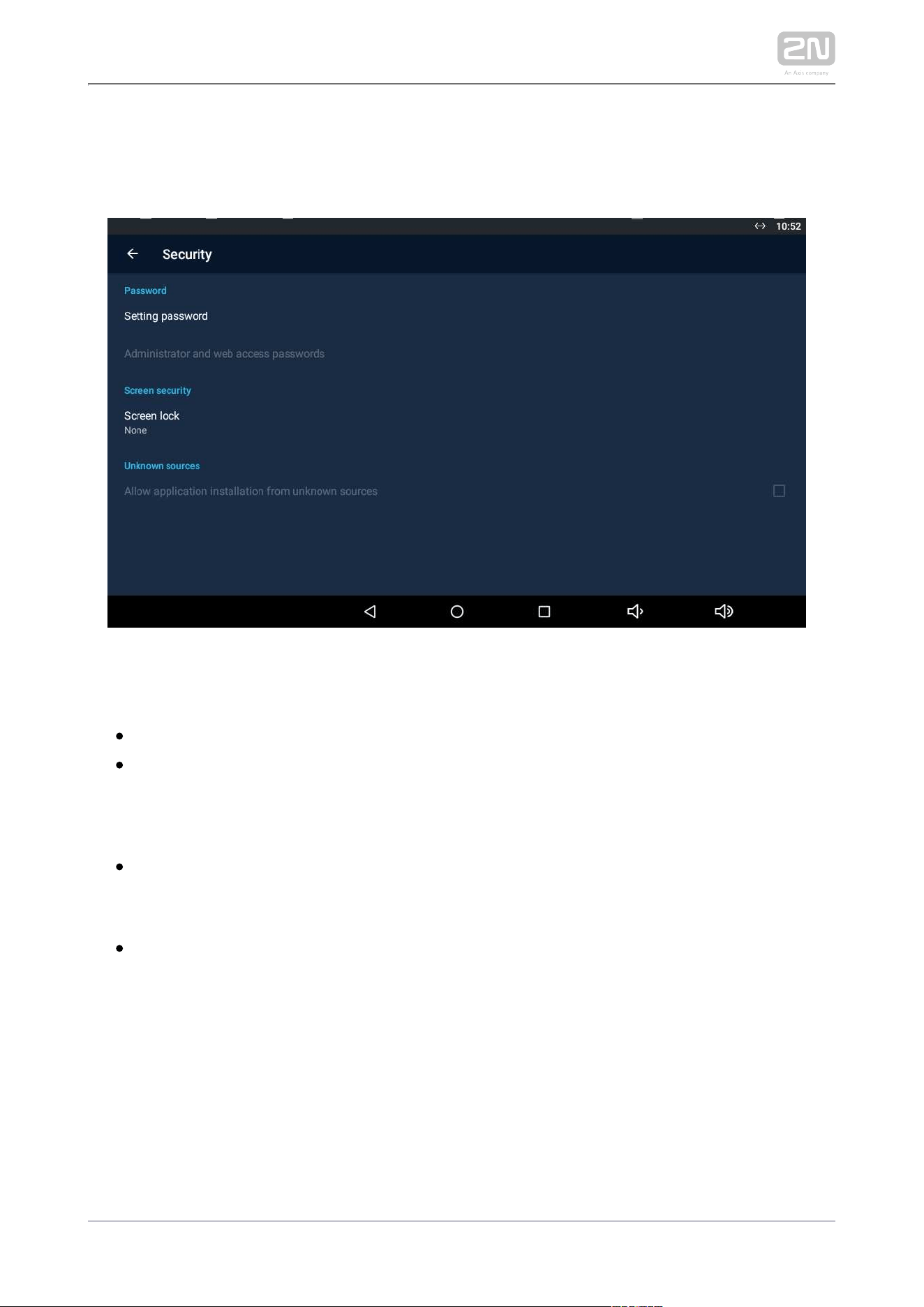
3.3.1.2.1 Security
Set the device security parameters.
PASSWORD
– set the setting access password.
Settings password
–set the administrator access
Administrator and web access password
password.
SCREEN SECURITY
– select the screen lock type: PIN, Character or None.
Screen lock
UNKNOWN SOURCES
–
Allow installation of apps from unknown sourcesallow installation of
applications from unknown sources.
2N TELEKOMUNIKACE a.s., www.2n.cz41/135
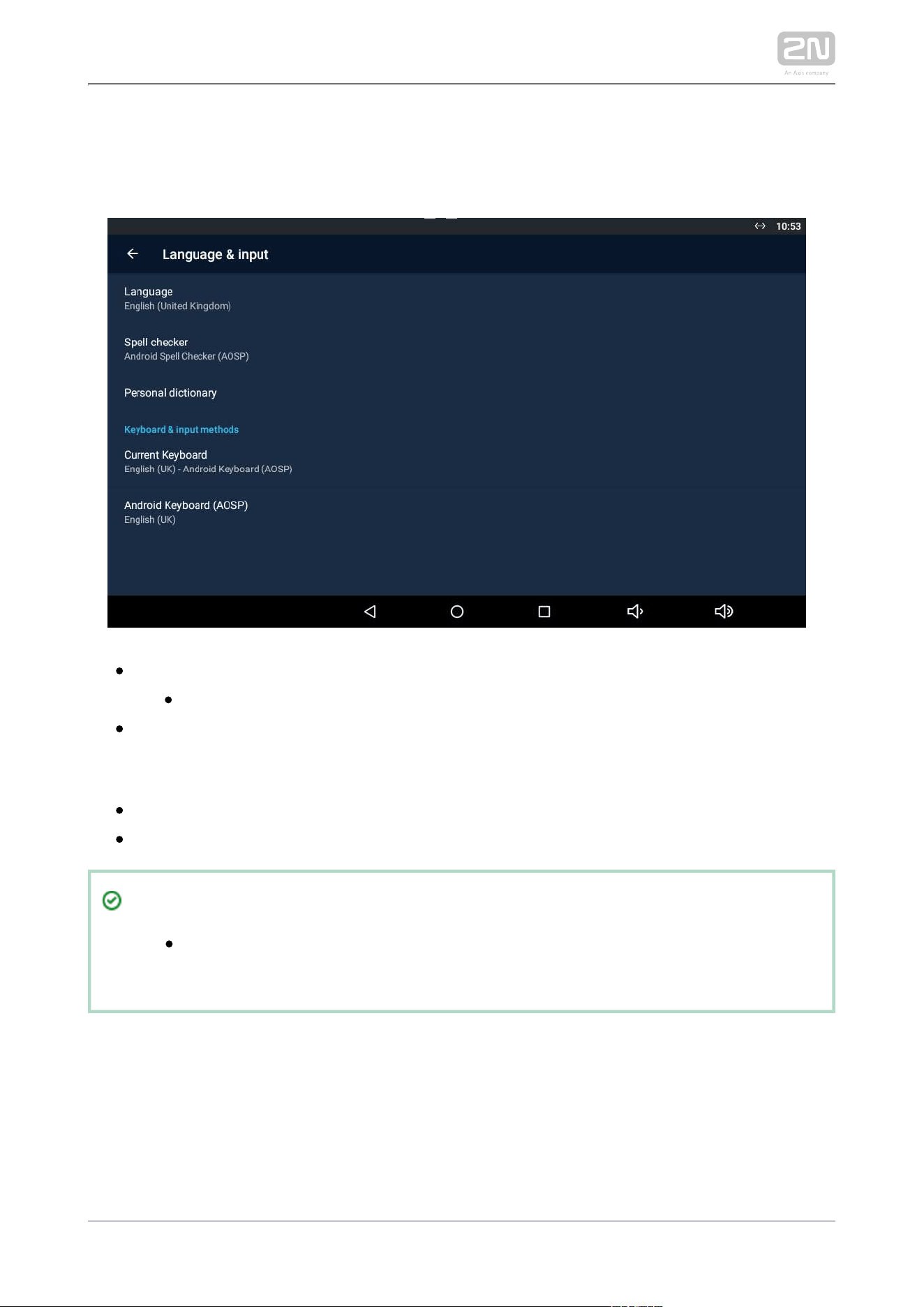
3.3.1.2.2 Language and Input Methods
Set the language parameters and text input methods.
– set the system language.Language
– enable/disable the spell checker for the defined language.
Spell checker
– click Add (+) to add a word to your personal dictionary.
Personal dictionary
KEYPAD & INPUT METHODS
– set the keyboard type. Current Keyboard
– set the keyboard parameters. Android Keyboard (AOSP)
Tip
Disable the display tap sound signalling in the Settings / Sound device
menu.
2N TELEKOMUNIKACE a.s., www.2n.cz43/135
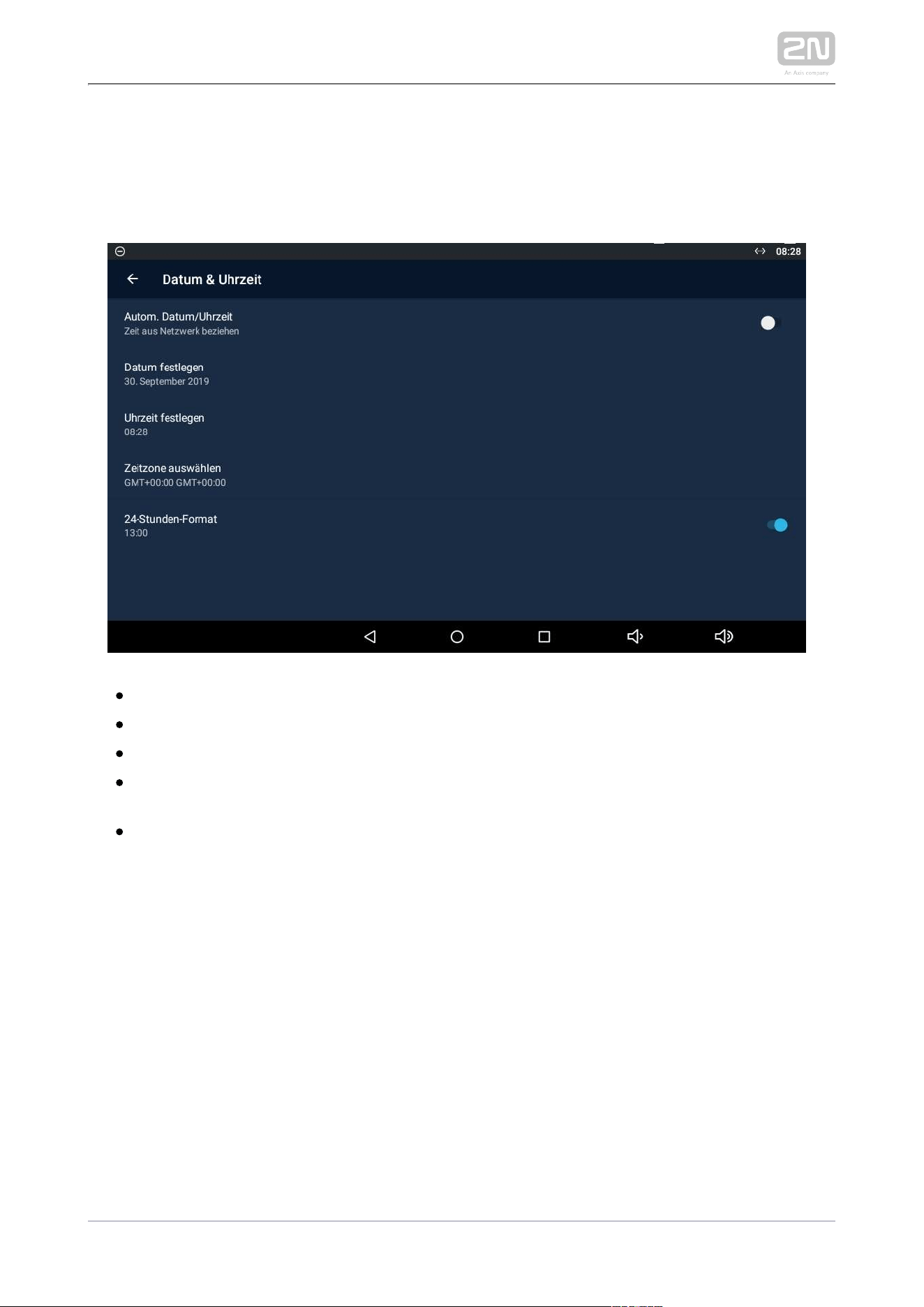
3.3.1.3.1 Date & Time
This section helps you set the device date and time parameters. Set the time, time
format and time zone.
– activate the use of date and time from the network.Automatic date & time
– set the date manually if Automatic date & time date is disabled.
Set date
– set the time manually if Automatic date & time time is disabled.
Set time
– set the time zone for the installation site to include the time
Select time zone
shift and summer/winter time transition.
– display the 24-hour format. If disabled, the 12-hour format
Use 24-hour format
is displayed including the a.m./p.m. information.
2N TELEKOMUNIKACE a.s., www.2n.cz44/135
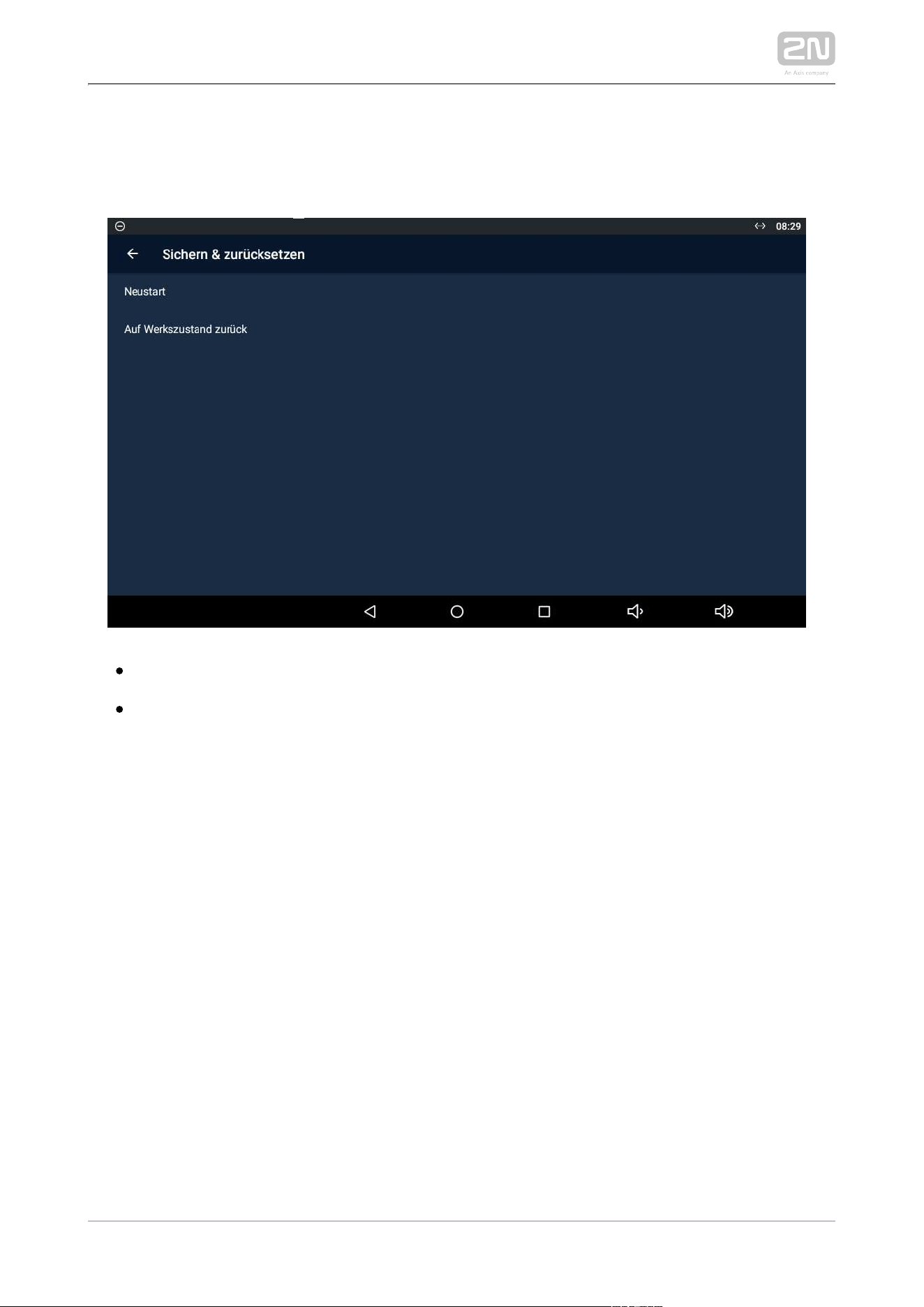
3.3.1.3.2 Backup & Reset
This section helps you set the device data backup and reset parameters.
– restart the device.Restart
Factory data reset – delete all data from the internal storage including: system
and application settings and data, downloaded applications, music, photographs
and other user data. The factory data reset is only available in the administrator
mode.
2N TELEKOMUNIKACE a.s., www.2n.cz45/135
3.3.2 Administrator Settings
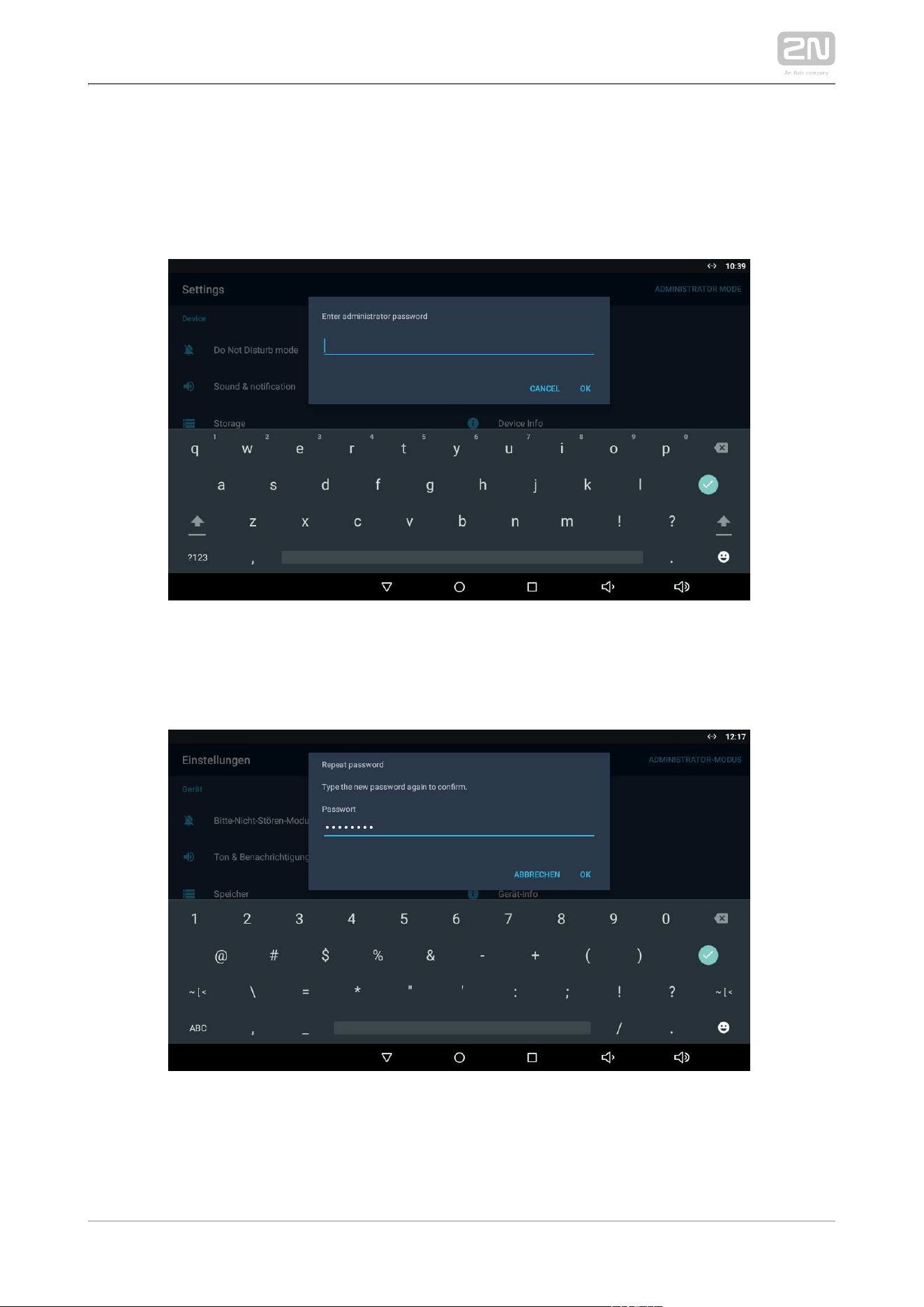
On your first attempt to log into the administrator mode for advanced configuration,
you are asked to enter the administrator password. The factory default password is
2n.
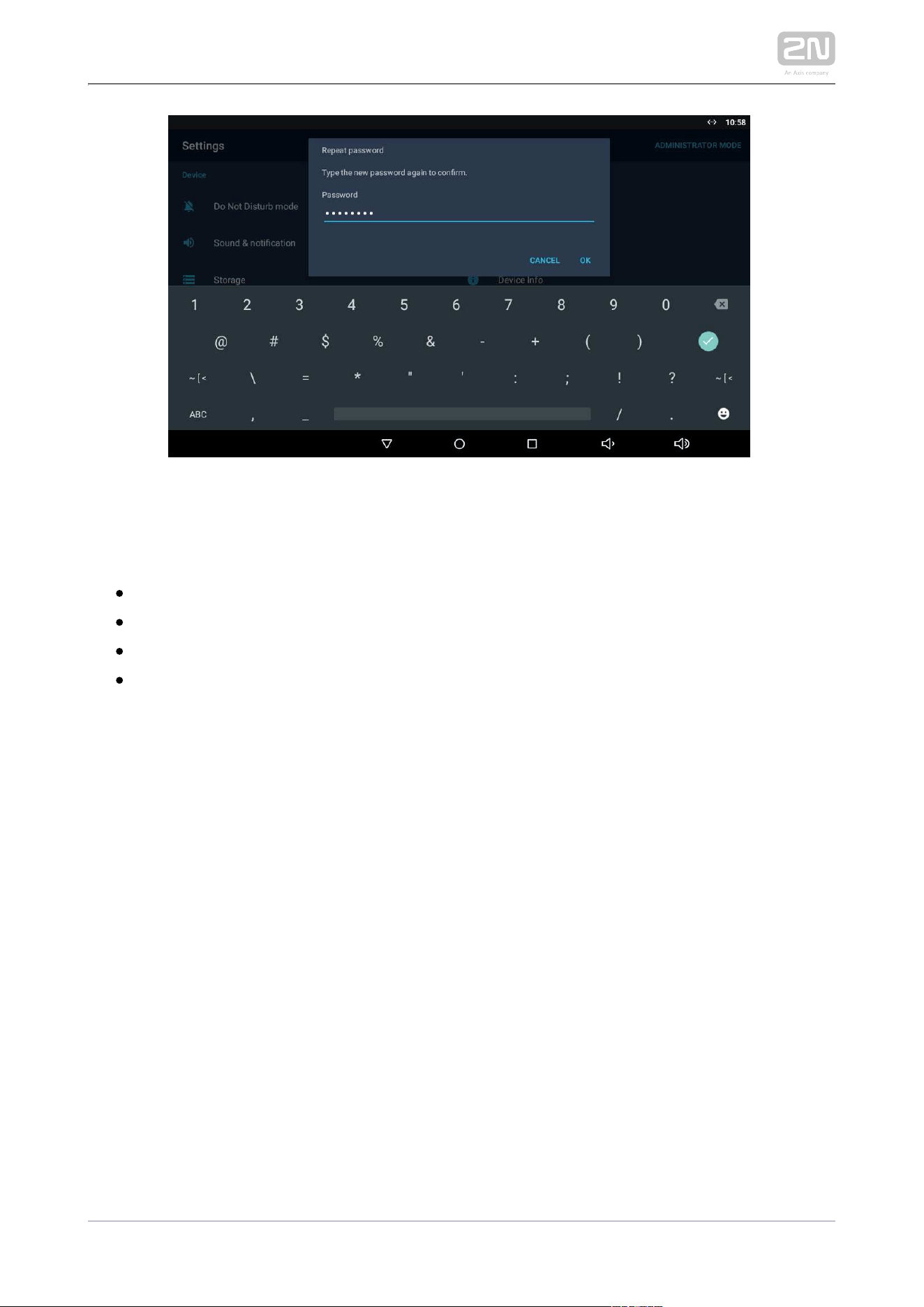
Having entered the default password, you are asked to change the password for
security reasons. The password has to consist of a minimum of eight characters
including one capital letter, one small letter and one digit at least.
Retype the new password for confirmation.
2N TELEKOMUNIKACE a.s., www.2n.cz47/135
3.3.2.1 Device
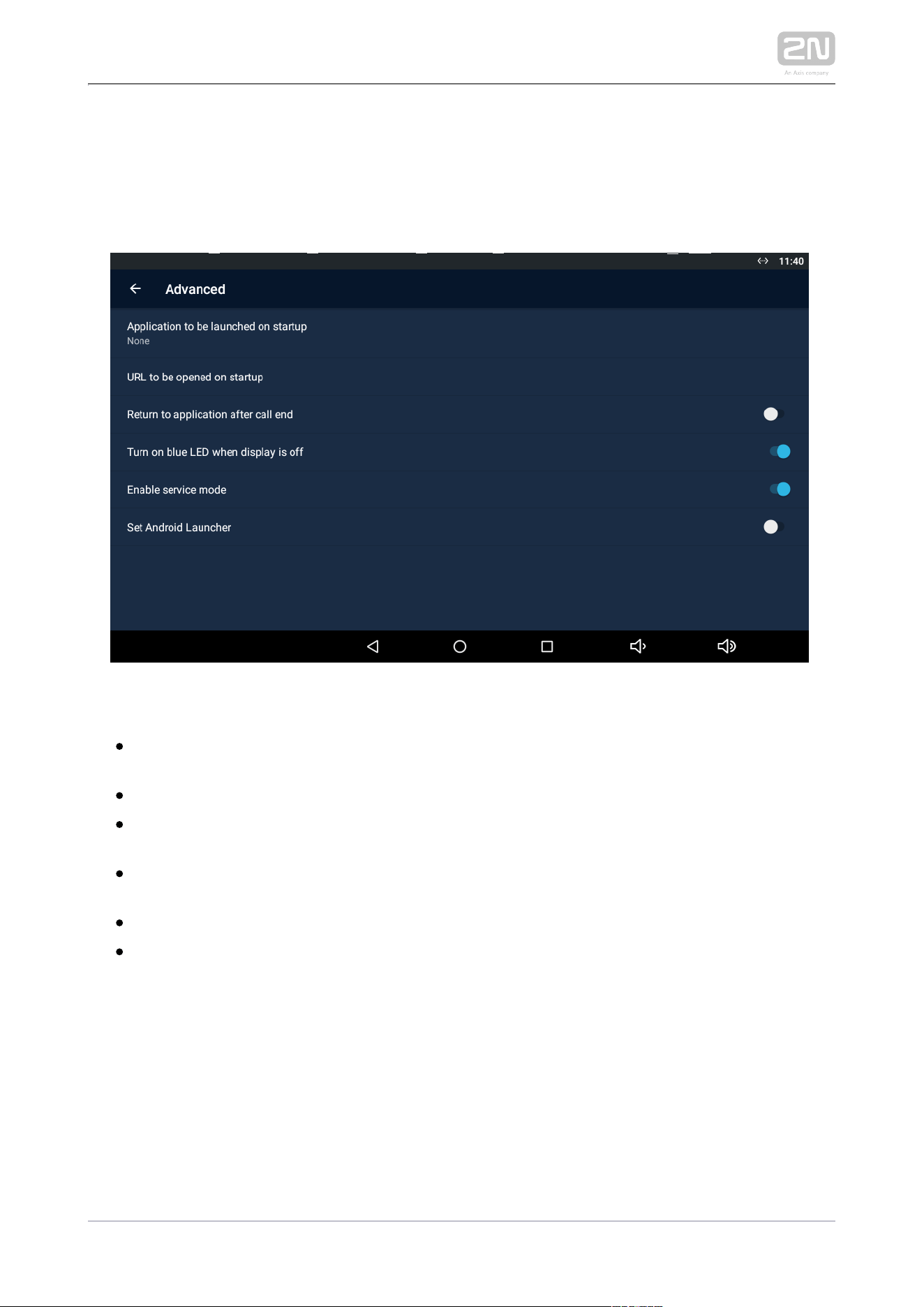
Advanced
The Advanced subsection is available in the administrator mode only.
– display the list of available applications.
Application to be launched on startup
Select an application to be launched on startup.
– set the URL to be launched on startup.
URL to be launched on startup
– return to the application after the call is
Return to application after call end
ended.
– turn on the blue LED when the display is
Turn on blue LED when display is off
off. Move to Screen.
– connect a service device to the device.
Enable service mode
– set the home page to the default Android Launcher.
Set Android Launcher
2N TELEKOMUNIKACE a.s., www.2n.cz48/135
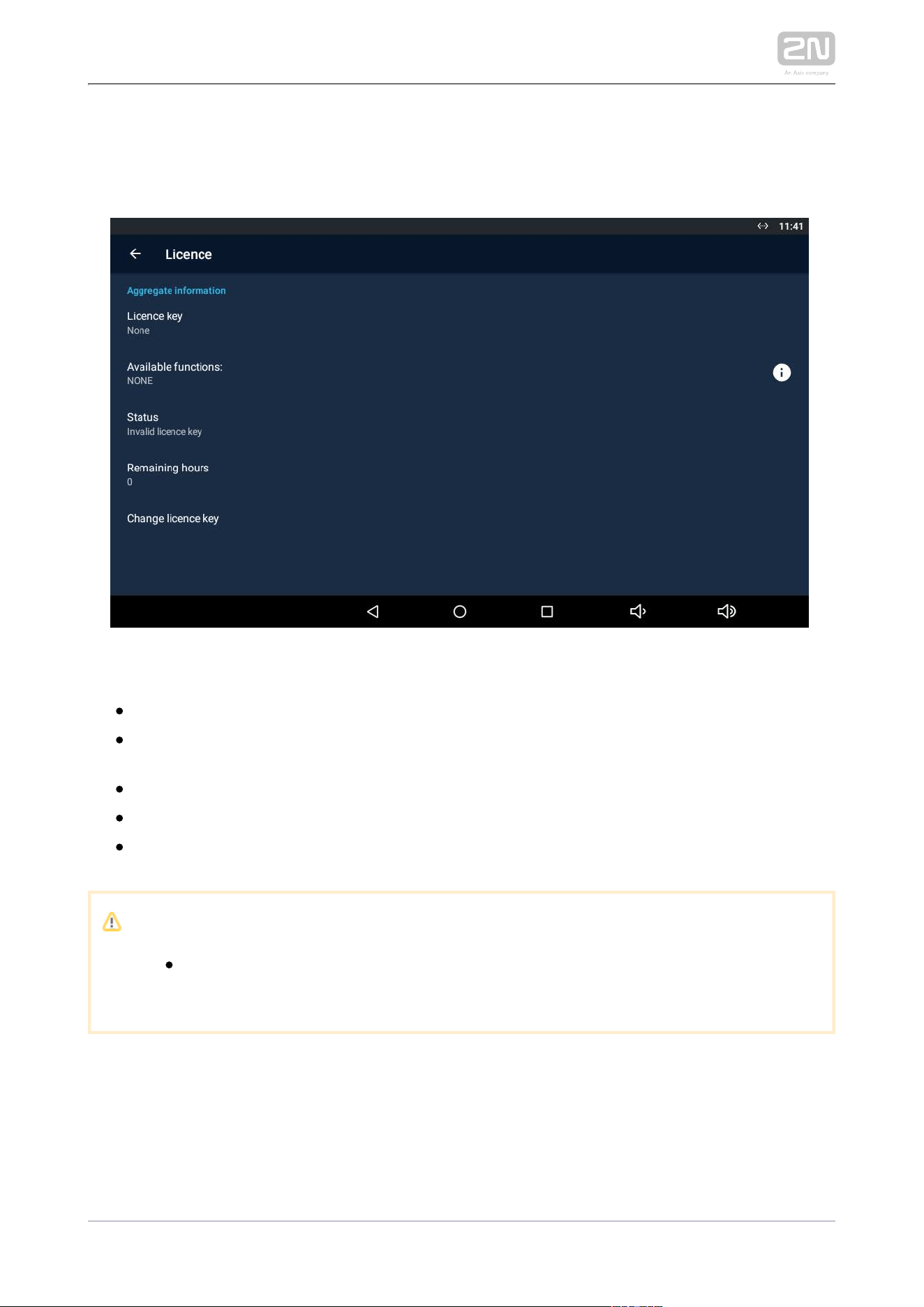
Licence
The Licence subsection is available in the administrator mode only.
– display the licence key used.
Licence key
– display the list of available functions depending on the
Available function
licence type purchased.
– display the license status (limited, unlimited).
Status
– display the hours remaining before the licence expires.
Remaining hours
– change the licenced key.
Change licence key
Caution
The original licence key will be overwritten with a new one! Enter only
the valid licence key obtained from your supplier!
2N TELEKOMUNIKACE a.s., www.2n.cz49/135
Warning
The licence unlocks for uploading custom APP2N
®
Indoor Touch 2.0
applications from a max 16 GB microSD card (SDHC).
2N
cannot guarantee functionality and stability of
TELEKOMUNIKACE a.s.
custom applications or proper function of applications pre-installed in
2N
once custom applications are installed. In case of
®
Indoor Touch 2.0
troubles, remove the custom applications or reset the factory values to
get rid of the custom applications and settings.
2N TELEKOMUNIKACE a.s., www.2n.cz50/135
3.3.2.2 Wireless & Networks
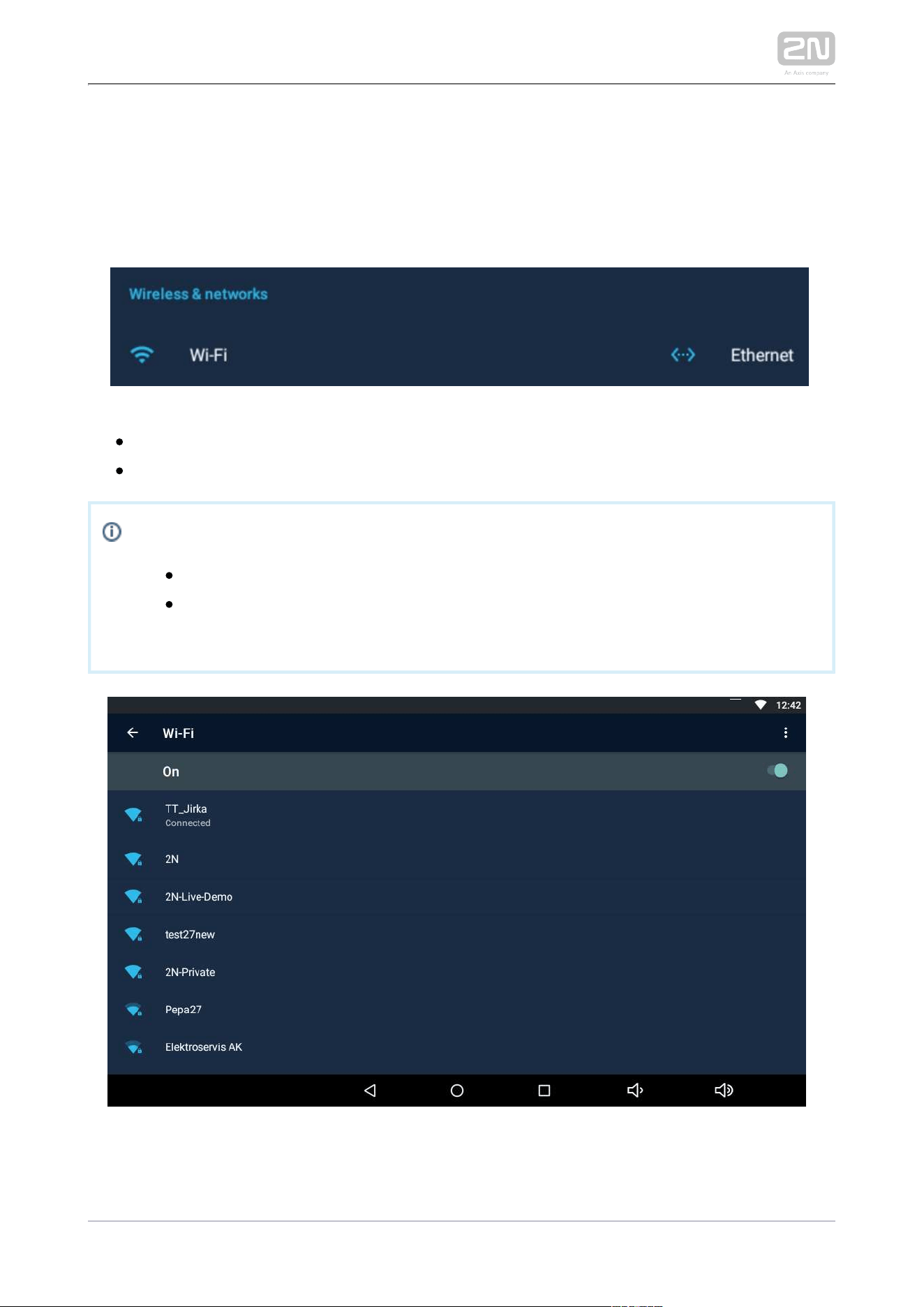
This section helps you set the network connection parameters. Connection can be set
via the Ethernet or Wi-Fi (depending on the Part No., refer to Subs. 1.2 Differences
).
between Models and Associated Products
– disable/enable the Wi-Fi connection.Wi-Fi
– disable/enable the Ethernet connection.
Ethernet
Note
Ethernet connection cannot be used together with Wi-Fi.
By disabling the Ethernet connection you do not switch off the device
when PoE is used.
The Wi-Fi section displays the list of available Wi-Fi networks.
2N TELEKOMUNIKACE a.s., www.2n.cz51/135
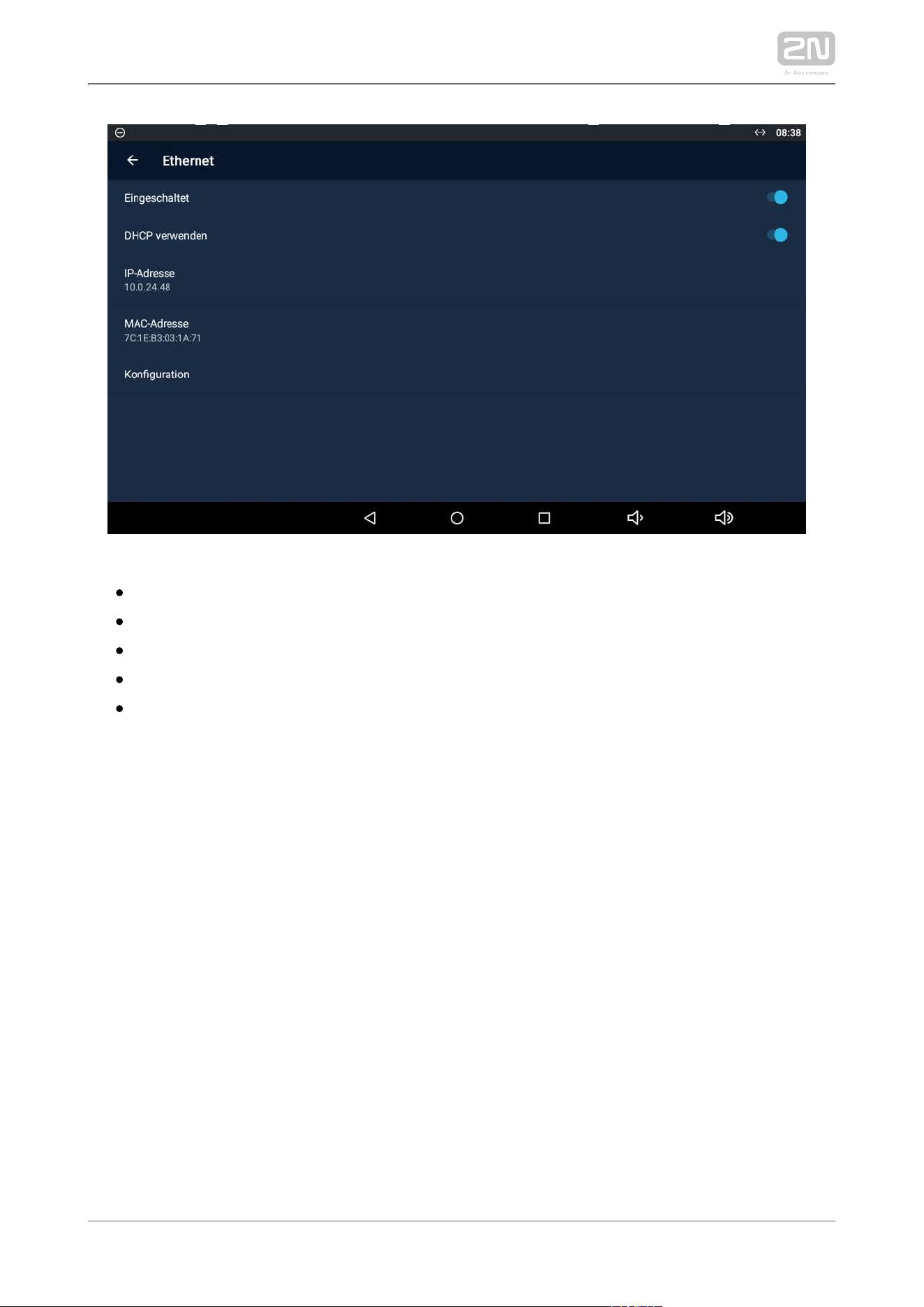
– enable/disable the adapter.Enabled
– enable/disable the DHCP client.
Use DHCP
– display the IP address.
IP Address
– display the MAC address.
MAC Address
– configure the Ethernet manually.
Configuration
2N TELEKOMUNIKACE a.s., www.2n.cz52/135
3.3.2.3 Security
This subsection describes the administrator security settings.
PASSWORD
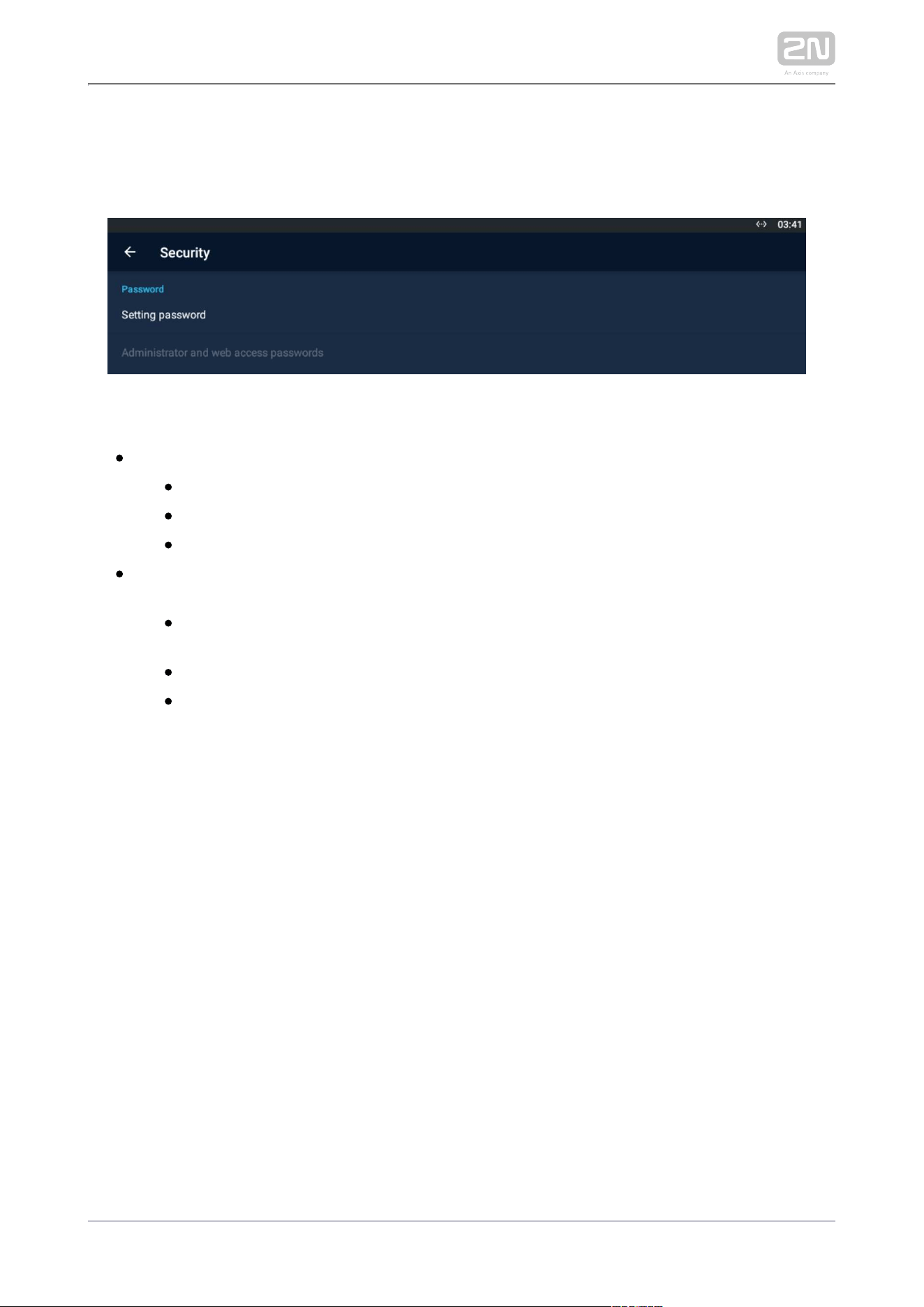
– set the access password type for the Settings:
Setting password
– no access password is required.
None
– set a password containing at least four letters.
Password
– set a code containing at least four digits.
PIN
– set the administrator mode and web
Administrator and web access password
interface access password.
– set separate passwords for the
Use separate web access password
administrator mode and device web interface.
– set the administrator access password.
Administrator password
– set the web interface access password.
Web access password
2N TELEKOMUNIKACE a.s., www.2n.cz53/135
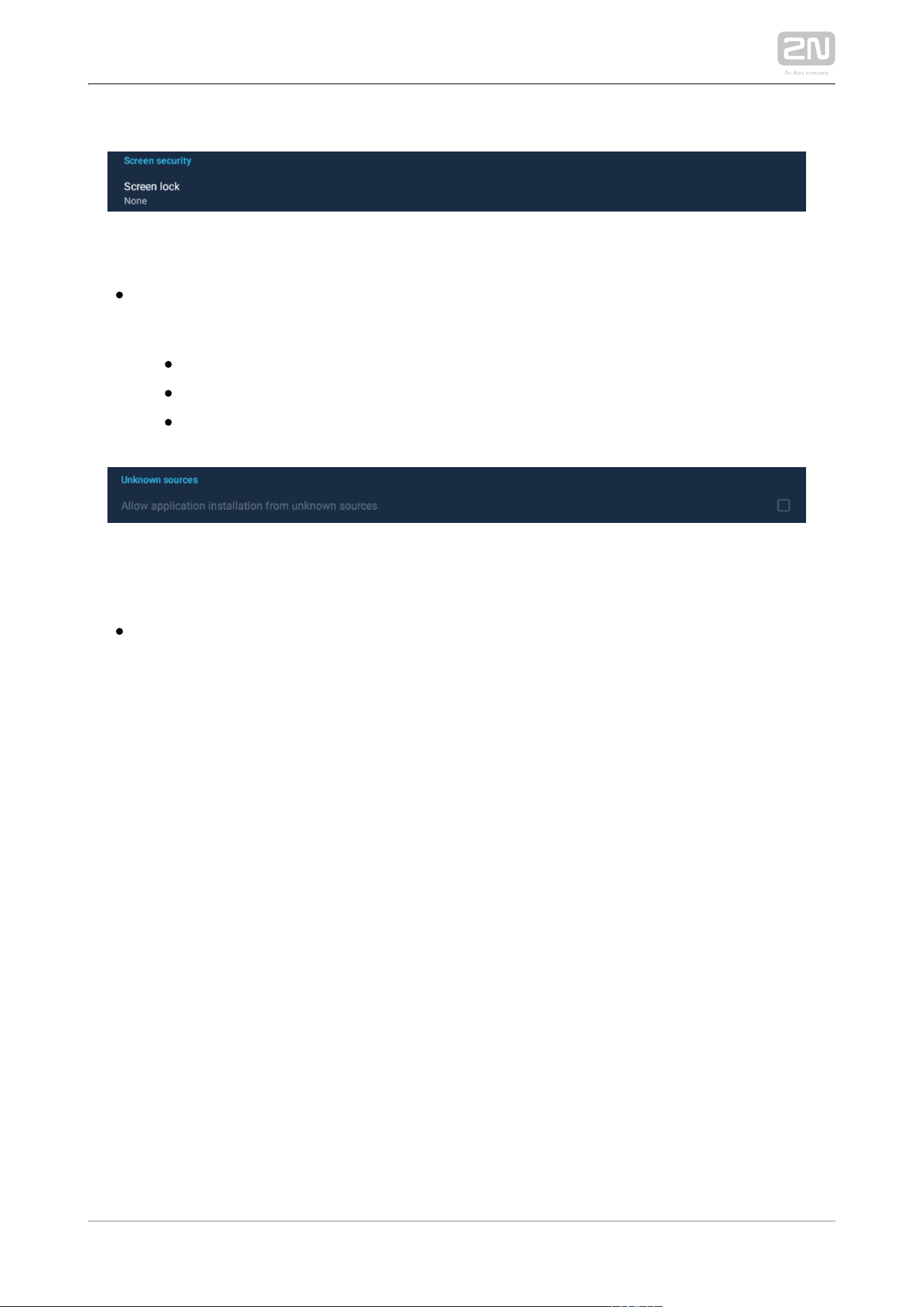
SCREEN LOCK
– set the screen lock password typeThe screen lock is activated
Screen lock .
after the sleep mode timeout set in the Device / Screen / Sleep mode menu
elapses.
– no screen lock.
None
– set the screen lock deactivation gesture.
Pattern
– set the numeric PIN for screen lock deactivation.
PIN
UNKNOWN SOURCES
– allow installation of
Allow application installation from unknown sources
applications from unknown sources.
2N TELEKOMUNIKACE a.s., www.2n.cz54/135
3.3.2.4 Backup & Reset
This subsection describes the administrator options.
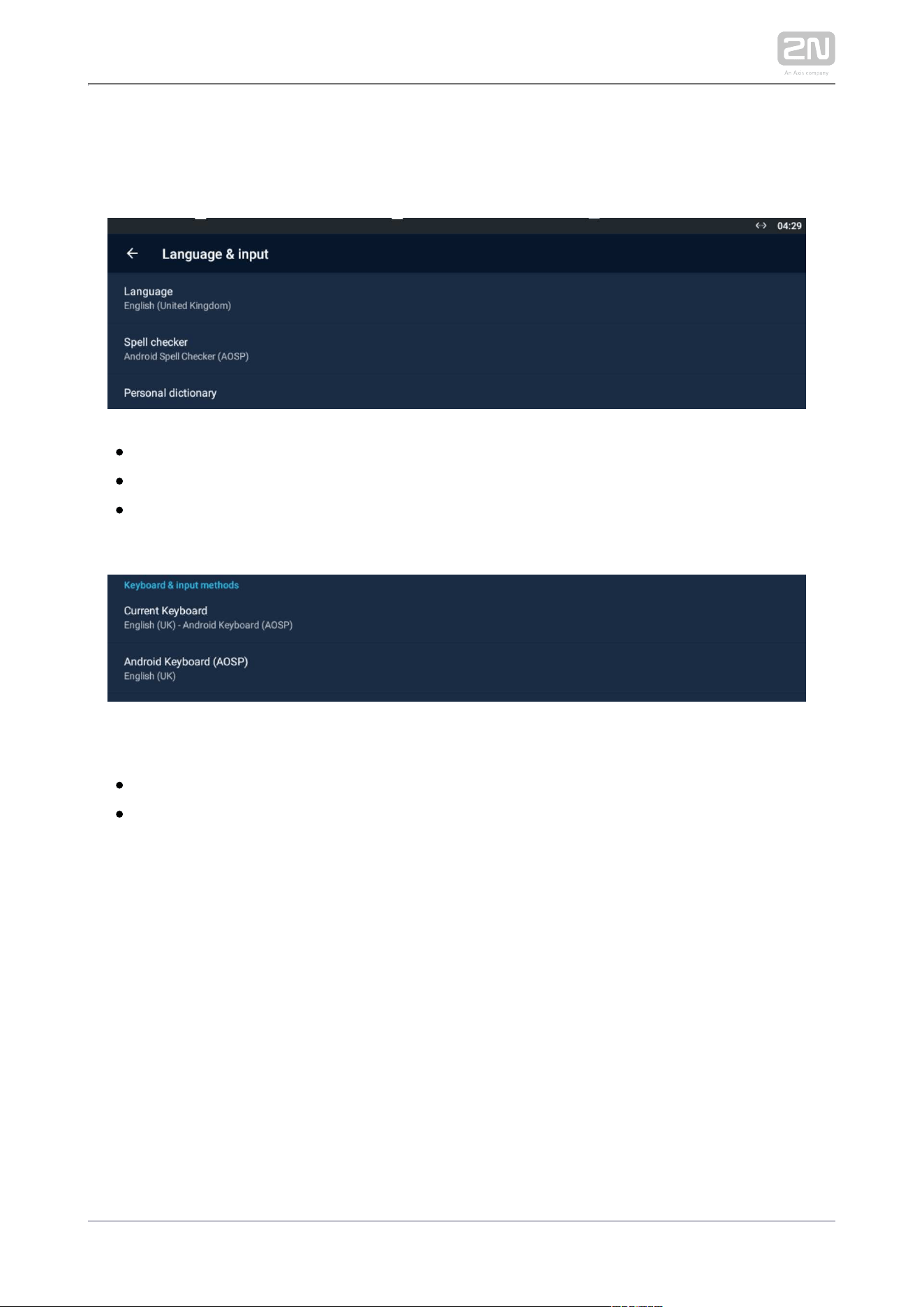
– set the language for the texts to be displayed.Language
– enable/disable the spell checker function.
Spell checker
– add terms of your own including optional abbreviations to
Personal directory
the dictionary.
KEYBOARD & INPUT METHODS
– set the keyboard type.
Current Keyboard
– set the additional parameters of the Android
Android Keyboard (AOSP)
keyboard.

2N TELEKOMUNIKACE a.s., www.2n.cz56/135
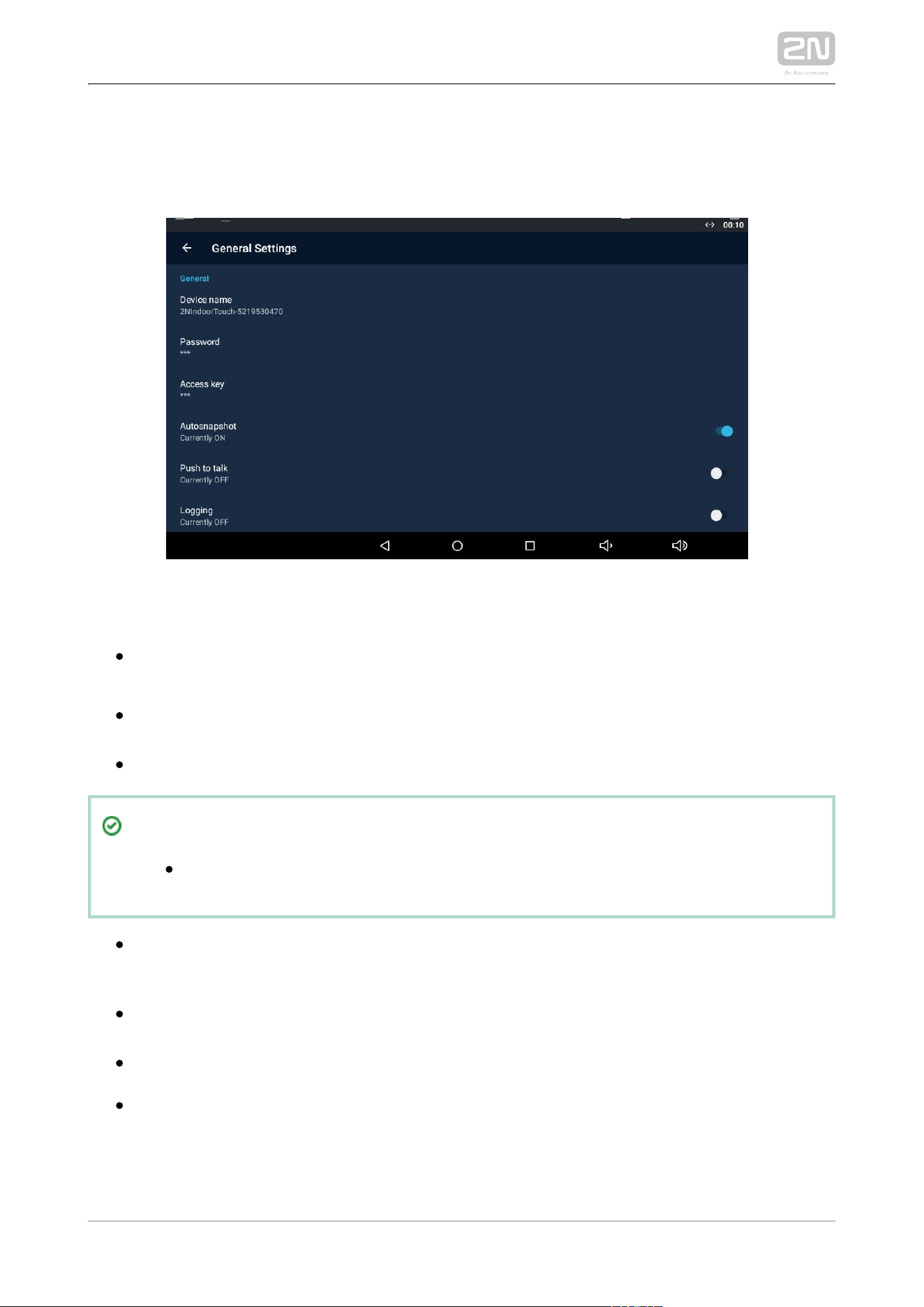
3.3.3.1 General Settings
This section helps you set the Intercoms general parameters.
GENERAL
– set the device name for identification to other
Device Name2N IP Mobile
®
LAN devices.
– set the application setting password via link click from the
Password
application.
– set the authentication password.
Access Key2N IP intercom
Tip
Refer to faq.2n.cz for the instructions for use.Access key
– enable/disable to acquire an image from the
AutosnapshotAutosnapshot
video preview. The image replaces the circle avatar at the added devices in the
Device and Call Log menus.
– select the communication type for one-directional half-duplex
Push to Talk
communication: ON/OFF (ON by default).
– enable/disable application logging to the system log.
Logging
– ON/OFF (ON by default). With ON, Multicast Discovery2N Indoor Touch 2.0
®
sends the info packets to the network in the multicast mode. With OFF,
2N
®
sends the info packets in unicast to the IP address of the 2N IP
Indoor Touch2.0
intercom to be monitored and periodically to all the 2N IP intercoms included in
2N TELEKOMUNIKACE a.s., www.2n.cz57/135
intercom to be monitored and periodically to all the 2N IP intercoms included in
the LAN device list. The info packets are sent in unicast to the 2N IP intercoms
only, not to other LAN devices.
2N Indoor Touch 2.0
®
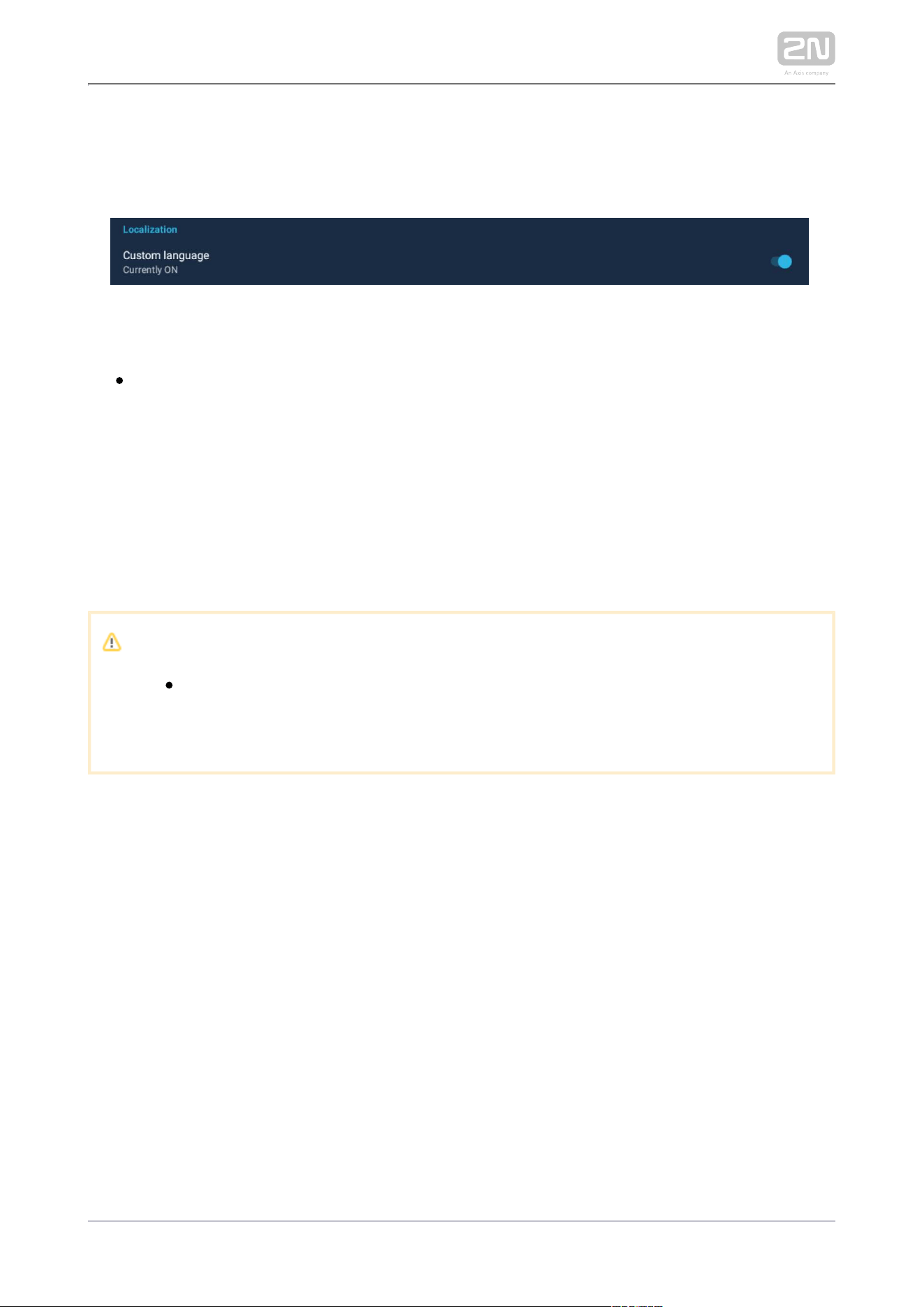
LOCALIZATION
– use custom modified texts, which are not part of the
Custom language
application package. Use JSON strings to set the language.
The custom translations are optionally available in the translationMap.json file in an
external storage (physical or emulated SD card), which matches the following path:
.
/sdcard/hipmo-localization/translationMap.json
The hipmo-localization folder is automatically created on the first available SD card
upon the application start. If there are multiple SD cards in the device and you do not
know which to use, check the SD cards for the folder upon startup.
Note
Make sure that the file name is "" without any translationMap.json
additional (language) extensions or insertions. For example,
translationMap-cs.json is wrong.
Text File Structure
The custom translation JSON includes the data root, which is an array of translation
elements:
{"data":[
translation,
translation,
...
translation
]}
Each translation element has the following structure:
{"key":{"hint":"hint_string","value":"translated_string"}}
where
– text string key (replaces name in strings.xml).
key
2N TELEKOMUNIKACE a.s., www.2n.cz58/135
– text string key (replaces name in strings.xml).key
– text meaning.
hint_string
– custom translation.
translated_string
Example:
{"title_call_declined":{"hint":"Call declined","value":"Call declined"}}
You are recommended to edit translated_string only and not modify hint_string unless
necessary.
Warning
We do not advise you to edit the text string to avoid unexpected KEY
actions of the application.
The application searches the asset for a file that matches the current Locale setting in
the device. If there is one, the application adds the keys included in the file to the map.
Should there be a match, old values are replaced with new ones.
The application checks the Custom Localization switch status. If the function is on and
the corresponding custom translation file is available in the device, the application
adds the keys to the map as mentioned above.
Caution
Untranslated strings are displayed in English.
2N TELEKOMUNIKACE a.s., www.2n.cz59/135
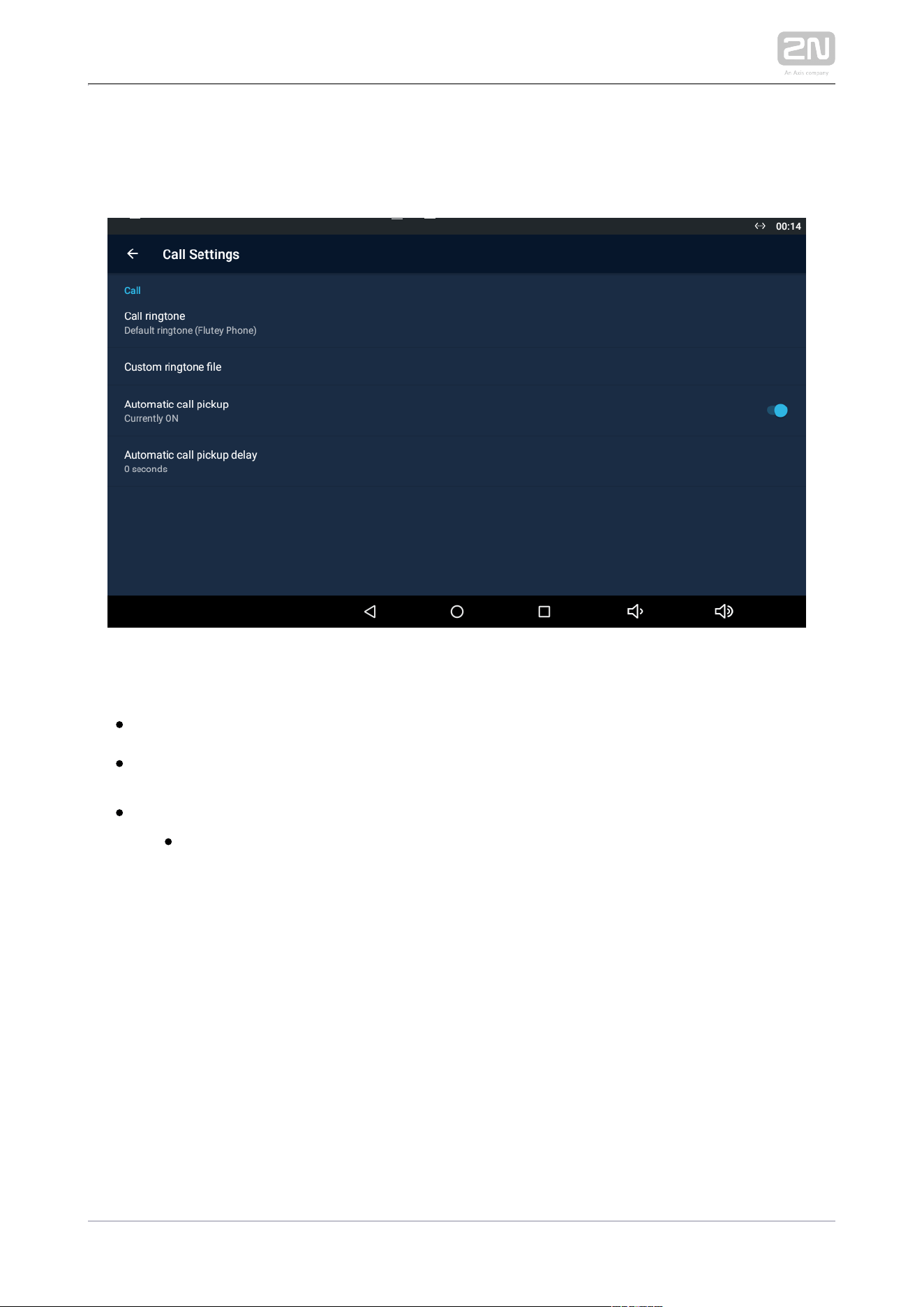
3.3.3.2 Call Settings
This section helps you set the call parameters.
CALL
– select the default ringtone.
Call ringtone2N IP Mobile
®
– load an audio file to be used as the ringtone. The
Custom ringtone file
supported format is .wav, 15 MB, shortened to 15 s, PCM8/PCM16.
– set the automatic incoming call answering.
Automatic call pickup
– set the automatic call pickup timeout to 0–
Automatic call pickup delay
20 seconds.
2N TELEKOMUNIKACE a.s., www.2n.cz60/135
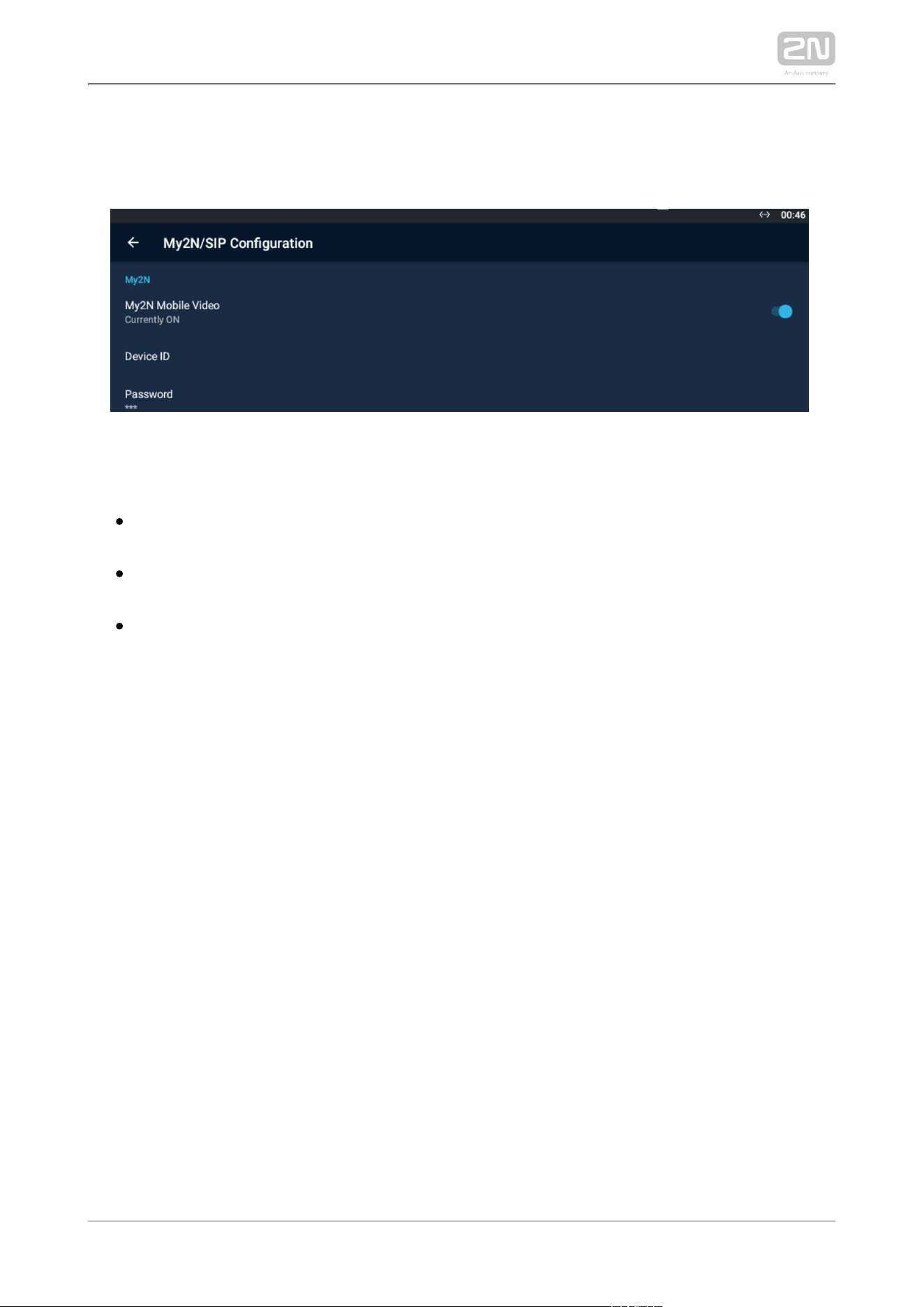
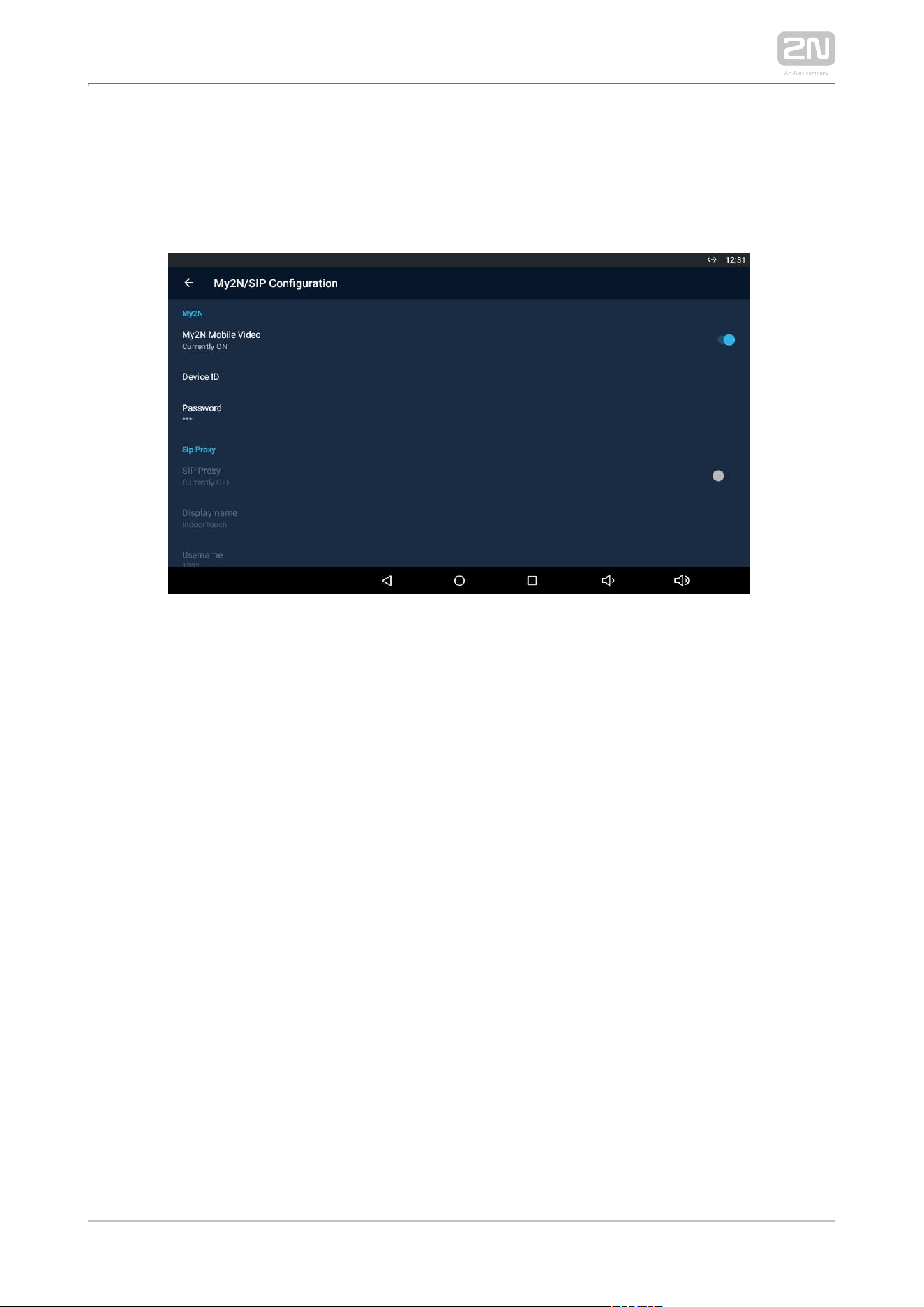
3.3.3.3 My2N/SIP Configuration
This section helps you set the My2N and SIP Proxy parameters.
MY2N
– enable/disable .
My2N Mobile Video 2N IP Mobile
®
– set the device ID assigned by .
Device ID 2N IP Mobile
®
– set the device password for connection, generated
Password 2N IP Mobile
®
automatically.
2N TELEKOMUNIKACE a.s., www.2n.cz61/135
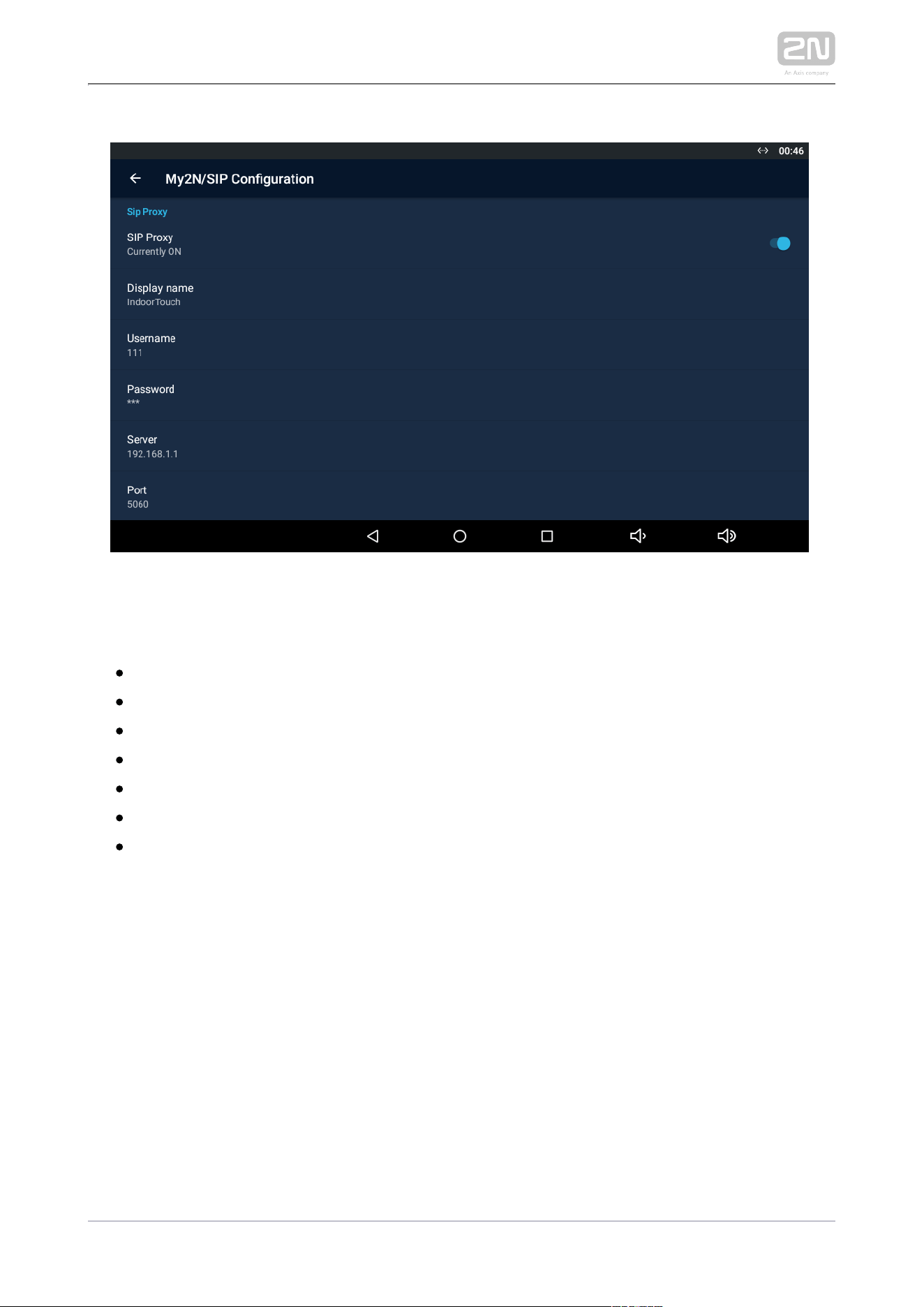
SIP PROXY
– enable/disable the SIP Proxy.
SIP Proxy
– set the account name to be displayed in the application.
Display name
– set the SIP Proxy server username.
Username
– set the SIP Proxy server user password.
Password
– set the SIP Proxy server IP address/domain name.
Server
– set the SIP Proxy server port (default is 5060).
Port
– select the transport protocol: TCP or UDP.
Transport
2N TELEKOMUNIKACE a.s., www.2n.cz62/135
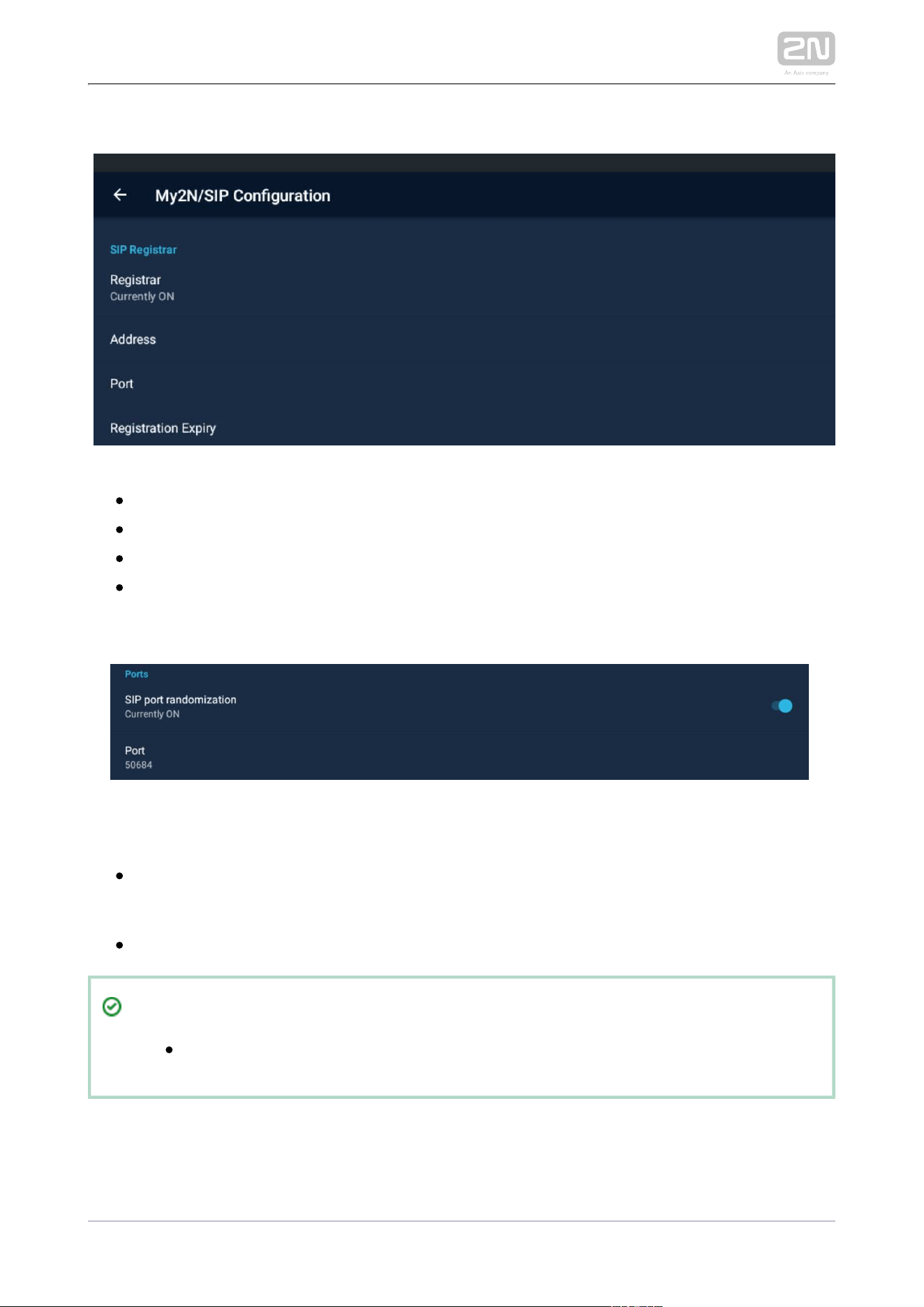
SIP REGISTRAR
Registrar – set the SIP Proxy IP address or domain name.
Address – set the SIP Registrar IP address or domain name.
Port – set the SIP Proxy port (typically 5060).
Registration Expiry – define the registration expiry, which affects the network
and SIP Registrar load by periodically sent registration requirements. The SIP
Registrar can modify the expiry limit without letting you know.
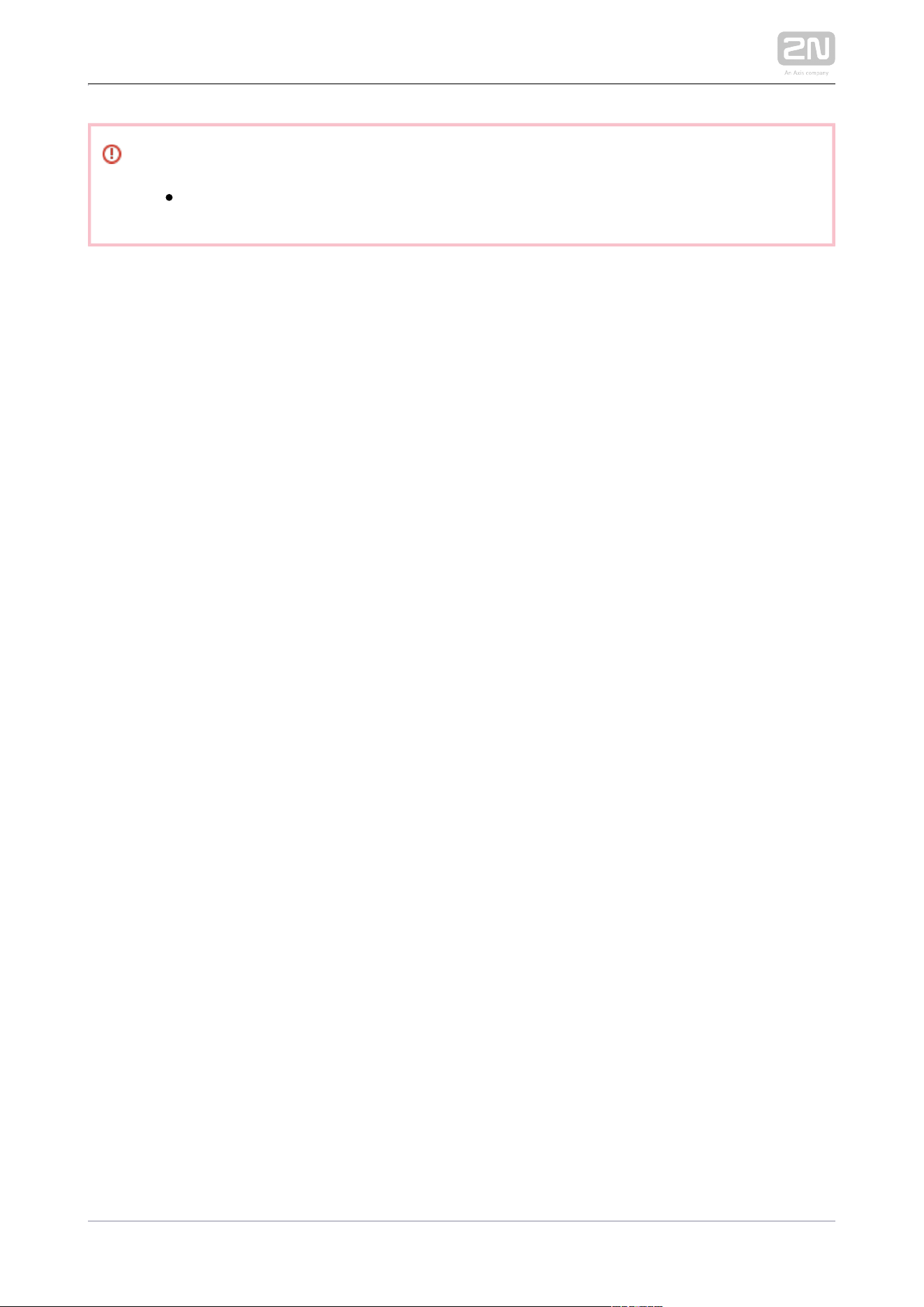
PORTS
– a randomly generated port where the application
SIP port randomization
listens. When the setting is changed, re-registration with the SIP Proxy or My2N
is made.
– set the selected SIP port manually if SIP port randomisation is enabled.Port
Tip
Refer to faq.2n.cz for SIP Proxy call settings.
2N TELEKOMUNIKACE a.s., www.2n.cz63/135
Warning
The SIP Proxy and My2N modes cannot be operated at the same time.
2N TELEKOMUNIKACE a.s., www.2n.cz64/135
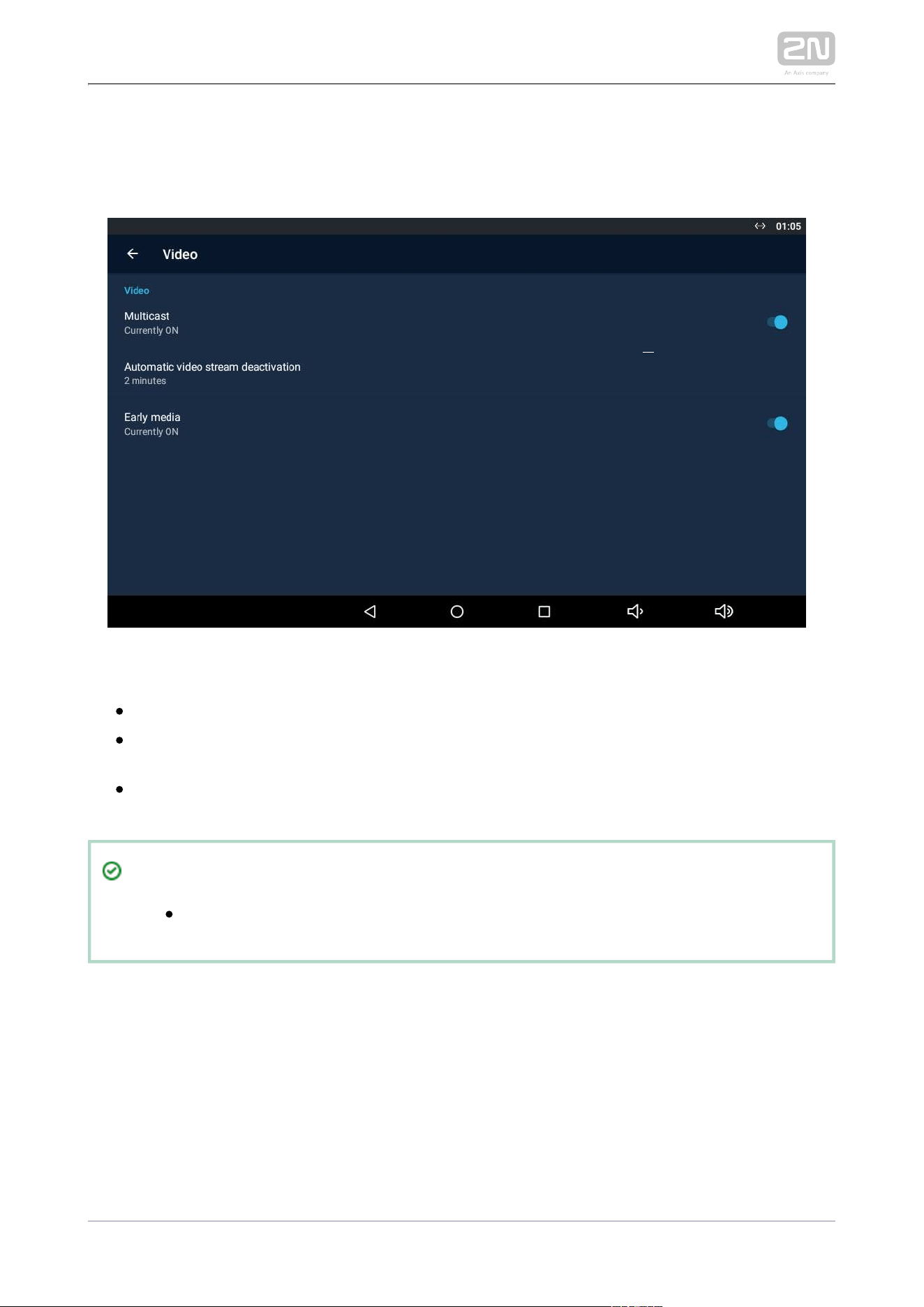
3.3.3.4 Video
This section helps you set the video parameters.
VIDEO
– select the video stream transmission type from a .
Multicast 2N IP intercom
– set the time during which the video
Automatic video stream deactivation
stream preview of the selected in the Device section is displayed.
2N IP intercom
– enable/disable video stream transmission during an incoming call
Early media
ringing from the devices registered with the SIP Proxy.
Tip
Refer to for Multicast/Unicast details.faq.2n.cz
2N TELEKOMUNIKACE a.s., www.2n.cz65/135
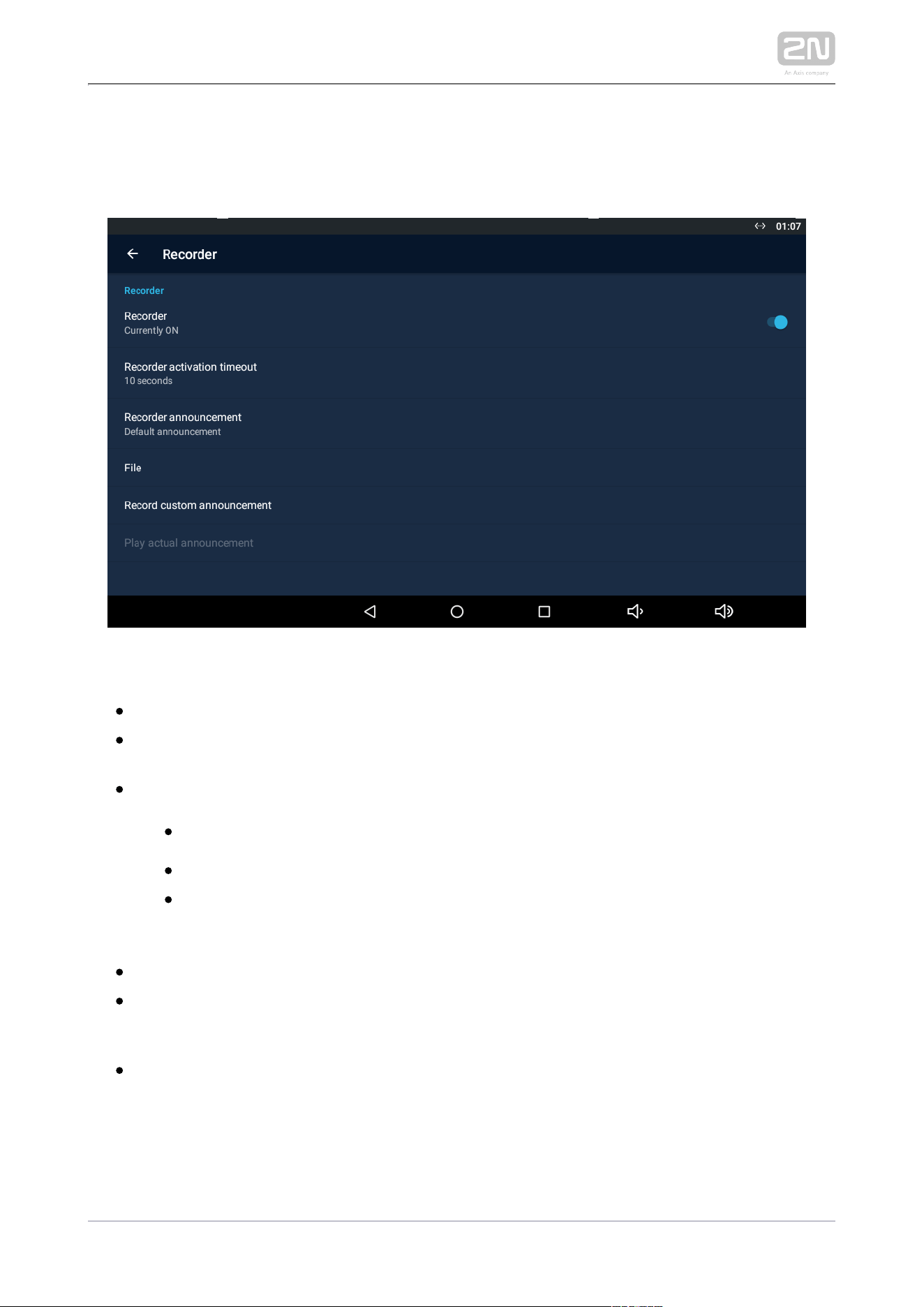
3.3.3.5 Recorder
This section helps you set the recorder parameters.
RECORDER
– enable/disable the recorder function.
Recorder
– the recorder is activated after the set incoming
Recorder activation timeout
ringing timeout elapses.
– set the announcement to be played.
Recorder announcement
– part of the package.Default announcement2N IP Mobile
®
– select an announcement from a file.
Announcement from file
– select an announcement loaded in the Load
Recorded announcement
user announcement section of .
2N IP Mobile
®
– display the file directory structure.
File
– use this function to load an announcement of
Record custom announcement
your own to be played by the recorder. The supported format is .wav, 15 MB,
shortened to 15 s, PCM8/PCM16.
– play the currently set and active announcement.Play current announcement
2N TELEKOMUNIKACE a.s., www.2n.cz66/135
Caution
If you enable the , the call is answered and recorded Recordervia 1
. If you set the for two or more devices in one LAN
device onlyRecorder
or called group, the call is answered and recorded via the device that
was the first to pick up the call (if the same Recorder activation timeout
is set for all the devices), or via the device that is assigned the lowest
. In heavy-traffic networks, there may be a
Recorder activation timeout
delay during call setups and so it cannot be guaranteed that the call will
be picked up and recorded by one and the same device.
2N TELEKOMUNIKACE a.s., www.2n.cz67/135
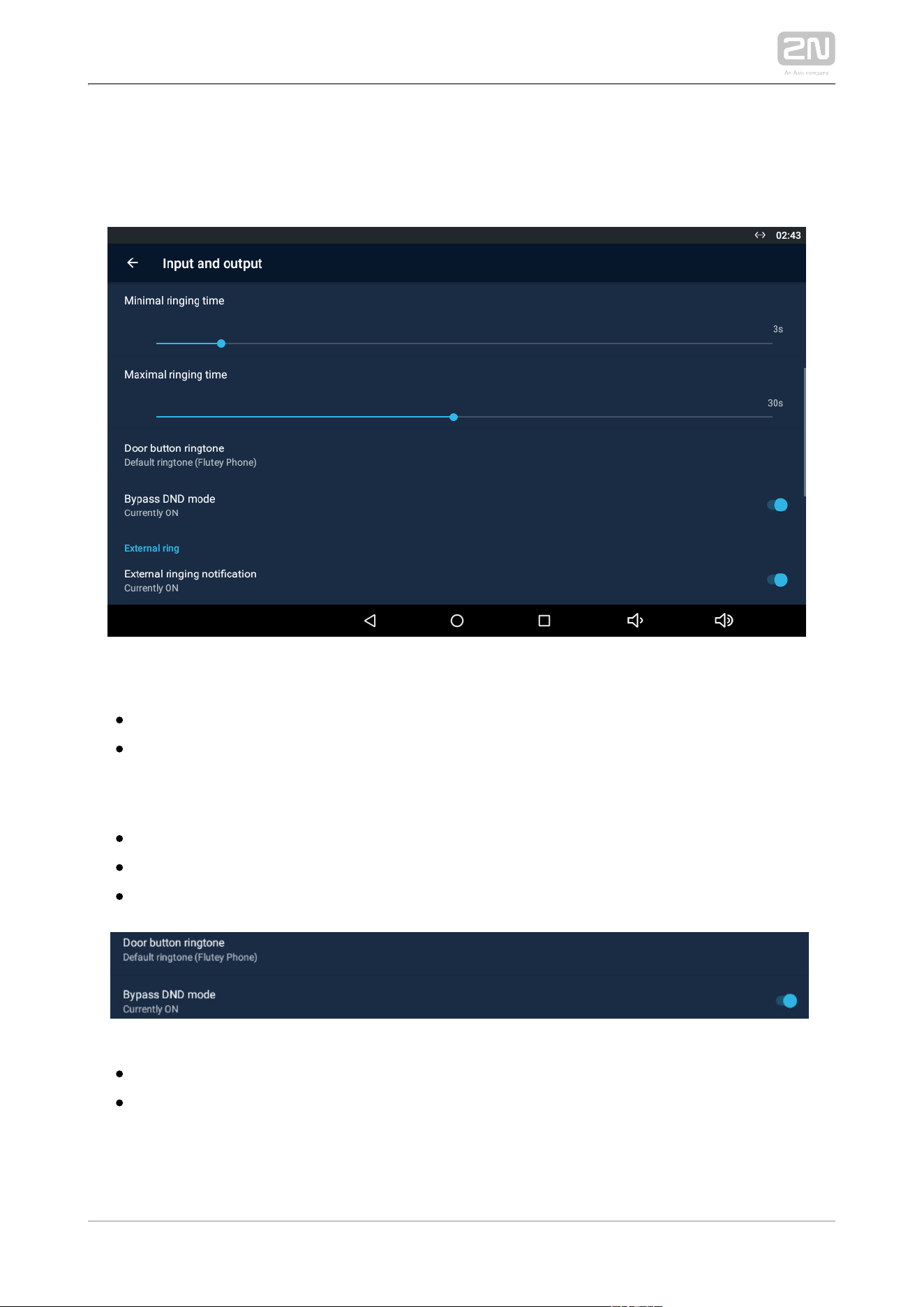
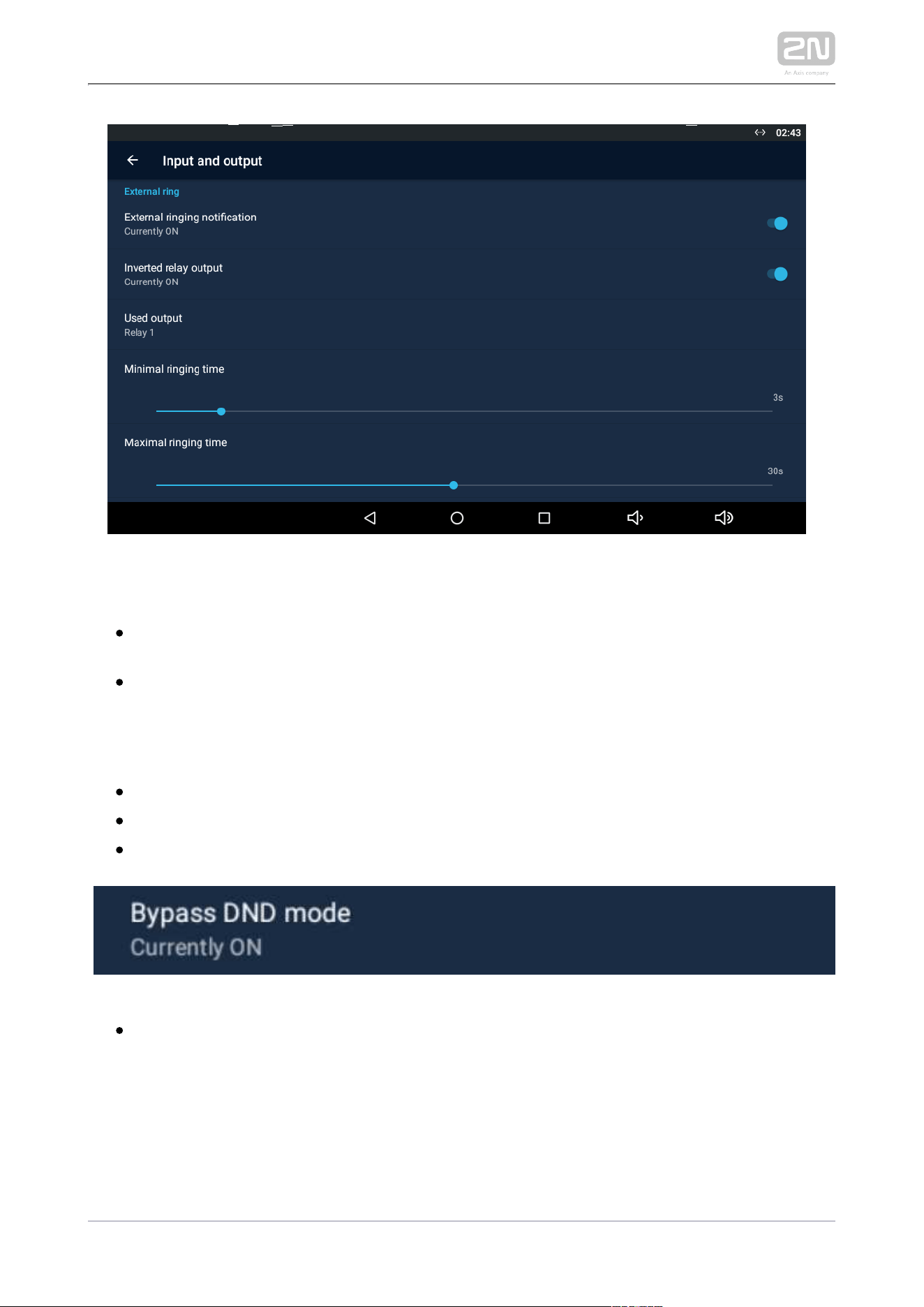
3.3.3.6 Input and Output
This section helps you set the input/output parameters.
DOOR BUTTON
– enable/disable the function.
Door button
– ON by default. Define the pulse rise/fall time detection
Inverted input mode
and application response. With ON, the application does not start ringing until
the fall time is detected whenever the button is released. With OFF, the ringing
starts when the rise time is detected the moment the button is pressed.
– display the input to which the door button is connected.Used input
– set the lower ringing limit after the button is pressed.
Minimum ringing time
– set the upper ringing limit after the button is pressed.
Maximum ringing time
– select the default user ringing.Door ringtone
– make the application ring via DND if ON is set.
Bypass DNDmode
2N TELEKOMUNIKACE a.s., www.2n.cz68/135
EXTERNAL RINGING
– enable the relay activation. If enabled, the
External ringing notification
application will close the given output at an incoming call. OFF is set by default.
– ON/OFF (ON by default). Define the pulse rise/fall time
Inverted relay output
detection and application response. With ON, the application does not start
ringing until the fall time is detected whenever the button is released. With OFF,
the ringing starts when the rise time is detected the moment the button is
pressed.
– display the input to which the door button is connected.
Used input
– set the lower ringing limit when the relay is closed.
M inimum ringing time
– set the upper ringing limit when the relay is closed.
Maximum ringing time
– make the application ring via DND if ON is set. Bypass DND mode

2N TELEKOMUNIKACE a.s., www.2n.cz70/135
1.
2.
3.
4.
5.
a.
b.
6.
7.
a.
b.
3.4 Device Upgrade
There are two ways how to upgrade : using an SD card or via 2N Indoor Touch 2.0
®
the device web interface. The firmware package always includes the current Android
version, Launcher and application.
2N
®
IP Mobile
SD card upgrade procedure:
Download the latest
2N
®
Indoor Touch 2.0 Full Upgrade firmware from www.2n.
.cz
Get a microSD card of the maximum capacity of 16 GB and with the FAT32 file
system.
Copy the downloaded *.ZIP firmware into the root directory of an attached SD
card (naming the file ).
upgrade.zip
Insert the SD card in the SD card slot on the left side of 2N Indoor Touch 2.0
®
(refer to ).
2.1 Before You Start
Reset the device as follows:
Press the backside Reset button shortly (refer to ), or
2.1 Before You Start
Press the Restart button in the System / Data Backup and Recovery
configuration section.
If detects the right file, the upgrade process will run 2N
®
Indoor Touch 2.0
automatically. If not, an error message is displayed.
Remove the SD card after the upgrade is complete and choose one of the
following options:
Click the display to restart the system.
Hold your finger on the screen for 5 seconds to reset the factory values.
2N TELEKOMUNIKACE a.s., www.2n.cz71/135
1.
2.
3.
4.
5.
6.
7.
Warning
Never remove the SD card during upgrade to avoid device damage.
If you want to interrupt the upgrade process, do it within the first 10
seconds as invited. Upgrade cannot be aborted later. Remember to
remove the SD card after upgrade abort to avoid upgrade re-attempt
upon the next startup!
Web interface upgrade procedure:
Download the latest
2N
®
Indoor Touch 2.0 firmware from
. www.2n.cz
Expand the package downloaded.
Enter the device IP address into the browser address row to enter the
device
web interface.
Log in and go to the Maintenance tab.
Select Firmware upgrade and load the *.zip file included in the firmware package
in the wizard.
Having completed file loading and verifying, click Upgrade.
The device will get restarted and upgrade will be executed automatically.
Caution
The upgrade process may take up to 10 minutes or more.
Never disconnect the device from the electric power supply during
upgrade to avoid device damage!
The first system startup after a successful upgrade may take up to a few
minutes.
User data is not deleted during the upgrade process.

2N TELEKOMUNIKACE a.s., www.2n.cz72/135
4. Intercoms Applications
Configuration
This section describes configuration of the pre-installed application.Intercoms
Here is what you can find in this section:
4.1 Application Description
4.2 Application Environment and Configuration
4.2.1 Device
4.2.2 Call Log
4.2.3 Dial Pad
4.2.4 Settings
4.3 Notifications in 2N® Indoor Touch Environment
4.4 Application Use
4.4.1 LAN Calls
4.4.2 SIP Proxy Server Calls
4.4.3 2N® Mobile Video Calls
4.5 Supplementary Information
4.5.1 Troubleshooting
2N TELEKOMUNIKACE a.s., www.2n.cz73/135
4.1 Application Description
is an application designed for video calls between the 2N IP Mobile
®
2N IP intercoms
and devices.2N
®
Indoor Touch 2.0
is part of the firmware.
IP Mobile 2N
®
2N
®
Indoor Touch 2.0
sets up calls between the devices.
IP Mobile2N
®
2N
®
Indoor Touch 2.0
sets up calls between a Smartphone and device.
IP Mobile 2N
®
2N
®
Indoor Touch 2.0
sets up calls via the cloud solution.
IP Mobile 2N
®
2N Mobile Video
®
sets up SIP Proxy calls for other SIP supporting devices and
IP Mobile 2N
®
applications.
Caution
Always use the latest firmware in your or 2N IP intercom2N
®
Indoor
device to make the application work perfectly!
Touch 2.0
2N TELEKOMUNIKACE a.s., www.2n.cz74/135
4.2 Application Environment and
Configuration
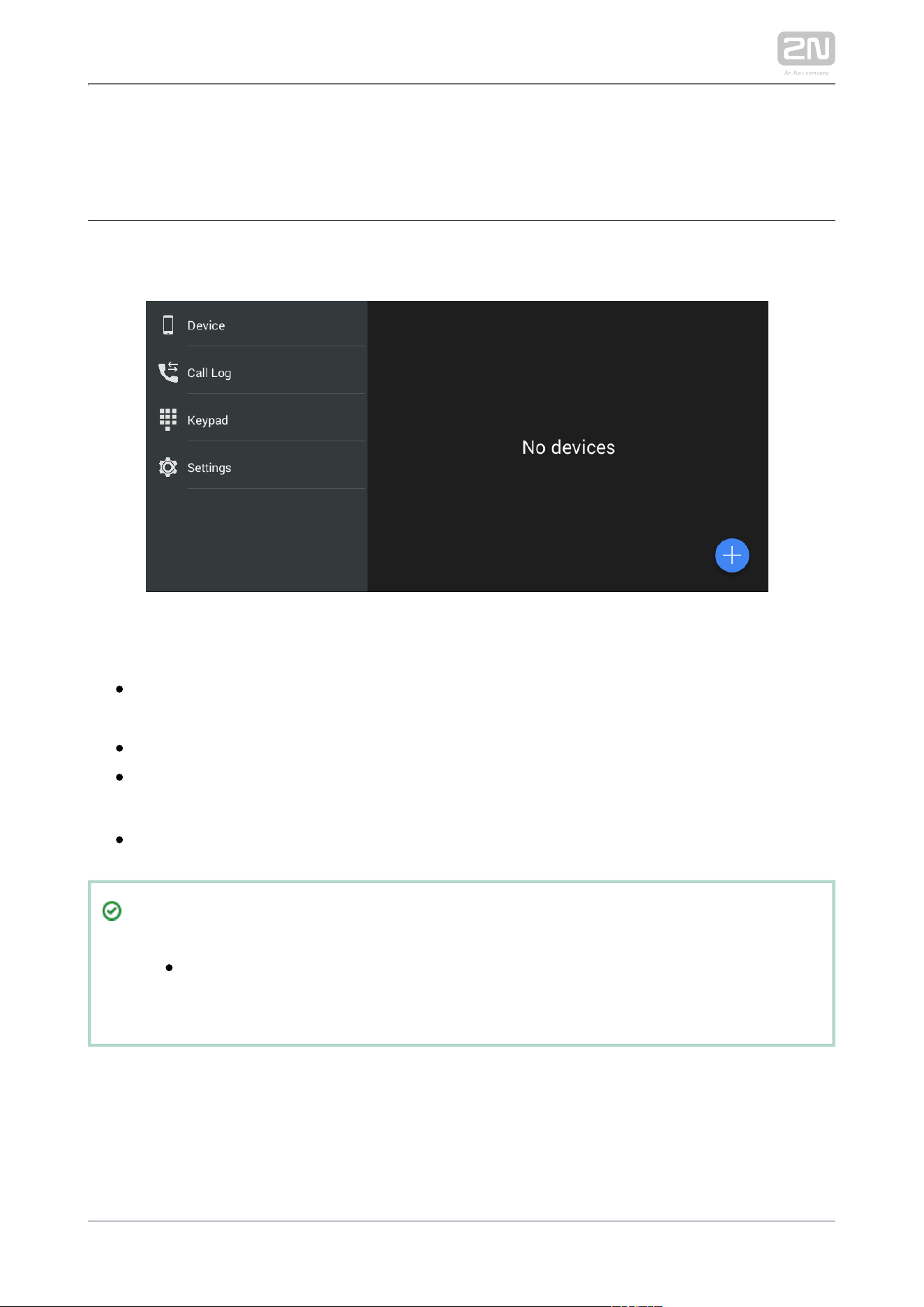
Once launched, displays the Device screen:2N IP Mobile
®
The main menu includes the following items:
– list of added devices: , ,
Device2N IP intercoms2N IndoorTouch 2.0
®
2N
®
or, if SIP Proxy is used, any other SIP supporting device.
Mobile Video
– list of all accomplished incoming/outgoing calls.
Call Log
– dial a station number manually to set up a call if the application is
Keypad
registered with a SIP Proxy server.
– settings.
Settings2N
®
IP Mobile
Tip
The settings are available via the 2N IP Mobile
®
2N IndoorTouch 2.0
®
configuration interface too.
2N TELEKOMUNIKACE a.s., www.2n.cz75/135
4.2.1 Device
The Device section helps you add the , devices, 2N IP intercoms2N Indoor Touch 2.0
®
devices and devices registered with the same SIP Proxy server. The
2N Mobile Video
®
and devices are detected in the LAN automatically
2N IP intercoms 2N Indoor Touch
®
via . The devices that are connected to another LAN need a SIP Proxy
2N IP Mobile
®
server and have to be added manually. You can combine adding devices from groups
(LAN / Proxy / My2N).
Note
The application does not provide simultaneous SIP Proxy server and 2N
®
connections. Therefore, the added devices are switched
Mobile Video
too. The SIP Proxy account connection, SIP Proxy device creation and
device adding make these devices saved. Once connected to 2N
®
, the application remembers these devices and adds them
Mobile Video
to the device list after SIP Proxy reconnection. The added LAN devices
are always visible in the Device menu.
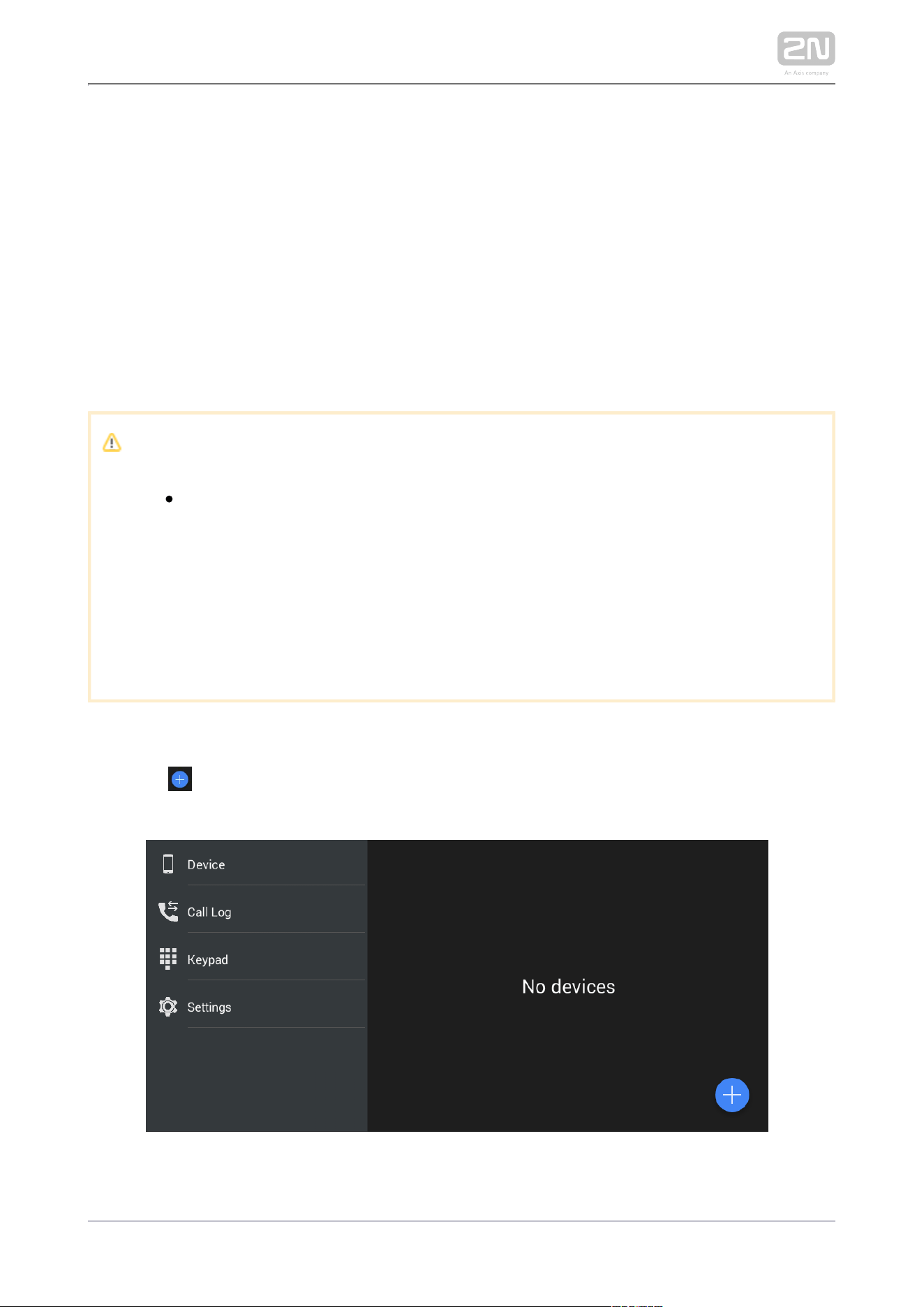
Device Adding
Click the icon in the right-hand bottom corner of the Device main window to enter
the device adding menu.
LAN Devices
2N TELEKOMUNIKACE a.s., www.2n.cz76/135
LAN Devices
All the and devices detected automatically in 2N IP intercoms 2N Indoor Touch 2.0
®
the same LAN are displayed in the Device/LAN main window. Click a row to remove
the selected device. Each device is identified by a name and IP address. The selected
device is marked . Press to the right in the application upper toolbar to select
all the devices listed. Click to edit the device name.
Click to the right in the upper panel to save the selected LAN devices. The
application moves back to the Device menu to display the selected devices.
2N TELEKOMUNIKACE a.s., www.2n.cz77/135
1.
Proxy Devices
To become a SIP Proxy device, the device has to be registered with a SIP Proxy
server.
Note
The application does not allow you to add, create or edit a SIP Proxy
device unless correctly connected to a SIP Proxy server.
Proxy Registration
and SIP supporting devices can communicate with each other only if 2N IP Mobile
®
registered with the same SIP Proxy server.
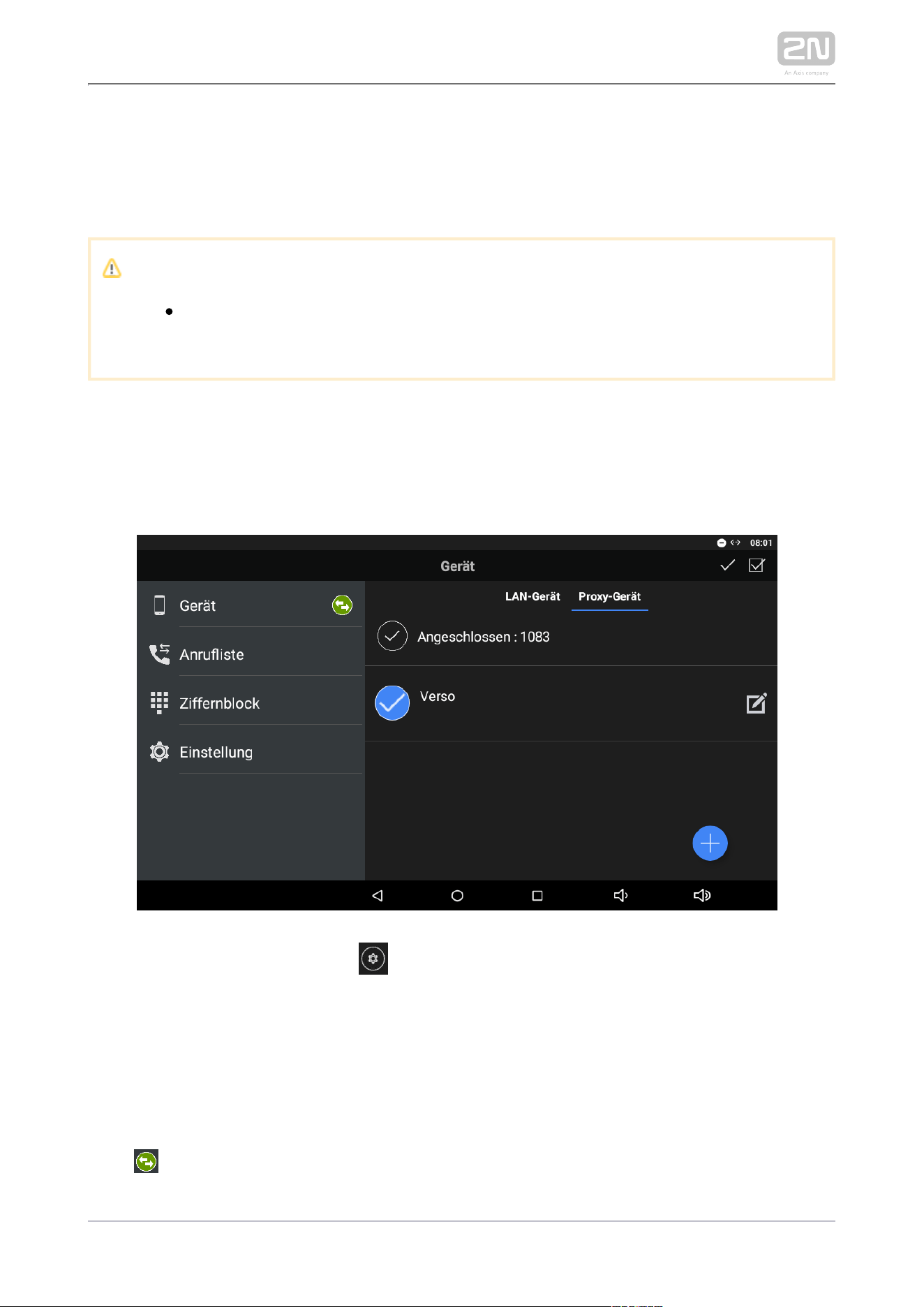
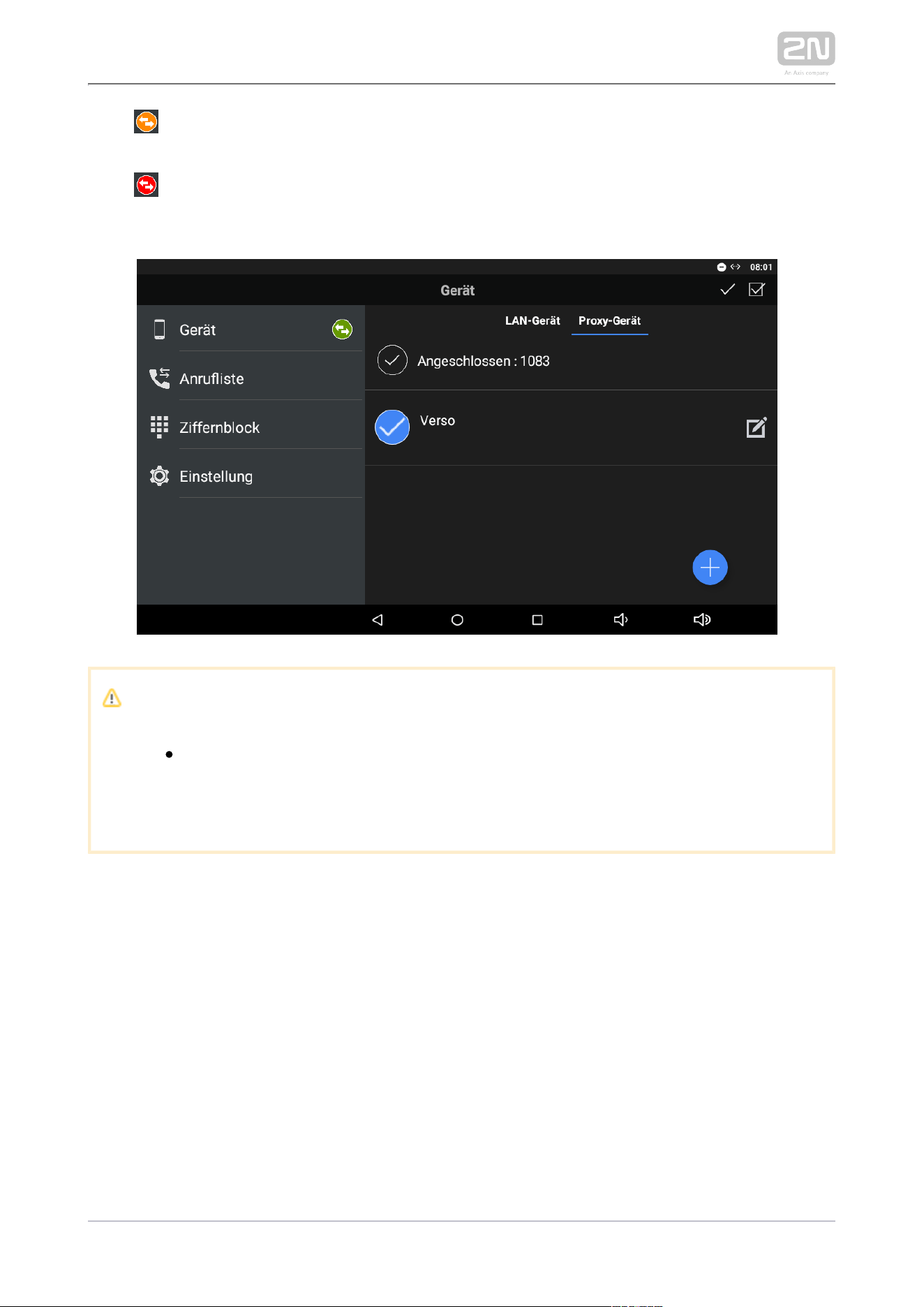
Click the row marked with to redirect the application to the My2N/SIP
configuration menu. Set the SIP Proxy state to ON and edit the SIP Proxy server
connecting parameters. Refer to
4.2.2 SIP Proxy Server Calls for details.
Set the parameters correctly to complete the registration with a SIP 2N IP Mobile
®
Proxy server. Check the notification icon in the Device main menu for the registration
status:
– The application has been successfully registered with a SIP Proxy server.
2N TELEKOMUNIKACE a.s., www.2n.cz78/135
2.
3.
– The application is trying to register itself with a SIP Proxy server, yet
unsuccessfully so far.
– The SIP Proxy server registration is inactive due to the SIP Proxy server
rejection or unavailability.
Caution
The application requires 60 s as the minimum registration 2N IP Mobile
®
expiry time. If the expiry time is shorter, the application may keep
disconnecting from the SIP Proxy server.
2N TELEKOMUNIKACE a.s., www.2n.cz79/135
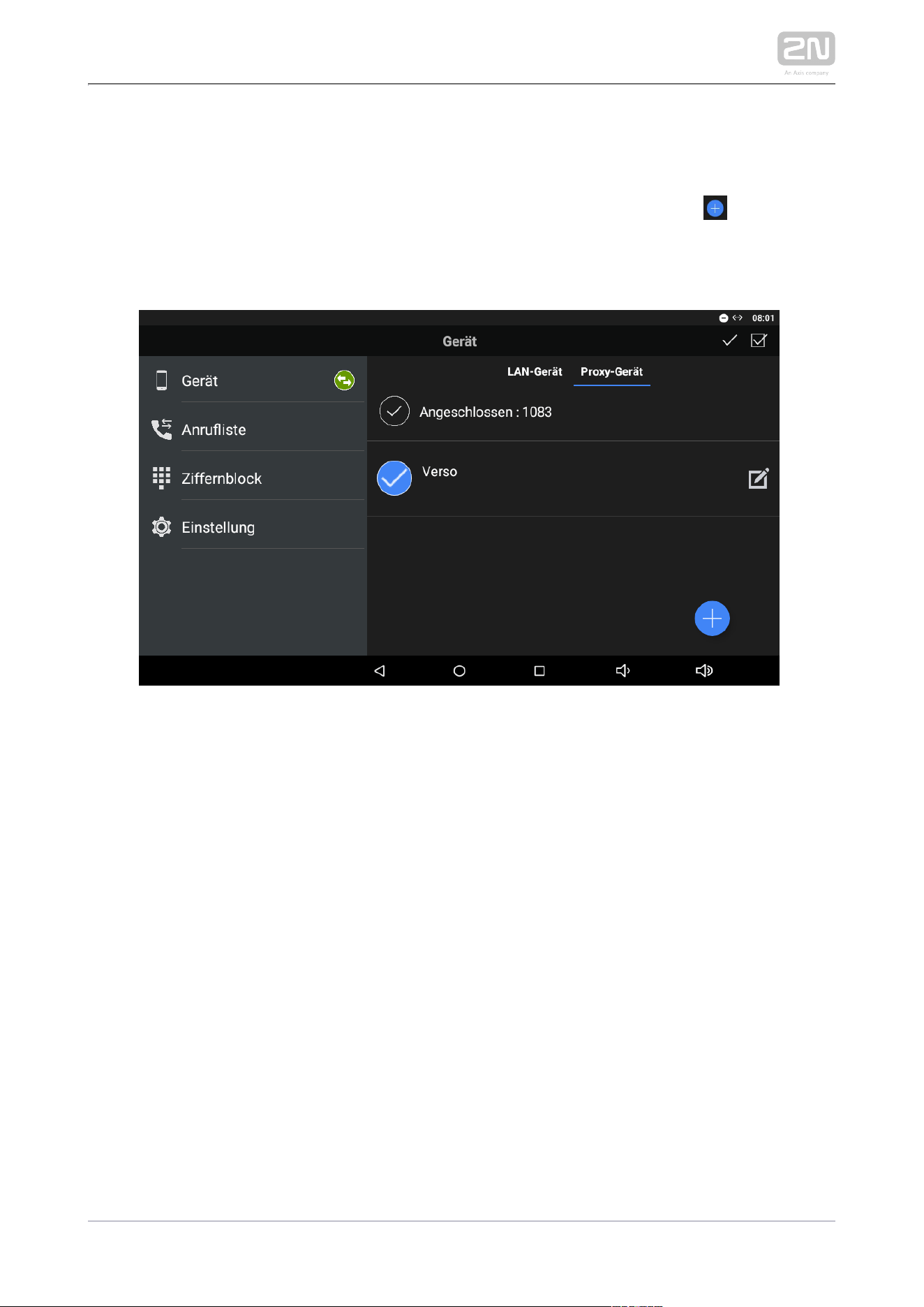
Proxy Device Adding
Once is successfully connected to and registered with the SIP Proxy 2N IP Mobile
®
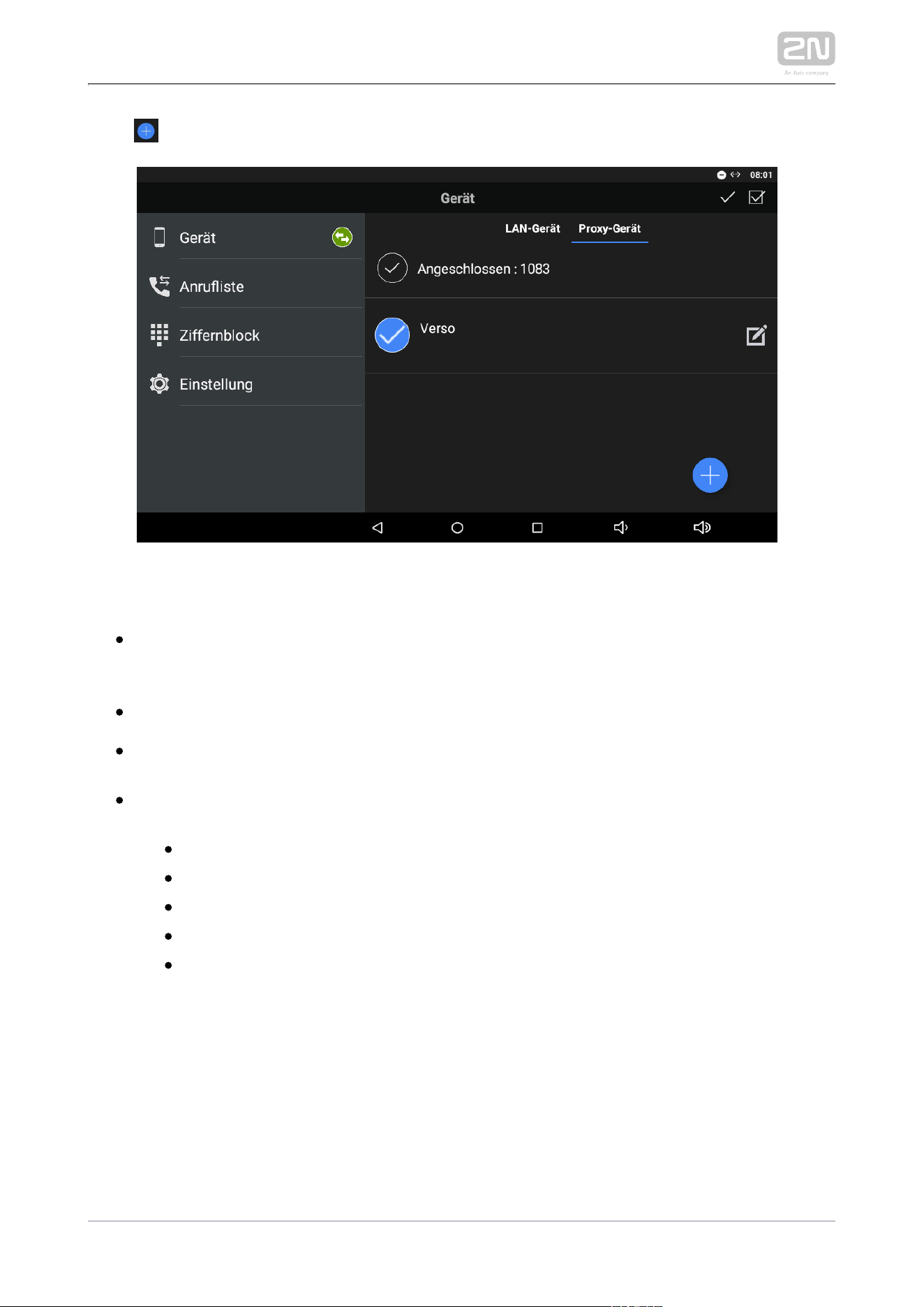
server, you can add SIP Proxy devices to the list manually. Again, click in the right-
hand bottom corner of the Device main window to enter the device adding mode.
Then use the tab below the application title row to switch the window to Proxy
devices.
2N TELEKOMUNIKACE a.s., www.2n.cz80/135
Click to add a SIP Proxy device.
Complete the following parameters:
– set the device name for identification in . Used for
Device name2N IP Mobile
®
application only.
– set the line to be dialled by for an outgoing call.
SIP line2N IP Mobile
®
– set the DTMF to be sent when lock 1-4 is pressed. Used primarily for
DTMF1–4
DTMF sending to the and unlocking.
2N IP intercoms
– enter the parameters for external Axis camera
External camera settings
connection:
Enabled/Disabled
IP/domain – set the Axis camera IP address/domain name.
Username – set the Axis camera video stream login username.
Password – set the Axis camera video stream login password.
Primary – select the primary display: external camera or default video
stream.
2N TELEKOMUNIKACE a.s., www.2n.cz81/135
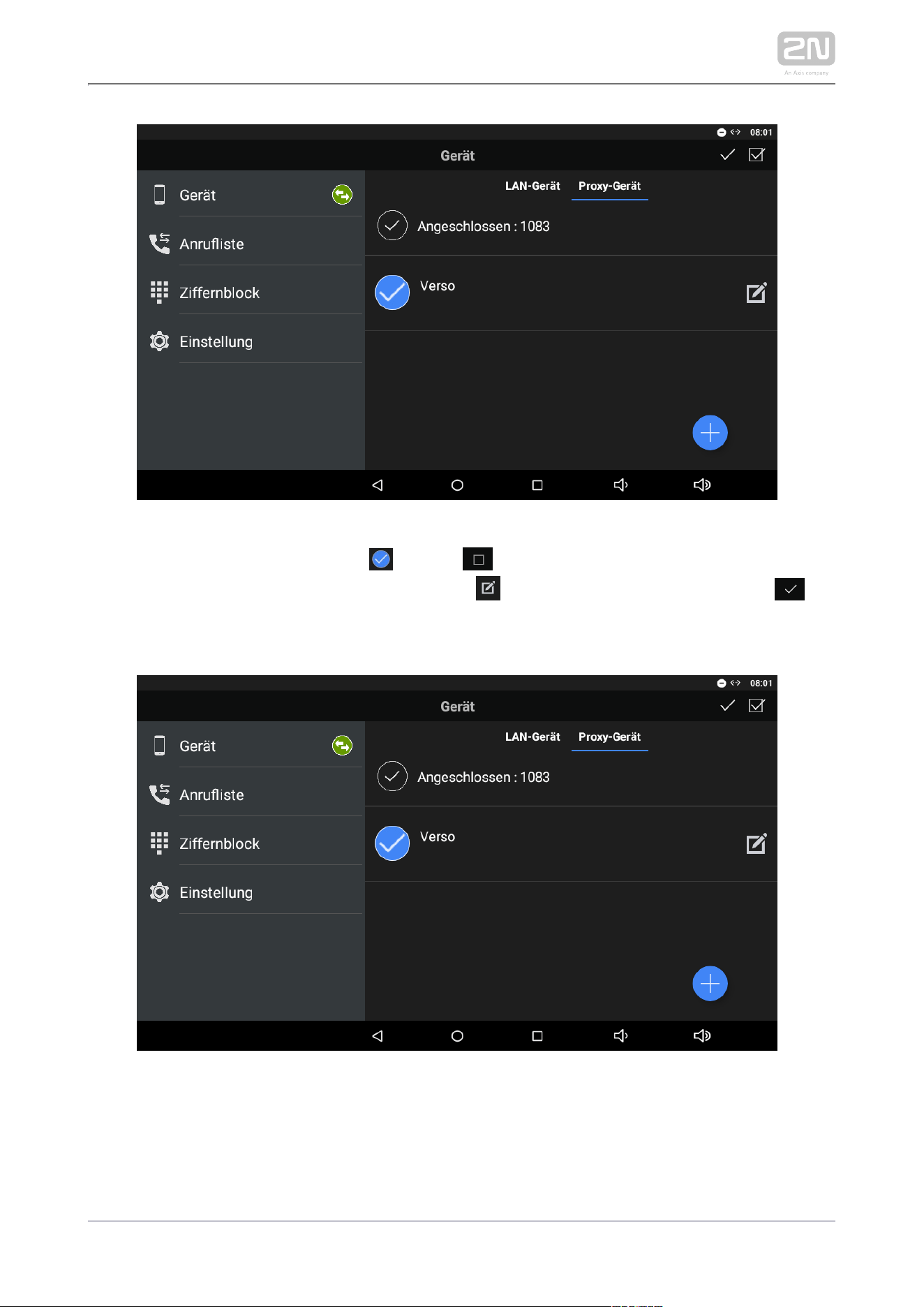
The selected device is marked . Click to the right in the application upper
toolbar to select all the devices listed. Click to edit the device name. Click to
save the selected Proxy devices. The application moves to the Device menu to display
the selected devices.
2N TELEKOMUNIKACE a.s., www.2n.cz82/135
My2N Devices
The My2N devices are devices from . Like the SIP Proxy devices, the 2N Mobile Video
®
My2N devices cannot be added to the device list until the application is connected to
the cloud at .
www.my2n.com
Note
Make sure that a web account and one device at 2N Indoor Touch 2.0
®
least have been created to make use of the functions.
2N Mobile Video
®
Refer to faq.2n.cz for more details.
Warning
When the 30-day Trial licence expires, purchase a licence corresponding
to the count of created devices. If you fail to do so, you will not be able
to log in to and use cloud calls.2N Mobile Video
®
Connection to Service
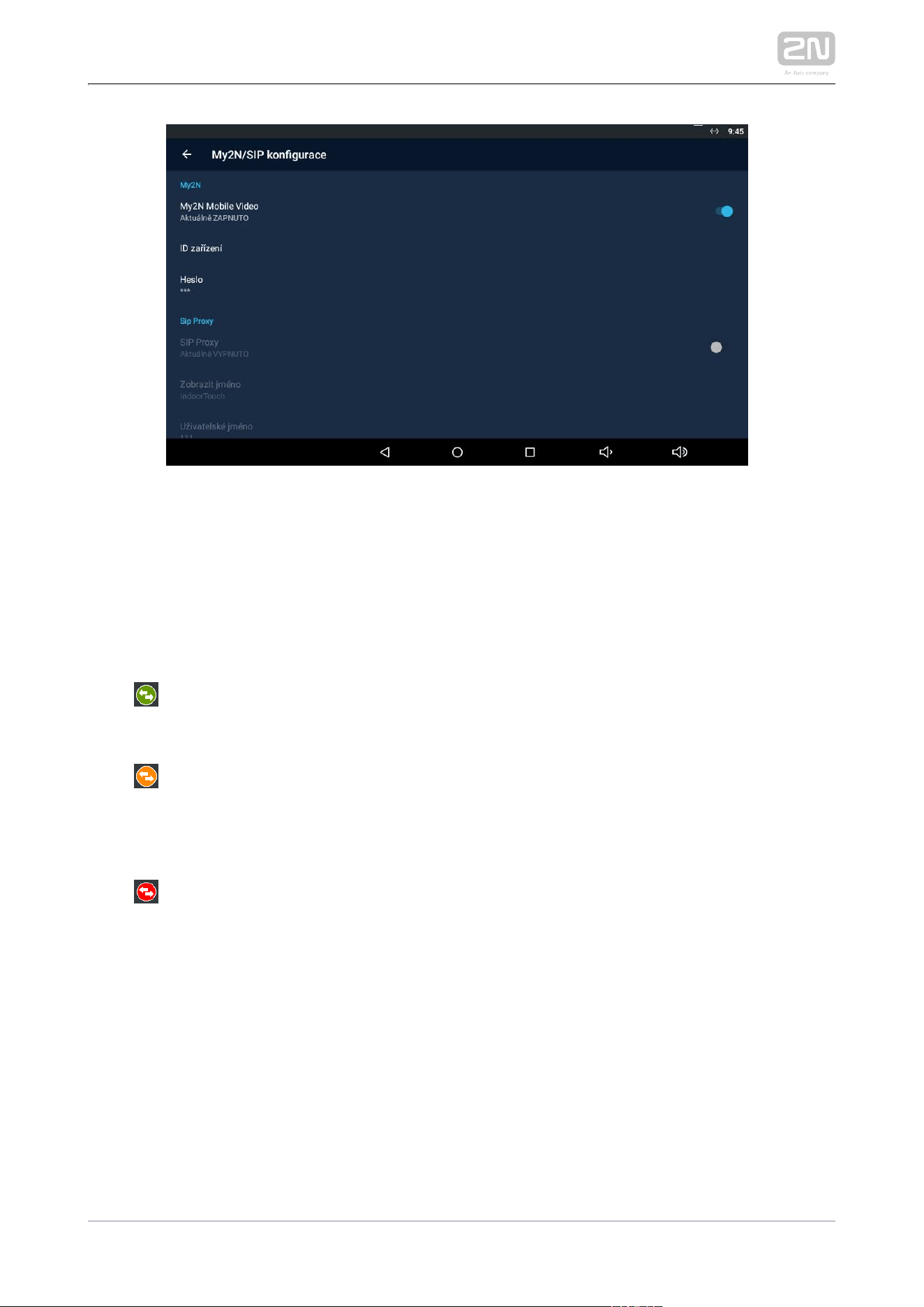
Use the application settings for connection.Find the main menu 2N Mobile
®
Video
Settingsand turn the switch to Enabled to activate the My2N Mobile Video login row.
Refer to
4.2.3 Calls via 2N Mobile Video
®
for more details.
2N TELEKOMUNIKACE a.s., www.2n.cz83/135
1.
2.
3.
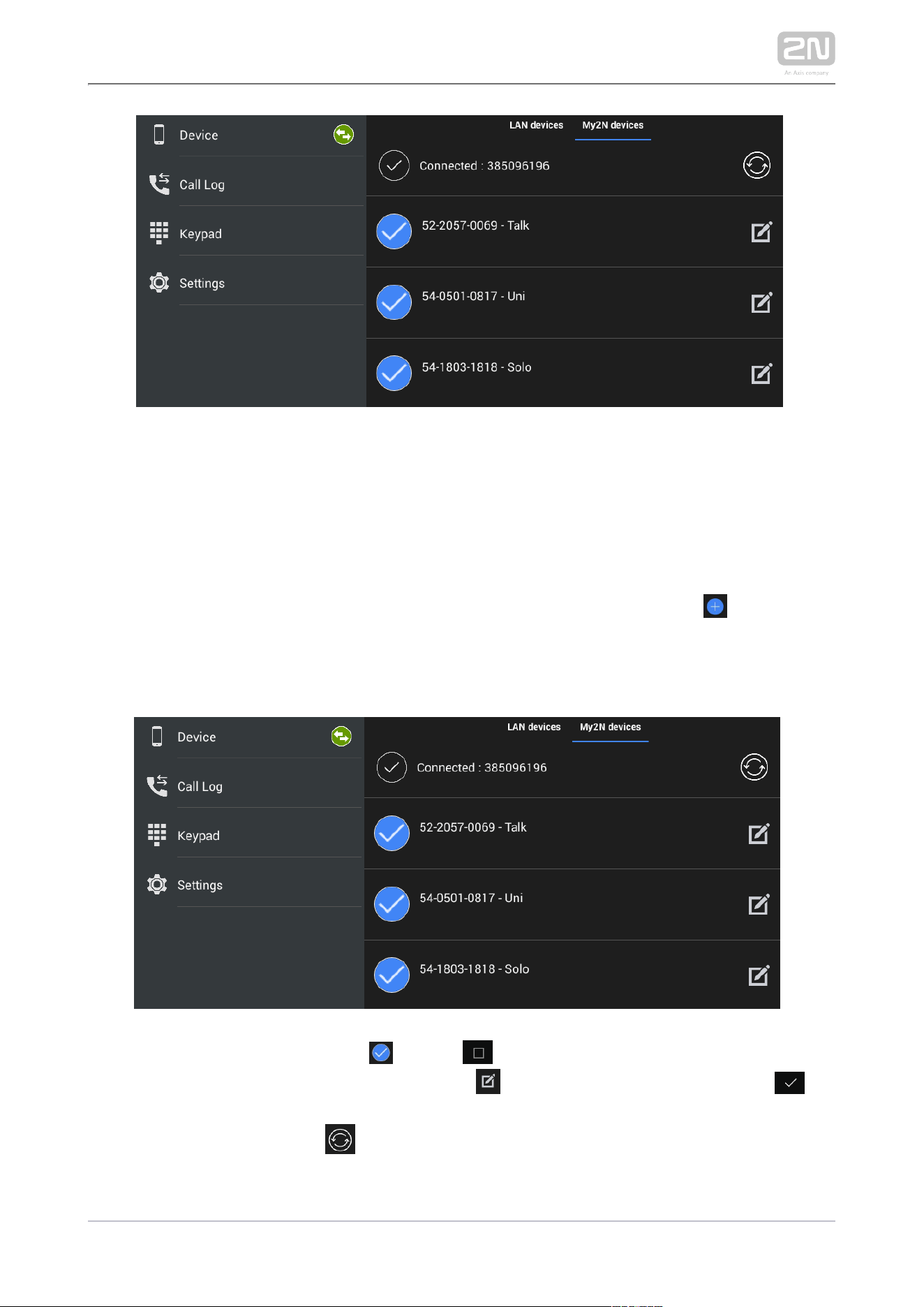
Upon login, the Phonebook (device list) set for this device on the service web is
downloaded to the application and displayed in the My2N devices, which replaces the
Proxy devices. The Phonebook is also added automatically to the Device menu.
The application indicates the server connection using an icon next 2N Mobile
®
Video
to the devices tab:
– The application has successfully downloaded all the data and is registered
with a SIP Proxy server.2N Mobile
®
Video
– The application has successfully downloaded all the data and is trying to
register itself with a SIP Proxy server, yet unsuccessfully so 2N Mobile
®
Video
far.
– The application failed to connect to the servers.
2N Mobile
®
Video
2N TELEKOMUNIKACE a.s., www.2n.cz84/135
My2N Device Adding
Onceis successfully connected to and registered with 2N IP Mobile
®
2N Mobile
®
Video
, the Phonebook download is displayed in the Device menu. You can edit the device
names or remove a device from display in the Phonebook. Again, click in the right-
hand bottom corner of the Device main window to enter the device adding mode.
Then use the tab below the application title row to switch the window to My2N
devices.
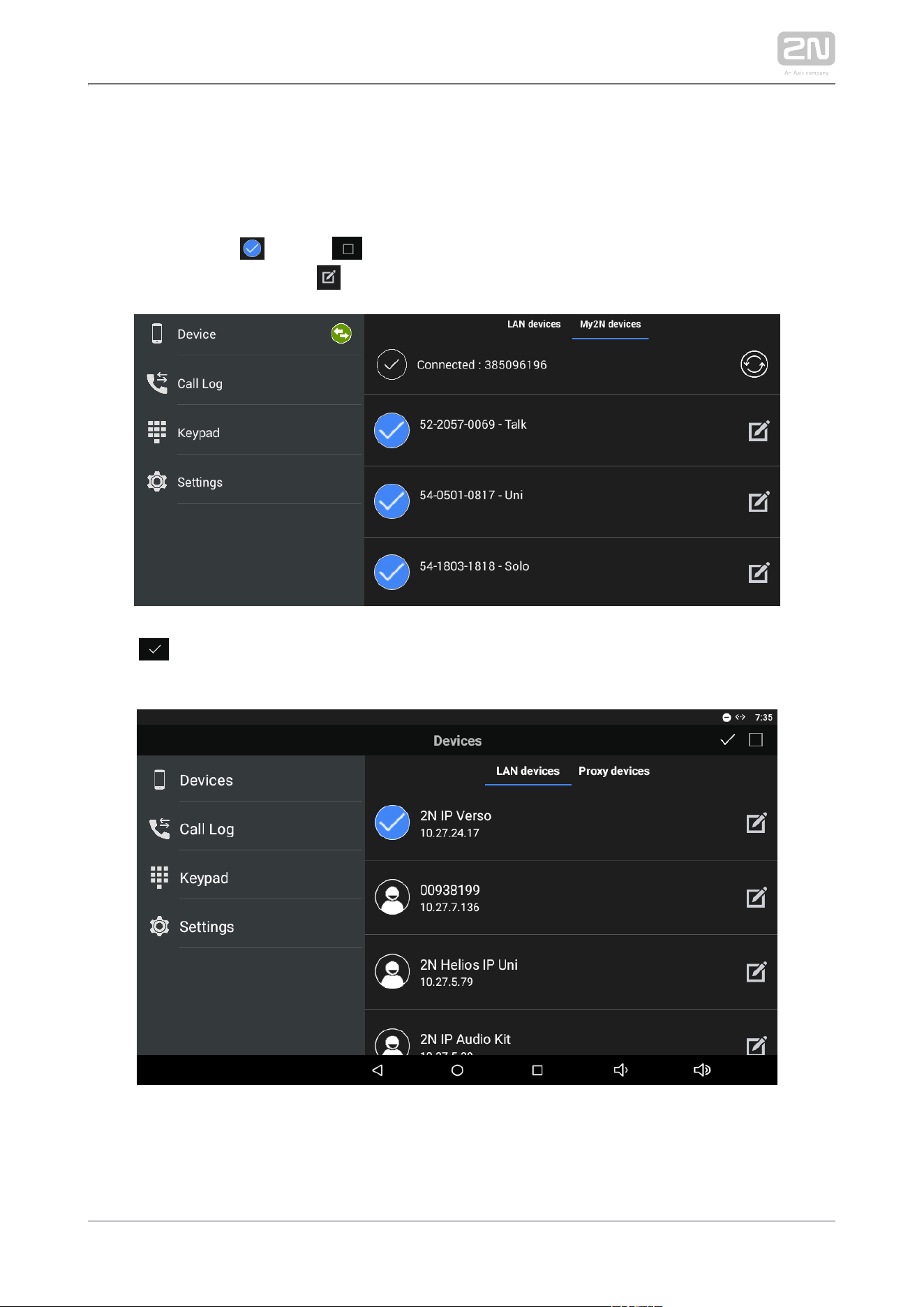
The selected device is marked . Click to the right in the application upper
toolbar to select all the devices listed. Click to edit the device name. Click to
save the selected My2N devices. The application moves to the Device menu to display
the selected devices. Press to redownload the Phonebook without relogging from
the application.
2N TELEKOMUNIKACE a.s., www.2n.cz85/135
Info
You can only edit the My2N device name displayed in the application.
The name change does not affect the device name on the service web.
4.2.2 Call Log
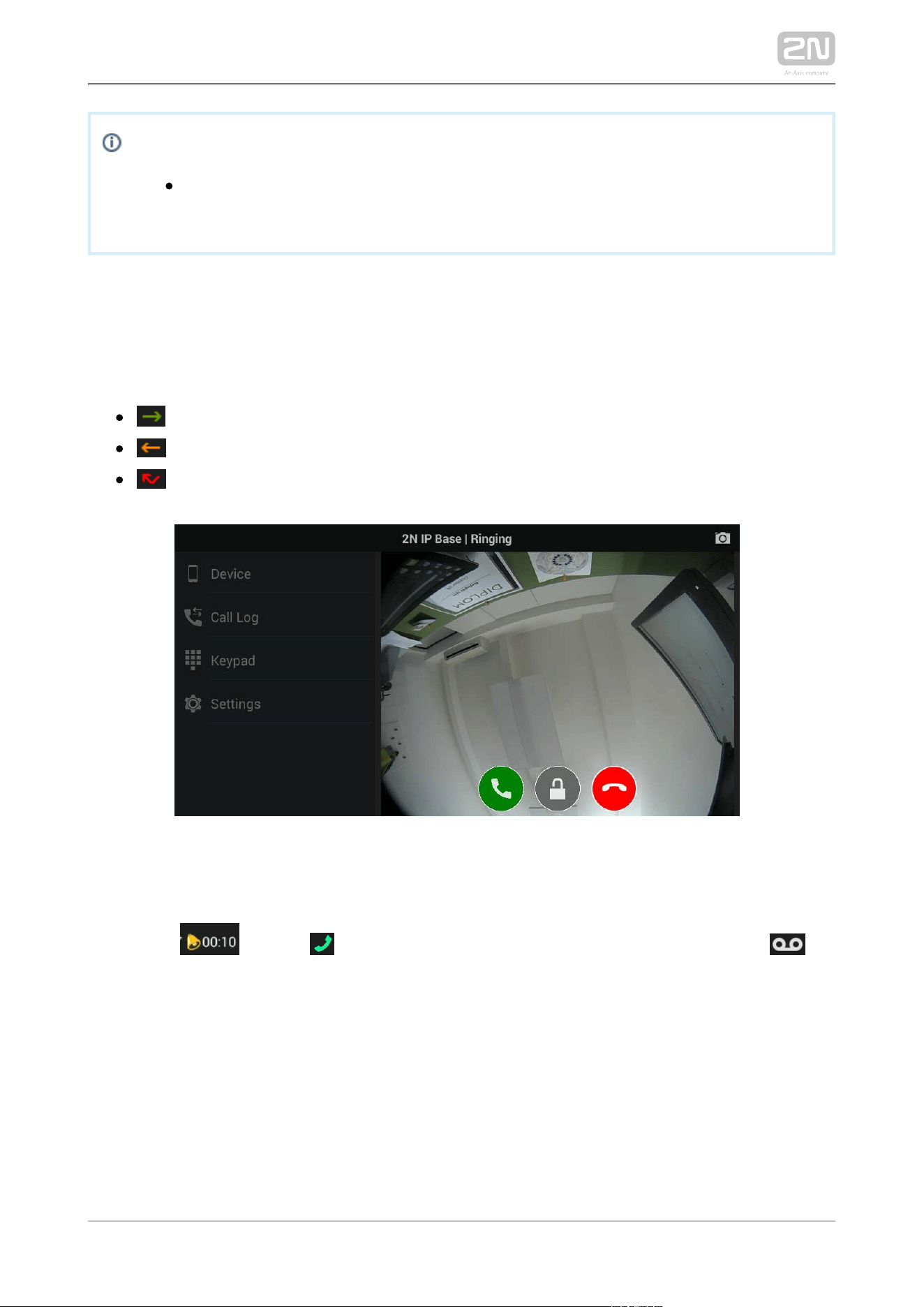
The Call Log section displays the records of outgoing/incoming calls. 2N IP Mobile
®
The following values are available:
outgoing – outgoing call
incoming – incoming call
missed – missed call
The call icon is either a snapshot from the device or an avatar. The avatar is displayed
when the Autosnapshot parameter is inactive for cameraless devices or when no
snapshot was made due to a short video preview – the ringing time is set behind the
bell icon ( ). Click to make a callback. If the recorder is active, click to
play the incoming call record. Use the trash bin in the right-hand upper corner to
delete the records.
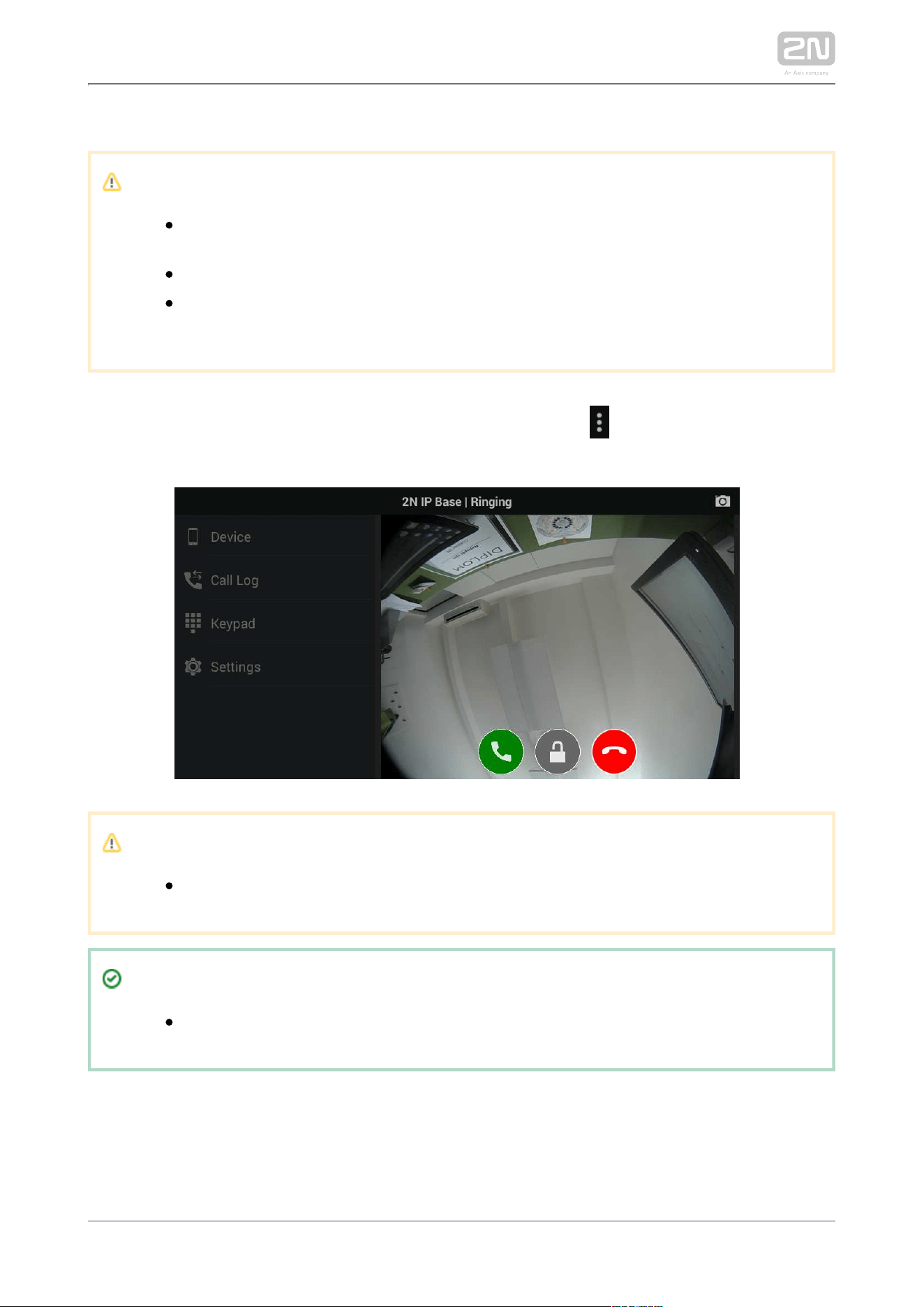
2N TELEKOMUNIKACE a.s., www.2n.cz86/135
Note
A snapshot is only made when the video stream preview is active for
about 3 seconds.
The maximum count of Call Log items is 30 records.
When the list is full, the oldest record is automatically deleted and
replaced with the latest record.
Select a record to be shown. The records include the call length and an enlarged
snapshot. Play the missed call record if available. Click in the right-hand upper
corner to export a record to a storage.
Caution
Unanswered outgoing/incoming calls have a 0:00 call duration.
Tip
Refer to faq.2n.cz for the recorder instructions for use .
2N TELEKOMUNIKACE a.s., www.2n.cz87/135
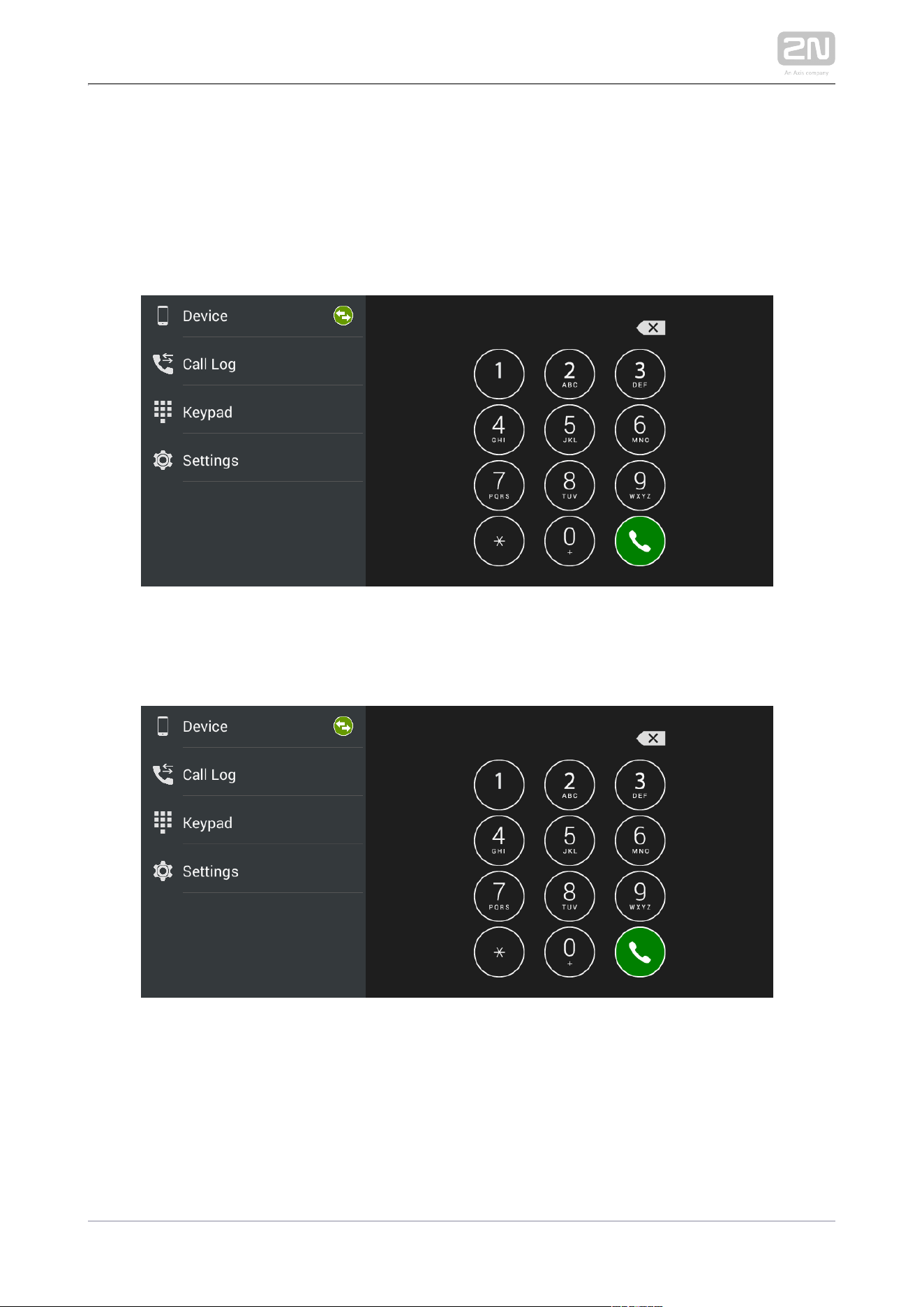
4.2.3 Dial Pad
The Dial Pad menu helps you call SIP devices by dialling the called number via a SIP
Proxy server. When is not registered with the SIP Proxy, the dial pad is
2N IP Mobile
®
inactive.
Once gets registered with the SIP Proxy, the Dial Pad function becomes 2N
®
IP Mobile
active.
When a call is ringing via the dial pad, the avatar is displayed in case the called device
does not support video stream transmission. If the called device supports video
transmission, the video stream is displayed in the same way as if the call were made
from a device added to the device list.

2N TELEKOMUNIKACE a.s., www.2n.cz89/135
4.3 Notifications in 2N® Indoor Touch
Environment
uses a notification LED. The LEd starts flashing 2N IP Mobile
®
2N
®
Indoor Touch 2.0
red to indicate that:
There is an unread incoming call in the application.

2N TELEKOMUNIKACE a.s., www.2n.cz91/135
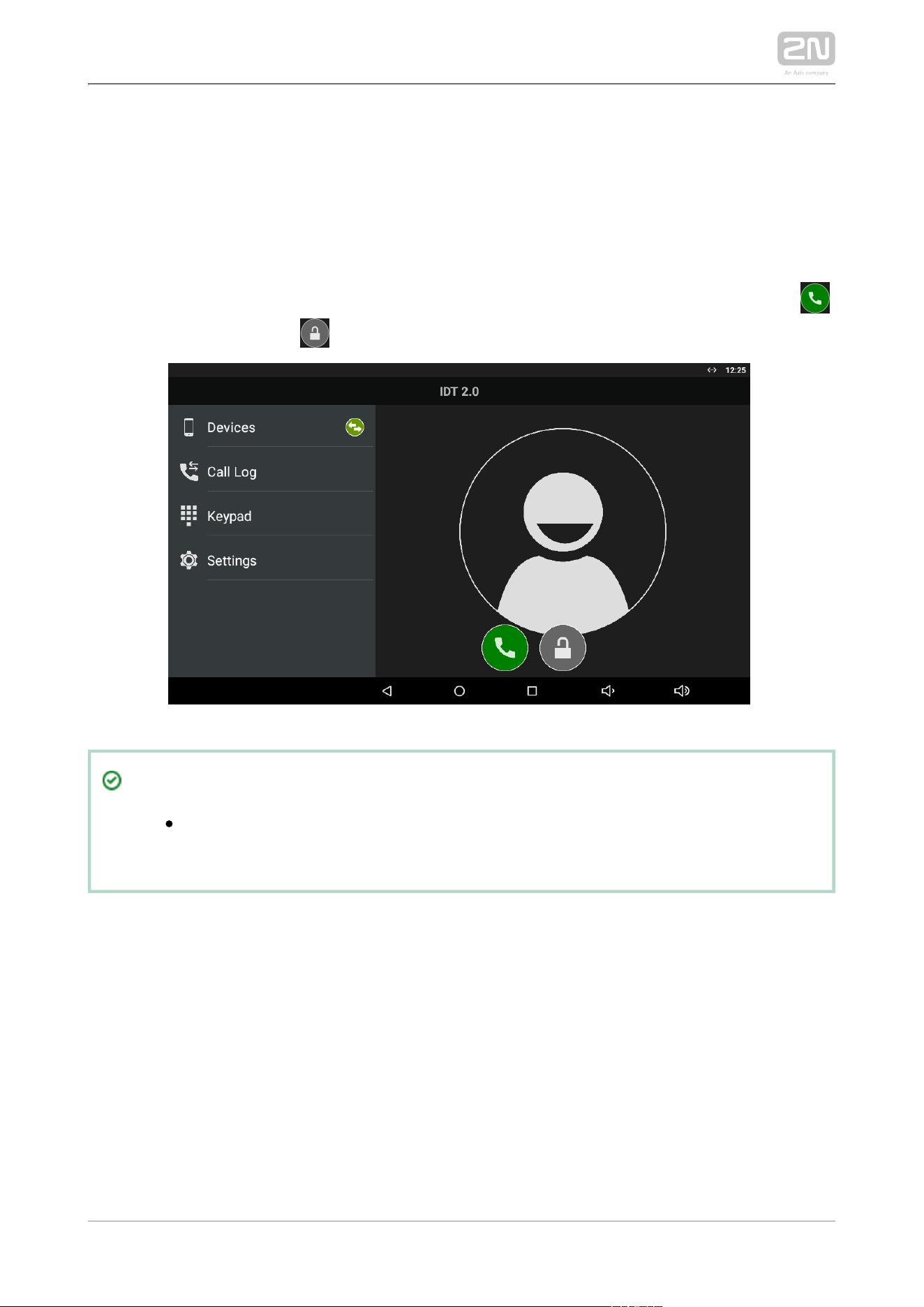
4.4.1 LAN Calls
To communicate with an, it is necessary to change a setting in the
2N IP intercom
door communicator to be connected. Refer to the online
Configuration manual for 2N
or :
IP intercomsFAQ
2N IP Mobile v4 – How to set communication between Indoor Touch/IP Mobile
®
and 2N IP intercom?
2N TELEKOMUNIKACE a.s., www.2n.cz92/135
4.4.2 SIP Proxy Server Calls
To make calls via a SIP Proxy server set the application server connection correctly in
the SIP Proxy section of the Settings menu. Get the login data from the SIP Proxy
server provider.
Once connected, you can dial other devices directly from the application Dial Pad or
create a SIP Proxy device, click it to display the device card and start calling. Click
to start calling. Click the icon to send the set DTMF code to the device.
Tip
Press and hold the lock button to display the lock list (locks 1–4) to
control all the locks (not only the default one).
2N TELEKOMUNIKACE a.s., www.2n.cz93/135
Caution
It is impossible to send the DTMF code from the application outside a
call for technical reasons. Therefore, if you press the lock outside a call in
the SIP Proxy mode, a call is set up first during which the DTMF is sent
automatically.
If the and the application are in one and the same LAN,
IP intercom2N
the incoming call is always identified as a LAN call even if it goes via a
SIP Proxy server. If you require SIP Proxy identification and the
application and share one and the same LAN, set a
2N IP intercom
different password in the application.
Access Key
Tip
Refer to for more details on SIP Proxy server calls.faq.2n.cz
2N TELEKOMUNIKACE a.s., www.2n.cz94/135
4.4.3 2N® Mobile Video Calls
It is very easy to set the application for calling via . All you have to
2N Mobile Video
®
do is set correct login data in the application settings:
Having completed the login data, press the Log in button for the application to log in
and download contacts. Then select a device from the list and make a call.
Refer to for how to get login data for the servers.
faq.2n.cz2N Mobile Video
®
2N TELEKOMUNIKACE a.s., www.2n.cz95/135
Tip
Press and hold the lock button to display the lock list (locks 1–4) to
control all the locks (not only the default one).
Click the name of the added using Phonebook via My2N
2N IP intercom
to set up a call with the device immediately. During the call, the
microphone on the application side is muted so that the visitor cannot
hear you. This mode is suitable for remote silent monitoring of the space
in front of the door. This mode is only available to the .
2N IP intercoms
Standard calls can only be made to other applications or the
2N
®
devices.
IndoorTouch
Caution
It is impossible to send the DTMF code from the application outside a
call for technical reasons. Therefore, if you press the lock outside a call in
the SIP Proxy mode, a call is set up first during which the DTMF is sent
automatically.
If the and the application are in one and the same LAN, IP intercom2N
the incoming call is always identified as a LAN call even if it goes via a
SIP Proxy server. If you require SIP Proxy identification and the
application and share one and the same LAN, set a
2N IP intercom
different password in the application.
Access Key
Earlymedia is always enabled for the My2N mode. This means that the
calling door unit video is displayed by the application during ringing.


2N TELEKOMUNIKACE a.s., www.2n.cz97/135
4.5.1 Troubleshooting
Question: The application cannot see any devices in the LAN mode.
Answer: Make sure that you are really connected to the LAN where the other
devices are installed. If you are, then check the settings of the other devices,
particularly the password. Make sure that the
2N IP Group Authentication
password matches the passwords of all the devices to be listed in the
application.
: sees a IP intercom in the LAN but cannot call it.QuestionThe application2N
:Answer Check whether automatic rejection of incoming calls is enabled in 2N IP
. Find this setting on the device web interface in the Services /
intercom
Telephone / Calls section. Make sure that automatic receiving of calls on SIP1 line
is enabled.
: The application video quality is low or video playing is jerky.Question
:Answer If you are not satisfied with the video quality, set a higher video
transmission rate and resolution for your . If your video
2N IP intercom
transmission is jerky or yielding artifacts, your LAN is probably overloaded. Try
to earmark a larger bandwidth for VoIP communication on your router or
acquire a router that supports the latest Wi-Fi standards (802.11n / 802.11ac).
The function may not be ideal with 802.11g.
If your questions still remain unanswered, use the following link please:
Nejčastěji řešené problémy najdete na stránkách .
faq.2n.cz
If you are 2N's registered partner or distributor, you can use the Technical Support
portal at .
support.2n.cz
2N TELEKOMUNIKACE a.s., www.2n.cz99/135
5.1 Login
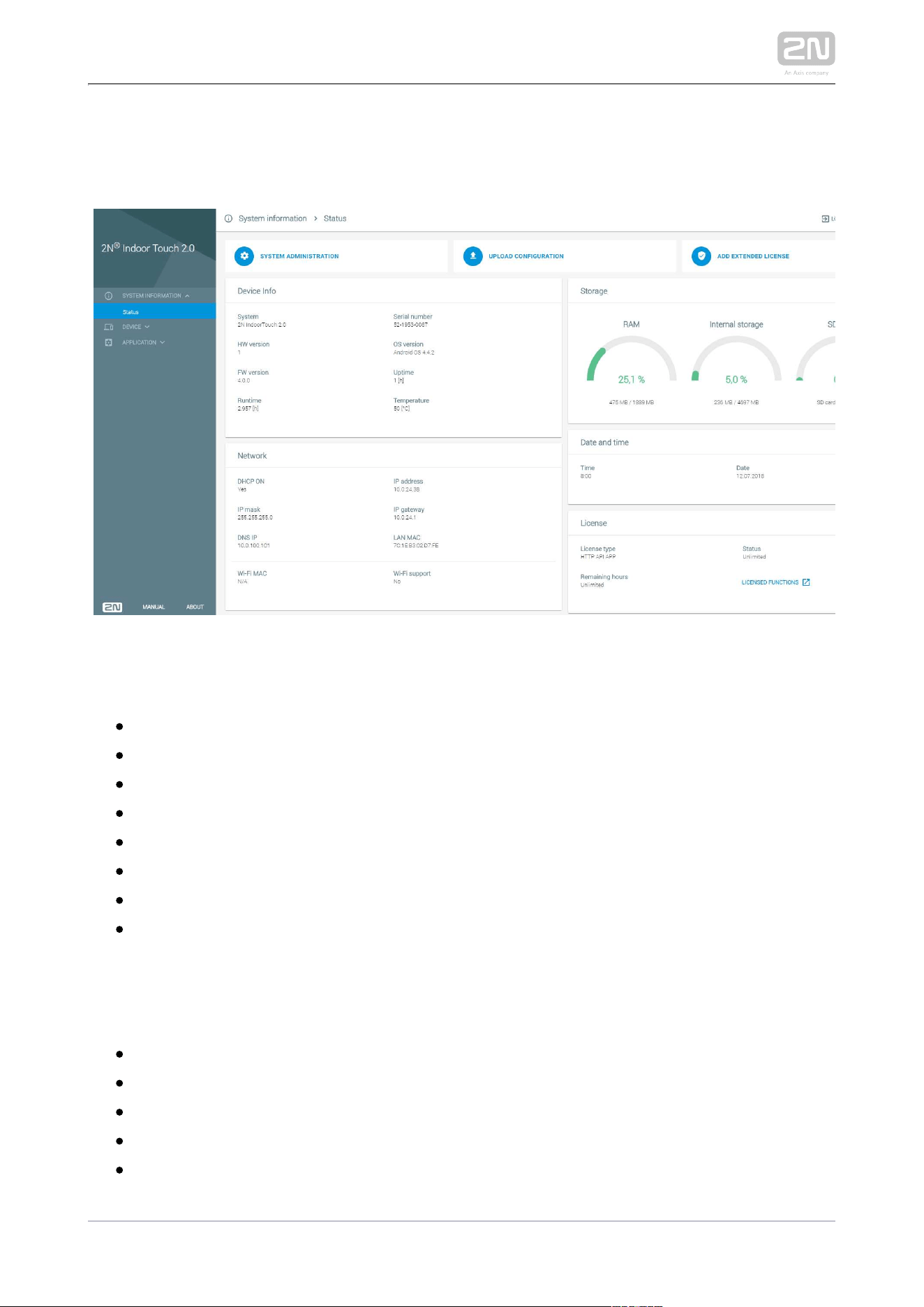
Enter the IP address into the web browser address row to 2N Indoor Touch 2.0
®
connect to the web interface. The currently supported browsers are Internet Explorer,
Google Chrome, Firefox and Opera.
Then enter the user name and password to access the configuration section. The
default values are as follows:
User Name: Admin
Password: 2n (or a valid configuration password in )2N Indoor Touch 2.0
®
Caution
If is allowed to access configuration without a 2N Indoor Touch 2.0
®
password, then the web interface password is identical with the last-
used password and can be changed.

2N TELEKOMUNIKACE a.s., www.2n.cz101/135
5.2.1 Status
The Status screen displays a list of basic parameters.
Information on Device
– device nameSystem
– device HW board version
HW version
– device firmware version
FW version
– total time since the first startup
Up time
Serial number – device serial number
– operating system version and type
OS version
– time that passed since the last restart
Time since last restart
– current device temperature
Temperature
Network
– DHCP statusDHCP on
– IP mask address
IP mask
– DNS IP address
DNS IP
– Wi-Fi module MAC address
Wi-Fi MAC
– IP address
IP address
– IP gateway IP addressIP gateway
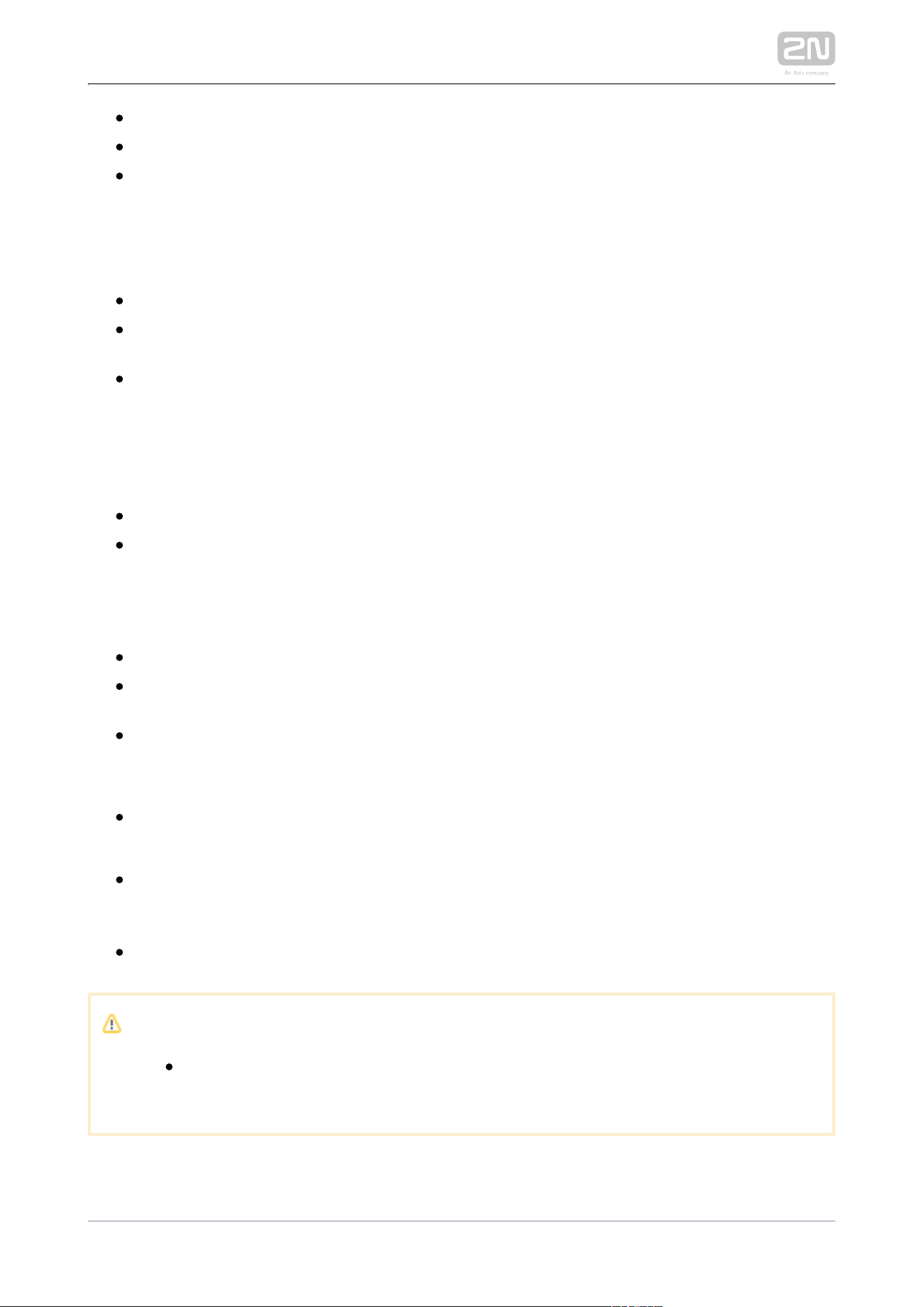
2N TELEKOMUNIKACE a.s., www.2n.cz102/135
– IP gateway IP addressIP gateway
– Ethernet module MAC address
LAN MAC
– Wi-Fi module availability in the device
Wi-Fi support
Storage
– information on the installed, available and used RAMRAM
– information on the total and free capacity of the device
Internal storage
internal storage
– information on the total and free capacity of the SD card
SD card
Date and Time
– current timeTime
– current date
Date
Licence
– licence key typeLicence type
– remaining hours of a time-limited licence, Unlimited for an
Remaining hours
unlimited licence
– Limited / Unlimited / Expired
Status
Licence key types:
– allows third party applications to be loaded,
APPthis licence is active once the
device is purchased.
– allows to be switched to Android
LAUNCHER2N IndoorTouch launcher
®
launcher
– provides control via API
HTTP API2N IndoorTouch
®
Caution
The original licence key will be overwritten by the new one! Be sure to
use a valid licence key obtained from your supplier!
2N TELEKOMUNIKACE a.s., www.2n.cz103/135
Warning
The licence unlocks the option to install user applications from a APP
microSD card (SDHC) in of up to 16 GB. If,
2N Indoor Touch 2.0
®
however, any user applications are installed,
2N TELEKOMUNIKACE a.s.
does not guarantee a proper function and stability of such user
applications and/or a correct function of the applications pre-installed in
. Should troubles occur, remove the user
2N
®
Indoor Touch 2.0
applications or reset the factory values to get rid of the user
device
applications and settings.

2N TELEKOMUNIKACE a.s., www.2n.cz105/135
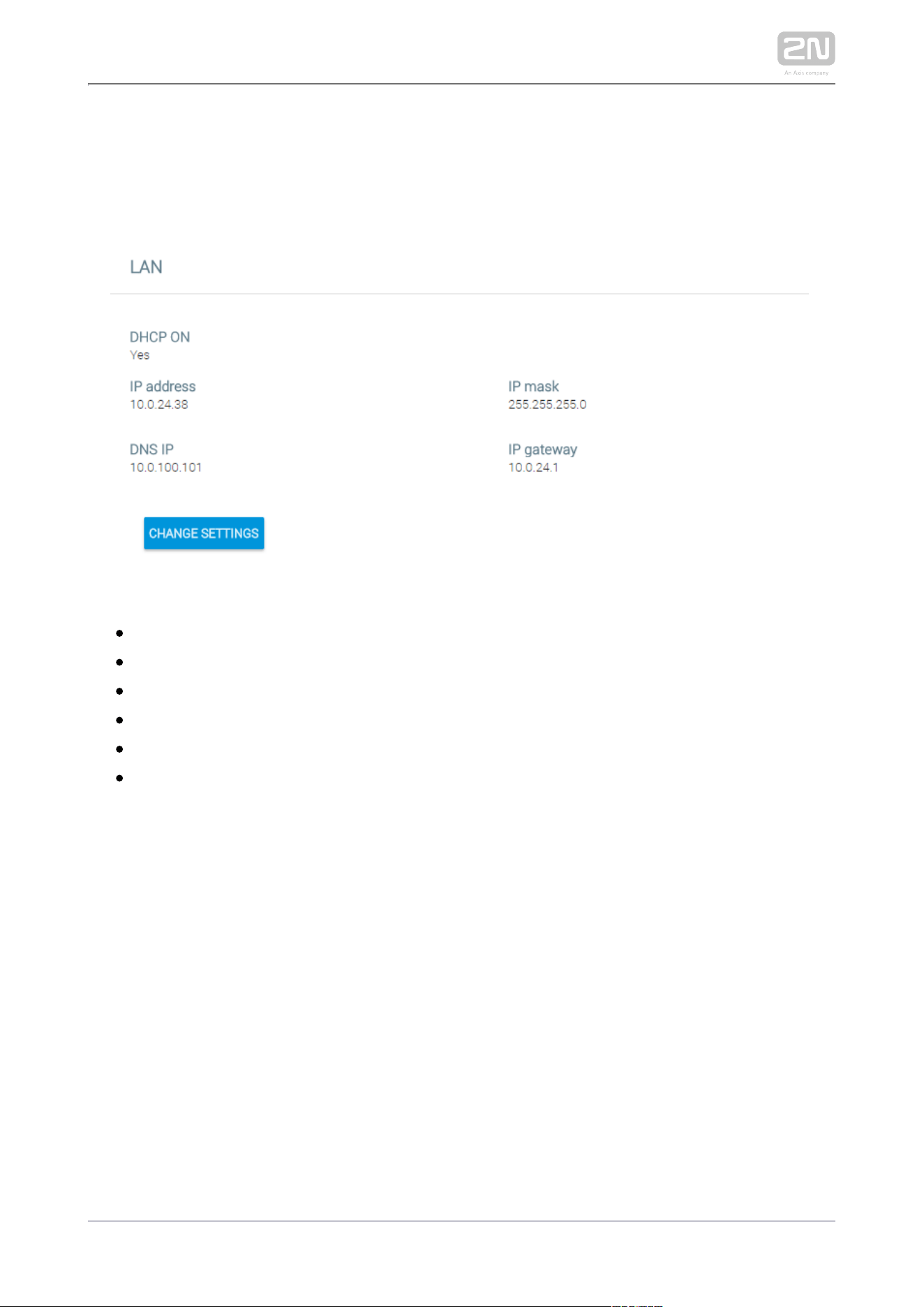
5.3.1 Network
The Network section describes how to configure the Ethernet adapter in 2N
®
:
IndoorTouch 2.0
– Yes/No – enable/disable obtaining settings from DHCPDHCP ON
– current IP address
IP address
– IP mask address
IP mask
– DNS IP address
DNS IP
– IP gateway IP address
IP gateway
– display the setting editing window
Change settings
2N TELEKOMUNIKACE a.s., www.2n.cz106/135
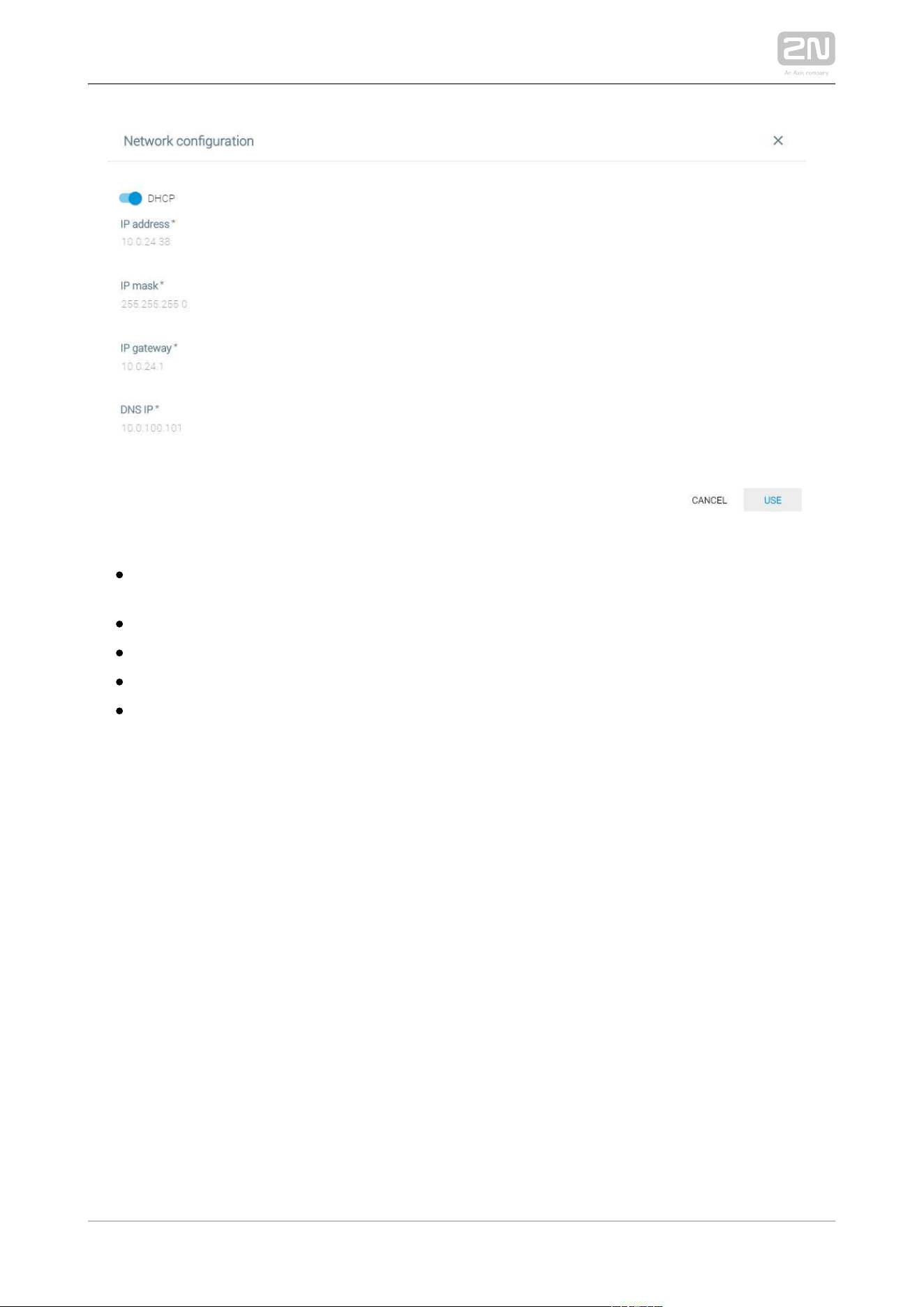
DHCP – enable/disable obtaining of settings from DHCP. If disabled, the
remaining IP address settings become available.
IP address – device IP address
IP mask – IP mask address
IP gateway – IP gateway IP address
DNS IP – DNS IP address
2N TELEKOMUNIKACE a.s., www.2n.cz107/135
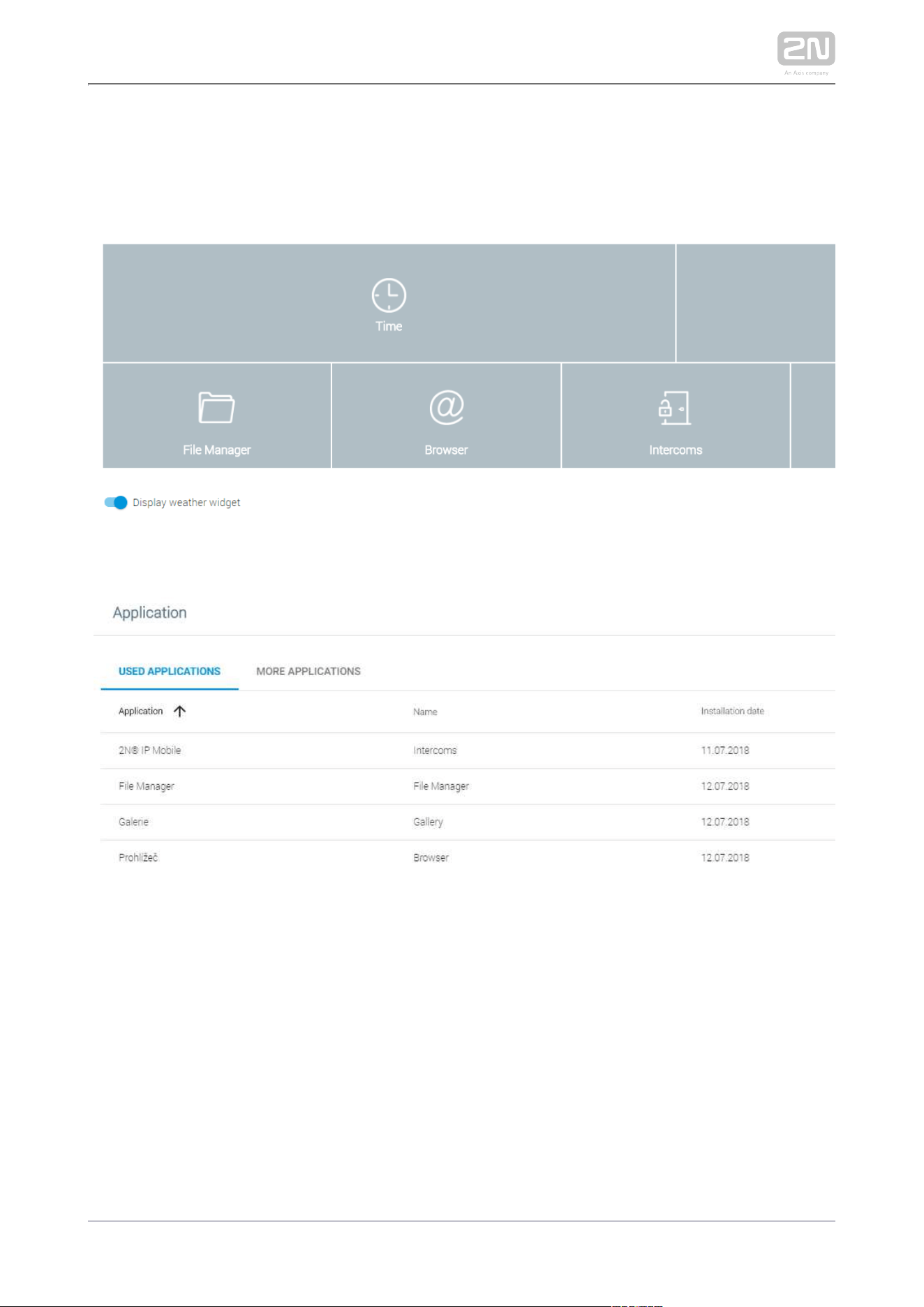
5.3.2 Home Screen
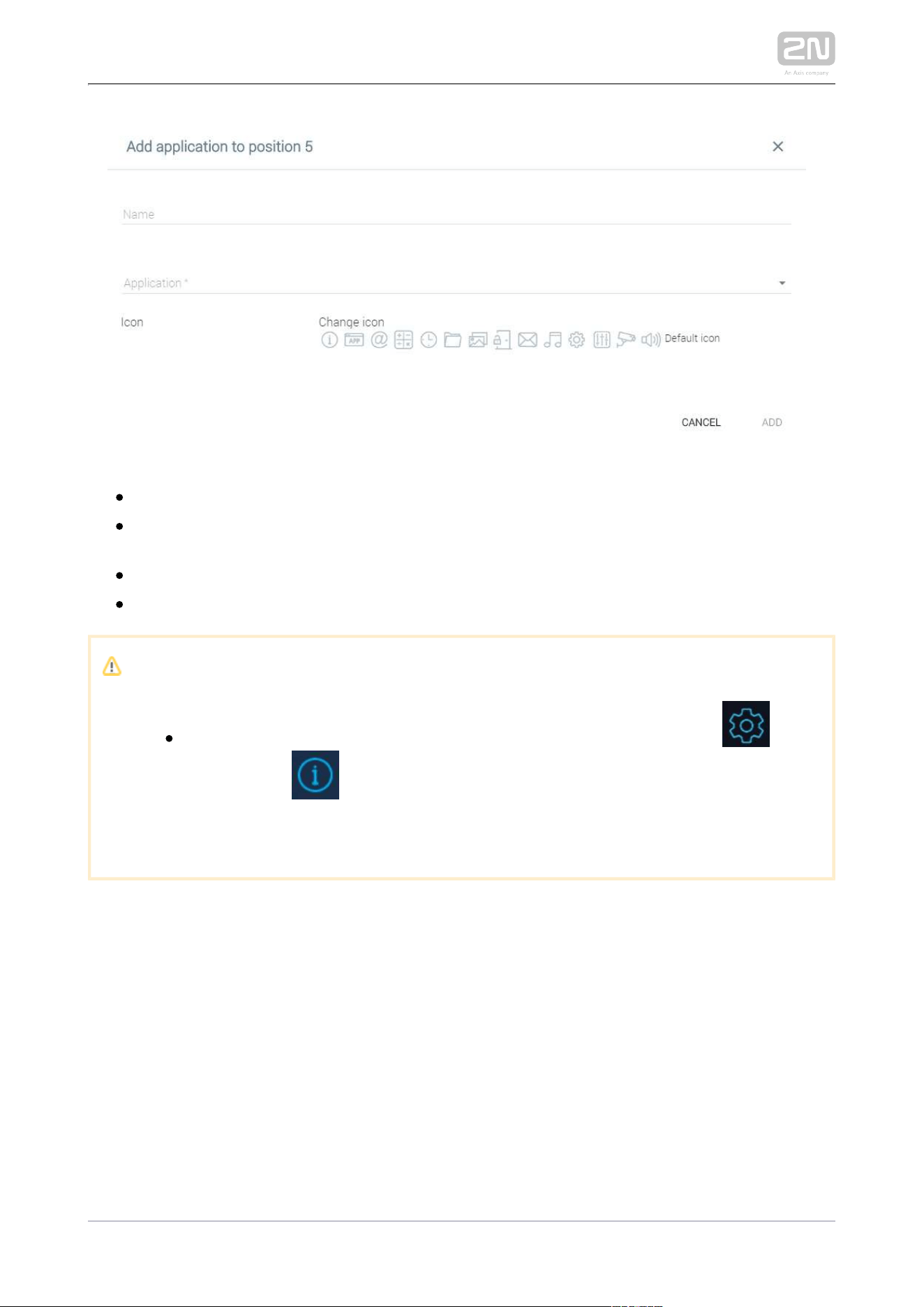
The Home Screen tab helps you set positions for applications and their icons and
includes the list of all available applications in the system.
Click a position to display a position setting window:
2N TELEKOMUNIKACE a.s., www.2n.cz108/135
– application name to be displayed at the given positionName
– display the list of applications installed in the device. Select an
Application
application to set the home screen position for launch.
– select the application icon.
Icon
– replace the icon with another one or the default one.
Change icon
Caution
For security reasons, it is impossible to remove the setting and
information icons from the Home Screen. All you can do is create
their duplicates on other positions and then remove the icons from their
original positions.
2N TELEKOMUNIKACE a.s., www.2n.cz109/135
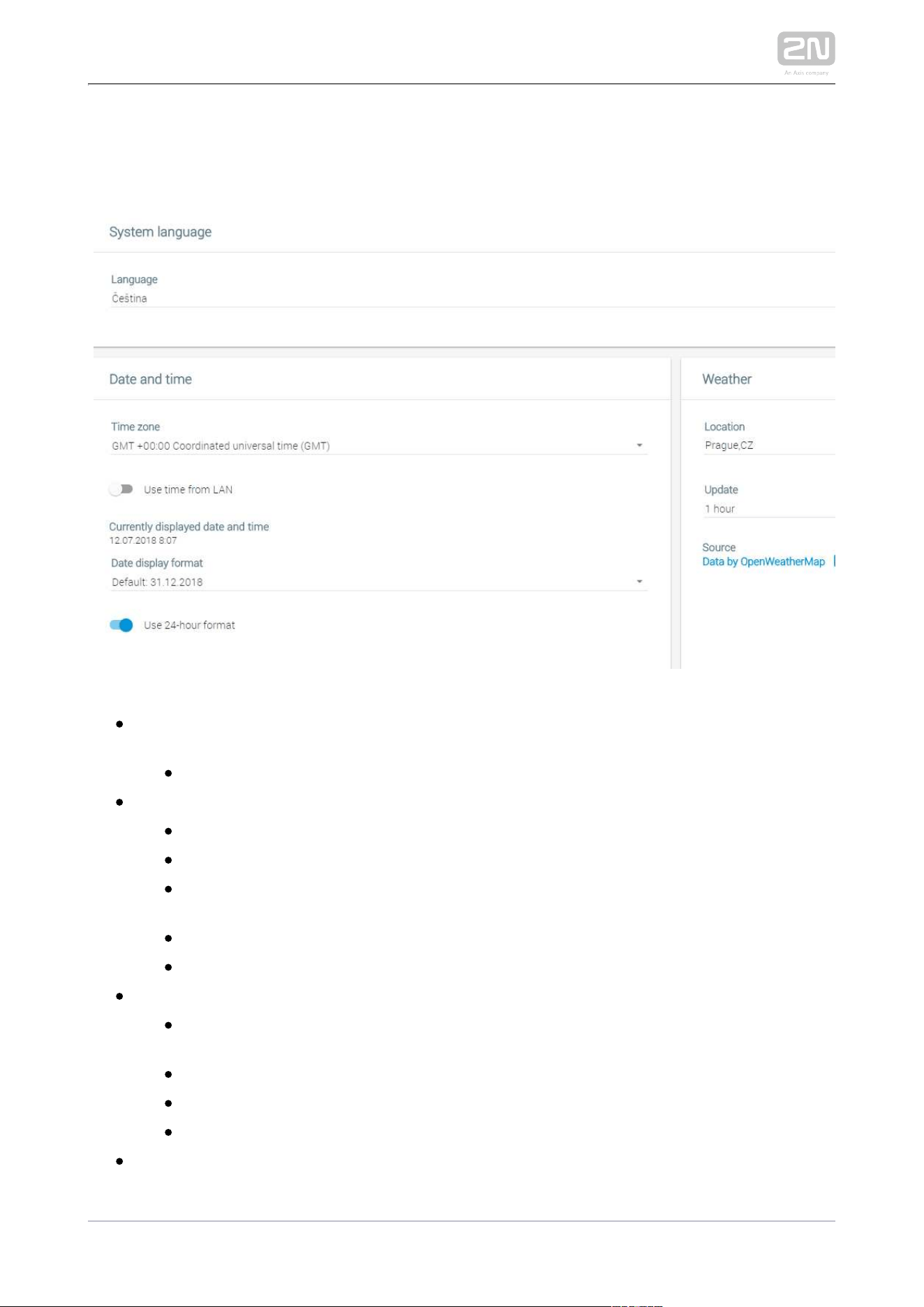
5.3.3 Local Settings
The tab helps you change the language, time zone and weather settings.
– change the language for most of the applications (Gallery, System language
etc.).
– English is used by default.
Language
– select the date, time and time zone.
Date and time
– select the time zone. GMT + 00:00 is used by default.
Time zone
– use network time or set time manually.
Use time from LAN
– date and time currently displayed on
Currently displayed date and time
the home screen.
– select the date display format.
Date display format
– select either 12-hour or 24-hour format.
Use 24-hour format
– change the weather settings.
Weather
– location for the weather forecast. Keep the
LocationOpenWeatherMap.
format.
org
– save the set location.
Save
– set the weather data refreshment rate: 1 hour or 2 hours.
Update
– temperature units: Metric (°C) or Imperial (°F).
Units
– open the data source: .SourceOpenWeatherMap.org
2N TELEKOMUNIKACE a.s., www.2n.cz110/135
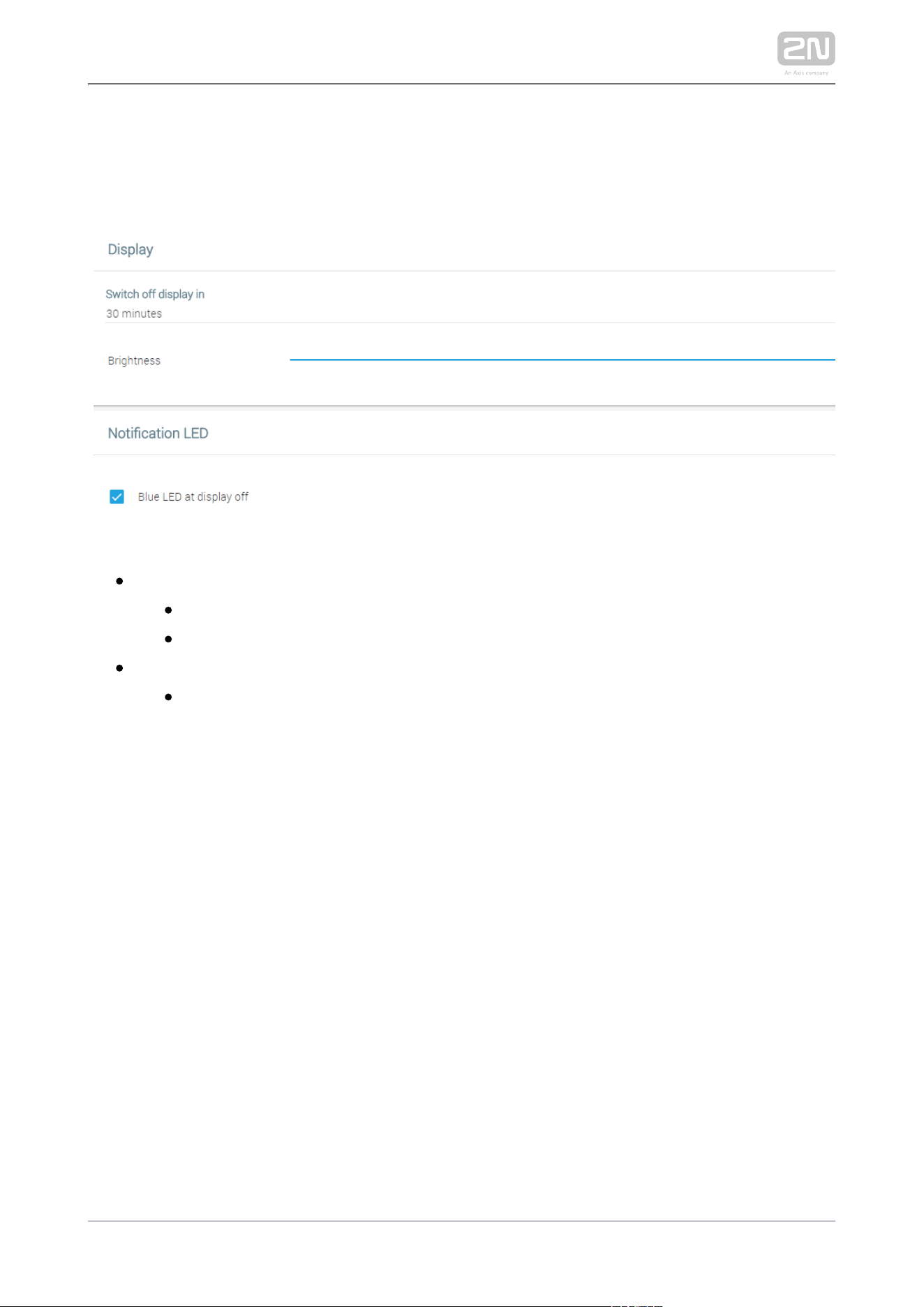
5.3.4 Display
The Display tab helps you change the display turn-off and brightness as well as LED
notifications.
– display settingsDisplay
– turn off the display in 1 to 30 minutes
Switch off display in
– set the display brightness: 10–100 %
Brightness
– set the LED notifications
Notification LED
– when the display turns off, the blue LED goes on.
Blue LED at display off
This setting helps you identify whether your display or the device is off.
2N TELEKOMUNIKACE a.s., www.2n.cz111/135
5.3.5 Audio
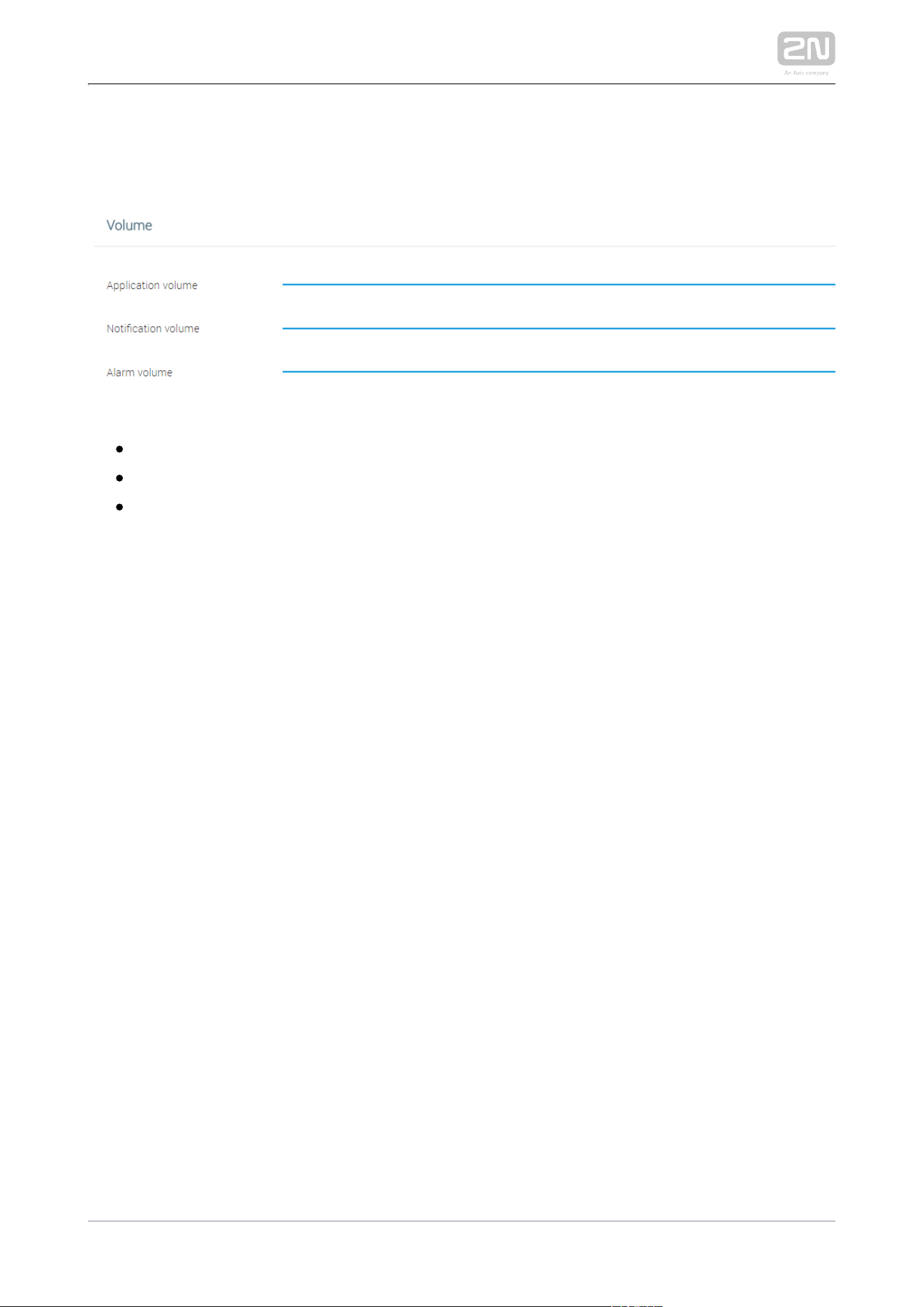
This tab helps you set the volume of ringing, notifications, applications and others.
– set the music, video, game and audio volumes: 0–100 %.Application volume
– set the ringing and notification volumes: 0–100 %.
Notification volume
– set the alarm clock volume: 0–100 %.
Alarm volume
2N TELEKOMUNIKACE a.s., www.2n.cz112/135
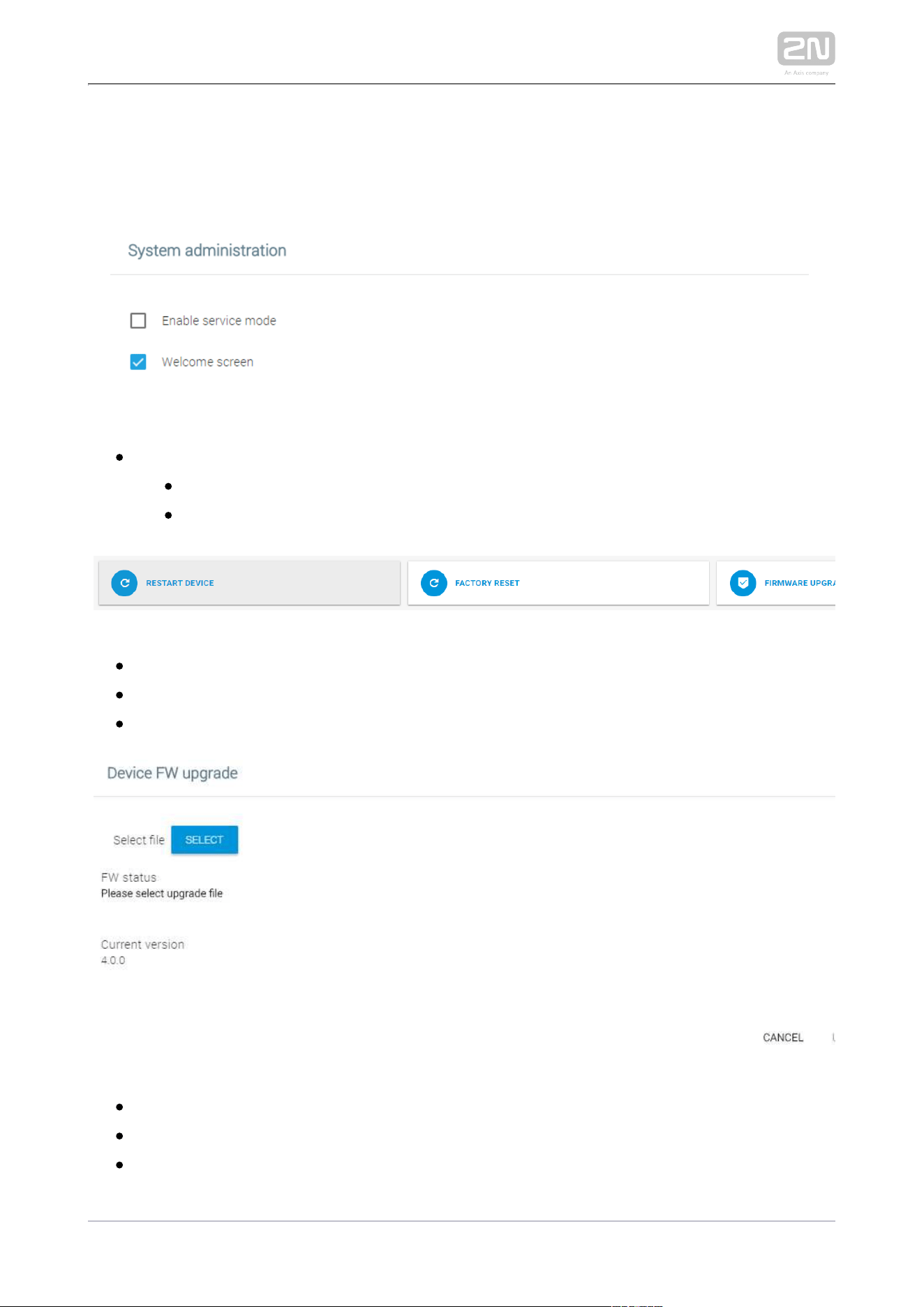
5.3.6 System Administration
The System Administration tab helps you upgrade firmware, back up/upload
configuration and change the password.
System administration
– enable access to the device via a web interface.
Enable service mode
– display the welcome screen on every startup.
Welcome screen
– confirm and perform the device restart.Restart device
– confirm and perform the factory reset.
Factory reset
– upload a new firmware version and restart + upgrade:
Firmware upgrade
– select the .img firmware file.Select file – Select
– display the firmware upload status.
FW status
– display the current firmware version.
Current version
2N TELEKOMUNIKACE a.s., www.2n.cz113/135
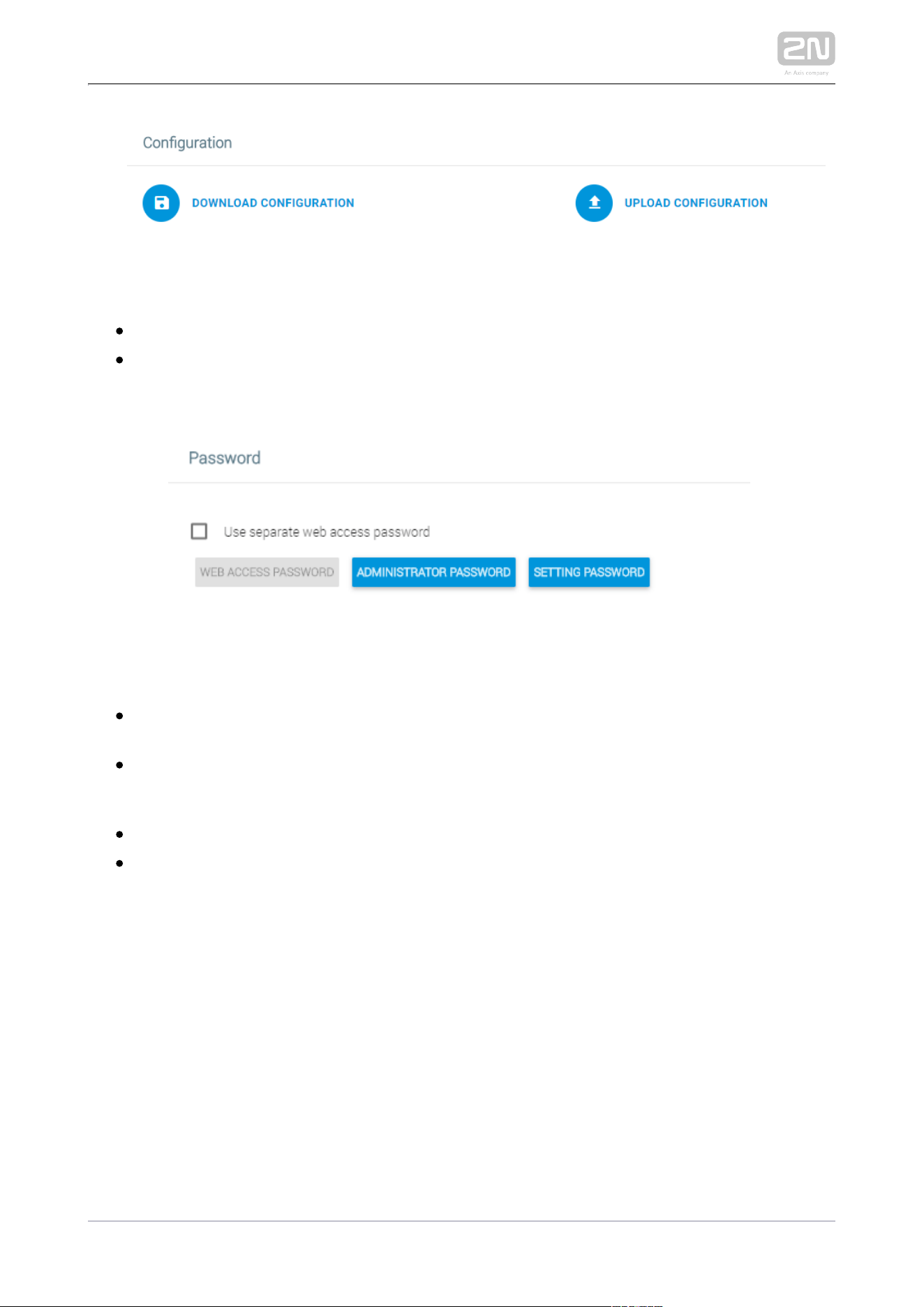
Configuration
– download the current configuration into a PC.
Download configuration
– upload configuration from a PC file to the device. Click to
Upload configuration
display a window to select whether the whole configuration is to be uploaded or
the part containing IP addresses should be omitted.
Password
Use separate web access password – set a separate access password for the
device web interface.
Web Access Password – set a web interface access password. Make sure that it
contains eight characters at least including one capital letter, one small letter
and one digit.
Administrator Password – set an administrator setting access password.
Setting Password – set a device setting access password.
2N TELEKOMUNIKACE a.s., www.2n.cz114/135
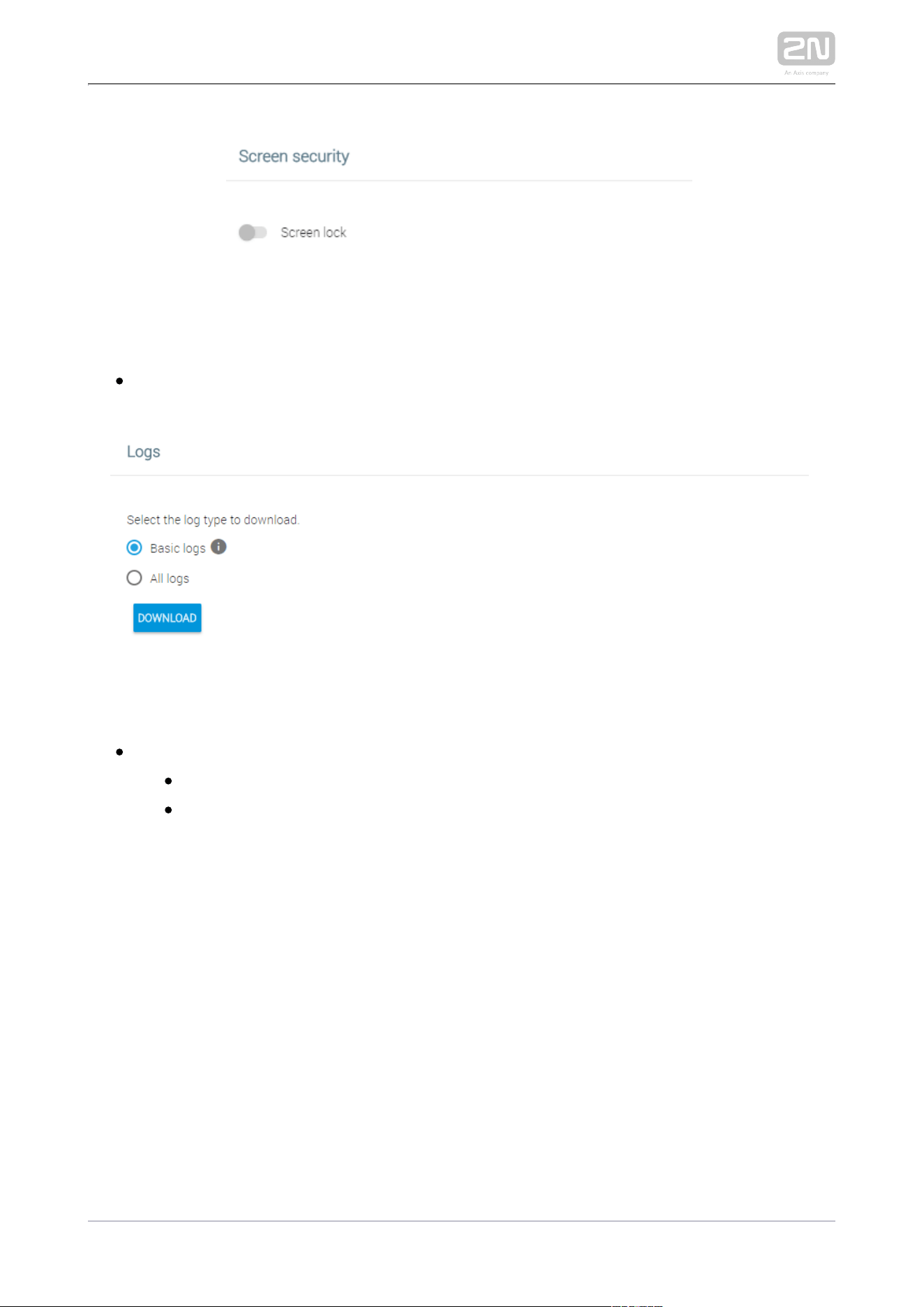
Screen security
Screen lock – display the current screen security details. Activate the function on
the device display only.
Logs
Select the log type to download
– basic system information (dmesg, logcat, 2N_info, getprop).
Basic logs
– complete logs for troubleshooting purposes. All available logs
All logs
will be downloaded.
2N TELEKOMUNIKACE a.s., www.2n.cz115/135
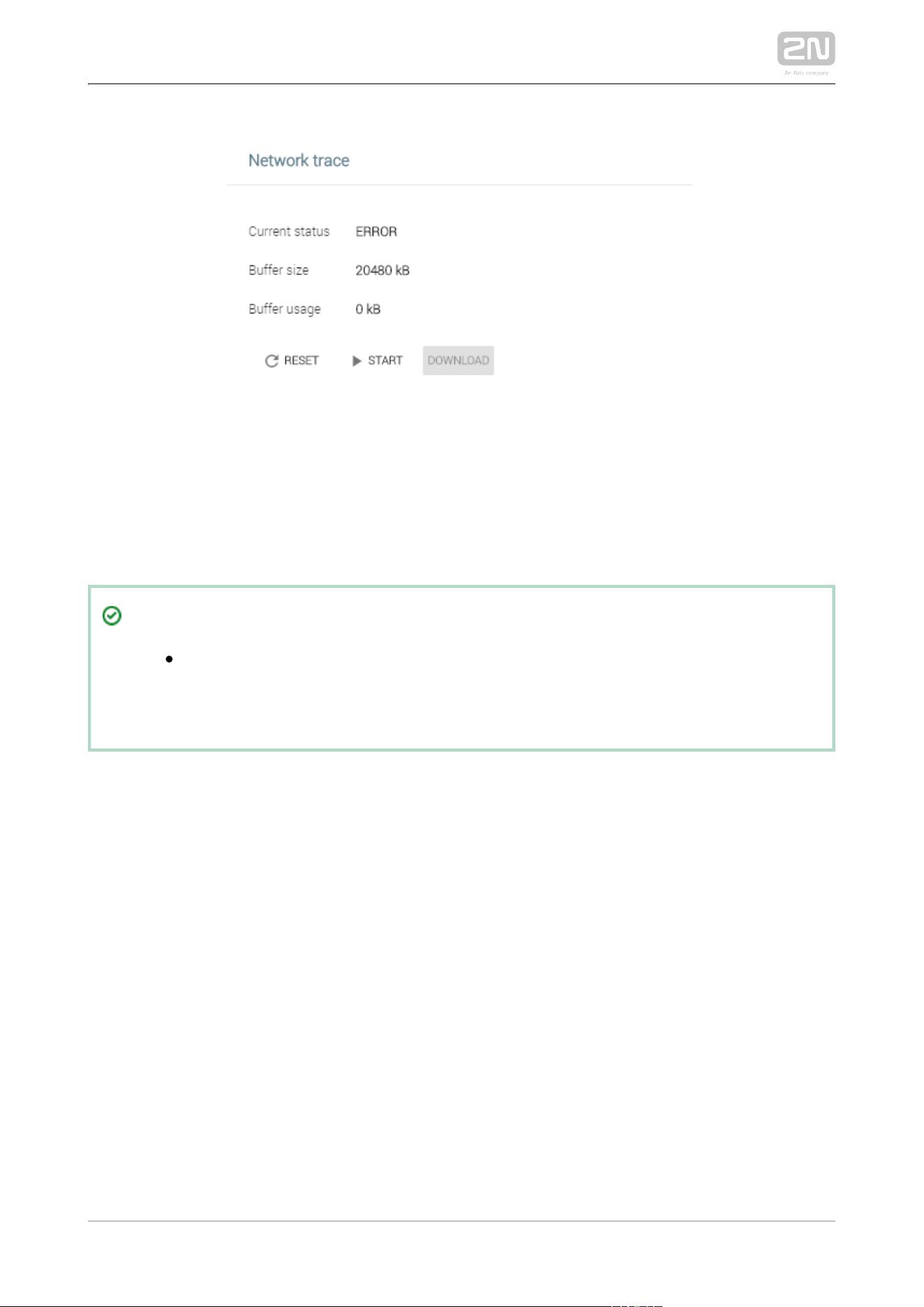
Network trace
If communicates with a 2N IP intercom or a third-party device,
2N Indoor Touch 2.0
®
the network trace can be a very useful diagnostic and troubleshooting tool should the
communication fail.
Tip
Refer to the section for how to download the network trace and FAQ
logs from .
2N Indoor Touch 2.0
®

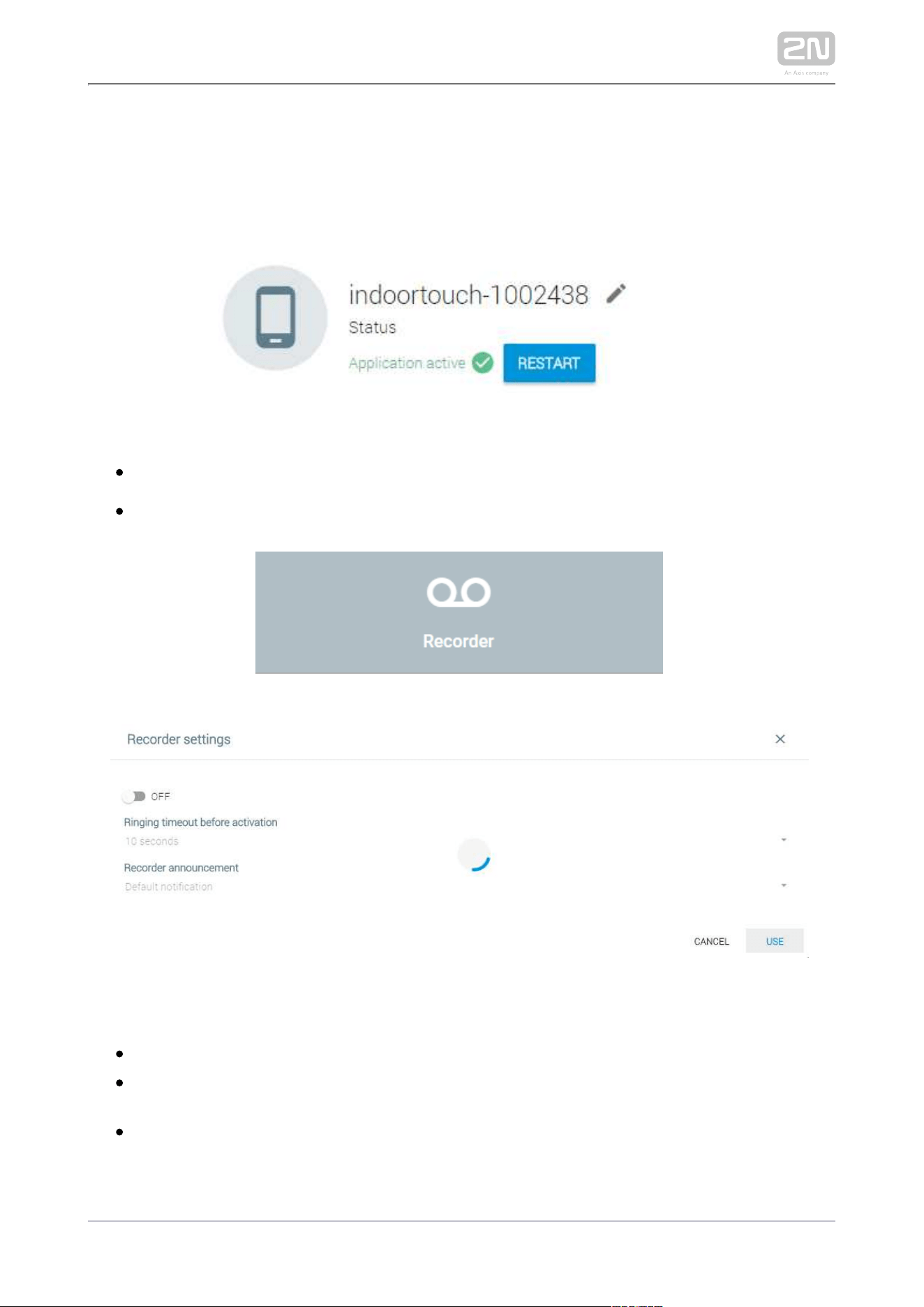
2N TELEKOMUNIKACE a.s., www.2n.cz117/135
5.4.1 Intercoms
The Intercoms tab helps you display the devices added to and new 2N IP Mobile
®
LANs and SIP Proxy devices.
– restart the application.Restart2N IP Mobile
®
The pencil icon helps you edit the device name.
Recorder Settings
– enable/disable the recorder function.
ON/OFF
– set the recorder activation timeout: 10 to 30
Ringing timeout before activation
seconds.
– select the recorder announcement. Cannot be set via
Recorder announcement
the web.
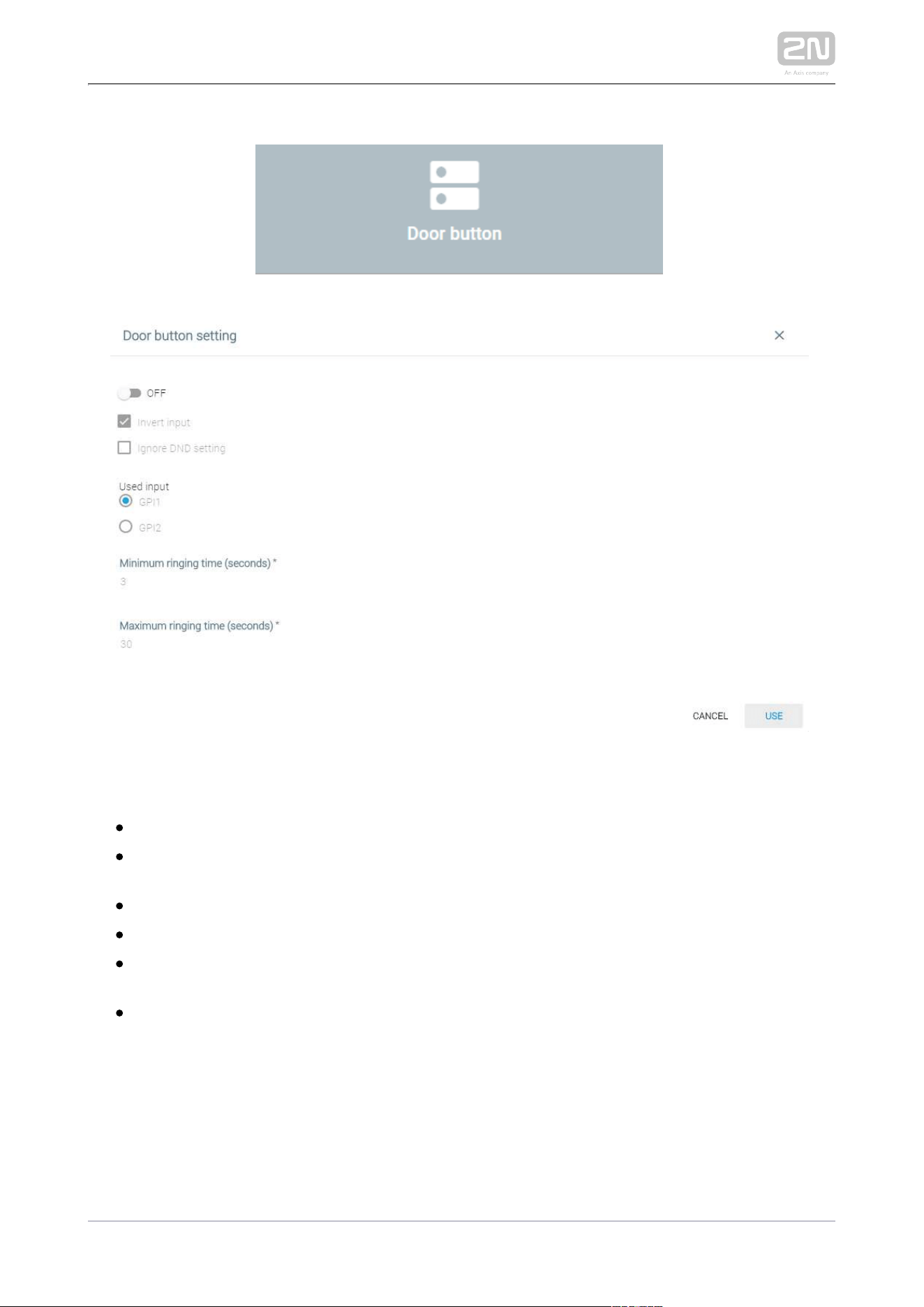
2N TELEKOMUNIKACE a.s., www.2n.cz118/135
Door Button Settings
– enable/disable the door button function.
ON/OFF
– set the input response to the pulse rise/fall time (button press
Invert input
/release, e.g.).
– indicate the door button activation in the DND mode.
Ignore DND setting
– select the hardware input.
Used input
– set the minimum setup/ringing time in which
Minimum ringing time (seconds)
the call is automatically terminated. Available range of values: 1 s to 20 s.
– set the maximum setup/ringing time in which
Maximum ringing time (seconds)
the call is automatically terminated. Available range of values: 1 s to 60 s. Make
sure that the value is higher than that of the Minimum ringing time.
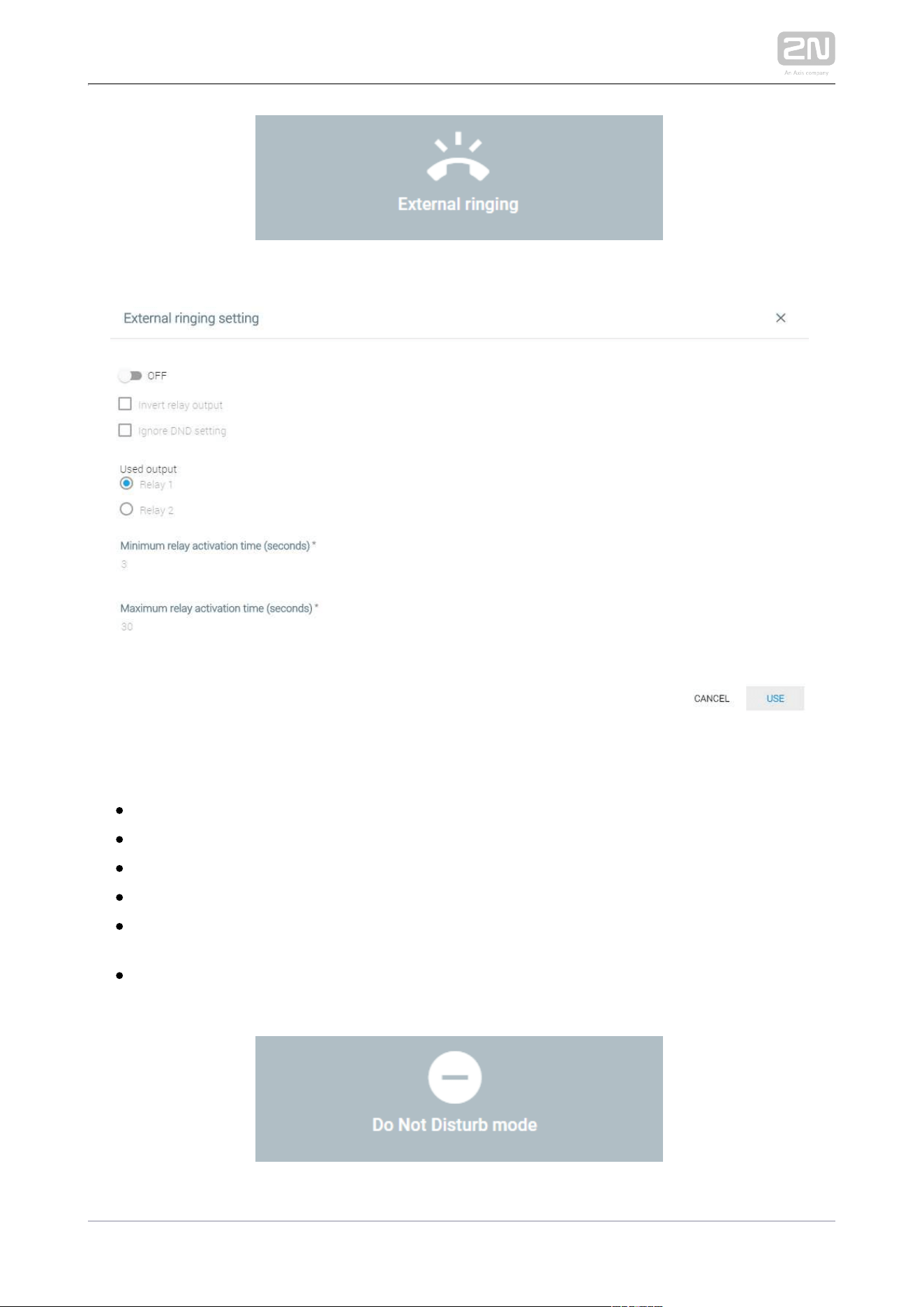
2N TELEKOMUNIKACE a.s., www.2n.cz119/135
External Ringing Settings
– enable/disable the external ringing function.
ON/OFF
– set the input response to the pulse rise/fall time.
Invert relay input
– indicate an incoming call by an output in the DND mode.
Ignore DND setting
– select the hardware output.
Used output
– set the minimum relay activation time
Minimum relay activation time (seconds)
in which the external ringing is automatically terminated.
– set the maximum relay activation
Maximum relay activation time (seconds)
time in which the external ringing is automatically terminated.
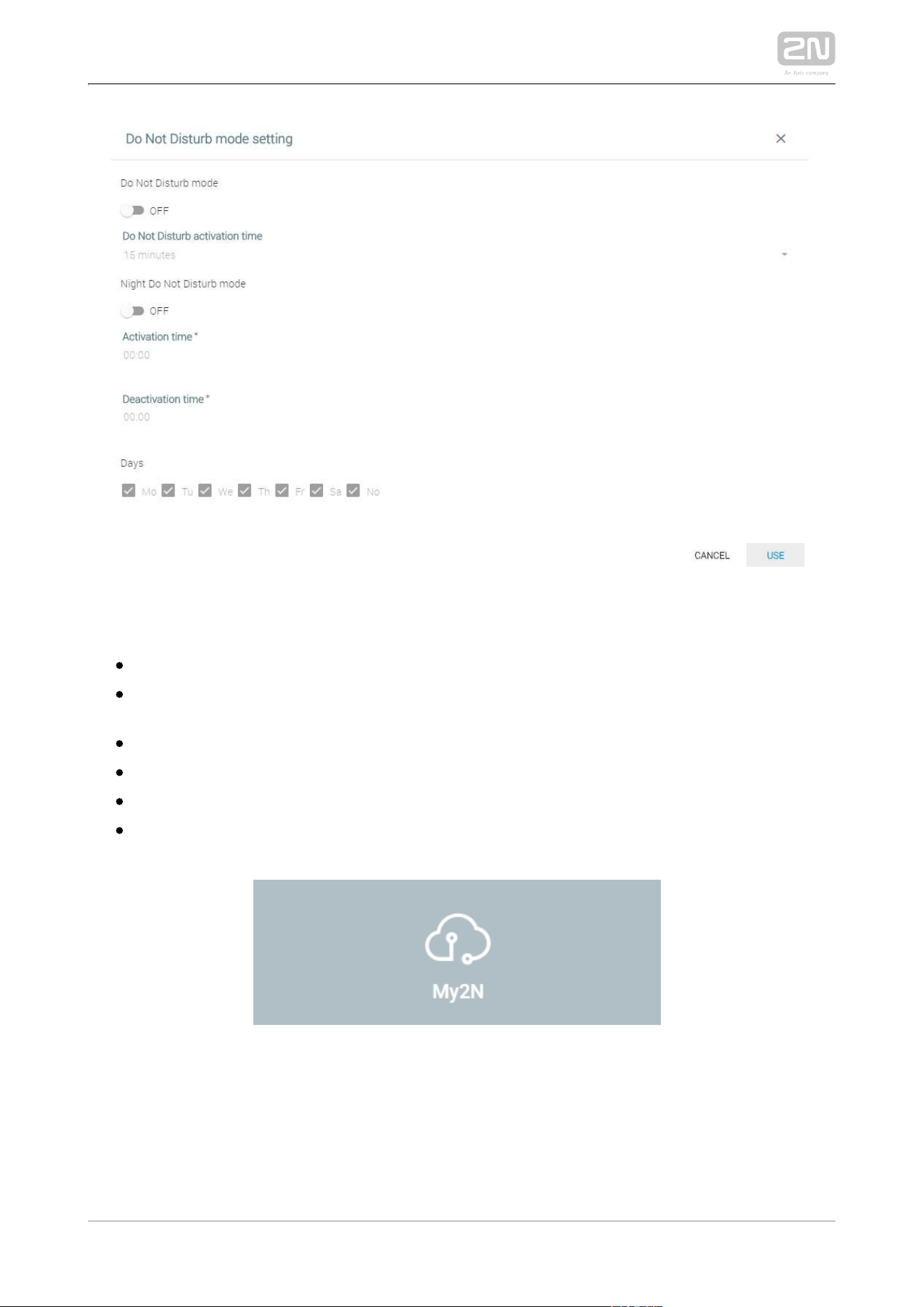
2N TELEKOMUNIKACE a.s., www.2n.cz120/135
Do Not Disturb mode setting
– activate the one-time DND mode.
Do Not Disturb mode
– set a time interval in which the DND mode is
activation timeDo Not Disturb
active: from 15 minutes to 24 hours or permanently.
– activate the night DND mode.
Night modeDo Not Disturb
– set the exact night DND activation time.
Activation time
– set the exact night DND deactivation time.
Deactivation time
– select the weekdays on which the night DND mode is to be active.
Days
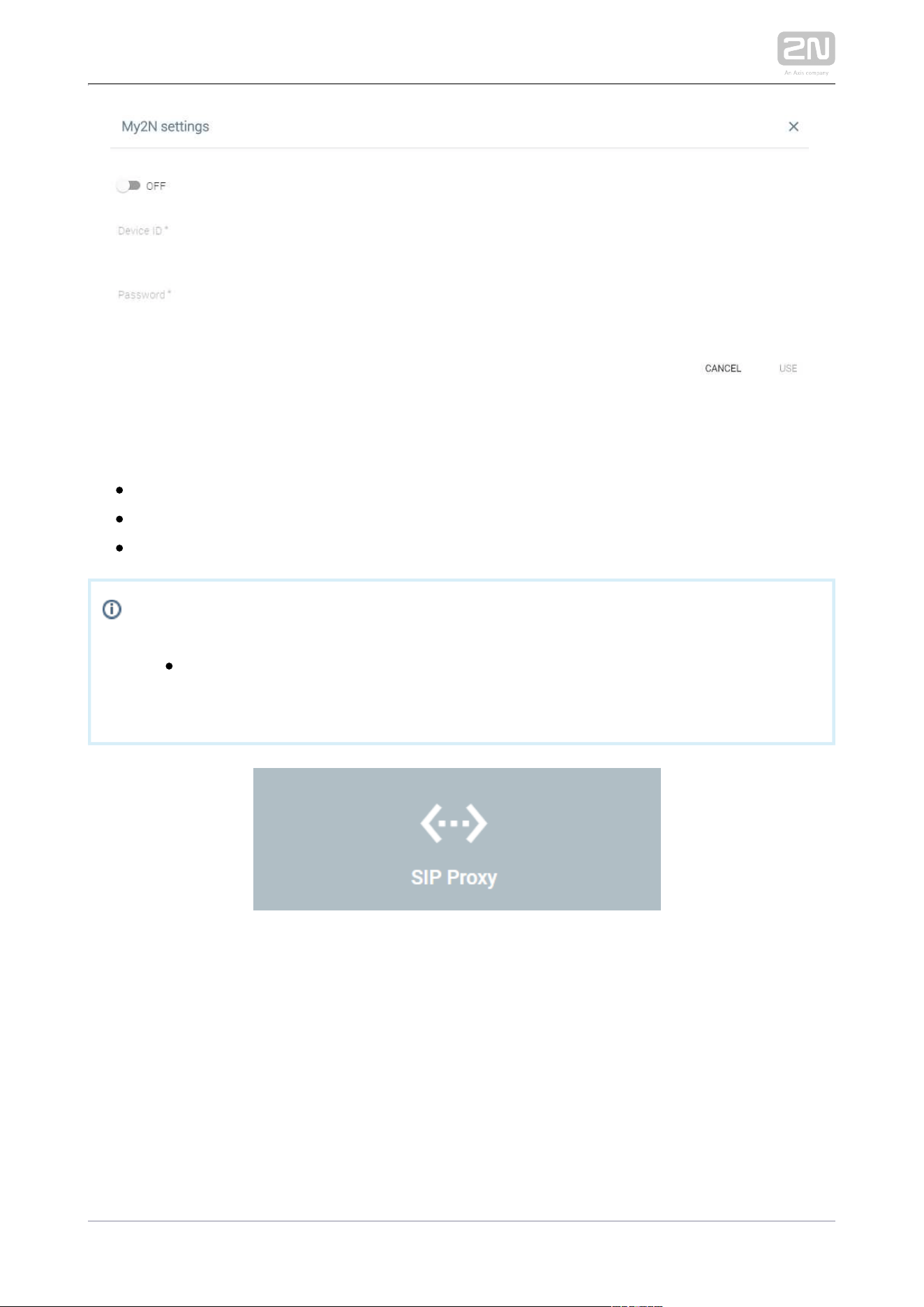
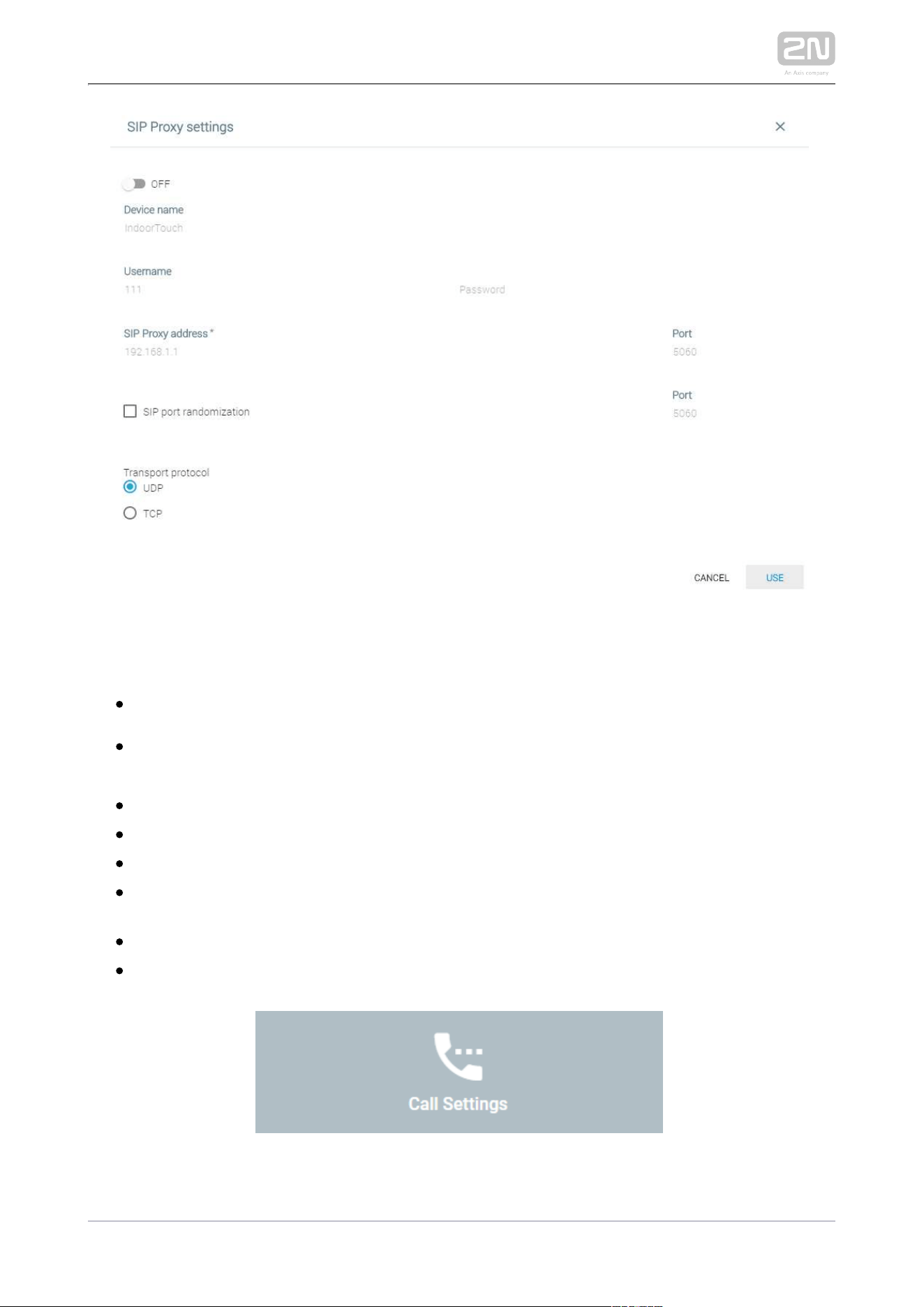
2N TELEKOMUNIKACE a.s., www.2n.cz122/135
– set the data necessary for the SIP Proxy server connection.SIP Proxy settings
– enable/disable the SIP Proxy connection and set the details.
ON/OFF
– set the device/ name to be displayed for the SIP Device name2N IP Mobile
®
Proxy purposes.
– user name/number as registered with the SIP Proxy server.
Username
– password of the user registered with the SIP Proxy server.
Password
– SIP Proxy server IP address
SIP Proxy address
– select the port for the SIP Proxy server to listen on. Default value: port
Port
5060. Range: 1–65535.
– set the SIP port randomization.
SIP port randomization
– select the transport protocol.
Transport protocol
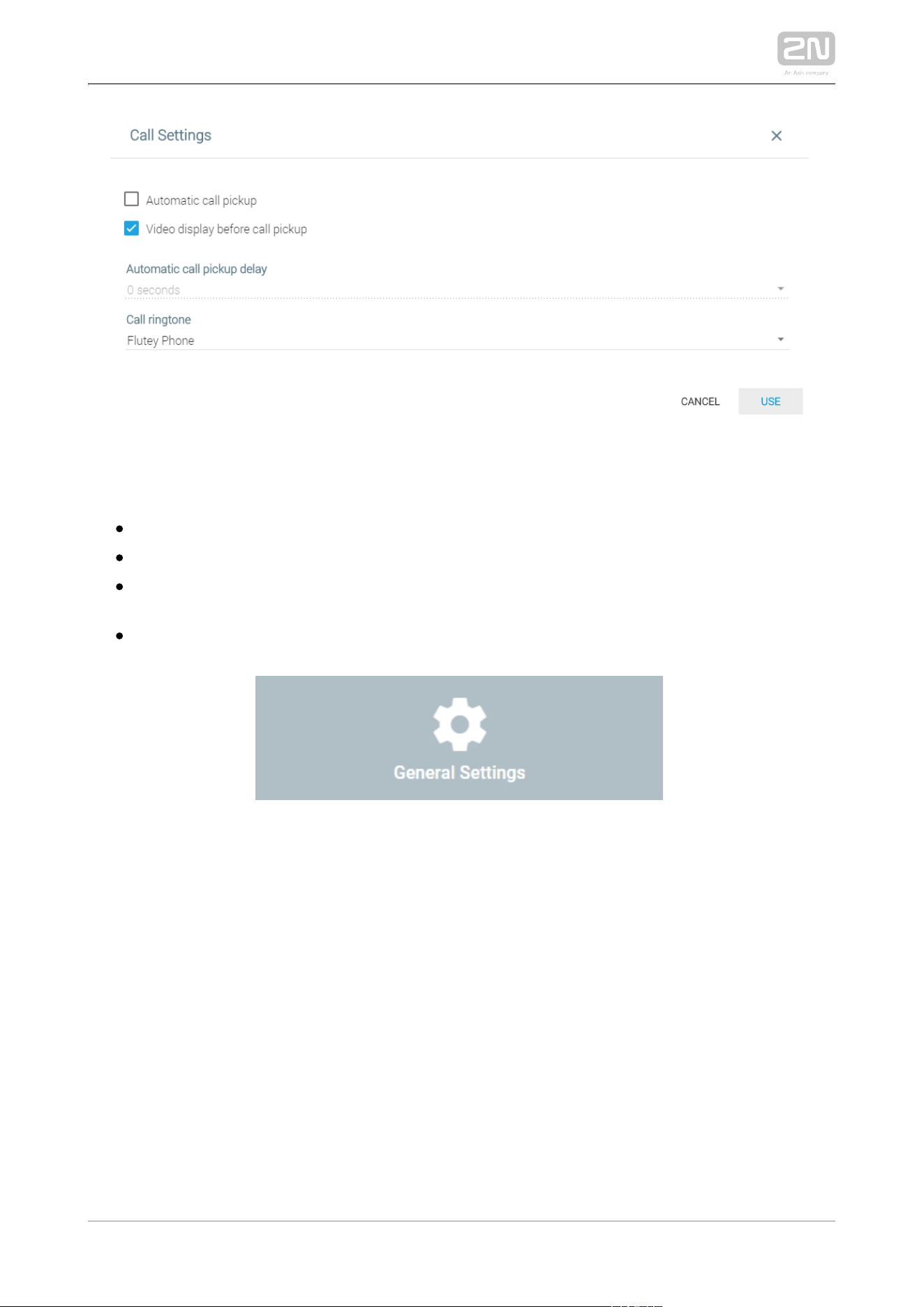
2N TELEKOMUNIKACE a.s., www.2n.cz123/135
Call Settings
– activate automatic call answering.
Automatic call pickup
– enable video preview before call pick up.
Video display before call pickup
– set the automatic call pickup timeout: from 0 to
Automatic call pickup delay
30 s.
– set the incoming call ringtone.
Call ringtone
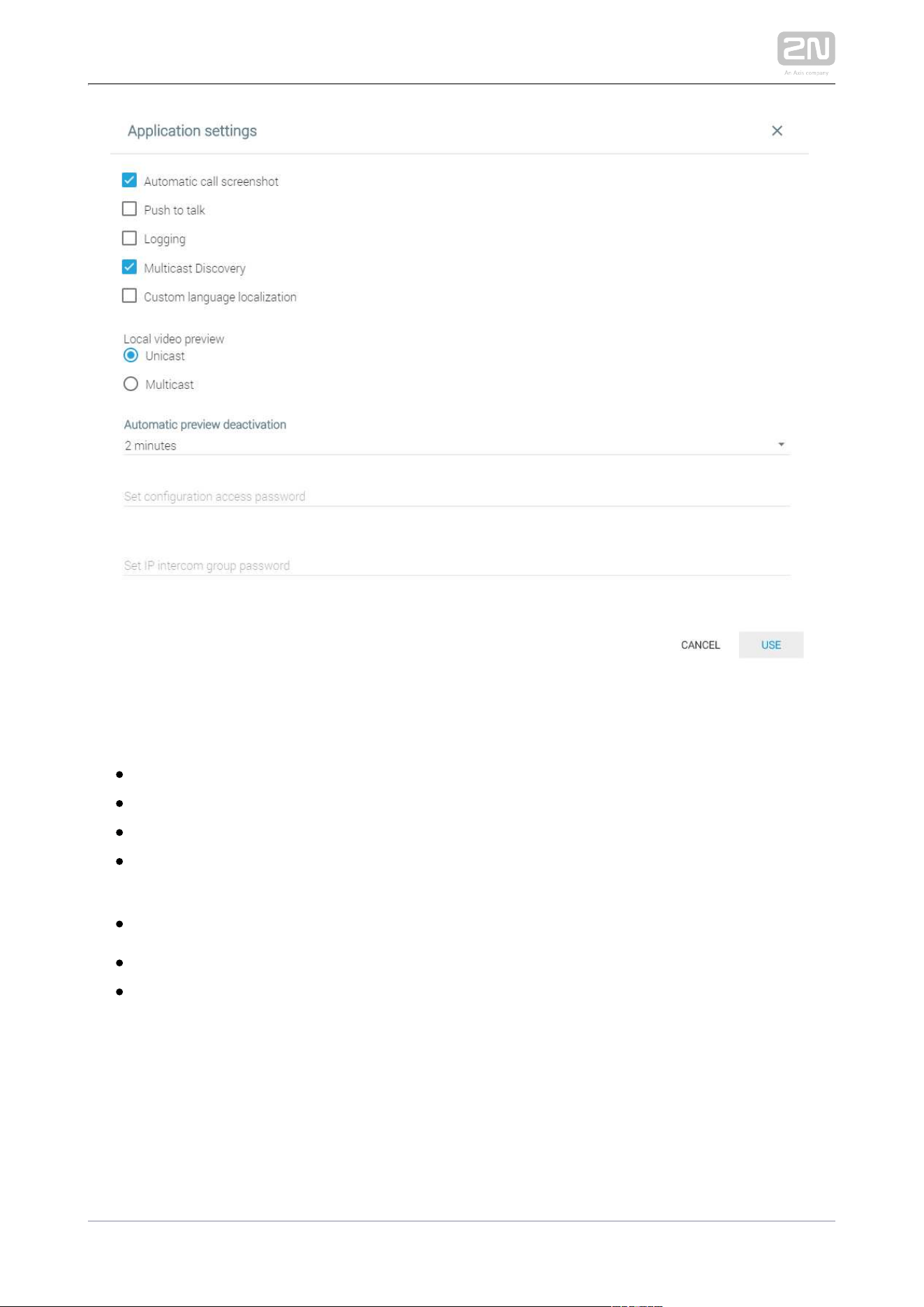
2N TELEKOMUNIKACE a.s., www.2n.cz124/135
Application Settings
– enable automatic call screenshots.
Automatic call screenshot
– enable Push to talk.
Push to talk
– enable/disable extended logging.
Logging
– set the background communication between the 2N
Multicast Discovery
devices.
– activate custom localization for .
Custom language localization2N IP Mobile
®
– set Unicast or Multicast video transmission.
Local video preview
– set the time in which the video transmission is
Automatic preview deactivation
deactivated: 1–30 minut.
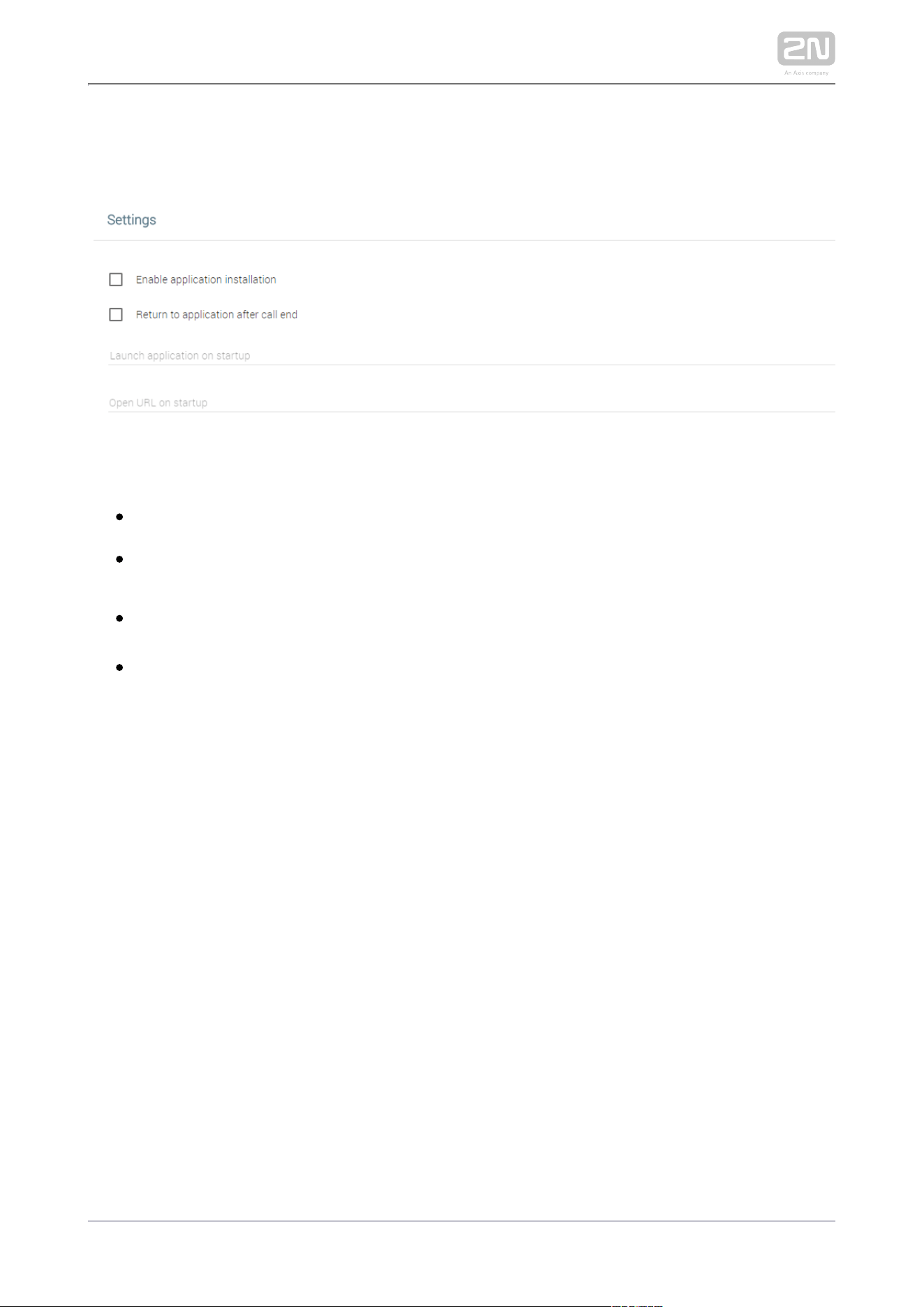
2N TELEKOMUNIKACE a.s., www.2n.cz125/135
5.4.2 Settings
This tab helps you set other functions related to applications.
– enable installation of third party applications.Enable application installation
– set this option to move to Return to application after call end 2N IP Mobile
®
the background again after an incoming call is ended.
– enter an application name (
Launch application on startup
com.android.
) to launch this application upon startup.
browser, e.g.
–enter the URL address to launch a web browser and Open URL on startup
move to the set address upon startup.
2N TELEKOMUNIKACE a.s., www.2n.cz126/135
5.5 Limitations
The web interface is always available to 1 user at a time. This applies to more tabs on 1
PC too. Therefore, remember to log in to each tab every time.
Caution
Once a new user logs in to the web interface, the previous user will be
logged out automatically.

2N TELEKOMUNIKACE a.s., www.2n.cz127/135
6. Technical Parameters
Power Supply
Type: external power adapter part no. 91378381E, 91378381GB, 91378381US
(SELV type with LPS) 90–230 V, 50–60 Hz to 12 V DC 0,75 A or Power over
Ethernet (PoE 802.3af)
Power input: up to 10 W
User Interface
Control: capacitive touch panel
Display size: 7"
Resolution: 1024 x 600 px
Backlight: LED
Status indicator: 1 RGB LED
Audio
Microphone: integrated
Loudspeaker: 2 W integrated
OS
Android 6.0.1
Interface
LAN: 10/100BaseT, RJ-45; Cat5e or higher (recommended)
Memory card: microSD card (SDHC) up to 16GB
WiFi: 802.11b/g/n, integrated antenna (not available in Korea)
Mechanical Parameters
Dimensions (w x h x d): 235 x 165 x 40 mm
Weight: 850 g
Operating temperature: 0°C – 60°C
Relative humidity: 10% – 90% (non-condensing)
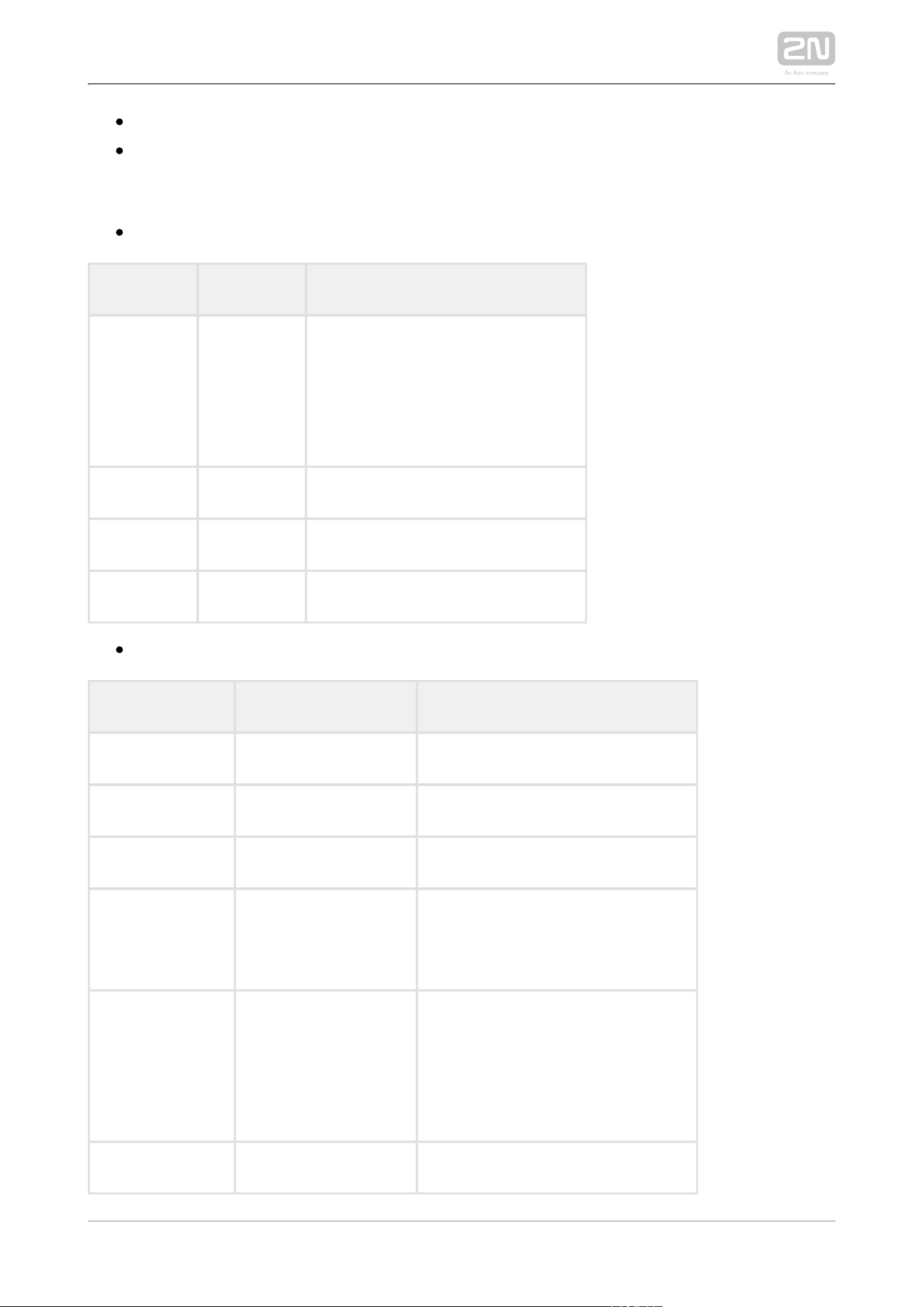
2N TELEKOMUNIKACE a.s., www.2n.cz128/135
Storing temperature: -20 °C – 70 °C
Recommended altitude: 0–2000 m
I/O Description
HW v2
SignificationNameRestriction
REL1/2Relaycontact data: max 30 V DC 1 A
DC 12 V +/- IN = power input:
Vinmax = 12 V DC Imax = 1 A
DC 12 V + OUT = power output:
Vout = 12 V DC Imax = 100 mA
DC12V++12 V inputImin = 1000 mA
DC12V--12 V inputImin = 1000 mA
GNDGround
HW v4
SignificationNameRestriction
ANALOG IN 1/2Analog Input0–5 V DC 1.5 MΩ
OUTPUT 1/2Digital OutputVoh = 3.3 V DC 0.33 mA
INPUT 1/2Digital InputVihmax = 5 V DC 100 kΩ
IN (OUT) 1/2Digital Input/OutputVihmax = 3.3 V DC (100 Ω
serial resistor), Voh = 3.3 V DC
4 mA (100 Ω serial resistor)
REL1/2Relaycontact data: max 30 V DC 1 A.
DC 12 V +/- IN = power input:
Vinmax = 12 V DC Imax = 1 A.
DC 12 V + OUT = power output:
Vout = 12 V DC Imax = 100 mA
DC12V+ OUT+12 V outputImax = 100 mA
2N TELEKOMUNIKACE a.s., www.2n.cz129/135
SignificationNameRestriction
DC12V+ IN+12 V inputImin = 1000 mA
GNDGround (-12 V input)


2N TELEKOMUNIKACE a.s., www.2n.cz131/135
7.1 Troubleshooting
Trouble: The device always switches off the display before timeout.
Advice: Check the device temperature. If improperly installed, 2N Indoor Touch
®
automatically turns into the stand-by mode to reduce the device
2.0
temperature if critical to avoid forced turn-off / reset in extreme cases. The user
is notified of this problem by a short display of the notification window. Display
the current device temperature in the Setting section.
Trouble: The device does not start and remains in one of the LED states or gets
restarted round and round.
Advice: Press and hold the Reset button on the device backside during the
startup to restore the factory values automatically. If the trouble persists,
upgrade the system via an SD card. If the trouble still persists, contact the
Servicing centre.
Trouble: The device fails to emit sounds, even the incoming call ringing.
Advice: Check the volume setting and adjust the loudspeaker volume level if
necessary with the Volume up/down buttons on the lower status bar.
For the most frequently asked questions refer to .
faq.2n.cz

2N TELEKOMUNIKACE a.s., www.2n.cz132/135
7.2 Directives, Laws and Regulations -
General Instructions and Cautions
2N Indoor Touch 2.0
®
conforms to the following directives and regulations:
2014/35/EU on the harmonisation of the laws of the Member States relating to the
making available on the market of electrical equipment designed for use within certain
voltage limits
2014/30/EU on the harmonisation of the laws of the Member States relating to
electromagnetic compatibility
2011/65/EU on the restriction of the use of certain hazardous substances in electrical
and electronic equipment
2012/19/EU on waste electrical and electronic equipment
Industry Canada
This Class B digital apparatus complies with Canadian ICES-003. / Cet appareil
numérique de la classe B est conforme a la norme NMB-003 du Canada.
FCC
NOTE: This equipment has been tested and found to comply with the limits for a Class
B digital device, pursuant to part 15 of the FCC Rules. These limits are designed to
provide reasonable protection against harmful interference in a residential installation.
This equipment generates, uses and can radiate radio frequency energy and, if not
installed and used in accordance with the instructions, may cause harmful interference
to radio communications. However, there is no guarantee that interference will not
occur in a particular installation. If this equipment does cause harmful interference to
radio or television reception, which can be determined by turning the equipment off
and on, the user is encouraged to try to correct the interference by one or more of the
following measures:
Reorient or relocate the receiving antenna
Increase the separation between the equipment and receiver
Connect the equipment into an outlet on a circuit different from that to which
the receiver is connected
Consult the dealer or an experienced radio/TV technician for help.
Changes or modifications to this unit not expressly approved by the party responsible
for compliance could void the user's authority to operate this equipment.

2N TELEKOMUNIKACE a.s., www.2n.cz133/135
Please read this User Manual carefully before using the product. Follow all instructions
and recommendations included herein.
Any use of the product that is in contradiction with the instructions provided herein
may result in malfunction, damage or destruction of the product.
The manufacturer shall not be liable and responsible for any damage incurred as a
result of a use of the product other than that included herein, namely undue
application and disobedience of the recommendations and warnings in contradiction
herewith.
Any use or connection of the product other than those included herein shall be
considered undue and the manufacturer shall not be liable for any consequences
arisen as a result of such misconduct.
Moreover, the manufacturer shall not be liable for any damage or destruction of the
product incurred as a result of misplacement, incompetent installation and/or undue
operation and use of the product in contradiction herewith.
The manufacturer assumes no responsibility for any malfunction, damage or
destruction of the product caused by incompetent replacement of parts or due to the
use of reproduction parts or components.
The manufacturer shall not be liable and responsible for any loss or damage incurred
as a result of a natural disaster or any other unfavourable natural condition.
The manufacturer shall not be held liable for any damage of the product arising during
the shipping thereof.
The manufacturer shall not make any warrant with regard to data loss or damage.
The manufacturer shall not be liable and responsible for any direct or indirect damage
incurred as a result of a use of the product in contradiction herewith or a failure of the
product due to a use in contradiction herewith.
All applicable legal regulations concerning the product installation and use as well as
provisions of technical standards on electric installations have to be obeyed. The
manufacturer shall not be liable and responsible for damage or destruction of the
product or damage incurred by the consumer in case the product is used and handled
contrary to the said regulations and provisions.
The consumer shall, at its own expense, obtain software protection of the product.
The manufacturer shall not be held liable and responsible for any damage incurred as
a result of the use of deficient or substandard security software.
The consumer shall, without delay, change the access password for the product after
installation. The manufacturer shall not be held liable or responsible for any damage
incurred by the consumer in connection with the use of the original password.
The manufacturer also assumes no responsibility for additional costs incurred by the
consumer as a result of making calls using a line with an increased tariff.

2N TELEKOMUNIKACE a.s., www.2n.cz134/135
Electric Waste and Used Battery Pack Handling
Do not place used electric devices and battery packs into municipal waste containers.
An undue disposal thereof might impair the environment!
Deliver your expired electric appliances and battery packs removed from them to
dedicated dumpsites or containers or give them back to the dealer or manufacturer
for environmental-friendly disposal. The dealer or manufacturer shall take the product
back free of charge and without requiring another purchase. Make sure that the
devices to be disposed of are complete.
Do not throw battery packs into fire. Battery packs may not be taken into parts or
short-circuited either.

2N TELEKOMUNIKACE a.s., www.2n.cz135/135
2N TELEKOMUNIKACE a.s.
Modřanská 621, 143 01 Prague 4, Czech Republic
Phone: +420 261 301 500, Fax: +420 261 301 599
E-mail:
Web: www.2n.cz
v4.2.2