The 2N TELEKOMUNIKACE a.s. is a Czech manufacturer and supplier of
telecommunications equipment.
The product family developed by 2N TELEKOMUNIKACE a.s. includes GSM gateways,
private branch exchanges (PBX), and door and lift communicators. 2N
TELEKOMUNIKACE a.s. has been ranked among the Czech top companies for years
and represented a symbol of stability and prosperity on the telecommunications
market for almost two decades. At present, we export our products into over 120
countries worldwide and have exclusive distributors on all continents.
2N is a registered trademark of 2N TELEKOMUNIKACE a.s. Any product and/or other
®
names mentioned herein are registered trademarks and/or trademarks or brands
protected by law.
2N TELEKOMUNIKACE a.s. administers the FAQ database to help you quickly find
information and to answer your questions about 2N products and services. On www.
faq.2n.cz you can find information regarding products adjustment and instructions for
optimum use and procedures „What to do if...".
2N TELEKOMUNIKACE a.s. hereby declares that the 2N product complies with all
basic requirements and other relevant provisions of the 1999/5/EC directive. For the
full wording of the Declaration of Conformity see the CD-ROM (if enclosed) or our
website at www.2n.cz.
This device complies with part 15 of the FCC Rules. Operation is subject to the
following two conditions: (1) This device may not cause harmful interference, and (2)
this device must accept any interference received, including interference that may
cause undesired operation.

The 2N TELEKOMUNIKACE a.s. is the holder of the ISO 9001:2009 certificate. All
development, production and distribution processes of the company are managed by
this standard and guarantee a high quality, technical level and professional aspect of
all our products.

2N TELEKOMUNIKACE a.s., www.2n.cz 4/126
Content:
1. Product Overview
1.1 Components and Associated Products
1.2 Terms and Symbols
2. Description and Installation
2.1 Before You Start
2.2 Mechanical Installation
2.3 Electric Installation
2.4 Extending Module Connection
2.5 Button Tags
3. Function and Use
3.1 Configuration
3.2 Control
3.3 Maintenance
3.4 Downloads
4. Technical Parameters
5. Supplementary Information
5.1 Troubleshooting
5.2 Directives, Laws and Regulations
5.3 General Instructions and Cautions

2N TELEKOMUNIKACE a.s., www.2n.cz 5/126
1. Product Overview
Here is what you can find in this section:
1.1 Components and Associated Products
1.2 Terms and Symbols
Basic Features
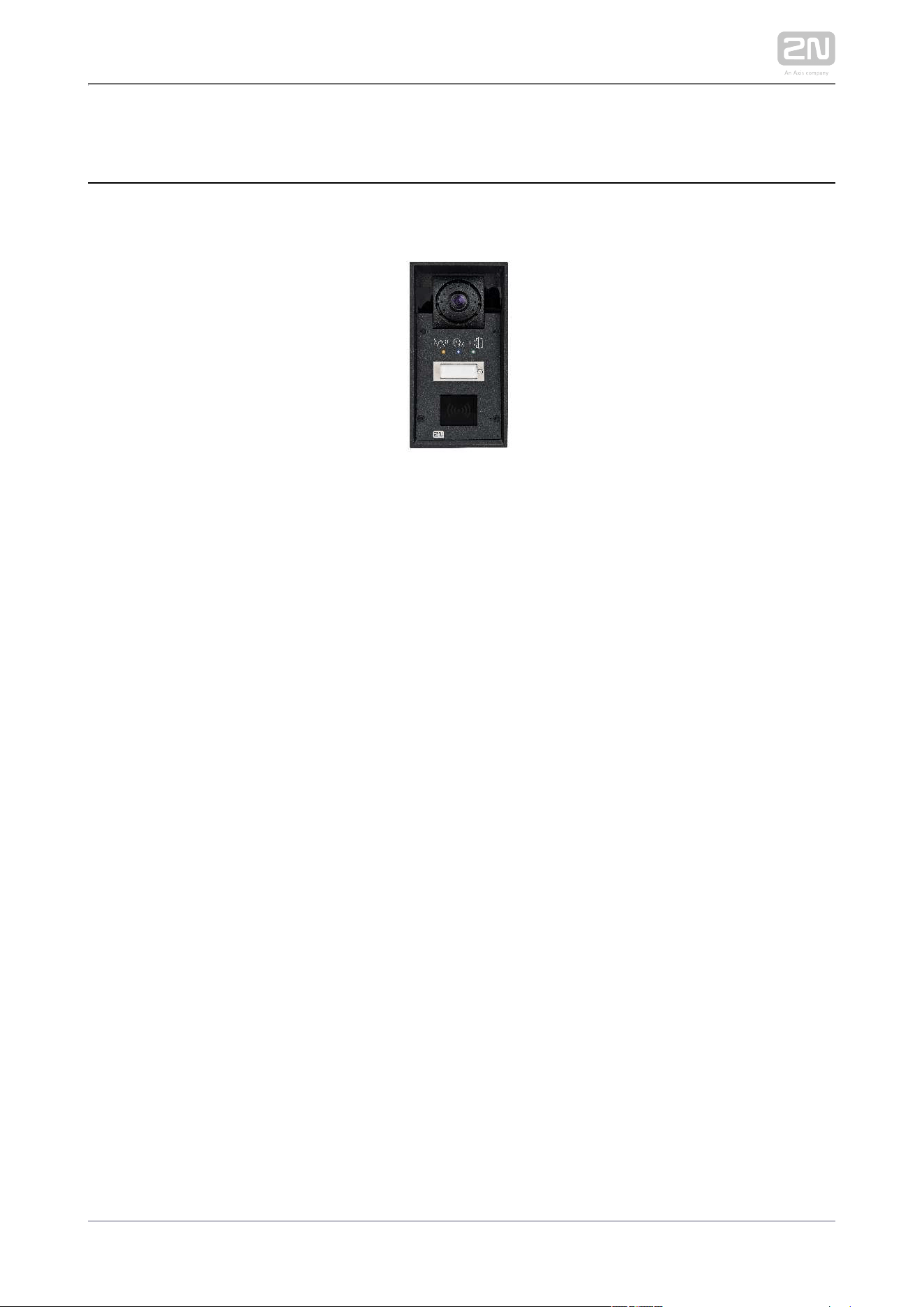
2N IP Force
®
is a highly resistant and reliable IP door access intercom provided with a
lot of useful above-standard functions. Supporting the SIP standard and being
compatible with the leading IP PBX and telephone suppliers, can make 2N IP Force
®
use of all VoIP services. can work as a standard or emergency door 2N IP Force
®
access intercom for buildings, entrances to premises or garages, manufacturing halls,
highways and so on.
2N IP Force
®
is equipped with two very sensitive microphones and an up to 10W
loudspeaker. Thanks to an integrated acoustic echo cancelling (AEC) system, the
product provides mutual audibility even of persons talking at the same time under
normal conditions.
2N IP Force
®
can be equipped with a colour wide-angle camera, which displays the
calling person on the called party's video telephone or PC monitor.
2N IP Force
®
can be provided with 1, 2 or 4 pre-programmed buttons. You can set up
to three telephone numbers and time profiles for each of the buttons to increase the
accessibility of the called party.
2N IP Force
®
can be equipped with a numerical keypad to be used as a code lock for
lock switch activating or telephone/subscriber number dialling.

2N TELEKOMUNIKACE a.s., www.2n.cz 6/126
2N IP Force
®
is equipped with an electric lock switch. You can control the switch
using a numerical keypad or, during a call, using any telephone set. An additional
switch module can be installed if necessary. A wide range of settings allow for a
variety of applications.
2N IP Force
®
can also be provided with RFID card reader modules.
2N IP Force
®
is very easy to install. All you have to do is connect the system into your
LAN via a network cable and feed it from a 12 V power supply or your PoE supporting
LAN.
Configure using your PC via any web browser. Use the2N IP Force
®
to manage extensive systems easily and 2N Access Commander
®
2N IP Force
®
quickly.
Advantages of Use
Uncompromising Antivandal design
High coverage level – up to class IP69K
Variable mounting options (brick/plasterboard flush mounting, surface
mounting)
Sensitive microphone and powerful loudspeaker
Bidirectional communication – acoustic echo cancelling
Integrated colour camera with wide-angle lens
Optional dial buttons including name tags and backlight
Optional numerical keypad with backlight
Integrated electronic lock switches with wide setting options
Optional integrated RFID card reader module
LAN (PoE) or external 12 V power supply
Configuration via web interface or dedicated PC application
SIP 2.0 support
Up to 1999 telephone directory positions
Up to 20 user time profiles
Video codecs (H.263, H.263+, H.264, MPEG-4, JPEG)
Audio codecs (G.711, G.729, G.722, L16/16kHz)
HTTP server for configuration
SNTP client for time synchronisation with server
RTSP server for video streaming
SMTP client for e-mail sending
TFTP client for automatic configuration and firmware update

2N TELEKOMUNIKACE a.s., www.2n.cz 7/126
TFTP client for automatic configuration and firmware update
2N TELEKOMUNIKACE a.s., www.2n.cz 8/126
1.1 Components and Associated Products
2N IP Force
®
Components and Associated Products:
2N TELEKOMUNIKACE a.s., www.2n.cz 9/126
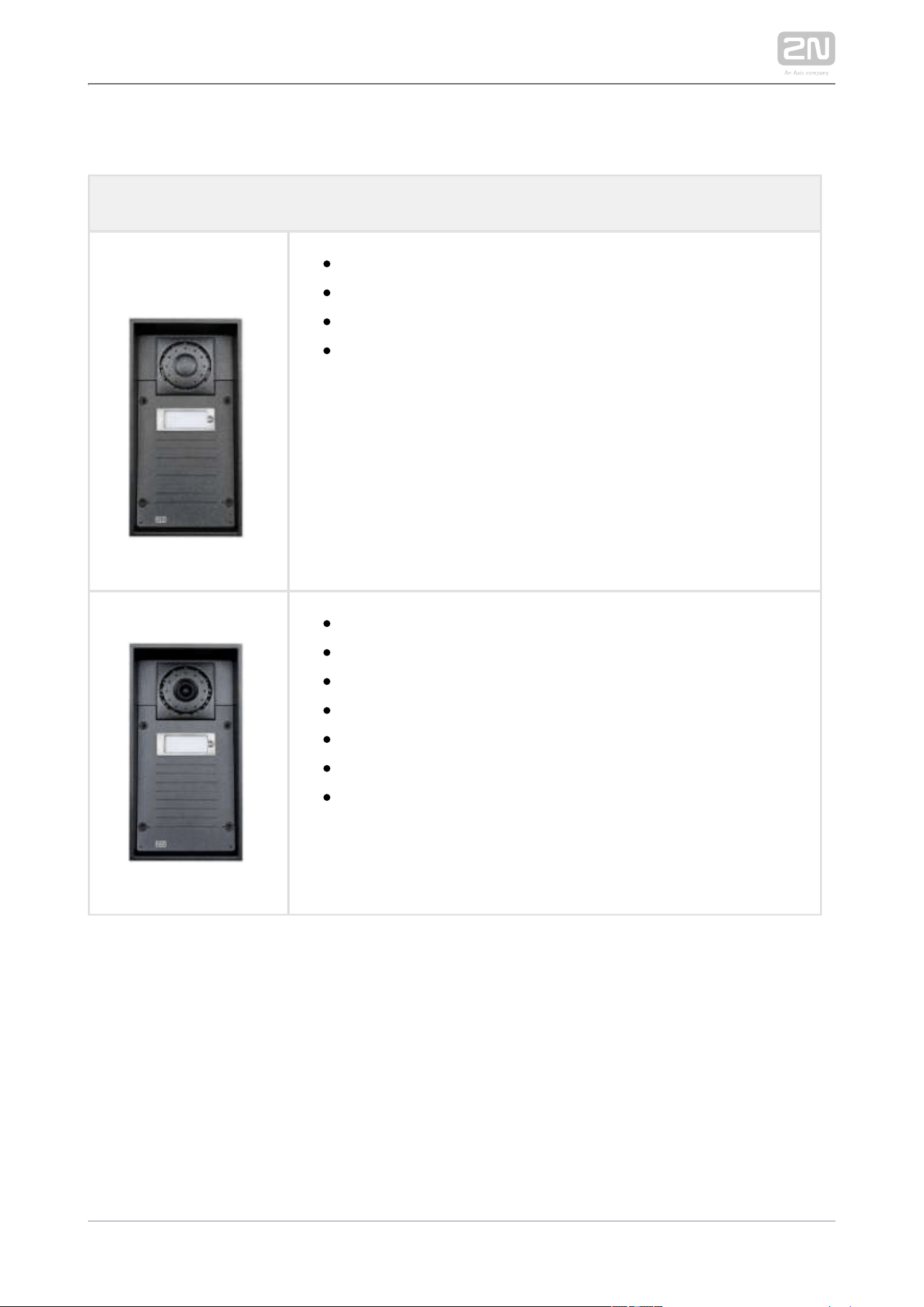
Basic Units
One-Button
2N Part No. 9151101W
Axis Part No. 01336-001
1 button
control of two electric locks
possibility of connecting additional switch
10 W loudspeaker, IP69K
Part No. 9151101CW
IP69K
1 button
camera
10 W loudspeaker, IP69K
extra robust version
control of two electric locks
possibility of connecting additional switch
2N TELEKOMUNIKACE a.s., www.2n.cz 10/126
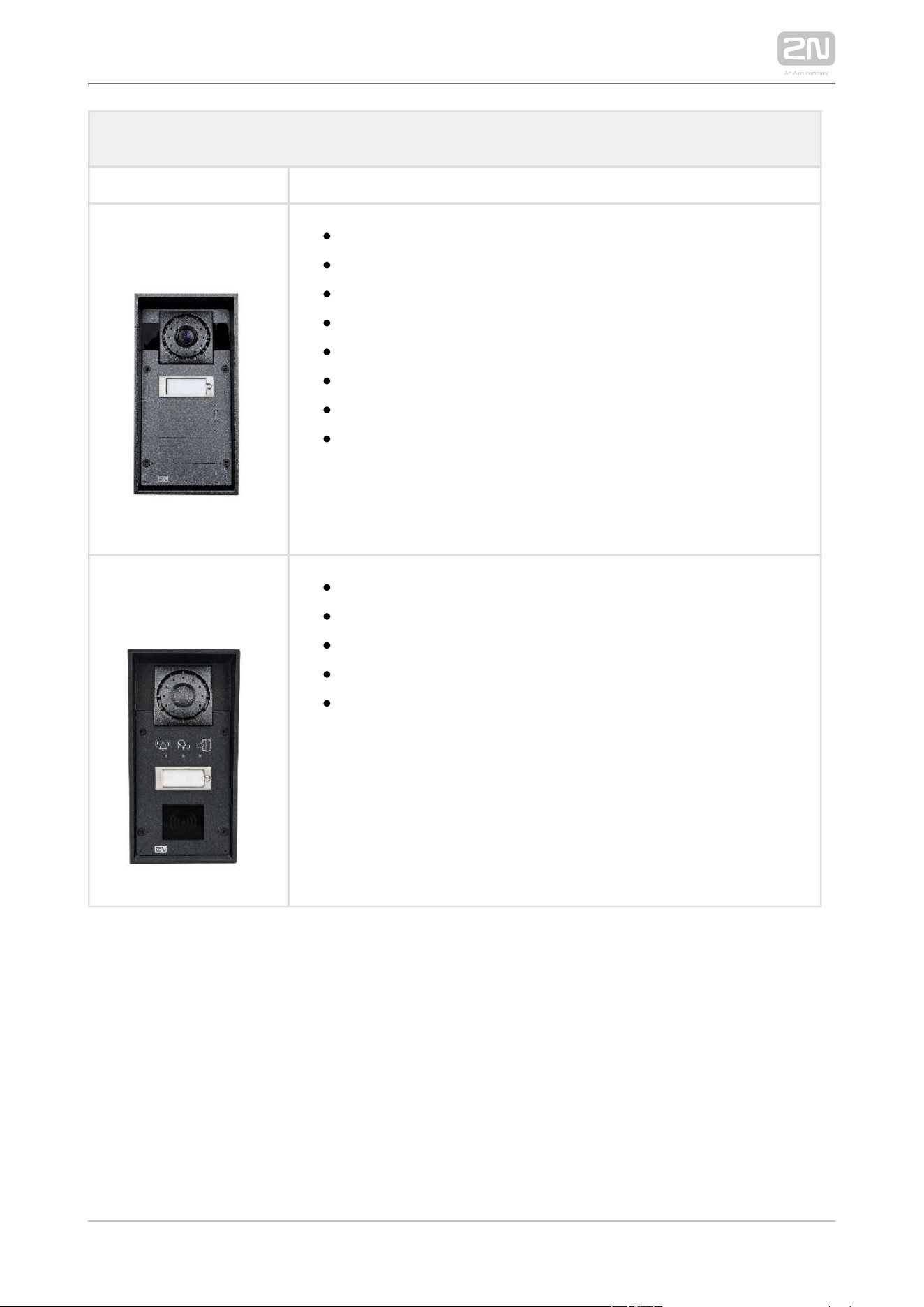
One-Button
2N Part No. 9151101CHW
Axis Part No. 01337-001
IP69K
1 button
HD camera
10 W loudspeaker, IP69K
extra robust version
control of two electric locks
possibility of connecting additional switch
night vision
2N Part No. 9151101RPW
Axis Part No. 01335-001
1 button, pictograms,
possibility of connecting card reader
control of two electric locks
possibility of connecting additional switch
10 W loudspeaker, IP69K
2N TELEKOMUNIKACE a.s., www.2n.cz 11/126
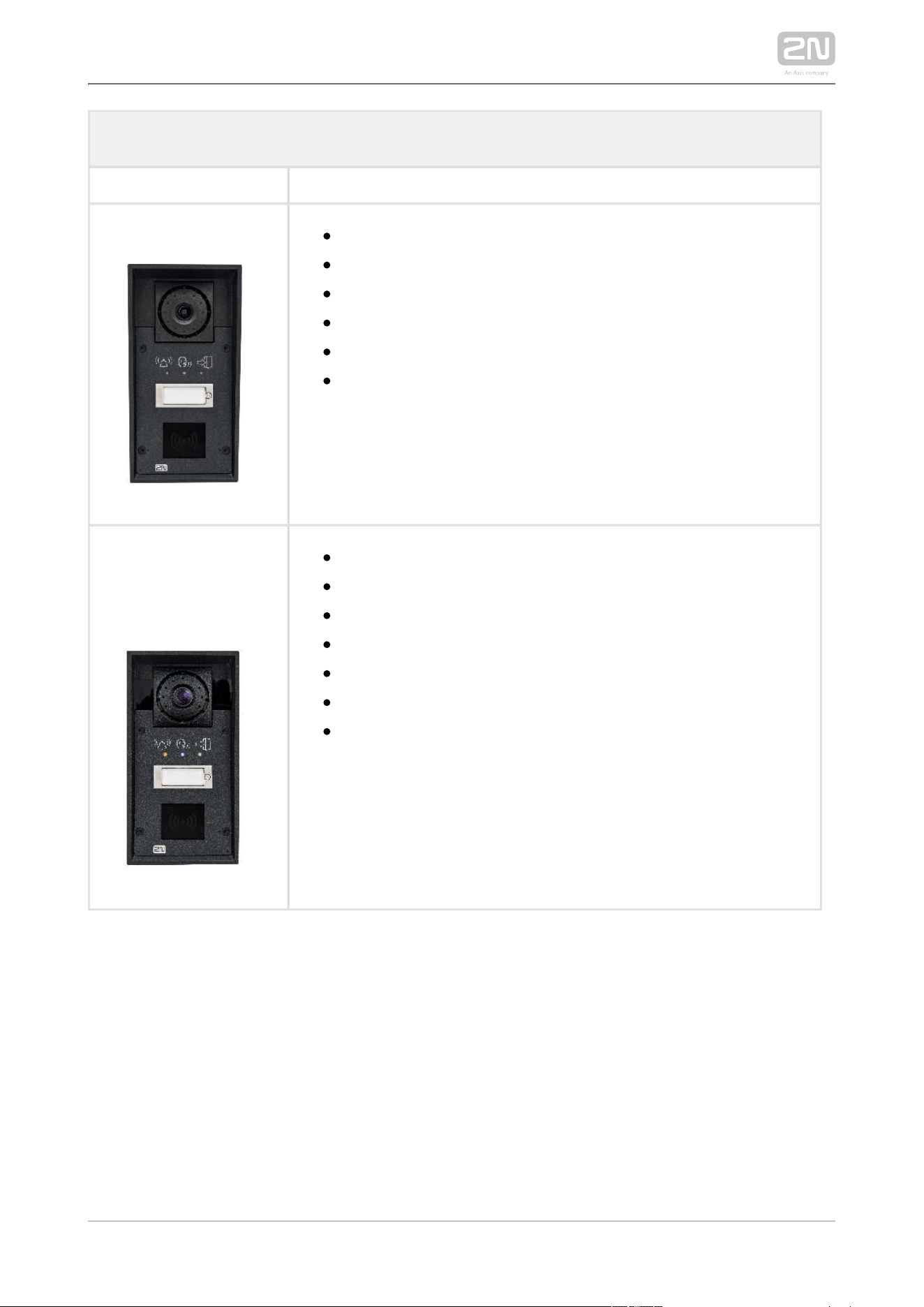
One-Button
Part No. 9151101CRPW
1 button, pictograms
with camera
possibility of connecting card reader
control of two electric locks
possibility of connecting additional switch
10 W loudspeaker, IP69K
2N Part No.
9151101CHRPW
Axis Part No. 01334-001
1 button, pictograms,
with HD camera,
possibility of connecting card reader
control of two electric locks
possibility of connecting additional switch
10 W loudspeaker, IP69K
night vision
2N TELEKOMUNIKACE a.s., www.2n.cz 12/126
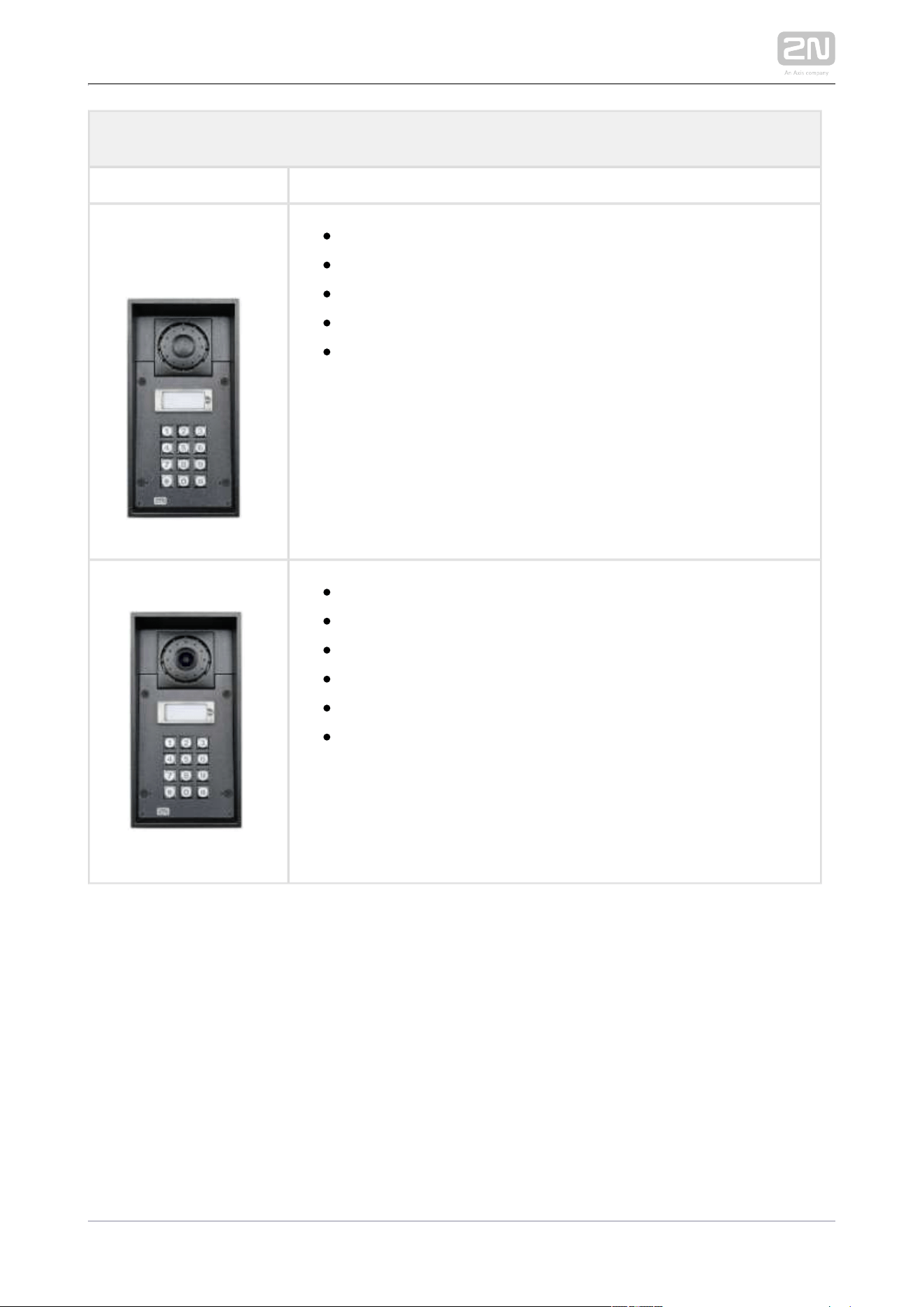
One-Button
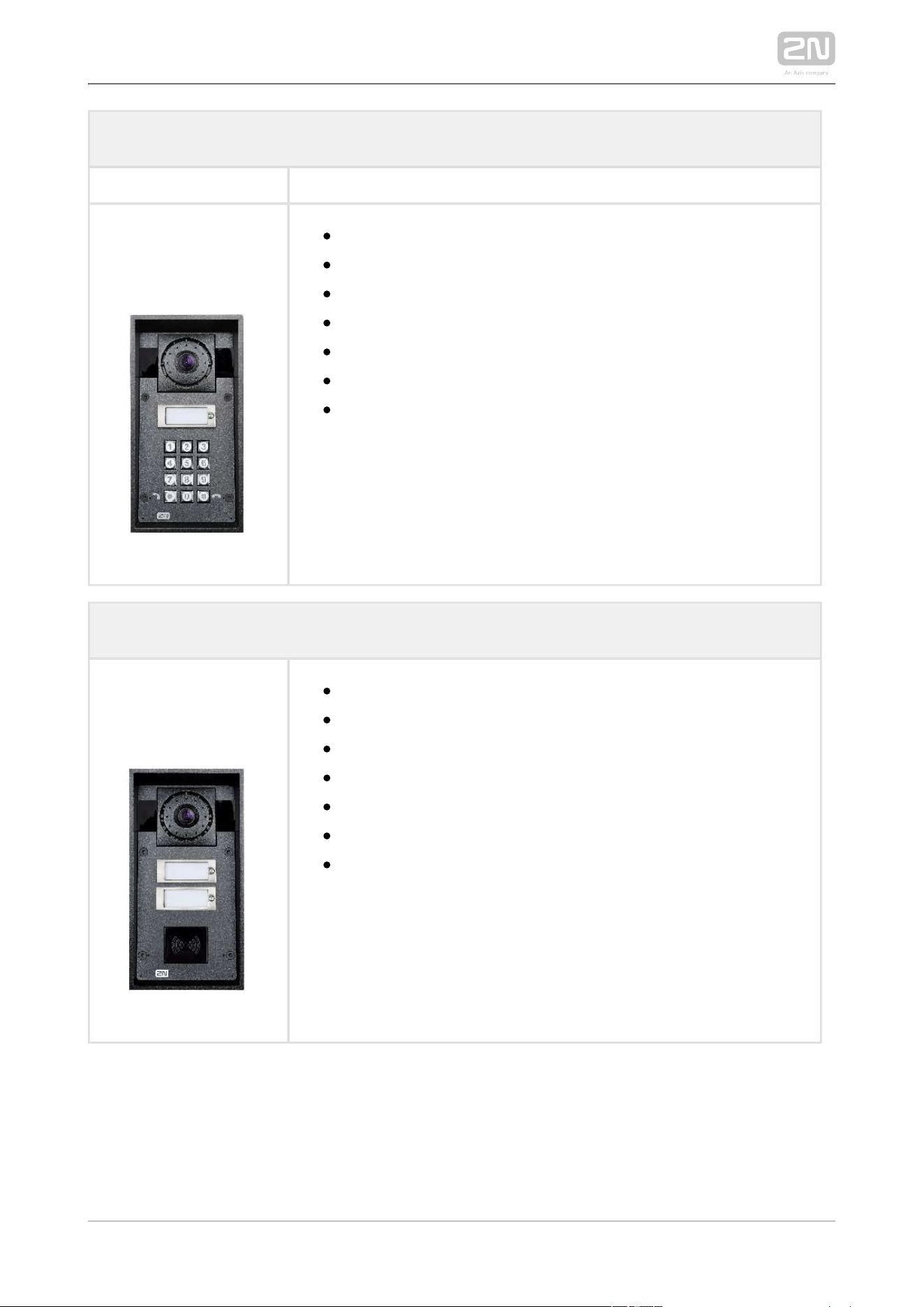
2N Part No. 9151101KW
Axis Part No. 01338-001
10 W loudspeaker, IP69K
1 button
keypad
control of two electric locks
possibility of connecting additional switch
Part No. 9151101CKW
10 W loudspeaker, IP69K
1 button
keypad
camera
control of two electric locks
possibility of connecting additional switch
2N TELEKOMUNIKACE a.s., www.2n.cz 13/126
One-Button
2N Part No.
9151101CHKW
Axis Part No. 01339-001
10 W loudspeaker, IP69K
1 button
keypad
HD camera
control of two electric locks
possibility of connecting additional switch
night vision
Two-Button
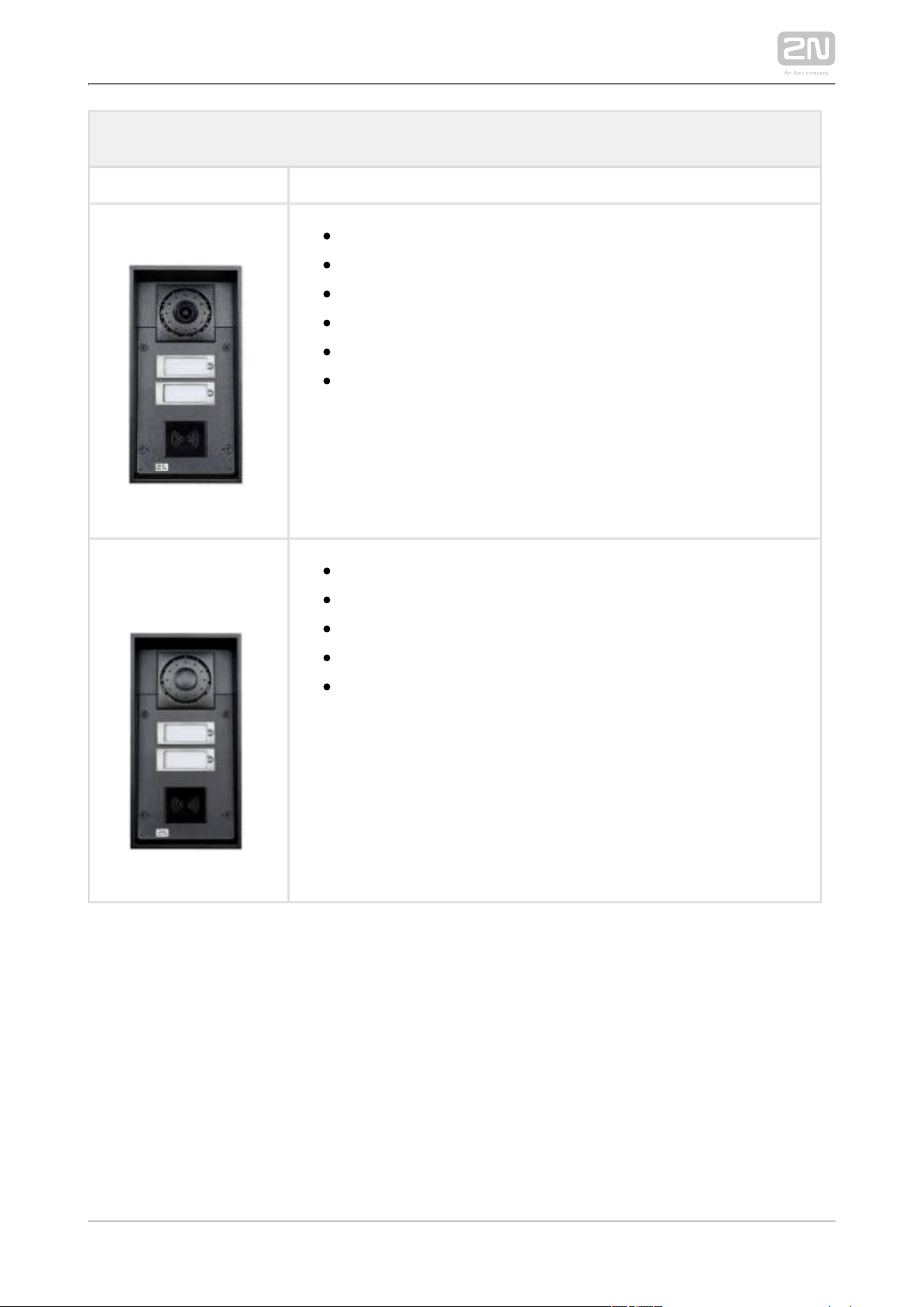
2N Part No.
9151102CHRW
Axis Part No. 01340-001
2 buttons
HD camera
possibility of connecting card reader
control of two electric locks
possibility of connecting additional switch
10 W loudspeaker, IP69K
night vision
2N TELEKOMUNIKACE a.s., www.2n.cz 14/126
Two-Button
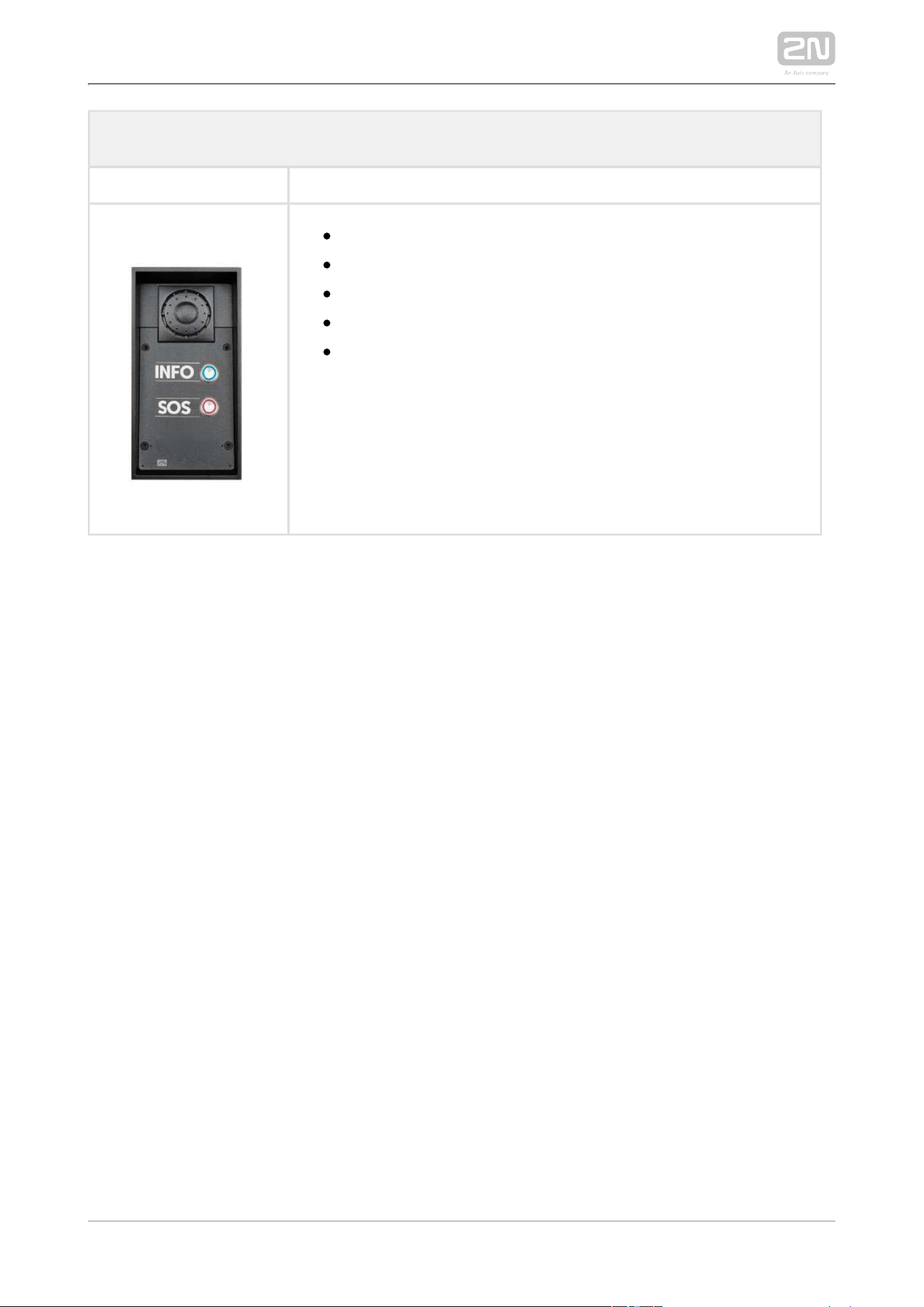
Part No. 9151102CRW
2 buttons
camera
possibility of connecting card reader
control of two electric locks
possibility of connecting additional switch
10 W loudspeaker, IP69K
2N Part No. 9151102RW
Axis Part No. 01341-001
2 buttons
possibility of connecting card reader
control of two electric locks
possibility of connecting additional switch
10 W loudspeaker, IP69K
2N TELEKOMUNIKACE a.s., www.2n.cz 15/126
Two-Button
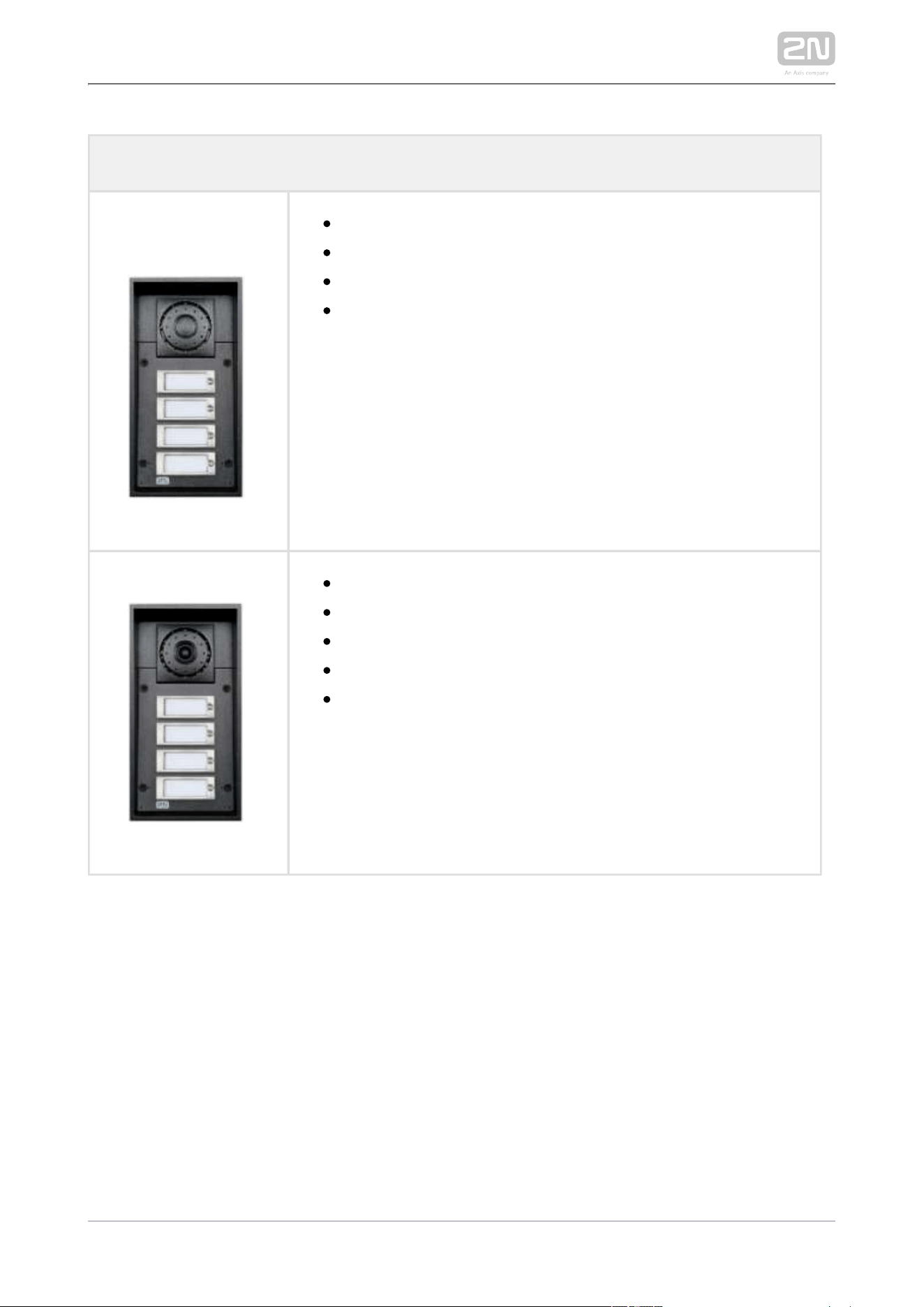
Part No. 9151102-X1
2 buttons
10W loudspeaker, IP69K
2 buttons with „INFO“ and „SOS“ labels
anti-vandal buttons made of stainless steel
note: Customization available per request
2N TELEKOMUNIKACE a.s., www.2n.cz 16/126
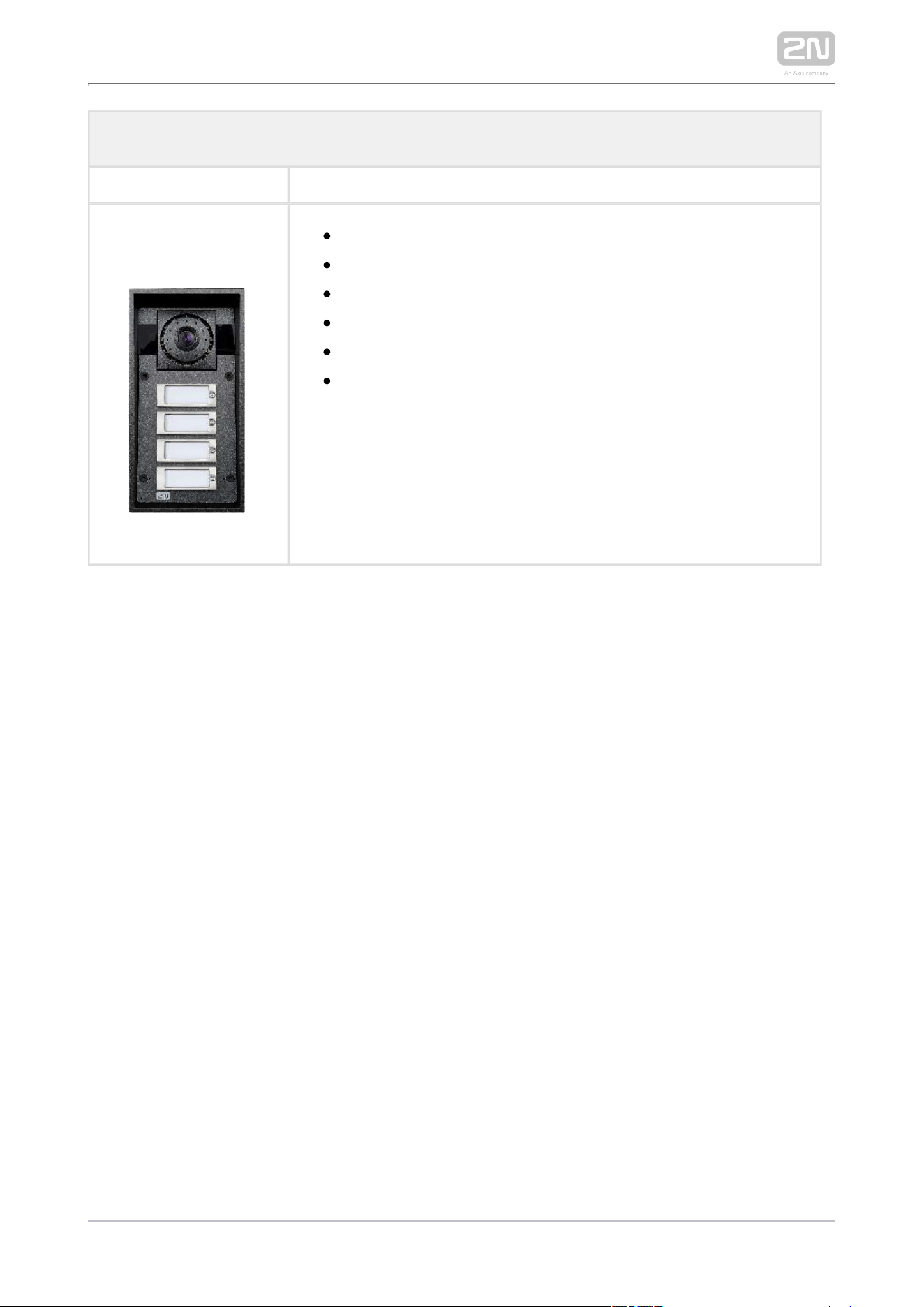
Four-Button
2N Part No. 9151104W
Axis Part No. 01342-001
10 W loudspeaker, IP69K
4 buttons
control of two electric locks
possibility of connecting additional switch
Part No. 9151104CW
10 W loudspeaker, IP69K
4 buttons
camera
control of two electric locks
possibility of connecting additional switch
2N TELEKOMUNIKACE a.s., www.2n.cz 17/126
Four-Button
2N Part No. 9151104CHW
Axis Part No. 01343-001
10 W loudspeaker, IP69K
4 buttons
HD camera
control of two electric locks
possibility of connecting additional switch
night vision
2N IP Force
®
is designed for outdoor applications and requires no additional roof. W-
including Part Nos. are intended for WAP pressure cleaning and extremely noisy
environments (such as highways, etc.).
2N IP Force
®
units can be flush or wall mounted without requiring any additional
accessories. Use the appropriate mounting box (see below) for plasterboard and
hollow brick flush mounting.
2N TELEKOMUNIKACE a.s., www.2n.cz 18/126
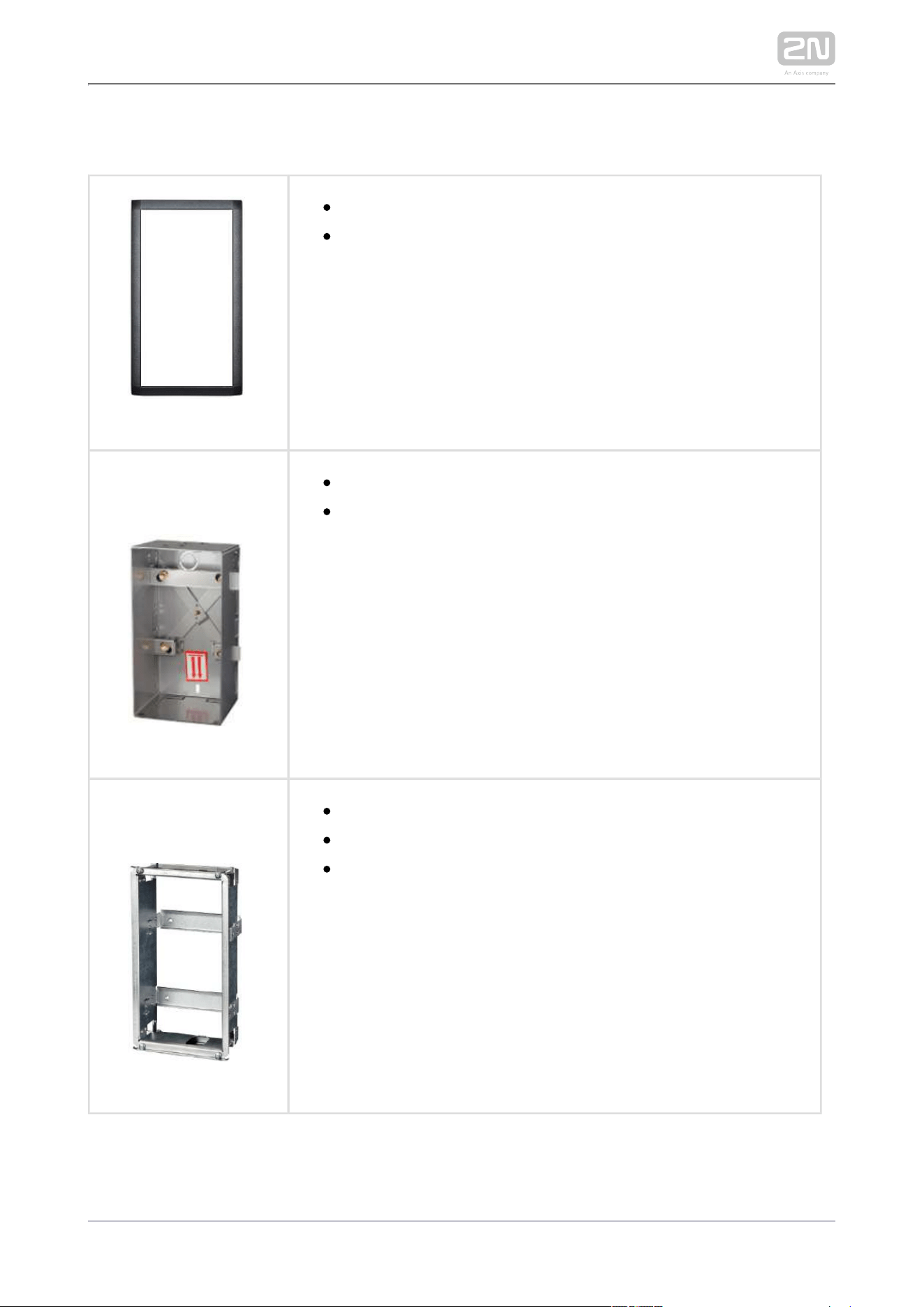
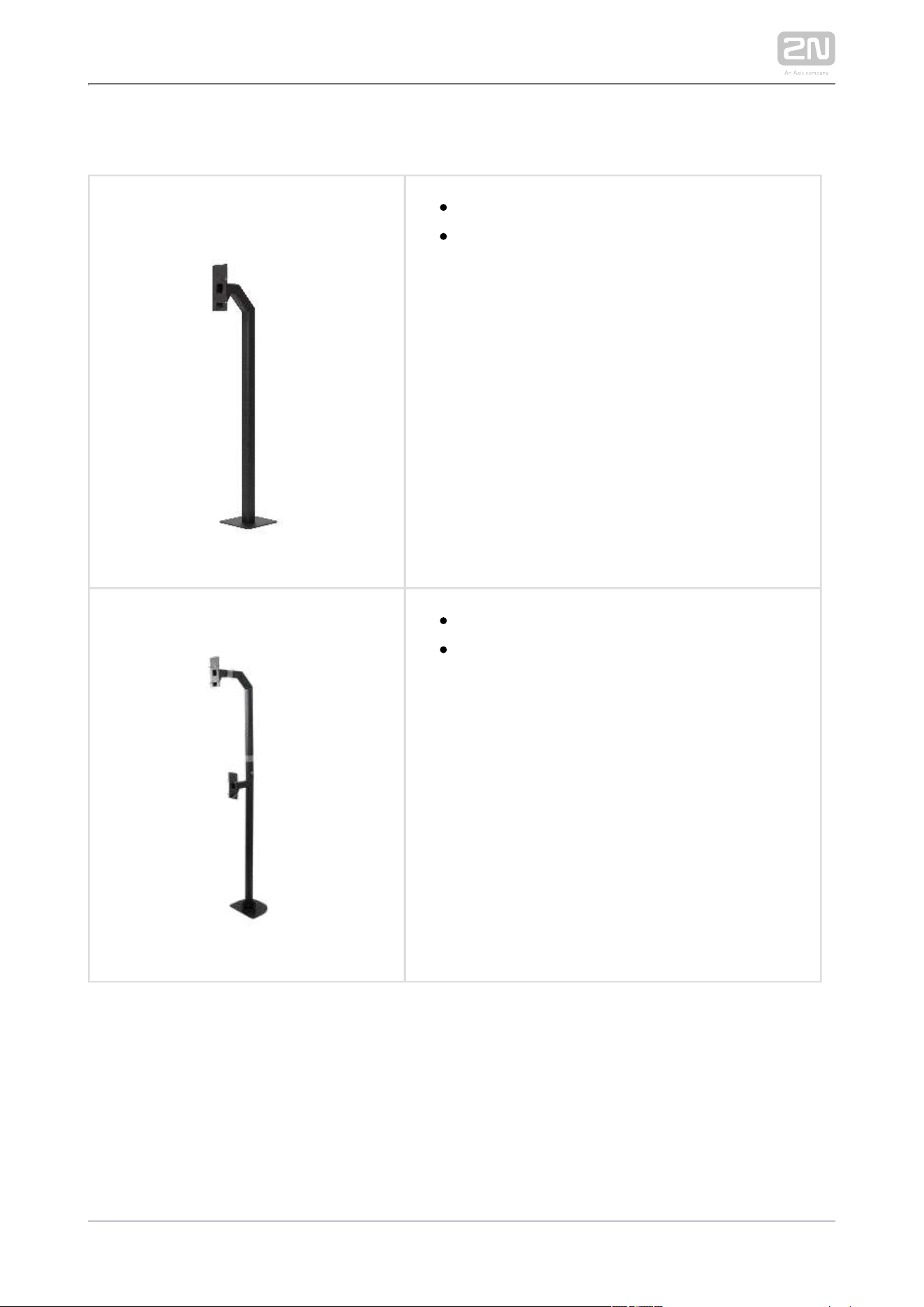
Flush Mounting Box
frame
included with basic unit
91510012N Part No.
Axis Part No. 01348-001
Brick flush mounting box
Dimension: 132 x 223 x 83 mm
91510022N Part No.
Axis Part No. 01349-001
Plasterboard flush mounting box
Dimension: 237 x 129 x 70 mm
Hole: 237 x 118 mm
2N TELEKOMUNIKACE a.s., www.2n.cz 19/126
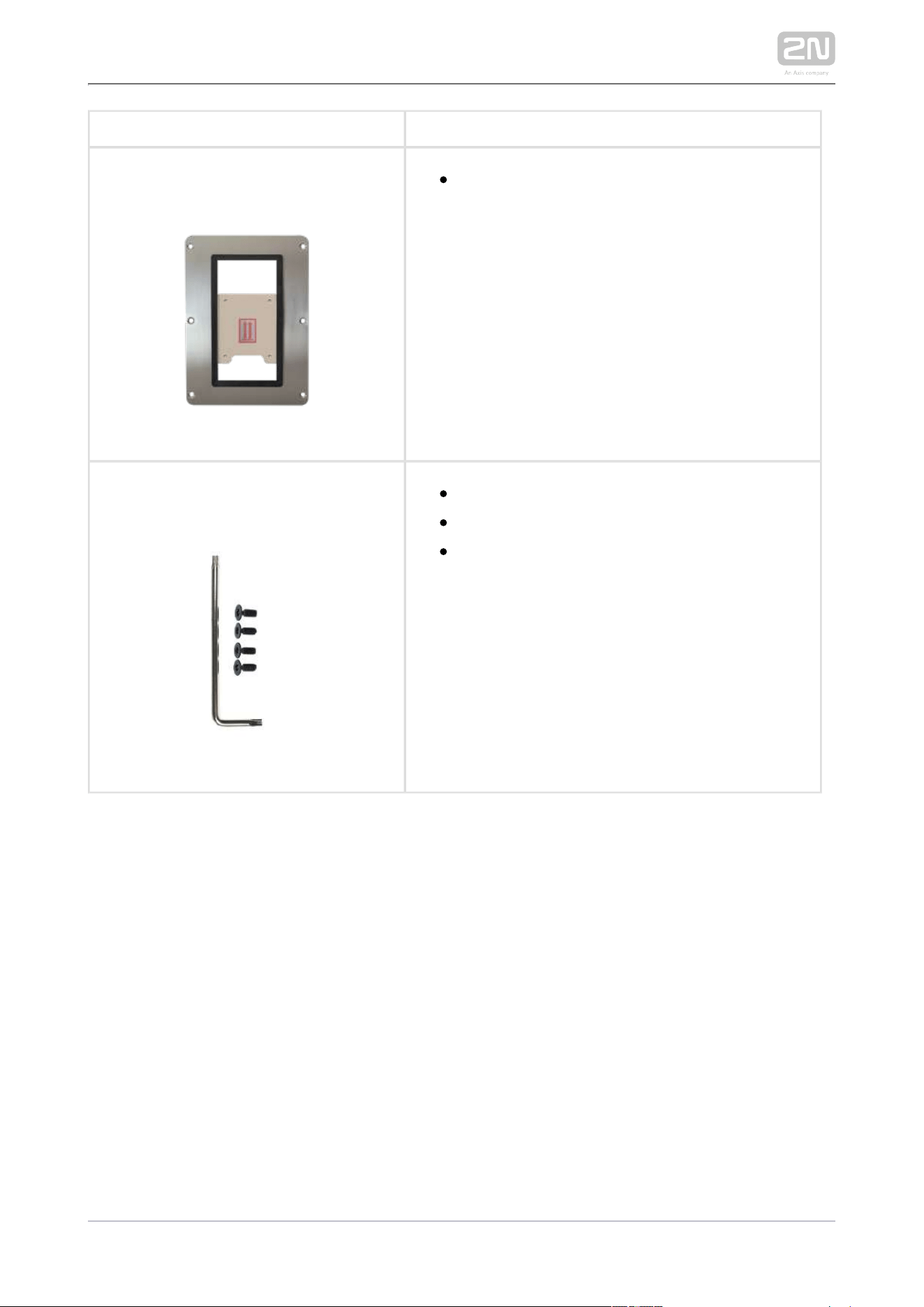
Mounting Accessories
2N Part No. 9151005
Axis Part No. 01351-001
Gooseneck stand
Height 120 cm (47 inch) to the top of the
intercom
Part No. 9151007
Gooseneck stand double
Height 115 cm (45”) and 203 cm (80”)
2N TELEKOMUNIKACE a.s., www.2n.cz 20/126
2N Part No. 9151006
Axis Part No. 01352-001
Installation adapter (US only)
2N Part No. 9151018
Axis Part No. 01345-001
Security screws
An alternative that is safer than regular screws.
Torx with a pin. Supplied with the appropriate
handle.
2N TELEKOMUNIKACE a.s., www.2n.cz 21/126
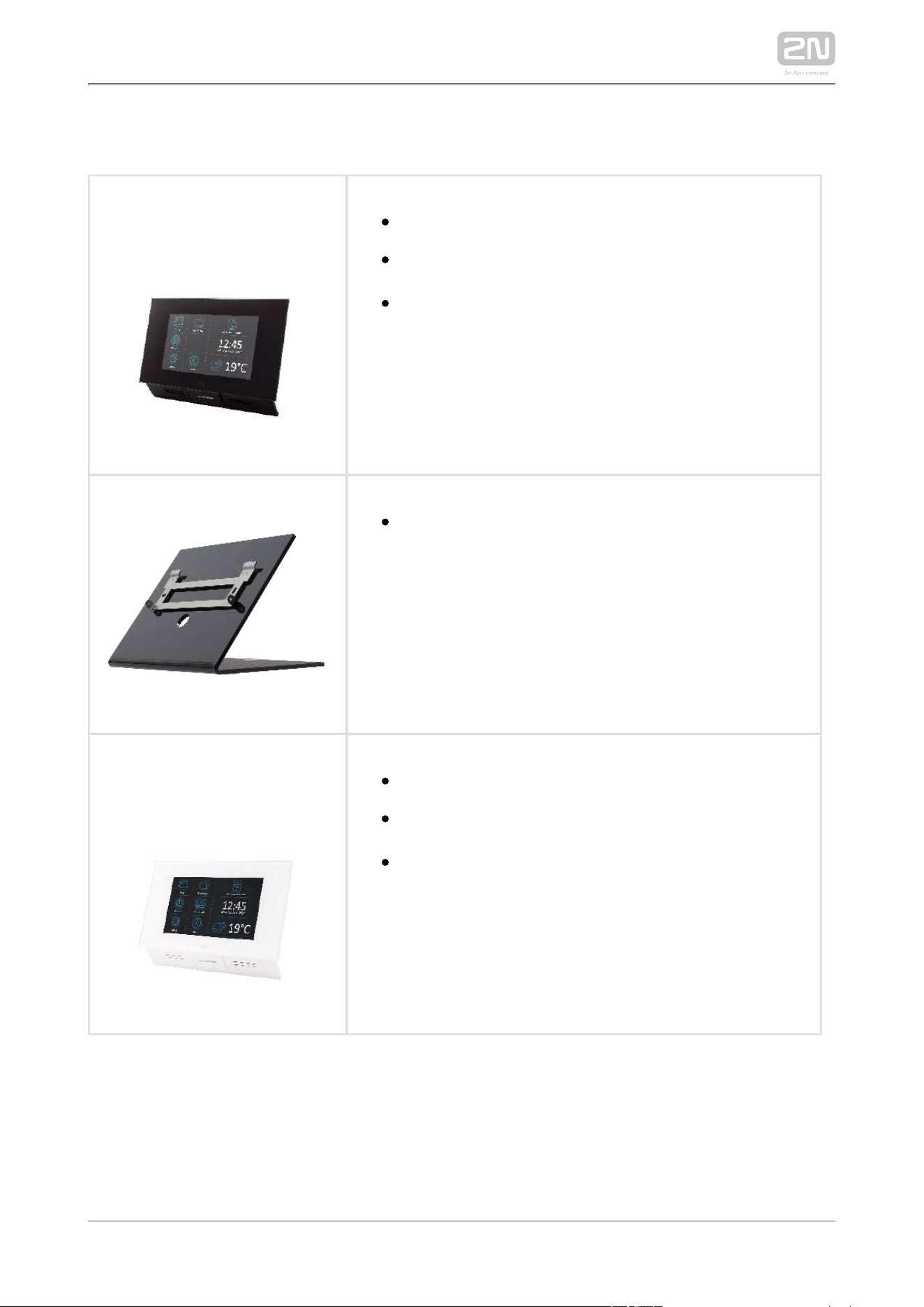
Internal Units and Accessories
Part Numbers:
91378365
91378366
2N Indoor Touch
®
– black
WiFi version (second part no.)
The elegant internal touch panel, , is 2N Indoor Touch
®
suitable for all intercoms. On the panel’s display 2N IP
not only can you find out who is at the door, but also
start a conversation with the visitor, open the lock or
turn on the light in the entrance hall.
Part No. 91378382
2N Indoor Touch
®
desk stand black
Part Numbers:
91378365WH
91378366WH
2N Indoor Touch
®
– white
WiFi version (second part no.)
The elegant internal touch panel, , is 2N Indoor Touch
®
suitable for all intercoms. On the panel’s display 2N IP
not only can you find out who is at the door, but also
start a conversation with the visitor, open the lock or
turn on the light in the entrance hall.
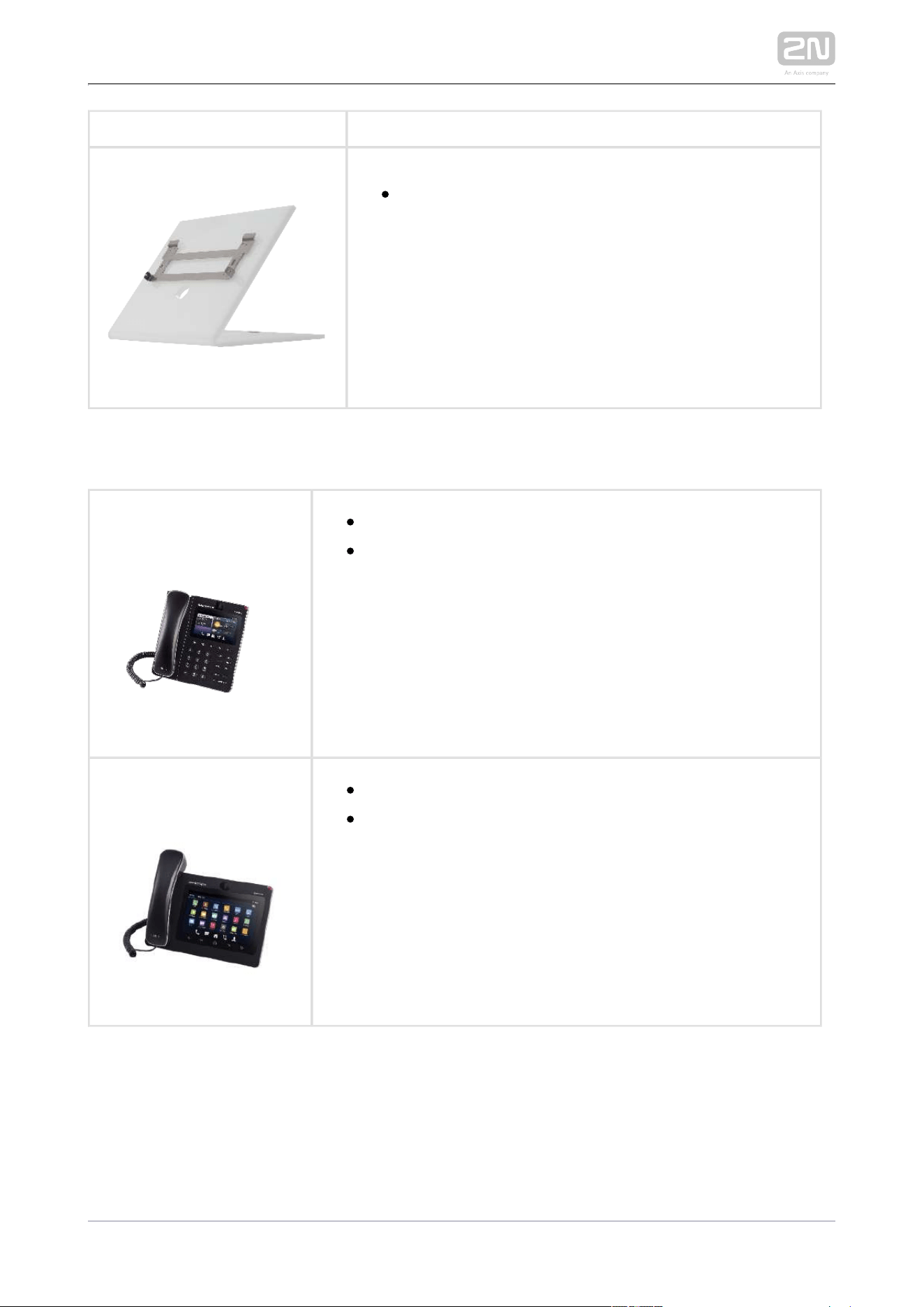
2N TELEKOMUNIKACE a.s., www.2n.cz 22/126
Part No. 91378382W
2N Indoor Touch
®
desk stand white
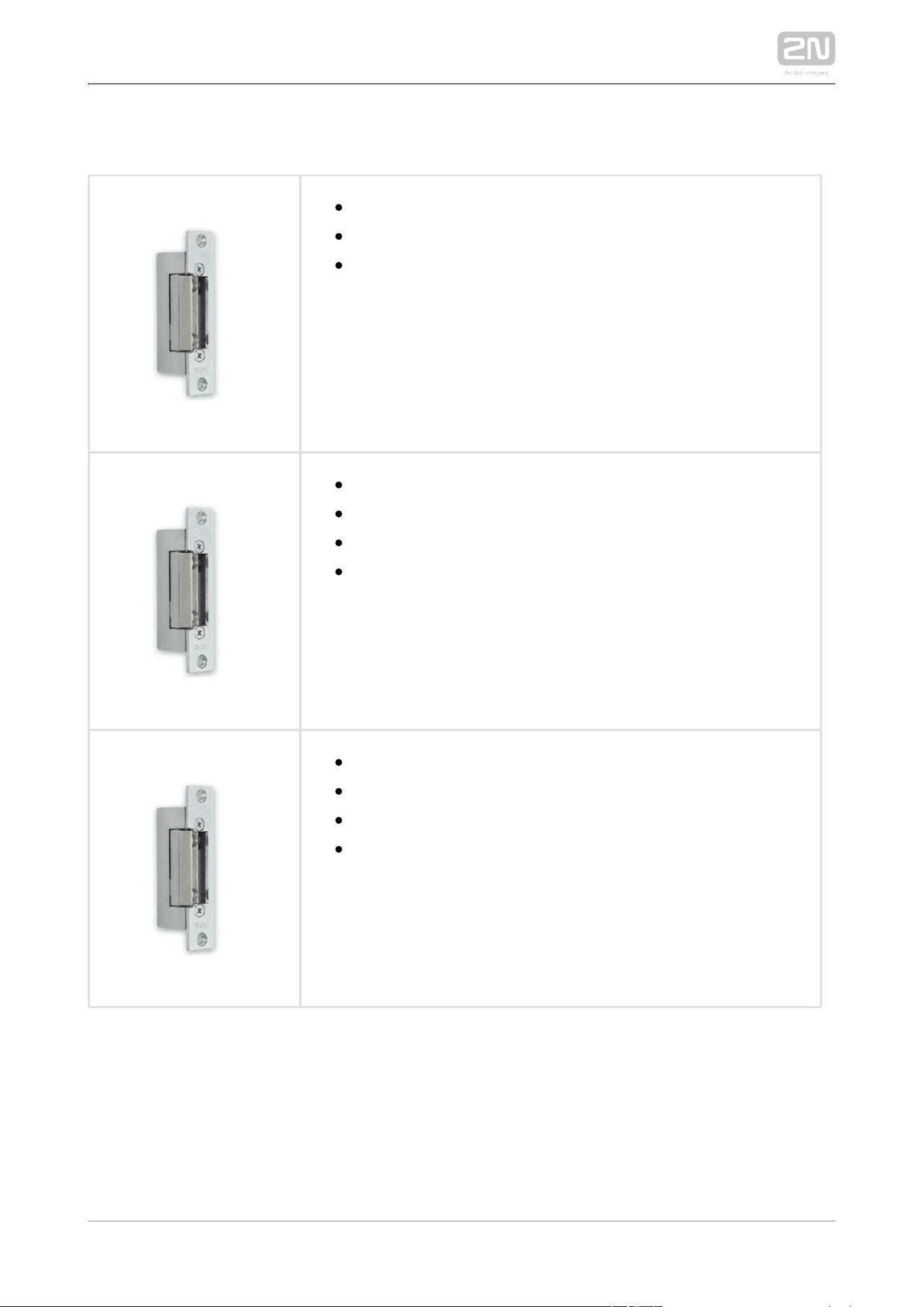
VoIP Telephones
91378357Part No.
Axis Part No. 01422-001
Grandstream GXV3240 VoIP video telephone
GXV3240 is the successor to the popular GXV3140 model,
which allows comfortable video calls in the IP network.
Touchscreen and keyboard control.
91378358Part No.
Axis Part No. 01421-001
Grandstream GXV3275 VoIP telephone
GXV3275 is the successor to the popular GXV3175 model,
which allows comfortable video calls in the IP network.
Touchscreen control.
2N TELEKOMUNIKACE a.s., www.2n.cz 23/126
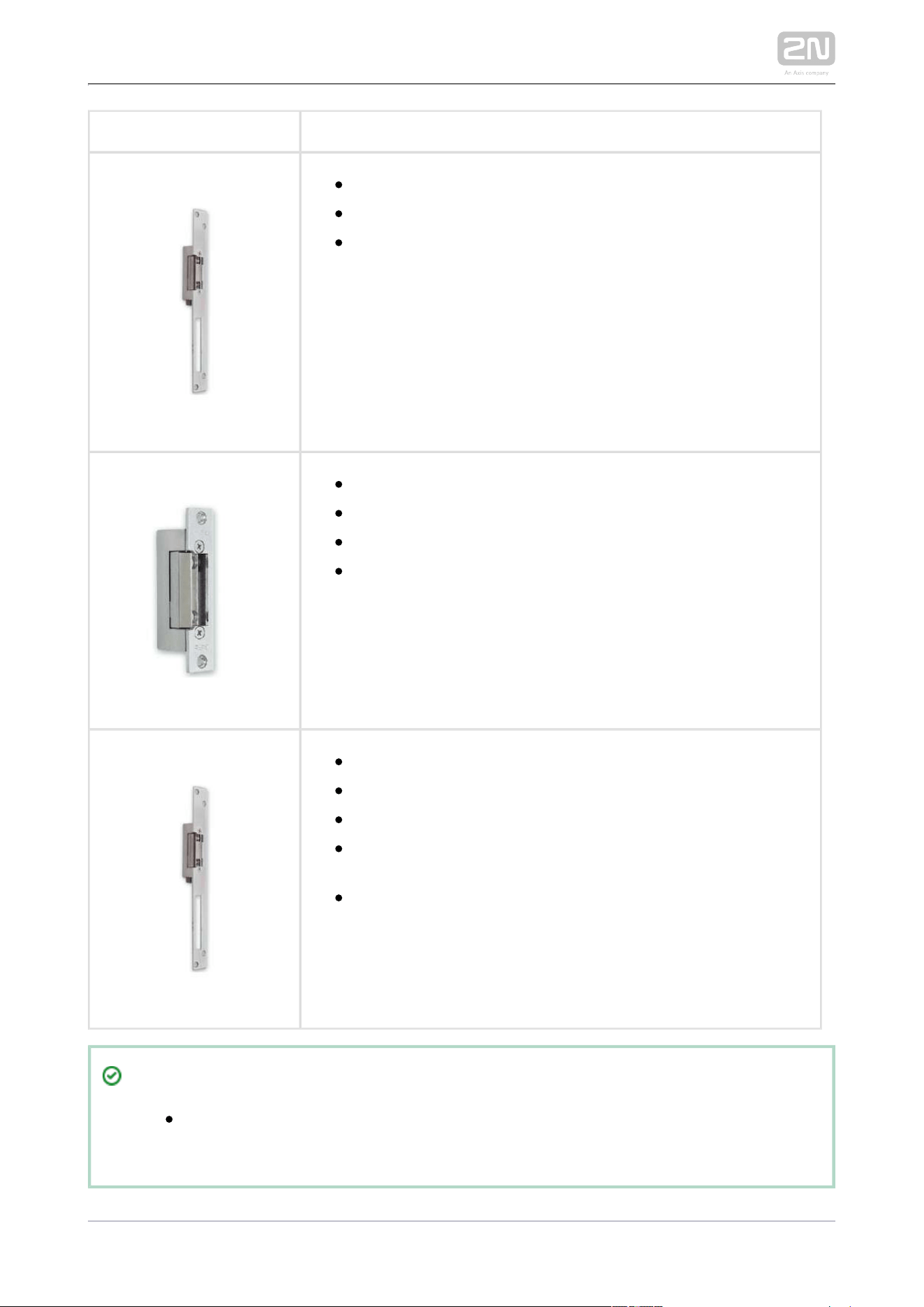
Electric Locks
932071EPart No.
BEFO 11211
12 V / 230 mA DC
low consumption
932081EPart No.
BEFO 11221 with momentum pin
12 V / 230 mA DC
low consumption
For opening of the lock a short electrical impuls is sufficient,
which unlocks the lock. Lock is then open until someone
closes the door.
932091EPart No.
BEFO 11211MB with mechanical blocking
12 V / 230 mA DC
low consumption
Enables mechanically close or open the lock. When opened,
the lock is open all the time. When closed, it behaves as
standart electrical lock.
2N TELEKOMUNIKACE a.s., www.2n.cz 24/126
Part No. 932061E
BEFO 211211 door signalling, low consumption
12 V / 230 mA
A regular lock with a built-in contact to indicate whether the
door is open or closed.
Part No. 932072E
BEFO 31211
fail-safe
12 V / 170 mA DC
The failsafe lock is closed when electricity is switched on.
When electricity is interrupted, the lock is opened.
Part No. 932062E
BEFO 321211
fail-safe, door signalling
12 V / 170 mA
The failsafe lock is closed when electricity is switched on.
When electricity is interrupted, the lock is opened.
It contains a built-in contact to indicate whether the door is
open or closed.
Tip
FAQ: Electric locks – Difference between locks in 2N IP intercom
accesories
2N TELEKOMUNIKACE a.s., www.2n.cz 25/126
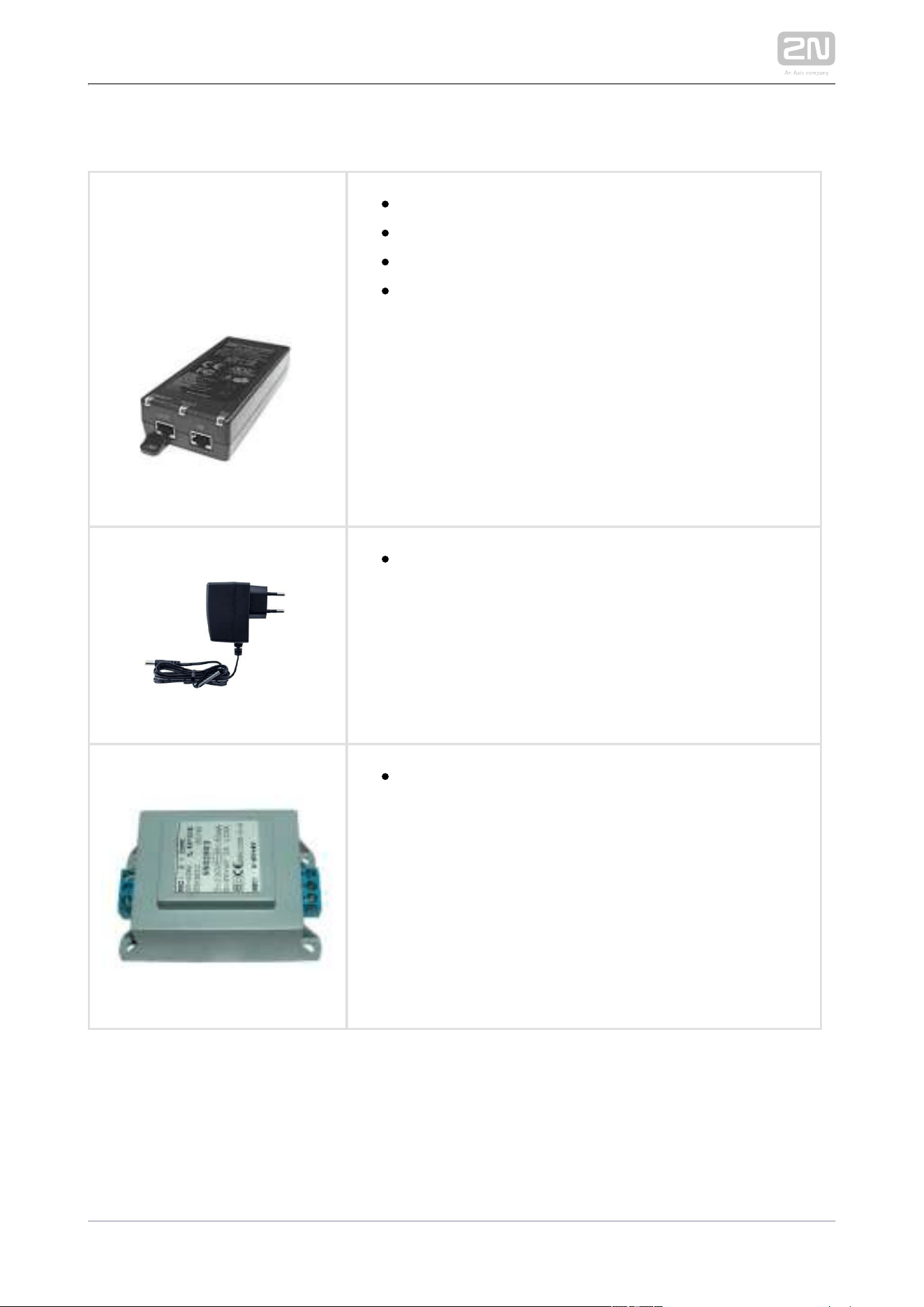
Power Supply
Part Numbers:
91378100, 01394-001
91378100E
91378100US, 01403-001
PoE injector – without cable
PoE injetor – with EU cable
PoE injector – with US cable
ethernet For power supply of intercom via cable when
PoE switch is not available.
91341481EPart No.
Stabilised 12 V / 2 A power supply needs to be used
when no PoE is available.
932928Part No.
For external power supply of the lock with 12 V AC
voltage.
2N TELEKOMUNIKACE a.s., www.2n.cz 26/126
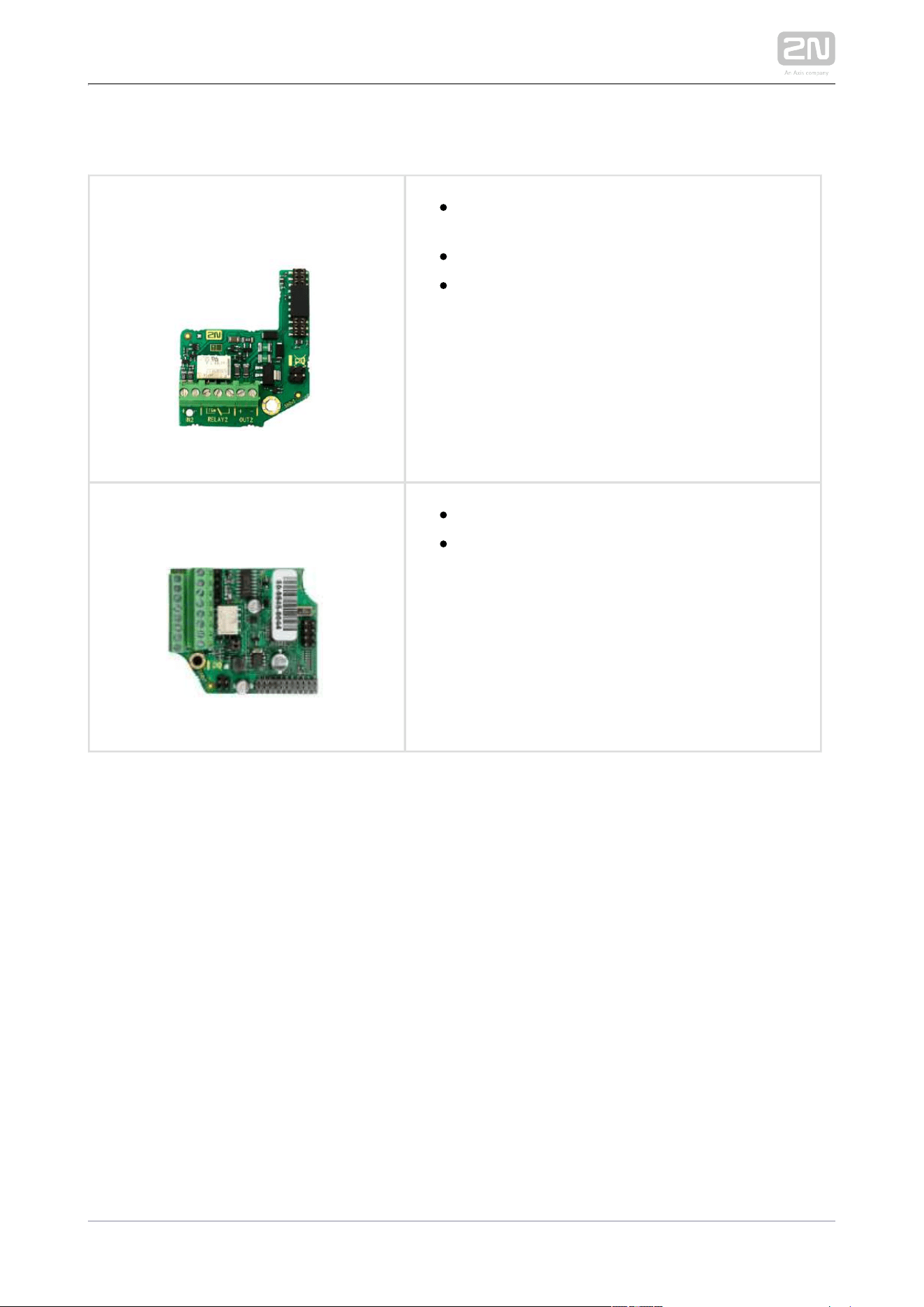
Additional Modules
91510102N Part No.
Axis Part No. 01350-001
Additional switch with normally open/closed
contact and 12 V switched output.
Includes tamper switch.
Enables control of a secondary device, passive
time unlimited switching up to 48 V / 2 A or
active switch 12 V / 700 mA. Also includes
tamper switch to signal opening of the front
panel. Another one input is available.
91510112N Part No.
Axis Part No. 01344-001
Includes tamper switch.
Internal RFID card reader 125 kHz for
installation in intercoms. Allows 2N IP Force
®
the use of cards. Another two EM4xxx
switches, two logical inputs and a Wiegand
interface are available. It is compatible with the
two-button and pictogram 2N IP Force
®
models. It also includes a security switch to
signal when the front panel is opened.
2N TELEKOMUNIKACE a.s., www.2n.cz 27/126
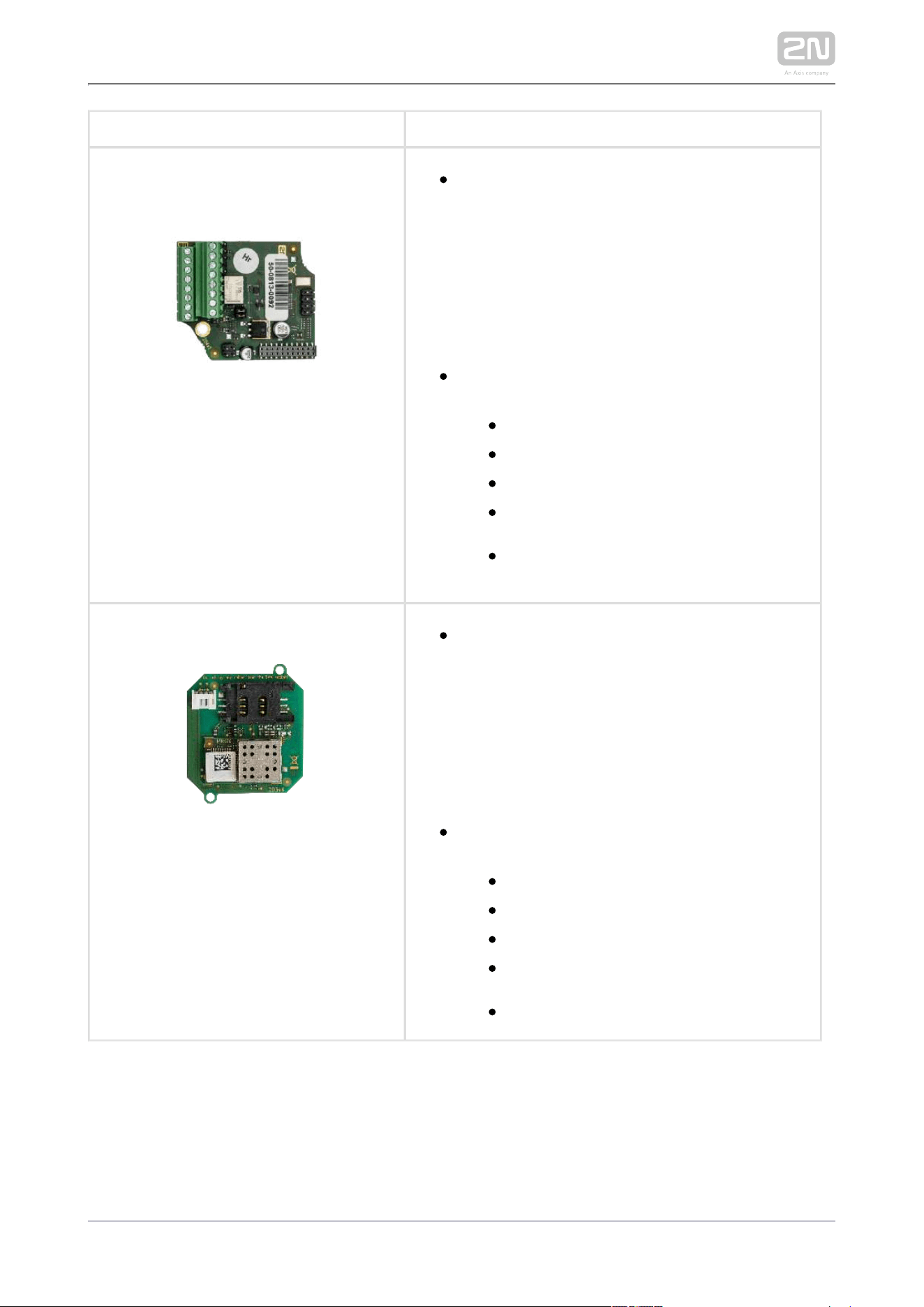
91510172N Part No.
Axis Part No. 01346-001
Internal RFID card reader 13.56 MHz NFC
Ready for mounting. 2N IP Force
®
Two
switches, two logical inputs and a Wiegand
interface are available. It is compatible with the
2N IP Force
®
two-button and pictogram
models. It also includes a security switch to
signal when the front panel is opened.
Allows the use 13.56 MHz cards of these
standards (only card serial number is read):
ISO14443A (Mifare, DESFire)
PicoPass (HID iClass)
FeliCa
ST SR(IX)
2N Mobile Key
®
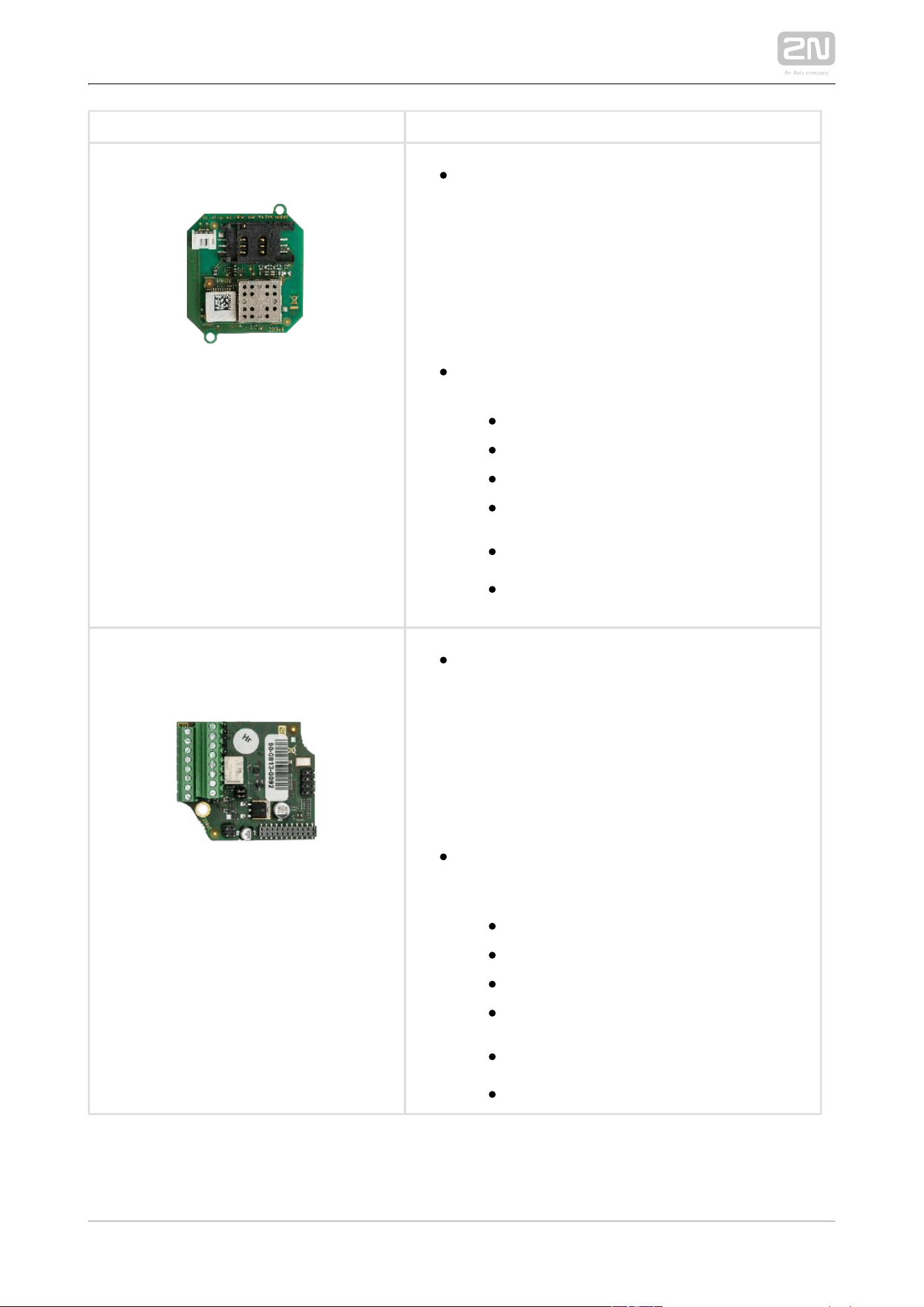
2N Part No. 9151031
Internal RFID card reader 13.56 MHz NFC
Ready for mounting. 2N IP Force
®
Two
switches, two logical inputs and a Wiegand
interface are available. It is compatible with the
2N IP Force
®
two-button and pictogram
models. It also includes a security switch to
signal when the front panel is opened.
Allows the use 13.56 MHz cards of these
standards (only card serial number is read):
ISO14443A (Mifare, DESFire)
PicoPass (HID iClass)
FeliCa
ST SR(IX)
2N Mobile Key
®
2N TELEKOMUNIKACE a.s., www.2n.cz 28/126
2N Part No. 9151031S
Internal secured RFID card reader 13.56 MHz
NFC Ready for mounting. 2N IP Force
®
Two
switches, two logical inputs and a Wiegand
interface are available. It is compatible with the
2N IP Force
®
two-button and pictogram
models. It also includes a security switch to
signal when the front panel is opened.
Allows the use 13.56 MHz cards of these
standards (only card serial number is read):
ISO14443A (Mifare, DESFire)
PicoPass (HID iClass)
FeliCa
ST SR(IX)
2N Mobile Key
®
HID SE (Seos, iClass SE, Mifare SE)
91510192N Part No.
Axis Part No. 01347-001
Internal secured RFID card reader 13.56 MHz
NFC Ready for mounting. 2N IP Force
®
Two
switches, two logical inputs and a Wiegand
interface are available. It is compatible with the
2N IP Force
®
two-button and pictogram
models. It also includes a security switch to
signal when the front panel is opened.
Allows the use 13.56 MHz cards of these
standards (optionally card serial number or
PAC ID is read):
ISO14443A (Mifare, DESFire)
PicoPass (HID iClass)
FeliCa
ST SR(IX)
2N Mobile Key
®
HID SE (Seos, iClass SE, Mifare SE)
2N TELEKOMUNIKACE a.s., www.2n.cz 29/126
2N Part No. 9159010
Axis Part No. 01386-001
2N
®
Security Relay
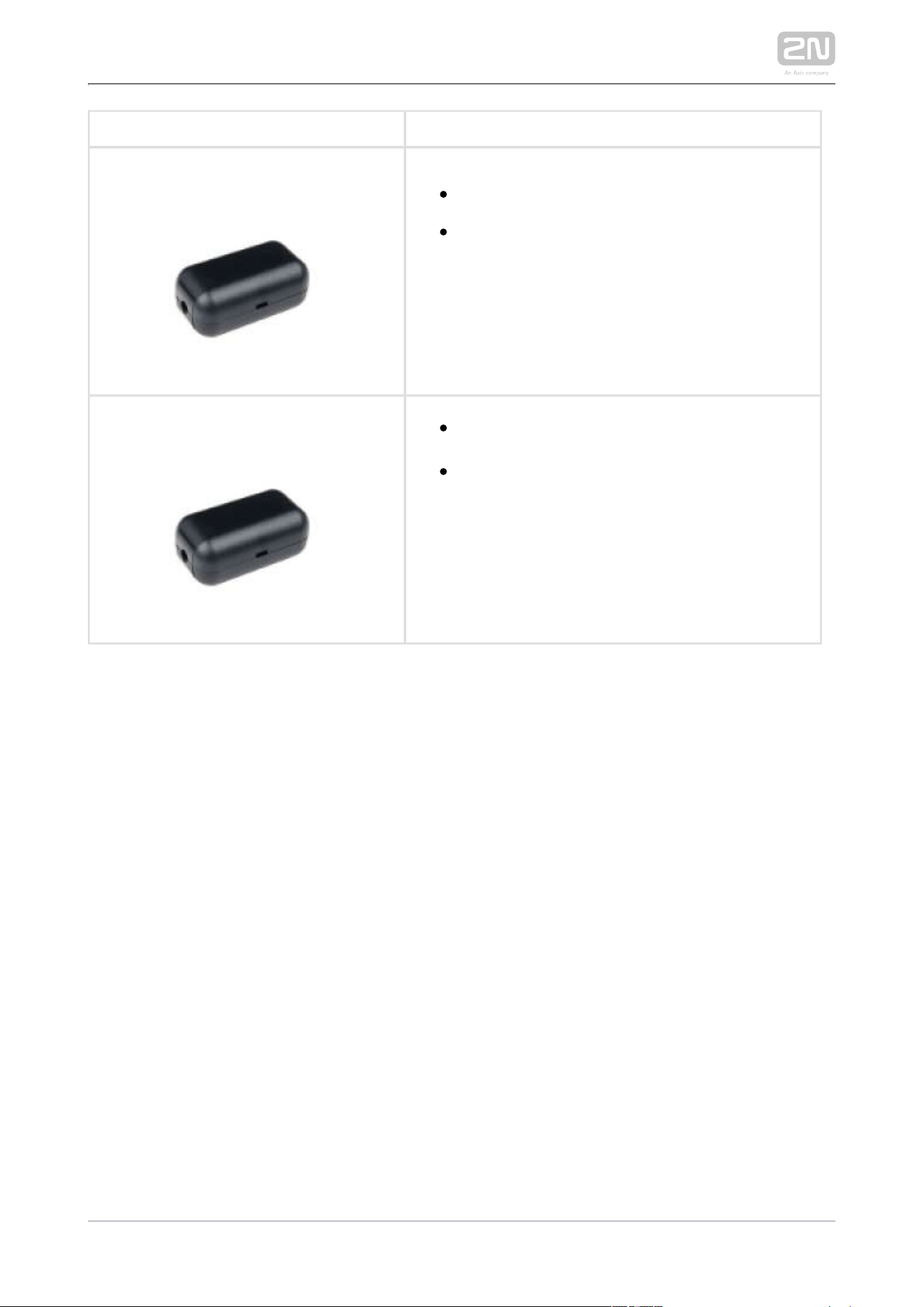
A handy add-on that significantly enhances
door entry security as it prevents tampering
with the intercom and forced opening of the
lock. To be installed between intercom and
lock, powered by the intercom.
91590112N Part No.
Axis Part No. 01387-001
Wiegand Isolator
The is designed for 2N IP Wiegand Isolator
®
galvanic isolation of two devices separately
power supplied and interconnected via the
Wiegand bus. The protects Wiegand Isolator
the interconnected devices against
communication errors and/or damage.
2N TELEKOMUNIKACE a.s., www.2n.cz 30/126
9137410EPart No.
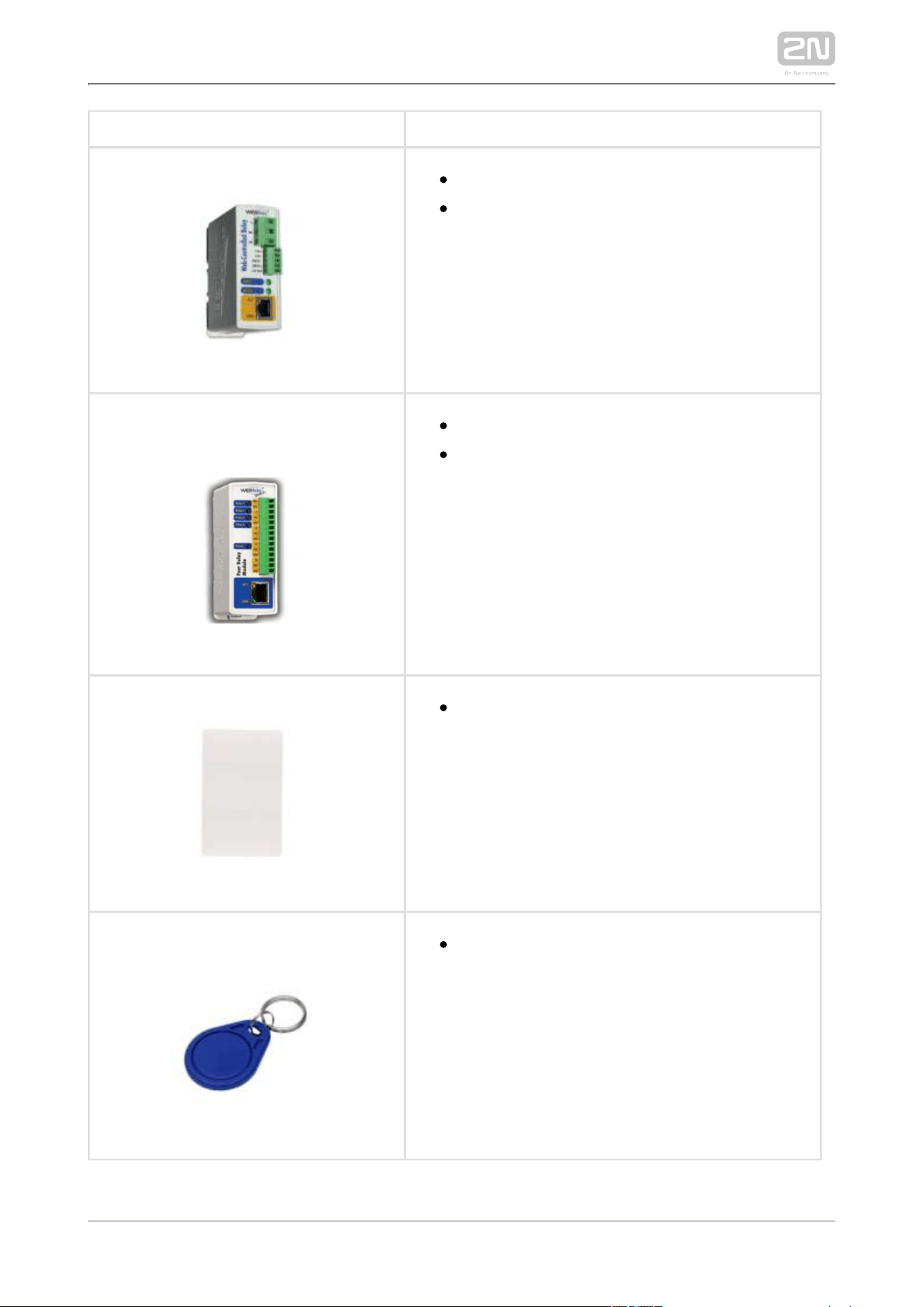
External IP Relay – 1 output
Standalone IP device which can be controlled
HTTP by commands sent by intercom, 2N IP
which can thus control devices on unlimited
distance.
9137411E2N Part No.
Axis Part No. 01398-001
External IP Relay – 4 outputs, PoE
Standalone IP device which can be controlled
HTTP by commands sent by intercom, 2N IP
which can thus control devices on unlimited
distance.
9134165EPart No.
RFID card, type EM4100, 125 kHz
9134166EPart No.
RFID fob, type EM4100, 125 kHz
2N TELEKOMUNIKACE a.s., www.2n.cz 31/126
91341732N Part No.
Axis Part No. 01384-001
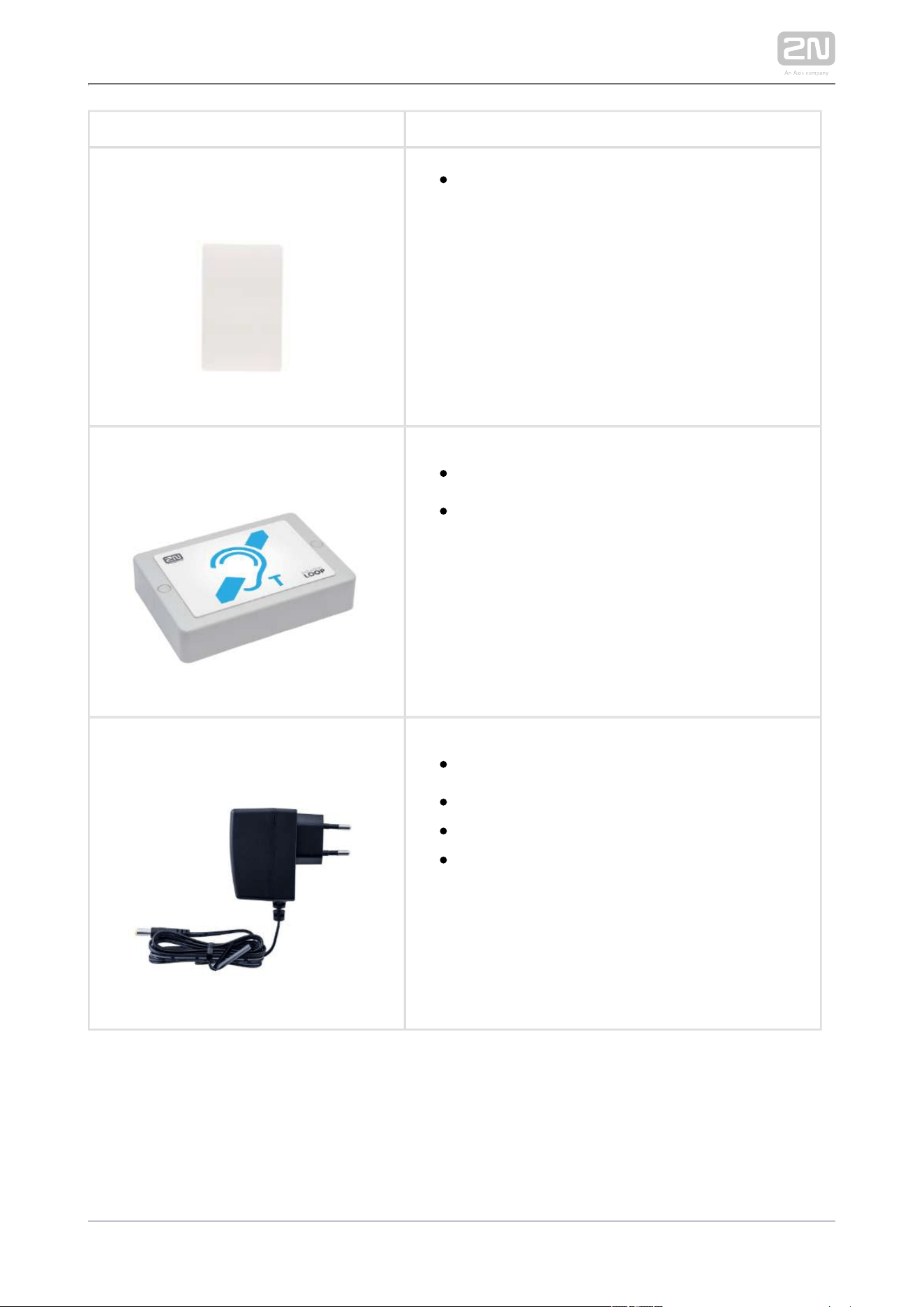
Mifare Classic 1k RFID card, 13.56 MHz
2N Part No. 9159050
Axis Part No. 01391-001
2N Induction Loop
®
An induction loop transmits sound wirelessly
from the intercom to the earphones of 2N IP
people with hearing disabilities and enables
them to hear and perceive sounds better.
2N Part No. 9159052
Axis Part No. 01393-001
Power supply for 2N Induction Loop
®
External power supply for the induction loop.
Input 230 V AC
Output 12 V DC
2N TELEKOMUNIKACE a.s., www.2n.cz 32/126
2N Part No. 9134174
Axis Part No. 01385-001
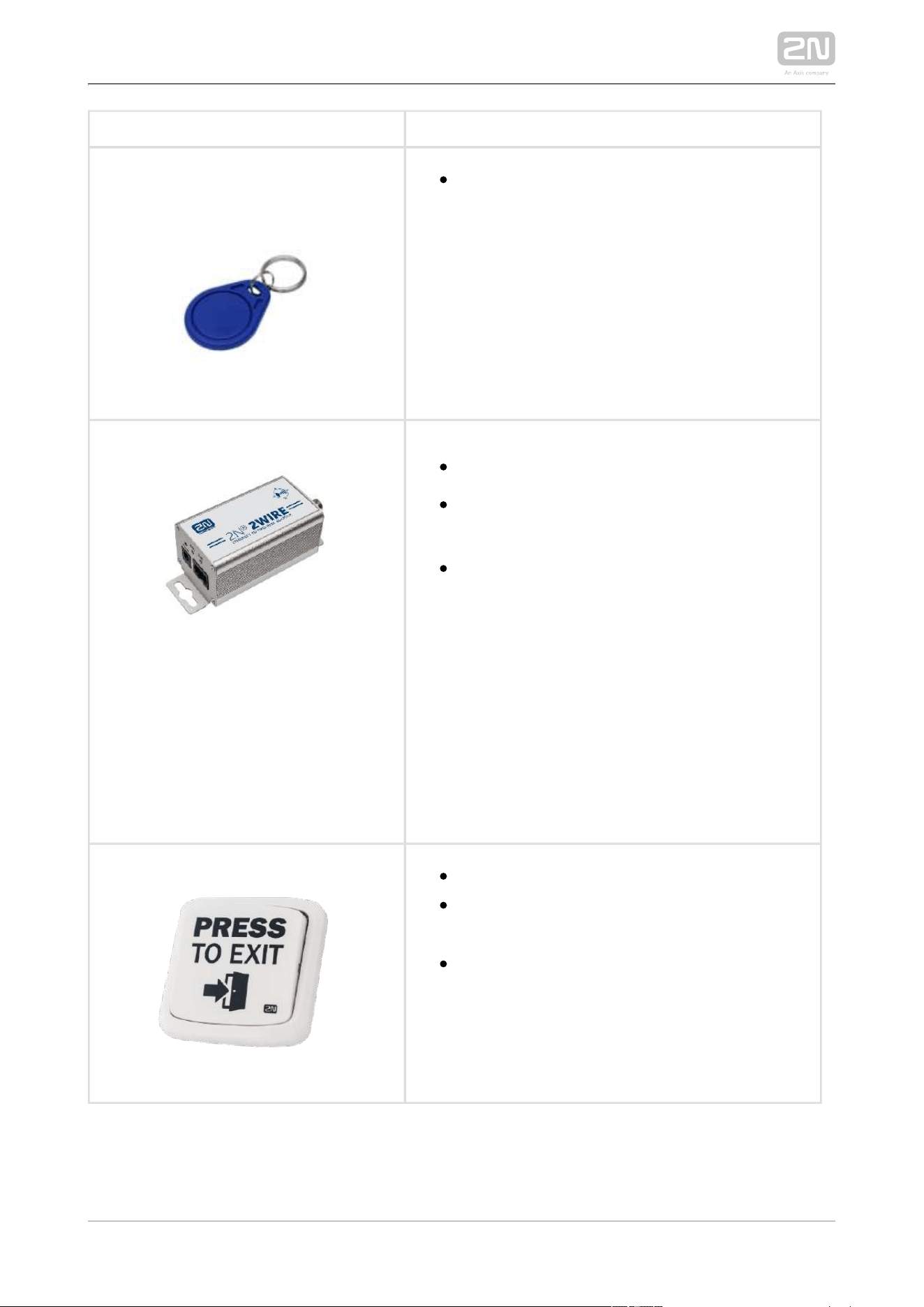
Mifare Classic 1k RFID fob, 13.56 MHz
Part No. 9159014EU/US/UK
2N 2Wire
®
(set of 2 adaptors and power source for EU/US
/UK)
The converter allows you to use 2N
®
2Wire
existing wiring (2 wires) from your original
door bell or door intercom to connect any IP
device. You don’t have to configure anything,
and you only need one unit at each 2N
®
2Wire
end of the cable and a power source
connected to at least one of these units.
The unit then provides PoE power 2N
®
2Wire
not only to the second converter, but also to all
other connected IP end devices.
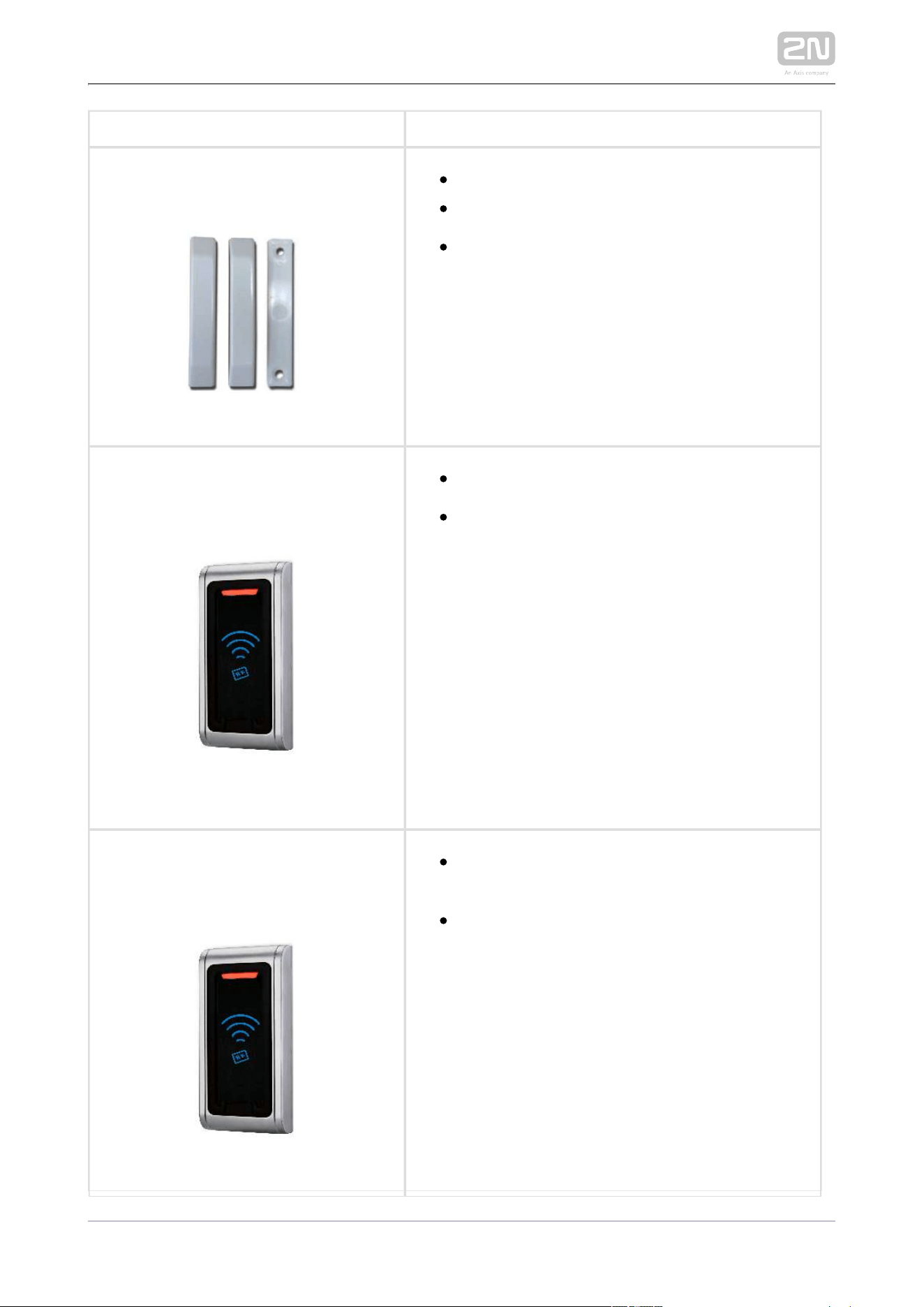
Part No. 9159013
Exit button
(suitable for Internal RFID card reader or
Security relay)
A button for connection to a logic input for
opening a door inside a building.
2N TELEKOMUNIKACE a.s., www.2n.cz 33/126
2N Part No. 9159012
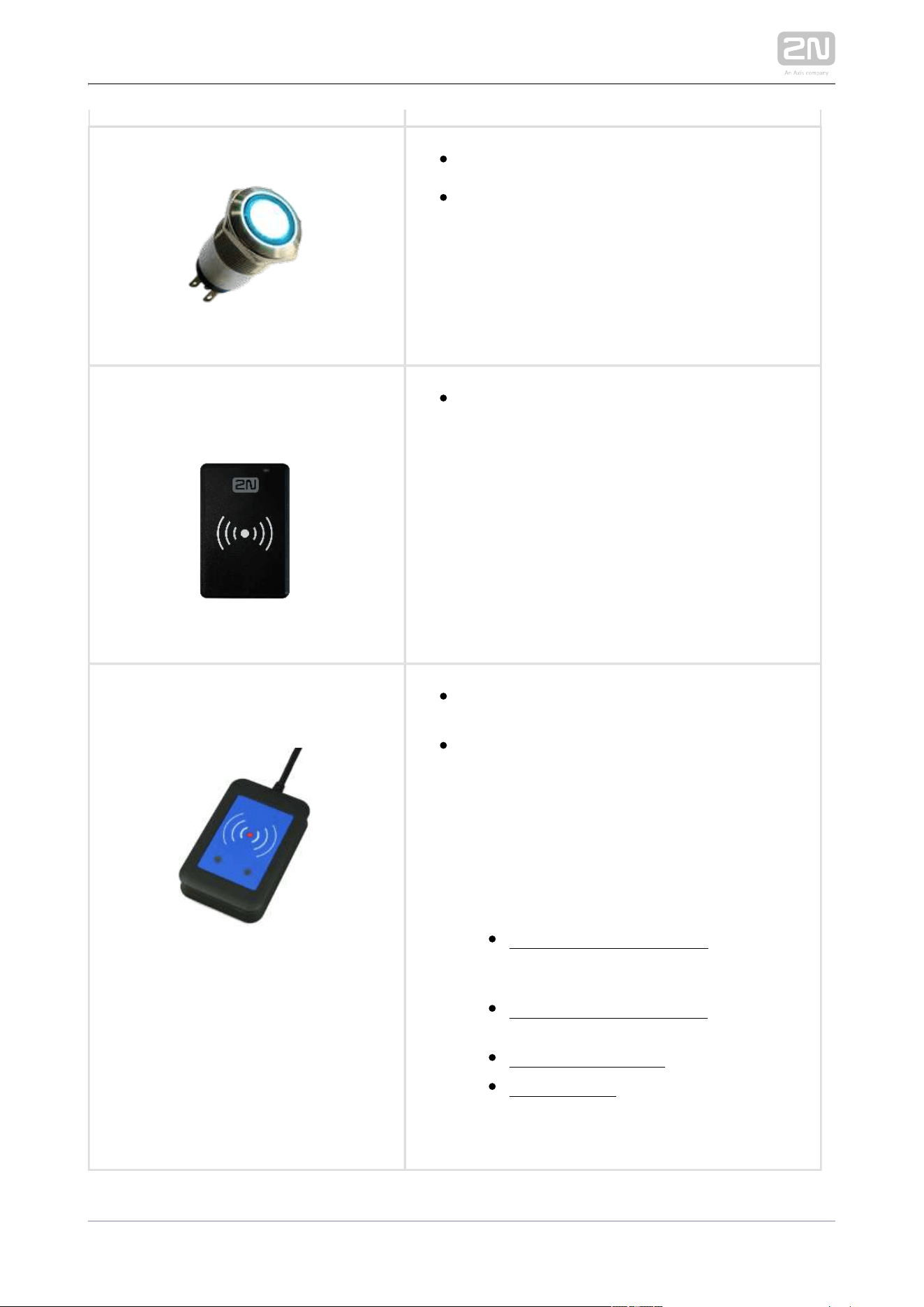
Axis Part No. 01388-001
Magnetic door contact
(suitable for Internal RFID card reader)
Set for installation on a door, enabling the
status of door opening to be ascertained. Used
when the intercom is used for door protection,
to detect when the door is not closed or forced
open.
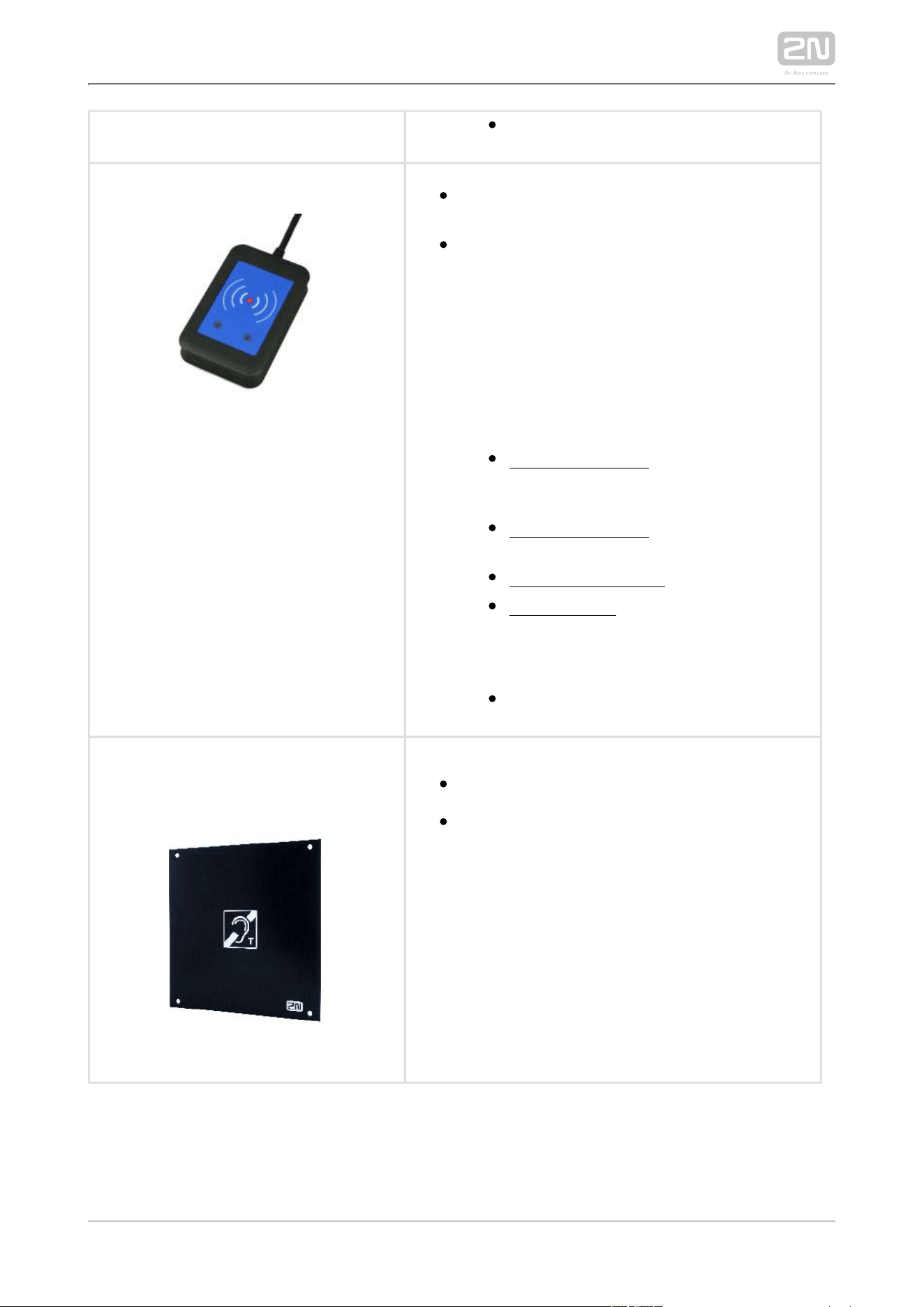
2N Part No. 9159030
Axis Part No. 01389-001
External RFID card reader, 125 kHz
Secondary reader for connection to an internal
reader. Allows control of card entry from both
sides of the door. IP67 cover, also suitable for
exteriors. Reads EM4100 and EM4102 cards.
2N Part No. 9159031
Axis Part No. 01390-001
External 13.56 MHz Mifare RFID card reader,
Wiegand
Secondary reader for connection to an internal
reader. Allows control of card entry from both
sides of the door. IP68 cover, also suitable for
exteriors. Reads Mifare cards.
2N TELEKOMUNIKACE a.s., www.2n.cz 34/126
Part No. 9154004
Water-proof metal button
(suitable for Internal RFID card reader)
9137420E2N Part No.
Axis Part No. 01399-001
External RFID card reader for connection to a
PC using a USB interface. Suitable for system
management and the addition of EM41xx cards
via the PC application, 2N Access
®
Commander .
2N Part No. 9137421E
Axis Part No. 01400-001
Ext. RFID Reader 13.56 MHz, 125 kHz + NFC
/HCE (USB interface)
External RFID card reader for connection to PC
using a USB interface. Suitable for system
administration and adding 13.56 MHz, 125 kHz
cards and Android platform devices supporting
NFC/HCE using web interface 2N IP intercom
or the application. It 2N Access Commander
®
reads the same types of cards and devices as
card readers in .2N IP intercoms
13.56 MHz/ISO/IEC 14443A Mifare
Classic 1k & 4k, DESFire EV1, Mini, Plus
S&X, Ultralight, Ultralight C
13.56 MHz/ISO/IEC 14443B CEPAS, HID
iCLASS (CSN only)
13.56 MHz/JIS X 6319 Felica
ISO/IEC 18092 SmartPhone with NFC
/HCE support, since Android version 4.3
( app required)2N Mobile Key
®
2N TELEKOMUNIKACE a.s., www.2n.cz 35/126
EMarine
Part No. 9137424E
Ext. secured RFID Reader 13.56 MHz, 125 kHz +
NFC/HCE (USB interface)
External secured RFID card reader for
connection to PC using a USB interface.
Suitable for system administration and adding
13.56 MHz, 125 kHz cards and Android platform
devices supporting NFC/HCE using 2N IP
web interface or the intercom 2N Access
®
application. It reads the same Commander
types of cards and devices as card readers in
.2N IPintercoms
13.56 MHz/ISO/IEC 14443A Mifare
Classic 1k & 4k, DESFire EV1, Mini, Plus
S&X, Ultralight, Ultralight C
13.56 MHz/ISO/IEC 14443B CEPAS, HID
iCLASS (CSN or PAC ID)
13.56 MHz/JIS X 6319 Felica
ISO/IEC 18092 SmartPhone with NFC
/HCE support, since Android version 4.3
( app required)2N Mobile Key
®
EMarine
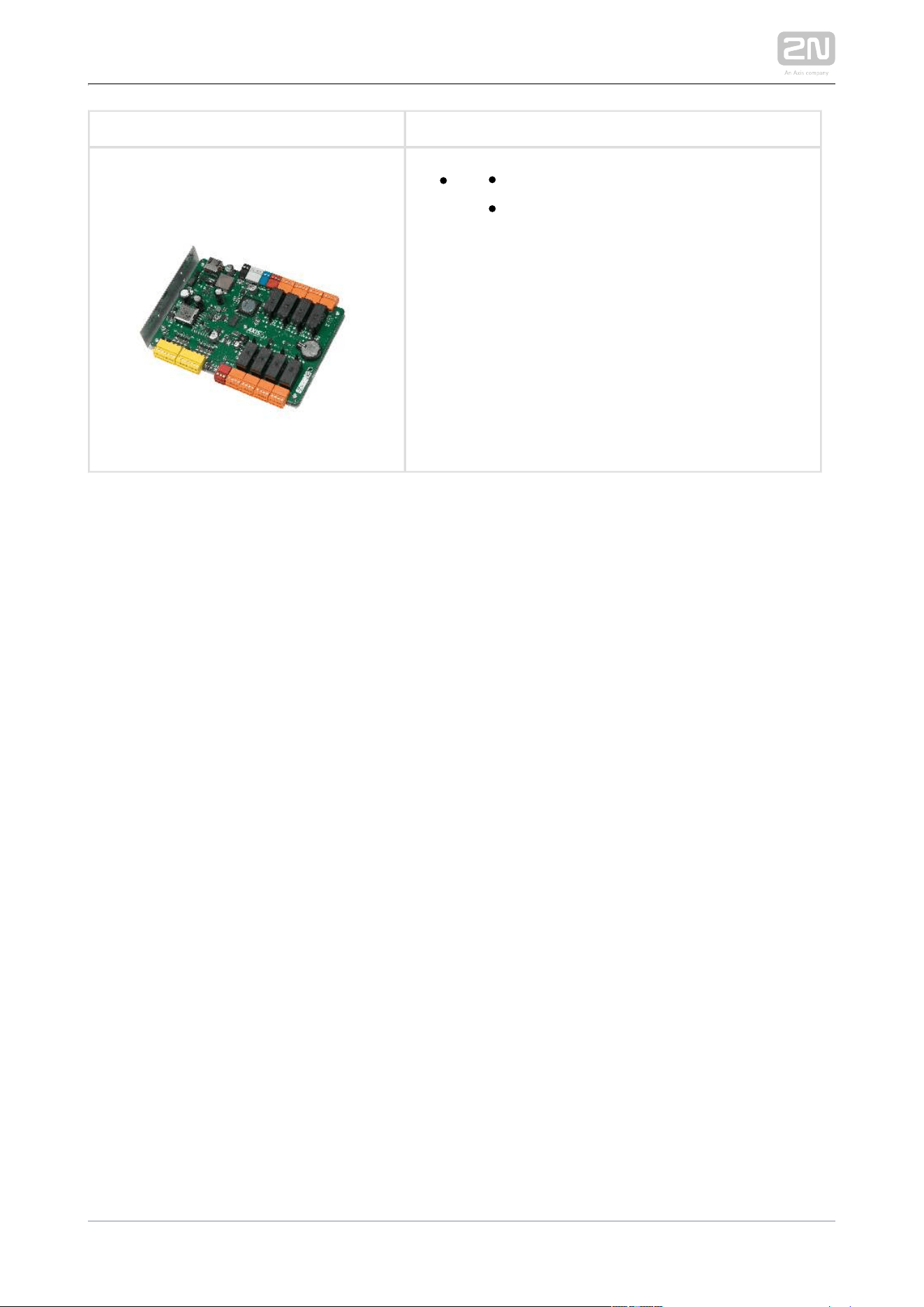
2N Part No. 9159051
Axis Part No. 01392-001
2N Induction loop
®
– external antenna
External antenna boosts the range of usability
of the induction loop, so that the disabled user
can receive the audio signal in wider area. Use
an external antenna with the induction loop,
Part No. 9159050. A 170 cm long
interconnecting cable is included.
2N TELEKOMUNIKACE a.s., www.2n.cz 36/126
91605012N Part No.
Axis Part No. 0820-001
AXIS A9188 Network I/O relay module
Lift control relay module for up to 8
floors
2N TELEKOMUNIKACE a.s., www.2n.cz 37/126
License
2N Part No.
9137905
Axis Part No.
01376-001
Enhanced Audio
2N Part No.
9137906
Axis Part No.
01377-001
Enhanced Video
2N Part No.
9137907
Axis Part No.
01378-001
Enhanced Integration
2N Part No.
9137908
Axis Part No.
01379-001
Enhanced Security
2N Part No.
9137909
Axis Part No.
01380-001
Gold
2N Part No.
9137910
Axis Part No.
01381-001
InformaCast
2N Part No.
9137915
Axis Part No.
01382-001
NFC
2N TELEKOMUNIKACE a.s., www.2n.cz 38/126
2N Part No.
9137916
Lift Module
Tip
Refer to the Configuration Manual for 2N IP intercoms, Subs. 3.2
for details.Function Licensing
Tip
For more accessories and particular advice please contact your local
distributor of 2N products.
Tip
FAQ: Induction loop – How to connect it with 2N IP intercoms
2N TELEKOMUNIKACE a.s., www.2n.cz 39/126
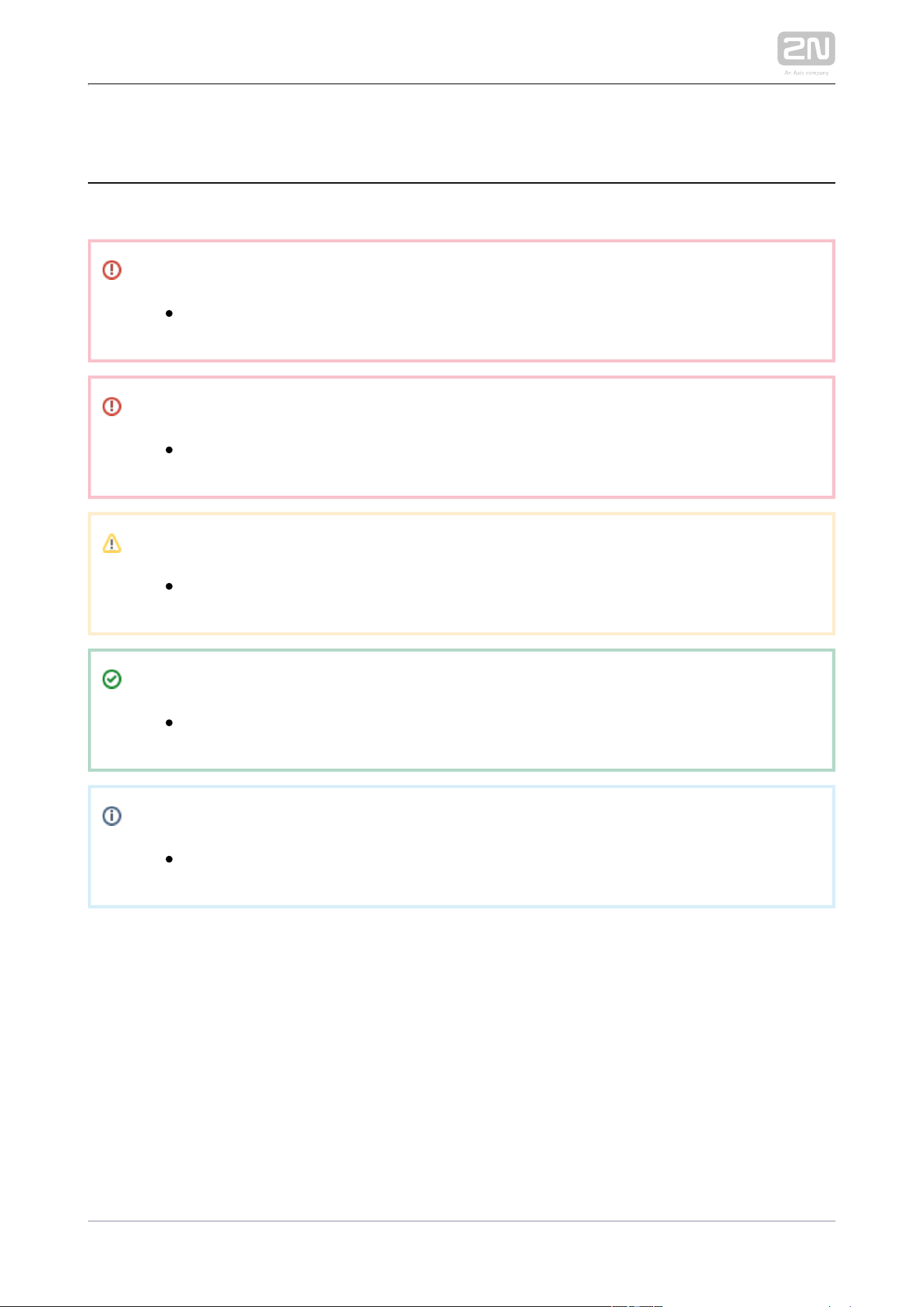
1.2 Terms and Symbols
The following symbols and pictograms are used in the manual:
Safety
Always abide by this information to prevent persons from injury.
Warning
Always abide by this information to prevent damage to the device.
Caution
Important information for system functionality.
Tip
Useful information for quick and efficient functionality.
Note
Routines or advice for efficient use of the device.


2N TELEKOMUNIKACE a.s., www.2n.cz 41/126
2.1 Before You Start
Product Completeness Check
Before you start please check the contents of your delivery:2N IP Force
®
1x 2N IP Force
®
1x frame (of the corresponding colour)
1x Torx 10 / Torx 20 double-ended wrench
Bushings (enclosed):
1x big two-hole sealed bushing with nut
1x spare sealing for big bushing for a thick cable, one hole
1x big blank with nut
1x small bushing with nut
1x bushing plug, big size
2x bushing plugs, small size
1x Installation Manual2N P Force
®
1x mounting template
1x A5 transparent name plate foil
1x spare name tag
1x grounding connector with the screw
4x (5 x 90) mm screws
4x "intelligent" (8 x 50) mm dowels
2N TELEKOMUNIKACE a.s., www.2n.cz 42/126
2.2 Mechanical Installation
Content
Common Mounting Principles
Flush Mounting - Classic Bricks
Flush Mounting - Thermally Insulated Wall
Flush Mounting - Plasterboard
Flush Mounting - Hollow Bricks
Wall Mounting
Use of Cable Bushings
Common Mounting Principles
Tip
Select flush mounting where possible to make your product elegant
looking, more vandal resistant and more secure.
You can purchase the flush mounting box in advance and hire an
installation professional to make the basic installation work. Moreover,
the mounting box helps you align the intercom vertically (with a
deviation of up to 2°).
2N TELEKOMUNIKACE a.s., www.2n.cz 43/126
Caution
Make sure that the dowel holes have the required diameter. If the
diameter is too large, the dowels may get loose. Use some suitable
building adhesive to keep the dowels in place.
Make sure that the hole depth is sufficient too! The dowel length is 50
mm and the screw length is 90 mm.
Remember that dowels of poor quality may easily get loose and fall out
of the wall!
Stainless steel screws are used for the assembly. Other 2N IP Force
®
screws than stainless steel ones corrode soon and may aesthetically
deteriorate the surrounding environment!
Having removed the front panel, make sure that no dirt gets inside the
product (especially onto the sealing surface and microphone sound
guides).
Caution
The warranty does not apply to the product defects and failures arisen
as a result of improper mounting (in contradiction herewith). The
manufacturer is neither liable for damages caused by theft within an
area that is accessible after the attached electric lock is switched. The
product is not designed as a burglar protection device except when
used in combination with a standard lock, which has the security
function.
When the proper mounting instructions are not met, water might get in
and destroy the electronics. It is because the intercom circuits are under
continuous voltage and water infiltration causes an electro-chemical
reaction. The manufacturer's warranty shall be void for products
damaged in this way!
2N TELEKOMUNIKACE a.s., www.2n.cz 44/126
Note
The microphone sound guides are normally loose after the front panel is
removed! The screw is only used as a fall-out protection during
installation.
Warning
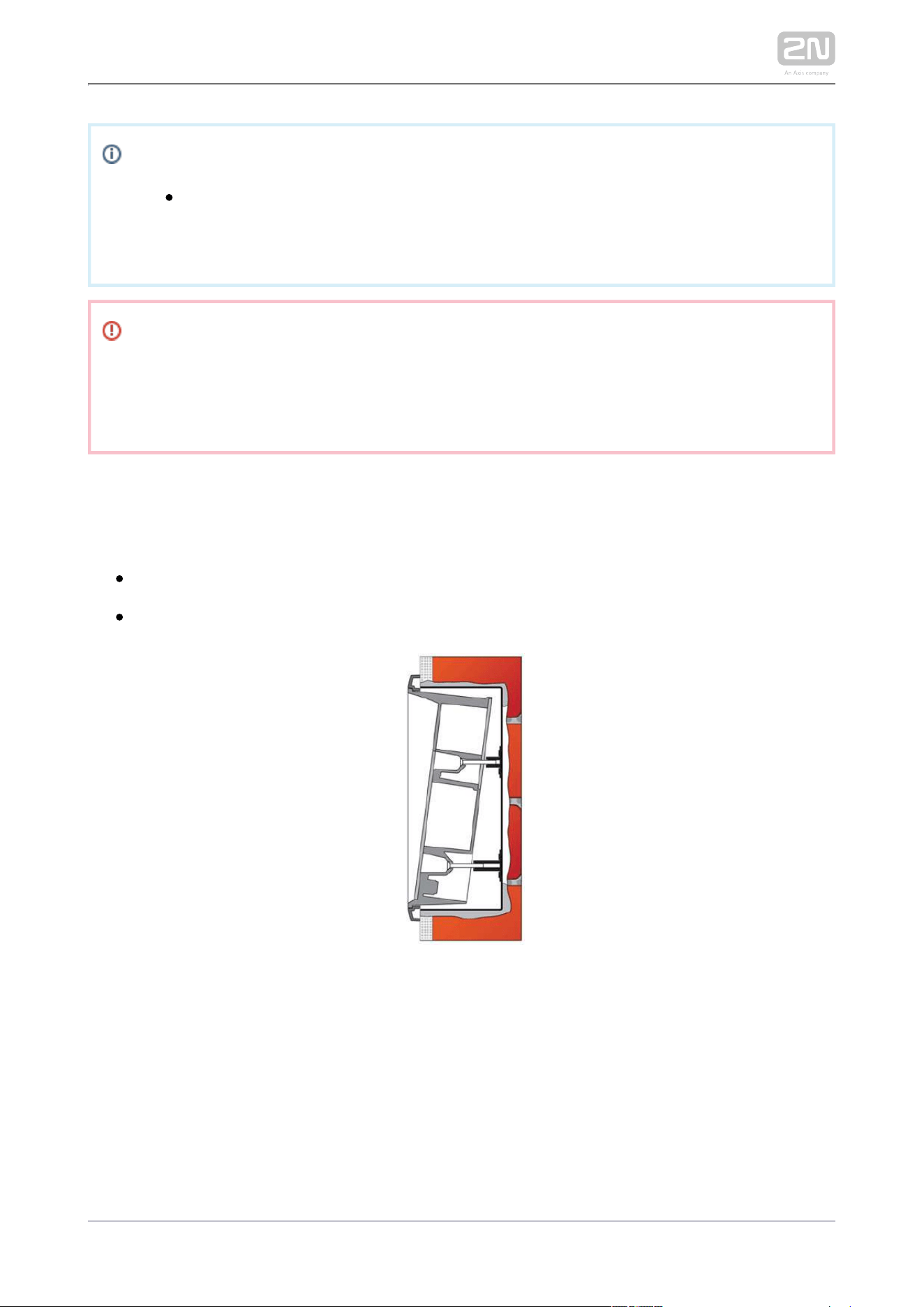
Be sure keep strictly the hole dimensions while mounting the device into
classic bricks without the flush mounting box as shown in the picture with
dimensions.
Flush Mounting – Classic Bricks
What You Need:
The brick flush mounting box, Part No. 9151001
Hole: (132 x 223 x 83) mm

2N TELEKOMUNIKACE a.s., www.2n.cz 45/126
1.
2.
3.
4.
5.
6.
7.
8.
9.
10.
11.
If you use the brick flush mounting box, follow the instructions below:
Make a hole using the template.
Suppose that all the required cables have been carried into the hole.
Put the intercom inside and place the set onto the hole to make sure that the
hole is deep enough and the uneven edge is perfectly covered with the frame.
If the hole is perfect, wall in the flush mounting box.
Remove the front panel from the intercom.
Select the holes for cable supply. Insert the blanks into the other holes. Apply
the cable bushings or a suitable sealant to prevent penetration of insects or
water. You can also insert the small bushing in the intercom bottom hole.
Put the frame on the intercom.
Place the intercom into the flush mounting box while introducing the cables.
Leave some of the cables inside the unit as a reserve and the rest under the
intercom bottom.
Insert the supplied screws in the side mounting holes making sure that they
penetrate into the flush mounting box nuts. Tighten all the screws properly. Tip:
The screw tightening sequence may affect the intercom position.
We recommend to seal the frame – wall gap with a silicone or another sealant
to avoid wall dampening as a result of water leakage.
Do not complete mounting until you have finished electrical installation.
Be sure keep strictly the hole dimensions while mounting the device into classic bricks.
2N TELEKOMUNIKACE a.s., www.2n.cz 46/126
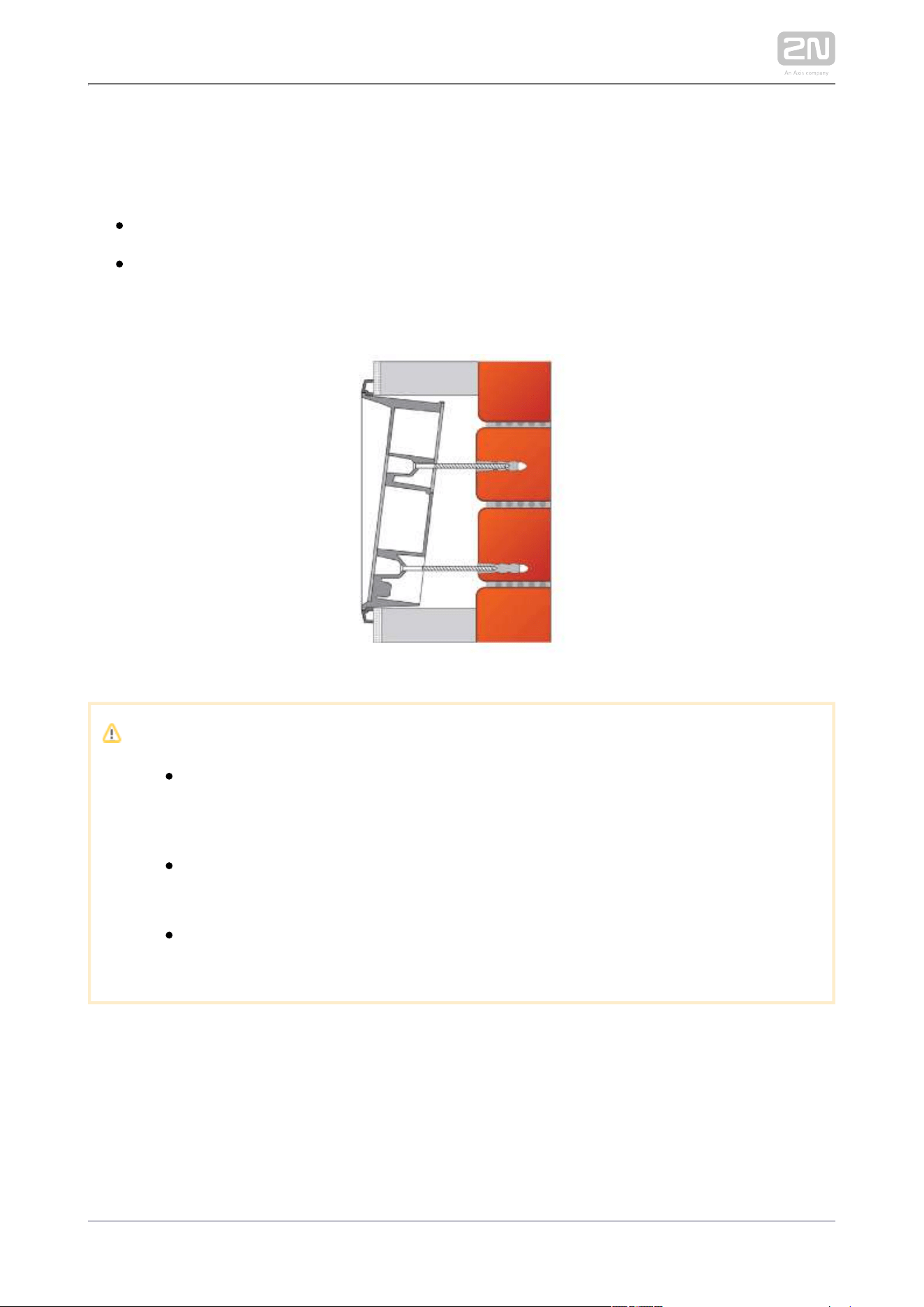
Flush Mounting – Thermally Insulated Wall
What You Need:
Longer screws (depending on the thermal insulation thickness)
Hole: (112 x 220 x 70) mm
Cut out the thermal insulation layer using the template (the same as for classic brick
wall).
Caution
The hole depth depends on the insulation layer thickness. If the
insulation layer is rather thick, you may need longer screws! If there are
hollow bricks under the insulation, make sure that your screws pass
through the whole dowel (50 mm) and fix the dowel reliably.
Make sure that the dowel holes have the required diameter. If the
diameter is too large, the dowels may get loose. Use some suitable
building adhesive to keep the dowels in place.
Make sure that the hole depth is sufficient too! The dowel length is 50
mm and the screw length is 90 mm.
Suppose that all the required cables have been carried into the drilled hole. Now
follow the instructions applicable for classic brick flush mounting. However, remember
that thermally insulated walls show less strength than classic brick walls.
2N TELEKOMUNIKACE a.s., www.2n.cz 47/126
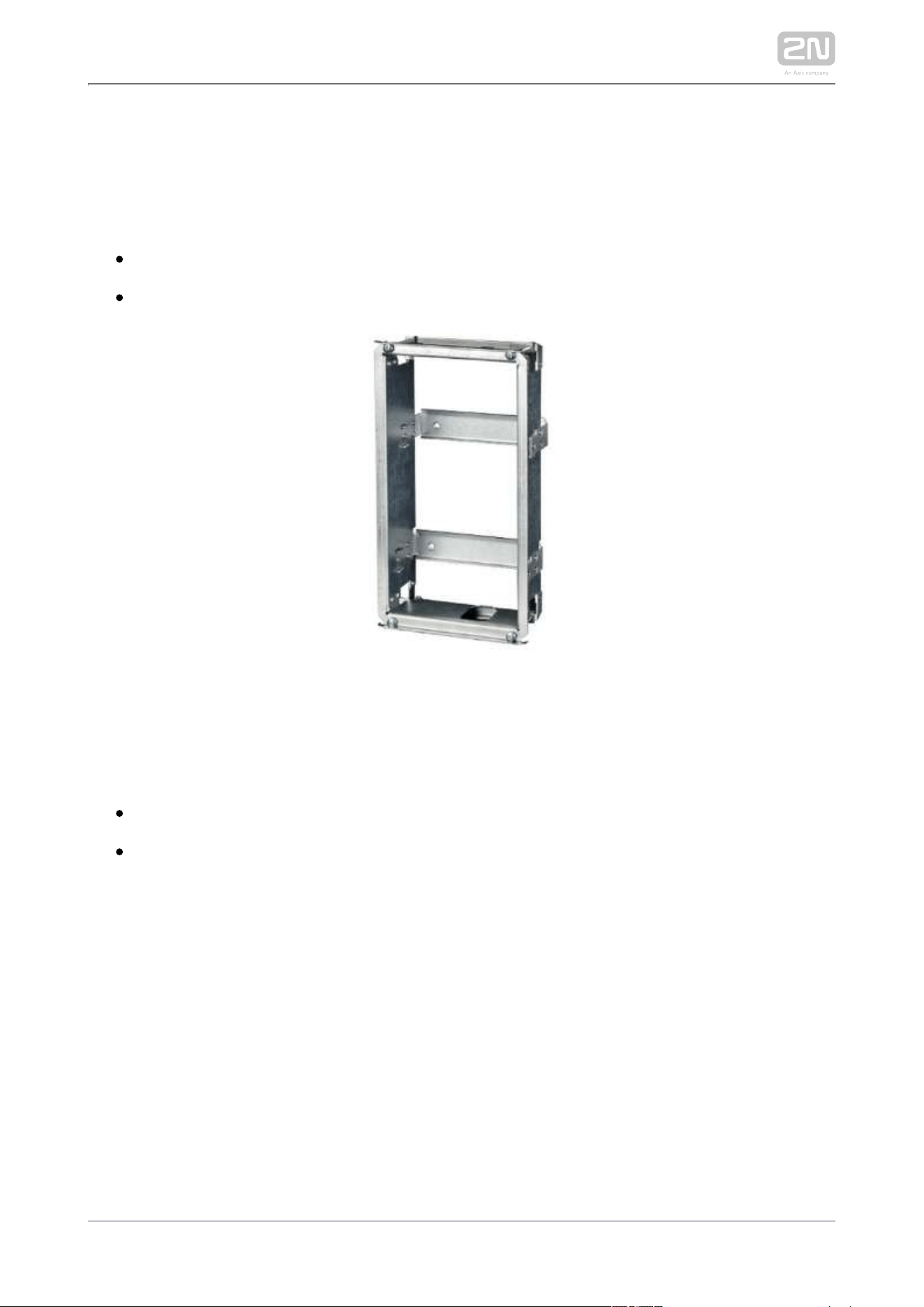
Flush Mounting – Plasterboard
Use the plasterboard flush mounting box and follow the instructions included therein.
What You Need:
Plasterboard flush mounting box, Part No. 9151002
Hole: 118 x 237 mm
Flush Mounting – Hollow Bricks
What You Need:
Brick flush mounting box, Part No. 9151001
Hole: (132 x 223 x 83) mm
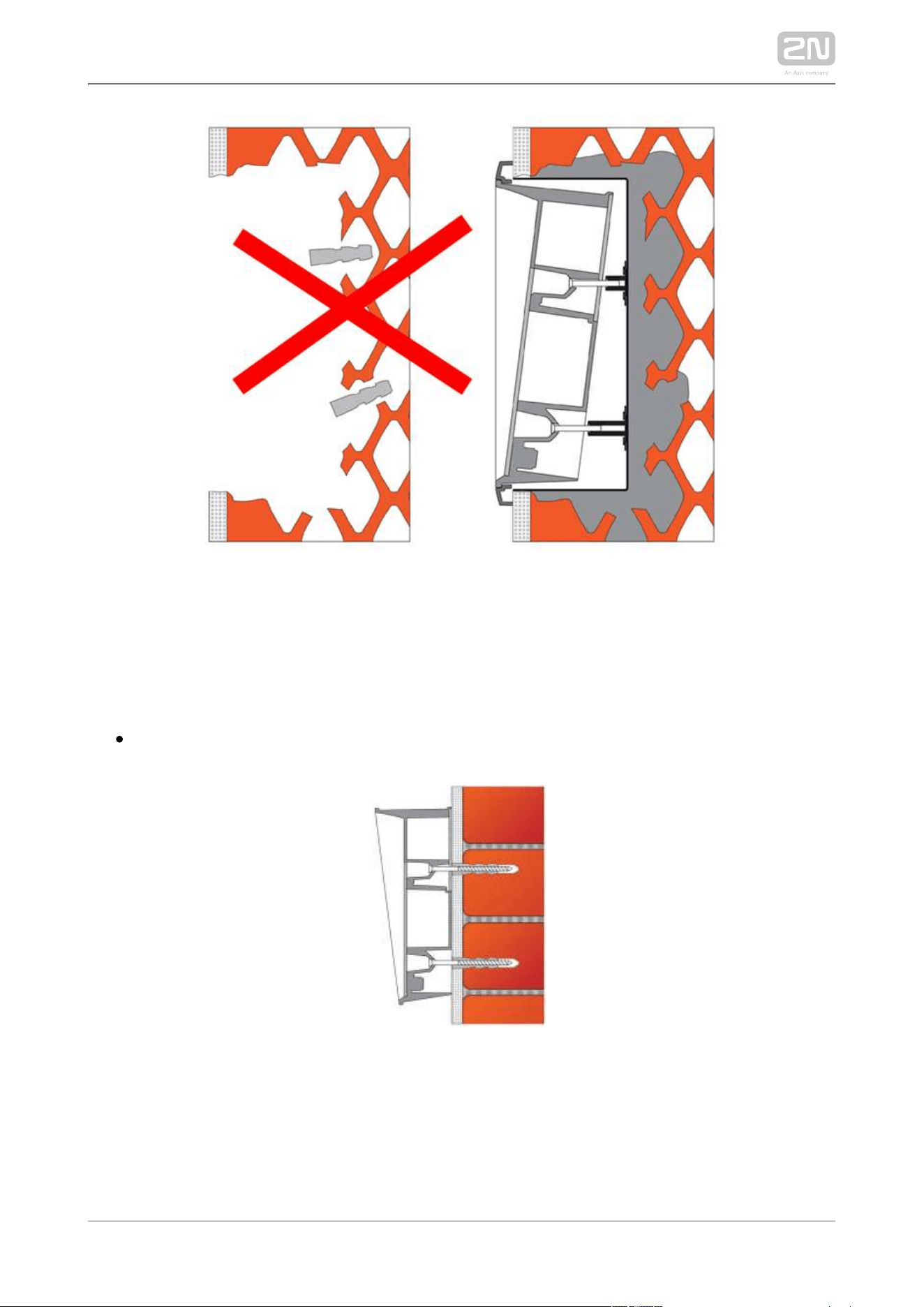
Suppose you intend to install your unit into a wall made of hollow bricks. 2N IP Force
®
Note that the external side of the bricks gets damaged by cutting and the dowels
cannot practically be fixed into the thin internal part of the bricks. Therefore, use the
brick flush mounting box and follow the instructions included therein.
2N TELEKOMUNIKACE a.s., www.2n.cz 48/126
Wall Mounting
What You Need:
Just your unit2N IP Force
®
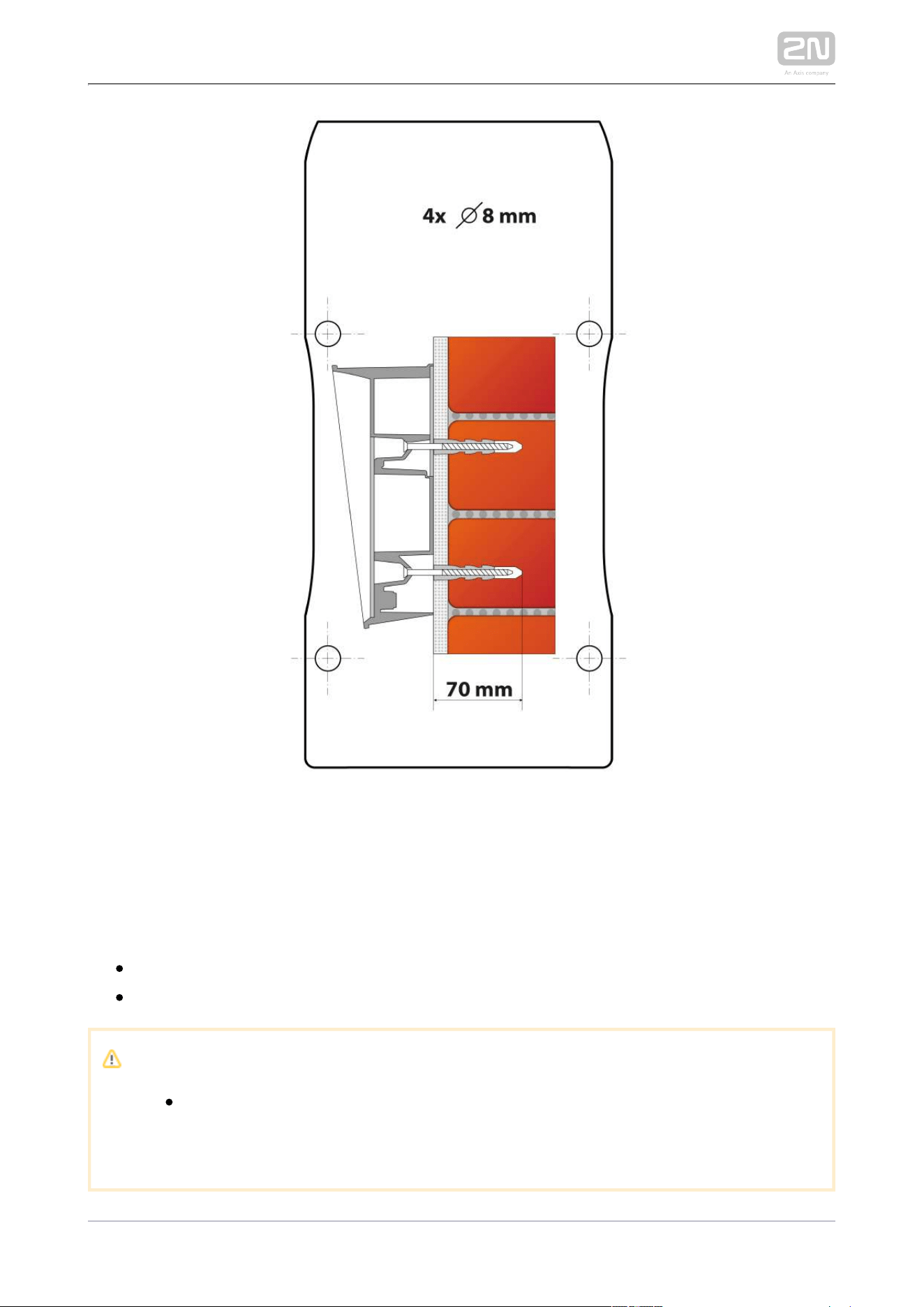
Wall (surface) mounting is used where flush mounting is inapplicable (in concrete and
steel structures, entry barrier columns, etc.). The frame is not used.
2N TELEKOMUNIKACE a.s., www.2n.cz 49/126
1.
2.
3.
4.
5.
6.
Caution
Wall mounting may be a problem where vandals may destroy the unit (in
public garages, e.g.). Therefore, use steel fixing elements instead of the
dowels and screws included in the delivery.
Be sure to insert plugs into unused bushing holes to avoid water leakage
during facade cleaning, for example. Never leave the holes open for even
a short time (one day delay between mounting and cable connection, e.
g.).
Warning
Eliminate the risk of accident! Wall mounting is not suitable for narrow
passages or places where people's attention may be distracted. The
manufacturer shall not be liable for injuries incurred as a result of unsafe
mounting!
Select position with respect to the supply cables. Where the cables are installed
inside a structure or wall, use the hole at the intercom bottom.
Drill holes of the depth of 70 mm for dowels in the wall as shown in the figure.
Push or hammer the enclosed dowels into the drilled holes. Use some suitable
building adhesive if the dowels are too loose. Use fixing elements of your own
for steel structure surface mounting (metric screws + nuts, e.g.).
Remove the front panel from the intercom.
Select the holes for cable supply. Select and mount the bushings depending on
the cables: 2-hole bushing or 1-hole bushing or both. Insert the blanks in the
other holes.
Put the intercom on the wall/structure while introducing cables inside. Leave
some of the cables inside the unit as a reserve. Insert the plugs in the unused
bushings and tighten the bushing nuts carefully.
Do not complete mounting until you have finished electrical installation. Where
cables lead along the surface, use the bushings included in the delivery.
2N TELEKOMUNIKACE a.s., www.2n.cz 50/126
Stand Mounting
This mounting method is suitable for entrance installations in particular.
What you need for installation:
Stand, Part No. 9151005
Screws suitable for the surface – are not included in the package
Upozornění
Remember to fit the stand to the base thoroughly especially if there is a
risk of vandalism (public garages, etc.). Steel fitting elements are
recommended.

2N TELEKOMUNIKACE a.s., www.2n.cz 51/126
1.
2.
3.
4.
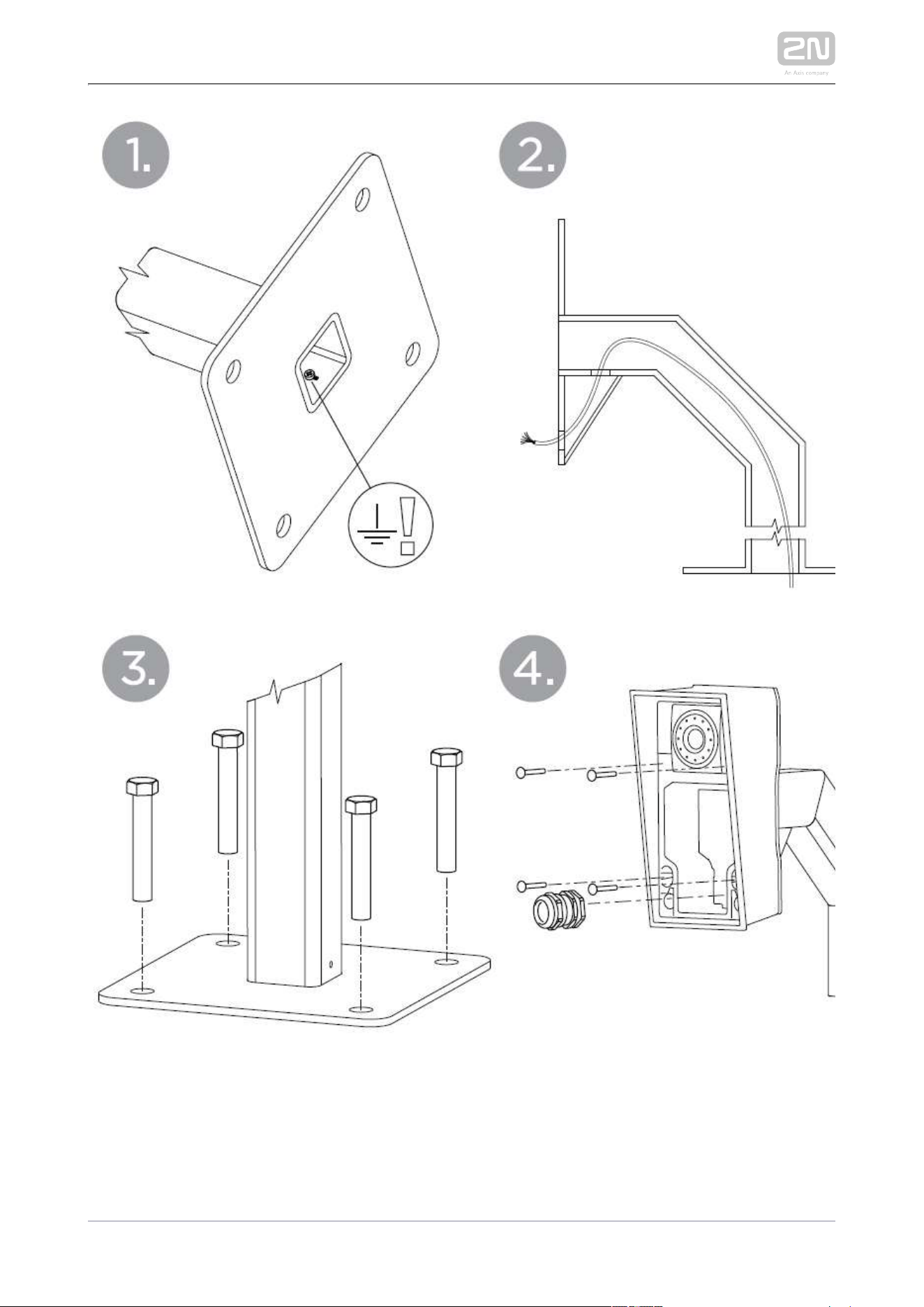
Connect grounding.
Pull the cable through the stand.
Fit the stand to the base. Refer to the Base drilling template for the dimensions
of the fitting elements. The screws are not included in the package. Use screws
of your own according to the type of surface.
Use a cable bushing for the cable fee-out!2N IP Force
®
2N TELEKOMUNIKACE a.s., www.2n.cz 52/126
2N TELEKOMUNIKACE a.s., www.2n.cz 53/126
Use of Cable Bushings
The cable bushings included in the delivery are designed for the 2N IP Force
®
following cables:
Big bushing: for two cables of the diameter of 5–6 mm (UTP cable), or, upon
insert replacement, for one thick cable/tube of the diameter of up to 14 mm.
Small bushing: for one cable of the diameter of 5–8 mm.
Tip
Even a LAN cable including the RJ-45 connector can go through the big
bushing. See below for instructions.
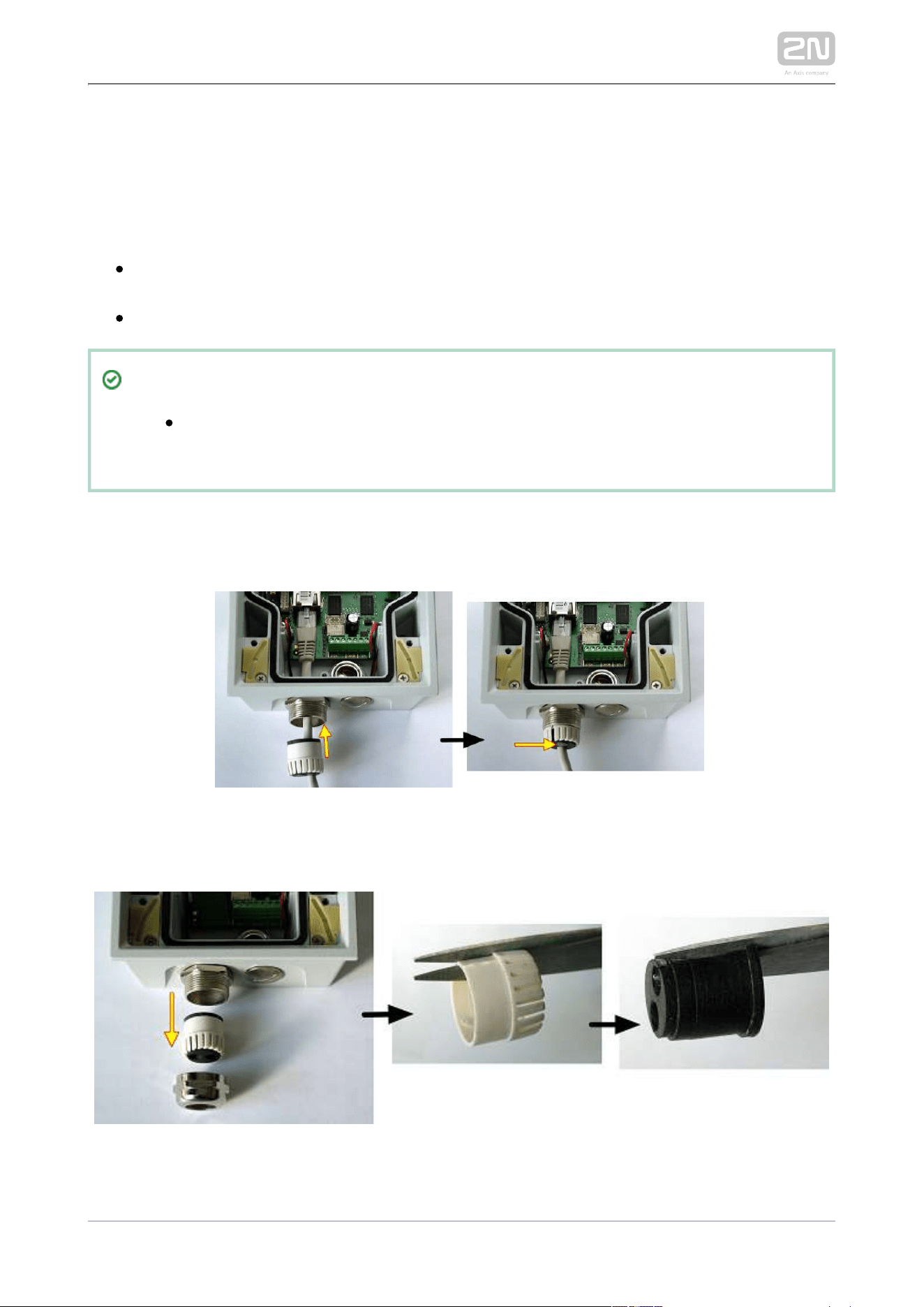
How to Pull a RJ-45 Terminated Cable through a Bushing
1. Unscrew the big bushing nut completely.
2. Remove the sealing including the cover from the bushing. Cut either of the
components as shown in the figures.
2N TELEKOMUNIKACE a.s., www.2n.cz 54/126
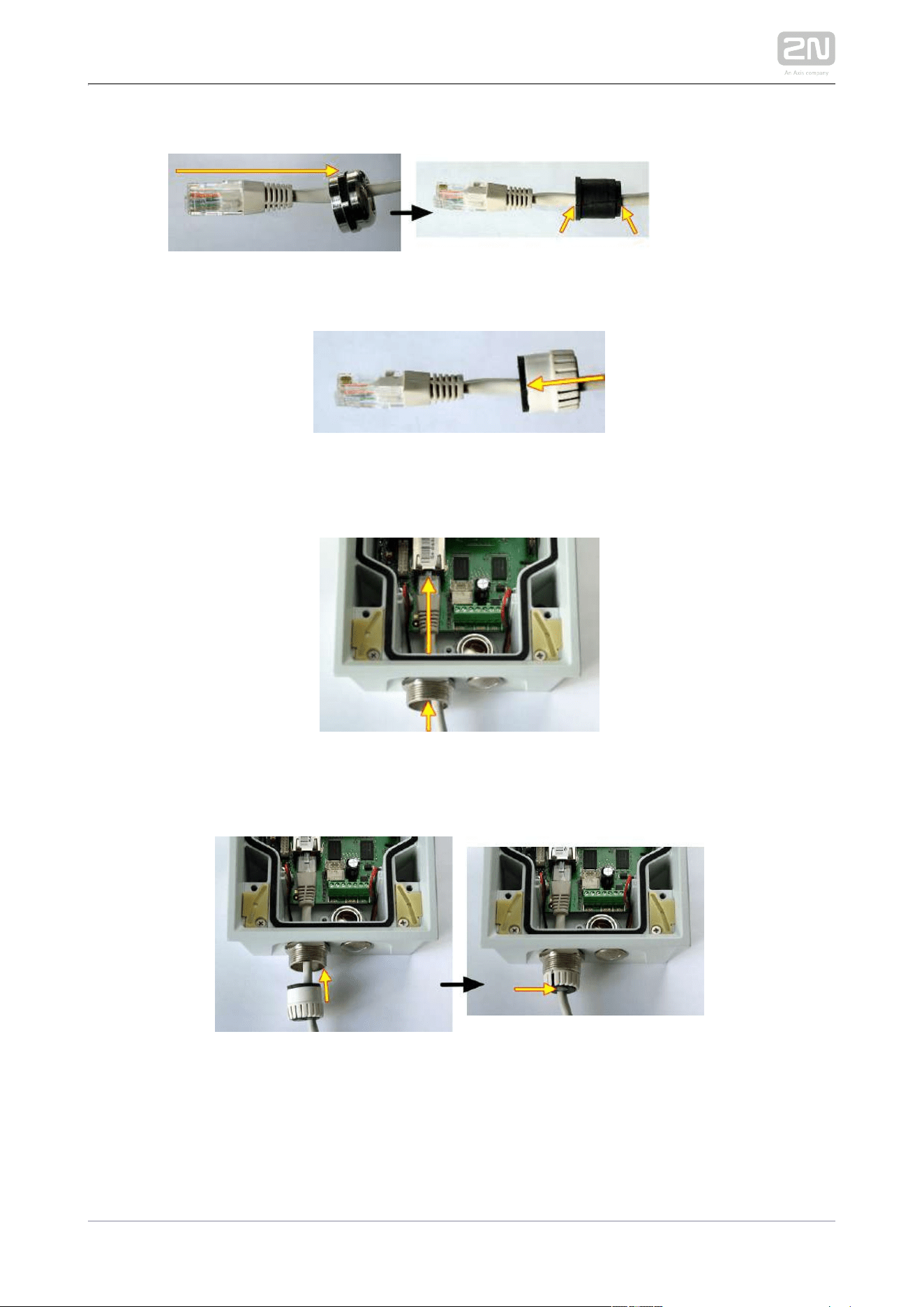
3. Put the bushing nut on the cable and insert the sealing.
4. Replace the cover onto the sealing.
5. Pull the cable connector though the bushing body into the intercom and clip it into
the motherboard connector.
6. Move the sealing including the cover along the cable as far as the bushing body, or
add a plug if necessary.
2N TELEKOMUNIKACE a.s., www.2n.cz 55/126
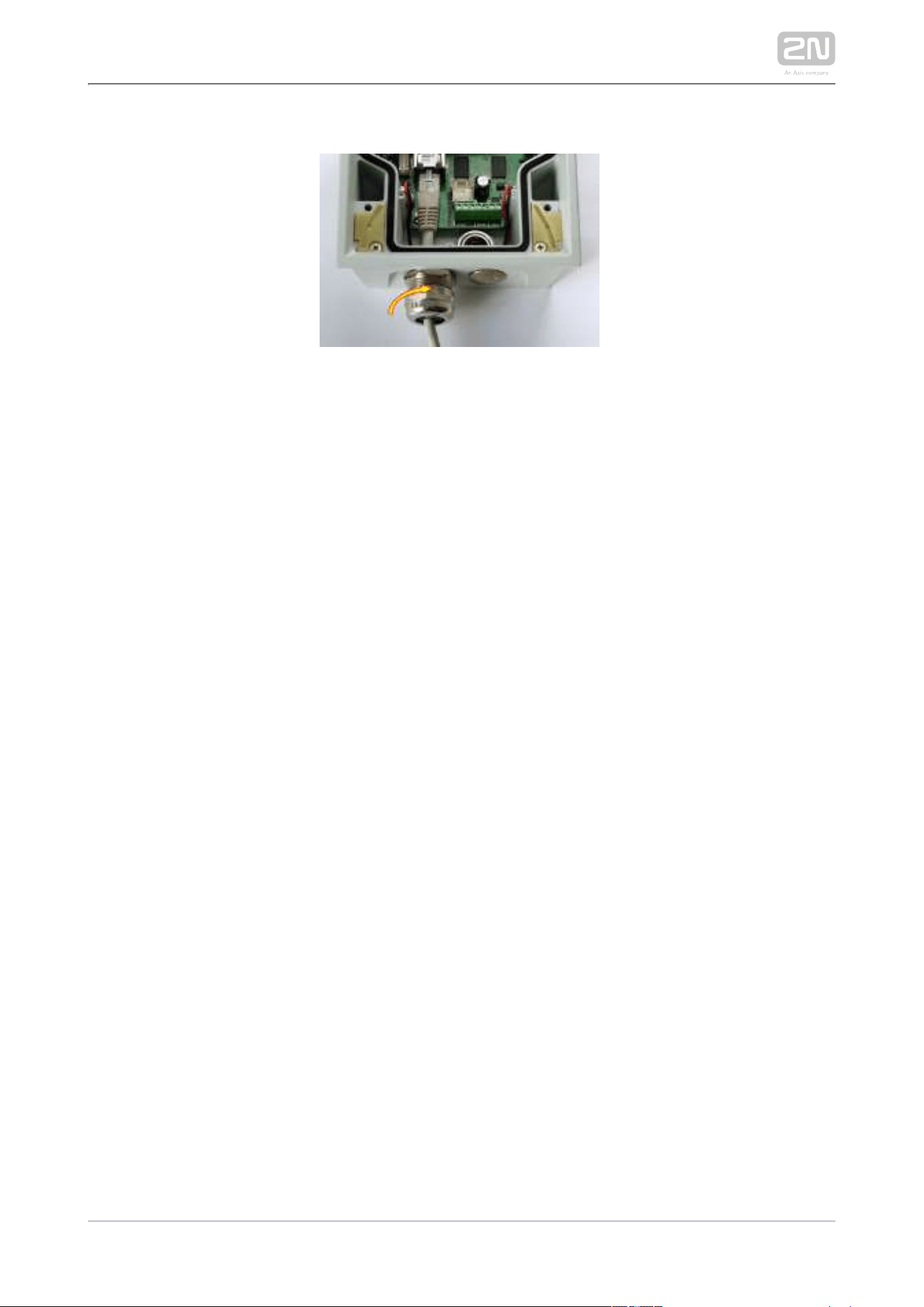
7. Replace and tighten the nut.
2N TELEKOMUNIKACE a.s., www.2n.cz 56/126
2.3 Electric Installation
This subsection describes how to connect into your Local Area Network 2N IP Force
®
(LAN) and how to connect supply voltage and the electric lock.
PCB Connectors
LAN Connection
External Power Supply Connection
Electric Lock Connection
Factory Default Resetting (PCB version 555v5)
Factory Default Resetting (PCB version 555v3 and higher)
Factory Default Resetting (PCB version 555v2)
Grounding
Mounting Completion
Available Switches
Caution
The device must be part of the electrical system of the building.
PCB Connectors
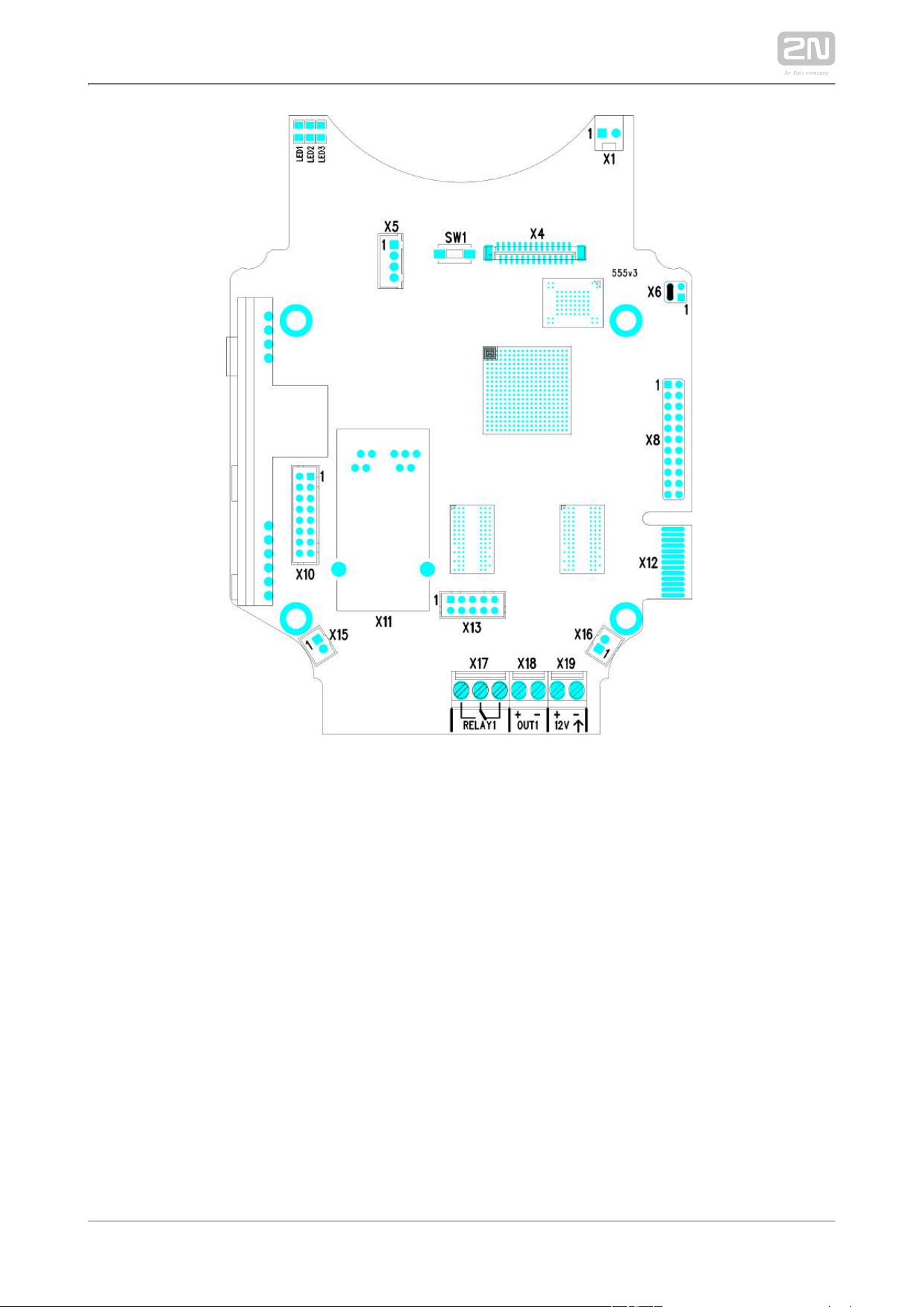
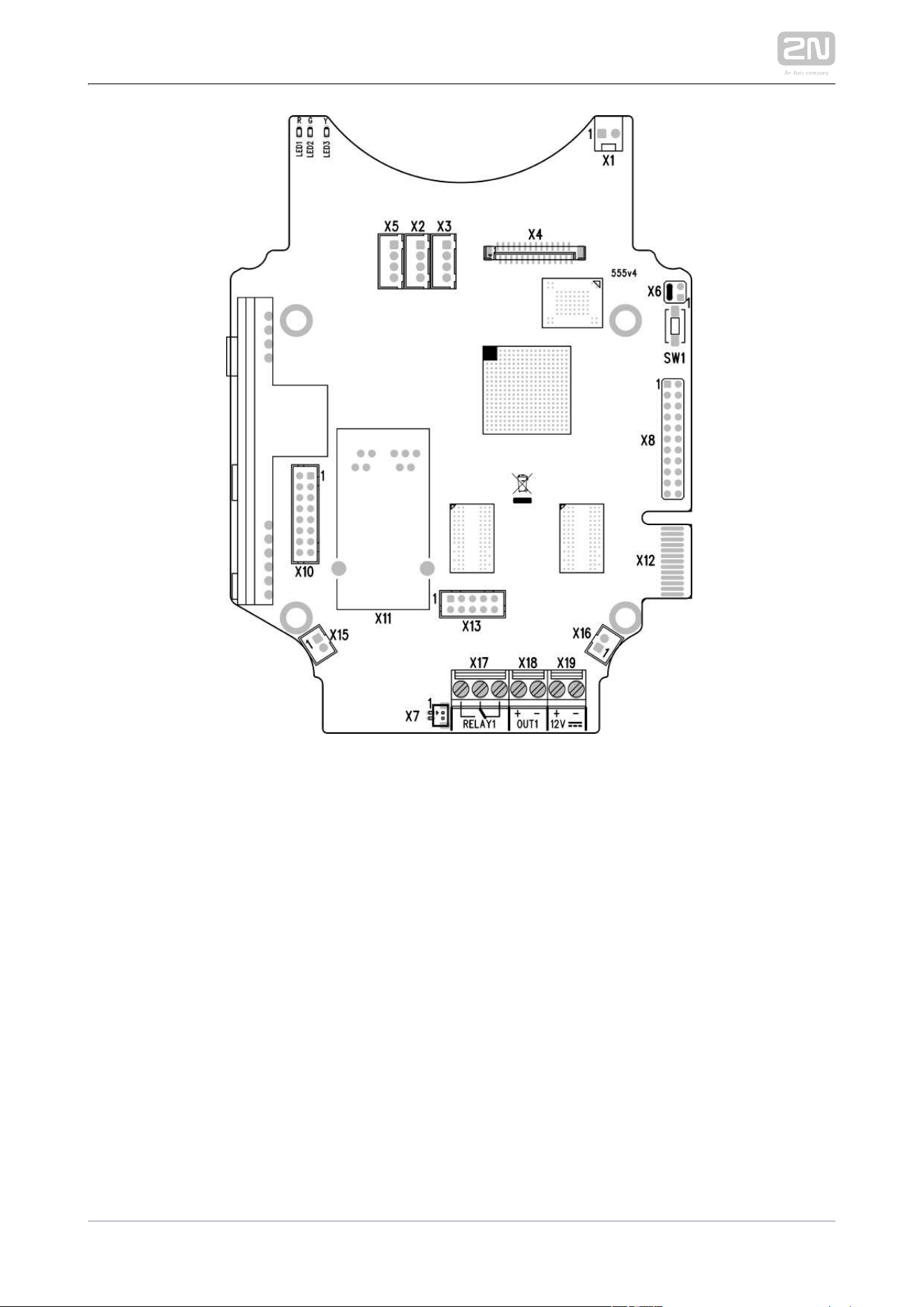
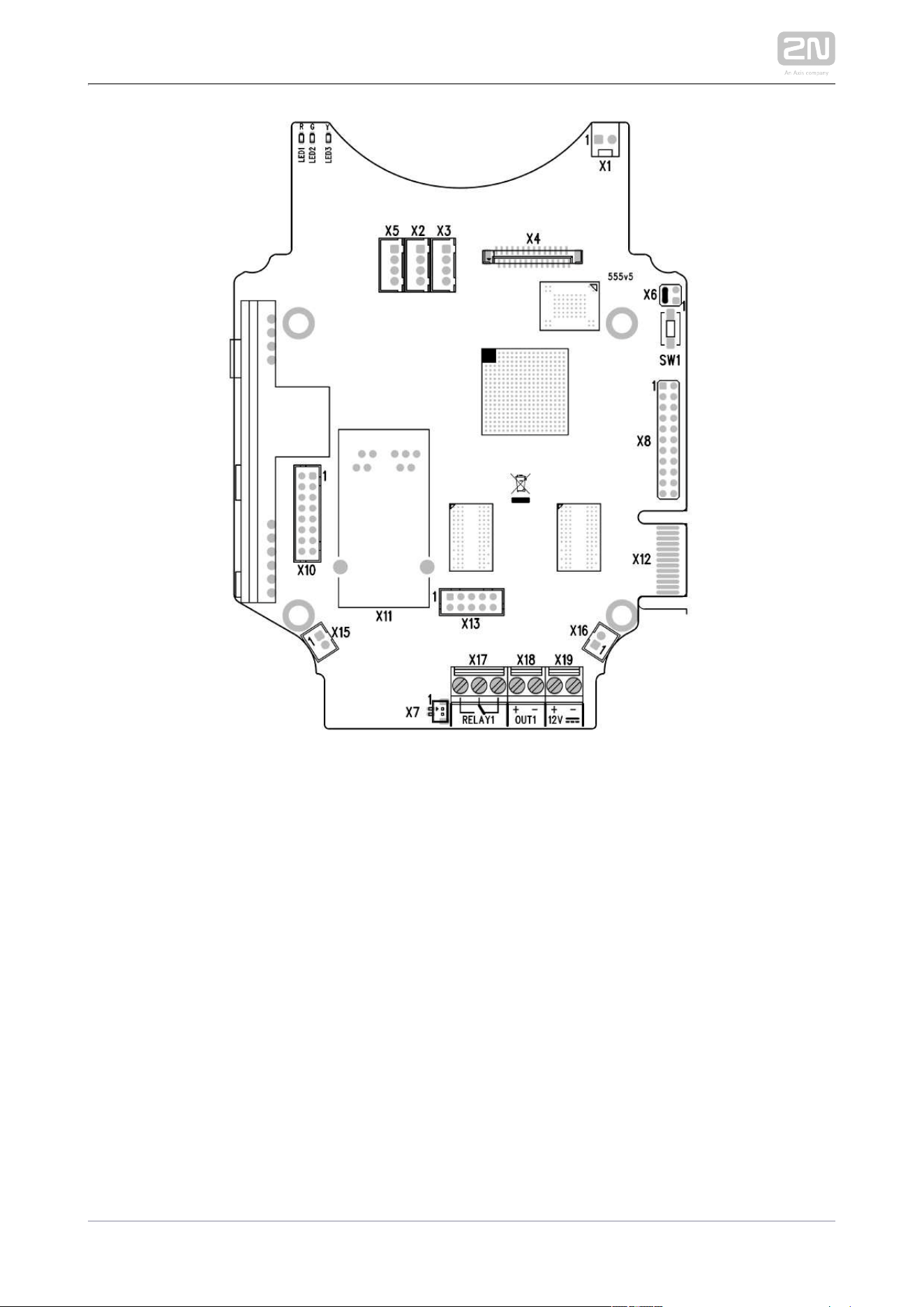
Picture shows the lay-out of connectors on the printed circuit board 2N IP Force
®
(PCB). Cables, accessories and other system components are connected to
connectors X1 through X22.
Connectors description:
X1 – Loudspeaker
X2 – Button 2
X3 – Button 3
X4 – Camera module
X5 – Button 1
SW1 – Reset button (version 555v3 and higher)
X6 – Configuration jumpers
X7 – Induction loop output. Connector type JST SHR-02V-S.
X8 – Extending module (RFID card reader or additional switch)
X10 – Buttons 1 through 4
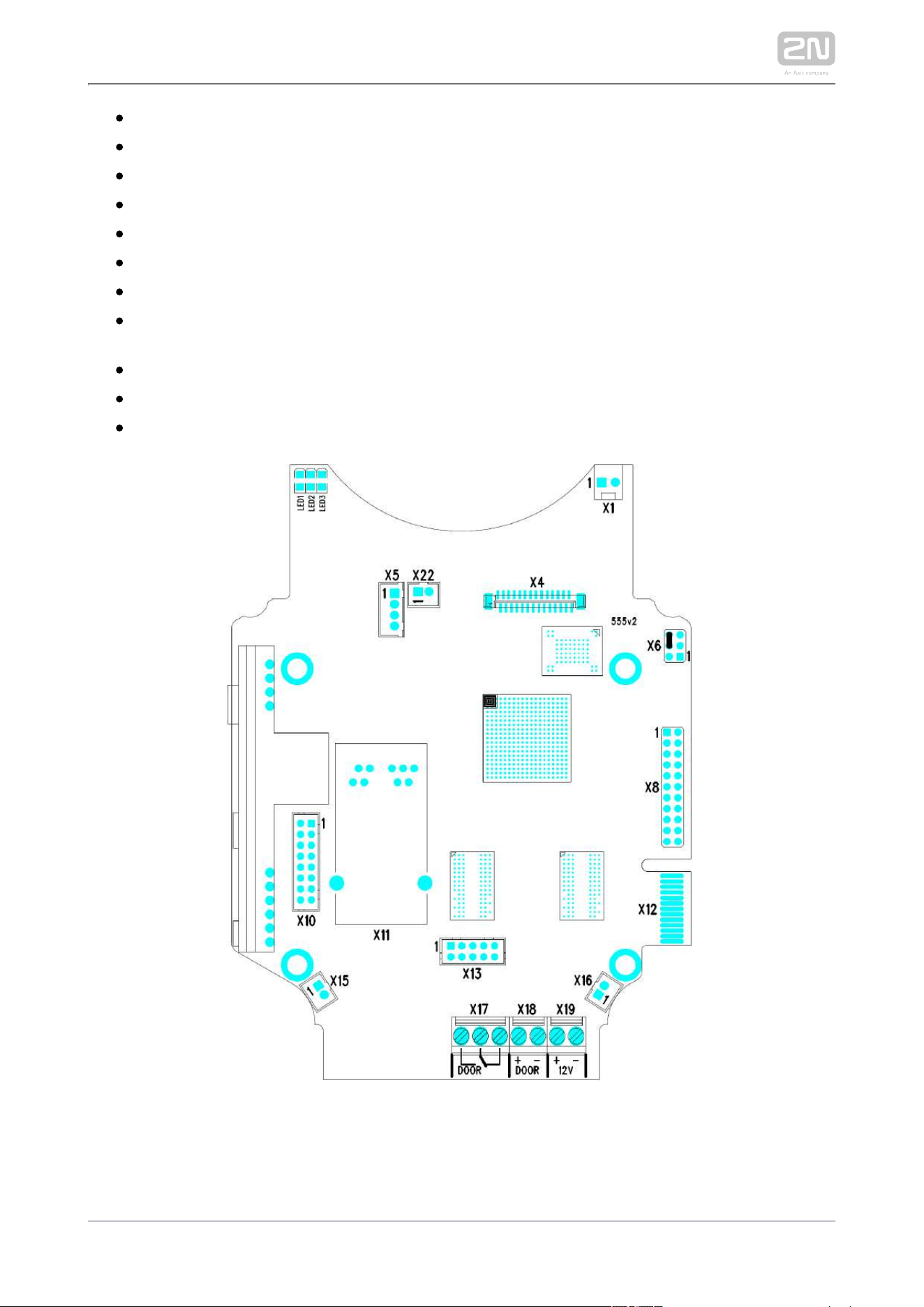
2N TELEKOMUNIKACE a.s., www.2n.cz 57/126
X10 – Buttons 1 through 4
X11 – LAN
X12 – Servicing connector
X13 – Keypad module
X15 – Left-hand microphone
X16 – Right-hand microphone
X17 – Relay NO and NC contact max. 30 V / 1 A AC/DC
X18 – Switched output 9 up to 13 V DC depending on power supply (PoE: 9 V;
adaptor: power supply voltage minus 1 V), max 700 mA
X19 – Power input 12 V ±15 % / 2 A DC
LED1/2 – System status indicators
LED3 – LAN connection activity indicator
2N IP Force
®
Connectors, PCB Version 555v2
2N TELEKOMUNIKACE a.s., www.2n.cz 58/126
2N IP Force
®
Connectors, PCB Version 555v3
2N TELEKOMUNIKACE a.s., www.2n.cz 59/126
2N IP Force
®
Connectors, PCB Version 555v4
2N TELEKOMUNIKACE a.s., www.2n.cz 60/126
2N IP Force
®
Connectors, PCB Version 555v5
2N TELEKOMUNIKACE a.s., www.2n.cz 61/126
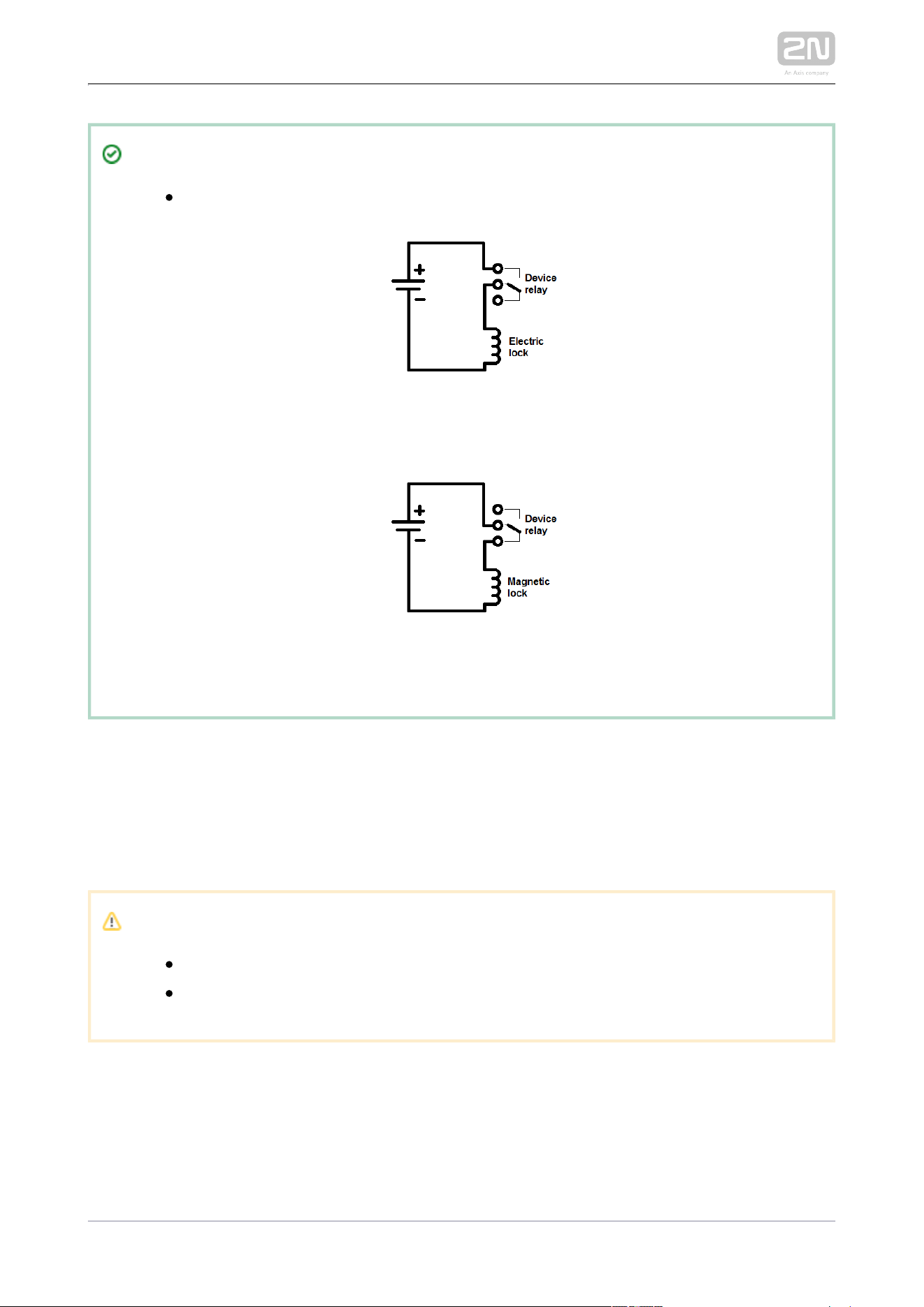
Tip
Output wiring diagram for Relay terminals
The electric lock is opened by power supply connection.
The magnetic lock is opened by power supply disconnection.
LAN Connection
2N IP Force
®
is connected to the LAN via a RJ-45 terminated (connector X11) UTP
/STP cable (of category Cat 5e or higher). The system is equipped with the Auto-
MDIX function and so both the straight and crossed cable versions can be used.
Caution
We recommend the use of a LAN surge protection.
We recommend the use of a shielded SSTP Ethernet cable.
External Power Supply Connection
2N IP Force
®
can be fed either from an external 12 V ±15 % / 2 A DC power supply or
from the LAN equipped with the PoE 802.3af supporting network elements.
2N TELEKOMUNIKACE a.s., www.2n.cz 62/126
External Power Supply
An external 12 V power supply is connected to terminal block X19. Use a 12 V ± 15 %
DC power source dimensioned to current intake of 2 A at least (Part No. 91341481E) to
ensure a reliable function of your device.
PoE Supply
2N IP Force
®
is compatible with the PoE 802.3af (Class 0–12.95 W) technology and
can be supplied directly from the LAN via compatible network elements. If your LAN
in incompatible, insert the PoE injector, Part No. 91378100E/US, between
and the nearest network element. 2N IP Force
®
Electric Lock Connection
2N IP Force
®
is equipped with an electrically isolated relay switch with NO and NC
contacts (terminal block X17, max. 30 V / 1 A AC/DC) and 9 up to 13 V DC depending
on power supply (PoE: 9 V; adaptor: power supply voltage minus 1 V), max 600 mA
switched output (terminal block X18), to which a standard electric lock or another
compatible electrical appliance can be connected.
Note
Devices with PCB version 555v3 and higher provides independent
control of 12 V switched output (terminal block X18) and relay switch
(terminal block X17). Devices with PCB version 555v2 have both outputs
switched simultaneously.
2N TELEKOMUNIKACE a.s., www.2n.cz 63/126
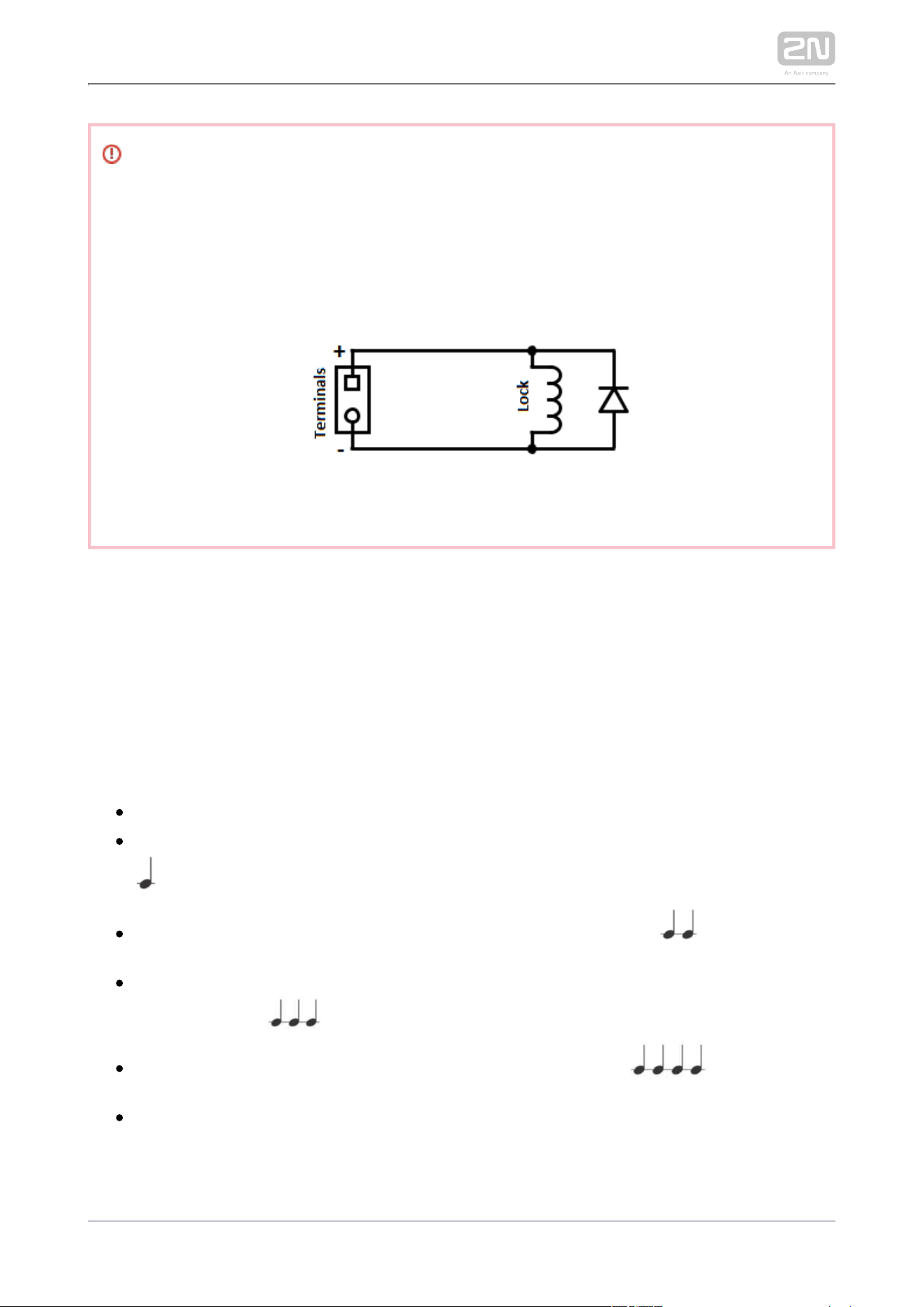
Warning
When you connect a device containing a coil, such as a relay or an
electromagnetic lock, it is necessary to protect the intercom against voltage
peak while switching off the induction load. For this way of protection we
recommend a diode 1 A / 1000 V (e.g., 1N4007, 1N5407, 1N5408) connected
antiparallel to the device.
Reset Button
Located among the main unit connectors, the Reset button helps you reset the factory
default values, restart the device, find the device IP address and switch the static
/dynamic mode.
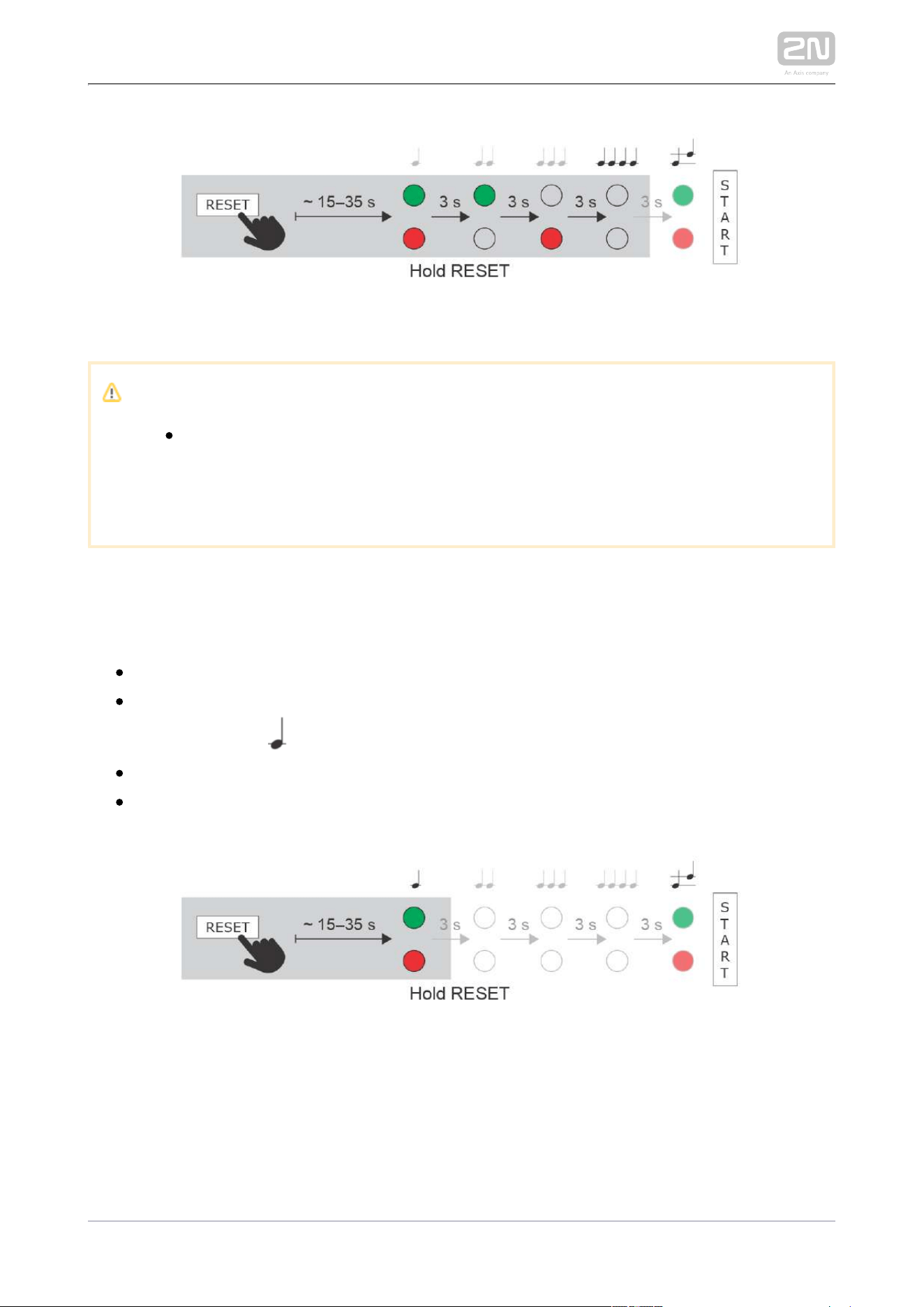
Factory Reset (PCB version 555v5 and latest)
Follow the instructions below to :reset the factory default values
Press and hold the RESET button.
Wait until the red and green LEDs go on simultaneously and the acoustic signal
can be heard (approx. 15–35 s).
Wait until the red LED goes off and the acoustic signal can be heard
(approx. for another 3 s).
Wait until the green LED goes off and the red LED goes on again and the
acoustic signal can be heard (approx. for another 3 s).
Wait until the red LED goes off and the acoustic signal can be heard
(approx. for another 3 s).
Release the RESET button.
2N TELEKOMUNIKACE a.s., www.2n.cz 64/126
Caution
In case of resetting the factory default settings on a device with a
version of firmware 2.18 or higher it is necessary to reprogram the
using the instructions from section .2N Security Relay
®
2.4
IP Address Finding
Follow the instructions below to :identify the current IP address
Press and hold the RESET button.
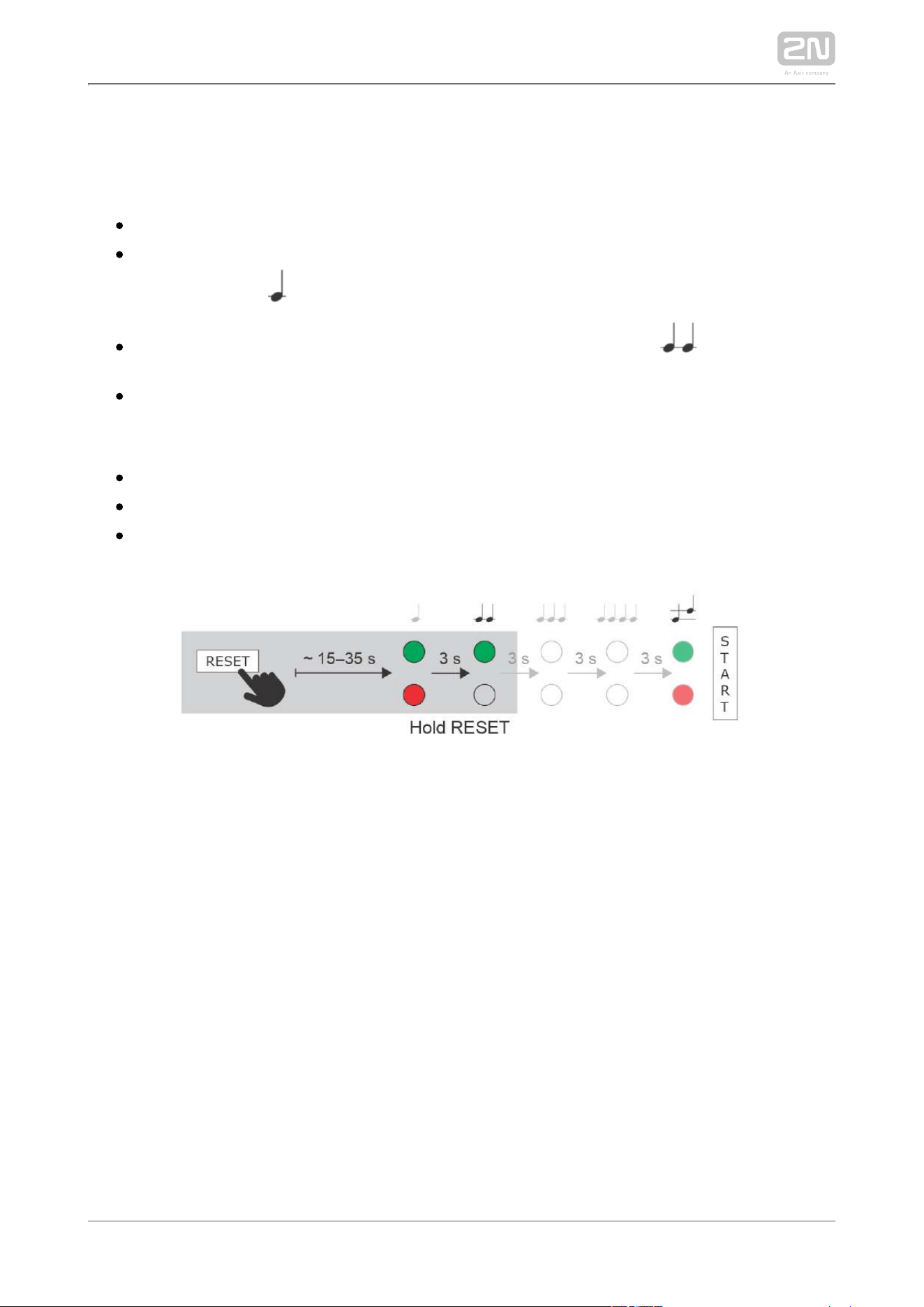
Wait until the red and green LEDs go on simultaneously on the device and the
acoustic signal can be heard (approx. 15–35 s).
Release the RESET button.
The device automatically announces the current IP address.
2N TELEKOMUNIKACE a.s., www.2n.cz 65/126
Static IP Address Setting
Follow the instructions below to switch on the mode (DHCP OFF):Static IP address
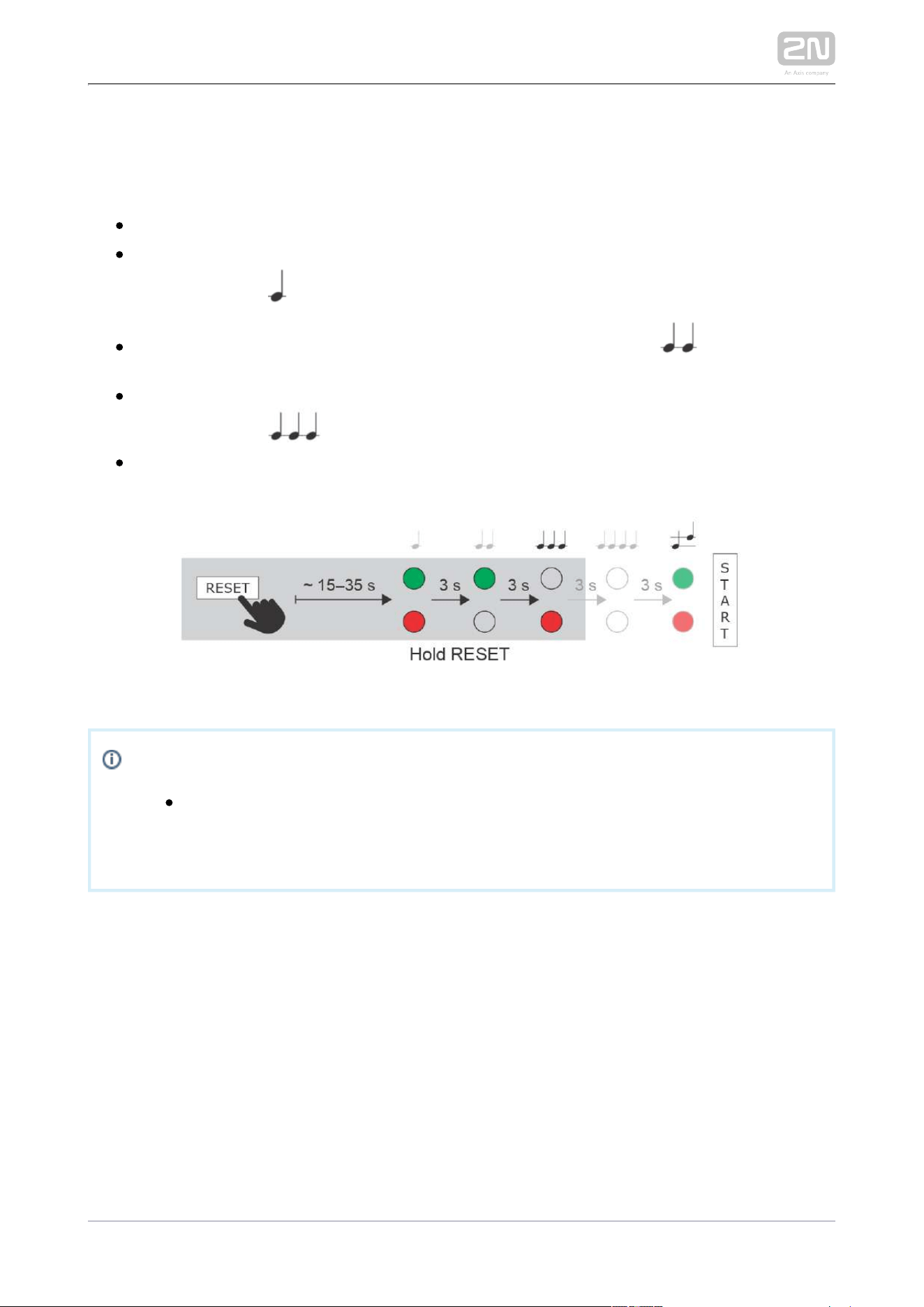
Press and hold the RESET button.
Wait until the red and green LEDs go on simultaneously on the device and the
acoustic signal can be heard (approx. 15–35 s).
Wait until the red LED goes off and the acoustic signal can be heard
(approx. for another 3 s).
Release the RESET button.
The following network parameters will be set after restart:
IP address: 192.168.1.100
Network mask: 255.255.255.0
Default gateway: 192.168.1.1
2N TELEKOMUNIKACE a.s., www.2n.cz 66/126
Dynamic IP Address Setting
Follow the instructions below to switch on the mode (DCHP ON):Dynamic IP address
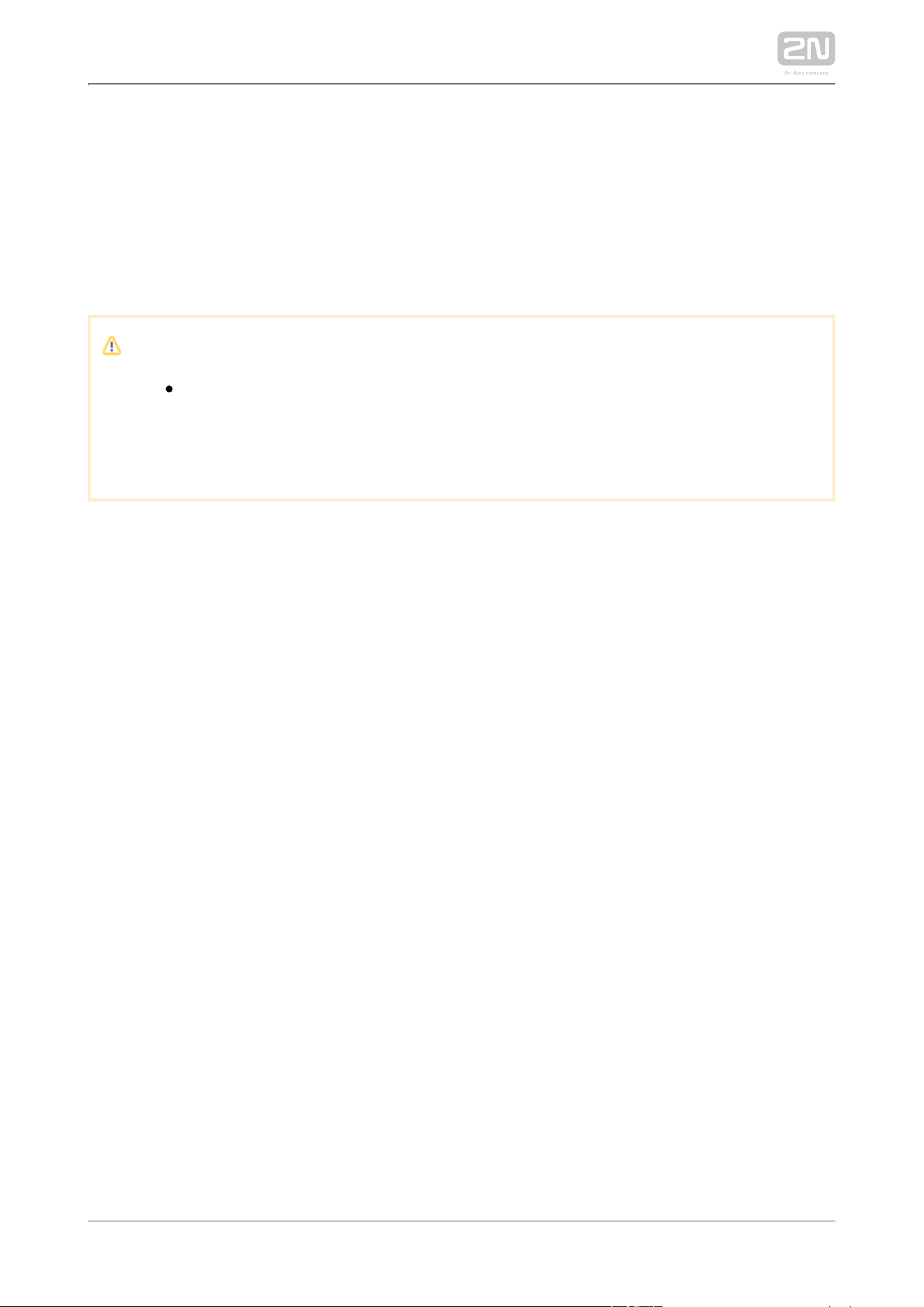
Press and hold the RESET button.
Wait until the red and green LEDs go on simultaneously on the device and the
acoustic signal can be heard (approx. 15–35 s).
Wait until the red LED goes off and the acoustic signal can be heard
(approx. for another 3 s).
Wait until the green LED goes off and the red LED goes on again and the
acoustic signal can be heard (approx. for another 3 s).
Release the RESET button.
Note
The delay after pressing RESET till the first light and sound signalling is
set to 15–35 s depending on the 2N IP intercom/answering unit model
used.
Device Restart
Press the RESET button shortly (< 1 s) to restart the system without changing
configuration.
2N TELEKOMUNIKACE a.s., www.2n.cz 67/126
1.
2.
3.
4.
5.
6.
Factory Default Resetting (PCB version 555v3 and higher)
For resetting device to default settings press and hold SW1 button. Wait for the first
sound signalization and then release the button. If you press the button for short time
device will reboot only. SW1 button is available in devices with PCB version 555v3 and
higher. For devices with PCB version 555v2 see procedure below.
Caution
In case of resetting the factory default settings on a device with a
version of firmware 2.18 or higher it is necessary to reprogram the
using the instructions from section .2N IP Security Relay
®
2.4
Factory Default Resetting (PCB version 555v2)
Disconnect the device from the power supply.
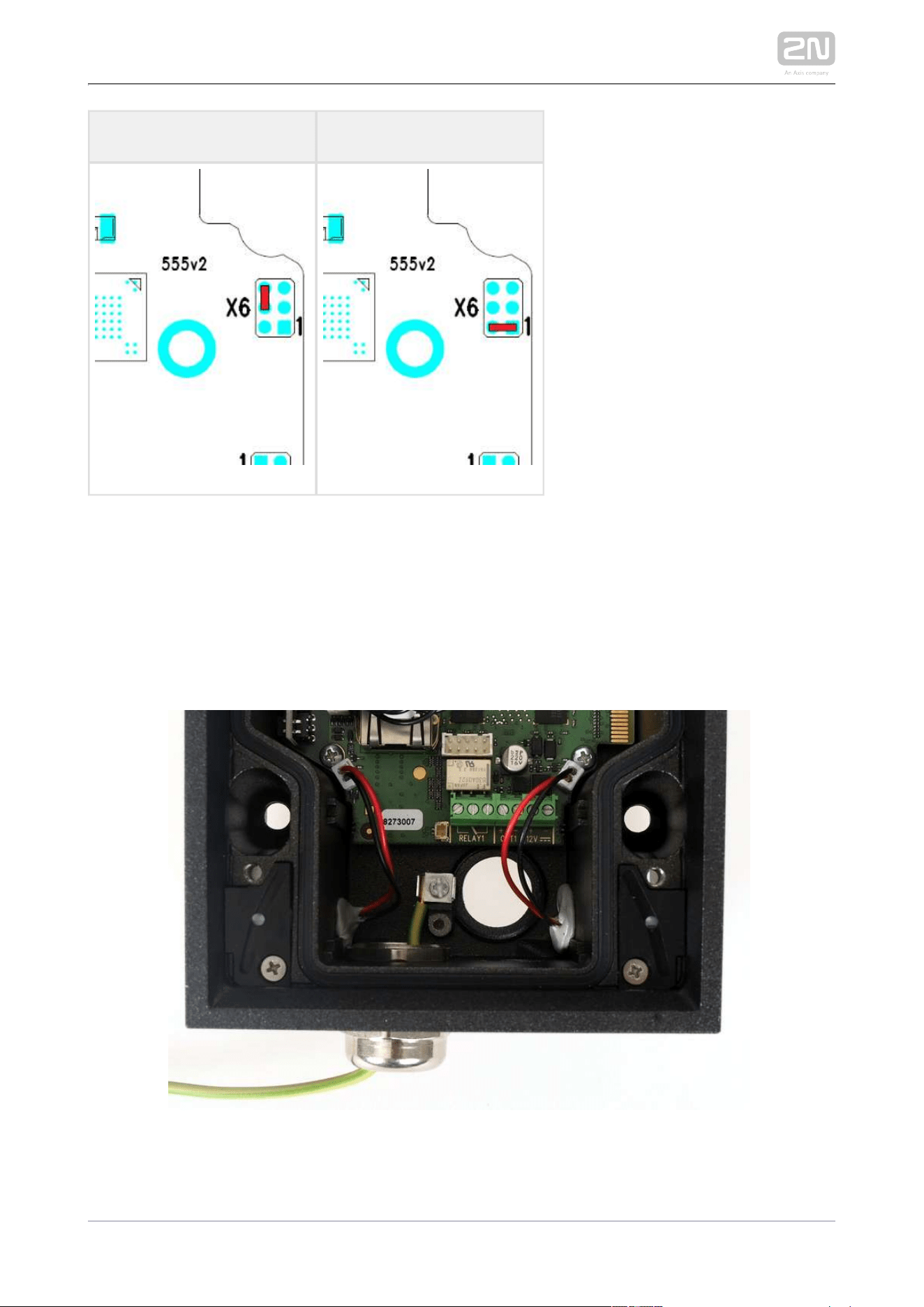
Move the short-circuit jumper on connector X6 into the position. Default setup
Configuration jumpers (X6) are located in the right-hand upper corner of the
PCB.
Reconnect the power supply and wait for a start signalling sound.
Disconnect the device from the power supply.
Move the short-circuit jumper on connector X6 into the Normal operation
position.
Reconnect the power supply. The device will be reset to factory default.
2N TELEKOMUNIKACE a.s., www.2n.cz 68/126
Normal operation Default setup
Configuration jumpers X6, PCB version 555v2
Grounding
We recommend to ground the intercom in order to improve the static electricity
resistance. For proper grounding you need a cable of the minimum cross-section of 4
mm2. Connect the cable to the connector in the bottom part of the intercom. The
connector is enclosed to the delivery.
Mounting Completion
2N TELEKOMUNIKACE a.s., www.2n.cz 69/126
1.
2.
Mounting Completion
Having connected all the wires, make sure that the bushings, if used, are
tightened properly and the RJ-45 connector is inserted in the PCB connector.
Replace the front cover carefully. Make sure that the connector is inserted
correctly and the wires inside the device leave enough space for the board if you
are installing a four-button board. Tighten the four screws thoroughly with the
wrench enclosed (Torx 20) to make the panel fit tightly to the metal chassis.
Caution
Properly installed intercom is waterproof. An incorrect mounting may
compromise the intercom watertightness. Water leakage may damage
the electronic part of the system.
Stainless steel screws are used for the assembly. Other 2N IP Force
®
screws than stainless steel ones corrode soon and may aesthetically
deteriorate the surrounding environment!

2N TELEKOMUNIKACE a.s., www.2n.cz 70/126
Available Switches
Location Name Description
Basic Unit Relay 1 Passive relay switch : NO and NC contacts, up to 30 V / 1 A AC
/DC
Output 1 Active switch output: 9 up to 13 V DC depending on power
supply (PoE: 9 V; adaptor: power supply voltage minus 1 V), max
600 mA
Additional
Switch*
(Part No.
9151010)
Relay 2 Passive relay switch : NO and NC contacts, up to 30 V / 1 A AC
/DC
Output 2 Active switch output 9 up to 13 V DC depending on power :
supply (PoE: 9 V; adaptor: power supply voltage minus 1 V), max
600 mA
Internal RFID
Card Reader 125
*kHz
(Part No.
9151011)
Relay 1
(Card
Reader),
Passive relay switch : NO and NC contacts, up to 30 V / 1 A AC
/DC
Output 1
(Card
Reader)
Active switch output : 9 up to 13 V DC depending on power
supply (PoE: 9 V; adaptor: power supply voltage minus 1 V), max
600 mA
Internal RFID
Card Reader
13.56 MHz*
(Part No.
9151016)
Relay 1
(Card
Reader),
Passive relay switch : NO and NC contacts, up to 30 V / 1 A AC
/DC
Output 1
(Card
Reader)
Active switch output : 9 up to 13 V DC depending on power
supply (PoE: 9 V; adaptor: power supply voltage minus 1 V), max
600 mA
Only one module marked by * can be used.
2N TELEKOMUNIKACE a.s., www.2n.cz 71/126
2.4 Extending Module Connection
2N IP Force
®
allows to connect following extending modules:
Additional Switch
Internal RFID Card Reader 125 kHz
Internal RFID Card Reader 13.56 MHz
Internal secured RFID Card Reader 13.56 MHz
Security Relay
Wiegand Isolator
Induction Loop
Additional Switch
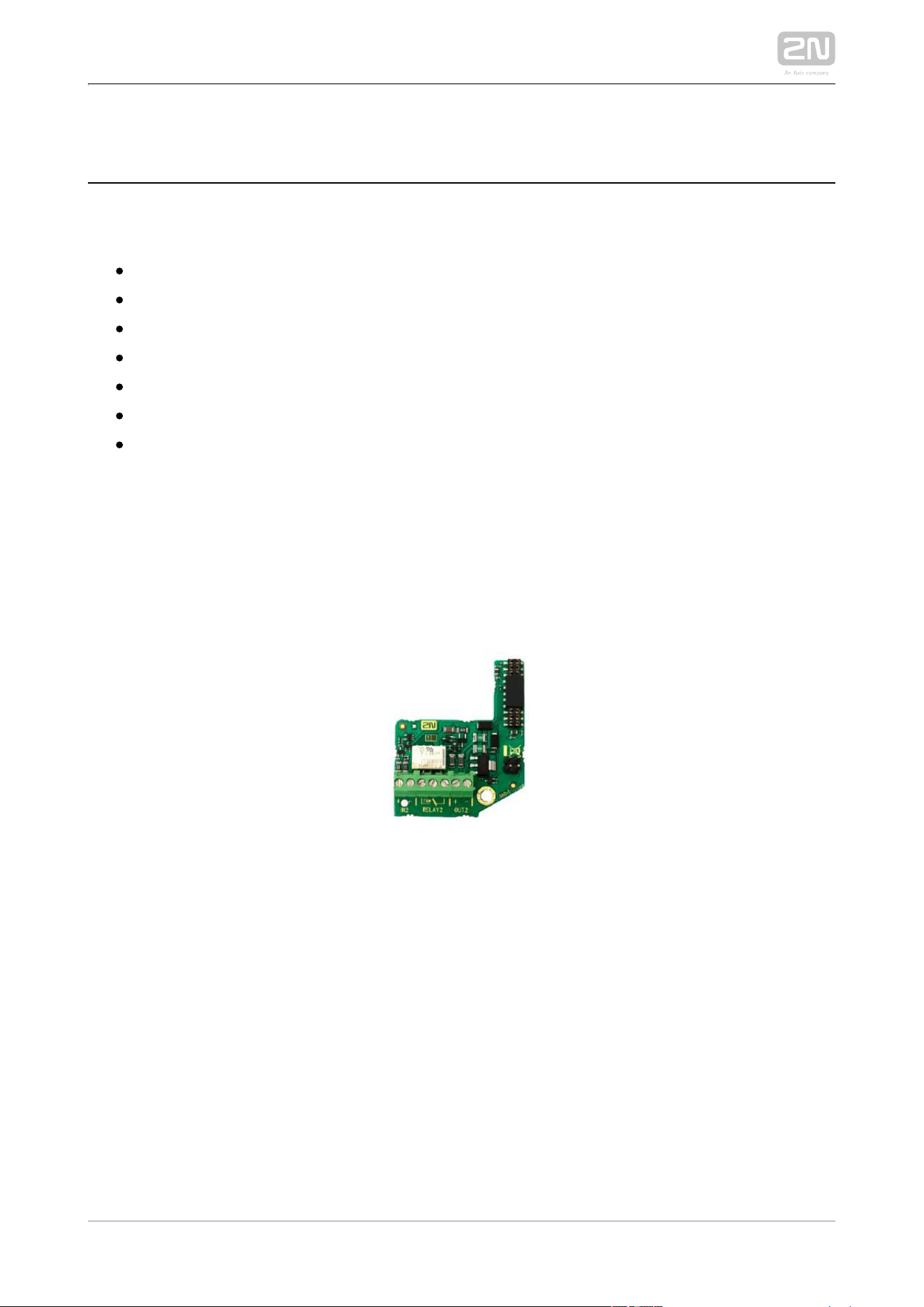
The (Part No. 9151010) is used for extending the number of inputsAdditional Switch
/outputs. This extending module is intended for mounting into the main 2N IP Force
®
unit and is compatible with the basic units with Part No. 915110xxxxx. If the Additional
Switch is installed, it is not possible to install Internal RFID Card Reader.
Function:
The Additional Switch adds two additional switches, one logical input 2N IP Force
®
and a tamper switch to the basic unit. The purpose of the tamper switch 2N IP Force
®
is to signal any unauthorised opening of the intercom (to prevent a theft, e.g.). It is
recommended to use the tamper switch.

2N TELEKOMUNIKACE a.s., www.2n.cz 72/126
1.
2.
3.
a.
b.
c.
4.
5.
Tip
FAQ: Tamper switch - How to install it into the 2N IP Force
®
Specifications version 5:
IN2 terminals for input in passive / active mode (-30 V to +30 V DC)
OFF = open OR UIN > 1.5 V
ON = closed contact OR UIN < 1.5 V
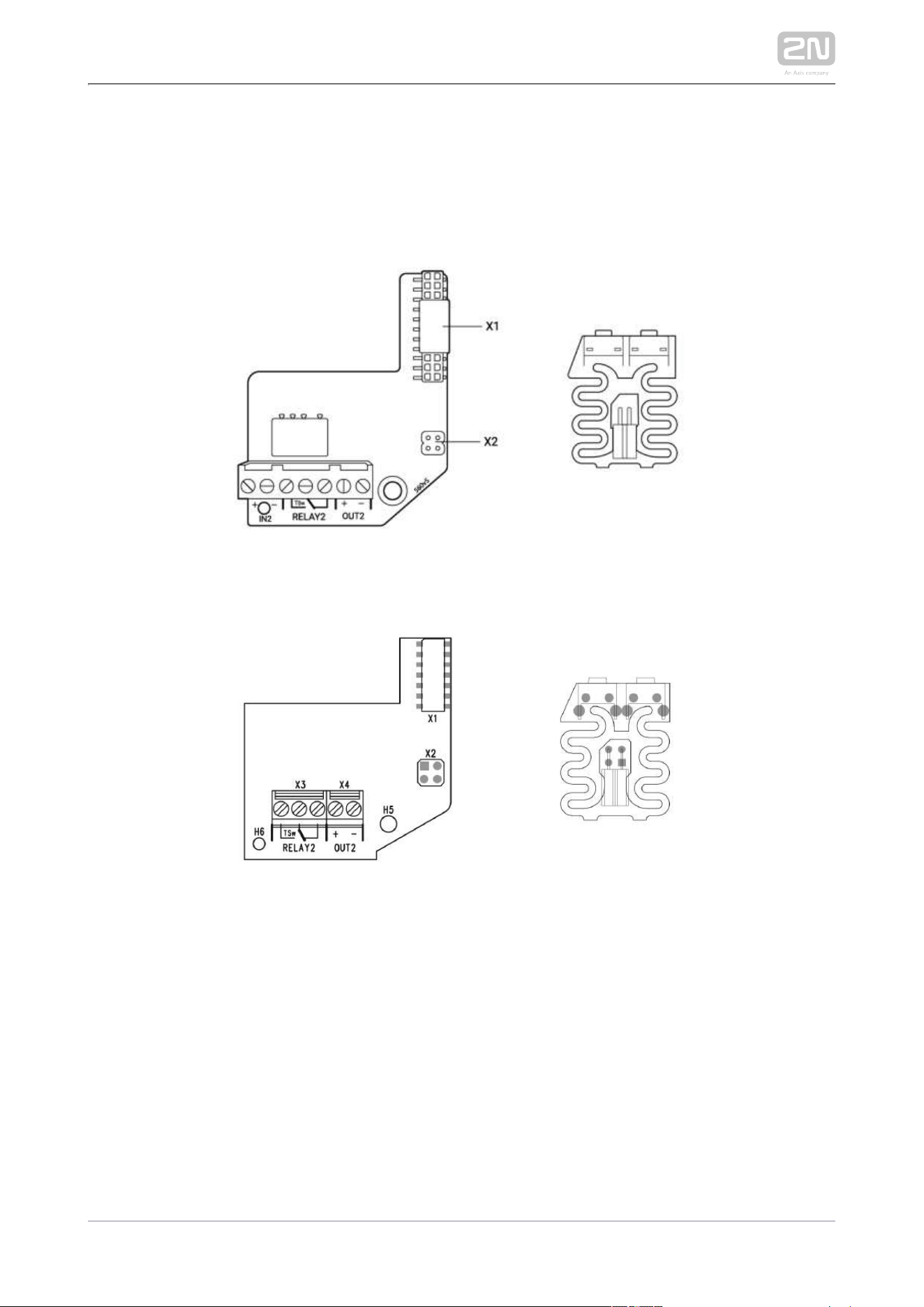
RELAY2 terminals 30 V/1 A AC/DC NO/NC contact
OUT2 active output: 12 V/600 mA DC
Tamper switch input (X2): 24 V/50 mA AC/DC
Specifications version 4 a lower:
Passive switch: NO and NC contacts, up to 30 V / 1 A AC/DC
Active switch output: 9 V (Using PoE) or power supply voltage minus 1 V, from 9
to 13 V max. 700 mA DC
Tamper switch: 24 V / 50 mA AC/DC
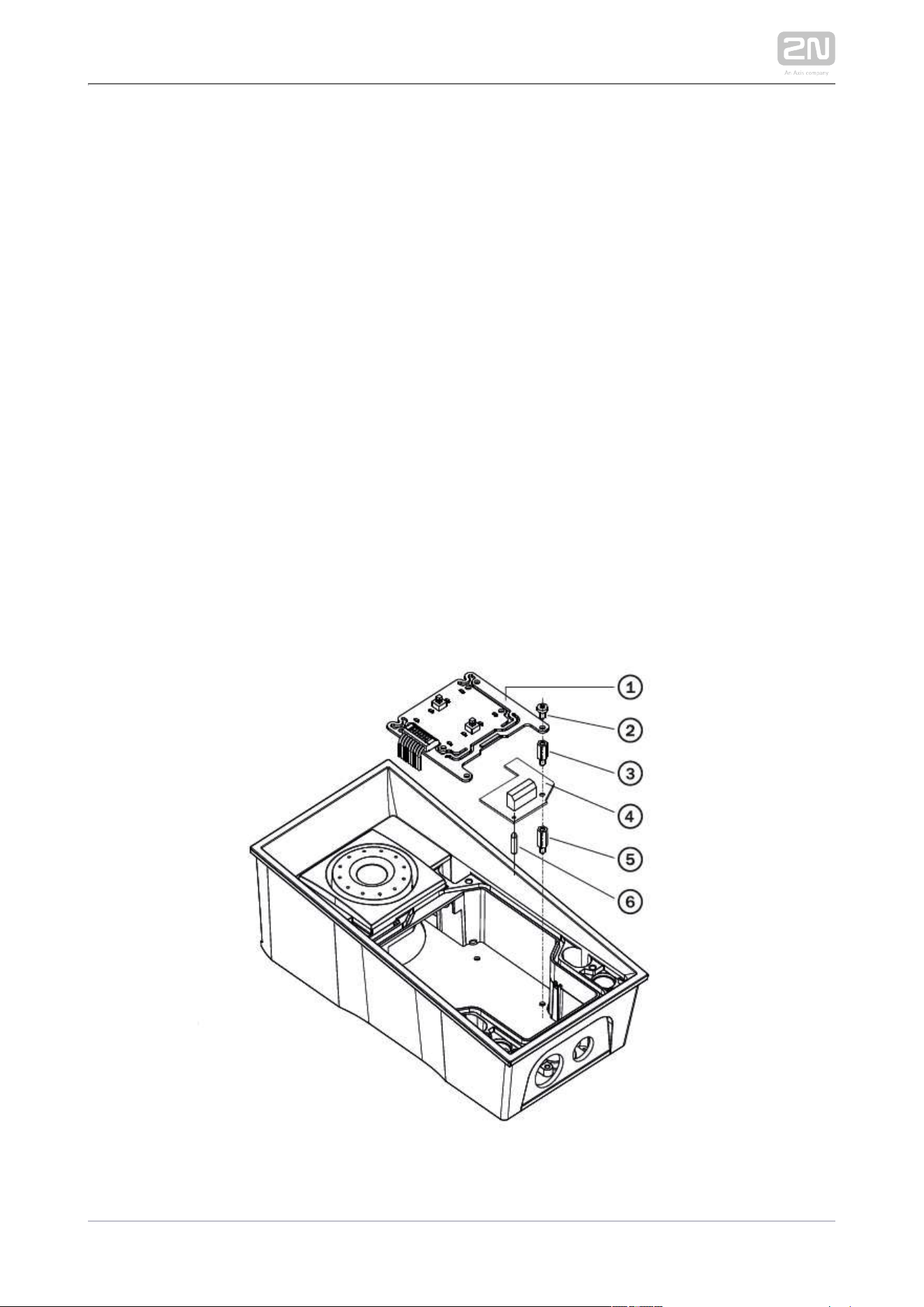
Module mounting:
Switch off the intercom.
Remove the front panel from the intercom.
According to your model
If you are mounting the switch into a two-nameplate model, demount the
button PCB (1) and remove the right-hand bottom spacer (there are four
PCB fitting spacers altogether).
If you are mounting the switch into a keypad model, take the keypad out of
the holder. Demount the right-hand keypad holder - beam with a pin (8) –
remembering its position. Demount the right-hand bottom spacer. Do not
disconnect the keypad cable!
If you are mounting the switch into a model other than the two ones
mentioned in items 3a and 3b above, remove the right-hand bottom screw
from the main board.
Now screw the enclosed 12 mm spacer (5) into the vacated main board slot.
Mount the enclosed plastic support (6) onto the switch board bottom side.
2N TELEKOMUNIKACE a.s., www.2n.cz 73/126
6.
7.
a.
b.
c.
8.
9.
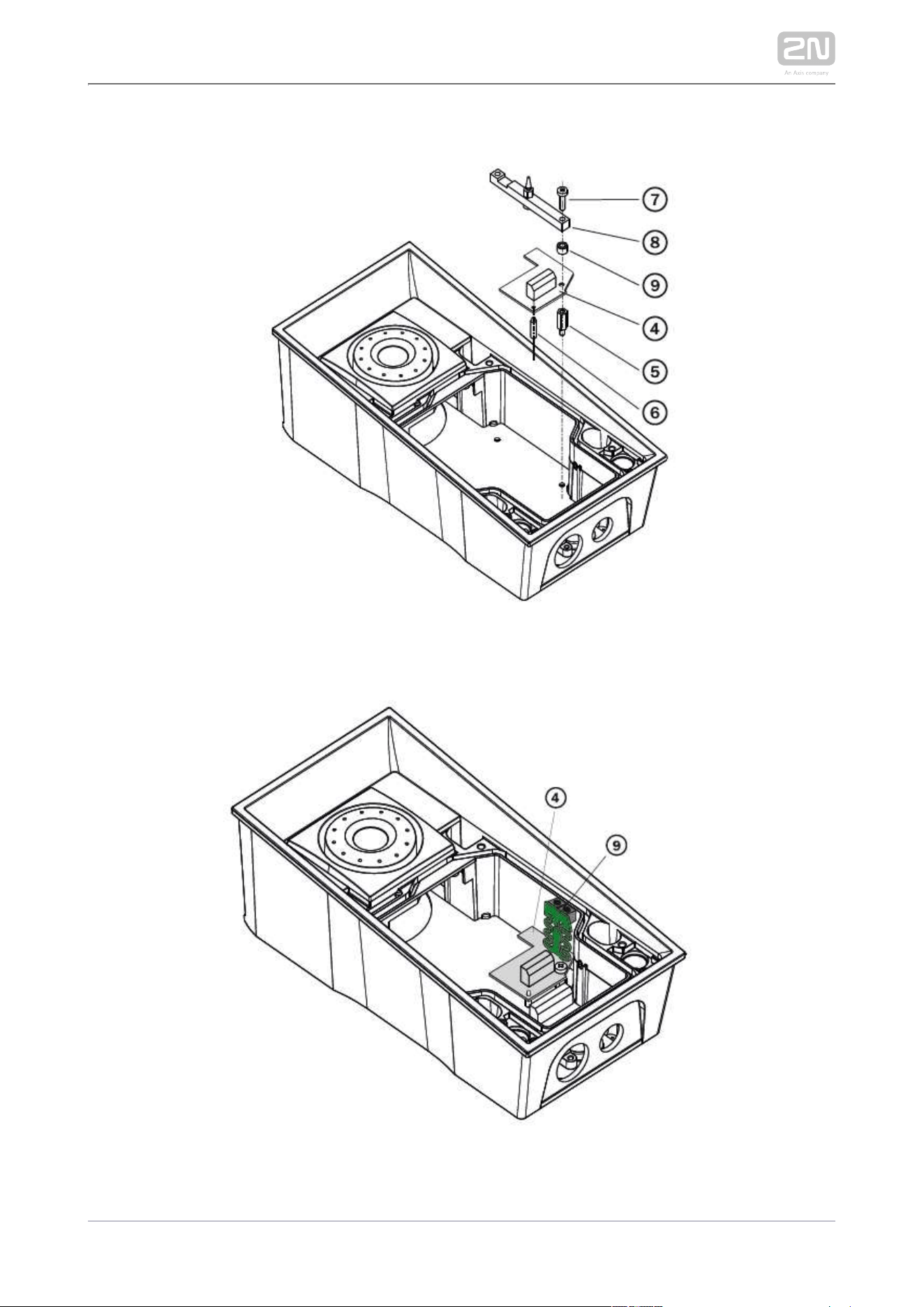
Put the switch board (4) in the main board connector making sure that the
screw hole is directly above the spacer.
According to your model
If you are mounting the switch into a two-nameplate model, fit the switch
board with the enclosed 10.5 mm spacer (3) and reinstall the button PCB
(1).
If you are mounting the switch into a keypad model, reinstall the beam (8)
of the keypad holder (the slot is on top). Insert the enclosed 4.5 mm
washer (9) between the beam and the switch board, fitting the assembly
with the 15 mm screw enclosed (7).
If you are mounting the switch into a model other than the two ones
mentioned in items 7a and 7b, fit the switch board with the original 6 mm
screw (2).
If you want to use the tamper switch, insert the tamper board (9) in the
connector located in the right-hand bottom part of the switch board (4). As the
tamper switch shares the relay output (NO and NC) terminals, you cannot use
the RELAY2 output with the tamper switch together.
Place front panel back and tighten all four screws.
2N TELEKOMUNIKACE a.s., www.2n.cz 74/126
2N TELEKOMUNIKACE a.s., www.2n.cz 75/126
Module settings:
Refer to the Configuration Manual for details.
Connection:
Version 5
Version 4 and lower
2N TELEKOMUNIKACE a.s., www.2n.cz 76/126
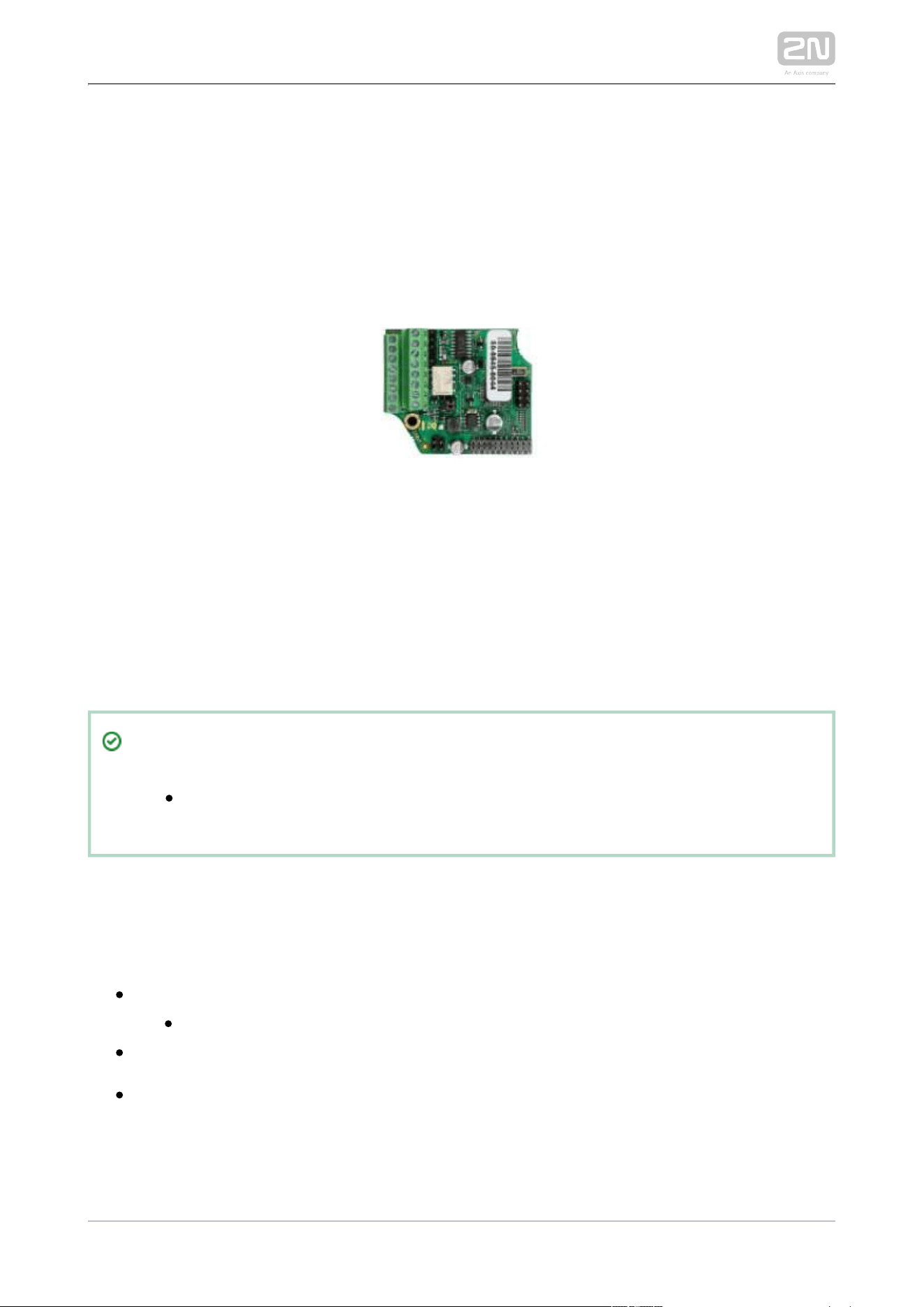
Internal RFID Card Reader 125 kHz
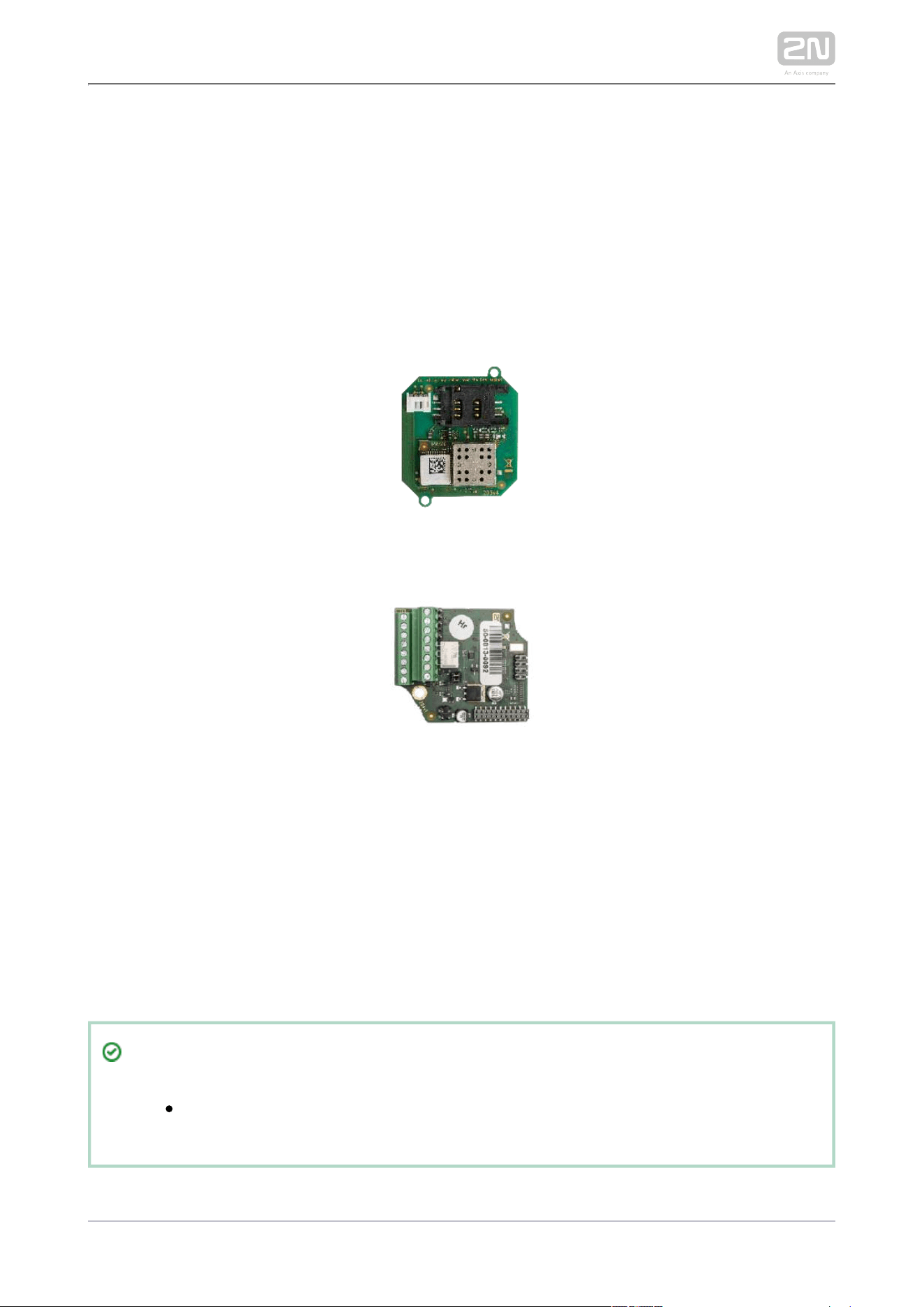
The (Part No. 9151011) is used for reading RFID card Internal RFID Card Reader 125 kHz
Ids in the 125 kHz band. This module is intended for mounting into the 2N IP Force
®
model 9151102CR, 9151102R, 9151101CRP and 9151101RP. These models have an window,
which is necessary for antenna operation. If the Internal RFID Card Reader is installed,
it is not possible to install the Additional Switch.
Function:
The Internal RFID Card Reader adds two logical inputs, two additional 2N IP Force
®
switches and a tamper switch to the basic unit.2N IP Force
®
The purpose of the tamper switch is to signal any unauthorised opening of the
intercom (to prevent a theft, e.g.). It is recommended to use the tamper switch.
Tip
FAQ: Tamper switch - How to install it into the 2N IP Force
®
Specifications:
Card reader
Compatible with:
EM4xxx
Operating frequency: 125 KHz
Minimum reading distance: 10 mm above cover2N IP Force
®

2N TELEKOMUNIKACE a.s., www.2n.cz 77/126
1.
2.
3.
4.
5.
6.
7.
Relay output
Switching contact
30 V / 2 A AC/DC
Active output
12 V / 700 mA transistor switched output
Logical inputs
Active mode – requires external voltage (JP2 jumper OFF)
U -ON = min +2.5 V
IN
U -OFF = max +1.5 V
IN
U max = +48 V
IN
I (U +48 V) = max 1 mA
IN IN
Passive mode – requires external contact only (JP2 jumper ON)
U = approx. 8.3 V
OUT
I = approx. 0.5 mA
LOOP
Signalling output
Internal red LED under reader window
WIEGAND interface
Off/Input/Output (as programmed)
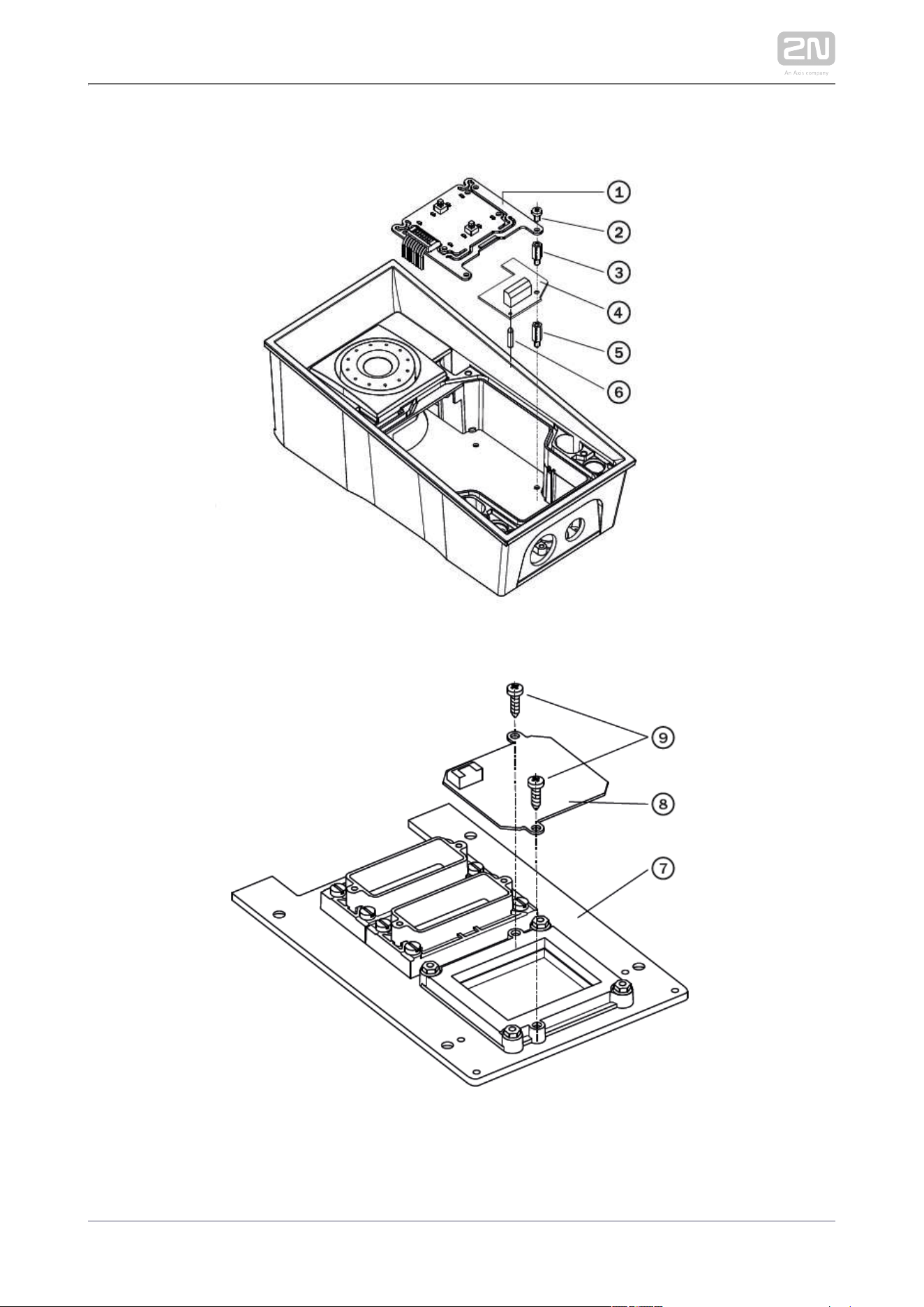
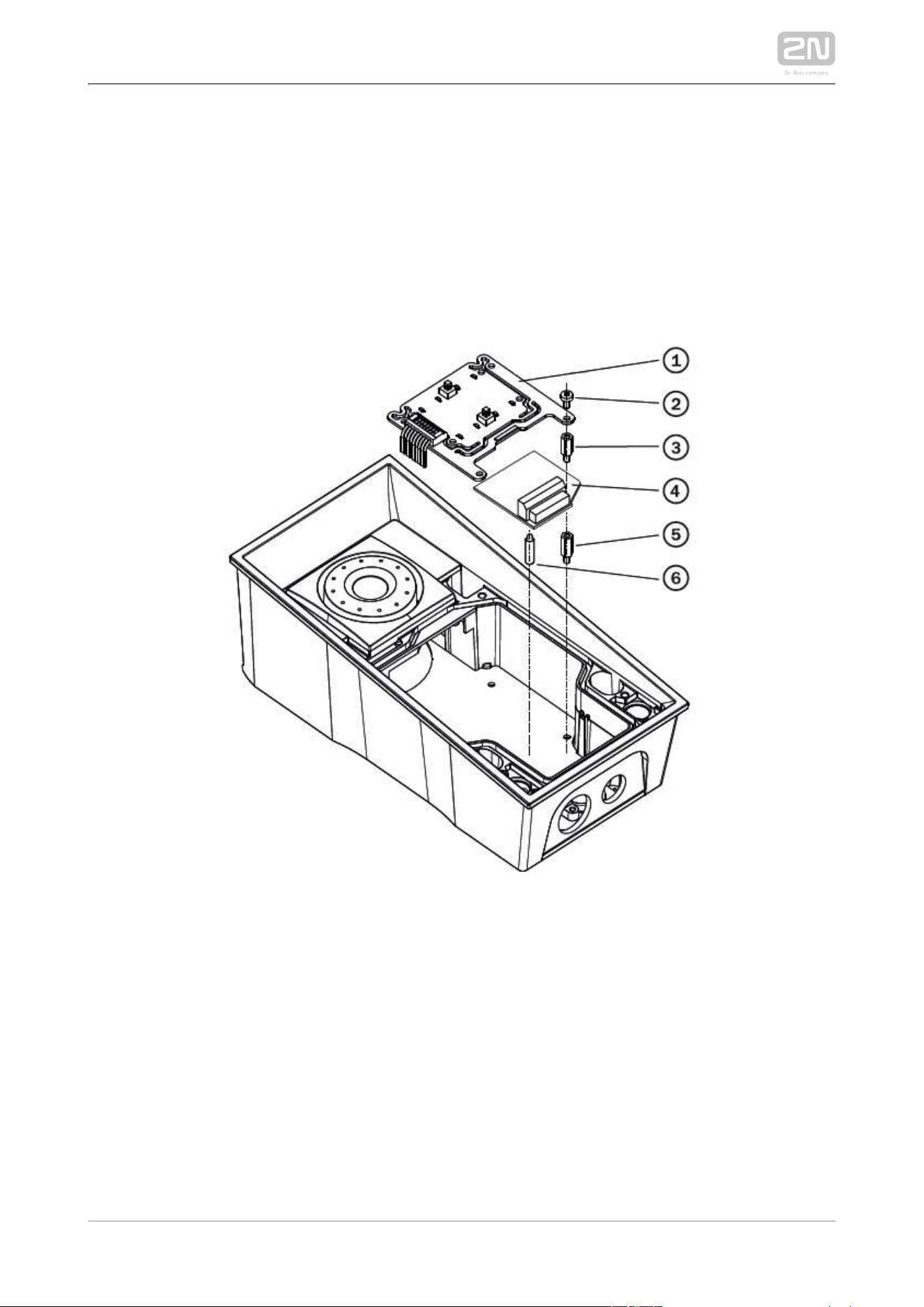
Mounting guide:
Switch off the intercom.
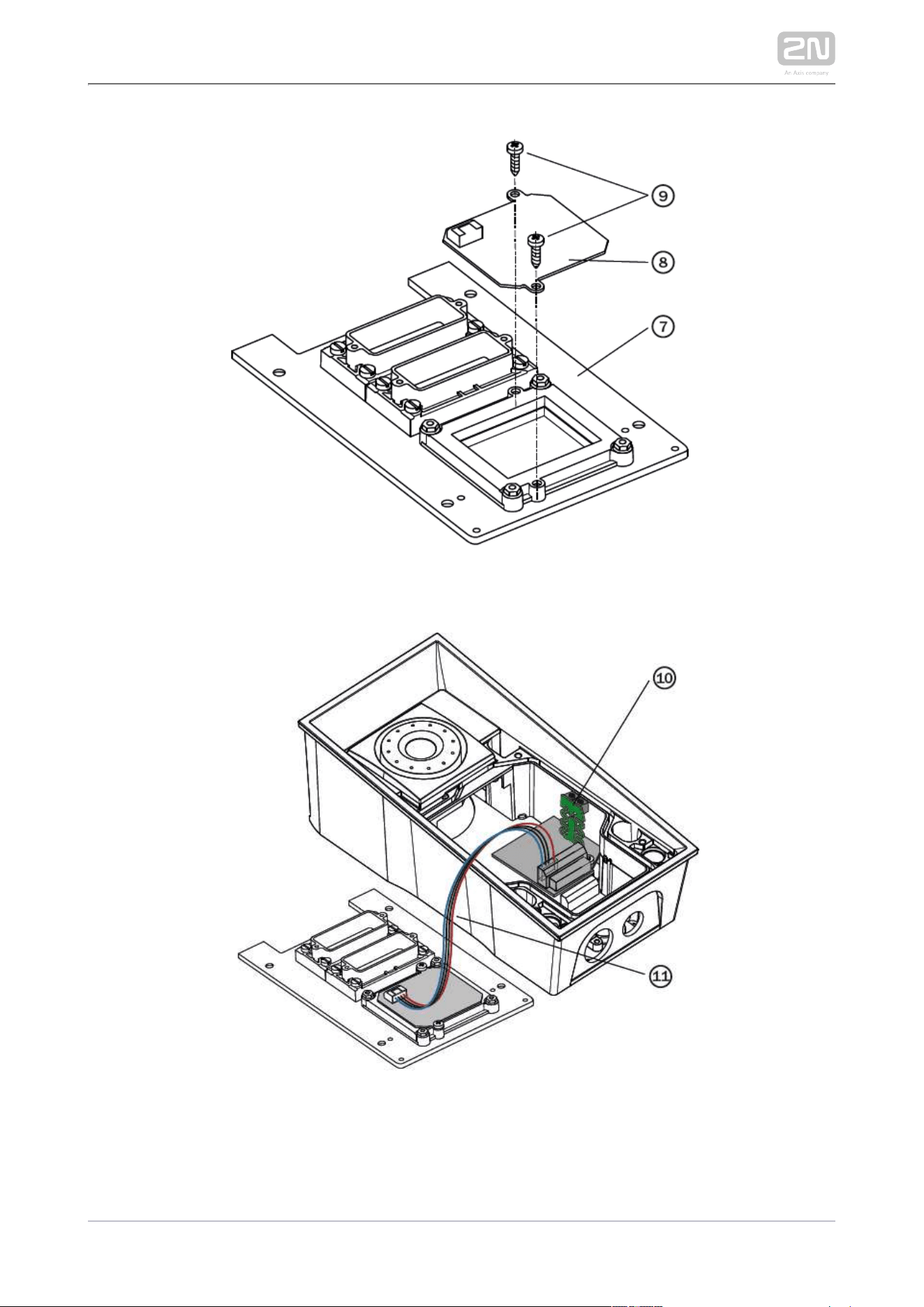
Remove the front panel (7) from the intercom.
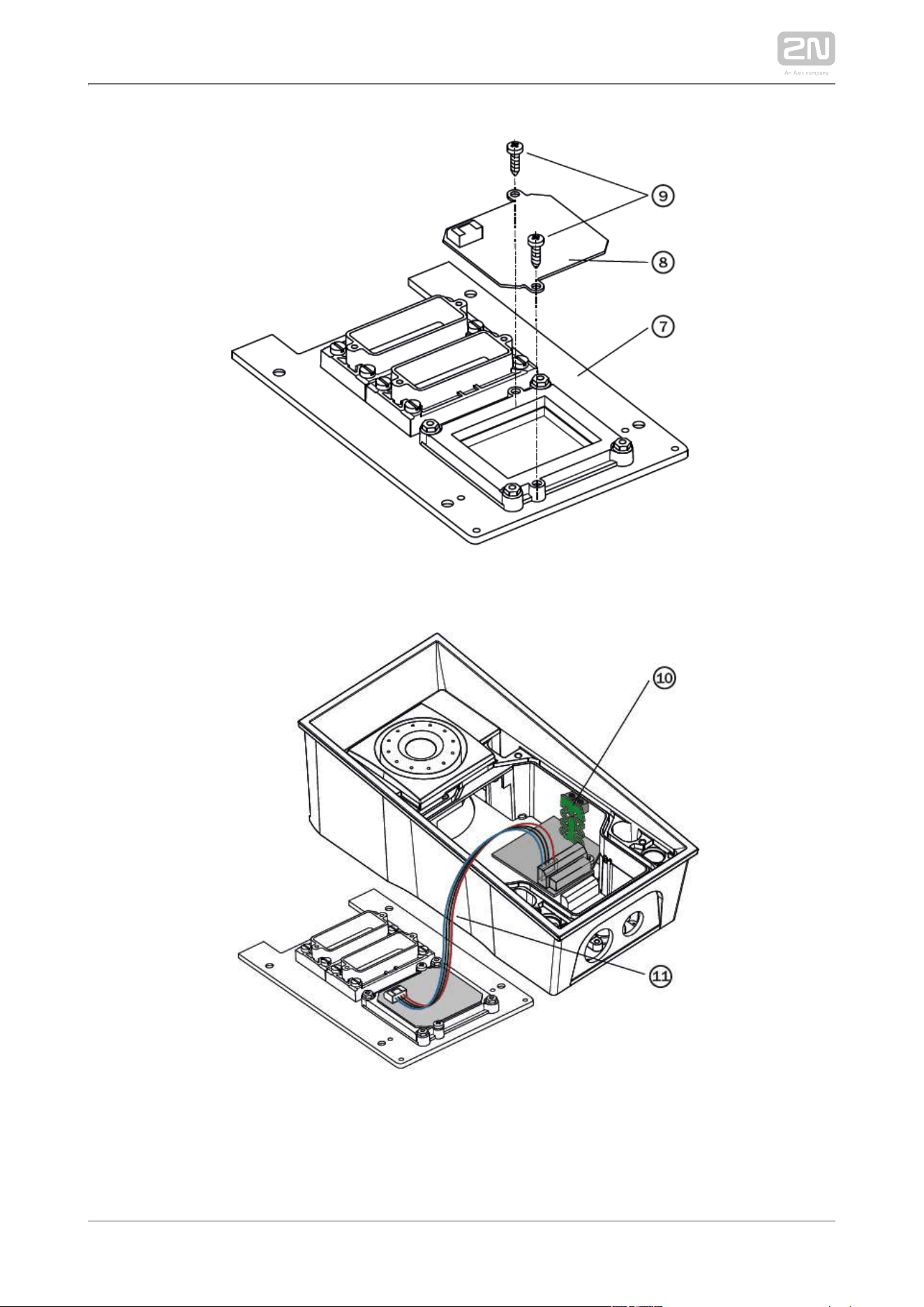
Mount antenna board (8). Use two enclosed self tapping screws (9).
Plug enclosed cable (11) to the antenna board connector.
Demount a button PCB (1). Don't disconnect its cable!
There will stay four spacers after the switch board removal. Dismount the
bottom right one.

2N TELEKOMUNIKACE a.s., www.2n.cz 78/126
7.
8.
9.
10.
11.
12.
13.
14.
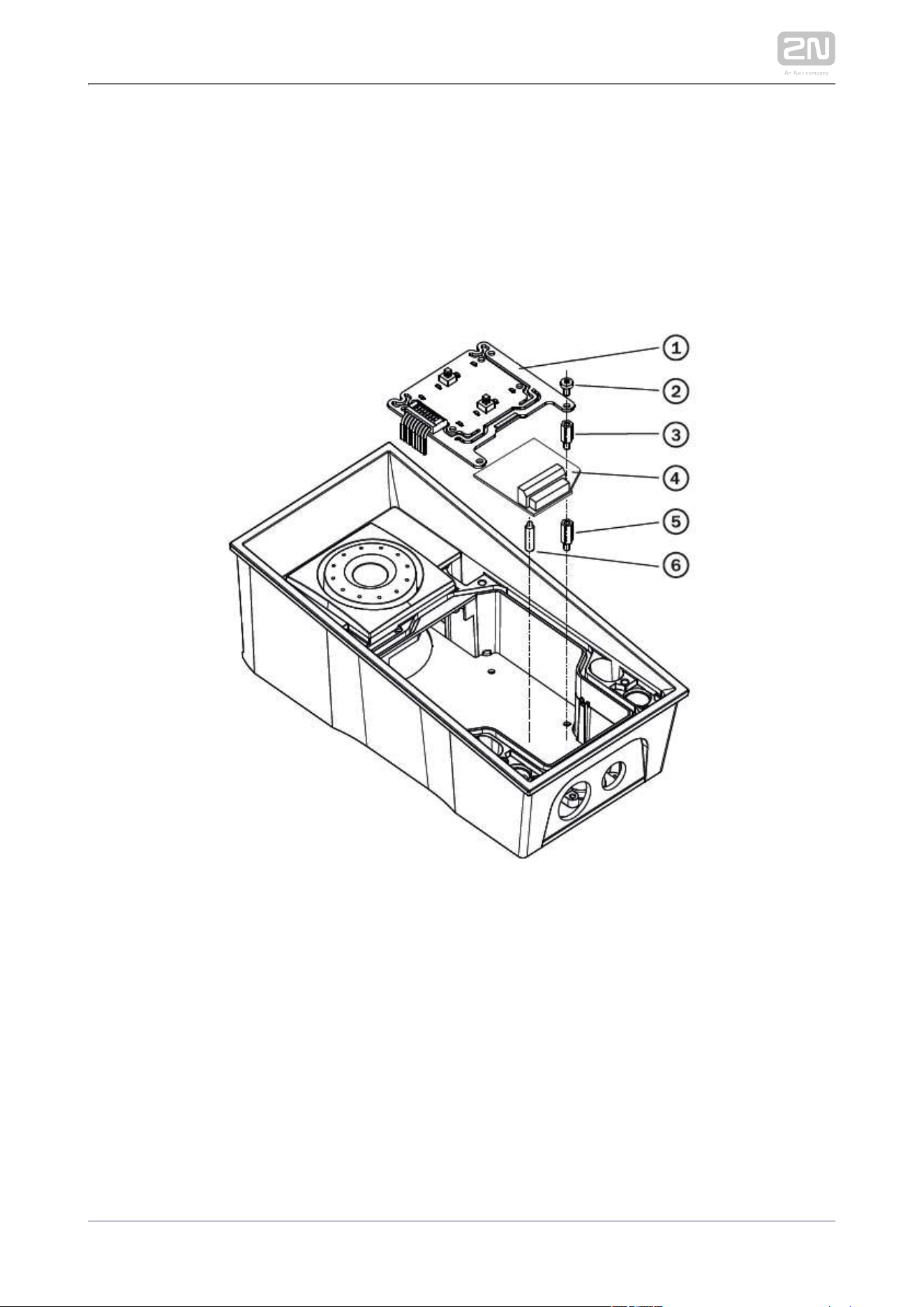
There are two short metal spacers enclosed to the reader. Take a longer one (5),
12 mm long. Screw it into the free hole.
Plug an enclosed plastic support (6) to the reader board from the bottom side.
Put the reader board (4) in the main board connector making sure that the
mounting hole is directly above the spacer.
Screw in a remaining metal spacer (3), 10.5 mm long.
Fit the button PCB (1) back to its position using original bolts (2).
If you want to use the tamper switch (to detect unauthorized opening the case,
as a theft protection), insert the tamper board (10) in the connector located in
the right-hand bottom part of the reader board (4). As the tamper switch shares
the relay output (NO and NC) terminals, you cannot use the RELAY2 output with
the tamper switch at the same time.
Plug the antenna cable (11) to its connector at the reader board (4).
Place front panel back and tighten all four screws.
2N TELEKOMUNIKACE a.s., www.2n.cz 79/126
2N TELEKOMUNIKACE a.s., www.2n.cz 80/126
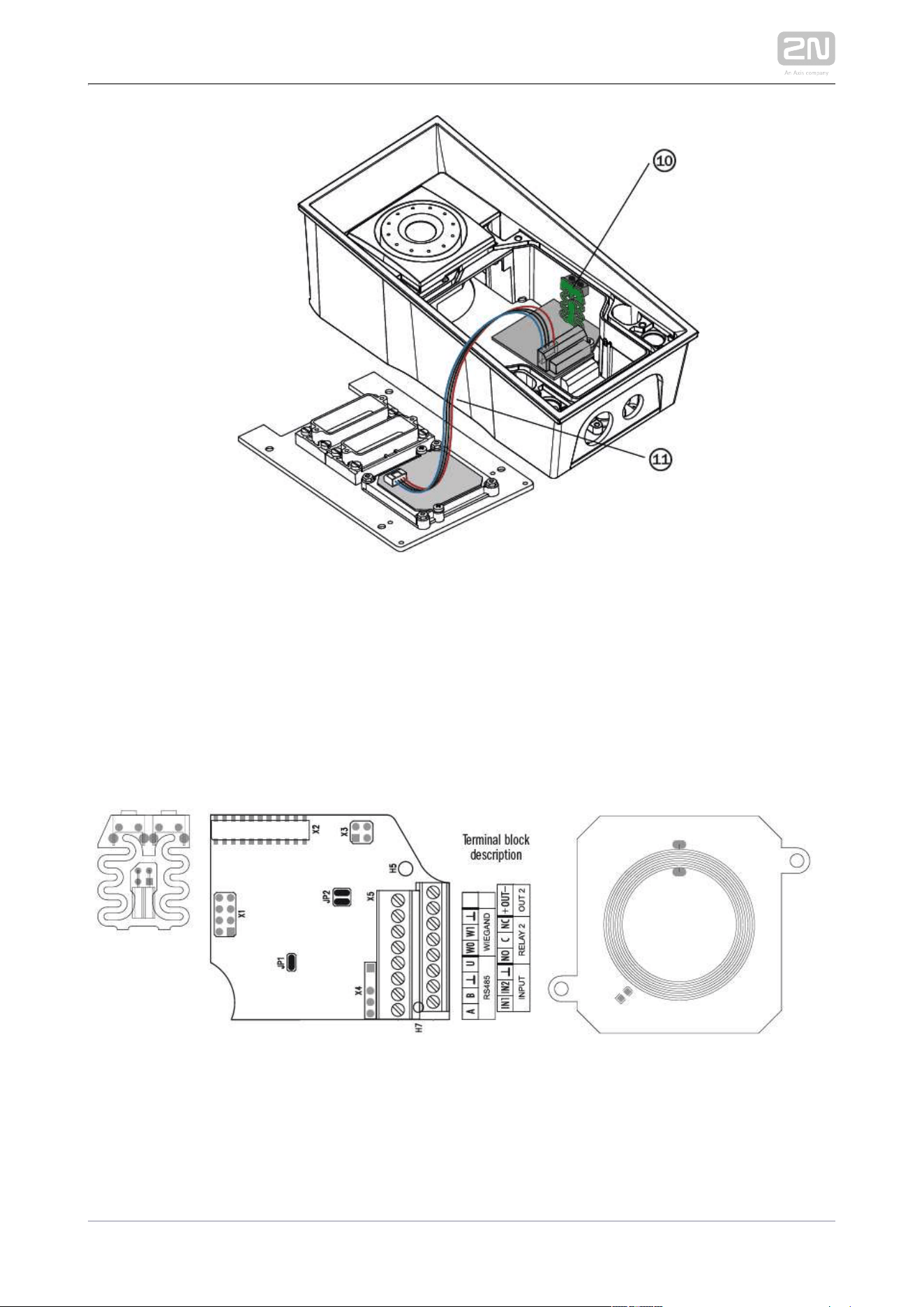
Module setting:
Refer to the Configuration Manual for details of Wiegand, outputs and reader. Refer to
the Automation manual for details of input, red LED and tamper function and use.
Connection:
2N TELEKOMUNIKACE a.s., www.2n.cz 81/126
Internal RFID Card Reader 13.56 MHz
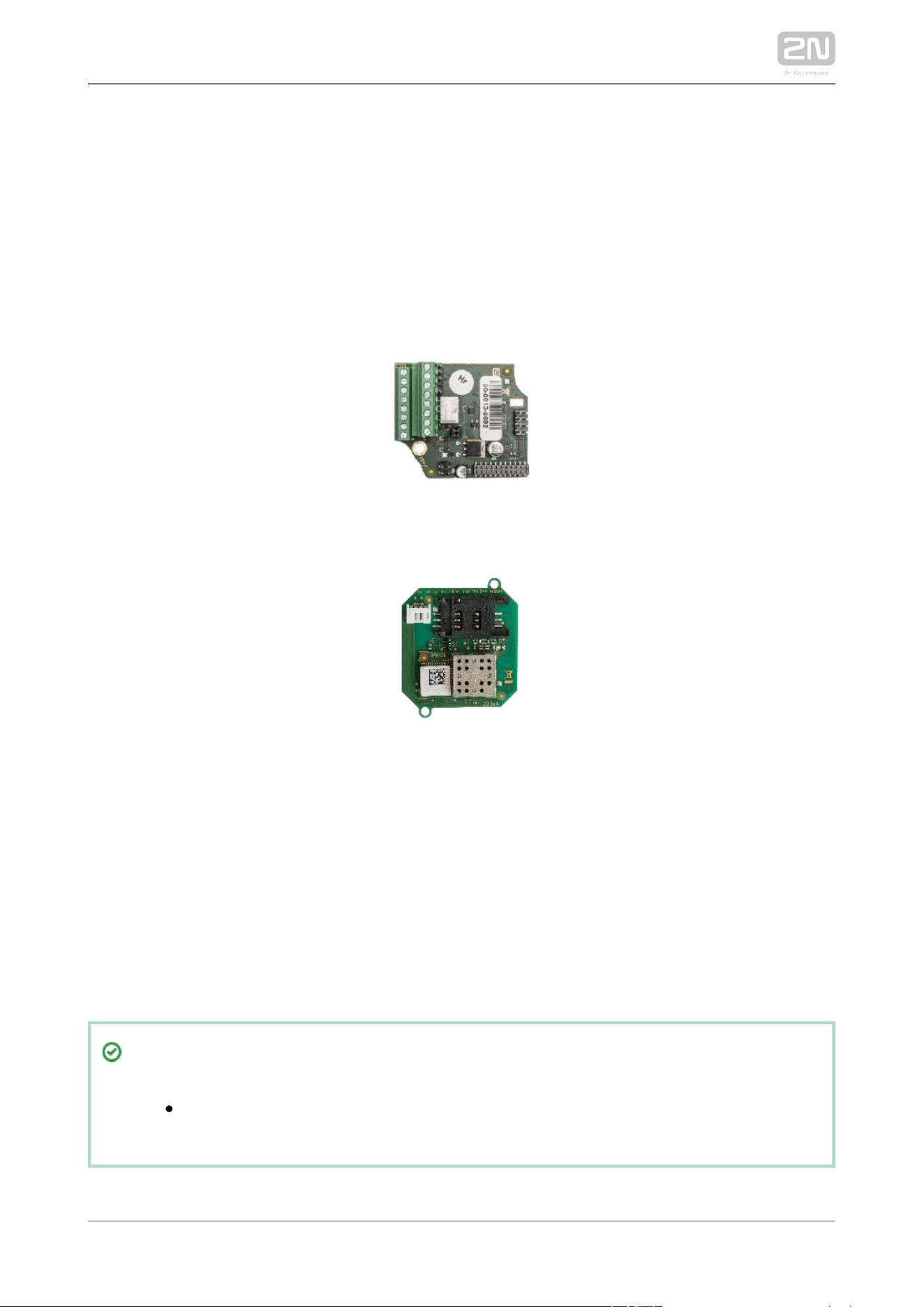
The (Part No. 9151031/9151017) is used for Internal RFID Card Reader 13.56 MHz
reading RFID card Ids in the 13.56 MHz band, NFC supported. This module is intended
for mounting into the model 9151101RPW, 9151101CRPW, 9151101CHRPW, 2N IP Force
®
9151102RW, 9151102CRW and 9151102CHRW. These models have an window, which is
necessary for antenna operation. If the Internal RFID Card Reader is installed, it is not
possible to install the Additional Switch.
9151031
9151017
Function:
The Internal RFID Card Reader adds two logical inputs, two additional 2N IP Force
®
switches and a tamper switch to the basic unit.2N IP Force
®
The purpose of the tamper switch is to signal any unauthorised opening of the
intercom (to prevent a theft, e.g.). It is recommended to use the tamper switch.
Tip
FAQ: Tamper switch – How to install it into the 2N IP Force
®
Specifications:

2N TELEKOMUNIKACE a.s., www.2n.cz 82/126
Specifications:
Card reader
Operating frequency: 13.56 MHz
Minimum reading distance: 30 mm above cover2N IP Force
®
RFID Reader 9151031 is compatible with cards (only card serial number is read):
ISO14443A (Mifare, DESFire)
PicoPass (HID iClass)
FeliCa
ST SR(IX)
2N Mobile Key
®
RFID Reader 9151017 is compatible with cards (only card serial number is read):
ISO14443A (Mifare, DESFire)
PicoPass (HID iClass)
FeliCa
ST SR(IX)
2N Mobile Key
®
Relay output
Switching contact
30 V / 2 A AC/DC
Active output
9 to 12 V / 700 mA transistor switched output. Depends on power supply (PoE:
9 V or power supply voltage minus 1 V).
Logical inputs
Active mode – requires external voltage (JP2 jumper OFF)
U -ON = min +2.5 V
IN
U -OFF = max +1.5 V
IN
U max = +48 V
IN
I (U +48 V) = max 1 mA
IN IN

2N TELEKOMUNIKACE a.s., www.2n.cz 83/126
1.
2.
3.
4.
5.
6.
7.
8.
9.
10.
11.
12.
Passive mode – requires external contact only (JP2 jumper ON)
U = approx. 8.3 V
IN1
U = approx. 8.3 V
IN2
I = approx. 0.5 mA
LOOP
Signalling output
Internal red LED under reader window
PWR
For external RFID card reader
Out: 9 to 12 V / 350 mA depends on power supply
WIEGAND interface
Off/Input/Output (as programmed)
Mounting guide:
Switch off the intercom.
Remove the front panel (7) from the intercom.
Mount antenna board (8). Use two enclosed self tapping screws (9).
Plug enclosed cable (11) to the antenna board connector.
Demount a button PCB (1). Don't disconnect its cable!
There will stay four spacers after the switch board removal. Dismount the
bottom right one.
There are two short metal spacers enclosed to the reader. Take a longer one (5),
12 mm long. Screw it into the free hole.
Plug an enclosed plastic support (6) to the reader board from the bottom side.
Put the reader board (4) in the main board connector making sure that the
mounting hole is directly above the spacer.
Screw in a remaining metal spacer (3), 10.5 mm long.
Fit the button PCB (1) back to its position using original bolts (2).
2N TELEKOMUNIKACE a.s., www.2n.cz 84/126
12.
13.
14.
If you want to use the tamper switch (to detect unauthorized opening the case,
as a theft protection), insert the tamper board (10) in the connector located in
the right-hand bottom part of the reader board (4). As the tamper switch shares
the relay output (NO and NC) terminals, you cannot use the RELAY2 output with
the tamper switch at the same time.
Plug the antenna cable (11) to its connector at the reader board (4).
Place front panel back and tighten all four screws.
2N TELEKOMUNIKACE a.s., www.2n.cz 85/126
2N TELEKOMUNIKACE a.s., www.2n.cz 86/126
Module setting:
Refer to the Configuration Manual for details of Wiegand, outputs and reader. Refer to
the Automation manual for details of input, red LED and tamper function and use.
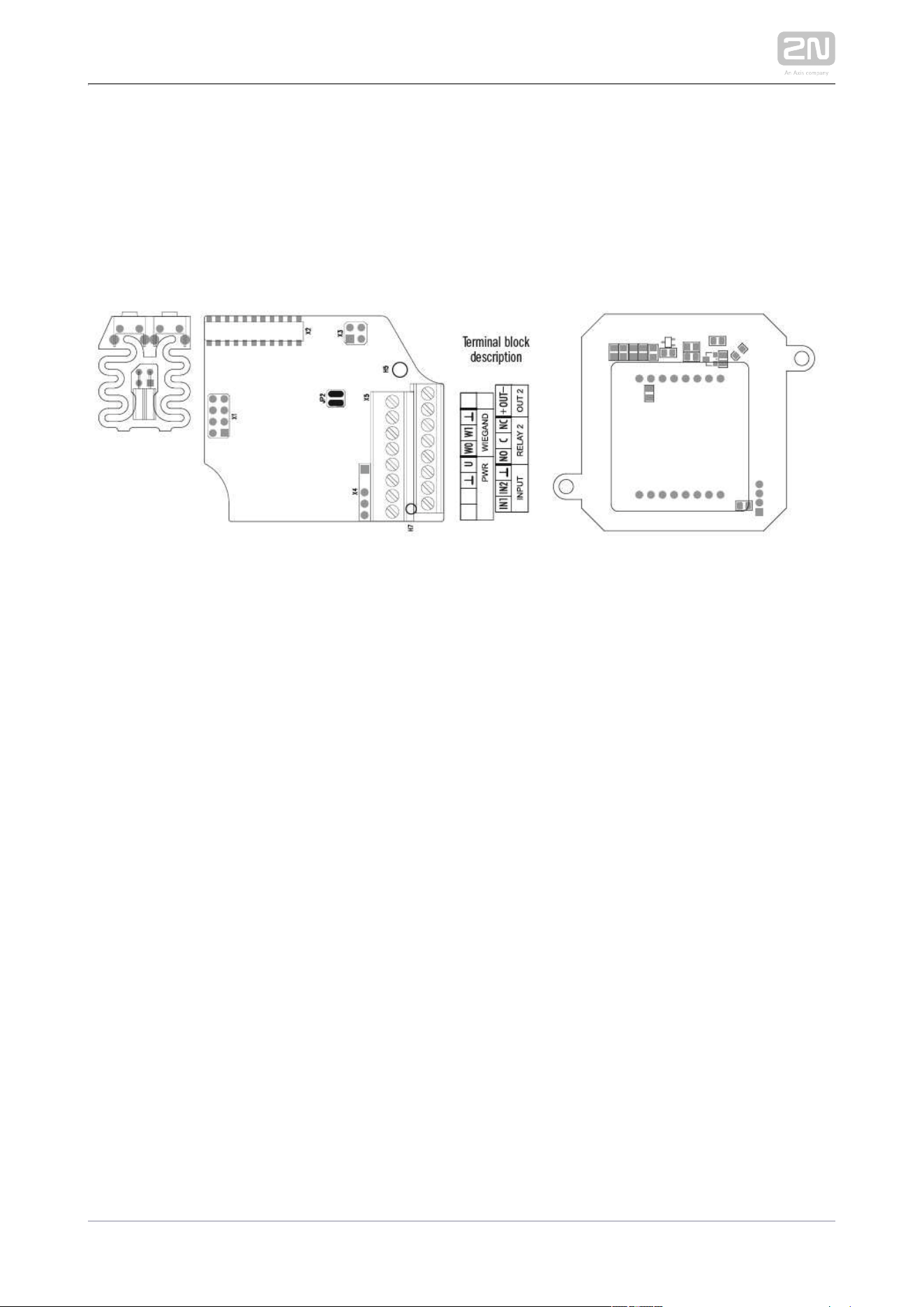
Connection:
2N TELEKOMUNIKACE a.s., www.2n.cz 87/126
Internal secured RFID Card Reader 13.56 MHz
The (Part No. 9151031S/9151019) is used for Internal RFID Card Reader 13.56 MHz
reading RFID card Ids in the 13.56 MHz band, NFC supported. This module is intended
for mounting into the model 9151101RPW, 9151101CRPW, 9151101CHRPW, 2N IP Force
®
9151102RW, 9151102CRW a 9151102CHRW. These models have an window, which is
necessary for antenna operation. If the Internal RFID Card Reader is installed, it is not
possible to install the Additional Switch.
9151019
9151031S
Function:
The Internal RFID Card Reader adds two logical inputs, two additional 2N IP Force
®
switches and a tamper switch to the basic unit.2N IP Force
®
The purpose of the tamper switch is to signal any unauthorised opening of the
intercom (to prevent a theft, e.g.). It is recommended to use the tamper switch.
Tip
FAQ: Tamper switch – How to install it into the 2N IP Force
®
Specifications:

2N TELEKOMUNIKACE a.s., www.2n.cz 88/126
Specifications:
Card reader
Operating frequency: 13.56 MHz
Minimum reading distance: 30 mm above cover2N IP Force
®
RFID card reader 9151031S is compatible with cards (optionally card serial
number or PAC ID is read):
ISO14443A (Mifare, DESFire)
PicoPass (HID iClass)
FeliCa
ST SR(IX)
2N Mobile Key
®
HID SE (Seos, iClass SE, Mifare SE)
RFID card reader 9151019 is compatible with cards (optionally card serial number
or PAC ID is read):
ISO14443A (Mifare, DESFire)
PicoPass (HID iClass)
FeliCa
ST SR(IX)
2N Mobile Key
®
HID SE (Seos, iClass SE, Mifare SE)
Relay output
Switching contact
30 V / 2 A AC/DC
Active output
9 to 12 V / 700 mA transistor switched output. Depends on power supply (PoE:
9 V or power supply voltage minus 1 V).
Logical inputs
Active mode – requires external voltage (JP2 jumper OFF)
U -ON = min +2.5 V
IN
U -OFF = max +1.5 V
IN

2N TELEKOMUNIKACE a.s., www.2n.cz 89/126
1.
2.
3.
4.
5.
6.
7.
8.
9.
10.
11.
12.
U -OFF = max +1.5 V
IN
U max = +48 V
IN
I (U +48 V) = max 1 mA
IN IN
Passive mode – requires external contact only (JP2 jumper ON)
U = approx. 8.3 V
IN1
U = approx. 8.3 V
IN2
I = approx. 0.5 mA
LOOP
Signalling output
Internal red LED under reader window
PWR
For external RFID card reader
Out: 9 to 12 V / 350 mA depends on power supply
WIEGAND interface
Off/Input/Output (as programmed)
Mounting guide:
Switch off the intercom.
Remove the front panel (7) from the intercom.
Mount antenna board (8). Use two enclosed self tapping screws (9).
Plug enclosed cable (11) to the antenna board connector.
Demount a button PCB (1). Don't disconnect its cable!
There will stay four spacers after the switch board removal. Dismount the
bottom right one.
There are two short metal spacers enclosed to the reader. Take a longer one (5),
12 mm long. Screw it into the free hole.
Plug an enclosed plastic support (6) to the reader board from the bottom side.
Put the reader board (4) in the main board connector making sure that the
mounting hole is directly above the spacer.
Screw in a remaining metal spacer (3), 10.5 mm long.
Fit the button PCB (1) back to its position using original bolts (2).
2N TELEKOMUNIKACE a.s., www.2n.cz 90/126
12.
13.
14.
If you want to use the tamper switch (to detect unauthorized opening the case,
as a theft protection), insert the tamper board (10) in the connector located in
the right-hand bottom part of the reader board (4). As the tamper switch shares
the relay output (NO and NC) terminals, you cannot use the RELAY2 output with
the tamper switch at the same time.
Plug the antenna cable (11) to its connector at the reader board (4).
Place front panel back and tighten all four screws.
2N TELEKOMUNIKACE a.s., www.2n.cz 91/126
2N TELEKOMUNIKACE a.s., www.2n.cz 92/126
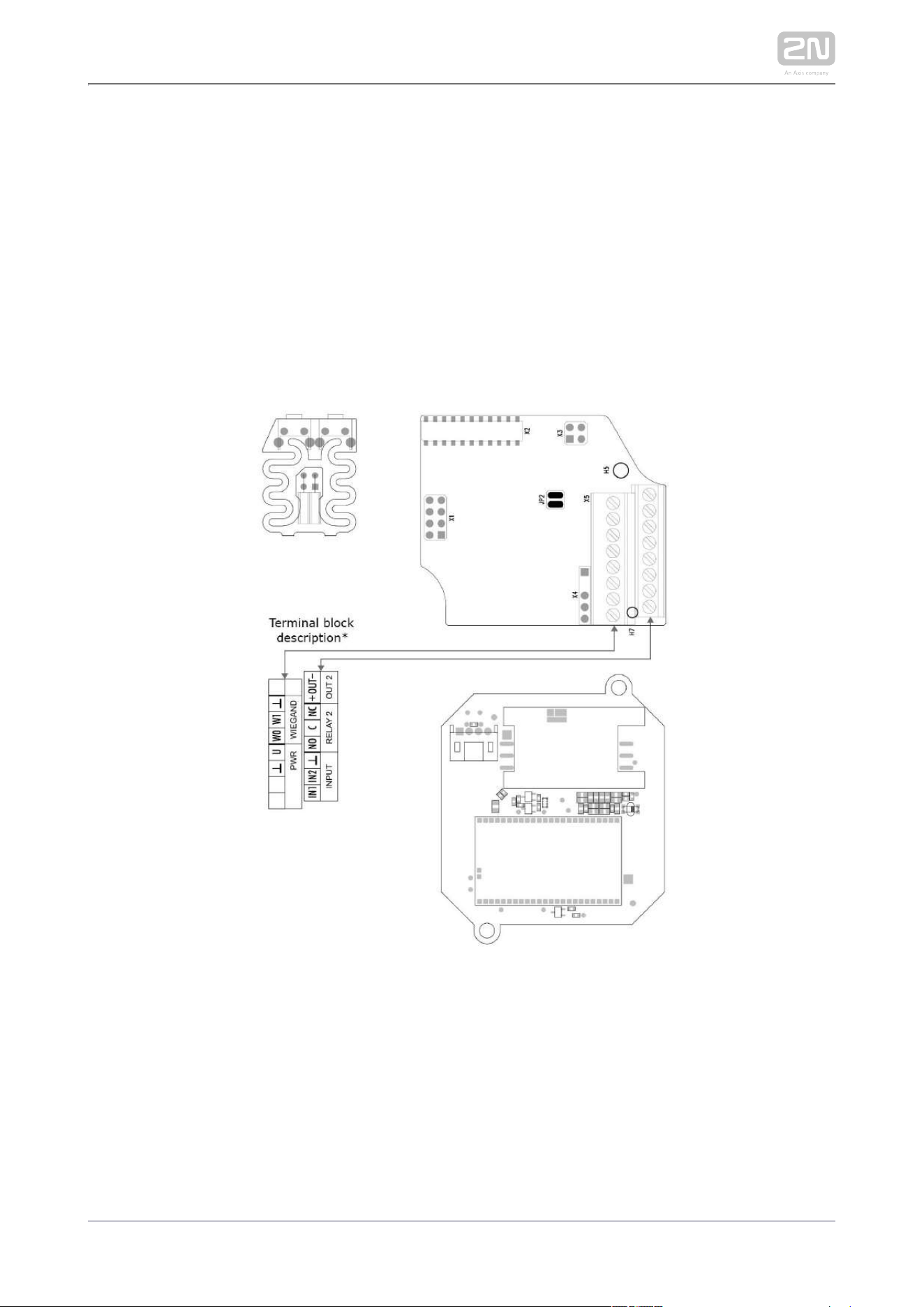
Module setting:
Refer to the Configuration Manual for details of Wiegand, outputs and reader. Refer to
the Automation manual for details of input, red LED and tamper function and use.
Connection:
2N TELEKOMUNIKACE a.s., www.2n.cz 93/126
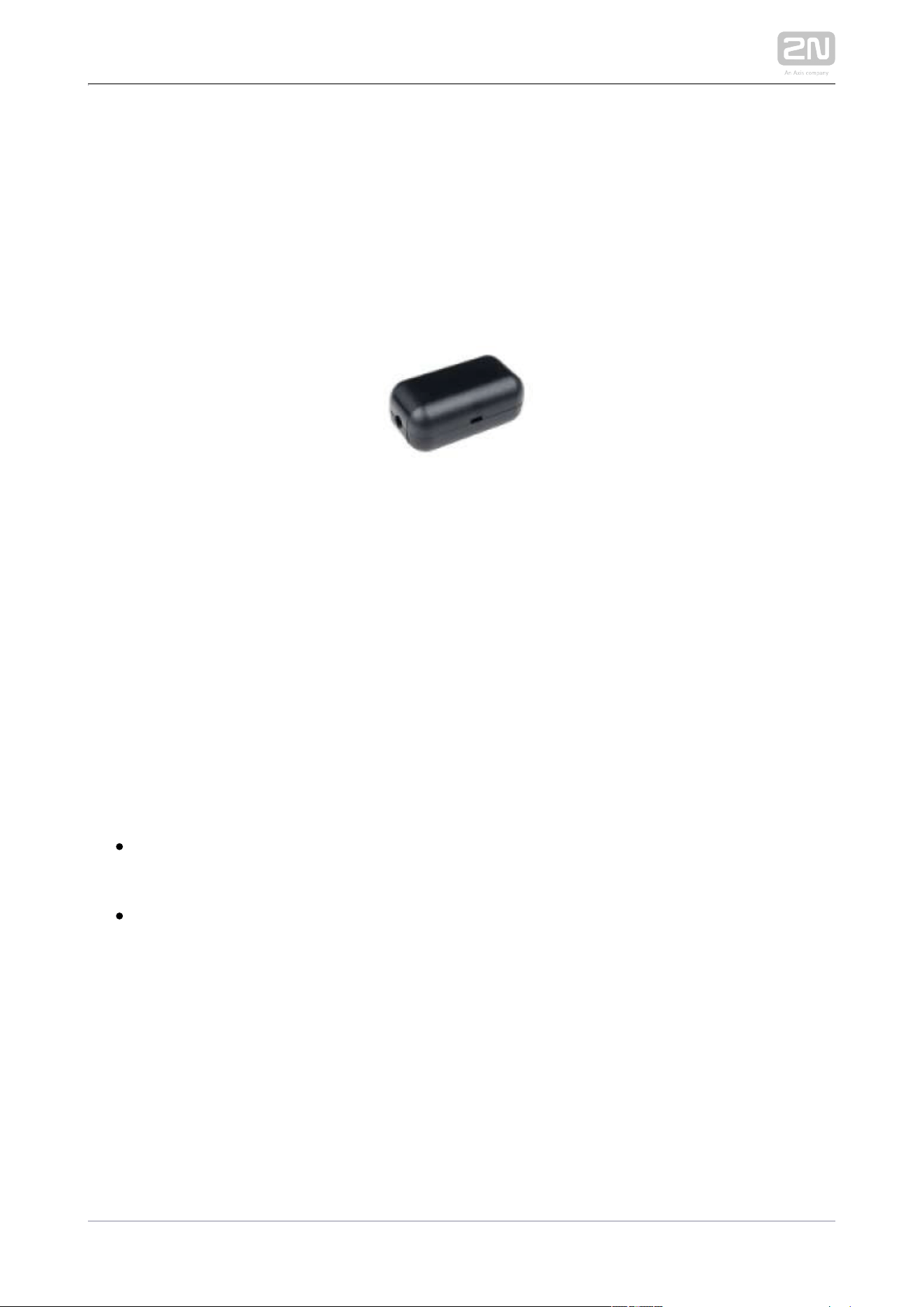
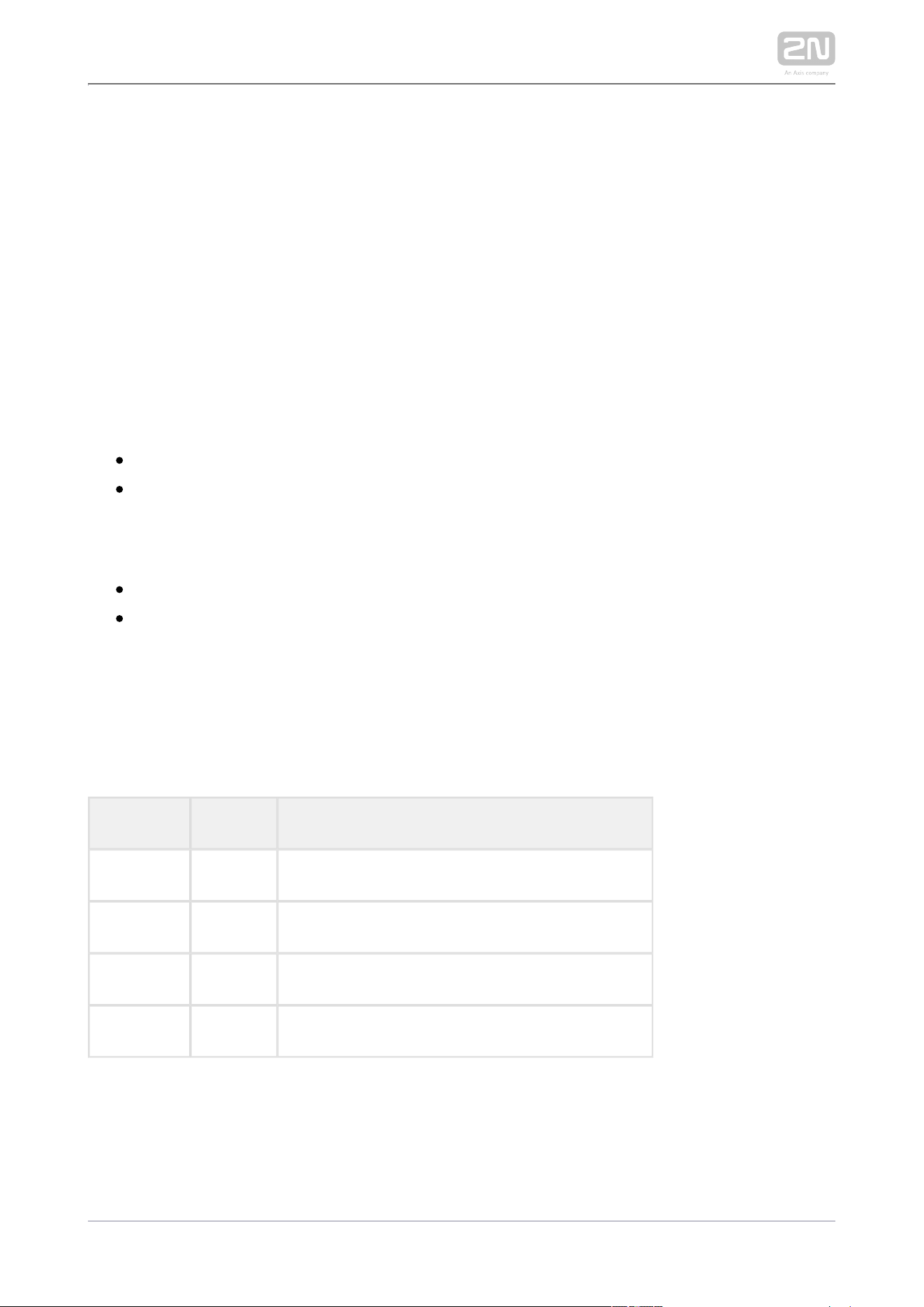
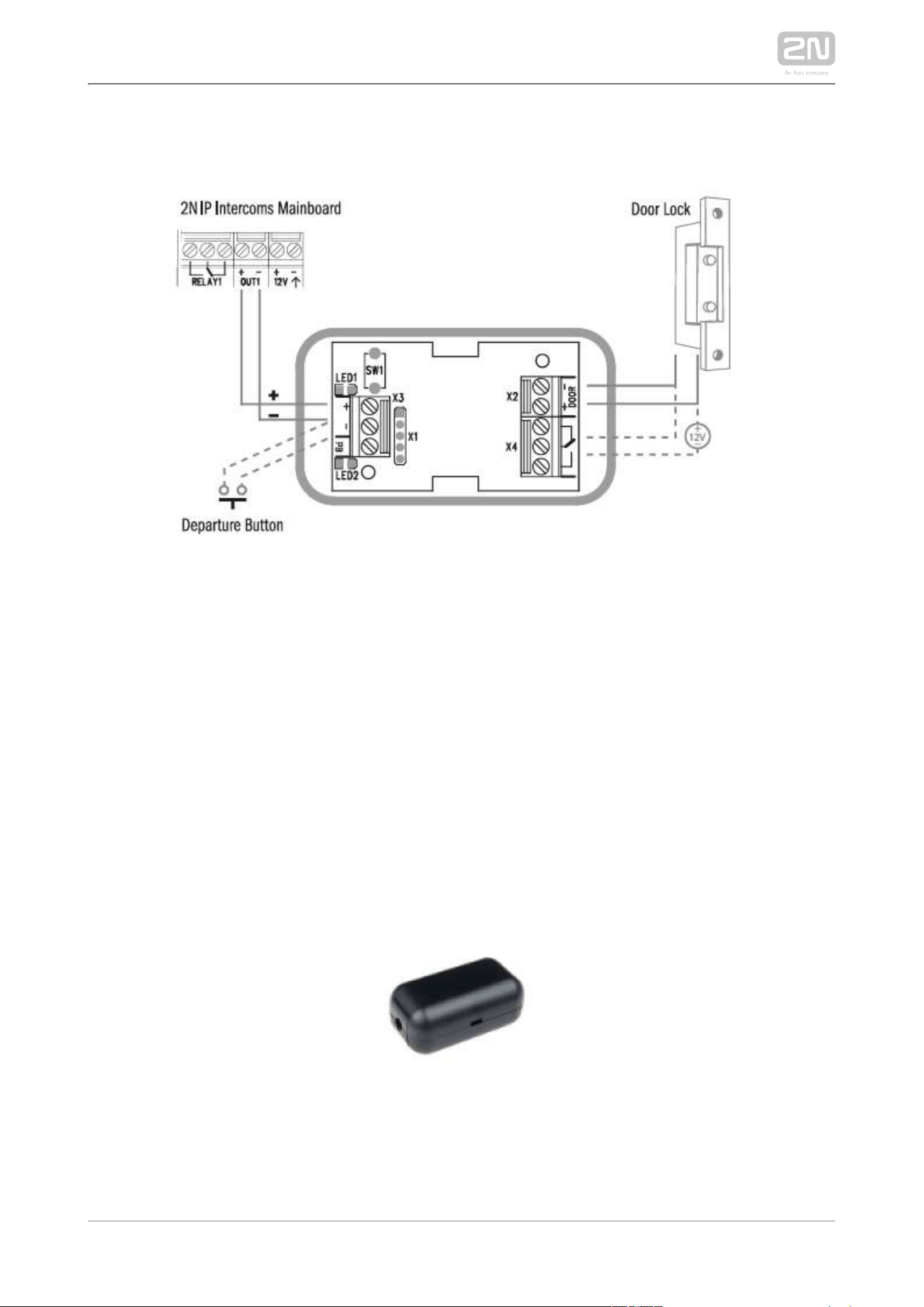
Security Relay
The (Part No. 9159010) is used for enhancing security between the 2N
®
Security Relay
intercom and the connected electric lock. The is designed for 2N IP Security Relay
®
any intercom model with firmware versions 1.15 and higher. It significantly 2N IP
enhances security of the connected electric lock as it prevents lock opening by forced
intercom tampering.
Function:
The is a device installed between an intercom (outside the secured 2N Security Relay
®
area) and the electric lock (inside the secured area). The includes a 2N Security Relay
®
relay that can only be activated if the valid opening code is received from the
intercom.
Specifications:
Passive switch: NO and NC contacts, up to 30 V / 1 A AC/DC
Switched output:
Where the security relay is fed from the intercom, 9 to 13 V DC is available on
the output depending on the power supply (PoE: 9 V; adapter: source voltage of
minus 1 V) / 400 mA DC.
Where the security relay is fed from an external power supply, 12 V / 700 mA DC
is available on the output.
Dimensions: (56 x 31 x 24) mm
Weight: 20 g
2N TELEKOMUNIKACE a.s., www.2n.cz 94/126
Installation:
Install the onto a two-wire cable between the intercom and the 2N Security Relay
®
electric lock inside the area to be secured (typically behind the door). The device is
powered and controlled via this two-wire cable and so can be added to an existing
installation. Thanks to its compact dimensions, the device can be installed into a
standard mounting box.
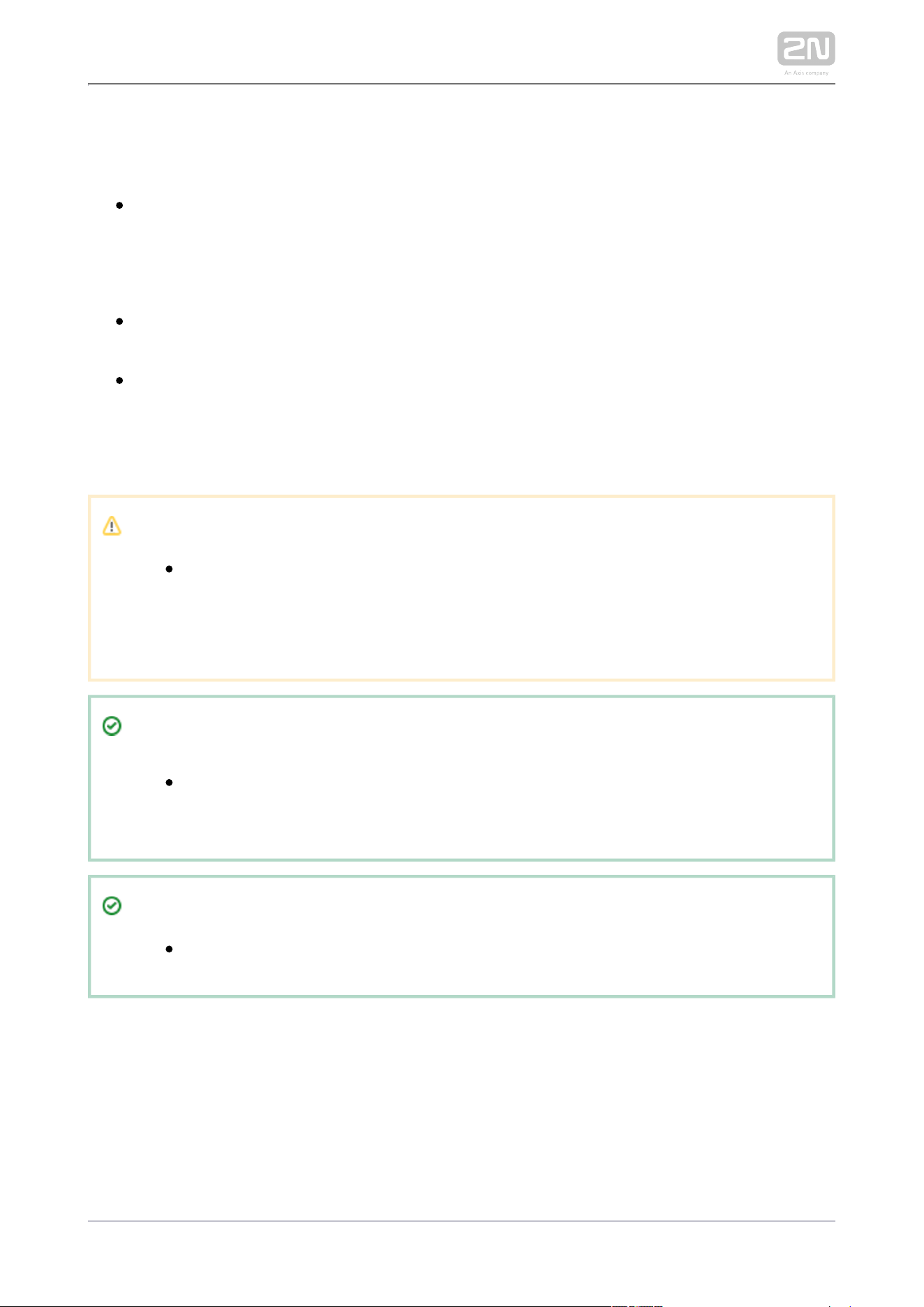
Connection:
Connect the to the intercom as follows:2N Security Relay
®
To the intercom active output (OUT1 or OUT2) , or
To the intercom relay output with a 12 V DC serial external power supply.
Connect the electric lock to the output as follows:2N Security Relay
®
To the switched output.
To the passive output in series with the external power supply.
The device also supports a Departure button connected between the ‘PB’ and ‘-
HeliosIP/IP intercom’ terminals. Press the Departure button to activate the output for
5 seconds.
Status signalling:
Green LED Red LED Status
blinking off Operational mode
on off Activated output
blinking blinking Programming mode – waiting for initialisation
on blinking Error - wrong code received
2N TELEKOMUNIKACE a.s., www.2n.cz 95/126
Configuration:
Connect the to the properly set intercom switch output; 2N Security Relay
®
refer to the Configuration Manual. Make sure that one LED at least on the 2N
®
is on or blinking.Security Relay
Press and hold the Reset button for 5 seconds to put the 2N Security Relay
®
device in the programming mode (both the red and green LEDs are blinking).
Activate the intercom switch using the keypad, telephone, etc. The first code
sent from the intercom will be stored in the memory and considered valid. After
code initialisation, the will pass into the operational mode 2N Security Relay
®
(the green LED is blinking).
Caution
In case of resetting the factory default settings on a device with a
version of firmware 2.18 or higher it is necessary to reprogram the
using the instructions above.2N Security Relay
®
Tip
FAQ: 2N Security Relay – what it is and how to use it with 2N IP
®
intercom?
Tip
Video Tutorial: Door 2N IP intercoms – Security Relay
2N TELEKOMUNIKACE a.s., www.2n.cz 96/126
Connection:
Wiegand Isolator
The (Part No. 9159011) is usef for galvanic isolation of the 2N
®
Wiegand Isolator
Wiegand bus.
The is designed for galvanic isolation of two devices with 2N Wiegand Isolator
®
separate power supply and interconnected via the Wiegand bus. The 2N Wiegand
®
protects the interconnected devices against communication errors and/or Isolator
damage.
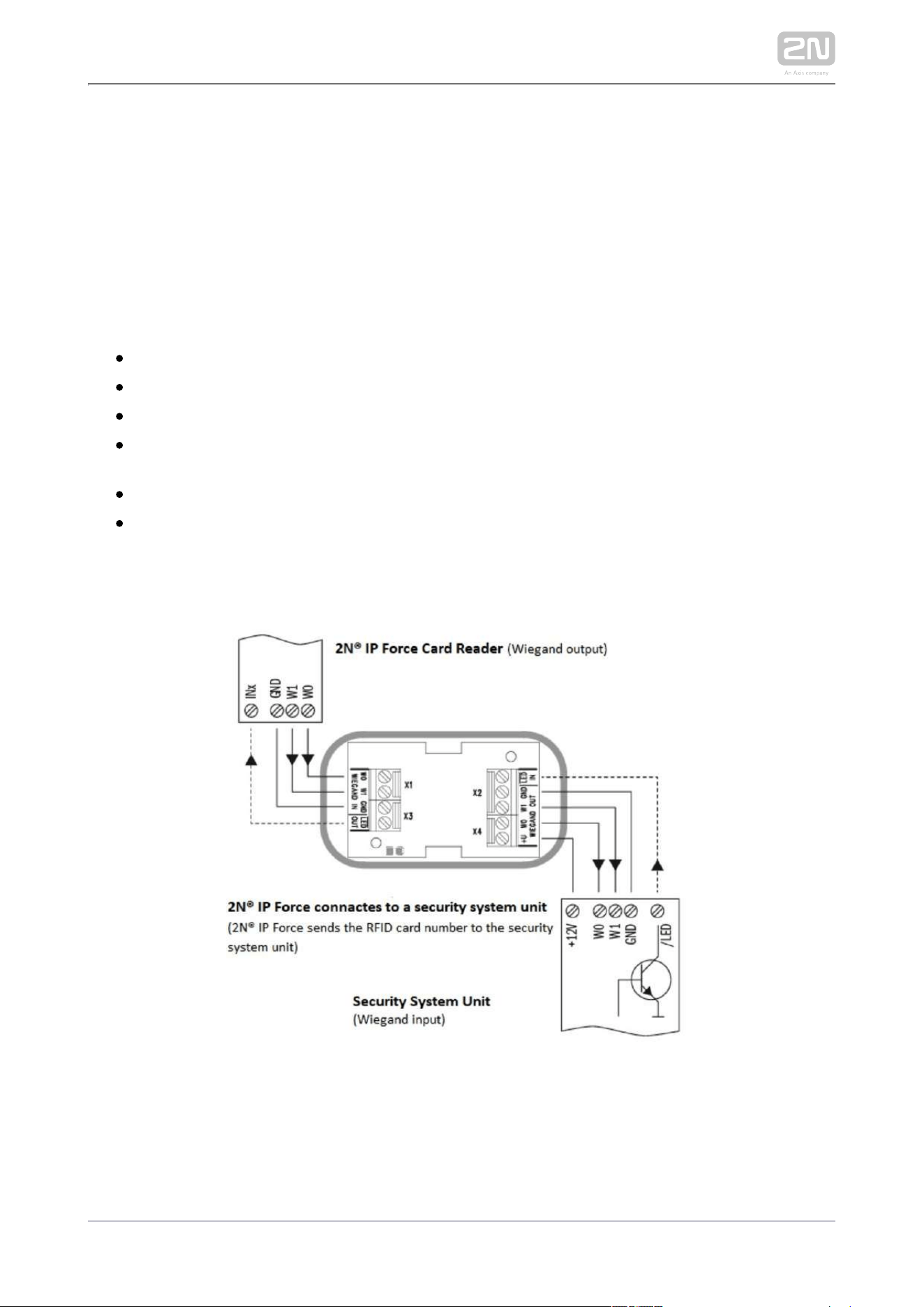
Connection of the intercoms Card Reader to a security system unit is a typical 2N IP
example of application.
2N TELEKOMUNIKACE a.s., www.2n.cz 97/126
Function:
The separates galvanically a two-wire Wiegand bus in one 2N Wiegand Isolator
®
direction and a status LED signal in the other direction. The module is power supplied
from the Wiegand bus receiver side.
Specifications:
2-wire WIEGAND IN
2-wire WIEGAND OUT
LED IN switched against GND on WIEGAND OUT side
Open LED OUT switched against GND on WIEGAND IN side (up to 24 V / 50
mA)
5 to 16 V / 10 mA power supply from Wiegand bus receiver side
500 V DC isolation strength
Connection:
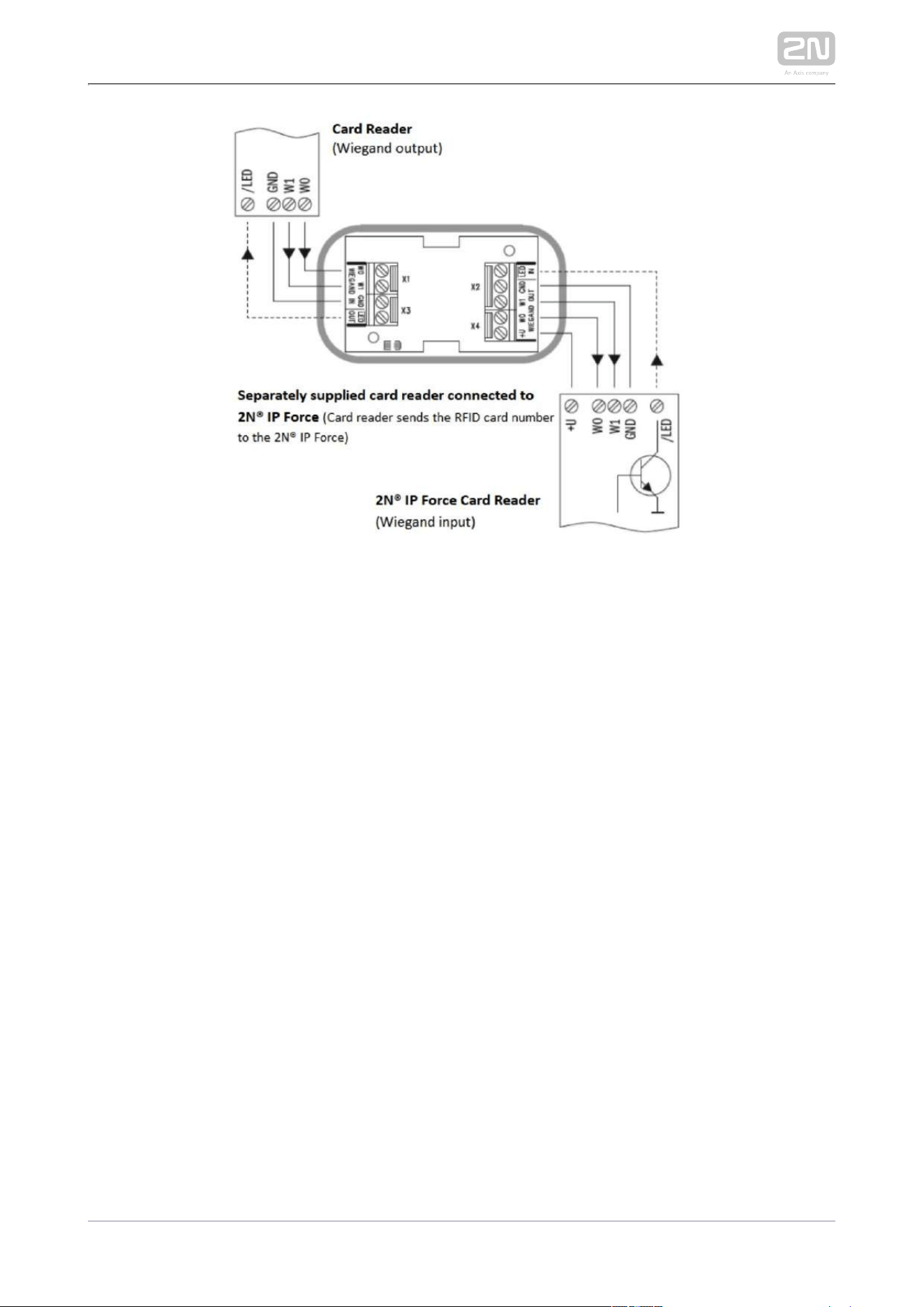
2N TELEKOMUNIKACE a.s., www.2n.cz 98/126
Induction Loop
2N Induction Loop
®
(Part No. 9159050 – Induction loop amplifier for intercom, 2N IP
Part No. 9159054 – Induction loop amplifier without intercom accessory, Part 2N IP
No. 9159051 – External induction loop for wall mounting, Part No. 9159052 – 12 V DC
power adapter) is part of sound system installations for hearing impaired persons that
are equipped with a special hearing aid capable of receiving reproduced sound via a
magnetic field receiver. The system is defined by the IEC 60118-4 standard.
Installation:
The induction loop amplifier can be wall mounted with the use of an internal induction
loop where a signal covering is requested. Outdoor use is possible thanks to the IP65
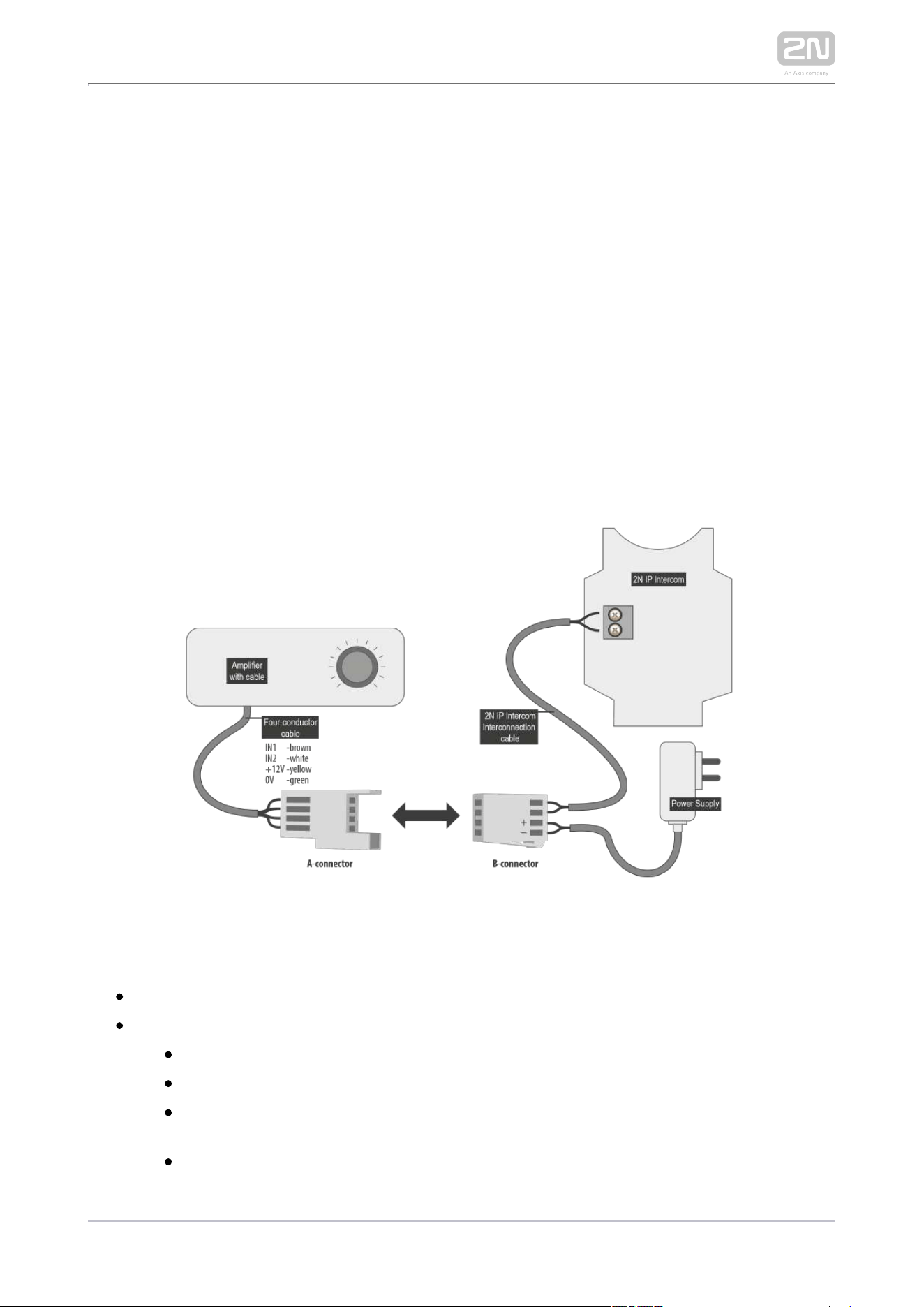
covering. A four-wire cable of the length of one meter is mounted to the supplied
product for easier connection to the intercom. In the cable are two wires for 12 V DC
supply and two wires for signal input, the wires are connected into interconnection
connector. If you shorten the cable, follow the colour marking.
2N TELEKOMUNIKACE a.s., www.2n.cz 99/126
Before wall mounting run the cable through the hole that you have prepared. Then
mark two mounting holes on the wall, through the amplifier front. Remove the
amplifier and drill the mounting holes. Use the plugs and screws included in the
delivery. Use a drill of the diameter of 6 mm. After fastening, cover the screws with
the blanks supplied.
Use the supplied connectors to connect the amplifier to the intercom and power
supply. The A connector is connected to the amplifier four-wire cable. Insert a special
intercom-connecting cable supplied with the amplifier and 12 V power supply outlets
to the B connector. Connect the special cable to the intercom and connect the power
supply to the mains. You can place the mated A and B connectors into the 2N IP
intercom cover. The connectors help you connect stripped cables. Open the
connector by pushing a thin screwdriver onto the white spots at its front and close the
connector by sliding the movable part through a side gap.
Finally, test the amplifier function using a suitable receiver for hearing impaired
persons or magnetic field communication tester. No other settings are required.
Specifications:
Supply voltage: 8 18 V DC
Supply current at 12 V supply:
standby; up to 10 mA
no signal; 100 mA
8 Ω load, half power output; 550 mA, sine wave signal; 400 mA, pink noise
signal
1 Ω load, full power output; 1.4 A, sine wave signal; 1 A, pink noise signal
Transition to standby w/o signal: 10 s

2N TELEKOMUNIKACE a.s., www.2n.cz 100/126
Transition to standby w/o signal: 10 s
Input level - basic: 100 mV – 6 V
rms
Input level - increased: 1 V – 35 V
rms
Input impedance: 2 kΩ parallel with 0.3 H
Output current, 1 Ω load: 2.2 A (sine wave)
rms
Full power output: 1.6 A (pink noise)
rms
Output current, 8 Ω load: 730 mA sine wave signal
rms
Half power output: 520 mA pink noise signal
rms
Output short-circuit resistance: unlimited time
Frequency characteristics: 100 Hz – 5 KHz ±3 dB
Temperature range: -20 - +50 °C
Covering: IP65 (with round cable of 5–10 mm diameter)
Dimensions: 144 x 100 x 31 mm
Weight: 0.3 kg
2N TELEKOMUNIKACE a.s., www.2n.cz 101/126
1.
2.
2.5 Button Tags
Tag Printing
Every delivery includes a sheet of translucent foil, which can be 2N IP Force
®
laser-printed. Cut the printed foil and insert the tags in the name plates.
Every name plate includes a piece of foil, which can be written over manually,
using a waterproof permanent marker, if necessary.
Note
Always use waterproof foil (enclosed or other) for the tags. Never use
paper or ink jet printing to avoid damage due to water leakage!
Tip
A template for printing nametags can be downloaded from .www.2n.cz
2N TELEKOMUNIKACE a.s., www.2n.cz 102/126
1.
2.
3.
4.
Tag Inserting/Replacing Instructions
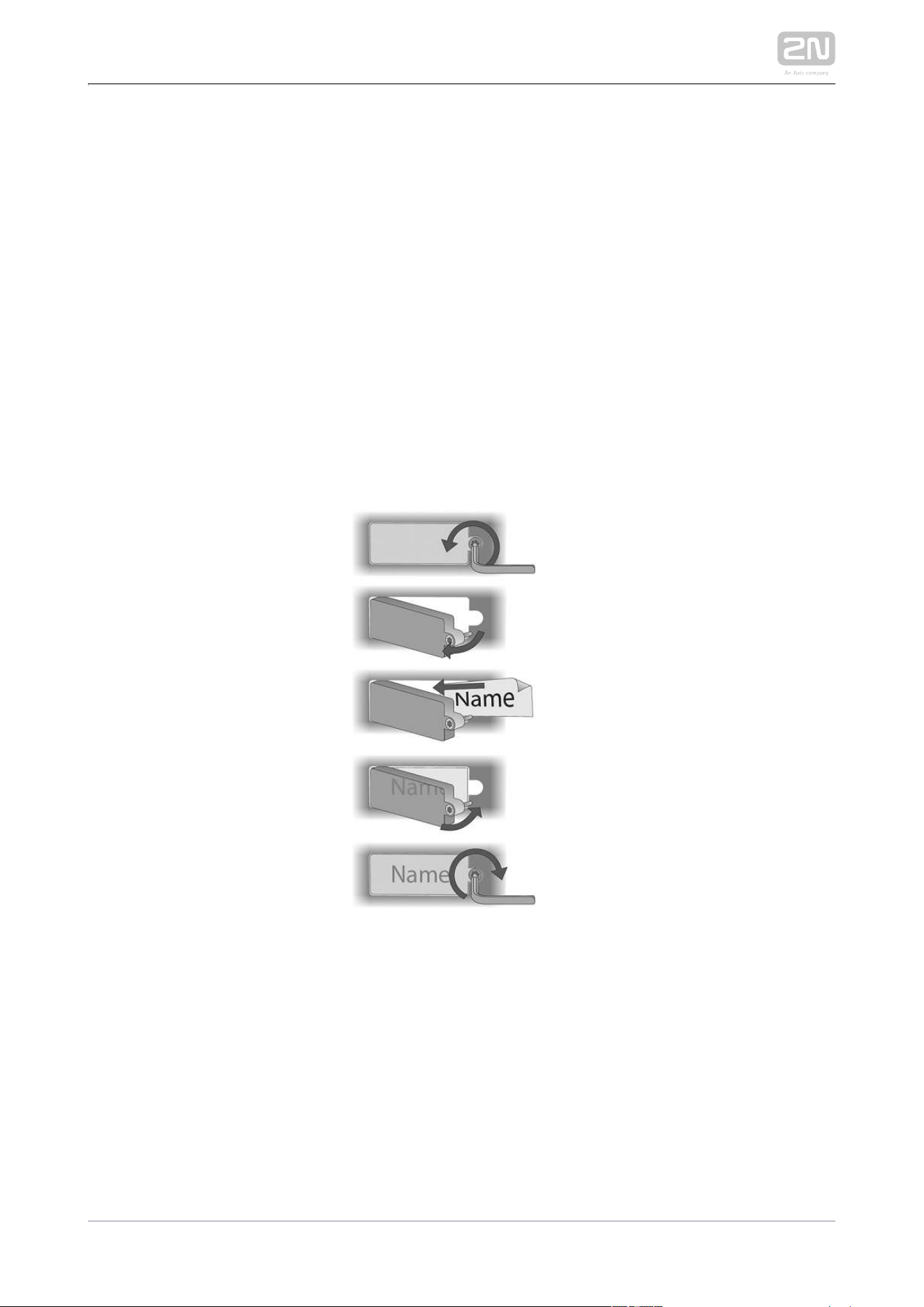
2N IP Force
®
provides an intuitive, easy access to the name plates. The tags are easy
to insert and replace even without a manual. You need not remove the front panel and
thus are not exposed to the risk of loss of components while replacing the tags.
Loosen the name plate screw using the wrench enclosed, for example. You can
open the name plate window like a door without losing the tightened screw.
Remove the used or blank name tag and insert a new tag.
Close the name plate window and tighten the screw appropriately.
Check the click effect of the buttons: if the button fails to click properly when
pressed (when moved by approx. 0.5 mm), the tag is too thick or thin. Make sure
that the button clicks when you press it on both ends.


2N TELEKOMUNIKACE a.s., www.2n.cz 104/126
3.1 Configuration
Use a PC equipped with any web browser to configure :2N IP Force
®
Launch your web browser (Internet Explorer, Firefox, etc.).
Enter the IP address of your intercom ( , e.g.).http://192.168.1.100/
Log in using the user name and password.Admin 2n
You have to know the IP address of your device to log in to the integrated web server.
By default, is switched into the dynamic IP address mode, i.e. it obtains 2N IP Force
®
the IP address automatically if a properly set DHCP server is available in your LAN. If
no such DHCP server is available, you can operate in the static IP 2N IP Force
®
address mode.
If your device remains inaccessible (you have forgotten the IP address, or the LAN
configuration has changed, for example), change the LAN settings using the buttons
on the device.
IP Address Retrieval
Take the following steps to retrieve the IP address:2N IP Force
®
Connect (or, if connected, disconnect and reconnect) to the power 2N IP Force
®
supply.
Wait for the second sound signal .
Press the first quick dial button 5 times.
2N IP Force
®
will read its IP address.
If the address is 0.0.0.0, it means that the intercom has not obtained the IP
address from the DHCP server.
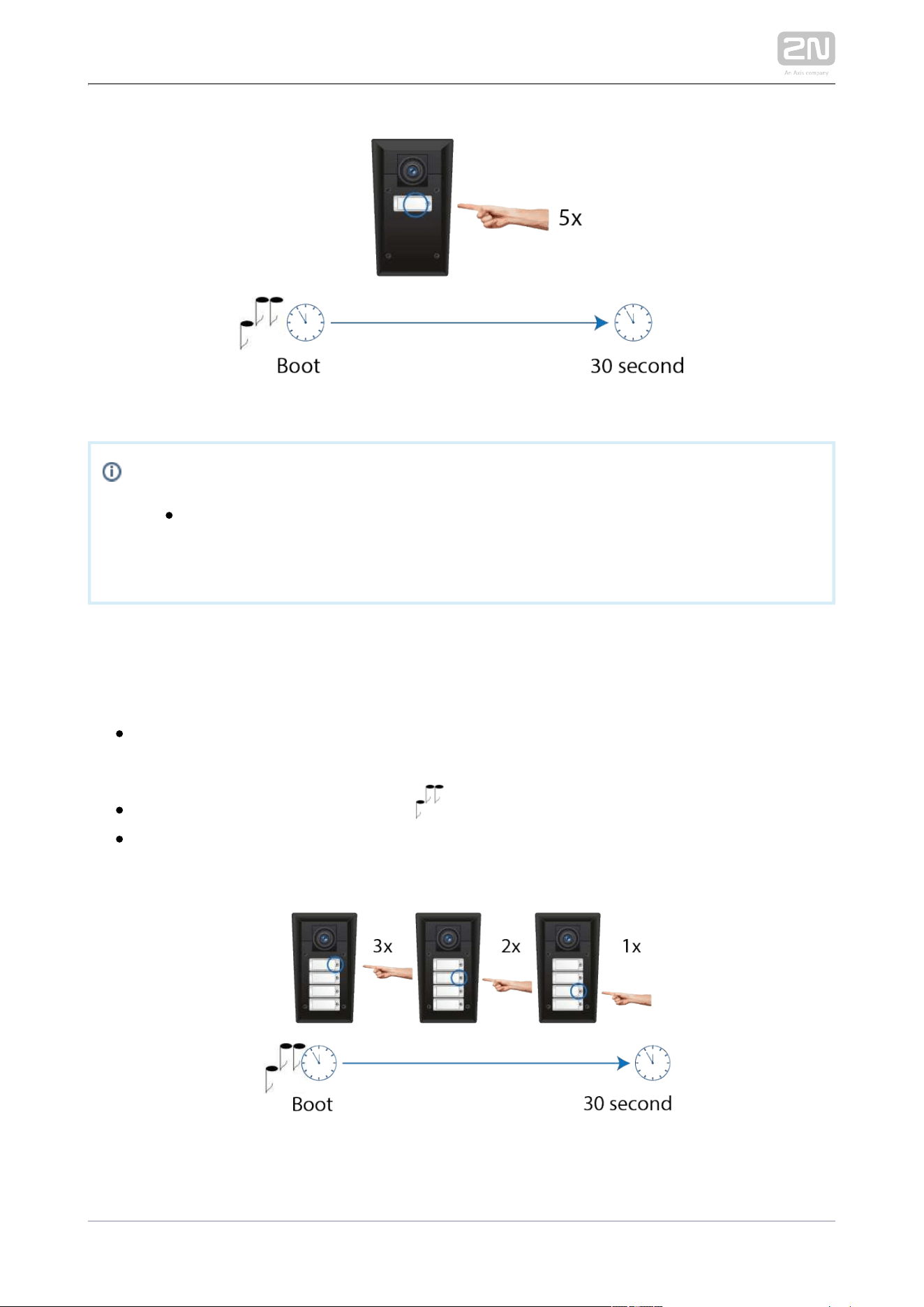
2N TELEKOMUNIKACE a.s., www.2n.cz 105/126
Note
Be sure to press the button sequence within thirty seconds after the
sound signal for security reasons. Up to 2 s intervals are allowed
between the presses.
Static IP Address Setting for 4-button models
Follow the instructions below to enable the static IP address mode:
Connect to the power supply (or, disconnect and reconnect it if 2N IP Force
®
already connected).
Wait for the first acoustic signal .
Press buttons 1, 1, 1, 2, 2, 3 sequentially.
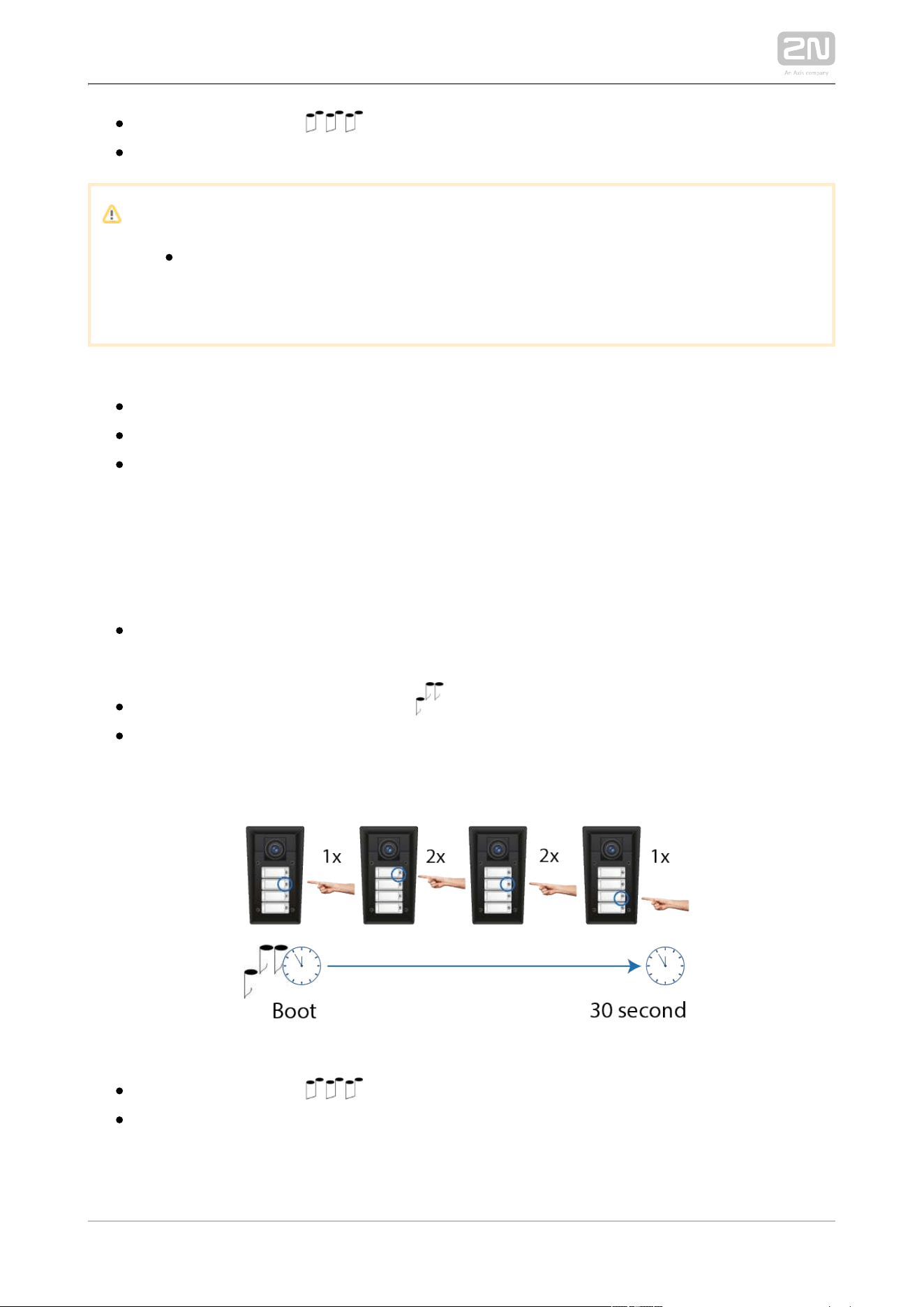
2N TELEKOMUNIKACE a.s., www.2n.cz 106/126
The acoustic signal indicates mode switching.
Wait until the device is restarted automatically.
Caution
The 1, 1, 1, 2, 2, 3 sequence must be entered within 30 seconds after the
first sound signal for security reasons. The inter-digit delay may be 2 s at
most.
The device will have the following network parameters after restart:
IP address – 192.168.1.100
Network mask – 255.255.255.0
Default gateway – 192.168.1.1
Dynamic IP Address Setting for 4-button models
Follow the instructions below to enable automatic getting of network parameters
from the DHCP server:
Connect to the power supply (or, disconnect and reconnect it if 2N IP Force
®
already connected).
Wait for the first acoustic signal
Press buttons 2, 1, 1, 2, 2, 3 sequentially.
The acoustic signal indicates mode switching.
Wait until the device is restarted automatically.
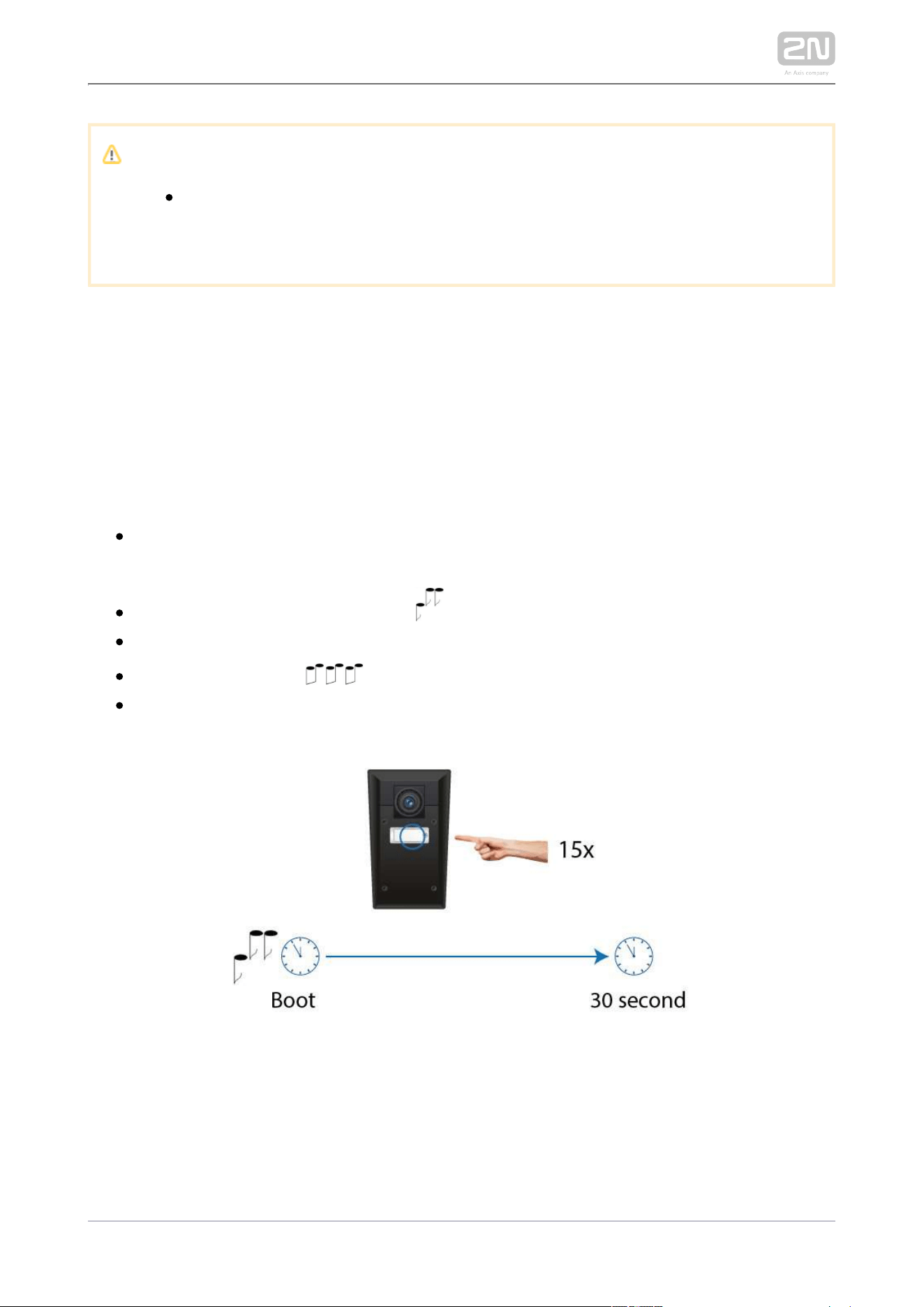
2N TELEKOMUNIKACE a.s., www.2n.cz 107/126
Caution
The 2, 1, 1, 2, 2, 3 sequence must be entered within 30 seconds after the
first sound signal for security reasons. The inter-digit delay may be 2 s at
most
.
2N IP Force
®
gets the IP address upon restart only if the DHCP server is configured
properly.
Mode Switching with 1 or 2-Button Models
In case your device is equipped with 1 or 2 buttons, you can switch the 2N IP Force
®
modes using one button only.
Connect to the power supply (or, disconnect and reconnect it if 2N IP Force
®
already connected).
Wait for the first acoustic signal .
Press the first quick dial button 15 times.
The acoustic signal indicates mode switching.
Wait until the device is restarted automatically.

2N TELEKOMUNIKACE a.s., www.2n.cz 108/126
Caution
The 15 times 1 sequence must be entered within 30 seconds after the
first sound signal for security reasons. The inter-digit delay may be 2 s at
most.
The static IP address mode will be switched into the dynamic IP address mode and
vice versa upon restart.

2N TELEKOMUNIKACE a.s., www.2n.cz 109/126
1.
2.
3.
3.2 Control
This subsection describes how to control when viewed by an external 2N IP Force
®
user.
Speed Dial Buttons
Press the speed dial buttons on the basic unit to make quick dialling for the first 1, 2 or
4 positions (depending on the model type) in the telephone directory. Call setup is
signalled by a long intermittent tone or otherwise as configured in the PBX connected.
Repeated pressing of one and the same speed dial button during call setup may
initiate call termination, or call termination plus dialling the next telephone number of
the called subscriber, or may be assigned no function. This behaviour can be set in
unit configuration.
If your model is equipped with a numerical keypad, you can also push the button
anytime to terminate a call if enabled so in the parameter.Hang up with #
Calling to Telephone Directory Positions
The telephone directory can contain up to 1999 pre-programmed 2N IP Force
®
positions. Speed dial can only be used for positions 1 to 4. The remaining positions can
be retrieved via the numerical keypad if the function is enabled Speed dial using digits
in configuration.
Procedure:
Enter the position number using your numerical keypad (05, 15, 200, 1759 e.g. –
two digits at least and four digits at most) and press for confirmation.
You can also push the button anytime to terminate a call if enabled so in the
parameter in the unit configuration.Hang up with #
Calling to Telephone Number
You can dial a telephone number using your numerical keypad from if 2N IP Force
®
the parameter is on.Enable telephone function
Procedure:
Press the button.
You will hear the continuous tone from the loudspeaker.

2N TELEKOMUNIKACE a.s., www.2n.cz 110/126
3.
4.
Enter the telephone number using the numerical keypad and repress for
confirmation.
You can also push the button anytime to terminate a call if enabled so in the
parameter; refer to the Miscellaneous subsection.Hang up with #
Answering and Rejecting Incoming Calls
If the automatic incoming call answering function is off, signals an 2N IP Force
®
incoming call with loud ringing. Push the button to answer the call and the to
reject the call. This function is available in models equipped with a numerical keypad
only.
Door Opening (Switch Activation) by Code
2N IP Force
®
is equipped with a door lock opening switch. Enter the valid code using
your numerical keypad to activate the switch.
Procedure:
Enter the numerical switch activating code using the numerical keypad and
press for confirmation.
A successful entering of a valid code is signalled by a continuous tone indicating
unlocking (switch activation). An invalid code is signalled acoustically by
.
Profile Activation and Deactivation
Activate/deactivate a profile using the numerical keypad in order to define call routing
to the telephone directory numbers more specifically.
Procedure:
Enter the numerical profile activating/deactivating code and press for
confirmation.
A successful entering of a valid code is signalled acoustically by ( for
profile) for activation, or ( for profile) for deactivation. An invalid code
is signalled acoustically by .
2N TELEKOMUNIKACE a.s., www.2n.cz 111/126
3.3 Maintenance
Cleaning
If used frequenly, the device surface, the keypad in particular, gets dirty. To clean it,
use a piece of soft cloth moistened with clean water. We recommend you to follow
these principles while cleaning:
Never use aggressive detergents (such as abrasives or strong disinfectants).
Use suitable cleaning agents for glass lens cleaning (cleaners for glasses, optic
devices screens, etc.).
Alcohol-based cleaners may be applied.
Clean the device in dry weather in order to make waste water evaporate quickly.
We recommend using cleaning wipes designed for IT / electronic items.
Warning
Avoid peroxide-based cleaners.
Tip
The models of Part Nos. and may be 2N
®
IP Force 9151101W 9151101CW
cleaned with WAP high pressure washers.
2N TELEKOMUNIKACE a.s., www.2n.cz 112/126
Future Tag Replacement, Programming Changes
For necessary steps refer to the preceding subsections. Keep the following for future
changes:
This manual
Unused transparent foil strips for button tags
Caution
Always use the product for the purpose it was designed and
manufactured for, in compliance herewith.
The manufacturer reserves the right to modify the product in order to
improve its qualities.
2N
®
IP Force contains no environmentally harmful components. When
the product's service life is exhausted and you would like to dispose of it
please do so in accordance with applicable legal regulations.


2N TELEKOMUNIKACE a.s., www.2n.cz 114/126
4. Technical Parameters
Signalling protocol
SIP (UDP, TCP, TLS)
Buttons
Button design: Transparent, white backlit buttons with easily replaceable name
tags
Count of buttons: 1, 2 or 4
Numerical keypad: optional
Audio
Microphone: 2 integrated microphones
Amplifier: 10 W (class D)
Loudspeaker: 10 W
Sound pressure level (SPL max): 78.5 dB (1 W type, for 1 kHz, distance 1 m)
Sound pressure level (SPL max): 94 dB (10 W type, for 1 kHz, distance 1 m)
Volume control: Adjustable with automatic adaptive mode
Full duplex: Yes (AEC)
Speech transmission index (STI): 0.80
Audio stream
Protocols: RTP / RTSP
Codecs: G.711, G.729, G.722, L16/16 kHz
Camera SD
Sensor: 1/4'' colour CMOS
Resolution: 640 (H) × 480 (V)
Frame rate: Up to 30 snaps/s
Sensor sensitivity: 1.9 V/lux-sec (550 nm)
View angle: 135° (H), 109° (V)
Infrared light: Yes
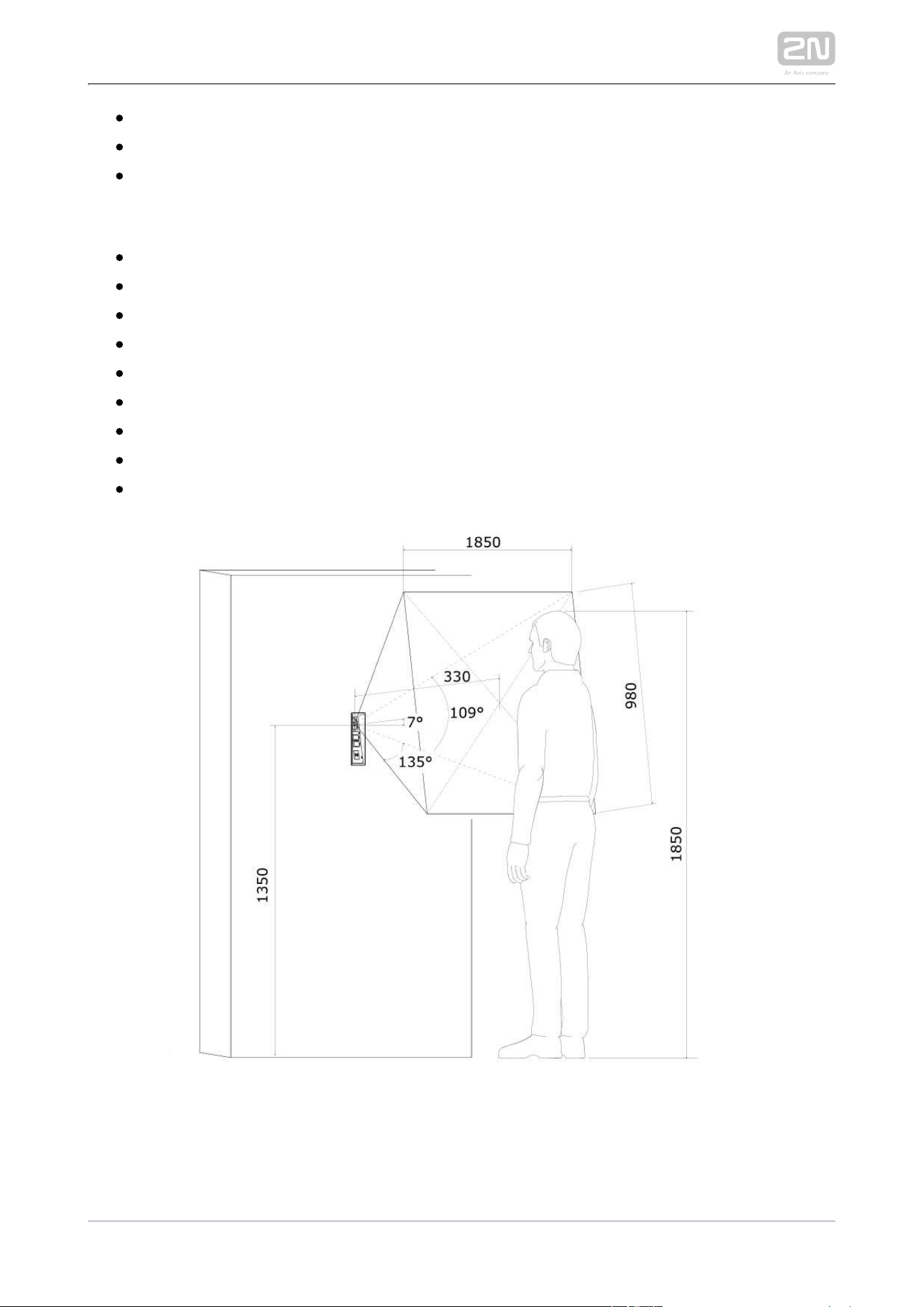
2N TELEKOMUNIKACE a.s., www.2n.cz 115/126
Infrared light: Yes
Focal length: 1.1 mm
Focal length HD version: 2.3 mm
Camera HD
Sensor: 1/3'' colour CMOS
JPEG resolution: Up to 1280 (H) x 960 (V)
Video resolution: 640 (H) × 480 (V)
Frame rate: Up to 30 snapshots/s
Sensor sensitivity: 5.6 V/lux-sec (550 nm)
View angle: 135° (H), 109° (V)
Infrared light: Yes
Sensor sensitivity without IR light: 0,1 Lux ± 20 %
Focal length: 2.3 mm

2N TELEKOMUNIKACE a.s., www.2n.cz 116/126
Video stream
Protocols: RTP / RTSP / HTTP
Codecs: H.263, H.263+, H.264, MPEG-4, M-JPEG
IP camera function: Yes, ONVIF v2.4 profile S compatible
Bandwidth
Audio codecs
PCMA, PCMU – 64 kbps (with 85.6 kbps headers)
G.729 – 16 kbps (with 29.6 kbps headers)
G.722 – 64 kbps (with 85.6 kbps headers)
L16 / 16 kHz – 256 kbps (with 277.6 kbps headers)
V i d e o c o d e c s
Set the video codec data flows in the Services / Phone / Video menu for calls
and in the Services / Streaming / RTSP menu for streaming. The set bandwidth
represents the value that the codec has to approach on a long-time average. The
data flows can vary depending on the scene to be scanned.
The measued data flow values correspond to the test view of a person standing
in front of the intercom.
H.264
Low quality: QVGA (320 x 240), 10 fps, 256 kbps: 181 kbps (with 190 kbps
headers)
Medium quality: VGA (640 x 480), 15 fps, 768 kbps: 600 kbps (with 661
kbps headers)
High quality: VGA (640 x 480), 30 fps, 2048 kbps: 1319 kbps (with 1372
kbps headers)
MJPEG
Low quality: QVGA (320 x 240), 10 fps, quality 70: 435 kbps with headers
Medium quality: VGA (640 x 480), 15 fps, quality 85: 506 kbps
High quality: SXGA (1280 x 960), 15 fps, quality 95: 8 Mbps
Interface
Power supply: 12 V ±15 % / 2 A DC or PoE
PoE: PoE 802.3af (Class 0–12.95 W)
LAN: 10/100BASE-TX s Auto-MDIX, RJ-45
Recommended cabling: Cat-5e or higher
Supported protocols: SIP2.0, DHCP opt. 66, SMTP, 802.1x, RTSP, RTP, TFTP,
HTTP, HTTPS, Syslog, ONVIF
Passive relay switch: NO and NC contacts, up to 30 V / 1 A AC/DC

2N TELEKOMUNIKACE a.s., www.2n.cz 117/126
Active switch output: 9 up to 13 V DC depending on power supply (PoE: 9 V;
adaptor: power supply voltage minus 1 V), max 600 mA
RFID card reader
Optional
Includes besides card reader itself: Wiegand interface, tamper switch,
active output, relay, two inputs
Supported cards on 125 kHz version, Part No. 9151011
EM4100, EM4102
Supported cards on 13.56 MHz version, Part No. 9151016 (only card serial number
is read)
ISO/IEC 14443A
Mifare Classic 1k & 4k, DESFire EV1, Mini, Plus S&X, Ultralight,
Ultralight C
ISO/IEC 14443B
CEPAS, HID iCLASS
JIS X 6319
Felica
Supported cards on 13.56 MHz NFC version, Part No. 9151017 (only card serial
number is read)
ISO/IEC 14443A
Mifare Classic 1k & 4k, DESFire EV1, Mini, Plus S&X, Ultralight,
Ultralight C
ISO/IEC 14443B
CEPAS, HID iCLASS
JIS X 6319
Felica
ISO/IEC 18092
SmartPhone with NFC/HCE support, since Android version 4.3

2N TELEKOMUNIKACE a.s., www.2n.cz 118/126
Supported cards on secured 13.56 MHz NFC version, Part No. 9151019 (optionally
card serial number or PAC ID is read)
ISO/IEC 14443A
Mifare Classic 1k & 4k, DESFire EV1, Mini, Plus S&X, Ultralight,
Ultralight C
ISO/IEC 14443B
CEPAS, HID iCLASS
JIS X 6319
Felica
ISO/IEC 18092
SmartPhone with NFC/HCE support, since Android version 4.3
Wiegand Interface: Input/Output mode, located on RFID card reader module
Active switch output: 9 up to 13 V DC depending on power supply (PoE: 9 V;
adaptor: power supply voltage minus 1 V), max 600 mA
Passive relay switch: NO and NC contacts, up to 30 V / 1 A AC/DC
Additional switch
Optional: Includes also one input, active output, relay, tamper switch
Active switch output: 9 up to 13 V DC depending on power supply (PoE: 9 V;
adaptor: power supply voltage minus 1 V), max 600 mA
Passive relay switch: NO and NC contacts, up to 30 V / 1 A AC/DC
Mechanical properties
Cover: Robust aluminium cast product, front panel: aluminium cast, fiberglass
FR4 (91511xxxR)
Colour: Not from RAL scheme, matching equivalent would be 9004 glossy black
Working temperature: −40 °C to 55 °C
Working relative humidity: 10 % – 95 % (non-condensing)
Storing temperature: −40 °C to 70 °C
Dimensions
217 x 109 x 83 mm
242 x 136 x 83 mm incl. frame
Weight: netto max. 2 kg / brutto max. 2,5 kg
Covering level: IP65, IP69K (91511xxxW)
Resistance level: IK10



2N TELEKOMUNIKACE a.s., www.2n.cz 121/126
5.2 Directives, Laws and Regulations
2N IP Force
®
conforms to the following directives and regulations:
2014/35/EU on the harmonisation of the laws of the Member States relating to the
making available on the market of electrical equipment designed for use within certain
voltage limits
2014/30/EU on the harmonisation of the laws of the Member States relating to
electromagnetic compatibility
2011/65/EU on the restriction of the use of certain hazardous substances in electrical
and electronic equipment
2012/19/EU on waste electrical and electronic equipment
Industry Canada
This Class B digital apparatus complies with Canadian ICES-003. / Cet appareil
numérique de la classe B est conforme a la norme NMB-003 du Canada.
FCC
NOTE: This equipment has been tested and found to comply with the limits for a Class
B digital device, pursuant to part 15 of the FCC Rules. These limits are designed to
provide reasonable protection against harmful interference in a residential installation.
This equipment generates, uses and can radiate radio frequency energy and, if not
installed and used in accordance with the instructions, may cause harmful interference
to radio communications. However, there is no guarantee that interference will not
occur in a particular installation. If this equipment does cause harmful interference to
radio or television reception, which can be determined by turning the equipment off
and on, the user is encouraged to try to correct the interference by one or more of the
following measures:
Reorient or relocate the receiving antenna
Increase the separation between the equipment and receiver
Connect the equipment into an outlet on a circuit different from that to which
the receiver is connected
Consult the dealer or an experienced radio/TV technician for help.
Changes or modifications to this unit not expressly approved by the party responsible
for compliance could void the user's authority to operate this equipment.
DDA compliance:

2N TELEKOMUNIKACE a.s., www.2n.cz 122/126
1.
2.
3.
2N TELEKOMUNIKACE intercoms comply with the Disability Discrimination Act 2005
(DDA) under the following conditions:
The intercoms are mounted so that their lower edge is between 100 and 120
centimeters above the floor.
The intercoms use a keyboard that has a mechanical protrusion on number 5.
The intercoms use electromagnetic loop as a hearing aid.

2N TELEKOMUNIKACE a.s., www.2n.cz 123/126
Caution
In order to ensure the full functioning and guaranteed outputs we strongly
recommend a verification of the timeliness of version of product or facility
already during the installation process. The customer takes into consideration
that the product or facility can achieve the guaranteed outputs and be fully
operational pursuant to the producer’s instructions only by using the most
recent version of product or facility, which has been tested for full
interoperability and has not been determined by the producer as incompatible
with certain versions of other products, only in conformity with the producer’s
instructions, guidelines, manual or recommendation and only in conjunction
with suitable products and facilities of the other producers. The most recent
versions are available on the website https://www.2n.cz/cs_CZ/, or specific
facilities, depending on their technical capacity, allow updating in the
configuration interface. Should the customer use any other version of product
or facility than the most recent one, or the version that has been determined
by the producer as incompatible with certain versions of other producers’
products of facilities, or the product or facility in a way incompatible with the
producer’s instructions, guidelines, manual or recommendation or in
conjunction with unsuitable products or facilities of the other producers, he or
she is aware of all potential limitations of functionality of such a product or
facility and all relating consequences. Should the customer use any other than
the most recent version of the product or facility, or the version that has been
that has been determined by the producer as incompatible with certain
versions of other producers’ products of facilities, or the product or facility in
a way incompatible with the producer’s instructions, guidelines, manual or
recommendation or in conjunction with unsuitable products or facilities of the
other producers, he or she agrees that the company 2N TELEKOMUNIKACE a.
s. is not liable neither for any limitation of such a product’s functionality, nor
for any damage, loss or injury relating to such a potential limitation of
functionality.

2N TELEKOMUNIKACE a.s., www.2n.cz 124/126
5.3 General Instructions and Cautions
Please read this User Manual carefully before using the product. Follow all instructions
and recommendations included herein.
Any use of the product that is in contradiction with the instructions provided herein
may result in malfunction, damage or destruction of the product.
The manufacturer shall not be liable and responsible for any damage incurred as a
result of a use of the product other than that included herein, namely undue
application and disobedience of the recommendations and warnings in contradiction
herewith.
Any use or connection of the product other than those included herein shall be
considered undue and the manufacturer shall not be liable for any consequences
arisen as a result of such misconduct.
Moreover, the manufacturer shall not be liable for any damage or destruction of the
product incurred as a result of misplacement, incompetent installation and/or undue
operation and use of the product in contradiction herewith.
The manufacturer assumes no responsibility for any malfunction, damage or
destruction of the product caused by incompetent replacement of parts or due to the
use of reproduction parts or components.
The manufacturer shall not be liable and responsible for any loss or damage incurred
as a result of a natural disaster or any other unfavourable natural condition.
The manufacturer shall not be held liable for any damage of the product arising during
the shipping thereof.
The manufacturer shall not make any warrant with regard to data loss or damage.
The manufacturer shall not be liable and responsible for any direct or indirect damage
incurred as a result of a use of the product in contradiction herewith or a failure of the
product due to a use in contradiction herewith.
All applicable legal regulations concerning the product installation and use as well as
provisions of technical standards on electric installations have to be obeyed. The
manufacturer shall not be liable and responsible for damage or destruction of the
product or damage incurred by the consumer in case the product is used and handled
contrary to the said regulations and provisions.
The consumer shall, at its own expense, obtain software protection of the product.
The manufacturer shall not be held liable and responsible for any damage incurred as
a result of the use of deficient or substandard security software.

2N TELEKOMUNIKACE a.s., www.2n.cz 125/126
The consumer shall, without delay, change the access password for the product after
installation. The manufacturer shall not be held liable or responsible for any damage
incurred by the consumer in connection with the use of the original password.
The manufacturer also assumes no responsibility for additional costs incurred by the
consumer as a result of making calls using a line with an increased tariff.
Electric Waste and Used Battery Pack Handling
Do not place used electric devices and battery packs into municipal waste containers.
An undue disposal thereof might impair the environment!
Deliver your expired electric appliances and battery packs removed from them to
dedicated dumpsites or containers or give them back to the dealer or manufacturer
for environmental-friendly disposal. The dealer or manufacturer shall take the product
back free of charge and without requiring another purchase. Make sure that the
devices to be disposed of are complete.
Do not throw battery packs into fire. Battery packs may not be taken into parts or
short-circuited either.

2N TELEKOMUNIKACE a.s., www.2n.cz 126/126
2N TELEKOMUNIKACE a.s.
Modřanská 621, 143 01 Prague 4, Czech Republic
Phone: +420 261 301 500, Fax: +420 261 301 599
E-mail: [email protected]
Web: www.2n.cz
v2.15
