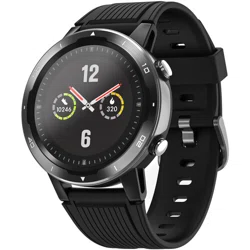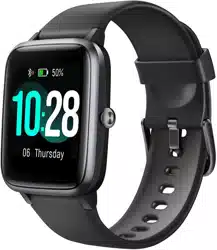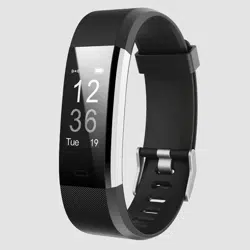

ID115Plus Color HR
Fitness Tracker
User Manual
NOT A TOY: Children under 14 years old should use this
product under adult supervision.
NOT A MEDICAL USE: This product is not a medical device,
and is not intended to diagnose, treat, cure, or prevent any
disease. The accuracy of our devices is not intended to
match medical devices or scientific measurement devices,
but is intended to give you the best information available in a
wearable activity tracker.

English Version
--------------------1
Deutsche Version -------------------18
21
USB Charging
Please charge your new device for at least
10 minutes to have it activated before initial
use.
In case that device is under low battery, connect the device host
to an adapter for charging. Device will automatically boot up once
fully charged. Remove the device host from the power supply
once fully charged.
USB charger requirement: DC USB port (5V-500mA)
Charging time: 1-2hr(s)
1
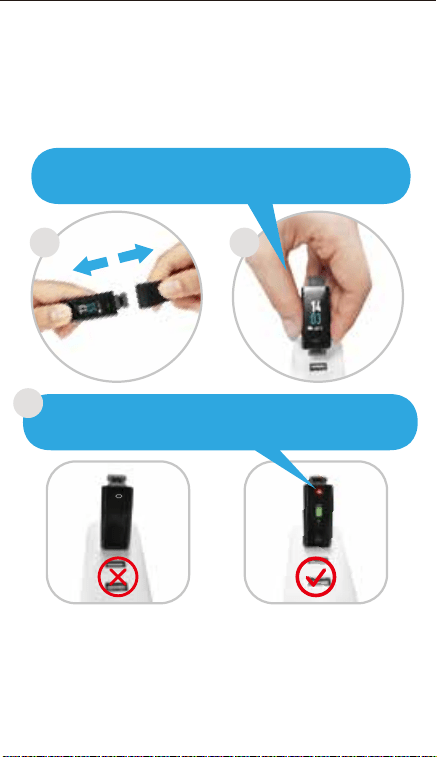
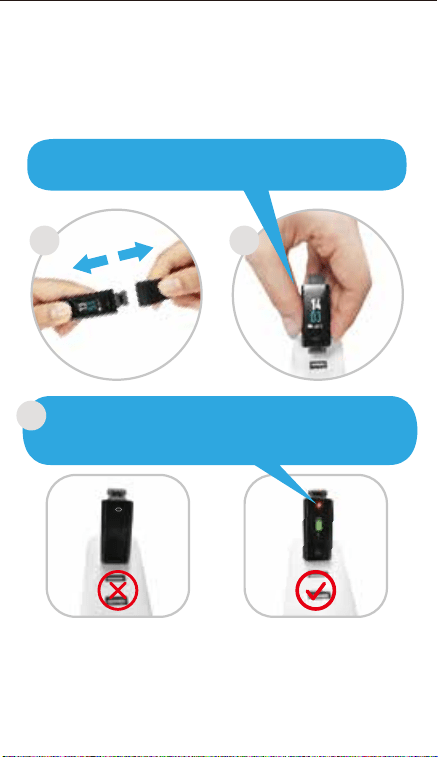
The red indicator is on when the device is properly charged.
If not, check the direction of the device's charging plug and
move to the correct direction, as shown below.
3
Insert the charging plug of the host into the USB port for
charging. Make sure the pins on the charging plug contact
those in the USB port.
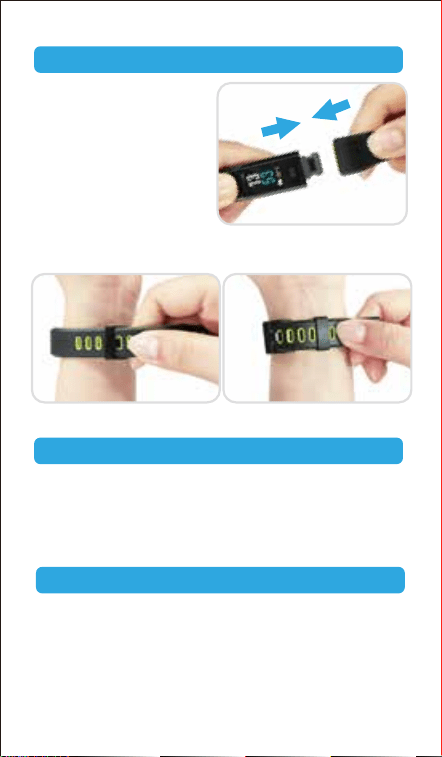
Wear: Wear the device on your wrist horizontally, about 2cm to
carpal, the same way as wearing a watch.
Install: Plug the host into the
slots of each strap.
Download "VeryFitPro" APP for Android and iOS
devices.
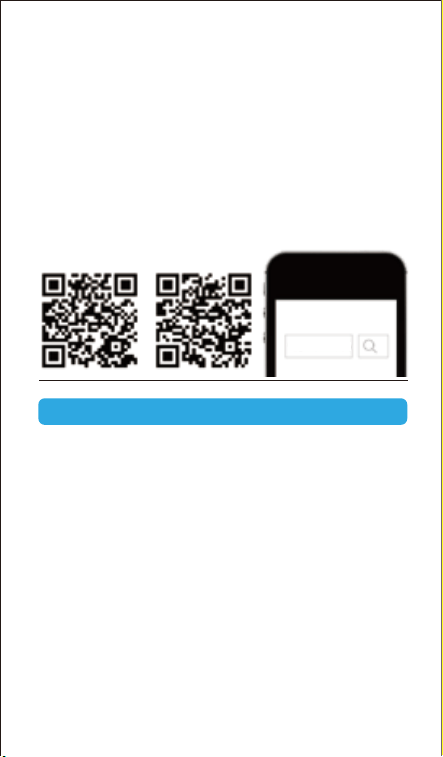
Option 1: Search for "VeryFitPro" in APP store or Google
Play and download to your smartphone.
Download the APP
Install and Wear Your Device
Smart Phone System Requirement
● iOS 7.1 & above
● Android 4.4 & above
● Bluetooth 4.0 & above
2
3
Notes:
● This fitness tracker requires iOS 7.1 & above or Android 4.4
& above system.
● "VeryFitPro" APP is only compatible with smartphones.
Option 2: Searching the QR code, scan and download APP.
Use the QR code Scan tool to scan the following QR code,
open the link and follow the instructions to download APP.
Tip: In case of problems when opening the link, copy the link
and open it in a browser.
VeryFitPro
iOS Android
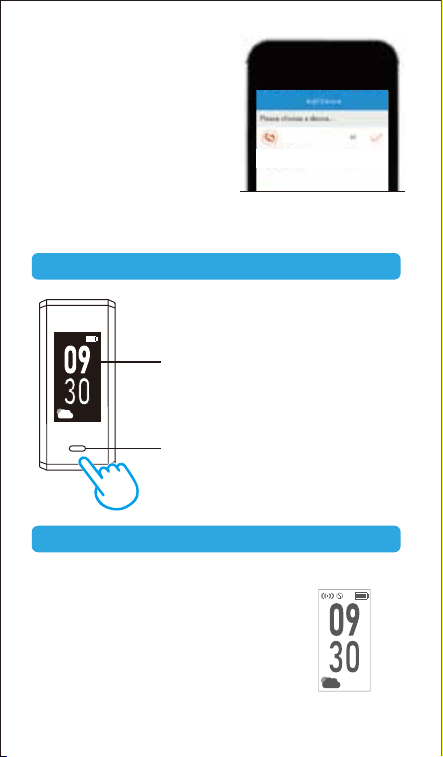
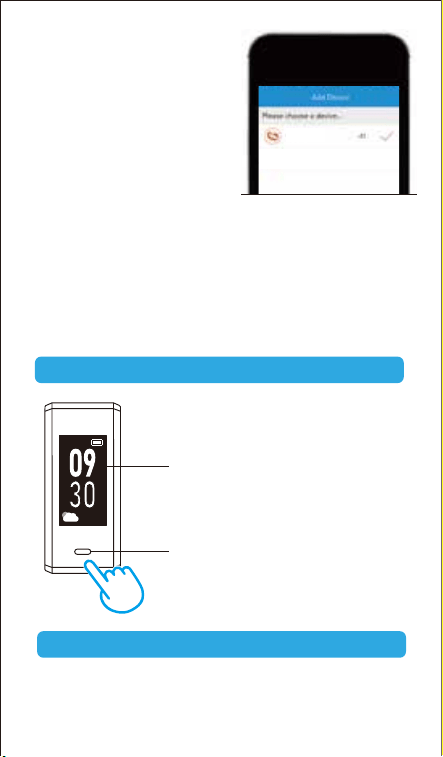
1)Enable Bluetooth before binding the device.
2)Open "VeryFitPro" APP on your smartphone and tap on
"Device"→"Bind device", then your smartphone starts
searching devices.
3)Select "ID115Plus Color HR" in the list of found devices, tap
on "ID115Plus Color HR" to connect the device to your
smartphone.
(If failed searching the device, please tap on the touch key to
wake the device (screen lights on), then start searching with
your smartphone one more time.)
Notes:
● After first successful searching and binding, if you enable the
Bluetooth function of the smartphone afterwards, the device
will automatically search and link back to the smartphone it
has bound.
Pair the Device
● If the device is unbound under Bluetooth connected state,
the APP will set the settings back to default. All data on the
( (
•
) )
Touch Key
Waking a Dimmed Screen
device will be cleared. If the
device is unbound under
Bluetooth disconnected state,
the APP will set the settings
back to default, but the data on
the device will not be cleared.
● The device can only link to one
smartphone at a time. During
connecting please confirm
there is no other smartphones
nearby.
ID115Plus Color HR
Select the device in the
smartphone searching list
4
When you’re not using ID115Plus Color HR, the display is off.
To wake it up:
● Turn your wrist towards you, the
screen will display time and
weather (weather forecast can be
turned off in
"Device"→"More"→"Weather
forecast" in the APP.)
After first successful binding, the main
screen is as shown on the left.
Display
Note: This is non-touch screen, please
use the touch key to choose different
functions.
Touch Key
23℃
( (
•
) )
Main Screen
23℃
Note:
The screen brightness can be adjusted from Level 1 to
Level 5 in "Device"→"More"→"Bracelet brightness" in the
APP and Level 5 is the brightest. Remember to click " √ " to
save your settings.
● Tap on the touch key, and the device will display the
main screen.
5
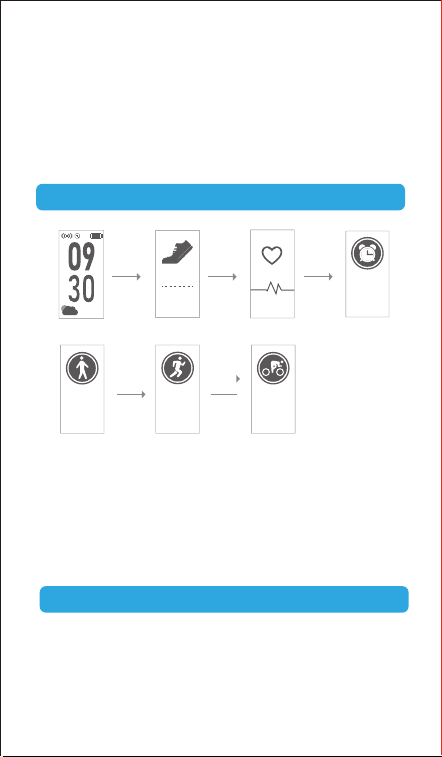
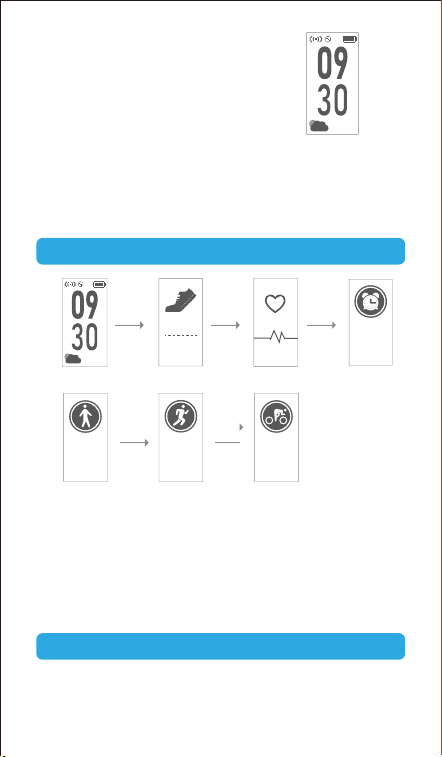
※1: "Alarm Mode" is displayed on the device screen only when
"Alarm Alert" is ON in the APP.
※2: "Walk Mode", "Run Mode" and "Bike Mode" are displayed
on the device screen by default. You can set up to 3
different sports modes from 14 sports modes to display on
the device screen (Go to "VeryFitPro" APP → "Device" →
"More"→ "Activity display").
Main Functions
Function Introduction
1. Step Mode
1) Long press the touch key for 2s to view detailed step data.
Heart Rate Mode
Walk Mode※2
Walk
Step Mode
0
Alarm Mode※1
12:45
AM
Mon
Run Mode
Run
Bike Mode
Bike
Main Screen
23℃
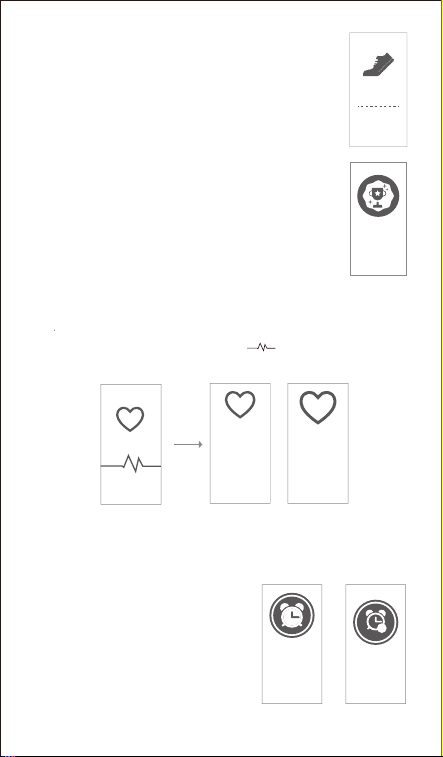
2) Single tap on the touch key to flip through
detailed step data.
3) Single tap on the touch key to go to the next
mode: Heart Rate Mode.
Before the result After the data appears
8989
2. Heart Rate Mode
Single tap on the touch key to go to the next mode: Alarm Mode.
6
Note:
You can go to the APP to set you sports target
("User" →"Target Setting"). When you reach your
sport target, the device vibrates and the screen
displays:
Tap on the touch key to go back to the main screen.
3. Alarm Mode
1) Long press the touch key
for 2s to turn on/off the
alarm function.
After entering the heart rate interface for 1s, the device will
start monitoring the heart rate automatically. Before the correct
data is detected, the device shows " " ; after the correct
data is detected, it shows specific data.
0
12:45
AM
Mon
x
Achieve
goals
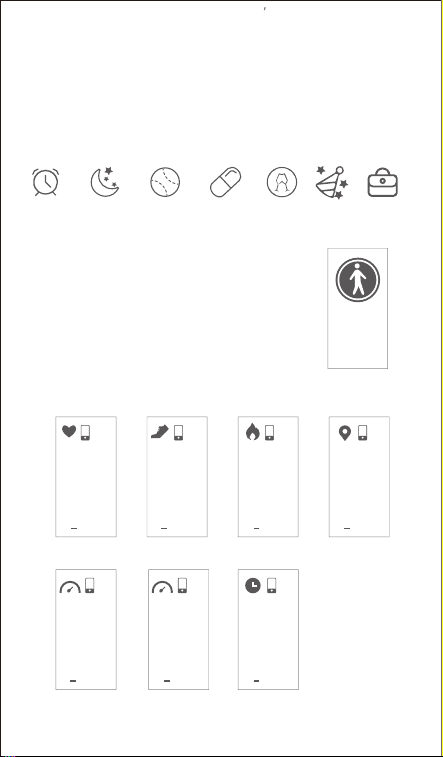
4. Walk Mode
1) Long press the touch key for 2s to start the
walk mode.
During exercise, tap on the touch key to flip through the exercise
data.
7
● Tap on the alarm, you can add and set the alarm types,
repeat type and time. (When alarm(s) is/are added and
enabled, please click " √ " to save your settings.)
2) Single tap on the touch key to go to the next mode: Walk
Mode.
Notes:
● Alarm Mode is available only when alarm(s) is/are added and
enabled (turn on the switch to enable the alarm) in "Alarm
alert" in the APP.
Go to sleep MedicationGet up PartyExercise MeetingDating
BPM
23:34:56
BPM
89
Miles
23:34:56
MI
3
Kcal
23:34:56
Kcal
234
Pace
23:34:56
Pace
7’5”
AVG Pace
AVG Pace
7’5”
23:34:56
Time
23:34:56
PM
23:34
Steps
23:34:56
Steps
4
,
456
Walk
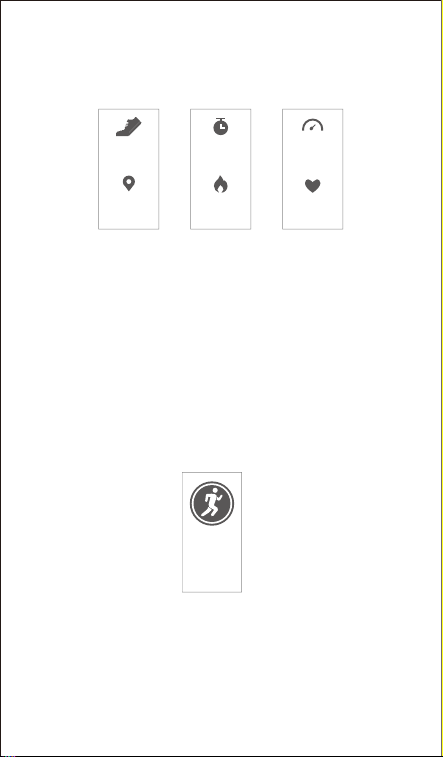
5. Run Mode
1) Long press the touch key for 2s to start the run mode.
Single tap on the touch key to flip through the exercise data.
3) Single tap on the touch key to go to the next mode: Run Mode.
Note:
Data of exercises less than 1 minute will not be saved.
2) Long press the touch key for 2s to quit the walk mode.
The following data is displayed after the exercise is ended:
8
Min/Kcal
23
234
Kcal
Min
AVG Pace/BPM
90
BPM
7’5”
AVG Pace
Steps/MI
4456
Steps
3
MI
Run
9
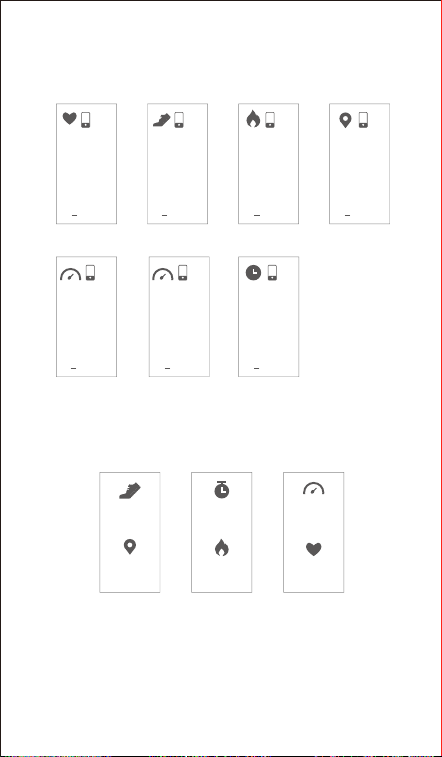
During exercise, tap on the touch key to flip through the
exercise data.
2) Long press the touch key for 2s to quit the run mode.
The following data is displayed after the exercise is ended:
Single tap on the touch key to flip through the exercise data.
3) Single tap on the touch key to go to the next mode: Bike
Mode.
BPM
23:34:56
BPM
89
MILES
23:34:56
MI
3
Kcal
23:34:56
Kcal
234
AVG Pace
AVG Pace
7’5”
23:34:56
TIME
23:34:56
PM
23:34
Pace
23:34:56
Pace
7’5”
Steps
23:34:56
Steps
4
,
456
MIN/Kcal
23
234
Kcal
MIN
AVG Pace/BPM
90
BPM
7’5”
AVG Pace
Steps/MI
4456
Steps
3
MI
10
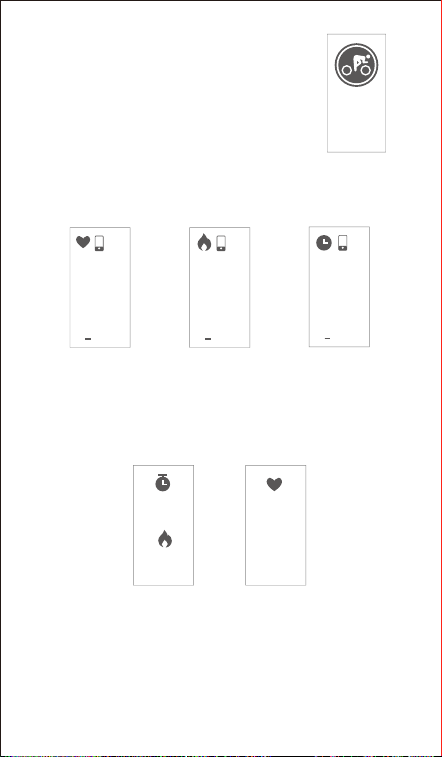
6. Bike Mode
1) Long press the touch key for 2s to start
the bike mode.
During exercise, tap on the touch key to flip through the
exercise data.
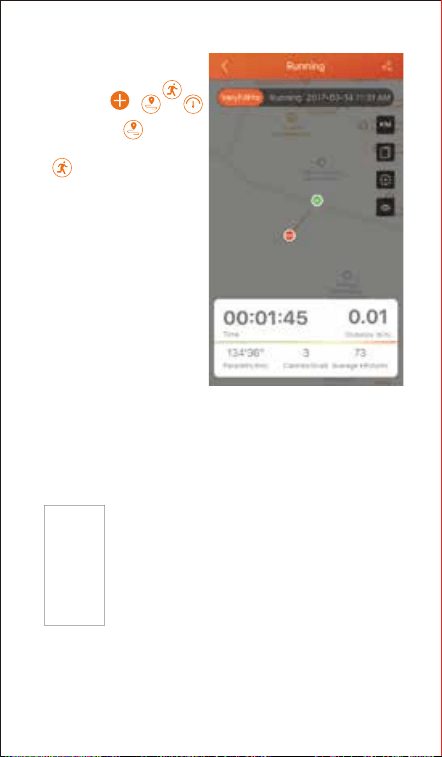
2) Long press the touch key for 2s to quit the bike mode.
The following data is displayed after the exercise is ended:
BPM
90
BPM
Min/Kcal
23
Min
234
Kcal
BPM
23:34:56
BPM
89
Kcal
23:34:56
Kcal
234
Time
23:34:56
PM
23:34
Single tap on the touch key to flip through the exercise data.
3) Single tap on the touch key to go to the main screen.
Bike
11
NO action
quit in 15s
6.1 Abnormal Situations During Exercise
1) Inactive Exit Prompt
a) Device will automatically exit the sport mode
if no action is taken in 15 minutes.
b) Device will be forced to exit the sport mode
if you don't tap on the waiting prompt within
15 seconds.
Single tap on the touch key to cancel the
Automatic Exit Sport mode prompt, then the
sport mode can work as normal.
Note:
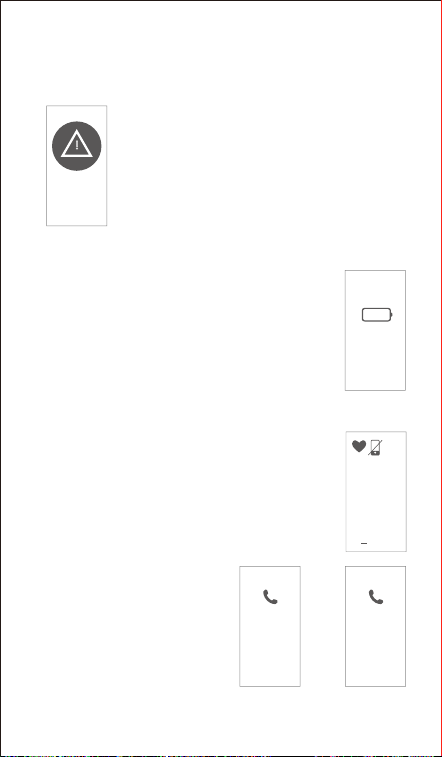
In the APP Mainpage
interface, tap ,
will pop up; tap to enter
the running mode directly or
tap to choose other
sport modes.
After starting the running
mode, the APP will track and
map your run distance; after
the exercise, you can
effortlessly check your
workout data.
12
12:34:56
BPM
89
6.2 Abnormal Operation Situation During Exercise
Single tap on the touch key to confirm the
prompt if the device is force to exit the sport
mode when memory is full, then exit the sport
mode and exercise data is displayed.
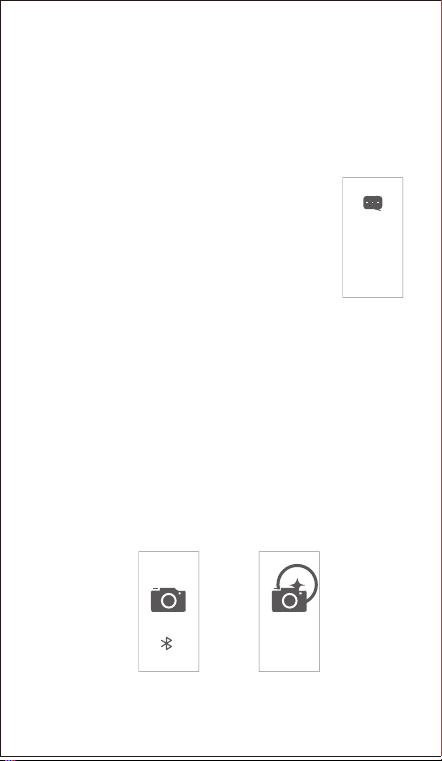
2) The prompt of being forced to exit the sport mode when
memory is full
Notes:
● The sport mode lasts for up to 6 hours.
● When the memory is full, it will prompt that the
sport mode is forced to exit.
When the APP and the device are disconnected,
the screen will appear a prompt of waiting:
Single tap on the touch key to exit the interface
of waiting prompt.
7. Other Functions
1) Call Alert
When there is an incoming call,
the device displays:
Stranger numberContact name in
contact list
Father 025-45
Long press
hang up
Long press
hang up
3) The prompt being forced to exit sport mode
when battery is low
Single tap on the touch key to confirm the
prompt if the device is force to exit sport
mode when battery is low, then exit the sport
mode and exercise data is displayed.
LOW
BATTERY
!
MEMORY
FULL
!
13
Notes:
● Long press the touch key to reject the call; single tap on the
touch key to return to the main screen.
● Only when "Call Alert" is ON in the APP, calls will be
notified. (When turning on/off the Call Alert function, please
click "√" to save your settings.)
Lisa: Are
you free
this Sun-
day?
2) SNS Alert
When SNS messages (including: SMS,
Facebook, WhatsApp, Twitter, Instagram,
Facebook Messenger, LinkedIn, Email, Mail, and
Calendar) come in, the device displays the
message content:
Notes:
● Only when "SNS Alert" (tap on "Device" → "SNS Alert" →
"Allow notification") is ON in the APP, SNS messages will be
notified. (When turning on/off the Call Alert function, please
click "√" to save your settings.)
● When "Do not disturb" function is enabled in the APP ("Device"
→ "More" → "Do not disturb" ), messages will not be notified
on the device during the set do-not-disturb period.
3) Take Photos
Open the "VeryFitPro" APP, and tap on "Device"→"Camera",
then the device screen shows the camera interface. Single
tap on the touch key of the device to control the camera of
your smart phone to shoot photos.
.
.
.
.
.
14
Basic Specifications
01
5) Device Error Notification
Note:
When the device has an exception, the
interface is displayed every time when the
device is turned on.
Status code:
-01 indicates acceleration sensor abnormality;
-02 indicates the heart rate sensor is abnormal;
-03 indicates touch ic is abnormal;
-04 indicates the flash is abnormal.
4) Sedentary Alert
Open the "VeryFitPro" APP. Tap on "Device" → "Sedentary
Alert" to switch on the Sedentary Alert function and set the
alert time. The device will vibrate and display the following
interface to remind you to move after the set sedentary alert
period passed.
Model No.: ID115Plus Color HR
Battery Capacity: 65mAh
Working Voltage: 3.7V
Host weight: about 24.8g
Sync: Bluetooth 4.0
Working Temperature: -20℃ ~ 40℃
Waterproof Rating: IP68
Working Time: 5 days (with Automatic HR Monitoring ON),
8 days (with Automatic HR Monitoring OFF).
15
Electronic Information Products
Poisonous and Harmful Statement
This product meets the EU ROHS
standards
Refer to IEC 62321 and EU RoHS
Directive 2011/65 / EU and its revision
instructions
FAQs
Failed to bind the device with APP
1) Make sure the Bluetooth of your smartphone is ON. (Do
not pair the tracker with your phone's Bluetooth on your
phone, but in "VeryFitPro" APP (Step 5). If you have
already paired the tracker with your phone's Bluetooth,
click to forget the device and bind the tracker to your
phone in "VeryFitPro" APP).
2) Make sure the distance between your smartphone and the
device is within 0.5 meter.
3) Make sure the "VeryFitPro" APP is trusted by your
smartphone by going to your smartphone system
Settings, finding "VeryFitPro" APP and enabling the
Location and all Notifications. (Specific setting methods
may vary according to different smartphones.
4) Make sure the fitness tracker is under unbind status
before pairing.
5) Open "VeryFitPro" APP on your smartphone and tap on
"Device" → "Bind device", then your smartphone starts
searching devices. Select "ID115Plus Color HR" in the list
of found devices, and tap on "ID115Plus Color HR" to
connect the device to your smartphone.
6) If you failed search the device, reboot your smartphone
and Bluetooth to search it again.
16
Note:
For iOS smartphones, if you failed to find "ID115Plus Color
HR" in the APP, take the following steps:
a) Go to your smartphone "Settings" → "Bluetooth". Under
"MY DEVICES", find "ID115Plus Color HR", tap on " "
→ "Forget This Device" and turn off Bluetooth.
b) Reboot smartphone and open the "VeryFitPro" APP.
When asked whether to turn on the Bluetooth switch,
click OK to search and bind your device.
Failed to charge the device
Make sure the direction of the device's USB plug is correct
when plugging into the USB port for charging. For correct
charging, the device's red indicator turns on and will be off
when the device has been fully charged. Please remove the
device host from the power supply once fully charged.
Prolonged charging may shorten the battery's life.
Failed to receive SMS/Calls notifications
Calls/SMS notification function works when the devicecon-
nects to your smartphone via APP. Please kindly refer to the
following tips:
1) Go to your smartphone system Settings, find "VeryFitPro"
APP and enable the Location and all Notifications.
(Specific setting methods may vary according to different
smartphones.
2) Turn Bluetooth on and go to the "VeryFitPro" APP to bind
the device.
3) Switch "Call/SNS Alert" function on, and click "√" to save
your settings.
Failed to count steps accurately
Regarding the step counting, this fitness tracker has a built-in
3D sensor. It registers your steps when you swing your arm.
Sometimes the data on device may displayed a little delayed.
And it will reset itself if you walk continuously less than 40
steps. To test the accuracy of the pedometer, please walk
casually and continuously up to 100 steps or more.

17
Failed to measure heart rate
Make sure the wrist band sit neatly on your wrist before use.
Tap on the touch key to go to the heart rate mode and wait
for 10~20s to detect the heart rate.
Failed to connect to the smartphone
The device will disconnect from your smartphone in the
following cases:
1) Smartphone Bluetooth was off or exceed normal Bluetooth
connection distance range (The normal Bluetooth
connection distance is within 10 meters, it can easily be
reduced by walls or furniture, etc.
2) The "VeryFitPro" APP was ended in phone background
process.
To reconnect the device to your smartphone, please kindly
refer to the following tips:
1) Go to your smartphone system Settings, find "VeryFitPro"
APP and enable the Location and all Notifications.
(Specific setting methods may vary according to different
smartphones.
2) Clear all running/background processes in your
smartphone, go to "VeryFitPro" APP, and swipe down
Mainpage, then the device will reconnect to your
smartphone and refresh data. You can also restart you
smartphone and Bluetooth, then rebind the device on APP.
Failed to sync your tracker data to APP
To sync your tracker data to "VeryFitPro" APP, go to
"VeryFitPro" APP and swipe down Mainpage under
connection state.

ID115Plus Color HR
Fitness Tracker
Benutzerhandbuch
18
KEIN SPIELZEUG: Kinder unter 14 Jahren sollten dieses
Produkt unter Aufsicht von Erwachsenen benutzen.
KEINE MEDIZINISCHE VERWENDUNG: Dieses Produkt ist
kein medizinisches Gerät und kann keine Krankheit
diagnostizieren, behandeln, heilen oder verhindern. Die
Genauigkeit unserer Geräte entspricht nicht den medizinischen
Geräten oder wissenschaftlichen Messgeräten, sondern Ihnen
die besten Informationen liefern, die in einem tragbaren
Aktivitäts-Tracker verfügbar sind.
21
USB-Aufladung
19
Bitte laden Sie Ihr neues Gerät mindestens
10 Minuten lang vor der Inbetriebnahme auf!
Bei niedrigem Batteriestand muss das Gerät an einem
USB-Adapter aufgeladen werden. Sobald es voll aufgeladen ist,
startet es automatisch und sollte vom Netz getrennt werden.
USB-Ladegerät Voraussetzung: DC USB-Anschluss (5V-500mA)
Ladezeit: 1 - 2 h
Wenn die rote Ladekontrollleuchte nicht leuchtet, wenn das
Gerät zum Laden angeschlossen ist, überprüfen Sie bitte die
Position des Ladesteckers. Nur wenn die rote LED leuchtet,
wird das Gerät aufgeladen.
3
Stecken Sie den Ladestecker zum Aufladen in den dafür
vorgesehenen USB-Anschluss.
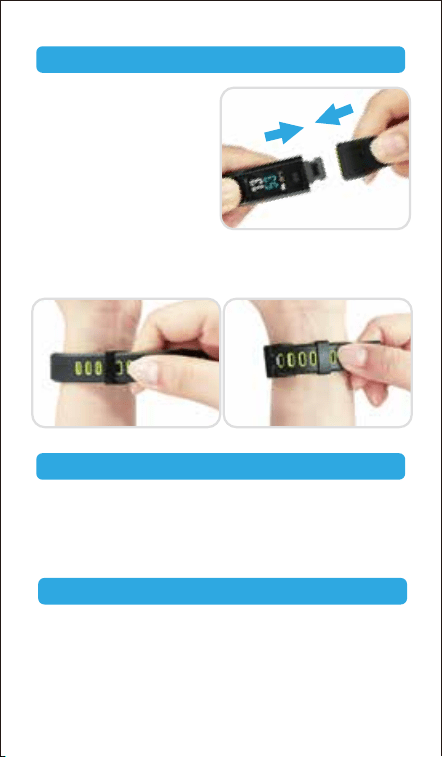
Tragen Sie: Tragen Sie das Gerät am Handgelenk horizontal,
etwa 2 cm bis karpalen, die gleiche Art und Weise wie eine
Uhr zu tragen.
Installieren:Stecken Sie den
Host in die Schlitze jedes
Gurtes.
Laden Sie VeryFitPro APP für Android und iOS
Geräte herunter.
Option 1: Suche nach "VeryFitPro" im APP Store oder bei
Google Play und Download auf dein Smartphone.
Laden Sie die APP herunter
Installieren und Tragen Sie Ihr Gerät
Smart Phone System Voraussetzung
● ios 7.1 & höher
● Android 4.4 & höher
● Bluetooth 4.0 & höher
20
21
Hinweis:
● Dieser Fitness Tracker fordert iOS 7.1 höher oder Android
4.4 obiges System.
● "VeryFitPro" APP ist nur mit Smartphones kompatibel.
Option 2: der QR-Code suchen, Scannen und APP
herunterladen.
Verwenden Sie das QR-Code-Scan-Tool, um den folgenden
QR-Code zu scannen, öffnen Sie den Link und folgen Sie den
Anweisungen zum Herunterladen von APP.
Tipp: Im Falle von Problemen beim Öffnen des Links, kopiere
den Link und öffne ihn im Browser.
VeryFitPro
iOS Android
1) Bluetooth aktiviert, bevor das Gerät zu binden.
2)Öffnen Sie VeryFitPro APP auf Ihrem Smartphone und tippen
Sie auf "Gerät" → "Verbinden", dann beginnt Ihr Smartphone
mit der Suche nach Geräten.
3)Wählen Sie "ID115Plus Color HR" in der Liste der
gefundenen Geräte, tippen Sie auf "ID115Plus Color HR", um
das Gerät an Ihr Smartphone anzuschließen.
Hinweis: Wenn Sie das Gerät nicht durchsuchen möchten,
tippen Sie bitte auf den Gerätebildschirm, um das Gerät zu
wecken (Bildschirm leuchtet an) und starten Sie dann mit
dem Smartphone noch einmal.
Notizen:
● Nach dem ersten erfolgreichen Suchen und Binden, öffnen
Sie die Bluetooth-Funktion des Mobiltelefons, wird das Gerät
automatisch durchsuchen und verknüpfen mit dem mobilen
Gerät, das es gebunden hat.
Pair das Gerät
Berührungstaste
ID115Plus Color HR
Wählen Sie das Gerät im
Smartphone-Suchliste
● Wenn Sie das Gerät im
Bluetooth-Status trennen,die
APP setzt die Einstellungen auf
de Standard zurück und alle
Daten auf dem Gerät werden
gelöscht.
Wenn Sie das Gerät im
deaktivierten Bluetooth-Status
trennen,die APP wird die
Einstellungen auf die
Standardeinstellungen
22
Aufwecken des Bildschirms
Wenn Sie den ID115Plus Color HR nicht verwenden, ist die
Anzeige ausgeschaltet. Um ihn aufzuwecken:
zurücksetzen.Aber die Daten auf dem Gerät können nicht
gelöscht werden.
● Das Gerät kann nur mit einem Bluetooth-Gerät zu einem
Zeitpunkt verbunden werden.
Während der Verbindung muss bestätigt werden, dass es
keine anderen Bluetooth-Geräte in der Nähe gibt.
Display
Hinweis: Dies ist ein Non-Touch-Bild-
schirm. Verwenden Sie bitte die
Berührungstaste um verschiedene
Funktionen auszuwählen.
Berührungstaste
Nach der ersten erfolgreichen Verbindung
sieht der Hauptbildschirm wie auf der
linken Seite gezeigt aus.
23℃
( (
•
) )
● Drehen Sie Ihr Handgelenk in Ihre
Richtung. Auf dem Bildschirm werden
die Zeit und das Wetter sich zeigen
(Das Wettervorhersage kann in " Gerät
"→"Mehr"→" Wettervorhersage " in
APP ausgeschaltet werden).
Achtung!
Die Bildschirmhelligkeit kann von Level 1 bis Level 5 in "
Gerät "→"Mehr"→" Bildschirmhelligkeit " in APP angepasst
werden. Level 5 ist am hellsten. Vergessen Sie es bitte nicht,
" √ " zu klicken, um Ihre Einstellungen zu speichern.
23
※1: "Alarmmodus" wird nur dann auf dem Gerätebildschirm
angezeigt, wenn "Alarmalarm" im APP eingeschaltet ist.
※2: " Spaziergangmodus ", " Renn -Modus " und "
Fahrrad-Modus " werden standardmäßig auf dem
Gerätebildschirm angezeigt. Sie können bis zu 3
verschiedene Sportarten von 14 Sportmodi einstellen, um
auf dem Gerätebildschirm anzuzeigen (Gehen Sie zu
"VeryFitPro" APP C "Gerät" → "Mehr" → "Aktiv-Modus").
Hauptfunktionen
Hauptbildschirm
23℃
Herzfrequenzmodus
Spaziergangmodus※2
Walk
Schrittmodus
0
Alarmmodus※1
12:45
AM
Mon
Renn Modus
Run
Fahrradmodus
Bike
Hauptbildschirm
23℃
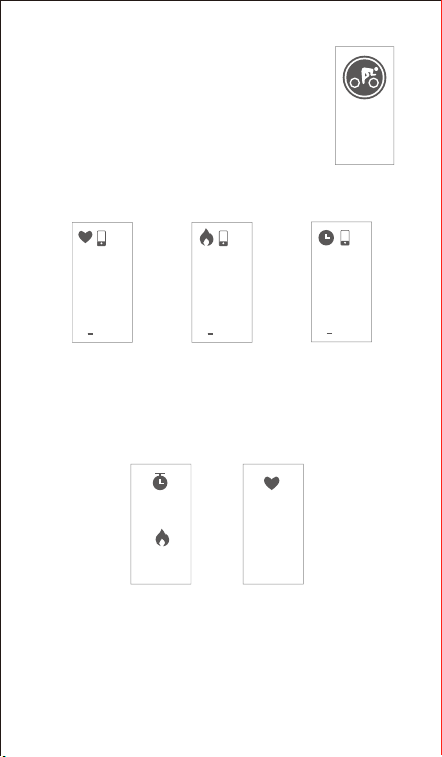
1. Schritt Modus
1) Drücken Sie die Touch-Taste für 2sec, um den detaillierten
Schrittmodus anzuzeigen.
Funktion Einleitung
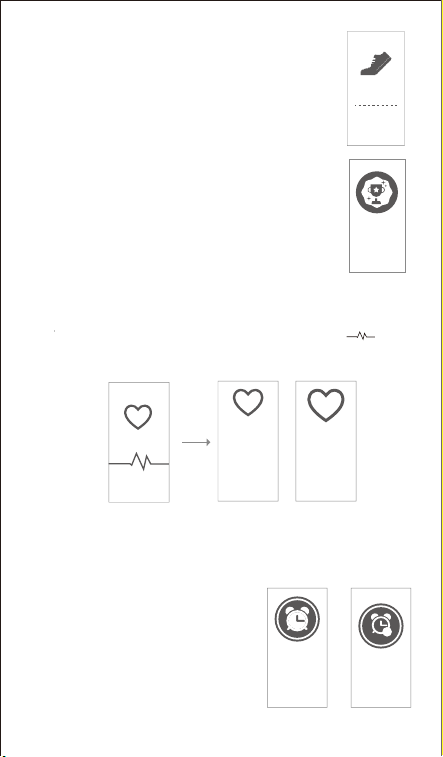
2) Klicken Sie auf die Touch-Taste, um die
ausführlichen Schrittdaten durchzublättern.
3) Tippen Sie auf die Touch-Taste, um zum nächsten
Modus zu gelangen: hier der Herzfrequenzmodus.
2. Herzfrequenzmodus
Tippen Sie auf die Touch-Taste, um zum nächsten Modus zu
gelangen: Alarmmodus.
24
Hinweis:
Sie können in die App gehen, um Ihre Sportziele
einzustellen („User“→ „Zielsetzungen“) Wenn Sie Ihr
Sportziel erreichen, vibriert das Gerät und der
Hauptbildschirm wird angezeigt.
Tippen Sie auf die Touch-Taste, um zum Hauptbild-
schirm zurückzukehren.
3. Alarmmodus
1) Lang drücken Sie die Touch-Taste
für 2s zum Ein- / Ausschalten der
Erinnerung.
2) Tippen Sie auf die Touch-Taste,
um in den nächsten Modus zu
gelangen:Zeitmodus.
Nach dem Eingeben der Herzfrequenzschnittstelle für 1s, wird
das Gerät automatisch startmonitoring die herzfrequenz. Bevor
die korrekte Daten erkannt werden, zeigt das Gerät " "
Nachdem die korrekten Daten erkannt wurden, zeigt sie
spezifische Daten an.
0
Vor der Daten
angezeigt werden
Nachdem die Daten
angezeigt werden
8989
12:45
AM
Mon
x
Achieve
goals
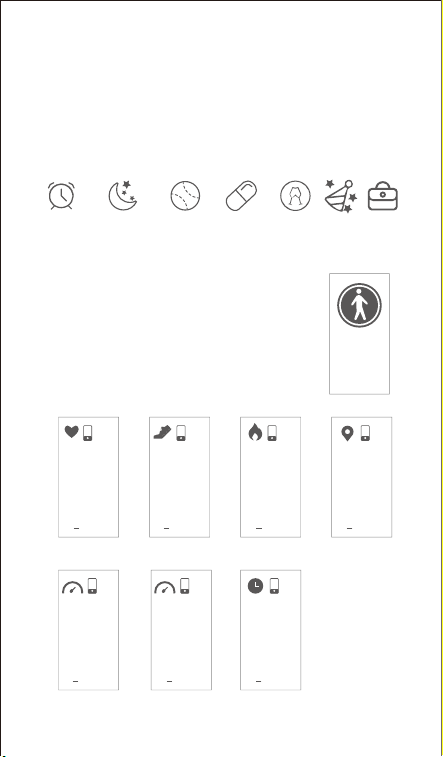
4. Spaziergangmodus
Während des Trainings tippen Sie auf die
Touch-Taste, durchsuchen Sie die Daten.
25
● Tippen Sie auf den Alarm, damit können Sie die Alarmtypen
hinzufügen und einstellen, wiederholen Typ und die Uhrzeit.
(Wenn Alarm (e) hinzugefügt / aktiviert und aktiviert ist,
klicken Sie bitte auf "√", um Ihre Einstellungen zu speichern.)
2) Tippen Sie auf die Touch-Taste, um zum nächsten Modus
zu gelangen: spaziergang - modus.
1) Lang drücken Sie die Touch-Taste für 2s,
um den Spaziergangmodus zu starten.
Hinweis:
● Der Alarmmodus ist nur verfügbar, wenn Alarms hinzugefügt /
aktiviert und aktiviert ist (Schalten Sie den Schalter ein, um
den Alarm zu aktivieren) in "Alarm" im APP.
Geh schlafen MedikationSteh auf PartyTraining SitzungTermin
Walk
Herzfrequenz
23:34:56
BPM
89
ENTFERNUNG
23:34:56
MI
3
Kalorien
23:34:56
Kcal
234
Tempo
23:34:56
Pace
7’5”
Das durchschnittliche
Tempo
AVG Pace
7’5”
23:34:56
Zeit
23:34:56
PM
23:34
Schritt
23:34:56
Steps
4
,
456
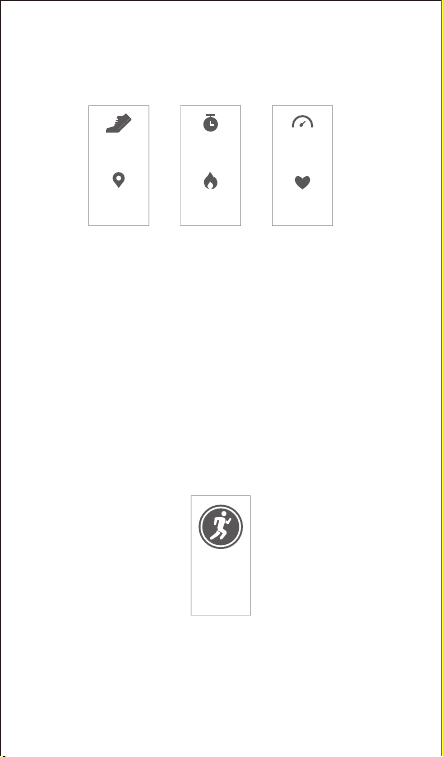
5. Renn Modus
1) Lang drücken Sie die Touch-Taste für 2s, um den renn modus zu
starten.
Tippen Sie auf die Touch-Taste, um die Trainingsdaten
durchsuchen.
3) Tippen Sie auf die Touch-Taste, um zum nächsten Modus zu
gelangen: renn modus.
Hinweis:
Daten von Übungen von weniger als 1 Minute werden nicht
gespeichert.
2) Langes Drücken der Touch-Taste für 2s, um den Spaziergang-
modus zu verlassen.
Nach dem Ende der Training werden folgende Daten angezeigt:
26
Min / Kalorien
23
234
Kcal
Min
Das durchschnittliche
Tempo / Herzfrequenz
90
BPM
7’5”
AVG Pace
SCHRITT / MI
4456
Steps
3
MI
Run
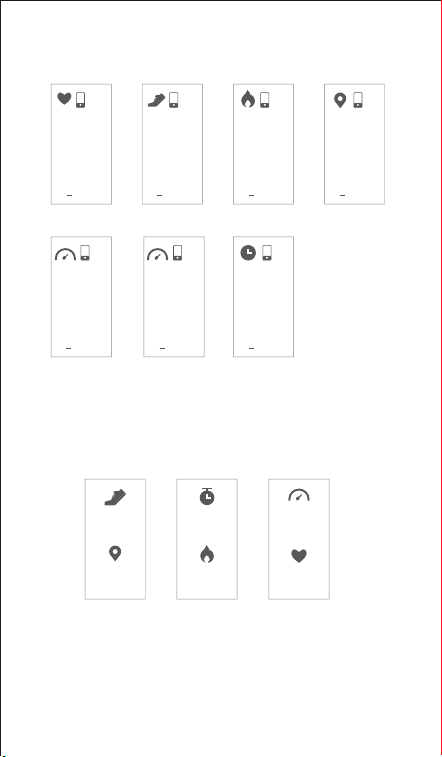
27
Während des Trainings tippen Sie auf die Touch-Taste, um die
Trainingsdaten durchsuchen.
2) Lang drücken Sie die Touch-Taste für 2s, um den renn
modus zu verlassen.
Nach dem Ende der Tranning werden folgende Daten
angezeigt:
Tippen Sie auf die Touch-Taste, um die Trainingsdaten
durchsuchen.
3) Einmaliges Tippen auf die Touch-Taste, um zum thenext-Mo-
dus zu gelangen: Fahrradmodus.
Herzfrequenz
23:34:56
BPM
89
ENTFERNUNG
23:34:56
MI
3
Kalorien
23:34:56
Kcal
234
Das durchschnittliche
Tempo
AVG Pace
7’5”
23:34:56
Zeit
23:34:56
PM
23:34
Tempo
23:34:56
Pace
7’5”
Schritt
23:34:56
Steps
4
,
456
Min / Kalorien
23
234
Kcal
MIN
Das durchschnittliche
Tempo / Herzfrequenz
90
BPM
7’5”
AVG Pace
SCHRITT / MI
4456
Steps
3
MI
28
3) Tippen Sie auf die Touch-Taste, um zum Hauptbildschirm zu
gelangen
Während des Trainings tippen Sie auf die Touch-Taste, um
die Trainingsdaten durchsuchen.
2) Langes Drücken der Touch-Taste für 2s, um den Fahrrad-Mo-
dus zu beenden.
Nach dem Ende der Übung werden folgende Daten angezeigt.
Tippen Sie auf die Touch-Taste, um die Trainingsdaten
durchsuchen.
Durchschnittliche
Herzfrequenz
90
BPM
Min/Kcal
23
Min
234
Kcal
Herzfrequenz
23:34:56
BPM
89
Kalorien
23:34:56
Kcal
234
Zeit
23:34:56
PM
23:34
6. Fahrradmodus
1) Lang drücken Sie die Touch-Taste für 2s, um
den Fahrradmodus zu starten.
Bike
29
Hinweis:
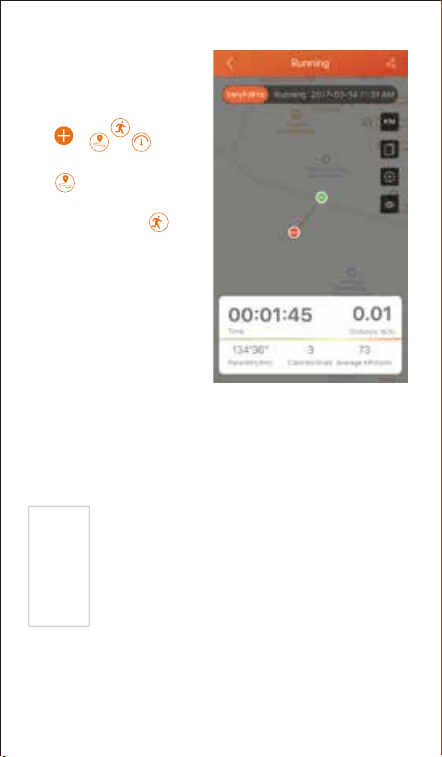
In der APP
Mainpage-Schnittstelle,tippen
Sie , wird
auftauchen, Tippen Sie
auf , um in den renn
modus direkt zu gelangen
oder tippen Sie auf , um
andere sportmodes zu
wählen.
Nach dem Start des
rennmodus wird die APP Ihre
Laufstrecke verfolgen und
abbilden.
Nach der Tranning, Sie
können Ihre Daten
überprüfen.
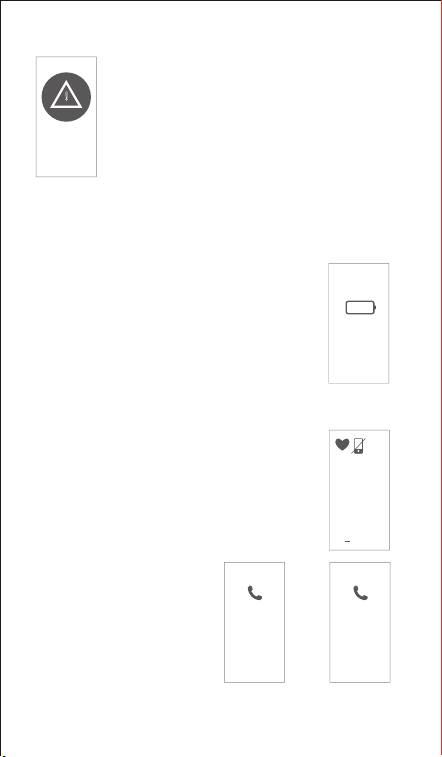
6.1 Abnormal Bewegungsvorgang Erinnerung während
des Trainings
1) Inaktiver Ausstieg Bewegungsmodus Eingabeaufforderung
a) Gerät wird automatisch den Sport verlassen,
wenn es in 15 Sekunden keine Aktion gibt
b) Gerät wird zum Verlassen des Sport-Mo-
dus,wenn Sie nicht innerhalb von 15 Sekunden
auf der Warteaufforderung Sie tippen.
Tippen Sie einfach auf die Berührungstaste, um die
automatische Abfahrt Sportmodus-Aufforderung
abzubrechen, dann kann der Sportmodus normal
funktionieren.
2) Die interne Speicher ist voll,wird es aus die Bewegungs-
modus-Eingabeaufforderung gezwungen.
NO action
quit in 15s
30
7. Weitere Funktionen
1) Anrufwarnung
Wenn ein eingehender Anruf
eingeht, zeigt das Gerät:
3) Die Kraft, um den Sportmodus zu verlassen,
wenn die Batterie niedrig ist
Klicken Sie auf die Berührungstaste, um den
vollen Speicher zu ermitteln, der aus der
Bewegungsmodus-Eingabeaufforderung
gezwungen wird, verlassen Sie den
Bewegungsmodus, geben Sie das Ende des
Bewegungsdatenanzeigemodus ein.
Einfaches Tippen auf der Berührungstaste, um
die Abfrage zu bestätigen, ob das Gerät Kraft ist,
den Sport-Modus zu verlassen, wenn der
Speicher voll ist, dann verlassen Sie den
Sportmodus und Trainingsdaten werden
angezeigt.
Hinweis:
● Der Sportmodus kann nur bis zu 6 Stunden
dauern.
● Wenn der Speicher voll ist, wird es aufgefordert,
dass der Sportmodus zum Ausstoßen zwingt.
6.2 Abnorme Betriebssituation während der Übung
Wenn die App und das Armband getrennt
sind, erscheint der Bildschirm eine
Aufforderung zum Warten:
Tippen Sie auf die Touch-Taste, um die
Schnittstelle der wartenden Eingabeauf-
forderung zu verlassen.
12:34:56
BPM
89
Kontaktname
Inkontaktliste
Fremdernumber
Father 025-45
Long press
hang up
Long press
hang up
LOW
BATTERY
!
MEMORY
FULL
!
31
Hinweise:
● Lange Taste drücken, um den Anruf abzulehnen; Tippen
Sie auf die Touch-Taste, um zum Hauptbildschirm
zurückzukehren.
● Nur wenn in der APP " Anrufwarnung " eingeschaltet ist,
werden Anrufe benachrichtigt. (Beim Ein- / Ausschalten der
Anrufwarnung -Funktion klicken Sie bitte auf "√", um Ihre
Einstellungen zu speichern.)
2) SMS-Benachrichtigung
Wenn es Nachrichten gibt(einschließlich: SMS,
Facebook, WhatsApp, Twitter, Instagram,
FacebookMessenger, verknüpft in, E-Mail,
Kalender), wird der aktuelle Inhalt Schnittstelle
zeigen.
Hinweis:
● Nur wenn im Gerät die "Benachrichtigung" eingeschaltet ist
und "SMS Alert" (tippen Sie auf "Gerät" → "SNS Alert" →
"Benachrichtigung zulassen") ist im APP eingeschaltet,
SMS-Nachrichten werden benachrichtigt. (Wenn Sie die
Anrufalarm-Funktion ein- / ausschalten, klicken Sie bitte auf
"√", um Ihre Einstellungen zu speichern.)
● Wenn die Funktion "Nicht stören" in der App aktiviert ist
("Gerät" → "Mehr" → "Nicht stören" ), Ist der Benachrichti-
gungsmodus im Gerät während der eingestellten
Nicht-Störungsperiode nicht verfügbar.
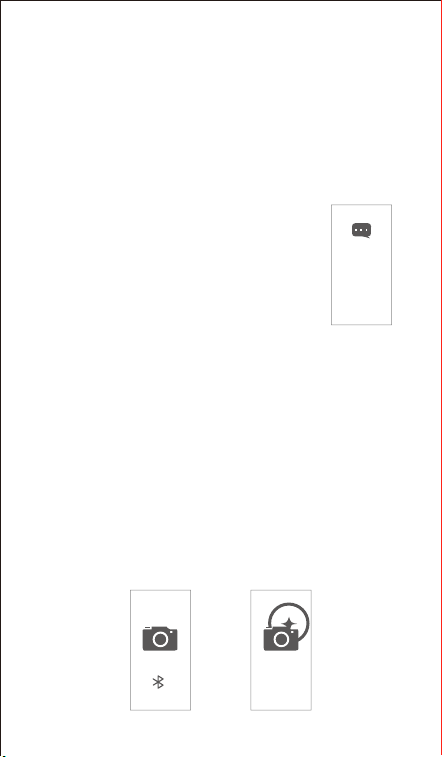
3) Kamera Steuerungsmodus
Öffnen Sie das "VeryFitPro" APP und tippen Sie auf " Gerät "
→ " Kamera "; einfaches Tippen auf der Touch-Taste zur
Steuerung der Kamera zu schießen.
Lisa: Are
you free
this Sun-
day?
.
.
.
.
.
32
4) Sitzender Alarm
Öffnen Sie die "VeryFitPro" APP. Tippen Sie auf " Gerät " →
"Bew.erinnerung", um die Sitzender Alarm Funktion
einzuschalten und die Alarmzeit einzustellen. Das Gerät
vibriert und zeigt die folgende Schnittstelle an, um Sie daran
zu erinnern, dass Sie sich nach der eingestellten sesshaften
Alarmperiode bewegen können.
01
5) Gerätefehlermeldung
Hinweis:
Wenn das Gerät eine Ausnahme hat, wird die
Schnittstelle jedes Mal angezeigt, wenn das
Gerät eingeschaltet ist.
Statuscode:
Modell Nr .: ID115Plus Color HR
Batteriekapazität: 65mAh
Betriebsspannung: 3.7V
Host-Gewicht: ca. 24.8g
Synchronisierung: Bluetooth 4.0
Arbeitstemperatur: -20 ℃ ~ 40 ℃
Wasserdicht Bewertung: IP68
Arbeitszeit: 5 Tage (mit automatischer HR Überwachung ON),
8 Tage (mit automatischem HR Überwachung OFF).
Grundlegende Spezifikationen
-01 Zeigt Beschleunigungssensor anormal;
-02 zeigt an, dass der Herzfrequenzsensor anormal ist;
-03 zeigt anfassen icis abnormal;
-04 zeigt an, dass der Blitz abnormal ist;
33
Elektronische Informationsprodukte
Giftige und schädliche Aussage
Dieses Produkt entspricht den
EU-ROHS-Standards
Siehe IEC 62321 und EU RoHS
Richtlinie 2011/65 / EU und deren
Revisionsanweisungen
FAQs
Fehler bei die koppel des Geräts mit APP
1) Vergewissern Sie sich, dass das Bluetooth Ihres
Smartphones eingeschaltet ist.
(Koppeln Sie den Tracker nicht mit der Bluetooth-Funktion
Ihres Handys, sondern mit der App "VeryFitPro" (Schritt 5).
Wenn Sie haben den Tracker bereits mit der Bluetooth-Funk-
tion Ihres Handys gekoppelt haben, klicken Sie "das Gerät
vergessen". Und koppeln Sie den Tracker die App
"VeryFitPro" an Ihr Handy.
2) Vergewissern Sie sich, dass der Abstand zwischen Ihrem
Smartphone und dem Gerät innerhalb von 0,5 Metern liegt.
3) Vergewissern Sie sich, dass die "VeryFitPro" APP von Ihrem
Smartphone vertraut wird, indem Sie auf Ihre
Smartphone-Systemeinstellungen zugreifen und "VeryFitPro"
APP finden und den Standort und alle Benachrichtigungen
aktivieren. (Spezifische Einstellmethoden können je nach
Smartphone variieren.
4) Vergewissern Sie sich, dass der Fitness-Tracker vor dem
Pairing unter dem Status ist.
5) Öffnen Sie "VeryFitPro" APP auf Ihrem Smartphone und
tippen Sie auf "Gerät" → "Verbinden", dann beginnt Ihr
Smartphone mit der Suche von Geräten. Wählen Sie
"ID115Plus Color HR" in der Liste der gefundenen Geräte
und tippen Sie auf "ID115Plus Color HR", um das Gerät an
Ihr Smartphone anzuschließen.
6) Wenn Sie das Gerät nicht durchsuchen, starten Sie Ihr
34
Smartphone und Bluetooth neu, um es erneut zu durchsuchen.
Hinweis:
Für iOS-Smartphones, wenn Sie in der APP keinen "ID115Plus
Color HR" gefunden haben, gehen Sie wie folgt vor:
a) Gehen Sie zu Ihrem Smartphone "Einstellungen" →
"Bluetooth". Unter "MEINE GERÄTE" finden Sie "ID115Plus
Color HR", tippen Sie auf " " → "Vergessen Sie dieses
Gerät" und deaktivieren Sie Bluetooth.
b) Starten Sie das Smartphone neu und öffnen Sie die
"VeryFitPro" APP. Wenn Sie gefragt werden, ob Sie den
Bluetooth-Schalter einschalten möchten, klicken Sie auf OK,
um Ihr Gerät zu durchsuchen und zu binden.
Das Gerät konnte nicht geladen werden
Vergewissern Sie sich, dass die Richtung des USB-Steckers
des Geräts beim Einstecken in den USB-Port zum Aufladen
korrekt ist. Bei korrekter Aufladung schaltet sich die rote
Anzeige des Gerätes ein und erlischt, wenn das Gerät
vollständig aufgeladen ist. Bitte entfernen Sie den Geräteträger
aus der Stromversorgung, sobald er vollständig aufgeladen ist.
Eine längere Aufladung kann die Lebensdauer der Batterie
verkürzen.
Fehler beim Empfangen von SMS / Calls Benachrichtigun-
gen
Anrufe / SMS-Benachrichtigung Funktion arbeitet, wenn das
Gerät.
Eine Verbindung zu Ihrem Smartphone via APP Bitte freundlich
auf die folgenden Tipps beziehen:
1) auf die Smartphone-System-Einstellungen gehen,
„VeryFitPro“ APP finden und die Lage und alle Benachrichti-
gungen (Spezifisch Einstellmethoden variieren kann nach
verschiedenen Smartphones.
2) ermöglichen. Schalten Sie Bluetooth auf und gehen auf die
„VeryFitPro“ APP das Gerät zu binden.
3) Switch „Call / SNS Alert“ Funktion auf, und klicken Sie auf
“√” ,Ihre Einstellungen zu speichern.
Fehler beim Zählen von Schritten
Bei der Schrittzählung hat dieser Fitness-Tracker einen

35
eingebauten 3D-Sensor. Es registriert deine Schritte, wenn du
deinen Arm schwangst. Manchmal können die Daten auf dem
Gerät etwas verzögert angezeigt werden. Und es wird sich
zurücksetzen, wenn du kontinuierlich weniger als 40 Stufen
gehst. Um die Genauigkeit des Schrittzählers zu prüfen, geh
bitte zufällig und kontinuierlich bis zu 100 Stufen oder mehr.
Die Herzfrequenz kann nicht gemessen werden.
Vergewissern Sie sich, dass das Armband vor dem Gebrauch
ordentlich am Handgelenk sitzt. Tippen Sie auf die
Touch-Taste, um zum Herzfrequenzmodus zu gelangen und
warten Sie 10 ~ 20s, um die Herzfrequenz zu ermitteln.
Fehler beim Herstellen der Verbindung zum
Smartphone Das Gerät wird in den folgenden Fällen von
Ihrem Smartphone getrennt:
1) Smartphone Bluetooth war ausgeschaltet oder
überschritten den normalen Bluetooth-Anschlussbereich
(Der normale Bluetooth-Anschluss beträgt innerhalb von 10
Metern, er lässt sich leicht durch Wände oder Möbel usw.
2) Die "VeryFitPro" APP wurde im Telefonhintergrundprozess
beendet.
Um das Gerät wieder an Ihr Smartphone anzuschließen,
wenden Sie sich bitte an die folgenden Tipps:
1) Gehen Sie zu Ihrem Smartphone-System Einstellungen,
finden Sie "VeryFitPro" APP und aktivieren Sie den Standort
und alle Benachrichtigungen. (Spezielle Einstellungsmetho-
den können je nach Smartphone variieren.
2) Löschen Sie alle laufenden / Hintergrundprozesse in Ihrem
Smartphone, gehen Sie zu "VeryFitPro" APP und
schwenken Sie die Hauptseite, dann wird das Gerät wieder
mit Ihrem Smartphone verbunden und Daten aktualisieren.
Sie können auch Smartphone und Bluetooth neu starten,
dann das Gerät auf APP zurückbinden.
Fehlgeschlagen Ihr Tracker Datum App synchronisie-
ren
So synchronisieren Sie Daten Ihrer Tracker „VeryFitPro“ APP,
gehen Sie zu „VeryFitPro“ APP und nach unten wischen
Startseite unter Verbindungszustand.